Classic Xbox 360 video game Halo 3 comes to PC with support for 4K UHD and over 60FPS

The Halo 3 video game is finally available to play on PC as part of the Halo Master Chief Collection or as an individual purchase via the Microsoft Store and Steam.

The original game came out on the Xbox 360 console back in 2007 and has also been playable on the Xbox One due to added backwards compatibility support since 2017. A new version of Halo 3, with improved graphics, launched on the Xbox One in 2014 as part of the console release of the Halo Master Chief Collection. This PC release is the same version as the Halo Master Chief Collection console version and can support 4K resolution and 60+ frames per second depending on the power of the computer playing the game.

This PC release of Halo 3, and all of the Halo Master Chief Collection titles, are also available to play for free for all Xbox Game Pass for PC subscribers.

Halo 3 was one of the biggest video game releases on the Xbox 360 during its year of release and has continued to be a favorite with fans of the franchise. Here’s the official game description and feature list:

Halo 3 comes to PC as the next installment in Halo: The Master Chief Collection. Now optimized for PC, witness the Master Chief’s return to finish the fight between the Covenant, the Flood, and the entire Human race in this dramatic, pulse-pounding conclusion of the original Halo trilogy. With the fate of the galaxy hanging in the balance, the Master Chief returns to uncover an ancient secret hidden beneath the sands of Africa, which could hold the key to humanity’s salvation or destruction – an object that could change the tide of the Human-Covenant conflict.

Game Features:

  • PC Settings/Optimizations: Halo 3 is now optimized for PC and looking better than ever at up to 4k UHD and at 60+ FPS.* Other PC native settings include customizable mouse and keyboard support, ultrawide support, FOV customization, and more.
  • Campaign: Experience the next chapter in the Halo saga and fight your way through 11 unforgettable missions.
  • Multiplayer: Continue your Halo adventure with 24 multiplayer maps from the iconic Halo 3, featuring a completely updated progression system in Halo: The Master Chief Collection.
  • Forge & Theater: Create new ways to play with the iconic Forge tool and utilize the Theater to capture and share your favorite moments with the community

To coincide with the addition of Halo 3 on PC, an update has rolled out to both the PC and Xbox One versions of Halo The Master Chief Collection with a variety of new features and improvements.

Most notable among the changes are the addition of the Forge mode to Halo: Reach, Halo 2: Anniversary, and Halo 3 on PC and a number of improvements to Forge across the board. Here’s the full list of new features:

  • (PC) Forge is now available for Halo: Reach, Halo 2: Anniversary, and Halo 3.
  • Halo 3 Forge has been updated with new features, including Object Physics, rotation, coordinate snap and precision edit tools.
  • Halo 3 and Halo: Reach Forge pallets have been expanded with new objects and budget increases.
  • Halo 3, Halo: Reach, and Halo 2: Anniversary Forge tools have been updated with a new “Toggle Rotation Axes” feature adding toggleable rotation around World and Local axes. Note: This is planned to be added into Halo 4 at a later date.
  • Updated season unlock flow to feature non-linear unlocks per page and added Season 2 featuring 30 new nameplates, 46 new H1 Weapon and 18 H1 Vehicle skins.
  • Challenges are now available to complete across all available titles. Note: Campaign Challenges are currently not supported in Halo 4: Spartan Ops.
  • New spartan customization 3D model viewer for Halo 3.
  • Updated Skill Rank backend for Ranked Matchmaking. This resolved a long-standing rank reset issue and has required us reset all ranked playlists to 1.
  • “Highest Lifetime” rank is now displayed for rotational hoppers that are no longer available.
  • Halo: Reach & Halo 3 audio has been updated.
  • New Acrophobia skull for Halo 3.
  • “Dual Wield Inversion” has been added as a toggle for players who wish to disable the title from switching the “primary fire” weapon to your left-hand while dual wielding in Halo 2 or Halo 3.

A number of fixes have also been made with this latest update. You can read the rather long patch notes here.

Are you a fan of the Halo video games and are you hyped to play Halo 3 on your PC? Let us know in the comments below and then follow us on Pinterest and Twitter for more gaming news.



Halo 3
Halo 3
Developer:
Xbox Game Studios
Price:
Free

How to fix Wow-64.exe application error

The wow-64.exe application error will prevent you from being able to play World of Warcraft because your system is unable to run the game‘s files. Immediately you launch the WoW, it crashes with the following error pointing to the Wow-64.exe file.

Your computer can’t open World of Warcraft if the cached files are corrupt or the executable files are broken or blocked by a security feature. If you are currently experiencing this issue, you’ll find working methods to fix it and get your game back up and running.

How do I fix the Wow-64.exe application error?

1. Delete the Wow cache

  1. If the game is open, ensure to close it completely.
  2. Open the File Explorer and go to the installation folder of World of Warcraft (Program Files or Program Files  (x86) folder in the C:/ drive).
  3. Find the Cache folder and delete it.
  4. Launch World of Warcraft and see if this solution has cleared the wow-64.exe application error.

2. Temporarily disable your antivirus or exclude the Wow folder

wow-64.exe-application-error-disable-antivirus

Your antivirus software may be behind the wow-64.exe application error, as several occurrences have been investigated to be due to an antivirus tool blocking processes and executables from modifying the system files.

In troubleshooting the wow-64.exe application error, you have to disable your antivirus temporarily and retry the game. If you don’t get the wow-64.exe application error with the antivirus off, then you can be sure that you’ve found the solution.

However, you don’t want to run your computer without an active antivirus; so, I recommend that instead of entirely deactivating your antivirus, you can exclude the WoW folder from its checks.

The process of adding folders to exceptions differs quite a lot between antivirus software. Here are the steps required to do so efficiently for a few antivirus software options:

Where do I add folder exclusions tp fix wow-64.exe application error?

Kaspersky Internet Security

  1. Open the Kaspersky Antivirus software.
  2. Navigate to Settings, and choose Additional.
  3. Next, click on the Threats and Exclusions option.
  4. Select the Exclusions option.
  5. Click the Specify Trusted Applications option.
  6. Use the Add button to apply the required settings.

Note: When you navigate to the above locations on your antivirus program, you should see the option of browsing to the WoW folder. You can find this path by right-clicking on the game’s icon and opening Properties from the context menu.

 Avast Antivirus

  1. Open Avast by double-clicking the icon in the taskbar.
  2. Navigate to Settings > General.
  3. Next, select the Exclusions button.
  4. Add the folder to the excluded files list.

AVG Antivirus

  1. Open the AVG software by double-clicking the executable file.
  2. Navigate to the Settings of the app.
  3. Click on Components.
  4. Choose Web Shield.
  5. Click the Exceptions option, and add the folder you want to the list.

3. Fix wow-64.exe application error with the game’s Repair Tool

  1. Navigate to the installation folder of the game.
  2. Delete WoW.exe and WoW-64.exe.
  3. Next, double-click on the Battle.net launcher app to open it.
  4. Go to the pane for World of Warcraft.
  5. Here, select Options to reveal a dropdown menu.
  6. From this dropdown, hit the Scan and Repair link and click Begin Scan to confirm the action.

Note: This process will re-download the deleted files and likely fix the wow-64.exe application error.


In following the above solutions for fixing the wow-64.exe application error, be careful about modifying or deleting files in the paths. These files are essential for running World of Warcraft and your computer in general.

If all the troubleshooting methods fail, then you’d have no other choice but to re-install the entire game.

Hopefully, it won’t come to that; you should be able to repair the wow-64.exe application error quickly with these troubleshooting methods.

[wl_navigator]

Microsoft To Do apps update on Windows 10 and iOS with narrator and repeating task fixes

Both the Windows 10 and iOS versions of the Microsoft To Do app updated today with a variety of different fixes and improvements.

The Windows 10 app’s update consisted of fixes for accessibility features while the iOS app update for Apple’s iPhone and iPad devices squashed some bugs relating to the repeating task functionality.

Here’s the release notes for the Windows 10 Microsoft To Do update:

We have made a few accessibility fixes around narrator announcements and keyboard focus.

And here’s the release notes for the iOS update:

In this release, we have fixed the following recurring task issues:

  • The issue that was causing the weekly recurrence configuration (days of the week) to switch unexpectedly from one set to another while changing the due date.
  • Issue when you set 2-3 weeks recurrence and then you change the due date, the due date will jump to the next occurrence (in 2-3 weeks).

Have you noticed any of these bugs while using To Do recently? Let us know in the comments below and then follow us on Pinterest and Facebook for more Microsoft app content.


‎Microsoft To Do
‎Microsoft To Do
Price:
Free

Error creating character WoW [Solved]

World of Warcraft is one of the few PC games that has stood the test of time. Loads of people play this game, and a common issue is an Error creating character WoW.

When you attempt to create a character on World of Warcraft and the game says Error creating a character.

Ordinarily, the way to repair this problem and create new characters is to restart your computer or switch to a different web browser.

Restarting and changing browsers does not work all the time; that’s why I’ve outlined the best ways tot

How can I create a character in WoW without seeing an error message?

1. Select a different name

WoW logo + characters


The most straightforward solution for solving the error creating a character in WoW is to choose another name.

This is because you may be selecting a name that a different character is already called. Reserved names are the main causes of the error creating a character in WoW.

Sometimes, the character name may not already be in use. If a recently deleted character with a specific name, you can get the error when trying to create another character with that same name.

Therefore, to fix this challenge, all you have to do is create a new character.

You can retain the details you tried with earlier, but the only thing you must change is the name. After doing this, click on Finish to save the character.


2. Choose another hairstyle


Interestingly, a solution that works for resolving the Error creating a character in WoW is merely to select a different hairstyle for the character. This method really works. It looks weird, but it’s entirely understandable.

The hairstyle you’re selecting for your new character may not be available on the creation screen. Only barbers can access these hairstyles.

In a recent World of Warcraft update, these hairstyles started to show up at the creation screen. However, selecting any of them will give you the Error creating character WoW.

If you really want the hairstyle, you can get it at the barbers’.

Note: Is World of Warcraft failing to launch on your system? Check out our detailed WoW Windows 10 problems guide.


3. Contact a Game Master with a ticket

contact-support-Error-creating-character-WoW

  1. Head over to the Customer Support section and select Open a Ticket. Alternatively, create a new ticket.
  2. In the ticket, be sure to explain what steps you took before getting the error creating a character in WoW.

The Game Master will most likely troubleshoot the Error creating character WoW issue and give you a resolution. While you’re at it, you can try clearing your browsing data cache and cookies and retry on a different browser.

When you successfully solve the Error creating character problem in WoW, you won’t have any issues in creating new characters and enjoying the game with them.

This isn’t the only character problem, and we recently wrote about A character with that name already exists error in WoW, so don’t miss it.

If you’re not able to fix this problem with these methods, feel free to let us know by leaving a comment below.

Windows 10 2004/ 11 GPU scheduling option causes stream lag

The Windows 10 May 2020 Update introduced a couple of ready-to-use features. Those included the new Cortana app, which is now in general availability. Also, the OS came with others like hardware accelerated GPU scheduling, which is undergoing beta testing at the moment.

But, as one Reddit user reports, the hardware accelerated GPU scheduling experience isn’t exactly smooth in certain scenarios.

Hardware accelerated GPU scheduling setting issue

As a Windows 10 insider, you have to turn on hardware accelerated GPU scheduling to use it on your PC. That’s because it’s off by default.

However, it just so happens that, when the feature is on but idle, your PC may indicate an abnormally high percentage of GPU usage. In the case of the Reddit user, their PC would indicate 70% plus GPU usage each time they moved the mouse or interacted with the touch screen.

The user claims to have identified the hardware accelerated GPU scheduling setting as the root cause of their trouble. That diagnosis makes sense if the problem disappears after disabling the option.

I encountered the problem of my integrated GPU shooting from ~5% of idle usage to in excess of 70% usage whenever I moved the mouse or interacted with the touchscreen. I am on Dev Build 20067-1754 and after some work tracked it to the “Hardware-accelerated GPU scheduling” option. With this setting disabled, mouse movement and idle usage only rarely causes the GPU to go above 1%.

Apart from that, the Windows 10 insider claims that turning the feature off solved the problem for a Twitch streamer. The affected user would run into heavy stream lag lasting up to 30 seconds in certain situations, according to the insider.

All in all, you may reasonably expect the graphics processing capability to have some issues here and there before hitting general availability. Also, keep in mind that it’s only recently that some graphics cards received driver updates to support the Windows 10 2004 feature.

Have you worked with the new Windows 10 GPU scheduling capability yet? Please share your experience with the graphics feature in the comments section below.

Can a VPN be hacked? What makes a VPN secure?

If you browse the Internet regularly, it’s a wise decision to invest in a trustworthy VPN. Not only can it preserve your online privacy, but can also secure your connection.

Additionally, it can help you tackle a wide variety of connection issues.

For instance, you can use it to circumvent geo-restrictions, curb the packet loss percentage, and even improve in-game ping if you’re an online gaming aficionado.

However, you can’t, or better yet shouldn’t try just anybody when it comes to handling your online privacy.

What makes a VPN safe?

There are several power players in the VPN field, and each one of them wants the thickest slice of the metaphorical pie, which is the customer base.

The reason why we’re telling you this is that no fortress is truly impenetrable. Not even VPNs. So, before you go ahead and randomly make your pick from the VPN basket, take a few steps back and consider the following:

  • What’s their logging policy?
  • Do they keep personal data for a very long time?
  • Did they ever share personal data with third parties, if needed?
  • Is there anything on them installing backdoors on their service?
  • Which type of data do they collect, if any?
  • Will they keep my online privacy safe?

Don’t even think about trivial things like how much it costs. If you really care about your privacy, you should give it more credit than a few bucks every month.

Here’s the thing. A lot of customers already take these things into consideration. There’s another thing that’s not to be overlooked, and that’s why we kept it last because it’s so special in its simplicity.

Can VPNs be hacked?

Although the severity of said scenario is quite alarming, we insist that the question might stray you away from its true meaning. To keep it short, we’ll tell you up straight: yes, a VPN can be hacked.

However, you’re missing the point here. Instead of wondering whether a VPN can be hacked or not (we’ve already told you the answer), you should be thinking:

  • If (when) the VPN gets hacked, what will the attackers find on the customers?

To simplify it even more:

  • What personal data will hackers find on the hacked VPN servers?

Really puts things in a different light, doesn’t it?

Now that we’ve cleared this up a bit, let’s talk about what matters. If the VPN does indeed get hacked, the perpetrators go after certain things, such as personal info, payment details, things they can use to blackmail and extort money from you.

Now back to the first question in our original set: what’s their logging policy?

Maybe you never realized it, but a VPN‘s logging policy makes all the difference between whether or not it matters (to you, their customer) that they’ve been hacked.

  • Scenario 1: the attackers find a goldmine worth of personal data that they could sell on underground forums
  • Scenario 2: they find nothing

What’s the best VPN that can’t be hacked?

We’ve already ruled out the possibility of a VPN never getting targeted by a successful attack. Therefore, we’re going to focus on the bigger picture.

With that in mind, instead of searching for the perfect, hack-proof VPN, maybe you could look just a pinch lower and see all those zero-logging services.

Product NameKeeps logs?Company Name
Private Internet AccessNo traffic logsKape Technologies
CyberGhost VPNNo identifying dataKape Technologies
Express VPNNo identifying dataExpress VPN
NordVPNNo logsTefincom & Co., S.A.
Surfshark VPNNo logsSurfshark LTD

Keep in mind that these services offer more than just keeping it on the hush about your online whereabouts.

For instance, they all come with Internet kill switches. These tools interrupt your connection in case your VPN drops so that you won’t leak any data.

VPNs can be hacked, but that’s not what should concern you

All things considered, there’s a risk that at some point, VPNs can be hacked. However, depending on their data management policies, this incident could affect the end-user a lot, a bit, or not at all.

Thus, instead of searching for a full-proof, unhackable VPN service, it would be wiser to invest in a VPN with a strict zero-logging policy and less prone to be compromised by government regulations and mandatory backdoors.

Windows 10/11 System Image Backup: Full Guide & Best Tools

Backing up your OS is crucial in times of need such as corrupted system files, BSoD issues, malware infections, or various system malfunctions.

In such cases, a full system reinstall is recommended as the ultimate solution, yet perhaps, the safest one.

On the other hand, a system backup ensures that you have your most important files and system settings at hand, without worrying that you might lose them or waste time recovering them.

Perhaps you didn’t know, but you have a Windows built-in option to create a backup of your operating system. And there are also plenty of third-party tools. So let’s see more about how to secure your operating system.

How to create a full backup of Windows 10 system image?

What is the difference between a system image and a backup?

A system image is an exact copy of your drive. It includes, by default, the drives required for Windows to run. It also includes your system settings, programs, and files. Using it implies a completed restoration of your OS.

By contrast, a full backup contains only the data in the folders and files that are selected to be backed up. Meaning that it is more selective, and when used, it is also a faster restoration means than a system image. However, this implies that you have to perform a backup of your files regularly.

What is the way to create a Windows 10 system image?

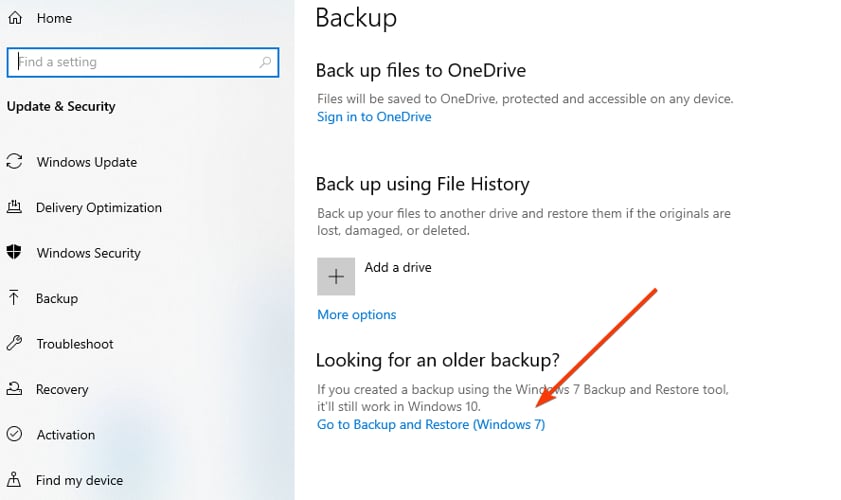
1. Use Windows built-in tool

  1. Open Settings.
  2. Click on Update & Security.
  3. Click on Backup.
  4. Under the Looking for an older backup? section, click the Go to Backup and Restore (Windows 7) option.full image backup
  5. On the left pane, click the Create a system image option.
  6. Under Where do you want to save the backup? select the On a hard disk option. At this stage, you should have an external HDD or a USB with enough space on it to store the image.
  7. Click the Next button.
  8. Select any additional drives that you may want to include in the backup (if applicable), then hit Next again.
  9. Click the Start backup button.

2. Use a third-party program

Acronis Cyber Protect Home Office is our recommendation as a highly-rated backup utility for Windows 10 and other platforms.

Besides local backup, the tool also provides cloud or hybrid storage to help you safe-keep your OS image.

One of the great things about the utility is that it’s so easy to set up and restore a full image backup with it. That said, with just a couple of clicks you set up the full disk image backup and only a few more clicks restore that to an alternative drive.

The tool boasts a wide range of backup and recovery options, end-to-end encryption, automatic compression, custom commands, advanced disk tools, automatic backup splitting, and disk cloning.

Acronis also comes with a security dashboard to allow you to monitor potential cyberthreats and identify blocked activity.

Not to mention that it brings some unique capabilities to backup software including mobile backup, Office 365 cloud-to-cloud backup, or Facebook backup.

Concluding here, the backup method offered by this solution is thoroughly safe from cyber threats, and you will backup your data in a few clicks.

⇒ Get Acronis Cyber Protect Home Office

How to recover your PC using your system image backup?

If you’re using Acronis as recommended in the first solution, you might want to choose the hybrid backup option. This allows you to store the image locally as well, to have it at hand, just in case.

Then, there are more recovery options, so use the one that suits you.

Perhaps the easiest is to open Settings and go to Update & Security > Recovery. In the Advanced startup section, click the Restart now button.

When your PC restarts, go to Troubleshoot > Advanced Options > System Image Recovery and follow the instructions to restore your PC using the system image you created.

We hope that this article was helpful and that you managed to back up your OS quickly and efficiently. Yet, let’s hope that you won’t have to use the image any time soon!

FIX: This is not a valid action for footnotes MS Word error

Some Microsoft Word users have encountered an error that states, This is not a valid action for footnotes. This issue usually arises when attempting to delete extraneous carriage returns, or paragraph spacing, between footnotes at the end of document pages.

However, some of the carriage returns are footnote markers that you can’t delete without erasing the note itself.

Let’s see how you can erase additional carriage returns and spacing for footnotes without the error message.

How to fix This is not a valid action for footnotes error

1. Display the paragraph marks

One of the best ways to edit footnote spacing is to display the paragraph marks in Word. You can do that by pressing the ¶ button on Word’s Home tab. That will display paragraph breaks in the document. Having done that, you might see footnote marks as below.

1 Footnote 1

2 Footnote 2

3 Footnote 3

4 Footnote 4

This gives you a clearer view of the paragraph breaks. If your footnote marks are the same as those in the example above, delete, with the Backspace key, the paragraph break symbols at the end of the numbered lines. Then the footnotes should be more like those shown below.

1 Footnote 1

2 Footnote 2

3 Footnote 3

2. Use a third-party Word recovery tool

Sometimes, Word errors occur because of corrupted documents.

There are numerous third-party programs that you can repair Word with. Not all of them are freeware, but most have a trial package you can add to Windows for a few weeks and potentially fix the error.

On this note, we recommend the Stellar Phoenix Word Repair tool.

This is a very useful tool that can help you recover corrupted .doc or .dox files so that you can work on them normally, without any error message popping up.

Stellar Phoenix Word Repair can be downloaded for free. Plus, it features a very simple interface, and the recovery process is only two clicks away. The tool preserves the original formatting, rendering your documents in a usable form.

By assisting you in resolving practically all forms of Word file corruption difficulties, the software provides a high degree of flexibility. In addition, the utility offers a variety of repair solutions for dealing with small and major file corruption issues.

On a side note, this is a very simple, practical tool that does exactly what it promotes. So don’t expect a lot of advanced options.

⇒ Get Stellar Phoenix Word Repair

3. Adjust paragraph indent and spacing

If you decide to keep using whatever tool you have at hand, you might find that you can fix the footnote spacing without deleting any paragraph breaks.

You can adjust indent and paragraph spacing for a specific note from the Paragraph window. This is how Word users can adjust before/after paragraph spacing for notes.

  1. First, select a footnote with the cursor.
  2. Then right-click to open the context menu, and select Styles from there.
  3. Select Apply Styles and press Modify to open the window directly below.
  4. Click Format > Paragraph to open the window in the snapshot below.
  5. Now you can check the before and after spacing values on that window. Click the up/down arrows on the Before and After value boxes to adjust the paragraph spacing for the selected note.
  6. You can also configure the line spacing value by clicking the arrow buttons on the At box.
  7. Press the OK button to apply the new formatting.

4. Set up a macro that erases double returns in footnotes

MS Word has a handy macro tool that can fix the Not a valid action for footnotes error. As such, you can set up a macro that erases all double returns from footnotes for you. I already have the code for such a macro, which you can set up as follows.

  1. First, click the View tab and press the Macros button.
  2. Enter a title for the macro in the Macro name text box, and press the Create button to open the Visual Basic Editor window.
  3. Erase the Sub and End Sub lines, which are otherwise included within the code, so that the macro window is empty.
  4. Now copy and paste the following code into the macro window with the Ctrl + C and Ctrl + V hotkeys.

Sub CleanReturnsInNotes()

'To clean returns in endnotes rather than footnotes,

'change "Footnotes" to "Endnotes" in the following line:

NoteCount = ActiveDocument.Footnotes.Count

Selection.Find.ClearFormatting

Selection.Find.Replacement.ClearFormatting

With Selection.Find

.Text = "^p^p"

.Replacement.Text = ""

.Forward = True

.Wrap = wdFindContinue

.Format = False

.MatchCase = False

.MatchWholeWord = False

.MatchAllWordForms = False

.MatchSoundsLike = False

.MatchWildcards = False

End With

Selection.Find.Execute

On Error GoTo TrapTheError

While Selection.Find.Found

Selection.MoveLeft

'The following line may trigger an error!

Selection.Delete

Selection.Find.Execute

Wend

GoTo TheEnd

TrapTheError:

ErrorCount = ErrorCount + 1

Selection.MoveRight

Selection.Delete

If ErrorCount < NoteCount Then Resume Next

TheEnd:

End Sub

Next, click File and select the Close and Return to Microsoft Word option. You’ll need to be in Draft view to run the macro. So click the View tab, and press the Draft button.

Now you can click References and Show Notes. Place your cursor at the very top of Word’s Notes pane. Select the View tab, click Macros and select the macro you just set up to clear returns in footnotes.

The macro will weave its magic when you press the Run button.

5. Erase all empty paragraph marks with a third-party tool

Kutools is an add-on that has a plethora of handy MS Word tools. One of those is a Remove Pars button on the Kutools tab that you can press to erase all empty paragraph marks or manual line breaks from a Word document.

So this tool might also help remove extraneous carriage returns from footnotes. The tool doesn’t come for free, but you can download a free trial.

Note that this tool does not repair your document in case of corrupted details as Stellar Phoenix Word Repair does. It only helps with various time-consuming operations in Word.


So that’s how you can fix note spacing without a Not a valid action for footnotes error. Just remember it’s how you’re editing the footnote carriage returns that’s generating the error message.

[wl_navigator]

Wall Street journalist Joanna Stern recommends ditching Google Chrome for Microsoft Edge

Long time technology enthusiast and journalist Joanna Stern recently reported about her purge of Google’s Chrome web browser from her MacBook and her venture into a Safari and Edge-only existence. Why should long time Windows users be concerned with this news? Well, honestly, they shouldn’t. However, Stern’s announcement is signaling that even the staunchest Microsoft critics are coming around to its new web browser on platforms beyond Windows.

In a lengthy but entertaining op-ed on the Wall Street Journal, Stern covers the impetus of her move away from Chrome as a way to help novice Internet users address several potential issues their previous browsing choices may have had on their overall computing experience. Chief among Stern’s complaints about Chrome is its rampant misuse of RAM resources, battery performance, and overall privacy options (or lack thereof). In a four-part breakdown, Stern guides her audience through ways to address and stop Chrome from “slowing down” their computers. And obviously, the first step is to stop using Google’s browser.

Stern acknowledges Chrome’s dominant market share as evidence that Chrome works for most people, but quickly pivots to highlighting the underlying technology in Microsoft Edge as a potential counter-argument to folks that may question compatibility. Going further, Stern breaks down the performance gains Edge and Safari hold on a MacBook over the current industry leader, which includes Edge’s 5% and Safari’s 10% reduction in RAM usage leading to almost two-full hours of additional battery time on her device.

For those unwilling or unable to move away from Chrome for other reasons, Stern also offers three more management tips within Chrome to make the user experience more bearable. Tips 2 through 4 include uninstalling extensions, killing RAM gobbling tabs, and limiting browser-based video chats.

While Stern is realistic about the number of people in her audience that may actually follow her lead, her overall message should be promising to Microsoft and its Edge engineers. A growing chorus of journalists are proclaiming that Apple’s macOS has seemingly ousted Windows 10 somehow with Big Sur, but Microsoft’s potential counterpoint could soon become that its Edge browser can act as an embedded user platform within macOS for some. The work on the new Chromium-based Microsoft Edge is proving to be sought after even beyond the Windows ecosystem.

Windows 10 2004/11 install triggers error 0xC1900101, 0x20017

It’s been more than a month since Windows 10 version 2004 went live. Yet, not everyone that wants the OS instantly gets it. So, some users are now getting the 0xC1900101 – 0x20017 error when they try installing it.

Two main categories of issues are so far preventing users from upgrading to the latest version of Windows 10. On the one hand, there are bugs you may address yourself, such as driver incompatibility.

On the other hand, Microsoft put some machines on a compatibility hold, preventing them from upgrading.

But it now appears that even the method you use to update to Windows 10 v2004 may also impact install success chances.

Windows 10 2004 0xC1900101 – 0x20017 error

A user on the Windows 10 Subreddit reported getting the 0xC1900101 – 0x20017 error code after attempting to install Windows 10 May 2020 Update with the Media Creation tool.

Instead of installing, Windows generates the error message below:

We couldn’t install Windows 10. We’ve set back your PC to the way it was right before you started installing Windows 10. 0xC1900101 – 0x20017 error code. The installation failed in the SAFE_OS phase with an error during BOOT operation.

Also, besides install failure, the OS rolls back all changes and restores the PC to its pre-install status.

The 0xC1900101 – 0x20017 error code is indicative of an incomplete Windows 10 installation. Usually, it occurs due to issues like third-party software or driver incompatibility.

In addition, some users are most likely getting the error because their PC is on a compatibility block. In that case, the best way forward for them would probably be to wait until Microsoft pushes a compatible update to them.

Are you still getting the 0xC1900101 – 0x20017 error message after trying to install Windows 10 v 2004? Try our guide that includes easy steps for fixing the problem.

Don’t forget to tell us how the install goes in the comments section below.

How to use your PC as cloud storage [Complete Guide]

Today we will be discussing how to use your PC as cloud storage. Cloud storage is an online/virtual storage for files and folders.

Cloud storage providers allow users to upload any size and type of computer file, only e-mail attachments usually have limitations.

Over the years, many organizations have come up with their own solutions to Cloud Storage and Data Privacy.

Although any remote storage is used for file upload during backup, providers dedicated to backup as a service (BaaS) usually perform automatic uploading and store multiple versions of files.

Professional cloud storage services specifically designed for sharing such as Dropbox and Box make it easy to invite others to download files.

Some storage providers are known for storing the same files in sync on every device owned by a particular user.

Companies such as Apple, Google, and Microsoft use their cloud synchronization as a way to retain users within a fold.

Even some hardware producers use cloud services as a bonus when selling external hard drives.

Types of Cloud Storage

Cloud storage providers that retain data for automatic downloading to the application or Web page of a user, fall under the “content management” group.

There are basically three types of services related to Cloud, they are:

  • SaaS (Software as a Service) – it allows users to access other available public clouds of large organizations in order to store their data such as Gmail, PaaS.
  • PaaS (Platform as a Service) – It is used for apps or software hosting on other public clouds: for example, Google App Engine which hosts apps of users.
  • IaaS (Infrastructure as a Service) – it is used for the virtualization of any machine.

What’s the best PC cloud storage software to get?

Sync.com

try out Sync

Arguably the best PC cloud storage software solution at the moment is Sync. It boasts great storage since you may automatically back up your files in one centralized location.

In spite of that, rest assured that they are synced across all of your PCs and devices. This means that you can access them while on the desk or take a peek when having a walk in the park.

Even more, the standout feature is how easily accessible the service is even for those who don’t have a Sync account. To be more precise, you can send files to anyone, regardless of using this service or not.

As for its enterprise-grade infrastructure, this means that you can also fully trust Sync to keep your files safe and secure.

Great key features to expect from Sync.com:

  • Clean, user-friendly design
  • Increased security for confidential data
  • Granular user permissions
  • Never collect or sell app usage information or private data
  • Dedicated Windows, Mac, iPhone, iPad, and Android apps
  • In-house support from Premium plans
Sync

Sync

If you value simplicity, security, and power, then Sync is the best PC cloud storage software to use today!
Get it free Visit website

OwnCloud

try out OwnCloud

This cloud storage software has several functionalities, which are quite similar to that of DropBox. It is a self-hosted file sync and share server.

Its open-source functionality offers users with great access to a large amount of unlimited storage space.

OwnCloud enables you to keep your files private and secure. Organizations have the ability to access and manage their files through this application.

Key features to consider:

  • It is written in JavaScript, PHP, and available for Windows OS X desktops and can also be used on Android and iOS
  • It uses WebDav server for remote access and can effectively combine with a large number of Databases such as MariaDB, SQLite, MySQL, PostgreSQL, Oracle Database, etc.
  • It has several features such as File storage and encryption, content sharing across URL’s, Music Streaming, Mozilla sync hosting and RSS/Atom feed reader, Video and PDF viewer, one-click app installation and many more
  • The latest version contains some new features such as improved design, notification, and retention limits on files in the trash

⇒ Download OwnCloud now

Seafile

enjoy Seafile

Another software you can also use is Seafile. This software is ideal for cloud storage as a file hosting software system because of its versatility.

Seafile is compatible with the Windows OS, also usable by mobile clients such as Windows Phone.

Key features to consider:

  • Pydio comes with built-in file encryption
  • It has a very high performance
  • It is very easy to upgrade. Within a few seconds, you can run a simple script
  • Syncing and sharing of files, focusing mostly on data safety
  • Editing of files online
  • Differential sync to reduce the required bandwidth
  • Client-side encryption to secure client data

⇒ Download Seafile now

Pydio

enjoy Pydio

Initially, it was called AjaXplorer. This cloud storage software is good for file hosting, sharing, and syncing. Pydio is written in JavaScript and PHP. It is available for Windows OS.

Pydio is one of the most famous and used Cloud Storage Software in the market. It runs on a web server and can easily be accessed through any browser.

Key features to consider:

  • It has an integrated WebDAV interface making it suitable for online file management
  • SSL/TLS encryption for encrypted transmission channels
  • It secures data and ensures privacy
  • Customizable UI
  • Great access control management
  • Text editor with syntax highlighting
  • Audio and video playback
  • It integrates S3, Amazon, MySQL, or FTP Databases
  • It has an image editor

⇒ Download Pydio now

Syncany

try out Syncany

This cloud storage software was released years ago  This cloud storage software is compatible with Windows OS and it is an open-source cloud storage and file-sharing application.

Currently available as a command-line tool for all supported platforms; however, the GUI version is still under active development.

Key features to consider:

  • One of the most vital features about Syncany is that it is a tool and expects you to bring in your own storage such as WebDAV or Samba Shares, FTP or SFTP storage, Amazon S3 buckets etc.
  • It has a 128-bit AES+Twofish/GCM encryption for all data leaving the local machine
  • It enables secure backup
  • It allows encryption of files before uploading
  • File-sharing support that enables you to share your files with your friends
  • Offsite storage as selected by the user instead of provider-based storage
  • On-demand or interval-based backups
  • Binary compatible file versioning
  • It is very good for organizations and companies who prefer using their own storage space rather than trusting the storage space of these software providers

⇒ Download Syncany now

Cozy

try out Cozy

This cloud file-sharing or synchronization software is a complete package of functions that enables you to build your complete App Engine.

Just like Syncany, this software tool offers increased flexibility to users in terms of storage space.

However, it depends on some open-source software for a complete functioning such as Whoosh for indexing and the CouchDB for Database storage.

It is compatible with Windows OS.

Key features to consider:

  • It allows you to store and share files easily
  • It enables the automatic importing of bills
  • It has the ability to store all Contacts, Calendar, Files, etc in the Cloud and sync them between smartphones and laptops
  • It provides users the ability to create their own apps and share them with other users by sharing the repository Git URL
  • It has HTML5 video game consoles
  • It can host static websites

⇒ Download Cozy now

The cloud storage software’s list in this post reveals some of the best picks that have gained much popularity over the years and created a mark in this industry.

These cloud storage options literally are the best to store, control, and manage the files on your PC.

That’s your chance to turn even an old computer into a cloud server, so let us know your pick in the comments area below.

[wl_navigator]


FIX: OneDrive sync issues on Windows 10/11 [Sharepoint, Word]

It’s been more than three years since I have been using OneDrive and it has been one of my most preferred Cloud Storage services to date. OneDrive has been synced on both my computers and the same goes for my smartphones as well.

Today we are going to discuss a problem that has been plaguing OneDrive users across both Windows and Mac platforms. OneDrive is greeting users with the following message We’re sorry you’re having trouble syncing your files with OneDrive.

This happens when the user is trying to sync the files with the OneDrive using the Windows desktop app.

So we will walk you through a couple of steps that will help you resolve this issue.

How to fix OneDrive file sync issues

1. Preliminary checks

Before jumping to conclusions, first, let us check this list:

  • Restart the app once, clear the temporary files before doing so
  • Ensure that the total file size in your drive doesn’t exceed 15GB (only for the free plan)
  • Download the latest Windows update
  • Ensure that your OneDrive is connected to Windows

One of the causes of the Sync error is the connection to your Windows account. In order to make sure that your OneDrive account is connected to Windows perform the following steps:

  • Go to Start, then to Settings > Accounts > Email and app accounts.
  • Select Add a Microsoft Account. Follow the prompts and pair up your Microsoft account.

2. Choose the folders to Sync

  1. If you stick with OneDrive and want to continue fixing the problem, right-click on the OneDrive cloud icon in the notification area and click on Settings.
  2. Once the account details dialogue box is open, select Choose Folders.
  3. If you want all the OneDrive folders and files to be synced, click on Sync all files and folders in my OneDrive.
  4. Ensure that the file path is not too long. The OneDrive supports file name characters only up to 400 characters anything above that will not be synced. It’s advisable to shorten the file name or the folder name.
  5. Make sure that you have sufficient permissions to the file or the folder you add. In case you have a problem with a file that’s on the network contact your network administrator. Also, check that if a folder./file with that name already exists in the same location on the OneDrive.

Most importantly ensure that you have enough space on your PC and then restart the sync. Keep in mind if you are running the OneDrive app for the first time it will require quite a lot of space as it needs to download the files and maintain a local copy as well.

For this, you better check the space from the Storage Page and then compare the same with the free space on your PC.

3. Unlink and re-run OneDrive

It’s quite possible that OneDrive has conflicts with other programs and in this case, the best thing is to unlink the OneDrive app and set it up again.

  1. Press the Windows Key+R
  2. Once the Run Windows is open, enter onedrive.exe/reset.
  3. Click Ok.

The OneDrive icon in the taskbar should ideally disappear and reappear after a pause. In case it fails to reappear type the following into the Run-Windows: Skydrive.exe.

4. Change your cloud storage

As mentioned in the beginning, there are a lot of cloud storage options available out there, so why not go for something new?

Our recommendation is Sync.com, very user-friendly cloud storage, and file-sharing tool.

What recommends Sync is the end-to-end encrypted technology they use, plus the ease of use. Sync stores your files automatically, all in one centralized location, and keeps them synced across all of your computers and devices.

And, with the encrypted technology they use, neither Sync nor anyone else can access them. This is why there’s a minor chance that your database gets corrupted and that you get blocked from accessing it.

You can thus use this alternative of file storage collaboration and have sound syncing for all files you need to access from multiple devices.

What’s more, recovering deleted files and previous versions of any file, at any time, is extremely hassle-free.

⇒ Get Sync

We hope these solutions help you fix any syncing issues you might have with your OneDrive; or, on the contrary, make a decision about changing your storage app, as mentioned.

Any feedback is welcome so use the comments section below to get in touch with us.

Search box may block Start menu on Windows 10 2004 upgrade

Microsoft has recently been throttling up the availability of Windows 10 2004, which has caused all manner of issues for some users.

As more users update to the latest version of the OS, newer types of hardware or software problems associated with it emerge. It now appears that the Windows 10 May 2020 Update may cause the search box to misbehave and make it difficult for you to access the Start menu.

The Windows 10 2004 search box bug

After updating to Windows 10 2004, one Reddit user complains that, when they launch the Start menu by pressing the Windows key, the search box pop ups on top of it.

The most frustrating outcome of this bug is that it makes it impossible for the user to launch applications from the Start menu tiles. Moreover, there’s no way to close the search box.

As I press the Windows key, I expect the start menu to open up showing the tiles, and as I type it should search for programs or files. But after the recent 2004 update, it opens the search box on the top of the start menu, with just one window key press. I can’t access the start menu tiles as they are always behind the search window.

However, it seems that the problem of the Windows 10 search box popping out upon the launch of the Windows Start menu has affected other users before.

For example, one Reddit user DarkGhostHunter even offered a hack that appears to have worked for some users.

According to DarkGhostHunter, hackly turning on Immersive Search on an unsupported version of Windows 10 may cause the problem. When you do that, the search box behaves like an independent, detached window.

The user proposes getting rid of specific registry keys to solve the problem:

regedit.exe:

HKEY_CURRENT_USER\SOFTWARE\Microsoft\Windows\CurrentVersion\Search: ImmersiveSearch

HKEY_CURRENT_USER\Software\Microsoft\Windows\CurrentVersion\Search\Flighting\Override (It’s a “folder”)

Is your Windows 10 2004 search working alright? Kindly share any concerns or suggestions in the comments section below.

Microsoft remains quiet as it blocks the Windows 10 May 2020 update on some Surface devices

Microsoft’s Windows 10 May 2020 update has been an arguable morass of software issues for users followed by a barrage of confusing communications from the company regarding the viability of the release. Despite Microsoft pushing the update on more devices last month, there still appears to be an issue that has the company blocking the release on its own Surface hardware.

According to newly updated release notes of the Windows 10 May 2020 Update, Microsoft is using the safeguard word to ambiguously block the release of the update to its own Surface devices.

“This issue was resolved in KB4557957 and the safeguard hold has been removed as of June 29, 2020. Please note, if there are no other safeguards that affect your device, it can take up to 48 hours before the update to Windows 10, version 2004 is offered.”

Microsoft has not spoken openly about what safeguards are in place on Surface devices in particular that keep the update from being pushed to the devices. However, the number of potentially affected Surface devices has apparently increased from the initial Surface Laptop 3 and Surface Pro 7 to other devices including the Book 2, Go 2, Pro X, and older.

Even if Microsoft has blocked the release of the May 2020 Update, determined users have figured out ways to manually apply it with varying degrees of success. Some users who have pushed the latest version of the OS manually have had little to no issues beyond those Microsoft had already highlighted, while others have mentioned having issues with driver updates, Always Connected features failing, and inadvertent shutdowns.

While Microsoft is holding back on the release for Surface devices, users have gathered on Reddit to offer their workarounds to push the update manually that include uninstalling and reinstalling OneDrive or using the Windows 10 Updater Tool.

Actually I uninstalled Onedrive from the beginning, because I’m fine with using the webapps. But all I can tell is that with Onedrive uninstalled I wasn’t able to it to update. But using the updater tool from Microsoft it started immediately. There were no problems at all. Downloaded, installed, restarted a couple of times and boom, version 2004.

Microsoft’s lack of transparency regarding its own first-party hardware and the Windows 10 2004 Update is troubling. Without an explanation on the potential issues or a timeline for release, it’s not unreasonable to see many Surface users beginning to question their choice in hardware as 3rd party PC devices are offered more clarity on updating issues as of late.

How to use the new Comments pane in Microsoft Word

We all know about using Office 365 online. It’s free, and it’s easy to share the files with the people you’re collaborating in, let’s say the online version of Microsoft Word.

However, you can also collaborate on a Microsoft Word document in the desktop version for Windows 10, and one way to do that is through comments within the document.

Microsoft updated the Comments pane and it’s calling it modern commenting so we’ve created a friendly guide for you on how to use the new feature.

How can I use the new Comments pane in Microsoft Word?

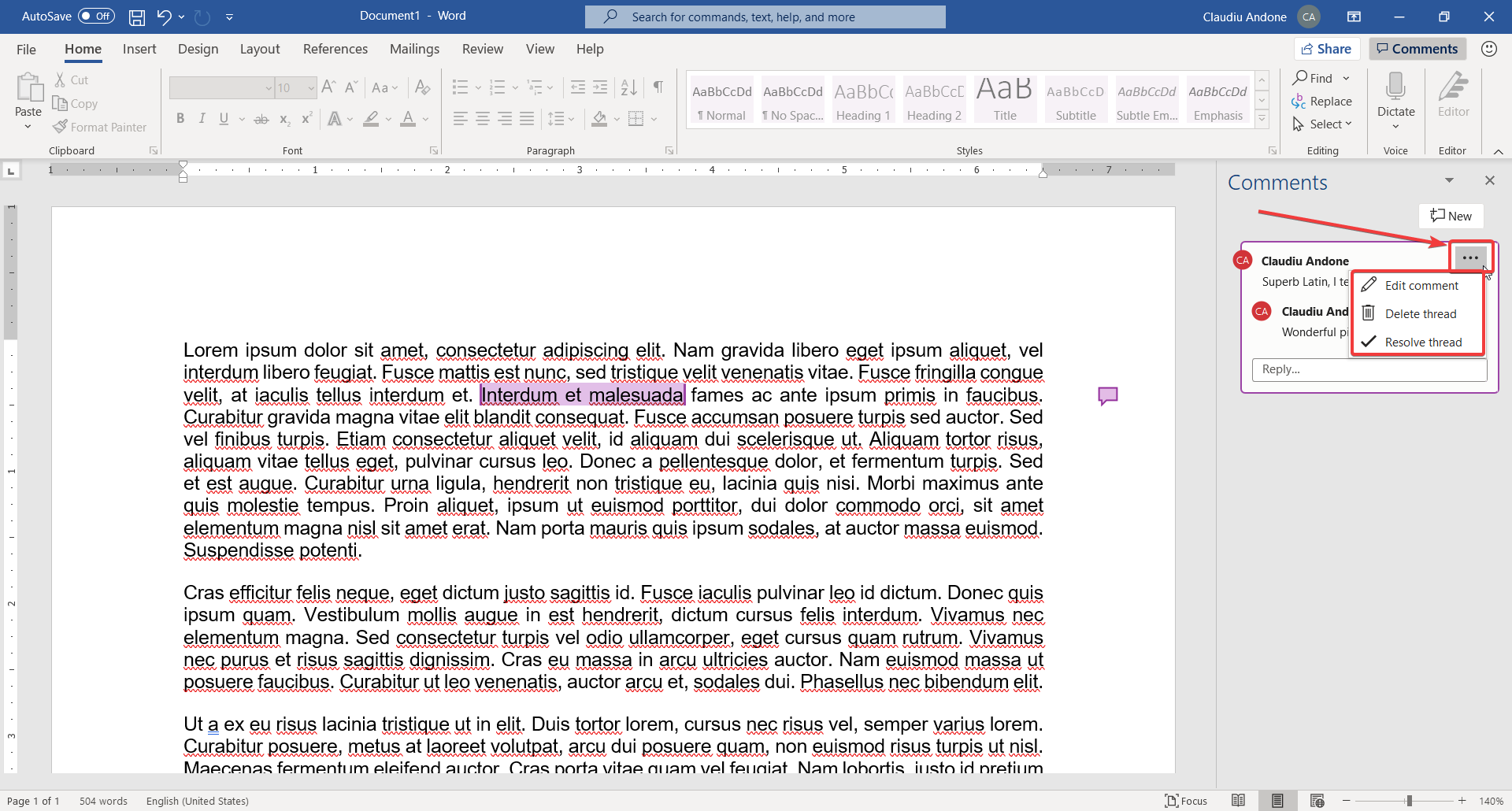
To add a comment in Microsoft Word, just select a part of the text that you want to comment on and press Ctrl + Alt + M. The comments pane from the right will let you type it in. End by clicking the Post button.How to add a comment in Microsoft Word

A person who wants to collaborate on the document will be able to reply to your comment.

To do so, they will need to either click on a text bubble symbol on the right of the text or click on the Comments button from the upper-right corner of the Word document.

How to add a reply in Microsoft Word

A new feature in the modern commenting style is the fact that you can also tag other collaborators. To do that, just type the @ symbol before the name, just like on Twitter.

Of course, when you’re done collaborating on one or more pieces of text, you need to either solve or delete the thread to clean the document.

To do that, you need to click on the three horizontal dots from the upper right corner of a thread of comments and select the Delete thread or Solve thread options.

how to solve a comment thread in Microsoft Word

Can I use the new modern commenting feature right now?

Right now, the new Comments pane is available in Word for Windows 10 to Insiders running Beta Channel Version 2006 (Build 13006.20002) or later.

Microsoft also advises in the Office Insiders blog about some known issues with the new Comments pane:

  • Accessibility features, such as keyboard navigation and the screen reader experiences, are not yet complete. Updates to improve accessibility features will be rolling out soon.
  • Office themes are not yet fully supported. Some controls may have poor contrast in certain themes, such as the Black theme.
  • Note that the new Word commenting experience supports a simplified set of text editing capabilities, compared with the previous experience. For example, you will not be able to change the font type or color inside comments.

What do you think about the new modern commenting in Word for Windows 10? Tell us all about it in the comments section below.

[wl_navigator]

Misterious new AppManager app uninstalls even Cortana

How can you uninstall an app in Windows 10? There are more methods but probably the quickest is to open the Settings > Apps option.

Well, there’s a new app in the Microsoft Store, developed by Explorer Intern Project‬ and spotted by WalkingCat that does that and more.

The new app is called AppManager, which sounds suspiciously like an internal Microsoft name.

How does AppManager works?

AppManager looks a lot like the Apps & Features list from the Settings option in Windows 10. A big hint to that is the Optional features (opens the Settings app) button.

However, AppManager is targetted more at Task Manager functions.

App Manager Windows 10 app

Basically, you can use the AppManager app to uninstall apps from Windows 10 but you can also use it to monitor running apps and to terminate them.

 You can use AppManager as a mini Task Manager

If you click on the Running button you will instantly see the running apps at the present time in Windows 10 and in the right pane you will also see data like CPU, disk , and memory usage.

App Manager Windows 10 how to monitor apps

To terminate an app, just click on the down arrow from the right of each app in the list and click on Force Close. Of course, you can also uninstall it.

App Manager Windows 10 how to terminate apps

What makes it more interesting about the AppManager is that you can even uninstall Cortana with it and you can’t do that by using the Settings > Apps option.

App Manager Windows 10 how to uninstall Cortana

Other strange information regarding AppManager is its size. The app description in the Microsoft store specifies an approximate size of 102.01 MB but when we downloaded it was only 42 MB.

We don’t really know if it’s an experiment or a fully-fledged app in development but from our brief experience with it, it just worked without any glitches.

You can download AppManager for free from the Microsoft Store.

If you install and use it, tell us about your experience with it or about any problems you encountered.

[wl_navigator]

How to delete PayPal? [Full Guide]

Formally known as PayPal Holdings Inc., PayPal is probably the world’s most well-known company operating a worldwide online payment system.

This system supports online money transfers and has become the go-to solution when it comes to making cross-border payments.

In order to use PayPal, you must first create an account, and you’ll use it to perform all of your money duties. However, there are plenty of reasons why someone might want to close their PayPal account afterward.

While online searches may sometimes also come up with the how-to deactivate PayPal results, you should know that once you close a PayPal account, it is permanently deleted.

As an alternative to securely deposit your money, we recommend that you use Revolut. Through Fingerprint identification, Customisable features, Disposable virtual cards, and Sherlock anti-fraud system you can be assured that the safety of your money is being guaranteed.

Plenty of users are thrilled about Revolut’s amazing features:

  • Free Revolut card.
  • No cost for ATM withdrawals up to $300/month.
  • Possibility to open multi-currency accounts.
  • Send money without paying any hidden fees.
  • Great exchange rate.
  • Award-winning anti-fraud system.
  • Easy access from the app to freeze your card, in the case is stolen or lost.
  • Use analytics to keep track of your spendings.
  • Personal Vault.
  • Rewards system.

Revolut

Revolut

With Revolut you can send or request money instantly without any hidden fees and keep your money protected. Open the account for free!

Now that you know how to safely secure your money, let’s proceed with seeing how you can delete your PayPal account.

How to remove PayPal account for good

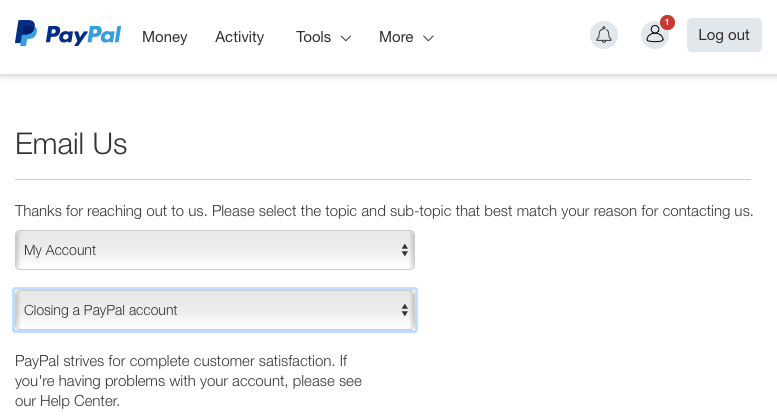
Close paypal account

  1. Log in to your PayPal account
  2. Click on the Settings menu
  3. Click Close your account
    • Enter your bank details if requested to do so
  4. Click the Close Account

How to delete PayPal business account

  1. Log in to your PayPal account
  2. Click on Profile button next to Log Out
  3. Click on Profile and Settings
  4. Click  Account Settings
  5. Click the Close account button

Before you close your PayPal account, remove any financial information, such as card and bank account.

Additionally, make sure that all payments you made are finished since all pending ones will be automatically canceled.

Please note that since account deletion is permanent, this also means that all transaction histories will be deleted as well. As such, please remember to print out or take a screenshot of your transaction history in case you will ever need it again.

Also, remember that in order to delete your PayPal account you will need to be using a laptop or computer.

While PayPal does have an official mobile app, you can not delete your account from it.

More so, if you positively decided to go ahead and close down your account, make sure you collect the entirety of your PayPal balance.

If you want to cash-in on any remaining PayPal balance you could try to:

  • Transfer it to your bank account
  • Request a check from PayPal
    • A small fee will occur
  • Purchase some items from your favorite online shop

This should be it, we hope that our recommendations helped you close your PayPal account. Let us know your feedback in the section comments below.

[wl_navigator]

FIX: PayPal Fatal failure error [Full Guide]

Some websites include PayPal Donate buttons that you can press to donate to the site.

However, some have found that those buttons don’t always work and return a Fatal Failure error when pressed.

Does your website or blog include a PayPal Donate button with that error? Or perhaps a PayPal Donate button on a website you’re trying to donate to isn’t working?

If you are unable to use the PayPal Donate button here are a few potential fixes for the error.

How can I fix Paypal Fatal failure error?

1. Don’t open the PayPal button’s page in Internet Explorer

Note that this Fatal Failure error occurs most often in Internet Explorer. So are you pressing the Donate button on a page open in Internet Explorer? If so, open the same page in Google Chrome or Opera One browser instead.

Using Opera One can be much more efficient due to its stability and increased security for your financial behaviors online. Plus, you have integrated apps right on the homepage at your fingertips.

Then press the PayPal Donate button again. This isn’t going to help website developers fix the error on their sites, but if you just need to make a PayPal donation it might do the trick.

2. Disable your browser extensions

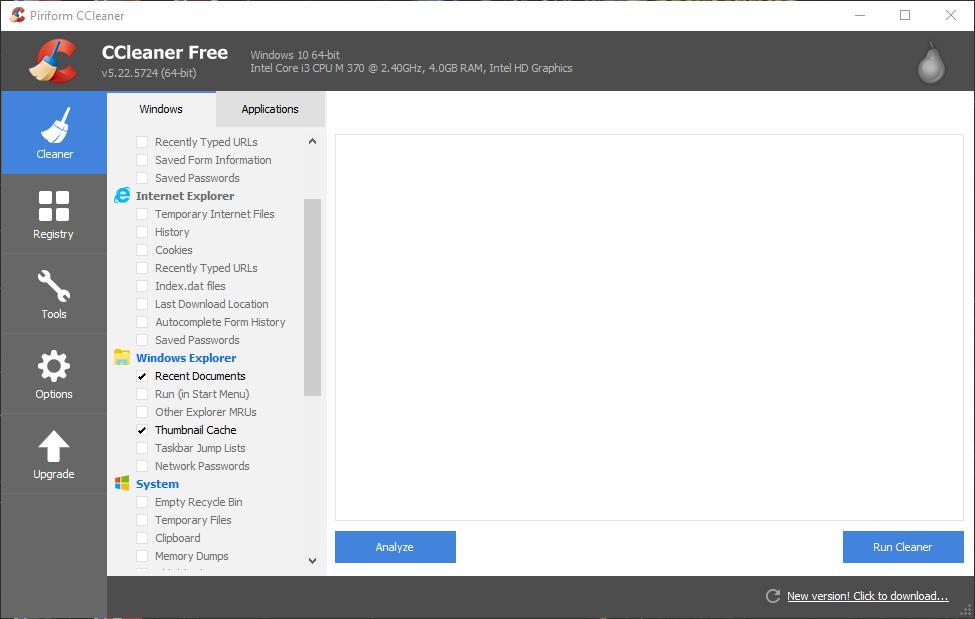
  1. Open the CCleaner utility in the snapshot below.

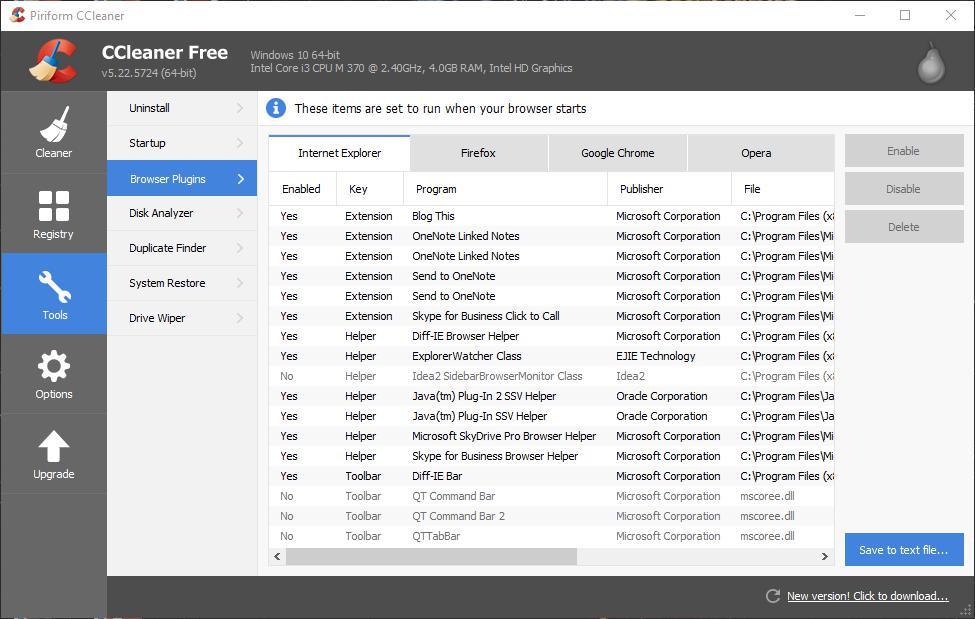
2. Click Tools > Browser Plugins to open the browser extension lists shown below. There you can select four tabs that list your Internet Explorer, Google Chrome, Firefox , and Opera One extensions.

3. You can select all the enabled extensions by holding the Ctrl button.

4. Press the Disable button to switch the extensions off.

5. Now close CCleaner, open the browser you disabled the extensions on and press the Donate button again.

3. Double-check the PayPal Donation button’s HTML

If you need to fix the Donate button on your website, double-check its HTML. Check that you’ve entered the HTML right and that it doesn’t include any typos.

Also, check that your editing tool isn’t modifying any of the characters from the original pasted source code. You can check the button’s HTML with the sample code below and the code shown on this page.

<form name="_xclick" action="https://www.paypal.com/uk/cgi-bin/webscr" method="post">
<input type="hidden" name="cmd" value="_xclick">
<input type="hidden" name="business" value="[email protected]">
<input type="hidden" name="item_name" value="Team In Training">
<input type="hidden" name="currency_code" value="GBP">
<input type="hidden" name="amount" value="25.00">
<input type="image" src="https://www.paypal.com/en_GB/i/btn/x-click-butcc-donate.gif" border="0" name="submit" alt="Make payments with PayPal - it's fast, free and secure!">
form>

If the Donate button’s page or site includes frames, a more specific thing to check in the HTML is the <form action> tag. Frames can’t display PayPal payment pages. As such, you should modify the HTML to prevent frames displaying PayPal payment pages.

Editing the HTML will require that you add target=“paypal” to the tag. Then the HTML should look like: <form method="post" action="https://www.paypal.com/cgi-bin/webscr" target="paypal"> Alternatively, you could also alter the design of the button’s page so that it doesn’t include any frames; but if that requires a drastic redesign it’s better to modify the Donate button’s HTML. Or adjust the HTML so that the button opens in a new window without frames.

So the PayPal Fatal Failure error can either be due to page frames or browser extensions more than anything else. Note that if you have a WordPress site or blog, you can also add a PayPal Donate button to it with this plug-in instead.

4. Use Revolut

If you are looking for an error-free way to securely donate money to charity then take a closer look at Revolut. And the good news is that all your donation will go to charity, no extra fees will be applied.

You can join Revolut for free and download the app on your phone in just a few easy steps. Once you have created the account in the Revolut app, simply go to Donations, in the Dashboard tab, and choose from the list, where you want to donate.

In this tab, you can also see for each charity name how much you donated.

To make things even easier, you can select from several ways of donation methods. You can choose between recurring donations, one-time payments, or rounding up your spare change.

Revolut

Use Revolut to avoid any transaction errors on your charity donations. Round up your savings and give back to the world!

There you go, these are some solutions that might help you with PayPal error Fatal Failure, so be sure to try them all.

How to get and stream Windows 10 on a Chromebook or other devices via Chrome Remote Desktop and Microsoft Edge

There are times when buying a Chromebook might end up being cheaper for use in business or education. However, the age-old problem of Chromebooks is the lack of support for the fully-featured Microsoft 365 desktop programs and even other Windows 10 desktop applications.

Google last said in June that it is working on bringing native support for Office to Windows 10 with Parallels, but did you know there’s a neat little workaround that you can use right now to accomplish almost the same thing?

With Chrome Remote Desktop, you can stream your Windows PC over the internet to your Chromebook, MacBook, Linux device, or other phone or tablet. This will then give you remote access to access Office or your other apps from your Windows 10 PC. Here’s how to use it.

Step 1: Install the extension:

To get started, you’ll want to turn on your Windows 10 PC and download and install the Chrome Remote Desktop extension for Chrome or Microsoft Edge. Although Google says this extension is best designed for Chrome, it also will work in the new Microsoft Edge, too. It is your choice of which browser to use but we found the extension will work without any issues in Edge.

To install the extension, open Edge or Chrome and visit the listing on the Chrome Web Store. Once there, click the blue Add to Chrome button. You’ll then want to click the Add Extension pop-up that appears to confirm adding it. You’re now done with the first step.

Before going to step 2, we just want to mention that (as the name suggests) Chrome Remote Desktop isn’t a native on-device solution to getting Office and Windows applications on your Chromebook. You’re just using the internet to stream Windows programs to a Chromebook. The performance will vary based on the speed of your internet and your Wi-Fi performance. It’s also best when you’re connected to the same network, too, though you can use a different network if you want to.

Step 2: Visit the Chrome Remote Desktop website

For step 2, you’ll want to click the newly added extension in Chrome or Edge. In Edge and Chrome, it will appear on the top bar near your profile icon. The Chrome Remote Desktop icon is of two squares, one of which has a Chrome logo. As an alternative, you also can go to the Chrome Remote Desktop website, too to launch.

Once there, if you’re using Microsoft Edge, you’ll get a message telling you that, “Chrome Remote Desktop needs the latest web features for the best experience.” You can ignore this message. If you’re using Chrome, you won’t see this. In Edge, you can dismiss it by clicking Continue Anyway.

After that, you’ll be launched into Chrome Remote Desktop. From there, you’ll see a message telling you that you’ll need to set up remote access. To get started with it, click the Download button. This will download a MSI file to your host PC which you’ll then need to double click to launch. When launched, you’ll want to click Allow on the UAC window that comes up. After that, a special host will be installed on your Windows PC in the background. We’re done with this for now.

Step 3: Set up your PC for remote access

In step 3, it’s time to finally set up your PC for remote access. To get started, go back to the Chrome Remote Desktop website and click the link that says Accept and Install under Ready to Install. When asked if you want Chrome or Edge to open the download, click Yes. This will run through the set-up prompt. Follow the instructions on the screen.

When that’s done, you’ll then want to give your PC a name. In our case, we’re naming our remote desktop as Surface. Next, you’ll then want to put in a PIN, for your security. Please be sure to remember this PIN, as if you forget it, you’ll have to delete and add your PC again. Once the PIN is entered, you can click Start. You also might need to click Yes on the UAC prompt in Windows 10.

If all goes well, you’ll see your device name appear in the list under the Online section. You can now set your PC to the side and go to the device you want to stream it to.

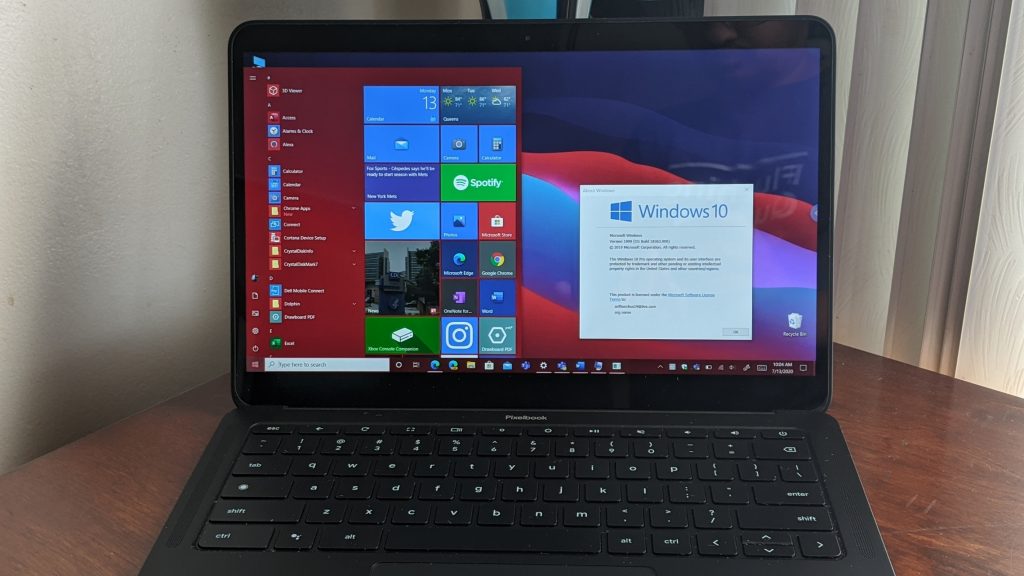
(This is optional) Before proceeding, you also might want to change your screen resolution settings to match the device you’re streaming to. This will ensure it will fill up the entire screen (and not be scaled wrong.) As we’re using a high-resolution Surface Laptop 3, we changed the resolution from (2496 x 1664) to (1920 x 1080) to match the screen of our Google Pixelbook Go.

Step 4: Head to the Chromebook or device you want to stream your PC to

Finally, you’ll want to open the device where you want to stream your Windows 10 PC on. We’re using a Pixelbook Go. From this device, open Chrome (or any other web browser, if you’re not on a Chromebook.) You’ll then want to go to the Chrome Remote Desktop website.

Once in the web browser, you should see your device appear under Remote Devices. If all went well, you should see it appear Green, to show it as online. Click that green icon to connect, and then enter in your PIN. You can click remember my PIN on this device to remember the PIN instead of having to reenter it. Your Windows 10 screen will then be shared over to the remote PC.

To make this remote session full screen, click the blue arrow which is showing to the right of the screen. Then choose Full Screen. Like magic, this will make your remote session full screen, and make it seem like your device is running Windows natively! You can now open every single app that you have on your Windows PC, from your Chromebook. When you’re ready to stop sharing, click the arrow once again, and choose Disconnect.

For customization, you also can choose some other options from the menu, too. Such as scale to fit, resize to fit, and smooth the scaling to help improve the quality. They’ll be additional controls like to press CTRL+ALT+DEL, Print Screen, as well. And, for sharing files, you can click Upload File to upload files from one PC to the other. It’s quite a cool experience.

Try it on your phone or tablet!

We primarily talked about using the desktop version of Chrome Remote desktop but there is also a mobile, app, too. If you’re on a tablet or phone, you can download the Chrome Remote Desktop app (iOS here, Android here.) Once downloaded, sign in with your Google account, then tap the device you want to connect too. Enter the PIN, and then click the blue arrow to connect. You’ll then be taken into the remote desktop session. To end, tap the hamburger menu, choose Disconnect.

At the end of the day, Chrome Remote Desktop is quite useful, especially if you’re hoping to stream your PC to a Chromebook or other device. It also can serve as a method to help others diagnose their PCs, or share their screen with you. Just click the Remote Support option and follow the instructions on the screen.

Do you find Chrome Remote Desktop useful? Let us know in the comments below.

Yesterday’s Ubisoft Forward event gave us our first look at revamped box art for Xbox games

Ubisoft made headlines this past couple of days after sexual harassment allegations led to the departure of a couple of high-profile executives. Still, the company chose not to delay its Ubisoft Forward digital yesterday, which despite the bad buzz still delivered some exciting news about the company’s upcoming blockbuster games.

Watch Dogs: Legion (available October 29), Assassin’s Creed: Valhalla (available November 17), and Far Cry 6 (available February 18, 2021) are now available to pre-order on Xbox One, and all three games will also support Smart Delivery. This means that Xbox gamers will only need to buy these games once and still get optimized Xbox Series X versions for free when the next-gen Xbox console is available.

As usual with Ubisoft, all three games will be available in Standard, Gold, and Ultimate Editions, with some pre-order bonus for enthusiasts. We also saw yesterday the box art for these cross-gen games, which will feature a big “Optimized for Xbox Series X” badge, as well as familiar labels such as HDR and 4K Ultra HD, plus some new ones for Smart Delivery and Xbox Series X. As pointed out by The Verge’s Tom Warren on Twitter yesterday, that’s quite a lot of information compared to the streamlined box art for PlayStation 5 games,

Since the days of Windows Vista and its six different editions to choose from, Microsoft has often being mocked for being bad at naming and marketing. The next-gen already seems much more complicated than the current one, and things could get even worse if Microsoft releases the rumored Lockhart/Xbox Series S that doesn’t support 4K or other next-gen features implied by this “Optimized for Xbox Series X” badge.

Do you think the rumored “Xbox Series S” should have its own label on box art, or do you think the new design already includes way too much information? Sound off in the comments below.

Solutions to fix Office errors 0-1011, 0-1005, 30183-1011

Although the Microsoft Suite is, dare we say, a vital resource for many PC uses, we simply cannot ignore the frequent problems that occur when installing Office.

A while ago, Microsoft published an official resource on how to fix errors 0-1011, 30088-1015, or 0-1005 when installing Office on your system.

According to the famous manufacturer, these error codes usually appear when you’re having a network connection issue or if your hard drive is running out of space.

Fix error code 0-1011, 30088-1015, 30183-1011, or 0-1005 when installing Office

  1. Check your Internet connection
  2. Increase your hard disk space
  3. Temporarily turn off proxy settings
  4. Temporarily turn off antivirus software
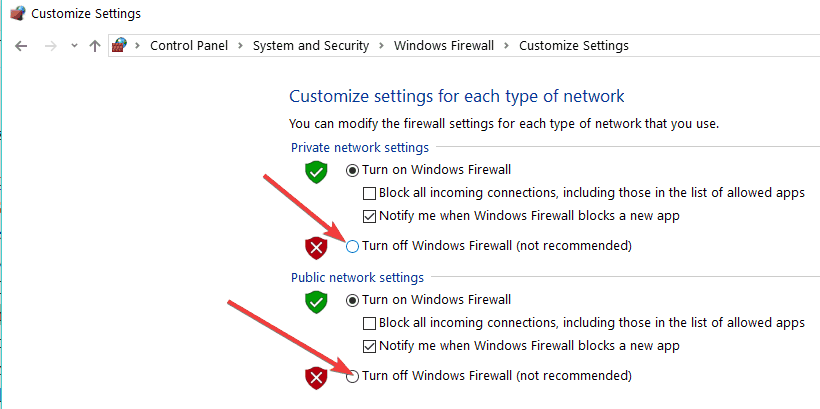
  5. Temporarily turn off firewall
  6. Use an Ethernet connection
  7. Install Office from home
  8. Disable VPN software
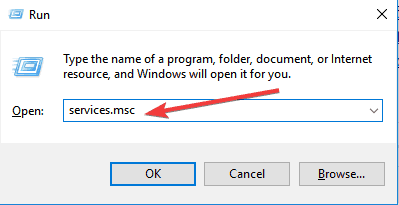
  9. Stop the Print Spooler service

1. Check your Internet connection

So, of course, the first things you need to do are to check your internet connection and just make sure everything is alright.

Also, make sure you have more than enough free storage space. If this doesn’t solve the problem, here are some other steps that you could undertake.

2. Increase your hard disk space

To increase hard disk drive space, you can use the native Disk Cleanup utility to clean the system of unwanted files, or you can go for professional third-party software tools such as Ashampoo WinOptimizer.

Install Ashampoo WinOptimizer


When it comes to increasing disk space and optimizing your PC, the WinOptimizer is unparalleled.

By eliminating anything from redundant files to invalid Registry entries, browsing traces or useless temporary, or log files, this powerful optimization tool allows you to reclaim disk space, improve your PC’s overall performance and avoid potentially fatal errors.

The WinOptimizer closely monitors your entire system, performs deep scans in order to avoid performance bottlenecks, and acts upon them for maximum performance and privacy every time.

Increasing disk spaces and reclaiming your resources has never been easier.

Let’s quickly look at its key features:

  • Complete system monitoring
  • Power saving profile to conserve energy
  • Integrated Browser extension manager to keep your browser clean and safe from hidden malware
  • Uncluttered, user-friendly interface with fast access to every feature
  • Continuous program updates in perfect sync with OS updates
  • Privacy-oriented features to keep targeted advertising or PC tracking under control
  • Auto-Clean feature to remove junk data automatically
  • Live-Tuner feature to accelerate program launches
  • Cleaning modules (delete redundant files and superfluous Registry entries to reclaim disk space and improve performance)
  • Full compatibility and performance with old and new Windows versions alike

Ashampoo WinOptimizer

Ashampoo WinOptimizer

Clean, repair, and increase disk space with a one-of-a-kind system optimization software.
Free trial Visit website

⇒ Download Ashampoo WinOptimizer for Windows here


3. Temporarily turn off proxy settings

If you use your device both at home and at work, try turning off the proxy settings in Internet Explorer before you install Office. If you’re using a different browser, check their help to find out how to turn off proxy settings.

NOTE: There might be more proxy settings that you need to bypass. If this doesn’t work, and you’re installing Office from work or school, check with your IT department for more information.

4. Temporarily turn off antivirus software

If you need information about how to turn off your antivirus software, check your antivirus manufacturer’s website. Uninstalling your antivirus software may also help. Don’t forget to reinstall it after Office is finished installing!

TIP: Not sure which antivirus software you have? Use the Control Panel to find the name of the antivirus software installed on your device.


Looking for good protection software? Check out this unbiased list of best antivirus tools to match with your Windows PC.


5. Temporarily turn off firewall

Turn off Windows Firewall. If you’re using a firewall from another manufacturer, visit the manufacturer’s website for information about how to temporarily disable the firewall.

Turn off Windows firewall

6. Use an Ethernet connection

Use a wired connection to the Internet, if possible. If this doesn’t work, try connecting at a different location, such as a friend’s house or a wireless hotspot.

7. Install Office from home

If you’re trying to install at work or at school, the network might be limited in a way that won’t allow Office to install.

Your IT department might be able to help you handle these limitations. If not, you could also take your computer home to install Office. After it’s installed, you’ll be able to use it at work or school as if you had installed it there.


Struggling with Error 30015-6 (-1)? Find out how to quickly remove it and carry on with your Office installation.


8. Disable VPN software

Apart from the solutions suggested by Microsoft, you can also turn off your VPN software.

Some Windows 10 users confirmed they managed to successfully install Office after temporarily closing their VPNs. Maybe this quick solution works for you as well.

9. Stop the Print Spooler service

The Print Spooler service may also be another element blocking your Office install. As a result, stopping the Print Spooler feature may fix the problem:

  1. Type services.msc in the Seach box.services.msc
  2. Locate Print Spooler > open it.
  3. Click Stop and then OK to turn off the service.
  4. Check if you can install Office now.
  5. Once the installation completes, restart the Print Spooler.

Also, you can remove and reinstall Office, of course, and try and run the Fix It tool, as well, as it has proven to be helpful in these situations.

Leave your comments below and let us know whether you have found other potential fixes, as well.

How to recover and fix corrupted ODT files

ODT is the file format for OpenOffice and LibreOffice Writer documents. When an ODT document is corrupted, an error message might pop up stating The file .odt is corrupt and therefore cannot be opened.

Consequently, users can’t usually open corrupted ODT files by clicking on File > Open. Is one of your Writer’s documents corrupted?

If so, check out the resolutions below and fix those corrupted ODT files in no time.

How can I solve ODT file corruption issues?

  1. Look for a Backup Copy
  2. Repair ODT documents with third-party software
  3. Update LibreOffice or OpenOffice
  4. Insert the corrupted file into a blank document
  5. Fix ODT files with the Repair OpenOffice Writer document utility
  6. Convert the ODT to a ZIP file

1. Look for a Backup Copy

First, note that LibreOffice Writer includes an Always create backup copy option. So you might find a backup copy of the corrupted document if the Always create backup copy option is selected.

This is how you can open the ODT document backups in Windows.

  • First, open the File Explorer window by clicking its shortcut on the Windows 10 taskbar.
  • LibreOffice users can open their backup folder at this path: C:UsersxxxxxxAppDataRoamingLibreOffice 4userbackup.
  • OpenOffice users can open this path in File Explorer:C:UsersxxxxxxAppDataRoamingOpenOffice4userbackup.
  • That folder might include a .bak file for your corrupted document. Select to open a matching file title from there.
  • If there’s nothing in the backup folder, you can still ensure it includes ODT file backups next time you need them. To do that, open Writer and select Tools > Options.
  • Double-click Load/Save to expand that category of options.
  • Then click General to open the settings shown directly below.
  • Select the Always create a backup copy option.
  • In addition, click the Automatically save the document too checkbox.
  • Click the OK button on the Options window. Now you’ll have other copies of Writer documents when you can’t open the original ODT files.

2. Repair ODT documents with third-party software

While there is no shortage of tools that can repair Microsoft Office files, the OpenOffice formats are not so popular. Hence there are only a few third-party utilities for fixing corrupted ODT files.

Hetman Office Recovery is one such tool that compensates for the entire market with its powerful and comprehensive repair and recovery functions.

This software provides native file support for Microsoft’s popular formats such as DOCX, DOC, XLS, XLSX, but also for ODT, ODS, PDF files, and more.

In fact, versatility is a quintessential characteristic of  Hetman Office Recovery and it does justice to its reputation by seamlessly working with all types of platforms, devices, storage media including all SSD, HDD, USB pen drives, NAS and all versions of FAT and NTFS.

Moreover, not even damaged devices can stand a chance against this powerful ODT recovery tool.

Through sophisticated disk analysis algorithms, Hetman Office Recovery will help you retrieve and access ODT files (and others) from formatted, repartitioned, corrupted, inaccessible, worn, and physically unstable disks and partitions.

Let’s quickly look at its key features:

  • Recovers documents from formatted and repartitioned drives, corrupted partitions, removable media and storage devices
  • Fully compatible with Microsoft Office, OpenOffice, and other file formats
  • Supports all types of storage media (HDD, SSD, memory cards, USB pen drives, NAS and even VM)
  • Advanced File Recovery Engine to retrieve data from damaged, corrupted, and inaccessible devices
  • Sophisticated signature search algorithms for successful recovery
  • Intuitive and user-friendly interface with an integrated step-by-step wizard to assist throughout the recovery process and integrity validation check-up
  • Burn files onto a CD/DVD, create ISO images, or upload the files onto an FTP server
  • Pre-Recovery Preview feature to view thumbnails of the recoverable files without saving them on the damaged disk
  • Searching and Filtering functions to easily locate any file

⇒ Get Hetman Office Recovery

3. Update LibreOffice or OpenOffice

The latest LibreOffice or OpenOffice applications might still open only slightly corrupted ODT documents. So check that you’re utilizing the most updated LibreOffice or OpenOffice suites.

To update the office suite, click Help > Check for updates. The window shown directly below will tell you if there’s a more updated suite. If so, press the Download option to get the setup wizard for it.

4. Insert the corrupted file into a blank document

This is another trick that might open corrupted ODT documents in Writer. The Writer includes an Insert menu from which you can select to insert a file in a blank document.

Thus, selecting to insert a corrupted file might open it within a blank document. To do that, open a blank document, click Insert > File and select the corrupted ODT file.

5. Fix ODT files with the Repair OpenOffice Writer Document utility

To fix a corrupted ODT file, check out the Repair OpenOffice Writer Document utility. That’s a web tool you can open on this page.

Press the Choose button to select an ODT file. Then you can press Secure Upload and Repair to fix the ODT.

6. Convert the ODT to a ZIP File

This isn’t exactly a fix for a corrupted ODT. However, you might still retrieve the document by converting it to a ZIP. The ZIP archive can include a content.xml file, which retains the document text alongside XML formatting statements.

This is how you can open the context.xml file for an ODT file:

  • First, click the File Explorer button on the Windows 10 taskbar.
  • Open the folder that includes your corrupted ODT document.
  • Right-click your corrupted ODT document and select Rename.
  • Replace the ODT file extension at the end of the document title with ZIP, and press the Enter key.
  • Click Yes on the Rename dialog box that opens.
  • If Explorer doesn’t include the file extensions for documents, you’ll need to select the View tab and click Options > Change folder and search options. Click the View tab on the Folder Options window, and uncheck the Hide extensions for known file types option.
  • Double-click the newly converted ZIP file for the former ODT document.
  • Press the Extract all button, which opens the window shown directly below.
  • Click Browse to choose a folder path to extract the ZIP.
  • Press the Extract button.
  • Then open the extracted ZIP folder, which contains a content.xml file.
  • Right-click content.xml and select Open with > Notepad. That will open it in Notepad as shown directly below.
  • The XML includes all the text from the original document along with formatting statements. You can copy and paste the XML into a blank OpenOffice or LibreOffice document by selecting the text and pressing the Ctrl + C and Ctrl + V hotkeys.
  • After pasting the XML file into a blank document, you can delete all the XML statements from it.
  • Click File > Save as to save it as a ODT document.

So that’s how you can open and fix corrupted ODT documents. Some of the above tips might also come in handy for recovering corrupted OpenOffice ODB, ODS, ODP, and ODG files.

Do you know any other workarounds? Feel free to share your experience by reaching for the comments section below.

FIX: Couldn’t repair Office 2007/2010/2013/2016

Microsoft Office offers a powerful suite of programs that let you do so much like creating documents and spreadsheets, sharing files and folders, and so much more using programs such as Word, Excel, Access, PowerPoint and many others.

Sometimes Office, like other programs, can act up, become unstable or stop working in the normal way. Most people would restart their computers to fix the problem, but if that doesn’t work, you can try repairing it.

But what happens when you couldn’t repair Office? One of the reasons why this happens is because installation files in your system are corrupted. Here are some solutions to help you resolve the issue when you don’t know what else to do.

FIX: Couldn’t repair Office 2007/2010/2013/2016

  1. Install Office updates
  2. Run an easy fix tool
  3. Check if Excel.exe is running and end the process
  4. Uninstall Silverlight and perform a system restore
  5. Get the latest drivers
  6. Check if Office shows in installed programs
  7. Stop and restart Microsoft Office Service
  8. Check if the previous Office client was removed totally then reinstall Office

1. Install Office updates

Before using any other solution listed here, it is important to ensure that Office is fully updated on your computer. If you still cannot repair Office, and get ‘stopped working’ errors after this installation, try the next solutions.

2. Run an easy fix tool

When you cannot repair Office, it could be as a result of corrupt system files and/or slow internet connection. As initial troubleshooting, use an easy fix tool and uninstall Office completely, then try reinstalling Office.

Additionally, you could always employ a third-party repair tool that specializes in the Microsoft Office Suite.

For example, Stellar Toolkit for File Repair is a software solution that will immediately and efficiently fix all of your MS Office issues.

It doesn’t matter if you have problems with Excel, Word, SharePoint, or PowerPoint, Stellar Toolkit for File Repair will get the job done.

Stellar Tookit for File Repair

Stellar Tookit for File Repair

Fix your Microsoft Office issues in just a few minutes with the help of this all-inclusive repair tool.
Check priceVisit website

3. Check if Excel.exe is running and end the process

  • Right click Start
Couldn’t repair Office
  • Select Task Manager
Couldn’t repair Office
  • Click Processes tab
Couldn’t repair Office
  • Look for Excel.exe
  • Right-click on it and click End Process
  • End the process and try the repair again then check if it helps

4. Uninstall Silverlight and perform a system restore

  • Right-click Start
Couldn’t repair Office
  • Select Programs and Features
Couldn’t repair Office
  • Find Microsoft Silverlight, right click and select Uninstall
  • Restart your computer

Once you do the above steps, perform a system restore by doing the following:

  • Click Start
  • Go to the search field box and type System Restore
  • Click Create a restore point in the list of search results
Couldn’t repair Office
  • Enter your administrator account password or grant permissions if prompted to
  • In the System Restore dialog box, click System Restore then Choose a different restore point
Couldn’t repair Office
  • Click Next
  • Click a restore point created before you experienced the problem
  • Click Next
  • Click Finish

To go back to a restore point, do the following:

  • Right click Start
Couldn’t repair Office
  • Select Control Panel
Couldn’t repair Office
  • In the control panel search box, type Recovery
Couldn’t repair Office
  • Select Recovery
Couldn’t repair Office
  • Click Open System Restore
Couldn’t repair Office
  • Click Next
  • Choose the restore point related to the problematic program/app, driver or update
  • Click Next
  • Click Finish

5. Get the latest drivers

  • Click Start
  • Select Settings
  • Select Update & Security
  • Select Windows Update
Couldn’t repair Office
  • Click Check for Updates. Windows will automatically install any pending updates on your computer
Couldn’t repair Office

Update drivers automatically

While updating drivers manually, you can damage your system by choosing and installing the wrong versions. In order to prevent that from the start, we strongly suggest to do it automatically by using a specialized software.

Using an automatic driver updater will certainly save time and it will constantly keep your system up to date with the latest drivers.

⇒ Get Outbyte Driver Updater

6. Check if Office shows in installed programs

  • Right-click Start
Couldn’t repair Office
  • Select Programs and Features
Couldn’t repair Office
  • Find Office on the list and try repairing the installation

7. Stop and restart Microsoft Office Service

  • Right-click Start
Couldn’t repair Office
  • Select Run
Couldn’t repair Office
  • Type services.msc
Couldn’t repair Office
  • In the Services list, double-click Windows Installer
Couldn’t repair Office
  • In Windows Installer Properties dialog box go to Startup type and click Automatic
Couldn’t repair Office
  • Click Start > Apply > OK to start the software installation
Couldn’t repair Office

8. Check if the previous Office client was removed totally then reinstall Office

  • Right click Start
Couldn’t repair Office
  • Select Programs and Features
Couldn’t repair Office
  • Click Uninstall a program
  • Ensure there is no Microsoft Office shown in the list.
  • Use the easy fix tool to completely uninstall Office
  • Reinstall Office and see if it helps

Note: If the problem persists after Windows updates, check specific drivers such as the graphics or video card, printer, keyboard, and mouse. You can download the drivers or install them directly from the device manufacturer’s website.

If you have a laptop, check with the manufacturer’s website for any updates related to your particular model. Did any of these solutions help fix the Office repair problem? Let us know in the comments section below.

Monese money not received / payment pending [Solved]

Monese is a UK-based company that offers current accounts and money transfer services as an alternative to traditional banks. As far as functionality goes, anyone that has a Revolut card will find that Monese is pretty much identical in both function and form.

As such, having a Monese card means that you can send and receive money, as well as make currency exchanges on the spot, etc. However, some people have been asking about Monese’s way of sending and receiving cash.

More precisely, some have been complaining that the money they were expecting weren’t received.


Why haven’t I received my money on Monese?

First of all, make sure when sending or receiving money via Monese that both parties have the other one’s correct contact info to avoid misplaced funds.

Monese is not responsible for faulty transactions if the client is to blame.

More so, depending on the circumstances in which you made or should be receiving payment, there is a certain processing time.

For example in the case of Monese, different types of payments will take a different amount of time to process.

  • Monese to Monese payments:
    • These types of transfers will be done almost instantly
  • Local payments from a UK account to your UK account:
    • Once the money is received, it will be allocated to your account immediately, including weekends.
    • Please be aware that UK Faster Payments are processed every 30 minutes
  • BACS payments it will take 3 business days
  • CHAPS payments clear on the same day if made before 2 pm UK time
    • Actual clearing times also depend on the sending party
  • Payments received to the shared IBAN account:
    • Once the money is received, it will be allocated to your account at 8 AM, 11 AM and 5 PM Monday through Friday
    • Euro currency payment received from SEPA region will normally arrive on the next business day
    • Payments from other countries or in other currencies may take longer to process
  • SEPA payments to your Eurozone account:
    • Payments made to you before 14 PM Central European Time (GMT +1) will be funded to your account on the same day by 17 PM CET time
    • Payments made after 14p PM will arrive on the next business day.

Why is a card payment I made still pending?

However, if you are concerned that a card payment is still pending for quite some time, you should keep note that: The retailer has 7 days to either claim or cancel the payment.

In case of a cancelation, a declined card payment or withdrawal may also appear as a pending payment. Afterward, the pending payment will expire automatically and funds will be returned to your account within 7 days.

As such, it is not a matter of why hasn’t a payment come through, but rather WHEN it will come through.

Do you have a Monese card? Do you think it is better than other similar services, such as Revolut or Payoneer? Let us know in the comments section below.

Consider using an alternative payment method

Monese isn’t the only service of its kind out there, as the market is filled with money transfer services and virtual card apps.

However, given their abundance, it is hard to choose which are good and which are not. One app that has been verified to be extremely good and reliable is Revolut.

This tool has the same payment options as Monese, only things are made to be far easier. Enjoy free instant money transfer, currency exchange, crypto, and stock trading, all without any hidden costs.

Revolut

Revolut

No service is better suited act as a Monese alternative better than Revolut. Get it now for free.

[wl_navigator]

Payoneer payment not received yet? Here’s why

Payoneer is a popular financial service for freelances and professionals around the world to send and receive payments directly to their bank account. However, at times you may not receive Payoneer payment as expected.

To resolve the Payoneer payment not received issue, you can check the Payoneer FAQ page. But, if you did not find a satisfactory answer, this article is for you.

In this article, we take a look at some tips to help you resolve Payoneer payment not received an issue with your account.


What can I do if the Payoneer payment not reached my bank account?

1. Delayed due to holidays

Payoneer payment not received

  1. Your bank usually takes 24 hours to process the payment once it has been withdrawn from the Payoneer account.
  2. However, the payment can get delayed due to bank holidays and other govt holidays.
  3. Depending on your country, check if there are long holidays or even bank holidays.
  4. The payment request made on Friday is usually processed by the banks on Monday.
  5. Officially Payoneer says it can take up to 5 days to process the payment. Make sure 5 days are passed before you take any steps.

If you’re tired of waiting for your payments to go through (sometimes up to 24h), then it may be time to switch to a different payment service.

Revolut is one such service, and waiting lists will be a thing of the past once you start using it. Not only will you be able to pay services, subscriptions, and other users instantly, but you can do it all for free.

Simply register for an account and besides access to this amazing service, you will also get a physical credit card at no additional costs.

As for money transfers, the app will simply look at your phone contacts, and then make a list of everyone inside that also have Revolut. Sending money will then be a simple matter of tapping their name, entering the desired sum and currency, and pressing Send.

Revolut

Revolut

Send and receive money instantly to anyone in the world with just a few taps of the screen with this amazing online payment service.

Transfer money using Payoneer in just a couple of easy steps


2. Contact Payoneer Support

Payoneer payment not received

  1. If the payment is not received after 5 business days, you can contact Payoneer support.
  2. Log in to your Payoneer account and visit the Contact us page.
  3. Payoneer offers multiple options to contact them including Live Chat and Call option.
  4. Select Live Chat and discuss the issue.
    • Keep your transaction ID handy.
  5. Payoneer support may also ask you to provide the bank statement for verification.
  6. The customer support will give you details about the transaction and if the payment is rejected by your bank.

3. Contact your bank

  1. Payoneer support will most likely ask the users to contact their respective bank branches to get more information about the delayed payment.
  2. Contact your bank and provide the transaction details.
  3. If you plan to visit the bank, download the transaction confirmation document from your Payoneer account.
  4. Login to Payoneer and go to Transactions.
    Payoneer payment not received
  5. Click on the recently made transaction and then click on Get Confirmation button.

By following the steps in this article, you can resolve Payoneer payment not received an issue with your Payoneer account. Do let us know what you did to fix the problem in the comments below.


[wl_navigator]

PayPal not Accepting Card? Fix It with These 4 Steps

To take the full potential of PayPal, you’ll need to link your bank or debit card. This allows you to transfer funds from PayPal to your bank account and vice versa.

Linking a debit card works great most of the time, and you should be set in a matter of minutes. However, PayPal is not accepting a card for some users. If you cannot link a debit card to your PayPal account, follow the steps below.

Why is PayPal not accepting my debit card?

1. Ensure that the card information is on point

First, you must ensure that all the debit card information is on point. Ensure that the debit card is supported and that you set the right billing address, expiration date, and security code before moving on.

PayPal not accepting card

All the information must match the information from your bank. Remember to use only Visa, MasterCard, and American Express debit cards. Some Visa or MasterCard debit card iterations won’t work with PayPal if they only support the local currency.

2. Use a PayPal alternative

PayPal isn’t the only service of its kind on the market, so if using it is out of the question, at least you know all is not lost. However, if you choose to use a different service, you might as well use something that is as good or better than PayPal.

Other payment channels like Google Pay are often plagued by issues like error code U13 that bar transactions. Luckily, Payoneer fits the bill due to its flexible methods to get paid or fast transfer services between you and other clients.

With this payment manager option, you can benefit from fast online payments worldwide, local currency account bills, or low fees for your income. You’re able to make purchases online and in-store as well.

At the same time, your money can be managed efficiently with local currency transfers or withdrawals at any ATM worldwide.

3. Make sure that the debit card balance is at least 2 USD or EUR

This is really important. For PayPal to confirm that the debit card at hand is active, it’ll take 1 USD during the registration process. The sum will be returned to your bank balance once PayPal successfully links the debit card.

PayPal not accepting card

Therefore, ensure that you have at least 1 USD available, although due to exchange rates (if you have a different currency), we suggest having at least $2.

4. Remove the debit card from other accounts

If you have it linked, it is important to unlink the debit card from other PayPal accounts. PayPal allows for one card to be used on a single account solely.

PayPal not accepting card

Finally, you can contact the PayPal support team to discuss the issue. In our own experience, they tend to be quite helpful. You can reach them on the official support website.

Tell us the alternative solutions you used in the comments section below.

Why PayPal is not working? Best solutions to fix it quickly

PayPal is the world’s leading service when it comes to online payments that have redefined the way we make online transactions. While not the first of its kind, it has become the default payment method for many eCommerce websites.

However, like any online service, things don’t always go smoothly. The same thing can be said about PayPal’s services, but since it is a service that handles your money, it becomes a bit of a problem.

If none of the solutions mentioned below work, you should consider using an alternative to PayPal. While the market is indeed filled with similar services, you will most likely be looking for something that is just as good as PayPal, if not better.

Most common reasons why PayPal may not be working:

1. You don’t have the funds when pre-ordering something

PayPal doesn’t need you to put money on it, as adding a debit or credit card would suffice.

  1. Click Money and check if the bank account there is For transfer only.
  2. Click on that and follows the on-screen instructions to input your Direct Debit Instruction, and link your account to your cards.

2. You’re not logged in, or your guest pass has reached its limit

Keep in mind that non-account holders that use PayPal can only use a particular credit card 15 times, and only up to a maximum of approximately $4,000 in a lifetime.

If you don’t have a PayPal account, all you have to do is make an account, and the limitations will be lifted. If you already have a PayPal account, simply log in using your credentials.

3. You are using a faulty Ad-blocker

Depending on the website you are trying to pay on, if you have clicked Continue with PayPal and all you see is a blank window, then you most likely have a pop-up blocker installed.

This pop-up blocker will block PayPal from opening an additional payment window. All you need to do is temporarily disable it and then the window can open or load properly.

4. PayPal may be down

Like any other Internet service, PayPal is not safe from the occasional downtime. As such, all you can do is check their server status, and simply wait it out.

5. Your antivirus may be blocking PayPal

You may experience situations where your antivirus is blocking PayPal and you cannot access or even log in to do any transactions. If your antivirus is blocking your ability to make PayPal payments, check this guide for further information.

6. You receive the Something went wrong on our end PayPal error

This issue can arise when you’re trying to reset your password or when attempting to log in to your PayPal account.

The listed solutions also apply when you have the following issues:

  • Paypal not loading – This happens mostly when there are server issues or problems with your browser of Internet connectivity
  • Paypal credit not working – This issue is triggered when users are unable to make payments via PayPal
  • Paypal app not working – This happens when there are software issues with the PayPal app that you have installed.

For further information regarding this issue, please check out this detailed guide. And that’s about it. If you have any other questions, feel free to reach in the comments section below.

For more troubleshooting guides about this service, check out our PayPal Issues Hub.

To learn more about online services and tools, visit our Web Apps page.

Microsoft Store won’t accept PayPal payment [Solved]

The Microsoft Store offers many services, products, and apps that are ideal for Windows 10 PCs. However, some users report Microsoft Store PayPal, not working issues.

The reason for this problem revolves between Microsoft Store and PayPal itself. Therefore, the WindowsReport team has provided applicable workarounds to solve this Microsoft Store PayPal not working problem.

Microsoft Store won’t accept payment

  1. Check your PayPal account
  2. Use an alternative to Paypal
  3. Change Region
  4. Use VPN and generated US address
  5. Reset Microsoft Store
  6. Delete Microsoft Store database files
  7. Re-register the Store App
  8. Update payment options
  9. Run Windows Update

1. Check your PayPal account

Firstly, you need to check whether your PayPal account has been limited or not. Most of the time, PayPal users get limited and ‘enforced’ by PayPal to provide certain documents before they can remove the PayPal limits.

In addition, if your PayPal account has some flags or imposed limits, then you might have to contact PayPal to solve the problem. This method can potentially fix the ‘Microsoft store PayPal not working’ issue without any stress.

2. Use an alternative to Paypal

If none of the solutions above or below manage to help you fix PayPal payments to the Microsoft Store, then maybe you should choose an alternative payment option altogether.

One perfect example of this case is Revolut, an independent and extremely reliable virtual banking and credit card tool that oversimplifies the way you can manage your finances.

Simply go to their website or download the mobile app, register, and you are free to go. As an added bonus, you will receive a physical credit card within just a few days, at no additional costs.

The card can be used for any type of payment, including online ones like with the Microsoft Store.

Revolut

Revolut

Make online payments faster than ever before with the help of this amazing virtual card service, all without any hidden costs.

3. Change Region

Microsoft Store works only in certain regions, most especially the US. Therefore, another way to clear off Microsoft store PayPal not working problem ultimately is by changing your PC region to US region. Alternatively, you can change your date and time as well to reflect the current US time.

Follow these steps in order to do that:

  • Go to Settings
  • Select Time & Languagemicrosoft store paypal not working
  • In the left pane select Region & language. In the right pane select United States as your Country or region.microsoft store paypal not working

However, if Microsoft store PayPal, not working problem persists, you can proceed to the next workaround.

4. Use VPN and generated US address

Another way of bypassing Microsoft store PayPal not working problem is by using a VPN along with a US-based address for your payment info.

Firstly, it is ideal to use a VPN for Paypal with a dedicated IP address. VPN goes a long way in protecting your identity and keeping your online activity anonymous.

Some of the best VPNs you can use with PayPal include CyberGhost, NordVPN, Hotspot Shield Elite, etc.

In addition, after activating your VPN service, we do recommend that you use an address generator such as namefake or fakenamegenerator.com to generate your US-based address.

Here’s how to do this:

  • Go to fakenamegenerator.com
  • In the Gender tab, select your gender
  • In the name set tab, select your nationality.
  • Now, in the Country tab, select American.
  • Click on Generate
  • Save the address somewhere safe. For instance:
  • Enter your ‘generated’ US address in the payment info tab as required by Microsoft store.

Meanwhile, if you encounter Microsoft store PayPal not working problem after these workarounds-which is unlikely, then you should reset Windows Store.

5. Reset Microsoft Store

Another quick and easy solution to try out is to reset Microsoft Store to default settings. This method is effective in fixing the issue.

Here’s how to do this:

  • Open the Settings app. Alternatively, press Windows Key + I.
  • Afterwards, go to the Apps section.microsoft store paypal not working
  • Select Microsoft Store from the list and click on Advanced options.microsoft store paypal not working
  • Click the Reset button. Now click Reset button in the confirmation dialog to proceed.microsoft store paypal not working
  • Wait until the process is finished.
  • Restart your computer.
  • Now, open the Store, sign-in to your Microsoft Account again, and then add your payment info when prompted to do so.

6. Delete Microsoft Store database files

If you still experience Microsoft store PayPal not working issue even after trying all the solutions mentioned above, the subsequent step is removing Microsoft Store database files.

Here’s how to do this:

  • Locate C:WindowsSoftwareDistributionDataStoreDataStore.edb and delete DataStore.edb.
  • After deleting the .edb file, restart your PC.
  • Launch Microsoft Store

7. Re-register the Store App

Follow these steps to re-register the store apps:

  • Open Start screen and press Windows + R keys on the keyboard.
  • Run the following in a Command Window (CMD) to re-register the Store App:

powershell -ExecutionPolicy Unrestricted Add-AppxPackage -DisableDevelopmentMode -Register $Env:SystemRootWinStoreAppxManifest.XML

8. Update payment options

If you still have issues adding your PayPal account, then you might consider adding alternative payment methods such as debit cards or credit cards.

However, in order to add a new payment method and/or update your payment method, you need to log in with your Microsoft account to the Microsoft payments site.

Follow these steps to add a payment method:

  • Sign in to Payment options with your Microsoft account.
  • Select Add payment option.
  • Fill in the required fields, then select Next, and you’re done.

Follow these steps to add a payment method If using Xbox One console

  • Sign in to the Microsoft account associated with the payment option you want to add.
  • Press the Xboxbutton to open the guide
  • Select Settings.
  • Under Account, select Payment & billing.
  • Under Payment options, select Add a payment option.
  • Choose a payment option and follow the instructions

To update the payment method, do the following:

  • Sign in to your Payment options with your Microsoft account.
  • Pick a payment method, and then select Edit info.
  • Type your updated info. Payment options used to pay for a subscription can be edited, but can’t be removed until you change how you pay for the subscription. Go to Card info for subscriptions or other services associated with the payment option
  • When you’ve made your changes, select Next.

To update from your Xbox One console, do the following:

  • Sign in to the Microsoft account associated with the payment option to update.
  • Press the Xbox button on your controller to open the guide
  • Select Settings.
  • Under Account, select Payment & billing.
  • Under Payment options, scroll right to the payment option you want to update
  • Select Edit info.
  • Update payment option details, then select Save.

Note: Ensure that the country linked to the payment mode is the same as the country linked to your Microsoft account.

9. Run Windows Update

Microsoft consistently releases patches that fix bugs and a plethora of issues —  this relates to Microsoft products and services most especially the Microsoft Store. Therefore, Windows Update might also be applicable in solving Microsoft store PayPal not working problem.

Here’s how to update your Windows 10 OS:

  • Open the Settings app.
  • Now go to Update & Security section.
  • In the right pane, click Check for updates button

In conclusion, you can also get in touch with Microsoft Store support team if you still experience Microsoft store PayPal not working problem.

Speaking of purchases, you can also check your Microsoft Store order history, and we have a great guide that shows you how to do that.

However, keep us informed if you have any other Microsoft Store issues or if you were able to get it resolved by using any of these solutions by leaving a comment in the section below.

Set up a credit card terminal on Windows 10/11

Your Windows 10 tablet or device can become a mobile credit card terminal with the right app, read below to find how you can do it

When credit cards first came along they were regarded as the best thing that ever happened: our money was safe, we never had any issues with carrying lots of bills or coins along with us and they were very convenient.

Nowadays, the credit card is slowly but surely integrated into mobile device. This way, we move closer to a smartphone or tablet that can help us do anything.

Although the concept isn’t new and its features are already known from the other mobile apps that we can use to pay anything with, this Windows 10 app offers its users lots of features and a high level of security, so they can transform their Windows 10 devices into credit card terminals.


How do I turn my device into a credit card terminal?

1. Use a dedicated virtual credit card app

Technology has evolved a lot, and virtual banks have begun appearing everywhere. However, with all of this freedom of choice, it becomes harder and harder to weed out which are the most reliable of them all.

That being said, we recommend Revolut, a Virtual banking service that provides you with all of the utility of an actual bank, but without any of the associated headaches.

Simply install the app, register for a free account, and you are set. As an added bonus, you will receive an actual physical card within several working days.

The fact that you can make payments and transfers to and from contacts with just a few finger taps are just some of the reasons why this service is regarded as one of the best virtual credit card apps in the world.

Of course, just because the app is simple to install and use doesn’t mean that it isn’t secure. Accessing the app is done via a PIN code at all times, and transfers and payments can be set to only be done via confirmation.

As for turning your device into a terminal, if your have a smartphone that supports NFC, then you won’t even need the physical credit card to make your payments.

Revolut

Revolut

Turn your Windows 10 tablet into an efficient credit card terminal with the help of this amazing virtual credit card service.

2. Credit card terminal alternatives

You can also think about other apps that may serve you as a credit card terminal: Credit Card Reader (mobile only). Even if it doesn’t support your PC, it works like a charm on Windows mobile devices.

It has some interesting features as:

  • Calculates tax rate
  • Allow customers to include tip
  • Export data to Excel
  • Next day funding

⇒ Download Credit Card Reader 


[wl_navigator]

Windows 10 news recap: PowerToys gets bug fix update, May 2020 Update still blocked on some Surface devices, and more

Welcome back to our Windows 10 news recap, where we go over the top stories of the past week in the world of Microsoft’s flagship operating system.

Windows 10 Your Phone app will soon let you sync multiple Android phones

The Your Phone app is set to support syncing multiple Android phones in the near future, perfect for those who carry multiple phones.

Windows 10 Your Phone

PowerToys for Windows 10 gets memory leak fix and more with latest update

Improving the stability of PowerToys for Windows 10, Microsoft has released a new update this week that aims to fix a few critical bugs, including a memory leak issue.

Windows 10 May 2020 Update is apparently still blocked on several Surface devices

Users of some of Microsoft’s Surface devices are still unable to update to the Windows 10 May 2020 Update, as apparently the update is still being blocked on some of the devices – something most users wouldn’t expect from Microsoft’s own line of devices.

That’s it for this week. We’ll be back next week with more Windows 10 news.

iTunes error 42110, 14? Here are our fixes

iTunes is a great multimedia application, but some users reported that they are experiencing iTunes error 42110 and 14.

These errors can prevent you from downloading music and other multimedia content, so in today’s article, we’re going to show you how to fix them properly.

How do I fix iTunes error 42110 and 14?

1. Update iTunes

  1. Open the App Store.
  2. Navigate to the Updates section.
    appstore update itunes error 42110, 14
  3. If there are iTunes updates available, click the Install button next to them.

2. Run iTunes as administrator

  1. Right-click iTunes shortcut.
  2. Choose Run as administrator.
    run as administrator itunes error 42110, 14

If this method works, you’ll need to repeat this process every time, or you can set iTunes to always start with administrative privileges by doing the following:

  1. Right-click the iTunes shortcut and choose Properties from the menu.
  2. Navigate to the Compatibility tab.
  3. Check Run this program as an administrator option and click on Apply and OK.

Keep in mind that this solution applies only to Windows platform.


3. Remove SC Info directory

  1. Close iTunes completely.
  2. Press Windows Key + R and enter %ProgramData%Apple ComputeriTunes and press Enter.
    run itunes error 42110, 14
  3. Locate the SC Info directory and remove its contents.
  4. Restart your computer and start iTunes again.

For Mac:

  1. Close iTunes.
  2. Open Finder and select Go > Go to Folder.
  3. Type /Users/Shared/SC Info  and press Enter.
  4. Now delete everything inside of the SC Info directory.

After doing that, error 42110 and 14 will be gone.


4. Check your USB cable

  1. Make sure that your USB cable isn’t damaged.
  2. Try using a different USB port.
  3. Connect your iOS device using a different Apple-certified cable.
  4. If everything else fails, try connecting your device to a different computer.

iTunes errors 42110 and 14 can be problematic and prevent you from downloading multimedia content, but hopefully, you managed to fix them using our solutions.

[wl_navigator]

How to set up a VPN on jailbroken Firestick? 5 best VPNs

If you have a jailbroken Firestick, you can use a VPN to watch unlimited streaming on Netflix, Hulu, BBC iPlayer, Prime Video, or other online services.

A VPN can help unblock movies and TV shows that are exclusive to other regions and not normally available to you. Besides, you can also use a VPN to protect your online identity when browsing the web on the Firestick.

Follow the 11 simple instructions below to quickly set up a VPN on your jailbroken Firestick. We’re also showing you the 5 best VPNs for Amazon’s device.

What do I need to install a VPN on a Firestick?

  • A second- or third-generation Firestick.
  • Subscription to a premium VPN (we used PIA in our example below).
  • File manager for Firestick (we used ES File Explorer).
  • A computer.
  • USB cable.

How do I set up a VPN on a jailbroken Firestick?

download PIA APK
  1. Download PIA APK to a computer.
  2. Connect the PC and Firestick with the USB cable.
  3. Transfer the APK to the Firestick.
  4. Unplug the Firestick from the PC, plug it to the TV and switch it on.
  5. On the TV, download ES File Explorer from Amazon Appstore.
  6. Install ES File Explorer on the Firestick.
  7. Open ES File Explorer and select Internal Storage.
  8. Select the PIA APK file and install it.
  9. When it asks for permissions, click Install again.
  10. Open PIA and log in with your credentials.
  11. Select a VPN server and connect.

Since PIA doesn’t have a native app in the Amazon Appstore, you have to use this workaround to get it up and running on your jailbroken Firestick. But if the Firestick isn’t jailbroken, it won’t work.

On the other hand, if you choose a VPN with a native app for Firestick, then you won’t have to go through all this trouble since you can directly install it from the Amazon Appstore. Plus, a native VPN client works whether your Firestick is jailbroken or not.

What are the best VPNs for jailbroken Firestick?

Private Internet Access

use PIA for Netflix on Mac

Developed by Kape Technologies, Private Internet Access is the best VPN for jailbroken Firestick, and that’s why we used it in our how-to guide above. It’s also the best VPN for watching Prime Video.

PIA has high-speed VPN servers optimized for streaming, allowing you to watch Prime Video, Netflix, Hulu, HBO Go, and other media services. It protects your DNS queries with PIA DNS servers and supports port forwarding.

Although PIA doesn’t have a native app for Amazon Appstore, you can use the workaround above to quickly set it up on your Firestick. And, if you stumble upon technical difficulties, you can turn to its 24/7 live chat support.

More about PIA:

  • +3,300 VPN servers in 48 countries
  • 10 simultaneous connections
  • Watch Netflix US
  • No traffic logs
  • 30-day money-back guarantee (no free trial)

Private Internet Access

Install this VPN on your jailbroken Firestick to unblock Netflix US and secure your Internet connection.
Check price Visit website

NordVPN

use NordVPN for Netflix on Mac

Created by Tefincom & Co., NordVPN is one of the best VPNs to watch Netflix on Mac. You can also install its native app on your Firestick from the Amazon Appstore without having to use a file manager and computer.

NordVPN is designed for all critical Internet activities, including streaming, torrenting, gaming, and secure browsing. You can use it to circumvent geoblocks, lift geo-restrictions, and defeat censorship on any device.

On your Firestick, you can boost your security with CyberSec, use the best server with Quick connect, explore specialty servers such as Obfuscated, Double VPN, or Onion over VPN, as well as configure custom DNS servers.

More about NordVPN:

  • +5,100 VPN servers in 59 countries
  • Protects 6 devices at once
  • Unblocks Netflix US, UK, France, Italy, Germany, Australia, Spain, and more
  • No identifying logs
  • 30-day money-back guarantee (no free trial)

NordVPN

Unblock streaming services on your jailbroken Firestick and protect your Wi-Fi connection with this reliable VPN.
Check price Visit website

Surfshark

use Surfshark for Netflix on Mac

Surfshark surpasses the other VPNs on this list in several aspects, such as low prices and unlimited device connections. It is owned by Surfshark LTD and has a native app available in the Amazon Appstore.

As such, you can quickly install Surfshark on your Firestick, even if it’s not jailbroken. It gives you the possibility to watch numerous Netflix libraries from all over the world.

Surfshark has private DNS one each VPN server, obfuscated servers, an emergency kill switch, and split tunneling. You can install it on all important operating systems.

More about Surfshark:

  • +1,700 VPN servers in +63 countries
  • Unlimited connections
  • Watch Netflix US, UK, India, South Korea, Poland, Sweden, Turkey, and more
  • A strict no-logging policy
  • 30-day money-back guarantee (no free trial)

Surfshark

Quickly set up this VPN on your jailbroken Firestick and start watching the best Netflix titles.
Check price Visit website

CyberGhost VPN

An alternative virtual private network solution is CyberGhost VPN, which is also operated by Kape Technologies. In fact, it’s the best free VPN for jailbroken Firestick on this list.

CyberGhost VPN gives you the possibility to quickly connect to the nearest VPN server to get the best possible speed. You can use it to access blocked websites, enable split-tunneling mode, and optimize your DNS servers.

Furthermore, you can download CyberGhost VPN straight from the Amazon Appstore, which means that you can seamlessly install it on your Firestick, whether it’s jailbroken or not.

More about CyberGhost VPN:

  • +6,500 VPN servers in 89 countries
  • 7 connections at the same time
  • Unblocks Netflix US, UK, Canada, Japan, Germany, France, and more
  • No traffic logs
  • Up to 45-day money-back guarantee (1-day free trial)

CyberGhost VPN

Easily set up this dependable VPN on your jailbroken Firestick to access unlimited streaming media.
Check price Visit website

ExpressVPN

use ExpressVPN to unblock Netflix UK

ExpressVPN is another excellent VPN for your jailbroken Firestick, especially since it comes with a native VPN client available for download in the Amazon Appstore. It belongs to Express VPN International.

You don’t have to worry about your online security and privacy since ExpressVPN goes to great lengths to protect them. It encrypts your network data with 256-bit AES military-grade encryption.

Moreover, ExpressVPN uses a zero-knowledge DNS and TrustedServer exclusive technology to erase any details about your VPN traffic. You can unblock various streaming services on your Firestick, including Netflix catalogs.

More about ExpressVPN:

  • +3,000 VPN servers in +94 countries
  • 6 simultaneous connections
  • Watch Netflix US, UK, Canada, Australia, Japan, and others
  • No logs
  • 30-day money-back guarantee (no free trial)

ExpressVPN

Protect your online privacy and security on jailbroken Firestick using this trustworthy VPN.
Check price Visit website

To sum up, you can set up a VPN on your jailbroken Firestick not just to unblock streaming services like Netflix but also to secure your browsing sessions and protect your device from hackers.

Even if your preferred VPN doesn’t have a native client that you can download from the Amazon Appstore, you can still get it up and running on your jailbroken Firestick by taking some extra steps.

Firefox 78.0.2 brings security and screen reader fixes

User privacy and security features were among the key highlights of Firefox 78.0, which Mozilla released on June 30, 2020.  But the browser seems to have had a security vulnerability that’s now patched with update Firefox 78.0.2.

Firefox 78.0.2 security patch

Firefox 78.0.2 fixes a website framing bug.

If a website frames yours, it gets the ability to display your site’s content. But you can use the X-Frame-Options header to prevent other websites from doing that in Firefox.

However, it appears that someone could have used object or embed tags to override X-Frame Options in Firefox.

Mozilla explains:

Using object or embed tags, it was possible to frame other websites, even if they disallowed framing using the X-Frame-Options header.

Other fixes

Firefox version 78.0.2 offers non-security solutions too, including for a screen-reader bug. As Mozilla explains, the issue made it difficult for readers using the assistive tech to get to the content they want to read.

The reader-mode-processed content appears after the reader mode toolbar in the accessibility tree, which is a problem for screen-reader users because they have to wade through the toolbar (which unfortunately isn’t using the most semantic markup as it is) to get to the content every time.

In addition, the update resolves a problem causing an address bar malfunction on macOS. With this issue, the address bar failed to work if you typed something in it and pushed enter to get search results.

Mozilla had linked the problem to a corrupt or locked database, which caused the user’s favorite search engine not to work in the browser. The company then issued update ESR 78.0.1 to fix the bug on macOS, but that didn’t work.

Hopefully, Firefox 78.0.2 settles the address bar issue once and for all.

Also available is a patch for a problem whereby, if you received a Microsoft Teams link by email, you couldn’t open it in Firefox. The bug originated with the Firefox ESR 78.0.1 update.

How’s your experience with Firefox 78.0 so far? You may let us know via the comments section below.

[wl_navigator]

iTunes errors 13014, 9? Here’s how to fix them

If you own an iOS device, you’re most likely familiar with iTunes. Although iTunes is great, many users reported iTunes errors 13014 and 9.

These errors can be problematic, and they can prevent you from starting iTunes. However, there’s a way to fix these problems once and for all.

How can I fix iTunes error 13014 and 9?

1. Delete iTunes Library Genius.itdb-journal file

  1. Go to C:\Users\your_username\Music\iTunes directory.
  2. Now locate and delete iTunes Library Genius.itdb-journal file.

On Mac:

  1. Navigate to Home\Music\iTunes.
  2. Locate iTunes Library Genius.itdb-journal and delete it.

If that doesn’t work, you can try removing iTunes Library Genius.itdb or iTunes Library Genius.itdb.lock file as well.

2. Turn off the Genius feature

  1. Open iTunes.
  2. Select File > Library.
  3. Now click on Turn Off Genius.
    turn off genius itunes error 13014, 9

You can also turn off the Genius feature by doing the following:

  1. Make sure you’re disconnected from the Internet.
  2. Open iTunes and go to Preferences > General.
  3. Uncheck iCloud Music Library and click OK.
  4. Now go to File > Library and turn off the Genius feature.

3. Move your iTunes library

  1. Move your iTunes library to the Desktop.
  2. Start iTunes again and choose the option to create a new library.
  3. Now add the songs from your library and check if the problem is still there.

Few users reported errors 13014 and 9 in iTunes while storing their iTunes library on NAS. To fix it, move the library from NAS to the local disk.

4. Free up space and restart your Mac

  1. Make sure that you have enough space on your local disk. If needed, free up some space.
    hard disk itunes error 13014, 9
  2. If freeing up space doesn’t help, restart your Mac and check if that helps.
  3. If you have antivirus software installed, be sure to disable it or remove it and check if that solves the problem.

If you need to automatically unclutter your Mac device and free up storage space, you can successfully get it done using the CleanmyMac X tool.

5. Make sure that your devices are up to date

  1. Make sure that both your Mac, iOS device, and iTunes are up to date.
  2. Restart your iOS device, connect it, and choose the Update option.

Alternatively, you can try these steps:

  1. Check the USB cable for damage.
  2. Try using a different USB cable or a different USB port.
  3. If everything else fails, try using a different computer.

iTunes errors 13014 and 9 can be problematic, but we hope that you managed to fix them using our solutions.

Dark/light mode missing in Microsoft Edge Canary build

Dark mode made it to a couple of Windows 10 and Office 365 apps, including Outlook and Microsoft Edge, sometime back.

Regardless of the ongoing debate about its potential visual ergonomics, turning dark mode on can give your app’s interface a unique, cool appearance.

But if you’re a dark mode fan currently using the latest Canary build of Microsoft Edge, you won’t like what has happened to the feature. It’s just not an option on the browser’s Settings page.

Dark and light mode options not available in Microsoft Edge Canary

To choose a dark or light theme in the stable version of Edge, you normally go to the edge://settings/appearance page. Then, under Customize browser, you select Dark or Light from the dropdown to the right of Default theme.

However, according to a screenshot that a user recently posted on Reddit, the Customize browser section is missing on the Settings page of the Edge Canary build.

 Newest build of Canary removes ability to choose light/dark theme. Defaults to system setting

It’s not yet clear whether the missing theme options are as a result of a deliberate move or an oversight on the part of the Microsoft Edge team. In the meantime, you can only work with the theme you set for all Windows 10 apps.

The Edge browser usually lets you apply dark or light mode regardless of your system theme.

If the bug makes its way through the beta testing channels to the stable version of Microsoft Edge, a lot of users will be unhappy.

The good news though is that a member of the Microsoft Edge team acknowledged the issue on Reddit and promised a fix.

Great news: this is a known issue in the Settings page, and our team is already working on it!

Have you tried dark mode in Microsoft Edge yet? Feel free to share your experience with the theme or ask any question via the comments section below.

[wl_navigator]

iTunes Error Code 5105, 4005? Here’s How to Fix It

There are various problems that you can encounter in iTunes, and a few common ones that users reported are 5105 and 4005.

These errors can appear while trying to download app updates, so today we’re going to show you how to fix them properly.

How do I fix iTunes error code 5105 and 4005?

1. Run iTunes as an administrator

  1. Close iTunes completely.
  2. Locate iTunes shortcut, right-click, and choose Run as administrator.
    run as administrator iTunes error code 5105, 4005

Note: This solution only works on Windows.

Keep in mind that you’ll have to repeat this solution every time you want to start iTunes. You can also set the iTunes to always run with administrative privileges from the Compatibility tab.

2. Disable Bonjour service

  1. Press Windows Key + R and enter msc. Press Enter or click OK.
    run window services iTunes error code 5105, 4005
  2. Locate the Bonjour Service and double-click it.
  3. If the service is running, click the Stop Set the Startup type to Disabled, click on Apply and OK to save changes.

Keep in mind that this solution applies only to Windows computers. Also, you can uninstall Bonjour.

3. Check your credit card info

  1. Login to your account.
  2. Now locate the Payment section.
  3. Check if your credit card info is up to date.

Several users reported iTunes errors because their credit card info was outdated, so be sure to check that.

4. Reinstall iTunes

  1. Completely remove iTunes from your computer.
  2. Now download and install the latest version.
  3. After doing that, check if the problem is still there.

5. Restart your iOS device and try to update it

  1. Restart your iOS device.
  2. Connect it to your computer.
  3. Start iTunes and choose the Update option.

6. Install the latest updates, try a different USB port or a computer

  1. Update both your operating system and iTunes to the latest version.
  2. Try using a different USB port on your computer.
  3. Use a different Apple-certified USB cable.
    USB cable iTunes error code 5105, 4005
  4. If that doesn’t work, try using a different computer.

iTunes errors 5105 and 4005 can cause problems while restoring or updating your iOS device, but after using our solutions you won’t have this problem anymore.