The Windows 10 OS has recently gotten plenty of functional features, such as the new enterprise-focused Cortana. But when Microsoft isn’t thinking about functional or UI upgrades for the OS, it’s creating free PC games, such as the new Sudoku 2.0.
Well, you can now experience the new Microsoft Sudoku on your Windows 10 PC. The game‘s other minimum requirements are DirectX 10 and x64 or x86 system architecture.
Microsoft Sudoku 2.0
The new Microsoft Sudoku introduces fresh experiences, including 6 difficulty levels and four different themes. It sports lively colors, tougher challenges every day and more.
Play across 6 levels of difficulty for Classic and Irregular Sudoku
Collect coins and badges playing 3 Daily Challenges every day
Choose from 4 different themes – try playing with Charms instead of numbers
Use the Note Feature to keep track of your moves – automatically updates when you fill in a cell
Make a mistake? No problem! Use the Undo button to correct it
Track Game Statistics to keep your Best Time, Average Time, and # of Games Played
Stuck on a puzzle? Use a Hint to unblock you
Also, the Sudoku update lets you personalize your gameplay with features like Block Duplicates and Show Notes. In addition, you can play by selecting either a number or square first.
Interestingly, you can save your game progress by signing in with a Microsoft account. That’s ideal for when you need to pick it up where you left off on any device. Plus, you get to earn Xbox Live achievements!
Last month, the company introduced a surfing game for Microsoft Edge, which you can play offline and online. That and the new Sudoku 2.0 add to the list of games you can play offline when taking a break from free online alternatives.
UFC is only available on certain TV channels and online subscription services as pay-per-view (PPV). If you’re wondering how to watch UFC PPV on Mobdro, we’re here to help.
Mobdro is an Android APK that gives you the possibility to watch streaming clips, including live streaming videos, in a user-friendly and convenient app. What’s more, you can download the videos to your device if you plan to view them later offline, move them to your PC to watch them on a bigger screen, or create an offline video collection.
A cool thing about Mobdro is that it also unblocks numerous TV channels worldwide, including sports channels that showcase UFC events. As such, you can download and install Mobdro on your device and watch UFV on one of the affiliated TV channels, no matter where you live.
Launch Mobdro, scroll down to Categories, and tap Sports.
3. Tap the search button on the upper-right corner and type ESPN. 4. Select ESPN and start watching UFC PPV.
Our tip: check the UFC TV Schedule to find out where you can watch UFC. Then, look for that TV channel in the Mobdro and make sure to take note of the date and time (including timezone, if applicable).
To sum up, you can easily watch UFC PPV on Mobdro by simply looking for a TV channel that streams the event. And, if you can’t find one, get a premium VPN solution like PIA to connect to another country that has access to exclusive TV channels, like the US.
If Mobdro or a VPN does not solve your issue, you can also check our CrackStreams not working guide for additional streaming fixes and alternatives.
Microsoft AI is already in the DNA of multiple core products from the company, including Office 365 apps. Microsoft Word and Outlook are typical examples of apps that incorporate AI to help users write perfect grammar and spellings.
These features are available to Office 365 users, but another AI enhancement, smart save reminders, is coming to MS Word for Windows soon.
Microsoft Word smart save reminders
Microsoft Word has a new AI agent that will be reminding you to save your new documents. The feature should help you avoid losing any unsaved work.
Smart save reminders will be popping up below the save button while you’re working on an unsaved Word doc. Microsoft says that the new feature uses machine learning to figure out the probability of the writer saving a specific file.
The AI agent collects data on the amount of time you’ve spent working on your doc. Also, it tracks the volume of content added. This information helps it determine when to remind you to save the document.
Word uses machine learning to understand how likely you are to save a particular file. Using various attributes, such as how much time you’ve spent working on the file or how much content you’ve added to it, Word will remind you to save. These reminders will help you reduce the risk of losing your content if you haven’t saved the file yet.
So, while you’re working on unsaved doc, you may encounter the Save this file prompt. The popup notifies you that you haven’t saved your file, and offers you the Save and Not now options.
The feature hasn’t reached general availability yet. Currently, only Beta Channel Office users can test it.
Smart save reminders in Microsoft Word are a welcome improvement, but they’re no replacement for Auto Save.
What do you think of the new smart save reminders in Word? Kindly share your views in the comments section below.
Netflix France has some exclusive movies and TV series that you can only watch if you’re connected to a French Internet network. As such, if you are living or traveling outside of France and wondering how to watch French Netflix in USA or another country, just use a VPN.
Congrats! You can now watch French Netflix in USA or any other country
What’s the best VPN to watch French Netflix in USA?
Private Internet Access (PIA) is the best VPN to watch French Netflix in USA or any other part of the world. Owned by Kape Technologies, PIA gives you access to numerous VPN servers worldwide. You can use it to bypass geoblocks and access blocked websites, including streaming services like Netflix.
PIA has VPN servers optimized for streaming, torrenting, gaming, and secure browsing. It supports static and dynamic IP addresses, private DNS servers, OpenVPN and WireGuard protocols, SOCKS5 and Shadowsocks proxy, port forwarding, split tunneling, and a kill switch.
Furthermore, PIA protects your browsing sessions from phishing and other malware, supports all major platforms, and allows 10 simultaneous connections. It doesn’t capture any identifying logs.
More about PIA:
+3,300 VPN servers in 48 countries, including France
OpenVPN manual configuration for routers
Watch France Netflix without buffering
24/7 live chat support
30-day money-back guarantee (no free trial)
Private Internet Access
Watch French Netflix in USA or any other country by turning to this fast and secure VPN.
In conclusion, if you want to watch France Netflix in USA or any other part of the world, use a premium VPN like PIA and connect to a French VPN server to lift the geo-restrictions.
Unfortunately, free VPNs for Netflix rarely do their job right. That’s because they use free IP addresses as their VPN servers, which can be quickly detected and blocked by the streaming service.
Microsoft has added to GitHub a set of Fluent Design icons for mobile platforms, including Android and iOS.
The fluent design concept came to the fore in 2017. It epitomizes Microsoft’s long-haul endeavor to harmonize the UX experience across all its platforms, from Windows 10 to Xbox.
Microsoft isn’t doing this on its own, though. So, the tech company has been empowering developers with Fluent Design resources and tools, such as controls.
In turn, it’s enabled developers to create Win32 apps sporting the new innovative UI design language.
Microsoft Fluent Design icons for mobile
Microsoft made the Fluent Design project open source to enable as many developers as possible to participate in it. It’s already provided the frameworks necessary to create immersive software UI experiences that stay consistent across different platforms.
The company has said before that it provides these resources so that developers don’t have to start from scratch.
Fluent is an open-source, cross-platform design system that gives designers and developers the frameworks they need to create engaging product experiences—accessibility, internationalization, and performance included.
Now that a new Fluent Design icon set for mobile platforms is available on GitHub, you can quickly get started on creating beautiful user interfaces for your Android or iOS apps.
The entire package includes symbols like directional arrows, phone call, app lists, battery status, Bluetooth, and much more.
In addition, these Fluent Design icons are available for download right away.
The journey to overhaul the UX across all Microsoft products is certainly protracted. Nonetheless, the company has severally offered a glimpse of the anticipated transformation.
It keeps rolling out lively Windows 10 icon or app UI enhancements to insiders, for example.
We also know that Microsoft is working to give the Windows 10 Start menu a facelift that includes Fluent Design app icons.
What you think about the Windows 10 UX overhaul currently underway? Feel free to tell us in the comments section below.
The Bing-powered Similarity Checker facilitates students and working professionals by showing them how much content in their document is original, and makes it easier to insert citations accordingly. “This can aid writers in focusing less on the mechanics of writing, and more on the content,” explained Mike Tholfsen from the Microsoft Education team.
Overall, Similarity Checker should help students to avoid plagiarism, but Microsoft emphasized that it should help them in their future career as well. “Coupling similarity detection with citation tools presents an opportunity to provide guidance when it will be most effective to improve writing outcomes,” explained Tholfsen.
As of this writing, the feature is only supports the English language, it’s gradually being released for Microsoft 365 Education customers. If you are interested to learn more, feel free to check out the official support document.
There’s a good reason why Xbox Series X is rightfully a next-gen gaming console. For starters, it introduces never-experienced-before gameplay, powered by groundbreaking graphics, superior resolution and frame rates, faster load times, and more.
However, not every title that’s out there so far is ready for the next-gen gaming console. That’s why each video game that supports the futuristic Xbox features will get an Optimized for Series X badge.
Up to 22 video games are Xbox Series X ready
The Xbox Series X team has published a list of video games optimized for the console. We’ve known some of the games for a while now, including horror title The Medium.
Also, Microsoft’s first Xbox 20/20 event in May showcased several titles that delivered the next-gen gameplay everyone now anticipates. Fans should expect more such titles to come out before the launch of the console this holiday. Here’s the latest list :
Assassin’s Creed Valhalla
Bright Memory Infinite
Call of the Sea
Chivalry 2
Chorus
Cyberpunk 2077
Destiny 2
DiRT 5
FIFA 21
Gears 5
Halo Infinite
Hitman 3
Madden NFL 21
Marvel’s Avengers
Outriders
Scarlet Nexus
Scorn
Second Extinction
The Ascent
The Medium
Vampire: The Masquerade – Bloodlines 2
Yakuza: Like a Dragon
If you buy a game with the Optimized for Series X badge, you can be sure that the title supports the following features:
DirectX 12 Ultimate: This Xbox Series X tech supports features such as hardware-accelerated ray tracing. It enables the production of hyper-realistic lighting effects in video games. Any graphics card with the DirectX 12 Ultimate logo supports the unprecedented visual fidelity in gameplay.
Faster load times: Games optimized for Xbox Velocity Architecture that leverages custom solid-state storage, hardware, and integrated systems to accelerate load times in and out of games.
Steadier frame rates: Games will showcase higher and stable frame rates, possibly within the range of 60 frames per seconds to 120 fps, at 4k resolution.
Which Xbox Series X optimized title is your favorite? You can let us know via the comments section below.
Minecraft Dungeons, the cute dungeon crawler that Mojang released on Xbox One, PlayStation 4, Nintendo Switch, and PC last month will get its first DLC next week. Developer Mojang has just announced that the Jungle Awakens expansion will be available on Wednesday, July 1, and it will be free for those of you who purchased the game’s Hero Edition or the $9.99 Hero Pass Upgrade.
As its name suggests it, this new expansion will add a Jungle biome, complete with new jungle-themed mobs, pandas, and exclusive loot to find. “Get ready to battle new mobs such as the Leapleaf and Whisperer before ultimately saving the day by defeating the Jungle Abomination,” Mojang teased today.
A second expansion for Minecraft Dungeons named Creeping Winter will be released later this year. As the main game can be completed in approximately five hours, the additional content will be very welcome. Minecraft Dungeons is currently priced at $19.99 on all platforms, but you can also play it for free with Xbox Game Pass for Console and PC. But again, the two DLCs need to be purchased separately unless you opt for the $29.99 Hero Edition.
Years ago, you would have pulled your hair off when you had to restart your Windows PC, just because you would have lost all your browsing tabs.
The browsers learned to remember them and now, your sessions are safe. If you do the same with e-mails in Outlook, we have great news.
Microsoft is updating Outlook to reopen emails after a crash or a restart, just like a browser with its tabs.
Microsoft Outlook reopens items from the previous session
Some people open several e-mails in separate windows just to remember which ones to reply to later. It’s a good thing unless your laptop runs out of battery or the system just crashes.
We added an option to quickly reopen items from a previous Outlook session. Whether Outlook crashes or you close it, you’ll now be able to quickly relaunch items when you reopen the app.
, writes Microsoft in the release notes from the Office Insider beta channel.
Note: This feature is available only for insiders, in the Beta Channel Version 2006 (Build 13001.20002)
How can I turn this feature OFF in Outlook?
Microsoft specifies that this feature will be turned on by default and you probably should leave it like that if you only use Outlook on your personal computer.
However, if you use Outlook on other computers just to check your email, it would be a good idea to turn the feature OFF at least temporarily.
To do that, you will have to go to Options > General > Start up Options.
What do you think about the new Outlook feature? Leave us a line in the comments below.
To make it easier for users to communicate using multiple languages with each other, Microsoft is introducing language-aware spellchecking support in Microsoft Teams. The company took to the Microsoft 365 Admin Center this morning to announce that the feature will initially be available at the end of June for the Windows Desktop client only, and its general availability is expected by the end of July.
Over two years in the making now, this is a key improvement to the existing Teams Desktop spellchecking feature, as Microsoft Teams could only provide proofing in the English language. The new functionality should make it “language-aware” in order to improve the overall Messaging experience for bilingual & multilingual users across the globe.
Once the new spellchecking experience rolls out, users who chat in different languages will see spellchecking relevant to the language they will be currently using while typing a message. Microsoft said that the feature will use their active keyboard language settings as default, but as soon as the user switches their keyboard language, spellchecking will automatically switch to the relevant language.
According to Microsoft, message language auto-detection is completely client-side, and your messages won’t be stored on any web server. However, the Redmond giant didn’t provide a firm deadline for language-aware spellchecking support for Linux and Mac Desktop clients and noted that it’s currently under investigation.
One of the most frustrating aspects of any app is vague errors that don’t point toward a cause or a solution. When it comes to Twitter, users reported getting an annoying Internal Server Error message on various instances.
It seems that the app crashes mostly when it’s used in a faulty browser, with the least number of incidences happening in the Android Twitter app.
On the other hand, users complained of getting this error when trying to perform basic actions such as tweeting anything, opening DMs, uploading images, or uploading videos.
The problem is nonetheless relatively widespread and inconsistent in terms of reproduction patterns. As a result, the error can occur whether you are using Firefox, Chrome, or Internet Explorer and whether you are based in the US or Japan.
What can I do if Twitter returns an Internal Server Error?
The short answer is you can’t do much, unfortunately.
Twitter‘s general explanation for the Internal Server Error is that something is broken and that it is usually a temporary error. So you can only be patient and retry several times until you are successful.
General troubleshooting recommendations also include clearing browser cookies&cache, resetting the app or log out and fully close the app, then log back in. However, any of these proved of little help.
Additionally, Twitter is usually responsive and notifies users if their servers are down or something similar on the official Twitter page. So be sure to check for notifications – as mentioned, the error doesn’t usually affect the login process, but other processes.
If Twitter’s servers look fine but certain UI actions still fail (for example, the Show button won’t expand tweets), try this related fix: Twitter Show Button Not Working.
When it comes to photo or video uploading (sometimes this also applied to change your profile photo), it seems that Twiter can sometimes be picky about the size of the respective media. So try to repeatedly resize or adjust until you manage to upload.
Contact Twitter support
In the end, if nothing proves helpful, we recommend reporting the issues directly to Twitter, via their support page, with all the necessary details.
If the error occurs in a developer environment, there’s a separate forum dedicated to developer errors as well.
Have you found other solutions to the Internal server error message on Twitter? If so, please let us know in the comments section below.
We live in an age where multi-monitor setups are a common thing, especially in business environments, or on gaming setups.
As such, new ways of organizing yourself while using such setups can greatly improve the setup’s potential for increasing productivity.
That being said, no software tool on the market is better at helping you achieve this than DisplayFusion.
The article below will show you exactly what you need to do in order to get DisplayFusion at the cheapest price possible so that your increase in work productivity doesn’t come at too much of a cost.
What is DisplayFusion?
In simple terms, DisplayFusion is a software app that can enhance your multi-monitor experience. It does this by adding new and unique features that can make multiple monitors feel like one, while also providing you with better controls.
These come in the form of customizable hotkeys, multi-monitor taskbars, or title bar buttons.
One way of getting the best deals on anything you buy online is to use a VPN and check the prices from different locations.
For example, if you log in from Europe and notice that it costs €25, and if you use a VPN set for the USA and notice that a program costs $25, buying it from the US is actually better after conversion.
As such, a solid VPN service can end up saving you some serious money in the long run, especially when it comes to large purchases.
If you want a VPN service that can easily allow you to access better DisplayFusion prices, there are various VPN tools you can choose from but we recommend ExpressVPN.
It can offer thousands of servers distributed in 94 countries worldwide. So, you have unlimited possibilities for the best offers out there.
By choosing ExpressVPN software you can switch locations constantly to access and benefit from blocked services around the globe.
Therefore, you should take action using a valuable VPN solution to catch fortunate prices for DisplayFusion.
ExpressVPN
Easily access thousands of servers and find the best price for DisplayFusion.
Display Fusion is known for its occasional sales during which they cut prices by around 50%. This means that for a limited time only, you get to enjoy any of the DisplayFusion packages at half the price.
Note: Keep in mind that these sales are temporary, but they do happen several times a year. As such, make sure to visit their website to check out whether a sale is happening or not.
2.2 Upgrade to a paid license whenever a sale is on
Launch DisplayFusion Trail version
Select the License Key tab
Choose Buy a License
Choose one of the offers
DisplayFusion can be tested using a trial version. While a trial does imply that you can use it indefinitely and also benefit from updates, there are plenty of features hidden behind a paywall.
As such, simply download DisplayFusion whenever you can and simply upgrade to the licensed version whenever a sale is on.
By following these tips, you should be able to get the best prices for DisplayFusion and enjoy the most of what your multi-monitor setup has to offer.
For more tips and tricks on how to get the best price for certain products and services, leave us a message in the comments section below.
For features, setup tips, and pricing basics, see our DisplayFusion guide before hunting for discounts.
This ad, which can be watched below, and an accompanying blog post remind gamers that not all new video games will earn this badge, only titles that take full advantage of the Xbox Series X hardware and aim for 4K resolution and at least 60fps (frames per second) will qualify.
Emphasis on the Xbox Series X’s capability for 120fps is also made with DiRT 5 being one such game that will support this framerate.
“DIRT 5 is a fast, action-packed amplified off-road racing game and being able to play it with 120fps options on Xbox Series X is incredible,” Codemasters’ David Springate is quoted as saying in the blog post. “The power of Series X means that the game looks stunning at 60fps, and we’re also able to offer amazingly smooth, responsive gameplay at 120fps while still looking gorgeous. Racing fans know frame rate is king and DIRT 5 will deliver on this. Players will experience the strongest sense of speed and responsiveness at the highest frame rate. It’s such a great, smooth experience – I hadn’t experienced another racer like it.”
A list of confirmed Optimized for Xbox Series X titles has also been released. They are as follows:
When it comes to multiplayer first-person shooters, Overwatch is one of the best-known names. In the game, two teams of six players compete for control points on a map. Players love it for its mixture of unique characters, engaged in dynamic action. Graphics is excellent and maps abound in stunning details, mad ein the same quality you would expect from a typical Blizzard game.
However, for different reasons, you may have to move Overwatch to another drive. This article deal with that. We have a full guide on how to move Overwatch to another drive.
How can I move Overwatch to another drive?
1. Use a dedicated software solution to transfer Overwatch
Install PC MOVER on both of your computers.
Verify that the new PC has the same Windows version as the old PC or a new one.
Check that the new PC has enough drive space for transfer.
Run PC MOVER on both of your PCs.
Connect your PCs. If your computers are on the same WiFi or wired network, they’re connected.
Otherwise, use either Laplink Ethernet cable or Laplink USB cable.
Once the PCs are connected, start the wizard on the old computer to find the new PC.
On the new PC, click Analyze PC.
After the analysis is done, you choose what to transfer. We recommend you to choose the STANDARD option as this allows you to select the applications to transfer.
In Transfer Summary, go to Applications and check Battle.net and Overwatch.
Click Start Transfer.
Wait for the transfer to finish.
When all is done, restart your new PC and you can play Overwatch on it without the need of reinstalling it.
Following these steps, you can transfer OVERWATCH to a new PC with PC MOVER doing all the hard work. It relieves you of the complication of reinstalling Blizzard’s client and Overwatch. It also saves you a lot of time you can now spend playing your favorite games.
More about PC MOVER
Let’s talk a little more about PC MOVER. It gets you rid of all the headaches when moving to a new PC. It is the only software that can move your applications, files, and even user settings fast and reliable.
You can move from a PC to another PC or from an old operating system to a newer one. Moreover, the process is automatic after you install PC MOVER on both computers. It is also useful when you need to extract data from a hard drive on a broken PC. Or to restore old PC images to new operating systems.
Applications are transferred in a ready-to-use manner. This way you don’t need to install them from scratch. You don’t need kits or license numbers that you’ve already lost a long time ago.
In the moving process, you can select what PC MOVER transfers. You can choose the applications or folders that you want to transfer. There are many PC MOVER versions available.
You can find a free version in Microsoft Store which is great for small home jobs. However, we strongly recommend the Professional version. It has all the features and it includes free transfer assistance.
PC MOVER supports USB3.0, so you don’t have to worry about speed. It comes with an Ethernet cable or a USB cable to connect the source and destination computers.
Take our word for it and use PC MOVER whenever you need to make transfers between computers.
PC MOVER Professional
PC MOVER Professional is the best choice for moving content between two computers. Whether you need to move your whole drive or just files or folders, PC MOVER Professional is the best product money can buy.
Now, Battle.Net assumes that Overwatch is uninstalled. You need to hit the install button.
Change the installation folder to the new location.
Wait a few minutes until the process is over.
This solution works only if the new drive is on the same computer as the one where OVERWATCH is already installed.
3. Clone your entire drive
Use this only solution only in special circumstances. For instance, when you upgrade from hard-disk to SSD. This way you copy the content of an entire drive to another drive. However, you don’t have the option to choose what to copy. It is going to clone everything from the operating system to the last file.
By following these steps and by using the right tools, you should be able to easily transfer your Overwatch game from one drive to another without the need for a reinstall. In fact, the methods above can be used for pretty much any game.
Let us know which method you prefer by leaving us a message in the comments section below.
Adblock boasts an inerasable record when it comes to getting rid of those intrusive ads and pop-ups on websites.
To do its job right, the browser extension has to tell the difference between the content you want to view or read and any potentially unwanted material. It has always done that until recently when it started to indiscriminately block everything you want to watch on YouTube, according to some user reports.
Adblock for YouTube bug
Microsoft has revealed that its media team received reports regarding a possible Adblock bug.
Apparently, the browser extension is preventing YouTube videos from playing. So, if you try loading a video, you end up on a black screen.
This problem is affecting both AdBlock Plus and Adblock for YouTube extension users.
We’ve heard that a number of users who have the AdBlock (Plus) or Adblock for YouTube extensions installed are running into errors on YouTube videos. If you’re experiencing this bug, you will likely encounter a black screen on the video player when attempting to load a video on YouTube.
Specifically, some Windows 10 and Edge users are also experiencing the issue.
The root cause of the bug remains unknown even as Microsoft looks into it. While Adblock appears to be the main suspect here, Chromium-based browsers could also be the culpable party.
That’s why Microsoft is also seeking feedback from users that are encountering the problem without Adblock installed.
According to some reports, other Chromium-based browsers may be having a similar glitch. That wouldn’t be surprising considering that they share the same source code engine.
Meanwhile, Microsoft proposes disabling Adblock in your browser to temporarily solve the YouTube video problem.
If that doesn’t work, try this guide with eight potential fixes for YouTube videos not playing in Windows 10.
Have you encountered the YouTube video error in any other browser besides Microsoft Edge? Kindly let us know via the comments section below.
GeForce RTX may have just received a new game-ready driver with full DirectX 12 Ultimate support. But it’s also on the receiving end of an NVIDIA GPU drivers security patch.
It’s one of the NVIDIA graphics cards recently affected by a Denial of Service (DoS) vulnerability. Other GPUs whose drivers got a security update are Quadro, Tesla, and NVS.
NVIDIA GPU drivers security flaw
Security updates for NVIDIA GPU drivers are now available. You should consider downloading the patch if you use any of the affected GPUs on Windows and Linux.
While this is not a remote code execution threat, it’s severe enough to warrant fixing without delay. With one of the bugs, an attacker requires physical access to the target device to initiate the process of breaching the GPU’s firmware.
After initial access, they can deploy scripts that give them elevated access to protected system components or resources. Likewise, this could pave the way for a DoS attack.
NVIDIA GPU Display Driver contains a vulnerability in the NVIDIA Control Panel component, in which an attacker with local system access can corrupt a system file, which may lead to denial of service or escalation of privileges.
The latest fixes for NVIDIA GPU driver vulnerabilities come at a time when drivers and firmware are already an important cyber attack vector.
For example, researchers recently demonstrated the Thunderspy vulnerability in Thunderbolt firmware. Attackers can exploit it to spy on a system, steal data, or execute arbitrary code within the system kernel.
It may take more than just the typical antivirus software to detect and stop malware that exploits firmware or driver design flaws. For that reason, Microsoft has been proposing extra reinforcements with hardware-backed or secured core security.
In the meantime, the company just added a firmware scanner to the Microsoft Defender ATP security tool.
Any views or questions about common Windows 10 driver/firmware security flaws? Feel free to let us know via the comments section below.
NVIDIA released a new GeForce Game Ready driver, which supports multiple DirectX Ultimate capabilities, including ray tracing.
In case you’re wondering what ray tracing is, it’s a rendering technique that generates hyper-realistic, cinema-quality lighting effects in video games. Also, it’s one of the advanced technologies that Microsoft’s Xbox Series X features.
NVIDIA GeForce Game Ready driver
The GeForce Game Ready driver version 451.48 is available for download.
According to NVIDIA, the driver comes with full support for DirectX 12 Ultimate.
With the release of today’s new GeForce Game Ready driver, DirectX 12 Ultimate and its features are fully supported on GeForce RTX GPUs on Windows 10 operating systems using version 2004 or newer.
While Windows 10 2004 brings many impressive fresh features, only a few of them are gaming-focused. But gamers have something to smile about DirectX 12 Ultimate, which comes with the new OS.
The application programming interface (API) boasts support for all next-gen graphics hardware features. So, besides, ray tracing, it supports sampler feedback, variable rate shading, and mesh shaders technologies.
There are dozens of video games that utilize techniques like ray tracing, for example, The Medium. Microsoft highlighted some of those during its first Xbox 20/20 event.
DirectX 12 Ultimate is also a piece of amazing news from the perspective of developers. Not only does it harmonize graphics across devices, but it also accelerates games development.
As a unifying standard, it enables developers to optimize their titles for next-gen experiences. For example, there are Xbox Series X-optimized games even before the next-gen console launches.
Similarly, GPU makers are now able to create DX 12 Ultimate graphics cards that are ready for next-gen games. Of course, GeForce RTX is a perfect case in point.
So, if you buy a console or PC with a DX 12 Ultimate GPU today, you can be sure that it offers day-of-launch support for video games.
What do you feel about the GeForce RTX GPU and its new Game Ready driver? Feel free to let us know via the comments section below.
100% packet loss is an extreme situation that may even render you unable to access the Internet. A broad range of factors can cause it, and it can be located everywhere throughout your connection or just on specific nodes.
However, even if it sounds bad, it doesn’t mean it’s the end of the world. Fortunately, nowadays, we have the necessary tools to identify the location of the issue and troubleshoot it effectively.
But first, let’s do a quick recap.
What does 100% packet loss mean?
Packet loss is a phenomenon that occurs whenever packets of data that you send or receive never make it to their destination. The amount of packets that are lost within the session is translated into percentage values.
So, for instance, you send 100 packets, but only 84 reach the destination point. By subtracting them out of the total, we have 14 data packets that get lost on the way. Thus, we can say that we have a 14% packet loss.
100% packet loss occurs whenever no packet that you send makes it to the destination. As a result, there’s no response from the server we pinged (or attempted to send the requests to).
What causes 100% packet loss?
Here’s where things get a bit complicated. Packet loss can be caused by a lot of factors. For instance, even old Ethernet cables or outdated network adapter drivers can lead to packet leaks.
On the other hand, it seems one of the factors outweighs them all: network congestion. More often than not, you’ll find that being on an overcrowded network can lead to packet loss, and the bad news is that you can’t do much to prevent it.
But that mostly applies for less severe cases of packet loss (i.e. when it’s not 100%). A 100% packet loss is, as we’ve said earlier, severe, as it means there’s absolutely zero connectivity between two of the nodes on the network.
How to test packet loss?
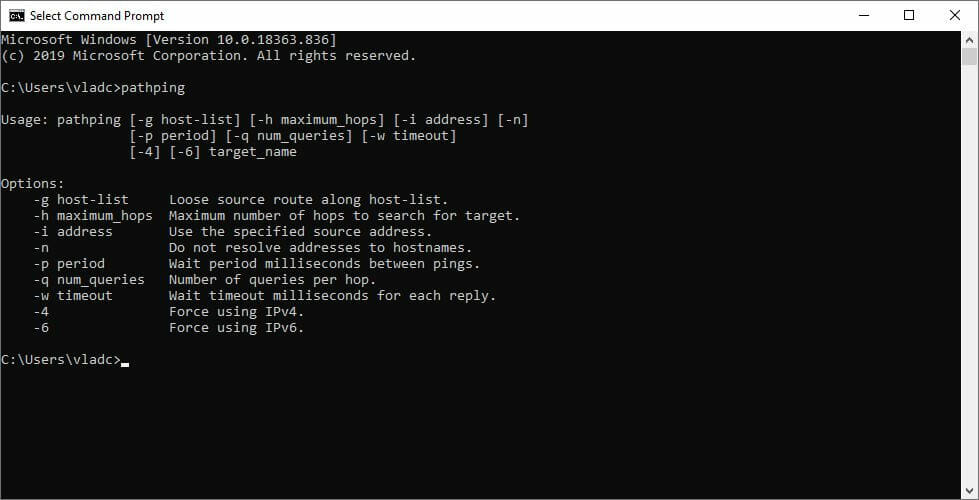
Launch an elevated instance of CMD (administrator rights)
Run a ping on google.com (or any other site you’re comfortable with)
Run pathping x.x.x.x (replace x.x.x.x with the IP you jotted down earlier)
Wait for the test to come to an end
Check the packet loss value for each hop in your connection
Each hop in your connection is related to a part of your route. As the hop number increases, your connection strays further away from the device you tested. Check the screenshot below. For instance, the first hop will always be your PC, and the last one will be the destination server (i.e. google.com, if you used our example).
Any hops in between the source and destination will either belong to your ISP, the upstream network distribution company, and relay servers.
Often, your ISP can cause a 100% packet loss situation by either throttling your bandwidth, blocking you, or having improper network routing. It’s easy to see whether your ISP is the cause or not during the test.
ExpressVPN
Reduce packet loss and secure your internet connection with this professional VPN solution.
Just use the screenshot above to check whether the packet loss occurs on your ISP’s side.
However, note that not even using a VPN can help you if your Internet connection is completely down. Sometimes an ISP might cut your connection for various reasons (maybe you’re late with the payment).
First thing first, call your ISP and ask them if they know anything about it
Check every component of your home network if the test shows 100% packet loss on your side
Contact the destination server’s owner if the tests show there’s something wrong with it
Switch to wired instead of wireless (Wi-Fi packet loss occurs more often)
Restart your router and/or modem
Rule out your router by plugging your PC straight to the modem or home line
Check if your firewall or security software isn’t blocking your connection attempts
Rule out any malfunctions in your network configuration
Make sure there’s actually a route between you and the destination server, if possible
Sometimes your network routing might impede you from accessing a certain service or website. In those cases, running a pathping test will often return confusing results, such as an unreachable ping destination host, but no packet loss.
All things considered, 100% packet loss might be an extreme connectivity issue, but it can be fixed nevertheless. More often than not it’s caused by your ISP, which will be glad to assist you in solving it. You have to give them a call.
Other times it can be caused by improper routing, or even DDoS attacks if you’re unfortunate enough.
Using a VPN might help if there seems to be an issue on your ISP’s side of the connection. However, note that it won’t do much if your ISP has completely cut down your connection (for not paying your subscription).
Last but not least, VPN use can sometimes worsen things, especially if it comes with a built-in firewall. Make sure you have all the right facts before deciding to invest in a VPN for attempting to fix 100% packet loss.
If you’re experiencing Raft lag, you can use a VPN to fix it.
Raft is an oceanic survival game that you can play solo or with your friends in co-op or PvP mode. You can explore an open world and hone your crafting skills to build a floating home while steering clear of sharks. Play it on Steam.
Some users encounter Raft lag spikes in multiplayer mode, which can become really annoying. If you’re also facing this scenario, you can try to reduce lag in various ways, like downloading the latest hotfixes, minimizing your graphics settings, or using a wired connection instead of Wi-Fi.
However, if these fixes fail, you can use a VPN to improve your ping and make your game run faster. Raft doesn’t currently have dedicated servers, so it relies on a peer-to-peer network. That means you have to host a game server or join an online session hosted on someone else’s PC.
Why is Raft so laggy?
Raft multiplayer lagging issues could be the result of network congestion, incorrect IP configuration settings over Wi-Fi or Ethernet, jitter, bandwidth limitations, a poor distance between the host and client, double NAT, or ISP throttling.
Raft stuttering, freezing, running slow is a result of poorly optimized PC specs like graphics card drivers and minimum requirements not met for the game:
OS: Windows 7 or later
Processor: 2.6 GHz Dual Core or similar
Memory: 4 GB RAM
Graphics: GeForce GTX 500 series or similar
DirectX: Version 11
Network: Broadband Internet connection
Storage: 6 GB available space
Additional Notes: 64-bit operating system is required
Raft lagging or showing lag spikes appear because of large rafts on survival mode so their servers are unable to handle it. You are however able to build much larger rafts on creative mode because the devs were aware that there would be large rafts built-in creative.
Raft high ping in multiplayer mode is due to a bad server response. The easiest way to fix this is to use a VPN to change your location and try on a different server to connect.
While Raft may become more optimized in terms of connections in the future, there is no telling how far that optimization will be.
We recommend using a VPN with split tunneling or port forwarding under more server locations for Raft until they are able to optimize the connection or you are able to increase your internet strength.
You may not have as much lag in other similar games because they are all server-based, so each of your online friends is connected to a server. On the other hand, with Raft each of the people who join the world is connecting to the host of the world.
If the distance between your PC and the remote machine is too great, this can lead to Raft server lag. But if you connect to a Raft VPN server that’s closer to the remote PC, you reduce the distance and subsequently speed up your connection. It’s also possible to fix packet loss with a VPN.
Is Raft poorly optimized?
They do need to work on performance issues and optimization as they continue to add things to the game that require larger builds, but it’s slowed down horribly.
Currently, you can use a mod to effectively disable physics at the cost of some drawbacks, such as being unable to navigate islands with your raft, but it significantly improves FPS.
The reason Raft runs poorly with this is because the larger the raft, the more physics the game has to calculate, slowing down your system. It’s very unique in that regard, because in most other games, the structures you build stand still, rather than moving across a vast sea.
Do you go faster with more engines in Raft?
The speed of the Raft is determined by the number of engines and foundations. The theoretical speed increases as more engines are added to the raft, each engine adds the value 2.
However, because there is a hard cap, the speed will never exceed a cap of 2.5 and will never fall below the lower limit of 1.5. Only when the engines are overburdened will the speed be zero.
If the limit of 110 foundations per engine is exceeded, the engines become overburdened.
Fixing the lag in Raft is possible with Private Internet Access (PIA). Developed by Kape Technologies, PIA offers a huge network of servers. As such, you can connect to multiple countries until you find the best VPN server for Raft.
Private Internet Access is the only VPN on this list with native port forwarding, which is an essential feature for hosting game servers with a VPN. Plus, you can choose from static and dynamic IP addresses, as well as use private DNS servers.
PIA offers an easy Raft lag fix, whether you’re trying to play the game on Windows, Mac, or Linux. It provides you with high-speed VPN servers for Raft, together with excellent security features. You can also use it to fix Xbox packet loss.
More about PIA:
+3,300 VPN servers in 48 countries
Allows up to 10 simultaneous connections
No logs
24/7 live chat support
30-day money-back guarantee (no free trial)
Private Internet Access
Quickly and easily fix Raft multiplayer lag with the help of this VPN.
NordVPN can easily reduce Raft lagging in multiplayer mode, thanks to its speedy VPN servers that can fix network congestion. It’s a VPN service operated by Tefincom & Co., which comes packed with numerous VPN servers.
With the help of NordVPN, you can minimize jitter and make your Internet connection faster. It gives you the possibility to configure custom DNS servers for Raft, secure your browsing sessions with CyberSec, as well as to access blocked sites by evading geoblocks.
If you’re having trouble trying to eliminate Raft game lagging because your VPN gets blocked by Steam, you can connect to NordVPN’s obfuscated servers to take care of this problem. Plus, it has a kill switch that turns off your VPN right away should you need it.
More about NordVPN:
+5,100 VPN servers in 59 countries
Supports 6 simultaneous connections
No logs
30-day money-back guarantee (no free trial)
NordVPN
If your Raft game is laggy, use NordVPN to reduce high ping and speed up your connection.
It should come as no surprise that ExpressVPN one of our most tested VPN for gaming to fix Raft multiplayer lag and make it run smoother. It has the best combination of features, security, and speed, making it an excellent choice in almost any situation.
ExpressVPN’s apps are already configured to prevent DNS leaks, so you won’t have to worry about them. After you sign up for the service, you can also test for DNS leaks on the official website.
Low ping is essential for competitive online gaming. ExpressVPN can connect you to a server that is closer to your game’s servers for lower latency and smoother connections.
More about ExpressVPN:
Speed test to find the fastest VPN server location
Connect to over 3000 servers in 94 countries
Unlimited bandwidth for never-ending optimal network speed
Bypass internet throttling
RAM-powered memory storage
30-day risk free money-back-guarantee
Indeed, the ability to change your virtual location is very useful in online gaming. You will be able to connect to foreign game servers that are normally inaccessible to you using ExpressVPN. But, if this provider is so popular in the gaming world, it is primarily due to its connection speeds.
ExpressVPN
Reduce high pings in Raft and connect to an optimal server to bypass ISP throttling.
Surfshark is another great option for gaming VPN that supports Linux, Mac OS, and Windows on the desktop for Raft, with apps, plugins, and services for almost every piece of connected hardware you can think of to protect.
Android and iOS mobile devices, Xbox and PlayStation video game consoles, and Amazon FireTV and Apple TV smart TV platforms are also supported. Nonetheless, the service allows subscribers to protect an unlimited number of devices, making it a great value in a highly connected home.
Surfshark also includes a list of optimized servers for P2P, Gaming, MultiHop, allowing you to select one based on your needs rather than going on a wild goose chase. We tested their VPN app on both PCs and consoles, and it performed admirably.
More about SurfsharkVPN:
Best protocols for gaming
Strong encryption
Multi-hop connections
Extended servers worldwide
Whitelister
Camouflage Mode
CleanWeb against trackers
Surfshark is also an excellent solution for players who frequently play on unsecured servers, particularly competitive multiplayer games.
It is far safer to play on such servers without revealing your IP address, and Surfshark provides you with complete anonymity in this case.
Surfshark
Stay under camouflage mode and get access to optimized servers for gaming to reduce lag in Raft.
CyberGhost VPN is another excellent choice for fixing Raft game lag. Owned by Kape Technologies, this VPN service can fix Wi-Fi packet loss if you can’t switch to wired mode to improve your connection speed.
You can easily fix Raft lagging issues using the fast VPN servers provided by CyberGhost VPN. It also offers exclusive DNS servers, DNS leak protection, anti-hacker protection, and a malware blocker for browsers.
More about CyberGhost VPN:
+6,500 VPN servers in 89 countries
Up to 7 connections using the same account
No logs
Up to 45-day money-back guarantee (1-day free trial)
Cyberghost VPN
Eliminate Raft lag issues by turning to this fast and secure VPN
Moreover, if you are still wondering how to make raft less laggy and run smoother and give Raft FPS boost you can adjust the graphics in Raft, and it doesn’t look too bad on the low settings. Increase FPS for Raft low-end PC by adjusting them and it will run better.
Firstly, make sure to download the official hotfixes and restart Steam before launching Raft. Secondly, lower your in-game graphics settings. Thirdly, use NVIDIA Control Panel to optimize your GPU for PC performance.
It’s important to remember that this is the very first release of Raft. As the Early Access period comes to an end, it’s likely that developers will continue to work on updates and optimization.
Head over to our VPN Troubleshooting area to quickly fix any VPN-related errors. To see how to reduce lag and packet loss in other games, join our Gaming VPN Hub.
To summarize, using a VPN is the best way to fix Raft lag and packet loss. You just need to connect to a VPN server that’s in the same region as the remote PC hosting the game server.
If you’re having issues trying to pick the best VPN for Raft, we suggest going with ExpressVPN.
It’s no secret that Microsoft Defender ATP was meant for multi-platform use cases.
While it started out as Windows Defender Advanced Threat Protection, it was eventually going to come to non-Windows platforms, step by step.
Already, there’s a Microsoft Defender ATP version for Android devices in public preview. And now, Linux server distributions are the latest to gain the support of the antimalware tool.
Microsoft Defender ATP for Linux
Microsoft recognizes that the vast majority of its customers use multiple platforms, a good number of which don’t run on the Windows Operating System (OS).
So, the Redmond-based company wants to offer Defender ATP as a centralized security management tool across as many platforms and devices as possible. This is why the antivirus solution for Linux is now generally available.
As a Linux user, you’ll be able to scan and resolve threats via a command-line interface (CLI).
The CLI supports several critical commands and functions. For example, threat lets you configure threat management policies, while connectivity troubleshoots cloud connections. On the other hand, edr is for configuring endpoint detection and response.
This initial release delivers strong preventive capabilities, a full command line experience on the client to configure and manage the agent, initiate scans, manage threats, and a familiar integrated experience for machines and alert monitoring in the Microsoft Defender Security Center.
While there are hundreds of Linux distributions out there, Microsoft Defender ATP supports only a handful. These are:
RHEL 7.2+
CentOS Linux 7.2+
Ubuntu 16 LTS, or higher LTS
SLES 12+
Debian 9+
Oracle Linux 7.2
You can use any Linux configuration management tool, such as Puppet or Ansible, to deploy Defender ATP.
Apart from that, you may want to uninstall any third-party antimalware tool on your system. It just so happens that deploying such products along with Defender ATP may compromise system performance and trigger some bugs here and there.
Have you got started with Microsoft Defender ATP for Linux yet? As always, you can share your experience via the comments section below.
The new update available only for Insiders comes with a few new features and a lot of reliability fixes.
What’s new with the Microsoft Edge Dev update?
The three new features are addressed mainly to developers and admins.
First improvement is adding a New Tab Page Search Box management policy. Another is to add support for the Auto Open Allowed for URLs management policy for upstream Chromium.
At last, they’ve added support for the Auto Open File Types management policy from upstream Chromium.
Microsoft Edge Dev 85.0.552.1 brings a ton of fixes
And when we say a ton, that’s a lot. We’ve counted 9 reliability fixes and 15 behavioral fixes.
We will list here only the reliability issues here, as they appear on the release notes:
Fixed an issue where the browser sometimes does not open.
Fixed a crash on startup.
Fixed a crash when printing.
Fixed an issue where opening the Read Aloud voice options list crashes the browser.
Fixed an issue on Mac where entering fullscreen mode in an installed app or website crashes the browser.
Fixed a crash when importing data from other browsers.
Fixed an issue where certain 4K video content, such as that encoded using HEVC, doesn’t play properly.
Improved the reliability of importing passwords from other browsers.
Fixed an issue where adding items to a Collection sometimes fails, and instead, the loading spinner is shown indefinitely.
Known issues with the new Microsoft Edge Dev 85.0.552.1
Unfortunately, the new Edge Dev update also comes with 7 know issues.
For instance, if you use some ad-blocking extensions, you may experience playback errors on Youtube. To fix this, disable the extension.
Also, if you use the extension for the Kaspersky Internet Suite, you may sometimes see webpages like Gmail fail to load. Make sure you install the latest update of the extension to fix this.
Back in 2019, Microsoft introduced the ability to defer Windows 10 feature updates using Windows Update settings for up to an entire year. As a reminder, the feature was introduced for both Home and business users to refrain their PCs from attempting automatic upgrades during the selected period.
However, WindowsTimes noticed that the feature has been removed beginning with the Windows 10 May 2020 Update, and Microsoft confirmed the change in an update to the Windows 10 2004 documentation for IT Pros from June 23 (via Neowin): The manual setting to defer feature updates has been removed from the “Advanced options” section in Windows Update for users currently running Windows 10 Pro, Education, or Enterprise editions “in order to reduce confusion.”
Microsoft said that it’s now up to the IT Admins to manually configure update deferrals in the Group Policy for everyone in their organization. “If you wish to continue leveraging deferrals, you can use local Group Policy (Computer Configuration > Administrative Templates > Windows Components > Windows Update > Windows Update for Business > Select when Preview builds and Feature Updates are received or Select when Quality Updates are received),” the company explained.
This move is quite surprising considering that thousands of users generally use this option to suspend quality updates for a specific period. By removing the option from Settings, and hiding it inside the Group Policy Editor, Microsoft probably wants to push more people towards the Windows 10 May 2020 Update. Did you notice the change on your PCs? Let us know in the comments down below.
Although the new Windows 10 update comes to solve some problems, it also comes with a lot of known issues and no new features.
What is new in Windows 10 Insider Preview Build 20152?
There are 4 fixes coming with the new Insider Preview Build 20152:
Until now, if you tried to reset your computer, the system was removing Notepad. Microsoft apparently solved that issue and they recommend that if you’re facing the situation to reinstall Notepad via Optional Features in Settings.
They also fixed an issue where the Continue button after the Windows needs space to continue dialog didn’t show up.
Apparently, sometimes, the Windows Update icon was not showing up in the taskbar notification area when an update was ready for a reboot. They also fixed that issue.
They also fixed a bug from IME. Now, IMEs will show the correct typing status (ON or OFF) and the IME mode indicator from taskbar is working fine now.
Windows 10 Insider Preview Build 20152 has plenty of known issues
Unfortunately, there are still a lot of known issues coming with Insider Preview Build 20152 but that is expected from a Dev Channel preview build.
Let’s see some of the more important ones:
Some systems to crash with a HYPERVISOR_ERROR bugcheck.
For some, the update to a new build is taking a lot of time.
Sometimes, Notepad doesn’t reopen files that were automatically saved during a PC restart. However, you can still recover your documents from %localappdata%\Notepad.
Don’t install Insider Build 20152 if you have an Xbox controller
Just after the release of the Windows 10 Insider Preview Build 20152, we’ve recorded cases of users who experienced this issue.
Apparently, a user got a BSoD referencing xinputhid.sys when he turned his controller on just after installing the new update.
Looks like the Xbox 1 wireless driver is borked with this update. I get a blue screen referencing xinputhid.sys whenever I turn my controller on. Oof.
So if you really want to use your Xbox controller, don’t install the latest Windows 10 Insider Preview Build 20152.
What can I do to avoid the BSoD error after installing Insider Build 20152?
If you care more about the new update, then make sure you disconnect your Xbox controller from your computer and leave things like that until the new update.
Otherwise, you may be triggering the BSoD with the error code 0xc1900101.
Have you had this problem? Tell us about your experience in the comments below. That might help other users to avoid it.
You can check all the release notes from Windows Blog.
What do you think about the new updates from Microsoft? Please let us know in the comments section below.
New traces of Microsoft’s next-gen “Lockhart” Xbox has once again been spotted, this time in official developer documentation. Twitter user @XB1_HexDecimal, who found traces of Lockhart in Windows 10 earlier this month, shared yesterday some screenshots of the Microsoft Game Development Kit mentioning a “Lockhart Profiling Mode” (via Windows Central)
More proof of Lockhart, this time from the XDK/GDK release notes for June 2020. pic.twitter.com/hulDoC9owv
According to previous reports, Lockhart will target 1440p gaming with a 4 teraflops GPU, but the cheaper SKU will still include an SSD and an AMD Zen 2-based CPU, just like on the Xbox Series X. As seen in these new leaked screenshots, Microsoft has created tools allowing developers to optimize their Xbox games for Lockhart and “Anaconda,” which is the codename for the Xbox Series X.
If Microsoft has never discussed Lockhart so far, VentureBeat journalist Jeff Grub reported earlier this month that the Xbox team was planning to finally announce it in June, but the official reveal could have been delayed to August. However, with Sony recently announcing a discless PlayStation 5 Digital Edition that will be just as powerful as the regular PlayStation 5, a cheaper but much less powerful Lockhart (4 teraflops vs. 10 teraflops for the discless PS5) may start to make less sense.
We’ll see what happens in the coming weeks, but the more Microsoft waits to announce Lockhart, the more difficult it will be for the company to prevent any more leaks. That’s assuming Lockhart hasn’t been ultimately cancelled, as it has been the case for previous Microsoft products such as the Surface Mini.
Microsoft is currently working a new feature for Microsoft Office users on Windows called smart save reminders, which will help remind you to save your new unsaved documents and avoid losing your work (via WinCentral). The feature is already live in Microsoft Word for Office Insiders using version 2006 Build 13001.10000 or later, and it intelligently prompts them to save their work when they start working on a new file.
#OfficeInsiders on Windows – Beta Channel, when you start working on a new file, you might see a reminder to save your work. Juan, a PM for Office, goes over the new feature that uses machine learning to determine when to remind you to save your Word docs. https://t.co/TbAUdKc0Jx
According to Microsoft, the smart save feature basically uses machine learning to determine your likelihood of saving a particular file, and then displays a reminder below the Save button. The AI analyses a couple of attributes including how much content you’ve added to the file, or how much time you’ve spent working on the file before displaying the prompts.
It is worth noting that Microsoft’s Office apps already have an AutoSave feature for Microsoft 365 subscribers, but these new reminders are a good alternative for everyone else. The feature has been specifically designed for users who often forget to save their files, and potentially risk losing their work due to unforeseen circumstances.
If you’re an Office Insider who has any suggestions about this feature, we invite you to provide your feedback by going to Help > Feedback in Word, also don’t forget to Add #SmartSaveReminders in your feedback.
OneDrive is one of the best-known cloud storage services alongside Google Drive and Dropbox.
Windows 10 includes a built-in OneDrive client app that syncs your folders and files so you can open them from File Explorer. In many situations, OneDrive runs automatically at startup.
Using a cloud storage space is extremely useful, but using OneDrive comes with some risks.
Why am I being asked to set up OneDrive for file recovery?
Windows Defender warning: Set up OneDrive for file recovery options in case of a ransomware attack
The pop-up regarding the recovery options in case of a ransomware attack from Windows Defender can be very annoying, especially over long periods of time. It seems that this pop-up appears whenever users open their PC up.
This pop-up appears because the setup process for the OneDrive app hasn’t been completed successfully. Follow these steps to resolve it:
Click Set Up OneDrive.
Enter your email address, and click Ok.
The File Explorer will appear.
Right-click the OneDrive folder, and select Scan with Windows Defender.
After the scanning process is completed, the green checkmark should be present.
What is the file recovery option in OneDrive?
The file recovery option in OneDrive allows you to retrieve a file or folder from the cloud, in case something happens to it on your PC (it gets corrupted, you accidentally deleted it etc.).
But for this, it is necessary that you sync your PC with OneDrive by logging into your Microsoft account, as shown below.
Afterward, whenever you need to use the file recovery option, you can go to your OneDrive account and get the necessary file from there.
Are OneDrive files safe from ransomware?
If you choose to benefit from the OneDrive Windows client app, you should know that most ransomware attacks can recognize you stored data as essential data from your personal PC.
Since ransomware behaves like legitimate software, it can read your data, encrypt it, and write it back to your OneDrive deleting the original. The ransomware attacks behave as if you, the administrator, would have encrypted the files.
Why do I get the Setup OneDrive for file recovery warning?
As a result, the Windows Defender Security Centre will keep warning you to set up OneDrive for file recovery in case of a ransomware attack.
The notification comes with a yellow triangle warning sign, showing the mentioned message, and it keeps popping up in the notifications area, every time the computer reboots.
Here, you can choose to Cancel or open it. Canceling the notification will not help, as the warning will still show each time you restart the computer. So it’s better to address it.
How do I protect OneDrive from ransomware?
1. Sign in to OneDrive
The simplest solution would be to just follow the on-screen prompts and Set up OneDrive.
You should know that this step actually implies a two-factor authenticating process in which you signing into your Microsoft account. So no actual protection is offered, only easy access to your cloud-stored files in case of a ransomware attack.
Additionally, when trying to sign in you might get a warning that You’re already syncing a personal OneDrive on this computer. Unlink that account to add a new one.
In this case, you should take a look at the nest step.
2. Unlink & relink OneDrive
Right-click on the OneDrive icon in the QuickMenu area, and click Settings.
Select the Account tab, and clickUnlink this PC and follow the prompts.
Fully close OneDrive, again by right-clicking on the icon in the Quick Menu area and selecting Close OneDrive.
Then type Windows Defender Security Center in the search bar and click on Virus & threat protection.
Here, you will see the yellow warning again, so retry the signing in steps mentioned in the first solution.
Additionally, in the Ransomware protection area, make sure to toggle ON the Controlled folder access
This is a method that should refresh the link between your system and OneDrive, and cancel the nagging notification.
3. Scan OneDrive using Windows Defender
Open File Explorer.
Right-click the OneDrive folder and select Scan with Windows Defender.
After the scan is complete, the notification should disappear.
This is just a one-time action, though, and it can be applied whether you are actively using Windows Defender or third-party antivirus software.
Of course, you can just unlink your computer, as shown in the second step, and continue using another cloud storage option. This way you will keep your important data to a location that is not connected to your OS, protected with another set of credentials.
And this would probably be the safest method, after all.
But many prefer to also keep OneDrive, just as a second option. If that is the case, there are a few other things that you can try to manage the OneDrive client.
Care to give us your opinion on this topic? Please use the comment section below.
Error 1711 is a general installation issue that can arise when users try to install or update software in Windows. The issue can arise when users try to install MS Office applications, iTunes, WinZip, and other software. It is an MSI Microsoft installer error that stops software installation. The error 1711 message states this:
Error 1711. An error occurred while writing installation information to disk. Check to make sure enough disk space is available.
This issue can arise even when users have a reasonable amount of hard drive storage space available. Thus, freeing up disk space, as hinted by the error message, isn’t always the resolution. There are a few potential fixes for Windows Installer error 1711.
How to fix error 1711 in Windows 10
1. Delete msi.tmp files in the Installer folder
Some users have confirmed they were able to fix error 1711 by deleting msi.tmp files within their Installer folders. Open File Explorer, which you can do with the Windows key + E hotkey.
Open the Windows > Installer folder in File Explorer.
Select all the msi.tmp files in the Installer folder by holding the Ctrl key.
Click the Delete button on the Home tab.
2. Defrag the hard drive
Error 1711 can be due to a fragmented HDD. To find the Defragment and Optimize drives utility, open the search utility by pressing the Windows key + S keyboard shortcut.
Type defrag in the search box.
Click Defragment and Optimize Drives to open that utility.
Select your primary HDD partition, and click the Optimize option.
Thereafter, wait for the utility to complete the defrag, which might take a while.
3. Download the installation file again
Error 1711 can also be due to a corrupted MSI file download. So, try downloading the MSI setup file again. Then install the software with the new MSI.
4. Clear the Temp folder
If you don’t have much hard drive storage available, try clearing the Temp folder. To do that, open Run with the Windows key + R keyboard shortcut.
Type temp in the Open box, and click the OK button.
Press the Ctrl + A key combination to select everything in the Temp folder.
Click the Delete button.
5. Clean the system files
In addition, try clearing superfluous system files with the Disk Clean-up utility. Open the Run window.
Input cleanmgr in the Open box, and click the OK option.
Next, click Clean upsystem files.
Select all the checkboxes on the Disk Clean-up tab.
Press the OK button.
6. Reregister the Windows Installer
Registering Windows Installer is another confirmed fix for error 1711. Launch the Run accessory.
Type msiexec /unregister in Run’s Open text box and click OK to unregister Windows Installer.
To reregister Windows Installer, enter msiexec /regserver in Run and click OK.
7. Fix Error 1711 for MS Office
Error 1711 can often arise when users try to update an installed MS Office suite. Office users might be able to fix error 1711 by uninstalling Office in Windows 10. Then users can reinstall the latest Office version.
Press the Windows key + R hotkey to launch Run. Then you can enter appwiz.cpl in Run and click OK to open the uninstaller window. Select your MS Office suite and click Uninstall to remove it. Thereafter, install the latest Office version as outlined on Microsoft’s Office support page.
Those are some of the resolutions users have fixed error 1711 with. So, there’s a good chance they’ll resolve error 1711 so that you can install or update the required software.
Outlook for web is getting a send later button, and users on Twitter are excited about it.
The new feature comes in handy when you just want to compose a message and schedule it for sending later. There are many times you want to do that for different reasons, such as proper timing.
Users react to Outlook for web getting send later feature
Mike Tholfsen, Microsoft Product manager, revealed the new Outlook button via a tweet.
NEW! Now you can schedule a mail to be sent at a later time or date using Outlook for web.
Just drop down the "Send" button and choose "Send later" and then choose a date and time ?
So, if you’re an Outlook on the web user, you can now schedule your mail messages to be sent at a future date or time.
Based on a sample of user reactions on Twitter, the send later button should change life in the office for many Outlook for web users.
For example, one user responds:
Woah!!! Did I just read this correctly? Scheduling mail from the web? Perfect for those who like to work outside core hours but do not require others to respond then…..thanks.
Another excited user adds:
Yeah! I’ve been using this feature in the app, but in web will be much more convenient!
Of course, some users are wondering whether the send later button is coming to Outlook for desktop anytime soon. Well, it’s been there since 1997!
That’s not surprising, though, since Microsoft tends to add new features to its different versions of Outlook separately.
We already wrote about the new text prediction feature for Outlook.com and Outlook on the web, for example. Similarly, we expect Outlook for Windows to start supporting cross-device email signature syncing this month.
Are you excited about the new send later button in Outlook for web? Tell us what you think in the comments section below.
As a cross-platform solution, Microsoft Defender ATP is central to the security of Windows 10 and Office 365 apps and data. Now, Microsoft just announced the availability of an Android version of the tool in public preview.
Microsoft Defender ATP for Android
This tool must be doing a great job, at least from Microsoft’s perspective. That can explain why it keeps getting additional security roles and features.
For example, Microsoft recently added a new Unified Extensible Firmware Interface (UEFI) scanner to Defender ATP. The tool should now be able to scan and thwart driver or firmware-level security threats in Windows 10.
In addition, the security feature now powers the new Safe Documents tool for scanning and detecting unsafe Office 365 documents.
And now it gets to scan and stop different types of cybersecurity issues that affect Android device users.
According to Microsoft, you’ll be able to view alerts and incidences on a single dashboard that the Android Microsoft Defender Security Center offers.
This feature comes at a time when more and more enterprises are letting their remote workforce access company IT systems via their mobile devices, including smartphones.
All events and alerts will be available through a single pane of glass in the Microsoft Defender Security Center, giving security teams a centralized view of threats on Android devices along with other platforms. These capabilities empower enterprises to enable strong security while ensuring their employees remain productive working on their Android devices.
The new Microsoft Defender ATP for Android offers the following features:
Online protection: Blocks unsafe online connections and stops phishing attacks via emails, text messages, or websites.
Anti-malware tool: Prevents potentially malicious apps from installing on your Android device.
Sensitive data protection: Blocks compromised devices from accessing sensitive data, such as Office 365 apps, assets, or files.
Let’s hope that Microsoft Defender ATP for Android arrives in general availability soon enough.
What do you think of the new security tool for Android? You can always share your opinion via the comments section below.
Chivalry: Medieval Warfare is a popular multiplayer hack’n’slash game many players enjoy worldwide. It’s set somewhere in the Middle Ages and, as you expect, focuses heavily on medieval warfare.
The combat focuses mainly on melee weapons such as swords, maces, and clubs but also features ranged weapons. For instance, use longbows, ballistae, or catapults to wreak havoc on your enemies or use boiling oil pots.
There’s no way around it: Chivalry: Medieval Warfare is a fantastic game, especially if you’re a Middle Ages enthusiast. However, given that you can only play it online, this game faces many technical challenges occasionally.
Connectivity-wise, to be more specific. Namely, at certain points, you might have to tackle high latency, jitter, and even the hated packet loss, although it’s not a must that you’ll encounter these issues.
What is packet loss in Chivalry: Medieval Warfare?
Leaking packets in Chivalry: Medieval Warfare is the same as with any other online service or game. Packets of data that you transmit through your connection never make it to their destination.
As a result, the server throws a desync your way, manifesting as sluggish in-game movement, responsiveness, rubberbanding, and, in severe cases, even disconnections.
However, keep in mind that almost every time packet loss is caused by network congestion. This means that the best way to improve packet loss is often waiting for it to pass. That’s the good news and also the bad news.
How to check for packet loss in Chivalry: Medieval Warfare?
Launch CMD in administrator mode
Use netstat to identify the game server’s IP address
Run the pathping x.x.x.x command (replace x.x.x.x with the IP address you found earlier)
Locate the node (hop) that seems to be leaking packets
Depending on your results, the location of the packet leak can be one of the following:
Your home network
Your ISP’s network
The game server
How to fix packet loss in Chivalry: Medieval Warfare?
Private Internet Access is a great all-around VPN solution from Kape Technologies. It’s well-known that VPNs can improve packet loss, but their usability doesn’t stop there.
You can also use this VPN to improve ping, give your online privacy a much-needed boost, secure your connection, and even circumvent geoblocking. Besides, Private Internet Access VPN helps in fixing the Chivalry 2 login error.
Private Internet Access
Use this reliable VPN solution to enhance your gaming experience and avoid any possible error.
Chivalry: Medieval Warfare packet loss can be improved
All things considered, you can probably fix packet loss in Chivalry: Medieval Warfare if you’re patient enough. Mainly because network congestion is one of the main causes, and there’s no better fix for it.
Unless you’re a network administrator and know your way around properly managing subnets.
If patience is something you can’t afford, try using a VPN. However, note that it will only work if your ISP is actively throttling your bandwidth.
When everything else fails, you could try getting your hands a bit dirty with manual troubleshooting.
Worst case scenario, you end up performing some much-needed maintenance on your network, which is actually recommended from time to time.
Patch Tuesday updates, which come only once a month, typically address multiple Windows 10 security issues. The latest such updates arrived on June 9, 2020, and delivered 139 CVE fixes.
But they also left a trail of OS and app bugs, some of which affect Windows 10 users to date.
Lately, some users have been complaining about their PCs crashing on login after installing some of the June 9, 2020 updates. Microsoft has acknowledged the issue, which it attributes to the failure of the Local Security Authority Subsystem Service (LSASS) file.
The Windows 10 LSASS problem
LSASS is responsible for enforcing Windows 10 security policy. The service verifies your credentials when you try logging into Windows, and it also handles password changes.
Considering lsass.exe is vital to the Windows 10 sign-in process, it’s going to interfere with access to your PC if it crashes. That’s the nightmare some users are facing after installing certain Patch Tuesday updates.
They have to reboot their PCs as a result.
The Local Security Authority Subsystem Service (LSASS) file (lsass.exe) might fail on some devices with the error message, “A critical system process, C:\WINDOWS\system32\lsass.exe, failed with status code c0000008. The machine must now be restarted.
Microsoft has linked the bug to at least four different updates, namely:
KB4557957: This one has had other issues before, including freezing your PC.
kb4560960: It too had a couple of issues, including a now-resolved printing bug.
kb4567512: Microsoft released this optional update on June 16, 2020 to fix a printing issue. Well, the update is now associated with the LSASS bug.
KB4567523: Also a non-security update released to fix the printer problem.
It’s a shame that there’s no ready workaround for the LSASS issue forcing users to reboot their PCs. Microsoft though said it’s developing a fix that should come out in a future update.
Has the lsass.exe bug affected you yet? Kindly lets us know or ask any question via the comments section below.
HOTS, short for Heroes of the Storm, is a crossover MOBA game released by Blizzard Entertainment. The game lets you choose your favorite Blizzard character, team up and fight the opposing group of players.
Although we’ve called it MOBA, Blizzard holds HOTS to other standards and considers it a hero brawler. There’s a weekly rotation of free champions, but mostly you’ll have to buy characters you want to play with.
The game is based on a freemium model, with most purchases revolving around cosmetic items such as skins and mounts. However, you can also purchase heroes from the roster with real money, so it’s not entirely F2P.
It’s true that you can grind for the heroes you want, but it can take quite a lot of time to complete your roster.
What is packet loss in HOTS?
Packet loss acts up the same regardless of where you may encounter it. Even in HOTS, it happens whenever data packets you send or receive never make it to their destination.
As a result, there’s a desync between you, the server, and the other players, which might put you at a disadvantage. The effects of packet loss are quite severe, especially if the leak doesn’t happen in a short burst.
You rubberband, the game starts moving slowly, and it seems you’re just mashing buttons for nothing, as your character sticks into place. The final blow is when the server disconnects you from the game if the packet loss is more serious.
Although there are many other connectivity issues you might encounter in HOTS such as high ping, or jitter, packet loss is by far the most annoying one.
Mostly because it has a lot of potential causes, ranging from network congestion to old Ethernet cables (yes, really) and that there’s no immediate magic fix for it.
However, it can do so much more for your online privacy and give your connection that much needed security boost. Last, but not least, it can help you circumvent geo-restrictions without significant efforts.
2. Perform some manual troubleshooting
Restart your router and modem
Use a wired connection instead of wireless (Wi-Fi packet loss occurs more often)
Check and repair any faulty component including cables, drivers, hardware components, firmware
Make sure your firewall/antivirus doesn’t block or restrict HOTS
Upgrade your Internet subscription if you can
Avoid peak hours
Call your ISP if you notice something wrong on their end during the tests
Contact Blizzard if their server returns bad results during the tests
You can fix HOTS packet loss sometimes
To sum it up, even if packet loss in HOTS is one of the most annoying issues you could ever encounter in this game, you can fix it sometimes.
The most effective way to get rid of packet loss would be waiting since leaking packets is caused by network congestion most of the time.
However, if you can’t afford the luxury of time, try using a VPN or performing some manual troubleshooting.
Keep in mind that using a VPN will only improve packet loss (and ping, as a bonus) if your ISP throttles your bandwidth or has improper network routing.
The Google Chromium team is fine-tuning Chrome’s Lite mode to start adhering to your data usage limits, regardless of your OS. Currently, the feature doesn’t sync with users’ data-saving settings in Windows 10, Android, and iOS.
Chrome’s Lite mode to sync with your data usage settings
It just so happens that some of the content on a typical web page isn’t always necessary or useful despite the fact that it could affect your browsing experience. Whether you’re researching a topic, reading news online, or simply checking out antivirus solutions or other software; not everything that loads up is vital.
That’s why Google introduced Lite mode in Chrome—to enable you to use less mobile data while browsing the web. On top of that, the pages you visit may load faster when you’re browsing with Lite mode. Plus, despite carrying less content, the pages retain their appearance and feel, interestingly.
However, a member of the Chromium team recently pointed out that Lite mode doesn’t toggle with the user’s OS-level data saving configurations.
For example, if you turn on Data Saver on your Android smartphone, Lite mode in Chrome remains off. That’s because the two features aren’t in sync with respect to your data saving preferences.
Windows 10 has a similar feature, metered connections, which lets set a data limit on your cellular internet.
Now, according to the Chromium team member, Lite mode should at some point sync to all these operating systems, including iOS.
Eventually, I’d assume all of these OS features would put Chromium into Lite mode, in respect of the user’s system level setting they’ve indicated preferences for.
It looks like Google is making good progress in this respect since the feature is already in the Canary build of Chrome.
`@media (prefers-reduced-data)` is now available to prototype with ?
Find it in Chrome Canary behind chrome://flags/#enable-experimental-web-platform-features
It’s been almost 4 years since we’ve heard that Amazon might work on an Amazon Windows 10 app. And we’re not talking about the Amazon Shopping app which wasn’t so successful.
Soon, if you have a Windows 10 device and want to watch Amazone Prime Video, you will have an app for that.
Amazon Video has an app on every platform, including on Xbox, where it even got 4K UHS support.
How can I watch Amazon Prime Video in Windows 10 app?
If you click on the link, you are redirected to the Microsoft Store.
After you download the app and launch it, you will enter the sign-in process by specifying your country.
Next, you will be prompted for your e-mail address (or your phone no.) and then the password.
Of course, if you don’t have an Amazon account, you can always do so by pressing the Create your Amazon account button below.
That’s it, enjoy the app!
What can you watch in the Windows 10 Amazon Prime Video app?
Here’s an excerpt from the Microsoft Store description of the app:
Watch movies and TV shows recommended for you, including Amazon Originals like The Boys, Hunters, The Marvelous Mrs. Maisel, Tom Clancy’s Jack Ryan, and much more.
App Features:
Download videos to watch offline – anywhere, anytime.
Rent or buy thousands of titles including new release movies, popular TV shows, and more (not available in all countries/regions).
With Prime Video Channels, Prime members can subscribe to more than 150 premium and specialty channels like HBO, SHOWTIME, STARZ, and Cinemax. Only pay for the channels you want, no cable required, cancel anytime (not available in all countries/regions).
With X-Ray, view IMDb information about the actors, songs, and trivia for videos as you stream.
What do you think about the new Windows 10 Amazon Prime Video app? Share your thoughts in a comment below.
Microsoft has released a new Microsoft Launcher v6 beta build for Android users (via Android Police), which brings a handful of new features along with numerous fixes to improve your home screen experience. The new version delivers a fresh look for the Microsoft Feed and a landscape mode support. Let’s dive into each of these additions in detail.
Some of the changes in this new beta build were originally introduced in the separate Microsoft Launcher preview app that has been rebuilt from scratch for Surface Duo. First off, Microsoft Launcher v6 brings the much-anticipated landscape orientation support, a welcome change for users who prefer to use their phones that way. Many other Android launchers already offer landscape mode support, so it’s nice to see the Microsoft Launcher finally catching up.
Another notable change is a redesigned Microsoft Feed which now features better spacing between the tiles/cards and a blurred background. Finally, the recent update brings a bunch of new wallpapers to brighten up your home screen. To access these wallpapers now, head over to the Microsoft Launcher settings, and then check the Bing and Microsoft folders to apply them.
Credits: Android Police
As usual, you can register for the Microsoft Launcher Beta program by visiting the app listing in the Google Play Store and then tapping on the “Join the Beta” link.


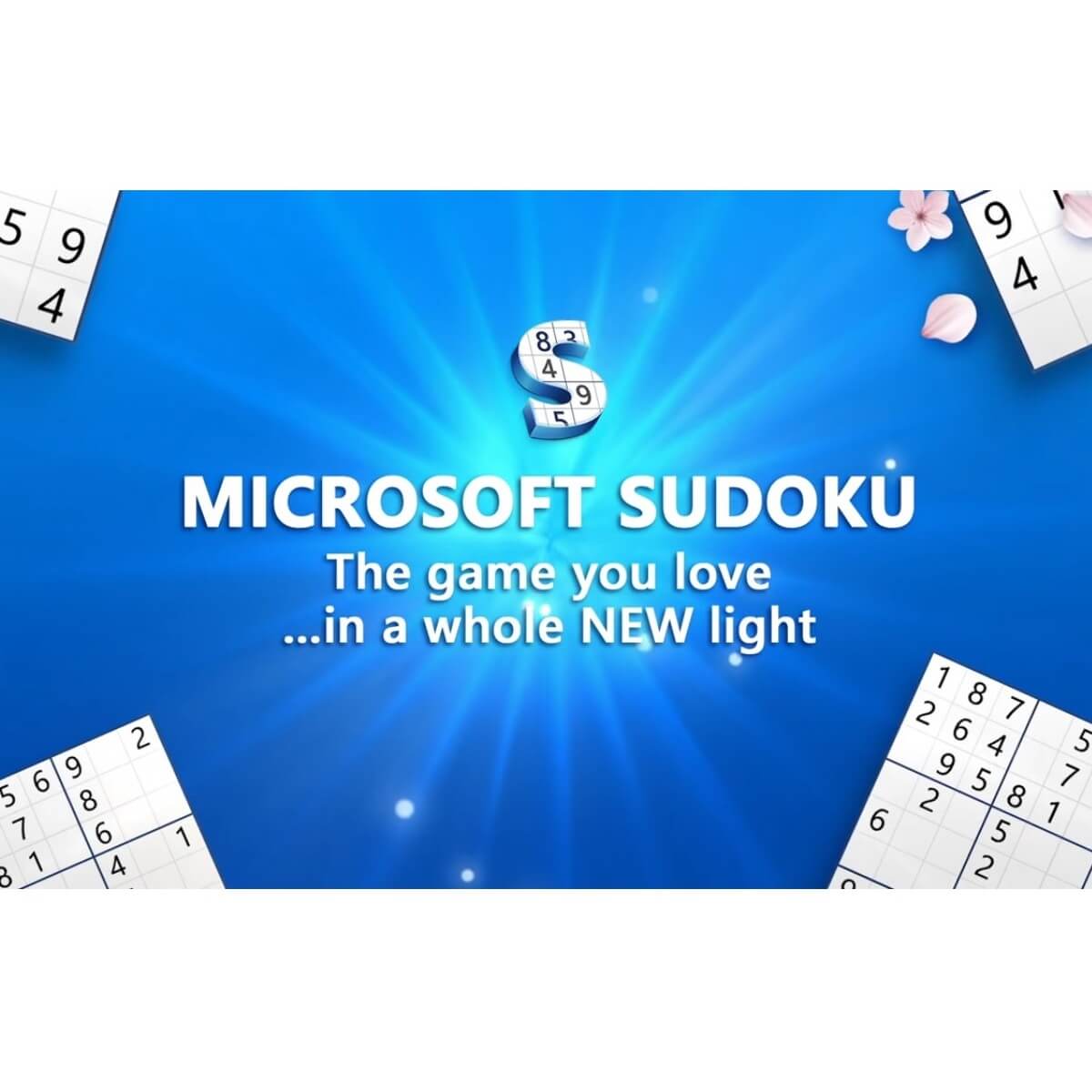



![How to watch French Netflix in USA [Streaming Guide]](https://windowsreport.com/wp-content/uploads/2020/06/watch-French-Netflix.jpg)




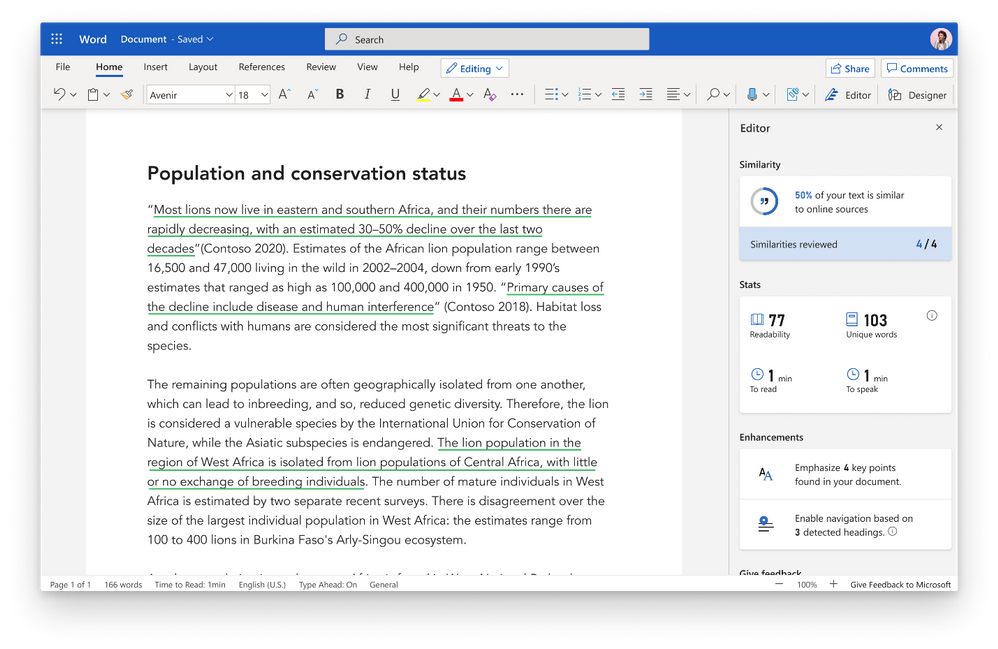
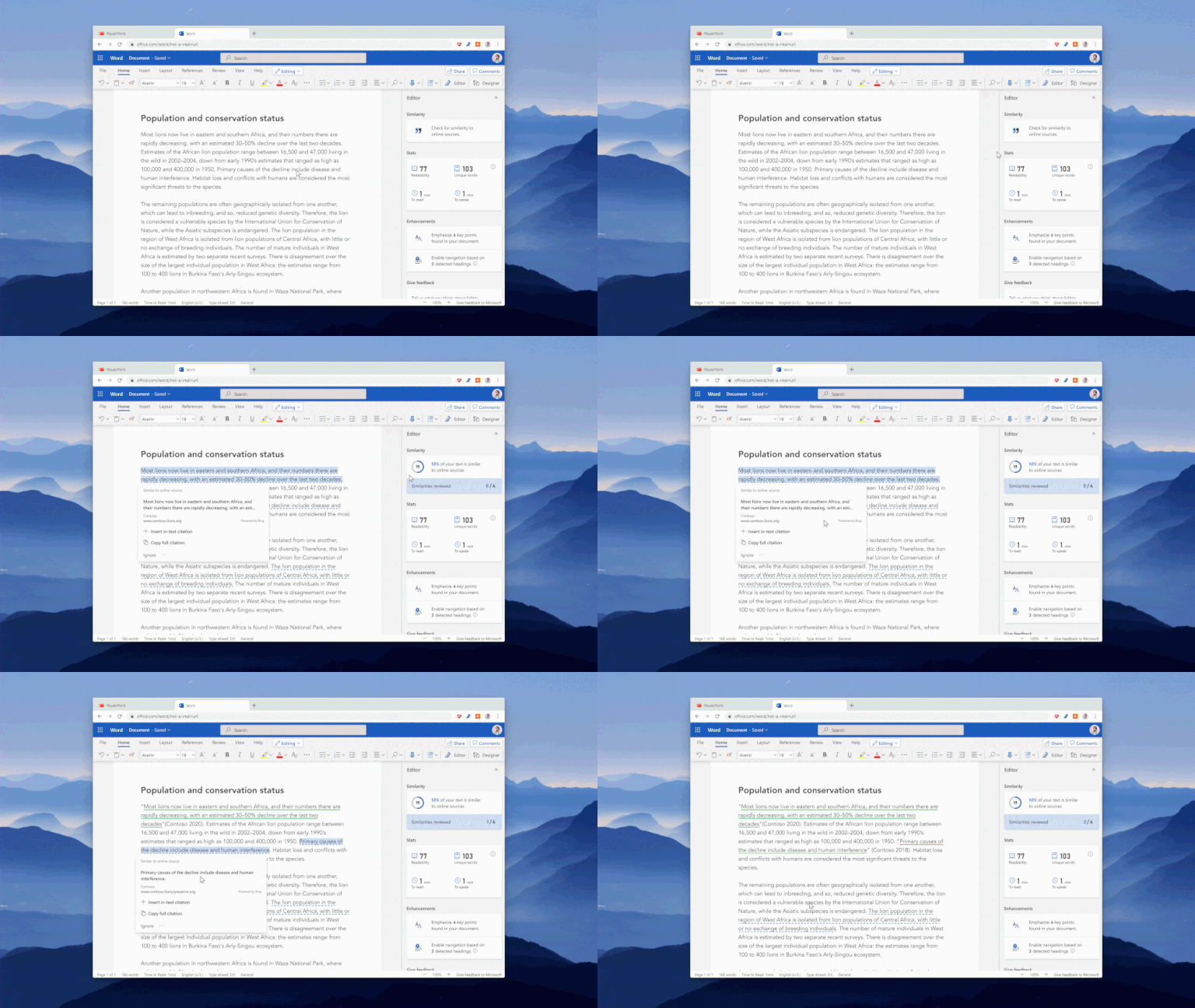


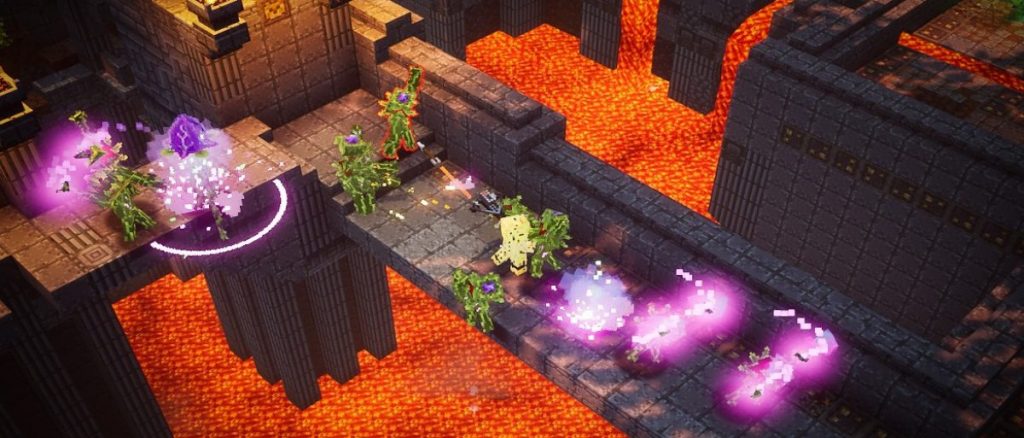

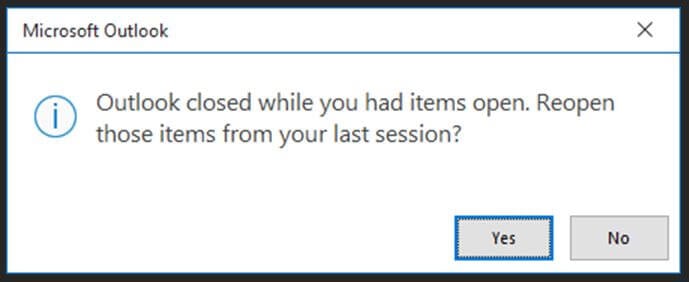








![How to move Overwatch to another drive [FULL GUIDE]](https://windowsreport.com/wp-content/uploads/2020/05/overwatch-is-the-new-esports-shooter-game-from-blizzard.jpg)



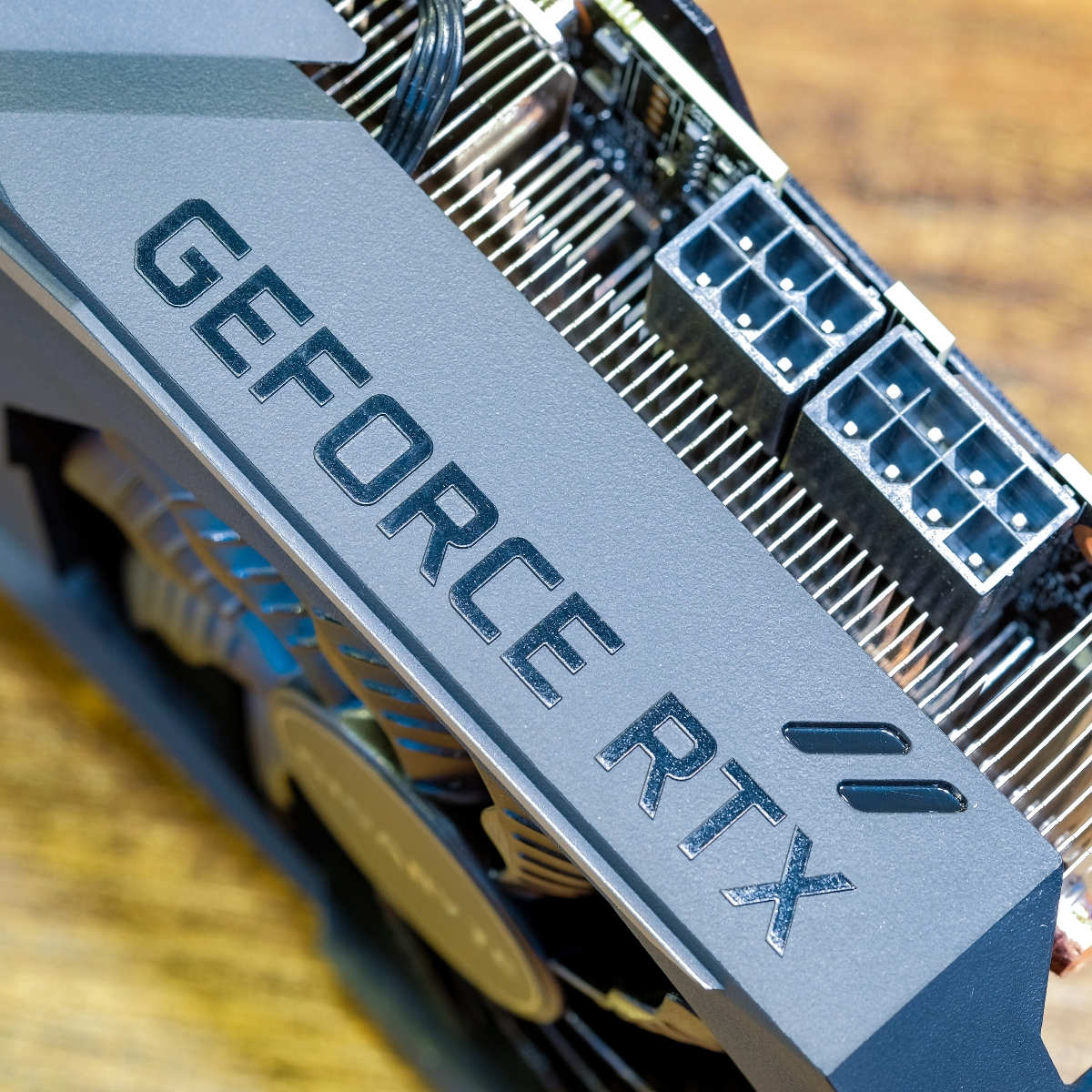

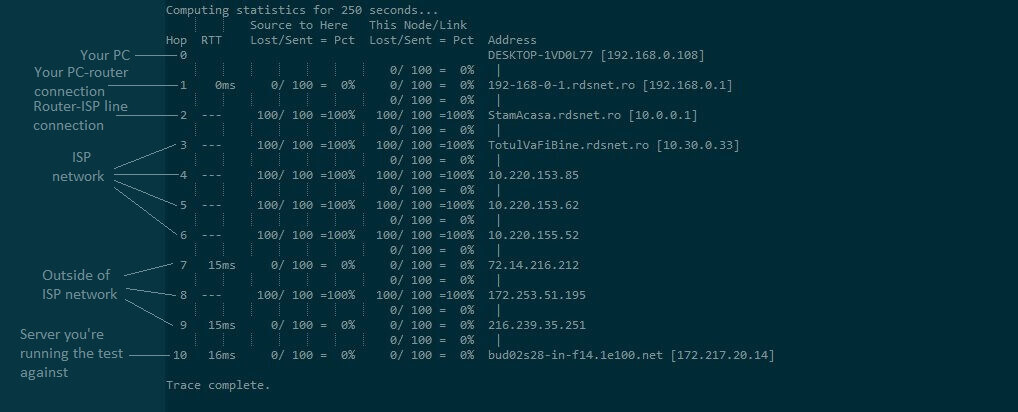







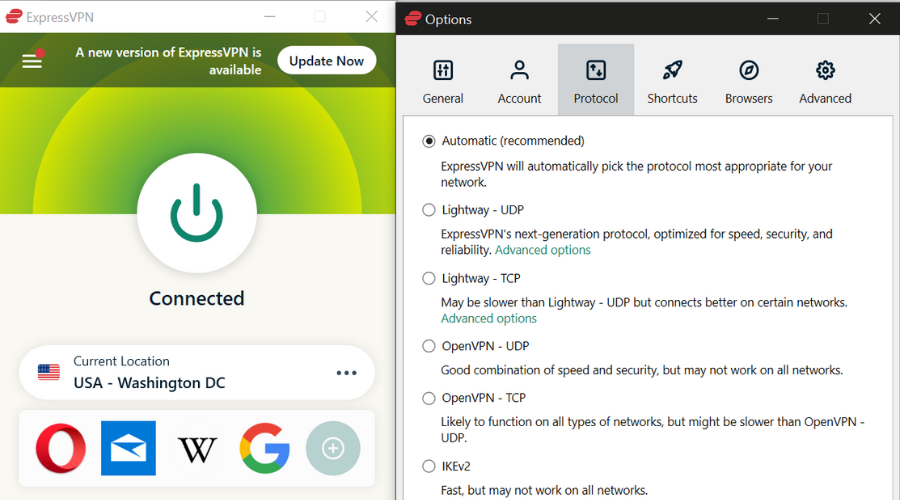





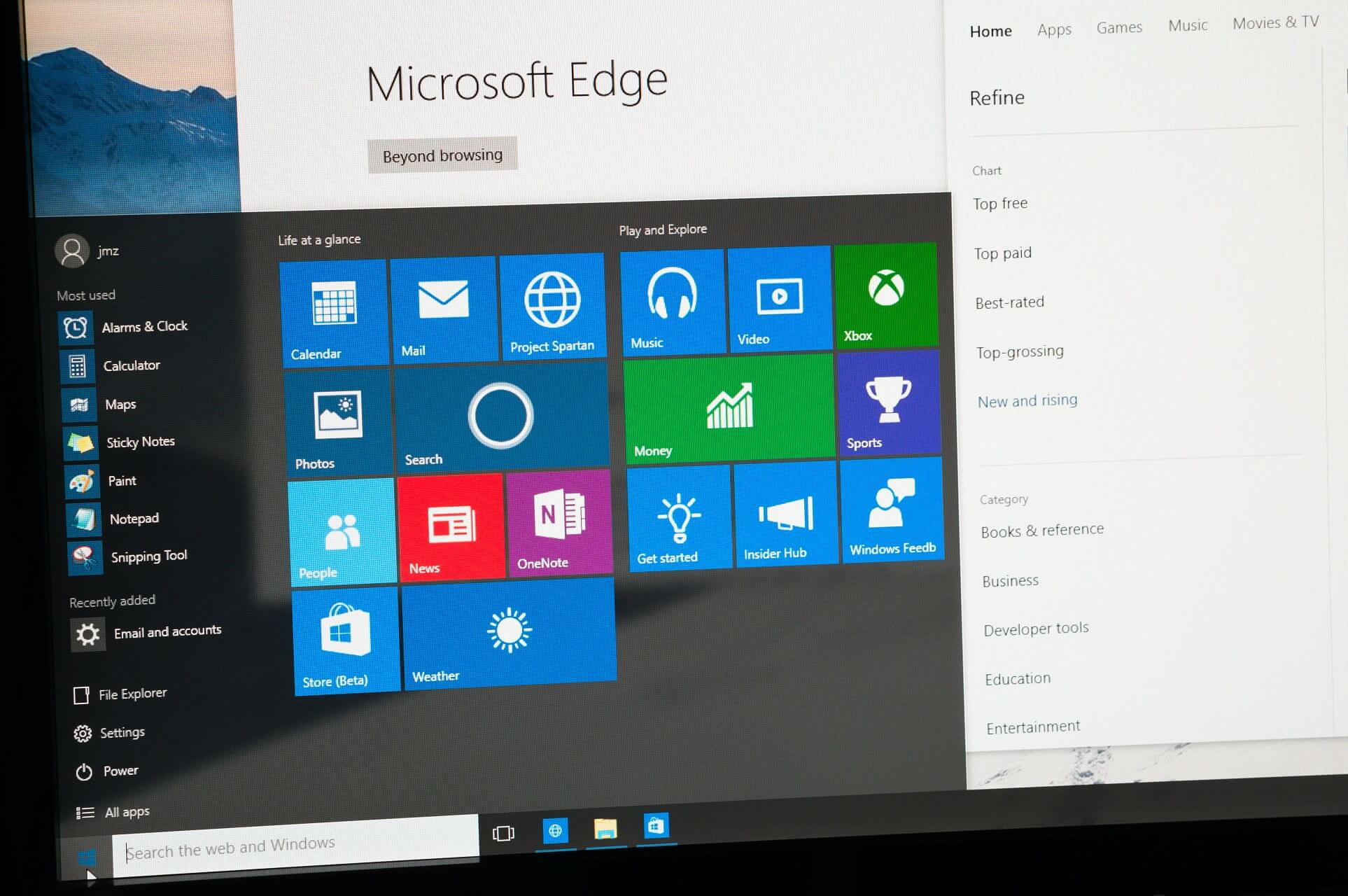
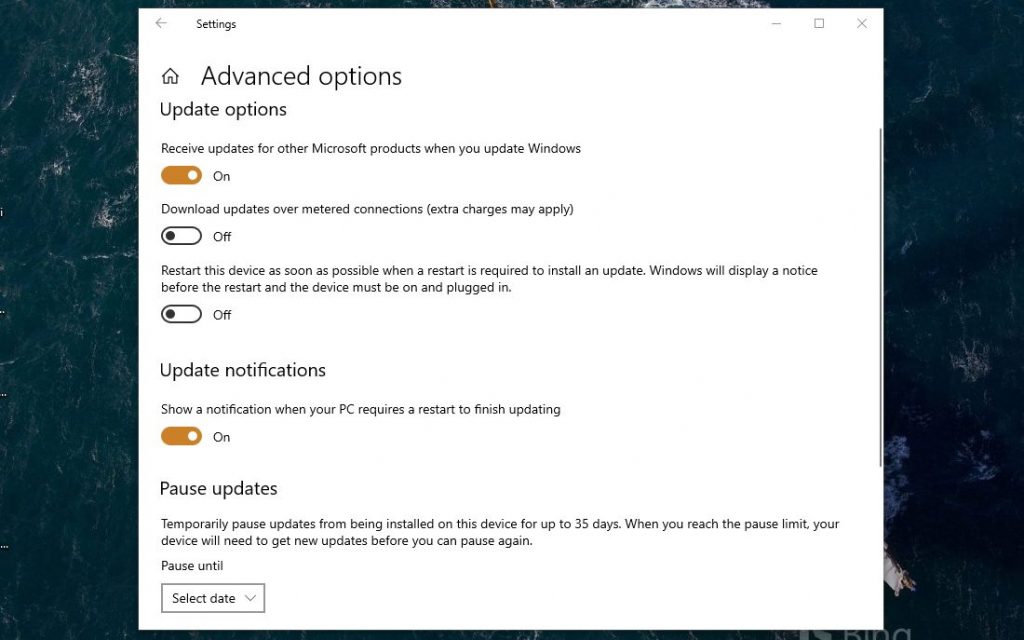

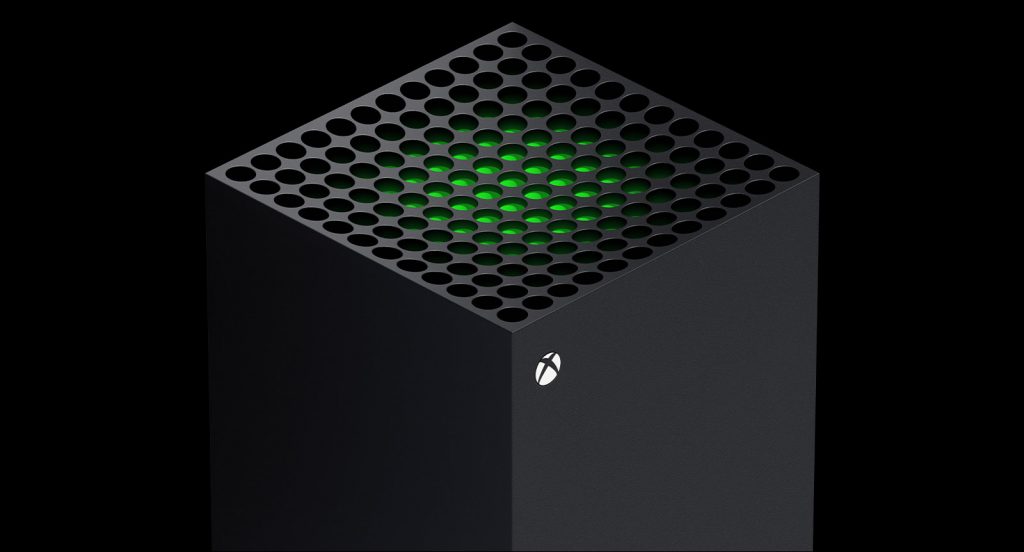
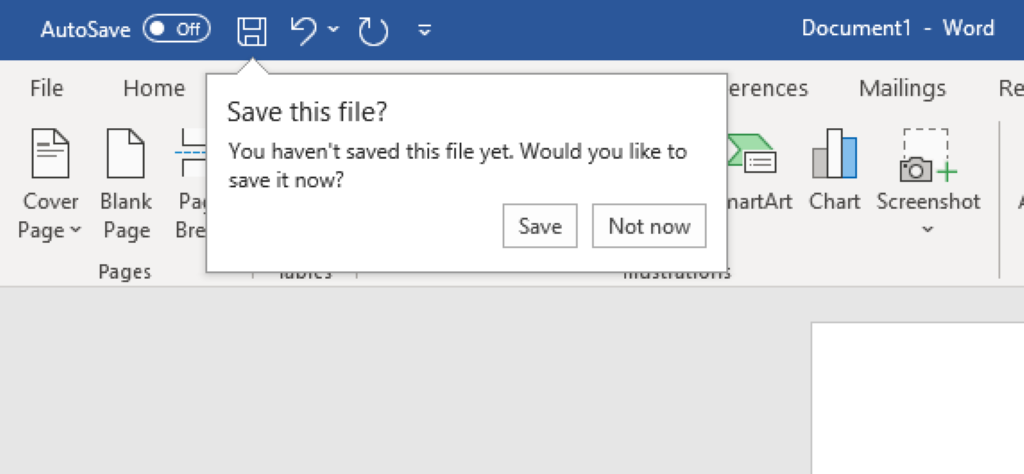
![Fix: Set up OneDrive for file recovery options [Warning]](https://windowsreport.com/wp-content/uploads/2020/06/Set-up-OneDrive-for-file-recovery-options.jpg)