Yes Azure is growing fast, but it still has a long way to go to catch up to AWS

As Microsoft battles for top spot amongst US brands with the most market cap, it’s doing so on the back of its business pivot to the cloud. Microsoft and investors seemed to jazzed by the future Azure holds for the company and its growing spot at number two in the relatively nascent cloud services market.

With that being said, we’re getting a bit more insight as to why investors are so giddy with Azure’s performance when compared to the biggest player in the sector, Amazon.

According to a report from Seeking Alpha, Microsoft Azure “registered another quarter of 75%- plus sales growth on a year-on-year basis.” Perhaps, more importantly, there appear to be other markers indicating that Azure is actually gaining ground on Amazon’s AWS despite a narrative of stagnant growth for both companies.

While Microsoft’s Year-over-Year growth leaps are subsiding, the intersection at which companies are investing in the scaling of large brand cloud services for both Amazon and Azure are beginning to meet.

Yes, Microsoft is gaining on Amazon, but it should be noted the relative scale of both company offerings to put Azure’s recent growth in perspective. Here are the charts from Seeking Alpha for revenue (top) and market share (bottom), showing while that Azure is growing, it’s got a long way to go to beat AWS:

AWS Market share

In an email sent to CNBC News, Lydia Leong, an analyst at Gartner claims “The bulk of AWS deals for Gartner clients are in the range of $5 million to $15 million, with many deals now exceeding $30 million, which is significantly higher than Azure (which tend to be below $1M) and GCP (typically below $5M).

Furthermore, the number of renegotiations that AWS is entering into is a trend that could cause other competitors to reevaluate their sales approach as the overall cloud services pie continues to be cut up.

As previously mentioned, cloud services and development are relatively new markets companies are jumping into and despite Amazon’s seemingly monstrous growth, Microsoft is set to claim a substantial stake in it.

In a statement to CNBC, Microsoft expressed satisfaction with its progress against AWS. “We continue to see rapid growth in our cloud business, with Azure revenue in Q1 growing 76%. Our differentiation continues to be in the partner approach we take with our customers to drive success for their business, and this in turn drives increased consumption of our cloud services. We have significant engagements with global brands including Starbucks, Volkswagen, Shell, Walmart, Chevron, and BMW to run and grow their businesses with Azure.”

As it stands now, the breakdown moves along the lines of Linux vs Windows users who are adopting AWS over Azure respectively, and with many more infrastructures running on Linux it’s no wonder we’re seeing Microsoft aggressively sidelining Windows in favor of more open source development as of late.

How-To Holiday Guide: Getting started with your new Windows 10 PC

You’ve just bought – or built – or received – a shiny a new Windows 10 device and you’re ready to turn it on. In this guide, we’ll step you through the basics to be aware of as you turn on your PC for the very first time.

Setting up Windows 10 isn’t difficult but it can take a little while to do it right the first time. We recommend you set an hour aside to get configured. Getting everything ready during the initial setup procedure means there’s less to do later on.

At this stage, we must offer a warning – these instructions won’t always exactly apply to your device. The screens you’ll see may vary slightly depending on the precise version of Windows 10 which comes with your product. Some PC manufacturers may also add their own setup stages, so refer to your device’s in-box documentation for any additional guidance you require.

We’re refraining from providing any hardware-specific instructions, so this guide should be widely applicable across all Windows 10 laptops, tablets and desktops. These instructions may also be of use when you’re clean installing Windows 10 on an existing machine. Let’s get going.

First startup

Follow your manufacturer’s guidance to get your device ready for initial startup. Press your device’s power button to start the bootup procedure. This first start may take quite some time, so be prepared to wait a while before anything significant happens.

Screenshot of Windows 10 setup

After a few minutes, you’ll land at the Windows Out of Box Experience (OOBE) – a set of initial setup screens where you can start configuring your device. If you have a microphone and speakers available in your new hardware, you can complete setup using just your voice. This quickly becomes cumbersome though, so we’ll be muting Cortana’s voice control for now and proceeding with traditional mouse and keyboard.

Confirm your region on the first page and click the “Yes” button to move forwards.

Screenshot of Windows 10 setup

The next page asks you to choose your keyboard layout. In most cases, this will already be appropriately selected from your region choice. If you need to switch the layout, choose your desired one from the list before pressing “Yes”.

If you like, you can add additional keyboard layouts on the next page – if you want to, press the “Add layout” button, but otherwise choose “Skip” to save your settings. Windows will take a moment to apply your regional preferences.

Updates

The next stage may take a few minutes. Windows will start checking for updates, which include important security and bug fixes. There’s not much to do here except wait patiently while Windows downloads any updates which are available.

It’s important not to turn off your device during this stage. Although the update process may take a long time (especially if you have a slow internet connection), getting updates out of the way now leaves you free to explore your desktop as soon as setup is complete.

Screenshot of Windows 10 setup

If your device is running an older “feature update” of Windows 10, setup may detect that now and ask whether you want to upgrade to the newer version. If this option is presented, you’re likely to benefit from accepting it now – feature updates add new features and settings options, so you’ll save time by only getting started on your desktop once you’re on the newest version.

Be aware though, that a feature update will take longer to install – it’s a big download and a demanding installation procedure for the machine. You can leave your PC to handle the process automatically, but be ready for a wait of a few hours on a slow connection.

Accounts

After updates are installed, you’ll be asked to choose how your PC is going to be used – for personal use, or as a business device. Usually, you’ll want to click “Set up for personal use,” unless you are configuring a business PC and have been given specific instructions. We’ll assume you select personal use for the remainder of this guide. Click the option and press “Next”.

Screenshot of Windows 10 setup

Next, you’ll be prompted to sign in with your Microsoft account. If you already have a Microsoft account, enter your email address now to attach it to your PC. This allows you to access Microsoft cloud services such as OneDrive and Cortana without any further configuration.

Screenshot of Windows 10 setup

If you don’t have an account, you can create a new one by pressing the “Create account” link. Follow the steps here to get yourself a new Microsoft email address (or reuse your existing one) and open your Microsoft account.

The final option is to use an “offline” account. This doesn’t require you to create a Microsoft account, but means you won’t be able to use online cloud services. It is the simplest option though, and arguably the most secure and least intrusive.

Screenshot of Windows 10 setup

Click the “Offline account” link in the bottom-left of the screen to create one. You’ll need to press “No” on the next screen, in which Microsoft makes a last attempt to convince you to use an online account. Then, follow the steps to enter your name and create a password for your account.

Screenshot of Windows 10 setup

If you want to switch to a Microsoft account later on (or move in the opposite direction, to an offline account), this can be achieved from Windows Settings at any time in the future.

Cortana

With your account configured, the next stage is to choose whether to enable Cortana. Cortana is Microsoft’s voice-controlled digital assistant, which allows you to complete common tasks by talking to your PC. Cortana can also keep you updated on information such as the news and weather, as well as synchronising information between your PC and a smartphone.

Screenshot of Windows 10 setup

If that’s too much to consider at this stage of setup, you might want to leave Cortana disabled for now – you can always turn it on later. Press the “Yes” or “No” button to indicate whether you want to use Cortana.

Privacy

Finally, you’ll reach the Privacy settings page. Note here that this screen has undergone multiple revisions during Windows 10’s lifetime, so what you see might look slightly different if your device isn’t yet running the latest version.

We’ll abstain from providing specific guidance here, since your choices should reflect your personal attitude towards data collection. By default, Microsoft leaves every switch turned on, which gives the company access to detailed diagnostic data and allows the company to track you with adverts, produce targeted recommendations and process your voice data.

You can turn off any option that makes you uncomfortable. When you’re done, press “Accept” to complete the final OOBE page. Windows will now take a few moments to get your device ready to use. This may take several minutes on slower products, so wait patiently while it completes. Again, you must not turn off your device during this stage of the setup procedure.

Let’s start

After a few minutes, you’ll briefly see a “Let’s start” message before being shown your new Windows 10 desktop for the first time. While your PC is now essentially ready to use, there are a few more housekeeping tasks we recommend completing first.

Screenshot of Windows 10 clean install start menu

The most important of these is checking if you really are up-to-date. Although critical patches are installed during OOBE, you’ll almost certainly have many more updates available now Windows is fully configured. Again, we recommend getting updates out of the way now, so click the Start button in the bottom-left corner and press the small cog icon in the left menu to open Settings.

Screenshot of Windows 10 update settings

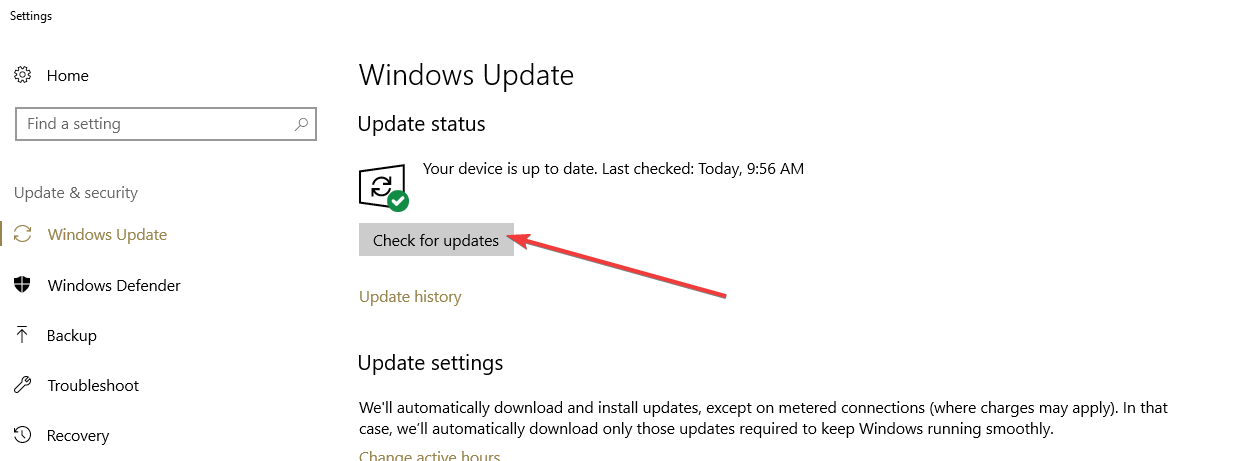
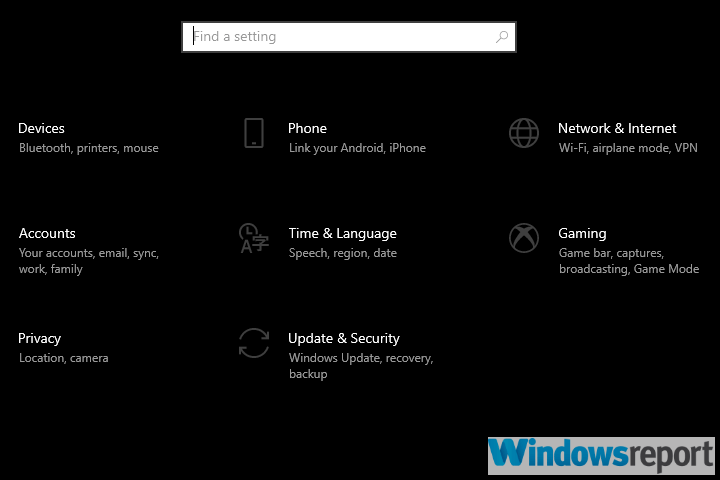
From here, head to the “Update & security” category (you might need to scroll down) and press the “Check for updates” button to begin the update process. This may take quite some time, especially on a slow internet connection, but you can continue with some of the other housekeeping tasks while updates are underway.

Screenshot of Windows 10 update settings

Next, you may want to remove some of the pre-pinned bloatware from your Start menu. Press the Start button again and you’ll several app shortcuts cluttering your screen. You can right-click any of them and choose “Unpin from Start” to remove it. Many of the apps are games which you may not ever use. If you want to recover anything in the future, you can reinstall it from the Windows Store.

Screenshot of Windows 10 clean install start menu

Speaking of the Windows Store, now’s the time to set another update operation in progress. Your apps – such as Mail, Calendar and Skype – will have their own updates available, separately from Windows ones. Click the Store icon at the bottom of your screen (on the taskbar) to open the Store.

Screenshot of Windows 10 app updates

In the Store, click the button to the left of the search bar and choose “Downloads and updates” (this may look slightly different depending on your exact version) and then press the “Check for updates” button. Your apps will begin to update. You can also start installing any new apps you use from the Windows Store at this point.

Screenshot of Windows 10 app updates

That’s really all there is to do when configuring a Windows 10 PC. You’ve now got an up-to-date system, with antivirus protection from Windows Defender enabled out-of-the-box. However, we’ve only just scratched the surface here – you’ll likely want to install your own apps next, and then start customising things to your preferences within the Settings app. We’ll be publishing additional articles with more specific guidance soon, but in the meantime this guide should be enough to get you going with your new Windows 10 device.

iOS Xbox app update fixes iPhone XS Max compatibility issues and other bugs

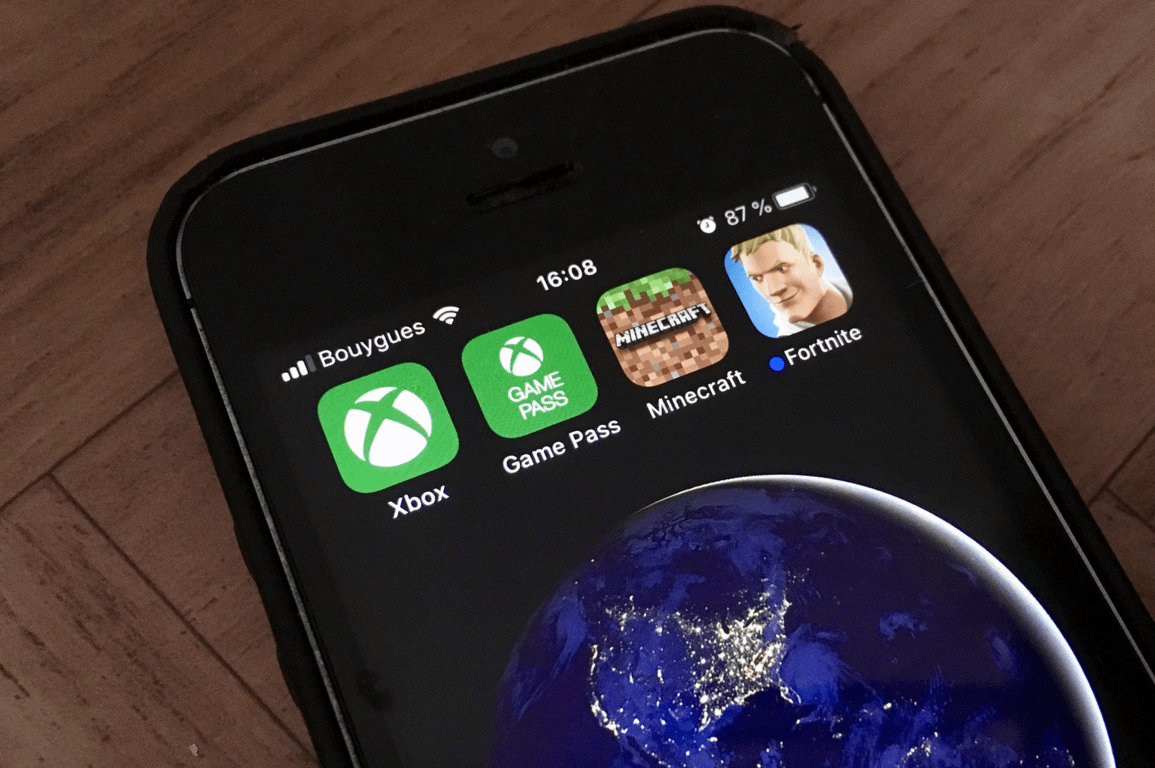
The official Xbox app for Apple’s iOS devices updated this morning with a variety of fixes that should make iPod touch, iPhone, and iPad users happy.

This latest version, Version 1810.1205.1548, added better support for iPhone XS Max models, increased app stability to prevent crashes, and fixed the search bug that was causing infinite loading.

Here’s the full release notes:

  • With this update we’ve fixed:
  • Compatibility issues with the iPhone XS Max
  • General app crashes
  • General navigation performance
  • Indefinite spinner when searching for a group to game with

The Xbox mobile apps are useful tools for managing Xbox gaming tasks while away from a console. The apps can be used to add friends, buy games, view Xbox Achievements, and read and write DMs.

Do you like the iOS Xbox app? Let us know why or why not in the comments below and then follow us on Pinterest for more gaming content.

‎Xbox
‎Xbox
Price:
Free

These 2 atmospheric videos showcase the new Microsoft Office 365 icons perfectly

Microsoft’s redesigned Office 365 app icons generated a lot of buzz when they were announced late last month. While their rollout to users has yet to be completed, Microsoft has collaborated with the design studio, Tendril, to produce two stylised videos that showcase the modern design aesthetic that the company was aiming for with the new icons.

“The film is structured in chapters, each relating to a key concept of the redesign. Each chapter was given a corresponding visual metaphor, inspired by Microsoft’s Fluent Design,” a statement on the Tendril website reads. You can watch the two short films below.

Microsoft’s newly-redesigned app icons will eventually replace the existing ones for apps such as Word, Excel, Powerpoint, OneNote, Outlook, Skype, and Teams just to name a few.

Do you like the new app icons? Let us know why or why not in the comments below and then follow us on Pinterest for more Microsoft content.

Cannot Load the TPM Management Console [Fix]

Trying to run the Trusted Platform Module (TPM) Management console in Windows 10 can often lead to the Cannot load management console error.

This again happens when you have either disabled or cleared TPM right in the BIOS itself. So, let’s find out about TPM and the fixes that will help when you get Cannot load management console for TPM in Windows 11.

What is Trusted Platform Module?

Trusted Platform Module, for those not knowing, is a dedicated piece of hardware entrusted with providing a secure environment for storing data of critical importance. Those can be encryption keys, signatures, and so on.

That makes it extremely important to make any changes with TPM with utmost care so as not to compromise the security of your PC. However, fixing the above error is rather easy and can be done quickly enough.

How do I fix the Cannot load management console error?

Tip icon Tip
Since there are two ways the error is generated, disabled, or cleared in BIOS, the solution also involves two distinct methods discussed below.

1. TPM has been cleared in BIOS

When you know the TPM has been cleared in the BIOS, all you have to do is close the TPM Management console and start it again.

If that doesn’t work, restart the computer and verify whether the TPM Cannot load management console error is fixed.

2. TPM has been disabled in BIOS

2.1 Via BIOS

  1. Reboot your PC and enter the BIOS. This is usually done by pressing Esc, F2, F10, F12, or Del repeatedly when the computer is booting. The hotkey, though, might differ for different brands of PCs.
  2. Expand the Security option to reveal the TPM.
  3. Select the TPM Security check box to view the TPM settings
  4. You will get to see the option to both enable and disable. Click on Enable to make TPM active.tpm

2.2 Via PowerShell

  1. Press Window + R to open Run, type powershell, and hit Ctrl + Shift + Enter.
  2. Type the following commands and press Enter: $tpm = gwmi -n rootcimv2securitymicrosofttpm win32_tpm $tpm.SetPhysicalPresenceRequest(6)powershell
  3. Restart your PC and consent to any BIOS prompts that come your way.

That’s it! The Cannot load management console error with TMP in Windows 10 shouldn’t bother you anymore.

Before you leave, check the best security settings for a more secure Windows experience.

Tell us which fix worked for you in the comments section below.

5 of the best movie DVDs to buy this Christmas

The Holidays is the time for parties and get-togethers, of fun and frolic unlimited. It can be a great time to catch up on your favorite movies as well. And with the great deals available on movie DVDs, this can also be a great time to stock up your fav titles as well.

Here are a few deals that could be hard to miss for the movie buffs

Harry Potter: The Complete 8-Film Collection


Harry Potter

Here is a title that is liked almost as much by the kids as by the grown-ups. And with the package containing all the eight films ever made, this is one deal almost tailor made for Harry Potter fans. The disks are all in the Blu-ray format offering 4K UHD resolutions, which means you can catch up with all the action in UHD resolutions as you embark on a journey into a world of magic and mysticism.

Buy from Amazon

The Godfather – 3 Movie Collection

Godfather

A masterpiece of a film, The Godfather needs no introduction. Even those remotely attached to films is  unlikely to have not heard the title. The three film series is packed in a single disk which makes for 549 minutes of viewing as you watch all the intense drama unfold once again. All in all, it can be a great way to while away some time during Christmas.

Buy from Amazon

Blade Runner 2049

BladeRunner 2049

A sci-fi action flick, Blade Runner is all about edge-of-the seat excitement, packing in all the ingredients to mesmerise the senses. The 2017 movie is also among the most watched and can be a great asset for any fan of science fiction and action movies.

Buy from Amazon

Titanic

The James Cameron epic is all about a classic love story shot in the backdrop of the Titanic ship that went down on its maiden voyage itself. The film not only provide viewers with a realistic account of the ill-fated ship but the interesting plot woven around the tragedy is pure magic. And that is exactly what makes it a great buy during Christmas.

Buy from Amazon

The Polar Express

The Polar Express

It’s an animated film all right but one that can keep even the grown-ups glued to their seats while the film is rolling. If not for the interesting plot, the all digital format and excellent shots ensure you have tons of entertainment with the movie.

That the plot also revolves around the holidays and Santa Claus can be another good reason to go for The Polar Express this Christmas.

Buy from Amazon

Enjoy!

RELATED GIFT IDEAS:

You’ll be able to install Chrome extensions on Edge in the future

It looks like we are now going to be enjoying constant updates, Reddit discussion comments, and rumours and gossip about the new Chromium-based Microsoft Edge browser, which is fine by me as I do love a good bit of goss. The latest news is about Edge and Chrome extensions.

It’s all about the extensions

In all honesty, the news that all Chrome extensions will be available for Microsoft’s new Chromium-based browser is not really news. If they weren’t going to be available, then we would have to ask what the point of the change was.

One of the biggest complaints about Microsoft Edge was its lack of extensions. Even when Microsoft started to work with developers and extensions started arriving in Microsoft Store, comparisons with Chrome were unavoidable.

Quite frankly, Microsoft was always going to be fighting a losing battle against Chrome. When it comes to extensions, the legions of developers working on Chrome extensions were never going to be troubled by Microsoft, no matter what.

Chromium Logo

How will the extensions be downloaded?

One thing that will need to be worked out is how Chromium-based Microsoft Edge users will get access to the extensions. It is highly unlikely that they will be able to pop over to the Microsoft Store to download them.

PWAs will certainly be supported, and users will be able to find them in the Microsoft Store. However, extensions will be another thing. Microsoft Edge Project Manager Kyle Alden said on Reddit,

We expect to provide support for PWAs to be installed directly from the browser (much like with Chrome) in addition to the current Store approach.

However, he didn’t say much else except that, “PWAs behaving like native apps is still an important principle for [Microsoft]”.

Wrapping it all up

I suspect that when all is said and done, we will end up with a Microsoft browser that is little more than a clone of Chrome. This begs the same question I posed in a earlier article, which was, “What’s the point?”

There may be one answer to that question. With Google losing the moral high-ground almost daily, users may well decide they have had enough of Chrome. If they do, they will look elsewhere for a browser.

Well, 90% of the world’s computers still run on a Windows OS. A new, improved Chromium-based Microsoft Edge may be just what people want.

Finally, don’t hesitate to check out our article in case you are wondering: What is the IGFollow Chrome extension? Is it a risky tool or not?

Microsoft Edge to continue as part of Chromium project

Last week, we reported the demise of Microsoft’s EdgeHTML. Well, it seems like the reports about the death of Microsoft Edge were premature. Read on to find out exactly what Microsoft has in store for its much unloved browser.

To recap, just in case you don’t want to read the last article, reports were flying around that Microsoft was going to ditch EdgeHTML for a Chromium-based browser. The reasons being that Edge was unpopular and unstable.

There were so many reports flying around that Microsoft felt the need to tell us what its plans are for EdgeHTML and it turns out, the reports were more or less correct.

Chromium Logo

What was said about Microsoft Edge

To be honest, it makes slightly painful reading. Apparently, the reason Microsoft is entering the Chromium open source project is not because EdgeHTML sucks but because Microsoft wants to make all browsers better, not just Edge.

Microsoft then goes on to state how keen it has been on the whole idea of open source, stating how the mobile version of Microsoft Edge has been open source right from the beginning.

The finally bit I want to quote is probably my favourite. Microsoft states,

Ultimately, we want to make the web experience better for many different audiences. People using Microsoft Edge (and potentially other browsers) will experience….

“and potentially other browsers“? Really?

Anyway, let me tell you quickly that Microsoft plans to do the following:

– We will move to a Chromium-compatible web platform for Microsoft Edge on the desktop.
– Microsoft Edge will now be delivered and updated for all supported versions of Windows and on a more frequent cadence.
– We will contribute web platform enhancements to make Chromium-based browsers better on Windows devices.

Wrapping it all up

And that’s pretty much it. Basically, Microsoft have realised they got it completely wrong, have given up on Microsoft Edge (even if they keep the name), and are now going to be fully invested in the Chromium project. Lucky Chromium project, some might think.

Let’s hear what you think? Should Microsoft have stuck it out with EdgeHTML? Or was it always on the cards that Microsoft would join the Chromium bandwagon?

RELATED NEWS ARTICLES YOU SHOULD READ:

Windows Insider preview 18298 (19H1) includes resolved Settings crashes and deletion of Windows.old files as Known Issues & Fixes

Microsoft’s Windows team is rolling out the latest Fast Ring Insider preview build dubbed 18298 and while it brings some nifty new features to test, it also has its list of known and fixed issues.

Here is what’s fixed and what remains an issue with Windows 10 Insider preview build 18298.

  • We fixed a merge conflict resulting in the Dynamic Lock settings being missing from Sign-in Settings.
  • We fixed an issue resulting in Insiders seeing green screens with error System Service Exception in win32kbase.sys when interacting with certain games and apps in the last two flights.
  • The update block for a small number of PCs using Nuvoton (NTC) TPM chips with a specific firmware version (1.3.0.1), due to a bug causing issues with Windows Hello face/biometric/pin login not working, has been removed as this build contains a fix for that issue.
  • If you’ve turned off transparency effects, that preference will now also be reflected on the sign-in screen.
  • We fixed an issue resulting in Settings crashing for some Insiders when clicking “Check for Updates”.
  • We fixed an issue resulting in Settings crashing for some Insiders when going to Settings > Update & Security > Recovery.
  • We fixed an issue resulting in night light settings not working and getting stuck in the last few flights.
  • We fixed an issue resulting in an unexpected amount of space between the categories and subcategories in Settings in recent flights.
  • We fixed an issue where the folder size wasn’t calculated correctly in File Explorer’s Properties dialog when there was a path that was longer than MAX_PATH involved.
  • We fixed an issue resulting in menu flyouts appearing blank when using the Arabic display language.
  • We fixed an issue where when inking on a PDF in Microsoft Edge, if you erased some ink quickly after starting the inking session, then added more ink, upon saving the PDF not all ink may be saved.
  • We fixed an issue where the handwriting panel might crash when using your pen to input into win32 apps in recent builds.
  • We fixed an issue resulting in not being able to type into certain tables using the Vietnamese Telex keyboard.
  • We’ve made some adjustments when text scaling is enabled to emphasize the icon in the Action Center quick actions so that the text doesn’t overlap.
  • We’ve made some improvements so that if theme truncation is detected, we will now handle this more gracefully and not result in unexpectedly thick borders around your windows.
  • We’ve made some improvements to reduce the number of times where you might see the error “Windows can’t find one of the files in this theme. Do you still want to save the theme?” appear.
  • We’re updating the timeout period when dictating (WIN+H) to be from 5 seconds to 10 seconds, to give you a bit more time to think about what you want to say. If you’d like to stop the dictation before then, just say “Stop dictating” or press WIN+H (same as in previous builds).
  • We fixed an issue on the touch keyboard resulting in some letters unexpectedly being black instead of white in dark theme.
  • We fixed an issue where the “…” menu in clipboard history (WIN+V) was clipped in recent builds.
  • We fixed an issue where when displaying the name of a known file type (one registered under HKCR\<.File Extension>) File Explorer would display an empty string for the file name in some cases. Now, if a file name is not available, File Explorer will always show the extension name, even if Show File Name Extensions is turned off.
  • We’ve updated the microphone and camera privacy settings pages to provide information on which apps are currently using the microphone and camera, and the date/time apps last accessed your microphone and camera.
  • We fixed an issue where Magnifier would not start automatically even when “start after sign-in setting” for Magnifier was enabled if Narrator was not set to auto start after sign-in.
  • We fixed an issue where Magnifier did not work with Touch when Centered mouse mode was enabled.
  • We fixed an issue where Narrator sometimes would not start after completing Out of Box Experience (OOBE).
  • We fixed the issue causing Narrator to start unexpectedly. We also made it easier to turn off Narrator when it was launched unintentionally.
  • We fixed an issue where Narrator scan mode did not turn off automatically when you focused the address bar in Microsoft Edge.
  • We fixed an issue where Narrator heading navigation was skipping some headings in Chrome.
  • We fixed an issue where Narrator read page loaded notification multiple times in Chrome.
  • We fixed an issue where Narrator did not read Edit box placeholder text in Chrome.
  • We fixed an issue that caused the settings page will crash after changing the account password or PIN, we recommend using the CTRL + ALT + DEL method to change the password

Fortunately, the Known Issues list is much shorter than what’s been addressed.

Known issues

  • The hyperlink colors need to be refined in Dark Mode in Sticky Notes if the Insights are enabled.
  • Settings crashes when clicking on the “View storage usage on other drives” option under System > Storage.
  • The Windows Security app may show an unknown status for the Virus & threat protection area, or not refresh properly. This may occur after upgrade, restart, or settings changes.
  • Delete previous version of Windows in Configure Storage Sense is not selectable.
  • Settings will crash when opening Speech Settings.
  • The cmimanageworker.exe process may hang causing system slowness or higher than normal CPU usage. This can be bypassed by rebooting the machine if it occurs.
  • Launching games that use BattlEye anti-cheat will trigger a bug check (green screen) – we’re investigating.

Known issues for Developers

  • If you install any of the recent builds from the Fast ring and switch to the Slow ring, optional content such as enabling developer mode will fail. You will have to remain in the Fast ring to add/install/enable optional content. This is because optional content will only install on builds approved for specific rings.

Seems as though preview build 18298 will be a bit harsher on people with smaller disk space due to one of the highlighted Known Issues. Hopefully, the Windows team has a fix in store for this situation for its next release as those Old Windows file sizes start to add up quickly.

Coach your American football team with these 5 tools: They’ll play better

Football is a term understood differently depending on your location on the planet. There are quite a few versions of football that have different rules :

  • Football association (soccer)
  • Gridiron football (American/Canadian football)
  • Australian rules football
  • Rugby football ( Rugy League/Rugby Union)
  • Gaelic football

In this article, we will focus on American/Canadian football. We will list the best software solutions for Windows 10 that allow you to easily create football play strategy, manage and coach your team, and more.

5 football play software to use in 2019

Sports Board – Microsoft

Sport Board - Football Play Software

Sports Board is a very simple yet effective tool that allows you to save 6 preset formations for your football team.

All the features included in this app were designed for fast speeds, practicality and ease of use.One of the best features of this app is the telestrator, which allows you to diagram over video.

Download Sport Board from Microsoft

Playmaker Football

Playmaker Football - Football Play Soft

Playmaker Football features a powerful play editor that allows you to diagram your team’s strategy. This app has a simple draw tool that allows you to cut, copy and paste play schemes with ease.

Playmaker Football has a built in simulator that can animate your diagram. Players will run on the field, pass, catch and tackle based on their ability and your instructions. The result can be captured as a film that you can rewind and play in real time or frame by frame.

Key features include:

  • Great play diagramming tools
  • Predefined instructions like block, zone and motion
  • Playbook and roster managers
  • Automatic animation and simulated outcomes

Download Playmaker Football

Football Playbook Manager – Microsoft

Football Playbook Manager

Football Playbook Manager is another simple app designed by Microsoft that is suitable for creating, viewing and managing your team’s strategy on field.

This app has a Film Room feature that is designed for reviewing video footage.

Download Football Playbook Manager

Coach Youths

CoachYouths - Football play soft

Coach Youths is another great playbook design software that is very easy to use and gives you complete control over all the details of your team’s strategies.

Key features include:

  • Draw your players freely and then handle them with ease
  • You can your entire formation left and right or up and down
  • Flip your play (Right becomes left)
  • You can simply add routes to individual players
  • Customize your players – fill color, outline, label color
  • Web based tool
  • Share and give access to specific users

Download Coach Youth

Coach’s Office

CoachsOffice - Football Play Apps

Coach’s Office is another great app that you can use to create play strategies for coaches at all levels.

This app allows you to diagram plays with the included drawing tools, you can create professional playbooks with it’s built-in Word processor and even use spell checker and TOC.

Main features include:

  • Print wristbands and call sheets
  • Print play or scout cards
  • Interface with Hudl Slideshow
  • Supports 11-man, Canadian 12-man, Arena and leagues
  • Enter script in familiar spreadsheet-type format
  • Preview play card before printing

Download Coach’s Office

Conclusion

In this article, we explored some of the best options of football play software on the market. Having this list at your disposal it is easier than ever to choose the right tool to fit your coaching needs.

Let us know what you think about the options presented in this list in the comment section below.

RELATED STORIES YOU NEED TO CHECK OUT:

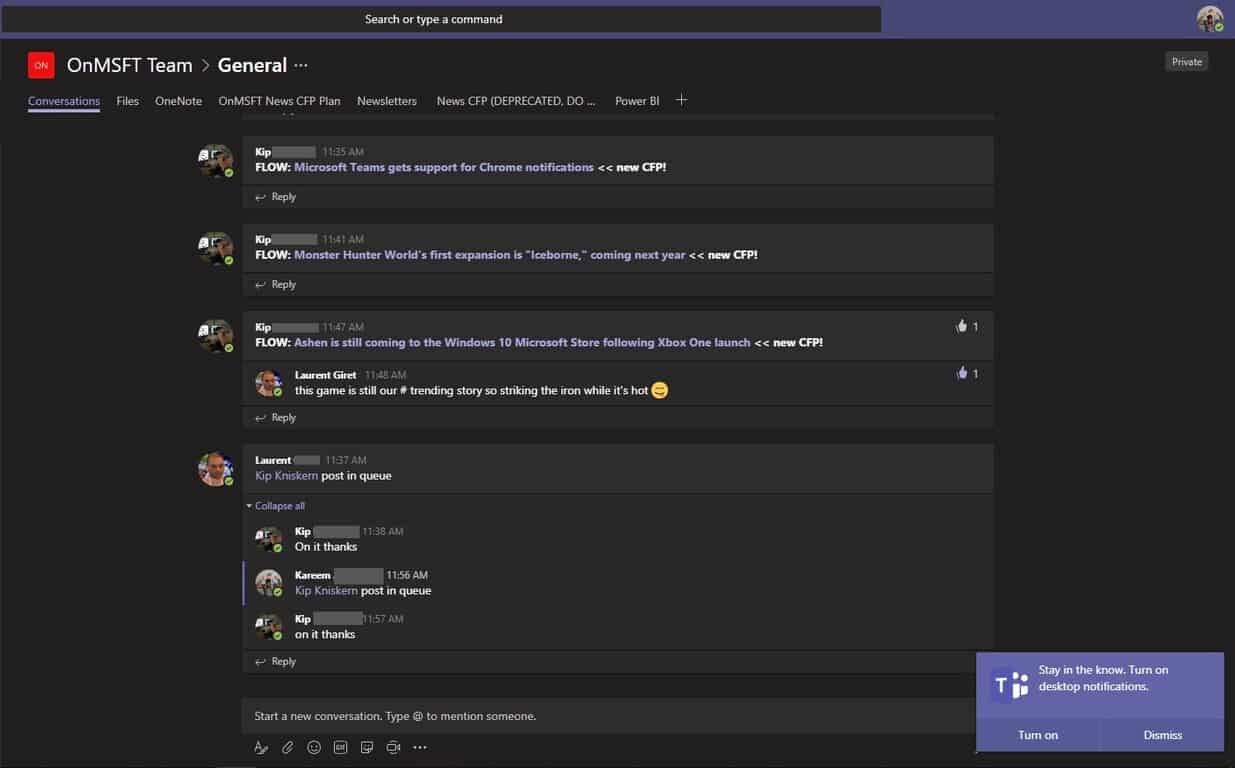
Microsoft Teams gets support for Chrome notifications

Following on the heels of news that Microsoft’s Teams platform is edging out Slack in the enterprise sector, the company can also tip its hat to a new consumer feature to use as a selling point.

Some time last week Microsoft pulled the lever on a Chrome web notification support for Teams allowing users who prefer to keep their systems clean of extraneous .exe program cruft or just prefer to operate mainly in the browser, to now see their @’s and replies and alerts on the desktop or the Action Center.

Microsoft’s more flexible approach to Windows 10 and browser interopability is developing into a rather important story as the company plans to implement many of the same features of Chrome into its own default browser. With teams becoming a truly cross platform with native experiences via the browser, it’ll be interesting to see what other productivity applications follow.

Perhaps, more importantly, Microsoft Teams now supporting Chrome notifications means the service aslo acts as a native client on Chrome OS enabling the company to get a tiny foothold as the communication tool for the highly coveted edcuation sector.

Ashen is still coming to the Windows 10 Microsoft Store following Xbox One launch

Ashen, one of the latest additions to Xbox Game Pass, was initially announced as an Xbox Play Anywhere title by Microsoft. Unfortunately, when the game launched on the Microsoft Store on December 7, it was only available for the Xbox One, not for Windows 10 PCs.

As it turns out, the PC version of Ashen is currently exclusive to Epic Games new digital store that launched last week. Until now, it wasn’t clear if Epic Games scored a timed exclusivity deal for Ashen, but both Game Director Derek Bradley and the ID@Xbox team confirmed today that the game is eventually coming to the Windows 10 Microsoft Store.

“We are currently working with our partners at Microsoft and the ID@Xbox team on bringing Ashen to the Microsoft Store on Windows 10 as soon as possible,” wrote Bradley. “We wholeheartedly agree that this would have been better available day one. We are a small studio that just shipped a very big game, but have been actively working to get it there. Rest assured, it is coming,” he continued. Bradley didn’t specify today if the Microsoft Store version of Ashen will also get support for Xbox Play Anywhere, as it was initially announced. Microsoft recently updated its Xbox Play Anywhere page on xbox.com to remove Ashen from the list, so better not to get your hopes up.

Interestingly, Bradley also said that the Epic Games Store PC exclusivity was “a unique opportunity that does not come around for an indie title like ours very often,” adding that it was in the game’s best interest to be “featured in a place that isn’t crowded.” Moreover, the Game Director added that “the promotion we are and will be receiving from our partners at Epic is tremendous.” When you think about it, these are some pretty harsh words about the Windows 10 Microsoft Store: despite the digital storefront being pre-installed on all W10 PCs, the game developer chose to team up with a challenger that apparently does a better job at promoting PC games than Microsoft does on its own store.

Fortunately, Xbox head Phil Spencer recently acknowledged that Microsoft has “a ton of work to do on Windows,” and that’s an understatement. “I’m going to take a bigger leadership role on what’s going on with the Windows Store, make it really tailored to the gamers that we know want to see the best from what we have to offer,” Spencer said.

Counter Strike: Global Offensive issues on Windows 10 [GAMER’S GUIDE]

Counter Strike: Global Offensive is currently the most popular first person shooter on PC, but it seems that some Windows 10 users are having certain issues with Counter Strike: Global Offensive, so today we’re going to tackle some of these issues.

Users have reported variety of issues including FPS drops, game not loading, crashes and game freezing.

If you are a passionate Counter Strike player, these issues can ruin your favorite game, but fortunately today we have some solutions that might help you.

Before we start make sure that you have latest display drivers and Windows Updates installed.

How can I fix Counter Strike: Global Offensive issues on Windows 10?

  1. Make sure that Compatibility mode is disabled
  2. Delete csgo.exe and add cl_disablehtmlmotd 1 launch option
  3. Use -autoconfig Launch option
  4. Move your cfg folder
  5. Change fastprox.dll to fastprox.dllold
  6. Install the latest OS and game updates
  7. Disable Game DVR
  8. Update your drivers
  9. Verify your game files
  10.  [Video Tutorial] How to Fix CS: GO Black Screen and Stopped Working Error on Windows 10

Solution 1 – Make sure that Compatibility mode is disabled

Users report that Compatibility mode can cause some issues with Counter Strike: Global Offensive on Windows 10, so it’s advised that you turn it off. To turn off Compatibility Mode do the following:

  1. Go to Counter Strike: Global Offensive installation directory and locate csgo.exe. By default the installation directory should be:
    • SteamAppscommonCounter-Strike Global Offensive
  2. Find and right click csgo.exe. Choose Properties from the menu.
  3. Navigate to the Compatibility tab and uncheck Run as Administrator and Compatibility mode.
  4. Click Apply and OK to save the changes.
  5. Run the game again to see if the issues are resolved.

Solution 2 – Delete csgo.exe and add cl_disablehtmlmotd 1 launch option

  1. Go to Counter Strike: Global Offensive folder, locate csgo.exe and delete it.
  2. Now go to your Steam Library.
  3. Find Counter Strike: Global Offensive and right click it.
  4. Choose Properties.
  5. In Properties window navigate to Local tab.
  6. In Local tab click Verify integrity of Game Cache.
  7. When the process is completed go once again to the CS:GO installation directory and locate csgo.exe.
  8. Repeat all the steps from Solution 1. In addition make sure that everything is unchecked in csgo.exe Compatibility Tab.
  9. Go back to your Steam Library once again and right click CS:GO and choose Properties.
  10. Click on Set launch options.
  11. In new window enter -cl_disablehtmlmotd 1.
  12. Save the changes and start the game.

Solution 3 – Update your drivers

Outdated drivers may also trigger low FPS issues. If the game can’t access and use your computer’s resources, try updating your drivers.

You can install the latest driver updates by using the ‘Check for updates’ button as explained above or you can go to Device Manager and install them manually.

If you’re looking for an even a quicker solution to update your computer drivers, use the a third-party software. 

Solution 4 – Use -autoconfig Launch option

Counter Strike Global Offensive fix

If you’re having issues with black screen while starting CS:GO you should try the following solution:

  1. Open Steam library and locate Counter Strike: Global Offensive.
  2. Right click it and choose Properties.
  3. Click Launch options and enter -autoconfig.
  4. Save changes and start the game.

If you need a FPS counter for your game, check out this list with our best picks.


Solution 5 – Move your cfg folder

If Counter Strike: Global Offensive is crashing and you’re getting csgo.exe has stopped working message try this:

  1. Go to SteamsteamappscommonCounter-Strike Global Offensivecsgocfg directory. Move cfg directory to another location, for example your Desktop.
  2. Try starting the game again.

In addition some users report a similar solution:

  1. Go to SteamsteamappscommonCounter-Strike Global Offensivecsgocfg folder
  2. Inside the cfg folder locate valve.rc file and move it or delete it.
  3. Try starting the game again.

We have to mention that this solution will change your game settings to default, so when you start the game for the first time make sure that you customize your settings.

Solution 6 – Change fastprox.dll to fastprox.dllold

Users have reported that Counter-Strike: Global Offensive instantly closes on Windows 10 after the game starts.

According to the users the best fix for this solution is to update your Nvidia display drivers with the latest version, but if the problem persists you might want to try the following:

First show file extensions for files. To enable this option do the following:

  1. In File Explorer click the View tab and then click Options.
    show-file-extensions
  2. In Folder options window go to View.
  3. Make sure that you uncheck Hide extensions for known file types.
    show-file-extensions-2

Now you can see the file extensions and you can proceed.

  1. Go to C:Windowssyswow64wbem.
  2. Find the fastprox.dll and rename it to fastprox.dllold.

If you cannot access webm folder or can can’t rename the file you might have to take ownership of the file / folder. To do that follow these instructions:

  1. Right click the folder or file that you cannot access. Choose Properties.
  2. Go to Security tab and click Edit.
  3. Find your username or group in the Group or user names and select it.
  4. In the list below check Full Control.
  5. Save changes and you should have full access to that file or folder.

Solution 7 – Install the latest OS and game updates

As you already know, all the games that you run on your Windows 10 computer depend on your operating system’s stability to run smoothly. If you don’t update your computer regularly, you may encounter various app, software and game issues.

Although Counter Strike: Global Offensive was launched six year ago, the game regularly receives updates that add stability improvements and fixes.

So, make sure that you’re running the latest Windows 10 and CS:GO updates.

To check for updates on Windows 10, go to Settings > Update & Security > Windows Update and click on the ‘Check for updates’ button.

check for updates

If you can’t open the Setting app, take a look at this article to solve the issue.


Solution 8 – Disable Game DVR

Windows 10 Anniversary Update and all the subsequent OS versions triggered significant FPS issues on CS:GO. Fortunately, the root-cause of this problem has been identified and you can quickly fix it:

  1. Launch the Xbox app
  2. Log in to your Microsoft Account
  3. Go to Settings > select Game DVR
  4. Turn off DVR
counter strike FPS drop

5. Launch Counter Strike again.

If you have any Game DVR issues on Windows 10, take a look at this step-by-step guide to solve them easily.


Solution 9 – Verify your game files

If you use Steam to Play CS:GO, you should also verify the game files to make sure there are no corrupted or missing files.

  1. Restart your Windows PC > launch Steam
  2. Go to the Library section > right-click on CS:GO > select Properties
  3. Go to the Local files tab > click on the Verify integrity of game files… button.
  4. Wait for several minutes until Steam verifies the game‘s files
  5. Launch the game again

How to fix CS:GO Black Screen and Stopped Working error on Windows 10

Here is a video tutorial on how to fix these CS:GO errors on Windows 10. The following video contains GPU settings, as well as game settings that you can change in order to be able to play the game without any issues.

There you go, we hope that the solutions listed in this article helped you fix the Counter-Strike: Global Offensive issues that limited your gaming experience.

If you have any other questions or suggestions, feel free to leave them in the comments section below.

RELATED STORIES TO CHECK OUT:


Editor’s Note: This post was originally published in January 2016 and has been since completely revamped and updated for freshness, accuracy, and comprehensiveness. Also included a video tutorial to fix CS:GO errors.


Microsoft Teams overtakes Slack, growing fast, says SpiceWorks survey

2018 has been a pretty big year for Microsoft Teams, the company’s collaborative chat apps that launched last year. Microsoft Teams achieved feature parity with Skype for Business this year, and the app also gained a free tier to compete with Slack and other freemium enterprise messaging solutions

According to a new survey of 901 organizations across North America and EMEA from SpiceWorks (via GeekWire), Microsoft’s aggressive strategy with Teams seems to we working pretty well: 21% of all surveyed organisations were using Microsoft Teams as of November 2018, compared to 15% for Slack. Despite Teams closing the feature gap with Skype for Business this year, the latter is still being used by 44% of organisations, up 8% compared to two years ago.

“The rise in use of Microsoft Teams is likely influenced by the fact that it’s available at no additional cost to Office 365 users. And considering more than half of businesses use Office 365, it’s enticing organizations to give Teams a try. And while Slack offers a free version, functionality is limited, and organizations must pay a monthly per-user fee for a fully-featured version of the app,” explained Peter Tsai, Senior Technology Analyst at Spiceworks. “

According to future adoption plans for collaborative chat apps revealed in the same survey, Microsoft Teams is expected to experience the biggest growth over the next two years: 41% of organisations are expected to use the app by the end of 2020, compared to 18% for Slack. “If these adoption plans hold true, we can expect Microsoft Teams adoption rates to be twice as high as Slack’s two years from now,” Tsai emphasized.

Back in September, Microsoft announced at its Ignite conference that more than 329,000 organizations were now using Teams worldwide, including 87 of the Fortune 100 companies. Microsoft Teams is actually the fastest growing business app in Microsoft’s history, and it will be interesting to see how the app continues to evolve next year.

There might be a problem with this game or app on Xbox One

Judging by online impressions and reports, users are mostly satisfied with the Xbox One. This great next-gen console is quite a capable tool and there’s only so much which can go wrong on a day-to-day basis.

However, don’t let that trick you into thinking Xbox One workflow is seamless. Some errors appear from time to time, like the “There might be a problem with this game or app” error when downloading or installing games or apps.

We listed most-common solutions below so feel free to give them a try if you’ve encountered this error.

How to solve issues with download games or apps on the Xbox One

  1. Power cycle the console
  2. Cancel the installation and reinstall
  3. Check the status of Xbox Live services
  4. Sign out and sign in again with your Xbox profile
  5. Inspect the connection
  6. Make sure you have enough storage
  7. Update the console firmware

Solution 1 – Power cycle the console

A universal solution for all kinds of Xbox One issues is a simple power cycle or hard reset. If you’re quite positive about all other factors which might lead to this, a simple reset could address this and you’ll be able to move on with the downloads as nothing happened. The issue at hand might be a temporary bug, so more value to this step.

Here’s how to power cycle the Xbox One:

  1. Press and hold the Power button for 10 seconds or so.
  2. Wait until the console shuts down.
  3. After a minute, turn on the console again and look for changes.

Solution 2 – Cancel the installation and reinstall

If the error (as it usually does) appeared during the game installation, we suggest canceling the process and restarting it. This should move you past the hiccup and, hopefully, resolve the “There might be a problem with this game or app” error. After you cancel the installation, navigate back to the Store or insert the disc and install the game again.

Follow these steps to do so on the Xbox One:

  1. From the Home screen, open My games & apps.
  2. Choose Queue and highlight the game or app you’re trying to download. It should say “Installing“.
  3. Press the Menu button and choose Cancel.
  4. Try reinstalling the game.

Solution 3 –  Check the status of Xbox Live services

If you’re obtaining the digital copy of the affected game, the problem might lie in the Xbox Live services so we suggest checking the status of Xbox Live services. There’s the dedicated sight where all outages are posted in the real-time so users can identify global issues firsthand.

Here’s where you can check the status of Xbox Live Services. Or, you can take a look at the official Twitter account, here.

Solution 4 – Sign out and sign in again with your Xbox profile

Some affected users found out the problem in the temporary account bug. They resolved it by signing out and signing in again with their Xbox profile account. This, along with the power cycle, seems to fix a lot of  Xbox One temporary halts. One way or another, it won’t cost you anything to try and see for yourself.

If this isn’t helpful, move on to the next step on the list. One will work eventually.

Solution 5 – Inspect the connection

This is an obvious step. When accessing any kind of online content, you’ll mandatory need a stable connection. If that’s not the case, errors arise. If you’re not sure how to troubleshoot the network connection on the Xbox One, the procedure is rather simple. We need to test some internals and then move to your home network, with focus on routers/modems.

Here are some general troubleshooting steps you could try:

  • Run diagnostics
  1. Press the Xbox button to open the guide.
  2. Choose Settings.
  3. Tap All Settings.
  4. Choose Network.
  5. Select Network settings.
  6. Select “Test network connection“.test network connection xbox one
  • Set a static IP address
  1. Open Settings and then All Settings.
  2. Choose Network.
  3. Open Network settings > Advanced settings.
  4. Write down your IP and DNS values (IP, Subnet mask, and Gateway).
  5. Under the Advanced settings, open IP settings.
  6. Select Manual.
  7. Once here, open DNS and write down DNS input.
  8. Enter the values you wrote and confirm changes in the Advanced settings.
  9. Restart Xbox
  • Make sure you use a wired connection instead of wireless.
  • Reset router.
  • Disable the router’s firewall and UPnP.

Solution 6 – Make sure you have enough storage

Storage space is another thing you’ll need to check before we can completely ascribe this error to a system mishap. The “There might be a problem with this game or app” error can appear due to a lack of storage space for the said game or app. That’s why we suggest checking on your storage space and deleting some content if necessary.

On the other hand, if you have enough storage space and the problem is persistent, try the final step on the list.

Solution 7 – Update the console firmware

Finally, you can try and update the console’s firmware and hope for the best. If the problem is persistent even with the latest firmware, please contact the official support and ask for the resolution.

And that’s it. If you have any questions or suggestions, feel free to tell us in the comments section below.

RELATED STORIES YOU SHOULD CHECK OUT:

We used these methods to fix Xbox error 0x80090010 and they worked

The Xbox App for Windows 10 has a lot of uses as it’s the cross-platform hub for all Xbox. It had its fair share of remodeling and tweaking in these few past years and now it’s better than ever. At least visually.

Functionality-wise, the Xbox App has a long road ahead. Most common errors are sign-in errors and they come in a variety of alphanumeric codes. The one we’ll try and address today goes by the “0x80090010” code. If you’re affected by this error, feel free to check the solutions below.

How to resolve the Xbox App error 0x80090010 on Windows 10

  1. Check the status of Xbox Live server
  2. Reset Xbox app
  3. Check the date and time
  4. Check the network
  5. Reset Xbox Live services
  6. Sign out of your domain account and sign in again
  7. Reinstall Xbox app

Solution 1 – Check the status of Xbox Live server

Let’s start by checking the Xbox Live services server status. If the server is down at the moment, you probably won’t be able to sign in with your Microsoft account to Xbox app for Windows 10. They are usually up and running most of the time, but rare crashes are also a thing, while the maintenance is just a usual process.

You can check for the Xbox Live status, here. If that’s not the reason for the said error, we suggest moving to additional steps provided below.

Solution 2 – Reset Xbox app

Let’s move to the next troubleshooting step. The pilled up cache in the app can cause a lot of issues, especially if you’ve made some system changes. That’s why we suggest resetting the Xbox app to factory values and moving from there. The procedure should resolve minor issues and, hopefully, allow you to sign in without the 0x80090010 error.

With that said, here’s how to reset Xbox App on Windows 10:

  1. Open Settings.
  2. Select Apps.
  3. Under the Apps & features, search for Xbox.reset xbox app
  4. Expand it and open Advanced options.
  5. Click Reset.

Solution 3 – Check the date and time

Date and Time settings, along with Region settings can affect the error at hand, as well. That’s why we suggest inspecting those and confirming they are properly set. Usually, those settings are automatically set to automatic, but they might’ve changed after an update.

  • READ ALSO: Microsoft adds the Windows 10 Timeline to Microsoft Launcher

Here’s how to set a proper date and time on Windows 10:

  1. Right-click Start and open Settings from the Power menu.
  2. Select Time & Language.
  3. Under the Date & Time section, enable the ‘Set time automatically‘  and ‘Select time zone automatically‘.date and time

Solution 4 – Check the network

Local network issues might cause sign-in problems, as much as anything else from this list. And one of the easiest to find out. Just open a browser and check whether you can or can’t connect to the internet. If you’re able to connect, we suggest temporarily disabling a third-party antivirus software.

On the other hand, if you have internet problems, consider these troubleshooting steps:

  • Restart your PC and router.
  • Make sure LAN cable is plugged in.
  • Navigate to Firewall and allow Xbox (and associated services) to communicate freely.
  • Disable all third-party firewalls.
  • Flash DNS.

Solution 5 – Reset Xbox Live services

Now, if an app which depends on various services runs into an error, we can reset the associated services and hope for the best. Xbox App and Xbox Live are using multiple services, but for the sake of addressing this error, we’ll focus on two of them. Services you need to check are Xbox Live Networking and Xbox Live Auth Manager. After you’ve reached them, restart them and look for improvements.

Here’s how to reset Xbox Live services on Windows 10:

  1. Open the Xbox app and minimize it.
  2. In the Windows Search bar, type Services and open Services from the list of results.
  3. Press “X” and you should see several Xbox-related services.
  4. Right-click on the Xbox Live Networking and click Start in the contextual menu.
  5. Repeat the procedure for the Xbox Live Auth Manager.xbox live services
  6. Try signing in again.

Solution 6 – Sign out of your domain account and sign in again

Seemingly, a problem arises when your Windows 10 and Xbox App share the same Microsoft Account. For some peculiar reason, users who had a shared account weren’t able to sign into Xbox App. They succeeded in overcoming this system bug by removing Windows 10 domain account and switching to a local one. After that, they successfully signed into Xbox App and re-established the domain account again.

Here’s the explanation of the whole procedure:

  1. Open Settings.
  2. Choose Accounts.
  3. Sign in with the local account.local account
  4. Navigate to Xbox app and try signing in again.
  5. If it was successful, sign in with your domain account again.

Solution 7  – Reinstall Xbox app

Finally, we can only suggest to reinstall the Xbox App and move from there. Now, you can’t just remove it like any other app. System apps’ uninstalling requires a different approach. You’ll need to use the elevated PowerShell and remove Xbox App that way. Once you’ve done that, just navigate to Microsoft Store and get Xbox App again.

Here’s how to do it:

  1. Right-click Start and open PowerShell (Admin).
  2. In the command-line, copy-paste the following commands one by one and press Enter after each:
    • Get-AppxPackage Microsoft.XboxApp | Remove-AppxPackagereinstall xbox app
  3. Open Microsoft Store and search for Xbox App. Install it and try signing in again.

And, on that note, we can wrap this up. If you have any questions or suggestions, do tell us in the comments section below. We look forward to hearing from you.

RELATED STORIES YOU SHOULD CHECK OUT:

What to do if Error Reporting service keeps restarting

Windows relies on many services in order to work properly, but some users reported that Error Reporting service keeps restarting on their Windows 10 PC. This can be a problem, and in today’s article, we’ll show you how to fix this problem for good.

Error Reporting service can cause many problems on your PC, and speaking of this service and its issues, here are some common problems that users reported:

  • Windows Problem Reporting Windows 10 high CPU – Sometimes this service can cause high CPU usage problems, however, you can fix this issue simply by disabling the service.
  • Windows Problem Reporting high disk Windows 10 – This problem can occur if your Windows installation is corrupted. To fix the problem, perform SFC and DISM scans and check if that solves the problem.
  • Windows Problem Reporting keeps popping up – If this issue occurs on your PC, it’s possible that there might be a glitch with Windows Explorer. Simply restart the Windows Explorer process and check if that solves the issue.
  • Windows Error Reporting service causing the screen to flash – This issue can occur due to third-party applications, but you should be able to fix it simply by performing a Clean Boot.

Error reporting service keeps restarting on Windows 10, how to fix it?


  1. Disable Error Reporting service
  2. Modify your registry
  3. Change the group policy settings
  4. Perform an SFC and DISM scans
  5. Restart Windows Explorer
  6. Start Windows in Safe Mode
  7. Perform a Clean Boot

Solution 1 – Disable Error Reporting service

If Error Reporting service keeps restarting on your PC, perhaps you might be able to fix the problem simply by disabling the service itself. This is relatively simple to do, and you can do it by following these steps:

  1. Press Windows Key + R to open the Run dialog. Now enter services.msc and press Enter or click OK.
    services.msc error reporting service restarts
  2. Locate Windows Error Reporting Service on the list and double-click it to open its properties.
    services window restarts
  3. When the Properties window opens, set the Startup type to Disabled and click Apply and OK. If the service is running, you’ll need to click the Stop button to disable it.
    services properties error reporting service

After doing that, this service should be completely disabled and any problems that you had with it should be resolved. Keep in mind that disabling certain services can lead to other problems, so if you encounter any new issues, perhaps you should enable this service.

Solution 2 – Modify your registry

Many users reported that the Error Reporting service keeps restarting on their PC. To fix this problem, some users are recommending to disable Error Reporting altogether. You can do that from Registry Editor by following these steps:

  1. Press Windows Key + R and enter regedit. Press Enter or click OK.
    regedit error reporting service restarts
  2. In the left pane, navigate to the Computer\HKEY_LOCAL_MACHINE\SOFTWARE\Microsoft\Windows\Windows Error Reporting key.
  3. Right-click the right pane and choose New > DWORD (32-bit) Value. Enter ‘Disabled’ as the name of the new DWORD.
    new dword error reporting service
  4. Double-click the new Disabled value and change its Value data from 0 to 1. Click OK to save changes.

After doing that, the service should be completely disabled and you won’t have any problems with it.


Solution 3 – Change the group policy settings

Sometimes in order to fix this problem, you just have to change your group policy settings. This is relatively simple to do, and if the Error Reporting service keeps restarting, you just need to do the following in order to disable it:

  1. Press Windows Key + R and enter gpedit.msc. Press Enter or click OK.
    gpedit error reporting service
  2. When Group Policy Editor opens, in the left pane navigate to Computer Configuration > Administrative Templates > Windows Components > Windows Error Reporting. In the right pane, double-click the Disable Windows Error Reporting.
    group policy error reporting service
  3. Select Enabled and click Apply and OK.
    gpedit error reporting service

After doing that, this service will be disabled for all users on the PC and the problem should be resolved.


Solution 4 – Perform an SFC and DISM scans

If the Error Reporting service keeps restarting on your PC, the problem might be file corruption. If your system is corrupted, you might encounter this and many other problems. However, you can usually fix corruption issues by performing an SFC scan. To do that, follow these steps:

  1. Open Command Prompt as administrator. To do that, use Windows Key + X shortcut and pick Command Prompt (Admin) or PowerShell (Admin).
    command prompt error reporting service
  2. Once the command line appears, enter sfc /scannow and press Enter to run it.
    sfc scannow error reporting service
  3. The scan will now start. Bear in mind that the scan takes about 15 minutes or more, so don’t interrupt it.

Once the scanning is finished, check if the problem is still there. If the problem is still present, you’ll need to use DISM scan as well. You can do that by following these steps:

  1. Start Command Prompt as an administrator.
  2. Run the DISM /Online /Cleanup-Image /RestoreHealth command.
    dism scan error reporting service
  3. DISM scan should now start. The scanning process can take about 20 minutes or more, so don’t interrupt it.

After the DISM scan is finished, check if the problem is still there.


Solution 5 – Restart Windows Explorer

According to users, sometimes the Error Reporting service keeps restarting due to problems with Windows Explorer. Sometimes there might be certain glitches with it, but users reported that restarting Windows Explorer temporarily fixes the issue. To do that, just follow these steps:

  1. Open Task Manager. To do that, press Ctrl + Shift + Esc on your keyboard.
  2. When Task Manager opens, locate Windows Explorer, right-click it and choose Restart from the menu.
    task manager error reporting service keeps restarting

Once Windows Explorer restarts, check if the problem is still there. Bear in mind that this is just a workaround, so you might have to repeat it every time this issue appears.


Solution 6 – Start Windows in Safe Mode

If you’re having issues with Error Reporting service, perhaps you can fix the problem by going to the Safe Mode. In case you’re not familiar, Safe Mode is a special segment of Windows that runs with default applications and drivers, so it’s perfect for troubleshooting. To enter Safe Mode, just do the following:

  1. Open the Settings app. To do that quickly, you can use Windows Key + I shortcut.
  2. Once the Settings app opens, go to the Update & Security section.
  3. Choose Recovery from the left pane. Click the Restart now button in the right pane.
    safe mode error reporting service restarts
  4. Select Troubleshoot > Advanced options > Startup Settings. Click the Restart button.
  5. A list of options will now appear. Now you just have to press the corresponding keyboard key in order to select the desired version of Safe Mode. We recommend to use Safe Mode with Networking, but you can use any other version.

Once the Safe Mode starts, check if the problem is still there. If the issue doesn’t appear in Safe Mode, it means that one of your settings or applications is causing this problem, so you should start troubleshooting your system.


Solution 7 – Perform a Clean Boot

If the Error Reporting service keeps restarting on your PC, perhaps the problem is related to your services or applications. Third-party applications and services can cause this problem, and in order to fix, you just need to disable them by performing a Clean Boot. To do that, follow these steps:

  1. Press Windows Key + R and enter msconfig. Now click OK or press Enter.
    msconfig error reporting service
  2. System Configuration window should now open. Head over to the Services tab and check Hide all Microsoft services checkbox. Click the Disable all to disable the selected services.
    system properties error reporting service
  3. Go to the Startup tab and click Open Task Manager.
  4. When Task Manager opens, a list of startup applications should appear. Right-click the first application on the list and choose Disable from the menu. Repeat this step for all entries on the list.
    task manager error reporting service restart
  5. After disabling all startup applications, head back to the System Configuration window. Now click Apply and OK and restart your PC.

After your PC restarts, check if the problem is still there. If the issue doesn’t appear, it means that one of the applications or services was causing the problem.

To find out the cause, you’ll need to enable services and applications one by one until you manage to recreate the problem. Bear in mind that you’ll need to restart your PC after enabling each application or service. Once you find the problematic service or application, keep it disabled or remove it and the issue will be resolved.

Before you leave, you might want to check our guide on the Werfault.exe error since it’s closely associated with this service.

Problems with Error Reporting service can be quite annoying, and if the Error Reporting service keeps restarting on your PC, you should be able to fix the problem by using one of our solutions.

READ ALSO:

Execs from Xbox, Nintendo, and Sony join together at last night’s Game Awards

Yesterday, The Game Awards 2018 ceremony reunited the video games industry in Los Angeles to celebrate the best games of 2018. The event was held at the Microsoft Theater in downtown LA, the same venue where Microsoft held its much applauded E3 2018 press conference in June.

We already knew that Phil Spencer, executive vice-president of Gaming at Microsoft would be there, but it was quite a surprise to see execs from Xbox, Sony and Nintendo share the same stage. That’s right, Spencer delivered a shared speech with Shawn Layden, Chairman of Sony Interactive Entertainment Worldwide Studios (SIE) Worldwide Studios and Reggie Fils-Aimé, president and chief operating officer of Nintendo of America.

For a brief moment, it was like the console wars never existed and the three execs announced their commitment to support video games as an art form. “Together we will continue to invite new voices, creators, and players into our worlds, because when everybody plays, we all win,” Spencer said. You can watch the full segment below

In addition to Spencer, Xbox Games Marketing General Manager Aaron Greenberg also attended The Games Award Ceremony and came on stage when Forza Horizon 4 won this year’s best sports/racing game. Forza Horizon 4 was the only Xbox/Windows 10 exclusive game to be nominated, and it also lost to Red Dead Redemption in the Best Audio Design category.

If you missed the event, there was quite a lot of big news for Xbox gamers yesterday, including an ucpcoming winter-themed map for PUBG as well as an exclusive demo for Devil May Cry 5 which is available today. We also saw a brand new trailer for “Fortune Island,” the first Forza Horizon 4 DLC which will be available next week on December 13.

The Microsoft 365 Insider program is “the evolution of the Windows Insider Program for Business,” says Dona Sarkar

Microsoft’s Insider programs have been a boon to the company as it has arguably off-loaded some of its software and platform testing to willing participants in the real world.

While the recent Windows 10 October 2018 Update fiasco highlighting some of the holes in priortization and communication between Microsoft and its unoffical freelancing testers, it seems the company is doubling down on the approach with its evolved Microsoft 365 Insider test program.

According to a report from ZDNet’s Mary Jo Foley with information provided by Microsoft sluether The Walking Cat (@h0X0d), the company is opening up an Insider program to its third business pillar to coaleces communicatiosn from its other two pillars in Windows and Office testing.

“If you’re all in on Windows and Office and are looking to speed up your digital transformation even more, we invite you to join our new Microsoft 365 Insider Program.

“By signing up for this program, you will be getting all your enterprise news, events and community in one place as well as a clear path into what’s next for collaboration, productivity and security.

“In the coming months, we’ll be looking to your help to create this program to make you even more successful in your career and help make your business more competitive.”

Microsoft has slowly lessing its dependency on Windows as a brand and looking to leverage its Microsoft nomenclature to be the more prominent, all-inclusive face of its products, software and platforms, and the new Microsoft 365 Insider program looks to be part of that continued evolution. Windows Insider chief Dona Sarkar in an interview with Foley, hinted at the eventaul expansion of the program to include test builds of Intune, a possible pathway to Skype testing, along with continued testing of Windows 10 and Office 365.

The combined efforts of the Microsoft 365 Insider program are intended to be seen as the evolution of the Windows Insider Program for Business, even though it brings in communication from the more consumer-focused Windows audience and Office 365 crowd.

“The way to think about this is as an evolution of the Windows Insider Program for Business,” said Windows Insider chief Dona Sarkar.

While business decisons with such significant implicatiosn are rarely done in a reactionary fashion, the annoucement does seem to follow the two-month long saga of the Windows 10 October 2018 Update, as  an attempt to futher refine the Insider process and address some of its shortcomings.

With the new program allowing participants “an opportunity to connect deepr with us to make their bugs/feedback across products are hear and escalated to the product teams,”it seems Microsoft executives are creating this Insider program specifically to address and mitigate future Windows 10 October 2018 Updates issues for both consumers and businesses.

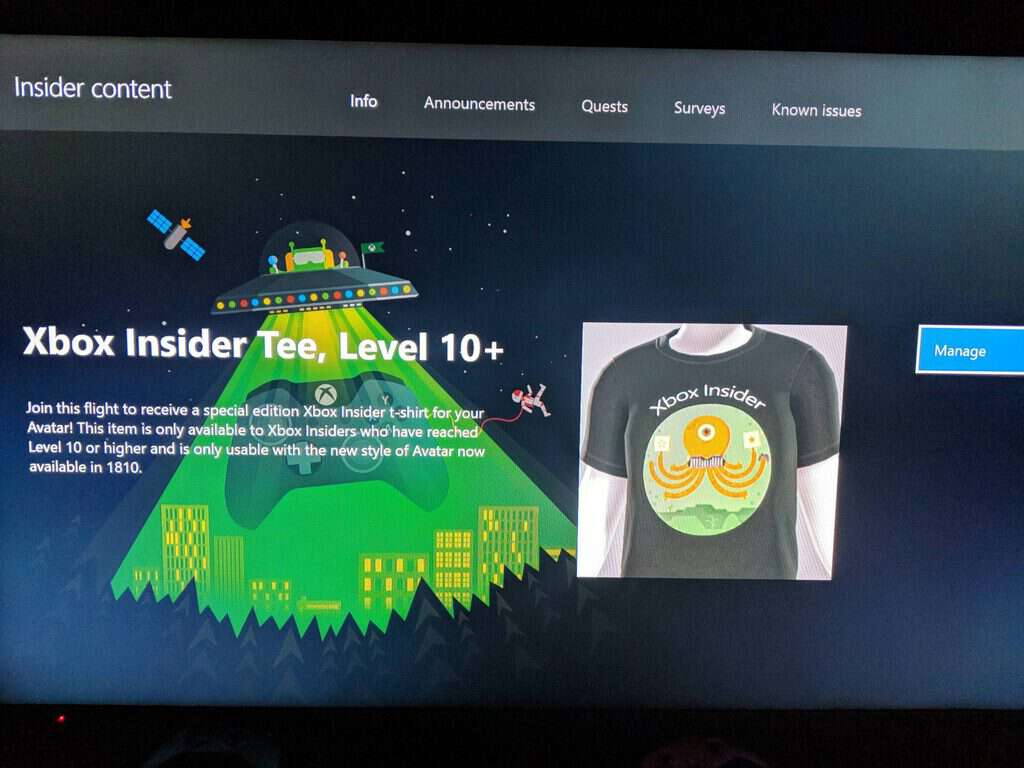
Select Xbox Insiders can get an exclusive Xbox Avatar t-shirt

Seems as though the Xbox team is looking to reward its long time Insider participants with more than just badges these days.

Instead of another badge some Insiders may be privy to an exclusive Avatar shirt.

Not all Xbox Insiders are entitled to the free shirt, but those who have reached level 10+ status as an Insider will be eligble to grab the new garb according to the screen grab by Redditor evilrastan.

The Xbox team has yet to publically acknowledge the shrits availability, but it’s rare that a reveal with this level of detail amounts to nothing more than a mistake.

If you’re an Xbox Insider with a level 10+ ranking head over to the Insider content page to see if you qualify for the new swag.

How to use your PC as TV remote control

Nowadays, everything tends to be about time management and the ways in which we can make our lives better. And even the most insignificant things (as some might think) can help us save time and enjoy a more relaxing way of life. Thus, in that matter, maybe you would like to learn how to use our Windows 10 laptops, notebooks or computers for remotely controlling the other devices and gadgets with which we interact on a daily basis.

For example, you can use your PC as a remote control for your TV, or for other similar devices that can be controlled remotely through a piece of hardware. As you know, most devices are controlled via infrared with dedicated remotes – the remote and the TV (for example) are linked first through a unique virtual code and based on this code the connection is then set.

Therefore, for being able to use your PC as a universal remote you first have to buy a USB infrared transmitter/receiver. Of course, this is the classic method which can grant accurate remote access for different devices by using your own portable Windows 10 machine.

This solution is the best as it recreates a similar experience as by using a regular remote, but it comes with an important downside: you have to pay for the USB infrared transmitter/receiver and for the software that can configure this cable.

However, we will recommend you a great remote controller which is more a USB receiver and works on every PC: FLIRC. This is a great tool that will allow you to use your PC as a remote control for your TV.

We recommend
flirc universal remote receiver image
  • Control Nvidia Shield, FireTV, PI, Harmony
  • Works with PlayStation, Xbox, Kody, Plex
  • Compatible with Windows, Linux, OSX

Similarly, you can choose to use a dedicated program available on the Windows Store. This program will let you remotely control your TV or other gadgets but only if all your devices are connected to the same wireless network. So, in this situation, we are discussing about Smart Televisions or about gadgets that can be accessed through your WiFi network.

We will discuss a little more about these solutions that can help you use your PC as a universal remote control device – both software and hardware methods.

  • ALSO READ: The remote device or resource won’t accept the connection: 4 ways to fix this error

How to use PC as a remote control for TV?

There are different software solutions available for almost all the TV brands available on the market (at least for the most popular ones) – you can even check your manufacturer’s official website for such applications.

Anyhow, most platforms can be found on Windows Store and you can choose from both paid and free tools. For example, you can anytime try platforms like TV remote (it’s free, with in-app purchases), Unofficial Samsung Remote (priced at $0.99), TV Remote Control for Windows 10 (free), TV Remote Philips (free), LG TV Remote (2011’s models), or Sony Remote Control (free with in-app purchase).

But, as already outlined before the best way in which you can use your Windows 10 PC as a remote control for TV is by buying and setting an external USB infrared transmitter/receiver. And here is how you can do that:

  1. First, go and buy the actual USB infrared transmitter/receiver cable – for example, you can choose USB-UIRT or Promixis PIR-1.
  2. Plug-in this USB cable on your laptop or computer.
  3. Next, download and install a dedicated program designed to customize the USB infrared receiver/transmitter cable – you can use Promixis Girder, Promixis NetRemote, or IRCommand2 Universal Remote Control.
  4. Insert the CD you received along with the USB infrared transmitter/receiver cable and properly install it.
  5. Now, start the remote app and follow on-screen prompts for setting up the remote connection.
  6. Place the transmitter so that it is in front of the TV or in front of the device you want to control from your PC.
  7. Return to the remote app and choose the type of device that will be programmed from your computer.
  8. Now the program will try to ‘communicate’ with your PV – it will try to detect the virtual code that’s used by your TV.
  9. Alternatively, you can enter the code manually, if you can get it from your device’s user guide.

So, that’s how you can use your PC as a remote control for your TV. As you noticed, there are two ways in which this can be achieved: by using a third-party app or by buying and setting up an external USB infrared transmitter/receiver cable.

The first method is cheaper but it requires devices connected to the same wireless network (and, in most situations the third-party apps will not be quite accurate); the second method is what we recommend, especially if you want to use stable and accurate solutions and, of course, if spending some money on it isn’t a problem for you.

RELATED STORIES TO CHECK OUT:

Co-Op RPG Ashen is now live on Xbox One with Xbox Game Pass support

Microsoft’s Xbox One family of consoles just got another exclusive video game in the form of Ashen which launched today.

Ashen is an action roleplaying game that features passive online multiplayer in the vein of the PlayStation game, Journey. Players can drop in and out of games and must communicate through non-verbal cues. Ashen is also harder than other games in the genre and even likens itself to Dark Souls in its own marketing.

Here’s the official game description and launch trailer:

Ashen is an open world co-op action RPG about a wanderer in search of a place to call home.

  • Passive Co-Op Multiplayer: As you adventure through Ashen, you’ll occasionally encounter other players in a massive open world, akin to the passive multiplayer of Journey. It’s up to you to decide how to deal with them – fight together against evil, invite them into your party or simply ignore them.
  • Souls with a Twist: Ashen is faithful to the “souls” genre of stamina-based combat, introducing players to a punishing yet satisfyingly vast world. But here’s the twist – no two gameplay experiences are alike. Whether you’re exploring bogs, investigating a fjord or pillaging an old palace, where you are at any given moment will dramatically alter the course of your adventure. It’s a brutal open world; you’re just living in it.
  • Story + Score: Famed fantasy author Mark Lawrence (The Broken Empire trilogy) and renowned band Foreign Fields collaborated closely with the development team at Aurora44 to craft a cohesive and unique narrative and sound.

In addition to being available on the Xbox One, Ashen is also an Xbox Game Pass title which means that any subscriber of that service can play the game for free.

Have you played Ashen yet? Let us know if you’re enjoying the experience in the comments below and then follow us on Pinterest for more gaming content.

Ashen
Ashen
Price:
$39.99

FIX: Windows Fax and Scan error Applying settings to driver

Issues with USB printers are not that common as the mere procedure of printing or scanning something doesn’t require overlying software. However, the Windows Fax and Scan error we’ll try to address today crashes the printing/scanning procedure and informs users that it’s “Applying settings to the driver“.  In case you’re affected by this error, make sure to check the steps below.

What to fix ‘Applying settings to driver’ error in Windows Fax and Scan

  1. Run built-in Printer troubleshooter
  2. Check the drivers
  3. Edit the registry

Solution 1 – Run built-in Printer troubleshooter

Let’s start by using the resources we have immediately at our disposal. The built-in troubleshooter differs based on what Windows iteration you’re running, but it’s there either way. For Windows 7 and Windows 8 users, the troubleshooter is found in Control Panel, while Windows 10 users can find it in the Settings menu.

Here’s how to run the built-in troubleshooter in Windows 7 or Windows 8 (8.1):

  1. Open Start and then Control Panel.
  2. In the Search bar, type Troubleshooting and open Troubleshooting.
  3. Choose Hardware and Sound.
  4. Select the Printer and follow the instructions.Hardware and Sound troubleshooting control panel

And this is how to run it on Windows 10:

  1. Press Windows key + I to open the Settings app.
  2. Choose Update & Security.Settings main menu
  3. Select Troubleshoot from the left pane.
  4. Expand the Printer troubleshooter and click Run the troubleshooter.Windows 10 Printer troubleshooter windows fax and scan error applying settings to driver

If that doesn’t help, try using an alternative USB port (USB 2.0 preferably) to connect your printer/scanner.

Solution 2 – Check the drivers

More time than not this and similar issues appear due to the improper driver for your printer or scanner. If you’ve got the software installation disk coming with the device, it’s highly advised to install both drivers and accompanying software. If that’s not the case, we still encourage you to avoid generic drivers automatically installed by Windows 10.

What you rather need to do is navigate to OEM’s official support site and grab drivers there. In case you’re running an older printer/scanner, it’s important to install proper legacy drivers. Also, watch out for the system architecture, as x86 (32-bit) platform drivers won’t work on the x64 (64-bit) one.

With that in mind, check your device’s full name and check for proper drivers online. If you own an HP device, there’s a tool that might help called HP Print and Scan Doctor which, upon running, automatically resolves issues. So might as well work for the “Applying settings to the driver“.  You can find it here.

Alternatively, we recommend using third-party software that scans your PC and downloads the most suitable printer drivers. With a simple click, you can set it to automatically install the drivers and bring your OS to a stable condition.

First and foremost, install a driver installer and updater such as Fortect Driver Updater on your computer. Scan for new updates in the utility on the main screen.

The application detects your printer and searches its database for significant updates. Following the discovery of the most recent driver, the software will later supply your PC with it. It is the simplest and least time-consuming method for renewing your printer driver.

⇒ Get Fortect Driver Updater

Solution 3 – Edit the registry

Finally, if none of the previous solutions get you over the “Applying settings to driver” error, we have, what possibly might be, the definitive solution. There’s a catch though, as it requires editing the registry which can lead to massive problems if misused. That’s why we suggest backing up your registry (exporting it) and only then change the values we’ll suggest below.

Here’s what to do in order to resolve the error at hand with Windows Fax and Scan application:

  1. Press Windows key + R to summon the Run command line.
  2. Enter regedit and click OK.open Registry with Run elevated command line windows fax and scan error applying settings to driver
  3. Choose File > Export to back up your current Registry state.
  4. Now, navigate to Computer\HKEY_LOCAL_MACHINE\SYSTEM\CurrentControlSet\Control\StillImage.
  5. Right-click and delete the StillImage from the left pane.StillImage registry entry fix fax and scan error windows fax and scan error applying settings to driver
  6. Restart your PC and look for improvements.

With that said, we can conclude this article. In case you have anything to add or take, do so in the comments section below.

Skype brings back “Away” status with latest Insider build

By popular request, Skype is bringing back the “Away” status that used to be available in the Skype classic app before it was deprecated in November. The “Away” status is currently available in Skype version 8.36.76.26 for Skype Insiders, and Microsoft also brought back the yellow icon with the timer.

It’s important to note that the “Away” status is different from “Recently Active,” a new status which will be automatically set when you were active less than an hour ago. Microsoft says that will soon allow users to choose the duration after which they are marked Recently Active in Skype.

For now, the “Recently Active” and “Away” status will only be visible for Skype Insiders running the build 8.36.76.26. If you’re running the October 2018 Update, you can get this new version by opening the pre-installed Skype Microsoft Store app, go to Settings > Help and Feedback and then opt in to the Skype App Preview program. For those of you on older versions of Windows, macOS or Linux, you can download the Skype Preview app on this page.

Microsoft releases update KB4478877 for Windows 10 v1607

Microsoft released Cumulative Update KB4478877 for people using Windows 10 version 1607 and Windows Server 2016, which had one improvement. But if I wanted to put it into words that a normal human being would understand, it would take me about three days to work out, so here is the actual update explanation from Microsoft.

Cumulative Update KB4478877 fixes

Addresses an issue that prevents the release of the on-demand Source Network Address Translation (SNAT) port allocated to a virtual machine (VM) after the SNAT port is no longer in use. As a result, the SNAT port becomes exhausted.

What known issues are in this update?

The known issues are pretty much the same as they have been for the last month or more. Let’s have a quick look at them:

  • After you install the August Preview of Quality Rollup or September 11, 2018 .NET Framework update, instantiation of SqlConnection can throw an exception. For more information about this issue, see this article in the Microsoft Knowledge Base.
  • After installing this update, users may not be able to use the Seek Bar in Windows Media Player when playing specific files. This issue does not affect normal playback.

As usual, Microsoft will be hard at work fixing these known issues, and will hopefully have a fix ready by mid-December 2018.

Windows 10 cumulative update

I am sure that Cumulative Update KB4478877 is important for the few users that are still using version 1607 (and are taking advantage of Microsoft’s Long-Term Servicing Channel) but…

…most users were probably hoping for something more up-to-date (so to speak). People are still waiting for improvements and fixes for the October 1809 update, and it is now December.

How to download this update

If you want to see if you need to download this update, the best way to do this is to let Microsoft check. Go to Settings > Update & Security > Windows Update and select Check for updates. If you know what you are doing, you can check out the stand-alone package.

For a full explanation of what this update is all about, go to Microsoft Support.

RELATED ARTICLES YOU MAY WANT TO CHECK OUT:

Qualcomm’s new Snapdragon 8cx chip is built for future Always Connected PCs and supports Windows 10 Enterprise

Qualcomm kicked off its Snapdragon Tech Summit earlier this week in Hawaii, and today the company announced its new Snapdragon 8cx chip designed for the ground up for new Windows 10 Always Connected PCs. The Snapdragon 8xc is Qualcomm’s most powerful SoC ever with an octa-core Kryo 495 CPU, as well as the first 7nm platform that will be found in a PC.

Qualcomm emphasized that the Snapdragon 8cx will provide better performance than 15W Intel Core i5 chips, all while providing multi-day battery life. The Snapdragon 8cx is also 60% more efficient than the Snapdragon 850 (which is being used on 2nd gen Always Connected PCs), and it’s also 3.5x faster than the Snapdragon 835 that was used on pretty much high-end smartphones in 2017.

Here are other features that the Snapdragon 8cx will support:

  • Latest DirectX 12 API
  • VP9 & H.265 decoders
  • 2nd gen HDR playback
  • Dual 4K HDR external monitors
  • 2.0 Gbps LTE speeds
  • Qualcomm Quick charge 4
  • Built-in Support for Cortana and Alexa

Qualcomm also confirmed this morning that ARM64 versions of Chromium and Mozilla Firefox are coming soon to Windows 10 on ARM. Additionally, the Snapdragon 8cx will be the first chip to come with native support for Windows 10 Enterprise, the most secure version of Windows 10. Erin Chapel, Corporate Vice President at Microsoft said on stage today that this will allow PC OEMs to create new Windows 10 on ARM devices designed for the enterprise.

This is Where You Can Get Office Click-to-Run Installer

If you were looking for a Click-to-run Office 365 installer after you’ve uninstalled it, we have bad news. You won’t be able to find it as Microsoft changed the way digital distribution works. Now, some alternatives require a tad more effort to get your hands on your digital copy of the famous Microsoft suite.

This guide covers both Office 365 (subscription-based) and Office 2019 (one-time-payment) suits. We made sure to explain how to get those respective applications as swiftly as possible below.

How to download Office installer these days?

1. Try online

Everything Microsoft’s these days comes in digital copies thus you’ll need an active internet connection to download Office 365 or Office 2019. The procedure is rather simple, although not that intuitive if we consider that the Click-to-run installer was making the installation quite easy.

What you’ll need to do is navigate to the office.com and sign in with the Microsoft account you used to purchase the license. Or, you can purchase it there if you haven’t.

Once there, things get simpler. Just follow the instructions below and you’ll have an Office installer in no time:

  1. Navigate to the official and universal Office website, here.
  2. Sign in with your domain Microsoft account you’ve associated with the product key (or want to associate it).
  3. Choose Install Office.install office online
  4. Click on the “I have an Office product key” if you do. If not, click Buy Office 365 next to it.
  5. The first option will take you to the Profile screen where you can click Try Office 365.try office 365 for free
  6. The latter option will take you to the Product list where you can choose one of the options and buy either a yearly or monthly subscription.
  7. The only remaining thing is to choose your version, add billing information, and start the free 1-month trial if you’re a first-timer. Users who have purchased the product key will get the link to setup a download immediately.
  8. Double-click on the installer and follow the instructions closely.

2. Check the Store

office 365 on Microsoft Store

In addition, you can use the Microsoft Store as a shortcut and move from there. Of course, this applies if your system domain account is the one you want to use for purchasing (or already have used to purchase it). Just open the Microsoft Store, and search for Office 365 Home or Office 365 Personal.

Click on the link and it will automatically open a browser and take you to the purchasing webpage.

Another thing we want to stress is that, with a Microsoft account, you already have the online version of 365 for free. So, if offline work isn’t a priority, you can use all Office tools in the web-based environment.

3. Download ODT (Office Deployment Tool) if you’re an IT professional

Finally, if you’re an IT professional and you want to push a few installations to one or multiple PCs, you can do so with the Office Deployment Tool. This is available for all users, but since the procedure requires a bit more knowledge about the configuration and networking, we reckon that the first two ways are more appropriate for a casual

You can download the ODT utility, here. And here’s the official page with instructions on how to use it with a little help from the elevated command line.

With that said, we can conclude this article. We also have a guide on how to download Outlook on Windows 11, so don’t miss it.

If you want to try the new Office 2024, you can download the preview version of the software; read this guide to learn the detailed steps.

We also have a guide on how to remove Office Click to Run, so don’t miss it if you encounter any problems.

In case you have any questions or suggestions, feel free to tell us in the comments section below.

New next gen Xbox Scarlett rumors surface: will use Zen 2, possibly 4K@60fps

While Microsoft may have sold the Xbox One X as the future of console gaming with its beefed-up graphics and improved processing power, the reality has fared a bit differently.

The Xbox One X has been more of an iterative update to Microsoft’s console line up and judging by some recent rumors of the company’s next console, codenamed Xbox Scarlett, we may be seeing our most significant iteration yet.

According to a report from Microsoft observer Brad Sams, Microsoft’s next Xbox console release should be bringing native 4K and 60FPS gameplay to audiences with the help of Zen 2 and AMD powered GPUs. The internal specs for Xbox Scarlett are shaping up to be similar to those of the next PlayStation offering, as well, of which both consoles are sourcing AMD technologies.

While Xbox Scarlett is looking like more of a traditional console upgrade for most, it’s Microsoft’s other Xbox-related gaming efforts that appear to be really pushing the boundaries of commonplace gaming standards.

Microsoft is parlaying an additional gaming strategy that will include releasing up to two more consoles that utilize cloud-powered gaming through its Azure Cloud services and an all-digital (discless) Xbox One.

As many look towards a future of shiny new hardware, there are other more subtle actions being done by the Windows and Xbox team that require some hefty software chops such as making changes to the Microsoft Store for better support PC gaming, as well as improving Backward compatibility across new and old (current generation) hardware.

While much of this remains speculation on the part of reporters, head of Xbox Phil Spencer and other executives close to the projects have been hinting at these developments for much of 2018 with a supposed roadmap of 2020 in their sights.

Xbox head Phil Spencer wants to bring Xbox Game Pass to “every device”

Since its launch on Xbox One consoles in June 2017, Xbox Game Pass has become a very valuable subscription service for Xbox gamers. The Netflix-like offering now includes new Microsoft Studios games like Forza Horizon 4 or the upcoming Crackdown 3 on launch day, but we’ve also seen many big game publishers like Bethesda and Capcom bring their AAA games to the service in recent months.

Xbox Game Pass is still pretty much restricted to Xbox One consoles as of today, with the exception of select Xbox Play Anywhere games that are also playable on Windows 10. Both Microsoft CEO Satya Nadella and Xbox head Phil Spencer and announced their intention to expand Xbox Game Pass to PC, but the latter recently said at Barclays conference in San Francisco the Xbox team is now aiming to bring Xbox Game Pass to “every device” (via GameSpot):

“So we built Xbox Game Pass–it started on console, it will come to PC, and eventually it will come to every device–we use the flywheel that we have with customers on an Xbox to start the growth in Xbox Game Pass. But as somebody sitting back and taking a longer-term view of where our business is going, you should look at that as a business model that we think scales to billions of people not hundreds of millions of people like retail does.”

Spencer didn’t go into details about how the company intends to make Xbox Game Pass available on mobile, but it could all be a part of Microsoft’s upcoming Project xCloud streaming service. Project xCloud is expected to launch in public preview next year, and it will make it possible to play Xbox games on smartphones and tablets using either an Xbox controller or a new touch interface created by Microsoft. The company hasn’t revealed what will be the business model for Project xCloud, but integrating it with Xbox Game Pass would make a lot of sense.

With its Azure global infrastructure, Microsoft has uniquely positioned to create the true Netflix of video games. However, it will likely be years before streaming a game on a mobile device can feel as good as playing it on a console or a high-end PC. “I think streaming is something that’s further out in terms of it becoming a really mass market where everybody is doing it, and even way further out before it’s the best way to play that game, if it ever is. I just think it’s about giving you a choice as a player, not about replacing what you do,” Spencer said in an interview with Level Up last month.

Microsoft makes its possible to disable cross-play on Xbox One for child accounts

Microsoft is making it possible for parents to control cross-compatibility settings for child accounts on Xbox consoles. As you can see in the image below, parents will soon be able to prevent children from playing multiplayer games from other services aside from Xbox Live, essentially killing support for playing with others who don’t own the same system.

Protecting children from outside threats was an argument Sony has been using to lock cross platform support for multiplayer on its PS4. Sony has since partially reversed its decision, albeit in a limited open beta for the widely popular Fortnite.

Microsoft will soon allow parents to disable players from outside of Xbox Live to play with their children online.

Microsoft says its starting out with Fortnite, one of the first games to support cross play, as its first title where the setting can be enabled. However, its expected many more games will join the ranks and opt in, allowing parents to enable or disable cross play on all supported titles at once.

In addition cross platform multiplayer control, Microsoft is also adding other settings to protect children, including screen time limitations, content filters, blocking purchases and adjusting privacy setting in the child accounts. What are your thoughts on these? Let us know in the comments.

The new Twitch app is now live on all Xbox One video game consoles

After some testing with Xbox Insiders, the new Twitch app is now available to all Xbox One owners via a free update to the existing app.

This new official Twitch app loads significantly faster than the original one and features a smoother, more natural, UI that makes browsing channels faster and easier to do (see above image). Subscribed and popular channels are now listed horizontally and live previews of each channel autoplay as their thumbnails are highlighted.

Watching streams is also much faster now with broadcasts loading almost immediately after being clicked on from the main page.

While the new Twitch app looks and works better than the original, it hasn’t completely thrown away all aspects of the previous version and still supports its zero Gamerscore Xbox Achievements. This will come as a relief to those who hadn’t unlocked every Achievement and were worried that a new app might have done away with them.

The Xbox One Twitch app can be used to view livestreams and broadcast directly from an Xbox One console. While Twitch still king in the streaming space, Microsoft’s Mixer has been sneaking up on it with a (slowly) growing userbase and a variety of new features for viewers and streamers including a new TV show that will be exclusive to the platform.

Have you tried the new Twitch app yet? Let us know if you like the new look in the comments below and then follow us on Pinterest for more gaming content.

5 best 3D printing tools for schools and students to learn 3D modelling

3D printing may be well regarded as an almost magical process by which users can create three dimensional solid objects from a simple digital file. The secret behind this process bears the name of ‘additive processsing’. In other words, your 3D object is created laying down multiple layers of material. By using 3D printing you can create complex and functional shapes using less material and a more exact result, offering you the capability to even create moving machine parts. Interestingly enough, 3D printing has become very popular in school — for obvious reasons. In this article, we will explore some of the best 3D tools available that allow you to easily print 3D objects whether you’re a teacher or a student.

Try these 3D printing tools for students

Fusion 360

Fusion360 - 3D printing

Fusion 360 increased its popularity ranking because it is available for free for students, enthusiasts, hobbyists, and startups. This program combines the professional capabilities of high-end CAD programs with a user-friendly interface.

Key features include:

  • CAM – create toolpaths to machine your components or create a prototype using the 3D printing workflow
  • 3D printing utility
  • Solid modeling
  • Data translation
  • Joints and motion studies
  • Simulation and testing
  • Freeform modeling and sculpting
  • Parametric modeling
  • Mesh modeling
  • Rendering
  • Animations

Check out this step by step tutorial on how to use Fusion 360

Download Fusion 360

— RELATED: Khan Academy for Windows 10: Education at Your Fingertips

Inventor

Inventor - 3D printing

Inventor is another great tool that allows you to create professional-grade 3D mechanical design, documentation and product simulation tools.

Compared to some of the other software presented in this article, Inventor is a very advanced 3D modeling program that requires a lot of training to master. It is a direct competitor of SolidWorks.

Key features include:

  • Modeling flexibility – choose the way you design, with various modeling options
  • AnyCAD data-Work with data from any 3D CAD system and maintain an associative link
  • Automation – set up your product configurator without writing complex code.
  • Shape Generator – create and evaluate high-performing design options in minutes
  • Parametric modeling – create parameters as you sketch and dynamically size 3D objects
  • Assembly modeling – Put your model together in fewer steps
  • Drawing creation – Quickly create clear, accurate, detailed drawings
  • Mechanical concept and layout design – Open DWG files directly inside Inventor as the basis for your 3D model.

Download Inventor


Blender

Blender - car design/3d printing

Blender is an open source 3D software that bolsters a wide range of useful tools that allow you to easily create 3D models from scratch or edit existing models. It has simulations tools, supports NURBS surfaces and polygon meshes and if you are an advanced user, you can develop your own features.

Blender has one of the biggest 3D printing community in the world. You’ll find plenty of information and printing guides on forums, YouTube and blogs dedicated to 3D printing.

This popularity is down to two main reasons: the plethora of editing and printing tools that it offers, and the fact this is a free open-source tool.

However, keep in mind that Blender has a pretty steep learning curve. If you’re a beginner, using the tool for the first time won’t be that simple. Patience is key. If you continue using it, you’ll eventually get the hang of it.

Thanks to its community, Blender offers you a wide range of and courses and how-to guides.

Key features include:

  • Cycle Render Engine – ultra-realistic rendering, real-time viewport preview, PBR shaders and HDR lighting support
  • Modeling, sculpt, UV – for creating, transforming and editing your models easily
  • Advanced sculpting tools and brushes
  • 3D painting with textured brushes and masking
  • Python scripting
  • VFX – it allows you to import raw footage, track it and mask areas
  • Animation and rigging
  • Envelope, skeleton and automat skinning
  • Combine 2D with 3D
  • Flexible customizable Python controlled interface.

Download Blender

— RELATED: 6 best antivirus software for education

SolidWorks 3D Design

SolidWorks - 3D printing

SolidWorks is a complete 3D Modeling Software and CAD product design solution. The suit offered by this company includes software for product development, cover design, manufacturability checks, CAM, and data management. This tool is suitable for advanced users and university students.

SolidWorks comes in 3 versions : Standard, Professional, and Premium.

Key features include:

  • Intuitive user experience and fast to learn
  • Design intent – building relationships between features and parts
  • Ability to access measuring tool at any time – uninterrupted workflow
  • 3D markup – ability to add markups directly to parts and assemblies
  • Ability to publish your SolidWorks files to XR
  • You can train users on how to assemble and/or interact with your products
  • Geometry and scene hierarchy
  • Appearances/Materials and textures/Decals
  • Lights and Cameras
  • Exploded and Motion Study Animations
  • Metadata including – Per-configuration custom properties, per-node comments, per-node & document general and design tables

Download SolidWorks 3D

— RELATED: Here are the best education apps for PC

SketchUp

SketchUP 3D printing software

SketchUp is known for its beginner-friendly learning curve and has a ton of tools for creating geometric objects. It is totally free to use and you can also prepare and share 3D printable objects with ease.

In almost every 3D project, you need to turn your model into a drawing to be easily understood in presentations. LayOut in Sketchup lets you add model views to pages, choose drawing scales, adjust line weights, and add dimensions and graphics. The changes you make to SketchUp model will be automatically reflected in LayOut and you can easily export pages as PDFs, images and CAD files.

Another great feature of SketchUp is the fact that you can find almost any 3D model you need for your project in its 3D Warehouse. This is world’s biggest library of free 3D models. You can also use 3D Warehouse to store and share your own models.

Other features include:

  • Great tutorial videos – for beginner, intermediate and expert
  • You can use SketchUp forums for asking any question
  • 3D models in 3D Warehouse created by partners like Miller, Formica, Thermador, etc.
  • Ability to share your models even on mobile by using SketchUp Viewer app

Watch SketchUp video tutorials 

Conclusion

In this article, we explored some of the best options of 3D software that allow you to not only create complex and exact 3D models but also learn how to do it and print your ideas using a 3D printer.

Let us know which software you picked from this list in the comment section below.

RELATED STORIES YOU NEED TO CHECK OUT:

The end is nigh? Microsoft finally ditches Microsoft EdgeHTML

In news that surely doesn’t come as much surprise, reports are coming in that Microsoft has finally decided enough is enough, and is going to give up on Microsoft EdgeHTML. Read on to find out what we know so far.

It was always going to be an uphill battle. Launched in 2015, Microsoft EdgeHTML started off badly and went downhill from there. It now has a market share of 4%. In fact, looking at the chart below, you can see there is one problem hanging over all browsers except one.

Browser market share

Source: Wikimedia

Another Chromium-based browser?

After three years of poor uptake, mainly because of its stability issues and the fact that no one likes it, Windows has decided to go down a different path. It is giving up on EdgeHTML and adopting Chromium, which is pretty much what every other browser uses.

This should make everyone a lot happier. A chromium-based Windows 10 browser should have none of the issues that Edge has. Plus there will be many more extensions available, as it will have access to Chrome’s huge depository of add-ons.

Mobile phones are not any easier

Of course, Microsoft already uses chromium for its Android-based browser. But the difficulty in persuading people to use EdgeHTML on their PCs is reflected on phones. If a market share of 4.34% is bad on PCs/laptops, then the 0.08% market share that Microsoft EdgeHTML has on phones is downright pathetic. By the way, if you are interested, NetMarketShare has a cool page to check out all browser usage stats.

A rose by any other name

One of the big questions will be what Microsoft will call its new browser. I reckon that Internet Explorer and Microsoft Edge are pretty toxic. However, after three years of ploughing money into Edge, Microsoft will be pretty loathed to ditch the brand name on top of its browser.

Wrapping Microsoft EdgeHTML up

One could almost ask why Microsoft even bothers, except we all know the answer to that. Google has shown the world what can be achieved with the lowly browser, and a tech giant like Microsoft is highly unlikely to want to throw the baby out with the bath water just because it hasn’t hit on the right formula yet.

What do you think? Is a new Windows 10-based browser just throwing good money after bad?

Or do you think that Microsoft’s adoption of Chromium will see its browser heading back to the heady days when over 90% of browser usage was Internet Explorer?

Let us know in the comments below.

RELATED STORIES YOU SHOULD CHECK OUT:

Xbox’s Crackdown video games get a new comic book series

With Crackdown 3 set for release in February 2019, the Xbox One exclusive game looks to be recieving a bit of unconventional marketing syngery as Dynamite Comics also has plans to release its Crackdown inspired mini-series comic in the same month.

It’ll be an interesting feat to see how talented writers and artists pull a story out of this video game franchise, but judiging from this synopisis, they’re off to a good start.

The hyper-powered world of Crackdown has made its way to the comic page! In the not-so-distant future, civilized society is more plugged-in and interconnected than ever — but criminal organizations are growing more connected as well, forming unholy alliances, and plotting for an unprecedented campaign against the world. When a series of devastating blackout attacks plunge major metropolitan areas into darkness and chaos, the global population is terrified, traditional law enforcement is overwhelmed — and it’s up to The Agency, an elite international crime-fighting task force, to restore peace and deliver justice, by any means necessary.

Dynamite artist Ricardo Jaime took to Twitter to update fans about the upcoming relese.

Comic officianidos and fans of the Crackdown franchise can preorder the first issue through the Dynamite Comics website for $3.99. The official release of the miniseries is slated for February 20, 2019, which should dovetail nicely with the final release of the game on Xbox One on February 15, 2019.

Microsoft’s rethinking design with new internal executive dream team

Seems as though Windows users and Microsoft fans may be on the precipice of another software and platform design overhaul.

While it may not be to the extent of Microsoft’s most recent Fluent Design efforts, a new interview given to The Verge by Jon Friedman, head of Office design, reveals that the company is looking to use a more divisionally-collaborative approach to the way it designs software and hardware going forward.

According to the interview, Microsoft is adopting an more open source strategy to its overall approach to design by has wrangling the company’s design heads to share and critique one another’s work, before it hits the general public.

“We operate like an internal open source team. So we’re all openly sharing our design work, critiquing the work, working on it together. What we’ve found is that the best way to develop our Fluent Design system is to truly open source it internally. What’s happened is that we’re getting the best of everyone’s work that way.”

The new design executive dream team consist of Jon Friedman from the Office team, Albert Shum from Windows and Ralf Groene from the rockstar Surface division and they’re tasked with bringing cohesion to much of Microsoft’s design efforts.

Historically, Micoroft divisions worked in siloed development paterns and seemed to only share their approaches once a product hit general availability.

When new designs would come to Office, Windows or Mobile (when its still alive) the more successful design elements would be plucked and dropped into other platforms without context or foresight for user flow.

Now it seems that Microsoft’s design dream team will oversee proposed element designs and find out how and where they can be applied across the entire company, if at all.

“If we have to change everything at the same time, it will never happen,” explains Friedman. “We’re highly coordinated internally, so the Office designers know exactly what’s coming next with Windows. The Windows designers know exactly what’s coming next with Office.”

In addition to more collaborative approach, Friedman also notes that Microsoft is also being more methodic and patience with its design roll out. Unlike the Windows 8 design blitz of 2013, or the new Microsoft is planning to release Fluent Design elments across platforms over a long period of time and with more polish than previous iterations.

Recently we’ve seen hints at an Office icon overhaul that has sparked Windows 10 fans to ask for the same attention to be paid to the rest of Windows, and it seems Microsoft already had response in the cannon.

Gwent: The Witcher Card Game drops Xbox Play Anywhere support as it officially launches on Xbox One

A little more than a year after it launched in preview as an Xbox Play Anywhere title, Gwent: The Witcher Card game officially launched on Xbox One yesterday. Unfortunately for Windows 10 gamers, developer CD Projekt Red announced on the same day that it was dropping support for the UWP PC version of Gwent, and the game has now been removed from the Windows 10 Microsoft Store.

CD Projekt Red didn’t give an explanation for the discontinuation of the UWP PC version, but Xbox Live cloud saves allow Windows 10 gamers to pick up where they left off on the Xbox One. Moreover, PC players can also keep playing on PC by migrating their Gwent player account to the Gog.com PC version. You can learn more about how this works on this FAQ.

The game ditching Xbox Play Anywhere support the day it drops the preview tag on Xbox One is definitely not great news for Microsoft’s gaming platform, especially since CD Projekt isn’t a small indie developer with few resources. It’s now been two years since the first Xbox Play Anywhere games launched on Xbox One and Windows 10, but we’ve seen very few big third-party games support the initiative except for Resident Evil 7: Biohazard, Middle-earth: Shadow of War, or We Happy Few more recently.

If you have yet to check it out, Gwent: The Witcher card game is free-to-play on all platforms, and the game also supports crossplay between Xbox One and PC (the Gog.com version) as well as Playstation 4 and PC. However, please note that you do need to have an Xbox Live Gold susbcription to play on Xbox One.

GWENT: The Witcher Card Game