No, those Xbox console ban messages you’re seeing on TikTok aren’t real

If you recently saw the viral TikTok post, Your console is banned related to Xbox, it’s fake!

Many talked about it on TikTok, social network platforms, and on forums like Reddit. Since there was no reliable information or credible sources discrediting the post, we decided to debunk it!

We analyzed the post, compared the language/tone with other Xbox error messages, and came to the conclusion that it’s been digitally created to fool users. Here’s why:

  • The provided link doesn’t exist: If you try to visit the link mentioned in the error message, the website reads, Page not found. An Xbox-triggered error would never have an incorrect link.
  • Grammatical errors: The glaring grammatical errors (ie. instead of i.e.) make it amply clear that the message is fake.
  • Xbox hardly bans consoles: While Xbox does ban devices, it’s done in extreme situations. Say if you tamper with the console to run illegitimate software or commit fraud. For unauthorized hardware, Xbox only warns users and then bans the hardware after two weeks.
  • There’s simply too much information: When Xbox does issue a suspension, the error message won’t have this much information, say, list the unauthorized devices. This is inconsistent with the Xbox’s style of errors.
Page not found when accessing the provided link

Xbox and Microsoft have been in the news recently, given the talks surrounding the shift in strategy and releasing platform-exclusive games on PlayStation.

On previous occasions, there was a lack of certainty since Microsoft never released an official statement. We may have one when Microsoft shares the vision for Xbox.

But this time around, we can confirm the viral Xbox console ban TikTok post is fake, and you shouldn’t be concerned about it. Follow the right practices and conform to the platform’s guidelines, and your Xbox experience should remain unhampered!

What’s your take on the viral Xbox console ban post? Do share in the comments section.

What is WinDirStat & How to Download it

Space is crucial for any Windows user, so it would only make sense to download WinDirStat, to keep up with how disk space is being utilized.

WinDirStat, also known as Windows Directory Statistics is a utility compatible with most Windows versions and comes in handy in all things storage on your PC. While there are built-in tools like File Explorer, Disk Cleanup, and Storage Sense that can do this job as well, they only offer basic disk space analysis capabilities.

What is WinDirStat used for?

1. Storage analysis

At times, your system may be running low on disk space but you don’t exactly know what’s consuming it or whether your PC has sufficient space. WinDirStat can help you analyze how your disk space is being used.

This tool presents a sorted list of file extensions based on usage, making it easy to identify the types of files that are consuming the most disk space.

You can then decide how to manage these files and folders, whether it’s deleting unnecessary ones, moving them to an external storage device, or organizing them more efficiently.

2. Visualization

It provides a visual representation of disk space utilization through a sub-tree view and a treemap display. This allows you to easily identify files and folders that consume the most disk space.

Although you can do the same with the built-in Windows tool, with a visual representation, you can quickly identify large files or folders that may be taking up excess space on their storage devices.

You can easily view the sizes of folders and files on your hard drive, as well as the percentage of space each one takes up.

3. Optimize system

While WinDirStat may not directly optimize the system, it provides you with the requisite information to identify the pain points in your system. This information in turn can be useful to help you clear out your storage which can improve system performance and stability.

This alongside other performance settings, are bound to give you an optimized system.

How do I download WinDirStat?

You can navigate to your browser and download WinDirStat for Windows 11. Next, you’ll locate the executable file in your downloads file, launch it, and follow the prompts to install it. Thereafter, you can open it and start cleaning up your drive.

Overall, WinDirSat is a great tool for your system. Given how much RAM Windows 11 consumes, you’ll never know when you’ll need to limit your RAM usage. And if your tasks are resource-intensive, you may need to upgrade your RAM.

Nevertheless, keeping your PC free from unnecessary files and regular cleanup will help your device run efficiently and avoid random crashes. You also don’t necessarily have to use WinDirStat.

There are lots of disk space analyzers that do an equally good or even better job so whatever your poison is, go with it.

That’s all we had about the WinDirStat tool and how to download it. We’re curious to know your thoughts on this open-source program. Would you download it? Leave your thoughts in the comment section.

Latest CS2 update crashes GPU drivers for many, but there’s a quick fix

After updating Counter-Strike 2, a lot of users complained that the game crashed GPU drivers with no logs.

One of the Reddit users, SKYTRIXSHA mentioned the issue, and stated,

After playing CS2, the GPU drivers crash with no proper logs or such. Nothing in Event Manager outside of “Display driver crashed”.
I had these issues last year, but the system was completely stable for multiple months before the latest CS2 update which changed how smokes and such work.

And, he further mentioned that he tried to update drivers, cleared CMOS, and even reinstalled Windows 11, but there was no luck.

Other users Darkraptor19, and Frolleferm, also mentioned facing the same issue.

Some users claimed that by disabling NVIDIA & Discord In-Game Overlay, not using Low Latency mode, reinstalling all games related to drivers, or reinstalling Windows 11 without removing everything, the game crashes were reduced to a minimum.

The issue is not exclusive to users with AMD graphics cards, as some users with Intel and NVIDIA drivers also reported the issue on multiple forums, like the Intel community, NVIDIA, and GitHub.

SKYTRIXSHA then finally updated that they fixed the issue by limiting the GPU maximum clock to 2500mHz via Adrenaline while leaving the other settings, including Power Limit, to default.

He also emphasized setting the -Vulkan launch option to fix the problem but warned that you could get bad frame times and random stutters while using it.

A lot of users have also responded that applying these settings helped them fix the problem with the game, while some insisted that with these fixes, a user might also have to reinstall Windows to resolve the issue.

A user on Steam, Trevics with an AMD processor, mentioned that by disabling the AMD FidelityFX Super Resolution feature.

So far, users on multiple forums and threads are testing different solutions to fix the problem, but CS2 has not commented on the issue and has not offered any resolution.

Did any of the fixes mentioned here help you stop the game from crashing? If yes, then share your experience and also mention if you have found another way to fix the problem.

Govt agency warns of severe vulnerabilities in ChromeOS

CERT-in (Indian Computer Emergency Response Team) recently released an advisory highlighting critical security vulnerabilities in Google’s ChromeOS.

The government’s cybersecurity watchdog has designated a High severity rating to the security alert, CIVN-2024-0031, and recommends that these be addressed at the earliest.

On the official website, CERT-in highlights that all Google’s ChromeOS LTS channel versions prior to 114.0.5735.350 (Platform version: 15437.90.0) are affected. It states that the vulnerabilities exist in Use after free in Side Panel Search and insufficient data validation in the extensions.

These allow hackers to remotely gain administrative privileges, execute arbitrary code, bypass security features, and deploy a Denial of Service (DoS) attack on any system running the affected ChromeOS version.

All this can be achieved by tricking you into visiting a webpage specifically designed for deploying the attack.

Updating ChromeOS

CERT-in recommends that you update to the latest LTS channel, 114.0.5735.350, for ChromeOS devices to avert the possibility of an attack or the data being compromised. The official Chrome Releases page also states that the vulnerabilities have been eliminated in the update.

There’s no reason to be concerned. Such vulnerabilities are identified from time to time and patch is released in the latest versions. This is the standard practice!

Microsoft Planner is down, but there’s a fix incoming

Microsoft Planner 356 is a great tool used by many, however, it seems that the service is currently unavailable worldwide.

The issue was reported about a few hours ago, and here’s what we know so far.

Microsoft Planner 356 is down, but Microsoft is already working on it

Users on Reddit reported that Microsoft Planner 365 is down for them and many in the comments confirmed this.

Microsoft has acknowledged the issue, and they are working on it.

Microsoft 365 Status: We’re performing manual reboots of the affected components and monitoring service telemetry to ensure it is improving service availability. For more information, please see PL715162 in the admin center.

Microsoft 365 Status: We’ve identified a recent change as the potential root cause. We’re rolling back the change and monitoring the deployment as it progresses throughout the affected infrastructure. For more information, please see PL715162 in the admin center.

Microsoft 365 Status: The incident communicated under PL715162 will be continued under PL715245 due to an issue affecting the visibility of the service incident detail. For the most recent information, please see PL715245 in the admin center.

Microsoft 365 Status: We’re continuing to monitor the rollback as it progresses. In parallel, we’re investigating an unexpected increase in errors, and we’re conducting additional reboots to remediate impact. For more information, please see PL715245 in the admin center.

The admin panel in Microsoft admin states that this is an incident and currently we have no additional information regarding the issue.

Users reported the following:

Update 1: Now getting a web error: Service Unavailable HTTP Error 503. The service is unavailable.

Update 2: Microsoft Support: The Planner is temporarily down. We have involved our engineering team on this, and they are working on it. The next update will be after 2 hours.

Although this is a major issue, Microsoft is aware of it, and they are working actively to fix it, so expect the service to be back in a few hours.

For some users, it’s working, for others, it’s not. However, Microsoft 365 Status hasn’t posted anything yet. We’ll update you as soon as we hear from them.

Is this another attack like the recent Midnight Blizzard attack? We’re keeping our eyes out for the latest information.

Microsoft Edge achieves 20% faster performance on Apple Silicon Macs

Ever since Microsoft Edge got revamped, a lot of features were introduced, making it one of the best contenders among the mainstream browsers while providing the best browsing experience.

However, there is always scope for more, and it looks like Microsoft has stepped in the right direction. By enabling  Profile-Guided Optimizations (PGO) for Mac with M2 processors, Edge is now 20% faster. PGO is a compiler optimization technique that is used to improve program runtime performance.

This step was taken as Microsoft treats the performance at which the browser renders webpages as the most important parameter.

After enabling PGO, Microsoft tested the browser speed over Speedometer 2.1; the score was more than 500 on Mac machines with M2, which was earlier under 450.

Speedometer - Apple silicon macs

Upon using MotionMark, another performance benchmark tool for web pages full of animations and graphics, the score was significantly improved; take a look at the graph:

Upon running JetStream to measure how quickly browsers can start and run code, and to measure the responsiveness of a browser with code-intensive sites, again, there was a significant improvement:

Edge also made this move on Windows in 2020 and increased the speed by 13%. It is not the only one making this move. Other mainstream browsers, including Google Chrome, enabled the PGO eight years ago in version 53, which increased page load time by 5.9% and startup time by 16.8% approx.

Do you use Microsoft Edge on your Silicon Apple Mac device? If yes, tell us if you see any differences in speed and performance in the comments section below.

How to Fix Error Code 3002 on Paramount Plus

Errors like code 3002 on Paramount Plus are common when there’s a sudden surge in traffic like a Super Bowl game on the streaming site. However, built-up cache, poor connection, or server outages may also cause the problem.

How do I fix error code 3003 on Paramount Plus?

Start by checking the Paramount Plus’ server status and check your internet connection speeds. If possible, switch from WiFi to Ethernet for a better connection. And if you still have no luck, keep reading:

1. Force restart the Paramount Plus app

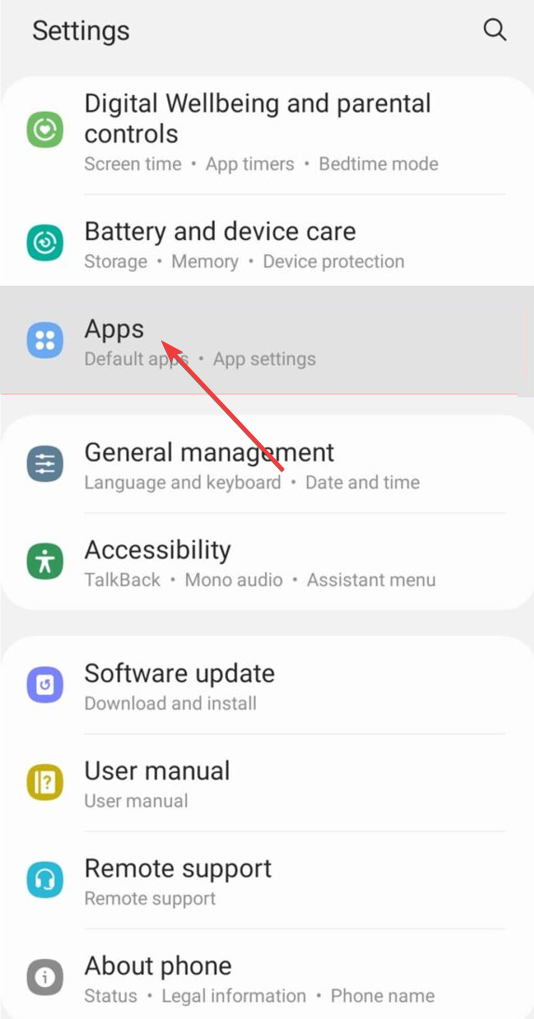
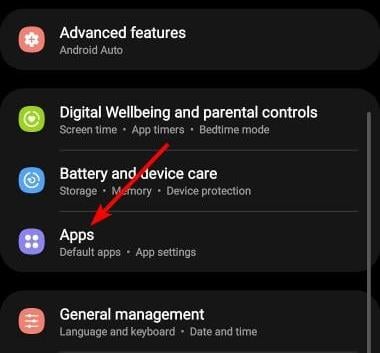
  1. Open the Settings app on your phone or your Android TV.
  2. Select Apps.
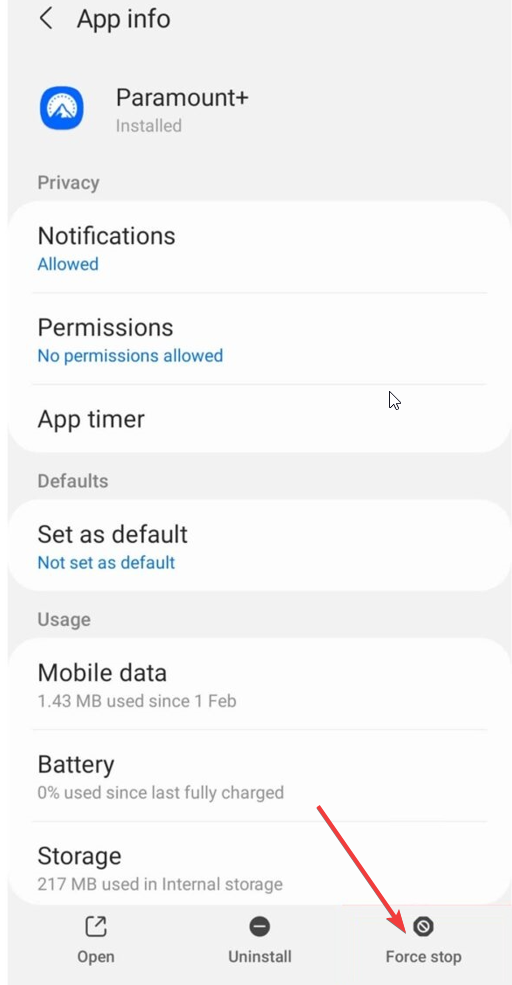
  3. Locate the Paramount+ app and tap to open it.
  4. Select Force stop button.
  5. Launch the Paramount Plus app on your phone and check if this resolves the issue.

2. Use a VPN

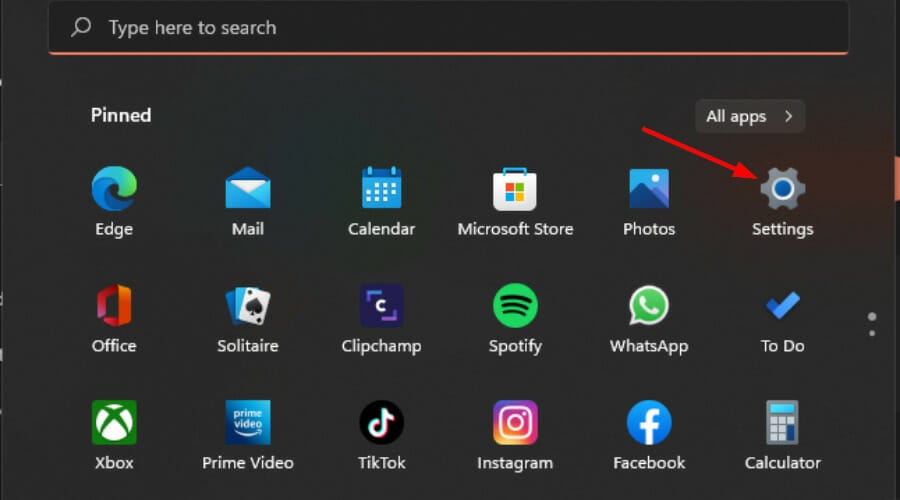
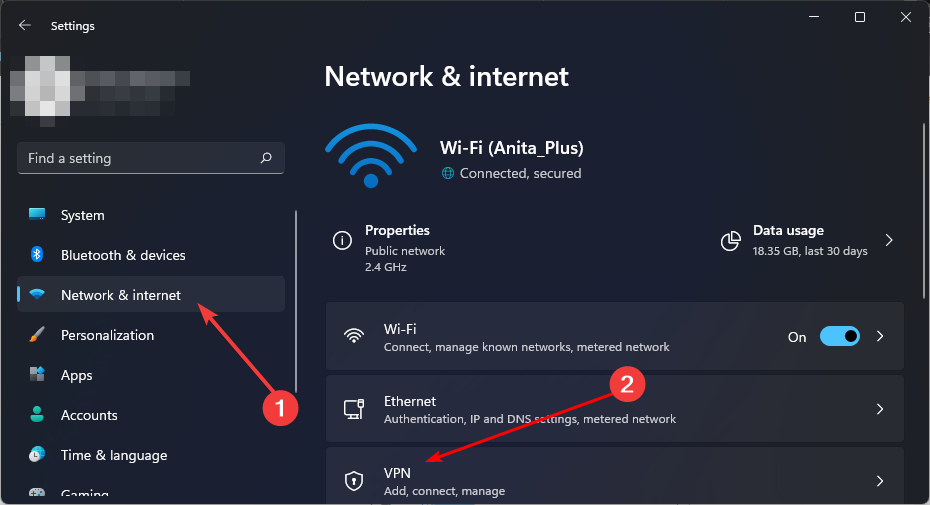
  1. Press the Windows key and select Settings.settings windows 11
  2. Next, select Network & internet and click on VPN in the right-side menu.
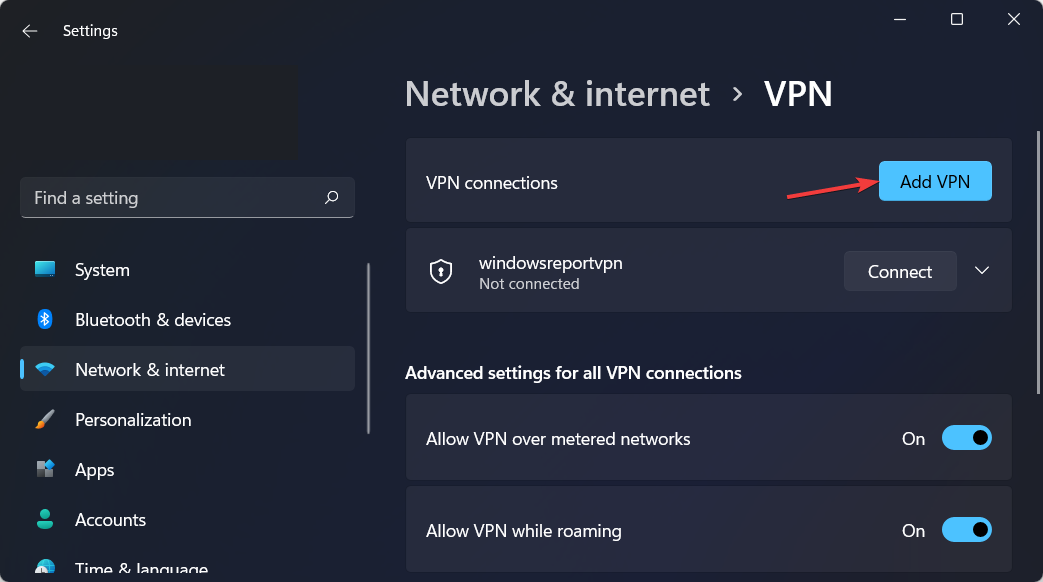
  3. Click on Add VPN to start the manual setup.vpn-add settings
  4. Enter your VPN settings, such as encryption type, server IP address, and other connection options, and click on Save.Adding VPN Connection in Windows 11

If you’re using a VPN to stream a show on Paramount Plus, your current server may be crowded. Try changing to a different one and see if the error code 3002 disappears.

This trick helps with related Paramount issues such as error code 1100 and even with buffering.

For instance, ExpressVPN is much more powerful than the built-in function from Windows because it comes with extra security features and a very large number of servers you can connect through, so if one doesn’t seem to work you can just pick a different one.

⇒ Get ExpressVPN

3. Clear cache

3.1 Android TV

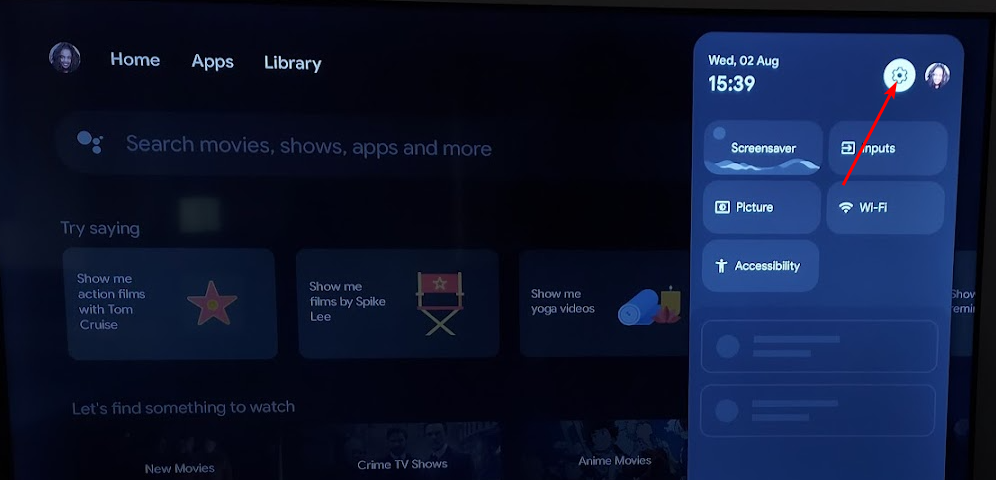
  1. On your TV, find your Settings.
  2. Go to Apps and select Paramount Plus.
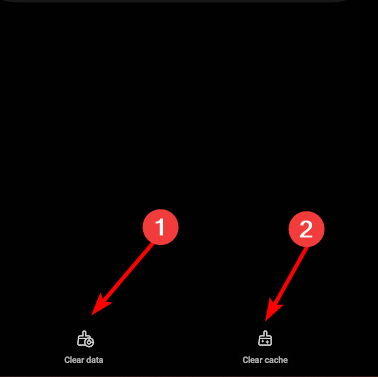
  3. Scroll down and hit Clear data and Clear cache.

3.2 Android phone

  1. Tap on settings on your phone.
  2. Next, tap on Apps.
  3. Find the Paramount Plus app and tap on it.
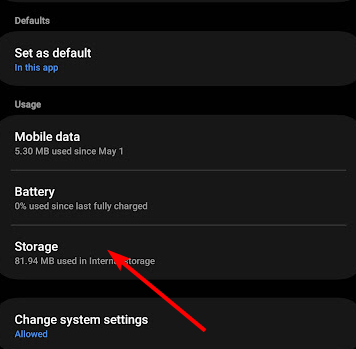
  4. Scroll down and select Storage.
  5. Tap on Clear data and Clear cache, then try again.

3.3 Browser cache

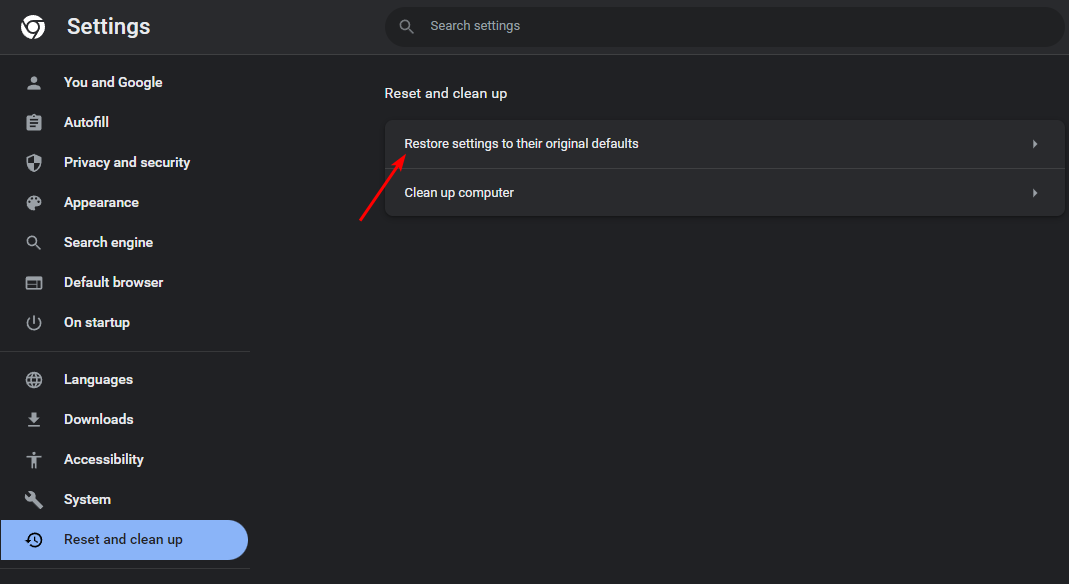
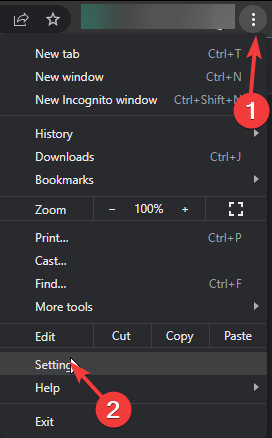
  1. Launch your browser, and for this step, we shall be using Google Chrome.
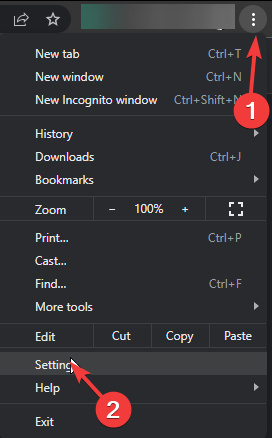
  2. Click the three horizontal dots and select Settings.Settings CHrome
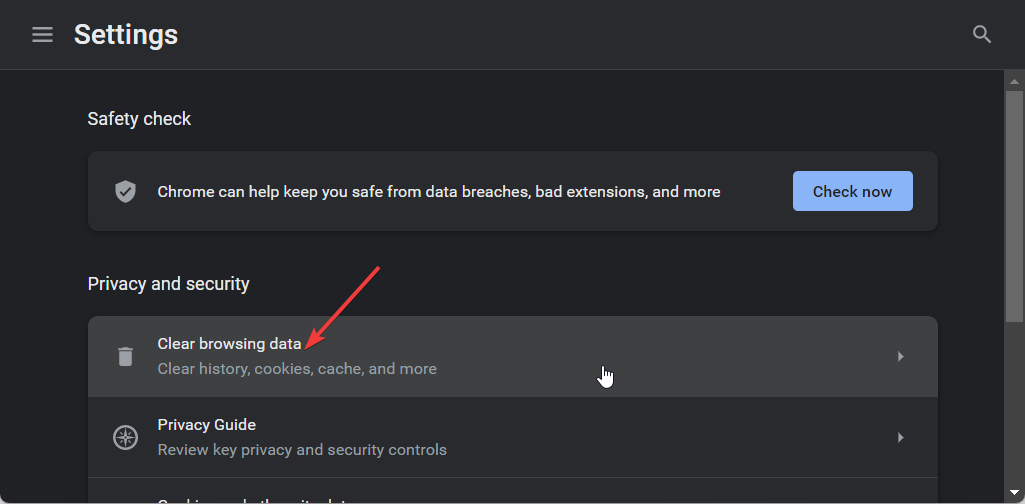
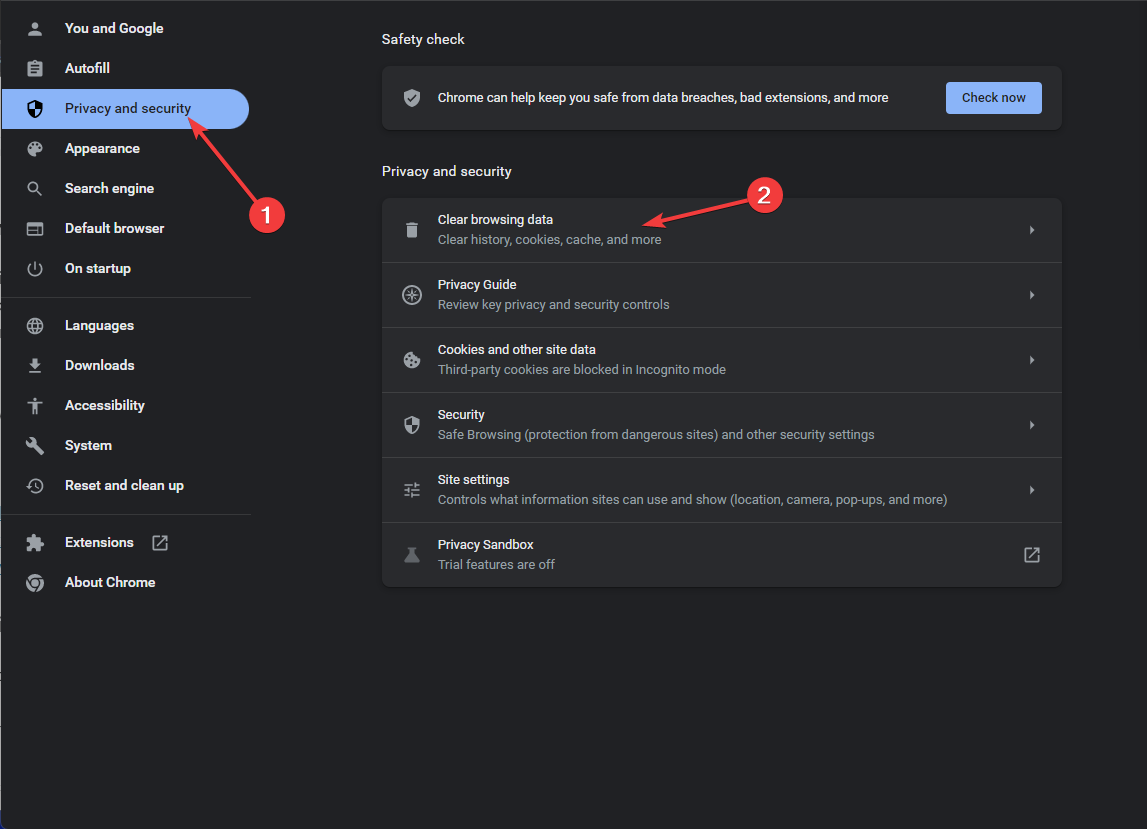
  3. Go to Privacy and security and click Clear browsing data.
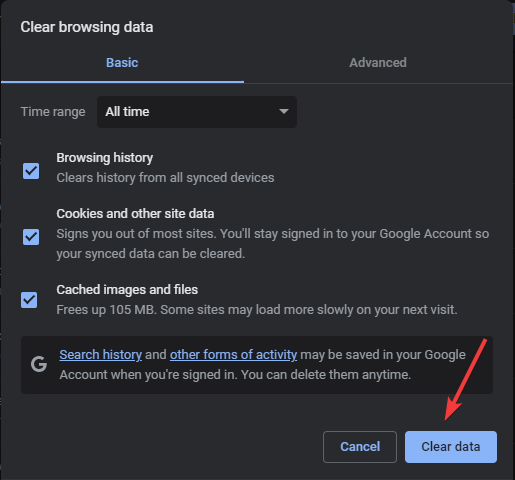
  4. Select Browsing history, Cookies and other site data, & Cached images and files, then click Clear data.

4. Reinstall the app

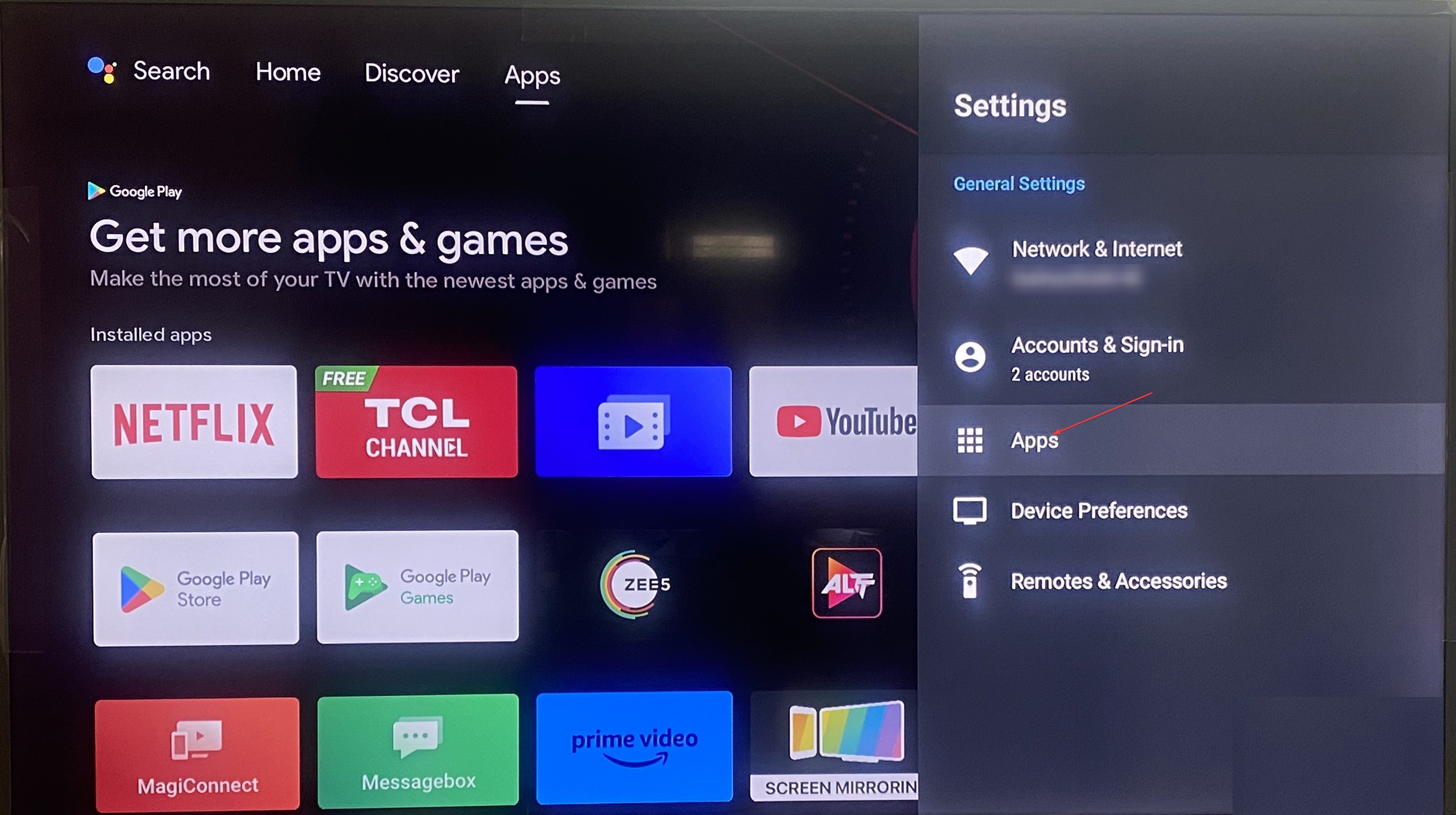
  1. Open the Settings app on your Android TV.
  2. Select Apps.Apps paramount plus fatal error
  3. Locate the Paramount Plus app and open it.
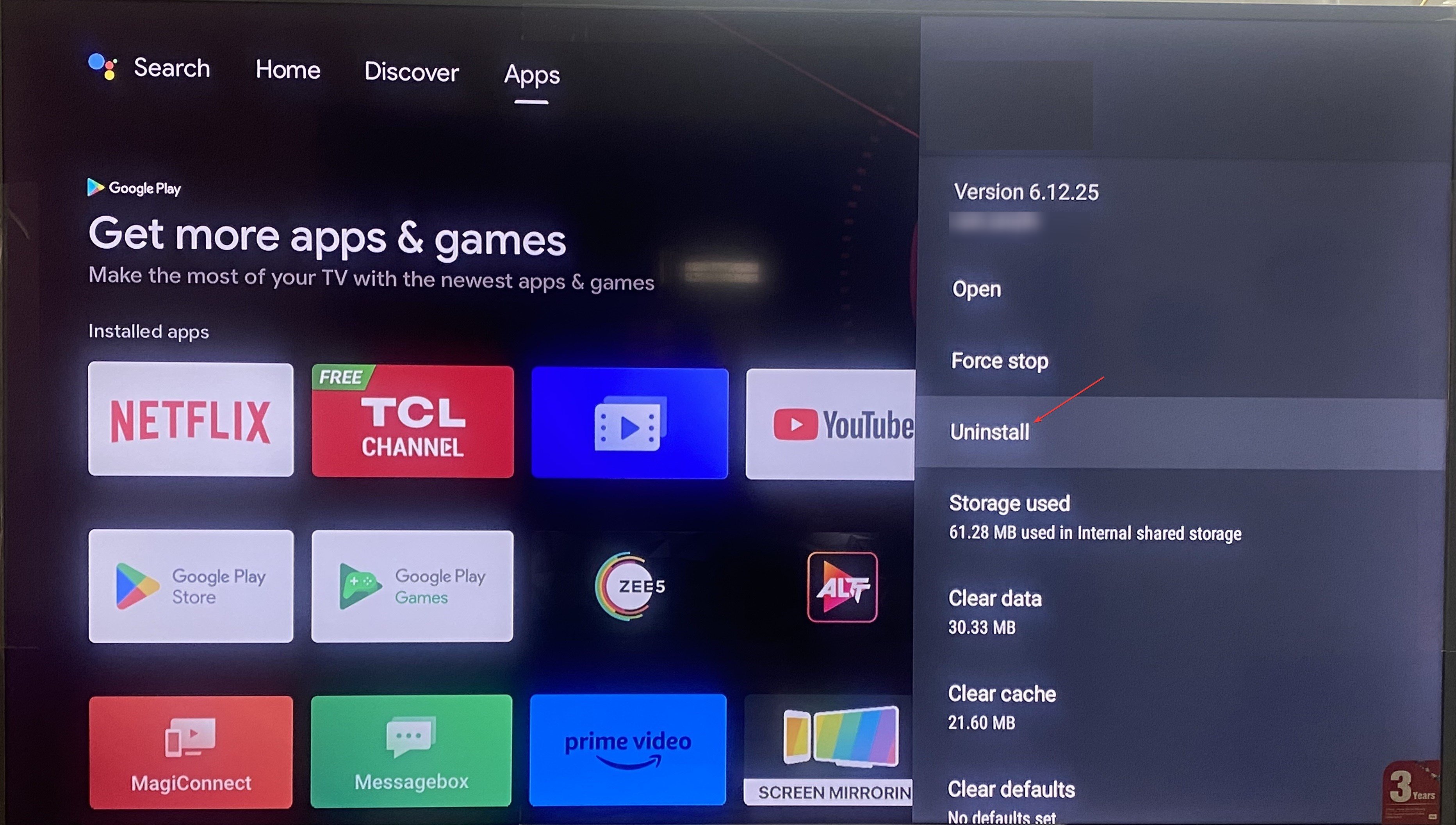
  4. Choose the Uninstall option.Uninstall app 1 paramount plus fatal error
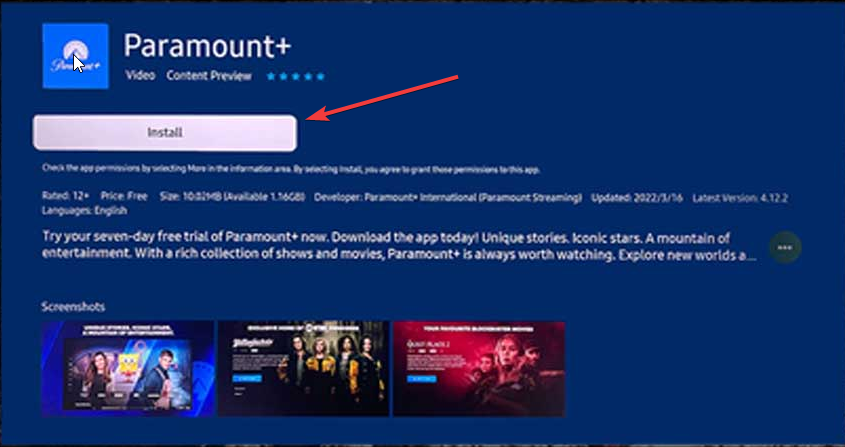
  5. After the uninstallation completes, go to the app store, search for Paramount Plus, and install it. Paramount install

Finally, if none of the above steps have helped resolve the error code 3002, contact Paramount Plus support for assistance. In such times when the servers are bombarded with unusual traffic, it may be difficult to get a prompt response.

As such we’d recommend you turn to other Paramount Plus alternatives to catch up on your favorite shows. And if you’re not about all the hype to watch the live Super Bowl game, you can always catch it later on other sites like NFL+ uninterrupted.

We hope the solutions above helped you fix Error code 3002 in Paramount Plus.

After following those steps messages like Something went wrong should be a thing of the past. Let us know which solution worked for you.

Bad news for legacy CPU owners: Windows 11 can’t run on old CPUs anymore

Windows 11 came with a new set of requirements, mostly in the CPU department, and while it was possible to circumvent these requirements, that might not be the case anymore.

Keen users have noticed that newer builds or Windows 11 aren’t working on older CPUs. This can be a problem for some users on legacy hardware, so here’s what you should know.

Windows 11 won’t work on legacy CPUs, here’s what you should know

Newer builds of Windows often come with various issues, and we recently wrote about 24H2 Build 26052 installation issues, GSOD, and Sysprep problems. This isn’t the only problem since rolling back from Build 26052 can cause data loss.

Users on Reddit reported that since Windows 11 Build 25905, the system isn’t booting if the CPU lacks POPCNT instructions.

Users also managed to find a list of files that require POPCNT instruction, and as you can see, the list includes many essential system files.

Although this sounds daunting, it’s important to note that these are all older CPUs that aren’t officially supported by Windows 11. A few users pointed out exactly what models are affected:

You need a relatively old CPU that doesn’t have SSE4….

It requires a CPU with SSE4a (AMD Barcelona or newer) or SSE4.2 (Intel Nehalem or newer). So even later Core 2 CPUs (Penryn) won’t work because they max out at SSE4.1.

Note that these are CPUs that are more than a decade old, and some even don’t support Windows 10.

Yes just as I said. Relatively old CPUs which are not at all supported even with Windows 10.

Only affects unsupported PCs made before 2010 basically. Surprisingly there’s still some unofficially unsupported Windows 11 users hanging onto their old PCs from 2007.

As you can see, while this issue is serious, it only affects older and unsupported CPUs. Microsoft already stated that it can’t guarantee compatibility with legacy hardware, so issues like these are expected.

Many are still using older CPUs with Windows 11, and if you want to ensure that there are no compatibility issues, there’s a tool that checks if your CPU is compatible with Windows 11 24H2, so you might want to try it.

NVIDIA to set up a new unit for custom chips, targets the expanding AI market

In a bid to capture the rapidly expanding market and cement its place as the leader, NVIDIA is setting up a new unit to deliver custom-made chips to Microsoft, Google, Meta, and OpenAI, amongst others, as reported by Reuters.

The new unit is also focused on cloud computing firms, but the primary target remains AI (Artificial Intelligence) processors, a sector where NVIDIA is facing competition from Broadcom and Marvell Technology.

At present, NVIDIA commands a market share of 80% in this sector, and its present market capitalization stands at $1.78 trillion.

To ensure that it doesn’t lose on potential clients, NVIDIA will start producing dedicated chips for specific needs, given that the currently popular options, H100 and A100, are an all-purpose solution. The custom-made chips will help companies reduce cost, effort, and time.

As per reports, NVIDIA is already in talks with Microsoft, Google, Meta, and OpenAI, though there has been no official confirmation from any of the parties.

If these reports are true, it will further increase NVIDIA’s market share and shoot the stock’s value higher than ever before!

Xbox consoles are not going anywhere, Phil Spencer reportedly confirms to employees

The last few weeks witnessed a series of rumours regarding Xbox. Speculations were recently rife that Xbox is going digital and that physical games would go obsolete in a few years. A few also claimed that Xbox may stop making consoles altogether and focus on publishing games.

If you are a fan of Xbox consoles, we have good news! According to journalist Shannon Liao in her Substack newsletter, Microsoft’s gaming division CEO, Phil Spencer, in an internal townhall with Xbox executives, shared that the company has no plans to stop making consoles.

Liao also reported that Xboxes would continue to be part of a strategy that involves multiple kinds of devices.

Xbox fans can heave a sigh of relief!

The change may be a result of the major backlash faced by Xbox developers within the gaming community. Several Xbox users have, in the recent past, criticized the tech giant for its approach towards the console.

However, there has been no official confirmation from Microsoft so far on this or other rumours going around. But given how things are, we can expect some changes to be implemented.

At this point, it’s best to wait for Microsoft to share the vision for Xbox, expected in an event this week. It will also put an end to speculations as to whether Xbox-exclusive titles are coming to PlayStation.

What are your thoughts on the recent events? Share with us in the comments section.

KB5035238 (Security update): Microsoft addresses Group Policy issue in oldest Windows 10 Version 1507

Microsoft released a critical security update for Windows 10 version 1507 to address a local elevation of privilege (LPE) flaw, which could be exploited through a Group Policy flaw exploitation.

The patch is deployed through an update to Remote Server Administration Tools (RSAT) for Windows Server 2016. RSAT is a remote server management tool for system administrators that can be controlled from a Windows 10 PC.

According to the Common Vulnerability Scoring System (CVSS), the security vulnerability is given a score of 7.0/10 in terms of its severity and 6.1 in terms of its temporary score and is identified as CVE-2024-20657.

In the support document, Microsoft states:

KB5035238: Security update for Windows 10, version 1507 and Windows Server 2016 for RSAT: January 31, 2024

Summary

This article describes a security update for Windows 10, version 1507 and Windows Server 2016 for Remote Server Administration Tools (RSAT). This update resolves the security issues that are described in the following article:

CVE-2024-20657 | Windows Group Policy Elevation of Privilege Vulnerability

Just like other updates, this security update will be installed automatically via Windows Update under the Settings app.

To download it manually, you can visit the Microsoft Update catalog website and install the update in a simpler way.

You can also get your hands on the update to RSAT from the Microsoft Download Center website. The file size for the 64-bit version is 54.2 MB, and the 32-bit version is 33 MB.

If you face any issues while downloading the update on your Windows 10 PC, feel free to mention them in the comments section below.

Curious if your CPU can handle Windows 11 24H2? This tool will help you find out

We are all impatiently waiting for the latest Windows build, and we know that Windows 11 24H2 is coming later this year.

But can your PC even run the new version? There’s a neat little tool that can answer this question for you.

A third-party tool lets you know if your CPU can run Windows 11 24H2

As you know, Microsoft is already testing this build, and one of the new features in Build 26052 is the support for sudo command.

Unfortunately, this build isn’t without issues, and many reported installation issues, GSOD, and Sysprep faliure. To make matters worse, rolling back build 26052 can lead to data loss.

To avoid these types of problems, it’s always good to know if your hardware is supported, and you can do that, with this tool.

First spotted by Neowin, this little tool comes from Bob Pony on Twitter. He has used Windows 11 Build 26052 to create a Windows PE environment.

To use it, simply download the tool and follow the instructions to boot your PC into it. If your computer manages to boot, it means that your PC is compatible with Windows 11 24H2.

What’s interesting is the fact that Bob managed to boot this environment on a Core i7-3770 which isn’t officially supported. This means that even if your CPU isn’t on the list of compatible devices, you might be able to run this build.

Overall, this is a small but incredibly useful tool that can save you from headaches when installing this build, so you might want to give it a try.

Microsoft ditches Mixed Reality headsets and their compatibility to Windows 11

Windows version 24h2 will no longer support the Mixed Reality headsets. Furthermore, Microsoft put the Windows Mixed Reality on top of their deprecated features list. Thus, if you own a headset you might soon need to forget about it on a shelf.

What happened to Windows Mixed Reality headsets?

The windows mixed reality headsets might soon have no reason to function. In addition, Microsoft stopped working on the function, and they will end it on 1st November 2026 for Windows Home and Pro users. However, if you are using Windows Commercial, the service will end on 1st November 2027.

In the meantime, if there are any errors or issues with the service or the headset, Microsoft won’t help you anymore. Furthermore, the company will no longer add fixes and updates for them.

There are several factors why Microsoft is giving up on Windows Mixed Reality. The first reason is the fact that they are not profitable enough. In addition, the headset is somewhat limited compared to its competitors. On top of that, there aren’t too many apps available for it. Moreover, Microsoft fired some of its VR teams back in 2023.

However, if you want to keep your headset after the end of service, you will have to either use Windows 10 or a previous version of Windows 11 that still supports the feature. Also, you might still be able to use them on some platforms if there are going to be independent developers working on them.

Ultimately, we hope Windows Mixed Reality headsets won’t end as electronic waste. However, it appears that Microsoft is making various changes lately, especially towards AI. So, unfortunately, the future of the headsets looks bleak. Furthermore, if you are still looking for a VR headset, try searching for ones available on most platforms.

What are your thoughts? Are you going to sell your WMR headset before the service ends officially? Let us know in the comments.

The next gen Xbox consoles might be using an Intel APU with AI tiles

Intel might build a semi-custom APU for the next Xbox console. After all, Xbox didn’t sign a new contract with AMD. On top of that, the Windows 11 DirectML developer preview already supports the Intel Core Ultra CPU with an NPU. Thus, there’s nothing stopping the next Xbox console from also using Intel hardware.

Is Xbox making a new system?

Xbox will release a newer version of the series X console this year. Furthermore, the next-gen Xbox console is said to arrive by 2028. So, the new version might have an Intel APU featuring a chip with CPU, GPU, and NPU.

The next-gen Xbox console could be the first one on the market to use AI tiles as a result of having an Intel APU chip. After all, the NPU built by Intel can improve the overall performance of a device, and other functions as well, such as power control. Thus, it could eventually lead to performance differences between the next-gen Xbox console and PS 6.

If you are wondering what AMD is working on, know that they signed contracts with Sony. Thus, they will be making PS 6 and the next PS portable console.

However, as nothing is yet set in stone, Xbox might still sign a contract with AMD and there are rumors about them discussing with Nvidia too. As a result, the whole Intel contract might be just a way to get a better deal from AMD.

In a nutshell, if Xbox signs a contract with Intel, the next-gen console will be a powerhouse with an AI APU. Furthermore, we can’t wait for some news and leaks about it. In addition, we will come back with more details after some official announcements, so stay tuned.

By the way, if you didn’t know, the first Xbox consoles have an Intel CPU. Moreover, Intel is capable of developing consoles and the MSI Claw is the proof.

What are your thoughts? Do you think that the new gen Xbox console will rival PS6? Let us know in the comments.

Lenovo is working on a new AI-based operating system, should Microsoft worry?

Microsoft has big plans for Windows and AI, but other companies are also utilizing AI, and Windows might get a new competitor.

It seems Lenovo is working on its own AI operating system, and we might see it sooner than we think!

Lenovo’s AI-powered operating system is coming this year

According to TechRadar, it appears that Lenovo is developing an AI-powered operating system. This was hinted at during CES 2024, by Lenovo’s executive vice president Liu Jun.

This move comes as no surprise since Lenovo has announced its plan for full-stack intelligence in the past.

According to Liu Jun, this new OS will be built around multi-terminal products, and it will focus on AI PCs and personal agents.

The company is planning to release AI PCs in the first half of this year, and these devices will have multi-modal natural language interaction capabilities.

There are also plans for AI-powered smart terminals, and we expect to see them soon as well.

While this is exciting news, it remains to be seen how will this new operating system compare to Windows.

Speaking of Lenovo devices, Lenovo is working on a transparent laptop and a new Lenovo Tab Plus. Who knows, maybe these will be the first devices with the new AI-powered operating system.

Don’t roll back on Insider Build 26052. It will lead to data loss

Microsoft releasing the Windows 11 Insider Preview Build 26052 got us excited because it was a confirmation that Windows 11 24H2 will be available later this year. But the insider build seems to have more issues than any of us expected!

Earlier, we reported how some of you faced installation challenges with Build 26052, coupled with Green Screen of Death (BSOD equivalent on Insider Build) and Sysprep failures.

Now, it appears that you will have to back up any Dev Drives if rolling back on Build 26052. In a post on X (formerly Twitter), the Windows Insider Program’s handle confirmed that rolling back may break the Dev Drive and lead to data loss.

The information was also added to the official blog post under Known Issues, and a fix for it is yet to be released. So, if you are on Windows 11 Insider Preview Build 26052, do not perform a rollback if using a Dev Drive or get an effective backup solution to keep the data safe.

While it’s expected that Windows Insider Builds will have some problems, such glaring issues can affect your productivity and the system’s stability.

Be it video streaming issues in Microsoft Store apps or a black screen when waking the PC from sleep. Though for the latter, resetting the graphics card using the Ctrl + Shift + B shortcut works.

If you are facing other issues on Build 26052, let us know in the comments section below!

Want to reduce idle power usage on your server/s? Check out these quick tips

Anyone who runs a server has, at some point, tried to figure out ways to reduce the power consumption and, in turn, the costs. But these efforts often go in vain, given the lack of reliable information or due to the fear of affecting performance and stability.

Also, when working on limiting the idle power usage for a server, it’s imperative to understand that you are likely to achieve a 5-30% reduction. Anything higher can be detrimental. Besides, be prepared to initially shell out on the hardware to save on the power consumption.

How do I reduce the idle power usage on the server?

1. Check the power consumption of each component

Your primary approach should be to check the overall power consumption of the server and that of individual components, both in the active and idle state.

If something seems off, especially when idle, check the connections. In our experience, plugging a drive or hardware into the Thunderbolt port of an NUC, if it features one, can increase the idle power usage by 2-7 W. So, only connect devices to the Thunderbolt port when absolutely necessary.

You can also identify the components that consume high power and replace them with more efficient alternatives. It requires both effort and an initial investment but helps save big in the long run.

Also, when we talked to experts, a common opinion emerged that laptop hardware is more efficient than a desktop when it comes to power consumption on a server. So, if you are still in the process of setting up one, go with an Intel NUC instead.

Intel NUC

Besides, you could always use an effective energy management software to reduce the idle power usage of the server.

2. Disconnect non-critical hardware

A server consists of several components, including RAM, CPU, PSU, storage devices, network adapters and more. But not all are critical at every point, and removing them won’t adversely affect the performance or stability of the server.

For instance, if the server has more than enough storage or memory, disconnecting a few drives or RAM will help. The same applies to the CPU and PSU. Of course, while doing so, be careful. If the server was set up by a professional, it’s best that you let them handle the task.

RAM modules

Something you can easily do is optimize the power consumption of the RAM by freeing up slots. For this, simply reduce the number of RAM modules. Say, if you have 8×16 GB RAM, go with 4×32 GB modules instead. This way, you can free up two slots and reduce the power consumption.

3. Use SSDs to store frequently used data

SSDs (Solid State Drives) are more power efficient than HDDs (Hard Disk Drives). As a result, it’s wise to use them to store frequently accessed data because you would want the more active drive to consume less power.

SSD

You don’t necessarily have to replace all the HDDs with SSDs. The existing HDDs can be used to store other non-critical data on the server.

4. Set up efficient cooling

Cooling doesn’t play much of a role on small servers, but if you are looking to maximize power savings, it’s surely an aspect to look at.

For larger setups, review the airflow, identify any hotspots, and take the necessary measures. Often, high-efficiency coolants come in handy in such cases.

For smaller setups, make sure the cooling fans are running at the optimal speeds. When higher, they will consume more power, and at lower speeds, the heat won’t be dissipated effectively. So, you may manually control it or replace the fan.

5. Switch to a cost-efficient power supply

Lastly, you can always switch to a more cost-efficient and environment-friendly power supply source. It will also help reduce the carbon footprint of your server setup.

You must identify other power sources in the region and switch to one that reduces the overall cost. Though easier said than done, it’s still an option you should consider!

With these tips, your server should be much more cost-effective without making any drastic changes and help reduce the power bill. Also, you could reconfigure the BIOS settings for optimal performance.

To share more tips with us, drop a comment below!

Windows 11 24H2 Build 26052 faces installation challenges with GSOD and Sysprep failures

This week, Microsoft released a significant update to the Canary and Dev channels with build 26052. This update introduces various enhancements, including improvements in Registry Editor, Hearing Aid Support, and the addition of Sudo for Windows.

According to reports, we will get another feature update for Windows 11 within the next month.

Talks about the Windows 11 24H2 initially surfaced within a DMSA Group Policy at the end of last year, and then recently, official Microsoft documentation also confirmed it.

This news excited the Insiders as they are eager to explore the first preview of 24H2 and the latest new features it will bring to Windows 11.

However, with the new build, we are bound to have issues. With this build, users have encountered installation issues.

Neowin noticed that their long-time forum member, theXfile commented, that they were facing installation issues with the build. They were not alone; other forum members, Xab and Tantawi, also faced similar issues.

Several Insiders also reported the same problem on Feedback Hub. One of the complaints was:

Trying to upgrade to Build 26052 on my PC failed and rolled back with error code 0XC1900101

According to the comments on the thread, the additional information that came to light was that the installation is failing with error code 0XC1900101, and some are encountering Green Screen of Death (GSOD) with an error message GSOD SYSTEM_PTE_MISUSE.

Some comments also indicated potential Sysprep compatibility issues with an error code 0xC1900101 – 0x30018, and The installation failed in the FIRST_BOOT phase with an error during the SYSPREP_SPECIALIZE operation message.

As of now, there is no resolution for this issue, and we are yet to get official confirmation from Microsoft about a resolution of the installation issue.

Have you faced the same issue? If yes, then mention your experience in the comments section below.

Will Starfield remain exclusive to Xbox?

In a recent development in the ongoing rumors about Microsoft’s gaming strategy, a well-known leaker, NateTheHate, first made the claim that Starfield is all set to come to PlayStation 5.

However, in his latest post on X (formerly known as Twitter), he backtracked on the claim and called it a lapse in judgment.

The claim brought excitement to a lot of game enthusiasts. However, the latter left Xbox and PlayStation fans bewildered.

Now gamers are wondering whether the space-faring RPG will remain exclusive to Xbox or if Bethesda’s highly anticipated title will be available on multiple platforms, including PlayStation.

The possibility of Starfield going multi-platform started circulating in early February when a lot of important insiders claimed that several Xbox games would soon be made available on different platforms.

NateTheHate also emphasized that even though he wasn’t sure which game titles would be included in the move, but we can still expect some Xbox console exclusives going multi-platform.

He also mentioned that we can expect announcements regarding these titles to happen in an upcoming business update event, which is focused on ongoing Xbox multi-platform discussions.

Microsoft’s apparent reluctance to promptly dismiss the early February rumors might indicate that the assertions related to the console exclusives going multi-platform have some reality. However, no one can anticipate the extent of such a move remains unclear.

Even if we accept NateTheHate’s most recent update at face value, it is still unclear whether Starfield was ever under consideration for a PS5 release after the official cancellation of its PlayStation port in 2021.

Now, the gaming community is eagerly waiting for an official announcement from Xbox head Phil Spencer, and until then, the future of Xbox’s gaming strategy remains uncertain.

What do you think which titles would be included in the move? Share your thoughts in the comments section below.

How to Use The Office Customization Tool

The Office Customization Tool creates configuration files that can be utilized to set up and customize Office software in large organizations.

Using these configuration files, you can fully control an Office installation, from the applications and languages to be installed to how apps should be updated and their preferences.

How can I create a configuration file using the Office Customization Tool?

1. Products and releases

  1. Go to Office Customization Tool.
  2. Under Deployment settings, look for Products and releases.
  3. For Architecture, select either 32-bit or 64-bit.
  4. Next, under Products, select the products and applications you want to deploy.
  5. For the Update channel section, choose the channel to determine how frequently you want the client devices to be updated with new features.
  6. Under the Apps section, you will get a list of apps, toggle on or off the switch next to the app that you want to include or exclude.
  7. Click Next.

2. Language

  1. In the Language section, choose the preferred language from the drop-down menu.Language - office customization tool
  2. If you want to add any other languages, click the drop-down menu, choose Full, Partial, or Proofing, then choose the language and click Add. Do the same for the Select additional proofing tools section.
  3. Click Next.

3. Installation

  1. Under Installation, then Installation options, choose either Office Content Delivery Network (CDN), Microsoft Endpoint Configuration Manager or Local source, depending on your preferences.Installation options - Office Customization Tool
  2. Now, toggle on the switch for Show installation to the user.
  3. Click Next.

4. Update and upgrade

  1. Under the Update and upgrade category, go to the Update and upgrade options, and choose the source from CDN, Local source, or Microsoft Endpoint Configuration Manager.Update and upgrade options
  2. You can also toggle on the switch for the Automatically check for updates option.
  3. Under the Upgrade options section, toggle on or off the switch for Uninstall Visio, Uninstall Project, or other options, depending on your choice.
  4. Click Next.

5. Licensing and activation

  1. Go to the Licensing and activation category, toggle on or off the switch for Automatically accept the EULA.
  2. Under the Product key section, enter the product keys for the products you want to install.Licensing and Activation
  3. For Product activation, choose either User based, Shared computer or Device based.
  4. Click Next.

6. General & Application preferences

  1. Under the General category, enter your organization name and add description if you want.General - Office Customization Tool
  2. Click Next.
  3. In the Application preferences section, select the preferences you want to apply while deploying Office. You can look for settings manually, filter the preferences by Office app, and check the description of each setting to understand it better.
  4. Once done, review all the settings and click Finish.
  5. Next, click Export.Export - Office customization tool
  6. Select the Default format and click OK.Select the format
  7. Accept the terms of the license agreement, name the configuration file, and then choose Export.Click Export

Choosing the correct options in the configuration file can also help you avoid the Another installation is in progress while installing Microsoft 365; read this guide to learn more.

How can I edit an existing configuration file using the Office Customization Tool?

  1. Go to Office Customization Tool.
  2. Click Import, and choose the configuration file that you want to edit.Import  - office customization tool
  3. Once you see the file, you can go through all the mentioned sections and make changes as per your preferences.
  4. Click Finish, then select Export.
  5. Rename the file, select the location, and click Export again to save the new file.

How can I save & manage configuration files in the cloud?

  1. Go to the Microsoft 365 Apps Admin Center.
  2. Click Sign in and enter your Microsoft credentials.Sign in - Office customization tool
  3. On the Microsoft 365 Apps Admin Center page, locate Device Configuration.
  4. Click the Go to Office Customization Tool button.Device configuration
  5. Next, click Create, name the configuration file, and enter all the details that you filled in when creating a configuration file. Once done, choose Done. This will save the file automatically to the cloud as part of your tenant.Create
  6. If you want to edit an existing file, double-click the file, make the changes, and select Done.

If you want to access it on another device or use it as a reference, click Get Link, then select Copy to save the link. Remember that the link is valid for only two years.

In case Microsoft Office disappears from a computer in your organization, you can use the configuration file to deploy it again easily.

To conclude, the Office Customization Tool allows you to control how an Office application is installed, updated, and more on a device. Should you encounter issues with installation, you can rely on the Microsoft Support and Recovery Assistant tool.

While we are talking Microsoft 365 app deployment, you may also be interested in learning how to switch accounts in Microsoft 365 web apps

If you have any questions or suggestions about the subject, feel free to mention them in the comments section below

7 Easy Ways to Fix Dev Error 12744 in Modern Warfare 3

If you have encountered Dev error 12744 in Call of Duty Modern Warfare 3(MW3), this guide can help! To fix it, exit the multi-player mode & restart your game, then power cycle the console, check for app updates, verify the game files, use the Scan and Repair option, reset your internet connection, or reinstall the game.

The Dev Error 12744 in MW3 is a technical error code that appears when starting different playlists, such as Mosh-pit in multiplayer or split-screen, so ensure you disable the split-screen feature.

How can I fix Dev Error 12744 in MW3?

Note icon NOTE
The solutions here are for a Windows PC, but the solutions remain the same for those playing the game on Xbox or PlayStation.

1. Power cycle your router

  1. Remove the router and modem plug from the power outlet.
  2. Now, wait for 15-30 seconds, then plug the modem and router back into a power outlet.
  3. Wait for 2-3 minutes, then turn on the power.

In case you are using the console to play this game, try power cycling your console and then try playing it.

  1. Press Ctrl + Shift + Esc to open Task Manager.
  2. Navigate to the Processes tab and look for a process related to either Steam or Battle.net, depending on your client.
  3. Once located, right-click the process and select End task from the context menu.End processes - Dev Error 12744 in Modern Warfare 3
  4. Also, look for other game-related processes and follow the same steps to close them, then restart the game to check if the issue persists.

Closing all the processes related to the game can help you fix other issues like Dev error 841; read this guide to learn more.

3. Run MW3 as an administrator

  1. Locate the game shortcut from the desktop, right-click it, and select Properties.
  2. Now, go to the Compatibility tab, and under Settings, place a checkmark next to Run this program as an administrator.Run MW3 as an administrator - dev error 12744 mw3
  3. Click Apply, then OK to save the changes.

4. Repair the game files

Steam

  1. Press the Windows key, type steam or in the search box, and click Open.Steam - open - dev error 12744 mw3
  2. Go to Library, right-click the game, then select Properties from the context menu.Properties of game -dev error 12744 mw3
  3. From the left pane, click Installed files, then click Verify Integrity of Game Files.Verify integrity of files
  4. The scan will start, and all the missing or damaged game files will be replaced with healthy files.

Verifying the game files can also help you fix the MW3 reset rank error; read this guide to learn more about the issue.

Battle.net

  1. Press the Windows key, type battlenet in the search box, and click Open.
  2. Go to the Games tab, select Call of Duty, and click the Settings button located next to the Play button.
  3. Now choose Scan and Repair.Scan and Repair  - dev error 12744 mw3
  4. Click Begin scan and wait for the process to complete. This scan will repair the damaged game files, and it may take some time.Begin scan

5. Clear cache (for console users)

  1. Press the Guide button on your console controller.
  2. Go to Settings and choose System Settings.
  3. Click on Storage.Storage  - dev error 12744 mw3
  4. Select a storage device, press the Y button on your controller to get Device Options.
  5. Click on Clear System Cache under the Device Options screen.Clear system cache
  6. Now click Yes to confirm when you see the storage device maintenance prompt.

Clearing system cache can also help you fix the MW3 error code 14515; read this guide to learn more about the issue.

6. Display overlays

  1. Press the Windows key, type steam or in the search box, and click Open.Steam Open - Dev Error 12744 in MW3
  2. Locate & click Steam from the top left corner, then select Steam Settings.Settings
  3. From the left pane, select the In-Game tab and toggle off the switch for Enable the Steam Overlay while in-game.Enable overlay

7. Reinstall the game and game launcher

  1. Press Windows + I to open the Settings app.
  2. Go to Apps, then click Installed apps.Apps, installed apps - dev error 12744 mw3
  3. Locate the game, click the three dots icon and select Uninstall.Uninstall
  4. Click Uninstall again.
  5. Now locate the game launcher Steam or Battle.net and remove it too.
  6. Go to the official website of Steam or Battle.net and click Download to get the exe file.
  7. Double-click the file and follow the on-screen instructions to complete the process.
  8. Once done, launch the game launcher, locate Library, locate the game, and click Install.

In conclusion, to fix the Dev Error 12744 in MW3, exit the multiplayer mode, restart the game, and ensure you have a stable internet connection.

Next, check if the game is up to date, then verify the integrity of game files on Steam; if using Battle.net, try using the Scan and Repair option instead to repair the game.

If nothing worked for you, you need to reinstall the game and the game launcher for a fresh start. In case the issue persists, try contacting Activision support and explain to them the issue & steps taken for further assistance.

Before you leave, don’t miss our latest guide on Dev error 12502 and learn how to fix it.

If you have questions or suggestions about the subject, feel free to mention them in the comments section below.

How to Fix EA Play Trial Error on Madden 24

Many users have reported getting the EA Play Trial error on Madden 24 error on their computer or console while launching Madden NFL 24. To fix it, try logging into another account, then logout & log back to the main account, ending all processes of the game, checking for updates, restarting your device or console, or reinstalling the game.

How can I fix the EA Play Trial Error on Madden 24?

Note icon NOTE
The solutions mostly here are for a Windows PC, but the solutions remain the same for those playing the game on Xbox or PlayStation.
  1. Press Ctrl + Shift + Esc to open Task Manager.
  2. Navigate to the Processes tab and look for a process related to Electronic Arts and Madden 24.
  3. Once located, right-click the process and select End task from the context menu.End processes - EA Play Trial Error on Madden 24
  4. Also, look for other game-related processes and follow the same steps to close them. Now, restart the game to check if the issue persists.

2. Clear the system cache (for console users)

  1. Press the Guide button on your Xbox/ PS controller.
  2. Go to Settings and select System Settings.
  3. Choose Storage.Storage - EA Play Trial Error on Madden 24
  4. Select a storage device, and press the Y button on your controller to open Device Options.
  5. Click on Clear System Cache under the Device Options screen.Clear system cache
  6. Now click Yes to confirm when you see the storage device maintenance pop-up.

3. Update the game

  1. Press the Windows key, type ea, and click Open.EA OPEN -ea play trial error madden 24
  2. Go to My Game Library, right-click Madden 24, and choose Check for Update or Update Game.
  3. If there is an update available, follow the on-screen instructions to install it.

4. Reinstall the game and game launcher

  1. Press Windows + I to open the Settings app.
  2. Go to Apps, then click Installed apps.Apps, installed apps - EA Play Trial Error on Madden 24
  3. Locate the Madden 24 game, click the three dots icon, and select Uninstall.Uninstall the app
  4. Click Uninstall again.
  5. Now locate the Electronic Arts game launcher and delete it, too, using the same steps.
  6. Go to the official website of Electronic Arts and click Download the EA app to get the .exe file.Download EA for Windows
  7. Double-click the file and follow the on-screen instructions to complete the process.
  8. Once done, launch the game launcher, locate Library, locate the game, and click Install.

If nothing worked for you, you need to contact the Electronic Arts support team and explain to them the issue, & steps taken to fix it for further assistance.

For a more in-depth guide on how to open ports for MaddenNFL 20, visit this helpful guide.

In conclusion, to fix the EA Play trial error on Madden 24, use another account on EA, close all processes related to the game, then restart it.

Next, check the game for updates, restart your computer, clear the system cache of the console if using, or reinstall the game.

In case you are facing other issues while playing Madden NFL, here is the list of common issues of the game with their solutions; check it out! You can also check out our detailed guide on controller mapping issues.

Before you go, we have a great guide on how to get EA Play early access, so don’t hesitate to check it out.

If you have any questions or suggestions about the subject, feel free to mention them in the comments section below.

Windows 11 now has a new ARM browser

In a significant leap forward for Windows 11 on ARM PCs, Brave browser announced that it is now optimized for ARM64, ensuring better performance on your devices.

This also means that apart from Chrome and Edge, you can now use Brave for a better browsing experience.

There is no perfect time for this news to come out, as there is a surge of interest in ARM computing due to Qualcomm’s upcoming Snapdragon X Elite processor, redefining the landscape of ARM computing in 2024.

Brave DevOps director Mihai Plesa tweeted on X (formerly known as Twitter)

ARM64 Brave on Windows is now stable and offers native performance. You also get to enjoy the same features we offer on x64/x86 like Widevine, IPFS, Tor.

Last month, Google also released a native ARM64 version of Chrome, but Brave has stolen a march as this version of Chrome is still being tested in Canary.

You can download the ARM64-optimized Brave browser from GitHub, the Microsoft Store, or Brave’s official website.

Is Qualcomm’s Snapdragon X Elite a game changer for Windows 11 on ARM?

2024 looks promising for Windows 11 on ARM PCs, all thanks to Qualcomm’s Snapdragon X Elite processor.

Microsoft is busy refining Windows’ ARM version, and this latest Qualcomm could help bridge the gap with competitors like Apple.

Qualcomm claims that Snapdragon X Elite can outperform Intel’s Core i9-13980HX and Apple’s M2 Max, and there are leaked benchmarks that support the assertions.

With a neural processing unit (NPU) optimized for local AI processing, the Snapdragon X Elite could help build a powerful Windows 11 on an ARM PC.

The advantages of this processor include powerful computing capabilities, long-lasting battery life, lightweight design, seamless cellular integration, and efficient local AI processing.

Windows 11 on ARM Gaining Mainstream Support

Apart from Qualcomm’s flagship processor, major players like Google have released an ARM-based Chrome browser, showing its support and acceptance of Windows 11 on ARM.

People are eagerly waiting for Snapdragon X Elite’s mid-2024 launch and envision a collective effort among chip manufacturers and developers to optimize apps for Windows 11 on ARM.

With the powerful companies coming forward to support and the mighty processor, Windows 11 on ARM could be a competition for Macbooks and Windows 11 PCs with Intel/AMD processors

Do you think this could affect the computing landscape? Share your thoughts in the comments section below.

Next-gen Xbox is ditching the built-in disc drive

According to the rumors circulating in the gaming community, the next-generation Xbox console may follow in the footsteps of the PS5.

In order to make it slim, the console is ditching the built-in disc drive, which means users will have to buy it separately.

This move aligns with Microsoft’s mission for an all-digital Xbox future, with an affordable Series S with no disc drive and an Xbox Game Pass subscription service expanding its library.

According to sources from MAGG

The next-gen Xbox console will be an all-digital console

Looks like Microsoft is taking a page from Sony’s PS5 playbook and will have an external panel for attaching/removing the hard drive, which means you can get your hands on the console at a lower price.

Microsoft used the dual-console approach with the current Xbox generation with the cheaper Series S and mighty Series X.

However, this time, the Redmond tech giant will release a single console with no hard disk in a strategic move to lower the price without compromising on power.

If we talk about the current Xbox generation, the Series S is undoubtedly easier on the pocket, but as it has lower power, the developers faced challenges, causing delays in projects like the Xbox port of Baldur’s Gate 3.

Therefore, releasing one powerful console can help streamline game development, offering a robust platform for developers.

However, Xbox’s commitment to backward compatibility, which lets users play classic hits from previous-generation consoles, might not be possible in the next-generation Xbox, lacking a disc drive. This is because a disc drive is necessary for gamers with physical game collections to access their old libraries on the next-gen console.

In spite of all these factors, if the next-gen Xbox does not have a disc drive, then it is indeed a step towards an all-digital future.

This will be convenient and affordable for many and has an aesthetic appeal to it, but physical media is important for preserving games.

Therefore, no matter how revolutionary this decision could be, Microsoft might face backlash from some people from the gaming community.

What do you think about an Xbox without a disc drive? Share your thoughts in the comments section below.

Solved: Palworld Keeps Crashing on PC

Games crash all the time, but lately, Palworld keeps crashing frequently, especially on PCs. If this is the case with you, it’s likely because of the new update.

Aside from a faulty patch update, insufficient hardware resources, graphic settings and, corrupt game files all contribute to Palworld crashing.

How do I fix Palworld if it keeps crashing on my PC?

1. Launch the game from its executable file

  1. Start by disabling multi-player mode off.
  2. Go to the Palworld location. (This will differ depending on your OS): C:\Program Files (x86)\Steam\steamapps\common\Palworld
  3. Search for Palworld-Win64-Shipping, right-click on it, and select Run as administrator.
  4. Now turn back on multi-player mode.

2. Disable Vsync

Note icon NOTE
This step only applies to users with an NVIDIA graphics card.
  1. Click on Start and search for Nvidia Control Panel, then hit Enter.
  2. Under 3D Settings, click on Manage 3D Settings. manage 3d settings in nvidia control panel.
  3. Under Global Settings, scroll until you find Vertical Sync. turn on vsync.
  4. Click on the dropdown menu and change to Off.

VSync, although known for improving your graphics, it may be counter-productive if your game already has stability issues. You can turn it off and observe if there are any improvements.

However, if Palworld keeps crashing on your PC when VSync is turned off, you need to explore other troubleshooting options.

3. Force DirectX11

  1. Go to your Steam Library.
  2. Find the game and right-click it, then select Properties.
  3. Under the General Tab, click Set Launch Options and a dialog box will appear.
  4. Type in the dialog box at the end of the target string -force-d3d11 and click OK.
  5. Close the Properties window.
  6. Run the Palworld game.

If DirectX11 doesn’t work, try switching to DirectX12 provided your PC meets the system requirements. The DirectX feature is known for introducing stability and performance to games running on older hardware.

If Palworld was crashing because of compatibility issues, forcing DirectX could even out the playing field.

4. Update graphic drivers

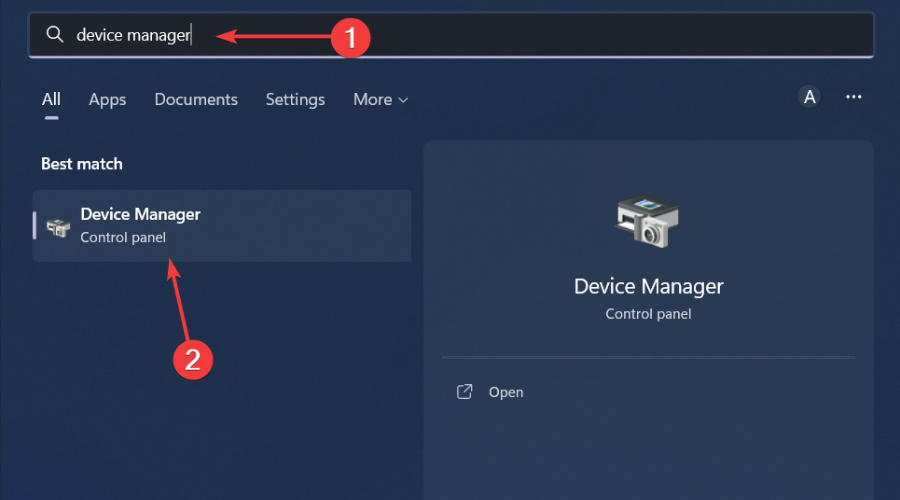
  1. Hit the Windows key, type Device Manager in the search bar, and click Open.device manager w11
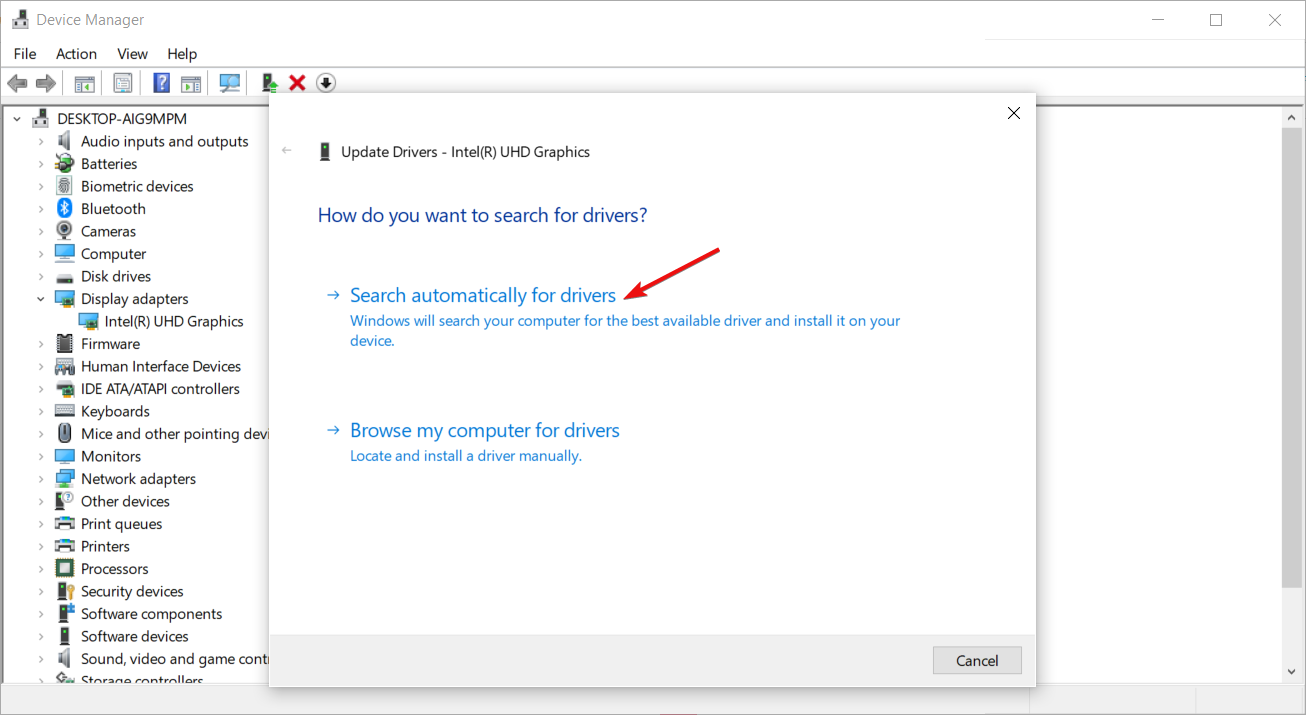
  2. Navigate to Display adapters to expand, right-click on your graphics card, and select Update driver.Graphic Driver Update
  3. Select Search automatically for drivers.

Also, updating drivers can be an easy task if you go for a dedicated driver updating software because it can help you scan your computer and update all your drivers in just a few minutes, with minimum effort.

⇒ Get Fortect Driver Updater

5. Verify the integrity of game files

  1. Launch Steam, and go to the Library from the top.
  2. Now, right-click on Palworld and select Properties from the context menu.properties
  3. Go to the Installed Files tab, and click on Verify integrity of game files.verify game files to fix palworld disk write error
  4. Once the process is complete and all missing files are replaced, relaunch Palworld and check whether the login error is fixed.

6. Perform a memory test

  1. Press the Windows key, type Windows Memory Diagnostic, and click Open. 
  2. Click Restart now and check for problems.memory-diag-tool 3 easyanticheat.sys
  3. The computer will restart and the tool will run the memory test. memory-diag-tool
  4. You can change the test options by pressing F1.
  5. Once the scan is complete, you can check for errors under Event Viewer. 

Memory leaks, faulty RAM sticks or even overclocking your CPU can all lead to Palworld crashing frequently on your PC. Ensure you also disable overclocking then relaunch the game.

7. Reinstall Palworld

  1. Launch Steam and click the Library tab at the top.
    library unrecognized game files cannot continue
  2. Right-click the problematic game and select Manage > Uninstall.
    manage uninstall
  3. Now, confirm your action by selecting Uninstall.
    uninstall button
  4. Finally, go to the Steam Store to redownload the game.

Overall, Palworld has had its own fair of issues since its launch. From login errors to disk write errors, the list seems to be endless. It begs the question whether it will be able to stand the test of time.

However, we can cut the developers some slack as it is fairly a new game. What we can do as players of the game is to make prompt reports whenever an issue occurs to get the developers on it as soon as possible.

This way, improvements can be made gradually until the game reaches a stable position.

The game has issues on other platforms, and we recently wrote about Palworld save error on Xbox, so don’t miss that guide.

Have you experienced a Palworld crash recently? What troubleshooting solutions did you apply? We’d like to know. Drop us a line below.

Microsoft announces Windows 11 Insider Preview Build 22635.3140 (Beta Channel)

Microsoft announced Windows 11 Insider Preview Build 22635.3140 (KB5034851) to the Beta Channel; many changes, improvements, and fixes will be introduced. Here are the changes you will see:

Copilot in Windows

Copilot in Windows

To enhance the accessibility of Copilot in Windows, Microsoft has relocated its icon to the right side of the system tray on the taskbar.

Also, the Show Desktop option, which is present in the far-right corner of the taskbar, will be turned off by default.

Start menu

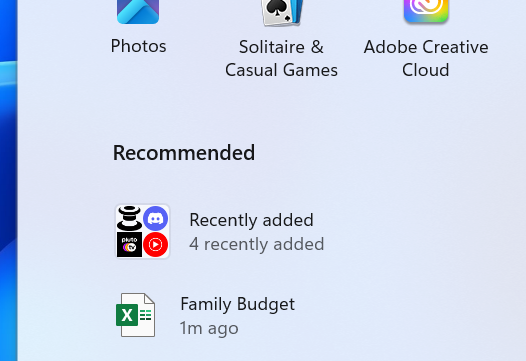
Grouping of recently added apps under the Recommended section of the Start menu.

In the Start menu, recently added apps will be grouped into a folder under the Recommended section, but the feature is being rolled out to select Windows Insiders in the Dev Channel.

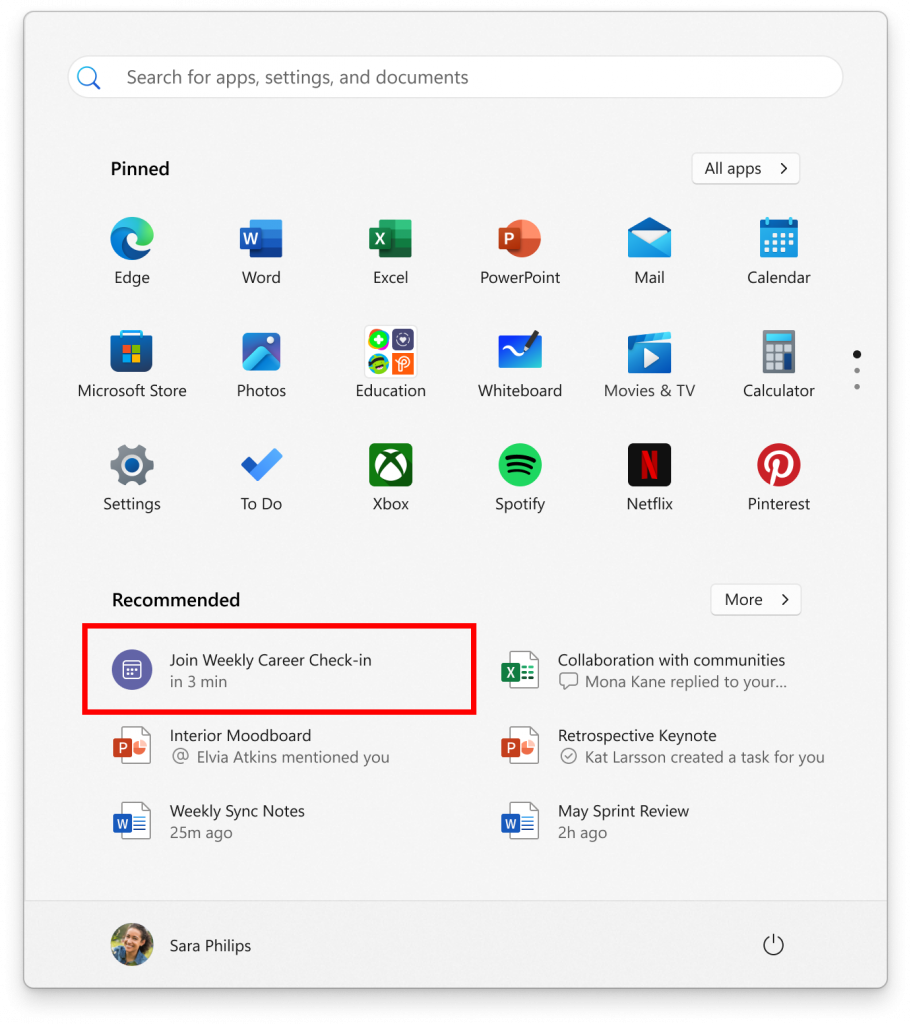
Furthermore, people with Microsoft Entra ID accounts logged into Windows 11 Pro or Enterprise editions can now view and join upcoming Microsoft Teams meetings directly from the Start Menu.

Join upcoming Microsoft Teams meetings directly Start menu.

The next upcoming online Teams meeting will come up as a Recommended item five minutes before it begins, and you can click the meeting recommendation to open the join meeting flow in Teams.

Microsoft also informed that from now on, the Redmond giant will categorize changes in Beta Channel builds into two buckets: features, improvements, and fixes slowly rolled out for those who have turned on the feature to get the latest updates, then new features, improvements, and fixes available to everyone in the Beta Channel.

Another thing that Microsoft stressed was that the updates & features rolled out with this build will not be available to all the Insider in the Beta Channel instantly.

In case you want to join the Insider Program on your Windows 11 computer or download an Insider Preview to get new features and updates as they release, read this guide.

What do you think about new features and updates by Microsoft? Share your thoughts in the comments section below.

More than 2 years later, Windows 11’s taskbar is getting new thumbnails and animations

Earlier this week, Microsoft released the 26052 build to the Dev and Canary channels, effectively allowing Insiders to switch between the channels at will, temporarily.

The build is quite huge and introduced dozens of new features including a new audio mic test, enhancements for hearing-impaired Windows users, and Sudo commands, but it also introduced several undocumented and hidden features, such as the new Speak for me feature, and a surprise, new thumbnails and animations to the Windows 11’s taskbar.

Spotted by Windows enthusiast and insider, @PhantomOfEarth, the new thumbnails follow the Windows 11 theme, and they seem rather slick. It also adds animation to the taskbar, in feature reminiscent of Apple’s MacOS.

However, the features are hidden for now, and for good reason, because they look unfinished and glitchy. Users can still enable them via a special command through the third-party app, ViveTool, with this special command (credit to the spotter, @PhantomOfEarth):

vivetool /enable /id:29532725

If you don’t know your way around ViveTool, then we advise you not to try to enable this feature, even if you are enlisted in the Windows Insider Program. However, if you do want to give it a try, then we have this comprehensive guide that will help you understand the process step-by-step.

You can also wait for Microsoft to release them, as the new thumbnails and animations on Windows 11’s taskbar will be released to the Insider channels first in a few weeks.

Want to uninstall Edge? Guess what, you’ll need it to run the new Outlook

Microsoft’s push for native apps seems to have gone to the next level. In a Reddit post, a user shared getting an error while running the new Outlook app. The message reads, The new Outlook for Windows needs Microsoft Edge to be installed.

Soon, users started pointing out how Outlook for MacOS is better than the version for Windows.

The reason, it seems, is that Microsoft 365 apps now rely on WebView2. Outlook uses Microsoft Edge WebView2 to render web-based features on the PC application.

When we investigated further, it appears that people have been complaining about it since January’24. In a post on the Microsoft community forum, a user came across the same error message even though Edge was installed. The post reads,

I am a paid subscriber to Microsoft Outlook 365 using Windows 11 64 bit. I installed the ‘new’ Outlook App and it seemed to work okay, until yesterday would not load stating that Microsoft Edge needs to be installed to run.

Though, for him, repairing Microsoft Edge did the trick!

Repairing Microsoft Edge

To do that, open the Control Panel > select Uninstall a program > choose Microsoft Edge > click Change at the top > click the Repair button.

But if you, like many others, have uninstalled Microsoft Edge, this error should be a cause for concern!

This push by Microsoft won’t be seen in the right spirit as long as it’s been added on purpose and is not a bug.

Even if the move is aimed at getting more people to switch to Microsoft Edge, there’s a lot of ground to cover.

Microsoft Edge is far behind Google Chrome in terms of user base. As per Statcounter, while Chrome commands 64.38% of the market share, Edge stands at a feeble 5.35%.

Let’s see how things pan out in the coming days as more users report this to Microsoft!

If you, too, faced the issue, share your experience in the comments section.

Exciting News: Windows 11’s new features will come this month

Microsoft is all packed and ready to release the newest Windows 11 feature update, also known as Moment 5, later this month or at the start of next month.

This feature update is anticipated to be smaller as compared to previous moment updates, and the main focus of this one is to deliver essential changes to the operating system to ensure it is DMA( Digital Markets Act) compliant.

Along with that, you would get quality-of-life improvements and upgrades to inbuilt accessibility features, improvements to Windows 365 cloud PC integration, and an option to remove Bing from Windows Search and News from Widgets Board. But, there is more.

1. DMA compliance and app changes

Looks like the Moment 5 update will be all about regulatory compliance. Microsoft intends to add more native apps to the uninstallable list. The apps that will added to the list are Edge, Camera, Cortana, and Photos.

So, if you are not a fan of any of these apps, you might be disappointed as you won’t be able to uninstall them anymore, and with Microsoft pushing intrusive ads to use Edge, it may be annoying for some.

Moreover, with this update, the Windows Search pane will be interoperable, which means opening avenues for third-party providers such as Yahoo or Google to build a plugin for the Search pane. This will give you a choice to switch from Bing to any search provider you like.

2. Focus on accessibility

Tablet users get enhanced capabilities with Moment 5, such as the ability to ink directly into text boxes across the operating system, providing seamless experiences for those using digital pens.

Now, the Voice access feature gets support for multiple monitors, and you also get the ability to use voice shortcuts for custom voice commands. Moreover, you can now use Narrator to open apps, interact with elements on screen, and dictate text.

3. Revamping the Widgets Board

While keeping the user preferences in mind, Microsoft will now give you the option to disable Microsoft News integration with the Widgets Board so that you can turn off the Microsoft Start news feed on the Board’s settings page.

Furthermore, just like the Windows Search pane, the Widgets Board will be interoperable, allowing third-party news services to create plugins for integration.

4. App enhancements and store innovations

With Moment 5, Notepad can now count the characters, and you can see that at the bottom of the document, making it easier to check your text’s length.

Microsoft Store is undergoing a visual overhaul and getting a new Arcade tab, which will enable you to play instant games without even downloading them. These games are basic and good for killing time, especially if you are waiting for an operation to be completed.

5. Windows 365

Microsoft will reinforce the integration of Windows 365 in the Windows 11 environment, allowing organizations to customize the login page with their company logo for more cohesive experiences for their employees.

A new mode called Dedicated Mode for Windows 365 Boot will enable you to seamlessly log in to your Windows 365 PC from a company-owned device.

6. Smart Snap Layouts menu & changes in the casting menu

With a touch of AI intelligence, the Snap Layouts menu analyzes user patterns and will suggest layouts based on currently open apps.

The Casting menu in the Quick Settings panel has also gone under changes and will now walk through the process of use for first-time users.

With Moment 5, Microsoft will also suggest using the Cast feature if you are multitasking by switching between several windows. Also, the All apps button in the Start menu will be changed to All.

7. Copilot gets an upgrade

Copilot can now be undocked, allowing apps to exist underneath the Copilot sidebar. The Copilot interface also has a wider layout, and it shows in the Windows + Alt + Tab menu, which makes it easily accessible and a good option for those who prefer keyboard shortcuts for multitasking.

8. Changes introduced to the Nearby Share feature

Nearby Share, the Windows 11 feature similar to Apple’s AirDrop, will now have friendly name support. You can give your PC a more recognizable name, enhancing the overall file-sharing experience. Moreover, the transfer speed has also been improved.

9. Windows Spotlight as Default Wallpaper

The Windows Spotlight feature pulls the day’s background from Bing and can now be set as the default wallpaper setting. However, this setting will only be applied if you are using inbuilt Windows wallpapers.

Whether it is making Edge uninstallable, the Windows Search pane interoperable, or making changes to the Widgets Board, it looks like the Moment 5 Update is all about DMA compliance.

Moreover, the enhancements and introduction of new features signify Microsoft’s commitment to making Windows a cutting-edge operating system.

Are you excited about the Moment Update 5? Share your thoughts in the comments section below.

This simple feature that works on Windows but not on MacOS drives people crazy

Windows 11 is known for its versatility, strong performance in gaming sessions, and recently added AI features, such as Copilot. Along with Windows 10, it dominates the market of operating systems for laptops and desktop devices (Windows 11 recently reached 400 million users worldwide, while Windows 10 has over 1 billion).

Despite this, many people prefer MacOS, due to its isolated infrastructure, making it a very stable operating system that is perfect for ultramobile situations and it rarely runs into problems. In other words, MacOS users usually don’t have to worry that their device can’t suddenly work anymore.

However, as efficient as MacOS can be, it can still be frustrating to a lot of users due to the lack of useful features that Windows 11 has already.

This Reddit user, for example, points out the Windows vs Mac desktop debate in the best way: while Windows 11 allows users to name and rename each desktop at their will, MacOS doesn’t allow users to do that.

I am using Windows 11 for work and I am so ANNOYED that Apple is too STUPID to at least let me change the name of a space. Creating different environments for different projects works so much better on Windows…I cannot believe it. Clearly there is demand for this F. simple feature and yet Apple ignores it. People go as far a switching off System Integrity Protection (SIP) to enable some hacky tools

Reddit user

While there is a huge demand for the option, Apple hasn’t implemented it yet, but let’s hope the tech giant does, as the ability to name each space (or desktop, in Windows terms) is essential for good organizing, and, as the users say, multitasking.

Windows 11 lets you add as many desktops as you want, and it also lets name and rename them however you want, so that you can keep track of everything easier.

And while Microsoft has dared to let itself be inspired by Apple, such as borrowing the centered design for the Windows 11 taskbar from MacOS, Apple could also learn a thing or two from Microsoft and implement useful features, such as naming each space.

It surely wouldn’t hurt, would it, Apple?

Because now, in a Windows vs Mac desktop debate, for many Mac users, Windows is the winner.

Get a huge deal on the best Xbox headset you can buy right now

Every Xbox gamer may drool over the Turtle Beach Stealth Pro headset because it’s simply one of the best you can buy. It’s used by gaming professionals and you can snag it right now for a great price, even better than it was on Black Friday.

Turtle Beach Stealth Pro is now $110 off

Turtle Beach Stealth Pro is one of the best gaming headsets for Xbox, but it usually goes for $329.99, which is often discouraging if you’re not a big spender.

Well, take a deep breath because this amazing piece of audio technology is $110 off at Woot, bringing it down to $219.99.

As reported by Windows Central, the multi-platform headset was sold on Black Friday for $279, so the new offer is simply amazing.

Here are some of its best features:

  • Swappable batteries
  • Great on-ear controls
  • Interference-free Bluetooth connection
  • Exceptional sound quality

⇒ Buy from Woot

We’re not sure how much will this deal will last but the supply is always limited so we recommend taking a decision fast.

Did you use Turtle Beach Stealth Pro? Tell us all about your experience in the comments section below.

Full screen Copilot coming to Windows 11, Windows CVP shares plan on X

Microsoft has been working aggressively on Copilot, the tech giant’s AI chatbot. We recently reported that Copilot has a super-sized panel and will launch in an expanded window, giving users additional space to chat seamlessly. Besides, it will now open in a side-by-side view.

Windows CVP Shilpa Ranganathan also shared the update in a post on X (previously Twitter) and asked users to provide feedback on Microsoft’s ambitious AI project.

In the same post, a user, Ted Andersen, recommended a full-screen Copilot, to which Ranganathan replied that Microsoft is already working on the feature.

It’s only expected, given Microsoft’s aggressive AI push in recent months. Microsoft added Copilot to Windows 10, introduced a Copilot for Office apps, released an array of new features on Copilot’s first anniversary, and plans to integrate AI into more services and software.

Also, Microsoft recently shared the Copilot ad for the Super Bowl on YouTube, which was seen as a sign of the company shifting focus from Bing Chat to Copilot.

So, if you, too, have any feedback, share it with Microsoft through the built-in Feedback Hub or via social media.

What do you feel about full-screen Copilot on Windows? Tell us in the comments section.

A scalable quantum computer developed by Microsoft is on the way

The Defense Advanced Research Projects Agency (DARPA) invests in Microsoft Azure Quantum to create a scalable quantum computer. In fact, Microsoft just announced on their blog that DARPA is continuing their commitment with the Redmond giant..

What is a scalable quantum computer?

A scalable quantum computer is a device that can handle an expanding number of tasks while increasing its stability as well. Thus, with the help of Microsoft, DARPA tries to create such a device. To build it, Microsoft will use topological quantum bits. After all, they are far better than normal qubits due to their built-in error protection.

If Microsoft manages to develop a fault-tolerant prototype, the device could mark the beginning of quantum computing. Furthermore, with time, they might be able to develop the utility-scale quantum computer that’s supposed to work with real-world applications. However, the FTP will have to process multiple tasks before establishing a baseline for a quantum computer.

On top of having access to the designs of the prototype for the scalable quantum computer, DARPA will closely monitor and verify other discoveries made by Microsoft Azure Quantum during this process.

Ultimately, with a utility-scale quantum computer, it will be possible to lessen the time spent by researchers to test their prototypes. As a result, their focus might shift towards ideas and theories. Thus, the supercomputer will handle the trial-by-error aspects of their work.

To find out more, check out the Innovator Series. Also, if you are interested, you can discover more about the Azure Quantum Elements.

What are your thoughts? Do you need a quantum computer? Let us know in the comments.

Creepy or exciting? Windows 11 will soon be able to speak to you, using your voice

Something creepy or exciting (depending on how you look) was spotted by Windows Insider @PhantomOfEarth in the latest build to the Dev and Canary channels. It’s an undocumented, hidden Windows 11 feature called Speak for Me, that can be accessed on the Accessibility page within Settings.

The feature, which might be released to Windows 11 soon, will give the operating system the ability to talk to users using their voices.

As the feature is hidden, uncovering it using a third-party app such as ViveTool does nothing, as for now, it’s not functional.

However, here’s how Microsoft describes the new feature:

With the help of Speak for me, you can create your own voice avatar or preserve your own voice to communicate with others whether in online meetings or in-person conversations.

Microsoft

Most likely, the feature will allow Windows 11 to create voice commands with your voice, so that you can customize and personalize your experience. Which is rather cool, if you ask us. However, is this the idea of bringing Windows to life that Microsoft mentioned a while ago? While the feature doesn’t involve AI to do that, but your voice, the thought of it is both intriguing and creepy.

Imagine signing up to Windows 11, just for it to greet you with a Good morning in your voice. Speculations aside, we still don’t what and how this feature will work exactly, but we’re about to find out soon, as hidden features often make it to Insider channels in a matter of weeks.

If you’re interested in uncovering the latest Windows 11 Speak for Me page in the Settings panel, then you should use this command in ViveTool to do it (many thanks to @PhantomOfEarth for providing the ID for the command):

vivetool /enable /id:47123936

Once uncovered, the page should look like this.Windows 11 speak for me

However, as we mentioned earlier, turning it on doesn’t do anything. You’ll have access to standard documentation for the feature such as a guide on how to use it, and a privacy statement, meaning you’ll most likely be asked to consent to Microsoft using your voice to give Windows 11 a voice.

Quite uncanny, right? We know.

If your File Explorer is slow & the mouse cursor flashes, blame Adobe. But there’s a fix

Dozens of Windows users everywhere, especially Windows 10 users have noticed a worrying issue happening on their devices in the last weeks: File Explorer would suddenly become slow and unresponsive sometimes.
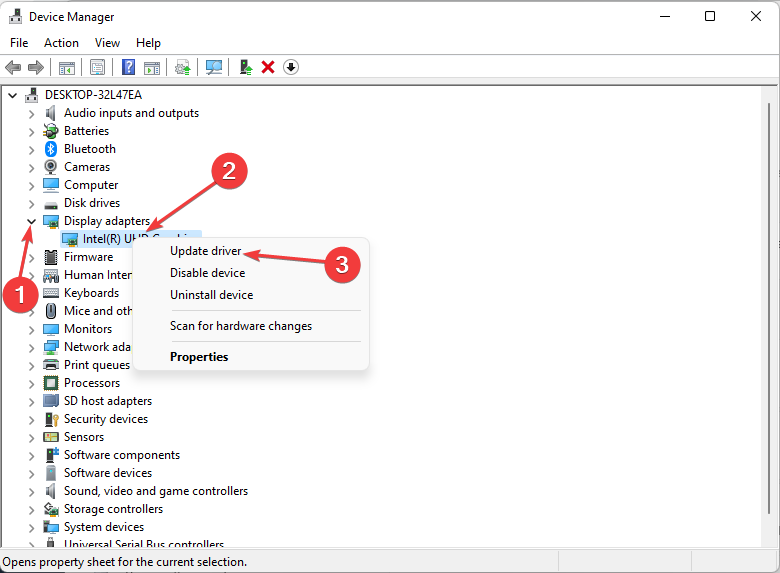
One Windows user mentions their Windows 10 device not responding properly to a simple request:

Hello everybody, not sure how long it is like that, i started noticing it a week ago or so. Whenever i click, doubleclick or mark (click and drag a box) files or folders, the mouse cursor flashes as a loading circle two, three, four times and the system hangs for a moment, then proceeds normally. I think i also got performance issues as i have small lags of 1 second every once in a while (mouse movement stops for a second, then jumps to the new position) while gaming.

Windows 10 user

Many issues cause File Explorer on Windows to become laggy, slow, or unresponsive, and there are also dozens of solutions to make fix these issues. However, in this case, there was a specific issue that not only made File Explorer slow but also caused the mouse cursor to flash.

After many Windows users reported this issue, one user found a common root: all these devices had Adobe Creative Cloud installed.

Many creative cloud users are reporting that in the past day windows explorer has become very slow with everyone experiencing the same problem. Clicking on folders/files in file explorer causes the cursor to flash 3 times and takes 2-3 seconds to load the folder/file on any disk drive. The posts below are starting to pop up in reddit help communities and the common factor is that everyone has Creative Cloud installed. I am experiencing this myself on my work system. Adobe needs to get an emergency fix put out for this.

Windows user affected by the issue

Adobe checked it, and the company confirmed the issue was caused by a recent update released to the Creative Cloud. Luckily, it didn’t take long for the company to come up with fixes for it.

So, if you’re currently experiencing a slow File Explorer on a Windows device, but you also have installed the latest Adobe updates for the Creative Cloud, here’s what you need to do.

Adobe is making Windows’ File Explorer freeze: here’s what you need to do

  1. Close any opened File Explorer windows.
  2. Open the Creative Cloud Desktop App.
  3. Go to the Help panel.
  4. Select Check for Updates.adobe file explorer
  5. Download and install the latest updates for the Creative Cloud Desktop App.
  6. After the installation is successful, open File Explorer again and see if the problem persists.

Adobe says the issue should be gone by the time you open File Explorer, after the installation.

However, if it doesn’t work, the company says Windows users should also try this next solution.

  1. Go to C:\Program Files\Common Files\Adobe\Adobe OS Extension (or the path where Adobe is installed)
  2. Rename the file AdobeExplorerExtensionCore.dll to temp_AdobeExplorerExtensionCore.dll.

These two solutions should entirely fix the issue, as many Windows users said they entirely fix the problem.

Windows XP in 2026? Doable, but definitely not recommended

When Microsoft ended support for Windows XP on April 8, 2014, many of us believed that the OS would go obsolete in a few years, given the popularity of Windows 10, released a year later.

Fast forward to 2024, this isn’t the case!

According to data from Statcounter, Windows XP presently has a 0.57% share among all iterations of the OS. Recent estimates suggest that there are 1.5 billion Windows PCs worldwide.

Based on these figures, the number of Windows XP users can be pegged at 8.5 million (a rough estimate) in 2024. It’s a big number, considering that Windows XP hasn’t received any updates in almost 10 years.

Why are people still using Windows XP?

We will first have to understand why Windows XP was a huge success. The iteration prior to it, Windows 2000, was a failure, and so was its successor, Windows Vista. So, back then, Windows XP was the most user-friendly operating system.

While a large chunk upgraded to Windows 7 after it was released in 2009, some remained skeptical after the debacle of Windows Vista. As a result, they continued with Windows XP because it was still supported.

Now, by the time Microsoft discontinued Windows XP, users were so well familiarized with it after 8 years that upgrading didn’t feel like the right option. Not to mention, it still performed well, allowed access to the Internet, and could run most of the apps.

Many have, over the years, shared their experience of using Windows XP well beyond the EOS (End of Support).

Coming to 2024, the same logic applies. For users who are not facing any issues, upgrading to Windows 11 or the previous iteration seems like a hassle. Why fix something that isn’t broken yet, right?

Should I continue using Windows XP?

No, you shouldn’t use Windows XP anymore. After Microsoft ends support for an operating system, it doesn’t receive security updates anymore. Also, third-party app developers will soon start focussing on newer iterations of the OS and the app version for Windows XP will stop working.

Besides, browsing the Internet on Windows XP is a challenge for two reasons. First, you will have a hard time finding a browser compatible with Windows XP. When we reached out to Windows XP users, most reported running the MyPal browser.

Secondly, you stand the risk of infecting your PC with malware and viruses. Since there aren’t many supported antivirus on Windows XP, and the list is shrinking by the day, security remains a prime concern for users. Microsoft Security Essentials is also not available anymore.

The built-in Windows Firewall does provide some relief, but it won’t guarantee complete protection.

Also, gaming on Windows XP is a problem. Steam has discontinued support for Windows XP. Besides, present-day games demand high power, which most Windows XP PCs lack.

Our recommendation is that you upgrade to Windows 10 because, most likely, Windows 11 won’t install due to unbelievably high system requirements. This will protect your PC, allow running all the latest apps and games, and deliver improved performance.

Do share your thoughts on Windows XP and its performance in the comments section.