While the pandemic has done a number to quite a few in-person events over the past couple of years, E3 has been hit with a handful of non-pandemic related blows prior to today’s cancellation that include both Nintendo and Sony no longer hosting booths, events or gatherings at the event.
Prior to the pandemic, both Sony and Nintendo opted for digital showcases that occurred on different days outside of the E3 schedule, to presumably further control its gaming message for the year.
In light of those transitions, the ESA has been vacillating between hosting an in-person or digital E3 in 2022 to better address its evolving audience and partner base, but now has confirmed it will do neither.
Despite a no show in 2022, the ESA believes it can retrench and return in 2023 with a better showcase to celebrate the gaming community.
E3 will return in 2023 with a reinvigorated showcase that celebrates new and exciting video games and industry innovations.
We previously announced that E3 would not be held in person in 2022 due to the ongoing health risks surrounding COVID-19. Today, we announce that there will also be no digital E3 showcase in 2022.
Instead, we will devote all our energy and resources to delivering a revitalized physical and digital E3 experience next summer. Whether enjoyed from the show floor or your favorite devices, the 2023 showcase will bring the community, media, and industry back together in an all-new format and interactive experience.
We look forward to presenting E3 to fans around the world live from Los Angeles in 2023.
Look for more news and announcements soon.
With Microsoft being the last of the big three scheduled to host a presence at E3 in 2022, it will be interesting to see how the company pivots its gaming message for the year.
It should be noted, in 2021 Microsoft hosted a series of digital gaming events throughout the year to help keep fans up to date and interested in the Xbox platform, it seems fairly safe to assume it may return to form in 2022.
Graphics cards receive so much attention, but the greatest CPUs are now more crucial than ever, particularly in the Windows 11 era.
Many modern CPUs will be enough to get by, but you’ll need one that can multitask effortlessly, especially since there is more running in Windows 11.
The CPU battle has always been a massive battle between AMD and Intel, but which one truly wins in Windows 11?
In this guide, we will do a rundown of the best Windows 11 CPU, and in the end, you should be able to make a more educated purchase.
What should I consider while buying a CPU?
We should start with the obvious one: your budget. You will want to buy a CPU within the price range you can afford. That said, here are a few other factors to consider:
Intended use of the computer
Need for overclocking
AMD / Intel preference
Matching the CPU with the correct socket
What are the best CPUs for my Windows 11 computer?
This AMD Ryzen 9 5900X and the Ryzen 5000 series may be the new CPU gaming kings in town.
The AMD Ryzen CPU model is based on the Zen 3 architecture. The tech seems comparable to Zen 2 on the surface, especially since they’re both 7nm. But in reality, AMD has completely changed the architecture to improve IPC efficiency and performance.
The most significant architectural change between Zen 2 and 3 is that rather than two CCX (Core Complexes) per CCD (compute die), each CCD now only has one CCX, with eight cores on each CCX, as opposed to four cores in Zen 2.
This AMD Ryzen CPU is a 24-thread, 12-core CPU with a boost frequency of up to 4.8GHz.
The AMD Ryzen Threadripper 3960X, released alongside the considerably more powerful Ryzen Threadripper 3970X, may feature the exact core count as the Threadripper 3970X.
It does, however, include a novelle architecture that provides performance benefits and PCIe 4.0, making it one of the finest Threadripper processors available.
The 3960X has a much enhanced single-threaded performance and has effectively removed the quirks that plagued its predecessors. It may be more expensive and needs the TRX40 motherboard and a powerful cooler, but it’s well worth the hype if you can make the most of its capabilities.
You do not often encounter a CPU that destroys anything in its category, but the Intel Core i5-12600K accomplishes precisely that.
This is among the most powerful CPUs available for those who don’t want to spend over a thousand dollars on a single element. This mid-range CPU has ten cores; six of these are multi-threaded Performance Cores.
The first four CPU cores are standard cores, and the next four are for efficiency. That implies you receive the most up-to-date technology even in such a low-cost chip.
This chip arrangement will allow your PC to concentrate on gaming and any other vital activities, without worrying about a Windows 11 update interfering with your framerate and enjoyment.
It’s hard to disagree with the choice of the Core i5 12600K already discussed. It is excellent for gamers, and you would usually not need more.
It’s a beast, without a doubt, but one that requires you to build a system designed around it to shine. You will need a massive PSU and a decent cooler to get the best of this CPU.
This processor leaves lots of capacity for overclocking, which means you can always take it to new heights.
We believe it is about the most powerful gaming CPU available. The issue is that, as expected, it does cost an arm and a leg.
This Core i5 10400F processor is unexpectedly intriguing. It remains available at a reasonable price. Not only is it marginally quicker than the previous-generation Core i5 9400, but the F suffix signifies it no longer uses Intel’s integrated graphics.
Overall, it’s a great value for money option that’s not much more expensive than a Core i3 processor.
It does come with some compromises such as a locked multiplier, which prevents overclocking. However, you might save some money by purchasing an H470 motherboard.
While this CPU may not be the fastest in multithreading, it competes well with AMD’s 3900X which is a decent processor. You should have in mind that in the future, its 6 core capability may be tested with more new upgraded games.
Since the arrival of the Core i5 12400, the Ryzen 5 5600X seems to have fallen the pecking order. However, it is worth noting since it’s a fantastic processor and a lot less expensive if you’re moving from an older AM4-compatible CPU.
If you have a B450 motherboard with a prior version AMD Ryzen processor in your PC today, you might easily upgrade to the Ryzen 5 5600X. This could save you money on a suitable motherboard, something you’d have to forego if you went with any Intel 12th Gen processor.
For gaming, there’s really no difference between the Ryzen 5000 processors, so you’ll get a consistent frame rate with this CPU as you would with the costlier Ryzen 9 5900X. With 6 cores and 12 threads, performing regular tasks would not be a problem.
The Ryzen 5 5600X also includes a Wraith Stealth cooling, which eliminates the need to spend additional money on a cooler.
If you are looking to build a superb Windows 11 PC, any of the processors on this list should work just fine.
Please note that this list has been put together in no particular order. All the CPUs are of excellent quality, and as long as you buy a processor capable of carrying out your daily computing need, it should suffice.
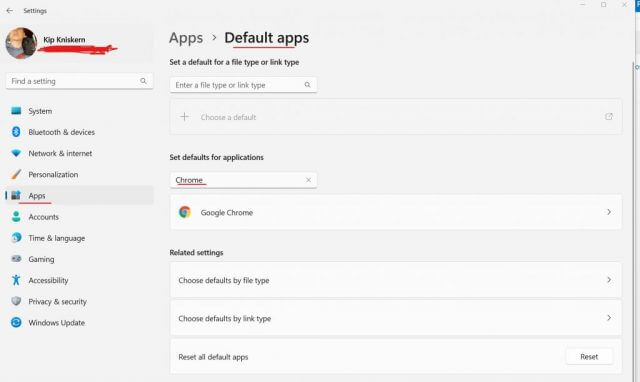
Even though Microsoft has somewhat backtracked on its default browser settings development in Windows 11, some companies such as Mozilla think that “more can be done.”
While the most recent Microsoft default browser settings change gets users closer to the more streamline process of older Windows operating system options, it’s still a rather convoluted process according to Mozilla.
Microsoft’s changes that improve the default browser setting experience for users are a step in the right direction. But more can be done to respect default browser choice on Windows. People should have the ability to simply and easily set defaults and all operating systems should offer official developer support for default status. In practice, we’d like to also see progress on reducing the number of steps required to set a new browser as default, and on opening and making APIs available for apps to set default that other Microsoft applications use.
Mozilla is not alone in their beliefs that Microsoft is muddying the waters with unnecessary hoops to jump through to get the default browser experience people were more accustomed to in Windows 7, 8 and 10.
Over the past year or so, Microsoft has gotten an earful from users and 3rd party browser developers over its curious approach to default settings.
Counter to what Microsoft has done in the past, the company seemed to encourage its Windows team to break down the default browser settings process into both broad and specific selections that involve users understanding what FTP, .svg, .xml, IRC and many other protocols are, less they find Microsoft Edge still popping up in random occasions.
While the company may pitch its Windows 11 default browser change as a granular buffet for IT Admins who are commissioned to assign specific apps to specific protocols, the average user typically wants their default choice to remain their default selection.
As with most software developments, Windows 11 remains an evolving platform and perhaps Microsoft recent moonwalk towards streamlining the default browser experience will be indicative of a future balance for the company, its 3rd party partners and users.
In Microsoft Teams, changing privacy settings like the ability to hide your email, are always the first thing you should configure. Hiding contact information, including email addresses and phone numbers so people that know me and don’t know me can’t find me as easily. When Microsoft announced Chat from Microsoft Teams on Windows 11, I immediately started looking for ways to remove the newly announced app from my PC before I could ever install it.
This guide focuses on making it harder for people to find you on the Chat app from Microsoft Teams on Windows 11. These settings are not available in the Microsoft Teams desktop app for work or school. Here’s what to do.
Hide your email from Chat
1. Open Microsoft Teams
2. Click the three-dot menu (see arrow), then click ⚙️ Settings
3. Click Privacy, click How others can find you and then click Edit contact information
4. Click to toggle your email(s) and/or phone number (s) that you want to remove
5. Click Confirm to confirm that you want to Hide the contact information that you selected from search
By disabling your contact details, your Chat from Microsoft Teams profile will not show up in search results for people who you have never chatted with you in Teams.
The only issue is that people can still find you if you have other Microsoft accounts and Teams profiles. Here’s what you can do to fix that in Chat from Microsoft Teams
1. Go to Your profile and click Manage profile
2. Change the drop down menu next to the email(s) and phone number(s) you want to Hide 3. Click Hide my email to confirm your changes to your primary Microsoft account email address
Of course, you could also choose to make changes to your Microsoft account to lock down what information that you share online publicly.
Samsung is launching a self-repair program for the popular Galaxy S20, S21, and Galaxy Tab S7 products. Beginning this summer, Samsung hopes the program can offer customers a more convenient and accessible way to prolong the use of their devices.
As part of this program, Samsung is partnering with iFixit, and Galaxy owners with the previously mentioned devices will be able to buy genuine device parts, repair tools, and enjoy intuitive, visual, step-by-step repair guides. More information is coming soon, but Samsung says Galaxy device owners will be able to replace parts like display assemblies, back glass, and charging ports. All of the returned parts will go back to Samsung for recycling. Support for additional models under the self-repair program will be coming soon, too.
“At Samsung, we’re creating more ways for consumers to extend the lifespan of our products with premium care experiences,” said Ramon Gregory, Senior Vice President of Customer Care at Samsung Electronics America. “Availability of self-repair will provide our consumers the convenience and more options for sustainable solutions.”
Samsung isn’t the only company to recently launching a self-repair program. Back in November of 2021, Apple announced a Self Service Repair Program, which lets tech-savvy folks complete repairs on iPhone 12 and iPhone 13, and M1 Mac models. Though it’s not a consumer program, Microsoft also partnered up with iFixit back in December. This was to allow repair technicians to buy official Surface repair tools, with the goal of making Surfac repairs faster and easier.
On the consumer side, Microsoft said back in October of 2021 that a third-party organization would study the environmental and social impacts of increasing consumers’ options to repair their devices. It also has taken steps to make Surface devices somewhat repairable with the replaceable SSDs in the Surface Laptop Studio, Surface Pro 8, and Surface Laptop 4, or the all-plastic Surface Laptop SE.
A lot of these policy changes from big tech giants might have to do with new U.S. regulations. Under a recent executive order, U.S. President Joe Biden includes the right to repair. At the time when he signed it, he mentioned Microsoft and Apple by name.
Xbox Game Pass is already one of the best values in gaming, but there’s a chance it could get even better for folks who have multiple game players in one household. According to a report from Windows Central, Microsoft could be working on an Xbox Game Pass Family Plan for launch later this year.
Details on the plan are coming off what Windows Central’s Jez Corden cites as “trusted sources familiar with Microsoft’s efforts.” Per thos sources, Corden believes that the Family Plan could be paid for on a higher tier, with access for “five players for games across an entire library.” This would be cheaper than paying for five Xbox Game Pass accounts, and one person will be able to manage it all, just like Netflix.
It’s not clear if the plan covers both Xbox Game Pass on console, or PC, or both with Game Pass Ultimate. Pricing is also not certain yet either, but it’s good to see that Microsoft is considering this, especially because Netflix and other similar streaming platforms have similar Family Plans. It won’t be new ground for Microsoft, either, as you can already share Office with a single account through Microsoft 365 Family.
While integrated Iris Xe graphics represents what Intel can do with ultra-book-level GPUs, the company is also looking to challenge NVIDIA in 2022 with its new Arc GPU for desktops.
Yesterday, Intel debuted its Arc GPU via a press release and 50 second YouTube teaser. As far as the public is concerned, the only solid information regarding the Arc card is what its physical manifestation will look like.
Intel didn’t get into details regarding turbo boosts, MHz, or clock speeds as of yet, but assured customers that the first retail appearances will be summer of 2022 as “limited edition” releases.
The term “limited edition” may denote a branding scheme similar to its closest competitor in NVIDIA which uses the “Founder Edition” to identify its special brand of GPUs. Along with the “limited edition” Arc cards will come Arc 5 and 7 GPUs and the company’s AI-powered upscaling technology in the XeSS this summer as well.
From a cursory view, the Arc card appears to host an HDMI port alongside three additional DisplayPort connectors which we presume will support 4, 5 and 8K displays.
Intel is doing the long tease for its reemergence in the GPU game with its announcement at CES, its tease yesterday and presumably a few more detail leaks before the systems go on sale this summer. However, AMD and NVIDIA are not sitting by idly as both companies look to push the FidelityFX Super Resolution technology and RTX 3090 and RX6800 respectively.
Perhaps the most interesting thing among these announcements is that GPU makers seem much more confident about acquiring resources in 2022 than scant supplies and deliveries in late 2021.
Fast and Furious Crossroads, a video game based on the Fast and Furious movie franchise, is going to be removed from sale on April 29th just two years after its release back in 2020.
“All product sales of Fast & Furious Crossroads will end on April 29, 2022 – 4 AM CEST (times may vary by region),” the announcement made on the game’s social channels and website reads. “The game & DLCs purchased before this date will still be available to use, and the game’s online modes will remain active.”
As the above mentions, anyone who’s purchased Fast and Furious Crossroads and its downloadable content digitally will still be able to download it and play it at any time in the future. The online servers will also remain active for those still playing its multiplayer modes. This applies to the game on Xbox consoles, Windows PC, and Sony’s PS4.
No reason has been given for the swift removal of the game from sales though its lack of popularity could well be a factor. Fast and Furious Crossroads got a bit of a meh reaction from players and reviewers after it launched in 2020 and it’s possible that it’s been perceived as something that’s tarnishing the Fast and Furious brand which has been super successful globally.
Microsoft’s official Xbox online storefront, Xbox Gear Shop, is in the midst of a massive sale with a large number of items being given discounts as large as 50% off.
While many of the more popular items have already sold out, there’s still quite a few cool products, such as the official Xbox skateboard deck, in stock that are worth checking out.
In addition to the sale, the Xbox Gear Shop has also recently added some new items such as a new Halo Infinite Funko Pop figure based on Escharum and a State of Decay T-shirt and mug.
Drivers on your PC are the most critical piece of component that is responsible for the smooth functioning of not only the hardware that they are related to, but also for the optimal performance of your PC.
You need to ensure that you always have the latest drivers installed on your PC, be it for your mouse, keyboard, webcam, network adapters, display, sound card, etc.
After all, the world has moved to the Internet, and we require an Internet connection for almost every task we do on our PCs or smartphones.
While Wi-Fi drivers come pre-installed and work fine, manufacturers do send out new updates that add new stability features or bug fixes.
This guide is for those who want to know how they can manually update the Wi-Fi driver on their Windows 11 PC.
You can make use of this guide to update the Wi-Fi driver of your Windows 11 PC along with any external wireless adapter. We also have a complete guide on downloading the Realtek Wi-Fi driver for Windows 11.
Why should I download the Wi-Fi drivers? Won’t Wi-Fi work without downloading the drivers?
A software component, aka driver, is very important for your PC to interact with the hardware. It acts as a communication line between the hardware and the PC so that you can perform the intended actions.
For instance, if you wish to change the resolution of your display, then you need to have a dedicated graphics driver or display driver installed that will communicate with the graphics card to change the resolution.
Without a driver installed on your PC, you won’t be able to send signals to the hardware, ultimately making it unusable.
One underlying question is whether the Wi-Fi will work smoothly on your PC if you do not install any drivers for it?
The answer to this is yes. But even if you do not install any drivers for your Wi-Fi, when you plug in a Wi-Fi adapter, your system will detect the device, contact its servers, and install the drivers needed for the device to run automatically.
So, you may think that your Wi-Fi adapter is running without installing a driver, but Microsoft Windows OS does this automatically without bothering you.
Besides, there are several other benefits of downloading a driver on your PC:
Facilitates smooth communication between the PC and the hardware
Includes security tweaks
Resolves all the bugs that may be causing several issues
Will definitely improve the performance
Now that you know about the benefits of downloading Wi-Fi drivers, or any driver for that matter, on your PC, let us take a look at how you can download any Wi-Fi driver on Windows 11.
How can I download any Wi-Fi driver on Windows 11?
1. Download from Windows Update
Press Win + I to open Settings.
Click on Windows Update from the left pane.
Select Advanced options.
Choose Optional updates.
If there is a Wi-Fi driver available to download then, hit the Download & Install button.
Restart your PC.
When you connect the Wi-Fi adapter to your Windows 11 PC, your PC will automatically look for drivers on its servers.
By following the above steps, you can easily download the Wi-Fi drivers without needing to visit the official website of the manufacturer.
2. Download from Device Manager
Open the Start menu.
Search for Device Manager and open it.
Exapnd the Network adapters section.
Select your Wi-Fi adapter.
Right-click on it and choose Update driver.
You can select either the Search automatically for drivers option or Browse my computer for drivers.
We would advise you to select the first option and let Windows install the driver.
Using the Device Manager built-in utility, you can install or update the Wi-Fi drivers on your Windows 11 PC.
It is pretty easy, and again, it negates the need to visit the manufacturer’s website and download the driver.
Instead of making efforts to visit the scanner manufacturer’s website and download the driver for your Wi-Fi, you can make use of a specialized driver updating tool that does the job on your behalf.
4. Download from the official website
If the above methods did not work for you and you weren’t able to download the Wi-Fi driver on your Windows 11 PC, then you can visit the official website of your Wi-Fi adapter and grab the driver from there.
Do note that for this, you need to have an Internet connection. So, you can either make use of the ethernet cable and plug it in directly to your PC or use a mobile hotspot to download the driver.
To identify the Wi-Fi adapter name, open Device Manager and expand the Network adapterssection. Then right-click on your Wi-Fi adapter and select Properties.
Head to the Driver tab, and here, you will find the Wi-Fi adapter name and the version under it.
Sci-Fi movies from even 10 or 20 years ago have envisioned what the future would be like in terms of technology. They didn’t get a lot of things right but they did touch on a very important subject: home automation.
Even in those old movies, you could see that people were aspiring to build homes full of tech that allows for maximum comfort and convenience.
Today’s various gadgets and devices have made that vision true for the most part and people who want to fully automate their homes can finally do so. Of course, devices won’t just magically run and see to people’s every command, so they need software.
In this article, we are going to take a look at the best home automation software for Windows and your best bets for when you want to bring your home “into the future”.
There are quite a few solutions and many of the top picks share some core functionalities that are absolutely necessary for smooth and functional home automation.
However, smaller and less obvious features in some cases compile the bulk of differences.
Between the various automation software solutions that currently dominate the market, and the long list of needs that some homeowners encumber themselves with the hope of creating the perfect automation platform, there are some really nice options out there.
What are the best smart home software for Windows 10?
HomeSeer HS4-Pi Smart Home Software is a very popular choice because it is compatible with hundreds of manufacturers and can be integrated with over 300 web products, apps, and services.
This home automation software is designed to run on Raspberry Pi computers, but it can be managed from other devices as well, as it includes a remote access service.
Users of HomeSeer Software can manage their home devices remotely if they install the dedicated mobile app.
It supports full voice control directly from the application or from one of its integrations.
This smart home management system has tons of free integrations of products and services such as Z-Wave, Harmony Hub, MyQ, Tuya, Chromecast, and more.
We should also note that it works with Amazon Alexa and Google Home Assistant Devices. The tool gives users full control over devices such as door locks and sensors, smart switches, or thermostats.
It also offers support for security camera recordings. These can be accessed from anywhere via the mobile application or web GUI.
Note that Raspberry Pi machines generally use their own operating systems, but users can also install Windows 10 or Windows 11 on them.
Other key features of HomeSeer HS4-Pi include:
Works even without an Internet connection
Privacy and security-oriented
Automatic backups of data on all connected devices
Customizable email and text alerts
To use this automation software you are required to purchase a license. There are a few different packages available, some including additional benefits or integrations.
HomeSeer HS4-Pi
Maintain your home with this advanced smart house software that can work with various smart technologies.
One of the things people are most concerned about when it comes to pairing their devices with software is compatibility.
It can be very frustrating when you implement software that is not fully compatible with all of your machines and gadgets. Luckily, there are solutions such as Domoticz that cover a wide array of home automation devices.
Since Domoticz features support a fairly large range of device families, spreading from the likes of remote controls to sensors and detectors and everything in between, users usually feel safe using this software.
The fact that they can count on a platform that supports all their devices is great and it’s one of the most important things you can look for in automation software.
All the other features aren’t really that great if you can’t get it to communicate with the brand new smart devices you bought.
One of the biggest perks for Domoticz is that it is accessible on a wide range of platforms ranging from your typical computer to smaller things like smartphones and even the ultra-low-cost power solution Raspberry Pi.
On top of the standard software, you also get access to a bunch of additional optional implementations coming from third-party developers.
The software developer features a list of all the third-party perks on their website so it’s easy to see exactly what is available and what you can benefit from personally.
When you put all features together you quickly realize that Demoticz has been developed not just for standard home automation but also the incorporation of much more than that through capabilities such as extensive sharing with both local and external devices.
Being able to use external devices is a great perk in itself, let alone when you integrate them into the overall system.
Speaking of playing with the system, users that go for Demoticz are able to create their own switch codes which can really come in handy in diverse situations.
Other key features of Domoticz include:
Browser-based UI
Compatible with all major operating systems
Auto learning sensors
Another important aspect of this app is that it is open source and free to use, so you will not have to invest anything and get started as soon as you install it.
You definitely can’t talk about home automation without including Calaos into the mix. Home automation has definitely been marked by Calaos, or The Calaos Project as it is also referred to in some circles.
Its intricately designed UIs and strong build with multiple layers make this automation solution a treat. That’s especially true if you’re in need of something you can rely on in terms of community support.
That part has been proven when the community took over from the main development team in rehabilitating and bringing Calao up to speed after being closed in 2013.
If you’re looking for a full-stack platform that serves your every automation need, Calaos might be just what you’re looking for.
Mobility is the key element in the connection between automated homes and the owners that means that you absolutely need a mobile application.
Calaos comes with native software for mobile and caters to both Android and iOS users alike.
The operating system infrastructure is much more complex and developed than that, however, as Calaos provides an additional support software solution through the Linux OS running underneath the mainframe.
The Linux OS is preconfigured and can be of tremendous help when it comes to dabbling with settings and configurations.
The only thing that needs to be noted on the not-so-great side is the fact that a lot of the documentation for Calaos is in French. It’s not universally French however and you’ll still be able to find some English documentation.
However, a big part of the support material is in French including the support forums and a chunk of the instructions included for the software.
Other key features of Calaos include:
Server application
Touchscreen UI support
Web application
If you’re interested in Calaos you should also know that you can find the source files on GitHub. In terms of licensing, it’s featured under GPL v.3.
OpenHAB is the preferred name that this software goes under, but the full name is Open Home Automation Bus.
You can pretty much guess why people are going for the former. That being said, OpenHAB caters to the needs and desires of home automation explorers that have a thing for open source.
This software is supported not just by the developer but also by a thriving community. OpenHAB has quite a large following and it is a well-known home automation solution in specialty circles.
If you’re looking to find a stable and supported platform for your entire array of devices, you can securely give OpenHAB a try as this Java-powered software features many integrations that make your job a lot easier.
Some open-source software tends to cater to more obscure device solutions but that’s not the case with OpenHAB which is going to have no issues with the biggest and most popular tech solutions. In fact, the list of supported devices reaches deep into the hundreds.
However, the thing to know about OpenHAB is that despite its huge compatibility list, it doesn’t strive to cater to any particular device as it is meant to stay clear of “taking sides” if you will.
What that means is that developers have a lot more freedom for adding their own tech into the mix as well as their own plugins.
Device control through OpenHAB can also be done through the associated iOS and Android apps. OpenHAB also comes with design tools that let you play around and come up with your own interface and user experience.
When it comes to making your smart home system truly “yours”, it doesn’t get much more customizable than that.
As you would expect to see from an open-source solution, you can find the source code for OpenHAB on GitHub. More specifically, it’s featured under EPL (Eclipse Public License).
Other key features of OpenHAB include:
Pluggable architecture
Supports 200 technologies and systems
Design rules with time or event-based triggers
Runs the server on Windows, macOS, Linux, Raspberry Pi, Docker
There are multiple things that you should know about this specific software. For starters, this is an open-source meaning that it is highly accessible and it makes for a very easy time on the configuration side of things.
Getting Home Assistant set up on your machines is also going to be a breeze thanks to the special care its developers have put into that specific part of the implementation – the actual deployment.
Home Assistant doesn’t come with a lot of requirements but it does need a device that can run Python 3.
On top of the software, you also get a Docker for getting Home Assistant, which only makes things better considering the fact that you will probably want to hook Home Assistant up to more than just one device.
Some might think that Home Assistant is limited to open source products since Home Assistant itself is open source.
However, that’s not the case as it is compatible with both open source and commercial property, making it the perfect bridge for getting the best of both worlds.
Once again, Raspberry Pi is a viable option in combination with Home Assistant, just like the previously presented software.
If that’s just not in your circle of interest, there are plenty more technologies able to link up with Home Assistant ranging from weather information-related tech to full-blown home assistants like Amazon Echo.
This means that you are able to control a long list of types of technologies and device functions. Another thing that might get you intrigued about Home Assistant is the fact that it features an MIT license and you can find the source code on GitHub as was to be expected.
If you’re still looking for a solution that would cater to your specific home automation needs, you can also take a look at OpenMotics.
OpenMotics comes with some really nice features and one of them is the fact that you can use it for more than just hardware.
This automation system works perfectly fine with hardware and software and it excels at controlling devices in the true sense of the word rather than creating a thin glue layer of sorts around all the involved devices.
You might be wondering what exactly OpenMotics does differently in terms of automation and the answer is simple: it provides a hardwired solution for creating a unified platform. If you’re looking for a retrofitting solution, OpenMotics might not be what you need as this is quite the opposite of that.
OpenMotics however might be the solution you need if you’re looking to get away from some of the usual concerns that come with the task of creating a compatible and unified home automation platform.
OpenMotics does not differ from the other presented solutions in terms of accessibility, but it can be useful if you want to use it for increased convenience, safety, and sustainability, both collectively and individually.
Last but definitely not least, we have ago control. This software comes with some features you might recognize and some that you might be so familiar with.
One of the first things that users pick up when they start using ago control is the fact that even though it provides great support for sustaining a device control framework, it can also be used in other device spectrums than just home automation.
For instance, ago control is acknowledged as a useful solution for agriculture. The ago control backend for communication is supplied by AMQP Enterprise Message Bus which definitely gives it a nice boost right from the get-go.
Another important perk that you get with ago control is definitely the fact that it comes with the lightweight protocol.
What this means is that it’s easy to read regardless of whether a person or machine is doing the reading. This can speed things up considerably throughout the deployment and management process.
Those that want to secure their ability to expand for the future could definitely make use of ago control thanks to its various features that encourage expansion.
For example, it comes with cloud features as well as a modular architecture. It’s also important to mention that ago control makes use of YAML for its device scheme and offers a really nice performance output for the various embedded tech it takes under its wing.
Some examples of this include Raspberry Pi, of course, but also the likes of Guruplug or Sheevaplug, which fall under the plug computer umbrella.
There are a lot of supported protocols for various devices. Some examples of this are KNX, EnOcean, Z-WAVE, 1wire, and of course Asterisk PBX.
Not all of them are going to be featured in your standard home automation setup but you can rest on the thought of having those options in your back pocket.
Home automation is definitely something that will pick up traction in a massive way in the following years and those who want to get a step up on everyone else surely have some enticing solutions at their disposal right now.
While it’s hard to say how the market will evolve, it’s pretty safe to assume that it will bring even more solutions for a better, more robust ecosystem. The core tech is already there. The area in which developers can make the most astounding advancements is that of device connection.
More compatibility and vendor neutrality on top of the already promising list of such existing features will play a big role in bringing complete and true home automation to the average consumer.
Getting the No device drivers were found error while installing Windows 11? It usually means Windows can’t find the drivers it needs to recognize your hardware, like your USB ports or hard drive.
This can happen if the installed driver is missing from Device Manager, disappears after an update, or isn’t showing in the registry.
In this guide, we’ll show you quick, proven fixes to get past the error and finish installing Windows 11 smoothly.
How to fix Driver not found error when installing Windows 11?
1. Use a USB 2.0 port
USB 3.0 ports are relatively new and offer a higher transfer speed, along with other benefits. But, these may be the reason you are encountering the No drivers were found error while installing Windows 11.
USB port
So, if you were indeed using a USB 3.0 port, switch to USB 2.0, and check if the error is fixed. This method has worked for most users, and should be your primary approach while troubleshooting.
In case the error persists, or your PC doesn’t have a USB 2.0 port, try the next method.
2. Set the desired partition as active
Press the power button to force shut down the computer, and then restart it. As soon the Windows logo appears, again hold the power button to turn it off.
Repeat the process a couple of times until Windows initiates the Startup Repair. Once it does, wait for it to complete, and then click on Advanced options.
Next, click on Troubleshoot.
Select Advanced options here.
Now, click on Command Prompt from the six options listed here.
Once here, execute the following command.diskpart
Execute the following command to view the various disks.list disk
Next, paste the following command and hit Enter to select a disk. Make sure to replace X with the disk number you are selecting in this command as well as the ones in the following steps.select disk X
Now, execute the following command to list the partition.list partition
Paste the following command and hit Enter to select the desired partition to store Windows.select partition X
Finally, execute this command to mark the selected partition as active.active
After making the changes, close Command Prompt, and now try installing Windows 11. In most likelihood, the No drivers were found error should not pop up now while installing Windows 11.
The eXtensible Host Controller Interface or XHCI is a setting in BIOS that decides whether the USB ports will be controlled by the BIOS or the OS. When it’s disabled, BIOS is responsible for controlling USB devices, and when it’s enabled, the job lies with the OS.
Enable XHCI Hand-off in BIOS
Now, this setting when enabled is found to fix the No drivers were found error while installing Windows 11. Since the process is different for each system, check the FAQ section on the system manufacturer’s website or look through the PC’s manual for the exact steps.
If your display or external devices still don’t respond after the install, don’t forget to update your graphics drivers separately—especially on gaming laptops or custom builds.
4. Create a new bootable USB or disc
If none of the methods here work, the problem may well be with the disc or bootable USB that you created. The best option here is to create another bootable USB drive for Windows 11, and this time, make sure to be careful with the process.
Once done, you will be able to install Windows 11 without encountering the No drivers were found error anymore.
Tip: Once you get past the install screen, it’s smart to update all your drivers in Windows 11 right away—especially chipset, USB, and storage drivers—to prevent future issues.
Microsoft released Windows 11 in the last quarter of 2021. Since then, Microsoft has gradually rolled it out as an upgrade to more and more users.
Before upgrading to any new platform, you should check the system requirements for it first. The latest version is no exception because its system requirements aren’t entirely the same as those of its predecessor.
If you want to learn more, keep on reading to find out how Windows 11 and Windows 10 system requirements compare.
How do the system requirements for Windows 11 and 10 compare?
What are Windows 11’s system requirements?
Microsoft has provided both minimum system and feature-specific requirements for Windows 11 on its website.
Visual Display Unit: Stand HD monitor with 720p resolution
TPM: Trusted Platform Module 2
What are Windows 10’s system requirements?
Microsoft released Windows 10 in July 2015, which was some time ago. That platform’s system requirements are much the same as those specified for Windows 8.
Processor: One GHz CPU (64 and 32-bit processors supported)
RAM: Two gigabytes for 64-Windows 10 (one GB for 32-bit version)
Storage Space: 20 GB for 64-bit Windows 10 (16 GB for the 32-bit version)
Graphics Card: DirectX 9 compatible graphics card
Visual Display Unit: 800 x 600 resolution VDU required
TPM: Trusted Platform Module 1.2 or higher
What are the system requirement differences between Windows 11 and 10?
As Microsoft released Windows 10 more than five years ago, therefore, it’s not surprising that the latest operating system has some notable system requirement differences. All the minimum system requirements specified above have changed for Windows 11.
CPU
The processor requirement is the first thing to note. Windows 11 doesn’t have a 32-bit bit version, which means it doesn’t support 32-bit CPUs.
If you’re using such a processor, upgrading to the latest version is impossible. Furthermore, a PC’s processor must be the eighth generation or later if you’re using Intel and Zen+ or later for AMD CPUs.
The RAM (Random Access Memory) system requirement for Windows 11 is two gigabytes higher than for Windows 10.
Your PC must have at least four gigabytes of RAM for the latest desktop operating system. If it doesn’t, you can expand your PC’s memory by adding new RAM modules to it.
Storage
The minimum storage space system requirement is up from 20 GB to 64 GB for Windows 11. That means your PC must have at least 64 gigabytes of free storage space available.
It’s not a specification for overall hard drive size. So, make sure you’ve got about 70 GB of free space on your C: drive so you can install future updates and the necessary software.
Display
The visual display unit system requirement primarily specifies a minimum resolution. Your PC needs to have a standard HD 1,280 x 720 resolution for Windows 11.
That system requirement also specifies an 8-bit color channel, which most monitors, even the older ones fully support.
Whilst Windows 10 only needed graphics cards that supported the earliest DirectX 9 API, that won’t do for Microsoft’s new desktop platform.
Your PC must have a GPU that supports DirectX 12. If your PC’s graphics card predates 2014, it might not support DirectX 12.
TPM
Windows 11’s TPM requirement has turned away many users from upgrading. Some users have been dumbfounded by a This PC can’t run Windows 11 error arising even though their PCs meet the system specs above. Those users still can’t upgrade because of the TPM 2.0 system requirement.
TPM 2.0 (otherwise Trusted Module Platform) is a security chip for Windows PCs. It is needed to ensure your PC supports the latest security features and can protect data better.
If your PC is less than five years old, it can probably run TPM 2.0. However, TPM 2.0 might not be enabled by default. To learn more about this feature, visit our Windows 11 TPM guide for more information.
You can check TPM details via the Microsoft Management Console by doing the following:
Press Windows key + R to open the Run dialog.
Now enter tpm.msc and press Enter.
Look for Specification Version to find out which version of TPM is available on your PC.
Keep in mind that if you don’t get the same results, you need to enable TPM 2.0 in BIOS and then try again.
There are multiple versions of this feature available, and if you’re not on version 2.0, you might encounter issues while upgrading. To learn about the differences between the two, read our TPM 1.2 vs TPM 2.0 guide.
If your PC doesn’t meet some of the requirements, you might be able to upgrade it. Desktop users can add RAM, new graphics cards, and even CPUs if need be. However, laptop upgradability is somewhat more limited.
Microsoft has also released a PC Health Check app with which you can check if your PC meets Windows 11’s system requirements.
That app includes a Check now option that tells if your PC meets all the minimal requirements when selected. It also includes some additional system-maintenance tools.
Our download PC Health Check guide provides further details on how you can download, install, and check your PC meets Windows 11’s minimum system requirements with that app.
Is there any way I can try out Windows 11 without upgrading to it?
Overall, Windows 11 is a pretty big step up from its predecessor in terms of system requirements. It needs more RAM, processing power, and storage space to boot.
Many PCs that are more than five years old might not meet all the new platform’s minimal requirements.
If your PC does match all the minimum system requirements, another question is whether it’s worth upgrading to Windows 11.
To learn more about the differences between the two, our Windows 11 vs Windows 10 guide has all the information you need.
Productivity is a very important virtue in life. It helps you complete your tasks and achieve success. However, useful as it may be, it takes time to achieve but with Windows 11 productivity apps, you can up your game.
It’s not hard to spend your day in a state of constant distraction. You can always find something to do, but that doesn’t mean it’s always the most important thing you could be doing.
There are certain factors that help you improve your productivity, such as energy, focus, organization, etc. However, you can also improve your productivity by using tools that are specially designed for that purpose.
To really focus on what is important, you need to eliminate anything that isn’t important. That’s where the right productivity apps come in.
Productivity apps help you get things done. They can remind you to do something, or automate a task that you need to do often. They can also help you focus on your work by blocking distractions or making it easier to concentrate on specific tasks.
In this article, we will take a look at some of the best productivity apps that you can use to make progress and achieve success in life.
It is really difficult to select the best ones to install on your device as there are many, and you probably can’t use them all. So here we are with some of the best productivity apps for Windows 11 that you must try this year.
Quick Tip:
One of the best ways to improve your productivity is to have quick access to the apps you use most. That’s why it’s nice to have quick access to the frequently used apps.
Opera One offers a smart way to improve performance by grouping the most important apps you use into sidebars. Integrated messaging , and features like workspaces and tab islands create a smart way to organize.
Opera One
Organize your work and increase your productivity with intelligent features.
Yes, you can sideload apps on Windows 11. Sideloading is the term used when installing apps directly from the developer rather than downloading from an app store.
On Windows 11, you can download apps from the newly improved Microsoft Store but you’ll find that it does not contain an exhaustive list of all the apps you may need.
This is where sideloading comes in. When using this method, you must be careful as there are a lot of sites that contain malicious software that can harm your system.
If you’re looking for a Windows email client that can handle Gmail, Outlook, and other accounts without any trouble, give Mailbird a try.
Mailbird is an email client that packs in dozens of features while managing to keep things simple and straightforward.
The app strikes the perfect balance between being feature-packed but not overwhelming or hard to use.
Since we’re talking about an email client app, we must mention that it offers some solutions for easier and quicker email management.
These include a speed reader, a snooze feature, and intuitive keyboard shortcuts that help you easily archive, reply, compose, and forward your emails.
The app is also known for its advanced search options. You can find emails, contacts, and attachments with the help of keywords.
The search tool has advanced filtering. You can search by folder, sender or recipient, subject, email size, email date, and more.
Some of the additional features include:
Allows for third-party integration with other apps
Mailbird has an app store that you can use to add additional features
You can customize your layout from the library of themes to match your preferences
Find your contact’s LinkedIn accounts
Mailbird looks great too. Its minimalistic design makes for a clean and distraction-free experience.
Mailbird
Access all your email accounts, categorize your inbox, and organize your contacts with a modern email client.
Monday.com – Best for organizing teams, tasks and project
Monday.com is the most popular project management app on the market, and for good reason. The platform has a simple interface that allows you to create multiple projects and invite team members to collaborate.
With Monday, you can create boards to organize just about anything, including tasks, teams, projects, and more.
On your dashboard, you will get insightful real-time reports on how your projects are progressing.
This information can help you decide what you can do to improve your workflow and determine what past decisions turned out to be successful.
With the help of the Gantt chart feature, you can plan, execute and track your projects with simple visualizations.
What makes it stand out from other similar apps is the automation that helps you work more quickly and effectively.
The free version is limited, but there are other plans available for teams of five or more.
Some of the additional features include:
You can set up your Monday dashboard with color-coded columns so you can organize your tasks better
The platform also has a mobile app to keep tabs on your work while you’re on the go
You can rearrange projects in order of priority by dragging and dropping
Monday.com
Create, assign and keep track of all your projects with insightful information about your progress.
Grammarly is the ultimate app that helps you perfect your writing. It’s perfect for anyone who wants to ensure they have a proper grasp of grammar and spelling.
It is one of the most essential companions in all your Windows 11 programs. It automatically displays common errors and suggests corrections as you type.
This handy tool goes beyond just the basics of grammar and spelling checks to ensure that your writing is actually clear and easy to read.
While most word processors have spell checkers built-in, there’s no substitute for Grammarly’s real-time feedback as you type. For more useful features, you can upgrade to the premium or business plan.
Some of the additional features include:
Integrates other apps o check for any errors
Can adjust the tone of your writing to match your audience
Offers you a readability check and tips to improve your writing
Grammarly
Make sure your written text has impeccable grammar and a logical structure with this easy-to-integrate tool.
Teamwork – Best for tracking projects and team progress
Staying productive is hard. Really hard. You have to remember to follow your to-do list, manage your team, hit deadlines and make sure everyone’s happy, all at the same time.
Teamwork is a platform that allows you to collaborate with anyone, anywhere. It’s not just about managing tasks but also making sure that everyone is aligned on what’s happening across the business or department.
You can create and manage your projects from one central location. You’ll be able to work faster and smarter so you can finish your projects sooner.
Teamwork offers simple but powerful tools for communication including group chat and file sharing.
Some of the additional features include:
Offers a time-tracking feature
You can customize your view from Gantt charts, boards, or list view
Allows third-party app integration
Teamwork
Manage and track your team’s progress and enable easier collaboration with this customizable platform.
If you want to eliminate distractions and get quick access to every tool you need for your work, we can’t think of a better app than Desktop.com.
With this application, you will be able to create neatly organized virtual desktops where you can include every application you use on a regular basis.
It has a modern interface that lets you easily search for every app and resource you need so you can say goodbye to keeping dozen of browser tabs open.
It integrates hundreds of third-party productivity applications such as Google Sheets, MS Office Apps, Slack, and Mailchimp, so you will surely be able to add all you need.
Not only that, but the tool also supports teamwork. Besides creating shareable desktops, the app also supports multiple third-party messengers and VOIP applications.
You can use Desktop.com to access your email, worksheets, email, create presentations, hold meetings, and keep track of all your projects.
Some of the most important features of Desktop.com include:
Bookmark manager to keep track of all your resources
Categorize your applications and workspaces with your own tags
Unified chat that includes all third-party accounts you connect
Powerful encryption and abuse monitoring
This cloud-based application can be accessed on the web, or you can get a native app for your PC. It is also one of the best productivity tools that offer apps for Android and iPhone.
Microsoft 365 is a collection of apps that work together seamlessly to help you get more out of every day.
That can mean automating your budgeting, keeping track of your meetings, keeping your inbox under control, or staying connected to friends and family across the world.
You are getting an all-in-one deal with Microsoft 365. You can collaborate on documents using Google Docs or Google Sheets. Presenting demos is made easier with Google Slides.
If you were to look at only one productivity app in this roundup, it would be hard to find a better choice than Microsoft 365.
Some of the additional features include:
Store photos and videos securely in OneDrive so you can access them anywhere at any time
Trello is a task-management app that allows you to get organized. You can create custom boards to keep track of your big projects or office events. The Trello app makes it simple to stay on top of your tasks without having to pay a dime.
If you have multiple tasks that need to be completed in a short span of time, this is the app that will help you prioritize and check off completed tasks by keeping track so that you don’t miss out on any deadlines.
Once you have an item added to Trello, you can add more information like a description, comments from your team members, due date, attachments, and more.
The free plan has all the basic features you might need but if you are in a large team, you may benefit from more premium features in the premium, business, or enterprise plans.
Some of the additional features include:
Ability to sync across devices so you can use it anywhere
Save on time with the workflow automation feature that streamlines your team’s processes so that you don’t have to worry about which task comes next, who needs to complete it, and when it needs to be done
You can also color-code cards based on categories or progress levels
If you have a lot of tasks on your plate and tend to spend too much time on one, Clockify should be on the list of apps you need.
Clockify makes your workday easier by helping you track how much time you spend on tasks, so you can tell what works for you and what doesn’t.
It has a user-friendly interface, easy to learn, and it’s free. To help you work efficiently, Clockify will help you learn how to structure your workday, get better at planning your tasks, manage meetings, and more.
When you know you have a dedicated amount of time to work on a task, you won’t waste any time and this will help you complete your tasks sooner.
Some of the additional features include:
You can track time from anywhere whether desktop or on a phone
Unlimited number of users and projects
Has tons of integrations with other project management tools like Trello
If you are working on multiple projects at the same time on a laptop, then you are familiar with how frustrating it can be to work with multiple sets of tabs in a browser.
Opening a new tab is easy, but keeping track of your tabs can be tough. TidyTabs makes it easy to declutter your desktop.
The best part about TidyTabs is that it brings tabbed browsing to all of your programs. Once installed, it will allow you to combine multiple instances of the same program into a single window.
With TidyTabs, you can have multiple sets of tabs open without getting overwhelmed or confused by them all. It works with all programs, including web browsers, text editors, terminals, media players, and so on.
Some of the additional features include:
Works everywhere not just on browsers
Easy to use with the drag and drop feature to move tabs around
You can rename and highlight tabs for better management
The first step in being productive and remaining productive is by protecting your eyes. Spending too much time staring only at your screen can affect how you work.
If you don’t get enough sleep because the light from your screen affects you, it is almost impossible to maintain a healthy work routine.
F.lux runs on Windows to adjust the color of your computer monitor to the time of day. It’s designed to reduce eye strain during nighttime use. F.lux is free to use so you don’t have to worry about being light-sensitive anymore.
Some of the additional features include:
You can adjust the color for evening and daytime
It will remind you to take a break or go to sleep when you have been working for too long
You are probably not going to be surprised to hear that the more you use your PC, the more you need Quick Access Popup.
Shortcuts make the world go round and Quick Access Popup delivers just that. It gives you quick access to your most-used folders, documents, and programs via a popup menu.
Its main advantage is that it can be used as an alternative to the standard Windows Start Menu. It offers more functionality and personalization options than the standard one.
You can use it to open any folder, document, or program in a few seconds, without having to browse through the Start Menu or the File Explorer.
Some of the additional features include:
You can personalize the popup menu by adding your favorite items
It also has a powerful filtering feature that allows you to quickly find any item on your computer by typing just a few letters of its name
The application is very lightweight and fast. It does not hog your system’s memory when running in the background.
This is the ultimate productivity tool for everyone. If you are always on the go but need to access your primary PC, TeamViewer is your go-to.
Teamviewer is one of the most widely used software for remote desktop access, online meetings, and file sharing.
It can be installed on Windows and is completely free for personal use but requires you to sign up. You no longer need to put off meetings or tasks if you are away from your desk.
You can easily share your screen and do a demo even without your main computer. However, if you use it for work, you will need a license.
Some of the additional features include:
Remotely administer unattended computers
Gain access to your office desktop with all of its documents and installed applications
No matter how accurate you are, working for hours on end on your screen tends to slow even the best of us.
To stay on top of your game, Lightkey comes in to save the day. It is a text prediction software for Windows, with powerful and advanced features to help you type faster and boost your productivity so you can move on to other tasks.
It will learn the language and words you use frequently and provide them to you as suggestions based on what you have previously typed.
Some of the additional features include:
Dramatically reduce your spelling errors rate
Reduce the time you spend on writing by 50%
Understand your writing context over time to offer better predictions
Slack – Great for team communication and collaboration
Slack is an easy-to-use and powerful messaging platform. But it’s also one of the best Windows 11 apps around, thanks to the ability to run multiple instances of the app.
While there are other popular messaging platforms available, such as Google Hangouts, Slack is arguably the favorite among businesses and those who work in technology.
It’s a great way to keep in touch with your teams and share documents, images, audio files, and more. And because you can use Slack on Windows 11, you can keep in touch from any device or location.
For more advanced features especially if you are part of a large team, upgrading to the plus and enterprise plans is recommended.
In today’s age of social media, you cannot afford to be left behind when it comes to getting and delivering the latest updates in real-time.
Buffer is a great tool for managing your social media presence. Just add your posts and Buffer will publish them for you automatically, according to the schedule you pick.
You can queue up a bunch of posts in advance and have them go out on their own, without having to be at your computer at specific times. If you have a lot of tweets to share this is a pretty handy feature alone.
Some of the additional features include:
Supports multi-media sharing
Gives you access to analytics and insights for each site
Buffer automatically shortens your links across all social networks
Opening and closing a bunch of files throughout the day especially if you are looking for something particular can be time-consuming.
Seer enables you to preview files, folders, and pictures without opening them. You simply hover over the item you want to preview with your mouse cursor and Seer will open a small window that displays a preview of its contents.
It works with all common image formats, PDFs, and text files, so you can preview your work without having to open a bunch of apps just to see which file is which. It can also play videos on full screen or as an overlay in your window so you can preview them easily.
Some of the additional features include:
You can copy content in preview mode
Supports multiple formats of images, videos, and documents
The search function lets you find and open files quickly, even if you don’t know where they are located on your hard drive
Is my system safe if I download apps from unofficial sites?
You can never be too sure. If you want to use apps from third-party sites, you need to make sure that they are safe to install.
Windows 11 has an in-built security system that protects your computer from any malware or virus. However, it cannot do so if you download apps from sites that do not have a good reputation.
There are a few ways you can sideload apps on your computer. You can either go to the official website of the app and download it from there or use third-party sites. The former is recommended as it is always safer and more secure than the latter.
If you want to use third-party sites, make sure that they are legitimate and do not contain any malicious code or software. You can also go for browser plugins like Read and Write if your system is low on storage space.
Speed up everyday work with a quick launcher that opens apps, files, and web searches in one place. See our favorites in this desktop app launchers roundup.
If you were having a problem staying productive, we hope one or more of the apps listed in this guide was able to come to your rescue and your day is a little more organized.
We’d love to know what other apps are helping you stay on top of things. Share your thoughts in the comments section below.
Working without interaction with digital data is equivalent to a day without sunlight for professionals who do their jobs.
An office suite, on the other hand, is not the same as specialized software for a certain file type. An office suite must have a word processor, a spreadsheet, and presentation software in order to be considered ideal productivity software.
We all know there is one piece of software that can meet all of these requirements, but it is also rather pricey. It is therefore a fantastic idea to have an open-source alternative.
LibreOffice, an open-source office suite, is now available to handle all of your everyday document, spreadsheet, and presentation-related needs.
Thus, today we will show you how to download and install LibreOffice on Windows 11, right after we see its advantages in more detail. Follow along!
What are the advantages of using LibreOffice?
Be aware that the design of LibreOffice Writer does not compare to that of Microsoft Office before embarking on your trip with the program. It appears to be old, but this also implies that it will not use a large amount of resources when in use.
This makes it an excellent choice for PCs that are no longer capable of keeping up with the latest Microsoft offerings.
Documents created with LibreOffice are saved in the ODT file format by default. Because this format is not supported by Microsoft Word, it would be impossible to edit the same document on several devices at the same time.
The most effective solution is to ensure that when a document is saved, it is done so in a Word format rather than another format, and LibreOffice offers this ability.
As with Microsoft Office, LibreOffice has the flexibility to alter documents in the same manner that the former does, and let’s not forget that the latter is free to use.
Furthermore, the software operates admirably on slower PCs, but there are moments when things can be a little sluggish. This has a lot to do with memory, and as a result, the solution is straightforward to implement.
As a result, if you notice that things are not moving as swiftly as they could, a few tweaks to the Settings may be necessary. Users may enhance LibreOffice Writer in a similar way to how they can improve Microsoft Word by installing extensions.
Windows introduced biometric sign-in support with Windows 10. It allows you to log into the computer with a fingerprint or face ID.
However, older computers lack the hardware to run Windows Hello sign-in, requiring you to use an external fingerprint scanner. So, what are the best Windows 11 fingerprint readers?
You can use third-party fingerprint scanners if you don’t have the hardware that supports Windows Hello sign-in.
Unfortunately, finding the right scanner could be a challenge. Some are incompatible with Windows Hello, while others are poorly constructed and break down after a few uses.
To make it easy for you, we have curated a list of the best Windows 11 fingerprint readers that will save you time and money and is compatible with Windows Hello. Keep reading to find out more.
How does an external fingerprint reader work?
A fingerprint reader uses three ways to scan a fingerprint: optical sensor, a capacitive scanner, and ultrasonic sensor.
Optical sensor: This takes a digital image of your finger by shining a bright light. It uses a CMOS image sensor, or CCD, a light-sensitive microchip, to create a digital fingerprint image. After analyzing it, the computer then automatically selects the fingerprint and uses a pattern-matching program to convert it into a code.
Capacitive Scanner: A capacitive scanner works by measuring your finger electrically. When your fingers rest on the scanner, the ridges of your fingerprints are pressed into the surface, making the valleys of your fingerprints stand out. The capacitive scanner measures these distances to record your fingerprint.
Ultrasonic Scanner: Ultrasonic scanner uses high-frequency sound waves to map your finger instead of using light.
The Verifi P5100 is superiorly built and is exceptionally reliable. The P5100 uses a larger silicon sensor that is significantly better and more accurate than an optical sensor.
The Verifi P5100 also supports password managers and offers a free password manager, RoboForm. Installing and using the fingerprint reader is seamless.
Plug the device into a USB port.
It will automatically load and install the required drivers. If the drivers are not automatically loaded, you can use the mini-CD to install them manually.
Once the drivers are installed, click on the Start Button > Accounts > Sign-in options to set up Windows Hello.
Tip
You must have activated Windows Hello already by setting up a PIN. Once the PIN is set up, you can add your fingerprints.
The Verifi P2000 is the best Windows 11 fingerprint scanner for people who are tight on budget.
Although this does not have the high-end features of most other fingerprint scanners, it does the job for most people and is affordable.
The slide sensor reads your fingerprint on the first swipe every time. Just like the Verifi P5100, this also comes with the free edition of RoboForm password manager and is also Windows Hello compatible.
The Kensington VeriMark Reader is another small and portable fingerprint scanner for your Windows PC, which is about the size of your thumb’s tip. The Kensington VeriMark Reader comes with a keychain fob that you can use to carry with you when you are on the go.
Although this is Windows Hello compatible, it also comes with FIDO 2nd factor authentication, which you can use to protect your cloud files on Chrome.
The Kensington VeriMark Reader encrypts your fingerprint data, protecting it from being hacked and stolen.
The DigitalPersona Reader is more geared towards businesses. People who want a durable fingerprint reader with tons of purposes can use this reader. The software can be a little tricky to install, but if you are using it at your workplace, the IT department can help install it.
This fingerprint reader is best avoided for home use cases; it is suitable for small-scale to large-scale organizations, and hence, we recommend you use this at your workplace if biometric security is important.
The Lexar Jumpdrive Fingerprint Reader does not only serve as an external fingerprint reader; the fingerprint scanner comes with 64GB of additional storage.
The files are encrypted with 256-bit AES encryption. The best thing about this fingerprint reader is that you can use both the drive and the fingerprint reader simultaneously and register up to 10 fingerprints.
Also, the Lexar jumpdrive does not only offer 64GB of storage capacity. It comes with multiple storage sizes that you can choose from. Remove the device as it is a little bigger and protrudes.
How do I set up my external fingerprint reader?
Setting up your external fingerprint reader is quite simple. Connect your fingerprint reader to your computer. Once connected, it will automatically install the drivers. Once the drivers are installed, restart your computer.
Now to set up your fingerprint, follow these steps:
Press Windows key + I to open the Settings app.
Navigate to Accounts section and select Sign-in options.
Now navigate to Fingerprint recognition (Windows Hello).
Click on Set up.
Enter your PIN or password and follow the instructions on the screen.
As most Windows devices don’t have the required hardware to support biometric login, the best alternative to using them is by using an external fingerprint scanner.
That’s why we picked out the 5 best Windows 11 fingerprint scanners that range from affordable to feature-rich scanners, and we can’t wait for you to try them out.
The iTunes app helps you organize stuff, and also works as a media player. It’s a complete package in that sense. But it’s been a little inflexible when it comes to offering customizing options to users, and iTunes backup location in Windows 11 is an example.
The app doesn’t allow you to change the backup location, but there are ways to do that. However, do remember that the backup location itself is different for the version downloaded from Apple’s official website and the one from the Microsoft store.
You can also use Tenorshare iCareFone, a dedicated app to create backups for iOS devices, run a diagnostics test to eliminate issues, and also identify and remove duplicate files while transferring data.
Let’s now get back to the subject at hand, i.e., find and change the iTunes backup location in Windows 11.
How is changing the location of iTunes backup helpful in Windows 11?
The iTunes backup folder is by default stored in the C: drive and many want to change it. For instance, you have the C: drive on an SSD for better system performance but there isn’t a lot of storage there.
So, you may want to move it to another partition on the HDD to clear some storage. You can do that by creating a symbolic link between the iTunes backup’s default storage location and the new one in Windows 11.
Before we walk you through the actual steps, here are the paths to the backup folder for the iTunes app.
Downloaded from the Microsoft Store:%userprofile%\Apple\MobileSync\Backup
Downloaded from Apple’s official website:%APPDATA%\Apple Computer\MobileSync\Backup
So, now that you know how to find the iTunes backup location in Windows 11, let’s see how you can change it.
How do I change the iTunes backup location in Windows 11?
NOTE
Before you proceed, make sure to create the new folder in the same or another partition where you want to store the iTunes backups from now on.
Press Windows + E to launch File Explorer, paste the path of the iTunes backup location (from the previous section) in the address bar at the top, hit Enter, and delete the Backup folder.
Now, press Windows + S to launch the Search menu, enter Windows Terminal in the text field at the top, right-click on the relevant search result, and select Run as administrator.
Click Yes in the UAC (User Account Control) prompt that pops up.
Next, click on the downward-facing arrow at the top, and select Command Prompt from the list of options.
Now, enter the following command while replacing the initial backup location and final backup location with the paths in your case:mklink /J "Initial backup location" "Final backup location"
For instance, if the iTunes app was downloaded from the official website, and has to be moved to a folder named Backup for iTunes in the E: drive, here’s what the command would look like:mklink /J "%APPDATA%\Apple Computer\MobileSync\Backup" "E:\Backup for iTunes"
Paste the command and hit Enter to execute it.
Once done, a symbolic link will be created. From now on, any file added to the initial backup location will automatically move to the new iTunes backup location you just created in Windows 11.
Xbox Asia Business Lead Jeremy Hinton had this to say “At Xbox, our mission is simple, to bring the joy and community of gaming to everyone on the planet. Bringing PC Game Pass to new countries in Southeast Asia is an important part of how we will achieve this as we strive to reach billions of players.”
Like its Xbox counterpart, PC Game Pass boasts a huge library of games from just about every genre, including blockbuster hits like Minecraft, Halo Infinite, Forza Horizon 5 and many, many others, around 100 titles in all. At this point, there has been no word on whether the service will become fully available in the region, though it seems likely. There has also been no indication that the Xbox version of Game Pass will also be made available in Southeast Asia.
With this week’s Sony announcement, it seems that online gaming service competition is heating up between Sony and Microsoft, so it seems reasonable that Microsoft would be looking to extend the Game Pass reach as far as possible.
The Xbox Insider Hub App is available for anyone to join. Members can enjoy early access and sneak peeks to new Xbox related features. The App is free to download.
The latest March numbers from AdDuplex are out, and, it might not look too good for Windows 11. Per the latest report, Windows 11’s usage is leveling out a bit, with the operating system not picking up much steam in AdDuplex’s survey over previous months.
Compared to February’s numbers, Windows 11 just saw a 0.1% gain overall on systems that were part of the survey group. It’s up to a 19.4% share from 19.3% last month. Yet on the Windows 10 side, things are a bit different. Windows 10 21H2 now has a 28.5% share, which is up from 21% in the past month. Windows 10 21H1, meanwhile, saw usage shrink, down from 27.5% in February to 26.5% this month.
Keep in mind these numbers only look at data from 5,000 Windows Store apps that are running AdDuplex SDK version 2, so they might not be fully representative of Windows 11’s or Windows 10’s actual usage. Last Microsoft shared, there were 1.4 billion devices running both Windows 10 and Windows 11, though the two operating systems were combined under the number.
Other than that, Microsoft mentioned that PCs were being upgraded to Windows 11 at twice the rate seen for Windows 10. Yet as good as that seems, it is looking as though most people have already come on board with Windows 11, and things might slow down heading into April.
Throughout the course of its 9 years of existence, the ID@Xbox program has achieved some pretty incredible feats, working with hundreds of independent developers all across the globe to create over 3,000 games. Through the program’s efforts, indie developers have earned an accumulated two and a half billion dollars. No doubt these numbers far exceed what the founders of ID@Xbox dared dream when first launching the program back in 2013.
Today we thought it would be fun to look at 9 games made through a collaboration with ID@Xbox to celebrate its nine years in operation.
This tough as nails run and gun side-scrolling shooter was a breath of fresh air when it released back in 2017, with its then-original, “Old Disney” style visuals. Its gameplay is challenging yet fun as all get out, especially when you get a friend to tag along in the role of Cuphead’s brother, Mugman.
This free-to-play online game currently has well over 100 million active users. Widely seen as a Minecraft competitor, it features a game creation system that allows users to program games and play games created by others. There is also a VR version of Roblox for Oculus Rift. The game has a large and dedicated community.
Though it released long before the advent of ID@Xbox, many games made through Roblox Studio have been made with collaborative efforts with the program.
This graphically minimalist first-person shooter employs a unique mechanic whereby time only flows normally when the player is in motion. This means that by simply staying put, the player can take stock of his situation in slow motion. It’s an original feature that lends the game a strategy-game-like element. Superhot is surely one of the more original games to come out in recent years.
This open-world survival action-adventure game is set in an underwater alien world. It offers players first-person exploration of this unique setting in the role of a lone survivor of a spaceship crash. Players must gather resources and survive the many dangers of the ocean, all while working their way through the plot and unraveling the mysteries of Planet 4546B.
This smash-hit title has been described as a little bit metroidvania, a little bit roguelike, and a little bit soulslike, all rolled into one package. Perhaps the term “roguevania” describes it best. No matter how you choose to describe it, Dead Cells makes for one compelling side-scrolling action-adventure. The game employs a minimalistic story, and has players controlling a headless corpse being controlled by a ghost-like entity.
Undertale is a game created by a single developer, Toby Fox (with art and character designs by Temmie Chang), that hearkens back to the glory days of jrpgs, yet brings something new with shooter mechanics as well as writing and an overall aesthetic that feels totally fresh. Perhaps the game’s biggest inspiration is the cult-classic jrpg Earthbound, which is also known for bringing unconventional to the genre, though Undertale draws influence from many other sources as well, such as the Mario & Luigi rpgs.
This belt-scrolling beat ‘em up picks up right where its classic forebears left off and then some. Streets of Rage 4 can rightly be said to be a love-letter to not only the series but the genre at large. It features gorgeous visuals and classic beat ‘em up gameplay that, despite not reinventing the wheel, manage to breathe new life into this beloved franchise. There’s a reason people still want to play games like this, and it isn’t nostalgia alone.
Roguelike dungeon crawler Hades is a highly acclaimed 2020 release that currently enjoys a 93 rating on Metacritic. It has also won numerous awards, including becoming the first video game ever to win a prestigious Nebula Award (for best game writing).
Almost universally praised for its compelling gameplay as well as its story, soundtrack, and art, Hades has the player assuming the role of Zagreus as he endeavors to escape from the Underworld, and draws heavily from the mythology of ancient Greece.
While all three of the Bloodstained titles released so far have to some degree been made in partnership with ID@Xbox, it is the franchises flagship title, Ritual of the Night, that we highlight here.
A quintessential metroidvania, RotN is in many ways the closest thing we might ever see to a sequel to Castlevania: Symphony of the Night. The crowdfunded title was created by former Castlevania maven Koji Igarashi, and it is considered the spiritual successor to that franchise.
ID@Xbox and the indie games scene
And that is just a small sampling of the 3,000 plus indie games that have been brought into existence through partnership with ID@Xbox. It makes you ponder what might have been if the program weren’t around, and how much poorer gaming would have been over the last nine years if these gaming experiences had not been made for us to enjoy.
The popular free-to-play video game, Apex Legends, finally received its next-gen (aka current-gen) update today for Xbox consoles.
This means that, after installing the update, those playing on either an Xbox Series S or Xbox Series X console can now experience Apex Legends with full 60hz gameplay and HDR on compatible TVs. Xbox Series X console owners will also be able to play in 4K with higher resolution shadow maps and faster loading time on certain elements.
With today’s update, the developers announced that a future planned update would add 120hz gameplay support and a number of additional audio and visual improvements for both Xbox Series S and Xbox Series X consoles. No specific date for this update was given.
The full, detailed, release notes for today’s update can be read here.
No settings need to be changed for Xbox console owners as the game will automatically detect which version of Apex Legends to play depending on the console being used to run it.
Endpoint protection is a security solution that handles endpoint security problems while securing and protecting the endpoints from any attacks, data loss or leakage, and zero-day attacks.
Using antivirus software on its own cannot prevent targeted attacks, or other advanced and persistent threats so endpoint protection is a key component of an all-around security solution for your business or enterprise.
Endpoints are vulnerable entry points for malware and other cyber attacks as they give an easy access point for cybercriminals to breach business networks, and steal your private data.
This is why the best SaaS endpoint protection for Windows 10 is needed to safeguard your servers, devices, and workstations.
What does a SaaS endpoint protection tool do?
With the SaaS Endpoint security, you have efficient protection against malware or ransomware attacks for your IT environment at home or for businesses.
Essentially, using these tools can improve your PC security and also defend all endpoint devices from potential harmful attacks and malware threats.
SaaS-based security also evolved over time and now it grew into more advanced technology that involves endpoint security and response (EDR).
Hence, every endpoint protection software should be capable to offer antivirus security, data encryption, or application control to secure your devices.
This SaaS endpoint protection software involves securing endpoints or entry points of end-user devices like desktops, laptops, and mobile devices, preventing them from being exploited by malicious attacks.
Because the number of endpoints can vary, you will need a specialized tool that focuses on centralizing them all and protecting them easily from within a single hub, and that’s precisely what Desktop Central provides.
This unified endpoint management tool will give you full control over all servers, laptops, desktops, smartphones, and tablets from within a single location.
Besides the typical network management tools that it has, it now also provides top-notch endpoint security features by assessing vulnerabilities, monitoring browsers, controlling applications, and more.
More so, it has no limit to how many endpoints it can manage and secure, making it an ideal choice for those that need such a tool at an organizational scale.
Panda Small Business Protection safeguards all computers on your network while you manage the security of your business, protecting significant files or databases.
This SaaS solution is among the most ideal security tools for small businesses to highly protect IT infrastructure from risky online threats.
Using cloud antivirus tools, you will not be disturbed from your daily activities and use your applications without issues.
Moreover, it offers reliable security for your business WiFi network and filters suspicious websites from affecting your operating system.
It can also secure your confidential files and prevent viruses to determine information loss.
Hence, Panda’s endpoint protection provides profile-based security that adapts to the specific needs of your business.
Here are the software’s main features:
No slow-downs for your PC
Daily automatic updates
Support for multiple Windows versions and devices
Technical knowledge support from Panda experts
Panda Small Business Protection
Guard your business entirely with this SaaS protection tool from Panda antivirus.
Bitdefender’s Antivirus Plus is a SaaS endpoint protection for Windows 10 that blocks cyber attacks better than your ordinary antivirus software.
It has consistently ranked number one for protection, usability, and performance in major independent tests.
Features include advanced monitoring of app behavior and the largest security intelligence cloud with more than 500 million machines protected.
Moreover, Bitdefender features Artificial Intelligence and machine learning that’s been perfected over the years for better detection rates with fewer false positives.
It also includes antivirus, antimalware, a two-way firewall with intrusion detection/prevention, Search Advisor and web filtering, data protection, user web, and many more.
Some of its unique tools include location-aware policies that adapt as users take their systems outside the company and user-aware policies adapted based on employee roles.
These and so many other features demonstrate Bitdefender’s superior yet comprehensive protection that saves you time with simple control from your web browser.
Let’s have a look at Bitdefender’s main features:
Complete real-time data protection
Network threat prevention
Advanced threat defense
Multilayered ransomware protection
Lightweight
Anti-tracker
VPN
Bitdefender Antivirus Plus
It offers by far the best endpoint protection using award-winning machine learning technology.
Malwarebytes represents a top-rated security tool that will successfully protect small businesses or individuals with qualitative endpoint security tools.
This valuable anti-malware tool is ideal for every team that needs comprehensive security against ransomware or malware threats.
By choosing this SaaS antivirus technology it’s more simple to protect your business data using the right security tools.
Malwarebytes for Teams delivers behavior-based technology to detect emerging malware threats and eliminate them from any PC.
In addition, the software confirms industry-leading malware clean-up, Brute Force Attack prevention, monthly security reports, idle CPU resources while scanning data, and more.
The key features of Malwarebytes include the following:
Priority phone and email support
Real-time protection against spyware, phishing, or scams
Very fast installation
Flexible license for up to 20 devices
60-days money back
Malwarebytes for Teams
Take advantage of this ultimate malware protection tool and guard your business efficiently.
Kaspersky offers three different options for SaaS endpoint protection for Windows 10, namely:
Kaspersky Endpoint Security for Business (Select)
This protects businesses of all sizes against cyber threats across any device or platform with its powerful multi-layered security for desktops, servers, and mobile devices.
It is supported by extensive management features such as security controls to manage apps, devices, and internet access, centralized management, and security beyond the desktop.
Kaspersky Endpoint Security for Business (Advanced)
This combines IT security and efficiency to protect your systems from threats while streamlining management tasks, delivering flexible, proactive data protection with agile cybersecurity.
Its features include multi-layered security for desktops, servers, and mobile devices, security controls to manage apps, devices, and internet access, centralized management, and security beyond the desktop.
Unlike Business Select, this one also features encryption and extended IT system management.
This is strong on protection but easy on management and lets you manage security for multiple endpoints, mobile devices, and file servers remotely, from anywhere with the intuitive cloud-based console.
It is specifically designed for businesses that have no dedicated, full-time IT security staff.
Emsisoft Anti-Malware’s Business Edition offers you the features and options of the regular version plus some new great enterprise features, including endpoint protection.
You will be able to secure your operations and data at a great price.
Its Behavior Blocker and the dual-engine real-time scan will keep away any type of threat, including those coming from inside, like USBs, corrupted files, latent viruses, etc.
Even the files that will oddly modify will be the subject of a scan and isolation, The security level of this tool improves daily, once the updates are done.
After several independent tests, Emsisoft Anti-Malware is at the top of the list, right behind Bitdefender, but we think, the only difference between them is the price.
Emsisoft comes at a smaller price and works even on older PC or laptop configurations, which makes it extremely versatile.
This is the best-of-breed SaaS endpoint security for Windows 10 that covers all your devices and servers with the best protection compared to its competitors, some of which are on this list.
Benefits offered by F-Secure include the best security package that includes patch management and reduced overhead as you deploy and manage security.
Its features such as computer and mobile protection, server security, password protection, and a management portal make F-Secure the simplest and most cost-effective endpoint security software you can use for your business.
As the only vendor to have won the Best Protection award from AV-Test five times in a row since 2011, F-Secure can be trusted to deliver the best value and security, now and in the coming times.
It is easy to use and install, plus you don’t need servers to manage your security, just a browser.
If you’re looking for endpoint protection with a 100% malware detection rate, then Avast Business Endpoint Protection might be just what you need.
This software is light in terms of system usage, and it can perform a scan of unknown files in the cloud, so your system will remain perfectly safe.
This antivirus comes in several versions, and the basic version has built-in antivirus and firewall allowing you to easily manage which applications have access to the Internet.
There’s also a CyberCapture feature available allowing you to send any suspicious files to Avast for detailed analysis.
Another great feature is the Behavior Shield which will scan all applications for suspicious activities. As for additional features, there’s Web Shield, Email Shield as well as an Anti-spam feature.
Another great feature that we have to mention is the Sandbox which allows you to run suspicious applications in a safe environment.
Lastly, this version has anti-phishing protection as well as a Rescue Disk feature that will help you remove the toughest malware.
Avast’s core features include:
Next-gen threat defense
Easy to use and set up
Centralized, simple protection
Business hub
Enterprise-grade server security
Trend Micro – Good SaaS endpoint protection for business
If you want worry-free business security, then Trend Micro is your best SaaS endpoint protection for Windows 10 systems.
It is simple, easy to set up, plus is trusted by more than half a million businesses worldwide, with 30 years of security expertise, blocking 250 million threats daily.
Trend Micro provides round-the-clock threat visibility and protection, making it easy to protect your devices so you can focus on your core business.
Its all-in-one cloud solution provides endpoint, web security, and email protection in one hassle-free bundle with automatic updates, zero maintenance, and low monthly costs.
This endpoint protection features signatureless techniques such as machine learning, behavioral analysis, app control, and good file check with file and web reputation.
First of all, it’s important to secure your PC from evolving malware and digital threats out there. In case your antivirus needs more support, this technology is what you need.
If you’re still skeptical about such tools, we guarantee that they can optimize your system to maximum performance and block malicious websites.
To get a better idea, these are some key features of SaaS endpoint technology tools:
Protection from exploits (zero-day attacks)
Application and device control
Emails threats security
Protection from suspicious web downloads
Information loss safety
Having a business often requires using a Windows server. If you want to keep your data safe, we suggest taking a look at the most efficient antivirus software for Windows servers.
This detailed guide includes valuable information that can help every user to better protect their system against harmful malware or viruses. You can choose one of the SaaS antivirus tools to enhance your digital security.
We’d love to hear about your experiences with any of these SaaS endpoint protection for Windows 10. If there’s one you know should make the list, do share it with us by dropping a comment in the section below.
Microsoft pushes users to update drivers on their system from time to time. Most of the drivers, if not all, are provided by the processor manufacturer. The manufacturer could either be Intel or AMD.
In the case of AMD systems, many users have reported that when they try updating their driver set, Windows 11 keeps installing older versions of the AMD drivers.
According to some users, Windows 11 automatically installs outdated AMD drivers after the PC has been inactive for a couple of minutes, and it causes the graphics card to malfunction.
While it’s generally not going to cause damage to your system or lead to malware, it can still be downright frustrating.
There are a few ways to solve this issue. We are listing them below.
What can I do if Windows 11 keeps installing old AMD drivers?
1. Rollback graphics card driver
Press theWindows + Skeys simultaneously to open the search bar, type Device Manager, and hit Enter.
2. In the Device Manager window, go to Display Adapters.
3. Under Display Adapter, select your graphics card.
4. Next, right-click and select Properties.
5. In the pop-up window, go to the Driver tab.
6. Scroll down and click the Roll Back Driver option.
A window will pop up telling you why the change took place. The best bet is to select the option that most closely represents your reasoning and press next. Shortly after, the rollback process should begin.
NOTE
When you roll back a device driver, it sets a flag that prevents Windows updates from downloading the same driver again. Also, this option will not clear any settings and data, leaving you with the same setting as before.
2. Use a third-party driver updater tool
Installing new drivers can be a difficult task. There are many things that can go wrong, so it is always best to have a professional handle the installation. However, if you are looking for an alternative way to install drivers, you may want to consider switching to an automated tool.
3. Change Device installation settings
Press Windows + Ssimultaneously. Type inView advanced system settings. Hit enter.
2. Go to the Hardware Tab, and click the Device Installations Settings option.
3. Select No (Your Device Might Not Work as Expected).
4. Click the button that says Save Changes. When prompted by User Account Control, click Yes.
5. Moving on, click Apply and OK to save the changes.
With this quick fix, you may be able to resolve the problem. However, if the issue persists, move on to the next solution.
4. Uninstall the current old driver through Device Manager
Type devicemngr into the search bar and open up Device Manager.
2. Scroll down and expand Display Adapters.
3. Right-click your AMD graphics card and select uninstall driver.
4. Finally, Restart your PC.
You might have seen Windows 11 recently prompting you to update your AMD driver. Somehow, the old driver remains and takes priority. This simple solution will help you combat the issue.
Let’s take a look at the best third-party mouse cursors for Windows 11. These options go beyond basic customization, offering both stylish designs and practical enhancements to replace the default cursor.
While Windows 11 includes built-in options to tweak your cursor’s appearance through the Control Panel, third-party apps provide more variety and functionality.
What are the best third-party cursors for Windows 11?
Another popular set of cursors on Deviant Art is Oxygen Cursors. If you’re looking for something much more brighter and colorful, then this is the set for you.
Installation is easy as well since it’s the exact same as Numix. You need to download the RAR extractor app and extract the INF file before you’re allowed to install the series.
Also, the new cursor look when you’re extending a screen or grabbing the top of the window is great as well. Oxygen is truly among the best.
If you’re a fan of the MacOS cursor style and want it for your Windows 11 computer, then you should check out the EvolutionOS cursor pack from DeviantArt.
It’s a set of free mouse pointers that install the macOS Sierra style icons onto your Windows 11 computer. But instead of being a straight rip from the old operating system, everything has a distinct mint green look to it.
According to the artist who created this, Android Material Cursors has inspired Android OS’ text selection cursors, LG’s WebOS pink cursor, and some of Google’s design elements.
The arrow is bright and bold with a helpful material spinner to let you know when your computer is busy loading something. The resizing tool is shown with its arrows inside a contrasting white circle.
Precision select comes in a handy reticle design to help it stand out. The handwriting tool is also useful for those apps that require you to create a digital signature. In total, there are 15 different cursors to use.
Capitaine Cursors is an x-cursor theme which refers to a special type of file library that is easy for a computer to locate and load the set. These types of files can be loaded from files or by the computer’s memory.
It’s a little complicated, but it allows the creator to stuff a bunch of files together and have the computer pick which is the best for its system. As such, installation is a little complex.
After downloading, select the bin folder then click on Windows. Finally, click install to download the cursor set. Design-wise, it’s another set inspired by macOS and it’s based on the KDE Breeze user interface.
Vigyori adds emoticons to the cursor that indicate certain actions occurring on a computer. The most recent version is Vigyori 2 which made fixes that were afflicting the original version. From these fixes, special sets for left-handed users were made.
An issue afflicting the handwriting animation was also fixed. The resolution on these cursors is great and there’s even a 64×64 resolution version for big displays. The bigger cursors have up to 200% interface scaling, meaning they can grow bigger by that amount.
What are other ways to customize my Windows 11 computer?
If you’re interested in further customizing the look and overall personality of your Windows 11 machine, look into Rainmeter. It’s an app that allows you to place skins and overlays over your desktop home page.
You can add a cool-looking hub for all your games or a customizable news feed. There are also Android emulators that allow you to play Android games or other apps from the Google Play store.
Windows 11 has something similar natively, but it’s restricted to the Amazon Appstore. As an aside, enabling the Appstore takes a bit of work. It’s not as simple as downloading the app and turning it on. Certain settings must be on.
Feel free to leave a comment below if you have any questions on other Windows 11 apps. Also, leave comments about reviews that you’d like to see or information on other Windows 11 features.
A large number of users have reported that their Twitch hosting is not working properly. You can find thousands of blog posts asking for help regarding this issue.
As you know, it can be extremely frustrating to continuously encounter this issue. This problem becomes even more important to solve if you’re earning a living by using Twitch.
Even though the developer team from Twitch didn’t release an official fix to deal with this problem, our team has compiled some of the best methods from the online forums.
It is worth noting that the methods presented in this list are not sure fixes for this issue, but these workarounds have proven useful for other users.
It is worth trying them out for your case to see if you can improve or even solve the situation. Read on to find out more.
What can I do if Twitch hosting is not working?
1. Wait for a couple of minutes
If your auto-hosting service doesn’t come online immediately, you should wait for a few minutes to activate it.
Some users have suggested waiting for 5-10 minutes to make sure that the server has time to process your request.
Before trying the workarounds, confirm your account is fully set up by following this quick guide to activate your Twitch account, which helps prevent hosting issues caused by incomplete activation or device linking.
2. Un-mod everyone from your channel
Type /mods inside your Twitch chat to see all mods.
Type /unmod ‘NAME’ for every moderator found in the list presented to you above.
3. Stop bots on your channel
Type !bots to find out who is a bot on your channel.
Type !removebots to remove all bots from your channel.
If that doesn’t work, try the command @’botname’ stop by using the names of the bots found at step 1 of this method.
In the opened window, click on your profile picture.
Navigate to Channel.
Click on the Featured Content tab.
Look at the Auto Hosting section, then turn on the Autohost channel option.
If the option is already enabled, please try the next possible solution.
5. Disconnect all clients from your Channel
Most Twitch users have a long list of clients connected to their Channel.
Whether you were curious at some point and tried a client out, or wanted to follow a client to get updated information, to fix the Twitch hosting issue, you will need to remove all clients and re-add the ones you want after.
We hope this guide managed to help you solve the Twitch hosting not working issue. In addition, we highly suggest checking out our list of the best browsers for Twitch.
Twitch’s infrastructure occasionally twitches, and its response time to outages can be slow. Hosting channels has advantages and disadvantages.
Remember that if you want to thrive as a streamer, you must do what is best for your brand and community. Hopefully, you were able to host your channel, continue streaming your favorite games, and eventually reach a wider audience.
If you found these solutions useful please let us know by leaving a comment in the section found under this article.
When you own an online business or you are the IT manager of one, the most important issues to address are security and data loss prevention.
Usually, those are two separate topics but as we came to understand, there is an excellent SAAS data protection platform that does both.
We’re talking about SpinOne, a complex solution that offers ransomware monitoring and response, SaaS app risk assessment and access management, SaaS DLP, and SaaS backup and recovery all in one dashboard.
How can SpinOne help me protect my business data?
Data loss prevention (DLP) plays a crucial part in the SaaS environments, and it should be one of the main concerns in an enterprise cybersecurity strategy.
SpinOne provides you with a cloud-to-cloud backup solution with great features and an as-a-service model for protecting your data.
Whether we’re talking about Google Workspace or Microsoft 365 environments, this solution offers the support you need for multiple backup options.
But apart from extensive backup capabilities, this tool comes with AI-powered cloud ransomware detection, protection against risky third-party apps, alerts, SaaS security analytics, and more.
What are the SpinOne best features?
1. SaaS Ransomware Protection
Cloud ransomware is a type of complex malware for cloud environments that will lock you out of your device or blocks your access to the SaaS data until you pay a ransom.
It’s pointless to outline the level of damage that your business may suffer from such a ransomware attack.
SpinOne will help your team monitor, detect, and stop ransomware threats, then perform automated recovery of any affected data quickly, not in weeks.
With the intuitive interface and AI capabilities, this solution eliminates or reduces the impact of ransomware attacks and greatly improves your cybersecurity.
2. SaaS Application Security
Let’s face it, third-party applications can hide a lot of vulnerabilities that can be exploited by wrongdoers. That’s why monitoring the apps and detecting any unusual behavior is extremely important.
SpinOne gives you access to a database of over 100,000 OAuth apps and browser extensions discovered by their AI algorithms through a SpinApp API-based agent-less solution.
It also automates risk assessments and access management by using customizable policies, thus reducing the risks of zero-day attacks.
And after the assessment is made, SpinOne only allows access for compliant applications that meet the regulation requirements.
3. SaaS Data Loss Prevention (DLP)
A lot of data loss cases happen because of data leaks in the endpoints when the employees share data without any security monitoring.
SpinOne provides extensive Data Loss Prevention (DLP) features to prevent data loss and leaks within the cloud SaaS environments.
That includes automatic scheduled backups even multiple times per day, the ability to store your backups on multiple storage locations, but also end-to-end and offline encryption.
This way, SpinOne also ensures 100% recoverability of your data in case of attacks or catastrophic failures of your systems.
If you’re an online business owner, you definitely know the rule of three which implies keeping at least three backups of your data on different locations and media.
SpinOne not only provides incremental snapshot backups up to three times per day, but it also secures cloud storage on AWS, GCP, Azure, or your custom options.
And, as we mentioned above in the article, it offers full data security with data encryption when in transit and at rest.
When the situation requires, you will be able to restore a single file, several folders, or an entire service together with all the hierarchy and permissions.
As a closing note, we would like to emphasize the solution’s intuitive interface that brings all these features together in an ultimate visibility and control dashboard accessible from any location or device.
Your security administrators will have every assessment tool at their fingertips and will be empowered with the necessary options to take action and uphold both security and compliance of your business-critical data.
Need to know how to update AMD drivers in Windows 11? Updating your AMD Radeon drivers ensures peak performance, stable visuals, and better compatibility with the latest games and apps. Here’s a step-by-step guide, complete with screenshots, to walk you through every method.
Best Ways to Update AMD Graphics Drivers on Windows 11
The AMD Auto-Detect and Install utility is perfect for users unsure of their GPU details.
Simply download it from AMD’s website, run it, and let it scan your system. It will find and install the appropriate AMD graphics drivers for Windows 11.
If you already have AMD Software: Adrenalin Edition installed:
Open the app from your desktop or taskbar.
Navigate to Settings > System.
Click Check for Updates and install if a new version is found.
Adrenalin includes tools for tuning, overlays, and gaming enhancements. If you’re also running NVIDIA hardware, see how to update NVIDIA drivers on Windows 11.
5. Use a Driver Updater Tool
Want to automate the entire process? Tools like Outbyte Driver Updater will scan your system for outdated drivers, including AMD, and install them in one click—no manual steps needed.
What Happens If I Delete AMD Software?
Removing AMD Radeon Software won’t uninstall your drivers, but you’ll lose access to gaming tools, overlays, and tuning features.
It’s recommended to uninstall Radeon Software before installing new drivers to avoid conflicts. Your screen may go black during this process—this is normal and temporary.
FAQs
How do I check for AMD driver updates in Windows 11?
Use AMD Adrenalin, the auto-detect tool, Device Manager, or AMD’s official website.
Is AMD software necessary after updating drivers?
Not required, but it adds useful features like Game Advisor, overlays, and performance tuning.
Can I update AMD laptop drivers the same way?
Yes, but OEMs may offer custom versions, so check both the AMD site and your laptop manufacturer’s support page.
Twitch users can link their game as well as consoles to their Twitch profile. However, some users have reported that they are unable to link their EA account to twitch.
The error “Something went wrong linking EA account to Twitch” occurs when they try to connect Twitch with EA account.
A closer look in the search results suggests that it is not an isolated incident as many users have reported similar errors.
Every time I try to add the account, it gives me a <invalid request> instead of successfully linking the account. On my connections tab, it shows that I am connected, but I know I am not due to the fact that I haven’t received any of the in-game rewards that would come with it. Any help would be appreciated.
If you are also looking for a way to resolve Something that wentwrong by linking your EA account to Twitch error, this troubleshooting guide is for you.
Why something went wrong linking the EA account to Twitch?
Temporary glitches – Like any other digital process, linking the EA account to Twitch can be corrupted by several random and temporary errors. So, disconnecting and reconnecting EA from Twitch might actually help.
Browser related problems – In this case, we suggest trying to use another browser and see if the issue perssits.
Cache and cookies are blocking the linking – These ones can cause a lot of troubles, so it is always recommended to constantly clear them.
Now, let’s see what you can do to easily solve each of the listed issues before.
What can I do if something went wrong linking EA account to Twitch?
Click on the Log in button from the upper-right corner of the window, then enter your credentials.
In the top-right corner of the page, click on your profile image.
Go to Settings.
Open the Connections tab.
Look for Electronic Arts connection, then click on Disconnect.
Now, click again on your Twitch profile image, then choose to Log Out.
Enter your credentials and click on the Log in button.
Try to link to your EA account and check for any improvements.
2. Use a different browser
Many users have reported that switching their browser has resolved the error. If the issue persists, try to access Twitch from another web browser.
If you are using Google Chrome, try to access the Twitch profile using another browser. For great performance for Twitch, we recommend you try Opera GX.
This browser is specifically designed to perform well on streaming and gaming platforms. It lets you set limits on resource usage and provides quick access to Discord and Twitch, directly from the sidebar.
Opera GX also has a built-in game hub- the GX Corner. There you can browse and download free games, get information about new releases and other relevant gaming news.
Opera GX
Access Twitch directly from the sidebar and benefit from top performance on streaming and gaming platforms!
Hit the Windows key, type Chrome, then click on the first result.
Use the following keyboard shortcut to open the Clear browsing data menu:Shift + Ctrl + Delete.
Select All time as the time range.
Checkmark the Cookies other site data and Cached images and files sections.
Click on the Clear Data button.
3.2 Mozilla Firefox
Press on the Windows key, type Firefox, and open the first result.
Click on the 3 horizontal lines button from the top right corner.
Navigate to History.
Click on Clear Recent History.
Click on the Time range dropdown menu and select Everything.
Checkmark the History and Data sections, then hit the OK button.
Now, go again to the Firefox general menu.
Navigate to Settings.
From the left window pane, choose Privacy & Security.
Scroll down to Cookies and site data, then click on the Clear Data… button.
4. Server Issues at Twitch / EA
If nothing seems working, it could be an issue at Twitch’s side as it is refusing to link your EA account.
The support staff may not be very good at acknowledging if it is at their end. However, you should get an ETA or a workaround from the support staff.
Make sure you contact Twitch support through Social Media or Reddit Community forums as the support is usually active in these places.
What other Twitch related issues should I be aware of?
Many users prefer using the Xbox for playing EA games. Some of them actually need to link Twitch with their Xbox. However, it seems like some possible errors can occur. If you want to discover them, check the list below:
Error 0x20b31181 on Xbox – This error means that your account is restricted from broadcasting. In addition, rememeber that you must be an adult to broadcast using Xbox One
Twitch won’t broadcast on Xbox One – It seems like this problem is extremely popular among users. Fortunately, we’ve also compiled a series of methods to fix it.
These are the best solutions to use if something went wrong linking the EA account to Twitch. We guarantee that at least one of them will work for your particular situation.
If it’s happening to have additional questions or curiosities related to this subject, feel free to use the comment section listed below.
The days of painful plain-text log management are long gone. It’s true that plain-text data is still useful in particular cases when it comes to extended analysis to gather essential infrastructure data it really pays to have reliable log monitoring software.
Log monitoring software will monitor the log files generated by security devices, networks, servers, and apps.
All errors and issues are saved for deeper analysis. System admins can then set up a monitor on the generated logs to detect problems.
These monitors will scan the log files and search for known patterns and rules that show important events. After such events are discovered, the monitoring software will send an alert to the user or another system.
The main advantage of using log monitoring software is that it can help you quickly pinpoint the cause of an error within a single query.
When you are choosing the perfect tool, you first need to evaluate your current business operation.
You’ll have to decide whether you need basic data out of your logs or you require more powerful and efficient tools for a larger scale log management.
All these being said, we have put together a list of the best log monitoring tools for robust solutions. Check them out and pick your favorite tool that will meet your needs.
Which are the best log monitoring software for PC?
ManageEngine OpManager is a dedicated tool for server and network management that takes log monitoring to another level.
It’s a professional-level software that not only analyzes your entire network architecture but also VMware-virtualized servers to provide IT administrators complete situation awareness.
OpManager monitors Host, VMs, and Storage Repositories of Citrix XenServer and offers complete visibility regarding their performance.
The solution offers agent-based log file monitoring to supervise the system and application logs. The agent deployed on the end Windows system monitors the text log files in real-time.
Apart from the network components, OpManager also provides file and folder monitoring that helps you instantly detect storage subsystem problems, an unexpected steep increase in disk utilization, and more such events.
Its script monitoring feature supports Powershell, Linux shell script, VBscript, Perl, and Python scripts out-of-the-box.
It even provides a strong 24×7 monitoring of your website for availability and performance to identify any problems before they cause any damage.
ManageEngine OpManager best features:
Over 70 workflow checks and actions grouped under 9 different categories
Monitors Host, VMs, and Storage Repositories of Citrix XenServer
24×7 website management
Failover and failback functionality
Bandwidth monitoring, network configuration management, firewall management, IP address management, and switch port management
ManageEngine OpManager
Monitor all your network devices and servers from a single, powerful console with this premium tool!
Instead of collecting a ton of logs and only accessing them when things go bad, use PRTG as a centralized tool to see all your logs and also set up alarms to be notified immediately.
Once you receive a notification, you access the dashboard to detect the time frame when an issue occurred and spot the problem quickly.
PRTG is equipped with multiple sensors used for data collection and there are also a lot of filters you can customize.
There’s a Windows API sensor and a WMI sensor to collect Windows Event Logs and a Syslog Receiver Sensor for monitoring and collecting Syslog messages sent by devices from your network.
Next, create alarms and customize them for your particular situation. The dashboard is also customizable so that you can integrate data from other log tools.
What’s more, PRTG Network Monitor also comes with a lot of other tools to spot network problems or even prevent them from happening.
PRTG Network Monitor best features:
Windows API and WMI sensors
Centralized dashboard
Identifies potential network disruptions and issues notifications
Detailed graphical reports
Advanced network logging features
PRTG Network Monitor
Use PRTG as a centralized tool to collect all your logs and monitor the entire network.
SentryPC is a modern platform for logging, managing, and aggregating all potential errors from your software and within your applications.
The tool’s high-class algorithm can help out teams to detect any possible errors within the application infrastructure that could be critical to production operations.
Its real-time error reporting takes place as you deploy a new version of your application so that all errors can be monitored as they happen and eventually prevented before it’s much too late to do anything else.
SentryPC provides support for avoiding the hassle of having to deal with problems that are much too late to be fixed anymore.
The tool uses its technology to help inform teams about all potential fixes and rollbacks that would be able to sustain healthy software.
SentryPC best features:
Detailed error reporting for URLs, header information, and used parameters
The graphical interface is perfect for understanding the nature of particular errors and their origin to fix them
Dynamic alerts and notifications involve SMS, chat services, and email
Real-time error reporting
User-feedback system for comparing any potential error reporting
SentryPC
Every recorded action contains the precise day and time the event happened, as well as the length of the activity.
Logz.io uses predictive analytics and machine learning to make the process of finding critical events and data generated by logs from servers, apps, and network environments much easier.
This SaaS platform has a cloud-based back end built with the help of ELK Stack – Elasticsearch, Logstash & Kibana. The environment offers you real-time insight into any log data that you are trying to understand or analyze.
Logs.io best features:
Analyze logs in the cloud and use ELK stack as a Service
Critical log events before they even reach production
Splunk focuses its log monitoring services around enterprise customers who need very concise software for searching, diagnosing, and reporting all events that surround data logs.
The software is built in such a way to entirely support the process of indexing and deciphering logs of all kinds. It will work with structured, unstructured, and complex applications logs based on a multi-line approach.
Splunk understands machine data of all kinds including networks, servers, web servers, exchanges, security devices, mainframes, and so on.
The software offers a robust monitoring and alerting system for keeping an eye on all important actions and events.
Splunk best features:
Analyzes networks, servers, web servers, exchanges, security devices, mainframes, and more
Versatile and flexible user interface for searching and analyzing data in real-time
Drilling algorithm for finding all kinds of anomalies and familiar patterns across log files
Robust monitoring and alerting system
Visual reporting using an automated dashboard input
Coudlytics is a SaaS startup created to enhance the quality of the analysis of billing data, log data, and cloud services. The tool is aimed at AWS Cloud services in particular, such as CloudFront and S3 CloudTrial.
Using the software, customers can get in-depth insights and pattern discovery based on the data provided by the services.
Cloudlytics features three management modules, and it offers its users the flexibility to choose from monitoring resources in their environment, to analyzing AWS logs and monthly bills.
Cloudlytics best features:
R real-time alerts of errors as soon as they pop up
The billing analytics lets you watch closely over the consumption of your resources
Sophisticated user interface for an in-depth view of all your data
Apache Flume is a service that helps its users stream data straight into Hadoop. The service’s core architecture is based on streaming data flows.
They are used to ingest data from a variety of sources to directly link up with Hadoop for deeper analysis and storage purposes.
Flume’s Enterprise customers use the service to stream data into Hadoop’s HDFS. This data usually includes machine data, data logs, geodata, and social media data.
Flume best features:
Multi-server support for ingesting data from multiple sources
The collection can be done in real-time or another variant is to use batch modes
Ingestion of large data sets from conventional social and eCommerce networks for analysis in real-time
Scalable by adding more machines to transfer more events
Reliable back end built with durable storage and failover protection
NetIQ is an enterprise software company that focuses more on products that are related to application management software operations and security and log management resources.
The Sentinel Log Manager is a pack of software apps that provide businesses the opportunity to take advantage of features such as the effortless log collector, secure storage units, and analysis services, to keep your data safe and accessible.
Sentinel’s cost-effective and flexible log management platforms make it very easy for businesses to audit their logs in real-time for any possible security risks or app threats that could disturb the production software.
Sentinel Log Manager best features:
Distributed search to find comprehensive details about events from your local or your global Sentinel Log Manager servers
Common regulatory reporting; the predefined reports reduce the time you have to spend on compliance
One-click reports based on your search queries
Choose from traditional text-oriented search or built custom, and more complex search queries yourself
Support for non-proprietary storage systems
Log encryption over the network to provide another layer of security for your log data
The modern environment of IT departments can provide a layer of challenges when it comes to a truly in-depth understanding of the reasons for which events occur and what logs are reporting.
Entries are collected from multiple sources. With the demand for analyzing logs in real-time, some difficulties can arise regarding data management in a centralized environment.
NXLog focuses on providing the necessary tools for a concise analysis of logs from a variety of platforms, formats, and sources.
Note that it can collect logs from files in lots of formats and it can receive logs from the network remotely on all supported platforms.
NXLog best features:
Multi-platform support for GNU, Linux, Solaris, Android, BSD, and Windows
Pluggable plugins offer modularization
Ability to collect logs as 500,000 EPS or even more
Buffer and prioritize logs so that they will not get lost in the pipeline
Log rotation and task schedule
Secure network transport over SSL
Offline log processing capabilities for transfers, conversions, and general post-processing
We’ll end our list here. Before downloading one of the tools listed above, write down your needs and expectations in terms of log monitoring software and then select the tool that best suits your needs.
Log monitoring tools automatically track logs from servers, networks, apps, and security devices. They detect errors, unusual patterns, and performance issues, then generate alerts so admins can respond quickly.
What are the key features of a good log monitoring tool?
Important features include real-time monitoring, customizable alerts, centralized dashboards, advanced search filters, reporting, and support for multiple log formats or platforms.
What is the best free log monitoring software?
Popular free options include NXLog (multi-platform log collection), Apache Flume (for Hadoop environments), and Nagios Log Server (open-source). PRTG also has a free version with limited sensors.
Can log monitoring tools improve security?
Yes. Tools like ManageEngine OpManager, Splunk, and Sentinel Log Manager can detect anomalies, failed login attempts, and potential intrusions. They help prevent breaches by alerting admins before damage occurs.
Do log monitoring tools work on Windows 10/11?
Yes. Most modern log monitoring tools such as PRTG, NXLog, OpManager, and Splunk support Windows environments and can also integrate with Linux, cloud services, and hybrid infrastructures.
Have you already picked the best solution for yourself? Let us know about your experience in the comments section below.
Through a new Minecraft Preview build exclusive to Xbox Insiders, it seems that Microsoft is on the verge of incorporating ray tracing support for Minecraft on Xbox Series X|S consoles However, even with an original tease of the feature dating back two years, it is still in the early testing phase and not yet widely available in an easy way. (via The Verge)
At the moment, Xbox Insiders that have been able to access the feature, say that Ray Tracing feature is enabled through additional resources packs. That means it is difficult for most gamers to install and download these in the Xbox version of the game. Some gamers have been able to access ray tracing on the Xbox Series X|S by either taking part in a multiplayer game with a device that comes with the additional resource packs and has already enabled the feature. Alternatively, some have accessed it by creating a new world and found the feature in the settings.
Minecraft with raytracing on Xbox? The latest Minecraft Preview is optimized for Xbox Series S / X and has early raytracing support ???? pic.twitter.com/cqH0cuGbtS
This could be an indication that Mojang Studios working on an upgrade for both Xbox Series X and Xbox Series S. Besides, the latest build is marked as optimized for Xbox Series X|S, which is an indication that the next-gen patch s set to be released in the near future.
As a reminder, ray tracing is a unique lighting technique that enhances the appearance of a game by making it more realistic. The feature helps mirror how light is reflected and refracted in real life and replicates it in the game. Be sure to test out this feature if you are an Xbox Insider and share your thoughts and experience with us in the comment section below.
Can you contain your excitement?! Today, Microsoft released another servicing pipeline update for the Windows 11 Beta and Dev channels, upticking the build numbers to 22581.200. The blog post has been updated:
UPDATE 3/29: We are starting to roll out Cumulative Update Build 22581.200 (KB5013296). This update does not include anything new and is designed to test our servicing pipeline for builds in the Dev and Beta Channels.
If you’re in the Beta or Dev channels, be sure to update your installs to help Microsoft test the servicing pipeline. And don’t forget, if you’re in the Dev Channel and want to move back to the Beta Channel, now’s the time to do it. Once the Dev Channel begins bumping the build numbers up again to introduce new features for possible inclusion in upcoming releases, you won’t be able to get off the Dev channel without a clean install
Windows 11 Taskbar, like its predecessors, can be easily customized. But despite Microsoft’s best efforts to make this more customizable and accessible, it is still some ways short of what the dock offers.
The dock’s compactness, organization, and ease of access cannot be replicated by the Windows 11 Taskbar.
As usual, third-party software has benefitted from these shortcomings by releasing some of the best Windows 11 dock apps with striking Mac Dock resemblance.
And as always, we have curated the best of them for you to choose from.
Winstep Nexus is a stunning dock app that recreates that unique Mac-style Dock on your Windows 11 PC. Although it has been around for a while, it still works admirably on Windows 11.
It has freeware and a paid version. The free version houses some incredible features, like shortcuts for System Tray, Start menu, and Search bar.
There are also shortcuts that can’t be found on the macOS Dock and Windows 11 taskbar on this dock. This includes a recycle bin, a live CPU and RAM meter, and a real-time weather icon. Aside from programs, files, and folders, you can also add internal command lines to minimize all open windows, hide Taskbar, etc.
XWindows Dock is a top-notch app that looks exactly like the Mac Dock. The design is simple yet packs in a series of icons neatly. It does well to fit nicely in any window you are working on.
This dock was built for the Windows 11 predecessors but upgraded to work with the latest OS. XWindows Dock is highly customizable and allows you to tweak the appearance to be as fanciful as you want it to be.
Furthermore, you can add your favorite applications, folders, programs, links. It also comes with a plug-in manager for adding plug-ins. Lastly, this app is well-known to be stable and fast.
The Circle Dock is a unique app in its design and mode of operation. It lives up to its name, incorporating a rare but effective and powerful circle design.
Unlike most docks, the Circle Dock does not stay on the screen all the time. It automatically hides, and you will need to initiate it to use it. This can be done by pressing the Windows keys + Ctrl, and you can create a custom hotkey.
More importantly, this app can be customized to fit your desired shortcuts, apps, and folders. Also, you can also personalize the background with an image of your choice. Finally, the spinning feature of the dock makes it easy to pick an app from it irrespective of its position on the list.
This is an interesting Windows11 dock that can be placed in any corner, edge, or angle of the screen. It comes with some customizable features, such as appearance customization through themes and custom icons.
It is an ideal taskbar replacement app with a simple design. You can add shortcuts of your frequently used files, programs, and folders to its list. While it is not the most eye-catching app, it is no slouch either, thanks to its various themes.
RocketDock is a free app for optimal organization. It incorporates some frequently used folders, apps, and the recycle bin. It allows you to add folder shortcuts and customize them with icons.
RocketDock has 30 themes that give you full customization control. One of the nadirs of this dock is the difficulty of adding apps. It requires you to create a shortcut for the app before dragging it to the dock.
Lastly, part of its full customization is that you can customize the icons to be bigger or smaller. This makes it a good fit for people with visual impairments.
The Appetizer is a free, open-source dock with powerful organization. While this is not a fancy and colorful dock, it is lightweight and also effective in what it does.
You can easily resize this app and add your favorite shortcuts to it. What’s more, it allows you to import shortcuts with the help of wizards.
Appetizer automatically adds your frequently used programs from the Start menu and Taskbar during its installation.
Icons are neatly organized in this app. Finally, you can hide and show the dock by pressing a preset hotkey.
How to make Windows 11 Taskbar resemble the Mac Dock?
The only physical similarity the Windows 11 Taskbar shares with the macOS Dock is centralization. But with a third-party software called the TaskbarXI, you can shrink the Taskbar to make it compact, just like the dock.
Note that this app is still in the testing stage and can only customize the appearance of the Taskbar. Below are the steps to follow to make your Windows 11 Taskbar look like Mac Dock
Select the Taskbar exe file to download. Ignore the prompt from your PC stating that the file could be dangerous.
Now, run the application, and it will customize your Taskbar to resemble a dock!
Unlike the Taskbar, docks offer you more customization and control. The best Windows 11 dock apps boast unique combinations of adaptability, compactness, and ease of access.
All the apps listed above offer these features in abundance and some can even replace your Taskbar if you wish. Feel free to test them and discuss the ones you found more customizable in the comments section.
But if you only want to use a dock because of Windows 11 Taskbar issues such as Taskbar not working, the linked article and some of our detailed guides will help you solve those issues.
Whichever you decide on, we have certainly got you covered!
If you’re looking to get add and remove items to the File Explorer context menu to launch a frequently used application, you’re not alone. You can add and remove applications, add quick actions, and add and remove any apps you want with a simple registry hack on Windows. Here’s what to do.
Adding Applications to File Explorer context menu on Windows
This technique will work if you are using Windows 11, but can also work on PCs running Windows 7 and up.
Using this simple registry hack, you can add any application you want, with the ability to launch straight into a game of Forza Horizon 5. Here’s what to do.
2. Navigate to the following location to add and remove items from the File Explorer context menu:
If you’re an administrator: HKEY_CLASSES_ROOT\Directory\Background\shell
If you’re a normal user: HKEY_CURRENT_USER\Software\Classes\directory\Background\shell
3. Once completed, right-click on the “shell” key and click New > Key from the menu.
4. Give the new key a name as you want it to show up in the Windows desktop and File Explorer context menu. For this example, I will use Forza Horizon 5.
5. Under the new key you just created, create another new key by clicking New > Key from the menu. Rename this key command.
The command key will hold the command used to launch the application you want to use in the File Explorer context menu.
6. Next, you will need to copy and paste the full path of the Windows application that you want to use. Find the application you want to use, right-click and choose the Copy as path.
7. Copy and paste the file path into the command key value and click OK. Close the Registry Editor when you are finished adding applications to the File Explorer context menu.
No need to restart your PC for the changes to take effect, they are ready as soon as you complete these steps. Now, you can access the application you just added by right clicking anywhere on the desktop.But what if you want to add an icon to your application? Here’s what to do.
Add an icon to the File Explorer context menu
One extra step that I discovered is that you can use a custom icon next to your new context menu application. Here’s what to do.
1. In the new context menu application that you created, add a string value name icon for the new application key you just created.
2. Copy and paste the path name for any icon on your PC.
3. Click OK and close the Registry Editor when you are finished.
Now, I can hop in and out of whatever applications and games I want with a simple right click on my mouse. This is the fastest way to play any Xbox game you want, at will. Sure, it’s not practical, but that doesn’t mean it’s not useful.
What applications will you add and remove from your Windows File Explorer context menu on Windows 11? Let us know in the comments!
One of the most annoying things about Windows 11 has been the changes to the way users set a default browser. In previous versions of the OS, changing from Edge (or before that, Internet Explorer), was a simple process of choosing a preference for your browsers, often done by settings from the likes of Chrome or Firefox with a “make this your default browser” button.
That changed in Windows 11, and users were forced to go through a long list of file type associations, setting each one individually, a cumbersome process to say the least. Whether this was due to an incomplete new Windows 11 user experience, or something more sinister is hard to say, but the good news is that it’s now once again much easier to set your default browser to something other than Edge (via Neowin). The changes came to Windows 11 Insider users last December, and now with this latest update they’re available for all Windows 11 users.
To set your default browser in the production version of Windows 11, first make sure that you have installed the latest Cumulative Update for Windows 11, KB5011563, bringing your OS to version 22000.593. Check Windows Update and you should find the CU.
Then, to set your default browser to Chrome or Firefox or …., open the Settings app (you can use Windows key + i), click on Apps, then Default Apps, and under “Set defaults for applications,” type in the name of your preferred browser (making sure that you have it installed). Click on the listing for the browser, and choose Set default.
Windows 11 will then change all the main browser app defaults, and show you a list of what’s changed. Note that some settings like the default app for PDF files, will remain set to Edge, and Edge will still be used to open links in widgets and the desktop search, etc.
The rumors were indeed true. Sony has come out and officially announced a competitor to Xbox Game Pass. Yet, rather than launch an all new service, it’s merging existing ones together as one to take on Microsoft and offer PlayStation gamers more choice and value for their money.
Coming in June, the all new PlayStation Plus subscription service will have a couple of different tiers. Sony hopes that the new tiers will “provide more choice to customers,” as well as “high-quality, curated content with a diverse portfolio of games.”
Unfortunately, though, this still won’t include first-party games at launch, which is what makes Xbox Game Pass so unique. The new PlayStation Plus will be divided into Essential, Extra, and Premium. Essential is the bare minimum, Extra falls in between, and Premium is at the top. Here’s what each tier costs and gets gamers.
Essential: $10 a month, $60 a year: Same as current PlayStation Plus. Includes two monthly downloadable games, discounts, cloud storage for saves, and online multiplayer.
Plus Extra: $15 a month $100 a year: All benefits of Essential, plus 400 PS4 and PS5 games that can be downloaded to play. Includes games from PlayStation Studios, and third-party games, too.
Premium: $18 a month $120 a year: Everything in Essential, Extra, plus 340 additional games, PS3 games via the cloud, PS2 and PSP classics via the cloud. Trials on this tier to try games before buying. Customers can stream games using PS4 and PS5 and also on PC.
In addition to the three main tiers, Sony is also planning to launch PlayStation Plus Deluxe in select markers. This is for markets without cloud streaming, and it will be offered at a lower cost to Premium with the ability to download and play classic PlayStation, PS2, and PSP games.
At launch, Sony will include titles such as Death Stranding, God of War, Marvel’s Spider-Man, Marvel’s Spider-Man: Miles Morales, Mortal Kombat 11, and Returnal. Once the service is fully rolled out, PlayStation Now will transition to PlayStation Plus and will be phased out. PlayStation Now customers will also get PlayStation Plus Premium with no increase.
The Fortnite Crew Pack for April has been officially revealed ahead of its release later this week on April 1st.
The April Crew Pack will contain the new skin, Sayara, who looks to be some type of rat or mouse ninja character. Sayara doesn’t appear to have any alternative appearances but she does come with a back bling, pickaxe, and a weapon wrap.
As is usual with the Fortnite Crew Pack, all subscribers will also receive 1,000 V-Bucks (Fortnite’s in-game currency) on their renewal date and access to the current Battle Pass content.
Fortnite Crew April 2022 Pack
All subscribers who are charged for their Fortnite Crew membership renewal before April 3rd will also help support those affected by Russia’s invasion of Ukraine as Epic Games and Microsoft’s Xbox division have announced that all funds made by Fortnite purchases before that date will be donated.

![5+ Best CPUs for Windows 11 to Pick From [AMD/Intel]](https://windowsreport.com/wp-content/uploads/2022/03/CPU.jpg)



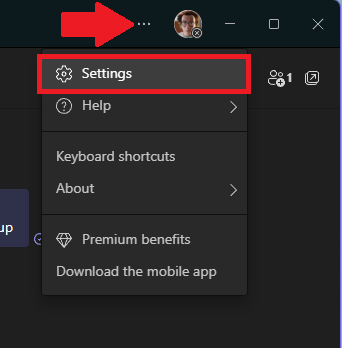
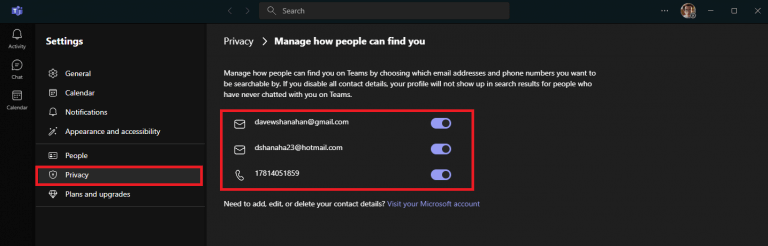
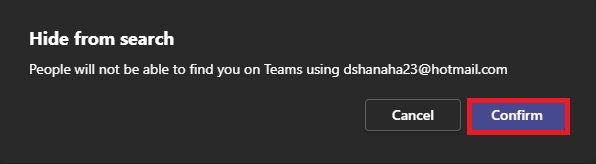
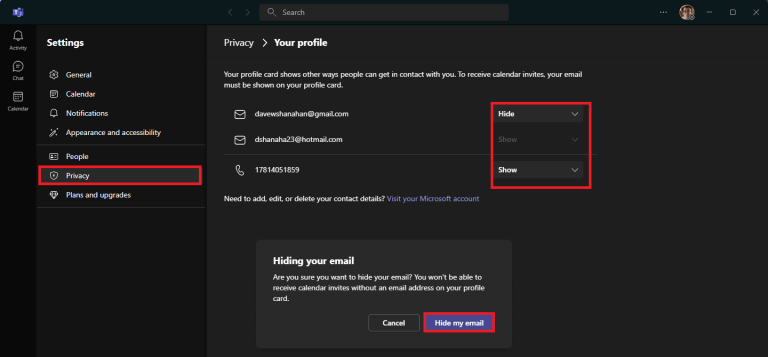 3. Click Hide my email to confirm your changes to your primary Microsoft account email address


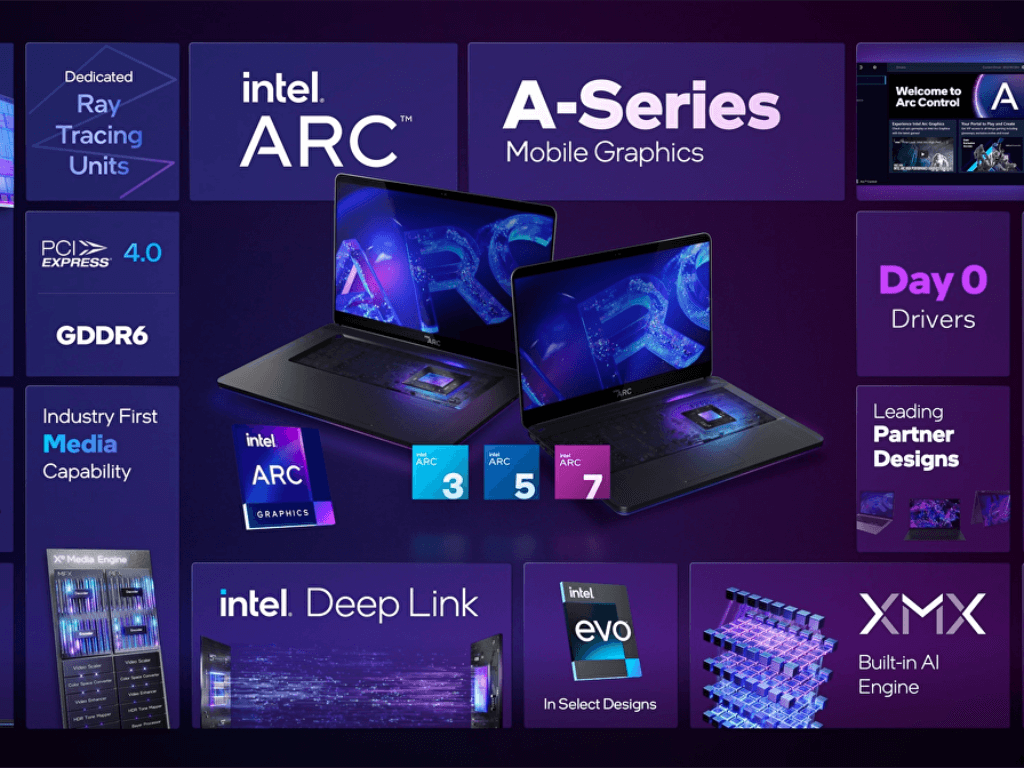
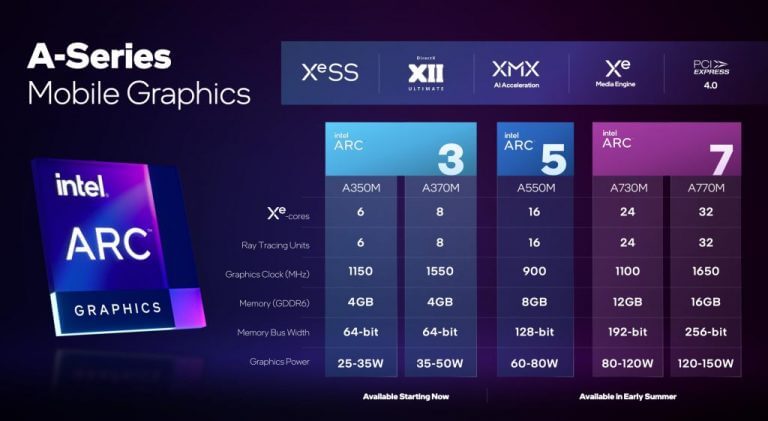





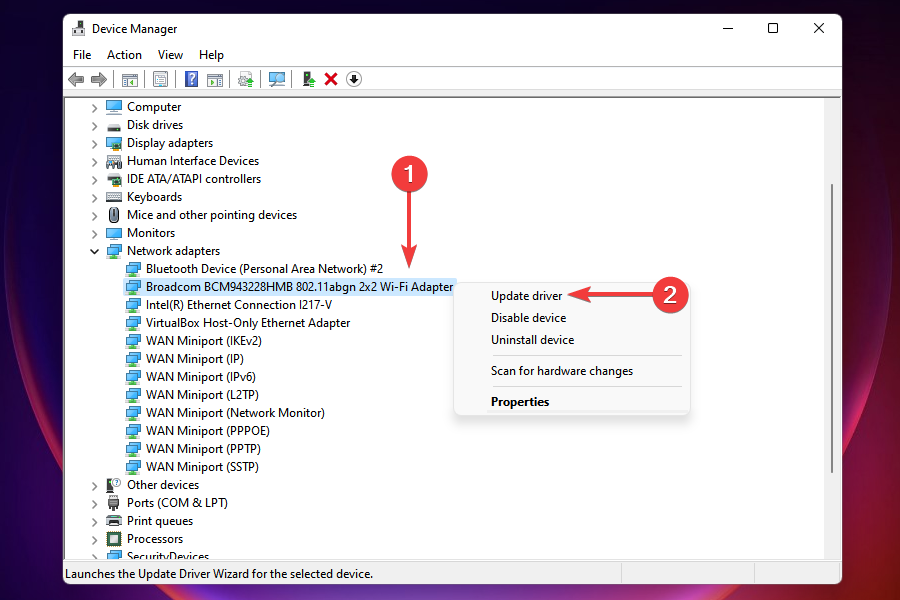

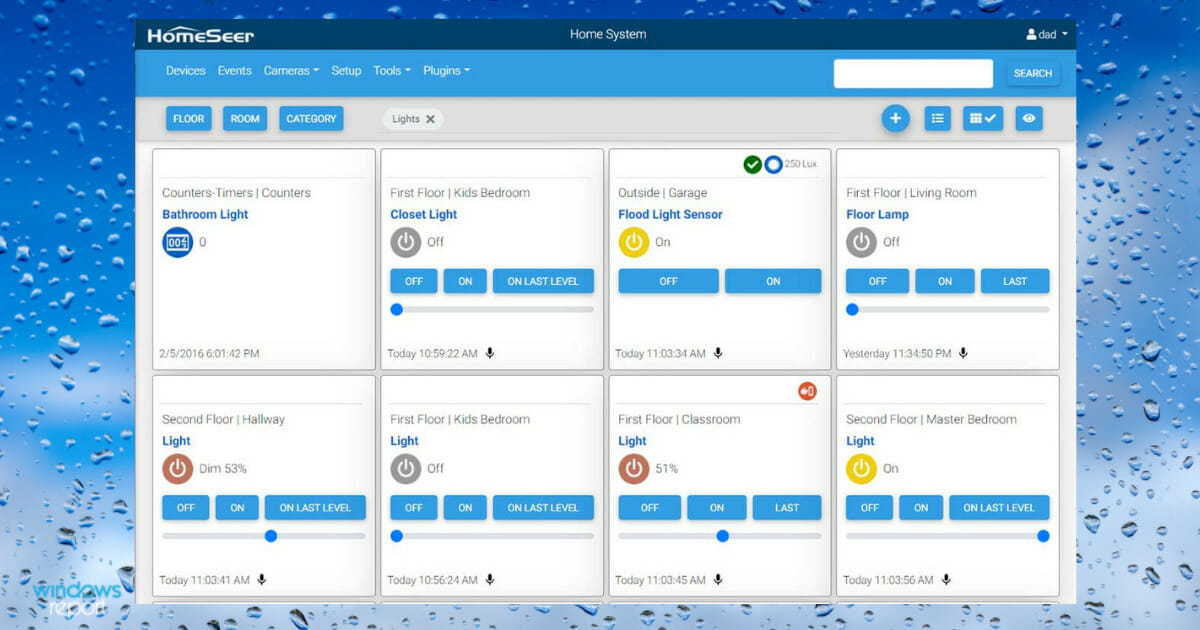

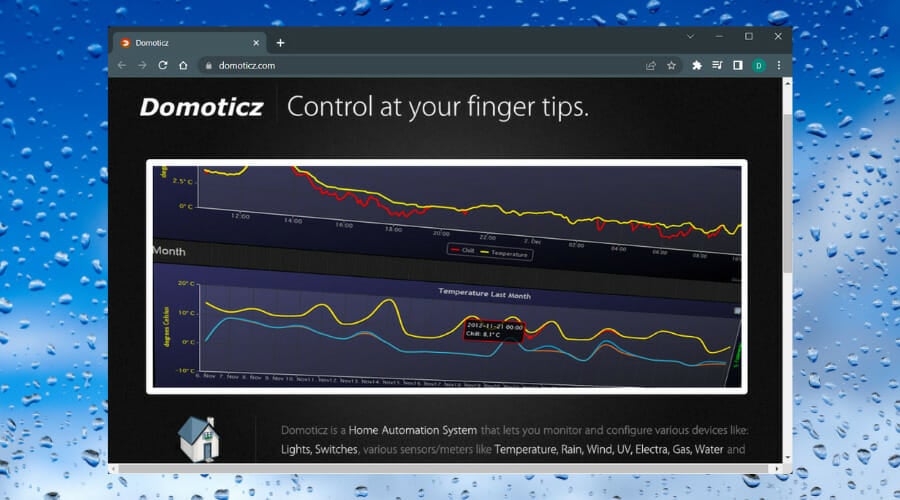
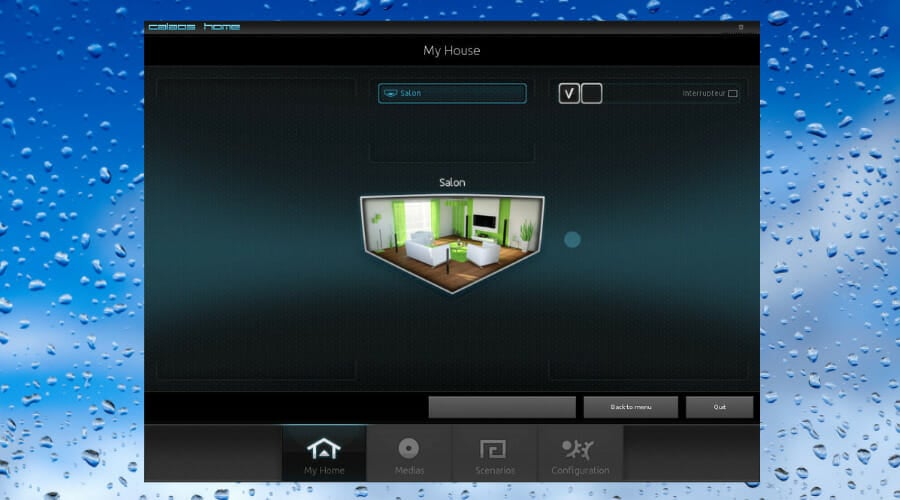
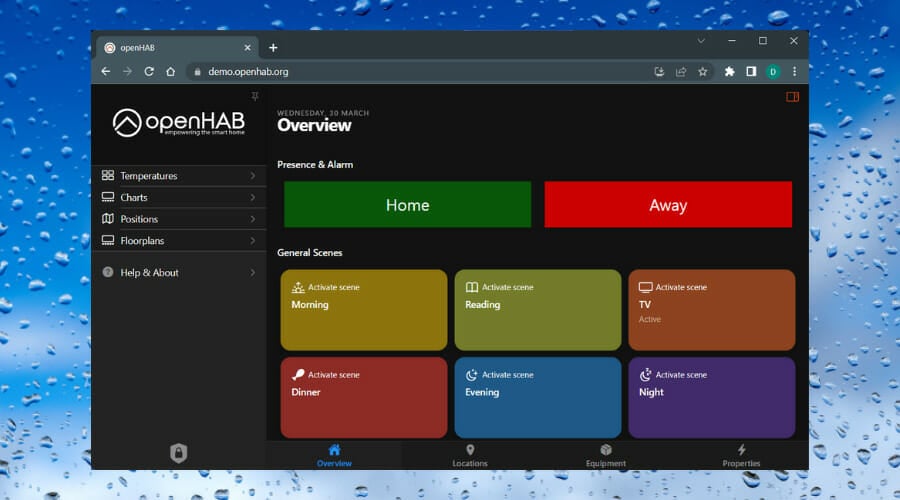
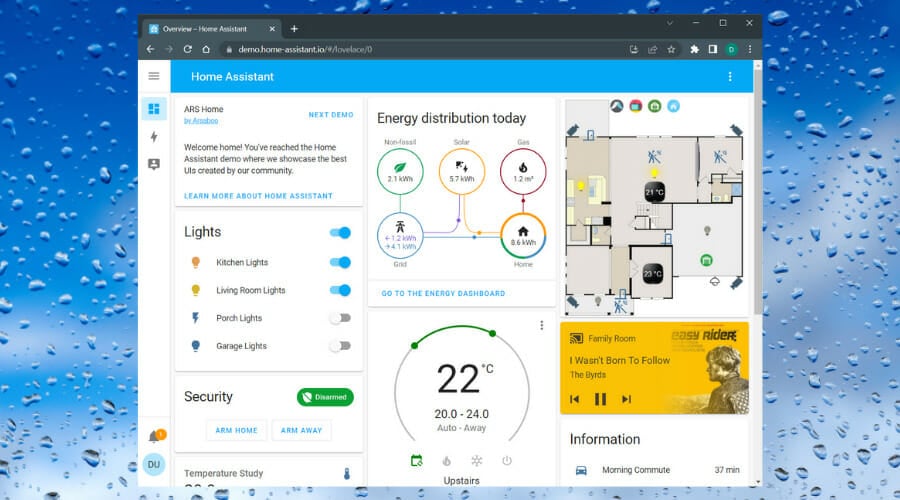
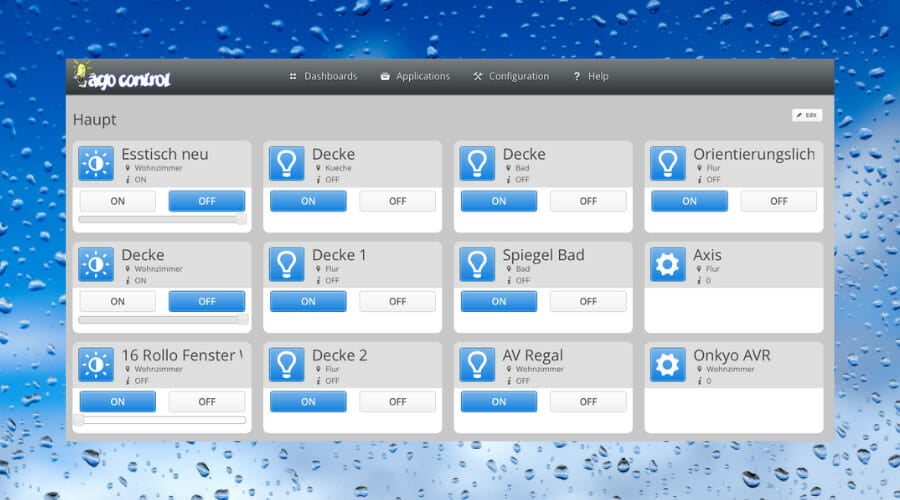

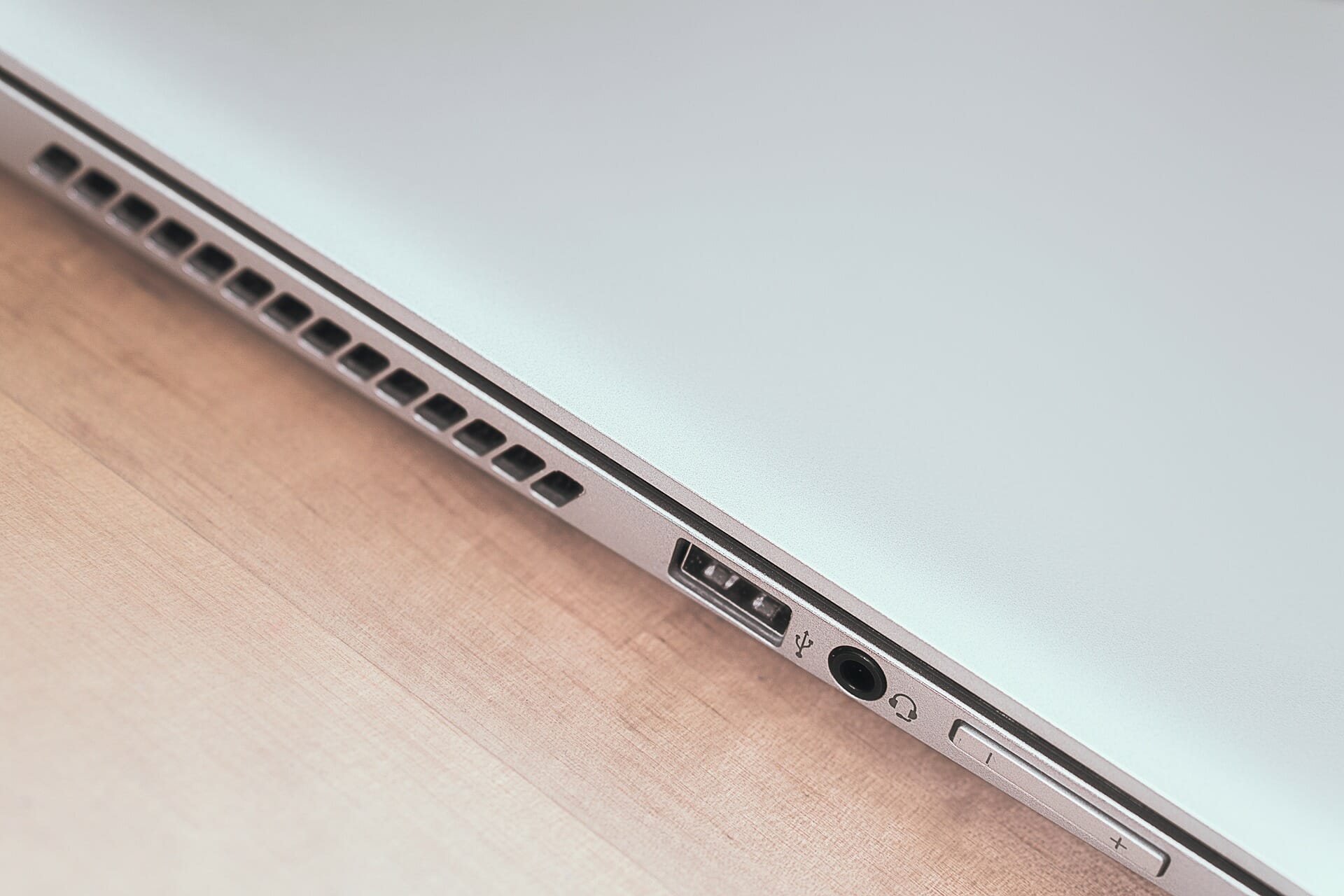
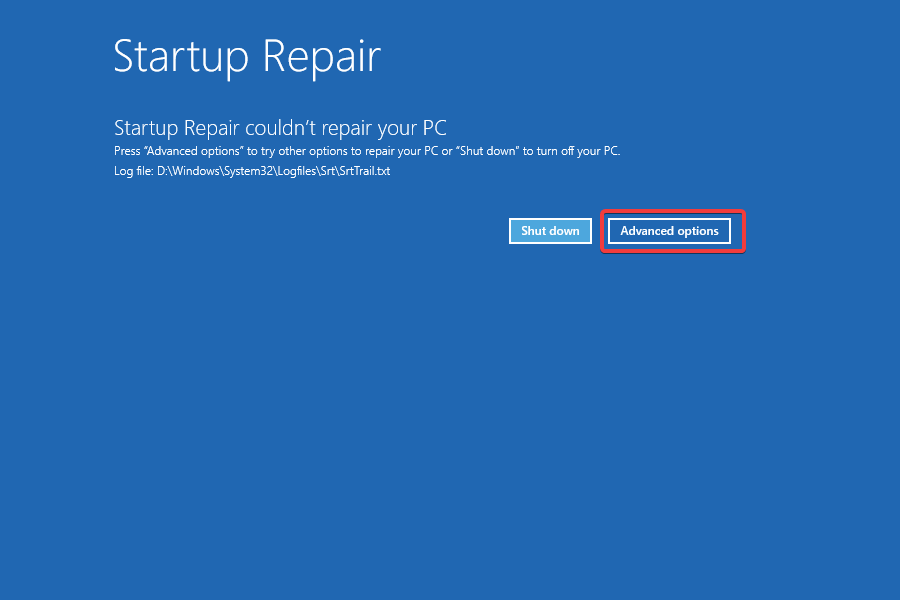
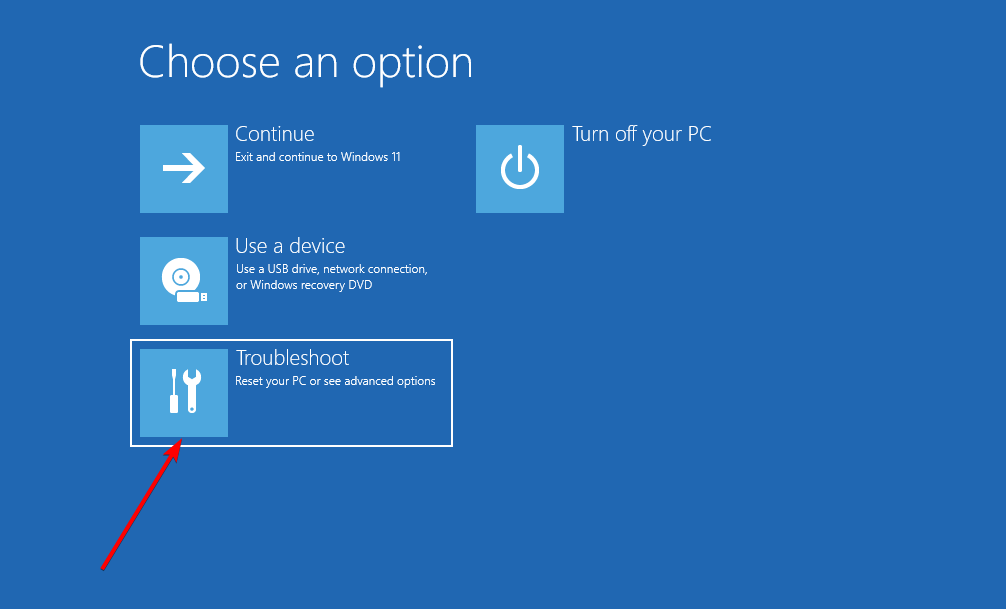
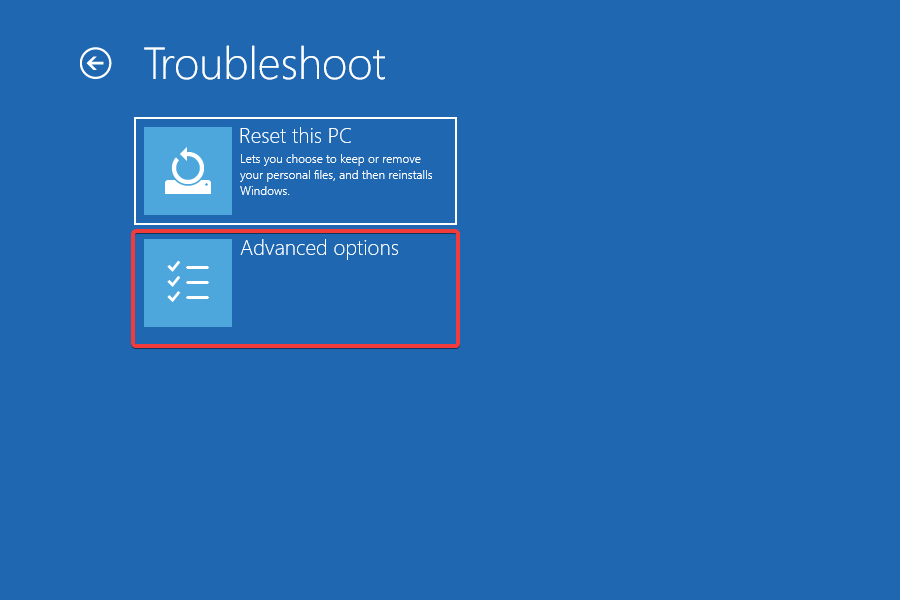
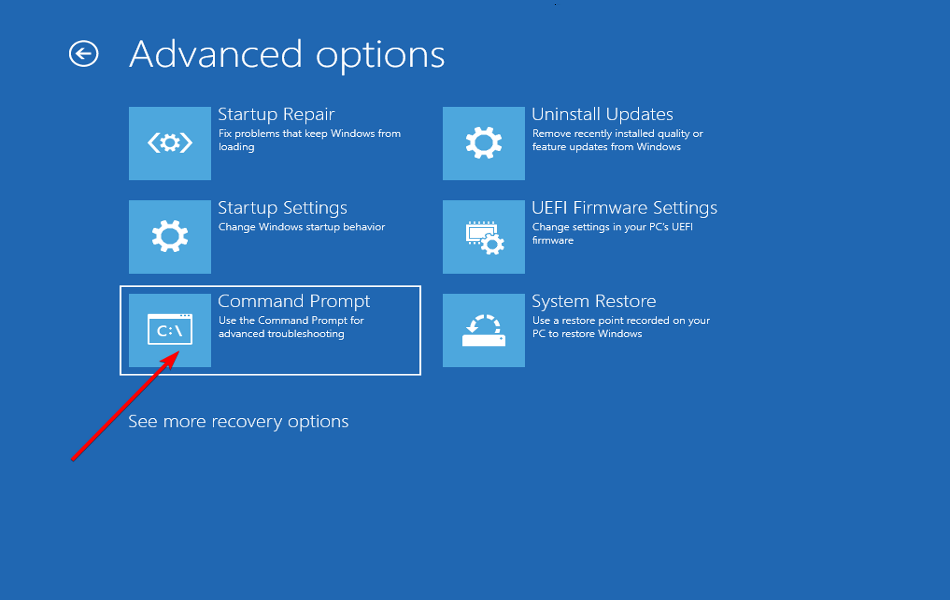
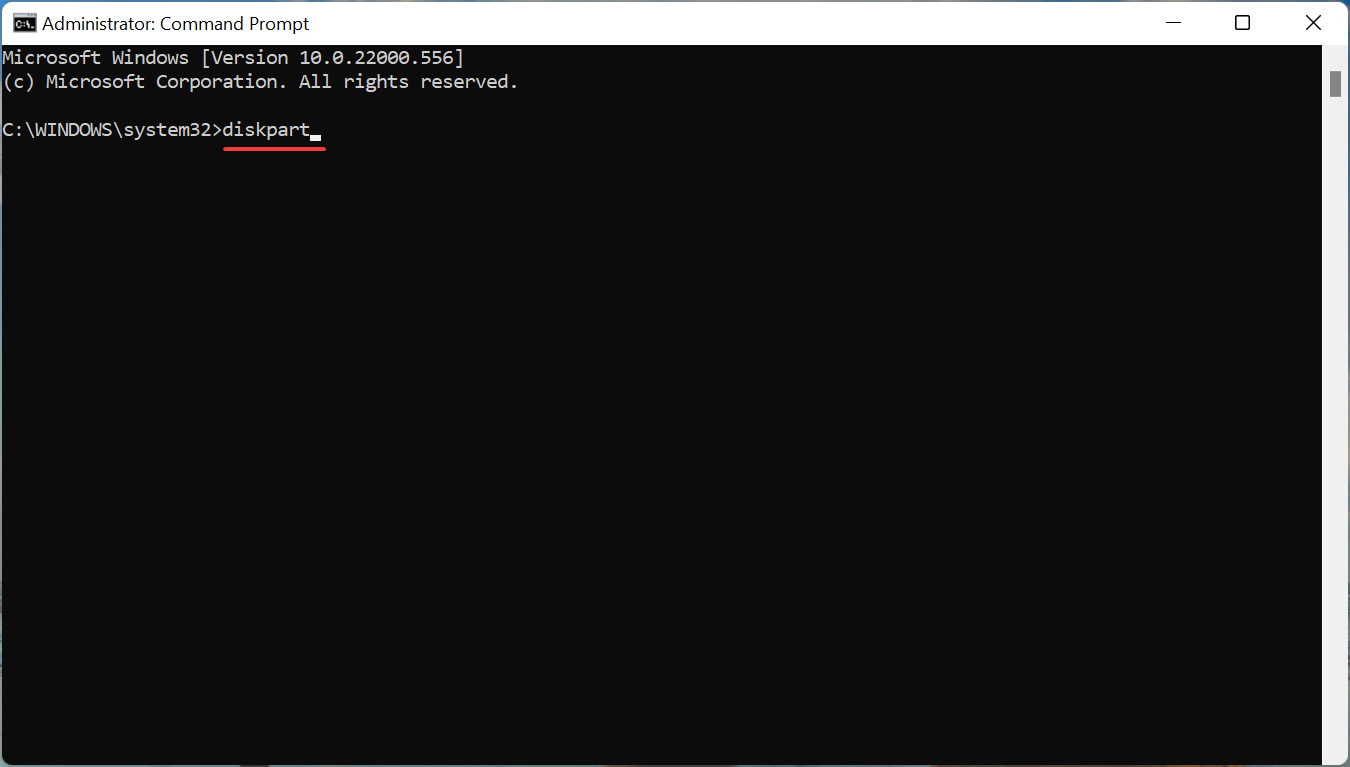
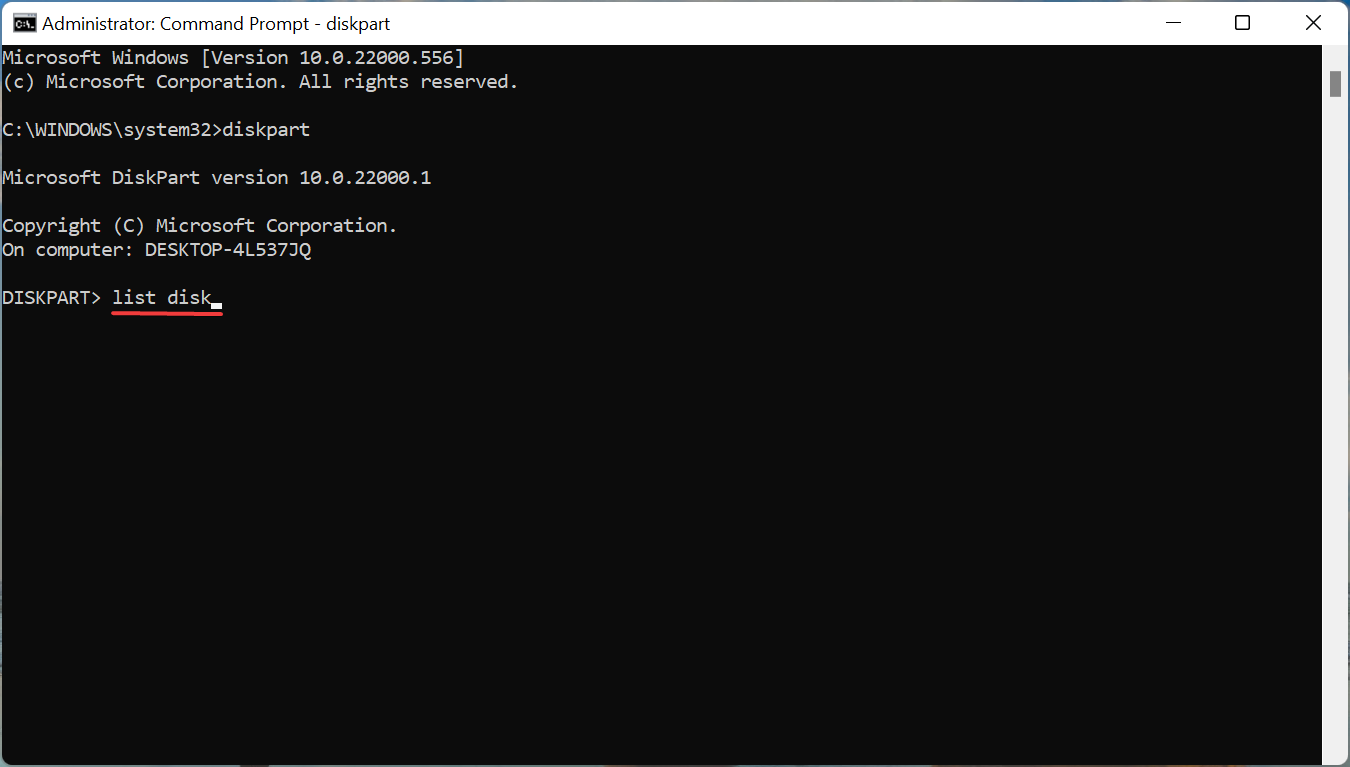
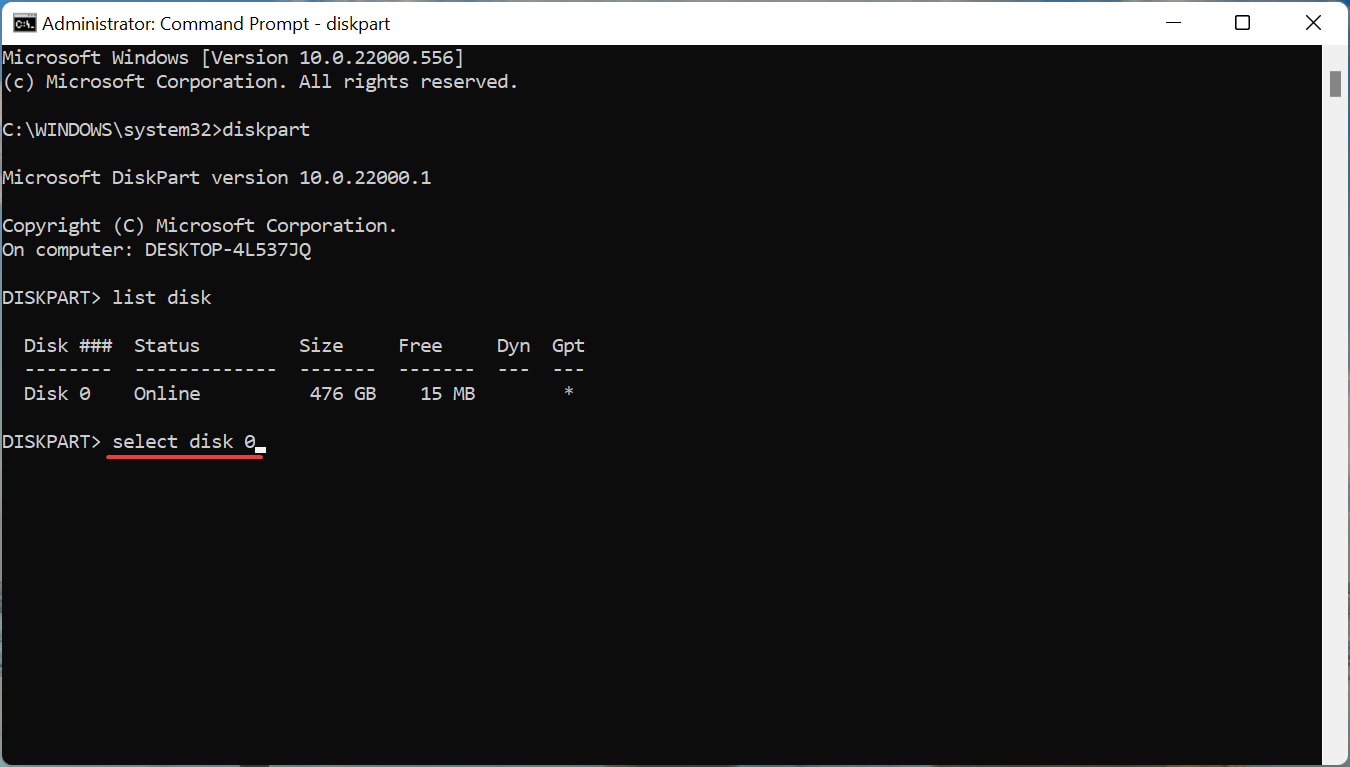
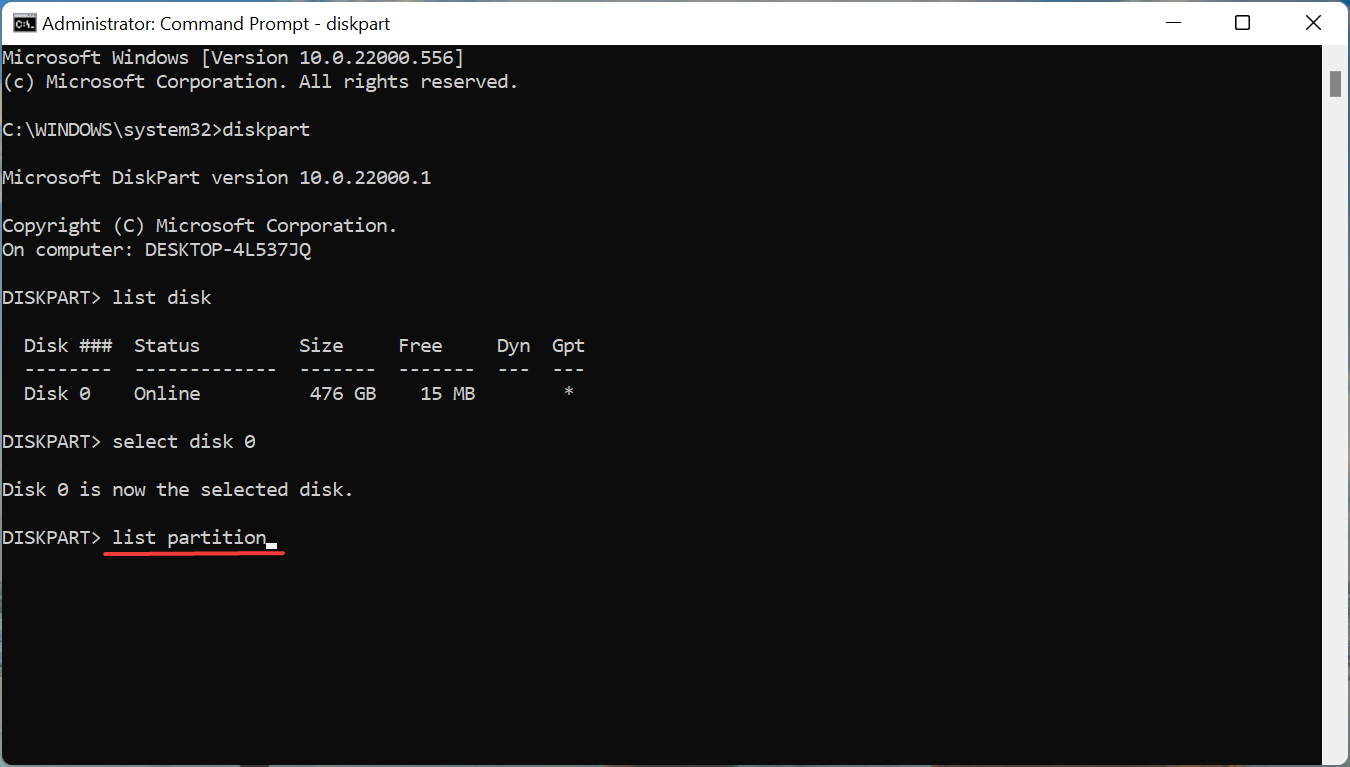
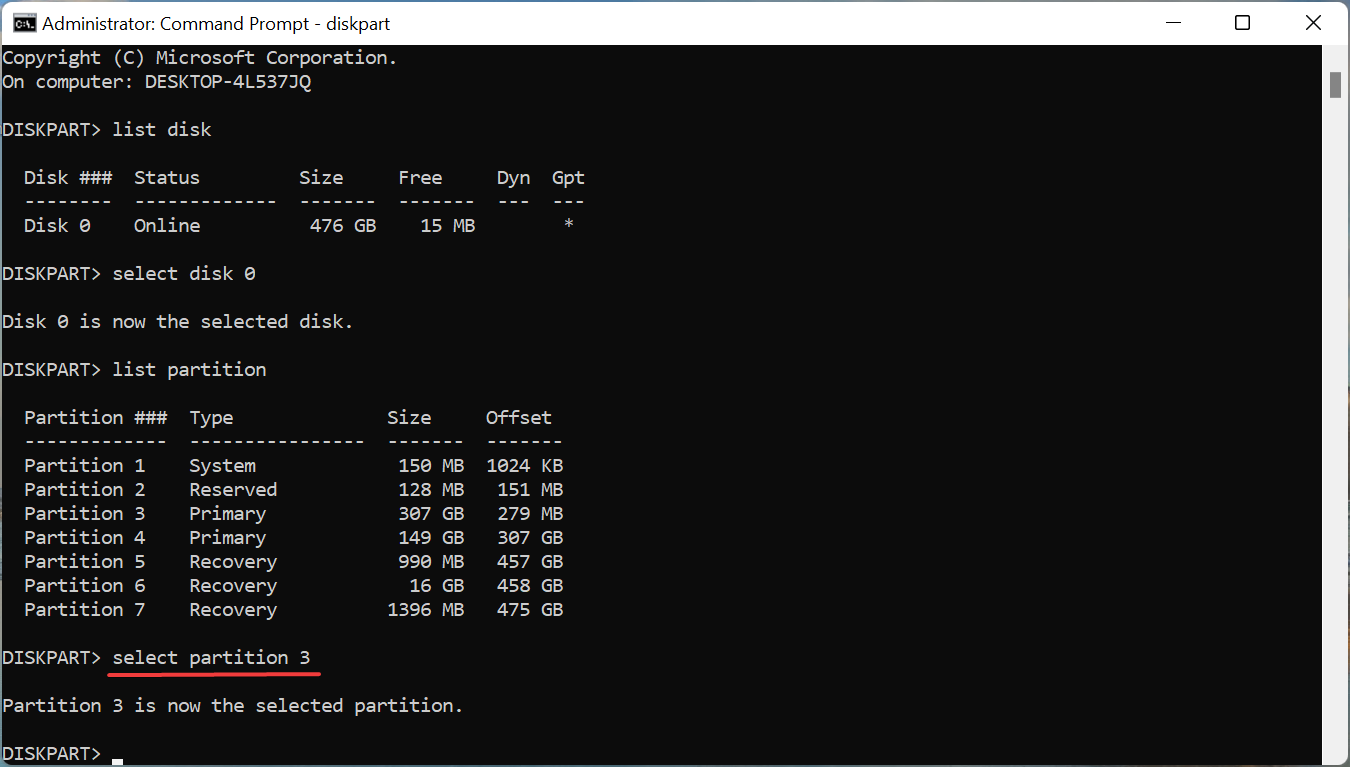
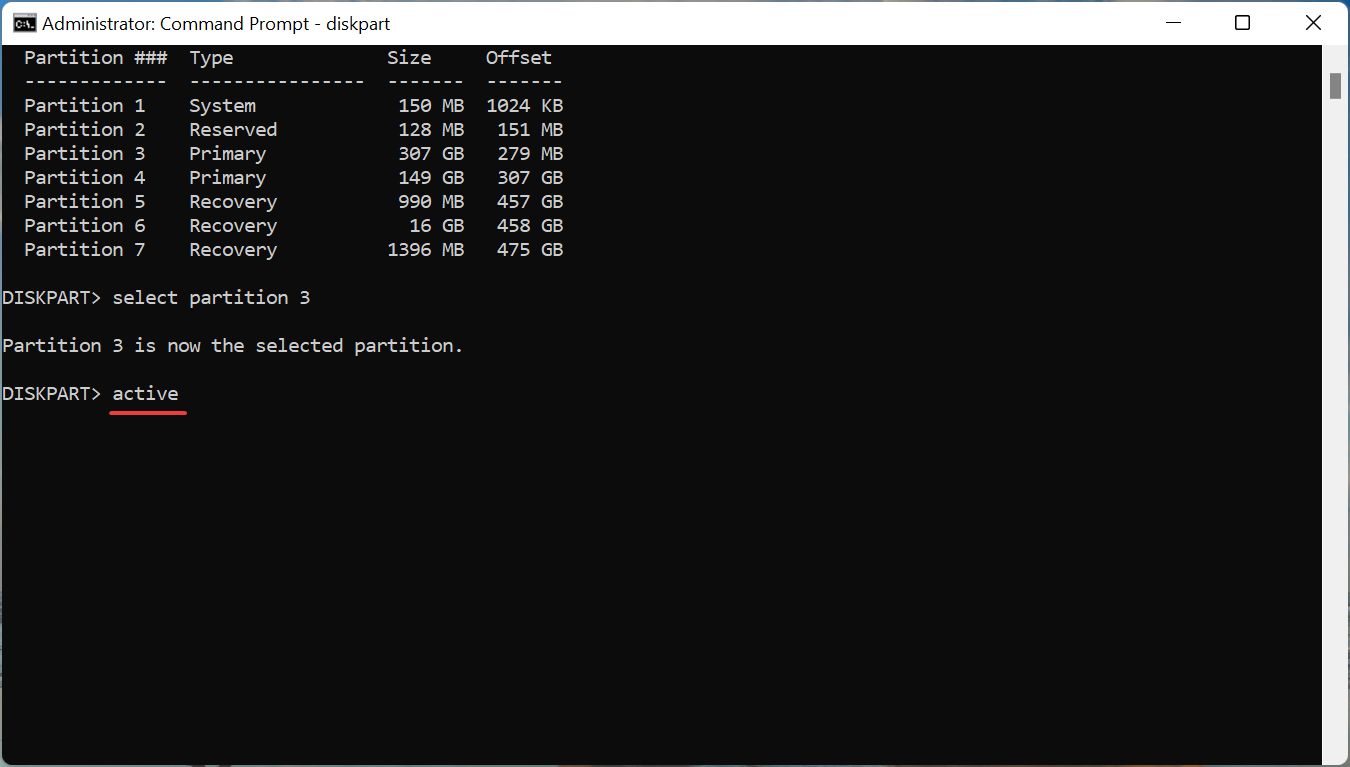
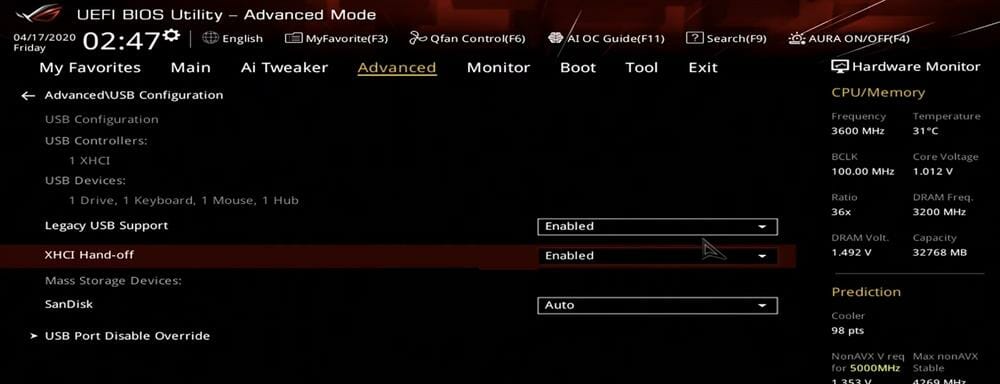

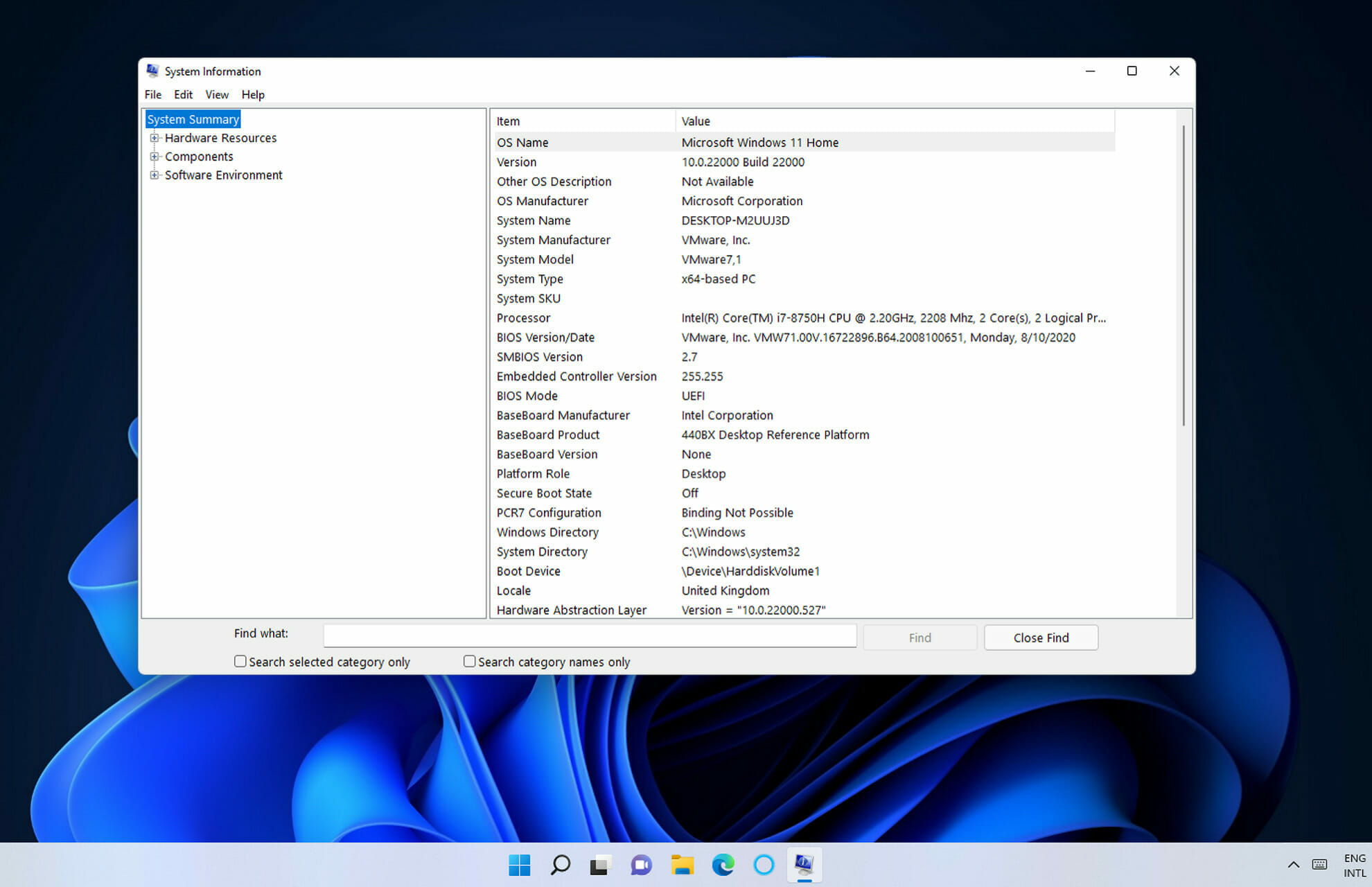
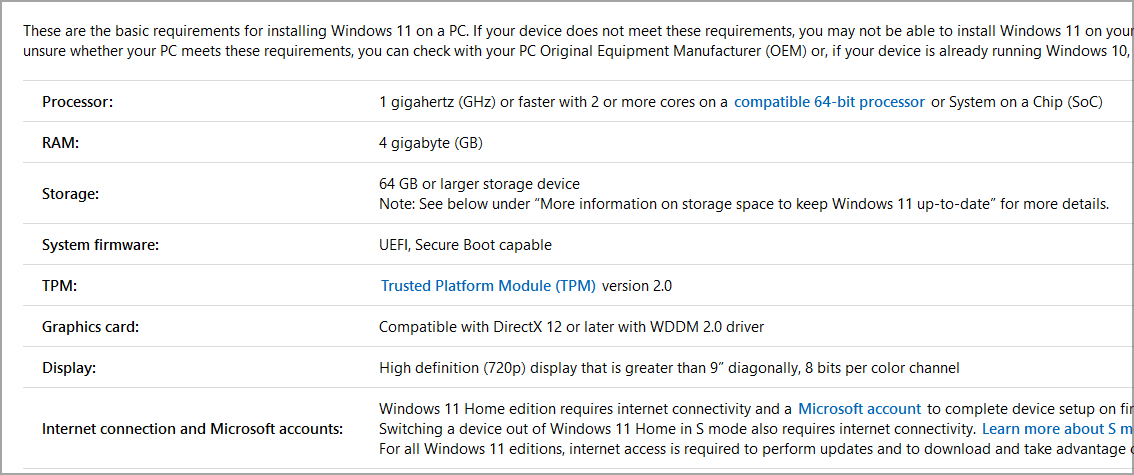
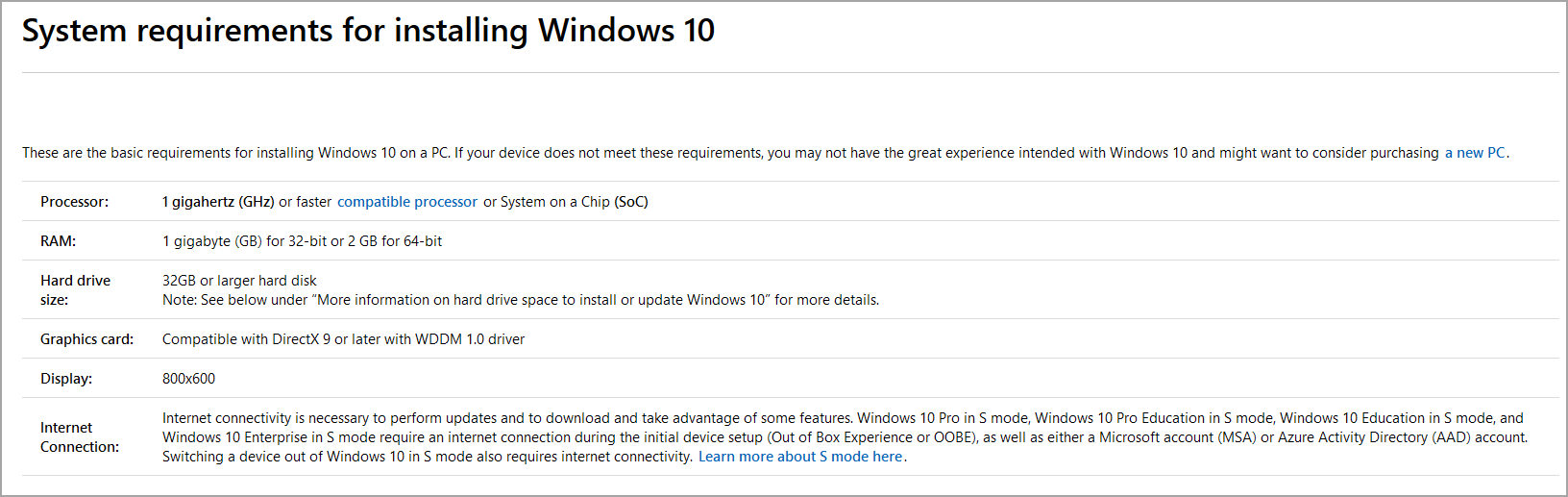


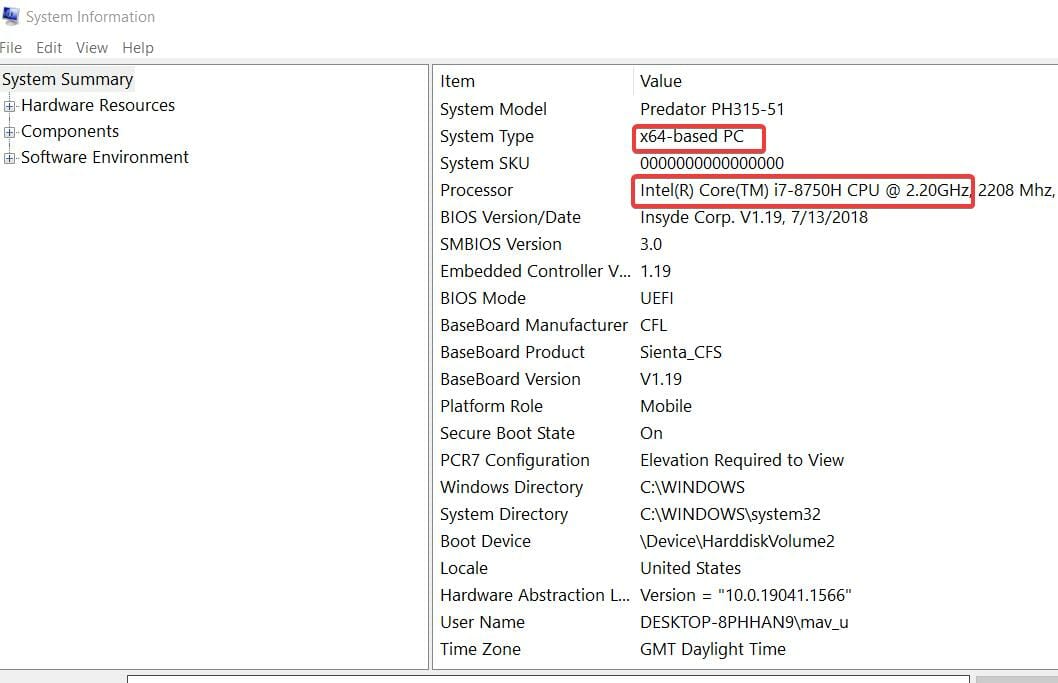


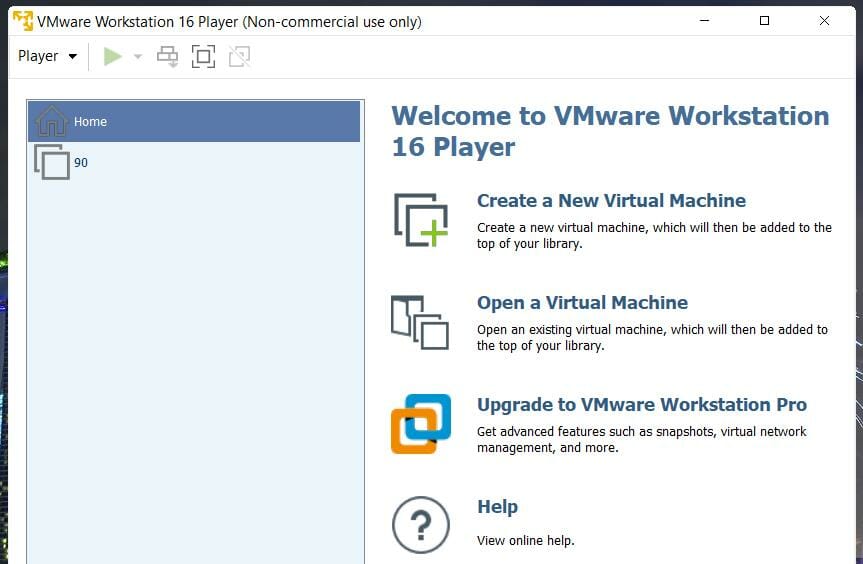







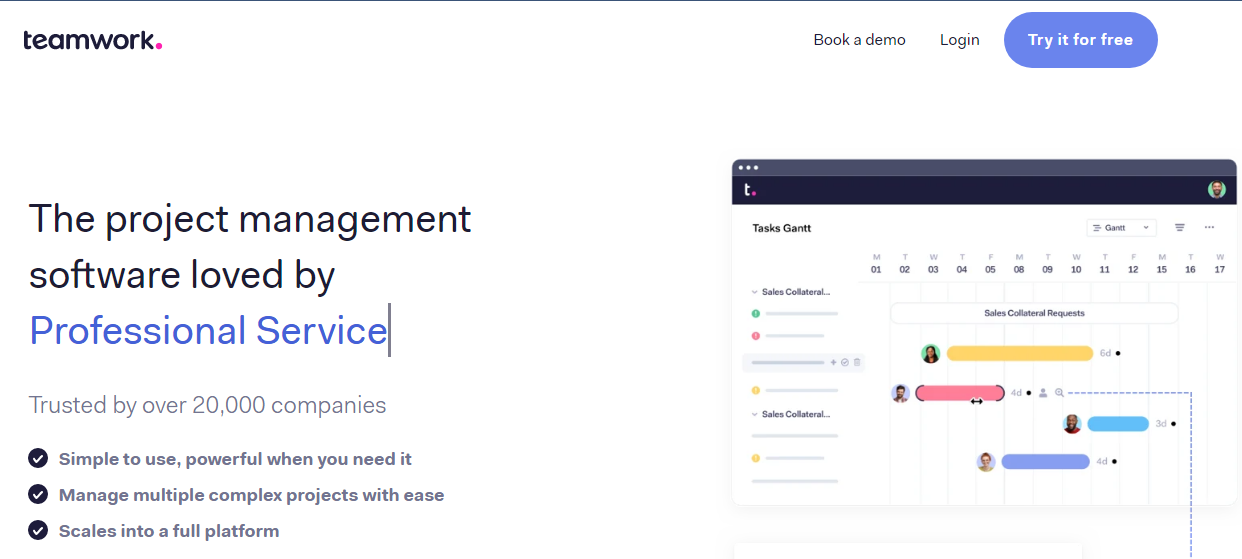









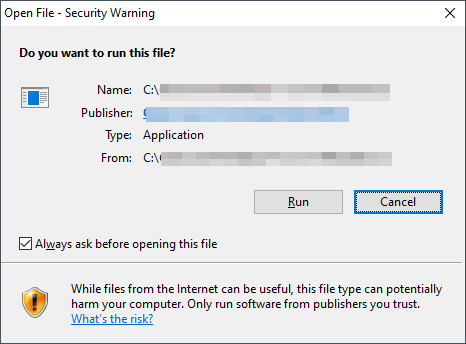
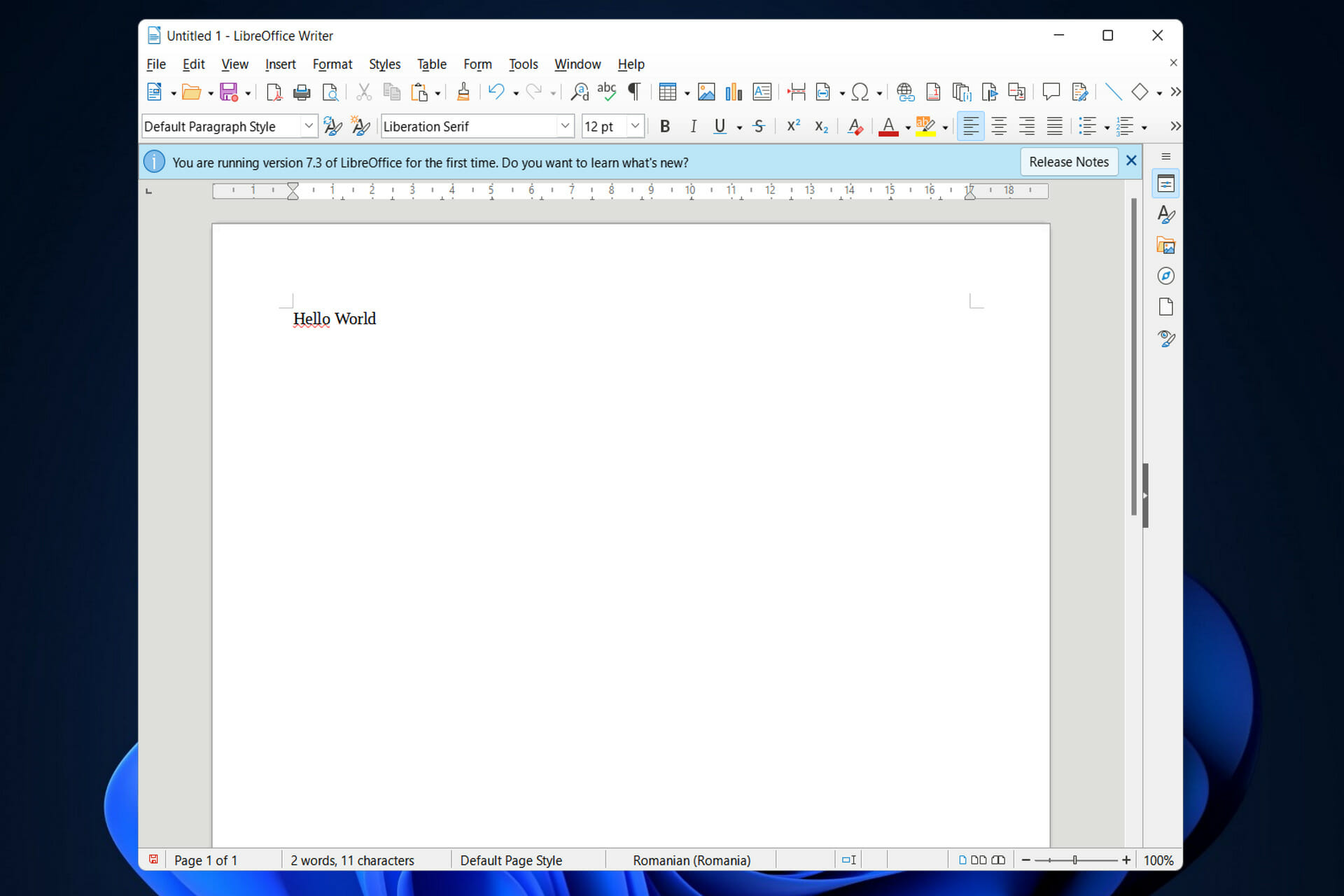
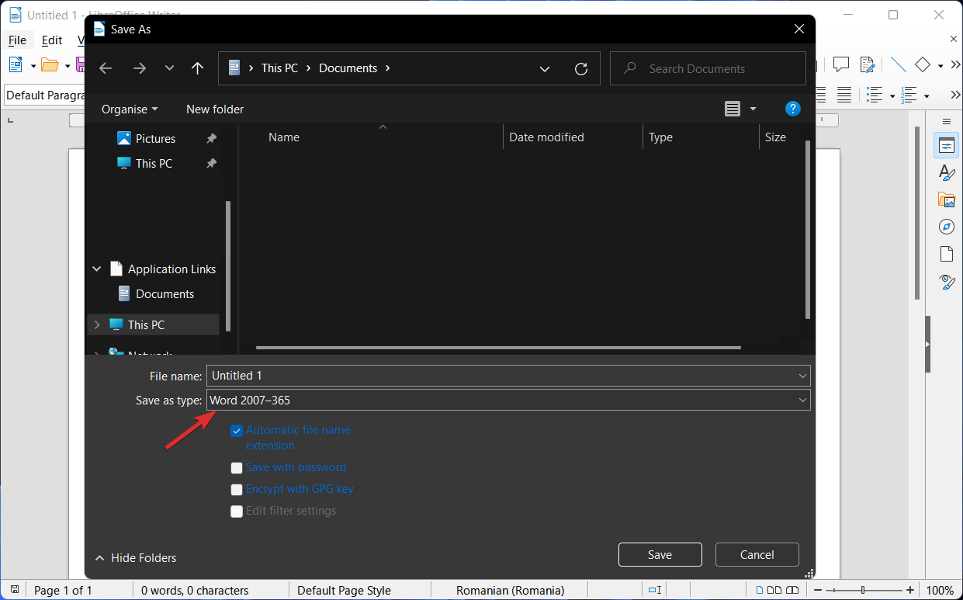
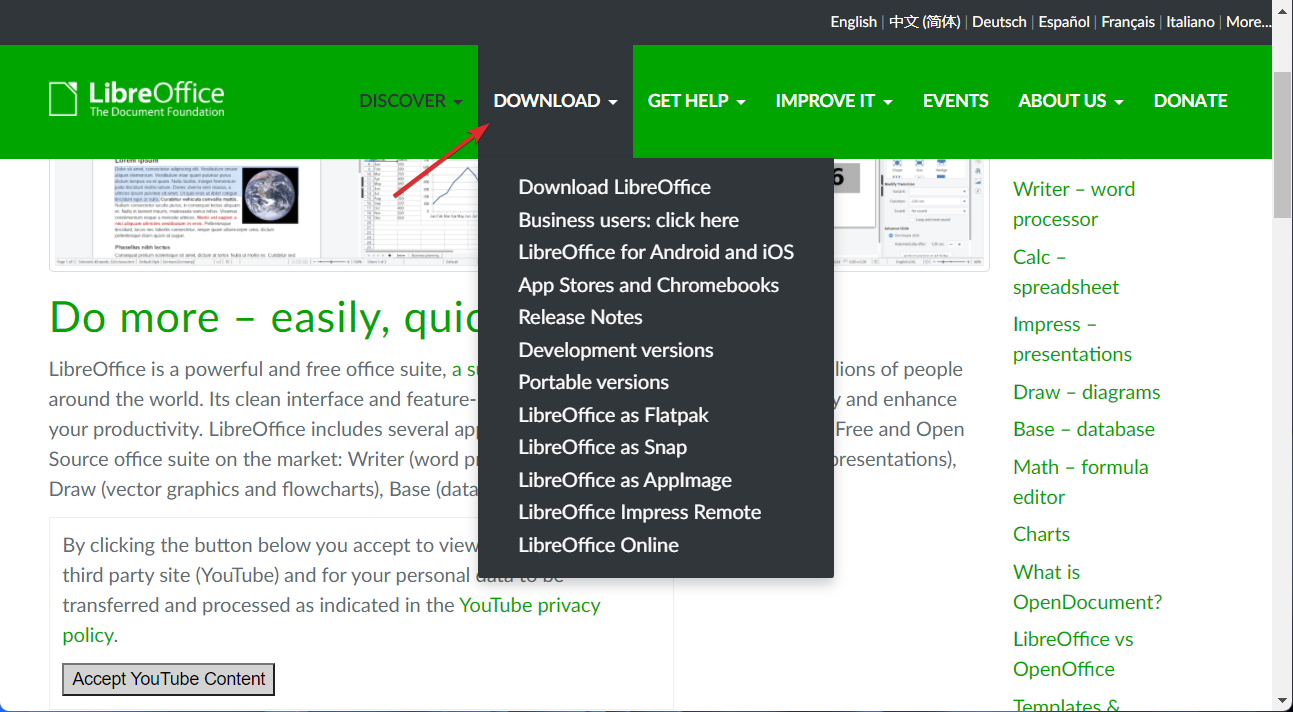
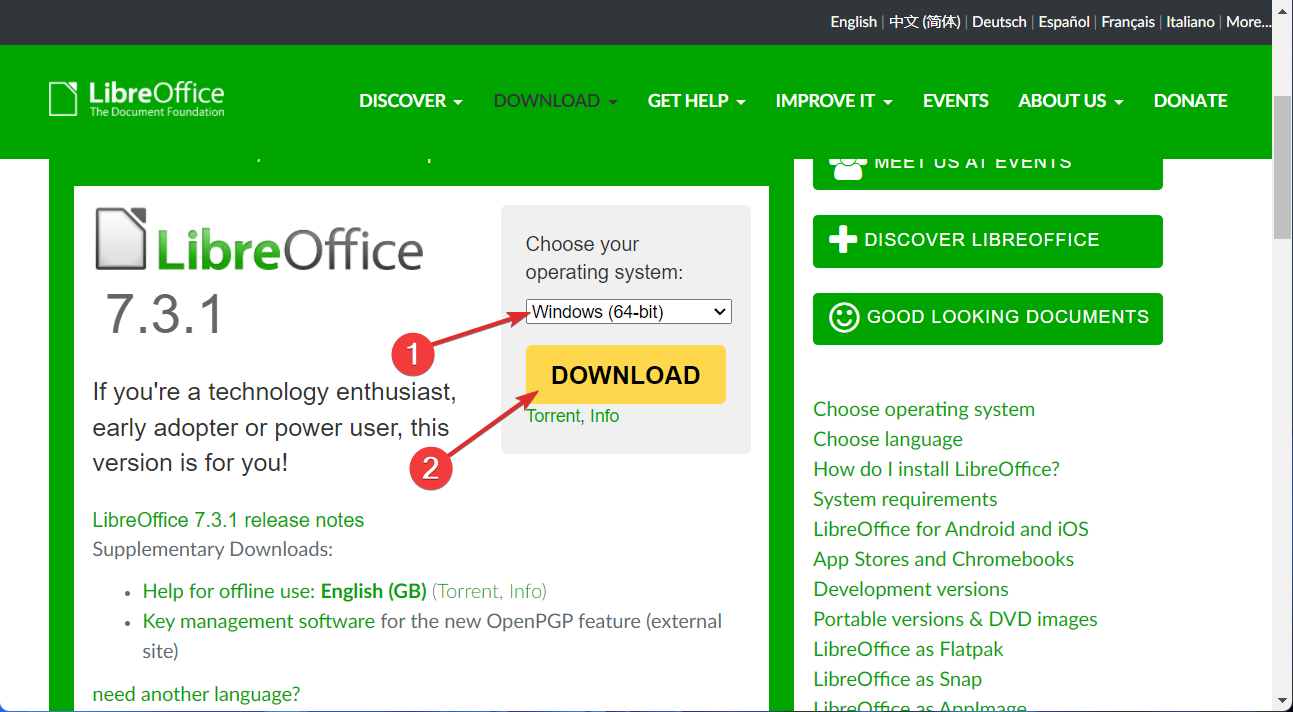
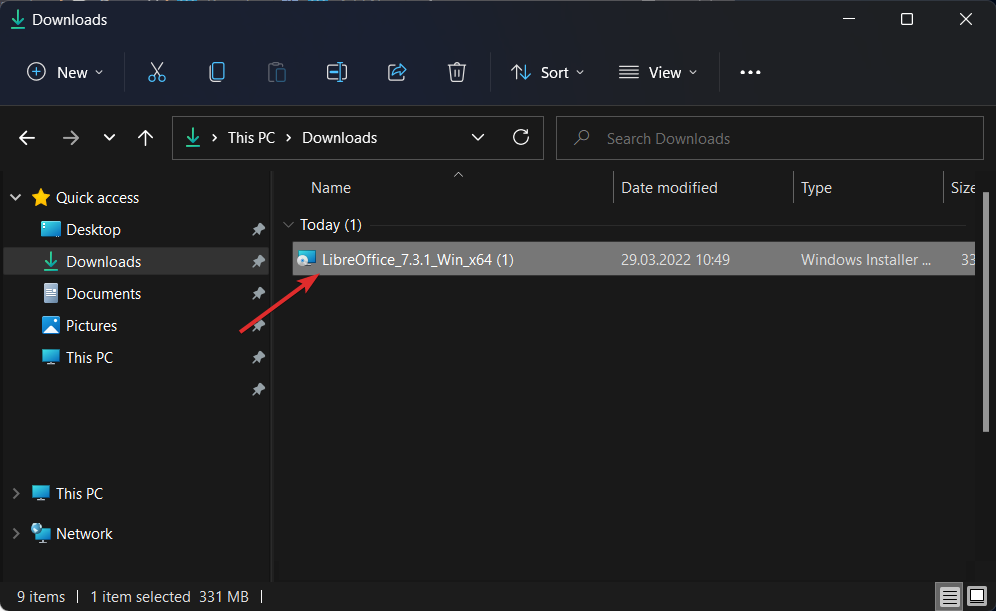

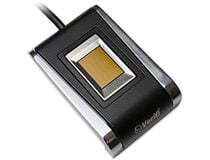
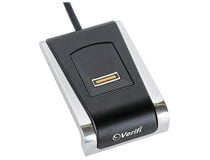
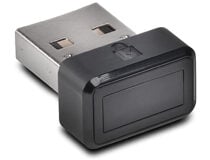
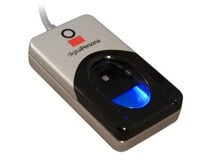
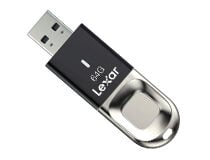
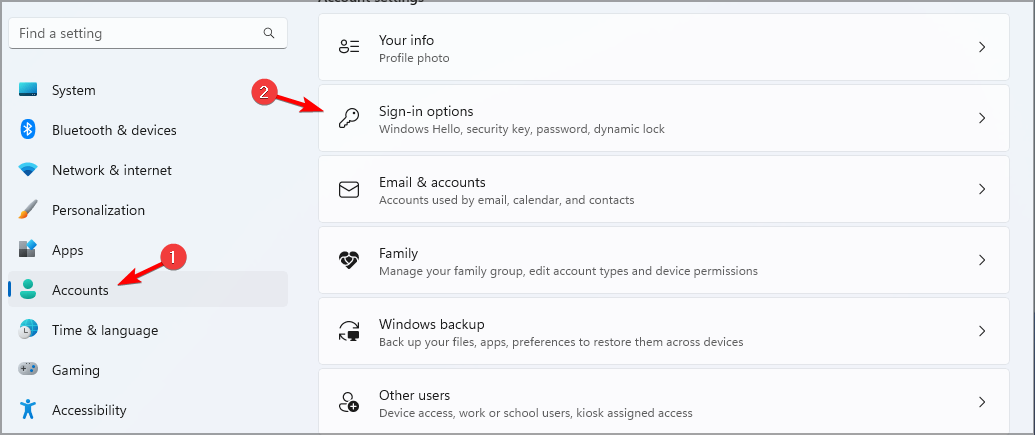
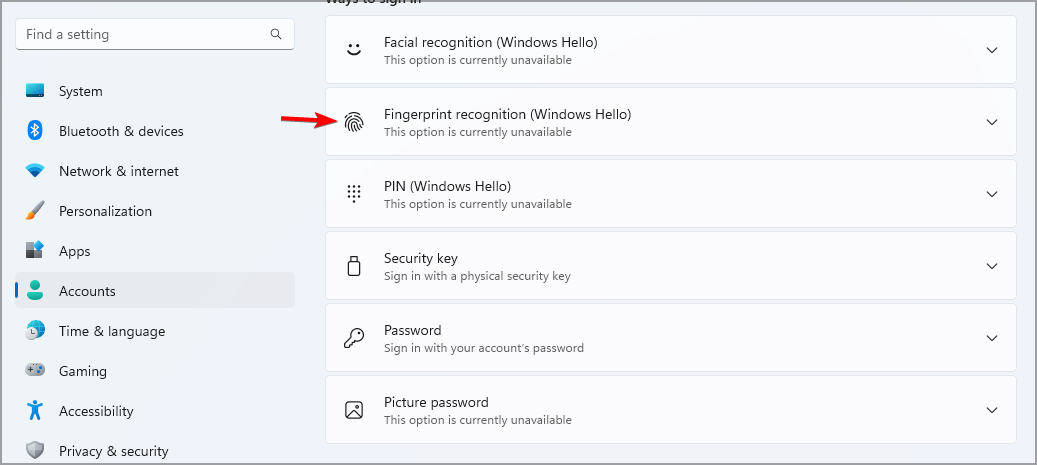
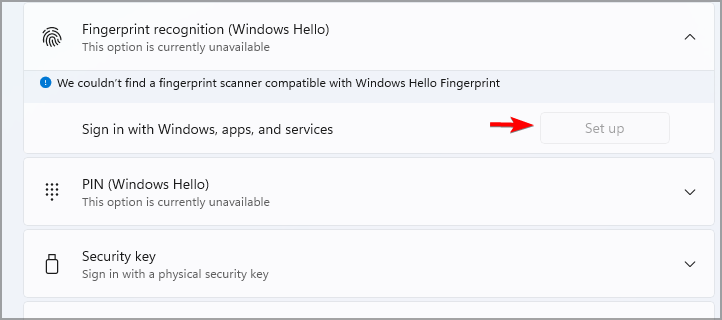
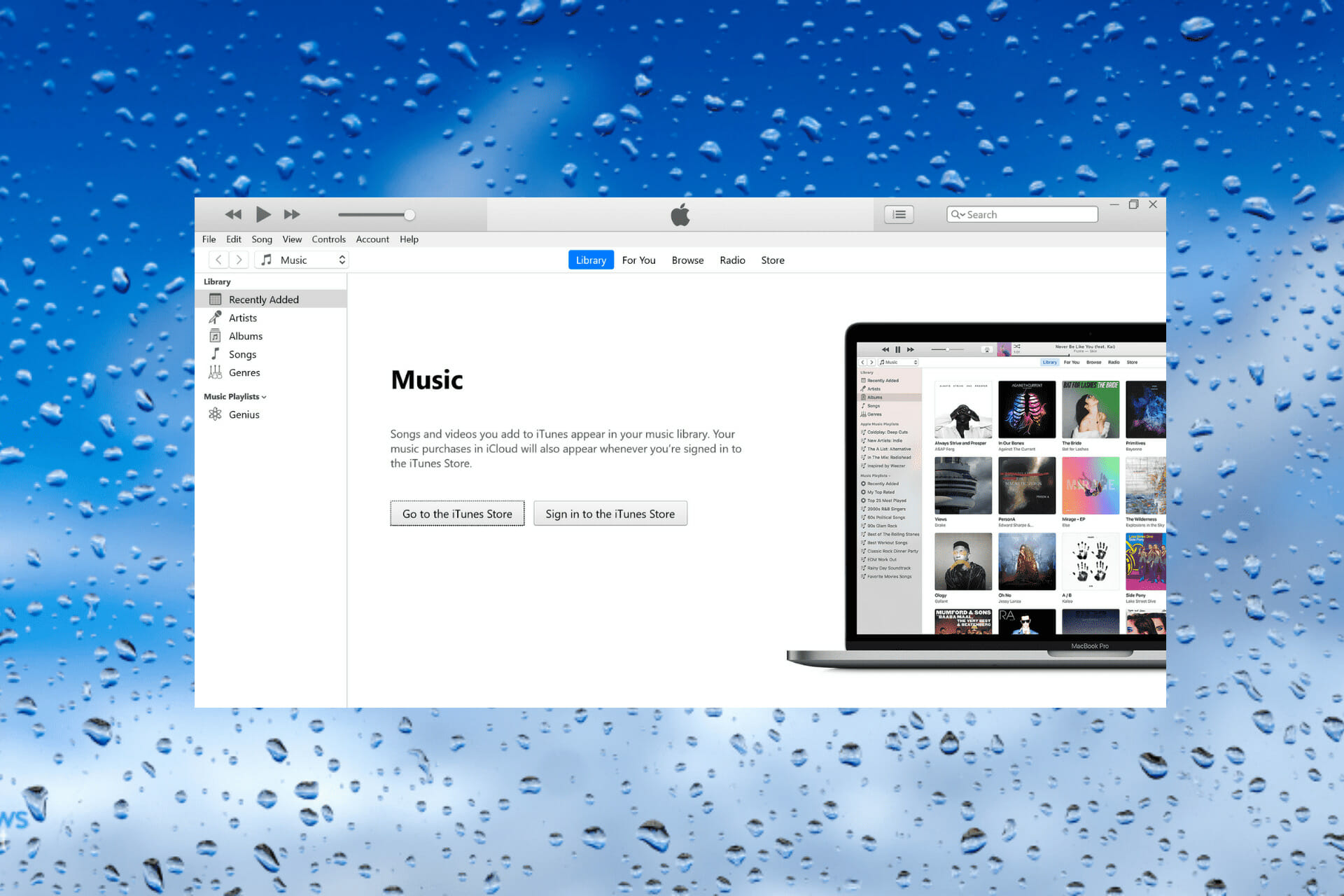

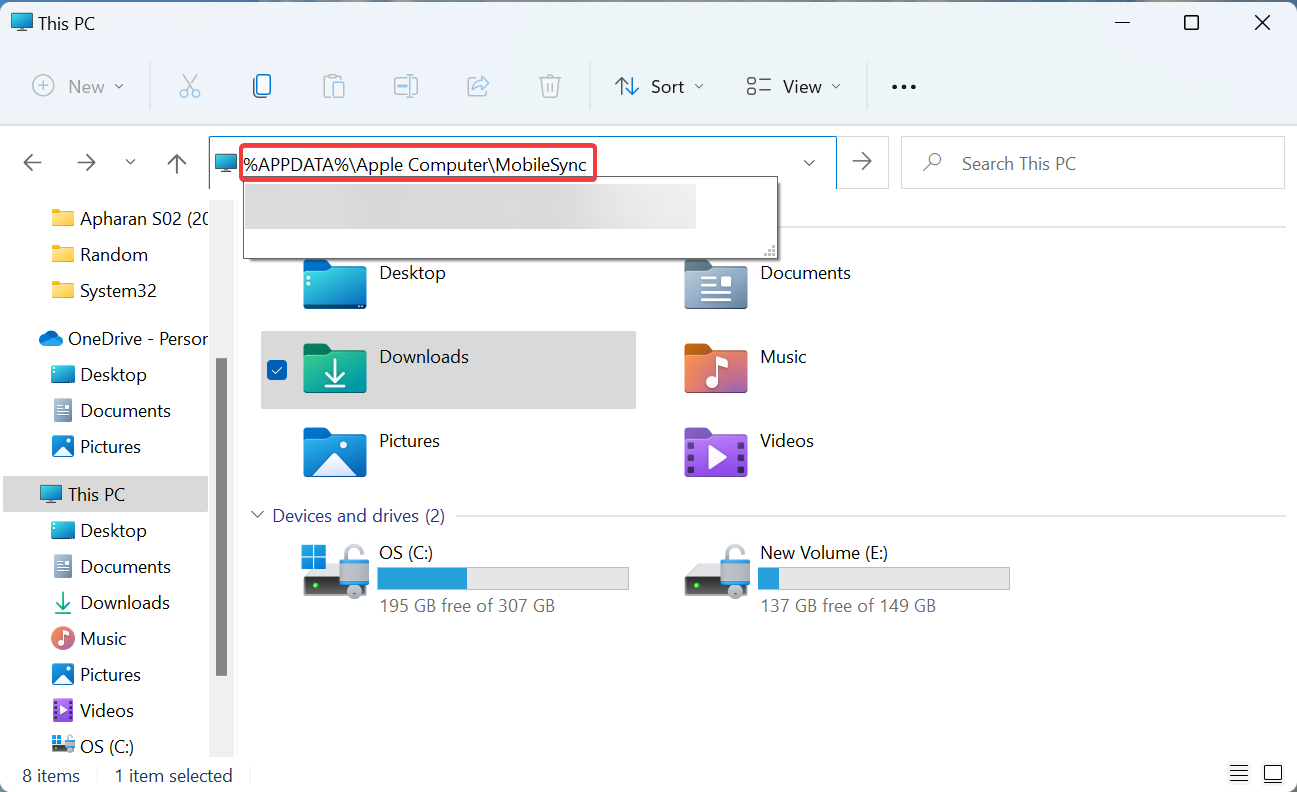
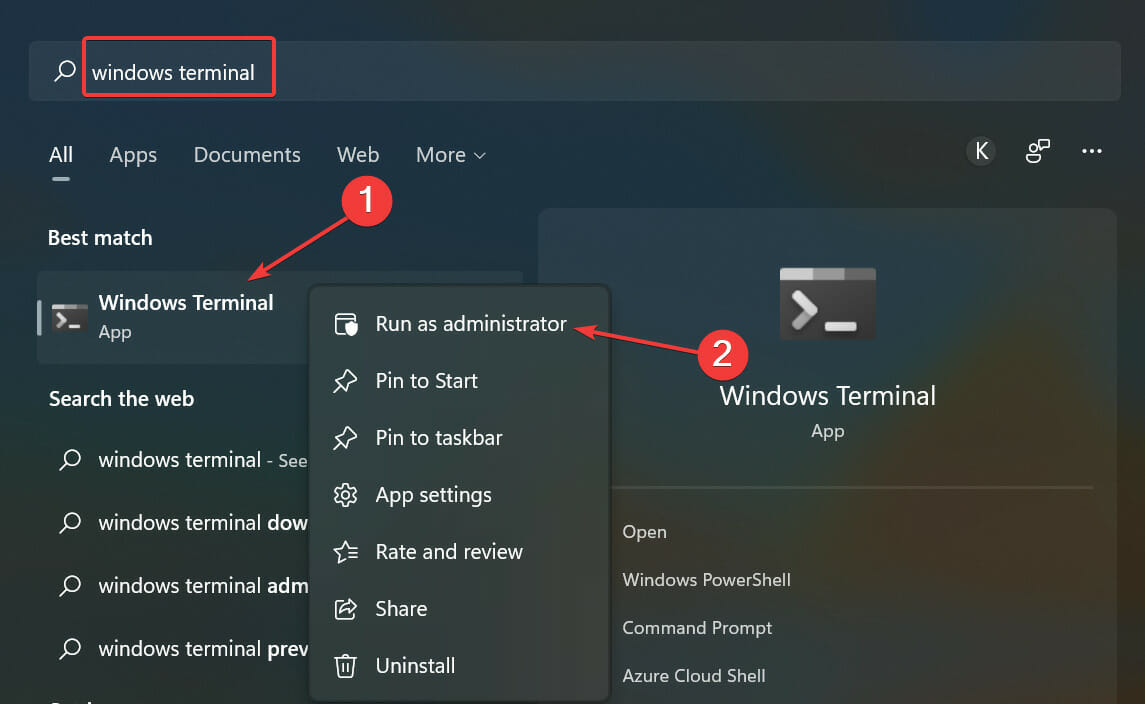
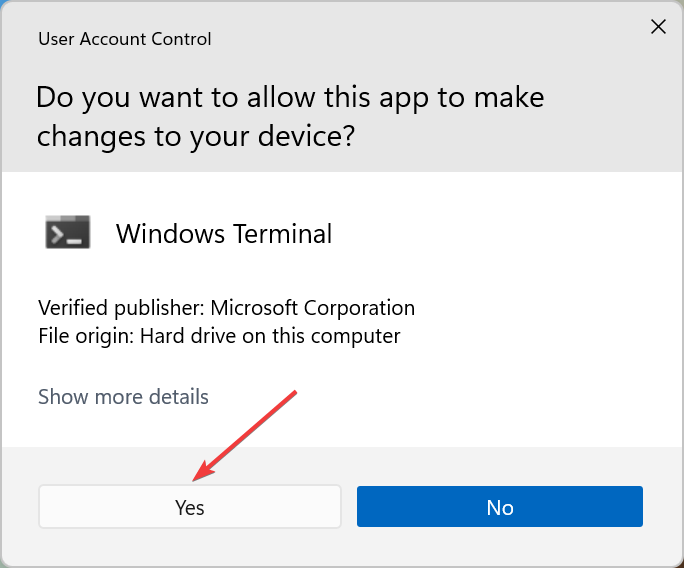
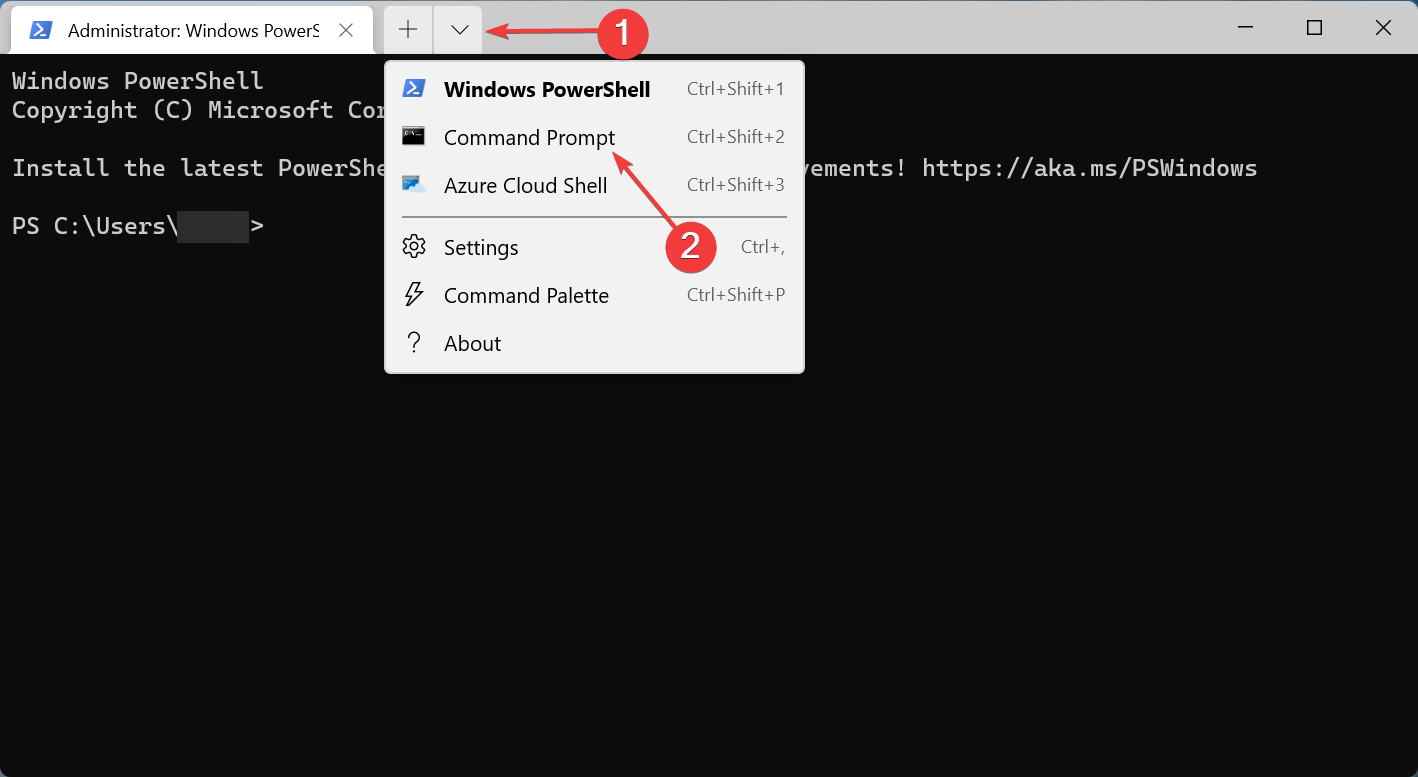
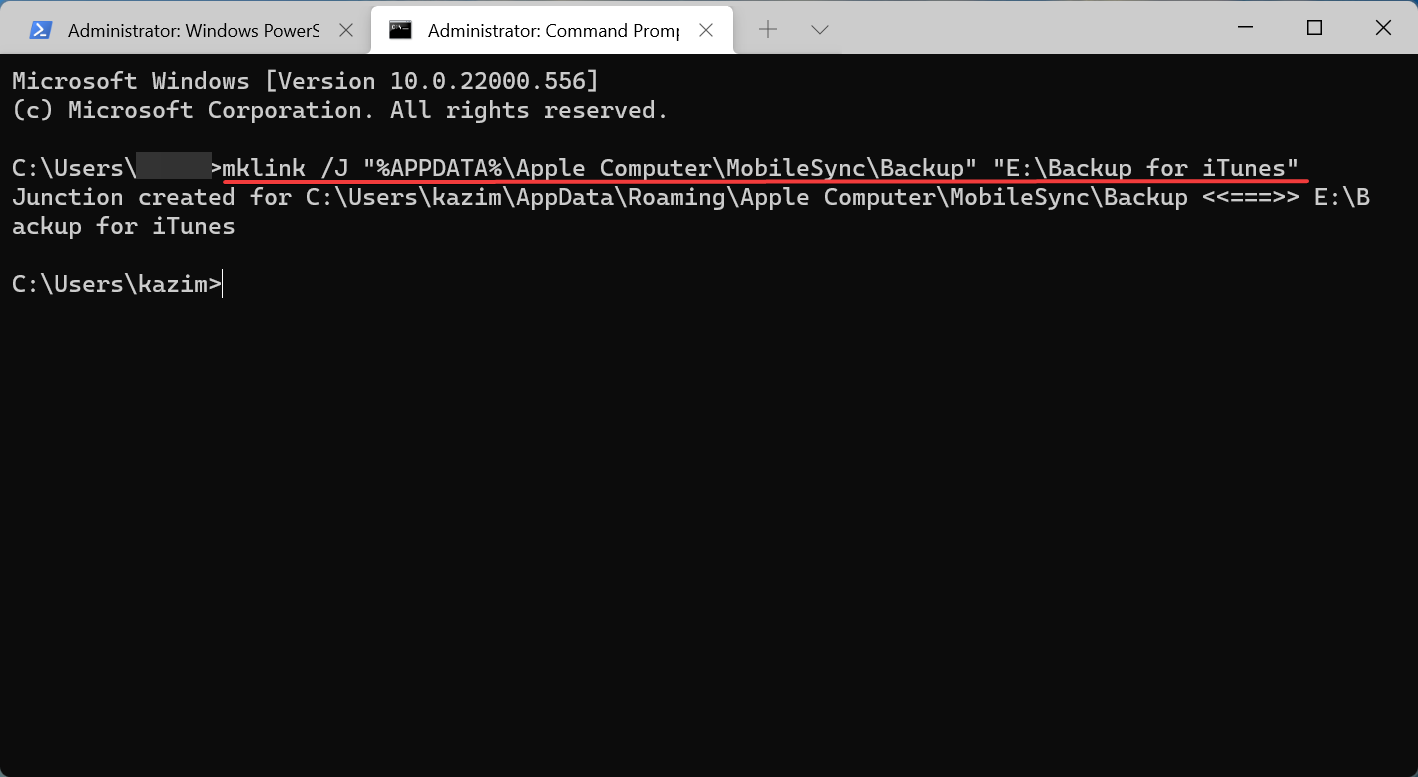

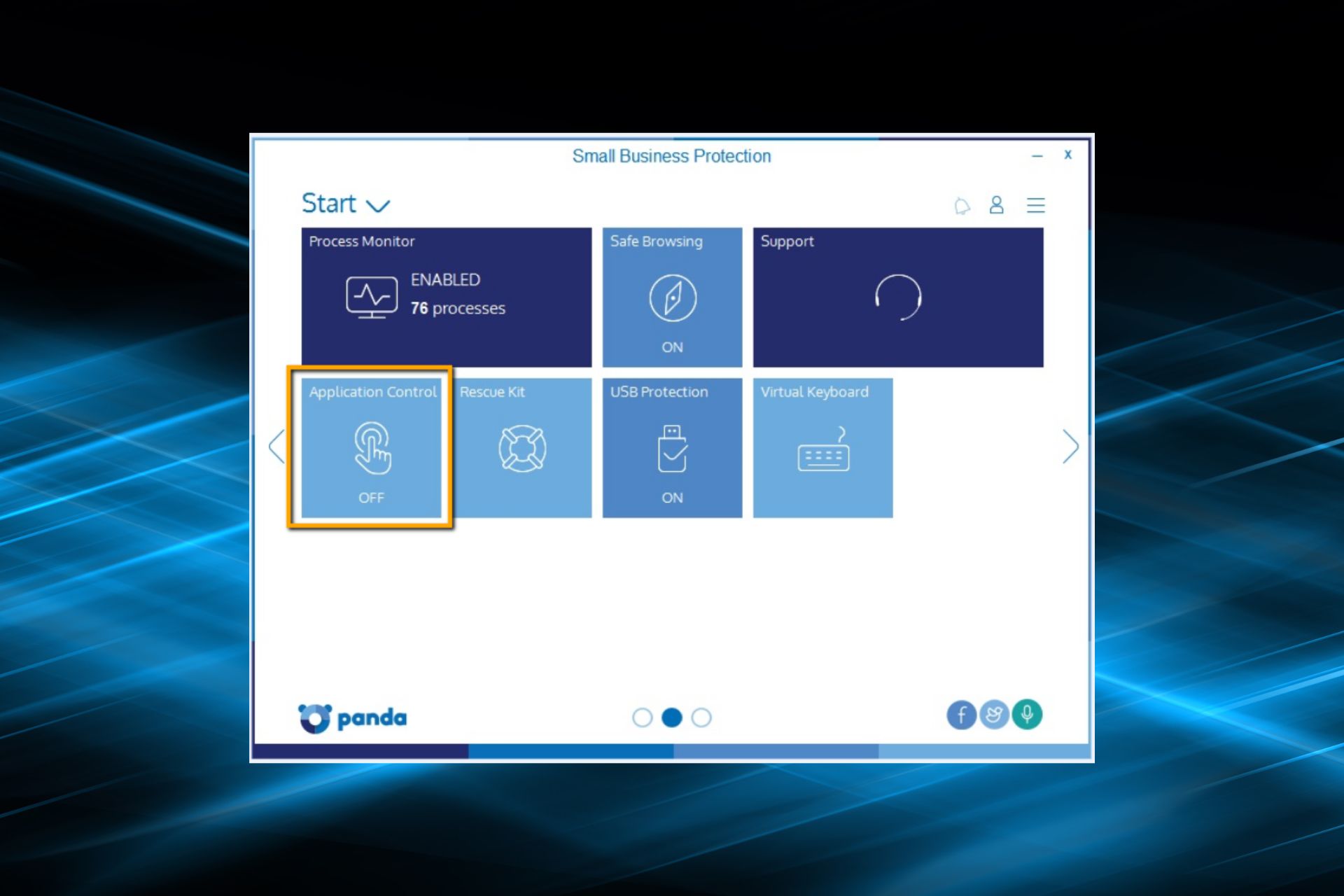

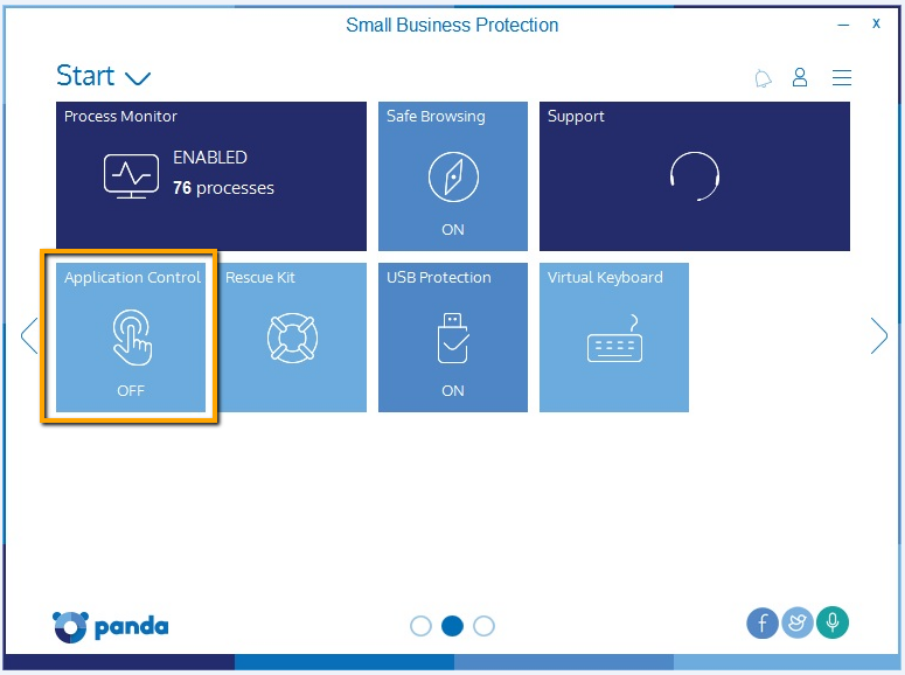

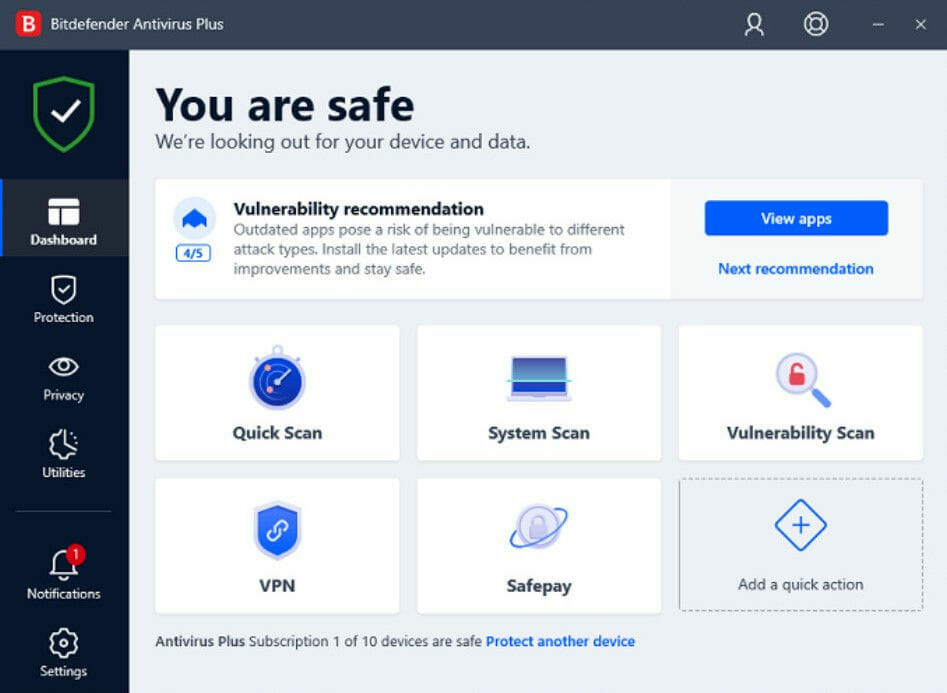

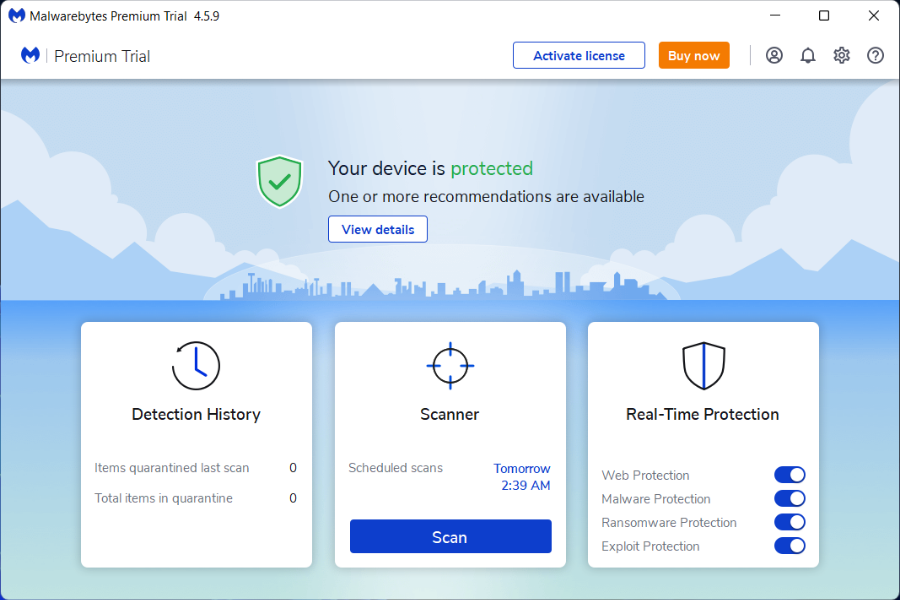

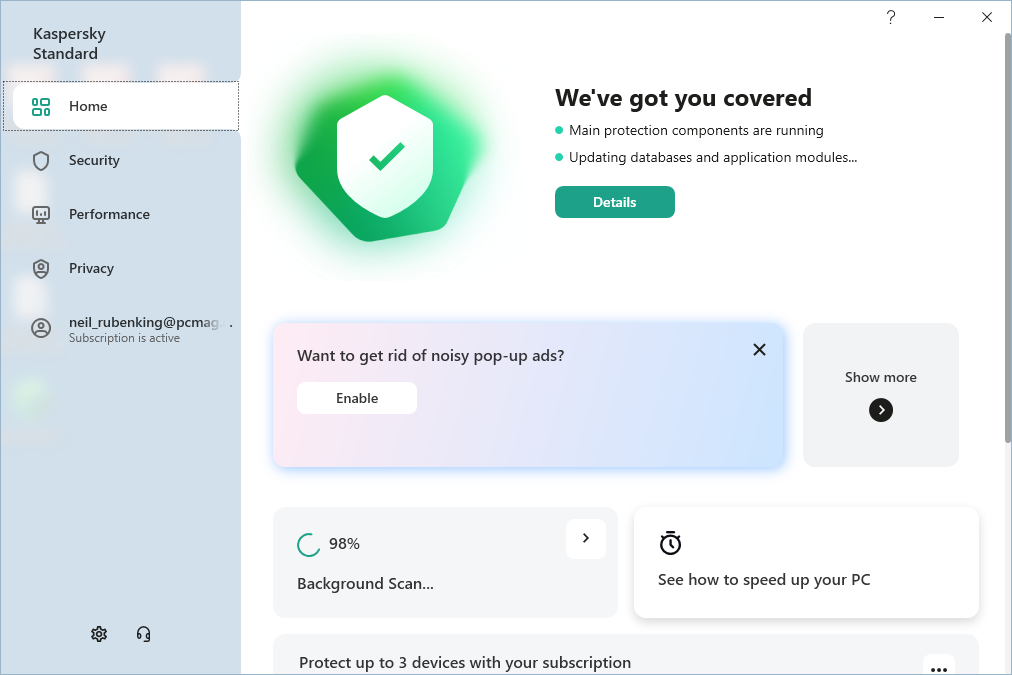

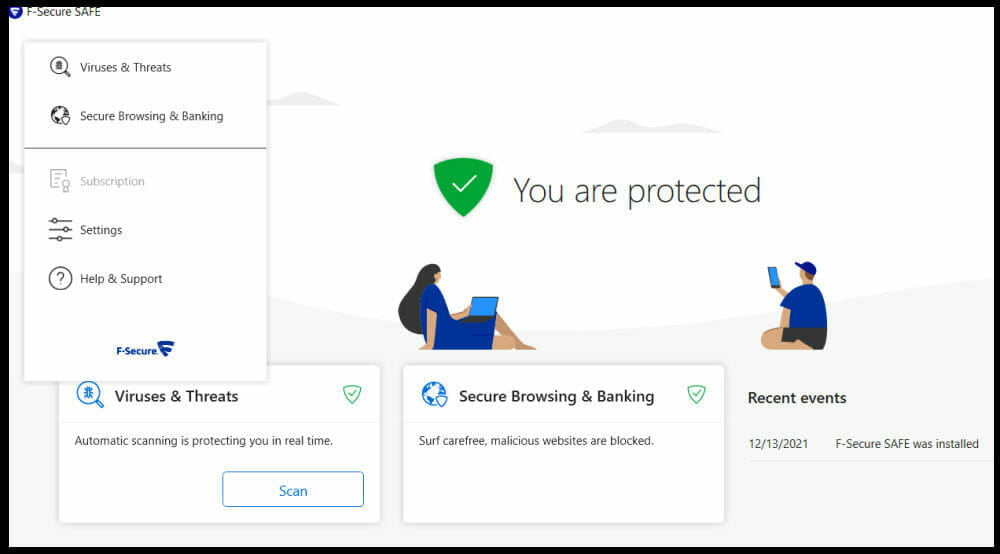
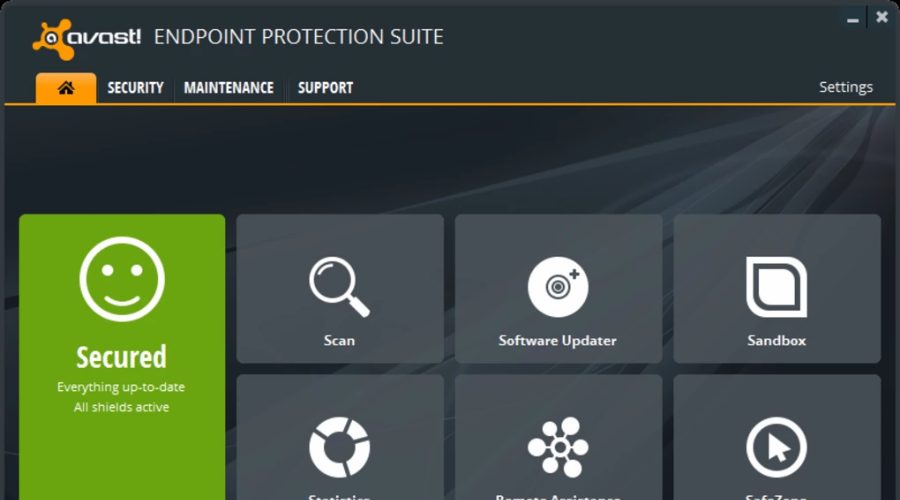
![Windows 11 Keeps Installing Old or Wrong AMD Drivers [Fix]](https://windowsreport.com/wp-content/uploads/2022/01/amd-windows-11.jpg)
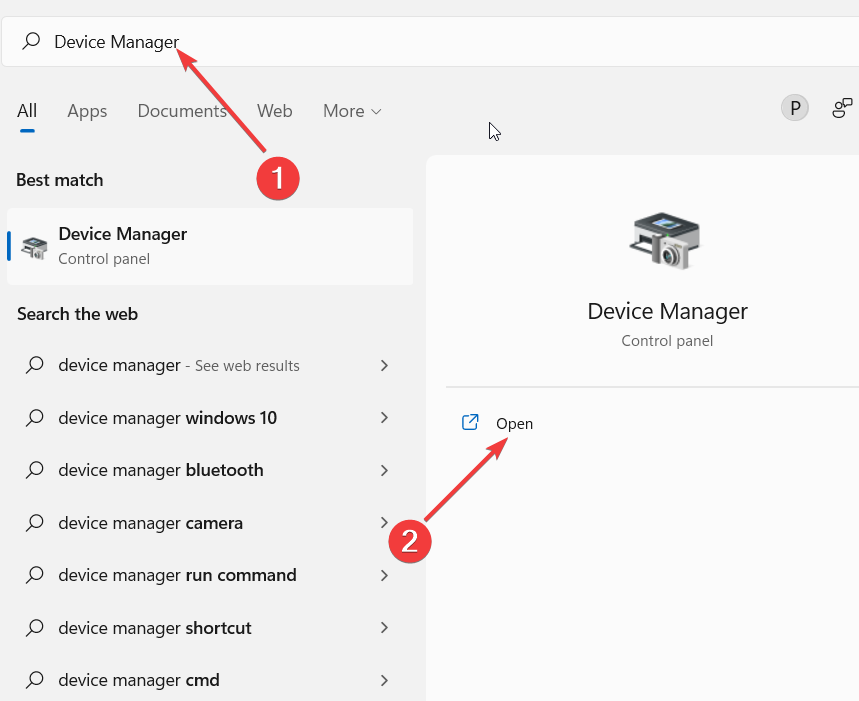
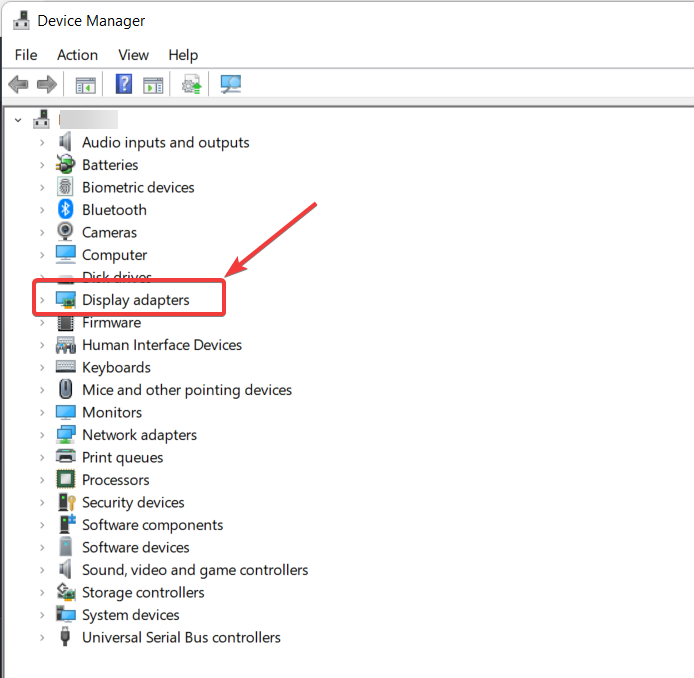
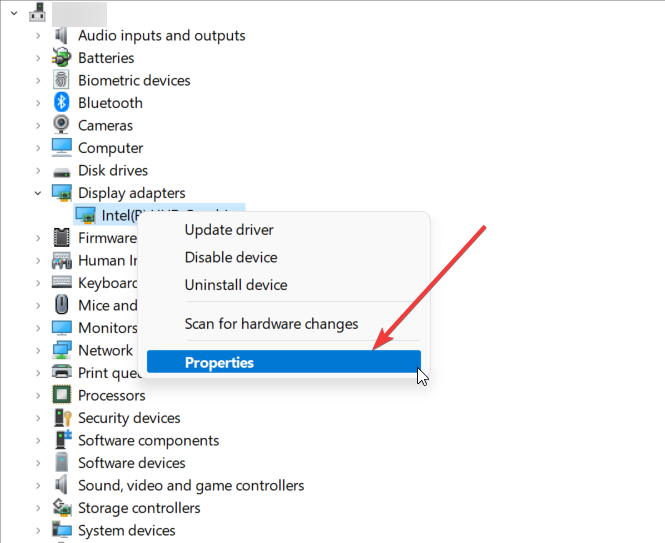
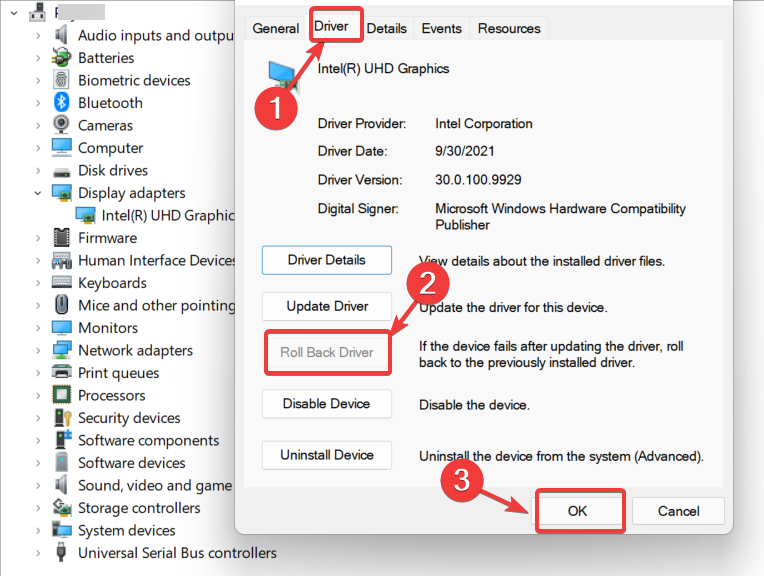
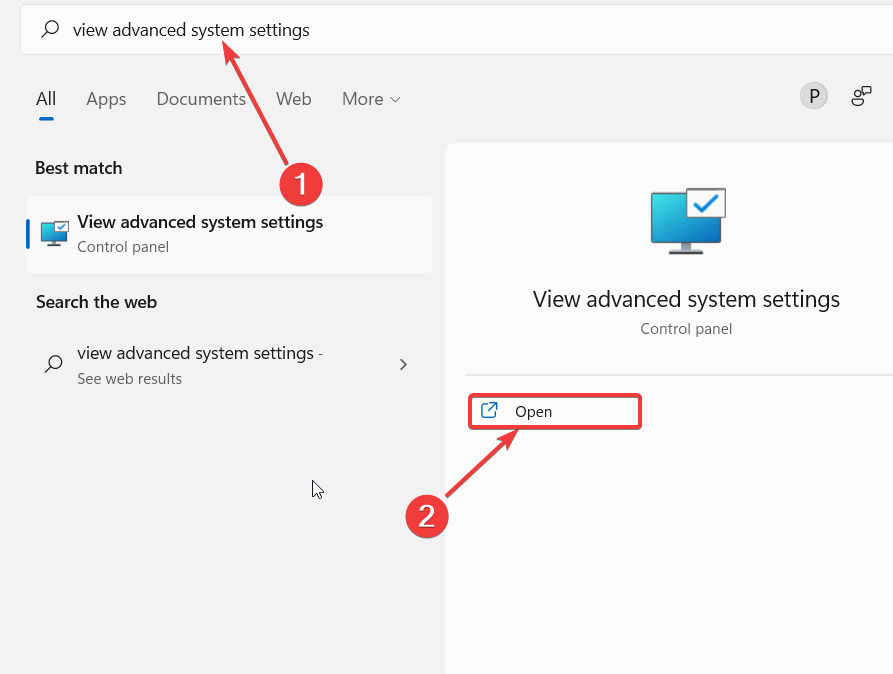
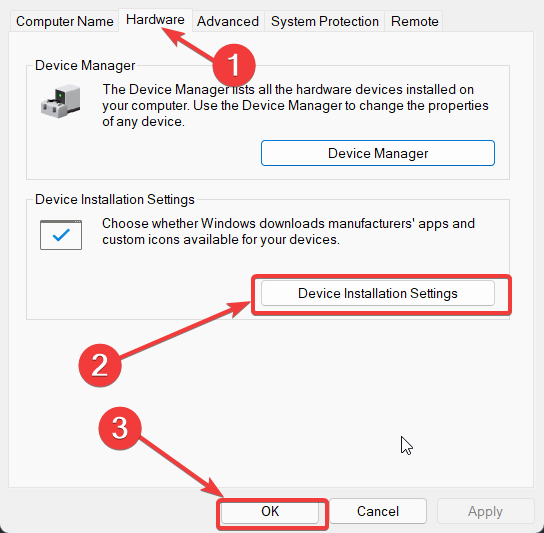
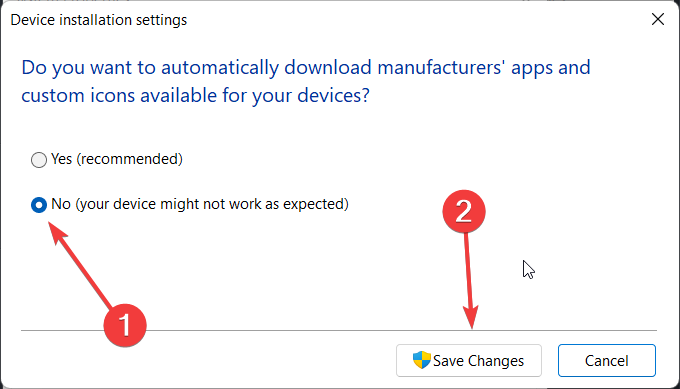
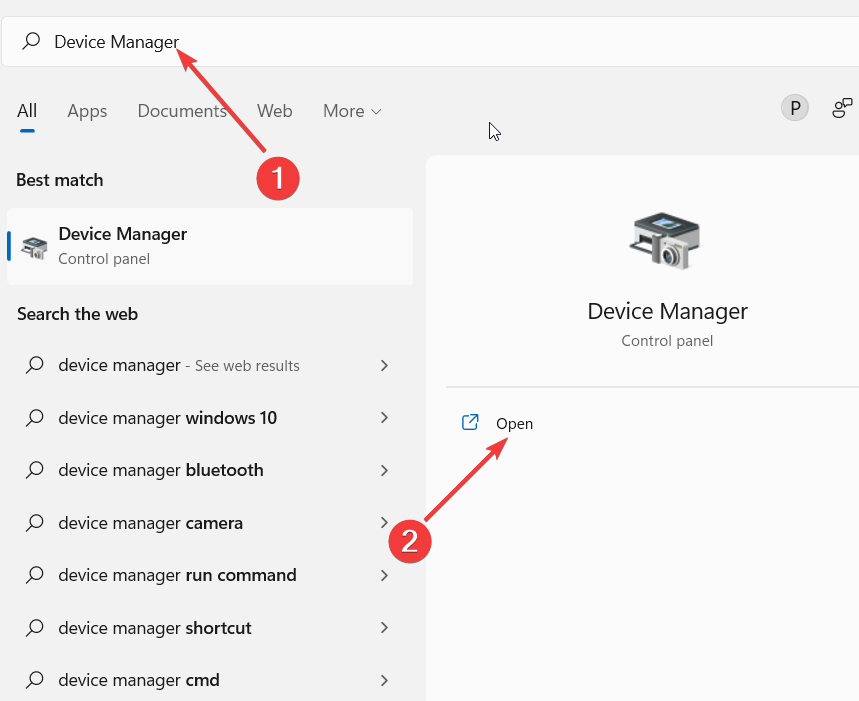
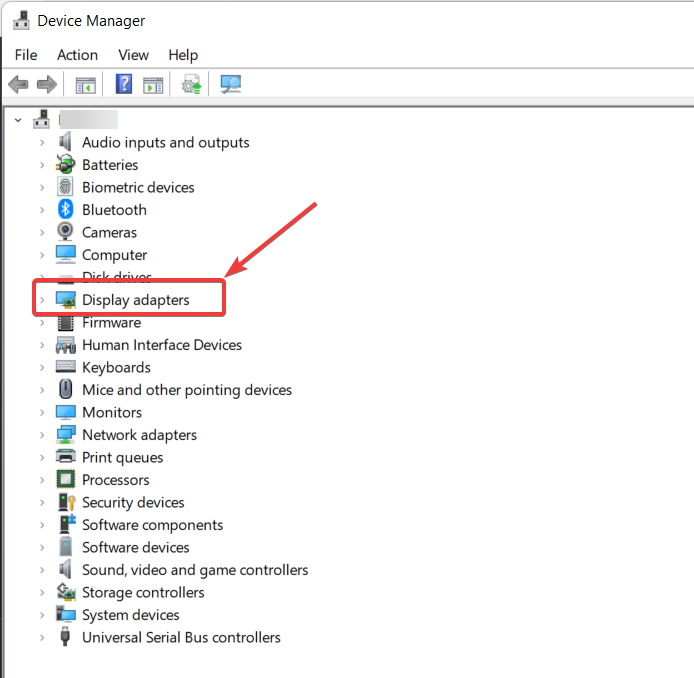
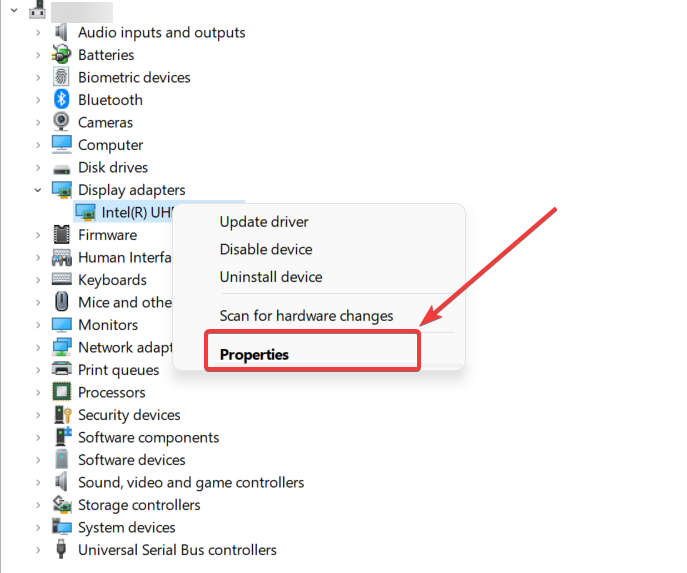
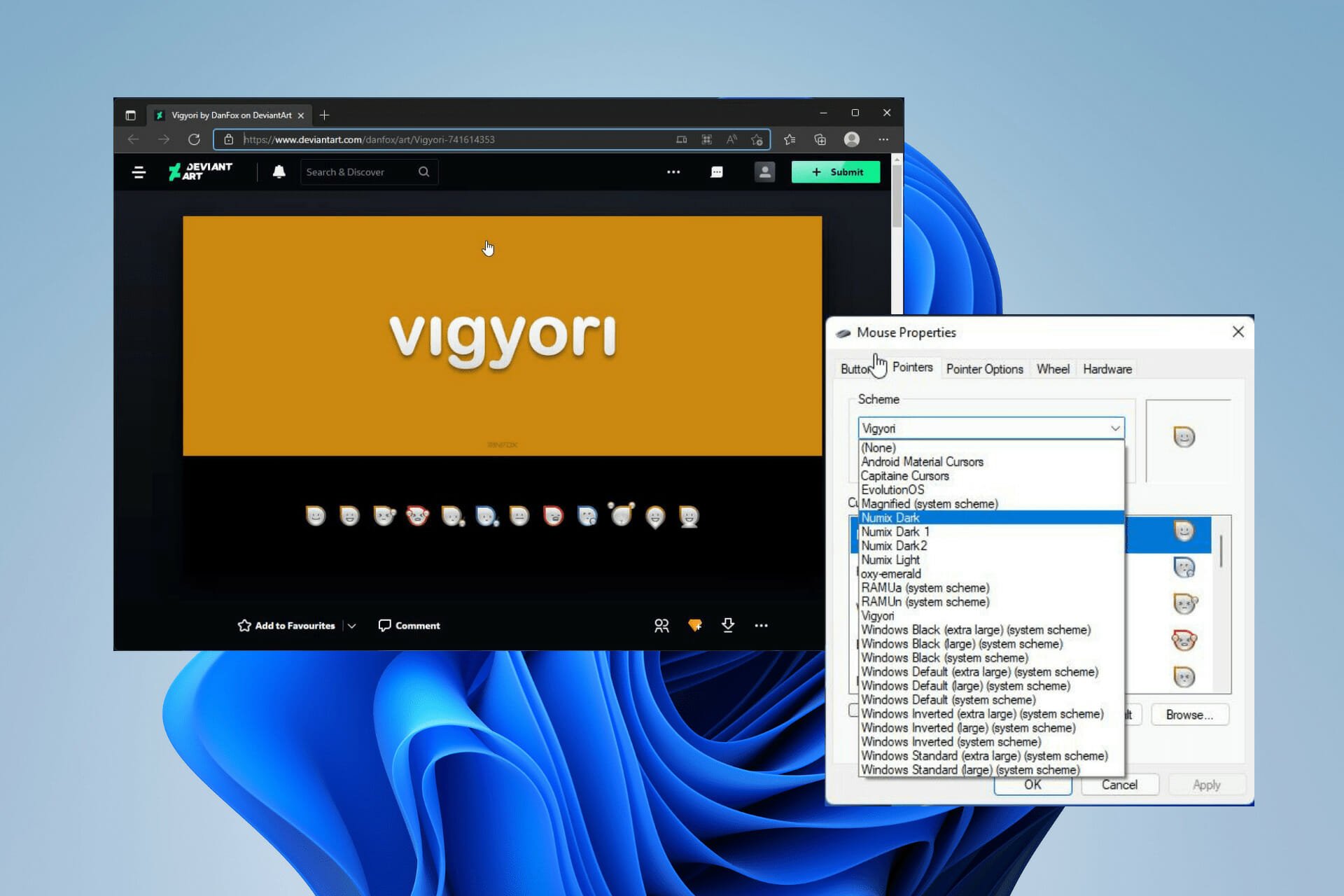
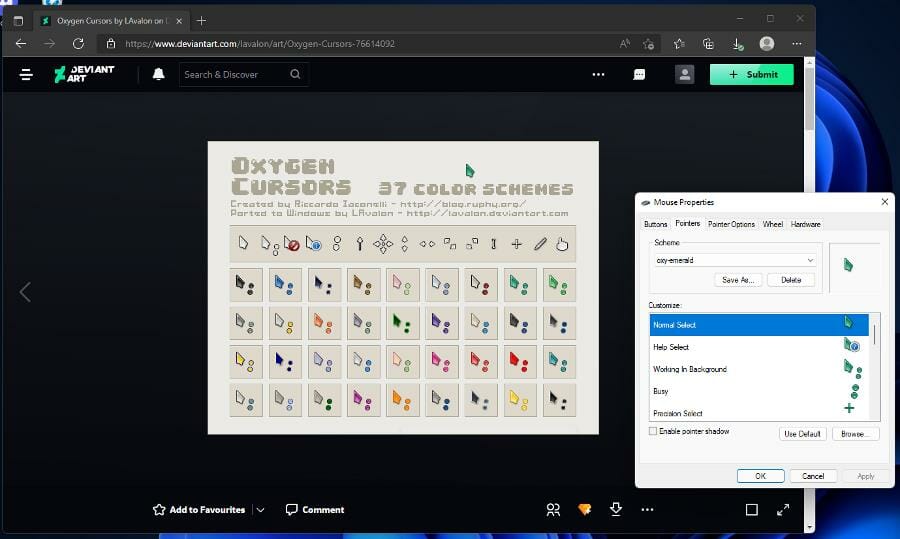
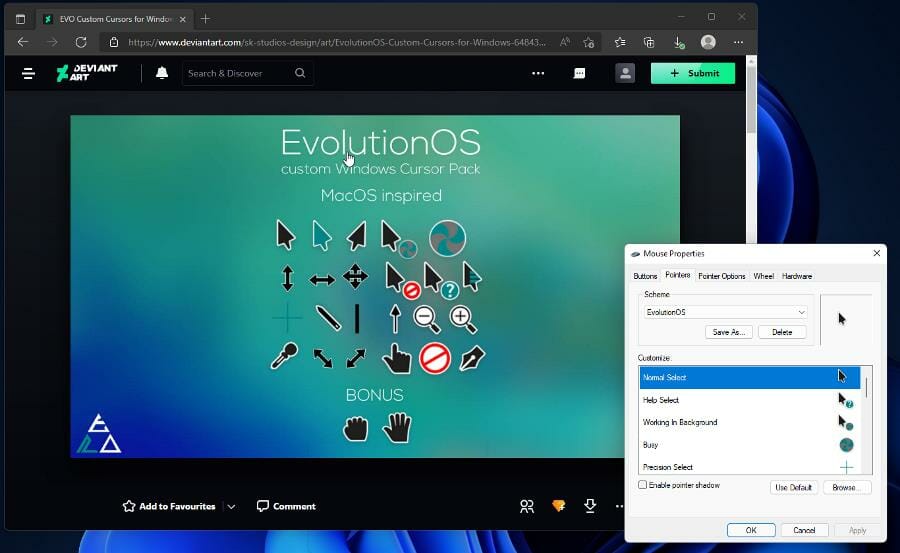
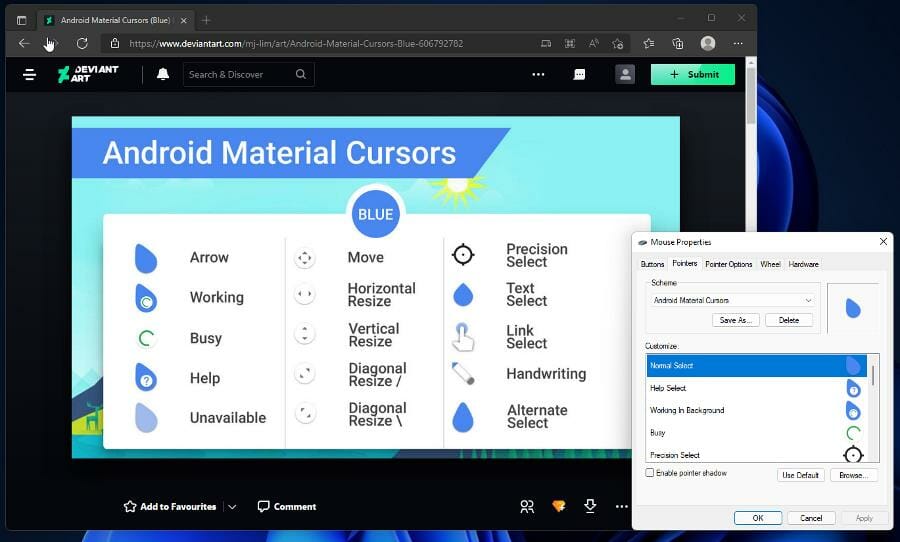
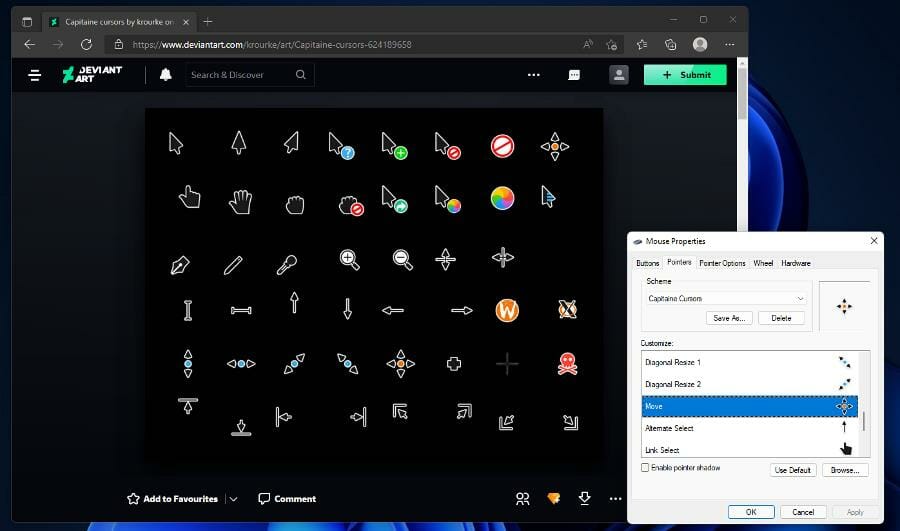
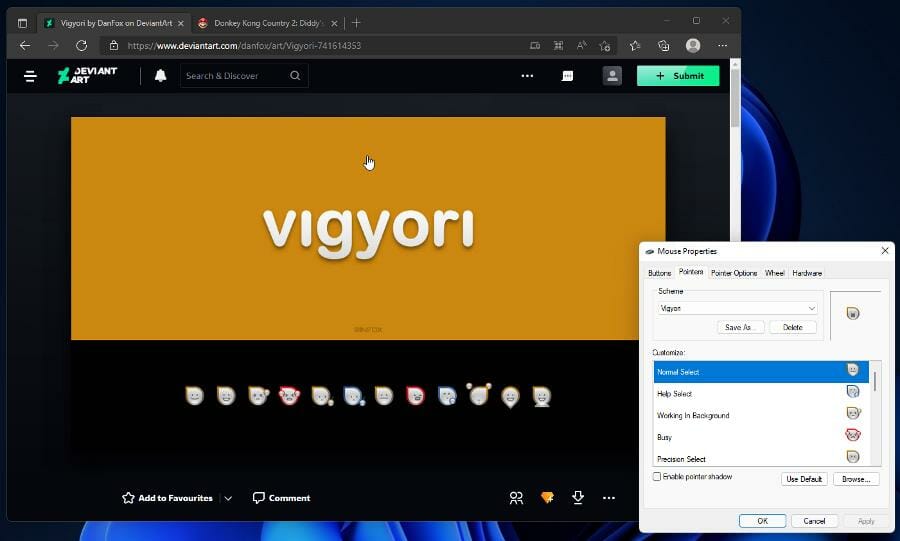
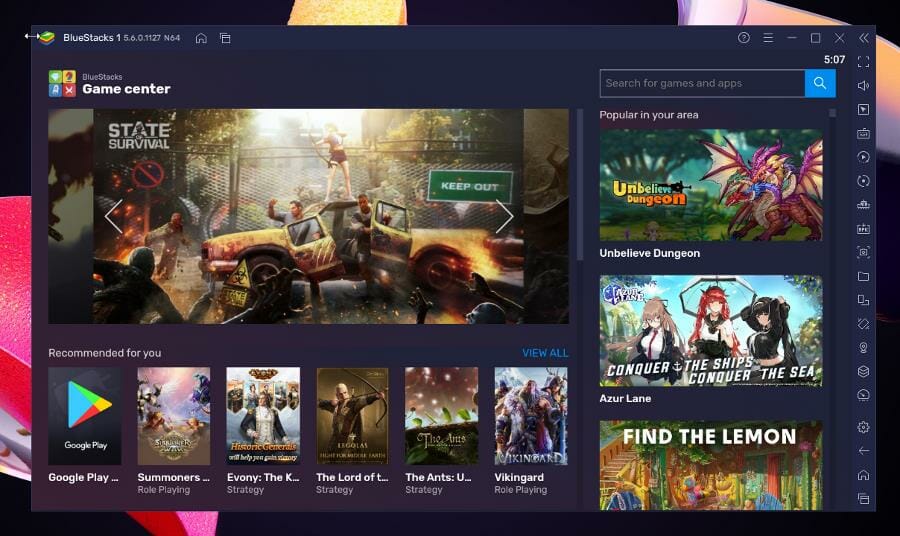

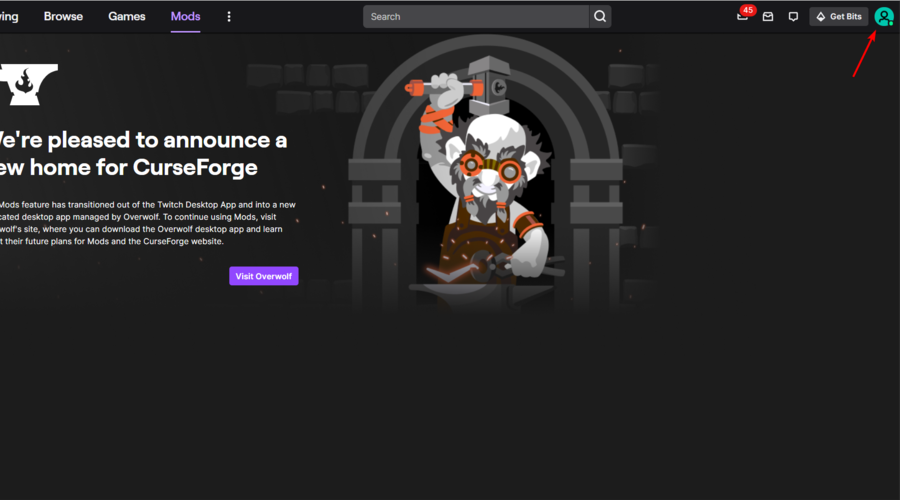
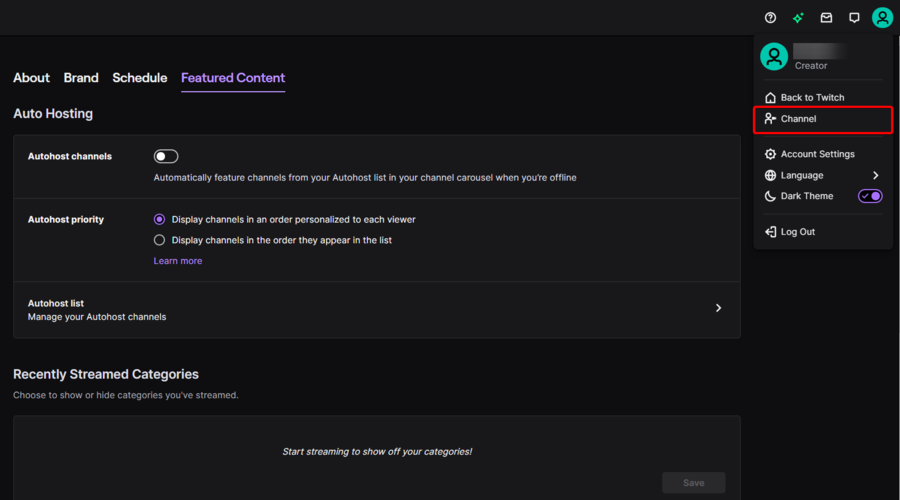
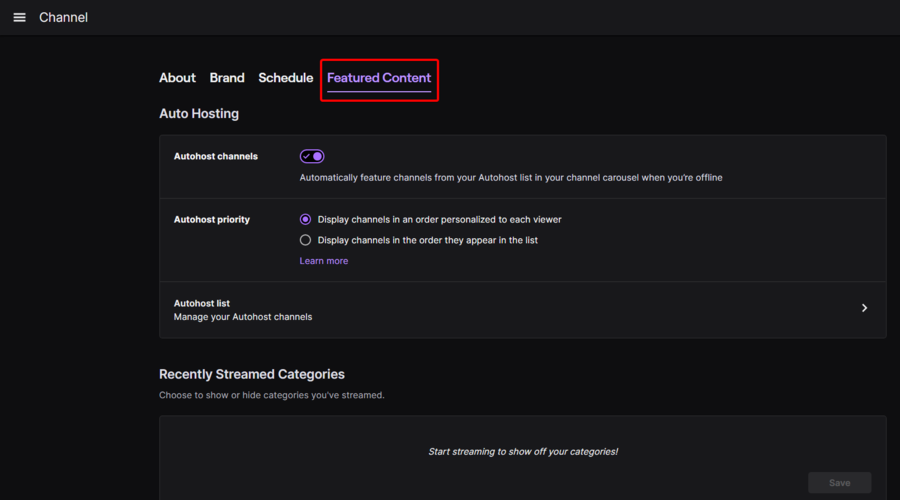
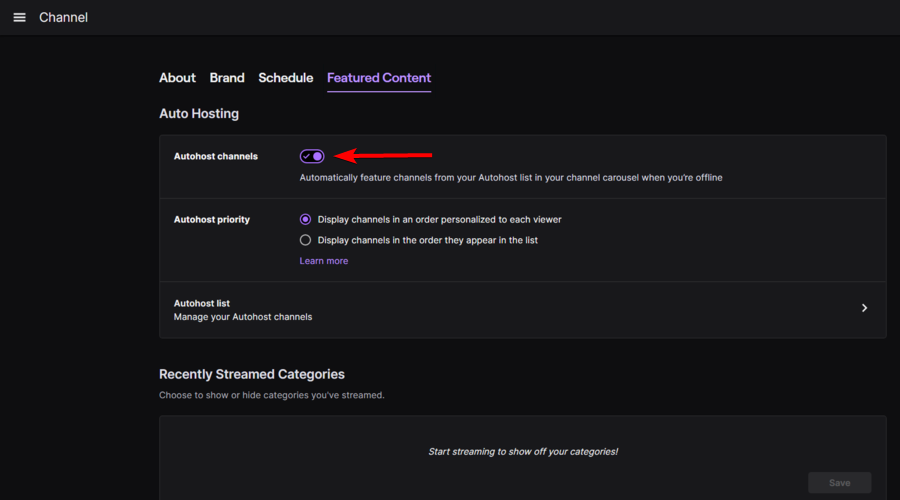
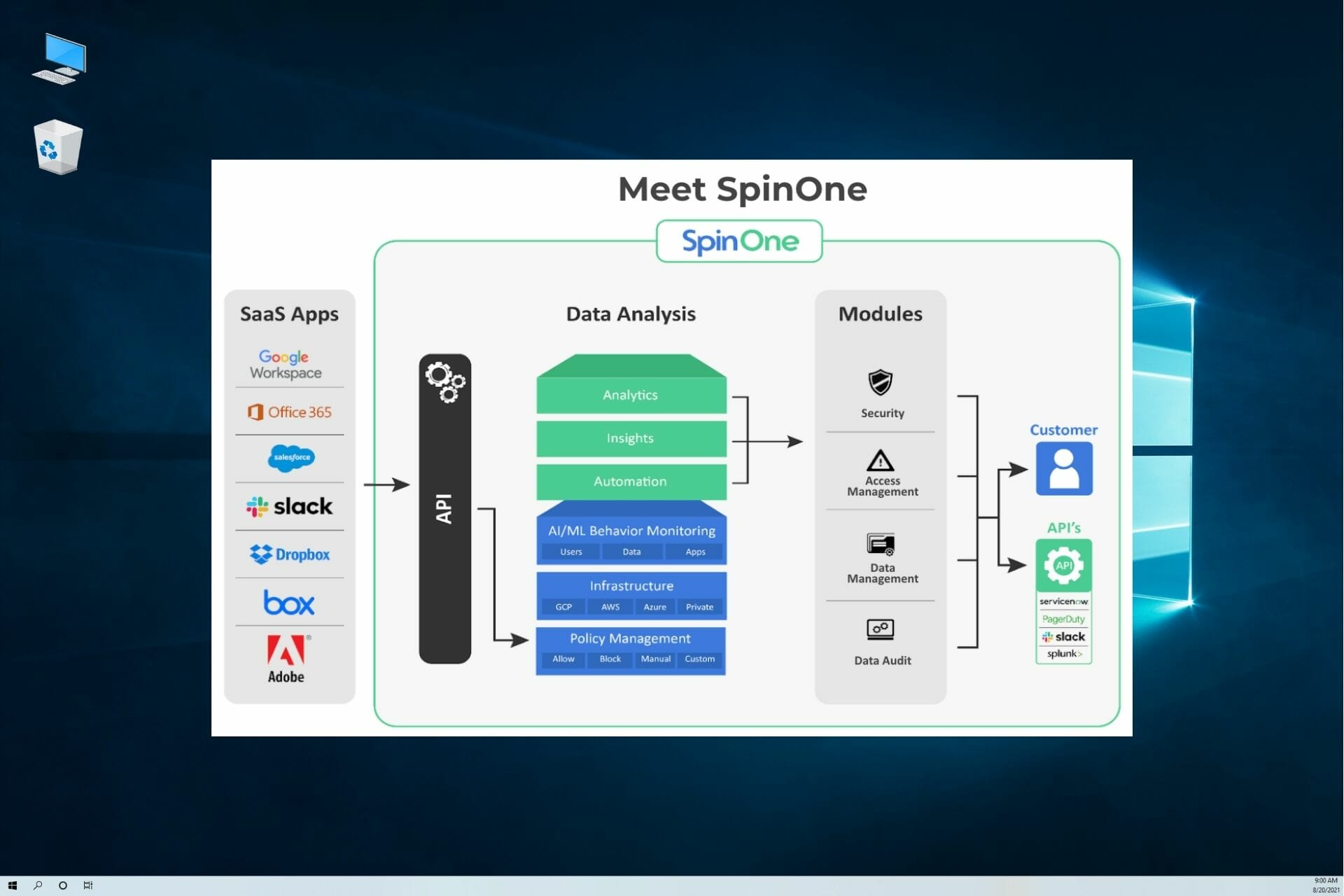



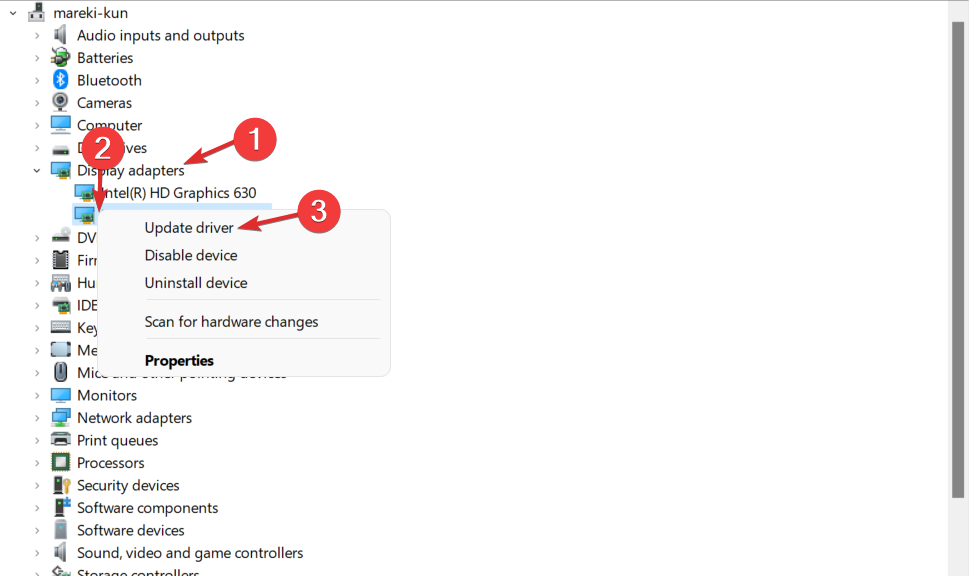


![Something went wrong linking the EA account to Twitch [Fix]](https://windowsreport.com/wp-content/uploads/2019/08/something-went-wrong-linking-EA-account-to-Twitch.png)
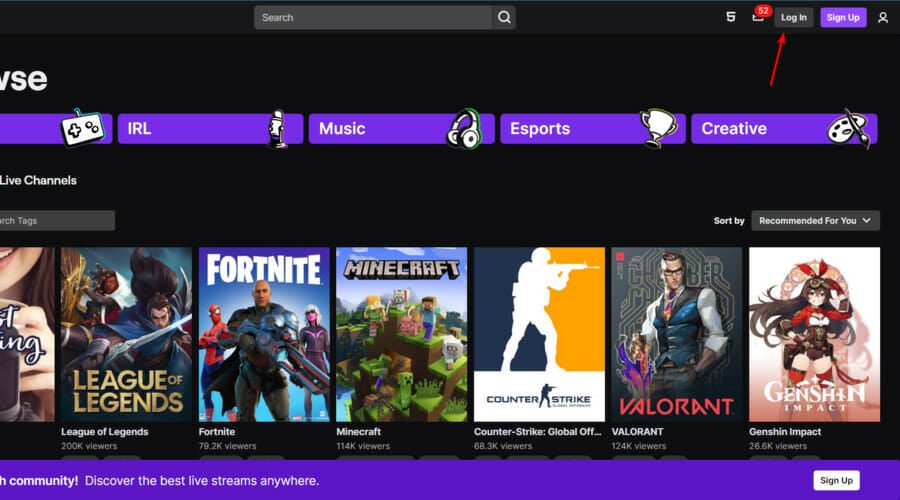
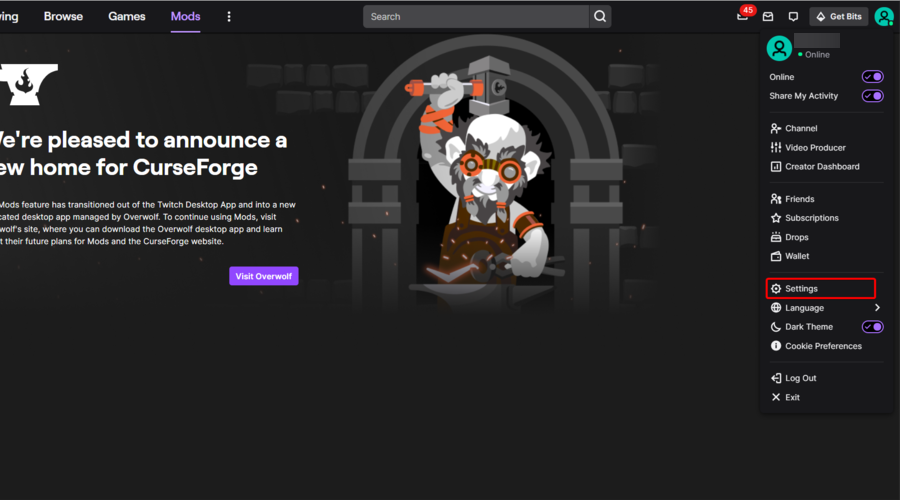




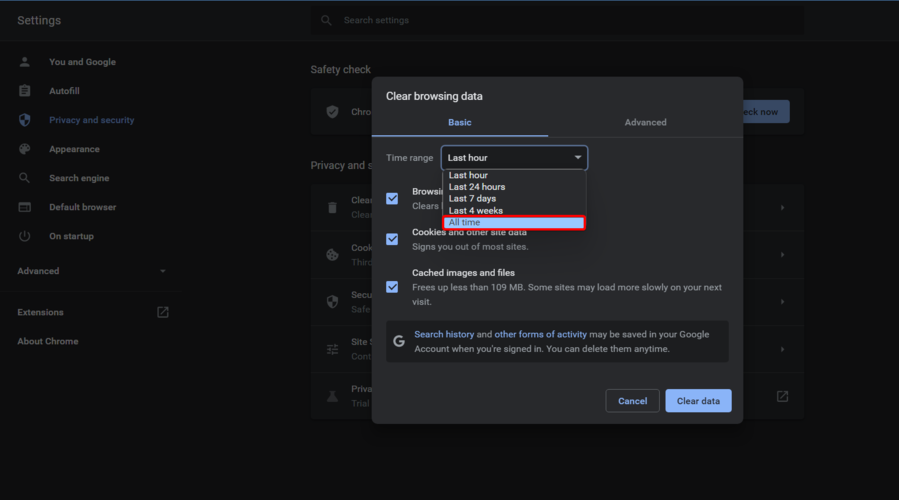
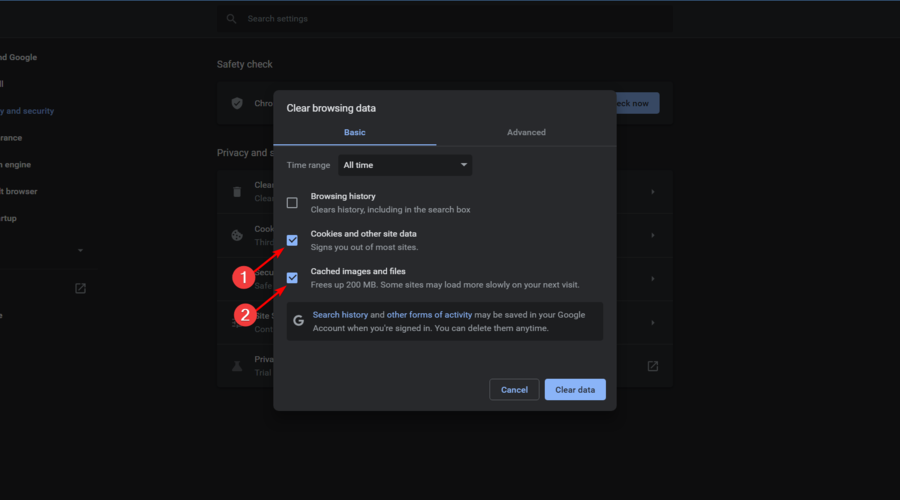


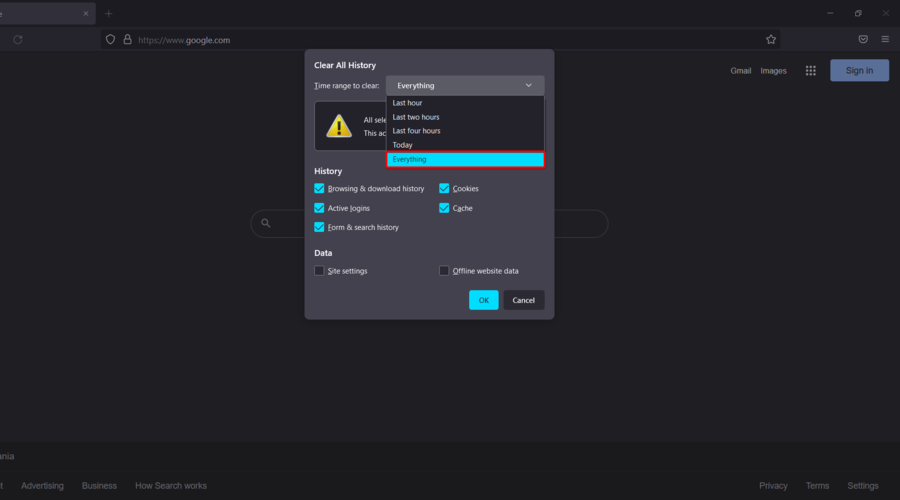


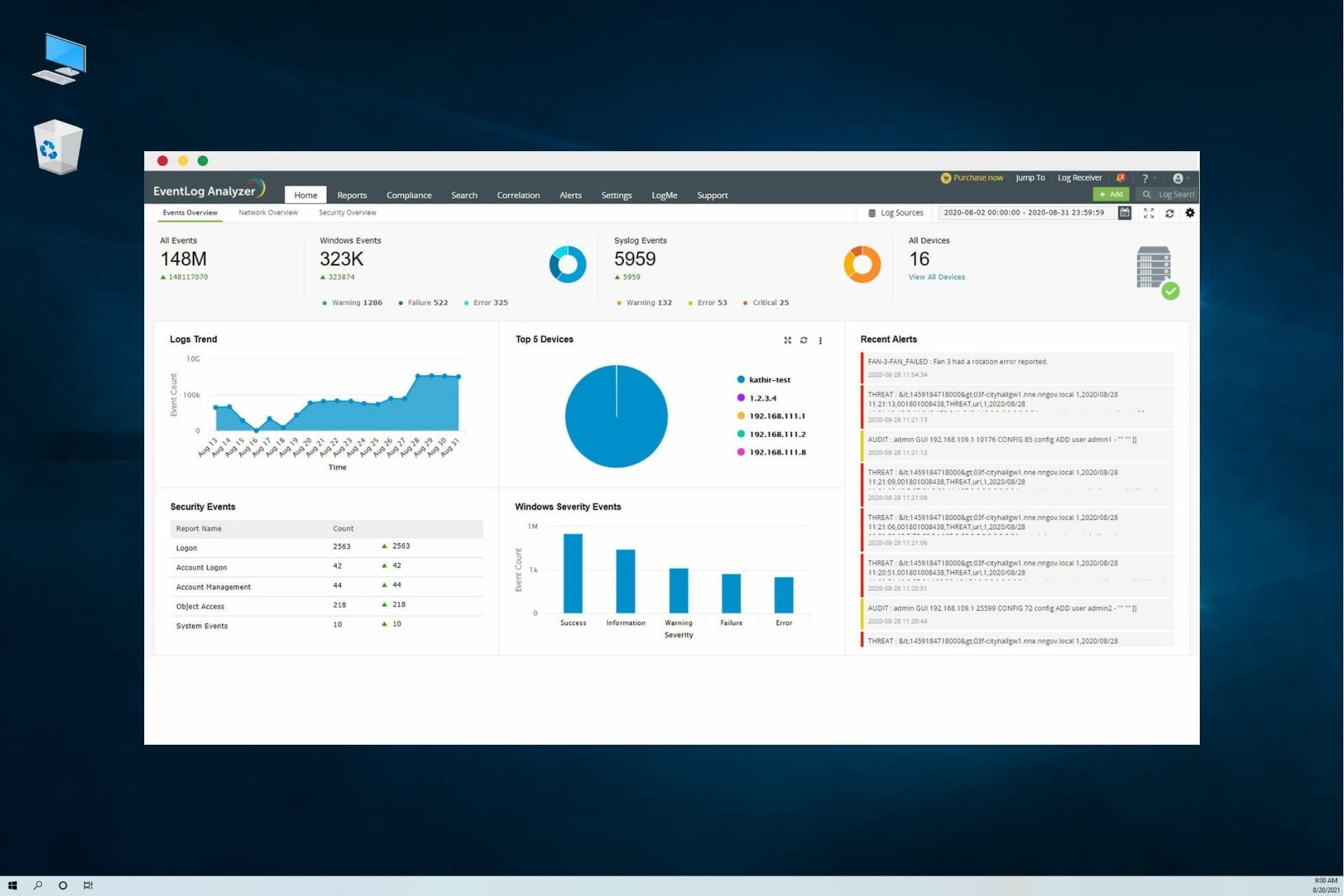
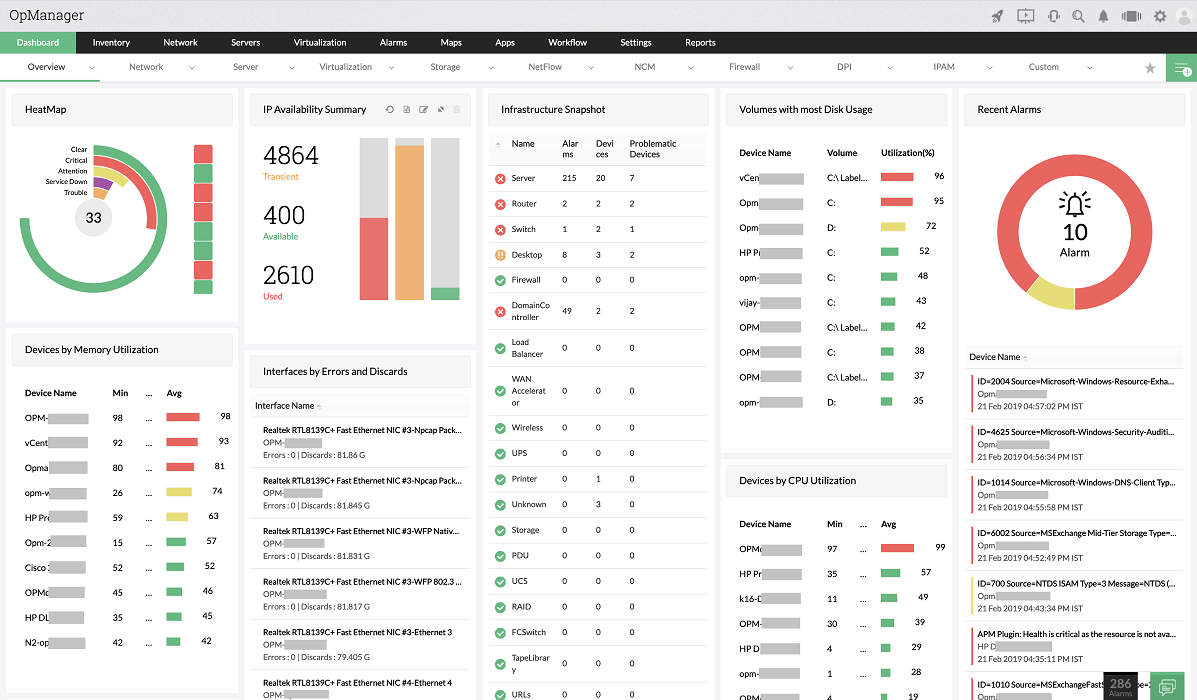

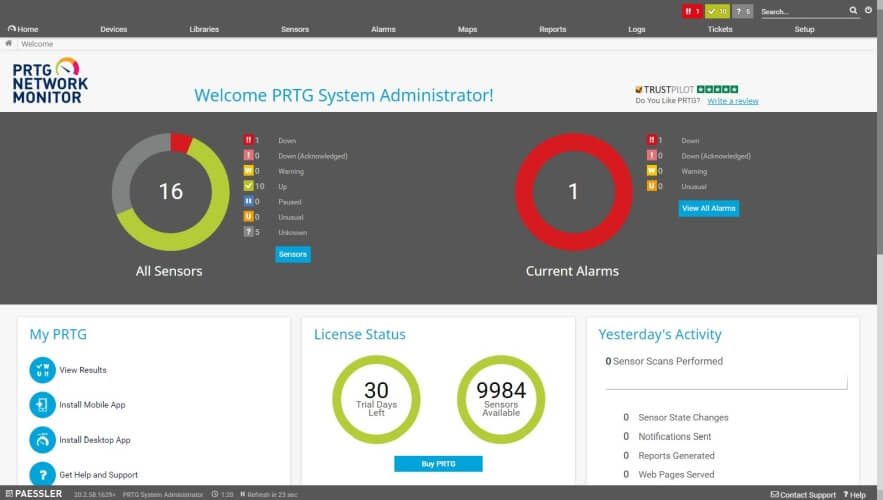

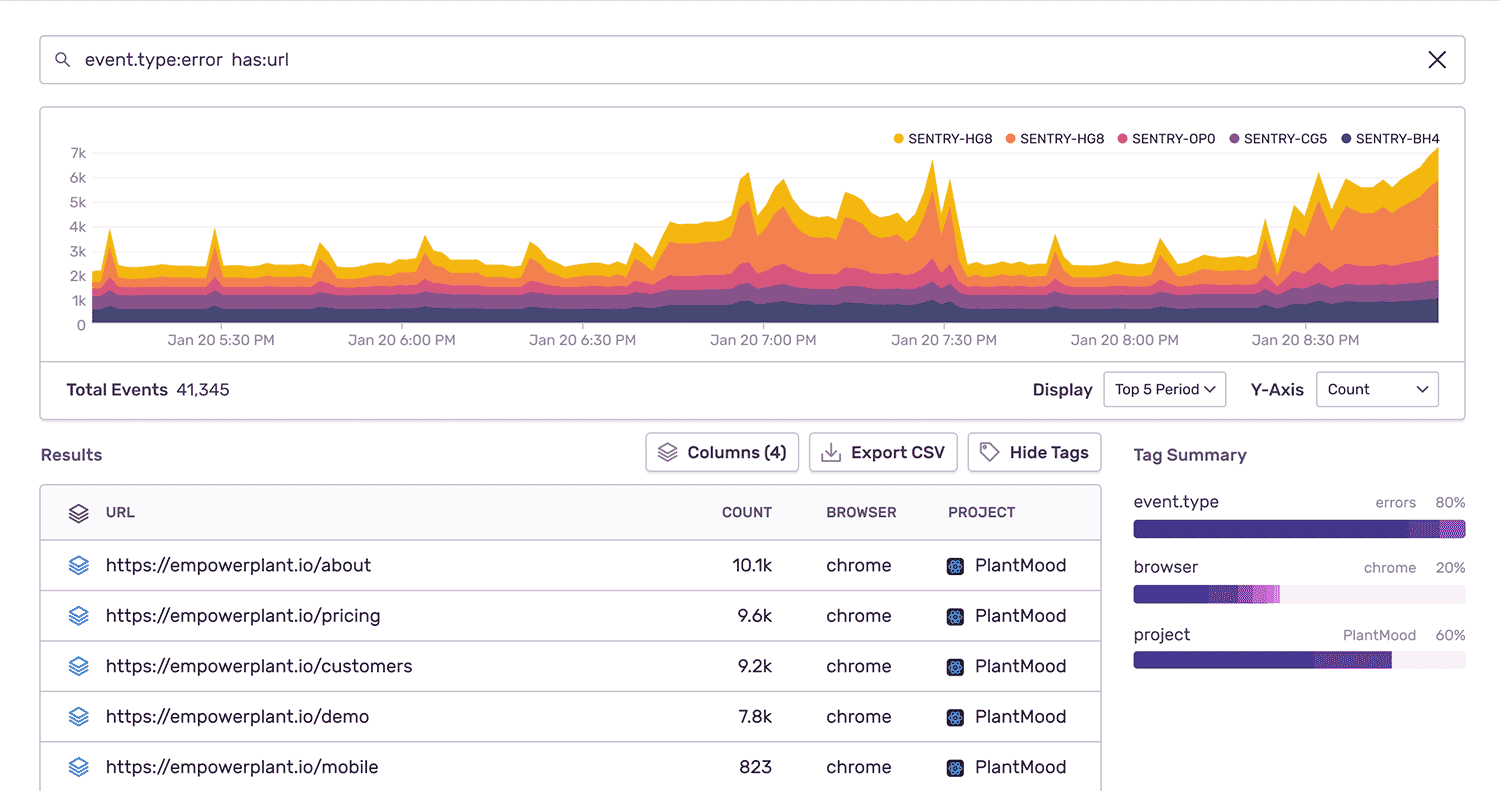

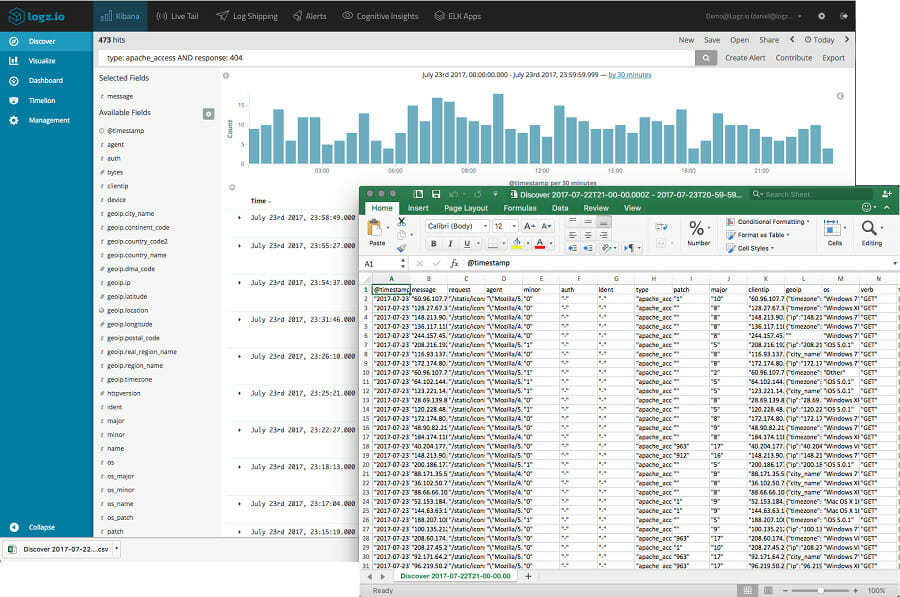
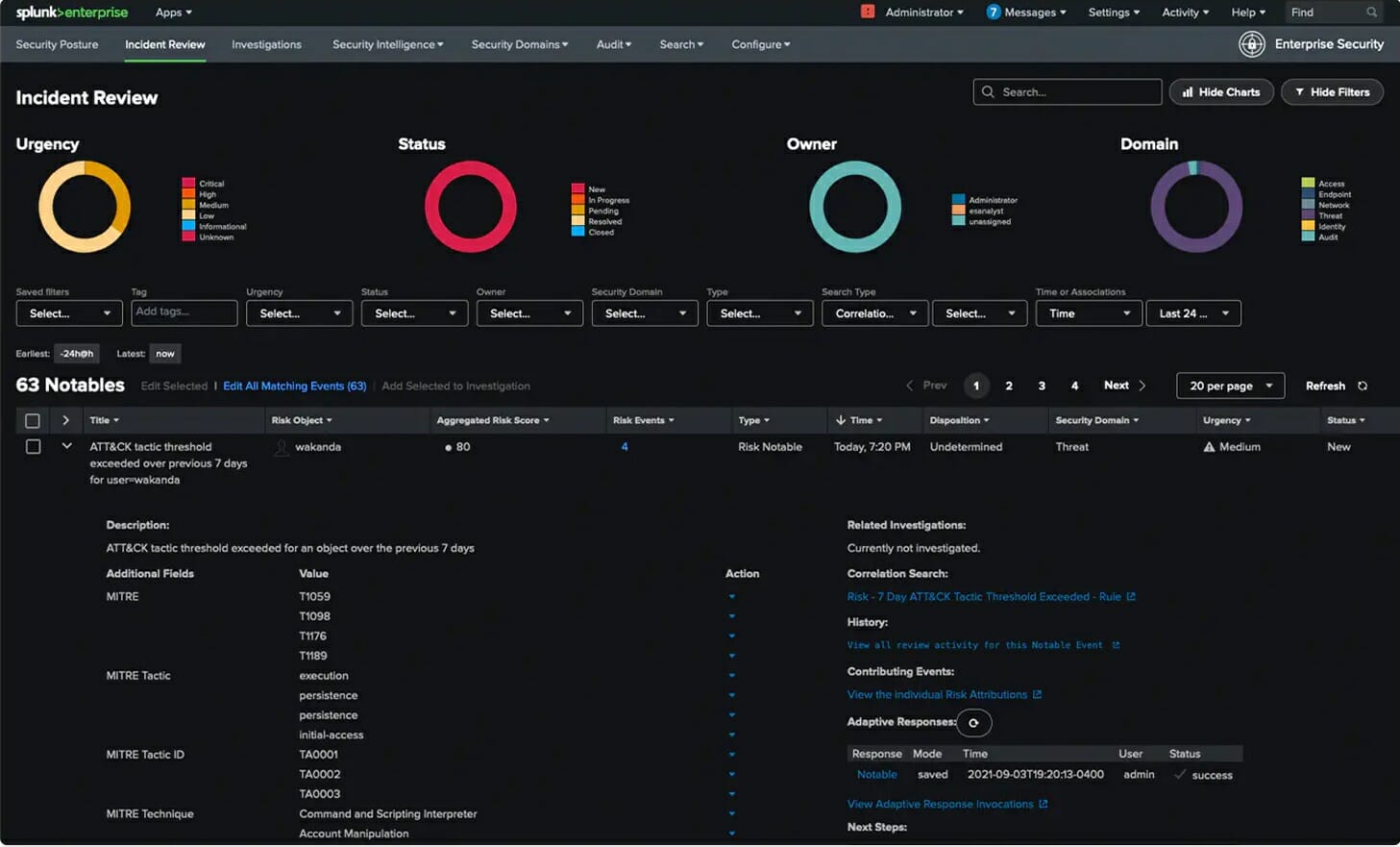



![Windows 11 Dock: How to Choose the Best App [6 Ranked]](https://windowsreport.com/wp-content/uploads/2022/03/best-windows-11-dock-1.jpg)


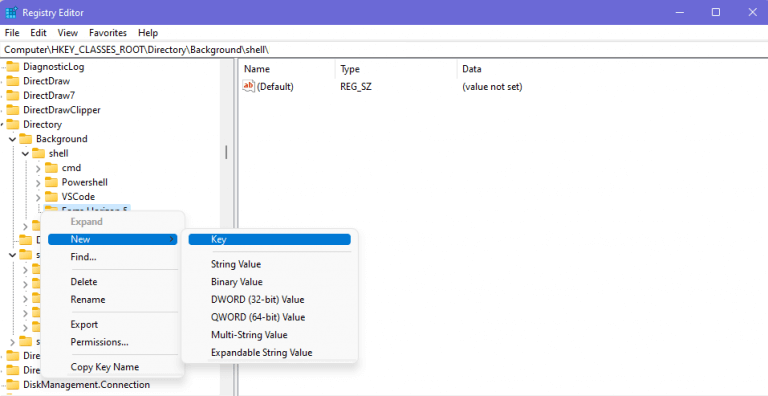
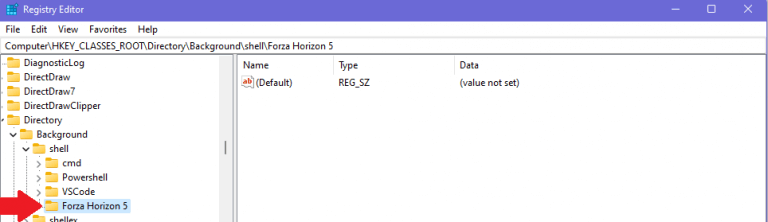
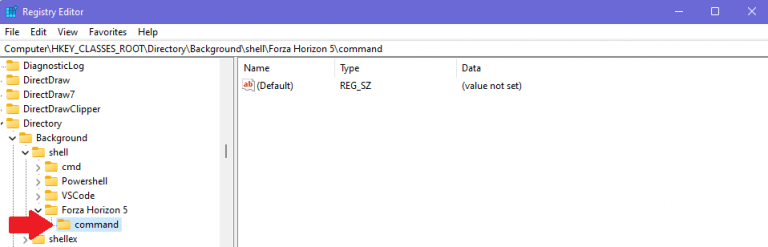
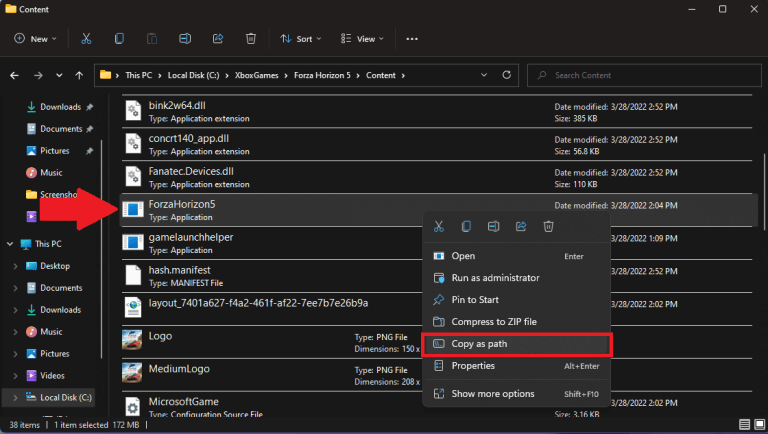
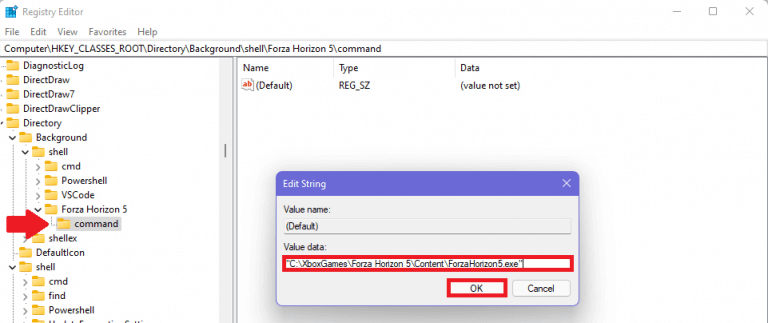 Close the Registry Editor when you are finished adding applications to the File Explorer context menu.
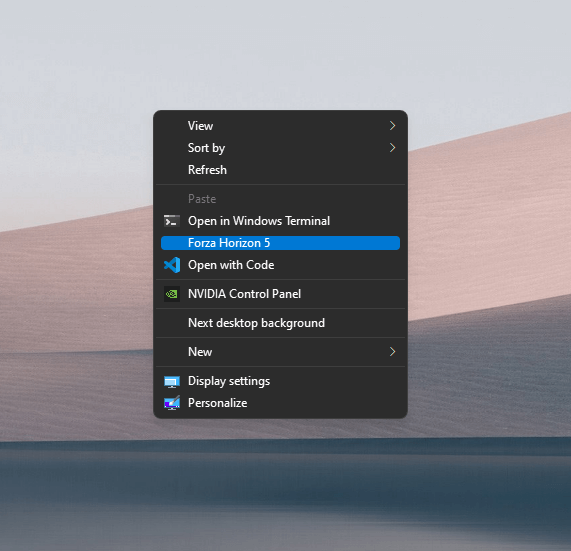 But what if you want to add an icon to your application? Here’s what to do.