No Man’s Sky is an exploration survival game released back in 2016. The game is available on Windows PCs, Xbox One, and PlayStation consoles.
Years after the initial release, and after several updates, the game is still affected by various issues. Some gamers said they encountered performance issues where the game suddenly started lagging on their devices.
One of the users even turned to Steam and created a thread about the issue. The OP described the issue in the following manner:
The last time I played the game was last year and everything was silky smooth. I was quite happy with performance. I’ve just started it again to check the latest updates and the whole thing is laggy as hell, even after turning settings way down and restarting. I’m currently going from 80fps down to 5fps with no warning, huge hiccups and lag spikes.
Many players from the gaming community responded to the thread confirming they also noticed performance issues. One of them encountered mouse sensitivity issues and reported that textures not loading properly.
How do I quickly fix No Man’s Sky lag issues?
Some gamers suggested updating the video card drivers or clearing the cache. Some players confirmed that clearing the cache worked for them.
It looks like this problem is mainly caused by your system’s hardware configuration.
Alternatively, if the problem persists, you can uninstall the game, delete all the folders from your device with a dedicated tool such as CCleaner and then install the latest updates.
If you’ve successfully tried another method, please share it with us in the comments.
If you find yourself seeing the error message Your password may have expired or the remote PC might not accept blank passwords, you came to the right place.
This error occurs when trying to connect to a remote PC by using Remote Desktop, and a large number of users facing this issue are not happy about it.
Encountering this error message means that you will not be able to connect to the remote server, and the reasons for this error appearing are very varied.
There could be some issues with your Network Adapter, the machines you’re trying to connect might not be compatible because of different settings, or it could be caused by a conflict in installed drivers.
In today’s article, we will explore all the possible reasons for this error occurring, and we will discuss the best methods to apply in order to solve it.
Please follow the steps mentioned in this article in the order that they were written in. This will allow you to avoid making any changes that would impact your system badly.
How do I fix password issues on Remote Server?
1. Run the Network Adapter troubleshooter
Press the Win+X keys on your keyboard and select Settings.
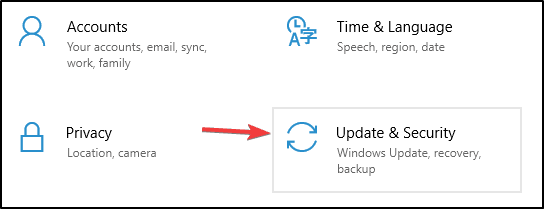
Inside the Settings window, click on the Update and Security button.
Choose the Troubleshoot option from the left-side menu.
Scroll inside the right side menu and choose Network Adapter.
Select Run the troubleshooter and follow the on-screen instructions to complete the process.
2. Change your server’s password and update your network drivers
Press Win+X keys and select Device Manager.
Inside the Device Manager window, toggle the Networkadapters list.
Right-click your Network driver and choose Update driver.
Press the option Automatically search for the best driver online then wait for the process to complete.
If the search didn’t find any new drivers, please follow the next method.
3. Disable the Network Level Authentication option
Press Win+X keys on your keyboard and choose Settings from the menu.
Click on System and choose the Remote Desktop option.
Click the option Advanced settings found on the right.
Un-tick the box next to Require computers to use Network Level Authentication to connect (recommended).
Check to see if this fixes your issue.
4. Restart the Remote Desktop Services
Press Win+R keys; type services.msc and press Enter.
Inside the Services window, right-click the Remote Desktop Services and select Restart.
Try to see if this method fixed your issue.
If you can’t fix the problem, you can try Mikogo as alternative remote management software. It is a popular tool that has many useful integrated features. Moreover, if you need additional support with your device, you can try these remote troubleshooting tools.
In today’s guide, we explored the best troubleshooting methods to apply in order to repair the Your password may have expired error.
Please feel free to let us know if this guide helped you solve your issue. You can do so by using the comment section below.
There are moments when you want to have access to your Windows 10 computer while relaxing on the couch, being in another room, and enjoying your dinner.
Or you might need some documents from your computer and you search for alternative ways to manage your PC so that you can easily move slides and keep your audience engaged.
For such scenarios that are quite common, we present you with some great applications that allow you to control a computer from your Android phone via Wi-Fi.
There are not too many reliable apps that you can use on your Android smartphone or tablet to control your Windows 10 device.
But we have scanned thoroughly and found no less than five of the best remote control apps to use. Without further ado, take a closer look at what they have to offer right away.
What are the best apps to control the PC from Android?
The official Microsoft Remote Desktop application uses the RDP protocol, offering a fast and reliable way to access your Windows 10 system without installing additional server programs.
You need to enable remote connections on your PC by going to Control Panel > System and Security > System, then click on Remote settings from the left panel.
Then, on the Remote tab, simply check Allow remote connections to this computer. After doing that, connect your PC with an Android device.
Install, open the application, and tap on the + sign. Enter a name for your connection, the hostname or IP address of the PC, the login credentials, and click on Done.
For those of you who don’t know, TeamViewer also offers easy, fast, and secure remote access, being one of the world’s most popular providers.
You can control any Windows, Mac, and Linux computer from your Android device via Wi-Fi. TeamViewer is free for personal use and keep in mind that it’s capable of sound and High Definition video transmission.
After you download and install it, run the program on both your systems and from your Android device, connect to the PC using the ID and Password shown in the TeamViewer window.
To access your computer from across the Internet you can use Splashtop, making your Android device control a PC simply via Wi-Fi.
The application fully supports Windows 10 touch gestures, giving you access to your applications and all data you have.
If you like the idea, Splashtop Personal is free, for personal use enabling you to use your desktop as you wish. For connecting to up to 5 computers, security, and manageability, there is a business version available, Splashtop Business.
Keep in mind that it is very easy to use. The first steps involve downloading and installing Splashtop on your Android device, then creating an account using an e-mail address and a password.
Then, you ned downloading the app on your Windows 10 system from the developer’s website and log in using the account you just created.
Now all you have to do is search for your computer on the Android device and connect. On a further note, interactive 3D gaming is part of the package as well.
As most of you enjoyed at least once the Google Chrome browser, you must know that is a tool that is extremely easy to use.
Well, let us tell you that you can remotely control your Windows 10 directly through it. All you have to do is to install a Chrome Remote Desktop extension on the browser, on your Android phone.
After that, just pair your device with your Windows 10 computer. You may now forget all about using your mouse and keyboard to control your computer
The most noteworthy tool that you can use to control the Windows PC from your Android phone is none other than AnyDesk.
You should know from the very start that it provides robust communication across all major operating systems: Windows, Mac, and Linux for desktops, as well as Android and iOS for mobiles.
Therefore, if you ever change your mind and switch platforms, AnyDesk may easily remain your choice. What more could you take into consideration?
Well, when data is being transferred between devices, connections are secure. This software provides high levels of security with encryption and verified connections, keeping your data safe from prying eyes.
These are some key features that you’re about to enjoy:
User-friendly, intuitive interface
Increased stability
Safe access guaranteed by bank-level security standards
Hence, you are looking for alternative ways to control your computer. Doing so from your Android phone via Wi-Fi is easier than you can imagine, as you can see above.
Microsoft launched the new Windows Preview Build 21359 to all Windows Insiders with notable improvements in terms of new features.
It seems that Microsoft continues in the same trend as the previous build that brought along many user experience changes.
In terms of notable fixes, it’s worth mentioning that the developers have focused on issues caused by updates, which are extremely frequent with any system version.
Important feature changes and fixes in Preview Build 21359
1. No more device syncing
Starting with this build, those using the synching function across all their Windows devices are in for a great disappointment.
As such, they will no longer be allowed to upload new activities in Windows Timeline since all major browsers have an activity history included. Additionally, Microsoft suggests using OneDrive or Office to view recent files.
The activity history will remain accessible locally, only on that machine.
Introduced back in 2017, Timeline was meant to sync the users’ activity across all their devices connected via the same Microsoft account and allow them to pick off an activity where they’d left it.
2. News and Interest rolled out for all devs
All those part of the Dev Channel will now see the News and Interests feature on their Taskbar once they install this build.
It’s possible that the feature crashes upon hovering the mouse over it in this first stage, as some users complained on Twitter.
Until now, Microsoft only rolled out the feature to a limited number of Insiders. It’s expected that the feature will also be included in the stable and greater general update to be launched this spring.
3. Restart apps after a reboot
Similar to browser behavior after an unexpected crash, Microsoft now ads a shortcut in the Start menu for users to resume activity after a reboot.
This setting appears in the Start menu and needs to be checked, to toggle the option under Settings > Accounts > Sign-in options > Restart apps.
Reactions about this feature have already started to appear on social media, as some consider that the option should be placed at the top of the list.
4. Black screen with mouse cursor fixed
Black screen with a mouse cursor is a common Windows OS issue. Following user feedback, Microsoft patched this bug in the current build.
Users that experience this problem because of their graphics card, should install the updates; if the issue persists, they should also press WIN + CTRL + Shift + B and/or report back to Microsoft.
The issue can have plenty of causes, including newly added Windows updates, outdated apps or operating system, or interfering programs.
5. Other notable fixes
What Microsoft didn’t manage to fix this time is the fact that the update process is sometimes hanging for several hours, for no apparent reason. The developers are working on it and a fix is expected to be launched in a future release.
On the other hand, those using Remote Desktop and experiencing connection issues after installing recent updates should see an improvement now.
Also, there’s been quite some enthusiasm about the reorganization of the Windows Tools folder; and now the build release note mention that in case you saw This PC applet displayed as Computer, the error will no longer appear.
You can check out the release notes in the full Microsoft document. As always, your comments are welcome in the dedicated section below.
Microsoft has launched a new website where you can customize your Surface with some really cool dbrand skins. Titled “WeAreOriginalByDesign” the website covers all of Microsoft’s modern Surface devices and features unique and original designs from select influencers and celebrities.
In total, there are seven skins that you can currently choose from on the website. Each of these skins is inspired by different people, with the exception of the seventh “Robot Camo” skin, which is one of Dbrand’s.
Anyway, the skins are designed by former NFL player Martellus Bennett, the photographer Brooke Shaden, the racer Collete Davis, DJ HAPA, the chef Fabio Viviani, and the artist Marcus Rivero.
You can visit the website and click through each one of these and then “try it on” by selecting your Surface device from the list. You’ll see a video explaining which Surface device this celebrity uses, and you’ll also hear more about their story and the inspiration behind the skins.
The navigation through the entire process is a bit weird, requiring scrolling, clicking, and some gestures, but it’s pretty easy to figure out.
Interestingly, though, if you’re looking for a Surface Pro X skin, you’ll have to first select Surface Pro, and then choose Surface Pro X. Anyway, if you’re considering buying one, the skins are $30 total. Purchases go through drband.com, which is an authorized seller of Surface skins.
The preview now moves to version 1.8 and brings a handful of additions. These include a new Shift+Click experience for profiles. The terminal now allows users to open a specific profile in a new window by holding the Shift key and clicking on the profile in the dropdown menu. Another addition is the support for the unfocused appearance settings that enable users to customize their profile when it’s is open and unfocused. More information on configuring this setting can be found on this support page.
There’s also a new Window naming experience, which lets users name their terminal windows. Users will now be able to assign names to both new and existing windows, making it easier to identify them when using wt commandline arguments in the tool.
The Settings UI is also receiving some enhancements, including the addition of the font face dropdown. This means that users can now use the dropdown menu to select the font face instead of typing the font name manually. Apart from this, the company has removed the base layer page from the settings UI. Finally, there are some new command line arguments, miscellaneous improvements, and a couple of bug fixes, too.
Windows Terminal 1.7 and Windows Terminal Preview 1.8 can both be downloaded from the Microsoft Store. These updates can also be installed manually from the project’s GitHub page.
Microsoft Edge version 90 will start rolling out to the Stable channel this week, and it will be the first major update to be released following the switch to a faster four-week release cycle. The main new feature in this release is the new Kids Mode, which will allow parents to set up a protected online environment in Microsoft Edge when their children need to browse the web.
Kids Mode can be accessed by clicking on the account profile picture in the upper right corner of Edge. When clicking on “Browse in Kids Mode,” parents will be able to choose between two age ranges (5-8 and 9-12) providing different curated experiences to kids. Microsoft applies the strictest tracking prevention level to both choices, and Bing SafeSearch is also enabled by default in Kids Mode.
“Regardless of the age group, Kids Mode limits the sites that kids will have access to – from the get-go there are about 70 popular kid sites that are allowed, but you can fully customize the list in a couple of clicks in Microsoft Edge settings. If your kid tries to navigate to a site outside of that allowed list, they’ll be greeted with a friendly block page, encouraging them to either ask for permission or try navigating elsewhere,” explained Microsoft CVP Liat Ben-Zur.
The other big new feature launching with Microsoft Edge version 90 is Passwords Monitor, a feature that started rolling out in January but is now generally available with the latest Edge stable release. Password Monitor can check if passwords saved in Edge are included in the lists of leaked credentials, and in that case the browser will invite affected users to update their credentials immediately.
Password Monitor also includes a useful password generator feature that will suggest unique passwords when users create new accounts on online services. Overall, Password Monitor should be a great free alternative to competing services like LastPass which recently added new restrictions to its free tier.
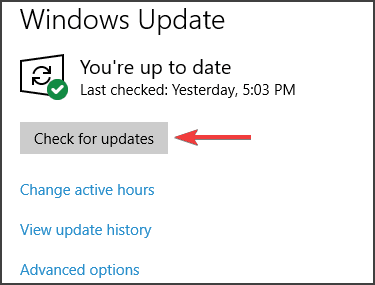
Another notable change in Microsoft Edge version 90 is the improved history search that now understands search terms like “news articles from last week” or “jacket from yesterday.” If you’re not seeing the update yet, don’t worry as it could take some time before Microsoft Edge version 90 becomes available on your PC. As a reminder, You can check for updates manually by opening edge://settings/help in the browser.
Microsoft has released a Fluent Design update for its Whiteboard app in Teams and on the web. Ian Mikutel from the Microsoft Whiteboard team announced the news on Twitter yesterday, saying that the online collaboration tool has been updated with a new toolbar inspired by Microsoft’s Fluent Design language.
????Introducing our new Fluent UI toolbar and shapes, lines, & arrows in Microsoft Whiteboard for @MicrosoftTeams & Web!
Collaboratively diagram during brainstorm sessions & take your remote/hybrid work & learning to the next level. So much more to come, stay tuned! pic.twitter.com/EzuwdKZoNS
The most interesting novelty is the addition of new Fluent design elements, including shapes, lines, & arrows, to the Whiteboard app. The “Add shape or line” icon is available through the toolbar, and it features various symbols that can be used to draw flow charts quickly. This should make it easier for business and education users to collaborate with other people within Microsoft Teams during brainstorm sessions.
Microsoft revealed the Fluent Design system back in 2017 and announced its plans to incorporate its new design language across all its products. Microsoft Teams and Microsoft Edge are two noteworthy examples, and we also learned last month that Windows 10 is getting new icons in the File Explorer. This means that heading into the future, we will likely see more Fluent Design elements in other parts of the OS.
Some users have reported encountering the error message Fatal error inside Kaspersky. This error usually occurs during the installation process of your Kaspersky software.
This error can be extremely annoying, especially if you’ve seen it being displayed every time you want to install Kaspersky.
The Fatal error message inside Kaspersky can be caused by a conflict between a third-party antivirus software that was installed in the past on your PC.
Moreover, it can be caused by the Host files that are needed to connect the Kaspersky installer to the download servers.
For these reasons, in this article, we will explore some of the best methods to apply in order to fix fatal errors during the installation of Kaspersky.
How do I fix the Kaspersky Antivirus fatal errors?
1. Run SFC command inside PowerShell (Admin)
Press the Win+X keys on your keyboard and select PowerShell.
Type sfc /scannow inside PowerShell editor and press Enter.
The process of scanning will take some time. Please make sure to wait for the process to complete.
Check to see if the problem is resolved. If it is not, please follow the next method.
System File Checker is a great Windows 10 built-in tool that is often used to repair corrupted system files. This utility is available on all versions of Windows OS.
However, if the Sfc /scannow stops on Windows 10, you can take a look at our dedicated guide and easily fix this problem.
2. Uninstall other antiviruses
There are some antivirus software options that require you to use a specialized removal tool to delete the entirety of the files. Here are some examples: Avast, AVG, TotalAV, McAfee, Sophos, and more.
If you’ve used any of the above-mentioned antivirus software before trying to install Kaspersky, it is recommended to use any of these best third-party uninstaller tools to get rid of stubborn software.
Follow the on-screen instructions from the uninstaller tool you chose to completely remove any trace of older antivirus software, and then try to install Kaspersky again.
3. Check for any leftover registry keys
Press the Win+R keys on your keyboard to open the Run dialog.
Type regedit then press Enter.
Navigate to the following link inside the Registry Editor window: HKEY_LOCAL_MACHINE\SOFTWARE\Microsoft\Windows\CurrentVersion\Run
Expand the folder called Run and search for a registry key called avp**_post_uninstall (Ex. avp12_post_uninstall).
Right-click the above-mentioned key and select Delete.
Check to see if the issue persists.
Windows creates a registry key whenever you uninstall a Kaspersky product, and for some reason, this key gets forgotten by the installer when rebooting your PC to clear the files.
This registry key can cause conflicts with the new installation process of Kaspersky. In order to remove it completely, please follow the above steps.
It is also recommended that you clean your Windows registry from time to time. If you need more details, check our comprehensive guide.
4. Reset Hosts file to default settings
Open the search bar and type Notepad, then tap or click theNotepad icon.
In the Notepad file copy and paste this text:# Copyright (c) 1993-2006 Microsoft Corp. # # This is a sample HOSTS file used by Microsoft TCP/IP for Windows. # # This file contains the mappings of IP addresses to host names. Each # entry should be kept on an individual line. The IP address should # be placed in the first column followed by the corresponding host name. # The IP address and the host name should be separated by at least one # space. # # Additionally, comments (such as these) may be inserted on individual # lines or following the machine name denoted by a '#' symbol. # # For example: # # 102.54.94.97 rhino.acme.com # source server # 38.25.63.10 x.acme.com # x client host # localhost name
resolution is handle within DNS itself. # 127.0.0.1 localhost # ::1 localhost
Click the File menu, select Save as, type hosts in the File name box, and then save the file to the desktop.
Close the file and then click the start button and search for%WinDir%\System32\Drivers\Etc
Select the folder.
Here, right-click over the Hosts file, select Rename, and then change the name of the file as Hosts.old.
Move the Hosts file that you created from the desktop to the%WinDir%\System32\Drivers\Etcfolder.
If you are prompted to enter an administrator password, select Continue.
The Hosts file is very important for Windows. It is used by the OS to map human-friendly hostnames to numerical Internet Protocol (IP) addresses that identify and locate a host in an IP network.
5. Use another third-party antivirus
Kaspersky may be one of the best antiviruses, but, when you struggle with multiple errors, you might consider using another reliable solution.
We recommend you to use a cyber security tool that represents a new approach to truly integrated computer security.
The most recent version of its internal scanning engine, combined with custom Firewall and Antispam modules, utilize speed and precision to keep your computer safe.
The result is an intelligent system that is constantly on alert for attacks and malicious software that might endanger your computer.
Using your Windows 10 computer on your home theater requires some settings to be changed. You might get Something went wrong while trying to turn on Spatial Sound, but there’s a way to fix this problem once and for all.
Before we go straight to the solution for this error, download the latest version of the Dolby Atmos and install it on your PC. Once this is done, you choose the Dolby Atmos for your home theater from the list of options.
Something went wrong while trying to turn on Spatial Sound error can occur in several instances, when you connect the soundbar to the screen and when you select Dolby Atmos for home theater.
If you’re getting Something went wrong while trying to turn on Spatial Sound error, make sure you are using the required HDMI cable that supports Dolby Atmos.
Always confirm this at the point of purchase. In addition, be sure to choose an HDMI cable with the highest bandwidth so you can enjoy in high-quality video.
When you are using the AVR, ensure that you select Dolby Atmos for the home theater.
2. The Mono audio should be off
Click on the Start button and select the Settings app.
Click Ease of access.
Select Audio, then put it off.
Something went wrong while trying to turn on Spatial Sound error can be caused by Mono audio. To fix this problem, it’s advised that you disable Mono audio for the time being.
This is fairly simple, and you can do it by following the steps above so try it out and see if the issue still persists after that.
3. Update the audio drivers
Ensure that the AVR and HDMI are connected.
Open Device Manager and then expand Sound and game controllers section.
Also, click and update Intel audio driver.
Right-click High definition device and choose Update driver.
Now follow instructions on the screen to update your drivers.
Something went wrong while trying to turn on Spatial Sound can also appear if your drivers are out of date. To fix this issue, it’s advised to update them by performing the steps above.
Alternatively, you can update all your drivers automatically with just a couple of clicks using third-party tools such as the one recommended below.
This tool can help you update and repair your drivers in just one shot and in record time without the need for any special skills or knowledge.
These are some of the solutions that you can use to fix Something went wrong while trying to turn on Spatial Sound error on your PC. Be sure to try them all and let us know if they work for you.
If you have any other suggestions, we welcome them in our comments section below.
Digitization has brought with it a myriad of threats like viruses and malware in all their forms, which are constantly being revised and added to the plethora of already existing and curable threats.
Such threats infiltrate business networks raising an urgent need for network security antivirus programs that can protect the network from one endpoint to another effectively.
Network security is thus designed to protect the usage, integrity, privacy, and availability of your business network, and the data therein, including your hardware and software.
In order to safeguard your data and information from threats and breaches in your network, you need an effective network security antivirus.
It should include features such as access control, behavioral analytics, data loss prevention, firewalls, email security, VPN and web security, and mobile device and wireless security, among many others.
Here are the best network securityantivirus solutions you can use for your business, no matter if it’s just a small one or a corporation.
What is the best network security antivirus to use?
ESET Protect Advanced is one of the best antivirus solutions for small to large businesses. It protects your company endpoints, business data, and users with its multilayered technology.
The antivirus platform offers customizable security solutions, easy to manage from a cloud console. The remote security management tool is available both as cloud or on-premise.
Additionally, it features real-time protection for your company’s data passing through all general servers, and blocks all spam and malware emails at the server level, before they reach users’ mailboxes.
ESET Protect Advanced offers a premium threat defense characteristic with full protection against the latest cyber threats that use adaptive scanning and comprehensive behavioral analysis.
ESET Protect Advanced
Use a scalable and customizable solution that keeps your business one step ahead of any threat.
Bitdefender Internet Security is an outstanding antivirus app that can easily safeguard your business because of its advanced protection features.
Your data and privacy will always be safe from all digital threats, including viruses, worms, Trojans, ransomware, rootkits, spyware, and many others.
It has new cyber threat intelligence technologies that analyze and identify malicious network-related activities and block botnet URLs and cyber attacks.
Bitdefender Internet Security has an improved web-filtering technology that makes sure you never access malicious websites by ensuring that your search outcomes are safe before you even click the specific links.
Your financial data, including card numbers and passwords, are secured with the Bitdefender app because it blocks instantly any untrustworthy sites that may steal them.
Bitdefender Internet Security
Proactively checking any potential harmful activities that can damage your business.
This network security antivirus provides agile security for any small, medium-sized, or enterprise business structure.
With Kaspersky endpoint security, you get powerful multi-layered security with extensive features on an easy-to-use interface that adapts to your needs regardless of your business size.
Features include application control, mobile security, preconfigured security profiles, a simple and intuitive cloud-based console, and an on-premise console with a granular setup.
It also comes with advanced protection for workstations and file servers, mobile device and application management, data encryption, as well as vulnerability and patch management.
It is a feature-packed network security antivirus for the best protection on your network’s endpoints.
Kaspersky
Protect your servers, and computers with a great antivirus without affecting their performance.
Avast Premium Security is another reliable solution that you can use to protect your network and all your business data from computer viruses and other threats.
The endpoint protection feature keeps your network safe when it’s accessed by wireless or mobile devices such as laptops, tablets, and cell phones.
This antivirus uses artificial intelligence, behavior-based machine learning, and proactive cloud threat lab analysis capabilities to keep your business fully protected from advanced cyber threats.
Additionally, it offers protection for your company’s data, including SharePoint Server Protection, and Exchange Server Protection.
Avast Premium Security
Artificial intelligence with behavior-based machine learning to protect your business at all times.
Avira represents versatile and scalable security for your small business and a single license covers up to 50 devices.
With Avira, you get ultimate security with complete endpoint protection, secure online privacy, and optimized speed and performance.
It scans your entire system with one click for malware, weak passwords, outdated apps, and vulnerable networks, bringing together the power of a dozen apps within one, easy-to-use interface.
Moreover, it protects your business data, and your devices from all types of threats, including ransomware, fake and infected websites, malicious email attachments, and phishing attacks.
Avira
Protect protects your business data with a cross-platform and multi-device antivirus solution.
This is an advanced network security antivirus whose next-gen technology protects your business from attacks and remediates damages that other network security solutions don’t.
With Malwarebytes’ endpoint protection, which is delivered from the cloud for centralized management, you get seven layers of technology driven by the best-informed telemetry.
This technology protects endpoints from threats, both known and unknown. It prevents ransomware, malware, zero-day exploits, adware, and PUPs, among other threats.
You can have on-premise endpoint security with multiple technologies to protect your network proactively against threats, plus the incident response detects and remediates threats.
Malwarebytes
Malwarebytes business solutions bring a multi-layer defense model that scales with your needs.
Webroot’s endpoint protection is a network security antivirus with multi-vector protection to secure all your endpoints and users across all stages of a cyber-attack.
Features include deep learning that uses a layered approach to refine and enhance the accuracy of threat classification.
It also includes advanced behavioral heuristics, 100 percent efficacy over 24 hours, fast deployment and scans, no conflict with other security software, and no reimaging.
Furthermore, you’ll get online management anywhere and at any time, plus you can use it on a flexible billing arrangement with monthly or annual subscription options.
It also has the Threat Intelligence Platform, a cloud-based architecture that classifies and scores 95% of the internet thrice daily, providing the accuracy and context you need to protect your network.
Webroot
Use one of the best antiviruses with next-gen protection for endpoints and computer networks.
McAfee solutions orchestrate integrated cyber environments where protection, detection, and correction of threats occur simultaneously and collaboratively.
With McAfee endpoint security, you get intelligent and collaborative defenses against advanced threats with actionable forensics to prevent and fight them.
It helps you protect your productivity and get visibility into advanced threats as it shares events to take actions against potentially dangerous applications, downloads, websites, and files immediately.
The framework is futuristic and extensible so you can centralize it as your business grows, and the defenses evolve automatically while adapting its defense as threats are dynamic in nature.
The main features include Real Protect machine learning and Dynamic Application Containment to stop zero-day threats as they emerge, and thwart malware with reputation.
McAfee
In-depth protection against dangerous applications, malicious websites, and other digital threats.
This is the world’s most advanced single-agent endpoint network security antivirus with prevention, detection, and response, deception , and adaptation capabilities.
It secures your network’s endpoints to beat ransomware and unknown attacks using multi-layered protection.
Also, it minimizes false positives with machine learning and behavioral analysis, and blocks zero-day attacks that prey on your apps with memory exploit mitigation.
Features include antiphishing, vulnerability scans, fine-tuning for detection engines to optimize security status, safe browsing, and auto-classification of risk levels on all endpoint apps in use or resting.
It also reduces bandwidth usage, enables faster scanning times, and reduces IT resource use through automated updates to lower costs.
Another great antivirus for businesses is Comodo Internet Security. It has real-time protection that will put unknown files in a virtual environment and prevent any potential damage to your network.
The software also has a built-in firewall allowing you to easily manage which applications can access the Internet.
As for additional features, there’s Host Intrusion Protection, File Reputation Look-Up as well as Behavioral Analysis. URL Filtering feature is also available so you can restrict access to certain websites.
As for policies, using this tool you should be able to manage services, processes, and apps. It also has a default-deny anti-malware feature that will automatically prevent system access to unknown files.
In order to ensure that there’s no data theft, Comodo Internet Security for Business also allows you to manage USB devices and prevent them from running on all PCs in your network.
If you want to discover even more security solutions for your Windows 10 computer, take a look at our dedicated guide and choose the one you like.
Are you ready to take your network security a new notch higher? Let us know which of these best network security antivirus software matches your needs by leaving a comment in the section below.
Recent events such as the appearance of the COVID-19 caused significant changes in the labor market. For this reason, employers implemented procedures that allowed their employees to work from home.
However, there are some technical issues that occurred in this process such as the message saying: Remote access to the server is not enabled.
This error appeared to people using Remote Desktop, a feature that allows you to connect to other computers running Windows.
You must have the necessary credentials to connect (a user and password), and, very important, a reliable Internet connection.
We are using Windows 10 Pro and we would like to connect to the server using Remote Desktop. Unfortunately, we get the following error:
Remote access to the server is not enabled.
The remote access to the server is not enabled is the main issue you will encounter when using Remote Desktop to connect to a server.
However, here are some other issues that are common and will have the same effect:
The remote computer is turned off
The remote computer is not available on the network
Read this guide and check our solutions as they are conceived to solve these remote access issues in no time.
How do I fix the remote access to the server is not enabled?
1. Modify Windows Firewall settings
Open Start and type in Allow an app through Windows Firewall.
Click on the first selection.
Select and click on the Change Settings option.
Choose Remote Desktop from the app list from Windows Firewall.
Click in the checkbox from the left side of Remote Desktop.
Save changes and close the window.
Use this solution if you have encountered issues with the Remote Desktop feature. There are many instances when Windows Firewall blocks both incoming and outgoing connections by default.
Check out your Firewall setup, adjust it if necessary and then check if the Remote access to server is not enabled message is still there.
2. Check Allow Remote Desktop connections
Open Start and type in Allow Remote Assistance.
Select the first result from the list.
Check the option Allow Remote Assistance connections to this computer.
Click on Apply, and then OK.
Use this solution to check if your Windows allows connections from the Remote Desktop or not.
If they are not allowed, then the Remote Desktop connections won’t work even if you had previously set your Firewall to allow the Remote Desktop feature.
3. Reset the Remote Desktop credentials
Open Start and type in Remote Desktop Connection.
Click on Remote Desktop.
Type in the address of the computer’s IP.
Click delete to remove the credentials.
If you have saved the credentials for a certain computer and you wish to connect to another remote computer, the credentials will not match, and you will receive an error.
The reason for this issue is that you have saved the Remote Desktop credentials, and you want to connect with a computer that has different credentials.
4. Add a remote computer IP address to your host’s file
Press Windows + Xkeyboard shortcut at the same time, and select Windows PowerShell (Admin).
Type in the following commands and press Enter to run each one of them: cd C:/Windows/System32/Drivers/etc
Type in: notepad/hosts
Add the IP address of the remote computer.
Click Close.
Click Save to save all changes.
Use this solution if you want to connect to a computer whose address is not in your hosts file.
Adding that remote computer’s IP address to your hosts file will prevent the remote access to the server is not enabled error.
5. Add RDGClientTransport key in the registry
Press both Windows and R keys to open Run.
Type in regedit, and press Enter.
Navigate to the following path: HKEY_CURRENT_USER\Software\Microsoft\Terminal Server Client
Click on New, and select DWORD (32-bit value).
Name that DWORD RDGClientTransport.
Double-click on this new key to access its properties.
Set the value data to 1.
Click OK, and close the Windows Registry.
This solution allows you to fix the remote access to the server is not enabled by modifying an entry in the registry.
After taking those steps, the Remote Desktop will not use HTTP/UDP connections anymore, using the RPC/HTTP instead.
6. Modify network properties
Press Windows key + I at the same time to enter Settings.
Click the Network & Internet section, then choose Status.
Click the option Change connection properties.
Choose Private.
There are some instances in which your network has been set as public, and this will activate the remote access to the server is not enabled error. Use this solution to change network status to private.
After using this solution, do not forget to verify if the issue has disappeared or not.
A different approach that might just be your best bet is trying an alternative remote control option. Mikogo is a high-standard, popular tool that has many useful integrated features which ensure a smooth, professional experience. You can also take a look at this list of the best remote management software and pick your favorite.
When getting the remote access to the server is not enabled message, keep in mind that we have created six solutions that will allow you to make this error disappear.
In this regard, we recommend you to verify your Windows Firewall, allow Remote Desktop Connections, reset your credentials for the Remote Desktop feature, or add the Remote Computer IP to your host files.
You can also modify your Windows Registry and add the RDGClientTransport key to it. Another alternative you should consider is switching the status of your network to Private.
Try out the solutions available for you in this guide and prevent this issue from happening again.
We hope our concise tutorials prove useful and ensure you a pleasant and error-free experience. Just leave us a comment and let us know how they work.
Multi-platform integration is critical in today’s tech world. Technology now allows us to connect any device with another one.
This is directly related to maximized mobility and productivity, and there are also times when you don’t want to leave the couch to change the song on YouTube.
Perhaps the most popular multi-platform integration is between Windows PCs and Android. Various apps allow you to control a computer from the comfort of your bed.
Things are no different when you’re outside the house using Android apps. Two types of apps for remotely controlling a Windows 10 PC with a smartphone exist.
The first type serves as a projection client and transfers your PC screen onto our Android phone, allowing you to control the PC as we do with touch-enabled monitors.
The second one serves as a remote control for the mouse and keyboard on your PCs. Whichever type you prefer, we’ve prepared a list of the best Android apps (of both kinds) for controlling Windows 10 PCs.
So, sit back, relax, and find a proper app, and you’ll never have to get off your couch to do something on your computer.
What’s the best Android app to remote control Windows 10?
TeamViewer is perhaps the most popular program for controlling one computer from another, but it also has an Android version.
For those who don’t know, TeamViewer for Android is pretty stable, fast, and secure, just like its Windows PC counterpart.
Besides controlling one device from another, TeamViewer allows you to transfer files between the devices. There’s also full keyboard support and support for multiple monitors.
Connecting your PC and Android via TeamViewer is the same as connecting two computers.
You need to enter your computer’s TeamViewer ID and password, and you’re good to go. Also, TeamViewer is perhaps the most business-oriented remote control app on our list.
Remote Control Collection is one of the most versatile apps for controlling your PC from your Android phone.
In fact, it is the combination of both methods mentioned above, as it allows you to control your mouse and keyboard, as well as project a PC screen on your phone.
Besides controlling your desktop, you can also manage files, slides, and more. However, only mouse and keyboard control are available in the free version.
For more advanced options, like Live Screen, Media Player, and Slideshows, you’ll have no option but to purchase the Pro version.
To connect the Remote Control Collection with a computer, download the app on your PC, identify your IP address, and pair two devices.
Setup is pretty easy, and it shouldn’t take you much time. When you start the app on your phone, you’ll notice it is divided into two sections, Remotes and Devices.
The Remotes section allows you to control your computer, while the Devices section allows you to manage all your connected PCs.
Google has also prepared its own app to remote control Windows 10 from Android. You only need to download Chrome Remote Desktop on your phone.
Then, install the extension of the same name on Google Chrome on your PC. Once you do so, you can pair two devices and remotely control your computer from Android.
Although this is just a Chrome extension, it is not limited to the browser only, as you can control anything on your computer, as long as you’re signed in to Chrome.
So, the only requirement is to have Google Chrome with this extension installed on your computer. When it comes to performance, it is pretty solid, and you should be satisfied.
However, there’s a slight delay while a connection is established, but you shouldn’t have any complaints after that.
Microsoft’s answer to Chrome Remote Desktop is Microsoft Remote Desktop. Although the app works best with Windows 10 mobile devices, it is also available for Android.
All you have to do is to download the app on both PC and Android and pair two devices. With Microsoft Remote Desktop, you can control your PC wherever you are.
It also provides accurate screen projection and quality audio and video streaming. However, this feature is available only on Pro and Enterprise versions of Windows.
So, if you’re running Windows 10 Home, you’ll have to look for another option. You can download Microsoft Remote Desktop from the Microsoft Store.
If Google and Microsoft have their own remote control apps, why wouldn’t Asus think of a similar tool for its users and not only?
Asus’ Remote Link is a pretty stable app for controlling your PC from your Android phone, that offers everything you’d expect from such a service.
Among other features, Remote Link supports multi-pad gestures and Android Wear compatibility. So, with this app, you’re not only limited to your phone but can also control a PC from your Android watch.
The app’s user interface is pretty neat and clean, and you won’t have any problems getting around.
Even though Asus developed this app, it is not limited to Asus devices only, as you can use it on pretty much any phone, Android watch, and PC.
Unified Remote is another feature-rich app for controlling your Windows PC with your Android Phone. However, this app works a little bit differently compared to its competitors.
Unified Remote supports over 90 Windows programs and apps you can control from your phone. Each program has controls and abilities you can manipulate with Unified Remote.
The app allows you to perform various tasks, like pausing a song on Spotify, moving on to the next slide in PowerPoint, and more.
Regarding design, Unified Remote has a clean user interface, which can be customized by choosing between various themes.
The app is free, but if you purchase the Pro version, you can use even more features, like voice commands, NFC commands, and Android Wear support.
If you’re looking for an advanced all-in-one remote control solution, rest assured that AnyDesk will easily meet most of your demands.
This software encrypts every connection with asymmetric RSA 2048 key exchange, so it provides not ony amazingly fast, but also secure access to computers and your Android smartphone.
Moreover, it is fully compatible with several other operating systems and their various versions, including iOS, Linux, and macOS.
Some key features you are about to enjoy:
Light design, ideal even for less experienced users
Of course, there are many other apps for controlling a Windows 10 PC from an Android phone, but we’ve included these ones as the best options.
If you want to use the Windows PC mic on your phone, this guide will help you do that. Another great option worth mentioning is Remote Mouse, which lets you turn your Android device into a wireless mouse and keyboard for your Windows PC. You can check out the full setup guide here: how to use Remote Mouse on Windows.
Let us know what you think about our choices in the comments, and feel free to suggest more apps if you feel like we missed some essential ones.
Usually, Windows 10 cumulative updates fix a long list of bugs affecting a more stable system version. But just as often, these updates cause program crashes.
On this note, many users complained that Windows patches break Remote Desktop connections. In previous years, users mentioned KB4103727 causing trouble, but the same can happen with just about any similar update.
What can I do if Remote Desktop fails after an update?
For Remote Desktop issues, the users mentioned that the quickest solution when the tool stops working after installing updates is to simply uninstall the update.
We have had a few users with the newly released update who have had problems connecting to a Server 2016 RD Farm with over a gateway. Their session seemed to initialize, the logon/welcome screen is displayed for a second or two, but then the connection is abruptly stopped. […] Every client with this issue had KB4103727 installed. Issue is resolved by removing KB4103727 from the client. It is not clear to us whether the update is guaranteed to break this, or whether it’s dependent on several factors.
As you can see, this solution solves the problem for good but it involves installing the latest Windows 10 OS version on your computer.
There is also a temporary workaround that you can use. Namely changing a reg key or local policy on your computer so that the machine accepts the outdated version of CredSSP.
To add this key to your Registry or your clients’ Registry, send it via GPO and this should solve your problem:
If this fix solution did not help you resolve the remote desktop problem, you can use Mikogo for various remote desktop technical issues. Or, you choose from some other remote troubleshooting software.
There you go, we hope this post helps you fix the Remote Desktop connections you experienced after installing the latest Windows 10 updates on your computer.
If you experience further problems with the Remote Desktop connection, refer to our extensive guide.
Microsoft Teams is a great collaboration and communication tool on Windows 10. However, sometimes you may find the need to block someone on Microsoft Teams.
So if you run into an issue where a certain user becomes a problem whether through bullying, stalking, or other harassment (i.e. spam), you can block someone in Microsoft Teams.
If you need to block someone on Microsoft Teams from your work or school account, you will need to reach out to your system admin and/or the Human Resources (HR) department at your organization, as there’s currently no way to block a user who’s in your organization.
Block a guest user on Microsoft Teams desktop or web app
If you are looking to block someone on Microsoft Teams on the desktop or the web app, here’s what you need to do.
1. Open Microsoft Teams
2. Go to the Chat tab
3. Left-click the more options button (three dot menu)
4. Choose Block from the dropdown menu
Block a guest user on Microsoft Teams on Android or iOS
If you are using Microsoft Teams on Android or iOS, you can also block a contact by following these steps.
1. Open Microsoft Teams
2. Go to the Chat tab
3. Tap the conversation thread
4. Tap the contact’s name
5. Tap Block contact
Mute someone on Microsoft Teams
If you do not have the option to block someone in Microsoft Teams, you can always mute the chat. When you mute a chat, you will no longer receive notifications whenever the person you muted sends you a message in Teams.
If you want to mute a contact on Microsoft Teams, here’s what you need to do.
1. Open Microsoft Teams
2. Go to the Chat tab
3. For the user you want to mute, Left-click the more options button (three-dot menu)
4. Choose Mute from the dropdown menu
Muting a chat on Microsoft Teams on Android and iOS is similar to the process for blocking someone. Here’s what you need to do.
1. Open Microsoft Teams
2. Go to the Chat tab
3. Tap the conversation thread
4. Tap the contact’s name
5. Tap Mute chat
Summary
Microsoft Teams is primarily used for work or school communication and collaboration. Unfortunately, in the enterprise space, Teams isn’t set up to give individuals the option to block people that are within the organization.
Microsoft Teams is an app that is built upon Microsoft 365 and bringing people together to achieve more. Unfortunately, blocking individuals is not the intended use-case for Microsoft Teams, instead the one thing you can do is separate groups of people within an organization.
Microsoft has just released the Windows 10 build 21359 for Insiders in the Dev Channel, which brings minor changes to Timeline and the Power Button in the Start Menu. Starting with this build, users with personal Microsoft accounts (MSA) will no longer be able to upload new activity in Timeline, though nothing changes for Timeline users with AAD accounts.
Timeline is a feature that launched with the Windows 10 April 2018 Update, giving Windows 10 users a look at all their currently running apps and past activities. Microsoft later added Timeline support to the Microsoft Launcher on Android, but that was deprecated back in September. The Windows Insider team has now clarified that Timeline is actually not going away and that “all your local activity history still remain on Windows 10.” The team also recommends users to check for recent web activities and recently used files in Microsoft Edge, OneDrive, and Office.
The other notable change in this build is a new option to restart apps after signing in under the Power menu in the Start Menu. The feature already exists in Windows 10 version 20H1 under Settings > Accounts > Sign-in options > Restart apps, and using this new option under the Power menu will just toggle Restart apps in Settings.
The build 21359 also brings fixes for Auto HDR, Windows Update Settings, and Camera settings, and you can check the full list of changes and known issues below:
Changes and Improvements
We have added an option under the Power menu on the Start menu to restart apps after signing in when you reboot your device. When this setting is checked, it toggles the option under Settings > Accounts > Sign-in options > Restart apps we introduced in 20H1.
If you have your activity history synced across your devices through your Microsoft account (MSA), you’ll no longer have the option to upload new activity in Timeline. AAD-connected accounts won’t be impacted. To view web history, Edge and other browsers have the option to look back at recent web activities. You can also view recently used files using OneDrive and Office. Note: Timeline and all your local activity history still remain on Windows 10.
We’re updating the Ease of Access category in Settings to now be called Accessibility.
We’re updating the Ebrima font to now support characters from Bamum (Unicode block U+A6A0 to U+A6FF).
We’re updating the Nirmala UI font family to improve how the Chakma characters are displayed when combined based on feedback.
Thank you to the Insiders who have taken the time to share feedback about the new version of our Korean IME. For the time being we will be reverting to the version included in previous releases.
Fixes
We fixed a bug that caused an issue when HDR was turned on, where the SDR content was being changed when the computer was locked or coming back from sleep.
We fixed the issue where in in some cases, Auto HDR might not correctly enable for all eligible titles. If you still run into trouble, please reach out to us via the Feedback Hub, on our Twitter (@DirectX12), or on the DirectX Discord.
We fixed the issue in the previous flight where in some cases user accounts were migrated during the upgrade, but the user profile was not. This issue would occur if a device was abruptly restarted during the upgrade process.
We fixed an issue where some cameras did not support adjustment in the Camera Settings page when the camera was also in use by another app.
We fixed an issue where the Camera Settings page was crashing on ARM devices.
We fixed an issue where Windows Update Settings might unexpectedly display two separate strings saying that updates are managed by your organization.
We fixed an issue where some non-managed devices were displaying “Some of these settings are hidden or managed by your organization” on the Settings > Update & Security > Windows Update page.
We fixed an issue impacting WSUS users where the “Check online for updates from Microsoft Update” option in Windows Update Settings was greyed out.
We fixed an issue resulting in some Insiders noticing frequent crashes in wuauclt.exe.
We fixed an issue resulting in the window frames losing their shadows after locking and unlocking your PC.
We fixed an issue resulting in some users seeing an ms-resource:AppListName entry in the Start menu apps list because of the People app change to no longer be displayed in the app list.
We fixed an issue that could result in a toast notification appearing on top of the Action Center.
We fixed an issue in recent flights where the UI would hang if you quickly used the touchpad gesture to switch back and forth between Virtual Desktops.
We fixed an issue impacting the ability to use Miracast with some devices in recent builds.
We fixed an issue that could result in the network connection on certain device and ethernet configurations getting stuck in an “Identifying…” state recently.
We fixed an issue where after upgrading to recent builds you couldn’t connect using remote desktop until you rebooted your PC.
We fixed an issue resulting in the brightness controls behaving erratically on some devices in recent builds.
We fixed an issue impacting some Insiders when playing certain full screen games in recent builds, resulting in the frame rate being unexpectedly lowered. If you continue experiencing issues in this space, please log feedback following the steps here.
We fixed an issue resulting in some games crashing on launch when Auto HDR was enabled.
We fixed an issue for certain devices that could result in the screen going black with only the mouse visible. If you continue experiencing black screen issues after upgrading, please press WIN + CTRL + Shift + B and then report it in the Feedback Hub under Display and Graphics > Black Screen, including as many details as possible.
We fixed an issue resulting in certain videos displaying distorted and pixelated in recent builds.
We fixed an issue where some devices received “The follow things need your attention…” error messages when attempting to install a new build.
We fixed an issue where getting and setting your international settings wasn’t working with PowerShell 7.1.
We fixed an issue where updates to your language list using the PowerShell commands wouldn’t be synced to your other devices if you had syncing enabled.
We fixed a race condition when using the Pinyin IME that could result in no longer being able to type in certain apps (until restarting the app) if you rapidly typed and selected IME candidates.
We fixed the issue impacting the migration of shortcuts into the new Windows Tools location where This PC shows up with the display name “computer.”
[ADDED] We fixed the issue where virtual GPU was broken for Windows and Linux guests.
Known issues
We’re looking into reports of the update process hanging for extended periods of time when attempting to install a new build.
[News and interests] Pressing ESC key to dismiss an opened context menu in the flyout dismisses the whole flyout instead.
[News and interests] Sometimes the news and interests flyout cannot be dismissed with pen.
[ARM64] Insiders who installed the preview version of the Qualcomm Adreno graphics driver on the Surface Pro X may experience reduced brightness of the display. This issue is fixed with an updated version of the preview graphics driver at https://aka.ms/x64previewdriverprox. If you are experiencing this issue, please see the feedback collection for more information.
We’re investigating an issue where elements of Search (including the search box in File Explorer) are no longer displaying correctly in dark theme.
Some non-administrative apps, such as 3D Viewer and Print 3D, that were previously in the Windows Accessories folder are now in Windows Tools. These app shortcuts will be moved back into Start with an upcoming bug fix. They are still searchable and accessible via Windows Tools in the meantime.
The Windows Camera App currently does not respect the default brightness setting set via the new Camera Settings page.
Accessing the virtual GPU is broken for Windows and Linux guests, adding a vGPU to a VM will have no effect and the VM will continue running with software rendering. FIXED.
Theme-aware splash screens are not visible in this build. A fix is coming to re-enable this in a future flight.
Split screen mode for Auto HDR does not work in this build; please look to the next build for a fix.
We’re working on a fix for an issue causing some USB attached printers to no longer work after upgrading to Build 21354 and higher.
We’re working on a fix resulting in WSL users finding that File Explorer launch performance regressed after upgrading to Build 21354 and higher.
The Windows Insider team didn’t explain why Timeline was losing some functionality for personal MSA accounts in this build. Timeline launched as a promising expansion of the existing Task View, but it never really evolved into a killer Windows 10 feature. If it’s pretty easy to ignore the Timeline button in the Windows 10 Taskbar, and Microsoft is currently testing a much more visible News and interests feature in the taskbar that could ship with Windows 10 version 21H1 later this year. Starting with the build 21359, news and interests on the taskbar is available for all Insiders in the Dev Channel.
Update 11:40PM PT: The Windows Insider team has updated its post to clarify that Timeline is not going away, and that News and interests in the taskbar is now available for all Dev Channel Insiders. We’ve updated our post to reflect that.
Minecraft developer Mojang Studios has changed its plans regarding the much-anticipated Caves and Cliffs update announced at the Minecraft Live event in October. The big update has now been split into two parts, with the first one still coming this summer and the second one to be released in the holiday season.
“We strive to deliver the most polished experience possible, and including all the Caves and Cliffs features in the summer update would have meant compromising on quality. And even though occasional bugs are a reality of game development, we want this update to be an amazing experience, not wreak havoc on your meticulously crafted worlds,” the Minecraft team said today.
At the Minecraft Live event last year, Mojang explained that the Caves and Cliffs update would introduce a new archaeology system to add more variety to caves and mountains. The developer described it as the most ambitious Minecraft update ever, though keeping its developers healthy during a worldwide pandemic remains Mojang’s top priority.
“We will be doing some deep dives into the summer update over the coming weeks, but for now, we can tell you that the first part will focus on some cute and fun mobs, cool items, and new blocks. There’s a lot to look forward to, and we’re working as hard as we can to bring you the entire Caves & Cliffs experience,” the team said today.
Microsoft is finally getting ready to simplify the name of its Tasks app in Teams. Currently, the old Planner experience in the Teams desktop client is called “Tasks by Planner and To Do,” but soon, it will just be called Tasks on both desktop and mobile.
This will change next month when the rebranding effort will hit its third and final stage, where the app gets renamed to Tasks.“This update reflects the final stage where we shorten Tasks by Planner and To Do to simply Tasks for simplicity, brevity and to better reflect the app combining the To Do and Planner experiences. You’ll still be able to find the app by searching Planner or To Do and this will not impact the functionality of the app,” the company explained in a message on the Microsoft 365 Admin Center.
Microsoft says that the name change will make it easier for users to find the “new hero task management app” in the desktop version of Teams. As usual, this update will be rolled out gradually instead of a quicker and broader release. It will start rolling out to all Microsoft Teams users in early May, and the deployment should be complete by mid-May. If you’re interested to learn more about these renaming changes, we invite you to check out our separate post.
If you didn’t already know, Microsoft has a program known as Microsoft Rewards. With the program, you can earn points for searching with Bing, completing quests on Xbox via Xbox Game Pass Ultimate, and also shopping, too. With the right commitment, you can end up earning a boatload of points to redeem for actual money by way of gift cards.
Here’s how you can get the most out of Microsoft Rewards.
Check out the daily sets and keep your streaks!
Our first tip to making the most of Microsoft Rewards involves visiting the Rewards dashboard every day. From here, you’ll see what’s called a “daily set.” Completing the activities usually earn up to 50-80 points daily. In addition, there are quizzes to complete, as well as quests that will take you to Bing for a specific search. Be sure to check this page every day, as it hosts a lot of great points offers!
For completing the daily set each day, you’ll also get a bonus every so often known as a “streak.” The bonus streaks range from 45 points for 3 days, and 150 points for every 10 days after 54 days. It is best to finish your daily set each day to ensure you can lock in a points bonus towards redeeming gift cards.
We talked more about these daily sets and points bonuses in our separate piece, so be sure to give it a read.
Search on Bing and mobile via the Bing app or the web with Edge!
Microsoft is making changes to the way the points searches are valued in Microsoft Rewards. It used to be up to 150 points for searching on Bing on desktop, 100 points for searching Bing on mobile, and a 20-point bonus for using Microsoft’s Edge browser (5 points for each search).
This has now shifted a bit, with certain users seeing new points values to put a bigger emphasis on searching on mobile and with the new Edge browser. A group of Rewards users on Reddit is keeping track of the changes, but not everyone is impacted at this time. You can see how our points values have shifted above.
A good tip for searching on Bing is to use the autocomplete feature; tap or put your mouse in the search box for suggested trending searches. Be sure to visit the “Trending on Bing” page too, to earn points for those searches by clicking through each search.
Additionally, you’ll want to keep searching every month to lock in what’s called the “Level 2 bonus.” This is a bonus you get for earning 500 points a month. With the bonus, gift cards and other rewards will get a 10% discount.
So, more elusive gift cards become cheaper to redeem with your hard-earned points. For example, a $100 Microsoft gift card is valued at 91,000 points with a level 2 discount, instead of 100,000 points.
Sign up for Xbox Game Pass, and check the Microsoft Rewards app on Xbox
A third suggestion on our list to make the most out of Microsoft Rewards has to do with Xbox. If you have an Xbox One or Xbox Series S | X console, be sure to download the Microsoft Rewards app there.
The Microsoft Rewards for Xbox app will give you a “Rewards Weekly Set,” where you can complete quests each week to earn bonus points. You also can get 50 points for any Xbox achievement, too, and earn points for playing a specific game or quest.
The Rewards Weekly set has a streak system of its own as well, where you can earn 100 to 500 bonus points for keeping a streak. Again, keep the streaks going to earn the most possible points!
In addition to the standard Rewards app on Xbox, we also suggest you try out Xbox Game Pass Ultimate. For $10 a month, you’ll get access to some great quests on the Xbox Game Pass hub on your console. You can complete quests there to earn weekly, daily, and monthly points.
Shop and earn points
Our last tip is one that involves spending some money. If you’re buying movies, TV shows, or games on the Microsoft Store on Xbox, Windows 10, or Windows 11, you’ll earn some bonus Rewards points.
You can earn up to 1 point for each search dollar spent online at the Microsoft Store, either on games, movies, TV shows, or physical hardware like Surface or other accessories. You also earn cashback through Bing too, when spending at certain retailers using Bing Rebates.
You can visit this page here to learn more. Once you shop through Bing Rebates, money will be put back into your Microsoft Rewards account via PayPal, with some rebates going as high as 7%-15%.
Let us know how you’re earning!
We hope that you found our guide helpful. If you’re earning points at a higher rate than before, let us know in the comments below. We’d love to hear how you plan to spend your hard-earned Microsoft Rewards points and don’t forget to follow us on Twitter for the latest Microsoft news.
If you experienced the dreaded TeamViewer proxy error, you’ve definitely come to the right place, as we’ll shine some light on it.
TeamViewer is a nifty remote-access tool that’s used by people all around the world, especially for remote assistance.
It involves a TeamViewer ID and a password, which are used for authentication. Thus, in order to connect to another PC through TeamViewer, you’ll need to know its ID and password. Quite simple.
What is a TeamViewer proxy error? Sometimes, the program might encounter certain connectivity issues. As a result, you may not be able to use it properly and establish a connection.
Reportedly, this especially happens to version 11 and version 12 users. Upon attempting to establish a connection to another device, the app urges you to check your Internet connection.
More so, it suggests that you’re probably using a proxy server, in which case you’d have to configure the program properly.
The thing is, almost none who complained about this error weren’t using proxy servers. Let’s see how we can get to the bottom of this.
How can I fix the TeamViewer proxy error?
1. Change your DNS
Type control and click on Control Panel from the results.
Select Network and Internet.
Click on the Change adapter settings button.
Right-click your active connection.
Select the IPv4 option from the list (make sure it’s checked and highlighted).
Click the Properties button.
If your DNS is set to auto, click the Use the following DNS server addresses radio button.
Type 8.8.8.8 in the Preferred DNS server field.
Go to the Alternate DNS server field and type 8.8.4.4.
It’s worth mentioning that you can also use other DNS servers than the Google Public DNS ones we’ve suggested. For instance, you can use 1.1.1.1 in the first field and 1.0.0.1 in the other one.
NOTE
2. Check your firewall
TeamViewer uses port number 5938 to establish connections to their servers and relay them to other PCs.
For that reason, you need to make sure that your firewall of choice (whether it’s Windows’ built-in one or another third-party solution) doesn’t block this port.
Furthermore, you can also check if your firewall or antivirus isn’t actively blocking the TeamViewerapplication. Last, but not least, check if your router blocks outgoing connections on port 5938.
If that’s the case, you’ll need to manually unblock them for TeamViewer to work.
3. Restart the app on your PC
Some users reported that the error started occurring if their PCs went in and out of sleep mode. That’s not exactly unheard of, apps becoming unstable after a good sleep.
Therefore, you can try closing the app (make sure it’s not still running in the tray) and launching it again. It did the trick for certain users, maybe it’ll also work for you.
Alternatively, you can try the old PC restarting trick. That is almost never prone to fail, and it definitely seems to work for some users.
4. Check if you’re not actually using proxy
4.1 Check the proxy settings on your system
Hit the Windows key on your keyboard.
Type Proxy.
Click the Proxy settings button.
Take a look at the proxy section.
Scroll down and make sure it’s completely turned off.
If you’re not using a proxy, try the methods we’ve described above. Also, make sure that you turn off any VPN and try establishing the TeamViewer connection once more.
However, if your system is using a proxy, then write them down and then follow the steps above. If you can’t turn off the proxy in Windows 10, we have the perfect guide to help you do that.
4.2 Check the proxy settings on TeamViewer
Launch the TeamViewer app.
Click the Extras button.
Select Options from the menu.
Locate the Proxy settings section.
Click the Configure button (check the screenshot).
Select Use manual proxy (not Automatically detect settings).
Type the proxy settings you’ve written down earlier (IP, port).
Input your proxy username and password if necessary.
Click OK.
Restart TeamViewer.
Check if the issue still persists.
It’s not a good idea to let TeamViewer detect proxy settings automatically. Many users reported that this feature doesn’t work and TeamViewer ignores proxy settings by default.
All things considered, if you’re unable to establish a connection on TeamViewer due to fake proxy detection, there are many things you can do about it.
Apparently, the most popular fix is changing your default DNS servers, but if this fails, feel free to try our other suggestions.
We also have an excellent guide on how to fix TeamViewer issues in Windows 10 so you should also check that for help.
TeamViewer is one of the best conferencing tools for business and personal use but when errors and problems start appearing, you should consider other solutions.
If your problems keep occurring, it might be time to pick an alternative remote control tool. Try Mikogo, a cross-platform solution that provides session recording and file transfer options, among other things.
The easiest and fastest way in which you can remotely control another computer is by using TeamViewer.
The software is quite handy for both personal and business purposes and can help you smartly manage different situations without wasting your time.
But, since it establishes the on-distance connection through the Internet, TeamViewer might be blocked by certain antivirus programs.
In that respect, the security solutions might see the app as a possible security breach so it will block its access and functionality just as a precautionary measure.
Well, if that happens and if you cannot use TeamViewer because of your antivirus software, don’t worry; you can re-enable the program easily by setting up an exception rule within Firewall.
Below we will see how to perform this process for the most popular antivirus programs that are currently used on the Windows 10 platform.
Browse for the file path of the folder you want to exclude.
To save your changes, click Ok.
Now your TeamViewer should work as intended.
ESET is one of the best antivirus programs, antimalware solutions for both businesses and individuals. If it’s blocking a program, you can add it to the Exclusions list.
Switch to General tab from the left panel of the main window.
There you can access the Exclusions feature from where you can add a specific program and create a Firewall rule.
Use the file paths tab and add the path to TeamViewer.
Now, the program will be excluded from future Avast scanning processes.
Avast is a great freeware security solution trusted by many users. If you are using this tool to protect your PC, but also need TeamViewer, create a Firewall rule.
Switch to the Protection tab (click on the shield icon).
Next, click on the View Modules link.
From the upper-right corner of the main window, click on the Settings icon.
Now, switch to the Exclusions tab.
Select the list of files and folders excluded from scanning entry.
Choose the Add button.
Browse and access the folder where TeamViewer is located – make sure you select both on-demand and on-access scanning features.
Click Add and save your changes.
Afterward, select List of processes excluded from scanning and pick up the .exe TeamViewer executable file, and Allow its access.
Save your changes, and reboot your Windows 10.
Bitdefender is one of the best security options available that gives you complete protection and is compatible with Windows, macOS, Android, and iOS devices.
It has an Exclusions tab for apps that are wrongly blocked by it. We also recommend you update your Bitdefender with the newest versions available. You can find details in our nice list of the best Bitdefender deals.
From the main user interface access General Settings.
Then, go and choose Additional.
Pick up Threats and Exclusions – this field should be located in the right frame of the main window.
Click on the Configure exclusion rules link.
And from here you can choose what type of file to add to the Firewall exclusion list.
So, add TeamViewer and save your changes.
Reboot your device when done and then test the TeamViewer functionality.
Kaspersky is another great antivirus software used worldwide. But, it can sometimes block applications on your PC. If this happens, follow the above steps to exclude them.
6. AVG blocking TeamViewer
Launch AVGand from the main user interface click on the Firewall section (the last one from the right).
Click on the Settings icon and pick up Advanced settings from the displayed sub-menu.
The AVG Internet Security window will be now displayed.
From there switch to Applications tab – the second field located in the left panel.
If TeamViewer is not listed there, click on the Add button.
Browse and add the TeamViewer path and select the executable file for your program.
When done, click on Create.
Close the Firewall settings and check if TeamViewer can be used now.
AVG is a great free antivirus to use, but sometimes it creates issues with other PC components and software.
The Firewall field should be located in the left pane – click on it.
Now, click on the settings icon corresponding to Application Blocking.
From Application Blocking Settings, click on Add application button.
If TeamViewer isn’t displayed, click on Other and extend your search.
Pick up the TeamViewer app from the Choose Application dialog window.
Click Choose when done.
In the end, select Done and reboot.
Norton is a reliable antivirus solution that includes Firewall, secure VPN, and protection for all computer threats such as spyware, ransomware, and malware.
Launch the Search field (click on the Cortana icon) and enter Windows Defender.
From the antivirus main window click on Virus & Threat protection.
Next, navigate towards Virus & Threat protection settings.
Click on Add or remove exclusions.
Add TeamViewer to the exclusion list so that the program can be re-enabled.
Save your changes and reboot.
If you still have issues using TeamViewer even after you have added it to the exclusion list on your antivirus program, you may consider using other remote desktop software.
We recommend you to use, Mikogo, a secure solution, that is also trusted by IT professionals to connect to another computer, no matter the distance.
So, that’s how you can add a new Firewall rule for re-enabling TeamViewer access on your Windows 10 system.
Hopefully, now you should be able to remotely access other devices via TeamViewer while still using your favorite antivirus solutions.
Unfortunately, TeamViewer issues are a common thing, thus, we recommend you use another reliable tool. Check our dedicated guide about fixing TW issues if you still wish to solve the problems.
If you want to know about TeamViewer, we also have a great guide on Teamviewer_Service.exe, so don’t miss it.
If you have questions related to the tutorial that was explained above, don’t hesitate and share your thoughts with us. You can do it by filling out the comments form below
Microsoft Outlookis the first choice for many enterprises and home users for a reason. With the seamless integration with other Microsoft tools, this email client is a rather valuable solution.
However, some users run into the following Outlook error: The name cannot be resolved. The connection to Microsoft Exchange is unavailable.
This error prevents users from accessing their user profile locally and we provide you with some solutions below.
How do I fix The name cannot be resolved Outlook error?
1. Run Mail Setup via Control Panel
Open Control Panel.
Select User Accounts.
Choose Mail to launch Mail Setup.
Once the Mail Setup Wizard launches, select the Show User Profiles.
Select your profile and check the Always use this profile box.
Click Add and name your profile.
Add your credentials and click Next.
After this, you shouldn’t have The name cannot be resolved Outlook issues anymore.
2. Delete and reset your Outlook profile
Open Outlook and delete your User Profile.
Navigate to these two folders and delete their contents: C:Users%username%AppDataLocalMicrosoftOutlook C:Users%username%AppDataRoamingMicrosoftOutlook
Restart Outlook and try signing in with your credentials again.
This should address The name that cannot be resolved error in Outlook. If not, continue to the last step below.
3. Uncheck the Hide from Exchange address list box
Log into Microsoft Exchange.
Right-click on the User Profile with issues and open Advanced.
Uncheck the Hide from Exchange address list box and confirm changes.
Try using Outlook again.
If after running all these steps, Outlook still won’t work properly, perhaps you want to try an alternative email client. After all, Outlook isn’t the only business email client out there.
You can also use a web browser email service, however, this normally does not enable custom domains without paying extra. You may also be blasted with spam and advertising.
As a result, unlike web emails, desktop email software is more productive and includes a multitude of features. Desktop programs’ filtering, sorting, flagging, and tagging features are far better than those web-based.
The integration of desktop clients with calendars, task management apps, to-do lists, and other programs to boost productivity is at the top of the list of perks.
When Outlook stops responding when you need it the most, there is always a solution waiting behind a closed door.
With those steps, you should be able to fix the mentioned Outlook error. In case you have alternative solutions, please do share them below, in the comments section.
Avira is probably the most commonly used free third-party antivirus software at this moment.
While other solutions play on a variety of different cards, the go-to trait of Avira is the feature-rich suite that comes with a fast VPN. Avira issues are, also, quite rare which puts it in front of some other tools.
However, this seamless use is shortly disrupted by minor problems. One commonly-reported issue concerns updates or rather Avira’s inability to download updates.
If the Avira update failed, don’t worry, because we will provide some solutions for the problem in this article, so make sure you follow the solutions below thoroughly.
What can I do if Avira Antivirus can’t update?
1. Switch to another antivirus software
Before we jump to the other solutions, we’d like to make a warm recommendation that might come in as useful when you encounter problems with your current antivirus.
Namely, we advise you to switch to another antivirus software that is maintained better by its developers and that has other useful features.
While Avira is a great choice for those who prefer a free antivirus, there are better premium apps out there that include even more security-related tools.
In addition to protecting your PC from malware, ransomware, and other harmful files, the software will also secure your banking transactions, and protect your webcam and microphone from being hijacked.
Benefit from premium and trusted multilayered protection that utilizes machine learning to combat old and emerging threats.
TotalAV
TotalAV is an error-free antivirus software that uses advanced AI to scan and remove any threats from your PC.
In order to easily disable Windows Defender, do not hesitate to apply the above steps. This fix has been already confirmed by several Avira users.
3. Disable Web protection temporarily
Open Avira Antivirus.
Select Settings.
Open Internet protection.
Disable Web Protection.
Try downloading updates.
Since Avira covers all possible protective segments, like any other suite, it makes sure to protect the web-browsing as well.
Thankfully, some users resolved the Avira update failed issue by simply disabling the Web Protection temporarily. After that, they were able to update the Avira client for Windows 10 without additional problems.
Do not worry about being exposed to threats while browsing the internet because of this change. If you’re a Chrome user, you can protect yourself with one of the extensions on this useful article.
NOTE
If you’ve had any other solution installed prior to Avira, we suggest clearing every remaining associated files and registry entries. The best way to do so is by using third-party tools.
Unpack it and save it somewhere you can easily access it.
Run the Fusebundle.exe file.
Open Avira and click Update and select Manual Update.
Load the VDF zipped file stored in the Avira Fusbundle Generator and select the Install folder.
Wait until the updates are installed and restart your PC.
With that said, we can conclude this article. If the update problem persists, we suggest sharing the log files on the official support forum or contacting the support directly.
In case you have additional suggestions or alternate solutions, we encourage you to share them with us in the comments section below.
When trying to use the PrintForm function after altering page settings, you may encounter one of these error messages on one of your printers: Runtime error 482 Printer Error or simply Printer Error.
These runtime errors are the result of a system’s inability to connect to the PrintForm Windows library from applications that keep on using the Visual Basic integration engine.
Even if Visual Basic is ancient technology now, it continues to be used by the likes of Excel, Citrix, or Adobe Acrobat to provide embedded functionality for a system.
To resolve the problem, there are some confirmed fixes you can work through. You’ll find them detailed right below.
How can I fix printer error 482?
1. Update your drivers
Open the Device Manager.
Look for the devices you want to update.
Right-click on the device and select Update driver.
Repeat for all the devices that you want to update.
Updating the drivers may not be your favorite activity. This happens especially in Windows 10 since this OS version makes the procedure slightly harder than it used to be.
After finding yours, right-click it and hit Update driver. You may choose whether to search for the latest drivers automatically or manually if you have already downloaded the latest drivers or have them on external storage.
Updating your drivers with the Device Manager is not the safest and best thing to do, especially when we talk about newly released versions.
You can save yourself some time, and stress, and cause even more problems to your PC by updating the drivers automatically with specialized software such as Outbyte Driver Updater.
2. Turn the printer On
For starters, as silly as it may sound, the 482 error could appear when your printer isn’t online. Correct this innocent mistake by physically turning the printer On, or switching it to Online mode.
After you made sure that the printer is properly connected, and turned On, try to use it again and see if the error persists.
3. Use other printer settings
Press the Windows Key + S and type in Printers & scanners.
Open the Printers & scanners and change the settings.
You can also try to print by using different printer settings. Sometimes, switching from using the standard Print to PDF option to Microsoft Print to PDF solves this issue in a blink of an eye.
4. Make sure you have the appropriate printer installed
Go to Control Panel.
Click on Hardware and Sound.
Then, click on Device Manager to see all connected devices.
Click the Printers icon, then on Add a printer or scanner to install the printer.
This often happens when you don’t have your printer installed from the Windows Control Panel. The solution, in this case, is to ensure you change that.
5. Switch to the appropriate printer
Have you tried to print a form on a printer that can accept only text? Then, there’s no other quick fix than to switch to another printer that can handle graphics.
Obviously, you won’t be able to print images on a device that can only print text. So make sure that it is not the case.
6. Use a registry cleaner
The Windows registry is the core of a large number of error types. This comes as no surprise as that’s the main database storage area for software and hardware settings, with printer settings included.
The Runtime 482 error can be caused by some printer settings inside the registry that become damaged at some point.
To solve this, you need to use an automated registry cleaner, which is an automated tool that can fix all the damaged settings inside your PC.
These types of tools are easy to use. They scan your PC for registry issues and other problems such as unnecessary files. They can remove and repair all issues they find in bulk which can significantly improve your PC’s performance.
7. Clear out the print spooler
Open run and type in services.msc.
Scroll down to the list of services and click on Print spooler.
At the top-right corner, click on Stop the service.
The print spooler is a queue through which Windows is able to manage most print jobs. Clearing it out is very efficient, and it can be done within the services.msc window, or the Command Prompt.
Then type: DEL /F /S /Q %systemroot%System32spoolPRINTERS
Finally, type the following once more and press Enter: net start spooler
If you’re applying these steps on a server, make sure there are no other print jobs being processed on other printers as those will be deleted too.
If all these solutions can’t fix the problem, you might have to consider that your printer is jammed or out of paper or that your antivirus software hasn’t done its job.
A malicious file is potentially infecting the system and causing this error among others. In that regard, take a look at the best antivirus solutions for Windows 10.
While for some the error is printer-dependent, other people have reported it to occur when using Adobe Acrobat or similar tools. Reinstall the affected software if that’s also your case.
If you still have problems after applying these solutions, let us know in the comments section below.
Before we start with doing complicated things, we should try out simple ones.
Some users report that they didn’t have any problems with the previous OS version, but after they went for an upgrade, the screen went black every time they tried to access another computer.
They reported that they just lowered the screen resolution of the host computer, and all the problems were solved.
2. Tweak your Registry
Create DisableDuplicationAPI as Dword, a value of 1 (if you don’t know how to do that, look for Microsoft’s support)
Click Start, type regedit in the Search box, and then hit Enter.
Go to HKEY_LOCAL_MACHINE\SOFTWARE\WOW6432NODE\TEAMVIEWER
Go to File > Export and then add DisableDuplicationAPI to your registry.
After that, close the Registry Edit window.
Click Start, type services.msc in the Search box, and then press Enter.
Find the TeamViewer process, right-click on the service, and hit restart.
NOTE
If there is no TeamViewer key, create a registry key as an alternative workaround for running the software properly.
3. Run the Windows Troubleshooter
Open the Windows Settings.
Go to Update & Security, then to Troubleshoot.
Scroll down to Windows Store apps and run the Troubleshooter.
Launch TeamViewer and check if the app runs smoothly now and you have access to all its features.
Make sure that you’re running the latest Windows OS updates on your machine. As a quick reminder, Microsoft constantly rolls out Windows updates in order to improve the system’s stability and fix various issues.
To access the Windows Update section, you can simply type update in the search box. This method works on all Windows versions. Then go to Windows Update, check for updates and install the available updates.
After applying one of these solutions you should be able to run TeamViewer in your Windows 10 without any problems.
But if neither changing the resolution or making an alternative registry key didn’t help, or you have some other comments or suggestions, we would like to hear that from you in the comment section below, so please express yourself if you want or need to.
Additionally, it might be a good idea to download the latest TeamViewer version to make sure you have all the updates.
Also, check out this older article which contains some suggestions that might still be helpful.
5. Use another remote desktop app
If none of the preceding efforts produce a result, we strongly advise you to use another tool for remote access.
The free version of Mikogo allows for one-on-one screen sharing, audio conferencing, remote control, file transfer, and chat through a browser.
We also prepared a leading track of top 5+ best remote troubleshooting tools for Windows 10 with third-party support, which is always a good option. Running a troubleshoot on your PC will aid in the removal of any risks or bugs
If you managed to troubleshoot TeamViewer using another method, we’d like to hear about that. Use the comments section to get in touch and tell us more.
The Xodo PDF Reader app updated today for Windows 10 devices with a variety of bug fixes and some new settings for when viewing PDF files.
Here’s the full release notes for the update which brings Xodo PDF Reader up to Version 4.5.9:
New Features
New Viewer Setting: Enable Viewer Tab Scrolling
New Viewer Settings: Set to full screen signature window
Fixes and Improvements
Fixed issue where the selected document Tabs not getting updated properly
Crash Fixes
Minor UI updates
Improved Viewer startup performance
Xodo PDF Reader is a rather solid Windows app for opening, creating, and editing PDF files. The app first came to Windows back in 2014 and continues to receive updates on a very regular basis.
Edit: Updated to remove reference to Windows 10 Mobile devices. Older versions of the app will run on some Windows phone models but it no longer receives updates.
We all love having access to all the data in our computers at all times, whether we have physical access to our devices or not.
If you want to use a remote desktop or any other server software, you may leave your computer at home/work when you leave. However, this approach wastes power.
Fortunately, there’s another way to remotely power on/off your PC whenever you want to use it.
That’s where the Wake-On-Lan (WOL) option comes in very handy. If you need to turn on your home or office PC remotely to complete some urgent and critical tasks, WOL is a great feature built into most PC’s and servers.
WOL works by sending a special WOL ‘magic packet’ over the network or internet, making the ‘target’ PC wake up from Sleep or Hibernate state.
Wake-On-Lan packets are usually sent from software using UDP Ports 7 and 9 which can wake up the device – computer, server, router, switch, etc.
Using a WOL allows your device to go into Low Power mode when the machine is not being used in order to save power.
In order to work, WOL should be enabled both on the computer you’re using at the moment and the ‘target’ PC/PC’s from your Motherboard BIOS and on the Network/Ethernet Interface.
In this article, we will explore the best free and paid Wake-on-Lan software for Windows 10.
Which are the best PC wake-up tools for Windows 10?
Software tools that offer in-depth control over all assets that are present within a given network are hard to come by since many of them fail to live up to expectations in terms of reliability.
However, OpUtiles seems to be an exception since it provides plenty of tools that make it an invaluable addition to any network administrator’s arsenal.
While primarily an IP address and Switch port management software, this tool is made to help with efficiently monitoring, diagnosing, and troubleshooting IT resources, including a Wake-on LAN tool.
This tool lets network administrators perform manual and scheduled boot-up of an inactive machine that is present within a network, providing them with uninterrupted access to all network devices.
The best part about OpUtils is that, despite there being plenty of vulnerabilities associated with WOL protocols, it doesn’t suffer from any of them thanks to the built-in protective features.
Here are some of the other benefits of using OpUtils:
Enhanced IP address management
Rogue device identification
Bandwidth monitoring
Config File Manager
OpUtils
Gain instant access to all network devices, regardless if they are on or off, by using OpUtils today!
Parallels Access is the ideal remote desktop solution if you want to avoid lengthy help files and tutorials and begin working with content on a remote computer as quickly as possible.
Parallels Access allows you to easily initiate a remote desktop connection in order for you to remotely control your PC from another PC, using Wake-On-Lan. You can even use this tool to control a PC from a mobile device.
This software has two main versions, one for home users and another for business accounts.
If you choose the home user edition, you can create an account for one user. You can use this account to access up to five remote computers at once.
In the business version, you can create multiple accounts allowing you to access an unlimited number of remote computers at once.
Both versions of Parallels Access have a free trial option to help you decide what’s the best choice for your needs.
The simplicity of this software makes launching remote applications using WOL or switching between the remote application, a very easy process, even for users with no previous experience.
The setup process is remarkably painless. Simply download the free app, install it on your Windows 10 PC and your computer will be available for remote connections.
Even though Parallels Access has a very consumer-friendly user interface, it’s security features are in line with what you would expect from a premium product.
Parallels Access uses SSL and 256-bit AES encryption standards and it doesn’t allow sessions to be shared between the host and client services.
TeamViewer is one of most well-known remote desktop tools with over 1.7 billion live TeamViewer ID’s. It is a very versatile software that offers you the possibility of keeping all your computers, servers, and devices at your fingertips.
Its user-friendly interface makes it easy for people to establish incoming and outgoing remote desktop and computer-to-computer connections.
You can use this tool for real-time support or access to files and networks. You can also use it to collaborate online, participate in meetings, make video calls and even chat with individuals and groups.
It offers you the possibility to connect across multiple platforms, from PC to PC, mobile to PC, PC to mobile, and mobile to mobile.
TeamViewer can also be used to wake up one or more remote PCs using it’s Wake-on-Lan feature.
If it’s set up properly one of the most important features regarding the WOL option is the fact that you don’t need to set up port-forwarding, worry about the remote IP address or using third-party tools.
However, you still need to enable Wake-on-Lan in the BIOS and device manager.
In order to set up the Wake-on-Lan feature in TeamViewer, use the options under Extras > Options. Click the Configure button next to Wake-on-LAN to set them up.
Wake on Lan created by HM Software NL for Microsoft, is a utility that allows you to send a so-called ‘magic packet’ via your ethernet or wireless connection in order to wake up any device compatible with WOL.
The configuration process is a bit more complicated than the other options presented in this article because you need to add a configuration by specifying a unique name and MAC address (usually found in routers).
You can also create multiple configuration files and add pictures to easily distinguish and switch between them.
RemotePC has a simple interface that allows you to effortlessly access remote computers 24/7 and enjoy the freedom of working from anywhere.
Comparing it to other high-end products like TeamViewer and Parallels Access, it has one of the easiest-to-understand menus. The tool doesn’t provide feature-packed toolbars or whiteboard capabilities.
You can set up RemotePC by downloading and installing a client app on the local and remote machines. When the app is launched, you will see a simple interface that lists all the available remote machines.
After you assign a name to your machine and create a password (access code), you can easily connect from any other machine.
RemotePC can also create a one-time access code that you can share with other users. However, we don’t think this feature is that practical.
You need to work with a twelve-digit Access ID and a four-digit key to access the respective computer. This takes time and the risk of entering the wrong key. In comparison, TeamViewer automatically sends an email with the access code.
Once the remote connection has been created, RemotePC opens a window that shows you the remote PC’s desktop. It offers a simple menu at the top of the window that lets you set resolution, send keystrokes, writes notes, and other standard remote functions.
The other apps presented in this article are more complex in the features offered to give you access to fine-tuning different options like whiteboards and audio options.
SolarWinds is a lightweight and easy to set up an alternative which makes it a very good option for swiftly installing and configuring it on a system, and it’s also completely free.
In order to set up SolarWinds, you need to have the IP and MAC addresses of the remote machine you want to connect to.
Our suggestion is that you right-click the program, click on Properties, and then you’ll find the Configure button. Next, you want to find the Advanced tab and scroll to the bottom to check if the ‘Wake on Magic Packet‘ option is set to ‘Enabled‘
As long as the ‘Wake-up-On-Lan’ option is enabled in BIOS, SolarWinds works amazingly well. You just need to press the ‘Wake Up’ button, which automatically sends a ‘Magic Packet’ to the IP and MAC address of the remote machine you want to resume work on.
This is a simple software that offers a better visual experience compared to SolarWinds WOL. Aquilatech WOL offers some functionality for troubleshooting WOL by monitoring the wake packets being sent and received and also has a built-in scanner for browsing host machines’ WOL functionality.
Aquilatech WOL key features:
Wake-up of remote machine that support Magic-Packet WOL
Shuts down Windows domain computers
Monitors and displays incoming WOL packets -useful for troubleshooting network routing issues
Network scanner – makes it easy to survey networks and add hosts
Ability to ping the selected remote computer, to display it’s status
Option to perform emergency shutdown of all defined computers at once
Scheduled wake-ups/shutdowns
Command line and GUY interfaces
Ability to auto-start with Windows
Send email notifications using it’s built-in scheduling system
Can be used in both static or DHCP adressing networks
Sound notifications when hosts change state
Supports Wake-up over the Internet using WOLAgent.
This program looks better than most of the simple WOL tools presented in this article. As a result, it offers a bit more functionalities.
EMCO WakeOnLan free version doesn’t do much more than most of the other free applications listed here, but its good-looking interface allows easy navigation and lets users adjust parameters very quickly. The paid version offers more flexibility and has user management features and logging tools.
EMCO WakeOnLan key features:
Fast and easy power-up of network PC’s
Automatic Wake-on-Lan stages for collecting MAC addresses for sending WOL packets
Allows powering up of one or multiple network PC’s
Easy automation of scheduled processes defined by date/time or regular periods (daily, weekly,etc.)
Works on networks of any scale
Ability to wake up PC’s located in the same subnet or across subnets
If you’re looking for software for any kind of remote access, connectivity and work, then you should definitely try out AnyDesk, since it has pretty much all the tools you may ever need, and more.
Available on pretty much any platform, such as Windows, macOS, Android, iOS, Linux, and more, and the client is incredibly small, lightweight, and easy to deploy.
As an added bonus, AnyDesk facilitates managing your remote desktop contacts and connections, as well as the settings and configurations in Windows.
Thanks to this, you can finally focus on your projects rather than their administration.
Encryption is another strong point of this service, with TLS 1.2 encryption technology and in-depth verification of connections ensure end-to-end privacy and protecting your data at all times.
This allows you to have an autonomous, private network that fully shields your data while operating Windows remote desktops, without sacrificing productivity or additional resources.
This article aims to give you an easy-to-understand analysis of all the remote PC wake-up software options for Windows 10. We covered both paid and free versions.
Making an informed decision regarding the Wake-on-LAN features of different software solutions will surely help you. After picking the desired software, properly enable wake on LAN and you’re good to go.
Thank you for reading this guide. If you’ve got any suggestions or comments, feel free to use the comment section below.
It’s been a bit of a wait for players but the free-to-play Warframe video game has finally received its Xbox Series X and Xbox Series S enhancements today as part of the new Call of the Tempestarii update which is now live in all regions.
In addition to support for over 60 frames per second in 4K Ultra HD on the Xbox Series X, this update also improves texture rendering on Microsoft’s new consoles, improves loading times, and adds dynamic lighting.
“Bullet Jump into the next generation,” a short blurb attached to a new Xbox Series X trailer for Warframe enthuses. “Bigger, better and more beautiful than ever before, immerse yourself in the enhanced rendering, dynamic lighting, faster loading times and more. Available now with Call of the Tempestarii!”
The rest of the Call of the Tempestarii update, which is also live on Xbox One, PC, and other supported platforms, adds a host of new game content such as new missions, areas to explore, and a new Warframe called Sevagoth. Full details on the update can be seen here.
Starting tomorrow on April 15th, a variety of items inspired by the hit Horizon Zero Dawn video game will be available to purchase within Fortnite’s in-game store.
Fortnite players will be able to buy an Aloy skin based on the game’s main character, a Blaze Canister back bling, a spear pickaxe, a Glinthawk glider, a Shield-Weaver wrap, and an emote. An Aloy the Skywatcher loading screen will also be available as part of a bundle containing all of the above items.
Horizon Zero Dawn was a console-exclusive video game for Sony’s PlayStation 4 console which makes this Fortnite content rather unusual as it’ll allow Fortnite players on rival consoles, such as the Xbox One, Xbox Series X, and Nintendo Switch, to play as, what is considered by most to be, a PlayStation character.
While all of this main Horizon Zero Dawn content will be available to Fortnite players on all platforms, those who play Fortnite on a PlayStation 5 will unlock an additional Ice Hunter Aloy style for the Aloy skin. Once unlocked, the additional style will be playable on all supported platforms so someone could play Fortnite on PS5 to get the skin and then switch back to Xbox Series X or Android if they wanted to.
Horizon Zero Dawn Fortnite Items
Aloy is the latest in a growing number of established video game characters that have come to Fortnite recently. Kratos, from PlayStation’s God of War franchise, was added to the game in Chapter 2 Season 5, as was Master Chief from Xbox’s Halo franchise. Both characters also received console-exclusive additional skins for PS5 and Xbox Series X players respectively.
Are you planning to buy the Aloy skin? What other video game characters would you like to see come to Fortnite? Share your thoughts with the community in the comments below and then follow us on Pinterest and Twitter for more gaming news.
Nowadays, we use our PCs and other devices for work, education, and during our free time because they allow us to communicate and interact with each other more easily.
Since more and more people are getting accustomed to the online environment, choosing to work or study from home, the demand for screen recorder software that aids them with their tasks has also increased.
This is where Movavi Screen Recorder comes into play. The software allows you to broadcast lessons or meetings with your colleagues and record your system’s sound and video separately.
Capture anything on the screen with Movavi Screen Recorder 2024
Movavi Screen Recorder brings a comprehensive and simplistic user interface that is easy to follow and customizable, allowing you to add tools to a special bar for quick access.
Additionally, the software allows you to customize your recordings, choose between different audio and video outputs, change capture screen size, and set up keybinds.
What does Movavi Screen Recorder 2024 brings?
1. Scrolling screenshots
Not all screen captioning software have an option for scrolling screenshots because it’s not that easy to perform.
With Movavi Screen Recorder 2024, after you make a regular image captioning, you have the option to click the Scrolling screenshot feature and select the window that you want to caption entirely.
The tool will create an image of the entire page, and it is highly useful when you want to get a whole scrollable web page.
2. Drawing on video recordings
Whether you’re making an instructional clip or you want to highlight something important in your recording, with Movavi Screen Recording 2024, you can use the pen tool to insert shapes, lines, or freehand drawings during the video recording.
Of course, you can change the point size and the colors to make different annotations for distinct elements in your video.
3. Record scheduling
You can set your screen recordings to start automatically at a certain time and date. Also, it is possible to create tasks, name them, set the date, and duration, and capture the recording area.
The Schedule window also contains a section for setting up time limits. Users can choose whether they want to time limit their recordings, record for an unlimited time, or schedule recordings. The free version does not have recording time limitations.
You will also notice a section called After capture where you can decide what will happen with the program after recording.
4. Noise reduction
Noise reduction is an excellent addition to Movavi Screen Recorder 2024, and it’s critical for crisp and clear audio in your recordings.
The background noise reduction is great, especially if you don’t have the best mic at the moment of recording.
5. Graphics acceleration
The video captioning settings allow you to enable different types of hardware acceleration to make your recording as smooth and fast as possible.
Apart from the SuperSpeed conversion feature, Movavi Screen Recorder 2024 also supports Intel, NVIDIA, and AMD GPU acceleration for optimal results.
6. Webcam recording
One of the program’s newest features is recording your webcam. You can fully customize your webcam’s size, framerate, and resolution on the screen. Moreover, you can change the position of the webcam during recording in any corner of the screen.
If you use multiple cameras, you can switch between them in the settings window. You can preview your webcam during the recording to get an idea of what others see.
You also have access to various settings related to camera control and filters that will help you adjust your camera quality depending on the situation.
Other notable features of Movavi Screen Recorder 2024
Record your audio without the screen – Another new addition to the program is the ability to record the audio from your system or microphone without recording the video, which is especially useful for podcasts and music.
Show keystrokes and the mouse cursor – If you want to make your recordings even more comprehensive, Movavi Screen Recorder gives you the options to show your mouse cursor, clicks, and keystrokes on the screen.
How do I use Movavi Screen Recorder?
Start Movavi Screen Recorder and click on the middle button.
Select the area you want to record.
Adjust the recording settings.
Hit the Rec button to start recording your desktop.
After you’re finished recording, the editor will start automatically.
You can easily cut certain parts of the recording and share the video on YouTube, Google Drive, and even on WhatsApp, Telegram, or create a link and distribute it.
Of course, you may also click the Export button to save the clip on your PC.
If you click on the Advanced button, you will also be able to change the resolution, FPS, sample rate, and channels of the video.
How much do I pay for Movavi Screen Recorder?
The free version of the program:
If you don’t want to spend any money, or you want to try the product out before you buy it you can choose to download the trial version of the Movavi Screen Recorder freely.
Their free version does not have any time limit. as it is a lifetime free version, meaning that you can use it as long as you want.
As for functional limitations, there are only two:
Watermark on the output videos
No option to add descriptions or tags to videos before sharing them on YouTube.
In comparison, the paid version of the software includes the following:
Movavi Screen Recorder 1 year sub
$35.95 billed yearly for 1 PC
1 year of use for all features
No watermarks
Record your screen for webinars and live streams
No limit to your recording time
Capture webcam output
Capture speakers and microphone sound separately
Movavi Screen Recorder lifetime
$57.95 billed once for 1 PC
Unlimited recordings for a lifetime
No watermarks
Record your screen for webinars and live streams
No limit to your recording time
Capture webcam output
Capture speakers and microphone sound separately
Movavi Video Suite
$67.95 billed yearly for 1 PC
Screen Recorder
Video Editor Plus
Video Converter Premium
Split Movie Module
Media Player
DVD & Blu-Ray Burner
Movavi Screen Recorder 2024
Easily capture your screen with this premium and feature-rich screen recording tool.
The Movavi Screen Recorder is a great program for professional and casual users. We were very pleased with the program’s simplicity. The software’s interface is easy to follow and self-explanatory.
Many would say that such a price wouldn’t justify software that only records your screen. However, the program does much more than that, offering you full customization of your recordings.
Overall, we consider Movavi Screen Recorder to be one of the best premium choices on the market, especially if you couple it with other video-related software from the company.
Remote Desktop is one of the simplest ways to fix problems on a computer remotely, but it seems that this feature has some issues on Windows 10.
Users reported The remote connection was denied error on Windows 10.
The full error reads:
the connection was denied because the user account is not authorized for remote login windows 10
We’ve looked over several solutions for this issue, and have put them together in this detailed article, as you can see below.
How can I fix the remote connection was denied error?
1. Change Remote settings
According to users, they are unable to start the Remote Desktop session due to this error, so in order to fix this problem, you need to check Remote settings on your host computer. To do that, follow these steps:
Press Windows Key + S and enter system. Choose System from the menu.
Select Remote settings from the left pane.
Be sure that Allow remote connections to this computer option is selected and click Select Users.
Click the Add button.
Enter the user name in Enter the object names to select and click Check Names. Be sure to enter the computer name before the user name like this: COMPUTERNAMEusername.
Save changes, and try to use Remote Desktop again.
If you have Remote Desktop Users group, be sure to add it by following the steps above.
2. Change Local Security Policy settings
Sometimes you can get The remote connection was denied error if your Local Security Policy settings are incorrect. To fix this problem you need to edit Local Security Policy by following these steps:
Press Windows Key + R and enter secpol.msc. Click OK or press Enter to run it.
When Local Security Policy window opens go to Local Policies > User Rights Assignment in the left pane.
In the right pane locate Allow log on through Remote Desktop Services and double click it.
Click Add User or Group button.
Enter the user name or group name in the Enter the object names to select and click Check Names button. If your input is valid, click OK to save changes. If you have the Remote Desktop Services group, be sure to add it.
3. Delete local and roaming profile
Few users claim that you can fix this problem by deleting local and roaming profiles. We don’t know if this solution works, but you might want to try it.
4. Set the Remote Desktop Services logon to Network Service
Users reported that The remote connection was denied error appears if the Remote Desktop Services service logon is set to Local System. To change that, follow these steps:
Press Windows Key + R and enter services.msc. Press Enter or OK.
When Services window opens, locate Remote Desktop Services and double click it.
When the Properties window opens, go to Log On tab and make sure that Local System accountisn’t selected.
After Network Service is selected, click Apply and OK to save changes.
After changing the Remote Desktop Services service logon to Network Service, the issue should be completely resolved.
One solution that users proposed is to edit your registry. To fix this problem you need to grant certain permissions to the Users group. Before we start, we have to mention that editing your registry can cause certain issues, therefore you might want to create a backup of your registry just in case. To edit your registry, do the following:
Press Windows Key + R and enter regedit. Press Enter or click OK.
Navigate to the HKEY_LOCAL_MACHINESOFTWAREMicrosoftWindows NTCurrentVersionWinlogon key in the left pane, right-click it and choose Permissions.
In Group or user names select Users. Make sure that Users group has Read permissions set to Allow. After setting the Read permissions to Allow, click Apply and OK to save changes.
6. Recreate Domain Certificates
After a bit of research, few users found out that their logon server was giving them Event 29 warning, and that warning was the cause of this problem. To fix this problem you need to recreate Domain Certificates by following these steps:
On the main domain controller, press Windows Key + R. Enter mmc.exe and press Enter to run it.
Go to File > Add/Remove Snap-in.
Select Certificates and click the Add button.
Select Computer account and click Next.
Now click the Finish button.
Click the OK button.
Go to Certificates (Local computer) > Personal > Certificates.
Locate old domain controller certificate, right-click it and choose Delete. Click Yes to confirm that you want to delete the certificate.
After deleting the certificate, you need to request the new one by following these steps:
Expand Certificates (Local Computer) and right click Personal. Select All Tasks > Request New Certificate.
Follow the instructions in the wizard to request a new certificate.
Lastly, you just need to verify the certificate. To perform this step you need to be a member of the Domain Admins group or have the appropriate privileges assigned to your account by your administrator. To verify the Kerberos Key Distribution Center (KDC), follow these steps:
Open Command Prompt as administrator. To do that, press Windows Key + X and select Command Prompt (Admin) from the menu.
When Command Prompt opens, enter certutil -dcinfo verify and press Enter to run it.
If the procedure is successful, reboot the domain controller and the server that you’re trying to connect to and the issue should be resolved.
7. Create a new DWORD
According to users, you can fix this problem by creating a new DWORD in the registry. To do that, follow these steps:
Start Registry Editor.
In the left pane navigate to the following Server key: HKEY_LOCAL_MACHINESYSTEMCurrentControlSetControlTerminal
In the right pane, right-click the empty space and choose New >DWORD (32-bit) Value.
Enter IgnoreRegUserConfigErrors as the name of the new DWORD and double-click it to open its properties.
Once the properties window opens, set the Value data to 1. Click OK to save changes.
8. Align the MaxTokenSize for the server
According to users, you should be able to connect to the server by using the mstsc.exe /admin command. After that, you need to align MaxTokenSize for this server and that should solve the issue.
9. Add domain users instead of Remote Desktop users
Users reported The remote connection was denied error on their PC while trying to use Remote Desktop feature, and according to them, they were unable to add Remote Desktop users for some strange reason.
To circumvent this issue, it’s suggested that you add domain users instead of Remote Desktop users. After doing that, this error should be fixed.
FIX: Remote connection denied because of username and password combination
1. Turn on CHAP and CHAPv2
Users reported this issue while trying to use VPN, and in order to fix it you’ll need to turn on CHAP and CHAPv2. By default Windows 10 disables these features, so you’ll need to enable them.
To do that, simply locate your VPN network, right-click it and choose Properties from the menu. Go to the Security tab and make sure that you check Microsoft Chap Version 2 (MS-CHAP v2). After doing that, click Apply and OK to save changes.
2. Use rasphone command
You can quickly connect to your VPN by using the rasdial command, but sometimes you can get The remote connection was denied error while using this command.
To circumvent this issue, users are suggesting to use rasphone command instead. To use it, simply start the command-line tool, enter rasphone -d “Your VPN connection name” and press Enter.
3. Create NTLMv2 Compatibility DWORD
You should be able to fix this problem by adding a certain DWORD to the registry. To do that, follow these steps:
Start Registry Editor and go to the HKEY_LOCAL_MACHINESYSTEMCurrentControlSetServicesRemoteAccessPolicy key in the left pane.
In the right pane, right-click the empty space and choose New > DWORD (32-bit) Value. Enter NTLMv2 Compatibility as the name of the new DWORD.
Double click NTLMv2 Compatibility DWORD to open its properties.
When the Properties window opens, enter 1 in the Value data field and click OK to save changes.
Close Registry Editor.
In case the error keeps occurring, another viable option is trying a different remote management software. Mikogo is a popular alternative that works well across multiple platforms. It comes with a free version which is enough for controlling one device at a time.
The remote connection was denied error can prevent you from using Remote Desktop or VPN, but we hope that you managed to fix this issue by using one of our solutions.
Remote Desktop is an ancient and nifty Windows tool that can make your life so much easier in many regards. With it, you can manipulate more than one Desktop via the Internet connection.
However, it’s not without its problems, especially when it comes to secondary monitors and DPI scaling.
For example, let’s say that you use a high-DPI monitor and try to duplicate it to monitor with lower DPI. An alternative monitor will project small icons, blurry screen, and barely readable interface.
In addition, it’s hard to address this issue with built-in system tools.
Luckily, there’s always a solution. Or multiple solutions, in this case. So, if you’ve experienced issues with DPI on your Windows 10 PC, follow the instructions below to resolve them successfully.
How can I fix DPI issues with Remote Desktop Protocol?
Windows will now check for updates and install them.
The first thing you should do is to make sure that your system is up to date. Additionally, all drivers need to be on point in order to experience optimal DPI transfer to an alternative, remote monitor.
Some users reported certain DPI issues after the major updates, so there’s a chance that these and similar problems may get resolved with the upcoming patches and cumulative updates.
So, make sure to install all of the updates that are provided trough Windows Update and hope for the best.
2. Log off prior to connecting peripherals
Another thing that’s quite important when it comes to any hardware changes, especially the ones related to monitors, is to log off before you connect peripheral devices.
So, log off, connect everything and log in again. That should resolve some of the DPI problems inflicted by changes of the hardware configuration.
In addition, make sure that everything is set as it should by following the instructions provided by the Remote Desktop Assistant application.
3. Use Manifest file
Press Windows Key + R, type regedit and press Enter.
Navigate to HKEY_LOCAL_MACHINE\SOFTWARE\Microsoft\Windows\CurrentVersion\SideBySide
Right-click in the right pane and choose New and select DWORD (32 bit) Value.
Name the newly created value PreferExternalManifest.
Double-click the PreferExternalManifest DWORD.
Select Decimal and change Value Data to 1.
Confirm changes and close the Registry Editor.
Now, after we dealt with Registry, open Notepad and paste the following:
Save the file and name it mstsc.exe.manifest. After you’ve done that, copy the file to this location:
C:\Windows\System32
Restart your PC and check for changes with the DPI scaling. This should resolve your problems.
Additionally, some users reported registry changes that occurred after an update and rendered this workaround unusable. What you got to do in that situation is to just repeat the steps we presented above and you should be good to go.
Note: This procedure demands some registry tweaks so make sure to backup your registry before we start with the steps.
To give you more options when you need to choose another way to do your work without disruption, we outlined the best screen-sharing software and apps to give you a fresh start with third-party assistance. One of these options that we strongly recommend is Mikogo, a reliable and safe remote desktop software.
With that, we conclude this article, and we hope that this guide helped you fix the Remote Desktop high DPI issues on your PC.
If you have any questions or alternative workarounds that solved the problem for you, make sure to tell us in the comments section below.
These updates particularly target Windows 10 users, since the security updates vary based on which version of Windows 10 they are running at any given time.
However, some updates stand out compared to others, since certain builds receiving long-awaited fixes for critical issues, while other updates break certain versions of Windows entirely.
However, there comes a round of Patch Tuesday updates that seem to be solely focused on fixing a string of current issues, and that seems to be the case with the April updates.
Recent Exchange Server attacks prompted immediate action
According to a Microsoft Security Response Center post, this months security updates focus primarily on dealing with a series of recent attacks that have affected Exchange Servers everywhere:
This month’s release includes a number of critical vulnerabilities that we recommend you prioritize, including updates to protect against new vulnerabilities in on-premise Exchange Servers.
These new vulnerabilities were reported by a security partner through standard coordinated vulnerability disclosure and found internally by Microsoft.
Because of this threat, and the severity of the CVEs associated with it, Microsoft advises that, given recent adversary focus on Exchange, users install the updates as soon as possible to ensure they remain protected.
One thing they did mention though is that customers using Exchange Online are already protected and do not need to take any action, since the web app is always the latest version.
Further details were given in the Exchange Release blog, such as which versions of Exchange Server were affected, and how applying the latest updates will affect your security and functionality.
This concludes our overview of this month’s Patch Tuesday Updates, and we hope those of you that use Windows 10, as well as Exchange Server, will now have a better idea of whether to apply these updates or postpone them a little while longer.
However, keep in mind that in two weekes Microsoft will release a new set of update that will usually act more as patchfixes than actual updates, so any problems you might find may be fixed by then.
All in all, there are very few exceptions when Patch Tuesday updates should not be applied, so if you don’t have any good reasons not to, go ahead and download and install them.
What do you think about this month’s Patch Tuesday updates? Let us know how you think applying this update will affect your Windows 10 experience by leaving us your feedback in the comments section below.
Now rolling out is Microsoft Edge Dev version 91.0.852.0. Expected to be the penultimate version 91 build (before a final one next week,) there’s nothing major to play with, but there are some added features, fixes and, reliability improvements we want you to be aware of. Here’s a look at what you need to know.
First off, added features. Microsoft says this release now finishes the rollout of Password Monitor. Microsoft also added the ability to open the History, Favorites, Downloads, etc. management pages by middle-clicking or ctrl+clicking their respective buttons on the toolbar or in the browser’s … menu, or by using the new entry in both of their respective context menus. See below for other added features.
Enabled Rebates when shopping by default now that it’s completed its rollout.
Enabled support for the management policy from Chromium to control the Import Startup Page Settings, which controls whether or not data import from another browser includes importing startup settings.
Enabled support for the management policy from Chromium to control the Import Startup Page Settings, which controls whether or not data import from another browser includes importing startup settings.
As for the reliability improvements, changed behaviors, there are some notable ones this week. First off, Microsoft fixed a crash when websites prompt for certain permissions like location. They also fixed an issue where opening a PWA or website installed as an app crashes the browser. Another fix relates to issues where certain extensions cause the browser to immediately re-open after it’s closed. Other reliability improvements, changed behaviors can be seen below, with the full list here at Microsoft.
Fixed a crash when interacting with the Downloads popup menu in an InPrivate window.
Fixed an issue where attempting to open Collections items in an InPrivate window when InPrivate is disabled via management policy causes a crash.
Fixed an issue where the Find On Page popup can sometimes cover up the address bar popup.
Fixed an issue where micro-feedback prompts sometimes are available even though the management policy to set if User Feedback is Allowed is set to Disabled.
Deprecated the management policy to Run All Flash In Allow Mode now that Flash is removed
Fixed an issue where Read Aloud sometimes doesn’t work on PDFs.
Fixed an issue where Read Aloud doesn’t work when the browser is displayed in certain languages.
Fixed an issue where 360 videos on YouTube sometimes don’t work.
Fixed an issue where logging into certain websites fails on older devices.
Once again, the known issues are the same as they have been the past few weeks. Nothing new to report on that end. But, what is new, is some notes on extensions. Microsoft is reaching out to developers and notes that if you’re a developer who is planning to ship an extension to the Add-Ons website, you can now have it featured on the main landing page.
Happy downloading and browsing, Edge Insiders! And remember to submit your feedback to Microsoft to help make Edge better for us all.
Minecraft doesn’t need any introductions, being an immensely popular game that’s being played every day by millions of people throughout the world. And of course, when you have that much pressure on servers and bandwidth, it’s inevitable that some errors will pop up.
Apparently, this time we’re talking about a chain of errors, as chatter from some Minecraft players seems to show. The first in line is the Piglin error code, but it seems to be linked with Parrot and Crossbow errors, as well. Here’s what one Reddit user has been saying:
As pointed out by the gamers, the error code Piglin occurs whenever they try to log in. If you’re a Minecraft player (disclaimer: I’m not, so be gentle with me), then you probably know by now what Piglins are. According to Fandom, they are neutral mobs found in the Nether. They attack players on sight unless the player is equipped with at least one piece of golden armor. Players can use gold ingots to barter with them for various items.
At least it’s nice that Minecraft’s developers didn’t decide to use incredibly dull error codes, just like Microsoft does.
However, it seems that in this particular case, the person who submitted the error isn’t actually happy about this naming choice. Parrot and Crossbow errors are just other instances of the Piglin one. There are some out there who got more exotic error codes, such as:
Error Code: Drowned
Error Code: Creeper
Error Code: Glowstone
Error Code: 9
Now, back to the issue at hand. From everything we’ve researched online…we couldn’t find anything else more valuable than suggesting you to do the following:
1. Keep trying to sign-in
I know, this is as silly as it can be, but from what affected Minecraft gamers have been saying, it could be a temporary glitch.
Sometimes, the servers just get overcrowded. Of course, you can also get in touch with Minecraft support through the following means:
However, it seems that if you go to the profile page on the settings screen to sign back in, this could work. Try that, as it seems to have helped a bunch.
2. Try a fix that applies to Xbox
From the looks of it, it seems that this particular error is pretty much the same as with the Xbox error code 0x80a40008, and since we’ve written about this a while ago, we would recommend you to check this nifty guide again.
I keep getting this error code called “Piglin” when trying to sign in to Minecraft for Nintendo Switch or aka Bedrock Edition and I have to countlessly click on it for it to work and it asks me to sign in again using the aka.ms link. Using Latest Version – 1.16.210. My question is how do I stop the error code from happening again? It happens everytime I open the game.
The suggestion here is to try the following guide directly from Xbox. When we first searched, there wasn’t an official support page, but apparently Xbox developers have become aware and made the guide available.
3. Update to latest Minecraft version
From the looks of it, it seems that the most affected users are those running an outdated version. So even if you’re on the Xbox or on the Nintendo Switch, make sure to be running the latest version there is.
Furthermore, there’s some evidence that the Bedrock Edition is the most affected; so you could try and stick with just one device of your choice, whenever that’s an option, of course.
4. Don’t switch networks
As we were saying early on, there seems to be a chain of errors, and the potential fixes for one should work for the whole bunch. As it turns out, and as it has been highlighted by someone on Reddit, you should try and abstain from switching network, and try to use just one:
Yeah, this morning I got Error Code Piglin (I’m on my switch lite) and I believe this happens when you switch networks. At least for me, when I swapped from my home wifi to my hotspot it said error code piglin and kicked me off. I closed and reopened the game. And had to go to https://aka.ms/remoteconnect again to log into my account. It works fine for me. Maybe go on the minecraft and/or microsoft forums if that doesn’t fix it.
5. Amazon Fire HD fix
If you’re running Minecraft on an Amazon Fire HD Kids with Freetime/Kids+, you can try and switch back to your parent account. From there, do the following:
Go to Settings
Child’s profile
Add content
Apps & Games
Then add the XBOX app
Various other fixes for Minecraft error codes:
Here’s a bunch of other stuff you can try too to fix these annoying errors:
Log out of your Microsoft account in Minecraft and clear sign in data. Then close Minecraft, reopen and log back in. Now go to the reconnect website and enter the code you’re provided with.
Stop switching been devices. We’re highlithing what we’ve previously mentioned -> if you can, play the game only on your PC or only on your consle.
Make sure to log into the Windows Store with the account that you redeemed the code to. If you login to Mojang Studios Account, look under “Minecraft: Windows 10 Edition Beta” and make sure that the code is marked as claimed.
NOTE
We are aware that the above fixes might not yet work for you, mainly because this seems to be a new chain of errors. We will keep searching and will update this article with more tips as we try them ourselves.
Champions League, the greatest football competition ever known to man, attracts millions of fans each year, from every corner of the world.
Tuesdays and Wednesdays have become sacred to many but a problem to some. Those who wish to watch the Champions League using a live stream on the PC may not even know where to start.
Well, today we’re going to showcase a couple of solutions that will cover online streams and channels for many countries, including the UK, USA, Canada, Australia, India, Germany, France, and not only.
Live online streaming of the UEFA Champions League is usually done through a paid network that owns the television rights for a particular country, but free solutions can also be found.
In regions where the Champions League is not officially offered, users will have to install a VPN software or a DNS changer which tricks the network into believing that the PC is located somewhere else.
This solution and other more ingenious will follow in the guide below.
How to watch UEFA Champions League live stream?
In a couple of words, the most sought of solutions are the free ones. Unfortunately, watching a free online stream of the UEFA Champions League usually implies poor viewing quality, interrupted sessions, and high latency.
Those that provide streams as such usually have a high number of users tuning in, but not the servers to support the load.
After these, buying a VPN service or installing a 3rd party software that changes your connectivity settings, is usually the preferred way to go.
This option works great for streaming soccer matches on wide-screen TVs as well, if they have a smart-internet browser.
For those who lack a TV set completely but still wish to know how to watch the Champions League constantly and in an old-fashioned way, the idea of a TV tuner is also described in this guide.
How to watch the official UEFA Champions League broadcast on PC?
Every year, television networks battle their competition to buy the rights for broadcasting the Champions League on cable television.
In some countries, this process is won exclusively by one network while in countries viewers have the option to tune in on two or three networks. Depending on the amount of money paid to UEFA, these options vary.
For instance, some companies obtain the right to relay every match played in that season, while others only chose to pay for serving the most anticipated match of the week.
Once the right to broadcast has been obtained, mostly all networks chose to stream football matches online, either through their official website or through a mobile application.
This is the option that we’re going to heavily rely on today as the main source of content, mainly because these live streams are of high quality, both audio and video while offering comments in the country’s natal language.
Moreover, users may have the option to save this match for later in their application or get professional insights on the game. Depending on the network, an application for smart TVs can also be available.
The main step in this guide is to locate the broadcast network which owns the UEFA Champions League streaming rights for your country.
Which networks stream Champions League in my country?
You can also check out the full list of the official UEFA Champions League broadcast partners in 2021.
Now, once you’ve selected the network available in your country, users will have to navigate to the official website and find the page which offers information related to the competition.
Usually, this type of service is not offered for free and it comes alongside a monthly plan, which has a discount for existing clients.
Thus, those who already have TV-cable services offered by the company in question will get streaming for free or for a discounted price.
Moreover, broadcast partners will offer viewers a free trial period in which the Champions League can be streamed online without cost.
Pretty straightforward until now, right? Well, what happens if none of these networks offer support for your country?
How to watch Champions League with VPN?
The idea is simple: your country does not have a UEFA-approved broadcast partner, so we trick the network into thinking that the user currently viewing the content is from another country.
For the sake of the argument, let’s say that a user from North Korea with access to the Internet wants to watch the Champions League games online, with English commentary.
By purchasing a VPN service (a virtual private network), that users would be able to bypass geo-restriction limits and change the country of access to the UK for example.
Then, he can browse the official BT Sports page, which owns the rights in England. From there, the user sets up an account and he’s ready to go.
Another case worth mentioning is traveling and migration, be it in the long term or the short term.
There are a lot of situations when a viewer is out of the country, be it on vacation purposes, job-related affairs or even enrolling as a student in another country.
In all of these situations, those who have an online account that permits them to watch the Champions League back home will be able to enjoy the same benefits abroad.
The process is simple and, in most cases, the user only has to buy the VPN service, install it and change the country. All the magic happens in the background. You could try PIA VPN for that purpose or check out other speedy VPN services.
The cheapest way to watch Champions League
While combining the price plans presented below with a VPN that can offer you a 3 or 6-months plan, you could alternate the payments between Champions League seasons and have all the matches a top-quality directly on your PC.
Because with a VPN solution you can virtually change the location to any country in the world, why not pick the one where UEFA Champions League is being streamed the cheapest?
From all the options explored we’ve found that nothing beats this price:
SonyLIV – the official partner for INDIA – comes with a plan of just $6.8 for an entire year. This is by far the cheapest option available.
To access it, go to the SonyLIV webpage and make sure you’re using a VPN redirected to India, otherwise you won’t be able to see the content.
Besides access to Champions League, SonyLIV users get access to the following programs as well:
UEFA Europa League
UEFA Nations League 2020-2021
Serie A: Full Impact
LaLiga World
LaLiga Show
ESPN FC Show
UEFA Super Cup
Inside Serie A
Just to compare, the cheapest official streams in the United Kingdom cost way more than that:
BT Sport for UK – $20.5 per month (the equivalent of £15), when you pay for a 24-month plan and a BT-broadband subscription is required.
In the United States, CBS has the Champions League rights. They are currently offering their CBS All Access service starting at $5.99 a month, but it is possible to even get a promotion.
Where to watch Champions League stream free?
Those that wish to watch Champions Leagues live using a free stream can appeal to a free streaming service.
There is a whole business constructed around this topic, with several sites taking content right from popular cable-TV broadcasting companies and putting it online.
From country to country, users can get access to Champions League matches for free, right on the day of the match.
The downside of these streaming services is usually the loading speed, the video resolution, the audio output, or the latency. Any of these issues can occur. This usually has to do with the quality of their servers.
If you rely on free streaming sites and run into buffering or outages, our CrackStreams not working guide explains quick fixes and safer alternatives.
Live streaming sites usually don’t require registration, but users may have to put up with commentary in a foreign language or frequent interruptions.
Also, some websites do impose geo-restrictions of their own so if you seem to encounter this issue as well, the workaround would be to buy a VPN service and change the country, as mentioned above.
Here are some worthy mentions:
Stream2Watch – free, no registration, instant access
TVPlayer – targets UK customers, offers free content, and a paid plan for extra features
BT Sport for UK – You will need a paid subscription
Taking into account that most of these streams are free, they usually tend to bring a hefty amount of ads into the equation. If you know other reliable services as well, leave a comment below and we’ll update our selection.
How to watch Champions League on YouTube and Twitch?
Bearing in mind that broadcasting networks own the rights to stream Champions League live, those who take that content and offer it publicly, without consent, are usually in trouble.
Therefore, streams with UEFA content can rarely be seen on popular live-streaming networks such as YouTube and Twitch. And rarely is the word to emphasize here.
With that in mind, there are a lot of people trying to stream live UEFA matches on the day of the event. When they get enough attention, someone alerts YouTube and they usually take it down.
While YouTube has a big copyrighting team and acts fast, there are times when users can even view one-half of the game before that happens.
How to watch Champions League on YouTube TV?
Another good option is YouTube TV. A newer service on the platform, YouTube TV streams online channels from over 60 networks, all USA-based.
Customers also get a cloud storage platform where they can keep matches and other recordings, with no bandwidth limits.
Especially for the Champions League, YouTube TV has a dedicated page where all details about the competition are shared.
For example, they offer support on how to view the upcoming Champions League matches online, with high-quality streaming.
A downside would be that this service is only available in the USA at this moment according to the YouTube page. Don’t forget that using a VPN, as described above, may get you around this geo-restriction.
With a price tag of $40/month, YouTube TV may be a bit expensive, but it comes with a wide range of advantages. For instance, the stream is high quality and with no interruptions.
Besides Champions League matches, users also get access to non-related sports channels, such as network-specific channels, news, entertainment, kids shows, educational documentaries, and movies.
On top of that, users can stream YouTube TV on a wide range of devices, including smartphones, tablets, PCs, smart TVs, Xbox One consoles, or streaming boxes such as Roku and Amazon Fire Stick.
Twitch
On the other hand, Twitch is a better place to see a soccer match than the regular YouTube. This is mostly because they are a smaller player than YouTube.
Particular users transmit sporting events live and a big part of these users are created overnight, right before the game. Our advice is to search for the match that interests you, right before it starts.
How to use a TV tuner for Champions League?
A bit old-fashioned, using a TV tuner on the PC is still a viable way to go. The scenario is simple: the user doesn’t have a TV or doesn’t want to use it and the computer is the only way to go.
All of these without making compromises on stream speed, video and audio quality, image lag, or continuous broadcast.
Essentially, owning a TV tuner is the way to transform a regular PC into a television set.
All that needs to be done is to buy the TV tuner (basically, it’s another board that can be attached to the mainboard), install it, and then purchase a regular TV subscription.
Some companies even offer a USB-based one, which can be used on laptops as well.
Moreover, TV tuners have evolved and now you can use a wireless one for mobile devices as well. Again, a subscription will be needed here as well.
Here are a couple of suggestions for a TV tuner:
HDTV tuner – a convenient solution that attaches over the mainboard
Hauppauge WinTV-DualHD – recommended by Amazon, offers streaming over USB; very easy to install
Those that do not have a conventional broadcasting plan but still wish to watch UEFA Champions League on their TV sets can do so simply.
The best deal is to use an online subscription to a broadcasting channel, as explained above, and then stream it on the TV.
If the user has a smart TV and the broadcaster has a dedicated application for TVs, then all that remains is to install it and hit play.
Alternatively, if there is no dedicated app for that, the user will have to start the Internet browser on the TV and manually navigate onto the website in question. From there, simply start the live stream as it was on the computer.
Another case is when the user has a TV but no smart support. Here, a streaming box will come in hand. Here’s a shortlist of options:
Above all these solutions, when the user reaches the Internet with these streaming solutions, the location may be a problem like before.
Even with the TV, geolocation restrictions come in place and the best way to avoid that is by adding a VPN service on top.
Some VPN providers offer specialized services for streaming boxes. For instance, Cyberghost also supports Amazon Fire Stick.
We hope that our guide has helped you enjoy your favorite Champions League game whether you’re using your PC or your mobile device.
And while you’re watching it, you might also be interested in one of the best soccer statistics software and keep a close eye on the evolution of the competition.
You can also try using Sportzfy TV on PC to watch sports content, and we have a great guide on how to install it.
If you have any ideas or suggestions, don’t hesitate to drop us a line in the comments section below.

![No Man’s Sky suddenly got laggy [Quick Fix]](https://windowsreport.com/wp-content/uploads/2019/05/No-Mans-SkY.jpg)















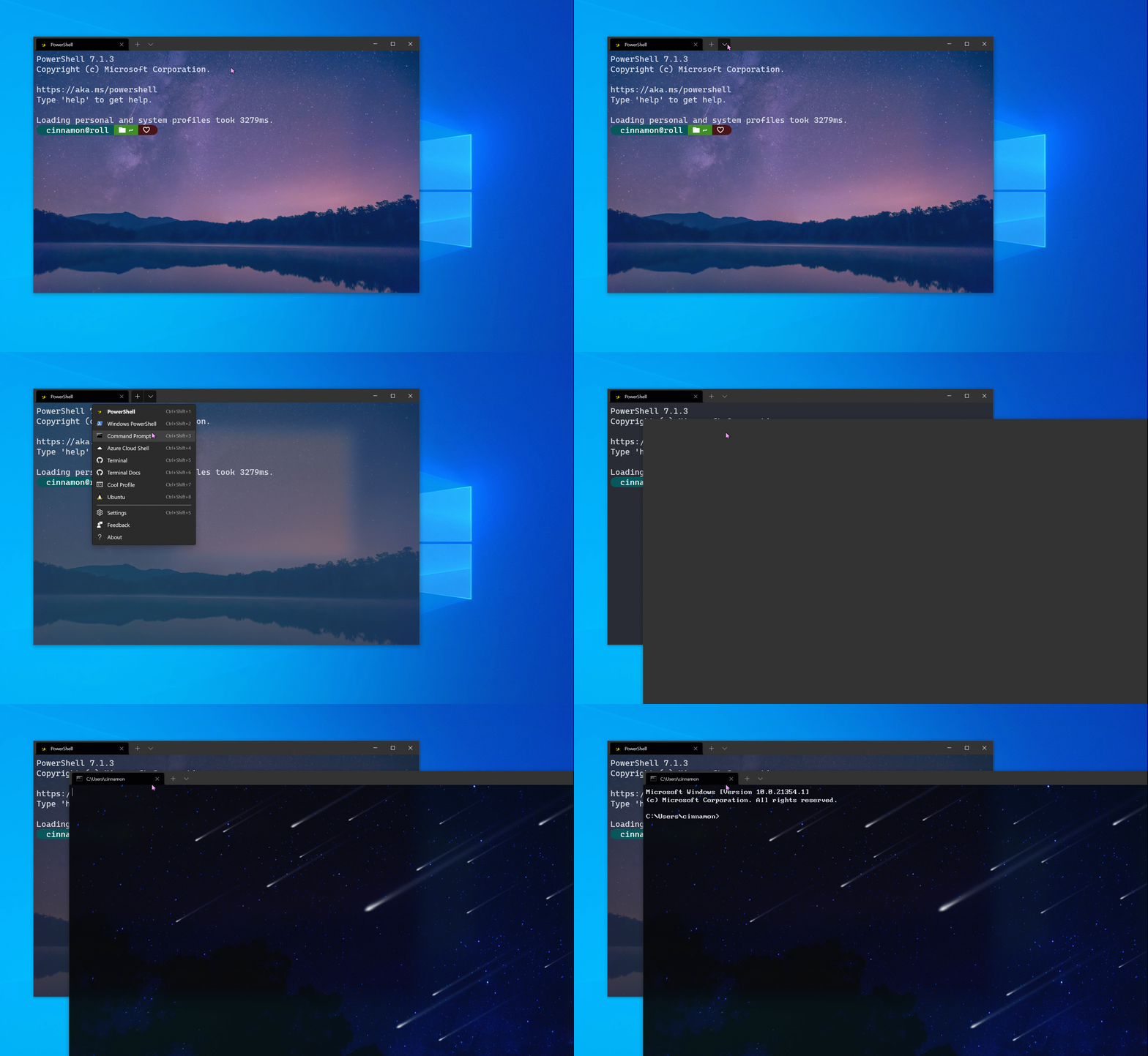
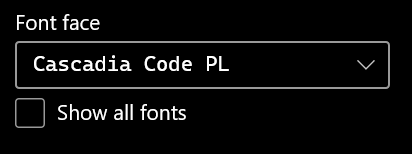




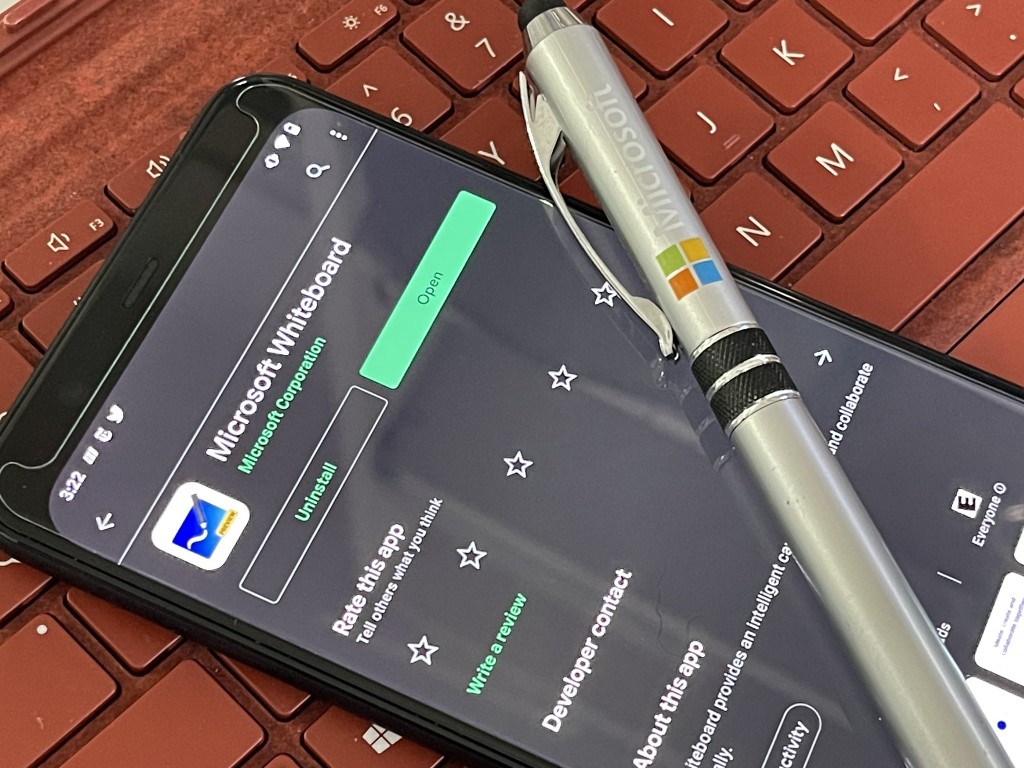

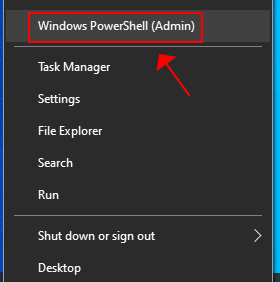


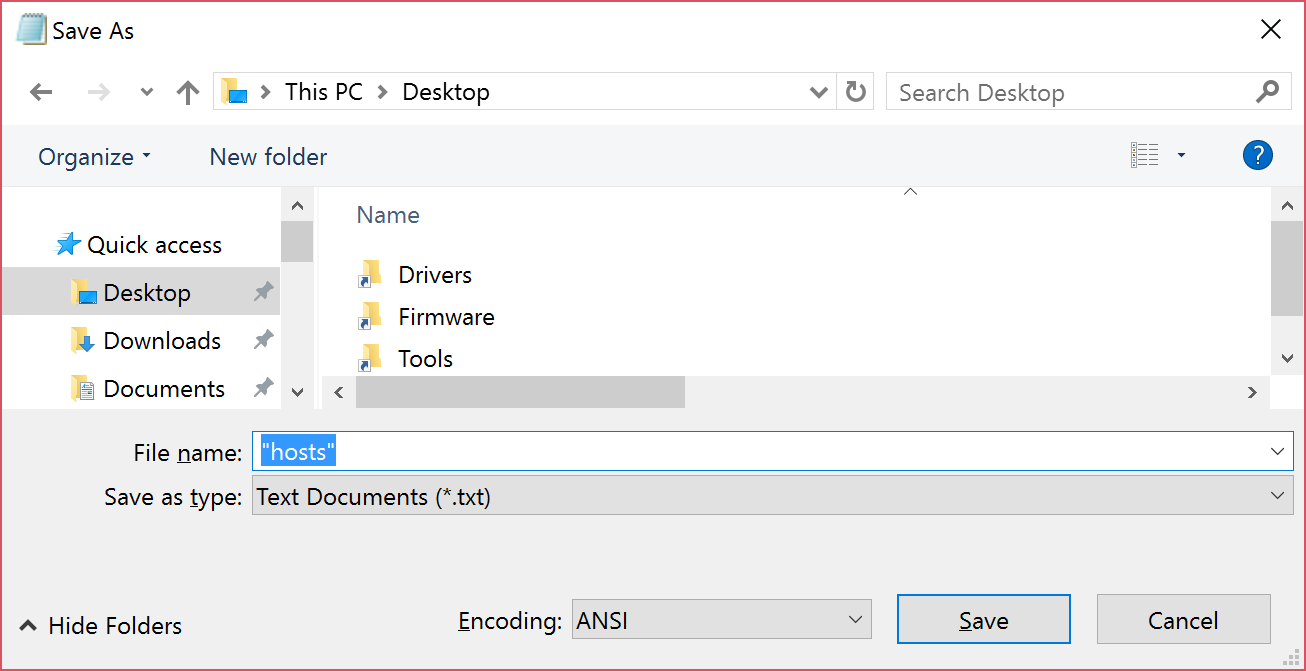
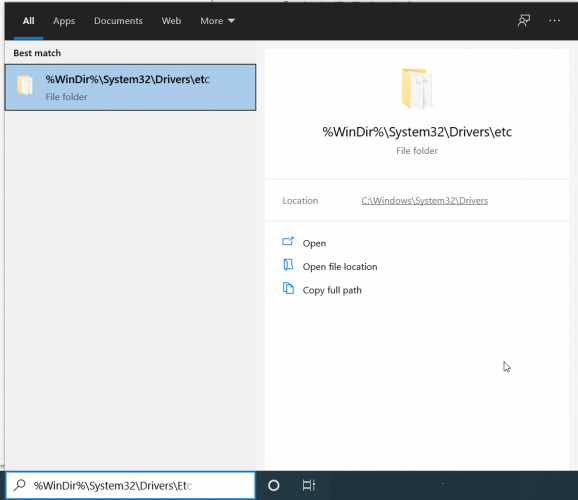
![Something went wrong while trying to turn on Spatial Sound [Fix]](https://windowsreport.com/wp-content/uploads/2019/04/something-went-wrong-while-trying-to-turn-on-spatial-sound.jpg)
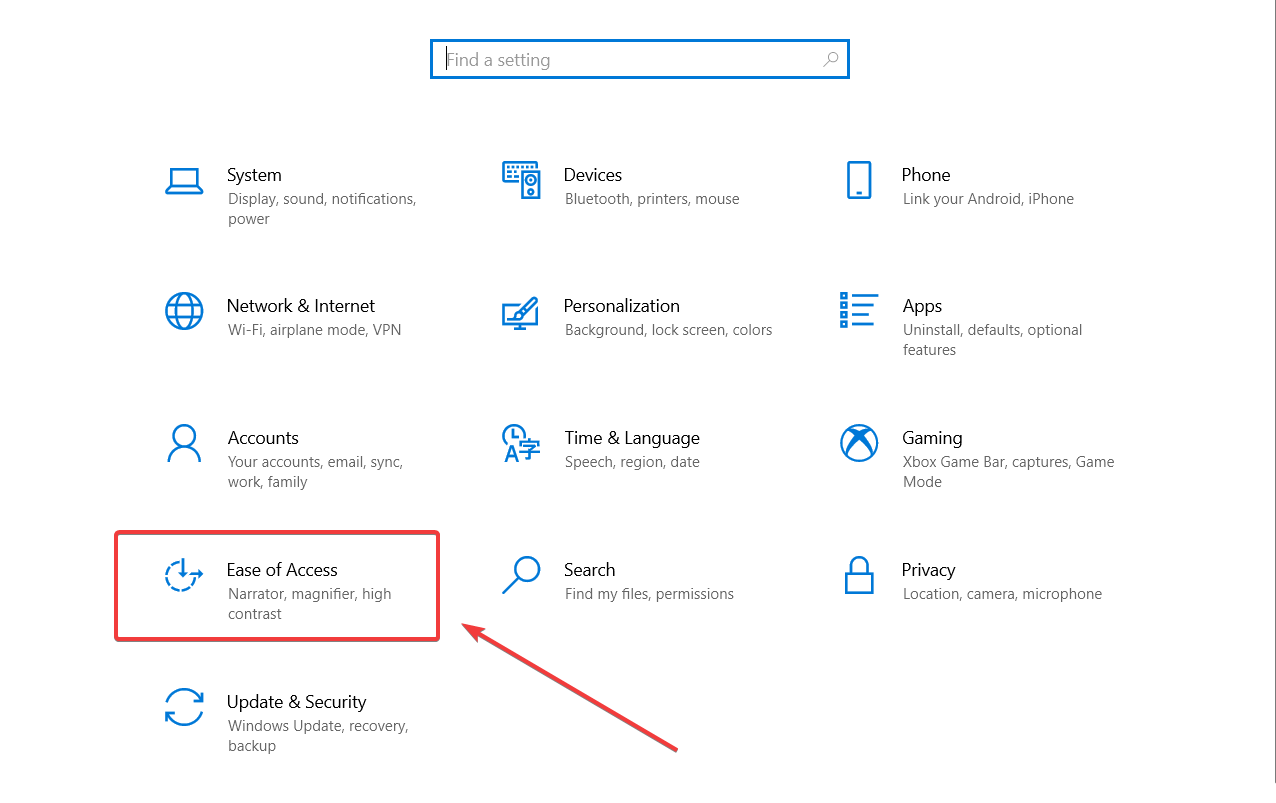
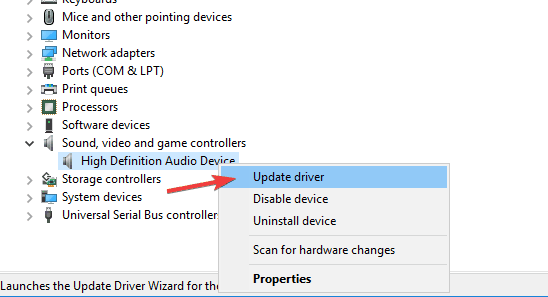

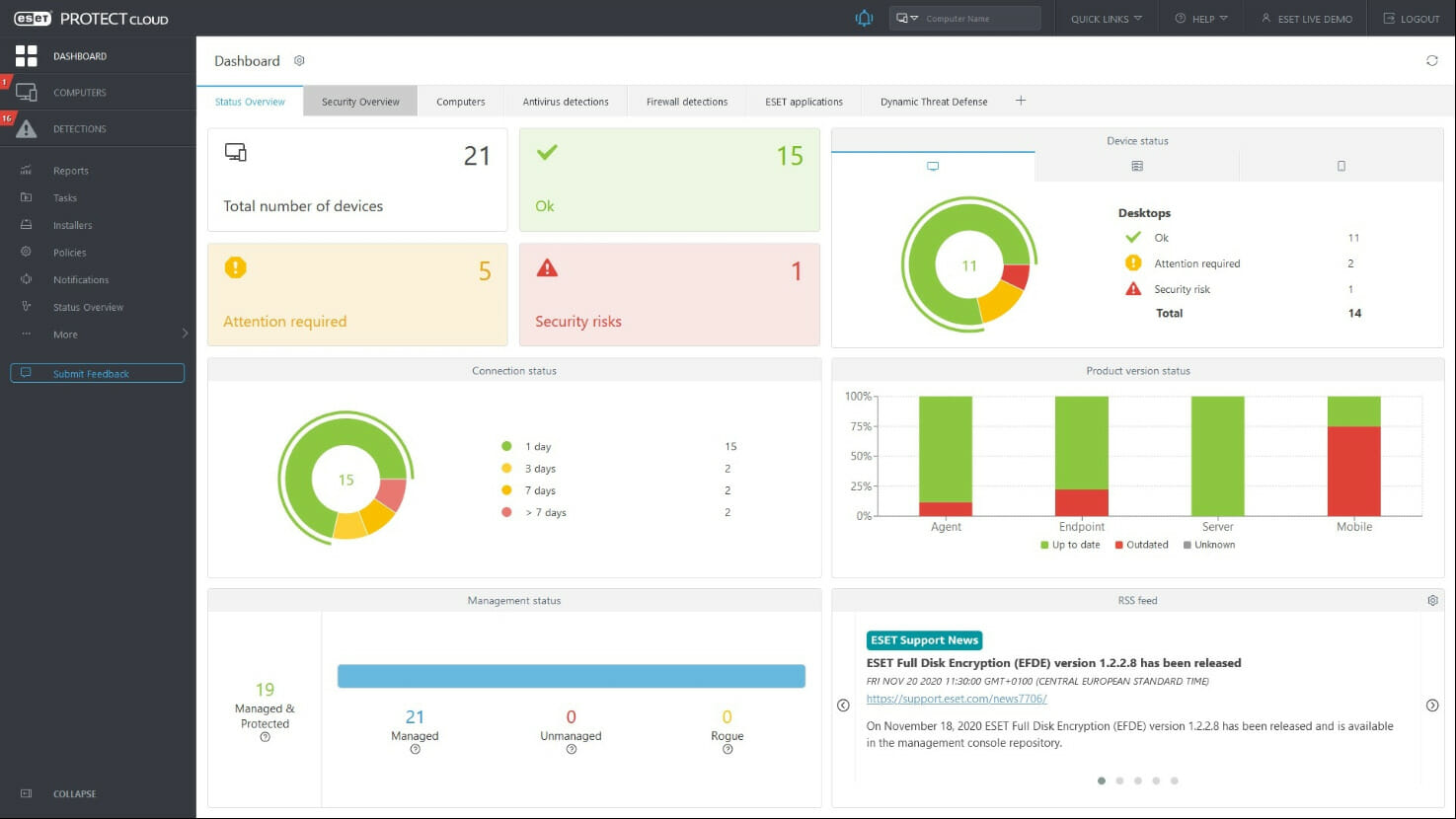

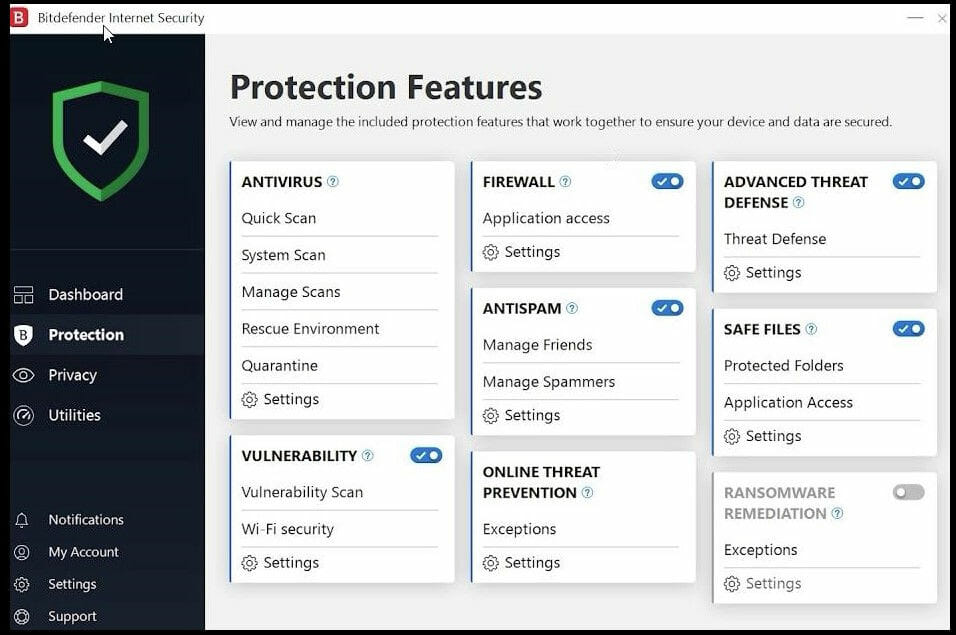

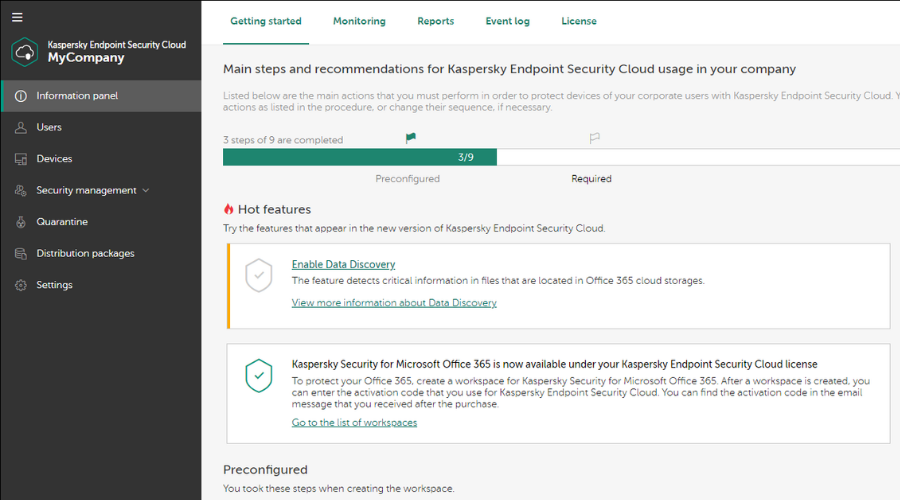

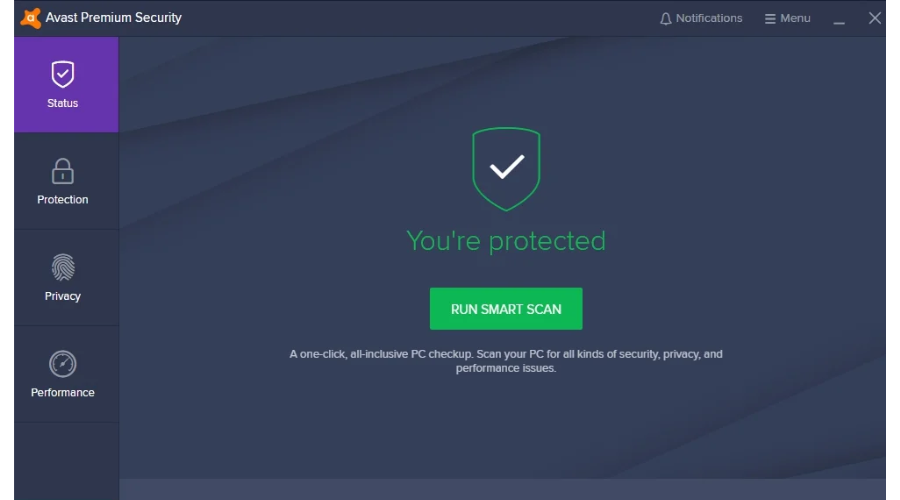

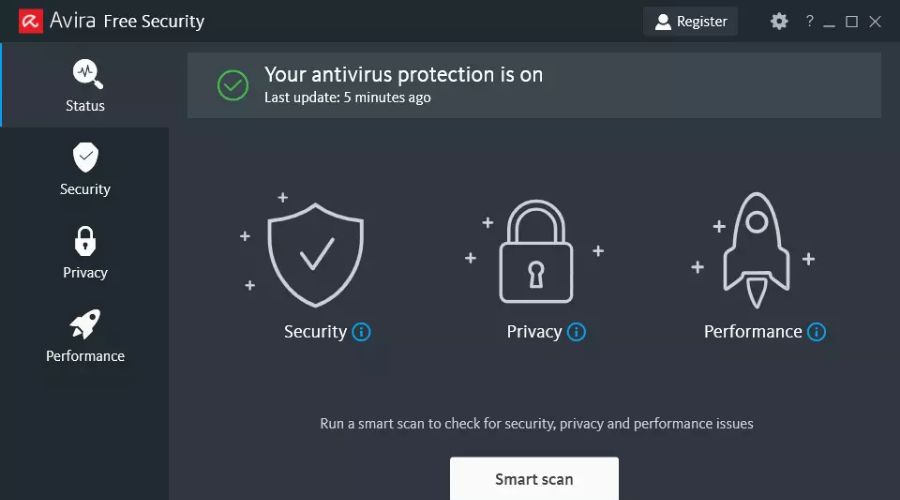

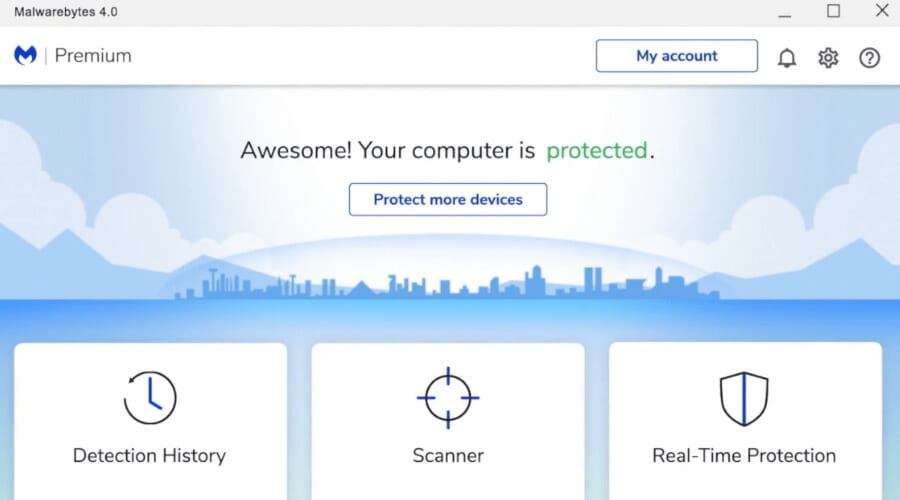
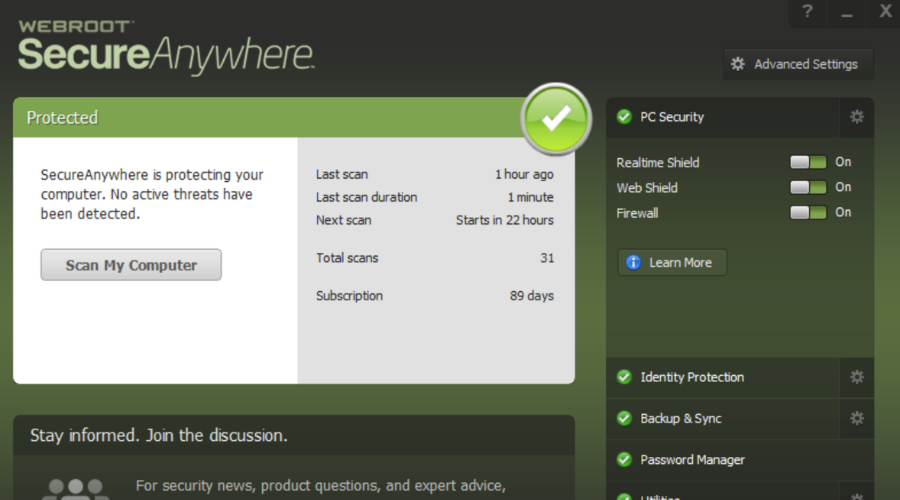

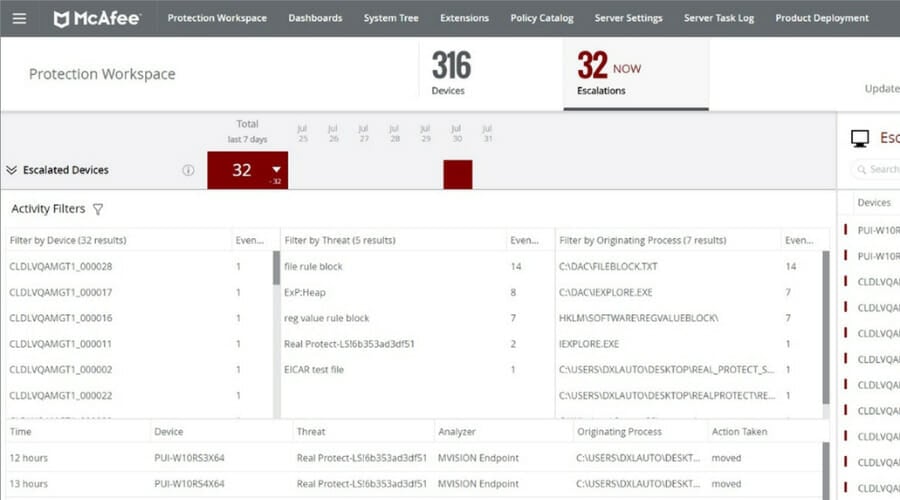

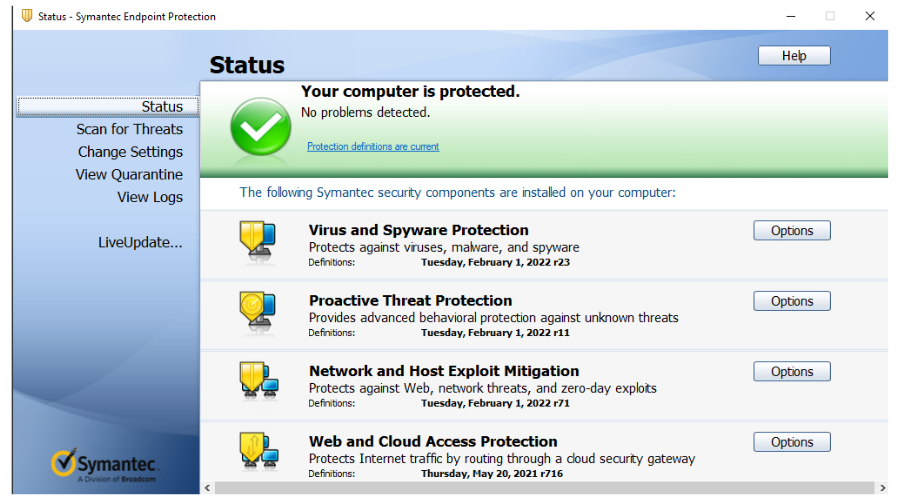
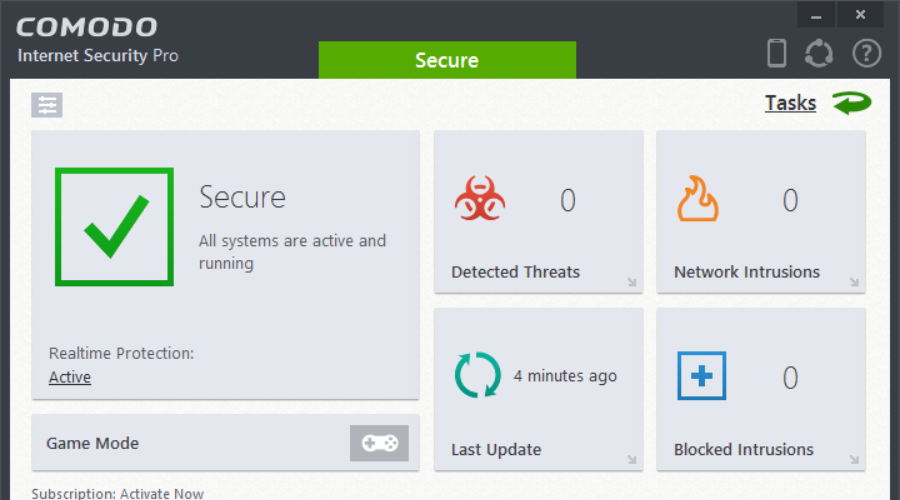
![Fix: Remote Access to The Server is Not Enabled [Full Guide]](https://windowsreport.com/wp-content/uploads/2021/01/Remote-access-to-the-server-is-not-enabled-featured-image-resized.jpg)


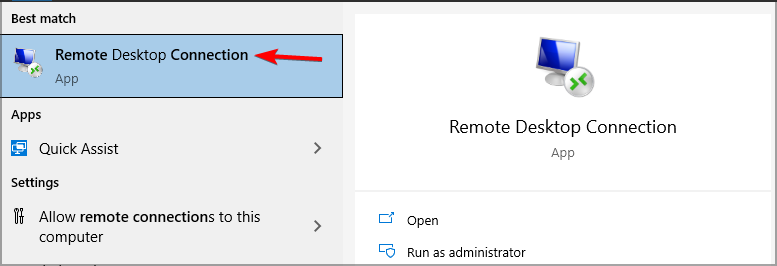


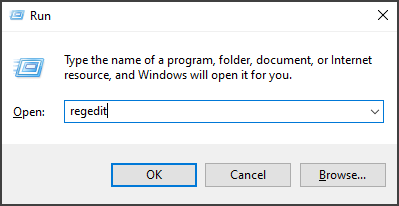






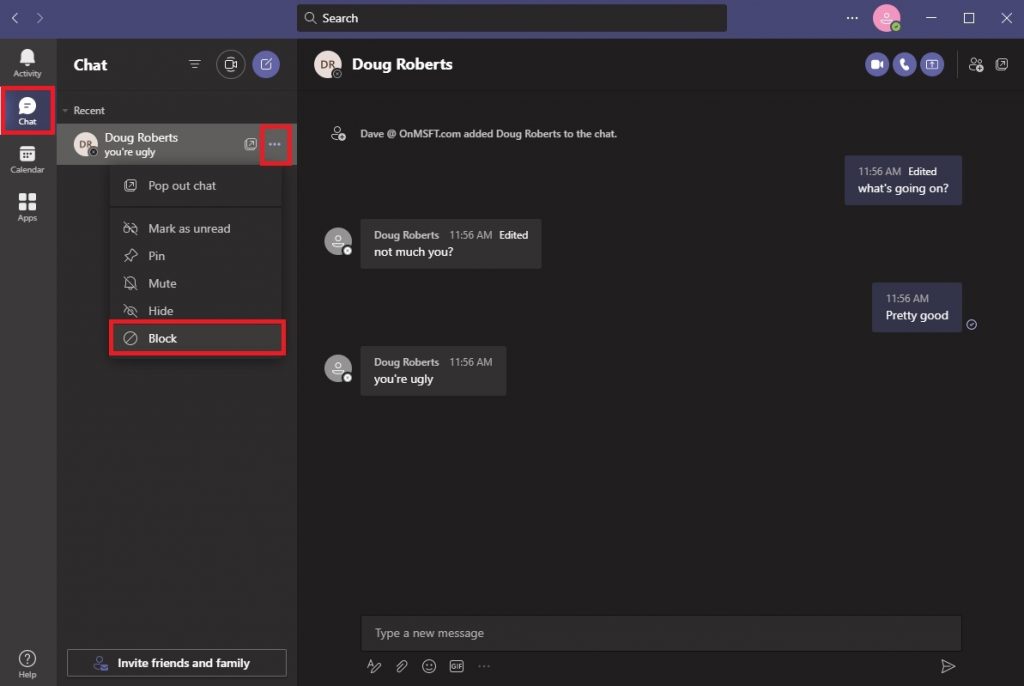
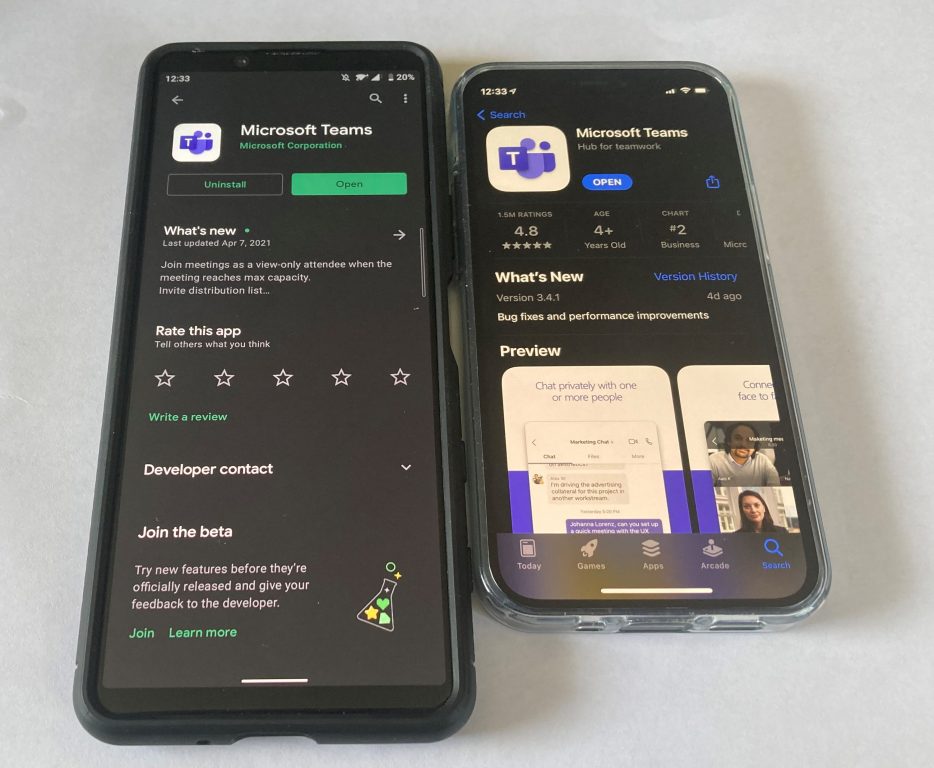
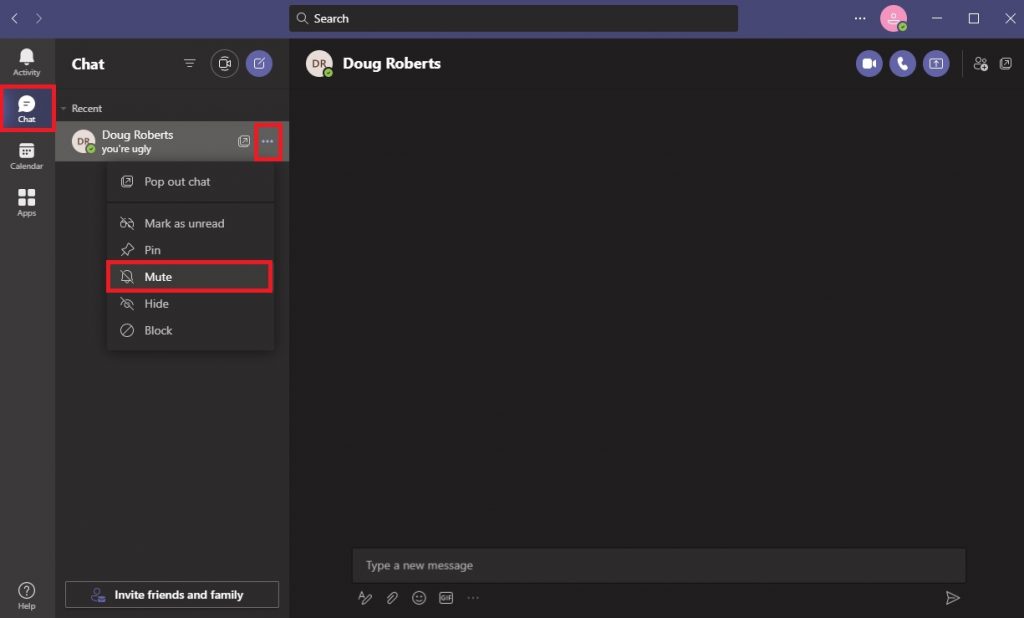
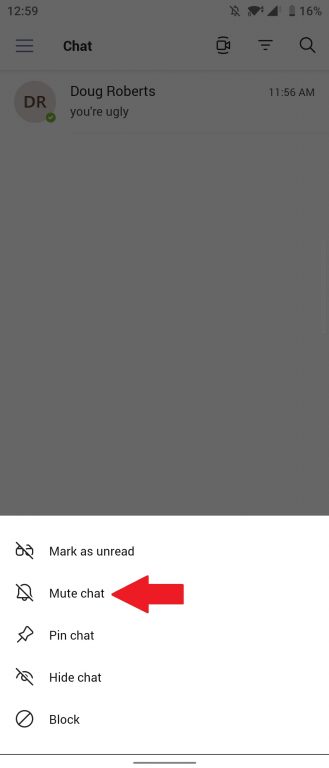
![[Updated] New Windows 10 Insider build brings changes to Power Menu and Timeline](https://windowsreport.com/wp-content/uploads/2024/04/Windows-10-Timeline.jpg)


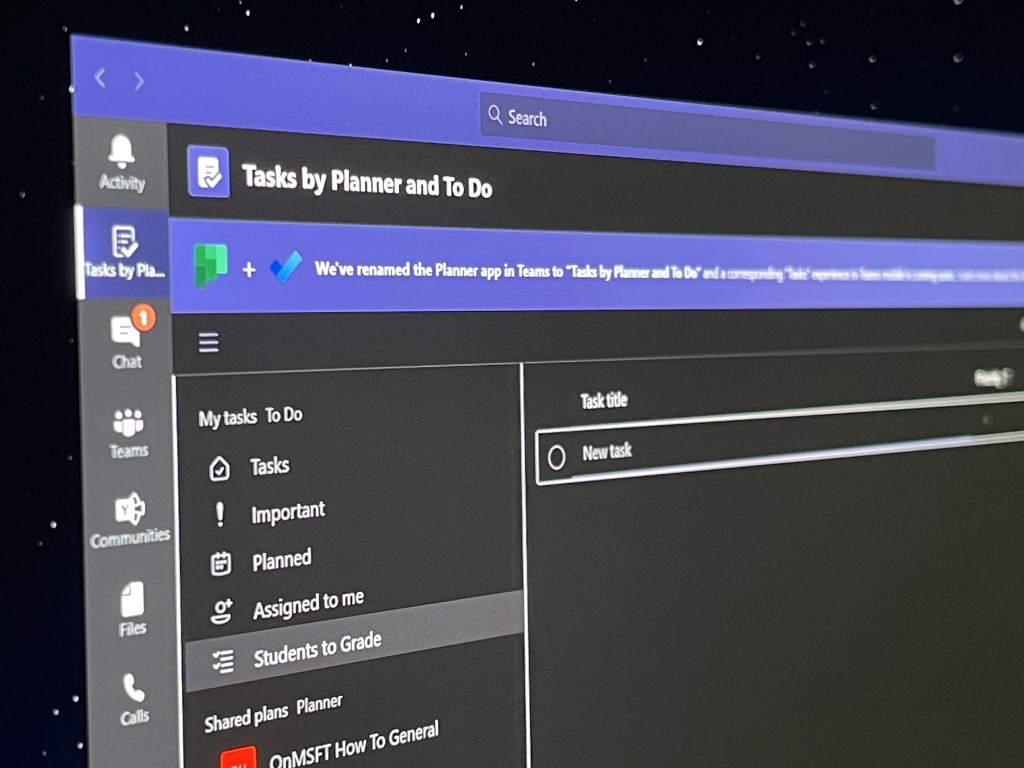
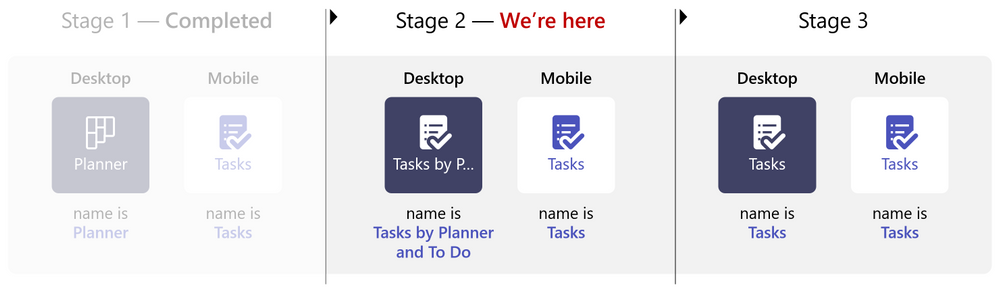
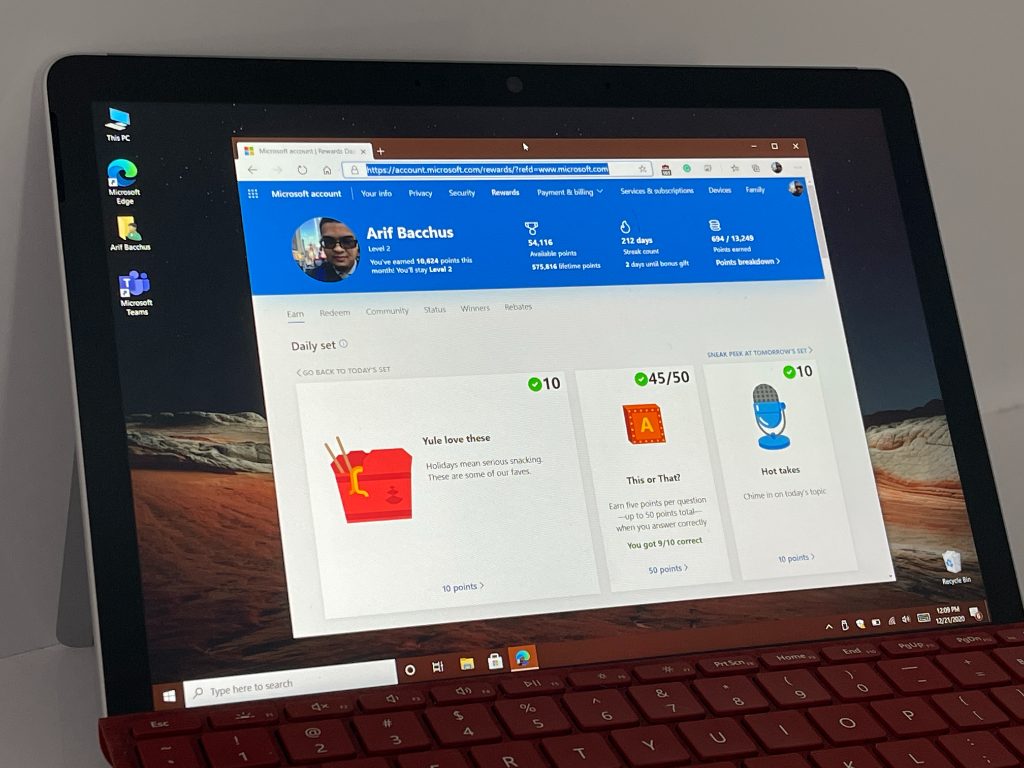
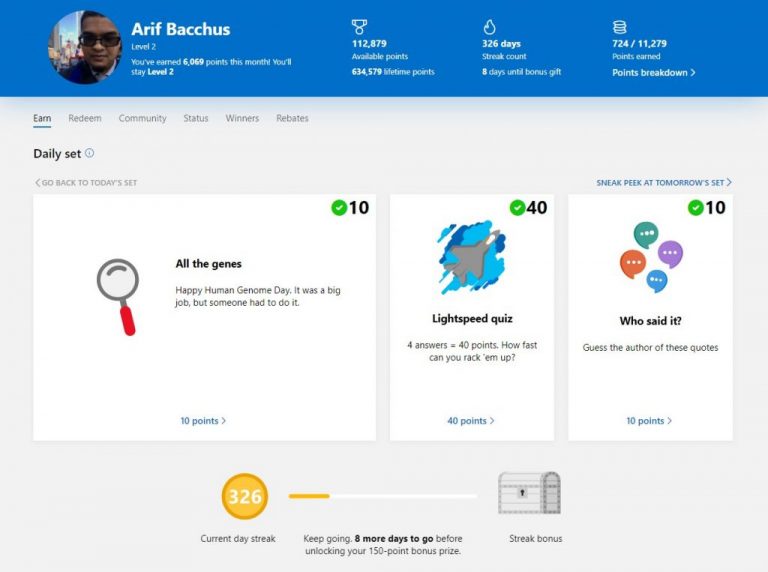
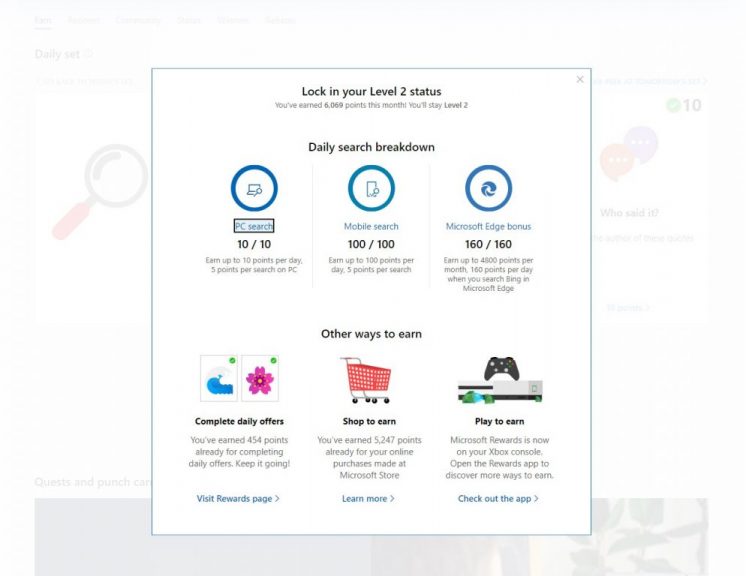
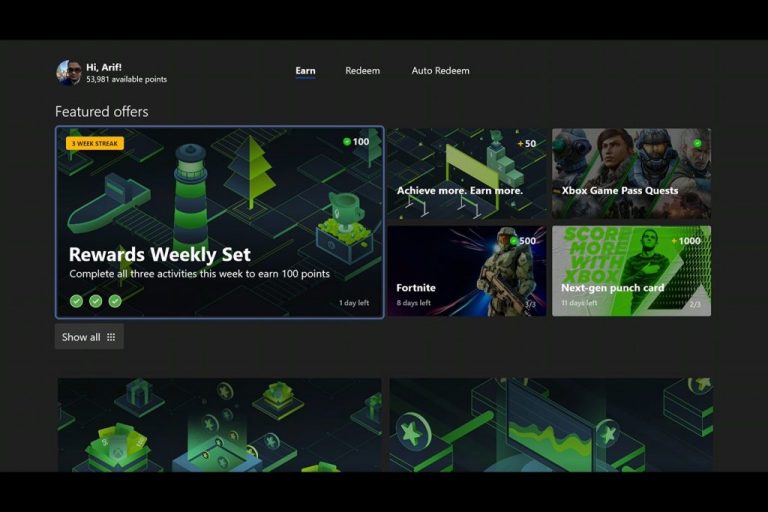
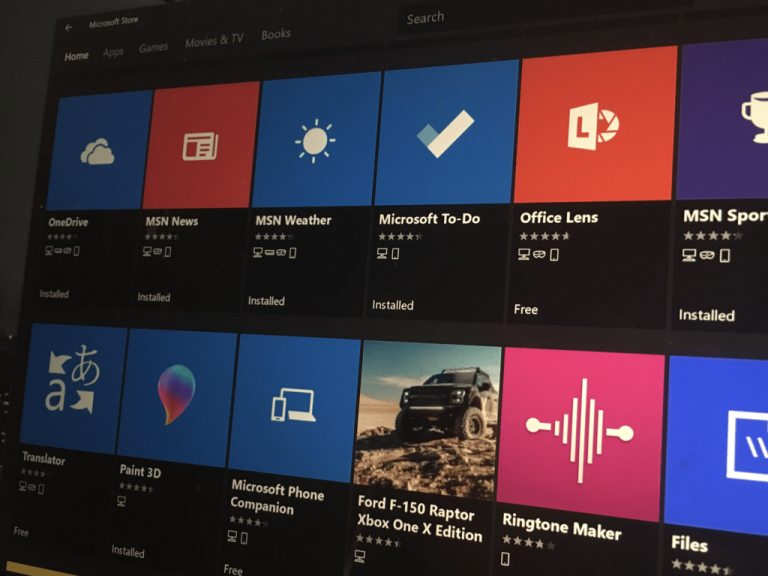
![FIX: TeamViewer proxy error on Windows 10 [Versions 11 & 12]](https://windowsreport.com/wp-content/uploads/2021/04/TV-proxy-error.jpg)


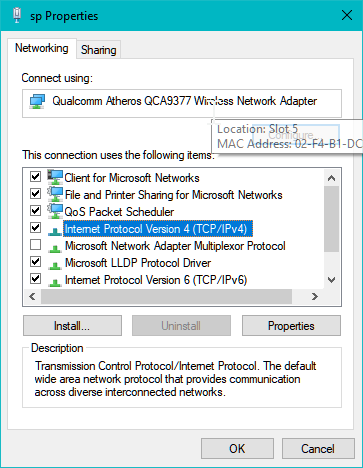


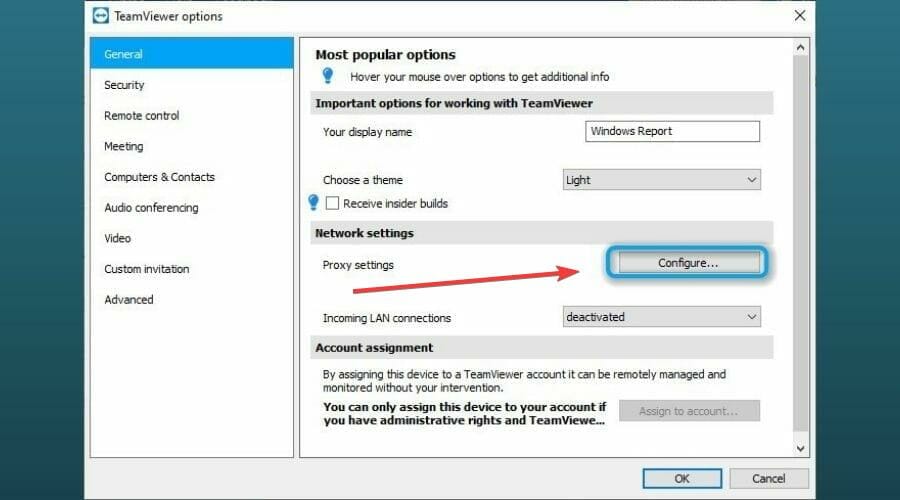




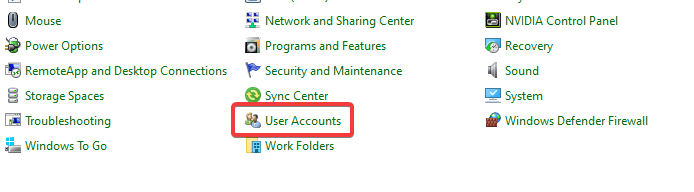
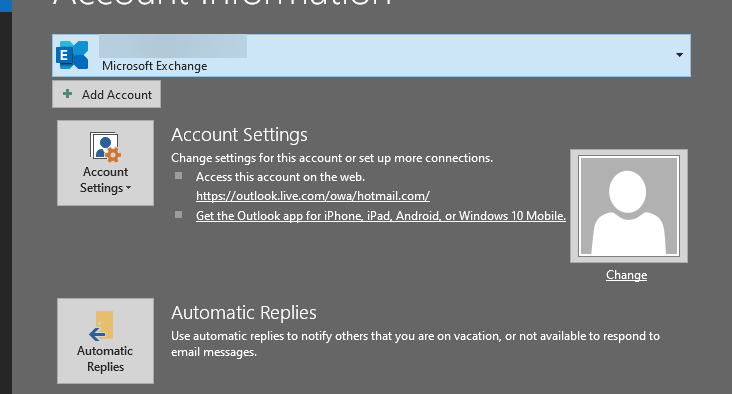




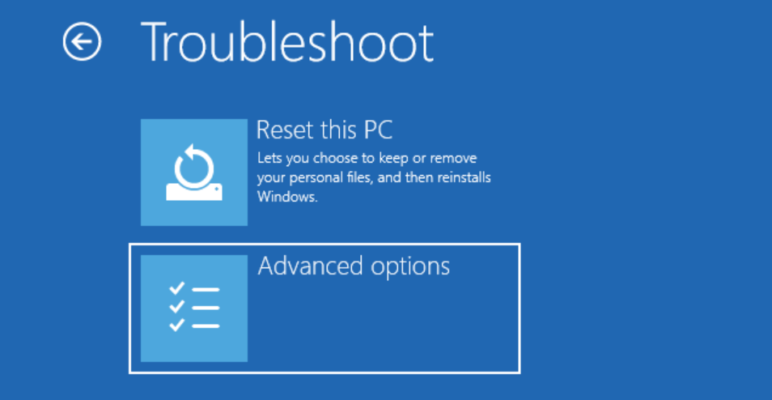

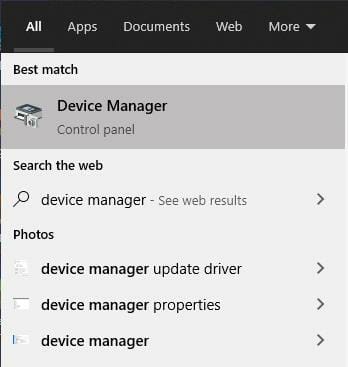
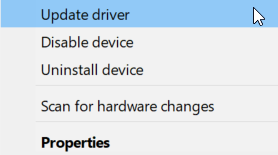





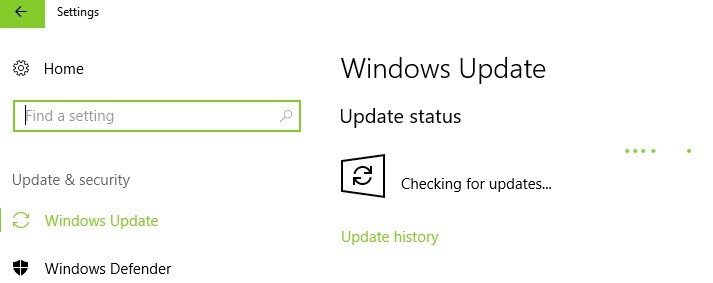





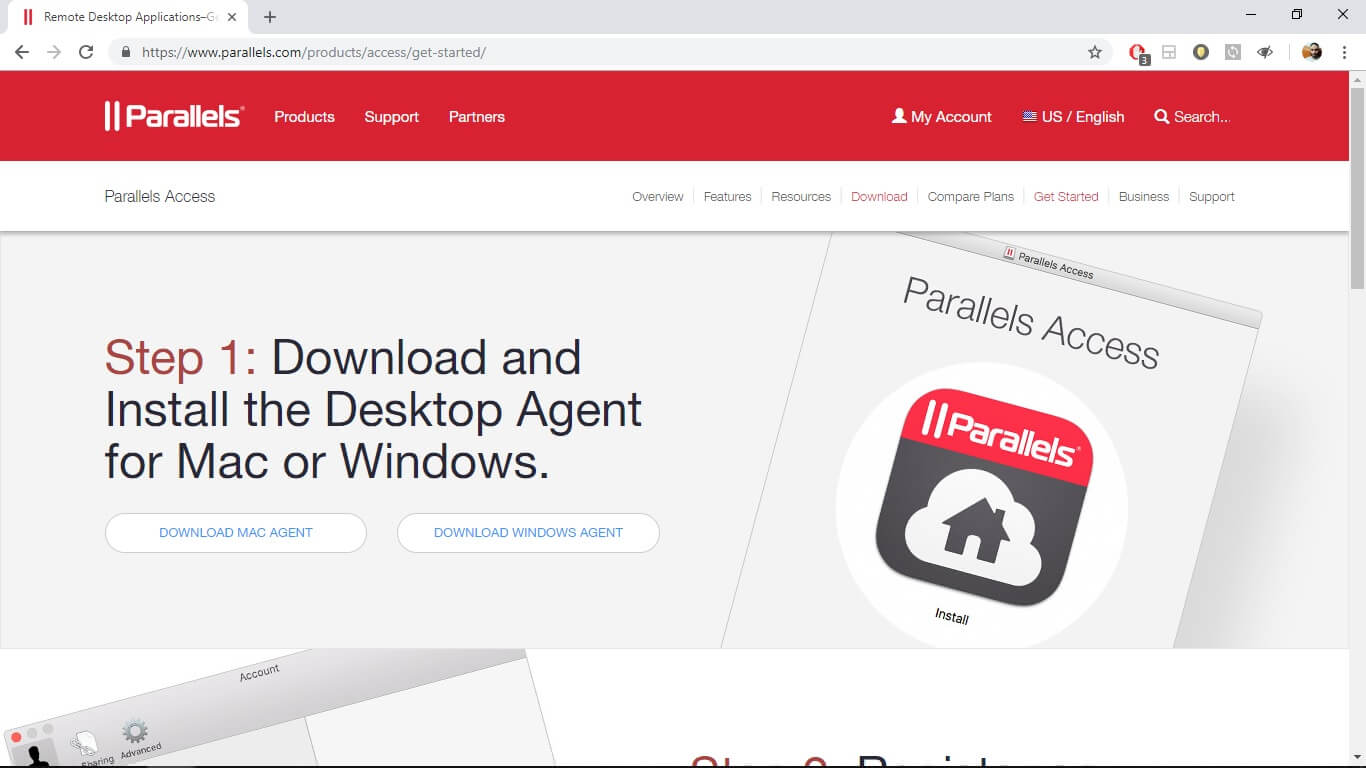
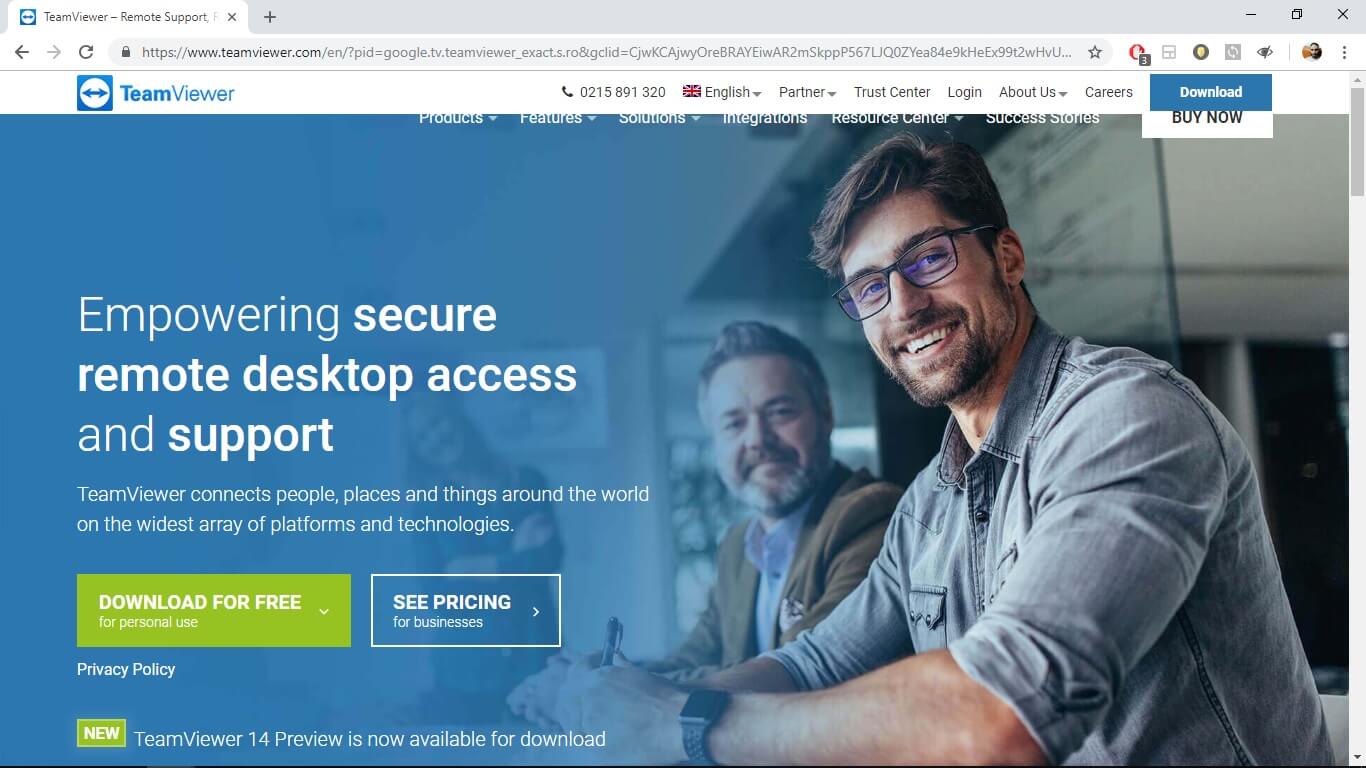
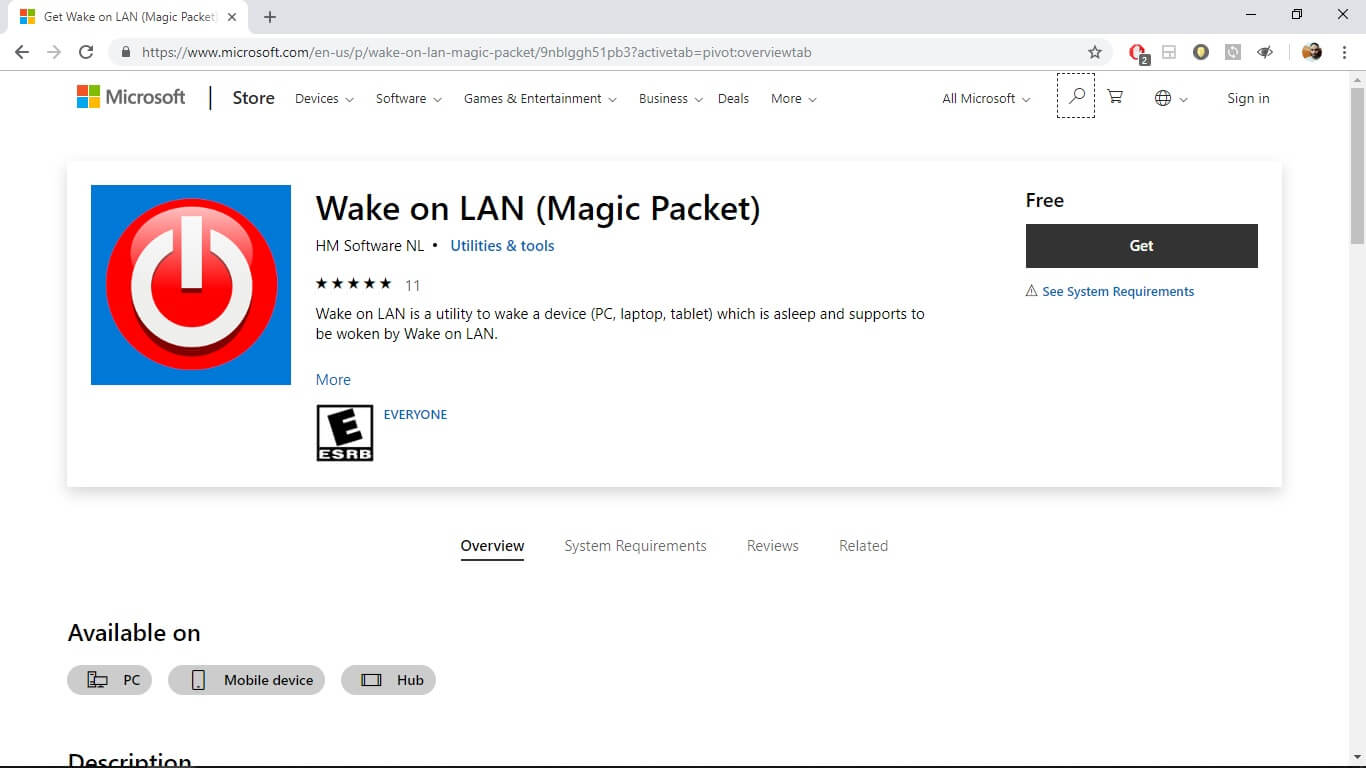
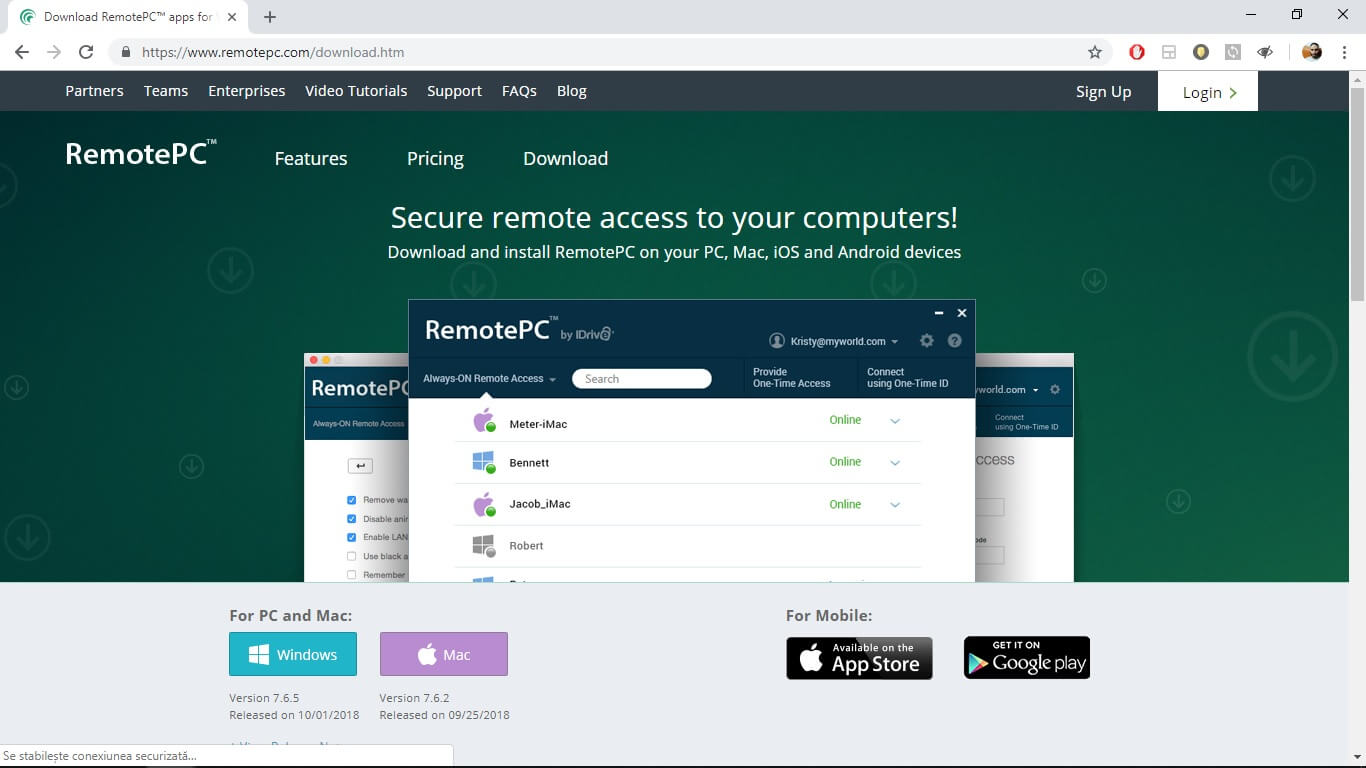
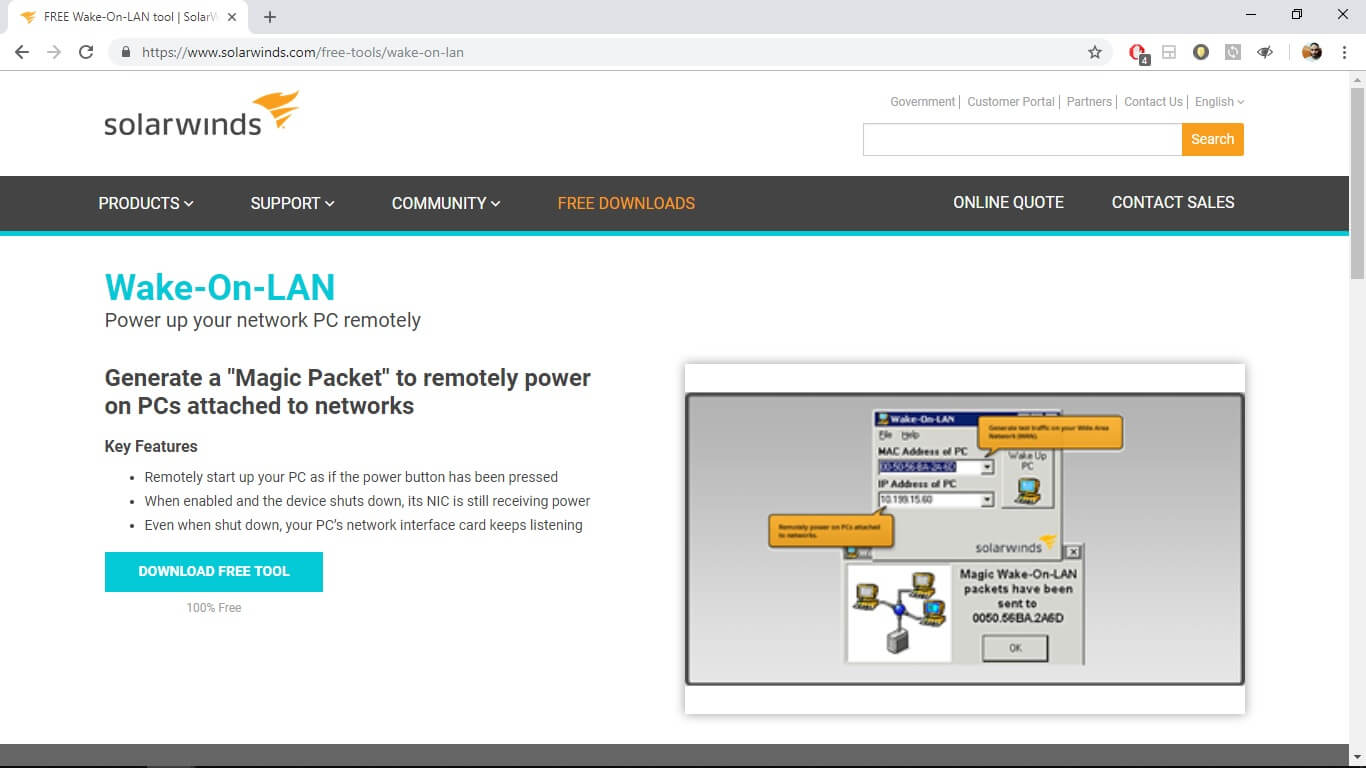
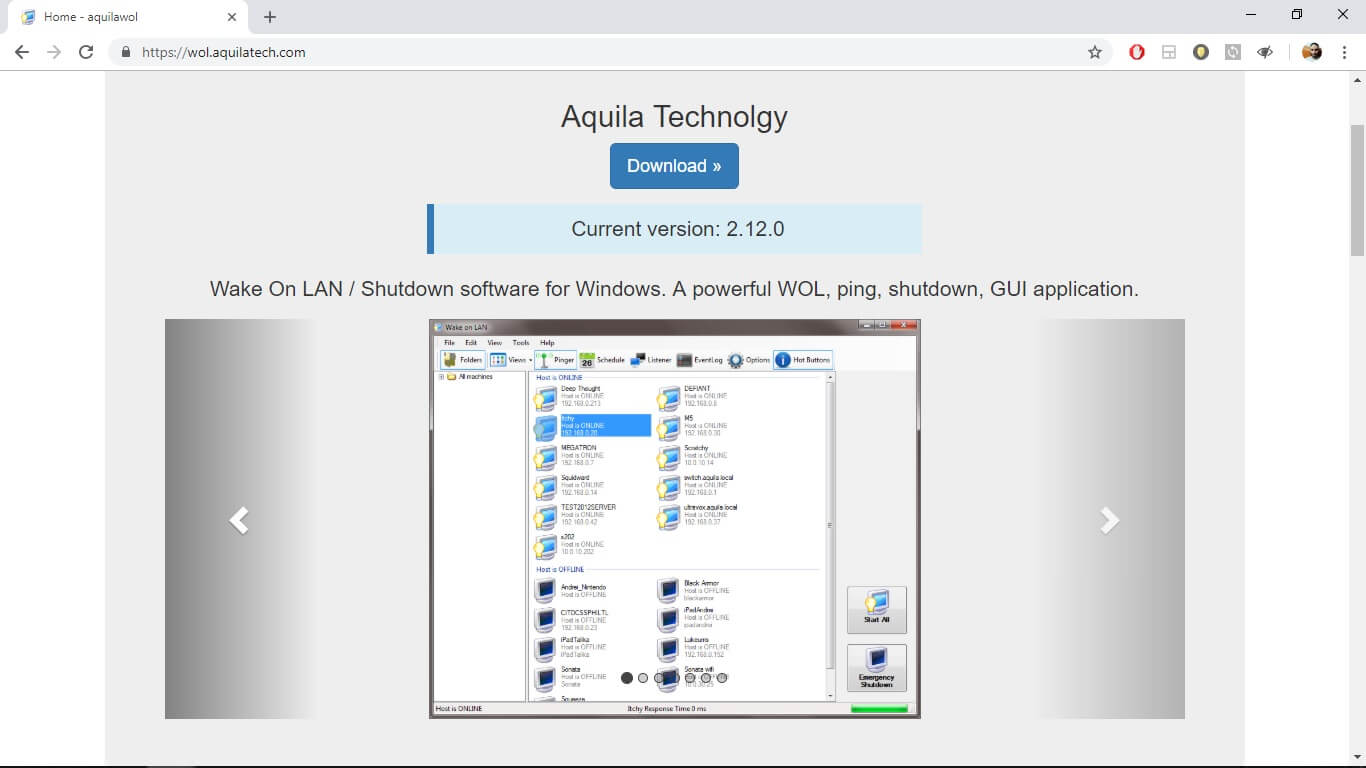
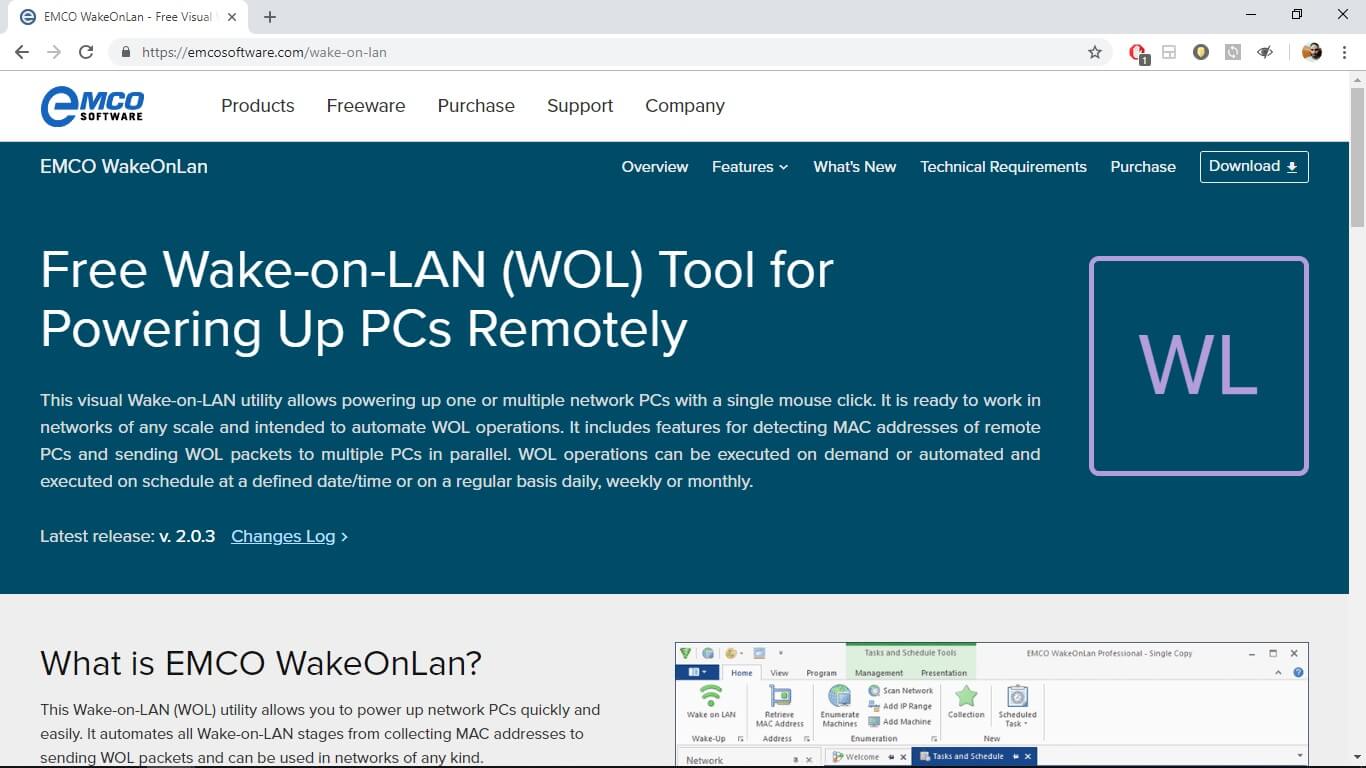









![What is Movavi Screen Recorder & How Do You Use It [Review]](https://windowsreport.com/wp-content/uploads/2021/04/movavi-screen-recorder.jpg)

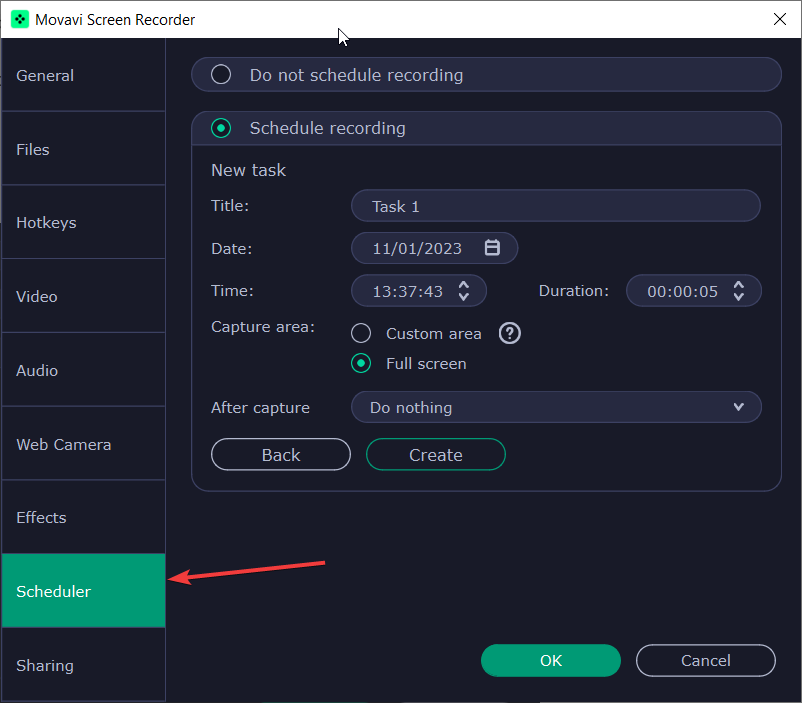
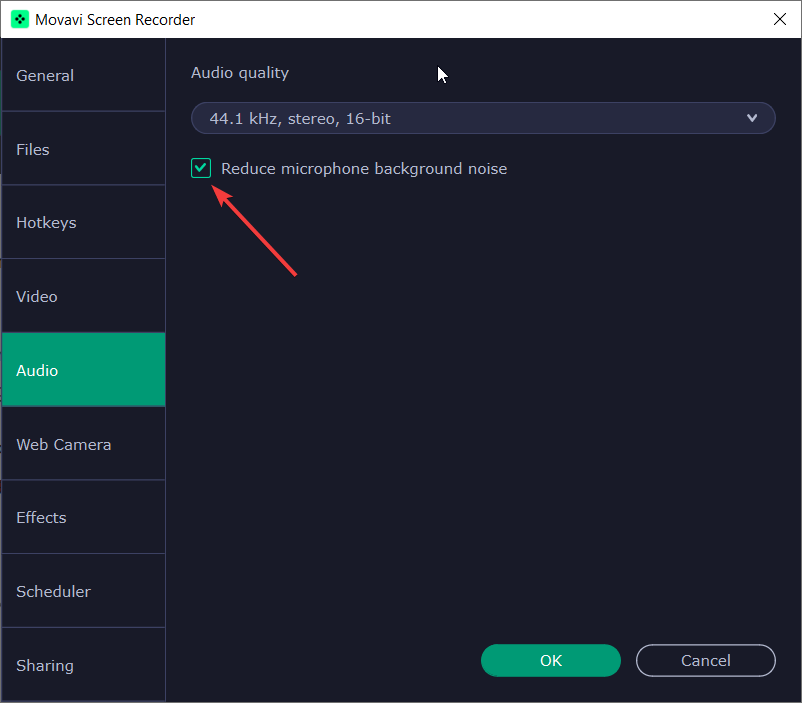
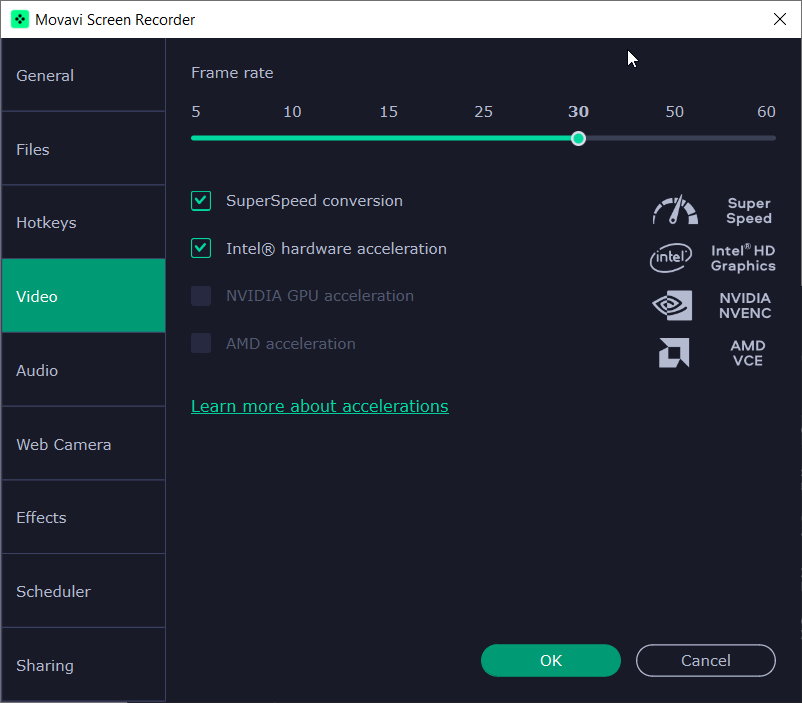



![High DPI issues with Remote Desktop in Windows 10/11 [Fix]](https://windowsreport.com/wp-content/uploads/2019/04/remote-desktop-high-dpi.jpg)