The first downloadable content (DLC) expansion for the Minecraft Dungeons video game, Jungle Awakens, is now live on both Xbox One consoles and Windows 10 devices in addition to the Nintendo Switch and PlayStation 4 consoles.
As threats roar to life beneath the jungle canopies, it’s up to you to save these leafy lands. Take on new missions, battle new mobs, and fight the mighty Jungle Abomination!
A source of unbelievable power has crash-landed among the twisting vines of a distant, dangerous jungle. This mysterious power has spread its influence through vile vines, and now new terrors bloom – such as the Leap leaf and Whisperer. Trek through three new missions that will take you to the heart of the jungle where you’ll find new weapons, armour, and artifacts. This journey is meant for the bravest of heroes, for all twisted vines and paths lead to the source of corruption: the Jungle Abomination. This beast must be dealt with to restore balance to the jungle, so strike true and move swiftly.
TDSSKiller is a Kaspersky utility for removing rootkits, such as TDSS. However, some users have said on the Kaspersky forum that they can’t run the TDSSKiller program.
Consequently, TDSSKiller doesn’t work, but don’t worry. This guide will provide you with a variety of solutions to fix this issue once and for all.
How can I fix TDSSKiller if it’s not working?
1. Run a malware scan
The tool not working can be caused by malware infection. We recommend you run a full PC scan and remove any threats that your antivirus detects.
Dedicated antiviruses are generally more accurate and are able to remove threats before they cause any damage. Luckily, many of these tools come with free trials so you can try out a few before you decide which is your favorite.
2. Run TDSSKiller as an administrator
Press the Windows key + E hotkey.
Open the folder that includes TDSSKiller.
Right-click the TDSSKiller.exe to open its context menu.
Then select the Run as administrator context menu option.
3. Run TDSSKiller in safe mode
Click the Power button on the Windows 10 Start menu.
Hold down the Shift key and click Restart.
Next, select Troubleshoot on the Choose an option menu.
Select the Advanced options and Startup Settings buttons.
Then press the Restart button.
After the restart, press the 4 key to select Enable Safe Mode on the Startup Settings menu.
Thereafter, try running TDSSKiller within safe mode.
4. Clean boot Windows
Right-click your Start menu.
Click Run to open the window for that accessory.
Input msconfig and click OK to open the window in the shot directly below.
Click Selective Startup on the General tab.
Deselect the Load startup setting.
Make sure you’ve selected the Load system services and Use original boot configuration settings.
Then click Disable all, which will deselect selected third-party services.
Press the Apply option.
Click OK to exit MSConfig.
Select the Restart option on the dialog box.
Run TDSSKiller after clean-booting Windows. If it works, other software was probably conflicting with TDSSKiller.
5. Disable third-party antivirus utilities
To disable an antivirus utility, right-click its system tray icon to select a disable option that will temporarily deactivate the software. Or you can uninstall antivirus software via Programs and Features.
6. Reinstall TDSSKiller
Open the Run window.
Type appwiz.cpl in the Open box, and select the OK option.
Select TDSSKiller within the Programs and Features window.
Click the Uninstall option for it, and select Yes on any confirmation prompts.
Alternatively, you can uninstall TDSSKiller with the unins000.exe uninstaller within its folder.
Restart Windows before reinstalling TDSSKiller.
Click the Download Now button on the TDSSKiller page to get the installer for the latest version. Then reinstall the software with the downloaded installer.
So, that’s how you can kick-start TDSSKiller when it doesn’t run. This thorough article also includes some resolutions that could feasibly TDSSKiller startup issues.
You can browse through a multitude of handy troubleshooting guides at our Fix Hub.
Check out our Antivirus section to browse through other useful and easy-to-follow guides.
If BullGuard if the antivirus that you prefer to use on your Windows 10 computer, you should also know that the latest version is now available for download.
BullGuard is now even more powerful allowing you to block virtually all the threats menacing your computer.
Install this top-notch antivirus solution and your machine will become immune to malware, phishing attempts, spyware, ransomware, and all the other malicious codes lurking on the Internet.
Let’s quickly look at its key features:
If you often use your computer for internet banking operations and online shopping, BullGuard has got your back.
With this security solution, you are fully protected against credit card frauds and identity theft attempts and all your online payments are 100% secured.
Moreover, you can back up your files and encrypt them at the same time so that your documents remain safe at all times.
Bullguard Internet Security
Get premium, real-time protection powered by BullGuard for all OS versions.
The new BitdefenderAntivirus solutions are now up for grabs.
Many independent antivirus tests have awarded Bitdefender the title of the best cybersecurity solution in the world.
These results confirm that Bitdefender can fully protect your Windows 10 computer against the latest cyber threats so that you can surf the Internet without worrying about malware or virus attacks.
Let’s quickly look at its key features:
Complete data protection
Multi-layer ransomware protection to block all ransomware attacks
Anti-phishing, anti-fraud and anti-theft protection
Secure browsing and safe online banking
Global protective network to detect and nip the latest threats in the bud
The latest Panda Antivirus version lands on our list as one of the best Windows 10 antivirus software to install today.
It comes in four different versions, each suitable for your particular cybersecurity needs.
Let’s quickly look at its key features:
Panda Essential: This antivirus version comes equipped with a built-in firewall and keeps you safe while browsing or shopping online.
Panda Advanced: This version protects your computer against ransomware attacks and offers your additional features such as parental control, app locker, and more.
Panda Complete:This tool protects your data, device location, and features a password manager as well.
Panda Premium: As its name suggests, this is the most complex Panda Antivirus version that you can install on your Windows computer. It comes packed with a Premium VPN software and 20GB of free cloud storage.
The latest generation of Kaspersky Lab is using basic options and multiple techniques to keep your system safe from malware programs:
Let’s quickly look at its key features:
Scan – the core antivirus engine and most important feature;
System Watcher monitors the behavior and can spot even brand new, unknown threats;
Separate layers to protect your computer from network attacks, malicious and phishing links, even dangerous email attachments.
Another enhancement worth mentioning is about machine learning used by an intelligent behavioral model to detect threats upon their behavior.
Kaspersky’s bonus features include Kaspersky Secure Connection.
This is a simple VPN based on Hotspot Shield, and you can use it for free without registration, but limits the transfer data to 200MB per day.
The company claims it has improved massively in speed tests and that can be seen in almost every area of the package, using fewer resources and running faster.
The company upgrades its main security product AVG Antivirus version for PC to deliver better protection against today’s most rampant threats.
The free version of AVG Antivirus gets new features that will protect you against phishing scams.
Let’s quickly look at its key features:
Machine learning combined with image recognition makes it able to detect whether a website is safe or malicious and warns you before you click on those fake ones.
Premium protection gets even better with Sensitive Data Shield that protects your most private files.
This new feature takes the place of AVG Data Safe in the former privacy menu.
All the tools listed are perfectly capable of protecting your Windows 10 machine, the difference may be given by the additional features that each solution brings, the interface, and of course, the price.
Check out all of the products on our list and compare what each of them can offer you before closing the deal.
As soon as you make your decision, feel free to share what convinced you via the comments section below.
Migration between similar applications should be a simple task. This, sadly, isn’t the case for users who try to import their Evernote notes to Microsoft OneNote. These apps are quite comparable and the whole process shouldn’t be a drag. Especially since there’s a dedicated tool provided by Microsoft which automatizes the transition. Except, it seems that Microsoft Evernote to OneNote Importer won’t work.
We have a few solutions, so make sure to check them out. Hopefully, they’ll help you address the problem.
However, a short disclaimer is necessary.
The Microsoft Evernote to OneNote Importer is not the best piece of software you’ll ever run into. The discrepancy between the updates of two respective applications is more than a problem. And frequent Evernote updates might’ve broken the connection between the two, which is responsible for how Importer works.
So, take these steps with the pinch of salt, since we can only guess possible fixes.
How do I get Evernote to OneNote Importer to work?
1. Scan for malware
There are, literary, dozens of threads on this topic. This means that the problem affected lots of users. And, also, that there’s no defined solution.
One user has successfully managed to resolve the error with Microsoft Evernote to OneNote Importer by cleaning his PC from malicious software.
There’s a good chance that there are some potentially unwanted programs that affect the import of notes.
Consequently, we can give you a robust solution to detect various malware types that may block your OneNote from working properly.
The most suitable antivirus for this issue would be TotalAVEssential.
You can use this lightweight antivirus that will not interfere with your system at all, and also provide multilayered security against new cyber threats online.
TotalAV will also offer smart threat detection and secure your operating system and network for all your devices.
With comprehensive features against complex malware, it provides support for phishing protection, ransomware attacks, and other viruses that can compromise your sensitive data.
Moreover, using machine learning technology, the software can detect advanced malware locally on your device, and on the cloud as well to give you privacy during browsing activities.
2. Sign out/sign in and disable encryption
Having eliminated the scanning option, we can move on to other steps.
The following one is to sign out and sign in again with your Microsoft Account associated with OneNote.
Then, disable the encryption on your OneNote notebooks or individual notes. This helped some people avoid error or speed up the importing process. Which is, judged by reports, a lot slower than one could expect.
3. Re-download the Importer tool
The importer might be affected by some other third-party programs or it needs more permissions in order to access your notes. Also, there’s a chance that you misconfigured the setup.
With that in mind, after you’ve prepared Evernote for Windows and OneNote for the transfer, we suggest re-downloading the Importer tool. This might resolve your problem but don’t your hopes high.
If the issue is persistent, move to the next step.
4. Disable Sync temporarily
Official instructions suggest syncing all notes prior to using the Microsoft Evernote to OneNote Importer.
We would go a step further and suggest disabling the Sync during the procedure. If the Evernote for Windows syncs in the background all the time, it might disrupt the exporting of notes.
When you’re sure everything is OK, start the procedure. As mentioned above, we don’t advise to use of a web-based Evernote application. Download Evernote for Windows, here.
Wait until it syncs all notes to local storage, and only then use the Microsoft Evernote to OneNote Importer tool.
5. Export notes as an ENEX file
Instead of trying to directly transfer notes from Evernote to OneNote, you can try to export them in the ENEX format to your PC and import them that way.
This worked for some users, while others experienced a sudden halt and the application crashed. This is a common way of exporting notes and it completely diminishes the use of the Importer, but it is what it is.
If you’re still unable to resolve the problem this way, move onward to the next steps.
6. Update Evernote for Windows and OneNote
As we already said, Evernote developers are not exactly eager to meddle with reverse engineering and optimize Evernote to work with OneNote.
So the best thing you can do to reduce the discrepancy between the two is to update both and hope for the best. Make sure to keep them both up to date and try exporting notes again.
7. Reinstall Evernote for Windows
Finally, if none of the previous steps helped you successfully export notes from Evernote to OneNote (or vice-versa), the only thing we can recommend is the reinstallation of Evernote (since OneNote already comes in Windows 10).
If that doesn’t help, send your ticket to Microsoft or contact Live Support and ask for the resolution.
With that said, we can wrap up this article. Don’t forget to share your thoughts about the problem in the comments section below.
Microsoft Edge sometimes behaves like a coin with two sides. While it recently received a whole bunch of nice features that would make any browser user happy, it also tends to ruffle feathers in certain situations.
Consider the latest user backlash that Edge attracted based on how it handles importing rival browser data. Just the other day, some users complained that Microsoft was too aggressive with its Edge promos in Windows.
Microsoft Edge data importing controversy
Over the past few days, a good number of Microsoft Edge users gathered on Reddit to express their frustration with how the browser imports data from Chrome or Firefox during setup. Many claimed that the Chromium-based browser first accessed their browsing data before asking for permission to import it.
Are we going to get treated to spam popups advertising Edge and having it duplicate our data from Firefox without asking every time Microsoft decides to update it from now on?
Another added:
I just installed Edge today for testing, and I noticed my bookmarks from Firefox appear in the background/browser BEHIND the import acceptance dialog. The bookmarks disappeared after I said I didn’t want it to import anything. Obviously it still went looking before asking!
Based on these comments, it appears that Edge doesn’t end up importing your browsing data without your permission. But at least it looks for and finds the data before offering you the option to discard it, which raises valid user privacy concerns.
The folks at Windows Central contacted Microsoft about this issue. The company replied that it acknowledges customers’ rights to their browsing data. It added that Edge, just like other browsers, gives users the option to import data during setup.
In short, Microsoft doesn’t deny that Edge accesses your Firefox or Chrome browsing data before offering you the opportunity to import or discard it.
Do you think Microsoft Edge’s approach to importing browser data constitutes a breach of user privacy? Feel free to express your views in the comments section below.
Microsoft 365 Personal and Microsoft 365 Family are paid subscription services that give you access to Microsoft 365 software applications. They were formerly known as Office 365 Personal and Office 365 Home, respectively.
If you’re interested in purchasing one of these subscription services, we’re here to help set the record straight and highlight the differences between Microsoft 365 Personal and Microsoft 365 Family.
What’s the difference between Microsoft 365 Personal and Family?
Price: Microsoft 365 Personal costs $69.99/year (or $6.99/month) while Microsoft 365 Family $99.99/year (or $5.99/month).
Free trial: You can try Microsoft 365 Family for 30 days for free, but Microsoft 365 Personal doesn’t have a free trial.
Number of users: Only 1 can use Microsoft 365 Personal, but up to 6 people can use Microsoft 365 Family.
OneDrive cloud storage: Microsoft 365 Personal offers 1 TB, while Microsoft 365 Personal provides 1 TB for each user (up to 6 TB).
Microsoft 365 Personal and Family features
Office
Download and use Microsoft Office applications for Windows 10 and Mac.
Edit documents both online and offline.
Take advantage of advanced grammar and style formatting in Microsoft Editor.
Use advanced layouts with premium content suggested by PowerPoint Designer.
Monotone pitch, originality, and speech refinement in PowerPoint Presenter Coach.
More than 300 templates, 8000 images, 175 looping videos, 300 fonts, and 2800 icons.
Use Money in Microsoft Excel.
OneDrive
Deep integration with Office and Windows 10.
Use on-demand files and PC folder backups.
Unlimited storage for the Personal Vault (within your storage quota).
File protection provided by anti-ransomware and data recovery.
Shared links with expiration date and password protection.
Outlook
Download and set up Outlook desktop apps for Windows 10 and Mac.
Play My Emails.
50 GB storage quota on Outlook.com with calendar integration, custom email domain, and advanced security.
Skype
Unlimited storage for voice and video calls for up to 50 people (Skype to Skype only).
Call recording, guest links, subtitles, and live captions.
60 minutes per month for mobile phone and landline calls.
Premium subscription plans for individuals and households
Considering everything, you can buy Microsoft 365 Personal or Family, whether you’re an individual looking for a 1-user account or a family with up to 6 members.
Microsoft 365 Personal and Family allow easy use of Office products, OneDrive, Outlook, and Skype for non-commercial purposes. Besides, you can use Microsoft 365 in a web browser so that you don’t have to install anything on your PC or Mac.
If you want to try out the services first, get the trial subscription first, and in case you don’t like it, you can cancel the plan anytime.
One of those issues is the Desktop is unavailableerror or, to be exact, C:WINDOWSsystem32configsystemprofileDesktop is unavailableerror.
This problem prevents users from seeing the desktop and taskbar, which makes Windows Explorer inaccessible. We come with some solutions below and you can follow them right away, or wait for Microsoft to sort this out.
How to fix Desktop is unavailable after Windows 10 update?
1. Scan for malware
This is a long-shot solution as the probable reason for the error lies in the fault update sequence. However, we can’t omit the negative impact a possible malware infection can have on the system.
That’s why you always need a high detection antivirus that can provide reliable support for detecting and removing malware from your PC.
Hence, a good idea is to get valuable antivirus features that can prevent any dangerous cyberattacks such as ransomware or system damaging viruses.
Plus, it’s most likely to find a lightweight option that can shield the system without interfering at all with other services, having a light impact on your power usage.
Therefore, an ideal way to benefit from this is by taking the most efficient antivirus software with powerful features to protect your PC.
If the error persists, you can move to the next steps.
2. Try with the Clean Boot
Press Windows key + R.
In the command line, typemsconfigand press Enter.
Under the Services tab, check the Hide all Microsoft services box.
Click Disable all to disable all active third-party services.
Reboot your PC.
We recommend this step because installing a major update makes significant changes to the system and it’s analogous to a fresh installation. Therefore, some third-party applications might start misbehaving which, consequently, might disrupt the performance.
3. Copy default Desktop to system configuration
Open the File Explorer and enable Hidden items in the View tab.
Navigate to C:UsersDefault.
Copy the Desktop folder located in the Default folder.
Now, navigate to C:Windowssystem32configsystemprofile and paste the copied folder there. This implies re-establishing the desktop parameters in the Systemprofile configuration.
Restart your PC.
Note that your system partition might not be C.
4. Sign with a new local administrative account
Press Windows key + I to open Settings and choose Accounts.
Under Your info, click on the Sign in with a local account instead.
Enter the current password assigned to your Microsoft Account.
Save everything you were doing as this action will take log you off so you can log in with the local account.
If you’re initially signed with the Microsoft Account instead of the local one, switching to the latter option might help resolve the Desktop is unavailableerror.
Even if it doesn’t, you’ll at least get access to Windows Explorer which seems to crash when the system is administered by a Microsoft Account.
5. Uninstall a third-party antivirus
Indeed, in the first step, we recommended installing or activating a third-party antivirus, and we stick to it.
However, sometimes, these applications tend to break already vulnerable, half-baked, and unreliable major updates.
So at least temporarily, until the system errors stop, we recommend that you uninstall the antivirus, by going to Settings, then Apps and Apps& features.
Once you’ve removed the antivirus, restart your PC and check for improvements.
6. Run SFC/DISM
Open Task Manager (Ctrl + Shift + Esc), click File, and run a new task.
Type cmd and press Enter to start the Command Prompt with administrative permissions.
In the command-line, type sfc/scannow and press Enter.
After its done, type the following command and press Enter after each:
DISM /online /Cleanup-Image / ScanHealth
DISM /Online /Cleanup-Image /RestoreHealth
Reboot your PC when everything ends.
If the system resources get corrupted (everything points towards that here), the SFC (System File Checker) and the DISM (Deployment Image Servicing and Management) should cover it.
7. Update Windows 10 manually
Some users report that updates weren’t even administered properly and the problems appeared. Others experienced a boot loop, while others were able to boot but the aforementioned error appeared or Windows Explorer wouldn’t start.
For them, the update failed and they were automatically rolled back to the previous version.
If you fall into the second category, we suggest trying to update the system manually. For that, you’ll be needing a bootable USB flash drive and Media Creation Tool. Since the affected PC is barely usable, an alternative PC would come in handy for creating a bootable media.
After you’ve successfully created a bootable media, here’s how to update the system with the external drive:
Insert bootable drive and access it over the File Explorer.
Double-click Setup.
Choose to Update your system and follow through with that. Have in mind that this might take some time.
8. Roll back to the previous Windows 10 version
OpenSettings.
ChooseUpdate & Security.
ChooseRecovery from the left pane.
Click Get startedunder the Go back to the previous version of Windows 10 section.
Resetting the system (clean, without preserving file) or reinstalling it can help, too. But, you’ll lose all your data in the process and will need to reconfigure everything from scratch, which is an overwhelming job.
That’s it. Don’t forget to tell us whether these solutions helped you or not in the comments section below. Your feedback is more than valuable.
Microsoft confirmed that the restructuring of the Windows Insider Program is already underway, with Windows 10 insider rings changing to channels.
While the improvements are currently rolling out, insiders don’t have to do anything to get started on their fresh beta testing platforms. Microsoft has got everything mapped so that testers may continue accessing their insider accounts as if nothing has changed.
Windows 10 Fast ring insiders shift to Dev Channel
Exactly two weeks ago, Microsoft announced that it would overhaul the Windows Insider Program with a focus on quality improvements. The company has now revealed that the changes are rolling out over the next few days.
Today, we have begun rolling out the Channels naming to the Windows Insider Program Settings page under Settings > Update & Security > Windows Insider Program. The rollout will happen over the course of the next few days.
As a result of the restructuring, insider rings have changed as follows:
Fast ring to Dev Channel: Earliest code testers, usually the tech-savvy ones, will now be using the Dev Channel. Right now, this Channel hosts Windows 10 Insider Preview Build 20150.
Slow ring to Beta Channel: This is for early adopters comfortable working with more stable versions of Windows 10 that are still a work in progress.
Release Preview ring to Release Preview Channel: Sign up here for early access to upcoming Windows releases prior to general deployment. Products at this stage have no substantial rough edges.
Previously, choosing a specific insider ring determined the frequency with which you’d be receiving prerelease Windows builds. That is no longer the case with the new insider Channels.
Apart from that, Microsoft announced that it would eventually align the new insider Channels with Office Channels.
If you’re an insider, have you seen the new channels yet? Feel free to let us know or ask any question via the comments section below.
Microsoft has just released PowerToys version 0.19 for Windows 10 with quality and stability improvements. The latest version of the app specifically addresses over 100 issues across all of its utilities and brings tons of PowerToys Run search improvements, an improved threading model for FancyZones, as well as an improved installer.
Today we're releasing #powerToys 0.19. We focused on customer feedback, quality, and stability this release. https://t.co/N37lS8e6Mw
Multiple build system improvements to reduce conflicts #3809, #3812, #3867, #3948
According to Microsoft, you will see some parts of the improved installer experience online in 0.19 and 0.20. Moreover, it will be the last time that you will see Windows Explorer flash during the upgrade, and the .NET Core install experience should be much smoother in PowerToys version 0.20. For anyone interested in downloading the latest version of the tool, head to the release page on GitHub.
According to several users posting on Microsoft Answers forum, the Windows 10 Mail client is deleting the replying sent e-mails.
I have been facing an issue with the Windows 10 Mail app linked to a Google account. I have noticed that when I respond to emails, the email I send disappears and cannot be found in sent items, outbox, bin, spam, or anywhere actually.
The disappeared email cannot be found on gmail‘s web interface either. It appears that it is automatically deleted and erased from the server.
Microsoft has a syncing issue with Gmail
After the problem was exposed, more and more users listed problems, not only with the Windows 10 Mail client but also with Outlook:
After changing my google password, I can no longer send/receive gmail emails on my laptop via my outlook app. When I sync, it states that my gmail account is not available. I can still send/receive on my phone & laptop browser with no issue. Help please!
A Windows Insider connected this wave of issues to the May 28 update of the Mail and Calendar App (to Version 16005.12827.20200.0) that broke the Gmail Account integration.
How can I fix the syncing issue with Gmail?
For the moment, there is no acknowledgment of this problem from Microsoft let alone an official fix.
However, a user picked up a workaround for the e-mail disappearing issue:
According to the user, you need to go to Setting in your gmail.com account, and click on Filters and blocked addresses.
Next, click on Create a new filter, put your email address into the From field, and hit the Create filter. On the next page, select Never send it to Spam and click on Create filter.
The only problem with this workaround is that it creates 2 sent items in Windows Mail.
Of course, another temporary workaround is to avoid using any Microsoft client on your Windows 10 computer and only check your e-mail in other e-mail clients or a browser.
Therefore, it’s ideal to find a more effective email client that can offer powerful collaboration options or uninterrupted syncing. For that, we advise you to consider Mailbird.
Have you had this problem? Tell us your story in the comments below.
There’s no doubt that COVID-19 is still spreading around the world. Even with limited or phased reopening plans now going into effect in some countries and states, the jobs, businesses, schools, and life as we know it, are shaping up to be different due to the impacts of social distancing and the virus.
As a result, Microsoft has announced a new global skills initiative. Aimed at bringing more digital skills to 25 million people worldwide by the end of the year, the initiative includes a new Microsoft Teams learning app and will cover three specific goals.
According to Microsoft President Brad Smith, the initiative brings together all kinds of Microsoft resources. That includes LinkedIn, GitHub, and more. For goal one, Microsoft is aiming to use data to identify in-demand jobs and the skills needed to fill them. As part of the second goal, the company also hopes to provide free access to learning paths and content to help people develop the skills they need for it. Finally, Microsoft is seeking to offer low-cost certifications and free job-seeking tools. These tools are launching today as part of the digital skills initiative.
Data and analytics to better understand in-demand skills and jobs: Linkedin will share free real-time labor market data and skills insights.
Free access to learning paths and comprehensive resources to help people develop the skills needed for in-demand jobs: LinkedIn Learning paths will be free to the end of March 2021. Microsoft is also enabling job seekers pursuing developer roles to access the GitHub Learning Lab to practice their skills.
Connecting skills to opportunities through industry recognized certifications and powerful job seeker tools: Microsoft will offer low-cost access to industry-recognized Microsoft Certifications based on exams that demonstrate proficiency in Microsoft technologies.
In addition, to support the broader parts of this vision, Microsoft believes in providing what it calls a “connected system of learning.” This is because many Microsoft customers have found that the learning experience for their employees is highly fragmented.
The fruits of this will be a new learning app in Microsoft Teams. According to Microsoft, the Teams Learning app will “allow employers to integrate world-class content from LinkedIn Learning, Microsoft Learn, a customer’s own content, and other content providers all in one place.” According to ZDNet, the app will roll out in preview and will become generally available later this calendar year. It builds on the chat and other existing functionalities of Teams.
Microsoft’s blog post also covers some other topics, showing the statistics behind unemployment, how it impacts women, and which types of jobs are more at risk. The blog even looks at how the Coronavirus lockdown accelerated digitization and the specifics of how Microsoft hopes to put its plans into effect.
Microsoft is rolling out a new Office 365 policy that will let admins automatically block guest access to new files in OneDrive for Business and SharePoint Online until they have been fully scanned for sensitive information. According to Microsoft, this new Data Loss Prevention (DLP) policy is rolling out now and will be available for all commercial customers in mid-July.
It is worth noting that enabling guest access (external sharing) for OneDrive for Business and SharePoint is entirely optional, but this new Data Loss Prevention policy aims to prevent guests from accessing sensitive content. When DLP is enabled, external access to new files in SharePoint Online and OneDrive for Business will be automatically blocked until those files have been scanned for any sensitive information.
This new DLP policy won’t affect existing restrictions on guest user access to sensitive files. However, Office 365 admins will need to change a tenant property using PowerShell and a cmdlet to mark new files sensitive by default.
While Office 365 Data Loss Prevention has now started rolling out, admins can already get prepared by checking this support page. Do you think this new policy is a welcome change for OneDrive for Business and SharePoint? Sounds off in the comments below.
Microsoft captured developers’ attention at its Build virtual conference last month by announcing WinGet, a new way to install software on Windows. WinGet is a command line package manager that lets you quickly find and download apps from central “repositories,” removing the need to trawl through ad-riddled websites.
Package managers are a fact of life on Linux systems where they’re integrated into the platform and are the default way of adding software. Until now, Windows users have only had third-party options available – we’ve covered Chocolatey and Scoop in the past.
With WinGet, Microsoft is baking its own package manager into Windows. It will host a primary repository of applications, while also enabling third-parties to make their own source lists available. Software that’s in the repository will be installable with a single PowerShell (or Command Prompt) command.
WinGet will debut in a future Windows 10 update. You can try it out today by manually installing it. Head to the winget-cli GitHub releases page and find the latest release (at the top of the page). Click the “appxbundle” file under “Assets” to download the WinGet installer.
Run the installer and click the “Update” button which appears. You’ll need to repeat this process each time a new WinGet version is released. Once WinGet is distributed with Windows, you’ll be able to forget about manually installing the utility.
You can now open PowerShell or Command Prompt to start interacting with WinGet. Begin by running winget without any other parameters – you’ll see the help text detailing all the available commands. The list is rather limited at present, with WinGet’s initial release restricted to basic package search and installation capabilities.
To find new software, use the winget search query command, replacing query with your search term. Although aimed at developers, there’s already a growing roster of popular Windows applications. Here, we can see that WinRAR, VLC and LibreOffice are downloadable via WinGet – no website visit or graphical installation process required.
Let’s go ahead and download VLC. Type winget install app, replacing app with the name of the app you want to install. Here, winget install vlc will suffice, although sometimes you may need to be more precise in your identification if there’s multiple matches for a term.
You’ll see a download progress bar appear in your terminal. Once downloaded, the program will install itself – there’s no need for any human intervention. This means WinGet installs are ideal for use in scripts when provisioning new devices. Once the install completes, VLC will appear on your machine as if you’d installed it manually. You’re ready to start using the app!
Unfortunately, this is where WinGet’s functionality currently ends. The remaining commands let you inspect the details of packages and validate their integrity. There’s no support for checking for outdated apps, or even for removing installed packages. All of this should be coming in the future.
While limited at present, WinGet is a valuable addition to the Windows software ecosystem. It’s a developer-first tool that’s also of use, once learnt, to the majority of Windows users. With an app catalogue that’s already rapidly growing, WinGet offers a simpler, safer and more streamlined way to get software onto your PC.
Microsoft’s Dan McCulloch announced via his personal Twitter account this morning that he would be stepping down as head of Xbox Live after 15 years working for the company’s Xbox division.
“After 15 years at XBOX, I announced today that I would be leaving,” his tweet reads. “I made so many friends, learned so much and truly had a blast! I’m extremely excited about the next opportunity in my career and I will be announcing that very soon, you all will be pumped! ? Thank you!!!”
It’s unclear if he’ll be transitioning to another area within Microsoft or if he’ll be changing companies, or even industries, altogether. As his tweet says though, he’ll reveal what the future holds for him very soon.
PS4 releases new updates to fix issues with system security and stability. However, while installing the updates, you may encounter the PS4 error Su-30625-6 and error SU-42481-9.
According to Sony, these errors occur if the system software update file is not recognized by the PS4 system and has failed.
To fix the error, Sony recommends installing the system software update using safe mode.
In this article, we have listed a couple of troubleshooting tips to help you resolve the PS4 Error Su-30625-6, PS4 Error SU-42481-9 errors.
How to fix PS4 Error Su-30625-6, PS4 Error SU-42481-9
1. Perform a power cycle
Power off your PS4 by pressing the power off button on the front of the device.
Once the console is fully shut down, disconnect the power cable from the outlet.
Press and hold the Power button for at least 30 seconds to discharge the remaining power.
Leave the console idle for a few minutes.
Press the power button again to turn on the device.
Try connecting to the PlayStation Network to see if the updates can be downloaded.
Performing a power cycle can fix any temporary issues with the system. It also clears system cache that can be triggering the error.
2. Update using Safe Mode
Press the power button on your PS4 at the front to turn off the system.
Once turned off, press and hold the power button until you hear two beeps. You may have to keep the button pressed for about 7 seconds to hear the second beep.
To enter the Safe Mode, connect the PS4 controller with a USB cable to the PlayStation.
Press the PlayStation button on the DualShock 4 controller. The PS4 will now boot into safe mode.
Select the Update System Software option from the menu.
Wait for the system to download and install the updates.
Updating the system software in safe mode can work if a third-party service is causing the update to fail. In safe mode, PlayStation loads only essential files for the system to run.
3. Manually update PS4 using an external storage device
Connect a USB device to your computer.
Create a new folder on the storage device named PS4.
Inside the PS4 folder, create another folder named UPDATE.
Make sure the PS4 folder is at the root of the USB storage device and not inside any other folder that you may have on your storage device.
Connect a DualShock4 controller to your PlayStation using a USB cable.
Power off the PlayStation.
Next, press and hold the Power button on your PS4 for 7 seconds.
Release the button when you hear two beeps. This will enter the system into safe mode.
In Safe Mode, select the Update System Software option.
Select Update from USB Storage Device.
Select OK to initialize the update process.
The update process may take a few minutes to hours, depending on the file size and hard drive type. If the PS4 fails to recognize the update file, check the folder name and file name for accuracy.
Make sure to enter the folder names and file names in single-byte characters using uppercase letters.
If the error persists, you may have to initiate the PS4 system. PS4 initializing process is similar to factory resetting the device. Here is how to do it.
4. Initialize the PS4 system
Note: Initializing a PS4 system will delete all the data stored on the device. We recommend you to create a backup before proceeding with the steps.
From the PlayStation home screen, open Settings.
Go to Initialization.
Select Initialize PS4.
Follow the on-screen instructions to factory reset your PS4.
If you are unable to access the Settings screen, do the following to perform initialize from Safe mode.
Turn off the PS4 system by pressing the power button on the front panel. The power indicator will blink for a few moments.
Once the system is off, press and hold the power button again for seven seconds.
Release the button once you hear two short beeps.
Connect the DualShock4 controller with a USB cable to your system.
Once you are in Safe Mode, select Initialize PS4.
Follow on-screen instructions to complete the process.
Once the system is successfully restored, try performing a software update before restoring your data backup.
The PS4 Error Su-30625-6, PS4 Error SU-42481-9 error in PlayStation usually occurs due to a glitch that can be fixed by performing a power cycle. If the issue persists, try installing updates using Safe mode.
If everything fails, initialize PS4 and then install the update manually. Do let us know which method helped you resolve the issue in the comments.
The app is completely free to download though an Amazon Prime subscription is naturally needed to view premium content.
Here’s the official app description:
Watch movies and TV shows recommended for you, including Amazon Originals like The Boys, Hunters, The Marvelous Mrs. Maisel, Tom Clancy’s Jack Ryan, and much more.
App Features:
Download videos to watch offline – anywhere, anytime.
Rent or buy thousands of titles including new release movies, popular TV shows, and more (not available in all countries/regions).
With Prime Video Channels, Prime members can subscribe to more than 150 premium and specialty channels like HBO, SHOWTIME, STARZ, and Cinemax. Only pay for the channels you want, no cable required, cancel anytime (not available in all countries/regions).
With X-Ray, view IMDb information about the actors, songs, and trivia for videos as you stream.
While Windows 10 users can view Amazon Prime Video content in a web browser, this app does feature more functionality such as offline viewing which is incredibly useful when traveling for extended periods of time.
If something goes wrong with your games, Play Stations will display an error message to help you troubleshoot the problem. Two of these general errors are error code CE-34878-0 and CE 30005-8.
CE-34878-0 is a general error that can occur due to temporary issues, software, and game problem as well as hardware problems. The error code CE 30005-8, on the other hand, can occur if the Play Station 4 is having difficulty reading the hard drive or DVD drive.
In this article, we explore how to fix the PlayStation 4error codes CE-34878-0, CE 30005-8 in detail.
CE-34878-0: PS4 Update File error [Fix]
1. Close and restart the game / Update PlayStation
Highlight the game that is encountering the error from the dashboard.
Press the Options button.
Close the game.
Restart the game and see if the error is resolved.
Update the game
Make sure the console is connected to the internet.
Highlight the game that you want to update from the dashboard.
Press the Options button on your DualShock 4 controller.
Press Check for Updates.
PlayStation will scan and download any pending updates for the game.
Install the updates.
Once installed, relaunch the game to see if the error is resolved.
Update PlayStation
Go to Settings.
Select System Software Update.
Select Upgrade Now.
PlayStation will scan and download any pending updates for the console.
Once the download is complete, select Accept.
Press the X button to confirm your choice.
You can also update the PlayStation 4 manually using an external storage device.
Once the game and the console are updated, try to launch the game and check if the error CE-34878-0 is resolved.
2. Check your hard disk drive for issue
If you have upgraded the hard disk drive in your PlayStation 4 console, check the new hard disk drive for problems. Try installing the original HDD to see if the error is due to your new HDD.
Ask for a replacement if the HDD is found to be faulty and is under warranty.
3. Restore PlayStation 4 to factory default
Make sure to create a back up of your saved data in an external hard drive.
Next, go to Settings.
Select Initialization.
Choose Initialize PS4.
Follow on-screen instructions to restore your PS4 to factory default.
Performing a factory reset can fix many issues with your PS4. Once the device is reset, restore the saved data using a backup drive. Launch the game and check for any issues.
4. Disable Face Recognition
Note: Follow these steps if you have PS Camera connected to your system.
Disconnect the PS Camera connected to your console.
Restart the system.
Go to Settings.
Select User.
Select Login Settings.
Uncheck Enable Face Recognition option.
Relaunch the game and check if the error is resolved.
CE 30005-8: Cannot Start Application – PS4 Error Fixed
1. Perform a power cycle
Press and hold the PS button for at least 1 second.
Select Turn off PS4 on the screen that is displayed.
Once turned off, press and hold the power button on the front for 7 seconds.
Release the button once the system beeps twice.
Restart the console and check if the error is resolved.
2. Check if the game disc is damaged
Eject the disk from the Play Station console pressing the Eject button.
Clean the disc carefully.
Check the underside of the disc for any scratches or smudges.
Wipe the disc using a clean, soft cloth.
Insert the cleaned disk back into your console.
Launch the game to see if the error is resolved.
3. Rebuild the database
Hold the Power button to turn off PS4 entirely.
Press and hold the power button again until you hear two beeps.
Once the system is in the Safe Mode, connect the DualShock 4 controller to the system.
Press the PS button on the controller.
Select the Rebuild Database option.
The database rebuilding can take longer depending on the data stored in your system. Wait for the database to rebuild. Once done, launch the game to check if the error is resolved.
The CE 30005-8 is usually related to the hard drive disc or the game disc. However, the CE-34878-0 error is a general error that can occur due to many reasons. Follow the steps in the article to resolve the issue and let us know which method helped you fix the errors in the comments.
Upgrading your OS with everything it includes should improve the device’s overall performance, solve various operating bugs, and so on.
However, the reality is sometimes different – after upgrading you find out that your system is not functional, out of the blue. And this is very frustrating.
It often happens to VMware Fusion users who upgrade the macOS version or just the virtual machine version. On rare occasions, it has also been reported by Windows users.
After upgrading, the users are not able to open the virtual machine (or install new machines) and get the following message: Cannot find a valid peer process to connect to.
How to fix Cannot find a valid peer process to connect to VMWare Fusion?
Cannot find a valid peer process to connect VMware on macOS
1. Reinstall the official VMware version (and run First Aid)
Reboot your Mac.
Manually uninstall VMware (to delete all VMware related files).
Reinstall the latest version of Fusion that you can find in our review. Follow the download button to get to the official Fusion download tool.
Drag the VMware Fusion icon onto the Applications folder icon, open it, and double-click to start the installation.
Allow the app administrative privileges to complete the process.
Use the Fusion serial number to register, then follow the prompts to finish.
Then, install or update VMware Tools in your virtual machine.
See if the problem is solved; if otherwise run the first aid on the Mac hard disk, by opening the /Application/Utilities folder, then clicking on Disk Utility. Here, select the system hard drive and click on the First Aid button.
The issue is known by VMware and they offer this general troubleshooting advice. However, many users complained that after performing all of these, they still got the error.
So try the next steps.
2. Allow VMware extension
After reinstalling the virtual machine, a pop-up might warn that the VMware extension will be blocked.
So what you need to do is to open System Preferences, then go to Security and Privacy. Here, click on General and click on the allow option for the VMware extension.
Additionally, look for the lock files and remove them. Open the VMware file with all containing files, look for files with a .lck extension and delete them.
Cannot find a valid peer process to connect VMware on Windows 10
Open the Registry Editor by typing Regedit in the search bar.
Delete the TitleObjectServer file you find in the following path: HKEY_LOCAL_MACHINESOFTWAREMicrosoftWindows NTCurrentVersionProfileNotificationTDL.
It is possible that you might first have to get Admin permission to perform this action.
If you can’t see such a file, it means that the problem lies elsewhere.
Hopefully, these guidelines will help you fix the problem. Use the comments section below to tell us if our recommendations worked for you.
The Sims 4 error code 3 is an issue some players have posted about on EA’s support forum. When those players launch The Sims 4, an error message pops up that states: The game failed to load. Error Code 3. Players can’t play the game when that error arises.
How can I fix The Sims 4 error code 3?
Select the Repair option for Sims 4 in Origin
A few players have confirmed that Origin’s Repair option can fix The Sims 4’s error code 3. Open the Origin software.
Click My Games in Origin.
Right-click The Sims 4 to select a Repair Game option for it.
Remove Sims 4 mods
Removing Sims 4‘s mod items is another potential fix for error code 3. To do that, open your The Sims 4 folder within File Explorer.
Next, select the Mods subfolder in The Sims 4 folder.
Click the Move to button on Explorer’s Home tab.
Then select a folder, such as Desktop, to move the Mods folder to.
Restart Windows before launching Sims 4 again.
Rename the Sims 4 folder to reset files
Resetting Sims 4 user files, by renaming the game’s folder, might also resolve error code 3. To do that, open Documents > Electronic Arts in File Explorer.
Back up the Sims 4 folder in the Electronic Arts directory. You can do that by saving it to a USB stick or another HDD folder.
Next, right-click the Sims 4 folder and select Rename.
Enter Sims4_Backup as the new title for the folder.
Then launch The Sims 4 again.
Move the Sims 4 folder to the desktop
Alternatively, try moving the Sims 4 folder to the desktop to generate a new one. To do that, open File Explorer’s window.
Open Documents > ElectronicArts.
Select your Sims 4 folder within the Electronic Arts directory.
Click the Move To button, and select Desktop on the drop-down menu.
Next, start your game, and then immediately exit it.
Thereafter, move the saves, screenshots, tray, and custom music folders from the Sims 4 folder on the desktop into the new Sims 4 subfolder in the Electronic Arts directory.
Select the Replace the files option when moving content.
In addition, move the options.ini file from Sims 4 desktop folder into the new Sims 4 directory within the Electronic Arts folder.
These are some of the most likely fixes for The Sims 4 error code 3.
You can also get further potential resolutions for error code 3 by sending a Sims 4 support case to EA from its Contact Us page.
Recent ESET telemetry data indicates an increase in RDP password attacks from December 1, 2019 to May 1, 2020. Over the same duration, COVID-19-related restrictions have compelled hundreds of millions of employees to work from home.
The vast majority of these workers have to remotely connect to their employers’ IT systems. Sadly though, their connections to corporate networks have become highly vulnerable attack vectors.
For example, attackers recently sent phishing emails to remote workers that connected to their organizations’ networks via VPNs.
Windows Remote Desktop Protocol (RDP) is also a target for cyber gangs, according to the ESET report.
RDP password attacks on the rise
Hackers are increasingly breaching RDP password security by launching multiple brute-force attacks. They’re targeting remote workers that use Windows RDP to connect to corporate IT systems.
In particular, the criminal gangs take advantage of weak password protection policies, says ESET.
That is probably also the reason why RDP has become such a popular attack vector in the past few years, especially among ransomware gangs. These cybercriminals typically brute-force their way into a poorly secured network, elevate their rights to admin level, disable or uninstall security solutions and then run ransomware to encrypt crucial company data.
ESET adds that most of the IPs it blocked between January and May 2020 were France, China, Russia, Germany, and US-based.
On the other hand, many of the IP addresses that the cyber gangs targeted in their brute-force attacks were Hungary, Russia, Germany, and Brazil-based.
Once they gangs have obtained an organization’s RDP login credentials, they start elevating their system privileges to admin level. From there, they can have a field day deploying their malicious payloads.
Typically, brute-force attacks can pave the way for the deployment of ransomware or potentially unwanted apps, such as cryptominers.
If your organization runs any web-facing system, consider requiring strong or complex passwords to minimize the success chances of brute-force attacks. Also, be sure to have ransomware protection in place.
Have you ever fallen victim to a brute-force attack? Tell us your experience in the comments section below.
If you’re having trouble playing Grim Dawn in multiplayer mode due to lag, you can use a VPN to fix this issue fast and easily.
Developed and published by Crate Entertainment, Grim Dawn is an action RPG with a dark universe inspired by the Victorian era.
You can play it on Windows and Xbox One. It’s also available on Steam. Although it has a single-player mode, the game is best played with friends in LAN or online co-op.
Unfortunately, a lot of users report multiplayer lag spikes and high ping when trying to enjoy the co-op version.
NordVPN is a popular VPN for gaming, and it works great when it comes to reducing Grim Dawn multiplayer lag.
Created by Tefincom & Co., it comes with numerous VPN servers worldwide, including obfuscated VPN servers for bypassing VPN blocks. And it can fix network congestion.
NordVPN reroutes your Internet traffic through its VPN servers using OpenVPN. It’s compatible with all popular platforms and can also be installed on a router to share VPN traffic with all connected devices.
Moreover, NordVPN has an exclusive malware blocker called CyberSec, which ensures the security of all your web browsers.
It comes with a built-in kill switch, too, which can turn off your VPN automatically in case of an emergency.
More about NordVPN:
+5,100 VPN servers in 59 countries
No logs or leaks
6 simultaneous device connections
30-day money-back guarantee (no free trial)
NordVPN
Effortlessly fix Grim Dawn multiplayer lag by resorting to this dependable VPN.
An alternative solution for lowering your ping and fixing multiplayer lag in Grim Dawn is CyberGhost VPN.
Also owned by Kape Technologies, this VPN service has the largest network of VPN servers on this list. And you can use it to minimize jitter.
CyberGhost VPN has VPN servers ready for gaming, streaming, torrenting, and secure browsing.
It supports split tunneling, a kill switch, exclusive DNS servers, together with an integrated malware blocker. It’s a great way to circumvent geoblocks.
This VPN tool ensures your privacy and anonymity using the OpenVPN protocol. It can redirect your entire network traffic through VPN as well as speed up your Internet connection to enhance your gameplay experience.
More about CyberGhost VPN:
+6,500 VPN servers in 89 countries
No-logging policy, no leaks
7 simultaneous device connections
45-day money-back guarantee (1-day free trial)
CyberGhost VPN
Significantly reduce your ping time in Grim Dawn co-op mode by using this reliable VPN.
To summarize, you can reduce Grim Dawn multiplayer lag with minimum effort by using a VPN to improve your ping and gameplay.
Besides, you can also minimize packet loss with a VPN. All you have to do is connect to an optimal VPN server and then play the game as usual.
Lastly, you can join our VPN Troubleshooting Hub to fix any VPN-related problems. If you have high ping and packet loss issues in other games, visit our Gaming VPN area.
Two AMD graphic cards series now have graphics scheduling support for Windows 10 version 2004. AMD recently released drivers for this feature to beta testers.
The Windows 10 May 2020 Update, which started shipping on May 27, came with hardware-accelerated GPU scheduling capabilities. To work, the technology requires GPU support, which major graphic cards, from Intel and NVIDIA to AMD, never offered at that time.
AMD graphics cards to offer GPU scheduling support
AMD has released drivers for Radeon RX 5600 and Radeon RX 5700 series graphics cards, which should support Windows 10 2004’s GPU scheduling capabilities.
Typically, the feature lets graphics cards manage their own memory without relying on system software. In turn, the GPUs become more efficient.
Such technology is appropriate for graphics-intensive applications, especially gaming. Likewise, GPU scheduling is suitable for compute-intensive applications, such as deep learning in AI.
AMD is excited to provide beta support for Microsoft’s Graphics Hardware Scheduling feature. By moving scheduling responsibilities from software into hardware, this feature has the potential to improve GPU responsiveness and to allow additional innovation in GPU workload management in the future. This feature is available on Radeon RX 5600 and Radeon RX 5700 series graphics products.
NVIDIA too supports this feature. It recently released the GeForce Game Ready driver, which is compatible with DirectX 12 Ultimate. On top of that, the company revealed that the driver version 451.48 supported hardware-accelerated GPU scheduling.
But before you download the Radeon drivers with GPU scheduling support, keep in mind that the package includes some known issues.
According to AMD, enabling hardware scheduling may cause Oculus VR headsets to malfunction. Similarly, a black screen may come up on certain games and system configurations with Enhanced Sync on.
The driver may also trigger a video playback bug for Microsoft Edge users on a multi-display system.
Do you use AMD graphic cards, especially Radeon GPUs, and are you excited about their newly acquired hardware-accelerated scheduling feature? You may let us know via the comments section below.
TF1 is a free and public French TV channel. However, you can only access it if you’re in France.
If you want to watch TF1 in the USA or any other part of the world, we’re here to guide you with the 4 perfect solutions for evading geoblocks.
You can unblock TF1 streaming in the USA, no matter what device you use. You just need a stable Internet connection and the right tool for the job.
Can I watch TF1 online?
You can have TF1 streaming platform that has the French TV content in one place. The bad news is that you don’t have access from other regions than France.
In spite of that, you’re able to watch TF1 live with a reliable VPN connection that has server locations in France and its cities.
The only action you need to do is to connect your VPN for another IP address located in France regions and start streaming your favorite TF1 content online.
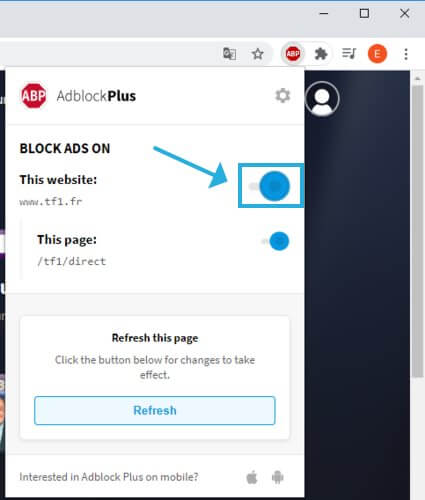
If you have an ad-blocker enabled, disable it for this website.
Sign in with your My TF1 account*.
Start watching TF1 live streaming.
*If you don’t already have a My TF1 account, you can either log in with your Facebook account or create a new account using your email address (no confirmation is required, so you can use any email).
A reliable VPN solution like PIA is the best way to watch TF1 in USA and other countries. Made by Kape Technologies, PIA offers superior connection speeds, doesn’t cause buffering, and also protects your online privacy.
Plus, you can do a lot more with PIA. For example, you can watch French TV on Netflix and bypass censorship.
In addition, speed up your Internet connection for gaming and find cheaper flights. And, if you ever stumble upon any issues, you can take advantage of the 24/7 live chat support.
Private Internet Access
Unblock TF1 with PIA and watch the French TV channel whether you’re in USA or somewhere else.
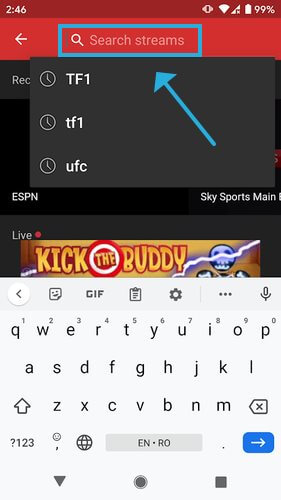
*You can also download BlueStacks and use the Android emulator to install and run Mobdro.
NOTE: If you’re experiencing buffering when trying to watch TF1, use PIA and connect to the French VPN server to optimize your Internet traffic for streaming and eliminate delays.
Mobdro is an excellent choice to help you watch TF1 in the USA and other countries.
It’s free to use, and you don’t have to log in with a My TF1 account. Although it’s exclusively made for Android, you can get it working on other operating systems by using an Android emulator.
This requires extra steps, however. Also, you might occasionally encounter buffering issues, or the stream might be temporarily unavailable.
So you can’t get rid of the in-app ads unless you’re willing to share your system’s resources with a third party.
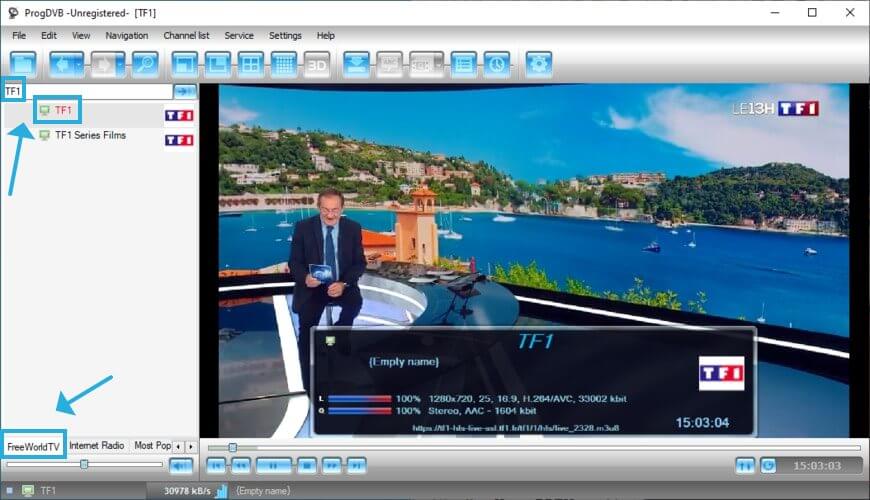
In the main window of ProgDVB, switch to the FreeWorldTV tab.
Search for TF1 and select this entry from the list of results.
Start watching TF1 live streaming.
An IPTV software solution like ProgDVB is a great choice for watching TF1 in the USA. You don’t have to log in with a My TF1 account, and you can use it to unlock other TV channels or Internet radio stations, too.
But it doesn’t always work the way it should. And you can rarely find a free IPTV program that meets your expectations.
Disable your ad-blocker for TF1 if it’s activated.
Sign in with your My TF1 account*.
Start watching TF1 live streaming.
*Unless you have already registered for an My TF1 account, you can log in with a Facebook account or set up a new account immediately. You just need to enter an email address and password (no email confirmation necessary).
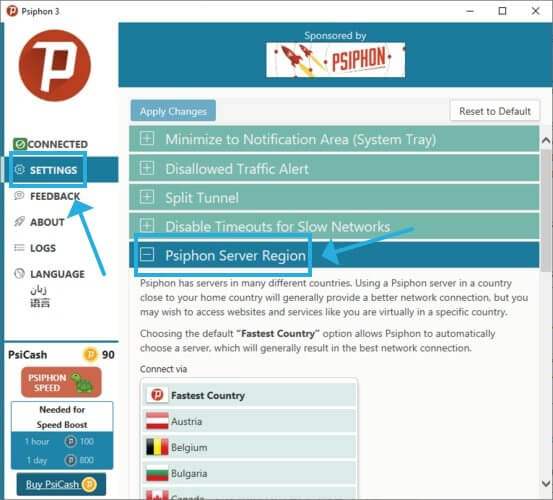
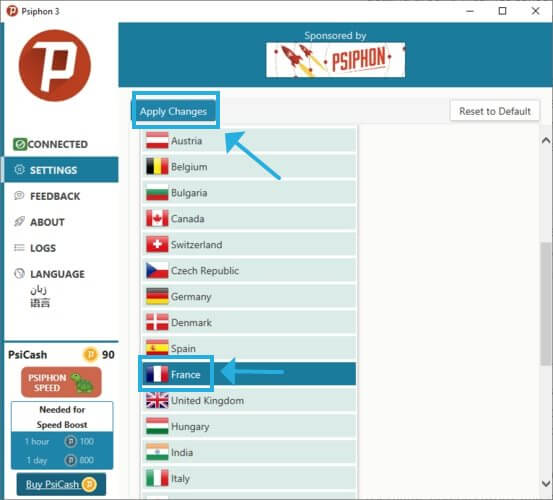
An Internet circumvention tool like Psiphon is a solid choice for unblocking websites, getting past geo-restrictions, and watching TF1 in the USA.
And it delivers excellent connection speed. But, if you’re a privacy-concerned user, it’s not a solution for you since Psiphon cannot preserve your online anonymity.
Yes, it is. Any user can access this satellite television without additional costs and benefit from other free channels like TMC, TFX, TF1 Series Films.
However, if you like this channel and want to watch it online, it’s only possible with a fast and stable VPN connection. These are some VPN examples that can provide you effective support:
NordVPN TF1
ExpressVPN TF1
CyberGhost VPN TF1
And, if you can’t decide between the 4 options, we suggest going with PIA since it’s built for more than just streaming.
We would like to mention that we strongly advise against free VPNs (like Hola VPN) because they aren’t made to maintain your online privacy.
More, free VPNs are notorious for collecting and sharing VPN traffic with third parties. On the other hand, premium VPNs are worth it.
In conclusion, there are many solutions to help you watch TF1 in the USA or other countries, but we think that these 4 are the best the Internet has to offer.
If you are interested in other streaming platforms like HBO, check out this in-depth list of the best VPN to watch HBO GO in France, researched by the security and privacy experts at VPN Central.
ProxFlow is quite a useful web browser extension that can help you unblock geo-restricted content straight from your web browser. You just have to install the extension, make sure it’s active, and start browsing your favorite content.
On the downside, nowadays even VPN traffic gets detected and blocked by popular multimedia streaming services (such as YouTube), let alone proxy servers.
Usually, proxy servers are static and it’s not exactly difficult to pinpoint it and assign it a Proxy tag (as a streaming service). VPNs, on the other hand, are more versatile and have entire ranges of IPs they cycle through.
So it should come as no surprise that ProxFlow, a proxy-based service, can sometimes be detected and blocked by YouTube.
ProxFlow can not unblock this video because it is blocked in the US
Does this situation look familiar? Did you ever encounter it in your attempt to watch some content that’s been region-restricted by YouTube? A lot of users believe in free, unrestricted Internet, but in reality, things are a bit different.
A lot of content comes from the US, and ironically, the US is one to impose the most geographical restrictions. Take Netflix, for instance. It’s no secret that there’s a special version of Netflix reserved for US residents only.
However, it seems that other regions have their own set of restrictions, as well. So what do you do when, as a US resident, you can’t access certain content on YouTube? You turn to specialized geoblock-bypassing tools, such as ProxFlow.
Sometimes, this tool works like a charm, and it’s hassle-free, too. You just install it on your browser, activate it, and forget it’s even there. But what if ProxFlow can no longer grant you access to the content you yearn for?
(*) – try to connect to a server where the content is already freely available. For instance, if a clip is only available in Germany, try picking a server in Germany.
Private Internet Access is an awesome VPN brought to you by Kape Technologies. It can help you tackle a broad range of issues regarding geo-restrictions, privacy, and online security.
These only work if there’s something wrong on your ISP’s side, such as bandwidth throttling or improper routing.
2. Use a Smart DNS service
Smart DNS services replace the DNS that’s been assigned to you by your ISP with another address. This new address has its metadata stripped, so that there’s no info on your real geo-location.
Additionally, it intercepts any requests to the website you want to access and replaces sensitive data that might leak your geo-location with spoofed one so that it seems you’re in a non-restricted country.
Using a Smart DNS might prove to be even more effective than using a VPN for a few reasons. For starters, there’s no encryption, and your IP address never changes.
As a result, your speed doesn’t drop. On the other hand, your real info as well as your network traffic will be exposed.
So, for the purpose of accessing geo-restricted content, a Smart DNS service can be better than a VPN, but at the expense of privacy and security.
ProxFlow might not work every time
To wrap it up, it goes without saying that using proxy servers to bypass geo-restrictions is somewhat outdated.
ProxFlow might still work in some cases, but recently big names in the streaming industries have started putting more and more effort into blocking users who try to circumvent geo-restrictions.
Therefore, your safest bet in this situation is to use a VPN or a Smart DNS.
Windows Defender is one of the W10 V2004 components that received important upgrades. But it turns out that the security feature scans its own PUP History by default, which may lead to false alarm situations with every scan.
The May 2020 Update came with multiple security features, including Windows Hello in safe mode. Windows Defender itself got enhancements in areas such as firmware protection to prevent bad actors from compromising devices.
Notably, Microsoft updated Windows Defender with the ability to sniff out potentially unwanted programs (PUPs).
Windows Defender flags the same PUP multiple times
When a PC scan identifies and neutralizes a PUP threat, you don’t expect to encounter the same PUP in future scans.
But, according to Microsoft, its Windows security tool keeps highlighting the same blocked PUP as a threat many times over. As you’d expect, other scanners don’t detect the same threat on a PC after it’s been removed.
Microsoft recently revealed the source of the problem: Windows Defender looks into its own protection history, which is where it keeps information about all detected and blocked threats. That’s how it keeps finding PUPs it has already resolved in previous scans.
It appears that the default remediation that Windows Defender applies to PUPs is to Block them, then leave them in Protection History. Windows Defender is defaulted to scan its own “Scans/History,” resulting in the discovery of the PUP over and over again. Even though, other scanners see no evidence of the PUP on the PC.
It seems that Microsoft isn’t ready to start quarantining the PUPs. Until then, you can configure Windows Defender not to search for PUPs in Protection History. That setting will stop the multiple false alarms.
Is the Windows security tool flagging the same PUP multiple times on your PC even after neutralizing the threat? You can let us know via the comments section below.
Microsoft has just announced that the switch over to “channels” in the Windows Insider program is now rolling out. According to Microsoft, the change in Windows Insider settings will take effect over the next few hours. There is no action required on your part, as the new “channels” are mainly just a renaming of the existing branches of the Windows Insider program.
Hey Folks – Channels have arrived! Expect the changes to land in your #WindowsInsider settings over the next few hours. Remember, we've done the mapping for you, so there's no direct change you need to make. Check out blog for details! ^AL https://t.co/auc8wvrxRy
As a reminder, the Insider Program now has three different “channels.” These lineup with the rest of Microsoft’s products, and include Dev, Beta, and Release Preview.
The Dev Channel is for highly technical users and will get you the latest builds earliest in the development cycle with the newest code. It’s what used to the Fast and Skip Ahead Rings. The Beta Channel, meanwhile, is for early adopters. Builds from this channel are tied to a specific upcoming Windows 10 release and are reliable updates validated by Microsoft. This is what used to the the Slow ring.
Finally, there is the Release Preview Channel. This channel is for those who want the most stable Windows 10 experience. You’ll still have access to the upcoming release of Windows 10, but at a slower pace, and only before it is ready to be released to the world. This used to the Release Preview Ring.
Be sure to keep an eye on your Windows Insider settings today and let us know if you’ve gotten the switch over to these new Channels by dropping us a comment below.
It appears that major Chromium-based browsers have found a cure for their memory-hogging problem. As such, Google Chrome is now joining Microsoft Edge in the use of the new segment heap RAM management technique.
Quick Tip:
You can set RAM and CPU limits on the Opera GX browser, ensuring that although you’re running a resource-heavy app, other processes still function at optimal parameters, outside the browser.
Another notable feature of Opera GX is the Network Limiter, which allows you to put a bandwidth limit so that the browser balances how much speed each process takes.
Opera GX
Adjust your browser’s impact with the exclusive RAM and CPU limiters.
Does your Google Chrome sometimes feel a little slower than normal? It’s not just you! The browser has a reputation for gobbling up RAM, which could make your computer feel a bit sluggish.
Chrome’s use of a multi-process architecture is part of the problem. And it gets worse when you open too many tabs because that simply works up the browser’s appetite for memory.
There’s some good news though. For a while now, Google’s Chromium project team has been discussing Windows 10 segment heap technology as a potential solution to the problem.
So, they’re working on a way to get Chrome to leverage segment heap instead of an older alternative.
Adding a SegmentHeap entry to the chrome.exe manifest will tell recent-enough versions of Windows (20-04 and beyond) to opt chrome.exe into using the segment heap instead of the legacy heap. Experiments with per-machine opting-in to the segment heap for chrome.exe suggests that this could save hundreds of MB in the browser and Network Service utility processes.
According to the Google Chrome developers, experiments show that PCs that harness segment heap can save hundreds of MBs in Chrome. So, the team recently updated Chrome canary (build Version 85.0.4182.0 ) with the new memory management technique.
Almost two weeks ago, Microsoft revealed that it had tested segment heap in Edge and found it to free up to 27% of system RAM. However, both Edge and Chrome can only attain this kind of RAM efficiency in Windows 10 version 2004 or later.
Intel graphics driver update for Windows 10 fixes multiple bugs, including crash issues affecting Ring of Elysium. The patch is now available for download.
If you’re a video game player, chances are that you’ve experienced a gameplay quality problem due to bad graphics. Issues like diluted colors, hanging, and crashing are common in such situations.
It just so happens that users of certain Intel graphics cards encountered similar problems when playing particular video games on Windows 10.
Intel graphics driver update
You may download Intel graphics driver version 27.20.100.8336 to fix a range of issues impacting your PC gaming experience.
The update addresses a bug causing the Ring of Elysium and the Shadow of the Tomb Raider games to sporadically crash or hang. It should work for you if you’re on a DirectX 12 PC with a 7th Generation Intel Core processor or higher.
Similarly, after invoking the Alt + Tab command in Doom Eternal, some users would experience minor graphics issues. These should be no more after updating to the latest Intel graphics driver patch.
Intermittent crashes or hangs may be seen in Ring of Elysium* (DX12 Beta), Shadow of the Tomb Raider* (DX12) on 7 th Generation Intel Core processors and higher.
Minor graphic anomalies may be seen after Alt + Tab in Doom Eternal*(Vulkan).
On PSR2 displays, internal embedded panel when plugged in may shift after resuming from lid close do nothing on 10th generation Intel Core processors with UHD Graphics.
The update is compatible with Windows 10 version 1709 and later, including the May 2020 Update.
Only last month, Intel released Bluetooth drivers to fix a bug affecting Bluetooth gadgets on Windows 10.
Did you by any chance experience the Intel graphics issues highlighted above? Feel free to let us know or report any related concerns via the comments section below.
Did you delete an important file by accident? It can be a photo, PDF, office document, or even a ZIP archive but still, it’s a stressful moment nevertheless.
If you created a back-up, you can perform a System restore, an elegant way to turn back in time. But speaking about time, that process takes a little bit of time.
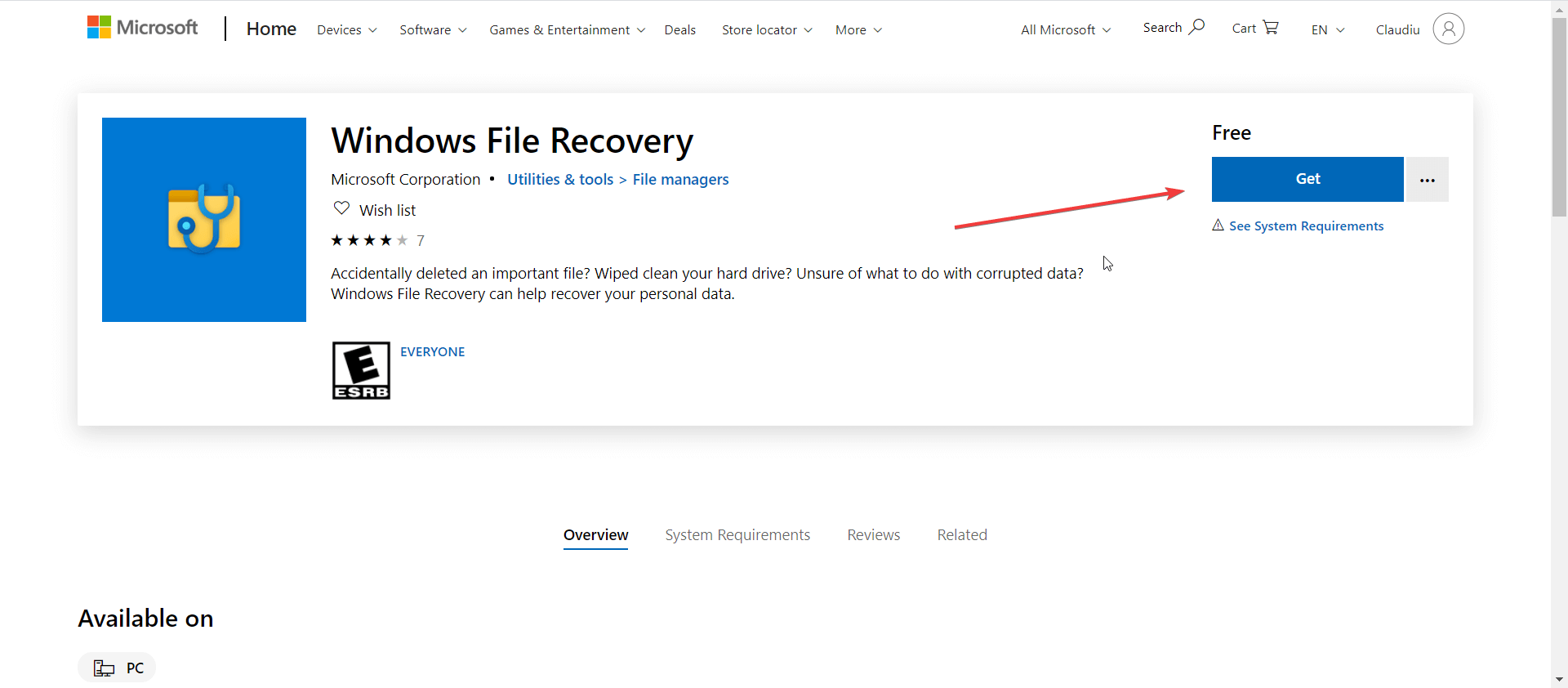
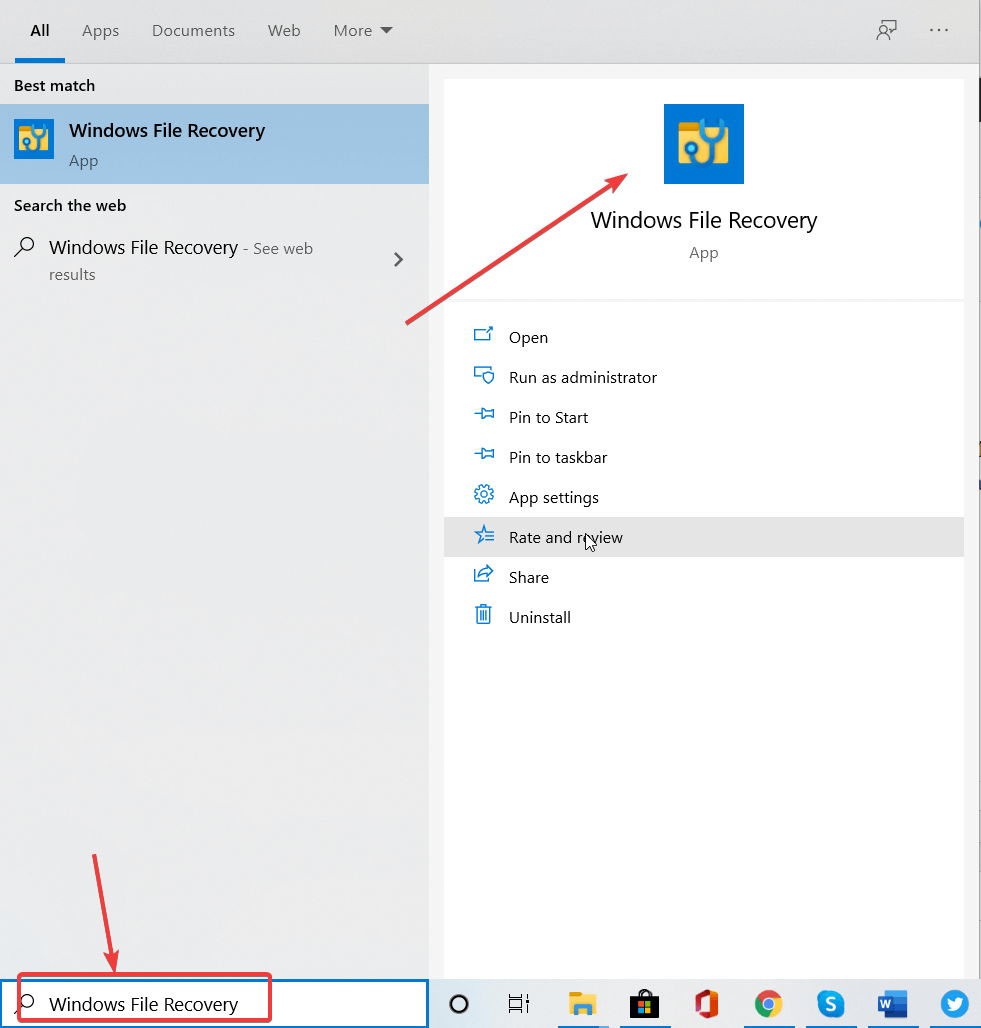
Especially if you lost the file recently, you can try recovering it using Windows File Recovery, a new app that arrived in the Microsoft Store recently.
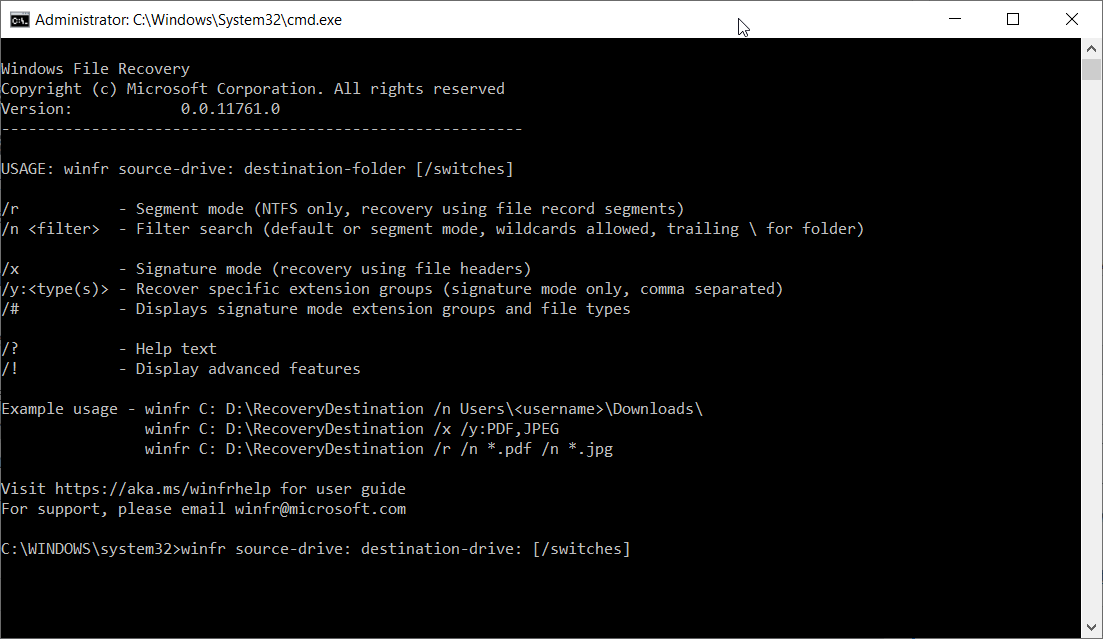
Also, there are three different modes of work, namely:
Default: If you just lost the file, that’s the mode you should use and locates files using the Master File Table (MFT).
Segment: That’s a mode that you can use if you lost the files a while ago or even after formatting your drive.
Signature: This mode is ideal for external storage media, for example, a USB hard drive.
How can I use Windows File Recovery in Windows 10?
After you downloaded and installed Windows File Recovery, this is how you can use it:
Type Windows File Recovery in Windows Search and click on the app from the results.
Type winfr source-drive: destination-drive: [/switches] where the source-drive and destination-drive are the corresponding letters for the drives (for example C and D) and the switches are the actual commands and press Enter.
For instance, if you deleted some pictures from the Pictures folder in the C: drive, type the command winfr C: E: /n \Users\<username>\Pictures\*.JPEG /n \Users\<username>\Pictures\*.PNG and they will be recovered in a Recovery_<date and time> folder on the E: drive.
Other examples of how to use Windows File Recovery tool
Have you lost an important document and you know its name? Then the command will be winfr C: E: /n \Users\<username>\Documents\TheLostDocument.docx.
Have you lost the whole Documents folder? Then type winfr C: E: /n \Users\<username>\Documents\. Note that you have to insert the / after the document’s name for the command to work.
To recover any PDF and Word files from your C drive, the command line will be winfr C: E: /r /n *.pdf /n *.docx. The files will be restored on drive E, in the Recovery_<date and time> folder.
If you want to see which file types are supported for recovery, just type winfr /# in command prompt.
Note: Keep in mind that it’s recommended to try and recover the files or folders as soon as possible.
By using the computer, the system might write data in the place that was occupied by the file or folder you deleted.
FAQs
What is Windows File Recovery?
Windows File Recovery is a free Microsoft tool that helps you recover deleted files from your PC, external drives, or USBs. It works through Command Prompt and can restore various file types like documents, photos, and videos.
Can Windows File Recovery restore files from a formatted drive?
Yes. If you use the Extensive mode, the tool can often recover files from formatted or corrupted drives, although success depends on how much data has been overwritten.
Where do recovered files go after using Windows File Recovery?
Recovered files are saved in a new folder on a different drive from the one you’re scanning. You’ll see a recovery folder created automatically, usually labeled Recovery_ followed by the date.
Is Windows File Recovery safe to use?
Yes. It’s developed by Microsoft and doesn’t harm your files or system. However, avoid saving recovered files to the same drive you’re recovering from to prevent data overwriting.
Having a good and reliable email client is important, and one of the best is eM Client.
The software has a sleek and friendly user interface that allows you to easily send and receive emails.
The latest version of eM Client was released recently, therefore we decided to take a closer look at it, and see what does it have to offer.
The good:
The bad:
Sleek and friendly user interface
Some features are only available in the Pro version
Built-in calendar
Email encryption
Advanced email management
What is eM Client?
eM Client is an email client for both Windows and macOS platform. The first version of the software was released in 2006.
Recently the version 8 of eM Client has been released, and it offers a wide array of new features, so today we’re going to take an in-depth look and check out the new features.
To download eM Client, visit our in-depth download guide.
eM Client works with all popular webmail services such as Gmail, Exchange, iCloud, and Outlook, so you won’t have any problems using them with eM Client.
The software supports data import, so you can easily import all your contacts and emails from other email clients such as Outlook, Thunderbird, and others.
We also have to mention that this application works with almost all email protocols, including POP3, SMTP, IMAP, EWS, and AirSync.
Calendar and contacts
eM Client also has a built-in calendar and tasks feature, allowing you to organize your time easily.
The calendar automatically syncs with your Google Calendar, so you can see all events without any extra configuration.
Of course, there’s also a Contacts feature to easily see and organize your contacts. You can add one of many labels to your contacts in order to organize them better.
In addition, you can see both email history and attachment history right from the Contacts section. It’s also worth mentioning that you can export all your contacts to a CSV or HTML file with a single click.
Filter and manage your emails
The middle pane holds all your emails allowing you to sort them using several criteria. Once you click the desired email, you’ll see its contents in the right pane.
There’s also a hidden panel on the right that allows you to check message history and attachment history from any contact.
There’s also an Agenda feature that you can use to create tasks and reminders with ease. Lastly, there’s a built-in chat to have real-time chat with your contacts.
eM Client allows you to export the list of emails with ease, and you can even download emails and read them later.
As for email writing, standard formatting features are available, but there’s also an ability to add a Quick Text or signature.
eM Client also has Read Receipt and Delivery Receipt features, so you can see if your email message was delivered and read by the recipient.
The application has a full touch support, so you can use it without any problems on your tablet or any other touchscreen device.
Speaking of features, the application has a built-in search that allows you to find any email, contact or attachment in seconds.
Email security
eM Client fully supports SSL and TLS standards, so all your emails will be safe from third parties. In addition, there are S/MIME, and PGP encryption features available.
Another useful feature that some users might like is the ability to send delayed messages.Thanks to this feature, you can write an email and send it at a specific time and date.
We also have to mention that eM Client has a built-in translator that can translate both incoming and outgoing messages with ease.
With eM Client, you can add multiple email accounts and use them simultaneously. Thanks to this feature, you can use your business and personal email account from a single application.
The application is available in two versions, Free and PRO, and the Free version has some limitations.
For example, the Free version isn’t available for commercial use and doesn’t offer VIP support. In addition, the Free version allows you to work only with two email accounts.
On the other hand, the PRO version allows you to work with an unlimited number of email accounts, it also offers VIP support, and it’s fully available for commercial use.
You’ll never lose your emails
eM Client backs up your data while running. You don’t have to hit any backup button to make sure your data is there — in case anything goes wrong.
What are the new features in eM Client 8?
Complete redesign
The first thing that you’ll notice in the new version of eM Client is its new user interface.
The interface was completely redesigned in order to streamline the user experience and make the software easier to use.
Avatars, tags, and improved contact view
eM Client now supports account avatars, and you’ll see them in searches, folders, and in other various sections.
Thanks to the avatars, you can easily determine which email account sent or received a specific email message.
The left pane can now be minimized, allowing you to switch to a specific account simply by clicking that account’s avatar icon.
Tags have been improved, and now you can assign the same tags for contacts, tasks, emails, and notes.
The contact view underwent some changes, and now you can easily see full conversation history with the desired contact.
All attachments in one place
A new version of eM Client will store all your attachments in a single place and allow you to find the attachment that you need quickly.
The feature works with multiple email accounts, even allowing you to search for specific text inside of documents.
Cloud storage support for attachments
Thanks to this new feature, you can save storage space on the mail server with ease.
All your large attachments can be uploaded directly to the desired cloud storage service of choice to save space.
Calendar and sidebar improvements
To stay productive and keep track of your daily tasks, there’s a new sidebar view that offers a summary of current day’s events.
The Calendar feature is redesigned, and now it can show more information. There’s also an upcoming 7 days view that can show you upcoming tasks for the week.
Notes
Notes are available in the latest version of eM Client, so you can easily create reminders or take quick notes right from the client.
All notes are synchronized, and they work with Exchange/Office365 and IceWarp.
Improved synchronization and archiving
The new version of eM Client brings you improved IMAP support and better synchronization.
In addition, you can now archive messages with a single click on any IMAP or Exchange account.
Watch for replies and snooze
The new version brings you the ability to watch for replies so that you can keep track of important emails at all times.
Snooze feature is also available, allowing you to easily snooze an email if you’re busy and answer it at a different time.
Message encryption
For added security, the new version of eM Client supports message encryption, and you can set up PGP message encryption while adding your account.
eM Client vs Outlook, which one is better?
When comparing eM Client and Outlook, the first major difference is the price. eM Client is available for free, with certain features missing, while Outlook requires a license to use.
Speaking of licenses, eM Client is much more affordable than Outlook, so it’s a great choice if you’re on a tight budget.
As for additional features, eM Client offers PGP encryption and an incredibly fast search feature.
The application offers a sleek user interface, and it has all the features that you expect to find in an email client.
It’s worth mentioning that eM Client has automatic backup features and can easily handle hundreds of GB of data.
As for additional features, we also have to mention the built-in chat feature and an automatic translator.
Final thoughts on eM Client
The latest version of eM Client offers a new interface and all the features that made the application great in the first place.
Features such as notes, the ability to watch for replays, and the snooze feature are welcome additions that will surely come in handy.
If you’re looking for a powerful email client with a wide array of features, you might want to try out the new version of eM Client.
If Microsoft is currently working hard on its next-gen games showcase planned for July, it’s getting more likely that we could see the company’s second next-gen Xbox console “codenamed Lockhart” in August. Traces of the cheaper “Lockhart” SKU have recently been found in Windows 10 as well as official Developer documentation, confirming previous rumors about Microsoft planning a less powerful next-gen console to go along with the Xbox Series X.
Earlier this month, Jeff Grubb from VentureBeat reported first that Microsoft initially planned to reveal Lockhart in June, but ultimately changed its plans. “The company was aiming to show off the long-rumored, more-affordable Xbox Lockhart around June 9. But it pushed those plans all the way to August — at least for now. Microsoft doesn’t want to go before Sony’s Thursday event,” Grubb wrote.,
While Xbox marketing exec Aaron Greenberg quickly replied that the Xbox team had not “pushed anything back,” Eurogamer is now backing VentureBeat’s previous report of the Lockhart revealed being delayed from June to August, while also offering additional information about what could have led to the rescheduling. The publication is also referring to the console as the “Xbox Series S,” a name that would make sense if Microsoft decides to stick with the S/X dichotomy that debuted with the Xbox One family of consoles.
The original plan was to showcase the Xbox Series S as part of Xbox’s big E3 2020 show, so the proposition of a cheaper next-gen option could be explained properly, sat alongside the graphical powerhouse provided by the beefier Series X, both playing the same next-gen games.
But when E3 was cancelled and remote working hindered progress on various internal game projects, it became clear Microsoft could no longer show both its boxes and next-gen games all at the same time. It had to rethink the timeline for all these plans, and instead opted to spread its reveals over a longer timescale – something the company publicly branded Xbox 20/20.
The absence of a June Xbox 20/20 Update this month left Xbox fans a bit disappointed, especially since it allowed Sony to claim back the next-gen gaming narrative with the much-talked-about PlayStation 5 reveal. The Japanese company also surprised many by announcing a disc-less PlayStation 5 Digital Edition, which may outshine Microsoft’s much less powerful (4 rumored teraflops vs. 10 teraflops for the PS5) and also disc-less Xbox Series S.
If remains to be seen if Microsoft does reveal its Lockhart/Xbox Series S console in August, but as Microsoft never confirmed it publicly so far, the cheaper SKU could still be canceled at any point. Anyway, if Microsoft has already started manufacturing its next-gen Xbox consoles ahead of the holiday season, it may become increasingly difficult to prevent more Lockhart/Xbox Series S leaks ahead of the rumored reveal for August.
Microsoft Power Apps is a suite of apps, services, connectors, and data that can help you build custom apps for your small business. As noted by Microsoft, you can quickly build custom business apps that connect to your business data stored in Excel, Office, or elsewhere. These apps then provide workflow capabilities to improve your business operations and help employees make sense of big data.
Of course, as we always discussed, Microsoft Teams can help boost your small business operations too. But, did you know that you can combine both Microsoft Teams and Power Apps and add Power Apps to Teams? Here’s a quick look at how you can do it.
Creating a Power App for Teams
Before getting into the Teams aspect, we’ll touch briefly on how you can create a custom Power App for Teams. To get started, you can visit Power Apps here. Keep in mind, some functions of Power Apps might not be available for you, as the service is paid. But, there is a community option and a 30-day free trial.
Once there in Power Apps, you’ll want to choose which type of app you want. You’ll notice three things. There is a canvas app, which you’ll build from fresh to create your own custom apps. There’s also a model-driven app, which has multiple components such as views, charts, and business processes. Finally, there is Portal, which will help you create external websites for users to sign in and create and view data.
If you click All Templates, there are also several templates underneath which you can choose to speed up the process of building apps. These templates will allow you to plug in your data to make building the app easier. For most people, choosing these templates will be the way to go, as each template will have a step by step guide on how to proceed. Creating a more custom app is a long and complicated process, but Microsoft has an in-depth guide here.
If you’re a novice, we suggest you choose from a template. This will give you an interactive tour of how to build an app. Once you finish the tour, you should notice that the template app will open up in a Tree view. Each tree in the sidebar has a sample text or objects linked to it. You can click to expand each tree and then click to the right inside the app, to edit the text or data and images your own company information.
Once you finish inputting your own text and objects, you can go back to the Tree View, click where it says App, and then head up to the menu bar and click the triangle Play button. This will let you demo your app. When satisfied, you can save by clicking File, Save. be sure to save it to the cloud, as we’ll need that for the next step.
Adding your Power App to Teams
With your Power App created, you can now add it to Teams. To do so, you’ll want to select the Team, and then the channel where you want the Power App to Go. After that, click the “+” icon along the top bar of Teams to add a tab. When done, search or choose PowerApps from the list. Click the app you created, and then click the purple Save button. Yourself and other users will then see the app load up in the Teams window.
If you want, you can also click the globe icon on the top, near the tabs to open the app online in its own space. Other controls available from the top tab bar will let you refresh the app, make it full-screen, or start a conversation around the app. You can remove it anytime by clicking the name of the app along the top bar, and choose Remove.
Keep in mind that you can also download a canvas app and run it on your device, too. Simply make sure that your device is supported. Then, download and install Power Apps from the Google Play or App Store links below. For model-driven apps, meanwhile, you’ll need to have Dynamics 365 installed. We’ve gathered all these links at the bottom of this post.
The power of Power Apps
We’ve just touched on the business side of Power Apps, but there’s so much more you can do with it. Admins can use the Power Apps admin center to create and manage environments, users, roles, and data-loss prevention policies.
There’s also the Power Platform admin center which can be used to manage environments, get real-time, self-help recommendations, and support for Power Apps and Power Automate. Developers can enjoy Power Apps too, in order to create data and metadata, apply server-side logic using Azure functions, plug-ins, and workflow extensions, apply client-side logic using JavaScript, and more.
You can also acquire other skills with Microsoft certifications that can help brush your skills.
Earlier this year, Microsoft announced a major rebrand of the Planner experience in Microsoft Teams. As a part of this rebranding effort, the company said that it would rename its Planner app for Teams as “Tasks” at some point in May or June. Now, Microsoft has posted a new update in the Microsoft 365 Admin Center and the Microsoft 365 roadmap noting that it has delayed the rollout completion of this feature to July, and it’s expected to be completed in August.
The new Tasks app will allow Teams users to view and manage their team tasks along with individual tasks, and also allow them to prioritize their work. The new app will also consolidate tasks across Microsoft To Do, Planner, Outlook, and Teams channels, and it will be accessible on the left side of Teams, as well as a tab in a channel within individual teams.
It is worth noting that the new Tasks app will initially appear as “Tasks by Planner and To Do” in Teams, and it will be renamed to just “Tasks” a few months after the interim name change. Once the new app becomes generally available to all public cloud organizations, the Tasks in Teams experience will also be coming for mobile users as well.
If you haven’t been paying attention, last week marked a big moment for Apple. Alongside iOS 14, and iPad OS 14, the Cupertino-based company announced a major redesign for its desktop and laptop operating system with macOS Big Sur.
For me, the Microsoft fan, this was an absolutely frustrating experience. While it is true that Microsoft has plenty of cool projects of its own incoming — including Windows 10X — I can’t help but look at the current state of Windows in disgust. I am tired of waiting, and it really is like Windows 10 is falling behind Apple’s macOS.
The Windows 10 and Windows Insider mess
To understand why I am so frustrated, I will begin by looking back at Windows 10 itself in retrospect. At one point in history, Windows 10 was all about new features. With each new update, we got cool things like the Your Phone app, Windows Timeline, Dark mode, and more. We even got features that came and went in testing with Windows Insiders, like Sets.
But facing criticism about bugs that come with each new release, Microsoft recently shifted the way it handles Windows 10. We now get twice a year updates, and development has moved from adding new features to fixing new bugs.
This is indeed important considering the vast majority of devices that Windows runs on, but it is a bit sad, too. There aren’t any new, exciting, or unique features in Windows for awesome devices like the XPS 17, the Surface Book 3, or even the Surface Go 2 to take advantage of. (Oh, yes, I am talking about the mess that is Windows 10 tablet mode.)
You can shell out $2,000 for a laptop but get stuck with nothing special (or expect no new features) in Windows. We’ve had the same old boring version of Windows 10 for the past two years. It’s almost like a Windows laptop is no longer worth the investment.
That’s a big difference from Apple’s macOS, which just received a completely new look and feel with macOS Big Sur. And, even before that, a new Sidecar feature for iPads in macOS Catalina, and dynamic wallpapers in macOS Mojave. Apple even is getting developers to port iPad apps to the Mac, too. Which is something that Microsoft once did with the Windows Phone UWP apps, but wasn’t really successful with.
Then there is the Windows Insider Program, and those beta testing promised new and upcoming features Windows. In its current state, it is very much is pointless. The program has been changed to “channels” so Insiders could take a peek at the latest work-in-progress code from Microsoft. However, we haven’t even seen the work of this yet. Plus, it has been suggested by Microsoft that the last remaining Windows 10 update for this year 2020 will again be smaller in scope. It’s like putting paint on a pig. I’m still waiting, and it’s like we won’t be getting anything new this year.
That’s where Apple comes into the picture. While it is true that Apple’s ecosystem is a lot more locked down and easier to control, Apple keeps things a lot simpler. There is no complicated Insider Program. There are no channels, there are no twice a year updates, crazy bugs, or pointless almost weekly releases to download.
The macOS updates are announced at WWDC, developers get to test their new operating system first and then based on feedback, a public beta is pushed out a few weeks later. We then get a single release in the Fall. No May 2020 macOS Update. No November 2020 macOS Update. It’s a single, consistent release that has been actively tested for almost half a year.
Microsoft really can listen up and learn a thing or two from how Apple handles desktop operating system updates. It just works. It’s time to become more consistent with these Windows releases and clean up the act. Twice a year updates only complicate the process and make things difficult for beta testers and manufacturers pushing out new laptops.
Sure, these Windows 10 updates are phased, and not everyone gets it at once. Just look at the list of bugs for the May 2020 Update, and the compatibility issues Microsoft faced for its own products. It’s embarrassing that even get Windows 10 working right on its own Surface devices.
Windows 10 is dated and we have no idea when it’s getting a new look
With Apple announcing that macOS Big Sur will get the first major redesign in 10 years, it is time to talk more about the user interface. MacOS has always been more consistent and better looking than Windows for many of the reasons I discussed above, but it’s now becoming especially true.
While it is true that Apple might have been working on the MacOS redesign for years now, it is still beautiful. Icons have been reimagined, as well as the dock, the menu bar, and the Finder. There’s a clean and content look throughout the operating system to better match the company’s iOS and iPad OS operating system. And, best of all, developers can test it now, and the public starting next month.
Windows 10, meanwhile, is dated. We did see that Panos Panay teased new features such as a resigned Start Menu and more, but it is still a tease. So far, Microsoft has only rolled out new iconography for Windows, which many have criticized, too. There are changes coming, but when? We’ve all been waiting.
Then, there’s Windows 10X. This is the major redesign and flavor of Windows that everyone has been waiting for. It has a new Action Center, Start Menu, Taskbar, and more. However, Microsoft has gone silent about it, only confirming that it will be coming to single-screen devices soon. Asides from beta testing in a virtual machine, nobody knows if and when this will become a reality.
For Microsoft, a company making billions off Azure and the Cloud Windows is rather being seen as a service. This does mean that Windows gets updated, but there is a complicated situation where the general public no longer knows what to expect in terms of new Windows features, or from leadership or the Insider program.
Just look at the recent shakeups, and Panos Panay being put in charge of Windows. There is hope, but it really is becoming a watch and wait game for Microsoft, while its rivals are speeding ahead.
Social media has been part of our everyday lives for some years now, and it has grown from a simple platform where you post pictures to an excellent place to distribute information in the form of shared articles.
Unfortunately, news is something that becomes irrelevant really fast, as events unfold in ways that could make certain articles outdated.
That being the case, Facebook has taken certain measures so that news articles that are older than 90 will be less likely to be posted.
What does the This article is x months old notification mean?
This process started all the way back in 2018 when Facebook first introduced the context button.
The sole purpose of this feature is to provide information about the sources of articles in what appears on everyone’s News Feed.
Now, Facebook as gone further down this road by showcasing a notification every time you want to share a news article that is older than 90 days.
How do I share older articles on Facebook?
One thing worth mentioning is that this doesn’t mean that you won’t be able to share that article anymore, just that you will be warned beforehand that what you are sharing may be old news.
When prompted with the warning message, simply press Continue, as you can see in the image above.
Facebook commented on the release of this feature by stating that:
Over the past several months, our internal research found that the timeliness of an article is an important piece of context that helps people decide what to read, trust and share.
News publishers in particular have expressed concerns about older stories being shared on social media as current news, which can misconstrue the state of current events.
Some news publishers have already taken steps to address this on their own websites by prominently labeling older articles to prevent outdated news from being used in misleading ways.
However, suffice it to know that if you get this notification, then it means that the news that you are sharing may be old, and therefore irrelevant.
The end goal is to allow a more transparent distribution of information and hopefully a purging of old news in the long run.
What’s your take on this exciting new feature? Let us know if you find it a useful addition by leaving us a message in the comments section below.
Yes, you can, and this is made all the easier thanks to the dedicated Facebook Gameroom App. If you’re having issues running this app, check out this in-depth guide on how to fix Facebook Gameroom.
Did you accidentally delete an important file, be it a photo, PDF, word document, or ZIP? The experience can be stressful, especially if System restore, which only works when you have a backup in place, is not an option. Well, you can now try recovering the lost items using Windows File Recovery, a new app that quietly arrived in the Microsoft Store recently.
The new Windows File Recovery app
The application supports most of the file extensions you usually work with in Windows 10. So, you can use it to restore your deleted photos (JPEG or PNG), audio (MP3), or video (MPEG, MP3, MP4).
It even lets you recover compressed files (ZIP), corrupted data, and much more. The description of the app on the MS Store partly reads:
Accidentally deleted an important file? Wiped clean your hard drive? Unsure of what to do with corrupted data? Windows File Recovery can help recover your personal data. For photos, documents, videos and more, Windows File Recovery supports many file types to help ensure that your data is not permanently lost.
In addition, the app works with various data storage types/systems, for example, your Windows 10 hard disk or solid-state drive. Others include USB and memory cards. Supported file systems are ReFS, NTFS, FAT, and exFAT.
According to the support page for Windows File Recovery, the app offers a command-line user interface. It lets you recover files in three different modes, namely:
Default: Suitable for recently deleted files, and locates files using the Master File Table (MFT).
Segment: Can recover files lost a while ago or after formatting your drive. It doesn’t use the MTF to generate results though.
Signature: Works only for external storage media, for example, a USB hard drive. Also, it doesn’t recover small files.
If the command line-based software proves to be too complicated, you can try third-party file recovery tools that use traditional Windows 10 graphical user interfaces.
Have you tried the new file restoration tool from Microsoft yet? Kindly share your experience in the comments section below.






![TDSSKiller won’t run in Windows 10/11 [Easy Fix]](https://windowsreport.com/wp-content/uploads/2020/08/kaspersky-image.jpg)


![5 best antivirus solutions for Windows 10/11 [UNBIASED LIST]](https://windowsreport.com/wp-content/uploads/2018/10/antivirus-2019.jpg)



















![Evernote to OneNote Importer not working [Fixed]](https://windowsreport.com/wp-content/uploads/2018/10/24.jpg)

![Microsoft 365 Personal vs Microsoft 365 Family [Review]](https://windowsreport.com/wp-content/uploads/2020/06/Microsoft-365-Personal-vs-Microsoft-365-Family.jpg)

![Desktop unavailable after Windows 10/11 update [Fixed]](https://windowsreport.com/wp-content/uploads/2018/12/desktop.jpg)
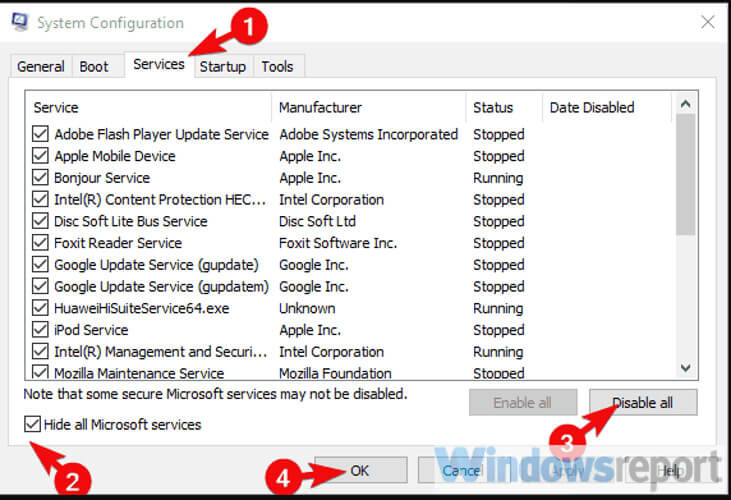
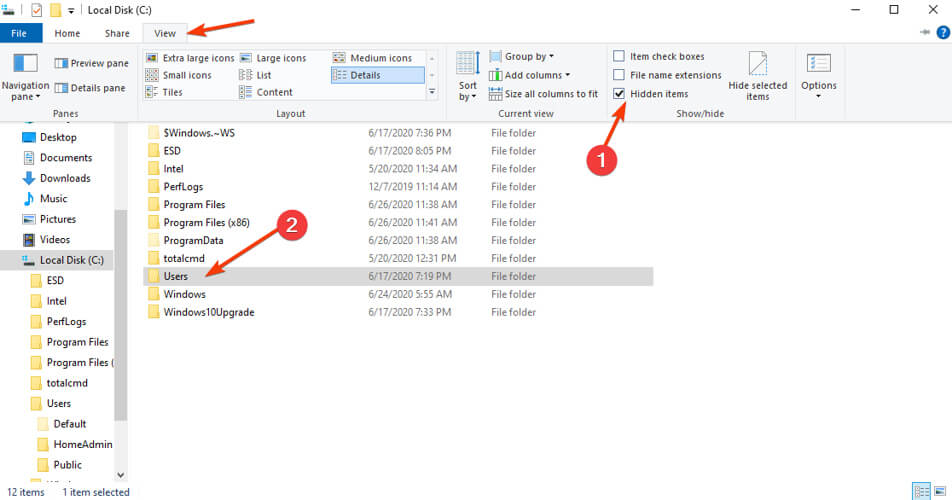

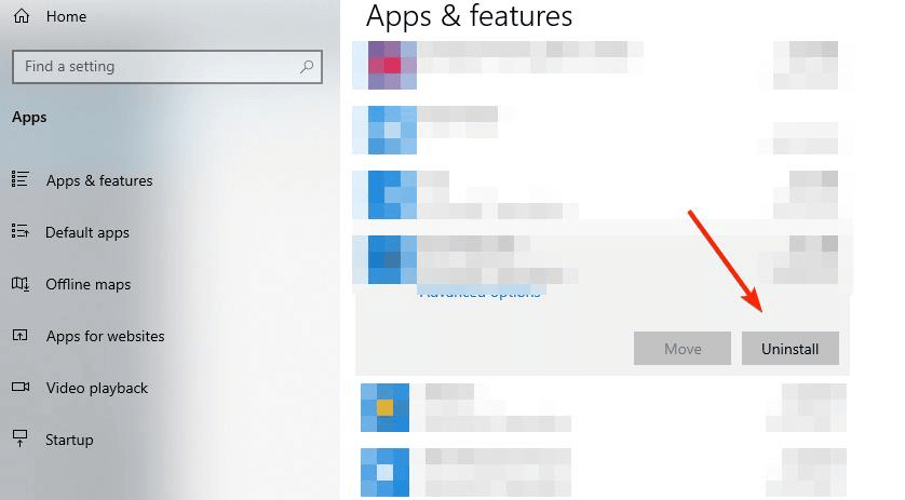
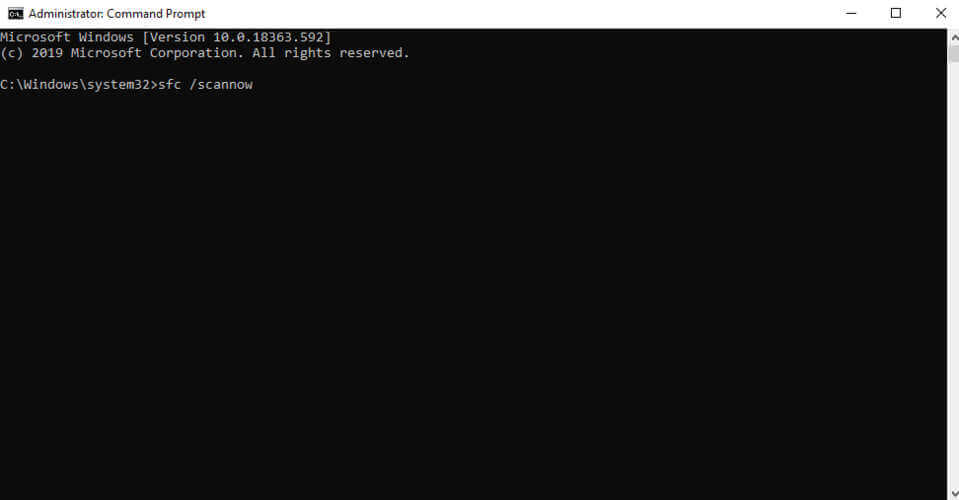
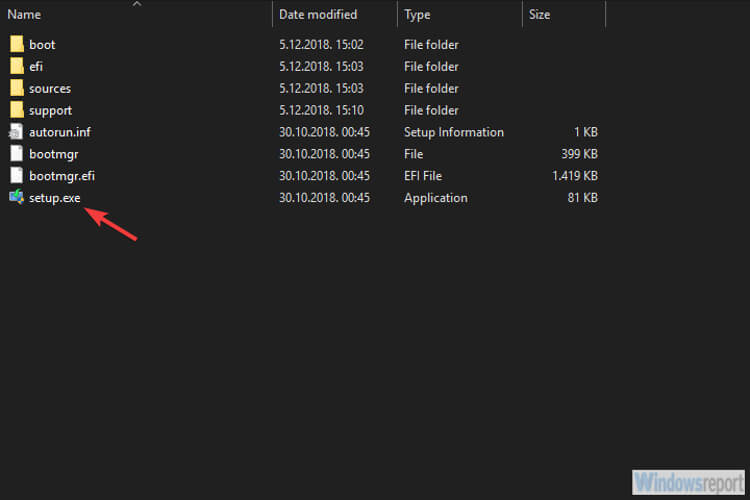
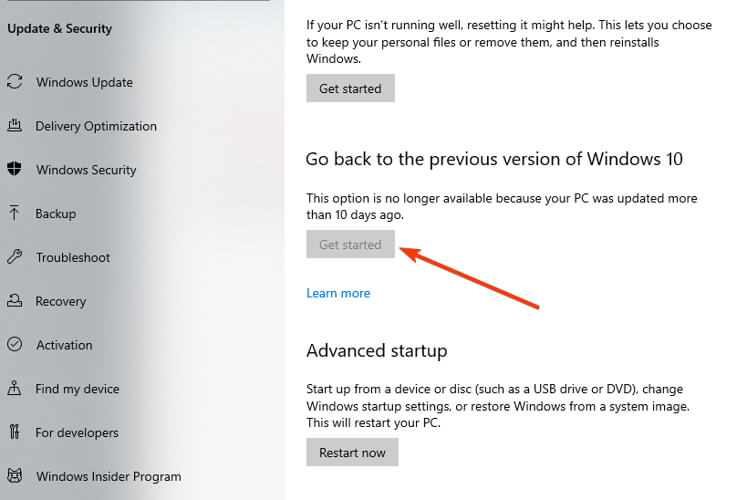
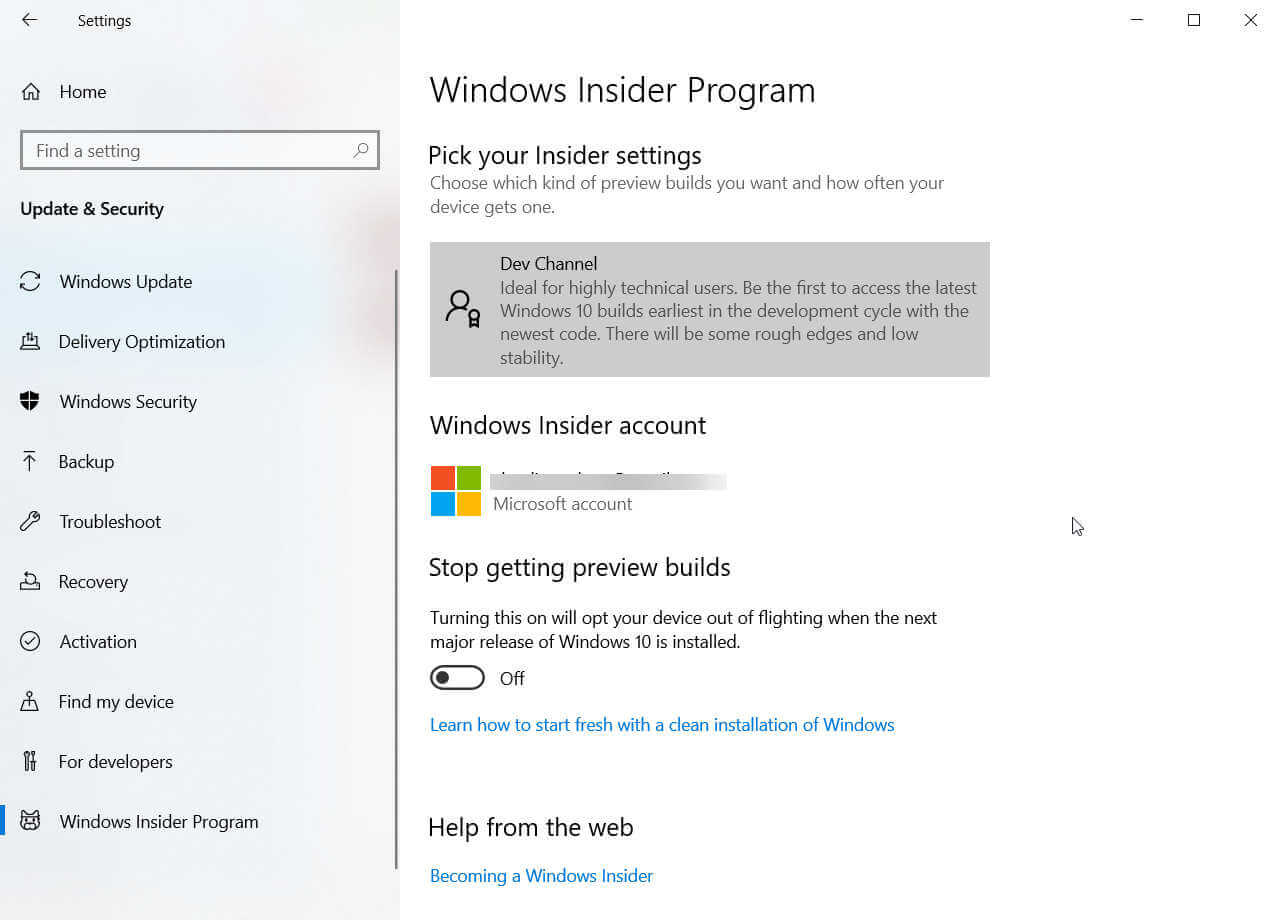





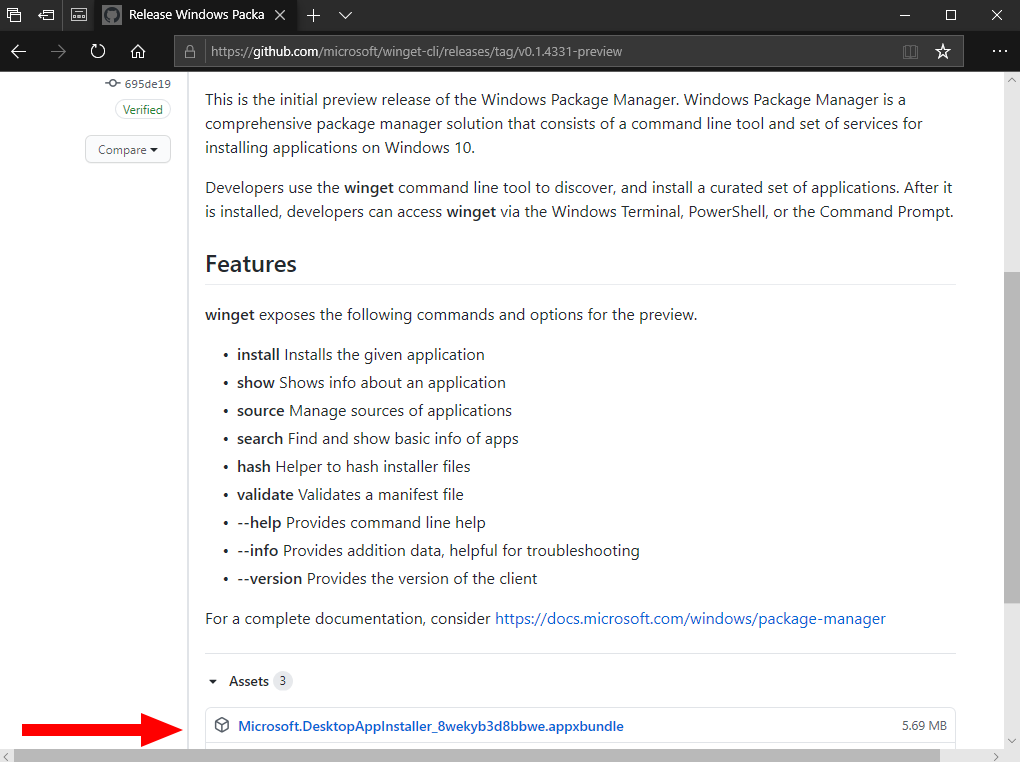
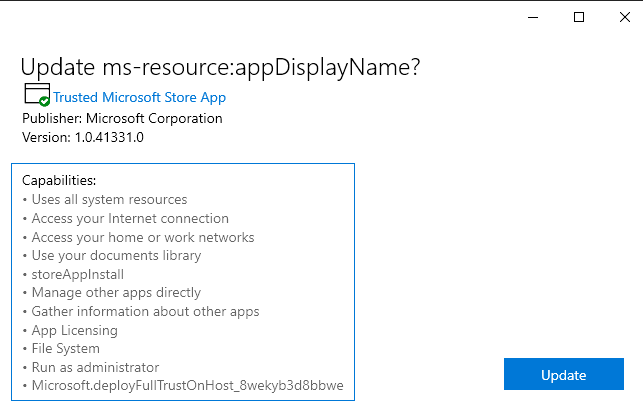
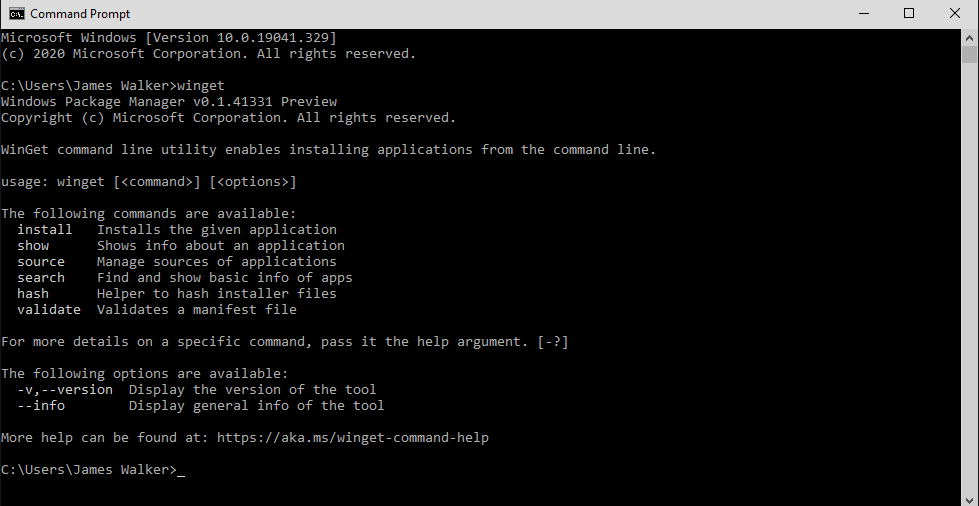
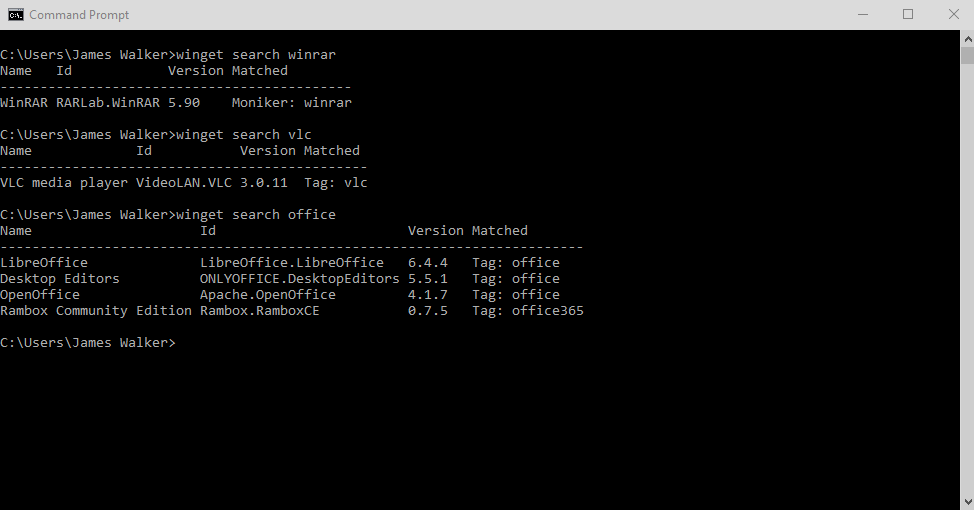
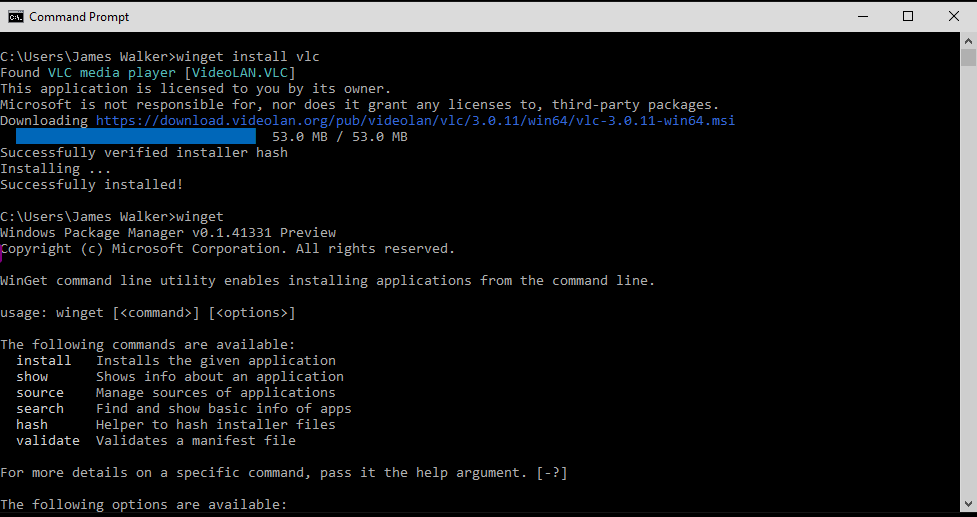

![How to Fix PS4 Error Su-30625-6, SU-42481-9 [Update errors]](https://windowsreport.com/wp-content/uploads/2020/06/PS4-Error-Su-30625-6-PS4-Error-SU-42481-9.jpg)


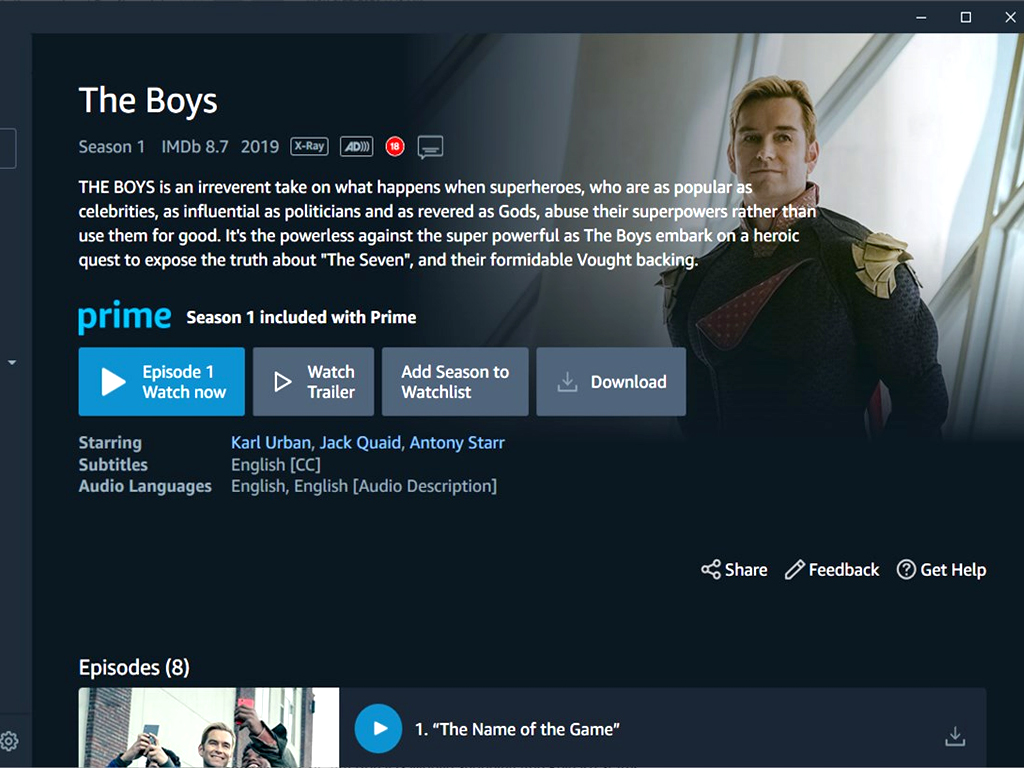

![PlayStation 4 Error Codes CE-34878-0, CE 30005-8 [Full Fix]](https://windowsreport.com/wp-content/uploads/2020/06/PlayStation-4-Error-Codes-CE-34878-0-CE-30005-8-Full-Fix-2.jpg)
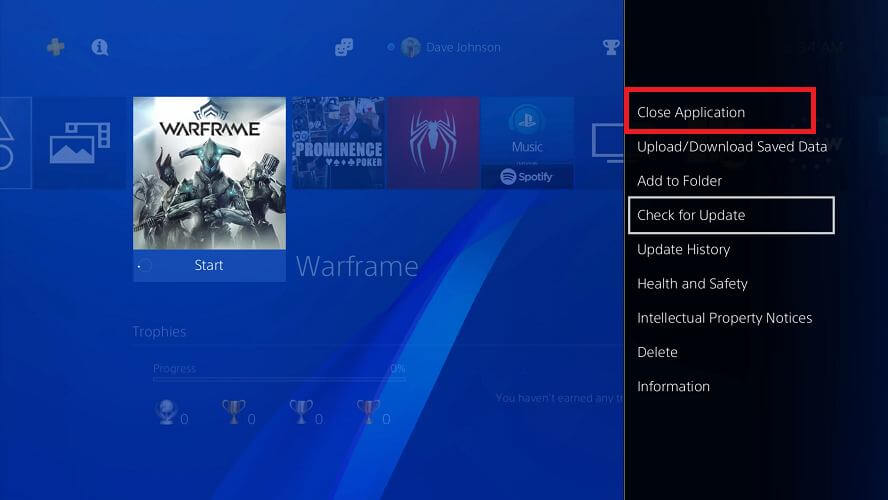
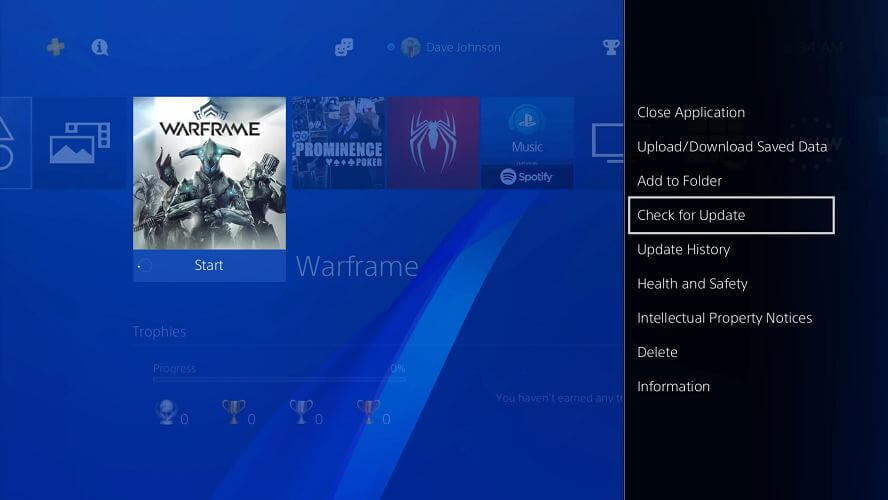
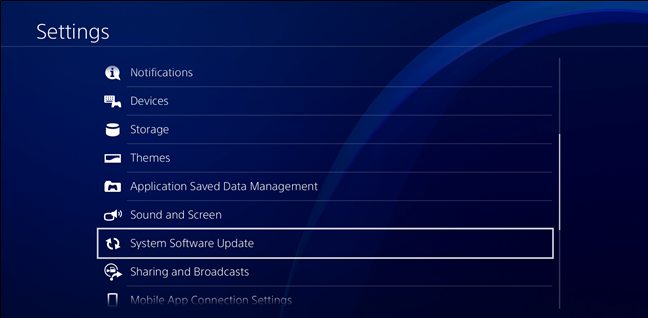

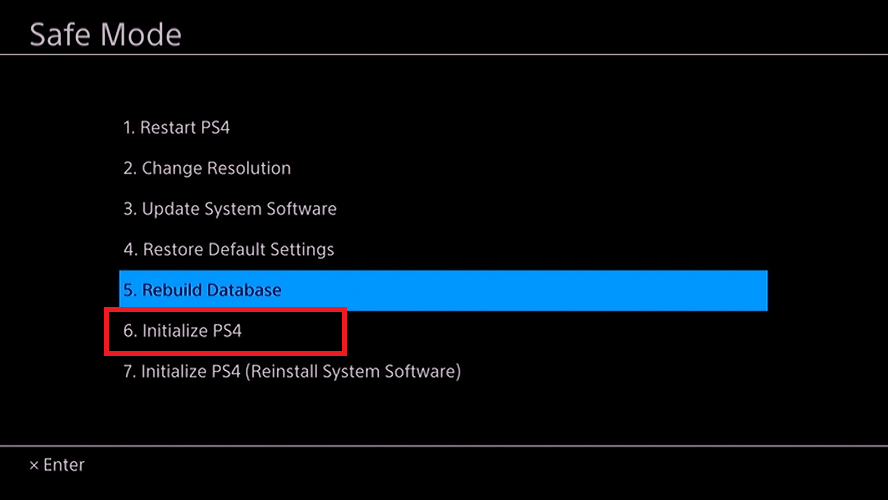
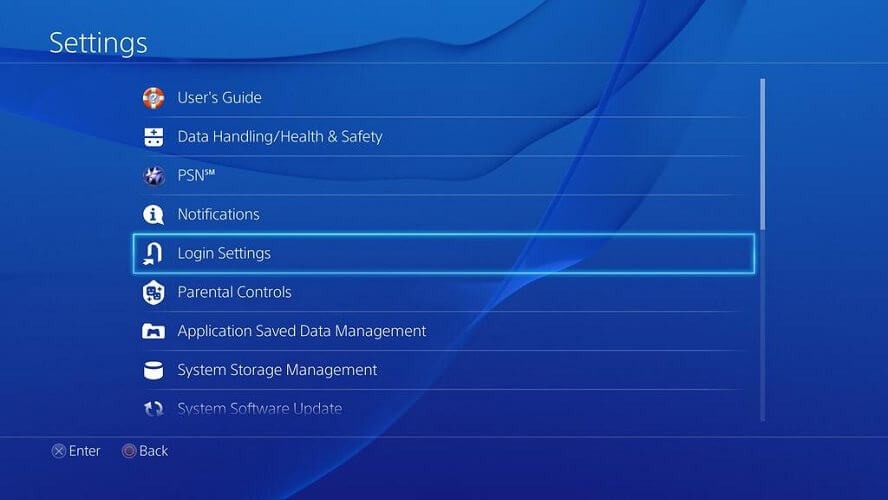


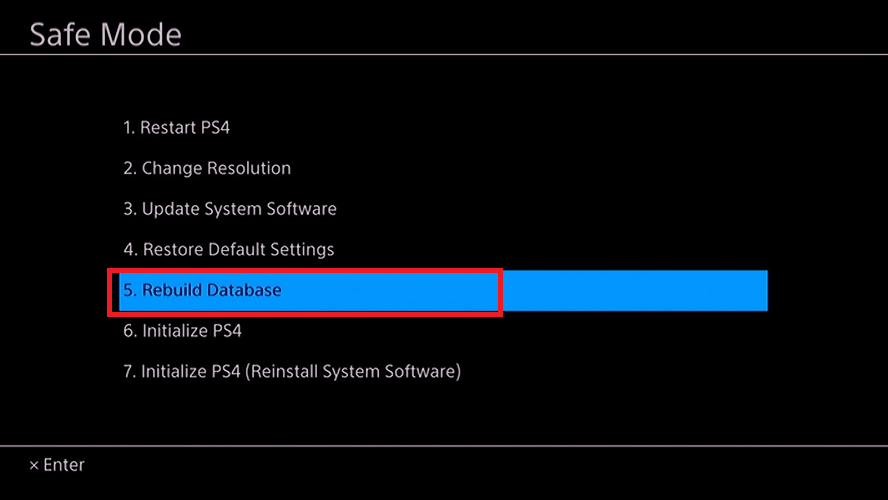
![VMware: Cannot find a valid peer process to connect to [FIX]](https://windowsreport.com/wp-content/uploads/2020/06/vmware-cannot-find-a-valid-peer-process-to-connect-to.jpg)


![The Sims 4 error code 3: game failed to load [Safe Fix]](https://windowsreport.com/wp-content/uploads/2020/06/The-Sims-4-cover-image.png)
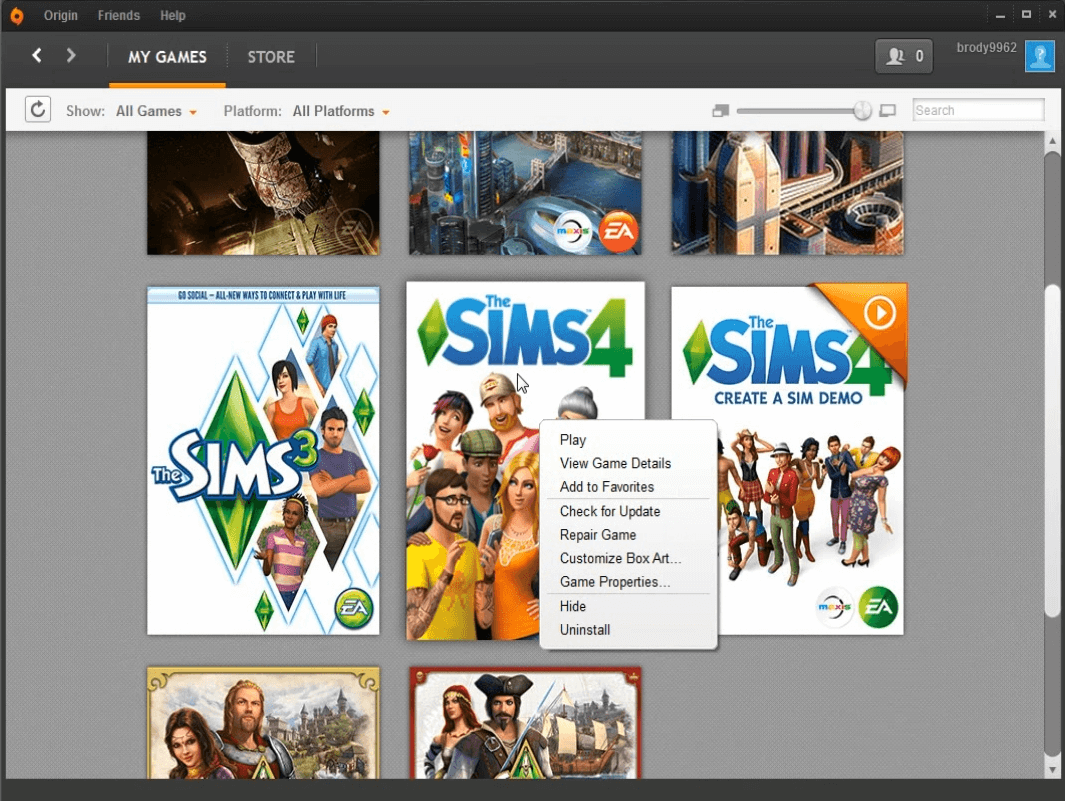
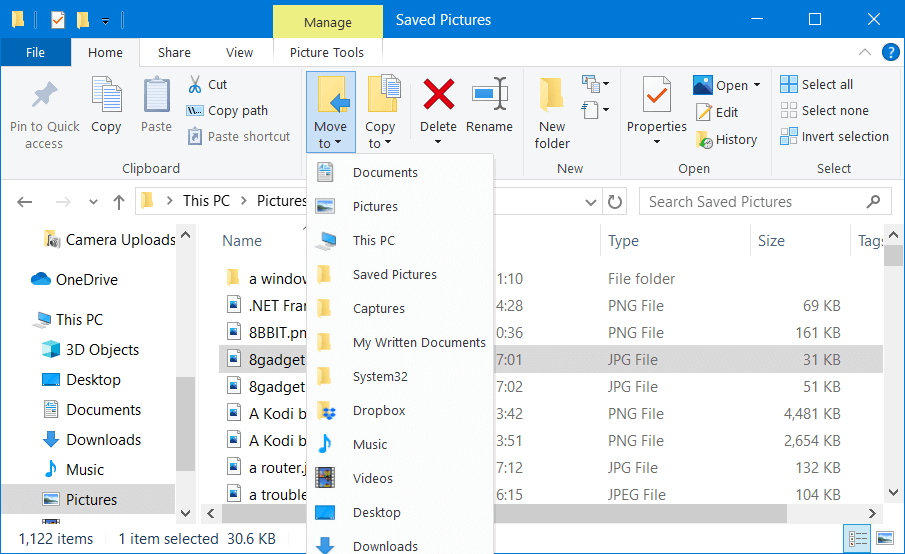
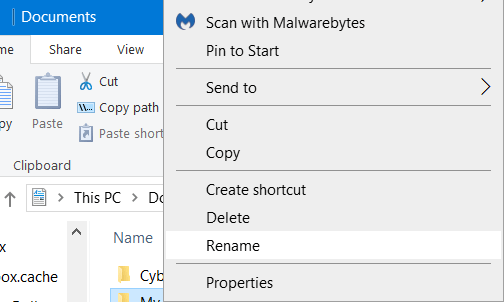
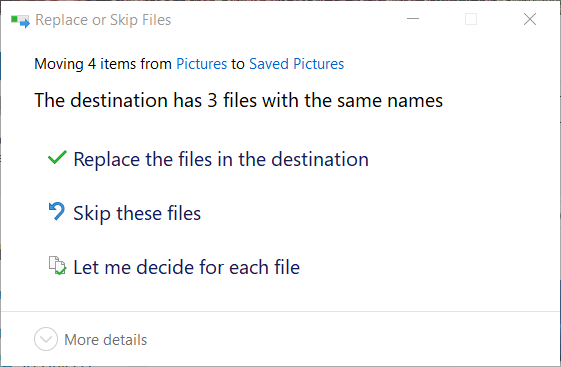


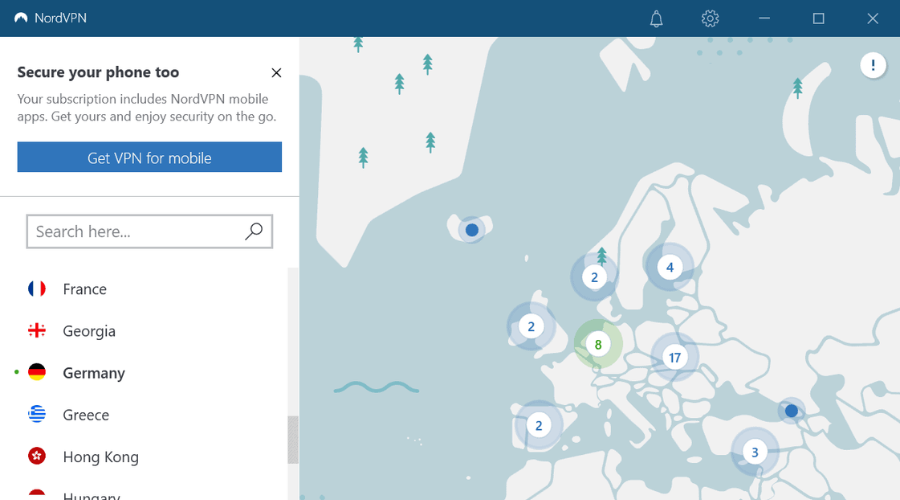



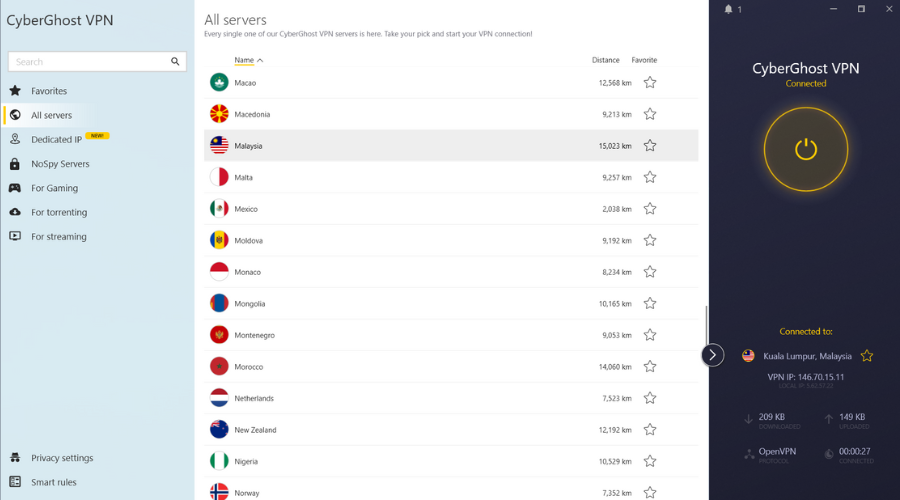


![How to Watch TF1 in the US [4 Expert Vetted Methods]](https://windowsreport.com/wp-content/uploads/2020/06/watch-TF1-USA.jpg)