Microsoft Teams makes it way easier to join meetings with these 2 new features

Microsoft Teams will debut 2 new features in April that will make it easier to join meetings on the platform, according to the latest entries to the Microsoft 365 Roadmap.

Firstly, we’re talking about shorter meeting URLs, and Microsoft says they will be released on all platforms. Basically, the Redmond-based tech giant is making it easier to share Teams meeting URLs by eliminating unnecessary symbols from them.

We are making meeting URL shorter and removing unnecessary symbols/info from there to make it more convenient for sharing.

Microsoft

Currently, Teams meeting URLs can be quite long, which makes them hard to manage sometimes, especially on mobile devices, so this feature is more than welcomed.

Secondly, Microsoft is going to introduce the ability to join Teams meetings through QR codes on Teams Rooms on Windows using Teams mobile, and users will only have to scan the QR code with their phones to join the conversation.

After scanning the QR code, the meeting will automatically be open on Teams for Mobile, and if the users doesn’t have the app, then the feature will redirect the user to download the app, so they can join the conversation automatically after installing it.

However, managers should rest assured that the QR code can be controlled through various policies, so only those who need to be in the meeting will be able to access it, according to the feature’s description.

Users can quickly join a meeting from a Teams Room even without forwarding the invite to the room calendar by scanning a QR code using their native mobile camera. The user will then enter the Teams mobile companion mode experience on their mobile. The QR code is found on the Teams Room home screen and can also be scanned to start an ad-hoc meeting or cast content from their mobile to the Teams Room display. If the user does not have the Teams mobile app, they will be directed to download it after scanning the QR code. IT admins can control the QR code feature in the device settings and the Teams admin center. This feature supports cross-tenant meetings when the organization settings and user policies allow it.

Microsoft

So Teams for Mobile users should be excited about these new capabilities coming to the platform in April. Microsoft recently unveiled that users will soon be able to record the Teams meeting on Teams for Android, and, apparently, the Redmond-based tech giant will soon debut the ability to use customized emojis in the platform.

Quite a good time for Teams users everywhere.

OneDrive users can now easily find all their photos and videos within a single view

OneDrive is introducing a new capability called Media Mode that allows users to easily find all their media content (photos, and videos) within a single view with a single click, according to the latest entry in the Microsoft 365 Roadmap.

The new capability is set to be released to OneDrive for Web this month, in February, and it might be part of the new UI experience Microsoft released to the platform a few days ago.

While the Redmond-based tech giant will release some confusing features to OneDrive, most of them are quite useful and intuitive, meaning the company wants to make OneDrive as easy to use as possible.

The cloud-based platform will also debut Copilot soon, and users should be excited as the AI tool will be able to summarize, scan, and recognize from a plethora of document formats out there.

As for the new Media Mode, we don’t know how it looks, but as soon as we have a glimpse of the new feature, we will update this article. However, Microsoft says it will be placed to the left nav of OneDrive for Web, so the button will be within users’ gaze.

We’re adding a Media node to the left nav of OneDrive for Web which will allow commercial customers to easily find all the photo and video content stored in their OneDrive in a single view.

Microsoft

The new capability will surely become a favorite among OneDrive users as it can grant them easy access to every piece of media they store on the platform.

What do you think about this new capability? Are you excited for it?

Azure Virtual Desktop for Azure Stack HCI is coming to data centers, but users think it’s not worth the price

Microsoft decided to bring the Azure Virtual Desktop for Azure Stack HCI to data centers, effectively allowing organizations, small businesses, and entrepreneurs to employ the Microsoft Cloud capabilities directly into their infrastructure.

The Redmond-based tech giant says the decision was made because even though the business world is getting into cloud capabilities, the cloud is not the best option for every business out there, and the company wanted to offer options for hybrid contexts.

IT pros face a complex and challenging environment as they help their organizations move to the cloud, especially when the cloud isn’t the best option for every workload. Managing hybrid cloud migrations while meeting the needs of today’s distributed workforce takes a comprehensive approach that balances performance and accessibility with security and control. For organizations that need desktop virtualization for applications that must remain on-premises for performance, data locality, or regulatory reasons, Azure Virtual Desktop for Azure Stack HCI may be the right solution.

Microsoft

The Redmond-based tech giant says that integrating Microsoft Cloud directly into customers’ data centers will mean a plethora of benefits for these companies, including:

  • Improving performance for Azure Virtual Desktop users in areas with poor connectivity to the Azure public cloud by giving them session hosts closer to their location.
  • Meeting data locality requirements by keeping app and user data on-premises.
  • Improving access to legacy on-premises apps and data sources by keeping desktops and apps in the same location.
  • Delivering the full Windows experience while retaining cost efficiency with Windows 11 and Windows 10 Enterprise multi-session. 
  • Unifying their VDI deployment and management compared to traditional on-premises VDI solutions by using the Azure portal.
  • Achieving the best performance by using RDP Shortpath for low-latency user access.
  • Deploying the latest fully patched images quickly and easily using Azure Marketplace images.

To get started, businesses will have to make sure they are licensed correctly and understand the pricing model.

For example, the license that grants access to Azure Virtual Desktop on Azure also applies to Azure Virtual Desktop for Azure Stack HCI. As for the pricing, there will be 2 different fees. First, there will be an infrastructure fee, and there will be a hybrid service fee that begins on April 1, 2024, and costs  $0.01/vCore/hour of consumption.

It’s important to take the hybrid fee into consideration, as there are already users who think it’s a new service is not really worth it.

If this fee is not negotiable, for us, it’s cheaper to stay in Azure/W365 than to move this workload on-prem since the on-prem hardware isn’t free.  It’s actually more expensive if you use a premium Azure Stack HCI solution like Dell.  We wanted to move this workload on-prem to save on costs – but with this, it’s just more work.  Disappointed.

Azure Virtual Desktop user

If billing is based on ‘hours of consumption’, how is that consumption metered?  If a customer had, for example, 64 physical cores powered on and assigned to the workload (128 users), providing 128 vCores, with a light load of 1vCore/user with an average of 260 hours active work across the month*, would they be charged 260 hours x 128 cores x $0.01 per month ($333/month) or would it be based on the full 720 hours ($921/month) since on-prem workloads don’t tend to be powered down as aggressively as cloud hosted workloads.

Azure Virtual Desktop user

Other users are not really satisfied with this new solution:

I don’t see how you can justify consumption pricing for resources that we own. Shutting down the session hosts doesn’t free up resources for other tenants or change Microsoft’s resource allocation in any way. I could maybe see a justification for active connections through the Azure gateway but there’s no president for this in other Azure services. We already paid for that hardware and the licenses. You don’t get to charge me again to run it. Looks like we are sticking with RDP gateways. It’s sad because we were really looking forward to this solution.  

Azure Virtual Desktop user

Azure Virtual Desktop for Azure Stack HCI is now available. What do you think about it?

Are you a Zoom user? You’ll soon be able to access Microsoft 365 apps on the platform

Zoom will soon support Microsoft 365 apps integration, as Microsoft and Zoom partnered up to forge a new program: Microsoft 365 Document Collaboration Partner Program (MDCPP), a first of its kind that will see Microsoft 365 be available to a plethora of other platforms.

If you’re an independent software vendor (ISV) who provides a cloud communication and collaboration platform, you may want to offer customers a collaboration experience inside and outside meetings. That’s why we are excited to introduce the Microsoft 365 Document Collaboration Partner Program (MDCPP), a new opportunity for eligible platform providers to integrate Microsoft 365 apps into their platforms. Whether it’s a presentation, a spreadsheet, or a document, the program can enable users to share, edit, and coauthor, without switching between apps or losing context. 

Microsoft

ISV everywhere will have to opportunity to join the program and reach a wider audience by providing access to Microsoft 365 apps such as Word, PowerPoint, or Excel through their platforms.

The Microsoft 365 Document Collaboration Partner Program (MDCPP) will provide ISV with two ways they can integrate their platform with Microsoft 365:

  • Through a web app: ISVs will be able to integrate Microsoft 365 apps (Word, Excel, PowerPoint, and so on) into their web platform, allowing users to edit Microsoft documents directly from there.
  • Through a live app: ISVs will be able to host apps such as PowerPoint Live and Excel Live directly on their web platform to provide a live experience to users. In other words, they will be able to use PowerPoint and Excel on an ISV platform in live meetings, in real-time.

That’s how Zoom will integrate Microsoft 365 apps, and Zoom executives are quite pleased and excited about this partnership:

We are looking forward to collaborating with Microsoft on this initiative. Working on Microsoft 365 documents within Zoom has been a long standing ask from our shared customers. We are pleased to work together to address these customer needs.

Zoom

ISVs that are interested in joining the program must provide cloud communication and collaboration services, such as video/audio communication services, then they’ll have to pay a fee, initial, and then annual, and they also have to maintain certain levels of insurance coverage.

Microsoft says ISVs will get multiple benefits in return, such as:

  1. Enhance their platform with Microsoft 365 experiences that are familiar and trusted by millions of users. 
  2. Provide their customers with collaboration and coauthoring experiences within Microsoft apps, regardless of the platform they are using. 
  3. Save time and investment needed to create document collaboration experiences of their own. 

For now, the program will allow integration with Word, Excel, PowerPoint, and OneDrive for Business, but the Redmond-based tech giant could add Copilot to it as well, as the AI tool was integrated into Microsoft 365 a few months ago.

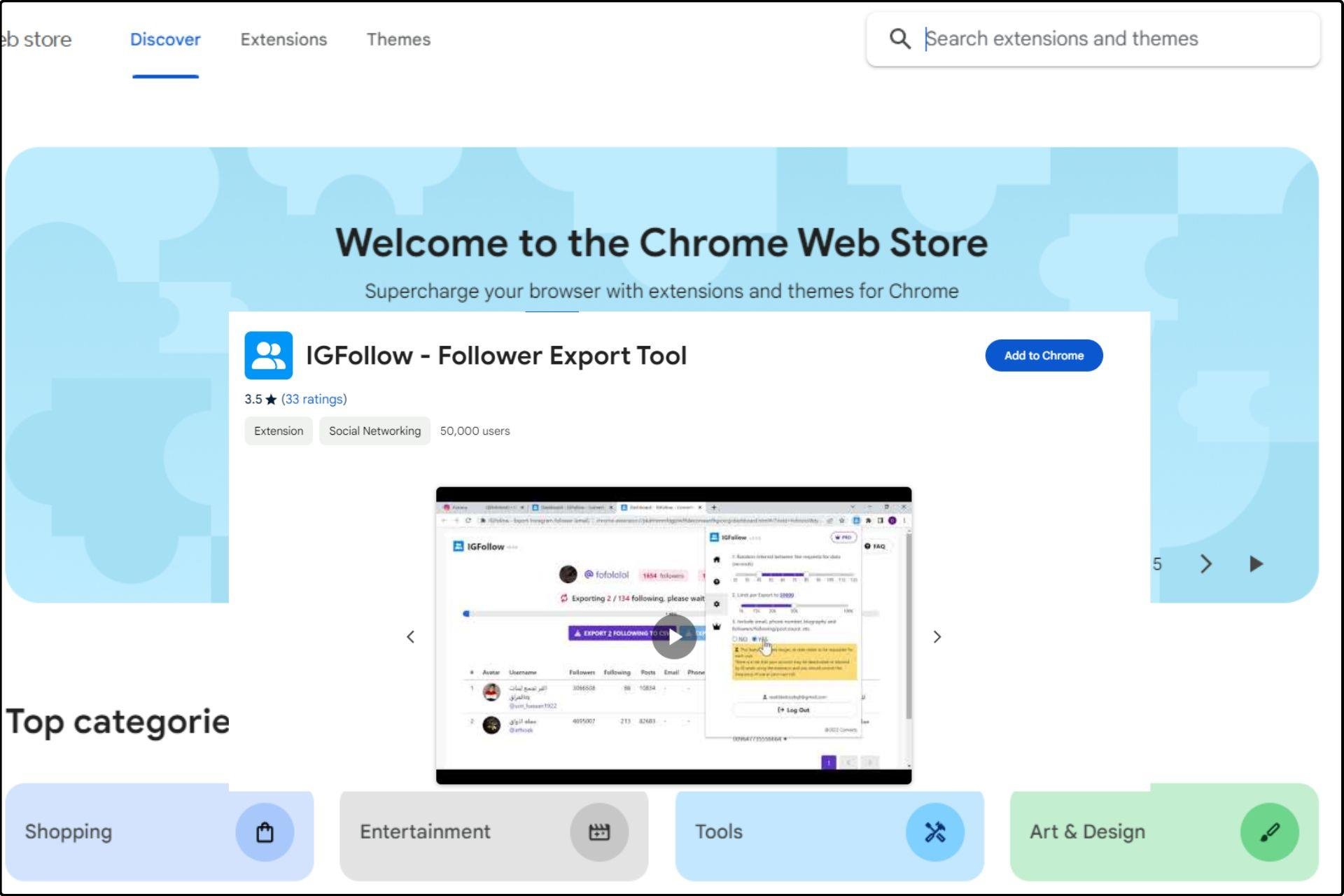
IGFollow Chrome Extension: What is it & Should I Install it?

The Chrome web store is full of useful extensions like IGFollow. You may find that you need it especially if you’re a business targeting new customers.

What is the use of the IGFollow extension?

IGFollow is an addon you can install on your Chrome browser to extract Instagram followers and following list, user profile, email, and biography to a CSV file. You can use a CSV file viewer to open this type of document.

For a general user who uses Instagram as a social site, this information may not make much sense to collect.

However, for businesses particularly those in marketing, the ability to export this information may prove instrumental in targeted marketing.

For instance, if your business has retained the services of an influencer, you can export their following and follower list to run a dedicated marketing campaign for your goods or services.

Depending on your targeted reach, you can export from 500 followers to 100,000 followers at a time. For such large numbers, you’ll have to upgrade to the Pro version but if you’re okay with the free version, 500 simultaneously will do.

Is IGFollower export tool safe?

The extension is safe from malware and passes the security checks but there’s one issue. The extension is not supported by Instagram so continued use may result in a blocked or banned account.

According to the developer, frequent use is what lands you in problems but you can never be too sure about plugins that violate or go against Instagram’s community guidelines.

We recommend you consider the pros and cons before installing this extension. If you’d like to use it, we’d advise you first create a trial account and see how it works. Connecting it to your main account puts you at a higher risk level.

Further, the extension is not limited to the Chrome browser. You can also install Chrome extensions on your Opera browser. And in case your browser is slow, the click and clean addon can optimize it.

If you’re interested in follows and followers, the Sky Follower Bridge extension may make sense on your X account to connect you with users who post content you’re more aligned to.

There you have it! A perfect way to target your advertising and marketing but is it really worth the risk? We’d like to get your opinion on the IGFollow Chrome extension. Would you install it? Let us know in the comment section below.

Windows users can now record entire podcasts using Microsoft Clipchamp’s newest audio features

Microsoft introduced new audio features to Clipchamp, the now-native video editing Windows app, that essentially turns it into an audio editing app that Windows users can create, record, and edit podcasts with.

The new features let personal users record up to 30 minutes of audio material, in one take, according to the official blog post. That will effectively allow anyone wanting to start a podcast to record directly on their Windows devices.

Microsoft promises this new feature is easy to use. You’ll only need to:

  1. Access the Record and Create sidebar within Clipchamp.
  2. Go to Audio.
  3. Start recording. microsoft clipchamp record audio

But this is not all, though. Microsoft is keen on making Clipchamp a versatile app when it comes to recording audio and video and editing them right there, so the Redmond-based tech giant is also introducing text-to-speech editing.

The feature will use AI to provide users with capabilities such as adding text to speech, changing the language, voice, pitch, and emotion, and even letting you make changes to your script. Here’s what Microsoft says:

We’ve made text to speech more efficient and versatile to enhance productivity. You can now add a text to speech track item, and then change the language, voice, emotion, pitch, as well as edit the script from the property panel. By leveraging these new capabilities, you can both fine-tune your script and make those last-minute changes while also updating the voice track as you go. We’ve also added a pace option so you can change the speed of your AI voiceover.

Microsoft

To complete the process of turning Clipchamp into a veritable podcasting-editing app, Microsoft will be adding a silence removal feature to it in the following weeks. The Redmond-based tech giant says users will be able to remove silence manually or automatically with just a few clicks.

Editing audio recordings is getting even easier! We’re excited to announce an upcoming feature rolling out in the coming months called silence removal. With a few clicks you’ll be able to see where long silences are in your audio tracks and choose to remove some or all of them automatically. This will be beneficial if you’re looking to edit podcast recordings, long meetings, educational videos and voiceovers.

Microsoft

The silence removal feature will be available for free to personal users to preview in February. However, the post-preview will only be available to Clipchamp premium users.

But even so, that’s more than enough for Windows users to record their podcasts. Microsoft made Clipchamp available to Windows 10 users, as well, back in 2023, after it introduced it as a native audio and video editing app to Windows 11 earlier, for free.

And yes, the best thing about these new features is that almost all of them are free.

So, ready for your first podcast?

Apex Legends: Breakout comes with improved matchmaking, new map, and 120 FPS

Even since it was released on February 4, 2019, Apex Legends has emerged as one of the best battle royale games. But a few had been facing issues, some with performance and others with the gameplay.

With Apex Legends: Breakout, the 20th season of the game, Respawn Entertainment has made significant changes, the biggest in the game’s history. It will drastically improve the gameplay and allow better matchmaking.

What are game updates coming in Apex Legends: Breakout?

The biggest change introduced with Apex Legends: Breakout is the Legend Upgrade system, which will allow you to customize and tailor the Legend as per your play style.

Now, you can earn EVO points from several core actions, some of which reward the entire squad. Besides, earning EVO will now level up the Legend.

(Image source: EA)

There is a big change planned for the Ranked experience. Now, instead of Ladder Points (LP), you will have Ranked Points (RP). The latter will also be used for matchmaking, retiring the previous tier-based lobby system.

Apex Legends: Breakout will have a more transparent scoring system, and the hidden skill rating won’t be a factor in scoring or matchmaking anymore.

Also, Apex Legends has finally got the Performance Mode. Already available in several popular titles, the mode makes certain quick graphical adjustments along with other changes to deliver 120 FPS (Frames per Second).

To enable Performance Mode, you need to head to Video Settings in Apex Legends. Remember, it will only work on supported output devices. So make sure you have a monitor that can run games at 120 FPS.

Thunderdome

Besides, you now have a new mixtape map, Thunderdome, which is touted as the deadliest entertainment venue. Inspired by the arena in Kings Canyon, Thunderdome was developed with different playstyles in mind.

For more details on the game updates in Apex Legends: Breakout, visit the official website.

Do share what you think of the changes introduced in Apex Legends: Breakout in the comments section.

Popular opinion: Mint is the closest Linux Distro to Windows 11

Many users want to try out Linux, but sometimes it’s hard to let go of the familiarity and comfort that Windows offers.

To make this process easier, users are wondering which is the most similar version of Linux to Windows 11. Today we’ll try to answer that question, so let’s get started!

What Linux distribution is closest to Windows 11? Here’s what Linux users had to say

A Reddit user posted a thread asking about a Linux distribution that is the most similar to Windows 11, to make the transition from one OS to another as simple and painless as possible.

The community was quick to help with its suggestions, and many were eager to recommend distributions that use KDE due to its similarity with Windows.

IMHO, pretty much any distro using KDE is going to have the most Windows-like desktop experience.

Others chimed in on KDE distributions and recommended Linux Mint Cinnamon edition:

Cinnamon is great as well, that’s where i started 🙂

Others are praising KDE for its customization features, but if users want something more user-friendly, KDE Neon might be more suitable for them:

And be extremely customizable so you can make it look and behave as similarly as you want, even starting from some pretty good themes people have already made.

Neon gets my vote for non-technical users.

Many also praised Linux Mint due to its similarities with Windows:

Mint is always a good suggestion for people who want an experience similar to Windows. They even have an edge ISO now that will install the latest kernel, which will really help if you’re interested in gaming and using wine.

Lastly, pointed out the fundamental differences between the two systems, and while a system might look like Windows, it works rather differently than Windows:

Everyone else just picking distros/DEs that look like Windows. That doesn’t mean anything, and is arguably counterproductive. So then the newbie goes and starts trying to install exe’s or downloading installers from websites and thinking they should do everything through WINE or whatever else.

While Linux Mint might be the best option for Windows users who want to make a switch, the two systems are quite different, so there will be an adjustment period.

Speaking of differences, we have a great guide on differences between Windows and Linux kernels that might help you.

Before making the switch, you can consider trying out Linux on a virtual machine. If you’re already a Linux user, you might be interested in the fact that Intel will boost Windows 11 performance on VMs in the upcoming update.

If you’re still hesitant about the switch, our Linux vs Windows 11 guide will help you make the switch and choose the right operating system for yourself.

Setting up a Linux home server isn’t easy. Better stick with Windows?

The Windows vs Linux debate has been raging for long. Those who advocate the former talk about a user-friendly interface and better compatibility with third-party software, and the supporters of the latter discuss the open-source nature, security, and reliability.

However, the Linux installation for a home server is often a challenge. Even if you try following things to a tee, most online guides and tutorials miss one aspect or the other, leaving you stranded. Even when we tried installing Linux on a PC, it threw an error on subsequent reboots.

A user, too, shared the same frustration in a Reddit post.

Windows, on the other hand, is much simpler for home servers. Its installation is seamless. And since you must already be running one version or the other, upgrading Windows to the latest iteration doesn’t take much time.

Windows vs Linux: Which is better?

According to Statcounter’s desktop operating system’s market share, while Windows is installed on 72.99% of the devices, Linux stands at a feeble 3.77%. The latter may have a higher share, given that most desktops with Linux also have Windows installed.

When we talked to experts, most were of the opinion that Windows is the best operating system for novice as well as advanced users, while Linux is best suited if you want more customization options or have an older PC.

WindowsLinux
User-friendlinessMoreLess
Ease of useHigherLower
Ease of installationHigherLower
Performance and speedSlowerFaster
SecurityLowerHigher
A brief comparison of Windows and Linux

We also have a detailed guide on Windows vs Linux, comparing the two on all possible parameters and detailing which works best in specific situations.

You also have Windows 11 tips and tricks to simplify the most intricate tasks, the best security settings to protect your PC, and hidden optional features to improve the OS experience.

If you, too, have used both operating systems on a home server, share your experience in the comments section.

5 Ways to Fix the Palworld EOS Login Error

Palworld, just like any other game may experience login errors. It could be a network glitch, a buggy update, or even a mismatch in credentials.

How do I fix the Palworld EOS login error?

1. Run Palworld as administrator

  1. Launch the Xbox app, go to the My Library, right-click on Palworld, and select Manage. manage
  2. Click the Create Desktop Shortcut button.
  3. Now, right-click on Palworld’s desktop shortcut, and select Properties.
  4. Go to the Compatibility tab, tick the checkbox for Run this program as an administrator, and click OK to save the changes.run as administrator to fix palworld black screen on launch xbox
  5. Alternatively, go to the Palworld location. (This will differ depending on your OS): C:\Program Files (x86)\Steam\steamapps\common\Palworld
  6. Search for Palworld-Win64-Shipping, right-click on it, and select Run as administrator.

If you’re experiencing login issues even after double-checking your credentials, it probably has to do with restricted access to some files. You may also get a Windows cannot access the specified path… error message when trying to run the exe file.

Ensure you’re using a user account with administrative privileges to bypass these limits.

2. Delete the credential and cache

  1. Press Windows + S to open Search, type Control Panel in the text field, and click the relevant result.
  2. Click on User Accounts.user accounts
  3. Now, click on Manage Windows Credentials under Credential Manager.
  4. Locate and expand the XblGrts|DeviceKey entry, then click on Remove.remove to fix palworld black screen on launch xbox
  5. Click Yes in the confirmation prompt.
  6. Now, press Windows + E to open File Explorer, and navigate the following path where Username is your active profile’s name (the Microsoft.XboxIdentityProvider_cw5n1h2txyewy folder’s name may vary):C:\Users\Username\AppData\Local\Packages\Microsoft.XboxIdentityProvider_cw5n1h2txyewy\AC\TokenBroker
  7. Select both the Accounts and Cache folder, and hit Delete to remove them. delete folders to fix palworld black screen on launch xbox
  8. Choose the appropriate response in case a confirmation prompt appears.
  9. Relaunch Palworld and verify whether you can log in.

3. Change your network profile

  1. Press Windows + I to open Settings, go to Network & Internet from the navigation pane, and then click on Wi-Fi on the right. If you are using Ethernet, choose that option instead.wi-fi
  2. Select the presently connected network to change its properties.
  3. Now, select the Private network option.private network to fix palworld black screen on launch xbox
  4. Finally, relaunch Palworld from the Xbox app and check if the login error persists.

Your network configuration settings play a significant role in your ability to log in to Palworld. Adjusting your network profile can help resolve the communication conflicts between your network and the game and allow you to access the game.

However, if this doesn’t work, feel free to power cycle your router, connect to an Ethernet cable, change your DNS server, and reset your network to resolve the issue.

4. Verify the integrity of game files

  1. Launch Steam, and go to the Library from the top.
  2. Now, right-click on Palworld and select Properties from the context menu.properties
  3. Go to the Installed Files tab, and click on Verify integrity of game files.verify game files to fix palworld disk write error
  4. Once the process is complete and all missing files are replaced, relaunch Palworld and check whether the login error is fixed.

After you’ve verified your game files, also check with your antivirus or security software to ensure Palworld is whitelisted. Some overzealous antiviruses may flag off the game as a threat causing the login error.

5. Switch out your hard drive

  1. Launch the gaming client, click the Steam menu, and select Settings.settings
  2. Go to the Storage tab, click on the dropdown menu at the top, and select Add Drive.add drive to fix palworld disk write error
  3. Now, choose another drive on the PC, and click on Select Folder. If there isn’t one, create a new drive first.
  4. In the Storage tab of Steam Settings, select the drive where Palworld is stored.
  5. Now, tick the checkbox for Palworld and click Move at the bottom.move
  6. Select the drive you created earlier, and again click on Move.move to fix palworld disk write error
  7. Wait for the process to complete, and then try relaunching Palworld and see if you can log in.

If you remove your hard drive and reseat it and still experience the Palworld EOS login error, it may be a symptom that your HDD is failing. It’s time you start performing some diagnostic tests with built-in tools so that you can prepare to acquire a new hard drive.

Another tell-tale sign is when Palworld is showing a black screen on launch or keeps crashing but we have separate guides to address these issues.

Speaking of access when it comes to Palworld, the session search error may lock you out of joining multiplayer worlds but we’ve already discussed how to resolve it.

Finally, if you’ve been able to bypass the login error and want to get into the intricacies of the game, you’ll find the Palworld crossplay feature interesting so be sure to check it out.

The game is still relatively new so we’ll keep you posted on any new developments. You can also keep tabs on the official Palworld site for any updates.

We love your feedback so if there’s a solution you feel should be on our list, drop us a line below.

Fix: Updating Office Please Wait a Moment Error

Updating Office, please wait a moment is an error that appears when you launch a Microsoft Office/365 app. The screen freezes and does not proceed forward.

Eventually, you get a prompt on the screen, The application was unable to start correctly (0xc0000142). Click OK to close the app, which closes Office, and you are back to square one.

How can I fix Updating Office Please wait a moment error?

Let us begin with a few workarounds before trying more detailed solutions.

  • Launch Microsoft Office as an administrator through the right-click menu.
  • Uninstall multiple Office versions except the one that you intended to use.

1. Open Office apps in Safe Mode

1. Locate the Office app’s shortcut or search from the Start menu.

2. Hold Ctrl and then click/double-click on the shortcut.

3. Click Yes to confirm and open the Office app in safe mode.

Open Office in Safe mode

If the Office app opens in safe mode, there is an underlying issue with a certain add-on extension. Therefore, you can remove add-on extensions individually to find one causing the update error.

Note icon NOTE
You can exit the safe mode by closing the app. And the next time, it will open in the regular mode.

2. Restart the ClickToRun

1. Press Ctrl + Shift + Esc to open the Task Manager.

2. Head to the Process and select End Task from the right-click menu of the Microsoft Click-to-Run process.

Close Office process

3. After that, go to the services tab and find ClicktoRun Svc.

4. Then, select Start from the right-click menu of ClicktoRun Svc.

Stop Office service
Note icon NOTE
Some of the users will have ClitckToRun Svr already running, so the start button will be greyed out. In such cases, click restart to relaunch the service.

5. Now, restart the computer as a good measure after restarting the service. This will fix the updating problem with MS Office.

3. Repair Microsoft Office

1. Head to Add or remove programs from the Start Menu search.

Open add or remove programs

2. Click on the Modify option for Microsoft Office.

Change in Add or Remove

3. Select Quick Repair and then click on the Repair button to start the process.

Quick repair in Office

4. Once finished, click Close and check if the error has been fixed.

Quick repair done

If the issue persists, then repeat the process and select Online Repair this time, which will require the internet to download new files.

4. Clean Boot Windows

1. Head to System Configuration from the Start Menu.

Search for System Configuration

2. Then go to the services tab and tick Hide all Microsoft services.

Disable services

3. After that, click Disable all and then click OK to save changes. Now, you will need to restart the computer to apply the changes.

5. Reinstall Microsoft Office

When none of the above-given methods have worked, you can uninstall Office and then reinstall it again for a fresh start.

You can use our guide to uninstall Microsoft Office in Windows 10/11. After that, if you want to install Microsoft 365, then consider using the official guide.

6. Reset Windows

You can reset Windows 11 and Windows 10 to bring it back to a stable state when Office did not have the problem. You can choose to keep the personal files, apps, and settings.

7. Contact Microsoft support

After you have exhausted all the options and none seem to work, it is time to contact Microsoft support. The reason behind the updating error for you could be specific to your machine. So, you can ask in the forums from experts, and even consult Microsoft support agents.

And once that is solved, you can download and install new Microsoft Office fonts. After that, power up your work with AI by enabling Copilot in Microsoft Word.

So, this is how you can fix the updating office, please wait a moment error on your PC. It appears on various Office and Microsoft 365 apps and is not specific to a particular version.

If you know of any better solution to this office updating error, then feel free to let us know via the comment section.

Your home media server can be a ransomware liability. Here’s what NOT to do

Over the years, experts have raised concerns about the threats accompanied by enabling SMB 1.0. But troubleshooting guides often recommend turning on SMB 1.0 to fix issues with file sharing.

Recently, a user shared on Reddit about losing years’ worth of data on the home media server after enabling SMB 1.0 simply because one of the ports had access to the Internet. When using SMB 1.0, it’s critical that none of the devices on the network are exposed to the Internet.

For the unversed, SMB is a network protocol used for sharing files and data between devices on the network. While the later versions, SMB 2.0 and SMB 3.0, are comparatively safer, SMB 1.0, released in 1980, is outdated and lacks the basic security protocols.

Why should I disable SMB 1.0?

Microsoft encourages users to disable SMB 1.0, and the feature is not present by default on Windows 11, Windows Server 2019, and later versions. This is done citing significant security vulnerabilities, and it’s recommended that you update the SMB servers instead of enabling SMB 1.0.

Also, given that the network protocol is outdated, it significantly diminishes the performance. Besides, you miss out on the following features offered by later versions of the SMB protocol:

  • Better message signing
  • Encryption
  • Insecure guest auth blocking
  • Pre-authentication Integrity
  • Secure Dialect Negotiation

To disable SMB 1.0, open the Control Panel > click on Programs > select Turn Windows features on or off under Programs and Features > untick the checkbox for SMB 1.0/CIFS File Sharing Support > then click OK to save the changes.

Disabling SMB 1.0 in Windows

While highlighting the threats posed by SMB 1.0, we can’t negate the idea that several small businesses or setups still use the network protocol and don’t have the necessary resources to upgrade or can’t switch to SMB 2.0 or SMB 3.0 due to incompatibility with the network devices.

For instance, certain older printers or management software still rely on SMB 1.0 connectivity. In such cases where SMB 1.0 is an absolute necessity, we recommend that you restrict devices from accessing the Internet.

Remember, if one device is infected, others, too, are likely to be affected. These threats often bypass the built-in Windows Security, so it’s best that you have an effective antivirus solution.

If you want to share your thoughts on the subject, drop a comment below.

Gears of War joins the exclusivity war, splitting gamers once more

After the announcement that Starfield is coming to PS5, followed by rumors about Indiana Jones and The Great Circle doing the same, it seems that another game might become available to other platforms.

This time, it’s Gears of War, and this has sparked a major controversy between the fans of the game. Here’s what we know so far.

Gears of War cross-platform rumors spark a raging debate online

As reported by Video Games Chronicle, Giant Bomb’s Jeff Grubb stated in a podcast that Gears of War is being considered for cross-platform support.

“The other one that I’ve heard that’s definitely under consideration—it doesn’t mean that it’s going to happen, but it’s in talks—is Gears of War,”

“Gears of War is being considered for this,”

These rumors sparked a conversation on Reddit and some are speculating that a lack of exclusivity is better for the gaming market and gamers in general:

I think Microsoft is going to get out of the console race. Exclusivity is bad for the consumer and I think everything should be readily available on every system.

Others on the other hand believe that exclusivity is imperative for innovation and it’s pushing studios to develop better games:

Exclusivity is good in the sense that it is the competition that forces the other company to make better games that once again makes the first company make better games and so on and so on. To that same issue, it’s why PlayStation and Xbox competing against each other is good for everyone

This decision isn’t that surprising, and it might be a good business move that will boost the developer’s profits since a larger audience means more potential customers:

It would be more profitable to sell it on other consoles. Moreover, introducing Gears to Playstation would be easier with a remastered Gears collection. Only Gears 4, 5 and 6 would not make a big impact in Playstation without the backstory from the original 3.

For many, cross-platform support means more players online, and with cross-play support, many online games can continue to exist for a longer time.

the more people that have access to playing the game, the longer the servers will be populated in multiplayer, which is what I’d prefer.

On the other hand, many are skeptical that Gears of War will be available on PS5 because it’s a series associated heavily with Xbox:

I don’t think it will ever go to other systems. There are certain series (Halo, Gears, Fable, etc.) that will always be a part of their image and I don’t think they’ll want to splinter that off.

A couple of commenters are against this, simply because Sony is very strict regarding its exclusives and Microsoft shouldn’t concede first.

Imo yes it should stay exclusive to Xbox seeing as playstation doesn’t share lol

And lastly, many gamers are just apathetic towards this:

I personally do not care either way

This has been such a hot topic recently that many gamers are selling their Xbox consoles in protest. Hopefully, more information will be available soon, and Phil Spencer has scheduled a meeting on the future of Xbox that should address these issues and give us some official information.

Microsoft Copilot Vs. Copilot Pro: Which Should You Choose?

In this digital realm of emerging AI assistants, Microsoft has introduced Copilot and has offered users two choices: Copilot and Copilot Pro. If you want to know which one to opt for, this guide can help!

Copilot is a free AI tool available as a mobile app, webpage, and even as a Windows inbuilt tool. However, Copilot Pro is a subscription-based model of Microsoft Copilot with additional features like custom GPT support.

How can I choose between Copilot and Copilot Pro?

Copilot Vs. Copilot Pro: Differences

CategoriesCopilotCopilot Pro
Platforms Web, Android, Windows, macOS, iOS and iPadOS web, Windows, macOS, iPadOS, Bing, Edge, and Start
GPT-4 and GPT-4 TurboCan access at peak hoursOnly in non-peak hours
AI image creations 15 boosts per day100 boosts per day
Availability Mostly all countriesAustralia, the United States, Austria, Brazil, Japan, Canada, New Zealand, Germany, France, Mexico, India, Switzerland, Spain, the United Kingdom, and Italy.
Price Free$20 per user/month

Features

Microsoft Copilot is a cross-platform AI-powered assistant available on Windows, Android, iOS, inside Office & Edge, and as the web version.

It is a great way to interact and get answers to your queries from an AI chatbot without even spending a penny. With the free version, you get:

  • Access to GPT-4 & GPT-4 Turbo in non-peak hours
  • Allows you to create AI images with 15 boosts every day with Designer
  • Available on the web, Android, Windows, macOS, iOS and even iPadOS
  • Compatible with GPTs and plugins
  • Lets you use text, images, and voice in a conversational search

However, Copilot Pro is a new subscription-based model available for $20 per month/per user that has a deeper integration into the Microsoft 365 suite and is directed towards power users like programmers, creators, and researchers.

With this subscription, you get to use Open AI’s GPT 4 model without any cost. With this Pro version, you get:

  • With seamless AI experience on all devices, it understands your context on the web, your PC, across apps, and soon on your mobile devices to deliver the right skills when you need them.
  • Advanced AI image creation with Image Creator from Designer, providing faster processing with 100 boosts per day with landscape image format and more detailed image quality.
  • Access Copilot in Word, PowerPoint, Excel, Outlook, and OneNote on your PC, iPad, or macOS for Microsoft 365 Family and Personal subscriptions.
  • Exclusive access to the latest GPT models, including GPT-4 Turbo, even during peak times for faster performance, and will soon get the ability to toggle between models to optimize performance accordingly.
  • In the later releases, you will get Copilot GPT Builder, which will allow you to create your own Copilot GPT, a personalized version for a specific topic, using simple prompts.

Availability

As Copilot Pro is a newer version released on January 14, 2023, it is limited to fewer regions, including Australia, the United States, Austria, Brazil, Japan, Canada, New Zealand, Germany, France, Mexico, India, Switzerland, Spain, the United Kingdom, and Italy.

However, Copilot (free) is available in these countries’ markets and some additional ones too.

Both the free version and the subscription services are available in English, German, French, Japanese, Italian, Spanish, Portuguese, and Chinese.

If you are willing to buy Copilot Pro, you can get it from the Microsoft website and AppStore for Mac and iPad.

Priority access

Copilot Pro subscribers can access GPT-4 and GPT-4 Turbo even at peak times; however, Copilot (free) can access GPT 3.5 normally and use GPT-4 and GPT-4 Turbo in non-peak hours.

To conclude, if you are a normal user and generally want to send prompts to get answers to your queries, instead of surfing the web every time, you can use Copilot (free).

However, if you want impressive AI image creation, GPT-4 and GPT-4 Turbo usage even in peak time, and integration with Office apps, like Word, PowerPoint, Excel, Outlook, and OneNote on Microsoft 365 Personal and Family subscriptions.

Speaking of comparisons, if you want to learn which operating system, Windows 11 vs Windows 10, you should choose for your PC; check out this extensive comparative study.

In case you are looking forward to using Copilot on Windows 10, read this detailed guide to learn more information.

If you’ve decided to upgrade, follow this step-by-step guide on how to buy Microsoft Copilot and get started right away.

Which one would you choose? Share your thoughts in the comments section below.

Is Microsoft planning a complete strategy overhaul? CEO Phil Spencer to disclose next week

Amid reports that Indiana Jones and the Great Circle may be released on Play Station and that Microsoft plans to explore the possibility of introducing its gaming titles on networks other than Xbox, the gaming division CEO, Phil Spencer, has an update for us.

In a post on X (formerly Twitter), Spencer apprises that Microsoft will share their vision for the future of Xbox in a business update event next week.

It’s not yet clear what kind of an event this will be, whether a press release, a live event, or Xbox simply sharing a series of documents highlighting the vision on the official website.

But since Spencer clearly addresses the gaming community in the post, it’s certain that a significant part of the event will be dedicated to Microsoft’s vision of expanding their presently exclusive titles to PlayStation and Nintendo.

The last few months have been buzzing with activity at Microsoft Gaming. Earlier, Microsoft acquired Activision for $69 billion, and within a short while, Microsoft released 1900 employees.

Many in the industry suggested that these could be signs of Xbox going digital and that physical Xbox games might go obsolete in a few years.

Microsoft realizes that PlayStation consoles have been outselling Xbox and that Nintendo Switch has emerged as the best-selling gaming device. So, if profits lie in distributing games to other consoles and networks, that might be Microsoft’s future approach.

If you are planning to switch from PS5 to Xbox, wait until next week to find out what Microsoft has to say.

Do share your thoughts on the latest developments and the possibility of playing Xbox games on PlayStation in the comments section.

Microsoft is investigating an Outlook security vulnerability that could eventually reveal your Windows passwords

Microsoft prompted a security notice in Outlook that occurs after installing the December security updates.

This issue is classified as the CVE-2023-35636 which is listed as important and it’s less likely to be exploited, although if it is, it could allow the disclosure of NTLM hashes.

A NTLM hash is a cryptographic format used by Windows to store passwords, and we don’t need to tell you how important it is to keep them safe. They are stored in the Security Account Manager or the NTDS file of a domain controller. 

What is the Outlook vulnerability all about?

The error occurs when you click an .ICS file and you will be prompted with the following message: Microsoft Office has identified a potential security concern. This location may be unsafe.

However, the security notice or the vunerability itself is not threatening unless you open a specific file comming from an attacker.

Microsoft also issued a recommendation on how to stop getting this message, by changing a registry key. Open the Registry Editor by typing regedit in the Run console (Ctrl + R). Then, go to the following path: HKEY_CURRENT_USER\software\policies\microsoft\office\16.0\common\security

Now, look for the DisableHyperlinkWarning DWORD and change its value to 1.

The only issue is that by changing this DWORD in the registry, you will disable all the security warnings in Office, not only the one for the .ICS files.

Microsoft recognized this issue and it will be addressed in a future update so make sure you install all the latest Microsoft 365 updates whenever you get them. Also, after the update retrace the steps above to reenable the Hyperlink Warning. Just change the DWORD value to 0 to do that.

Did you get the vulnerability warning in Outlook? Tell us about the problem in the comments section below.

Xbox gamers are selling their consoles in protest after a controversial decision by Microsoft

As you may know, Microsoft decided to release Startfield on PS5, and this came as a shock to many loyal Xbox fans.

To make matters worse, Indiana Jones and the Great Circle could also follow suit, and this has sparked a boycott by many loyal Xbox gamers on Twitter.

Outraged Xbox gamers are selling their Xbox consoles after the cross-platform announcement

First reported by Dextero, many are outraged on Twitter by Microsoft’s decision to bring some of its exclusives to PS5.

For many, the main reason for choosing Xbox is its exclusives, so many gamers are feeling abandoned after this unexpected decision by Microsoft.

Some even decided to sell their consoles and cancel their Xbox Game Pass subscriptions in protest and they are posting evidence on Twitter.

https://twitter.com/yungkiryu/status/1754585198325293083

We still don’t know how will this decision affect the future of Xbox and Microsoft, but Microsoft’s Phil Spencer is aware of the outrage and he’s scheduled a business event for next week that should address some of these concerns.

If you’re one of the gamers who plans to move away from Xbox after this decision, we have a great article that compares PS5 and Xbox, so be sure to visit it for more information.

What’s your take on this? Do you think this was the right business move for Microsoft and are gamers overreacting by selling their consoles and canceling subscriptions? Let us know in the comments!

Grid view is coming to Microsoft To Do for Web sooner than you think

Microsoft To Do is a great task management application, and Microsoft is currently working on new features to make it even better.

It seems that Microsoft is developing a new view for your tasks that will make organizing them a lot simpler than before. Here’s what you should know.

Microsoft is bringing grid view to To Do for Web later this month

Microsoft 365 roadmap mentions that Microsoft is working on a grid view for tasks in To Do for Web. In addition to the web app, this feature should be available in other apps that use To Do, such as Outlook for example.

By using this feature, you can see multiple tasks on the screen without having to scroll as much. That’s just one benefit of the grid view and we’re sure that many users will find this feature useful.

As for the release date, the rollout is expected in February, but according to the roadmap, the development process is ongoing.

We’ll keep a close eye on this feature, and let you know as soon as it’s available, so stay tuned for more information.

To Do isn’t the only app that is getting improvements, and we recently wrote about upcoming drag-and-drop support for attachments in Outlook and Copilot integration with OneDrive.

Microsoft 365 add-ons are burning a hole in your pocket

Microsoft 365 is not a cheap subscription, be it the E3 or E5 plan, costing companies $432 and $684 annually, respectively, per user. But it usually doesn’t suffice. You are tricked into paying more for add-ons!

As per a recent report by Directions on Microsoft, Microsoft 365 has increased the number of add-ons from 14 to 61 in the last four years.

In a bid to maximize per-user revenue, Microsoft is offering more and more services as add-ons and not including them with any of the subscriptions.

Ultimately, it’s users who bear the brunt

Microsoft’s CoPilot, the AI assistant, is not cheap. It comes at a cost of $30 per user monthly, provided you are subscribed to the E3 or E5 plan.

Another critical service for enterprises, Teams Premium, is priced at $10 (presently $7 due, introductory period offer) per user monthly. The two alone would cost you an additional $40 monthly.

plans
Source: Microsoft

So, you end up paying $76 per user for E3 and $97 per user for the E5 subscription, monthly. For the former, it increases the cost by roughly 200%.

Then comes Defender Vulnerability Management at $2 and Microsoft Defender Endpoint P2 for $3 per user monthly.

Besides this, utilizing the cloud services and enforcing the security services now requires a dedicated workforce, which in turn increases the cost incurred by the company.

While this, as a strategy, works for Microsoft, it may force users to switch to Microsoft 365 alternatives. The problem is that not many are available, at least with such an expansive set of services, and Microsoft knows it well. However, users are still going with Microsoft Office alternatives.

Some experts believe that Microsoft may soon roll out another plan, an all-inclusive one, which bundles all these services and tools. This will priced higher than the E5 subscription but will result in savings if you include the prices of individual add-ons.

However, a few are of the opinion that Microsoft would continue with the current pattern, i.e., introducing more add-ons to maximize revenue. The reason, even with the current scheme of things, Microsoft has been able to grow its user base and increase profits.

If we were to look at Microsoft Azure statistics, it, too, has been growing steadily over the years. So, there’s no reason for Microsoft to implement any changes as long as the market dynamics remain constant.

Would you like an all-in-one Microsoft subscription? Share your thoughts in the comments section.

New Microsoft Store update gets instant gaming & Apple-like arcade

Microsoft has made the Windows 11 Store even better. The Microsoft Store update brings new features and performance improvements. Here are more details.

The Microsoft Store is an app store for Windows 11 that allows users to download and install various applications, games, and other digital content. It’s an essential part of the OS because you can use it to download various apps and tools for productivity, creativity, entertainment, and more.

Microsoft Store update and Arcade

Install as you browse experience: Now, it’s easier to get apps in the Microsoft Store. You can install your favorite products directly while browsing the Store’s Home, Apps, or Games pages. When you hover your mouse cursor over a product, you will see the install button. This feature reduces the number of clicks required to dive into new products.

New Arcade Page for instant games: A few months back, Microsoft introduced instant games in the Store that you can play without downloading. After the update, the Microsoft Store has a dedicated page called Arcade where you will see all the instant games.

Microsoft instant gaming works like this: You click on the Arcade tab from the left side of the window, then click on a game.

In the next window, you will see two options; you may hit the Get button to download it or click on the Play now button, and the game will automatically load inside a new window.

This way, you can play instantly, without any other preparations. Right now, there are 69 arcade games in the library, but Microsoft will definitely update this section in the future.

What’s your take on the new Microsoft Arcade category? Let us know your thoughts in the comments below.

Do you miss Windows 7? You can bring it back with a single command

Do you miss the early days of Windows and wish to return to Windows 7? If that’s the case, you’re in luck because there’s a special command you can use to achieve that.

While this command can make your system look like Windows 7, it does come with several major security concerns you should know about.

Make your Windows look like Windows 7 with this script

Due to the popularity of Windows 7, many want to see it again, and over the years we saw tools that can bring back Windows 7 Start Menu and more.

However, there was never a tool that made the entire operating system look like Windows 7, until now. As discovered by Betanews and developed by Tech Stuff on GitLabs, this script allows you to transform your current version of Windows to Windows 7.

To do that, simply do the following:

  1. Press the Windows key + R to open the Run dialog.
  2. Paste powershell irm revert8plus.gitlab.io | iex
  3. Press Enter and follow the instructions.

Keep in mind that on Windows 11, you’ll need to disable Tamper Protection to install it. The developer even has a video showing how to install it and how it works in action.

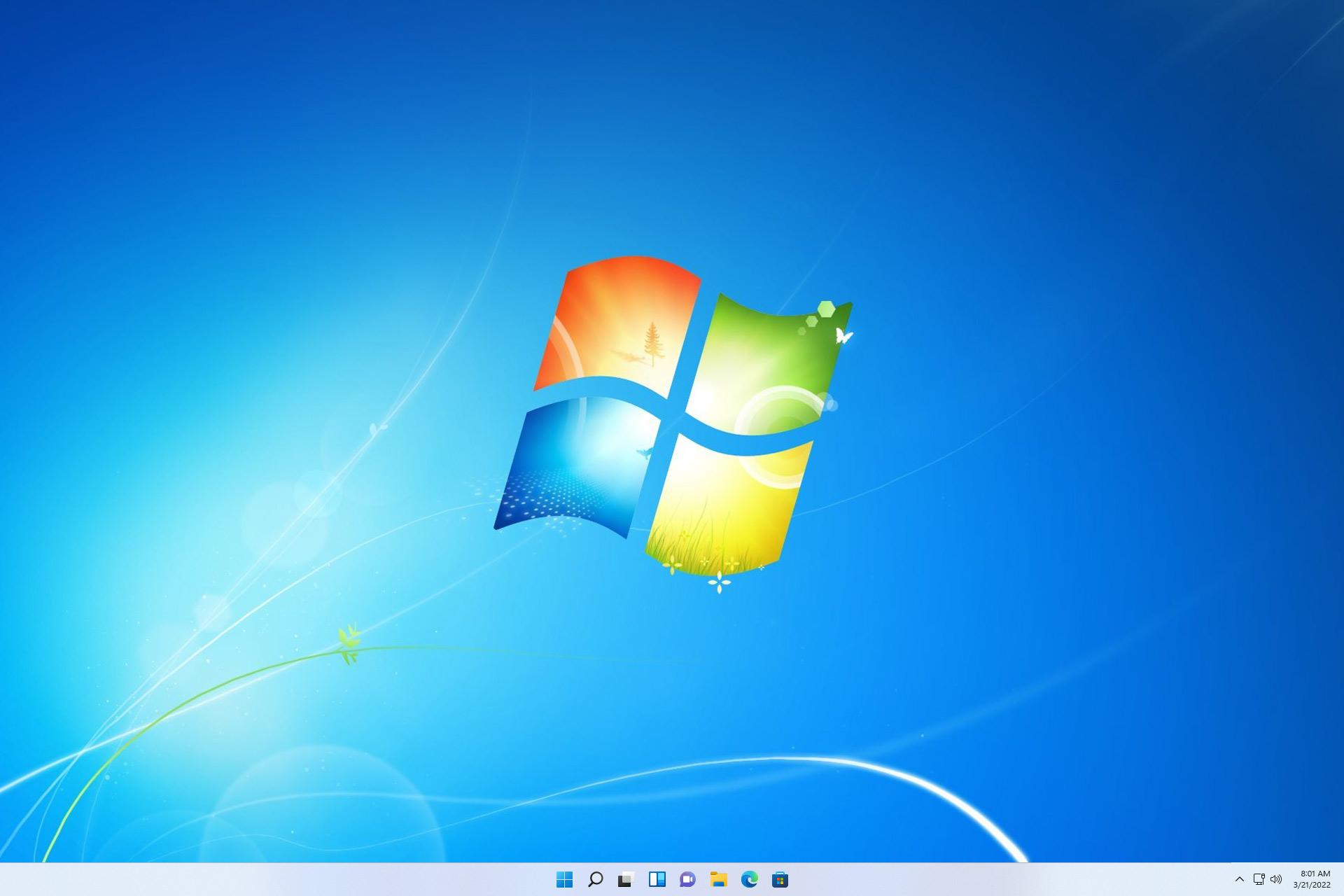
As you can see, the script restores the original boot screen, Start Menu, windows, and even some Windows 7 software.

Regarding compatibility, the script has 97% compatibility with Windows 10 21H2, and 21H2 and 80% compatibility with Windows 11 21H2, 22H2, and 23H2.

This can be a problem, and users reported issues that prevented them from booting. Many users also voiced their concerns on Reddit:

There seems to be quite a few cracked pieces of software in this file, including a cracked/pirated version of WindowBlinds 11, and StartIsBack (StartIsBack++)… I wouldn’t recommend using this at all, no telling what’s within those crack files, or where they were sourced from!

That not withstanding, there’s a lot of hacked together DWM (Desktop Window Manager) modifying files, which are likely to break the system when windows updates, leaving you up the creek for sure.

Lastly, I found a great deal of modified EFI and shim boot files. I am unsure what the reasoning is behind these, but there seems to be a certificate that gets auto installed in someway. Very sketchy, especially out of a program that should only be changing the visual style, not how the computer and works with windows boot manager. This could potentially alter, or even harm the UEFI system by possibly exploiting the UEFI LogoFAIL vulnerability in unpatched systems.

While this script is open-source, after examining the code, vigilant users found certain issues, such as the installation of copyrighted software, modifying of system files, and EFI.

These are all security concerns that can cause more issues in the future. So, should you use this script? Our answer would be no, the risks are simply too great and you can cause security and stability issues with your PC.

You can’t stay on Windows 7 forever, even though many users cling to Windows 7, installing this script isn’t the way to bring it back.

Microsoft, OpenAI to invest $500M in Tesla’s competitor, Figure AI

Recent reports suggest that Microsoft and OpenAI, the company behind ChatGPT, are in talks with humanoid robot startup, Figure AI, and could potentially invest $500 million.

Though there has been no official confirmation from any of the involved parties, sources privy to the negotiations indicate that multiple scenarios are being discussed. One of which is that Microsoft could invest $95 million while OpenAI’s shares could be $5 million.

If the deal goes through, it would increase Figure AI’s valuation to $1.9 billion, excluding the funding raised, and the company would feature in the list of unicorns.

Figure AI could be transforming the automation landscape

Figure AI has been in the news for the last couple of months. Last year in May, the company raised $70 million in funding led by Parkway Venture Capital.

In January, Figure AI CEO, Brett Adcock, confirmed in a post on X (formerly Twitter) that the company will deploy the Figure 01 robot in BMW’s car manufacturing facilities to automate tasks conceived as tedious or too risky for humans.

Adcock wants Figure AI to be the first company to successfully deploy humanoid robots and utilize their potential in commercial activities.

Adcock argues that given the massive labour shortage facing the world, automation and robots could provide much-needed resources to keep up with the challenges. He says Figure AI robots would help companies scale their production and operation.

Although, Figure AI faces stiff competition in the market. Agility Robotics has already signed a deal with Amazon to test its robots in the e-commerce giant’s warehouses. Tesla, too, is working aggressively on its humanoid robot, Optimus.

We are keeping a close watch on Microsoft, OpenAI and Figure AI negotiations. But unless there is an official release, we can’t confirm anything.

What’s your take on humanoid robots replacing humans in manufacturing? Share in the comments section below.

Will Apple’s Gen AI be any match for Microsoft, Google and Open AI?

Without a shadow of a doubt, we know that Apple has grand plans with generative AI. Also, some speculations say that multiple AI features are coming with future updates. However, Tim Cook, the CEO of Apple, didn’t reveal too much. Yet, we know enough to say that Apple will compete with Microsoft, Google, and OpenAI.

What is Apple doing with generative AI?

The most significant feature is Siri. For now, the virtual assistant is already using some AI functions. Yet, we might soon get Siri 2.0, which uses generative AI and machine learning systems. So, that would make the virtual assistant even better than Bard, Chat GPT, and Snapchat’s AI. On top of that, Siri 2.0 will also have more functions than the available AI models.

Apple is using generative AI to improve the overall quality of photos and videos. Also, autocorrect will be improved, and we might get instant stickers featuring our faces. On top of that, some of the previous features will also get updates, such as ECG, crash, and fall detection. Yet, these are just some minor benefits.

Is Apple making a GPT?

Ajax, or Apple GPT, as some call it, is already here. The Apple AI learning model uses more than 200 billion parameters, which makes it better than Chat GPT 3.5. However, Ajax is still in preparations and early stages, so there is only a little information related to it besides the fact that it is a multimodal AI capable of producing video, images, and text.

For now, we are sure that Apple has some hidden pleasant surprises in store for us. After all, the release of Apple Vision Pro already shows that Apple understood the assignment. We have great expectations and can’t wait for the Worldwide Developers Conference. Hopefully, this won’t become an episode of Black Mirror or Humans.

A Woman using Apple Vision Pro

Last but not least, you should know that while they are secretive and quiet, Apple is investing and buying various AI-related startups. Furthermore, some say that Apple already has its arsenal of AI tech ready, but they are just implementing security measures before going all out.

If you are looking to learn more about AI, make sure to check out Windows 12 AI development,

What do you think? Is Apple going to crush their competition? Are they going too far with the AI and digital features? Let us know in the comments.

Why it’s a good idea to install a Visual C++ Redistributable Runtimes All-in-One megapack

Most applications use Visual C++ Redistributable. In fact, some games and programs might install it for you. Thus, the best way to ensure it works correctly is to download the Visual C++ Redistributable Runtimes All-in-One megapack. By installing the pack, you won’t have to deal with compatibility issues.

Visual C++ Redistributable Runtimes All-in-One Magapack contents

Visual C++ Redistributable Runtimes All-in-One megapack has the latest Visual Studio C++ runtimes. Also, it allows you to install all the files with a single click. However, it is recommended that you run it as administrator to give it all of the necessary permissions.

The megapack supports both 34 and 64-bit operating systems. In addition, if you install the 64-bit package, you will get the 34-bit software. Furthermore, the pack includes the following Visual C++ Redistributables: 2005, 2008, 2010, 2012, 2013, 2015, 2017, 2019, and 2021.

To ensure the installation goes well, you can just run your device in safe mode and disable your antivirus and Windows Firewall. Moreover, don’t worry if some are no longer supported; some applications might still need them.

Do I need to keep all Microsoft Visual C++ Redistributable?

You do need to keep all the Microsoft Visual C++ Redistributables, they have most of the C++ and C runtime libraries. Also, if you are using Windows 10 you might have noticed that you already have 2005, 2012, 2013, and 2015-2022.

It would be best not to worry about Visual C++ slowing down your device. After all, they use only a little of your system resources. On the other hand, if they get corrupt, they might cause you some trouble. For example, you might experience software crashes and unexpected behavior of some files.

Last but not least, we recommend using the Visual C++ Redistributable Runtimes All-in-One megapack on fresh Windows installations. Also, you can use it to make sure that none of your Visual C++ files are corrupted, missing, or outdated.

If you think that the Visual C++ Redistributables are having any problems, check out these guides to learn how to fix them on Win 10 and Win 11.

Do you have all of the latest Visual C++ Redistributables? Are there any crashing applications on your device?

Copilot: Your favorite AI companion will have a super-sized panel

Microsoft continues to enhance Windows 11 with innovative features, and one of the latest additions is the AI-powered assistant Copilot, which has garnered praise from users worldwide.

As Windows 11 enthusiasts expressed their interest in Copilot, Microsoft is working promptly on making it bigger, better, and with a more user-friendly interface.

According to a tweet by Leopeva64 on X ( formerly known as Twitter), known as a reliable source for Windows leaks:

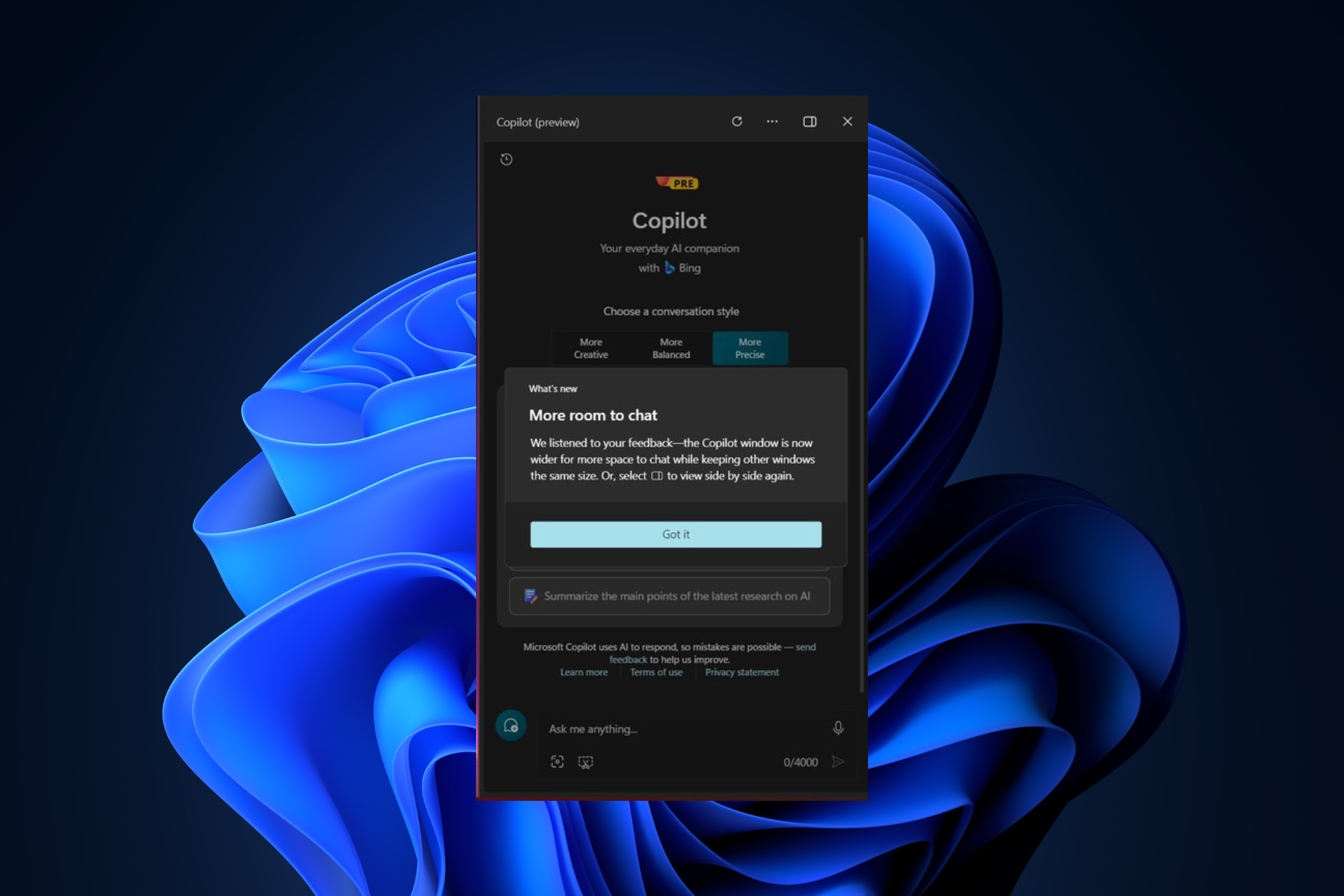
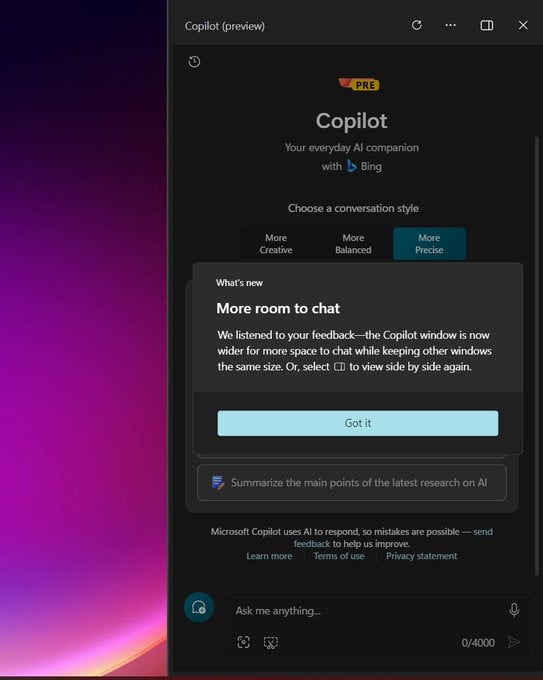
Microsoft has added a prompt to inform the user that the Windows Copilot pane is now wider and opens as an overlay by default, the prompt also mentions that there is a button to enable side-by-side view.

He also added

In Edge Canary the “Chat with Copilot” button in the screenshot tool now sends the image directly to Windows Copilot, previously the image was sent to Edge Copilot.

He further explains that the Copilot interface has been launched this way for some time now, but Microsoft’s new addition with a prompt explains the reason behind it.

Furthermore, the What’s new pop-up explains that the latest change to widen the panel is to provide more room to chat. This adjustment was incorporated in response to the feedback from Windows 11 enthusiasts looking for more space on the AI assistant.

Acknowledging diverse user preferences, Microsoft has also provided a button for users to switch back to a compact side-by-side layout in case they don’t like the change.

All in all, the shift in default settings results from a positive response from Windows 11 users with the Copilot panel. You may like this change if you use Copilot for longer sessions, like extended interactions and queries.

Going forward, Microsoft is interested in making Copilot a more important part of the Windows 11 user experience.

According to the ongoing testing, Copilot might appear in a limited manner on the Windows 11 boot-up process.

However, in the future, you can expect the integration of AI-assistant in other Windows 11 interface aspects, like File Explorer. This points towards the possibility that you can interact with Copilot apart from the right side of the screen.

Amidst all the excitement, a few of us have concerns about the promotional ads or notifications to promote Copilot and its premium version as well, as has already happened with Edge.

Though Copilot’s evolution shows Microsoft’s commitment to providing better user experiences on Windows 11. We can only hope that Microsoft strikes a balance between promoting new features and respecting people’s preferences.

Are you in favor of expanding the screen space on the Copilot panel? Share your thoughts in the comments section below.

Why is Edge more popular than ever?

According to Statcounter’s web browser statistics for January 2024, with 64.84%, Chrome continues to dominate, maintaining its lead in the browser market. In second place for desktop browsers is Edge, with a percentage of 12.95% share.

The new marker suggests that new users are adapting to Microsoft. Earlier, the market share climbed to 11% but then drifted down to 10.6% during the last year.

Compared to its competitors, Safari at 8.83% and Firefox at 7.57%, Edge is expected to double the users from Firefox, which indicates positive growth for Microsoft in the browser landscape.

This increased adoption can also be the result of the growing user base of Windows 11, which, according to Statcounter, also gained 1.29%. While Microsoft Edge is getting popular for desktops, it is still facing challenges on mobile platforms.

Microsoft has made significant strides in enhancing Edge’s user experience by introducing a user-friendly interface and incorporating advanced AI-powered features for improved accessibility.

Some time ago, Microsoft introduced many new features to beat Chrome and fine-tuning; however, that didn’t work as those features made it look bloated.

It looks like Microsoft has learned from its mistake, and with the addition of useful features on Edge, it is slowly refining the ones that make it look cluttered.

We appreciate how the Redmond tech giant is working on making Edge a browser with a smoother interface and incorporating advanced features, leading to an increase in user base.

However, if we are being critical, Microsoft’s promotional efforts could also influence the adaption, including intrusive ads pushing users to choose Edge over other browsers. This fact was recently backed by a report, Over the Edge, by independent researchers Harry Brignull & Cennydd Bowles, highlighting that the company uses deceptive patterns to influence users.

Do you believe it’s the promotional tactics or the improved features are driving the popularity of the browser? Share your thoughts in the comments section below.

The cadmus.script.ac is running havoc between antivirus users, but why?

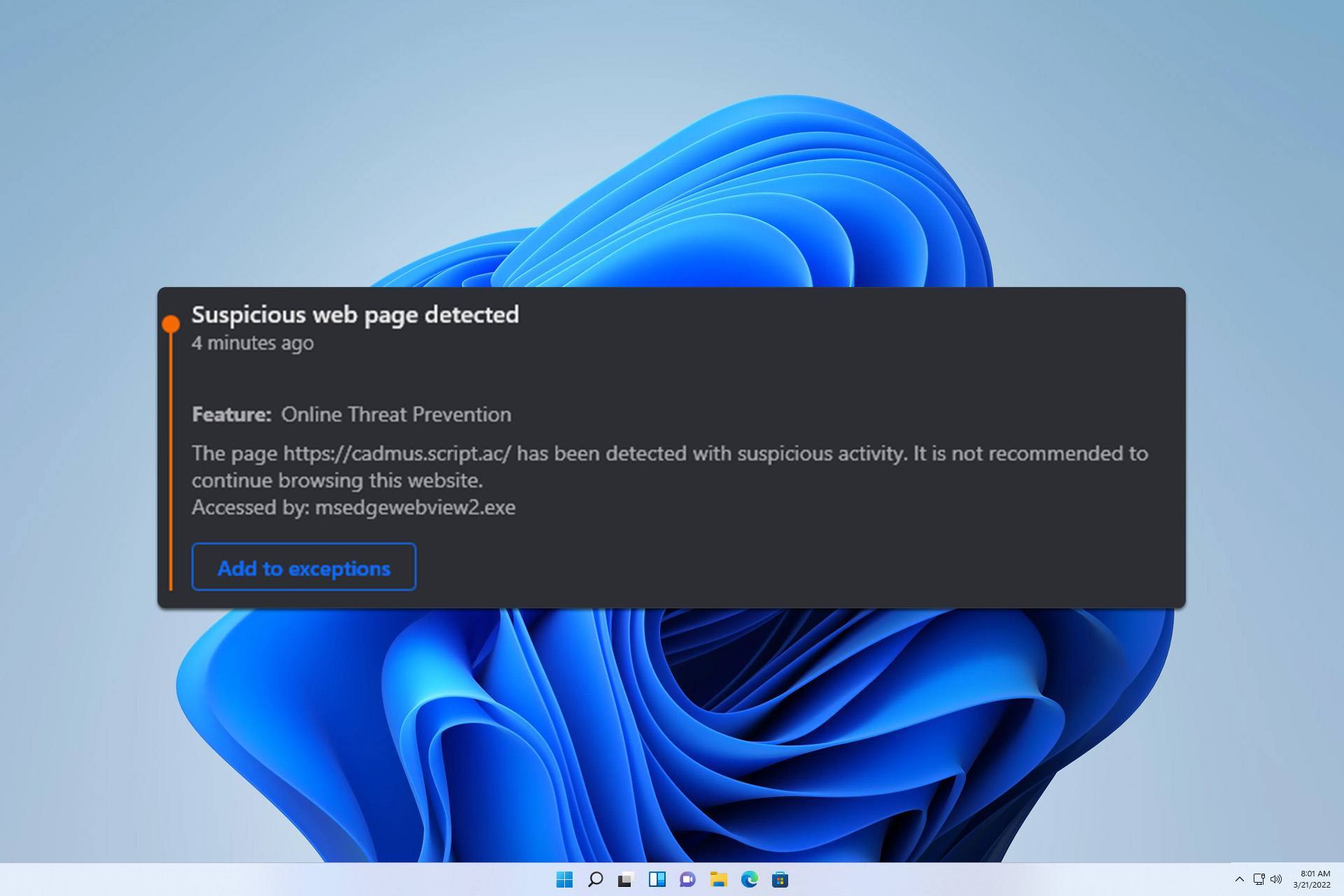
Recently, many users reported that their antivirus gives them a message regarding a suspicious page with the cadmus.script.ac address.

This has many users concerned about the safety of their devices, so we decided to investigate and see how harmful this warning is.

Antivirus keeps reporting cadmus.script.ac as a threat, here’s what you should know

The issue was first reported on Microsoft Answers forums, and according to users, the antivirus software, most notably Bitdefender, shows this warning message.

Here’s what one user had to say:

The alerts from Bitdefender have nothing to do with the Duckduckgo browser. I use Firefox, Opera, Chrome, Vivaldi, and the same alert comes up, when visiting specific sites, because it is cadmus.script.ac tracker that is the problem, not the browser.

The issue was reported in a Reddit post, claiming that the message appears whenever a user tries to run Bluestacks. Here’s what one user who has this problem had to say:

Whenever I open up Bluestacks, I get a message from BitDefender saying a suspicious pages has been detected under the URL “cadmus.script.ac”. Is anyone else getting this and does anyone know what might be triggering it? It happens before the loading screen has even finished loading.

Many claim that this is just a tracker that many websites tend to use:

It happens for me as well on particular websites. You can learn at least a little bit about that tracker here: https://sites.ipaddress.com/cadmus.script.ac/

Unfortunately, information regarding this security alert is scarce at the moment, but we assume that this is most likely a tracker that some websites use to monitor your activity.

This means it should be no more harmful than other trackers that are used online. It’s also possible that Bitdefender is detecting it as a false positive.

We’ll keep track of this issue, and keep you up to date with the latest news. While this doesn’t seem like a major or even a real threat, the exploit in Windows Event Log and the Midnight Blizzard attack on Microsoft are quite real and dangerous.

Have you encountered this issue on your PC? If so, share your experience with us in the comments!

AMD releases new Ryzen drivers for Windows, fixes Modern Standy issues

After thousands across the globe reported issues with Modern Standby, things like the PC would automatically start from sleep or won’t turn on at all, AMD finally has the answer: its latest AMD Ryzen Chipset Driver 6.01.25.342.

Initially, AMD didn’t publish any release highlights or list the known issues, but these were added soon.

This is good news if you have an AMD Ryzen processor or chipset, and you should see a decent improvement in performance after installing the new driver.

What’s new in AMD Ryzen Chipset Driver 6.01.25.342?

According to the official website, AMD has introduced a new program support and added more drivers. Besides, there are a few bug fixes, too.

The latest drivers also have some issues. The ones highlighted by AMD are:

  • Some driver names may appear in English on a non-English OS.
  • Uninstall summary log may incorrectly show the uninstall status as failed.
  • When the region format is set to Bulgaria, the chipset installer upgrade may fail. To avoid this situation, please uninstall the existing driver and install the latest driver package.
  • AMD PSP Driver may not install on AMD Ryzen™ 2000 series processors.

The drivers that will fix the sleep issues on Windows 11 are AMD S0i3 Filter Driver and AMD MicroPEP Driver.

For the AMD S0i3 Filter Driver, there’s a patch which will address a known bug where a Windows 11 PC won’t wake up from a deep sleep state.

For the AMD MicroPEP Driver, the latest version:

  • Provides support of S0i3 entry/exit notification to ISP and PMF
  • Supports new APU
  • Provides functionality to block S0i3 entry for certain user scenarios temporarily
  • Reinforces security descriptor in INF
Download link for the package (Source: AMD driver support)

To install the AMD Ryzen Chipset Driver 6.01.25.342 package, go to AMD’s official website > click the download link > run the downloaded amd_chipset_software_6.01.25.342.exe file > follow the on-screen instructions to complete the process.

Most, not all, of the AMD drivers released as a part of the package are compatible with both, Windows 10 and Windows 11.

If you are an AMD user running the latest drivers, do share your experience and any issues faced in the comments section.

Microsoft acknowledges Windows 10 File system error (2147219196) & is working on a fix

According to the reports on Feedback Hub and Microsoft Community, Windows native apps, including Calendar, Photos, Calculator, Mail, and Feedback Hub, reportedly crashed with File System Error (-2147219196) after Microsoft auto-updated the native apps through the Microsoft Store on January 23, 2024.

Now, Microsoft has acknowledged the issue, and the company is working to fix the issue, once it is done, the fix will be applied.

The Windows 10 update was supposed to be a regular maintenance release, but instead, it broke the Windows apps, including Calculator, Calendar, Photos, Feedback Hub, etc.

According to forums and user feedback, they are frustrated and expressed their anger towards the company for hanging them dry.

One user on the Feedback Hub said

Once you have an update, you can’t go back. Microsoft does this, and on top of that, without warning is a dirty move.

Another one stated:

I am experiencing the same issue. Microsoft Photos worked yesterday, but it is giving the same “File System Error (-2147219196)” on Windows 10 Pro on 1 PC, but it is still working on another.

The reason behind the crash lies within vclibs framework, a crtitical package which contains libraries that help native Windows apps to run correctly.

After the update, there was a change in the vclibs framework, which made the Windows apps require SSE4.2 instructions.

SSE is not new, it has been around for decades, however, version SSE4.2 was introduced in 2011 and supports newer processors.

SSE4.2 helps your computer’s processor handle data efficiently, resulting in better performance while launching apps.

You might be thinking, if this has been around for years, what went wrong well with the update released on January 23, Microsoft mistakenly made SSE4.2 a mandate for the vclibs framework.

As a result, people who have Windows 10 computers with old processors are not compatible with SSE4.2 hence native apps crashed, including Photos, Mail & Calendar, Paint 3D, Game Bar, Photos, Feedback Hub, Calculator, and 3D Viewer.

In a statement, a Microsoft support representative confirmed that soon, there is an update fixing this issue. With the Redmond tech giant track record of backward compatibility and the fact Windows 10 will get support until Oct 2025, it looks like the issue might be a result of an accident.

What do you think? Share your thoughts in the comments section below.

OpenAI thinks ChatGPT could read your kid a bedtime story, as it introduces age-group GPTs

Last week, OpenAI announced its partnership with Common Sense Media, the largest advocacy group for children and families in the US, in a bid to create, develop and release age-group GPTs.

The two organizations will work together to build GPTs that follow pertinent guidelines and that can be used by children, young adults, and families alike without any worry. OpenAI also wants to release a special section within the GPT Store specifically made for these categories.

Common Sense Media, the nation’s leading advocacy group for children and families, announced a partnership with OpenAI to help realize the full potential of AI for teens and families and minimize the risks. The two organizations will initially collaborate on AI guidelines and education materials for parents, educators and young people, as well as a curation of family-friendly GPTs in the GPT Store based on Common Sense ratings and standards.

Common Sense Media

Sam Altman, OpenAI’s CEO, who was recently fired and then reinstated into the position, also said that this partnership is exciting and it will prove to be essential for kids, and young adults seeking to expand their educational capabilities.

AI offers incredible benefits for families and teens, and our partnership with Common Sense will further strengthen our safety work, ensuring that families and teens can use our tools with confidence.

Sam Altman

The company wants to build age-group GPTs that can sustain a responsible environment for education and entertainment. But isn’t it risky?

Are OpenAI’s age-group GPTs a good idea?

Well, talking about common sense, we need to start with a proper question: let’s say you are a parent; would you let AI read a bedtime story to your kid and trust that it won’t do any harm?

Young people are indeed more tech-savvy than older people, and kids growing up with devices such as mobile phones and tablets would surely entertain the idea.

However, just how safe it could be? We all know that ChatGPT requires input to work, and when it’s interrupted often, the AI tool can easily hallucinate. With hallucination, ChatGPT can not only spell out abusive discourses, but it could also offer false information.

OpenAI says it will be working with Common Sense Media to develop safe age-group GPTs that won’t hallucinate with improper information, however, the tools will need to be checked and updated regularly so they can exist within clear boundaries.

Another major problem to be considered is the state of kids’ and young adults’ privacy which is already a delicate issue for OpenAI, as the company has been involved in a series of investigations from both American and European authorities regarding possible violation of the privacy laws within the regions.

It will be interesting to see just how the partnership between OpenAI and Common Media Sense addresses these issues.

But even with these issues addressed, let’s not forget that GPTs could be amenable to cyberattacks, or even hacking from external actors, and they could potentially do harm that wouldn’t be easily traceable at first.

With these in mind, maybe it’s best if we keep it to physical and human interactions, as parents to our kids. Using AI should only be done when the context is proper: schools, universities, or places where it could be manageable and observed.

What do you think?

Microsoft will write their own news stories using AI in the midst of New York Times lawsuit

Semafor launched today a new breaking news feed called Signals that will allegedly use Microsoft and Open AI tools to write original stories. Apparently, the Redmond giant has a significant involvement in this project.

According to FT, Microsoft has paid an undisclosed sum to sponsor the new Signals tool, despite a lawsuit that the New York Times issued against the IT corporation in December last year.

How will Microsoft use Signals to write stories?

According to Semafor’s press release, actual journalists around the globe will write the stories, andAI will only be used to gather additional information.

Our journalists around the globe identify the central facts of a story, then curate the key analysis and insight from a global range of news sources — including different, sometimes opposing, views on the same piece of information.

In this, they’re aided by AI tools that help them search news sources across multiple languages and geographies, allowing them to extend their reach to bring more, and more diverse, perspectives to readers. When tapping into these AI research tools, our editors then evaluate and verify sources, compose summaries, and clearly cite and link readers to the original information.

Semafor

They clearly state that the new stories will cite and link to the original information, but that remains to be seen.

On the latest blog post, Microsoft signals the collaboration with Semafor and Signals to “assist journalists in their research, source discovery, translation, and more”. However, they also mention collaborations with The Craig Newmark Graduate School of Journalism, The Online News Association and The GroundTruth Project to create what they call the newsrooms of the future with AI.

The Redmond giant is also investing in Nota, a tool for journalists and publishers that uses AI to provide tips and assist in outsourcing the information.

Nota will soon release a new tool called PROOF, an assistive recommendation widget that will give real-time tips to journalists and editors about how to better reach audiences with their content through readability, SEO analysis, link integrity, and more.

Nota

In the New York Times lawsuit, the paper claims that Microsoft has crawled and used information from many of their articles by using AI chatbots, asking for billions of dollars in compensation.

Thus, Signals will come as a legitimate way of getting the information without damaging any source they pick up.

Someone needs to find a way to identify AI content or discriminate it against human-created content. Search engines certainly don’t discern one from another, destroying many content-based businesses worldwide.

What do you think about Signals and AI-driven content? Tell us all about that in the comments section below.

Windows 11 Enterprise LTSC has leaked, but enthusiasts shouldn’t install it

Windows 11 Enterprise LTSC was announced by Microsoft in 2023, it currently has no specific release date (although, it’s slated for release in the second half of 2024), but despite these, the operating system has leaked on Chinese forums. However, enthusiasts should avoid installing it on proper machines, as it’s not safe to do so.

In 2023, Microsoft announced that Windows 11 Enterprise LTSC (Long-Term Servicing Channel) will be released in two versions:

  • Windows 11 Enterprise LTSC
  • Windows 11 IoT Enterprise LTSC

The one that leaked, Windows 11 IoT Enterprise LTSC, is an Insider Preview, according to screenshots taken by folks over at Windows Latest, as you can see below.Windows 11 LTSC release date

This means the leak is most probably a very early build of the Windows 11 IoT Enterprise LTSC. However, it’s important to mention that the operating system could come with 3 important features:

  1. There is a subscription-based version of the Windows 11 IoT Enterprise LTSC mentioned in the installation setup. We don’t have any details related to the price, or date of payment, but it could be other monthly or yearly.
  2. According to the leaked screenshots, the Windows 11 IoT Enterprise LTSC will feature the new Outlook for Windows which replaces the native Mail&Calendar (which are to be deprecated, by the way).
  3. The Windows 11 IoT Enterprise LTSC will most likely be based on the upcoming Windows 11 24H2, which was officially mentioned by Microsoft in one of their documents, so it might also bring AI capabilities such as Copilot to the operating system.

Windows 11 LTSC: Release date?

Microsoft confirmed in 2023 that Windows 11 LTSC is coming out later in 2024, probably slated for September/October 2024.

Until then, however, commercial customers are advised to remain on Windows 10 LTSC, which will receive updates far beyond its regular counterpart. On the other side, once Windows 11 LTSC is available, Microsoft recommends migrating to it, and as the release date is announced, companies can make the preparations for it.

Windows 11 LTSC will be supported for 10 years, so commercial customers can use the operating system until 2034.

Xbox’s next release will be held up due to signing delays with AMD

Microsoft’s next Xbox console release will be delayed as the Redmond tech giant was taking its time to sign the contract with the technology partner AMD.

According to a podcaster, Moore’s Law is Dead, Microsoft was shopping around with NVIDIA and Intel before settling down to get leverage over the deal with AMD.

In the meantime, Sony has signed more than one contract with AMD after releasing PS5, indicating that Sony is way ahead in the game.

Intel also seemed to be super interested in the deal and might offer a more enticing deal at a lower rate.

However, another report suggested that Microsoft has now started designing with AMD, but Sony is already ahead in the process, so Microsoft has to play catch up. To finish it in time, the process might be a little rushed and possibly might have issues.

If you are planning to switch to Xbox from PS, we have a detailed guide to help you make the choice.

Well, all of this will be known in the future, until then, we can just wait & watch. What do you think about this? Share your thoughts in the comments section below.

After a long wait, Final Fantasy 14 open beta is coming to Xbox Series X/S

Final Fantasy 14 has been out for a while, but unfortunately, the game was never available for the Xbox platform.

That’s about to change since Square Enix has announced the open beta for Xbox Series X/S!

Final Fantasy 14 open beta was announced, coming in late February

According to a recent blog post from Square Enix, the open beta for Final Fantasy 14 is scheduled to start on Wednesday, February 21st around 12 AM Pacific Standard Time.

The open beta will be available only to new players, so if you have the game on another platform, you’re out of luck.

On the other hand, players will be available to play Final Fantasy with existing accounts and all of their previously created characters after the full game has launched.

That’s not all, your progress during the beta will be transferred to the full version of the game, allowing you to continue where you left off.

All beta participants will have the same limitations as players using the free trial of the game. In addition, optional Online Store purchases won’t be available as well.

Keep in mind that to participate in the beta, you need to enable multiplayer, cross-network, and communication options on your console. You also need to enable the option to see and upload community creations.

This is an exciting time for Final Fantasy 14 fans and Xbox gamers since they will have the ability to experience the game for the first time. As for the full release, no information is available at the moment.

We just hope that the gamers won’t experience the dreaded FFXIV error 2002 during the open beta.

Did Qualcomm just confirm Windows 12? CEO says, next Windows version to release in 2026

We previously reported that Windows 12 could be released in June 2024, and the recent comments by Qualcomm’s CEO, Cristiano Amon, certainly hint that Microsoft is all set to release the new OS.

Speaking about Qualcomm’s latest offering, Snapdragon X Elite, Cristiano Amon said that it will be introduced in mid-2024, around the same time as the next version of Windows.

While he hasn’t clearly mentioned Windows 12, this aligns with what industry leaders have been saying in the past few months.

In an interview, Intel’s Chief Financial Officer (CFO), Dave Zinsner, when asked about the company’s projections, talked of Windows refresh, a term previously used to describe Windows 11 before it was announced.

Will there be a Windows 12?

If Microsoft adopts the earlier three-year upgrade cycle, Windows 12 should be right around the corner. Previously, Microsoft released a new iteration every three years, starting from Windows Vista and continuing till Windows 10. Then came the long six-year wait for Windows 11.

But going by the three-year upgrade cycle, Windows 12 should be released in 2024, given that Windows 11 came in 2021.

If there’s going to be a Windows 12 in the near future, you can expect Microsoft to share an official release soon. For Windows 11 and Windows 10, we had an announcement 5 months and 1 year in advance, respectively.

Many in the industry believe that Amon just dropped a major hint about the release of Windows 12, but a few remain skeptical. There are several other theories doing the rounds.

A few believe that the announcement by Amon has more to do with a newer version of Windows 11, i.e., 24H2. Some are even talking of a more Arm-friendly Windows update since the present versions don’t offer the best support.

Whatever the case, Microsoft should soon issue an official release, and the entire discussion can be put to rest, at least for the time being.

We have previously discussed Windows 12, its release date, and all related aspects for our readers.

What are your thoughts on Windows 12? Do share in the comments section below.

This 13-year-old Windows 11 UI element might finally be updated

Microsoft might actually update a 13-year-old Windows 11 UI element, after Windows enthusiast, @thebookisclosed pointed it out on X (formerly known as Twitter), and Mikhail Parakhin, leader of the Windows and Web Experiences Team, answered that it’s been added to the backlog to take into consideration.

Which element, you might ask? Well, it’s none other than the progress ring on the Windows 11 login screen. According to the spotter, it doesn’t match the rest of the Windows 11 theme, especially the other similar progress rings, which are formed out of a continuous line, instead of a pointy one.

Can we please get the progress ring on the login screen to match those used in the rest of the system? It feels a bit weird for Windows 11 to be 2.5 years old yet the first UI the user gets to see after the boot screen is mismatched (Login has Win8 dots, Boot is solid)

@thebookisclosed

This is how the Windows 11 UI looks, as of now, and as you can see, the difference is quite obvious. However, since they don’t happen in the same screen, it’s not so noticeable.Windows 11 UI

Windows is notoriously known for not updating parts of its UI, at all, with some elements being over 20 years old. However, quite recently, Microsoft updated the Windows installation setup experience with a new design, which means the Redmond-based tech giant is looking into bringing Windows 11 to 2024.

The request to change the progress ring made it to the backlog, and it’s quite possible Microsoft will update in a few weeks.

Usually, the requests in the backlog are resolved, eventually, depending on their relevance. For example, Microsoft Teams will be getting customizable emoji settings thanks to a request that made it to the backlog some time ago, with users requesting such a feature.

We say it’s about time: Windows 11 already has a sleek modern UI, so it would be nice to have it be a standard theme everywhere you go while navigating this operating system.