Thousands of windows credentials leaked in Microsoft Exchange Autodiscover bug

It would seem that Microsoft users continue having woes when it comes to email-related issues. Just the other day, a bug was reported that had invaded Outlook. Then comes the latest invasion.

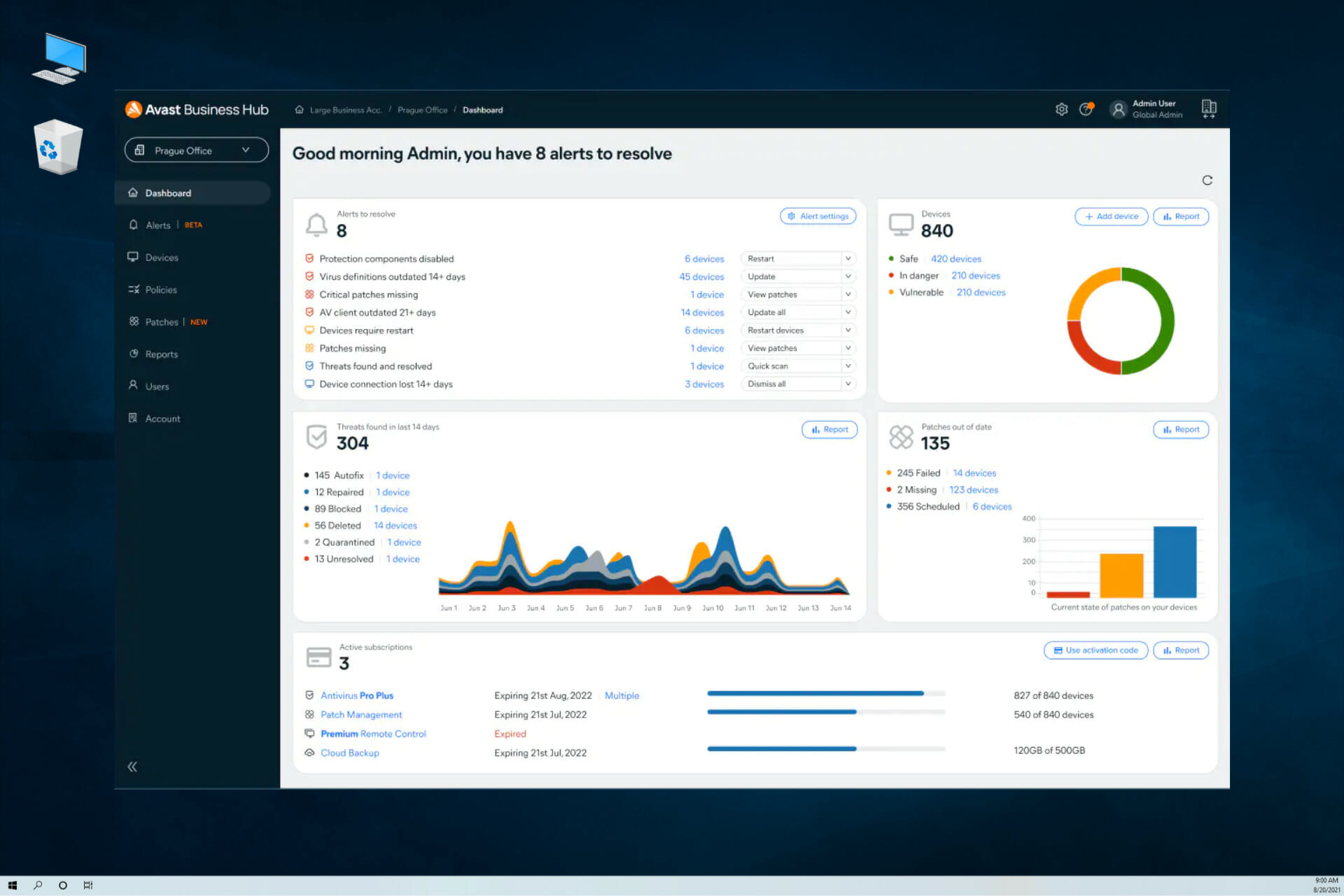
According to security researchers, the design flaw is in the Microsoft Exchange Email server which provides a leeway for attackers to harvest Windows domain and app credentials from users.

Protocol

Amit Serper of AVP discovered the bug and after close investigation, it has been found to reside in the Microsoft Autodiscover protocol which is a feature that allows Automatic email server discovery and provides credentials for proper configuration.

The protocol is considered to be crucial  and gives admins access in ensuring clients use proper SMTP, LDAP, IMAP and WebDAV among other settings.

Back-off mechanism is the cause

Serper affirms that the back-off mechanism is the cause of the leak as it is always attempting to resolve the autodiscover part of the domain. It always fails making the autodiscover url that is automatically created reach the owner of the domain.

All captured credentials came with no encryption whatsoever in HTTP form. Serper advises users to use more secure forms of authentication such as NTLM and Oauth.

Microsoft is investigating the issue and will revert in due course.

What do you make of the latest bugs dominating emails? Are there ways you are protecting yourself from such vulnerabilities? Share with us in the comment section below.

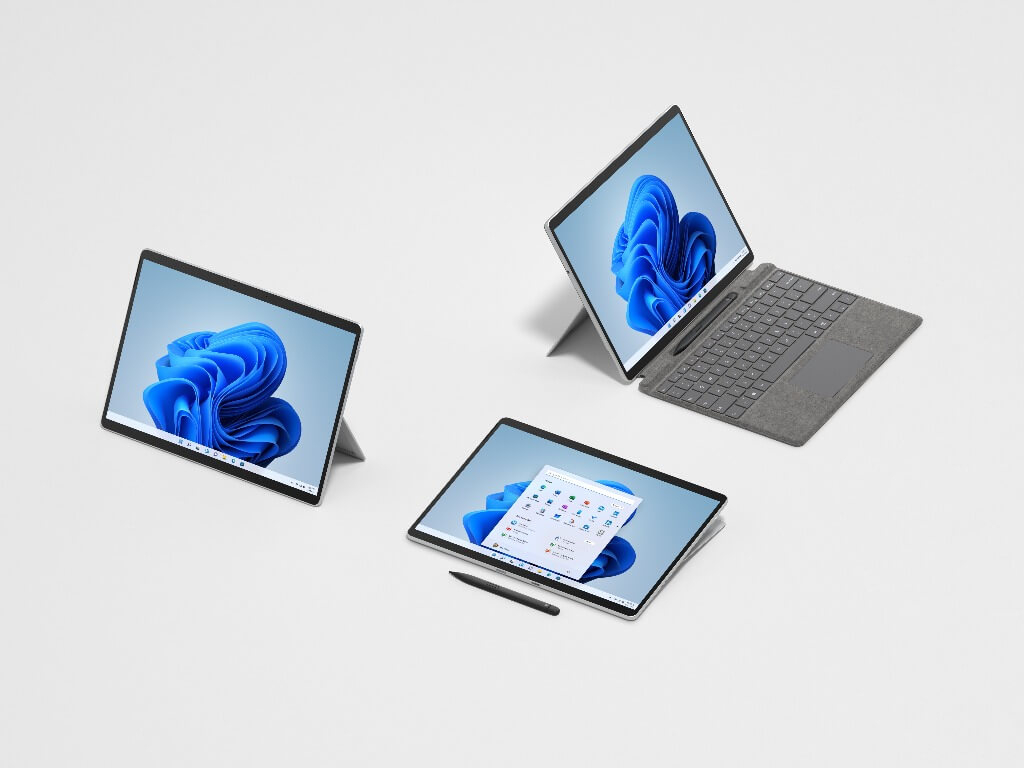
Surface Pro 8 and Surface Laptop Studio are Microsoft’s new flagship devices

The Redmond-based tech giant just held its Surface-themed event which was scheduled to take place September 22nd at 11 AM ET.

Microsoft officials revealed that Windows 11 would be available on new and existing devices starting October 5, and this event was a good opportunity for the company to reveal some new Surface models.

This is excellent news for people who are in the market for some new devices but aren’t quite pleased with the current ones available.

Microsoft Surface Live Event

The rumored Surface Duo 2 and Surface Go 3 are confirmed

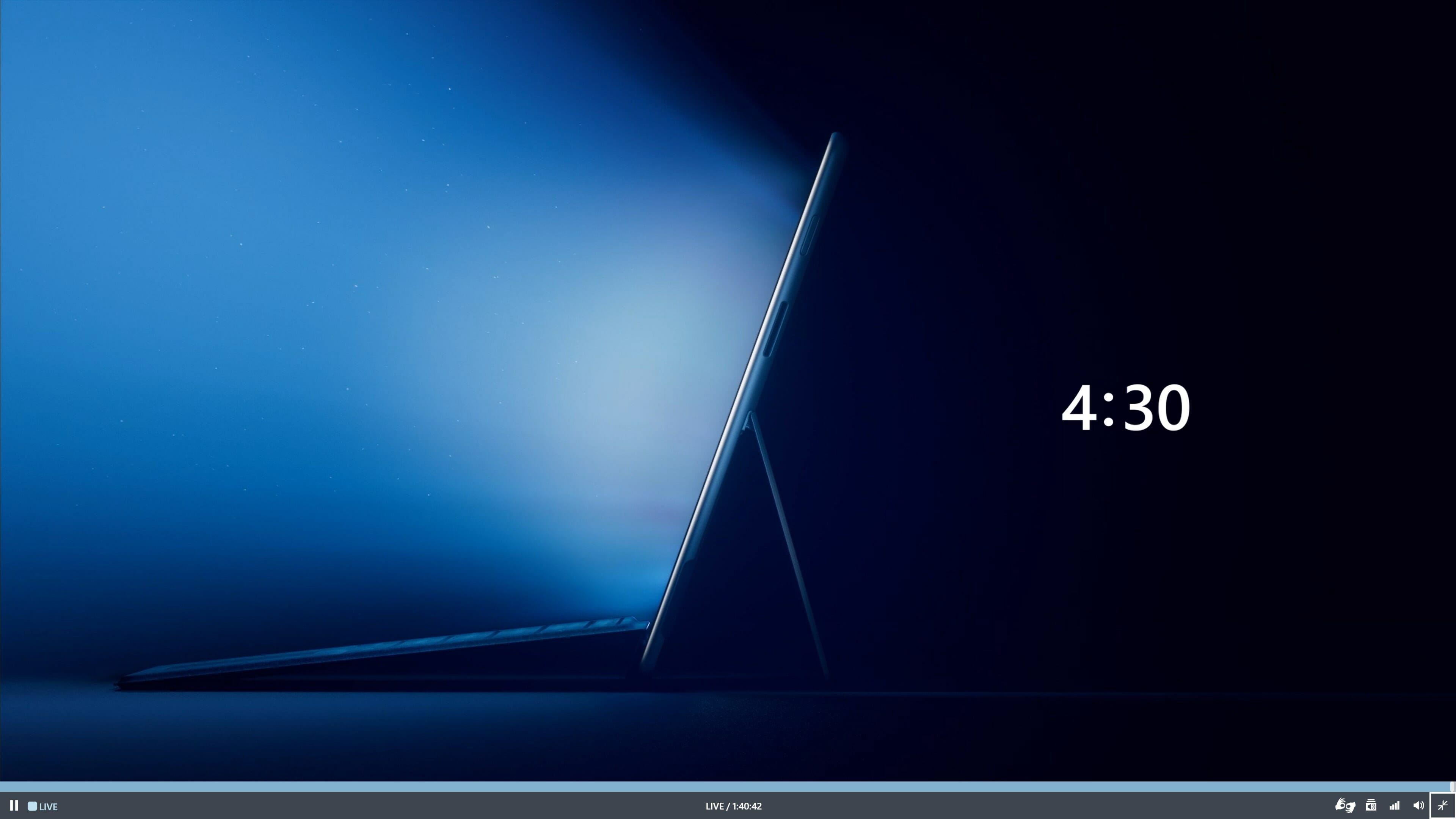
In a teaser photo for this specific event, we can see a Surface tablet with its familiar kickstand and detachable keyboard, so many thought that we might see a new Surface Pro 8 today. That’s now a reality, as many of the leaked devices were confirmed by Panos Panay at the live event.

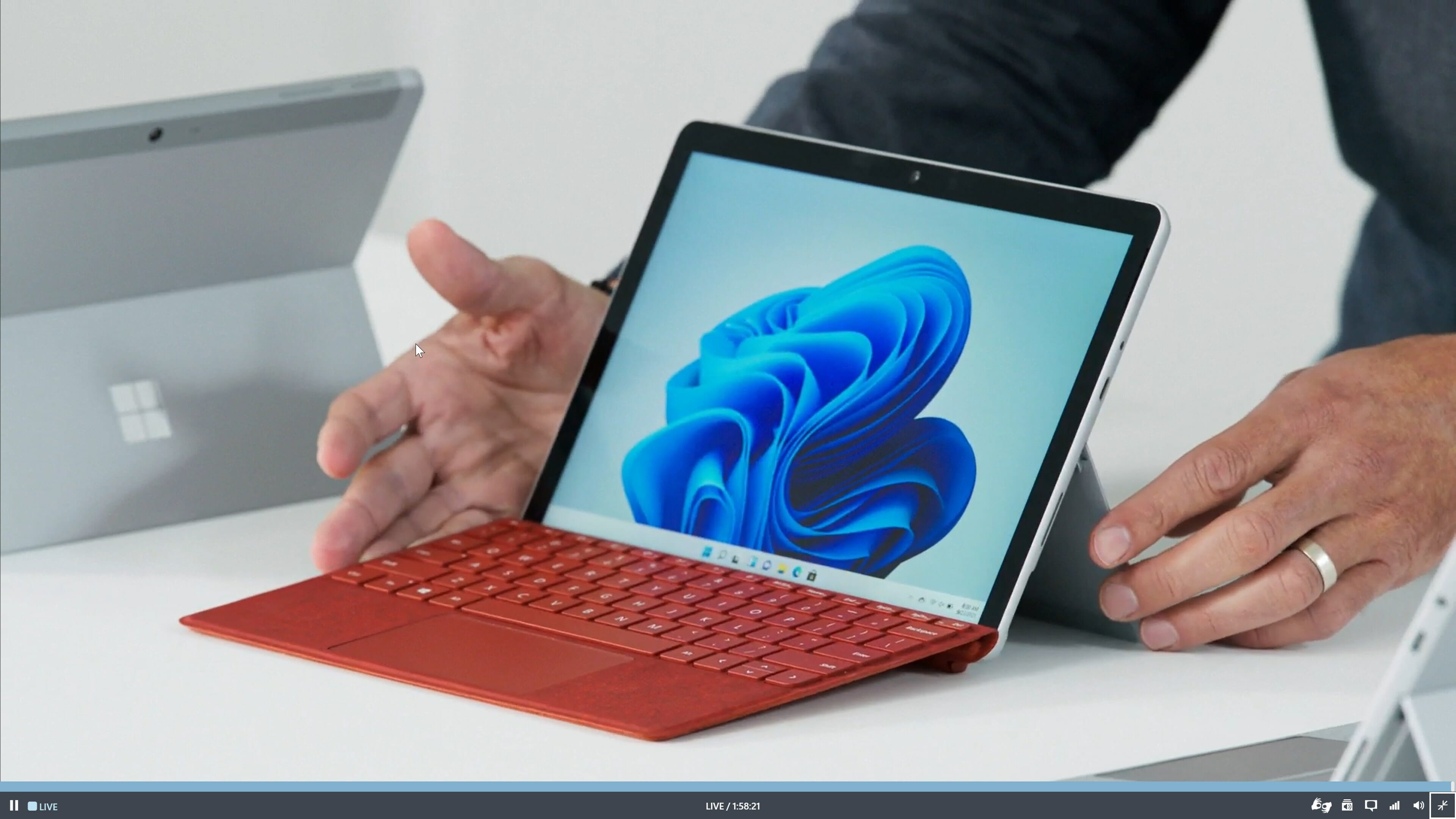
Starting with the most affordable Surface device, the Surface Go, which gets a rework for this year. The new 2-in-1 keeps its entry-level price, with a significant bump in specs along with a few minor visual changes. Of course, Surface Go 3 is now fully compatible with Windows 11 and takes advantage of all of its perks.

Surface Go 3

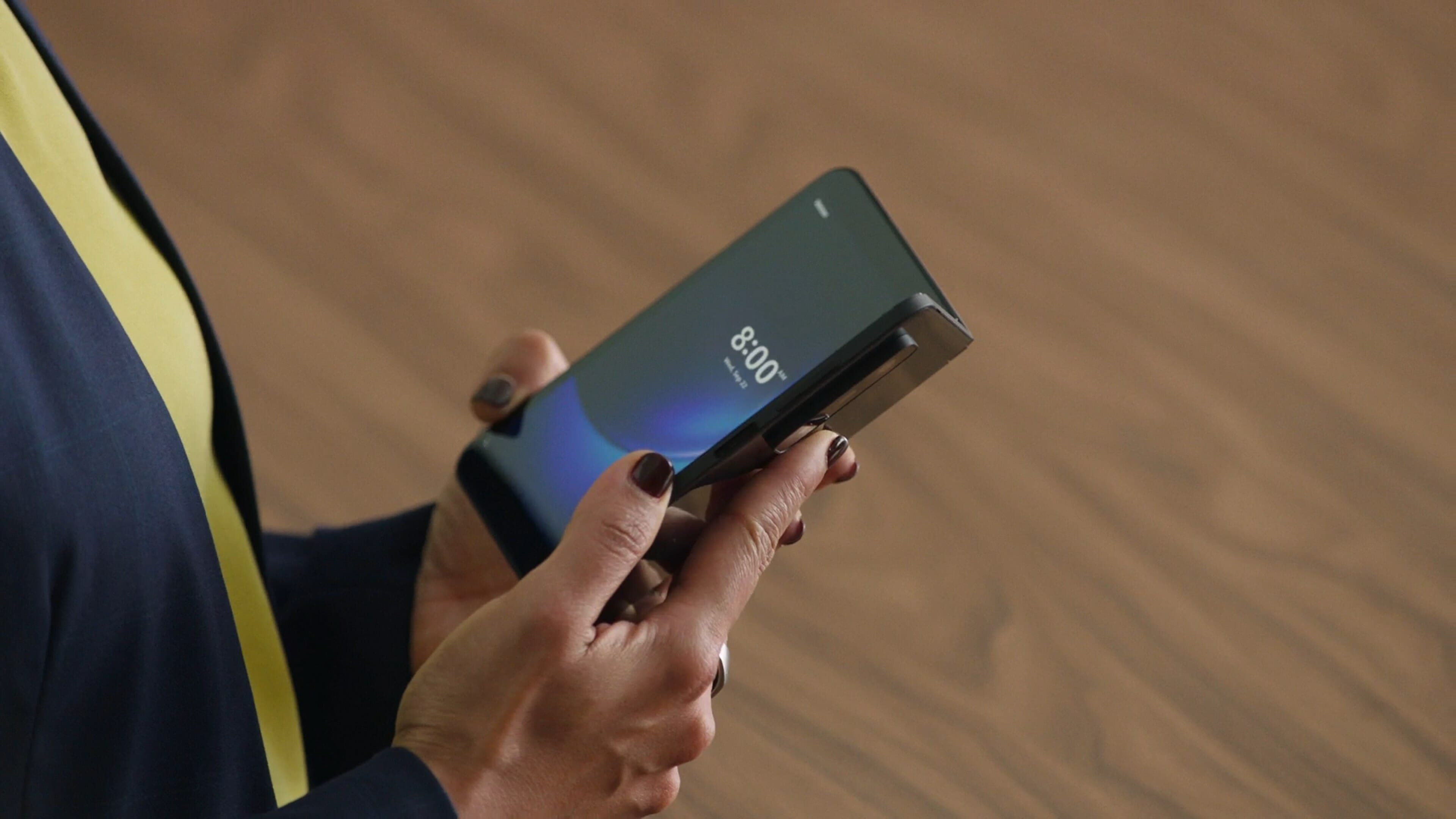
Another device that made a lot of waves last year, the Surface Duo, is now getting a new set of features tailored specifically for productivity. This new device is called the Surface Duo 2 and it’s a significant improvement over its predecessor.

Surface Duo 2

With a new set of cameras that include wide, ultrawide, and telephoto sensors, the new Duo is a lot easier to use as a daily driver for everyone. There are also two new 120Hz screens that make the experience a lot more fluid. When it comes to productivity, the new hinge brings the two screens closer together, making the transition between them seamless.

Surface Duo 2

As for the processing power, the new Snapdragon 888 is the safe bet that will keep the Duo 2 at the top, alongside other premium devices. Of course, Panos Panay also explained the seamless interaction of the Surface Duo 2 with Windows 11 and all the optimizations that make this a great experience.

The latest Gorilla Glass, a newly designed and improved hinge, and specifically tailored apps make Microsoft’s latest mobile device a productivity tool that’s worth considering.

Surface Pro 8 is not the most powerful device in the lineup

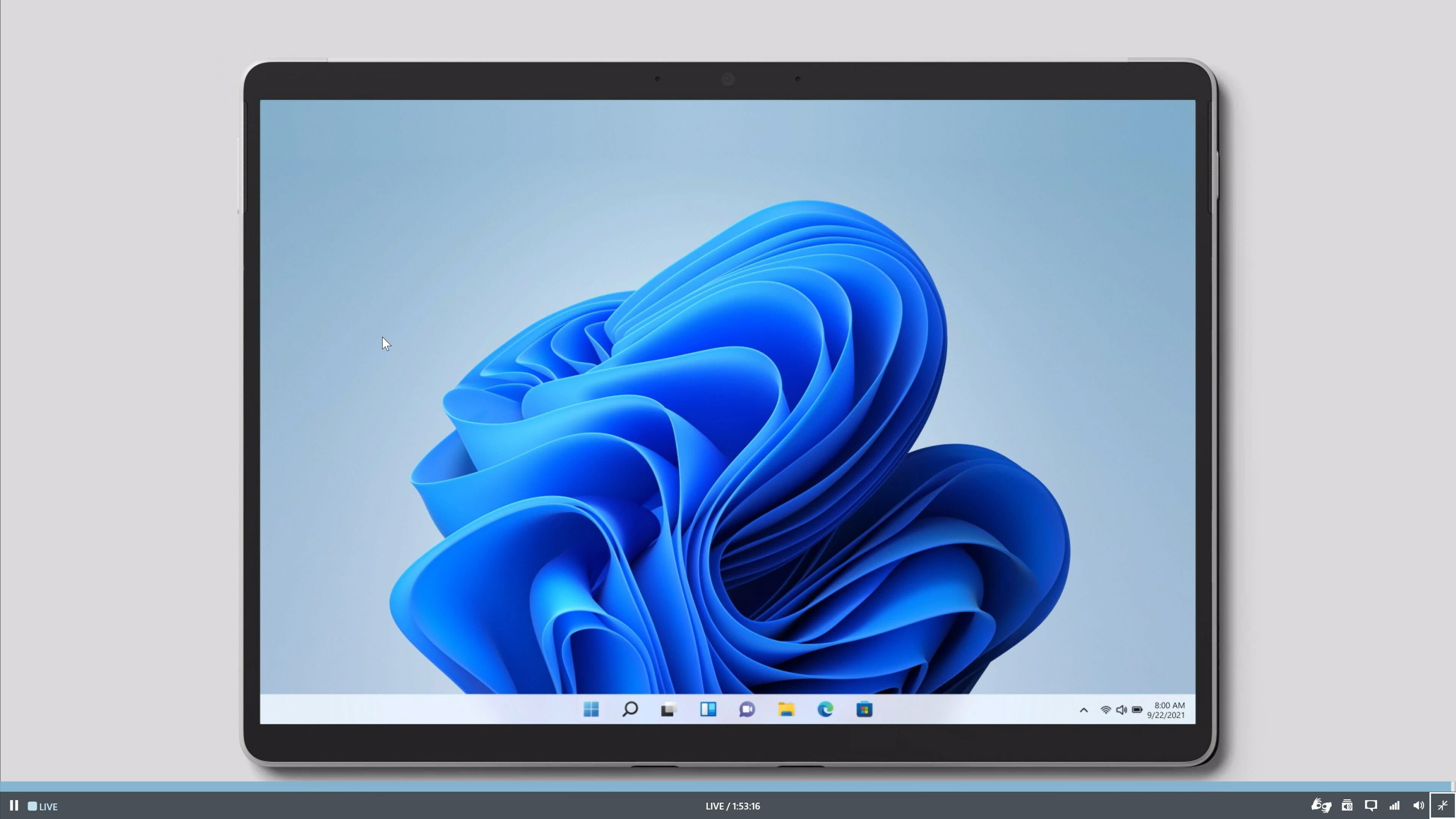
In the past, we were used to the Pro devices being the most powerful. Although the Redmond giant announced the new and improved Surface Pro 8 (thus confirming the leaks), it seems that a new device is ready to take its place as the new productivity champ.

Surface Pro 8

While it still packs a 13-inch PixelSense display with 120Hz refresh rate, 11th Gen Intel® Core™ processor, Windows 11, and up to 32GB1 RAM, the Pro 8 is no more the king of the bunch.

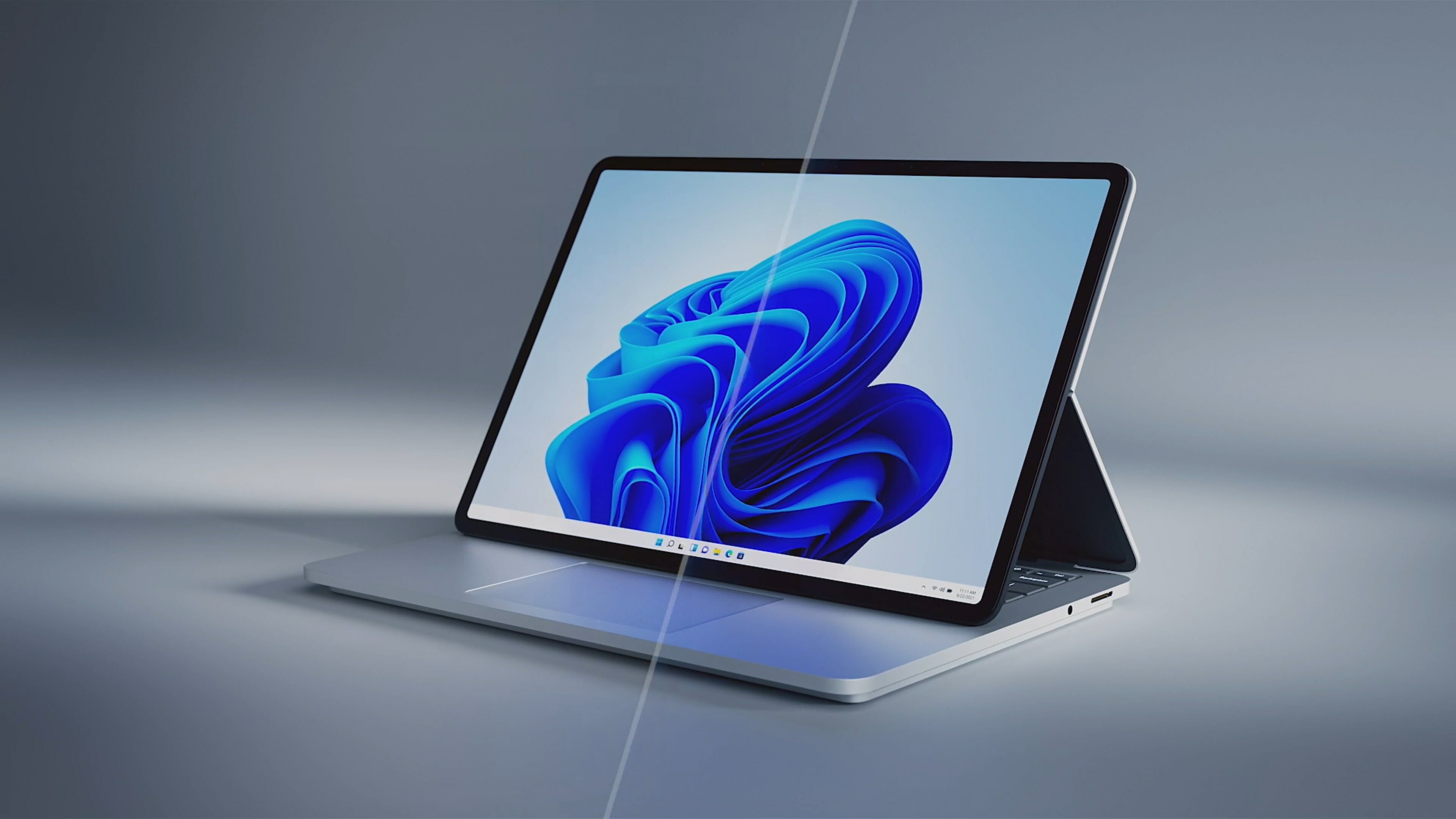
With the purpose of combining the power of their Studio lineup with the portability of a laptop, Microsoft announced one of the most interesting devices of this year, the Surface Laptop Studio.

Surface Laptop Studio

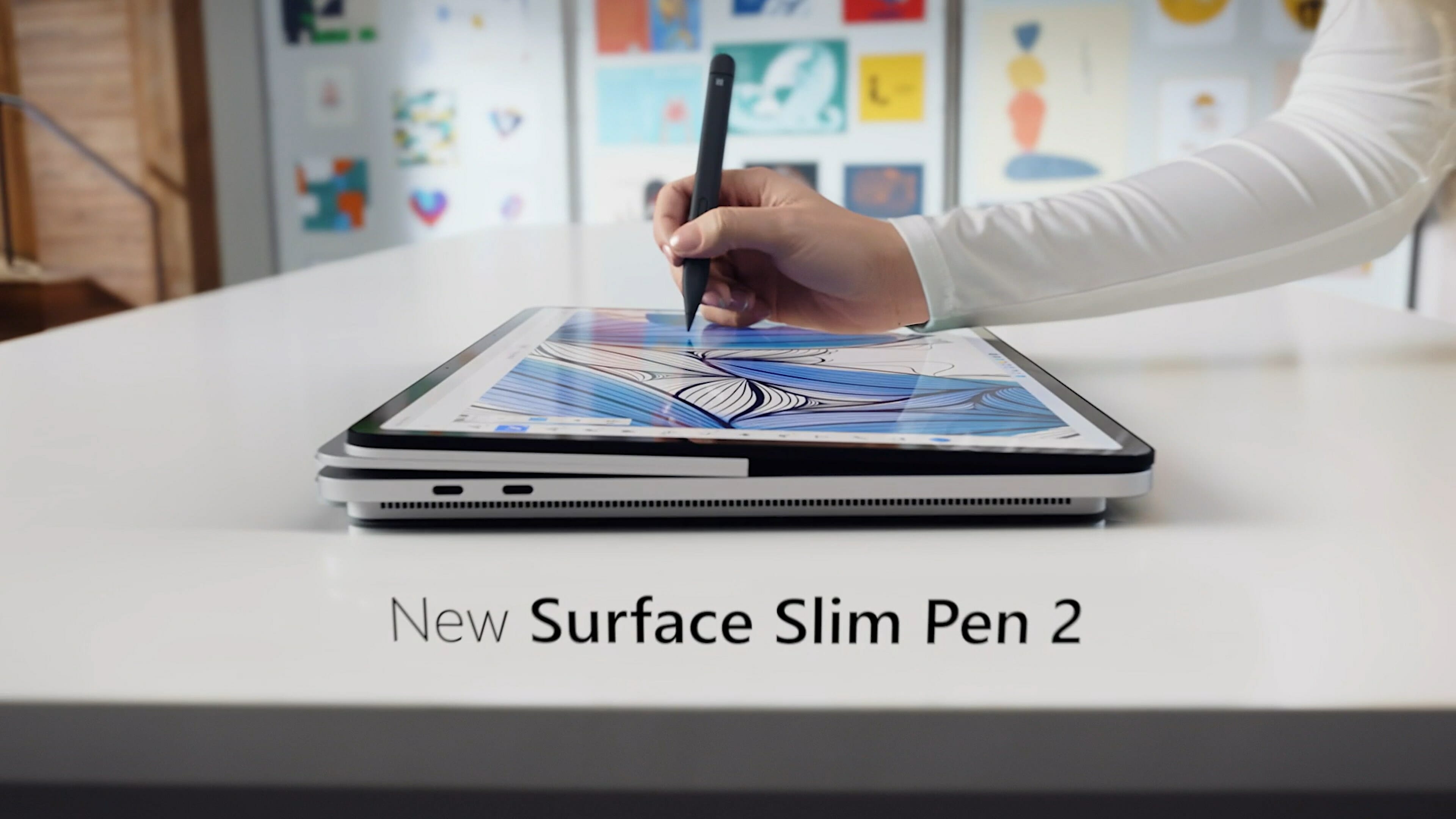
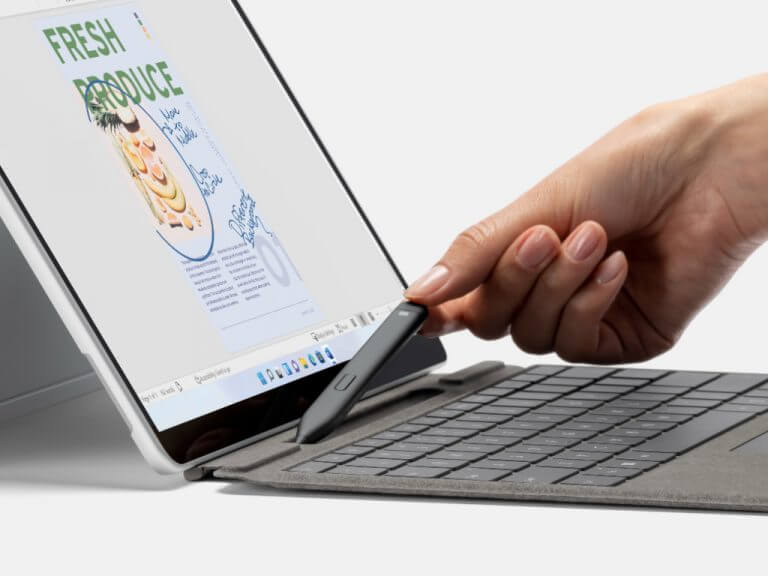
This is a brand new device with a 14.4-inch touch display and a 120Hz refresh rate build to mimic a 15-inch screen in a 13-inch chassis. It supports the new Surface Slim Pen 2 and it has the 11th Gen Intel® Core™ H Series processor, Windows 11, and up to 32GB RAM.

Other specs include Two USB 4.0 with Thunderbolt™ 4 ports, a dedicated charging port, integrated Surface Slim Pen 2* storage and charging, and fast, reliable Wi-Fi 6.

The Studio part comes into place when switching the display from the laptop mode into the studio mode or even into the tablet mode.

Surface Slim Pen 2 on the Surface Studio Laptop

Microsoft claims up to 19 hours of battery life based on typical Surface device usage, and if it can deliver at least 70%-80% of that, then this device will truly be a powerhouse.

You can preorder the new Surface lineup from the Microsoft official store right now.

What do you think of Microsoft’s latest devices? We’re very excited about the Surface Laptop Studio and the new Surface Slim Pen 2, but leave us your thoughts in the comments section below and we’ll continue the talk there.

Photo Mosaic Maker: Best With Free Download in 2026

A mosaic is an image created with smaller pieces of material, with photo mosaics formed exactly how you think: with a collection of small photographs merged together with software.

Although some image-editing applications include photo mosaic options, there are also photograph mosaic software for Windows, which enables you to set up mosaics with your own images or pictures included with the program.

Below is a list of is some of the best freeware and proprietary mosaic creation software for Windows.

What is the best photo mosaic maker software for PC?

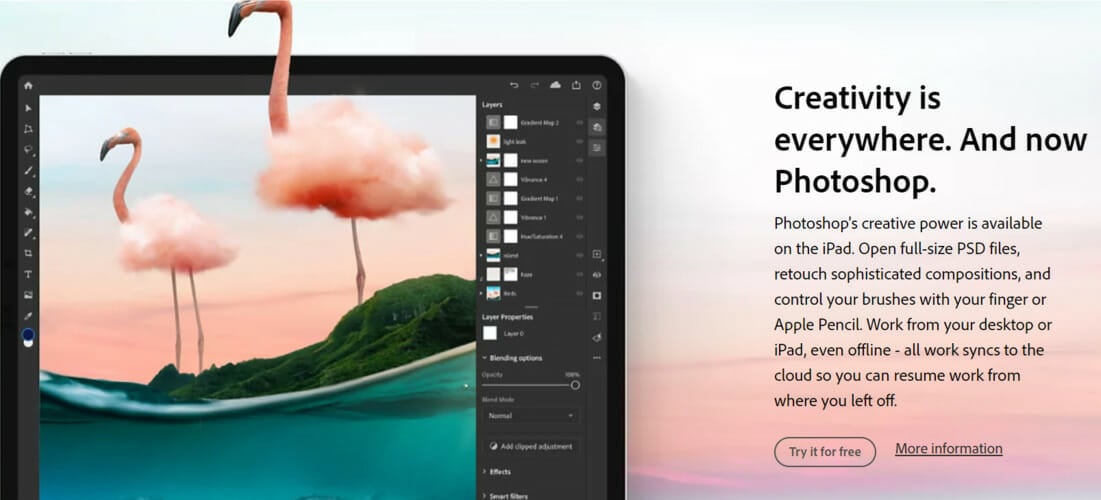
Adobe Photoshop

Adobe Photoshop is a feature-rich image and photo editing software that you can use to add any effects you want to your photos.

Speaking of image manipulation, if you want to add mosaic-like effects to your photos, Photoshop is without any shadow of a doubt the best software to get the job done.

You’ll definitely enjoy the wide library of modern intuitive presets with plenty of patterns, layers, and shapes to choose from.

The precise Object Selection tool will help you to edit your creations faster and precisely.

Creating a photo mosaic in Photoshop is easy even though you are not a professional graphic designer. All you need to do is make a grid of tile images.

Then you just go to the Image menu, access Adjustments, then click on the Desaturate command to desaturate the grid. Now, it’s time to superimpose your main image on the grid you just desaturated.

This will create a nice photo mosaic that you can then further edit, playing with opacity settings and other such options to get more vibrant and distinctive colors.

Adobe Photoshop

Adobe Photoshop

Enter into a world where you can take your imagination to incredible heights with this excellent software!
Free trial Visit website

Fotor Mosaic

Fotor Mosaic is the best way to create images in artistic mosaic formats for free. With this tool, you can become an abstract artist overnight, or just edit your photo in a special and surprising style

If you need an editing program specialized in mosaic arts, this software is designed for such needs. In other words, you can edit the images through pixelation effects to give the much desired mosaic look.

Broadly, this tool is a complete image editor and not only for mosaic editing. It also includes other features such as photo enhancement, crop, color splash, photo frames, AI effects, and more.

Another awesome capability is that you can edit the mosaic picture with other cool effects, and all that in your browser for free. 

Besides all that, you can use the mosaic format for artistic differentiated outcomes, also converting any picture with pixel effect into your modern art.  

Fotor Mosaic

Fotor Mosaic

Get Fotor Mosaic to enjoy countless effects, and create mosaic art even Picasso would approve. 
Free trialVisit website

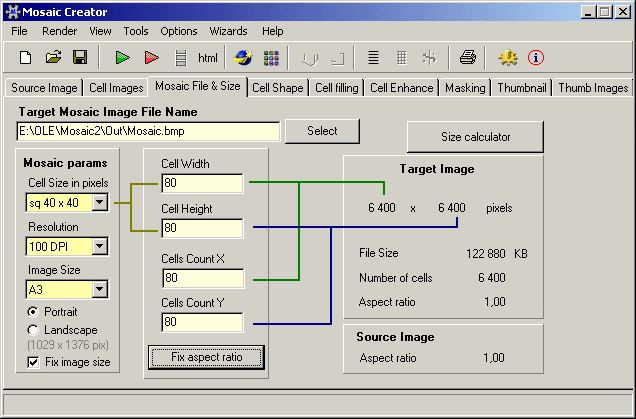
Mosaic Creator

Mosaic Creator is full of options and tools for generating mosaics. This proprietary software has no freeware version but does have a 30-day trial package.

The program has a $29 Lite and $99 Professional version that has no output file limit and includes a pattern editor with which you can create mosaic patterns.

This is software primarily used for setting up photographic mosaics with an unlimited number of image cells and, with the Professional version, an unlimited output file size.

Mosaic Creator has more photo mosaic options than most alternatives and also includes a wizard that enables you to set up image montages in a few steps.

However, you can also convert images to ceramic, quilt, glass or stone tile mosaics with the program.

In addition, the software enables you to set up video mosaics from frame sequences and text mosaics. You can show off your final mosaics in web galleries set up with the software’s thumbnail wizard.

Mosaic Creator

Mosaic Creator

Give your favorite photos a whole new wonderful meaning with this amazing tool!
Free TrialVisit website

Andrea Mosaic

AndreaMosaic is perhaps the best freeware mosaic creation software for Windows, macOS, and Linux.

This excellent tool is a photo mosaic maker free for download in Windows 10. There’s also a portable version you can run from USB sticks.

You can also choose also a Bonus Pack and a $35 Professional version of AndreaMosaic that has a larger 100 GB mosaic size along with a maximum tile and image count of 500,000.

AndreaMosaic has a clean and intuitive UI that includes a variety of options to configure output with.

For example, the software has nine size and tile parameter options with which you can adjust the mosaic’s resolution, tile size, pattern, image colors, and more besides.

The program also has tile variant settings you can rotate, mirror, and flip tiles with. This software even enables you to set up mosaics from videos by extracting image frames from the clips.

You can download an image collection pack from the AndreaMosaic site that includes 500 images to set up a mosaic with if you don’t have enough of your own photos.

⇒ Get Andrea Mosaic

Mosaikify

Mosaikify is mosaic creation software with freeware and proprietary versions. This is a photo mosaic software free to download in full version

Mosaikify Plus retails at €20 on the software’s website and generates large mosaics that can include up to 5,000 images, a greater choice of layouts, and more color gradient background options.

This software creates real photo mosaics without overlaying semi-transparent versions of original pictures.

As such, the image tiles in Mosaikify mosaics are clearer than those generated with alternative programs. The software includes a variety of dimension settings to set mosaics up with.

It includes configuration options with which users can adjust tile variation, shape, layout, and mosaic contrast. In addition, you also can select the colors and direction of the mosaic’s fade background.

⇒ Get Mosaikify

Mazaika

Mazaika is another heavyweight mosaic creator that companies use to design photo mosaics for posters.

This proprietary software retails for $49.95 and is compatible with Windows from Vista up, but you can run version 3.8 in earlier Windows operating systems, too.

Mazaika is also compatible with macOS and Linux.

What sets Mazaika apart from alternatives is users can manually adjust each tile within mosaics, enabling them to replace one image tile in the mosaic with another photo.

Furthermore, the program includes image-editing options to adjust tile’s colors, picture sharpness, contrast, and even resize them if required.

Mozaika supports a wide variety of image formats and enables users to set up mosaics with an unlimited number of photos, resolution, and output size.

Another good thing about the program is its batch processing option that generates multiple mosaics at once.

⇒ Get Mazaika

Mosaizer XV

Mosaizer XV is freeware mosaic creation software for non-commercial users compatible with Windows platforms from XP and on.

However, after its grace period, some of the software’s professional tools and options are locked. The full, unrestricted version is available at €19.

There’s also a Mosaizer Lite package, which the publisher claims to be the world’s fastest mosaic creation software.

Mosaizer has a straightforward UI design and includes numerous options to set up mosaics when organized with Pattern, Colors, Specials, Quality, and Mask tools.

With the Mask tool, users can configure the transparency, shape, and positions of mosaic tiles. Or you can select rectangular, spiral, hexagonal, or circular pattern options for the mosaics.

Users can also apply colorize and blending effects to mosaics.

Another good thing about the software is that includes its own images for you to set up photo mosaics with.

Furthermore, Mosaizer also has a video mosaic generator with which you can set up video mosaics based on the number of frames.

⇒ Get Mosaizer XV

Mosaic software is a great way to combine larger photograph collections, to set stunning photo mosaics in all manner of creative ways.

Mosaizer, Mazaika, Mosaic Creator, Mosaikify, and AndreaMosaic are some of the best programs for Windows 10 and we sure hope you’ll have fun using them.

We’d like to hear more from you on this matter so please feel free to drop us a comment in the section below.

5+ best email clients to send out great newsletters

In the past, if you wanted to share information with a group of people, or start an ad campaign, you would have to do it the old school way.

You could buy some ad space in a newspaper, or print and giving away flyers. Fortunately, today we have other options available.

Whether you want to let your friends and family know how things are lately, or if you own a company and need to send bulk emails with promotions, having a reliable email client installed on your PC is a must.

There are two ways of creating an efficient email campaign for your products. You could use an email client software to create a template, and then manually add every email address from your address book into the BCC field, or, a more efficient way would be to use specialized email marketing software.

In the case of using the BCC field to add recipients manually, some applications are limited to a specific number, for example in Gmail, you can only add up to 100 recipients.

Using the second option – specialized software– allows you not to worry about any recipient limits at all, and the advantage is that you can easily create great-looking emails and share them with thousands of people in one click.

In this article, we will explore some of the best email client software options that can send marketing emails through both of the ways presented above.

Which is the best email software to create amazing newsletters?

Sendinblue

The Sendinblue email client can help you launch your first email newsletter, whether you’re building your first email list or delivering personalized emails to a particular range of client bases.

Its automated workflow builder enables you to create campaigns that are triggered by clicks, opens, and even page views.

The Sendinblue platform provides basic dynamic customization for email content and subject lines, as well as attribute criteria for sophisticated personalization.

When you join up for a free Sendinblue account, you receive full access to 60+ well-designed and completely responsive email templates.

If you want greater control, you could also use the WYSIWYG HTML Email Editor to directly code your email. 

Before sending, you may preview the email using your smartphone or email client, as well as examine the HTML code or plain text email.

If you’re a starter, look for simple drag-and-drop editors that eliminate the need for you to code your emails. SendinBlue is an excellent option in this regard.

The premium subscription included multi-user access, chat options, marketing automation, landing pages, Facebook advertisements, and all of the plan’s main features. The business package offers customization based on your needs.

All in one, the Sendinblue platform is a top email marketing platform with online support and assistance.

A partnership marketing solution with smart and intuitive features that allows you to create call-to-action email newsletters.
Free trialVisit website

GetResponse

GetResponse was originally a simplistic email marketing tool. 

On this day. The platform sits on top of email marketing platforms, allowing you to establish landing sites, webinars, and handle all of your marketing automation needs.

The email automation process is essential because it allows you to graphically plan each phase of your campaign. 

They also provide ready-made templates for funnels and email marketing, as well as an app called Social Advertisements Creator that assists you in creating content for social media ads.

The email builder in GetResponse is simple to use and allows users to create emails that are already optimized for different devices, ensuring that campaigns reach as many people as possible. 

Thanks to clever automation, leads may be turned into purchasing customers, and seminars are also offered so that email marketing newcomers can be armed with ideas and tools for efficient campaign presentation.

Consider GetResponse for complete, low-cost solutions that boost performance, enhance conversions, and, ultimately, generate more sales.

GetResponse

GetResponse

Choose GetResponse for comprehensive, low-cost solutions that boost performance, enhance conversions, and ultimately, drive more sales.
Free trialVisit website

MailChimp

MailChimp - email for newsletters

MailChimp started out as an attempt to make email sending a bit less dull than it has to be. And it managed to do that.

But in time, this software evolved into an incredibly powerful suite of tools that cover all aspects of email newsletter creation and automated marketing capabilities.

In order to start using MailChimp, you just need to download it, make an account, and then import your contacts lists from any email provider you use.

After the import is done, you can choose from a wide range of email templates designed specifically to fit email marketing campaigns.

You also have the freedom to edit them in any way you want, drag and drop images inside, change fonts and tables, etc.

Before sending the emails out, you can also use the Inbox Preview option, which allows you to see an example of how your email will look in different email apps.

This way you can make sure that every customer will get a professional-looking email that represents your company fully.

If you don’t already have a customer base, and you would like to get one, MailChimp offers you a great-looking landing page that helps you build a great-looking website to host your newsletter, or just create and share an online form that people can use to sign up.

The automation tools found in MailChimp also allow you to automate the sending of a lot of types of emails – welcome messages, shopping cart reminders, birthday emails, etc.

You can also schedule the bulk sending of emails, adapted to the time-zone of your clients.

One of the most useful features found in MailChimp is the ability to generate detailed reports for each of your campaigns.

This way you can easily understand what strategy worked best, and how to adapt so you get even better results.

MailChimp versions

The Free version of MailChimp allows you to get your business started, offering you a great array of tools that cover the basic needs of every email marketing campaign:

  • Supports up to 2000 subscribers
  • Can send up to 12.000 emails per month
  • Supports multi-user accounts
  • Can create email campaigns and landing pages
  • Marketing automation options
  • Can recommend products based on your experience
  • Automation options based on the data you collected
  • Can create basic reports

The paid versions of MailChimp contain all the features found in the Free edition and adds a wide range of other useful features. For both the Grow and Pro version, you get unlimited subscribers and an unlimited number of emails per month.

For a more professional look, you can also remove the MailChimp footer, which allows you access to premium support, and also unlocks the ability to send emails by Time Zone, advanced segmentation, and comparative reports.

If you want to see a full list of all the features found in MailChimp for each version, you can visit the official pricing page.

⇒ Get MailChimp

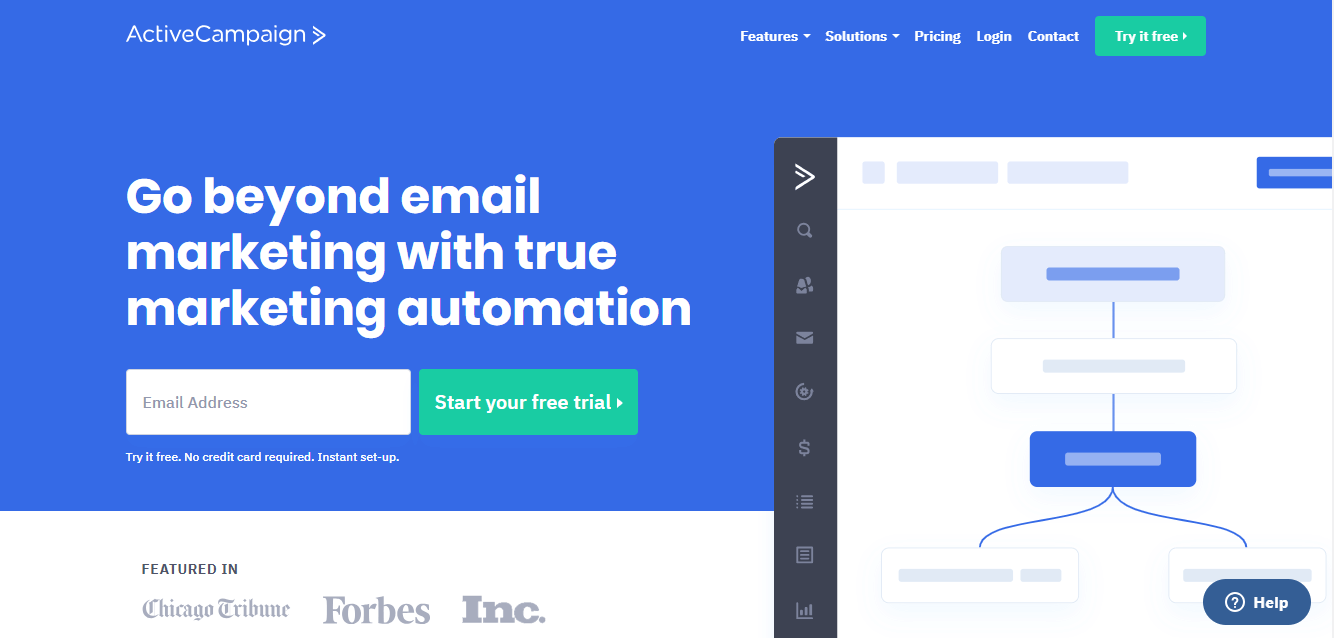
ActiveCampaign

ActiveCampaign - email clients for sending newsletters

ActiveCampaign is a very powerful email newsletter app and also has built-in CRM (Customer Relationship Management) features as well.

The wide range of features contained in this software covers all your email marketing needs, helps you gather information from your customers to market to them more efficiently, and also gives you incredible customization options.

There are a wide range of features found in this software. Besides the email marketing tools, you can also send instant messages – so you can reach your audience no matter where you find them online, and use sales CRM with automation – allows you to automate the lead prioritization process.

We will now focus on the most important aspects of this software, in this case, being the ability to cover all your email marketing needs, without having to use any third-party software.

Here is a more detailed overview of the email marketing features found in ActiveCampaign:

1. Email Marketing

  • Email Segmentation – personalize the way you interact with your clients through email by changing the way the email looks, and its content. This increases the engagement of your leads or clients.
  • Subscription Forms – as soon as the possible client subscribes, you can collect information from their profile and follow up on that information instantly
  • Dynamic Content – you can modify the text, images in an email to fit perfectly with the group of people you’re trying to reach
  • Split Testing – allows you to gather information regarding your contact’s engagement with your emails, clicked links, etc.

2. Marketing Automation

  • Site Tracking – this feature gives you valuable information relating to what products or services your contacts are interested in. This, of course, gives you the power to adapt your newsletters to the gathered information, and to convert more customers to leads
  • Event Tracking – gathers information about what your customers are doing in your application, or on your website
  • Automation Goals – set automated responses based on what actions your customer takes
  • Automation Map – allows you to see the efficacy of your automation process in all departments
  • Attribution – gives you important information relating to what is the most important changes you need to apply for better results – SEO, PPC, Facebook Ads, etc.
  • Split Action – this feature allows you to adapt your already created automation lists to suit other customers, without needing to start from scratch every time.

ActiveCampaign versions

The Lite version of ActiveCampaign gives you access to a fully-featured email editor that allows you to create incredible-looking newsletters. This software is built around the idea that it is far more efficient to adapt your newsletters to your contacts list, and not the other way around.

This helps you create meaningful marketing campaigns that are personalized to the preferences of your clients.

ActiveCampaign Lite also comes with marketing automation features, to allow you to save time and be more efficient.

The paid versions of ActiveCampaign contain all the features found in the Lite version and also add the CRM module, sales automation, and the ability to get scores from your contacts and leads.

If you want to see specifically what features are included in every version of this software, you can simply visit the official ActiveCampaign version webpage.

⇒ Get ActiveCampaign

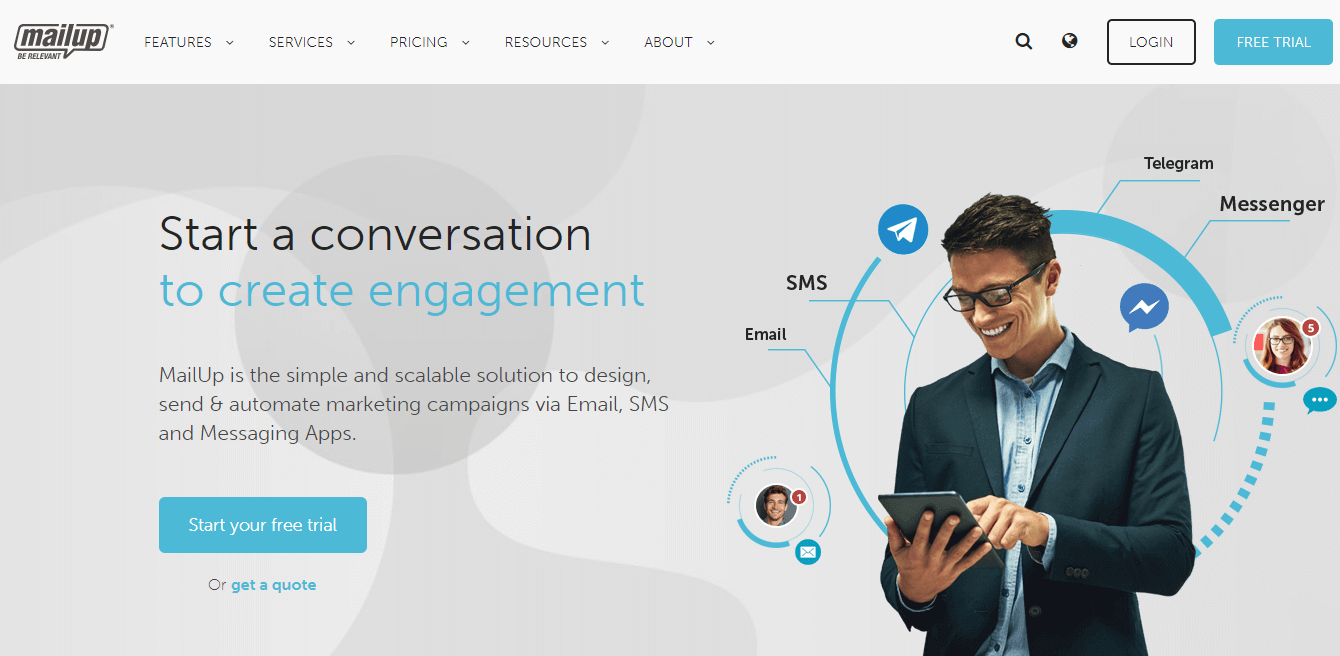
MailUp

MailUp - email newsletters

MailUp is a more lightweight alternative to the email marketing software options we presented above, but still has an incredible array of useful features.

You can use this software to send newsletters, automated messages conditioned by custom elements, and even create blog digests.

To be sure that a marketing campaign is efficient, it has to cover other areas of engagement other than email.

That’s why, with MailUp you can also send receipts, and SMS messages, and social network updates, all from one simple and easily understandable user interface.

Even though there are quite a few options available for marketing your products online by using MailUp, the most important is still the email marketing options.

One of the best features found in MailUp is the fact that you can customize the way your emails look to the finest detail by using the drag-and-drop editor.

MailUp versions

MailUp Web Edition offers you an unlimited number of subscribers, allows you to create 1 list, can create 3 email and SMS triggers, and allows you to connect 3 social accounts.

This version also contains predesigned email templates, a drag and drop editor, and unlimited data storage.

The paid versions of this app, contain all the features found in the Web edition, with other great additions. Here are some of them:

MailUp Pro

  • Can create 10 ore more lists
  • Up to 100 email and SMS triggers
  • Can generate up to 12 advanced reports
  • SMTP+
  • Custom domain and full white-labeling
  • Priority support

MailUp Enterprise

  • Can create an unlimited number of lists
  • Unlimited number of triggers
  • Unlimited number of social accounts connected
  • Can generate up to 24 advanced reports
  • Offers great attachments support
  • Data restoring capabilities

If you want to see a full list of all the features compared to the version of MailUp they are found in, you can visit the official pricing page.

⇒ Get MailUp

Omnisend

Sales numbers are based on several factors, among which we can mention the quality of your products and services, and just how visible you are to the general public.

If you already have your product on point and would like to improve the latter, then you could definitely make use of an easy-to-use platform for e-commerce email marketing, SMS, and automation like Omnisend.

Omnisend is a bit of a different entry on our list since it is the most newsletter-focused service among the entries, but it isn’t exactly an email client per-se either.

The core aspect of this tool is that it includes automation upon automation that heavily focuses on cart abandonment, welcome series, transactional emails, and more.

However, the reason why Omnisend made it to this list is that it has tools that let you better target your potential buyers based on shopping behavior, and this in turn translates into better-personalized newsletters.

Lastly, Omnisend allows you to pre pretty much on all communications channels thanks to its ability to include SMS messages along with your emails, so you can get to your audience even when they’re offline.

The program is available in multiple pricing plans, among which we’d also like to mention the free one that gives you support for up to 15.000 monthly emails via email campaigns, sign-up forms, boxes, pop-ups, and reports.

⇒ Get Omnisend

In this article, we explored some of the best email clients that allow you to create beautiful-looking email marketing campaigns.

No matter if you want to use your normal email account to send bulk emails, or you feel that you need specific professional-level tools, this article covers your needs.

In the first part of the article, we explored mail clients that can send bulk messages easily but do not have any other marketing tools. In the second part of this article, we explored some of the more capable email clients with specific marketing campaign features.

We would love to know what option you chose and how did it work out for your email campaigns. Please feel free to let us know in the comment section below.

11 Best Automated FTP & SFTP Software [Free/Paid]

FTP and SFTP have made file transfer considerably easier than ever before. The two transfer protocols are the standard Internet file transfer media today.

And recently, a set of automated software was developed to enhance further file transfer, and network security and ultimately automate the entire process.

What is FTP?

FTP is an acronym for File Transfer Protocol, which is the basic protocol that is used for transferring files on the internet, between remote servers/computers. This protocol allows users to protect their connections with unique user IDs and passwords. And they can also access files, directly from the internet in anonymous mode.

There are different types of FTP, including FTP servers, FTP sites, FTP email, FTP explorers, and more importantly, FTP software/client/application. Each type of FTP facilitates file transfer, retrieval, and uploads in its own unique way.

Can FTP be automated?

FTP applications are computer software that can access FTP servers and upload, retrieve and/or transfer files with unparalleled convenience. Interestingly, some of this software is automated; having the capability to execute transfer between remote computers via the internet automatically.

In this guide, we will be looking at some of the best automated FTP services, as well as top automated SFTP tools.

What are the best automated FTP tools?

Wing FTP Server – Complete FTP and SFTP solution

Wing FTP server made it to the top of our list because it is a very complete software and it comes with a great free trial policy. After your trial is done you can still use the software for non-comercial use.

Not only that, but this software is packed with utility, you can handle almost anything with it FTP, FTPS, SFTP, and HTTP/S web-based client.

Wing FTP server also comes with iOS and Android apps, meaning you can remotely manage file transfers.

This software also comes with an excellent event manager and automation tool that can run LAU scripts, send email notifications, and run 3rd party programs.

When it comes to security Wing FTP server also shines. It comes with password policies, IP-based Access, two-factor authentication, anti-hammering, and HTTP to HTTPS redirect.

All this can be administrated with just a web browser and it offers support for 15 languages.

Check some more key features of Wing FTP server:

  • IPv6 Support
  • SFV Checker
  • Cross-Platform
  • Database & LDAP
  • Audit & Report
  • Lua API
  • High Availability Cluster

Wing FTP Server

Easily manage FTP and SFTP transfers, even remotely, with this amazing software.
Free Trial Visit Website

FlashFXP – Great for automated transfers

FlashFXP is a renowned automated SFTP software for Windows computers. It is equipped with adequate security and system-optimizing features, which are needed to secure and automate all file uploads, downloads, and transfers. Supported Windows versions ranging from Windows 8.1 up to Windows XP SP3.

In addition, FlashFXP hosts a set of industry-class automation features that facilitate the seamless transfer/sharing of files between secure remote servers or Windows computers. Also, the software is fairly easy to use, as transferring files is as simple as “dragging a file from one location (computer) and dropping it in another location”.

FlashFXP offers a 30-day free trial to its users, to afford them the opportunity of testing the suitability and durability of the software before committing funds to purchase a license. By the way, FlashFXP offers two major licenses – Personal and Commercial or Business licenses.

This program offers advanced features to help you easily transfer files on other ends without obstacles. Hence you can transfer any information you need to your co-workers using this strong FTP tool.

Some of the main security, automation, and connectivity features of FlashFXP include:

  • Automatic transfer resume
  • Automatic upload
  • Proxy server (SOCKS 4 & 5/HTTP)
  • Bi-modal transfer (active & passive)
  • Remote file editing
  • SSH File Transfer Protocol (SFTP)
  • Automatic ASCII selection, site-to-site transfer, and recursive file permission
  • Speed limiting (adjustable), file highlighting, folder caching, file management, and more.

FlashFXP

Need the best-suited automated tool for your file sharing? Get FlashFXP for free and experience highly secure transfers.
Check price Visit Website

SmartFTP – Provides adequate security/encryption

smartftp automated ftp software

SmartFTP is another top-rated automated FTP software specially designed to facilitate file transfer between Windows computers via the Internet. The software supports various Windows versions, ranging from Windows XP to Windows 10.

Besides, SmartFTP is primarily built to provide adequate security/encryption, to ensure files are not tampered with, in any way, during transfer. Also, the software hosts a set of “enhancement” features, which ensure that files are transferred without any form of hassle. This is achieved, basically, by automating certain aspects of the transfer process.

SmartFTP offers different versions for download (Version 5/8/9), depending on your Windows version. Hence the available versions of this tool can run on Windows 11, 10, or older versions like Windows 8, 7.

Hence this program offers useful features plus great support regarding FTP service for users who need to perform such tasks in everyday life.

Some of the key features of SmartFTP include:

  • Proxy Servers and firewall (HTTP, SOCK S5, etc.)
  • Remote editing, file synchronization, and Backup
  • Transfer queue/scheduling
  • Universal Plug & Play support
  • NAT firewall, custom commands, URL watcher, and advanced GUI
  • Industry-standard compliance (FIPS 140-2, 186-4, and HIPAA 5010)
  • Integrations with Google Drive, One Drive, and many more.

⇒ Get SmartFTP

WS_FTP – Streamlined connectivity

wsftp automated ftp software

WS_FTP is one of the leading FTP client software in the market, with over 40 million users across the globe. This automated FTP software is primarily designed to provide adequate security to FTP-initiated transfers.

However, its functionality extends beyond this, as it can also streamline connectivity and automate transfer.

The software is fairly easy to use, with respect to its highly intuitive interface and customizable display. Also, it hosts the best obtainable encryption/authentication protocol in the industry, which offers formidable protection against any form of hacks or file loss during transfer.

WS_FTP automated SFTP software offers a one-month free trial to new users. After the one-month trial period, users can subscribe to one of the paid plans on offer.

Therefore such practical software is also utilized by IT teams for transferring files and assuring that critical data remains encrypted for better security.

Basic features of WS_FTP include:

  • AES 256-bit encryption protocol
  • Google Integrations
  • OpenPGP file encryption, and FIPS 140-2 cryptography
  • File backup, synchronization, and compression
  • Transfer scheduling
  • GDPR Compliance
  • Multiple licensing
  • Proxy server

WS_FTP

Try WS_FTP software to control your SFTP file transfers, while providing advanced encryption and powerful admin options.
Check price Visit Website

FileZilla – Best free app

filezilla automated ftp software

FileZilla, in terms of affordability, is the best free automated FTP software in the market. It is a versatile FTP solution that can be employed to optimize file transfer across different computers (Windows, Mac, and others).

Besides, FileZilla hosts a dedicated open-source server, known as “FileZilla Server”, from where files can be downloaded easily. Also, it is flexibly built to integrate seamlessly with popular cloud storage services like Dropbox, MS OneDrive, Google Cloud, Google Drive, and more.

Lastly, FileZilla is an open-source free automated FTP software; hence, its license is offered free of charge, under GNU General Public License (GPL).

Other worth mentioning aspects involves an intuitive and easy UI or support for multiple devices like Windows, Linux, and Mac.

Notable security and automation features of FileZilla include:

  • User-friendly GUI and multilingual support
  • Cross-platform compatibility
  • Synched directory
  • Remote file editing & searching
  • File filters, and adjustable speed limits
  • SSL/TLS support, auto-resume, proxy support, site manager, transfer queue, and more.

⇒ Get FileZilla

CompleteFTP – Highly customizable

completeftp automated ftp software

CompleteFTP is a durable FTP client software for Windows, which offers free services to its users. It hosts one of the most intuitive platforms, obtainable in the industry. Hence, file sharing, uploads, and download operations require only basic tech skills to execute effectively.

This automated FTP software is packed with different sets of powerful protocol/security, integration, administration, and automation features, which make the software a truly “complete” FTP solution.

CompleteFTP is proprietary licensed software with four major editions – Free, Standard, Professional, and Enterprise. While the Free edition offers free licenses, other editions require paid user licenses.

Therefore you should use this program to provide effective file transfer between computers. Also, you can try it for 30 days before making your final decision.

Some of the key features of CompleteFTP include:

  • Unlimited automatic users
  • File permission
  • Virtual file system
  • Multi-protocol gateway
  • Custom commands
  • Industry-class cryptography
  • Auto-banning, activity audit, SSL generator, performance charts, remote admin, Zip file compression, process triggers, and more.

⇒ Get CompleteFTP

Sysax – Inbuilt automation wizard

sysax automated ftp software

Sysax is a specially designed automated FTP software that comes with an inbuilt automation wizard, which facilitates seamless transfer/sharing of files between remote computers. It supports a wide range of transfer protocols, including FTP, SFTP, SSL/TLS, and more.

This program guarantees faster file transfer services and simplifies the tiring process of manually transferring data.

Plus, this software is available for Windows Vista after testing the reliability and security of this operating system. It also allows choosing from the Windows servers 2008 and 2012.

Thus, many satisfied users recommended this software as a secure FTP service with great maintenance support over time.

Some of the key features of Sysax’s automated FTP software include:

  • Status monitoring
  • Task (transfer) scheduler
  • FTP scripting (automation wizard)
  • Comprehensive logs
  • Email notifications
  • File compressor, SSL certificate, admin support, and more.

⇒ Get Sysax automated FTP software

What is SFTP?

SFTP stands for SSH File Transfer Protocol or more explicitly, Secure File Transfer Protocol. It is like an advanced version of FTP, which provides adequate security, by default, during file transfer. SFTP operates in a similar manner to FTP, with the only difference being that – SFTP works on a secure connection.

Unlike FTP, which is relatively insecure, SFTP uses SSH authentication to secure every connection, thereby giving little room for hacks. Hence, it is the preferred choice of most internet/computer users, for transferring files remotely.

Like FTP, SFTP also has designated computer applications, which facilitate file transfer on a secure network. Many of these applications are automated, enabling you to transfer files across remote IPs seamlessly.

Let us review some of the best automated SFTP software in the market.

What are the best automated SFTP software tools?

Auto FTP Manager – Complete tools for automation

With Auto FTP Manager it’s pretty easy to schedule and automate your file transfers. You can move files between any combination of FTP servers, and folders on your PC, Android mobile devices, and more. 

It comes with a simple wizard that helps you create Action Rules to define what files and folders are to be transferred. 

Automated Transfer Profiles can upload or download single files, entire folders, or synchronize two directories. 

And there is also advanced filtering of the files based on the file type, name, size, or modification date.

If something happened during the transfer, you could generate a transfer report when the transfer is completed to see which files were skipped, failed, or were subject to a conflict resolution.

Here are some of its key features:

  • Easily backup or synchronize your sites through fully automated transfers
  • Move the files between PC to FTP server, PC to PC, FTP server to FTP server, and more
  • Automatically detect ASCII or Binary transfer mode
  • Automatically transfer files based on their name, modification date, size, or file type
  • Detect the time zone on the FTP server to preserve the modification date of the transferred file

⇒ Get Auto FTP Manager

Core FTP – Top security features

coreftp automated sftp software

Core FTP is one of the most used automated SFTP software for Windows. It offers some of the best obtainable security and automation features in the industry. These features ensure that files are securely shared/transferred (via the internet) between remote computers.

Like most SFTP solutions, Core FTP supports all major transfer protocols, including SFTP, FTP, SSL/TLS, and more. Its powerful set of encryption/security features ensures that the integrity of every file (in transit) is not compromised, in any way.

Core FTP is available in two licensed editions: Free and Core FTP Pro. The free “LE” edition is offered for free, while the Pro edition is available by quote (custom pricing).

Thus, it provides reliable and trustful support to transfer files through FTP servers, also helping to update and maintain your website via FTP.

Basic features of Core FTP include:

  • Transfer scheduling
  • Zip support (file compression) and on-the-fly compression (MoDE-Z)
  • Auto S/Key support
  • Secure SFTP,
  • Transfer start/stop/resume and Auto retry (of failed file transfer)
  • Proxy servers, remote searching, and editing
  • File permission, HIPAA compliance, and more

⇒ Get Core FTP

WinSCP – Best open-source tool

winscp automated sftp software

WinSCP is an open-source SFTP client software from Microsoft. And it is specifically designed for Microsoft’s Windows computers. Essentially, WinSCP is the ultimate tool for securely transferring files on Windows computers (via IP paths).

WinSCP is one of the computer programs under GNU General Public License terms; hence, it offers free services/licenses to its users.

It’s worth mentioning the software has a new version with new enhancements like improved SFTP support for VMS servers, stream interface in .NET assembly, or compatibility with Google Cloud Storage.

Therefore you can benefit from comprehensive features using this resourceful tool, capable of efficient file management. Also, the graphical UI provides simple transfer management to use.

This automated SFTP software incorporates the following key features:

  • Task automation & scripting
  • Remote commands
  • Admin restrictions
  • XML logging, timestamps, file encryption
  • Intuitive GUI, text editor (integrated, background transfer
  • Amazon S3 protocol, transfer resume, file encryption, transfer queue, file masking, master password, caching, and more

⇒ Get WinSCP

JaSFTP – Easy file transfer capabilities

jasftp automated sftp software

JaSFTP is the designated SFTP software for Windows computers. It is built to ease the file transfer process, as it has the capacity to run thousands of file transfers. Hence, Windows users can easily run transfer, schedule backup, and/or synchronize folders with unparalleled convenience.

In addition, JaSFTP hosts a versatile set of features; on one hand, secures files during transfer, and on the other, automate the entire file-sharing/upload/download process. With this, you can securely move files about (across several computers) in hands-free mode, while running other operations.

Moreover, the facile user interface supports transfer actions, aiming to create tasks that can be scheduled and performed automatically.

Hence, it can automate file rename by scheduling SFTP processes between the PC and servers based on day or month if needed.

Coming to an end, among all the practical features, this software delivers automated support to anything related to managing file transfer operations.

⇒ Get JaSFTP

File Transfer Protocol (FTP) and Secure/SSH File Transfer Protocol (SFTP) constitute the standard methods of remotely transferring files across servers via the Internet.

With the recent development of special automation tools, both transfer protocols have been greatly enhanced, with file transfers now fully (or, in some cases, partially) automated.

In this article, we have listed five of the best automated FTP software, as well as an equal number of automated SFTP software. So, if you are looking for durable FTP/SFTP client software, the above-outlined tools are the best you can get.

Virtual Desktop Manager Software: 9 Best to Use in 2026

Virtual desktop software enables users to open programs on multiple desktops. Instead of opening and squeezing all your applications in the taskbar, you can create virtual desktops and place them there instead. As a result, you can organize your desktop better by eliminating clutter.

Microsoft integrated virtual desktop functionality into Windows 10. To access it, press the Task View button on the taskbar. You might think that Windows 10 users don’t really need extra third-party virtual desktop software.

However, the built-in Task View is fairly basic and has limited options. For example, you can’t add individual wallpapers to virtual desktops or customize their hotkeys. In this case, you can turn to third-party solutions.

Which is the best virtual desktop software for PC?

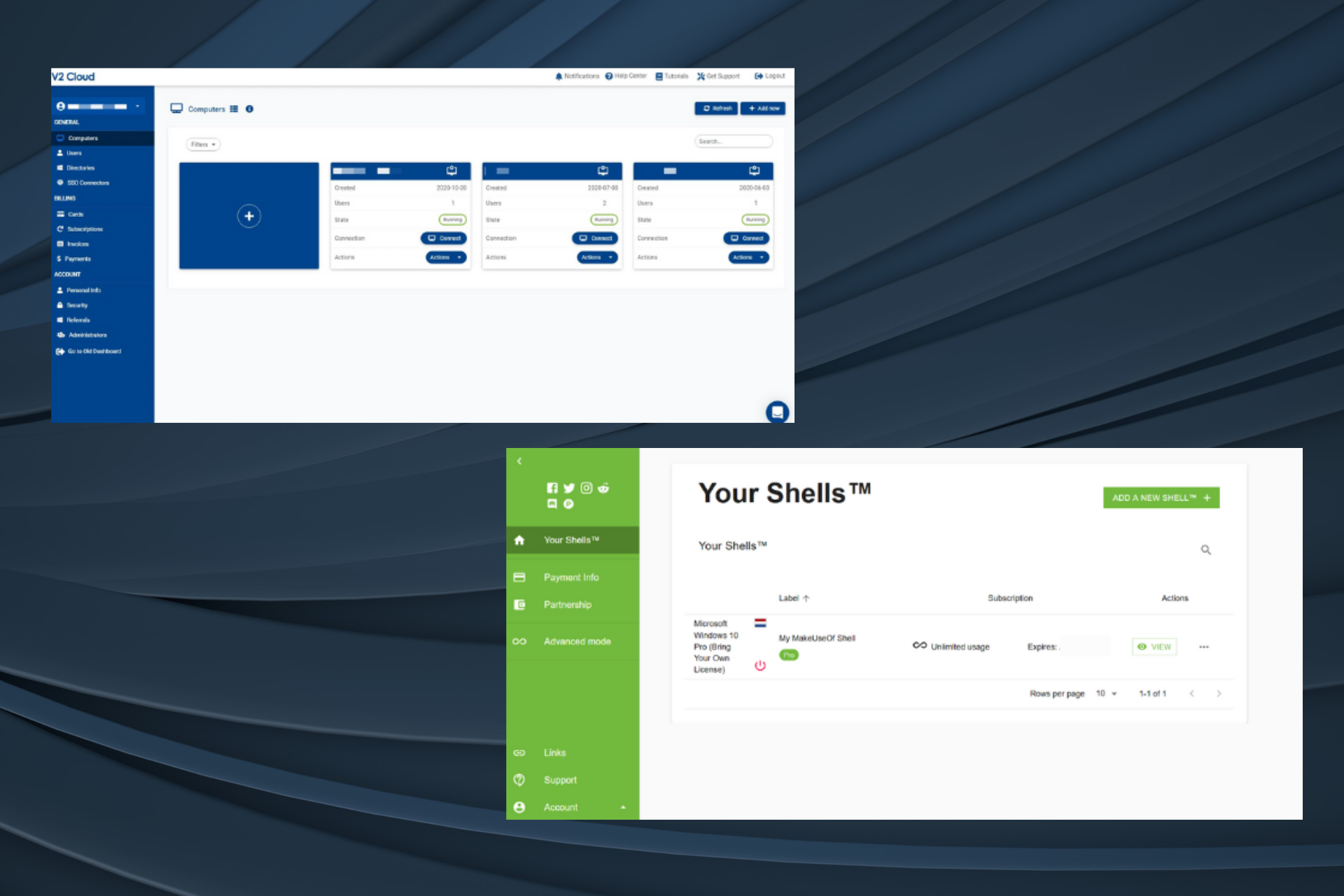
V2 Cloud – Best for business

V2 Cloud is a handy solution regarding web virtual desktops for your PC. This particular software is tailor-made for your needs to manage your work efficiently. 

The software addresses especially the business sphere, offering users superior management services through VDI (virtual desktop infrastructure). 

If you own a business and need support to streamline your workflow, you can do this through a virtual desktop interface that offers stability and cloud-based Windows options. For instance, high-security and multi-user virtual desktops will surely offer effective results for your business needs.

Thanks to this software, you can improve many aspects of your business. For example, your employees can work safely remotely, old computers do not need expensive repairs to access the desktop, and your work is protected in case of a natural disaster 

This service also provides increased security, productivity, and reduced IT costs specific to businesses. Moreover, your data is completely protected by data centers and 24/7 support.

To conclude here, this solution perfectly covers management and multi-functional tasks. Whether you are an entrepreneur, IT manager, or an employee, V2 Cloud is a productive software for independent and cloud-related activities. 

V2 Cloud

Choose V2 Cloud for an integrated virtual desktop solution for your business needs. 
Check price Visit Website

Parallels RAS – Best for working remotely

Parallels RAS (Remote Application Server) is a smart solution to work from home that provides access to desktops and applications from any device.

This software lets you create and manage your desktop, applications, and whole workspace in the cloud. Centralize, personalize, and use all the necessary apps to make working from home efficient.

Virtual desktops allow you to work from anywhere in the world. Easily access your most important applications locally or from a web client.

Enhance security with multi-factor authentication, centralized file storage, and granular policies. Parallels also uses leading encryption protocols to help organizations meet data compliance policies such as PCI DSS, HIPAA, and GDPR.

Additionally, Parallels allows you to monitor daily user activity from your network infrastructure. Get a great overview by turning the raw data into custom visual reports that display traffic and resource utilization.

Parallels is ready to use right out of the box. It’s easy to deploy and maintain, designed to reduce IT workload, eliminate a lot of configuration wizards, and comes with great tools to easily deliver desktops, apps, and data to any device.

This software is an all-in-one remote work solution. Intuitive, easy to use right out of the box, no complicated steps required. Parallels saves your IT department time and reduces overhead costs.

Parallels also offer great integrations with Microsoft Azure, AVD, and AWS to give users easy access to all the tools they use.

Parallels RAS

Simple and secure hybrid work solution which provides access to any apps or desktops from all devices.,
Free Trial Visit Website

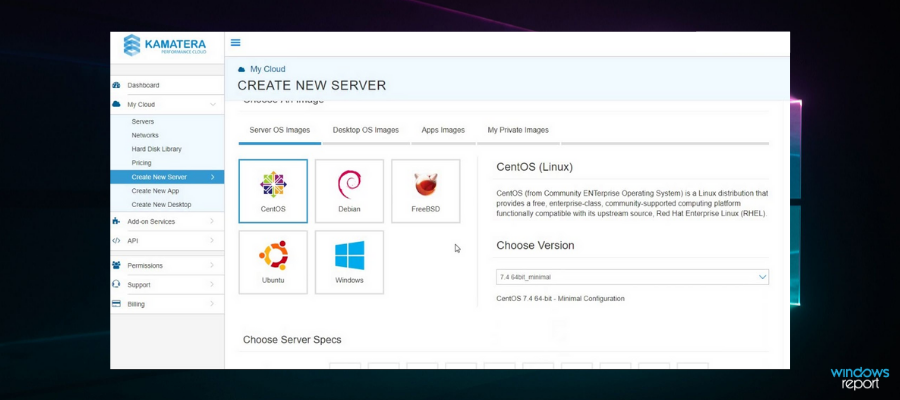
Kamatera – Highest cloud server specifications

Kamatera Express is a program that offers fast and reliable cloud infrastructure services. 

With this software, you have multiple possibilities when choosing your cloud-service options. You have valuable features, like the fastest processor for your server or dedicated CPU and RAM resources. 

In terms of performance and loading speed, the solution is 100% reliable. You can run the program on Windows and Linux, choosing the servers you need. At the same time, the technical support is completely covered by the 13 data centers on 4 different continents.

The benefits you can enjoy using this service are integrated, including mainly web apps and remote desktop servers, fast 40Gbit networking between servers, SSD storage for databases, and more to go. 

Therefore, this tool is perfect for creating your own virtual desktop in the most professional way possible. Also, you can customize your server for cloud services.

Kamatera

Get Kamatera Express for free and customize your own servers based on the necessities! 
Check price Visit Website

Shells – Fastest to set up

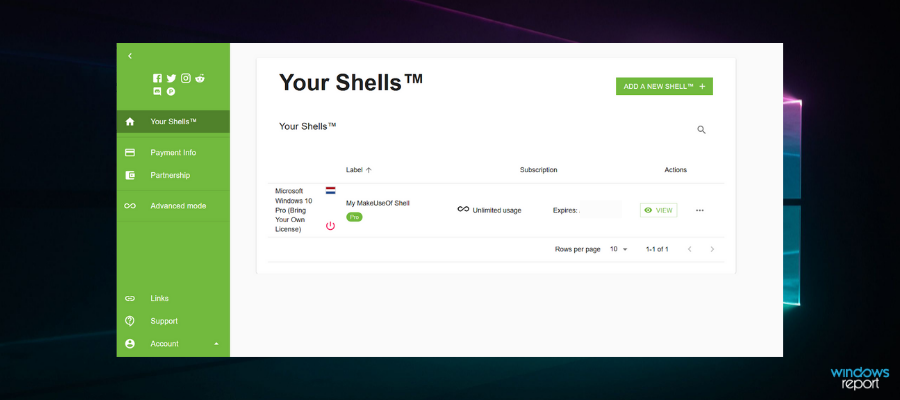
If you are wondering what is the best virtual desktop, it’s Shells. A simple and cost-effective solution that has quickly become one of the top choices in the World. Within five minutes from now, you can have your Shells virtual desktop running Windows.

In simple terms, Shells is for regular PC users what Stadia is for gaming, only cheaper and
much more versatile since this service can bring the power of Windows even to an iPad as you can access it from any device with a web browser or even from their desktop and mobile applications.

In fact, you can access your Shells on multiple devices, from a smart TV to your smartphone, or
even use it on an older PC to make it run like a new computer. Shells’ virtual machines are future-proof and run on 500 Mbps bandwidth on servers strategically placed in data centers around the World.

Besides, you don’t have to worry about data syncing, security, or issues like power shortages,
since all of these things are taken care of by Shells in the cloud, thus being safe and accessible at all times.

You can basically access your Shells virtual desktop on your PC while at work and tweak some more on your phone while you’re on your way home. All without losing track of where you were along the way.

Regardless of your device, Shells is the top virtual desktop software for Windows 10 and other iterations and offers the best option to access your own Windows virtual desktop from anywhere, anytime.

Shells

Regardless of what device you have in your hand, Shells will turn it into your very own cloud PC!
Check price Visit Website

Dexpot – Great intuitive interface

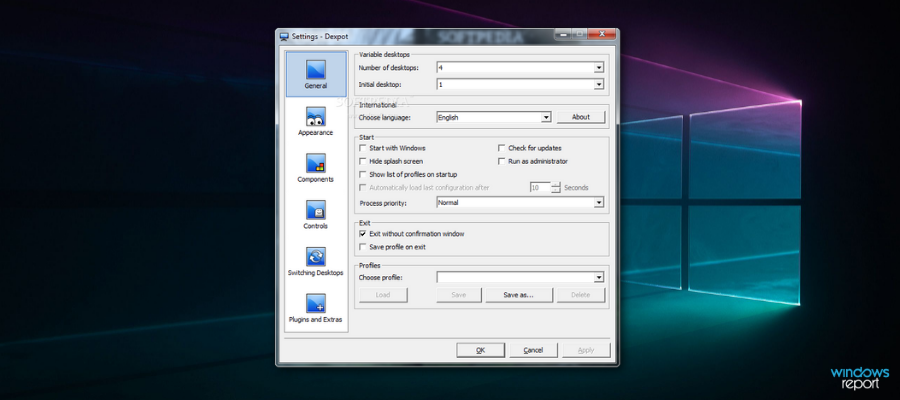
Dexpot is the best virtual desktop software for free, given it’s for personal use. However, you have to buy a license for commercial usage.

Dexpot enables users to set up 20 virtual desktops within Windows. The best thing about this software is that you can customize those desktops by giving them their own separate wallpapers, screensavers, hotkeys, and custom resolutions.

You can even distribute icons so that each desktop has unique software and file shortcuts. The customization is well beyond what you can do in Windows 10’s Task View.

Dexpot also includes numerous extra plug-ins, such as MouseEvents, Taskbar Pager, Dexcube, and Wallpaper Clock. My favorite is Dexcube which activates a 3D-rotating cube effect when switching virtual desktops.

The Desktop Slideshow plug-in automatically switches between the virtual desktops much the same as a slideshow. There are also a few experimental plug-ins you can add to Dexpot, including Gadgets that add sidebar gadgets to the virtual desktops.

⇒ Get Dexpot

Note icon NOTE
Though Dexpot’s official website does not reflect Windows 10 and Windows 11 as supported operating systems, we confirmed that it works with the two iterations.

VirtuaWin – Low system usage

VirtuaWin is virtual desktop software that hogs minimal system resources and has a good number of configuration options.

The program works with all Windows platforms from Windows ME up, and there’s also a portable version of the program. This is open-source software you can add to your desktop.

VirtuaWin is primarily a system tray app with which you can switch between virtual desktops and select other options from its menu.

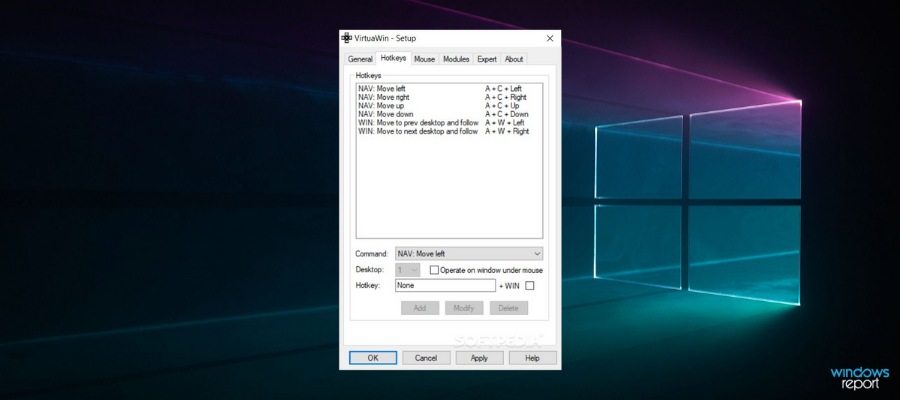
However, its setup window still includes a diverse range of configuration options with which you can customize the virtual desktop titles, layouts, hotkeys, mouse actions, and more.

One of the best things about VirtuaWin is that it supports up to 20 virtual desktops with minimal resource usage. You can enhance its functionality with modules, which are similar to plug-ins.

The software’s website includes a variety of extra modules you can add to the VirtuaWin modules directory.

For example, VMPreview provides a preview of the virtual desktops in a window or full-screen mode; and KvasdoPager adds a virtual desktop pager to the taskbar similar to the Gnome pager in Linux.

⇒ Get VirtuaWin

Virtual Dimension – Open-source solution

Virtual Dimension is an open-source virtual desktop software solution for Windows, which has a unique preview window. It’s compatible with most Windows platforms and might even run on Win 95.

With this software program, you can set up more than 20 virtual desktops. As mentioned, Virtual Dimension’s preview window is perhaps the most novel addition to the software that shows you the applications open within each virtual desktop.

That enables users to drag and drop icons to move the software windows from one desktop to another. In addition, the preview window also enables users to add transparency to windows and pin them, so they also remain on top.

Virtual Dimension’s Settings window includes various configuration options. From there, you can set up custom global hotkeys for the virtual desktops, add alternative wallpapers to them, customize their titles, and configure the software’s more general keyboard shortcuts.

Furthermore, the software includes an OSD (On Screen Display) option that displays the titles of activated virtual desktops. So Virtual Dimension has a decent selection of customization settings for virtual desktops.

⇒ Get Virtual Dimension

VirtualBox – Great for light production workloads

This is virtualization software that’s both free and open-source, developed by Oracle Corporation. With VirtualBox, you can create and run multiple virtual machines on your computer. It’s compatible with various platforms, such as Windows, macOS, Linux, and Solaris.

Developers, testers, and tech enthusiasts find VirtualBox a popular tool for running multiple operating systems on a single physical machine. It serves various purposes, including software testing, development, and learning new systems.

VirtualBox is a user-friendly open-source software that is constantly updated and enhanced by the community. While it is generally easy to use, it may require some initial configuration and setup to ensure optimal performance for specific use cases.

However, VirtualBox may not be the best choice for running production workloads that require a lot of resources. In these situations, it’s generally recommended to use enterprise-grade virtualization solutions such as VMware vSphere or Microsoft Hyper-V.

Some important VirtualBox features include:

  • Cross-platform
  • Support for a wide range of operating systems
  • Free and open-source

⇒ Get VirtualBox

VMware Workstation – Powerful virtualization platform

VMware Workstation is a robust virtualization platform for PCs. With this virtual desktop software, you can effortlessly create and operate multiple virtual machines on your computer.

With VMware Workstation, you can effortlessly create self-contained virtual environments on your computer. This allows you to install and operate diverse operating systems and applications.

The software offers a variety of features, such as virtual networking, snapshot functionality, and support for different operating systems as guest machines.

VMware Workstation allows users to allocate system resources, such as CPU, memory, and storage, to each virtual machine. This provides greater control over the performance and configuration of virtual environments.

Additionally, the software offers convenient features like drag-and-drop file sharing between the host and guest operating systems, seamless integration with the host system’s hardware, and the ability to run virtual machines in the background.

Some important VMware features include:

  • Testing and developing software
  • Running legacy applications
  • Learning about different operating systems

⇒ Get VMware Workstation

Those are some of Windows’s best virtual desktop manager software that transforms multitasking. With those programs, you can add virtual desktops to Windows platforms that don’t include Task View.

Those third-party programs also have much more extensive customization options for virtual desktops than Windows 10’s Task View.

5 Best Animation Software for Disney-Like Movies

Over the years, Disney cartoons have gained a cult status. The cartoons are classics that are still loved and enjoyed by all ages, to date.

The credit entirely goes to the cartoon-making team and of course the software programs they use. So, what kind of animation software does Disney use?

The Disney franchise is known to use different programs with some proprietary changes, and some of their own proprietary applications.

In fact, they have also designed some of their own extensions and plugins that are open-source. There was a time when cartoons were hand-drawn, arranged in order, and flickered while recording.

While technology has indeed simplified the entire process, the hard work still goes in.

Here’s a list of the programs for those who are wondering what kind of animation software does Disney use.

Some users have also searched for the following:

  • what animation software does Disney use
  • what does Disney use to animate

Animation software Disney uses to create memorable character

Adobe Animate

Adobe Animation is available as part of the Adobe Creative Cloud and it’s an excellent tool for both beginner and more experienced animators.

You can use Adobe Animation to create TV and game animations or content for your YouTube channel. Educators and teachers can use this tool to create eLearning content and draw their students’ attention.

You can also use the built-in Adobe Fresco brushes to create really expressive characters and make them talk, blink, and walk naturally.

Users can draw new animation frames on previous frames for more fluid animation thanks to the Onion Skinning feature.

The Layer parenting feature makes rigging and moving your characters much simpler and easier compared to other animation software.

Adobe Animate lets you save your animated videos in any format you want. In this manner, your creations will display properly on any type of screen.

Adobe Animate

Adobe Animate

Create the coolest-looking and detailed animations using Adobe Animate and its awesome features.
Free trialVisit software

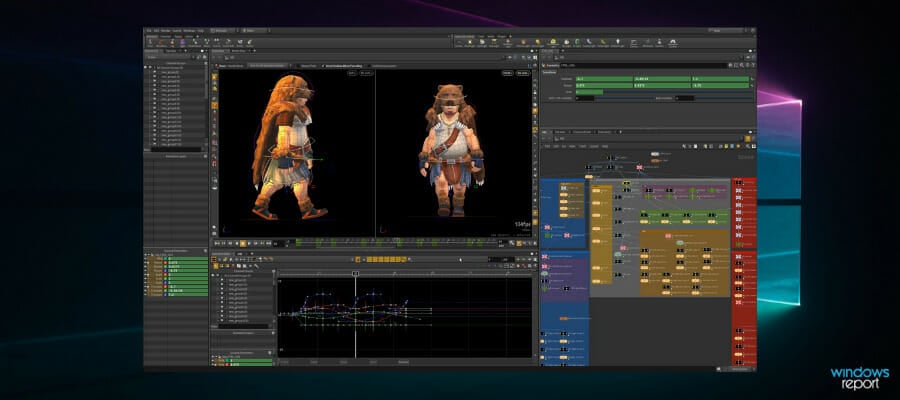
Autodesk Maya

Autodesk Maya is one of the most popular software used by Disney to create animation and lower resolution models based on the Zbrush models.

From 3D animation modeling or simulation to rendering software, it comes with a set of built-in, dynamic tools. It makes creating animation a breeze with innovative features like Time Editor.

Users can also view scene modifications in real-time that include camera, lighting, and materials, using Arnold RenderView. The software helps create complex systematic animations and effects with specified objects.

Besides, users can also create and edit UVs collaboratively using the UV toolset. This offers the same kind of modeling process of Maya.

What’s more? Faster animation playback helps the designers evaluate the animation directly in the viewport.

The software is increasingly intuitive, while the new features like the Butterworth and Key Reducer help improve the animation curves.

Autodesk Maya

Autodesk Maya

With this acclaimed software, you can build real-life figures with stunning effects and animations for your unique cartoons.
Free trialVisit website

ZBrush

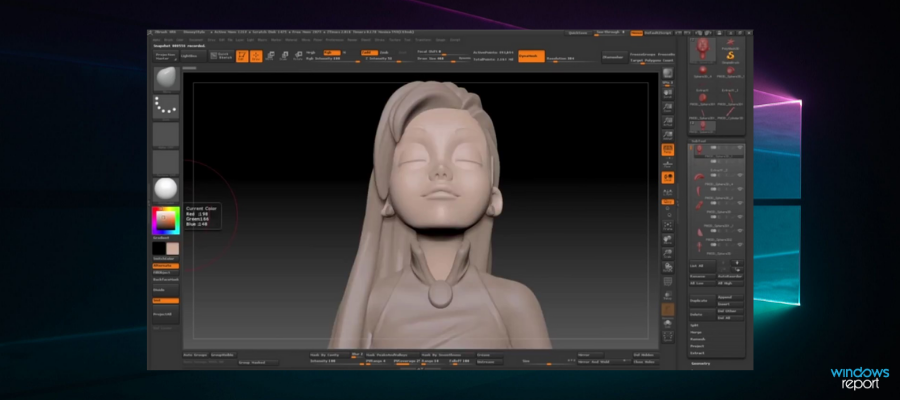
Disney uses ZBrush for modeling and sculpting of their cartoon characters. It’s a unique and creative software that offers some really dynamic new features to help users create all new dimensions.

The program helps users to customize brushes to shape, texture, and paint virtual-clay in real-time.

The new feature called the NPR system helps users create 3D designs in a completely new manner. Using this feature, users can give a final touch to the hand-designed 2D style, while taking the designs to the comic book.

The option to insert overlaying textures, add a decorative printed form, or drawing a dark outline around the 3D model are some of its other significant features.

In addition, it also offers the option to implement different types of integrated pre-sets for artists. With the help of the Spotlights feature, the artists get an opportunity to arrange color details of any texture on a sculpted exterior in the form of PolyPaint.

Using Snapshot3D, users can transform any gray-scale image into a 3D prototype. The prototype created can be used as a groundwork for sculpting characters.

ZRemesher is an automatic retopology toolkit that helps maintain creased edges while automatically tracking sharp surface angles.

The new folder System, on the other hand, accelerates your productivity with functions like the move, rotate, delete, scale, duplicate, and more.

Universal camera, Intersection Masker, or the ZColor, are some of its other advanced features.

⇒ Get ZBrush

Houdini

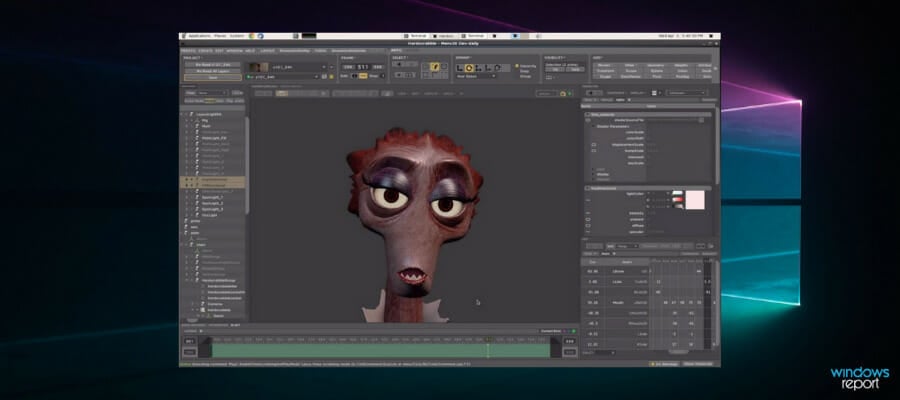
Houdini is a completely procedural software that’s used by Disney, especially for effects. It is designed from the basics to be a procedural system that enables the designers to work with complete freedom.

Moreover, it also builds different iterations and shares processes with co-workers, swiftly.

It offers flexibility with its node-based process that helps users save each action in a node. The nodes are then connected in networks creating a method that can be adjusted to improve the results.

These outcomes are again repeated to build similar yet exclusive results. It’s a responsive software that comes loaded with several viewports and built-in tools allowing related viewport communications for the artists.

Besides, it offers a perfect setup for designing refined particles and powerful simulations leading to amazing visual effects. It also lets you build tools that can be used repeatedly throughout a project’s term.

Powerful asset-building tools and the option to create shots and multiple iterations are some of its other major features.

⇒ Get Houdini

Presto by Pixar

Disney is also known to be using Presto which is a proprietary software designed and used internally by Pixar.

Presto is the animation software that’s developed in association with Maya, along with a library of real-time rendering tools and also modeling tools.

Presto is basically in charge of all that includes animation, scene layout, rigging, and more.

The software is one of Disney’s other proprietary software programs that they use for final rendering, and for final compositing they use Foundry Nuke.

Price: not available for public use

⇒ Get Presto

While this answers your question: what kind of animation software does Disney use, there’s still a lot unknown about the animation giant.

For biggies like Disney, it’s natural that there are a lot of things that are not made public. Till the time we know more, we keep enjoying the classic characters.

Best Snipping Tool for Windows 10 [Out of 15 Tested in 2026]

Windows has its very own Snipping Tool with which you can capture screenshots. However, the default Snipping Tool has relatively little options for capturing and editing the final output. In fact, you’ll probably need to use an image editor to annotate and enhance snapshots captured with the Snipping Tool.

There are plenty of better third-party software packages you can capture snapshots with. These are a few of the best third-party screenshot utilities for Windows.

What are the best snipping tools for Windows 10?

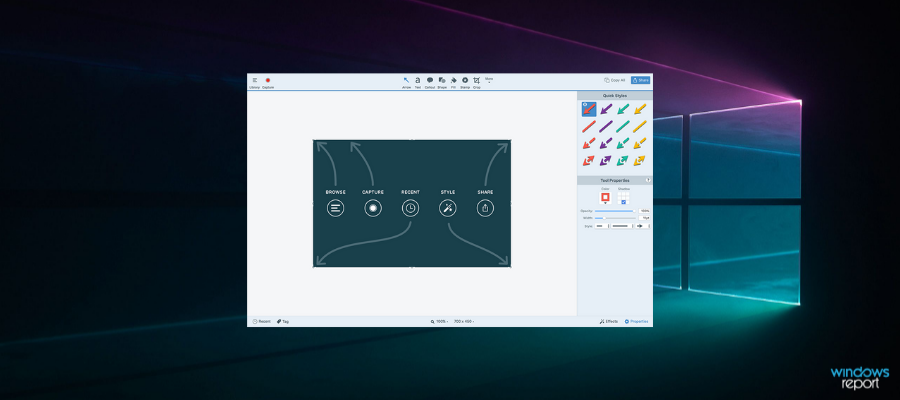
Ashampoo Snap 12

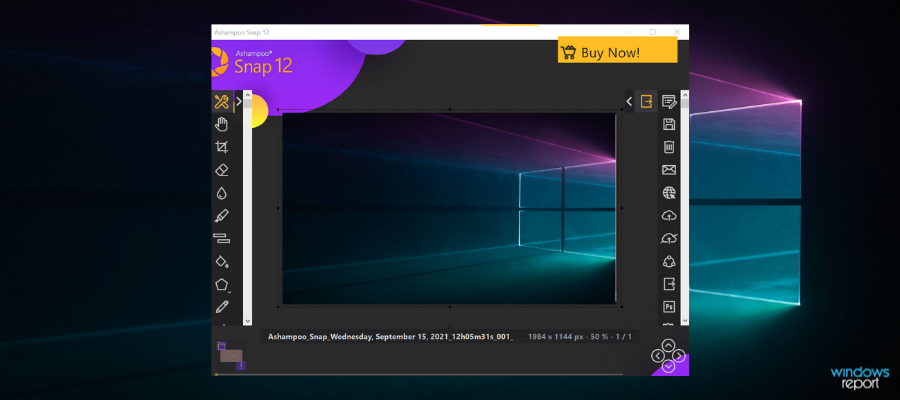
Ashampoo Snap 12 is a full feature capture software with advanced features for screenshots, screen recording, and even webcam recording.

The snipping feature is built in such a way that you don’t need to use any additional software to work with your captures. It has editing features such as text annotations, a drawing feature, crop & resize, and many more. 

The software also includes photography editing features as contrast, color, exposure adjustments and more.
When it comes to quality, the software has the potential to deliver content with 4K resolutions, this is good news especially if you plan on taking shots of video games. 

Ashampoo Snap 12 can also be used to record videos and supports post-production with an integrated video-editing toolset. You can add transitions, background sounds, frames, and other effects within just a few clicks.

Other key features include:

  • Cross-platform sharing options
  • Real-time annotations for video recordings
  • Compatible with multi-display environements
  • Can generate GIFs from videos

Ashampoo Snap 12 has a licensed version and a free trial version. It is available in multiple languages and works on Windows 10 and Windows 8 PCs.

Ashampoo Snap 12

Ashampoo Snap 12

Capture, edit, and share high-quality images with this comprehensive tool.
Free trialVisit website

Snagit

Snagit is both screen capture and video-recording utility for Windows 10/8/7 and Mac OS X pc. It probably has a wider variety of capture options than any of the alternative screenshot utilities.

The software can create different types of media files and export your work into multiple formats. You can even use it to save web pages as PDFs.

Snagit also has different options for the capture feature. They are called profiles and you can use them to create fullscreen shots, all-in-one modes, freehand selection shots, and more.

If you need more options, you can integrate more custom capture settings that you can set up or download from this page.

You can also capture screenshots from videos and games with Snagit as it supports high quality picture resolutions.

The software includes an editor for you to annotate and add extra effects to captured snapshots. Snagit’s editor has text, highlighter, and arrow annotation options.

Moreover, you can select blur, crop, border, and shadow editing options. The Snagit website includes extra stamp packs for the software.


Other key features include:

  • Lets you create video tutorials with multiple pictures and voice over options
  • Pre-made templates 
  • Lets you create GIFs

The software is packed with options and tools for screen capture, but it’s not freeware. You can try it out for free through a 15-day trial.

Snagit

Snagit

Take screenshots and record videos with this awsome all-in-one tool!
Free trialVisit website

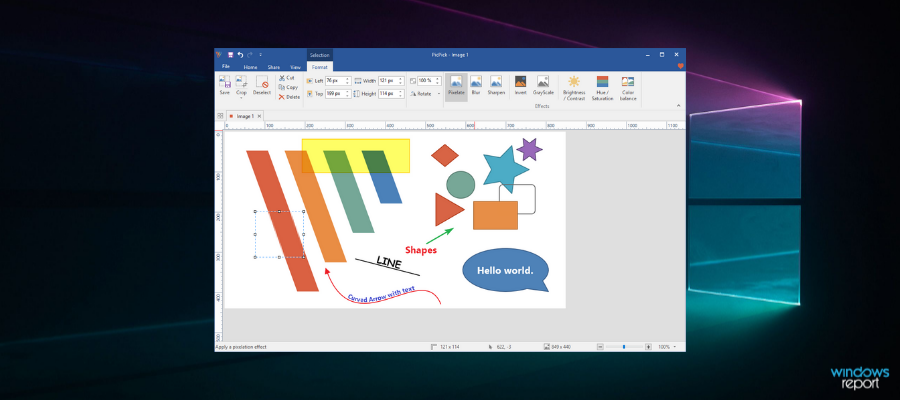
PicPick

pic pick screen capture software

PicPick is your Swiss Army Knife for taking snapshots in Windows. It includes several screens capturing options, which are three more than the standard Windows 10 snipping tool has.

You can select Full-screen, Active Window, Scrolling Window, Fixed Region, FreeHand, and Region options among others. Each screen capture option has customizable hotkeys.

PicPick also has an image editor that is comparable to Paint but with some extra options.

The editor has the same ribbon-style menu UI as Paint. It also has similar crop, drawing, shape, and rotates options plus grayscale, watermark, mosaic, hue, and saturation editing tools.

PicPick has annotation features such as image highlights, text insertion, arrows, and shapes so you can add any necessary information without needing to use any other software.

Other key features of PicPick include:

  • Customizable hotkeys
  • Image quality selector
  • Color picker
  • Zoom in feature

When you’ve finished editing the images, you can then select to save them to Google Drive, SkyDrive or Dropbox cloud storage.

PicPick

PicPick

Take snapshots in Windows and customize them with this intuitive software!
Free trialVisit website

Screenpresso

Screenpresso is a lightweight desktop capture software that takes screenshots and video recordings of your screen.

It’s another full-package type of tool that comes with built-in editing features. You can easily add arrows, text content, crop & resize your captures, highlight important areas, and more.

Screenpresso stores all your captures so you can always come back and retouch them whenever you have time. It has its own cloud database where you can share your content and see what others create.

This software is great if you want to use screen captures for guides and tutorials because it comes with a built-in guide generator and offers multiple types of annotations such as text boxes, comments, highlights, or arrows.

Moreover, you can use this tool to create full user manuals because it comes with a PDF document generator. This allows you to integrate your screenshots into a document and insert as much text information as you feel necessary.

This software is greatly appreciated by users because it offers top-quality features at a lower price than other similar products. It is proven to be helpful even for creating certain academic papers.

Other key features include:

  • Google Drive integration
  • Publishing assistance for Evernote, Google Drive, Facebook, and more
  • Capture labels and custom folders 
  • Very simple UI

Screenpresso is compatible with all Windows versions. It has a free, limited version and two licensed-based versions. The paid versions are one-time purchases and they offer a 30-day money-back guarantee.

Screenpresso

Screenpresso

Capture high-quality screenshots and use the editor to transform them into valuable instructional materials.
Free trialVisit website

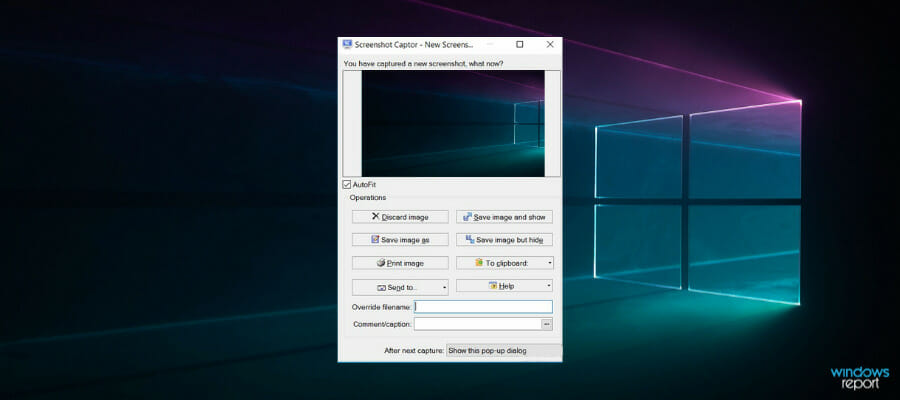
Screenshot Captor

Screenshot Captor is a highly rated freeware screen capture utility for Windows platforms from XP up. You can add this program to Windows by clicking Download v4.16.1 on this page.

Click the Get Free License key and sign up on the software’s forum to acquire the license key needed to run the program. There’s also a portable version you can download by clicking the portable zip hyperlink on the home page.

This program’s UI consists of a toolbar from which you can select various capture options. Screenshot Captor has all the more standard capturing options such as Active Window, Region, Desktop and Windows Object plus a great Scrolling Capture tool.

This software also enables users to capture images with their webcams and import pictures with scanners.

Screenshot Captor has a great editor for snapshots that eclipses most of the others. With its editor, you can add shadows, text boxes, freehand painting, blur, glow, and borders to images.

Other key features include:

  • Integrated email upload tools
  • Scanner image correction tools
  • Intelligently autonames files
  • Comments feature
  • Multi screen compatibility

The software also has its own clip art gallery that you can use to make your screenshots more fun and engaging.

⇒ Get Screenshot Captor

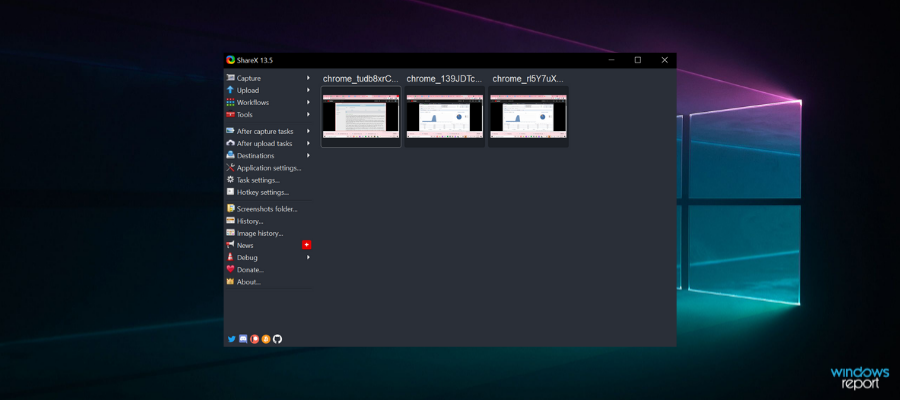
ShareX

ShareX is another good option when it comes to screenshot tools. It’s open-source software that you can add to your Windows PC by pressing the Download button on this home page.

This isn’t just a screen capture program as it also includes video-recording options. ShareX is undoubtedly one of the best freely available screenshot capture utilities that enables you to capture snapshots in several ways and has extra editing options and tools for them.

ShareX’s main capture modes are Fullscreen, Window, Region, Polygon, Freehand, Webpage capture, and Scrolling capture. These are great for creating captures for pretty much any purpose.

You can also further configure the Region mode to capture screenshots with alternative shapes such as rectangle, triangle, diamond and circle. In addition, ShareX has customizable hotkeys for each screen capture mode.

ShareX has fairly extensive post-capturing options for snapshots. Using its basic editor, you can add text, arrows, highlights and borders to images.

The Image effects editor enables you to apply filters to pictures, add watermarks and select gamma, hue, sepia, black and white, colorize and saturation adjustment settings.

Other key features include:

  • Very lightweight
  • Customizable workflows 
  • Printing options
  • Drag and drop upload

So ShareX might even come in handy for editing images that aren’t screenshots.

⇒ Get ShareX

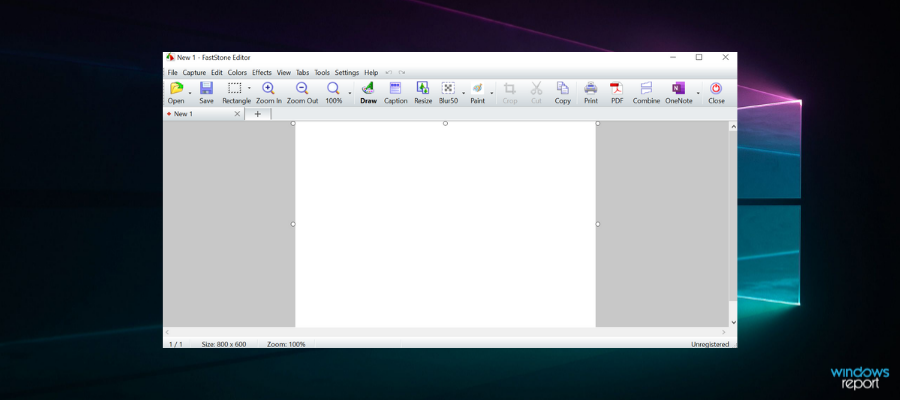
FastStone Capture

This is a reliable tool with a quick setup that you can use o record videos in Windows and take screenshots.

FastStone Capture is license-based, but it also has a 30-day trial version. There’s also a portable version of FastStone Capture that users can add to USB drives.

This program’s UI is based on a toolbar from which you can quickly select the primary screenshot capture modes. Their users can select the active window, freehand region, fixed region, full screen and scrolling window options.

The scrolling window option is especially handy as it automatically scrolls through windows and captures screenshots that are then merged together.

Another good thing about this program is that you can then copy the output directly to Web, email, Word, Excel, Clipboard, and other applications. It also supports numerous image file formats such as PNG, JPEG, GIF, BMP, and TIFF.

The FastStone Editor has a good number of options and tools. Aside from more standard options such as crop, resize, rotate and color adjustment, you can also apply Sketch, Oil Painting, Blur, Black and White and Sepia filter effects to images. Users can also select options to convert snapshots to PDF format or merge them together.

Other key features include:

  • Hotkeys for instant shots
  • Lets you add captions
  • Multiple workspaces
  • Very lightweight

⇒ Get FastStone Capture

Those are some of the best screen capture software for Windows 10 and other platforms. They have lots more screen capture options than the standard Snipping Tool which sometimes comes with a yellow border around your screen. A few of them can also come in handy for recording screencasts.

In addition, they also have their own built-in editors so that you can further annotate snapshots and enhance them with extra filter effects. So they’re lots better than the Snipping Tool in Windows.

Expense Tracker for Windows: 9 Best to Use in 2026

While budgeting can be a tedious and challenging experience, it needn’t be anymore with personal budgeting tools that can take the tedium out of the process.

These best personal expense tracking software not only shows you where your hard-earned cash disappears but also helps create and stick to a plan. Ultimately, these tools are all about making sense of your money.

A good spending tracker tool will help you answer questions like how much you have or owe, whether or not you spend wisely, and what investments you need to make.

We checked out the best expense tracker for PC devices that you can use. Some are free, others premium tools, but you’ll find those that connect to your bank account so you can pull and organize transaction data.

Or if you think forward, you should consider financial investment tracking software instead.

Best software to track your spending and money

Empower – Inshigtful expense dashboard

This is the best software you can use to track your spending. With over 1 million users, Empower, which offers free financial tools, makes it easy to manage your entire financial life in one platform.

The tool allows you to connect your accounts to the dashboard so you can see both your spending and net worth, and even plan your future or meet an advisor to discuss your investing strategy.

The Fee Analyzer helps you spot such hidden fees in your accounts and funds, which, over time helps you control your spending and finances. Other tools include interactive cash flow tools that ensure you don’t spend more than you earn.

Unlike most other software for tracking expenditure, it does not let you create your own categories for your budget, so you’re stuck with whatever the software provides.

Otherwise, you can create many charts for spending and savings, plus compare your budget either weekly or monthly.

Once you register for Empower, you can access its powerful tools freely, plus the awesome dashboard, and easily manage your entire financial life in one place so you can reach your goals much faster and develop your long-term financial strategy.

Empower

Manage your finances efficiently and control your spending habits with this compact software!
Try it now Visit website

Moneyspire – Suitable for small businesses

Financial control and money tracking are simple words, but mean a lot for economic-responsible people. With Moneyspire software, you can take good care of your income right away. 

Managing your finances can be a time-consuming task, both personally and as a business. So, thanks to expense tracking functionality, you can track and manage financial resources without too much effort and efficiently for your budget. 

This simple yet resourceful tool can help you with almost anything, from tracking the upcoming expenses to reminding you to pay the bills. 

You can have valuable features choosing this software, including unlimited bank accounts in one place, budgets and reports, cloud synchronization, track of payees, and so on. Moreover, you can download it for free, and select the personal plan for all your devices at home. 

The best part at Moneyspire is that you can customize it how you prefer. Having interactive reports or detailed balances for your account can give you freedom regarding all your financial activity.  

Moneyspire

Manage your finances in the most productive way. Try this ideal expense management software without hesitation! 
Check price Visit website

QuickBooks – Best money tracking

If you want to manage your spending, QuickBooks might just be the perfect tool. This service provides you with cloud accounting, so you can easily manage your finances from any PC or smartphone.

The application supports expanse tracking, so you can keep a close eye on the smallest expenses.

If you’re running a business, you’ll be pleased to hear that QuickBooks supports invoicing, so you can easily create and send invoices. The software also supports accounting reports, allowing you to easily see how your business is performing.

QuickBooks has cash flow management support, so you can easily enter your bills and pay them. In addition, you can schedule recurring payments so you don’t miss them.

The service also has an automatic backup, so all your sensitive data will be backed up and secured. It’s worth mentioning that QuickBooks uses 128-bit SSL encryption, therefore your data will be completely protected from third parties.

Overall, QuickBooks is a great service if you want to manage your spending, and it’s available on all major platforms, so be sure to try it out.

QuickBooks

Track expenses and check profitability quickly and easily with the very best accounting software!
Check price Visit website

Turbotax – Expense and taxes done right

As the name itself hints, TurboTax is a software that specializes in tax calculation and tax deduction. Although it’s not a dedicated bookkeeping app such as Mint, for instance, you will definitely get to enjoy its advantages in budget tracking once you start using it.

Using Turbotax is effective for tax deductions and maximizing your refunds, thus it saves you money. But there is a catch (a constructive one, we dare say): you have to be very organized about your receipts in order to make tax time easier.

Keeping this in mind, you can easily work with accounting software to track and categorize your spending and when the time comes, simply allow the  TurboTax to take over.

There is no complicated migration process involved either since the tool is designed to perfectly blend with third-party financing apps such as QuickBooks, ProConnect, and Mint.

Turbotax

Save your receipts, then let Turbotax track your expenses and save you money!
Check price Visit website

Quicken – Map spending and prioritization

v

Quicken is a reliable and infamous personal finance software that monitors all your expenses in a single dashboard.

With 20+ million customers and 40 years of experience, this financial service is exactly what you need to increase your savings and improve money management.

You can use this all-in-one app to keep track of any spending, taxes, or income that you need to manage and distribute. There are customizable dashboards for creating 1-year budgets or simply managing your salary.

Not only that, you can have financial security due to bill or tax categories for better income management.

Lastly, Quicken is the most suitable tool for projecting your budget and organizing future investments or retirement plans.

Quicken

See all your expenses in one glance with this trusted finance manager.
Check Price Visit Website

Dollarbird – Shared income for families

This software uses a calendar-based personal finance management approach designed for real life. You can add past, future, or recurring transactions and categorize them, whether on mobile or through a web interface.

Dollarbird lets you view your expenses and income, see where your money goes, and be smarter about your finances. The balances are automatically calculated for each day, month, or year, so you can understand your financial situation easily.

You can also share calendars with your partner, family, or team to track spending and manage finances together while staying up-to-date with common money issues.

⇒ Get Dollarbird

Fudget – 5 budgets at once

This software is as simple as they get and you can use it on the go at the touch of a button.

Simply add your income plus expenses which will then be labeled and rearranged to display your balance on a simple timeline.

You don’t need folders, savings categories, graphs, or other complicated stuff, it’s an easy interface that displays the numbers as they are.

If you’re in need of a fast, nimble, feature-rich, and stress-free app, then Fudget is your best choice.

With its one-tap adding and editing features, simple list creation to keep track of balances, and choice of currency symbols, you can use it monthly or weekly, however, you like.

⇒ Get Fudget

YNAB – At peace with your finances

The acronym simply stands for You Need A Budget – don’t we all?

This software keeps your personal budget with you all the time and lets you quickly refer to your accounts, and budget categories, and also add transactions or modifications to your budget on the fly.

The app also syncs with your devices like smartphones, tablets, and even your computer so you can stay updated on your spending. The web version has a variety of educational tools to help you be financially disciplined.

It’s also easy to use as it doesn’t have complicated features, plus you can sign up for classes online if you need further assistance as the app’s accountability partner helps you stay focused and not stray from your budget.

⇒ Get YNAB

Mint – Multiple accounts app

This software, by Intuit (makers of QuickBooks) helps you track your spending (income and expenditure) plus your overall financial status. You can sign up for free to join Mint and use it to track and manage your financials all from one single screen.

It also gives you advice and tips so you can know your investment style with the right tools, and lets you connect with your bank and other lenders while sending you alerts when your monthly bills are due for payment, on an easy-to-understand and navigate dashboard.

Once you sign up and sync your bank account, you’re only seconds away from financial freedom.

It is also secure as it uses VeriSign to scan and ensure protection for sensitive data transfer, its multi-factor authentication helps protect access to your account using a 4-digit code that only you can use instead of just a login and password.

⇒ Get Mint

Paraphrasing Software for PC: 7 Best to Use in 2026

Paraphrasing is a method of rewriting another person’s words or ideas in your own words. This technique is used by almost all writers while covering a topic that an online publication has already covered.

If you are facing difficulty paraphrasing a text effectively, you may need to pay more attention to the original passage. Rereading the original passage can help you to understand the context of the text fully.

Once you have a clear idea about the topic, you can quickly write the author’s idea in your own words.

This comes in handy if you are a content creator or have a blog that requires you to publish content consistently. To keep it fresh for the returning visitors.

However, failing to paraphrase the original text properly can lead to plagiarism in the case of your generic articles. Needless to say, paraphrasing only applies to generic articles and not research materials, as you will need to cite the sources to credit the original author. You can also use plagiarism checker software to see if text passes some filtres.

On the other hand, for some writers, paraphrasing is also a way to enhance their articles by using correct English idioms and synonyms to complete sentence fragments.

Irrespective of the case, you can take the help of software solutions that paraphrase sentences in one click to polish the article until it’s just perfect.

In this article, we take a look at the best software that paraphrases sentences and allows you to spice up your text with new variations for your next article.

Write with ease with these tools that paraphrase sentences

Grammarly – Great for grammar checking

Grammarly is mainly an online spell and grammar correction tool that can help you to find all the errors in your text or article. It is available in both the free and premium versions.

The free version offers critical grammar and spelling checks online. The premium users also get access to the native desktop app for Windows macOS, integration with Microsoft Office suite (Windows only), and access to your personal editor via grammerly.com.

Other features offered by Grammarly include a plagiarism checker, access to the saved documents across the device, see definitions and synonyms via double click, the ability to add words to your personal dictionary, see an explanation of grammar rules, and get performance stats via email.

After writing an article or while writing it, Grammarly will propose using synonyms or alternate text to improve the meaning of the text. It will also suggest you rephrase the whole sentence and highlight sentences with fragmentation if needed.

All the written documents are saved in the cloud and can be accessed from any device. The editor also shows other information such as word count, readability score, speak and read the time.

Grammarly is an excellent tool for day-to-day writers. However, it is not free from flaws. At times the tool can suggest synonyms that can totally change the context of the text or fail to catch spelling mistakes if you directly copy-paste the article from a text editor to Grammarly.

It also fails to retain the rich text formats (if used). These issues mostly occur if you are into technical writing, though.

Grammarly

Write efficiently with no grammar or spelling errors using this all-in-one tool for all types of devices!
Free trial Visit website

QuillBot – Fast and simple to use

QuillBot is a sentence rephrasing software that allows you to rephrase sentences from your text with a single click. QuillBot comes in both free and premium versions, and some features are restricted to only the registered users.

Using the service is easy. Simply copy and paste the text you want to rephrase and click on Quill It to start. By default, QuillBot uses the Standard mode to rephrase the sentence which maintains the balance between changing text and keeping meaning.

Quillbot offers a Google Chrome extension that can help you check and rephrase what you write within the browser. It also has Microsoft Word and Google Docs add-ons.

The word flipper features generate synonyms for specific words and can turn your text around in different ways until you are fully satisfied with the results.

You can also use Grammar and Creative mode for more options. There are two more modes, Concision and Suggestion which prioritizes sentence length and changing text above everything. However, these features are only available for premium users.

QuillBot

Rephrase sentences and improve your texts with this versatile software!
Free trial Visit website

SpinRewriter – Great for rewriting articles

SpinRewriter stands out because its machine-learning algorithm focuses on the whole text. This means that it can give you very natural-sounding alternatives by understanding the precise meaning a word has in context.

It has an evergrowing synonym database that ensures the delivery of accurate final content. You also get various settings for the words and phrases used.

This tool follows a three-step process for rephrasing. You just need to insert your text, press rewrite, approve the changes made, and you’re done.

SpinRewriter can also read and rephrase certain sections of your text, or apply specific settings at different text levels.  You can select if you want to rewrite on a sentence level, paragraph level, change the structure of phrases, or automatically add new paragraphs and summaries.

You can use as many synonyms as possible or select an option that makes the text readable and uses just a few synonyms. Consider the general tone you want to use and configure SpinRewriter accordingly.

This app is also big on time-saving. It can rewrite more articles at the same time. You need to make sure that all your articles are inserted, select the Rewrite Multiple Articles module, then review the generated text. 

Other key features of SpinRewriter include:

  • WordPress plugin
  • Multiple integrations
  • Mobile app
  • Support for teamwork
  • Offers in-app guides

This tool is subscription-based, with various plans available. You can try each plan for free for 5 days.

Spin Rewriter

Spin Rewriter

Generate natural-sounding content aided by advanced machine-learning rephrase suggestions.
Free trialVisit website

Ginger Sentence Rephraser – Good for proofreading

Ginger Sentence Rephraser is a premium rephrasing software for Windows computers that helps you to write better by suggesting synonyms, idioms, and phrases to spice up your text.

Ginger Sentence Rephraser is not just a sentence rephrase tool. It also offers the ability to proofread, translate text, and text-to-speech support.

The software also works with Desktop, Microsoft Office Suite, Web browsers like Chrome and Safari as well as a mobile platform, including Android and iOS.

Using the software is easy. The installation requires you to download the software online and register an account. A voice-based wizard will walk you through all the steps and features for the first time.

You can start typing your text in the Ginger Sentence Rephraser editor. You can select a sentence or full text and click on Rephrase button to find a better word to replace the original text.

Clicking on the Speaker icon will activate the Text-to-speech feature which is only available with the premium plan.

Ginger Sentence Rephraser offers a translator with support for over 60 languages. Another interesting feature provided by the tool is a built-in dictionary. Using the Define feature, you can find the meaning of any word by performing a simple search. Furthermore, you can find the synonyms for those words as well as learn to pronounce them using the text-to-speech feature.

Other features offered by the tools include the ability to add any words to the Favorite tab, add a personal dictionary and phrase of the day where the software shows a couple of phrases like Blaze a Trail or Face the Music randomly to improve your vocabulary.

Ginger Sentence Rephraser is more than just a sentence rephrase tool as it offers a lot of features that you as a writer you would need without having to refer to the dictionary or Google all the time.

Ginger Sentence Rephraser

Improve your vocabulary and write flawless documents with Ginger Sentence Rephraser!
Free trial Visit website

The Best Spinner 4 (TBS) – Text to speech functionality

The Best Spinner 4 is another great option that aims to emulate human-written text. It is also very useful if you want to generate content for multiple media platforms.

It can cover pretty much any type of text, having a massive and constantly updated thesaurus. The Best Spinner team constantly works on adding new synonyms, while allowing users to add words. All entries are reviewed before being added.

This tool can give you spin suggestions like Grammarly, but it can also generate automatic full rewrites of your text.

Combine that with the side-by-side text comparison feature, and you get to quickly review the changes made while keeping an eye on the original text.

The app also can help you with translating text from English to other 14 different languages. This function is very useful if you write for multiple audiences and can be highly accurate. However, for the best, natural results, you will need to carefully review the text, especially in terms of sentence structure.

One of the greatest features TBS provides is the text to speech functionality. It can generate natural-sounding audio files of your text. This is great if you want to use your content across multiple media platforms such as blogs and podcasts.

Other key features of The Best Spinner 4 include:

  • Unlimited spinning
  • Can generate multiple auto rewrite versions simultaneosly
  • Integrated publishing tools
  • Stores favorite synonyms
  • Spelling and grammar check

The Best Spinner is subscription-based, with yearly charges. You can pick from 3 different plans.

⇒ Get The Best Spinner 4

CoderDuck’s Paraphrasing Tool – SEO tools included

Our last suggestion is CoderDuck’s Paraphrasing Tool. This is a completely free in-browser tool for quick text spins.

It is a good place to start, but it is not as accurate and resourceful as other options on our list. On the other hand, it is completely free and ready to use with no signup or registration needed. 

You can use this tool to rephrase text in bulk, and then carefully review the generated result. It is very fast, you just need to insert your content into a textbox on their homepage.

The Rephrasing Tool takes some precautions against plagiarism, promising an originality rate of over 90%.

It can be used to spin text from multiple languages, including English, Turkish, Dutch, French, Spanish, German, and Indonesian.

Other key features of CoderDuck’s Rephrasing Tool include:

  • Compatible with different article types and layouts
  • Works smoothly as long as your connection is good
  • Completely free, no additional charges for any feature included

Coderduck provides a series of free SEO tools that can come in handy when building your online presence. These include a Related Keywords Finder, a Mobile-Friendly Test, an Article Generator tool, and many more. 

⇒ Get Coderduck’s Paraphrasing Tool

Paraphrasing Tool AI – Simple and efficient

Paraphrasing Tool AI is one of the fastest ways of rephrasing your documents and the rewrite tool is free.

All you need to do is to paste your text in the left pane and hit the Rephrase button and in a few seconds, you get the result with highlights on the improvements.

Of course, you can go deeper than that by selecting a different tone of voice but for that, you will have to opt for a paid subscription. By default, the tool is set to a more human-like approach.

You may also upload full documents from your computer and even audio files to extract the text from them.

Other options include hitting the record button from the web app to use the speech-to-text feature or clicking the photo icon to extract text from your scanned images.

You may also use a plagiarism checker, a summarization tool or to open the result in an editor.

However, returning to paraphrasing, you can use up to 20.000 characters for free which is pretty much compared to other free tools.

Here are some of its best features:

  • Up to 20.000 characters for free paraphrasing
  • Extremely simple to use by anyone
  • Speech to text capability

⇒ Get Paraphrasing Tool AI

All the software listed in this article can help you to rephrase sentences to create a unique piece of content.

However, it is important to understand that Rephrasing software are not humans and with all the advancement in AI, these tools are still prone to error when rephrasing a large number of sentences.

To make sure the rephrasing is done right, always proofread the text after the rephrasing process is over. Also, make sure to check for any plagiarism traces in the text using a free or built-in plagiarism checker tool to avoid any copyright issues.

Grammar Checker for Laptop: 5 Best Tools in 2026

Submitting work full of grammatical and syntax errors is no longer acceptable. Not when you have a plethora of both online and offline grammar checkers for Windows 10 available at your fingertips.

But there’s no need to be that hard on yourself. Even native speakers often fall prey to this. Now, being able to express yourself clearly is considered an emblem of education and intelligence.

Though there is no shortcut for being an expert in grammar, you can use good grammar check software for PC to remove the elements of ambiguity in your content.

If you have some basic to moderate writing skills, all you’ll need is a top-notch grammar checker for Windows 10 and 11. This tool will polish your work and render it free of syntax, punctuation, and spelling errors.

In this article, we will introduce you to the top grammar software for Windows. Here we go!

What is the best grammar checker software?

Grammarly

Grammarly is an award-winning grammar checker for windows 10 that comes both as a desktop app or online for you to access directly in your browser. The best part is that it’s available free of charge.

As one of the best grammar check software for PC, Grammarly is obviously the most widely used tool in the world. It is available as a Google Chrome extension and it can detect grammar mistakes, spelling errors and wrong sentence constructions.

Want more? It can even check for plagiarism. Once you install the Chrome extension, it automatically checks for errors anywhere, be it on Facebook, Twitter, email, and even your chat messages.

Grammarly is the most powerful tool you can use to check for errors in your typed work. Experts say that it catches up to ten times more mistakes than your word processor.

In addition to the common grammar mistakes, Grammarly also detects and corrects preposition errors, irregular verb conjugations, improper usage of nouns, and misused words.

Grammarly

Keep your work neat and error-free with the most powerful grammar checker tool!

Quillbot

QuillBot identifies as a rephrasing tool with plentiful features that allow you to personalize your projects. With idioms, synonyms, and antonyms, it’s more like an assistant for your writing style, both in free and premium versions.

Accessible as an extension in Google Chrome, Google Docs, and Microsoft Word, QuillBot operates as a makeover thesaurus for you to write a fast and accurate topic.

Shaping different ways of models with a large vocabulary, and with grammar checks embodied, QuillBot is appreciated by students, professional writers, and business people who wish to acquire more efficacious content. 

For stylish and creative projects, its plentiful features take the first place for paraphrasing. Key sentences are saved with a summarizer, its accuracy with grammar cannot be unstated, and the interface is pretty easy to explore.

Quillbot

Quillbot is an AI-based paraphrasing, summarizing, and new grammar checking tool that can absorb and rework your words.

Ginger Grammar

Ginger is another excellent online tool that you can use to check for errors in a typed document. It is available in both free and paid versions and it comes with many advanced features that can help you improve your grammar.

For instance, there is a sentence rephrase that can help you write clearer sentences. Other features include a spell checker, singular-plural errors correction, misused word correction, and a personal trainer.

There is even a dictionary included helping you expand your vocabulary and learn definitions of new words as you use them. Furthermore, you can translate your text into 50 different languages and listen to it read back to you to ensure it sounds right.

Ginger Grammar

Improve your vocabulary and grammar skills with a faultless instrument!

ProWriting Aid

Just as writing does not boil down to grammar alone, ProWritingAid is more than an offline grammar checker for Windows 10.

In fact, to use their own words, it’s a writing mentor whose expertise stretches beyond punctuation, conjugation, or syntax. This unique grammar checker for Windows 10 will improve your style of writing too.

By thoroughly analyzing consistency, readability, tone, context adaptation, and much more, your trusted writing partner will transform the way in which you create content. For the better.

One more thing about this nifty grammar check software for PC: it’s privacy-focused to the core and it spares no efforts to protect your personal data as well as your work.

ProWritingAid

Have your own AI writing mentor with this proficient sidekick.

Dragon

Dragon by Nuance is nowhere near a conventional grammar check software for PC. In fact, it’s a worldwide-cherished speech recognition solution allowing you to dictate your content to a machine rather than typing it yourself.

Needless to say that this awesome speech-to-text conversion process requires a thorough style, grammar, and syntax verification just as any other piece of content.

This is what actually makes Dragon unique. Highly focused on productivity, this software will type every word correctly even if you’re using industry-specific terminology. You can further personalize it and boost its capacities by importing your own vocabulary and Dragon will put its AI to work in order to fill in the gaps.

Another big plus is its cross-platform compatibility, making it not only the perfect offline grammar checker for Windows 10, but also for mobile devices. Plus, you can sync all your work across devices to save even more time. Clever, right?

Dragon

Dragon

Convert your voice into flawless texts and sync devices to save your work.
Check priceVisit website

Paper Rater

Paper Rater is another excellent proofreading tool that checks grammar, spelling, and word voice while giving you access to a Vocabulary Builder Tool. While it is available in free and paid versions, this grammar checker for Windows 10 doesn’t have browser extensions.

This means you won’t be able to download it. Another downside is that its plagiarism checker tool is only available in the paid version.

Content is checked based on different education levels such as college, graduate, doctoral level and also based on article type. Apart from checking for errors, Paper Rater also shows the overall writing score so you can assess your writing skills.

⇒ Get Paper Rater

Slick Write

Slick Write understands that Readability Score is one of the metrics that Google uses to filter search results. It may not have powerful tools like Grammarly, but it does improve the readability of your content, and it does it well.

This grammar checker for Windows 10 has advanced features for checking the Automated Readability Index, Passive Voice Index, average paragraph length, and estimated reading time.

If you want a handy tool for checking the common grammar errors while optimizing your content for higher rankings, then Slick Write is a good choice.

⇒ Get Slick Write

While most people are used to Grammarly being the supreme grammar check software for PC, the truth is that the web is fully packed with both online and offline grammar checkers for windows 10. Some with unique capacities that you will find nowhere else.

So why not explore more grammar checkers for Windows 10 that can help optimize your content? While this list is by no means exhaustive, it does contain the most highly-rated grammar checker tools in the market today.

You won’t be able to run Windows 11 on Oracle VirtualBox VMs anymore

Using VMs has become a full-blown habit for many of us, and the news that we could actually run this future major software with their help was music to our ears.

However, we thought that you should also know that the upcoming OS is no longer compatible with the popular Oracle VirtualBox virtualization platform after Microsoft changed its hardware requirement policies for virtual machines.

Of course, we can all remember that, when Redmond officials first announced Windows 11, they stated that the system requirements threshold for installing the operating system has somewhat changed.

And even though many people thoughts that it’s just a matter of time before Microsoft caves, due to immense backlash, nothing has changed.

VMs are now also bound by the system requirements

Seeing how the enterprise and software developers commonly use virtual machines to test new operating systems, the tech giant said that Windows 11 would not check for compatible hardware when installed or upgraded.

Microsoft recognizes that the user experience when running the Windows 11 in virtualized environments may vary from the experience when running non-virtualized. So, while Microsoft recommends that all virtualized instances of the Windows 11 follow the same minimum hardware requirements as described in Section 1.2, Windows 11 does not apply the hardware-compliance check for virtualized instances either during setup or upgrade.

However, it seems that there has been a change of heart, and developers are now enforcing these infamous system requirements on virtual machines (VMs), without any prior warning.

This build includes a change that aligns the enforcement of the Windows 11 system requirements on Virtual Machines (VMs) to be the same as it is for physical PCs. Previously created VMs running Insider Preview builds may not update to the latest preview builds.

In Hyper-V, VMs need to be created as a Generation 2 VM. Running Windows 11 in VMs in other virtualization products from vendors such as VMware and Oracle will continue to work as long as the hardware requirements are met.

If Insiders attempt to update their Windows 11 builds running on virtual machines that do not have TPM support or use a small system disk now, they’ll be in for quite a surprise.

We know that you were probably wondering about VMWare Workstation, Hyper-V, Parallels, and QEMU users. Long story short, this will not be a problem as long as they support TPM passthrough and Secure Boot.

Keep in mind that Oracle VirtualBox does not currently support these features, causing Microsoft’s new policy change to effectively make it so you cannot use this OS.

All is not lost, according to Oracle developers

Given the fact that Oracle VirtualBox devs dropped the ball on TPM support, they are now working on a passthrough driver that will allow a host’s TPM to pass through to the Windows 11 guest.

Upon completion, a Windows 11 device will see a host’s Trusted Platform Module and should allow Windows 11 upgrades and installations to continue.

Different than VMware, which creates a virtual TPM, VirtualBox’s new driver will require you to have a TPM 2.0 processor for this feature to work.

But, given that the driver is still in its early stages, it is unclear if it will be available when Windows 11 is officially released on October 5th.

VirtualBox is a very popular virtualization platform, due to it being free and easy to use, so this lack of support will surely affect many people who wish to continue testing or get started with the operating system.

Surface Event 2021: With Surface Pro 8, Microsoft finally changes the Surface Pro line

Just a bit ago, Microsoft took the wraps off its flagship Surface Pro line as it introduced its eighth generation.

Many Surface fans have anticipated some drastic changes for Microsoft’s aging design language following the unveiling of the Surface Pro X which proved Microsoft could iterate and bring some well-liked design changes to the Pro’s detachable form.

However, Microsoft held fast and kept the Surface Pro 7, which launched alongside the Surface Pro X, mostly unchanged from its historic Pro 4 design.

Now, it seems the company has threaded the needle between making a Surface Pro X clone and bringing some meaningful upgrades to its famed 2-in-1 that include, new screen tech, port upgrades, and SSD accessibility.

Here are the details:

  • Surface Pro 8 is over 2 times faster than Surface Pro 7. Delivering over 40% higher sustained CPU performance and 74% faster graphics sustained performance,
  • 2 Thunderbolt™ 4 ports. Support for multiple 4K monitors, keep large creative files on hand with an external
    hard drive or create a dream gaming setup with an external GPU.2
  • 11% larger, 10.8% higher resolution, 12.5% brighter, individually calibrated and virtually edge-to-edge, high-resolution 13”
    PixelSense™ Flow touch display. Now with up to 120Hz refresh rate (60hz default) for an even
    smoother pen experience and more responsive touch.
  • Full HD cameras with improved low-light performance and consistent brightness across different lighting conditions, Studio Mics, and optimized speakers for
    crystal-clear sound delivers an even better video calling experience. HD rear-facing camera with support for 4K video.
  • The most advanced digital pen experience on a Pro. Unlock new experiences with Surface Slim
    Pen. Tactile signals is a new digital pen experience that uses the built-in haptic motor in Surface Slim Pen 2 to give you the same feeling you get with pen on paper when notetaking and drawing. Surface Pro 8 with Surface Pen 2 has greater precision and lower latency when inking compared to Surface Slim Pen. Always charged, ready, and securely stored in Surface Pro Signature Keyboard.
Surface Pro 8
Processor Consumer:
Quad-core 11th Gen Intel® Core™ i5-1135G7 Processor
Quad-core 11th Gen Intel® Core™ i7-1185G7 Processor
Designed on the Intel® Evo™ platform
Commercial:
Dual-core 11th Gen Intel® Core™ i3-1115G4 Processor (Wi-Fi)
Quad-core 11th Gen Intel® Core™ i5-1145G7 Processor (Wi-Fi or LTE3)
Quad-core 11th Gen Intel® Core™ i7-1185G7 Processor (Wi-Fi or LTE3)
Designed on the Intel® Evo™ platform (i5 and i7 processors only)
Graphics Intel® UHD Graphics (i3)
Intel® Iris® Xe Graphics (i5, i7)
Operating System Surface Pro 8: Windows 11 Home
Surface Pro 8 for Business: Windows 10 Pro or Windows 11 Pro
Display Screen: 13” PixelSense™ Flow Display
Resolution: 2880 x 1920 (267 PPI)
Up to 120Hz Refresh Rate (60Hz default)
Aspect ratio: 3:2
Touch: 10-point multi-touch
GPU Ink Acceleration
Storage Removable solid-state drive (SSD) options: 128GB or 256GB (Wi-Fi or LTE3)
SSD: 512GB or 1TB (Wi-Fi only)
Graphics Integrated Intel® UHD Graphics
Integrated Intel® Iris® Xe Graphics
Camera Windows Hello face authentication camera (front-facing)
5.0MP front-facing camera with 1080p full HD video
10.0MP rear-facing autofocus camera with 1080p HD and 4k video
Memory 8GB/16GB/32GB LPDDDR4x RAM
Dimensions Dimensions: 11.3” x 8.2” x 0.37”
Weight: 1.96 lbs (891g)
Audio Dual far-field Studio Mics
2W stereo speakers with Dolby Atmos®6
Dolby Vision® support6
Battery Up to 16 hours of battery life4
Charge your Surface Pro 8 to 80% in just over an hour5
Color Mechanical features: anodized aluminum body, kickstand with full-friction
multi-position hinge to 165 degrees, magnetic attach for keyboard fold
stability
Colors: Platinum, Graphite
Ports/Slots 2 x USB-C® with USB 4.0/Thunderbolt™ 4
3.5mm headphone jack
1 x Surface Connect port
Surface Type Cover port
Compatible with Surface Dial off-screen interaction2
What’s in the box
Surface Pro 8
Power Supply
Quick Start Guide
Safety and warranty documents

The Surface Pro 8 upgrade has been a long time coming for the company as competitors such as HP, Dell, Lenovo, and Apple begin to encroach on its perceived detachable dominance.

The Surface Pro 8 will start shipping on October 5 in the US, and the base model starts at $1,099. For consumers and commercial customers alike, today’s announcement should go a long way in keeping Microsoft’s flagship computer front-and-center of buying decisions this Fall and holiday season.

Does today’s upgrade put you in a purchase column for a new Surface Pro? Don’t forget to check out all our Surface Event 2021 coverage here at OnMSFT.com!

Life Is Strange: True Colors game review

Life is Strange: True Colors is the latest narrative adventure in this series about people with special powers making their way through everyday life. The series is known for its powerful characters and how effective they are at drawing out player emotions, and this time that’s the entire focus of the game.

After control over time in the first game and telekinesis in the second title, we now play as Alex Chen, who has the power to read people’s emotions. But if you’d ask her, it’s more like a curse.

Before you read on, I want to state that this will be a spoiler-free review. The single most important aspect of the game is the story and how it affects the people in it, so I won’t take away from your enjoyment by spoiling any major story beats.

A blessing or a curse?

I have a cyan-aura… *Leaves*

In Life Is Strange: True Colors, we play Alex Chen, a young woman who’s finally reunited with her brother after spending years in orphanages and foster families. The siblings lost track of each other after the tragic events with their parents and now that her older brother Gabe has finally found her, he asks her to come live with him in Haven Springs, Colorado.

What Gabe doesn’t yet know, however, is that Alex has developed the ability to read people’s auras, and in extreme cases, even their thoughts. And whether she wants to or not, this sets in motion some major events.

At the start of the game, it becomes clear that Alex hasn’t yet mastered her power and is afraid of it. When someone gets really angry, she gets equally furious and this hasn’t exactly made her life easy.

A helping hand

I had this joke about amnesia… but I forgot it.

The longer she spends in Haven though, the more at ease Alex becomes with the townspeople and she starts to realize her powers can be used for good. What’s interesting is that not all of these are required to finish the story, but if you’re a people-pleaser like me, you won’t be able to turn down the opportunity to help make someone else’s day better.

(In fact, it seems to be a recurring theme in recent games, with both Lake and Haven Park going for the feel-good approach)

When Alex really syncs with a persons’ emotions, she can start reading into objects that mean a lot to them as well. A great example of this is when she meets the flower shop owner from the image above, who’s struggling with dementia, and tries to help her retrace her steps through the object in the area, so she can remember the important task she had to do.

Must resist the urge to push…

What’s really neat is that you can often read people’s emotions before entering into a conversation with them and this can give you extra dialogue options or help you decide what to say to them.

There are a lot of semi-funny interactions here, most of them optional and all exemplary at making the little mountain town feel like a true community.

Home is where my people are

“Know that feel bro”

While the story itself is indeed interesting, I have to admit that it plays second fiddle to the first-class characters in the game.

There is a whole cast of characters here that each has a considerable amount of depth. You learn about their past, their backstories, and how your presence in Haven has affected their lives.

Normally you can only hear what people have to say, and even in games and movies, you can tell that they are holding back their true emotions. But Life Is Strange: True Colors really plays into this and gives you a deeper understanding of what people are really going through.

That may not seem fair, and always gives you an advantage in any conversation. If you play your cards right, there is even a choice to be made for a romantic love interest…

Lesbian rock chick or flannel-wearing park ranger, make your pick

What really helps bring this home is how simply fantastic the facial animations are in True Colors. You can tell the game runs on a new engine and they’ve done wonders with the facial rigging.

When a character laughed, I laughed, when they were sad, I was sad… I’ve been on the brink of all-out crying more times than I care to admit because of the game and that’s a truly magical thing to achieve.

But while a lot of the cast was endearing, none were more so than Alex herself. She really steals the show in her own game and comes across as a strong and likable, yet vulnerable person.

Possibly one of the best protagonists ever

I’m as surprised as you are, but Alex Chen may be my favorite female lead in a game since… well, ever. She’s strong, she’s opinionated and the way she deals with what happens to her is inspiring.

There’s something about the way she wants to help people around her that I can really connect with as a person and as a player, you just want things to go her way and you’re rooting for her to get the happy ending she deserves.

look at her, such a cutie patootie

She’s attractive, has a great personality, and has a fantastic voice actress that really makes her a credible character. Add some mysterious powers into the mix and you’ve got the workings of a very interesting urban superhero.

And let’s not forget about her awesome fashion sense. I know being superficial like that and forming an opinion about someone’s looks isn’t always appreciated, but this girl’s got style! And yes, you can even change her outfit in every chapter:

She may be a superhero, but she doesn’t have any cape abilities.

While we’re on the topic of aesthetics, let’s dive into the visual appeal of the game. I’ve already mentioned the impressive facial animations and characters design, but what else is cooking under the hood?

Visual issues and bugs

Raise your hand if you expected to see this screenshot in a Life Is Strange game. No? Anyone?

Life is Strange: True Colors finally uses a new game engine to showcase some of its capabilities on next-gen consoles, but it’s a game that’s also playable on the Xbox One, PS4, and Nintendo Switch, and I can’t help but think it’s been held back a little by those platforms.

The game looks great most of the time in screenshots, but while playing it on the Xbox Series X, I still noticed a considerable amount of texture pop-in, and for some unknown reason: green inexplicable flashes at the edges of the screen.

At the end of the game, there are a few scenes where we switch locations and it visually flashes those environments for a second before actually loading them. I even noticed a T-pose once and can’t help but think the game could’ve used a final pass-over before going live.

Other issues I’ve encountered: Voice lines repeating themselves, characters getting stuck, and running in place. It’s immersion-breaking and not really something I’d expect from a title of this price and quality.

*Reader Raises hand*

Yes?

*Aren’t you going to talk about the out-of-place screenshot above?*

Ah yes, about that…

It does a few very interesting things

Life is Final Fantasy?

I absolutely adore Life Is Strange: True Colors for going the extra mile and including a chapter full of RPG gameplay. The entire town of Haven Springs participates in a LARP (Live Action Role Play) and it’s freaking amazing!

While you can talk your way out of half of the battles and the attacks aren’t really that impressive, it fits so well into the game and it’s heartwarming to see all the townspeople work together to make a young kid’s day.

Next to this welcome surprise, you can also play a game of Arkanoid or play some foosball against Steph. I’m always excited when games include other stuff to do outside of their main gameplay and Life is Strange did not disappoint in this department.

A stellar soundtrack to chill out to

Music has always played a big role in the Life Is Strange series, after all, it’s one of the methods people use to cope with difficult situations, and that’s no exception here. There’s a fantastic mix of well-known songs like Dido’s Thank You or Kings of Leon’s Don’t matter but also some lesser-known indies that get a turn in the spotlight.

This did raise an interesting discussion on Twitter with multiple streamers laughing at the music-less air-guitar sessions because the game’s streamer mode opts to go in full-on mute when a licensed track is playing. But that’s a topic for a different article entirely…

Achievements and completion

How long does it take to beat Life Is Strange: True colors? This depends on how much time you spend talking to people and looking around town for things to interact with, but my first run was around 10 hours.

If you’re going for 100% completion/1000G: Most of the achievements require you to find memories attached to objects, so you’ll have to pay close attention in each chapter and see if you can spot them.

The good news is; you won’t have to replay the entire game to get the missing achievements. After beating the game you can reload each chapter and even specific scenes and it shows you in which scene you’ve missed memories. Also, any cutscene you’ve seen before can be skipped with a press of the RB button so it shouldn’t take long to grab the missing ones.

I like it when developers respect players’ time

Fair warning though: the save-file system is very unreliable. Even when you see the saving icon, there is a big chance it will set you back a few cutscenes when loading the file and when I was hunting for achievements it stubbornly refused to track one of them until I decided to beat the entire chapter from scratch.

Final thoughts on Life Is Strange: True Colors

Pros
An amazing cast of characters with convincing emotions
Reading people's emotions makes for a very interesting superpower
Fantastic soundtrack and superb voice acting
Cons
Unreliable save-files
Some minor bugs here and there
Main story is somewhat lacking compared to the characters in it

Final Score: 4.5/5

Life Is Strange: True Colors is the best entry in the series yet. With a loveable main protagonist, an interesting superpower, and a simply fantastic cast of characters that will win over your heart during its 10-hour runtime, it will leave you wanting for more.

Sure the main story ends on a somewhat disappointing note, but the people I’ve met will be with me for some time to come and Alex Chen especially will be mentioned for years to come when people ask me about my favorite videogame characters, and that’s an incredible achievement. I can’t wait for the DLC where we’ll focus on Steph’s side of the story.

Life Is Strange: True Colors costs $59.99 and is available for Windows PC, Xbox One, Xbox Series X|S, PS4, PS5, and Nintendo Switch.

*Disclaimer: Reviewed on Xbox Series X. Review copy provided by the publisher.

Protect your business from ransomware using Avast Business Hub

There is an increased number of ransomware attacks on company websites all over the world and nobody needs to tell you how important is to keep your sensitive information safe.

What are ransomware attacks? Wrongdoers will use specialized techniques and tools to get into the PCs and devices within your business network and encrypt your data.

Then, they will ask for money to restore your data, probably threatening to delete them if you don’t comply.

That is why you need to back up your sensitive data and protect them at all costs to avoid and counter any suck possible outcome.

How to choose the best anti-ransomware protection for your business?

First, you need to identify the need for a good defense for your business in terms of security but also for compliance with your industry regulations.

We outlined three main directions to go for when dealing with these kinds of ransomware and malware attacks in general.

➡ Get the best antivirus for business

The antivirus is the first line of defense to counter the attacks so you should give it the proper attention and get the best for your particular needs.

And because it’s important to personalize the solution to your business, it’s important to get as much information as possible on the product you want to buy.

Click the Help me choose button to customize the offer to your needs

For instance, Avast next-gen antivirus welcomes you with a complete array of options and comes with a Help me choose feature that helps you customize the product.

➡ Automatize your patch management

A very common problem for businesses all over the world is the patch management system. Applying patches to the whole network is extremely important for security.

Unpatched systems become vulnerable spots in the network and once the attackers are in, they can infect the whole system.

Manage and apply patches from a single central desktop

Avast Business Hub can be outfitted with a Patch Management tool that allows the system administrators to detect and patch all the machines from a single dashboard.

➡ Ensure safe cloud backup

Sales, management, and clients’ data can be compromised after a ransom attack. And if the wrongdoers manage to get past your defense system, you need to have a backup.

The golden rule is to have a three-system backup set up. That means having outside backup on physical media, digital backup on a system outside your business network, and cloud backup.

When it comes to the third option, Avast Business Hub is already cloud-based and it can automatically perform regular backups from all the devices on your business network.

How can I protect my business with Avast Business Hub?

1. Use Avast Business Antivirus

As we’ve mentioned above, the antivirus is the first line of defense against attacks so it must be a powerful solution with proactive functions.

Avast Business Antivirus not only detects and removes malware but also prevents attacks so that your network-connected devices are fully protected online.

Although you have the option to customize it to your present needs, this solution is fully scalable so it will grow together with your business to cover all your endpoints when you expand the network.

You also need a fast and simple to use product and this tool is very easy to implement and update so it can maximize the workflow and productivity of your IT department.

One of its most important features is the Behavior Shield that monitors all software installed on all devices to observe any uncharacteristic changes and stops any possible harmful activity.

Other great features include the File Shield and Mail Shield that scan the downloaded or opened files and the incoming and outgoing emails for malware.

There are three versions that you can opt for. The other two are Avast Business Antivirus Pro and Pro Plus

The Pro Plus version comes with a few more important features like Data Shredder, Browser Cleaner, Webcam Shield, Password Protection, and SecureLine VPN.

Here’s how you can download and use Avast Business Antivirus:

  1. Go to the Avast Business Antivirus dedicated page and click on the Buy now button, then decide which product to opt for and complete the checkout.
  2. First, you will need to create a business account on Avast’s dedicated Business Hub webpage and you will be brought into your online dashboard where you will also get the installer.
  3. After you install Avast Antivirus, open the app and under the Protection option from the left, you will see all the antivirus actions like scanning, controlling the Core Shields, the Quarantine, Wi-Fi Inspector, Firewall and Sandbox.
  4. If you click on the Privacy option from the left pane, you will be able to control the Password Protection tool, the Webcam Shield and the Data Shredder. However, these options are only available in the Pro Plus version so if you need them, choose the right product.

As you can see, it’s very simple to implement and use Avast Business Antivirus and the Pro Plus additions are worth every penny if you need them for your business.

There is also the option to get the Avast Windows Server Antivirus that will also help you protect the main core of your network.

2. Use Avast Patch Management

Microsoft issues constant patches for the system but what about third-party apps that you install on your endpoints?

Updating and patching them is paramount for the security of your devices as outdated software can contain loopholes that can be easily exploited by attackers.

Avast Patch Management not only helps admins patch the third-party apps remotely but also provides an automated process that will save a lot of effort.

This way, you can distribute the tested patches to thousands of machines in minutes, with a very low impact on your network.

The Avast Patch Management app offers support for Windows but also from thousands of other products like iTunes, Oracle, Adobe Flash and Reader, Java, and many more.

And the IT team can do that from a single dashboard from anywhere to all the devices, wherever they are, even if they are behind a firewall or in a sleep mode.

That’s because the Avast Business Hub is a cloud-based platform accessible on many platforms with a simple Internet connection.

Let us go through a quick guide on how to get the Avast Patch Management tool and use it.

  1. Log into your Business Hub account that you created earlier.
  2. From your dashboard click on Account from the left pane, then select the Subscriptions tab and select the Start trial or Buy now buttons from the Patch Management option.
  3. To install Patch Management on your endpoints, click on Devices from the left pane and select the Install button under the Patch category.
  4. Now click on Install & Enable to confirm the choice. Installing will take a bit of time because the Patch Management will scan all the devices for patches.
  5. Next, go to the Patches option, then senect the Pending third-party patches.
  6. Click the boxes for the patches you want to install or click on the Patch name box to select all and select the Install button for the individual patches or the Install all button. Of course, you can first select the machine you want to update the patches for from the Devices option.
  7. If the device is offline, the patching process will begin after they become available. The process will also take some time, depending on the number of devices and the number and complexity of the patches. You will see the ongoing process in the Installing patch frame on top.

You probably noticed that the process is extremely simple, and it can be easily applied to all the devices in your network.

3. Use Avast Cloud Backup

First of all, a cloud backup is an excellent method for protecting your data and with the increasing number of ransomware, it has become a must.

With Avast Cloud Backup, you will be able to do just that, to backup your most important data from anywhere. Your files, folder, server, and even accounting files or QuickBooks will be safe.

And the best of all is that with one backup plan you will protect as many devices as you want and keep the data for unlimited time.

After you’ve installed the Cloud Backup for your devices, if something goes wrong with any of the systems, you can perform a recovery from anywhere using the Business Hub.

As security cannot be a trade-off, you will be happy to know that all the files you are backing up on the cloud are encrypted during the transfer and in the cloud.

Here’s our quick guide on how to install Cloud Backup on your devices and use it.

  1. Log into your Avast Business Hub account.
  2. Click on Account from the left pane, then select the Subscriptions tab and select the Start trial or Buy now buttons from the Cloud Backup option.
  3. Now select Devices and click on the Install button from the CB category.
  4. Click on Install & Enable to confirm.
  5. Select the three vertical dots from a device, hover over the Cloud Backup option and select Back up now.
  6. You can do the same for all the devices if you access the More option from the upper panel, select Cloud Backup and then click on the Back up now option.

The devices will begin to backup silently in the background, without interfering with your other work so it’s no need to supervise the operation.

How can I scan the network and add devices quicker?

With Avast Business hub, it’s all about adding the devices from your network. You can add them one by one but the process can be more time-consuming.

If all your devices are in your local network, the process becomes a lot more simple and quick.

  1. Click on Devices from the left pane and select the Network Discovery tab.
  2. Now click the Scan button and wait for the network devices to be discovered.
  3. The devices will start appearing in the lower pane. In our example we don’t have many but for you, this will be different.
  4. Once the scan is completed, you can click the Install security services button to install all the tools we wrote about above.

We hope that our guide helped you find out how you can protect your business against ransomware and other malicious attacks by using the Avast Business Hub and tools.

Keep in mind that for a better defense, you will need three important components: antivirus, backup, and patch solutions.

Of course, there are many other solutions that can solve the three components individually but having all of them in a single place under one dashboard makes it all a lot more simple.

Avast Business Hub

Avast Business Hub

Entirely protect every piece of data within your business using this all-in-one cloud security platform.
Check priceVisit website

Using a single solution will help you cut costs, simplify all the processes and, most importantly, keep your business data safe and secure.

Have you tried Avast Business Hub? Tell us about your experience in the comment section below.

How to fix corrupt BCD in Windows 10/11

Computers and laptops are a staple in today’s digitalized world. They are necessary for work, school, and even during our own free time.

We store sensitive data on our PCs, and we can’t afford for it to get lost or their system to get compromised.

Unfortunately, Windows errors are quite frequent, and many can lead to serious problems with the operating system or the PC’s components.

One of them is called the BCD (also known as Boot Configuration Data). As its name suggests, the problem will prevent the system from booting.

Seeing messages like BOOTMGR is missing or similar during the booting process indicates that there is a problem with the BCD that needs to be solved immediately.

Rebuilding the corrupted Boot Configuration Data isn’t the hardest of tasks if you know where to look. If the BCD is missing or got corrupted, your PC won’t boot into the system.

Why does the corrupted BCD error occur?

This error can happen for various reasons, but it mostly points towards an installation problem (where you’ve probably deleted the BCD) or the possible failure of an HDD drive.

If the latter is the problem, rebuilding BCD won’t do you too much. However, if it occurred due to a software error, or because the data bugged out while it was being read by the PC, rebuilding BCD is the sure fix.

Another cause could be hardware. The data can get corrupt when you change one of your PCs components. These are not all of them. There are many other BSOD causes out there.

How do I fix corrupt BCD on Windows 10?

1. Rebuild the BCD

1.1. Create a bootable drive

  1. Download the Media Creation Tool.
  2. Plug in the compatible USB flash drive with at least 16GB of free storage space.
  3. Run Media Creation Tool and accept the License Terms.
  4. Select Create installation media (USB flash drive, DVD, or ISO file) for another PC.
  5. Choose the preferred language, architecture, and edition and click Next.
  6. Choose a USB flash drive and click Next.
  7. Wait until everything is done.

Now, before we move to the rebuilding procedure, let’s prepare all the things you’ll need to fix the BCD in Windows 10. The first thing is a bootable installation drive, which you can create with ease by using Media Creation Tool.

If you’re having trouble with the process, you can fix all issues regarding the bootable USB flash drive.

1.2. Boot with USB

  1. Insert the USB boot media in one of the available ports.
  2. Press the Windows key, right-click on the Power button, and click Restart.
  3. Depending on your motherboard’s manufacturer, you will see a message about pressing a certain key during the initial boot of the system. Press it until you enter the BIOS.
  4. Select the Boot tab.
  5. Then, select Hard Disk Drives.
  6. Next, choose 1st Driver and hit Enter.
  7. Select your USB from the list that appeared on the screen.
  8. Save the configuration changes and press OK.

1.3. Rebuild BCD

  1. With your USB flash drive connected to the PC, press the Windows key, and select the Power button.
  2. While holding Shift, click Restart.
  3. You can also restart it by pressing the physical button if you have one.
  4. After the PC reboots, you’ll see the Choose an option.
  5. Select Troubleshoot.
  6. Then, choose Advanced options.
  7. Next, select Command Prompt.
  8. Now, type in the following command in the CMD window and press Enter:
    bootrec /rebuildbcd
  9. Now, there are two things that can happen:
  10. If you see this message:
    execute the following commands, pressing Enter after each one: attrib c:\boot\bcd -h -r -s ren c:\boot\bcd bcd.old bootrec /rebuildbcd
  11. If you see this message instead, restart your computer:

2. Reset Windows

  1. Press the Windows Key + S and type in Recovery options.
  2. In the following Window, select Get Started.
  3. Choose Keep my files.
  4. Next, wait for the process to complete.

3. Perform a System Restore

  1. Press the Windows Key + S and type in System Restore, then click on Open.

Is the BCD a type of BSOD error?

Yes, it is. Since it technically causes the device to crash before it starts, it is a type of blue screen error. As such, it should be considered problematic and fixed as soon as possible.

Additionally, a BSOD that is tied to the system startup will create a never-ending loop of crashing where your system crashes, tries to restart, and crashes again.

The BCD error could also make the booting process take too long. You will have to wait minutes instead of seconds, just to enter the Windows Startup.

How can I prevent such errors from occuring?

In order to prevent BSOD errors from occurring, one has to keep his system clean and sheltered from malicious software that can corrupt the data.

Run regular full scans of your OS to make sure it hasn’t been infected by viruses. Here’s how you can do that:

  1. Press the Windows Key and select Settings.
  2. Select Update & Settings.
  3. Then, click on Windows Defender and select Open Windows Defender.
  4. Next, from the Scan Options, choose Full, then Scan now.
  5. Now, let the scranning process complete.

Thankfully, there are plenty of ways to remedy this problem. Simply follow them thoroughly and make sure to enter the correct lines in the CMD window and everything will end up fine.

Obviously, things change all the time, and Microsoft keeps coming up with new updates that introduce new systems, so if you think there is another way to fix this issue, don’t hesitate to tell us.

Use the comment section below to share your experience with these methods and point out which one solved the problem.

NACON’s MG-X mobile controller for Xbox allows gaming on the go

NACON launched the MG-X in Europe today, its first official Xbox controller designed for mobile gaming and perfect for use with Xbox Game Pass Ultimate. If you’ve been cursing at the lack of screen space when you’re gaming on mobile and your fingers keep getting in the way, this may be the device for you.

Xbox has been aiming at the mobile market for quite some time, with many of its Xbox Game Pass titles playable on mobile devices, albeit with either a Bluetooth-connected Xbox controller or on-screen touch controls.

The MG-X offers the same features as the official Xbox game controllers and aims to deliver a comfortable, handheld-style gaming experience for Android smartphones. The smartphone connects to the controller wirelessly through Bluetooth 4.2, while the MG-X itself is powered by a rechargeable battery that provides up to 20 hours of gaming. So no need to fear the device using up your precious mobile phone battery.

What does it offer?

Universally compatible: Works with all Android smartphones that have Android 6 or better and can support phones up to 6.7 inches (152.4 mm) through its extending shape. This means some devices like the Samsung Galaxy S21 Ultra or the Galaxy Note 20 Ultra will not fit. So keep this in mind.

Comfortable to hold: The grips are textured, allowing for an ergonomic sensation, while the anti-slip surface keeps the phone in place.

Feels like playing with an Xbox controller: It has the same button layout as an Xbox One or Xbox Series controller, which will make it feel instantly recognizable for Xbox gamers.

Pocket-sized: the MG-X can close to a smaller form format when not in use, making it easy to pack in a bag and whip out for some on-the-go gaming.

Wireless connection: Easily connect your smartphone to the device through Bluetooth 4.2

Long-lasting battery: The MG-X has a built-in rechargeable battery with USB-C input (charging cable included). There is a LED indicator showing you the battery status.

What does it cost and who is it for?

The NACON MG-X is available at an RSP of €99.90 and can be preordered from their webshop.

With Xbox’s mobile-supported catalog ever increasing, more and more games are choosing to game on the go. Thanks to the cloud-based savefile, you can pick up where you left off from your console gaming session and this controller will make the transition feel even smoother.

The MG-X is perfect for gamers that want to keep playing their favorite games while on the move, like on the bus or on the train without feeling like a totally different experience.

How much will Windows 11 cost: availability & price

Windows 11 is finally here! Microsoft released the first Windows 11 builds for those enrolled in the Insiders Program and plans to release it to the general public on October 5.

The operating system is going to overhaul the user interface, bring new features, and get rid of things Microsoft deemed obsolete.

Given these things, it comes as no surprise the fact that it is already so popular.

Should I upgrade to Windows 11?

Windows 10 has its perks and has grown to be a great OS. We’re sure many of you aren’t quite convinced about moving on from it yet.

One thing is for sure: if you plan to play games on Windows 11, you have to upgrade to it, thanks to the new game-oriented features that will boost performance and shorten load times.

Leaving gamers aside, upgrading would still be the logical thing to do. Windows 10 will keep being supported for a while after its successor is released, but not forever.

Microsoft will shift all of its efforts and resources into building upon its newest operating system and keeping it updated.

Therefore, sooner or later, after Windows 10 will officially stop being supported, there will be no other choice left if you want to keep your data safe.

How much will Windows 11 cost?

1. For Windows 10 users

If you remember, back when Windows 10 was released, users who owned the previous one, Windows 8, were offered a free upgrade to it.

Since the news was received with such warmth and everyone was pleased that they didn’t have to buy the Windows again, Microsoft decided to keep the trend.

Therefore, people who currently own Windows 10 will receive a free upgrade offer to Windows 11 when the company officially releases the final build.

Keep in mind that the free upgrade won’t be offered to everyone right away, and will instead be rolled out to all of those who are eligible during a period of time.

The upgrade will also be optional, allowing users to choose between keeping Windows 10 or upgrading it. More so, those who chose to do it can roll back to the previous OS if they wish.

For now, you can test out the new operating system if you’re a part of the Windows Insiders Program. Microsoft releases weekly builds to the public for testing and feedback.

Eligibility

Although Windows 11 comes as a free upgrade for those who already own Windows 10, you have to take into account the fact that the system requirements have changed.

Perhaps your device runs Windows 10 perfectly as it is, but that’s not guaranteed for its successor. To give you a better idea of what was changed, here’s a list of the official system requirements:

  • A dual-core processor of at least 1GHz and 64-bit
  • At least 4GB of RAM
  • Over 64GB of storage
  • 9-inch display or more
  • A resolution of at least 1366×768 pixels
  • UEFI, Secure Boot & TPM 2.0 compatible

As you can see, Windows 11 requires a 64-bit processor. This implies that the operating system doesn’t have a 32-bit version.

This should not be a concern since the demand for 32-bit processors has changed over the years. Today, most laptops and pre-built PC’s come with 64-bit processors.

Another major aspect is the storage space required for Windows 11, which increased tremendously to 64GB, up from the previous 16GB.

This will most likely affect laptops with low storage options, pushing manufacturers to build ones with more than 128GB or 256GB of storage.

Earlier, Microsoft was telling everybody to check their PC compatibility with Windows 11 through the PC Health Check app.

Unfortunately, the software was problematic, so the company ended up postponing its release until they fix the issue.

If you’re still unsure that you can run the new operating system, know that you can use a specialized tool to check it automatically for you. Here’s a detailed article about Checkit.

What’s new in this OS?

As we mentioned before, the new operating system features lots of changes, including a brand new user interface design, build from scratch.

The UI has been simplified and made to look better, using smooth corners and creating a clean, fluid space for working and spending your free time.

Additionally, Windows 11 features an overhauled Microsoft Store, Microsoft Edge, and Xbox App. Obviously, there is more to it than just a few things we mentioned.

We’ve made an extensive article covering the most exciting features that you should be looking for when upgrading to Windows 11.

2. For Windows 7 users

Windows 7 remains the most beloved operating system created by Microsoft, especially while comparing it to its successor’s failed shipping filled with bugs, bloatware, and more.

Lots of users stayed faithful to the older OS, deciding not to upgrade until Microsoft releases the next operating system.

The exact users vary from user to user, but no matter the case, almost 65% of them did not upgrade to Windows 10 and decided to wait instead.

Even more so, 51% of those who are willing to upgrade to Windows 11 will also upgrade their PC, not a laptop or other portable device.

Windows 7 is mostly used by enterprises. If Windows 11 is as successful as it looks, it’s the perfect chance for businesses to finally upgrade.

You can find all of this information and more in our survey, in which we asked a huge amount of users about their opinion on the new operating system.

Previously, Windows 7 or 8 users were offered free upgrades to Windows 10 when it was released, which made people question whether or not they will also receive an upgrade to Windows 11.

Fortunately, they will! And it’s free as well, but with a twist. Users will have to do a clean install or reinstall their OS before being eligible for an upgrade.

Don’t worry about losing your important files, media, and documents. You can always save everything on external storage and copy them later.

Note icon NOTE
Keep in mind that, while the free upgrade option does not have an end date, the servers for the service will be up for only one year after the release.

3. What about those who switch to Windows?

We found out that Microsoft will offer free upgrades to those who already have Windows installed on their device.

What will happen to those who are planning to switch from another operating system such as ChromeOS, macOS, or Linux?

Are you a ChromeOS user wondering if it’s worth switching? We wrote an article about the two operating systems, carefully comparing their features, performance, and other aspects.

You can buy Windows 10 and upgrading it is as you would normally do if you already had it installed into your device.

As for the exact price of the new operating system, we still don’t know yet. You should expect similar prices to its predecessor, but slightly higher.

We’ll surely find out at a later date, so stay tuned for updates and new information. We’ll keep an eye for any news.

Windows 11 will have 1 major update per year

Microsoft learned from its previous mistakes during the Windows 10 years. The company tried to give the previous OS two major annual updates.

This backfired because they ended up not having enough time to fully polish the features and changes, ending up with major glitches and problems.

For Windows 11, the company is planning to come back to the normal schedule of 1 content update per year. This will give them enough time to make sure they release fully operational builds to the public.

The price will vary

When we talk about prices, we should always keep in mind that salaries and overall product price points differ from a state to another.

Therefore, even if we had a price point, and Windows 11 was officially released by now, every country would increase the retail price of the product according to their taxes, etc.

We’ll keep an eye on this and return with fresh details in the near future.

Microsoft Teams vs Skype: Why Use One Over the Other?

Since the debut of Windows 10 in 2015, Microsoft has been constantly concerned with improving the user experience and gradually adding updates, features, and apps.

The company has now decided to take the next step and go to the next level, developing a new operating system that it is preparing for release later this year.

With the release of Windows 11, some of the apps we’ve become familiar with will disappear and be replaced by others. One of these apps is, of course, the veteran Skype.

But there’s no room for gloom in the middle because Microsoft Teams will become the new star of the system and allow you to quickly get in touch when needed.

This cross-platform communication tool will be integrated directly into the system, while Skype will only be accessible in the Microsoft Store.

And the obvious question for all is whether users will prefer Microsoft Teams over Skype in the new operating system.

Microsoft Teams vs. Skype for Business in Windows 11

Audio and video calls

If you’re having network problems because you’re not getting enough bandwidth to make a decent audio or video call, then Microsoft Teams is your ally.

Teams require only 1.2 Mbps to enjoy a high-quality audio or video experience with anyone inside or outside your organization.

This app supports users by enabling them to meet in teams of 10 to 10,000 people, no matter how many places they are in.

Skype is used by small companies with up to 20 employees. The app is free, except if you want to buy credit to make calls to mobile networks.

This business app offers video conferencing calls that can support up to 250 people, provides enterprise-level security, and allows you to manage employee accounts.

Chat feature

One of the major differences between the two apps lies in the features of the chat function. Teams have a big advantage over Skype in this matter.

By using Teams, users can access each private chat or group chat, and view its history at any time.

Conversations remain available to you regardless of when you were added to the chat, except for those conversations that have been deleted individually, and for which nothing can be done anyway.

The situation with Skype is slightly different, but not to be blamed, although let’s not forget that this is one of the great of conferencing platforms.

Chats don’t save to your history once you close the window, but of course, it does give you the ability to add different contacts to a group chat.

There is, however, a method by which you can save chat conversations, but you have to use Outlook as your default email.

File transfer

Microsoft Teams offers the ability for users to transfer files even when offline. You can send various files, from GIFs to memes to important documents.

With Skype, you can only transfer files if you are online, as it does not offer offline service. Of course, you can set both file size limits and the type of files you want to send.

Guest access

Another significant advantage of Microsoft Teams over its big brother Skype is that a guest in Teams can create a channel or participate in a private chat, transfer a file, post, edit, and delete messages.

Whereas in Skype, guests have to install the Skype app to join a meeting if they don’t have a Skype account already. They receive the invitation via email or calendar.

Other significant differences

One of the major differences that every user will notice when accessing the new OS will be that the Start menu will move to the center of the screen.

This change has a double impact, both visually and functionally, as frequently accessed programs and documents, including Microsoft Teams, will be located there.

So the Teams app comes integrated directly on the Taskbar, giving you the ability to start chatting, share documents, or calling just a click away.

The new interface is much more interactive, allowing users to initiate calls or invite other users with a simple press of the Meet button.

It’s also worth mentioning that other users can access Meet regardless of whether they’re using a PC, Android, or iOS device, and don’t necessarily need to have a Microsoft account.

Microsoft Teams is also likely to become more preferred because of the ability to send SMS messages to Android and iOS while allowing multiple accounts to be used.

The Chat app will replace the Meet Now feature in the already current version of Windows 10 you’ll find by default in the taskbar.

This new vision will forcibly replace the much-used Skype. But Microsoft isn’t giving up on Skype, it’s just making room for its little brother Teams.

It’s good to know that users can still download Skype for free whenever they want after upgrading to Windows 11.

Even though the push to put Teams ahead of Skype may be seen as a barrier Microsoft is putting in the way of users, they have a choice of which service they want to use.

Skype is the big brother you rely on and have always known how to provide you with the necessary help, but Teams is closer to you and comes to your rescue faster.

It’s a decision worth considering, especially as the pandemic has made videoconferencing tools even more popular than before, with users having no other way of interacting, at least in business.

Is Microsoft Teams better than Skype?

Skype has earned its reputation of the time by providing enough video chat and voice calls between mobile devices, PCs, tablets, smartwatches, and Xbox One consoles to keep them happy.

Nobody can reduce its value, and we are not talking about the material value as a company, but the value of efficiency in the communications market.

Microsoft has been forced to invest in all aspects of developing a new operating system, and it is taking all the risks, both in terms of new features and giving up on others.

As stated by Microsoft, Teams is more than simply a unified communication platform; it is also a collaboration tool, a window into other apps and services, and an App Hub.

This means that Teams is a single pane of glass for individuals to interact, collaborate, and eventually work and that Skype may be integrated within.

In this scenario, we believe the Microsoft Team will emerge victorious since Skype for Business announced the end of product development and support in 2019. While there is no official end date, as a consequence, the Skype for Business client is now in the process of fading out.

Luckily, there is still Microsoft Teams premium, and users can experience all its features for free by signing up for the Teams Exploratory version.

So it’s not just that you need to upgrade your operating system to take advantage of the new Teams. You need to make sure you meet the system requirements and specifications.

For more useful information about the new operating system, we’ve written a detailed guide on Windows 11 vs Windows 10 that you can take a look at.

Also, if you have more suggestions or other questions, please access the comments section below.

Will My Files be Saved if I Upgrade to Windows 11?

The news of Windows 11‘s launch has got a lot of users on edge, some curious about the new features, others worried about the incompatibility of their PCs with the new upgrade.

Either way, the new operating system is certainly a breath of fresh air in the OS world, which is not holding back on developing applications and streamlining processes to improve our PC experience.

The first question Windows fans asked as soon as they heard about the new OS was whether it would be free or cost extra, and the release came quickly right out of the preview: the new Windows 11 will be free.

All you have to do is meet the minimum system requirements to enjoy the new operating system from Microsoft and its innovative features.

Many users are wondering what will happen to the current version of Windows 10. Will it be supported by Microsoft anymore? And if so, for how long?

For now, there’s nothing to worry about, as Windows 10 will be with us for a while, until about October 2025, after almost a decade of running and constant upgrades.

Regarding the new Windows 11, it’s worth mentioning for those who own older single-core CPUs that the new OS no longer offers 32-bit support. You will therefore need at least 4GB RAM and 64GB storage.

And the pièce de résistance that seems to have all users confused is the TPM 2.0 requirement, which isn’t impossible but requires a pre-check of your PC to know where you stand and what you have next.

What will happen to my files after upgrading to Windows 11?

Current users are also wondering whether Microsoft will force them to make the switch and upgrade their computers to the new operating system, whether they necessarily want to or not.

Well, this time the company no longer has the policy of forcing you to switch to the new changes they’ve imposed, especially after the experience of Windows 10 version 1809 deleting some user files.

The files stored on your PC should be unaffected by the upgrade to Windows 11, but it is always a good idea to create a backup just in case.

This applies even more as the Windows 11 released until this date are Insider previews, so bugs are to be expected.

Will the Windows 11 upgrade be mandatory?

So, Windows 11 will be a free and optional OS to install. If you want to stick with the old version, you can rest easy and even enjoy another upgrade until October 2025.

After that, it’s up to you what security choices you make to protect your system because Microsoft is ending support and won’t be releasing any more security patches for Windows 10.

It won’t become mandatory to take the step into a new Windows world, but it will become a necessity, which is also recommended for your PC security.

If you want to test Windows 11, you can do so right away, as Microsoft has made the Windows Insider program available to allow you to do so.

You can also learn how you can download an Insider Preview Build for Windows 11, and enjoy the new Windows experience already.

Are you a Windows 10 user and want to test Windows 11? Very well, you can do it online and your files and apps will not be deleted. Your license also remains intact, so no need to worry.

First, you need to sign up for the Windows Insider program through your Microsoft account and download the Windows 11 Insider Preview Build 22000.51 update on your Windows 10 PC.

Once the update is complete, you can enjoy the new features and design of Windows 11, and all your programs, files, and license will remain intact on the new OS.

We’ve also already written about how Windows 11 compares to Windows 10, so be sure not to miss our in-depth guide for more details.

Your opinion is very important to us, so if you have more suggestions or questions about the new Windows 11, feel free to access the comments section below.

3D Viewer on Windows 11: How to Download, Enable & Use

Windows 11 comes up with some new great capabilities. However, you should know that Microsoft removed some of the well-known Windows 10 features and apps from the latest OS.

They won’t be deleted permanently, but you’ll be able to download them from the new Windows 11 Microsoft Store.

3D Viewer is just one example of that and we know some of you truly need to get it back.

This app can be your main support to push the boundaries of reality, capturing it all with a video or photo to share.

Is 3D Viewer free for Windows users?

Being an in-built app, you should know that 3D Viewer is 100% free for every Windows user. As we mentioned above, it can be downloaded from Microsoft Store, without any required cost.

Also, note that it can be used without any restrictions on both your home and work computers. However, using 3D Viewer is closely related to your OS license.

Terms to enable 3D Viewer on Windows 11

When it comes to the 3D Viewer license, you’ll first have to check how you obtained the Windows software.

This can be a license agreement between you and the device manufacturer or software installer or between you and Microsoft Corporation.

Thus, the terms for enabling and using Windows 11 3D Viewer depend on the OS’s license. For more other information regarding Microsoft License Terms, you can have a look at their official online guide.

This article will show you some of the best options that will definitely help you quickly enable 3D Viewer in Windows 11.

How can I enable 3D Viewer in Windows 11 with ease?

1. Navigate to Microsoft Store

  1. Access the Microsoft Store official website.
  2. Click on the blue Get button.
  3. Follow the on-screen instructions to install the app.

The easiest method to enable 3D Viewer in Windows 11 is by downloading it from the Microsoft Store. Also, note that if you follow the above steps, you can get it for free.

2. Try Command Prompt

  1. Click the Start button and type cmd, then select to Run it as administrator.
  2. Type the following command, then press on Enter: PowerShell -ExecutionPolicy Unrestricted -Command "& {$manifest = (Get-AppxPackage *Microsoft3DViewer*).InstallLocation + '\AppxManifest.xml' ; Add-AppxPackage -DisableDevelopmentMode -Register $manifest}

3. Check for OS updates

  1. Click the Start button, then go to Settings.
  2. Select Windows Update.
  3. Click on Check for updates.

Note that after enabling 3D Viewer, you’ll have to constantly keep it up to date. The simplest method you can perform is updating your operating system.

You should also consider that it is important to ensure your PC has enough free storage space to install updates.

Moreover, checking if your hardware is still supported by your Original Equipment Manufacturer (OEM) is also a useful recommendation.

4. Reset 3D Viewer

  1. Click the Start button.
  2. Type 3D Viewer, then click on it.
  3. Right-click on it, then select App settings.
  4. Click on Restart.

How can I get support in using 3D Viewer in Windows 11?

To find all about how to use this app, after you enabled 3D Viewer on your operating system, you can also access the Microsoft Store support website.

All you have to do is go to the same official page, scroll down, and select 3D Viewer support.

You’ll be automatically redirected to log in to your mail, then a pop-up window will appear, where you’ll need to describe your necessities.

Note that Microsoft will automatically fill the consignee e-mail address, so you’ll only have to set the subject and the content. Do not hesitate to attach screenshots if needed.

As always, we’ve selected only the most efficient procedures, that will surely help you. For more information about the newest Microsoft OS, keep an eye on us.

And if you happen to have any other additional questions, don’t hesitate to leave a comment in the section below.

Dual Boot Windows 10 and 11: How to Properly Set it Up

Windows 11 is here and many are eager to try it out, and if you want to know more about it, be sure of the fact that the new OS has a lot to offer.

In that regard, we prepared an in-depth comparison in our Windows 11 vs Windows 10 article, so be sure to check it for more information.

If you’re looking to try Windows 11 on your PC, in today’s guide we’re going to show you how to properly dual boot Windows 10 and Windows 11, so let’s get started.

How can I dual boot Windows 10 and Windows 11?

1. Prepare a special partition for Windows 11

  1. Press Windows Key + X and select Disk Management.
  2. Locate the drive that has extra free space. You’ll need about 50GB of free space, but more couldn’t hurt, especially if you plan to install additional apps.
  3. Once you locate that drive, right-click it and choose Shrink Volume.
  4. In the Enter the amount of space to shrink in MB field enter 50000 or more. Now click the Shrink button.
  5. Now you should see Unallocated space in Disk Manager. Right-click the Unallocated space and choose New Simple Volume.
  6. When the wizard opens, click on Next.
  7. Set Simple volume size in MB to the equal to the Maximum disk space in MB and click Next.
  8. Select the drive letter that you want to use for this drive and press Next to proceed.
  9. Set the label for the new partition and click on Next.
  10. Click the Finish button.

Now you should have a new partition available on your system. Up next, we’ll use this partition to install Windows 11 on it.

2. Create installation media

  1. Connect a USB flash drive to your PC. You’ll need at least an 8GB drive, but 16GB would be better.
  2. Download the Windows Media Creation tool and run it.
  3. Select Create installation media (USB flash drive, DVD, or ISO file) for another PC and click on Next.
  4. Make sure that the settings are correct. If not, uncheck Use the recommended options for this PC and change the settings accordingly.
  5. Select USB flash drive and click Next.
  6. Wait for the process to finish. This could take a while depending on your download speed, so be patient.

Once the process is finished, you can install Windows 10 on the partition that you created in the previous section.

3. Boot from the USB flash drive and install Windows on the new partition

  1. Access BIOS. You can usually do that by pressing the Del key while your system boots, but some motherboards use a different key.
  2. Once you enter BIOS, go to the Boot section.
  3. Set your USB flash drive as the first boot device.
  4. Save changes.
  5. When your computer starts booting, you’ll be asked to press any key to boot from the USB flash drive, so be sure to do that.
  6. Select the desired language and click on Next.
  7. Click on Install now.
  8. Select the version of Windows that you want to install and click on Next. It’s best to use the same version that you already have installed.
  9. Accept the terms of service and click Next.
  10. Select Custom: Install Windows only (advanced).
  11. Select the drive that you created. Drives aren’t labeled, but you should be able to find your drive based on its size. Make sure that you don’t select the drive that already has Windows 10 installed on it. Click Next.
  12. Now, wait for the installation to finish.
  13. Once the installation is finished, you can go back to BIOS and select your hard drive as the default boot device.

Now you should have two versions of Windows 10 installed. The last step is to upgrade Windows 10 to Windows 11 technical preview.

You should also know that there’s a way to create a Windows 11 USB bootable USB drive, but this method might not be the most reliable.

4. Join the Insiders Preview and upgrade to Windows 11

  1. Boot to the version of Windows 10 that you just installed. You can do that by selecting it from the boot menu.
  2. Once Windows 10 starts, go to the Settings app and select Update & Security.
  3. In the left pane, select Windows Insider Program and click on Get Started.
  4. Click on Link an account and select your user account.
  5. Now select Dev Channel and click on Confirm.
  6. Read the privacy statement and click on Confirm.
  7. Click on Restart Now.
  8. Once your PC restarts, select the same version of Windows that you did in Step 1.
  9. Open the Settings app, go to the Update & Security and click Check for updates.
  10. Windows 11 update should now start downloading.
  11. Once the update is downloaded, restart your PC to install it.

If you need more information, make sure to check our guide on how to download Windows 11 properly.

After that, you’ll have dual boot for Windows 10 and Windows 11 enabled. Simply select the Windows 11 on the boot screen to boot to it and that’s it. Keep in mind that you’ll have to do this every time your computer starts.

What are the pros and cons of dual booting?

Dual-booting is great since it uses less hardware power than running a virtual machine. By dual booting, you can focus all your hardware resources on a single operating system and get better performance.

This is especially important if your PC barely matches the minimum Windows 11 hardware requirements. By using dual boot, you’ll be able to enjoy the other operating system natively, without relying on the virtual environment.

It’s worth mentioning that it has a few drawbacks, most notably in multitasking and switching between operating systems.

There’s no quick way to do that. You simply need to restart your PC, and then select the operating system that you want to use.

You’ll have to do this every time you want to switch to a different OS, and if you tend to switch frequently, this process might feel tedious after a while.

Dual-booting also requires a lot of storage space, so you’ll have to take away some space from one of your available partitions and assign that space to a new partition.

How can I set the default operating system when dual booting?

  1. Press Windows Key + R and enter msconfig. Press Enter or click OK.
  2. Now go to the Boot section.
  3. Select the operating system that you want to make default. Click on Set as default option. Now click Apply and OK to save changes.

After making these changes, your PC will boot automatically to the selected operating system. If you want to learn more about this tool, we suggest that you check out our System Configuration guide.

Which is better, virtual machine or dual boot?

This depends solely on the user’s needs, but in most cases, dual booting is a better option since it uses fewer hardware resources, so you can dual boot two operating systems even on low-end PCs.

Virtual machines require a lot more hardware power since you’ll be running an operating system inside of your current one, so if you don’t have enough hardware power, you might encounter performance issues.

On the other hand, using a virtual machine is more secure, since all malware threats and potential issues are contained within that virtual machine.

Moreover, if you need to quickly switch between operating systems, or you need to work on both of them simultaneously, a virtual machine is a superior choice.

If you want, you can always run Windows 11 on a virtual machine inside of Windows 10 or any other operating system.

As you can see, to dual boot Windows 10 and Windows 11 you first need to create a separate partition and install Windows 11 on it.

Since the Windows 11 ISO still isn’t officially available, the only way to do that is to install another Windows 10 and then upgrade it to Windows 11.

We hope that you found this guide informative and that you managed to successfully boot Windows 11 alongside Windows 10 on your PC.

How to Install 7Zip on Windows 11 (Complete Setup and Usage Guide)

You will want to learn how to install 7Zip on Windows 11 if you plan to organize, save storage space or want to secure your large files. 7-Zip is one of the most efficient and free file archiver tools available for Windows users. Whether you want to compress folders, extract RAR or ZIP files, or protect documents with encryption, this software can handle it all with ease.

In this guide, we’ll walk you through installing, setting up, and using 7-Zip on a Windows 11 PC. You’ll also learn how to compress files, encrypt them, and extract archives in just a few clicks.

Why should I use 7-Zip on Windows 11?

7-Zip is one of the most reliable and free file archivers available for Windows 11. It helps users compress large files, extract archives, and protect data using strong AES-256 encryption. Here’s why it’s a popular choice:

  • Free for all users – No license needed for personal or commercial use
  • Multilingual interface – Available in over 80 languages
  • High compression ratio – Especially for 7z, ZIP, and GZIP formats
  • Supports multiple formats – Pack 7z, XZ, GZIP, TAR, ZIP, and WIM; unpack dozens more
  • Secure encryption – 256-bit AES support for ZIP and 7z
  • Massive file support – Compress archives up to 16 exbibytes

Note that it is also one of the best file compression tools for Windows 10. And the great thing is that it works in similar terms on both Microsoft versions.

How can I use 7-Zip in Windows 11?

1. Install 7-Zip on Windows 11

  1. Navigate to the 7-Zip Download center.
  2. Look for the latest 7-Zip version (or for the one you need). Also, choose it according to your Windows bit version.
  3. Click on the blue Download button.
  4. From your Windows taskbar, open File Explorer.
  5. Navigate to the folder where you downloaded the 7-zip setup file, then double-click it.
  6. When you’re asked for permissions, click on Yes.
  7. In the 7-Zip Setup window, click on the three horizontal dots.
  8. Choose folder’s destination.
  9. If you want to continue the process with the default location, select Install.
  10. Wait a few seconds until the installation is completed.
  11. Once it’s done, click on Close, and that’s it! You’ve just installed 7-Zip on Windows 11.

2. Set up 7-Zip in Windows 11

  1. Hit the Windows key, then search for 7-Zip, right-click on it, then choose to Run as administrator.
  2. If you’re asked again for permissions, choose Yes.
  3. Once your 7-Zip app is opened, click on the Tools menu, then select Options.
  4. Stay on the System tab, then click on the + button.
  5. Now click on the second + button.
  6. Click on Apply, then on OK to save the changes.
  7. Note that you can associate and dissociate 7-Zip with files types individually, and also add and remove file types by just clicking on them.
  8. If you right-click on a compressed file, you’ll see a series of options.
  9. In case you want to view the classic context menu with more 7-Zip options, just choose to Show more options.

After the installation, you’ll need to set up 7-Zip in Windows 11. It is an important step, and you have to set this app as the default one for opening and creating archive files.

3. Compress files with Windows 11 7-Zip

  1. Select one or multiple files you want to archive, then right-click on them, and choose to Show more options.
  2. Hover over the 7-Zip option, then select either Add to filename.zip or Add to filename.7z (this will lead to quick compression).
  3. If you want to choose a different file format and customize the compression settings, follow the same steps, but instead of adding to filename, select the Add to archive option.
  4. Once the Add to Archive window is opened, you’ll see various settings to manage the compression according to your needs.
  5. You can rename the file in the Archive field.
  6. Also, you’re allowed to change the destination for saving the compressed file by clicking the three horizontal dots, next to the Archive field.
  7. In case you want to select a different archive type, select a file type from the Archive format drop-down menu. You’ll be able choose between 7z, tar, wim, and zip formats to compress.
  8. The Compression level can be increased or decreased. The fastest one is Store, while Ultra represents the slowest compression time with the most space saved. However, Windows will set by default the Normal option, which offers a more stable compression speed.
  9. In this window, you’re also allowed to change the Compression method with different algorithms.
  10. You can split the archive into different parts, by setting the file size in the Split to volumes, bytes: option.
  11. After your configuration changes are completed, click on OK to start the compression.

4. Encrypt a file with password protection

  1. Go to the Add to archive window, as you learned from the compressing files option.
  2. There, choose a name and destination for the encrypted file.
  3. Select the Archive Format as zip or 7z.
  4. Look at the right window pane, then, under the Encryption section, enter and reenter your password.
  5. Also, make sure that the AES-256 option is selected from the Encryption method drop-down menu.
  6. In case you have the 7z Archive format, you can also tick the Encrypt file names box for added security.
  7. Once you’re done with the changes, click on OK.

5. Extract Windows 11 files

  1. Right-click on the file you want to extract, then choose to Show more options it.
  2. Hover over 7-Zip, then choose how you want to extract files: Extract files…(This will allow you to select a destination and extract), Extract Here (It will let you to extract all the files to the current folder), or Extract to “filename\” (With this option you’ll be able to extract files to a new folder named the same as the archive file).

Can I extract or open an encrypted archive file with 7-Zip?

If you’re wondering whether or not you can extract/open an encrypted archive file with 7-Zip on Windows 11, then the answer is yes!

Follow the steps listed below to find out how you can do it:

  1. Right-click on the encrypted archive file, then choose to Open it.
  2. After that, you’ll be prompted for a password. Enter it, then click on OK to see the folder’s content.
  3. To extract files, right-click, and choose to Show more options.
  4. Open the 7-Zip items menu, then choose one of the three options to extract the files.
  5. You’ll be asked for a password. Enter it to start the extraction.

So here you are, having a complete guide on how to use 7-Zip on Windows 11. As you can see, this software can be easily used in various ways, which will definitely simplify your day-to-day work. You can also get a modern Windows 11 theme for it so it matches your UI.

Like with any other software piece, errors are not out of the question and it seems that a corrupted ZIP archive is the most common one.

FAQs

Can I install 7-Zip on both Windows 10 and 11?

Yes, 7-Zip is fully compatible with both Windows versions.

What archive formats does 7-Zip support?

It supports 7z, ZIP, TAR, GZIP, and WIM for compression; and over 30 formats for extraction including RAR, ISO, DMG, and VHD.

Is it safe to use 7-Zip on Windows 11?

Absolutely. 7-Zip is open-source, widely trusted, and frequently updated.

How do I fix a corrupted ZIP file?

Use the built-in repair features or check guides on how to fix corrupted ZIP files after download.

If you have any additional questions or thoughts, do not hesitate to share them with us by leaving a comment in the section below.

0xc0000005 in Windows 11: How to Fix This Error

Even if Windows has great capabilities, like any other OS, specific issues are not out of the question while running it on your computer.

Apparently, this usually occurs after trying to boot the OS on the Safe mode. Before anything else, note that 0xc0000005 is a critical Access Violation error that requires your immediate reaction. 

But let’s take a look at some aspects which explain why this may harm your digital activity.

Why does the Windows 11 0xc0000005 error occur?

As a general rule, you can get the 0xc0000005 error message when trying to start some software programs. After that, the program terminates and you can’t get it to normally run.

This code might appear in other different error messages, depending on the software you need to start or install, or on the action you are trying to execute on your computer.

The most typical causes why you get this annoying problem are various, and you can find them listed below:

  • Corrupted registry
  • Malware and viruses
  • Faulty RAM 
  • Drivers incompatibilities
  • Incorrectly written, installed, or updated software
  • Windows security features

Fortunately, some easy solutions will help you. Make sure you keep an eye on this article to discover the best ways to fix the 0xc0000005 error in Windows 11.

How can I fix the 0xc0000005 error in Windows 11?

1. Check if your PC meets the minimum requirements to run Windows 11

To fix this, first, make sure that your computer meets the minimum requirements to run Windows 11.

Considering its improvements, the latest OS also comes up with some specific needs on your hardware. You can find below the most common requirements:

  • 64-bit processor
  • 1GHz clock speed (at least 2 cores)
  • 4GB of RAM
  • 64GB Drive
  • UEFI, Secure Boot capable
  • Trusted Platform Module (TPM) version 2.0 or newer
  • 9-inch display with a minimum resolution of 1366 x 768
  • Compatible with DirectX 12 or later with WDDM 2.0 driver
  • Performant Intel and AMD

For a complex perspective about the new OS, you should also check out our article on Windows 11 specifications and requirements.

2. Check for general updates

  1. Click on Start, then open Settings.
  2. Go to Windows Update.
  3. Click on Check for updates button.

Checking for general Windows updates is a mandatory solution, that must be followed in the first place for each OS-related issue. This option will automatically scan and update any available aspect.

3. Check if driver updates are available

  1. Open Windows Settings.
  2. Navigate to Windows Update, then click on Advanced options.
  3. Select Optional features.
  4. If any driver update is available, you’ll see something similar as in the following picture.
  5. Checkmark all the available updates, then click on the Download & install button.

For automatic scans of missing or outdated drivers, we encourage you to give a try to a dedicated tool such as Outbyte Driver Updater.

4. Use Command Prompt

  1. Hit the Windows key, then type cmd, and choose to Run as administrator.
  2. Type the following command, then press on Enter: sfc /scannow
  3. Wait until the verification is completed.

This command will scan all protected system files and replace corrupted files with a cached copy that is located in a compressed folder.

5. Deactivate Data Execution Prevention

  1. Press Windows + R keys.
  2. Type sysdm.cpl, then click on OK.
  3. Select the Advanced tab, then look at the Performance section, and select Settings.
  4. Click on the Data Execution Prevention tab, then select to Turn on DEP for all programs and services except those I select.
  5. Select Add, then search for the .exe file of the problematic program.
  6. Click on Apply, then on OK.

Data Execution Prevention represents an integrated feature for protecting working memory. However, it might accidentally cause access problems like 0xc0000005 ones.

This method would work if some of your programs are incompatible with this security feature, meaning certain actions will always result in the error. Thus, deactivating the protection mechanism for that app should help you.

How to prevent the 0xc0000005 error?

As you can notice at the beginning of this article, there are some reasons why this annoying error can occur. But now let’s see what you can do to prevent such a situation, so it will never bother you again.

  • Constantly update your drivers – You can do it both manually or automatically, depends on your preferences. But keep in mind that driver update producers are now preparing their latest versions. So you’ll have the newest, the most efficient, and the less-consuming method to perform this action.
  • Run the OS troubleshooter anytime something seems to not work properly – Doing it, you’ll constantly beaware of faulty components, and your operating system will automatically fix them.
  • Make sure you install correctly all software you need – It is critticaly important to perform this action right. The installation depends on programs and apps requirements, so make sure you check them twice before.
  • Always scan for malware and viruses – You can easily do it with dedicated antivirus software. We recommend checking the best antivirus options for Windows 11 that you should definitely try out today.
  • Check your RAM components – If your RAM is not optimally working, then apps and programs won’t run smoothly on your PC. Your overall OS will also work extremely slowly. 

Using this option, Windows will automatically scan all protected system files, then replace the corrupted ones with a cached copy 0xc0000005 error.

These are the best solutions you can find to fix the Windows 11 0xc0000005 error, so make sure you find the one that suits you the most to solve this annoying issue.

For any other encountered troubles, do not hesitate to leave a comment in the section below.

Windows 11 Keyboard Shortcuts: Most Common You Should Use

Windows 11 came up with some new great features, but some aspects remained similar to what we know was going on in the previous OS.

Besides its refreshed UI, Windows 11 brought new keyboard shortcuts that can greatly help improve the efficiency of your workflow, so here are ones you should know.

How can I use Windows 11 keyboard shortcuts?

1. Open Action Center

To perform it, you should press simultaneously Windows + A keys on your keyboard. This shortcut was also available in Windows 10, but it works slightly differently in Windows 11.

While in the previous design this one could open up the Control Center and the Notification Panel, in the latest OS desktop, it launches just the Action Center with the Quick Settings panel.

If you wonder where this difference came from, consider that Microsoft has separated Action Center and Notifications Panel.

You may also find some interesting shortcuts in our guide on how to type accents in Windows 11.

2. Navigate to Notification Panel

As you noticed, the Win + A keyboard shortcut is no longer available to open the Notification Panel in Windows 11. However, you can easily try the Win + N keyboard shortcut. This represents a new great built-in feature.

It allows you to navigate to Notification Panel, which is now tucked away under the clock icon, in the System tray.

3. Access Snap Layout

In Windows 11, Snap Layouts is a new feature that improves upon the Snap window management in Windows 10. To easily navigate there, you should press simultaneously on Windows + Z keys.

It allows you to open a pop-up window, which shows possible Snap window layouts when you hover over the Maximize button on any active window. It is also known as Snap Assist.

If this option is turned off, checking this easy method to enable Snap layouts on Windows 11 will help.

However, if it happens to change your mind, feel free to read our guide on how to disable Snap layouts on the latest OS.

4. Get Windows 11 widgets

To simply do it, hit the Windows + W keys. Windows widgets experience is one of the new great features that make Windows 11 extremely user-friendly.

With this option, you gain access to information such as weather, news, and even your calendar at a glance.

Widgets are cool, but it seems like some users are looking for ways to get rid of them. If you consider the same, take a look at some quick methods to disable widgets in Windows 11.

What are other general Windows 11 keyboard shortcuts?

The above sections presented how you can use the new Windows 11 keyboard shortcuts.

However, to ensure the maximum potential, you should also give a shot to some other options, which were also available on Windows 10.

Note that there are plenty of available combinations, but we’re going to present you only the day-to-day using ones.

  • Win + X – This will help you to navigate to the Start button context menu. This option has the same effect as if right-clicking on Windows icon with your mouse, but it’s much less time consuming.
  • Use Win + S keys – Performing this, you’ll be able to easily open Windows Search. Keep in mind that with Win + Q combination you can achieve the same goal.
  • Press Win + R – With this one, you can open the Run dialog box. It provides extremely quick access to programs, folders, documents, and other resources. You only have to know the respective launch command (take the picture below just as an example).
  • Use Win + I – This options will take you to the Windows Settings menu, instead of applying annoying mouse clicks until you get there.
  • Use Win + L keys – You can use it as an efficient alternative to quickly lock your computer. It is ideal for your workspace, where you have to keep computers safe when you’re away.
  • Capture parts of the screen with Win + Shift + S keys – This helps you to select and capture any portion of your desktop. And this is only possible with the support of Snip & Sketch. Of course, there are some additional methods to take a screenshot on Windows 11 that you should definitely try.
  • Win + E – With this one, you can easily navigate to File Explorer.

As you can see, there are plenty of Windows 11 keyboard shortcuts that can be used to simplify your work. Since they are extremely efficient we recommend saving them somewhere to quickly access when needed. If you are looking for more advanced features, we recommend Comfort Keys Pro which allows you to create custom shortcuts.

Why should I use Windows 11 keyboard shortcuts?

1. They boost productivity

Before anything else, note that they consume less time than traditional mouse alternatives. And why is that? Because you’re not necessarily reaching for the mouse all the time. 

2. You can become a master in multitasking

Multitasking is required in life. If you’re programming, writing, doing digital research, or something related, you’ve probably ended up juggling dozens of open tabs at least once.

Thus, being aware of the right shortcuts allows you to find the tab you need in less than a second.

As mentioned before, this guide will present some useful recommendations on how to use Windows 11 keyboard shortcuts. We prepared a list that will simplify your work, so make sure you completely check it. And remember, you can always set up a keyboard shortcut for Settings.

You can also make your workflow faster by learning how to search for text in documents or browsers using Ctrl + F on Windows. It is one of the simplest and most effective shortcuts to find anything instantly.

FAQs

What are the must know Windows 11 keyboard shortcuts?

Win + E opens File Explorer, Win + I opens Settings, Win + D shows the desktop, Win + L locks the PC, Alt + Tab switches apps, Win + V opens Clipboard history, Win + Shift + S starts a screenshot, and Win + X opens the power menu.

How can I create my own keyboard shortcuts for apps?

Right click the app shortcut, open Properties, go to the Shortcut tab, click Shortcut key, press your preferred combo, then click OK; for deeper remapping and global shortcuts, install Microsoft PowerToys and use Keyboard Manager.

What is the fastest way to take screenshots on Windows 11?

Press Win + Shift + S to snip a region, window, or full screen and copy it to the clipboard, or use Win + PrtScn to save a full screen capture directly to the Pictures\Screenshots folder without extra prompts.

How do I manage windows and desktops with the keyboard?

Use Win + Z for Snap Layouts, Win + Arrow keys to snap and resize, Win + Tab to open Task View, Ctrl + Win + D to create a new desktop, and Ctrl + Win + Left or Right to switch between desktops quickly.

For Windows 10 users, here is a complete shortcut reference to speed up everyday tasks: Windows 10 keyboard shortcuts.

Are you excited about these features? Do you need more information regarding this subject? If so, do not hesitate to leave a comment in the section below.

Windows news recap: Xbox app gains Cloud Gaming and Remote Play from console, Windows 11 on ARM M1 Macs not officially supported, and more

Welcome back to our Windows news recap, where we go over the top stories of the past week in the world of Microsoft’s flagship operating system.

Windows 10 Xbox app now supports Cloud Gaming and Remote Play from your console

The Xbox app on Windows has gained the ability to stream games using Xbox Cloud Gaming, whilst also adding support for Remote Play, letting you stream games from your Xbox Series X|S or Xbox One console right to your PC.

Windows 10 xbox app now supports cloud gaming and remote play from your console - onmsft. Com - september 14, 2021

Windows 11 on ARM on Apple M1 Macs isn’t officially supported, says Microsoft

Microsoft has said that Windows 11 on ARM on Apple M1 Macs is not supported officially, even though Parallels Desktop allows you to do just that. It’s not clear what impact, if any, this lack of support might have on Parallels Desktop users.

Mozilla Firefox can now become your default browser in just one click on Windows PCs

Making Firefox your default browser on Windows PCs has become that little bit easier, with the browser adding a one-click option of setting it as your default. This feature means that the browser circumvents the behaviour of Windows 10 making you adjust the default browser via the Settings app.

Mozilla firefox can now become your default browser in just one click on windows pcs - onmsft. Com - september 13, 2021

PowerToys lands in the Windows 11 Microsoft Store

PowerToys, a suite of tools, has arrived in the Microsoft Store on Windows 11. This makes the installation process that little bit quicker, as previously you had to download it via GitHub.

That’s it for this week. We will be back next week with more Windows news.

Microsoft news recap: Office 2021 launches early October, passwords optional for personal MSA accounts, and more

Microsoft news recap is a weekly feature highlighting the top Microsoft news stories of the past week. Sit back, grab some coffee, and enjoy the read!

Office 2021 will be released on October 5, LTSC version is available today

Office 2021 for personal customers is set for release on October 5, on the same day as Windows 11. In addition, Office LTSC 2021, which is for government and commercial customers, and offers a perpetual licence, has been announced.

OneDrive can now be installed as a PWA

OneDrive has gained the ability to be installed as a Progressive Web App, making it easier to access your files from your computer using the website in app form.

Microsoft President Brad Smith joins company board as Vice Chairman

Microsoft’s president and chief legal officer, Brad Smith, has gained a new role as Vice Chairman. At the time of the announcement, a dividend increase was also announced, alongside a share purchase program.

Microsoft is making passwords optional for MSA accounts to improve security

In a bullish attempt to make a move to a more password-less society, Microsoft has made passwords optional on personal MSA accounts. The feature makes use of the Microsoft Authenticator app to authenticate access to your account without a password.

Microsoft

That’s it for this week. We wll be back next week with more Microsoft news.

Windows 11 Mixed Reality: How to Install & Use

Microsoft just announced the latest OS version release, so users are more and more excited about using the related improvements.

We made some researches and we found out that some of you need to know how to enable and use Mixed Reality on Windows 11.

You need to consider that we don’t have yet any official news regarding either or not the latest Microsoft OS supports this type of extension, or how the app would look like.

However, if you want to prepare yourself and your computer for the big announcement, we have some useful tips that you should consider undoubtedly.

Make sure you read this article completely to discover a dedicated guide about Mixed Reality on Windows 11 and the best answers to your questions.

How can I set up Mixed Reality on Windows 11?

1. Make sure your PC meets the minimum requirements

Considering Windows 11 design is extremely similar to the previous one, Windows Mixed Reality won’t install or work properly until your PC meets the minimum requirements.

Speaking about Windows 10, for most headsets, the app could run in optimal conditions if your PC had the following capabilities:

  • Intel Core i5, Intel Core i7, Intel Xenon E3-1240 v5, equivalent or better, AMD Ryzen 5, equivalent or better
  • NVIDIA GeForce GTX 1080, AMD Radeon RX 5700, equivalent or better
  • Memory: 8 GB RAM or more
  • 1x Display Port 1.3
  • 1x USB 3.0 Type-C with power delivery (or included power adapter)
  • Windows 10 May 2019 update or later

You should consider the above capabilities as some points of reference for the future announcement on Windows 11.

Of course, you can find some more specifications by checking the Microsoft article regarding Windows Mixed Reality system requirements.

For more other information about this app, we also recommend accessing the Mixed Reality Portal, powered by the manufacturer.

2. Get Mixed Reality from Microsoft Store

Similar to the previous OS version, you can easily get the Mixed Reality Portal on Windows 11, from Microsoft Store. This is an ally that already proved its efficiency over time.

3. Make sure your PC recognizes the Mixed Reality headset

  1. Click on the Start button.
  2. Type Device Manager in the search box, and then select it.
  3. Expand Mixed Reality devices and check if your headset is listed.

To make Windows Mixed Reality work optimally in Windows 11, you’ll have to check if your computer can recognize the headset that you’re using. The easiest way to do it is by following the above steps.

3. Modify settings

  1. Press the Windows key.
  2. Type Mixed Reality.
  3. Select App Settings.

This is how you can access the Mixed Reality Portal settings. So, there you can find only the general ones. Continue to read this article to discover how to set certain configurations.

4. Adjust the Mixed Reality headset display

To use Mixed Reality on Windows 11, you can adjust the headset display. In the picture below, you’ll have a bigger perspective about what does it means:

  • You’re allowed to change the visual quality
  • You can enable or disable the positional tracking
  • For a comfortable home experience, display resolution can also be adjusted
  • You can adjust the frame rate, but note that this could affect your PC performance
  • To improve the quality of your visuals, set a custom calibration
  • You can turn your headset on the sleep mode, after certain time

5. Set Mixed Reality Startup & desktop

Using Mixed Reality on Windows 11 will allow you to have significant control in setting certain specifications for your VR experience.

As you can see in the picture below, there are plenty of Mixed Reality options that you can set on the newest OS. Thus, we consider the following:

  • Choosing how do you want to start the app
  • Setting the desktop view
  • Adjust the input switching
  • Allow Windows to use virtual display for apps.

6. Check for updates

  1. Click the Start button from the taskbar.
  2. Open Settings.
  3. Select Windows Update, then click on Check for updates.

Even if we don’t have detailed information regarding our presented subject, we strongly recommend constantly checking for updates. This option is one of a kind, being able to solve plenty of troubles.

Thus, using Mixed Reality on Windows 11 should also require quick and automatic updates performed by your OS.

From what we already know, we can ensure that Windows 11 will come up soon with some incredible features, that will improve your virtual experience.

Common error messages on Mixed Reality

Like any other apps and program, Mixed Reality can sometimes show up some specific errors. Thus, you’ll need to be prepared for what to expect. Here is a list of the most common messages:

  • Check your USB cable – In this case, you’ll have to connect your headset to a different USB port, and also make sure it is a SuperSpeed USB 3.0. Another efficient way is to remove any extenders or hubs between headset and PC.
  • Check your display cable – Considering this, you should make sure your adapter is 4K capable or you can try using a different HDMI port.
  • Something went wrong – You should follow the general troubleshooting steps.

More information about running Mixed Reality on Windows 11

With its combinations of advanced technologies, Mixed Reality can give you a blend of digital and physical dimensions.

Mixed Reality delivers a fusion of the human, the computer, and the environment, using human-computer interaction, the view of perception, and conventional reality.

This app offers you a unique experience based on state-of-the-art sensors and processing, that will surely make a difference in your virtual perspective.

Note that two main types of devices can create the most incredible Windows Mixed Reality experiences. Thus, you have to consider the following:

  • The holographic devices, which are characterized by the capability of setting digital content in the real world as if it was there.
  • Other devices are the immersive ones, which are characterized by the ability to create a sense of presence. Thus, the physical world comes up to be hidden and replaced with a digital experience.

We hope our guide sets some unclarities about setting Mixed Reality on Windows 11. Make sure we’re going to update the information as soon as Microsoft will announce the news.

For those of you who enjoyed the previous OS version, but also like the latest one, we recommend checking some new features, comparison between Windows 10 and Windows 11.

If you have any other additional questions, do not hesitate to leave a comment in the section below.

Enable Rounded Corners in Windows 11 [3 Simple Methods]

The newest OS model comes up both with similarities and upgrades and, to convince yourself, take a look at our Windows 11 vs Windows 10 comparison.

Rounded corners are just some of the new and improved Windows 11 design features, which create a more elegant experience.

From what some users say, after upgrading to Windows 11 Insider Preview, all the features (including animations or flyers) are available, except the rounded corners.

How can rounded corners help me?

Rounded corners allow you to identify the needed Windows section without struggling. These models are more effective because they let your eyes comfortably follow lines.

By adding rounded corners, Microsoft created brand new designs that reconstruct the existing interface into a much more friendly and easy-to-use environment.

In case your operating system disabled rounded corners, this article will support you with some easy methods to get the best out of the Windows 11 design.

What can I do if there are no rounded corners in Windows 11?

1. Update your graphics drivers

  1. Hit the Windows key, type device manager, then open it.
  2. Look for the Display adapters section, then expand it.
  3. Right-click on the first driver, then choose to Update driver.
  4. Click on Search automatically for drivers.
  5. Wait a few seconds, then if is any available driver that needs to be update, you’ll be notified. 
  6. Repeat this process to all the available drivers from the Display adapters section.
  7. Reboot your PC.

In case you want to automate the process of updating your drivers now, and also be covered for future situations, you can also use a specialized driver updater software like Outbyte Driver Updater.

⇒ Get Outbyte Driver Updater

2. Update your Windows OS

  1. Click the Search button from the taskbar.
  2. Type in update and click the Check for updates option.
  3. Click the Check for updates button.
  4. Wait for Windows to verify if any other versions are available.
  5. Download any updates, and restart your PC if required to do so.

3. Refresh your operating system

  1. Press on the Windows key, then select Settings.
  2. From the left window pane, select System, then navigate to Recovery, from the right side.
  3. Click on the Reset this PC button.
  4. Choose either if you want to Keep my files or to Remove everything. We recommend selecting the first option.
  5. Select either Cloud download or Local reinstall.
  6. Click on Next.
  7. Follow the on-screen instructions, then click on the Reset button.
  8. Your PC will restart and go through a resetting process. This might take a while, so be patient.

If none of the above options worked for your situation, trying to reset the operating system might get you back to the original design, which includes rounded corners by default.

Keep in mind that you can also apply rounded corners in desktop apps for Windows 11, and you can take a look at a Microsoft guide that describes how you can do it.

As you can see, enabling the rounded corners on your Windows 11 OS is not that complicated, and can be achieved by ensuring that your drivers are updated at all times and that the OS has the latest version installed.

The last method is only to be used as a last resort, as it is the most invasive of the three presented in this guide, but it is worth mentioning nonetheless.

If you are interested in customizing the window border color and width the way you like, read this guide.

Any additional suggestions, questions, or thoughts? Do not hesitate to notify us by leaving a comment in the section below.

Chrome OS vs Windows 11: Which is Better & Why?

Windows 11 has been announced, and it’s coming soon to all Windows 10 users around the world. The new version of Windows comes with a new interface that resembles Chrome OS in several ways.

Windows 11 will be optimized for tablets, so it’s no wonder that Microsoft took a couple of pages from Google’s book in terms of visual interface and design.

That leaves us with an important question, how similar is Windows 11 to Chrome OS, and how does Windows 11 compare to it? In this guide, we’re going to find that out.

Windows 11 vs Chrome OS, how similar are they?

User interface

Windows 11 and Chrome OS share many similarities in terms of visual appearance, and with the new Taskbar that is positioned in the center, Windows 11 does resemble Chrome OS more than ever.

Although the Taskbar is centered in Windows 11, you can move the Start menu to the left if you want to do so. However, the Taskbar is locked in the bottom position, so you can’t move it like in order versions of Windows.

Although Chrome OS lets you pin apps to the Taskbar, it doesn’t have a Start Menu and instead it relies on the launcher that works similarly to the app drawer on Android.

Windows 11 Start Menu has a pinned apps section that allows you to pin your most-used apps, but there’s also a Recommended section that shows recently used applications, files, and recent apps.

Although we like the new Start Menu, many users prefer the classic look, and you can still change Windows 11 Start Menu to the classic view if you don’t like the redesign.

These aren’t the only similarities, and the notifications and Quick Settings on Windows 11 look quite similar to the ones on Chrome OS.

What used to be Action Center is now replaced with quick settings, so you can easily adjust brightness, volume, turn Wi-Fi, Bluetooth, or Focus Mode on.

Notifications in Windows 11 have their panel, and they are separated from Action Center and your Settings. This isn’t the case with Chrome OS, and notifications are grouped with quick settings.

We like the design choice on Windows 11 better since it allows you to have your notifications and settings separate, but some users might not like that.

The biggest change in Windows is represented by the rounded corners, and you can find them on all windows and panes. This is quite reminiscent of the Chrome OS user interface, and it’s definitely a welcome change.

All these elements are from a canceled Windows 10X that was intended for touchscreen devices, most notably tablets and laptops, so it’s no wonder to see that Windows 11 and Chrome OS have a couple of similar design choices.

However, Chrome OS does lack certain features, one of them being widgets. Windows 11 is bringing back the widgets, but they aren’t like the widgets that were present in the older versions of Windows.

New widgets are here to replace Live Tiles, and they have their separate pane, so they won’t take up any precious space in your Start Menu like before.

Window snapping is another feature that is being improved with Windows 11, and now you can choose between up to six snap layouts to organize your open windows better.

A new addition to Windows is the Snap groups feature that will memorize your snap layouts and the applications that were in it. With this feature, you can restore all applications that you had open in your snap layout.

Chrome OS does support window snapping, but it allows you to align apps only horizontally, and you can only set apps to take 50% or 25% of your screen.

Overall, Windows 11 offers a better snapping feature, and with snap groups, you’ll be able to take multitasking to a whole new level on Windows 11.

However, keep in mind that Windows 11 Snap feature won’t work on older monitors, so make sure that your monitor meets the hardware requirements to use this feature.

In terms of design, Windows 11 is surprisingly similar to Chrome OS, but it has its touch of unique features such as window snapping and widgets, and it’s definitely a step in the right direction.

Application support

Chrome OS started humbly, and in the beginning, the operating system was very web-centric and it worked only with Chrome extensions and web apps.

However, the operating system got native support for Android apps, and now many Chromebooks can download and run apps from the Play Store.

Source: ARNNet

This was a giant step forward for Chrome OS and Chromebooks, and now many models, even older ones, can run Android apps.

Chromebooks can also run Linux apps, but for that to work, you need to install a virtual machine. Once the Linux app is downloaded, you can use it like any other app alongside Android apps.

Unlike Android apps, the support for Linux apps is somewhat limited, and only the models that meet the hardware requirements can run them.

We also have to mention that can run Windows apps on Chromebook with Parallels Desktop, but the results might vary depending on your Chromebook model.

All this sounds pretty impressive especially when you remember how limited support for apps the Chromebooks had in the past.

Overall, it seems that Chrome OS is slowly by surely becoming a full-fledged operating system, but how does it compare to Windows 11?

Windows is a much larger platform with more users worldwide, so it’s no wonder that most applications are specifically developed and optimized for Windows.

While Windows 11 offers support for Win32 and Universal apps, a brand-new feature is the ability for Windows 11 to run Android apps natively.

Source: Microsoft

However, there are few drawbacks, and if you want to use Android apps natively on Windows 11, you’ll need a processor that supports Intel Bridge technology.

We’re not sure how this will affect compatibility with other processors or older hardware, and we hope that older devices will be able to run Android apps as well.

What does this mean for the future of Android emulators on Windows 11? Due to hardware requirements, we believe that Android emulators will remain relevant on Windows 11.

Meanwhile, the number of Chromebooks that can run Android apps natively is increasing, and even devices that are released before 2019 can run Androids apps.

Lastly, we need to mention the number of available apps. Windows 11 uses Amazon App Store, which means that there are fewer apps to choose from than on the Play Store.

Amazon App Store has almost 500,000 apps to choose from, which is impressive, however, Google Play has 3.5+ million apps available.

Source: Statista

Although you should be able to find almost everything that you need in Amazon App Store, you might miss out on certain applications.

As for Linux applications, there are plans to bring Linux GUI apps to Windows, and Windows already has Windows Subsystem for Linux, so we expect to see Linux applications available on Windows 11.

Windows 11 is a superior platform since it supports Win32 applications, and if you’re planning to run mostly Windows software, Windows 11 is an obvious choice.

With the addition of support for Android apps, Windows 11 will compete with Chrome OS, however, Android apps on Chrome OS have been present for years, so Chromebooks should be better optimized Android apps.

Lastly, Amazon App Store offers less variety when it comes to the list of available apps, which can be a problem for some users. On the other hand, Chrome OS uses Google Play Store, so you’ll get access to a greater variety of apps.

Security

Chrome OS utilizes sandboxing technology, which means that each software runs independently from one another. In case of malware infection, that software can’t affect other software on your device.

Chromebooks have a security chip that encrypts your sensitive data, as well as a Verified Boot feature that prevents malware from running during the boot.

To top it off, there’s built-in virus protection, so you can rest assured that your Chromebook is safe at all times.

Windows 11 doesn’t have a native sandboxing feature like Chrome OS, but Windows 10 has a Windows Sandbox feature, and we expect to see this feature in Windows 11 as well.

With the requirement for a TPM chip, Windows 11 will protect your PC similarly to Chrome OS by encrypting sensitive data.

Windows already has a Secure Boot feature, but Windows 11 will force you to use it, thus keeping your bootloader free from any malware.

As for antivirus software, Windows 10 comes with Windows Defender that is pretty reliable antivirus software, and we’re positive that Windows 11 will continue this practice.

Although these are similar features, there’s still one major difference. Chromebooks can only run Chrome extensions and Android apps, and in most cases, these are perfectly safe.

On the other hand, Windows holds almost 75% of the market share, and with such a large user base, there are bound to be more malicious users, more malware, and more security risks.

On the other hand, Chrome OS holds just 1.5% market share, so it has a lot smaller user base, meaning less malware and malicious users.

Source: Statista

Windows can also run almost any type of file, and since malware is usually hidden as a .exe file, it’s a lot easier to get malware on Windows 11 than on Chrome OS.

This doesn’t mean that Windows 11 is unsafe, but it’s less safe than Chrome OS. However, with good antivirus software for Windows 11 and some precautions, you won’t have too many problems with malware.

What are Windows 11 hardware requirements?

Windows 11 hardware requirements have been announced and they are the following:

  • CPU: 1GHz+, 2+ cores, compatible 64-bit processor
  • RAM: 4GB+
  • Storage: 64GB+
  • Firmware: UEFI, Secure Boot capable
  • TPM: Trusted Platform Module 2.0
  • Graphics card: DirectX 12 compatible with WDDM 2.0 driver
  • Display: 720p 9-inch display or larger

Keep in mind that not all processors will be compatible with Windows 11, so be sure to check the list of compatible processors and make sure that your CPU will work with Windows 11.

TPM chip is another requirement, and if you don’t have it, you might have to consider buying a TPM chip.

Can I run Windows on Chromebook?

Running Windows on Chromebook is possible, but this is an advanced process that requires you to flash your firmware first, so we suggest avoid this process unless you’re an experienced user.

For more information, be sure to check our guide on how to run Windows on Chromebook.

Which Chrome OS devices can run Android apps?

All Chrome OS devices launched in 2019 or after can run Android apps. As for the older devices, not all of them support Android apps, and you can find the list of compatible devices on the Chromium Project page.

If you want to try running Android apps, you might want to consider getting one of these affordable Chromebooks.

Conclusion

Windows 11 and Chrome OS do share a couple of similarities, most notably in terms of visual interface, however, they do have major differences.

Due to its nature, Chrome OS is more secure, however, Windows 11 is more powerful and it should be able to run any application or game that you think of.

Chrome OS has support for Linux applications, but we expect to see that on Windows soon. Even with this feature, the software market caters to the Windows platform, so it’s expected to see more applications available for Windows.

The main difference comes to Android apps, and this is the biggest strength of Chrome OS. Many Chromebooks, even the older models, can download and run apps natively from the Google Play Store.

Android apps have been present on Chrome OS for years, while Windows 11 is just starting to implement native support for Android apps.

Hardware requirements and the reliance on Amazon App Store are the biggest drawbacks when it comes to running Android apps on Windows, and we’re eager to see how will Microsoft tackle this issue.

If you want to run Android apps and maybe a couple of Linux applications, then Chrome OS is a better choice. On the other hand, if you want to run Win32 apps, the latest games, and consumer software, Windows 11 is the only choice.

Microsoft Teams public preview now lets users reply to specific chat messages

Back in June, Microsoft unveiled some important updates coming to Teams, including the ability to reply to specific chat messages. Today, the company has announced that the quoted reply feature is now available in public preview on the Microsoft Teams desktop apps, and it’s coming soon to the Teams web app.

The quoted reply experience has been available in the Teams mobile app for quite some time, and it’s finally available in 1:1, group, or meeting chats for desktop users. “Quoted reply allows you to select messages in chat that you want to include in your response. It is a great way to add context and clarity with who you are conversing with whether it is a recent message or from one earlier in the conversation,” the company explained in a blog post.

To reply to a specific message, hover over the particular message you want to reply to and then click the ellipsis (. . .) icon. Select the “Reply” option from the list, type your message with the reply embedded and send it. Users will also be able to click on the original quoted message to move to that specific location in the chat history directly. This should eliminate the need to go through the entire conversation manually.

The ability to reply to specific messages is one of the top-requested features from users and it should help to improve asynchronous collaboration between meetings. However, quoted replies are currently restricted to chat messages, and channel conversations and external messages are not supported yet.

Microsoft Will Also Launch Office 2021 On October 5th

If you’re one of those people who are not fans of a subscription-based Microsoft 365, there’s some good news coming your way fast.

A brand new consumer version of the Office suite, that only requires a one-time purchase, will be released on the 5th of October, along with Windows 11.

This was announced by the Redmond tech giant in a blog post on Thursday and users got really excited about this.

The new Office suite comes at the same time as the new OS

For the moment, Microsoft is remaining silent on further details about this product, such as pricing, but has published a document detailing the new features in the Office suite.

Developers also included a new translation function in Outlook, improved performance across the apps, and an updated draw tab. 

This new version provides an alternative to the cloud-based version of Office, which is now dubbed Microsoft 365.

For consumers, the tech company only charges $6.99 a month or $69.99 a year for the service, but over time, an ongoing subscription can get pricey.

For quite some years now, Microsoft has been publicizing Microsoft 365 over the non-subscription-based Office suite.

This raised questions over whether the company might one day discontinue the conventional Office programs.

However, last year Redmond officials confirmed a successor to Office 2019 for both Windows and Mac would arrive in the second half of 2021.

Users will still need to wait a few more weeks for this new suite of apps, but in the meantime, the company has decided to begin releasing the commercial-grade version, dubbed Microsoft Office Long Term Servicing Channel (LTSC), to enterprise customers. 

While this will not be our last perpetual release, we continue to make investments that make it even easier for customers to adopt Microsoft 365.

In the same blog post we mentioned throughout this article, Microsoft says it’ll keep releasing the non-subscription-based Office for at least one more generation.

This is great news, right? We know how important and useful these applications are to a lot of you, so we can very much understand the entuziasm.

The silver lining here is that the wait won’t be long, as October 5th is just around the corner.

Are you planning on purchasing the new Office 2021 suite? Let us know in the comments section below.

PowerToys lands in the Windows 11 Microsoft Store

Microsoft is bringing its PowerToys suite of tools to the Microsoft Store for Windows 11. The PowerToys app was spotted on the Microsoft Store by XDA Developers earlier today, and this should make it a bit more convenient for power users to download the tool on the next-generation OS.

Up until now, Windows users had to download the PowerToys installer from GitHub, and there was also an option to using package managers such as Chocolatey or winget. Interestingly, the installation experience of the PowerToys app on Windows 11 is pretty much identical to the one you get from a regular installer on GitHub. However, the Microsoft Store doesn’t manage the updates for the utility, and the app will be responsible for installing the updates itself.

PowerToys is a set of free tools for power users that helps to optimize their Windows experience for greater productivity. It comes with a bunch of tools such as FancyZones, PowerToys Run, a color picker, as well as an image resizer tool. It has recently received a PowerToys Awake tool that lets users keep their PC awake as long as they need. The company is also currently testing a Video Conference Mute utility that can mute a camera or microphone on Windows PCs with a single keystroke.

Microsoft is planning to bring all of its biggest apps to the Microsoft Store ahead of the official launch of Windows 11. In case you missed it, Microsoft Edge, Visual Studio, and Visual Studio Code have already made their way to the Microsoft Store. The official PWA Reddit app is also available to download on the Store.

Enable, Disable & Customize Action Center on Windows 11

Action Center, also known as the notification center, was first introduced with Windows Phone 8.1 in July 2014.

Now, it has been completely redesigned in Windows 11. It comes with WinUI and Fluent Design features and a brand new Quick Settings panel.

Considering these, plenty of users want to know how they can customize Action Center. Today’s guide will show you some options to do it.

But let’s see first some of the best Windows 11 Action Center features that will definitely simplify your workplace accessibility.

What are some of Windows 11’s new Action Center features?

  • WI-FI settings – This is the first adjustable option you’ll see in Windows 11 Action Center.
  • Bluetooth settings – You can enable/disable Bluetooth settings and make your device discoverable/hidden. However, if you encounter troubles related to it, check what can you do if Bluetooth is not working in Windows 11.
  • The Airplane mode – This feature turns off all the radio chips that might interfere with an airplane’s communication and navigation systems. 
  • Battery saver – When activating this one from Action Center, certain settings would be changed in order to conserve battery power until you can recharge your device. Do not hesitate to check battery usage & health in Windows 11.
  • Focus assist – Enabling it will avoid distracting notifications when you need to stay focused. 
  • Accessibility – With Windows 11’s Action Center support, you can turn on several accessibility options, such as Magnifier, Color filters, Narrator, Mono Audio or Sticky keys.
  • Sound settings – Change the sound settings by dragging the toggle button, available in Action Center.
  • Brightness settings – Windows 11’s Action Center also allows you to quickly adjust the brightness settings. However, if for some reason this option is not available, you can check some other ways to change brightness settings in Windows 11.

How can I customize the Action Center in Windows 11?

1. Add new shortcuts

  1. Look at the right side of your Taskbar, then click on the Wifi, Sound, and Battery icon.
  2. Click on the Edit icon, marked as a pencil.
  3. Now, you’ll be able to view the unpin icon on each of the control shortcuts.
  4. Choose to Add shortcuts.
  5. Select the needed shortcuts.
  6. Click on Done to finish the process.

By adding new shortcuts in Windows 11 Action Center, you can personalize your digital environment. However, keep in mind that there are limited options to choose from.

2. Remove shortcuts

  1. Open the Action Center by pressing on the Wifi, Sound, and Battery icon (from the right side of your taskbar).
  2. Press on the unpin icon over the shortcut you want to remove from the Action Center.
  3. You’ll see now that it was removed from Windows 11 Action Center. In this case, we talk about the Airplane mode option.
  4. Once finished, click on Done.
  5. Repeat the same steps for any unnecessary shortcut.

With this option, the shortcuts will be removed from the Action Center. However, if you change your mind, you can add them back using the first listed solution.

3. Regroup shortcuts

  1. Open the Action Center as learned before.
  2. Press again on the Edit icon.
  3. Click and drag the shortcut to reposition it according to your preferences.

This option lets you quickly access your most-used shortcuts. Thus, instead of frequently searching for the needed ones, you can efficiently rearrange them. In this way, you’ll save much more of your working time.

4. Adjust Transparency Effects

  1. Click the Windows key, then on the Settings menu.
  2. Click on Personalization, then navigate to Colors.
  3. Disable the toggle button from the Transaprency Effects section. As you can see in the picture below, this option won’t be available if you didn’t activated your Windows license. So, make sure you do it before.
  4. To enable it back, repeat the same steps, then toggle the button on the Off option.

Windows offers a slightly transparent look on the taskbar, Start menu, and the Action Center. So, it might seem to blend with your current wallpaper.

If you don’t like this translucent look but prefer a solid color for the Action Center, you can turn it off using the above steps.

Windows 11 Action Center versus Windows 10 Action Center

Windows 11 Action Center looks way more different than the Action Center we’ve known from Windows 10. But let’s take a look at some related distinctions.

Before anything else, keep in mind that uses a new panels design where your notifications and controls will be split up into different groups, with notifications being housed above the Quick Settings panel.

The Action Center is now resizable/adaptive, and it still comes with a Clear all button at the top right of the panel.

Following the Windows 10 model, the new Quick Settings panel allows you to quickly access commonly used settings, such as Bluetooth, Airplane mode, Battery saver, the sound, etc.

In general terms, Windows 11 Action Center functionality is unchanged. However, considering the settings panel, it is now more customizable.

You can also enjoy some neat touches in animation and it’s noticeable when you click on an action in the Action Center to enable the feature.

Also keep in mind that, unlike Windows 10, the newest version offers you support for the new music control panel. It appears only when an app is playing audio.

The new music control feature allows you to adjust the audio content directly from Windows Action Center. In the previous OS version, this functionality was offered via dated music control UI.

As mentioned, the basic functionality of Action Center didn’t change, which means you can still jump into the Settings app to further customize the experience and how notifications appear.

If you have any other questions or thoughts, feel free to share them with us by leaving a comment below, in our dedicated section.

500GB Seagate Expansion Card for Xbox Series X|S consoles may be coming in November

Seagate is reportedly getting ready to release a cheaper 500GB storage expansion card for Xbox Series X|S consoles to complement the 1TB model currently priced at $220. The French blog XboxSquad (via Video Games Chronicle) shared a screenshot of an internal listing from French retailer Micromania showing the new Seagate card.
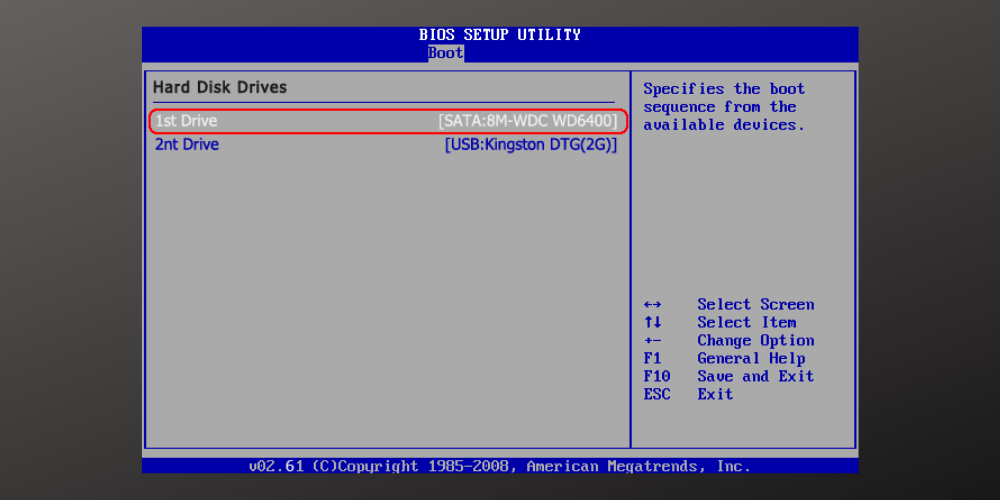
According to the screenshot, the 500GB Seagate Extension card for Xbox Series X|S consoles will be priced at €154.99 in Europe (the 1TB model is €249.99), and it’s listed with a November 14 release date.

Image credit: XboxSquad.fr

The existing 1TB Seagate Expansion Card uses a new proprietary port on the back of Xbox Series X|S consoles, and it supports the same Xbox Velocity Architecture as the consoles’ internal NVMe SSDs. Games optimized for Xbox Series X|S consoles can only be launched from the consoles’ internal hard drive or a Seagate Expansion card, but the 1TB model probably remains too expensive for most gamers.

It remains to be seen if other manufacturers than Seagate will release their own Storage Expansion cards for Xbox Series X|S consoles at some point. If Microsoft’s proprietary plug-and-play technology is currently really easy to use, Sony went a different way with its PlayStation 5, allowing gamers to install M.2 SSDs inside the console. This is good for competition, but the installation process isn’t exactly seamless for consumers who also need to make sure to purchase a compatible M.2 SSD.

Hunt, Judgment, and Blood Bowl 2 video games are free to play on Xbox consoles this weekend

Xbox console owners with an active Xbox Live Gold subscription have three full games to play for free from now until the end of the weekend on Sunday, September 19 at 11:59 p.m. PDT.

Those with a console from either the Xbox One or Xbox Series X console families can play Hunt: Showdown and Blood Bowl 2: Legendary Edition while Xbox Series X owners will also be able to play Judgment.

As is typical with Free Play Days, there are also some discounts to be had for those interested in buying the games after the free play period ends. Hunt: Showdown currently has a 55% discount while Blood Bowl 2: Legendary Edition has received a massive 88% discount and is now for sale for just $4.

Unfortunately, Judgment isn’t discounted but this makes sense as the game is relatively new.

Are you going to play any of these games this weekend? Let us know which ones in the comments below and then follow us on Twitter and Facebook for more Xbox gaming news.

Judgment
Judgment
Developer:
SEGA
Price:
$39.99


Hunt: Showdown
Hunt: Showdown
Developer:
Crytek
Price:
$39.99


Blood Bowl 2
Blood Bowl 2
Price:
$19.99