Windows Update Cannot Currently Check for Updates

If you get the Windows update can’t check for updates because settings on this PC are controlled by administrator message, it is usually because you don’t have the necessary privileges to perform a Windows Update.

Although this seems like a big problem, you should be able to fix it using one of our solutions.

Sometimes, Windows Update won’t be able to download certain updates. This can happen for various reasons, and speaking of issues, here are some common problems that users reported:

  • Windows Update cannot currently check for updates because the service is not running – This problem can occur if the necessary services aren’t running, but you can enable them right from the Services window.
  • Windows Update administrator permission – This issue can sometimes appear due to your group policy settings, but you can modify the settings to fix the problem.
  • Windows Update cannot currently check for updates because you must first restart – Sometimes, this problem can appear if there’s an issue with Windows Update components. Restart these components and check if that solves the issue.

How to fix Windows Update cannot currently check for updates?

1. Use PC repair third-party software

Specialized repair tools are able to fix important files that are required for your system to run. They replace any missing data, such as indispensable Windows files and any corrupted ones.

Installing one of these tools will repair your Windows to stop giving you errors while updating.

2. Make changes to the Group Policy

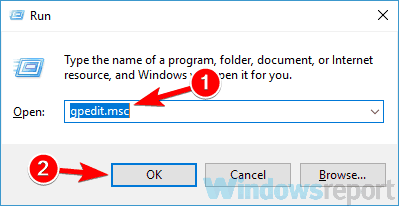
  1. Press Windows Key + R and enter gpedit.msc. Now press Enter or click OK.
    Windows Update cannot currently check for updates because the service is not running
  2. In the left pane, navigate to the following paths: Computer ConfigurationAdminstrative TemplatesWindowsComponetsWindows Update User ConfigurationAdminstrative TemplatesWindows ComponetsWindows Update
  3. make sure that non-administrators can access them.
  4. After making the changes, close the Group Policy editor.

According to users, sometimes your settings can interfere with Windows Update and cause Windows Update cannot currently check for updates.

To fix the problem, it’s advised to change your group policy settings. This is quite simple, and you can do it by following the steps above.

If everything is in order, you can download updates once again.

Note icon NOTE
Several users claim that they fixed the problem simply by settings certain services to Not Configured. To do that, follow these steps:
  1. Open Group Policy Editor.
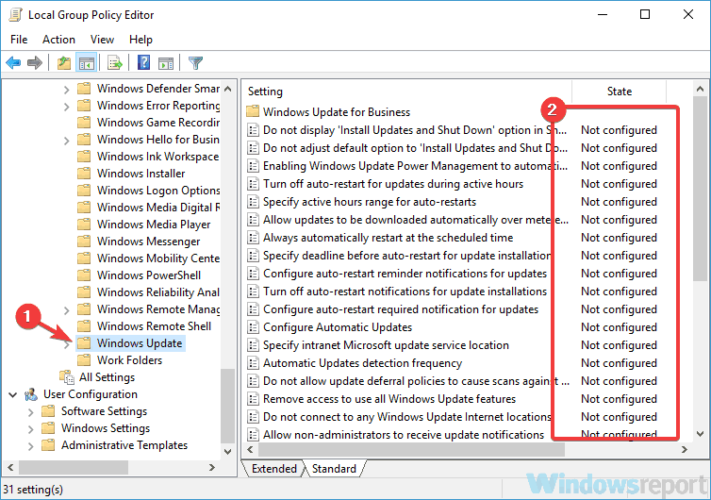
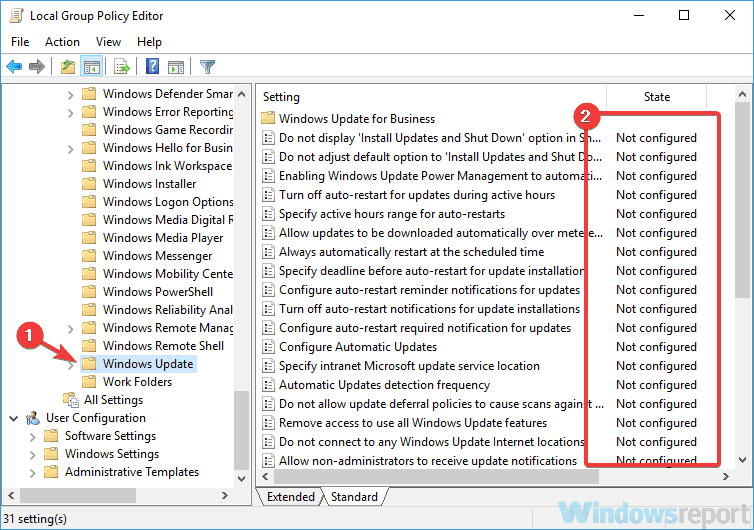
  2. In the left pane, go to: Computer ConfigurationAdministrative TemplatesWindows ComponentsWindows Update
  3. In the right pane, make sure that all policies are set to Not configured. If a certain policy isn’t set to Not configured, simply double-click it and change its state. Do so for all available policies.
    Windows Update administrator permission
  4. In the left pane, navigate to: Computer ConfigurationAdministrative TemplatesSystemInternet Communication ManagementInternet Communication settings
  5. In the right pane, locate Turn off access to all Windows Update features and make sure that it’s set to Not configured.
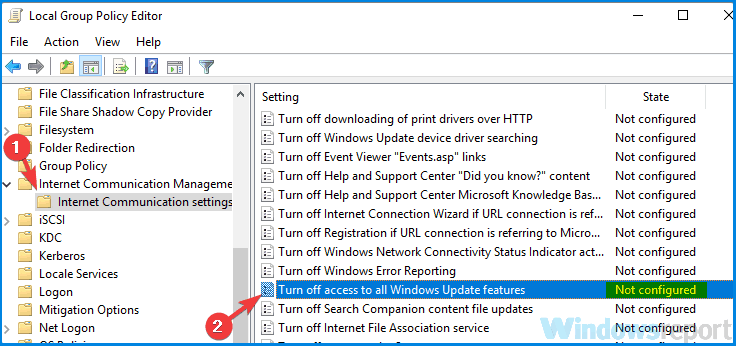
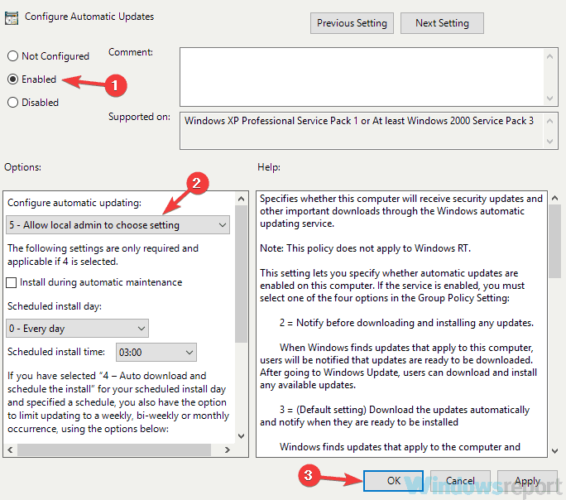
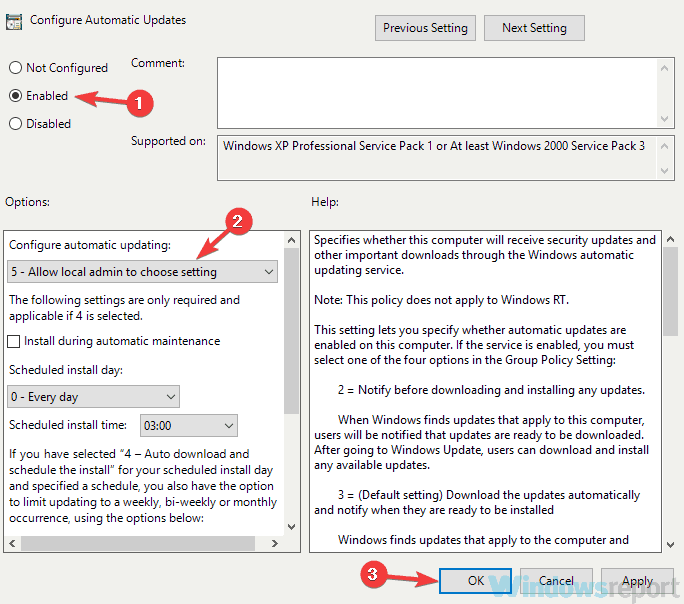
  6. Now go back to the same path from Step 2. In the right pane, double-click Configure Automatic Updates.
  7. Choose Enabled from the menu. Now set Configure automatic updating to 5 – Allow local admin to choose setting and click Apply and OK. Several users reported that you can also keep this policy Not Configured, so you can skip this step if you want.
    Windows Update cannot currently check for updates because the service is not running
  8. Lastly, check Remove access to use all Windows Update features policy, and make sure that it’s set to Not configured. If not, change it accordingly.
After doing that, the problem with Windows Update should be completely resolved and everything will start working again.

3. Modify your registry

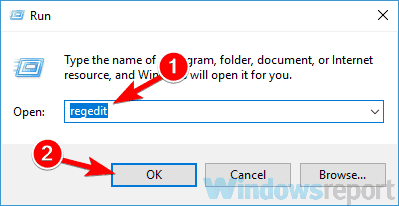
  1. Press Windows Key + R and enter regedit. Now press Enter or click OK.
    Windows Update administrator permission
  2. In the left pane, navigate to: HKEY_LOCAL_MACHINESOFTWAREPoliciesMicrosoftWindowsWindowsUpdate key
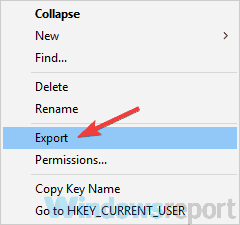
  3. Right-click the Windows Update key and choose Export.
    Windows Update cannot currently check for updates because you must first restart
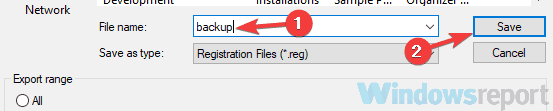
  4. Enter the desired file name, choose a save location, and click the Save button.
    Windows Update cannot currently check for updates because the service is not running
  5. After doing that, right-click the Windows Update key and choose Delete. Click Yes to confirm.

After removing this key, try to run Windows Update once again and check if the problem is still there.

Sometimes this problem can occur due to your registry and its settings.

If you’re getting Windows Update cannot currently check for updates messages, you might be able to solve this problem simply by removing a single key from your registry.

If any new issues occur after removing the Windows Update key, be sure to run the file that you created in Step 4 to restore your registry to the original state.

Note icon NOTE
Users also reported that you might be able to fix this problem simply by modifying a single DWORD. To do that, just follow these steps:
  1. Open Registry Editor.
  2. In the left pane, navigate to: HKEY_CURRENT_USERSoftwareMicrosoftWindowsCurrentVersionPoliciesExplorer
  3. If you see NoWindowsUpdate value in the right pane, set it to 0.

After doing that, you should be able to perform Windows Update once again.

4. Check if the necessary services are running

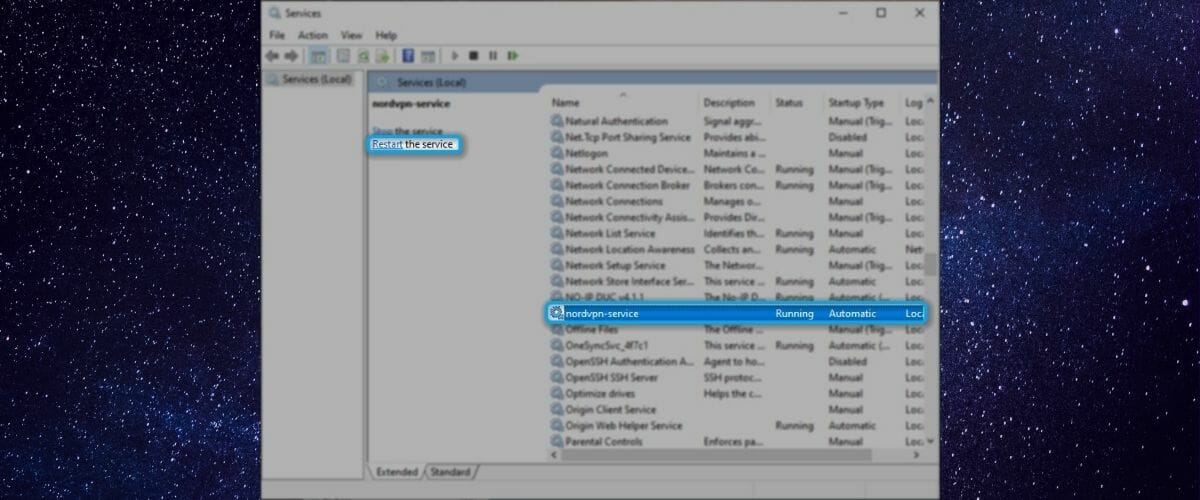
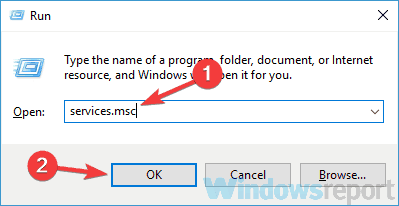
  1. Press Windows Key + R and enter services.msc. Now press Enter or click OK.
    Windows Update administrator permission
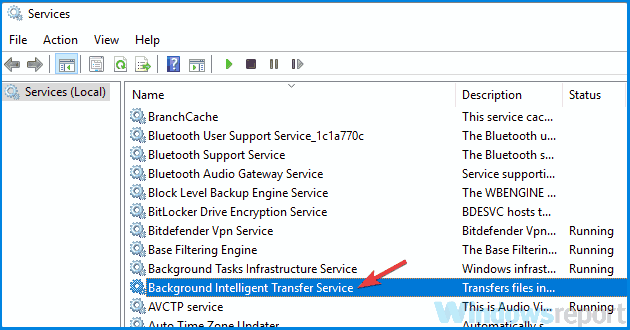
  2. When the Services window opens, you need to locate Background Intelligent Transfer Service and double-click it to open its properties.
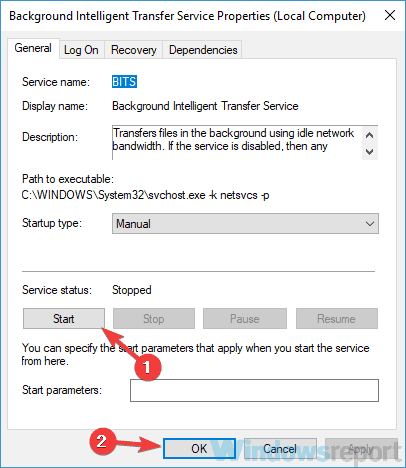
  3. When the Properties window opens, click the Start button to start the service. Now click Apply and OK to save changes.
    Windows Update cannot currently check for updates because the service is not running
  4. Now locate Windows Update service and make sure that it’s running.
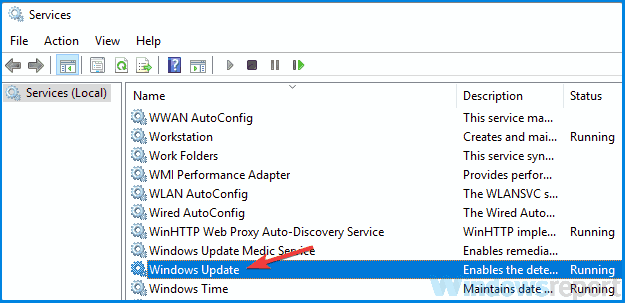
After both of these services are running, check if the problem with Windows Update is still there.

In order for Windows Update to work, you need to have certain services enabled.

If you’re getting Windows Update cannot currently check for updates error, it’s advised to check your services and make sure that the required services are working properly.

5. Run Windows Update troubleshooter

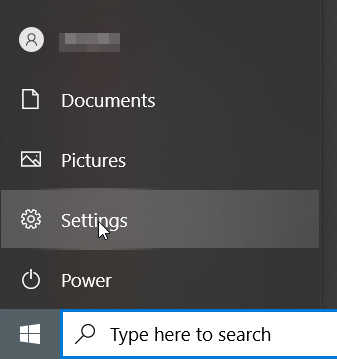
  1. Open the Settings app. To do that quickly, you just have to press Windows Key + I shortcut.
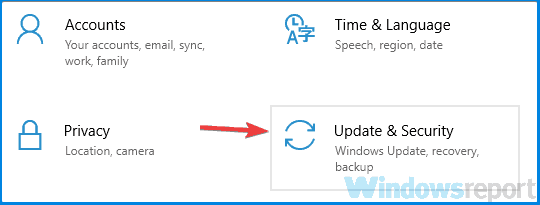
  2. The Settings app will now appear. Go to the Update & Security section.
  3. Pick Troubleshoot from the menu on the left. Now you just have to select Windows Update from the list and click the Run the troubleshooter button.
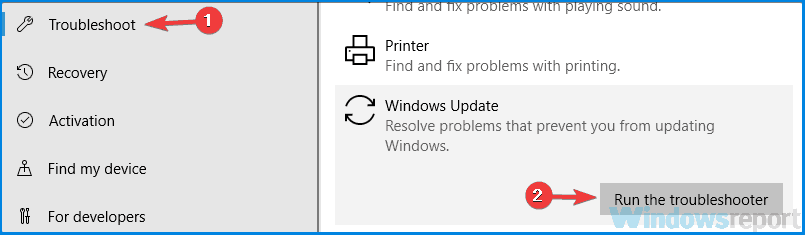
  4. Follow the instructions on the screen to complete the troubleshooter.

After the troubleshooter is finished, check if the problem is still there. This isn’t the most reliable solution, but several users claim that it works, so be sure to try it out.

According to users, if you’re getting Windows Update cannot currently check for updates error, you might be able to fix the problem simply by running a Windows Update troubleshooter.

Windows comes with various built-in troubleshooters that can fix various issues, and if you have problems with Windows Update, you can fix them easily.

Running the troubleshooter can help you fix other issues like Windows Update error code 0xd000034; read this guide to learn more.

6. Reset Windows Update components

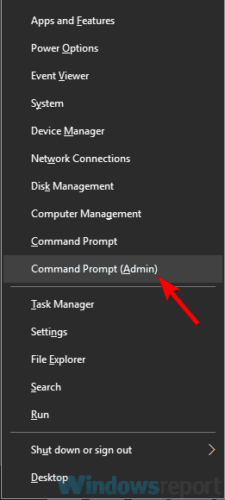
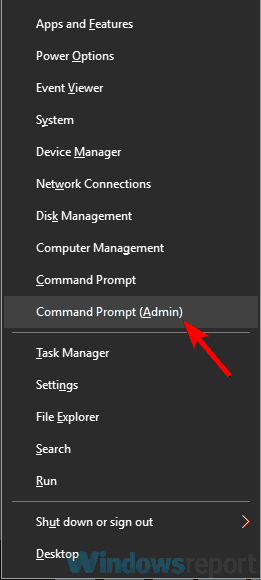
  1. Open Command Prompt as administrator. You can do that by pressing Windows Key + X and choosing Command Prompt (Admin). You can also use PowerShell (Admin) as an alternative.
    Windows Update administrator permission
  2. When Command Prompt opens, run the following commands:
net stop wuauserv

net stop cryptSvc

net stop bits

net stop msiserver

Ren C:WindowsSoftwareDistribution SoftwareDistribution.old

Ren C:WindowsSystem32catroot2 Catroot2.old

net start wuauserv

net start cryptSvc

net start bits

net start msiserver

After running these commands, the problem with Windows Update should be resolved.

Another cause for Windows Update cannot currently check for updates error can be Windows Update components.

Sometimes certain files or services can interfere with Windows Update and that can cause this problem to appear.

Running all these commands manually can be a bit tedious, but you can always create Windows Update Reset script and run all these commands automatically.

7. Create a new administrator account

  1. Open the Settings app and go to the Accounts section.
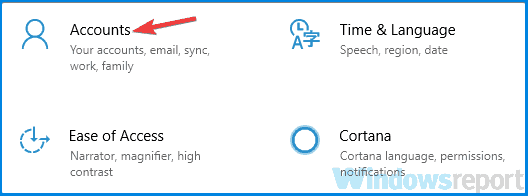
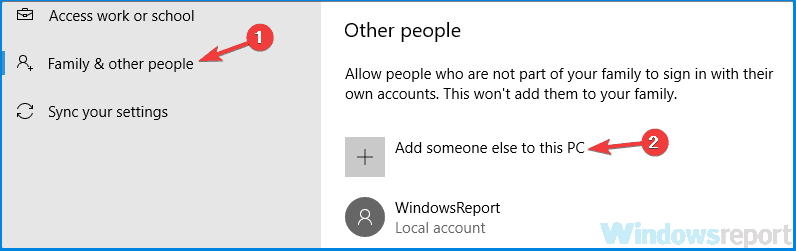
  2. Select Family & other people from the left pane. Click Add someone else to this PC button.
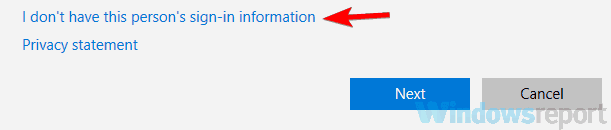
  3. Pick I don’t have this person’s sign-in information.
    Windows Update administrator permission
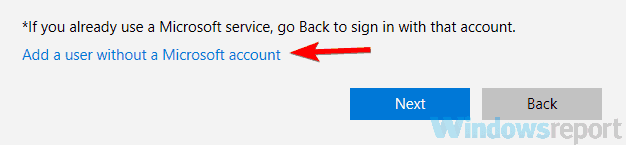
  4. Now choose Add a user without a Microsoft account.
    Windows Update cannot currently check for updates because you must first restart
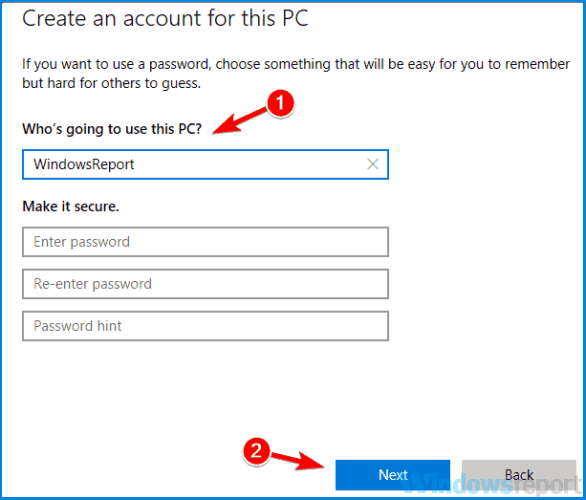
  5. Enter the desired username and click Next.
According to users, sometimes Windows Update cannot currently check for updates message can appear if you don’t have the administrative privileges.

However, you should be able to fix that by creating a new administrative account. You can do that by following the steps above.

Now you’ll have a new account ready. However, this account doesn’t have administrative privileges, but we can change that by doing the following:

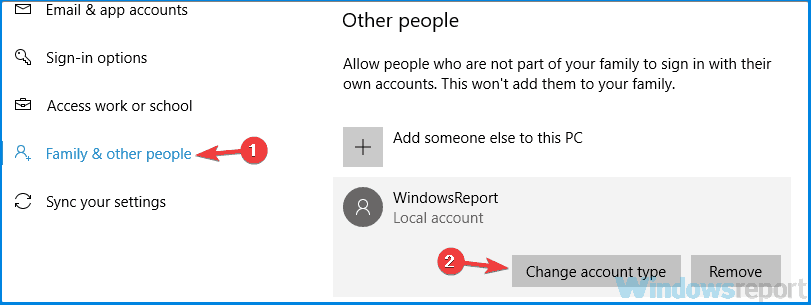
  1. Go to Settings app > Accounts > Family & other people.
  2. Locate the account you want to change, select it, and choose the Change account type.
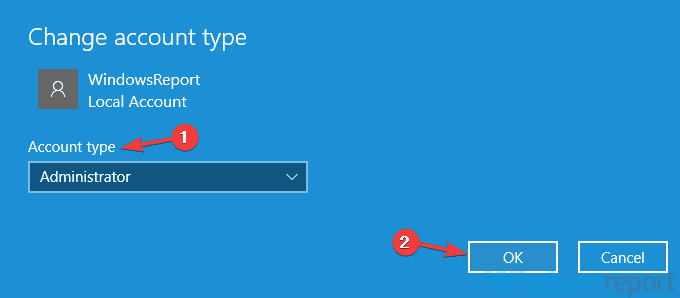
  3. Set Account type to Administrator and click OK.
    Windows Update cannot currently check for updates because you must first restart

After creating a new user account, switch to it and check if the problem is still there.

Windows Update cannot currently check for updates messages can be problematic, but we hope you managed to solve this problem using one of our solutions.

Make sure you give us any kind of feedback regarding the subject in the comment section below.

Fix: Computer is Not Authorized to Run iTunes

To play and sync media content in the iTunes media player, you need to authorize a Windows desktop or laptop for an Apple ID.

Some iTunes users have stated that computer not authorized error messages pop up when playing or syncing media content with the media player.

Those error messages pop up for some users even when they’ve already authorized an Apple ID with the Authorize This Computer option on the Store menu. Consequently, they can’t play or sync selected music or video in iTunes.

How do I fix iTunes saying computer is not authorized when it is?

1. Log out of iTunes

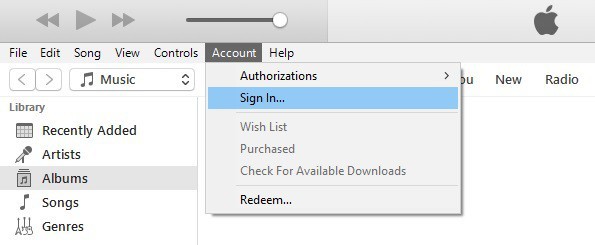
  1. To log out, open the media player’s library, click Account, and select the Sign Out option.
  2. Then click Account > Sign In, and enter your Apple ID to log back in.

If iTunes says that your computer is not authorized, but it actually is, the cause of the problem might be a glitch easily fixed by logging out and logging in to iTunes again.


2. Check what user account purchased the media file

  1. Open the iTunes media player.
  2. Select the music (or other media content) you need to check the Apple ID in the Library.
  3. Click Edit and select Get Info on the menu.
  4. Then click the File tab, including the Apple ID for the person who obtained the media content to the purchase right. That’s the Apple ID you need to sign in for and authorize your desktop or laptop to play the music with.

Note that iTunes might request authorization when you select to play DRM media files that weren’t purchased with the Apple ID you’re signed in with.

Thus, somebody else who also utilizes iTunes on the same laptop or desktop might have purchased media content with a different Apple ID than the one you’re logged in with.

Or you might have downloaded DRM media content with another ID yourself. If so, you must sign in with the account ID that the music was purchased with to play it.


3. Deauthorize computers linked with iTunes

  1. First, open iTunes and sign in with your Apple ID if required.
  2. Click Account and select View My Account on the menu.
  3. Input your password and press Enter to open an Account info page. There you can scroll to Apple ID Summary that tells you how many computers you’ve authorized to play media content.
  4. Press the Deauthorize All button on the right of the summary.
  5. Then restart the iTunes media player.
  6. Click Account and Account Authorizations to expand a submenu.
  7. Select the Account Authorization option to authorize the PC for Apple ID.

You can only authorize a maximum of five PCs for your Apple ID. Thus, you can’t authorize a computer if you’ve already authorized the maximum number of PCs for your iTunes account.

As such, reauthorizing desktops or laptops for an Apple ID might fix the computer not authorized message in iTunes.


4. Reinstall iTunes

Some users have also stated that they’ve fixed computer not authorized error messages by reinstalling iTunes.

You can manually reinstall iTunes like any other app, but if you want to remove it completely, we suggest using IObit Uninstaller.

This application is designed for software removal, and it will completely uninstall any software you want to remove, including all associated files and registry entries.

IObit Uninstaller is simple to use, and it offers in-depth removal, unlike the regular uninstall process in Windows, so you should check it out.

Other great features:

  • In-depth software removal
  • Can remove stubborn applications
  • Can remove Windows 10 Universal apps
  • Automatic system monitoring
  • Automatic leftover file removal
IObit Uninstaller

IObit Uninstaller

To remove any application along with all of its associated files, be sure to use IObit Uninstaller.
Check priceVisit website

5. Delete the SC Info folder

  1. Press the File Explorer button on the taskbar.
  2. Then click the View tab shown in the snapshot directly below.
  3. Click the Options button to select Change folder and search options.
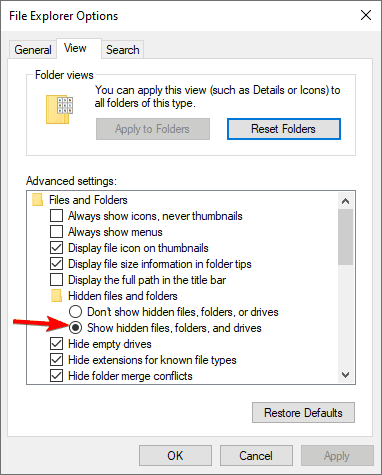
  4. Select the View tab on the Folder Options window that opens.
  5. Select the Show hidden files, folders and drives option.
    folder options hidden files  computer not authorized itunes
  6. Click the Apply button, and select OK to close the window.
  7. Enter this path in File Explorer’s folder path bar: C:ProgramDataApple ComputeriTunes
  8. Select the SD Info folder there, and press the Delete button.
  9. Then restart the Windows OS.
  10. After that, you’ll need to authorize the computer for your Apple ID again, as you erased the SD Info folder.

The iTunes computer not authorized error can be to due to a corrupted SD Info folder. Thus, deleting that folder can potentially fix the issue as iTunes will recreate SD Info.


6. Reset User Account Controls

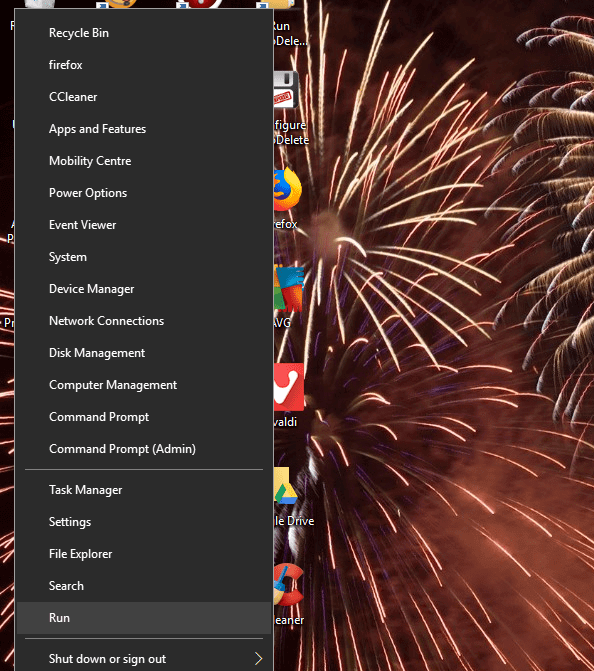
  1. Resetting the User Account Controls in Windows might also fix some iTunes authorization issues. To do that in Windows 10, right-click the Start button and select Run.
    run computer not authorized itunes
  2. Then enter UserAccountControlSettingsin Run and press Return.
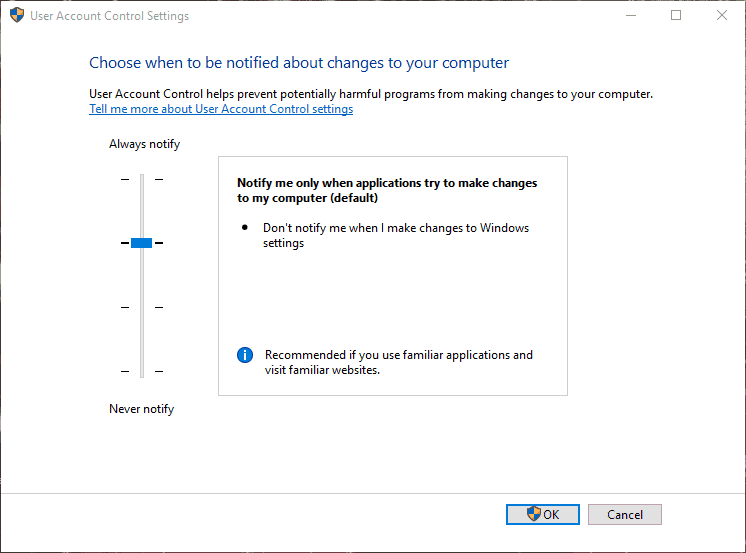
  3. Move the bar slider to Never notify.
    user account control settings computer not authorized itunes
  4. Press the OK button.
  5. Click Yes to confirm.
  6. After that, restart your desktop or laptop and open the User Account Control Settings window.
  7. Drag the slider up the bar to turn UAC back on. You can also leave the UAC off if you wish.
  8. Click the OK button.

If iTunes says that your computer is not authorized, but it is, adjusting User Account Control settings might be able to help you.


These are a few fixes that will probably resolve most iTunes computer not authorized error messages. If you encounter any issues with iTunes, it probably concerns the distnoted.exe file, so check for any errors.

Note that most of the above resolutions might also fix unauthorized issues for the Apple Mac iTunes software and its Windows counterpart.

An update to Adobe Flash Player is available message [FIX]

If you noticed a pop-up message saying An update to Adobe Flash Player is available, and you’re not sure if it’s legit or not, you’re not the only one. A great number of users have reported encountering this message.

At first glance, this pop-up seems to be an official Adobe update notice, but not all these pop-ups are what they seem to be.

Because Adobe Flash Player used to be one of the most popular web plug-ins, so people that develop malware are sometimes using this platform as a disguise.

They can send very similar-looking pop-ups to users’ PCs, and once a link is clicked, different types of malware can be installed on the computer.

In today’s day and age, malware attacks on personal PCs have reached an all-time high and this is clearly a case that requires your attention because Adobe pulled their support for the Flash Player from December 31st, 2020.

That means that you can completely exclude the possibility of a legitimate message from Adobe and be on alert because there have also been other attempts from wrongdoers to install malware by using Adobe Flash.

For these reasons, in today’s article, we will discuss some of the best ways to make sure that the Adobe Flash Player update pop-up on your screen is not trying to steal your information. Read on to find out more details.

What to do if An update to Adobe Flash Player message appears?

Adobe will not send any more update notifications to users since the software was discontinued.

However, it is very important to understand some of the differences between the original Adobe installer notice, and other third-party entities who are trying to gain access to your PC.

Here are some of the best markers of a false update pop-up:

  • The installer package is distributed as a ZIP file (and not with the original Adobe format – a DMG image).
  • How it looks – if the installer package is presented to you as a generic orange installer without having the Adobe icons and formats, the text contains typos, or interface elements that are not aligned, etc.
  • If the pop-up appears on your screen while browsing the Internet.

Note: Because of the skills that malware developers have gained in time, they can now create perfect replicas of the installer. In order to make absolutely sure that your computer will not be hacked, read the next section carefully.

What to do if you see a pop-up that doesn’t seem to be original?

The best way to deal with a situation like this is to always be skeptical of any automatic updates pop-ups that appear on your screen.

If you see a pop-up like the one mentioned above appear, the safest way to deal with the situation is to visit the official Adobe website (or other original software developers) and download the updated version yourself.

Doing this allows you peace of mind that the download you performed is coming from the original creators and not some other third-party malware creators who imitate the installer.

Try using a browser that supports Flash

As we mentioned before, Adobe pulled the plug on its Flash Player so it won’t receive any more updates. However, if you still have Flash content on your PC, you can still open it by using the Opera One browser.

This excellent software not only is fast and well adjusted to Windows 10, but it also offers a built-in VPN, Ad blocker and AI. And they are completely free, like the browser itself.

Even though Opera One doesn’t come anymore with Flash Player support, you can still enable it in the browser and access websites that still use Flash support.

You should first allow the Flash web plugin to run in the Opera One browser. With lots of integrated apps, this browser will surely support such playing content.

On the other hand, you must be aware that very few websites still use Flash support for various content online. According to the Opera forum, the users managed to activate Flash support in the Opera GX browser.

Opera One

Opera One

Opera One still offers native support for Flash content but it’s also a fast and reliable free browser.
Free Download Visit website

In this article we explored some of the most common differences between original software update pop-ups and fake ones, and also discussed a fail-safe method to deal with this situation.

Before you go, don’t miss our guide that explores if it’s still possible to download Adobe Flash Player for Windows 10.

Please let us know if this guide helped you by using the comment section below.

How to update BIOS on Lenovo [Safe guide]

BIOS ( Basic Input Output System), is a small piece of code contained on a chip on your system board. BIOS works like a bridge between your system hardware and the operating system during the boot process.

Similar to other laptops, Lenovo laptops also come equipped with BIOS that allows you to change boot process order and different hardware settings.

Updating your motherboard’s BIOS can help in many ways. The update can bring new features and functionalities, support new CPUs, fix bugs, and refresh a corrupted UEFI environment.

This article explores a few ways to update BIOS on Lenovo laptops and desktops with ease.

How do I update BIOS on Lenovo laptops and desktops?

1. Update BIOS through Windows executable file 

update BIOS on Lenovo
  1. Open your Internet browser and go to Lenovo Support.
  2. Type your product name, serial number, or machine type into the search box and then select your computer model from the drop-down list. Make sure that you have chosen the correct system.
  3. Open the Drivers and software tab to bring up a list of drivers available for your system.
  4. Click the drop-down menu labeled Operating System and select your OS.
  5. Click the Components drop-down menu and select the BIOS/UEFI from the list. It will display a list of BIOS files available for download.
  6. Click the Download button beside the more recent update and download BIOS to your computer.
  7. Right-click on the downloaded BIOS file and select Run as Administrator.
  8. When self-extracting windows appear, click the Install button.
  9. Click the Flash BIOS button. Make sure you have connected to a reliable power source.
  10. Click the OK button and the BIOS flashing program will run automatically.

Note: When the BIOS is successfully updated, the system will reboot automatically.

Updating Lenovo BIOS running Windows 10 using the executable file is easy.

However, at times this method can fail. You can check out alternative ways to update BIOS in the next set of steps.

2. Update BIOS using Lenovo System Update

update BIOS on Lenovo

Note: make sure to run a Windows update and install the pending updates before running System Update on a Lenovo system.

  1. Launch your web browser and go to the Lenovo Support page.
  2. Type your product name or serial number and select your system from the drop-down list.
  3. Click the Drivers and Software tab from the left pane. This will display the list of update available for your system.
  4. Scroll down and locate System Update.
  5. Click the down arrow icon to download System Update.
  6. Run the System update installer and follow the instructions during install until the update is fully installed.
  7. Once the installation process is over, you can delete the System Update file safely.

3. Update BIOS through Lenovo Vantage 

update BIOS on Lenovo
  1. Launch the Lenovo Vantage app on your system. If you don’t have the app installed, download it from the Lenovo website here.
  2. Under the Device option, click on the System Update option. If you don’t see the option, toggle the menu button, and select System Update.
  3. Click the Check for Update button to see any pending updates available for your system.
  4. Once the scan is complete, scroll down and locate the BIOS update.
  5. Press the Install Selected Updates button.
  6. Click OK to reboot the computer and install the update.
  7. Lenovo Vantage will download the update and initiate the installation process.
  8. Select the update BIOS option on the Flash Update Utility.
  9. Once done, you will be prompted to reboot the computer. Click on Reboot and then follow on-screen instructions.

The Lenovo Vantage is a handy tool. Apart from allowing you to download and install a system update, the app helps you get most of your device.

You can also tweak battery optimization, fast charge, always charge from USB and check your system’s health using the app.

Is it safe to Update BIOS?

There are some risks involved in updating the BIOS and requires the user to take extra precaution when updating the BIOS.

System manufacturers offer dedicated tools to update system BIOS. Make sure to use the recommended tool to update your BIOS.

In most cases, you may not need to update your BIOS regularly. However, in case some system functionalities stop working, you can use the methods listed in this article to update your BIOS.

There you have it—three ways to update BIOS on your Lenovo laptop and desktop.

Whether you want to update Lenovo BIOS for Linux or Windows, it is important to do it right. Make sure to follow the steps in this article carefully to update your Lenovo BIOS for laptops and desktops.

S/MIME control isn’t available error [Solved]

If you are using Outlook Web Access (OWA) in Internet Explorer, you may encounter the S/MIME control isn’t available error. Due to the issues, users are unable to open email or download attachments.

The error seems to be occurring on systems that don’t have S/MIME installed. However, in some instances, the error can also occur due to incorrect configuration of Internet Explore or permissions issues.

If you are also bugged by this error, here are a few troubleshooting steps to help you resolve the S/MIME control isn’t available error in Windows 10, 8 and 7 running systems.

How do I make S/MIME control available?

1. Add your OWA in Trusted Sites

S/MIME control isn't available
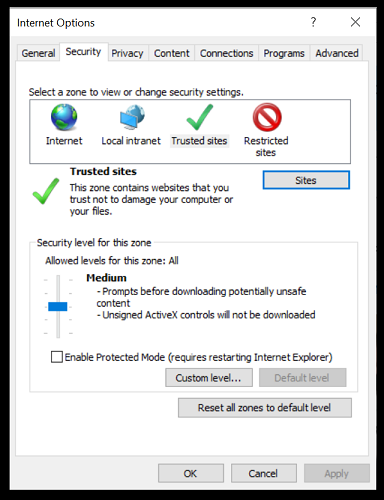
  1. Launch Internet Explorer. You can search in the Start menu to find and launch the app.
  2. In Internet Explorer, click the Gear icon and select Internet Options.
  3. In the Internet Options window, open the Security tab.
  4. Select Trusted Sites and then click the Sites button.
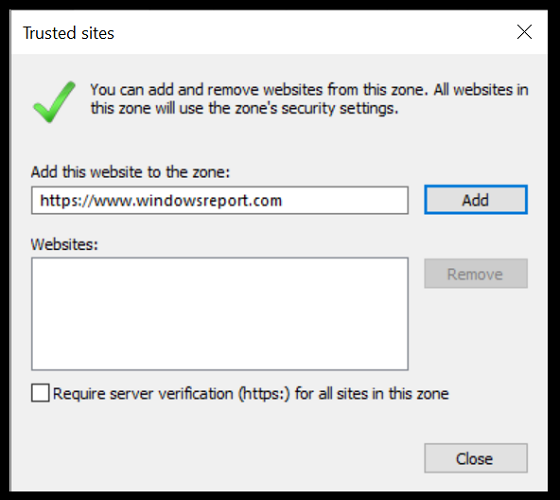
  5. Paste the link to your OWA page and click the Add button.
  6. Next, uncheck Require service verification (https:) for all sites in this zone’ box.
  7. Click Close and go back to the Internet Explorer home page.
  8. Click the Gear icon and select Compatibility View Settings.
    S/MIME control isn't available
  9. Enter the same OWA page link in the Add this website field and click the Add button.
  10. Leave other settings as it is and click the Close button.
  11. Try to download the attachment or access the email to see if the error is resolved.

Adding your OWA page into Trusted Sites and Compatibility View seem to have fixed the error for many users. Make sure to add the OWA pages into both Trusted Sites and Compatibility View to resolve the issue.


2. Run Internet Explorer as Administrator

S/MIME control isn't available
  1. Type Internet Explorer in search.
  2. Right-click on Internet Explorer from the search result and select Run as Administrator.
  3. Try to access your email and check if the S/MIME control isn’t available error is resolved. If the error is resolved, change the Internet Explorer property to run the app as administrator always.
  4. Open File Explorer and navigate to the following location:
    C:UsersTashreefAppDataRoamingMicrosoftWindowsStart MenuProgramsAccessories
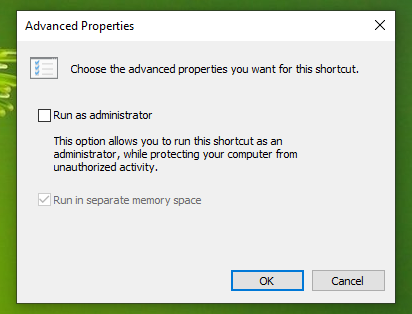
  5. Right-click on Internet Explorer shortcut and select Properties.
  6. Click the Advanced button.
  7. Check the Run as an Administrator box.
  8. Click OK to save the changes.

Next time you run Internet Explorer, it should launch with administrative privileges. Sometimes the app may require the user to have administrative permission over the browser.


3. Install S/MIME

S/MIME control won't install
  1. Open your OWA client and sign in with your credentials.
  2. Click the Options button on the top right side of the screen.
  3. Select See All options from the context menu.
  4. In the Options window, click on Settings.
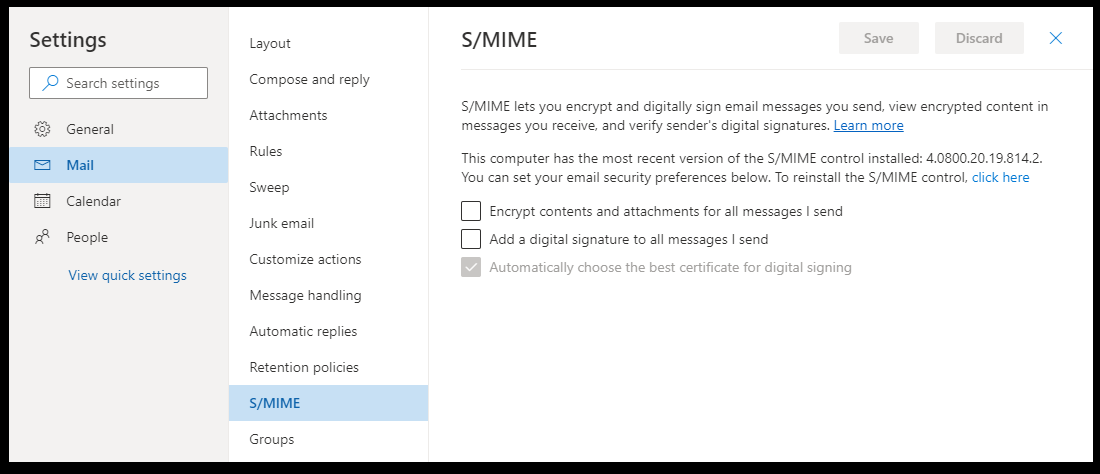
  5. Click the S/MIME tab from the menu.
  6. Click on the hyperlink Download the S/MIME control to download the package.
  7. Once the download is completed, run the download file.
  8. Follow on-screen instructions to install S/MIME.
  9. Once installed, refresh the browser, and you should see a pop-up message saying This website wants to run the following add-on.
  10. Right-click on the message and choose Run Add-on on All Websites.
  11. Click Run when an Internet Explorer Security Warning appears.

Note: You may need to reinstall S/MIME if the installation is broken due to a Windows update that may have reset settings. Follow the steps to install S/MIME and fix S/MIME control won’t install error.


4. Disable Encrypted Pages to Disk option

S/MIME control won't install
  1. Launch Internet Explorer.
  2. Click the Gear icon and select Internet Options.
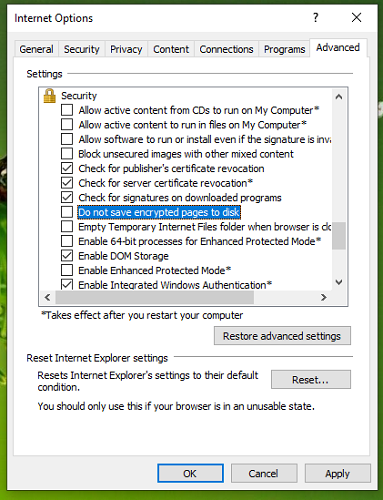
  3. In the Internet Options window, open the Advanced tab.
  4. Scroll down to the Security section.
  5. Uncheck the Do not save encrypted pages to disk option.
  6. Click Apply and OK to save the changes.
  7. Close Internet Options and restart Internet Explorer.
  8. After the restart, check if the error S/MIME control isn’t available is resolved.

How do I enable S/MIME in Chrome?

S/MIME control won't install
  1. Press the Windows key + R.
  2. Type regedit and click OK to open Registry Editor.
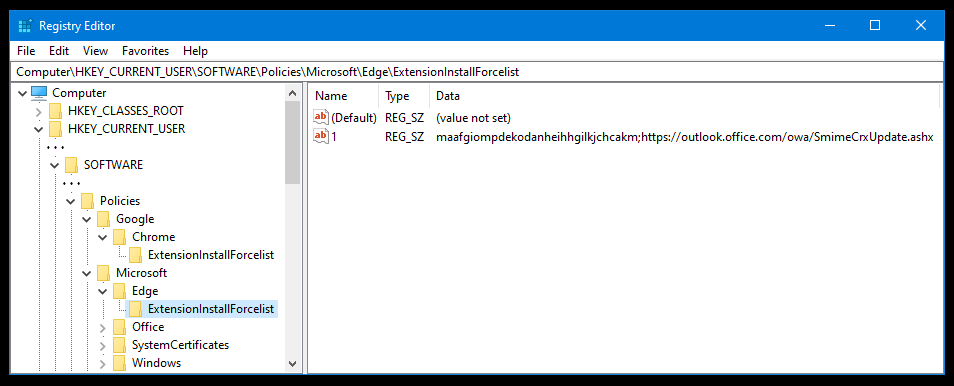
  3. In Registry Editor navigate to the following location:
    HKEY_CURRENT_USERSoftwarePoliciesGoogleChromeExtensionInstallForcelist
  4. Right-click anywhere on the right pane and select New and choose String Value.
  5. Enter 1 for the value name and make sure the value type is REG_SZ.
  6. Right-click on the newly created value and select Modify.
  7. In the Data field, enter the following data depending on your Office application:
    Office 365: 
    maafgiompdekodanheihhgilkjchcakm;https://outlook.office.com/owa/SmimeCrxUpdate.ashx
    Exchange On-Premises:
    maafgiompdekodanheihhgilkjchcakm;https://<your owa url>/owa/SmimeCrxUpdate.ashx
  8. Make the necessary changes in the above value like adding your OWA URL and click OK to save the changes.
  9. Close Registry Editor and restart your Chrome browser.
  10. After the restart, you will see the Outlook icon next to the address bar indicating that the extension is enabled.
  11. Next, you need to install S/MIME control for the extension to work properly. For Office 365 you can download the S/MIME control from here.
  12. Run the downloaded file to install the control.
  13. Restart the browser to configure additional S/MIME settings in Outlook on the web.

The S/MIME control isn’t available error when accessing email or attachments can occur due to several reasons. Follow all the steps in this article one by one to fix the error.

Windows 10 news recap: Apple testing Podcasts and Apple Music app for Windows 10, Windows 10X build leaks, and more

Welcome back to our Windows 10 news recap, where we go over the top stories of the past week in the world of Microsoft’s flagship operating system.

Apple is reportedly testing new Music and Podcasts app for Microsoft platforms in private beta

A new report suggests that Apple is testing apps for Apple Music and its Podcasts service, currently in private beta, for Windows 10 and/or Xbox consoles.

Apple Music Podcasts Logo

Microsoft to fix critical NTFS vulnerability on Windows 10 PCs

A critical NTFS vulnerability can cause users’ hard drives to be corrupted. Now, Microsoft is working on a fix for the flaw. The flaw can be exploited by simply opening a HTML file, a Windows shortcut, or even by extracting a zip folder.

Windows 10X build “leaks,” providing what could be a near-final look at the single-screen version of the OS

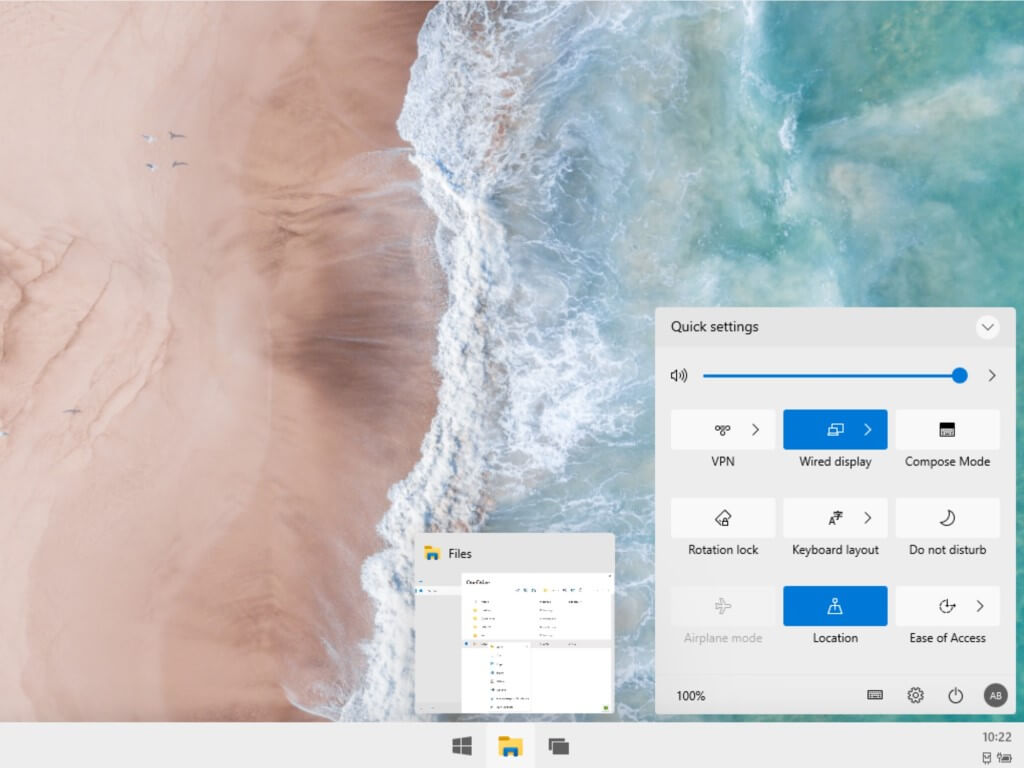
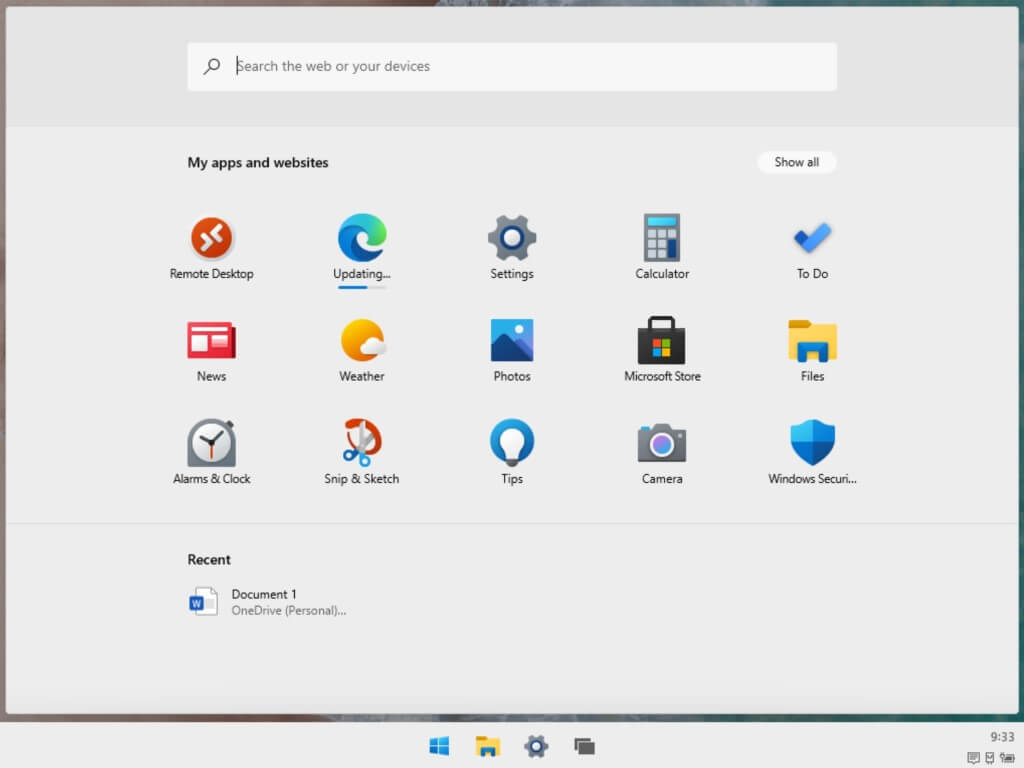
A more recent build of the upcoming Windows 10X operating system has leaked, which shows what could show a near-final look of what Windows 10 X could be, though features could come and go, and this is in no way what the final version will necessarily be.

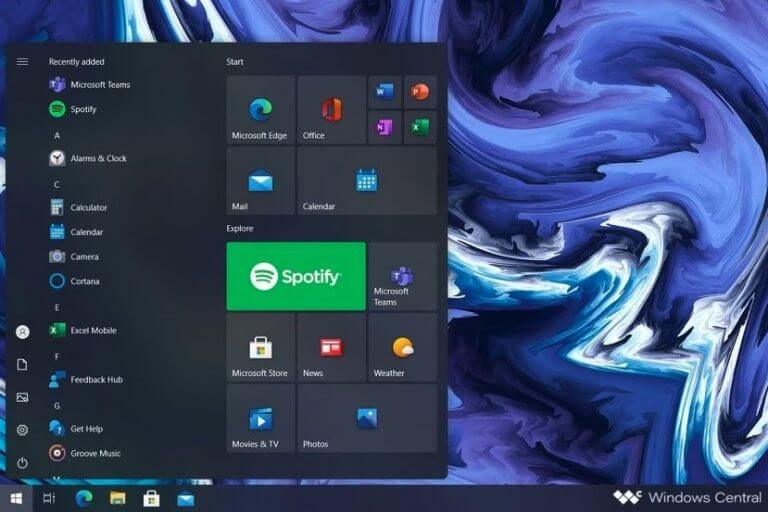
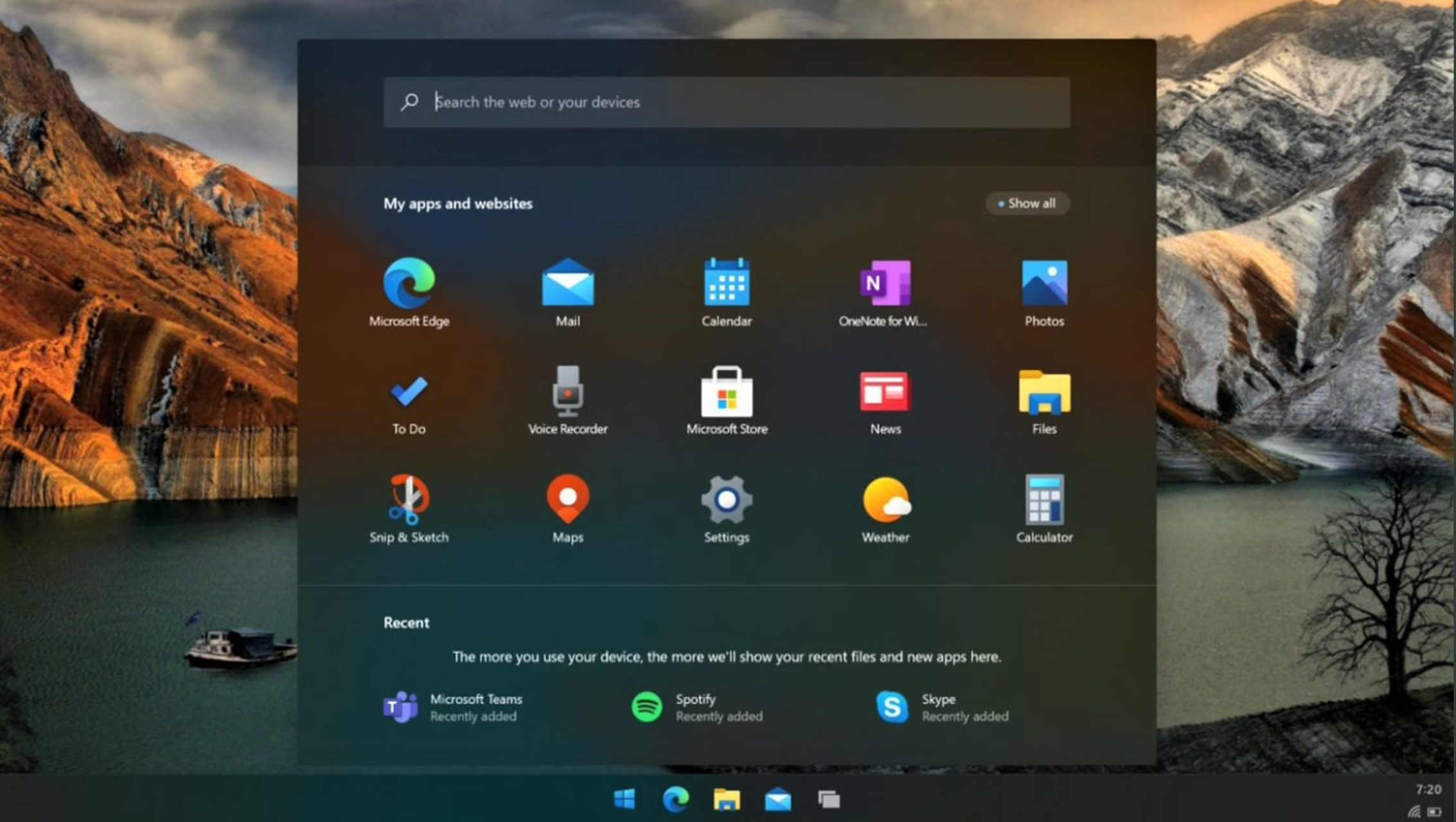
Windows 10 “Sun Valley” update may introduce floating Start Menu and other UI changes

With a Windows 10 redesign expected on the horizon, codenamed “Sun Valley”, we’re starting to get a glimpse of what the redesign could bring to Windows 10. New mockups show that there could be a floating Start Menu, along with Snap assist improvements, and more.

Windows 10 Redesigned Start Menu Sun Valley Mockup Windows Central

That’s it for this week. We’ll be back next week with more Windows 10 news.

NVIDIA GeForce driver error code 0x0003 [Fixed]

NVIDIA GeForce Experience is a handy utility for NVIDIA GPU users. However, at times this software utility can run into problems and trigger an error. One such error is NVIDIA GeForce driver error code 0x0003.

The full error reads:

Something went wrong. Try rebooting your PC and then launch GeForce Experience. Error Code: 0x0003

A quick search result will return multiple reasons for this error. Some of the usual suspects are permission issues, disabled NVIDIA services, corrupted NVIDIA drivers, and your network adapter issues.

In some cases, the error presented to you by Nvidia GeForce will be a little different than in the case presented in this guide. Check out how to fix the error code 0x0001.

In this article, we have listed a few troubleshooting steps to help you fix the NVIDIA GeForce driver error code 0x0003 on your Windows 10 system.

How do I fix the NVIDIA GeForce driver error code 0x0003?

1. Update Graphics drivers with Outbyte Driver Updater

Outbyte Driver Updater automatically update drivers

The error try rebooting your pc and then launch GeForce Experience 0x0003 can occur due to corrupted drivers. Update Nvidia GPU with Outbyte Driver Updater to see if that resolves the error.

Outbyte Driver Updater is a premium Windows utility to update system drivers with one click. It features a massive database of over 18 million driver files. You can update individual drivers or all the drivers in batches after the scan.

For backup and automatic updates, Outbyte Driver Updater comes with a backup manager and update scheduler. It will create a backup and save the existing drivers in case you need to restore the drivers.

Key features of Outbyte Driver Updater:

  • One-click updates of graphics and other system drivers 
  • Lightning-fast scans
  • Download manager 
  • Driver backup and schedule manager
Outbyte Driver Updater

Outbyte Driver Updater

Resolve the NVIDIA GeForce driver error code 0x0003 easily by using this powerful software today.
Free trialDownload

2. Allow Nvidia Telemetry services to interact with desktop

NVIDIA GeForce driver error code 0x0003
  1. Press the Windows key + R to open Run.
  2. Type services.msc and click OK to open Services.
  3. In the Services window, scroll down and locate Nvidia Telemetry Container.
  4. Right-click on the service and select Properties.
  5. In the Properties window, open the Log On tab.
    NVIDIA GeForce driver error code 0x0003
  6. Check Allow services to interact with desktop box.
  7. Click Apply and OK to save the changes.
  8. Go back to the Services window and locate the following services:
    Nvidia Display service
    Nvidia Local System Container
    Nvidia Network Service Container
  9. Repeat the steps to enable the Allow service to interact with desktop option for all the services listed.
  10. Once all the services are enabled, try accessing NVIDIA GeForce Experience and check if the error is resolved.

Nvidia Telemetry services are required to run the software without any issues. Allowing the service to interact with desktop seems to have resolved the issue for many users. If the error persists, apply other fixes.


3. Reset the network adapter

NVIDIA GeForce driver error code 0x0003
  1. Press the Windows key, and type cmd in the search.
  2. Right-click on Command Prompt and select Run as Administrator.
  3. In the Command Prompt window, type the following command to reset network adapter:
    netsh Winsock reset
  4. Wait for the command to complete.
  5. Once the command is processed, restart your computer and check for any improvements.

The GeForce error code 0x0003 can occur due to network issues. In that case, you can reset network adapter to fix network problems on your Windows 10 computer. If these steps didn’t fix the problem, try reinstalling the graphics driver manually.


4. Reinstall graphics drivers manually

NVIDIA GeForce driver error code 0x0003
  1. Press the Windows key + R to open Run.
  2. Type control and click OK to open the Control Panel.
  3. Go to Programs and click Programs and Features.
  4. Locate all the programs and installations associated with Nvidia.
  5. Right-click on one of the Nvidia GPU related app and click on Uninstall. Click Yes when prompted by UAC.
  6. Repeat the steps and uninstall the Nvidia related apps and GPU drivers.
  7. Once uninstalled, restart your computer.
  8. After the restart, go to the Nvidia download center.
  9. Select your graphics card model, series, and operation system version and language. Download the latest drivers available for your GPU.
  10. Run the installer and follow on-screen instructions to install the software and update the drivers.
  11. Make sure to restart your PC once the updates are installed.

Reinstalling Nvidia graphics drivers manually can fix many issues that may cause the GeForce Experience software to stop working.

If manually updating the driver, did not resolve the issue, try reinstalling Nvidia GeForce Experience and other software to see if that helps you resolve the Nvidia GeForce driver error code 0x0003.


The NVIDIA GeForce driver error code 0x0003 is usually triggered due to the Nvidia Telemetry services not running.

If starting the services did not help, try reinstalling the software. You may also try creating a new user account to fix the problem.

Netflix Error Code Tvq-st-131 [Complete Fix]

As one of the most popular apps for streaming movies, Netflix has gained a lot of enthusiastic users since it has been launched.

Unfortunately, as with many other popular apps, Netflix is not without problems or errors. Whenever users try to connect to the Netflix app, they get the error code tvq-st-131 without even passing through the initial login page.

In this article, we will explore what are some steps you can take to solve this error code when trying to play Netflix.

How can I fix the Netflix error code tvq-st-131?

1. Check your network

Because many types of networks can have limited speed and be slow, especially if many people are using them, it’s important to make this verification.

If you use a phone device to connect to the Internet or a satellite Internet connection, try using a different network and see if this solves the problem.

Otherwise, if you are using public Wi-Fi at your hotel or a public place, make sure to check that Netflix is allowed. It is not uncommon for these networks to block streaming video on purpose.

2. Restart your home network

  1. Turn off your device.
  2. Next, unplug both the modem and the router. Make sure to wait 30 seconds.
  3. Plug in your modem and check for the indicator lights to start blinking.
  4. Reconnect your router, and proceed as above.
  5. Connect your device again and try playing Netflix.

3. Improve your Wi-Fi signal

It is suggested that you move your router to a new location to try to improve signal strength. Usually, when the router is placed in a central location, there is better reception.

Moreover, make sure that your router is placed a considerable distance from cordless phones or microwaves, as wireless interference from these devices can create issues when trying to connect over Wi-Fi.

It’s also indicated to place your Wi-Fi elevated from the floor. If you place it on top of a bookshelf or a desk, you will probably see some improved reception.

4. Restore your default connection settings

If you’ve made some custom settings on your streaming service, it is recommended that you restore your internet provider’s default setting.

If you are connected using a VPN, disable it and connect directly to your home internet. Likewise, if you have changed the DNS settings, reset the device.

Once you have checked all the above, try opening Netflix again and checking if the error is still there.

We hope that one of our solutions helped you fix the error code tvq-st-131 and that your Netflix app is working perfectly now. We also have a guide on fixing aip-703 error on Netflix for Chromecast and TV, so don’t miss it.

If you have additional suggestions or recommendations, please leave us a message in the comments section below.

No sound on Nvidia GameStream? Here’s the fix

Every player dreads the lack of audio while playing. Without sounds, the gaming experience is not complete.

Unfortunately, Nvidia GameStream is affected by such an issue. The error is with GameStream, as users reported that YouTube and other media channels are working properly.

Nevertheless, the issue has a quick a few quick solutions. Today we will show you what to do to have sound again in GameStream, so keep reading.

Quick Tip:

Not having sound on Nvidia GameStream ruins the gaming experience for many players. Make sure you don’t have an overall issue with your sound.

If this is the case, we recommend you use a lightweight and simple repair tool, that can increase your PC’s performance!

How do I fix NVIDIA GameStream no sound issue?

1. Change a few settings in GameStream

  1. Open Playback Devices (with the option Show Disabled Devices checked off, but the one Show disconnected unchecked).
  2. When you enable any game stream, very briefly a new one would pop up and disappear. Try a few times to click Enable during that brief window.
  3. Right-click Set as default, disconnect GameStream and connect it again.

2. Update GeForce Experience

This issue often appears when GeForce Experience is outdated. Don’t forget to update it to avoid this error.

While you’re at it, update the sound driver as well. You can do this easily with one of these driver updating tools from our fresh list.

Also, remember to update your drivers as often as possible to avoid similar issues.

3. Disable your antivirus

Several users reported that this problem is related to the antivirus. Disable your antivirus while playing. You can enable it back after you’re done.

Keep in mind that this is only a workaround. This issue should not appear if you have antivirus.

Also, you can try another tool to protect your computer from cyberattacks. You can try one of these antivirus tools from our new list.

If this error is specific for GameStream, try our methods above. Twitch some options in Playback Devices to solve the issue. You can disable your antivirus as well.

However, this will leave your PC vulnerable. If this works, consider installing another antivirus.

Did our article help you solve this problem? Do let us know in the comments section below!

Remove Scan drive for errors notification in Windows 10

Nothing is scary as receiving the warning that you should scan the drive for errors in the midst of using your PC or when rebooting.

First, your PC may completely refuse to boot meaning you will have to spend time troubleshooting the PC instead of working.

Even worse, your hard drive stores important data whose loss can be devastating to your organization.

Of course, one of the most important system maintenance routines for perfect hard disk health is running a disk check regularly.

Strangely, even disks that have all along seemed to be in the best condition are not spared and may suddenly display the irritating scan drive for errors in Windows 10 notification.

Well, despite its stubbornness, this is a solvable problem and I will show you how shortly. But just before that, let’s look at its likely triggers.

Potential causes of the scan drive for errors issue

  • Natural wear and tear: During the course of using your PC, the hard drive may suffer mechanical damage or get logical errors. Such incidences may lead to a corrupted file system, bad or irregular sectors, or a complete disk breakdown meaning there is a risk of data loss.
  • Shutting down a PC improperly: Moreover, you may notice the error notification when booting if you had previously shut down your system improperly.
  • Installation of new programs: You may experience the error when restarting after installing a particular program/game.
  • Other boot-related challenges: Additionally, you could receive the notification to scan drive for errors in case your PC encounters other boot-related problems, for example, a virus attack.

How do I remove the scan drive for errors notification?

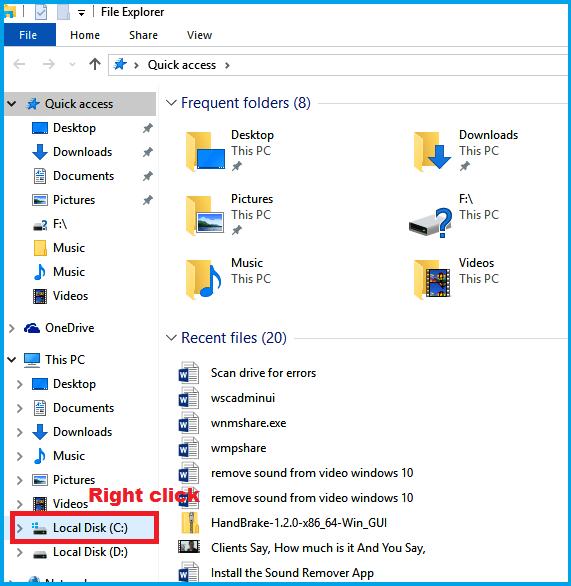
1. Use the GUI error checking tool

  1. Click the File Explorer icon on the taskbar (as shown). The explorer opens up. chkdsk
  2. Locate the disk you would like to scan for errors from the left menu, and right-click it.
  3. Choose Properties.
  4. Click Tools, then select Check. scan and repair drive windows 10
  5. Choose Scan drive.hard drive scan and repair

Type your administrator password and provide confirmation if you’re prompted. It is advisable that you can run the scan for each drive (if you have multiple drives) to be on the safe side.

Just right-click on each in turns.

2. Perform chkdsk in Command Prompt

  1. Click Start, and type cmd in the search dialogue box.
  2. Right-click Command Prompt, and choose Run as administrator.scan and fix hard drive
  3. In the command line type chkdsk /x: (x is the drive letter), and press Enter.windows found errors on this drive that need to be repaired
  4. Press Y if you’re prompted to check your disk during the next restart.
  5. Restart your PC.

Compared to the GUI option, the cmd process offers more advanced options when scanning your drives for errors.

The error scanning operation also tries to repair any bad sectors meaning you might lose data during the scan/repair process.

Subsequently, always backup your data before running it to avoid suffering a costly data loss.

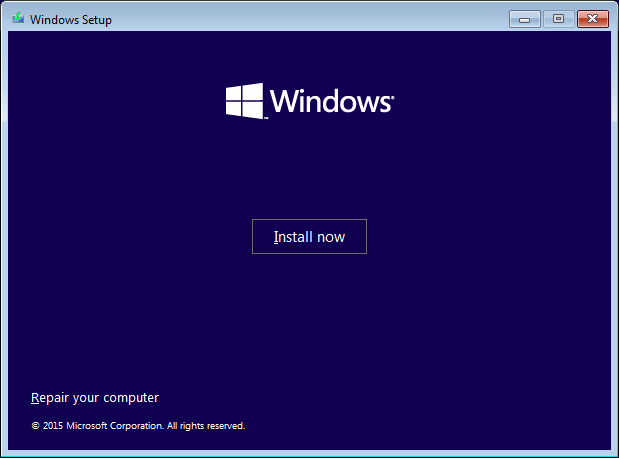
3. Boot your PC from Windows installation media

  1. Insert your Windows installation DVD or USB Recovery Disc/ System Repair Disc in the relevant drive.
  2. Force your PC to shut down by long-pressing the power button.
  3. Now power on your PC, and press any key to boot from CD or DVD.
  4. Select your keyboard layout, time and language, and click Next.
  5. Press R or click Repair your computer.
  6. Choose Troubleshoot from the Choose an option window.
  7. Click Command Prompt.
  8. Type chkdsk c: /f/r then press Enter (c is the drive letter).

What to do if the Windows 10 scanning and drive repairing error hangs

  1. Insert your Windows 10 Installation disc.
  2. Restart the PC.
  3. To boot from the CD or DVD, press any keyboard key.
  4. Choose your keyboard layout, time and language, and click Next
  5. Select Repair your computer.
  6. Click on Troubleshoot.Scan Drive For Errors
  7. Click on the Advanced options, and select Command Prompt.
  8. Type the command sfc /scannow and press Enter.

Sometimes Windows 10 seemingly freezes before completing the process of scanning and repairing drive errors.

When this happens, the procedure of repairing drive C: becomes stuck at a certain percentage for hours on end.

In such cases, you can first try the system file checker (SFC). This may help as it also scans and restores any corruption in system files that could be causing the freeze.

You can retry the scan after your computer completes the sfc tests.

You may even be forced to reinstall Windows 10 if the freeze doesn’t go away even after implementing the above suggestions.

What to do if your disk is found to have errors

If at the end the tool finds errors, the system will request you to restart right away to allow it to fix the errors.

There is also the alternative to schedule the restart to later. We would recommend that you reboot right away.

Once in a while, Windows 10 persists in telling you to scan the drive for errors even after you have restarted. Well, this could mean several things with each calling for a different action.

Here are some probabilities and suggested fixes:

  • Your disk has been affected by a vicious malware attack: Try to scan your PC with an updated antivirus.
  • There’s a problem with Windows update: Try to download and install the latest updates.

4. Perform a regular disk check using a third-party app

In order to maintain the good health of your hard drive, you need to perform a regular disk check.

We recommend you use a universal system optimizer that can fix both system and application crashes. With this kind of tool, you’ll benefit from automatic error repair, since this software is completely automated.

We hope that our solutions helped you to solve the scan drive for errors in Windows 10 notification. If you have any other solution suggestions or questions, you can write to us in the comment section below.

FIX: Adobe Creative Cloud Issues on Windows 10/11

Adobe software is used by millions of users, and it’s also expensive software. It’s common to be concerned if you have issues with Adobe Creative Cloud products on Windows 10. 

Users report that after installing Adobe Creative Cloud, multi-core applications such as Photoshop, for example, don’t load, or load but don’t work well.

As you can imagine, this is a big problem especially if you’re using Adobe software professionally.

If you’re having these issues there’s no need to worry, because we have a few solutions that can help you. The steps below will help you fix Adobe Creative Cloud issues with ease, so keep reading.

How can I fix the Adobe Creative Cloud issues?

1. Update your Creative Cloud desktop app to the latest version

  1. Press the Windows Key.
  2. Open the Adobe Creative Cloud app.
  3. Select the Account  icon on the upper-right corner
  4. Then select the Apps tab.
  5. Afterward, do the following: 
    • Turn on Auto-update if you want to update all apps.
    • Turn on only the specific apps you wish to update, then click Done.

Whenever you have to fix Adobe Creative Cloud issues, the first thing to do is to update the app to the latest version. Adobe is constantly putting out bug fixes and most issues are solved when the new version comes out.

Of course, this is not exclusive to Adobe, as all the software you run should be up to date to ensure maximum protection against security vulnerabilities.

Moreover, you get access to the latest features and apps that Adobe has to offer.

Here’s what you get when you download Adobe Creative Cloud:

  • Photoshop – arguably the best photo editing software available
  • Premiere Pro – the industry standard for video editing, used from YouTube to Hollywood
  • Illustrator – the tool for creating vector graphics that can be scaled to any size without losing quality
  • InDesign – for when you want to create beautiful posters, flyers and magazines intended for printing
  • Over 20 tools which can be used across platforms and on multiple devices, including mobile

You can delete the Creative Cloud desktop app and reinstall it via Adobe’s official website in some situations, such as a corrupted Creative Cloud desktop app or difficulty installing some Creative Cloud apps.

Before you start the uninstaller, make sure that all of your files are already synced. It’s possible that files that aren’t linked to your Creative Cloud account will be lost.

2. Make sure that your Windows 10 is up to date

  1. Press the Windows Key.
  2. Go to Settings.
  3. Select Update and Security.
    Update and security - Paint 3D no export option
  4. Choose Windows Update.
  5. Then, select Check for updates.
  6. Allow Windows to check for any new versions.
  7. If it does find updates to install, follow the instructions.

Users confirm that issues with Adobe Creative Cloud are usually resolved after updating Windows 10 to the latest version.

If Adobe Creative Cloud is not working, Microsoft is aware of this issue, and it’s working hard to fix any incompatibility issues that you might have with Adobe software, so the first step is to update your Windows 10 to the latest version.

3. Download Microsoft Visual C++ Redistributable

If your application still cannot start, you might need to reinstall Microsoft Visual C++ Redistributable. Adobe applications rely heavily on Microsoft Visual C++ Redistributable, so you will have to install it.

According to Microsoft, Adobe applications require the latest version of Microsoft Visual C++ Redistributable, and you can download it from Microsoft’s website for free.

Just make sure that you download and install both x86 and x64 versions if you’re using a 64-bit operating system.

Just remember to restart your PC after you’ve installed Visual Studio Redistributable, so the changes can be applied.

4. Delete the OOBE folder

  1. In the Search bar type Control Panel, and click on the result.
  2. Go to Appearance and Personalization.
  3. Under File Explorer Options, click on Show hidden files and folders.
  4. Check Show hidden files, folders, and drives, and then click Apply.

Now you need to delete the contents of the OOBE folder:

  1. Close Creative Cloud desktop app.
  2. Go to the following path:  C:>Users>[user folder]>AppData>Local>Adobe>OOBE
  3. Delete all the files in the OOBE folder.
  4. Restart your PC, and then the Creative Cloud app.

Because the content in the OOBE folder will be rebuilt, you will have to wait a little longer than usual for the app to load. Don’t panic, just leave the app to do its thing for a few minutes.

This will fix any Adobe Creative Cloud issues you might have encountered.

As you can see, fixing these issues is relatively easy. You just need to keep your Windows 10 up to date, your app up to date, and to have Visual Studio installed.

If you have any more questions or concerns about the Adobe Creative Cloud, feel free to share them in the comments section below.

Firefox add-ons not working? How to restore & fix

Firefox is a great browser, mainly due to its flexibility when it comes to how much customization a user can bring to it. When you are searching for ways to change how Firefox works, extend its functionality, or customize the appearance, add-ons are the ones making it possible.

Many users have recently faced an issue with the Firefox browser, regarding the fact that no add-ons were working.

It appeared as though all extensions were disabled and re-enabling them was not even possible, which of course created a lot of frustration for all users.

In this article we will explore a few easy ways to solve this issue, so make sure to keep on reading.

How do I restore Firefox add ons?

1. Enable Studies

Make sure that before making any of the below steps, you have ensured that the Studies option is checked. In order to do that, open the Firefox browser and go to Options.

In here go to Privacy and look for the Allow Firefox to install and run Studies option. Make sure to check the box if it is not already.

You can also change the automatic update settings from the general menu, in the Options section by choosing Firefox Updates.


2. Update Mozilla

Most of the time, checking to see if you have the latest version of the browser installed, will solve the issue with the add-ons.

There are different problems, already known and most of them are being solved with the new version release.

In order to update your browser to the latest available version, make sure to go to the menu and select About Firefox. After you pressed this button, Firefox will search for updates and download the latest one available.


3. Check out the Firefox blog

As seen on previous times, it can turn out that the reason Firefox add-ons stopped working has nothing to do with something from the end user side.

In the Firefox Add-ons Blog, you can easily check and see if that’s the case and also see most of the existing bugs and issues accompanied with ways to fix them as well.

In case it’s confirmed that the error was on Firefox side, then there is not, as it has in this type of situations, there is not much you can do, unless to wait for them to fix the problem.


This are our suggestions on how you can fix the Firefox add-ons not working and it implies making a few easy steps.

In general, this sort of issue has nothing to do with something that may have gone wrong on your side and it solves itself since it’s a bug from them.

Microsoft Teams keeps restarting [Fixed]

Many companies are using Microsoft Teams as their communication tool with their employees. It’s easy to use and with plenty of features but as with many good tools, it does come with its share of issues.

Recently, many users started to complain that Microsoft Teams keeps restarting while using it which has caused a lot of frustration for everyone.

We have put together a list that will help you solve this issue in no time, so make sure to keep on reading.

What can I do if Microsoft Teams keeps restarting?

1. Check your Antivirus

First, before starting to make any other verifications make sure that your Antivirus is not blocking the app or causing it to crash constantly.

Users are frequently reporting on the Microsoft community that once they have chance laptops or disabled the firewall, everything started to work just fine.


2. Check Microsoft Teams service status

Microsoft Team may crash if the service is down for maintenance. It’s very easy to check the status of the service by accessing the admin panel on your Office 365 account.

Launch Office 365 admin center and simply go to Service Health. In here you will be able to see what is the status of the service and if any measures are being taken in order to solve it.

Make sure that you have admin access otherwise you won’t be able to check the service status. If that’s the case, make sure to contact the admin.

Also, on twitter you can follow the Microsoft Office 365 Status handle and get all the details there.

Most of the time, all service-related issues are solved automatically in a few hours to a day by the Microsoft Team.


3. Delete local cache

  1. Open File Explorer.
  2. Make sure to navigate to the following location:
    C:\Users\username\AppData\Roaming\Microsoft
  3. Locate the Teams folder and delete it.
  4. Relaunch Microsoft Teams.

4. Uninstall and Reinstall Microsoft Teams

Uninstall your graphics card driver

If none of the above solutions worked, then you may have to reinstall Teams in order to fix the app crashing.

If the error is caused by an issues with the Microsoft Teams’ faulty code or corrupted files, then uninstalling it will clear all the bad files from your hard drive.

In this case, when you reinstall Microsoft Teams, the version you’ll be running should be fully functional.

Once the reinstallation process is completed, it’s advised that you restart your device. Then, make sure to log in to your Microsoft Teams account, and test the account to see if the problem has been fixed.


With this, we conclude our list of suggestions on how you can fix the Microsoft Teams crashing issue. We also have a great guide on what to do if Microsoft Planner is not working, so you might want to check it out.

If you have additional suggestions or recommendations please let us know in the comments section below.

Hulu not working on Chrome? [Complete Fix]

Hulu is an on-demand streaming service that allows its users to watch movies, television shows, and plenty of media and trailer clips from NBC, Fox, ABC, TBS, and many other networks and studios.

It’s quite a popular service, especially since it releases some pretty interesting original programs, and it currently gathers more than 35 millions subscribers.

Unfortunately though, it seems as though some of the users are not bale to play Hulu on their Chrome browser.

In this article we will explore how you can fix this problem by following some really easy steps, so make sure to keep on reading.

How can I get my Hulu to work?

1. Update your Browser

  1. Launch the Chrome browser and click on 3 vertical ellipses (3 vertical dots near the top right of the screen).
  2. Now, from the menu, click on Settings.
  3. Next, in the left pane of the window, click on About Chrome.
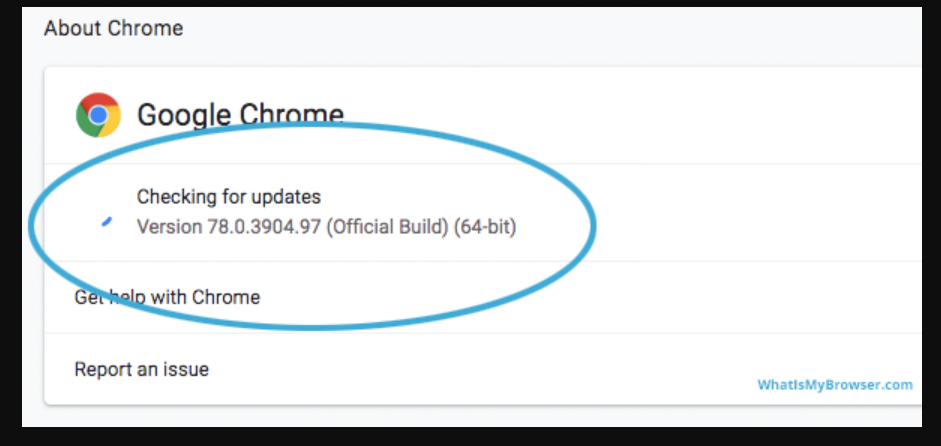
  4. Press on the check if an update is available, then update the browser.
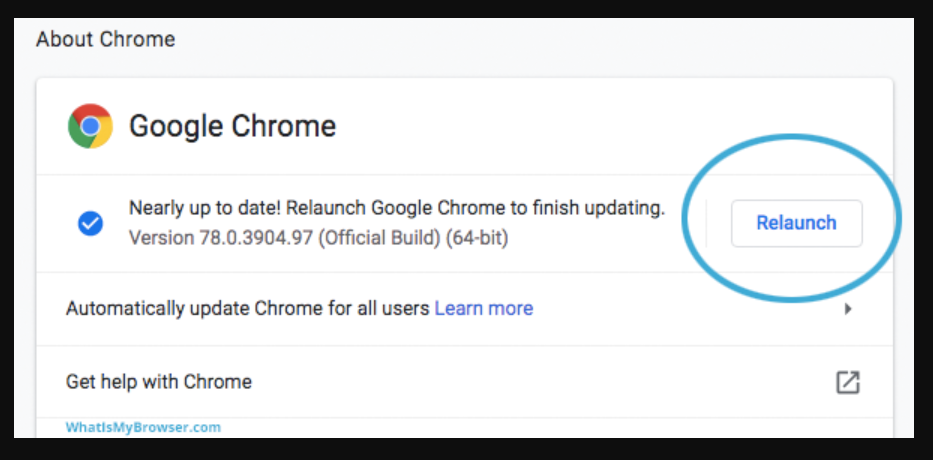
  5. After this is done, make sure to press on Relaunch.

2. Update your OS

  1. Press the Windows key and type in the Search box Updates.
  2. Next, select the Check for updates option from the list.
  3. In the Windows update setting click again on Check for updates.
  4. Restart your device once the update process is finished.

3. Disable Chrome Extensions

disable Intel SpeedStep Technology in BIOS
  1. Launch the Chrome browser.
  2. Next, click on the Extensions icon (near the top right of the screen).
  3. Now, in the menu shown, click on Manage Extensions.
  4. Disable all the extensions by toggling their respective switches to the off position.
  5. Relaunch the browser and check if Hulu is working fine in chrome.

Note: If after disabling the extensions, Hulu is working, you can try and enable the extensions one by one, and see which is the problematic one.


4. Update Adobe Flash Player

  1. Launch the Chrome browser.
  2. Enter the following command: chrome://components/
  3. Locate Adobe Flash Player and then click on the Check for Update button
  4. Refresh the page and reopen Hulu.

Because Adobe flash player is used for playing multimedia files in the Chrome browser, is advised to check if you have the latest version available installed.

Users have reported that an outdated Adobe flash player is causing troubles with Hulu streaming which means that updating it may solve the issue.


With this we conclude our list of suggestions, and we hope that one of them will help you solve any Hulu streaming issue you may experience.

If you have additional suggestions or recommendations, please let us know in the comments section below.

Hands-on video: Our look at the future of Windows and the leaked Windows 10X build in action

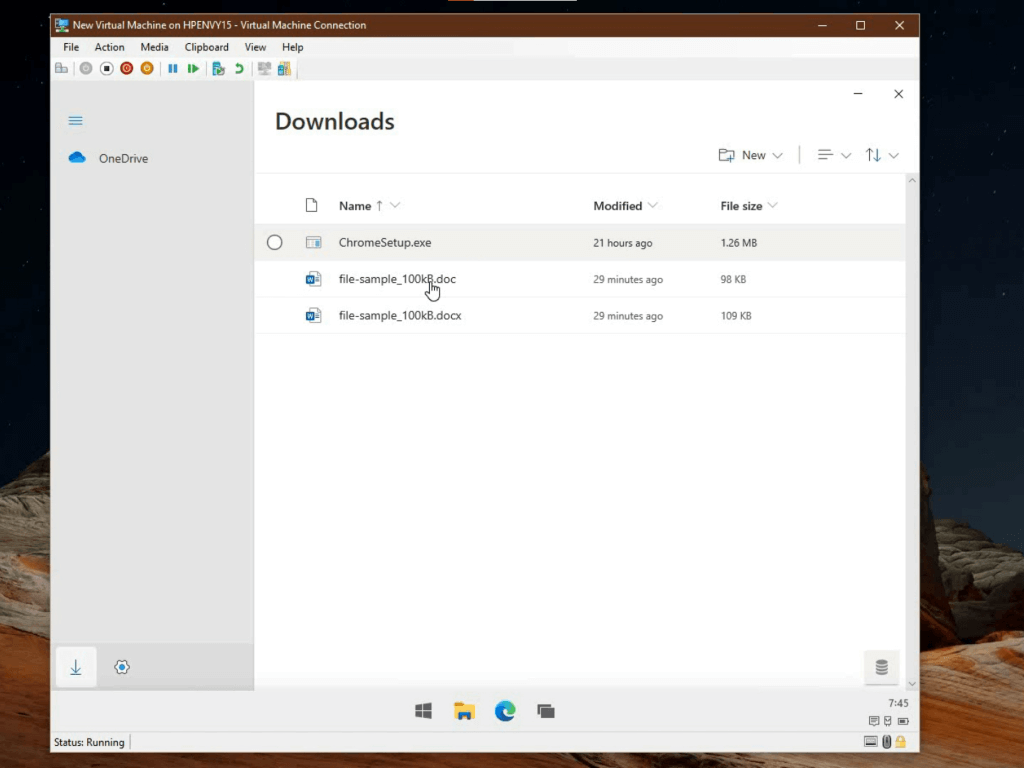
If you missed it, earlier this week, a “leaked” version of Windows 10X for single-screen PCs surfaced on the internet. Thanks to a tweet from Albacore (@thebookisclosed) and the work of the Windows community (fellow Windows activists,) we took the “leaked” VHD file and installed it on a virtual machine.

It should be noted that the leaked version isn’t considered final and many things could change between now and when 10X becomes official. Still, though, it offers an interesting peek at the future of Windows.

Watch our video as we tour you through some of the new things in Windows 10X. We’ll tour you through the Action Center, the Start Menu, as well as showcase some of the new animations. We’ll even open some of the stock apps, and showcase split-screen multitasking, too.

We also invite you to check out our initial hands-on post from a few days ago, In that post, we go a bit more in-depth and showcase how it’s a bit more like ChromeOS.

Larry Hyrb, known to all of us as Major Nelson, celebrates 20 years at Microsoft

Larry Hyrb, known far and wide by his Xbox gamertag Major Nelson, is celebrating 20 years at Microsoft. Starting out before that even as a vendor managing communities for MSN (which was far more a social network than a news site at the time), Hyrb was offered a job in 2000 to come to Redmond and serve as Editor-in-Chief at MSN Music. As he details in a thoughtful blog post, Hyrb joined the company of 38,000 (Microsoft now employs over 163,000) on January 15th, 2001.

Serving as Editor in Chief at MSN Music, luckily for Hyrb, placed him basically right next door to the nascent Xbox team, still almost a year away from launching the first Xbox. As he has been an avid gamer ever since his Mom brought home a Sears Video Arcade, Hyrb landed a job at Xbox, where he’s been ever since.

For many of us, Major Nelson is the face of Xbox, appearing on webcasts and at conferences to showcase the latest and the greatest for the game console franchise. It’s worth taking the time to read his blog post on MajorNelson.com, as Hyrb offers some sound advice he’s learned over these last 20 years.

Here’s hoping that the best is yet to come for Major Nelson and Xbox, with the Xbox Series X, a new Halo, Cloud Gaming, and more, it should be an exciting time. As Hyrb’s wife says, “the best things we’ve ever done are going to happen here.”

Good job, Larry, and keep up the great work!

Microsoft to fix critical NTFS vulnerability on Windows 10 PCs

Microsoft is working to fix a critical NTFS vulnerability on Windows 10 that can corrupt users’ hard drives when they open an HTML file, a Windows shortcut, or extract a Zip file that contains a one-line command (via The Verge). When the vulnerability is triggered, users will see a pop up saying that they need to restart their PC to repair drive errors, and doing so will initiate the Windows check disk utility on reboot to repair the corrupted disk.

The vulnerability was actually discovered two years ago by Will Dorman, a security researcher at the CERT Coordination Center. If Dormann believed that Windows 10 versions older than 1803 may not be affected, Bleeping Computer is reporting today that the NTFS issue also impacts older versions of Windows XP.

This vulnerability is pretty serious as it can be hidden in a random file and corrupt your hard drive instantly. Worse, Bleeping Computer discovered that it can also be triggered when the Windows File Explorer simply displays a corrupted shortcut hiding the malicious command in a folder. “To do this, Windows Explorer would attempt to access the crafted icon path inside the file in the background, thereby corrupting the NTFS hard drive in the process,” the report explained.

Microsoft has finally acknowledged this critical vulnerability in a statement to The Verge, promising a fix in a future update. “We are aware of this issue and will provide an update in a future release,” a Microsoft spokesperson said. “The use of this technique relies on social engineering and as always we encourage our customers to practice good computing habits online, including exercising caution when opening unknown files, or accepting file transfers.”

This is why Microsoft is ending Adobe Flash support by 2021

Adobe has finally announced that it will be ending support for Flash at the end of 2020. The company will discontinue any sort of support and security updates after 2020. However, until then, Adobe will still provide security updates and will be compatible with a majority of browsers.

In line with Abode’s announcement, Microsoft has also announced that it will be phasing out the aging standard.

Why is Microsoft ending support for Flash?

A potential threat 

Flash took the online world by storm when it was announced initially but in the recent past, online Flash content has been no less reliable.

The Flash Players’ design allows attackers to easily induce malware via unauthorized back doors. We have seen umpteen number of flash attacks on both PCs and Android smartphones.

In fact, the Flash browser version has often been criticized for its ability to accommodate malware and despite changes made by Adobe, the tool is still a potential threat.

Most of us have already moved on to HTML5 video player and I have in fact deleted the Flash player a couple of months ago. Yes, there is a fair share of web services that make use of Flash Player but the security of your system takes precedence over anything else.

It’s obsolete

Well, it’s not just Microsoft that has been ending the support for Flash content, in fact, all the other major web browsers including Google Chrome, Mozilla Firefox, and Apple Safari have already announced the same.

HTML 5 is clearly the better choice since it not only improves the overall performance of the browser but also increases security and battery life.

Quick Tip

Opera One can still support flash through some add-on. As such, Opera might be the alternative for a lot of Flash movies or games fans.

Opera One is a lightweight browser with a bunch of extremely useful built-in features that favor more productivity. Alternate workspaces and tab islands help you stay organized. The unlimited VPN keeps your identity private while you’re browsing the Internet. Plus, it comes with a native AI.

Opera One

A great browser alternative that keeps you secure while you access your favorite Flash content after 2020.
Free Download Visit website

Here’s a possible calendar of the forthcoming Flash support removal:

  • Throughout 2017 and into 2018, Microsoft Edge will continue to ask users for permission to run Flash on most sites upon the first visit. It will remember the user’s preference for subsequent visits. Internet Explorer will continue to allow Flash with no special permissions required during this time.
  • Mid to late 2018, we will update Microsoft Edge to require permission for Flash to be run each session. Internet Explorer will continue to allow Flash for all sites in 2018.
  • Mid to late 2019, we will disable Flash by default in both Microsoft Edge and Internet Explorer. Users will be able to re-enable Flash in both browsers. When re-enabled, Microsoft Edge will continue to require approval for Flash on a site-by-site basis.
  • By the end of 2020, the ability to run Adobe Flash will be removed in Microsoft Edge and Internet Explorer across all supported versions of Microsoft Windows. Users will no longer have any ability to enable or run Flash.

Additionally, it’s recommended that you uninstall Flash Player from your system, to avoid exposure to cyber-attacks, as the tool will become vulnerable.

What’s your take on Microsoft’s decision. You can drop us a line in the comments section.

How to fix Photos app file system error (-2147219196)

Are you trying to open up a picture on your Windows 10 PC and you get an error message saying File system error message with an error code (-2147219196) at the end?

This Photos app file system error issue is more common than you might think.

So in this article, we will explore some of the best methods that worked when other Windows 10 users encountered this issue.

How can I fix the file system error in Photos?

  1. Use a system debugging tool
  2. Repair the Photos app
  3. Reset Photos app
  4. Download an alternative photo viewer
  5. Use Registry Editor with Admin privileges

1. Use a sytem debugging tool

System and app errors usually occur due to corrupted files and various OS bugs that take a lot of time to decipher and fix. Here is where professional repair software comes in handy.

These tools allow you to scan your system, identify any files that have issues, and either try to fix them or replace them completely with fresh ones from their online databases.

2. Repair the Photos app

  1. Click on Start > Settings.
  2. Navigate to Apps.
  3. Search for the Microsoft Photos app in the list, select it, and click on Advanced options.file system error advanced options
  4. In the Advanced options window, scroll down and select Repair.repair photos app file system error
  5. The process of repairing your Photos app will start, and as soon as it is over, you will see a checkmark next to the Repair button.repair complete file system error
  6. This should resolve the Photos app File System error. If that’s not the case, move to the next step.

3. Reset Photos app

  1. Follow steps 1 to 3 from the first solution.
  2. In the Advanced options window, scroll down and select Reset.photos app reset
  3. After this process is complete, you can try once again to open up the Photos app.
  4. This should resolve the Photos app File System error for good.

4. Download an alternative photo viewer

If you’re tired of Microsoft Photos, then you might as well for an alternative photo viewer, one great alternative is Adobe Lightroom.

  1. Download Lightroom for free here.
  2. Install Adobe Lightroom on your PC.
  3. Reboot your PC.
  4. Press Start.
  5. Select Settings.
  6. Go to Apps.
  7. Navigate to the Default Apps tab.
  8. In the Photo viewer section choose Adobe Lightroom as the default program.

By following these steps, not only will you have a new photo viewer installed, but you’ll also have an image editor included, one that is almost as good as Adobe Photoshop.

5. Use the Registry Editor with Admin privileges

  1. Click on Cortana search box, and type regedit.
  2. In the list of results, right-click on it, and choose Run as administrator.run as administrator file system error photos app
  3. This will open up the Registry editor.
  4. Navigate to this key by using the navigation tree to the right of your screen.
    • HKEY_CURRENT_USERSOFTWAREClasses
      • Local Settings/Software/Microsoft/Windows
        • CurrentVersion/AppModel
          • Repository/Families/Microsoft.Windows.Photos
            windows photos registry file system error
  5. In this folder, check for the date of each of the entries by checking the date found in the name of the folders.registry editor
  6. The number of folders present under the Microsoft Windows Photos folder will vary depending on the number of uninstalls you performed in the past.
    • In this case, there are only 3 folders available, each with the same version number.
    • In some cases, there could be up to 8 entries of which some will have an older version.
  7. Delete the outdated entries found in the Microsoft Windows Photos folder ( the entries with smaller version numbers), and Restart your PC.

Note: In order to be able to delete the outdated key entries, you will need to follow these steps:

  1. Right-click on each entry > go to Permissions.permissions registry editor file system error
  2. Click Advanced.advanced permissions file system error
  3. Change owner from System to Administrator (by typing in Administrator and pressing OK.enter the object name
  4. Set all rights to the key to be accessible by Administrator. Doing this will allow you to delete the keys.
  5. Repeat steps 1 to 3 of  Note 3 for each of the outdated keys found in the folder Microsoft Windows Photos in the Registry Editor.
  6. After you’ve deleted all older versions of the keys, restart your computer and try using the Photos app again.

Note: It is recommended that you perform a backup of your system before attempting to change any information in the Registry editor to avoid any issues

Note 2: Some of the information presented in this solution will vary on your PC depending on the number of times the app was uninstalled, reset, etc.

There you go, these are just a couple of solutions that can help you fix File system error in the Photos app. Alternatively, you can contact Microsoft Support and ask for the resolution.

Let us know if this article helped you fix your issue by using the comment section below.
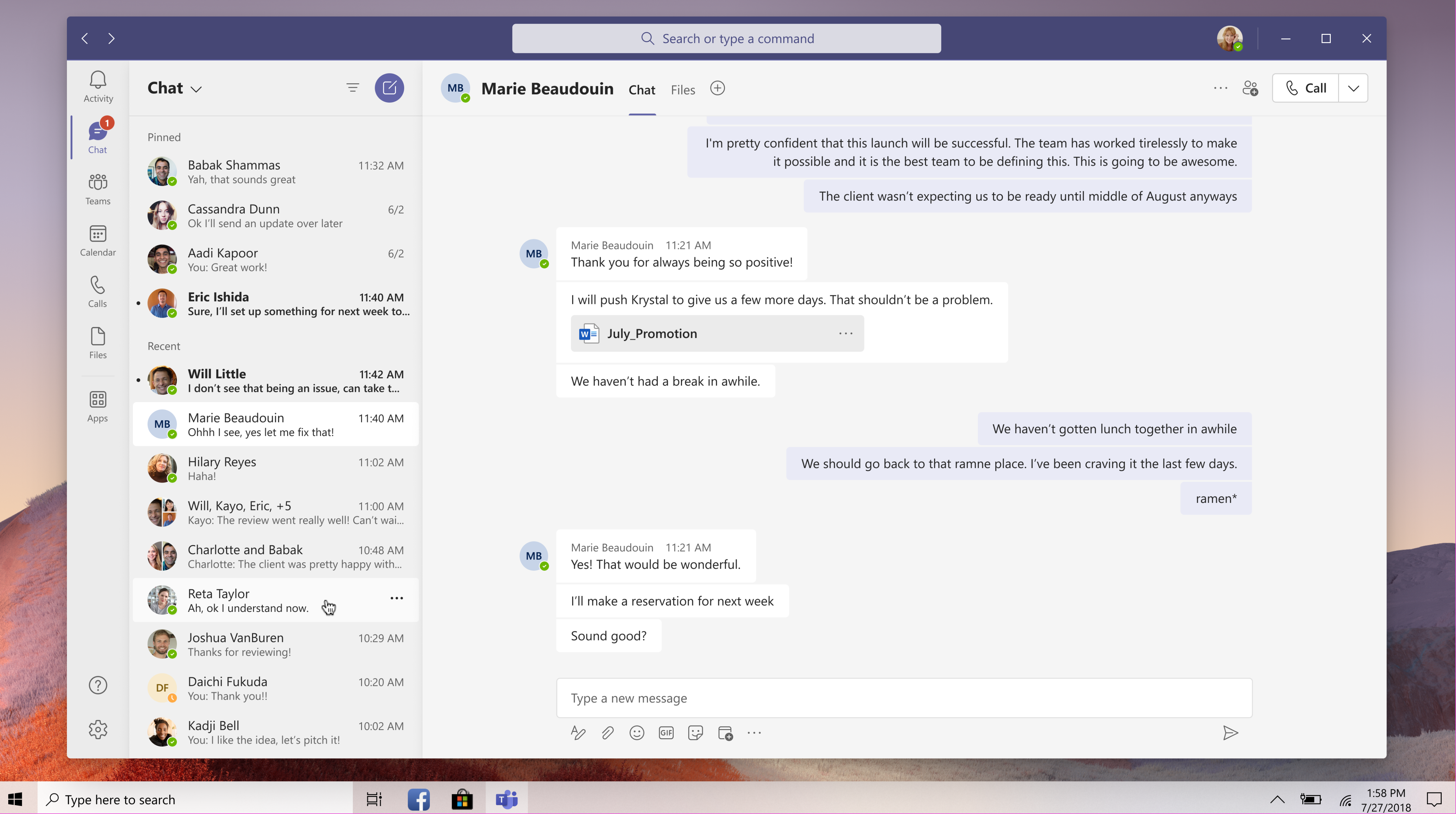
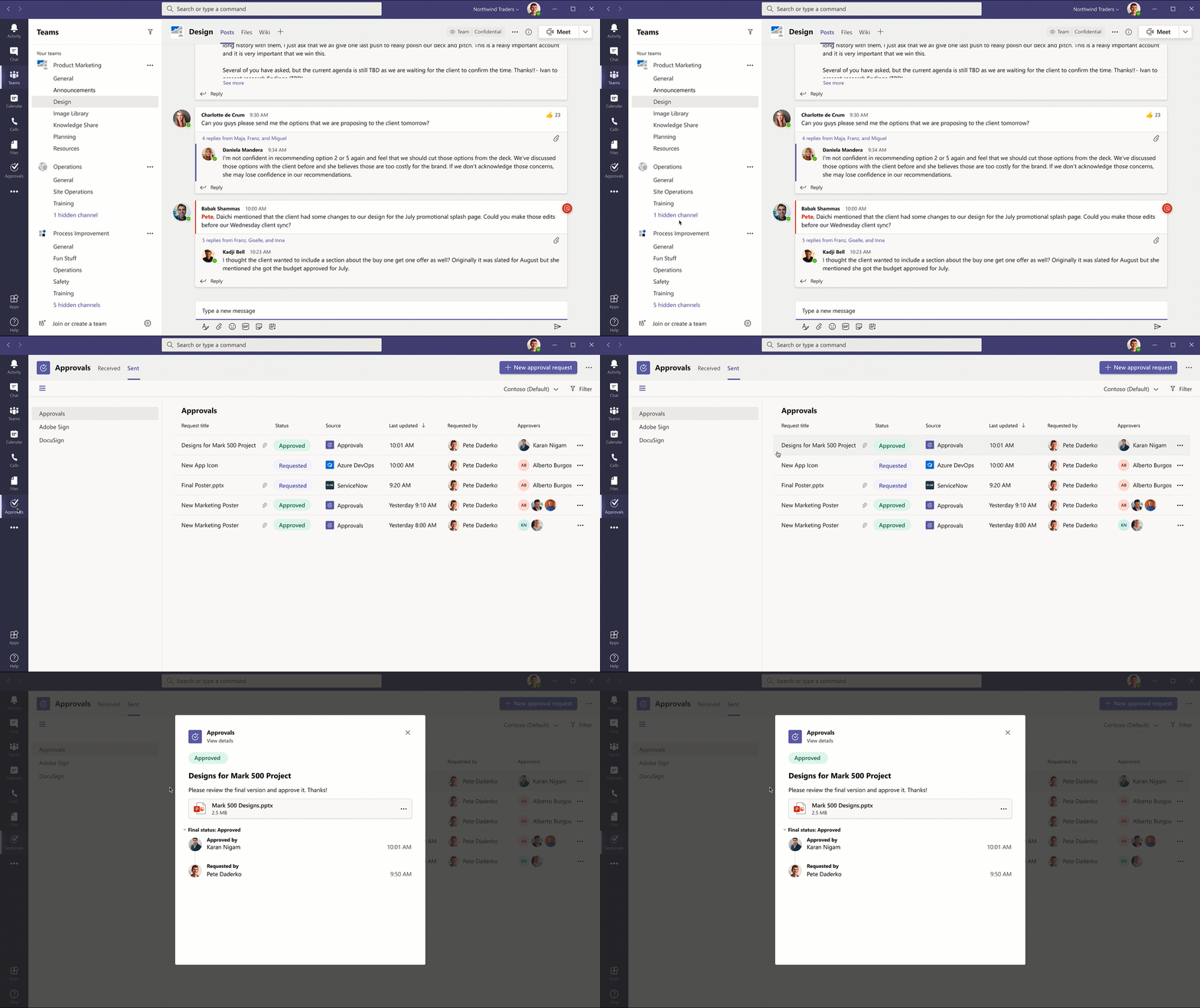
Microsoft Teams introduces new color and styling changes in public preview

Back in October, Microsoft detailed a new Theme and Fluent icon update that would soon make its debut on the Teams collaboration platform. Microsoft Teams users have been waiting for these changes for quite some time now, and this new experience is now available for testers with the newly-released update for the public preview program.

If you are enrolled in the Microsoft Teams public preview program, you’ll notice that the company has updated the default and dark themes in Teams with new background colors and introduced subtle design changes. As seen in the screenshot above, Microsoft Teams has finally picked up an improved dark mode experience, with the UI elements appearing a bit more on the darker side.

Updated design

The default theme is also getting similar treatment, and a shade of white has replaced the bright purple color in the app bar. The other noticeable changes in this update are the new drop shadow effect that has been applied between panels and the new rounded corners for various UI elements.

Overall, this is a nice coat of paint and a seamless transition to keep the UI of Teams consistent with the overall Microsoft 365 design vision, which was revealed in July 2020. Keep in mind that this release doesn’t include the Fluent icon update, and the company plans to ship it to testers in mid-February. Have you spotted these changes on your PCs? Let us know in the comments down below.

How to buy the Surface Pro 7+ directly from Microsoft

Microsoft dropped a surprise to the start of 2021 and announced Surface Pro 7+. This latest entry to the Surface Family, though, is different. It isn’t designed for consumers to buy, but rather Microsoft’s business and education customers. That doesn’t mean you can’t have one for yourself though. Here’s a look at how to buy the Surface Pro 7+.

Just like every other Surface product, Surface Pro 7+ has its own page at Microsoft. If you visit this webpage, you’ll see the listing and specs on the device. As a reminder, that includes Intel’s 11th Gen core processors under the hood, a removable SSD M.2 SSD just like on the Surface Pro X, and LTE support. There’s also an internal battery that should provide up to 15 hours of battery life, too. Otherwise speaking, this Surface Pro 7+ is the same as the Surface Pro 7.

Anyway, from this product page, you can technically buy the Surface Pro 7+. You don’t need to be an education or a commercial customer. Just click the “Where to buy” link and you’ll be taken to another page, where you can scroll down to the bottom to find “Buy online at the Microsoft Store.”

Now, for the real part. There, you’ll see Surface Pro 7+ for Business in the middle. You’ll then be taken to this product listing page where you can directly from the Microsoft Store here via “Surface for Business.” Just click the “Configure now” link, configure your device, and check out the same way you would a normal Surface.

That’s all to it. Much like Surface Laptop 3 for Business (which has Intel processors inside), you don’t need anything special to buy Surface Pro 7+. Happy shopping, and let us know if you purchased Surface Pro 7+ by dropping us a comment below!

FIX: Can’t add Bluetooth device to Windows 10

With Bluetooth continuing to be extremely relevant for short-distance communications, it sure pays to have the thing up and running on all of your devices.

However, that often has not been the case with Windows 10 as many users encountered Bluetooth connectivity issues.

Other users reported that Bluetooth is not detecting their devices. If you have the same problems, you can sort them out with the help of this useful guide.

Why can’t I add a Bluetooth device to Windows 10? Here are some of the most common Bluetooth issues on Windows 10, along with ways to get past them.

How do I fix common Bluetooth connectivity issues in Windows?

1. Bluetooth is not working

  1. Press the Window key + X and select Device Manager from the list.
  2. Locate Bluetooth from the list and click on it.
  3. Locate the specific Bluetooth adapter installed in your system, right-click on it, and select Properties.
  4. Click on the Driver tab and then click on Update Driver. Once that is done, you should be able to use the Bluetooth feature on your laptop as desired.

One of the most common causes for this problem is that the Bluetooth drivers in your device might be outdated and you need to install the latest version.

For this tedious task, it’s better to use automated software that can install any drivers rapidly, plus find the latest versions available. Hence, get it done efficiently using Outbyte Driver Updater.

2. Bluetooth not showing in Device Manager

  1. This happens if the Bluetooth driver is not compatible with Windows 10. In this case, launch Device Manager again as instructed in the previous solution.
  2. This time expand Other Devices.
  3. Right-click or long-press on Unknown device and select Properties from the menu that appears.
  4. Select the Details tab followed by Hardware IDs from the Property section.
  5. This will show the ID (an alphanumeric value) of the Bluetooth radio that your device comes with.
  6. Copy it by right-clicking or long-pressing on it and do an online search to find more info about the Bluetooth radio in your device.
  7. Try locating the official site of the Bluetooth radio manufacturer and download the latest drivers from there that are compatible with Windows 10.

3. Bluetooth not showing in Device Manager and there are no Unknown Devices

This pertains to that scenario when Device Manager is neither showing Bluetooth nor Other Devices. Things would be a little more tedious here as you need to expand every device under Device Manager that has the remotest possibility of hosting Bluetooth under them.

Once you have successfully located the Bluetooth device as well as its Parent device, try updating the driver.

This can be done either by right-clicking/long pressing on the parent device and selecting Update driver from the menu shown, followed by Search automatically for updated driver software.

If this does not work, try uninstalling the device. Right-click/ long-press the device and select Uninstall device. Restart the PC. This will make Windows make a fresh installation of the default device driver.

The other option for you will be to locate the manufacturer’s website and download the latest drivers.

Next right-click/long-press the parent device and select Update Driver, then Browse my computer for driver software and manually select the driver you downloaded.

4. Bluetooth not working after upgrading to the latest Windows 10 version

This happens to be another common issue with Windows 10 devices and is more prevalent if the device is using a customized Bluetooth profile. In that case, just pair the Bluetooth device again and you will be good to go.

If you’re still unable to add the Bluetooth device in Windows 10, you should also check the device that you want to pair with another PC and see if it works.

We hope that the solutions listed above helped you fix the Bluetooth issues that you encountered. If you’ve come across other workarounds to fix this problem, you can list the troubleshooting steps in the comments section below.

Assassin’s Creed Valhalla video game’s 1.1.1 update is now live on Xbox Series X and Xbox One

Update 1.1.1 has begun to roll out to the Assassin’s Creed Valhalla video game on Microsoft’s Xbox One and Xbox Series families of consoles in addition to other supported platforms.

Not major new features were added to the game with this latest update though a very large number of bug fixes and improvements have been made.

Among the more notable changes include the addition of Ubisoft Connect achievements, some improvements to daily quests, damage balancing, and numerous refinements to the game’s graphics.

The full release notes can be read here. Warning: They are extensive.

This Assassin’s Creed Valhalla update should automatically install on Xbox consoles though, if it doesn’t, it can usually be manually triggered by opening the game or restarting the console.

Assassin's Creed® Valhalla
Developer:
UBISOFT
Price:
Free


FIX: HP laptop failed short DST hard drive error

While restarting your HP laptop you may get the HP laptop start-up test – hard disk DST failed error. This error is usually caused by a faulty hard disk that may need replacement.

Fix this error by following the steps below.


How do I fix my HP hard drive error?

1. Check hard disk for errors

  1. Use the Windows media driver to insert a bootable CD or Flash Drive.
  2. Change the boot preference from your hard drive to recovery drive in the BIOS.
  3. Boot from your recovery drive.
  4. In the setup window, select your language and click Next.
  5. At the bottom left corner, click on Repair your computer .
  6. Choose Troubleshoot from the Advanced Options, select Command Prompt.
  7. When the command prompt appears, enter the following command and hit enter to execute it
    chkdsk /r

The check disk utility will scan the system for any bad sectors in the hard drive and try to repair them if necessary.

After the repair is done, exit the Command Prompt window and shut down the system.

You should remove the recovery drive and try to boot from the hard drive.  If repaired, the short DST failed error should be solved.


2. Check for conflicting software

If you have an antivirus program installed, try to disable it temporarily. If that does not work, you can also try to uninstall the antivirus program completely from the system.

You can also use the Restore Point option to restore your PC to an earlier point. For this, you again need the recovery drive if you are unable to login to your PC.

Now all you have to do is select any of the previously created restore points to fix this issue.


3. Replace hard drive

The most common cause for when the hard drive short DST check failed on your HP, is a defective hard drive due to corruption or damage.

If the laptop is new, you can contact the service center and claim the warranty.

Before that try to connect the hard drive to any other computer and see if it recognizes it.

However, if the laptop is out of warranty, you may need to purchase a new hard drive for your laptop.

You can recover your data from the old hard drive using a USB-SATA Adapter.


As you can see the solutions for how you can fix the hard drive short dst check failed error are easy to follow.

Even if your hard drive is not functioning properly as you’ve seen there is a way to recover your data.

We want to hear more from you on this subject so please drop us a comment in the section below.


How to set up and connect to Synology VPN on Windows 10

A NAS is a data storage server that you can connect to your home or office network.

You can use it to save all essential data in a single place, including photos and videos, without having to rely on cloud storage.

Anyone can access these files through the Internet using a web browser or mobile app: you, your family, or your team members.

If you have a Synology NAS, it means that you can turn it into a VPN server on your Windows 10 PC.

This way, users can remotely connect to the NAS device and perform file transfers, safe from hacker interceptions.

Check out our complete step-by-step guide below to find out how to easily set up and connect to Synology VPN on Windows 10.

Before getting started

When setting up the Synology VPN server, you have to choose a VPN protocol from PPTP, L2TP/IPsec, and OpenVPN.

Keep in mind that the VPN clients must apply identical configurations to their devices in order to establish a successful connection.

Furthermore, any modifications made to the VPN configuration must be also updated in the VPN clients.

That means you should take into account the devices and operating systems used by the VPN clients.

At the same time, you need to ensure anti-hacker VPN protection, so you can’t set the bar low for security.

Which VPN protocol should I use?

Most platforms and operating systems have native support for PPTP, so it’s really easy to set it up without installing additional software.

However, PPTP has weak security and is mostly considered obsolete because of this. Also, some old routers block the GRE protocol (IP protocol 47), which is required for VPN connections over PPTP.

L2TP/IPsec provides better security than PPTP and has good compatibility with most devices, including Windows, Mac, Linux, and mobile.

It requires DSM 4.3 or newer. If you make any changes to the L2TP/IPsec VPN server, this can be easily applied at the VPN clients, too.

OpenVPN offers the best security among the three, but it’s not built into operating systems. That means that VPN users must install an OpenVPN client (free to use).

On top of that, you need to export the OpenVPN configuration every time you make changes and share it with the VPN clients. Plus, OpenVPN server mode doesn’t support bridge mode for site-to-site connections.

We suggest using OpenVPN for best security or L2TP/IPsec for good security and native integration.

How do I set up a Synology NAS VPN server on Windows 10?

For PPTP

enable PPTP VPN server for Synology NAS
  1. Click VPN Server on your Synology NAS
  2. Select PPTP on the left side
  3. Check the Enable PPTP VPN server box
  4. Set the Dynamic IP address*
  5. At Maximum connection number, you can limit the number of simultaneous VPN client connections
  6. The Maximum number of connections with same account field is similar to the one before, but it refers to users logged in under the same VPN account
  7. Set Authentication to MS-CHAP v2 to encrypt the VPN client passwords
  8. Set Encryption to Require MPPE
  9. Leave MTU to default (1400)
  10. Leave Use manual DNS unchecked to push the Synology NAS DNS server to the VPN clients
  11. Click Apply

For L2TP/IPsec

enable 2TP IPsec VPN server on Synology NAS
  1. Open VPN Server and go to L2TP/IPsec on the left side
  2. Check the Enable L2TP/IPsec VPN server box
  3. Enter the Dynamic IP address*
  4. Set Maximum connection number to the total simultaneous VPN client connections you allow
  5. Set Authentication to MS-CHAP v2
  6. Leave MTU to default (1400)
  7. Leave Use manual DNS unchecked to push the Synology NAS DNS server to the VPN clients
  8. At IKE authentication, enter and confirm the pre-shared key.
  9. Click Apply

For OpenVPN

enable OpenVPN server on Synology NAS
  1. Launch VPN Server and select OpenVPN on the left side
  2. Check the Enable OpenVPN server
  3. Set the Dynamic IP address*
  4. Limit the Maximum connection number
  5. At Enable compression on the VPN link
    • Tick it if you want to apply data compression and speed up file transfers
    • Leave it unchecked if you don’t want it to consume additional system resources (lower speed).
  6. Enable Allow clients to access server’s LAN
  7. Tick Enable IPv6 server mode only if you want VPN clients to connect using IPv6 instead of IPv4
  8. Click Apply

*The dynamic IP address is taken into account by the VPN server when it assigns the virtual IP addresses to all connected clients. It should not be identical to any local IP addresses used by your devices in LAN. You can use the arp -a command in CMD to view all local IP addresses.

Many routers have VPN server support for PPTP and L2TP/IPsec.

To avoid conflicts caused by occupied ports, make sure that the VPN server isn’t enabled on your router if you want to set up a Synology VPN server over PPTP or L2TP/IPsec.

Furthermore, you should use a router that allows VPN pass-through.

How do I connect to Synology VPN on Windows 10?

For PPTP

Here’s how to add a VPN connection, edit VPN properties, and connect to the Synology VPN when using the PPTP protocol.

  1. Create a VPN connectioncreate a PPTP VPN connection for Synology on Windows 10
    • Click the Windows 10 Start button, type VPN settings, press Enter
    • Click Add a VPN connection
    • Set VPN provider to Windows (built-in)
    • At Connection name, set a preferred display name.
    • At Server name or address, type the public IP address of the Synology NAS
    • Set VPN type to Point to Point Tunneling Protocol (PPTP)
    • Specify your User name and Password required for login
    • Click Save
  2. Change VPN properties
    • Right-click Start and go to Network Connections
    • Click Change adapter options
    • Righ-click the new VPN connection and go to Properties
    • Go to the Security tabedit PPTP security properties for Synology VPN on Windows 10
      • Set Data encryption to Require encryption (disconnect if server declines)
      • Select Allow these protocols
      • Enable Challenge Handshake Authentication Protocol (CHAP)
      • Enable Microsoft CHAP Version 2 (MS-CHAP v2)
    • Switch to the Networking tabedit VPN security properties for Synology NAS on Windows 10
      • Enable Internet Protocol Version 4 (TCP/IPv4)
      • Enable Client for Microsoft Networks
    • Click OK
  3. Connect to the VPNconnect to the Synology VPN server on Windows 10
    • Click the network icon in the systray
    • Select the VPN connection
    • Press Connect

For L2TP/IPsec

When it comes to the L2TP/IPsec protocol, start by making a minor registry tweak

Then, you can add your VPN connection, edit L2TP/IPsec settings, and connect to the Synology VPN.

  1. Start with a registry tweak*add AssumeUDPEncapsulationContextOnSendRule to regedit
    • Press Ctrl+R, write regedit, hold down Shift, and press OK
    • Click Yes if prompted by UAC (User Account Control)
    • Delete the text shown in the address bar
    • Paste the following code and press Enter: HKEY_LOCAL_MACHINESYSTEMCurrentControlSetServicesPolicyAgent 
    • You should now be in the PolicyAgent folder
    • Open the Edit menu > New submenu and click DWORD (32-bit) Value
    • Paste AssumeUDPEncapsulationContextOnSendRule as the value name
    • Right-click AssumeUDPEncapsulationContextOnSendRule and select Modify
    • Set Value data to 2
    • Set Base to Hexadecimal
    • Click OK
    • Restart your computer
  2. Create a VPN connectioncreate an LT2P/IPsec for Synology VPN on Windows 10
    • Click the Start button, click VPN settings, press Enter
    • Click Add a VPN connection
    • Set VPN provider to Windows (built-in)
    • Set Connection name to any VPN display name you prefer
    • At Server name or address, type the public IP address of the Synology NAS
    • Set VPN type to L2TP/IPsec with pre-shared key
    • Enter the Pre-shared key
    • Specify your User name and Password
    • Click Save
  3. Change VPN propertiesedit L2TP/IPsec properties for Synology VPN on Windows 10
    • Right-click the Start button and go to Network Connections
    • Click Change adapter options
    • Right-click your VPN connection and go to Properties
    • Switch to the Security tab
      • Set Data encryption to Require encryption (disconnect if server declines)
      • Select Allow these protocols
      • Check Challenge Handshake Authentication Protocol (CHAP)
      • Check Microsoft CHAP Version 2 (MS-CHAP v2)
    • Go to the Networking tab
      • Check Internet Protocol Version 4 (TCP/IPv4)
      • Check Client for Microsoft Networks
    • Click OK
  4. Connect to the VPNconnect to the Synology VPN server on Windows 10
    • Click the network icon in the system notifications area
    • Choose the VPN connection and click Connect

*This part is required for Windows 7 and newer to avoid receiving a VPN connection error. It’s an easy registry hack to make Windows 10 connect to L2TP VPN. A faster way to achieve the same results is by adding a single line of code in CMD (click the link to see how).

For OpenVPN

The OpenVPN option is the most complicated because you have to install an OpenVPN client (no operating system has native support for OpenVPN).

Before doing that, you have to get the OpenVPN configuration settings ready. Once everything is set up, you can connect to the Synology OpenVPN server.

  1. Prepare the OpenVPN configuration
    • On the Synology VPN server, select OpenVPN from the left side
    • Click Export configuration
    • Copy the ZIP archive to the VPN client PC
    • Unzip the archive and open the openvpn.ovpn file with any text editor
    • Replace YOUR_SERVER_IP with the public IP address of the Synology NAS
  2. Set up the OpenVPN client
    • Download OpenVPN GUI and install it on your PC
    • Go to the config subfolder of the OpenVPN directory. The default location is: C:Program FilesOpenVPNconfig
    • Copy the Synology OpenVPN configuration files (ca.crt and openvpn.ovpn) to this location
  3. Connect to the OpenVPN serverconnect to Synology OpenVPN server on Windows 10
    • Launch OpenVPN GUI as admin
    • Right-click the OpenVPN GUI icon in the systray
    • Select the Synology OpenVPN profile and click Connect

Synology VPN troubleshooting

To avoid VPN connection issues, it’s a good idea to check port forwarding and if the required ports are opened in the firewall on the Synology NAS and router, for both the VPN server and clients.

  • PPTP requires port 1723 over TCP
  • L2TP/IPsec needs ports 1701, 500, and 4500 over UDP
  • OpenVPN needs port 1194 over UDP

Conclusion

To sum up, you can turn your Synology NAS into a VPN server and then connect to it from any part of the world to access files.

It’s a time-consuming process, but it’s not difficult at all if you follow the instructions accurately.

You just need to set up the right VPN protocol for your home or office. No matter what you choose, you can change the VPN settings anytime to try something else.

[Fixed] Audacity Could Not Find Any Audio Devices Error

Audacity is a free, open-source, cross-platform audio software that offers excellent audio manipulation options. However, when launching the app, you may encounter the Audacity could not find any audio devices error.

This error can occur due to several reasons, including a third-party audio software installed on your system, issues with the audio drivers, or a problem with the audacity software.

At times the error can occur due to a temporary glitch. To fix the problem, try restarting your Windows 10 system and check if the error is resolved.

If the issue persists, here are a few troubleshooting steps to help you resolve the Audacity could not find any audio devices error in Windows 10.

How do I fix Audacity could not find any audio devices error?

1. Update audio drivers

Audacity could not find any audio devices
  1. Press the Windows Key + R to open Run.
  2. Type devmgmt.msc and click OK to open Device Manager.
  3. In the Device Manager window, expand the Sound, video, and game controllers section.
  4. Right-click on your audio device and select Update Driver.
  5. Select Search automatically for updated drivers option.
  6. Follow on-screen instructions to download and install any pending audio driver updates.
  7. Next, expand the Audio input and output option and check if your audio device is listed.
  8. If you see the audio device listed, check if any driver update is available for the device as well.
  9. After the update is installed, reboot the computer and check if the error is resolved.

If the error Audacity could not find any audio devices – you will not be able to play or record audio persists, try reinstalling the affected audio device from Device Manager to fix the problem.

1.1 Update audio drivers automatically

Incompatible or outdated drivers can cause the could not find any audio devices error when launching Audacity. Update all the audio drivers with Outbyte Driver Updater to resolve the error.

Upon installation, the app scans the system for outdated drivers. You can choose to update one or all the drivers at once. It also comes with a driver backup manager to backup and save all of your drivers to a compressed zip file.

⇒ Get Outbyte Driver Updater

2. Uninstall the audio device 

Audacity could not find any audio devices
  1. Open Device Manager.
  2. Expand the Sound, video, and game controllers section.
  3. Right-click on your audio device and select Uninstall. Confirm the action and clicking on Uninstall.
  4. Once uninstalled, reboot the computer. Windows will automatically reinstall the missing device drivers upon restart.
  5. Lauch Audacity and check if the error is resolved.

3. Check for third-party audio software conflict 

Audacity could not find any audio devices
  1. Click Start and search Control.
  2. Locate and click on Control Panel.
  3. In Control Panel, go to Programs, and then open Programs and features.
  4. Here, find any other audio recording and editing tool that you may have installed.
  5. Select the app and click on Uninstall. Confirm the action when prompted by UAC.

The Audacity could not find any audio devices internal port audio error can occur if you have multiple audio recording and editing tools installed. Unformatenly, there is no way to know which app is causing the error. 

Try to make a good guess and start with uninstalling the most recently installed audio recording and editing software from your PC. Do it until the error is resolved.

4. Reinstall Audacity 

Audacity could not find any audio devices
  1. Press the Windows key + R.
  2. Type appwiz.cpl and click OK to open Control Panel.
  3. Select Audacity from the list of installed apps and click on Uninstall.
  4. Once uninstalled, restart the computer.
  5. After the restart, download the latest version of Audacity and install the app.

The Audacity could not find any audio devices error in Windows 10 usually occurs if there are multiple audio recording and editing software installed.

Uninstall third-party programs to fix the error. If the issue persists, update the audio device driver or reinstall Audacity. 

Take a look at the (almost) complete UI for Windows 10X

Several videos related to the long-awaited Windows 10X interface have transpired recently on several Twitter accounts.

At least one of the videos shows a full setup, while other sources point toward areas of the home screen such as the settings and the start menu.

At a first look, the UI is the very much simplified single-screen version Microsoft has promised and that fans have had the chance of seeing in bits in several leaks over the past months.

The first single screen PCs with Windows 10X installed are expected to be shipped this spring.

Centered icons on the taskbar, clean home screen

A first picture showing the home screen was published by Zac Bowden, with the promise to come with further details.

A few hours later, the first videos also appeared. Starting with the booting screen, the design looks minimalist, as seen from the video posted by ALumia.

The initial screen is followed by a few set-up screens in which the user is invited to choose region, keyboard, agree to the terms of use and purpose of use. The process takes only a couple of minutes, depending on the loading time. According to the Tweet posted by Albacore, this setup comes with Windows 10X build 20279.

Fans are even invited to test the interface themselves in a virtual machine using a specific set-up file which the account-owner provides.

It’s important to know that, as Tom Warren points out, the set up can be completed only with a Microsoft account and an active Internet connection

Similarities with Chrome OS

Getting to the home screen, we can see that the taskbar comes with centered icons, very much like on Chromebooks, rather than being populated from left-to-right as on Windows 10.

From the looks of various pictures, the icons for your most used apps can be placed on the taskbar, similarly to the current OS.

However, no files or apps are seen on the main screen, at least in the leaked images and videos. Everything is grouped in one place – the launcher.

Here, the user will be able to search the web or the device for a specific item, open installed apps and programs, and view recently opened documents.

In the bottom-right corner, when clicking on the clock, the Quick settings menu pops up. Here, users can adjust volume, activate the VPN, change the keyboard layout, and more.

The notifications will also be displayed in this area, with a button to clear them if considered unnecessary.

With all these details, similarities with Chrome OS are striking. While some can’t get over the fact that Microsoft has copied their rival way too much, others see the new OS as quick, clean and fluid.

Initially designed for dual-screen devices, Windows 10x will come on single-screen ones, given the shift in user consumption trends last year. As mentioned, the first models are expected soon, and that’s when we should also see the final version of the UI.

Star Wars: Squadrons, Dragon Ball FighterZ, and Yooka-Laylee are free to play with Xbox Live Gold this weekend

There’s another Free Play Days event for Xbox Live Gold members this weekend. Starting today through Sunday, January 14, Star Wars: Squadrons, Dragon Ball FighterZ, and Yooka-Laylee will be free to play with Xbox Live Gold, and limited-time discounts are also available on the Xbox Store.

Star Wars: Squadrons allows you to take control of iconic starfighters such as the X-wing and TIE fighter. The game occurs after the events of Return of the Jedi, and you can learn what it means to be a pilot whether you fight for The New Republic or The Empire. In addition to the short single-player campaign, the game supports cross-play multiplayer with PC and PlayStation 4 players.

Dragon Ball FighterZ is a fighting game that takes all the things you love about the Dragon Ball series and packs it into an intense fighting game. As for Yooka-Laylee, it’s a light-hearted open-world platformer where you can explore huge colorful worlds with up to three friends on your console.

If you’re already an Xbox Live Gold subscriber, we remind you that you can still upgrade to Xbox Game Pass Ultimate for just $1. Xbox Game Pass Ultimate includes all the benefits of Xbox Live Gold, plus unlimited access to a catalog of over 200 high-quality Xbox and PC games, as well as the EA Play catalog.

NRDC invites Microsoft and Sony to reduce power consumption on Xbox Series X and PlayStation 5

Following the launch of Microsoft’s Xbox Series X|S and Sony’s PlayStation 5 consoles in November, the Natural Resources Defense Council (NRDC) published a report yesterday that focuses on the power consumed by the two machines. Microsoft once again claims to have the most powerful console on the market with the Xbox Series X, but the US energy agency has criticized the company’s decision to ship the console with its not eco-friendly “Instant On” setting.

As you may know, Microsoft’s Xbox One received similar criticism back in the day as the console also shipped with this Instant-on mode enabled by default. This choice was made to allow Xbox One consoles to be able to instantly respond to Kinect commands such as “Xbox On,” and Microsoft has kept enabling the Instant-on mode by default on newer consoles even though Kinect has now been deprecated.

“Based on modeling NRDC performed through 2025, this one seemingly inconsequential decision by Microsoft could result in the equivalent of one large (500 MW) coal-burning power plant’s worth of annual electricity generation and cost new U.S. Xbox owners roughly $1 billion on their electricity bills,” the NRDC emphasized yesterday.

To be fair, Europe is the only region where Xbox Series X|S consoles ship with the “Energy Savings” setting to comply with local efficiency requirements. According to the NRDC’s measures, “Instant On” consumes 9 to 10 watts on Xbox Series X, while the “Energy Saving” setting draws less than 1 watt. The latter also still allows Xbox Series X|S consoles to check and wake for updates during sleep, with a very acceptable resume time of 10 to 15 seconds thanks to the new SSDs.

When playing games, the NRDC observed that the Xbox Series X and PlayStation 5 can draw between 160 and 200+ watts, which is slightly more than previous generation consoles. However, next-gen consoles are more power efficient than previous gen hardware when playing backward compatible games, something that Digital Foundry and other publications also confirmed. The NRDC also confirmed that the less powerful Series S used the less amount of energy during gameplay, with the US agency noting a 53 to 57 watts consumption when playing games like Moto GP20, Descenders, and Call of the Sea.

Digital Foundry Xbox Series X|s Power Consumption
Source: Digital Foundry.

If the main purpose of game consoles remain to play games on a TV, many consumers are also using them as media centers, even though doing that can also use a lot of energy. “The console will draw between 30 and 70 watts—about 10 to 25 times more power than a streaming device like Apple TV, Roku box, or Amazon Fire Stick to watch the same show. We have repeatedly urged Sony and Microsoft to include a dedicated low-power chip for video playback in their consoles, and this request is even more important today given the potential for long hours of “binge watching” via the console,” the NRDC explained in the report.

Overall, the US energy agency believes that both Sony and Microsoft can do more to reduce power consumption on their next-gen consoles, and the first step would be to “make further improvements in implementation of auto power down and standby modes to reduce overall annual console energy use.” The suggestion to add low-power chips to use for video playback is also interesting, though it would likely require some re-engineering work that both Sony and Microsoft may not be willing to do in the short term.

It’s worth reminding that even though the new Xbox and PlayStation consoles are quite power hungry, they’re still much more power efficient than high-end gaming PCs. A top of the line GPU like the new NVIDIA RTX 3090 will require a PC with 750W power supply, while the Xbox Series X ships with a 315W power supply. All things considered, the Xbox Series X isn’t really much more power hungry than the Xbox One X, though we have yet to see games that really take advantage of the new hardware.

If the NRDC is right to push both Microsoft and Sony to improve the efficiency of the Xbox Series X and PlayStation 5, it’s worth reminding that console manufacturers usually ship a “slim” version of their new consoles after three or four years that are also more power efficient. It remains to be seen if this will also happen for the Xbox Series X and the PlayStation 5, though Microsoft already has the Series S as a more environment-friendly option.

Hands-on with Windows 10X for single screen PCs: It’s like Microsoft’s own version of Chrome OS

A more recent version of Windows 10X “leaked” online, thanks to the work of the community. Available as a VHD file, this “leaked” version of Windows 10X is a bit different from what we last saw from Microsoft when the operating system was being designed for dual-screen PCs back in January of 2020.

While it’s been confirmed that Windows 10X has now been tweaked a bit (and will only be included on new and lightweight single-screen PCs only,) Microsoft hasn’t officially shared much about the project. Thanks to the “leaked” build, though, we’re able to go a bit closer with the upcoming operating system.

Again, the “leaked” build isn’t final or the RTM version of Windows 10X, some things can change in it between now and when we see the first 10X devices, but this is the closest to final as we’d get. Here’s a hands-on look at the experience, and why it’s like Microsoft’s own version of ChromeOS.

The setup experience and mandatory Microsoft Account

As many on Twitter have pointed out, and as the rumors had originally indicated, this leaked version of Windows 10X comes with a new out of box experience. Unlike regular Windows 10, there’s no Cortana here to help you through things. In place of that, you get helpful and colorful visuals and icons, representative of which step you’re in the setup process. You’ll also need to be connected to the internet for setup, as the leaked version requires you to sign in with a Microsoft Account. Do note that Windows 10X comes with a new startup sound and splash screen, too.

App support and Microsoft Edge

An important note about this leaked Windows 10X build comes in regards to app support. This can change between now and when we get an official release, but in my tests, it looks as though this leaked version of Windows 10X doesn’t support Win32 apps. It also doesn’t have a “windowed” mode to window and move apps around like in regular Windows 10. All apps in Windows 10X appear to only support split-screen or full-screen. That’s just like how it was with Microsoft Store apps in Windows 8 and 8.1

This was the leading rumor, anyway, so it does make a lot of sense. Windows 10X is intended to be lightweight, so it cuts out a lot of the legacy Windows features such as Command Prompt, Powershell, etc in favor of Microsoft Edge and apps in the Microsoft Store.

I tried downloading and installing Chrome, but the .exe file simply would not work. I ended up using Microsoft Edge and creating PWAs for things like Spotify, or Twitter. It’s nothing new to me, as I’m familiar with using Windows 10S, which is also this “locked down” and, as I last argued, isn’t all that bad.

Anyway, it looks as though there is a setting to allow you to install “All Apps” and well as developer options to enable Win32 app development, but I wasn’t able to get these to work as the check box for the feature is disabled.

The Start Menu and Action Center

If you played with the original version of Windows 10X intended for dual-screen PCs, then the Start Menu and Action Center should look and feel familiar. It’s not changed very much between dual-screen and single-screen 10X. Much like what Google has done with the Chrome OS launcher, we’ve lost Live Tiles and a traditional “list” of apps from Windows 10 in favor of a static row of icons. The Start Menu also has a search bar on the top, too, allowing you to search for applications and files, or search the web. You’d also see a list of your most recent files on the bottom half of the Start Menu, too.

As for the Action Center, it also has not changed between dual-screen and single-screen Windows 10X. It’s much more modern and has more elements of Fluent Design compared to Windows 10’s. There’s a slider of volume and quick toggle buttons for location, rotation lock, and more. You even have access to power options, and the ability to summon the keyboard and settings from Action Center, too.

The Taskbar

If you have an eagle-eye like me, then you might have noticed that the Taskbar in this single-screen version of Windows 10X has changed a bit from when we last tried Windows 10X. While the dual-screen version has “levers” which let you pull up the Taskbar from a minimized state when not needed, this single-screen leaked version drops that out. Instead, the Taskbar is always persistent.

Otherwise speaking, icons in the Taskbar in Windows 10X are centered, unlike in regular Windows 10. Pressing the Start Menu button lights it up in Blue. Hovering over an app shows a preview, and there’s a multitasking button on the right side, to show you open apps, and enable split-screen (we’ll have more on that later.) Clicking the Task view icon also lights it up in blue and “expands” the tiles which represent it. Overall, it’s very reminiscent of what we see in Windows 10 Teams OS, which runs on Surface Hub.

Of course, you can also pin open apps to the Taskbar in this leaked version of Windows 10X, too. And, you can see a “preview” of any open app in the Taskbar. The preview window and most things in this leaked version of Windows 10X now has more touches of Fluent Design and has rounded corners, too. When put together, all of these small touches are quite cool.

The Modern File Explorer

As I tweeted before, unlike the original dual-screen version of WIndows 10X, Microsoft looks to be shipping just a “modern” File Explorer in this “leaked” build of 10X. It’s designed almost exactly like the Files app on an iPad with its column view and sidebar. There’s also updated modern iconography in the top right corner for opening files, copying files, and changing views. This matches with the new icons we’ve seen make their way to Windows 10.

Overall, though, the Modern File Explorer seems to put emphasis on the cloud and OneDrive, just like Google does with Chrome OS and Google Drive. In this release, the Modern File Explorer has no “My PC” or “Documents” and “Photos,” rather the only thing you see in it is your “Downloads” folder, just like in Chrome OS.

The split-screen as well as the animations

Windows 10X has a lot of cool animations here and there, as well as the same snap assist feature from regular Windows 10. Opening and app cause the icon to “bounce” upwards in the Taskbar, a bit similar to what we see in MacOS. Minimizing an app, meanwhile also causes the icon to do a little “shake.” Closing it, meanwhile, will cause the icon to fade down and away in the Taskbar This is quite the nifty little touch, which I didn’t notice in the original version of Windows 10X.

As for split-screen, in this release, it functions just like it does in the original version of Windows 10X, except it is designed for single-screen setups. You can drag an app from the top with the title bar to the side of the screen you want it on, and have Windows 10X suggest other open apps to snap to the other side. You can also summon all open apps with the Task view button, to help you switch between which one you want to put forward and use. Note that the windows for the previews and the Task view all have rounded corners, which is big in Windows 10X.

Try it yourself!

If you want to try this out for yourself today at your own risk, you can check out the original file from Albacore (@thebookisclosed) on Twitter. You’ll need to have Windows 10 Pro, as well as download and install 7Zip to extract the VHD. You’ll also need to create a virtual machine in Hyper V, which Microsoft explains how to do here. We do warn you though, you’d be doing so at your own risk.

At any rate, it’s still great to see this leaked version of Windows 10X in the wild. It’s not much different from the original dual-screen version we saw last year, but the small touches like the splash screen, new animations, as well as Fluent Design, and the new Start Menu breathe new life into Windows. Even if it’s just like what we see in Chrome OS, this could be the start of a new era for Windows.

The new Approvals app is now generally available in Microsoft Teams, here’s how it works

Microsoft has announced that the new Approvals app is now generally available in Microsoft Teams. The new workflow tool was first announced back in September 2020, and it started rolling out earlier this week. As the name suggests, it streamlines requests and processes with partners and helps to create and manage requests within the Teams collaboration platform.

“Approvals in Microsoft Teams lets you easily create, manage, and share approvals directly from your hub for teamwork. You can quickly start an approval flow from the same place you send a chat, in a channel conversation, or from the Approvals app itself. Just select an approval type, add details, attach files, and choose approvers. Once submitted, approvers are notified and can review and act on the request,” the company explained.

Microsoft says that Approvals is a native Teams application, and it’s turned on by default if Power Automate is already enabled in your organization. To be clear, these approvals leverage the Power Automate infrastructure to trigger an approvals action directly and doesn’t require a flow to work within the Teams app.

For those of you who are interested in trying out the new Approvals app, users need to have an F3 license to be able to use this feature. To access the app in Teams, click the three dots icon (. . .) available on the sidebar, type “Approvals” in the search box, and click on it to open the app. Here’s how users can create, view, track, and manage their approval requests directly from Microsoft Teams:

Create an approval request

To create an approval in a chat or a channel conversation, click the “Approvals” icon and enter all the required details. These details include the name of the request, approver, and relevant information. Finally, upload an attachment if needed and click the “Send” button.

Approve or reject a request

Once a request is submitted by the user, Microsoft Teams will automatically notify the approvers to take appropriate actions. They will be able to quickly review the details and relevant attachments included in the approval request to approve or reject it. The approvers will see an approvals card along with all the relevant actions related to the requests that are submitted in a chat or a channel.

Track and manage approvals

As mentioned above, the Approvals app in Teams will allow users to view and manage all your approvals from one place. Users will be able to see important details, including the status, source, along with the name of the requestor, and approvers with each request. However, they need to click on a specific approval request to track its progress and see additional details.

The ability to use Approvals in Teams is a welcome addition, and it can help to improve productivity in the workplace. The company is also planning to add an option to create an electronic signature approval natively within the Approval app, and the feature will be available in the coming months. We invite you to check out this support article for additional details on managing the Approvals app in Teams.

Windows 10X build “leaks,” providing what could be a near-final look at the single-screen version of the OS

A more recent version of Windows 10X, different from the original dual-screen emulator for developers that was officially released by Microsoft, has “leaked” online. As uploaded by Albacore (@thebookisclosed) this build comes in at 20279 (and isn’t an RTM candidate,) but does offer what could be considered a near-final look of the upcoming operating system.

It’s important to note that this “leaked” version of Windows 10X which has circulated isn’t technically a final build from Microsoft. And, as far as we know, Windows 10X is still only for new light-weight devices only, meaning you still can’t download an ISO. The leak is a VHD, or a virtual hard drive containing the operating system. We went hands-on with it here.

However, noted by Rafael Rivera, since Microsoft is officially hosting the files on its update platform, the community used this as a chance to put together a combination of files which makes it possible to try out the experience in a virtual machine on any Windows 10 Pro device. This means it doesn’t reflect any actual features or what we will see when Windows 10X actually ships. Things we’re seeing in this leaked build could still come and go.

Still, there are some interesting changes between this version of Windows 10X, and the original dual-screen version from Microsoft. For one, we’re getting a closer look at the Modern File Explorer, which in Windows 10X only appears to have access to OneDrive and downloads. This version also behaves similarly to Chrome OS, in that files save to your downloads folder, and there’s no way to access “My PC,” and other legacy areas of Windows 10. Other new things include the ability to change the desktop background, as well as do split-screen multitasking. There are also some new animations and touchpad gestures for navigation here and there, too.

Though you’d be doing so at your own risk, you can try the emulator today by downloading the image from Albacore, unzipping it with 7Zip, and setting up a virtual machine in Hyper-V Manager in Windows 10. You’d need Windows 10 Pro to do this, however. The leaked build is set up as a virtual hard drive, and not an ISO which according to Albacore, only works with Hyper-V. We’re planning a hands-on look at this leaked build soon, so be sure to stay tuned.

PSA: Microsoft’s Xbox Gear Shop now ships internationally

Ever since Microsoft launched its US-based Xbox Gear online storefront back in 2018, international gamers had been clamouring for news concerning a possible expansion to other regions. Shipping to Canada and some European countries was added later in 2018 but there really hadn’t been any major news regarding support for additional regions since.

Imagine my surprise this morning when I saw a tweet from MissDeusGeek, an Xbox Ambassador from Australia, who casually mentioned in a tweet that the Xbox Gear Shop now shipped internationally. Shocked, I asked her how long this had been happening for and she confirmed that international shipping had been supported since late-2020.

This was a genuine surprise as there doesn’t seem to have been any kind of official announcement made about this via the main Xbox social media channels or on the Xbox Gear Shop website itself. I did find a tweet by Xbox’s James Monosmith who announced this expansion on his personal Twitter account. This tweet confirms that international shipping was added in November at the same time as the Xbox Gear Shop’s design refresh and the plethora of new merch that was added for the holiday season.

As someone who was looking longingly at several items in the store in December, I do kind of wish they had added some kind of notification to the site saying something along the lines of “Hey, you can actually order this now!”

Regardless, it’s great that Xbox gamers in more regions can finally order products from the Xbox Gear Shop which had some legit high quality clothing and merchandise inspired by the Xbox brand and a number of video game franchises. Tell your friends!

VJoy failed to install on Windows 10/11 [Fixed]

VJoy is popular software that lets you emulate a controller on your PC, but many users reported that VJoy failed to install on their PC.

This can be a problem since without VJoy you won’t be able to use your controller. However, there might be a way to fix this problem once and for all.

How to fix VJoy failed to install?

1. Make sure that you have the latest version of VJoy

  1. Download the latest version of VJoy from the developer’s website.
  2. Once you download it, run the setup file and follow the instructions.

If the problem still appears and VJoy is not installing, try installing it as administrator by following these steps:

  1. Right-click the setup file.
  2. Choose Run as administrator.
    run as administrator vjoy failed to install


2. Remove any older versions of VJoy

  1. Open the Settings app and go to the Apps section.
    apps section vjoy failed to install
  2. Locate VJoy on the list, select it, and click Uninstall.
    uninstall vjoy failed to install
  3. Follow the instructions on the screen to remove the software.
  4. Once the software is removed, install the latest version of VJoy.

This workaround can be helpful if VJoy isn’t working on Windows 10 since sometimes two different versions can come into conflict with one another.


3. Disable Driver Signature enforcement

  1. Open the Settings app and go to the Update & Security section.
  2. Select Recovery from the left pane and click on the Restart now button.
    recovery vjoy failed to install
  3. Select the Troubleshoot option. On the next screen choose Advanced options.
  4. Now go to Startup Settings and click Restart.
  5. When the PC restarts, you’ll be presented with a list of options. Select Disable driver signature enforcement by pressing the corresponding keyboard key.
  6. After booting to Windows, try to install VJoy again.

This is a useful workaround, and it can be helpful especially if Vjoy failed to install on Windows 10 1903 or newer.

VJoy is a useful tool, but if VJoy fails to install on your PC, perhaps our solutions could come in handy. Did you find a solution to this problem on your own? Share it with us in our comments section.

How to Fix NordVPN Kill Switch Not Working [6 Quick Methods]

NordVPN’s kill switch is kind of a big deal, so if you notice that it’s not working, you need to act immediately.

A VPN’s kill switch is a nifty feature that blocks Internet traffic if no VPN traffic is detected.

To put it in simple terms, if your VPN connection suddenly drops without your knowledge, your PC won’t be able to revert to your default, insecure Internet connection.

You can probably see why it’s important to have this feature on at all times.

NordVPN is one of the most popular VPN services on the market, and we wouldn’t expect its kill switch to stop working.

However, these things happen and there’s no way to prevent them. However, you may be able to do something about restoring it.

Does NordVPN’s kill switch work?

Yes, this VPN kill switch should work fine on your device. In any case, this functionality may have errors for specific devices or operating systems.

For instance, the users complained about this VPN kill switch crashing on platforms such as Linux or macOS.

How can I fix NordVPN’s kill switch?

Before proceeding to our troubleshooting guide, you should perform the following actions on your device:

  • Restart your modem/router
  • Try using NordVPN’s kill switch on another device (to rule out provider-side issues)
  • Use a wired connection instead of Wi-Fi
  • Make sure you’re not connected to multiple networks (disable your Wi-Fi when using Ethernet and vice-versa)
  • Perform a clean install of your Windows 10 OS
  • Try using an external network adapter

After checking all these quick fixes, you’re ready to go for our detailed solutions below to fix the NordVPN kill switch.

1. Switch protocols

  1. Launch the NordVPN client.
  2. Click the gear-shaped button.
  3. Go to the Auto-connect category.
  4. Locate the auto protocol & server selection option.
  5. Toggle it off.
  6. Choose a different option in the VPN protocol combo menu.
  7. Check if NordVPN’s kill switch started working as intended.

It may sound a bit counter-intuitive, but choosing certain protocols may affect NordVPN’s functionality.

We haven’t been able to replicate the kill switch issue with any of NordVPN’s protocols.

However, some users have been able to fix the issue by simply switching from NordLynx to OpenVPN.

Currently, NordVPN automatically chooses the NordLynx protocol for you, and changing it is also a bit confusing.

2. Change the kill switch mode

Instead of using the global VPN kill switch, you should give a try to the app kill switch.

It does the exact same thing as the Internet kill switch, but only for specific apps.

So, for instance, you could enable the app kill switch for your torrenting client, or web browser.

In case the VPN connection suddenly drops, your PC will still have Internet access, but those specific apps won’t be able to get back online without the VPN.

You can also toggle the global kill switch if you notice that the app kill switch doesn’t do a great job and fails frequently.

3. Check your antivirus/firewall

Sometimes, security software on your PC can do more harm than good if not configured properly.

For instance, your firewall or antivirus software can block or restrict certain apps or services, either completely or partially.

Check your firewall for any connection rule that may block or restrict NordVPN in any way. Modify them so NordVPN isn’t blocked.

Then do the same with your antivirus/antimalware, if necessary.

4. Use an enhanced VPN

  1. Get an ExpressVPN subscription plan (we tested it and worked).
  2. Download and install the new VPN on your PC.
  3. Launch the VPN client.
  4. Log in to your account.
  5. Access the VPN’s configuration screen.
  6. Make sure that the VPN kill switch feature is enabled.
  7. Connect to any server.
  8. Check if the new VPN’s kill switch works.

This VPN comes with advanced tools that can increase your privacy and digital safety when navigating online.

Plus, ExpressVPN comes with a built-in kill switch that you can toggle on and off to your heart’s choice. You can give it a try using its 30-day free trial in order to see if it suits your privacy needs.

If it doesn’t work in your case, the issue may be hardware-related, and you might need to replace your network card.

Besides that, there are other VPN tools with a kill switch feature you can consider to replace the NordVPN service.

5. Install/run NordVPN as Administrator

  1. Make sure to uninstall NordVPN from your PC.
    uninstall NordVPN
  2. Download the latest version of NordVPN.
  3. Right-click the installer executable.
  4. Select Run as administrator.
  5. Go through the installation steps.
  6. At the end of the setup, right-click NordVPN’s tray icon.
  7. Select Quit App.
  8. Locate NordVPN’s executable (not the shortcut) on your PC.
  9. Right-click it and select Properties.
  10. Go to the Compatibility tab.
  11. Enable the Run this program as an administrator option.
  12. Click Apply, then OK.
  13. Launch NordVPN.
  14. Check if the kill switch is now working properly.

Certain services on your PC need to make some important changes to your system and need proper privileges.

Since NordVPN cutting your Internet access with its kill switch is quite important, you’ll need to elevate its privileges.

Therefore, installing and running NordVPN as an administrator might just do the trick.

6. Restart the NordVPN service

  1. Disconnect from NordVPN’s server.
  2. Right-click NordVPN’s tray icon.
  3. Select Quit App.
  4. Press the Win key on your keyboard.
  5. Type services.
  6. Select the Services app.
  7. Locate nordvpn-service in the right section of the window.
  8. Right-click it and select Properties.
  9. Make sure its Startup type parameter is set to Automatic.
  10. If it is, close the Properties window.
  11. Make sure that nordvpn-service is selected.
  12. Click the Restart hyperlink to the upper left.
  13. Launch NordVPN.
  14. Check if the kill switch works as it should.

Much like many other VPNs, NordVPN has a proprietary service that needs to be running so it can function.

We need to make sure that the service is running properly, so we’ll simply restart the service. Don’t worry, we’ll tell you how to do it.

NordVPN kill switch not working on Mac

The kill switch functionality on NordVPN should work for Mac in the same way as for Windows devices. Be aware that the kill switch feature for macOS should be enabled by default in the VPN app’s settings.

In case it’s not working from the beginning, you can try applying the same methods described in this guide.

Conclusion

All in all, not being able to benefit from NordVPN can be a huge drawback.

Thankfully, this isn’t a common issue on Windows 10 computers, so you might not even stumble upon it.

However, if it happens, we recommend you go through all of our suggested fixes.

You may just find the one that does the trick quickly and without significant effort.