Microsoft’s Surface Duo is now available and shipping in the US

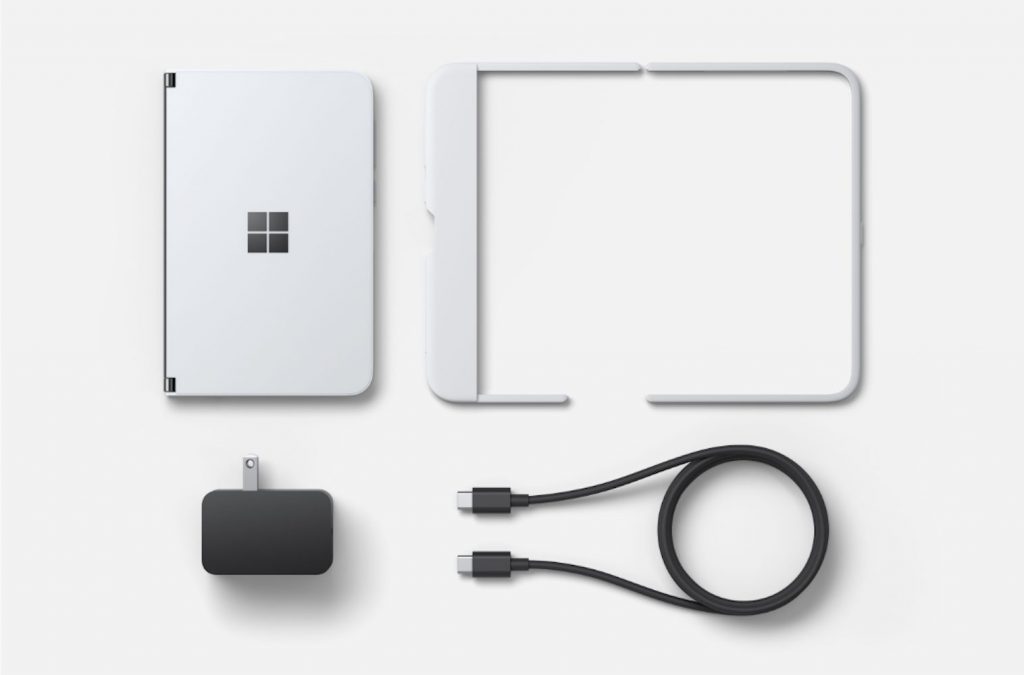
After more than a year of waiting, one of Microsoft’s most anticipated and much talked about products is finally here. Today, September 10, marks a new day in Microsoft history, the official launch date, and the public availability of the Surface Duo.

As a reminder, the Surface Duo is available for purchase unlocked from either the Microsoft Store or Best Buy. There’s also a carrier-locked AT&T version for sale, too. Pricing starts at $1,400 for a model with 128GB of storage, or $1,500 for a model with 256 GB of storage. Both variants come with 6GB of RAM inside, as well as the Qualcomm Snapdragon 855 processor. The Microsoft Store also has a trade-in program as well, for you to save up to $700 by trading in your old phone.

It should also be noted that the Duo features a single 11MP selfie camera, which also serves as the main camera when the phone’s two screens are flipped around and rotated. Software-wise, the Duo ships with Android 10, with an upgrade to Android 11 when it’s ready. The device will also get three years of Android updates, too.

It has been been a big journey to this day, and it all began when Microsoft played with the idea with its canceled Project Courier concept. Panos Panay recently talked to The Verge about these origins, as well as the future of the Duo, too, and the article is a really good read.

We recently went hands-on with the Surface Duo at Best Buy and invite you to check out our initial impressions post. We’ve also ordered ourselves our own Surface Duo, too, and will be doing a full review in the coming weeks, and an unboxing within the next few days.

We’ll even be showcasing the Duo on our new Podcast, so be sure to drop us any comments, questions, or suggestions about the Duo in the Discus section below. We’ll do our best to answer your questions on camera during our show!

7 best software to recover files deleted from Recycle Bin

Have you ever deleted files from your Recycle Bin and want to recover them? This may seem impossible.

However, the permanently deleted files are not technically deleted from your hard drive storage but changed to unrecognizable data and are overwritten by your new files.

This enables you to recover your permanently deleted files from your system.

For example, you can restore the deleted files from your file history backup. Before using any software to recover your files, you can try to recover from your file history.{“type”:”block”,”srcClientIds”:[“3c51282a-8eed-41b6-98c8-7b32c0426f03″],”srcRootClientId”:””}

We listed below 6 of the best software for retrieving permanently deleted files on Windows, so keep reading,


Which are the best software to recover deleted files?

Stellar Data Recovery

Stellar Data Recovery is one of the most powerful tools that can help you recover any type of lost documents: emails, photos, videos, etc.

Interestingly enough, Stellar Data recovery doesn’t just recover the documents but also helps you retrieve lost photos and videos.

When recovering data becomes a priority, take your time to check out this elaborate Stellar Data Recovery review. You won’t regret doing so.

To be more precise, you can quickly recover for free up to 1 GB of lost or deleted files, including data from a corrupt or malware-infected drive.

The software has many useful features such as Quick Scan function that can be used in all common data loss situations.

The Filtered Tree tab is also helpful to view different ways in which you can filter the files identified by the software.

Stellar Data Recovery

Stellar Data Recovery

Restore your corrupted fies and retrieve deleted ones in just a few steps, using this reliable tool.
Free trialVisit website

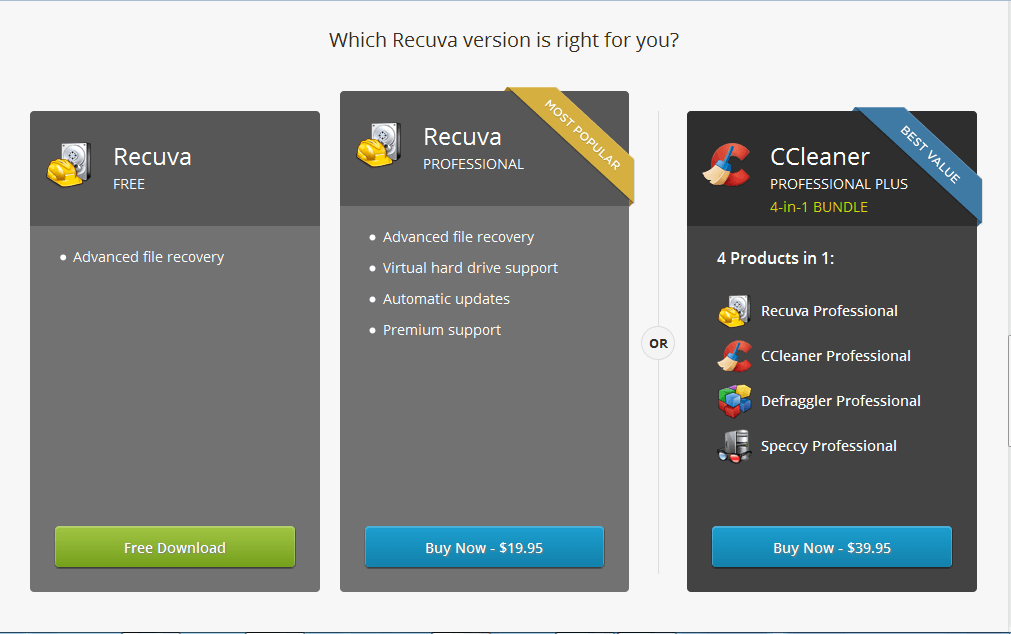
Recuva

recover files deleted from recycle bin on Windows 10

Recuva is the most popular software used for recovering deleted files. The software has over the years gained a reputation which makes it well known in the industry.

Recuva has an easy to use interface which makes recovery of files simple to use for beginners.

After launching the software, a recovery menu would open requesting what you intend to recover.

When you select the file type, it automatically starts scanning through all deleted files of that format. You can also choose a particular partition where the scan should occur.

Meanwhile, you can also undergo a quick or deep scan depending on the file you want to recover. Lastly, Recuva is an excellent file recovery software to get.

Recuva

Recuva

Accidental file deletions or those caused by system corruption can be quite common, so Recuva is there to recover everything

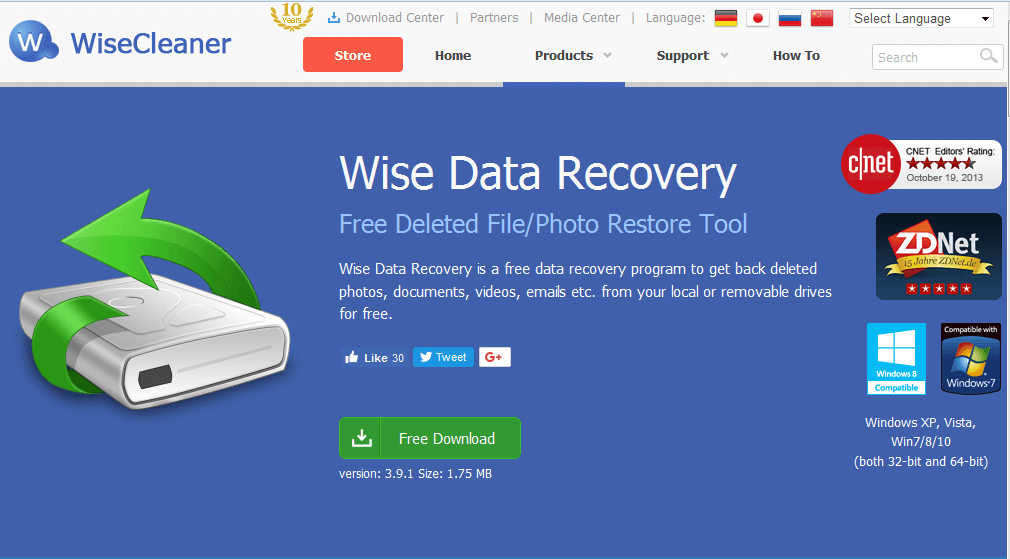
Wise Data Recovery

recover files deleted from recycle bin on Windows 10

This software is an excellent tool to recover files deleted from Recycle Bin on Windows 10 computers. Wise Data Recovery has an easy friendly interface that is ideal for beginners.

You can easily use it to scan and recover files from selected partitions.

All you need is to launch the software and select which partition you wish to recover your file from and the tool would do the rest. It also supports both hard drives and removable devices.

However, there is a trial version which gives limited features. Hence, to access the full feature you need to upgrade to the paid version which costs $59.97.

Wise Data Recovery

Wise Data Recovery

Just because a file was deleted doesn’t mean that it is gone for good. Recover it now with Wise Data Recovery.

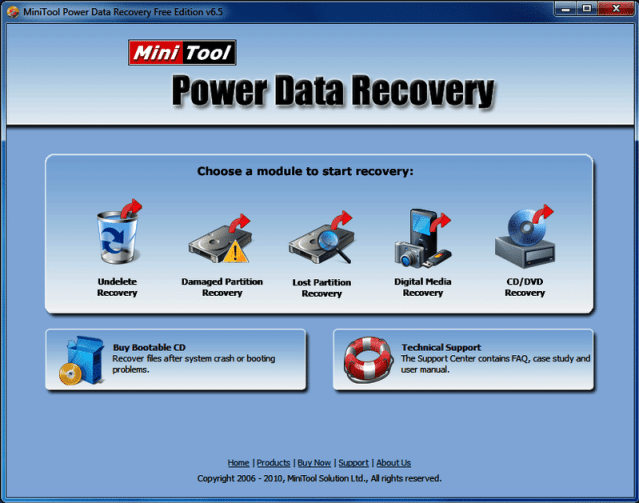
MiniTool Partition Recovery

This tool offers easy and quick recovery of deleted files on your Windows 10 PC. There are tons of features available on this software for the recovery of files.

The tool also enables you to recover files from different sources.

One unique feature about MiniTool Partition Recovery is the success rate of the software is very high, unlike some other tools.

However, you can only recover 1GB of data with free software. When you reach the 1GB threshold, you need to go premium.

MiniTool Partition Wizard Pro

MiniTool Partition Wizard Pro

If you find manually managing your partitions too difficult, then let MiniTool Partition Wizard Pro take over for you!
Check priceGet it now

DMDE

DMDE Free is an excellent tool for recovering files deleted from Windows 10’s Recycle Bin.

This tool does a good job in scanning and recovering lost files. The software is well developed as you can recover your deleted files from anywhere on our PC.

The user interface is relatively less complex and the software has a huge range of file format database.

The software enables you to select a drive and scans through to check for all mountable partitions.

After this has been completed, a window opens to where you can recover your lost files. You can always try DMDE Free since it comes at no cost.

⇒ Get DMDE


PhotoRec

recover files deleted from recycle bin on Windows 10

PhotoRec can recover all types of files and supports removable devices like your flash drives, memory cards, and removable drives.

In addition, the tool has a huge database of file formats and you can easily scan various partitions for files.

However, the software is complex to use as it contains a command type user interface which may not be easy for beginners to understand.

It also does not support mouse usage; hence, you would need knowledge of command prompt to effectively use the software.

Meanwhile, it does the basic things needed for a file recovery website and is free to download.

⇒ Get PhotoRec


Disk Drill

Disk Drill is an excellent feature software to recover deleted files. The software gives users many customization features and enables deep scanning.

Meanwhile, the simple user interface is appealing as beginners can easily navigate through the software to perform recovery functions.

It can also recover files from anywhere on your PC and enables you to scan a particular file type or the whole system. This tool also supports removable devices and is excellent all-round recovery software.

Disk Drill is free to download and set up. Hence, you can take advantage and explore the features so as to recover files deleted from the recycle bin on Windows 10 computers.

⇒ Get Disk Drill


Have you used any of the tools we mentioned above to recover files deleted from Recycle Bin?

Share your experience with us by commenting below.

[wl_navigator]

Microsoft Whiteboard app updates on Windows 10 and iOS with new poll options

The iOS and Windows 10 versions of the Microsoft Whiteboard app both updated this week but, while their release notes on their app store pages show identical release notes to the previous update, the notes within the Microsoft Store app on Windows 10 actually lists changes which suggests that the web versions of the store listings haven’t been updated yet.

Regardless of what the situation is, here’s what’s new with this update:

  • New poll options! You can now create multi-choice polls and public polls
  • Fixed crash when downloading files
  • Dark mode fixes when adding people to groups and starting direct messages

Do you use Microsoft Whiteboard? Let us know what features you’d like to see added in future updates in the comments below and then follow us on Pinterest for more Microsoft app content.

Microsoft Whiteboard


‎Microsoft Whiteboard

FIX: Path of Exile issues [Wrong Hash, Connection, Sound]

If you are a fan of Diablo 2 and similar types of games, you’ve probably heard about Path of Exile.

Although Path of Exile is a great game, it has been reported that it has certain issues. Therefore, let’s see how to fix them easily on Windows 10.

How do I fix common Path of Exiles issues?

Easily fix Path of Exile crash

1. Update your graphics card drivers

Sometimes Path of Exile will crash and give you an Unable to render water error message. This is usually caused by your graphics card since it doesn’t support certain technologies that are required by the game.

In order to somewhat fix this issue, it’s advised to download and install the latest drivers for your graphics card.

One quick way to do so is to use a third-party driver updater, and one of the best out there is a software tool called Fortect Driver Updater.

This program is incredibly easy to use, and portable, and all you need to do is simply launch it, let it scan your PC, and it will take care of the rest.

More so, it doesn’t just update older drivers, it also scans your system and compares your drivers with its built-in databases in order to find and fix broken or missing drivers.

⇒ Get Fortect Driver Updater

2. Run Pack Check / Verify integrity of the game cache

  1. Go to Path of Exile installation directory. By default, it should be:
    • C:Program FilesGrinding Gear GamesPath of Exile.
  2. Locate PackCheck.exe, right-click it, and choose Run as administrator.
  3. Pack Check will perform a scan and replace any corrupted files. This can take a while, so you need to be patient.
  4. After the process is completed, start the game again.

Users have reported that Path of Exile crashes while giving them The protocol is out of date error message. In order to fix that, you might have to perform Pack Check.

If you have the Steam version, you need to verify the integrity of the game cache. To do that, follow these steps:

  1. Start Steam and locate Path of Exile in your library.
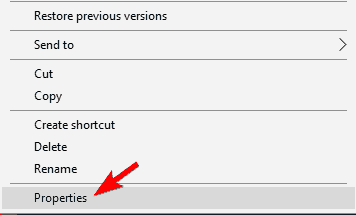
  2. Right-click it and choose Properties from the menu.
    steam-properties
  3. Go to the Local files tab and click Verify the integrity of the game cache button.
    verify-steam
  4. This process might take a while so you’ll have to be patient.
  5. After the process is completed, try running the game again.

If the issue still persists, you might have to reinstall the game in order to fix this issue.

3. Switch your keyboard to US/UK English profile and remove other language profiles

  1. Click ENG (it might be something different depending on the language that you’re using) in the Taskbar.
  2. Choose English from the list.
    • In addition, you can switch quickly between languages by pressing Alt + Shift or Windows Key + Space on your keyboard.
      english-keyboard

If you use a different language profile on Windows 10, that can cause the Path of Exile GAME to crash, so it’s advised that you switch to US/UK English keyboard profile.

If this doesn’t help, you might have to temporarily remove non-English keyboard profiles. To do that, follow these steps:

  1. Click the ENG button in the Taskbar and choose Language preferences.
    language-preferences
  2. Time & Language window will open. Locate non-English language, click it, and choose Remove.
    remove-language
  3. Repeat this process for all non-English languages.
  4. After you’ve removed all non-English languages, you can add them again by clicking the Add a language button.

4. Make sure that you’re using the dedicated graphics card/reinstall DirectX

If you have both dedicated and integrated graphics cards, make sure that you are using your dedicated card or else Path of Exile might crash.

In addition, if you have a production_config.ini file in the Documents/My Games/Path of Exile folder, make sure that you remove it.

If the problem still persists, check if you have the latest version of DirectX installed. If the issue still persists, you might have to reinstall the game.

5.  Lower Texture Quality and add -gc 2 parameter.

  1. Find the Path of Exile shortcut and right-click it.
  2. Choose Properties from the menu.
  3. Go to the Shortcut tab and locate the Target section.
  4. In the Target section add -gc 2 after the quotes.
  5. Your Target section should similar to this:
    • C:Program FilesGrinding Gear GamesPath of Exilepathofexile.exe” -gc2
  6. Remember, don’t change anything between the quotes, just add -gc2 and save the changes.

Users have reported that Path of Exile crashes while giving them the EOUTOFMEMORY or Unable to Map File or Unable to MapViewOfFile error.

This crash is caused by the lack of RAM memory mostly on 32-bit versions of Windows. Path of Exile is a demanding game, and in order for it to run smoothly, you’ll need 4GB of RAM or more.

Users have reported that lowering Texture Quality fixes this issue to some extent, but Path of Exile can still crash after some time.

If the problem still persists, you can try launching the game with -gc 2 parameter.

6. Edit production_config.ini file

  1. Go to this location:
    • Documents/My Games/Path of Exile
  2. In there you should find production_config.ini file.
  3. Open production_config.ini file with Notepad.
  4. Locate texture_quality=1 and change it to texture_quality=2.
  5. Save the changes.

As we already mentioned, Path of Exile can crash due to the Texture Quality setting, and you can change this setting by editing the production_config.ini file.

We have to mention that by changing this setting it might be much harder for you to see certain enemy spells, so keep that in mind.

7. Update your sound card drivers

It has been reported that Path of Exile crashes if you’re using certain sound cards such as Creative, and if you’re having this problem, you should try using –softwareaudio parameter.

If the –softwareaudio parameter doesn’t fix this issue, you can use –nosound parameter instead. This parameter will disable all sounds, but Path of Exile won’t crash anymore.

We have already explained how to add parameters in Solution 4, so make sure that you check it.

Before adding any parameters, it would be a good idea to install the latest drivers for your sound card, because this issue can sometimes be fixed by updating your drivers.

In case you don’t have the necessary skills or time to search for the best driver versions, it is better to do it automatically.

New drivers for your computer to work properly because they are crucial for some of your system functionalities.

Easily fix Path of Exile installation problems

1. Copy Path of Exile directories to a different location

  1. When the error message appears, don’t close it and don’t click OK.
  2. Switch to your desktop.
  3. You can use the Windows Key + D shortcut to do that.
  4. You should see the Path of Exile shortcut on your desktop.
  5. Click it to start the download.
  6. After the download is completed, right-click the Path of Exile shortcut and from the menu choose Open file location.
    open-file-location
  7. Now you need to copy the Grinding Gears folder to another location on your computer.
  8. Press OK in the error message window to close it.

Users have reported that they are getting There is a problem with this windows installer package. A program run as part of the setup did not finish as expected. Contact your support personnel or package vendor message when they try to install Path of Exile.

It’s important that you don’t press the OK button in the beginning, because that will remove all Path of Exile files from your computer.

After you move your files to a different location, your files will be safe, and they won’t be deleted automatically when you close the error message window.

2. Use a wired connection to download the game

  1. Download the drivers for your wireless adapter.
  2. When downloading drivers, try to find an older version and not the latest one.
  3. Press Windows Key + X and choose Device Manager from the list.
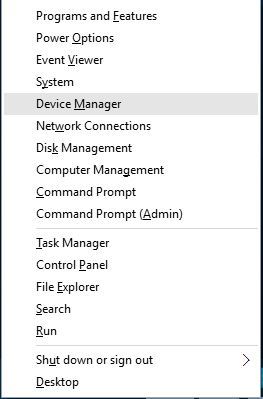
    device-manager
  4. When Device Manager opens, find your wireless adapter, right-click it, and choose Uninstall.
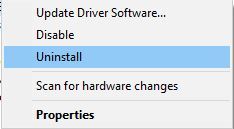
    uninstall-driver
  5. After the driver has been uninstalled, install the older version of the driver.

Users have reported that they are getting Received a packet that is too large to deserialize messages while trying to update the game.

According to them, after getting this error they are unable to download the game, and this can be a big problem.

It seems that the Wi-Fi driver update is the cause of this issue, and the only solution is to remove your wireless driver and to install an older version.

If you don’t want to uninstall your drivers, you can just switch to the wired connection in order to avoid this issue.

3. Run the installer with administrator privileges

  1. Locate the Path of Exile MSI installer.
  2. Hold Shift and right-click the installer.
  3. Choose Copy as path from the menu.
    copy-as-path
  4. Press Windows Key + X and choose Command Prompt (Admin) from the menu.
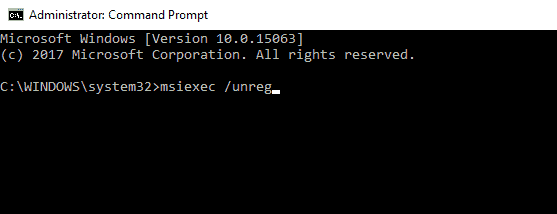
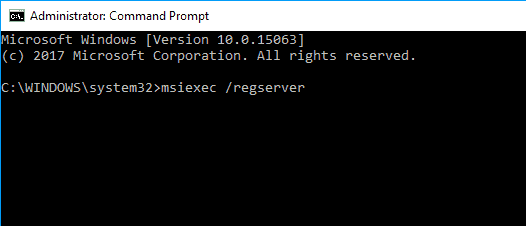
  5. When Command Prompt starts enter msiexec /i and press Ctrl + V to paste the location of the MSI installer.
  6. Your command should look similar to this:
    • msiexec /i "C:UsersAdminDesktopInstaller.msi
      command-prompt-msiexec
  7. Remember, this is just our example, so don’t copy and paste this code, because it will not work on your computer.
  8. Press Enter to execute the command.

If you’re having Path of Exile installation problems, maybe you should run the installer with administrator privileges.

Users have reported Installation Directory must be on a local hard drive message while trying to install the game, and if you have the same problem, you can fix it by following the above-mentioned steps.

4. Add Path of Exile to your antivirus/firewall exceptions

  1. Locate the Path of Exile client.
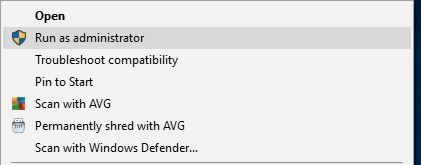
  2. Right-click it and choose Run as administrator from the menu.
    run-as-administrator

Sometimes while patching the game, the patching process stops when it’s almost complete, and few files are left outside the pack file.

This can be caused by your antivirus or firewall software, so you should add the Path of Exile client to the list of exceptions in your security software.

If adding Path of Exile to the list of exceptions doesn’t help, you might want to try running the game as an administrator. To do that follow the above steps.

If the issue persists, you might want to try moving your Path of Exile installation folder to a different location.

5. Remove the Client.exe file

  1. Open Path of Exile installation directory.
    • By default, it should be:
      • Program Files/Grinding Gear Games/Path of Exile
  2. Make sure that you have Client.tmp file in that folder.
    • If there’s no Client.tmp, you should skip this solution.
  3. After you’ve found Client.tmp, locate Client.exe, and delete it.
  4. Right-click Client.tmp and choose Rename.
  5. Rename Client.tmp to Client.exe.

It has been reported that Path of Exile gives the Could not overwrite executable with new patched executable or the Timed out waiting for patching process to exit message to the users when they try to patch the game.

This issue is usually related to the game’s Launcher, and you can fix this problem by following the above steps.

We have covered some of the common Path of Exile issues, and we hope that our solutions have been helpful to you. Also, refer to them when encountering the following problems:

  • Path of Exile disconnect issues – Several users complain about getting the Unexpected disconnection occurred error or Failed to Connect to Instance. If that’s your case too, make sure to update your graphics card drivers or try to reinstall DirectX.
  • Path of Exile lag issues – Lag problems aren’t that uncommon either. In spite of that, updating your sound card drivers often does wonders.
  • Path of Exile FPS issues – Massive FPS drops can also be included in the list. Anyway, in this case, you can verify the integrity of the game cache or refer to the above tips.
  • Path of Exile login issues – If you happen to experience login issues, rest assured that you’re not the only one. Run Pack Check and you should be able to solve the problem in no time.
  • Path of Exile display issues – Reinstalling the game isn’t the only option when facing such inconveniences. You can also take a closer look at the procedures detailed above.

Were they helpful in fixing the issues found in your Path of Exile game? Let us know in the comments area below.

How to remove DRM from WMA [Quick Guide]

Digital rights management (or DRM for short) tools are a set of protocols used to prevent the unauthorized use of proprietary digital content. These protocols can be applied to everything from movies, music, games, software, and more.
Thankfully enough, bypassing DRM content isn’t actually illegal as long as what you do with the content does not violate its terms of use in any way.

That being said, we’ve decided to showcase some tools that can help remove DRM from files, and this article will be covering WMA audio files.

How do I remove DRM from WMA files?

1. Use a third-party multimedia converter converter

Most multimedia converters will usually remove all DRM from the files that handle as a default solution.

However, if you’re interested in more than just that, then you might as well go for a tool that can do wonders with all kinds of media files, a tool like AnyMP4 Video Converter Ultimate.

You can use the tool to convert almost all kinds of video and audio files without losing quality, and it also allows you to extract audio tracks from DVD and video files. That being said, AnyMP4 Video Converter Ultimate to convert WMA to MP3 format.

Here’s how you can use AnyMP4 Video Converter Ultimate to remove the DRM from WMA files:

  1. Download and install AnyMP4 Video Converter Ultimate
  2. Import the WMA file into the program via drag & drop
    • You can also do this by using the Add file button
    • The program supports batch processing, so multiple conversions at a time.
  3. Select Profile and choose the output format that you need
    • In your case, choose MP3 from the Audio submenu
    • To customize your audio options even further, select the Settings menu before conversion
  4. Choose Convert All and wait for the program to be finished
AnyMP4 Video Converter Ultimate

AnyMP4 Video Converter Ultimate

If you need a tool that will swiftly remove DRM protection from WMA files, then go ahead and give the converter a try!
Free trial Visit website

2. Use the Windows Digital Rights Update Tool

If you have previously tried converting an audio CD to a WMA audio file using Windows Media Player, you might have been surprised to learn later that your audio files were DRM-protected.

Audio files get DRM protection once they are downloaded or during the CD ripping process. While the files will play on the device they are stored, the problem arises when you transfer the audio files to another system as DRM protection prevents you from playing them.

This happens due to the link between the DRM of the audio files and a particular machine or media player. You might notice the problem following Windows Media Player updates, Windows upgrades, or audio files transfer to another Windows PC.

Thanks to Microsoft, you can address DRM-related issues through the Digital Rights Update Tool. It works to remove DRM protection from WMA files. Keep in mind that the tool works only for WMA audio files, though, and cannot remove other forms of protection from audio files.

To get started, select a music file in your library and click the Play button. Decide whether you would like to make backups in the Settings.

You must first enable the backup option in the preferences before starting the process. It is unclear, though, whether the Digital Rights Update Tool works with WMA files purchased online.

In terms of design, the tool features a basic interface where you only have to click on the folder icon to open an audio file and add WMA audio files to the program. You can kick off the process by clicking on the Play button.

The tool is available only for Windows 10 devices. Nonetheless, you can run Windows 10 in a virtual machine to use the tool on devices running older versions of the operating system.

⇒ Download the Windows Digital Rights Update Tool 

By following these steps and using these tools you should be able to remove the DRM from WMA files without effort.

While other tools do exist, they aren’t as reliable as efficient as the ones mentioned above, so we deemed them not worth mentioning.

Let us know which tool helped you with your WMA files by leaving us your feedback in the comments section below.

Slack warns investors of broad “retaliation” from Microsoft amid antitrust legal battle

Perhaps, in an effort to sow the legal landscape with a crop of anti-competitive rhetoric, Slack recently warned its investors that Microsoft could act in a “retaliatory” manner soon.

As vague as the threat sounds, Slack stuffed the warning into its latest 10-Q filing with the U.S. Securities and Exchange Commission as part of its fiduciary responsibilities when reporting its latest quarterly earnings.

On Tuesday, Slack underscored a potentially bumpy road ahead for investors as the company’s recent antitrust complaint to the European Commission against Microsoft might result in earnings-effected retaliation from the Redmond-based company.

Furthermore, we could be subject to retaliatory or other adverse measures by Microsoft, its employees, or agents in response to the complaint that we filed with the European Commission.

Despite the dire admonition, Slack has yet to clarify what retaliatory actions Microsoft could enact that would result in a direct adverse result for the company.

In another seemingly obfuscating move, Slack CEO Stewart Butterfield explained to investors openly that the market was just too big at the moment to be worried about any significant pressure from Microsoft.

Win rates are the same. We are now in Quarter 14 of competing with Microsoft. We’ve won over and over again in Office 365-using customers. … No doubt that it causes some friction, it’s another thing for us to overcome, but it doesn’t put any kind of ceiling or limiter on our growth.

Meanwhile, the company buried another nugget of fearmonger rhetoric regarding Microsoft’s continued growth in its 10-Q stating, “This competition has intensified in recent periods and we believe that it has harmed, and may continue to harm our business, results of operations, and financial condition.”

Even as Slack’s earnings report beat analysts’ predictions with revenue up to $215.9 million for the quarter, the company continues to view Microsoft’s ability to leverage its enterprise suite to grow its enterprise chat solution as illegal.

While Slack’s eye has been largely on Microsoft, the company’s after-hour trading was affected by dark-horse newcomer Zoom and its crazy ridiculous growth amid the COVID-19 pandemic.

Microsoft has not publically addressed Slack’s claims over the past few months and continues to make inroads with customer adoption for Teams at the moment.

As it stands, Slack and Microsoft’s Office 365 continue to work interoperably and should maintain for the time being, especially as the European Commission scrutinizes Microsoft’s every Teams related move for the foreseeable future.

The Surface Duo is already out of stock at the Microsoft Store, just one day before it releases [Update: It is back!]

Update: It appears as though the Duo is now back in stock at Microsoft. Our original article still can be seen below.

The Surface Duo is set for release tomorrow, September 10, but if you’re hoping to buy one directly from Microsoft at the very last minute, you might be out of luck. We’ve just realized that the Surface Duo is currently listed as out of stock online at the Microsoft Store.

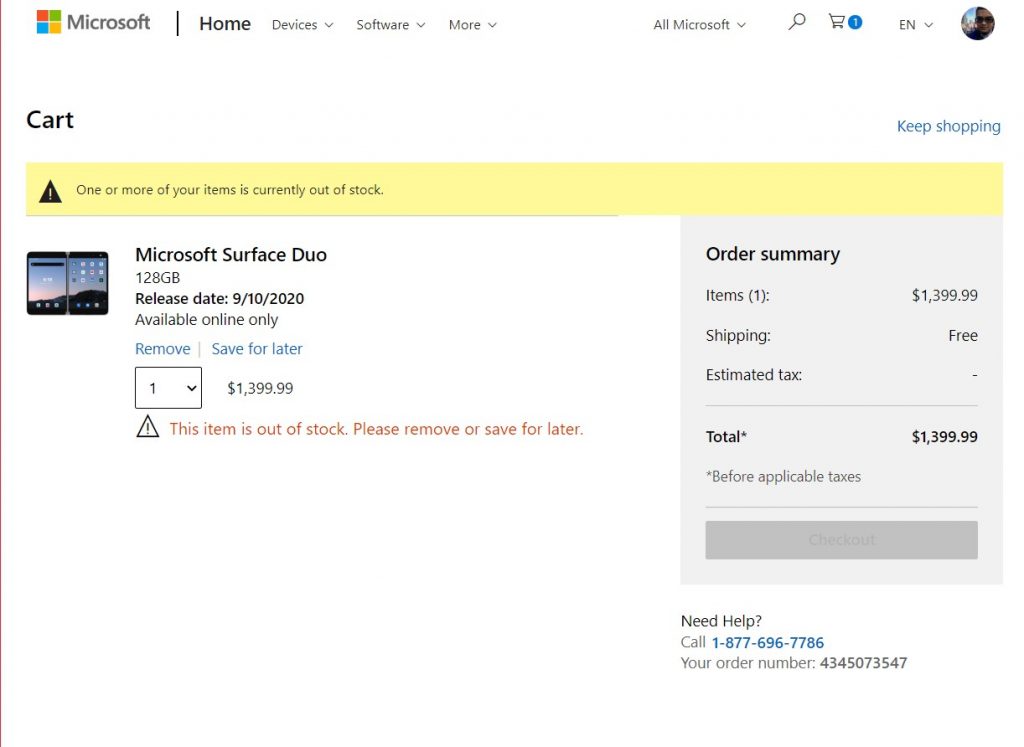
Currently, when adding the Surface Duo to our Microsoft Store Cart for checkout, both the 128 GB and the 256GB models of the Duo end up being listed as out of stock. Seen in the image below, the store cart also gives us an error, telling us that one or more of our items are currently out of stock, suggesting that we remove it or save it for later.

Duo Out Of Stock

It’s unknown to everyone how many Surface Duo devices Microsoft initially manufactured for this first run on the launch day, so there’s no telling if this sell-out really can be used as a gauge of interest for the dual-screen foldable. Still, the Duo is actually listed as available for pre-order at Best Buy, so if you really want a Duo tomorrow, you can buy it from that retailer instead.

On another side, it is also possible that this could just be a temporary store error. And, it could also be linked to the fact that since September 10 is now less than 24 hours away, Microsoft could no longer possibly deliver actual pre-orders in time for September 10.

Anyway, our own Surface Duo just shipped. We will be doing a full review within the next few weeks. We’ll also be doing an unboxing in the days ahead, so be sure to keep it tuned to OnMSFT for all your Surface Duo news and information.

Microsoft Hololens 2 is now available for everyone

Microsoft announced in a short Twitter post that the HoloLens 2 mixed reality glasses are available for purchase directly from the Microsoft Store online in selected markets.

HoloLens 2 was launched last year in Spring, during Mobile World Congress 2019.

Unfortunately for many of us, this is not just another fun gadget to watch movies or play games but it’s a professional device targeted at business users.

It’s a productivity tool and Microsoft didn’t make any moves yet to show their intention in turning it into a consumer device. However, there are hopes for future smart glasses pair for consumers.

What is new about HoloLens 2?

Unfortunately, there are no new announcements about HoloLens 2 but if you’re still interested in buying yourself a pair let us remind you about the price and technical specifications for the device.

To begin with, the price is still $3,500, a lot higher than that of the consumer smart glasses on the market.

Here’s a shortlist with some of the Microsoft HoloLens 2 technical specifications:

  • Video Resolution: 2K
  • Processor: Qualcomm Snapdragon 850
  • WiFi: 802.11ac (2×2)
  • Bluetooth: ver. 5.0
  • Connector: USB-C
  • Camera: 8MP photo resolution, 1080p video capture
  • Speakers: Built-in, spatial audio
  • Other features: Eye tracking, head tracking,  6-degrees-of-freedom (6DoF) tracking

As we mentioned above, you can now buy your own HoloLens 2 from the Microsoft Store. While you’re still here, make sure you check out other smart glasses you may be interested in.

If you’re looking for VR glasses for gaming instead, take a look at our list with the best such devices.

What do you think about Microsoft HoloLens 2? Leve your thoughts below in the Comments section.

[wl_navigator]

How to set up VPN server on Raspberry Pi [Complete Guide]

Raspberry Pi is a marvel of technological advancement, as it proves that strength isn’t all about size. The Raspberry Pi is actually a single-board computer.

Much like your phone, it can fit in your pocket (although it might look a bit bulgy) and, if you have the peripherals, can help you interface with it anywhere.

However, thanks to its size-based convenience, many choose to use these devices for very specific roles.

Some turn them into vintage arcades using emulators, while others use them as email servers, tiny media centers, or even VPN servers.

How to set up a VPN with Raspberry Pi?

Requirements

  • Raspberry Pi (we used an RPi 2 model B)
  • A microSD card (for storage purposes)
  • An operating system (we used Rasperry Pi OS, formerly Raspbian)
  • Ethernet cable (using Wi-Fi is a bit more complicated)
  • USB cable (to power up the RPi)
  • A power source (we plugged our RPi into our router)
  • Peripherals (keyboard + mouse)
  • An HDMI cable
  • Display (monitor, TV)
  • An SSH client (we used Solar Putty)

Note that you won’t need all of these components to install the VPN on the Raspberry Pi. If you connect the device to a working Internet source, you can access it via SSH.

However, note that this method can have some drawbacks, as it involves having to reconnect to the RPi once you change network settings. We’ll get to that in just a bit.

Assuming that you have all the required components ready, let’s proceed with setting up the VPN on your RPi.

Connecting to your Raspberry Pi

  1. Plug the Ethernet cable into your router and Raspberry PiEthernet cable Raspberry Pi
  2. Connect your RPi to a power source (we used our router)Power source Raspberry Pi
  3. Install an SSH client on your computer
  4. Access your router’s gateway in your browser
  5. Locate and save the RPi’s local IP address
  6. Run the SSH client on your PC
  7. Create a new SSH session within the client
  8. Type the IP address you noted down earlier (or use raspberry/raspberry.local as the address)
  9. Use pi as username and raspberry as password
  10. Launch the session

Make sure everything is up-to-date

Before you proceed, you must understand that Raspberry Pi OS is more sensitive to change than, for instance, Windows.

Therefore, it won’t offer to fix any compatibility issues automatically.

Instead, you have to make sure that the environment is fit before installing anything, including VPN software on your Raspberry Pi.

Fortunately, doing so isn’t difficult with proper guidance.

Follow these steps:

  1. With the session active, type sudo apt-get update in the SSH terminalUpdate SSH Raspberry Pi
  2. Wait for the update process to finish
  3. Type sudo apt-get upgrade in the same terminal as beforeUpgrade SSH Raspberry Pi
  4. If prompted, type Y for confirmation and hit Enter on your keyboard
  5. Wait for the upgrade process to complete

Performing these two operations is of utmost importance, as running a VPN server implies a certain degree of security.

Keeping everything up-to-date on your Raspberry Pi device is a surefire method to avoid compatibility issues and exploitable vulnerabilities.

Note that these procedures can take quite a while, especially the upgrading part one. So, in the meantime…

Get a static IP address

Having a static IP address is quite important in this case. It will allow you to access your personal Raspberry Pi VPN server from virtually anywhere in the world without worrying that its IP will change at some point.

If you already have a static IP address, you should be fine.

Some ISPs offer this type of service by default, although many prefer the dynamic approach to solve (or better yet delay) the IP address pool exhaustion.

However, if you have a dynamic (that changes periodically) IP address, you can use DHCP or a free dynamic DNS service.

The DHCP method is a bit more complicated and depends on several factors such as router and ISP.

Thus, we suggest you pick a dynamic DNS service, but not before checking if your router has DDNS (dynamic DNS) support.

Installing PiVPN on Raspberry Pi

  1. In the SSH terminal, type curl -L https://install.pivpn.io | bashInstall PiVPN on RPi SSH
  2. Wait for the package configuration to unfold (automated)Installing packages PiVPN
  3. Confirm the turning of your Raspberry Pi into a VPN serverConfirm installation of PiVPN
  4. Acknowledge the DHCP settingsStatic IP address confirmation
  5. Choose Yes or No depending on your DHCP/manual static IP configuration situation
  6. Select a user (pi by default)
  7. Wait for the PiVPN installation to unfold for a while
  8. Select OpenVPN from the VPN menu by using the Space key on your keyboardChoose between WireGuard or OpenVPN
  9. Confirm by pressing Enter
  10. Choose No when prompted to customize settings (default settings are good enough)PiVPN settings customization
  11. Leave the default port open (1194)
  12. Choose the DNS provider of your VPN clients
  13. Select DNS if you don’t have a static IP addressStatic IP or DNS PiVPN
  14. Define the DNS name of the server if applicablePiVPN server's DNS name
  15. Make sure to enable unattended-upgrades
  16. Reboot the system, as recommended

That’s it, you’ve successfully installed PiVPN on your Raspberry Pi device. It’s not exactly rocket science but has a lot of steps, which can easily confuse novice users.

Create VPN profile

  1. Launch the SSH session once more
  2. In the terminal, type pivpn add
  3. Type a name for your client
  4. Define how many days until the certificate expires
  5. Type and confirm the password
How to add a PiVPN profile

After performing all the steps above, your VPN profile should be automatically created and you should now be able to use it without any issues.

Note that the profiles are saved on the RPi’s storage unit, so you’ll have to fetch them from there (you can use remote VNC or a card reader).

Note that you’ll also need to forward the port you used earlier. In our case, it was port 1194, so we forwarded this one.

Connect to your private RPi VPN

  1. Download OpenVPN Connect for Windows
  2. Install it on your PC
  3. Launch the OpenVPN Connect app
  4. Go to the File tabOpenVPN Connect file tab
  5. Browse to the OVPN file you got from your RPi
  6. Import it within the app
  7. Configure a profile name for itOpenVPN add profile name
  8. Click the Add button
  9. Flip the switch to activate the VPN connection
  10. Type the private key you used to create the profile
OpenVPN connected status

You should be now connected to the VPN server you personally configured on your RPi. The OpenVPN Connect client will show you some useful information such as your sent and received traffic, connection duration, and the time you received the last packet.

If for some reason you can’t connect to your VPN, check if you forwarded the port correctly (make sure to use the local IP address of your RPi instead of its external one).

Should you still be having difficulties, try the following:

  1. Reinstall PiVPN
  2. Make it use the public IP address (even if not static)
  3. Create the OVPN file
  4. Open the OVPN file in a text editor
  5. Replace the public IP with your DDNS manually

That’s it. The VPN connection should now work like a charm.

Conclusion

All things considered, it seems that the RPi is indeed a multi-talent tool that can also be used as your private, personal VPN server.

You can also connect to the VPN server with your phone. However, note that for every new client that connects to your server, you need to create a new VPN profile.

For better security, make sure that each profile has a different, strong password.

Debt Management Software: Best to Use in 2026

Are you tired of accumulating debts, credit card bills, outstanding loans , and negative bank balance, then this post is for you?

If you are trying hard to work your way out of debts, and committed to sticking to your budget, it is essential you get software that can help you manage your debts.

Moreover, use it to track your spending while keeping the record of your finances. Hence, the software should also be well secured to enable you to import your credit card and debit card transaction.

The debt management software listed here will help you to achieve your goals to be debt-free.

What is the best credit management software?

Intuit QuickBooks (recommended)

get QuickBooks

Be sure that you can get out of debt on your own as well! However, this involves using the best credit management software tool at the moment.

The reality of owing money gets easier to face when Intuit QuickBooks is at your side. This handy software program can finally help you put a line between business and personal expenses.

That’s a line that you’re never allowed to cross. Moreover, it can help you maximize your Schedule C deductions and track all your daily routines.

Key features that Intuit QuickBooks brings to the table:

  • Intuitive interface
  • Built-in invoice options
  • Automatic mileage tracking
  • Precise taxes calculated automatically each quarter
  • Free trial to decide if the app is for you

QuickBooks

If you’re looking for the best debt management software, you can’t go wrong with QuickBooks.
Free trial Visit website

Quicken

get Quicken

Quicken is a finance management software that helps to manage your financial transactions. With Quickens you can easily budget and set a debt management plan with the various tools on the software.

Quicken enables easy import of your credit card, debit card, and transaction details.

Your transactions and details are kept secure with the 256-bit encryption which encrypts your data from hackers.

In addition, this software is compatible with many database management files such as CSV and XML; this makes it easy to import and export custom database files.

Quicken is a handy software to download if you want total finance management and is ideal for the management of debts and loans.

⇒ Get Quicken here

Money Manager Ex

get Money Manager Ex

Money Manager Ex is an open-source free software to get out of debt. The software helps you to manage all your business finances easily.

The software is quite popular and offers a great overview of your financial status.

Meanwhile, the software has an inbuilt tracker that keeps track of your money and analyzes the implications of your transactions.

Money Manager Ex has a simple layout interface that is user-friendly to use. You can store your credit card details, transaction bills, and other financial receipts directly on the software.

Your budget gets properly organized as the Money Manager tool shows you charts and graphs of your financial status.

You can use custom made debt management files on the software for effective debt payment.

In addition, Money Manager Ex is an excellent money manager software as you have numerous features which ensure your debts are promptly paid without causing negative financial implications to the user.

⇒ Get Money Manager Ex here

Money Lover

get Money Lover

This money management software is one of the best personal finance software for Windows users. It comes in both free and paid versions with excellent tracking and budgeting features.

Money Lover has a fluid and intuitive interface which enables you to manage your debts and outstanding loans effectively.

The expense tracker helps you to know the amount of money you spend in a month and enables you to customize the settings to your preference.

In addition, this program also enables you to integrate your personal details into the software such as online banking details, credit card, and debit card information for proper tracking.

However, Money Lover is a decent software to get out of debt and be financially secured within a short period of time.

⇒ Get Money Lover here

Money Point

get Money Point

Money Point is an expense tracker which helps you to track and record your expenses.

This program has the added advantage of being an offline application; hence, you don’t run the risk of your information being hacked as it does not synchronize to any server.

You can also create a budget and manage your debt using the buffeting, and expense management tools offered by the software.

Users can also import finance files such as CSV as money point supports all these formats.

Money point is recommended software to get out of debt, as it has all the necessary features to ensure you become debt-free quickly.

⇒ Get Money Point here

In conclusion, the software we mentioned above will help you achieve debt-free status as they all offer debt management tools.

This helps to monitor your debts and propose debt payment plans to get out of debt within a short time frame.

Let us know which one is your pick by using the comments section below.

Desktop Loading Slowly in Windows 10: How to Load Faster

Many users are reporting that their Windows 10 desktop is loading slowly, which is often frustrating, at the very least. Besides, users have to wait for minutes before the OS fully loads, wasting precious time.

If you find Windows 10 very slow and unresponsive, know that it may be due to viruses, damaged system files, full disk with no space, or even conflicts between third-party applications. Keep reading to find out the solutions!

How do I fix slow desktop loading?

Before we start with the slightly complex fixes, here are a few quick tricks:

  • Boot the PC in Safe Mode and check whether it now loads faster.
  • Disable any VPN, firewall, or third-party antivirus running on the PC.
  • Reduce the number of items on the desktop when it’s loading slowly in Windows 10.
  • Disconnect all non-critical peripherals.
  • Make sure there are none or minimal programs configured to load at startup. In case there are many, remove the startup apps.
  • Scan the PC for malware using the built-in Windows Security.
  • Run all the dedicated troubleshooters in Windows 10. Run Windows Update, Hardware and Devices, Microsoft Store Apps, and the Program Compatibility Troubleshooter.
  • Enable or disable fast startup in Windows, depending on its present state.

If none work, head to the fixes listed next.

1. Update the display driver

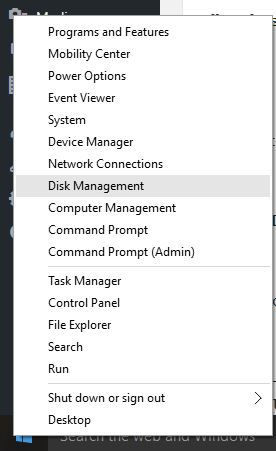
  1. Right-click Start and select Device Manager from the list.Windows 10 desktop is slow to load
  2. Expand the Display adapters entry, right-click on the graphics adapter, and select Update driver.Windows 10 desktop is slow to load
  3. Select Search automatically for drivers and wait for Windows to install the best available one.
  4. Once done, restart the computer.

The graphics adapter is critical to the effective functioning of the PC and when it’s outdated, you will find the desktop loading slowly in Windows 10. Updating the graphics driver is an effective solution in this case.

You can also check your computer manufacturer’s website, download the latest version, and manually install the driver.

1.2 Update drivers automatically

After uninstalling your drivers, we recommend reinstalling/updating them automatically.

Downloading and installing drivers manually is a process that carries the risk of getting the wrong driver installed, which may lead to serious malfunctions in your system.

The safer and easier way to update drivers on a Windows computer is by using an automatic tool. We strongly recommend you use a dedicated tool, such as Fortect Driver Updater.

The tool will automatically identify each device on your computer and matches it with the latest driver versions from an extensive online database.

Once installed, the program will automatically scan your PC for outdated drivers. It will check your installed driver versions against its cloud database of the latest versions and recommend proper updates.

All you need to do is wait for the scan to complete. Upon scan completion, you get a report on all problem drivers found on your PC. Review the list and see if you want to update each driver individually or all at once.

⇒ Get Fortect Driver Updater

2. Perform a Clean Boot

  1. Go to the search box, type msconfig, and select System Configuration.
  2. Go to the Services tab, select Hide all Microsoft services box, and click on Disable all.
  3. Go to the Startup tab and click Open Task Manager.
  4. Select all the apps listed here individually and click on Disable.
  5. Head back to System Configuration, and click on Apply and OK.
  6. Click Restart in the confirmation prompt.

If your desktop loads quickly after performing a clean boot, it’s likely one of the services or startup apps you disabled earlier behind the problem.

So, re-enable them one at a time, and wait for the issue to reappear. As soon as it does, the app or service enabled last is the underlying cause. If it’s the latter, uninstall the app. For a service, disable it as long as it’s not critical to Windows.

3. Repair the corrupt system files

  1. Click Start, type Command Prompt, and click on Run as administrator.Windows 10 desktop is slow to load
  2. Click Yes in the UAC prompt.
  3. Type the following commands and press Enter after each:Dism /Online /Cleanup-Image /ScanHealth Dism /Online /Cleanup-Image /CheckHealth Dism /Online /Cleanup-Image /RestoreHealth
  4. Next, execute the following command: sfc /scannow

If it’s the corrupt system files to blame when the desktop is loading slowly in Windows 10, running the DISM tool and SFC scan should fix things in no time.

4. Run disk clean up

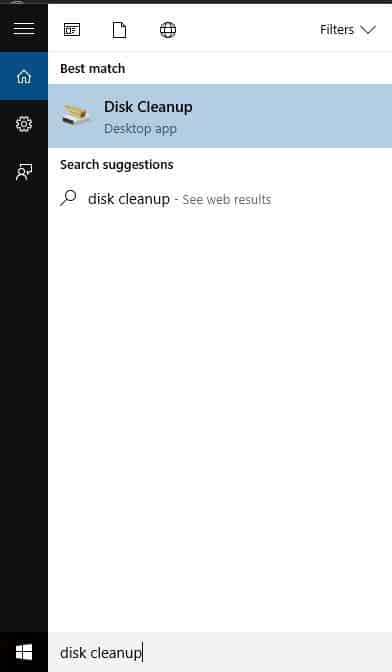
  1. Click Start, and in the search field box, type Disk Cleanup, then click on the relevant search result.Windows 10 desktop is slow to load
  2. Click Ok to set off the disk space calculation process.
  3. Once that’s done, select the file categories you want to remove and click OK.
  4. You can also clear the System Files, as long as you don’t need them.

When the Windows 10 desktop is loading slowly due to the PC running low on storage, clearing the non-critical files should help.

And the best option here is to run Disk Cleanup, the built-in utility. It will automatically identify the files that can be deleted and do the clearing job for you. For an advanced scan and thorough cleaning, use a reliable disk cleanup tool.

5. Factory reset Windows 10

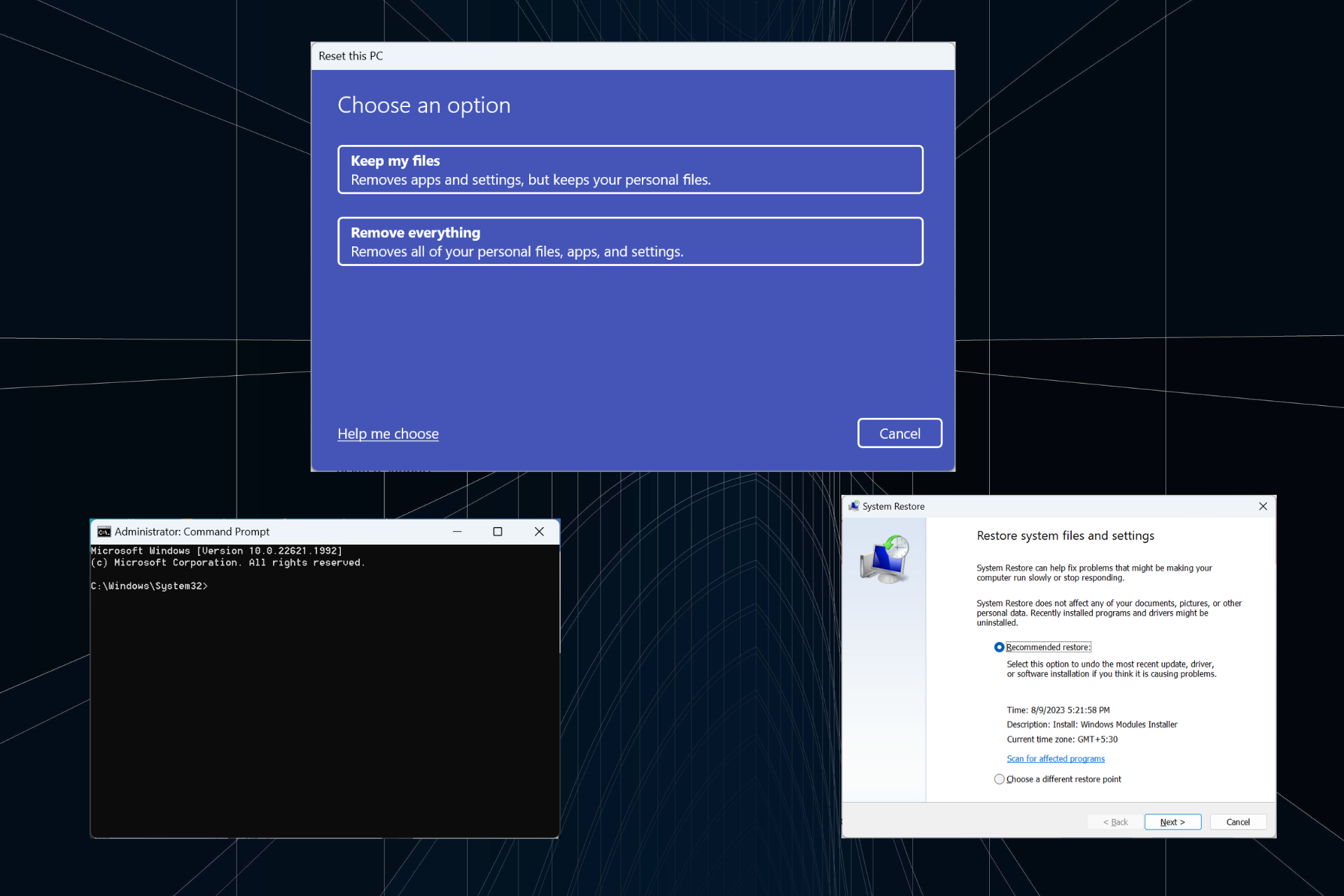
When nothing else works, and the desktop is still loading slowly in Windows 10, the last option is to reset Windows to factory defaults.

Though it will wipe all data on the PC, this measure makes the computer load faster. Simply put, your device will be as good as new after a reset as long as the hardware works fine.

Before you leave, find out some quick tips and tricks to speed up Windows 10.

Did any of these solutions work for you? Let us know by leaving a comment in the section below.

How to install Raspbian on Raspberry Pi [Step-by-Step Guide]

If you’re the proud new owner of a Raspberry Pi, you must know a thing or two about this wonderful device. For starters, it’s a powerful computer and not a toy, or a limited widget you can mess around with.

And as with any other computer, you’ll need a way to interface with its multiple components. The most common way to achieve this is through special software called an operating system.

Now with a standard computer deploying an operating system couldn’t be easier. Back in the day, it was a real challenge, but now it’s been simplified to the point that even PC novices can do it without risking to compromise their systems.

However, with Raspberry Pi things are a bit different. The lack of any integrated peripherals (mouse + keyboard) or display might make it even more difficult. But it’s not that bad once you get the hang of it.

Come on, we’ll show you how to install Raspbian on a Raspberry Pi.

How to install Raspbian on SD card on Windows?

  1. Download Raspberry Pi Imager
  2. Fetch an empty (or discardable) SD card
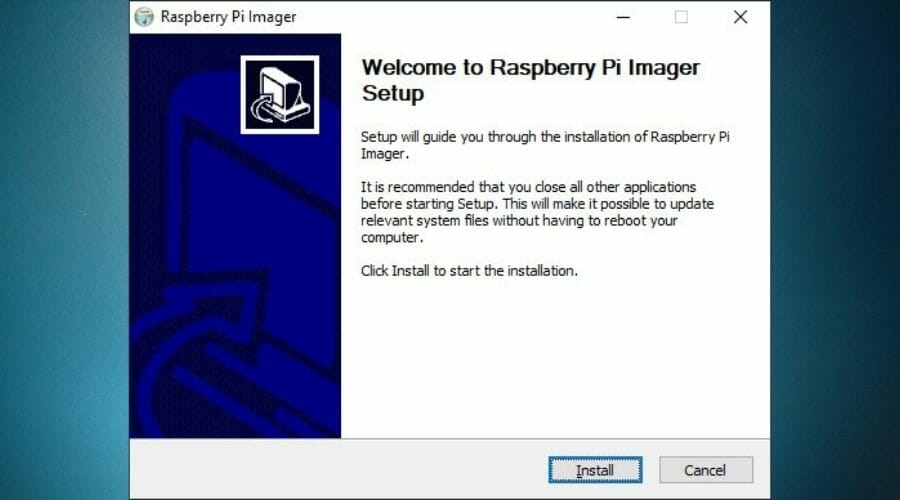
  3. Install Raspberry Pi Imager on your Windows PCInstall Raspberry Pi Imager Windows
  4. Run the tool
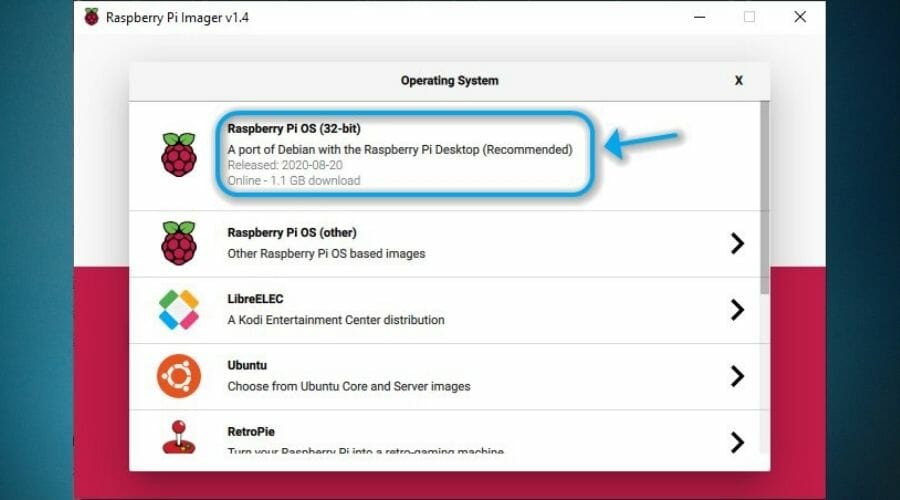
  5. Click the Choose OS buttonChoose OS Raspberry Pi Imager
  6. Select Raspberry Pi OS (32-bit) as the program recommends itChoose RPi OS Raspberry Pi Imager
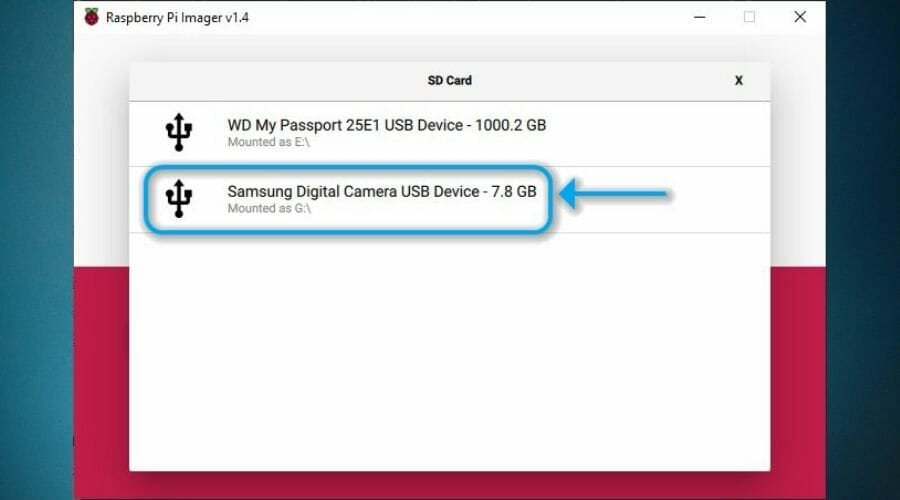
  7. Click the Choose SD card buttonChoose SD card Raspberry Pi
  8. Select the card you want to write the OS on (we used a camera as a card reader)Select card Raspberry Pi Imager
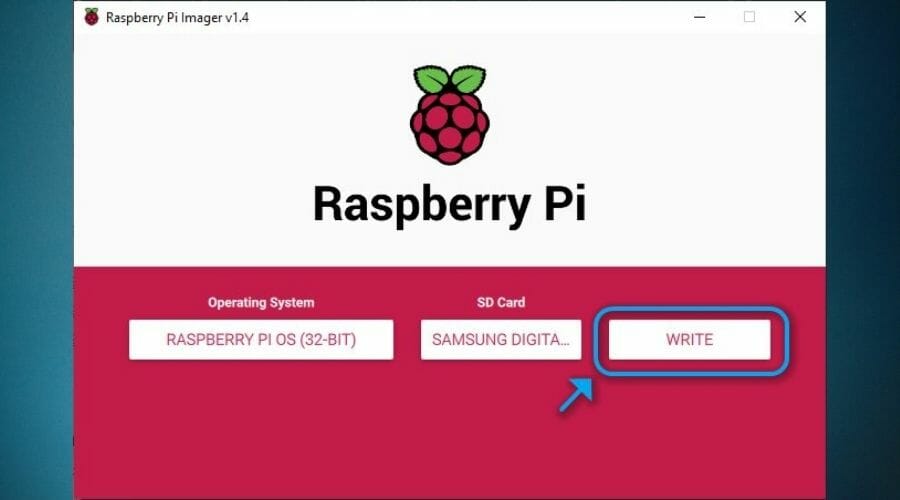
  9. Click the Write buttonWrite button Raspberry Pi Imager
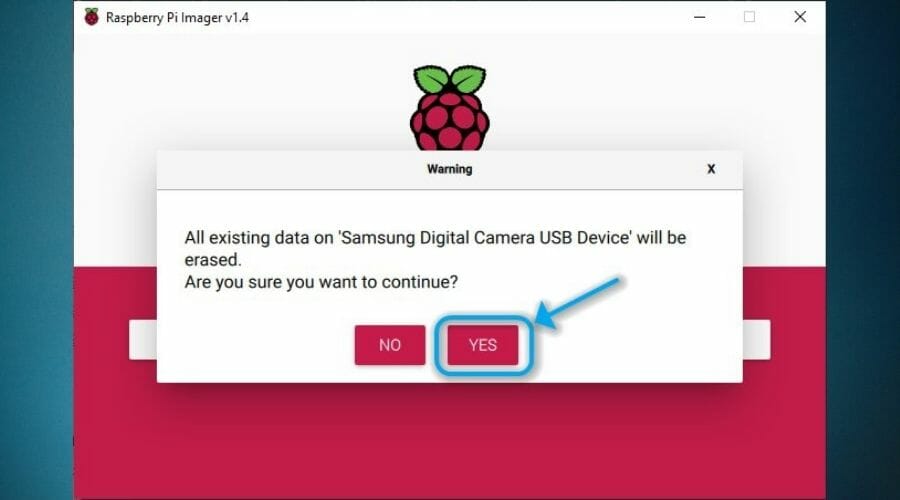
  10. Confirm your action by clicking the Yes buttonRaspberry Pi Imager Yes button
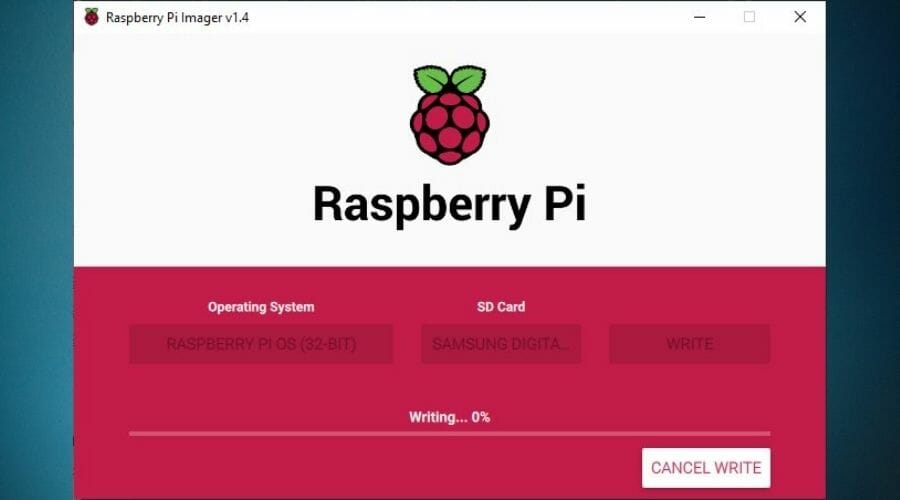
  11. Wait for the process to come to an endProgress of Raspberry Pi Imager

Note that all previous data on your SD card will be erased by the Raspberry Pi Imager tool. Furthermore, you can’t access the content of the SD card or write on it by connecting the RPi to your PC.

Therefore, you’ll also have to use an SD card reader and connect it to your PC so you can write the OS to the card. We’ve used an old photo camera and it worked like a charm. Using a microSD-enabled phone can also work great.

Installing Raspberry Pi OS (formerly Raspbian) on Windows feels a tad less complicated thanks to the GUIs of the programs we used. Linux users prefer deploying it using the Terminal (the equivalent of Windows’ CMD).

How to install headless Raspbian on SD card?

This bit can be very useful in case you don’t have an HDMI cable and a monitor. Installing a headless Raspberry Pi OS on your RPi device can help you interface with it in lieu of the aforementioned components.

It’s quite simple, actually, and doesn’t require a lot of additional steps. You just follow the steps of the standard installation we’ve listed above, and perform the following after you’re done:

  1. Refrain from removing the SD card from your reader
  2. Open the SD card’s root in File Explorer
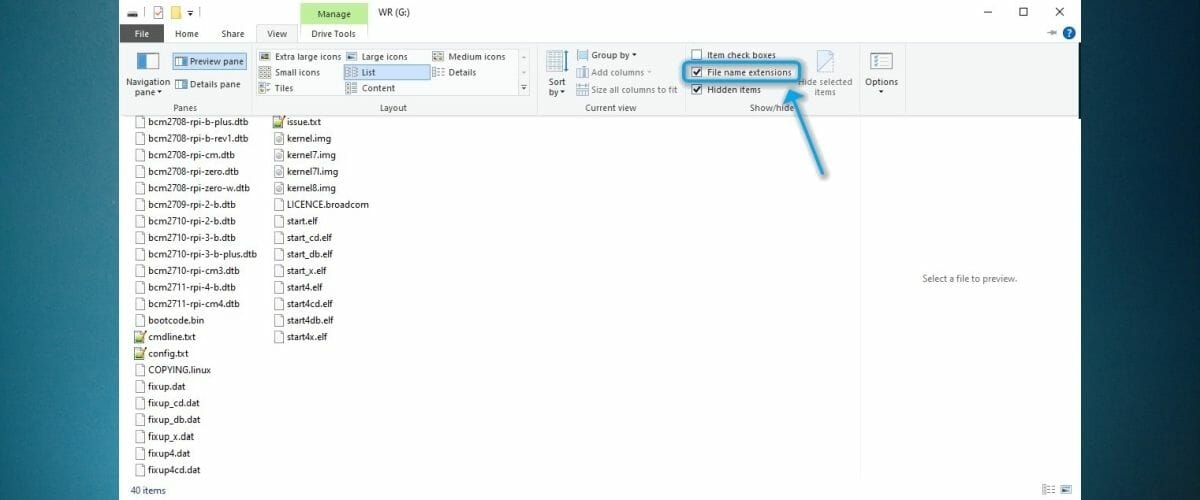
  3. Click the View button at the top of the Explorer window
  4. Make sure File name extensions is checkedExplorer enable file extension visibility
  5. Right-click anywhere in the window (don’t right-click any files)
  6. Select New > Text Document
  7. Name the file SSH and remove the .txt extensionRPi create empty SSH file
  8. Confirm your action
  9. Unplug the SD card from your reader

That’s it, now you’ve enabled SSH on your RPi device, which Raspberry Pi OS disables by default. Upon its first boot sequence, SSH will be activated when the OS sees the empty file you created.


Raspberry Pi not booting? Our guide will help you solve this issue quickly.


Thus, instead of using peripherals to access your RPi device, you can simply interface with it by using a Secure Shell (SSH) client, as we’ll explain in the next section.

How to connect to Raspberry Pi?

1. Using peripherals

  1. Insert the newly OS-written SD card into your Raspberry Pi
  2. Get a keyboard, mouse, HDMI cable, and display monitor
  3. Connect all of the above to your Raspberry Pi
  4. Plug your RPi to a power source using the dedicated power port
  5. Optionally: connect an audio output device if you want to have sound
  6. Wait for the Raspberry Pi OS to boot
  7. Use pi as the username and raspberry as the password
  8. Enjoy your new Linux-based mini PC

If you installed the GUI version of Raspbian, you’ll get familiarized with the system quite easily. On the other hand, if you’ve opted for the simplified GUI-less, CLI-driven version, you’ll only see lines of text.

That shouldn’t be necessarily a problem, but many users get put off by operating PCs through typing seemingly complicated text commands. Which gets us to the second method to connect to your Raspberry Pi.

2. Using an SSH client

  1. Download an SSH client (we used Solar Putty)
  2. Install the SSH client on your PC
  3. Connect your Raspberry Pi to your router using an Ethernet cableEthernet cable Raspberry Pi
  4. Insert the Raspberry Pi OS SD card into your RPi
  5. Plug the Raspberry Pi into a power source (we used our router’s USB port)Power source Raspberry Pi
  6. Access your router’s gateway address in your browser
  7. Identify the local IP address of the RPi device and write it down
  8. Run the SSH client and create a new session within it
  9. Type the IP address you saved earlier
  10. Optional: you can skip the 6th and 7th steps by using raspberry or raspberry.local as the address
  11. Use pi/raspberry as the username/password combination
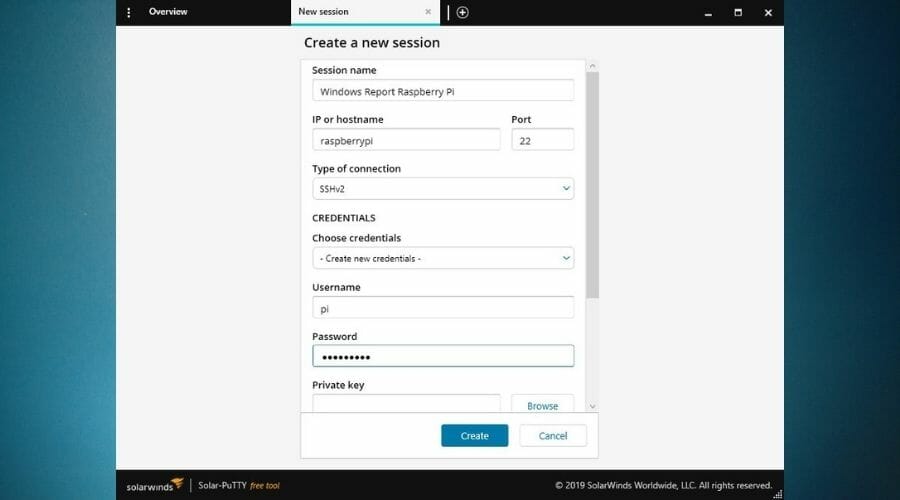
  12. Define a name for the credentials (if needed)Raspberry Pi SSH configuration
  13. Save the session details and launch it (hit Create button)

The SSH client version is the CLI one we’ve described above. There’s no GUI and you can only interact with your RPi through lines of text. However, once you get the hang of it, you’ll realize it’s not that complicated.

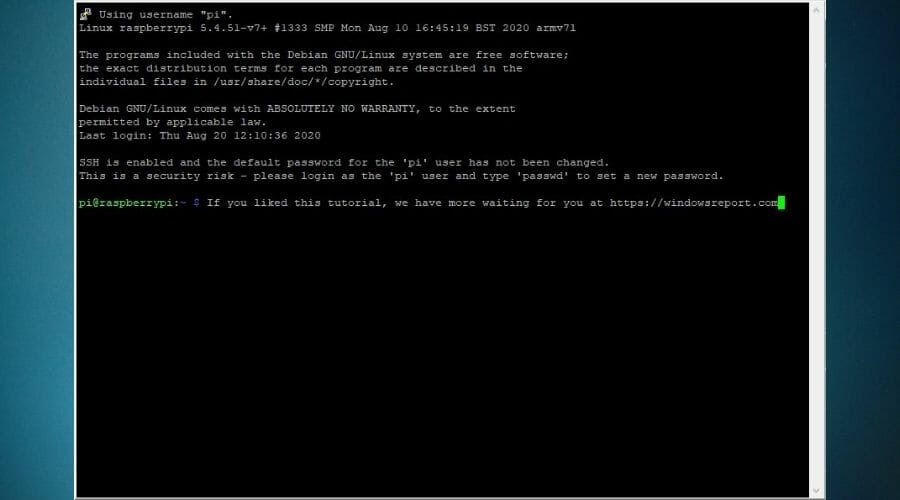
Granted, the SSH version is more suitable for advanced users, who know their way around Linux operating systems. Note that, unlike the GUI version, the CLI one is more permissive and lets you tamper with things you shouldn’t touch.Main screen SSH Raspberry Pi

Thus, we feel the need to give you a heads-up: never run any commands you’re not entirely familiarized with unless you feel like risking the integrity of your Raspberry Pi OS.

How to use Raspbian OS?

Now that you’ve successfully deployed Raspberry Pi OS on your Raspberry Pi, a world of opportunities awaits you. You can use your new mini-PC (we’re talking about size, of course) to host a website, run an email server, or even use it as a VPN server.

If none of these sound too appealing, you may be glad to hear that you can turn your Raspberry Pi device into a retro-gaming console. However, that’s a whole nother story and we won’t overburden you with the details here.

Last, but not least, you can use mobile apps to access your Raspberry Pi and control it, if PC interaction doesn’t seem to cut it. One such app is RaspController.

Final thoughts on installing Raspberry Pi OS

All things considered, deploying Raspberry Pi OS on your RPi device may not be exactly a walk in the park. However, following our comprehensive guide will help you perform the setup regardless of your previous experience.

Note that despite its size the RPi is a powerful computer. Therefore, you can use it for a wide range of projects, including but not limited to hosting websites, email servers, and even Minecraft servers.

[wl_navigator]

How to Fix Boot Camp Problems with Windows 10/11

If you want to install Windows and Windows applications on your Mac, there’s a simple tool called Boot Camp that lets you run Mac and Windows side by side.

This tool is quite useful, but sometimes there could be some problems with Windows 10 and Boot Camp.

As far as we know, Boot Camp has been updated to officially support Windows 10, and features such as USB 3 drivers on recent MacBooks and USB Type-C ports on 12-inch MacBook are working.

In addition, Windows 10 support for 64-bit Mac is available as well. To keep your Boot Camp working with Windows 10, follow the steps listed below.

How can I solve Boot Camp issues in Windows 10?

1. Update Boot Camp/computer drivers

update drivers
  1. Make sure that your Mac is connected to the Internet.
  2. Open Boot Camp Assistant from the Utilities folder.
  3. When the assistant window opens deselect all options, but make sure that Download the Latest Windows support software from Apple is checked.
  4. Click Continue.
  5. Make sure that your USB flash drive is connected as the destination disk and click on Continue.
  6. You might need to enter your administrator username and password; after that, the Boot Camp assistant should download drivers to your USB flash drive.
  7. After the drivers have been downloaded quit the Boot Camp Assistant window.
  8. Make sure that your USB is connected to your Mac and go to System Preferences.
  9. Click the Startup Disk and select the Windows volume icon in the list of drivers.
  10. Click Restart.

Install the drivers:

  1. Open the Boot Camp folder in the flash drive and install the drivers you’ve downloaded.
  2. If Boot Camp asks you to make changes click Yes.
  3. Click Repair to reinstall or update previously installed Windows Support Software.
  4. If you get a message saying that software didn’t pass Windows Logo testing just click Continue Anyway.
  5. After the installation is finished, click Yes to restart your computer.

One amazing tool that allows you to run Windows on MAC is Parallels and we strongly recommend you give it a try.

It’s extremely easy to set up as the tool will automatically detect all you need in order to get started and download the programs. You’ll be set to start using your device in no time.

Another great thing about Parallels is that you can share and folders or copy-paste images, between your MAC and Windows applications.

Parallels is fast, reliable, works with most programs, and offers you 24/7 Support on phone and email.

⇒ Get Parallels

2. Reset PRAM

  1. Turn off your MacBook by pressing the Power button.
  2. Turn on the computer.
  3. Press and hold the Command, Option, P, and R keys at the same time before the grey screen appears. If you’re not fast enough, restart your device again.
  4. Now, keep holding the keys until your Macbook restarts.
  5. When you hear the startup sound, simply release the keys.
  6. Keep in mind that some of your settings have been reset.

Many MacBook owners confirmed that resetting PRAM helped them fix this problem. Keep in mind that the whole process may take a few minutes, so be patient.

Reset PRAM at least three consecutive times. Use the above steps in that regard.

That would be all, I hope this helped you to solve the Boot Camp problems. If you have any questions or suggestions, please reach for our comments section below.

Also, keep in mind that bypassing similar issues is possible when knowing the handiest tricks to apply:

  • Boot Camp Windows 10 not booting – If the Boot Camp Windows partition no longer boots, try to perform the NVRAM reset to clear all corrupted settings.
  • Boot Camp won’t install Windows 10/Bootcamp installation failed – There are times when Boot Camp refuses to install on Windows 10. In this case, waste no more time and download the latest edition of Windows 10.
  • Boot Camp assistant not working – If Boot Camp Assistant doesn’t respond, there is a chance to solve it by using Option-Command-Escape to force the app to quit.
  • Repair Boot Camp Windows 10 – The tips above will help if you experience Boot Camp issues.
  • Boot Camp Windows 10 keeps restarting – Windows 10 continuously rebooting on MacBook Boot Camp issues are nothing out of the ordinary. When bothered by this problem, run a RAM diagnostics command in Windows 10.

The above solutions should help you fix the Boot Camp problems with Windows 10. If you have additional comments or suggestions, please let us know in the comments section below.

11 Best Construction Planning Software in 2026

Construction project managers use specific software tools to set their objectives and plans, implement operations, develop communications, and maximize resources.

Similarly, these construction planning software tools help to automate the way managers administer tasks, estimate costs, facilitate scheduling, and handle workload assignments.

Without further ado, let’s check out some of the best construction planning software.

Note: Deals are subject to change. We recommend going on the vendor’s website to check the price and see if the offer is still valid.

What are the best construction plan management software for your business?

Autodesk Construction Cloud

Everyone knows about the CAD programs from AutoDesk and how they are arguably the best and most well-known in the whole wide world.

However, their product line extends to more than just the programs you create the designs in.

For example, Autodesk Construction Cloud, previously known as BIM 360, is an indispensable tool for construction workers that brings an entirely new toolset to the trade.

It allows you to securely co-author a Revit model within one firm or across multiple firms and controls the exchange of work-in-progress data.

This is thanks to the fact that it can securely access Civil 3D files, data shortcuts and XRefs from multiple locations and companies.

Changes and progress to a design can be monitored step-by-step, from pretty much any device, from browsers, tablets, or mobile devices.

Autodesk Construction Cloud

Work together on a building model across different locations and trades with Autodesk Construction Cloud!
Check price Visti website

Procore

procore_og

Procore is one of the widely used construction planning software for simplifying project communication and documentation in a cloud-based platform.

The software includes the latest web technologies. Further, the software can display multiple projects in a one-page dashboard to help managers monitor their progress.

The software is also rich in features, including:

  • Contract Management
  • Project Management
  • Quote Management
  • Sales Management
  • Scheduling
  • Time Management

Construction professionals also use Procore to work on projects from any Internet-connected device while maintaining access to project documents, drawings, submittals, schedules, contracts, and RFIs.

 ⇒ Get Procore

WorkflowMax

workflowmax logo

WorkflowMax works to help users manage tasks, time, and invoices in a software-as-a-service model.

The project management tool features tools for sales leads, implementation, initiation, close-out and billing phases of a construction project.

There is also an unlimited edition that allows users to include building and construction professionals, architects, engineers, and surveyors.

⇒ Get WorkflowMax

GenieBelt

GenieBelt logo

GenieBelt incorporates live program management, reporting tools, a complete audit trail, project overviews, document sharing and an automated drawing control to provide a basic project management functionality.

Its main goal is to help save time for project managers.

The tool also works on multiple platforms such as PCs, tablets, and smartphones. It also deploys on the cloud, software-as-a-service, and web platforms. Key features include:

  • Contract Management
  • Document / Photo Management
  • Incident Reporting
  • Job Scheduling
  • Subcontractor Management
  • Task Management
  • Timesheets

 ⇒ Get GenieBelt

Newforma Construction Suite

Newforma Construction logo

Newforma Construction Suite includes the Preconstruction, Project Management and Field Management tools.

Preconstruction allows project managers to handle emails, view drawings, and look for information on corporate networks.

Users can coordinate bid documents and models for MEP clash detection using the feature.

Project Management lets users handle contracts, change orders, submittals, RFIs, and action items via a smartphone or tablet.

Meanwhile, Field Management is for handling punch lists, spatial indices, and project images. 

 ⇒ Get Newforma Construction Suite

BIM Track

Bimtrack

BIM Track is ideal for infrastructures and buildings design coordination to help minimize non-productive activities.

The cloud-based software detects and identifies issues with 3D BIM models coordination.

Also, BIM Track contains plug-ins for Revit and Navisworks to manage issues. Other features are:

  • Incident Reporting
  • Lead Management
  • Subcontractor Management
  • Task Management

The tool boasts of its interactive design that works well with browsers and mobile devices.

There’s a 3D viewer as well for online viewing of projects.BIM Track provides metrics for the progress of issue management.

 ⇒ Get BIM Track

ePROMIS Construction ERP

epromis-erp-for-construction-engineering

Construction and engineering firms use ePROMIS Construction ERP to track and analyze project performance.

Additionally, the tool provides insights into the current and future challenges that might face the construction industry.

Its content management system includes bid and contract management, lead and permit management, subcontractor and supplier management and warranty/service management.

Other ePROMIS Construction ERP comprehensive features are:

  • Billing & Invoicing
  • Change Orders
  • Document / Photo Management
  • Incident Reporting
  • Job Costing
  • Job Scheduling
  • Selection Sheets
  • Task Management
  • Timesheets

The solution runs on cloud, on-premise and mobile device platforms.

 ⇒ Get ePROMIS Construction ERP

PayPanther

PayPanther logo

PayPanther aims at architects, contractors, managers, engineers, developers, designers, and consultants.

The software integrates invoicing, time tracking, CRM, and project management for easy use.

 ⇒ Get PayPanther

Paskr Project Management Suite

PASKR Suite logo

Paskr Project Management Suite aims at principal contractors and subcontractors for large construction projects.

The main construction planning software features are bid and contract management, lead and permit management, subcontractor and supplier management and warranty/service management.

Paskr Project Management Suite’s other features include:

  • Billing & Invoicing
  • Change Orders
  • Document / Photo Management
  • Incident Reporting
  • Job Costing
  • Job Scheduling
  • Selection Sheets
  • Submittal Management
  • Task Management
  • Timesheets

 ⇒ Get Paskr Project Management Suite

UDA ConstructionSuite

UDA Construction Suite

UDA ConstructionSuite has interactive workflows to keep the project team on track and organize project data with easy accessibility.

Further, it has two-way QuickBooks integration tools to check the financial status of projects and automate the AIA billing process.

Other features include:

  • Change Orders
  • Contract Management
  • Document / Photo Management
  • Job Costing
  • Job Scheduling
  • Lead Management
  • Selection Sheets
  • Subcontractor Management
  • Task Management

 ⇒ Get UDA ConstructionSuite

QuickBase

QuickBase

QuickBase is available also in a free trial version as well.

The tool’s content management system includes bid and contract management, lead and permit management, subcontractor and supplier management and warranty/service management.

Other QuickBase extensive features are:

  • Change Orders
  • Document / Photo Management
  • Incident Reporting
  • Job Costing
  • Job Scheduling
  • Selection Sheets
  • Submittal Management
  • Task Management

 ⇒ Get QuickBase

Every construction firm is well aware of the reality that any project requires time, resources, and intensive effort to complete. However, time management seems to be a constant challenge.

The amalgamation of the Internet and software tools now makes it possible to complete a task easily.

The software mentioned above is only a few samples of the construction planning software tools available in the market.

If you know of any other similar tools not mentioned, let us know by leaving a comment below.

Comodo Application Agent is not running

Comodo Firewall is one of the most popular freemium solutions in the niche with a community of software aficionados and excellent features.

Now, even though it supports Windows 10, there seems to be a bag of issues and it looks like the collaboration between the two isn’t exactly at top-notch standards.

Some users reported minor bugs in Windows 10, while others weren’t able to run it in the first place.

Luckily, there’s a solution to this problem so make sure to check it out and you should be able to run Comodo in a sec.

Well, not exactly a sec, since it will take some time. But, nonetheless, the procedure we presented below should get you going.

How can I fix Comodo Firewall issues in Windows 10?

Reinstall Comodo

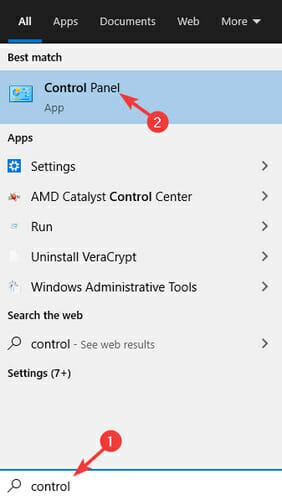
  1. In the Windows Search, type Control, and open Control Panel.
  2. Open Uninstall a program from the Category view.
  3. Navigate to Comodo, uninstall it, and restart your PC.
  4. Download Comodo uninstaller tool.
  5. Run the forced uninstaller tool to remove the registry entries and backlogs.
  6. Restart your PC again.
  7. Run the forced uninstaller again and let it double-check for remaining files.

Download the Comodo installer

  1. Once you’re certain that nothing left behind Comodo Firewall, download the installer.
  2. Run the installer, wait for the installation to complete and reboot your PC.
  3. In the Windows Search bar, type Control again, and open Control Panel.
  4. Click on the Comodo, but this time instead of Uninstall choose Modify.
  5. Uncheck the box beside the Comodo Antivirus and leave the box beside Comodo Firewall.
  6. Confirm changes and restart your PC.

Speaking of firewall software, if you’re planning to replace Comodo Firewall with another tool, this list of the best firewall software for Windows 10 may help you decide which one to install.

That should enable you to use Comodo Firewall just like on previous Windows iterations: in a seamless and enjoyable manner. If you have other suggestions or recommendations, please let us know in the comments section below.

Instagram Not Working on Wi-Fi [iOS & Android]

If you have read our troubleshooting guide on the Instagram story not posting issue, you would know most Instagram issues usually occur due to network issues. Instagram not working on Wi-Fi issue is no different either.

When using Wi-Fi, Instagram users cannot open, read, or post on their Instagram profiles.

In this article, we have listed some troubleshooting steps to help you resolve Instagram not working on the Wi-Fi issue on Android and iOS devices.

Why is Instagram not working on Wi-Fi?

  • The service might be down or having some temporary issues.
  • You might have some network restrictions enabled on your device.
  • Issues with network hardware or network problems on you phone.
  • Corrupt application cache or installation on your device.

What can I do if Instagram is not working on WiFi?

1. Check for service outage

  1. Visit the Downdetector page.
  2. Search for Instagram.
  3. Look at the graph for any outages or issues.

Check for network restrictions on Android

  1. Tap on Settings.
  2. Open Apps / Application Manager.
  3. Search for and open Instagram.
  4. Open Data Usage.

  5. Check if Wi-Fi usage is disabled. Turn on Data usage from both mobile data and Wi-Fi.

Check for network restrictions on iOS

  1. Navigate to Settings on your iOS device.
  2. Next, go to Cellular.
  3. Scroll down and make sure the Instagram is allowed to access the cellular network.

Relaunch the Instagram app and check if the the issue with Instagram not working on wifi is resolved.

2. Try a new browser

By choosing another skilled browser like Opera One, you have social media app integrations with Instagram that allow you to login into your account and navigate right from the sidebar.

If you have network problems and can’t connect to your social profile, it might be due to browser errors. For this purpose, you have professional browser alternatives like Opera One.

That said, you can as well find resourceful security tools like a built-in VPN and Ad Blocker that might resolve your network issues with social media channels.

Opera One also features other multiple social media and messaging apps integrations as well as a native AI and modular AI-ready design for current and future AI technologies integration.

Opera One

Let Instagram connection issues behind you with this featured browser with tons of integrations and personalization tools.

3. Check your home network

Perform a power cycle

  1. Make sure the Modem and the Wi-Fi router are on.
  2. Pull the power and Ethernet cable.
  3. Leave the device idle for a few minutes.
  4. Connect the power and Ethernet cable.
  5. Wait for the lights to stop blinking.
  6. Connect your phone to the Wi-Fi network and check for any improvements.

If the issue persists, test the network using a speed testing tool like Speedtest.net. Also, try to use any other app when connected to the same Wi-Fi network to see if it is an app-specific issue.

Reset network settings on Android

  1. Tap on Settings.
  2. Open General Management settings.
  3. Tap on Reset.
  4. Next, tap on Reset network settings.

  5. Tap on Reset settings to confirm. You may have to draw your security pattern to proceed.

Reset network settings on Android

  1. Navigate to Settings and select General.
  2. Next, choose Transfer or Reset [Device] and then Reset.
  3. Lastly, select Reset Network Settings.

Once done, reconnect to the same Wi-Fi network and check if the issue is resolved. You may have to enter your Wi-Fi password even if it is saved to connect.

4. Clear Instagram cache & data

On Android

  1. Tap on Settings.
  2. Open Apps / Application Manager.
  3. Open the Instagram app from the list of installed apps.
  4. Tap on Storage.
  5. Tap on Clear cache.
  6. Next, tap on Clear data and confirm the action.

On iOS

  1. Open the Settings.
  2. Locate the Instagram on the list and select it.
  3. Scroll to the bottom of the page, and check Reset cache on next start.
  4. Restart the app.

Open the Instagram app and check if Instagram not working on Wi-Fi but working on the mobile data problem is resolved.

Check for an app update on Android

  1. Open Play Store.
  2. Search for Instagram.
  3. Tap the Update button to install pending updates.
  4. Once installed, launch the app and check for any improvements.

Check for app update on iOS

  1. Open the App Store on your iOS device.
  2. Tap your profile icon.
  3. In the Available updates section look for Instagram and tap Update next to it.

5. Reinstall Instagram

On Android

  1. Tap on Settings.
  2. Open Apps.
  3. Search for and open Instagram.
  4. Tap on Uninstall and then tap Yes to confirm.
  5. Once uninstalled, reinstall the app from the Google Play Store.

On iOS

  1. Touch and hold the app in App Library.
  2. Tap Delete App.
  3. Lastly, tap Delete to confirm.

As a last resort, try accessing your Instagram account using a web browser. If you run into problems, check out how to fix Instagram not opening on Chrome guide.

Instagram not working on Wi-Fi issues can occur for several reasons, including Wi-Fi data restriction in Android settings, app issues, or network connectivity problems. This in turn, can also cause issues like Instagram music isn’t available in your region.

Do let us know which method helped you resolve the issue in the comments.

Microsoft reveals what’s inside the $299 Xbox Series S

Following months of leaks, Microsoft officially announced the Xbox Series S yesterday, which will be a $299 discless console providing gamers an affordable entry point into the next console generation. The company has followed up this morning with another post that reveals what’s inside this cheaper alternative to the Xbox Series X, which will be priced at $499.

First of all, the Xbox Series S will nearly 60% smaller than the Xbox Series X, and it will feature the same “Robot White” color previously seen in the Xbox One S back in 2016. The console will also come with a matching white next-gen controller, which will also be available for purchase separately this holiday season.

Under the hood, the Xbox Series will include a 512GB custom NVMe SSD that supports Microsoft’s new Xbox Velocity Architecture, and providing more than 40x the I/O bandwidth of the Xbox One. Microsoft highlighted that this NVMe drive has identical I/O performance as the one in the Xbox Series X, which is 2.4 GB/s raw and 4.8 Gb/s compressed with a custom hardware decompression block. Just like the Xbox Series X, the Xbox Series S will support the 1TB Seagate Expansion cards that will provide the same speeds as the console’s internal NVMe SSD.

The Xbox Series S also shares a similar CPU with the Xbox Series X, and that’s a custom-designed AMD 7nm eight-cores Zen 2 CPU running at 3.6 Ghz. On the GPU side, the 4 teraflops AMD RDNA 2-based GPU will deliver “approximately 3x the GPU performance of Xbox One.” The console also comes with 10GB of GDDR6 memory, compared to 16GB on the Xbox Series X.

Overall, the Xbox Series S should be perfect for gamers who prefer smoother frame rates of a native 4K resolution as it’s designed to play games at 1440p at 60 frames per second, with support for up to 120fps. The Xbox Series S will also be able to upscale games to 4K when the console is connected to a 4K TV set. It remains to be seen how Microsoft’s upscaling technology will compare to native 4K graphics provided by the Xbox Series X.

“With the increased efficiency we get from the next generation AMD RDNA 2 graphics architecture combined with the virtual memory multipliers enabled through the Xbox Velocity Architecture, Xbox Series S will deliver performance and experiences well beyond the raw specs,” the Xbox team emphasized. Additionally, the Xbox Series S will share its development tools with the Xbox Series X, and it should be pretty straightforward for developers to optimize their games for the entry-level console.

Xbox Series X/S Tech Specs

If Microsoft introduced an “Optimized for Xbox Series X” badge earlier this year, the company clarified today that “games built for the next generation will be optimized for both Xbox Series X and Xbox Series S.” For next-gen games that will Smart Delivery, this means that gamers will automatically receive the best version of the game that’s optimized for their console, whether it’s an Xbox Series S, an Xbox Series X, or an Xbox One.

If you already have the 4K-ready Xbox One X, the Xbox Series S should still be an excellent upgrade. With smoother framerates (up to 120 FPS), 4K upscaling, and support for next-gen features like DirectX Ray-tracing, this is a console designed for next-gen games. Faster loading times and the ability to resume multiple games almost instantly should also be a real game changer.

Again, the most important differences between the Xbox Series S and the Xbox Series X is the support for native 4K resolution, and the amount of internal storage, and the presence of a 4K Blu Ray Player. If these features are not essential for you, the $299 Xbox Series S should be a very interesting proposition.

Both the Xbox Series S and the Xbox Series X will be available on November 10, with pre-orders set to open on September 22. If you don’t want to pay $299 or $499 upfront, Xbox All Access will also offer either console with 24 months of Xbox Game Pass Ultimate for a low monthly price.


How to clear “product and service performance” data from your Microsoft account

Everytime you use a Microsoft service, activity records are created for a variety of purposes. Some of the data is used to power Windows experiences, like the Timeline history view, while much of the rest of it is telemetry information of one form or another.

Microsoft now delineates this data into “Apps and Services Activity” and “Product and Service Performance” activity. According to the descriptions on the Microsoft Account privacy page, the former enables Microsoft products to adapt themselves to you, whereas the latter sounds as though it solely benefits Microsoft.

Screenshot of clearing performance data from Microsoft account

Product and Service Performance data is used to “measure the quality of your experience” when using Microsoft products and services. Which services are supported, how an experience is defined or how quality is measured aren’t directly defined. Microsoft does claim the data helps it to “fix and improve” services, so we assume the data includes things like app crash reports and analysis of feature usage. Quite where the line is drawn between “Apps and Services Activity” and “Product and Service Performance” is unclear.

Purpose aside, these two types of data can now be cleared independently of each other. Login to your Microsoft account at account.microsoft.com and head to the Privacy page. Next, click the “Clear Product and Service Performance Data” button towards the end of the page.

Screenshot of clearing performance data from Microsoft account

A popup will be displayed. Microsoft points out it may be “more difficult” for it to provide you with product support once you delete the data. Click the “Clear” button to complete the process. The same procedure can be used to eliminate your “Apps and Services Activity,” although note that this data seems to have a more direct impact on what you see in Microsoft services.

How to switch columns and rows in Excel [Swap / Transpose]

People interpret data differently; some insert data horizontally and others prefer to do it vertically. For flexibility, Microsoft Excel comes with the Transpose feature, which lets you switch columns and rows in Excel.

The Transpose function in Excel changes your columns and rows’ orientation. It allows you to perform this operation in two different ways – either with the paste options or by using a formula.

What is the best practice to switch the columns and rows in a range in Excel?

  1. If you have formulas on the sheet, the data on the table must be absolute references in order to switch columns and rows in Excel.
  2. To perform this operation regularly and view the data from diverse angles, you may want to create a PivotTable. It simplifies the process of pivoting your data by letting you drag and drog data between fields and columns.

If you are working with an Excel file with lots of headings stacked horizontally, it gets clumsy to read or edit.

To switch the columns and rows in Excel, you have to either use paste options in the program or go with a formula as explained in this guide.

How can I change columns to rows in Excel?

1. Use paste and Transpose

switch-columns-and-rows-in-Excel-switch-columns-and-rows-in-Excel

  1. Open the Excel sheet that you want to work on.
  2. Highlight the data range that you want to transpose, as well as the labels of the column or row.
  3. Press the CTRL + C combination to copy the selection.
  4. Navigate to the destination row or column where you wish to apply the copied values.
  5. Right-click the topmost left cell and select the Transpose icon from PASTE OPTIONS.
  6. Return to the origin cell and delete the data.

2. Use the Transpose function in a formula

transpose-formula-switch-columns-and-rows-in-Excel

  1. Open the spreadsheet.
  2. Select an empty cell to insert the converted data.
  3. Type =transpose into the selected cell.
  4. Add the range of cells that you want to transpose into a bracket after =transpose. So, it looks like this – =transpose(A1:F7).

Speaking of rows, we also have an article that explains what to do if you can’t insert a row in Excel, so don’t miss it. This isn’t the only issue, and our latest guide covers what to do if Freeze Panes is not working in Excel.

Before you leave, don’t miss our guide on how to get data from another sheet in Excel for more useful information.

Note: In the above formula, A1 is the starting cell and F7 is the ending one in the range. This technique makes use of an array and formula. Unlike the first method, switching columns and rows with this method can ruin the formatting.

Microsoft starts rolling out New Conversation button in Teams channels

Last month, we reported that Microsoft is working on a new feature to better separate new conversations from thread replies in Teams channels. In a new post on LinkedIn, Vincent Bellet, a Principal PM Manager at Microsoft, announced that they have started rolling out a “New conversation” button into Teams Channels experience.

“Our challenge was to fix a clear usability issue without bringing any friction for content creators and people willing to engage by responding to a message. We spent a lot of energy to find the right balance between qualitative and quantitative feedback to get to today’s milestone. I am very excited to introduce this change worldwide, hope you will welcome this change too!,” Bellet explained.

Just as a reminder, the initial UserVoice request was posted on the UserVoice forums in May of 2017, and 9,457 Microsoft Teams users upvoted the suggestion since then. Many people agreed in the comments section that an updated UI would be much more valuable to prevent users from starting a new conversation when they intend to reply to an in-line thread in Teams channels.

The New conversation button, which replaces the “Start a new conversation” text field, should improve the usability of the Teams collaboration platform. To be clear, the change is gradually rolling out to a small pool of Microsoft Teams users first, and it should be live for the rest of the userbase in the coming weeks.

Xbox Series X launches on November 10 for $499, pre-orders to open on September 22

It’s finally official, Microsoft will launch both the Xbox Series S and the Xbox Series X on November 10. The company already announced the $299 pricing for the Xbox Series S yesterday, but the Xbox team has just confirmed that the Xbox Series will be priced at $499, a piece of information that also leaked yesterday, but hasn’t been confirmed until now. The Xbox One and the Xbox One X also launched at $499, but the Xbox Series X should offer a true generational leap with an ultra-fast NVMe SSD, and a 12 teraflops GPU that supports 4K at 60FPS, 120 FPS gameplay, as well as 8K.

Microsoft also announced today that both of its next-gen consoles would be available with an Xbox All Access subscription that will include an Xbox console and 24 months of Xbox Game Pass Ultimate. The $299 Xbox Series S will be available starting from $24.99/month for 24 months, and the $499 Xbox Series X will be available starting from $34.99/month for 24 months. Xbox All Access is also coming to 12 new countries this holiday, with more to come next year.

The Xbox Series X was announced back in December 2019 at The Game Awards ceremony, and Sony didn’t strike back with its PS5 announcement until early 2020. As of this writing, the Japanese company has yet to announce pricing details for the PlayStation 5 and its discless Digital Edition variant, and we expect the official prices should be revealed pretty soon. In the meantime, pre-orders for both the Xbox Series S and the Xbox Series X will open in two weeks on September 22.

With the $299 Xbox Series S and Xbox All Access subscriptions, Microsoft is making sure that the transition to next-gen console should as painless as possible for most consumers. Overall, the company seems well-positioned ahead of the beginning of a new console generation, though the company has yet to clearly explain why gamers should choose the more powerful Xbox Series X. So far, the company failed to really demonstrate the console’s power advantage over the PlayStation 5, though the good news is that the company still has 2 months left to do just that.

Microsoft’s Panos Panay discusses the origins and future of Surface Duo

Microsoft’s dual-screen Surface Duo is launching in the US tomorrow, and the company’s first Android device has been years in the making. In a long interview with The Verge, Surface inventor and Microsoft Chief Product Officer Panos Panay revealed a lot of interesting details about the process that led to the creation of Surface Duo, with Microsoft eventually opting for Android instead of a Windows-based OS.

According to Panay, Microsoft started working on a dual-screen mobile device around 2014, after Microsoft cancelled the Surface Mini. At that point, Panay had become pretty much obsessed about creating a dual-screen device, to the point of carrying two pieces of metal connected by a hinge in his pocket for months. The exec did so to get an understanding of how durable such a device would be, and what would be the ideal dimensions for a dual-screen device that should comfortably fit in your pocket.

After Microsoft canceled the Windows RT-powered Surface Mini at the last minute, Panos Panay and his team started working on Andromeda, a Windows-powered dual-screen device which apparently looked quite different from Surface Duo. “At that time, it was different hardware, it’s not the same hardware… it’s not even remotely close,” said Panay. “We’re in so many generations later of development [with Surface Duo], we understand how thin it is, we understand reliability, we understand the robustness of the screens. It has been generationally made, it’s years in the making.”

Surface Duo prototypes
Some early Surface Duo prototypes (image credit: The Verge).

When designing the Surface Duo, Microsoft ultimately opted for a design where all the internal components would be distributed across both sides of the device, but the company experimented with having all components on one side, and another prototype had the two displays connected wirelessly. There were also some internal debates about LCD vs. OLED screens, and the latter eventually won as they allowed the device to be thinner.

Unfortunately, making the Surface Duo just 4.8mm thin led to some compromises, such as the lack of 5G connectivity, NFC, and a complex camera module. “This is the most emotional product we’ve ever created. A lot of that comes from tension. To get that diamond out, there had to be a lot of it. Microns mattered, not millimeters, microns,” said Panay. “Maybe that’s why it took years to get to this product. There were moments like those because we pushed so many boundaries.”

After Microsoft cancelled the Surface Mini due to Windows RT lacking the apps that consumer want on a tablet, choosing Android for the Surface Duo was a difficult choice, Panay explained. “Bringing Android into the fold, that wasn’t the most simple of conversations all of the time,” admits Panay. “You have to explain that and you want your team on board and people believing it.” Eventually, Microsoft did the right thing as Microsoft was able to work with Google to improve Android for dual-screen devices, and Microsoft didn’t go as far as creating an Android fork like other phone manufacturers have done in the past, some with little success (see Amazon’s Fire phone).

Microsoft Surface Duo

While Microsoft’s Surface Duo will launch tomorrow in the US, we already know that a new version is in the pipeline. The Windows 10X-powered Surface Neo is also still being worked on, though it still has no release date. “I wanted the right time to bring that product with the right experience. We believe in that concept and form factor and size. It will be a beautiful complement to Duo with Windows and I’m excited about it. It’s a product that’s near and dear to my heart.”

The Surface Duo that will start shipping tomorrow will come with two 5.6-inch screens that form a bigger 8.1-inch screen when opened, and the device comes with pretty thick bezels. In the future, Panay hinted that Microsoft could explore different sizes for its Surface Duo and Neo dual-screen devices. “The next natural evolution is different [dual-screen] sizes,” said Panay. “Whether the larger moves into Windows where it’s appropriate to use the Windows codebase and software, and the smaller form factor uses Android, I think you can safely say that’s the right path with what we’re doing right now as a team.”

If we already got the chance to go hands-on with a Surface Duo at a Best Buy store, full reviews should be posted online pretty soon, and stay tuned to OnMSFT for our detailed review of Microsoft’s latest Surface device. In the meantime, we remind you that you can pre-order the Surface Duo from the Microsoft Store, Best Buy, and AT&T.

Rapport Management Service High CPU: 3 Fixes if It’s Slow

A few users have experienced Rapport Management service high CPU. This guide will cover causes, as well as the most effective solutions.

Trusteer Rapport is software that adds a layer of security to your antivirus software. The program protects confidential data, such as your bank account details, from malicious software or unauthorized personnel and is currently used by most banks.

Trustee Rapport also allows you to apply Rapport’s protection to other websites where you exchange sensitive information.

Why does Rapport Management service have high CPU usage?

From the research that we have conducted, we can ascertain that a few factors may trigger the Rapport Management service high CPU usage. The following are common factors:

  • Compatibility issues – If Rapport Management has compatibility issues with other programs, especially antivirus software, it may lead to high CPU usage.
  • Scanning – Since the service constantly scans your devices for viruses, you may expect high CPU usage.
  • System resources – The Management service may consume more resources on devices with low resources or space.
  • System updates – While your system updates for viruses, you may expect this service will use up a lot of CPU.

What is Rapport Management service?

When you connect to your online bank, Trusteer Rapport using the Rapport Management service, performs security checks in the background that make it hard for criminals to hijack your account. The service serves the following functions.

  • It verifies that you have connected to the genuine bank’s website and not to a counterfeit created for fraud.
  • Once verification is complete, it securely locks down communication between your computer and the bank’s website.
  • It protects your internet connection and computer from malware, creating a safe communication line with your bank.

Though the program does a stellar job at keeping your confidential data from fraudulent hands, it’s not without problems. Users have encountered some problems, such as conflicts with antivirus programs, slow performance, and Rapport not running.

How can I fix Rapport Management service high CPU usage?

1. Update Rapport

  1. Click on Open Console.
    rapport management service high cpu
  2. Click on the More Settings link.
    rapport management service high cpu
  3. If out of date, ensure you tick Automatic updates.
    rapport management service high cpu
  4. Wait for the updates to start and restart the application.

2. Reinstall the app

  1. Press Windows + R, type appwiz.cpl hit Enter.
    rapport management service high cpu
  2. From the list of apps, search for Trusteer Endpoint Protection. Click on it, and select Uninstall/Change.
  3. Follow the wizard to complete the uninstallation.
  4. Navigate to the official download site.
  5. Click on Download Links.
  6. Click the Download button for your OS.
  7. Select the downloaded file and follow the wizard to install it.

3. Disable your antivirus

  1. Click on the hidden access arrow in the Taskbar.
  2. Click on your antivirus icon, hover over Avast shields Control and select Disable for 10 minutes (This step varies for different antivirus software).

Many users reported problems when installing Rapport. Others reported conflict between their antivirus and Trusteer.

End users have reported problems with Rapport, slow PCs due to high CPU and RAM utilization, incompatibility with various security/antivirus products, and difficulty removing the software. This shows conflicts can occur when multiple real-time scanners run simultaneously.

On the other hand, you could also go for an antivirus alternative that has been proven to provide maximum protection within minimal system interferences, and that is TotalAV

TotalAV

Benefit from higher protection for your PC with this comprehensive anti-phishing solution.
Free Trial Visit Website

Do I need Rapport Management service?

The need for this service is a personal choice, and it will depend on specific circumstances and needs. It is usually used for online banking security and would be useful to prevent phishing or other malware attacks.

For persons who use the banking system often, it may be necessary to use the service on their devices. But there may be no need if you do not have to use banking services or systems.

This is as much as we will cover in the article. The solutions discussed should help fix the Rapport Management service’s high CPU usage.

Let us know in the comments section which solutions worked for you.

5 Best Apps to Keep Track of Watched Movies

If you watch movies frequently, it’s a good idea to have software that lets you keep track of watched movies.

Luckily, there are many great applications that will let you keep track of watched movies, and today we’re going to show you the best ones.

What are the best tools to keep track of watched movies?

Trakt

Trakt keep track of movies watched

If you’re looking for a service that lets you keep track of watched movies, Trakt might be a perfect choice for you. The service lets you track both movies and shows that you watch with ease.

Trakt works with various players including, Kodi, Plex, Netflix, MediaPortal, Emby, Infuse, MrMC, Stremio, Serviio, and VLC. As for platforms, it works on Android, iOS, macOS, and Windows.

The service also provides you with links to streaming services and major TV networks, so you can always find new content to watch. The service also works with Alexa, which is a major plus.

Just like with any other service, you can easily add movies to your watched history list, add them to your collection, or add them to the watchlist for future viewing.

Trakt is great, it’s completely free, and it’s available on a wide array of platforms and media players, so be sure to consider it.

Trakt features:

  • Completely free
  • Works with a wide array of multimedia players
  • Available on Android, iOS, Windows, and Mac
  • Alexa support
  • Ability to track watched movies and create lists

→ Visit Trakt website

Letterboxd

letterboxd keep track of movies watched

Letterboxd is described as a social network for movie lovers, and it’s available as a web application for desktop and as a mobile app for Android and iOS.

After you create your account, you can use Letterboxd to select movies that you saw and rate them. You can also add movies to the Watchlist with just a couple of clicks.

The service also allows you to write reviews of the movies you watched, so you can share your opinion with the community.

Letterboxd also supports lists, so you can make top 10 lists, lists of favorite movies from a franchise or from a specific director and share them with the world.

The service also offers detailed movie-watching stats, but this option is available only for the Pro subscription.

Overall, Letterboxd is a simple to use service, and if you’re a movie watcher, you might want to consider it.

Letterboxd features:

  • Available as a web app and iOS/Android app
  • Free to use
  • Ability to create lists, rate movies, create watchlists
  • Detailed movie-watching stats for Pro users

⇾ Visit Letterboxd website

All My Movies

All My Movies keep track of movies watched

All My Movies is a desktop application that lets you organize your movie collection and keep track of movies that you watched.

The software connects to the IMDb and other movie databases in order to get the necessary information about the movies in your collection.

All My Movies has an extensive search feature so you can search for a movie based on multiple criteria simultaneously and find what you need in a matter of moments.

If you own physical copies of your favorite movies, the software also has a Friends directory, so you can keep track of movies that you borrowed to your friends.

All My Movies is a simple application, but it comes with a wide array of skins and all the basic features that you’ll need, so there’s no reason not to try it.

All My Movies features:

  • Simple to use
  • Ability to organize movie collection
  • Keeps track of watched movies
  • Various skins and themes are available
  • Powerful search feature

→ Download All My Movies

ICheckMovies

ICheckMovies keep track of movies watched

Another great service that allows you to keep track of watched movies is ICheckMovies. Once you create an account, you just need to pick a movie that you want to watch and that’s it.

After you finish a movie, check it and that’s it. The entire service is connected to the IMDb, so you should be able to find something to watch with ease.

You can even add your own movies that aren’t on IMDb, so that’s a major plus from us. It’s worth mentioning that you can also import data from your IMDb page, which might come in handy.

ICheckMovies is a simple service with basic features, but it’s perfect for users that prefer the minimalistic movie tracking services.

ICheckMovies features:

  • Simple to use
  • Has the ability to import IMDb data
  • Allows you to add your own movies
  • Ability to track watched movies

→ Visit ICheckMovies

Criticker

Criticker keep track of movies watched

Another website that lets you keep track of movies that you watched is Criticker. The website supports both movies and shows, and it can give you great recommendations.

All that you have to do is to rate 10 movies, and Criticker will recommend the best movies and shows according to your taste.

Speaking of rankings, Criticker allows you to add unlimited rankings and write reviews, and thanks to the active community, you can easily find other users with similar tastes.

Of course, the service has the ability to keep track of movies that you’ve seen as well as the ability to rate both movies and user reviews.

Criticker is simple to use, but it offers powerful recommendations, so be sure to check it out.

Criticker features:

  • Easy to use
  • Ability to add rankings to movies and reviews
  • Can keep track of watched movies
  • Support for reviews
  • Powerful recommendation system

→ Visit Criticker

Keeping track of watched movies doesn’t have to be hard, as long as you have the proper application or service for the task.

If you need to good service or app to keep track of watched movies, be sure to try Trakt or any other entry from our list.

Each Cyberpunk 2077 can of Rockstar Energy gives gamers $1 of Xbox store credit which is insane

A special Rockstar Energy and Cyberpunk 2077 collaboration is set to begin next month and it actually sound pretty incredible.

Starting on October 1st and running through to December 31st, five special Cyberpunk 2077 themed cans will begin appearing on North American store shelves. Four of the cans will simply be themed versions of regular Rockstar Energy drinks but the fifth will be a limited-edition Samurai Cola drink inspired by the in-game band headed by Keanu Reeves’ character, Johnny Silverhand. Samurai Cola will also be available in Mexico in limited edition bottles.

While the designs are cool, the real kicker is the unique codes on each can that are guaranteed to unlock a $1 Xbox gift card that can then be added to the Microsoft Store for credit. This credit can then in turn can be used to buy apps, movies and episodes, and even video games such as Cyberpunk 2077.

Rockstar Energy x Cyberpunk 2077 cans

This is essentially a $1 cashback offer on every can purchased but with the cash only being usable within the Microsoft Store digital storefront and there being a $60 limit per Microsoft account on how many $1 gift cards can be redeemed. It’s kind of unbelievable but it is in fact what this promotion is offering.

As the official announcement suggests, $60 of credit is enough to help many players buy the Cyberpunk 2077 video game but it can also be used on any other digital Xbox video game or DLC.

Redeeming three codes will unlock exclusive Cyberpunk 2077 digital comic books while every redeemed code will enter the user into a draw to win a number of real-world prizes ranging from Cyberpunk 2077 SteelSeries headsets, hoodies, and hats with the grand prize being an actual Rockstar Energy x Cyberpunk 2077 muscle car.

Rockstar Energy x Cyberpunk 2077 ca

All drink codes will need to be entered on this website here.

Rather amusingly, this isn’t the only Xbox video game having an energy drink promotion this holiday season. Just over a week ago, the Monster Energy Halo Infinite campaign was announced. Like the Cyberpunk 2077 campaign, the Halo Infinite one also runs until the end of the year but it does have a bit of a head start as it began last week. You can read more about the Halo Infinite promotion here.

Are you going to buy the Halo Infinite drinks or the Cyberpunk 2077 ones? Maybe both? Let us know in the comments below and then follow us on Twitter and Pinterest for more Xbox gaming news.

Cyberpunk 2077
Cyberpunk 2077
Developer:
CD PROJEKT RED
Price:
$29.99

iTunes doesn’t install on Windows 10

iTunes is a popular multimedia player and irreplaceable tool if you have any iOS device. Unfortunately, users reported that iTunes won’t install on Windows 10, and since that can be a big problem today we’re going to show you how to fix it.

How do I fix an iTunes that won’t install on Windows 10?

There are many problems that can prevent iTunes from installing on your Windows 10 PC. Speaking of problems, users reported the following issues with iTunes:

  • Problem with Windows installer package iTunes – This is a common error message that appears while installing iTunes. Fortunately this isn’t a big problem, and you should be able to resolve it by using one of our solutions.
  • Errors occurred during installation iTunes – According to users, sometimes certain errors can occur while trying to install iTunes. If any of these errors appear, they will prevent iTunes from installing.
  • iTunes won’t update to latest version – Few users claim that this problem occurs only when trying to update iTunes to the latest version. This can be a problem since you won’t be able to install the latest version at all.
  • iTunes won’t install Missing program – Sometimes Missing program error message can appear while trying to install iTunes. This is usually caused by corrupted installation package.
  • iTunes won’t install error 2324, 193 – There are various errors that can appear while trying to install iTunes. According to users, 2324 and 193 are the most common installation errors.
  • iTunes update won’t install Invalid signature – Another common problem while updating iTunes is Invalid signature message. This is a relatively rare problem, so you most likely won’t experience it.
  • iTunes won’t install insufficient privileges, system not modified, missing dll – There are various error messages that can prevent iTunes from installing on Windows 10. According to users, Insufficient privileges or missing DLL files are the most common causes for this problem.
  • iTunes won’t install keeps rolling back – This is another common problem with iTunes. According to users, iTunes can’t install since the installation keeps rolling back.
  • iTunes won’t work, open, launch Windows 10 – Another common problem with iTunes is the inability to open the application. According to users, iTunes won’t launch at all on Windows 10.

1. Remove Apple Software Update using specialized uninstallers

According to users, the Apple Software Update tool can sometimes cause issues with iTunes installation. To fix this problem users are advised to download and use uninstaller programs.

With this type of dedicated tool, you resolve all existent issues regarding the problematic application. Hence, an uninstaller will thoroughly scan the computer after removing the program for erasing all temporary files.

Besides, you can also clean your PC of any residual files that a typical uninstall would otherwise leave behind.

Thus, in order to uninstall the Apple Software tool, you should take advantage of efficient uninstaller software to remove it completely from your PC.

2. Extract the setup files

  1. Download and install archiving tool.
  2. Locate iTunes setup file and right click it.
  3. Choose Extract to iTunesSetup.
  4. iTunesSetup folder should be created.
  5. Open it.
    iTunes won't install keeps rolling back
  6. Once you open iTunesSetup folder install the necessary components one by one.

On the same note, it is recommended to use specialized tools for extracting different formats of files correctly.

To perform this without any difficulties, the most efficient method is to use the best file compression software to manage infinite files effortlessly.

3. Download iTunes for older video cards

Users reported that you can fix this problem by downloading and installing iTunes for older video cards. To do that follow these steps:

  1. Download iTunes 12.2.1.for Windows.
  2. Run the setup file and install iTunes.
  3. After the installation is complete start iTunes and check for updates.
  4. Follow the instructions and download the latest version.

This is a useful workaround and many users reported that it works, therefore be sure that you try it.

4. Install Microsoft Visual C++ 2005 Service Pack 1 Redistributable

According to users, you can fix this problem by installing the Microsoft Visual C++ 2005 Service Pack 1 Redistributable Package MFC Security Update.

After downloading the necessary components install them and you should be able to install iTunes on Windows 10 without any problems.

5. Remove all iTunes related keys from the registry

  1. Press Windows Key + R and enter regedit. Press Enter or click OK.
    Problem with Windows installer package iTunes
  2. Press Ctrl + F enter itunes6464.msi and click Find Next.Errors occurred during installation iTunes
  3. You should see keys related to itunes6464.msi. Right click each key and choose Delete.
    iTunes won't update to latest version
  4. Press Ctrl+F and click Find Next to find another key related to itunes6464.msi. Delete that key. Repeat this step until you delete all keys associated with itunes6464.msi.

Users reported that related keys are usually the following:

  • HKEY_CLASSES_ROOTInstallerProducts477BAEFBCD7C23040BA5ADF5C77B3B56SourceList
  • HKEY_LOCAL_MACHINESOFTWAREClassesInstallerProducts477BAEFBCD7C23040BA5ADF5C 77B3B56SourceList

This is an advanced procedure, and by changing the registry you can cause system stability issues, therefore we advise extra caution.

In addition, it might be a good idea that you create a backup of your registry in case any problems occur.

Bear in mind that you will probably get different results on your PC, but the procedure is the same. Just right-click 477BAEFBCD7C23040BA5ADF5C77B3B56 key in the left pane, and choose Delete from the menu.

This is just our example, and you should delete the key that has an array of random numbers and letters in its name.

6. Run the setup as administrator

If iTunes won’t install on Windows 10 you need to install it as an administrator.

To do that simply find the setup file, right-click it and choose Run as administrator from the menu.

iTunes won't install Missing program

Alternatively, you can use Command Prompt to do that by following these steps:

  1. Press Windows Key + X to open Power User Menu and select Command Prompt (Admin) from the list.
    iTunes won’t install error 2324
  2. When Command Prompt opens, you need to enter the location of the setup file and press Enter. We used c:usersyour_user_namedownloadsitunes6464.exe as the location of the setup file, but bear in mind that that location might be different on your PC.
    iTunes update won't install Invalid signature

7. Uninstall your antivirus software

Sometimes antivirus programs can interfere with the iTunes installation process, therefore it’s advised that you temporarily disable or remove your antivirus program.

Users reported issues with AVG antivirus, but bear in mind that almost any antivirus software can cause this error to appear.

8. Try installing iTunes in compatibility mode

  1. Locate iTunes setup file, right click it and choose Properties from the menu.
    iTunes won't work
  2. Navigate to Compatibility tab and check Run this program in compatibility mode for.
  3. Select Windows 7 or any other older version of Windows from the list. Now click on Apply and OK to save changes.
    Problem with Windows installer package iTunes

Sometimes iTunes won’t install on Windows 10 due to compatibility issues. This is a minor problem and you can easily fix it simply by running the setup file in compatibility mode.

After setting the setup file to run in compatibility mode, your issue should be resolved.

9.  Use Ninite

If iTunes won’t install on Windows 10, you might want to try using Ninite. This is a useful service that allows you to create an application bundle and install multiple applications simultaneously.

The service is completely free, and after creating an application bundle using Ninite, users were able to install iTunes on their PC. This is a simple workaround, and several users reported that it worked for them, so be sure to try it out.

10. Remove all other Apple’s applications from your PC

According to users, sometimes iTunes won’t install on Windows 10 due to other Apple’s applications. To fix this issue, it’s recommended to remove the following applications from your PC:

  • Apple Software Update
  • Apple Mobile Device Support
  • Bonjour
  • iPod for Windows
  • iTunes
  • QuickTime

Keep in mind that you might not have all these applications installed on your PC.

After you remove other Apple’s applications, you need to delete their directories from your PC. These directories are usually located in C:Program Files or C:Program Files (x86) directories.

Lastly, you need to delete temporary files from your PC. To do that, follow these steps:

  1. Press Windows Key + R and enter %temp%. Now press Enter or click OK.
    Errors occurred during installation iTunes
  2. Once the Temp directory opens, select all files and delete them.
    iTunes won't update to latest version

Some users are also recommending to use Windows Installer Cleanup Utility to remove any leftover files. You can check Solution 7 and download the Cleanup Utility from there.

After removing all Apple’s applications and all files associated with them, the issue should be resolved and you’ll be able to install iTunes without any problems.

11. Remove AnyConnect

According to users, iTunes won’t install on Windows 10 due to third-party applications such as AnyConnect. Users reported that this application can prevent iTunes from installing, so if you use it, be sure to remove it from your PC.

After removing AnyConnect, the problem should be completely resolved.

12. Reregister Windows Installer service

  1. Start Command Prompt as administrator.
  2. Now enter msiexec /unreg then press Enter.
    iTunes won't install Missing program
  3. After the command is executed, enter msiexec /regserver and press Enter.
    iTunes won’t install error 193

If iTunes won’t install on Windows 10, the problem might be the Windows Installer service. To fix the issue, users are recommending to reregister this service.

After you reregister the Windows Installer service, try to install iTunes again.

Not being able to install iTunes on Windows 10 can be a big problem, especially if you own an iOS device. This problem can be serious, but we hope that you managed to fix it by using our solutions.

September Patch Tuesday fixes HTTP-based intranet servers

With the release of this month’s much-expected Patch Tuesday updates, a plethora of new fixes, enhancements, and security improvements have come to all versions of the Windows OS.

Of course, some updates stand out more than others, either because they bring a few extra features, or because applying them may subject you to some unforeseen issues.

However, the September Patch Tuesday updates all bring one major fix that concern the use of HTTP-based intranet servers.


A major networking vulnerability has been addressed

According to the official Microsoft Changelogs, one particular change has been brought to al major versions of Windows 10, ranging from Windows 10 v1507 all the way to Windows 10 v2004.

This fix reads as follows:

  • Addresses a security vulnerability issue with user proxies and HTTP-based intranet servers. After installing this update, HTTP-based intranet servers cannot leverage a user proxy by default to detect updates.
    • Scans using these servers will fail if the clients do not have a configured system proxy.
    • If you must leverage a user proxy, you must configure the behavior using the Windows Update policy “Allow user proxy to be used as a fallback if detection using system proxy fails.”
    • This change does not affect customers who secure their Windows Server Update Services (WSUS) servers with the Transport Layer Security (TLS) or Secure Sockets Layer (SSL) protocols.
    • For more information, see Ensuring clients stay secure, changes to scans against Windows Server Update Service (WSUS) servers.

Apparently, starting from an undisclosed time period, a client that didn’t have their proxies configured could still be used to access the servers and perform scans.

Thankfully enough, Microsoft came and added some explanations on how to configure your proxies to now be compatible with the latest changes.

Additionally, they went on and added that not everyone was targeted by this update, such as those using the Transport Layer Security (TLS) or Secure Sockets Layer (SSL) protocols for added protection.


That pretty much wraps it up with this major fix. If you need a summary of the September Patch Tuesday, we have written this article for you where we included all of the most important changelogs, along with direct download links so that you can get the updates right away.

Speaking of which, always remember that these monthly updates are here for a reason, as they are the result of months-long investigations and troubleshooting, so applying the patches as soon as possible is extremely important.

For more information on how to make sure that the update process goes smoothly, check out this list of steps that need to be followed, and you’ll be all find.

What’s your take on this change made during the September Patch Tuesday Updates of 2020?

Let us know whether or not you will be applying the cumulative updates immediately or not by leaving us a message in the comments section below.

[wl_navigator]

KB4577015 improves Group Policies, updating, and more

With the September Patch Tuesday updates having just arrived, many are curious to see precisely what changes have been brought to their OS.

Of course, while some core features have been applied to all versions of Windows 10, let us not forget that there are major differences between the versions, especially between the oldest, Windows 10 v1507, and the newest, Windows 10 v2004.

That being said, some version of Windows 10 may have received a little bit of extra fixing and tweaking, while others may have ended up with new issues entirely after the upgrade.

That’s precisely the face with KB4577015, this month’s cumulative update to Windows 10 v1607.

KB4577015 brings support to several core Windows features

While all cumulative updates for all other versions of Windows 10 received the same core treatment, the same cannot be said about KB4577015, which brings several other fixes no present in the other cumulative updates.

As per the official Microsoft Changelog, here are the changes specific only to KB4577015:

  • Provides the ability to set a Group Policy that displays only the domain and username when you sign in.
  • Addresses an issue that stores restricted characters in the Input Method Editor (IME) conversion list.
  • Addresses an issue with object performance counters.
  • Addresses an issue that sometimes prevents AppLocker from running an application whose publisher rule allows it to run.
  • Addresses an issue with evaluating the compatibility status of the Windows ecosystem to help ensure application and device compatibility for all updates to Windows.
  • Addresses an issue that might prevent a client from reconnecting to a previous RemoteApp session unless an administrator closes the session on the server.

The highlight of this cumulative update is a fix to common update issues that were frequent to Windows 10 v1607 whenever updates were attempted.

After applying this update, users should experience fewer update issues like freezes, update loops, the download fails, or anything else related.

That’s pretty much it for KB4577015 and the changes that it has brought to Windows 10 v1607.


It is important to know that regardless of whether a certain cumulative update brings improvements or issues, it is important to get them nonetheless for the security protection.

Of course, for the best issue-free experience applying the updates, there are a few steps that anyone should follow in order to apply these patches, otherwise they may end up needing to use the Windows Update Troubleshooter.

Those of you running this version of the OS should nevertheless get this update as soon as possible at least for the security improvements.

To do that, simply head over to this article we’ve created where you can read the changelog of all other cumulative updates, as well as get direct download links to the required updates.

However, if you want to read about the entire history of the Patch Tuesday changelogs, head over to this complete list.

What’s your take on this cumulative update? Let us know if you’ll be applying the update as soon as it becomes available in your region by leaving us a message in the comments section below.

[wl_navigator]

Windows 10 September Patch Tuesday [DIRECT DOWNLOAD LINKS]

As promised, Microsoft has finally released the monthly Patch Tuesday updates, and they are called the September Patch Tuesday Updates.

Like all previous monthly releases, your OS will now receive further enhancements, fixes, new features, and much-needed security improvements.

Speaking of security, those of you that use Microsoft or Adobe products should be aware that the monthly updates also come with CVE fixes, and this month hasn’t failed to deliver in that department, bring up a total of 147 CVEs.

Of course, this depends a lot on what version of Windows 10 you are sporting on your PC, although they are all covered more or less during this update.

Like in previous months, we’ve created this article that will not only showcase the changelog for each individual version of Windows 10, but we will also be providing you with direct download links straight from the Windows Update Catalog.

Thus, go ahead, read what Microsoft has prepared this month for your version of Windows 10, and then go ahead and get the updates.


Updates included in September Patch Tuesday Updates

Windows 10, version 2004

Windows 10 v2004 is the latest major version of Windows 10, and as such as the most experimental features on it. That being the case you should install this version as soon as possible if your hardware allows it.

Take note that Windows 10 v2004’s system requirements aren’t that high, so don’t worry about compatibility issues.

Cumulative update name:

Improvements and fixes 

  • Addresses an issue with a possible elevation of privilege in windowmanagement.dll.
  • Addresses a security vulnerability issue with user proxies and HTTP-based intranet servers. After installing this update, HTTP-based intranet servers cannot leverage a user proxy by default to detect updates.
    • Scans using these servers will fail if the clients do not have a configured system proxy. If you must leverage a user proxy, you must configure the behavior using the Windows Update policy “Allow user proxy to be used as a fallback if detection using system proxy fails.”
    • This change does not affect customers who secure their Windows Server Update Services (WSUS) servers with the Transport Layer Security (TLS) or Secure Sockets Layer (SSL) protocols.
    • For more information, see Ensuring clients stay secure, changes to scans against Windows Server Update Service (WSUS) servers.
  • Security updates to Windows App Platform and Frameworks, Microsoft Graphics Component, Windows Input and Composition, Windows Media, Windows Shell, Windows Cloud Infrastructure, Windows Fundamentals, Windows Management, Windows Kernel, Windows Virtualization, Windows Storage and Filesystems, the Microsoft Scripting Engine, and the Microsoft JET Database Engine.

Known Issues

  • Users of the Microsoft Input Method Editor (IME) for Japanese or Chinese languages might experience issues when attempting various tasks. You might have issues with input, receive unexpected results, or might not be able to enter text.

[DIRECT DOWNLOAD LINK]


Windows 10, version 1909

Windows 10 v1909 shares a core structure, core operating system, and an identical set of system files with Windows 10 v1903, therefore all cumulative updates that apply to one version are available to the other as well.

Cumulative update name:

Improvements and fixes 

  • Addresses a security vulnerability issue with user proxies and HTTP-based intranet servers. After installing this update, HTTP-based intranet servers cannot leverage a user proxy by default to detect updates.
    • Scans using these servers will fail if the clients do not have a configured system proxy. If you must leverage a user proxy, you must configure the behavior using the Windows Update policy “Allow user proxy to be used as a fallback if detection using system proxy fails.”
    • This change does not affect customers who secure their Windows Server Update Services (WSUS) servers with the Transport Layer Security (TLS) or Secure Sockets Layer (SSL) protocols.
    • For more information, see Ensuring clients stay secure, changes to scans against Windows Server Update Service (WSUS) servers.
  • Security updates to Windows App Platform and Frameworks, Microsoft Graphics Component, Windows Input and Composition, Windows Media, Windows Shell, Windows Cloud Infrastructure, Windows Fundamentals, Windows Management, Windows Kernel, Windows Virtualization, the Microsoft Scripting Engine, and the Microsoft JET Database Engine.

Known Issues

  • Microsoft is currently not aware of any issues with this update.

[DIRECT DOWNLOAD LINK]


Windows 10, version 1903

Windows 10 v1903 shares a core structure, core operating system, and an identical set of system files with Windows 10 v1909, therefore all cumulative updates that apply to one version are available to the other as well.

Cumulative update name:

Improvements and fixes

  • Same as Windows 10, version 1909

Known Issues

  • Same as Windows 10, version 1909

[DIRECT DOWNLOAD LINK]


Windows 10, version 1809

The Patch Tuesday updates have brought improvements to Windows 10 v1809 as well, bumping the version number to OS Build 17763.1457, boasting numerous improvements to many Microsoft Office products.

Cumulative update name:

Improvements and fixes

  • Addresses a security vulnerability issue with user proxies and HTTP-based intranet servers. After installing this update, HTTP-based intranet servers cannot leverage a user proxy by default to detect updates.
    • Scans using these servers will fail if the clients do not have a configured system proxy. If you must leverage a user proxy, you must configure the behavior using the Windows Update policy “Allow user proxy to be used as a fallback if detection using system proxy fails.”
    • This change does not affect customers who secure their Windows Server Update Services (WSUS) servers with the Transport Layer Security (TLS) or Secure Sockets Layer (SSL) protocols.
  • Security updates to Windows App Platform and Frameworks, Microsoft Graphics Component, Windows Input and Composition, Windows Media, Windows Shell, Windows Cloud Infrastructure, Windows Fundamentals, Windows Management, Windows Kernel, Windows Virtualization, the Microsoft Scripting Engine, and the Microsoft JET Database Engine.

Known Issues

  • After installing KB4493509, devices with some Asian language packs installed may receive the error, “0x800f0982 – PSFX_E_MATCHING_COMPONENT_NOT_FOUND.”
  • After installing KB4550969 or later, when using Microsoft Edge Legacy, you might receive the error,”0x80704006. Hmmmm…can’t reach this page” when attempting to reach websites on non-standard ports.
    • Any website that uses a port listed in the Fetch Standard specification under bad ports or port blocking might cause this issue.

[DIRECT DOWNLOAD LINK]


Windows 10, version 1803

At first, it as reported that Windows 10, version 1803 has reached the end of mainstream support, and starting with July there wouldn’t be any more optional, non-security releases for this version of Windows 10.

However, Microsoft decided to extend the support for Windows 10 v1803 up until 2021.

That being the case, this month’s Patch Tuesday updates bring the version number to OS Build 17134.1726.

Cumulative update name:

Improvements and fixes

  • Provides the ability to sync the Microsoft Edge IE Mode unidirectional session cookie when an administrator configures the session cookie.
  • Addresses an issue with unexpected notifications related to changing default applications settings.
  • Updates time zone information for the Yukon, Canada.
  • Addresses an issue that prevents the Event Viewer from properly saving filtered events.
  • Addresses an issue that causes delays during shutdown when running the Microsoft Keyboard Filter Service.
  • Addresses a security vulnerability issue with user proxies and HTTP-based intranet servers. After installing this update, HTTP-based intranet servers cannot leverage a user proxy by default to detect updates.
    • Scans using these servers will fail if the clients do not have a configured system proxy. If you must leverage a user proxy, you must configure the behavior using the Windows Update policy “Allow user proxy to be used as a fallback if detection using system proxy fails.”
    • This change does not affect customers who secure their Windows Server Update Services (WSUS) servers with the Transport Layer Security (TLS) or Secure Sockets Layer (SSL) protocols.
  • Security updates to Windows App Platform and Frameworks, the Microsoft Graphics Component, Windows Input and Composition, Windows Media, Windows Shell, the Microsoft Store, Windows Cloud Infrastructure, Windows Fundamentals, Windows Management, Windows Kernel, Windows Virtualization, the Microsoft Scripting Engine, and the Microsoft JET Database Engine.

Known Issues

  • Microsoft is currently not aware of any issues with this update.

[DIRECT DOWNLOAD LINK]


Windows 10, version 1709

Note: Windows 10, version 1709 has reached the end of service for all of its available editions. If you want to continue receiving security and quality updates, update to the latest version of Windows 10.

Cumulative update name:

Improvements and fixes

  • Addresses an issue with unexpected notifications related to changing default applications settings.
  • Updates time zone information for the Yukon, Canada.
  • Addresses an issue that causes delays during shutdown when running the Microsoft Keyboard Filter Service.
  • Addresses a security vulnerability issue with user proxies and HTTP-based intranet servers. After installing this update, HTTP-based intranet servers cannot leverage a user proxy by default to detect updates.
    • Scans using these servers will fail if the clients do not have a configured system proxy. If you must leverage a user proxy, you must configure the behavior using the Windows Update policy “Allow user proxy to be used as a fallback if detection using system proxy fails.”
    • This change does not affect customers who secure their Windows Server Update Services (WSUS) servers with the Transport Layer Security (TLS) or Secure Sockets Layer (SSL) protocols.
  • Security updates to Windows App Platform and Frameworks, Microsoft Graphics Component, Windows Input and Composition, Windows Media, Windows Shell, the Microsoft Store, Windows Cloud Infrastructure, Windows Fundamentals, Windows Management, Windows Kernel, Windows Virtualization, Windows Storage and Filesystems, the Microsoft Scripting Engine, and the Microsoft JET Database Engine.

Known Issues

  • Microsoft is currently not aware of any issues with this update.

[DIRECT DOWNLOAD LINK]


Windows 10, version 1703

Note: Windows 10, version 1703 has reached the end of service for  Home, Pro, Pro for Workstation, and IoT Core editions.

In order to continue receiving quality and security updates, Microsoft recommends that you get the latest possible version of Windows 10 installed.

Cumulative update name:

Improvements and fixes

  • Addresses a security vulnerability issue with user proxies and HTTP-based intranet servers. After installing this update, HTTP-based intranet servers cannot leverage a user proxy by default to detect updates.
    • Scans using these servers will fail if the clients do not have a configured system proxy. If you must leverage a user proxy, you must configure the behavior using the Windows Update policy “Allow user proxy to be used as a fallback if detection using system proxy fails.”
    • This change does not affect customers who secure their Windows Server Update Services (WSUS) servers with the Transport Layer Security (TLS) or Secure Sockets Layer (SSL) protocols.
  • Updates time zone information for the Yukon, Canada.
  • Security updates to Windows App Platform and Frameworks, Microsoft Graphics Component, Windows Input and Composition, Windows Media, Windows Shell, the Microsoft Store, Windows Cloud Infrastructure, Windows Fundamentals, Windows Kernel, Windows Virtualization, Windows Storage and Filesystems, the Microsoft Scripting Engine, and the Microsoft JET Database Engine.

Known Issues

  • Microsoft is currently not aware of any issues with this update.

[DIRECT DOWNLOAD LINK]


Windows 10, version 1607

Note: Windows 10, version 1607 has reached the end of service for all of its available editions. Update to the latest version of Windows 10 in order to keep your system protected

Cumulative update name:

Improvements and fixes

  • Provides the ability to set a Group Policy that displays only the domain and username when you sign in.
  • Addresses an issue that stores restricted characters in the Input Method Editor (IME) conversion list.
  • Updates time zone information for the Yukon, Canada.
  • Addresses an issue that prevents the Event Viewer from properly saving filtered events.
  • Addresses an issue with object performance counters.
  • Addresses an issue that sometimes prevents AppLocker from running an application whose publisher rule allows it to run.
  • Addresses an issue that causes delays during shutdown when running the Microsoft Keyboard Filter Service.
  • Addresses a security vulnerability issue with user proxies and HTTP-based intranet servers. After installing this update, HTTP-based intranet servers cannot leverage a user proxy by default to detect updates.
    • Scans using these servers will fail if the clients do not have a configured system proxy. If you must leverage a user proxy, you must configure the behavior using the Windows Update policy “Allow user proxy to be used as a fallback if detection using system proxy fails.”
    • This change does not affect customers who secure their Windows Server Update Services (WSUS) servers with the Transport Layer Security (TLS) or Secure Sockets Layer (SSL) protocols.
  • Addresses an issue with evaluating the compatibility status of the Windows ecosystem to help ensure application and device compatibility for all updates to Windows.
  • Addresses an issue that might prevent a client from reconnecting to a previous RemoteApp session unless an administrator closes the session on the server.
  • Security updates to Windows App Platform and Frameworks, Microsoft Graphics Component, Windows Input and Composition, Windows Media, Windows Shell, the Microsoft Store, Windows Cloud Infrastructure, Windows Fundamentals, Windows Kernel, Windows Virtualization, Windows Storage and Filesystems, the Microsoft Scripting Engine, and the Microsoft JET Database Engine.

Known Issues

  • After installing KB4467684, the cluster service may fail to start with the error “2245 (NERR_PasswordTooShort)” if the group policy “Minimum Password Length” is configured with greater than 14 characters.

[DIRECT DOWNLOAD LINK]


Windows 10, version 1507

Note: Windows 10, version 1507 is the oldest version of Windows 10 still active, and it has reached the end of service for some time now.

If your hardware allows it, update to a much newer version of Windows 10.

Cumulative update name:

Improvements and fixes

  • Updates time zone information for the Yukon, Canada.
  • Addresses a security vulnerability issue with user proxies and HTTP-based intranet servers. After installing this update, HTTP-based intranet servers cannot leverage a user proxy by default to detect updates.
    • Scans using these servers will fail if the clients do not have a configured system proxy. If you must leverage a user proxy, you must configure the behavior using the Windows Update policy “Allow user proxy to be used as a fallback if detection using system proxy fails.”
    • This change does not affect customers who secure their Windows Server Update Services (WSUS) servers with the Transport Layer Security (TLS) or Secure Sockets Layer (SSL) protocols.
  • Security updates to Windows App Platform and Frameworks, Microsoft Graphics Component, Windows Input and Composition, Windows Media, Windows Shell, Windows Cloud Infrastructure, Windows Fundamentals, Windows Kernel, Windows Storage and Filesystems, the Microsoft Scripting Engine, and the Microsoft JET Database Engine.

Known Issues

  • Microsoft is currently not aware of any issues with this update.

[DIRECT DOWNLOAD LINK]


This pretty much wraps up our list of changes for this month’s Patch Tuesday updates.

If you want a much more complete list featuring all the changelogs from the very beginning, then go and check out this comprehensive guide!


How else can I download Patch Tuesday updates?

If you prefer other methods of updating your PC, you can always try the following solutions as well:

  • The Windows Update menu
  • The Windows Update Catalog
  • The Windows Server Update Service (WSUS)
  • Group Policies set up by your Network Administrator


Editor’s Note: Patch Tuesday updates are incredibly important, so to better prepare for them and ensure an error-free update process, follow this in-depth guide.

[wl_navigator]

5 Best Asus Aura Sync compatible fans [RGB / ARGB]

ASUS Aura Sync is a great software that allows you to control your computer lighting. However, in order to use ASUS Aura, you need to have components that are compatible with it.

In today’s article, we’re going to present you with fans that will keep your computer cool while offering full support for ASUS Aura at the same time.

What are the best ASUS Aura Sync fans?

Cooler Master MasterFan MF120R ARGB 3IN1

Cooler Master MasterFan MF120R ARGB asus aura sync fans

Cooler Master MasterFan MF120R is an addressable RGB fan and it can achieve full-color customization. Regarding compatibility, the fan is compatible with Asus Aura, ASRock RGB, and MSI RGB.

The fan comes with sound-absorbing rubber pads and thanks to the noise reduction technology it will remain quiet even during intense gaming sessions.

This model has a hybrid design that combines jet engine and helicopter blade design and that helps you achieve static air pressure at all times.

Fan also has built-in sensors that will detect if your cables are being snagged by other components. Cooler Master MasterFan MF120R is a great fan, and you should definitely consider it.

  • Addressable RGB support
  • Compatible with Asus Aura, ASRock RGB, and MSI RGB
  • Noise reduction technology
  • Hybrid design
  • Built-in sensors for snag detection
  • Cables might be too short for some users

DEEP COOL CF120 3IN1

DEEP COOL CF120 3IN1 asus aura sync fans

DEEP COOL CF120 3IN1 comes with 12 pieces of programmable RGB LED lights, so it can generate all sorts of lighting effects with ease.

Regarding the control, you can control it via motherboard or using cable control. When it comes to lighting, the fan has 3 dynamic modes and 3 monochrome modes to choose from.

The fan fully supports ASUS Aura, and it can be used as a case fan or a CPU cooling fan. Keep in mind that if you have only one 5V ADD-RGB 3-pin header you can only sync this fan with other DEEP COOL fans.

In case you have multiple 5V ADD-RGB 3-pin headers, you can sync your fan with other devices and brands.

Overall DEEP COOL CF120 3IN1 is a solid fan for gamers and computer enthusiasts, so be sure to consider it.

  • 12 pieces of programmable RGB LED lights
  • 3 dynamic and 3 monochrome lighting modes
  • Support for ASUS Aura
  • Motherboard and cable control
  • Can be a bit loud for some users

anidees AI Aureola V2

anidees AI Aureola V2 asus aura sync fans

anidees AI Aureola V2 is a 120mm RGB fan, and it comes with 18 independent LEDs. The fan has 9 different lighting modes, but it also supports color cycling mode.

The fan is equipped with rubber pads and rifle bearing, so it should remain silent at all times. The device is compatible with ASUS Aura Sync, MSI Mystic Light Sync (J-Rainbow) and GIGABYTE RGB Fusion.

Keep in mind that anidees AI Aureola V2 uses a 5V 3-pin header, and it’s not compatible with a 12V 4 pin RGB header.

The fan comes with its own controller that can support 8 fans and 2 LED strips. Of course, RF remote is available, so you can adjust your fan settings remotely with ease.

  • 18 independent LEDs
  • 9 different lighting modes
  • Rubber pads and rifle bearing for noise reduction
  • Compatible with ASUS Aura Sync, MSI Mystic Light Sync, and GIGABYTE RGB Fusion
  • Comes with RF remote control
  • Few users had issues with ASUS Aura

Asiahorse Fs9002

Asiahorse Fs9002 asus aura sync fans

Asiahorse Fs9002 comes with 28 lights in total, 20 out of the frame and 8 frame lights. The fan has a unique blade design that increases wind pressure and air volume by 15% compared to similar models.

The LED bead is made from gold wire, which should make your LEDs last longer. The fan has a hydraulic bearing and self-lubrication, which ensures that your fans will remain quiet at all times.

The fan is compatible with 5V addressable motherboards and it supports ASUS Aura, Gigabyte RGB FUSION, MSI Mystic Light Sync, etc.

Asiahorse Fs9002 with its 28 lights and unique blade design is one of the more interesting models, so you might want to consider it.

  • 28 LED lights (8 internal + 20 out of frame)
  • Unique blade design that provides 15% more air volume and pressure
  • Gold wire lamp bead for increased durability
  • Compatible with ASUS Aura, Gigabyte RGB FUSION, MSI Mystic Light Sync
  • Few users had issues with PWM

darkFlash Aurora DR12 Pro

darkFlash Aurora DR12 Pro asus aura sync fans

darkFlash Aurora DR12 Pro is a 120mm fan, and it comes with rubber pads and hydraulic bearing, which greatly reduces the noise and improves your cooling.

Regarding the compatibility, the fan uses a 5V A-RGB 3-pin header, and it offers full compatibility with ASUS Aura. The fan also comes with its controller, and you can add an additional 8 fans and 2 LED strips to it.

Of course, the controller allows you to easily adjust fan speeds, lighting mode, and LED speed. The fan also comes with RF wireless remote, so you can remotely adjust the fan settings.

  • Rubber pads and hydraulic bearing for noise reduction
  • ASUS Aura compatible
  • The controller that can support 8 fans and 2 LED strips
  • RF wireless remote
  • Only work with 5V RGB headers

ASUS Aura technology is great, and if you’re looking for new fans that are compatible with it, we encourage you to consider all the models from our list.

[wl_navigator]

Best 5 free tools to recolor image online [PNG, JPEG etc]

Image editing isn’t limited to your local computer anymore, and there are many great online tools that can do a decent job when it comes to image editing. Speaking of which, in today’s article we’re going to show you the best tools to recolor images online, so let’s get started.

What are the best web tools to recolor an image online?

LunaPic

lunapic best tools to recolor image online

LunaPic is an online image editor, and it supports standard image editing features, such as cutting, scaling, cropping, adding gradients, etc.

There’s also support for drawing, and you can easily draw basic shapes and lines. You can also add shadow effects, or add all sorts of creative borders to your images.

As for recoloring, LunaPic has a Replace Color option and you can easily replace the desired color with a new one. There’s also a Color Tint option that will provide you with a similar, but more subtle effect.

Just like with any other image editor, you can easily adjust color or light levels, saturation, brightness, temperature, contrast, exposure, and other settings.

Overall, LunaPic is a solid tool, so feel free to try it out.

LunaPic features:

  • Simple to use
  • Can easily adjust colors
  • Has multiple effects and borders
  • Ability to import pictures from image hosting sites and Facebook

=> Use LunaPic

Pine Tools

pinetools best tools to recolor image online

Another online image editing tool that can recolor your images is Pine Tools. This service works with local images, and once you upload your image you can change its color.

Pine Tools also has other features and you can easily lighten or darken your image, change the brightness, contrast, saturation, exposure, vibrance, hue, or gamma.

The service also lets you perform basic image editing tasks, so you can easily blur your image, merge images, crop images, resize them, or apply various effects.

Overall, Pine Tools is a simple tool, and it’s perfect if you want to make a simple adjustment to your images.

Pine Tools features:

  • Incredibly simple to use
  • Lets you change various image options
  • Can perform basic image editing tasks

=> Use Pine Tools

IMGOnline

IMGOnline best tools to recolor image online

If you need a simple online tool to recolor your image, then IMGOnline might be what you need. To use this tool, you just need to upload an image from your PC and modify the available options.

As for available settings, you need to choose which color you want to replace and with what color. You can do that from the dropdown menu or by entering the HEX value of the color.

You can also adjust replacement intensity, smoothness of the color transition, as well as the gain of the replaced color. Lastly, you can choose the desired output format and the quality of the generated image.

Service also supports various other filters, and there are about 40 different filters available and about 25 image editing tools.

Overall, IMGOnline is a decent tool, but its interface might be slightly outdated for some users.

IMGOnline features:

  • Can easily change the color of an image
  • Supports 40 different filters
  • 25 image editing tools

=> Use IMGOnline

Pixlr

Pixlr best tools to recolor image online

Pixlr is an advanced online image editing tool, and it has all the features that other image editing tools have along with color replacement.

To replace a color, you need to use a color replacement tool, select the area that you want to replace and then paint the new color over it.

The tool should automatically detect edges, so you’ll be able to change colors easily. As for other features, you can adjust brightness, temperature, hue, color balance, levels, etc.

Pixlr is quite similar to Photoshop in terms of looks and features, and it’s one of the best online image editors on the market.

Pixlr features:

  • Sleek user interface similar to Photoshop
  • Abundance of features
  • Manual color replacement tool
  • Full-fledged image editor

=> Use Pixlr

Phixr

Phixir best tools to recolor image online

Phixr is another online image editing tool that can be used to recolor images. The tool allows you to change exposure, brightness, contrast, temperature, vibrance, saturation, and hue of the image.

You can change the opacity of the color adjustment in order to get more subtle results. You can also adjust color balance, levels, channel, and curves with ease.

These adjustments will affect the whole image, so you might have to manually select the elements that you want to colorize.

Phixr also lets you add/remove noise, apply various color and lens effects. Overall, it’s a simple tool, and there’s no reason not to try it.

Phixr features:

  • Simple to use
  • Ability to change exposure, brightness, contrast and other image settings
  • Ability to add various color and text effects

=> Phixr

There are many great tools that can help you recolor images online, and we hope that you found a perfect choice for you after reading this article.

[wl_navigator]

Microsoft’s Surface Duo support pages are now live

We’re now less than two days away from the launch of the Surface Duo, and Microsoft is now taking internal action to get ready for the September 10 launch date. In one of those steps, the company just released a new set of support pages for the Surface Duo (via Reddit.)

Seen here, the Surface Duo support pages cover a variety of routine topics. The is a dedicated page on how to use the Duo in different ways, how to place phone calls, as well as how to clean and care for a Surface Duo. There’s even a dedicated page on how to install the Surface Duo bumper, as well.  And, for the folks who aren’t exactly familiar with Android, there is a step by step guide on how to set up the Duo, and even a tour of the Android operating system.

More technically savvy users might also be interested in a separate support page which explains how to recover a Surface Duo if it won’t start or if it isn’t working right. The process involves downloading and installing the Android SDK Platform Tools on Windows 10, downloading a recovery image from Microsoft’s Surface website, and putting the device into recovery mode then using a command prompt on a PC to load the image onto the Duo.

Android tweakers and those interested in accessing the bootloader or “rooting” the Duo should be happy to know that this support page reveals part of how easy it will be to accomplish one of the first steps in doing so. Just like many Android phones,  on the Duo, all it takes is to press and hold the Power button and the volume down button, then release it to get into the bootloader menu.

How to Manage & Monitor IoT Devices [IT Pro Tools]

The Internet of Things has completely changed the way home appliances work. Your fridge can tell you when it’s time for grocery shopping, or you can instruct your washing machine and dryer to finish laundry on time.

And it’s only the tip of the iceberg. Even if human intervention is no longer needed to confirm small tasks, that doesn’t mean you shouldn’t manage and monitor your IoT devices.

In fact, it’s recommended to do so at the office. System admins can use IoT monitoring tools to keep track of all network assets, find out everything happening in real time, detect possible issues early on, and troubleshoot any software or hardware errors.

You can even design, create, and test IoT apps without real IoT boards by turning to IoT simulators instead. But the first step is getting equipped with the right IoT monitoring software application.

What are the best tools to monitor IoT devices?

Paessler PRTG Network Monitor – Ideal for large IT infrastructures

Paessler developed PRTG Network Monitor is an agentless network monitoring tool with enhanced IoT monitoring features. It comes with an auto-discovery option that detects all network devices.

To filter data and obtain specific information more efficiently, you can configure sensors, like asking PRTG to read the temperature of all office appliances twice a day. Besides, it has more than 200 preset sensors you can explore.

PRTG Network Monitor runs on Windows, iOS, and Android. It has a 30-day free trial, after which you can continue using it for free but with no more than 100 sensors.

More about PRTG Network Monitor:

  • Storage, bandwidth, cloud, database, server, and SNMP monitoring
  • Ideal for large IT infrastructures
  • Can be used in healthcare, education, finance, CCTV, and other industries

Paessler PRTG Network Monitor

Easily manage and monitor IoT devices with the help of this advanced network monitoring solution.
Free Trial Visit Website

ManageEngine OpManager – Network mapping

use ManageEngine OpManager

Owned by ManageEngine, OpManager delivers a 5-in-1 integrated network management solution, including support for monitoring IoT devices. You can use it to keep track of network performance, analyze the bandwidth, manage configuration and firewall settings, and control IP addresses and port switching.

There are three editions available. ManageEngine OpManager Free can be used to monitor up to 3 devices at no cost. The Standard/Professional version is dedicated to system admins who need to keep track of up to 1,000 devices from a single server.

Lastly, ManageEngine OpManager Enterprise allows you to keep an eye on up to 10,000 devices or 100,000 interfaces. You can set it up for Windows, Mac, Android, and iOS.

More about ManageEngine OpManager:

  • Router, WAN RTT, and VoIP monitoring
  • Network mapping and remote monitoring
  • Scheduled and business snapshot-based reports

ManageEngine OpManager

Effortlessly monitor IoT devices in your workplace by turning to this dependable tool.
Free Trial Visit Website

AWS IoT Device Management – Supports remote device management

use AWS IoT Device Management

Made by Amazon, AWS IoT Device Management is a web-based solution you can use to register, monitor, and manage IoT devices. In addition to using the IoT management console, uploading templates through the API is possible.

Unlike the previous tools on this list, AWS IoT Device Management doesn’t have a network discovery feature, so you can’t use it to automatically detect and map all devices. Instead, it relies on the data you provide.

More about AWS IoT Device Management:

  • Quickly and safely register devices with their attributes
  • Organize IoT devices in a simple manner
  • Supports remote device management
AWS IoT Device Management

AWS IoT Device Management

Register and monitor all your IoT devices in a single place, thanks to this trustworthy app.
Free Trial Try it now

Microsoft Azure – Monitoring logs and analytics tools

Azure website screenshot - sorry we are currently experiencing high demand in this region azure

Created by Microsoft, Azure is an elaborate cloud-based solution for building, testing, deploying, and managing your applications. It also has a Remote Monitoring accelerator that you can use to monitor IoT devices fast and easy.

With the aid of Azure, you can view all your connected IoT devices in an intuitive dashboard, filter the devices by various properties, check out telemetry in real time, receive alerts on critical events, as well as view the system KPIs. It works with Windows and Linux.

More about Azure:

  • Infrastructure, network, and application monitoring
  • Monitoring logs and analytics tools
  • Data collection and customizable alerts
Microsoft Azure

Microsoft Azure

Keep an eye on your IoT devices using a Microsoft-certified solution.
Free Trial Try it now

SolarWinds Remote Monitoring and Management – Customizable alerts

SolarWinds RMM

Designed by SolarWinds, Remote Monitoring and Management is a remote IT management solution you can use to monitor IoT devices in the workplace. It comes packed with a wide range of practical RMM features, which can be operated from a user-friendly dashboard.

SolarWinds RMM supports network discovery, remote access tools, NetPath, automation and scripting, patch management, reports, and predefined monitoring templates. It also has backup and recovery mode, web protection, and a managed antivirus solution.

SolarWinds Remote Monitoring and Management is compatible with Windows, Mac, Android, and iOS. Plus, it offers a 30-day free trial without requesting credit card information.

More about SolarWinds RMM:

  • Customizable alerts, performance checks, security monitoring
  • Background maintenance, roles, and permissions, bulk actions
  • Great for small and medium businesses, large enterprises, freelancers

⇒ Get SolarWinds Remote Monitoring and Management

To conclude, it’s possible to manage and monitor IoT devices at the office by turning to one of the reliable tools above. However, you should keep in mind that your IoT devices might have security vulnerabilities, which shouldn’t be ignored.

That’s why we suggest checking out the best IoT antivirus and antimalware solutions, which work flawlessly along with the products above.

If interested, you should check out the latest IoT statistics and get insights into how it has been impacting our economy worldwide.

Windows 10 20H2 build 19042.508 is now available in the Beta channel

Following the release of new Patch Tuesday updates for all supported versions of Windows 10 earlier today, Windows Insiders in the Beta channel can also download a new cumulative update for Windows 10 version 20H2. Microsoft is continuing to service the next version of Windows 10 ahead of its public release later this fall, and this new build includes the following improvements:

  • We fixed an issue with a possible elevation of privilege in windowmanagement.dll.
  • We fixed a security vulnerability issue with user proxies and HTTP-based intranet servers. After installing this update, HTTP-based intranet servers cannot leverage a user proxy by default to detect updates. Scans using these servers will fail if the clients do not have a configured system proxy. If you must leverage a user proxy, you must configure the behavior using the Windows Update policy “Allow user proxy to be used as a fallback if detection using system proxy fails.” This change does not affect customers who secure their Windows Server Update Services (WSUS) servers with the Transport Layer Security (TLS) or Secure Sockets Layer (SSL) protocols. For more information, see Ensuring clients stay secure, changes to scans against Windows Server Update Service (WSUS) servers.
  • Security updates to Windows App Platform and Frameworks, Microsoft Graphics Component, Windows Input and Composition, Windows Media, Windows Shell, Windows Cloud Infrastructure, Windows Fundamentals, Windows Management, Windows Kernel, Windows Virtualization, Windows Storage and Filesystems, and the Microsoft JET Database Engine.

Windows 10 version 20H2 will be a minor update for the version 2004 of the OS released back in May. The upcoming release will bring minor changes to the Start Menu, the Taskbar, toast notifications, the Alt + tab experience, and more, and Microsoft has recently invited business users to test it ahead of its public release. We still don’t know the release date for Windows 10 version 20H2, but last year’s 19H2 update wasn’t released until November.

Phishing attacks on the rise with fake Microsoft login pages

We have already seen a serious increase in malware and phishing attacks due to the fact that people are forced to work from home.

Now we need another reason for you to keep your eyes open at all times when you log in to what they seem familiar locations.

According to a report released by security experts from IRONSCALES, there are more than 9.500 Microsoft fake login pages out there, ready to steal your credentials.

What are the top companies affected by fake login pages?

The researchers spent the first half of 2020 to identify fake login pages used for support hacks and phishing campaigns.

They detected more than 50.000 fake login pages and approximately 2.500 of them were polymorphic which means that they changed to mimic the likeness of the page depending on the victim’s prerequisites.

The most commonly selected victims for these phishing attacks worked in the financial, healthcare, and technology industries but also targeted government agencies.

IRONSCALES also presented the situation with the top brands affected by this problem.

On the top of the list is PayPal followed closely by Microsoft and Facebook.

How can a fake login page affect you?

PayPal can affect millions of people and losing the credentials may result in the direct loss of your earnings stored there.

However, the more concerning risk comes from the 9.500 fake login pages that can affect not only personal accounts but also company accounts for Office 365, SharePoint, and One Drive.

That means, of course, that whole businesses can be put to danger by this sort of issue. And not long ago we signaled a new Office 365 phishing campaign.

Usually, you receive an e-mail that appears legitimate and a link guiding you to the fake login page with a purpose that also seems legitimate.

Most of these messages are very hard to be detected by spam filters or any other technical controls so the only real filter is you.

The only solution for avoiding phishing and fake login pages is to carefully analyze the e-mails you open, the purpose of the message and, if you get there, the target page that you are about to log in to.

If you’ve been a phishing or fake login page victim, tell us your story in the Comments section below.

[wl_navigator]

Get the Windows 10 September Patch Tuesday updates today

Now that the 8th of September has come, Microsoft will soon release their latest batch of Patch Tuesday updates called the September Patch Tuesday updates.

As always, users await these monthly updates to see what else has Microsoft managed to improve upon Windows 10.

As always, these updates come with OS improvements, adjustments, fixes, and much-needed security fixes, such as the long-awaited CVE reports.

Need a complete list of updates spanning all versions of Windows 10 released from the very beginning? Check out this article and you’ll find everything there.


What should users be expecting from this month’s updates?

If we were to look in retrospect at all the new features and developments from the past month, we can get a pretty clear idea of what is to follow with the latest updates.

This is especially the case with the improvements brought in the Windows Insider builds, although these particular changes could hit live in later months as well.

Here are just some of the most important developments that Windows 10 has been through the past month:

However, nothing is certain until 10 PM PST when the updates will actually hit live and hopefully put an end to many of the issues.

Who knows, maybe this month will be a bit more fulfilling than the last one, and more fixes will be brought, more improvements be implemented, and fewer issues will appear when applying the updates.

Lastly, CVEs have been on the rise, so users are also curious whether this month more or less will be discovered and fixed as well.

Are you excited about what these upcoming updates? Give us your take on the matter and what your expectancies are by leaving us a message in the comments section below.


  • How long have Patch Tuesday updates been a thing?

Officially, Microsoft formalized Patch Tuesday in October 2003, so around the time Windows XP was the main market OS.

  • Is Patch Tuesday truly necessary?

Yes, applying Patch Tuesday updates is indeed important since most exploits happen in the days that follow, namely during Exploit Wednesday and Uninstall Thursday.

  • What can I do if I have trouble installing the Patch Tuesday updates?

The go-to solution when encountering any type of Windows 10 update issues is to use the Windows Update Errors Troubleshooter.


[wl_navigator]