We answer: What is disk image and how to use it?

You’ve probably heard the term disk image or ISO image file before. These types of files gained a lot of popularity due to their simplicity, so today we’re going to explain to you what are image files and how to use them on Windows 10.

Need a solution to open ISO files?

ISO files can be opened with a wide variety of programs, but the most accessible ones are usually archivers since ISO is one of their supported formats.

However, if you’re going to get a file compression tool, might as well get one that supports archiving and extraction to and from all known supported formats.

Compressing and archiving files together can drastically reduce their size, conserve disk space, speed up transmission, and simplify file management. If you’re looking for a certain file compression utility, there’s a good chance you’ll find it in the list above.

More so, some of the benefits you get from an archiver are several encryption tools, cloud sync features, data migration tools, and distribution means via social media platforms.

What is disk image file and how does it work?

A disk image is a type of file that is an exact copy of a certain disk. For example, a disk image is usually a copy of a certain optical media, but you can also create a disk image from your hard drive or from a USB flash drive.

We have to mention that the disk image is a perfect copy of a certain optical media, therefore it will have all of its properties.

Disk images have a long history, and they were used way back in the 1960s for backup and disk cloning. Back then users used them to clone mainframe disk media to magnetic tape.

Over the years disk images became more popular, and they gained massive popularity during the era of floppy disks.

As previously mentioned, the image file is a perfect copy of any optical media, and you can store that image file on your computer’s hard drive. Many people tend to use disk images simply because they are easy to use and because they provide extra convenience.

One of the main reasons why people use disk images is to prevent their optical discs from wearing out. For example, if you’re frequently watching a certain movie or listening to your favorite album on a CD, it’s possible that your disc might become worn out after some time.

This means that eventually, you won’t be able to read any files that are stored on that optical media.

Some users prefer using disk images because it’s simpler and faster to use than regular optical media. If you want to use certain optical media you have to find it, open its case, open your disk drive, and insert your media.

With disk images, there are no such problems, and all that you have to do is to find an image file, click it, and it will become available to access, just as if you inserted a real disc in the optical drive.

Besides convenience, we have to mention that you can read an image file faster than an optical disc since hard drives have a fast reading speed. In addition to speed, you won’t have to worry about any physical damage, such as scratches, that can happen to your optical discs.

Disk image files are available in many different formats, and while some formats are universal, some are related to the software that is used to create the disk image. The most common format is .iso, but there are also several others.

For example .bin and .cue files are disk image files, and one of these files contains the exact copy of the disk, while the other file contains the information regarding the data structure of the original disk.

There are also .mdf and .mds files, and they work similarly to .bin and .cue files. The .mdf file stores the disk image while the track information is stored in the .mds file. Lastly, there are .nrg files, and this file format is related to disk image files created with Nero software.

If you have an optical disk that you want to copy to your hard drive, you can easily do it by using one of the many third-party applications.

Windows doesn’t have the native support for creating disk images, so if you want to create a disk image you need to use one of the many third-party applications. Bear in mind that you can only copy unprotected discs.

After you create a disk image, you can keep it on your hard drive, or you can burn it to a different optical media.

While certain image file is on your hard drive, you can easily use them just like if it was a regular CD or DVD. We have to mention that Windows 8.1 and Windows 10 have native support for .iso files, and you can easily use them without any third-party application.

If you have any other type of disk image files on your PC, you’ll need to download the appropriate third-party software that can work with those types of files. To mount an .iso file on Windows 10, you just need to do the following:

  1. Locate the .iso file that you want to use.

    disk-image-iso-file
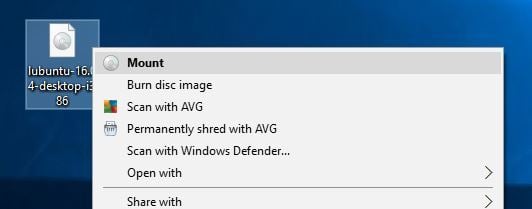
  2. Double click the file. Alternatively, you can right-click the file and choose Mount from the menu.
    disk-image-mount
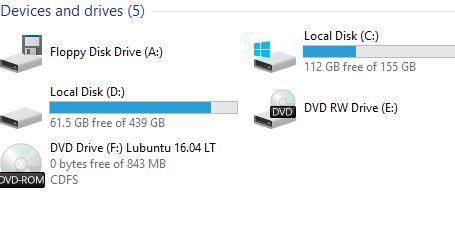
  3. After the disk image is mounted you should see a new disk available in This PC.
    disk-image-this-pc
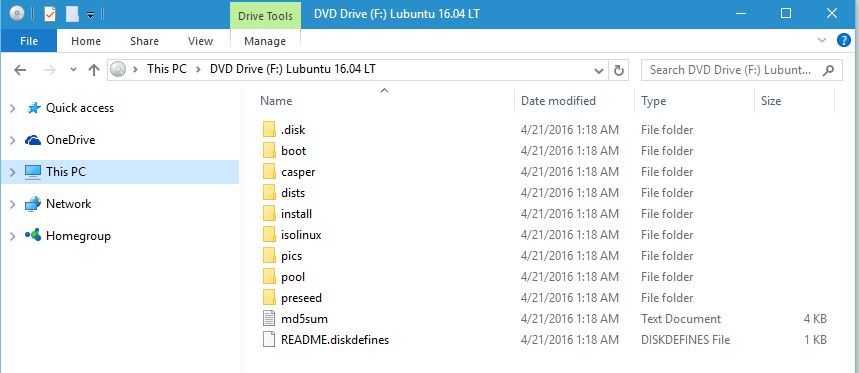
  4. You can now access the disk, view available files, and use the disk image as if it was a real CD or DVD.
    disk-image-disk-open

Mounting the .iso image file is simple and easy, and after you’re done with it, you just need to unmount it. To do that follow these steps:

  1. Open This PC.
  2. Locate the drive where the image file is mounted.
  3. Right-click the drive and choose Eject from the menu.
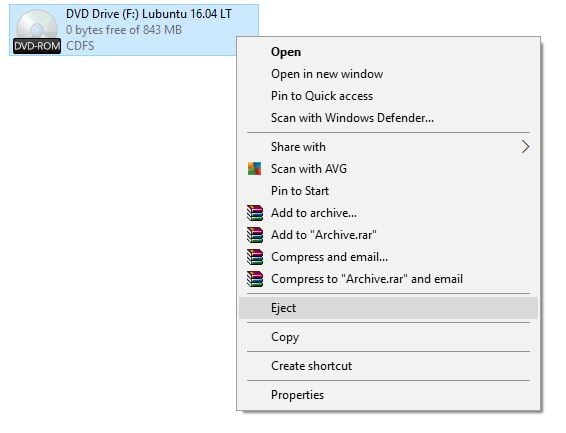
    disk-image-eject
  4. The DVD drive will now disappear from This PC meaning that you’ve successfully unmounted a disk image.

Mounting and unmounting a disk image is quite straightforward in Windows 10, but you can also burn a disk image by following these steps:

  1. Find the image file that you want to burn.
  2. Right-click the image file and choose Burn disc image.
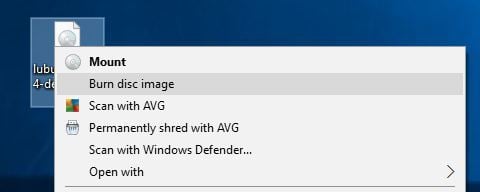
    disk-image-burn-disk-image
  3. Windows Disc Image Burner will now open. Now you just need to select the drive that you wish to use, insert a blank DVD or CD into it and click the Burn button.
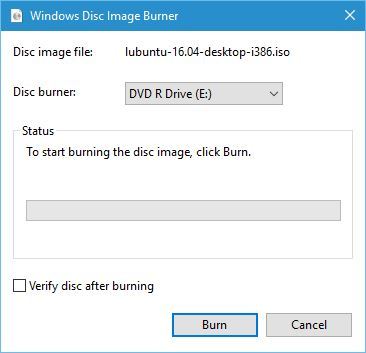
    disk-image-disc-image-burner

As you can see, disk image files are quite useful and even major software companies are using them for the distribution of their software. Linux community has been using disk image files for distribution for years, and even Microsoft allows you to download Windows 10 ISO files by using Media Creation Tool.

By using disk image files companies can directly distribute their software to the users without the need for shipping, packing, or burning the software first.

As we already mentioned, by using disk image files you can also preserve your optical discs because you won’t be using your optical drive to read them. In addition, you can easily store an entire DVD collection on your hard drive and quickly access any DVD that you want.

In fact, you can even store the collection on a portable hard drive or USB flash drive and carry it with you at all times.

Disk image files are simple to use and quite practical, so it’s no wonder that millions of users and several major companies use them. One thing is for certain, disk image files are here to stay, so now it might be the perfect time for you to start using them.


Laptop Encryption Software: Best Picks for 2026

One of the most vital areas for modern businesses is cybersecurity. Without the right protection and in place, organizations or businesses face the risk of hackers entering illegally into their systems and collecting valuable business data which may likely result into much damage in the future.

A very crucial area of cyber security is encryption. Encryption tools usually encode data, unlocking it with a certain key, making it difficult for third-parties to gain access.

Full disk encryption software guards the contents of computers by requiring a multi-factor authentication or password before the system can boot.

To make use of this software in a business context, you will require a solution which can manage devices that are encrypted, and offer key recovery and other enterprise-friendly features.

With this encryption software, you can protect data such as customer transactions and passwords, email addresses and other important information. Many organizations are also making use of encryption software’s to ensure the privacy of internal online conversations and emails.

What are the best encryption software for laptops?

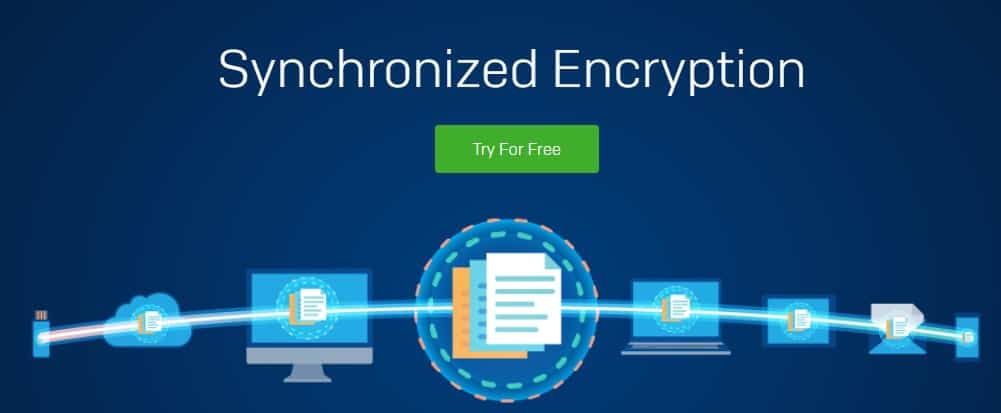
WinZip (recommended)

Topping off our list is a software tool that may have not have found a place here if you were to ask us a few years ago.

Starting off as a mere archiving tool, WinZip has evolved way past that point, incorporating a wide variety of features and tools that make it a must-have for any PC owner, and not just an optional utility.

For example, besides the archiving tools, it is also an excellent encryption and locking tool. More so, it allows better sharing of data between PCs via networks, clouds like Dropbox, Google Drive, OneDrive, and social platforms.

The software boasts an incredibly simplistic UI, and once installed it integrates with your PC’s context menu, allowing you to archive, encrypt, and more just by right-clicking a file.

Here are some of the perks of using WinZip:

  • Banking-level encryption
  • Enhanced archiving capabilities
  • Improved data sharing between PCs on the same network
  • Integrated cloud support that works with Dropbox, Google Drive, OneDrive, and more.
  • Can be tested for free without limitations for a limited time

”WinZip”

”WinZip”

”Encrypt
”Free
&aff_sub2=Native” current_url=”true” button_text=”Get it now” image=”https://windowsreport.com/wp-content/uploads/2017/11/WinZip-button-210×160.png”]

Folder Lock

Aside from protecting assets on company computers, it is also very important to add protection to any device that stores vital data. For instance, smartphones of employees need to be protected because they store vital company data such as emails and other company documents.

Folder Lock is good for adding encryption to mobile devices.

Features/Pros:

  • The app can protect photos, videos, personal files, contacts, notes, wallet cards, and audio recordings stored in your handset.
  • It has some hidden security features.
  • Aside from encrypting devices, you can also enable a decoy password, log unauthorized login attempts, hacker deterrents, back up all your passwords and get notifications whenever there is a potential brute-force attack.
  • The app is free to download.

Cons:

  • A different subscription is required for a secure backup.
Folder Lock

Folder Lock

Password-protect all of your laptop's files and folders and keep them away from prying eyes fast and efficiently.
Free trial Visit website

NordLocker

nordlocker bannerIf what you are interested in is file sharing in a safe and secure manner, then you cannot go wrong with NordLocker. It offers coverage for pretty much any type of data, including photos, videos, banking details, and accounts, text documents, music, you name it.

Besides the versatility in terms of what it can support, it is also extremely versatile in terms of the encryption it uses to keep all of the above safe, featuring Argon2, AES256, ECC (with XChaCha20, EdDSA, and Poly1305), and other creations of modern cryptography to guarantee ultimate security of your files.

Pros:

  • Comes with a 5 GB free trial
  • Advanced encryption methods
  • Supports a wide variety of files for protection
  • Easy-to-use
  • Includes cloud data syncing for protection of your online files as well
  • Allows safe data transfers
  • Long-term plans are extremely affordable

Cons:

  • Somewhat limited platform support

⇒ Download NordLocker 

Symantec Endpoint Encryption

Symantec Endpoint Encryption

From a single console, Symantec Endpoint Encryption software can be managed centrally providing full disk encryption for Windows OS devices.

Features/Pros:

  • The console can also be used to manage its own endpoint encryption and also systems encrypted with Microsoft BitLocker and Opal-compliant self-encrypting drives.
  • The solution offers employees that forget their passwords a choice of self-recovery and help-desk support.
  • For ease of use, authentication can be integrated with Microsoft’s Active Directory. The full disk encryption solution also offers automated policy controls and compliance-based reporting. It can be integrated with Symantec Data Loss Prevention for additional security and consistency.

Cons:

  • Management requires a better console.
  • Lots of new releases.
  • Interface is a bit difficult to understand.
  • Symantec processes are slow.
  • Symantec encryption is a bit expensive.

Supported client operating systems:

  • Microsoft Windows 7, 8, 8.1, and 10

⇒ Download Symantec Endpoint Encryption 

Sophos SafeGuard Encryption

Sophos SafeGuard Encryption

Sophos SafeGuard Encryption is a powerful encryption software for laptops.

Features/Pros:

  • Without an end user involvement, Sophos SafeGuard Encryption can be deployed onto endpoints and with the Intel’s AES-NI instruction set, encryption can be accelerated.
  • The management for all enterprise devices is provided by a single console, including the encryption of hard disks with Microsoft’s BitLocker, Apple’s FileVault 2 and Opal self-encrypting drives.
  • This consists of encryption status, auditing and editing to ensure compliance with internal and external regulations.
  • The authentication system of the software supports cryptographic and biometric token, and multiple users can share encrypted computers without sharing passwords.
  • If a user forgets a password, it can be recovered quickly using a challenge/response system accessed over the phone or via a web portal.

Cons:

  • New users find it difficult to use.

Supported client operating systems:

  • Windows XP SP3 Professional
  • Windows Vista SP2 Business, Enterprise, Ultimate Edition
  • Windows 7 SP1 Home Premium, Enterprise, Professional, Ultimate Edition
  • Windows 8, 8.1 Pro, Enterprise Edition
  • Windows 10 Pro, Enterprise Edition

⇒ Download Sophos SafeGuard Encryption

Dell Data Protection Encryption Enterprise Edition

This encryption software offers full disk encryption software for both Dell and non-Dell endpoints.  The built-in “Hardware Crypto Accelerators” can be used by selected Dell hardware.

Features:

  • The Enterprise Edition Server regulates the Dell solution for big deployments or the Virtual Edition Server for simpler deployments.
  • Existing authentication processes including Windows password, fingerprint, RSA and smartcard are used for its integration.
  • A centralized console enables encryption management which consists of encryption based on end user groups and profiles, and also the provision for the management of Microsoft BitLocker encryption software and self-encrypting drives (SEDs).
  • It comes with pre-set policy templates to address compliance regulations such as Sarbanes Oxley, PCI DSS, EU Data Protection Directive 95/46/EC and HIPAA.
  • Supported Windows OS includes Windows XP, 7, 8, and 10.

⇒  Download Dell Data Protection Encryption

Check Point Full Disk Encryption Software Blade

Check Point Full Disk Encryption Software Blade

The software offers centrally managed full disk encryption software for endpoints as a security “blade,” which is a part of its entire security suite.

Features:

  • Users can only access encrypted laptop or other endpoint after authentication.
  • Multi-factor authentication options consist of dynamic tokens and certificate-based smartcards.
  • The full disk encryption solution supports multiple pre-boot authentication languages for global deployments.
  • Check Point’s Endpoint Policy Management Software Blade manages the Full Disk Encryption Software Blade enabling central policy enforcement, administration and logging from a particular console.
  • Centralized management provides control of security policies and offers various deployment options.
  • One-Time Login remote help options and Remote Password Change are available for users who may have lost access tokens or forgotten their passwords.
  • Web-based remote help options are available.

Cons:

  • It has too much overhead and configuration.
  • Supports only Windows XP, 7 and 8

⇒ Download Check Point Full Disk Encryption Software

Microsoft’s BitLocker full disk encryption

BitLockerBitLocker

This is the native encryption system that comes with the Enterprise, Ultimate and Pro versions of Microsoft’s Windows Vista.

It can be used for either personal use or business purposes. Microsoft BitLocker Administration and Monitoring provides the enterprise deployment centralized management.

Third-party full disk encryption systems such as Sophos SafeGuard Enterprise and Symantec Endpoint Encryption manage the Bitlocker encryption software.

Features/Pros:

  • Microsoft BitLocker Administration and Monitoring (MBAM) enable security officers to quickly determine the individual computers compliance state and also allow administrators to convert the process of encrypting volumes on client computers.
  • The BitLocker encryption policy options are enforced by MBAM. The compliance of client computers with those reports and policies on the encryption status of individuals’ computers and enterprise are also monitored by MBAM.
  • The recovery of encrypted devices by end-users independently is enabled by MBAM through the use of the self-service portal or a help desk.

Cons:

  • Difficulty in accessing encrypted drives from non MS Operating System including Windows XP.
  • If a user loses the recovery key, he or she also loses data.
  • For encryption, a special TPM chip is required; however, it is available on branded Desktops or notes such as Lenovo, HP and Dell.
  • When a computer is functioning normally, data from local attacks or network might not be protected.
  • During Encryption or Decryption, the performance of a slight Disk may degrade.

⇒ Download the tool from Microsoft

SecureDoc Enterprise Server (SES)

SecureDoc Enterprise Server (SES)

SecureDoc Enterprise Server (SES) keeps all security-related management under a centralized enterprise server.

Features:

  • This consists of policies, password rules, key management, recovery and the management of encryption.
  • Encrypted systems can also be managed by administrators from a web console.
  • Supported encryption ranges from SecureDoc’s full disk encryption for laptop to native OS encryption for Windows (BitLocker) to managing hardware-based encryption with SEDs.
  • It provides pre-boot authentication using readers, smartcards, tokens or LDAP/Active Directory integration.

Cons:

  • It boots slowly.
  • Password should never be forgotten.

Supported client operating systems:

  • Windows XP

⇒ Download SecureDoc Enterprise Server

VeraCrypt

veracrypt

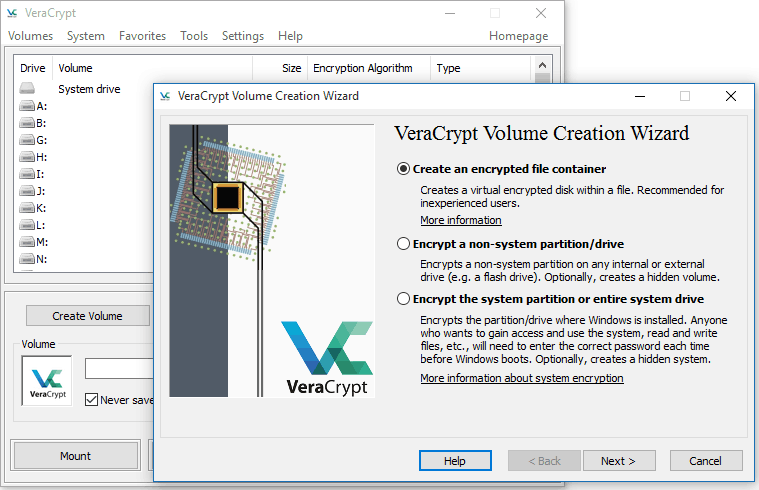
VeraCrypt is one of the most famous security tools, offering you enterprise-grade encryption for vital data.

Features:

  • It is easy to use.
  • Automatically adds encrypted passwords to partitions and data. However, it requires details such as location, volume size and unique hashing algorithms.
  • It is immune to brute-force attacks, which prevents hackers from decrypting your passwords and other important data.
  • Support for various encryption cyphers.

Cons:

  • Technical skills are required in case something goes wrong

⇒ Download VeraCrypt

McAfee Complete Data Protection Advanced

McAfee Complete Data Protection Advanced

McAfee Complete Data Protection Advanced provides a full disk encryption solution using McAfee-implemented encryption, Apple’s FileVault native encryption systems or through Microsoft’s BitLocker with pre-boot two factor authentication.

Features/Pros:

  • It makes use of the instruction set of Intel’s AES-NI for faster encryption operations.
  • McAfee’s ePolicy Orchestrator (ePO) management suite and other products of McAfee endpoint manage encryption.
  • ePO regulates policy and patch management, recover lost passwords and demonstrate regulatory compliance.
  • It synchronizes security policies with Novell NDS, Microsoft Active Directory, PKI, and other systems.

Cons:

  • It is not compatible with some operating systems.
  • It lacks backup protection.
  • The documentations are not too good and need improvement.
  • It does not offer any options to view how employees transfer, make use, or access information that are sensitive through a common schedule.

Supported client operating systems:

  • Microsoft Windows 7, 8 and 10 (32/64-bit versions)
  • Microsoft Vista (32/64-bit versions)
  • Microsoft Windows XP (32-bit version only)
  • Microsoft Windows Server 2008

⇒ Download McAfee Complete Data Protection Advanced

AxCrypt

axcrypt

The software is specifically designed for individuals and small groups within businesses.

Features/Pros:

  • This software offers strong security, with files encrypted by either 128-bit or 256-bit AES, which can block any intruders.
  • It has cloud storage capabilities. It offers automatic protection to files saved on services such as Dropbox and Google Drive.
  • It is fully multilingual, and works with languages such as French, Dutch, German, Korean, Italian, Spanish, Russian, Swedish, and Portuguese.
  • It has passport management.
  • Your encrypted files can be accessed through a smartphone app.
  • The Premium package is $27 per year.
  • It has a free version with fewer options.

Cons:

  • The open candy system is used by the install program for bundled third party software.

⇒ Download AxCrypt

CryptoExpert

cryptoexpert

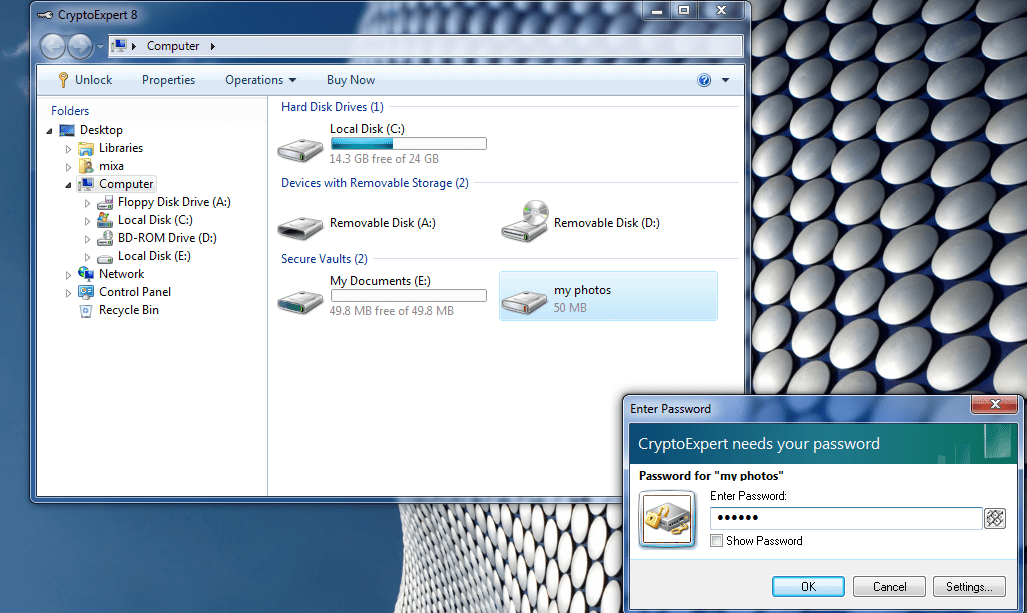
CryptoExpert provides secure data vaults for all your data to protect it from potential breaches.

Features/Pros:

  • It provides a better encryption than most of the software’s listed in this article.
  • Backup support for files such as certificates, Excel and PowerPoint, Word, multimedia files and email databases.
  • It can protect vaults of unlimited size.
  • It uses Cast, Blowfish, 3DES and AES-256 encryption algorithms.

Cons:

  • It lacks secure deletion.
  • Testing displays odd error messages during testing.

Supported client operating systems:

  • 32-bit and 64-bit versions of Windows 7, 8, and 10.

⇒ Download CryptoExpert

This concludes our list of the best laptop encryption tools that you can get for your laptop.

Do you know of any other entries that deserve a spot on our list? If so, let us know by leaving us your feedback in the comments section below.


[wl_navigator]

How to join Microsoft’s Flight Simulator Insider Program

Update: Microsoft Flight Simulator 2020 was released on August 18th 2020 and can be downloaded from the Microsoft Store.

Unfortunately, people already have problems downloading, installing, and running the game so far.

Microsoft Flight Simulator 2020 first unveiled at E3 2019

Microsoft unveiled a new Flight Simulator game for Windows and Xbox One. It’s the first new addition to the FS series since 2006.

Flight Simulator fans have rejoiced the announcement of a new FS game.

Although Microsoft has not confirmed a release date for it, players can play a few test flights of the game from August 2019 if they sign up for the Microsoft Flight Simulator Insider Program.

Thus, Microsoft has confirmed that it will release the first batch of game content for the Microsoft Flight Simulator Program in August 2019.

That means Microsoft will be unveiling the first Flight Simulator preview builds shortly.

Then selected Insiders can provide some feedback for the early FS preview builds. Microsoft will also give Insiders surveys and newsletters and provide exclusive forums for them to post on.

Not every Insider can take part in all the preview builds. Microsoft strives to ensure that all its Insiders participate in the program, but the big M also selects Insiders for preview builds.

The Insider program FAQ states:

Our goal is ensure that everyone participates in the Preview Program. But that doesn’t mean everyone will participate in every build of the Preview Build Program.


These are the best flight simulator games you can play on your Windows 10 PC.


How to enroll in Microsoft’s Flight Simulator Insider Program

  1. To register on the Microsoft Flight Simulator Insider Program, players must be 18 years or over.
  2. A Microsoft account is required to join the program.
  3. Players also need to be a part of the Xbox Insider Program and have the Xbox Insider Hub Installed on Windows.
  4. So, some users might first need to set up a Microsoft account and then register on the Xbox Insider Program. Thereafter, players can register themselves on the Microsoft Flight Simulator Insider Program at its signup page.
  5. Enter the required details in the text boxes on that page, select the I agree to the terms and conditions check box (and check those conditions), and then click the Sign Up button.

Then some selected Insiders can take to the skies in Flight Simulator preview builds!

With the exception of a Flight Simulator trailer (above) that shows off some impressive visuals, Microsoft has provided scant details for the game as of yet.

The game’s first preview builds will likely reveal a lot more about Flight Simulator’s gameplay.

[wl_navigator]

No cursor in Google Chrome? 6 fixes to get back mouse cursor

Google Chrome is a useful browsing application that caters to no less than 68 percent of the world’s internet browsing needs. Given the disparity, it is obvious that Google Chrome has little margin of error in competing for market share.

However, that doesn’t mean issues are nonexistent. A common error in Chrome is that the cursor vanishes intermittently.

Here are our tips and techniques to unveil your cursor and allow for a more smooth browsing experience with Google Chrome.

What do I do if Google Chrome cursor disappears?

1. Switch your browser

If you notice that this browser issue still persists, then instead of going through the troubleshooting steps trying to fix it, you might as well switch to a different browser.

On that note, we recommend you give Opera One a shot. It is built using the same engine as Google Chrome and Microsoft Edge, so their extensions are cross-compatible.

More so, this build allows the browser to be fast and powerful, but certain particularities make it far less resource-intensive than its other Chromium counterparts.

As for cursor issues, Opera One is highly customizable, and there is plenty of extensions that you can try to greatly enhance its functionality. Also, this browser comes with it’s own AI.

Opera One

If you need a web browser that is incredibly stable and has a low chance of error occurrences, try Opera One now!
Free Download Visit website

2. Update Mouse Drivers

2.1. Update via built-in features

  1. Navigate to Control Panel.
  2. Double-click on Device Manager.control panel device manager
  3. Expand the menu under Mice and Other Pointing Devices.mouse driver update return cursor
  4. Locate your mouse and right-click.
  5. Choose Update Driver.
  6. A command prompt will now ask you how you want to update your driver.
  7. Unless you have drivers already downloaded, choose the Search Automatically option.
mouse driver update

2.2. Use a third-party driver updater

It is much simpler to use a driver updater, such as Fortect Driver Updater. In just a few simple steps, your drivers will be repaired and updated.

  1. Download Fortect Driver Updater
  2. You don’t need to install it, it is portable
  3. Let it run the initial scan to see which drivers are broken, outdated, or missing
  4. Choose which drivers to fix
  5. Wait for the process to finish, and restart your PC.

This lightweight tool can save you lots of time and hassle. Any driver will eventually become outdated, and you have to constantly check them if you want optimal functionality for your device.

In this regard, Fortect Driver Updater comes in handy because you can set it up to regularly scan and update all drivers on your PC without requiring any effort on your part.

⇒ Get Fortect Driver Updater

3. Restart manually

reboot pc return chrome cursor

An important thing to remember is that your cursor hasn’t exactly gone. It is just at the position it was last, and can only become visible once Google Chrome is closed.

This method is only a permanent solution if some background process interferes directly with Chrome and rebooting fixes the interference.

4. Restart your Chrome browser

Restart with Chrome

restart chrome no cursor

Chrome recognizes a few inbuilt commands. One of those commands allows for a direct restart of the browser. All you have to do is type Chrome://restart and press enter to successfully relaunch your browser. Then, check your cursor to gauge its visibility and the lifespan of your newly spawned cursor.

Restart with Task Manager

  1. Press Ctrl + Alt + Delete to launch Task Manager
  2. Navigate to Processes and end all Google Chrome tasks by using right-click and then End task.end task return chrome cursor
  3. Find the Google Chrome shortcut and launch. To shut down all threads in one command, end the main task.

If your cursor has still not returned to Chrome permanently, then we suggest you keep reading on.


5. Update Google Chrome

  1. Navigate to Options > Help
  2. Select About Google Chrome.about google chrome
  3. You will now see an option to get the latest version of Chrome,if your version isn’t up to date.
chrome update no cursor

6. Disable hardware acceleration on Chrome

  1. Open settings by clicking on Options and selecting Settings in the toolbar.google chrome settings cursor
  2. Scroll to the bottom and select Advanced at the bottom of the page.google chrome advanced settings
  3. Scroll a bit further and find the System menu. Make sure hardware acceleration is disabled.
disable hardware acceleration return cursor

If you have no cursor in Chrome, then this guide is for you. Depending on what causes your cursor issue, any one of these fixes can help you regain cursor visibility.

If you’d like to know more about Google Chrome, we recommend visiting our Chrome Hub.

To stay updated with more problems and fixes relating to browsing software, bookmark our Browsers section.

It is important to keep wary of the details surrounding your cursor issues in Chrome so that looking for the solution is easier. If you found this guide useful, or other alternatives to this problem, we invite you to share in the comments below!

How to Encrypt USB Flash Drive in Windows 10 [Easy Guide]

If you want to encrypt your USB flash drive, you don’t need to install any third-party tools. Windows already has everything you need to perform the encryption of your USB drive.

This built-in Windows tool is called BitLocker, and is definitely the best choice because it’s probably the safest and the most reliable tool for encrypting.

How do I encrypt a USB flash drive on Windows 10?

1. Use a flash drive encryption software

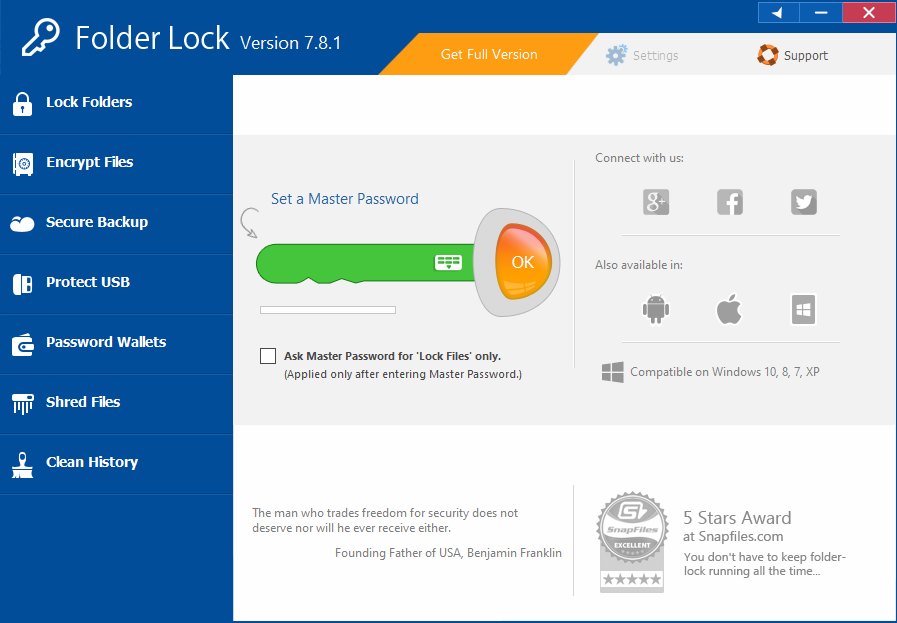
Encrypting your data, removable or not, is always easier if you use a third-party tool specialized just for that. With that in mind, Folder Lock is your best choice when you want to encrypt any USB drive.

It is lightweight, fast, and you don’t need prior experience using similar tools to figure out how it is done.

Just set a master password, then select whatever type of data needs protecting, such as folder locking, file encryption, secure backups, and more.

Folder Lock

Folder Lock

Password-protect all of your files and folders and keep them away from prying eyes with the help of this amazing software utility.
Free trial Visit website

2. Use Windows 10’s built-in tools

To encrypt your USB flash drive, follow these instructions listed below:

  1. Logon to your Windows computer and go to Desktop
  2. Make sure that your USB flash drive is properly inserted in the USB port of your computer
  3. Open the This PC icon on the desktop
  4. Under the Devices and drivers section of This PC folder, locate and right-click the icon of your USB flash drive
  5. From the context menu, click Turn on BitLocker
  6. Wait until BitLocker initializes your USB drive
  7. Once the initialization process is done, click to check Use a password to unlock your drive, enter and re-enter your password, and  click the Next button to continue
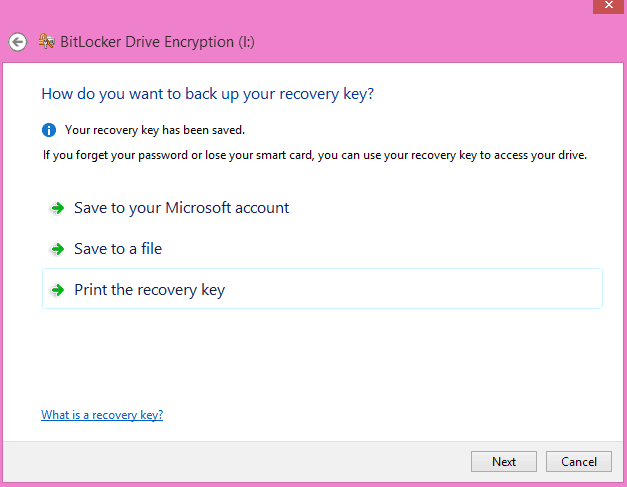
  8. Now, pick the destination where you want to save your recovery key
    • Save to your Microsoft account, Save to a file, or print the recovery keyusb drive encryption wind8apps
  9. From the Save BitLocker recovery key as box, browse for the location to save your recovery key, and click Save.
  10. Click Next to continue
  11. On the Choose how much of your drive to encrypt window, make sure that Encrypt used disk space only (faster and best for new PCs and drives) radio button is checked and click Next
  12. Now click on Start Encrypting from the next window
  13. When the BitLocker Drive Encryption interface comes up, wait till the process completes

If you’re using a newer Windows 10 version, the steps to follow are a bit different. This is because Microsoft added a few changes to Windows 1o’s UI.

How to enable Bitlocker on USB drive on newer Windows 10 versions?

Here’s what you should do to encrypt a USB flash drive with BitLocker in Windows 10:

  1. Connect the drive to your computer.
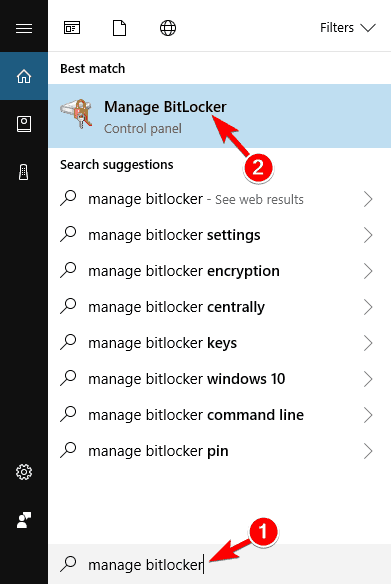
  2. Windows 10 should recognise the drive, so go to the Start Menu, type “bitlocker”, and click on “Manage BitLocker” .Disable BitLocker Windows 8.1 Group Policy
  3. The BitLocker control panel will be launched and all the drivers on your system eligible for BitLocker encryption will be listed.
  4. Locate the flash drive you wish to encrypt, and then click on the Turn on BitLocker link.
  5. BitLocker will then initialize your flash drive, but don`t remove the flash drive during this process, as it may cause damage to the drive.
  6. BitLocker will ask what kind of security you want to use with your drive. Enter a password and then press Next.
  7. BitLocker will also produce a recovery key for the drive, to help you recover data in case you forget your password.
    • Be sure you save the recovery key to a secure location and press Next.
  8. Specify if you need BitLocker to encrypt the entire device, or used space only. So, select your option and then click Next.
  9. Press Start Encrypting and BitLocker will start to encrypt your drive.

Now your USB flash drive is encrypted, and only you or users with the password could access its content.

For additional protection, check our guide on how to create a USB security key on Windows 11 and keep your PC safe from all third parties.

How to enable BitLocker without TPM on Windows 10

Windows Bitlocker is a fantastic tool – allowing you to fully encrypt your data directly on the hard disk level, giving you an extra layer of privacy that you demand.

However, Bitlocker has its limitations – more like security features that prove to be a limitation for some. There is a security chip called Trusted Platform Module – or in short TPM – that is supposed to store the encryption key for your encrypted hard disk.

When you encrypt something, on the basic level, it is comparable to putting something in a locker – so the name BitLocker actually does make sense. Any encrypted data has a key known as its encryption key – whoever has this key is able to decrypt the data.

Now, obviously, this means the key needs to be stored somewhere safe – that is what the TPM chip is for.

Now the problem comes here – some older hard disks or even some newer ones don’t have this TPM chip, either because the hard disks were too old to consider it or the manufacturer was trying to keep the manufacturing costs low and thus skipped on an optional feature.

There is however a way to get around this requirement of a TPM and chip and encrypt your drive anyway.

How do you allow BitLocker without a compatible TPM?

  • Open your Start Menu and type gpedit.msc, then click the top result.
  • This will open the Group Policy Editor.
  • Under Local Computer Policy, follow this path:
    • Computer Configuration > Administrative Templates > Windows Components > BitLocker Drive Encryption > Operating System Drives.
  • Now locate Require additional authentication at startup and right-click it, then click Edit.
  • On this window, click Enabled and under Options check the box that says Allow BitLocker without a compatible TPM.
  • Now click OK, and close the Local Policy Editor.
  • Now open the BitLocker setup once again on the drive you want to encrypt, it should ask you to go through a restart to prepare the disk.
  • Once you have restarted, it will ask you to set up a Startup key for every time you start your PC
    • This is the key that was supposed to be saved on the TPM chip but since we have bypassed that, you will need to save this on a USB flash drive.
    • That’s your key now.

Now you can encrypt your hard disk even though it doesn’t have a TPM chip – and store the key for encryption in a handy USB flash drive that you can unplug from your PC to deny access to the drive. It exactly works like a physical key at this point.

This is the beauty of Windows – the reason Windows is so complex is because of how many options it features.

It’s easy to make a feature – it’s harder to make a feature that can be tweaked in every way possible.

In case you are stuck on the Preparing BitLocker recovery screen; read this guide to learn about the solutions.

If you’re on Windows 11, don’t miss our guide on how to turn off BitLocker on Windows 11.

By following our suggestions, you can now use your Bitlocker without any further issues. Let us know which solution you used by leaving your feedback in the comments section below.

Can VPN reduce data usage? How to minimize VPN data usage

VPNs are incredibly popular on the Internet, thanks to the numerous advantages they bring. But a lot of users are wondering if a VPN can reduce data usage. We’re here to clarify.

Can VPN reduce data usage?

No, a VPN can’t reduce data usage.

In fact, a VPN uses more data than normal. Because a VPN encrypts your network traffic, it results in higher overhead.

In turn, the secure tunnel requires more processing power to successfully transmit data packets. The higher the encryption level, the more data it will use.

What about obfuscated VPN servers?

obfuscation mode

No, you can’t use obfuscated VPN servers to reduce data usage either.

Although obfuscation mode hides your VPN traffic and makes it look like HTTPS traffic, it can’t hide the amount of user data.

Your ISP can still see the information quantity you use, making it impossible to reduce data usage with a VPN.

Can VPN bypass throttling and capping?

Yes, you can use a VPN to bypass throttling if your ISP limits your bandwidth speed based on specific activities like streaming or torrenting.

However, you can’t use a VPN to bypass data capping because that would mean using the VPN to hide or reduce your data usage. As we previously established, it isn’t possible.

How to reduce VPN data usage

Don’t keep your VPN on at all times

If your Internet subscription plan is limited, turn off your VPN when you’re not using it. Certain processes like web browsers continue using the Internet in the background.

Slowly but surely, you will run out of network traffic even if you don’t use your computer, smartphone, or tablet online.

On Windows, a lot of VPN desktop clients are configured to automatically run at system startup by default. To reduce data usage caused by VPN, make sure to find and disable the autorun setting.

Enable VPN split tunneling

split tunneling in Private Internet Access

Split tunneling is a special VPN feature that isolates VPN traffic from the public Internet. If you use a VPN for a specific task only, like watching Netflix in a web browser, then split-tunneling mode can help you reduce VPN data usage.

Many VPN clients have an integrated split-tunneling setting, including Private Internet Access, CyberGhost VPN, and Surfshark.

Connect to the nearest VPN server

connect to the auto server in Private Internet Access

When you connect to a VPN server, your data passes through several checkpoints before it reaches its destination. The further the VPN server, the more data it uses.

Most premium VPNs show a recommended VPN server based on your current location. Or, if you must connect to a VPN server from another country, make sure to pick the closest city to you.

For example, Private Internet Access shows the latency of each VPN server relative to your current position. You just have to connect to the server with the lowest latency, which is always shown in the first position.

Use the private DNS servers of the VPN provider

DNS is responsible for translating domain names into IP addresses. However, each DNS provider has a unique mode of operation. And your DNS servers are assigned by your ISP.

If the DNS servers are slow, this can lead to a higher amount of data usage, especially when connected to the VPN.

But you can fix this problem by switching to the exclusive DNS servers supported by the VPN provider. If they don’t exist, then you should change your DNS servers to Cloudflare, Google Public DNS or OpenDNS.

Select a VPN protocol with lower security

The VPN protocol determines how your data travels on the Internet, what encryption and authentication mode it uses, and so on.

If you opt for a super-secure VPN protocol like SSTP, you will notice a connection slowdown. Also, your Internet data will be quickly used up.

But you can switch to a less secure VPN protocol like PPTP or L2TP. We strongly discourage this, however, since a VPN’s top priority should be security and privacy. You should always use OpenVPN.

Optimize more VPN settings

configure PIA connection settings

Each VPN client has its own particularities, so it’s impossible to give you an exact recipe of what VPN settings you should enable or disable in order to optimize data usage over VPN.

For instance, Private Internet Access gives you the possibility to disable data encryption when using the OpenVPN protocol.

On the other hand, ExpressVPN has a special feature that optimizes the Windows network settings to improve VPN speed.

Don’t hesitate to fire up the options panel of your VPN client and look under its hood for settings that would help improve the Internet connection speed and reduce data usage over VPN.

Avoid using free VPNs

Free VPNs can’t be compared to premium products when it comes to online privacy, security, and even Internet speed. Besides, you can’t trust a free VPN with your data.

However, you can trust a premium VPN with a zero-logging policy, such as Private Internet Access. We used it in our examples above precisely because it’s the best VPN overall.

Owned by Kape Technologies, PIA can connect you to the nearest VPN server to grant you the best possible Internet speed. You can even temporarily disable VPN encryption if you want to minimize data usage.

The app is compatible with all major devices, including Windows, macOS, Linux, Android, iOS, and routers. It supports split tunneling and allows 10 simultaneous device connections.

More about PIA:

  • +3,300 VPN servers in 48 countries
  • Exclusive DNS and DNS leak protection
  • No logs or leaks
  • 24/7 live chat support
  • 30-day money-back guarantee (no free trial)
Private Internet Access

Private Internet Access

Reduce VPN data usage by connecting to the fast and secure VPN servers of PIA.
$2.85/mo. Buy it now

To recap, you can’t use a VPN to reduce data usage because a VPN can’t hide the amount of network traffic from your ISP. Instead, a VPN can help you bypass throttling.

Furthermore, you can use the solutions we provided above to reduce data usage over VPN. Just keep in mind that you need a reliable VPN like PIA to get the best possible results.

Can VPN prevent DDoS attacks? How does it work?

We’ve already agreed that VPNs can generally prevent a wide range of issues from occurring on your system, but can VPN prevent DDoS? If you’re not exactly tech-savvy, you might not be aware of DoS and DDoS attacks.

These are not exactly dangerous for the casual Internet user, as they can cause mere interruptions. However, when it comes to large organizations or online-based utility services, these can be downright hazardous.

What are DoS and DDoS attacks?

DoS stands for Denial of Service and it’s exactly what it sounds like. This type of attack is meant to make a machine or entire network shut down by either flooding the target with traffic or crashing it by sending corrupted information.

Depending on the technology used, a DoS attack can last temporarily or indefinitely.

A DDoS (Distributed Denial of Service) attack operates on the same principle as a DoS attack. However, it’s far more dangerous and efficient since it makes use of multiple systems to deliver huge amounts of traffic.

More often than not, botnets (networks of compromised devices used in cyberattacks) are used to strike with DDoS attacks. The scary effectiveness of this type of attack comes from the inability of the target to block the source of the traffic.

With DoS attacks, you can simply locate the incoming source of traffic and use something as simple as a firewall to block it.

Since DDoS attacks use several machines to deliver the traffic, it becomes extremely difficult to defend against them.

Can VPN prevent DDoS attacks?

Essentially, a VPN can easily protect you against an incoming DDoS attack. For such an attack to occur, the perpetrator needs to know your exact IP address or hostname.

Now if you know a thing or two about VPNs, you’re probably aware that a VPN can hide your real IP address. So, depending on the circumstances, a VPN can prevent an attacker from getting to know your real IP address.

Thus, a DDoS attack should become impossible to target you specifically.

For instance, if you’re playing an online game, an attacker might sweep the server in an attempt to reveal the IP addresses of the active players. If you’re not using a VPN, your real IP address will be visible.

While behind a secure connection, your VPN-assigned IP address will appear instead.

Therefore, even if someone were to believe that they’re hitting you with a DDoS attack, they will target the VPN server, instead. You won’t even have to deal with it, so you should be perfectly fine.

Sometimes VPN can’t save you from DDoS

We’ve made it pretty clear that a VPN can be a lifesaver when it comes to DoS and DDoS attacks. However, the VPN can only protect you in terms of shielding your IP address, making it invisible to whoever might want to use it in such an attack.

So, if someone figures out your real IP address, you can still be targeted by a DDoS attack, even if you’re behind a VPN.

There’s no way a VPN could protect you from a DoS or DDoS attack if the perpetrator gets to know your real IP address. You can find a bunch of DDoS protection software solutions, but these only tend to work for websites.

What’s the best VPN to prevent DDoS attacks?

If you’re worried that your public IP address might be used in a DDoS attack, you can rely on a trustworthy VPN service such as Private Internet Access.

PIA is brought to you by Kape Technologies and provides you with a wide range of security and privacy features, a large network of servers, and malware-blocking capabilities, not to mention the 24/7 customer support.

Private Internet Access

Private Internet Access

Want the best DDoS protection a VPN can offer? PIA has got you covered.
$2.85/mo. Buy it now

If you want the optimal amount of DDoS protection from PIA, you might want to keep the VPN always on, regardless of your online activity of choice.

More so, make sure to enable the kill switch. Doing so will prevent your PC from re-establishing the default, insecure connection whenever your secure VPN connection drops.

VPN can prevent DDoS attacks most of the time

All things considered, it’s easy to fend off DoS and DDoS attacks with a VPN, just as long as you remember that VPNs don’t actually block the attack.

Instead, they cloak your IP so that the attacker won’t be able to pinpoint you in a sea of IP addresses and use your address as a target for their attacks.

[wl_navigator]

Can VPN prevent hacking?

If you’re interested in the VPN industry, you’re probably in for the privacy and security features, but is it possible that VPN can prevent hacking?

We’ve grown accustomed to various specialized tools that can give your devices the security boost they need. However, antivirus, firewall, and antimalware software seem to be more popular in results when there’s a query regarding hacking.

Although we can all agree that the aforementioned utilities generally do a great job at keeping your device secure, there’s one kind of tool that’s missing from that list: VPN software.

Can VPN prevent hacking?

Before investing in premium services, many users wonder whether VPN can prevent hacking or not. Well, the simple answer is yes, VPNs can prevent hacking by throwing you into a pool of anonymized identities.

The more elaborate answer depends on your online activities. If you’re generally cautious about things you do online, a VPN can help you greatly improve the security of your devices.

On the other hand, if you’re reckless and engage in questionable activities, a VPN might not be more efficient than, say, a calculator app. Jokes aside, a VPN alone isn’t going to shield you forever from all the cyber threats out there.

How does a VPN prevent hacking?

If you’re wondering about the mechanics behind a VPN‘s hacking protection, you’re in for a ride. First of all, you need to understand that a VPN will anonymize your connection, making it nearly impossible to pinpoint you online.

All the traffic that leaves your device is encrypted and routed through a secure server, where it’s virtually invisible. Everyone who would try to intercept your traffic would only see a bunch of gibberish.

hacking - Why is CloudFlare checking my browser

So basically, it all comes down to encryption. If the VPN does a great job encrypting your traffic, attackers should have an extremely difficult time targetting you with a cyberattack.

However, certain hackers might not necessarily look for a single target and launch web site-wide attacks. If this happens, a VPN won’t do much to protect you.

Long story short, a VPN can protect a hacker from revealing your true identity and hit you with a targeted attack. However, a VPN won’t protect you if you access a compromised website and get hit by a wide range attack.

Can VPN protect you from viruses?

Here’s another dilemma that VPN customers ponder upon, whether or not a VPN can protect against viruses. While some VPN services might offer malware-blocking features, these don’t do great against fully-fledged viruses.

NordVPN and Private Internet Access offer proprietary malware-blocking capabilities. However, these features only protect you against domains that are known to host dangerous content, such as malware or spyware.

Private Internet Access

Private Internet Access

Looking for a VPN with malware-blocking features? Private Internet Access might be what you need.
$2.85/mo. Buy it now

If you’re using a VPN, download a sketchy file and pray it won’t infect your device, you might jeopardize the well-being of your system in no time.

To put it shortly, a VPN can’t save you from viruses.

Does VPN prevent Remote Trojan attacks?

Remote Trojan attacks are a special breed of cyberthreats. An attacker sends you a file that injects itself into your system and acts as a backdoor.

All an attacker needs for a RAT to work is a working connection and to know your IP address.

After establishing the connection, a RAT can be used to harvest data from your PC, and even perform various actions such as popping your optical drive open, shutting down your monitor, or disabling your input devices.

One may think that VPNs hide your IP address, rendering RATs pointless since the attacker wouldn’t know your IP address.

But in reality, once a RAT has been deployed, it collects information from your PC, including your real IP address, sends it to the attacker, and keeps the connection awake no matter what.

So the answer to the original question is no, a VPN won’t do much when it comes to Remote Access Trojans.

A VPN can’t prevent hacking by itself

VPNs are, indeed, amazing tools that can boost the security of your computer in so many ways. They can help you anonymize your identity, secure your connection, and even prevent hacking.

However, as far as hacking prevention is concerned, VPNs can’t do wonders all by themselves and they work to a certain extent. Using a VPN to prevent hacking might prove pointless if you engage in sketchy behavior on the basis or are careless with your device’s security.

All things considered, if you’re thinking of investing in a VPN to curb hacking attempts, you also need to do your part for it to be effective.

[wl_navigator]

Viasat Browser Review: Here’s Everything You Need to Know

When it comes to web browsers, users usually use one of the more known and popular browsers, but what about other browsers such as Viasat Browser?

In today’s article, we’re going to show you what Viasat Browser is and what it can do, so let’s get started.

What is Viasat Browser, and should I use it?

1. What is Viasat Browser?viasat browser download

Viasat Browser offers great speed when it comes to webpage loading, and to achieve that, it relies on artificial intelligence to analyze and load the pages.

The browser will also protect your privacy by blocking trackers and ads. Of course, malware protection is also available.

There’s also a data-saving feature that will block audio and HTML5 videos from preloading, thus saving your bandwidth. As for availability, the browser is available on all desktop and mobile platforms.

The Viasat browser has been optimized for users who use Viasat as their ISP.

⇒ Get Viasat Browser

2. What are Viasat Browser alternatives?


Although Viasat Browser offers some impressive speed, it still lacks security and customization compared to browsers such as Opera One.

Opera One runs on the Chromium engine, and it can work with Chrome extensions with ease. This is something that both Viasat and Opera One share in common.

From a privacy perspective, the Opera One and Viasat browser will block tracking scripts and cookies and improve the webpage loading time. But the similarities between these two browsers stop here.

Opera One also has protection against crypto mining, and a free VPN with unlimited bandwidth is there for an extra layer of security.

As for additional features, there’s a built-in battery saver and the ability to organize tabs into workspaces and tab islands. These features are missing from the Viasat browser.

Features such as integrated Facebook Messenger, Instagram integration, a pop-out video player and a native AI are also there. Overall, Opera is a solid browser, which continues to innovate, and it’s available on all major desktop and mobile platforms.

Opera One

OperInstead of the Viasat Browser, you should stick with the heavy hitters. Opera One is much better.
Free Download Visit website

Viasat Browser offers some interesting features, but it lacks certain features in the security and privacy department, so in our humble opinion, you should stick with tested and more reliable browsers.

Microsoft announces end-of-life dates for legacy Edge, M365 support for Internet Explorer

Now that Microsoft has started rolling out its new Chromium-based Edge to all Windows 10 users via Windows Update, the company announced today some important updates for its Internet Explorer 11 and Microsoft Edge legacy browsers. First of all, the Microsoft Teams web app will no longer support IE 11 on November 30, 2020. Next year, the rest of the Microsoft 365 apps and services will also no longer support IE 11 after August 17, 2021.

The online Microsoft 365 services won’t completely stop working on IE 11 after that date, but Microsoft says that some features may cease to work and recommends users to switch to the new Chromium-based Edge. “By the dates listed above, customers should no longer access Microsoft 365 apps and services using IE 11, but we want to be clear that IE 11 isn’t going away1 and that our customers’ own legacy IE 11 apps and investments will continue to work,” the company added.

As for the legacy Microsoft Edge that made its debut with Windows 10 back in 2015, the company warned today that it will no longer receive security updates after March 9, 2021. The browser will continue to work after that date, but the number of users may have dropped significantly since Microsoft started to automatically upgrade all Windows 10 users to the new Edge. Indeed, this process hides the legacy Edge on users’ PCs while moving all personal content to the new browser, making the transition as seamless as possible.

Tenta Browser Review: Here’s Everything You Need to Know

When it comes to online security, your browser is a crucial component, and this is why many users prefer using privacy-oriented browsers.

Speaking of which, today we’re going to show you Tenta Browser and see what does it have to offer in terms of privacy and online security.

What is Tenta Browser and how safe is it?

1. Is Tenta Browser for Windows or desktop?


At the moment, Tenta Browser remains an Android exclusive, but the company is working on bringing the browser to Windows, macOS, and iOS platforms.

If you’re looking for a multi-platform and secure browser, then Opera One might be the right choice for you. The browser is available on all major desktop and mobile platforms.

Opera One also has its own free and unlimited VPN that offers additional security. Of course, tracking protection and protection against crypto miners is also there.

The browser also has its ad blocker, so it will block all those pesky ads. It’s worth mentioning that the browser has low hardware requirements, so it should handle any website with ease.

Opera One offers great features in terms of security and privacy, so be sure to try it out. Plus, it comes with a built-in AI and modular ai-ready design.

Tenta Browser is great if you want to protect your online privacy, but since it’s an Android exclusive, we advise you to stick to other alternatives, such as Opera One.

Opera One

An excellent web browser that offers free VPN and fast ad blocker with high customizations available. Get it now!
Free Download Visit website

1. What is Tenta Browser?

Tenta browser


Tenta browser is a privacy-focused web browser for the Android platform.

The browser has several unique features, such as a built-in ad blocker and the ability to download videos and play them on other media players.

It’s worth mentioning that all files downloaded using Tenta Browser are encrypted, so you won’t have to worry about anyone snooping on your phone.

⇒ Download Tenta Browser

2. Is Tenta Browser safe?

tenta browser safe


Tenta Browser offers full data encryption by default, and it offers a truly private browsing experience. The browser also has its own free and unlimited VPN for an extra layer of protection.

The browser keeps no logs, so your data and browsing traffic should remain completely safe.

Tenta Browser also has multiple DNS options, such as DNS over TLS and DNSSEC, and it also supports decentralized DNS.

Support for private search engines is also there, and you can easily use DuckDuckGo or StartPage. The browser also has support for blockchain technology.

Are you using Tenta Browser or Opera? If so, let us know what you think about them in the comments section below.

Command Prompt basics: Starting and stopping processes

Command Prompt basics: Starting and stopping processes

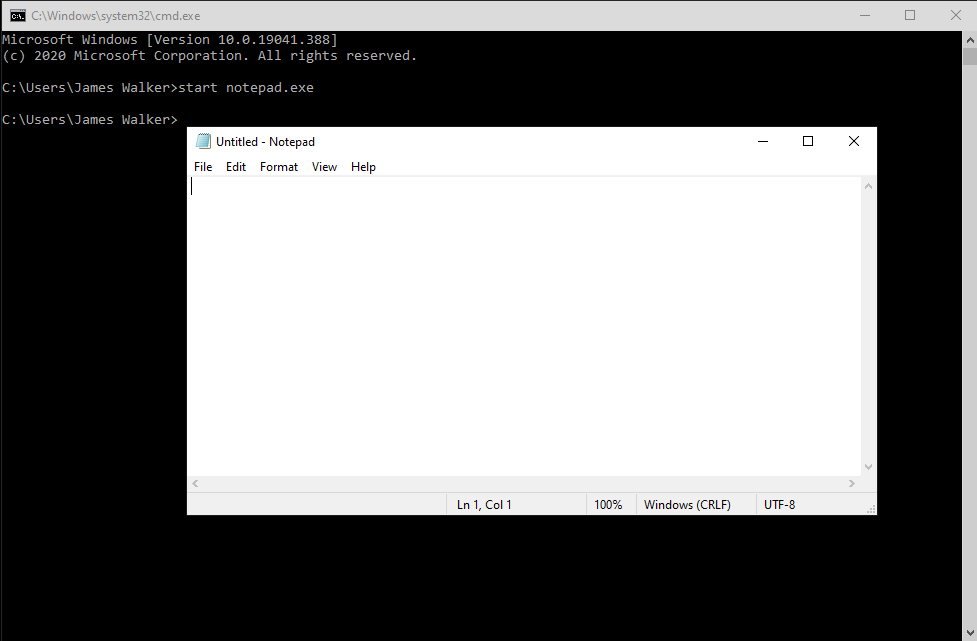
Using the Command Prompt can be a quick way to launch programs, especially Windows management utilities which might be fiddly to find through search.

We’ll look at a few basic procedures for working with programs and processes.

Launching programs

To launch a program from Command Prompt, simply type its name:

notepad

This will launch a new Notepad instance. The example works because Windows already knows where Notepad is. Command Prompt automatically searches the working directory (the path shown at the start of the prompt line) and Windows system directories when you run a program in this way.

Starting a program in Command Prompt

When the executable resides elsewhere, you’ll need to specify its entire path – C:WindowsSystem32notepad in this example.

An alternative way to launch programs is via the start command:

start notepad

This has the same effect as the above example. However, the launch mechanism is slightly different – Command Prompt will hand off to Windows itself, which will take care of finding the right program. More locations will be searched, including the entire contents of the PATH environment variable and “app path” shortcuts defined in the registry (a way of shortening long executable paths using aliases).

Chaining commands

You can chain commands by combining them with an & character:

dir & notepad

This will display the contents of your working directory in the terminal and then open Notepad.

A variation can be achieved using && instead:

dir && notepad

In this form, the second command will only run if the first one executes successfully. Were there to be an error listing your directory contents, Notepad would not open. (Note: You can achieve the inverse using ||, so dir || notepad would run Notepad only if the dir command failed.)

Ending processes

You can also use the Command Prompt to end processes. This is ideal when you need to kill a program but don’t have a mouse to hand, or Task Manager itself is being unresponsive.

taskkill /F /IM "notepad.exe" /T

The above command will immediately kill any running instance of Notepad. Subsitute notepad.exe for the name of the program you’d like to kill. You can get this information by running tasklist to view a list of all the currently running processes.

Microsoft amps up Surface Duo marketing with “How To Do One Better” YouTube video series

It’s been about a week since the September 10 release date for the Surface Duo was officially announced, but Microsoft is wasting no time to market the much-anticipated device. Over on the Surface YouTube channel, Microsoft recently released a “How To Do One Better” series of videos, showcasing some very specific productivity use cases for the Duo. We gathered these for you below into a playlist, and you can watch them below.

In the series of videos, Microsoft highlights a couple of things about the Duo which it really has hyped up over the past week. The first showcases how you can open two websites side by side on the Duo’s two screens when browsing for certain items and “make it work smarter.” The second video, meanwhile, shows off how you can view content across both screens with Photos in OneDrive to “Pic and choose your view.”

A third video reveals how you can open your emails with Outlook on the Duo, and span it across both screens to read, then rotate the device 90 degrees to reply to messages easier. This video ends with the “Easier does it” tagline. The final video in the series covers how you can watch videos, stay on Teams calls, and take notes at the same time thanks to the Duo’s two screens. It caps off with the “More conference room” tag.

The videos are pretty interesting, as it really highlights what makes the Duo so unique. Do you find these videos useful, or think they will convince you to buy a Duo? Let us know in the comments below.

Signing in to xCloud soon won’t sign you out on Xbox, report says

Microsoft is planning to remove an important Xbox Live restriction that currently prevents Xbox gamers to use the same Microsoft account on different devices at the same time. According to a report from Windows Central, Microsoft is currently testing this Xbox Live change internally ahead of the integration of the new Cloud gaming component (Project xCloud) in Xbox Game Pass Ultimate in September.

As of today, accessing Project xCloud on a mobile device while already being signed in on your Xbox console will automatically sign you out from the latter. That’s quite inconvenient if you or other family members would like to continue using your console with your account while you’re playing Xbox games on your phone via Project xCloud. “You’ll still only be able to launch games on one device at a time using your account, but this new system means that you’ll be able to play the best Xbox One games via Cloud gaming on your phone, without being signed out of your consoles,” Windows Central explained.

With Cloud gaming, Microsoft plans to make over 100 Xbox Game Pass games available on Android devices for Xbox Game Pass Ultimate subscribers. The service will launch on September 15 in 22 countries, but a preview is already available with the beta version of the Xbox Game Pass app for Android.

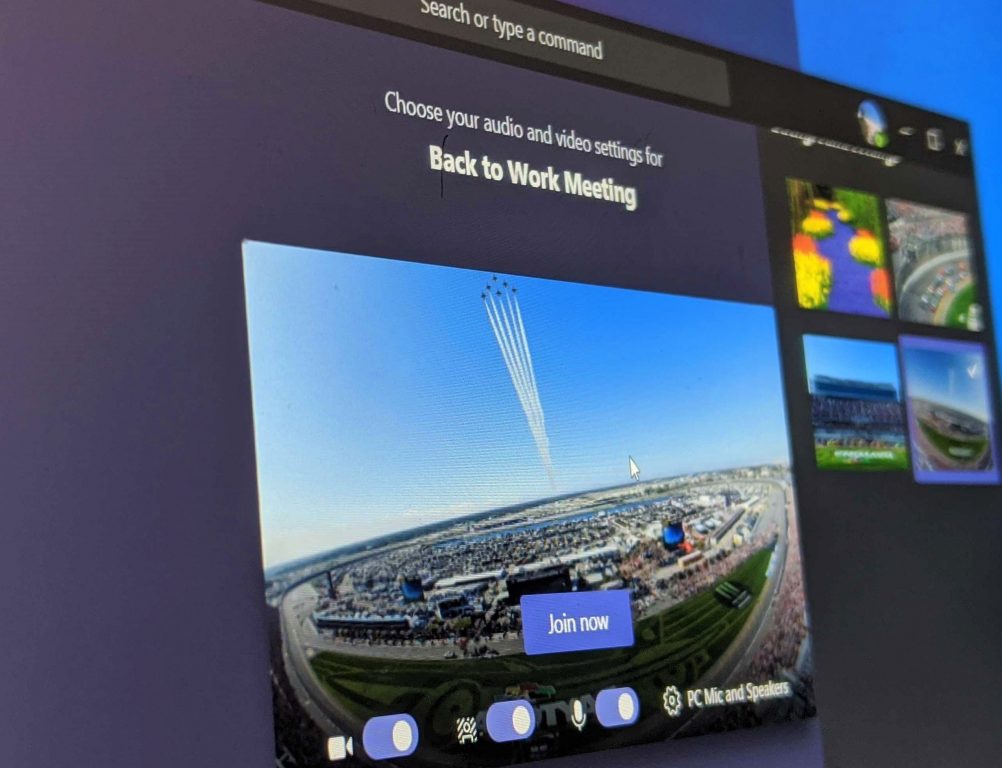
Microsoft Teams gets new default custom backgrounds feature with latest update

Microsoft has started rolling out an update for Microsoft Teams which brings the ability to set a default custom background for all meetings. On the Microsoft Teams UserVoice forum, Microsoft detailed that a new default backgrounds feature is now generally available for everyone. This means that the background users select will now persist between meetings until they turn it off or select another one.

I’m happy to share that the default background feature is live. The background you choose will now persist in all of your meetings and calls, until you decide to change it.

Microsoft released the popular custom background effects feature for video calls back in April 2020. At the time of its release, Microsoft Teams users had to select a new background for each meeting over and over again, but this should change now. The new meeting experience should be helpful for those who often have back to back meetings with no time to set up a custom background before jumping into a video call.

Besides the new default backgrounds option, some users spotted that Microsoft Teams is also getting a new mobile sharing and companion experiences for meetings. For those who don’t know, the companion mode lets users join Teams meetings from two devices (desktop and mobile). With the new experience, users will now be able to transfer an existing meeting to another device. The new option makes it easier for users to leave the meeting from their PC and carry on seamlessly on a mobile phone.

Even though both these features will be an important step to improve the meeting experience, there’s still room for improvement. Some users reported that the default custom backgrounds feature looses settings between reboots and restarts. Others noted that “Being able to specify background for specific meetings or one for Friday would be cool,” but to our knowledge, this isn’t something that’s currently being worked on. For now, you can help the company prioritize this feature by submitting your feedback on the Microsoft Teams UserVoice website.

Top five ways to stay productive with Microsoft To Do on Windows 10

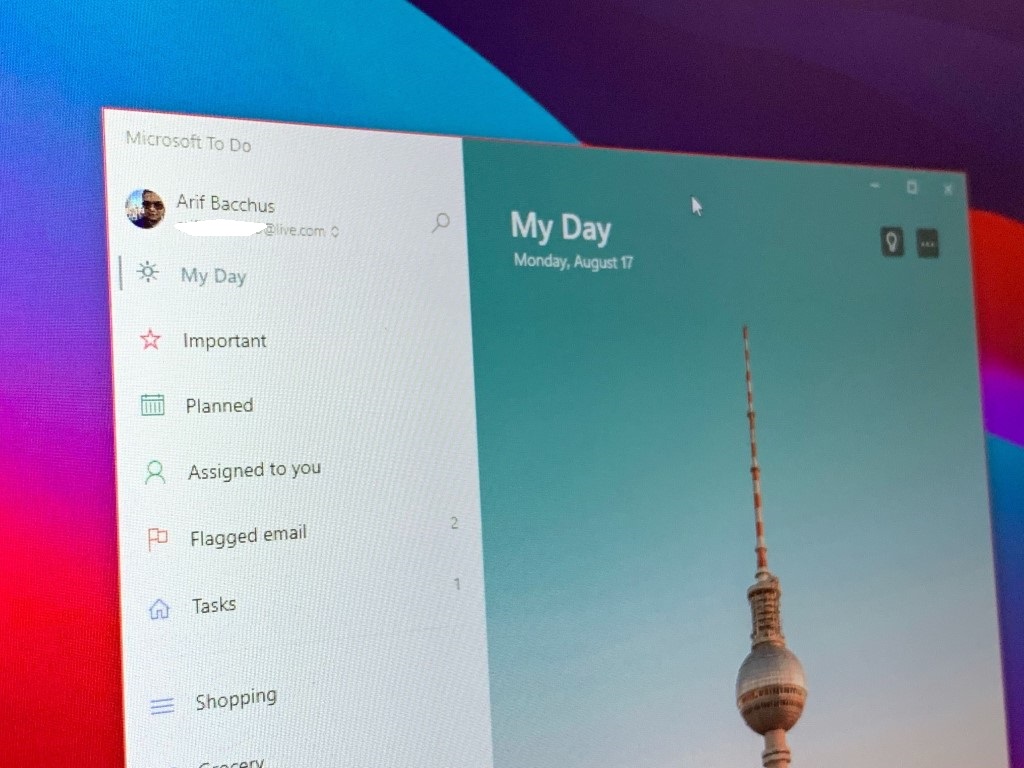
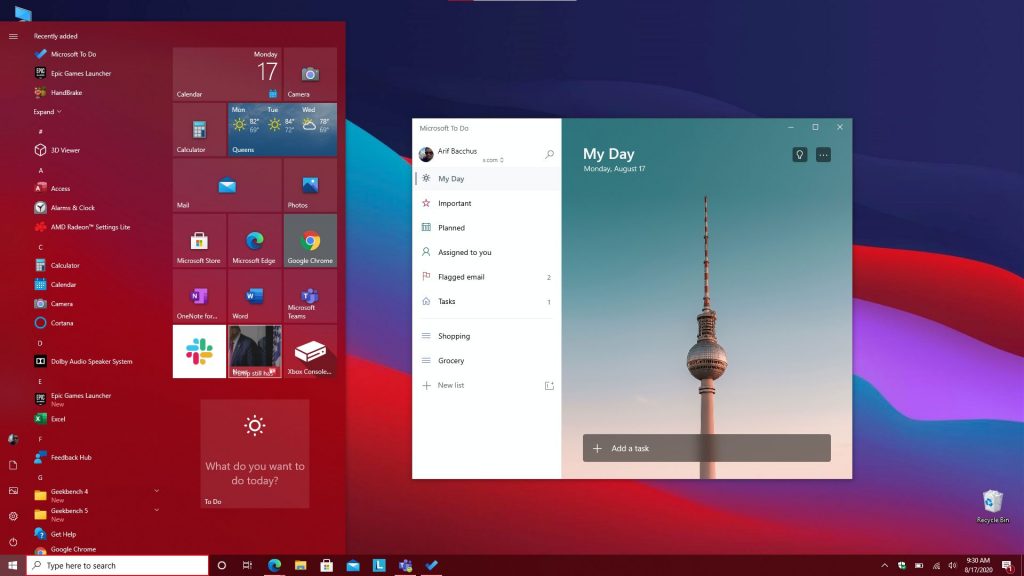
Productivity is the core to work, school, and your personal life, but there’s one app that can help you manage it all. Thanks to the power of Microsoft To Do (now also known as To Do) on Windows 10, iOS, Android, and the web, you’ll be able to manage the things you have to do on your list and get more done. Inspired by Microsoft, today, we’ll be giving you a look at the top five ways you can stay productive with To Do on Windows.

Pin To Do for quicker access

Microsoft To Do Pins

The first thing on our list involves quite a simple tip. Nothing is more annoying than having to search for an app when you need to use it. You’ll waste your valuable time having to look for the app in your Windows 10 Start Menu, or having to click the Start Menu and entering a new search to go looking for it.

So, why not pin To Do for quicker access? There are two ways to pin To Do. You can pin To Do to your taskbar to access your favorite lists by right-clicking the app when it’s open and choosing Pin to taskbar. We also suggest pinning the app to the Start Menu too. To do this, find To Do in the list of apps in your Start Menu, right-click it, and then choose Pin to Start. Once To Do is pinned to start, you’ll be able to see your tasks at a glance on the Live Tile, without ever having to open the app.

Use badge notifications

To Do App Bagde

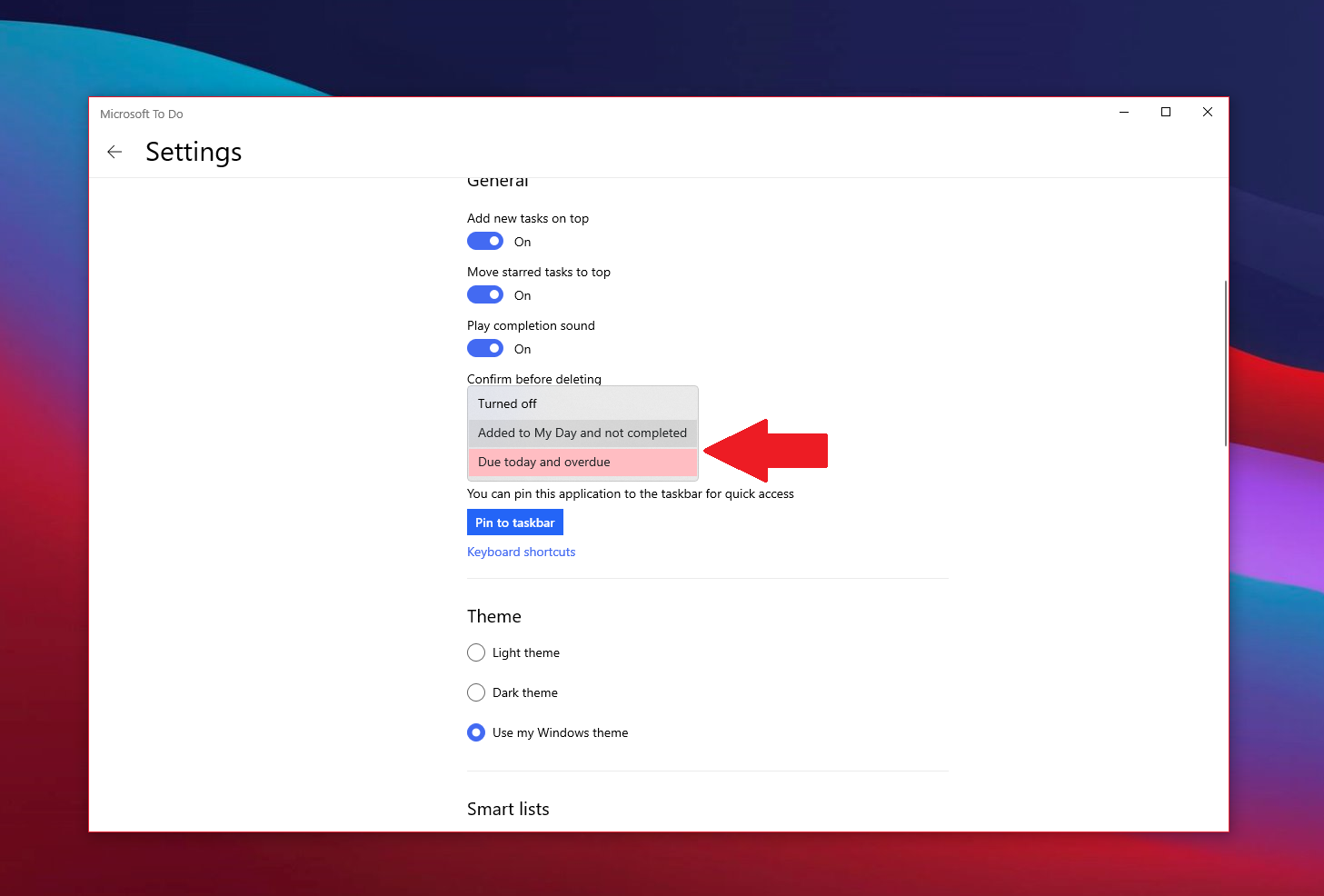
Next on our list is app badge notifications. A bit similar to Live Tiles, this is another way for you to get a peek at your tasks at a glance. When enabled, you can get a peek at your outstanding tasks without even opening To Do. It’s essentially a visual cue for when tasks are piling up and when you might need to take action and make sure you don’t miss anything important. Depending on the number that outstanding or due, you’ll see a (#) appear in the app icon on the Taskbar.

To turn on these settings, tap your profile icon on the top-left corner of the screen. Then, click Settings. You should then see a section for App badge. Be sure to click this, then choose from the two options. There’s Due today and overdue which will show you a count of both tasks due today, and ones that are past due. There’s also added to my day and not completed which will show a count of all the tasks on your My Day list that haven’t been finished yet.

Set up reminders

To Do Set Reminders

Sometimes, you might add a task and forget about it. Even with Live Tiles, or the app badge icons turned on, there might be a situation where a task might slip through your mind. Well, we also suggest that you turn on reminders and due dates for tasks to avoid this.

Usually, reminders are turned on by default for tasks, but you can ensure that they are in fact turned on by heading to Settings as we described above, and then scrolling down to the notifications section. Make sure that the toggle box for Reminders is turned on.

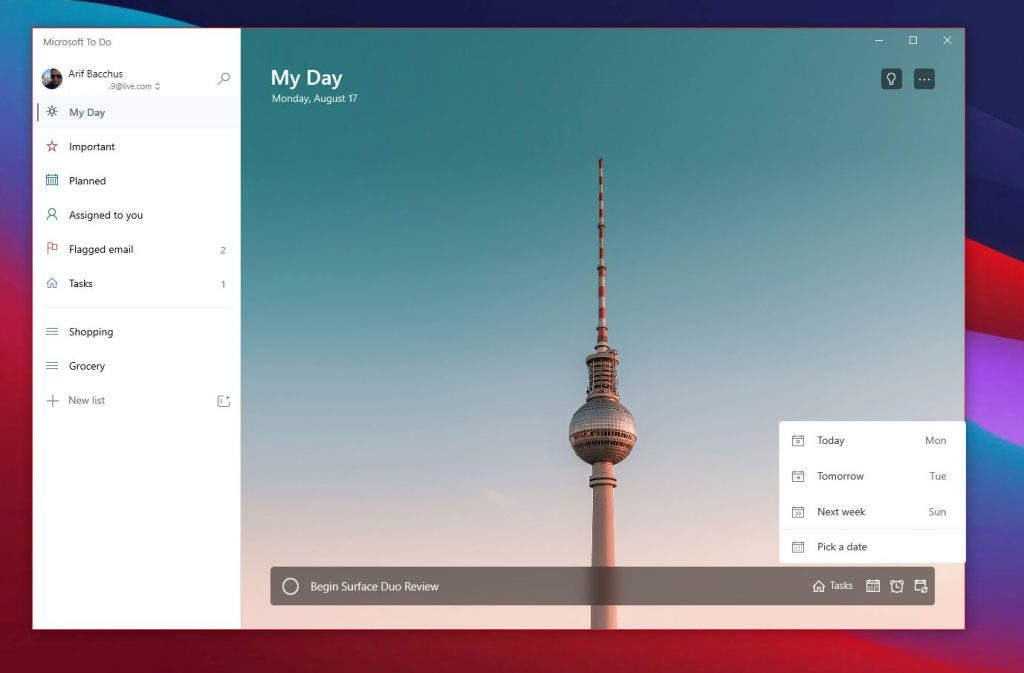
Due dates, meanwhile, can be set when adding a task. Add a due date by clicking the calendar icon next to the new task box, and then choose a specific date by clicking Pick a date from the list.

Add details!

Add Notes Tags To Do

It’s one thing to create a task, but what about the details? The more details you add to a task, the higher the chance you won’t forget about it, or you stay more productive when digging through that task. You’ll always have a point to go back to and see what you intended to do. Well, in To Do, there are a couple of ways that you can add details to your tasks. These include adding tags, notes, and attaching files.

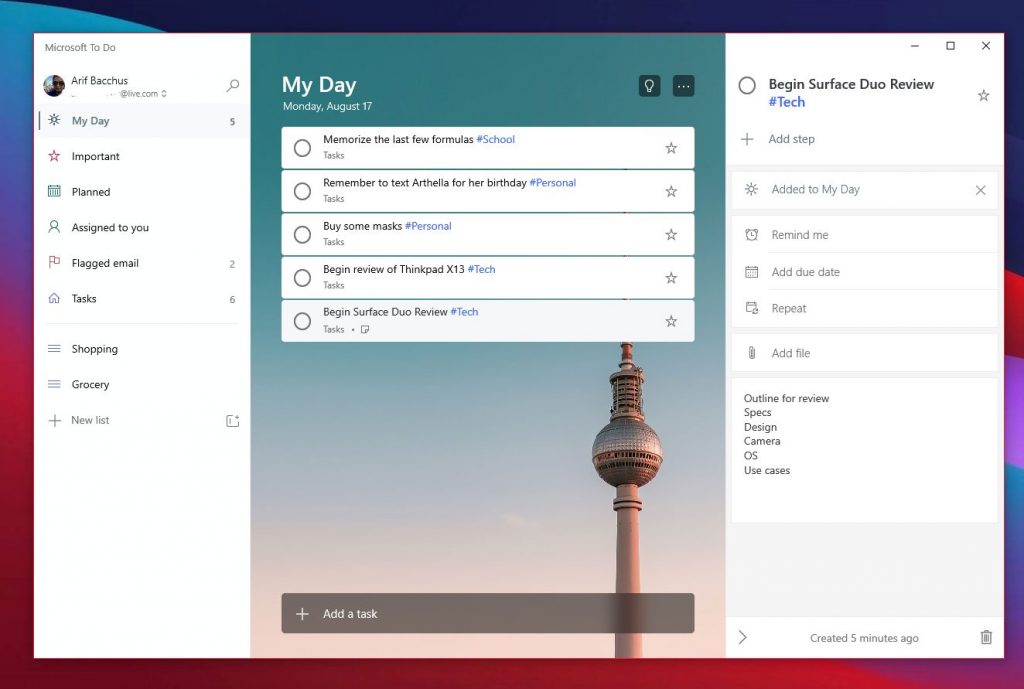
To add tags to your task, you can simply type out the tag next to the task as you add it. You’ll then see the tag appear as a blue link in your My Day list. In our example above, you can see the #Tech tag, alongside the #Personal and #School tag. Clicking a tag in the list will then give you a filter, showing you all the tasks with that tag, helping you clean up your lists and find what’s important.

To add notes, meanwhile, you can click the task and then look at the right side of the screen. There will be an add notes section. From here you can type out some important notes in regards to the tasks. Say, an outline, an address, or anything else.

Finally, to attach a file, you can click the task, then choose Add File from the menu at the right side of the screen. The file will then sync up in the cloud, right with your task. This is a great way to see your files across your devices, even if its the one you’re not currently looking at your task on.

Assign tasks

@ In To Do

What better way to stay productive than have someone join you? Two people in a task are better than one, and it’s higher of a chance of someone not forgetting about it. You can assign tasks in To Do with your work account by simply typing out the person’s name after the “@” sign. This will assign the task to them and they’ll be able to stay on top of it, just like you.

Stay productive with Microsoft 365

To Do in Microsoft 365 is just one way of staying productive. As we’ve covered, there are lots of other apps available in the Microsoft 365 suite which can help you out. This includes Lists, as well as Tasks in Microsoft Teams. Check our Microsoft 365 hub for more, and let us know how your tips for staying productive at work or school by dropping us a comment below.

FULL FIX: err_cache_miss error

The err_cache_miss error is one that arises in browsers for specific website pages. When that issue arises, a tab opens that displays a Confirm Form Resubmission err_cache_miss error message.

Consequently, users can’t open a specific website page. If you can’t open certain websites on Chrome because of that error, check out these fixes for it.


How can I fix the err_cache_miss error?

1. Try another browser

Taking a peek at the below troubleshooting steps is enough to realize that they are time-consuming. If you lack the patience to update your browser or reset it, let’s see what Opera can do for you.

Some of Opera’s strongest points are its availability on all major platforms and the ease of transition. While other browsers make this a living nightmare, things are different this time.

Well, all your passwords, bookmarks, and autofill data can be transferred in just a couple of clicks. This web browser also features a built-in VPN with unlimited bandwidth, as well as an ad blocker.

And best of all, one particular aspect that you’re about to enjoy is its stability. As a lightweight, yet fast browser, issues are unlikely to appear any time soon.

”Opera”

”Opera”

”To
”Get
&aff_sub2=Native?utm_medium=native&ref=” current_url=”true” button_text=”Visit website” image=”https://windowsreport.com/wp-content/uploads/2020/07/Opera-logo-210×160.png” ]

2. Update your browser

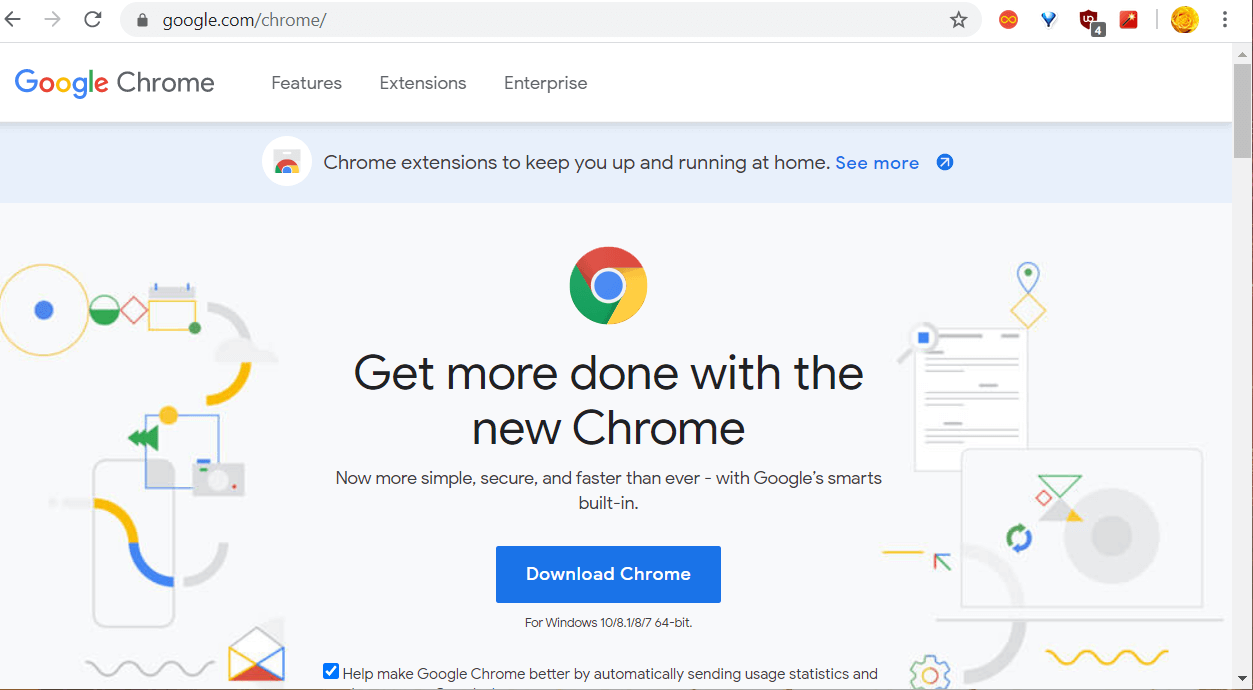
First, try updating your browser to the latest version. Open the website for your browser. Click the download button there to save the installer for the latest version.

Open the installer for the latest browser version to install it.

Google Chrome website err_cache_miss


3. Clear your browser’s data

Google Chrome

  1. The err_cache_miss error can be due to browser data conflicting with the website. To clear Google Chrome’s data, click the Customize Google Chrome button.
  2. Select More tools and Clear browsing data to open the window shown directly below.
    Clear browsing data window err_cache_miss
  3. Select the Browsing history, Cookies, and Cached images options.
  4. Click the Clear data button.

Firefox

  1. Click Firefox’s Open menu button.
  2. Select Options to open that tab.
  3. Click Privacy on the left side of the Options tab.
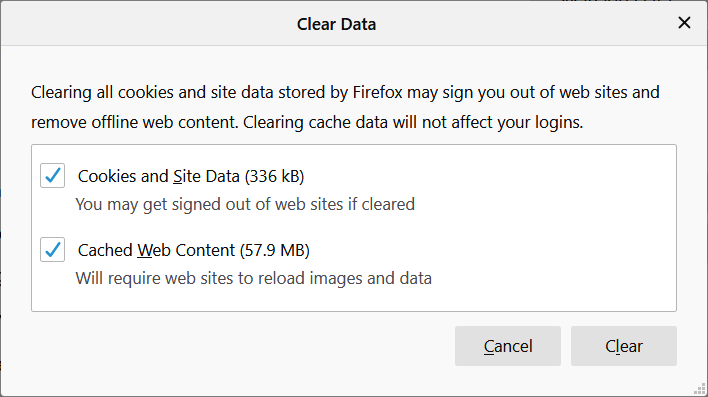
  4. Click the Clear Data option.
    Clear Data window err_cache_miss
  5. Select the Cached and Cookies checkboxes.
  6. Click the Clear button.

4. Reset the browser

Google Chrome

  1. Try disabling all your extensions by resetting the browser. To reset Google Chrome, type this in the URL bar and press the Enter key: chrome://settings/
  2. Click Advanced at the bottom of the Settings tab.
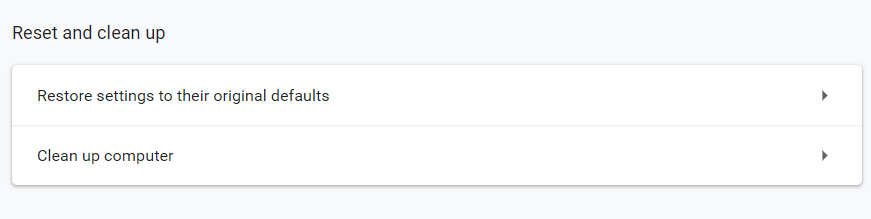
  3. Click the Restore settings to their original defaults button at the bottom of the tab.
    Restore settings button err_cache_miss
  4. Press the Reset settings button.

Firefox

  1. Click the Open menu button in Firefox.
  2. Select the Help option.
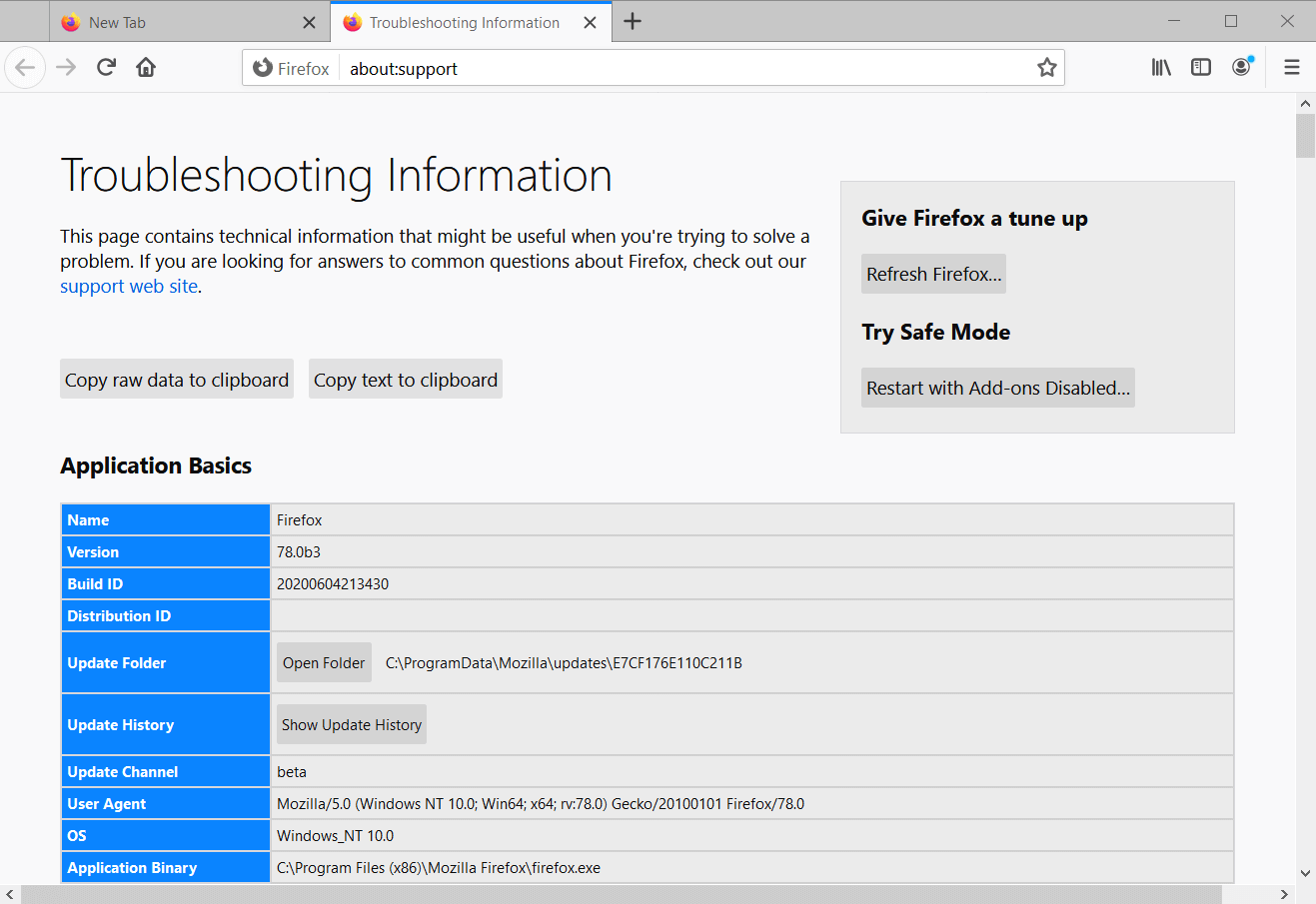
  3. Click Troubleshooting Information to open the tab in the shot directly below.
    Troubleshooting Information tab err_cache_miss
  4. Click the Refresh Firefox button.
  5. Press the Refresh Firefox button on the dialog box to confirm.

5. Reset your network settings

  1. The err_cache_miss might also be a network issue. To reset network settings, press the Windows key + S keyboard shortcut.
  2. Input Command Prompt in the search box that opens.
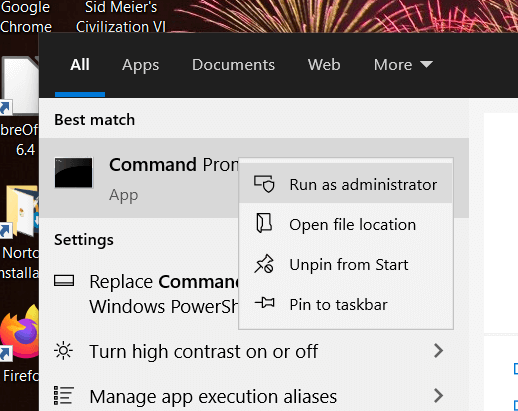
  3. Right-click Command Prompt so that you can select its Run as administrator option.
    Run as administrator option err_cache_miss
  4. Then input each of these separate commands (press Enter after each one):
    ipconfig /release
    ipconfig /all
    ipconfig /flushdns
    ipconfig /renew
    netsh int ip set dns
    netsh winsock reset
  5. Thereafter, close the Command Prompt; and restart the desktop or laptop.

6. Disable Confirm Form Resubmission in Google Chrome

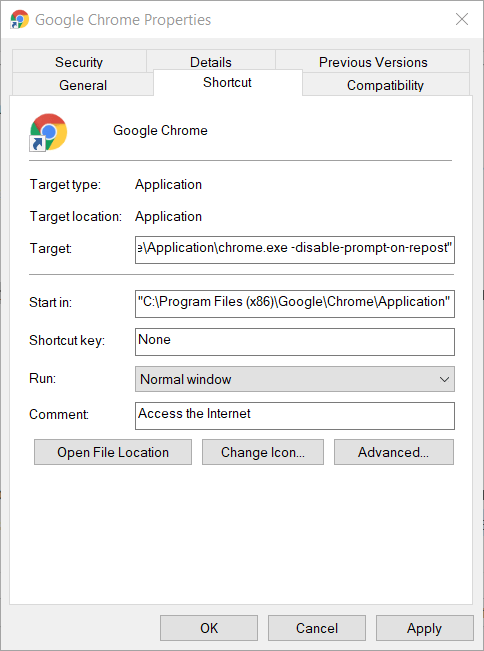
  1. Chrome users can fix the err_cache_miss error by disabling form resubmission. To do that, right-click your Google Chrome shortcut and select Properties.
  2. Next, add -disable-prompt-on-repost to the end of the Target box as shown in the shot directly below.
    Google Chrome Properties window err_cache_miss
  3. Click the OK and Apply buttons.
  4. Then click the Chrome shortcut to open the browser.

These are some of the more likely fixes for the err_cache_miss error. Have you tried them?

Let us know which one worked for you in the comments area below. Also, don’t hesitate to share any other tips that might work.

[wl_navigator]

360 Browser: Here’s what you should know about it

The web browser market is dominated by major web browsers, but what about lesser-known web browsers, such as 360 Browser?

If you’re not familiar with this browser, in today’s article we’re going to analyze it and see what it can offer to its users.

Quick tip:

One amazing browser that we think you should also have a closer look at, is Opera.

This browser comes with tab management features that allow you to easily organize your tabs into Workspaces and the Search in Tabs option will make it easy to find a specific tab.

Opera has built-in tracking protection that will block tracking scripts and cookies and improve webpage loading time. In addition, there’s a built-in ad blocker as well.

Another great feature is the free VPN. The VPN offers three different servers and unlimited bandwidth. The browser is based on Chromium, and it can work with Chrome extensions.

As for additional features, there’s a pop-out video player, advanced tab management, instant messenger, and Instagram integration.

Opera is secure, fast, light on resources, and it’s available on all major platforms, so be sure to try it out.

Opera

Free built-in VPN, enhanced encryption, bookmarks tab, and Crypto Wallet with Opera.

What is 360 Browser and should I use it?

1. What is 360 Browser?

360 Browser was made by a Chinese company Qihoo and it was released in September 2008, but the browser became available globally in 2014.

The browser uses Blink rendering, but the browser will switch to the Trident browsing engine when using compatibility mode.

360 Browser is available for download only from third-party websites.

2. Is 360 Browser safe?


According to users, in 2012 there were accusations by Digital Due Diligence company that the browser prevents you from setting a different default web browser.

Users also claim that the browser was difficult to uninstall. In 2013 there was a report claiming that a browser had a security flaw.

This flaw could be used to alter Windows DLL files, expose passwords, label unsafe websites as safe and make connections to Qihoo servers without user knowledge.

As you can see, 360 Browser had its share of controversy in the past, and this is why you should use a more secure web browser such as Opera.

Can Opera VPN be tracked? Is it safe to use?

It’s common knowledge that Opera, the popular web browser, has built-in VPN features, but can Opera VPN be tracked? When it comes to free VPN services, users tend to take sides.

On the one side, you got customers who are skeptical about free VPN services. Usually, VPN services that you don’t have to pay for have other means to generate revenue. And most of the time, your data is the one that serves as currency for these services.

On the other side, there are customers who swear by free VPN services. Truth be told, there are certain VPNs that still put a lot of effort to maintain their service both free and as safe and private as possible, without compromising the well-being of their users.

So it makes sense that when Opera announced the integration of a free VPN service within its popular web browser, customers took sides almost immediately.

Can we trust free VPN?

If you’ve ever used a free VPN, you probably know that this type of service (i.e. free VPNs) is not nearly as powerful as their paid, premium counterparts.

For instance, a free VPN might lack a kill switch, split tunneling, various encryption algorithms, multiple VPN protocols, and even a large selection of VPN servers you can connect to.

It’s also true that most free VPNs will turn a profit from other sources, and not necessarily your money. The most common practice is customer data collection and selling the harvested information to the highest bidder.

On the other side of the industry, you can also find free VPN services that you can trust. It’s rather easy to spot them, as they generally promote policies against monitoring and data logging.

Product NameKeeps logs?Company Name
Private Internet AccessNo traffic logsKape Technologies
CyberGhost VPNNo identifying dataKape Technologies
Express VPNNo identifying dataExpress VPN
NordVPNNo logsTefincom & Co., S.A.
Surfshark VPNNo logsSurfshark LTD

However, these services don’t offer as many features and certain providers even limit some of them. For instance, you might only receive 500 MBs worth of bandwidth per month.

Or you might not be able to access some servers in certain locations. The point is, if a deal seems too good to be true, it probably is.

Can Opera VPN be trusted?

Opera VPN is, obviously, part of the free VPNs we’ve mentioned above. On the other hand, users are unsure regarding which side of the industry this provider belongs to.

We’ve run some tests on Opera VPN and we have a bunch of remarks:

  • You can’t use Opera VPN as a system-wide service, as it will only provide Opera browser traffic
  • It’s not possible to choose a specific VPN protocol
  • Opera VPN doesn’t let you choose an encryption algorithm to protect your traffic
  • You can only connect to 3 world-wide locations and an Optimal Location server
  • There’s no advanced feature such as a kill switch, split tunneling or double VPN
  • Opera VPN can’t circumvent Netflix VPN blocks, therefore it probably has no obfuscation feature
  • We’ve noticed significant speed drops, even while using the Optimal Location server

Many of its users or former users made a somewhat valid point. Opera VPN acts more like a proxy instead of a VPN, since it runs exclusively in the web browser and only secures the browser data.

Terms and conditions of Opera VPN

Furthermore, it offers only a few features that a standard VPN comprises, and is way slower than regular VPN services. On the bright side, it’s free and requires no registration.
Now about the trust part, we’re quite convinced that VPNs that don’t log personally identifiable data on their customers are among the most trustworthy.

Opera VPN, at least on paper, seems to respect users’ privacy by claiming that absolutely no browsing activity, original IP address or private data are collected from its customers.

Can Opera VPN be tracked?

If you’re wondering whether or not you can get tracked while using Opera VPN, then the answer is no. VPNs encrypt data and route it through their secure servers, away from the prying eyes of your ISP, or other malevolent agents.

Opera VPN does just the same, but there’s a catch. We’ve said it before, but let it be clear that Opera VPN will only encrypt traffic that runs through the Opera web browser.

So even if you have Opera VPN up and running, your torrenting activities, for instance, will be visible to your ISP. The same goes for any other network activity that happens outside of the Opera web browser.

But, to get back to our original dilemma, Opera VPN can’t be tracked. Just as long as you remember to keep your business within the web browser and no place else, you should be fine.

Despite rushed claims that Opera VPN is free, therefore it must be possible to track it, you need to keep in mind that it still runs on VPN servers, which are incredibly difficult, if not downright impossible, to track.

It’s not likely that Opera VPN can be tracked

To wrap it up, if you’re not sure about free VPN services and think about starting to use Opera VPN, you can rest assured that your ISP (or other third-parties) won’t be able to track it.

More so, its privacy policy states that Opera VPN never collects any browsing data from its users, nor does it collect any originating IP address or tracks its customers’ location.

As a matter of fact, the Opera web browser integrates anti-tracking features, alongside its free VPN.

If you’re concerned about your privacy, we suggest reading our guide on how to check your DNS over HTTPS settings in Opera for an extra layer of protection.

Automating Excel tasks is a lot easier with Office Scrips

The Office suite is very popular, especially in the latest months when the work has moved abruptly from the office to our homes.

At the start of this year, Microsoft released Office Scripts, a very useful automation feature for Excel, but only for public preview.

Now, the software giant has announced on the Microsoft 365 roadmap page that is rolling out Office Script for all Microsoft 365 Enterprise, Business, and EDU SKUs with access to the Office 365 desktop apps.

How is Office Scripts helping you get rid of repetitive tasks?

Office Scripts is working as a macro. It allows you to record your actions, and replay them over and over again.

The scripts can be edited and they are stored in the cloud. You will be able to record actions like typing text or numbers, clicking cells, commands, menus, formatting cells, rows or columns, and many other actions.

After you finished recording, you will just see a list of the steps you took to perform all the actions. Microsoft mentions that you won’t need any programming experience to edit the scripts but if you take the extra step to do so, a Code Editor will open, allowing you to modify the TypeScript code.

The only problem with the new Office Scripts is that once you start recording, it will also memorize any possible mistakes you make. So you have to make sure you record the script as smoothly as possible.

The new feature can save you hours of work using automation but that’s not the only feature that was added to Excel lately. Check out our guide on how you can import data from a PDF in Excel.

What do you think about the new Office Scripts feature in Excel? Drop us a line in the Comments section.

[wl_navigator]

Save big on more than 500 Xbox games during the Ultimate Game Sale

If you’ve been hoping to pick up some new Xbox Games at heavily discounted prices, now is your chance. Microsoft’s Xbox Ultimate Game Sale is now live and will run through August 24, covering more than 500 different games. Xbox Live Gold and Xbox Game Pass Ultimate members can also save an additional 10%. Here’s a look at some of the top sales.

We’ll start first with Xbox One. Here, you’ll find that Arkane Anniversary Collection is now 60-70% off. Additionally, popular shooter Call of Duty: Modern Warfare is now 25% off, going for $44.99, or $38.99 with Xbox Live Gold. The open-world adventure game, Red Dead Redemption 2, meanwhile, is 40% off and is now $35.99. Some other Xbox One Deals are below, and we remind you to check the full always updated list at Major Nelson’s website, here.

If you’re still sporting an Xbox 360, you can enjoy the sale, too. Some featured deals include Dead Space, which is now 65-75% off, Call of Duty: Black Ops, which is now $15 with Gold, and skate, which is down to $5.99 with gold. Some other deals on Backward Compatible games are below, but Major Nelson will keep the list updated on his website.

These are some excellent deals, but be sure to act fast before the Ultimate Game Sale ends on August 24. Check out the sale now, and let us know if you picked up any new games by dropping us a comment below.

How to stop Windows 10 suggesting tips and tricks in notifications

Windows 10 has a habit of presenting “tips and tricks” at various points as you use the operating system. These are delivered as notifications in Action Centre which can become distracting.

To disable these help messages, open the Settings app (Win+I) and click the “System” category. Next, choose the “Notifications & actions” page from the menu on the left.

Screenshot of disabling Windows 10 tips, tricks and feedback notifications

The relevant settings lie within the checkboxes listed under the “Notifications” header on the page. Start by unchecking the “Get tips, tricks and suggestions as you use Windows” option, which should disable most of the notifications.

The preceding option, “Suggest ways I can finish setting up my device to get the most out of Windows”, may also be worth turning off. This inhibits notifications which prompt you to setup features such as OneDrive and backups.

Screenshot of disabling Windows 10 tips, tricks and feedback notifications

There’s one other category of alert which you won’t find here. Sometimes, Windows 10 might prompt you to submit feedback via a notification. To disable these, return to the Settings homepage and click the “Privacy” category.

Next, click the “Diagnostics & feedback” page and scroll down to the bottom. Change the selected option in the “Windows should ask for my feedback” dropdown to “Never”. Windows will then stop pestering you to send your thoughts back to Microsoft.

Fortnite cuts cost of V-Bucks on Xbox One consoles before being removed from Apple and Google app stores

It’s been a pretty exciting last two days for players of the popular Fortnite video game and app developers in general. Quite a bit has happened so here’s an easy-to-follow timeline of the events.

  • On August 13th, Epic Games added direct payment options to both the iOS and Google Play Android versions of the Fortnite video game apps. These options displayed within the apps alongside the traditional app store payment system with prominent text promoting up to 20% discounts on all purchases made via the new system.
  • By August 14th, these new discounted prices had become the default prices within the Fortnite video game on Microsoft’s family of Xbox One consoles, Sony’s PlayStation 4, the Nintendo Switch… Essentially every version of the game that didn’t use an app store like Apple’s and Google’s that took around 30% of each purchase from the devs.
  • Within a matter of hours, Apple removed Fortnite from the App Store on all iPhones, iPads, and iPod touches.
  • Epic Games, the developer of Fortnite, responded with a video parodying Apple’s 1984 Mac commercial, a call to arms for players to pressure Apple by using the #FreeFortnite hashtag on social media, and the announcement of their intentions to sue the tech giant.
  • The #FreeFortnite video begins playing when any version of Fortnite is opened. The video has also begun playing within the Fortnite Party Royale virtual space and is running on a loop on the official Fortnite Twitter and Twitch accounts.
  • Soon after, Google also removed Fortnite from their Google Play app store. Players are still able to use the Android version of Fortnite that can be installed outside of the Google Play store however.
  • Epic Games almost immediately responds by announcing that they’ll sue Google as well.

It’s clear that Epic Games was completely prepared for both Apple and Google’s responses as it’s doubtful that they could have produced that video and drawn up public statements as quickly as they did.

The timing is also rather deliberate as the game’s current Chapter 2 Season 3 is drawing to a close in just a week or so from now on August 27th. If Apple and Google don’t reinstate Fortnite in their respective app stores, those versions of the game won’t be able to receive the content update for Chapter 2 Season 4 and the two companies could very well be dealing with a massive pushback from users.

Epic Games’ founder and CEO, Tim Sweeney, posted on his Twitter account that his company’s actions are not to get more money but to force Apple and Google to consider better policies for app developers and consumers.

“Today, Apple said Epic is seeking a special deal, but that’s not true,” Sweeney’s tweet reads. “We’re fighting for open platforms and policy changes equally benefiting all developers. And it’ll be a hell of a fight!”

Currently both Apple and Google take a 30% cut of all sales made from apps downloaded from their app stores. While exact details of Fortnite in-app purchases on mobile are unknown, the game did earn Epic Games $1.8 billion in 2019 across all of its available platforms. With well over 125 million iOS users having downloaded the game to date, it’s safe to assume that Apple and Google have both been making a lot of money from the free-to-play Battle Royale since its launch and are now missing out on quite a bit of income. Whether that loss is enough to make them change their app store policies remains to be seen.

For now, Fortnite mobile gamers can continue playing on Xbox One, Windows, and other platforms without missing a beat as all game progress syncs between devices using the same Epic Games account. Android players may also want to install the non-Google Play version of the Fortnite app by visiting this page on the Android smartphone or tablet. This version is mostly identical to the Google Play version but is designed to get around the 30% store commission.

Where do you stand on the #FreeFortnite controversy? Do you support Epic Games or are you more put out by the app being removed from the app stores? Do you think there’ll be a resolution by the end of the current season? Share your thoughts in the comments below and then follow us on Pinterest and Twitter for more gaming news.

Fortnite
Fortnite
Developer:
Epic Games Inc.
Price:
Free


Fortnite - 1,000 V-Bucks

How to Reopen Browser Tabs (Chrome, Edge, Firefox, Opera)

Need to reopen closed browser tabs? Most modern browsers make it simple to recover recently closed pages using built-in shortcuts or menu options.

Follow the instructions below based on your browser.

1. Use the Universal Shortcut

Step 1: Press Ctrl + Shift + T (on Windows) or Cmd + Shift + T (on Mac).
Step 2: This reopens your last closed tab instantly.
Step 3: Keep pressing the shortcut to restore earlier tabs one by one in the order they were closed.

This works across all major browsers: Chrome, Edge, Firefox, and Opera.


2. Reopen Closed Tabs in Google Chrome

Step 1: Right-click on the tab bar at the top of your browser window.
Step 2: Select Reopen closed tab from the menu that appears.
Step 3: If you want to restore older tabs, click the three-dot menu in the top-right corner.
Step 4: Go to History, then scroll to the Recently closed section and select the tab or session to reopen.


3. Reopen Closed Tabs in Microsoft Edge

Step 1: Right-click on the tab bar to open a context menu.
Step 2: If you see the option, click Reopen closed tab.
Step 3: If this option is missing, follow this guide on what to do if the reopen closed tab option disappeared in Edge.
Step 4: Alternatively, click the three-dot menu and go to History.
Step 5: Under the Recently closed section, select the tab or window you want to reopen.
Step 6: If Edge crashed, follow this step-by-step tutorial to restore the previous session.

If Edge is unstable or frequently crashes, use this fix for Edge freezing in Windows 10 or this guide on Edge crashing after opening. If you see a message like “File Restore Failed,” you may also need this file restore fix in Edge.


4. Reopen Closed Tabs in Firefox

Step 1: Click the menu button (≡) in the top right corner.
Step 2: Choose History from the dropdown.
Step 3: Select Recently Closed Tabs to view and reopen any tab.
Step 4: Alternatively, right-click on the tab bar and choose Undo Close Tab.

If Firefox has recently crashed, follow this guide on how to fix the Firefox crash and recover your session.


5. Reopen Closed Tabs in Opera

Step 1: Locate the clock icon in the top-right corner (this opens the tab search panel).
Step 2: Click it to view a list of recently closed tabs.
Step 3: Select any tab you wish to reopen.

You can also press Ctrl + Shift + T to reopen closed tabs quickly in Opera.
If you’re experiencing performance issues while using this feature, make sure your system meets the Opera browser system requirements.


Final Tip

Each browser gives you multiple ways to bring back tabs, whether using a simple shortcut or digging through history menus. If your session was interrupted by a crash, most browsers have built-in recovery tools to help.


FAQs

What shortcut reopens closed tabs?

Use Ctrl + Shift + T (Windows) or Cmd + Shift + T (Mac) in most browsers.

How do I reopen tabs after restarting the browser?

Enable session restore in browser settings or use the history menu to reopen previous sessions.

Can I recover a tab I closed days ago?

Yes. Go to your full history and scroll or search for the URL or page title.

Is there a way to reopen a group of tabs?

Yes. In browsers like Chrome and Edge, the Recently closed section in History lets you restore full sessions.

Unturned packet loss: What is it and how to fix it?

Unturned is a popular free game on Steam that lets you explore a post-zombie-apocalypse world. If you never played it before, you could think that it’s a silly version of Minecraft.

While graphics are somewhat similar and you still get to fight zombies, Unturned offers you gameplay that’s more action-focused than Minecraft does.

For instance, you can find cars that you need to fuel up before you can drive them. This gives you an advantage that you won’t find in Minecraft. We’re talking about covering a lot of ground in a pretty fast way.

Well, here comes the fun part. Much like Minecraft, you can also play Unturned online with your friends, or other players that you haven’t had the chance to meet yet.

And like any other online game, Unturned too has to face a series of technical issues. For instance, jitter, network congestion, and packet loss. Sounds familiar?

What is packet loss in Unturned?

While playing Unturned, packet loss can be often noticed to trigger other issues. For instance, if you notice another player rubberbanding, or check their ping and see that it skyrockets every once in a while, it may be because of packet loss.

This unwanted phenomenon occurs whenever data packets can’t travel all the way from their origin point to their destination. They never make it to the remote server, or back to you, for that matter.

As a result, you may experience high latency, rubberbanding, or even sudden disconnections. The latter occurs quite rarely, and only if the packet loss situation is severe and lasts for a few consecutive seconds.

To put it shortly, when data doesn’t travel the way it should and gets lost on the way, we refer to it as packet loss.

What can cause packet loss in Unturned?

A bunch of things can cause packet loss in Unturned, but there’s no 100% sure culprit usually. Most of the time packet loss occurs as a result of network congestion.

If there are a lot of Unturned players on a server, you might start hogging each other’s bandwidth. Consequently, some of you might experience trouble such as high latency or packet loss.

To put it shortly, there’s quite difficult to say what’s causing packet loss every time. Sometimes it might happen because of poor-quality Ethernet cables, other times it might occur because you’re using WiFi instead of wired connections.

It’s entirely situational and a thorough analysis is required to determine the exact cause of leaking packets.

How to detect packet loss in Unturned?

  1. Launch a CMD instance
  2. Type pathping x.x.x.x (x.x.x.x = the IP of the Unturned server you’re playing on)
  3. Wait for the pathping test to come to an end
  4. Read the CMD log for each hop of the connection
  5. Check to see if there’s any anomaly for each node

Your log should look something like the screenshot below. Depending on the number of the node where you notice the packet loss, the problem can be someplace else along the connection.

Results of pathping

For instance, the first node belongs to your computer. If you notice packet loss there, then the problem lies with your device. On the other hand, if you notice packet loss on the other end of the connection, then the game server is the culprit.

It’s quite easy to spot, once you get the hang of it.

How to fix packet loss in Unturned?

1. Use a VPN

  1. Download Private Internet AccessPIA in Unturned for packet loss
  2. Install the VPN client on your PC
  3. Launch the VPN and log in to your account
  4. Connect to a server of your choice
  5. Launch Unturned
  6. Check if the packet loss issue still persists

Private Internet Access is an excellent VPN service from Kape Technologies. It comes with a lot of privacy and security features and provides you with 24/7 customer support.

VPNs such as PIA can fix packet loss situations most of the time, but there’s a catch. The problem must be caused by your ISP, either through bandwidth throttling or through improper routing.

Private Internet Access

Private Internet Access

Want to reduce packet loss in Unturned? PIA could help you with that.
$2.85/mo. Buy it now

It’s worth mentioning that it’s best if you select a server that’s physically close to you. This will ensure that the distance between you and the server is lower, and therefore, the ping value should also decrease.

2. Troubleshoot the connection manually

  • Restart your PC, modem, router
  • Check if any portion of your connection works as it should and fix any troublesome part
  • Replace Ethernet cables with new, high-quality ones
  • Try using wired connections instead of WiFi (WiFi packet loss occurs more frequently)
  • Contact the Unturned server owner if there’s something wrong on its end
  • Reach out to your ISP and ask them if there’s something they can do to fix the issue
  • Make sure you have the latest drivers installed on your devices (router, PC)
  • Try to avoid peak hours, if possible

Note that these quick fixes won’t work all the time, as we’ve already told you that there’s no 100% sure way to determine the cause of packet loss. Sometimes it can even happen for multiple reasons.

However, going through all the steps above might slightly improve the quality of your connection. So even though it might not fix your packet loss issue, you may still notice some improvement.

Unturned packet loss can sometimes be fixed

All things considered, sometimes it might be easier to fix packet loss, sometimes it might be downright impossible. You need to understand that packet loss can happen for reasons that are absolutely out of your reach.

However, if there’s something wrong on your end, you might want to try our suggested fixes. A VPN can be the fastest way to avoid packet loss, but it will only work if the issue is on your ISP’s side of the network.

[wl_navigator]

6 Best VPNs for Video Streaming in 2026 [Ranked by Speed]

Video streaming services are usually restricted to certain countries due to copyright issues regarding movie distribution. But you can still use a VPN service to get past these geo-restrictions and watch your exclusive movies and TV series.

There are numerous advantages to virtual private network services since they make your IP anonymous, encrypt your network traffic, and change your geographical position on the web.

And many people turn to VPNs to watch video streaming on sites like Netflix, BBC iPlayer, Hulu, or Prime Video. But few apps can unblock streaming services, so we handpicked the 5 best VPNs for video streaming.

Is it worth using a VPN when streaming?

The answer is definitely yes! By using a VPN while you’re streaming video platforms, you will keep your data private and encrypted so no one can track your online activity.

With a VPN source, you can enjoy limitless bandwidth and stream your preferred platform without slowing down your internet connection.

Moreover, a VPN helps you access geo-blocked content, avoid browser error codes like m7362 1269, and stream on restricted networks by bypassing censorship.

What are the best VPNs for video streaming?

Private Internet Access – Strong no-logs policy

Private Internet Access (PIA) is one of the best VPNs for video streaming. More specifically, you can use it to watch Netflix US. Made by Kape Technologies, PIA has a vast network of over 3,300 VPN servers in 48 regions.

You can use PIA to unblock the US library of Netflix on Windows, Mac, Linux, Android, and iOS. It allows up to 10 connections at the same time.

The app offers static and dynamic IP addresses, and private DNS servers, together with OpenVPN and WireGuard protocols. You can even use VPN and proxy together through Shadowsocks or SOCKS5.

Other best features of PIA:

  • A strict no-logging policy
  • 24/7 live chat support
  • 30-day money-back guarantee (no free trial)

Private Internet Access

Use PIA to unblock Netflix US and watch video streaming on your favorite device.
Check price Visit Website

TotalAV – Privacy on-the-go

Besides being an excellent antivirus program, TotalAV is great for protecting your privacy as well when you’re streaming video platforms.

With this VPN service, you can make your online activities anonymous and impossible to track by encrypting your connection.

Furthermore, you can access geo-restricted content at increased speeds while maintaining full anonymity with no DNS leaks and customize your privacy with OpenVPN and IKEv2 protocols.

Other best features of TotalAV:

  • Privacy on-the-go
  • Secure open Wi-Fi networks
  • Worldwide server network

TotalAV

Boost your privacy and access geo-restricted content by using the TotalAV VPN service.
Free Trial Visit Website

NordVPN – Military-grade encryption

NordVPN is a virtual private network solution that puts security and privacy first. Even so, you can still use this VPN for video streaming. It’s made by Tefincom & Co and has over 5,100 in 59 countries.

The app can unblock Netflix US, Canada, Germany, and other regional catalogs, as well as Disney+, Prime Video, Hulu, DAZN, BBC iPlayer, and other platforms.

NordVPN supports OpenVPN with 256-bit military-grade encryption, obfuscation mode, Onion-over-VPN, Double VPN, a kill switch, private DNS, and Smart DNS for devices without native VPN support.

Other best features of NordVPN:

  • No bandwidth limits
  • Worldwide access
  • Stop ISP throttling

NordVPN

Securely watch streaming videos with the help of this safe VPN.
Check price Visit Website

ExpressVPN – Smart DNS technology

ExpressVPN is hugely popular in the VPN user community, thanks to its impressive speed, security, and streaming capabilities. Developed by Express VPN International LTD, the app has over 3,000 VPN servers in 94 countries.

In addition to unblocking Netflix US, you can use ExpressVPN to enjoy Hulu, BBC iPlayer, Spotify, Prime Video, and other media streaming websites.

ExpressVPN has OpenVPN with 256-bit encryption, a kill switch, zero-knowledge DNS servers, and Smart DNS technology called MediaStreamer to watch video streaming on devices without VPN support.

Other best features of ExpressVPN:

  • Stronger data connection
  • VPN split tunneling
  • 7-day free trial for Android and iOS

ExpressVPN

Enjoy the most awesome video streaming platforms with this dependable VPN.
Check price Visit Website

Surfshark – Block ads and malware

If you’re looking for a VPN subscription plan for the entire family, Surfshark is ideal, especially for video streaming. Created by Surfshark LTD, this app has over 1,700 VPN servers in more than 63 countries.

Surfshark is the most affordable VPN on this list, giving you the possibility to unblock over 15 Netflix libraries. It even has a Smart DNS feature that you can use to watch video streaming on unsupported devices.

It doesn’t disappoint in security features either. Surfshark has OpenVPN, WireGuard, IKEv2, Shadowsocks, multi-hop VPN connections, and an emergency kill switch.

Other best features of Surfshark:

  • Blocks ads and malware
  • NoBorders mode
  • Private DNS and leak protection

Surfshark

Watch the best Netflix video streaming libraries using this budget-friendly VPN.
Free trial Visit Website

CyberGhost – Large server fleet

CyberGhost server locations

If you want to take the VPN for a free test drive without using your credit card, then CyberGhost VPN is what you need. Kape Technologies operates it and has the best server coverage on this list: over 6,500 in 89 countries.

CyberGhost can unblock the most popular Netflix catalogs, including Netflix US, UK, and Canada. You can also watch Disney+, Prime Video, BBC iPlayer, Crunchyroll, Hulu, HBO Now, and many others.

The tool has private DNS servers and DNS leak protection. It features OpenVPN, a kill switch, and split-tunneling mode. You can even set up a Smart DNS to watch video streaming on devices without VPN support.

Other best features of CyberGhost VPN:

  • A zero-logging policy
  • Large server fleet
  • Fast speeds

CyberGhost

Start watching video streaming on your device using this free and reliable VPN.
Check price Visit Website

In conclusion, if you want to watch the best video streaming services online, you need the help of a trustworthy VPN.

Make sure to carefully compare your options before deciding what is the right VPN for you. You might also be interested in the fastest VPNs for streaming.

5 best VPNs for Linux Mint

If you have a desktop or laptop running Linux Mint, you can ensure your Internet security and privacy with the help of a VPN.

A virtual private network service changes your IP address and geo-location, encrypts every packet of data and helps you access restricted content on the web.

Moreover, you can unblock streaming services that are otherwise blocked in your country, such as Netflix, Hulu, or BBC iPlayer. Plus, you can find cheaper flights with a VPN.

What are the best VPNs for Linux Mint?

Private Internet Access

Private Internet Access helps you unblock Netflix

Created by Kape Technologies, Private Internet Access (PIA) is a top VPN for Linux Mint, thanks to its powerful security features and speedy network connections.

It has more than 3,300 servers in 48 countries, exclusive DNS servers, OpenVPN and WireGuard, together with Shadowsocks and SOCKS5. The app also comes with port forwarding, a kill switch, and a split-tunneling feature.

You can install PIA not only on Linux Mint but also other Linux distros, as well as Windows, Mac, Android, iOS, and even routers. It allows up to 10 simultaneous connections.

What else you must know about PIA:

  • No logs or leaks
  • 24/7 live chat support
  • 30-day money-back guarantee (no free trial)
Private Internet Access

Private Internet Access

Set up PIA on Linux Mint to protect your data from hackers and access blocked websites.
$2.85/mo. Buy it now

NordVPN

NordVPN is one of the best VPN apps

If you’re interested in premium VPN security for your Linux Mint laptop, opt for NordVPN. Made by Tefincom & Co., the app covers more than 5,100 spread across 59 countries.

NordVPN can hide the fact that you’re connected to a virtual private network using obfuscation mode. It can also maximize your privacy by joining the Tor network using Onion-over-VPN servers.

The VPN tool supports OpenVPN with up to 256-bit military-grade encryption, exclusive and custom DNS servers, Double VPN servers, dedicated IP addresses, and a kill switch. It can protect up to 6 devices at once.

What else you must know about NordVPN:

  • No logs or leaks
  • 24/7 live chat support
  • 30-day money-back guarantee (no free trial)
NordVPN

NordVPN

Stop compromising the security of your Linux Mint device by turning to this reliable VPN.
$3.49/mo. Buy it now

Surfshark

Surfshark

Surfshark is a versatile VPN for Linux Mint that offers affordable subscription plans for all types of users. Made by Surfshark LTD, the app comes with over 1,700 VPN servers in 63 countries.

The virtual private network solution can be used to protect any number of devices since it features unlimited simultaneous connections. This means that you can share your VPN account with your entire family.

It supports OpenVPN and WireGuard, Shadowsocks, obfuscated servers, multi-hop VPN connections, along with a malware and ad blocker for browsers. You can install it on all popular operating systems.

What else you must know about Surfshark:

  • No logs or leaks
  • 24/7 live chat and mail support
  • 30-day money-back guarantee
  • 7-day free trial for Android and iOS

Surfshark

Use this budget-friendly VPN to easily protect your Linux Mint computer.
Free trial Visit website

CyberGhost VPN

CyberGhost VPN is among the best VPN apps for Windows 8 and 8.1

CyberGhost VPN is the best free VPN for your device. Owned by Kape Technologies, it has an impressive network of more than 6,500 VPN servers in 89 countries.

You can use CyberGhost VPN to secure your data when connecting to public, unprotected WiFi hotspots. It features OpenVPN, private DNS with DNS leak protection, split tunneling, and an emergency kill switch.

The app is compatible with all popular devices, not just Linux distros. You can even install it on your router using OpenVPN manual configuration mode. It permits 7 simultaneous device connections.

What else you must know about CyberGhost VPN:

  • No logs or leaks
  • 24/7 live chat support
  • Up to 45-day money-back guarantee
  • 1-day free trial for Windows and macOS
  • 7-day free trial for Android and iOS
CyberGhost VPN

CyberGhost VPN

Set up this awesome VPN on Linux Mint to ensure the online protection of your computer.
Check price Buy it now

ExpressVPN

expressvpn best vpn for jamaica

ExpressVPN is a huge name in the VPN industry, popular thanks to its vast network of over 3,000 VPN servers in 94 countries, together with great security options. It’s operated by Express VPN International LTD.

The tool is wrapped in a user-friendly interface and features intuitive options for all user levels. It encrypts data traffic using OpenVPN with up to 256-bit military-grade encryption.

Furthermore, ExpressVPN supports split-tunneling mode and an emergency kill switch. It has private DNS servers and IP leak protection, allowing up to 5 simultaneous device connections.

What else you must know about ExpressVPN:

  • No logs or leaks
  • 24/7 live chat support
  • 30-day money-back guarantee
  • 7-day free trial for Android and iOS
ExpressVPN

ExpressVPN

Take the security of your Linux Mint device to the next level by counting on this VPN app.
$8.32/mo. Buy it now

To sum up, you can use a VPN to secure your digital identity and protect your Linux Mint computer from hackers and other Internet dangers, especially if you have to frequently connect to public, unprotected WiFi hotspots.

Can NordVPN access POF? How to access restricted websites?

If you’re a NordVPN user, you might appreciate it for the privacy and security boosts it adds to your connection, but can NordVPN help you access dating sites like POF?

POF, which stands for Plenty of Fish, is a popular dating site. However, as with many other websites, accessing it from certain countries might not be possible.

We’ve already discussed the possibility of lifting geo-restrictions with a VPN. Therefore, it would make sense that you might want to try circumventing POF geoblocking by using a service such as NordVPN.

But can NordVPN really help you access POF? Let’s find out.

Does POF track your location?

Not only POF, but other popular websites track your location. The way each website achieves this information might differ, though. While some of them can perform quick automated IP lookups, others rely on GPS sensor information or even a combination of the two.

Obviously, you’d have to give the website permission to use GPS location data before it gathers these details from you.

Either way, if your connection isn’t anonymized, POF can detect your real location. While this might not sound so bad, it might tamper with your plans if you’re not in a region where the service is allowed.

Long story short, there are countries where POF is not available and VPNs can help you change your real location.

Can NordVPN access POF?

  1. Purchase a NordVPN subscription planuse NordVPN for personal use
  2. Download the client to your device of choice
  3. Install the NordVPN client
  4. Launch it and log into your account
  5. Connect to an appropriate server*
  6. Try accessing POF

* – make sure you choose a server located in a region where POF is already available.

NordVPN is one of the few VPN providers that offer great geo-restriction bypassing features. You can choose from a huge network of servers that can successfully hide your location from the website you’re trying to access.

NordVPN

NordVPN

Want to bypass POF region block? NordVPN can help you.
$3.49/mo. Buy it now

If you’re looking for extra protection and privacy, NordVPN also offers you a double VPN feature. This perk allows you to route your connection two times, making it twice as secure and private than regular VPN connections.

So, to answer your question: yes, NordVPN can help you access POF without significant efforts.

How to create a POF account?

If you already have an account, you’re in the clear. There’s no need to worry about that anymore and you can start working on anonymizing your connection details.

However, if you’ve never accessed the dating platform before, you’ll most likely need an account.

Much like any other dating service, POF doesn’t allow window shopping. So you’ll have to register an account before you can start building your profile and use the service as intended.

If you’re already using a VPN, you can skip the VPN-related steps from the following section.

  1. Download NordVPN
  2. Install it on your computer
  3. Launch the VPN client and log in to your account
  4. Select a server located somewhere where POF is available
  5. Launch your favorite browser
  6. Clear all your cookies and cached data
  7. Access the POF website
  8. Click the Register button
  9. Select a location according to your VPN server’s region
  10. Proceed with the creation of your account as usual

Note that we didn’t check to see if POF blocks your account if you select another region than the one your VPN server assigned you to. However, it’s best that you choose a valid location and stick by it in the long run.

Can NordVPN bypass POF bans?

If you’re trying to get back to POF after being account-banned or IP-banned, NordVPN can also help. It’s already common knowledge that using a VPN will hide your IP address.

Therefore, if your IP has been previously banned from accessing the POF website, using NordVPN will help you circumvent this restriction. You might need to clear your browsers’ cached data and cookies, however.

There’s also a chance that your account has been banned from accessing POF. In this situation, using NordVPN alone won’t do much of a difference. You’ll probably need to create another account and maybe even use a VPN at the same time.

Note that we don’t condone using NordVPN for repeated offenses. Think of it as starting fresh and try your best to avoid the same mistakes that brought you the ban(s) in the first place.

Does NordVPN hide POF traffic?

If you’re concerned that your ISP or another third-party might be snooping on your connection, you might want to hide it. Using a dating app is still considered a bit taboo in some regions, so it’d make sense to want to keep things on the hush.

NordVPN is one of the most privacy-focused VPNs on the market. Thus, you can rest assured knowing that as long as you use it, your ISP will never find out that you’re spending time on POF.

More so, NordVPN has built-in adware and malware protection (CyberSec). Therefore, annoying ads and trackers won’t be able to bother you or trace you while using POF. You just have to make sure that CyberSec is enabled.

NordVPN can help you access POF

All things considered, if you’re in need of a VPN that can help you access POF from a region where this service is not available, NordVPN has got you covered.

Aside from lifting the geo-restriction, NordVPN can also help you bypass bans, avoid trackers, block ads, and keep your Internet activity away from your ISP’s prying eyes.

[wl_navigator]

FIX: Err_quic_protocol_error in Google Chrome

Google Chrome is the search engine of choice for millions of people across the world.

Sadly, even with all its great features, and because the developers at Google are always experimenting with ways to improve your search experience, the search engine isn’t immune to occasional bugs.

One Google Chrome error that’s been popping up more often of late is this: Err_quic_protocol_error.

Oftentimes, as Internet users, we lack the technical expertise to debug issues like this one. This causes considerable frustration, stops us from working, and puts us in conflict with the same machines that are supposed to make our lives easier.

Oddly enough the QUIC protocol was designed by Google as a way to speed up your browsing experience. But as with most experimental software, the bedding-in period is often marked by glitches.

This piece of software has sadly caused connection problems for some Chrome users.

Quick Tip:

Constantly getting the Err_quic_protocol_error in Google Chrome is no way to keep on browsing. What about using a different browser?

Opera is a lightweight client that won’t bog down your PC. On the contrary, you’ll enjoy the built-in ad blocker. Just enable it and start blocking ads each time you browse with Opera.

Besides that, Opera’s Speed Dial and Instant Search allow you to find everything you’re looking for in no time. After all, speed is of the essence especially when browsing.

Opera

Looking for a way to fix the Err_quic_protocol_error? Try out Chrome and you’ll get rid of this issue for good!

How can I fix the Err QUIC Protocol error in Chrome?

Disable Experimental QUIC protocol

  1. Open a new tab in your Chrome browser.
  2. In the search bar, type this string – chrome://flags/. You should get this screen:

    Google Chrome black window

  3. Don’t get alarmed by the Careful, these experiments may bite message. Just scroll down and locate Experimental QUIC protocol.
  4. Click the drop-down menu and select the disable function.
  5. Go and restart your Chrome browser.

This should fix the err_quic_protocol_error error. After all, the Internet is a beautiful place. You literally have the world at your fingertips.

Sadly, for various reasons, we can’t always access the web sites we would like to. The reasons for this are varied, including network problems, blocked paths, interfering web extensions, and different other software bugs.

The good thing is, as we have seen, the fixes for most of these errors are usually quite simple.

As a best practice, you should also want to keep your machine scanned for viruses, malware, and other bugs that slow your computer and disturb your browsing experience.

Some system errors can easily be addressed by using any of the several optimization tools widely available on the web.

Hopefully, this article managed to help you fix the Err_quic_protocol_error error in Google Chrome. Let us know in the comments area below.

Network latency will become history for Microsoft 365 users

Microsoft Teams is the star of the company’s attention in these times of isolation. At its latest update extended the meeting limit to 20.000 participants.

Microsoft Stream is another app that is seeing increased popularity with Microsoft infusing it with live video annotation and a screen recording tool not long ago.

Now, the software giant plans to improve Teams and Stream with improved video capabilities by making a new deal with Riverbed.

Improved streaming in Microsoft apps is coming soon

According to Riverbed’s press release, with their new SaaS Accelerator 1.2 and Accelerator for Office 365, you will say goodbye to any network latency problems.

SaaS Accelerator now also supports Microsoft Dynamics CRM. Additionally, Riverbed SaaS Accelerator continues to accelerate and boost the performance by up to 10x of other top enterprise collaboration applications: including Microsoft O365 apps–SharePoint, Exchange, Office WebApps; Salesforce; ServiceNow; Box and Veeva; and also integrates with any Riverbed client or branch endpoint for mobile and branch employees.

The Saas accelerator looks like a seriously potent solution in the analyst firm report ESG published in June 2020.

According to the report results, file transfer times dropped from minutes to seconds in 13 locations globally where this solution was implemented.

They recorded a 79% drop in transfer time in London, 89% in Dubai, 73% in New Delhi, 89% in Tokyo and has seen an average of 79% transfer time drop in several U.S. cities.

That was translated in saving thousands of hours for the employees using the solution and potentially a lot of money saved in terms of productivity.

We will see the changes in Microsoft Teams and Stream pretty soon because the implementation of the Saas Accelerator is scheduled for Q3 2020.

What do you think about the new accelerator in Microsoft’s office applications? Drop us a line in the Comments section below.

[wl_navigator]

Dropbox error: Your computer is not supported [Solved]

Dropbox is one of the foremost cloud storage services. Users can utilize Dropbox software on various devices, but the apps aren’t available for all platforms.

A Your computer is not supported error message will usually pop up for users who try to utilize Dropbox on unsupported platforms.

In some cases, however, users might still be able to fix the Your computer is not supported Dropbox error without needing to change their platforms.

It’s important to start by checking the platform system requirements for Dropbox. Dropbox supports Windows 7, 8, 8.1, and 10. Therefore, XP and Vista users can forget about utilizing Dropbox software without upgrading their platforms.

If the error still appears on seemingly compatible Windows platforms, check out the resolutions below.

How can I fix the error Your computer is not supported on Dropbox?

1. Use your web browser to access Dropbox

A good workaround for this issue might be using the web version of Dropbox. To do this, just open Dropbox in your browser and log in using your credentials.

While Dropbox supports almost any browser, we suggest using Opera One, especially if you need a reliable and secure browser.

Opera One won’t send your data to Google, and thanks to the privacy, tracking, and malware protection, you can securely browse the web.

Additional features include Facebook messenger and Instagram integration, a pop-out video player, and the ability to organize tabs into workspaces. Plus, it comes with a built in AI.

Opera One

Organize your workspace and get quick access to all your Dropbox files. Enjoy an error-free and private experience.
Free Download Visit website

2. Turn off Compatibility mode for Dropbox

  1. Right-click the Dropbox software icon and select Properties.
  2. Click the Compatibility tab.Compatibility tab dropbox error your computer is not supported
  3. Deselect theRun this program in compatibility mode box.
  4. Click the Apply and OK button.

3. Install the UWP Dropbox App for Windows 10 S Mode

Users who utilize Windows 10 in S mode need to install the UWP Dropbox app from the MS Store.

The Dropbox desktop app available on the dropbox.com page isn’t compatible with Windows 10 S mode.

So, Win 10 S mode users need to get the UWP Dropbox app from the MS Store page.

4. Convert the Hard Drive’s File System to NTFS

  1. Press the Windows key + R hotkey to open Run.
  2. Enter cmd in Run and press the Ctrl + Shift + Enter hotkey.
  3. Next, input convert C: /FS:NTFS in Command Prompt.
  4. Hit the Enter key.
The NTFS command dropbox error your computer is not supported

5. Update Windows 10

The Dropbox UWP app supports Windows 10 build versions 15063.0 or higher. Version 15063.0 refers to the 2017 Windows 10 Creators Update.

So, some users might need to update their Windows 10 platforms to the latest versions to run the Dropbox UWP app.

At any rate, Windows 10 will initiate automatic feature updates for users still utilizing Windows 10 versions that are approaching their end of support dates.

The Check for updates button dropbox error your computer is not supported

6. Use a third-party software

Sync is a top-class solution for Dropbox which also allows you to use up to 5 GB of free storage space. The interface is intuitive and very user-friendly, you will have no problem adjusting to it.

The tool allows you to conveniently transfer and store your files at an incredible uploading speed without having to worry about data loss or syncing problems. Additionally, you can access them later on from any location, across all your devices.

This software solution is offering more than just a secure storage space. Through its powerful backup and recovery features, you will have your data protected against any form of threat.

Once you are convinced about how amazing this tool is, you can upgrade your storage quota by up to 4 TB according to the subscription plan of your choice.

Sync can also help you restore files you delete by accident, save storage space with selective sync, password protect your data, and more.

⇒ Get Sync

So, the Your computer is not supported error message doesn’t necessarily always mean there’s no way you can run the Dropbox software without changing platforms.

You can also utilize Dropbox cloud storage within compatible web browsers without any extra software.

We hope that one or more of the above resolutions will fix the error message for most users.

Which one of the methods above helped you fix your Dropbox issue? Let us know by leaving us your feedback in the comments section below.

FIX: Your browser does not support cross-origin requests

CROS (Cross-Origin Resource Sharing) is an important mechanism that allows users to keep their website secure and protect their site visitors.
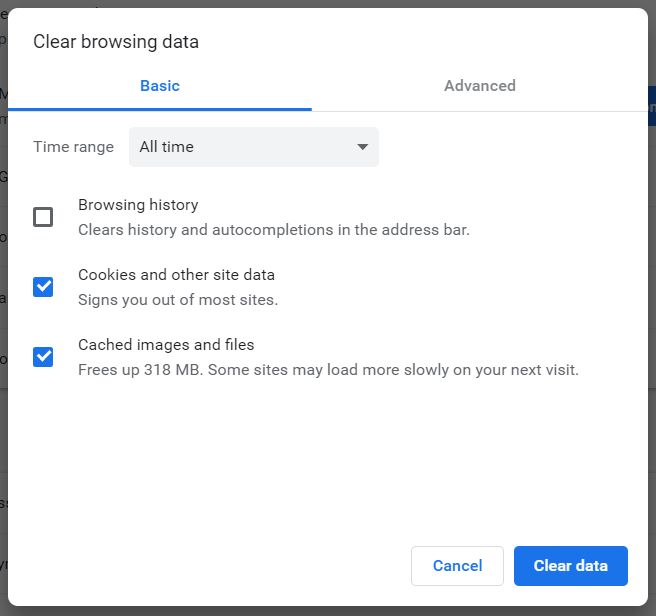
However, at times the users may face browser does not support cross-origin requests issues. This issue can be caused by multiple reasons including incorrect policy configuration as well as browser bugs.

Follow the steps give in this article to fix the browser does not support cross-origin requests issue in your computer.

In most cases, cross-origin request issues are the result of browser bugs. From that perspective, it’s clear that you need a stable and lightweight browser.

Quick Tip:

Opera One easily ticks both stable and lightweight, and at its core, it’s a designed with security in mind. So, it’s full of features that make it easy and safe to navigate, with a free proxy VPN built right into it.

The Opera One browser has features such as built in Ad blocker and AI. Also comes with workspaces and tab islands which will greatly help you organize.

Opera One

If your browser does not support cross-origin requests, download this friendly web app.
Free Download Visit website

How do I enable cross-origin in my browser?

1. Fix cross-origin issues in Firefox

Change Origin Policy Preference 

  1. Launch the Firefox browser on your computer.
  2. In the address bar type about:config and press OK.
  3. Now you will see This will void your warranty page.
  4. Click on I accept the risk! button.
    browser does not support cross-origin requests
  5. In the configuration page, search for security.fileuri.strict_origin_policy.
  6. Double-click on security.fileuri.strict_origin_policy.
  7. The Value column will change from True to False.
    browser does not support cross-origin requests
  8. Close and relaunch the Firefox browser. Try to make the request again and check for any improvements.

If the Firefox issue persists, try the next set of steps.

Use Firebug Add-on/Developer Tools

  1. Launch Firefox and load the page.
  2. Now try to access the page or perform the action that has resulted in the Cross-Origin Request Security issue.
  3. Now open Firebug and copy the URL of the page with the error.
  4. Load the page again in another tab on Firefox.
  5. Now the page will ask you to add the required certificate.
  6. Add the certificate and that should help you to resolve the Cross-Origin Request.

2. Fix cross-origin request security issue in Chrome

  1. Save any open tabs and close the Chrome browser if running.
  2. Click on start and type Chrome in the search box.
  3. Right-click on Google Chrome icon and select Open File Location.
  4. Right-click on the Google Chrome icon again in the File Explorer and select Properties.
  5. In the Shortcut tab, for Target, add –disable-web-security at the end.
    browser does not support cross-origin requests
  6. Click on the Apply button to save the changes. If asked to provide the system password, enter your password and click OK.
  7. Close the Properties window.
  8. Now open the Chrome browser and check the URL that was giving Cross-Origin Request issue.

If Chrome isn’t the browser you use, move on to the next step.

3. Fix cross-origin error in Internet Explorer

  1. Launch Internet Explorer and click Tools (Gear icon).
  2. Click on Internet Options.
  3. Go to the Security tab and click on the Custom Level button.
    browser does not support cross-origin requests
  4. In the Security Settings window, look for Access data sources across domains under the Miscellaneous section.
  5. Select the Enable button.
    browser does not support cross-origin requests
  6. Click OK to save the changes. Click OK again to close the window.
  7. Close and relaunch Internet Explorer again and check for any improvements.

And this is how you can fix this issue in case of using the Internet Explorer browser. Have you completed the above steps too?

Let us know how the procedure went for you in the comments area below.

  1. Launch the Control Panel and go to Network and Internet
  2. Click on Internet Options and go to the Security tab
  3. Click on the Custom Level button
  4. Under Miscellaneous locate the Access data sources across domains option
  5. Enable this option to turn on CORS access.
  • Can CORS prevent CSRF?

CORS cannot prevent CSRF (cross-site request forgery). One-click attacks cannot be prevented or blocked by CORS. Instead, users should take the following precaution measures: update your antivirus software, don’t save your Internet banking username and password in your browser, don’t open suspicious or unrequested emails and disable scripting in your browser.

Microsoft unites with other technology giants to “stay vigilant,” safeguard the 2020 U.S. election

As the 2020 Presidential election in the United States approaches, Microsoft is assuring American citizens that it will continue to coordinate with the government on election security. The company, along with a joint group of the other technology giants, said it will “stay vigilant” during election season and meet regularly with the government agencies tasked with protecting the integrity of the election.

With the group also consisting of Facebook, Google, Twitter, Reddit, Verizon Media, LinkedIn, Pinterest, and Wikimedia, Microsoft says it met with government officials recently. The company also detailed that all companies in the group provided updates on what they’re seeing on their platforms, and what’s expected in the coming months. A full joint statement from the group can be seen below.

“For the past several years, we have worked closely to counter information operations across our platforms. In preparation for the upcoming election, we regularly meet to discuss trends with U.S. government agencies tasked with protecting the integrity of the election. We held the latest in a series of meetings with government partners today where we each provided updates on what we’re seeing on our respective platforms and what we expect to see in the coming month. Specifically, we discussed preparations for the upcoming conventions and scenario planning related to election results. We will continue to stay vigilant on these issues and meet regularly ahead of the November election.”

This should come as no surprise. Microsoft has long been involved to help secure voting systems, and ensure fair and free voting across the world. In February of last year, the company expanded its AccountGuard cybersecurity service in Europe to combat election meddling. Then, in September, Microsoft open-sourced its specialized ElectionGuard voting software for voting systems. It was tested in February of this year in Wisconsin’s Supreme Court elections.

When it comes to fighting misinformation, meanwhile, Microsoft’s Bing search engine recently launched an election experience that aims to help voters make informed decisions. Microsoft’s Edge Browser also integrates with NewsGuard, which shows trust ratings for 4,500+ news and information sites.

How to display Office documents in your web browser

Many users don’t know this, but you can’t display Office documents in a browser natively. Almost all browsers require a plug-in or an additional service in order to do so.

Even though Office files aren’t natively supported, you can still open them in your browser, and today we’ll show you the best way to do that.

How can I open Office documents in a browser?

1. Use the online version of Office

  1. Go to the Office website.
  2. Select Sign in.
  3. Enter your Microsoft credentials.
  4. Now drag and drop your file in order to upload it to the OneDrive.
    onedrive online how to display office document in browser
  5. Once the file is uploaded, you can open it without any problems.

Alternatively, you can use Google Docs, but your files will be converted, so you might lose certain style or formatting settings during the conversion process.

For the best browsing experience, we recommend using the Opera One browser. This browser stands out in comparison to other popular browsers due to the many exclusive helpful features such as the built-in ad blocker, free VPN, native AI or Search in Tabs function.

Since all these tools are integrated with Opera One, they don’t act like extensions, slowing down the loading speed of your search engine, unlike with other browsers.

Overall, if you’re having issues with your browser, or you just want the best browsing experience, be sure to try Opera One.

Opera One

Manage your Office documents in Opera One and benefit from all the exclusive tools this browser provides.
Free Download Visit website

2. Use browser extensions

office chrome extension how to display office document in browser

Opera One has a few extensions that can help with viewing Office documents, and you can easily find them in the add-ons library.

To mention some plugins :

  • Open with Google Drive Viewer – opens many file formats on the condition that the files are online and publicly accessible.
  • Documents – opens not only Office formats, but also .xps, .tiff, .eps, .ai, and more, so it saves space and bandwidth on your device.

There are also two extensions available on Chrome that will help you OpenOffice documents in your browser.

There you go, two simple methods you can use to display Office documents in your browser. If you found our guide useful, let us know using the comments section below.

Microsoft Teams will soon get the ability to spotlight an individual video participant in a meeting

Microsoft is working on a new feature which will allow presenters to lock on an individual video feed for all meeting participants in Microsoft Teams. According to the Microsoft 365 Roadmap document, the feature is timed for a rollout beginning in September.

We are delivering the ability for presenters to lock on an individual video feed for all attendees to see during a Teams meeting. Once selected, the individual identified as the spotlight will be the main video shown to all participants. This applies to PC, Mac, mobile, and Microsoft Teams room systems.?

Indeed, this is one of the much-anticipated features, and it will come at a time when hundreds of organizations are currently relaying on Microsoft Teams for remote collaborations. The feature will make it easier for meeting attendees to focus on a specific person’s video who is currently talking.

In addition, a new Teams meeting pre-join experience is another new functionality coming to Microsoft Teams very soon. The improved experience will make it a bit easier for users to discover audio/video/device selection configurations before joining a Teams meeting.

Microsoft Teams has seen increased usage in recent months, and it’s good to see Microsoft focused on improving the meeting experience. Do you think that these features will help to reduce your meeting fatigue? Sound off in the comments section below.