Windows update error 0xc8000247? Fix it with these steps

Windows Automatic Update Service is responsible for downloading and installing new updates. However, this process can cause the Windows update error 0xc8000247 when Windows Update Service tries to search and install new updates.

This error can occur due to multiple reasons including Intel Matrix Storage driver creating conflict with the service. Fortunately, the error can be fixed by following the steps listed in this article.

If you are also troubled by this error, here are a couple of troubleshooting tips to help you resolve the Windows update error 0xc8000247 in Windows.


How do I fix the Windows update error 0xc8000247?

1. Uninstall Intel Matrix Storage driver

Windows update error 0xc8000247

Note: Do not follow these steps if Intel Matrix Storage driver acts a RAID controller at two or more hard drives.

  1. Press Windows Key + R to open Run.
  2. Type control and click OK to open the Control Panel.
  3. From Control Panel, go to Programs > Programs and Features.
  4. In the list of installed programs locate Intel Matrix Storage Driver.
  5. Select the program and click on Uninstall.
  6. Click Yes to confirm the action.
  7. Once uninstalled, restart the computer and check for any improvements.

Several users have reported that uninstalling the Intel Matrix Storage driver has helped resolve the error.

However, as mentioned earlier, the Intel Matrix Storage driver is crucial to keep your RAID functioning. Since it acts as RAID Controller, make sure you don’t follow these steps if the situation applies to you.


2. Run Windows Update troubleshooter

Windows update error 0xc8000247

  1. Click on Start and select Settings.
  2. Go to Update and Security.
  3. Select the Windows Update tab from the left pane.
  4. Scroll down and select Windows Update under Troubleshoot.
  5. Click the Run the Troubleshooter button.
  6. Follow on-screen instructions to scan the system for any update related issues.
  7. Apply the recommended fixes and close the troubleshooter.
  8. Try installing the update again and check for any improvements.

3. Update Intel Rapid Storage Technology driver

Windows update error 0xc8000247

  1. Go to Intel Drier and Software center.
  2. Download the latest version of the Intel Rapid Storage Technology driver.
  3. Alternatively, you can also download the Intel Driver Update Utility. It will automatically scan and recommend the latest available driver that you can install.
  4. Install the drivers and restart your computer. Check if updating the Intel Rapid Storage Technology driver helps resolve the issue.

4. Uninstall Norton antivirus

  1. If you have the trial version of Norton Antivirus installed, try uninstalling the software.
  2. Press Windows Key + R to open Run.
  3. Type control and click OK.
  4. Go to Programs > Programs and Features.
  5. Select Norton Antivirus and select Uninstall.
  6. Once uninstalled, download Norton Removal Tool and run it. It will remove any remaining traces of the antivirus and reboot the computer.
  7. Once done, run a manual check for Windows updates and check for any improvements.
  8. Install a different antivirus. Checkout Malwarebytes as it offers excellent protection.

The Windows update error 0xc8000247 can occur if you have an Intel Metrix Storage driver installed.

Apart from that a third-party antivirus and an incompatible Intel Rapid Technology driver can cause the error as well. Follow all the steps in this article one by one to fix the issue for good.

[wl_navigator]

Got the Error set user setting to driver failed? Fix it fast

If you are using a Lenovo laptop, you may encounter the set user setting to driver failed error. The error often occurs during boot but also displays at random intervals.

This error is related to the touchpad device on your laptop and can occur due to incompatible touchpad driver or incorrect driver installation.

If you are also troubled by this error, here are a couple of troubleshooting tips to help you resolve the set user settings to drier failed Windows 10 error.


How can I fix set user settings to driver failed error?

1. Rename apoint.exe file

set user settings to drier failed

  1. Open File Explorer.
  2. Navigate to the following location:
    C:Program Files (x86)
  3. Locate the Apoint2K folder and open it.
  4. Locate the apoint.exe file inside the Apoint2K folder.
  5. Right-click on the file and select Rename.
  6. Rename the folder as oldapoint.exe or something you like.
  7. Restart the computer and check if you encounter the error again.

What if you can’t find the folder?

set user settings to drier failed

  1. Wait for the error to appear again but don’t close the error.
  2. Open Task Manager.
  3. In the Process tab, go through the Apps section.
  4. Locate the Alps Pointing-device driver entry.
  5. Right-click on the process and select Open File Location.
  6. Once the folder opens, in the Task Manager, right-click on the process and select End Task.
  7. Rename the apoint.exe file and check for any improvements.

What if rename the file displays permission error?

set user settings to drier failed

  1. Right-click on the Apoint2K folder and select Properties.
  2. In the Properties window, open the Security tab.
  3. Click the Advanced button.
  4. In Advanced Security Settings window click the Change link next to ownership entry.
  5. In the Enter the object name to select window, type Everyone and click the Check Names button.
  6. Click OK to save the changes.
  7. In the Advanced Security Settings windows, click the Add button.
  8. Click the Select a principal button.
  9. Type Everyone and click Check Names.
  10. Click OK to save the changes.
  11. For Type, select Allow from the drop-down menu.
  12. In the Basic permissions window, check the Full Control box and click OK to save the changes.
  13. Close the properties window and check for improvements.

2. Reinstall touchpad drivers

set user settings to drier failed

  1. Press Windows Key + R.
  2. Type devmgmt.msc and click OK to open Device Manager.
  3. Expand Mice and other pointing devices section.
  4. Right-click on your touchpad device and Uninstall device. Click Yes to confirm the action.
  5. If you have Lenovo Vantage software installed, launch the app and scan for pending driver updates. Download and install any updates available for the touchpad.
  6. If not, in Device Manager, click Action and select Scan for hardware changes.
  7. Windows will scan for hardware changes and install basic Microsoft drivers for the touchpad.
  8. Close Device Manager and check for any improvements.

3. Disable Alps from service and startup

Disable Alps service

Windows driver failed

  1. Press Windows Key + R.
  2. Type services.msc and click OK to open Services.
  3. In the Services window, locate Alps SMBus Monitor Service on the list.
  4. Right-click on it and select Properties.
  5. Click the Stop button.
  6. Click the drop-down menu under Startup type, and select Disabled.
  7. Click OK to save the changes. Restart your computer and check if the error is resolved.

Disable Alps startup app

Windows driver failed

  1. Right-click on Taskbar and select Task Manager.
  2. Open the Startup tab.
  3. Locate the Alps Pointing Device app and select it.
  4. Click the Disable button to disable the app from startup services.

The set user settings to driver failed Windows 10 error occur due to driver conflict in the system. Follow all the steps in this article one by one and to resolve the error. Do let us know which method worked in the comments.

[wl_navigator]

Seeing the 0x87de0003 error on Xbox One? Fix it in 4 steps

After installing the Xbox firmware update, several users have reported the 0x87de0003 error on Xbox One. The error occurs when the user tries to launch an app or game and reads “Sorry, we were not able to start your game or app. Please try again. If you see this message again, please restart your console. (0x87de0003).

Other users have reported similar errors in the Microsoft community forum.

I was just done with work and thought to play a game of Destiny, when much to my dismay, I encountered the subject-line error.

If you are also troubled by this error, here are a couple of troubleshooting tips to help you resolve the 0x87de0003 Error on Xbox One.


How do I fix the 0x87de0003 error on Xbox One?

1. Check Xbox Live service status

Sorry, we were not able to start your game or app

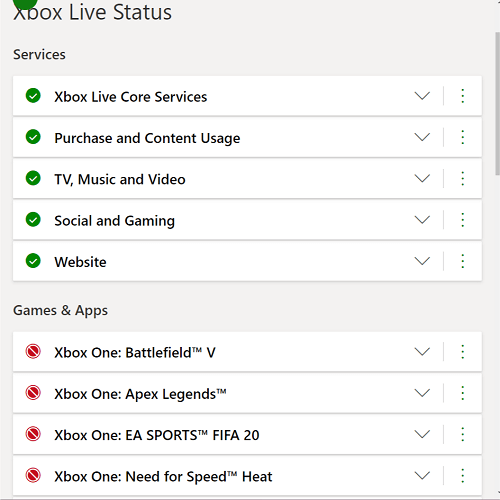
  1. In some cases, the 0x87de0003 error can occur if the Xbox Live services are down due to temporary issues.
  2. The users can easily verify if any of the Xbox Live services are down by accessing the Xbox Live Status page.
  3. In the Xbox Live Status page, make sure you go through both the Services and My Apps and Games section.
  4. Any game titles facing outage will be marked with a red dot.
  5. In this case, the users can’t do anything but wait till the issue is fixed by Microsoft.
  6. Login to your account to get updates on the service status.

2. Check your modem/router for issues

Sorry, we were not able to start your game or app

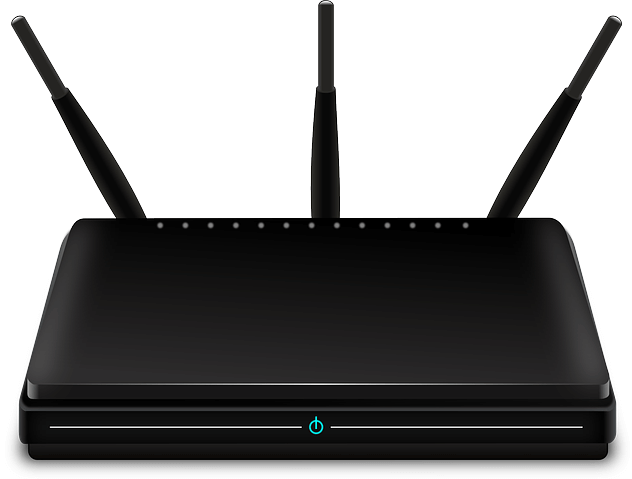
  1. Press the dedicated restart button or the power button to perform a quick reset of your modem.
  2. If not, unplug the router from the power source and leave it idle for a few minutes to complete the reset the process.
  3. If restarting the modem did not fix the issue, try resetting the modem.

Reset the modem/router

  1. Locate the reset button on your modem at the back of the router/modem.
  2. Use any object with a tip and press and hold the Reset button for 10 seconds.
  3. The LEDs will start blinking intermittently once the reset process is complete.

Note that resetting the modem/router will restore the device to factory default, thus removing all the saved network settings. After the reset is complete, make sure you set up the router from scratch.


3. Perform a power cycle

  1. Make sure the Xbox is powered on.
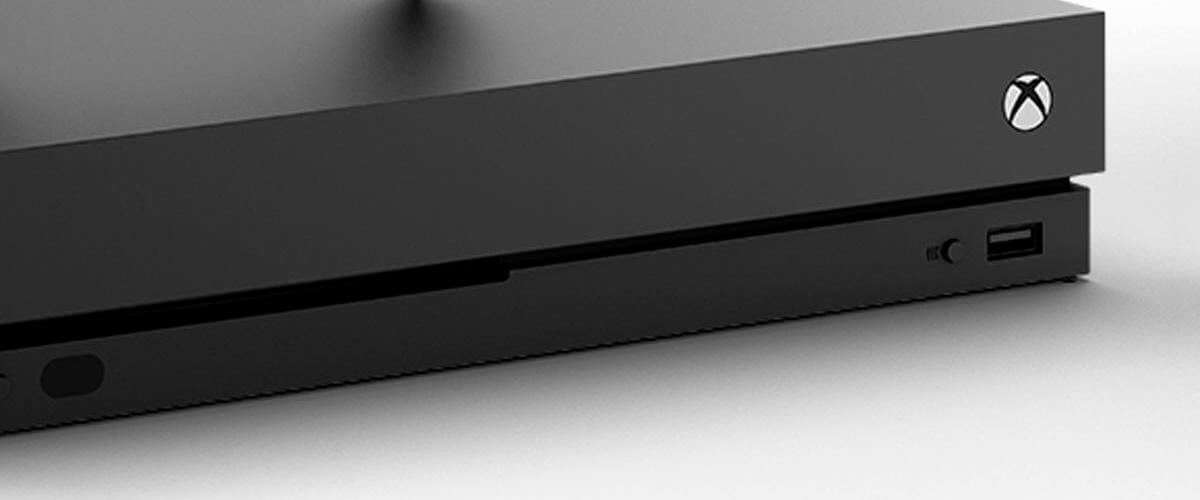
  2. Press and hold the Xbox button on the console for 10 seconds until the console is completely shut down.
  3. Remove all the cables connected to the console, including the power cord from the wall outlet.
  4. Leave the console idle for a few minutes.
  5. Reconnect all the cables to the console and press the Xbox button again to power on the device.
  6. After the restart, try launching an app and check for any improvements.

4. Reset the console

0x87de0003 Error on Xbox One

  1. Press the Xbox button the controller.
  2. Select System and then choose Settings.
  3. Select System and then open Console Info.
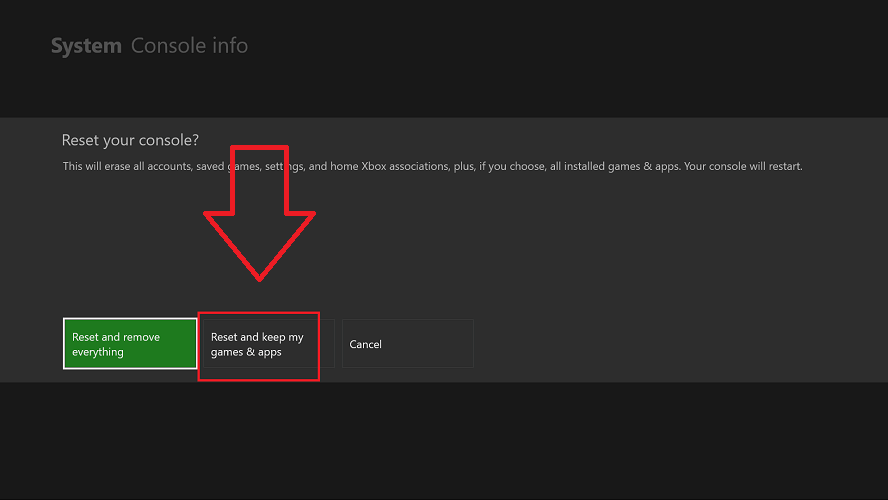
  4. Under Console Info open Reset console option.
  5. Under Reset your console screen, you have multiple reset options:
    Reset and keep my games and apps – This option will reset the OS and remove and repair corrupted system files but keep all your games and other data.
    Reset and remove everything  – Use this option as a last resort. It will all the games and files from your console and restore it to factory default.
  6. Once the console is reset (using Reser and keep my games and apps) try launching the app again and check for any improvements.

The 0x87de0003 Error on Xbox One can get triggered due to multiple reasons. While the most common reason for this error is Xbox Live service outage, it can also occur due to other factors like corrupted system files and internet issues.

Follow all the steps in this article one by one and let us know which method helped you resolve the error in the comments.

[wl_navigator]

Seeing the 0x89234020 error on Xbox One? Fix it easily

When trying to connect to a friend’s chat or party during gaming sessions, you may encounter the 0x89234020 error on Xbox One. The issue can occur due to issues with closed NAT. However, it is also known to occur if the issue is with the ISP.

One user reported a similar error in the Microsoft community forum.

I am unable to connect to one specific friend in party chat and most games. Both NAT types are open, both have reset Mac Addresses, both have no issue connecting to other players, unless my one specific friend is already in the party or game. Any ideas?

If you are also troubled by this error, here are a couple of troubleshooting tips to help you resolve the 0x89234020 error on Xbox One.


How do I fix the 0x89234020 error on Xbox One?

1. Check if the NAT is closed

0x89234020 error on Xbox One

  1. Make sure that your Xbox One console is connected to the network.
  2. Open the default web browser and type the following address:
    192.168.0.1 or 192.168.1.1
  3. If the default does not work, check your router’s manual for the correct address to access the settings.
  4. Log in to the page with the user credentials. The default user credentials for the router is admin and 1234.
  5. Open the Advanced tab.
  6. Expand NAT Forwarding option.
  7. Make sure the UPnP option is enabled. The steps to access the UPnP setting can vary depending on the router manufacturer.
  8. Once the UPnP option is enabled, restart your router as well the console.
  9. Try connecting to the party again and check for any improvements.

Several users have reported that enabling the UPnP option has helped them resolve the issue. Enabling UPnP allows all applications and games to forward the ports automatically, thus resolving any connectivity issues.


Disney Plus is not downloading on Xbox One? Try this


2. Perform a power cycle

  1. Make sure the Xbox Console is powered on.
  2. Press and hold the Xbox button on the console for about 10 seconds.
  3. Release the button once the console is fully shutdown.
  4. Remove all the cables connected to the console including the power cord.
  5. Leave the console idle for a few minutes.
  6. Reconnect all the cables and the power cord to the wall outlet.
  7. Press the Xbox button on the console to turn it on.
  8. Once powered on, try joining the party and check for any improvements.

3. Restore your router to factory default

0x89234020 error on Xbox One

  1. Check your router’s back for a reset button or a small hole labeled as Reset.
  2. Press the button if available. If it’s a hole, use a sharp object with a tip, press and hold for at least 20 seconds.
  3. When the lights on the router blink, it means the router is successfully reset.

When you restore a router to factory default, all of the router settings are set to factory default thus removing any changes you may have made to the router.  Make sure you make appropriate changes once the router is reset.


4. Update your router’s firmware

Xbox One connection error

  1. Open your web browser and type in the default IP address to access the admin page.
  2. Enter the user credentials to log in.
  3. Locate the Firmware or Router Upgrade option.
  4. Check the current version of the firmware installed on your router.
  5. Navigate to your router manufacturer’s website and check for any pending updates.
  6. Make sure you download the update.
  7. From your router’s settings page, there should be a Browser or Choose File button.
  8. Select the downloaded firmware and click Open to install it.
  9. Once the router is updated, check for any improvements.

For more detailed instructions on how to update the router’s firmware, follow how to update your router’s firmware.


The 0x89234020 error on Xbox One usually occurs if there is an issue with NAT. However, follow all the steps in this article one by one to resolve the issue with your Xbox One console.

[wl_navigator]

Got the Windows 10/11 update error 0x80240061? Fix it fast

After clean installing Windows 10 you may encounter some driver-related errors due to incompatible drivers. One such error is Windows 10 update error 0x80240061.

This error can occur due to several reasons including incompatible drivers as well as issues with the Windows update. Similar issues are also reported in the Microsoft community forum.

After a clean install of Windows 10 – 1803 final version.
Update try to download driver for my Sound Blaster Audigy 2 and get the next error.
CREATIVE driver update for SB Audigy: Error 0x80240061

If you are also troubled by this error, here are a couple of troubleshooting tips to help you resolve the Windows 10 update error 0x80240061.

How do I fix Windows 10 update error 0x80240061?

1. Update Intel Management Engine Interface

Windows 10 update error 0x80240061
  1. Press Windows Key + R to open Run.
  2. Type devmgmt.msc and click OK to open Device Manager.
  3. In Device Manager, expand the System Devices option.
  4. Right-click on Intel Management Engine Interface and select Properties.
  5. Open the Driver tab.
  6. Click on the Update Driver button.
  7. Select Search automatically for updated driver software option.
  8. Wait for Windows to scan and install the updated version of the driver.
  9. Once installed close Device Manager and restart the computer. Check for any improvements.

Updating the Intel Management Engine Interface driver can help you resolve the issue if the error message displays the device to be causing the problem.

Manually update Intel Management Engine Interface driver

Windows 10 update error 0x80240061
  1. Download the latest version of the Intel Management Interface driver from the Intel website.
  2. After that, press Windows Key + R to open Run.
  3. Type devmgmgt.msc and click OK to open Device Manager.
  4. Expand the System Devices option.
  5. Right-click on Intel Management Engine Interface driver and select Update Driver.
  6. Select Browse my computer for driver software option.
  7. Locate and select the downloaded Intel driver and click Open.
  8. Install the driver and check for any improvements.

Besides, you have the option to update any driver from your PC using automatic support and proceed with updating or installing drivers correctly with Fortect Driver Updater.

2. Try alternate Intel driver for HP laptops

Windows 10 update error 0x80240061
  1. If the error is occurring on your HP laptop, try installing an alternate driver suggested in the HP forum.
  2. Download and install Intel Management Engine Interface Driver from here.
  3. Follow the previously listed steps to install the driver manually from Device Manager.
  4. Once installed, reboot the computer and check for any improvements.

3. Manually install drivers for your device

Windows update error
  1. If the error is caused when downloading an update for a peripheral device like a sound blaster, try updating the driver manually.
  2. You can download the latest version of the driver compatible with your device from the official website.
  3. For example, if you have a Sound Blaster from Creative you can download the latest version of the driver from the Creative support page.

4. Update the BIOS

Windows update error
  1. If the issue persists, try updating the BIOS.
  2. Depending on your motherboard manufacturer, you can perform the update process automatically from the BIOS interface.
  3. Alternatively, you can also use the BIOS flash tool to install the update.
  4. For laptop users, the BIOS updates are available on the laptop manufacturer’s official website.
  5. For desktop users, check your motherboard manufacturer’s website for any pending updates.

The Windows 10 update error 0x80240061 is caused by an incompatible driver and can be resolved by installing a newer version of the driver directly from Device Manager or through a manual process.

Follow all the steps in this article and let us know which method helped you resolve the issue in the comments.

Power BI has a new page view for Paginated Reports

Microsoft announced on the Power BI blog a new page view option for Paginated Reports in the Power BI service. With the new page view option, the paginated reports look more like a page when you view them in a browser.

Of course, you still have the option to change parameters, click on links in the reports, and so on.

How can I use the new page view option in Power BI?

  1. Click on the new View menu from your toolbar when you see a paginated report. 
  2. Change from the Default view to the Page View (Preview)how to open page view in PowerBI


After you change the view, your report will be displayed as a page in a browser. That will trigger opening it using the browser’s PDF rendering capability.

How can I change the layout of the report?

The layout of the report depends on the report size settings that were set by the author. You can change them if you select the Page Settings from the View menu.

Change the view settings
You will see a new window where you can set the page size and orientation to your liking.

Page View is supported in Google Chrome and Microsoft Edge browsers. Make sure that viewing PDFs in the browser is enabled. It’s the default setting for these browsers.

Page View isn’t supported in Internet Explorer and Safari, so the option is disabled. It also isn’t supported in browsers on mobile devices, or in the native Power BI mobile apps.

, adds Microsoft in the Power BI website.

Drop us a line in the comments to tell us how you feel about this new feature.

[wl_navigator]

Windows 10/11 Photos app not scrolling? Follow these steps

Windows 10 comes with the Photos app as its default photo viewer. However, some users have reported Windows 10 Photos app not scrolling issues after opening a photo from a folder.

Several users have reported similar issues in the Microsoft community forum.

I just got Windows 10, the default app associated with photos is Photos. Then I tried double clicking on a photo and can no longer go through all the other pictures in that same folder. I also cannot fin dthe WPV as an option. I tried the registry hack mentioned in other threads but that did not work.

If you are also troubled by this error, here are a couple of troubleshooting tips to help you resolve the Windows 10 Photos app not scrolling issue in no time.

How do I fix the Windows 10 Photos app not scrolling problem?

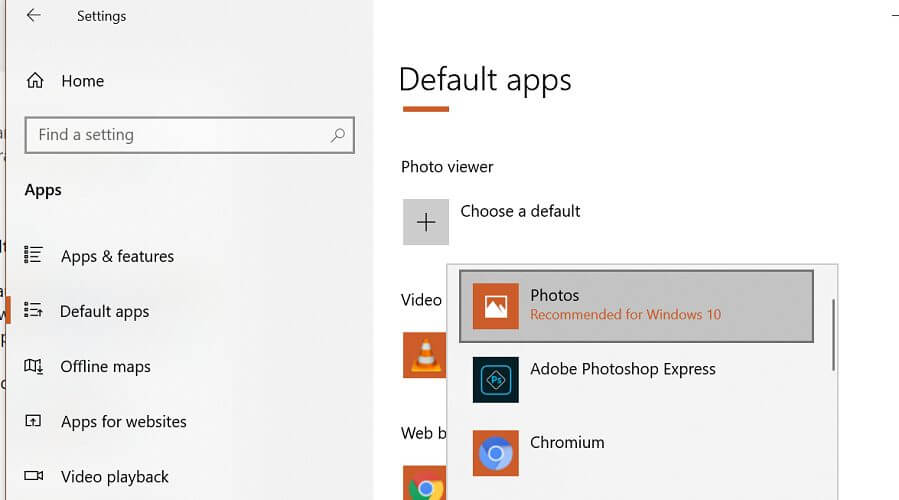
1. Set Photos app as the default

Windows 10 Photos app not scrolling
  1. Click Start and select Settings.
  2. Click on Apps.
  3. Select the Default Apps tab from the left pane.
  4. Scroll down to the Photo viewer.
  5. Click the Choose a default button.
  6. Select the Photos app from the list of installed apps.
  7. Close the Settings window.
  8. Open the pictures that you want to view and check if you are able to scroll through the pictures.

If the Photos app is not set as a default photo viewer the scrolling function may not work as the app is not set to view all the photos. Try setting the Photos app as default and check for any improvements.

2. Select and scroll the photos

Windows 10 Photos app not scrolling
  1. If the issue persists, you can select all the photos you want to scroll through and open them in the Photos app.
  2. Open the folder where your photos are saved.
  3. Select all the photos that you want to scroll through. You can press Ctrl + A to select all the photos inside a folder.
  4. Once selected, right-click on any of the photos and choose Open.
  5. The Photos app will display the selected picture. However, if you scroll through you can go forward and backward to view all the photos in the folder.

This is a workaround but works fine in case setting the Photos app as the default photo viewer did not resolve the issue.

3. Reset the Photos app

Windows 10 Photos app not scrolling
  1. Click Start and select Settings.
  2. Go to Apps.
  3. Search for Photos app in the search bar.
  4. Select the Photos app and click on Advanced Options.
  5. Scroll down to the Reset section.
  6. Click the Reset button.
  7. Click Yes to confirm the action.
  8. Close the Setting window and try opening the pictures again.

4. Re-register the Photos app

Windows 10 Photos app not scrolling
  1. Right-click on the Start button.
  2. Select Windows PowerShell (Admin). Click Yes if prompted by UAC (User Account Control).
  3. In the PowerShell window, enter the following command and hit enter to execute:
    Get-AppxPackage -allusers Microsoft.Windows.Photos | Foreach {Add-AppxPackage -DisableDevelopmentMode -Register “$($_.InstallLocation)AppXManifest.xml”}
  4. This will reregister the Photos app and fix any issues with the application.
  5. Open the photos and check if the scroll function is working again.

The Windows 10 Photos app not scrolling issue can occur due to a glitch with the Photos app or if the app is not set as default photo viewer in Windows.

Follow all the steps in this article and let us know which method helped you resolve the issue in the comments.

Microsoft sets up Windows 10 2004 support pages

Microsoft has created the first two Windows 10 2004 support pages. The much awaited OS or the May 2020 Update is arriving in general availability anytime today or tomorrow.

As you may know, Microsoft had finished up the design and development of the OS by December last year. But Windows 10 2004 has been receiving critical feature enhancements and bug fixes since.

Only insiders have been able to test the May 2020 Update experience so far, though that will change soon.

Two Windows 10 2004 support pages are now live

Microsoft will be listing any active issues with the latest operating system on one of the support pages. The OS has not launched yet, so if you head on over there, you will not see any listed bugs.

But you can always come back later and press CTRL + F to look up any specific issue with the May 2020 Update.

The other page will be featuring resolved Windows 10 issues. It also does not list any issues in the meantime.

Some remarkable features and improvements are coming with version 2004. Of these, one of the most anticipated is the new Cortana app. The chat-based smart assistant will be productivity-focused, unlike what it used to be before.

Also, when you update your PC with the latest OS, you will be able to use Windows Hello in your system’s safe mode. The biometric authentication feature will give you system access so you can troubleshoot any hardware.

We’ve compiled a longer list of useful features that the May 2020 Update is bringing. Be sure to check it out!

In other related news, a post by Twitter user THaarala shows the OS listed in the Microsoft Volume Licensing Service Center (VLSC). That appearance also reinforces expectations that Windows 10 version 2004 is coming out in a matter of hours.

VLSC is one of the channels on which volume license media is made available every time Microsoft releases a new version of Windows 10.

Are you looking forward to downloading Windows 10 version 2004? Feel free to share your thoughts or ask any questions via the comments section below.

[wl_navigator]
Seeing the Outlook error 0x80040201? Fix it fast in 3 steps

When sending an email to a recipient, the users have reported the Outlook error 0x80040201. This error can occur due to several reasons, including incorrect STMP settings, antivirus blocking the connection, or even Outlook add-ins.

Several users have reported similar issues in the Microsoft community forum:

Outlook would at first fail to send and then also not allow me to save my email (very frustrating). I eventually rebuilt the email and addressee list and sent again, receiving immediately an unknown send error 0x80040201

If you are also troubled by this error, here are a couple of troubleshooting tips to help you resolve the Outlook sending error 0x80040201.

How do I fix the Outlook error 0x80040201?

1. Check your antivirus program

Outlook sending error 0x80040201
  1. Begin with disabling third-party antivirus installed on your computer.
  2. Antivirus can often block connections sent by the Outlook client resulting in a network error.
  3. To disable the antivirus temporarily, do the following.
  4. Right-click on the Antivirus icon in the system tray and select Disable protection temporarily.
  5. Some antivirus like Avast allows you to disable protection for  4-20 minutes after which it will enable the protection again.
  6. Once disabled, launch Outlook and try sending an email.
  7. If the issue is resolved, add the Outlook client to the whitelist.
  8. Alternatively, look for an alternative antivirus solution that does not block the connection from legitimate apps.

2. Check for add-in issues

Outlook sending error 0x80040201
  1. Press Windows Key + R to open Run.
  2. Type the following and click OK:
    Outlook /safe
  3. The above command will launch the Outlook client in a safe mode.
  4. Once in the safe mode, try sending an email to a recipient and check if the error is resolved.

If the error does not occur in safe mode, you may have third-party add-ins creating issues with the client’s functionalities.

  1. Launch Outlook.
  2. Go to File and select Options.
  3. From the left pane, select the Add-in tab.
  4. Disable/remove all the third-party add-ins. Begin with uninstalling the most recently installed add-ins first.
  5. Once the add-ins are removed, relaunch the Outlook client and check for any improvements.

3. Clear the Autocomplete list

Outlook sending error 0x80040201
  1. Launch the Outlook client.
  2. Click File and select Options.
  3. Open the Mail tab from the left pane.
  4. Scroll down to Send Messages section.
  5. Click the Empty Auto-Complete List button.
  6. Click OK to save the changes.
  7. Now try to send an email and check for any improvements.

The Outlook sending error 0x80040201 can occur due to various reasons. However, most of the time, these minor issues cause the problem.

Follow all the steps listed in this article to fix the error and get your Outlook client functioning again.

Got the Microsoft Outlook error 0x800CCC1A? Try these steps

Previously we have covered multiple articles on Outlook errors that may pop-up when sending en email to a recipient. The Microsoft Outlook error code 0x800CCC1A is one such error as well.

As reported by the users in the Microsoft community forum, this error occurs when sending emails from the Outlook client:

I have outlook 2013 and use a yahoo email address and can receive email but cannot send it out. I have tried everything I have found on the internet to solve the problem but nothing works.

If you are also troubled by this error, here are a couple of troubleshooting tips to help you resolve the Microsoft Outlook error code 0x800CCC1A with ease.


How do I fix the Microsoft Outlook error code 0x800CCC1A?

1. Disable encrypted connection (SSL)

Microsoft Outlook error code 0x800CCC1A

  1. Launch Outlook.
  2. Click File.
  3. Click on Account Settings and select Account Settings.
  4. Select your email ID and click the Change button.
  5. Click More Settings.
  6. Open the Advanced tab.
  7. For Use the following type of encrypted connection, click the drop-down menu and select TLS if SSL is selected. If TLS is selected, choose SSL.
  8. Click OK to save the changes.
  9. Restart Outlook and check if it fixes the issue.

2. Disable Antivirus

Microsoft Outlook error code 0x800CCC1A

  1. If the issue persists, try disabling your antivirus temporarily.
  2. Third-party security programs installed on your system can cause an issue with the Outlook connection.
  3. Right-click on the antivirus icon from the system tray icon.
  4. Select Disable protection temporarily option.
  5. You can also launch the antivirus program and temporarily disable protection.
  6. Once disabled, try to send an email and check for any improvements.

3. Repair damaged profile

Microsoft Outlook error code 0x800CCC1A

  1. Open File Explorer.
  2. Navigate to the following location:
    C:Program Files (x86)Microsoft OfficeOffice 16
    or C:Program Files (x86)Microsoft OfficerootOffice16
  3. Inside the Office folder, search for scanpst.exe file.
  4. Double-click on the SCANPST.EXE.
  5. This will launch a Microsoft Outlook inbox repair tool.
  6. Click the Browser button and navigate to the following location:
    C:UsersusernameAppDataLocalMicrosoftOutlook
  7. Select the .ost file and click Open.
  8. Click the Repair button to begin the repairing process.
  9. Close the troubleshooter and check for any improvements.

4. Change IMAP and SMTP port

Microsoft Outlook error code 0x800CCC1A

  1. Launch Outlook.
  2. Click File > Account Settings > Account Settings.
  3. Select your profile and click Change.
  4. Click More Settings.
  5. Open the Advanced tab.
  6. For ‘Use the following type of encrypted connection‘ make sure SSL is selected.
  7. Change the port value for the following properties:
    IMAP to 993
    SMTP to 587
  8. Change the SMTP encryption type to STARTTLS.
  9. Click OK and then restart Outlook.
  10. Check if you can send an email and if the error is resolved.

The Microsoft Outlook error code 0x800CCC1A can occur due to various reasons including incorrect port, incorrect encryption type, corrupted Outlook profile, and third-party antivirus blocking connections.

Follow all the steps in this article and let us know which method helped you resolve the issue in the comments.

[wl_navigator]

Nvidia Screen Tearing on Windows 10: 6 Ways to Eliminate it

There are a series of display issues encountered by users on their PCs. One common problem is the Nvidia graphics card screen tearing issue on Windows 10.

This issue often occurs due to a discrepancy between a video’s refresh rate and the system’s graphic settings. Irrespective of the cause, this guide will walk you through the steps to fix it quickly.

Why am I getting Nvidia screen tearing on Windows 10?

Below are some of the potential causes of this Nvidia screen tearing issue on Windows 10:

  • Faulty or outdated driver: If your graphics driver is faulty or outdated, you will likely experience screen tearing on a Windows 10 desktop or laptop. The solution to this is to reinstall or update your driver.
  • Low power settings: Sometimes, this issue might occur because you use the balanced power plan for intensive activities. To prevent this, you need to switch to a high-performance power plan.
  • Wrong display settings: In some cases, this issue can be due to incorrect display settings on your PC or in-game. You need to tweak the settings accordingly to solve the problem.

How can I fix the Nvidia screen tearing on Windows 10?

Below are some preliminary troubleshooting steps to try before exploring the sophisticated solutions in this section:

  • Use another browser
  • Turn off the frame limit in games

If the steps above do not work, you can now proceed to the fixes below:

1. Disable/ Enable Vsync

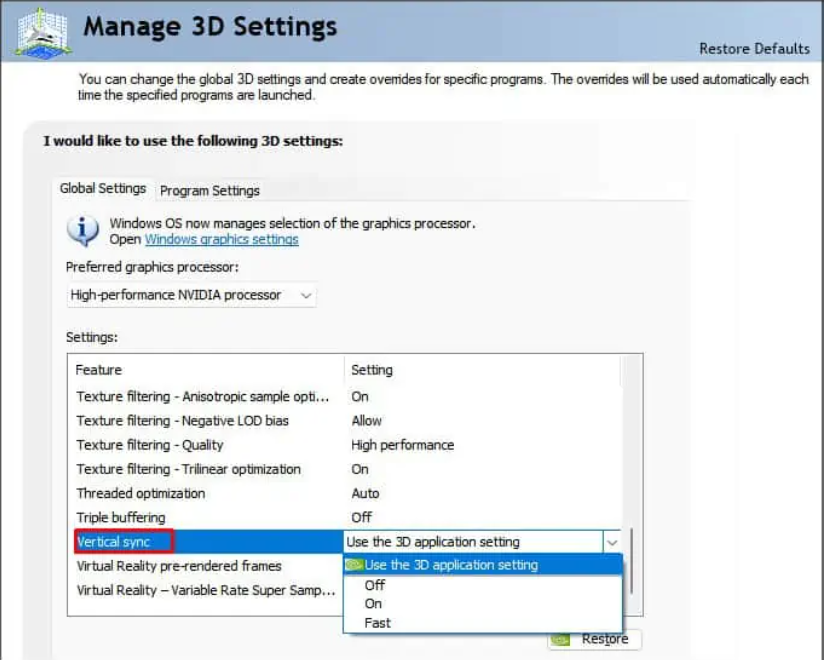
  1. Right-click on any space on your desktop and select NVIDIA Control Panel.
  2. Select the Manage 3D settings option under 3D settings.
  3. Now, click Vertical Sync and choose the On option if it’s turned off and vice versa.
    vsync nvidia screen tearing windows 10

According to users, the Vertical Sync feature of the Nvidia graphics card can cause screen tearing issues. The quickest way to fix this is to disable the feature.

2. Change the display resolution

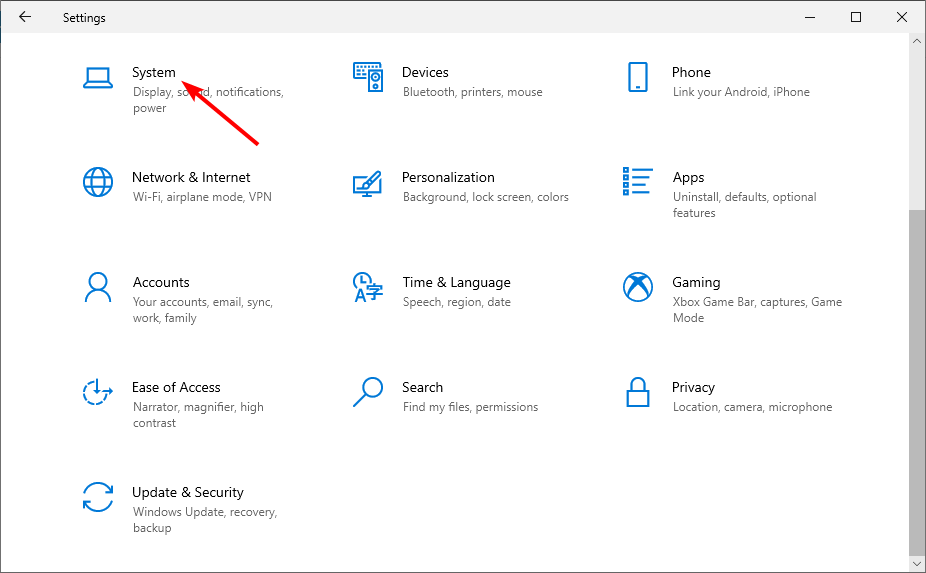
  1. Press the Windows key + I and select the System option.
    system
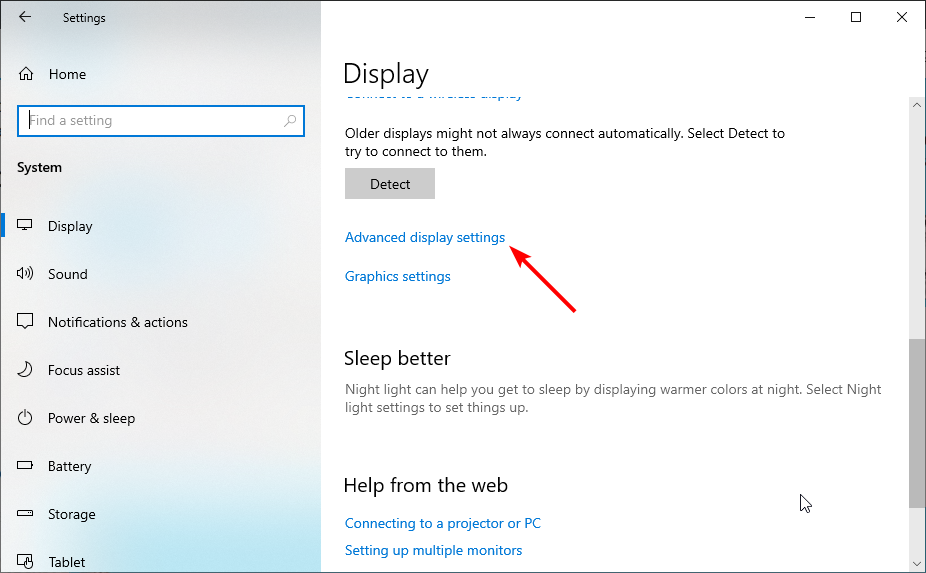
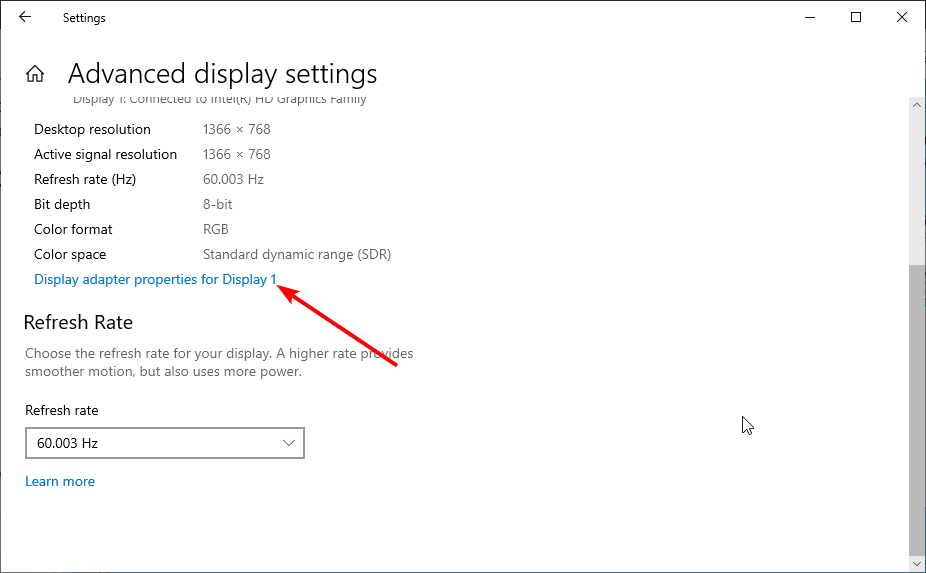
  2. Select Advanced display settings.
    advanced display nvidia screen tearing windows 10
  3. Now, click Display adapter properties for Display 1 to change your display settings.
    display adapter
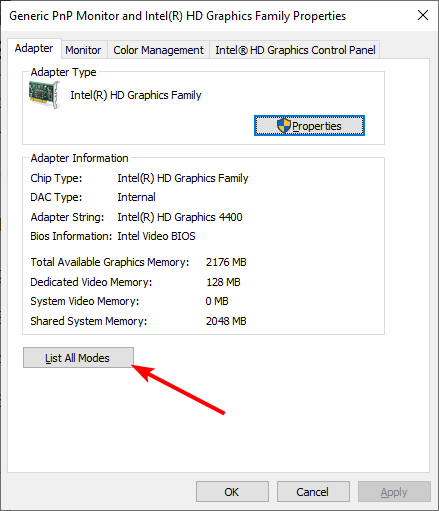
  4. Next, click the List all modes button in the new window.
    list all nvidia screen tearing windows 10
  5. Finally, choose a suitable resolution and restart your PC.

One of the prominent reasons for the Nvidia screen tearing issue on Windows 10 is the wrong resolution setting. However, with the steps above, you should be able to rectify that.

Note that you might need to try two or more resolutions to find the one that works best for you.

3. Disable smooth scrolling

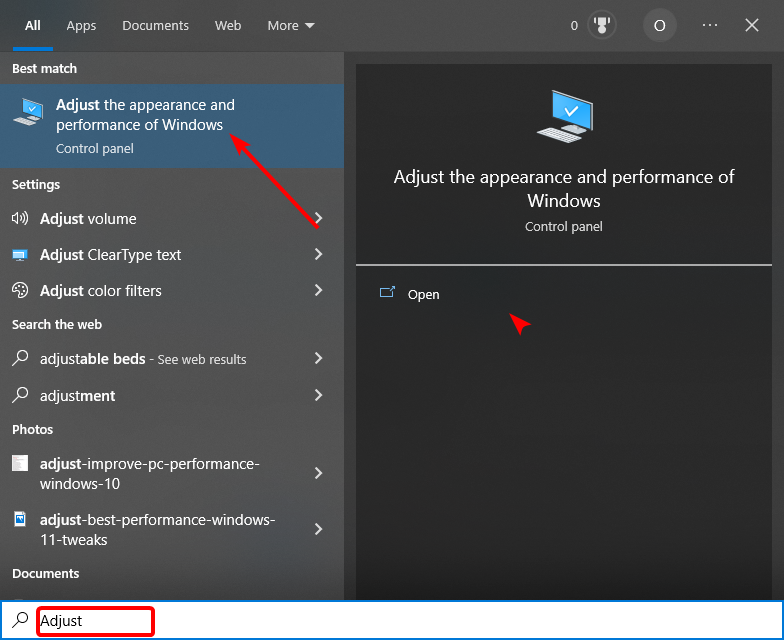
  1. Press the Windows key, type adjust, and choose Adjust appearance and performance of Windows.
    adjust
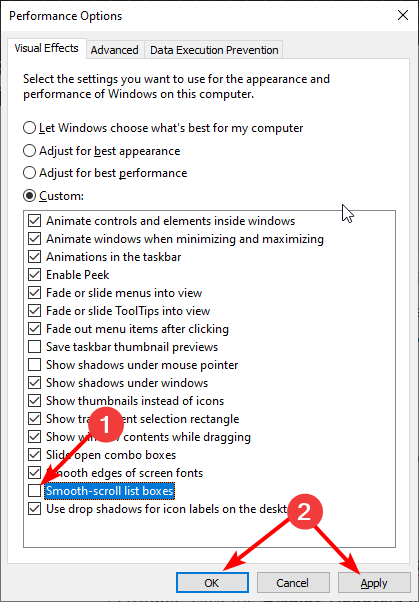
  2. Uncheck the box for Smooth-scroll list boxes.
  3. Finally, click the Apply button, followed by OK, and restart your PC.
    smooth

While the smooth scrolling feature is excellent, it is not essential. Hence, you can disable it, as some users complain that it is the cause of the Nvidia screen tearing issue on Windows 10.

4. Update/ reinstall your graphics driver

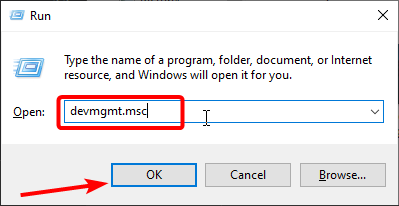
  1. Press the Windows key + R, type devmgmt.msc, and click OK.
    devmgmt nvidia screen tearing windows 10
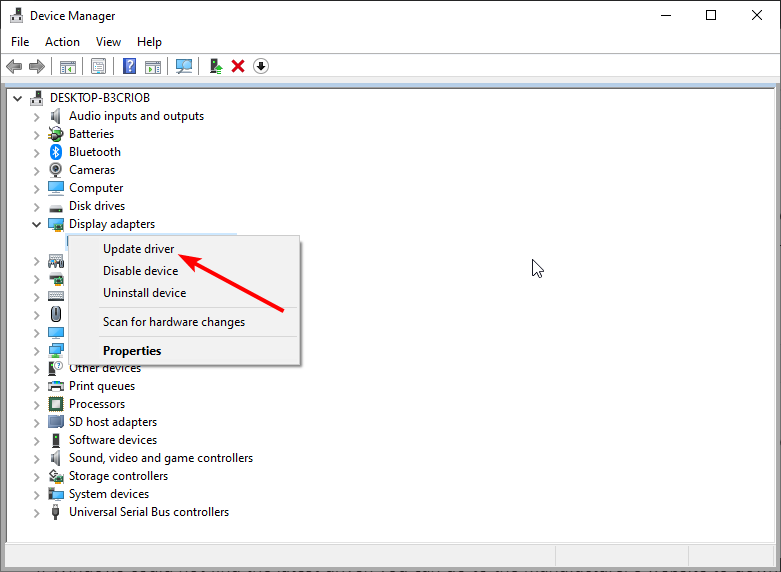
  2. Double-click the Display adapters option to expand it, and right-click your graphics card.
  3. Now, select the Update driver option.
    update driver
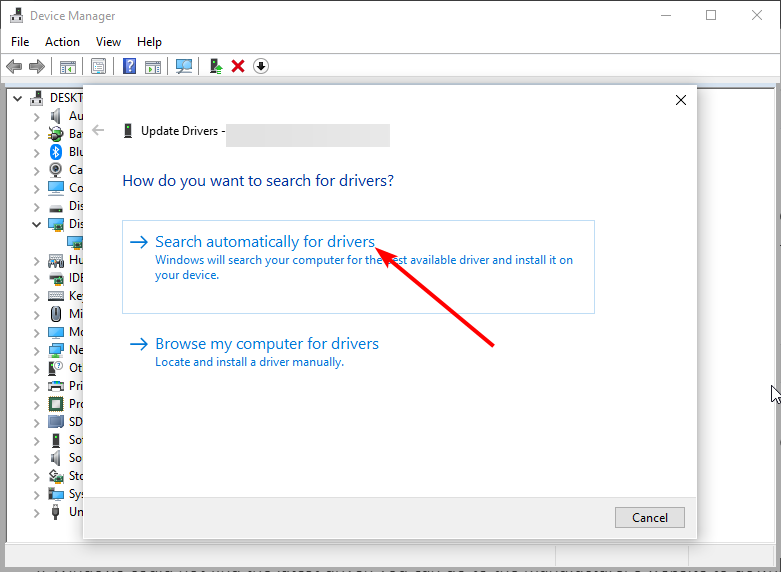
  4. Finally, select Search automatically for drivers and install any available update.
    search auto

If Windows cannot find the latest driver, you can go to the manufacturer’s website to download it. Should this not fix the issue, follow the steps below to reinstall your display driver:

  1. Repeat steps 1 and 2 in the solution above.
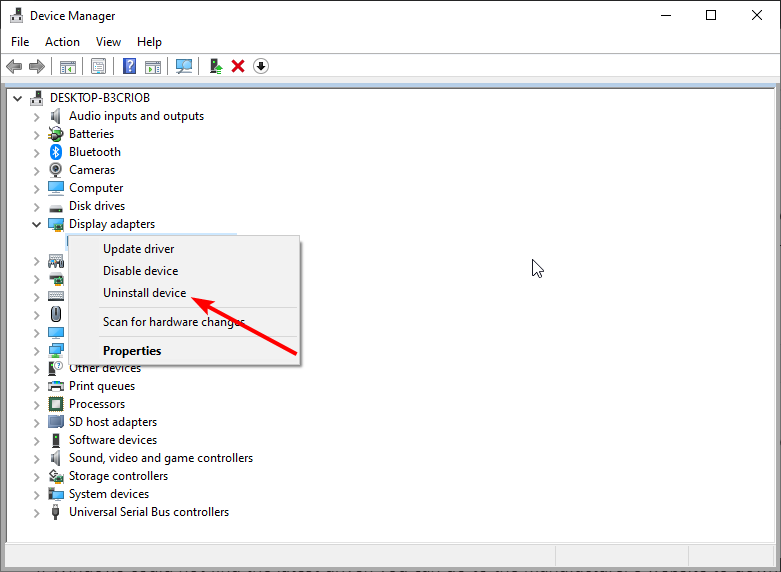
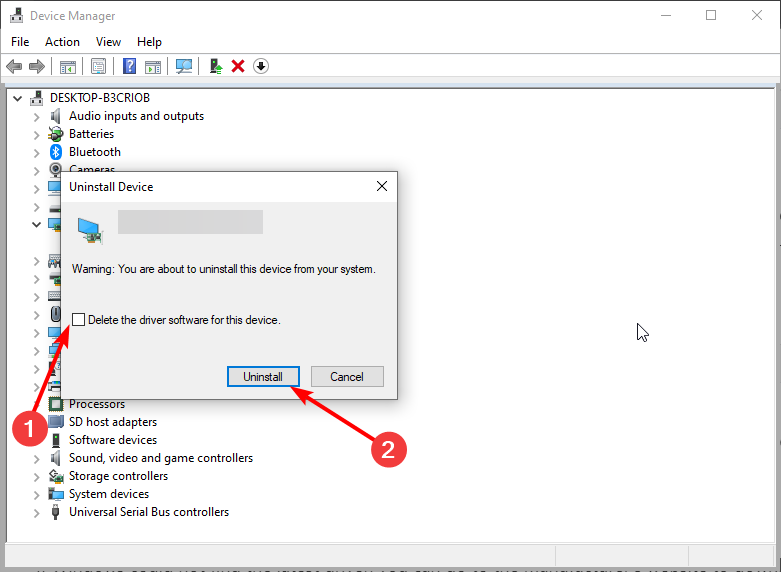
  2. Select the Uninstall device option instead of the Update driver.
    uninstall device nvidia screen tearing windows 10
  3. Now, check the box Delete the driver software for this device and click the Uninstall button to confirm the action.
    uninstall button
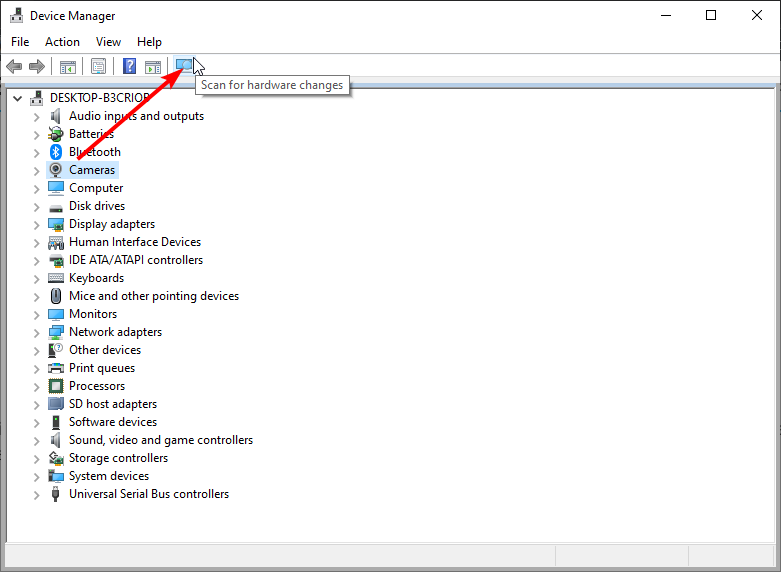
  4. Finally, restart your PC and click the Scan for hardware changes icon at the top.
    scan for

With this, you should be able to fix the Nvidia screen tearing issue on your Windows 10 PC. If you still have problems after restarting your PC, you can manually reinstall the driver from the manufacturer’s website.

However, to make things easier, we advise using a dedicated driver updater in Fortect Driver Updater to update and fix issues with your driver.

This tool automatically scans for outdated drivers and updates them before they can cause issues. Also, it repairs and replaces broken and missing drivers. With this, you can easily prevent problems like Nvidia screen tearing on Windows 10.

⇒ Get Fortect Driver Updater

5. Turning off Game Mode and Full-Screen Optimization

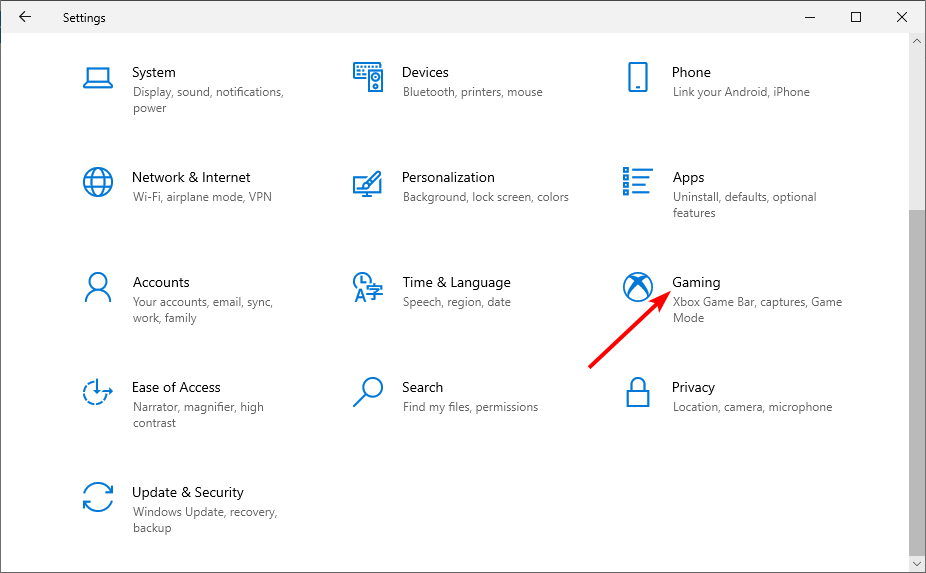
  1. Press the Windows key + I to open the Settings app and select Gaming.
    gaming
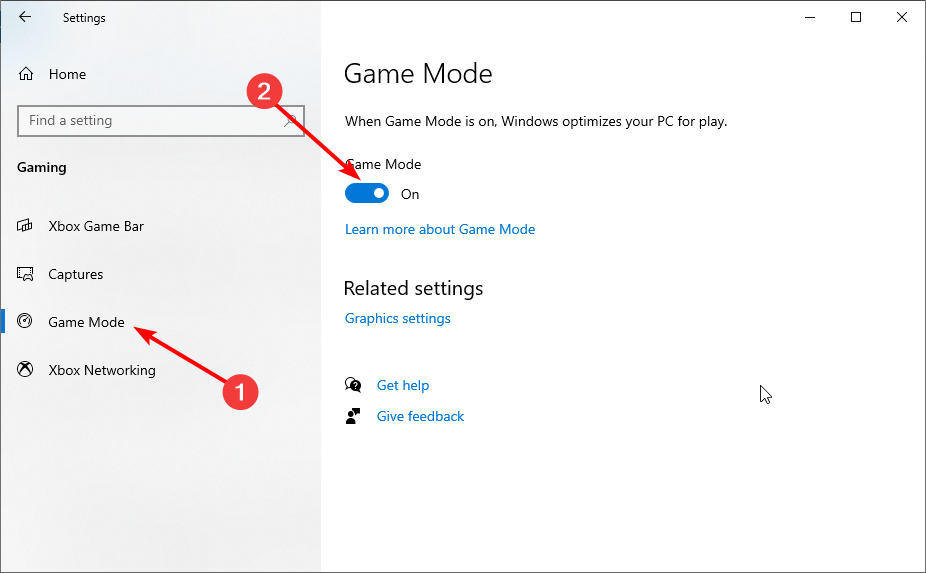
  2. Select Game Mode in the left pane.
  3. Now, toggle the switch under the Game Mode backward to disable it.
    game mode
  4. Restart your computer to see if the tearing is gone.

If you still face the Nvidia screen tearing on your Windows 10 PC, you can try disabling the full-screen optimizations.

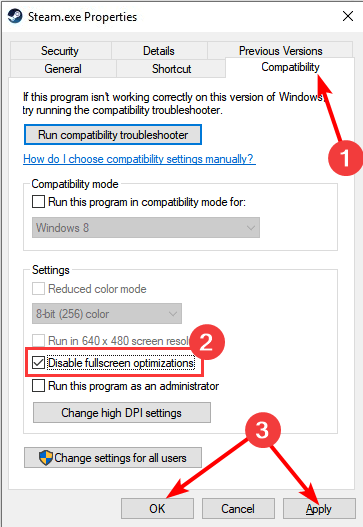
  1. Right-click the game icon you are experiencing this issue on and select Properties.
  2. Click the Compatibility tab at the top.
  3. Finally, check Disable fullscreen optimizations and click the Apply button followed by OK.
    full screen nvidia screen tearing windows 10

After doing this, you should be able to fix the Nvidia screen tearing issue on Windows 10.

6. Switch to the high-performance plan

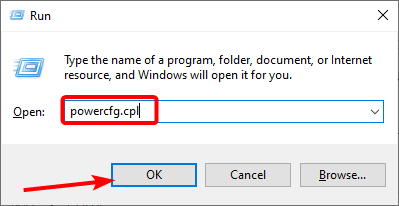
  1. Press the Windows key + R, type powercfg.cpl, and click OK.
    powercgf
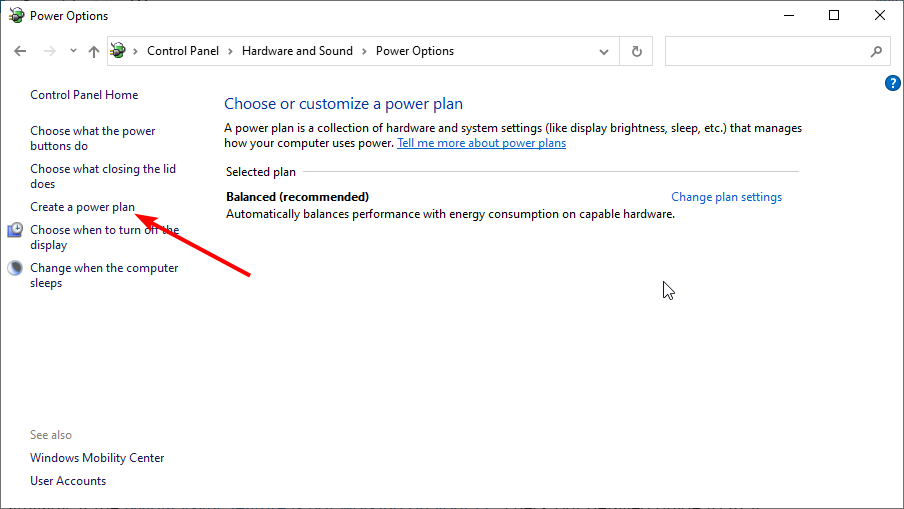
  2. Click the Create a power plan in the left pane.
    create a  nvidia screen tearing windows 10
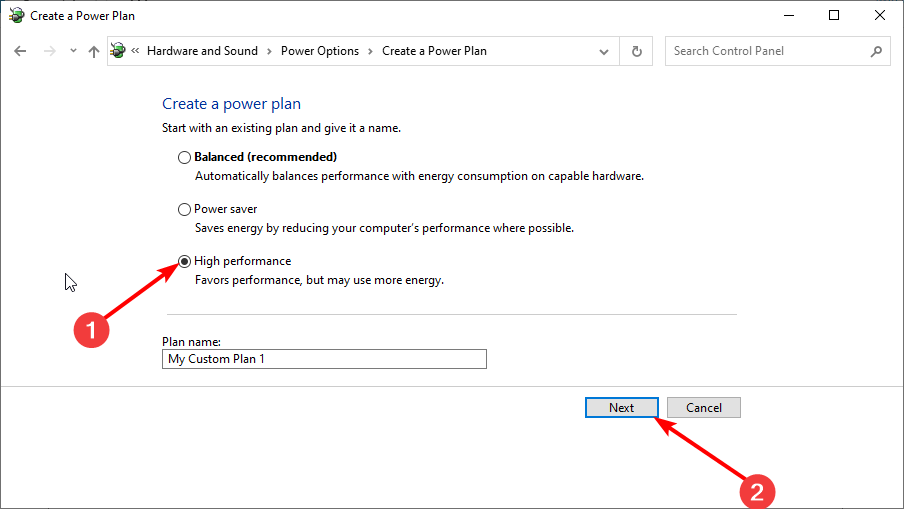
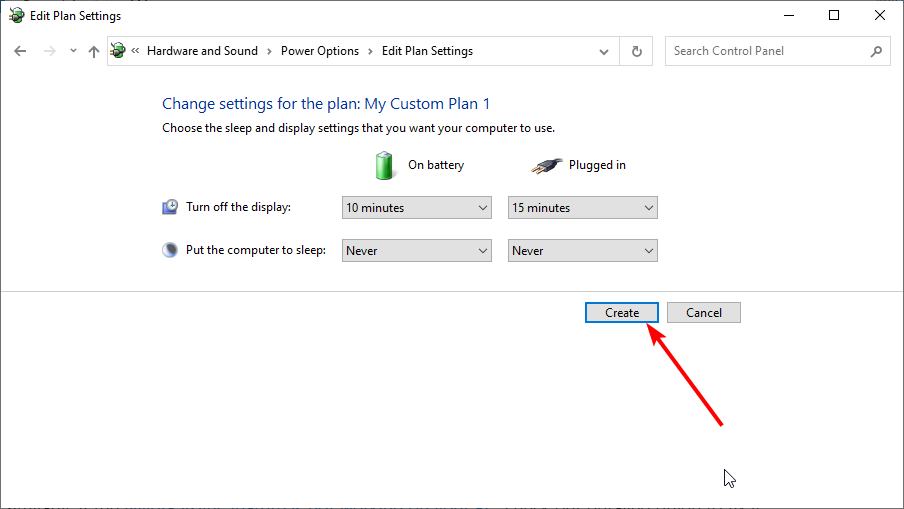
  3. Now, choose High performance and click the Next button.
    high performance
  4. Finally, click the Create button and restart your PC.
    create

Your PC has numerous power plans suitable for different activities. For example, if you use the Balanced power plan for intensive activities like gaming and streaming, you might experience the Nvidia screen tearing on Windows 10.

The solution to this is to switch to the High-performance plan.

These solutions should help you to fix your Nvidia screen tearing problems on Windows 10. Just make sure you follow the instructions carefully.

Similarly, if the Nvidia Vsync feature is not working on your PC, check our detailed guide to fix it.

Feel free to let us know which one worked for you by leaving us a message in the comments below.

22 New Features In Windows 10 Version 2004 From May 2020

We are hours away from a Windows 10 version 2004 rollout or how it was previously called, version 20H1. It seemed like a pretty long journey, and Insiders have witnessed every single new feature, culminating with the Windows Build 2020 event.

As we reached the imminent release, we propose to see some of the best features that come with the new Windows 10 version 2004.

Windows 10 version 2004 best improvements

First of all, let’s clear up what this 2004 means. Although it might be confusing, 2004 is not a year, and not even a consequent version number.

The first two digits, 20 come from the last two digits of the year (2020), and the last two digits, 04, come from the month it was issued. In this case, it might be a little confusing because Microsoft delayed the rollout from April to May.

To follow the example, the previous version was 1909 as it was issued in September 2019.

That being said, let’s go briefly through the new improvements:

1. Windows Hello in safe mode

Windows Hello settings

You will be able to launch Windows Hello in the diagnostic mode of Windows 10 2004. In other words, Microsoft is enabling you to use biometric authentication when you need to troubleshoot your computer in Safe Mode.

To use it, you will simply be able to configure Windows Hello PIN sign-in for safe mode. This way, you will be able to access your system’s diagnostic mode to troubleshoot your hardware without providing your password.

2. Reserved Storage is improved

Reserved storage status

Reserved Storage is a feature that arrived with the May 2019 Update and its role is to reserve a portion of the disk for future updates and drivers. 

In version 2004, it will be easier to manage the Reserved Storage because it will include DISM options. You will be able to disable it on your devices, and you will be able to check the status of the occupied storage using DISM.

3. New Cortana app

the new Cortana app

Version 2004 is also bringing a new Cortana app, but not all news is good about it. The assistant will lose some features that aren’t very work-focused like music, connected home, and third-party skills.

The new version will allow you to type or speak out requests to find people or files, or quickly create or queue up emails.

You are also able to use it to check out your calendar, set a reminder, or add entries to your lists in Microsoft To Do.

The end-goal for these changes is to finally transform Cortana into a full-fledged work assistant that will focus more on productivity, helping you quickly find the information you want across Microsoft 365.

4. WSL 2 for Linux integration

How to install WSL

WSL is a subsystem that allows Windows users to run native, unmodified Linux command-line tools and apps directly in Windows. 

Microsoft added that from 2006 but now it received a stable version, WLS 2, a lot faster, with full Linux kernel, which enables full system call compatibility. Moreover, the kernel will get updated through Windows Update, just like Windows.

5. Task Manager improvements

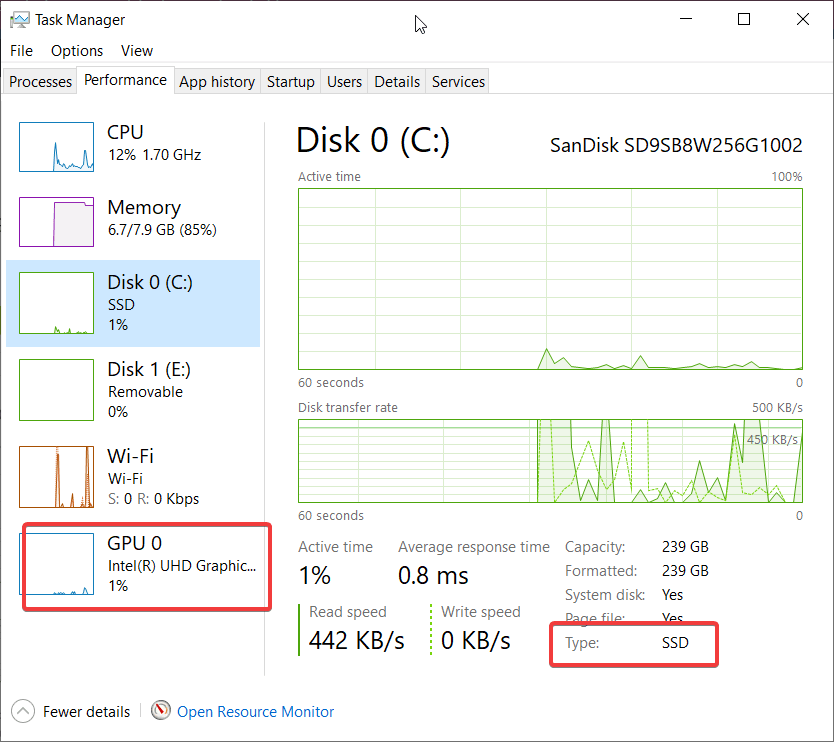
Task Manager has two new useful functions in Windows 10 version 2004.

For starters, in the Performance tab, if you have a dedicated GPU (I don’t!), you will also see its temperature right next to the usage percentage.

task manager improvements

The other improvement is that it will show the type of disk you have in the left pane and in the details below in the window.

6. Accessibility improvements

Cursor changes

Windows 10 version 2004 comes with a lot of accessibility improvements for people with vision problems.

You now have some new settings to make the cursor more visible, the Magnifier option now follows your mouse pointer, so that you don’t have look hard for it. The mouse pointer will now always be in the center of the display.

Also, they improved the Narrator and the Narrator inside Outlook.

We prepared a guide on how to use them if you need more information.

7. Language settings are a lot more clear

Windows language settings page

It’s not really a big update but the language settings page seems a lot more clear on the new version.

That’s because it includes many features among which there are links to the language and region settings, and also the Windows language, the regional format, and more important, the app language.

Of course, this is the page where you can install new languages.

8. Connect Bluetooth devices faster

how to add a Bluetooth game controller

In the new 2004 version, you can connect the devices directly from the notification you get when the Windows device detects the Bluetooth device. Moreover, the OS even tries to show a device name when it identifies it.

Also, Microsoft updated the text of the Add a Device dialog so the list of examples under Bluetooth includes controllers in Windows 10. 

We have a guide on how to pair your Bluetooth controller really fast.

9. Data usage in Network settings

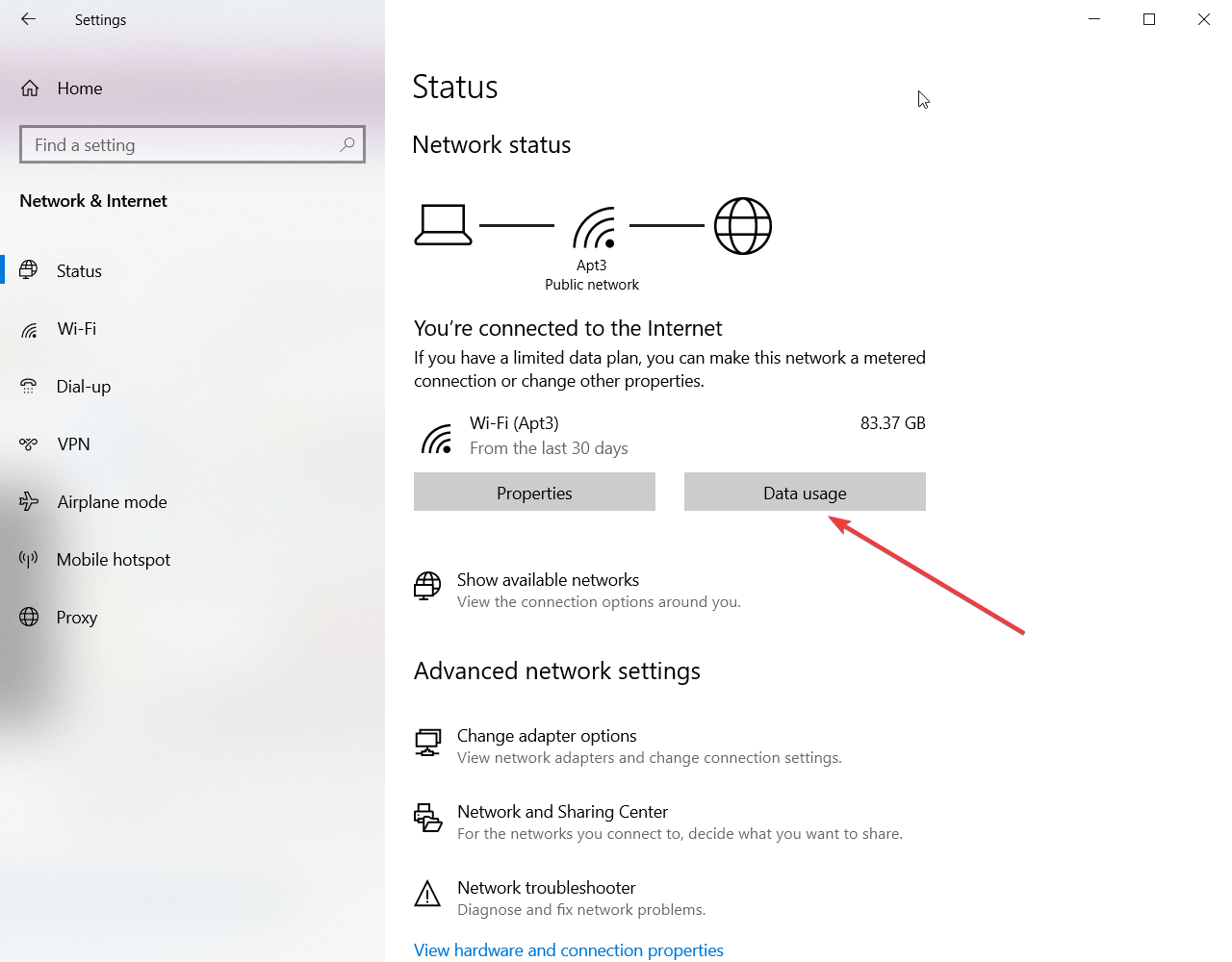
Microsoft has redesigned the network connections settings page. Aside from the fact that it looks a lot better, you can now see data usage information.

And if you click on the Data Usage, you will land on a page where you can see which apps used the most data, and you will be able to set data limits for that network.

Network data usage

10. Mouse cursor speed

Mouse cursor speed settings

In the previous version, the cursor speed setting was set in the Control Panel. Now it’s placed more conveniently in the Mouse category from the Settings app.

You can easily find this page if you type mouse in the Windows Search window.

Other significant improvements and modifications found in the Windows 10 version 2004

  • Notepad improvements – the Find feature can find wrap-around text, and if you select text before opening the Find dialog, it will get it right into the search box with the selected automatically.
  • Windows Search improvements – Windows Search got into File Explorer and has a refreshed design. This means that you get search result suggestions as you type.
  • Windows Sandbox and virtual desktops – you can change certain settings such as enabling or disabling the vGPU, allowing network access because you can now use the configuration files with the Windows Sandbox. 
  • Optional features management –  it’s now possible to select multiple optional features and install them together, and you can see their status after installation.
  • Update and recovery settings – there are new controls for how much bandwidth you can use in a given situation. These settings can now use absolute numbers so you can precisely limit the bandwidth usage.
  • Resetting from the cloud –  you can reset your PC using a new image of Windows 10 downloaded from the cloud. 
  • SwiftKey in more languages – the intelligent prediction and autocorrection capabilities to the built-in Windows 10 keyboard is available in 38 new languages.
  • You have new kaomoji – more kaomoji have been added to the list.
  • XBOX game bar updates – Microsoft added a browser and a calculator inside.
  • Renaming the Virtual Desktops – Obviously, you can now rename your virtual desktops.
  • Restarting apps at sign-in – When turned on, Windows automatically saves your restartable apps when signing out, restarting, or shutting down Windows, and restarts them next time you sign in.
  • Create a quick event from the taskbar –  Click on the date and time at the lower right corner of the Taskbar to open the Calendar and pick your desired date and start typing. 

If we missed any new features, please let us know in the comments below. Also, what are your thoughts about the new version?

[wl_navigator]

FIX: Update Agent Installer Encountered Unrecoverable Error

Keeping your computer up to date is vital not only to make sure you have the latest operating system fixes and security improvements but also to have an environment that runs efficiently.

Usually, the latest updates are automatically installed when rebooting your computer. However, manual updates are sometimes necessary. Unfortunately, users have sometimes reported a message saying that the Windows update agent installer encountered an unrecoverable error.

This has occurred especially after forcing Windows to check for updates trying to fix the process, or after manually updating the Windows Update Agent.

The bottom line is, the error is a failure to correctly run one of its normal operations by a system or application component. There are several recommended solutions to fix this and we’re going to discuss them.

How do I fix Windows update agent installer error?

1. Use a dedicated repair tool

You can always use a specific software tool that quickly scans your computer to update, fix, and repair any corrupted or outdated drivers or apps.

We recommend Fortect Driver Updater, which helps detect and update outdated drivers efficiently. The scanning speed is just perfect to acquire your driver status in no time.

The software has a very straightforward UI. Just let it run a scan of your PC. Upon your approval, the tool with update and repair any outdated, damaged, or missing drivers on your PC.

It is safer to use dedicated tools because this way you completely remove the risk of permanently damaging your PC by installing a mismatched driver.

Fortect Driver Updater is light and can be set to automatically update and repair your drivers on a regular basis. You can let it run in the background and never worry about this issue again.

⇒ Get Fortect Driver Updater

2.Run the Windows Troubleshooterfix windows update with troubleshooter

  1. Open Settings > Update & Security.
  2. Click on Troubleshooter > go to Windows Update section.
  3. Click on Run the Troubleshooter.

This is the simplest method to allow Windows to detect the problems and also to fix them. If the problem is not complicated (missing or corrupted registry files, for example), the system will find resources to solve the issue with no other intervention.

Otherwise, the process will also tell you if additional steps are necessary.

3. Run the System File Checkerfix windows update agent

  1. In the search bar, type cmd from the keyboard.
  2. Launch it as an administrator.
  3. In the command prompt window, type in sfc /scannow and press Enter.

This process may take several minutes and should detect and repair any issues with the registry files or system references.

It is very likely that running this command will not fix the Windows Update Installer Agent error but at least the log files will show where the problem is. You can then move on to another solution.

Note: If, for whatever reason, you can’t run Command Prompt as an administrator, try these solutions.

4.Run the DISM image repair tool

  1. Open Command Prompt as in the previous step and run as administrator.
  2. One by one, enter the following commands:
  • DISM /Online /Cleanup-Image /CheckHealth
  • DISM /online /cleanup-image /scanhealth
  • DISM /online /cleanup-image /restorehealth

The system should again repair any faulty file it can find. However, many users mentioned that they were able to run the process, it repaired some files, but the Windows Update Installer Agent error was still not fixed.

In this case, you should move on to another solution.

5. Reset Windows components manually

  1. In the search bar, type Services > Run as administrator.
  2. Find the Background Intelligent Transfer Service.update windows agent manually
  3. Right-click and choose Start.
  4. Then, open Command Prompt as before.
  5. Type the following commands:
    • net stop bits (press Enter)
    • net stop wuauserv (press Enter)
  6. Then type the following and, again, press Enter:
    • Del "%ALLUSERSPROFILE%Application DataMicrosoftNetworkDownloaderqmgr*.dat"
  7. Type the following command and press Enter:
    • cd /d %windir%system32
  8. At this point, you have to re-register the BITS files and the Windows Update files. So type the following commands and press Enter after each one:
    • regsvr32.exe atl.dll

      regsvr32.exe urlmon.dll

      regsvr32.exe mshtml.dll

      regsvr32.exe shdocvw.dll

      regsvr32.exe browseui.dll

      regsvr32.exe jscript.dll

      regsvr32.exe vbscript.dll

      regsvr32.exe scrrun.dll

      regsvr32.exe msxml.dll

      regsvr32.exe msxml3.dll

      regsvr32.exe msxml6.dll

      regsvr32.exe actxprxy.dll

      regsvr32.exe softpub.dll

      regsvr32.exe wintrust.dll

      regsvr32.exe dssenh.dll

      regsvr32.exe rsaenh.dll

      regsvr32.exe gpkcsp.dll

      regsvr32.exe sccbase.dll

      regsvr32.exe slbcsp.dll

      regsvr32.exe cryptdlg.dll

      regsvr32.exe oleaut32.dll

      regsvr32.exe ole32.dll

      regsvr32.exe shell32.dll

      regsvr32.exe initpki.dll

      regsvr32.exe wuapi.dll

      regsvr32.exe wuaueng.dll

      regsvr32.exe wuaueng1.dll

      regsvr32.exe wucltui.dll

      regsvr32.exe wups.dll

      regsvr32.exe wups2.dll

      regsvr32.exe wuweb.dll

      regsvr32.exe qmgr.dll

      regsvr32.exe qmgrprxy.dll

      regsvr32.exe wucltux.dll

      regsvr32.exe muweb.dll

      regsvr32.exe wuwebv.dll
  9. Reset Winsock and press Enter:
    • netsh winsock reset
  10. Restart the BITS service and the Windows Update service:
  • net start bits
  • net start wuauserv

This is the default method to reset the Windows Update Agent and it should fix the problems. If it’s not helpful, there are a couple of other solutions that you can try.

6.Install a clean Windows image

  1. Gather your installation CD, product key, and anything necessary for a re-installation of the OS.
  2. Type Windows Security in the search bar > Open.windows update agent installer error
  3. Go to Device performance& health.
  4. Scroll to Fresh Start > Additional info.
  5. Click on the Fresh Start button and follow the process. Reboot the device after the process is finished.

Troubleshooting Windows errors is never fun, but we hope that you found this article helpful. If you found another successful solution, please share it with the community in the section below.

Got the Secure Connection Failed SSL Error? Fix It Easily

You may encounter security-related errors while accessing a secure page like your banking page. One such error is the secure connection failed SSL error.

Several Windows users have reported similar errors. Edge and Internet Explorer return INET_E_DOWNLOAD_FAILURE, and Firefox returns SSL_ERROR_BAD_MAC_ALERT. Some users have another PC with Windows 7 and experience no problems with it. Both PCs run the same virusscanner F-Secure and Malwarebytes.

If you are also troubled by this error, here are a couple of troubleshooting tips to help you resolve the secure connection failed SSL error in Windows.

How can I solve SSL_ERROR_BAD_MAC_ALERT error?

1. Check for safety filters

  1. This error can occur if your Internet Service Provider has enabled a safety filter.
  2. If you have enabled a safety filter through your ISP, ask them to disable it, or you can disable it by logging in to your ISP’s account control.
  3. If you don’t remember asking your ISP to enable a web filter, check your account control to see if it is enabled.
  4. Many ISPs, by default, enable safety filters during the installation.

Disable application filtering on your antivirus

  1. Antivirus comes with an application filter protocol setting.
  2. Check if your antivirus has application filter protocol enabled.
  3. Disable the feature in the settings and check for any improvements.
  4. While the NOD32 antivirus program includes an application protocol filter feature, other antiviruses may have different names for it.

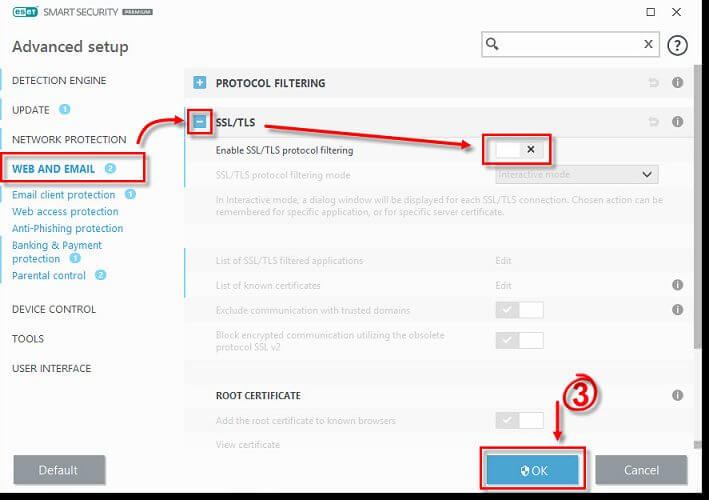
Disabling protocol filtering in NOD32

SSL_ERROR_BAD_MAC_ALERT
  1. Launch ESET antivirus.
  2. Press F5 to launch Advanced Setup.
  3. Click on Web and Email option from the left pane.
  4. Click on SSL/TLS to expand it.
  5. Toggle the switch for – Enable SSL/TLS protocol filtering option to disable the feature.
  6. Click OK to save the changes.
  7. Now try accessing the web page that was showing the error. If you are able to access the web page without error, make sure you enable SSL/TLS protocol filtering again.

If disabling the application filter protocol did not help, try disabling the antivirus temporarily. Right-click the antivirus icon in the taskbar and select disable/turn off. Try accessing the webpage and check for any improvements.

2. Incorrect system time and date

secure connection failed SSL
  1. All web browsers use the certificate on a secure website to ensure that your information is being sent to the server in real time to protect the user from phishing attacks.
  2. So, an incorrect system date can cause the web browser to detect the website’s security certificate is expired or invalid, resulting in a failed SSL error for the secure connection.
  3. Make sure the system date and time are correct, and then try again.

3. Reinstall the web browser

Disable browser add-ons

secure connection failed SSL
  1. On Firefox, click Menu.
  2. Select Add-ons from the options. You can also access it by pressing Ctrl + Shift + A.
  3. Click on the Extensions icon from the left pane.
  4. Disable all the extensions one by one.
  5. Restart the browser and try accessing the web page.
  6. If the issue persists, you may have to reinstall the browser.

Uninstall the web browser

SSL_ERROR_BAD_MAC_ALERT
  1. Press Windows Key + R to open Run.
  2. Type control and click OK.
  3. From the Control Panel, go to Programs > Programs and Features.
  4. Select the web browser and click on Uninstall. Click Yes if asked to confirm the action. Wait for the browser to uninstall.
  5. After that, reinstall the latest version of the web browser and check if the error is resolved.

4. Go back to the previous version

SSL_ERROR_BAD_MAC_ALERT
  1. If the error started to occur after updating to the latest version of Windows OS, try going back to the previous version.
  2. Click on Start and select Settings.
  3. Click on Updates and Security.
  4. Select the Recovery tab.
  5. Under Go back to the previous version of Windows 10, click on Get Started.
  6. Follow on-screen instructions to install the previous version.

The Go back to the previous version of the Windows 10 option is only available for ten days since the update was installed. If the Get started button is greyed out, you must create a bootable drive using the earlier version Windows OS ISO file and then upgrade/fresh install using the bootable drive.

We hope this guide has proven useful in your situation. And if you are redirected to Google with a gws_rd=ssl extension, rest assured that solving this issue is also possible.

If you own a PS4 or PS5, we have a guide that will help out with resolving SSL communication issues on PlayStation consoles, so don’t miss it.

Don’t hesitate to share your experience with us using the comment section below.

Outlook Spaces, Microsoft’s new project management tool goes live on the web as “Project Moca”

Earlier this year, we learned that Microsoft was working on Outlook spaces, a new project management tool also known as Project Moca. With Outlook Spaces, Microsoft wants to allow users to organize content such as emails, documents, events, and search terms into workspaces.

Although Microsoft has yet to announce that Outlook Spaces is generally available, Twitter user Neil Kennedy first spotted that the new collaboration tool was live earlier today (via Windows Central). You can head over to this link to access Outlook Spaces, and the web app works with personal Microsoft accounts. You may need a Microsoft 365 subscription to access the service, as we got an “Under Construction” message with a Microsoft account without an active subscription.


Outlook Spaces allows you to create a customized plan from scratch, or you can use the built-in templates to create one. In addition, the web app lets you name your plans, add project-related keywords, drag your content into buckets, and add up to three people collaborating on that project.

Even though Microsoft’s Outlook Spaces/Project Moca is still a work in progress, it already looks quite similar to Microsoft Planner and Trello, two popular task management apps. However, it seems that Outlook Spaces will benefit from a direct integration in Outlook.com. If you’re able to access Outlook Spaces today, let us know what you think of it in the comments below.

Fast Startup in Windows 10 might prevent updates

Fast Startup is enabled by default in a clean Windows 10 installation. And it’s pretty useful because it helps your computer start up faster after a shutdown.

Actually, the Fast Startup feature makes your computer enter a hibernation state instead of fully shutting down. That makes your computer start so fast.

Fast Startup might prevent updates in Windows 10

The problem is that some patch installation from the Windows updates might require pending operations being processed during the next Windows startup. And that can only happen after a full shutdown.

If your computer doesn’t shut down completely, the pending operations won’t be processed, leaving you with an incomplete installation.

Because of the Fast Startup feature, a full shutdown only happens when you actually restart the computer or when another event causes it.

In environments managed by using Microsoft Endpoint Manager Configuration Manager (MEMCM), the installation of updates will also be affected by this behavior. There are plans to address this in a future Windows version

adds Microsoft on the Windows Support page.

How can I disable Fast Startup in Windows 10?

It’s not really necessary to disable the Fast Startup. As Microsoft suggests, you should only perform a restart.

However, if you still have problems with that, here’s how you can disable it in just a few steps:

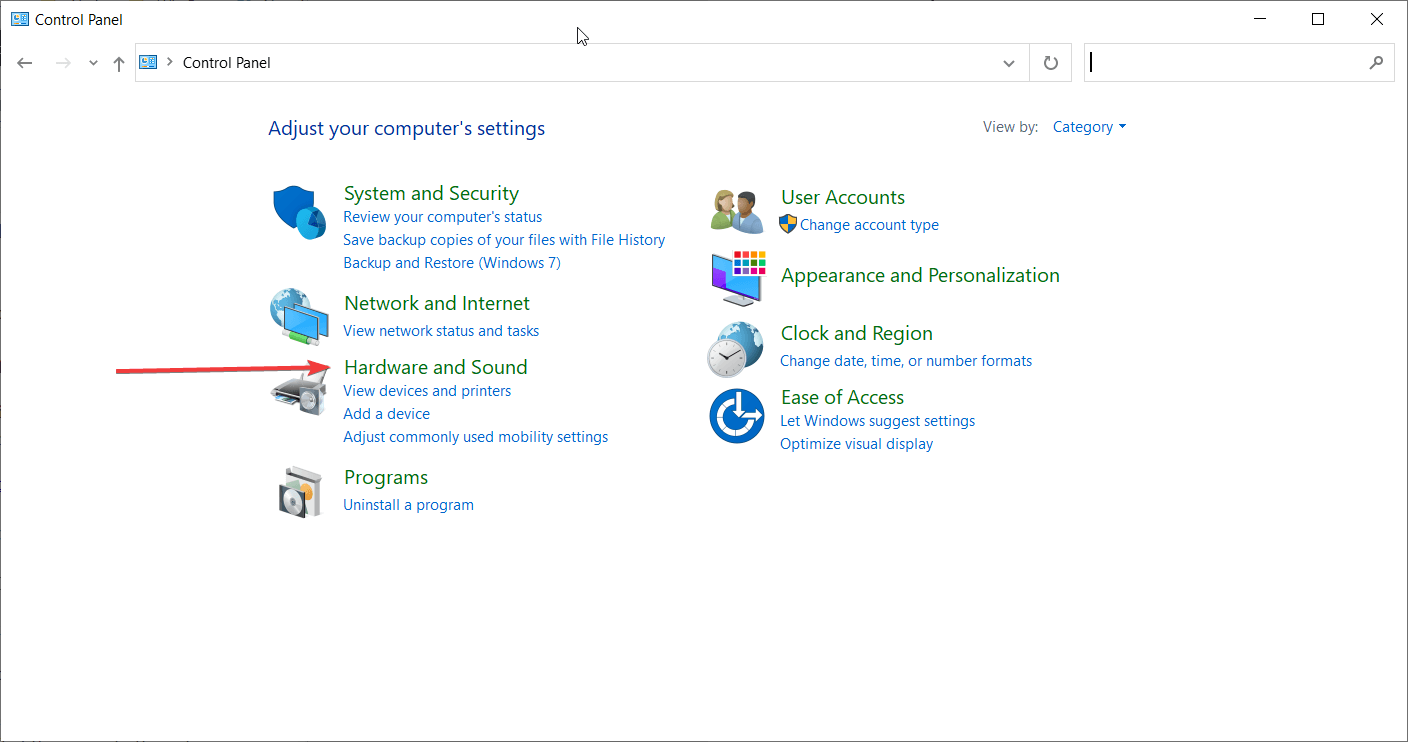
  1. Press the Windows button or click Start, type Control Panel, and click on it from the results.
  2. Click on the Hardware and Sound category.Hardware and Sound category
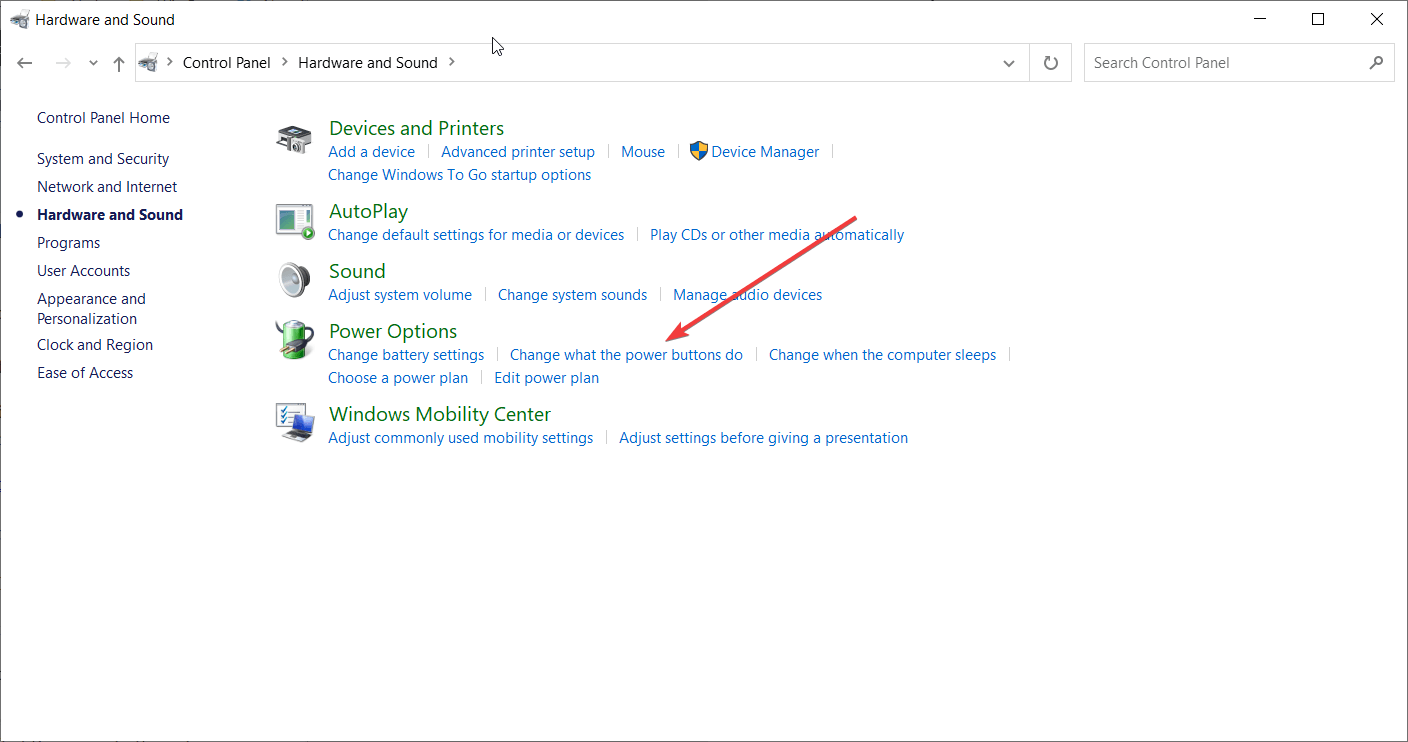
  3. Now click on the Change what power buttons do from the Power Options.changing what power buttons do
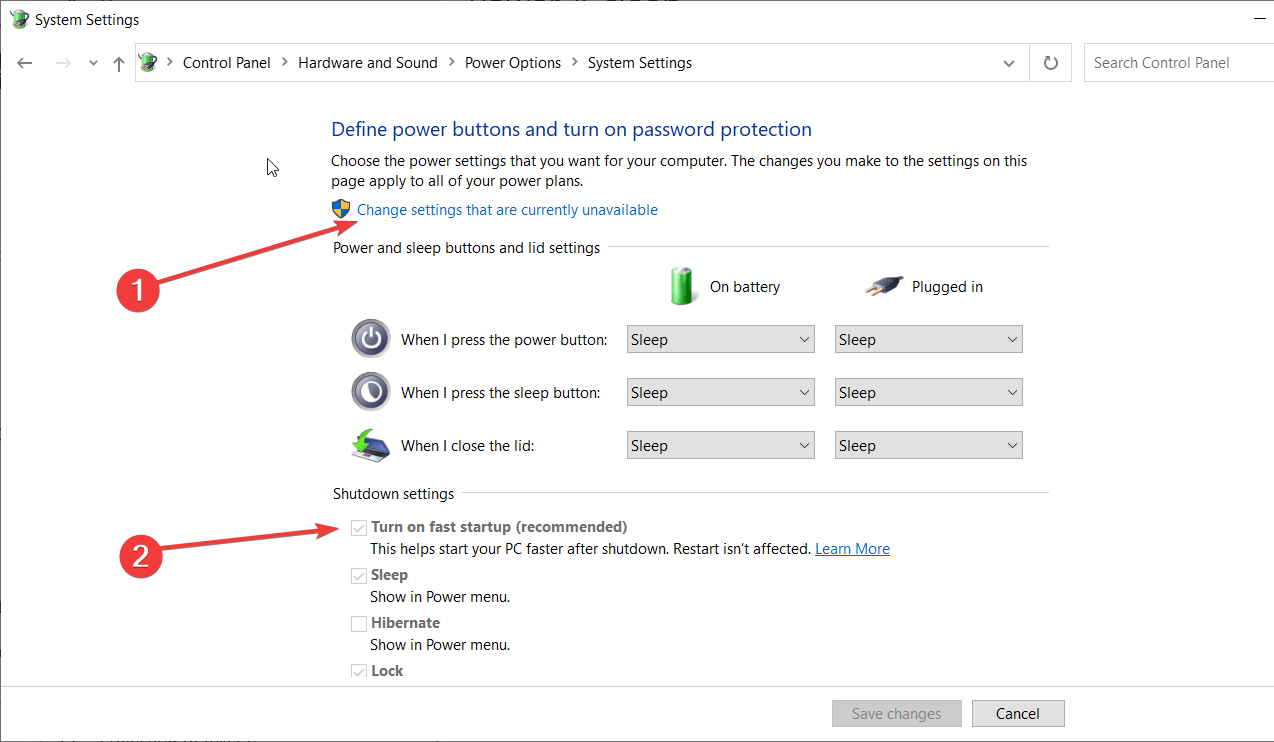
  4. Next, click on the Change settings that are currently unavailable, then uncheck the Turn on fast startup (recommended) box.how to turn off fast startup

This should have solved the problem. Now try to get on with the updates again.

If you have any questions or other issues, don’t hesitate to leave us a comment below.

[wl_navigator]

Following Microsoft Teams, Skype adds 3×3 grid view in latest update

Microsoft is rolling out a new 3×3 video view for Skype video calls, and desktop users can now see the video feed of nine participants on their screens at a time (via Windows Central). This feature was first introduced in Microsoft Teams, and the 3×3 grid of video feeds is now exclusively available on Skype for Windows, Mac, and Linux. To turn the feature on during the meeting, click the Switch View button and select either 3×3 Grid view, Grid view or Speaker view from the menu.

In addition, Microsoft has also released support for moderated groups in this update. This particular feature has been requested by the education community since the beginning of the COVID-19 crisis. Teachers can now create moderated groups for Skype video calls where only select users can be defined as administrators to start video calls. Here’s how you can create a Moderated Group to control the flow of conversation in a classroom:

  • In Chat, select New Chat. 
  • Select New Moderated Group or Chat.
  • Give the group a name, then select the Next arrow.
  • Choose your contacts to add to the group. You can also search for contacts at the top of the screen.
  • Select Done to create your group when you’re finished adding contacts. Your new Moderated Group will appear in your chats.

Note: Any groups previously created with assigned roles (Admins/Users) have transitioned to Moderated Groups. In Moderated Groups, only Admins can start calls, including starting calls via the /golive chat command.

It should be kept in mind that when you create a new group, you are the Moderator/Admin by default and other members of that group are titled as Users or Members. If needed, you can use the available Skype chat commands to promote Users to the Admin role (so that they can start group calls), remove a participant from the group, and more.

Some other handy features included in this release are some new keyboard hotkeys for performing certain actions when the Skype window is minimized. There is also the ability to customize the list of message reactions, which would now appear in your preferred order. Finally, some usual fixes and stability improvements are also packed in this build. According to the official support page, Skype version 8.60 started rolling out on May 18, 2020, but the changelog was published this week. We invite you to check the official changelog for more details.

How to delete or archive a team in Microsoft Teams

In Microsoft Teams, a team is the center of your experience. People chat, share files and collaborate in one. Over time, though, a team might become redundant and perhaps no longer useful to your organization. Or, you might find that you might have created a wrong team by accident.

That’s when you might want to archive or delete a team in Microsoft Teams. If you’re an administrator, in this guide, we’ll show you how you can do that.

Archive vs delete

Before starting, we’ll explain the difference between archiving a team and deleting a team. Keep in mind that when you archive a team, all activity for that team will stop. It puts all of the data and files in a read-only mode, and members will still be able to search through and find the old conversations they need. However, no one will be able to start new conversations or reply to posts in a channel, add or remove channels, edit team settings, or add apps.

As an admin, though, you’ll still be able to add or remove members and update roles and you can still view all the team activity in standard and private channels, files, and chats. Archiving is a much less damaging process.

Deleting a team, meanwhile, is a bit more permanent. When you delete a team, team activity in standard and private channels (and associated site collections), files, and chats is also deleted. You can’t directly restore a team that has been deleted, so consider archiving a team instead of deleting it.

How to archive a team

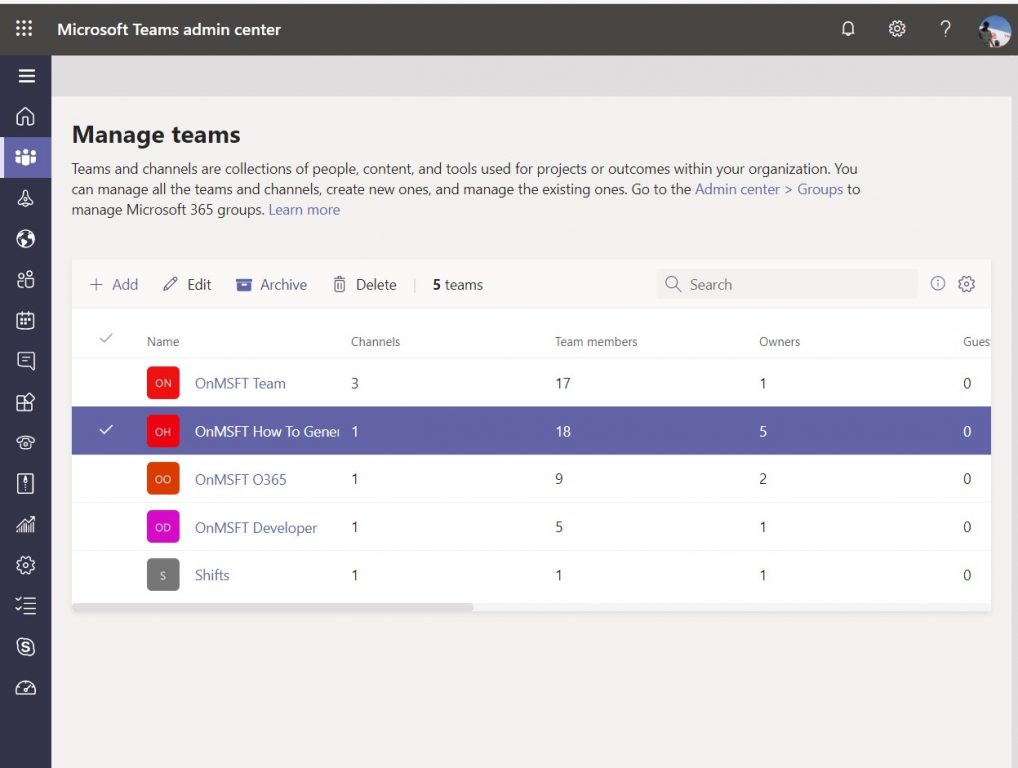
Archiving a team in Microsoft Teams is a quick and easy process. In the Microsoft 365 Admin center, you’ll want to click Teams in the sidebar. This will redirect you to the Teams admin center. From there, you can click Teams in the sidebar, followed by Manage Teams. You can then archive the team by clicking on it in the list, and choosing the Archive option at the top. A dialogue box will appear, and you’ll want to confirm by clicking Archive once more.

Once archived, you can bring the Team back at a later point by going back to the Teams admin center. From there, you can select a team by clicking the name, and then selecting Unarchive. 

How to delete a team (or restore one)

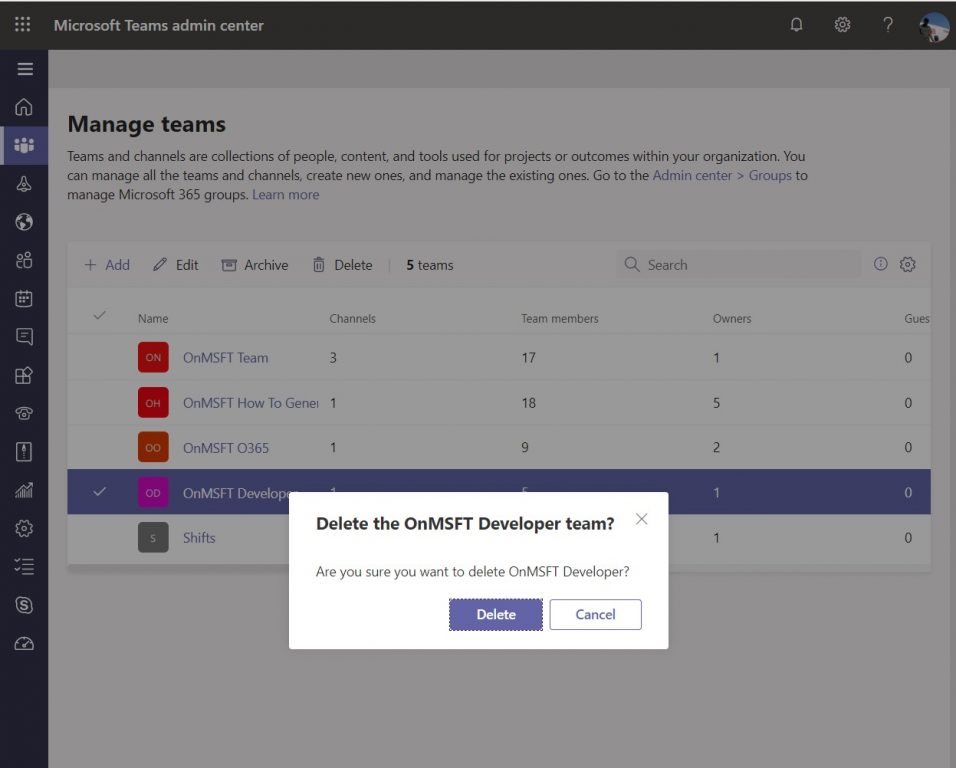
Deleting a team is similar to archiving one. In the Microsoft 365 Admin center, click Teams in the sidebar once more. This will redirect you to the Teams admin center. From there, you can once more click Teams in the sidebar, followed by Manage Teams. Simply select the team name, and then select Delete. A confirmation message will appear. You can then select Delete again to permanently delete the team.

If you want to restore a deleted team, you’ll have up to 30 days to do so. As part of the process, you’ll actually have to restore the Office 365 group that’s associated with the team. Restoring the Office 365 group for a team will restore team content such as tabs, channels, and private channels and their associated site collections. To restore an Office 365 group, you’ll have to install the AzureADPreview module on Windows and then run a few prompts. We won’t get into those due to technicality, but you can find out more about it here.

Other tips and tricks

Over the past few months, we’ve been covering Teams extensively. Deleting or archiving a team is just our latest topic. We’ve covered things such as removing someone from a team, using the Shifts feature, creating scheduled meetings, and so much more. Our Teams news hub will have you covered, so feel free to check it out, and let us know how Teams is working for you by dropping us a comment below.

Fix the Windows boot error 0xc000000f in a few easy steps

If you are reading this then chances are that Windows boot error 0xc000000f has come into your life. That’s the bad part. The good part is that boot error 0xc00000f is solvable if you follow our guide.

Keep in mind that this guide relates chiefly to Windows 10, but some steps might work even in earlier builds.


How do I fix the Windows boot error 0xc000000f?

1. Unplug all peripherals

  1. Remove any external HDDs or SSDs
  2. Remove any memory card readers or USB thumb drives
  3. Unplug CD/DVD/BR drives
  4. Restart your PC
  5. If your PC boots without problems you can try replugging the peripherals one by one
  6. Restart your PC after each peripheral reconnection to identify the cause

2. Repair BOOTMGR using a bootable USB drive0xc000000f computer error

  1. Another way to solve error 0xc000000f is to create a bootable USB drive for Windows 10
  2. Select the option to boot from a USB drive
  3. Once the Windows Setup loads click Next
  4. Click the Repair your computer button
  5. Now go to Troubleshoot and select Startup Repair
  6. Restart your PC once the process is done

3. Check your data cablessolve boot error 0xc000000f so

  1. Unplug all the internal HDD cables and check them to see if they are damaged
  2. Replace them if damaged and reconnect the undamaged cables

4. Revert to previous BIOS settingsfix windows boot error 0xc000000f

  1. Open BIOS by following the instructions during the booting sequence
  2. Write down your current BIOS settings in case you’ll need to revert to them
  3. Restore factory settings in BIOS
  4. If that doesn’t fix boot error 0xc000000f, try to toggle through the SATA disk controller modes

If you want more info on how to access Bios on your Windows 10 PC, check out this handy guide.


Can’t access Bios on your Windows 10 PC? Don’t worry, we’ve got the right solution for you


5. Try a manual rebuild of the BCD data filewindows boot error 0xc000000f

  1. Follow steps 1 through 4 from Repair BOOTMGR using a bootable USB drive
  2. Now go to Troubleshoot and select Command Prompt
  3. Execute the following command by writing:
    bootrec /rebuildbcd
  4. And then press the Enter key
  5. If asked by the program to add the installation to the boot list press Y

If you’re having trouble accessing Command Prompt as an admin, then you better take a closer look at this guide.


If this guide has proven helpful in your situation don’t  hesitate to share your experience with us. You can do so by simply using the comment section below.

[wl_navigator]
Get three years of NordVPN protection for only $3.49/mo.

In case you haven’t heard of it, NordVPN is an excellent VPN security service that comes at a reasonable price, with the only possible drawback being that its founders are anonymous.

Aside from this, NordVPN is high-quality and effortless to use. Now, you can sign up at a fantastic price for the service so if you’re looking for a reliable VPN software, it’s time to act.

Enjoy three years of NordVPN at discounted price

NordVPN offer

It’s important to note that NordVPN usually charges $11.95 per month for its services. Now, you can save quite a few bucks with this Tefincom & Co., S.A. deal.

The three years offer involves paying $4.75 per month but to be able to enjoy it, you will have to pay for the entire period all at once.

NordVPN has verified that users who decide to sign up get to keep it only as long as they remain active subscribers.

NordVPN’s greatest features

get NordVPN

One of the coolest features that come along with NordVPN is that the service also gives you access to Netflix outside of the U.S.

There are a few VPNs on the market that claim to offer the exact features to their users, but none of these are available at $3.49/mo., that’s for sure.

Netflix is actively trying to stifle this kind of behavior, so there would be up and downtimes for U.S. Netflix access every now and then.

Moreover, this is by far the most secure VPN for cryptocurrency transactions. Keep in mind that it comes with a few specialized servers that some of you might find really useful.

Such servers include dedicated TOR servers, double VPN connections for enhanced protection, and P2P-friendly servers.

So, if you want to take advantage of NordVPN’s offer, make your decision to subscribe to the service.

NordVPN

NordVPN

Keep your browsing habits private with this amazing VPN, now at a discounted price for a limited time only!
$3.49/mo. Buy it now!

We recommend checking up the features of Cyberghost VPN and in comparison make an informed choice to enhance your internet security.

[wl_navigator]
Microsoft releases new Xbox Family Settings apps in preview on Android

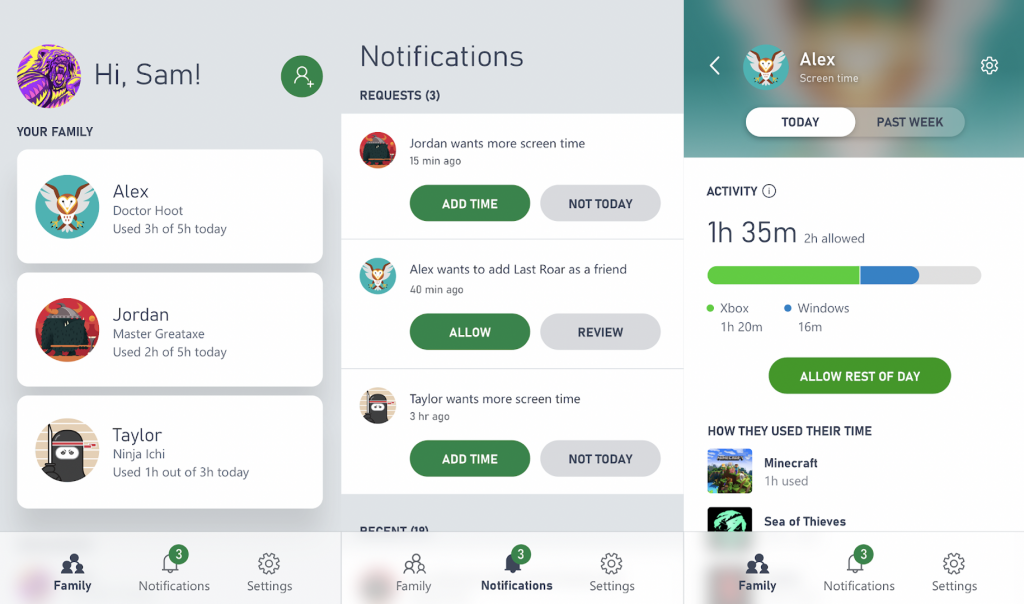
Microsoft has quietly released a preview version of a new Xbox Family Settings app on the Google Play Store (via Android Police). The new Android app can be used by parents who have set up a Microsoft Family to see the Xbox gaming activity of their kids, and set screen time limits if necessary.

It’s already possible to manage your children’s activities directly in other places including the web, but this new Xbox Family Safety app will make all these features available on the go. It’s worth noting that Microsoft has also added the ability to set app and game limits and many other features on its separate Microsoft Family Safety app, which is also available in preview on Android.

At a time when more people are playing games at home due to the coronavirus outbreak, it’s good to see Microsoft give parents more ways to control what kids are allowed to do on Xbox consoles. If you want to check out this app, you can download it from the link below.

Xbox Family Settings

eM Client doesn’t download attachments? Here’s why

eM Client is a  popular email client for Windows users with a host of features on offer. However, some users have reported eM Client not downloading attachments issue in Windows.

By default, for IMAP account eM Client only downloads the headers of incoming messages and body content when the user opens the message. However, at times eM client may fail to download the attachments.

If you are also troubled by this issue, here are a couple of troubleshooting tips to help you resolve the eM Client not downloading attachments issue in Windows 10.


What do I do if eM Client doesn’t download attachments?

1. Download messages for offline use

eM Client not downloading attachments

  1. Launch eM Client.
  2. Click on Menu and select Tools > Accounts.
  3. In the Accounts window, open the IMAP tab.
  4. Scroll down to the Offline section.
  5. Check “Download messages for Offline use” option.
  6. Check “Include attachments and images” option.
  7. Click OK to save the changes.
  8. Relaunch eM Client and check for any improvements.

1.1 Check Default Actions for Attachments

eM Client not downloading attachments

  1. Click on Menu.
  2. Go to Tools > Settings.
  3. Select the Attachments tab.
  4. In the Default Actions for Attachments section, check if you find any unknown actions defined.
  5. Remove any unknown action.
  6. Click Apply > OK to save the changes.

Tired of eM Client? Check out this article for some great alternative email clients.


2. Download unsafe contents from the contact list

eM Client not downloading attachments

  1. Start eM Client.
  2. Click on Menu and select Tools.
  3. Click on Settings.
  4. From the left pane, click on the Mail tab to expand the options.
  5. Select the Privacy tab.
  6. Select ” Display unsafe content in messages from people in contact list” option.
  7. Click Apply > OK to save the changes.
  8. Restart eM Client and check for any improvements.

3. Check for updates

eM Client not downloading attachments

  1. If the issue persists, check if a new update is available for eM Client.
  2. Open eM Client and click Menu.
  3. Go to Help > Check for updates.
  4. eM Client will now scan for new updates. If available, download and install the updates.
  5. Relaunch eM Client and check for any improvements.

4. Run eM Client troubleshooter

em client attachment issue

  1. Press Windows Key + R to open Run.
  2. Type control and click OK to open Control Panel.
  3. In the Control Panel, go to Programs > Programs and Features.
  4. Select eM Client from the list of programs and click on Repair.
  5. Next, follow on-screen instructions to complete the troubleshooting process.
  6. Apply the recommended fixes and close the troubleshooter.
  7. Restart eM Client and check for any improvements.

The eM Client not downloading attachments issue can occur due to several reasons. To resolve the issue, enable offline and unsafe content options. If the issue persists, proceed with troubleshooting the email client.

If you know of any other solution for this eM Client issue, share it with the others by leaving a message in the comments section below.


[wl_navigator]

Hyper transport sync flood error? Try these solutions

When restarting your Windows computer, you may encounter Hyper Transport sync flood error. While the system boots successfully despite the error, the error causes the system to reset the date to factory default forcing the user to change it after every restart.

This error can occur due to a faulty CMOS battery, unstable overclocked processors, or insufficient power supply through the PSU.

If you are also troubled by the error, here are a couple of troubleshooting tips to help you resolve the Hyper transport sync flood error in Windows.


How can I fix the Hyper transport sync flood error?

1. Check for the faulty CMOS battery

Hyper transport sync flood

  1. If the date and time are reset after every restart, it is most likely caused by a faulty CMOS battery.
  2. Shutdown the computer completely and remove any power cord connected to the computer.
  3. Take a look at the motherboard and locate the CMOS battery. The battery looks like a regular wristwatch battery.
  4. Use a non-conductive screwdriver to remove the from the slot. Try cleaning the battery if it has accumulated dust.
  5. Wait for a few minutes. Insert the battery again and put it all back together.
  6. Restart the computer and check if the error is resolved.

The CMOS battery helps the system keep basic information like system date and time in its memory so that the user doesn’t have to set it again after every restart.


Dealing with a corrupt CMOS? Fix it in 4 easy steps


2. Check for BIOS issues

Hyper transport sync flood

  1. It is possible that your current BIOS version is causing the problem.
  2. Try updating the BIOS version and check if the resolves the error.
  3. To update the BIOS:
    Dekstop users – Check the official website of your motherboard manufacturer.
    Laptop users – Login to your laptop manufacturer’s website. The manufacturer lists BIOS updates in the download center.
  4. Download and install the latest version of BIOS and check if that resolves the issue.

Note that the process of flashing the newer version of BIOS can be different depending on the motherboard you are using. Refer to the instruction manual of your motherboard.


3. Disable overclocking

Hyper transport sync flood

  1. The sync flood error can also occur if the user has incorrectly overclocked the processor leaving the HT bus in a non-functional state.
  2. Several users have reported that reducing the overclocking frequencies has helped them resolve the issue.
  3. Try overclocking the processor or the GPU to recommended frequencies and check if the error is resolved.
  4. If the issue persists, restore the frequencies to factory default to see if that helps.
  5. After restoring the overclocked frequencies, try to restart the system a few times before proceeding with other steps.

4. Check your PSU

Windows Boot error

  1. If restoring or lowering the overclocked frequencies resolve the issue, it is possible that your PSU is underpowered to supply enough power to the processor to compensate for the extra frequencies achieved through overclocking.
  2. If your PSU is underpowered and if you want to overclock your processor, upgrade to a better PSU that can supply adequate power.
  3. Upgrading to a better PSU should help you resolve any issues occurring due to an overclocked CPU.

As discussed in the article, the Hyper transport sync flood error can occur due to a faulty CMOS battery or a glitchy BIOS version.

That said, it can also occur if you have overclocked your CPU with an underpowered PSU. Follow all the steps in this article and let us know which method helped you resolve the error in the comments.

[wl_navigator]

FIX: supr3hardenedwinrespawn VirtualBox error

After installing Oracle VirtualBox, you may encounter the error in supr3hardenedwinrespawn issue. This issue occurs when the user runs the virtual machine for the first time after installing the program.

The cause of this error is attributed to the missing the VBoxDrv.inf file that may have failed to install during installation due to permission issues.

If you are also troubled by this error, here are a couple of troubleshooting tips to help you resolve the error in supr3hardenedwinrespawn VirtualBox issue in Windows.


How can I fix the supr3hardenedwinrespawn error?

1. Install the VBoxDrV.inf file

error in supr3hardenedwinrespawn

  1. Open File Explorer and navigate to the following location:
    • C:Program FilesOracleVirtualBoxdriversvboxdrv
  2. You can copy-paste the above path in File Explorer as well.
  3. In the VBoxDrv folder, right-click on VBoxDrv.inf and run Install.
  4. The UAC will ask you to confirm the action. Click Yes to proceed with the installation.
  5. Next, press the Windows key.
  6. Type cmd, right-click on Command Prompt and select Run as Administrator.
  7. In the Command Prompt, type the following command and hit enter to execute:
    • sc start vboxdrv
  8. Once the command is successfully executed, close the Command Prompt window.
  9. Try running the Virtual Machine again and check for any improvements.

Reinstalling the missing file seems to have fixed the issue for many users. This driver may not have installed due to permission issues thus creating issues with the virtual machine.


Unable to access Wi-Fi on VirtualBox? Try these methods


2. Check for directory issues

error in supr3hardenedwinrespawn

  1. Press Windows Key + R to open Run.
  2. Type regedit and click OK to open Registry Editor.
  3. In Registry Editor, navigate to the following location:
    • HKEY_LOCAL_MACHINEsystemcurrentcontrolsetservicesvboxdrv
  4. From the right pane, right-click on Imagepath and select Modify.
  5. In the Value data field, check if the path looks like this:
    • C:Program FilesOracleVirtualBoxdriversvboxdrvVBoxDrv.sys
  6. If it has a different path, change the path to make it look like this:
    • C:Program FilesOracleVirtualBoxdriversvboxdrvVBoxDrv.sys
  7. Click OK to save the changes.
  8. Close the Registry Editor window.
  9. Open File Explorer again and navigate to the following location:
    • C:Program FilesOracleVirtualBoxdriversvboxdrv
  10. Right-click on VBoxDrv.ing and select Install.
  11. Press Windows Key + R to open Run.
  12. Type Cmd and press the Ctrl + Shift + Enter keys simultaneously to open elevated Command Prompt.
  13. In the Command Prompt enter the following command and hit enter:
    • sc start vboxdrv 
  14. Close the Command Prompt and check for any improvements.

Restart the Oracle VirtualBox program and check if the error in supr3hardenedwinrespawn is resolved.


3. Allocate more RAM to your virtual machine

error in supr3hardenedwinrespawn

  1. Launch Oracle VM VirtualBox Manager.
  2. right-click on your current virtual machine installation and select Remove.
  3. In the new dialog box, click the Remove Only button.
  4. Next, proceed to create a new configuration with the same image.
  5. However, when you reach the Base Memory part, make sure you allocate more RAM than the previous VM installation.
  6. Once the configuration is created, proceed to start the virtual machine and check for any improvements.

The error in supr3hardenedwinrespawn can occur due to insufficient RAM allocation for the virtual machine. Try allocating more memory to your new configuration and check for any improvements.


4. Enable virtualization in BIOS

Virtualbox error

  1. Restart your computer and press the F2/F4/F6/F8 or the Del key repeatedly to enter the initial startup screen. Different manufacturers have different setup keys.
  2. Now locate the Advanced tab. If you don’t have an Advanced tab, look for the Advanced Chipset Control or CPU configuration tab.
  3. If you are using the Intel processor, make sure Intel Virtualization Technology is enabled.
  4. In case you are using AMD processor, enable AMD-V and so on.
  5. After the virtualization technology is enabled, save the BIOS change and restart your system.
  6. After the system restarts, launch Oracle VirtualBox and check if the error in supr3hardenedwinrespawn is resolved.

5. Change Paravirtualization interface settings

Virtualbox error

  1. Launch Oracle VM VirtualBox Manager.
  2. Right-click on the virtual machines with the error and select Settings.
  3. Open the System tab from the left pane.
  4. From the right pane, access the Acceleration tab.
  5. Expand the Paravirtualiaztion interface menu and select the KVM option.
  6. Click OK to save the changes.
  7. Run the virtual machine and check for any improvements.

6. Reinstall VirtualBox

Virtualbox error

  1. Try installing the latest version of Oracle VirtualBox to resolve the error.
  2. Press Windows Key + R.
  3. Type control and click OK to open the Control Panel.
  4. Go to Programs > Programs and Features.
  5. Select VirtualBox from the list of installed applications.
  6. Click on Uninstall. Click Yes to confirm the action.
  7. Once uninstalled,  go to the VirtualBox download page.
  8. Download and install the latest version of the software.
  9. Reconfigure the machine and check for any improvements.

The VirtualBox error in supr3hardenedwinrespawn can occur due to multiple reasons thus making it difficult to diagnose the problem.

However, we have listed all the possible solutions to help you resolve the issue and get your VMs back online.


[wl_navigator]

Fix: Roku error code 003, 016, 020

Roku is an extremely useful device that allows you to easily watch your Netflix, Hulu, or Sling TV by using your own TV.

It can be extremely useful if you don’t want to carry your iPad or laptop with you whenever you go on a trip. You can simply pack the Roku box with you, and have access to your content no matter where you are on the planet.

Even though Roku is a very useful service, from time to time you might encounter some errors. None of these errors are worrying, but it’s always good to know how to bypass them.

In today’s guide, this is exactly what we will discuss. We will explore solutions for Roku error code 003, 016, and also 020.

Read on to find out more details about each of these errors.


How can I fix the Roku error code 003, 016, and 020?

Roku error code 003:

1. Update your Roku software

  1. Press the Home button 5 times.
  2. Press the Fast Forward button 3 times.
  3. Press the Rewind button 2 times.
  4. Press the Ok button.
  5. Check to see if the issue persists.

2. Make sure you use the Ethernet cable for Roku


Because one of the issues might be caused by a limited amount of WiFi traffic, it is recommended that you use an Ethernet cable for greater speeds. This can also help with the Roku error 014.30 when you’re unable to stream videos.


3. Restart your Roku device


For Roku, simply navigate to Settings, click on System, and then press the System Restart option.

If you’re using Roku TV, then navigate to Settings, choose System, open Power, and choose System Restart.


Roku error code 016


This error code is caused by your Roku not being able to access the network. To resolve this problem, you will need to make sure that your internet is working.

If your internet is activated but Roku still shows the same error code, then try checking your Internet login credentials, and restart your router. This should solve the error 016.

After performing these actions, see if the Roku error code 016 is gone. If it is not, consider contacting Roku support.


Roku error code 020


This error is caused by an HDCP (High-bandwidth Digital Content Protection) error and can happen if your Roku device is not compatible with the protection tech from your TV, and vice-versa. Follow these steps to resolve it:

  1. Disconnect the HDMI cable from both devices.
  2. Turn off the TV that you were using with Roku and disconnect the power cable.
  3. Disconnect the Roku power cable.
  4. Connect the HDMI cable to the Roku player.
  5. Reconnect the TV’s power cable and Roku player power cable.
  6. Turn on both the Roku player and the TV.

In this guide, we explored the best solutions for the Roku error code 003, 016, and also 020. We hope this guide has proven useful in your situation.

Feel free to share your experience with us by using the comment section found below.


[wl_navigator]

Windows 10 November 2019 Update is now on 36.4% of PCs surveyed by AdDuplex

As Microsoft is now expected to release the Windows 10 May 2020 Update today, AdDuplex has published its latest Windows 10 survey based on the data from 90,000 PCs. In May, 36.4% of them were running the November 2019 Update (up 3% since last month), with the May 2019 Update still leading at 48.2%.

The ad network for Microsoft Store apps and games also published new data about the usage of Surface devices. Compared to previous data from January, the Surface Go has become the second most used Surface device (13.8%) after the Surface Pro 4 (16.55%). Other highlights include the Surface Laptop 3 (2.61%) now beating the Surface Laptop 2 (2.54%), while the brand new Surface Go 2 (1.02%) is already more popular than the ARM-based Surface Pro X (0.99%).

Keep in mind that this data on based on devices running apps using AdDuplex ads, so this may not necessarily be an accurate picture of the Windows 10 and Surface ecosystems. However, that’s pretty much the only interesting data we have since Microsoft doesn’t share specific details about the 1 billion devices now running Windows 10.

TunnelBear VPN Review: Great Privacy Solution for Windows 10

As its name suggests, TunnelBear VPN is as strong as a bear. This tool provides a secure and private connection to a less restricted Internet.

Imagine a bear breaking all the direction posts in a wood – that’s what TunnelBear does to your Internet footprints.

Thanks to this VPN software developed by McAfee, LLC, browsing is private from hackers, ISPs, and anyone monitoring the network.

You no longer have to worry about security issues when using public Wi-Fi and other untrusted networks.

TunnelBear doesn’t collect any information about you or how you use your Internet connection.

TunnelBear: the most intuitive VPN for privacy

You know that you can browse the Internet from 23 countries. There are plenty of other VPN providers who have a better spread of servers, that’s true, but they lack other essential privacy features.

try out TunnelBear

To be more precise, TunnelBear offers the following great features:

  • If the VPN connection is disrupted, all unsecured traffic is blocked until it’s safely reconnected
  • Launches at startup remain connected, and you don’t have to worry about re-connecting on restart
  • If you don’t know which country to connect to, you can use the closest tunnel for easy security
  • Connect to the fastest servers on Tunnelbear’s virtual private network
  • Knowledgebase with FAQ and dedicated support staff are always available
  • You can defeat VPN blocking with GhostBear. Your VPN connection will become less detectable to governments, businesses, and ISP
  • TunnelBear uses the strongest AES 256-bit encryption by default

The pricing is the following:

  • the 1-month package: $9.99/mo.
  • the 1-year package: $4.99/mo.
  • the 2-year package: $4.17/mo.

⇒ Get TunnelBear VPN

What do you think of TunnelBear VPN? Let us know your opinion by using the comments area below.

FIX: Windows video app can’t play error 0xc1010103

When playing or casting an MKV video file using the default Windows player, you may encounter the can’t play error 0xc1010103 Windows app error.

This error occurs when the user attempts to play the MKV file using the default player. It can happen if there is an issue with the temp folder or if the GPU driver is outdated.

If you are also troubled by this error, here are a couple of troubleshooting tips to help you resolve the video app can’t play error 0xc1010103 in Windows.

How do I fix the Windows video app can’t play error 0xc1010103?

1. Run Video Playback troubleshooter

can't play error 0xc1010103
  1. Click Start and select Settings.
  2. Go to Update and Securite.
  3. Click on Troubleshoot from the left pane.
  4. Scroll down to Video Playback.
  5. Click on Video Playback and then click on the Run the Troubleshooter button.
  6. The troubleshooter will scan the sytem for any issues with the player.
  7. Click on Continue with this troubleshooter option.
  8. Follow on-screen instructions and apply any recommended fixes.
  9. Close the troubleshooter and restart the computer.
  10. Try playing the video again and check for any improvements.

The built-in Video Playback troubleshooter can help you resolve issues with the video player. If the issue started to occur after installing the Windows update, this would fix any problems with the temporary folder.

2. Update the GPU driver

Windows video app can't play error 0xc1010103

Boot in Safe Mode

  1. Press Windows Key + R to open Run.
  2. Type msconfig.msc and click OK to open System Configuration.
  3. In the System, Configuration window, open the Boot tab.
  4. Under Boot options, check the Safe boot box.
  5. Click Apply and click OK to save the changes.
  6. When prompted to restart, click Restart now.

Update GPU driver

  1. As soon as the PC boots in Safe mode, do the following.
  2. Press Windows Key + R to open Run.
  3. Type devmgmgt.msc and click OK to open the Device Manager.
  4. In the Device Manager windows, expand Display Adapters.
  5. Right-click on the Display Adapter and select Uninstall device.
  6. If your PC has both integrated and a dedicated GPU, uninstall both the devices.
  7. Once the graphic drivers are uninstalled, close the Device Manager.
  8. Press Windows Key +R  to open Run.
  9. Type control and click OK.
  10. In the Control Panel, go to Programs > Programs and Features.
    Windows video app can't play error 0xc1010103
  11. Uninstall all the software related to your graphics processor including Intel Graphic Driver, NVIDIA PhysX System Software, etc.
  12. After the drivers are uninstalled, restart the computer.
  13. Download and install the latest version of graphic drivers from the official website for integrated graphics as well as dedicated GPU.
  14. After installing the graphic driver, restart the computer.
  15. Try playing the video with the error and check if the error is resolved.

Plus, if the steps above seem too complicated, you can choose to update all your drivers safely and manage each one accordingly with this driver software, Fortect Driver Updater.

The can’t play error 0xc1010103 usually occurs due to a glitch with the video player or if the graphic driver is corrupted.

By following the steps in this article, you can resolve the issue with ease. Do let us know which method helped you resolve the issue in the comments.

Fix Netflix errors 5009 and 16004 in a few easy steps

Error codes 5009, 16004 are two pretty common errors one from a very long list of Netflix error codes. These errors can arise for some uses when streaming Netflix movies. These two error messages state:

  • Netflix says Cannot play title. Please try again later. (5009)
  • Netflix says Could not connect (16004)

If you encounter any of these two errors, check out the resolutions below.


How can I resolve the Netflix errors 5009 and 16004?

Cannot play title. Please try again later. (5009)

 1. Restart your home network

restart home network

  1. Turn off your device.
  2. Unplug both your modem and router and wait 30 seconds.
  3. Plug in your modem and wait until no new indicator lights are blinking on.
  4. Connect your router and wait until no new indicator lights are blinking on.
  5. Turn on your device and try Netflix again.

NOTE: This solution is available for Apple TV users.

2. Ensure your network supports streaming

  1. If you are on a work, school, hotel, or hospital public Wi-Fi network then check with your network administrator to make sure streaming services such as Netflix are supported and not intentionally blocked.
  2. If you’re using a cellular data network or satellite internet: then if possible, try a different network. Cellular data and satellite internet connections often have slower connection speeds than cable internet or DSL.

3. Reinstall the Netflix app

netflix apple tv

  1. From your iPhone, iPad, or iPod touch home screen, press and hold the Netflix app until it shakes.
  2. Tap the X in the top left corner of the Netflix icon, then tap Delete. Once deleted, press the Home button to stop the shaking.
  3. Enter the App Store and search for Netflix.
  4. Select the free Netflix app from Netflix, Inc.
  5. Tap the cloud icon. You will need to enter your iTunes password to install the app.
  6. Once installed, tap the Netflix icon.
  7. Enter the email and password for your Netflix account and tap Sign In.
  8. Try Netflix again.

Make sure the issue isn’t being caused by an outdated version of the Netflix app by removing it from your iOS device and reinstalling it.

NOTE: Deleting the Netflix app will also delete any titles you have downloaded to the device. You may need your Apple ID and password to reinstall the app once it has been removed.

4. Try a different network

  1. Press the Home button on your device.
  2. Select Settings.
  3. Select Wi-Fi.
  4. Select a different network and connect to it.
    • If you are unable to use a different internet connection, contact your internet service provider for further assistance.
  5. Once you are connected, try Netflix again.

If using a different internet connection did resolve your issue, but the new connection isn’t your preferred network, we recommend contacting your internet service provider for further assistance.


Netflix says Could not connect (16004)

It typically points to a network connectivity issue that is preventing your device from connecting to your Cast-enabled device. Follow the troubleshooting steps for your device below to resolve the issue.

Chromecast

Chromecast network

If you are streaming from a cellular or satellite connection, your service may not support streaming, or may not meet the minimum streaming requirements. Please reach out to your service provider for further assistance.

Other Cast-enabled devices

If you are streaming from a cellular or satellite connection, your service may not support streaming, or may not meet the minimum streaming requirements. Please reach out to your service provider for further assistance.

If you have completed the steps above but are still having issues connecting to Netflix, contact your internet service provider.

They can help you determine whether your router is properly set up to communicate with the other devices on your home network.

  • Why is Netflix freezing or gets stuck loading?

If Netflix freezes or gets stuck loading, but the rest of your device remains functional, it typically points to information stored on your device that needs to be refreshed. A quick workaround is to exit Netflix and reboot your device.

  • Is Netflix available in my country?

Currently, Netflix is available in 190 different countries. Check out their website if your country is included on the list.


[wl_navigator]

Download TrackOFF VPN: Hide your digital fingerprint

Whether you know it or not, as long as you’re online, you’re littering the Internet with your tracks, so you need to protect your identity and data from miners and identity thieves.

These are often missed out on by antivirus software programs. You can tell that you are being tracked by the number of ads that follow you around the web on your Windows 10 PC.

This is more than a nuisance, but there’s a large and more invisible threat you’re not able to see – your identity and personal life are up for grabs.

What’s worse, with the increasing privacy breaches and ID fraud, there’s more risk that you have no idea about.

Modern tracking threats, aka digital fingerprinting, let data miners steal personal information about you, your web history, shopping habits, and more.

They know where your information is and they want it desperately.

Install TrackOFF VPN to protect your privacy

install TrackOFF VPN

If this is already scary for you, then you need to invest in TrackOFF – a privacy software that works alongside every major antivirus and is compatible with every major web browser.

It always lets you know about the newest threats as they arise. With TrackOFF VPN, you can even take a free online scan to see some of the tracks you leave behind.

That’s how you may be well prepared for the worst and enjoy the deserved peace of mind online.

Each time you visit websites, they download cookies to your browser or collect unique data on your device, and use this info to identify you next time you return to the site.

TrackOFF injects fake information into the data that makes up your digital fingerprint, so as to change what trackers and third-parties can see about you.

It also clears those hard-to-erase tracking cookies away from your browser. With TrackOFF Elite, you can enable VPN for a safe, secure, and strongly encrypted browsing experience.


Did you know that 20% of VPNs are leaking your IP address? Want something better?


Benefits of using TrackOFF

Once you install TrackOFF, you need to let it run in the background as it protects your privacy online.

The setup consists of installing an extension in your browser and setting up a Cookie Clearing schedule, and voila, you’re protected!

Some of its amazing benefits include:

  • Prevents online ID theft
  • Shields your Internet browsing history from prying eyes
  • Shows who’s trying to track you and stops them – a list of every website trying to scoop up your info
  • Masks your location revealed by your IP address, to marketers and advertisers
  • Schedules your browsing cleanings if you don’t have time to manually erase your browsing history
  • It helps you search privately, with DuckDuckGo, so you can perform searches with peace of mind that they’ll never be logged
  • Automatically syncs to your browsers and doesn’t degrade your browsing experience
  • It doesn’t store your data
  • It gives you peace of mind during and after your online banking sessions

How TrackOFF VPN works

TrackOFF has a dashboard that gives you a snapshot of the privacy threats that were prevented and statistics on how well you’re being protected.

It also has encrypted browsing that is simple to use with one click to encrypt your browsing and mask your location.

There’s a feature called My Tracks, which easily removes cookies and gets rid of targeted ads, you can also set a schedule, and TrackOFF will remove them for you.

TrackOFF also gives you a full list of tracking attempts blocked, or when your digital fingerprint was last changed.

You also get a privacy score to determine if your software is configured and runs properly, which is influenced by TrackOFF’s various privacy tools and settings.

It integrates seamlessly with your favorite browsers for fingerprint-based protection, and with one click, it clears your fingerprint data history.


TrackOFF software

There are two versions you can choose from with TrackOFF:

  1. TrackOFF Standard
  2. TrackOFF Elite

TrackOFF Standard

TrackOff VPN

With this option, you can see who is trying to track you and get instant notifications about the attempts, remove all browsing history and cookies, or set up scheduled maintenance.

You may also whitelist your favorite websites, and stop hackers and data miners from stealing your identity and life.

Great features include ID theft protection, detailed tracking reports, advanced cookie removal, and private search too.

TrackOFF standard is ideal for casual Internet users who sit at home surfing the web, shopping online, or checking the news and keeping up with social media.

It blocks targeted ads using the automated cookie clearing feature so the annoying ads won’t follow you again, but this doesn’t prevent all ads from appearing like an ad-blocker, just the creepy ads.

In this manner, you don’t have to install a separate ad-blocker extension on your default browser. This VPN solution has got you covered.

It works with Windows and you can install and use it on up to three different personal computers. Supported browsers include Internet Explorer, Chrome, Firefox, and Opera.

TrackOFF Elite

TrackOff VPN

This option is best for active Internet users who are daily checking emails, getting work done, doing taxes, surfing the web, chatting with friends on social media, reading the news, and posting online.

The goal is to keep the most sensitive details, such as your location, private from online trackers.

You can use it on public Wi-Fi networks as it keeps you safe and encrypted form hackers, hide your location.

Even more, you also get VPN data encryption which helps prevent others from logging what you’re doing form any location.

What makes the Elite version better than Standard is it allows you to use the web with military-grade encryption using our no-log VPN network.

Use VPN if you don’t want your ISP spying on you, use your laptop on the go, or don’t want your location exposed.

If you already have an antivirus, you can still use TrackOFF as it protects seemingly innocent websites, advertisers, businesses, and criminals from collecting information about you.

While some viruses might attempt to collect the same data or cause other types of destruction, antivirus doesn’t protect you from trackers and ID thieves waiting for you to merely browse your favorite websites.

It works with Windows, and you can install and use on up to three different personal computers, plus it supports Microsoft Edge, Internet Explorer, Chrome, Firefox, and Opera.

[wl_navigator]

Network security key mismatch? Fix it in 4 easy steps

After entering the password to connect to their secure wireless network, several users have reported the Possible network security key mismatch error.

This error is more common among the Windows 7 users. The cause of the error appears to be wrong security mode, third-party antivirus tools, and as well as issues with the wireless drivers.

If you are also troubled by this error, here are a couple of troubleshooting tips to help you resolve the possible network security key mismatch error in Windows.


How do I fix Possible network security key mismatch error?

1. Check your antivirus

not responding due to a long-running script

  1. Third-party antivirus is known to interfere with the wireless network resulting in the possible network security key mismatch error.
  2. If you have a third-party antivirus installed, try disabling it temporarily.
  3. You can disable the antivirus temporarily from the taskbar.
  4. Right-click on the antivirus icon in the taskbar and select disable temporarily.
  5. Some antivirus software allows you to disable protection for 10 or 15 minutes as well.
  6. Once the antivirus is disabled, try connecting to the wireless network again and check for any improvements.

Uninstall antivirus

Possible network security key mismatch

  1. If the issue resolves when the antivirus is disabled and tends to appear when enabled, try changing the antivirus.
  2. Press the Windows key and type control.
  3. Click on Control Panel.
  4. Go to Programs > Programs and Features.
  5. Select the antivirus from the list of installed apps and select Uninstall.
  6. Click Yes to confirm the action.
  7. Once uninstalled, download and install other antivirus solutions such as Malwarebytes.

2. Change the wireless network security type

Possible network security key mismatch

  1. Press Windows Key + R to open Run.
  2. Type control and click OK to open Control Panel.
  3. Go to Network and Internet > Network and Sharing Centre.
  4. From the left pane, click on Manage wireless network option.
  5. Locate the problematic network and check the security type displayed in the info bar.
  6. Click the Remove button to forget the network.
  7. Click the Add button.
  8. Choose Manually create a network profile option from the next window.
  9. Windows 10 users, click on Setup a new connection or network option under Change your network settings. and then select Manually connect to a wireless network.
    Wireless key mismatch error
  10. Under Enter information for the wireless network, you want to add, enter the Network name.
  11. For Security type try changing from the one you noted in the previous steps.
  12.  Enter the security key.
  13. Check the Start this connection automatically box.
  14. Click Next.
  15. Check if you can connect to the network without any issues.

3. Reinstall wireless drivers

Possible network security key mismatch

  1. Press Windows Key + R to open Run.
  2. Type devmgmt.msc and click OK to open Device Manager.
  3. In the Device Manager window, expand Network Adapters.
  4. Locate your wireless network adapter and right-click on it.
  5. Select the Uninstall device. Click Yes to confirm the action.
  6. Once uninstalled, click Action.
  7. Select Scan for hardware changes option.
  8. Windows will scan for missing wireless drivers and install the compatible driver automatically.

4. Change your router’s security type

Possible network security key mismatch

  1.  Login to your router admin center using the IP address. You can find more details in the router’s instruction manual.
  2. Once signed in, locate and click on Wireless security settings.
  3. Change the Security Mode to something other than what is already selected.
  4. Click on Apply Changes to save the changes.
  5. Sign out of the router admin center and check for any improvements.

5. Release and renew IP address

Wireless key mismatch error

  1. Press Windows key + R to open Run.
  2. Type cmd and click OK to open Command Prompt.
  3. In the Command Prompt window, type the following command to release the IP address:
    ipconfig/release
  4. Next, enter the following command and hit enter to renew the IP address:
    ipconfig/renew
  5. Close the command prompt.
  6. Try connecting to your wireless network and check for any improvements.

The possible network security key mismatch error can be resolved by changing the security type. However, if the issue persists, check your antivirus and reinstall the network adapter. Do let us know which method helped you resolve the issue in the comments.

Apt-get command not found? Here’s how to fix that

macOS is a popular operating system, but being a UNIX-based operating system, macOS heavily relies on the Terminal for certain functions.

Speaking of the command line, many users reported apt-get command not found while using the terminal, and in today’s article we’ll try to fix that.


How do I fix apt-get not found message on macOS?

1. Use Homebrew instead

  1. Open Finder and go to the Utilities Now start the Terminal from there.
    terminal open apt-get command not found
  2. Run the following commands:
    • xcode-select –install
  3. After the command is executed successfully, run this command:
    • ruby -e “$(curl -fsSL https://raw.githubusercontent.com/Homebrew/install/master/install)”
  1. After the installation is finished, use the brew install package_name command to install the desired software.

The apt-get command is designed to work with Linux operating systems, most notably Debian, and it doesn’t work in macOS. As an alternative, you need to use the brew command instead.

Brew command isn’t available out of the box, but after installing the components from the above, it should start working on your macOS. It works as an alternative to apt-get and it should work with all of its packages.


2. Use MacPorts

  1. Open App Store from the Dock.
  2. Locate Xcode in the App Store and install it.
  3. Start the application and agree to the Terms of Service.
  4. Start Terminal.
  5. Run the following command:
    • xcode-select –install
  6. Go to the MacPorts website and download the version for your operating system.
    macports download apt-get command not found
  7. Once you install MacPorts, restart the Terminal and run the following command:
    • sudo port selfupdate
  8. After doing that, you can install packages by using the sudo port install package_name

Apt-get command not found message appears because the apt-get command doesn’t exist on macOS, but you should be able to circumvent this limitation by using one of our solutions.


Learn more about macOS

  • Can I use apt get on Mac?

No, macOS doesn’t support apt-get command. Instead, you can use Homebrew or MacPorts to achieve the same results.

  • What is the equivalent of APT get on Mac?

The equivalent of apt-get on Mac are brew install or sudo port install commands.

  • What is apt get on Mac?

Apt-get is a command that you can use in Terminal to install software packages. This command is available on Linux, but Mac has its own alternatives.

  • Is Homebrew safe?

Yes, Homebrew is perfectly safe to use. It’s advised to be cautious when using this tool and only install the packages that you trust.


 [wl_navigator]
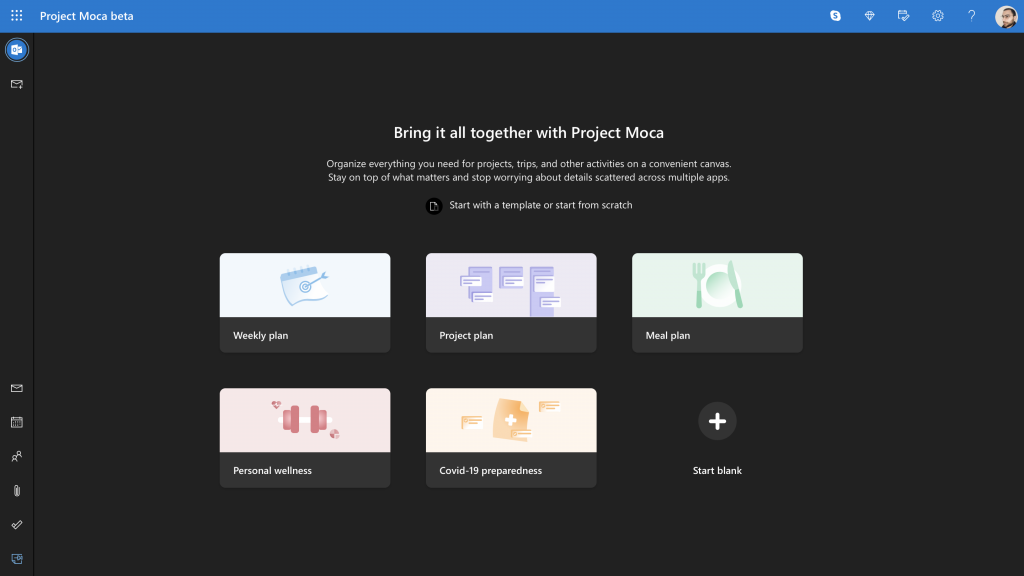
Civ 5 Runtime Error: 5 Ways to Permanently Fix the Crash

The Civilization series has been around for years, and one of the most popular entries in the series is Civilization 5. However, some users are reporting a Civ 5 runtime error.

While this error can be due to various factors, it is not impossible to fix, as you will find in this guide.

Why won’t Civ 5 start anymore?

Listed below are some of the potential causes of the Civ 5 runtime error crash:

  • Disabled mods: If you have mods on your Civ 5 game, you need to check all the mods you are using before starting the game. Else, you will get this error message.
  • Corrupt cloud files: Sometimes, this problem can be due to faulty cloud files on your game. You need to delete the corrupt files to solve the problem.
  • Interference from antivirus or firewall: Your antivirus or firewall might be blocking your game, leading to the Civ 5 runtime error dx11. The solution to this is to disable your security software temporarily and probably switch to a more reliable antivirus app.

How can I fix Civ 5 Runtime error?

1. Check your game mods

If you’re running the game with mods, you will get the Civilization 5 runtime error when loading the saved game without the mods.

To fix it, enable all mods you used before and try again. In addition, try loading the game from the Mod Menu with all the required mods enabled. Many users reported that this worked for them, so be sure to try it.

2. Start Steam in Offline Mode

  1. Start Steam and go to Steam > Settings.
    steam settings civ 5 runtime error
  2. Choose the Accounts option in the left pane.
  3. Uncheck Don’t save account credentials on this computer option.
    accounts
  4. Open the Steam menu and select Go Offline.
    go offline civ 5 runtime error
  5. Now, click on RESTART IN OFFLINE MODE.
    restart
  6. Finally, restart Civilization 5.

This is a neat little workaround, and several users confirmed that it fixed the Civ 5 runtime error. So, be sure to try it out.

3. Rename the save folder

  1. Press the Windows key + E and navigate to the path below: C:\Users\<username>\Documents\My Games\Sid Meier’s Civilization 5\Saves\
  2. Now, copy the Saves folder on your Desktop, just in case.
  3. Next, rename the original Saves folder to something else.
  4. Then, finally, restart the game.

Sometimes, a corrupted folder in your game file can cause the Civ 5 runtime error. You need to rename this folder and allow your game to build another one.

4. Remove corrupted cloud files

  1. Launch Steam and navigate to Steam > Settings.
  2. Select the Cloud option.
  3. Uncheck the box for  Enable Steam Cloud synchronization for applications which support it.
    cloud civ 5 runtime error
  4. Now, select Steam > Go offline.
    civ 5 runtime error go offline
  5. Navigate to the path below and select your account folder: C:\Program Files (x86)\Steam\userdata
  6. Next, locate the 8930 directory and delete everything inside it.
  7. Now, launch your game, play a couple of turns, and save the game.
  8. Exit the game, close Steam, and go to folder 8930.
  9. Delete remotecache.vdf file.
    remote cache
  10. From here, launch Steam, go online, and enable Cloud sync.
  11. Finally, start Civ 5. You should receive a message about Cloud Sync Conflict. Select Upload to the Steam Cloud option.

After doing that, the Civ 5 runtime error should be resolved entirely.

5. Check your firewall

A few users reported that their firewall or antivirus caused the Civ 5 runtime error. Therefore, be sure to check your third-party security software.

Some users reported issues with Peerblock, but other firewalls can also cause this problem. So, ensure that Steam and Civilization 5 are allowed through your firewall and antivirus.

There you have it: everything you need to fix the Civ 5 run time error efficiently. You should now be able to play your game again, provided you follow the instructions in this guide carefully.

If Civ 5 is not launching at all on your PC, check our detailed guide to fix it effortlessly.

Feel free to let us know the solution that helped you fix this issue in the comments below.

Seeing the Glyph launcher error 2026? Fix it in just 4 steps

Trion Glyph is a popular digital games platform for PC gamers to manage their game titles. To use Glyph the users need to install the Glyph installer. At times, you may encounter Glyph launcher error 2025 when trying to install or launch the tool.

The error prevents the user from signing into their Glyph account as reported by the users in the Reddit Community.

Can never login always get connection timed our error #2025, also cant access trion website either always just times out and says to check my internet. Any know fixes out there would be greatly appreciated.

If you are also troubled by this error, here are a couple of troubleshooting tips to help you fix Glyph launcher error 2025 in Windows.


How do I fix Glyph launcher error 2025 sign-in issues?

1. Disable VPN connection

Glyph launcher error 2025


  1. Disable and disconnect any VPN client that is running on your computer.
  2. Some VPN clients may not be compatible with Glyph which may result in a connection error.
  3. So, launch your VPN from the taskbar and click on disconnect.

2. Check your Firewall settings

Glyph launcher error 2025

  1. Another reason for the Glypsh launcher error 2015 can be your firewall settings.
  2. If you have a third-party firewall installed, disabled it temporarily.
  3. To disable Windows Defender Firewall, do the following.
  4. Click on Start > Settings.
  5. Open Updates and Security.
  6. Click on Windows Security.
  7. Choose the “Firewall and network protection” option.
  8. Select the currently active network.
  9. Turn off  Windows Defender Firewall using the little toggle switch.
  10. Run the Glyph launcher and check if the error is resolved.

Make sure to enable Windows Defender Firewall once the error is resolved.


3. Add Glyph launcher to Firewall

Glyph launcher error 2025

  1. If disabling the Firewall helped you sign in to Glyph, you can try to add Glyph to the firewall.
  2. Press Windows Key + R to open Run.
  3. Type control and click OK.
  4. Click on System and Security.
  5. Click on Windows Defender Firewall.
  6. From the left pane, click on “Allow an app or feature through Windows Defender Firewall” option.
  7. Click on “Change Settings” in the Allowed apps window.
  8. Choose  “Allow another app” button.
  9. Click on the Browse button.
  10. Navigate to the Glyph installation folder and choose “Glyphclient“.
    C:Program Files (x86)Glyph
  11. Click on Open.
  12. Click Add.
  13. Check both “Private” and “Public” boxes.
  14. Click OK to save the changes.

Now the Glyph launcher should work even if the Windows Defender Firewall is enabled.


4. Reinstall Glyph

Glyph launcher error 2025

  1. As a last resort, try reinstalling Glyph. A fresh install can fix bugs or file corruption issues with the program.
  2. Type control in the search bar and click Control Panel.
  3. Go to Programs > Programs and Features.
  4. Select Glyph and click on Uninstall.
  5. Click on Yes to confirm the action.
  6. Once uninstalled, re-download the installer from the official website and install it.

The Glyph launcher error 2025 is a common occurrence that can be fixed by following the steps in this article. Reinstall or repair Glyph installation as the last resort to fix the error.

Do let us know which method helped you resolve the error in the comments.

[wl_navigator]

FIX: The address you typed is not valid Skype error

Skype for Business comes as a part of the Office 365 suite. Skype for business offers cost-effective collaboration tools for your business. However, while trying to sign in to Skype for Business, you may encounter The address you typed is not valid error.

Several users have reported similar issues in the Microsoft community when signing in to Skype for Business in Windows.

I just installed Office 365 for school use, I’m trying to sign into Skype For Business but it gives me an error every time.
I have tried using the Email I use for school and my personal email but both give the same error.

If you are also troubled by this error, here are a couple of troubleshooting tips to help you fix Skype for Business sign-in issues.


How do I fix the address you typed is not valid Skype for Business error?

1. Check the DNS records of the domain

address you typed is not valid Skype for Business

  1. Incorrect DNS records of the domain can trigger this address you typed is not valid error because Skype for Business is unable to contact the server due to missing or incorrect DNS records.
  2. To fix the issue, make sure you have added correct DNS records on your domain/hosting provider’s website.

Adding DNS records for the domain

  1. Microsoft has a detailed guide on how to add or create DNS records at any DNS hosting provider for Office 365.
  2. You can read more information on the same accessing creating DNS records for Office 365.
  3. The following guide covers, adding TCT or MX record along with CNAME records.

2. Check for pending updates

address you typed is not valid Skype for Business

  1. Previously for similar issues, Microsoft had released an update to fix the bug in Skype for Business.
  2. Check if Microsoft has released a hotfix for the app to fix this specific issue.
  3. Click on Start and select Settings.
  4. Go to Updates and Security.
  5. Click on Windows Updates.
  6. You should see all the pending updates. If none found, click on Check for updates now.
  7. Download and install the pending updates. Check for any improvements.

3. Remove Lync cache

address you typed is not valid Skype for Business

  1. If the issue persists, deleting the Lync cache folder can help you fix the error.
  2. Open File Explorer and navigate to the following location:
    %userprofile%[email protected]
  3. Delete the local user folder.

Clean the registry entry

Skype for Business error

  1. Press Windows Key + R to open Run.
  2. Type regedit and click OK to open the registry editor.
  3. In the registry editor, navigate to the following location:
    HKCUSoftwareMicrosoftOffice15.0Lync
  4. Delete the following key:
    [email protected]
  5. Close the Registry Editor and check if the error is resolved.

Delete Skype Sign-in information

address you typed is not valid Skype for Business

  1. Launch Skype for Business app.
  2. On the sign-in screen, click on the “Delete my sign-in info” option.
  3. Relaunch Skype for Business and try signing in.

4.  Reinstall Skype for Business

address you typed is not valid Skype for Business

  1. If the issue persists, you can try to reinstall the app to fix the issue. This should remove any corruption issues with the app.
  2. Press Windows Key + R to open Run.
  3. Type appwiz.cpl and click OK.
  4. Select Skype for Business and click on Uninstall.
  5. Restart the computer once uninstalled.
  6. Download and install Skype for Business again from the official website.

The Skype for Business error can be resolved by updating the DNS record, clearing Lync cache, or by deleting some registry entries.

Follow the steps in this article and let us know which method helped you resolve the issue in the comments.

[wl_navigator]