Last week, Telltale Games made the annoucement that it laid off most of its staff and revelation that left many wondering what would become of the IP the studio had in the cannon.
For the most part, Telltale informed the industry that its production of its next Walking Dead installment would be stillborn and marked as Canceled Incomplete, along with a long awaited sequel to Wolf Among Us.
Other properties that had been previously annoucned such as adaptaions of Minecraft and Stranger Things were also on the chopping block as the company released all but 25 employees, left to oversee the shuttering of the studio.
However, Polygon is reporting that Netflix would like to see the 25-employee skeleton crew finish up the Minecraft: Story Mode game for release on Netflix’s platform as an interactive narrative series as well as allowing The Stranger Things game to find a new home for development.
“They developed many great games in the past and left an indelible mark in the industry. Minecraft: Story Mode is still moving forward as planned. We are in the process of evaluating other options for bringing the Stranger Things universe to life in an interactive medium.”
Fortunately, for gamers, the Stranger Things game was offered as a licensed property to TellTale in similar fashion as the Walking Dead, which allows Netflix the opportunity to shop it around to other studios, now that Telltale is bowing out the gaming world.
Some customers have been experiencing issues when installing or playing GTA V due to a Windows User Account Name error. Rockstar has published some details on how to work around the issue, so we have decided to help you out in case you didn’t hear about this yet.
Apparently, there have been quite a lot of problems for the Windows users who wanted to install GTA 5 on their PCs. And Rockstar has listened to their complaints and tried to solve some of the issues. Here’s what many players have been complaining about:
I am having problems installing or playing GTAV PC. Issues include an error message saying “The Rockstar update service is unavailable (code 1)”, or the game hanging while trying to download the update. How can I fix this?
Following that, many users encountered the issue with different codes:
the rockstar update service is unavailable code 202
the rockstar update service is unavailable code 217
the rockstar update service is unavailable code 210
the rockstar update service is unavailable code 207
How to fix “The Rockstar Update Service is Unavailable”
A fellow user on Reddit confirms that he managed to quickly fix this issue by using a reliable VPN. Connecting to the servers might get blocked by some of your settings. Using a good VPN will get you connected easily.
Follow the steps from below to see what Rockstar is instructing us to do. However, you should know that if you created a new Windows account to play before the fix, you will be able to continue playing GTA V on your original Windows account.
Log in to the new account you created, and copy your game data to a folder that can be accessed from both user accounts:
Go to the “My DocumentsRockstar Games” and copy the “GTA V” folder.
Go to your root directory (e.g. C:) and paste the folder there.
Log out of the temporary account, and log back into your original Windows account.
Copy your game data into your original account:
Go to your root directory (e.g. C:) and copy the “GTA V” folder you posted earlier.
Go to the “My Documents” folder
If you already have a “Rockstar Games” folder:
Click into the “Rockstar Games” folder and paste the “GTA V” folder there.
If you do not have a “Rockstar Games” folder:
Create a new folder in this directory called “Rockstar Games” (without the quotes).
Paste the “GTA V” folder in this new directory.
Go ahead and read Rockstar’s post on this for the rest of the instructions. Sound off below by leaving your comment and let us know if you’re still experiencing problems.
The verdict is out, Forza Horizon 4 is the best Xbox exclusive this game for this console generation. With a 92 score on Metacritic, the open world racing game beat its critically-acclaimed predecessor Forza Horizon 3, and the stars now seems to be aligned for Forza Horizon 4 to become one of the best selling games during the holiday season. Check out our review of this great new game, it’s a winner!
But in the meantime, the Xbox team will be celebrating Forza Horizon 4’s upcoming release with a series of Mixer livestreams live from the Goodwood Estate in West Sussex, England.
Festivities will kick off at 6PM BST with developer Playground games, and the Xbox team promises to bring “some of the best drivers in the world bringing the franchise to life through a variety of action-packed showcase events.” You can check the full program in the tweet below, but after Microsoft teased “a few big surprises” last week, make sure not to miss the Inside Xbox special episode at 1:00 p.m. PT/4 p.m. ET.
Forza Horizon 4 will launch worldwide on October 2, though owners of the game’s Ultimate Edition will get early access starting Friday, September 28. As a reminder, Forza Horizon 4 will also be the first game in the series to be available on Xbox Games Pass on launch day, and that’s something that should push many Xbox One owners and Windows 10 gamers to check out Microsoft’s gaming subscription service.
For many years, Apple has often been lauded and criticized for its ability to steal ideas from its competitors. We’ve seen this with the graphical user interface back in the 80’s, or more recently with FaceID on the iPhone X. One thing is sure though, the Cupertino giant often proved that it can better execute on brilliant ideas that its competitors first came up with.
The last example is probably the new dark theme in macOS Mojave, which is now generally available for Mac users. As you may know, the dark theme option was one of the main features of Windows Phone 7, especially when coupled with AMOLED screens. Well, such screens are still a rarity in the PC world, but Windows 10 had a dark theme option from the beginning.
I’ve found that when you try the dark theme on Windows 10, it’s pretty hard to go back. Dark colours are definitely much easier on the eyes, especially during nighttime, and it’s really a refreshing change after so many years of UI stagnation on Windows. Well, after checking out the new dark theme on macOS Mojave, I’m afraid I can’t deny that it looks much more polished than the one in Windows 10.
Unlike Microsoft, which still uses a deep black colour in some places, Apple uses different shades of dark grey. I’ve taken a couple of screenshots to compare Windows and Mac apps side by side, and you can see below the macOS Finder next to the Windows 10 File Explorer. MacOS also had its “Fluent Design” update years ago, and the various transparency effects are really subtle.
Next, I’ll add a comparison of two core productivity apps, Outlook Mail and Apple Mail. The latter comes with a dark background for the reading pane, which I think is much better. While this not related to dark theme, information density is also much better on Apple Mail, and the giant buttons in Outlook Mail can’t hide that this an app optimized for phones and tablets.
Lastly, a quick look at Apple Photos and the Windows 10 Photos app. Again, Apple uses different shades of dark grey while the Windows 10 Photos app still uses a deep black colour. Again, Apple’s Photos app comes with sole light transparency effects on the left panel, which is a familiar design across Mac apps.
To be fair, Dark Theme on Windows 10 has been a work in progress since the beginning, and because all stock Windows 10 apps are now updated through the Store, Microsoft is free to try different design changes without having to update the full OS. However, this is a different story for other components like the Windows Shell, or legacy apps like File Explorer.
Beauty is in the eye of the beholder, as the adage says, but I’m really impressed by Apple’s ability to get dark theme right and consistent on the first try. The company had plenty of design missteps over the years, especially when Apple designers were still obsessed by skeuomorphism, but I now find it difficult to appreciate the dark theme on Windows 10. What has been seen cannot be unseen, and I now hope that Microsoft designers will take a deep look at macOS Mojave. Windows 10 is far from looking bad, but there’s still definitely some room for improvement.
Star Wars Battlefront II’s update for September is now live on all Xbox One consoles. This major update adds six new appearances for Clone Troopers based on the 91st Mobile Reconnaissance Corps and 104th “Wolf Pack” Battalion and also introduces a new squad system for an improved multiplayer experience between friends.
This update also changes the way online games connect to servers with adjustments to the ping sites system that will now search for nearby populated servers in addition to the user’s preferred one. Matchmaking has also been improved, a variety of bugs have been squashed, and several adjustments have been made to some heroes and troopers with the most notable change being the Heavy’s Ion Turret which no longer targets troopers.
Forza Horizon 4, the latest entry in the open-world racing game series is one of the most anticipated Microsoft games of the year, and it’s a winner. This time, British studio Playground Games decided to take things home and set this new episode in the British countryside, a refreshing change after the Australian landscapes of Forza Horizon 3.
As you may know, we get a new Forza game every year, and Forza Horizon 4 succeeds to Forza Motorsport 7 released back in October 2017. The two sub-series don’t really target the same audience: Forza Motorsports games are for hardcore racing fans interested in racing on real circuits, while Forza Horizon games are set in a fictional open world and feature a more arcade gameplay.
After spending close to 30 hours in Forza Horizon 4, I’ve realized that it’s an excellent game for casual gamers looking to have some fun with some of the maddest cars that ever hit the streets. The best thing about this game is that you don’t have to win every race to progress, and because there are so many things to do in this world, you probably won’t get bored any time soon.
Forza Horizon 4 brings many gameplay improvements over Forza Horizon 3, and the biggest ones are probably the introduction of dynamic seasons that will change every week, as well as a shared open world with servers that can host up to 72 players. The dynamic seasons are more than a simple cosmetic change as lakes will be frozen during winter, giving players access to new areas of the map. Every new season will also bring themed content, challenges and exclusive rewards.
Customize your cars and your avatar
At launch, the game will feature over 450 cars from more than 100 manufacturers, though it’s worth noting that Mitsubishi, Lexus and Toyota (except some racing/offroad trucks) vehicles will be absent from the game due to licensing issues. You can still customize your cars any way you want, including brand new drift suspension upgrades. You can even customize horn sounds, and Playground Games did some decent fan service with unlockable sounds from Halo and Sea of Thieves, and there even the Windows XP shutdown sound if you’re really old-school.
I also had fun customizing my driver avatar, especially when choosing the awkward dance moves that your character will be doing on loading screens and after winning races. Seeing your avatar dabbing or pulling some weird Hotline Bling’s dance moves in front of competitors is really special. One feature I also enjoyed is the short messages you can send to other players using the D-pad, and during my time in multiplayer games, I saw that many gamers use this for some gentle trolling (example: a “Bye” message) after kicking you off the road.
After spending some time exploring the open world, you’ll also discover a re-creation of the city of Edinburgh, which looks really charming when the sun goes down. Moreover, you’ll find that you can buy several properties from small cottages to very expensive castles, and choosing one of them as your home will unlock new items and gameplay perks. When you’re home, you’ll be able to customize your cars and driver avatar, and also access the Auction House to find new cars to buy or sell the ones you no longer want.
My Horizon Life
If you already played the free demo, launching the game for the first time will be a very familiar experience. You’ll have to go through the same opening sequence that lets you experience the four seasons in a couple of minutes, and then you’ll end up at the Horizon Festival during summer. What will follow is a 4 to 5 hours Prologue that will make you experience the four different seasons for a longer period of time, but you won’t be able to join the shared open-world and unlock all of the game’s multiplayer modes until you win the Yellow Wristband and qualify for the official Horizon Roster.
Once you’re done with the Prologue, you’ll be able to continue the multi-threaded “My Horizon Life” campaign, but seasons, time of day, and weather will be fully synchronized for everyone playing the game. My Horizon Life is the core campaign and includes different race types and challenges. Each thread has its own progression level and will let you earn different rewards (new race events, credits, clothing items, quick chat phrases, and more) as you progress. In addition to My Horizon Life, each new season (season changes will happen every Thursday at 14:30 UTC) will bring new seasonal championships, events and content. That’s a pretty smart way to keep players engaged every week, and you can also look at the #Forzathon hourly, daily, and weekly challenges for even more racing action. By popular request, a post-launch update will also introduce a Route Creator for creating and sharing your own custom race routes.
Overall, there’s really a lot to do in Forza Horizon 4, even for the Solo player. Everything you do in the game can let you gain Influence, which will be key to progress in the game. You earn Influence after completing any race, discovering new roads or smashing one of the hidden Influence boards that are hidden on the map. In addition to Influence, there is also a Skills points system to reward players doing awesome stunts and more. Skills can be used to purchase perks for your cars (every car in the game has a skill tree), which will unlock a permanent bonus for earning extra Skill score when doing certain actions, or extra Influence when you participate to select events.
Every new season will bring new limited-time events.
Performance
On a technical standpoint, Forza Horizon 4 is definitely a looker, even on a base Xbox One console. The game is locked to 30 FPS on the original Xbox One and Xbox One S, but Xbox One X owners will be able to choose between “Quality” with 4K graphics at 30FPS, or a “Performance” mode at 60FPS in 1080p. Anyway, the game runs great at 30FPS and I didn’t notice any slowdowns or hiccups while playing on an Xbox One S.
Multiplayer
While it’s entirely possible to play Forza Horizon 4 solo, I found that the shared open-world really pushes you to interact with other players. As an example, the #Forzathon Live events which will appear on the map every hour allow up to 12 players to cooperate on a series of objectives. Moreover, almost every Horizon Life race on the map allows you to play with other players, though you may have some trouble finding other players to join you if you’re not already part of a Convoy. Fortunately, though, the native integration of Xbox Live Clubs makes it much easier to form a Convoy.
Another new multiplayer feature in Forza Horizon 4 is the Team Adventure multiplayer mode, which is a lot of fun. There are three types of Team Adventure modes mixing different types of races (including a capture the flag mode), but every mode puts two teams of players against each other and the one ending the most points across different rounds will be the winner. It’s also possible to create your own Team adventure and customize seasons, weather and time of day, car types, the routes you want to appear, and much more. For the more competitive players, a Ranked Team adventure mode is also present and lets you earn exclusive rewards.
I had a lot of fun with Team Adventure mode, but I found that it’s not easy to leave it to go back to the shared open world. When I tried it, I was kept in a loop of new rounds and had no choice but quitting while a new race has just begun, which probably wasn’t really nice for my teammates. It remains a great addition to the series, but I wish the presentation was slightly better.
Music and Mixer
A quick word about the soundtrack: Forza Horizon 4 features over 100 tracks across several in-game radio stations (you can check the full list here), which is a bit less than the nearly 150 songs found in Forza Horizon 3. Moreover, Playground Games didn’t add Groove Music integration this time around, and that’s not really surprising since Microsoft discontinued Groove Music Pass last year. However, you’re still free to use any music app you want on the Xbox One to add some background music while you’re playing the game.
It’s also worth noting that Forza Horizon 4 is probably one of the first Microsoft Studios game to integrate Mixer so prominently. The game streaming service is one of the different threads in the My Horizon Life campaign, and you can earn in-game Influence by streaming your own game or by watching Forza Horizon 4 streams on Mixer. This has already led to the creation of many “Influence farms” on Mixer, with some players just streaming the game menu to earn influence. That was to be expected, and we hope Microsoft will address this as it would be a shame to see these Influence farms steal viewers from the most dedicated streamers on the platform.
The Winter season is really special and frozen lakes will give you access to new areas.
Microsoft’s best exclusive game of 2018
In the end, I have absolutely no doubt about Forza Horizon 4 being the best Microsoft exclusive game released this year, and one of the best racing games you can play on Xbox One and Windows 10. Even if you’re not a big racing fan, the game is really accessible and can appeal to everyone just because of its amazing open world and content variety. It’s just a game that feels great to play, especially with those rumbling triggers on the Xbox One controller which are really great for increasing immersion. The weekly season changes are also a good reason to launch the game every now and then, and this exactly where this whole “Games as a service” philosophy really shines.
In recent years, it has been hard to ignore the fact that Microsoft has an exclusive problem. This year alone, Sony’s Playstation 4 received critically-acclaimed exclusives like God of War and Spider-Man, and Xbox One exclusives like Sea of Thieves and State of Decay 2 really pale in comparison. In retrospect, the Forza series has probably replaced Halo or Gears of War franchises as Microsoft’s most popular and successful gaming IP. That’s all thanks to Turn 10 Studios and Playground Games’ ability to consistently release highly-polished experiences, and Microsoft acquiring Playground Games this year is really promising news for the future of Microsoft Studios.
Forza Horizon 4 will launch worldwide on October 2, and it will also be available on Xbox Games Pass on launch day. If you want to get early access on September 28, you’ll have to buy the game’s $99.99 Ultimate Edition which includes the Car Pass, the Best of Bond Car Pack, the VIP Membership and its exclusive rewards, as well as two game expansions when they become available. Just like its predecessor, the game also supports Xbox Play Anywhere and cross-play multiplayer between Xbox One and Windows 10. I’m optimistic about Forza Horizon 4 breaking new records for the franchise, and the game also seems to be exactly what Microsoft needs to push more gamers to subscribe to Xbox Games Pass during the holiday season.
As part of the November 2014 update rollup for Windows RT 8.1, Windows 8.1 , and Windows Server 2012 R2, Microsoft has issued a small, but a significant update for some Windows 8.1 users of the OneNote app. Here’s how the official fix sounds like. There has been recently reported an annoying problem by Windows 8.1 owners – a new page’s cannot be displayed in OneNote app in Windows 8.1 or Windows RT 8.1. Microsoft has rolled out a fix in the most recent Windows Update, so you need to perform the latest upgrade to benefit from it.
Here’s how the official problem has been ‘diagnosed’:
You run Microsoft OneNote app in Windows 8.1, Windows RT 8.1, or Windows Server 2012 R2.
You use a Microsoft account to sign in to the OneNote app.
You create a new page and enter some characters on the new page by using a Table Text Service (TTS) input method editor (IME).
There isn’t a hotfix available, so the single way to get rid of this problem is to update through Windows Update. The fix applies to the following operating systems:
Windows Server 2012 R2 Datacenter
Windows Server 2012 R2 Standard
Windows Server 2012 R2 Essentials
Windows Server 2012 R2 Foundation
Windows 8.1 Enterprise
Windows 8.1 Pro
Windows 8.1
Windows RT 8.1
[Updates] Microsoft has confirmed that this is a problem in the Microsoft products. The issue has been resolved with the earliest Patch Tuesday for Windows 8.1. Users have installed the November 2014 update rollup for Windows RT 8.1, Windows 8.1, and Windows Server 2012 R2.
OneNote won’t open Windows 10 – Many users reported that OneNote won’t open at all on their PC. If this happens, you need to delete the settings file and see if that helps.
OneNote won’t sync – Syncing is an important part of OneNote since it allows you to view your notes on different devices. If OneNote cannot sync on your device, you might be able to fix the problem by resetting the application to default.
Full guide: How to fix common OneNote sync issues
OneNote error 0x803d0013 – This is one of many error codes that can appear while using OneNote. This problem can be caused by a corrupted user profile, and you can fix it by creating a new user profile in Windows.
OneNote keeps crashing, not responding – These are some of the problems that can appear with OneNote, but you should be able to fix most of them by using our guide below.
Office 2019, the new perpetual version of Office for Windows and Mac, is now available for customers who are not ready yet to move to Office 365. The new version introduces many features that have been previously released on Office 365, including improved inking on Windows 10, Learning Tools in Word, Focused Inbox in Outlook, and more.
Commercial volume license customers can get Office 2019 starting today, and consumers and other business users will get access to it in the next few weeks. Office 2019 for Mac only includes Word, Excel, PowerPoint, and Outlook, while the Windows version also comes with Publisher 2019, Access 2019, Project 2019, and Visio 2019. As a reminder, OneNote for Windows 10 is now the default OneNote app, but OneNote 2016 is still available as a standalone app and will be supported through 2025.
In addition to the Office 2019 news, Microsoft also announced today that will release Exchange Server 2019, Skype for Business Server 2019, SharePoint Server 2019, and Project Server 2019 in the coming weeks. Windows Server 2019 and Windows Server version 1809 will also be released in October, the company said today.
Today at Microsoft Ignite, the company announced an Azure version of “Windows Virtual Desktop,” calling it “best virtualized Windows and Office experience delivered on Azure.” With a cloud based virtual desktop, companies can ensure regulation compliance, securely managed data, and easy access for mobile and/or first-line workers.
Microsoft says it has developed Windows Virtual Desktop with “both IT and the user in mind,” and the new product delivers these benefits:
The only service to enable a multi-user Windows 10 experience, including compatibility with Microsoft Store and existing Windows line-of-business apps while delivering cost advantages previously only possible with server-based virtualization.
The best service to virtualize Office 365 ProPlus running in multi-user virtual scenarios. Microsoft Office is the most virtualized app used, and we are committed to deliver the best possible virtual experience. In the months ahead, we will have more to share on our investments in the Office 365 virtualized experience for the Windows Virtual Desktop service.
The only service to provide Windows 7 virtual desktop with free Extended Security Updates, giving you more options to support legacy apps while you transition to Windows 10.
The most scalable service to deploy and manage Windows virtual machines, using Azure for compute, storage, rich diagnostics, advanced networking, connection brokering, and gateway. You no longer need to host, install, configure, and manage these components yourself—so you can deploy and scale in minutes.
The most flexible service allowing you to virtualize both desktops and apps, meaning you can choose between providing your users the entire desktop experience or delivering only specific apps. When you deliver virtual apps to a Windows 10 endpoint, they are integrated seamlessly into the user experience.
Deeply integrated with the security and management of Microsoft 365. The Microsoft 365 conditional access, data loss prevention, and integrated management are natively built in—providing the most secure and simplest solution for protecting and managing all your apps and data.
Recognizing that companies will have specialized needs for a virtual desktop, Microsoft has built Windows Virtual Desktop as a platform, and customers will be able to extend it through partner services from the likes of Citrix, FSLogix and ThinPrint, and Cloud Solution Providers will be able to offer value added Desktops.
Windows Virtual Desktop will be available to Windows 10 Enterprise and Windows 10 Education customers by setting up or using an existing Azure subscription and paying only for the storage and compute consumption. A public preview will become available later this year, and you can register now to get more information and get your name on a list.
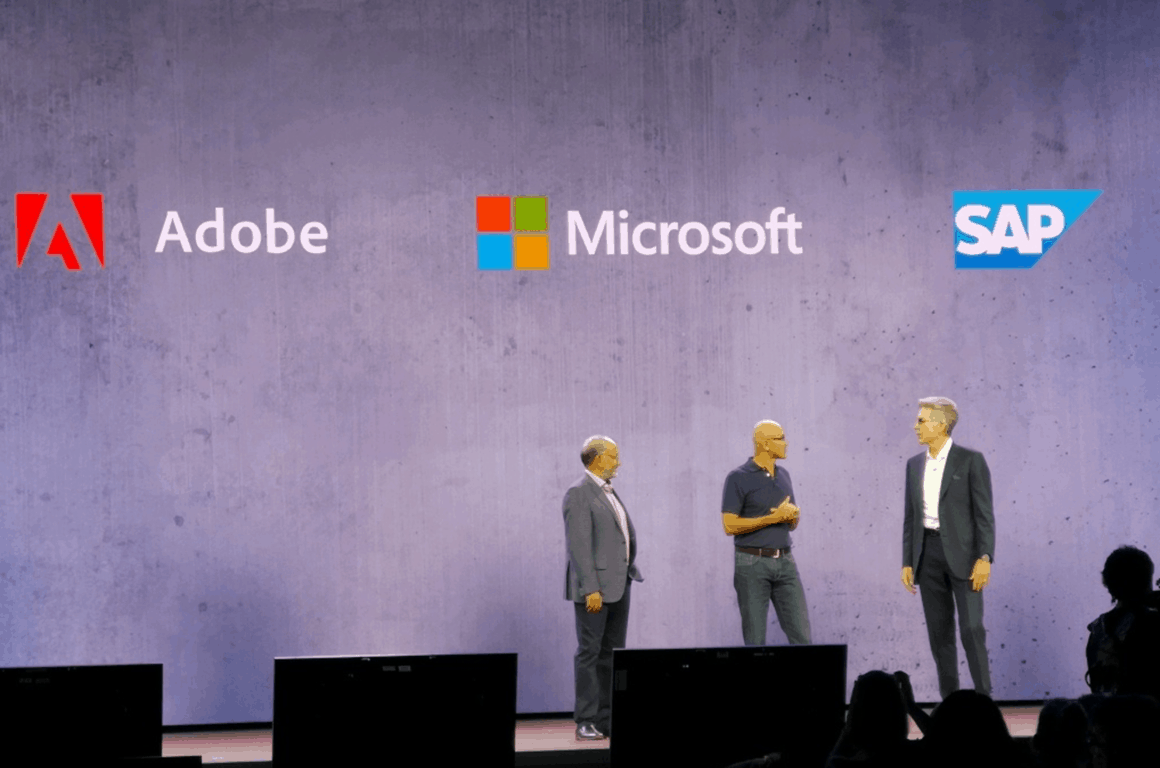
Microsoft CEO Satya Nadella kicked off the company’s Ignite 2018 keynote with some major news this morning. Bringing the CEOs of Adobe and SAP on stage, Satya Nadella announced that the three companies had teamed up to create the Open Data Initiative, a new partnership aiming to give customers more control over their data.
The Open Data Initiative aims to help organizations create more value from important customer information that is often managed by third party providers. “The core focus of the Open Data Initiative is to eliminate data silos and enable a single view of the customer, helping companies to better govern their data and support privacy and security initiatives, Microsoft explained. “With the ability to better connect data across an organization, companies can more easily use AI and advanced analytics for real-time insights, “hydrate” business applications with critical data to make them more effective and deliver a new category of AI-powered services for customers.”
With the Open Data Initiative, Microsoft and its partners will enhance interoperability between Microsoft Dynamics 365, Adobe Experience Cloud and Adobe Experience Platform, and SAP C/4HANA and S/4HANA. This will be done through a common data model that will allow a large partner ecosystem to “unlock and harmonize siloed data to create new value,” Microsoft explained today.
Such a partnership would have been absolutely far-fetched a couple of years ago, but this is a necessary step for building the intelligent applications of tomorrow. “CEOs are breaking down the silos of the status quo so they can get all people inside their companies focused on serving people outside their companies,” said Bill McDermott, CEO of SAP.
Many Windows 10 users have started complaining that their Sound Blaster X-Fi Xtreme Music sound card isn’t working anymore. Let’s have a look at what they’re saying. If you are the owner of a Sound Blaster X-Fi Xtreme Music sound card and you plan to upgrade, I think you should read first this complaint coming from someone who has already installed it:
“I was able to use this card with creative win8.1/x64 drivers and the card and the associated creative software and drivers all worked flawlessly on the 2 previous versions of the tech build. after upgrading to the latest tech build 9926, I had no sound, yet looking at everything in the sound control panel, etc made it appear that I had sound (green level bar bouncing up and down when playing sound).
when I check the device manager, it shows Creative SB X-fi, and shows drivers by creative. I tried muting and unmuting it, that has worked in the past. no change. I uninstalled the card in the device manager and rebooted, letting it re-install. yay! sound!.. problem… I am set for 5.1 surround, yet all audio is coming out of only the front 3 channels all at the same time.
I try to open the creative control panel to check my mixing and surround settings, and I get the message “the audio device supported by this application is not detected”.. Again, when I check the device manager, it shows Creative SB X-fi, and shows drivers by creative. I try re-installing the drivers from creative. I lose sound again
if I uninstall the device, the drivers and delete everything and reboot, it shows up as an unknown multimedia device. only way to get the device to be recognized is to install the creative drivers, however I end up with no sound again. if I delete the device, but not the software or drivers and reboot and let it auto install, I get sound, but as stated as above, it’s not separating the channels, and I none of the creative software recognizes that I have the card installed. the creative auto update does detect it, but there are no updates available.”
I will keep following the original forum thread where the problem has first been reported and will let you know whether I hear a positive resolve on this. Meanwhile, if you happen to know a solution, as always, don’t hesitate and leave your comment below so that we could be able to help others, as well.
UPDATE: Since the initial writing of this article, we found some additional solutions that may help you fix this problem. We’ll list them below.
How to fix Sound Blaster X-Fi Xtreme problems
Update your Sound Blaster X-Fi Xtreme drivers for Windows 10
Creative released many driver updates for Windows 10 in order to make their sound cards compatible with the latest OS versions. Go to Creative’s official website and install the latest drivers for your card.
Run the Audio/ Hardware and Device troubleshooters
Windows 10 features a series of useful built-in troubleshooters that will help you fix various technical issues just by clicking in a simple ‘Run the troubleshooter’ button. So, you don’t need any troubleshooting experience in order to use these features. Simply go to Settings > Update & Security > Troubleshoot > run the two troubleshooters mentioned above.
Additional troubleshooting solutions
If the two quick solutions listed above didn’t help you fix this audio issue, here are some additional guides that you can use:
At Ignite 2018, Microsoft is making a number of Microsoft 365 announcements, including an “out with the old, in with the new” item involving Microsoft StaffHub. The first-line worker app that was in free preview before it became a part of some Office 365 F1, will be retired on October 1st, 2019, and replaced by two new apps, Home and Shifts, coming soon:
Home is a new mobile experience that allows firstline workers to see at a glance the most important and relevant info for their day. With Home, firstline workers can clock in and out of shifts/breaks, receive important notes for the day or shift, find out who is working during the shift and save time by easily reviewing information and schedule.
Shifts enables firstline managers to plan schedules in an employee self-service and integrated experience. They can create, update and distribute schedules for teams as well as broadcast open and unfilled shifts so that other employees can cover them. Finally, they can review and accept time off requests and swap shifts – all from mobile. For firstline employees, they can swap/offer shifts and request time off, right from their phones.
We’ll have more on Home and Shifts as they become available, and make sure to keep up with all the Microsoft Ignite 2018 news as it happens.
Today in Orlando at Ignite, Microsoft’s annual conference for IT Pros, as expected much of the focus wasn’t on Windows or Surface or Xbox, but on the new stars of a new generation, AI and Azure. Microsoft spent time talking about AI for humanitarian good, about security for a world rapidly being connected in ways we’ve never experienced, and about new tools and new updates to make it possible for developers and companies to utilize the power of Artificial Intelligence using Azure, SQL Server, and machine learning.
In many ways, the world is connecting up faster than we can control, and Microsoft is at least attempting to get a handle on what’s being unleashed. Introduced today at Ignite, the company built on its AI for Good initiative with AI for Humanitarian Action, a $40 million, five year program to promote use of AI to aid disaster response, the needs of children and refugees, and act on human rights abuses. It introduced enterprise-class security technology including Microsoft Authenticator for Azure AD, Secure Score, and Microsoft Threat Protection.
While not in the cross-hairs of the issues surrounding election fraud, Microsoft has been stepping up with its AccountGuard initiative, offering “state of the art cybersecurity protection at no extra cost to all candidates and campaign offices at the federal, state, and local lever, and other organizations critical to the democratic process.”
While engaged in the process of throttling AI and machine learning before it gets (too) out of control, Microsoft also unveiled a number of new products and technologies to accelerate the adoption and use of AI in the enterprise and in our daily lives. Microsoft introduced updates to Azure Machine Learning, announced a preview of SQL Server 2019 and Azure SQL DB hyper scale that, beginning October 1st, will offer auto-scaling up to 100TB per database. Available today, Azure SQL Database Managed Instance will allow organizations to migrate SQL Server workloads to the cloud with zero code changes. It announced the public preview of Azure Data Explorer, a “lightning fast indexing and querying service,” updates to Cosmos DB multi-master, and a preview of Azure Databricks Delta.
It was a big day for IoT news at Ignite, too, and Microsoft continues to move fast in building out Azure for the Internet of Things, and is making Azure IoT Central generally available and ready to “provision an IoT solution in less than a minute.” The company introduced Azure Digital Twins, a system for building “comprehensive digital models of any physical environment.” With Azure Digital Twins, developers can build virtual models (an elevator, a factory floor) and optimize and manage those assets more efficiently.
Microsoft is trying to keep IoT secure, too, introducing the broad availability of Azure Sphere development kits, and a public preview of Azure Data Box Edge, a physical appliance that sends data in and out of Azure.
For the Microsoft consumer enthusiast, it’s difficult to comprehend the importance of Azure, of big data, and the issues surrounding security and safety, but they will, and do already affect our daily lives with everything from online shopping to banking to traffic patterns to election security and even democracy itself. We’ll be talking more about Azure and data and how it affects us as consumers here at OnMSFT as Microsoft continues to push to become a leader in the transformation to a digital first world.
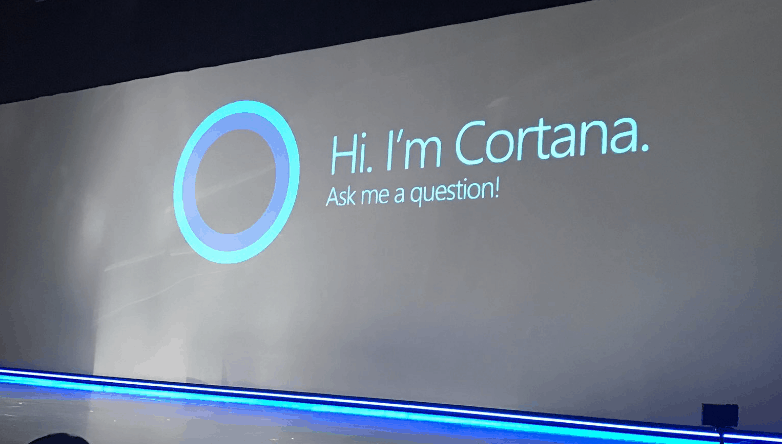
Microsoft is bringing customizable Cortana experiences and skills with the new Cortana Skills Kit for Enterprise. The end-to-end solution allows enterprises to build custom skills and agents, test them with users, and fully manage deployment to their organization. Developed with the Microsoft Bot Framework and Azure Cognitive Services Language Understanding service, the platform will help enterprises effectively use Cortana to improve workforce productivity. This is currently available by invite only and more broadly in the near future where companies and developers will be able to request an invitation.
The Cortana Skills is developed with the Microsoft Bot Framework and Azure Cognitive Services Language and should help boost Cortana’s usage across workforces. Microsoft is also promising that the platform should help enterprises use Cortana to improve their workflows and productivity.
Currently, Cortana Skills for Enterprise is available on an invite-only basis and will become more widely available in the near future.
Microsoft has long been looking to make the world more secure with features like Windows Hello, and the firm today is taking another big step in that direction. On stage at Ignite 2018, Microsoft is announcing Secure Score and a series of other new offerings which aim to protect and save businesses and enterprises from security and password worries.
First off, there is Microsoft Threat Protection. This new solution brings together Microsoft’s threat protection solutions across emails, PCs, identities, combined into a single integrated experience. Microsoft promises that this solution should help save security analysts thousands of hours by helping detect cyber threats and remediate their ever changing effects.
Next up, there is new support for password-less login in the Microsoft Authenticator app for Azure Active Directory. Familiar to most consumers, this app removes passwords and combines the phone’s fingerprint, face or PIN for a secure, multi-factor login. With Authenticator, Microsoft is declaring “an end to the era of passwords.” It’s coming to Azure Active Directory accounts and is available today.
Finally, there is Microsoft Secure Score, which is being called the “only dynamic report card for cybersecurity.” Designed for large organizations, the solution gives a dynamic enterprise report card for cybersecurity. Microsoft promises that this service will give organizations assessments and recommendations, to help them reduce their changes at breaches by “30-fold.” Secure Score is available now for IT professionals, and you can learn more by checking here.
These are just three of the big security-related announcements from Ignite 2018. Microsoft also revealed a public preview of Azure confidential computing, Modern compliance enhancements, and an expansion of their work through the Cybersecurity Tech Accord.
It’s been over two years now since Microsoft first acquired LinkedIn, and the tech giant is continuing to integrate the professional network across its services and offerings. In the latest, at Ignite 2018, the company has just announced that LinkedIn integration will be coming to Microsoft 365.
Soon, Microsoft 365 users will be able to coauthor Word, Excel, and PowerPoint documents with people in their LinkedIn network. Users will also be able to send emails to people in their LinkedIn network directly from Outlook. “This brings your corporate directory and your LinkedIn network together, so you never lose touch with the contacts who can help you succeed, inside or outside your organization,” explained Microsoft.
Capping off the features of the new LinkedIn integration is the ability for users to see LinkedIn highlights about the people in Outlook meeting invites. This all means users should have an improved workflow, with big focus on seeing what’s important.
Microsoft says the integrations will be coming soon, in a staged rollout. Best to keep tuned for more in the weeks ahead.
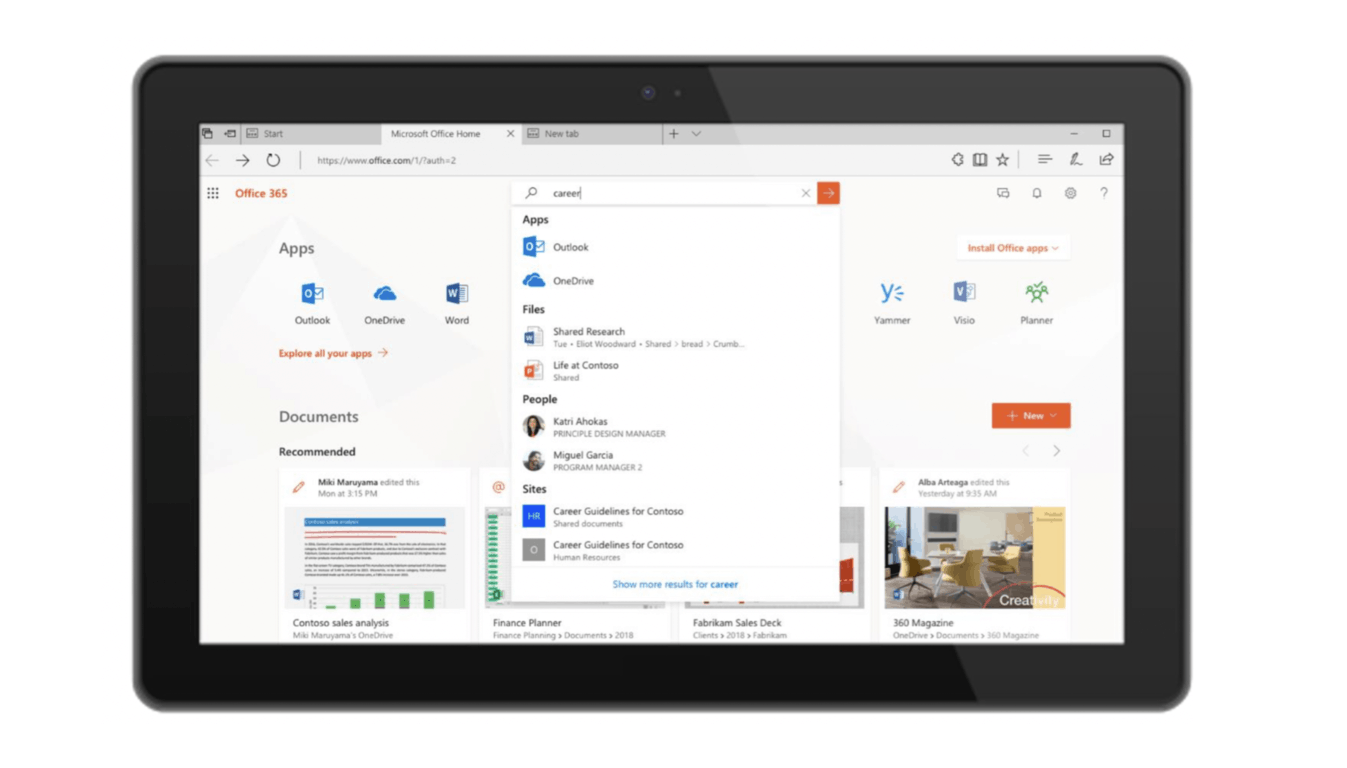
Microsoft is consolidating its various search capabilities into Microsoft Search, a new omniscient search box that will be available across Bing, Office, and more Microsoft properties. The Microsoft Search announcement was made today at the company’s Ignite conference in Orlando, where Microsoft revealed new capabilities in Microsoft 365 for achieving more in the modern workplace.
Microsoft Search will be powered by the Microsoft Graph and AI technology from Bing, and it will exist as a simple search box available across Edge, Bing, Windows, and Office apps. Microsoft Search will be able to pull data from Office 365, and also leverage AI technology to help you find what you need when you need it. Search will become a much more seamless experience across Windows and Microsoft 365:
Over the next few months you’ll experience these first steps:
Search will move to a prominent consistent place across the apps you work with every day. From Outlook to PowerPoint, Excel to Sway, OneNote to Microsoft Teams, Office.com to SharePoint, the search bar will be in the same place—across desktop, mobile, and web.
Personalized results as soon as you click in the search box, such as people you share with the most and documents you were working on recently. No query is required to get suggestions.
The search box itself will also command the application where you are working. For example, begin typing ‘acc’ in Word to get list of suggested actions such as Accept Revision or Accessibility Checker. You no longer need to hunt through toolbars to look for a command.
Search results will include results from across your organization. For example, within Word, you can find not only other Word documents, but also a presentation you were working on. You can navigate straight to that presentation or you can choose to incorporate slides from that file directly into your document.
Extending that same organizational search experience wherever you are working—in Bing.com (when signed in with your Office 365 account), Edge or Windows. Search wherever you want to and get the same experience.
Unified administration of your organizational search results, including admin curated results such as bookmarks.
“We’re pulling together the power of the Microsoft Graph and AI technology from Bing to deliver future experiences that are more relevant to what you are working on,” explained Ron Markezich, CVP, Microsoft 365 Commercial. “This will include automatically answering questions such as “Can I bring my wife and kids on a work trip?” by using machine reading comprehension that takes knowledge of the world and pairs it with understanding of your organization’s documents,” he continued.
This all sounds pretty exciting and Microsoft Search is available in preview today on Bing.com, Office.com (including app start pages) and the SharePoint mobile app. Microsoft plans to bring this new capability to Edge, Windows, and the Office apps at a later date.
This week in Orlando, Florida, Microsoft is taking the wraps off news about Azure, Microsoft 365, AI, cybersecurity, and a lot more. Microsoft is webcasting the keynote live, and you can watch it here, below:
Remember that you can create a Tech Community account and watch breakout and community theater sessions either live or on demand, and remember too to stay tuned to OnMSFT for all the latest from Ignite and beyond.
One issue Windows 10 users have often been vocal about is the Wi-Fi lag that often tends to spike beyond appreciable limits, leading to a below-par internet browsing experience each time that happens. That again is something that is very inherent to the way Windows update works given that it uses a peer2peer method of propagating the update among the masses.
That way, your PC might very well serve as a download location for other users to be provided the update. However, any drop in upload or download speeds might not be too perceptible with a fast internet connection though things can truly become a chore during days when your internet connection isn’t at optimum.
However, like with most other problems, there sure is a solution to the issue. And it’s simple and quick too. So, let’s get started right away.
Ways to deal with Wi-Fi lag spikes in Windows 10
1. Turnoff peer2peer system
As has been stated above, the peer2peer system is the reason Wi-Fi lag spikes. So the most logical method to deal with it will obviously be to turn it off. Here is how you do it.
Go to Settings > Update & Security.
In the Windows Update page that you are led to, select Advanced Options.
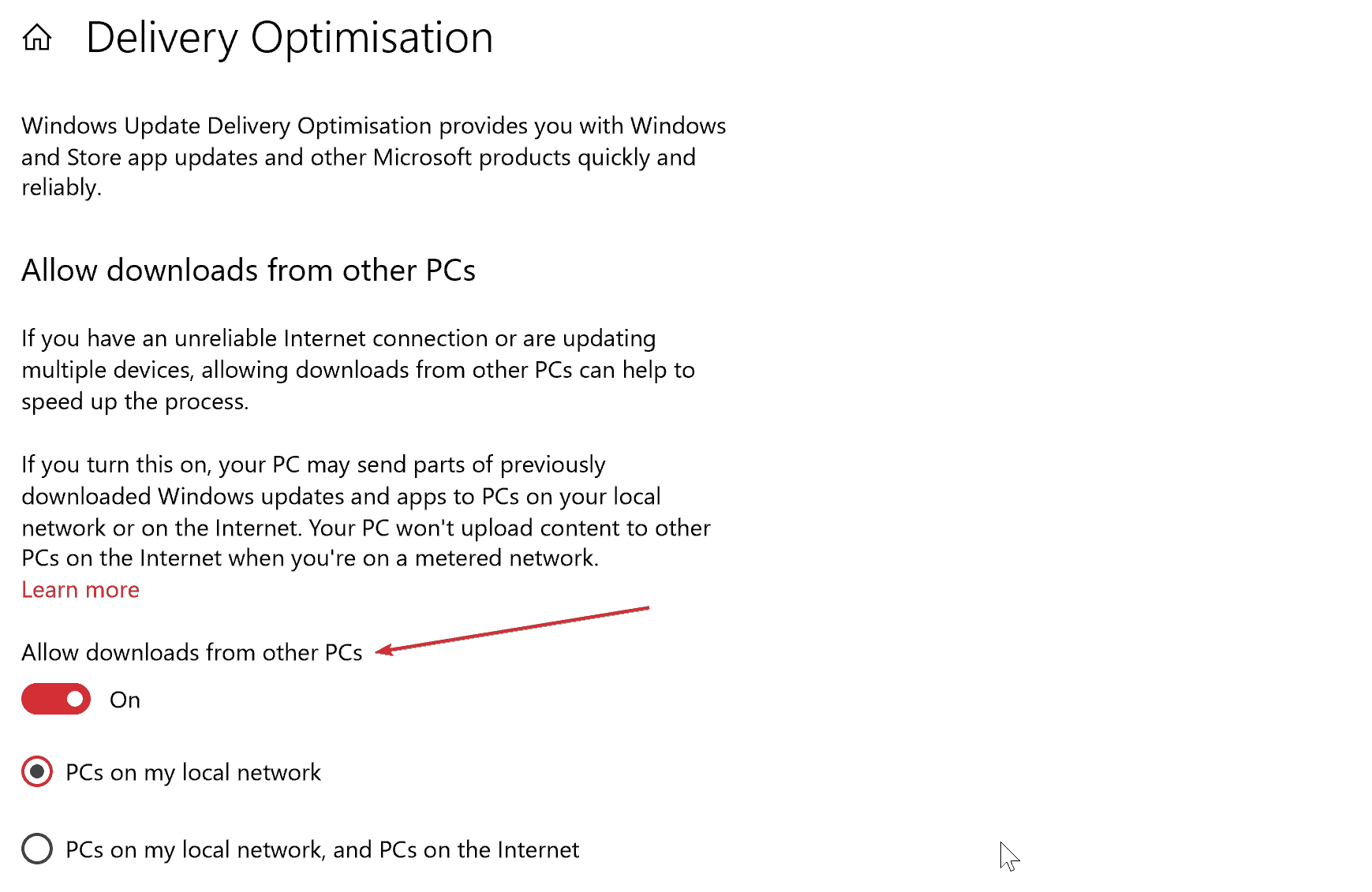
In the Advanced Options page, select Delivery Optimization along the bottom of the page.
Here, toggle Allow downloads from other PCs to Off.
While the above process has been designed to ensure you get your updates over even an unreliable internet connection, or when speeds aren’t that great, toggling the above setting off will still make sense if you find yourself at the receiving end of the above phenomenon.
2. Turn off Background Intelligent Transfer System
Just in case the above failed to realise the desired outcome, here is another method that disables Windows Update as a whole. Hence, this makes for a reliable method of dealing with the Wi-Fi lag spikes though what also needs to be kept in mind is that this will deprive the PC of key updates that Microsoft makes available from time to time to patch critical vulnerabilities. As such, it is advisable to install updates manually from time to time when BITS is turned off.
Here are the steps:
Open msc. You can do this just by typing services in the Cortana search box and select from the results provided.
In the Services app, locate Background Intelligent Transfer System.
Right-click on it and select Properties.
Under the General tab, click on Stop for the process to be stopped.
For Startup type, select Disabled from the dropdown box.
Under the Recovery tab, for First failure and Second failure, select Take No Action.
Click OK for the changes to take effect
This should effectively kill BITS forever so that the service won’t start again even when the PC restarts. However, as has been stated above, the user’s discretion is advised when turning off BITS. Also, downloading the updates manually is highly recommended to ensure protection against all emerging vulnerabilities.
3. Uninstall Autodesk Application Manager
The Autodesk Application Manager aims to provide you information with all the latest updates and solutions available pertaining to the apps installed on your device. However, the same has also been found to be another reason Wi-Fi lag spikes and the solution here is to uninstall the software. Here is how you do it.
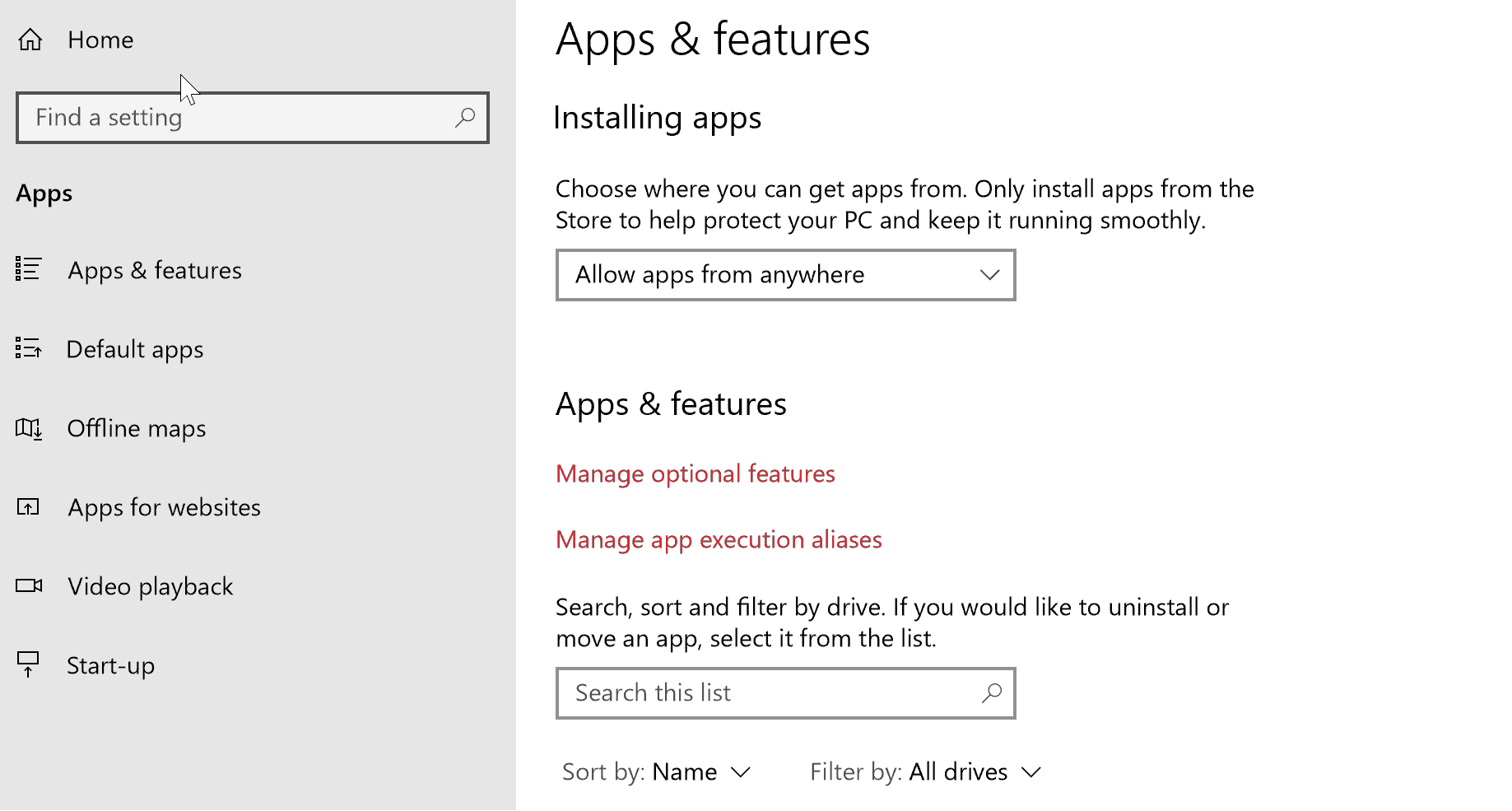
Go to Settings > App.
In the Apps & features page, scroll down to locate Autodesk Application Manager. Select the same.
You will be provided the option to Uninstall the software. Click on it.
Follow on-screen instruction to complete the uninstallation process.
Any error with IPv6 can be a reason for Wi-Fi lag spikes. And one way to deal with it is to disable the same. Here is how you do it.
Locate the Network/Wi-Fi icon at the bottom right corner of the taskbar and right-click on it.
From the options provided, select Open Network and Internet settings.
In the Settings window that shows up, select Change adapter options.
In the next window that opens, you will get to see all the network adapters relevant for your PC.
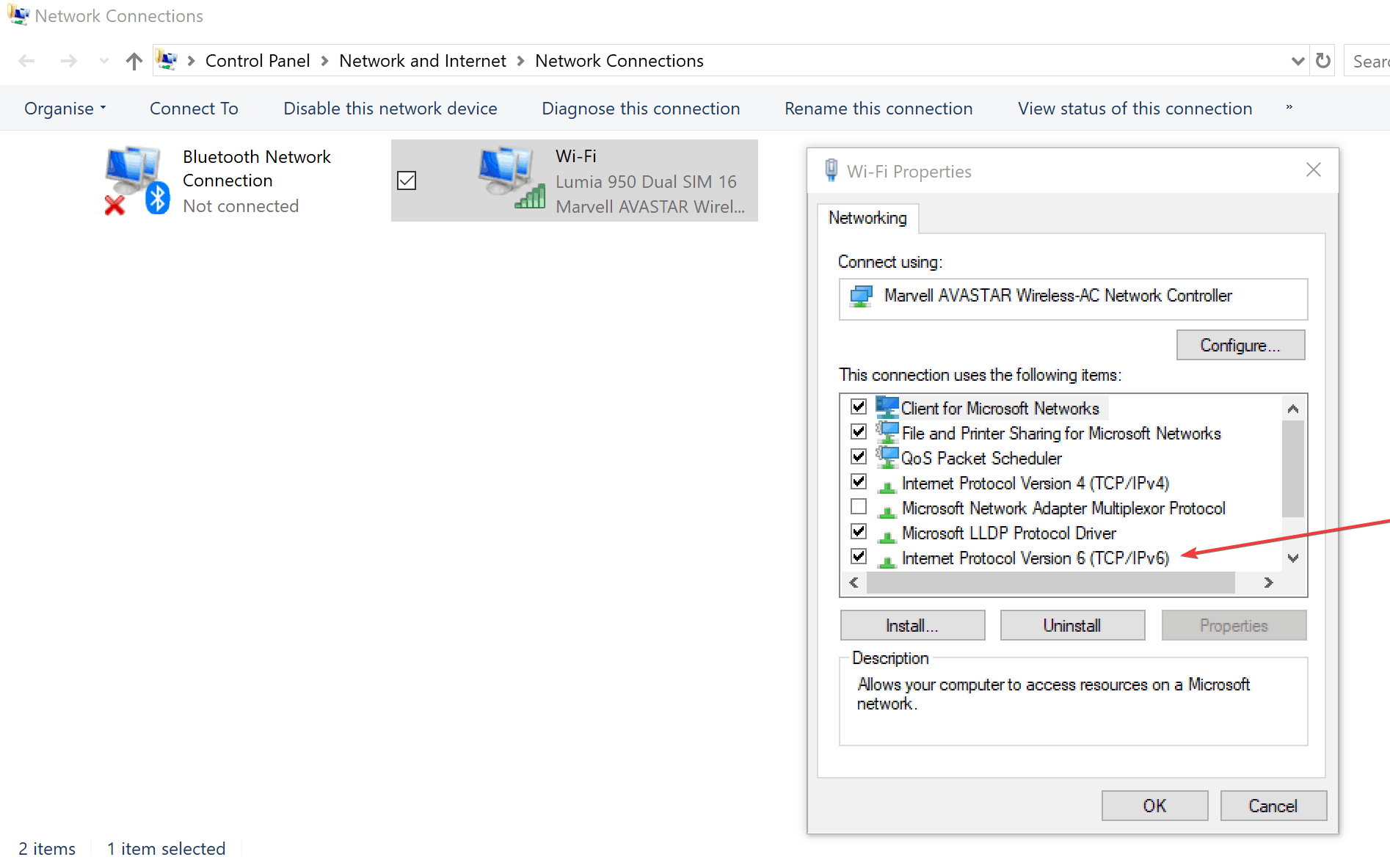
Right-click on the active network adapter, the one used to connect to the internet and select Properties.
In the Properties window, locate Internet Protocol Version 6 (TCP/IPv6) and un-check the checkbox for the same.
Click on OK and re-start your PC for the changes to take effect.
5. Disable Connected User Experience and Telemetry service
That sure is a bit of a mouthful though, in simple terms, it refers to the controversial Microsoft practice of collecting Windows 10 usage info and passing it back to the company servers. Microsoft claims that it is done to improve the Windows 10 experience though many have claimed it to be just spying in another name and form. And the same also eat up our bandwidth as well. Here is how you can stop it.
Launch Services You can do that by pressing Windows + R > type services.msc and press enter. Or simply type Services in the taskbar search box.
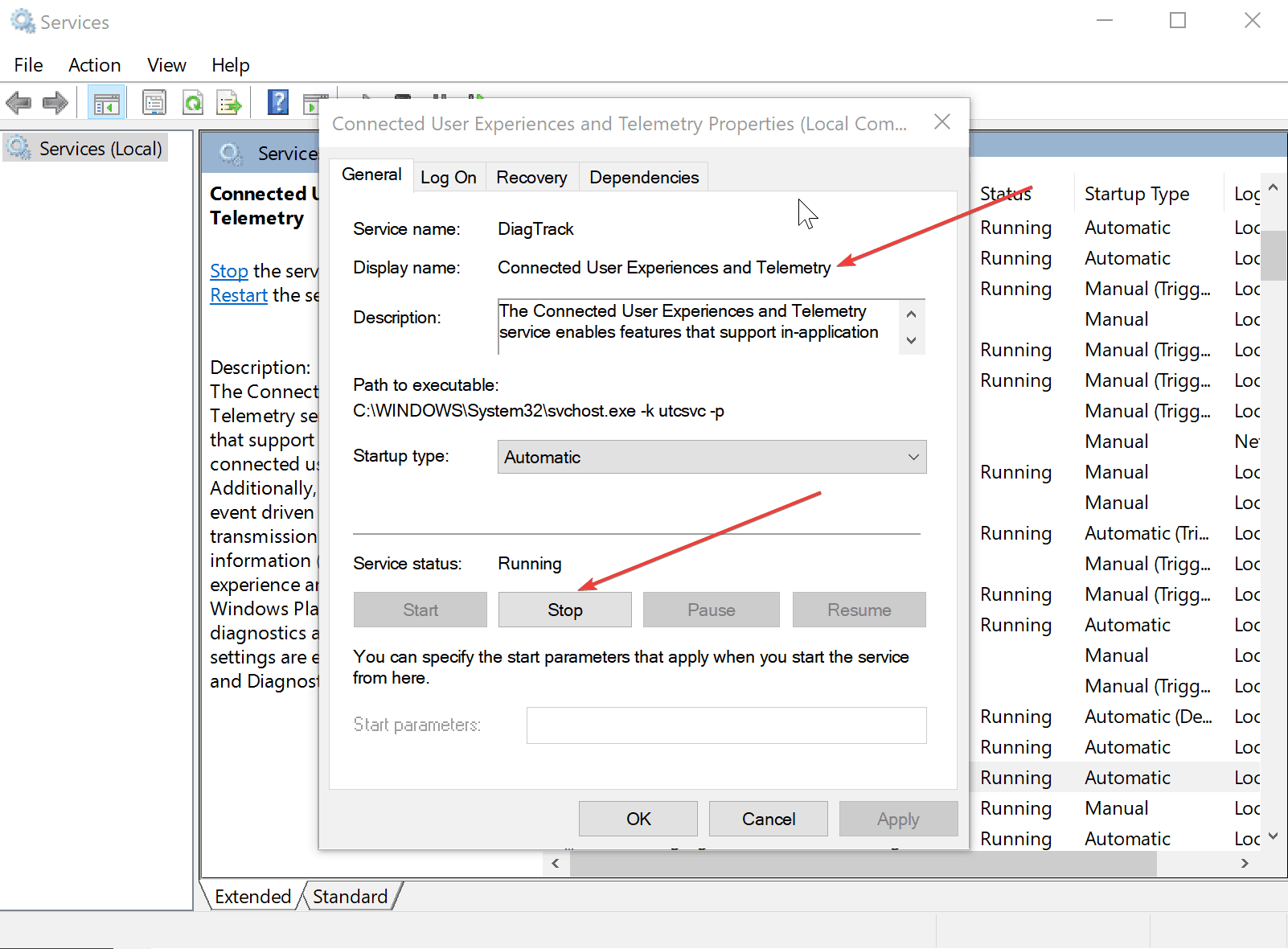
Here, under ‘Services (Local)’, locate Connected User Experiences and Telemetry and double-click on it.
In the Connected User Experiences and Telemetry properties window, under General tab, click on Stop in the Service Status.
For Startup type, select Disabled from the drop-down menu.
Cortana can be beneficial when it comes to getting some of your mundane or repetitive tasks done. However, the service also requires an active internet connection for it to get its job done. And that is how it might also end up contributing to your Wi-Fi lag spikes. That also makes it a wise choice to disable the service if its drawback far outstrips the benefit it comes with. Here are the steps (it applies to Windows 10 Home).
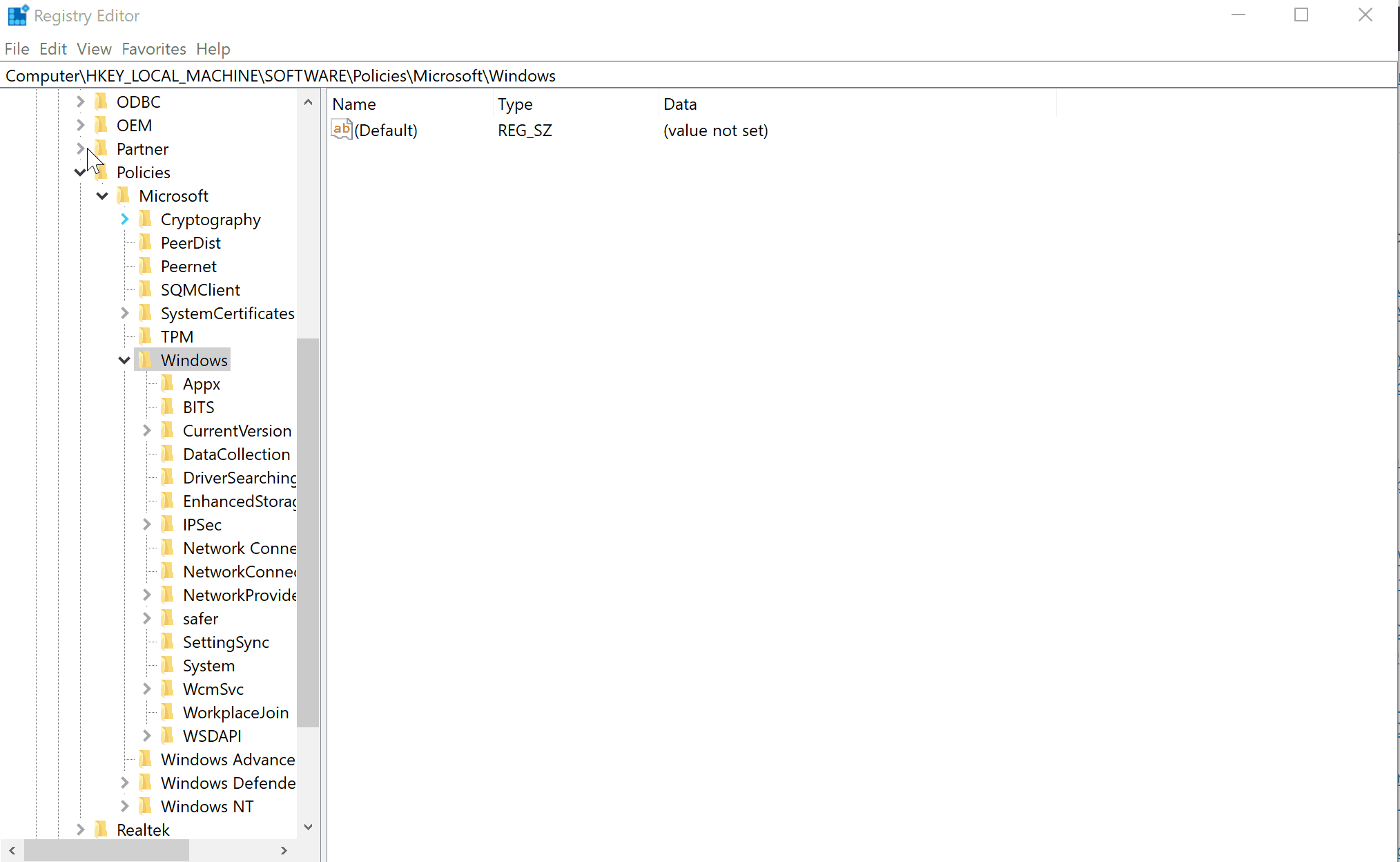
Launch Registry Editor. You can do that by simply typing regedit in the taskbar searchbox. Or you can also press Windows + R and typing regedit.
On the left panel, search for HKEY_LOCAL_MACHINE\SOFTWARE\Policies\Microsoft\Windows\Windows Search.
On the right panel, right-click on the empty space and select New > DWORD (32-bit) Value.
Give it a name, say YesCortana. Give it the Value – 0.
Click on OK and this will save the new key.
This, in turn, will disable Cortana, saving you some bandwidth.
7. Disable OneDrive
OneDrive is Microsoft’s cloud storage solution that you can fall back on to store files that you might need across multiple devices. However, that might also consume a lot of your data if you deal with voluminous files each time. However, if OneDrive isn’t part of your daily diet, you might as well turn it off for better internet experience. Here is how you do it.
Press Windows key + R to launch the Run command windows.
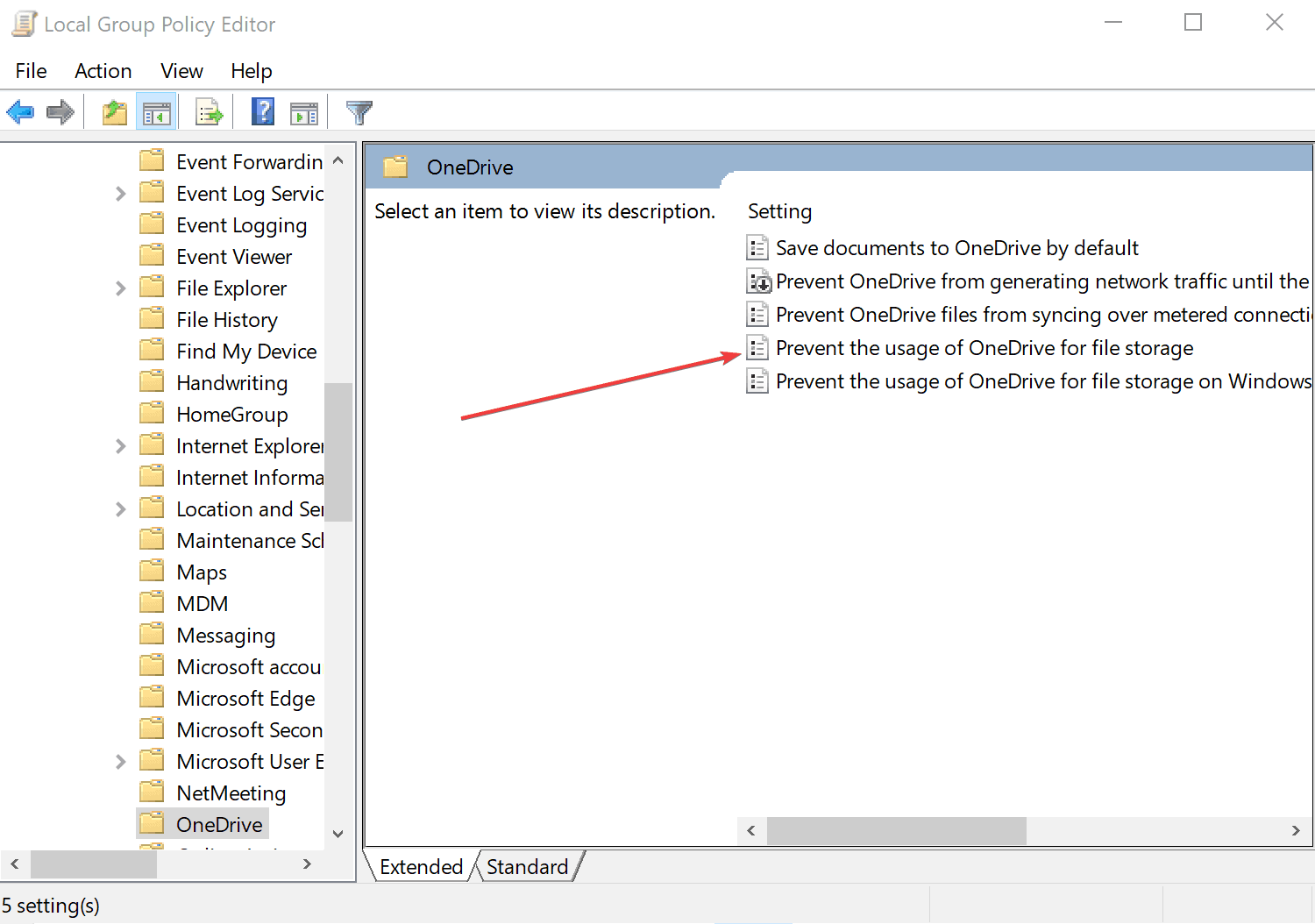
Type gpedit.msc in the Run box and click on OK to launch Local Group Policy Editor windows.
Here, select the Administrative Template from the left panel.
Double click on Windows Components folder in the right panel.
Next, double-click on the OneDrive
Double-click on Prevent the usage of OneDrive for file storage.
In the separate window that opens up, select Disabled and click on OK.
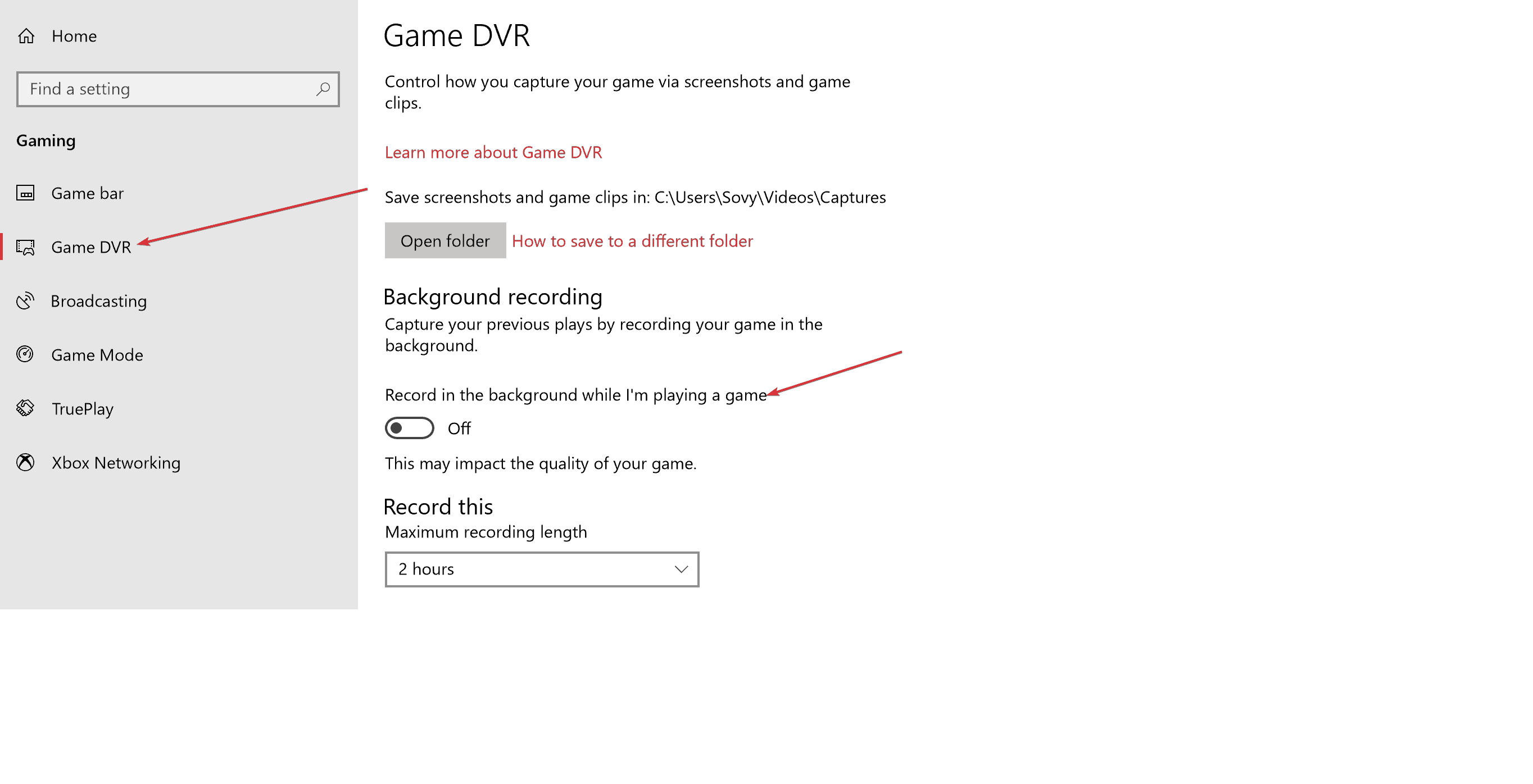
Disabling GameDVR has also helped many overcome Wi-Fi lag spike issues though this applies more to those who are into serious gameplay. Nonetheless, these are the steps to shut out GameDVR on their Windows 10 computers.
Launch the Settings app and click on Gaming.
Select GameDVR from the left panel.
There, under the Background recording section, make sure the Record in the background while I’m playing a game is set to off.
This will prevent all back-end recording process.
So, this should make for a comprehensive list of all that might be contributing to Wi-Fi lag spikes. However, shutting off all might lead to a less than optimum Windows 10 experience. As such, users can exercise their individual discretion at switching off a particular feature so that they have the best of both worlds, getting to most out of the latest Windows platform with Wi-Fi too performing within appreciable limits.
Meanwhile, here is some related info that might be of interest to you.
Microsoft is all set to launch its next big update, Windows 10 version 1809 in October.
While that should be a nice piece of news for current Windows 10 users, Microsoft has also announced the upcoming update will annul several features while several more will be ticked off the development cycle, meaning those are next in line for abandonment.
The company, however, has stated any feature that is being canceled won’t create a void as such since those have either been replaced with something better or are in the process of being so.
That said, all apps or more specifically, the code that depends on the features being annulled will henceforth be rendered junk.
Features no longer supported on the Windows 10 October 2018 Update
The features that are set to get the boot to include Business Scanning (also called Distributed Scan Management or DSM) and FontSmoothing setting in unattend.xml as both have become obsolete.
Trusted Platform Module (TPM) management console to is on the way out, with the info that used to be available in the console now being available in the Device security page in the Windows Defender Security Center.
Further, limpet.exe that allows for TPM access for Azure connectivity is being made open source from now on. Hence that too is on the list of expendable features right now.
These apart, Microsoft has also made it known they won’t be introducing any new updates to the WEDU server.
What that means is there won’t be any new updates for Windows Embedded Standard 8 and Windows Embedded 8 Standard via Windows Embedded Developer Update.
Instead, users can source relevant updates from the Microsoft Update Catalog.
The Hololens app too will cease to exist, with the Mixed Reality Viewer taking its place instead. Same is the case with the Phone Companion app that will cease to exist post the version 1809 update.
Instead, there is going to be the new Phone page under Settings that would have largely similar functionality, that of syncing your mobile with the Windows 10 PC.
Similarly, the features that are not being developed any further include OneSync service, Companion device dynamic lock APIS and Snipping Tool.
Computer errors can appear at any time, but some errors such as Error reading from file usually appear while you install new software on your Windows 10 PC.
This error can prevent you from installing new applications, therefore it’s crucial to know how to fix it.
But first, here are some more examples of this problem:
Ableton Live 10 error reading from a file – This error usually appears when working with a music production software, Ableton.
Error reading from file verify that the file exists
Uppercut error reading from a file – Users of mobile utility software, Uppercut have also reported this issue.
Ableton Live 9 source file not found – The problem is as common in Ableton Live 9, as it is in Ableton Live 10.
Error reading file Maya – The problem also appears when working with AutoDesk’s modeling software, Maya.
This error can occur while installing VIPRE software, and according to users, the issue is caused by your security permissions. If your security permissions are modified, you might experience issues while installing certain software, therefore you need to reset those permissions.
Several folders can be affected by this issue, and the list of affected folders includes the following:
To fix this issue you’ll need to check security permissions for these folders on a working PC and alter them on your PC. Keep in mind that some folders on the list are related to VIPRE software, therefore if you’re installing a different application you’ll need to change the security permissions for different folders.
Solution 2 – Download and install basic drivers
Users reported that an Error reading from file message appears while trying to install HP printer software on their PC. This can be a big problem because it can prevent you from installing your printer, but there’s a simple way to solve this problem.
If you can’t install HP printing software, you can still install a basic printer driver that doesn’t include the printing software. To do that, simply visit HP’s website and navigate to the download section. Locate your printer and choose the basic driver option.
After you download the basic driver, install it and you should be able to use your printer without any problems.
Update drivers automatically
If you don’t want the hassle of searching for drivers on your own, you can use a tool that will do this for you automatically. Of course, as you’re not able to connect to the internet at the moment, this tool won’t be useful.
However, once you get online, it will help you to keep all your drivers up to date, so you won’t be in this situation anymore.
An automatic driver updater tool will help you update drivers automatically and prevent PC damage caused by installing the wrong driver versions.After several tests, our team concluded that this is the best-automatized solution.
That being said, you can as well make use of dedicated driver update software that will install the latest drivers without any other issues.
As we already mentioned, Error reading from file message can appear if your system doesn’t have the necessary privileges over a certain folder. Many applications store their files in the Temp folder during the installation, but if your system doesn’t have Full control over that folder you might experience all sorts of errors during the installation process.
To fix this problem, you need to give Full Control to the SYSTEM user over the Temp folder. You can do that by following these steps:
Navigate to C:UsersusernameAppDataLocal folder. If you can’t find this folder, be sure to go to the View tab in File Explorer and check Hidden items checkbox.
Locate Temp folder, right click it and choose Properties.
Go to Security tab. Check if SYSTEM is available in Group or user names section. Also check if SYSTEM has Full control over this folder. If SYSTEM isn’t available at all, click the Edit button.
Now click the Add button.
Select Users or Groups window will appear. In the Enter the object names to select field enter SYSTEM and click Check Names. If your input is valid, click OK to add it.
SYSTEM will now be added to the Group or user names section. Select SYSTEM and be sure to check Full control in the Allow column.
After doing that, click Apply and OK to save changes.
After giving Full control to the SYSTEM over the Temp folder, try to install the software again.
Instead of giving the Full control over the Temp folder, some users are suggesting giving Full control to your user account or to the Users group over the installation directory, so you might want to try that as well.
Solution 4 – Move the setup file to a different directory
Sometimes this problem can occur due to the location of your setup file. Windows Installer has a limit of 256 characters, and if the path to your setup file or the designation path contains more than 256 characters you’ll encounter this error. One of the simplest ways to fix this problem is to move the setup file to C: and try to run it from there.
Solution 5 – Be sure to extract all files from the archive
It’s not uncommon for setup files to be stored in an archive, but before running the setup file, be sure to extract all the files from the archive. After that, try running the setup file from the extraction folder.
In addition, be sure that the path to the extraction folder doesn’t contain more than 256 characters. You can avoid this problem simply by creating a new folder in C: and extracting the installation files to it.
Solution 6 – Make sure that the Read-only option isn’t enabled
If you’re getting an Error reading from file message, you might want to check if the Read-only option is enabled. This option can sometimes cause errors, therefore it’s best that you disable it. To do that, follow these steps:
Locate the problematic file and right click it. Choose Properties from the menu.
Navigate to the General tab and be sure that Read-only option isn’t checked.
Click Apply and OK to save changes.
After disabling Read-only option, check if the problem is resolved.
Solution 7 – Delete installation folders from ProgramData
Users reported this error while trying to install Family Tree Maker software, and in order to fix this problem, you need to remove Family Tree Maker directories from the ProgramData folder. To do that, follow these steps:
Open File Explorer and navigate to C:.
Look for ProgramData folder. If you can’t find the folder, go to View tab and check Hidden items option.
Once you enter ProgramData folder, look for Family Tree Maker folder and delete it. Sometimes this folder can be located inside different folders in ProgramData, therefore be sure to check all folders that have random array of numbers and letters as their name.
After deleting Family Tree Maker folders, try to install the software again.
Although this solution works for Family Tree Maker software, you can apply a similar method to fix problems with other applications as well. If the application that you’re trying to install has some files in the ProgramData directory, be sure to delete them and try to install the software again.
Solution 8 – Check if your setup file is encrypted
Sometimes this error can appear if you’re trying to run a setup file that is encrypted by your PC. Users reported that their download folder was set to encrypt all downloaded files, and that caused the problem with the installation process.
To fix this issue, you need to move the setup file to a different folder and decrypt it. Alternatively, you can download the setup file to a folder that isn’t encrypted by your PC. After doing that, run the setup file and your application should install without any problems.
Solution 9 – Create a Downloads folder on your system drive
Error reading from file message can appear if you don’t have a Downloads folder on your C drive. According to users, they moved the Downloads folder to a different drive in order to preserve space, but that caused this error to appear.
Apparently, if you run the setup file from a non-default Downloads folder you might get this error while installing certain applications. To fix this problem, you need to create a temporary Downloads folder on your C drive and move the setup file to it.
After doing that, you should be able to use the setup file and install the application without any problems.
Solution 10 – Create a download folder and move vumclient.zip to it
According to users, this error occurs when you try to install VMware vCenter Update Manager. This problem can be easily solved by creating a new Download folder and moving the vumclient.zip file to it. To do that, follow these steps:
Mount the vCenter Serverinstallation media.
Navigate to the UpdateManager_Install_Locationdocrootvcidownloads and rename the Download folder to Download.old.
Now create a new Download folder.
Open the installation media and navigate to the rr_moved directory.
Locate the vumclient.zip file and copy it to the new Download folder that you created in previous step.
After doing that, try to install vCenter Update Manager again.
Error reading from file message can affect almost any application, and in most cases, you can fix the problem by changing your security permissions or by changing the location of the setup file.
This season is full of surprises from the Redmont tech team, and yet, some common issues do not tend to disappear. Microsoft released quite a surprising number of patches this week only, and we need to draw your attention on some reported issues.
This patch brings a long list of fixes and improvements. While Microsoft is not currently aware of any issues with this update, many users have reported some errors.
Install issues
First of all, users have encountered difficulties installing the patch on their Windows 10 laptop. A fellow user from Germany reported this issue on the Community Forums:
windows encountered a problem while installing the updates. We’ll try again later. error 0x800706be
Sometimes a quick restart will solve the issue. Also, a good solution is to repeat the process. With some updates, users have managed to install it after 6 attempts.
..when starting the PC as it was requested, I had black screen with HP logo and after no better. The screen remains black.
I have turned off and restart several times and the screen is still black.
I made another attempt to reboot but I got a message that Windows could not start normally and had to be repaired.
We’ll update this post as soon as we find out more news about KB4458469 issues from Windows 10 users. Let us know how was your experience with the recent security updates in the comments below.
Microsoft released a new Windows 7 update to the general public.
Update KB4457139 is actually a preview of the upcoming monthly rollup update and allows users to test the upcoming fixes and improvements in advance.
This patch brings four fixes to the OS. The most important one is an update compatibility improvement that should help Windows 7 users to download and install the newest Windows 10 OS version without any issues.
Addresses an issue with evaluating the compatibility status of the Windows ecosystem to help ensure application and device compatibility for all updates to Windows.
Update KB4457139 comes quite handy for all the Windows 7 users who are planning to install the Windows 10 October 2018 Update as soon as it’s available.
As always, our piece of advice to all our readers is to wait for a few days before installing new Windows updates.
Oftentimes, the latest updates bring issues of their own and Microsoft needs time to identify and fix them.
Apart from these OS update improvements, KB4457139 also brings three more fixes:
Addresses an issue with the diagnostic pipeline for devices enrolled in Windows Analytics when the CommercialID registry key, “HKLMSoftwareMicrosoftWindowsCurrentVersionPoliciesDataCollection” is present.
Addresses a memory leak issue that occurs when a device with a multilingual UI calls the LoadString API.
Addresses an issue in which all Guest Virtual Machines running Unicast dual NIC NLB fail to respond to NLB requests after the Virtual Machines restart.
Download KB4457139
The update is provided as an Optional update on Windows Update. You can also download it directly from the Microsoft Update Catalog.
KB4457139 issues
Before hitting the update button, you should know that this patch may break your interface controller, as Microsoft warns:
After you apply this update, the network interface controller may stop working on some client software configurations. This occurs because of an issue related to a missing file, oem<number>.inf. The exact problematic configurations are currently unknown.
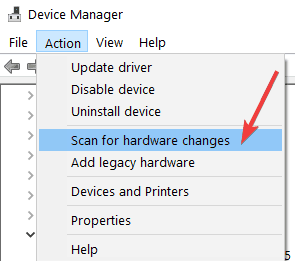
In order to fix this problem, you need to launch the Device Manager and automatically rediscover the NIC and install drivers. Go to the Action menu and select Scan for Hardware Changes.
You can also install the drivers for the network device by right-clicking on the respective device and choosing Update.
Surface Pro owners have reported various problems, and overheating is a primary concern. But for some, the Microsoft Surface Pro fan is always running, even when the temperature is normal.
A Microsoft representative stepped in and explained why the Surface fan was always running:
I understand that your device is heating up after installing Windows 10 using VM. I like to inform you that the laptop fan works to reduce the machine’s heat. If the fan is working continuously then the issue must be occurring due to the overheating. Usually, overheating occurs due to hardware issue.
You may first check if any process is running high. Task Manager displays the programs, processes, and services that are currently running on your computer. You can use Task Manager to monitor your computer’s performance.
What can I do if the fan is always running on Microsoft Surface?
1. Terminate non-critical programs
While on the desktop, right-click the taskbar, and select Task Manager.
Go to the Processes tab, identify processes that are consuming high resources, select them, and click on End task.
2. Install the latest Windows updates
When terminating programs didn’t help, you are likely running an outdated version of Windows. Remember, it’s critical to update the OS, and install the latest version, whenever one is released.
With each update, Microsoft releases several new features and patches for previously known bugs. So, make sure to install all the Windows updates.
Another possible solution that will rule out all hardware-related problems behind the Microsoft Surface fan always running is to reset Windows to factory defaults. When you do that, all the installed apps and stored files will be wiped clean.
The PC would be in a similar state as when you purchased it. Start fresh, and check whether fan issues in Surface Pro are resolved. Also, this will help fix overheating in Microsoft Surface.
4. Check for hardware issues
If nothing works, it’s likely a hardware issue to blame when the Microsoft Surface fan is always running. And in this case, it’s recommended that you get the device inspected by a professional.
A safer approach would be to contact Microsoft and get them to repair or replace the faulty component.
Microsoft investors will see a nice bump in “Commercial Cloud” revenue reporting as the company will seemingly pad its stats with the inclusion of large portions of its recent LinkedIn acquisition.
According to a report from Mary Jo Foley over at ZDNet, Microsoft is no longer keeping LinkedIn at arms length during its quarterly financial reporting but, instead “…now including the “commercial” portion of LinkedIn’s business in its Commercial Cloud metrics, and is restating its FY18 numbers to include LinkedIn’s commercial business.”
While outwardly, it may seem like a sleight of hand reporting practice for business looking to bolster an otherwise stagnant financial bracket, Microsoft is defining the portions of “commercial” LinkedIn as LinkedIn Recruiter, Sales Navigator, Premium business subscriptions and “other.”
What is not being counted are marketing services and consumer subscriptions, understandably.
The move makes practical sense as LinkedIn largely remains a cloud-based social networking platform aimed at the intersection of Microsoft’s enterprise and cloud customer. Similar to Office 365, LinkedIn offers subscription-based options for digital services.
For investors who may be understandably skittish about the new reporting, it’s being reported that Microsoft will also break out LinkedIn revenue growth as a new transparency metric. LinkedIn’s revenue growth reporting will be applied to both the commercial and consumer aspects of the platform.
Tom Clancy’s Ghost Recon Wildlands and Super Bomberman R are now free to play on Xbox One consoles for Xbox Live Gold subscribers.
This free play period will run from today until September 23rd and, like in previous free play weekend campaigns, gamers will be able to play the full versions of each game, unlock Xbox Achievements, and save their progress for continuing at a later date should they ever choose to buy them in the future.
Ghost Recon Wildlands is an action-packed military shooter title while Super Bomberman R is more of a family-friendly action puzzle game. Let us know which one you’ll be playing this weekend in the comments below and then follow us on Pinterest for more Xbox content.
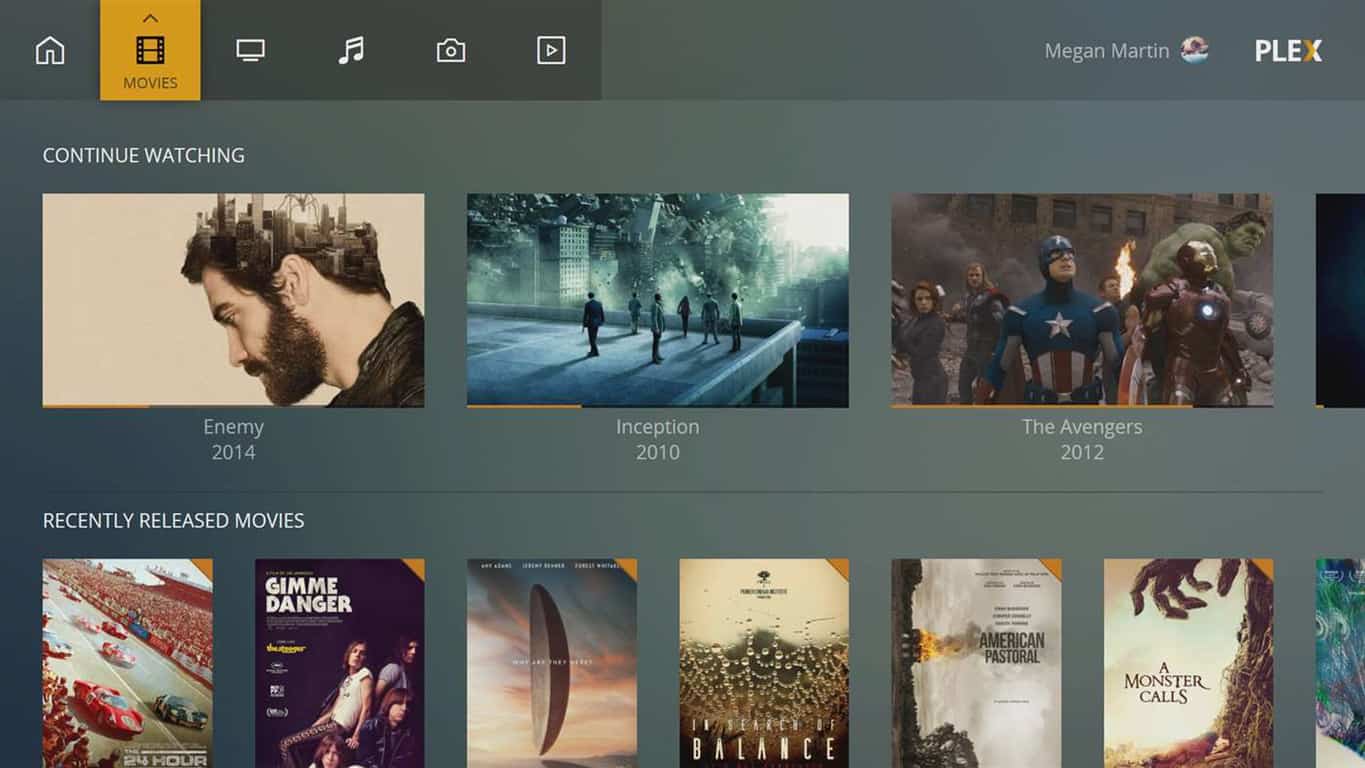
The Plex for Xbox has updated with a variety of bug fixes and new features. Amongst some of the cooler new additions are new chapter titles, preview thumbnails, and a new music mini player.
Here’s the full release notes for this latest Plex for Xbox update:
NEW
Added chapter titles to the chapter selection
Added the ability to focus the progress bar and move the playhead to seek more accurately
Added preview thumbnails while seeking (when available)
Adjusted rewind and fast-foward behavior to move the playhead automatically at 1x, 2x or 3x speed
Added new music mini player
Added new user button design in the application header
FIXED
Fixed missing ‘Collections’ and ‘Albums’ link from dashboards
Fixed shuffle commands received from companion apps not being recognized
Fixed dashboard hubs sometimes failing to load when switching between Home users
Fixed advancing to the same item as the one currently playing putting the player in a broken state
Fixed focus not being restored when returning to playlists list page
Fixed missing placeholder for chapter selection preview thumbnails
Fixed broken focus behaviour when pressing right twice quickly on settings
Avoid forced transcodes for HDR content on SDR displays
Plex for Xbox is an all-in-one media consumption app that allows users to stream video, photos, and music and even record live TV, essentially giving the Xbox One consoles DVR functionality.
Microsoft Ignite is coming up next week, and there’s sure to be a lot of Azure and Microsoft 365 news to go around. Though we’ll be covering the event live, Microsoft just revealed you can also live stream every keynote, breakout, community theater session live and for free online.
All sessions will be available on this website, where you can browse through all the sections by day. You have full control over what sessions you want to see, and you can sort by topic, solution, product, and level. You even can explore more about the speakers in said sessions. However, please be aware you’ll need to create a Tech Community Account to view sessions if you’re not registered for the event.
Our own Kareem Anderson will be on the ground at Microsoft Ignite, so be sure to keep it locked right here to OnMSFT all week next week for all your Ignite news and information.
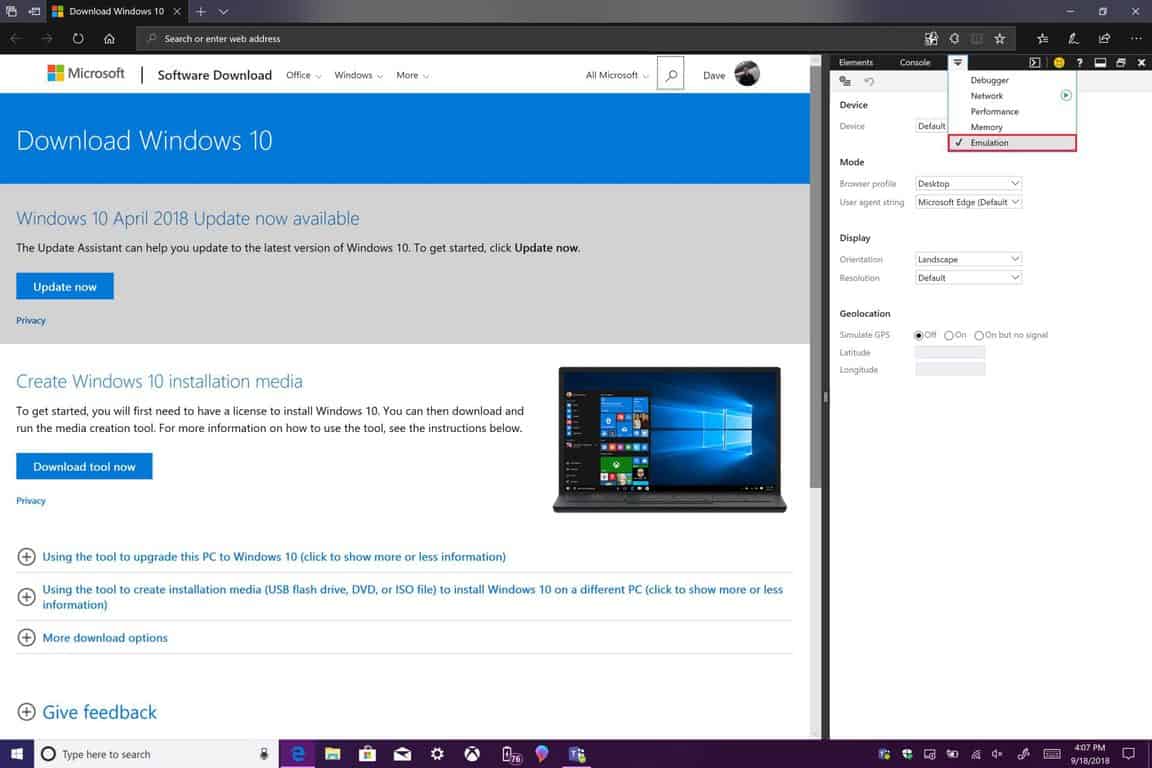
There are plenty of ways to download a Windows 10 ISO, but it’s usually through a website that’s not supported by Microsoft. You can also download the Windows Media Creation Tool if you are looking for the simplest way to install Windows 10.
However, I discovered an easier way to download a Windows 10 ISO file without using the Windows Media Creation Tool. Turns out, all you need is Microsoft Edge.
There are a number of uses for a Windows ISO file. If you own a Mac, you can use it to install Windows 10 or set up Windows 10 in a virtual machine application. Either way, you’ll need a Windows 10 ISO file.
However, just having the free Windows 10 ISO file is not a free Windows license. Mac users, custom PC builders, and anyone installing on a virtual machine will need a Windows product key to legally install Windows 10.
If you need to buy a Windows 10 product key, you can buy a physical copy or digital download from the Microsoft Store. Here are the prices for a Windows 10 product key:
6. Select useragent string “Apple Safari (iPad).” Wait a moment for the webpage to reload.
7. Select Windows 10 and your language settings. Download the 64-bit or 32-bit version of Windows 10. Please note: The download link expires after 24 hours.
By setting your useragent to Apple Safari (iPad), you are spoofing the download website into thinking that you are not on Windows, thus you can completely bypass using the Media Creation Tool.
Another thing to consider is the Windows 10 ISO that you download is the Windows 10 April Update and does not include any of the new updates, including the June Update (KB4284835), so you will have to use Windows Update to keep your PC up-to-date.
One of the cool elements that come with owning an Xbox One is getting select Microsoft Store apps from your PC on your gaming console. Powered by Microsoft Universal Windows Platform, this is really a great feature for developers, but one open source champion, who has chosen to remain anonymous, has found a way to unlock the true power of Xbox by getting CLI Win32 apps running on the console (via Piunika Web.)
The entire codebase and tool for this project is available on GitHub, and a brief getting started post from the developer is here. Simple as that post may sound, things might still be a bit out of reach for the average user. An SSH/telnet client and Visual Studio 2015 or 2017 are prerequisites, and you’ll need to pay up to switch your console to developer mode to get started. After that is done, you’ll have access to the Xbox Shell and you’ll be able to use the codebase tool to write and then dispatch or run vanilla Win32 CLI apps on Xbox One.
As the developer notes, though this is a rather technical process, it is not an exploit or breakthrough. This method is rather taking advantage of the debugging features of the Xbox One developer mode. It should also be noted that this is a proof-of-concept, and is not homebrew, or the other “hacking” offerings which people usually want.
There is plenty of room for others to better on the code and dive deeper and improve, but it does seem a bit limited for now. Considering that the Xbox One already runs Windows 10, this could eventually become a rather killer little trick to turn the console in a PC for developers.
Homegroups and file sharing between computers in your local network is important, but some users report that they are being asked to join a nonexistent homegroup on Windows 10. This is a strange problem, but fortunately for you, there’s a solution available.
Users report that they are being asked to join a nonexistent homegroup after they have reinstalled their operating system or after upgrading to Windows 10. However, it’s not possible to join a Homegroup that doesn’t exist and at the same time you cannot delete that Homegroup. So how can you fix this issue?
Nonexistent Homegroup in Windows 10, how to fix it?
Nonexistent Homegroup can be a problem, and speaking of Homegroups, here are some issues that you might encounter:
Can’t join Homegroup Windows 10 – This can be a big problem, but you should be able to fix it simply by deleting the idstore.sset file from your PC.
Homegroup not working – If Homegroup isn’t working at all on your PC, you might be able to fix the problem by running the Homegroup troubleshooter.
Phantom Homegroup Windows 10 – If you’re having problems with phantom Homegroup, the cause might be MachineKeys directory. Simply rename it and check if that solves the problem.
Can’t find Homegroup Windows 10 – If you’re using a wireless network, the problem might be your SSID. To fix the issue, change the name of your wireless network and try to find the Homegroup again.
Solution 1 – Leave Homegroup on all computers and set up a new Homegroup
If you’re asked to join a nonexistent Homegroup, one way to fix this issue is to completely leave the Homegroup on all your PC. This is quite simple to do, and you just need to do the following:
The easiest way to do this is to turn off all of your computers that are connected to your Homegroup.
Now you need to start one of your computers and create a new Homegroup on it.
Then turn on other computers one by one and go to the Control Panel and you’ll be asked to join the newly created Homegroup using a new password. In some cases, you might have to leave Homegroup on all computers manually and then turn off all of your computers in order to create a new Homegroup.
After doing that, the problem with Homegroup should be completely resolved and everything should start working again.
Your Homegroup is closely related to idstore.sset file, and if you’re being asked to join a nonexistent Homegroup, the issue might be this file. To fix the problem, users are suggesting to find and remove this file on all PCs that are having Homegroup problems.
To do that, just follow these simple steps:
Press Windows Key + R and enter %appdata% now press Enter or click OK.
Navigate to PeerNetworking directory and delete idstore.sset file from it.
After doing that, the issue should be completely resolved. Keep in mind that you need to remove this file on all PCs that are affected by this issue. Once you remove the file, the issue should be completely resolved.
Some users are also suggesting to restart Homegroup related services after you delete the required files. To do that, just follow these steps:
Press Windows Key + R and enter services.msc. Now press Enter or click OK.
Now locate the following services and restart them:
Homegroup Listener
Homegroup Provider
Peer Network Identity Manager
Peer Network Grouping
Peer Name Resolution Protocol
After doing that, the problem should be completely resolved.
Solution 3 – Change your SSID
According to users, if you’re getting asked to join a nonexistent Homegroup, the problem might be related to your SSID. Several users reported that their PCs on the wireless network were asked to join a specific Homegroup that doesn’t exist.
It turns out that the cause of the problem was their SSID, but they managed to fix the problem simply by changing the name of their wireless network. To see how to do that, be sure to check your router instruction manual or contact your network administrator.
Once you change your network name, the issue should be resolved. This is an unusual solution, but several users reported that it works, so you might want to try it out.
If you’re using a dual-band or triple band router, you might be able to fix the problem simply by connecting to a different SSID and creating a new Homegroup.
If you keep getting asked to join a nonexistent Homegroup on your PC, the problem might be MachineKeys directory. To fix this issue, users are suggesting to leave the Homegroup on all PCs on your network.
In addition to that, be sure to delete all files from the PeerNetworking directory. You can do that by following instructions from the Solution 2.
After doing that, you need to rename the MachineKeys directory. This might be a bit complicated since the file is protected by your system, so if you want to modify it, you’ll need to change permissions. To modify this file, you need to do the following:
Go to the C:ProgramDataMicrosoftCryptoRSA directory.
Locate MachineKeys folder and rename it to MachineKeys_old.
You’ll be asked to provide administrator permission. Click Continue.
After renaming this directory, go to Control Panel and locate the Homegroup troubleshooter. Once the troubleshooter is finished, the issue should be permanently resolved.
Solution 5 – Modify the registry
If you’re getting asked to join a nonexistent Homegroup, the problem might be your registry. According to users, it seems that a couple of values in your registry are causing this problem, and in order to fix it, it’s advised to make several changes.
First off, you need to contents of PeerNetworking and MachineKeys directories. We already explained how to do that in our previous solutions. After doing that, your next step would be to remove the problematic entries from your registry. To do that, follow these steps:
Press Windows Key + R and type regedit. Now press Enter or click OK.
Before making any changes, it’s always a good idea to make a backup of your registry just in case. To do that, right-click the keys before you modify them and choose Export from the menu. In case anything goes wrong, you can restore your registry simply by running the exported files.
In the left pane, navigate to HKEY_LOCAL_MACHINESYSTEMCurrentControlSetServicesHomeGroupProvider. Delete the contents of ServiceData and LocalUserMembership.
After doing that, go to HKEY_LOCAL_MACHINESYSTEMCurrentControlSetServicesHomeGroupListener and delete the contents of the ServiceData.
After doing that, restart your PC and try to join the Homegroup again. If that doesn’t work, try running Homegroup troubleshooter a couple of times.
Solution 6 – Try using cloud storage instead
Microsoft has discontinued the Homegroup feature from the latest version of Windows 10, but if you’re still using Windows 8.1 or 7, the Homegroup should still be there. If you’re using the latest version of Windows 10, there are a couple of alternatives that you can try out.
You can still share your files over the network, just like before, so that hasn’t changed. On the other hand, Microsoft is working hard on cloud storage, and if you already haven’t, maybe it’s time to try OneDrive.
OneDrive is Microsoft’s cloud storage service, and it comes enabled with Windows 10, so it’s a solid replacement for Homegroup. If you don’t want to use OneDrive, you can also use any other cloud storage service.
As you can see, asking to join a nonexistent Homegroup can be a big problem if you rely on Homegroups for sharing files with other users on your local network, but this fix should be able to help you out. If this fix doesn’t work we have recently covered what to do if you cannot set up a Homegroup on Windows 10, so this might be helpful to you since most of that solutions can be applied to fixing issues with nonexisting Homegroups.
We hope that our solutions were helpful to you and that you have managed to resolve the issue that you had with nonexistent Homegroup.
Game studio, Rockstar Games, today announced an upcoming online experienced called, Red Dead Online. This new online video game will be based within the world established in Red Dead Redemption 2 and will encourage both solo and multiplayer gameplay.
“Red Dead Online is planned for launch in November 2018, initially as a public beta, with more news to come soon,” the official announcement reads. “As with most online experiences of this size and scale, there will inevitably be some turbulence at launch. We look forward to working with our amazing and dedicated community to share ideas, help us fix teething problems and work with us to develop Red Dead Online into something really fun and innovative.”
In a move that should please many gamers, Red Dead Online will be completely free for anyone who has purchased Red Dead Redemption 2. Red Dead Redemption 2 is due for release on Xbox One on October 26th and digital pre-orders are currently open. More details on Red Dead Online should be revealed soon.
Are you excited for Red Dead Online are will you just be happy playing Red Dead Redemption 2 on your Xbox One? Let us know in the comments below and then like us on Facebook for more Xbox news.
Albeit I’m a supporter of Windows and have been using it for the past few years, I have a laptop that doesn’t have Microsoft Office on it. And while we have so many solutions like Google Drive, Libre Office, and others, there’s a free tool from Microsoft to help you view .doc files. Microsoft’s Office products are almost ubiquitous and chances are that the majority of your friends use it. So when you receive a .doc or .docx file that you need to view or, even worse, to edit, you have to resort to third-party solutions, in case you don’t have the full version of Microsoft Word installed.
And then it will take quite a while until you figure out which converting website is worth trying and which not. But there’s a free tool from Microsoft that allows you to view, print and copy Microsoft Word documents, even if you don’t have Word installed.
It is simply called ‘Word Viewer’ (follow this safe link to download it) and it replaces Word Viewer 2003 and all the other previous Word Viewer versions. By using it, you will be able to open Word documents which have been saved in the following formats:
Word Document (.docx)
Word Macro-Enabled Document (.docm)
Rich Text Format (.rtf)
Text (.txt)
Web Page formats (.htm, .html, .mht, .mhtml)
WordPerfect 5.x (.wpd)
WordPerfect 6.x (.doc, .wpd)
Works 6.0 (.wps)
Works 7.0 (.wps)
XML (.xml)
You need to know that you cannot edit an open document, save a document, or create a new document by using this software. Also, if the document you want to view is stored on OneDrive, you don’t need to download a viewer since OneDrive includes Word Online. If it won’t work after you download and run it, maybe you need to try and install the Compatibility Pack, as well.
Microsoft Office alternatives you should consider
For many users, Office is not the ultimate tool to work with, However, an office suite is useful, especially if you work on a PC on a daily basis. WPS Office 2016 (try the free version) is a great tool that will help you edit different types of documents, including text, tables, and presentations. Another great tool is Apache OpenOffice which lets you edit all these documents but with a smaller range of features. You can find more information about them in our top 5 Office alternatives article.
READ ALSO: Windows 10 S users can now download Office Desktop apps
Your printer isn’t properly configured, thus causing the problem.
There are glitches with your printer and the operating system.
These glitches are related to the Terminal Service Easy Print feature.
Can my printer print A3 paper?
This depends solely on the printer. Most printers are designed to work with A4 format. In fact, you won’t even be able to fit A3 paper in an A4 printer.
However, if your printer can support A3 paper, it should be able to print on it as well. To confirm this, always check your printer specifications.
What can I do if I’m unable to print in A3 format?
Install the missing updates
Press Windows key + I to open the Settings app.
Next, navigate to Update & Security section.
Lastly, click on Check for updates button.
Wait while Windows downloads and installs the latest updates.
Once your system is up to date, check if the issue is gone. A hotfix fixed this issue in the past, but now Microsoft recommends using the Windows Update instead since it’s more reliable.
Are you feeling lucky, and want to bid on some truly unique Xbox One Consoles? Well, you might want to check out Team Xbox’s latest charity auction, which teams up with some of the biggest sports, entertainment, and internet figures.
Titled 2018 “Consoles for Kids” this new auction benefits the Make-a-Wish Foundation. It includes some custom Xbox One X consoles signed big names like Post Malone, Ronda Rousey, iJustine, Dwayne Johnson, Charlie Puth, and Carmelo Anthony. Team Xbox also teamed up with some game developers like 343 Industries, Bethesda, and Mojang, with the Xbox One X consoles being signed by lead members on those studios. Check the links below for more on each of these consoles:
The auction will be hosted from September 19 to October 3 via the links above, and 100% of the proceeds go to the Make A Wish Foundation. This is not the first time Microsoft has done something like this, as in 2007, the Xbox team ran a “Konsoles for Kids” promotion in Australia, which aimed to raise $30,000 for Make-A-Wish.
Usually, Windows owners just perform the latest updates and don’t get informed on what exactly these updates are. Here we try to break down individual updates so that you know what’s being fixed. This time we’re talking about.
As part of the most recent update roll-up, Microsoft has also brought some improvements to the functionality of the Windows Store. This specific update we’re talking about today is part of file KB 3008279 and you have received it if you performed the latest Windows Update check.
Microsoft fixed Windows Store won’t open without an internet connection
The official problem is called ‘you cannot open the Windows Store without an Internet connection in Windows 8.1 or Windows Server 2012 R2′ and here’s how the symptoms that lead to this are described:
You change the display language to Arabic (Saudi Arabia) on a computer that is running Windows 8.1, Windows RT 8.1, or Windows Server 2012 R2.
You restart the computer, and then you disable all Internet connections.
You try to run the Windows Store.
In this scenario, the Windows Store exits immediately.
So, we can see that this specific fix seems to be solving problems for those who have set the display language to Arabic (Saudi Arabia), but I’ve been hearing reports from our readers that this specific update brought improvements for other languages, as well.
Related Windows Store issues
Not only the lack of Internet Connection may cause Windows (Microsoft) Store not to open. This may be because of a failed update of Windows Store. Hopefully, we have detected the most used solutions and have managed to create a guide on how to fix Windows Store not opening in Windows 10 and another article for Windows Store not opening in Windows 8.1. Try to fix this issue and let us know what solution helped you. If you have already the update installed and the problem fixed, then you won’t have any worries.
This update applies to all version of Windows Server 2012 R2 and all versions of Windows 8.1 and Windows RT 8.1. Leave your comment below and let us know if you’re still getting the error.




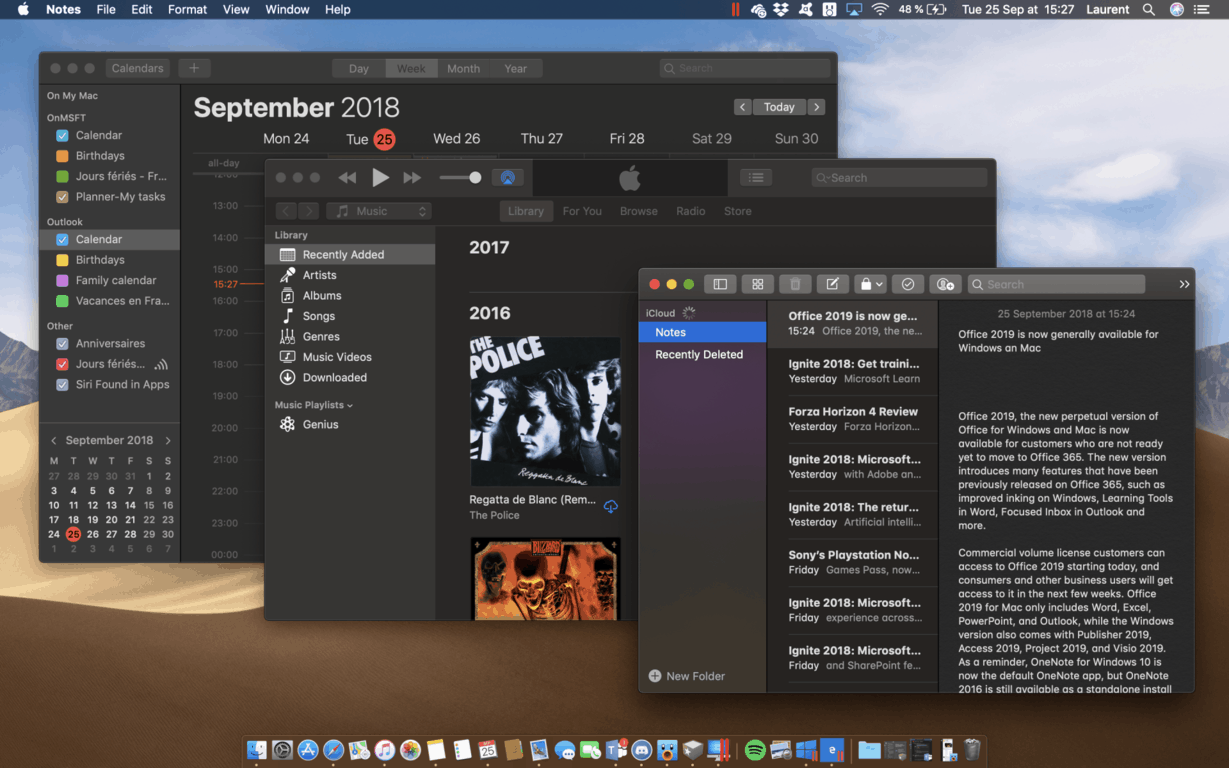
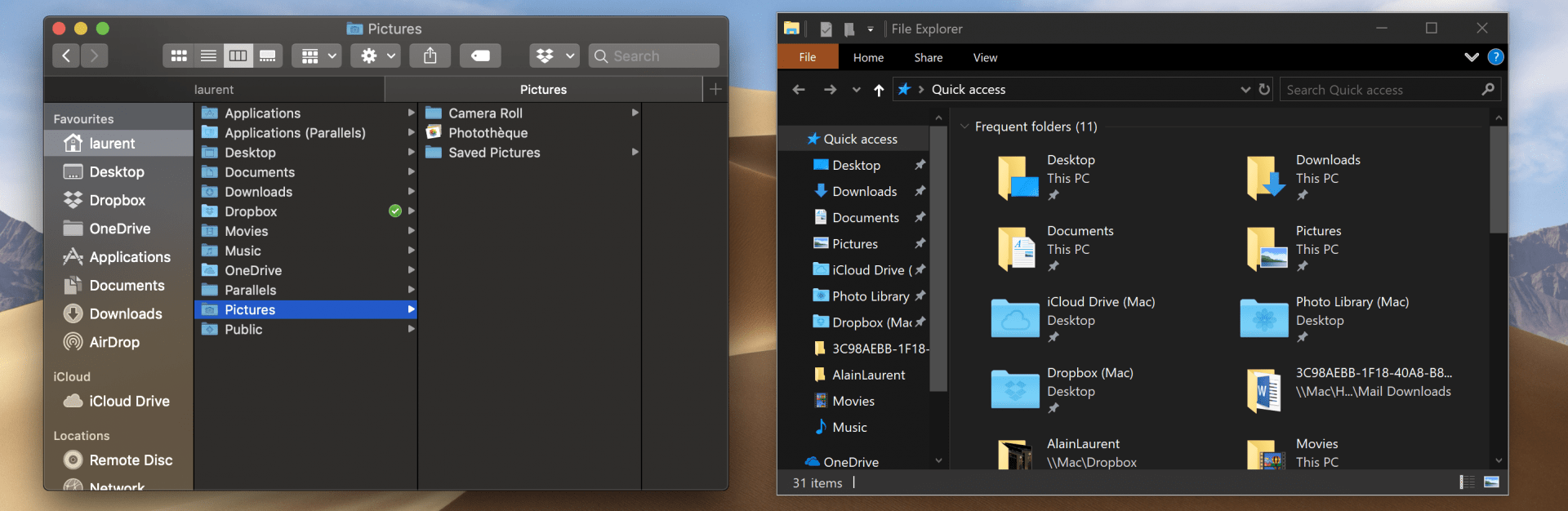
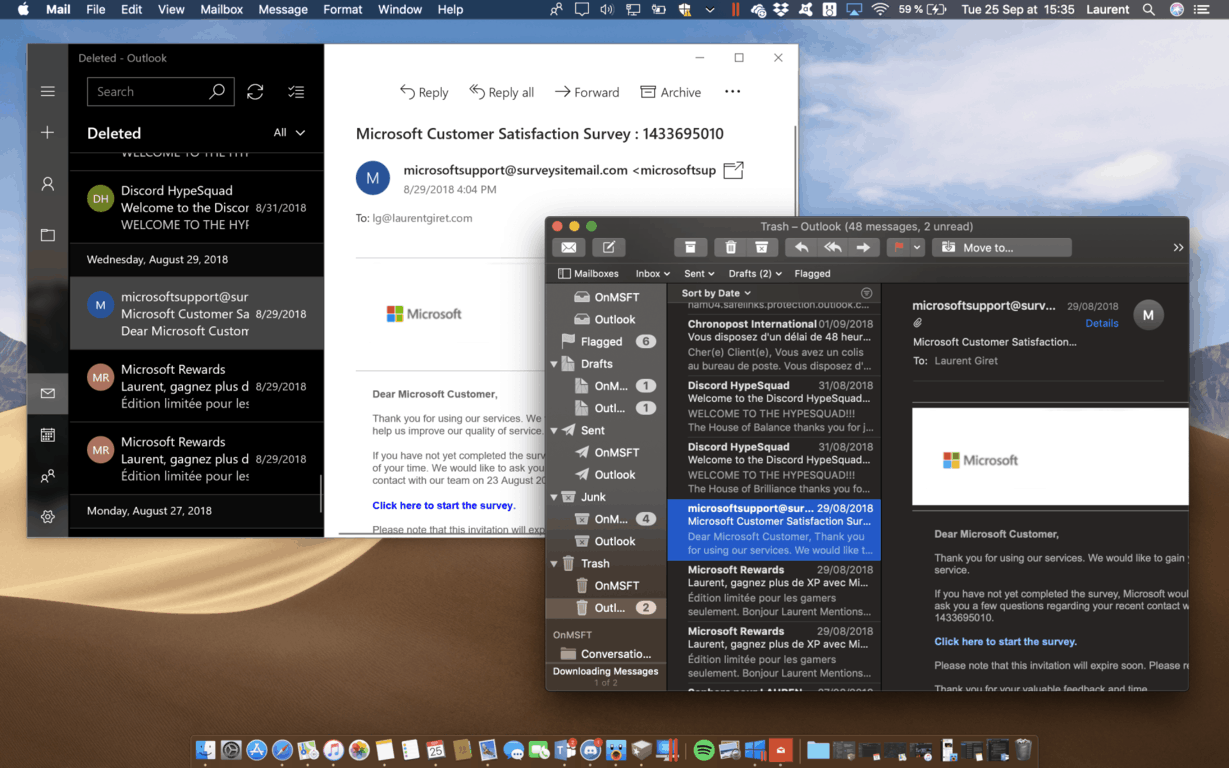
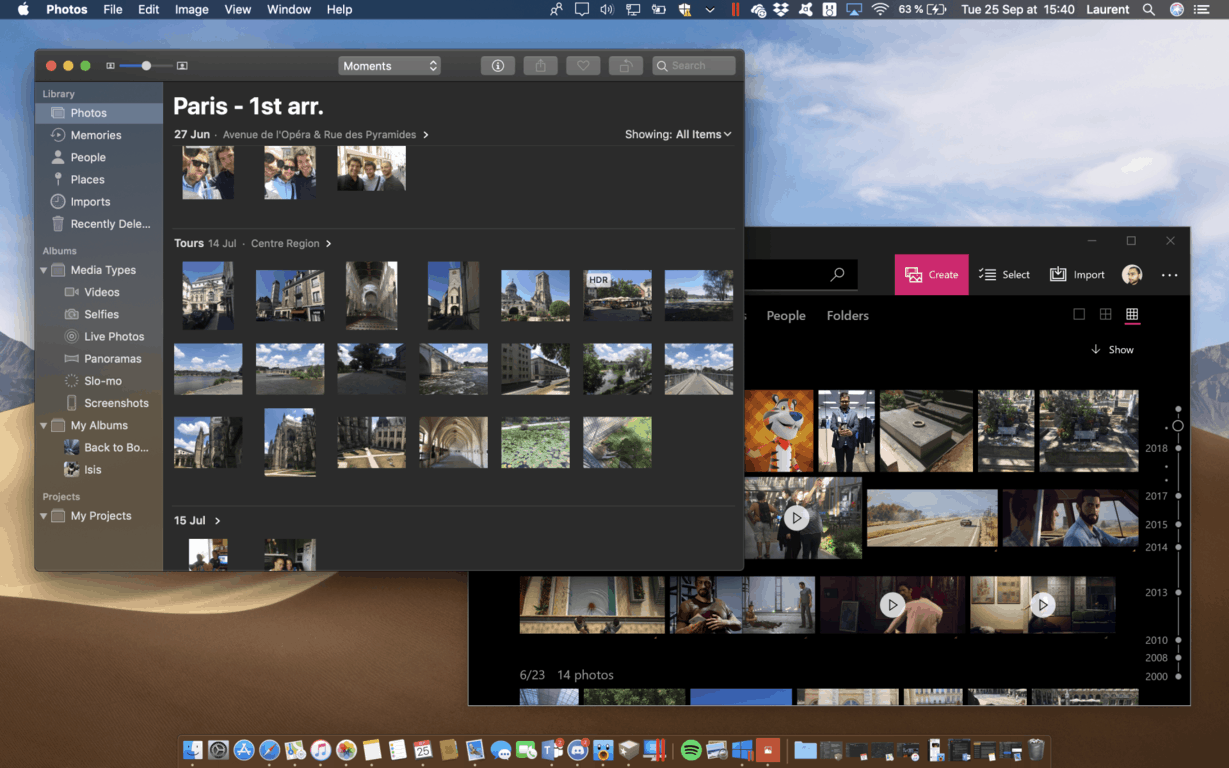 To be fair, Dark Theme on Windows 10 has been a work in progress since the beginning, and because all stock Windows 10 apps are now updated through the Store, Microsoft is free to try different design changes without having to update the full OS. However, this is a different story for other components like the Windows Shell, or legacy apps like File Explorer.