Windows 8, 10 Air Combat Game ‘Cold Alley’ Launched by Microsoft

There are plenty of air combat games available for the desktop version of Windows 8, and only a few reliable ones when it comes to the touch interface. Microsoft has just released the Cold Alley game for Windows 8 tablets, which promises to be an interesting air combat game to play
windows 8 air combat gameWho else if not Microsoft to publish and release as many games as possible in the Windows Store. Now, Microsoft Studios has released yet another game, after we have seen the Windows 8 Bingo game and the Little Mermaid game getting launched the previous week. Cold Alley is an air combat game that Microsoft promises to come with console gaming quality.

Read Also: 10 Best Windows 8 Apps and Games for Kids

THE NEXT GENERATION OF AIR COMBAT GAMING IS HERE! With an extensive single player campaign and a huge set of skirmish modes, the non-stop action will keep you on the edge of your seat! Travel back in time to experience the unwritten history of covert operations. Master over a dozen models of aircraft as you take part in the race for jet fighter domination.

Microsoft launches air combat game for Windows 8 tablets

The single player campaign is quite long but you don’t get bored playing the game. You can also choose to take part in the skirmish mode to play shorter and faster air combat games. Select from plenty of different aircraft units that will take you back in time to experience important air battles. As for the visuals of the game, Microsoft says it is near the quality you’d experience on the Xbox One, probably.

The audio is also described as being masterfully done and there are other special effects such as bump mapping, realistic atmospheric effects, volumetric clouds, sun glare, day & night transitions and other that you will discover by playing. Besides skirmish and single player mode, there are also Dogfight Missions, Survival, Free for All, Team Deathmatch, Capture the Flag, and Defend the Base game modes. Microsoft also said that future updates will bring even more game modes.

The biggest drawback of this air combat game for Windows 8, however, is the fact that it is not that cheap, at $6.99 and, what’s even worse, is that there’s no trial version available. But, if you are passionate about this type of games, then go ahead and download it.

Download Cold Alley for Windows 8

Cold Alley alternatives for Windows 10

In case you have some problems while playing this game or you have passed it, then we have a great list of other flight simulators and air combat games. You can try them and tell us in the comment section what have you chosen so we can make a review about it. Here’s the list with the links to the articles:

Silverlight in Windows 8, 10: All You Need to Know

A lot of people are talking about Silverlight’s compatibility with Windows 8 and are asking for feedback regarding that. Since both Windows 8 and Silverlight are being sold by Microsoft, there shouldn’t be much to discuss on this topic, however there are some issues present here.

Silverlight is an free application framework used for rich Internet applications that are somewhat similar to Adobe’s Flash. It is mostly used for programming and online streaming of web applications.

Silverlight is a powerful development tool for creating engaging, interactive user experiences for Web and mobile applications. Silverlight is a free plug-in, powered by the .NET framework and compatible with multiple browsers, devices and operating systems, bringing a new level of interactivity wherever the Web works.

Read Also: Top Five Windows 8 Game for Cats to Play

The vast majority of users are .NET developers or aspiring programmers, so clearly they are able to resolve any software issues that may arise when installing any programs. Going past some of the obvious ones, there are a few that aren’t easily solvable, or they just don’t have a standing out solution, so although simple, many people just don’t see it right away. First of all you need to know that Silverlight cannot run as within an Windows Store application, so you can only use it in Windows 8 Desktop, where it runs with no compatibility issues. If you are having problems installing Silverlight on your Windows 8 machine I would recommend going through the following steps:

  • Press Windows Key + W
  • Type “Troubleshooting” in the search box
  • Select Troubleshooting from the list
  • Select View all from the top left corner of the window
  • Go to Windows update troubleshooter
  • Install Silverlight manually from the Microsoft site

There are also some problems when installing Silverlight caused by your antivirus, so make sure you allow Silverlight access and if it still does not run, try to deactivate the antivirus temporarily until the installation is complete. While we are on this subject, make sure you set your antivirus to allow Silverlight to access the Internet and download future updates.

The bad part of Silverlight and Windows 8

Silverlight has been used less and less in the past few years and Netflix was the last major site to use it. Silverlight will still be supported on Windows until 2020, but it will get close to no attention in the upcoming years. Microsoft is clearly putting all their eggs in the HTML5 basket and they are hoping for the best. There are of course some Rich Internet Applications that use Silverlight, but they will soon disappear one by one, letting new development tools pass by. Microsoft are stating that they will not remove Silverlight, however, there are not going to be many changes in the following years.

Read Also: 3 Useful Windows 8 Spell Check Apps

Silverlight and Windows 10

In case you have upgraded to Windows Anniversary Update, Silverlight can be installed and used. You can find a step-by-step guide on how to install it in this article plus the download link. In 2017, Microsoft dropped a massive update for Silverlight in order to support it on Windows mobile. Be sure you have the necessary updates for Silverlight in Windows 10 installed as the old versions of Java and Silverlight were blocked for Internet Explorer.

Windows 8, 10 App Check: mFTP, a Full FTP Client

If you own a website and also a Windows 8 tablet, you might be looking to install a reliable FTP client app. There aren’t too many such apps in the Windows Store, but mFTP is one of them, so read below for more details.
windows 8 ftp app
Uploading or downloading
files to a server is being done with such tools as FileZilla, but when it comes to touch devices, there isn’t an official FileZilla app in the Windows 8 Store. We checked for a reliable FTP client app and found mFTP, which seems to be the best one to use at the moment. Described as a complete and full Windows 8 FTP client app, mFTP comes in handy when you have a website to manage or for exchanging data from your Windows 8 desktop to your Windows 8 tablet.

Read Also: Fix: DNS Server Issue With Windows 8.1 Update

mFTP offers you a full FTP client, with all the familiar features and allows the exchange of data from your desktop and Tablet PC with your FTP server. Therefore the download and upload of files is as well possible as creating, renaming, and moving folders. You can also modify their access permissions. Because of the modern design and intuitive operation, the use of mFTP is easy and pleasant.

A reliable FTP client app for Windows 8

So, if you are looking for a complete FTP client app with intuitive, modern design, then your pick should be mFTP which you can download by following the link at the end of the article. The app comes with essential file download and upload function, as well as with rights management. Albeit it was created with Windows 8 touch devices in mind, you can use it on a desktop system, as well.

The latest update of the app has improved and cleaned up the user interface, as well as adding new optical functions. Having using the app for a few hours, I can say that it is pretty snappy and the download/upload speeds are according to the Internet connection that you posses. Go ahead and grab it if you are in need of such an application.

Download mFTP for Windows 8

FTP clients alternatives for Windows 10 users

mFTP may be a great FTP client, but many users that upgraded to Windows 10 from Windows 8 may have some issues while using it. IN this case, we recommend you WS_FTP, a FTP client that works perfectly on Windows 10. FlashFXP is another great FTP client that will work on your PC without any problems. For more information and FTP clients to use, check our dedicated list.

READ ALSO: Windows 10 FTP client not working [FIX]

Windows 10 April 2018 Update now fully available, already running on over 250 million PCs

It’s been almost two months since Microsoft started rolling out the Windows 10 April 2018 update, and the company has just announced that it’s now fully available for all compatible devices. According to Redmond, over 250 million PCs are already running the April 2018 update, which represents the fastest rollout in the history of Windows 10.

In case you forgot, 250 millions PCs represents roughly 35% of the 700 million active Windows 10 devices out there. As expected, this number is much lower than AdDuplex’s recent 50% number, and that’s because the cross-promotion network for Microsoft Store apps only takes into account PCs where apps using the company’s SDK are being used. Still, 35% of the user base is pretty good after less than two months, and this number should grow pretty quickly now that the major update is generally available.

“Artificial Intelligence continues to be a key area of investment for Microsoft, and we’re pleased to announce that for the first time we’ve leveraged AI at scale to greatly improve the quality and reliability of the Windows 10 April 2018 Update rollout,” explained John Cable, Director of Program Management, Windows Servicing and Delivery. The exec also says the company is seeing “higher satisfaction numbers, fewer known issues, and lower support call volumes compared to previous Windows 10 releases,” which is honestly a bit surprising.

Microsoft says it’s seeing lower support call volumes compared to previous Windows 10 releases.

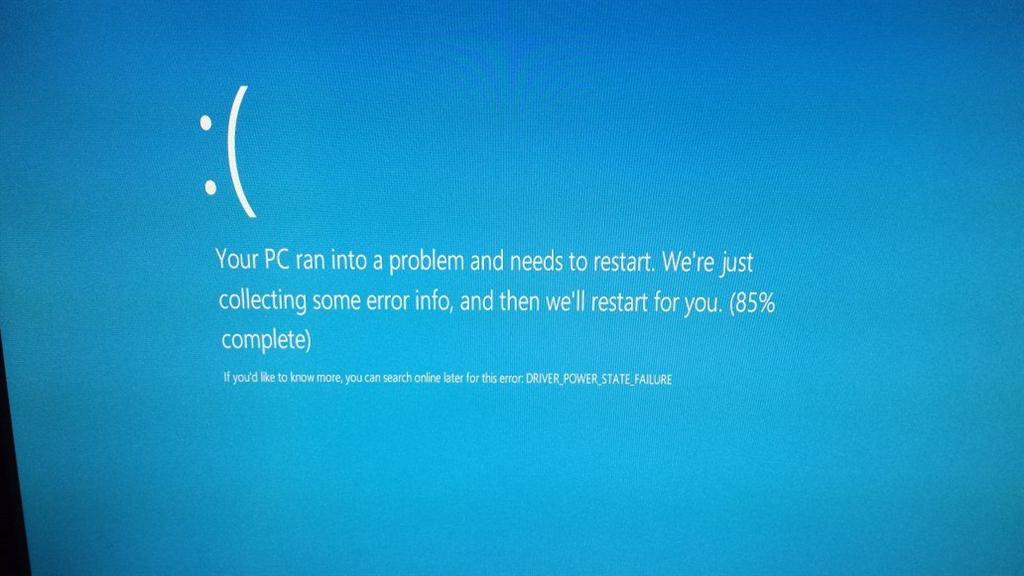
Indeed, you may remember that the road towards the release of the April 2018 update was quite a bumpy one, with the major release starting to roll out on the last day of April. After its release, several issues surfaced including File Explorer crashes, BSOD when updating as well as installation problems with Intel SSDs. Microsoft has since released several patches to fix these bugs, and this month’s Patch Tuesday also addressed brightness controls issues on select laptops.

“Early data shows the quality of the April 2018 Update exceeding earlier versions of Windows 10 in both reliability and performance,” said Cable. “Of course, this work is never done, and we continue to partner to with our hardware and software partners to drive additional performance and reliability improvements in Windows 10,” he continued. Do you agree with Microsoft’s telemetry data, and do you think the April 2018 update has been less problematic than previous major releases? Sound off in the comments below.

Insiders testing Windows 10 Preview 17692 can look forward to a steady explorer.exe experience among other fixes

For some, it definitely feels like we’re in the early stages of Windows Insider testing round. The number of known issues and fixes have seemingly outweighed the features list and todays preview of build 17692 is no different.

Here are list of fixes, general changes and improvements for Fast Ring and Skip Ahead testers downloading preview 17692.

  • We fixed an issue resulting in audio glitching on systems with lots of firewall rules.
  • We fixed an issue from the last few flights where Eye Control would fail fast and not start.
  • We fixed an issue resulting in certain games, such as Counter Strike: Global Offensive, to crash on launch in the last two builds.
  • We fixed an issue resulting in Settings crashing when attempting to open Data Usage Settings in the last few flights.
  • We fixed an issue resulting in an unexpected “codecpacks.vp9” entry in the Start menu.
  • We fixed a recent issue for some Insiders resulting in an explorer.exe crash with AppXDeploymentClient.dll.
  • We fixed an issue resulting in some Insiders recently experiencing a bug check (green screen) with the error SYSTEM_SERVICE_EXCEPTION in afd.sys.
  • With Build 17672 we made a fix for an explorer.exe crash in structuredquery.dll – that fix stopped anyone new from encountering the crash, however we heard your reports that anyone already impacted was still impacted. Today’s build has a fix for this issue that should resolve it for anyone who was already impacted.
  • To improve discoverability, we’ve moved Delivery Optimization Settings to now be directly listed as a category under Settings > Update & Security.
  • We fixed an issue in Microsoft Edge impacting websites like Facebook.com, where when starting a message only the first contact name entered was automatically resolved while typing.
  • We fixed an issue in Microsoft Edge where if both images and text were selected, right-clicking on the image and selecting copy wouldn’t work.
  • We fixed an issue resulting in the Windows Security app crashing recently when adding a process to the exclusion list.

There is a lot of spot fixing that needs to occur with this particualr Windows 10 update and it looks as though the Windows 10 is slowly starting to plug the holes.

Microsoft’s SwiftKey keyboard comes to Windows 10 PCs with latest Insider build 17692

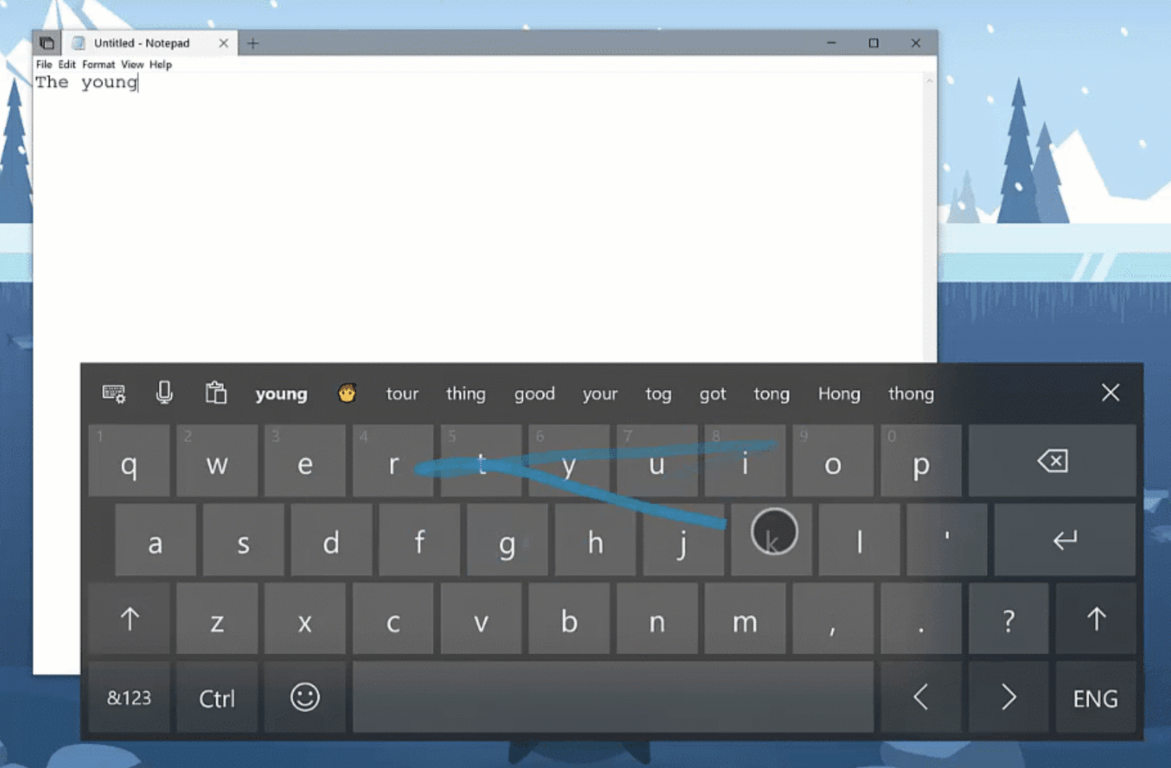
Microsoft has just released the Windows 10 Insider build 17692 for Fast and Skip Ahead Insiders, and it’s a pretty big release compared to the previous flight. One the most interesting additions is that Microsoft’s Swiftkey keyboard, which was previously an iOS and Android exclusive is now available on Windows 10 PCs with shape writing support.

“SwiftKey gives you more accurate autocorrections and predictions by learning your writing style – including the words, phrases and emoji that matter to you,” the blog post reads. Going forward, the intelligent keyboard will be the default when using the touch keyboard to write in English (US and UK), French (France), German (Germany), Italian (Italy), Spanish (Spain), Portuguese (Brazil), or Russian.

Microsoft acquired SwiftKey back in 2016, so it took two years for the company to bring the intelligent keyboard to Windows 10. Well, better late than never, and SwiftKey should be a nice improvement over the pre-existing Windows 10 touch keyboard. It’s also safe to expect some synergies with iOS and Android, as Microsoft previously said that its upcoming Cloud Clipboard feature with leverage SwiftKey on these mobile platforms.

New in Windows 10 Insider Preview Build 17692— Swiftkey intelligence, Edge and Game bar improvements, and much more

Microsoft just pushed out Windows 10 Insider Preview Build 17692 and it’s jam-packed with a lot of new features. This build introduces Swiftkey intelligence in Windows 10, improvements for Microsoft Edge and the Gamebar, and much more. As always, you can have a look below at all the new features while you wait for this build on your Skip Ahead or Fast Ring PC.

New in Build 17692:

  • SwiftKey gives you more accurate autocorrections and predictions by learning your writing style – including the words, phrases and emoji that matter to you. It’s available for Android and iOS, and starting with today’s build SwiftKey will now power the typing experience on Windows when using the touch keyboard to write in
  • Microsoft Edge: One common piece of Insider feedback for Microsoft Edge is that you want more control over autoplay videos. In this build, we’ve added a new setting in Microsoft Edge to allow you to control whether sites can autoplay media. You can find an early preview of this setting under “Advanced Settings,” “Allow sites to automatically play media.” We’ll be improving these options and adding additional controls in upcoming flights and in response to your feedback, so stay tuned!
  • Microsoft Edge: Beginning with this build, we’re making it easier than ever to automate testing in Microsoft Edge using WebDriver. First, we’ve made WebDriver a Windows Feature on Demand, so you no longer need to match the build/branch/flavor manually when installing WebDriver. When you take new Windows 10 updates, your WebDriver binary will be automatically updated to match.
Swiftkey
  • Accesiblity: We’ve heard your feedback and are excited to announce that the ability to increase text size across the system is back and better than ever! When you go to Settings > Ease of Access > Display in today’s build, you’ll find a new setting called “Make everything bigger” – this slider will adjust text across the system, win32 apps, and UWP apps.
  • Game bar: We’re now rolling out more functionality to the RS5 Game bar. In this flight are the following new features: Audio controls. Change your default audio output device and mute or adjust the volume of games and apps running. Performance visualizations. See your game’s framerate (FPS), CPU usage, GPU VRAM usage, and system RAM usage.
  • Gamemode: New options are now available for Game Mode that are expected to improve the gaming experience on desktop PCs. Gamers on PCs with many background processes may also see performance improvements when they toggle “Dedicate resources” in Game bar.
GameBar
  • Search: Continuing our theme of improving the search preview experience, we’re rolling out an update to make it easier to find official download pages for Windows software you want to install. The team is continuing to develop this experience and more is coming. Check out the example below, and let us know what you think!
  • Windows Mixed Reality: Starting with this build you can stream audio to both the headset and the PC speakers simultaneously. To try it out make sure that you can hear sound from your normal PC speakers when not running the Mixed Reality Portal (MRP) and from the headset’s audio jack or built-in headphones when mixed reality is running. Then close all apps, including MRP, and go to Settings > Mixed reality > Audio and speech to turn on “When Mixed Reality Portal is running, mirror headset audio to desktop.” You should now hear audio from both the headset and PC speakers when running mixed reality.
  • Narrator: Narrator now ships with a new keyboard layout that is designed to be more familiar to screen reader users. Narrator will now automatically read the contents of a dialog box when brought to the foreground. You now have the ability to search for text using Narrator’s new Find feature. If the text is found Narrator will move to the found item. Narrator now has the ability to present a list of links, headings or landmarks present in the application or content. Along with being able to select content in Narrator’s scan mode using Shift-selection commands, you can now also select a block of data by first moving to one end of the block and pressing F9, moving to the other end of the block and pressing F10
Search

As you can tell, there is a lot to look forward to in this new build. The Swifkey integration is definitely most interesting and was a long time coming. All the other improvements are definitely appreciated too. Get downloading now, and feel free to let us know how this new build is running for you by dropping us a comment in the section below.

New free tier for Microsoft Teams briefly appears in official documentation

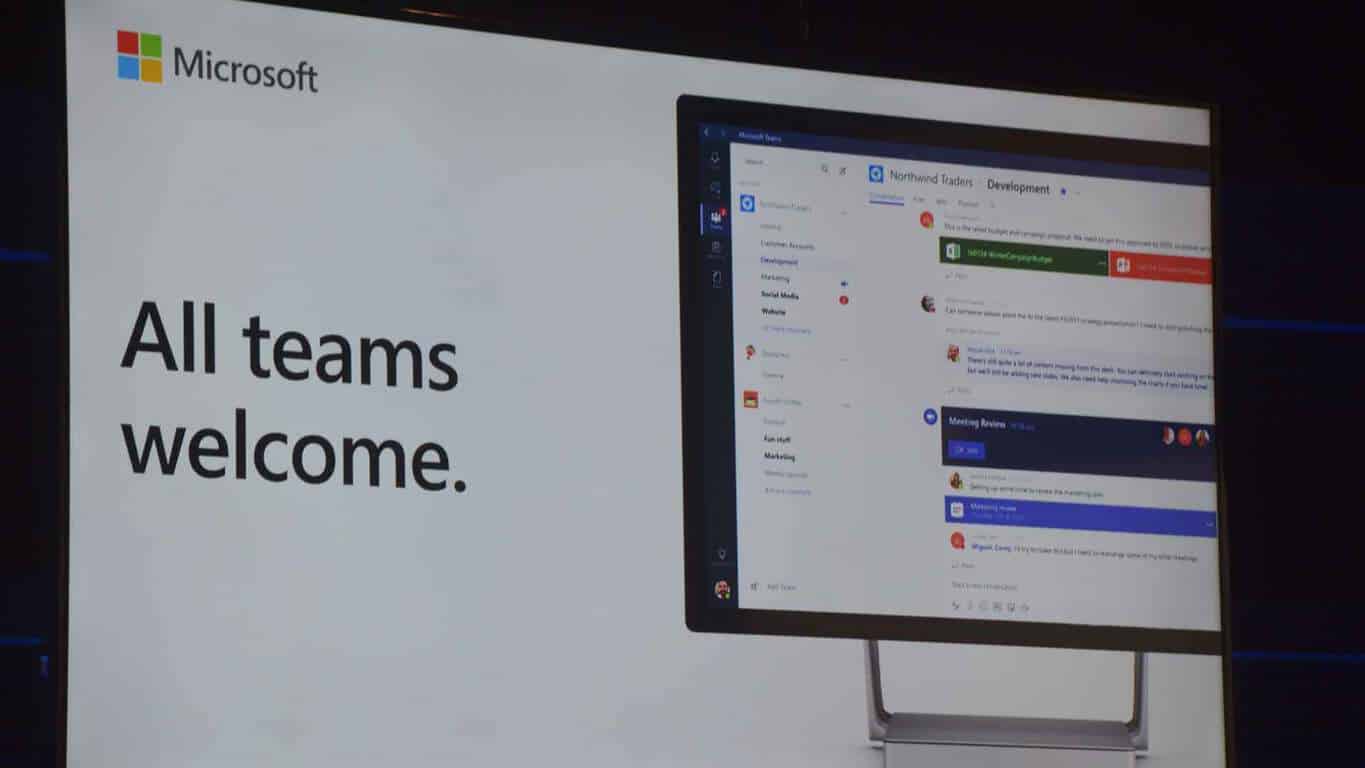
A couple of months ago, traces of a “freemium” features for Microsoft Teams were discovered in a developer preview of the team collaboration app, suggesting that a free version of Teams for MSA accounts could be near. Yesterday, Microsoft detective WalkingCat discovered new mentions of this free tier in official documentation.

Microsoft has since taken down the links describing this “free” version of Microsoft Teams, but the official description provided by Thurrott.com clearly explains that this new tier will be for small businesses:

Microsoft Teams (free) is intended for use by organizations, such as small businesses or groups of coworkers. If you were invited to join a group in Microsoft Teams (free), the group you are joining in the Microsoft Teams (free) instance will be considered your organization for the purposes of this notice, and the person administering the group will be considered the administrator of your account in Microsoft Teams (free).

Offering a free tier for Microsoft Teams makes sense as this strategy worked really well for competitor Slack. Since its launch last year, Teams has already become a core app in Office 365 that gets iterative updates every month, and making it a freemium product could help convince more SMBs to jump on the Office 365 bandwagon. We don’t know yet when Microsoft will officially announce this new free tier, but the fact that it briefly appeared in official documentation suggests that it’s a little bit closer to reality.

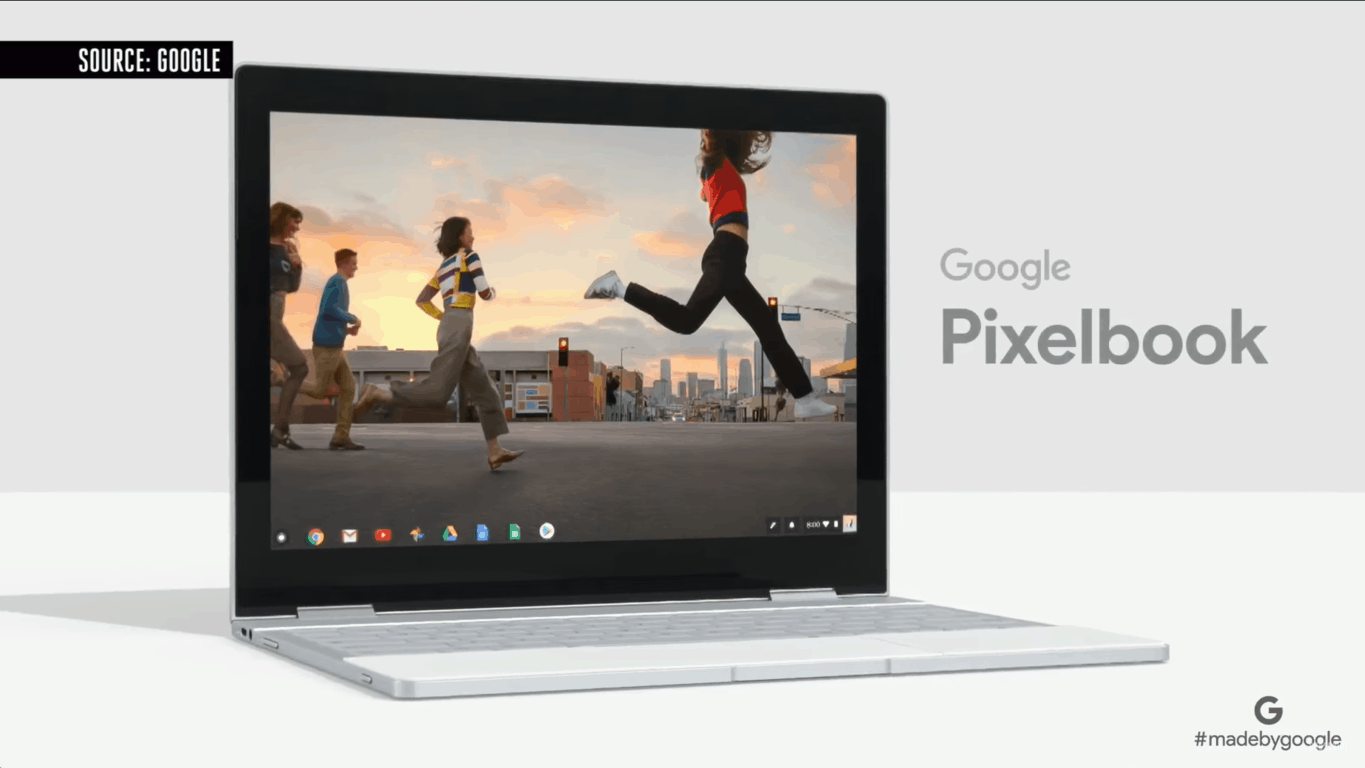
Report: Google looks to a Windows 10 Certification for its Pixelbook

There’s no shortage of premium flagship Windows 10 2-in-1 devices these days, and consumers can easily go out and buy one from many different manufacturers. Google, though, recently tried to take a bite out of Microsoft’s market by introducing the Pixelbook, a premium 2-in-1 device running Chrome OS. Well, it now looks as though the search engine giant might be now trying to play nice with Microsoft by getting the Pixelbook certified for Windows 10 (via 9to5Google.)

The news is fueled by a report from XDA-Developers, which discovered coding mentions of Microsoft’s tools which are traditionally used to try and get Windows 10 to run on any given device. These include both the WHCK (Windows Hardware Certification Kit) and HLK (Windows Hardware Lab Kit) which are for ensuring driver and other device compatibility with Windows.

The HLK code line also specifically mentions “Eve” which is the codename for the Pixeblook. Google was already said to be rumored to be working on an “AltOS” for the Pixelbook, and this all but hints that said OS might end up being Windows 10.

Nothing is official as of yet though, and there’s no telling if the Windows compatibility or certification will be for developers or just the average consumer. At any rate, this definitely is an interesting situation, so feel free to let us know your thoughts in the comments below.

Xbox One’s Plex app gets loads of fixes in latest update

The official Plex app for Xbox One consoles updated today with a variety of fixes and changes. Among the most noteworthy is the return of the ability to delete recommended items and the fixing of a bug that was preventing the correct audio and subtitle selections from activating as fast as they should have.

Here’s the full release notes.

  • Restored ability to delete Watch Later/Recommended items
  • Fixed Browse by Folder showing unwatched flags on folders
  • Fixed cursor getting lost when navigating up to menu on Live TV Watch Now
  • Fixed metadata being displayed behind episode thumbnail in some cases
  • Fixed audio & subtitle preference changes not being reflected immediately on the preplay page
  • Removed Discover and Watch Now buttons from Live TV Browse All

Plex is a powerful media consumption app that allows users to watch their own library of digital content and record live TV. Do you use Plex on your Xbox One? Let us know in the comments below and then like us on Facebook for more Xbox One news.

Plex
Plex
Developer:
Plex
Price:
Free

KB4284835 install fails for many Windows 10 v1803 users

The Windows 10 April Update recently received a new patch. Update KB4284835 fixes many bugs that affected the OS ever since Microsoft rolled it out a few months ago, including the annoying issue that prevented users from changing brightness settings.

At the same time, KB4284835 also brings some issues of its own. For example, many users reported that the update often fails to install. There are many error codes that appear on the screen when the process fails, and it seems that error 0x800f0900 is the most frequent one.

Here’s how one user describes the problem on Microsoft’s forum:

Hello. I tried updating to the June update for the 1803 build, but I keep getting this error message:
“There were problems installing some updates, but we’ll try again later. If you keep seeing this and want to search the web or contact support for information, this may help: 2018-06 Cumulative Update for Windows 10 Version 1803 for x64-based Systems (KB4284835) – Error 0x800f0900″
I tried the troubleshooter found in the setting menu, it did not work.

If you can’t install KB4284835 on your computer, here are a few quick suggestions on how to fix the problem:

  • Update your drivers — running outdated drivers may prevent you from installing the latest OS updates.
  • Disable your antivirus software — security software may sometimes block Windows 10 updates. Turn off your antivirus, download and install the updates and then turn it on again.
  • Reset Windows Update — launch Command Prompt as administrator, enter the following commands and hit Enter after each one:
    • net stop wuauserv
    • net stop cryptSvc
    • net stop bits
    • net stop msiserver
    • Ren C:\WindowsSoftwareDistribution SoftwareDistribution.old
    • Ren C:\WindowsSystem32catroot2 Catroot2.old
    • net start wuauserv
    • net start cryptSvc
    • net start bits
    • net start msiserver

If the problem persist, here are a few additional troubleshooting guides that you can use to solve it:

Play World Cricket Championship Pro game on Windows 10/11, 8

At the moment, Windows 10, 8 World Cricket Championship Pro (available in the Windows Store) is one of the cricket games to play. We go through its main features and explain why it is perhaps the best cricket game to be played on your Windows 10, 8 tablet.
windows 8 cricket game
We have just published the list with the best Windows 10, 8 cricket apps and games to download and play on your Windows 10, 8 device, and now we’ve decided to highlight what we think to be perhaps the best cricket game at the moment.

Like I was saying in the roundup with the best cricket apps and games, you can play in three different cricket championships – World Cricket Championship, World Premier League and Fantasy Cricket League. You will be asked to choose one right when opening the game for the first time. For those who don’t know, here are the basic rules of cricket:

Cricket is a bat-and-ball game played between two teams of 11 players on a field at the centre of which is a rectangular 22-yard long pitch. Each team takes it in turn to bat, attempting to score runs, while the other team fields. Each turn is known as an innings. The bowler delivers the ball to the batsman who attempts to hit the ball with his bat far enough for him to run to the other end of the pitch and score a run. Each batsman continues batting until he is out. The batting team continues batting until ten batsmen are out, at which point the teams switch roles and the fielding team comes in to bat.

The best cricket game for your Windows 10, 8 device

There are two modes of cricket play: ‘Tournament‘ for what is referred to as “unlimited hours of fun” and ‘Quick Play‘ for a quick cricket game. What’s really cool is that you can even challenge your friend to play a cricket game together in the asynchronous Multiplayer mode . Despite the fact that the game has only a little over 40 megabytes, it does come with satisfying graphics and animations.

best windows 8 cricket game
World Cricket Championship Pro for Windows 10, 8 also comes with the option of letting you create your very own team and with the ultra slow motion shots for massive sixes, it will feel like you’re on a real cricket stadium. To see some hot action from the game, you can see action replay on or off and even enjoy professional commentary.

When it was launched, the game wasn’t that entertaining but the developer has updated it gradually with more and more features. Available for $2.99 in the Windows Store, World Cricket Championship Pro can also be tried out for a few days, if you’re not sure if it’s worth the money or not. Follow the link from below to download it.

Download World Cricket Championship Pro for Windows 10, 8

If you want to power up your game, you can use app purchases and get a series of rare skills that will definitely improve your game.

World Cricket Championship Pro received mostly positive reviews from players. This confirms that the game is very entertaining and challenging to play, so it’s worth every penny.

If you’re interested in playing other sports-themed games, you should also try the titles below:


Windows 8, 10 Cricket Apps & Games: Four Best to Download

Cricket has millions of fans all over the world, being especially popular in such countries as India, United Kingdom, and others. And, it goes without saying that many of them are also looking to play cricket games on their Windows 8 tablet and use apps to follow live cricket games. We found 4 of the best such apps to use.

If you will go right now in the Windows Store and will start looking for “cricket” related apps and games, a plethora of Windows 8, 10 apps will appear in front of your eyes. The big problem is that so many of them are useless and not worth downloading on your Windows 8, Windows 10 tablet. We hand-picked 4 of the best Windows 8 cricket apps and games for you to use. If you happen to know another reliable one, leave your comment at the end and we will consider including it on the list.


ESPN Cricinfo

espn cricket info windows 8This is the best Windows 8 live cricket app that you need to download on your Windows 8 tablet. By using the app, you will get full cricket coverage from around the world and get real-time cricket results on your Windows 8 tablet. Besides this, you will get the most important cricket news, features and editorial content from the ESPN Cricinfo team. All wrapped under a great looking app.

The latest update also brought push notifications for wickets and results, and updates match details page. Since many users have reported the crash of the app after installing, we recommend checking this article on UWP app crashes.


World Cricket Championship Pro

windows 8 cricket gameThe World Cricket Championship Pro is the best Windows 8 cricket game for touchscreen devices. We will review it shortly in a separate article, but there’s a trial option available, so before paying the full price, you can see if this cricket game is for you or not. The game is a mix of World Cricket Championship, World Premier League, and Fantasy Cricket League and is a must-download for cricket lovers all over the world.

The latest version has some new features like ultra slow motion shots for massive sixes and action reply on/off in settings.


Cricbuzz

cricbuzz cricket app windows 8Just like ESPN Cricinfo, Cricbuzz is a Windows 8 cricket app that you need to download if you want to stay updated with the latest news from the world of cricket. Get quick score updates and ball by ball text commentary, match alerts, latest cricket news and editorials, results of recent cricket matches, photos, audio commentary, player profiles and points tables for all major tournaments by installing Cricbuzz on your Windows 8.1 and Windows 10 tablet.


Street Cricket

street cricket windows 8
Published by the same company that has made the World Cricket Championship Pro Windows 8 game, the Street Cricket game comes with similar graphics in a game of only five.

The rough play, the dust, the nostalgia of cricket in your own gully; that is what Street Cricket is all about! In this version the rules are modified to suit the ground situation while the usual excitement of the game remains intact.

The game has received support in Microsoft Store and you can enjoy this great street Cricket on your Windows 10 tablet.

RELATED ARTICLES TO CHECK OUT NOW:


Windows Template Studio 2.2 is now out, with new 3D Launcher feature and other enhancements

Two months ago Microsoft pushed out Windows Template Studio 2.0 to developers. Today the company has followed up with a version 2.2 release which adds in a brand-new 3D Launcher feature, wizard enhancements, and much more to the experience.

This version 2.2 update is a small step in the development patch, and Microsoft says the next few releases will bring smaller updates and new pages and fixes. Anyway, have a peek below for what’s new with version 2.2, and check here for the full changelog.

Included in this version:

  • 3D Launcher feature
  • Wizard enhancements
  • Improved documentation
  • Improved testing
  • Bug fixes

Dev platform updates:

  • Updated Microsoft.NETCore.UniversalWindowsPlatform to 6.15
  • Updated Newtonsoft.Json to 11.0.2
  • Updated Microsoft.Toolkit.Uwp,
  • Microsoft.Toolkit.Uwp.Notifications and
  • Microsoft.Toolkit.Uwp.UI.Controls to 3.0.0
  • Update Telerik.UI.for.UniversalWindowsPlatform to 1.0.1

To get this release, you can try two update paths. If you already have Windows Template Studio installed, Visual Studio will auto update the extension, but you can also force an update by going to Tools>Extensions and Updates. And if not installed, you can head here and click download, and then double-click the VSIX installer.

Clint Rutkas, Senior Technical Product Manager, Windows Developer Team said in today’s blog post that Microsoft is working towards a “multi-project solution” for Windows Template Studio 3.0. He teased that there are new things being built out for future releases, so be sure to keep your feedback coming to Microsoft and make your requests heard.

Windows 8, 10 App Check: Farming Simulator

There are many players looking for entertaining Windows 8 farm games to play. One of the best such titles is, without a doubt, Farming Simulator. Those passionate about growing a farm in the countryside have definitely heard about it before. Now, it is available for Windows 8 tablet users
windows 8 farming simulatorAvailable for download in the Windows Store, the reputed Farming Simulator can be enjoyed in your Windows 8 tablet after you pay five dollars to get the game. There’s also the free trial option available, but I think it lasts only for one day, alas. Cultivate a good diversity of trees by using original machines and vehicles from prestigious manufacturers.

Discover a wide, agricultural scenery with fields, roads, your farm as well as a small village. Cultivate your fields with various three dimensional vehicles found in your generous fleet- modeled after original machines and vehicles by prestigious manufacturers. Take a seat at the wheel of authentic farm machines by DEUTZ-FAHR, KRONE, KRAMPE, AMAZONE, LEMKEN and KOTTE and start your own agricultural enterprise: plow and cultivate your fields, choose the seeds of your field crops out of three plants (corn, canola and wheat) and fertilize them to accelerate their growth. Sell the harvest and invest it into new equipment.

Pursue your farming dream with Farming Simulator for Windows 8

Read Also: Grand Theft Auto Windows 8 App: I Want it on my Tablet!

Those who have played the Farming Simulator series before know that there are digital assistants who will take over the work that you assign them to. Farming with this app is really exciting as you get to explore an open world with a dynamic day-night-cycle. Many are playing the game as a way to mentally train themselves and prepare for the moment when they will become a successful farmer in reality.

There’s the free-play mode or the career mode where you play the role of a farmer and get to live the varied farming life. The latest version of the Farming Simulator for Windows 8 comes with improvements, such as the new economy system. This allows you to play with variable corn prices and earn extra money that you can then choose to invest in new buildings, vehicles and tools.

There are over 100 authentic tractors, harvesters and tools of renowned manufacturers like DEUTZ-FAHR, KRONE, KRAMPE, AMAZONE, LEMKEN and KOTTE. The game has impressive graphics and on a Windows 8 tablet, it looks and feels even better, having a great touchscreen responsiveness.

Farming Simulator in 2018 – things a player should know

Farming Simulator is a great game with a relatively simple engine, but there are always various problems. If you are playing this game and encounter various problems like crashes, game not starting and lags, try out the steps from this guide. We also have a fix article which will help you get rid of problems likes FPS rate drops, in-game tractor stutter, and other gameplay issues we have a list of solutions right here.

However, Farming simulator remains a great Windows game that has left far behind even Facebooks’s FarmVille.

READ ALSO: Farming Simulator 17’s Big Bud Pack features the biggest tractor in the world

Fun Windows 8, 10 Zombie Games to Play

When it comes to zombie games to be played on your Windows 8 tablet or even Windows 8 desktop system, there’s plenty to choose from. However, there are also quite a plethora of spam and “ugly” apps and games you need to avoid. Below we feature 5 of the best zombie games to be played on Windows 8.

into the dead zombie game windows 8

Into the Dead

Into the dead is one of the latest zombie games to have hit the Windows Store for Windows 8 users, but it is definitely one of the best to download and install on your Windows 8 tablet. As you can see in the above screenshot, it comes with amazing graphics and intense gameplay.

In a world overrun with the Dead, you have survived… but for how long? Into the Dead throws you into the gruesome world of the zombie apocalypse where there are no second chances. Do what you have to in order to stay alive, keep moving as fast as you can, and protect yourself by any means necessary. When the Dead are rising, run!

Read Also: Killing Zombies at its best: Judge Dredd vs. Zombies

Zombie HQ

zombie hq windows 8We have featured the Zombie HQ game in the past, as well, as part of our collection with the Best 20+ Windows 8 games to play. The game is filled with hours of endless fun as you use shotguns, assault rifles, sniper rifles, machine guns, flamethrowers, chainsaws, broadswords and even more to kill those evil zombies.

The city seems strange these days. All the bars shut down, nowhere to get a drink and relax…And these damn zombies everywhere you turn! Already killed so many of ‘em but they just keep on coming. Only good zombie is a dead zombie. Good thing there’s plenty of guns around. Still, wish there was some place to take it easy for a while. Some place up high where a fella could catch a break from bashing zombie skulls. You know, a “Zombie HQ” of sorts…

Awesome Zombie Sniper

awesome zombie sniper windows 8Another Windows 8 game with great graphics, Awesome Zombie Sniper is a must-download if you love zombie games. You get to choose between three different sniper rifles to kill zombies and what’s fun, the Gangnam Pack will actually make zombies dance!

Zombies everywhere! Survive against increasingly large waves of zombies using an arsenal of weapons in this beautiful first person shooter. Collect credits and achievements and scavenge the levels for ammunition and medipacks. Zombies can be fought in three amazingly detailed levels – a beautiful autumn field, a busy downtown city area and a lonely forest.

Zombie Driver HD

zombie driver hd windows 8Definitely not a cheap game, but it looks to be the best and most advanced one to choose from this list, of course, if you want to pay 10 bucks for it. In the story mode there are 31 missions to play, along with Epic Boss fights. There are also 13 different vehicles to drive including a firetruck, bulldozer or even a tank.

Insane mix of cars, speed, explosions, blood and zombies! Fight through an epic narrative campaign or test yourself in the Slaughter and Blood Race modes. Engage huge bosses, save survivors, drive crazy vehicles such as a bulldozer, fire truck or even a tank and smash everything in your way. Take part in the Blood Race tournament – chase other cars and take them down without mercy on brutal racing tracks. Jump into the Slaughter mode and survive as long as possible on specially crafted arenas.

Read Also: Practice your Ninja skills with Shuriken Ninja

Zombies!!!

zombies windows 8 gameReleased by Microsoft Studios, Zombies!!! is about surviving a Zombie-infested town. This is also not a cheap game, but, at least there is the trial version available so you can try out the game before buying it to see if this is the best zombie game for your Windows 8 tablet.

Zombies!!! puts you in the middle of the action in this video game adaptation of the hit board game. In order to escape the ever advancing zombie horde, players must use a combination of wits and brawn to be the first to the heliport and certain escape. The only problem is, the zombies are everywhere, they appear to be very hungry and your opponents would really prefer if you didn’t escape. However, there’s no need to take this horde on your own. The Windows 8 game allows up to 4 other human or AI players to join in on the fun. AI players can be chosen from 10 different characters, each with a unique play style.

 Read Also:  Fun Windows 8 Christmas Game: North Pole Invasion

Zombie games for Windows 10 users [2018 update]

Many users already upgraded to Windows 10 Anniversary Update and lots of Windows 8, 8.1 games are not compatible with it. In case you are one of the gamers who encountered this issue, we have several ‘zombie games’-related articles. Here is a quick list with games that might replace the games for Windows 8:

Let us know what zombie game are you enjoying right now in the comments section so we can write a review about it.

Windows 8, 10 App Check: Kindle, the eBook Reader

When it comes to reading eBooks on your Windows 8 tablet or desktop device, one of the best apps to use is without a doubt, Amazon‘s Kindle app. Below we go through its main features and we share our impressions of it as well as providing the direct download link to the Windows Store.
windows 8 kindle app
Amazon has its very own official Windows 8 app in the Windows Store, but if you are looking for the official Kindle app for Windows 8, as well, you should know that it is available for download (link at the end). If you have a Windows 8 tablet and a Kindle device, then you need to download the app to sync all your Kindle books across devices.

Read Also: The Best Cheap Windows 8 Wireless Keyboard and Mouse to Use

Read Kindle books on a beautiful, easy-to-use Windows 8 application. You’ll have access to over 1 million* books in the Kindle Store, including best sellers and new releases. Amazon’s Whispersync technology automatically syncs your furthest page read, bookmarks, notes, and highlights across all your devices that have the Kindle app installed and across any Kindle device. That means you can start reading on one device and pick up where you left off on another device.

All your Kindle eBooks in a single Windows 8 app

Having used the app for a few weeks, I can assert to its snappiness, security and stability, so recommend it to everybody that can use it to download it. There are over 1 million books in the Kindle Store, so there’s plenty to choose from. And by using the Whispersync technology,  your furthest page read, bookmarks, notes, and highlights are automatically synchronized.

kindle windows 8The official Windows 8 Kindle app will let you search inside the book to find a topic, character, or section and you will also be able to pin Kindle books from your Kindle library to the Windows 8 start screen, which is really cool. You can also choose the background color, font size, and the number of reading columns inside the Kindle app, as well as highlight, take notes and add bookmarks in any book. Even more, you can look up word definitions and listen to their pronunciation.

If you are used to reading eBooks, you will find many advantages in doing it over physical books, such as the ability that we have mentioned above. With a physical book, it’s not that easy to look up words, highlight or change the colors. So, hit the download link from below and get the official Kindle app on your Windows 8 tablets.

Download Kindle for Windows 8

Kindle App in Windows 10

Many of you already upgraded to Windows 10 Anniversary Update and they cannot find Kindle in the Store anymore. Well, this is not a problem as Amazon informed Kindle App users on Windows that they can download the version they need on their official website. In case Kindle or Kindle Fire is still not recognized by your Windows PC, you can easily Fix this issue by following the steps from this dedicated guide.

READ ALSO: 10 Best Windows 10 ePub Readers

Total Conquest Windows 8, 10 Game Available for Download

Gameloft makes amazing mobile games, and this is just as true for Windows 8 devices. Now, another game with great looking visual, Total Conquest, has been launched in the Windows Store. Find below more details about it.
total conquest windows 8
Gameloft is a game developer that needs no introduction as it has millions of users on the Android and iOS mobile platforms. The company was bold enough to release multiple games in the Windows Store, such as UNO, Asphalt 8: Airborne, Despicable me: Minion Rush and others. Now, Gameloft has launched the Total Conquest game for Windows 8 users, here’s the description:

Read Also: Catan Strategy Game for Windows 8 now Available for Download

Sound the call to battle and join legions of players online in a battle to control the Roman Empire! Total Conquest is an exciting and strategic social game where you are a Roman governor developing your own city-state and army. But with Caesar dead, there’s no more playing games: You’ll need to join a powerful Legion — or forge your own — to defeat your enemies, protect your lands, and reign supreme. Vae victis!

Awesome Windows 8 strategy game

total conquest windows 8 gameOne of the best looking strategy games to be played on a Windows 8 tablet, Total Conquest, will let you build and manage your own city-states that you will be able to defend with Towers, Traps, Walls, Gates and garrisoned units. Of course, great battles still wait you and you can hire, train and upgrade 10 different unit types. You can choose to battle in the solo campaign or with players from around the world.

This is a true multiplayer game, as you can create or join a Legion of powerful players; and you will even be able to get reinforcements from other members of your “clan”. Win Legion Wars, fight to increase your Legion ranking and become the master of the art war. Hit the link from below to download the game and start playing!

Download Total Conquest for Windows 8

Total Conquest updates

For those of you who want to start playing this amazing strategy game, we have some important updates to mention. First of all, the game received new units and gameplay features. It also has increased inbox capacity, displays the correct number of units for legions and the legions no longer disband if the owner leaves. You can find more details in our dedicated article.

Another big update was about improved graphics. Many players already started to enjoy Total Conquest’s great visual gameplay on Windows 8 and Windows 10 devices, but now it became even better. For more information we recommend you to check this article and to see what has been improved.

New survey says half of Windows 10 users have had problems

Microsoft might have another consumer reports battle on its hands as the UK consumer watchdog Which reports that roughly half of all Windows users are having problems with their PCs.

Unfortunately, it’s not hyperbole, nor is it something Microsoft can brush off as manufacturing growing pains. This time around it’s not necessarily the Surface hardware failing consumers but the Windows 10 operating system itself.

Techradar is reporting that Which has polled some 1,100 of its members and it’s concluded that half of that pool has experienced issues such as glitches, bugs and driver issues all stemming from recent Windows 10 updates.

The headaches only begin with the minor inconveniences brought on by Windows 10 updates listed above. In most cases, users have reported encountering Bluetooth and USB peripherals not working, crashed apps, and in rarer cases, PCs that become bricked or failed to boot after updates.

Of the roughly half of Windows 10 Which users who have run into OS-level issues, nearly 46% of them reported having to pay a 3rd party retailer to repair their devices.

Which is now advocating that Microsoft take a hard look at the way it implements updates as well figuring out a way to compensate the unfortunate users who have experienced costly issues with their Windows 10 devices.

Which is not alone in its complaints, other watchdog groups and consumer advocacy establishments have been protesting Microsoft’s seemingly arbitrary rushed update cycle. Which would like Microsoft to consider separating critical security updates from feature updates and leaving the latter as a choice rather than an inevitability.

Another consideration brought up, is give users a full disclosed list of possible issues that come along with each update and lastly, allowing users to ask for their money back when the OS goes awry. The latter proposition is a bit tricky with a majority of Microsoft’s Windows 10 base essentially using a free OS right now.

For its part, Microsoft has heard the complaints coming from Which and has agreed to at least consider some of the proposals.

“We want to make sure our customers receive the right support they need to get the best Windows update experience and we will continue to review customer esquires and issues on a case-by-case basis to ensure individual help and resolution where possible.

In addition, Which members are very important to us so we are currently exploring ways in which we can work together in the future to ensure they have the support that they need in a wy that is easy and quick.”

Obviously, the proof is in the pudding and we’ll have to wait and see how Microsoft addresses consumer complaints about Windows 10 updates in the future.

Perhaps, with the new Windows re-org, we’ll see elongated Insider periods and fewer actual consumer releases per year as the emphasis on Windows 10 ratchets down in favor of a focus on the cloud.

Thales and Microsoft partner to help build a common Defense Cloud solution for armed forces

Thales, a European leader in defense and cybersecurity, announced it has partnered with Microsoft to help build a common defense cloud solution for armed forces. The solution is based on the Microsoft Azure Stack platform and will be designed to help drive the digital transformation of armed forces.

Under the partnership, the armed forces will be able to keep their sensitive data inside their own infrastructures. Thales will also become Microsoft’s preferred partner for developing cloud technology for demanding customers. This makes Thales and Microsoft the first to offer a complementary solution adapted to the differing needs of armed forces from national command centers.

In the words of Jean-Philippe Courtois, Executive Vice President and President, Microsoft Global Sales, Marketing and Operations, Microsoft.

We are thrilled to announce our unique partnership with Thales to accelerate digital transformation in the defense sector. Our solution, Microsoft Azure Stack will help armed forces in the analysis of huge volumes of sensitive data in order to make break through developments. Together with Thales, we will be able to provide a flexible cloud platform with an unequalled level of security that will help overcome challenges within the defense industry

Microsoft’s Azure Stack is being used as the baseline system here, and Thales will then integrate its connectivity and end-to-end solutions. This all means that sensitive data can be handled, but with it being hosted by the Ministry of Defense in the field instead. At the same time, it also combines the cloud computing power and functionalities of Azure Stack with Thales’s resilient and cybersecurity functionalities.

Microsoft’s latest Patch Tuesday fixes Cortana flaw allowing hackers to bypass your lock screen

This month’s Patch Tuesday for Windows 10 came with an important security update for Cortana, Microsoft’s digital assistant that is built into the OS. Indeed, Microsoft patched a “Cortana Elevation of Privilege Vulnerability” that has been discovered by the McAfee Labs Advanced Threat Research team, which allowed hackers to get access to a Windows 10 PC by using Cortana on the lock screen.

“In Windows 10, on the most recent build at the time of submission, we observed that the default settings enable “Hey Cortana” from the lock screen, allowing anyone to interact with the voice-based assistant. This led to some interesting behavior and ultimately vulnerabilities allowing arbitrary code execution,” explained the security researchers at McAfee yesterday.

The report details three different vectors of attack, the first one being an information leak leveraging Windows indexing and the “Hey Cortana” voice command. The researchers also explained different techniques that an attacker having physical access to a Windows 10 PC could use to execute code from the lock screen, including a full password reset.

McAfee encourages Windows 10 users to install this month’s security update as soon as possible, though turning off Cortana on the lock screen is also a good mitigation. “The attack surface created by vocal commands and personal digital assistants requires much more investigation; we are just scratching the surface of the amount of research that should be conducted in this critical area,” the researchers said.

The official Xbox clothing and merch store is now online

There have been teases of the Xbox Official Gear online store for a few days now but it’s finally online and ready for business.

The Xbox Official Gear store is available for American Xbox gamers and sells a variety of products ranging from official Xbox-branded t-shirts and caps to toys inspired by Xbox game franchises like Halo and Minecraft. The store is actually a part of the official Microsoft website and uses the same account system as online purchases made through the Microsoft Store.

It’s interesting to note that while the Xbox Official Gear store has gone live during E3, there was no mention of it during Microsoft’s Xbox conference which is odd as it likely would have gotten a positive response. The fact that it’s US-only may have been the reason for its absence as people do watch E3 from all over the world.

Do you buy official video game merch and does this Xbox gear interest you? Share your thoughts with the community in the comments below and don’t forget to follow us on Pinterest for more Xbox news. Need to catch up on all of the Xbox E3 announcements? Check out our coverage of it all here.

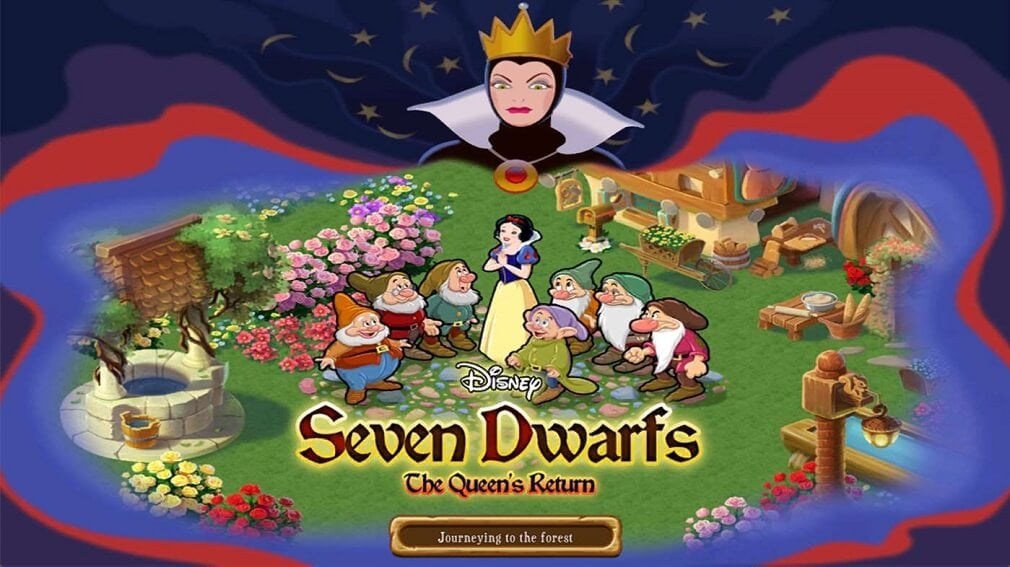
Play Seven Dwarfs: The Queen’s Return on Windows 10/11, 8

Disney is one of the most active developers in the Windows Store, having released quite a lot of games for Windows 10, 8 users. One of them, Seven Dwarfs: The Queen’s Return, has just received a fresh update.

Just a while ago, we have shared with the news that Where’s My Water? Windows 10, 8 app has received a fresh updated. Now, another popular Disney game, Seven Dwarfs: The Queen’s Return, has received an important update. According to the release notes, this update added winter themed assets, so now you can enjoy the new season.

Seven Dwarfs is a popular Disney game

windows 8 disney game

Enter the enchanted forest in this exciting continuation of the classic story of Snow White and the Seven Dwarfs. The Queen has returned! And she has cast a curse that has left Snow White and the dwarfs scattered throughout the vast forest. It’s up to you to rescue them! Lift the Queen’s curse, and return happiness to the forest and its inhabitants in this free, village-building adventure.

Your mission is to lift the evil curse, and help Snow White and the Seven Dwarfs. During the game, you will venture deep into the forest, and rescue Snow White and all the seven Dwarfs! You will then build up your team with each new dwarf that you find on your way. Here are some more features of the game:

  • Explore new locations
  • Discover pieces of the Dwarfs’ story
  • Craft items to restore your charming village
  • Go mining for hidden treasures
  • Discover new and familiar characters
  • Send and receive gifts from other players

Download Seven Dwarfs: The Queen’s Return

So, if you want to dive back into childhood, this is the perfect game for you. You now have the chance to play the hero part and lift the evil curse in order to help Snow White and the Seven Dwarfs live happily ever after.

Speaking of Snow White, here are a few additional Snow White-themed games that you can play on your Windows 10, 8.1 computer:

Windows 8, 10 App Check: FlightRadar24, Air Traffic in Real Time

At the moment, FlightRadar 24 is the best Windows 8 app to use on your tablet to check airplane traffic in real-time anywhere in the world. We have previously featured the app as part of our discounted Windows 8 apps and games and now it’s time to talk a little more about it
flight radar windows 8
When it comes to flight related apps for your Windows 8 tablet, one of the best to use, without a doubt, is SkyScanner. But if you are looking for a flight radar app, then the best choice is, definitel,y, the FlighRadar 24 app that has been recently released in the Windows Store. The app will transform your Windows 8.1 PC or tablet into a real air traffic radar.

Turn your Windows 8.1 PC into an air traffic radar and see airplane traffic around the world in real-time. Discover why millions are already using FlightRadar24. FlightRadar24 is, or has been the number one travel app in more than 50 countries including Germany, France, United Kingdom, Japan, and Australia. We are frequently featured in the media and recent media mentions include Bild (Germany), Le Monde (France), and CNN (US).

Airplane traffic in real time on your Windows 8 tablet

Read Also: Six Best Windows 8 GPS Apps to Use

‘ve used the apps for a few hours and can say that it is really, really fast and the maps load in no time. You will see real-time modifications of the routes of the planes that you are following. The app provides complete coverage in the US and Canada thanks to FAA data and Europe is the next most covered continent, with a 95 percentage. The app also has coverage in parts of Russia, Australia, New Zealand, Argentina, Brazil, Chile, China, Colombia, Costa Rica, Greenland, Hong Kong, India, Indonesia, Japan, Kazakhstan, Malaysia, Maldives, Mauritius, Mexico, Middle East, Philippines, Singapore, South Africa, Taiwan, Thailand and many other countries.

Even if your country is not on your list, there are high chances you will be able to see airplane traffic. Inside the app,  it is really easy to search for a specific flight or airport and to identify the flight trails and call signs on the map. Flight Radar 24 for Windows 8 even comes with the Augmented Reality View, but it won’t work on all tablets, as it requires specific sensors.

The app has been updated several times and the user interface has been given a revamp. Also, the following options have been added – favorites, pin to start, airport info with Arrival and Departure tables and improved search. So, if you want to see planes moving in real-time on your Windows 8 tablet and get detailed information for each individual plane, like route, speed, altitude and more, then download the app by following the direct link to the Windows Store.

Download FlightRadar 24 for Windows 8

Flight Radar 24 updated

This app is not available for Windows 10, from what we can see on Microsoft’s Store official page. It seems like the developers have abandoned informing action or so because it is hard to understand whether it Works on Other Windows versions or not. However, you can access its features directly through your browser. Just tap in their address: www.flightradar24.com/ and start your survey.

For Windows 8 users, we are pretty sure that there are necessary updates which improve features and fixes bugs.

Let us know what version of FlightRadar24 do you prefer and why in the comment section.

READ ALSO: Windows 8, 10 Apps Flight Hero & AirScanner Released, Download Now

Set Up TV Tuner on Windows 8, 10 [How to]

Since the beginning of time, TV tuners were really hard to set up and when trying to fix an issue, more problems seemed to pile up. Trying to have a TV tuner working properly on Windows 8.1 is no different, however, there are now some tools that are helpful in fixing our issues.
Windows-8.1-tv-tuner
The first step is to make sure we install the driver correctly on Windows 8.1. There are a couple of ways to do that, but the most efficient one is to use the Windows 8.1 troubleshooter, this task is easily doable by anyone and it is less time-consuming. There are a few steps that you need to follow in order to do this:

  • Move your cursor to the right part of the screen
  • After the Charms bar appears, click Settings
  • Select Control Panel and go to Troubleshooting
  • From here just click the Run programs made for previous versions of Windows
  • Click Next and select Not Listed
  • Select the location of the installer
  • Go to Troubleshoot program
  • Tick The program worked in earlier versions of Windows but won’t install or run now
  • After clicking next, select the version of Windows the driver was built for

After going through the above steps all you have to do now is make sure you have the correct cable connected and open the Windows Media Center. You can now freely enjoy watching or recording TV shows from your Windows 8 device.

Read Also: Windows 8 App Check: Remote for Roku Player

Set up TV tuner on a Windows 8 tablet

It is also possible for Windows 8.1 tablet users to properly set up a TV tuner, however, you require Windows Media Center installed. All you have to do is buy a USB TV Tuner, these are cheap nowadays and cost under 100$, plug it in and enjoy watching TV on your Windows 8.1 tablet. In case you are not someone that does not want to invest money in a TV tuner, there are many apps available at the Windows 8 Store that are designed exactly for this purpose. All you have to do is choose a Windows 8 app that suits you from titles like Hulu Plus, Netflix, ABC Family and many more.

It’s easier to enjoy your TV shows from your Windows 8 powered device due to the fact that you can now watch, share, comment or rate your favorite episodes even while on the road or when you just don’t have access to a TV.

How to watch TV on Windows 10 PC? [2018 update]

Well, this is a good question. The fact that is for sure is that: Windows 10 Media Center does not support TV tuner setup anymore. But do not bother, if you do want to watch TV on your PC, you can do it by using a third-party software. There are lots of them nowadays and they work pretty well. Here are two dedicated articles with necessary tools to turn your Windows 10 PC into a TV screen:

You will find more information about their features inside the articles, just click on them and see which one fits your needs.

Turn Windows 8, 10 Tablet Into a WiFi Hotspot

windows-8-wifi-hotspot-cmd-admin

With the release of Windows 8, Microsoft decided to remove the option to set-up an ad-hoc network option from the interface. The good news is that you can still make your Windows 8 machine or tablet into a Wi-Fi Hotspot, unfortunately, it is a lot more difficult than before and it takes somewhat a larger amount of time.


To get things started, not all of us need a wireless router, especially if we only need Wi-Fi for our tablets or smartphones, so there is no need to buy one in some cases. For our Windows 8 PC users that want to make their system send out a Wi-Fi signal, there are a few steps you have to go through:

Read Also: Dell Venue 8 Pro WiFi Issues get Fixed by Update

  • First you need to run cmd as an administrator
  • Next part would be to see if your system is compatible
  • Type “netsh wlan show drivers”
  • Hosted network supported should display Yes
  • If yes, type “netsh wlan  set hostednetwork mode=allow ssid=name key=password”
  • Replace “name” and “password” to anything you wish
  • Type “netsh wlan start hostednetwork”

In the next part of instructions will explain how to enable connection sharing from your Adapter Settings to make your Hotspot visible and usable by other people and other devices.

windows-8-wifi-hotspot-cmd-support

  • From your Charms bar select Settings and go to Control Panel
  • Open Network and Sharing Center
  • On your left-hand side go to Change adapter settings
  • Right-click your active connection and select Properties
  • Select Sharing from the top part of the window
  • Tick “Allow other …”

After all the steps were completed the connection will be available to anyone that has the connection name and password provided by you. If you don’t want any strangers using the connection you just set up, make sure you don’t have an easy to guess the password.

Turn your Windows 8 tablet into a Wi-Fi Hotspot

thinix wifi hotspot windows 8

Sadly, for most tablet users, you cannot access the command prompt to follow the steps that were described above. There are different ways to enable the Hotspot option, the easiest of which would be using an app that does everything for you. One of the better Windows 8 apps found at the store is the Thinix WiFi Hotspot. You have to follow the link provided at the Windows Store and download the software from the publisher’s site directly.

Thinix WiFi Hotspot makes it possible to share your computer’s Internet connection with other devices. It works by creating a virtual hotspot using the wireless adapter in your Windows-based PC. Once the hotspot is setup you can share your PC’s connection with other computers, tablets, smartphones, and laptops. When you are traveling and have to pay for Internet access, Thinix WiFi Hotspot allows you to pay for one internet connection and share that connection across all of your devices or family members. This is ideal in hotels or airports and in many cases justifies the cost of Thinix WiFi Hotspot on the first use.

You can now relax while enjoying your shared  internet connection on all your Windows 8 devices and browse the World Wide Web anywhere within your house and garden. The Thinix WiFi Hotspot software is especially useful when it comes to Windows 8 tablets, so follow the link from below to get it.

WiFi Hotspot third-party Software

In case your tablet does not allow you to turn it into a hotspot point for various reasons than you came in the right place: we have 2 dedicated lists that will help you. The first list is a list of software that will turn any of your Windows devices into a hotspot.

As they have trial versions, you can give them a try, and see if they work on your tablet. The other list is a list of devices that can help you having WiFi in your car. Here they are (just click on them):

In case you encounter any problems, visit our We can’t set up mobile hotspot guide for more solutions.

Let us know in the comments how did our article help you.

Windows 8, 10 App Check: Hill Climb Racing Game

Games are a great way to take some time off, or just relax during weekends or vacations on Windows 8 tablets or smartphones. Not all people are hardcore gamers looking for complex games that need a lot of playing time to reach certain parts of the content. Most of us are just looking for simple, easy to play and fun Windows 8 games.
windows-8-hill-climb-racing-game
When it comes to casual games there are a lot of Windows 8 apps, some of which we have discussed previously. There are many titles that suit all needs, like card games, racing , tower defense, arcade, board games or puzzle games. Out of the driving games, Hill Climb Racing really steps in front when it comes to gameplay and diversity.

One of the most addictive and entertaining physics based driving game ever made! And it’s free! Meet Newton Bill, the young aspiring uphill racer. He is about to embark on a journey that takes him to where no ride has ever been before. With little respect to the laws of physics, Newton Bill will not rest until he has conquered the highest hills up on the moon! Face the challenges of unique hill climbing environments with many different cars. Gain bonuses from daring tricks and collect coins to upgrade your car and reach even higher distances. Watch out though – Bill’s stout neck is not what it used to be when he was a kid! And his good ol’ gasoline crematorium will easily run out of fuel.

Hill Climb Racing, an enjoyable Windows 8 game

If you are looking for a Windows 8 game that can be played for hours without getting bored, Hill Climb Racing is designed especially for that. The amount of unlockable content is huge and players have to choose the appropriate vehicle for the different stages available in the game. The main purpose of the game is to reach the furthest distance possible on each stage which is only possible by constantly upgrading your vehicle.

Read Also: Play Reckless Racing Ultimate Windows 8 game for Free

The price of upgrades, vehicles and stages increases while progressing through the game, however, is reaching ridiculous costs. Briefly, here are the main features that the game can lure you with:
windows-8-hill-climb-racing-game-feats

  • You can choose between 17 different vehicles
  • The vehicles have upgradeable elements
  • 17 playable stages
  • Physics are an important part of the game

The app has received many updates so far, the developers introducing new levels, vehicles or seasonal specific themes. The game plays beautifully on Windows 8 computers and mobile devices alike and that makes it one of the most installed games on all platforms.

Download Hill Climb Racing for Windows 8

Hill Climb Racing in Windows 10 [2018 update]

The game now is available only for Windows 10 users. You can find the exact specification on its official Microsoft Store Page. It will work perfectly on your Windows 10 devices. But if you want to try more games or game apps, you can check out this list:

Let us know whenever you have found something interesting for your PC in the comments section.

Windows 8, 10 App Check: Network Speed Test

Internet connections cost us a lot of money and are expected to work 24/7 at a constant speed set by our Internet provider. Most of us use the Internet on a daily basis with our Windows 8 devices and we get easily frustrated when our connection is running slower than usual. There are many ways to check your connection speed on your Windows 8 machine, most of them not being easy to access.
Windows 8 network speed test app
There are some activities that require a minimum bandwidth to work and the information needed is not always out there. For example, it is a waste of time to set-up our Windows 8 machine to stream video games and after we install everything needed to see that the bandwidth is too low and the video is not working or has a very bad quality. And this just as true on your Windows 8 tablet, as well.

Teste your Windows network speed with this app

Using servers all over the world, Network Speed Test measures your network connection’s latency and throughput. Based on your connection’s speed, Network Speed Test will tell you what activities you might be able to do, such as stream music or video calls. Slide to the right to see a history of your previous tests for easy comparisons.

Most speed-tests are not very accurate and don’t have many useful features, returning the minimum information. This is where Network Speed Test app for Windows 8 or Windows 8.1 differentiates from everything else. It is no longer needed to run an Internet browser and search for random network speed test webpages, all we have to do is open the Windows 8 app and run the test. What’s great is that the app will work on Windows 8 tablets, and Windows 8 desktop machines, as well. Here are some of its most important features:

Windows 8 network speed test historyRead Also: Top 3 New Wireless Networking Features in Windows 8.1

  • Measuring latency, download and upload speeds
  • Displaying what activities you are able to do on your connection
  • See information regarding your network
  • Records past results in a history
  • You are warned when trying to run the test from a cellular connection

The interface of this Windows 8 app is minimal, the user being able to only start and stop the tests. This is one of the things that make this app better than most, due to the fact that very few people need more information than this Windows 8 app provides.

Download Network Speed Test for Windows 8

Network Speed test in 2018

This update is meant to be a quick information for all Windows 8 ARM-based users that want an upgrade to Windows 8.1 or Windows 10 anniversary update. Network Speed Test app will not work on higher Windows versions as it was not supported. You can download it from the official page in Microsoft Store, but it is not sure that it will test your internet speed. However, you can try to find similar tools that will help you. Here is a list of speed-testing tools that you can check and find one for yourself.

Windows 8, 10 App Check: Rummi, the Free Rummikub App

I have been playing Rummikub with my friends since I was a little kid and I still play it when I have the chance. That’s why I was happy to discover that there is a reliable Rummikub app to play on your Windows 8 tablets, under the simple name of “Rummi”
rummikub windows 8
I was just sharing with you the most reliable Rummy cards game app for Windows 8 users – Gin Rummy Free and was pointing to the fact that there is an often confused with the Rummikub board game. To dissipate that confusion, I am also shortly presenting the free Rummikub app for Windows 8 users “Rummi”.

The brain teasing rummy-style puzzle game. It is based on rules of the rummy-style games like Rummy or Rummikub. There are 106 tiles in the game including 2 jokers. There are 4 different color tiles, black, red, yellow, and green numbering 1 through 13. The objective of the game is to be the first to eliminate all the tiles from your rack by forming them into sets of runs and groups, and then melding them onto the table.

Play Rummikub with style on Windows 8

Read Also: Play Backgammon in Windows 8: Five Best Apps

I guess that if you were looking for a Windows 8 Rummikub app, then you know the rules and how you need to play the game, so we won’t go over that again, as you will see the full description in the app’s description, as well (download link at the end). You can only play in sngle player mode against your computer opponent, which is a pity. A multiplayer mode for this Rummikub app would be so awesome.

The Rummi app comes with tile sorting on color or value, and Cancel, Undo and Redo buttons, as well as the autosave game option. This Rummikub game for Windows 8 is available for free and it’s great that the advertising doesn’t get in your way. The Rummi apps have also been recently updated, with small bug fixes, improved artwork (buttons) and stability.

Download Rummi game for Windows 8 from Microsoft Store

Rummikub important updates [2018 update]

Since its launch, Rummikub received lots of improvements and upgrades. The first update was received back in late 2013 and improved some gameplay features. In 2014, all tablet users have also received necessary updates for some gameplay features that changed. The last big update was in 2015 when the game received an improved AI and passed at another level. You can read more information about that in our dedicated article.

Windows 8, 10 App Check: Gin Rummy Free

Many are making the confusion between the Rummikub game and the Rummy cards game. In the Windows Store, unfortunately, there are not so many reliable Rummy apps, but we have managed to find one and we are sharing it with you. Find below more details about Gin Rummy for Windows 8.
rummy app windows 8
Here at Wind8Apps, we love Windows 8 card games and we have featured a good number of them in the past, such as Bridge, UNO, Solitaire and FreeCell. Now, it’s time to talk about Gin Rummy, a Windows 8 app to play the not so known Rummy cards game. Some experts consider that this game has been derived from the popular Mahjong.

Read Also: Play Chess in Windows 8 With These Top 4 Apps

Rummy is a group of matching card games notable for similar gameplay based on the matching cards of the same rank or sequence and same suit. The basic goal in any form of rummy is to build melds which consists of sets, three or four of a kind of the same rank, or runs, three or more cards in sequence, of the same suit. The original form of rummy is called Sai rummy or Basic rummy. The Mexican game of Conquian is considered by games scholar David Parlett to be ancestral to all rummy games, which itself is derived from a Chinese game called Khanhoo and, going even further back, Mahjong.

The Rummy card game now on Windows 8

Your mission inside the Gin Rummy card game for Windows 8 is to group as many cards into sets and runs as you can! Also, when you are deadwood, or value of ungrouped cards, drops below 10 knock to end the round. But if you are a Rummy player, then you know better than me how to play the game. There are 3 difficulty levels, automatic card melding, detailed statistics and in-depth instructions as the main features.

Also, according to the release notes, the Gin Rummy app for Windows 8 has been recently updated with a good number of bug fixes that has made the app faster, more stable and secure. If you find the in-app ads annoying, you could choose to purchase the Pro version of Gin Rummy, which sells for $2.99.

Download Gin Rummy Free for Windows 8

Gin Rummy in Windows 10 [2018 update]

This short update is for all Windows 8, 8.1 users who upgraded to Windows 10 Anniversary Update. In order to play your favorite game, you will need to delete all game data related to your previous system, in order to avoid various incompatibility errors. You can use a third-party tool, that will remove absolutely everything. You can find one of these in this handpicked list. After that, try to reinstall the game for Windows 10 from the official Microsoft Store page.

Xbox Forums are moving to the Microsoft community forums

Microsoft has announced today that they will be moving the Xbox Forums to the Microsoft Community Forums. This all is part of plans to “empower users with discussions” at a time when Microsoft says the Xbox community is growing and evolving. As part of the move over to the Microsoft community forums, Xbox Forums members are promised the same ability to ask questions, chat about games, and help each other out with technical problems.

All existing conversations will also transition over, though there will be some updates to the structure of Xbox forums. According to Microsoft:

With Xbox joining the community, you’ll be able to talk about gaming on Xbox consoles, Windows PCs, and mobile devices all in one place! It’s like our own version of cross-play for Microsoft gaming discussions.
As the first step, we’ll be updating the structure of the current Xbox Forums, which you will start seeing in the next few weeks. The new structure will have fewer levels of depth, so more of the conversations will be kept together and it will take fewer clicks to find.

The post does not make it clear when the move will happen, but it does mention it built on the feedback of Xbox Ambassadors “around the beginning of July.” Interestingly, this all happens to coincides with yesterday’s news that Microsoft Answers staff would no longer provide technical support for older Microsoft products. So it definitely looks as though Microsoft is now positioning support for all its products under one roof— the Microsoft Community Forums.

With new game studio acquisitions, Microsoft is ready to take gaming seriously, says exec

If it wasn’t clear enough by Microsoft’s E3 showcase this year, head of Microsoft Studios Matt Booty would like to reiterate that the company is, now, more than ever, committed to gaming. In an interview with Polygon, Booty discussed the rationale and thinking behind Microsoft’s recent announcement of five new gaming studios that are intended to come on board and help bolster the company’s gaming profile in the coming years.

In his explanation, Booty lays down a foundation that highlights how important head of Xbox Phil Spencer’s presence at the table of Microsoft leadership was in getting the company back to a more invested interest in the gaming division:

Let’s go back to last summer, last fall, where Phil was promoted, elevated to sit on Microsoft’s executive leadership team. As part of that, Xbox was really made a pillar in the company that sits right alongside Windows and Azure and Office. That’s a pretty big statement by Microsoft to say that, “Look, gaming is important. We’re going to treat it seriously. We’re going to resource it well. We’re going to give it support.” It’s that level of support and kind of encouragement to go big, to chase a bigger gaming ambition.


Now that the relatively small business division has the blessing and financial backing of the rest of Microsoft, it now becomes a strategic dance to acquire the brightest minds in the gaming industry and, according to Booty, the deciding factors included studio heads with a creative mindset:

Phil used some great language today about how we were on a quest to find the great creators. If you look at each of the five groups that we’re looking forward to bringing into the fold, they all have in common a studio leader who really appreciates creativity and the craft of making games. They’re all studios that have got a unique point of view, and they’re really more about their creativity and what they’ve brought to bear there.

That’s kind of how we piece it together. We’ve got different ways and different ideas come in to our bigger family. We’ve got our established franchises like Halo, Gears, Forza, Minecraft, Age of Empires, and then we’ve got new things. That’s how State of Decay came in.

State of Decay 2

Another aspect that Microsoft Studio mulled over was the proposition that developers get fatigued over rehashing the same IP year after year, and Polygon was apt to point out the trend in their interview. Booty responded by first acknowledging that it was indeed something the division looked at and was part of the acquisition portfolio.


Part of the new studio acquisitions is a focus on exploration, and having the manpower and resources to let developers “try something new:”

“Yeah. Well, your observation is exactly dead on, that you’ve got to really be careful about teams. It can get …anybody working on something for a decade can want to try something new, which is exactly why in almost all our studios we do have pockets of incubation. We’ve got pockets of teams exploring new ideas.”

Booty went on further to discuss taking already existing IPs and expanding “out sideways onto new devices and new audiences,” hinting that future games can lean on existing IPs to create device-specific experiences such as the Gears franchise that is seeing its first PC-centric title in Gears Tactics, as well as its first mobile experience with Gears Pop. Judging by Booty’s comments, the one size fits all mentality has been scuttled for a more realistic and gamer-focused approach for anyone looking to entertain themselves on various devices.

While Booty’s heart and rhetoric appear genuine and heading in the right direction, it’ll be some time before Xbox fans will see the fruits of the recent Microsoft Studios efforts. Realistically speaking, these acquisitions appear to be more in preparation for a potential new Xbox console release in 2020, rather than appeasing thirsty gamers today.

However, the careful thought put into the purchases, the Xbox division getting a seat a Microsoft’s coveted leadership table and a revitalized checkbook should go a long way to reassuring that the company is looking to rebuild its gaming cred in the industry, and build a lasting foundation for a well of entertainment for years to come.

Command Prompt

Command Prompt is a native command-line shell for Windows NT-based systems, such as Windows XP, Windows Vista, Windows 7, Windows 8 and Windows 10. Also available in Windows Server 2003, 2008 and 2012.

Its function is to execute the commands entered in its dialog box. Basically, CMD commands are tasks performed autonomously with scripts and .bat files.

What is the use of Command Prompt?

The program performs troubleshoot, solves certain errors and has several administrative functions.

Officially, Command Prompt is referred to as Windows Command Processor. In other less official settings, it’s called:

  • command shell
  • cmd prompt
  • cmd.exe

Command Prompt is not a Start menu. It will appear as the first search result. For an added comfort, you can just type “cmd”, the result would be the same.

command prompt open search box

Alternatively, you can open the program with the help of cmd Run command. Type “run” in the search box, open the Run app, and then type “cmd” in the box and click ok.

open run search box

run command prompt

Also, you can find it at its original location at C:>Windows>system32>cmd.exe.

Still, using the shortcut is way faster and easier. As you can see, even with Run, there are additional steps to be followed.


Keep in mind that most of the repair commands can only be executed if you run it with administrator rights. Here’s what to do if you can’t run Command Prompt as administrator on Windows 10.


How to use Command Prompt

In order to use Command Prompt, you must enter a valid command along with the needed parameters required by the task at hand.

There’s no room for mistakes when you enter a command. The Command Prompt will not recognize a command if you misspell a word, so, it will fail to execute or worse, it will execute a wrong command.

The syntax is also very important. For example, if you want to delete a certain document, but by mistake, you leave a space, the Command Prompt would delete the entire folder.

cmd use delete folder

In the image above, Command Prompt would delete the entire “Downloads” folder. So, it is necessary to be cautious when using CMD commands.

Speaking of “del” command, you can use it to delete a certain type of file. Just write “*”, followed by the extension of the file (eg: .jpg, .mp3, .iso etc.).

cmd delete jpg

You can use a large variety of commands. The most commonly used are chkdsk, format, ping, del, shutdown, help, and copy.

So, as you can see, the commands are logical and intuitive. For example, “chkdsk” stands for “check disk”. It is a very useful tool, where Windows will check your disk for errors. Also, chkdsk will fix certain issues.

For more details about this tool, check out our guide on how to use CHKDSK.

Moreover, the Command Prompt is probably the most efficient tool for fixing corrupted files.

In short, the Command Prompt is a tool where you can do almost everything, from repairing your computer, running programs or even deleting your files.

If CMD is not working properly on your computer, check out our collection of troubleshooting guides.

[wl_navigator]

Select Alpha-ring Xbox Insiders can now opt into the new Skip Ahead option

Ahead of E3 2018, Microsoft announced it would be adding a Skip Ahead option for the select Xbox Insiders who have consoles in the Alpha-ring. Well, enrollment is now officially open and it is soon set to give Xbox Insiders early access to new Xbox features.

Enrollment is currently limited to only Alpha-ring Xbox Insiders, and invites will be required for everyone else to join. Once enrolled, Alpha ring users can decide if they want to stay on the current Redstone 4 builds or continue ahead to Redstone 5 release to try new Xbox features. Users can also change back their enrollment status instantaneously via their Xbox if they see fit.

Microsoft hasn’t yet pushed out a Redstone 5 build for the Xbox One just yet, but Xbox’s Brad Rossetti says Insiders can expect is “later in the week.” Do you want to live life on the cutting edge and Skip Ahead to try new features? Let us know in the comments below.

Grand Theft Auto Windows 10, 8 app: Hit the play button now!

I’ve been playing Grand Theft Auto since I was a little kid, and now I am imagining how awesome it would be to play it on my Windows 10, 8 tablet. Who knows, maybe Rockstar might do this as early as next year!
grand theft auto windows 8 appUPDATE: Rockstar Games have already brought their GTA games to the Windows Store. Gamers can now download some of the games from the GTA series right from Microsoft’s Store. We’ll list the available games below:

You can read the original report below.

If you go to the Windows Store now and start looking for GTA-related app or game, you will find so many spam and useless apps, such as cheat apps, NFO apps and many others. The single reliable app is the Grand Theft Auto RockStar Games app that we’re going to review shortly. This app brings a full version of the game to the Windows Store.

This is only an imagination exercise, but if I were Rockstar, I would start from the very beginning and bring more of the following games to the Windows Store:

  • Grand Theft Auto original game
  • 1999 Grand Theft Auto: London
  • Grand Theft Auto: London, 1961
  • Grand Theft Auto 2

GTA on my Windows 10, 8 tablet? Awesome!

These were the very first games that were released by Rockstar and marked the beginning of what fulminated with the Grand Theft Auto V game that broke all the records and cashed in $1, 000, 000, 000 in less than three days! I am sure that there will be many Windows 10, 8 users that will download the GTA games from the Windows Store the very minute after it will get released.

But it seems that it isn’t that easy to port an old game to a new platform, especially when it comes to Windows 10, 8 users. There are not too many users and Windows 7 is still reigning supreme, but in time, the number of Windows 10, 8 tablets will grow and thus, more and more games will make their way into the store. And, who knows, maybe one day Rockstar will release its very first official GTA games for hard-core fans like, even if it will be the very first version. Fingers crossed.

RELATED STORIES TO CHECK OUT:


CD-ROM not working in Windows 10/11 [SOLVED]

Although traditional CD and DVD discs are falling behind USB flash drives, a lot of users still use this kind of media. But, after Windows 10 upgrade, some of them reported various issue regarding their CD readers.

So, I found some solutions for these reported issues, and I hope they’ll be helpful.

How can I fix CD drive problems in Windows 10?

Table of contents:

  1. See if CD drive is recognized by BIOS
  2. Use Device Manager to solve the problem
  3. Reset BIOS Settings
  4. Reset the computer power
  5. Use the Hardware Troubleshooter
  6. Fix problems with CD Burning Software

Some people say that after they upgraded their computers to Windows 10, their CD drives simply disappeared.

This issue could be caused by some software compilation, which is related to Windows 10, but if disc drive disappears after some time of using Windows 10, the problem might be hardware-related.

Anyway, I prepared solutions for both cases, so check them below.

1. See if CD drive is recognized by BIOS

To check if your CD drive is recognized by BIOS, do the following:

  1. Restart your computer
  2. On the startup, enter BIOS, by pressing the appropriate key (usually it’s DEL or F10)
  3. When you enter BIOS, navigate to Storage tab, and then go to Device Configuration and press Enter
  4. Look for your CD/DVD drive under Device Configuration subscreen

If you can’t find your disc drive under Device Configuration, then your problem is probably hardware-related, so you should contact the tech support, or consider getting a new CD/DVD drive.

But if your drive is detected by BIOS then the problem is software-related, so check some of the following solutions.

2. Use Device Manager to solve the problem

Once you determined that your disc drive is present in BIOS, and that the problem probably isn’t hardware-related, but your disc drive still doesn’t recognize discs, or it’s not shown in the File Explorer, perform a couple of actions in Device Manger, and maybe you’ll solve the problem:

  1. Go to Search, type device manager and open Device Manager
  2. Find DVD/CD-ROM drives section and expand it dvd not working windows 10
  3. The first thing we’re going to is to update disc drive drivers, to do so, check the second solution from this article.
  4. If drivers are up to date, next thing we’re going to try is to reinstall the disc drive. To uninstall DVD/CD drive, right click on it and go to Uninstall dvd cd not working windows 10
  5. When you uninstall the device, go to Action, and then to Scan for hardware changes dvd not working win 10
  6. After the process is finished, your disc drive should appear in the Device Manager again

Windows can’t automatically find and download new drivers? Don’t worry, we’ve got the right solution for you.

Now, keep your Device Manager window opens, and check if the CD/DVD drive icon appeared in the file explorer. If the icon is still absent, there are some more things in Device Manager you can try in order to fix this problem.

Expand DVD/CD-ROM drives section again, and follow the instructions, depending on what is shown:

  • If the CD/DVD drive name is still missing, the drive’s not recognized by a computer, so skip the steps above, and try one of the solutions below
  • If a drive name is shown with an alert icon (yellow sign with a black exclamation mark), double click on the drive, to find more info. Based on the show info, do one of the following:
    • If error code 10, 19, 31, 32, 39 or 41 is shown in Device Status, a problem exists with the integration of previous CD burning software. Clearing some registry files will completely solve the problem, just follow the instructions from our previous article about fixing DVD drive in Windows 10, and everything should work
    • For any other error, search for the solution on the internet, or paste it in the comments, and we’ll try to help you further
  • If a drive name is shown with a disabled icon, the drive is disabled, so Right-click on it and choose Enable (If a drive cannot be enabled, try resetting BIOS settings, you can find the instructions for that, below)

If you want to know how to clean your registry, check out this useful guide and learn how to do it easily.

4. Reset BIOS Settings

Resetting BIOS settings can solve a lot of problems, and hopefully, it will solve the disc drive problem, as well. Here’s exactly what you need to do to reset your BIOS

  1. Enter BIOS, as shown in Solution 1
  2. Navigate to Exit tab and select Optimal Defaults cd problems windows 10
  3. Press Enter
  4. Now press F10 to save the changes and start your computer again

Your BIOS settings will now be reset to default, and you can try to run your disc again, and see if there are any improvements.

4. Reset the computer power

Under some conditions, the disc drive might lose communication with Windows, even after restarting the computer.

This issue often causes problems with the disk drive, and the solution is to reset the computer power. Here’s exactly what you need to do to reset the computer power:

  1. Press and hold the power button for 5 seconds to turn your computer completely off.
  2. Wait until the computer is fully shut down, then disconnect the power cable from the computer.
  3. Wait for 10 seconds, and then reconnect power to the computer again.
  4. Now, turn on the computer again and wait for Windows to start. If you receive any messages stating that Windows is installing new hardware, wait until the process is finished, and the see if the CD/DVD drive is available now.

Since we’re talking about power, you can turn off your computer again, and check if all the cables from your CD/DVD drive are connected to the motherboard.

But, if you’re not sure how to do that, ask someone who does, or simply ask a service for help.

Fix Problems With CD Burning Software

Besides ‘regular’ problems with CD drives, some users also report that they’re able to run CDs, but they’re unable to burn them with certain burning software.

Probably the best solution for that is clearing the upper and lower registry files in your Registry editor. You can find a detailed explanation of how to clear upper and lower registry files in our article about CD ROM problems in Windows 10.

Also, you can consider using Windows 10‘s built-in burning tool, because it’s very easy to use, and you can move your files to a CD, just like you move them to the USB flash drive.

That’s about it, I hope at least one of these solutions helped you with your CD ROM problems in Windows 10. If you have any comments, questions, or suggestions, just reach for the comment section below.

Note icon NOTE
Quite often, these issues are being caused by the hardware itself, so what we could recommend you is to try and have a look at this list of external CD-ROMs that could solve your issue.

But if you don’t like this idea and you insist on having an internal one, do check out this selection, as well.