PSA: Check your Windows Insider Ring settings today if you’re not ready for Redstone 5 builds

Since the Windows 10 April 2018 Update is now generally available, it’s now time for Windows Insiders to check their Ring settings. Indeed, the first Redstone 5 builds should soon start rolling out to Fast Ring and Slow Ring Insiders, Dona Sarkar said yesterday.

So if you do want to stay on Redstone 4 for the time being, you’re invited to switch to the Release Preview Ring. Because Sarkar wrote “today” in all caps, the first RS5 build could well roll out to Fast Ring Insiders as soon as this week. The last Redstone 5 build (17655) was released for Skip Ahead Insiders on April 25, a little more than a week ago. So far, the main new RS5 feature is Windows Sets, which adds a tabbed interface to all UWP apps as well as some legacy apps such as File Explorer.

If you’re planning to jump on the Redstone 5 bandwagon, we remind you that these first builds have their fair share of bugs. If you don’t want to deal with too many bugs, it’s probably best to choose the Slow Ring, even though this means you may have to wait a little bit more to get these first RS5 bits.

These features have been removed in Windows 10 April Update

Every major Windows 10 update brings new features and improvements to the table. At the same time, new OS versions remove a series of features previously available on older versions. The Windows 10 April Update follows the same line, removing a bunch of features — to users’ disappointment. Microsoft explained that these features have been removed in order to add a better version.

The Redmond giant already published a list of all the features that are no longer supported in the Windows 10 April Update. In this post, we’ll list the most important ones.

Windows 10 April Update says goodbye to these features

  • Groove Music Pass — you can now use Spotify to play and stream music on Windows 10.
  • People – Suggestions no longer include unsaved contacts for non-Microsoft accounts.
  • Language control in the Control Panel is no longer available. Instead you can use the Settings app to change language preferences.
  • Microsoft removed HomeGroup from File Explorer, Control Panel and Troubleshoot.
  • The ‘Connect to suggested open hotspots‘ option has been removed from the Wi-Fi settings page.
  • You can no longer access Conversations in the People app when you’re offline. The Windows 10 April Update
    lets you see new emails in the People app provided that you’re online and you signed in with your Office 365 account.
  • In Windows 10 version 1803, you may need to install XPS Viewer from Apps and Features in the Settings app after a clean installation.

Microsoft also revealed that it stopped developing a series of features, such as Phone Companion, and is planning to remove them in future updates. You can read more about Microsoft’s plans on its Support Page.

RELATED STORIES TO CHECK OUT:

How to fix Overwatch FPS issues in Windows 10

If you want to get stable 160-180 FPS when playing Overwatch, then this post is for you. The Windows 10 April Update finally fixes the annoying FPS drops and low performance issues that have been affecting the game for months. Without further ado, here are the steps to follow.

Fix Overwatch FPS and low performance problems

1. Install the Windows 10 April Update

You can download the latest Windows OS version from Microsoft’s official webpage or you can check for updates to see if there are any updates pending for your computer.

2. Download the latest graphics driver updates

Both Nvidia and AMD released dedicated driver versions for the latest Windows 10 OS.

However, if your computer is equipped with an Nvidia 1060 graphics card, you should stick to the driver before version 397.31 as this one can be pretty buggy for this particular graphics card type.

3. Customize your Nvidia/ AMD settings

You need to use a specific series of settings in order to get maximum performance on your Windows 10 computer. Turn off ambien occlussion, anisotropic filtering, anti-aliasing, DSR factors, keep the number of maximum pre-rendered frames to 1, enable single display performance mode, set the power management mode to maximum performance. As for the preferred refresh rate, set it to application-controlled. Turn off triple buffering and vertical syn as well. Allow texture filtering and set texture filtering quality to high performance.

If you want to customize only Overwatch, then you can select the ‘Program settings‘ tab. In this manner, you won’t be nerfing the graphics for everything on your Windows 10 computer.

While this solution won’t work for absolutely all Overwatch players, it is worth giving it a try. Many gamers confirmed it helped them to significantly increasethe FPS rate:

So far I have seen drastic improvements in fps I went from 80-90 fps during teamfights to 130+ fps in teamfights It feels great

RELATED STORIES TO CHECK OUT:

“This item might not exist or is no longer available” error in OneDrive (FIX)

Even with a lot of issues, OneDrive have had over the years (it succeeded SkyDrive after the renaming in 2013), it slowly becomes the essential part of Windows ecosystem. In Windows 10 even comes pre-installed and integrated within the system shell. However, a lot of bugs and inconsistencies followed by errors are sometimes hard to cope with. For example, the “This item might not exist or is no longer available” error when accessing synced files.

Allegedly, this error is hard to overcome and the only viable solution is the hotfix provided by Microsoft. On the other hand, this implies that cause isn’t on your side. In order to make sure that you’re into clear and OneDrive is indeed culpable, follow the solutions and workarounds we provided below.

How to address “This item might not exist or is no longer available” error in OneDrive

  1. Unlink and re-link your OneDrive account
  2. Clear browser’s cache for the online version
  3. Run OneDrive troubleshooter
  4. Check Network for issues
  5. Reinstall the app/client and re-establish the sync folder
  6. Update Windows 10

1: Unlink and re-link your OneDrive account

First things first. No matter how much this workaround seems obvious, the OneDrive has its own share of tantrums and bugs. And those can be, more times than not, resolved with a simple approach. This, of course, applies to the desktop client or the app. For the web-based client, you can try to sign out and sign in again.

Follow these instructions to Unlink your account and re-link it again:

  1. Right-click on the OneDrive icon in the notification area and open Settings.
  2. Select the Account tab.
  3. Click on the Unlink this PC button.this item might not exist or is no longer available
  4. Sign in with your credentials.this item might not exist or is no longer available
  5. Select the location of the OneDrive folder.

Another viable thing to do is to check your Recycle Bin on OneDrive. You might have archived some files by accident and they’re to be found there.

2: Clear browser’s cache for the online version (MarcAristotle workaround, as well)

When we consider covering OneDrive issues, our main concern is addressing free version issues. With that said, it seems that OneDrive for Bussines iteration has this issue occurring more frequently. In order to resolve this, as a premium customer of the premium service, we recommend sending the ticket to the responsible support team. On the other hand, there are two things you can do.

  • READ ALSO: The upcoming OneDrive UI focuses on new files

Both apply to the web-based version. Firstly, we suggest clearing the browser’s cache. It can be pilled-up and thus corrupting the preserved credentials and cookies. Here’s how to do it on Chrome and Edge:

  1. Open Chrome or Edge and write down your passwords or back them up.
  2. Press Ctrl + Shift + Delete to open the “Clear browsing data” dialog box.
  3. Clear everything and restart the browser.
  4. Try logging in OneDrive again.

Furthermore, one user provided a workaround on the official forum. You can try it out, but there’s a question whether this applies to newer versions.

3: Run OneDrive troubleshooter

OneDrive has a few downloadable troubleshooting tools. The sole presence of those tools speaks volumes about various issues OneDrive has. We give our insight on 3 respective downloadable tools, here. Their main role concerns diagnosticating issues, but they might resolve them, as well.

Since the two of the aforementioned tools are for OneDrive for Bussines, we’ll show you how to use the universal troubleshooter for OneDrive. Here’s how to use it in a few simple steps:

  1. Download the Diagnostic tool for OneDrive, here.
  2. Run the tool and follow the instructions closely.onedrive diagnostic tool windows 10, 7 how to use
  3. After the procedure is finished, try to log in and access your files.
  4. If they’re still missing, you can send the report to Microsoft for a revaluation.

4: Check Network for issues

Since the OneDrive relies on the connection, making sure that your network is working as intended is of the utmost importance. Even the slightest issues with your bandwidth might provoke errors while loading the stored files. For that reason, make sure to check whether your connection is stable.

If there are any issues, we suggest trying out these steps, gradually progressing through the list:

  • Run network troubleshooter.
  • Restart your PC and router/modem.
  • Contact your network administrator.
  • Disable third-party firewall and VPN/Proxy solutions temporarily.
  • Update router’s firmware.

5: Reinstall the app/client and re-establish the sync folder

Reinstallation is another option. Depending on the way you access OneDrive cloud storage, you can reinstall the app (Microsoft Store) or desktop client (built-in desktop client). Moreover, we advise deleting and re-establishing the sync folder located on your local storage. This will, most of the time, restart the sync sequence and the “This item might not exist or is no longer available” error should be resolved.

Follow these steps to reinstall the app:

  1. In the Windows Search, type Add and open Add or remove programs.
  2. Under the Apps & features, search for OneDrive.this item might not exist or is no longer available
  3. Highlight the app and Uninstall it.
  4. Open Microsoft Store and install OneDrive again.
  5. Sign in and look for changes.

And these instructions concern the desktop client:

  1. Press Windows key + I to open Settings.
  2. Open Apps.this item might not exist or is no longer available
  3. Select Apps & features in the left pane.
  4. In the Search bar, type One and expand OneDrive.
  5. Uninstall OneDrive.this item might not exist or is no longer available
  6. Now, follow this path:
    • C:Users:Your Username:AppDataLocalMicrosoftOneDriveUpdate
  7. Double-click the OneDriveSetup.exe file and run the installer.
  8. After the installation completes, log in and look for changes.

6: Update Windows 10

Finally, if all previous resolutions fell short, there are only so many things you can do. You can update your Windows 10, for starters. When this error firstly emerged it affected a lot of users. In response,  Microsoft provided a hotfix which dealt with the problem. Besides that, sending a ticket to Microsoft might help. There’s the Live support and we recommend using your end-user privileges and ask for the resolution.

Windows Update – wise, updates are distributed manually. However, you can check for them on your own by following these steps:

  1. In the Windows Search bar, type update and choose “Check for updates“.this item might not exist or is no longer available
  2. Under Windows Update, click on the “Check for updates” button.this item might not exist or is no longer available
  3. Wait until the updates are installed and restart your PC.

That’s a closure. Don’t forget to share your questions or alternative solutions with us in the comments section below. We’ll be glad to hear from you.

RELATED STORIES YOU SHOULD CHECK OUT:

Is my PC ready for the Windows 10 April Update?

Those who have been keeping an eye out for Microsoft’s Windows 10 April Update know that the update was promised a long time ago and since then, Microsoft has been hard at work adding polishing the OS. The update’s release has taken so long because it is actually a huge patch that incorporates updates and new features across pretty much every aspect of Windows 10. Moreover, some unexpected BSOD errors ruined Microsoft’s release plans forcing the company to delay the update.

That being said, the wait is finally over. You can now upgrade to the Windows 10 April Update with the help of Microsoft’s Update Assistant. We’re sure that many Windows fans have eagerly waited for this new update as it’s one of the most anticipated updates ever released by Microsoft.

However, certain preparations need to be made before installing the Windows 10 April Update. While these are not mandatory, performing them will help tremendously both during and after installation. Here are the top things to do before upgrading to the Windows 10 April Update.

Checklist for installing the Windows 10 April Update

1. Backup and clean your computer

Both the update process as well as its results will be much more pleasant to look at if there is a little bit of a spring cleaning done beforehand. As such, delete any unnecessary files because they may slow down the upgrade process.

Make sure you have enough free space on your hard drive to install the Windows 10 April Update. Microsoft’s Update Assistant will first check the available free space, but you can always give the tool a helping hand by deleting unnecessary files and programs. Also, don’t forget to clear your browser’s cookies and cache.

Additionally, backup all the important files stored on your computer. In this manner, you’ll avoid being subject to various errors that might just delete important documents or files.

  • RELATED: PC won’t wake up from sleep after Windows 10 April Update install [FIX]

2. Run a full system scan

Make sure your antivirus is up to date and run a full system scan to detect and remove any malware and virus programs that may have snuck into your computer.

3. Update your OS and programs

It is also very important that you install the latest Windows updates on your computer. Additionally, refresh your drivers and install the latest updates for all your programs.

4. Keep product keys and software licenses at hand

Should your computer fail to activate some programs after the upgrade, you’ll need the product keys or licenses to enable them again. Print this information so you can always have it in hand in case something goes wrong.

5. Create recovery media

Should your computer become completely unresponsive after the upgrade, having recovery media handy is a real treasure. For more information on how to create a recovery drive, check out Microsoft’s Support page.

6. Check system requirements

Last but not least, make sure that your computer meets the system requirements necessary to run the OS:

  • Processor: 1 GHz or faster processor or SoC
  • RAM: 1 GB for 32-bit or 2 GB for 64-bit
  • Hard disk space: 16 GB for 32-bit OS 20 GB for 64-bit OS
  • Graphics card: DirectX 9 or later with WDDM 1.0 driver
  • Display: 800×600


RELATED STORIES TO CHECK OUT:

Windows 10 April Update will get support until November, 2019

The official Microsoft Developer blog post was updated to confirm the release date of the Windows 10 April Update. The document shares a clear view of Microsoft’s plans for the release of the Redmont-based technology.

Windows 10 Redstone 4 is now available for download

Microsoft has provided an overview of the new operating system and now updated the end of support date for Redstone 4: October 2019. Since we know the company’s policy for the support to last 18 months, we can close the bets now and get ready for the Windows 10 April Update.

Update: Microsoft delayed the end of support until November 2019. Check out this list below of Windows 10 versions always updated.

VersionAvailability dateLatest revision dateEnd of service
22H222H2 UpdateOct 18, 2022Oct 10, 2023Oct 14, 2025
21H2November 2021 UpdateNov 16, 2021Oct 10, 2023June 14, 2024
20H2November 2020 UpdateNov 10, 2020May 10, 2022May 9, 2023
2004May 2020 UpdateMay 27, 2020Dec 14, 2021Dec 14, 2021
1909November UpdateNov 12, 2019May 11, 2021May 10, 2022
1903May 2019 UpdateMay 21, 2019December 8, 2020
1809 October 2018 UpdateNovember 13, 2018May 12, 2020May 11, 2021
1803April 2018 UpdateApril 30, 2018November 12, 2019November 10, 2020
1709Fall Creators UpdateOctober 17, 2017April 9, 2019April 14, 2020
1703Creators UpdateApril 5, 2017October 9, 2018October 8, 2019
1607Anniversary UpdateAugust 2, 2016 April 10, 2018 October 13, 2026
1511Threshold 2November 10, 2015October 10, 2017October 10, 2017
1507Threshold 1July 29, 2015 May 9, 2017May 9, 2017

The official release date of the Windows 10 April Update remained shrouded in mystery for a long time which caused a lot of stir among users:

I hope the Release Date is 05.04.2018 for Spring Creators Update, Windows 10 everytime in Dependency with .NET Framework. Now this Framework (4.7.2) is Testphase, is that right ????.
Hi Christian, we don’t have a final release date for the 1803 version yet but it’s probably around this date. Framework 4.7.2 will be most likely be released with RS4.

Bringing developers the opportunity to create engaging experiences with apps they build using AI and ML, Windows 10 is improving with more features.

The headlines in this edition are about artificial intelligence (AI) and machine learning (ML). Giving a heads-up to developers, the new platform will have the support to incorporate AI and ML into their apps.

Windows Timeline is included in the OS and allows you to sync your work seamlessly across multiple devices and also keep track of all the recent apps.

For sure, many more exciting new features will come with the Windows 10 April Update . Above all, many of us are waiting for new privacy settings to keep our private data private and trust the company’s transparency about user data collection.


RELATED STORIES TO CHECK OUT:

Download KB4100375, the first Windows 10 April Update patch

Well, despite all the rumors and inside information regarding the launch date of the Windows 10 April Update, Microsoft changed its mind more than once. Many expected the tech giant to release Windows 10 version 1803 on April, 10 but apparently something came up and Microsoft decided to wait a little bit longer before pushing the red button.

The Windows 10 April Update is now available for download, and the company already rolled out the first ever cumulative update for the new OS version. Update KB4100375 takes Windows 10 to build version 17133.73.

Windows Insiders running build 17133 in the Fast, Slow, and Release Preview rings were the first to download this cumulative update, but now all users can download and install KB4100375 on their machines.

Windows 10 KB4100375 changelog

KB4100375 brings three improvements to the table:

  • Microsoft fixed a PDF security issue in the Edge browser
  • Sometimes Internet Explorer failed to identify custom controls. This bug should no longer affect SCU users.
  • Security updates to Internet Explorer, Microsoft Edge, Microsoft scripting engine, Windows kernel, Microsoft graphics component, Windows Server, Windows cryptography, and Windows datacenter networking.

You can automatically download KB4100375 via Windows Update. Go to Settings > Update & Security > Windows Update > click on the ‘Check for updates‘ button. Your computer will then download and install all the available updates.

check for updates

Update KB4100375 has been available for all Windows 10 April Update users immediately after Microsoft rolled out the new OS version. Fortunately, Dona Sarkar’s team managed to fix all the major bugs that blocked the initial release.

If you already installed the first Windows 10 April Update patch on your machine, use the comments below to tell us more about your experience.

Meanwhile, you can check out the guides listed below to learn how you can install the latest Windows 10 OS version on your computer:


Newly released Windows Command Reference details 250 Windows console commands

The Command Prompt is one of the hallmark features of the Windows operating system, but for average and novice users, it can sometimes be too technical to understand. Well, Microsoft recently released a Windows Command Reference, which details over 250 Windows console commands (via BleepingComputer.)

The reference guide can be found here for download on Microsoft’s official website. It can prove to be pretty useful for IT Pros and even those looking to learn more about Windows Commands. It lists all commands from A-Z in a total of 948 pages, but also includes step-by-step descriptions of each command and even examples on how to use commands in any given environment.

Feel free to check it out for yourself, as the guide might refresh your memory, or leave you with something that you never knew about before. Have you ever used Command Prompt in Windows 10 to accomplish simple tasks? Let us know your thoughts in the comments below.

Rockstar Games releases latest Red Dead Redemption 2 trailer

Red Dead Redemption 2 is definitely one of the most anticipated games of 2018, and the talented folks over at Rockstar Games know how to capture gamer’s attention. A brand new trailer for the Western-themed action-adventure game has been published today, and it already crossed 345,000 views at the time of this writing.

The action of Red Dead Redemption 2 is set in 1899 in America, and the game will be a prequel to the 2010 title Red Dead Redemption. This new episode will focus on outlaw Arthur Morgan, a member of the Dutch van der Linde gang who is forced to flee after a robbery goes wrong in the western town of Blackwater.

Red Dead Redemption 2 was originally due for release in the second half of 2017, but the game has since been delayed to October 26, 2018. As a result, the game will likely have to compete with Call of Duty: Black Ops IV and other AAA games to be released this Fall. Rockstar Games already released one of the most popular games of all time with GTA V, and it remains to be seen if Red Dead Redemption 2 could reach the same level of momentum.

For now though, we remind you that the Xbox 360 version of Red Dead Redemption is now enhanced for the Xbox One X, so it’s a pretty good time to revisit the first episode before playing the prequel later this year.

ID@Xbox’s Game Fest is back with another month long celebration, and sale, of indie games

Microsoft is bringing back the ID@Xbox Game Fest this month, with cool discounts on some of the best indie games every week. During the first week of May, the puzzle-platformer game I, Hope is 20% off ($7.99).

For those unfamiliar, this indie game has been developed in partnership with hospitals and child researchers to have a poignant impact on the lives of children fighting cancer, and 100% of the proceeds will be donated to Game Changer Charity, a non-profit organization that leverages technology to ease the pain and suffering of children facing life-threatening illnesses.

Titles featured in the first week of ID@Xbox Game Fest also include Firewatch (75% off), Night in the Woods (30% off), Mulaka (10% off), Tacoma (25% off) and the critically-acclaimed platforming game Celeste (20% off). We invite you to check the Game Fest page on Xbox.com  to see what’s new every week through May 28.

Twitter renews “long overdue” commitment to Windows with new PWA

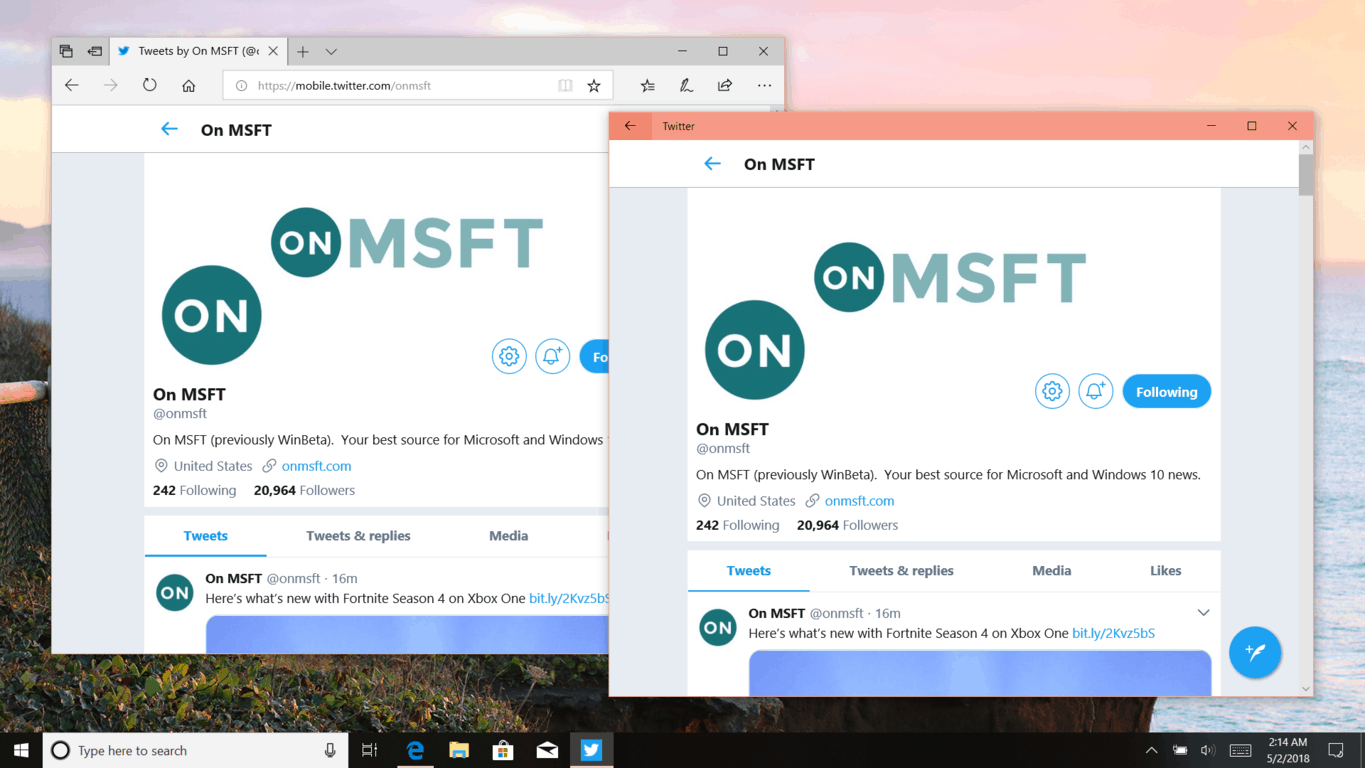
Yesterday, Twitter made their new Progressive Web App (PWA) for Windows 10 official by announcing they would no longer support the old UWP app come June 1. This marks an important step, especially since the social media giant said they are making a “long overdue” commitment to Windows with the new PWA.

In perspective, this hints at the failure of the old Twitter UWP and shows that PWA is to be taken seriously going forward. It also is important because Twitter is specifically leading the release of the app and not just Microsoft, as has been the case with some UWPs in the past.

“This release represents a renewed commitment to Windows that has been long overdue and is part of a longer-term strategy to reach greater feature parity to all of our platforms. We wanted to make sure the app represented a modern Twitter experience while taking advantage of unique Windows features,” explained Twitter in a blog post.

Microsoft published a separate blog post on the news, where it was detailed that only users running the Windows 10 April 2018 or Windows 10 Fall Creators Update would get the new PWA Twitter app, which requires Edge support for PWA features like Service Workers. This obviously shows that PWAs are the new deal, and will be first-class citizens in Windows 10 moving forward.

Just Cause 3 will be free to play on Xbox One this weekend

Starting tomorrow, May 3, and lasting until May 6, 2018, Just Cause 3 is free to play all weekend on Xbox One. As noted in a Reddit post, Just Cause 3 is a great sandbox game, albeit with some noticeable framerate issues. All games in the Just Cause series were great, with game maps that dwarfed those that appeared in any installment of Grand Theft Auto.

Just Cause 3 continues the story of Rico Rodriguez who is tasked with taking out yet another ruthless dictator on a fictional Mediterranean island. Just Cause 3 features an a vast open-world environment were you can use your infinite grapple and parachute to scale buildings, hijack vehicles (land and air), and use your grappling hook to tether things together to create maximum “Chaos.” Almost everything in the game is destructible.

Just Cause 3 features several DLC packs, including special weapons, vehicles, and more. Just Cause 3 also has online features, including a co-op mode and other multiplayer modes. As always any progress you have in the game this weekend, will carry over if you buy the full game after this weekend. Just Cause 3 is a great game to try for free, or buy for just $29.99.

Just Cause 3
Just Cause 3
Developer:
Square Enix
Price:
$19.99

Latest Xbox One PlayerUnknown’s Battlegrounds (PUBG) update is full of optimizations

PlayerUnknown’s Battlegrounds (PUBG) is receiving its 13th patch for Xbox One consoles today and it boasts several graphical and gameplay optimizations that should please players who had been critical of its admittedly less-than-perfect state (it is in Game Preview after all).

Here’s the official list of fixes that have been made.

  • The free-fall and parachuting process has been optimized, leading to performance improvements during the initial stages of each game.
  • World loading has been optimized. “Play-doh” and interior prop pop-in effects have been improved.
  • Movement data for nearby but out-of-sight players is now handled in a more efficient manner, resulting in general performance improvements.
  • Similarly, when nearby but out-of-sight players equip or unequip items, this process is handled in a more efficient manner. This helps with performance and crashes throughout the game.
  • The inventory has been optimized, improving response time when opening it and solving some crashing issues.
  • Uninhabited boats and vehicles were causing some performance issues, and we’ve resolved this issue.

PUBG is one of the biggest games on the Xbox One right now and, just last week, it was announced that the title’s very first official global esports tournament would be happening later this year.

Are you a fan of PUBG and have you been playing on your Xbox One console? Let us know if you’re happy with its current state in the comments below and make sure to like us on Facebook for more PUBG news.

PUBG: BATTLEGROUNDS
PUBG: BATTLEGROUNDS
Developer:
KRAFTON, Inc.
Price:
Free

Play For Honor for free on Xbox One from tomorrow

Starting tomorrow, on May 3rd, the video game For Honor will be free to play through the weekend until May 6th.

On Microsoft’s family of Xbox One consoles, the game will unlock at 1am PDT on May 3rd. Access will close at 12am PDT on May 7th. Like most free play campaigns, the full video game will be unlocked and players will be able to gain Xbox Achievements and save their progress for any future play sessions.

As an extra bonus, For Honor is also going to be heavily discounted on the Xbox One from May 3rd through to May 15th with a 67% cut off its regular price. A special trailer promoting the free weekend has launched which you can view below.

For Honor is a major Ubisoft video game that pits warriors from different cultures against each other. Have you played For Honor yet on your Xbox One? Let us know if you’d recommend it in the comments below and make sure to like us on Facebook for more Xbox video game news.

FOR HONOR - Standard Edition
Developer:
Ubisoft
Price:
Free

Night Mode is coming to Windows 10’s new Twitter app soon

Just a day after the public rollout of the new Twitter Progressive Web App (PWA), Twitter’s Charlie Croom published a blog post where he enthused the many benefits of the PWA platform and promised that new features, like night mode, will be coming in the very near future.

“This release represents a renewed commitment to Windows that has been long overdue and is part of a longer-term strategy to reach greater feature parity to all of our platforms,” Croom said of the importance of this new app. “We wanted to make sure the app represented a modern Twitter experience, while taking advantage of unique Windows features, like support for Windows native APIs such as share integration, pinned tiles, jump links, and more. We want to continue providing our Microsoft users with the latest and greatest, and will be adding additional features like night mode, in the coming weeks and months.”

The previous Twitter app for Windows 10 devices was functional but had been heavily neglected by its developers and had fallen way behind its iOS and Android counterparts when it came to features and functionality. One of the benefits of the PWA format is that it allows updates to be pushed out to apps faster and more frequently and also allows for developers to distribute the same app across multiple devices, thus hopefully saving on manpower and expenses.

Have you tried the new PWA Twitter app yet? Let us know what features you’d like to see added soon in the comments below and make sure to follow us on Twitter for more app news.

Twitter
Twitter
Developer:
Twitter Inc.
Price:
Free

FIX: Windows 10 April Update install issues

April Update is finally here. After it was postponed due to the same security loopholes, Windows 10 users can try out Timeline and a few new features which are quite nice.

However, as always, there are reports of the update being stuck and other install issues. This can prove a hard nut to crack.

On the other hand, there are some solutions which should resolve this problem. In case you’re not sure how to troubleshoot install issues on major updates, make sure to check our list below.

April Update stuck while installing? Here’s how to resolve this

  1. Check the storage space
  2. Disable the third-party antivirus
  3. Download Update Assistant
  4. Reset Update services
  5. Install update via the installation media

Fix Windows Update issues with these great tools!


1: Check the storage space

Let’s start from the beginning. In order to install April Update, you’ll need approximately 16 GB of free storage space. And that’s only for the 32-bit system version.

The 64-bit version requires at least 20 gigs for the installation. In case you’re unable to install the update over multiple tries, we recommend starting with the elementary steps.

Make same free space on the system partition and restart the update.

Once you’re certain that there’s no lack of storage space and that you meet the rest of the system requirements, retry the procedure. If the issue is persistent, continue through the list.


Epic guide alert! Everything you need to know about clearing your storage space in April Update is right here!


2: Disable the third-party antivirus

Installation issues are quite commonly tracked down to antivirus interference. Namely, even though a third-party antivirus might work great later, it can stop or block the update procedure.

This, obviously, goes only for third-party antimalware solutions — Windows Defender not included.

What you’ll need to do before the update procedure commences is disabling the antivirus or even uninstalling it. You can install it later on without problems.

The special emphasize goes to McAfee and Norton which are, although great solutions, known for instigating issues on Windows 10.

3: Download Update Assistant

Standard over-the-air update is seemingly the core of all update issues. Especially when we look at the previous major releases for Windows 10.

This can be easily avoided by turning to alternative update measures. We left the alternative as the last solution below.

But before turning to external media for updating, you can use one of the two tools to update to April Update manually.

The first tool is Update Assistant. It’s simple to use and it allows you to get the April Update immediately.

You can download it here. Just follow the instructions and prepare for a long wait. Also, we recommend backing up your data prior to running this tool.

An alternative is to download the Media Creation Tool. Instead of creating an installation media, you can use it to update Windows. Just click Update and wait it out. You can get Media Creation tool here.

Sometimes you won’t be able to access this menu with an alternative browser, so for the sake of updating, use Edge at least this one time.


Windows Update Assistant blocked at 99% installing? Solve the issue with our detailed guide!


4: Reset Update services

Another viable solution is to reset the update services and clean up the Software Distribution folder. Services-wise, they tend to stop for no apparent reason which leads to failed update procedure.

And the Software Distribution folder is the place on the system partition where all update-related files are stored. And those tend to get corrupted.

By resetting the services and clearing the Software Distribution folder, you can have a clean start and hope for the best.

This is how to reset update services in Windows 10:

  1. Open Command Prompt with the administrative permission.
  2. Copy-paste the following commands in the command line and press Enter after each:
    • net stop wuauserv
    • net stop bits
    • net stop cryptsvc
    • Ren %systemroot%SoftwareDistributionSoftwareDistribution.bak
    • Ren %systemroot%system32catroot2 catroot2.bak
    • net start wuauserv
    • net start bits
    • net start cryptsvc
  3. Restart PC, navigate to Updates and try updating again.

5: Install update via the installation media (ISO or USB)

Finally, if none of the previous were a resolution for your ache, we still have one card you can play on. If for some peculiar reason, your system is unable to store the update installation files — don’t worry.

You can always update via the pre-created installation media. Whether it’s ISO or USB — that’s your choice.

If you decide to go with the USB bootable drive, you’ll need the Media Creation tool and USB with at least 6 gigs of free storage space. We provided detailed instructions in this article, so make sure to check it out.

That’s a wrap-up. Don’t forget to share your questions or suggestions in the comments section below. We’ll be glad to help you overcome these issues and put your hands on latest Windows 10 iteration.

RELATED STORIES YOU SHOULD CHECK OUT:

Windows 10 April Update install issues affect many users

Installing the Windows 10 April Update has proven to be quite a difficult task for many users. You can now download and install the latest Windows 10 OS version through Windows Update or directly from Microsoft’s upgrade page. However, the update process sometimes fails leaving users unable to test the latest OS features and improvements.

Windows 10 April Update install fails

Many users complained the update process suddenly stopped and froze at 30% or 50%.

windows 10 april 2018 update hung at 50% on one of my machines. How should I proceed after restart? It is restoring the previous version of windows.

Other users got the following error message from the Update Assistant:

Windows could not load required file WinSetup.dll. The file may be
corrupt. To install Windows, restart the installation. Error code: 0x5

It is worth mentioning that users who encountered this error message said that Cylance PROTECT was the culprit. This antimalware tool quarantined the dnsapi.dll within the C:$Windows.~BT. To fix this problem, you need to exempt dnsapi.dll and then the upgrade should go just fine.

Some users couldn’t even get past the download phase. For many, the download process stopped at 1% forcing them to hard reboot their computers.

Feature update to Windows 10, version 1803 is not updating. It’s stuck on 1%. Internet connection is also good.

As you can see, installing the Windows 10 April Update seems to be an impossible task for many users. If you’re experiencing the same issue, temporarily disable your antivirus software and then download the update. Once you’ve installed the latest Windows 10 version, you can turn on your antivirus protection. If this quick workaround didn’t help, check out our detailed guide on how to fix Windows 10 April Update install issues.

RELATED STORIES TO CHECK OUT:

Nadella states that Microsoft will continue investing in mobile devices

The Windows Phone might have fallen by the wayside, but that does not mean Microsoft is finished with mobiles. In fact, the software giant might even still have an exciting mobile device brewing. Microsoft’s CEO, Mr. Nadella, has also confirmed that the company is still continuing to invest in mobile devices.

Mr. Nadella spoke at an April Conference Call in which he provided further details for Microsoft’s fiscal year. During that conference, he stated:

Our results speak to the strength of our platform and services for both first party and third-party experiences. And we’ll continue to invest in our platform, enhancing our cloud services with AI capabilities for developers to quickly build and monetize games across PC, console and mobile.

As such, Microsoft is still investing in mobile devices despite the demise of Windows Phone. However, the above quote might be a little ambiguous. For Microsoft, mobile devices are various things such as phones, tablets, ARM devices or laptops.

The April Conference Call was not about mobile devices. It was actually a conference about the company’s fiscal year. There Microsoft announced that its third quarter revenue had increased by 16%.

Yet, Mr. Nadella’s confirmation that Microsoft is still investing in mobile devices will no doubt further stir the Surface Phone rumor mill. The fabled Surface Phone is speculated to be a foldable Windows 10 mobile device, as shown in the concept art below. It is also anticipated that the Surface Phone will be based on the Windows Core OS (Andromeda OS) the company is developing. Windows Core OS will supposedly be a new Windows 10 version compatible on any form factor device.

Furthermore, Redstone 5 preview builds have also revived Surface Phone rumors. An April Windows 10 Insider Preview for Redstone 5 includes phone APIs. With phone APIs returning to Windows 10, it seems all the more probable that Microsoft is cooking up a new Win 10 mobile device.

So perhaps there might still be a Surface Phone, or alternative new Windows 10 mobile device, after all! Yet, Microsoft has confirmed nothing about a Surface Phone. However, Microsoft might reveal more about an upcoming mobile device at its Build 2018 developer conference.

Windows 10 April Update triggers games crashes, stutter and errors [FIX]

If you’re a gamer, then maybe you should wait for a few more days before installing the Windows 10 April Update on your computer.

Recent reports suggest the latest Windows 10 version causes quite a few gaming bugs that may severely limit your gaming experience.

Windows 10 April Update game issues

1. Games stutter

Gamers become unplayable when they overwrite standby memory.

For example, if you open an antivirus or antimalware tool and you then launch your favorite games, you’re going to experiencing severe stuttering.

So, the best solution is to simply limit the number of apps and programs running at the same time. In this manner, your computer will direct all the resources to the games that you’re playing.

Games stutter when they are forced to overwrite standby memory. Continues to be an issue on a fresh install on 1803.


Need more ideas on how to fix game stuttering? Check out this guide.


2. Gamers can’t use their microphones

Hey, there is a bug that for, as a gamer, is frustating. I cant use my mic anymore since the update. I already tried to reinstall drivers, using windows troubleshoot but nothing has fixed it. i really need to fix this problem.

First of all, make sure that you allowed games to access your mic. Go to Settings > Privacy > Microphone > check the option ‘Let apps use my microphone’.

If the issue persists, check out the troubleshooting guides listed below:

3. Games sometimes crash

To prevent game crashes after installing a major Windows 10 update, you need to manually uninstall and reinstall your graphics card drivers (aka perform a clean install).

There you go, we hope that these quick tips helped you fix game stuttering, crashes and microphone issues.

If you encountered other game problems after installing Windows 10 April Update, tell us more about your experience in the comments below.

RELATED STORIES TO CHECK OUT:

Saints Row 2 is now backward compatible on Xbox One

Xbox’s Major Nelson today announced that Saints Row 2 has arrived in the Xbox One Backward Compatibility catalog. The title joins the other Saints Row games which already were backward compatible with Xbox One— both Saints Row: The Third and Saints Row IV, added in 2017 and 2016.

Saints Row 2 is an open-world action adventure game and it was originally released back in November of 2009. The game is set in the fictional city of Stilwater and challenges you with the task of helping the 3rd Streets take back their city. If you already own a physical copy of this game, all you need to do is put the disc into your Xbox and enjoy. If you own a digital copy of the game, meanwhile, it should appear in “Ready to Install” section in the Games and Apps section of the Xbox One dashboard.

If you’ve never owned the game before you can download it by clicking here. It might be a great way to boost your gamerscore and get you ahead of your friends, especially since Xbox’s Gamerscore Leaderboard now takes Xbox 360 and Backward Compatible achievements into account.

Windows 10 April Update KB2267602 triggers 0x80070643 errors [FIX]

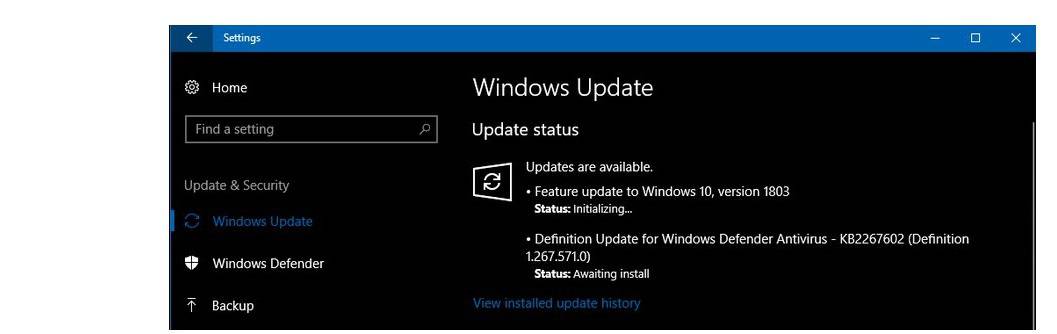
The long-awaited Windows 10 April Update is live and the saga of errors just started. Microsoft also rolled out KB2267602 which is a new definition update for Windows Defender Antivirus. The official description for this update reads as follows:

Install this update to revise the definition files that are used to detect viruses, spyware, and other potentially unwanted software. Once you have installed this item, it cannot be removed.

Unfortunately, KB2267602’s install process often fails with error 0x80070643. This is actually an old Windows Defender error that’s been around for a few years now. It’s extremely surprising that it still affects users even to this day.

Windows Defender update KB4052623 has been failing to install with error 0x80070643 for months
I have tried all the things i could find online, including “sfc /scannow”, trying to install the update with Windows Defender disabled and run the update troubleshooter, i’ve tried running wumt and loads of other things. My Windows is clean and i have no other antivirus, and i don’t want to refresh my installation. How can i fix this problem?

Since error 0x80070643 is a very common Windows Defender error code, we compiled a list of fixes that will help you solve the problem for good. Here are some of the steps you need to follow to get rid of error 0x80070643:

  • Install an antivirus removal tool if you used a third-party antivirus solution prior to switching to Windows Defender
  • Clean boot your computer
  • Restart the Security Center Service to force install the update
  • Install the update manually
  • Delete all the files and folders from the catroot2 folder:
    •  Launch Command Prompt as an administrator > enter the following commands:
      • net stop wuauserv
      • net stop bits
      • net stop cryptsvc
    • Go to C:\Windows\SoftwareDistribution/ C:\Windows\System32\catroot2 > delete all the files store in this folder
    • Return to Command Prompt and type the following commands hitting Enter after each one:
      • net start wuauserv
      • net start bits
      • net start cryptsvc
    • Update Windows Defender again.

For step-by-step instructions on how to fix error 0x80070643, check out this guide. If you came across additional solutions and workarounds to solve this problem, feel free to list the steps to follow in the comments below.

RELATED STORIES TO CHECK OUT:
KB4135051 wipes out the entire Windows 10 update history

Microsoft rolled out KB4135051 a few days ago to get Windows 10 computers ready for the April Update. The exact changes, improvements and possible bug fixes remain shrouded in mystery even to this day. The Redmond giant has yet to reveal what exactly is included in this update but most users agree this release is all about upgrade optimization tweaks.

Users also noticed that KB4135051 is affected by a few issues of its own. Many reported that this patch completely deleted their update history.

I installed it on two PCs. It wiped out the Update History on one and not the other. The only real difference in the Settings on the PCs was that the one with the problem had Windows Defender and the one without a problem had Bitdefender.

So, it seems that this small bug is prevalent for users running Windows 10’s built-in antivirus software. Moreover, users reported that after several restarts, the update history magically appeared. However, the miracle didn’t last too long, as the update history disappeared again when users booted up their computers.

After installing this update yesterday and after many restarts (no shutdowns, I have fast start disabled), the update history remained. However, this morning after being shutdown over night, the update history was gone.

If you installed the Windows 10 April Update and you noticed anything usual about KB4135051, let us know in the comments below.

RELATED STORIES TO CHECK OUT:

Twitter PWA starts rolling out to Windows 10 users, old UWP to be retired on June 1

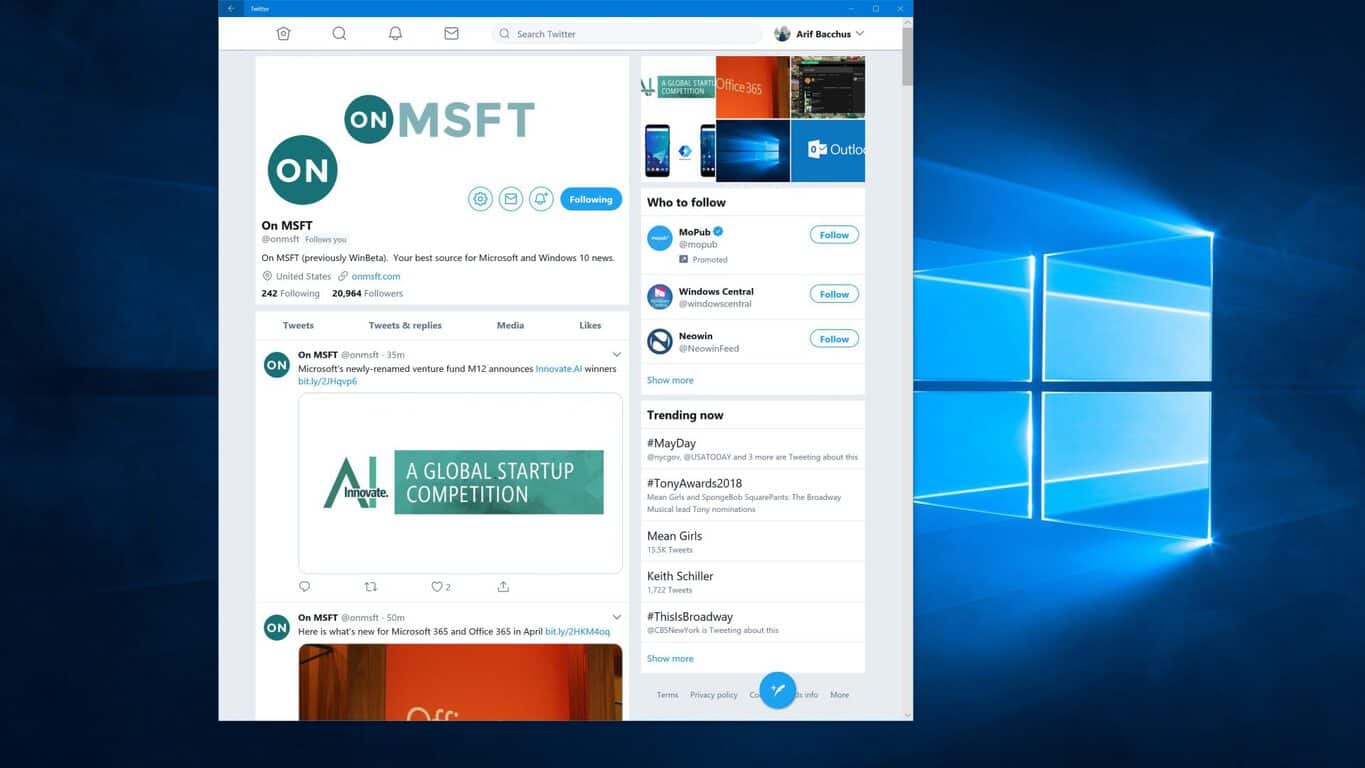
Just yesterday, Microsoft unleashed the Windows 10 April 2018 update to PCs across the world. The update comes with many new features, one of which is support for Progressive Web Apps (PWAs). Windows Insiders have had the privilege of these apps for a while now, and today, Microsoft is choosing to promote the Twitter PWA. It is now available for everyone running the Windows 10 April 2018 or Windows 10 Fall Creators Update to download from the Microsoft Store.

The new PWA will replace previous Twitter UWP desktop and mobile apps, which will be phased out “over the coming weeks.” This means that those not yet running the Windows 10 April 2018 or Windows 10 Fall Creators Update should consider updating their OS, (or visit Twitter on the Web instead), as Twitter will no longer support previous versions of the app starting on June 1st.

The Twitter PWA comes as a major improvement over the previous UWP app on Windows 10. It supports all the features that are present on Twitter on the web, including the ability to type out Tweets of up to 280 characters, explore trending topics, bookmark tweets, and view polls and videos. There are also Windows 10 specific features too, such as pinning the app to the taskbar, getting push notifications in the Action Center, and sharing content with other Windows apps.

You can check it out by visiting the link below, and keep in mind that new features (like a dark mode) will be coming to the Twitter PWA at a quicker pace since the app is built on a common web code and is not platform specific. Once you’ve downloaded, do feel free to let us know your experience by dropping us a comment in the section below.

Twitter
Twitter
Developer:
Twitter Inc.
Price:
Free

Update: We’ve updated the headline and this article to clarify that Twitter will no longer support old versions of the app come June 1st.

How to fix common Windows 10 April Update bugs

The Windows 10 April Update is finally available for download. You can head over to Windows 10‘s official update page and download the update from there. As a quick reminder, Microsoft initially intended to roll out the Windows 10 April 2018 Update on April, 10 but frequent BSOD errors delayed the release.

Dona Sarkar’s team had some extra days at their disposal to get rid off all the bugs affecting the April Update code, but it seems that some bugs still went under the radar. Insiders already started reporting all kinds of technical issues after installing the update. For example, the Windows 10 April Update fails to install, touch keyboard is unresponsive, and so on. In this post, we’re going to list the most common Windows 10 April Update bugs reported by users so that you know what to expect in terms of problems.

Windows 10 April Update issues

1. Touch keyboards won’t work

This was actually one of the first problems reported by users after installing the latest Windows 10 version.

And busted touch keyboard! Yay, I enjoy it when basic input methods are broken!

If you’re experiencing the same problem, maybe this troubleshooting guide on how to fix on-screen keyboard will help you.

2. Windows 10 April Update won’t install

Many users are still trying to install the latest Windows 10 version on their computers. The update process goes smoothly up to a certain point but then reverts changes. Also, attempting to do a fresh install often results in “A media driver your computer needs is missing” error.

86% of final instalation after 3 or 4 restarts i get “windows is instaling previous version…”

Here are a few troubleshooting guides to help you fix Windows 10 update errors and issues:

3. ALT+TAB is slow while gaming

Many gamers complained about slow ALT+TAB issues, especially when playing League of Legends. The good news is that you can quickly fix this problem by disabling all the options from Focus Assist. So, go to Settings > select > System > navigate to Focus Assist and disable absolutely every option and feature listed there.

4. Hard drive appears to be full

Other Windows 10 April Update users noticed that at least one of their drives appeared to be fulled when there were actually no files store there.

The other problem is more worrying, is its showing my E drive as being full but when i click on the E drive folder its showing nothing at all even though i have hidden files to be showing. Btw my E drive is the drive that is partitioned for the windows operating system.

To fix this problem, use can use Diskpart. Here are the steps to follow:

  1. Start Windows 10 setup using a bootable USB or DVD.
  2. Go to Advanced tools > select Command Prompt > enter start diskpart.
  3. Now enter list disk to see all the hard drives connected to your computer.
  4. Find the number that represents the problematic hard drive > enter select disk 1 (we used 1 as an example, so replace 1 with a number that matches your hard drive).
  5. Enter the following commands and hit Enter after each line:
    • disk 0 clean
    • disk 0 create partition primary
    • disk 0 active
    • disk 0 format fs=ntfs quick
    • disk 0 assign
  6. Enter exit in order to close Command Prompt.
  7. Start the installation process again.

5. NVIDIA GPU settings are unavailable

If your computer is equipped with an Nvidia graphics card but you can’t find it after installing the Windows 10 April Update, rest assured, you’re not the only one experiencing this issue.

My pc just updated to the april update. But i,ve noticed a few things. First of all it seemed to remove my nvidia gpu completely which is weird. I can’t even right click on the screen where you can usually see the nvidia stuff.

You can quickly solve this problem by downloading and installing the latest Nvidia driver update (which is version 397.31 if you’re using an GeForce Experience GPU).

6. Fluent Design apps are laggy

Microsoft revamped Windows 10‘s UI using Fluent Design elements. However, sometimes Fluent Design apps can get quite laggy, as this user reports:

Open fluent design apps […] activate timeline, there will be laggy animation and also upon click the app back..even groove music (upon clicking it back only). The strange thing is when i connect to external full hd monitor and make it the only screen, the problem solved.. It was something related with very high dpi display that cause the problem

These are the most frequently encountered Windows 10 April Update issues. We’ll update this post with new bugs and bug fixes as soon as new information becomes available. If all these issues scared you, you can block the Windows 10 April Update from installing on your computer until Microsoft pushes a few hotfixes to patch all these problems.

If you’re one of the early adopters and you already installed the Windows 10 April Update on your computer, tell us more about your upgrade experience in the comments below.

RELATED STORIES TO CHECK OUT:

Here is what’s new for Microsoft 365 and Office 365 in April

April has come and gone, and it is now time to look back at the new features introduced in Microsoft 365. First, Office 365 picks up new creativity features, AI enhancements, new features in Outlook for iOS, and new security features. Here’s a look at what you need to know.

Creativity

Microsoft added Ink analysis to PowerPoint, enhancing shape and text recognition to give users more ways to be creative when inking on their slides. Users can also leverage this feature to convert their handwritten words to text, and sketch out an entire slide, making things flow much more easily.

Also falling under the same category is inking in Microsoft Word. Users can now add handwritten text to a document, and interact with content using a pen. Examples include splitting paragraphs, inserting words into sentences, and joining separated words.

AI inspired features comes to Word for Mac

In April, Microsoft delivered AI capabilities to Word for Mac. MacOS users can now translate sections of text and documents in over 60 languages in order to understand sentence context. They also can enjoy the Resume Assistant, which is powered by LinkedIn.

Office 2019 Preview and Mobile Editing for more users

Also in April, Microsoft announced the availability of the first Office 2019 previews for commercial customers. This is the first preview, coming first for the Windows apps, including PowerPoint, Word, Excel, Outlook, OneNote, Publisher, Access, Project, and Visio.

There will be more previews soon for Office 2019 on MacOS, and previews of Exchange 2019, SharePoint 2019, and other servers. Microsoft is also promising that more Microsoft 365 subscribers (Office 365 Business Essentials, Office 365 F1, and Office 365 E1 subscribers) will soon get access to the full versions of the Office mobile apps.

New features for Outlook on iOS, and Outlook Calendar on Windows 10

For Outlook on iOS, Microsoft made it easier for you to continue drafting your emails that were started on other devices. The name of this feature is “Draft Sync” and it makes it easier for you to pick up where you left off, almost instantaneously by just navigating to the conversation in your Inbox. Other new features for Outlook on iOS include a new organization view, which uses AI to show pictures of user profiles and positions of a user inside a company.

Lastly, there is the new features for Calendar in Outlook for Windows. You can now protect your company’s privacy since Microsoft introduced the option for meeting organizers to prevent forwarding calendar invitations to recipients that weren’t on the original invite list.

Microsoft 365 gets more secure and makes IT simpler

Finally, here are the new Microsoft 365 features for April. Microsoft says it has added Intelligent security for the modern workplace, and also made IT simpler for Microsoft 365 users. Have a read below for more on these features.

  • We also announced the addition of advanced security features in Microsoft 365 Business to further protect small and medium-sized businesses (SMBs) from cyberthreats and safeguard sensitive information from unintentional data leaks.
  • We announced several new technologies and programs that build on our unique intelligence capabilities to make it easier for enterprises to secure their assets from the cloud to the edge. These new features help organizations simulate phishing attacks, automate threat detection and response, quickly assess their security posture.
  • We announced a range of new capabilities coming to Microsoft 365 to help organizations minimize total cost of ownership while enhancing user experience. These new capabilities include improvements to cloud-based device management, solutions like Kiosk Browser in Windows 10.
  • We unveiled new resources and tools to help organizations meet compliance obligations like the EU’s General Data Protection Regulation (GDPR)
  • We announced the general availability of Multi-Geo Capabilities in Office 365, a new feature that helps multinational organizations address their global data-residency requirements.

Microsoft definitely improved on Office 365 and Microsoft 365 last month, and we’re hoping for more of the same in May. The subscription-based services continue to offer big value for the buck, especially since they are constantly getting new features. Are you a Microsoft 365 or Office 365 subscriber? If so, which of these features are your favorite? Let us know your thoughts in the comments below.

How to block Windows 10 April Update from installing on PCs

Microsoft launched the Windows 10 April Update on April, 30. However, many users are not planning to install this Windows 10 version as soon as it’s available. Windows 10 is infamous for its plethora of bugs that occur shortly after users decide to hit the upgrade button. As a matter of fact, technical issues are inherent to each and every Windows 10 launch.

As a result, many users prefer to delay the Windows 10 April Update in order to buy more time for Microsoft to patch the initial issues.

When it comes to blocking updates, Windows 10 Pro users are by far luckier than Windows 10 Home users. The latter don’t have that many options to delay the updates and forced upgrade reports are bound to appear on the list of complaints every time Microsoft launches a new OS version.

Block Windows 10 April Update automatic install

  1. How to defer the Windows 10 Update on Windows 10 Home
    1. Stop the Windows Update Service
    2. Stay on a metered connection
  2. How to defer the April Update on Windows 10 Pro
    1. Stop the Windows Update Service
    2. Block Windows 10 April Update by pausing updates
    3. Select the Semi-Annual Channel option
    4. Block Windows 10 April Update by using Group Policy

WindowsReport is here to help you and we’ll tell what are the steps to follow to prevent the Windows 10 April Update from installing on your device.

How to defer the Windows 10 April Update on Windows 10 Home

1. Stop the Windows Update Service

  1.  To to Start > type ‘run’ > launch the Run window
  2. Type services.msc > hit Enter
  3. Locate the Windows Update service > double click on it to open itstop windows update service
  4. Go to the General tab > Startup Type> select Disableddisable windows update service
  5. Restart your computer > no updates should be installed until you turn on the Windows Update service again.

2. Stay on a metered connection

If you use Windows 10 Home, you can also block updates by setting your computer on a metered connection. Here’s how to do that:

  1. Go to Settings > Network and Internet > select Wi-Fi > Manage known networksset metered connection windows 10
  2. Select your Wi-Fi network > go to Propertiesmanage wi-fi networks
  3. Scroll down to metered connection and enable the option

enable metered connection windows 10

How to defer the Windows 10 April Update on Windows 10 Pro

As stated above, Windows 10 Pro users have more options at their disposal to delay updates. So, if you’re a Windows 10 Pro user, you can also use the method listed above to block the April Update.

Apart from that solution, you can also block updates by following the instructions listed below.

1. Block the April Update by pausing updates

Go to Settings > Updates & Security > Advanced Settings > Turn on the “Pause updates’ toggle

pause spring creators update windows 10 pro

As you can see, this is only a temporary solution as you can block updates only for a limited period of time.

You can also defer updates for longer by enabling the following settings:

  1. Go to Settings > Updates & Security > Advanced Settings
  2. Select ‘Choose when updates are installed‘ > postpone feature updates for 365 days
  3. Postpone quality updates for 30 days.

stop windows 10 spring creators update install

2. Select the Semi-Annual Channel option

The Windows 10 April Update allows you to postpone updates for about four or five months. If you’re an Insider, follow these instructions:

  1. Go to the Settings page > navigate to Updates & Security
  2. Select Advanced options > go to ‘Choose when updates are installed‘
  3. Use the drop-down menu to select the ‘Semi-Annual Channel’ option.

If you’re running the Creators Update or the Fall Creators Update, you won’t have access to the Semi-Annual Channel option. Instead, you’ll see this screen:

choose how updates are delivered

You can then choose to pause feature updates for 365 days and quality updates for 30 days as shown above.

3. Block the April Update by using Group Policy

You can also use the Group Policy Editor to block the Sprint Creators Update.

  1. Go to Start > type gpedit.msc > hit Enter
  2. Navigate to  Computer Configuration > Administrative Templates
  3. Go to Windows Components > select Windows Update >Defer Windows Updates
  4. Then double-click on ‘Select when Preview Builds and Feature Updates are received’ or ‘Select when Feature Updates are received’ (depending if you’re an Insider or not)block spring creators update group policy
  5. Select ‘Enable’ > select the update channel that you want to use and the number of days that you want to defer updates for.

group policy stop windows 10 updates

There you go, these suggestions should help you block Windows updates including the Windows 10 April Update. There have already been many reports about various technical issues affecting this new Windows 10 version. For example, touch keyboards are unresponsive, Fluent Design apps are laggy, NVIDIA GPU settings are unavailable, various shortcuts don’t work as intended, and so on. So, if you want to enjoy a stable OS version, you’ve got many reasons to delay installing the Windows 10 April Update until Microsoft fixes all these bugs.


RELATED STORIES TO CHECK OUT:

Xbox’s Gamerscore Leaderboard now takes Xbox 360 and Backward Compatible achievements into account

For all the Xbox achievements hunters out there, we have some good news for you. Starting today, all achievements unlocked on Xbox 360 games, including backward compatible games played on the Xbox One, will now be taken into account in the Gamerscore Leaderboard. Previously, the monthly ranking only counted Achievements unlocked on Xbox One games or Xbox Live-enabled games on Windows 10 and other platforms.

Xbox’s gamerscore leaderboard is a pretty great gamification feature, and you can check it from your profile on Xbox One, Xbox.com as well as the Xbox apps for Windows 10, iOS and Android. Integrating achievements from Xbox 360 games to the monthly gamerscore leaderboards may encourage more players to play backward compatible games. Moreover, this also contributes to making these old games look like they are natively integrated into the Xbox One experience.

Are you an Achievements hunter, and if so are you pleased that all Xbox 360 achievements will now be taken into account on the Gamerscore leaderboard? Sound off in the comments below.

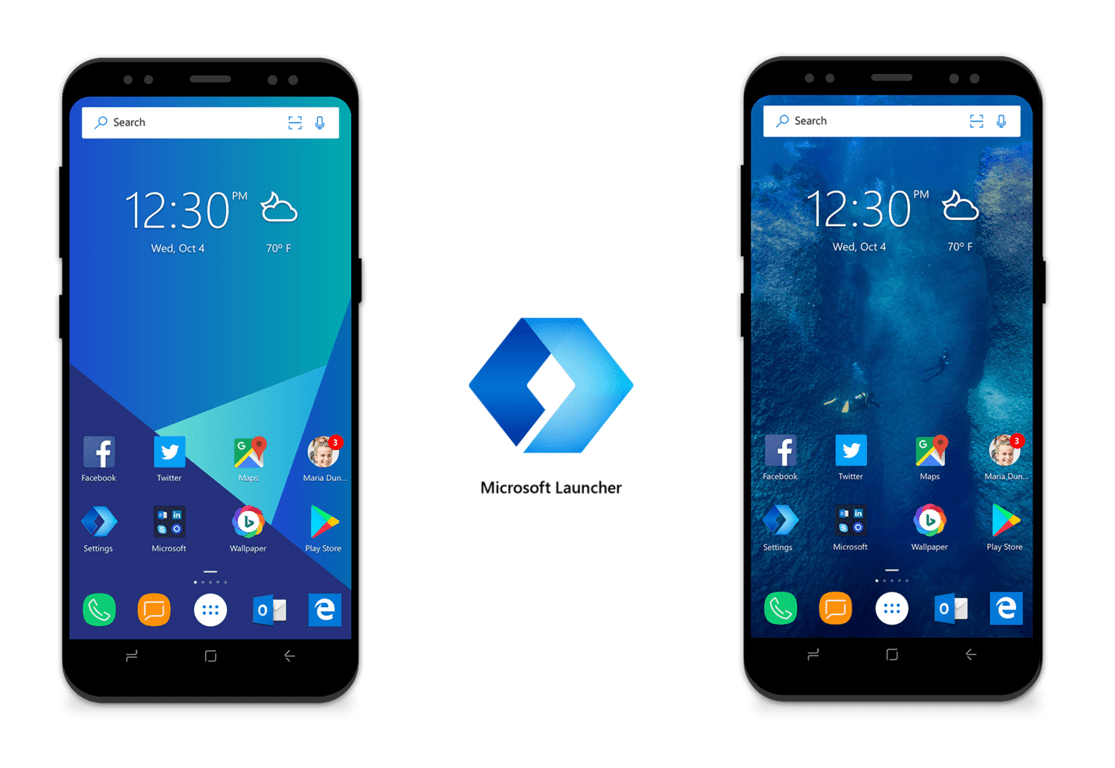
Microsoft Launcher Beta version 4.9 update enhances overall user experience

The Microsoft Launcher experience is always evolving on Android, and new releases are frequently tested first with users who have opted into the Beta version of the launcher. In the latest version 4.9 beta, Microsoft is enhancing the overall user experience and introducing ways to make the launcher more customizable.

The full changelog is shared on the Google Play Store, but you can also have a look below for more on what is new:

  • Improved Home screen import logic
  • Sort your apps alphabetically in folders
  • Display names of apps or folders in your dock
  • Customizable gesture for pressing the Home button from the Home screen
  • New gesture option that lets you quickly lock your Home screen

Prior updates for Microsoft Launcher Beta have improved Cortana integration, fixed notification bugs and added custom daily backgrounds. You can expect today’s update to roll out to general users soon, but you can also enroll in the Beta and get this update by heading to the bottom of the Google Play Store listing for Microsoft Launcher on your Android device.

Microsoft unveils new Outlook features coming to all platforms

Microsoft announced yesterday several new features coming to Outlook across Windows, Mac, web, and mobile platforms. Not all Mail and Calendar features will roll out to all platforms at the same time, and we’ll just highlight the most important additions below.

First of all, Outlook.com can now help you pay your bills on time with bill pay reminders. That’s right, the web app can now identify bills in your mail and automatically create calendar events on the due date.

Outlook.com now supports Bill pay reminders.

Outlook for Windows has also been updated to suggest event locations when you create a meeting, and the suggestions will use recently used and available conference rooms as well as Bing. During the process, You’ll also see a new option to allow or prevent the forwarding of your calendar invitation.

Among other highlights, Outlook for Windows now lets you see the tracked responses and RSVPs for all your meetings. The Windows app also supports up to three time zones, which you can add under File > Options > Calendar Time Zones. Multiple time zones are also supported on the Mac and Outlook on the Web.

Outlook for Windows, Mac and the web now support multiple time zones.

There are a lot of new features coming to Outlook for iOS and Android as well. On iOS, the Outlook app can now show you organization directory details, helping you see who your contacts report to (this feature only works with Azure AD accounts). You may also have noticed the new Quick Reply feature, which added a reply box at the bottom of your email conversations. As for the Outlook app for Android, an upcoming update will add an integration with Office Lens later this month. When writing an email, you’ll be able to tap the new photo icon and quickly scan a whiteboard, document, or photo.

An animated screeshot showcases Office Lens technology in Outlook for Android.

In June, the Outlook apps for iOS and Android will also get a new “Favorite people” feature, letting users keep select contacts front and center across mobile and the web. You can learn more about all the new features coming to Outlook in May and June on Microsoft’s blog post.

SteamVR exits early access on Windows Mixed Reality

With yesterday’s release of the Windows 10 April 2018 Update, SteamVR on Windows Mixed Reality has finally come out of early access. This follows several months of beta testing (and a period of 24 beta updates) in which the entire experience, overall performance, and stability evolved based on the feedback from early users.

The news means that there are now over 422 games in the Steam Store that officially declare support for Windows Mixed Reality. More SteamVR games also now support the Windows Mixed Reality controller haptic feedback function, and will also show virtual versions of the motion controllers inside games.

Valve also said in the message that it still has some work to do to make SteamVR a better experience for Windows Mixed Reality users, and there are plans to add in more customizable input options, and the ability to launch StteamVR from the Cliff House:

It’s important to clarify that today’s announcement doesn’t change anything about our ongoing commitment to our SteamVR experience and our community. We will continue to release regular updates with new fixes and features, and you will still find us here in the discussion forums. We aren’t going anywhere. In particular, we’ve heard the community’s requests for more customizable input and the ability to launch from the Cliff House. We’re investigating solutions and look forward to sharing more details soon!

Windows Mixed Reality is still a very young platform, but it’s nice to see that Valve remains committed to supporting it with SteamVR games. It will be exciting to see where things can go from here on out.

Download the Windows 10 April Update ISO files

We’ve got an excellent piece of news for all the Windows 10 fans out there: the long-awaited Windows 10 April Update is now live!

You can also download the Windows 10 April 2018 Update ISO files from Microsoft’s website or you can go straight to the Windows 10 Update page and download the update from there.

It is worth mentioning that ISO files are currently available to download for Visual Studio Subscribers only.

We’re sure that all users will be able to download the Windows 10 April Update ISO files in the coming hours.

windows 10 april update ISO file download


Which is the latest version of Windows 10? Find out from our constantly updated article!


Microsoft opted to gradually roll out this new Windows 10 Redstone 4 version (formerly known as Windows 10 Spring Creators Update).

This means that the update won’t be available for all the Windows 10 users at the same time. Some of you will get it today, while others will have to wait for a few more days to get it.

So, if you’re too eager to try out the new features and you can’t wait until the update lands on your computer, then you can quickly download and install the ISO files today.

For more information on how to install a new Windows 10 version from an ISO file, check out this guide.

Over to you know: If you already installed the Windows 10 April Update on your computer, tell us more about your experience in the comments below.

RELATED STORIES TO CHECK OUT:

Surface Phone patent solves curved screen issue for folding smartphones

For a folding smartphone, the first solution that comes to one’s mind is a flexible screen. But if you sit and think about it, because of the need for a having a sufficient turn radius, this would involve quite a thick device. Two screens would also seem a viable solution, but what about that center bezel that would be left?

Another solution would be using a curved screen on the edge, but this would trigger a new problem stemming from the distortion of the image that is caused by a curved screen. Microsoft might just have come up with another great solution which might solve all problems.

Microsoft explains the new technique in a 2017 patent

As you already know, Microsoft’s folding smartphone is in the works for quite a while now and we have seen a lot of ways in which the company has been working on solving the issue on joining together two internal screens in order to obtain a single surface.

Now, in a new patent that’s called Curved Edge Display With Controlled Luminance, the company details a brand new technique that would make use of a special layer. This layer would correct the distorted image, and it would give the appearance of a flat surface despite the fact that there is a curve in reality.

The display matrix includes a flat face portion, a curved corner portion, a light-releasing surface, and a series of pixels extending across the flat face portion and around the curved corner portion.

You can read the complete patent.

One of the most intriguing things about this patent is not the technology that is described, but the fact that it was filed more than one year ago, in January 2017. This can mean that Microsoft hasn’t ditched the project two years ago, but it’s still working on it, so we can expect to see this smartphone sometime in the future.

RELATED STORIES TO CHECK:

How to download and install Windows 10 April Update

If you’re eager to run the latest Windows 10 version, check out this guide to learn how you can install the Windows 10 April Update on your computer.

Microsoft released the Windows 10 version 1803 on April 30. Keep in mind that this will be a gradual roll out and the update won’t be available for all users at the same time. There are two main methods to get the update and we’ll show you how to use each one.

How to download Windows 10 April Update

You can upgrade to the April Update automatically through Windows Update or by manually installing the update.

First things first, you need to make sure that you computer is perfectly capable of running the new OS. Check the system requirements and upgrade only if your computer meets all of them. Otherwise, you risk running into all kinds of technical issues and errors.

Windows 10 April Update system requirements

  • Processor: 1GHz or faster processor or SoC
  • RAM: 1GB for 32-bit or 2GB for 64-bit
  • Hard disk space: 16GB for 32-bit OS or 20GB for 64-bit OS
  • Graphics card: DirectX9 or later with WDDM 1.0 driver
  • Display: 800×600

If you already installed the Fall Creators Update, then you shouldn’t encounter any problems while upgrading to Windows 10 version 1803. However, keep in mind that if you want to take full advantage of the newest Windows 10 features, you’ll need more than just the minimum system requirements.

Windows 10 now focuses on a series of advanced and resource-demanding features such as Mixed Reality, 3D objects, Game DVR and more.

Speaking of which, if you’re planning to use the Windows 10 SCU to run Mixed Reality app, then download this official tool from Microsoft to learn if your machine supports Mixed Reality.

Install Windows 10 version 1803 through Windows Update

If you want to install the Windows 10 April Update quickly and safely, the best way to do it is through Windows Update. This is actually the easiest way for most users to get the latest updates.

Simply navigate to Settings > Update & security > Windows Update and check for updates.

check for updates

As stated at the beginning of this post, the Windows 10 April Update won’t be available in all the regions at the same time. If your computer doesn’t detect any new updates, simply wait for a few hours or days until Microsoft deploys the SCU to your region as well.

Once your machine has found the update, wait until the download process completed and then simply follow the on-screen instructions and you’ll install the update on your computer. It’s as simple as that.

If you don’t wait to wait until your update appears in Windows Update, you can manually install Windows 10 version 1803 by downloading the ISO file.

How to manually install Windows 10 April Update

As it happens with every new update, when the Windows 10 April Update becomes available, Microsoft also  publishes the installation files on its official website.

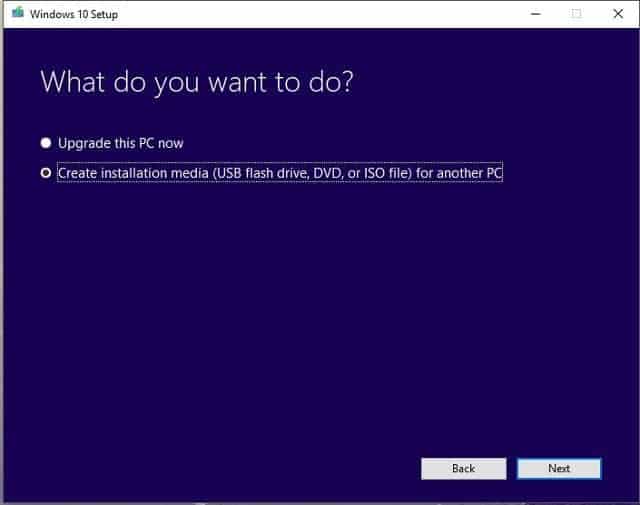
The installation files are available in the form of a Media Creation tool and offers you two options: you can download the ISO file and then mount the USB later, or create an installation media right away.

If you haven’t installed Windows 10 manually before, Microsoft has got you covered. The company listed a thorough step-by-step guide on the official update webpage offering you detailed instruction on how to upgrade to the latest Windows 10 version.

There you go, this is how you can install the April Update on your computer. So, are you going to install the update as soon as it’s available or wait for a few more days to see if users stumble upon any major technical issues? Let us know in the comments below.

If you decide to postpone upgrading to Windows 10 version 1830, check out this guide to learn how you can block the update.


RELATED STORIES YOU NEED TO CHECK OUT:

How to install Windows 10 April Update from an ISO file

The Windows 10 April Update is now available for download.

You can now install the latest Windows 10 version and test all the new features and improvements that Microsoft has been working on for the last seven months.

Windows 10 version 1803 will gradually roll out to all eligible users. For this reason, not all Windows 10 users will be able to install the latest OS version through Windows Update.

If haven’t received the April 2018 Update because the update is not available in your region yet, but you really want to test the new features, you can download and install it manually. You can do that by using the ISO file.

This method is also very useful if you want to upgrade to a new Windows 10 version but you don’t have a stable Internet connection.

The official Windows 10 update website already marks the Windows 10 April Update as the latest OS version available, so go ahead and follow the steps listed below to install it on your computer.


Which is the latest version of Windows 10? Find out from our constantly updated article!


How to install the Windows 10 April Update using an ISO file

First off, you need to make sure that your machine meets at least the minimum system requirements to install the Windows 10 April Update:

  • Processor: 1GHz or faster processor or SoC
  • RAM: 1GB for 32-bit or 2GB for 64-bit
  • Hard disk space: 16GB for 32-bit OS or 20GB for 64-bit OS
  • Graphics card: DirectX9 or later with WDDM 1.0 driver
  • Display: 800×600

If your computer meets these requirements, you can now get the ISO file:

  1. Go to Microsoft Update page and download the Media Creation tool.
  2. Follow the on-screen instructions to get the ISO file. Keep in mind that you should not select the ‘Upgrade now’ option. Select ‘Create installation media’.install-spring-creators-update-iso
  3. Wait patiently until the Media Creation tool has downloaded the ISO file.
  4. Transfer the ISO file to a USB flash drive.
  5. Open the ISO file > the update process should start automatically.
  6. Select the ‘Download and install updates’ option when prompted > click Next.
  7. Select the files and settings you want to keep > follow the on-screen instructions and wait for the update process to complete. Your computer will restart during this process.
  8. When the installation is done, you should have the Windows 10 April Update installed on your machine.

Should you encounter any issues during the upgrade process, the troubleshooting guides listed below will help you fix them:


Microsoft integrates Windows Defender into OneDrive Files Restore feature

Microsoft today announced they have taken OneDrive security to a new level for consumers by integrating Windows Defender into OneDrive Files Restore. This new feature is designed to further protect users from ransomware attacks by directly identifying breaches and prompting for a restore of files to a previous state via OneDrive.com.

You must have an Office 365 Home, or Office 365 personal account to try this out, and a OneDrive restore alert should automatically appear once Windows Defender removes the ransomware. The feature is actually rolling out today to Windows Insiders and will be coming to all users running the Windows 10 April 2018 update in a few weeks.

This is definitely interesting, hinting that Microsoft knows ransomware is a problem for both consumers and businesses alike. It also proves that the cloud is the place to be since cybercriminals can’t easily get to your cloud backups. Learn more about the security features included in Office 365 Home and Personal by checking here.

[Updated] Windows 10 build 17134.12 SDK is out

Microsoft leaker Walking Cat has just linked to the ISO and EXE files for the Windows 10 build 17134.12 SDK. Microsoft has yet to announce the release of this build, but it lines up perfectly with last week’s release of the latest consumer-facing Windows Insider build 17134.5, which Microsoft usually recommends for use with SDKs.


https://twitter.com/h0x0d/status/990987516672004096

3:51 PM ET Update: Microsoft has officially announced the SDK for the Windows 10 April 2018 Update. Our original article still stands below.

As always, these files are meant to be used by developers for building Windows 10 Apps. The Windows SDK for Windows 10 contains headers, libraries, and tools needed to create apps that run on Windows. We last saw an official SDK release one month ago, with Build 17125, so this might as well be the final Redstone 4 SDK, just in time for the official release of the Windows 10 April 2018 Update.

If you so happen to be a Windows 10 developer eager to get on the latest build, these links will be for you. It will be interesting to see if Microsoft will announce this SDK soon, especially since the company has already been working to add new API updates and additions with each build.