Microsoft has released a new Windows 11 quality update (Build 26220.7052) to Insiders in the Dev and Beta Channels, but this one’s a little different. As confirmed by official Windows Insider Program’s post on X, the update doesn’t include any new features or fixes, and doesn’t even require a system reboot.
Microsoft notes that this build is designed to test Microsoft’s servicing pipeline. That’s behind-the-scenes system that delivers future Windows updates. These silent “pipeline checks” help the company ensure that upcoming feature builds and security patches can be deployed smoothly across devices.
While users won’t notice any visible changes after installation, servicing updates like this allow the company to identify and fix potential delivery or compatibility issues before they impact major releases. Worth noting that it’s not uncommon for Microsoft to release such maintenance updates between feature builds.
The company usually uses these to improve the Windows Update infrastructure and prepare for larger rollouts, such as new features expected in future 25H2 or 26H1 builds. Speakimg of builds, Microsoft released build 27982 for Insiders in the Canary channel yesterday.
So, if you’re a Windows Insider in the Dev or Beta Channel, don’t be surprised when you see the update pop up in Windows Update. You can install it, skip the reboot, and make sure that your system is helping Microsoft keep the next wave of Windows releases running smoothly.
The expansion builds on Microsoft and G42’s long-term partnership focused on sovereign cloud, AI innovation, and cybersecurity. Both parties aim to provide world-class, secure, and scalable infrastructure to support the UAE’s national strategy to double its digital economy’s contribution to GDP over the next decade.
The decision is also in line with the work of the Responsible AI Future Foundation, which was launched jointly by Microsoft, G42, and MBZUAI. Besides infrastructure, the datacenter growth supports Microsoft’s goal of upskilling one million people in the UAE by 2027.
If you’re unaware, Microsoft has already opened the Global Engineering Development Center and the AI for Good Lab in Abu Dhabi.
“This expansion is more than datacenters. It’s about powering the UAE’s future,” said Brad Smith, Vice Chairman and President of Microsoft. “By combining Microsoft’s global expertise with G42’s local leadership and broadening role as an international neocloud enterprise, we’re building the foundation for innovation that will bring new opportunities to people across the country,” he added.
Peng Xiao, Group CEO of G42, added, “Our partnership with Microsoft advances our mission to build the Intelligence Grid, the interconnected infrastructure for intelligence designed to empower people, industries, and nations in the AI era. As a neocloud enterprise born in Abu Dhabi, G42 is advancing systems that are sovereign, secure, and open to global collaboration, keeping technology human by design.”
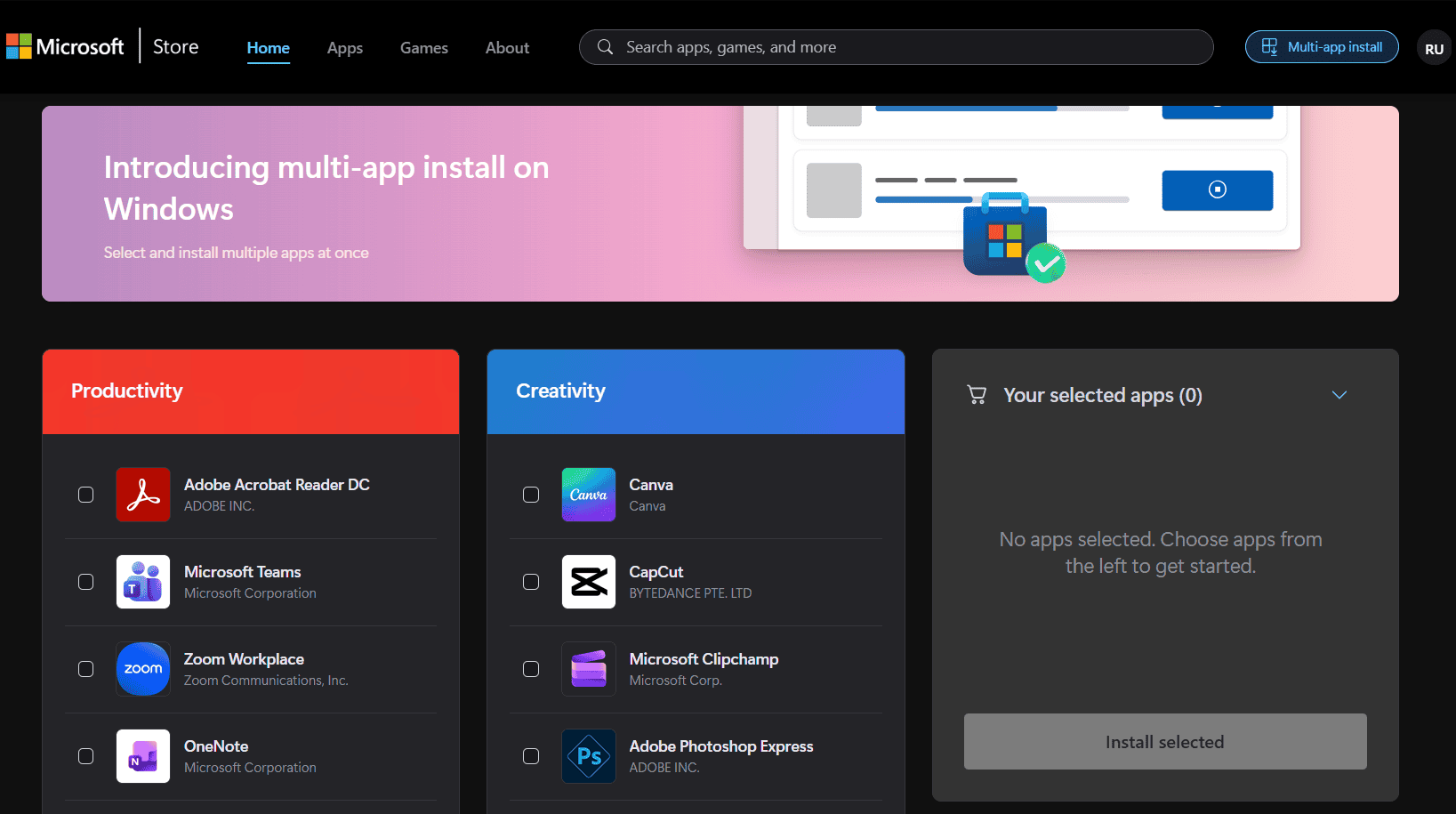
If you’ve ever wished that could install all your favorite Windows apps in one go, that wish just came true. First spotted by Zac Bowden at Windows Central, Microsoft has quietly added a new multi-app install feature to the Microsoft Store website.
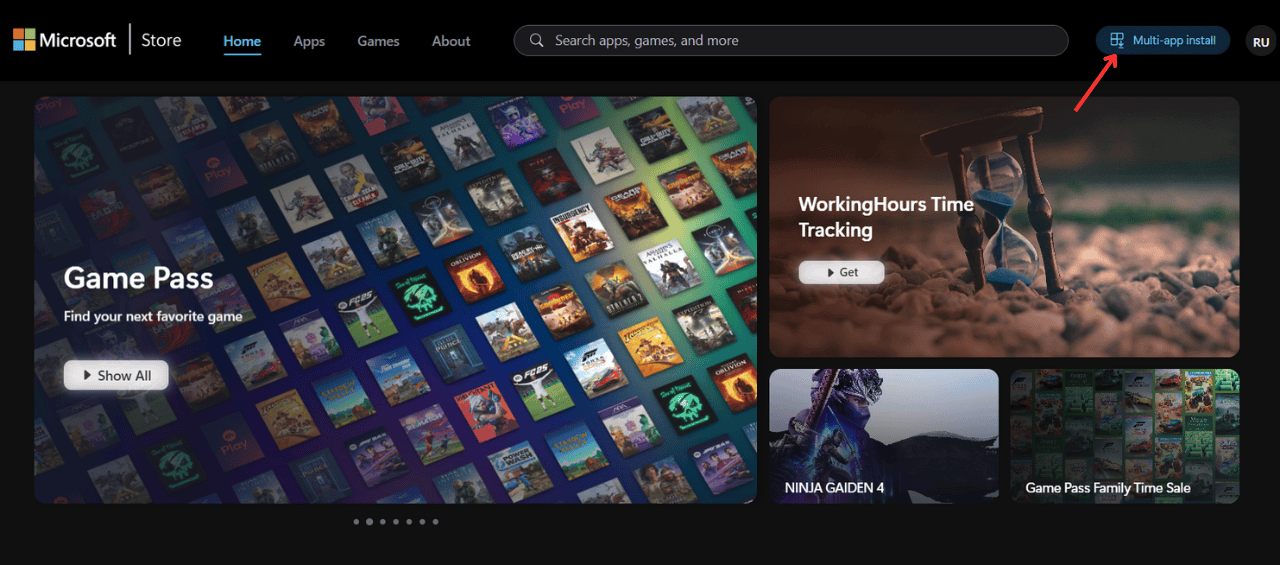
With the new feature, you can select multiple apps at once using “Multi-app Install” button and bundle them into a single installer. Once you download the generated .exe file, Microsoft Store automatically takes over. And next thing that happens is the installation of every selected app. That too, without requiring you to click through extra menus or permissions.
Zac, in the report, notes that the process is fast and seamless. The downloaded installer runs and almost instantly, the Microsoft Store begins installing all your chosen apps. There’s one caveat, though.
You can’t choose all the apps you want, as the multi-app install page only lists 48 popular apps, including Netflix, Instagram, Apple Music, Spotify, and more. However, we expect to see more adds added to that list in the coming days. The list of currently available app on the said page is as follow:
Productivity
Creativity
Social
Entertainment
Tools & Utilities
Personalization
Adobe Acrobat Reader DC
Canva
WhatsApp
Spotify
PotPlayer
Lively Wallpaper
Microsoft Teams
CapCut
Discord
Netflix
Speedtest by Ookla
f.lux
Zoom Workplace
Microsoft Clipchamp
Instagram
Apple Music
NVIDIA Control Panel
TranslucentTB
OneNote
Adobe Photoshop Express
TikTok
iTunes
BreeZip: RAR & ZIP Extractor
Bing Wallpaper
Goodnotes: Notes, docs, PDF
Adobe Photoshop
Telegram Desktop
Prime Video for Windows
Rufus
backiee – Wallpaper Studio 10
ChatGPT
ibis Paint
Facebook
Hulu
Sysinternals Suite
Live Wallpapers +
iCloud
OBS Studio
Snapchat
Disney+
EarTrumpet
Dynamic Theme
Dropbox
Audacity
LinkedIn
Apple TV
Wintoys
Wallpaper·
For now, you’ll need to use the web version of the Microsoft Store to create these install packs. The desktop app doesn’t support the feature at the time of writing this.
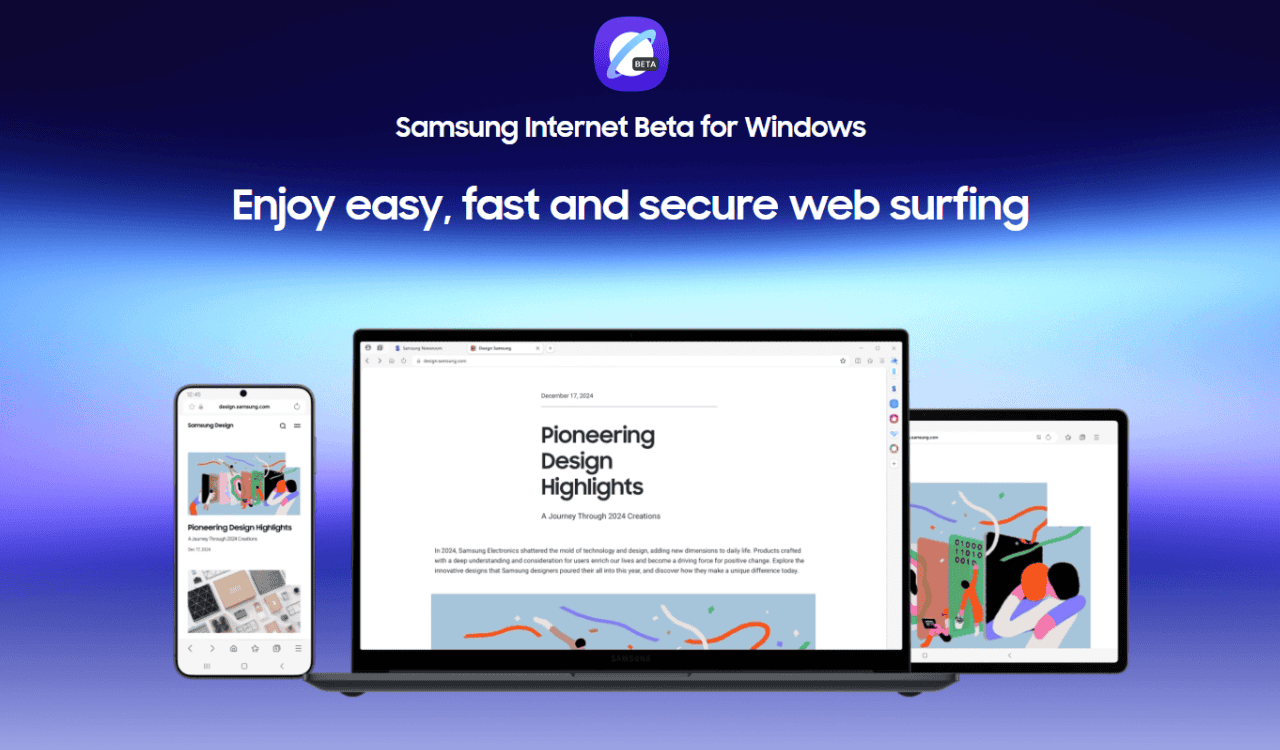
Samsung has announced to bring its mobile browser to the desktop. Late last month, the company officially launched the Samsung Internet for PC (Beta), which is now available for Windows 10 and 11 (version 1809 and above) in the U.S. and Korea. The company says that the beta program will launch to other regions in the coming days.
Samsung calls it an “ambient AI” vision, where intelligence flows seamlessly across devices. The company says that the PC version of its browser is built to sync effortlessly with Galaxy phones. You can now resume browsing sessions, access saved bookmarks, and auto-fill passwords via Samsung Pass.
Image: Samsung
That means if you start reading something on your Galaxy S24 Ultra, you can pick it right back up on your PC without missing anything. The sync also extends to browsing history, you a consistent and private web experience across platforms.
Samsung is also integrating Galaxy AI into the mix. If you’re logged-in, you can try features like Browsing Assist, which summarizes and translates web pages instantly. The feature save your time and make multilingual browsing simpler.
Speaking of privacy, the Samsung Internet browser includes Smart Anti-Tracking and a Privacy Dashboard. These features ensure that you can always monitor and control data collection in real time.
As Won-Joon Choi, COO of Samsung’s Mobile eXperience division, says, “This beta program unlocks a more connected experience across mobile and PC, while setting the stage for more intelligent browsing experiences to come.” If you are looking to join the beta, make sure to sign up here.
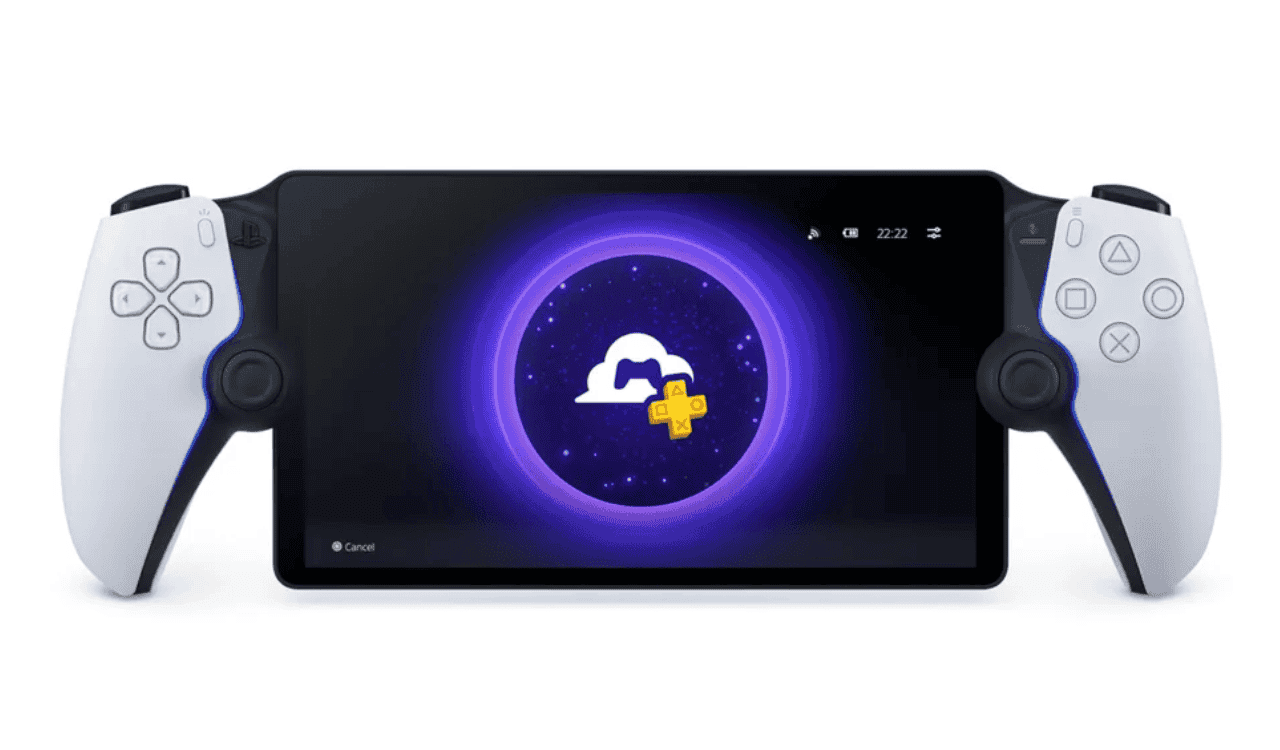
Sony is finally bringing one of its most requested features to the PlayStation Portal. Starting today, PlayStation Plus Premium members can stream select PS5 games directly on the handheld via Cloud Streaming. In simple words, no console connection is now required.
Image: Sony
To catch you up, Sony first launched the PS Portal as a Remote Play device, back in 2023. Thanks to this update, you can not only stream from the PlayStation Plus Game Catalog but also from personal digital PS5 libraries. Titles like Astro Bot, Borderlands 4, Final Fantasy VII Rebirth, Fortnite, GTA V, and Resident Evil 4 are all included at launch.
Sony says that cloud streaming support rolls out today (November 5) at 6 p.m. PT (November 6, 2 a.m. GMT) for PS Plus Premium users. Besides this update, Sony is also giving the PS Portal a much-needed UI revamp.
Now, you’ll see three main tabs, including Remote Play, Cloud Streaming, and Search. You can now stream games anywhere with a stable high-speed Wi-Fi connection. No worries even if your PS5 back home is turned off or being used by someone else.
Sony is also rolling out several quality-of-life upgrades too. You’ll find 3D Audio for more immersive sound, passcode lock for security, and a new network status screen to monitor connection quality in real time.
Image: Sony
Image: Sony
Moreover, in-game purchases and accessibility features like adjustable text and screen readers are now supported during streaming sessions.
These days you never know which platform or website attackers are trying to break into. Thankfully, there are some awesome cybersecurity companies that keep tab on all these loopholes. Now, a fresh report from one of those, Check Point Research, has detailed multiple security flaws in Microsoft Teams.
In a report published yesterday, Check Point Research details multiple ways attackers can alter chat content, forge identities, and steal display names. This eventually lets attackers have access to your chats and alter conversations without users realizing it. Thinking of this in regards with the active numbers (320 million) of users, it’s quite an eye-opening finding.
The report mentions that “invisible message editing” is one of the major concerns in the context of Microsoft Teams. Here’s what the report says about this flaw:
By reusing unique identifiers in the Teams messaging system, attackers could alter the content of previously sent messages—without triggering the standard “Edited” label. The result: a silent rewrite of history. Sensitive conversations could be modified after the fact, eroding confidence in records and decisions.
The report also warns users about another loophole that involves spoofed notifications, where alerts appeared to come from known executives. You can check the example of it below and read what the report says about this issue:
Notifications, whether on mobile or desktop, are designed to capture immediate attention. Check Point Research found that attackers could manipulate notification fields so that an alert appears to come from a trusted executive or colleague.
Image credit: Counter Point Research
The cybersecurity company also identified a vulnerability that “allows an attacker to change the displayed name in private chat conversations by modifying the conversation topic. Both participants see the altered topic as the conversation name, potentially misleading them about the conversation’s context.”
Screenshot showing how vulnerability could allow attackers to change display names before it was patched | Image credit: Counter Point Research
Screenshot showing “Fake User” instead of “Journalist” after the vulnerability was patched | Image credit: Counter Point Research
Last but not least, the report talks about how attackers forge caller identity during voice and video calls. Explaining how attackers do it, Count Point Research notes that “the display name used in call notifications (and later on during call itself) could be arbitrarily modified through specific manipulations of call initiation requests.”
Image credit: Counter Point Research
Fortunately, Microsoft has since addressed these vulnerabilities, tracked as CVE-2024-38197. The company reportedly pushed updates between 2024 and October 2025.
However, Check Point Research warns that the implications go beyond Teams and urges companies to adopt layered security strategies. They can do so via malware protection, DLP, and anomaly detection across all communication platforms.
The wait is almost over, .NET Conf 2025 kicks off on November 11, with three days of keynotes, demos, and developer sessions. You’re in for the official launch of .NET 10, Visual Studio 2026, and new AI-powered tools. If you are interested, the free virtual event will stream live on dotnetconf.net and on YouTube.
You can also get all sessions available on-demand afterward. So, what can you expect? As Microsoft notes, this year’s conference focuses on cloud-native development, AI-driven productivity, and simplifying modernization through Microsoft Aspire and Model Context Protocol (MCP) support.
Here’s what the schedule looks like’
Day One: .NET 10 Launch
Keynote with Scott Hanselman and the .NET team introducing .NET 10 and C# 14.
Sessions on Blazor, MAUI, Aspire, and AI agentic development.
A closing Code Party with live giveaways and community engagement.
Day Two: Azure, Cloud, and Deep Dives
Azure Keynote featuring Scott Hunter and Paul Yuknewicz.
Sessions on Azure Kubernetes Service, Container Apps, Redis, and AI testing in Visual Studio.
Aspire Unplugged with Damian Edwards and Maddy Montaquila exploring future directions.
Day Three: Community Day
Live and YouTube Premiere sessions from global speakers.
Topics include Clean Architecture, OpenTelemetry, F#, passkey authentication, and agentic AI for developers.
A Student Zone on November 14 will follow, offering beginner-friendly sessions for students and new developers.
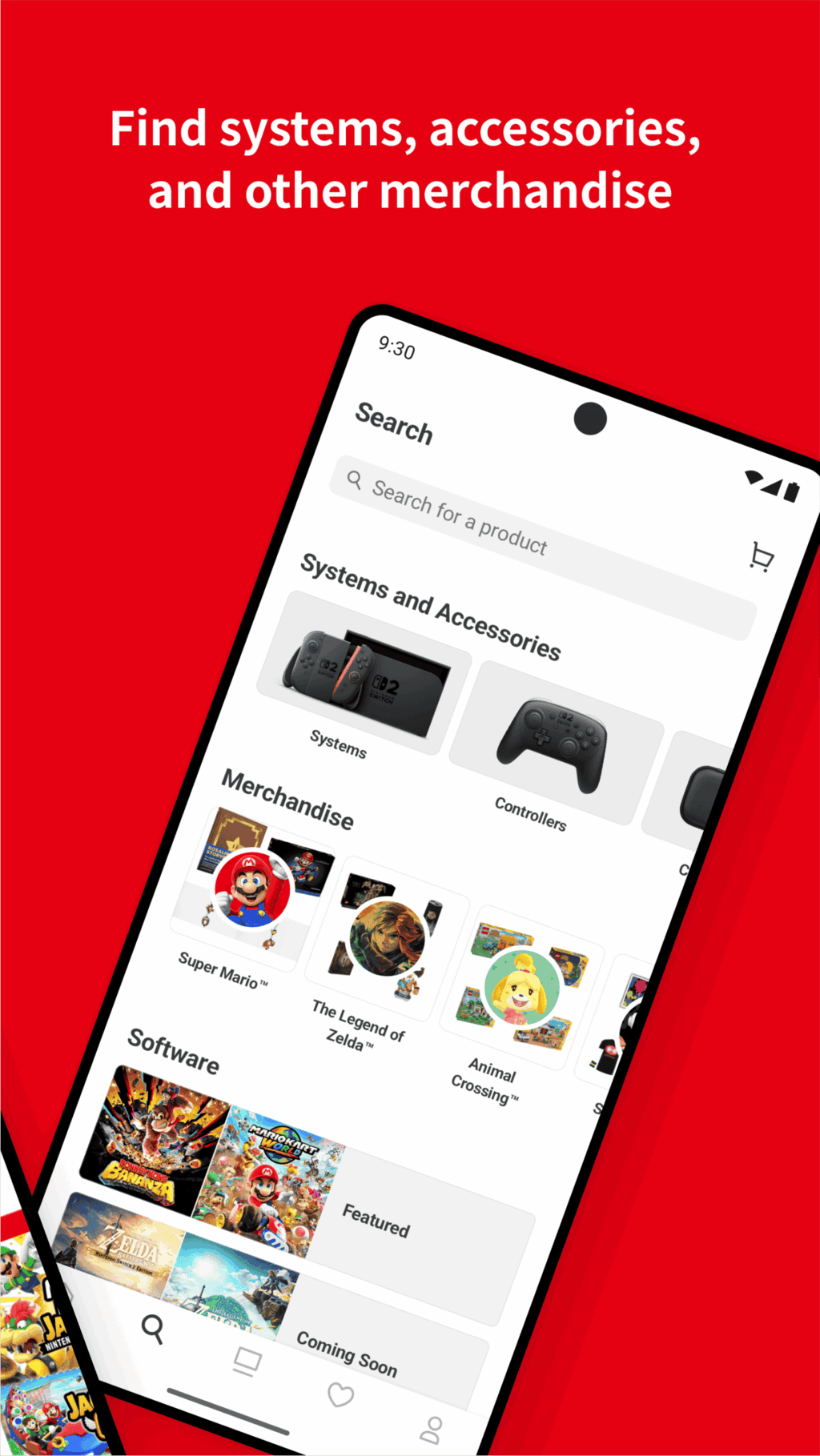
Nintendo has launched its official Nintendo Store app globally for iOS and Android. If you’re a Nintendo fan, you’ll have new way to browse, shop, and stay updated on your favorite games and hardware.
Well, this isn’t the first time Nintendo has landed an app. The company launched an app called “My Nintendo” back in 2020. The new app, dubbed “Nintendo Store,” has been launched as a revamped version. You can find it on the App Store (for iOS) and Google Play Store (for Android).
So, what you will find within the app? The app can be considered as a hub for everything Nintendo. You can find Switch 2 consoles and accessories to digital and physical games, and even exclusive Nintendo merchandise, on the app.
Image: Nintendo
Image: Nintendo
You can further browse items directly in the app, check availability, and jump straight to the My Nintendo Store to make purchases. While physical items aren’t available in all regions, the app promises a more integrated shopping experience than the previous web store.
Image: Nintendo
Image: Nintendo
But the app isn’t just about shopping. The new Nintendo Store app also doubles as an information and activity companion. You can also stay in the loop with news, events, and sales, and even receive push notifications when items on their wish list get discounted.
Moreover, if you want to view their play history, you just need to sign in with a Nintendo Account. Doing so, you can access legacy data from 3DS and Wii U systems if linked through a Nintendo Network ID.
Network monitoring is crucial for businesses and individuals who need to track performance, detect issues, and secure their systems. Fortunately, there are several powerful free tools available to help with this. Below are five of the best free network monitoring tools for 2025.
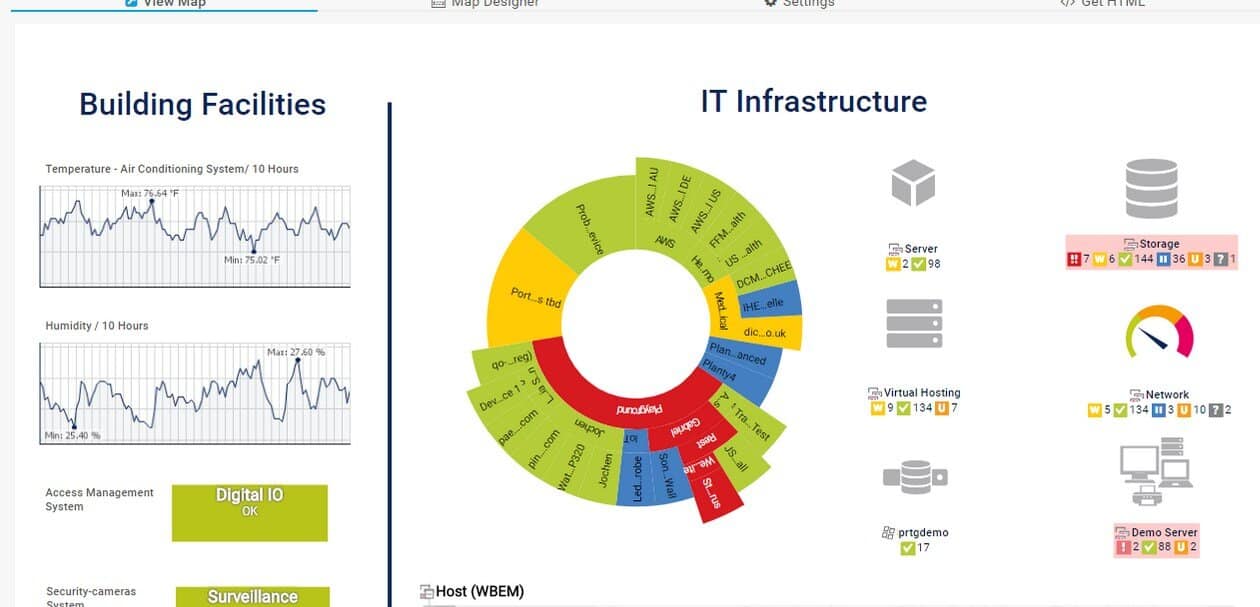
PRTG Network Monitor is a top choice for network monitoring. The free version allows you to monitor up to 100 sensors, offering insights into your devices, applications, and services. Its intuitive interface makes it easy for users to start monitoring right away.
PRTG offers real-time data collection and alerts you when performance issues arise. It’s perfect for keeping tabs on bandwidth, systems, and more.
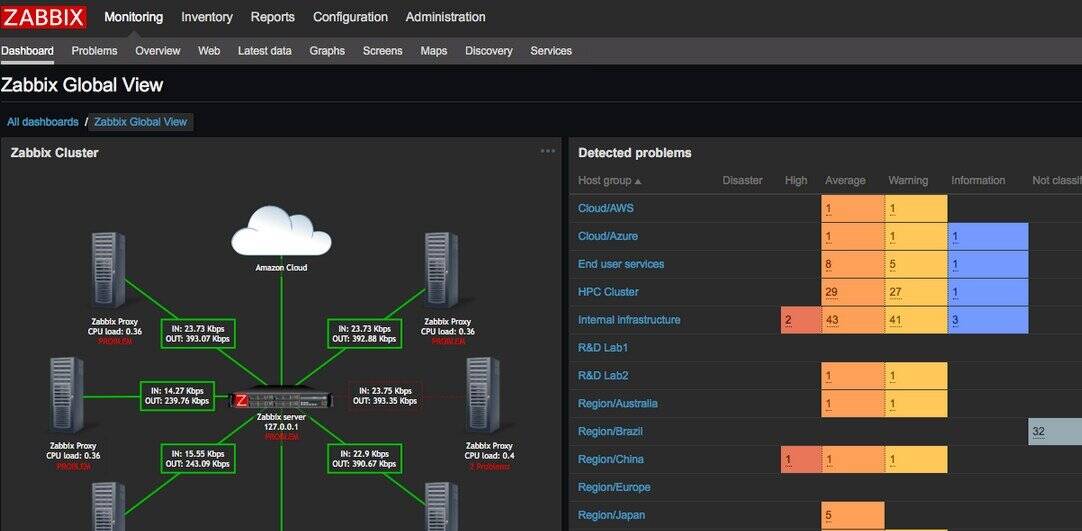
Zabbix is an open-source monitoring tool that’s perfect for large networks. It tracks everything from servers to cloud services, providing a comprehensive view of your infrastructure. Though it may require some technical knowledge, it’s well-suited for complex environments.
With Zabbix, you can customize your monitoring setup, track trends over time, and receive detailed metrics. Other great features:
SNMP support
Agent-based monitoring
Customizable user interface
Active community support
Detailed trend graphs
3. SolarWinds TFTP Server – Efficient for File Transfers
SolarWinds TFTP Server isn’t just for file transfers, as it also includes basic network monitoring features. It’s designed to ensure smooth data transfer operations, making it ideal for network engineers. The free version is easy to set up and use.
This tool supports transfers up to 4 GB in size, with detailed logs for each transfer. Other great features:
Transfers files up to 4GB
Built-in security options
Supports multiple transfers
Simple user interface
Detailed logs of transfer activities
For more information on monitoring software that helps with dead node detection, you can read about it here: Dead Nodes Monitoring Software.
Wireshark is a network analyzer that captures and inspects data packets in real-time. It’s perfect for anyone who needs detailed information on network traffic. The open-source tool is trusted by IT professionals worldwide.
Wireshark supports a wide range of protocols, offering deep insights into network performance. Other great features:
Real-time packet capture
Customizable filtering options
Supports multiple protocols
Open-source tool
Active community for support
5. Nagios Core – Highly Extensible and Customizable
Nagios Core is a powerful open-source tool ideal for enterprise networks. It offers real-time monitoring, alerting, and reporting. While the setup may require technical expertise, Nagios is flexible and can be customized to meet any network monitoring need.
Nagios offers extensive reporting options and the ability to monitor remotely. Other great features:
Plugin support for extended functionality
Advanced reporting options
Remote monitoring capabilities
Customizable interface
Highly flexible and scalable
FAQ
What is a network monitoring tool?
A network monitoring tool helps track and manage the performance of devices and services in a network. It alerts you about potential issues like downtime or slow performance.
How do I choose the right network monitoring tool?
Consider the size of your network and the features you need. Some tools are better for large, complex networks, while others are suited for small businesses or individual use.
Can these tools monitor cloud-based services?
Yes, many of the tools listed, like Zabbix and Nagios, support cloud monitoring alongside traditional network devices.
Are free network monitoring tools as effective as paid ones?
Free tools often provide robust features, but they might have limitations such as fewer sensors or less advanced analytics compared to their paid counterparts.
Conclusion
In conclusion, these five free network monitoring tools offer a range of features to meet various needs. Whether you’re monitoring a small network or a complex enterprise setup, these tools provide the necessary functionality without the added cost. Test out a few of them to find the best fit for your requirements and start ensuring your network’s stability and performance today.
If you waited for OpenAI’s Sora app to debut on Android all this while, there’s some good news for you. After debuting first on iOS and quickly hitting 1 million downloads in the App Store, the Sora Video app is now available on Android via Google Play Store.
The news comes via OpenAI’s Sora X handle, where it noted that the app is first rolling out in the US, Canada, Japan, Korea, Taiwan, Thailand, and Vietnam.
For those who don’t know, OpenAI built Sora around its second-generation text-to-video model. Worth noting that this makes it capable of generating realistic videos with sound, dialogue, and cinematic effects. You can further describe a scene, upload an image, or blend both to create short clips in a variety of styles.
Besides generating videos, Sora doubles up as a social platform, where you can remix others’ videos, follow creators, and even cast yourself and friends in AI-generated clips. That’s something similar to what you can do in TikTok.
OpenAI describes Sora’s technology as the “GPT-3.5 moment for video,” hinting at improved multimodal AI comparable to the language model breakthrough that made ChatGPT a global hit. While the web version of Sora (sora.com) remains in invite-only access, the Android app opens the door to masses who want to experiment with AI storytelling.
Some Windows PCs are unexpectedly booting into BitLocker recovery mode following Microsoft’s October 2025 security updates, according to a new service alert spotted by Bleeping Computer.
The issue reportedly affects Intel-powered PCs that support Modern Standby. For those who don’t know, it is Microsoft’s low-power mode that keeps devices connected to the internet while asleep. The alert reads:
After installing Windows Updates released on or after October 14, 2025 (the Originating KBs listed above), some devices might encounter issues during restart or startup. Affected devices might boot into the BitLocker recovery screen, requiring users to enter the recovery key once. After the key is entered and the device restarts, it will boot normally without any further BitLocker prompts.
For the uninitiated, BitLocker is Microsoft’s built-in drive encryption tool that helps protect sensitive data from theft or misuse. Systems usually enter recovery mode only after hardware or TPM (Trusted Platform Module) changes.
But in this case, users are being prompted wrongly after installing the latest patches. The problem reportedly affects Windows 11 versions 24H2 and 25H2, along with Windows 10 22H2.
Microsoft says IT admins can mitigate the issue using a Group Policy fix deployed via Known Issue Rollback (KIR). However, users will need to contact Microsoft Support for Business for detailed guidance.
Microsoft has announced that it will retire Defender Application Guard (MDAG) from Office by December 2027. And it will start this process with Office version 2602 in February 2026.
Microsoft Defender Application Guard first debuted for Windows 10 and 11 Enterprise to create a secure, containerized environment using Hyper-V to open untrusted Word, Excel, and PowerPoint files. This setup ensured that even if a document carried malicious code, it couldn’t compromise the host system.
However, Microsoft’s suggests that Protected View will now take over as the default safeguard for files originating from the web or unknown sources. In this read-only mode, editing and macros remain disabled until users explicitly trust the file.
Microsoft Defender Application Guard for Office, retired in April 2024, will be removed from Office by December 2027. Files will open in Protected View instead. Admins should enable Microsoft Defender for Endpoint ASR rules and Windows Defender Application Control to maintain security. No admin action is required for removal
The company further says that this change “aligns with the end of support for Windows 11 version 23H2 and helps streamline the security experience for users.” So, you must be wondering when this will happen, right? Here’s what Microsoft says:
The Microsoft Update Catalog lets you download any Windows update directly from Microsoft’s servers, which helps when automatic updates fail or you need offline installers.
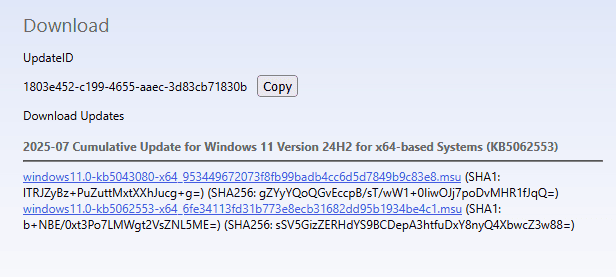
This guide explains what the Update Catalog is, how to use it, and how to verify that your downloaded updates are the correct ones.
The Microsoft Update Catalog is an online library where Microsoft stores all available Windows updates.
Cumulative updates
Security patches
Driver updates
Feature upgrades
It is the safest way to manually install Windows updates when Windows Update fails or when you want full control over your update process, and you can access it at the official catalog site.
FAQs
How do I know which update to download
Match the KB number and the system architecture x64, x86, or ARM64 listed in your Windows Update history.
Can I download multiple updates at once
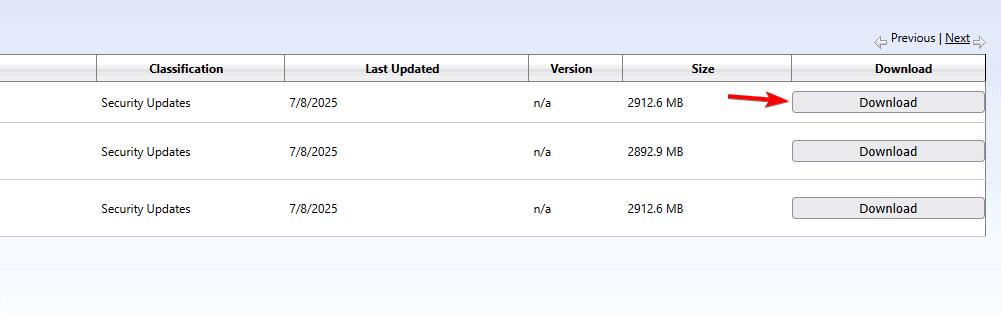
Yes. You can add updates to your download basket and download them together as a ZIP archive.
Is the Microsoft Update Catalog safe
Yes. It is hosted by Microsoft, and all files are digitally signed and verified.
Do I need an internet connection after downloading the update
No. Once you have the update file, you can install it offline, which helps on systems without consistent connectivity.
Conclusion
The Microsoft Update Catalog is a reliable method to manually install Windows updates when automatic delivery fails, giving you precise control and stable results. If you run into download or installation errors, see this troubleshooting guide for Update Catalog issues to resolve common problems quickly.
Microsoft has officially deprecated Defender SmartScreen in Internet Explorer (IE) and IE Mode on Windows 11. The company confirmed this in a support document published under KB5071357.
The change detailed by Microsoft takes effect with the latest Windows updates. While SmartScreen remains active in Microsoft Edge, Windows Shell, and other supported areas, it no longer functions inside IE or IE Mode sessions on Windows 11. On older Windows versions, however, SmartScreen will continue to work as usual.
SmartScreen was originally designed to block phishing sites, detect unsafe downloads, and scan files tagged with Mark-of-the-Web (MotW). But since Internet Explorer is no longer a standalone browser on Windows 11. And IE Mode exists solely for enterprise-managed, intranet sites. Microsoft says the feature had become redundant, one of the reasons why it’s being deprecated.
The company explained that legacy SmartScreen binaries were also removed as part of Windows’ ongoing security modernization. Retaining the feature inside IE Mode would have led to instability and inconsistent behavior, according to Microsoft.
That said, files downloaded via IE Mode will continue to carry MotW tags. In other words, they’ll be checked by SmartScreen when opened in Windows Explorer. Meanwhile, Microsoft Defender and Defender for Endpoint continue to guard against malware at the system level.
If you’re an admin, Microsoft recommends confirming that SmartScreen is disabled in IE Mode settings and that only trusted enterprise sites are included in the mode’s configuration list.
In the past few months, many AI companies launched their improved image generation models, and among them is Microsoft, which actually debuted one. The announcement of the company’s first in-house text-to-image model, MAI-Image-1, came last month.
Per the announcement, the AI image generator model has already grabbed a position in the top 10 leaderboard on LMArena benchmark. So, what’s so special about it? The MAI-Image-1 model focuses on generating more natural and visually rich images.
Now, Microsoft has rolled out the MAI-Image-1 model in the Bing Image Creator interface. The screenshot in the article’s feature image shows that you can select “MAI-Image-1” from the model list alongside DALL-E 3 and GPT-4o. You can try it from here.
The news comes via Mustafa Suleyman on X, who notes that the model “really excels at artistic lighting/photorealistic detail, nature scenes, and food.” Suleyman also notes that MAI-Image-1 is currently available in all countries that can access Bing Image Creator and Copilot Labs, excluding the EU, which is coming soon!
Hands-on With ‘MAI-Image-1’ Model
I tried a few prompts to see how accurate the model can generate images based on text prompt, and I must say I am quite amazed by the quality of the generated images and their details. Take a look below:
Prompt: “Create Halloween pumpkin in a dark jungle setting that looks so scary”
AI-generated Image:
Prompt: “A hyper realistic image of noodles with grated cheese on it, with an omelette on the side, the bowl should be aesthetic design-wise, and in a restaurant setting.”
AI-generated Image:
Prompt: “Cute little puppy playing around its mother, the breed – golden retriever.”
AI-generated image:
Of course, this is still early days. But we want you to try it out now. If you do, we want to hear more about it. You can drop your thoughts about the model below.
YIFY Torrents was once one of the most popular sources for downloading high-quality movies in small file sizes. However, with repeated shutdowns and growing legal risks, many users are now searching for safe and reliable ways to stream or download movies online.
Fortunately, there are several legal YIFY Torrents alternatives that offer free or affordable access to movies and TV shows without the dangers of malware or piracy. Here’s a look at some of the best options available today.
Tubi is one of the best legal alternatives to YIFY, offering a wide selection of free, ad-supported movies and TV shows. Available on virtually every device, Tubi includes popular films and classic titles across many genres.
Why Tubi is Great:
Completely free and supported by ads
No subscription required
Access to thousands of movies and TV shows
If you prefer streaming platforms similar to Tubi that provide a user-friendly interface, check out these MoviesJoy alternatives for more free and safe options.
Pluto TV provides free streaming of movies, TV shows, and live TV channels. You can watch on-demand movies or tune in to one of Pluto TV’s live channels that cover news, sports, and entertainment.
Why Pluto TV is Great:
Free streaming service with live TV options
On-demand movies and TV shows
No subscription needed
You can also compare it to some of the best SolarMovie alternatives if you want more streaming choices with similar features.
For those who prefer to download movies, Public Domain Torrents offers legally downloadable films that are in the public domain. The movies are free from copyright restrictions, which makes this a safe and legal option for torrenting enthusiasts.
The Internet Archive offers a massive collection of public domain movies, documentaries, and other media. You can stream or download content for free, from vintage classics to obscure indie titles.
Why Internet Archive is Great:
Completely free access to movies and documentaries
Vudu lets you rent or purchase the latest movies and also offers a range of free-to-watch films supported by ads. You get high-quality video and a broad selection of genres.
Why Vudu is Great:
Paid rentals plus free movies
Free-to-watch titles with ads
Wide device support and high quality
Why You Need YIFY Torrents Alternatives
YIFY, also known as YTS, was once a go-to torrent site for downloading high-quality movies at smaller file sizes. However, due to legal issues and frequent shutdowns, many users are now on the lookout for safe and legal alternatives.
If you are used to streaming platforms like Putlocker or SolarMovie, you will find that most of them have faced similar issues. For more legal and secure replacements, you can explore this list of best Putlocker alternatives.
How to Choose the Right Alternative for You
Define your goal: Decide if you want free streaming, live TV, or legal downloads.
Check availability: Confirm the service works in your region and on your devices.
Compare catalogs: Look for the genres and titles you watch most.
Evaluate cost: Prefer ad-supported free options or budget for rentals when needed.
Start with one: Try Tubi or Pluto TV first, then add Vudu or archives for depth.
FAQs
Is it legal to use these YIFY alternatives?
Yes, all the alternatives listed here are legal and safe to use.
Do I need a subscription for these services?
Some services, like Tubi and Pluto TV, are free and do not require a subscription. Others, like Vudu, offer both free and paid content.
Can I download movies from these services?
Some services like Public Domain Torrents and Internet Archive allow you to download movies legally, while others offer streaming only.
Are there any risks involved in using these platforms?
These platforms are legal and avoid common risks seen on torrent sites, such as malware and piracy.
Conclusion
If you are searching for a YIFY torrents alternative, there are plenty of legal, safe, and reliable options to explore. From free, ad-supported streaming platforms like Tubi and Pluto TV to classic movie archives on Public Domain Torrents and the Internet Archive, you can enjoy movies without the risks tied to illegal torrenting.
Google is testing a new feature called the Web Install API that could change how users add web apps. The feature is developed with help from Microsoft Edge engineers as part of continued Chromium collaboration. It allows websites to install Progressive Web Apps (PWAs) directly from a page instead of depending on browser prompts or app stores.
Google has started to test the Web Install API, a new standard that could let users install web apps across different browsers. The company also shared details about the experiment on GitHub, which confirms the next stage of the test.
What the Web Install API Does
The Web Install API lets a website install its own web app or one from another site. It enables installation directly from web content. App catalogs and directories can include install buttons that let users add web apps across desktop browsers.
The browser always asks for confirmation before an app installs, and websites cannot install unsafe or unlisted content.
When visiting a supported website, you may see a small prompt offering to install a web app. The process looks similar to the existing install experience in Chrome, but it also works on trusted third-party sites such as app directories. Each install still requires your approval.
Cross-Browser Support
The Web Install API is being developed as a shared web standard with input from both the Chrome and Microsoft Edge teams. It currently works in desktop versions of Chrome and Edge and is planned for Android later. Firefox and Safari have not yet added support, but they are part of ongoing discussions in web standards groups.
How to Try It
You can try the feature in Chrome or Edge version 139 or higher by enabling the “Web App Installation API” flag in the browser’s settings.
After that, you can test it on demo pages such as:
The Web Install API could make web apps easier to discover and install across browsers. It reduces dependence on app stores and gives users more control over how and where they install apps.
First let’s talk about the revamped lock screen experience. The familiar “Weather and more” panel is now being replaced by interactive widgets, allowing you to add, remove, and rearrange information tiles such as Weather, Sports, and Watchlist.
The setup can be customized through Settings > Personalization > Lock screen, and Microsoft says more suggested widgets will surface automatically to help you discover useful ones.
Image: Microsoft
Speaking of widgets, they are also getting a complete makeover. The latest Canary Build 27982 brings multiple dashboards to organize your widgets into distinct spaces. Besides that, a new left-hand navigation bar makes it easier to switch between dashboards or open the Discover feed without clutter.
Another notable addition in this update is a smarter way to share files. A new drag tray appears when you start dragging a file from File Explorer or your desktop, showing shortcuts to compatible apps or the “More” option to open the full Windows Share menu. It’s a small tweak, but it makes the process noticeably faster and smoother.
Microsoft is preparing for Windows 11 version 26H1 build, and what appears to be the confirmation, has come from a rather unexpected place.
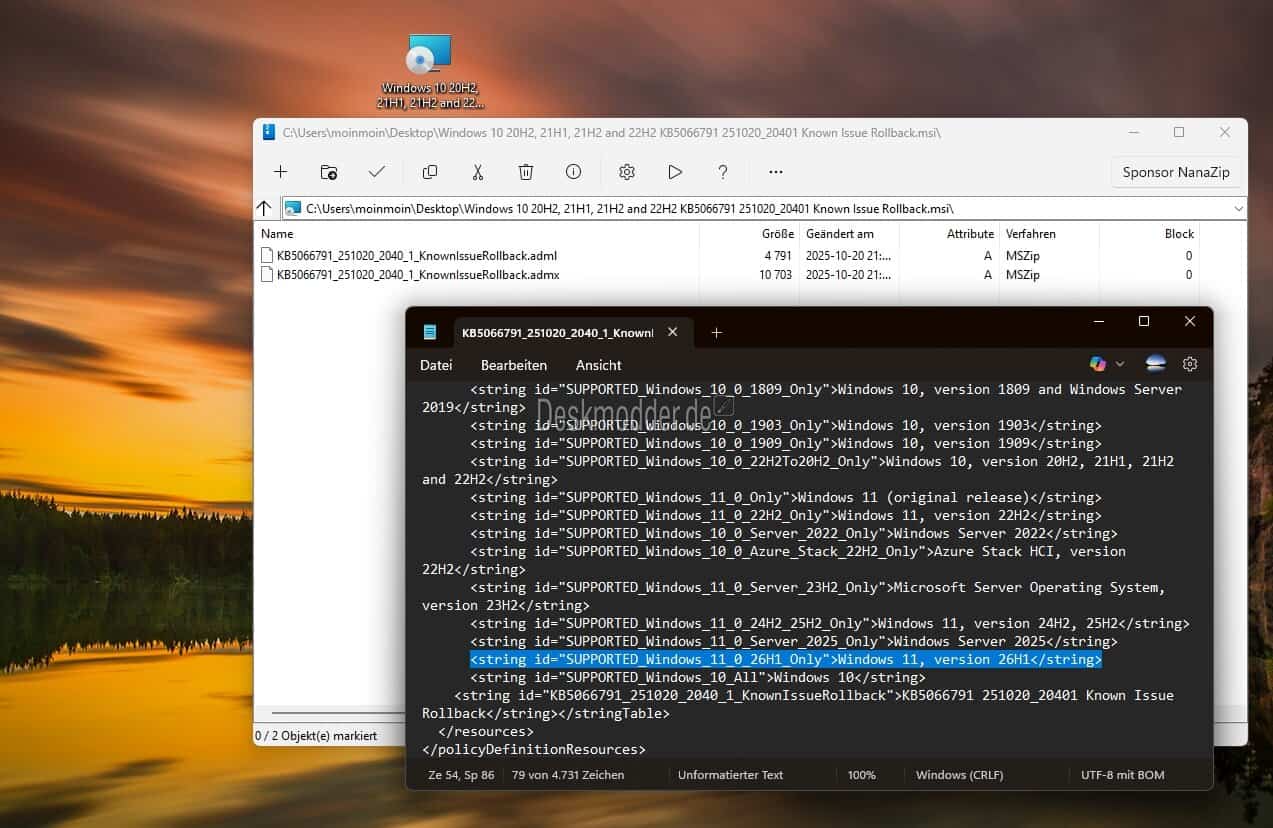
As reported by Deskmodder, a Known Issue Rollback (KIR) released for KB5066791 to fix falsely popped up EoS alerts for Windows 10 devices, has code refrences that reads:
“SUPPORTED_Windows_11_0_26H1_Only” Windows 11, version 26H1″
Image credit: Deskmodder.de
This is the first instance of an internal build labeled Windows 11, version 26H1, possibly confirming earlier rumors that Microsoft intends to slot in an additional release before the main 26H2 update, expected in fall 2026.
Codenamed Bromine, the 26H1 update is reportedly designed for upcoming Snapdragon X2 Elite devices. That was first reported by popular Windows enthusiast, PhantomOfEarth, on their YouTube post. It’s expected to debut in early 2026, primarily for new ARM-based PCs.
For everyone else, Microsoft still plans to release the regular 26H2 update later in 2026. This will allow the company to release early AI features on next-gen hardware while maintaining the wider yearly upgrade schedule.
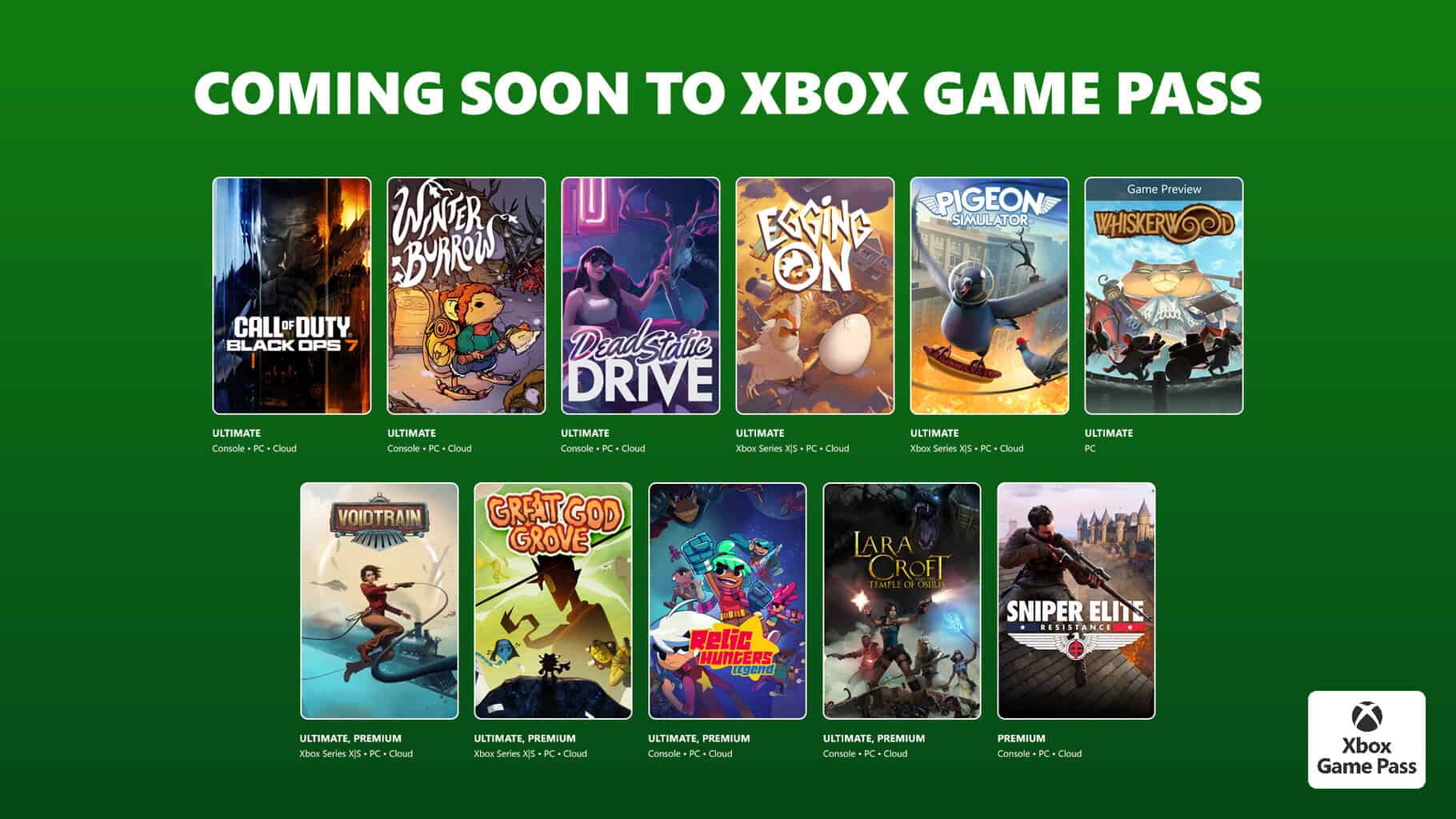
First u, you’ve Call of Duty: Black Ops 7, which launches November 14, despite all the rumors we have been hearing about early debut. It sill release as a day-one Xbox Game Pass release on Cloud, Console, and PC. The game features a co-op campaign, featuring 16 multiplayer maps, and the next eerie chapter in Round-Based Zombies set in the Dark Aether universe.
Next up, Dead Static Drive launches November 5. Dubbed “Grand Theft Cthulhu,” this indie road-trip horror game mixes Eldritch unease with 1980s Americana. The game puts players on a haunting journey through small-town nightmares.
Other games joining the Xbox Game Pass in early November
Sniper Elite: Resistance (Nov 5)
Egging On (Nov 6)
Whiskerwood (Nov 6)
Voidtrain (Nov 7)
Great God Grove (Nov 11)
Lara Croft and the Temple of Osiris (Nov 11)
Pigeon Simulator (Nov 11)
Relic Hunters Legend (Nov 12)
Winter Burrow (Nov 12)
Besides announcing new games joining early this month, the company also detailed that five games will leave Game Pass on November 15. Check the list here.
Microsoft has kicked off the first batch of Xbox Game Pass additions for November. Today, two new titles have joined the Xbox Game Pass library, Football Manager 26 and 1000xRESIST.
First up, you’ve Football Manager 26, which is now available in two editions: the standard PC version and the Console Edition for Xbox One, Xbox Series X|S, and PC. This year’s release brings improved experience for the long-running sports management series, built entirely on the Unity engine for the first time.
According game details, this game offers, “New foundations set the stage for you to define your football destiny. Made with the Unity engine, FM26 is the legacy, redefined and where storytelling evolves. In FM26, football belongs to you and your vision. It’s your time to change the game.”
The other big game joining Xbox is 1000xRESIST. It’s a narrative-driven sci-fi adventure set in a mysterious underground world. The game invites players to explore a dystopian future where a deadly alien-borne disease has forced humanity below the surface.
As the developers describe it, “1000xRESIST is a thrilling sci-fi adventure. The year is unknown, and a disease spread by an alien invasion keeps you underground. You are Watcher. You dutifully fulfill your purpose in serving the ALLMOTHER, until the day you discover a shocking secret that changes everything.”
Looking for the best clock screensaver to add a touch of elegance and functionality to your desktop? Whether you want a minimalist flip clock, a realistic 3D display, or something retro, these top-rated picks will keep your screen stylish and informative.
Fliqlo is the most iconic flip clock screensaver for Windows and macOS. Its simple black-and-white design mimics the look of classic flip clocks, creating a clean aesthetic that fits any setup. The time display is large, legible, and perfect for productivity spaces or ambient setups.
It also supports customization options like 12/24-hour format and brightness control, so you can personalize the display without clutter. Fliqlo has been around for years, proving its staying power as a reliable and elegant choice.
Other great features:
Adjustable brightness and clock size
Works on dual monitors
Energy-efficient performance
Available for Windows and macOS
If you’re managing multiple displays, consider pairing it with DisplayFusion to control your screen layouts and wallpaper settings effortlessly.
ClockSaver combines functionality with sleek, modern visuals. It lets you choose from several digital clock styles, gradient backgrounds, and smooth animations that bring a futuristic vibe to your desktop.
You can also tweak the color, font, and transparency, making it ideal for users who enjoy personalizing their workspace. The screensaver automatically adapts to system time zones and sleep settings for seamless use.
Other great features:
Multiple clock styles and themes
Custom color palette support
Lightweight and low CPU usage
Auto-adjust for different resolutions
For even more visual flair, you can sync it with apps that auto change wallpaper to match your mood or time of day.
3D Clock Screensaver by 3Planesoft brings your desktop to life with a beautifully rendered clock floating in a 3D environment. It combines real-time movement with smooth lighting and shadow effects, creating a relaxing yet functional visual.
The clock face updates in real time, featuring detailed hands and reflections that look great even on high-resolution monitors. It installs as a standard Windows screensaver, activating automatically when your PC is idle.
PolarClock 3 transforms your screen into an animated piece of modern art. Instead of traditional digits, it represents time with colorful, rotating rings that display hours, minutes, and seconds.
This clock screensaver is perfect for users who enjoy data visualization and motion graphics. Each ring’s rotation syncs precisely with your system clock, making it both mesmerizing and functional.
Word Clock takes a creative twist by showing time in a word grid instead of numbers. Words like “It is half past two” highlight dynamically as the minutes pass, making it both stylish and relaxing to watch.
You can switch between circular and grid layouts, change colors, and even use it as a desktop widget. It’s ideal for design lovers who prefer a unique take on digital timekeeping.
Other great features:
Two visual layouts (grid and circle)
Adjustable font and background
Multi-language support
Smooth transitions between updates
Final Thoughts
Each of these clock screensavers offers a blend of aesthetics and utility, transforming your idle screen into a statement piece. If you prefer timeless elegance, Fliqlo Flip Clock remains a top pick. For customization and color, ClockSaver and PolarClock 3 will make your desktop feel dynamic and modern. For more ideas, explore this curated list of free Windows 11 screensavers to find options that match your taste.
FAQs
How do I install a clock screensaver on Windows 11?
Download the screensaver’s .scr or installer file, right-click it, and select Install. Then open Settings > Personalization > Lock Screen > Screen saver settings to choose and apply it.
Are clock screensavers safe to use?
Yes, as long as you download them from trusted websites. Avoid unofficial portals and always scan files for malware before installing.
Can I use different screensavers on multiple monitors?
Yes. You can assign different wallpapers or screensavers per display with third-party tools, which is helpful for multi-monitor workflows.
Do clock screensavers affect system performance?
Most are lightweight and run only when idle. Choose options with low CPU usage if you leave your PC on for long periods.
If you’re a fan of S.T.A.L.K.E.R 2, there’s some bad news. The post-apocalyptic shooter is leaving Xbox Game Pass this month, on November 15, alongside a few other games. Microsoft has confirmed the first batch of removals for November 2025, and while the list isn’t long, it includes some familiar favorites.
Here’s what’s leaving Xbox Game Pass on November 15:
S.T.A.L.K.E.R. 2 fans might want to have that one last trip through the Zone before it’s gone. The game’s eerie atmosphere and tough survival theme made it one of the most immersive Game Pass titles this year.
Next up, Frostpunk players will also see their city-building challenge disappear soon. The good news is that there’s a sequel, Frostpunk 2, is available on Xbox Game Pass. So, you won’t be missing the OG.
Moreover, there’s always a chance that these games might get readded to the Game Pass library, but for now, they’re leaving. So, did you play any of the leaving games? If yes, which one is your favorite? Drop your thoughts in the comments below.
Keeping your desktop background fresh can make your workspace feel new every day. Here are the top 5 apps that automatically change wallpapers on Windows, macOS, and other platforms.
John’s Background Switcher is one of the most flexible tools for users who love variety. It automatically pulls wallpapers from local folders or online sources like Flickr, Unsplash, and Instagram.
You can customize how often the wallpaper changes, from every few seconds to every few hours. It even supports multiple monitors, displaying different images on each screen.
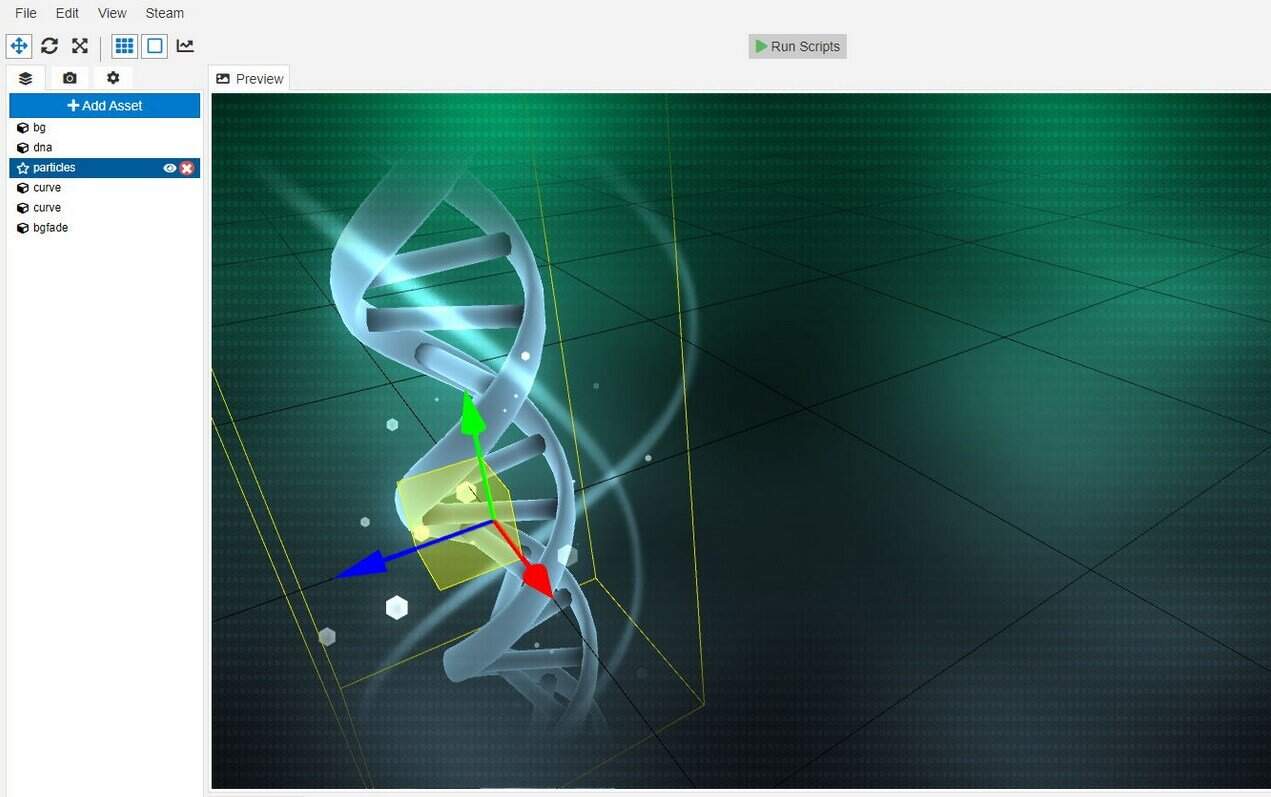
Wallpaper Engine is perfect for users who want interactive or animated backgrounds. It supports live wallpapers, videos, and even 3D scenes that respond to mouse movement or system audio.
You can browse thousands of community-made wallpapers on Steam Workshop or create your own. It’s an ideal choice for gamers and creative users who want to personalize every detail of their desktop.
Other great features:
Supports 4K and ultrawide resolutions
Pauses automatically when gaming to save resources
DeskScapes transforms your desktop into a living canvas with animated wallpapers. It includes a large library of motion backgrounds and allows you to apply effects or filters to any image.
The interface is intuitive, letting you quickly preview and apply changes. You can even personalize videos, making them loop smoothly for a seamless wallpaper experience.
Bing Wallpaper is Microsoft’s official tool that sets your desktop background to the Bing image of the day. Each day, you get a high-resolution photo from global destinations, nature scenes, or cultural events.
It’s simple to use and doesn’t require any configuration. You can also view image details, including location and photographer info, directly from your desktop.
Other great features:
Free and lightweight
New wallpaper daily from Bing’s curated collection
Splashy connects directly to Unsplash, one of the largest collections of free high-quality photos online. It updates your desktop automatically at set intervals with beautiful, curated images.
You can choose from specific categories such as nature, architecture, or minimalism. The clean interface and auto-start feature make it a great background manager for productivity setups.
Other great features:
Pulls from Unsplash’s entire photo library
Customizable change intervals
Option to blur or color-tint wallpapers
Auto-start on system boot
Works on Windows, macOS, and Linux
FAQs
How do I make my wallpaper change automatically on Windows 11?
You can use tools like Bing Wallpaper or John’s Background Switcher. Once installed, they automatically update your wallpaper at your preferred time intervals.
Can I use live wallpapers on Windows?
Yes, apps like Wallpaper Engine and DeskScapes support live and animated wallpapers that can respond to music or mouse movement.
Are automatic wallpaper apps safe to use?
Most reputable apps like Bing Wallpaper and Wallpaper Engine are completely safe. Always download them from their official websites or trusted stores.
Do these wallpaper changers work with multiple monitors?
Yes, several options like John’s Background Switcher and DeskScapes let you display different wallpapers across multiple screens simultaneously.
Final Thoughts
If you’re tired of static backgrounds, these tools can keep your desktop feeling fresh and inspiring. For dynamic effects, Wallpaper Engine is unmatched, while Bing Wallpaper and Splashy are ideal for users who prefer automatic, minimal setups.
For multi-monitor setups, you can also try DisplayFusion, a powerful app that offers advanced wallpaper management and window control options.
Looking to spice up your display with a new screensaver? If so, try these great clock screensavers!
Today, Microsoft and NVIDIA (in partnership with WeTransact) have launched the Agentic Launchpad. That’s a new initiative, which will power the next wave of AI startups in the UK and Ireland. The initiative follows Microsoft’s $30 billion (£22 billion) investment in UK AI infrastructure.
Under the announced initiative, select AI startups will get access to NVIDIA’s advanced GPU infrastructure and Microsoft’s cloud ecosystem. In addition, they will get personalized mentorship from both companies’ AI experts.
“This is a really exciting opportunity for innovative and ambitious AI-first software companies to accelerate the growth of their agentic AI solutions with the expert help of Microsoft and NVIDIA,” says Darren Hardman, CEO of Microsoft UK & Ireland. “We are passionate about helping to build the agentic AI future and see innovation flourish in the UK,” he added.
NVIDIA will support this joint initiative via its Inception program and provide emerging AI startups across the UK and Ireland access to its Deep Learning Institute training and technical resources. Not to forget, the program also offers marketing support, networking events, and exposure through Microsoft’s global channels.
Serge Palaric, Vice President of EMEA Hyperscaler and ISV Alliances at NVIDIA, said the partnership would help developers “accelerate their AI development and enhance performance” with NVIDIA’s computing power. Microsoft has also detailed eligibility criteria to apply for Agentic Launchpad. Here’s what company notes:
UK-based software development companies building agentic applications, intelligent systems, or GenAI platforms.
Ambitious teams ready to scale up, innovate, and lead the next wave of AI.
If you’re interested, applications for the Agentic Launchpad are now open (November 4–28, 2025). You can apply here.
If you’ve ever wanted to talk to Microsoft 365 Copilot instead of typing, the wait is over. Microsoft has officially rolled out voice support in the Copilot mobile app. In other words, you can speak naturally with the AI assistant, interrupt it mid-conversation, and receive spoken responses in real time.
How Voice Works in Copilot App on Mobile
Microsoft says users can start a new voice chat directly from the input box in the Copilot app. During conversations, you can interrupt Copilot mid-sentence, ask it to adjust its tone or speed, or simply hit “Mute” or “End voice chat” to stop. All text transcripts from these sessions are saved under “Conversations,” so you can revisit or resume later. You can check demonstration here.
The voice support in Microsoft 365 Copilot is rolling out currently on iOS and Android. Do note that this feature is only available to those having Copilot license. With the latest update to its AI assiastant, Microsoft plans to make work more flexible and hands-free.
As with text chats, voice chat follows Microsoft’s enterprise-grade privacy and compliance standards. Microsoft confirms that no voice data is stored. However, text transcripts remain subject to retention and audit policies.
Moreover, Microsoft plans to expand availability to all Copilot users, including those without a full Microsoft 365 Copilot license, in the coming months.
AI-powered social media management tools simplify content creation, scheduling, analytics, and engagement. Whether you manage one brand or multiple clients, these tools can save hours each week while improving consistency and performance.
Below are five of the best AI-driven platforms available today.
1. SocialBee – Smart All-in-One Social Media Manager
SocialBee is a powerful platform that helps you organize and automate your social media workflow. Its AI assistant creates optimized captions, suggests hashtags, and plans your content calendar automatically. The interface is clean and built for speed, making it easy for marketers, freelancers, and agencies to stay consistent across multiple profiles.
You can also categorize your content by type, making it easier to balance promotional and evergreen posts. SocialBee integrates with Canva, Unsplash, and major social networks, so your publishing process becomes seamless from creation to posting.
2. Hootsuite – Established Platform With AI Assistants
Hootsuite remains one of the most complete social management platforms in the industry. It combines post scheduling, social listening, analytics, and AI content suggestions into a single dashboard. The integrated OwlyWriter AI helps you generate copy ideas, improve engagement, and optimize post timing.
The tool is ideal for large organizations and teams managing several accounts at once. Hootsuite’s analytics suite also allows you to track audience growth, identify viral content, and compare performance across networks in one place.
Other great features:
Best-time AI posting recommendations
Advanced social listening and monitoring
Approval workflows for multiple users
Comprehensive analytics and reporting tools
3. SocialPilot – Cost-Effective Scheduling and Analytics Tool
SocialPilot is a great choice for agencies and professionals looking for robust scheduling and analytics without the high price tag. It supports all major platforms and allows users to bulk upload and schedule hundreds of posts at once. Its AI features suggest optimal posting times and identify top-performing content.
The platform also supports white-label reports, perfect for agencies managing client accounts. With an intuitive interface and flexible pricing tiers, SocialPilot balances usability, scale, and affordability better than many competitors.
If you manage multiple accounts, you can also post on Instagram from PC using specialized desktop software.
Other great features:
Bulk scheduling for multiple social profiles
White-label client reports
Suggested post timings
Browser extensions for faster posting
4. Metricool – Unified Tool for Social, Ads, and Analytics
Metricool helps creators and businesses manage their social channels and advertising campaigns in one unified space. Its smart analytics show performance trends, competitor comparisons, and ad results across multiple networks. You can plan your content visually using its intuitive calendar.
The platform is especially useful for digital marketers who need to combine social media scheduling with ad tracking. Metricool also provides insights into hashtags, audience engagement, and influencer collaborations.
Other great features:
Multi-platform scheduling and monitoring
Data-rich analytics with visual charts
Hashtag and competitor analysis
Free plan with limited posting options
5. Predis.ai – AI-Focused Content Generation and Posting
Predis.ai stands out for its creative automation features. It generates captions, hashtags, videos, and carousels tailored to your brand voice, using natural language and design AI. You can instantly turn a short brief into ready-to-publish content for platforms like Instagram, LinkedIn, and TikTok.
It is ideal for startups and solo creators who need consistent social media presence without hiring a full content team. Predis.ai’s AI engine learns from your brand’s tone and engagement metrics to deliver more personalized results over time.
Other great features:
AI-generated text, images, and videos
One-click auto-posting to multiple platforms
Ready-made templates and design suggestions
Built-in analytics for engagement insights
FAQs
What is an AI social media management tool?
It is software that uses artificial intelligence to create, schedule, and analyze posts automatically, helping you save time while keeping your content consistent.
Do I still need to review AI-generated posts?
Yes. AI can help you create ideas and drafts, but human review ensures accuracy, tone, and alignment with brand messaging.
Are these tools suitable for small businesses?
Definitely. Even solo entrepreneurs can benefit from automated scheduling and AI-powered content ideas to maintain a steady online presence.
Which AI tool is best for content creation?
Predis.ai excels at generating visuals and copy automatically, while SocialBee and Hootsuite are better suited for multi-channel scheduling and analytics.
Can AI tools help with marketing campaigns?
Yes, several platforms integrate directly with broader marketing suites. Check our guide on best marketing software to discover how these tools fit into a complete strategy.
Conclusion
AI social media management tools have transformed how marketers handle daily posting and engagement. Platforms like SocialBee, Hootsuite, and SocialPilot make managing multiple accounts effortless, while Metricool and Predis.ai provide deep analytics and creative automation.
These tools pair well with AI companions and marketing software that expand automation beyond social media. By integrating solutions like Copilot for social media apps, desktop publishing tools for posting to Instagram from PC, and comprehensive marketing software, you can create a complete, data-driven ecosystem that scales with your business.
No matter your team size or budget, adopting AI social media tools ensures smarter workflows, better engagement, and measurable growth across all your platforms.
If you were also annoyed that Microsoft removed the year and month (YYYY-MM) format from the updated naming scheme for Windows Update, there’s some good news. In an update post on X, Microsoft’s Aria Carley (aka AriaUpdated) confirmed that the company will restore the month and year (YYYY-MM) format in Windows Update titles. The post reads:
Due to your feedback, we are going to ensure that the date (month and year) remain present on update titles. Please keep the feedback coming, we are listening!
The change comes after Microsoft faced heavy backlash for removing the date and months from the Windows Update titles (via Windows Latest). What used to be “2025-10 Cumulative Update for Windows 11, version 25H2 for x64-based Systems (KB5066835) (26200.6899)” was updated to look like “Preview Update (KB5066835) (26200.6899).”
Many users, including IT admins, feel that it became difficult to identify when updates were released, especially when we talk of large deployments. While Microsoft will bring back the date and month, it has no plans to restore older labels like “Cumulative Update” or OS version details, at least not yet.
Speaking of changes related to Windows Updates, Microsoft recently halted KB5067881 as it broke hotpatching on Windows Server 2025. For the uninitiated, the company released an out-of-band (OOB) update tom patch critical WSUS vulnerability (CVE-2025-59287). As a fix, Microsoft has released KB5070893 fix the said vulnerability without disrupting hotpatch.
Looking for a free keyboard macro recorder to automate repetitive actions on your PC? These tools let you record keystrokes, mouse clicks, and actions, then replay them instantly. Below are the top 5 options that make automation simple and reliable.
Pulover’s Macro Creator is one of the most powerful free automation tools for Windows users. It lets you record keystrokes, mouse movements, and entire workflows, then convert them into scripts. The interface is beginner friendly, so even new users can build advanced macros quickly.
It is built on AutoHotkey, which means you can edit scripts manually for deeper control. You can also assign shortcuts, loop macros, and export them for later use.
TinyTask is the easiest macro recorder you will find. It is lightweight, portable, and requires no installation. Press record, perform your task, and hit play to automate it. This is perfect for repetitive typing or mouse actions.
Although it lacks advanced scripting, its simplicity and size make it a favorite for quick automation jobs. It is completely free and runs smoothly on older Windows systems.
AutoHotkey is a scripting powerhouse for users who want total control over their macros. Instead of recording actions, you can create precise automation scripts for any keyboard or mouse function.
It takes a bit of learning, but once you master it, there is almost nothing you cannot automate. From typing shortcuts to launching apps, AutoHotkey is ideal for power users.
Other great features:
Full scripting support
Hotkey assignments for any action
Community shared scripts and templates
Lightweight and open source
For more tools that extend automation, check out automated macro software and discover advanced scripting options.
Jitbit Macro Recorder offers a balanced approach between simplicity and advanced features. It records your actions, lets you edit them in a timeline, and includes basic text recognition to create smart workflows.
While it has a paid version, the free edition covers most personal use cases. You can automate document edits, form submissions, or repetitive Excel tasks with minimal setup.
Macro Toolworks Free gives you a full macro editor with recording and playback. You can capture keyboard input, mouse clicks, and window actions, then refine the sequence in a clear list view. It is a strong pick if you want more control than a simple recorder can offer.
The trigger system lets you run macros by hotkeys, schedules, and window events. You can also add delays, conditions, and variables to make automations behave reliably in different apps. The free edition is enough for most personal tasks.
Other great features:
Keyboard and mouse recorder with timeline steps
Hotkey, schedule, and window based triggers
Conditional logic, delays, and variables
Portable macros with import and export options
FAQs
What is a keyboard macro recorder?
A keyboard macro recorder captures keystrokes, mouse movements, and clicks, then replays them automatically. It helps automate repetitive computer tasks efficiently.
Is it safe to use free macro recorders?
Yes, popular free macro recorders like Pulover’s Macro Creator and TinyTask are safe. Always download from official websites to avoid bundled software or malware.
Can macro recorders work in games?
Some macro tools work in games, but many online titles restrict them for fairness reasons. Always check the game’s terms of service before using automation tools.
What is the easiest macro recorder for beginners?
TinyTask and EasyClicks Macros are ideal for beginners because they require no coding and use simple record and play controls.
Summary
Each of these free keyboard macro recorders brings something unique to the table. If you need full power, Pulover’s Macro Creator or AutoHotkey are top choices. For simple automation, TinyTask or EasyClicks Macros are lightweight and fast. If you want balance, Jitbit Macro Recorder fits office workflows well.
You can also explore more ways to automate PC tasks and make daily computing faster and more efficient.
Looking for a free spreadsheet with no login? These online tools let you create, edit, and share data instantly without sign-up or installation. Perfect for quick projects, teamwork, or when you want to stay anonymous.
Retable is the best all-around online spreadsheet that does not require you to log in. It offers a clean interface with drag-and-drop table management, real-time collaboration, and quick CSV export. You can start entering data as soon as the page loads.
It feels similar to Google Sheets but without the extra steps. The tool supports light automation, form creation, and database-style views that make it perfect for temporary or shared projects.
EtherCalc is an open-source spreadsheet tool that anyone can use directly in their browser. You simply create a new sheet, and it generates a unique URL you can share instantly with others. No accounts or downloads are needed.
It is simple but powerful, handling hundreds of rows without slowing down. Since it is open source, there are several public instances available online, and your data stays private unless you share the link.
Zoho Sheet provides a professional Excel-style experience with a public “Guest” editing feature for temporary access. It includes advanced tools such as conditional formatting, data validation, and pivot tables.
You can later sign in to save your data permanently if needed. This flexibility makes Zoho Sheet perfect for users who need both quick, no-login editing and the option for long-term collaboration later.
Other great features:
Excel-like layout and interface
Supports charts and pivot tables
Secure sharing links
Real-time editing and comments
Mobile app access available
If you want a full-featured experience similar to Excel, check our guide on the best Excel alternatives.
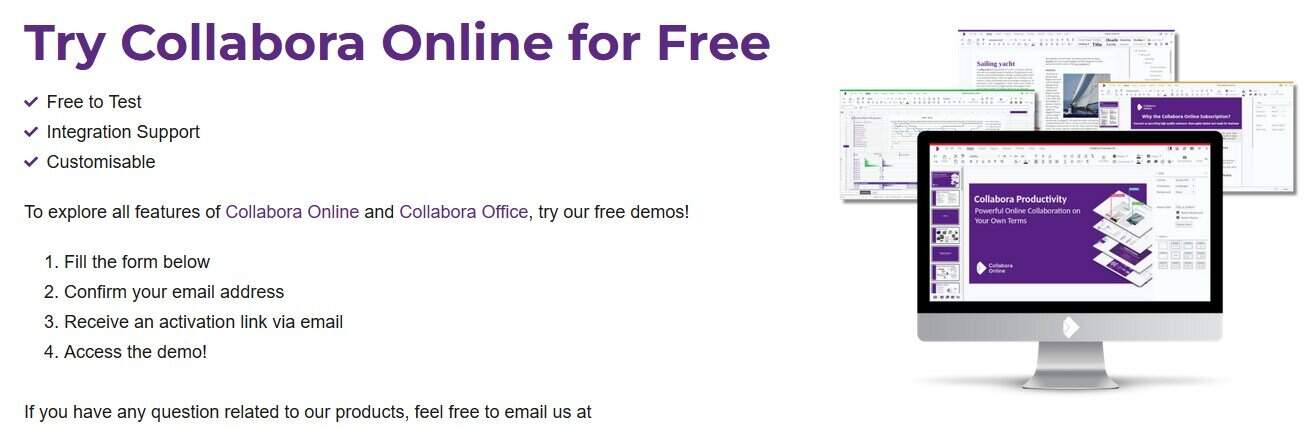
Collabora Online Demo allows you to use a LibreOffice-style spreadsheet directly in your browser without registration. The interface looks like traditional desktop office software, and you can upload or create new sheets easily.
It is ideal for quick edits or testing open-source office tools. Because it runs on LibreOffice technology, it supports advanced formulas and formatting options that are rare in other free tools.
OffiDocs offers an in-browser Excel editor that does not require an account. You can upload your own spreadsheet or create one from scratch and start working immediately.
It is especially helpful for users who handle Excel files but do not have Microsoft Office installed. The platform is cloud-based, lightweight, and compatible with both desktop and mobile browsers.
Other great features:
Works with XLS, XLSX, and CSV files
Familiar Excel-style interface
No download or sign-up required
Free export and print options
Compatible with Chrome, Edge, and Firefox
Comparison Table: Best Free No-Login Spreadsheet Tools
Tool
Login Required
Collaboration
Export Options
Interface Type
Best For
Retable
No
Yes (shareable links)
CSV, XLSX
Modern web app
Overall use
EtherCalc
No
Yes (real time)
CSV, HTML
Basic spreadsheet
Instant teamwork
Zoho Sheet
Optional (Guest mode)
Yes
XLSX, PDF, CSV
Professional Excel-style
Professional projects
Collabora Online Demo
No
Limited
XLS, ODS, CSV
LibreOffice-style
Open-source users
OffiDocs Excel Online
No
Limited
XLS, XLSX, CSV
Excel-style interface
Excel compatibility
FAQs
What is a no-login spreadsheet?
A no-login spreadsheet is a free online editor that lets you create and manage spreadsheets without creating an account or signing in.
Are these tools safe to use?
They are safe for general or temporary use, but you should avoid storing confidential data since files may not be encrypted or backed up.
Can I share my no-login spreadsheet with others?
Yes, most tools provide a shareable link so others can view or edit your spreadsheet in real time.
Do these spreadsheets support formulas?
Yes, all listed tools support basic formulas such as SUM, AVERAGE, and COUNT. Some also support more advanced functions.
Will my work be saved automatically?
Some tools save data temporarily. Always export or download your spreadsheet before closing the browser to avoid data loss.
Conclusion
If you need a quick and free spreadsheet without the hassle of creating an account, Retable and EtherCalc are the top picks. For users seeking a polished, Excel-like experience, Zoho Sheet is the best choice.
Collabora Online Demo and OffiDocs stand out for open-source fans and Excel compatibility. To explore even more spreadsheet software options, read our in-depth guide on free Excel tools for Windows 11.
No matter which one you choose, always export your data before closing your browser to ensure your work is safely stored.
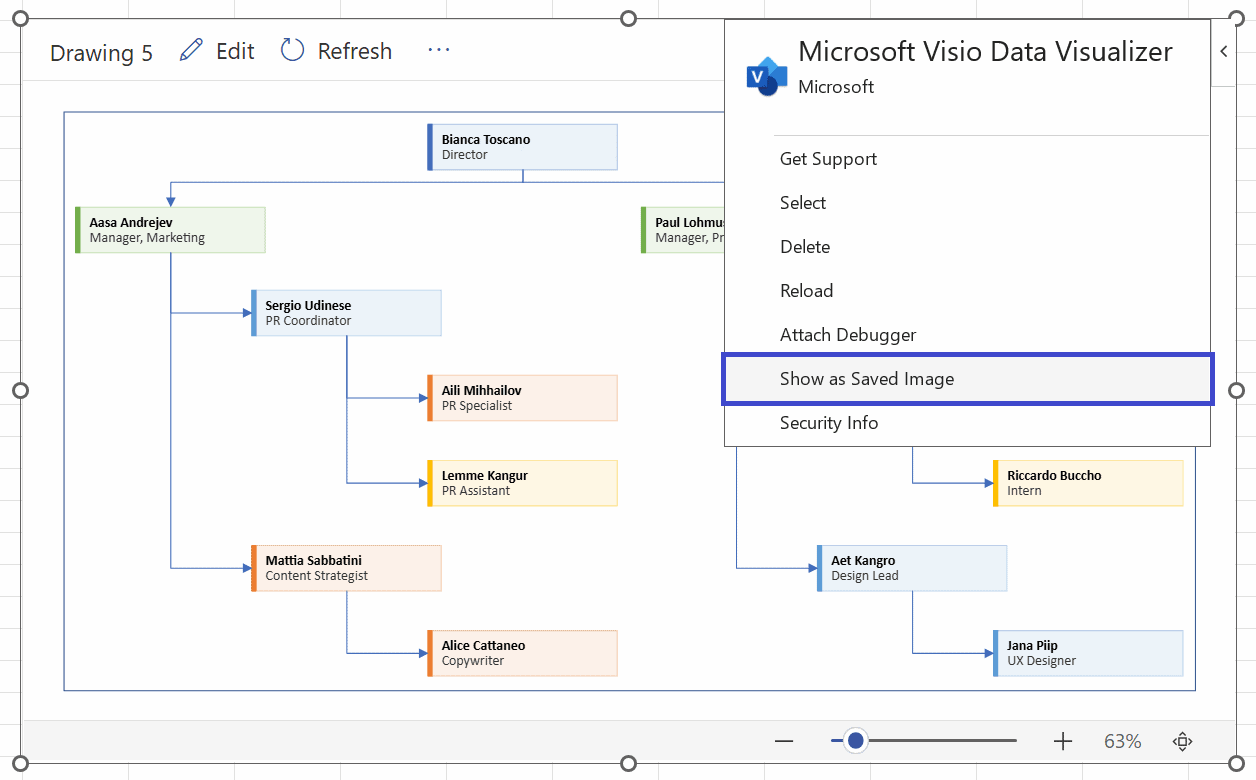
In yet another Tech Community blogpost, Microsoft has confirmed that the Visio Data Visualizer add-in for Excel will be officially retired next year. The add-in will be removed from the Excel add-in store on December 8, 2025, with complete shutdown scheduled for March 2, 2026.
The add-in was first released to help users convert spreadsheet data into flowcharts and organizational diagrams without a Visio license It was amomg some of the favorite tools among Microsoft 365 users. However, after March 2026, the service powering the add-in will stop working, making all embedded diagrams in Excel inaccessible.
While users can still use the add-in to create or edit diagrams until the retirement date, Microsoft urges everyone to save their exisiting work before the planned retirement.
Image: Microsoft
If you’re a Microsoft 365 subscriber, you should export diagrams as Visio (.vsdx) files. Doing that allows you to open diagrams in Visio for the web. Consumer users, meanwhile, should convert their visuals to static images and paste them into spreadsheets for safekeeping.
Image: Microsoft
Microsoft further clarified that the underlying Excel data will remain untouched, even though diagrams will no longer load once the add-in is retired.
Moreover, the company also encouraged users who rely on diagram automation to explore Visio Plan 2, which provides similar data-linked capabilities through the desktop app.
Microsoft has acknowledged a Windows 10 bug that incorrectly displays a message, “Your version of Windows has reached the end of support,” to in the Settings app. Per the company, the issue surfaced after installing updates released on or after October 14, 2025 (KB5066791).
In an update to Windows Release Health dashboard, the company confirmed that the issue affects Windows 10 version 22H2 Pro, Education, and Enterprise editions enrolled in the Extended Security Updates (ESU) program. If you are using Windows 10 Enterprise LTSC 2021 and IoT Enterprise LTSC 2021, you may also come across this bug.
Despite the warning, Microsoft clarified that devices with an active ESU license or supported LTSC versions will continue to receive security updates as normal. The alert only represents a display error in the Windows Update settings page.
As a temporary solution, Microsoft has released a cloud configuration update to automatically correct the issue. However, devices that are offline, block OneSettings downloads, or have restrictive firewall configurations may not receive that update.
For enterprise-managed environments, Microsoft recommends using a Known Issue Rollback (KIR) through Group Policy. IT admins can download and configure the policy named “KB5066791 251020_20401 Known Issue Rollback” to disable the incorrect alert. After applying the Group Policy, affected devices must be restarted for the change to take effect.
Moreover, Microsoft has also confirmed that a permanent fix will be included in an upcoming Windows update, eliminating the need for the temporary Group Policy solution.
Speccy Windows 11 is one of the best tools for viewing detailed information about your computer’s hardware. Whether you need to check your CPU temperature, RAM type, or storage health, Speccy can show it all in one clean interface.
Let’s explore how to install, use, and understand the data from Speccy on your Windows 11 PC.
Speccy is a free system information tool developed by Piriform, the makers of CCleaner. It provides in-depth details about your PC’s components in real time.
You can view information about your:
CPU and motherboard
RAM speed and slots used
GPU and display details
Storage drives and temperatures
Operating system and updates
This makes it a go-to tool for PC troubleshooting and performance monitoring.
For an alternative utility that focuses purely on CPU heat tracking, check out our guide on how to use Core Temp.
How to Download and Install Speccy on Windows 11
Follow these simple steps to get Speccy running on your computer.
Go to the official Speccy website (Piriform.com).
Click Download Free Version and select Free Download again.
Open the downloaded Speccy Setup.exe file.
Click Install and wait for the process to finish.
Once installed, click Run Speccy to launch it.
After installation, you’ll see the main Speccy dashboard displaying your PC summary.
Speccy automatically detects and displays your system components. Here’s how to explore its data:
Launch Speccy from the Start menu or desktop shortcut.
Wait a few seconds for the program to scan your hardware.
Click each category on the left sidebar (CPU, RAM, Motherboard, etc.) to view details.
Check Temperatures beside each component to monitor heat levels.
To export your report, click File > Save Snapshot or Publish Snapshot for online sharing.
This quick overview helps you detect overheating or faulty hardware before it becomes a serious problem.
How to Read Speccy’s Data
Speccy organizes its information into sections for easy reading.
Summary: Displays key hardware specs and temperatures.
CPU: Shows model, speed, cores, and temperature.
RAM: Reveals capacity, frequency, and memory slot usage.
Motherboard: Lists manufacturer, chipset, BIOS version, and temperature.
Storage: Displays drive type (SSD or HDD), size, health, and temperature.
If you see high temperatures (above 80°C for CPU), it’s time to clean your PC or check your cooling system.
Why Use Speccy on Windows 11?
Using Speccy offers several advantages for home and power users alike.
Quick access to all PC details without opening your case.
Helps monitor temperature changes during gaming or editing.
Useful when upgrading RAM or storage to ensure compatibility.
Generates easy-to-share reports for tech support.
This makes Speccy a lightweight yet powerful diagnostic companion for any Windows 11 machine.
How to Uninstall Speccy (If Needed)
If you ever want to remove Speccy from your system, follow these steps.
Press Windows + I to open Settings.
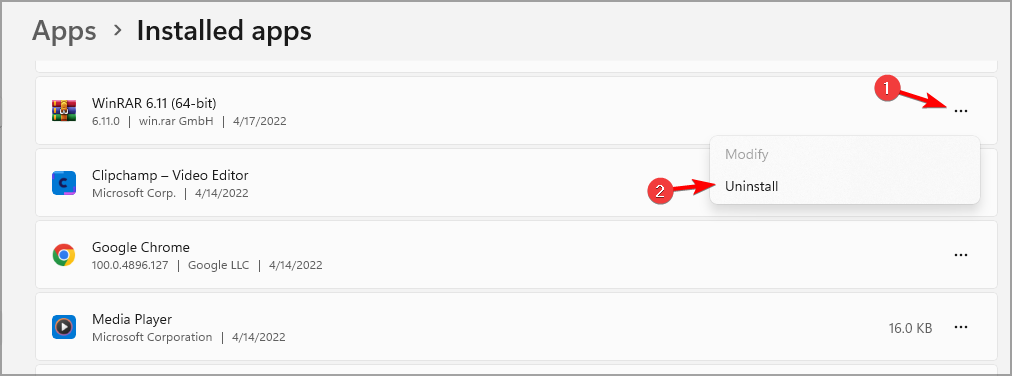
Go to Apps > Installed apps.
Scroll down and find Speccy in the list.
Click the three dots beside it and select Uninstall.
Confirm the action and wait for the process to finish.
FAQs
Is Speccy safe for Windows 11?
Yes, Speccy is completely safe when downloaded from the official Piriform website. It doesn’t modify your system settings.
Does Speccy support temperature monitoring on Windows 11?
Yes, it displays real-time temperatures for your CPU, GPU, and storage drives.
Can I use Speccy on Windows 10 or older versions?
Absolutely. Speccy works on Windows 7, 8, 10, and 11.
Why is Speccy showing “unknown” for some components?
That can happen if certain drivers or sensors are not recognized by Windows. Try updating your chipset or hardware drivers and restart Speccy.
Conclusion
Speccy is an easy-to-use tool that gives you a complete snapshot of your PC’s hardware in seconds. It helps you monitor temperatures, identify components, and detect issues before they cause damage.
Overall, if you want a lightweight system monitor that works perfectly with Windows 11, Speccy remains one of the most reliable and user-friendly options available.
Alt Text: Screenshot of Speccy displaying detailed hardware specs and CPU temperature on a Windows 11 desktop.
Mozilla is dropping support for “Direct2D” in Firefox on Windows. The change takes effect with “Firefox 146” and ends the browser’s use of Microsoft’s graphics system for 2D rendering. The company suggests using “Firefox 140 ESR” for those who still need Direct2D.
What is Direct2D
Direct2D is a graphics system developed by Microsoft. It allows Windows apps to draw text, images, and shapes using the computer’s graphics card instead of the processor. Direct2D is an integral part of Windows and remains active in many applications.
Programs such as Microsoft Edge, Google Chrome, and other Windows software still use it to make visuals faster and sharper.
Users do not interact with Direct2D directly. It runs in the background and helps apps and websites appear clear and consistent on screen.
Firefox added Direct2D support to improve performance on Windows. It made text and images load faster and relied on the GPU for better visuals.
Firefox version 146 Drops Direct2D support on Windows
Over time, Mozilla moved to Skia, a cross-platform graphics engine that works the same way on Windows, macOS, Linux, and Android. Skia handles how Firefox draws shapes and text, while WebRender manages how those drawings reach the screen through the graphics card.
Skia also powers Chrome and many other apps. This change made it easier for Mozilla to maintain one graphics system across all platforms.
Mozilla confirmed in a bug report that Direct2D had been deprecated for a year. The team has now removed it completely and deleted the hidden preferences that allowed users to enable or disable Direct2D manually.
There is now no way to turn Direct2D back on in Firefox. Users who still need it can stay on Firefox 140 ESR, which will keep support for a while longer. That version is not meant for most users.
“Direct2D has been deprecated for a year now in preparation for removing it completely. It is now time to remove support for it by disallowing the pref entirely,” wrote Lee Salzman, Software Engineer at Mozilla, in the bug report.
Here are the hidden preferences that allowed users to force or enable Direct2D in Firefox:
Most users will not notice any difference. Firefox will continue to use hardware acceleration through Skia for drawing andDirect3Dfor handling the GPU work behind the scenes. These systems now perform the same role that Direct2D once did.
Some users may see small differences in how text or graphics appear, but general browsing performance should remain the same. The removal may also improve stability for some Windows setups that had problems with older graphics drivers.
Microsoft today announced that, with Edge version 142, you’ll be able to securely sav and sync passkeys across Windows devices using Microsoft Password Manager.
For the unitiated, passkeys are better alternative to passwords, which uses device-based authentication, such as a fingerprint, facial recognition, or PIN. Built on the FIDO2 standard, passkeys store a private key tied to a website, while the site only keeps the public key. Even in the event of a data breach, accounts remain protected, making this a strong upgrade over traditional password-based logins.
With this update, signing in becomes faster. There’s no need to remember or type complex passwords, just authenticate with your device. Passkeys also sync securely via your Microsoft account, ensuring you can access them across multiple Windows devices. Your biometric information never leaves your device, and websites only receive cryptographic proof of your identity.
To use passkeys in Edge, users can create them directly through Microsoft Password Manager. Once set up, the passkey can be used to log in to supported websites with your preferred authentication method. When syncing to another Windows device, users simply verify their Microsoft Password Manager PIN to unlock their passkeys on the new system.
Passkeys are stored encrypted in the cloud and protected by the Microsoft Password Manager PIN. It’s worth noting that attempts to unlock or reset PINs are logged and safeguarded through Azure confidential ledger.
As mentioned earlier, this feature is gradually rolling out in Microsoft Edge 142 on Windows for Microsoft Accounts. Moreover, the fompany plans to expand availability to additional platforms in the coming days.
Microsoft has signed a massive $9.7 billion deal with data center operator IREN (via Bloomberg). The latest deal gives Microsoft access to NVIDIA’s cutting-edge GB300 chips, expanding its AI capacity without needing to build new data centers or secure more power.
For Microsoft, this five-year agreement is more than just an investment. By tapping IREN’s vast data center network across North America, Microsoft gets access to nearly 3,000 megawatts of total capacity, allowing it to scale faster and smarter. Rather than pouring billions into building its own facilities, it’s relying on partners with ready infrastructure to meet growing demand from services like Copilot and ChatGPT.
Microsoft is also following the ongoing trend across the AI industry. AI giants have increasingly turning to “neocloud” players in the recent past. Microsoft also recently signed a $17.4 billion deal with Nebius Group for similar capacity, showing just how competitive the AI infrastructure race has become.
As part of the deal, IREN plans to deploy the new NVIDIA processors in phases through 2026, starting with its 750-megawatt Childress, Texas campus. That site alone will feature new liquid-cooled data centers capable of delivering 200 megawatts of critical IT power. Funds from Microsoft’s prepayment will help finance IREN’s $5.8 billion deal with Dell, though the contract could be canceled if delivery milestones aren’t met.
Speaking of deals, AI cloud startup Lambda also confirmed a multibillion-dollar agreement with the tech giant on Monday to deploy NVIDIA-backed AI infrastructure. All in all, Microsoft pouring in billions shows its commitment to stay ahead in the AI compute race, which doesn’t seem to have a finish line just yet.