Microsoft Teams is coming to Apple Vision Pro later this week

Microsoft Teams will be released on Apple Vision Pro later this week, on February 2, according to the Redmond-based tech giant’s latest blog post.

Apple Vision Pro is the newest AR/VR device from Apple, announced last year much to the dismay and excitement of the tech lovers everywhere. In the teaser for the product, Microsoft services, such as Word, and other 365 apps could be seen.

Now, later this week, they are going to become a reality for many Apple Vision Pro users out there.

We are excited to announce that Microsoft Teams will be available on the new Apple Vision Pro when it launches on February 2. Microsoft Teams will bring engaging spatial computing experiences to your fingertips with the smart place to work on Apple Vision Pro. 

Microsoft

Users will be able to do any of the activities they were already doing on the regular Teams, on Apple Vision Pro, but with a dash of interactivity.

With the Microsoft Teams app on Apple Vision Pro, you can use all your communication and collaboration capabilities of Microsoft Teams. Meet, chat, call, collaborate, and engage with your business processes – be a part of all Teams has to offer in the smart place to connect, communicate, and work together.

Microsoft

This is not all, though: along with Microsoft Teams, on February 2, Apple Vision Pro users will be able to download and use Microsoft Copilot, Word, Excel, PowerPoint, Outlook, OneNote, and Loop inside the device, as well.Microsoft Teams Apple Vision Pro

They will be available to download from the App Store, and then, once installed, they can be used to engage in multiple activities on the device, as Microsoft states:

Microsoft Teams is a hub for communication and collaboration with content – and you often need multiple windows open in Teams at the same time to have the information you need at your fingertips. Teams on Apple Vision Pro uses the infinite canvas – you can open apps like Word, Excel, and PowerPoint, scale them to any size, and place them anywhere to access content seamlessly during your Teams meetings and chats. You can also easily collaborate with 3D content in Teams – effortlessly sharing and previewing 3D content in Teams chats and channels.

Microsoft

What do you think about it? Would you see yourself using Microsoft Teams on Apple Vision Pro?

Skype’s Media Composer just got a bunch of exciting new features that make it easier and faster to chat

Skype just got the first Insider build of the year, and the platform received an important update: the ability to automatically preview PDF documents inside Skype chats.

However, the build also brought some exciting new features to Skype’s Media Composer, that will effectively make it easier and faster to chat on the platform.

These features will only be supported on Skype for Android, for now, and there are no mentions of the other platforms, but will most likely be released to other devices, as well.

Users will now be able to add GIFs/Stickers with just a tap, and seamlessly copy/paste images and videos in the composer, but also drag&drop media into the composer.

  • ? Instant GIF/Sticker Fun: No more tedious media-sharing dialogues—now, add GIFs and stickers to your chats directly from your keyboard with a single tap!
  • ? Effortless Media Copy/Paste: Seamlessly copy and paste images and videos right into the composer. Perfect for quickly sharing content from the web.
  • ? Drag & Drop Delight: Enjoy a desktop-like experience on your device by dragging and dropping media into the composer, ideal for multitaskers and power users on tablets and foldables.
Skype

The build brought several other features as well. Users will now be able to get an adjustable video preview on one-on-one Skype calls.

  • ? Drag & Drop Positioning: Effortlessly move your video preview to any corner of the call screen.
  • ? Pinch-to-Zoom: Get up close and personal by scaling your video preview with a simple pinch.
  • ? Auto-Remember: Skype now remembers your preferred video position for your next call.
  • ? Instant Camera Swap: A quick tap on your video preview switches between the front and back camera.
Skype

Skype Insider build 8.112: All the changes and improvements coming with the build

  • Audio Message Accessibility: Improved the drag functionality of the progress bar for short audio messages, ensuring easier navigation on Desktop.
  • Android Stability: Fixed crashes related to the display of certain GIF images within the app.
  • Background Reliability on Android: Addressed a sign-out bug that occurred when the app was running in the background.
  • iOS Chat Interaction: Corrected a freeze issue where users couldn’t interact with the chat after saving a draft reply and the conversation continued on another platform. Users can now scroll, access the composer, and manage drafts without disruption.

Skype introduces PDF previews, allowing users to get a thumbnail of their PDF documents inside chats

It’s the end of January, and Skype Insider just got the first build of 2024: Build 8.112, which brings a ton of exciting new features to the platform, including the much-needed PDF preview feature.

This useful feature will allow Skype users to preview a PDF file directly in the chat, without having to open it. They won’t have to do anything, because Skype will automatically show a thumbnail preview of the PDF file to those engaged in the chat.

Back in December, Microsoft debuted some interesting features for Skype mobile, but other features, such as this one, were lacking, and many users were asking for them.

However, with the new build, Skype takes a step closer when it comes to competing with the other platforms. In fact, this new feature can be accessed from every platform, including mobile users.Skype PDF preview

Skype’s latest update enriches your chat with the introduction of PDF thumbnail previews on all platforms. Now, you can get a glimpse of your document before you dive in!

Skype

Skype PDF preview: Why does it matter?

The feature is quite important, as it can be used to outline the points of discussions in Skype chats. Many organizations use Skype as the de facto communication platform, instead of Slack or Teams, so now users will be able to have a starting point in a document-based conversation without having to spend time reading the documents as a whole.

Skype also says the feature is flexible, and the platform will automatically preview a thumbnail of the document on all platforms, so those using Skype on Android devices, for instance, won’t have to worry about running into issues.

Here are the reasons behind releasing this feature:

  • ? Quick Preview: No need to open to know. Get a sneak peek at the first page of PDFs directly in your chat stream, especially when you have auto-download enabled.
  • ? Efficient Workflow: Identify and differentiate your documents at a glance, streamlining your conversation and collaboration.
  • ? Clarity in Context: PDF previews provide a visual reference point within your chat, keeping you in sync with the discussion.
  • ? Seamless Sharing: Sharing PDFs is as easy as ever, but now with the added context of a thumbnail, your chats are more informative and engaging.
  • ?️ A Heads-Up: Spotting a quirky preview? A fix is already in the works and will be polished to perfection in our next update!
Skype

Remember, this feature is currently available in the Skype Insider Program, but it will be rolled out to the general public in the following days.

The Dream Vapor Xbox Wireless Controller is here and you can personalize it to your style down to the most detailed level

Microsoft just announced the new Dream Vapor Xbox Wireless Controller, and for those of you who are Xbox controller collectors (we also have some recommendations, here, and here), this one can be personalized down to the most detailed level, according to Xbox.

The Vapor series with Xbox Design Lab brings some of the most unique controller designs available for your customization, offering six top case options with swirling color patterns.

Xbox

The new Dream Vapor Xbox Wireless Controller comes with sic top case options sporting a variety of different colors, including:

  • Velocity Green
  • Dark GreenVapor Xbox Wireless Controller
  • Grey
  • Fiery Red 
  • Orange
  • Sleek Blue
  • Pink
  • Purple
  • Soft Pink
  • Soft Purple

Microsoft allows Xbox users to personalize the Dream Vapor Xbox Wireless Controller with dozens of button and thumbstick styles, such as:

  • Metallic Triggers
  • D-pads
  • Rubberized Sides
  • Back Grips
  • Engravings
  • Thumbstick
  • Bumpers
  • ABXY buttons

Once you’ve selected one of these unique Vapor top cases, it’s time to personalize further by choosing from a variety of button and thumbstick styles. You can even enhance your design with metallic triggers and D-pads, rubberized side and back grips, and add a personalized engraving for the finishing touch. 

Xbox

The Dream Vapor Xbox Wireless Controller will be compatible with Xbox Series X|S, Xbox One, PC, iOS, and Android devices. It also sports a 40-hour battery life, and it can be connected to devices via Bluetooth or Xbox Wireless Connection.

It is available to order now, and users are encouraged to customize their own Dream Vapor Xbox Wireless Controller mode via Xbox Design Lab, all for $69.

And, if you want some extra goodies to come with the brand new Xbox Wireless controller, Microsoft is selling three new Vapor Hoodies, as part of the Xbox Icon Collection. They come in 3 versions, each sporting a unique design, and you can order them at the Xbox Gear Shop.

Excited about these new products?

Xbox finally manages to knock PlayStation down

Xbox and PlayStation have always been neck-to-neck, and with the current generation, the competition is more fierce.

However, in the ongoing battle for console supremacy, it looks like Xbox has outpaced PlayStation in the exclusive game count.

Exclusive titles

This achievement highlights Microsoft’s commitment to providing a diverse and engaging gaming experience for its users.

This paradigm shift occurred as Xbox has an enviable collection of 70 exclusive titles, including both first and third-party games.

Another factor that determined Xbox’s victory and solidified its position was the recent acquisition of gaming giant Activision Blizzard.

Lead on the count of the titles

According to a detailed report by Baiisun, Xbox has a lead on exclusive title count, as compared to PlayStation’s total of 60 titles.

Even though Xbox has a numerical advantage, PlayStation is not the one to back down either and continues to deliver quality gaming experiences.

With renowned titles like Horizon Forbidden West and Demon’s Souls, PSN has managed to keep a large number of gamers engaged.

Reception of games

When it comes to gameplay, quality, and overall appeal of a game, PlayStation has managed to edge out Xbox with an average score of 77.8/100 on Opencritic compared to Xbox’s average of 74.8/100. Though the competition is close but it also depicts the premium quality of games available on both platforms.

Consoles have a different approach

With 130 exclusive titles released on both consoles so far and more than 80 exclusives lined up for this year, it looks like gamers are in for a treat.

However, the report highlights that both platforms have a different approach. PlayStation focuses on individual game titles to allure gamers, whilst Xbox emphasizes more on its subscription service, GamePass, offering an inclusive gaming experience.

Gamers are in luck

With such exclusive titles and year-on-year better gaming experiences, choosing between Xbox and PlayStation is really just your choice.

Whether you choose Xbox or decide to go for PS, it doesn’t matter; there are so many games to play, and it is highly unlikely to have a dull moment.

Xbox future plans and major releases

With the launch of note-worthing titles like Starfields, Hi-Fi Rush, Redfall, and Forza Motorsport, Xbox had a good year. It is getting ready for more sensational releases in 2024, with the majority of first-party titles.

So far, Xbox has released 109 exclusive titles in the current generation, and PlayStation is at 105 with the existing generation.

With Xbox leading in the number of titles and PlayStation in all-time sales, for players, it doesn’t matter who wins, as they both are worthy opponents and offer rich gaming ecosystems.

The future appears bright, with Xbox and PlayStation leading the way; gamers can expect continuous evolution of immersive experiences and inclusive, innovative titles to redefine the gaming industry.

What do you think about this generation of gaming consoles? Share your thoughts in the comments section below.

The ERP integration between Nuvei and Microsoft Dynamics 365 could be a lifesaver feature for SMBs

Nuvei, one of the largest Canadian fintech corporations, announced the release of the ERP integration, in partnership with Microsoft Dynamics 365, according to the company’s latest post.

The ERP integration will allow SMBs (small and medium-sized businesses) to add an array of payment methods to their infrastructure, otherwise known as enterprise resource planning (ERP) modules. These methods could effectively transform the way many SMBs operate.

It would not only streamline operational workflows, but it would greatly improve back-end processes for many businesses operating in industries such as construction, distribution, transportation, manufacturing, or sales.

Integrating our payments technology to the market leader in ERP directly connects us to thousands of businesses and millions of users across the globe in a market with substantial total addressable market (TAM).

Philip Fayer, Nuvei CEO

However, the integration doesn’t just stop here. It offers an array of other perks to SMBs.

How can the Nuvei-Microsoft Dynamics 365 partnership help SMBs?

The ERP integration will allow SMBs access to features such as invoice matching and proprietary cash acceleration.

These will effectively let businesses have greater control over finances. The integration will also come with near-real-time payment information, giving SMBs the tools they need to avoid critical errors and making sure the payments are all accounted for.

Nuvei is well known for its various payment processes, and with this integration, Microsoft promises automatic payments, including features such as recurring billing, but also access to many other options, such as benefits from card issuing, banking, risk, and fraud management services, according to the press release.

Payments, including AR automation, is a critical component of the user experience for ERP.

Mike Morton, Microsoft Dynamics 365

Basically, the integration can cover up significant parts of a SMB’s infrastructure, at a minimal cost for the company. If we take into account that both Nuvei and Microsoft will offer support to customers dealing with any issues the ERP integration could cause, companies employing the integration within their infrastructure could potentially overcome harsher economic situations.

Plus. Microsoft Dynamics 365 is quite an easy platform to use, according to our review. So SMBs can easily implement the integration, learn to use it quickly, and reap the benefits of it.

You can run extensions in Microsoft Edge for Android, at least in the Canary version

If you’re a Microsoft Edge user on Android, we have amazing news! It seems that browser extensions are coming to the Android version.

This is great since no other major Chromium browser on Android supports this feature. So how do extensions work? Keep on reading to find out!

Edge will get extensions on Android, here’s what you should know

As flagged by Leopeva64 user on Reddit, in the latest Canary version of Edge, there’s an option to add extensions. With it, you can install some of the available extensions on your phone.

Since this feature is in beta, the choice is limited, but you can pick from the list of recommended options.

Once you install an extension, you can enable/disable it or view its details, just like on a PC.

If you’re a developer, or you want to install other extensions, you should know that the sideloading option isn’t available.

This is amazing news for all users who use Edge on their phones, and we can’t wait to see this feature available to the public. Unfortunately, we don’t know when will this feature be available to regular users.

After recent privacy concerns in Edge, this is more than welcome news. Are you as excited about this feature as we are? Let us know in the comments!

The latest installation from this former PlayStation exclusive is coming to Xbox Game Pass on day one

Fans of sports video games everywhere, we have good news: the latest installation from the MLB series, MLB The Show 24, is coming to Xbox One and Xbox Series S, and X, in March. What’s better? The title will be available on Xbox Game Pass right from the beginning, so you can play it on day one.

MLB announced that the game will be released on March 19, 2024, for a variety of consoles, including Xbox One, Xbox Series S, and X.

If you already have an Xbox Game Pass subscription, you’ll be able to play it starting that day, but if not, the Xbox One version of the game will cost $60, and the Xbox Series S and X versions of the game will cost $70.

You can also preorder the game already.

MLB The Show 24: available on Xbox, but not Windows PCs

The MLB franchise used to be a PlayStation exclusive from 1997 to 2020, but following an agreement made by the studio behind the game in 2019, it crossed over to other platforms, such as Nintendo, and Xbox.

A couple of MLB games have been released on Xbox since then, however, the franchise is not available on Windows PCs, and there are no signs it could happen anytime soon. The latest entry, MLB The Show 24, will not be available on PC either, so those PC gamers waiting for an MLB title to be released to the platform, should consider their hopes dead for now.

There have been some PlayStation games, such as the critically acclaimed The Last of Us, that were released to Windows PCs, so there could potentially be a future where a MLB title on PC could happen, but not now.

What do you think about the new title? Are you going to play it?

A new Azure Pipelines security issue has been found, Microsoft urges customers to update

A new security flaw was found by security researchers that affects Azure Pipelines which can affect up to 70,000 open-source projects.

What do we know about this security flaw and how dangerous it is? Keep on reading if you want to learn more.

A new security flaw lets hackers run code in a live environment

According to researchers at Legit Security, there’s a flaw in Azure Pipelines. Using this flaw, the hackers can inject malicious code into source code and other projects that are hosted in a testing environment.

According to the reports, the vulnerability is triggered after submitting a contribution or editing a build system project that resides on Azure Pipelines.

The code that is tested in Azure Pipelines usually runs in a safe environment, but hackers have found a way to run the test code in the live environment, allowing it to access sensitive information and data.

According to research, the most vulnerable are the repositories that are using a trigger in Azure Pipelines.

With this exploit hackers can obtain elevated access to the organization’s network; however, this doesn’t make them able to execute an attack, according to Microsoft.

Microsoft released a patch in October and all customers that are up to date should be protected from this exploit. The company is vigilant when it comes to security, and they also patched CVE-2024-0519 vulnerability in Edge recently.

While this exploit is dangerous, as long as you’re up to date, you should be safe since Microsoft has acknowledged and fixed the problem. In case you don’t have automatic updates enabled, go ahead and download the update manually.

Microsoft Teams now lets you add customized nicknames

If you are a Microsoft Teams (free) user, you are in for a treat! Now, Microsoft is rolling out a bunch of new community engagement and accessibility features to level up your overall meeting experience throughout platforms.

For the last couple of months, the Redmond-based tech giant has been working on four new features for Teams free. Here are the details:

  • Personalized nicknames – Now, you can set customized nicknames specific to a particular community, which will allow you to maintain a unique identity within the group.
  • Community banner images – If you are a community owner, you can now change the banner image right from your mobile devices, adding a personal touch to community spaces.
  • Enhanced connectivity – You can now create new Teams chats by just typing the contact’s email address directly in the search box, streamlining communication for Windows users and making it more efficient.
  • Easier access to channels – If you use Teams on an Android or iOS device, accessing channels within the community just got quicker. With the Expand/Collapse view option, you can keep the home screen organized, especially when dealing with three or more channels.

You can set personalized nicknames from all popular platforms, including Windows, iOS, and Android. However, other features are platform-specific. As of now, starting a chat by simply typing the email address is only available on Windows 11. However, the Expand/Collapse view function is only limited to Android and iOS.

Another good news is that there’s more coming to Teams in the following months, and Microsoft wants your say in it.

So, if you have suggestions for a new function or want to deliver feedback for a current feature, you can go to the Microsoft Teams (free) feedback webpage.

Which feature do you like the most? Feel free to tell us in the comments section below.

A Dell touch control keyboard gets magic buttons for Teams

Up until now, Dell Premier Collaboration Keyboard (KB 900) was a cool tool for anyone using Google Meet and Zoom because it comes with touch control keys to control calls.

Well, now, if you’re one of the millions who use Teams, get your cash out because this awesome keyboard is now compatible with Microsoft’s collaboration app.

Why should I get the Dell Premier Collaboration Keyboard?

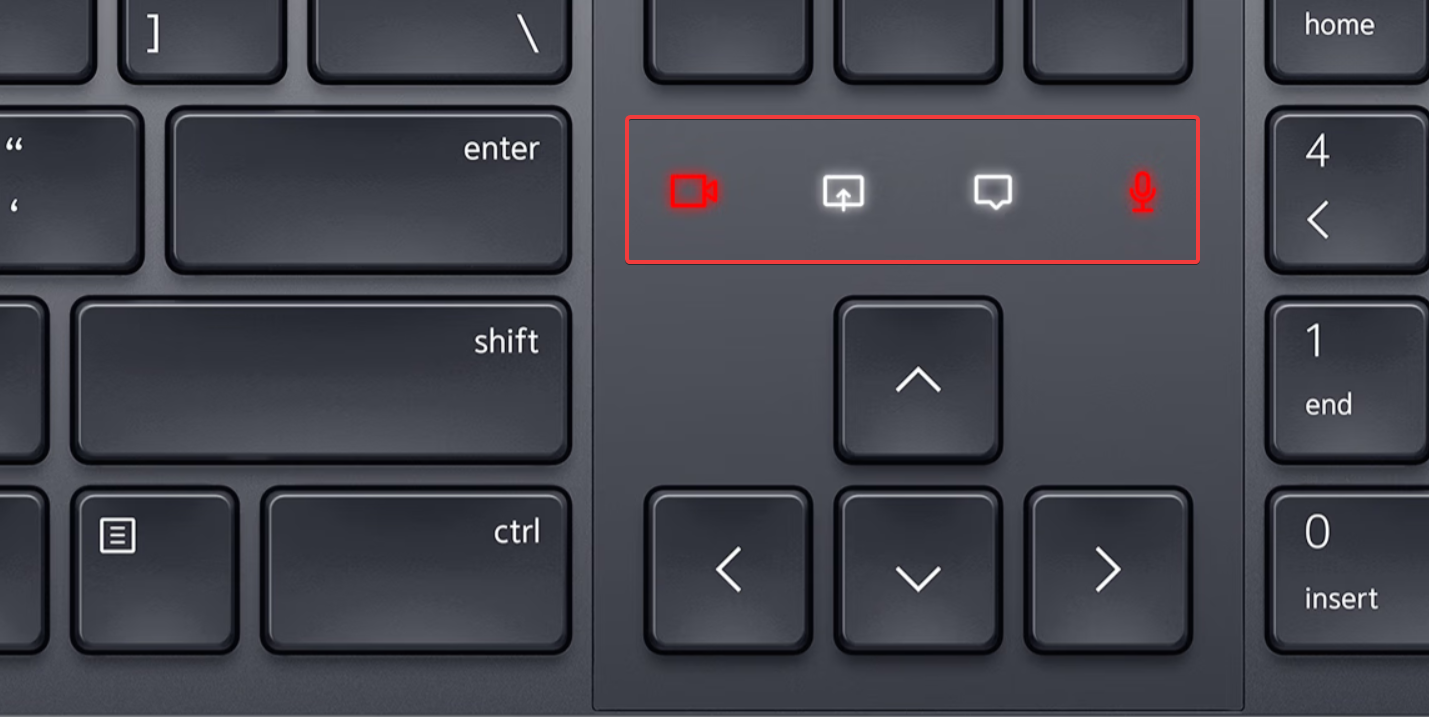
The neat thing about the Dell Premier Collaboration Keyboard is that the keyboard features four programmable touch buttons to control calls and meetings.

They were compatible only with Google Meet and Zoom but a software update righted the wrong and now they can also be used in Microsoft Teams.

Once you configure the buttons, they light up when you have a call and you may easily mute your microphone. You may also use them to enable or disable the video feed, open a new chat window, or share your screen using its dedicated app, Dell Peripheral Manager.

The keyboard comes with a dongle and it has the options for Bluetooth or 2.4 GHz RF to connect it to up to three devices. And if you pair it to more than one PC, you can switch between them using a button from the top-right corner of the keyboard.

How much is the Dell Premier Collaboration Keyboard?

Well, you’re in luck, because Dell has a 20% discount on this keyboard so you can now get it for $109.99 in their store.

The visual aids are pretty helpful during calls so if you’re using Microsoft Teams a lot for your work, this keyboard has all you need.

What do you think about Dell’s keyboard and Teams compatibility? Let us know in the comments section below.

Suicide Squad: Kill the Justice League plagued with launch issues and delayed reviews

Many are waiting for Suicide Squad: Kill the Justice League, but it seems that developers had a rocky early release launch and reviewers aren’t pleased.

From server issues to missing review copies, and game-braking bugs, the launch of this game has been plagued by issues. So, what happened?

Suicide Squad: Kill the Justice League early access launched plagued with various issues

No review copies were given to the press

Many reviewers didn’t get their review copies ahead of launch and they were unable to review the game before the early access release.

According to the developer, Rocksteady, the game is always online, and the servers weren’t going to be online before the release of the game, thus making early reviews impossible.

However, the press wasn’t informed about that, and many were left waiting for the review copy of the game. As a result, there are no day-one reviews for the game since nobody was able to play it before the early release.

Game-breaking bug that lets you skip the entire game

To make matters worse, due to a server bug, users were able to skip most of the game story after logging in for the first time.

This affected only users in New Zealand who were the first to access the game, but Rocksteady was informed of this bug and they took down the servers to fix it.

The early Suicide Squad: Kill the Justice League was surrounded by controversy which left many speculating why this happened.

This doesn’t bode well for the game, and we’re still expecting to see the reaction from the gamers after the game launches for everybody on February 2.

If you’re disappointed with this game, why not use the Xbox Lunar New Year sale to get something different instead?

What are your thoughts on the Suicide Squad: Kill the Justice League? Let us know in the comments!

Starfield deploys the biggest patch yet, addresses crashes and improves performance

Released on September 6, 2023, after several delays, Starfield gained tremendous popularity, but reports of game crashes were common. With Starfield’s biggest-to-date patch released, you can finally enjoy the game as it was initially intended!

The patch was earlier deployed in the Steam Beta version, and after testing, it is finally available to all players, both Xbox and PC. The patch notes remain the same as Beta except for two instances.

What should you look out for in the latest Starfield patch?

Fixes:

  • Fixed crashes occurring when changing from Fullscreen to Windowed mode.
  • Rectified the issue where Windows users couldn’t save usernames if they included certain special characters.
  • Fixed game save file corruption.
  • Fixed an issue where game saves wouldn’t resume after shutdown in Energy Save mode on Xbox.
  • Eliminated issues preventing access to the main menu and removed unintended text from the shipbuilder’s UI.

Graphics:

  • Better full-screen support (32:9, 21:9 & 16:10) on all devices.
  • Added the shadow visual effect to planet rings
  • Improved reflection on water
  • Better lighting
  • Fixes loading delays and flickers after resuming the game.

Other improvements:

  • No more missing terrain if you fast-travel to an outpost near New Atlantis.
  • Solar Flare Power counts as a critical hit
  • Fixed zoom issues with weapon scopes
  • Rectified an issue where weapon sound effects continue to play even after killing the enemy

For the complete list of fixes and improvements, check Bethesda’s official blog post.

Starfield attracted a significant number of users initially, and with the latest patch out, the figure could rise further.

Do share how the latest patch improved your Starfield experience in the comments section!

Microsoft has planned something big for Windows & it involves AI

Lately, Microsoft is all about bold moves, whether it is adding Microsoft Copilot to its business tools or introducing AI-powered features in Teams.

The Redmond-based tech giant is busy working on the latest update code name Hudson Valley, which is speculatedly called Windows 12 or Windows 11 24H2, and it looks like we will get our hands on it by the end of 2024.

Most of the tech enthusiasts earlier leaned on the possibility of it being a Windows 12 release, but now, after the code name Germanium started making circulations, people started thinking it might be the Windows 11 24H2 update.

Last year’s release, Windows 23H2, brought substantial changes, including the introduction of an AI assistant, Microsoft Copilot.

This year’s update is not expected to be any different, and most of the features introduced are rumored to be centered around artificial intelligence.

Microsoft has yet to comment on new feature updates for Windows 11, revised system requirements, and other improvements.

However, that’s not stopping Windows enthusiasts from adding up the clues to speculate about the upcoming Windows version.

A recent post on X (formerly known as Twitter) by XenoPanther, popularly known for tracking Windows developments, bugs and builds, stated:

There has been a build jump for internal canary! 26047 > 27547

The big jump from 26047 to 27545 points towards the possibility of a new version or a brand new release in the wraps. And, if we check the previous release pattern, the drastic jump in build numbers indicated a brand new release, so is this what we think is happening?

Following Xeno’s post, a lot of people showed a great deal of enthusiasm and are excited about the release of Windows 12.

As of now, we don’t have any official confirmations; all we can do is speculate about the reasons for the jump.

Speaking of new releases, we can expect the Moment 5 update to be released as an optional update in the last week of February 2024. This implies Devs and Beta channels can take on Windows 11 24H2, leaving Canary free for the next version of Windows, or so we hope!

What are you expecting from the new release of Windows? Tell us in the comments section below.

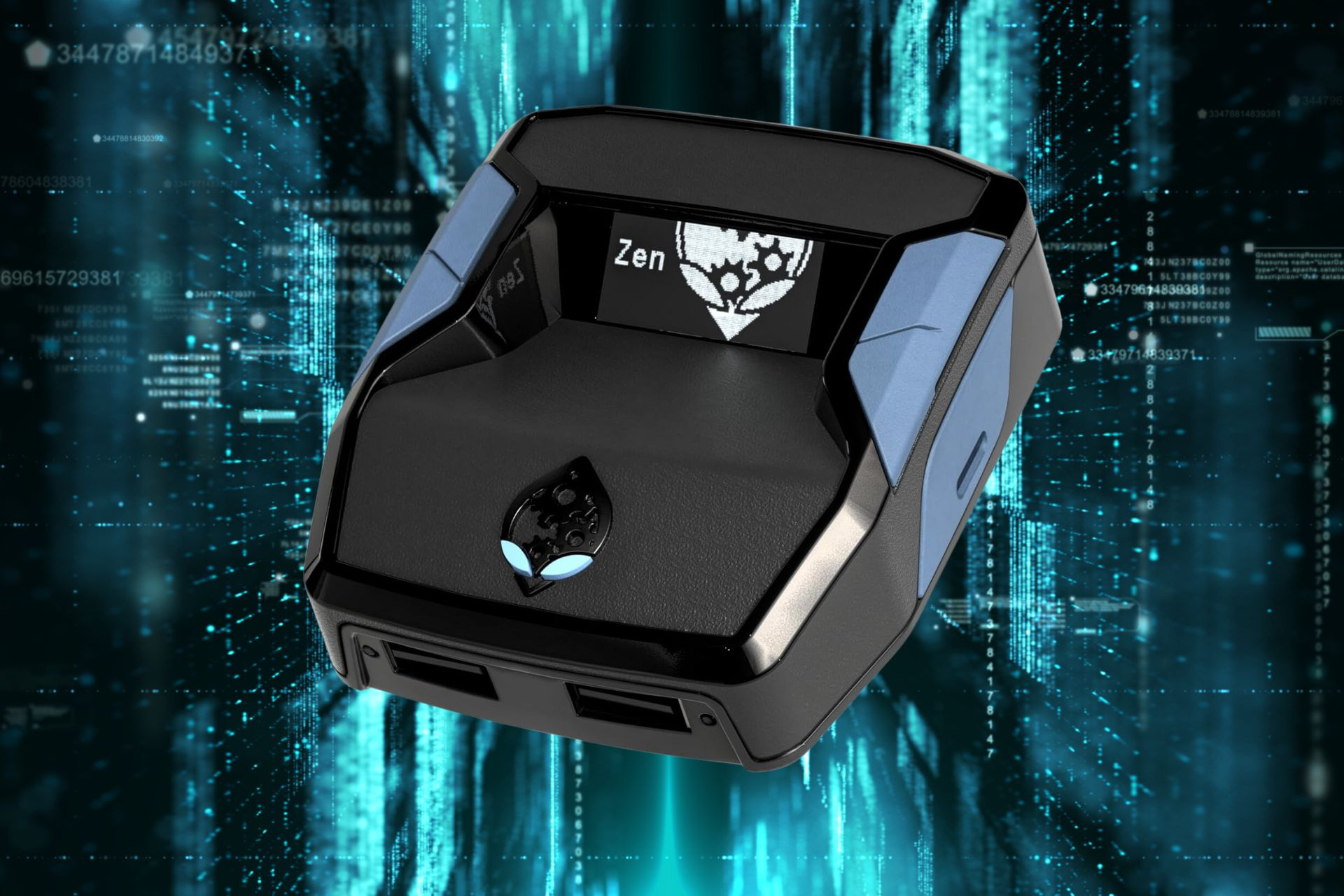
Cronus Zen isn’t banned on Xbox, but it’s borderline cheating

Cronus Zen might be considered a cheating alternative because it reduces coil, supports macros, and allows you to remap controller buttons to different functions. Supposedly, it gives you an unfair advantage over others. However, companies like Sony and Microsoft didn’t ban it officially.

Will Cronus Zen get you banned?

You might get banned or restricted because theoretically, Cronus Zen violates the Xbox Community Standards. After all, the hardware gives an unfair advantage unrelated to your specifications whether you are playing on a PC or console.

Sony has already taken a step forward, with the latest PlayStation 5 update blocking Cronus Zen. In response, Cronus stated that you should not update your console versions if they begin with 23 because versions with 24 require PS Remote Play for games.

In addition, some anti cheat software can detect Cronus Zen users on PC and consoles. Thus, if you are using it, you might get a notification asking you to close it and restart the game. If you don’t respect the rules, you could get some restrictions.

Tips for spotting cheaters

If you believe that another player is using this hardware check for:

  • Unusual movements
  • Rapid weapon switches
  • Consistent Accuracy
  • Macros (Complex Movement or Skill Combinations)

These are the most noticeable aspects of someone using cheating hardware. Also, once you suspect a player, you can report their odd behavior. Afterward, someone will analyze their recent games.

All in all, Cronus Zen is not banned is just restricted. However, using it will lead to consequences such as restrictions or an account ban. Moreover, now you know some ways to spot a cheater.

If you are looking for a way to gain advantage in gaming on Xbox and PS, make sure that you don’t have any controller drift issues.

What are your thoughts on Cronus Zen? Do you consider it a cheating alternative? Let us know in the comments section below.

How to Restart Your Laptop With a Keyboard in Windows 11

Your mouse is probably not working so you’ll have to make do with your keyboard if you want to restart your Windows 11 laptop.

How do I restart my laptop with keyboard keys?

1. By using keyboard shortcuts

1.1 Alt + F4

  1. Hit the Alt + F4 keys simultaneously.
  2. Using the down arrow button, scroll to the Restart option.
  3. Hit Enter and your laptop will reboot.

1.2 Windows + X

  1. If you have any open programs, press Alt + F4 to close before restarting.
  2. On your keyboard, press the Windows + X keys simultaneously to open the Power User Menu.
  3. Using the down arrow, scroll to shut down or sign out>restart.
  4. Hit the Enter key and your laptop will restart.

2. By using the Run command

  1. Hit the Windows + R keys simultaneously to open the Run command.
  2. Type cmd in the dialog box and hit Enter to open the Command Prompt.
  3. In the Command Prompt window, type the following command and hit Enter:shutdown /r

You can add a numerical value in seconds if you wish to delay the restart. For instance, if you want it to restart after 30 minutes, simply replace the command with shutdown /r /t 1800.

3. By using the PowerShell command

  1. Hit the Windows + S keys to open search, type PowerShell, and hit Enter.
  2. Using the arrow buttons, navigate to the Run as administrator option.
  3. Next, type in the following command and hit Enter: Restart-Computer

4. By using the security options

  1. Hit the Ctrl + Alt + Del keys to open the security options screen.
  2. Using the down arrow, scroll to the power icon at the bottom right.
  3. Press Enter and select Restart.

5. Hard reboot

Most laptops have a power button on the keyboard. If for some reason you’re unable to restart your laptop using the above methods, hold and press this button until your laptop powers off. Wait a few seconds then hold and press it again to restart.

We do not recommend this method unless you absolutely have to because it can lead to data loss or corrupt system files. In more severe cases, your PC may fail to restart.

Aside from restarting your laptop using your keyboard, you may also be interested in other ways to shut down your PC without the Start Menu or restarting your PC remotely.

Alternatively, you can schedule your PC restarts for better efficiency. That’s a wrap from us but do let us know what method you found easier to restart your laptop in the comment section below.

AI is the real MVP for Microsoft’s incredible revenue boost

Already, Xbox content shattered any expectations thanks to the recent activision deal. However, Microsoft’s investment in Cloud services and AI paid off handsomely as well.

The Redmond giant’s Q2 figures for FY24 are through the roof thanks to their Cloud and AI investments throughout the last years.

What drove the Microsoft’s revenue boost?


Q2 2023Q2 2024Year-over-year change
Revenue$52.7 billion$62 billion17.5%
Earnings Per Share$2.20$2.9333%
Net Income$16.4 billion$21.9 billion33%

Microsoft’s revenue has gone up 18% from the same quarter last year, totaling $62 billion, while analysts anticipated a $61 billion mark.

Except Xbox content and services, Microsoft Cloud, Azure and other cloud services had the best year over year growth. Microsoft Cloud alone rose 24% and Azure and its cloud services grew by a whopping 30%.

If we add here the Dynamics products and cloud services that also climbed 22%, we have a clear picture of Microsoft’s success.

Data provided by Microsoft in the Q2 2024 financial report

However, Microsoft’s CEO, Satya Nadella had another interesting statement regarding the company’s favorable outcome:

By infusing AI across every layer of our tech stack, we’re winning new customers and helping drive new benefits and productivity gains across every sector.

Therefore, the real actor that shines in this successful picture was the AI and the fact that Microsoft infused all their products and services with AI engines and technology.

Another notable mention is the 19% climb for the personal computing revenue and the 13% revenue increase in the productivity and business processes area.

So, unsurprisingly, Microsoft’s solid investments in Cloud products and services and their engagement in new technologies such as AI really paid off.

While AI is still in early deployment in every single IT area you can imagine, we can expect further growth and automation in the industry.

Microsoft is working on zero-touch deployment for Teams room and better language support

Microsoft is constantly improving its services, and we recently wrote about an attention-tracking feature in Teams that will keep track of you during meetings.

The company is working on another set of features that will deliver easier deployment and better language options, so let’s take a closer at them.

Microsoft Teams to get better language support and easier deployment starting from April

According to the Microsoft 356 roadmap, it appears Microsoft is developing a feature that lets users change the language on Microsoft Teams Rooms on Windows.

The feature will allow users to change the default language by going to the More section and choosing Language on the room console.

It’s worth mentioning that admins will be able to select up to three languages that users can choose from in the room.

Speaking of administration and management, Microsoft is working on Zero Touch Provisioning of Microsoft Teams Rooms as well.

With this feature, you will be able to deploy Microsoft Teams Rooms on Windows completely remotely. This is achieved by utilizing Windows Autopilot and auto-login technologies to automate the process.

The feature also uses credentials from Microsoft Teams Rooms Pro Management to reduce deployment time, and costs and to improve overall security.

These are some interesting features, and according to Microsoft’s roadmap, the rollout should start in April. This isn’t all from Microsoft, and the recent Microsoft, Cisco, and Samsung collaboration will bring easier management and deployment of meetings.

Xbox posts a 49% increase in revenue, Content and services up by 61%

In recently released Q2 figures for FY24, Microsoft disclosed that Xbox had a 49% YoY (Year over Year) increase in revenue. Microsoft’s total revenue during the period stood at $62.0 billion (18% increase), while net income was $21.9 billion (33% increase).

While financial analysts and experts predicted an increase, given the recent figures and market trends, not many would have pegged it at 49%.

Acquisition of Activision Blizzard plays a vital role

The rise in revenue comes on the heels of Microsoft’s acquisition of Activision Blizzard, which was a massive $69 billion deal. It was one of Microsoft’s biggest investments and indicated that gaming would be a critical part of its future plans.

The Xbox content and services posted a 61% increase in revenue, driven by 55 points of net impact from the acquisition. Xbox hardware figures were also up 3%, though they were expected to be slightly higher given the festive season and promotions offered by Microsoft.

This also makes gaming the third-largest contributor at Microsoft, with a total revenue of $7.11 billion during Q2. It has surpassed Windows ($5.26 billion) and is now only behind Office/cloud services ($13.47 billion) and Microsoft server products ($23.95 billion).

What’s the future like for Xbox?

Months after the acquisition, Microsoft laid off 1900 Activision employees, and it was reported that most were related to the game’s physical release and distribution.

So, it appears that Microsoft may be planning to make Xbox an all-digital console, given that 90% of the sales last year were digital copies. It may not be an immediate plan of action, but somewhere down the line, you could see it becoming a reality.

In all, Q2, FY24, has been a great period for Microsoft, with profits across most products and services. A few days ago, Microsoft hit the $3 trillion market cap for the first time, becoming only the second company to do so after Apple.

To find out more, check the official Earnings Release FY24 Q2.

Tell us what you think of the latest figures in the comments section!

Microsoft Teams uses AI magic to tidy up your webcam background

Don’t want the messy room setup to embarrass you in the next Teams meeting; don’t worry, Microsoft has got your back!

Microsoft has made Decorate your background available in Microsoft Teams Premium following its introduction at Ignite 2023.

With a hybrid work culture, maintaining a work-life balance amid back-to-back virtual meetings has been challenging. Virtual backgrounds have been a blessing for all those who are not comfortable displaying a personal work environment or have a less-than-ideal setting.

With Decorate your background, Microsoft takes it up a notch, leveraging the latest advancements in generative AI to create a more professional version of your actual webcam background.

To use this feature, you can go to the Video effects option and then navigate to Backgrounds. Here, click the Decorate button to get five different options, like Clean up (Tidy up surroundings), Fancy (gives your background an elegant appearance), Greenhouse (Adds plants & greenery to your space), Celebration (Adds festive decorations for special moments) and Suprise me.

Once you select a theme, click Generate backgrounds, and it will give two images per theme, select any or click Generate backgrounds to get more options.

Microsoft is revolutionizing the way we use its products and is adding AI to help enhance user experience. Following the introduction of Copilot to Teams in November 2023, the company has now released the Decorate your background feature, and soon, it will make the Voice Isolation feature available. The Redmond tech giant is certainly on a roll!

While this feature is exciting, it is only exclusively available for Teams Premium members. Do you think this feature could help you? Tell us your thoughts in the comments section below.

Should you get the new Xbox controller? New design sparks ergonomics and durability concerns

According to the latest leaks, the new Xbox controller is coming soon, and it’s rumored that we’ll see it on February 20th.

After a revamped classic Xbox Controller S, many are excited about the new controller, but should you get one? Keep on reading to find out!

A new Xbox controller might be coming soon, but should you get one?

Not everyone is on board with the new design

According to the rumors, it seems that the new controller will be in two colors, compared to the regular Xbox controllers that were in a solid color. This didn’t sit right with many and they had to voice their concerns:

The elite series 2 is much better looking.

Judging by the design, it seems that the top of the controller is glossy white while the bottom is black with a grip texture.

Are those rubber grips again? I want one without those grips.

Durability and ergonomics are what gamers want

Others aren’t bothered too much with the new color, since comfortability and reliability are their main concerns, especially during longer gaming sessions:

I don’t particularly care what it looks like. I’m not looking g at the pad when gaming.

I want it to be comfortable and reliable.

Many aren’t too pleased with the new shape and are worried about the ergonomics:

Looks less ergonomic than previous iterations. Why not add this to the existing lineup without changing the shape?

The main concern for many is durability and many are skeptical about the controller’s durability.

I hope it actually is more durable.

Speaking of durability, the biggest flaw in the controllers is the quality of thumbsticks, since they are the first to break down.

 I’m sick of barely having a controller for 6 months and having to get it fixed or replafes because the thumbsticks get jammed, extreme stick drift, etc.

Gamers want paddles, Hall Effect sticks, and gyroscope

The lack of paddles is another big concern for users since they can provide an advantage in some games:

Wish it had paddles. All controllers should tbh

For some, tension adjustable sticks are the selling point and without this feature, they probably won’t consider buying this controller.

Looks dope but I want the elite 3 with tension adjustable hall effect sticks.

The gyroscope is another feature that many want to see on this model:

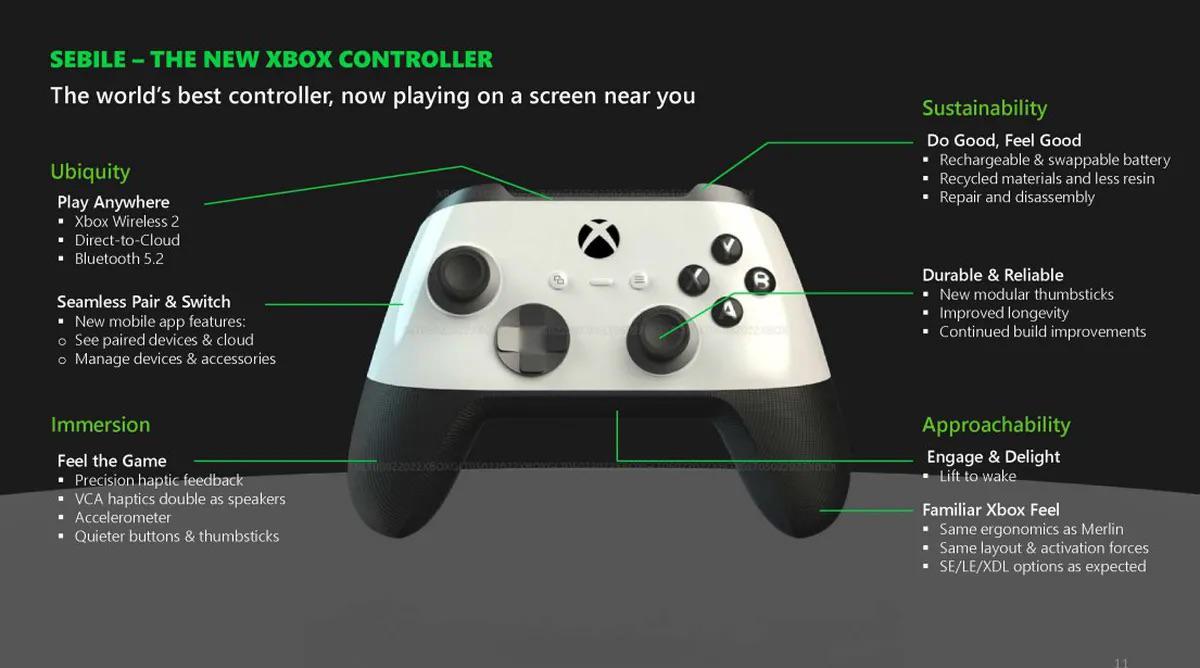
Under the immersion, it says the controller has an accelerometer for the lift to wake, but I really hope they also also add a gyroscope to the new controller, so Xbox controllers can finally be able to use gyro aiming.

Precision haptic feedback and direct connection to the cloud are the way to go

While the new design has sparked some criticism, some of the upcoming features are well received by the users, most notably direct connection to the cloud that should reduce input latency while streaming games.

Precision haptic feedback and rechargeable and swappable batteries are also some features that users are eager to see. Lastly, many are hoping that the new controller will be quieter.

Gamers are skeptical about the new controller, especially regarding the new design. The durability and ergonomics are the main concerns, and hopefully, Microsoft won’t drop the ball on this one.

So, should you get one? There’s no announcement from Microsoft, so it’s too early to tell, and the final design might be different than the rumored version. So for now, sit tight and keep an eye out for the official announcement.

Hopefully, the announcement will come before the Xbox Series S Ellewood. What are your thoughts on the upcoming controller? Let us know!

Microsoft Teams became a phishing highway for DarkGate malware

According to a cybersecurity threat report from AT&T, the Microsoft Teams app chats are used to spread the DarkGate malware using phishing techniques.

The experts detected over 1.000 phishing messages from a single attacker in their investigation. This was possible because Microsoft enabled External Access to company chats by default and that allows anyone in the organization to add any users in chats, even if they are outsiders.

How does the Microsoft Teams DarkGate phishing attack work?

You’re one of the users in an organization when you suddenly get a message from someone you don’t know, asking you to install a file with a double extension such as filename.pdf.msi. So, you might be tempted to think that it’s a PDF document from one of your colleagues, but in fact, it’s a known tactique for the DarkGate malware attack.

Although Microsoft Teams will alert you that the person is outside your org, the attacker seems a seemingly legitimate origin, coming from the .onmicrosoft.com domain name.

An important detail to note here is the “.onmicrosoft.com” domain name. This domain, by all appearances, is authentic and most users would probably assume that it is legitimate. OSINT research on the domain also shows no reports for suspicious activity, leading the MDR SOC team to believe the username (and possibly the entire domain) was likely compromised by the attackers prior to being used to launch the phishing attack.

Cites the AT&T report

Once you click on the file and install the .msi file, the malware will connect the infected system to its command-and-control server from hgfdytrywq[.]com, which, according to PaloAlto Networks, is a confirmed component of the DarkGate malware infrastructure.

How can I avoid getting infected with DarkGate in Microsoft Teams?

The External Access feature shouldn’t be enabled by default in Microsoft Teams and if it does, the system admins should configure the clients to ban the access of outside users from their organization chats.

Furthermore, as with any other phishing threats, the users in the organization have to be advised on how to react when this kind of events occur, whether it’s about Microsoft Teams or other company channels of communication.

Don’t accept any files from untrusted users, don’t open them and, most of all, don’t install them.

Right now, Microsoft 365 users are also targeted by phishing attacks so we also recommending to always be on alert.

Have you been the victim of a Microsoft Teams phishing attack or the DarkGate malware? Tell us all about it in the comments section below.

Solved: Error in Moderation on ChatGPT

Many users have reported getting an Error in Moderation on ChatGPT while seeking an answer for a prompt, leaving them perplexed. The moderation feature on ChatGPT aims to keep the conversation in the chatbot safe. This error may occur due to overly long input text, invalid characters, model domain mismatch, or network/browser issues.

If you think this is not the case, you can click on Regenerate response, press F5 to refresh the page & enter the query again, check the OpenAI server status, verify if you have a stable internet connection, or use a different browser.

How can I fix the Error in Moderation on ChatGPT?

1. Review & adjust the prompt

As the chatbot is trained to detect inappropriate content, if it thinks that there is a violation of the moderation policy, it will flag your input. To learn more, check out the guide on Moderation on the OpenAI website.

Then, carefully check the prompt for offensive or hateful language, adjust its length or rephrase it, and provide additional context to ensure the intent is clear. If this doesn’t help, click New chat and enter the prompt again to see if it goes through.

2. Clear the browsing data

  1. Launch your preferred browser; here we are taking an example of Google Chrome. From the top-right corner, click the three dots icon and select Settings from the context menu.Settings CHrome - error in moderation chatgpt
  2. Now go to the Privacy and security option and click Clear browsing data.Clear browsing data
  3. On the following window, select All time for Time range. Place a checkmark next to Cookies and other site data, & Cache images and files.Clear data - error in moderation chatgpt
  4. Click Clear data, then relaunch the browser.

Clearing cookies and disabling extensions on your browser can also help you fix similar issues like ChatGPT not working; read this guide to learn more.

To conclude, using correct, clear, and simple prompts without any offensive language can help you avoid the Error in Moderation message on ChatGPT.

However, if you think it is a false positive and there is nothing wrong with your query, click Regenerate response, refresh your browser, check the OpenAI server status, clear browsing data, or start a new chat to handle it.

If nothing worked for you, first wait for an hour before attempting again. If the issue persists, contact OpenAI support via email and explain the issue for further guidance.

As a last resort, you may also sign up for a new account to start from scratch. However, you won’t be able to access your chat history from the former one on this account.

Creating an account can also help if you encounter the Error in body stream message on ChatGPT; read this guide to learn more.

If you need help with a prompt or have another question for us, feel free to mention them in the comments section below.

Edge embraces Windows 11 Visuals: Mica and rounded corners for unified aesthetics

Microsoft has enabled the Windows 11 graphics style in its Edge browser’s Dev version by default, bringing the Mica effect to the Edge title bar and toolbar.

Windows 11 introduced a design language called Fluent Design, defined by rounded corners, soft shadows, and transparency effects. These visual elements create a more immersive and visually appealing experience. Now, Microsoft is extending this look to Edge, integrating some key Windows 11 visual effects.

One of the most notable additions is Mica, a dynamic material that reflects your desktop wallpaper behind translucent app windows. In Edge, Mica will be applied to the title bar and toolbar, subtly blending the browser with your desktop for unified aesthetics.

Another welcome change is the introduction of rounded corners. Previously, Edge had sharp edges that contrasted with the softer curves of Windows 11. Now, the browser window adopts the rounded corner design.

Microsoft Edge gets Windows 11 Visual effects in Dev Version

To see the Mica effect and rounded corners in action,

  1. Make sure you’re running the latest Dev version of Edge (version 122 and above).
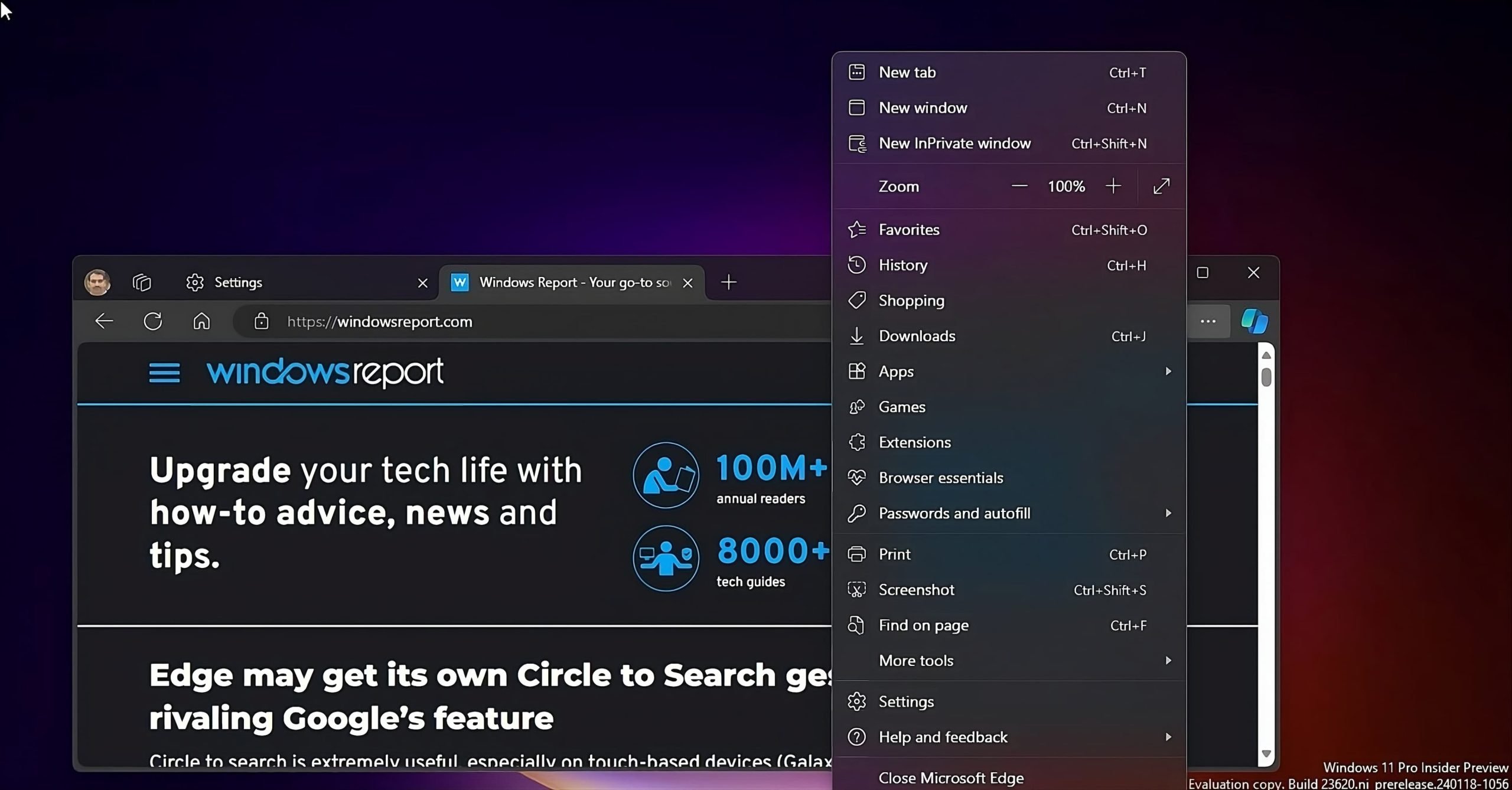
  2. Open Edge browser, click on Menu and select Settings.
  3. Visit Appearance.
  4. Ensure that the Show Windows 11 visual effects in browser setting is enabled.

    Enjoy the dynamic title bar in Edge that adapts to your desktop wallpaper using the Mica effect.

Important notes:

  • You should be running Edge with the default theme.
  • The Mica effect visibility depends on the device and Windows 11 settings applied.

Overall, the Windows 11 visual effects are a welcome addition to the Edge browser, creating a more immersive and visually appealing experience. Edge now feels and looks more like a natural part of your Windows 11 desktop, rather than a separate application.

Furthermore, Mica brings a touch of dynamism to the browser, with the subtle reflections of your desktop wallpaper adding depth and personality.

For users, this translates to a more enjoyable and visually consistent browsing experience.

Did Microsoft just fool us? The new Windows setup experience is 10 years old

We recently reported that Microsoft has redesigned the Windows setup experience. As it turns out, the UI has been available for 10 years. It’s just not enabled by default!

As pointed out by X (formerly Twitter) user XenoPanther, the supposedly new setup can be enabled on early versions of Windows 10 as well, including build 9780, the earliest publicly available build.

All you have to do is run the following two commands: setuphost setuphost /install /boot

In the official blog post highlighting Windows 11 Insider Preview Build 26040, Microsoft called this change refreshing and claimed the Windows OS Media Setup is much cleaner and has a modern design. While it could be refreshing and cleaner, the new setup is certainly not modern!

Ever since the announcement, experts pointed out that the setup’s design is more in line with Windows 8 and Vista and doesn’t fit well into the modern Windows 11 UI. Atleast, we now know the answer to it.

What do you think of Microsoft releasing years-old UI as new? Do share in the comments section below.

Best Warzone settings for Windows PC to boost FPS

Adjusting Warzone settings for PC improves the overall gaming experience. Our gaming experts at WindowsReport know everything about getting the right settings for Warzone, so here they boost FPS for the ultimate gaming experience.

Best Warzone Settings For PC

1. Turn on Hardware-accelerated GPU scheduling

  1. Head to Graphics Settings from the Start menu search.
    Best Warzone settings for PC
  2. Turn on the Hardware-accelerated GPU scheduling through the slider button.Disable GPU scheduling
  3. Restart the computer to apply the changes as prompted here.
Note icon NOTE
Remember that GPU scheduling has become useful in Warzone in the latest season. This may change in upcoming seasons, so you can turn it off if needed.

2. Adjust power settings

  1. Head to the power plan from the Start menu search.
    Edit power plan
  2. Tick High Performance and then click on Change Plan Settings.
    Best Warzone PC settings
  3. Make sure that put the computer to sleep is set to never.
    Best Warzone PC settings
  4. Then, head to change advanced power settings.
    Best Warzone PC settings
  5. Set Turn Off hard disk to 0, which changes to never, so it never turns off during the game, thus helping in faster load times and improved performance. 
    best battlefield warzone settings

3. Recommended In-game Warzone Settings for PC

There are three tabs in the graphics section – display, quality, and view. We will go through important setting items one by one.

Graphics – Display

best Warzone settings for FPS

Let us start with the Display tab in Graphics settings.

  • Display mode – Select Fullscreen Exclusive, ensuring all available resources are directed towards the game. If you want to switch between apps outside the game with Alt + Tab, consider selecting Fullscreen borderless. It offers a more seamless experience for that.
  • Screen adapter – Select your installed graphics card as your screen adapter. And if you are on Steamdeck, then select the custom AMD GPU.
  • Refresh rate – After that, select the refresh rate offered by your chosen monitor to get the most out of the extra frames.
  • Screen resolution – Your screen resolution and aspect are set to automatic and selected by the game based on your monitor, so leave them untouched.
  • Nvidia Reflex low latency – You can set it to ON + Boost if your CPU is relatively weaker than your GPU. And if you are gaming or have a strong build with a powerful CPU, keep it at ON.
  • Eco mode preset – Under the Sustainability sub-section, set the eco mode preset to custom since we don’t want to control computer energy consumption from within the game.
  • V-Sync (Gameplay) and (Menus) – Keep them at OFF and 0% to improve FPS in the game. Although keeping it on reduces tears in different frames, ads input latency for action-packed gameplays.

You can set the remaining settings of the tab in the following manner.

SettingsParameter
Custom Frame LimitCustom
– Gameplay Custom Frame Rate Limit300
– Menu Custom Frame Rate Limit140
– Out of Focus Frame Rate Limit5
Focus Mode0
High Dynamic RangeOff

Graphics – Quality

best Warzone settings for FPS

Change the Graphic Preset to custom so that you can make changes here.

  • Render resolution – Leave it to 100 unless you are looking to boost FPS in the Warzone on a moderately powered PC.
  • Path Tracing + Ray constructions – Keep it OFF unless you have extra FPS to spare. Enabling it makes the the campaigns look incredibly realistic but not useful for the Warzone gameplay.
  • VRAM scale target – Keep it in a range of 65-75, as it helps keep stuttering to a minimum.
  • Variable rate shading – Set it to ON as it prioritizes where the additional quality is needed to improve overall performance.

Scroll further down and configure these settings as given below.

SettingsParameter
Texture Resolution*Low/Medium
Texture Filter AnisotropicHigh
Depth of FieldOff
Detail Quality LevelLow
Particle Resolution*Very Low/Low
Bullet ImpactsOn
Persistent EffectsOff
Shader QualityLow/Medium
On-Demand Texture StreamingOff
Shadow Quality*Low/Medium
Screen Space ShadowsOff
TesselationOff
Volumetric QualityLow
*Difference in FPS as you go higher

Graphics – View

best Warzone settings for PC
SettingsParameter
Field of View120
ADS Field of ViewAffected
Weapon Field of View*Wide
3rd Person Field of View90
Vehicle Field of ViewWide
World Motion BlurOff
Weapon Motion BlurOff
Film Grain0.00
1st Person Camera MovementLeast(50%)
Spectator CameraGame Perspective
*Personal gaming preference

4. Enable Game Mode

  1. Go to Game Mode from the search.
    Enable game mode in Windows 11 and 10
  2. Turn on Game Mode through the slider button and then close the window.
    Warzone settings for PC
    Now, Game mode will turn on automatically every time you launch a game. It will prioritize your game and restrict other background processes and apps from running. Doing this will help you get a higher FPS in Warzone.

So, now you know how to improve the FPS for Warzone on your PC. From our gaming experience with Warzone, turning on the hardware acceleration and setting the right graphics parameters helped us a lot.

And when you want to improve it further, check out our guide to optimizing your PC to improve gaming performance. Moreover, if you are a Windows 11 user, here are the best graphics settings for gaming.

If you have any other Warzone setting in mind, then do let us know through the comment section.

Palworld Crossplay: Play Together on Xbox And PC [How to]

Palworld is becoming one of the most popular games on Steam, but many wonder if there is crossplay in Palworld.

In today’s guide, we will take a closer look at this feature and let you know if the game supports it.

How can I use crossplay in Palworld?

Use the Microsoft Store version

  1. Press the Windows key + S and type store. Select Microsoft Store from the list.
  2. Search for Palworld and select it from the list.
  3. Buy the game or buy the Game Pass.
  4. Once the game is downloaded, you should be able to start it from the Xbox app with crossplay support.
Note icon NOTE
We haven’t verified this method, but several users online claim that it works for them.

Is Palworld cross-play?

Palworld currently doesn’t support crossplay multiplayer. However, some users claim that they managed to use crossplay by downloading the game from the Microsoft Store.

According to the developer roadmap, there’s Steam and Xbox crossplay as one of the upcoming features, so we can expect to see full crossplay support someday in the future.

Can Xbox and Steam players play Palworld together?

No, the Steam version is different than the Xbox and Microsoft Store versions, so there’s no crossplay support available.

What platforms can you play Palworld on?

You can get Palworld on Steam and Microsoft Store if you’re on a PC. The game is also available on Xbox, and we expect to see it on other platforms soon.

Crossplay in Palworld isn’t officially supported. However, a few users claim that it works between the game’s Xbox and Microsoft Store versions. Crossplay with Steam is in the works, and we should see it soon.

Keep in mind that the game is in early access, so it has certain issues, and many encountered Disk write error in Palworld, the Palworld EOS login error as well as Palworld black screen issues.

Is crossplay working for you? Let us know in the comments below!

Windows 11 screen cast is getting more accessible

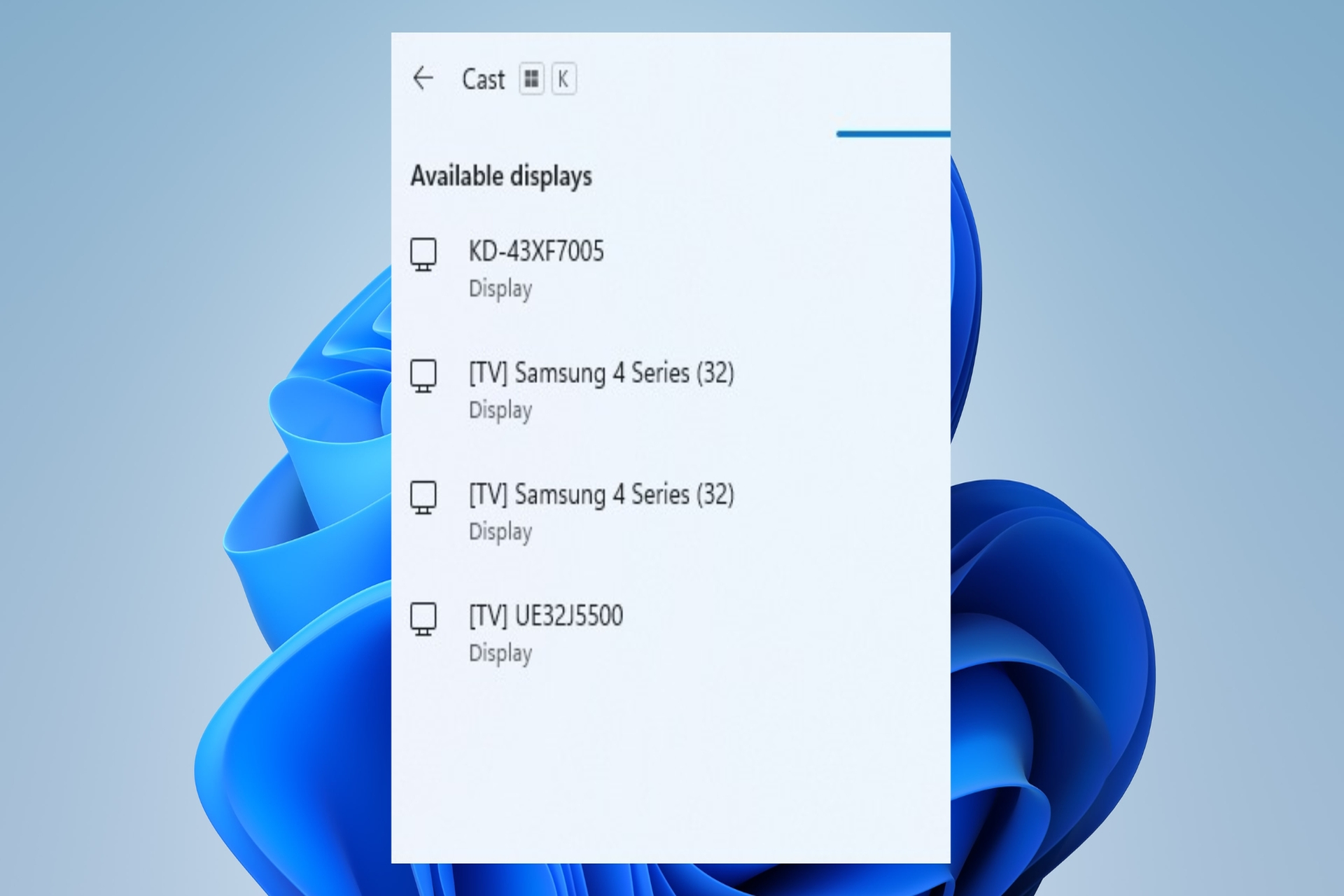
The Windows 11 screen cast feature allows you to project your screen onto nearby devices, such as monitors and TVs, without cables. Furthermore, Microsoft improved it by adding a new pop-up notification for screen casting with an easy to use troubleshooting button.

Microsoft is improving screen casting accessibility on Windows 11

This notification pop-up will be available as a suggestion when switching between windows or while using Snap Assistant. Unfortunately, for now it is only implemented on Windows 11 Insider Preview Build 26040 (Canary Build).

There are some pros and cons to using screen casting on devices, and we will list them below:

ProsCons
No wiresNeeds Wi-Fi
Quick Set-upNeeds Miracast Support
Widely SupportedDelay and Performance drops

How do I enable Miracast on Windows 11?

You can enable Miracast on Windows 11 and 10 by pressing Windows + K. However, if your device doesn’t support it, you will have to get a Miracast dongle.

In a nutshell, this adjustment is helpful because it made screen casting much easier and accessible. In addition, now we use the feature frequently because it doesn’t require many steps anymore and it doesn’t take too much time.

On top of that, with it you won’t need to carry adapters and cables anymore. Also, if you are using Windows 10, the following screen mirroring apps might help you.

What are your thoughts on this improvement? Do you consider screen casting useful or prefer a wired connection? Let us know your thoughts in the comments section below.

Fix Palworld Session Search Error: 3 Efficient Solutions

In Palworld, the error message Session Search Error OnFindSessionsComplete bWasSuccessful == false occurs frequently during peak hours. It usually happens because the game can’t keep up with the number of multiplayer worlds and players.

After trying various methods, we discovered that the following quick fixes solved the issue on most devices. However, if they don’t work for you, proceed with the advanced solutions.

How do I fix the Session Search Error in Palworld?

1. Disable the Windows Firewall temporarily

  1. Press the Windows key, and type Control Panel. Then Open it.
Control Panel

2. Open System and Security, it should be the first option.

3. Click on the Windows Defender Firewall.

4. From the list on the left, click on Turn Windows Defender Firewall on or off.

Turn Windows Defender Firewall on or off

5. Select for both options Turn off Windows Defender Firewall (not recommended) and press OK.

Turn off Windows Defender Firewall (not recommended)

In addition, if the game works afterward, make sure that Palworld is allowed through the Firewall.

Do not forget to turn on the Windows Firewall when you finish to ensure that your device is protected.

2. Verify the game files

1. Open Steam Library and look for Palworld, then right-click on it and select Properties…

2. Go to the Installed Files tab and select from the right Verify integrity of game files.

While it might sound a bit unusual, during updates, some files might end up missing, and they could be the cause you encounter the Session Search Error in Palworld.

3. Change the DNS Server

1. Press Windows + R and open the Run dialog

2. Type ncpa.cpl in the box and press Enter to open the Network Connections.

3. Go to the connection you are using and right click on it, afterward select Properties.

4. Check the list for the following Internet Protocol Version 4(TCP/IPv4) and click on the Properties button

5. Select the Use the following DNS server address: and type 8.8.8.8 for the Preferred Server and 8.8.8.4 for the Alternate one.

This method works during peak hours by allowing you to access other DNS servers that aren’t as crowded.

To sum up, now that you know the solutions to fix the session search error in Palworld, all you can do is prevent other issues from happening by optimizing your PC for gaming.

By the way, keep in mind that future Palworld updates might require you to fix errors like the Palworld login error, so stay tuned to learn how to do it.

This isn’t the only issue you can encounter, and many reported Palworld save error, but we have an entire guide dedicated to it, so you can easily fix it.

Before you go, if you discover any strange solution for the session search error, feel free to share it with us in the comments. We will make sure that it reaches other gamers as well.

How to Stop Microsoft Edge from Importing Data

Many users have expressed concerns about Microsoft Edge unexpectedly importing Chrome browsing data. The discovery was made when Edge autonomously launched with all the previously opened Chrome tabs after a system reboot triggered by the recent Windows 11 update, KB5034204.

To stop Microsoft Edge from importing data, first, you need to sign out from the Microsoft account from the Edge browser, then disable the Always have access to your recent browsing data each time you browse on Microsoft Edge setting.

How do I stop Microsoft Edge from importing data?

1. Sign out from the Microsoft Account

  1. Press the Windows key, type edge in the search box, and click Open.Edge - How to Stop Microsoft Edge from Importing Data
  2. Locate the Profile icon from the upper left corner and click the Settings icon.Sign out from account
  3. Click Sign out and close the browser.
  4. Once you have signed out, click the three dots next to Profile 1 and select Remove to delete the current profile.

2. Disable the Import data option

  1. Press the Windows key, type edge in the search box, and click Open.Edge - How to Stop Microsoft Edge from Importing Data
  2. Click the three dots icon from the top-right corner, then choose Settings.Edge Settings - How to Stop Microsoft Edge from Importing Data
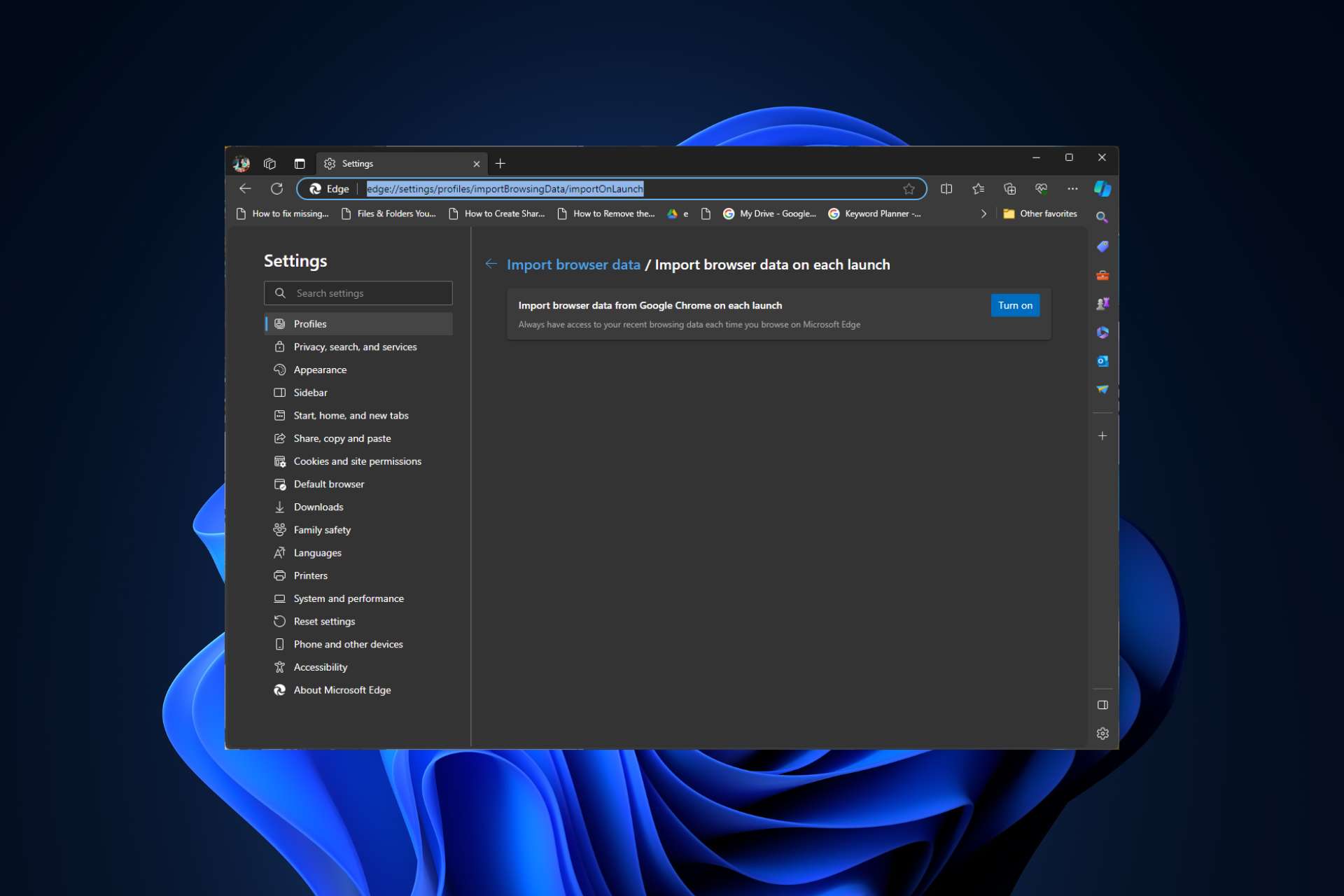
  3. Go to Profiles, then click Import browser data.Import data
  4. Next, go to Import data at each browser launch and click the Edit preferences option.Edit preferences Import data
  5. Make sure the Always have access to your recent browsing data each time you browse on Microsoft Edge setting is disabled.Import data 2

3. Delete other data from Edge

  1. Launch the Edge browser, click the three dots icon from the top-right corner, and then choose Settings.Edge Settings - How to Stop Microsoft Edge from Importing Data
  2. Go to the Privacy, search and services tab, locate Clear browsing data now, and click the Choose what to clear button.Clear browsing data
  3. Now select All time for Time range, checkmark all the options in the list, then click the Clear now button.Choose what to clear - Stop Microsoft Edge from Importing Data
  4. Next, type in the following in the address bar and hit Enter : edge://favorites
  5. Select all the items and click Delete.Delete Favorites
  6. Copy & paste this path into the address bar and hit Enter: edge://settings/passwords
  7. Check the passwords one by one and click Delete to remove them.Delete passwords  - Stop Microsoft Edge from Importing Data
  8. Type the following paths in the address bar one by one, and hit Enter. Once you reach there, inspect & remove the data from the browser:
    • edge://settings/addresses
      edge://settings/payments

Clearing browsing data is one of the best options to keep your browser working in perfect condition and address issues like Edge not working on Windows 11.

4. Add a registry entry

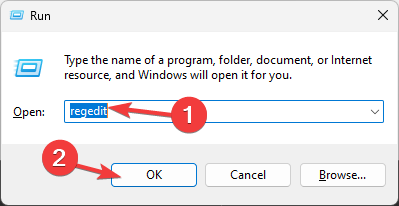
  1. Press Windows + R to open the Run window.Regedit RUN COMMAND - stop edge from importing data
  2. Type regedit and click OK to open the Registry Editor. Click Yes on the UAC prompt.
  3. Before making any changes to registry values, let us first take a backup. Go to File, select Export, then save the .reg file in an accessible location.fILE - EXPORT
  4. Navigate to this path: HKEY_LOCAL_MACHINE\SOFTWARE\Policies\Microsoft
  5. Locate Edge; if you can’t see the key, right-click Microsoft, select New, then Key, and name it Edge.Name the key Edge
  6. Now, right-click Edge and choose New, then select DWORD(32-bit) Value. Name it ImportBrowserSettings.DWORD -
  7. Double-click the DWORD, set the Value data to 0, and click OK.ImportBrowser settings
  8. Similarly, to disable other settings, you need to add a DWORD for them and follow Step 6 to create; here are the names that you use for DWORD:
    • Browsing history – ImportHistory
    • Extensions – ImportExtensions
    • Payment information – ImportPaymentInfo
    • Saved passwords – ImportSavedPasswords

Once you create the DWORDs, make sure you set their Value data to 0 to disable the features and restart your computer to let the changes take effect.

5. Disable Allow importing browser settings from Group Policy Editor

  1. Press Windows + R to open the Run dialog box.GPEDIT MSC RUN - stop edge from importing data
  2. Type gpedit.msc and click OK to open the Group Policy Editor.
  3. Navigate to this path: Computer Configuration\Administrative Templates\Classic Administrative Templates\Microsoft Edgestop edge from importing data - GPE
  4. On the right-hand side, locate Allow importing of browser settings, double-click it and select Disabled, then click OK.
  5. To disable other options like browsing history, cookies, extensions, saved passwords, and more, look for the corresponding option and follow Step 4. Once you are satisfied, reboot your PC to let the changes take effect.

So, disabling all these settings from your browser, Registry Editor, or Group Policy Editor can help you stop Edge from importing data.

To conclude, if your Edge is using Chrome browsing data, the first step to fix it is to make sure the Always have access to your recent browsing data each time you browse on Microsoft Edge setting is disabled.

After that, to get rid of all the imported data, clear browsing history, saved passwords, favorites, payment information, profile information, and more.

In case you want to disable Edge on Windows 11 to avoid this problem altogether, we have a detailed guide for you. Also, find out what to do if you come across the Out of Memory error in Edge.

If you have any questions or suggestions about the subject, feel free to mention them in the comments section below.

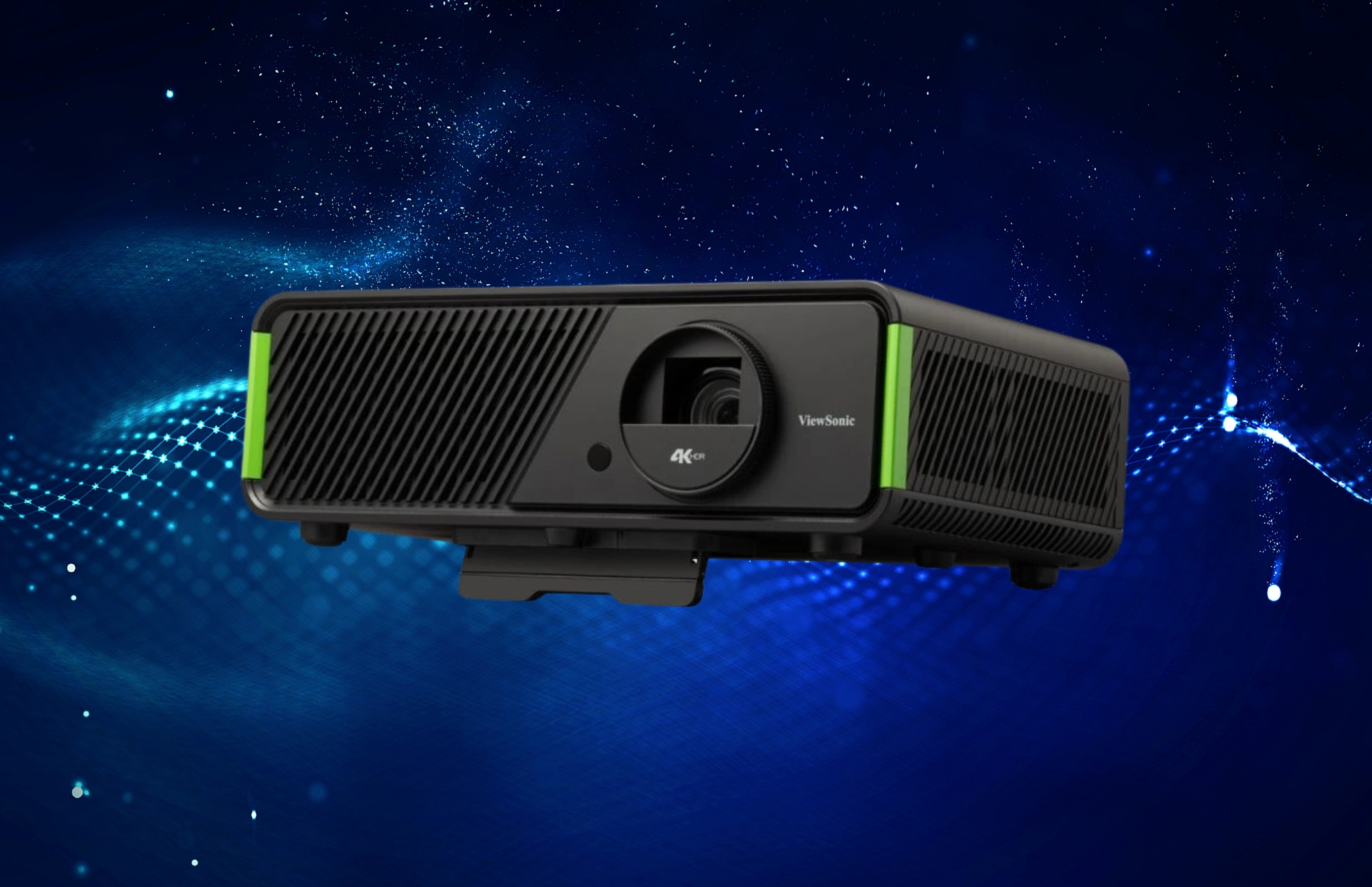
Viewsonic X1-4K and X2-4K, the world’s first projectors for Xbox

ViewSonic introduced X1-4K and X2-4K, the world’s first projectors designed for Xbox. They can automatically adjust to the best settings, and their Harman Kardon top notch sound system turns your room into a personal cinema.

ViewSonic X1-4K and X2-4K will rock your room with 4K goodness

Overall, the two projectors aren’t much different because they share the same technology. However, the X1-4K is a long throw projector, while the X2-4K is a short throw one. In addition, the X1-4K is slightly stronger, but it has a less accurate projection for the human eyes. So, pick the one that suits your room best.

X1-4K and X2-4K tech specs

Projection System0.65″ 4K-UHD
Native Resolution3840×2160
Brightness2900 (LED Lumens)
Light Source TypeLED
Light Source Life (hours) with Normal Mode30000
Throw Ratio1.15-1.5″
Optical Zoom1.3X
Image Size60″-150″
Throw Distance1.53m-4.98m (100″@2.55m)
Input Lag4.2ms

More details about the built in technology

Below you can find the key features of X1-4K and X2-4K:

  • Both devices ensure flawless performance by utilizing 4.2ms Ultra-Fast Input function, a 240Hz refresh rate and 3rd LED technology.
  • You can see fine details in both bright and dark environments.
  • X1-4K is suited for larger rooms, and it is more powerful.
  • X2-4K is for smaller rooms, and its light is perceived better by your eyes.
  • Both X1 and X2 have an USB type C port for phones and other devices.

What projector can you use with Xbox?

You can use any projector with a HDMI port for Xbox. However, the ViewSonic X1 and X2 automatically match your Xbox settings, so you don’t have to apply any tweaking.

We tried various projectors, and there are stronger ones, but X1 and X2 have a great price-quality ratio. Also, the auto adjustment to Xbox settings is amazing because you won’t need to change your projector’s settings when you switch games.

By the way, you are worried about the power of the Harman Kardon audio system, try out one of these 5 Xbox wireless headsets.

What do you think of the two projectors so far? Do you consider acquiring one of them? Let us know your thoughts in the comments section.

Windows Lock Screen in Another Language: How to Change

When we turned on one of the work PCs this morning, the lock screen or Windows Spotlight, as it is called, was in another language. At first, it appeared Chinese. Then, on subsequent reboots, the language changed to Thai, Finnish and Turkish.

When we checked, it seems that the issue started after a Windows Update, which points to a bug in the recently released OS version. With that in mind, we began the troubleshooting and managed to get back English as the lock screen language!

To start with, click the Dislike (Not a fan) option at the top right of the lock screen where it asks, Like what you see?, and check if Windows now reverts to the default system language.

What can I do if Windows lock screen is in another language?

1. Re-enable Windows Spotlight

  1. Press Windows + I to open Settings, go to Personalization from the navigation pane, and click on Lock screen.lock screen
  2. Now, select Picture from the Personalize your lock screen dropdown menu, and choose any of the available pictures. picture to fix windows lock screen in another language
  3. Restart the PC, and the lock screen will now display the chosen picture instead of Windows Spotlight.
  4. Finally, go back to the Lock screen settings, and again select Windows spotlight from the dropdown menu.spotlight
  5. Restart the PC and check for improvements.

When the lock screen is in another language, whether on Windows 10 or Windows 11, it’s the Windows Spotlight issues to blame.

If this doesn’t work, you can always disable Windows Spotlight and switch to Picture, at least until Microsoft releases a patch for the bug. We recommend you do it if none of the solutions listed below work.

2. Manually select the language

  1. Press Windows + S to open Search, type Control Panel in the text field, and click the relevant result.
  2. Click on Clock and Region.clock and region
  3. Click on Region.
  4. Now, from the Format dropdown menu, select English (United States) or the preferred language in your case, and click OK to save the changes.english to fix windows lock screen in another language

3. Copy language settings

  1. Press Windows + R to open Run, type intl.cpl in the text field, and hit Enter.intl.cpl
  2. Go to the Administrative tab, and click the Copy settings button.copy settings to fix windows lock screen in another language
  3. Now, tick the checkboxes for Welcome screen and system accounts and New user accounts, then click OK to save the changes.copy settings to fix windows lock screen in another language
  4. Reboot the PC to check for improvements.

Remember, only execute this fix after you have changed the system language to English or the desired one.

4. Remove Bing as the search engine

Tip icon Tip
The steps here for Microsoft Edge. In case you have Bing set as the default search engine on Google Chrome or another browser, remove it from there as well.
  1. Launch Microsoft Edge, click the ellipsis near the top right, and select Settings.
  2. Go to Privacy, search, and services from the navigation pane, scroll down to the bottom, and then click on Address bar and search.address bar and search
  3. Select another search engine from the dropdown menu, preferably Google.change to fix windows lock screen in another language

5. Uninstall recent Windows updates

  1. Press Windows + I to open Settings, go to Windows Update from the navigation pane, and click on Update history.update history
  2. Scroll down to the bottom and click on Uninstall updates.
  3. Locate the update(s) installed around the same time the issue first appeared, and click the Uninstall option.uninstall to fix windows lock screen in another language
  4. Again, click Uninstall in the confirmation prompt.
  5. Reboot the PC and check for improvements.

In case you still have the Windows lock screen in Chinese or another language, uninstall other recent Windows updates until the problematic one is found. Once it’s fixed, we recommend you disable Windows updates for the time being.

6. Reset Windows

  1. Press Windows + I to open Settings, go to System from the navigation pane, and click Recovery on the right.recovery
  2. Click the Reset PC button.
  3. Click the Keep my files option.keep my files
  4. Now, select Local install to reinstall Windows from the PC itself.
  5. If the reset settings are fine, click Next to proceed or click on Change settings to reconfigure them.
  6. Finally, verify the details and click Reset to start the process. It should take 30 minutes to 1 hour. reset to fix windows lock screen in another language

A factory reset of Windows helps when the Windows Spotlight screen appears in another language. You may keep the files because, in our experience, this didn’t trigger any software conflicts.

As we said earlier, if the problem remains unresolved until now, disable Windows Spotlight and set a picture for the lock screen. And do not forget to keep checking OS updates for a patch!

Before you leave, discover some quick tips to customize the Windows lock screen for a more vibrant interface.

For any queries or to share what worked for you, drop a comment below.

Fix: Can’t Download the Alexa App on Windows 11

Many users have reported that they can’t download the Alexa app on Windows 11 as it doesn’t come up in Microsoft Store search. There is no direct solution to this problem but fortunately, there are a few workarounds to fix the issue.

How do I fix can’t download the Alexa app on Windows 11?

1. Download the app using the browser link

  1. Launch your preferred browser and click the Alexa app download link on the Microsoft Apps website.
  2. You will be able to get to the Alex app on the Microsoft Store web version; click Install.Install - Can't Download the Alexa App on Windows 11
  3. Now, the Microsoft Store app will open with the Alexa app on it. Click Get to install it.Get
  4. In case you can’t see Get option, click the More details link to open the full Store app, then click Get to install the app.More details
  5. Once downloaded, on the Microsoft Store app, go to Library, then select Get updates. The app will look for updates, locate Alexa, and click Update to get the latest version.

However, if you still can’t see the Get button, you need to understand that Alexa for PC is now only available for some models with specific BIOS and audio drivers. Therefore, proceed with the next workaround.

You can try an alternative setup path by following the steps in the Amazon Alexa app for PC download guide to see whether your system can run the desktop version successfully.

You can learn how to use the desktop version more effectively by checking this full guide on using Alexa on a Windows PC.

In case you are facing other issues, like Alexa not connecting to Wi-Fi, we have a dedicated guide with detailed fixes; check it out!

2. Use a third-party installer link

  1. On your preferred browser, go to the Alexa app download link, then copy it.
  2. Now, visit the installer website and enter the Amazon Alexa Store URL link that you copied.
  3. Select Retail and click the Tickmark button to get results.Download the app - Can't Download the Alexa App on Windows 11
  4. You will get a list of Alexa app versions that you can download. Choose the latest, and click it to download the app.
  5. Once downloaded, it will appear in the Microsoft Store; follow Step 5 from Solution 1 to update the app.

In conclusion, to download the Alexa app on Windows 11, you can either visit the web version of the Microsoft Store or use an offline installer link.

However, after downloading Alexa on Windows, if you can’t make it work, you need to accept the sad reality that as Microsoft has discontinued the app, it may no longer be supported by Windows.

Since Amazon never made a standalone app for Alexa on PC, and as Cortana is discontinued, the app can be installed, but it might not work as expected.

After installing the app, if you face issues like Alexa app keeps stopping, it could be due to an outdated app or poor internet connection; follow this guide to learn more.

This isn’t the only problem, and many reported that Alexa won’t play music; we covered this in a different guide.

If you have any questions or suggestions about the subject, feel free to mention them in the comments section below. We will be happy to help!

City: Skylines II lagging? New patch 1.19.0: Sigh of relief

With its improved traffic AI and new features, City: Skylines II is the most realistic city-building game, which inspires you to be creative.

However, issues like lagging, blurry graphics, poor frame rates, and intensive use of processing power spoil the gaming experience. The players anticipate that the next patch, 1.19.0, will resolve them.

In a recent announcement on Steam, the development team at Colossal Order shared that they have a list of reported issues from players, QA, & their team, and assured that they have sorted the issues based on severity and implementation time, will roll the fixes according to time & resource availability.

Since the game’s release in October 2023, the developers have been releasing patches to fix the issues, and the upcoming patch 1.19.0 is no different. However, it is said to be the last stand-alone bug-fixing patch, and going forward, the update will be a combo of introduction of modding support & bug fixes.

As just like its predecessor, the developers’ aim is to enhance the base game for all players through free updates associated with the DLC releases.

Here are the improvements you can expect in the latest patch:

  • Land value will now be affected by ground pollution but will not decrease to zero even with heavily polluted land and will increase as per the profitability value of the industrial company.
  • Addressed challenges faced by drivers in big cities and improved the search algorithm for parking spaces.
  • Optimized Shadow Culling and Pathfind Scheduling for more stable simulation speed in larger cities.
  • Addresses issues related to the statistics panel.
  • Fixes random crashes like when selecting moving in household
  • Added cooldown to stop too many queries on citizens seeking education and some missing text & translations.

The City: Skylines II players are eagerly waiting for the latest patch, and the announcement on Steam suggests that Colossal Order’s work is far from over, and you can expect the introduction of new features along with improvements in the upcoming releases.

Are you facing any other issues with City: Skylines II? Report the issue on the Steam community page, or drop a comment to keep the conversation going!

Windows Server 2026 is just Windows 11 for servers?

In one of the latest Microsoft blog posts, it announced the official name of the future release of Windows Server: Windows Server 2025.

Everybody predicted this original name since Microsoft launched the Windows Server version 23H2 on 24 October 2023, or even before that, so that’s not really a surprise for anyone.

However, Microsoft also released some new screenshots and you don’t really need to install it to know that it follows the same graphic details from Windows 11.

In the blog post, Microsoft also outlines some general directions on their investment for the new Windows Server that will probably launch this autumn.

Here are a few areas we’re investing in:

  • Windows Server Hotpatching for everyone
  • Next Generation Active Directory and SMB
  • Mission Critical Data & Storage
  • Hyper-V & AI
  • And much more…

The aspect that drew our attention is that except for the taskbar copied from Windows 11, the Server Manager app looks almost identical to the one from Windows Server 2022.

Are you brave enough to install Windows Server 2025?

If you take a look at what the system administrators are talking, or if you know anything about server environment, you know that in this area, things are moving very slowly.

Windows Server is largely considered a resource demanding environment and a lot of IT departments, enev from smaller companies are reluctant to change.

From a Fortune Business Insights market share report, we learn that Windows Server was installed on only 22.7% of the servers in the U.S.. The market is dominated by Linux and Unix distributions which are a lot more stable, less demanding and easier to operate.

From those 22.7% of installed Windows OSes, most of them are still Windows Server 2016 and 2019 which are considered safe and stable. So, Microsoft is now building that trust or deliver exceptional services to win over the IT specialists.

What is new on Windows Server 2025?

Windows Server 2025 will borrow the same update and hot patching systems from Windows 11, with short bursts, easy to get and install releases.

So, now, the latest Windows Server Insider Build (v.26040) comes with flighting and downloadable in-place upgrades. That means you no longer need an ISO and a manual upgrade. Moreover, as an admin, you will have the option to install builds automatically through the Windows Update service.

Another important addition is the SMB over QUIC alternative ports option. That will let you change the standard UDP/443 port for SMB to QUIC to any other port.

Microsoft also touts increased security and other interesting features along the way, and we couldn’t help but notice the AI part. That could be the ace to win over the administrator pool to install Windows Server 2025? That’s a question to be answered after the OS’s release.

In the meantime, tell us what you think about Windows Server 2025 in the comments section below.

Stremio Playback Error: 7 Ways to Fix It

A Stremio playback error could be an indication of a problem with an add-on that has been discontinued or removed.

Other reasons why you may encounter the Stremio playback error include server issues, internet connection problems, content being unavailable, or an outdated app/OS.

How do I fix the playback error in Stremio?

1. Clear app cache

1.1 TV app

  1. On your TV, find your Settings.
  2. Go to Apps and select Stremio.
  3. Scroll down and hit Clear data and Clear cache.

1.2 Windows app

  1. Hit the Windows key and click on Settings.settings windows 11
  2. Click on Apps on the left pane then Apps & features on the right pane.
  3. Locate the Stremio app, click on the three vertical ellipses, and select Advanced options.going advanced options microsoft store
  4. Click on Repair.
  5. Go back and click on Reset if the repair option failed.

1.3 Android app

  1. Open the Settings app on your Android device, and select Apps.apps
  2. Choose Stremio from the list of applications.
  3. Tap on Storage.storage
  4. Tap on Clear data and then on Clear cache.clear cache to fix error code 14 disney plus

Once you clear the cache, restart your router, check for app updates restart the app then check if the playback error re-appears.

2. Install community add-ons

  1. Launch your Stremio app on your PC and click on the puzzle icon.
  2. Select Community Addons or search for it if you have a specific one you’d like to add.
  3. Click on the Install button next to it and restart the Stremio app.

Stremio has its own official add-ons but at times, they may not be fully equipped with the content you want to watch. That’s where community add-ons come in.

While they’re beneficial most of the time, these add-ons may not be officially supported by Stremio, and their safety, security, and legality can’t be guaranteed. If you’re going to use them, proceed with caution.

3. Disable your antivirus temporarily 

  1. Hit the Start menu icon, type Windows Security in the search bar, and click Open.
  2. Click on Firewall & network protection, then select Public network.league of legends black screen after champion select
  3. Locate Microsoft Defender Firewall and toggle the off button.turning off Microsoft Defender Firewall Windows

4. Disable VPN 

  1. Press the Windows key and select Settings.settings windows 11
  2. Next, select Network & internet and click on VPN in the right-side menu.
  3. Select the VPN connection you want to disable, click on the drop-down and select Remove.remove VPN

5. Disable Proxy 

  1. Press the Start Menu icon and select Settings.settings windows 11
  2. Click on Network & Internet on the left pane, then scroll down and click Proxy on the right pane.Network proxy settings
  3. Select Edit next to Use a proxy server option in the Manual proxy setup section, toggle off Use a proxy server and click on Save.Disable proxy server

In some cases, the use of VPNs and proxies could potentially cause playback issues on Stremio. Like many streaming services, Stremio has regional restrictions so if your VPN is easily detectable, it may be time to switch to an undetectable VPN.

6. Change video quality

  1. Open the Stremio app.
  2. Find the movie, show, or stream you want to watch.
  3. Long press the central select button on the video you want to watch, then choose Details. You will get streaming sources with different video quality options (e.g., 1080p, 720p, 480p).
  4. Select a lower resolution stream (such as 720p or 480p) to improve streaming performance.

7. Contact customer support

Before you get in touch with Stremio’s customer support, one last attempt should be to reinstall the app. Sometimes, it’s your app version that has glitches and a re-installation may resolve the playback error. If it doesn’t, you can turn to Stremio’s help center for further assistance.

Is it safe to download Stremio?

With the piracy statistics at an all-time high, it’s only proper browsing etiquette to question the legitimacy of Stremio. From our findings, it is indeed safe to download Stremio because it passes our in-house tests whenever we want to verify the legitimacy of an app.

First, its source, aside from its official website is Google Play Store which means it has passed the Google security test. It also receives regular updates to address security vulnerabilities and improve overall performance.

Second, it passed our antivirus test and was whitelisted as a safe app and finally, the reviews on various community platforms all concur that it is a safe app.

If at this point you’re still battling the playback error on Stremio, perhaps it’s a sign you should try other movie streaming services. After all, such errors are not unique to Stremio as a playback error can also appear on Plex.

If you’ve encountered this error before and fixed it using a solution missing from our list, we’d like to hear about it. Drop us a line below.