AMD Ryzen processors are also on offer! So, if you were hoping to obtain one of these performance monsters cheaply, this is your chance.
Here is a summary of the top 5 AMD Ryzen deals as trending at this hour if you missed our AMD Ryzen Black Friday deals.
NOTE
Deals are subject to change. Sometimes, some of the deals listed in our guides may no longer be available by the time you hit the buy button. So, hurry up and grab them while they’re hot.
Equipped with 8 Cores and no less than 16 4.5 GHz Boost threads, the AMD Ryzen 7 3800X Processor is the perfect embodiment of industry-leading technology.
From connectivity to drives and graphics cards, this processor is built to deliver high performance by any record and it will satisfy even the most pretentious of users.
If you thought that’s impressive, you will be blown away by the processor’s customization options that grant you unprecedented control over performance.
There are up to 4 different profiles included that allow you to adjust anything and everything from active cores to graphics frequency and even fine-tune your favorite applications.
To top it all, there is a revolutionary cooling solution specifically designed to improve thermal efficiency.
Just like its aforementioned sibling, this Ryzen processor is powerful and focused on performance.
Fueled by 6 CPU cores with 12 threads, the AMD Ryzen 5 3600 Processor makes no compromise when it comes to results.
Get twice the bandwidth thanks to its PCIe 4.0 technology and optimize your performances as your needs require thanks to the Master utility that fully supports customization and fine-tuning.
We simply cannot omit to mention the Wraith Stealth Cooler that is as powerful as it is stealthy delivering excellent thermal performance with near-silent acoustics.
Ryzen processors have had an ongoing romance with gameplay for years now and that is due to a good reason – or several reasons, as a matter of fact.
geared with 8 PCIe 4.0 cores with full overclocking support and 36MB of GameCache, you are on your way to double the bandwidth and the graphics and enjoy limitless gameplay at a whole new level.
The processor may not include a distinct colling solution as its aforementioned siblings, but we guarantee you will not miss it thanks to the incorporated 7-nanometer technology that guarantees next-to-silent acoustics.
The AMD Ryzen 9 3900X Processor requires little introduction. Boasting 12 cores and no less than 24 threads, this is the world’s most advanced desktop processor and every gamer’s dream.
More bandwidth, more speed, more graphics, and pretty much more of anything – that is what you can expect from this ultra-fast cutting-edge technology-based processor that is practically unrivaled.
Feel free to customize performance and direct it to the apps you need most while enjoying 4.6 GHz boost clock and never worry about overheating thanks to the revolutionary Wraith Prism Cooler.
With 12 CPU cores running at clock speed of up to 4.7 GHz, the AMD Ryzen 9 3900XT Processor will show you all about compromise-free performance.
This award-winning processor provides full overclocking support, up to 70MB GameCache, and double the bandwidth and the graphics you know for a truly innovative gaming experience.
Those are the top 5 AMD Ryzen deals at this hour. Which one caught your attention? While you’re here, why not take a look at these great CPU and motherboard combos?
Feel free to share your choice with us via the comments section below.
If you had planned to grab one of the mini projectors on Black Friday but somehow missed the hefty offers, you should thank your lucky stars because the deals have been extended to 2022.
Here is what’s hot in the Mini Projector arena this season.
NOTE
Deals are subject to change. Sometimes, some of the deals listed in our guides may no longer be available by the time you hit the buy button. So, hurry up and grab them while they’re hot.
In short, this continues to break record after record thanks to its impressive projection power and its impressive portability.
It gives an impressive 3600-Lumen worth of brightness and displays sharp images at up to 60-200 inches diagonal.
It’s very easy to use, and it also uses a 2020 noise reduction which will make you feel you are in a real theater setting watching your favorite movie.
Absolutely amazing, this gives 16700K richer colors using its top of the pile 600 lumens LED brightness.
It supports 1080P and is bright even in pitch dark environments. Plus, its multimedia interface means it every one of your devices for a lovable big-screen display.
The DeepLee Mini Projector is quiet, small, compact, and has a very affordable price. It’s a great choice if you are looking for a mini projector.
This model is 80% brighter than other models, and it supports full HD resolution as well as a 2000:1 contrast ratio. the projector is compatible with a wide range of devices including iOS devices.
Regarding playback, you can easily play any type of content without restrictions. The screen size varies between 30 to 200 inches, which is more than enough.
This is a great device, and it measures 7.87 x 5. 5 x 2.7 inch while weighing 2.25 lb, so you can easily carry it with you wherever you go.
There goes the trending mini projector offers on this Cyber Monday. Don’t be left behind again as these deals are expiring soon.
Steam‘s Self Updater is a handy feature that allows you to download and install the latest updates for your games automatically. It’s a handy tool, especially when you don’t have much time to waste.
Lately, users have noticed that the Self Updater keeps popping up an unusual amount of times. Updates are a way for developers to fix bugs and add new features to their games and software. However, it can be annoying because it causes interruptions when playing.
Why does Steam keep updating itself?
Here are a few of the most common reasons why Steam keeps updating itself:
Problematic update – If Steam encounters an error while trying to write an update, then it may keep trying to write that same update over and over again. This can happen if the file being written is corrupted or otherwise damaged.
Virus infection – If your computer has been infected by a virus, it’s possible that it is interfering with the Steam client trying to update itself. You should make sure you have a comprehensive antivirus program and that it is up-to-date.
Corruption of game files – It’s possible that one or more of your Steam files got corrupted and Steam can’t verify the integrity of your game files. It will therefore try to download a new copy of all files every time.
How can I stop Steam’s Self Updater from constantly popping up?
Before moving on to the slightly technical steps, try the following first:
Ensure you are running the latest version of the Steam client.
Finally, try restarting your PC and check if the issue persists.
1. Set Steam auto-update time restrictions
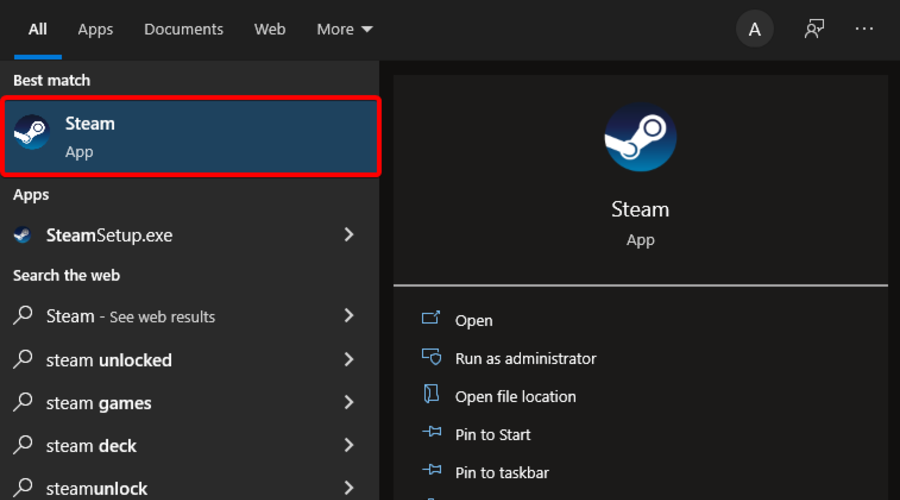
Launch Steam.
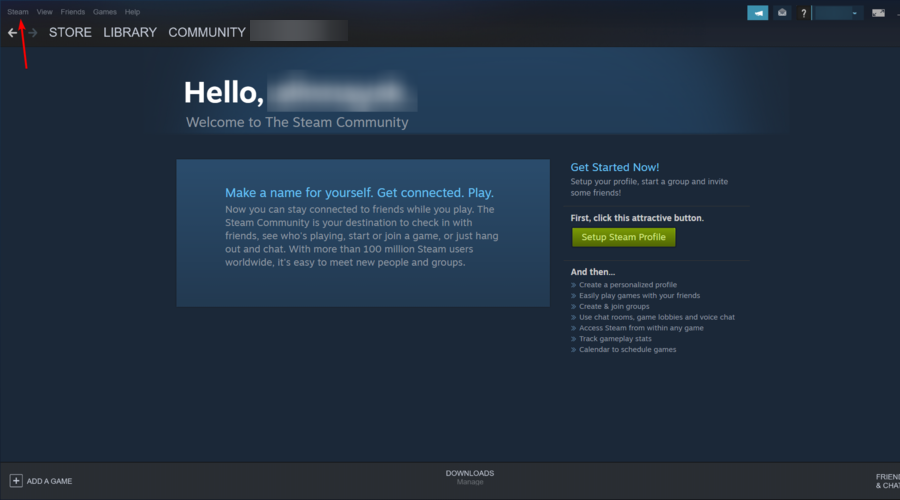
Click on Steam.
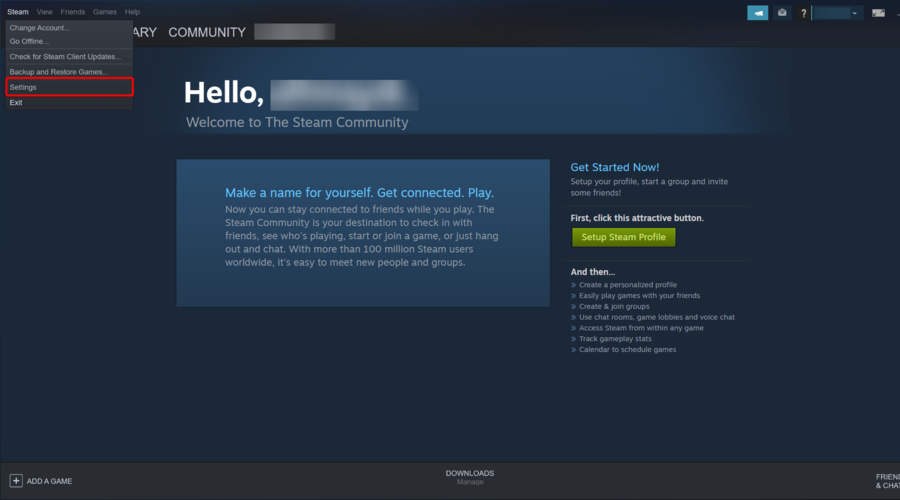
Click and from the drop-down menu, select Settings.
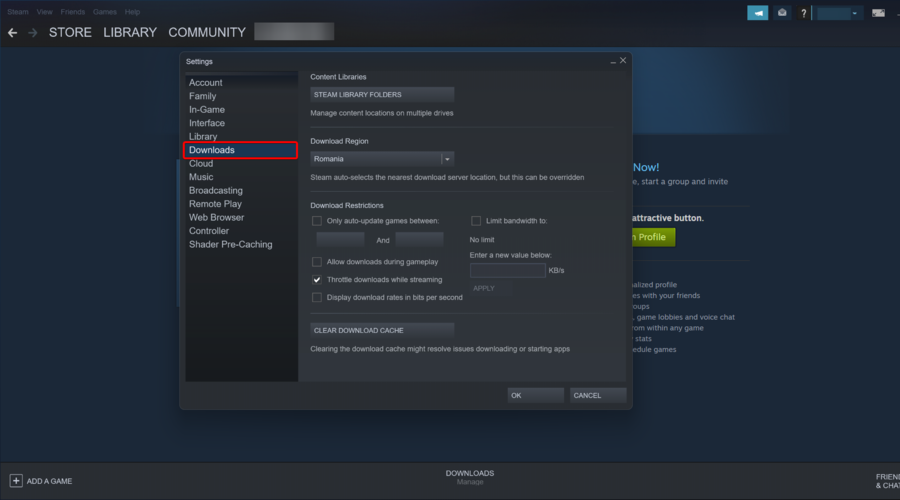
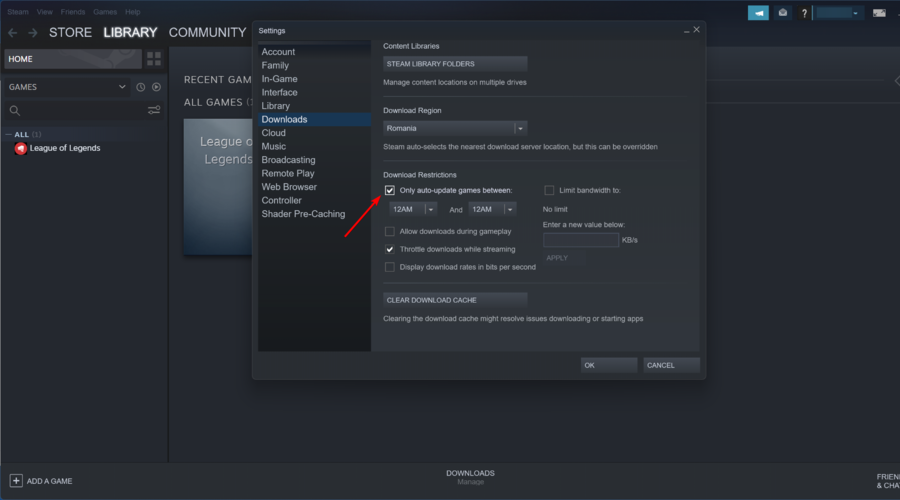
Select Downloads.
Locate Download Restrictions and check Only auto-update games between checkboxes.
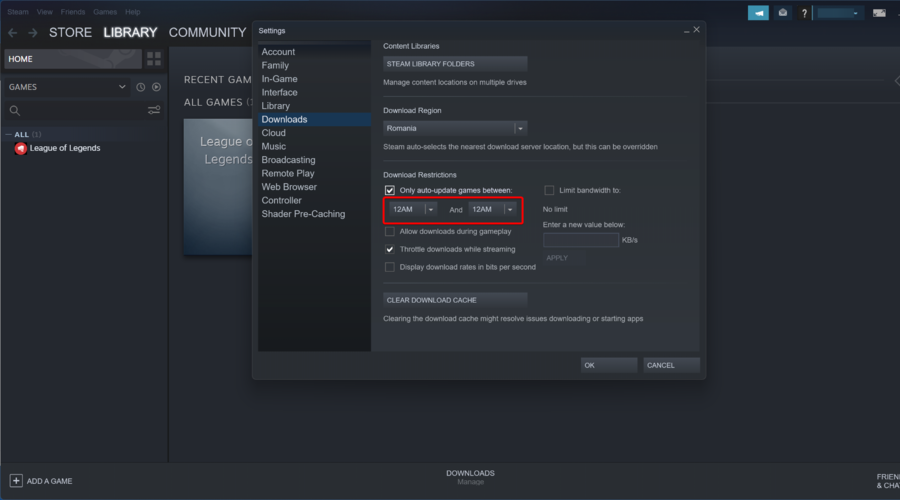
Select a suitable time frame from the two drop-down time menus when Steam can auto-update to prevent disturbances while playing.
If you want to control when your games update to reduce the impact of Steam updates on your network and PC performance, you can restrict Steam’s auto-update feature to a specific schedule. This will bring the interruptions to a minimum.
2. Clear Steam cache
Right-click on your Steam desktop app, then choose to Run as administrator.
Navigate to the Steam menu at the top left corner, and click on Settings from the drop-down menu.
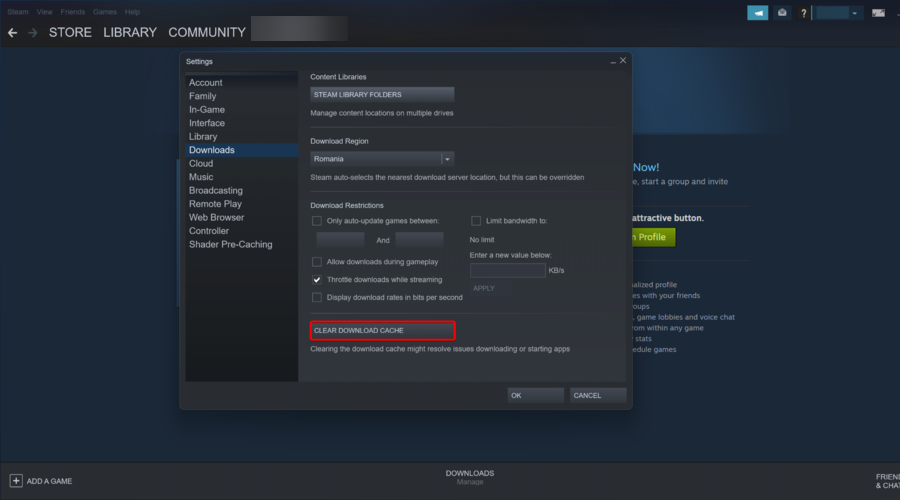
Click on the Downloads tab from the left side of the Settings window.
Hit the Clear Download Cache button.
A confirmation window will open. Click OK on that window to confirm.
Launch Steam, navigate its menu, and click on Settings from the drop-down menu.
Next, under Settings, click on the Account tab on the left.
On the right, go to Beta Participation and click on Change.
Now, in the Beta participation dialog, select NONE – Opt-out of all beta programs from the Beta Participation drop-down and press OK to save the changes.
Hit OK again to apply the changes and exit.
The Steam beta version is the testing version of Steam. It’s where all the new features and changes get tested before they’re released to everyone. The beta version of Steam should be used by advanced users only, as it may contain errors or crashes that can cause harm to your computer.
4. Rename the Client registry.blob file in the Steam folder
Close Steam, and then go to the default location of Steam which is usually in the C: drive.
Locate the Clientregistry.blob file in the Steam folder, copy this file, and paste it onto your desktop with a new name.
Next, go back to the Steam folder, and delete the original ClientRegistry.blob file.
There’s no harm in deleting the ClientRegistry.blob file, as it is a cache file that may cause problems with Steam.
5. Uninstall and reinstall Steam
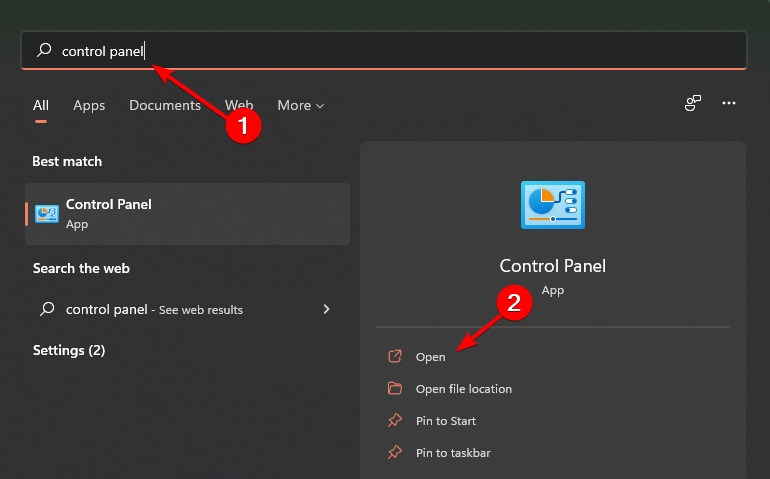
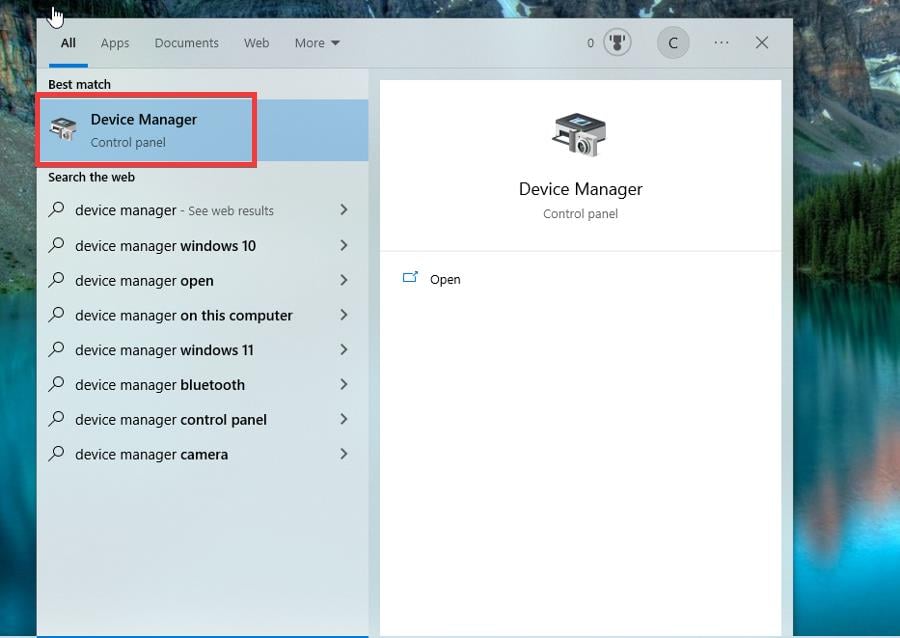
Hit the Windows key, type Control Panel in the search bar and click Open.
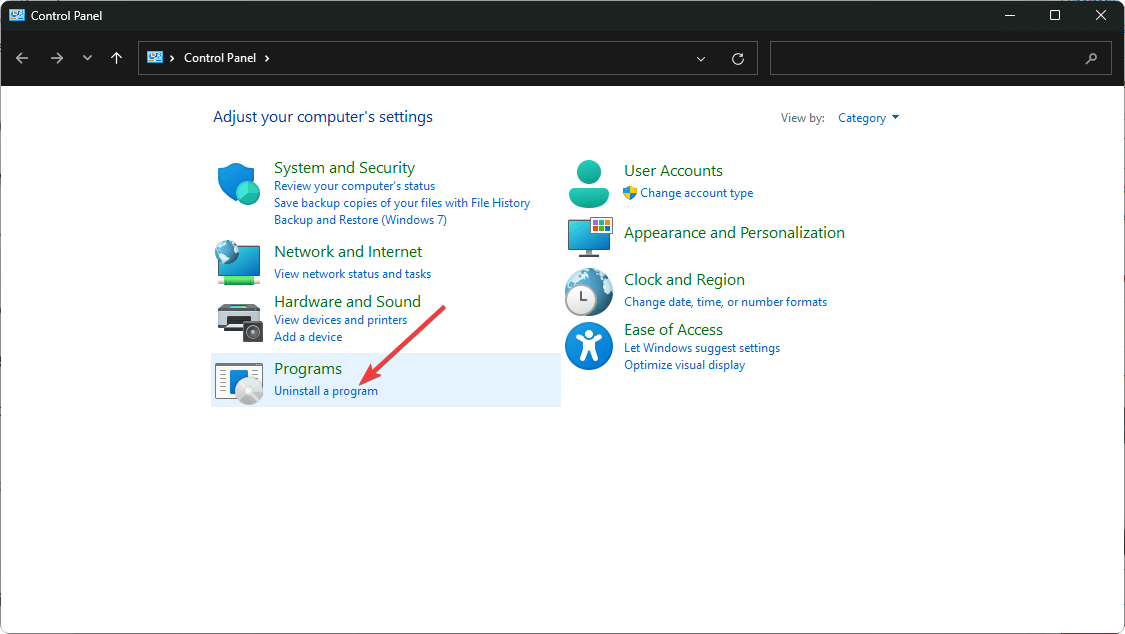
Select Uninstall a program under Programs.
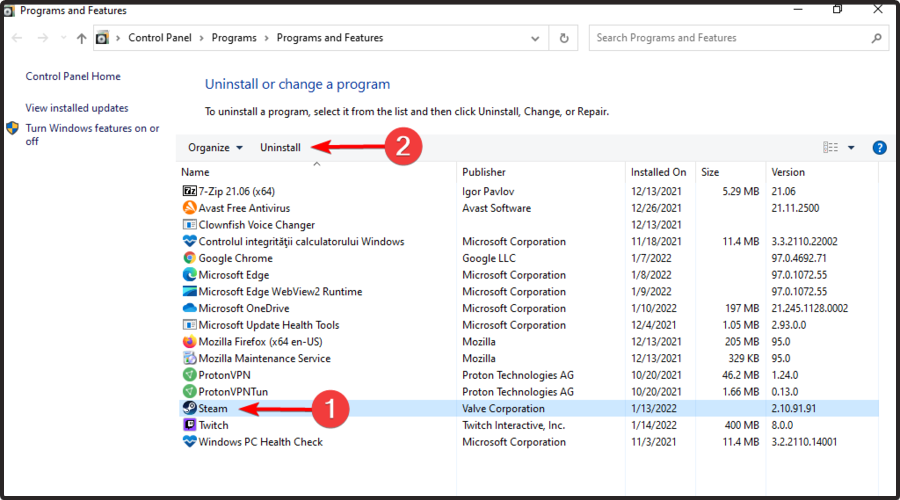
Navigate to Steam, right-click and select Uninstall.
Reboot your PC.
Download and install the Steam client from the official website.
In another instance, some users complained that Steam is constantly running, so don’t hesitate to check out our detailed guide on how to fix this issue.
You may also encounter an issue where Steam lags, but we have adequately covered various fixes.
Let us know if you can get rid of the Steam Self Updater that keeps popping up in the comment section below.
If you need a new GPU to power up your computer, look no further. You still have the chance to buy an excellent graphics card even if you missed the bus on Black Friday.
If you’re looking for graphics cards on sale this 2022, you’ve come to the right place, so let’s get started.
Note: Deals are subject to change. Sometimes, some of the deals listed in our guides may no longer be available by the time you hit the buy button. So, hurry up and grab them while they’re hot.
If you’re looking for graphics cards on sale for Christmas, then this is the best model for you.
The card comes with NVIDIA Ampere Streaming Multiprocessors, delivering an outstanding performance and power efficiency.
2nd generation RT Cores are available, and you’ll get twice the throughput compared to the previous model. As for the clock speed, you can overclock the card up to 1815MHz.
NVIDIA GeForce RTX 3080 V2 OC Edition offers incredible performance, and it’s a great choice for high-end gamers and a great GPU for video editing.
This GPU features a real boost clock of 1770 MHz. It can power you through an intense and long gaming session. Not to mention that the GPU comes with a 3-year warranty for peace of mind.
The real-time Ray Tracing technology and the 8 GB of GDDR6 memory will work even for the latest titles. If you’re looking for 2060 graphics card for Christmas, you might want to get this model since is far superior.
EVGA GeForce GTX 1070 Ti is a powerful GPU that’s suitable for power-users. So, if you’re planning to overclock your system and put much strain on it, then this is the right graphics card to choose.
Key features include 8GB GDDR5, EVGA Precision XOC to apply the right overclock settings for you, a new 2.5 slot cooler, and very silent fans.
If you need need a graphics card that won’t break your bank, this model might be what you need. It comes with 1366MHz base clock, and it has 8GB GDDR5 RAM, so it’s perfect for all types of multimedia.
Of course, overclocking it supported and you can get extra performance out of it. AMD FreeSync is supported, so no missing frames or screen tearing.
Thanks to the all solid capacitors, your card will remain cool even during the most intense gaming sessions, which makes it a perfect choice for less demanding gamers.
These are some of the best GPUs to purchase on Christmas. Don’t miss out on this chance and buy the GPU that best suits your needs.
If you’re wondering when will graphics card prices drop, we still don’t have any reliable information, and if you missed our Black Friday GPU deals, this might be a perfect time to get a new GPU.
What is your graphics card of choice? Let us know in the comments section below.
VPN connections enable users to navigate the Internet more securely. They minimize data breaching risks and allow you to surpass ISP restrictions.
Setting up a VPN will also allow you to access the geo-restricted content on streaming platforms so you can enjoy your favorite show regardless of your physical location.
VPN routers are great for households with multiple devices because all of them will automatically be VPN-protected at all times, without the need for additional configurations.
Most VPN routers place no limit on the number of devices you can connect, as long as your network supports it, and if they do have a limit, it generally covers more devices than a VPN subscription service would provide.
Some VPN routers can convert public Wi-Fi networks to private Wi-fi sources. They are typically very easy to set up, so you can get a private connection anywhere, in just a few minutes.
We picked the best VPN deals available this year, take advantage of these limited offers and secure your connection at a fraction of the regular price.
There are plenty of good options available on the market. We made sure to select the ones that offer the best value for the money and are proven to provide high-quality and stable connections.
Be sure to pick a product that covers all your needs. All routers mentioned above have detailed descriptions in their Amazon listings, so make sure to check them out.
Please let us know which of these VPN routers is your favorite. Also, if you have suggestions for other similar tools, feel free to use the comment section below.
Many of us have experienced Wi-Fi signal loss, disconnects, errors, invalid Wi-Fi IP address alerts, and many other issues. Wi-Fi connectivity and signal strength problems are some of the most frequent Internet issues encountered by Windows 10 users.
Today we want to fix the root cause of most of your wireless problems: poor Wi-Fi coverage.
The good news is that buying a reliable Wi-Fi mesh system is quite a bargain if you catch a good deal.
Why wait when you can get a useful wireless mesh right now? Scroll down to check the list.
NOTE
Deals are subject to change. Sometimes, some of the deals listed in our guides may no longer be available by the time you hit the buy button. So, hurry up and grab them while they’re hot.
ASUS offers a 3 Packs Home Mesh WiFi System with free lifetime Internet Security by Trend Micro. It works well with Amazon Alexa and you can easily set up parental control, network management, and diagnostics.
A noticeable design with a vertical antenna that optimizes wireless signal while preserving a modern look to fit any living space.
Tenda MW6 Nova Wave is a 3 pack Wi-Fi Mesh System to cover 6,000 square feet and eliminate dead zones.
Better check out the available stock for this Mesh Wireless-Access Point system, fit for major modems and ISP’s like AT&T, Comcast, Time Warner, Verizon, Spectrum.
This is a limited time deal you could benefit from today. NETGEAR offers a Tri-Band WiFi Mesh Extender that works with any WiFi Router.
You can use your existing router to create a network with One SSID/Network Name. The MU-MIMO feature enables simultaneous streaming of data to multiple devices.
Black Friday is finally here and there are a few amazing deals available for everyone. Particularly, if you intend to get yourself a sound machine, note that they are available for purchase at a discounted price.
A sound machine is quite essential as it helps create a relaxing environment that ultimately promotes good sleeping habits. Apart, from the white noise and other noise colors, the device also produces natural and ambient sounds like chirping birds.
Therefore, if you intend to revolutionize your sleeping habits, this is definitely the time to get the machine. You can get it at a steal through this year’s Black Friday deals on sound machines and keep in mind the following:
Volume – A noise machine is not supposed to be too loud. Actually, it is supposed to help you sleep. Prolonged exposure to loud noises from the gadget could affect your hearing ability. An ideal gadget should not exceed 50 decibels, especially if you have an infant in your household.
Customizable – The device should have the allowance for alteration to suit the user’s needs. Besides, people have different reactions to different sounds. Your pick should come with a couple of customizable noises, which will help out a lot.
Clean loop – The buyer should be aware whether it uses sound recordings or mechanical noises. If it is using recordings, then there is a high probability that it will face some glitches when looping. This is a major impediment as it will affect your sleep.
It is quite obvious that there are plenty of deals on sound machines. All you have to do is narrow down the list by singling out the specifications that you want yours to have.
Your set budget plays a crucial role, but you will definitely find one that suits your needs perfectly. Also, be sure to check out the product description for additional features that the device comes with. They vary from one device to the other.
Get yourself a sound machine today! Feel free to share the selection you made with us in the comments section below.
The heating machine purchasing frenzy begins! There are so many on the market that finding the top-rated and functioning one becomes a challenging process.
But let’s cut the confusing search short and talk about Cricut. The Cricut EasyPress is a heat tool particularly intended for putting iron-on materials into your creative prints.
It produces professional iron-on effects in as little as 60 seconds. Iron patterns onto shirts, bags, pillows, flags, shoes, caps, and blankets, and it goes on.
The Cricut Mug Press allows you to imprint any image or pattern, making it ideal for a distinctive holiday mug present. It’s so fantastic that you can’t afford to miss it. Furthermore, they include print-specific ink.
This is a fantastic opportunity. We were able to get you the finest bargains on Cricut press machines from Amazon. Make sure to get yours before the clock runs out!
NOTE
All the prices and offers in this article are subject to change, so be sure to check the official product page to get the latest deal. If the product or offer you’re looking for is no longer available, you can try to find it on its official manufacturer page or get another one from our list.
What are the best Cricut heat press Black Friday deals?
Cricut products, ranging from cutting and heating machines to crafting basics, make it simple to create for pleasure. It is suitable for friends and family, or even for a small company.
Consider the possibilities and how simple it is to accomplish this. You no longer need to look for the ideal heat press; you’ve just discovered it.
As the Holiday season approaches, this is a must-have for every craftsman, perfectionist, designer, or enthusiastic creator of creative and abstract stuff.
We would be more than thrilled to talk about your Cricut choices in the comment section below.
Our readers constantly encounter the 0xc1900101 error code while using the Windows 11 Installation assistant. This occurs when they try to upgrade to the new operating system or perform a regular update on a Windows 11 device.
The Windows 11 0xc1900101 error code is generic. Several reasons exist, including installing a third-party antivirus on your device or even having outdated BIOS firmware.
Most users have reported that the error code appears when they are in the process of installing Windows 11 on their devices. The error would then halt the process at a certain percentage.
It is worth noting that it will still occur regardless of the mode you use to install Windows 11 on your device. For instance, the error code affects the Media creation tool, ISO file, Windows Update, and Installation Assistant.
What does the Windows 11 Update Error 0xC1900101 mean?
The 0xc1900101 Windows 11 update code on your screen indicates that the core system files are either corrupted or broken.
The immediate action to take when such a situation presents itself would be to create a system restore point before trying to resolve the issue.
When the error code appears on your screen, it will come with a prefix before it. Some of them include 0xc1900101 0x30018, 0xc1900101 0x20017, 0xc190010 –0x40021, 0xc1900101– 0x3001a, 0xc1900101 0x2000c and 0xC1900101– 0x4000D.
The error code will present itself in one of the following formats on your screen:
What causes the 0xC1900101 error code in Windows 11?
If your device lacks sufficient disk space, you will likely encounter the error code on Windows 11. It may also appear on your screen if there is a problem inside SATA or BIOS.
Moreover, the bug is often related to outdated device drivers, corrupted system files, or problematic app installation.
Therefore, there are quite a large number of common causes of Blue Screen of Death errors. It would help if you took good care of your device to avoid getting into such a situation.
However, the issue should not be a significant concern as we have compiled a list of simple methods you can use to eliminate this. Don’t fret!
Why is my Windows not updating?
There are a few reasons for update errors and issues. Here are some to note:
Internet connection problems – An update downloads files off the internet; without a good connection, this will not happen.
Insufficient disk space – Like we said, there will be downloaded files, and you need to have enough disk space to accommodate them; if not, the computer will not proceed to update.
Corrupted system files – It should go without saying that most activities are hampered once you have corrupted data. To avoid this, you must back up your data and create a restore point.
Incompatible antivirus programs – These have also hindered Windows updates and should be disabled or removed before proceeding with the update.
Let us now get to fixing the 0xC1900101 Windows 11 update error for you.
How do I fix the Windows 11 install error 0xC1900101?
1. Use the Windows Update Troubleshooter
Press Windows key + I to open the Settings app. Then, select System and click on Troubleshoot on the left side of the window.
On the right side, look for Other troubleshooters and click on it. Then, click on Windows Update and select the option Run the troubleshooter.
The troubleshooter window will open. Wait for it to identify the problem that is preventing you from making the update.
A window will pop up highlighting the issues and also indicating whether the problem has been resolved.
Then, restart your device and check if the error has been resolved.
This is the best and easiest method that you can use to find out the reason preventing you from making the new operating system installation or up-gradation on your device.
2. Clean up disk
Press the Windows key + S key to open the search bar immediately, then type the code below and press Enter. cleanmgr
Then, select the System drive and click on OK.
Please be patient while calculating how much data can be erased from the disk.
Click on Clean up system files.
Then, choose the System drive and click on OK.
Then, check all the boxes present beneath Files to delete option and click on OK.
Use disk cleanup to wipe out junk. To confirm the action, click on Delete files.
After completion of the removal process, reboot the PC.
When installing Windows 11 using the Media Creation Tool, it is essential to note that you need around 20 GB or 64-bit OS. Therefore, you should ensure that the local disk you wish to install the operating system has sufficient space.
3. Remove all secondary devices and unplug all cables
If too many devices and cables are connected to your device while trying to upgrade your Windows, then the0xC1900101 installation error code will appear.
You must disconnect all secondary devices and unplug all cables from your PC, such as printers, broadband, and soundbars. This will get you a step closer to resolving the installation error code.
Moreover, if you are using a desktop, it is recommended that you unplug all the cables connected to your hard disk and clean off the dirt on it.
Connect the cables back to your device. It is also essential to ensure that you eject and reconnect your device’s wired mouse and keyboard.
Then, you should try installing the Windows update on your device using bootable media to see if it works.
4. Remove recently downloaded applications
Open the Control Panel.
Then, select Programs and click on Programs and Features.
You will then be taken to a page where you can Change a program or Uninstall it.
Then, select the program that you recently installed and click on Uninstall.
The confirmation window will appear; click on Uninstall.
NOTE
You are only allowed to uninstall applications that you installed using their executable files.
On the other hand, applications downloaded from Microsoft can only be uninstalled using the following steps:
Press the Windows+ X keys. Then, select Apps & Features.
Scroll down to find the application that you recently downloaded and installed. Click on the application and select the Uninstall option.
Verify that the Windows 11 0xc1900101 error is resolved.
Suppose you recently downloaded and installed a new program and the installation error code started appearing. In that case, you need to uninstall the application because it is most likely the one causing the issue.
5. Update your faulty driver
1. Press Windows key + X key simultaneously to open the Power menu.
2. Select Device Manager from the list.
3. In Device Manager, expand each section to find the problematic driver. The Yellow exclamation mark next to a driver signifies that the specific driver is problematic or buggy.
4. When you find the faulty driver, right-click on it to bring up a set of options.
5. Select the Update driveroption.
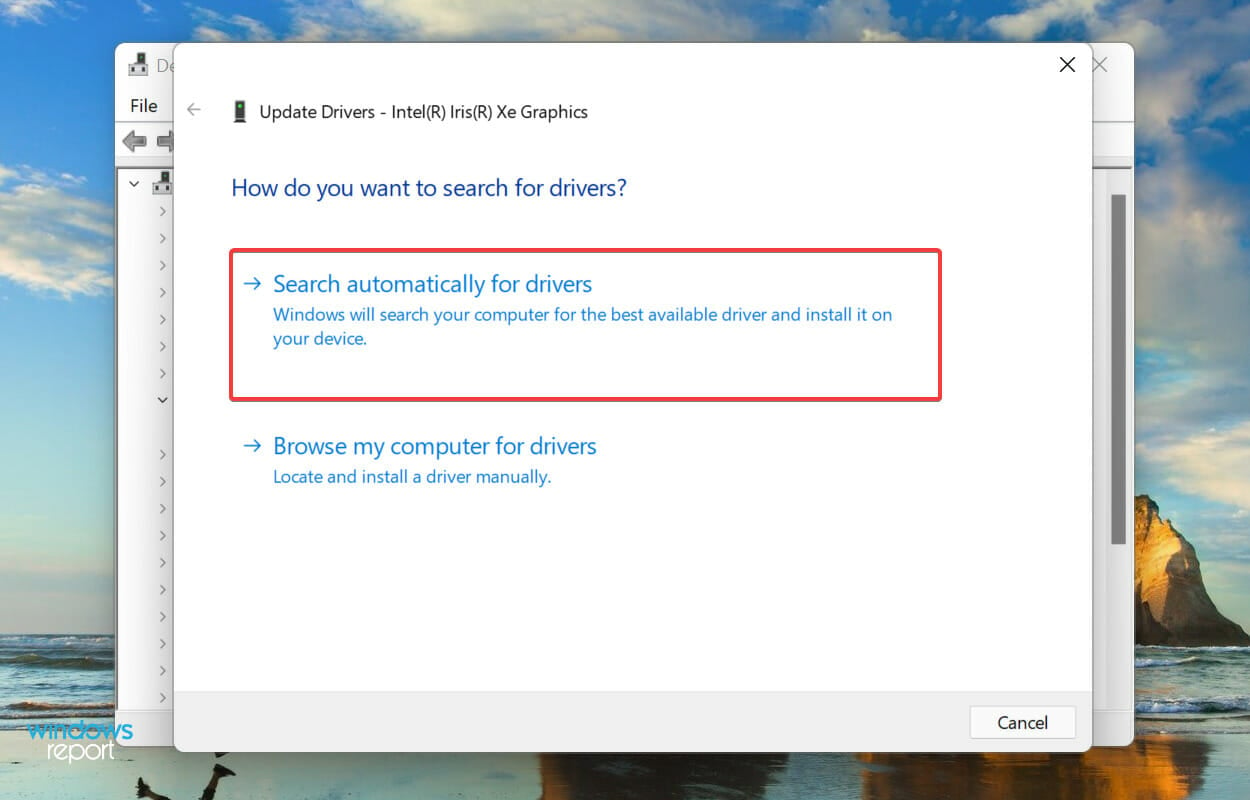
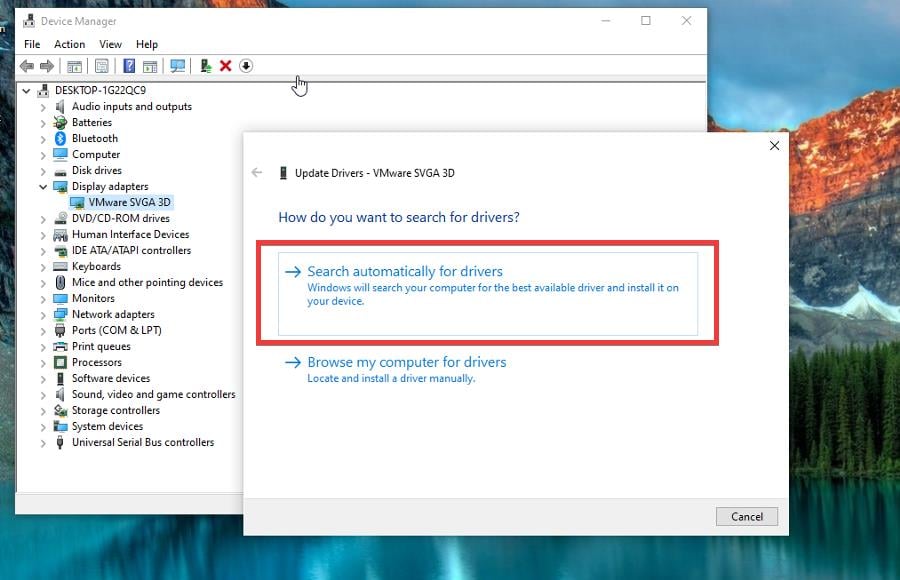
6. Then, click on Search automatically for drivers and let the system search for any pending updates online.
7. If the above search finds any pending updates, they will be automatically downloaded and installed.
8. Finally, restart your device to save the changes made.
An outdated or corrupted Windows will prevent you from installing a new operating system on your device. Updating your drivers should resolve the Windows 11 0xC1900101 installation error.
You can also use an automated tool to find and update all your drivers, even the corrupted ones. Outbyte Driver Updater is a specialized tool with a database of over 18 million driver files that is updated almost daily.
Outbyte Driver Updater
Keep all drivers up to date automatically and fix most of these errors.
Press the Windows + X keys simultaneously to open the Power menu. Then, select the Run option on the list.
Then, type cmd in the text box and click onOK.
Press Ctrl+Shift+Enter to open Command Prompt as Admin. If the User Account Control dialog appears, click Yes to authorize the access.
Then, key in the command below and press Enter. sfc /scannow
Wait for the process to end, then restart your device and try to upgrade your Windows once more.
If your device has corrupted system files or there are a couple of files missing on the operating system, then this may prevent a smooth, seamless up-gradation,
Therefore, you must use the System File Checker to resolve the installation error code.
7. Disable your network adapters
Press the Windows + R keys to open the Run dialog. Then, enter the script below and click OK to open Device Manager. devmgmt.msc
Find and expand the Network Adapters section.
Right-click on each entry and select Disable device using the context menu. Repeat this process until you disable all the drivers under this category.
Then, restart your device to save the changes that you have made.
Retry installing the Windows update on your device using bootable media.
8. Clear CMOS
Tip
It is essential to seek assistance from a professional technician when using this method. Any incorrect changes made to your BIOS will have significant adverse effects on your device. The process is tedious and complex.
Switch off your device and disconnect all the power cords connected to your device.
Open the casing, and you will see a flat battery attached to the motherboard.
Remove the CMOS battery.
Wait for approximately 5 minutes.
Place the battery back at its original position and set the casing back with great care.
Don’t forget to attach all the cables back to their default locations.
Start your PC and retry upgrading Windows again.
Resetting the BIOS on your device will surely help you get some headway with the installation error code. However, it is essential to note that this method is easier to perform on a desktop than on a laptop.
9. Check for disk errors
Open Command Prompt as administrator.
Then, enter the script below and press Enter: chkdsk C: /f /r /x
Wait for the scan to end, then reboot Windows.
Specific and logical physical issues on your system drive can also cause the Windows 11 update error 0xc1900101. The CHKDSK utility will help you resolve the issue.
10. Create space on your disk
Press the Windows + E keys simultaneously to launch the File Explorer, then click on This PC on the left column.
Click Local Disk (C:), and see the availability of free space on the root drive.
Installing Windows 11 requires at least 16GB or more, just like any operating system. However, if your device does not have enough space, you can use the Disk Cleanup tool to clear all the junk and old installation files on your device.
Storage can prevent you from smoothly installing the new operating system. Freeing up some space will help you eliminate the installation error code.
11. Upgrade in clean boot
Press the Windows key, type in the script below, and press Enter to open the System configuration. msconfig.exe
Select the radio button set before Selective startup. Then, uncheck the Load startup items.
Move to the Services tab and click the checkbox present alongside Hide all Microsoft services. Then, select Disable All.
Next, move to the Startup tab and click on Open Task Manager.
Right-click on any program listed on the window that pops up and select Disable.
Disable all startup programs similarly.
Go back to the System Configuration window, click Apply, and then OK.
Reboot Windows and try to download and install the update.
Sometimes, third-party applications and services conflict with the in-built ones, ultimately causing the system to go through unexpected challenges. Therefore, starting Windows in a clean boot can help you avoid such situations.
Clean boot allows you to start the system with basic components creating an enabling environment for the installation process.
12. Repair corrupted system files
Click the search icon from the taskbar and type in the following code: cmd.exe
Then, press Ctrl + Shift + Enter keys simultaneously. If a User Account Control prompts, click on Yes to grant administrative privileges.
Key in the following code and press Enter: dism/Online/Cleanup-image/Restorehealth
After the DISM scan, run the following code on the same window: sfc/scannow
Wait for the scan to end. Then, restart your device and try to install the update again to see whether the Windows 11 0xc1900101 issue has been resolved.
Accidental changes in the settings or registry can cause some system components to go missing or even become corrupted.
The process is stopped when the system fails to access the necessary files while performing the update, and the error code appears.
How can I fix installation error codes in Windows 11?
Performing a clean installation on your device might get you over the hump if none of the above methods worked. This is the only workaround available if you need to get Windows 11 on your operating system.
You must note that a clean install on your device will make you lose all the data, including the installed applications in the system drive.
Why did Windows Update fail?
Your system files may have recently been destroyed or damaged, which is why Windows Update failed. Additionally, obsolete drivers may cause an update to fail.
But also, as we stated before, internet connection problems, insufficient disk space, and incompatible antivirus programs play a role.
Moreover, feel free to use third-party repair applications that will help you deal with a wide range of Windows update difficulties, such as the 0xC1900101 installation error code on Windows 11.
Have you managed to fix the Windows 11 0xc1900101 error? Do not hesitate to share your experience with other readers in the comments section below.
When you’re happily gaming, it’s so easy to miss signs that you don’t have something essential. Gaming mouse bungees are famous in the gaming world, so how’s it that you don’t have one already?
Some great gaming mouse bungee deals are now waiting for you to correct that. They’ll make sure you will end up playing for hours on end without ever worrying about your mouse cable tangling.
Mouse bungees also provide a much more precise movement of your cursor, which could just take your gaming performance to the next level. That’s why it’s a great idea to look towards purchasing a gaming mouse bungee unless you clearly use a wireless mouse.
What are the best gaming mouse bungees on the market?
Razer Gaming Mouse Bungee v2 is an ideal accessory for gaming or even office use, if you want smooth comfort all around.
Compatibility is limited, yet if you are lucky enough to own a suitable mouse, you can fully understand why this device is considered one of the best gaming mouse bungee sets available.
Pros:
Compact design
Anti-slip grip
Great drag-free cord management
Rust-resistant spring arm
Cons:
Doesn’t allow usage with thicker cable
You need to give a little extra room for the cord in order for it to easily reach the bottom of your mousepad
One of the standout features of the ENHANCE Pro Gaming Mouse Bungee is the 7 LED Color Mode which provides customized ambient lighting to your gaming setup.
So, there is no need of a crazy design element to keep things interesting this time. However, the LED light goes to the default Blue color when you turn the power off. Therefore, you need to leave it at Blue or change the colors every time you boot your PC.
Pros:
4 USB ports so that you can plug in different devices
LED light with different colors
Spring loaded cable support arm for improved mouse accuracy
Cons:
Some users describe plugging the webcam into one of the USB ports just to be immediately fried
If you are a gaming enthusiast, we highly recommend the Cougar Bunker RGB Mouse Bungee. While this is a great mouse bungee ready to ensure no snagging of the cable, the additional features are the ones that make your day.
As its name suggests, it comes supplied with RGB lights that display up to fourteen fantastic lighting effects. There’s also a unique vacuum suction pad, which gives the bungee the highest levels of steadiness.
KLIM Mouse Bungee – RGB Extension for Mouse is designed to eliminate cable tangling at a rather modest price. Still, except for being decently priced, it has some features which will make you love it.
A USB hub + mouse bungee seems like a great scenario to combine two products without having to make any compromises to the functionality. That’s exactly what you could get by buying this 2019 product.
Pros:
Has a couple of handy USB ports
Retractable arm lets you use KLIM Bungee as a USB hub
As you can see, we ventured forth and dug through some great gaming mouse bungee offers. Now that you’ve checked our list, which one are you planning to buy?
Regardless of your choice, remember that these are limited-time deals. You should better hurry up!
Editing your PDF files doesn’t have to be hard, as long as you have the right tools for the task, such as Soda PDF for example.
The software is available at 60% + an extra 20% discount for this shopping season, so let’s see what it offers.
What is Soda PDF and how does it work?
Soda PDF is a beautifully designed PDF editing software that allows you to read PDFs and EPUBs with ease. The software also allows you to create PDFs from any files or directly from the scanner.
Speaking of PDF creation, you can combine multiple files and formats into a single PDF. It’s also possible to split a single PDF into multiple documents if you wish.
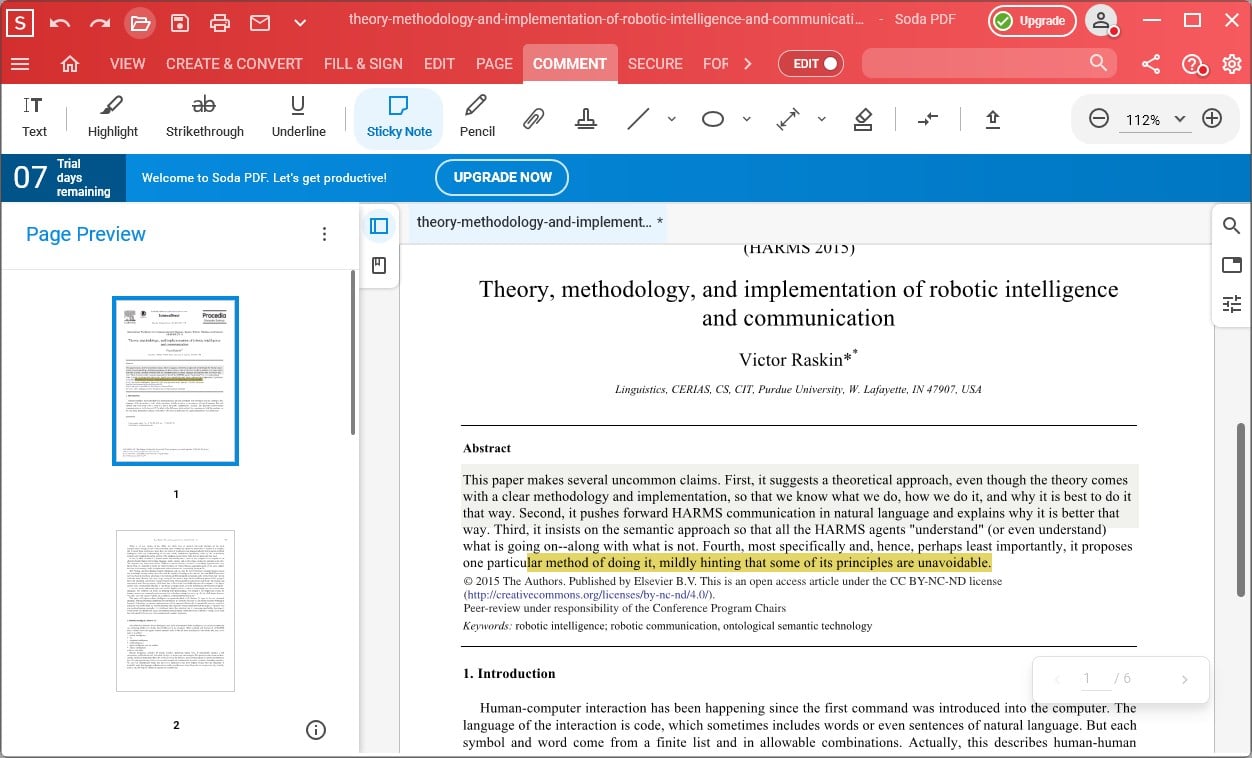
The software supports full editing, allowing you to easily rearrange elements on the page. You can even annotate pages with notes, comments, and other visual elements.
Speaking of editing, we have to mention that you can easily rotate, reorder, add or remove pages from any document, and create fillable forms. If needed, you can also compress the PDF file without affecting its quality.
Of course, file conversion is available allowing you to convert PDF to Microsoft Office files or images. OCR is available, allowing you to easily convert scanned documents into editable PDFs.
Lastly, with the E-Sign feature, you can easily sign documents or manage signatures in real-time.
Get Soda PDF for 60% + extra 20% off
Soda PDF
With Soda PDF you should be able to create, edit, and convert and PDF document like a pro.
Video editors are essential if you use to record lots of footage with your camera or if you are a blogger and content creator.
After you recorded a video, you can edit and refine the final output using video-editing software, export it to numerous file formats for playback on various devices, and share it on social media platforms
We did the heavy-lifting work for you and compiled this list of the hottest video editing software deals available this year. Scroll down to check them out.
If you are looking for a software solution that aims to meet all your video editing needs, then the latest edition of Adobe Premiere may be the perfect option for you.
Adobe‘s cloud hosting capabilities make it easy for your colleagues and teammates to collaborate on all your projects.
Integration with other Adobe products is also present, allowing you to unleash your creativity to the full extent.
With Adobe Premiere you can easily make all sorts of videos, and with its extensive features, it’s perfect for both home users and professionals.
Adobe Premiere
Bring your imagination to life with the best video editing tool that will support all your developments. Get the best deal now!
Corel VideoStudio Pro helps you create amazing videos with its simple to use editor which makes it perfect for all skill levels, from beginners to experts
It supports multi-camera editing, but also lets you import and edit your clips and share them easily with others.
The interface fully supports drag and drop, so it’s easy to navigate, and with tens of available effects, you can achieve some incredible results.
Let’s quickly look at its key features:
Easy to use
Templates and tutorials available
Tens of filters and effects to choose from
HD, 4K & 360 video editing
Color and lens correction
Batch processing
Corel VideoStudio Pro
Catch your favorite moments on camera and edit them the way you like with this versatile software. Try it now!
Filmora is one of the best video editing applications, and it’s suitable for first-time users and professionals alike.
The application supports features such as Keyframing, motion tracking, green screen, color matching, split-screen and more.
Additional features include the ability to adjust the brightness and the playback speed.
The music library is also present, allowing you to easily add music to your videos. Once you’re done editing your videos, you can then share and upload the resulting video to YouTube, and Vimeo directly from the program.
Filmora
Stylize your videos to make them look amazing with this amazing video editing tool. Try it now!
With the help of this advanced video editor, you can edit your HD and 4K video much quicker.
You can choose from over 2,000 video effects and pro-caliber tools, create animations with stop motion, as well as fix shaky footage and other video problems. Screen recording is also supported.
If you’re looking for video editing software on the cheap end, check out Sony Movie Studio 13.
This video editor comes with a user-friendly interface, but it features a series of powerful video editing features. For example, Movie Studio 13 offers 4K XAVC S file format support as well as touch PC support.
Blue Yeti microphones don’t need any introduction. They’re the number one choice of professional musicians and audio professionals. If you’re planning to launch your own podcast network, this is the right microphone brand to get.
Well, honestly speaking, the price tag might keep some potential customers off. Of course, there are many cheaper alternatives on the market. The question is: Do they offer the same audio quality as a Blue Yeti microphone? In most cases, the answer is ‘No’.
The price tag should no longer stop you from getting the Blue Yeti mic of your dreams. After Cyber Monday, you can now purchase a brand-new Blue Yeti microphone for less than usual. Let’s dive right in and check out the hottest deals.
What are the best Christmas Bluet Yeti deals this year?
We absolutely love the color of this microphone. It will definitely help you stand out, especially if you use it in your videos.
With this mic, recording audio has never been easier. The package includes the following items: the Blue Yeti Midnight Blue microphone, MicroUSB to USB cable, removable stand, boom arm adapter, and GalliumPi Cleaning Cloth.
The mic is great for podcasting, YouTube videos, Twitch streaming, Skype calls, and voice-over work.
Another interesting deal is this Blue Yeti USB mic that comes with a Knox desktop arm and a USB Hub.
Use the single button on the mic to conveniently adjust mic gain, mute, and headphone volume, as well as the blend of microphone signal and computer sound in your headphones.
Agreed, Blue microphones are known for their rather expensive price tag but fortunately, there are some exceptions to this rule. For example, this Blue Yeti mic it’s affordable considering the fact that it’s brand new.
It features Cardioid, Omni, bidirectional, and stereo pickup patterns for more flexibility when recording. The adjustable stand comes in handy to optimize the recording process in relation to the surrounding sound.
The fact that the mic is plug and play so no complicated set-up is required is a definite thumbs up.
If you’re looking for a Blue Yeti microphone to record vocals with, then this all-in-one mic is the right choice for you. Whether you’re a singer, you want to record podcasts, or just YouTube videos, this mic has everything you need.
It also includes the PreSonus Studio One Artist Blue Microphones Edition recording software, allowing you to stack multiple tracks of vocals and instruments and edit your tracks to get the perfect vocal performance.
So, there are the hottest Blue microphones available on Christmas? Let us know which one you picked in the comments below.
Today, we’ll show you how to fix screen brightness settings if they’re not working in Windows 11.
The most common reasons why you can’t adjust brightness are faulty graphics and monitor drivers, and corrupt system files. We’ll show you how to fix these and a couple of other possible culprits below.
Let’s get your monitor brightness exactly how you want it.
How can I fix the brightness slider if it’s not working in Windows 11?
We outlined every single step in the guideline below, but if you prefer video formats, check this out:
For more details, keep reading.
1. Disable Adaptive Brightness
How to disable adaptive brightness:
Press Windows + I to open Settings.
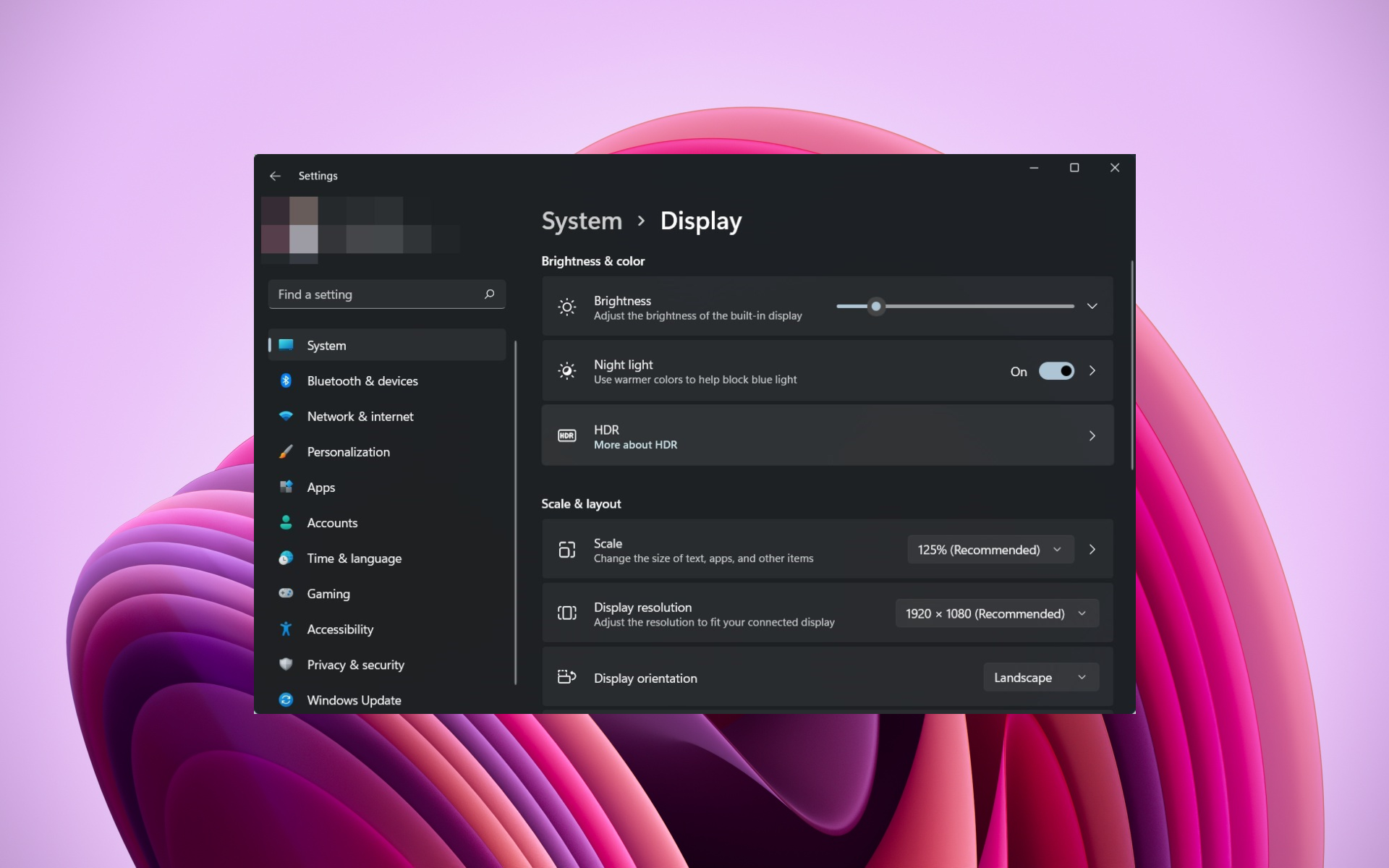
Navigate to System > Display.
If available, toggle “Change brightness automatically when lighting changes” to Off.
Alternatively:
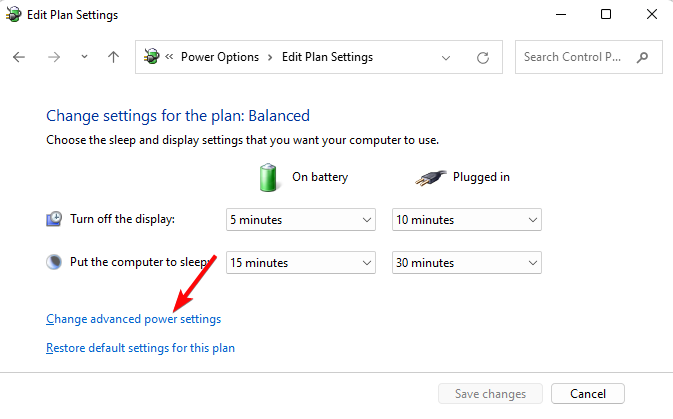
Open Control Panel > Hardware and Sound > Power Options.
Click Change plan settings next to your active plan.
Select Change advanced power settings.
Expand the Display section.
Set Enable adaptive brightness to Off for both battery and plugged-in modes.
If your brightness slider is grayed out or doesn’t respond, adaptive brightness might be enabled, especially on laptops with ambient light sensors. This feature can override manual adjustments and cause brightness issues in Windows 11.
Once disabled, restart your PC and check if brightness controls work normally.
2. Reinstall the monitor driver
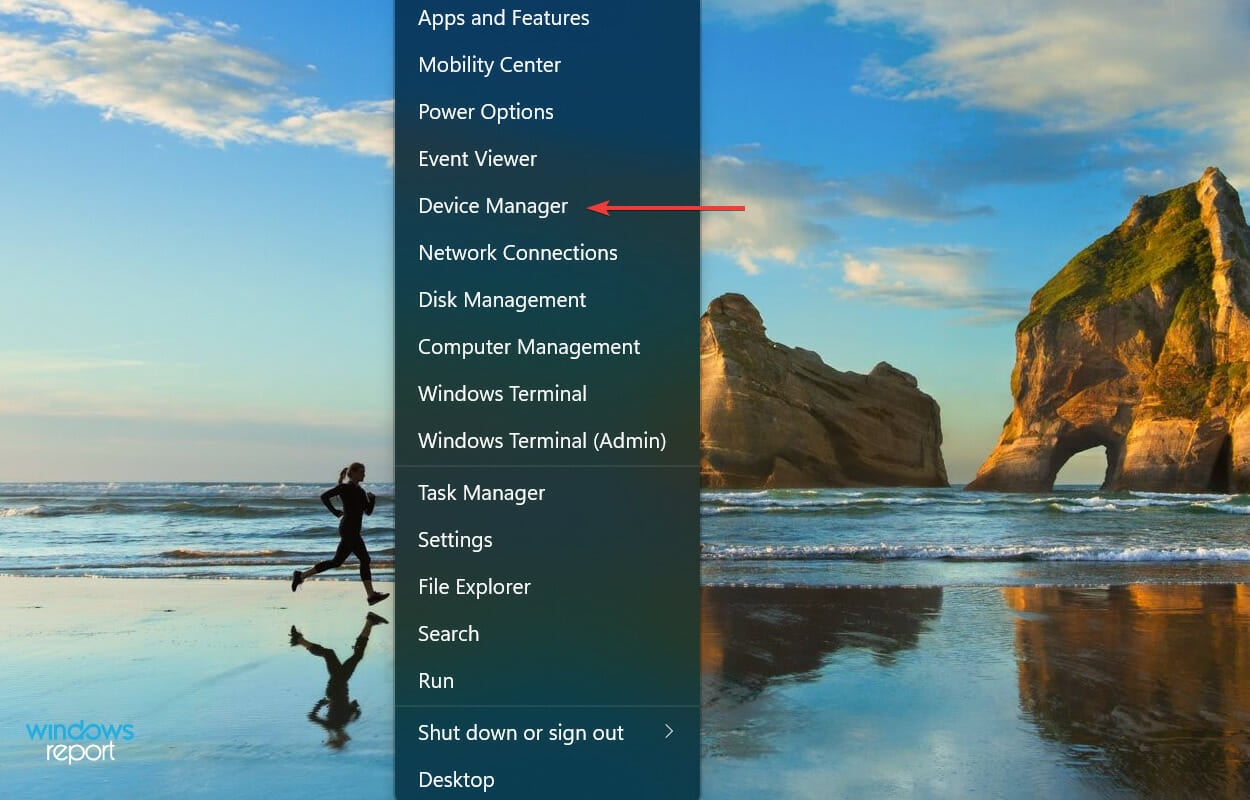
Right-click on the Start icon and select Device Manager.
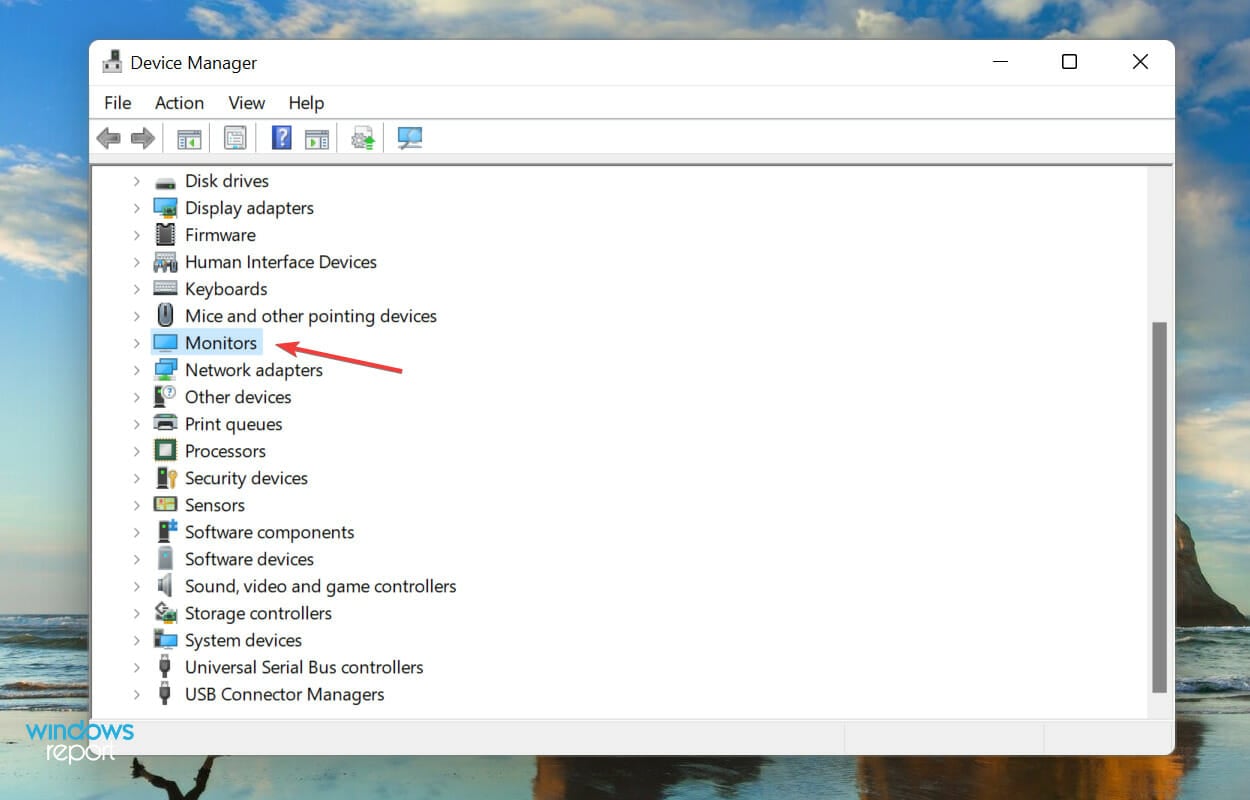
Expand the Monitors section.
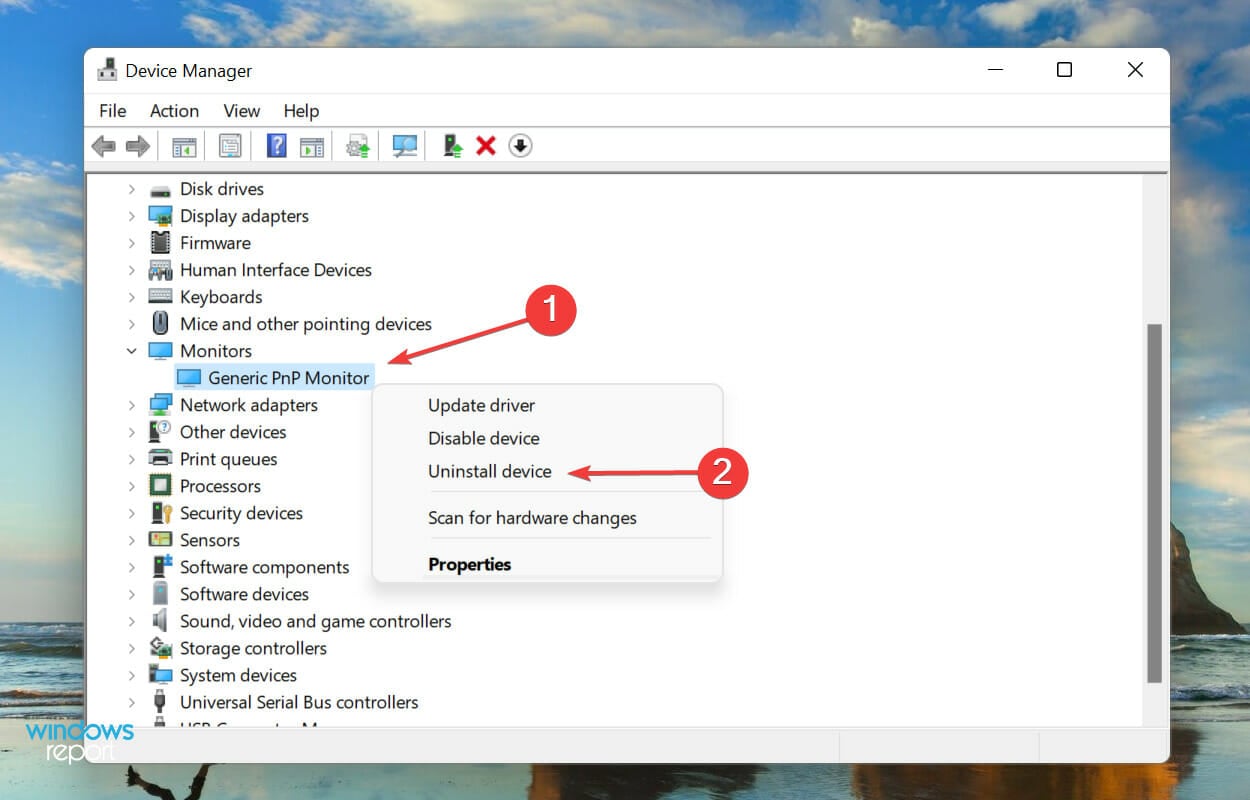
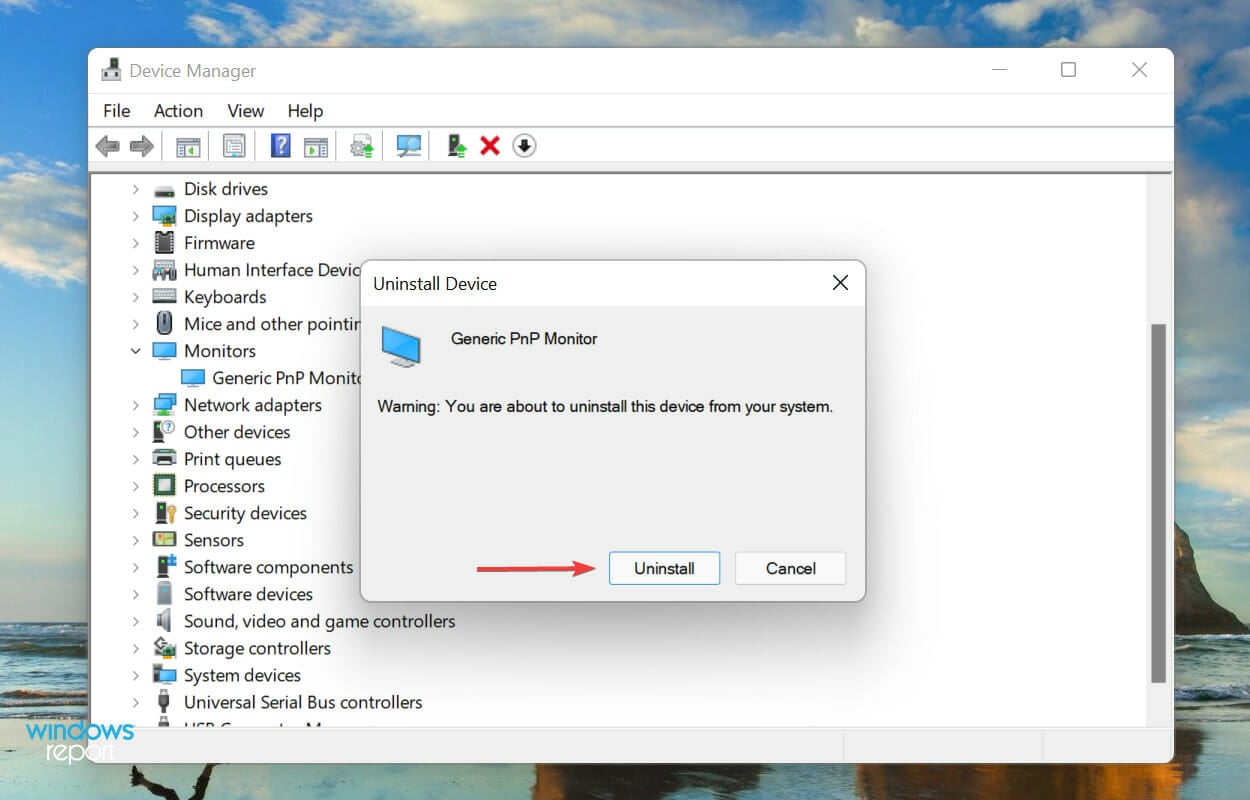
Right-click on the Monitor and select Uninstall device from the context menu.
Again, click Uninstall in the confirmation prompt that pops up.
3. Update the graphics driver
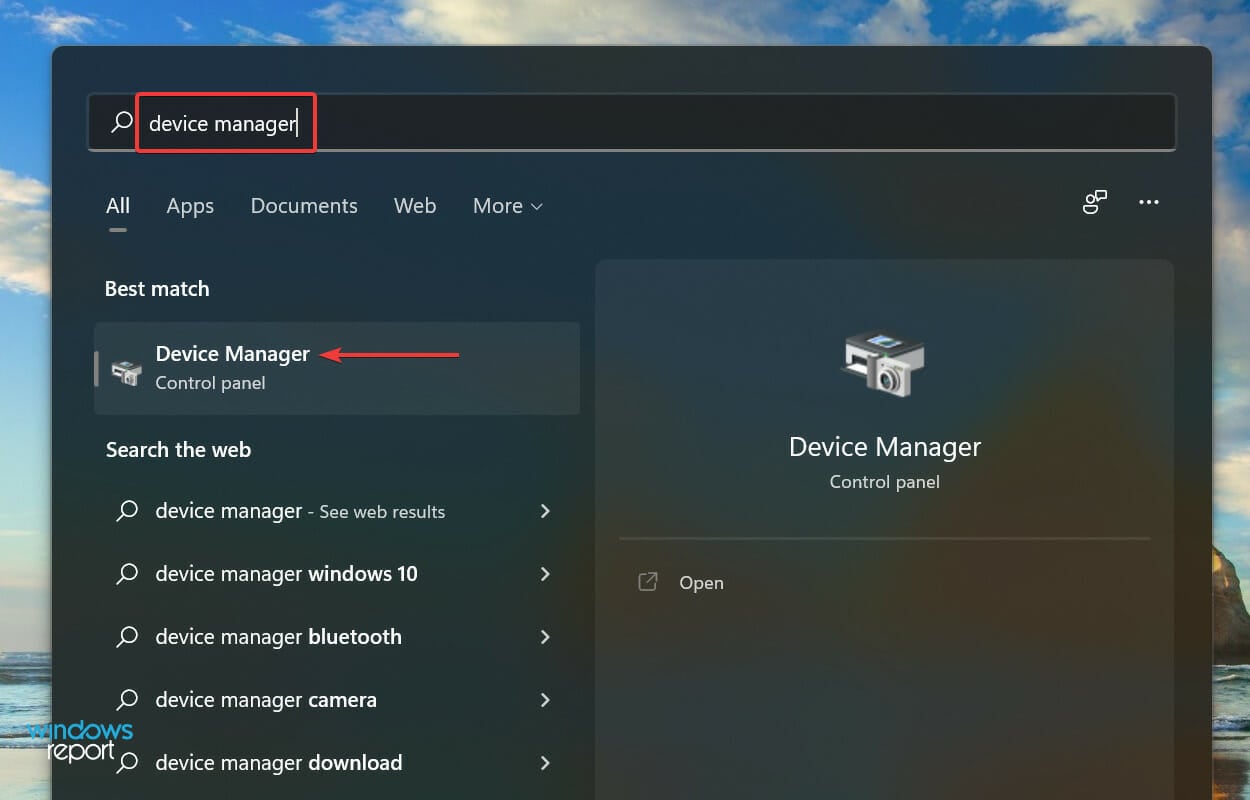
Open the Start menu and open Device Manager.
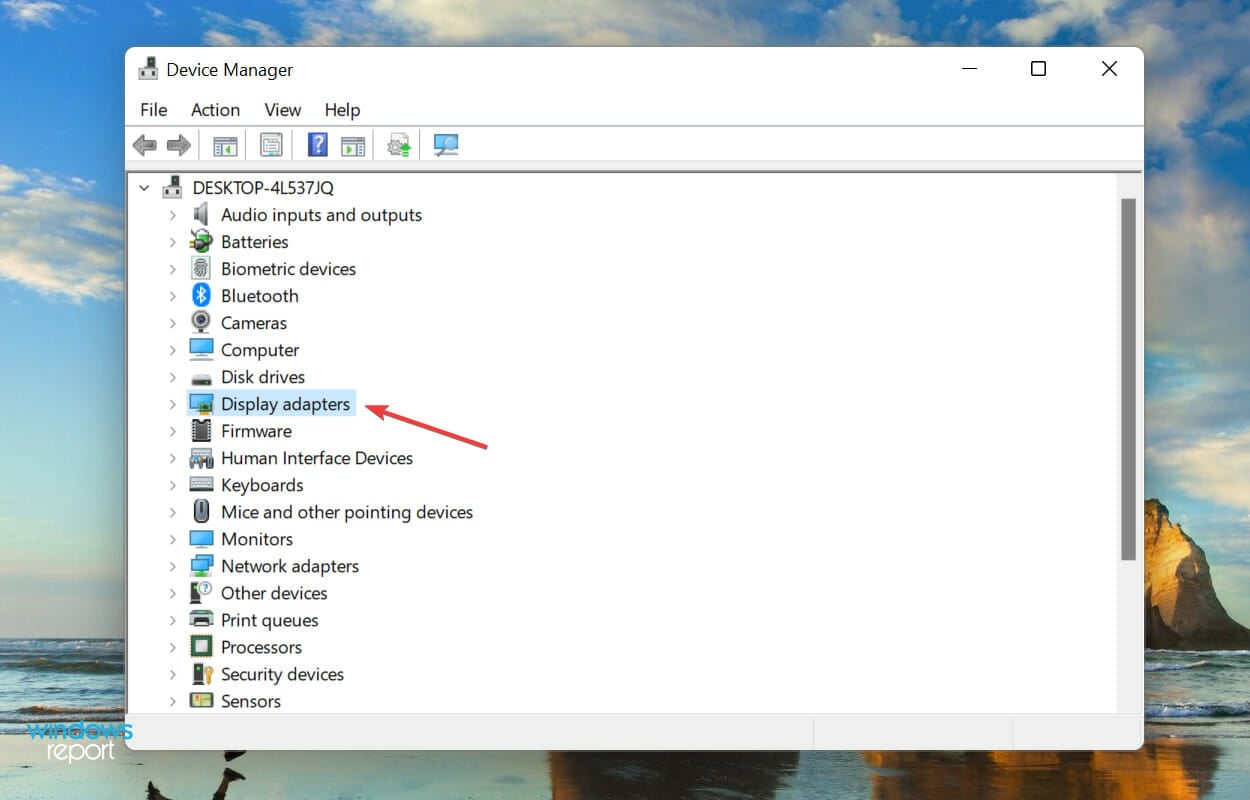
Double-click on the Display adapters entry.
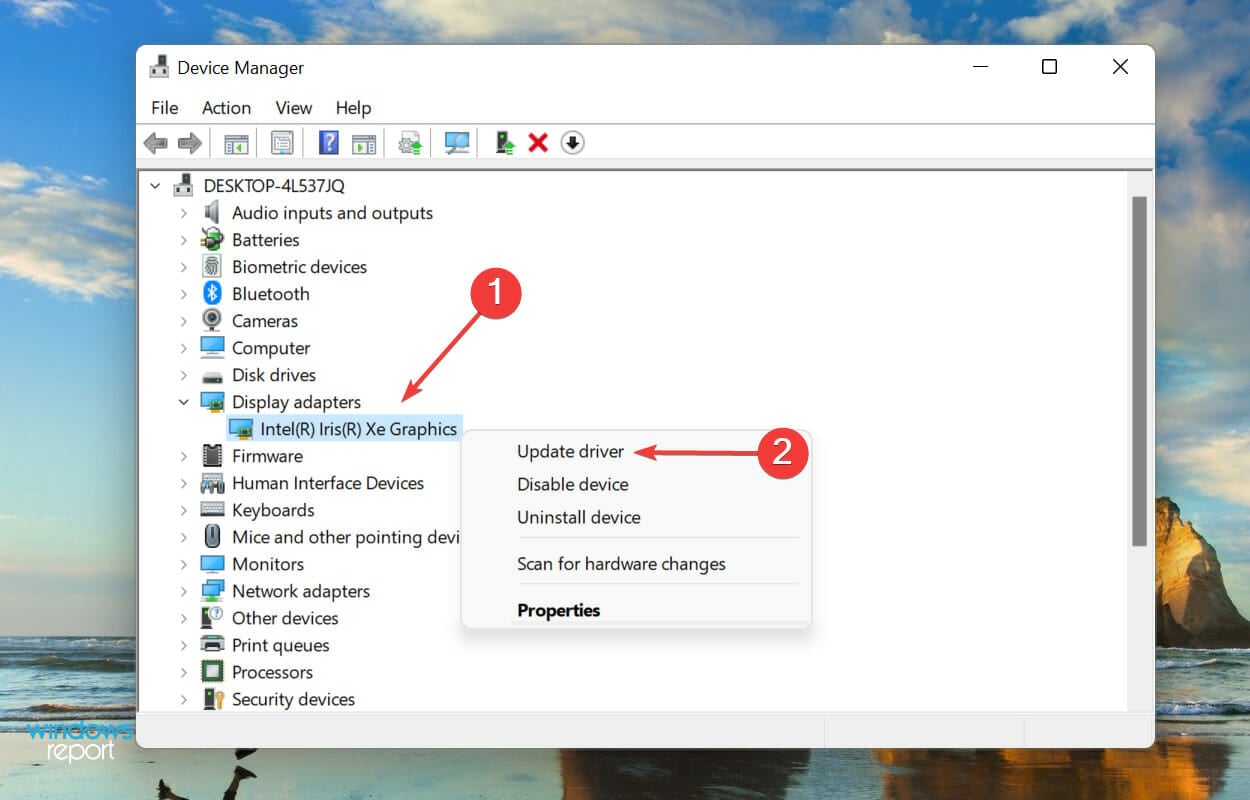
Right-click on the graphics adapter and select Update driver from the context menu.
Select Search automatically for drivers.
Windows will now find the best available driver on the system and install it for the graphics adapter.
Alternatively, if Device Manager can’t find new drivers, you can use an automatic driver updater software like Fortect’s. This tool will automatically check for new drivers and install them onto your PC.
You can also check for the latest driver version in Windows Updates or manually download the setup from the official manufacturer’s website and install it.
4. Perform SFC and CheckDisk scan
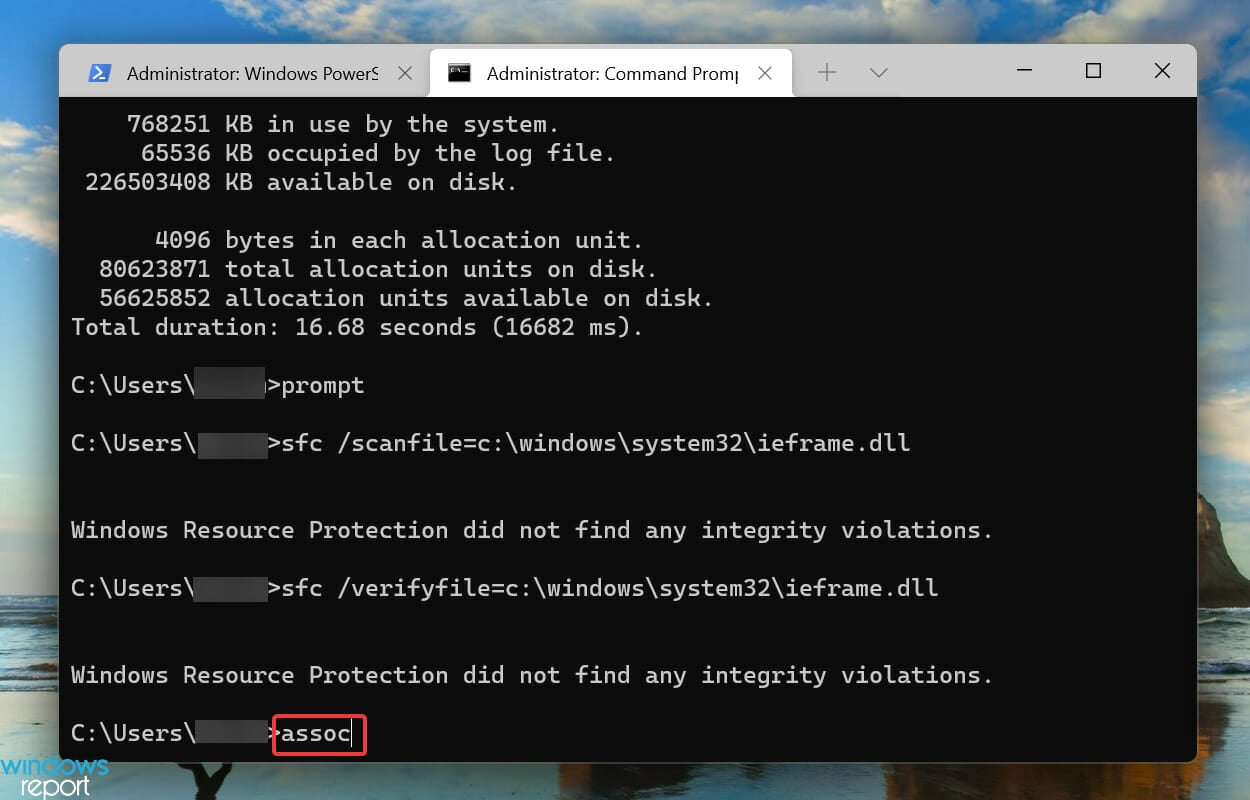
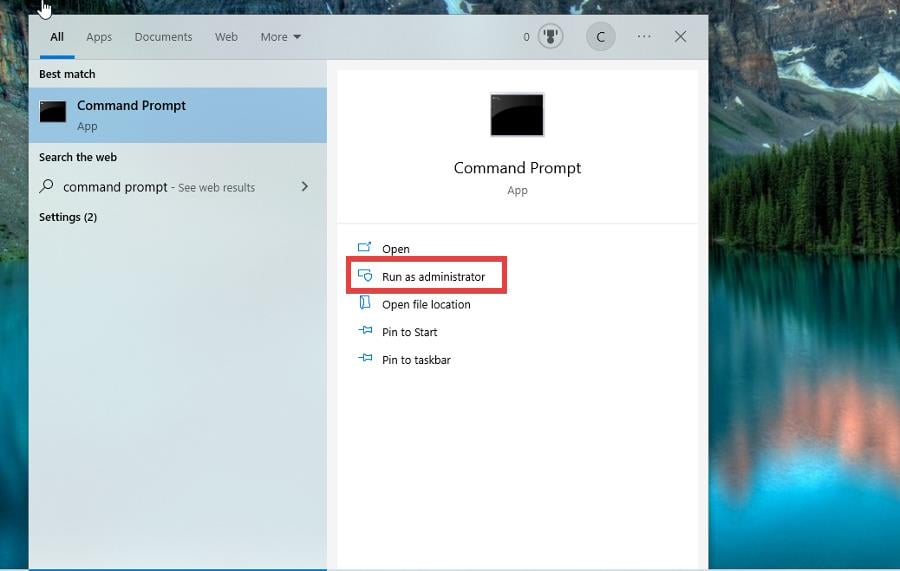
Open the Search menu, type Command Prompt and select Run as administrator.
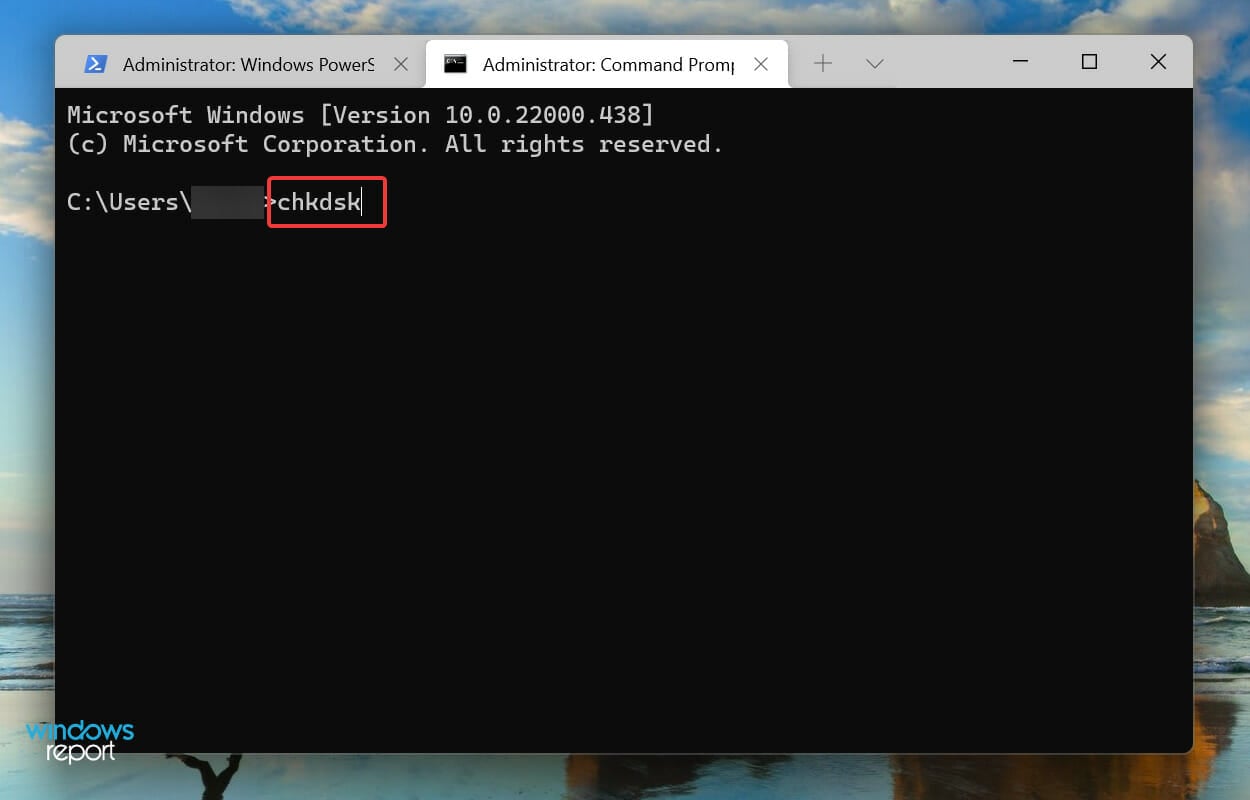
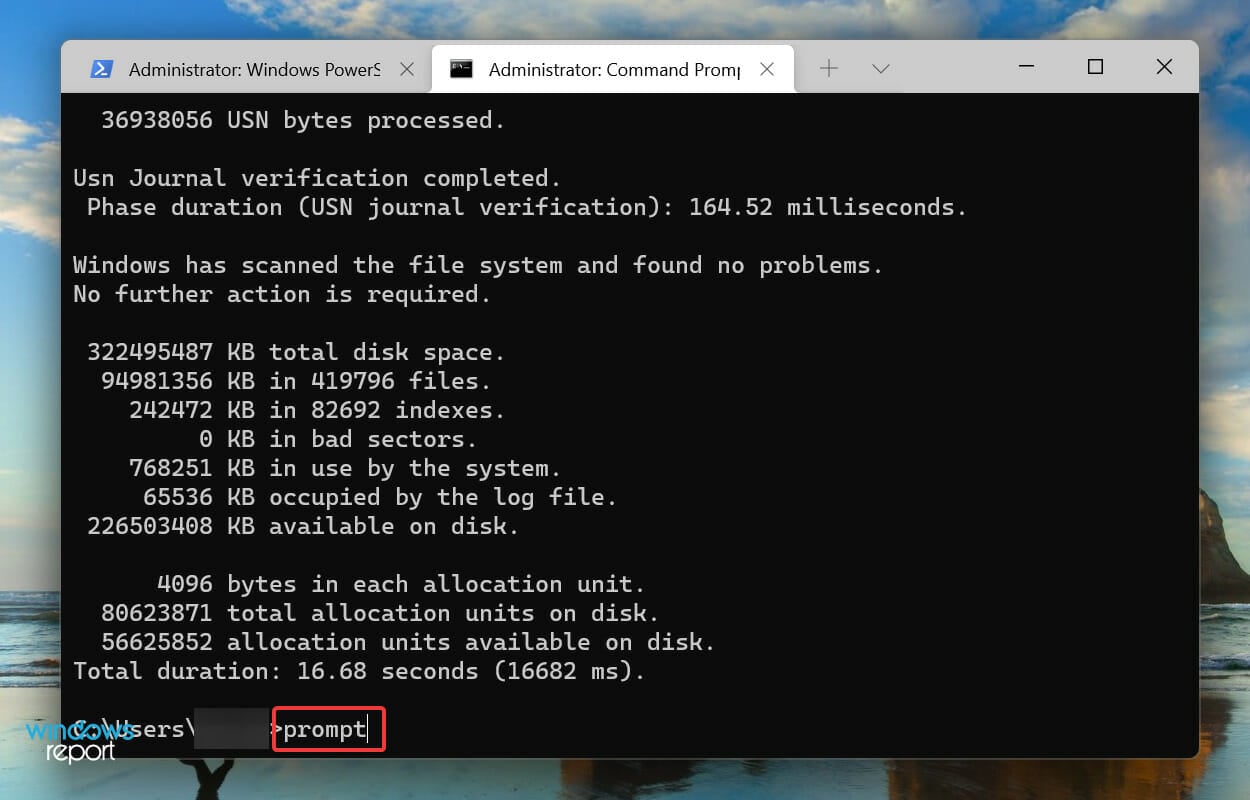
Type the following command and hit Enter:chkdsk
Execute the following command:prompt
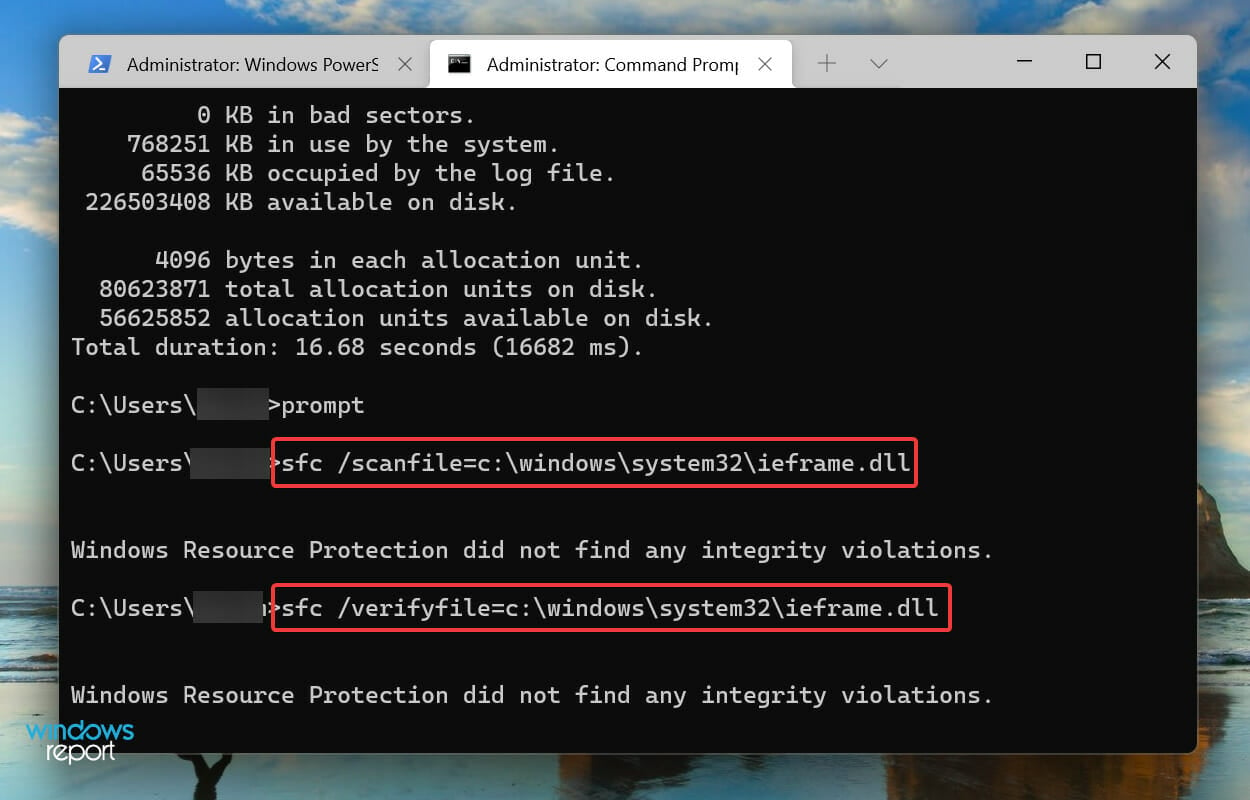
Now, paste the following two commands and then hit Enter after each to scan and fix issues with the ieframe.dll file:
sfc /scanfile=c:\windows\system32\ieframe.dll
sfc /verifyfile=c:\windows\system32\ieframe.dll
Run the following command:assoc
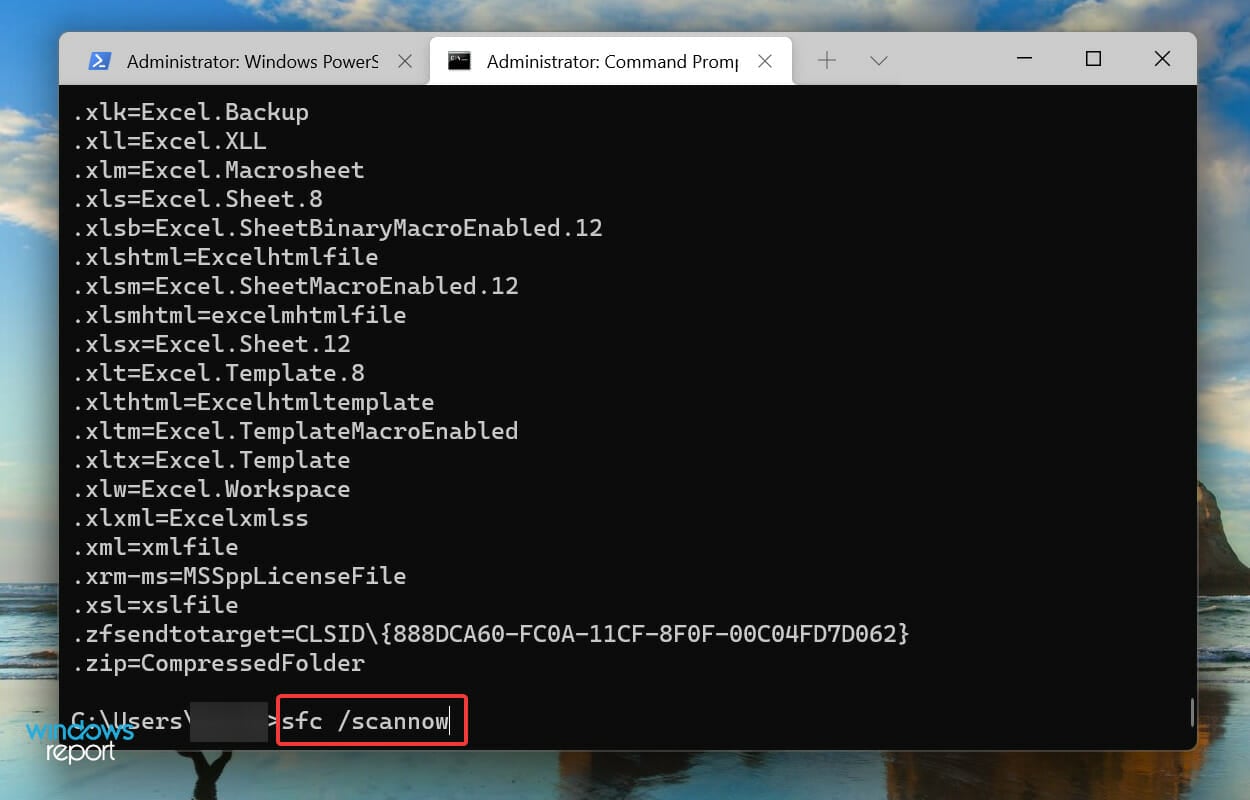
Paste the following command and hit Enter:sfc /scannow
The above scans will identify problems with the ieframe.dll file and the other corrupt system files and replace them with their cached copy. After running the scans, check if the brightness slider is now working in Windows 11.
5. Update Windows 11
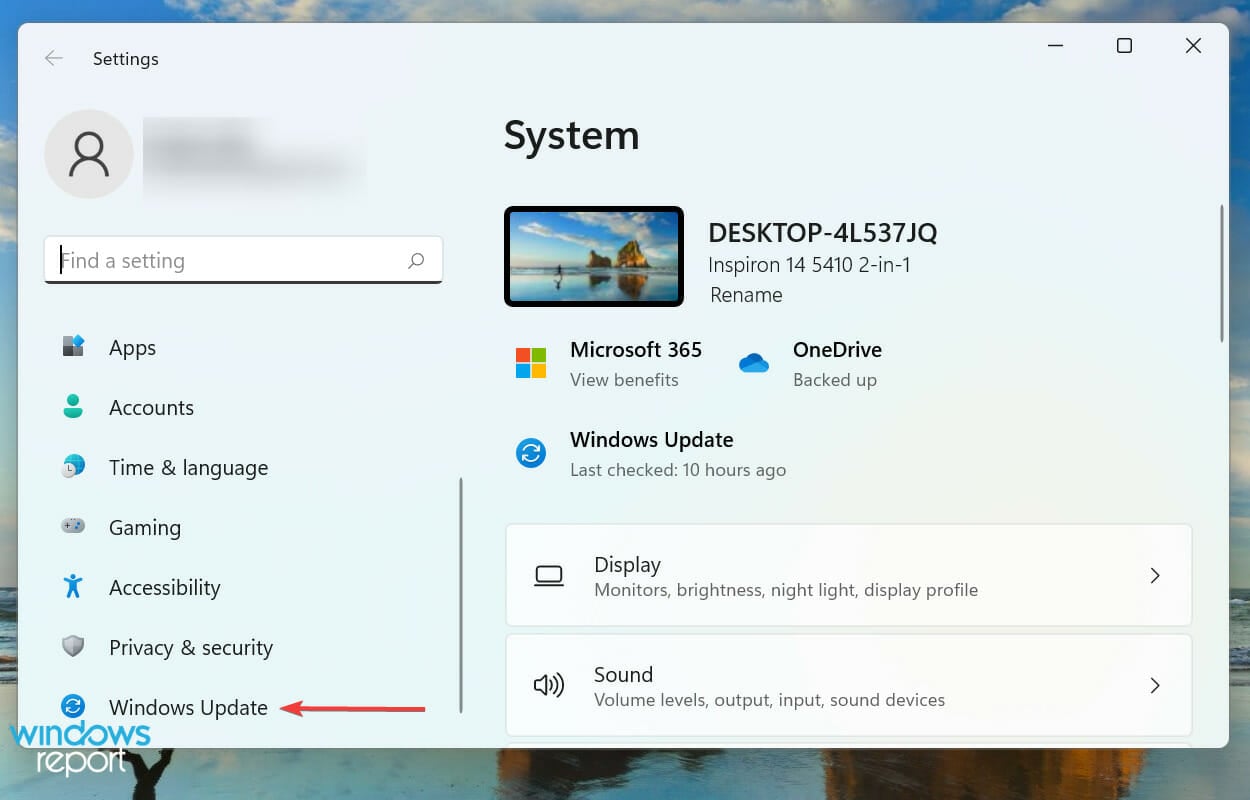
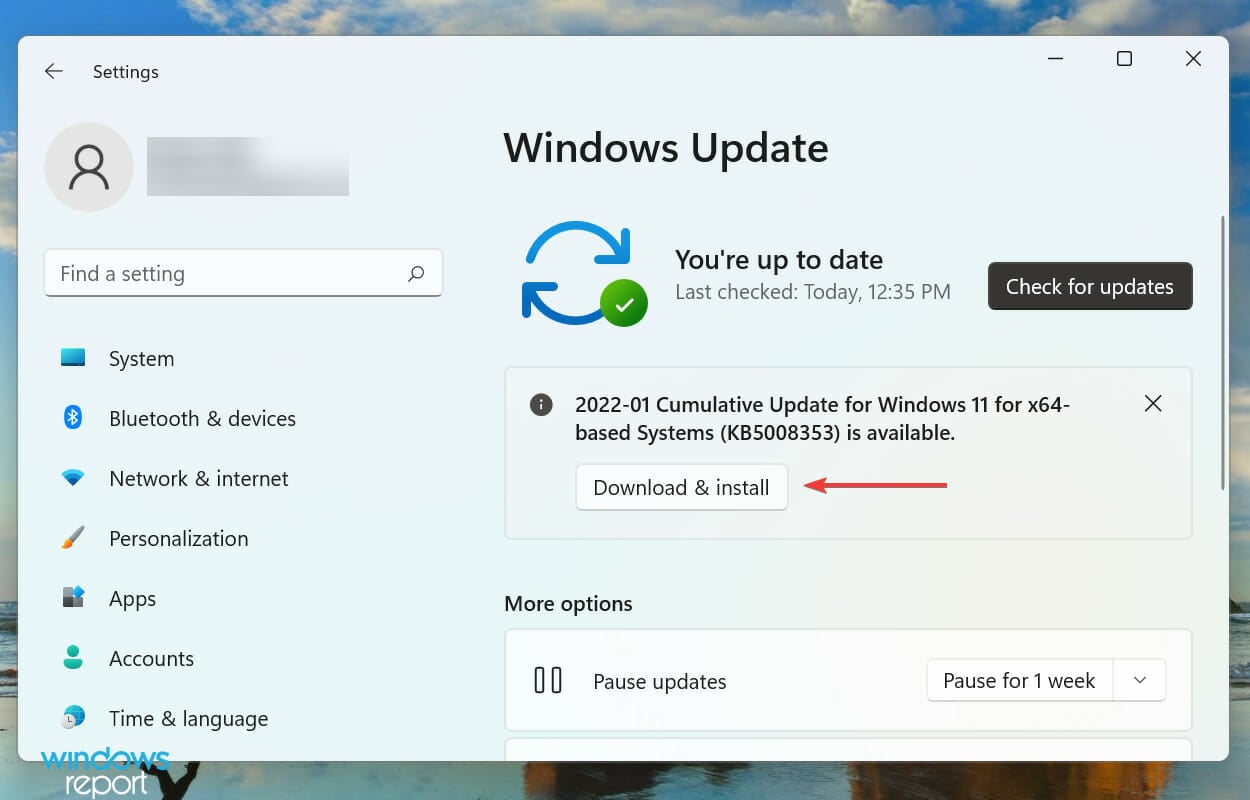
Press Windows + I to launch the Settings app.
Select Windows Update from the left side.
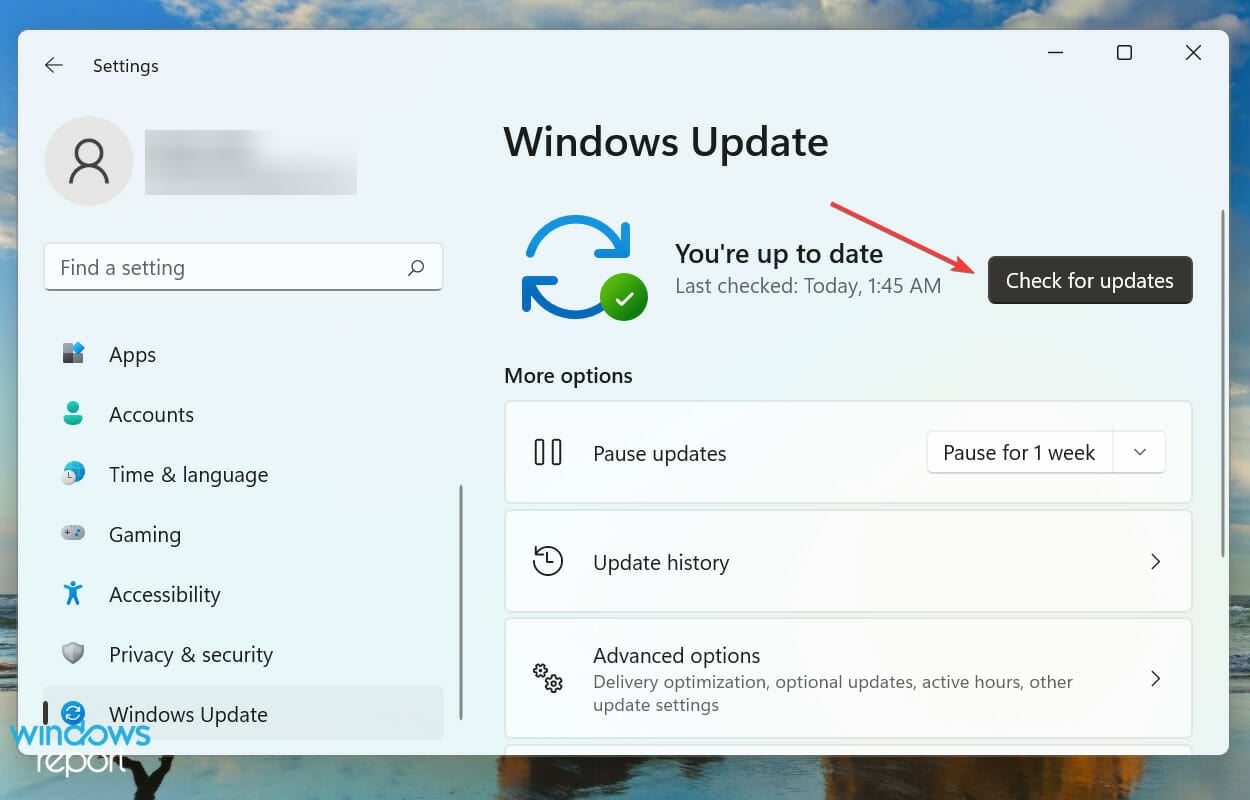
Click on Check for updates.
Click on the Download & install option in case any are found.
6. Perform a system restore
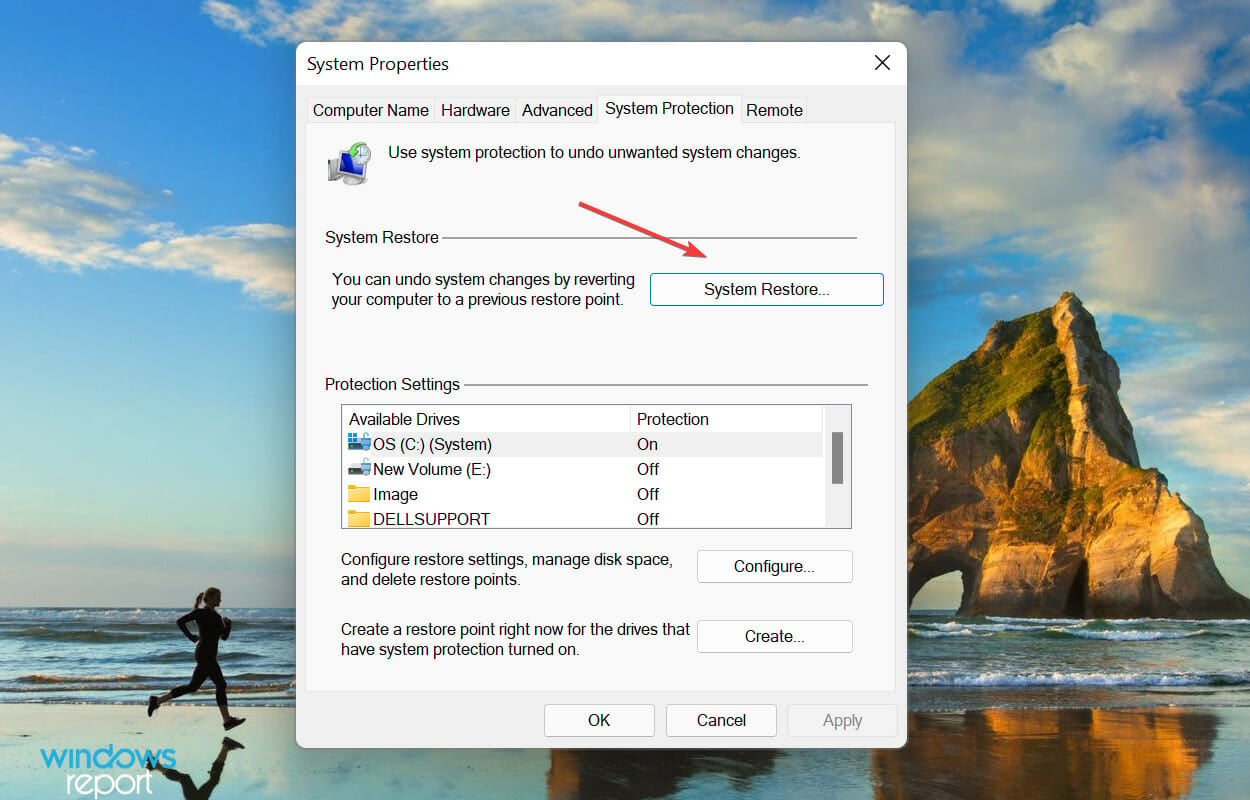
Open the Start menu.
Type Create a restore point and open it.
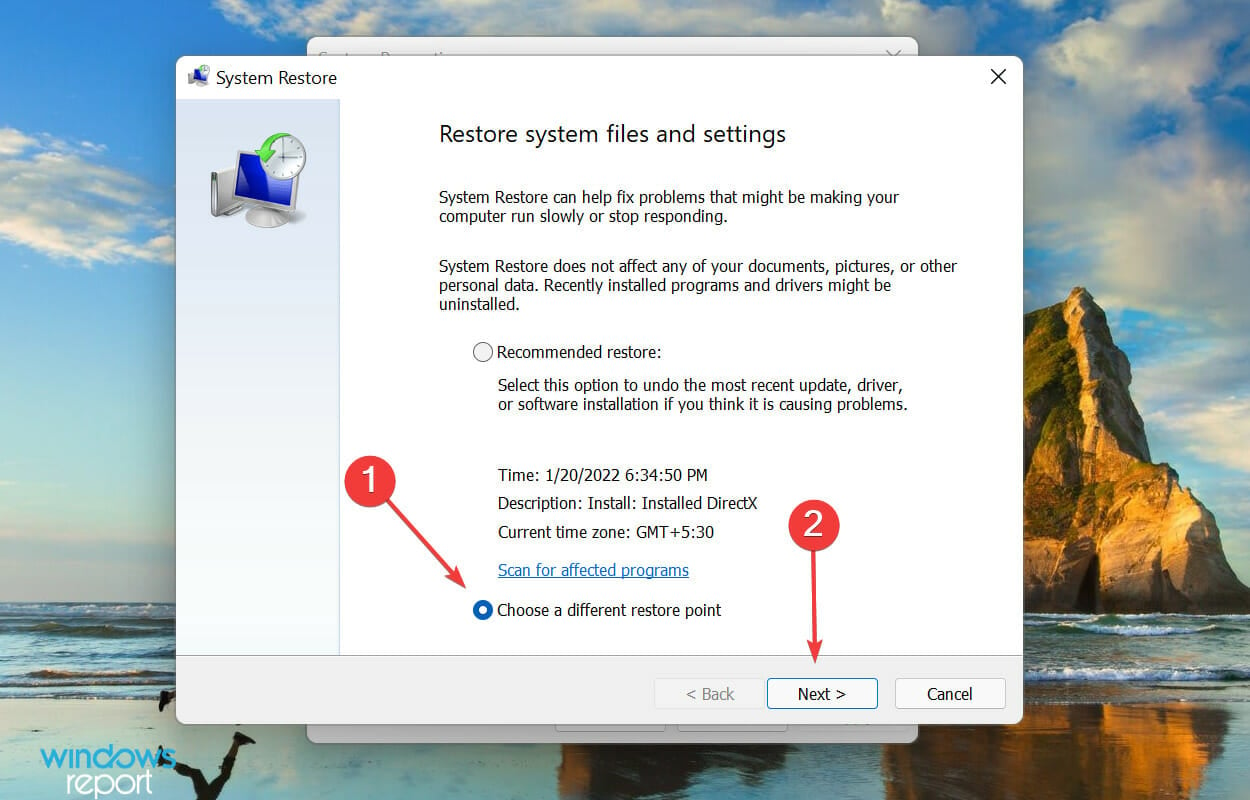
Click on the System Restore button.
Select the Choose a different restore point option and click on Next.
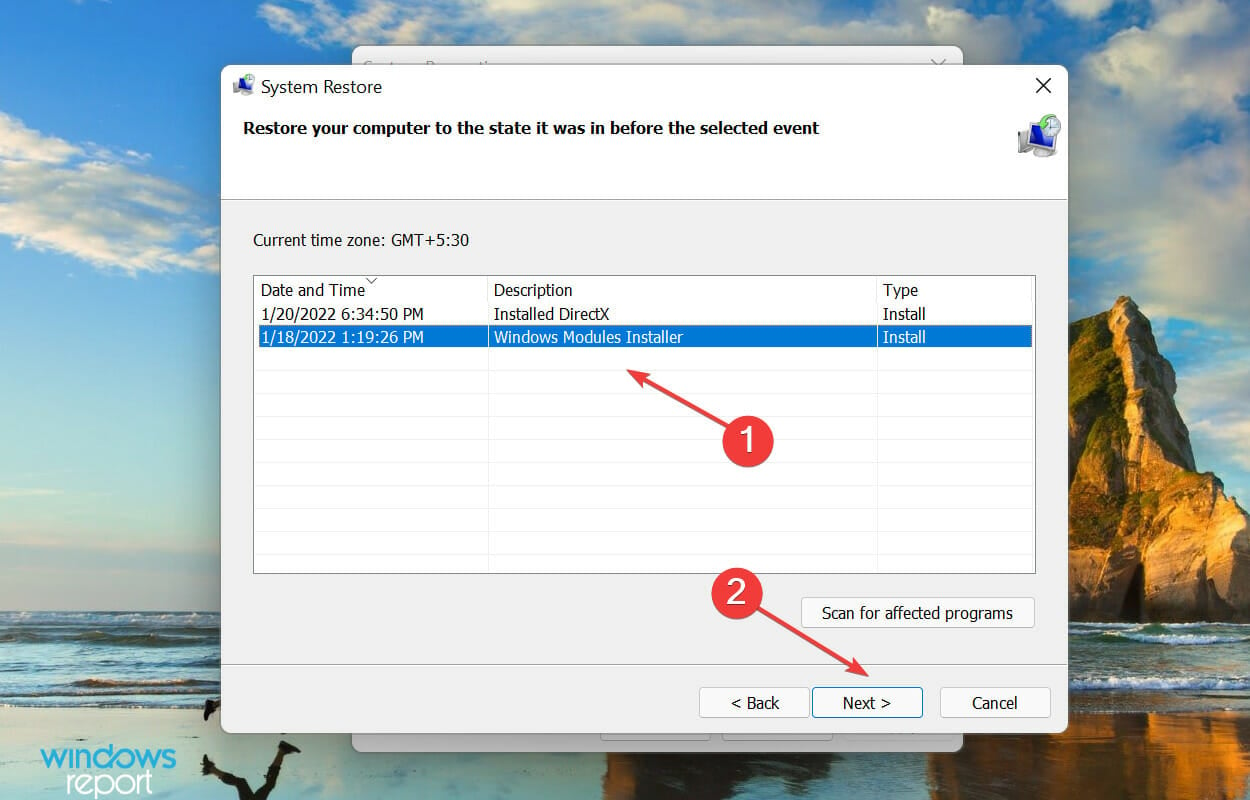
Select a restore point from the list and click on Next to proceed.
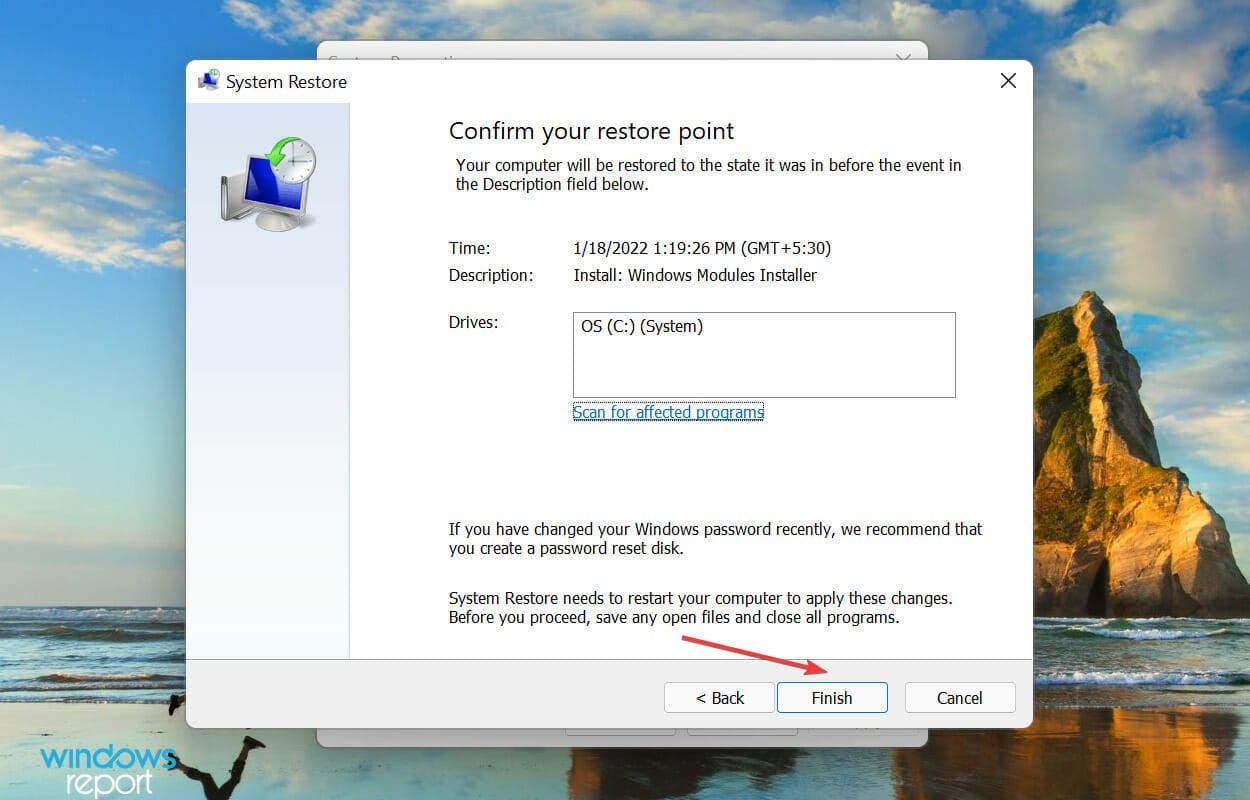
Verify the restore point details, and click on Finish to start the process.
The concept of System Restore is to take the system back to a state where the error didn’t exist. But you will have to choose a restore point created before you first encountered the error.
Although Windows automatically creates them whenever undergoing any significant change, you must learn how to create a restore point in Windows 11 manually.
7. Reset display settings to default
Right-click on the desktop and select Display settings.
Scroll down to Advanced display settings.
Click on Display adapter properties for your display.
In the new window, click on the Color Management tab, then Color Management.
Click Advanced and select Change system defaults. Reset to default settings here.
How do I stop Windows 11 from lowering brightness?
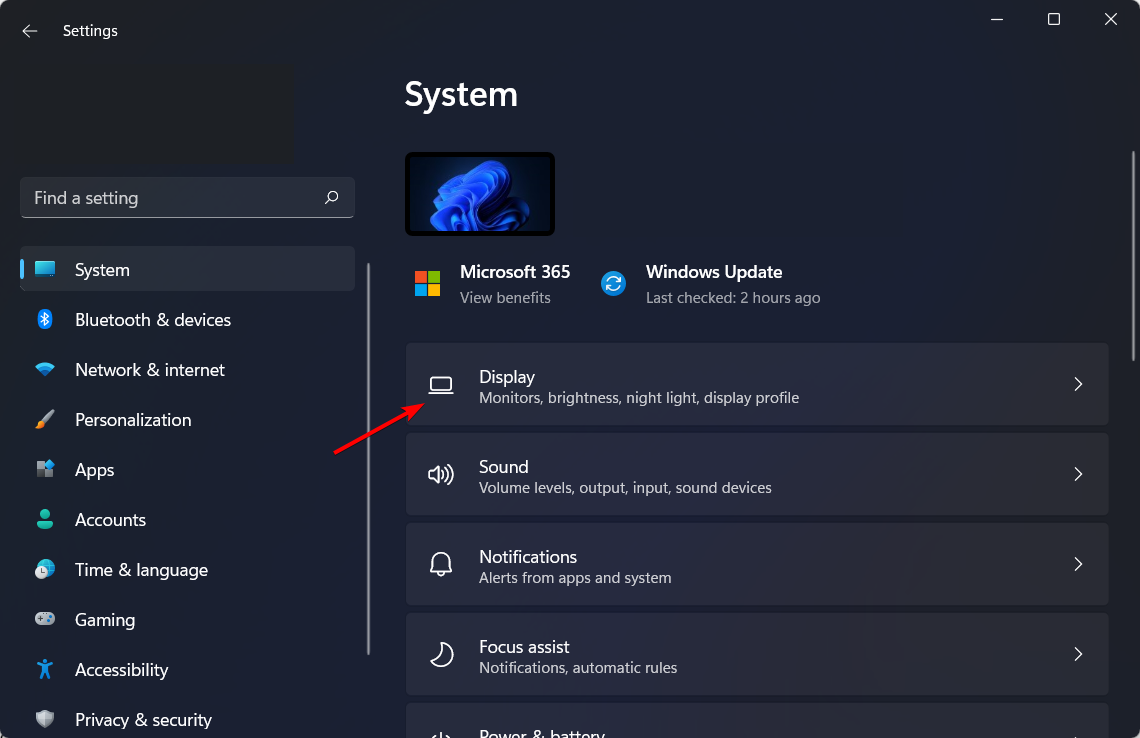
Press the Win + I buttons to open the Settings menu.
Select System from the left side.
Click on Display.
Choose Brightness.
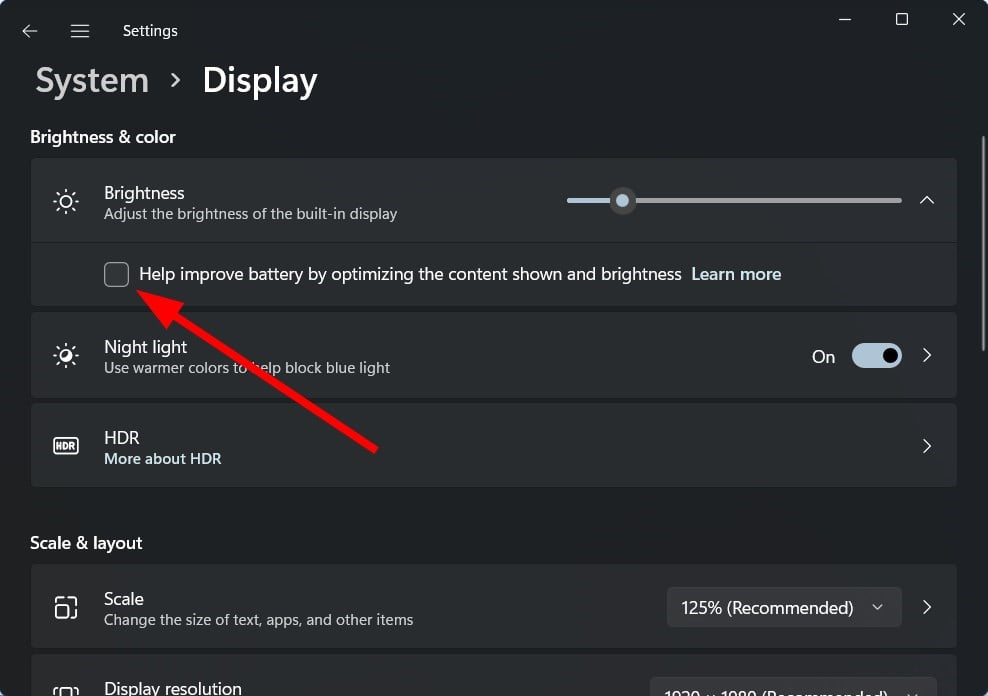
Uncheck the Help improve battery by optimizing the content shown and brightness option.
Some Windows 11 PCs can automatically adjust the brightness levels of the screen based on the content being displayed.
Following the above steps, you can quickly turn this feature off and continue with your set brightness levels.
Brightness is just the top of the iceberg
Apart from being unable to change the brightness level, several users have reported that the screen dims automatically in Windows 11. The issue arises when certain features responsible for automatically adjusting the screen brightness malfunction.
That’s all there is to the brightness slider not working problem in Windows 11. By reaching this part of the article, the error should be eliminated, and you would also know how to troubleshoot other issues with the display.
Now that the brightness settings are accessible and working learn how to change them in Windows 11. Then, tell us which fix worked for you in the comments below.
VPNs are a great way to protect your privacy and secure your connection.
But, as you may know, not all VPN subscription plans are affordable. At least not monthly plans, which usually come without discounts.
However, certain VPN providers such as Hotspot Shield provide us with profitable deals every now and then, which could allow more users to purchase premium subscriptions.
What is the best Hotspot Shield discount?
Basic (free) – $0
Monthlyplan – $12.99 per month
Yearly plan (save 38%) – $7.99 per month ($95.88 yearly)
3-year plan (save 77%) – $2.99 per month ($107.64 every 3 years) + 45-day money-back guarantee
Hotspot Shield
Are you still waiting for the perfect deal on VPN subscriptions? Check out Hotspot Shield’s offers right now.
Although Hotspot Shield offers multiple plans, the monthly subscriptions are not discounted.
Choosing the Hotspot Shield 3-year plan would be far more profitable, especially if you’re after a long-time VPN commitment.
Why choose Hotspot Shield?
As you’d expect, there are certain differences between the different plans that Hotspot Shield offers. You can check the perks of each plan in the comprehensive table below:
Features
Basic (Free)
Premium
Premium
Family
Zero-logging policy
Yes
Yes
Yes
Encryption
Military-grade
Military-grade
Military-grade
Maximum devices
1 device
5 devices
25 devices (5 devices for each family member)
Streaming access
Limited
Netflix, YouTube, Disney+, Hulu
Netflix, YouTube, Disney+, Hulu
Speed
Up to 2 Mbps
Up to 1 Gbps
Up to 1 Gbps
Servers/locations
Only 1 (US)
Over 3200 servers, more than 115 locations in over 80 countries and 35 cities
Over 3200 servers, more than 115 locations in over 80 countries and 35 cities
Data limit
500 Mbs per day
Unlimited
Unlimited
Internet kill switch
Yes
Yes
Yes
Customer service
Support center
24/7 live chat
24/7 live chat
VPN protocols
Hydra, OpenVPN, WireGuard, IPsec/IKEv2
Hydra, OpenVPN, WireGuard, IPsec/IKEv2
Hydra, OpenVPN, WireGuard, IPsec/IKEv2
Premium devices
Limited
Routers, Linux, Smart TVs
Routers, Linux, Smart TVs
Malware protection
No
Yes
Yes
Smart VPN
No
Yes
Yes
Identity Guard (id theft protection)
No
Yes
Yes
1Password (password management)
No
Yes
Yes
Robo Shield (spam call blocker)
No
Yes
Yes
It’s safe to say that Hotspot Shield offers a wide variety of plans at accessible prices.
However, note that the differences between Premium and Premium Family are only related to the maximum number of devices you can use on the same plan.
Therefore, if you don’t plan on using Hotspot Shield on more than 5 devices, you may want to stick with the Premium plan.
Headphones are a great asset for every music buff, providing you with the sort of personalized listening experience that every music lover craves for.
If you missed Black Friday and Cyber Monday deals, don’t worry, flash sales can be found during the whole year, and we have already shown you some of the best Xbox wireless headsets. Speaking of which, here is a list of the best wireless earbuds deals that you can get today.
What are the best wireless headphones deals for 2022?
The Bose QuietComfort 35 (Series II) headphones are easily one of the best in the segment. It features a Noise-rejecting dual-microphone system for exceptional clarity while also allowing for a balanced audio output throughout the entire volume range.
Another highlight of the Bose QuietComfort 35 is that it comes integrated with Alexa digital assistant which means you can control your music or have your queries answered by Alexa via voice commands.
No doubt, a must-have for the holiday either for personal use or as a gift for the near and dear ones, especially when used with headphone amps with bass boost.
The headphone boasts of 30 mm driver unit which Sony claims to allow for truly immersive listening pleasure.
The headphone also comes with an integrated microphone which allows for hands-free operation for answering calls or giving voice commands.
It supports Bluetooth and NFC connectivity, and it has a battery backup time of 35 hours. It also features quick charging and quickly access to your smartphone’s voice assistant. On the whole a great buy for the holiday season.
If you’re looking for Beats wireless headphones Christmas deals, then this model might be just what you need.
The Beats Solo3 is another high-performance wireless Bluetooth headphone on the market. These Beats headphones are compatible with iOS and Android devices.
The sound quality is a big plus, while the battery can provide up to 40 hours of playback from a full charge. It is also worth mentioning that the fast fuel feature for 5 minutes of charging gives you 3 hours of playback.
On the whole, an excellent product from Beats that lives up to the company’s reputation.
The Anker Soundcore Life Q20 headphones comes with hybrid active noise-cancelling technology, which means external distraction are a minimum.
You benefit from up to 40 hours of non-stop playtime in wireless active noise cancellation mode (at 60% volume), while in standard music mode you can have enormous 60 hours playtime.
It also features a lightweight and comfortable design, which means having it on is always comfortable, even for hours on end.
This model comes with 40mm drivers and delivers premium sound, and with the Adaptive Noise Canceling technology, you can focus on your favorite music without distractions.
Ambient Aware mode is also present, allowing you to focus on your surroundings better. A special TalkThru mode is available as well, which allows you to chat without having to pause your music.
The battery lasts up to 50 hours, and around 40 if you’re using noise cancelation, which makes JBL Live 460NC one of the best headphones that you can buy.
These are the five best wireless headphones for you to buy this Christmas. Unfortunately, our guide doesn’t include Apple wireless Earbuds Christmas deals, but we’re certain that these models will work perfectly with your iOS device.
Which wireless headphones would you buy from our list? Leave your choice in the comments section below.
Razer is one of the most recognizable gaming brand on the market and offers everything from gaming laptops to mouse and gaming keyboard and headphones.
While the Razer products offer above-average quality, the products are usually a little expensive.
If you had put your decision to buy a Razer gaming keyboard on hold just because of the price, here are the cheapest Razer keyboard deals.
What are the best Razer Gaming keyboard Black Friday deals?
The Razer Huntsman is, hands down, the best Razer keyboard you will find. It is equipped with on-board memory, software that gives you customization freedom, and the fastest switches.
Additionally, the keyboard utilizes the brand-new Razer Opto-mechanical switches that have a brand new design. It’s the first switch that resets at the exact same point, resulting in fast performance.
The Razer BlackWidow Elite is the best gaming keyboard from the company yet. It comes with a multi-functional digital dial with dedicated media controls for a seamless gaming experience.
The mechanical keys are durable and offer 80 million keystrokes. Users can fully control the individual key light as well.
The Razer Ornata Chroma is a hybrid offering mechanical and rubber-dome keyboard trying to please gamers as well as casual users for typing.
Ornata is an all-black chassis packing a full-size keyboard offering individually backlight keys. The keyboard also includes a wrist rest. The keyboard can be configured with the Razer Synapse tool.
The Razer Cynosa is a low-cost alternative to Ornata and comes with a spill-resistant design. There is a 10-key anti-ghosting feature to execute up to 10 commands at the same time.
The keys are individually lit with 16.8 million color options and can be turned off. Customization is possible through the Razer Synapse driver tool.
The Razer Turret Wireless keyboard is a one-in-all device designed to bring the immersive gaming experience everywhere, thanks to it’s retractable mousepad.
Additionally, the pad is magnetic in order to prevent the mouse from falling during usage. Additionally, the keyboard has up to 40 hours of battery life, which is more than enough.
When the Windows 11 Start menu is not working, it may refuse to open, lag, or show no response to clicks. Whether it’s due to an update, a corrupt profile, or broken system files, follow these proven solutions to fix it quickly.
Refreshing the UI can instantly revive the Start menu.
Press Ctrl + Shift + Esc to open Task Manager
Scroll to Windows Explorer, right-click it, and select Restart
2. Check for Windows Updates
Some Start menu bugs were fixed in recent Windows builds.
Press Win + I to open Settings
Go to Windows Update > Check for updates
Install all available patches and reboot
This is especially useful if you’re affected by a recent problematic patch. If the issue started after an update, you can try rolling back Windows 11 to a previous build for a quick resolution.
3. Use System File Checker (SFC) and DISM
Corrupt system files can break essential UI functions.
Open Command Prompt as admin
Run this command: sfc /scannow
After that completes, run: DISM /Online /Cleanup-Image /RestoreHealth
These tools scan and restore system integrity.
4. Use PowerShell to Re-Register Start Menu
This command resets the Start menu experience app.
Open Task Manager > File > Run new task
Type powershell, check Create with admin privileges
A corrupt user profile may be blocking the Start menu.
Go to Settings > Accounts > Other users
Click Add account and follow the prompts
Choose I don’t have this person’s sign-in information
Select Add a user without a Microsoft account
Assign admin rights and log in
Check if the Start menu works under the new profile.
6. Create a New Local User and Delete TileDataLayer
This method has a high success rate for broken Start menus.
Follow the steps above to create a new admin user
Press Win + R, type %LocalAppData%, and hit Enter
Navigate to TileDataLayer folder
Delete it (if present) — you may need to log in with the new user first
This resets cached tile and layout data. If you’re also having taskbar alignment issues, you can move the taskbar in Windows 11 to troubleshoot UI layout bugs.
7. Uninstall Problematic Windows Updates
Specific updates (e.g., KB5030219) are known to break the Start menu.
Press Win + I > Windows Update > Update history
Click Uninstall updates
Select the problematic KB and uninstall it
Several users reported this instantly fixed the Start menu.
8. Perform a System Reset (Last Resort)
If all else fails, reset Windows without removing your files.
Is there a Start Menu Troubleshooter in Windows 11?
No official one, but running SFC, DISM, or PowerShell often solves related issues.
Can a Windows update break the Start menu?
Yes. KB5030219 and others have been known to cause Start menu bugs.
Does creating a new user fix Start menu issues?
Yes, it often works if the issue is tied to your user profile.
Will a system reset delete my files?
No, if you choose Keep my files during the reset, your personal data stays intact.
Conclusion
If your Windows 11 Start menu is not working, try restarting Explorer, checking for updates, running system scans, or creating a new user profile. These tested solutions fix most Start menu issues without needing a full reinstall.
Mouse bungees have become highly important in gaming. So if you prefer wired to wireless mice, these accessories are a life savior.
While not everyone has a sharp eye for a bargain, here we are with some great budget mouse bungees for you.
Before you pick any PC accessory or plan to buy one, it is essential to frame a budget in advance. Don’t you imagine that you’ll get a decent option only when spending more money?
Lucky for us gaming fans, there are plenty of mouse bungee deals out there. Instead of making you suffer through a long-winded comparison list, we are going to tell you some of them right away. Let’s get started!
Note: All the prices and offers in this article are subject to change, so be sure to check the official product page to get the latest deal. If the product or offer you’re looking for is no longer available, you can try to find it on its official manufacturer page or get another one from our list.
This mouse bungee is nothing fancy but is likely good news for your bank account. Not all of you will appreciate that is made from plastic and metal parts, yet it does exactly what it’s supposed to do.
Moreover, you get to choose how much of your cord you want on or off the holder, so you get smooth and seamless mouse movement.
This mouse cord management device does a great job for your very first bungee and its “Scorpion Tail” allows for any direction movement and prevents cable tangling.
So, it isn’t just for gamers, but it will also provide the best possible experience when working, or surfing the Internet.
Even if you’re trying to save some cash, you can still pick up a very effective mouse bungee. With the help of this Casethrone Drag-Free bungee model, the cord is not going to interfere with the mouse movement any longer.
To top it all off, it easily wins the aesthetic battle of the day in simplicity.
When price remains an imperative factor that you cannot overlook, choose this mouse bungee model.
ROCCAT Apuri Raw comes with an interesting approach to the stability problem often found with these accessories by having a much broader base supported by three feet for maximum stability.
All these mouse bungees perform the task of keeping your gaming area clear by guiding your mouse cable away during play. That’s precisely what you’ve wanted, right?
They can actually serve you with all sorts of features at great affordability, so you know your next move.
QLED is Samsung’s latest technology and comes as a combination of LED and quantum dot technology. It produces bright colors with unprecedented precision for an improved viewing experience.
QLED TVs provide picture quality that is extremely hard to beat these days. You can watch your favorite TV shows or desired movies like in the theater.
Here are the best Samsung QLED TV Black Friday deals you can get on the market this year, so check them out.
What are the best Black Friday Samsung QLED TV offers in 2024?
The Samsung QLED 50-inch TV features an intuitive Smart TV interface that learns what you like and suggests exciting new content.
This amazing device delivers over a billion shades of color that stay true to life without washing out at any brightness level, thanks to its quantum dot technology.
Quantum HDR brings out the detail and contrast by expanding the range of color and detail beyond what’s possible on HDTVs.
The Samsung QLED 65-inch TV makes available to you a 4K resolution picture, regardless of the source. The Quantum processor 4K automatically optimizes the picture for a more immersive experience.
Thanks to its real game enhancer feature, you can now experience enhanced gaming without making other manual adjustments.
The Active Voice Amplifier feature analyzes the ambient noise and clarifies the dialogue.
The Samsung QLED 75-inch TV has a powerful processor that uses deep learning AI to transform everything you watch into exquisite 4K.
It minimizes the motion blur on the screen, for smooth action-packed movies and sports. It also features a system of dedicated warm and cool LED backlights to enhance the contrast details.
This QLED TV comes also with a built-in Alexa for you to only ask Alexa to change the channel, or search for movies and shows, and more.
The Samsung QN75Q60RAFXZA flat 75-inch QLED 4K Q60 Series TV is an ideal choice for many of you. Well, if you like a rich color experience, then this QLED set will not disappoint.
The best thing about QLED technology is that the color balance is unchanged in different lighting conditions.
You don’t have to worry about the picture not looking good in daylight after setting it up for viewing after dark.
The Samsung 32-inch QLED is another great 4K TV with a powerful UHD processor and amazing Quantum Dot technology that brings color into your room.
You can use the simple on-screen Guide to find streaming content and live TV shows.
This 32-inch Samsung QLED TV comes with 3 HDMI ports, 1 Ethernet port, 2 USB ports, one digital audio output, and one composite input, perfect for all your needs.
To enhance your TV experience, you’ll definitely want to choose a great QLED TV.
To learn more about the differences between various technologies, don’t miss our OLED vs QLED vs NanoCel guide.
Our list of Samsung QLED TV Black Friday deals has given you the best products currently available on the market. Just let us know your final pick in the comments section below.
Intel NUC is a mini-PC that packs impressive computer capabilities. Most NUC computers are only 4×4-inch and you can use them for entertainment, gaming, and productivity purposes.
They’re also customizable allowing you to add some extra memory, increase the storage capacity, install a new OS and more.
Well, Intel NUC computers are rather expensive. High specs NUC devices have a price tag that usually go beyond $1,000.
So, if you want to know what Intel NUC computers you can purchase in 2022, read this guide to learn more.
Intel NUC 8 Performance-G Kit (NUC8i7HNK)is equipped with the latest 8th generation Intel Core i7 8705G for top-notch performance. The Radeon RX Vega M with speeds up to 4.1 GHz graphics cards brings full VR support.
This mini PC kit fits in a messenger bag or tucks out of sight in your home or workspace.
You can use the Intel NUC Mini PC kits with 8th generation Intel Core i7 processors to stream movies, play your favorite games online without any lag and more.
The latest generation Intel NUC kit allows you to build the exact system you want.
We want you to have the best products and recommendations available on the Internet. So, which mini PC are you going to buy? Let us do know in the comments below.
LTE (Long Term Evolution) is a technology standard for high-speed wireless communications delivered through cellular networks that were introduced in 2008.
A large number of telecommunications firms across the world have integrated LTE into their networks by building and updating LTE equipment on cell towers and in data center data centers.
Depending on their provider and the current network traffic levels, customers using an LTE network can expect significantly different connection speeds from one another.
We’ve compiled a list of some of the greatest LTE router offers you should look into before making a purchase.
What are the best LTE routers up for sale on Black Friday?
A growing number of organizations are utilizing 4G LTE technology, either to establish a backup network connection or to acquire internet access when other options, such as cable and DSL, are not readily available.
It is the most reliable and quickest wireless network for smartphones and other portable devices. Greater connection speeds are made possible by LTE’s increased bandwidth, which also includes improved underlying technology for voice conversations (VoIP) and multimedia streaming.
In order to use LTE, all you need is a mobile device that supports it. This information is contained inside the device’s specifications.
Furthermore, not all gadgets with LTE in their specifications are trustworthy, since this term has sadly become a marketing gimmick that frequently misleads consumers.
For gamers who rely on 4G LTE as their primary Internet connection, faster connections bring up new possibilities for playing fast-paced games such as first-person shooters, exploring complicated game modes, and interacting with other players in multiplayer situations.
The majority of the routers currently available on the market are standard routers that have been merged with a 4G LTE modem. Some are available for less than $300 and may be able to be integrated into your current networks with relative ease.
Do you have an LTE router in your wish list that you’d want to add to your order? Please share your thoughts in the comments box below.
Being able to keep an eye on what’s going on home while you’re away is very reassuring. One way you can do that is by using a WiFi camera. You can quickly connect it to your phone or computer and see what’s going on at home anytime you want.
Christmas is here and we compiled this list of the hottest wirelesscamerasto buy today. Buying a Wi-Fi camera is an excellent investment for your home security.
If you’re looking for a Wi-Fi camera to use indoors, then take a look at TETHYS Wireless Security Camera.
You can use this device to capture 1080p panoramic scenes that work perfectly with Alexa.
The built-in microphone and speaker with noise reduction allow you to communicate with your family members at home.
Thanks to the night vision feature, you can see what’s going on in the room even in the pitch dark. You can save and playback the footage on Windows or take advantage of the Cloud storage it comes with.
This wireless camera records high-quality 1080p footage with a wide 90° angle so that you see all the details that you need.
It also sends security alerts to your PC or smartphone via the Amcrest View app. Digital zoom is also supported allowing you to get a closer look at your surroundings.
The camera sends live-stream footage to your devices and you can also play the video back to analyze particular events.
This HD security camera is a great tool that you can use both indoors and outdoors (it’s water-resistant).
The tool is easy to set up and completely wireless, with an expected battery life of up to 2 years. The picture quality is very good and clear, making it a great option to monitor your household.
If you’re looking for a Wi-Fi camera to use indoors only, then take a look at wansview’s security camera.
You can use this device to capture 1080p HD scenes with no zero blind spots. You can record all this high-quality footage and save it to a secure SD card or in the cloud.
The built-in microphone and speaker with noise reduction allow you to communicate with your family members at home.
These are some of the hottest Wi-Fi cameras that you can get right now. Once again, prevention is better than cure. Installing a Wi-Fi camera at home is one of the wisest decisions you can take to enhance your home security.
Users in the recent past have shown a far higher inclination towards tablets, owing to the remote learning and work setting. To tap this growing demand, XP Pen is offering its products at discounted prices this Christmas.
XP Pen includes a wide range of tablets, along with the stylus for higher precision, at reasonable prices to cater to both students and professionals. You can connect the tablet to your computer, and start working on the assignments that were long due.
With heavy competition in the market, XP Pen has come up with products that are cheaper, more durable, and offer a plethora of features, be it graphics or drawing tablets. Apart from these, it offers a pressure range higher than other products in the same price bracket, making it one of the best investments.
Does XP-pen have Black Friday deals?
Yes! If you have been planning to purchase one, we did the hard work for you and have listed the best XP Pen tablets available at discounted prices in the Black Friday sale.
Which is the best XP-Pen cheapest tablet on Black Friday deals?
These are the best deals you will find on XP Pen drawing and graphics tablet this Black Friday. Buy the one that caters to all your needs and falls within your budget.
The Mfplat.dll file is an integral part of the Microsoft Media Foundation. Without that piece, you will not be able to enjoy multimedia content and the apps that run them, like Windows Media Player.
These files, in general, are the critical components of Windows 10 as they control how certain software executes, for example. This guide will show you how to address this missing file.
What causes missing Mfplat.dll files on Windows 10?
There are multiple reasons why a .dll file, let alone a specific one, would be missing on your Windows 10 computer. Below is a list of the most common reasons why Mfplat.dll is missing.
The Mfplat.dll file is missing from your computer: This is the most common reason above the others. To find it, you may have to perform a clean boot of your computer.
Malware may haveinfected your computer: For this reason, it’s very important that you download some anti-virus or anti-malware software to protect your computer.
The Media Feature Pack is missing on your computer: Without this software suite, many apps on Windows 10 won’t work; however, this only applies to certain versions of the OS.
Your Windows 10 computer is out of date: You will need to install the latest updates, however, this process has been known to cause its own set of problems.
An unstable update is causing the error to appear: Fixing an unstable build will require you to roll back the update, which may be missing from your computer.
How do I fix missing Mfplat.dll files?
Before getting into the more complex solutions, it’s essential to cover some quick and easy solutions that may fix everything.
Run both a virus and malware scan using the appropriate computer software to clean up everything.
Reinstall the offending program. Doing this will replace the missing Mfplay.dll file on your computer.
Performing a System Restore solves the error, but do this as a last resort. This will reset everything back to a previous version of Windows 10, so you’ll first need to learn how to make restore points.
1. Run DISM command on Command Prompt
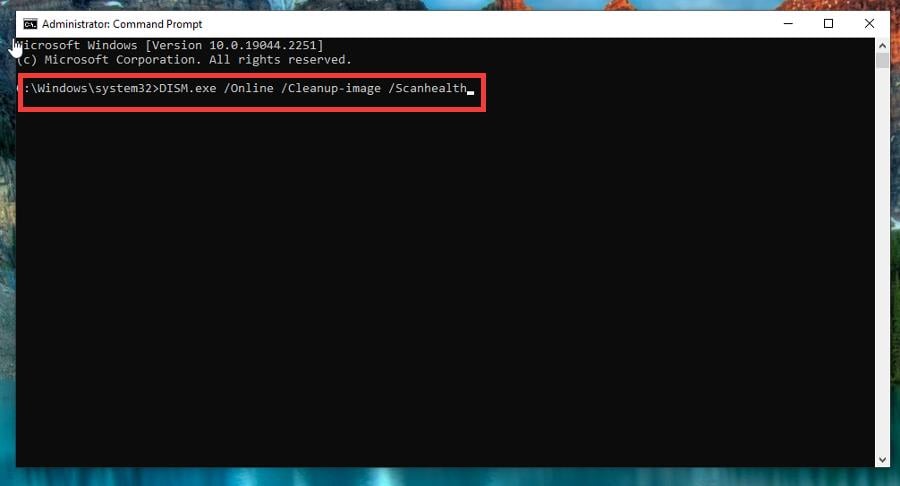
Search for the Command Prompt on Windows 10 and click Run as administrator.
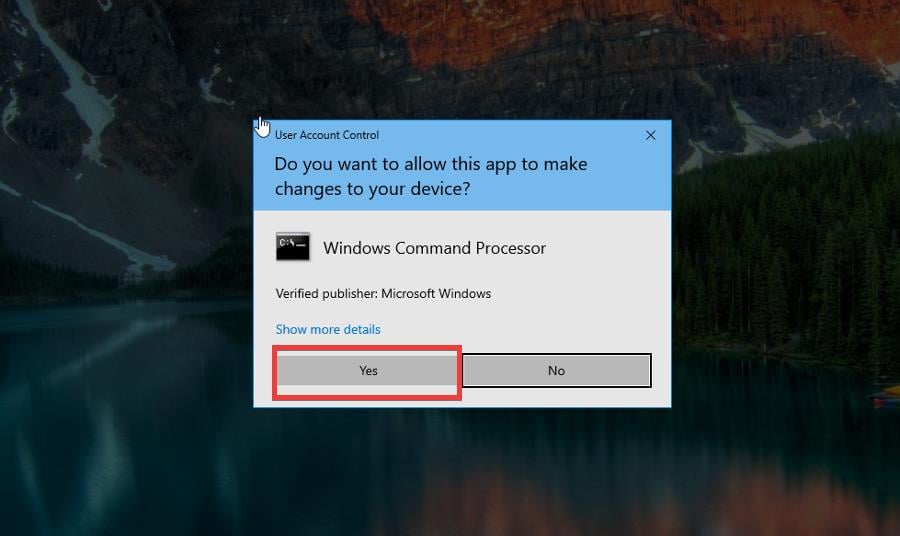
Select Yes if a User Account Control window appears.
Type in the following and hit Enter on your keyboard: DISM.exe /Online /Cleanup-image /Scanhealth.
Give your computer enough time to complete the scan.
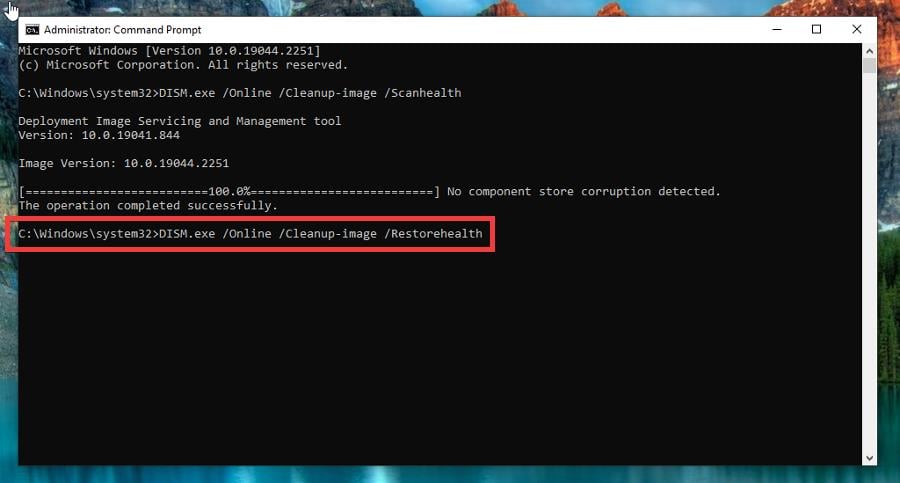
Next, type in the following and hit Enter again: DISM.exe /Online /Cleanup-image /Restorehealth.
Give your Windows 10 enough time to finish. Once done, close Command Prompt.
Also, if you want a thorough scan of your system files, we recommend using a specialized tool such as Fortect, which will find any issues and repair them on the spot.
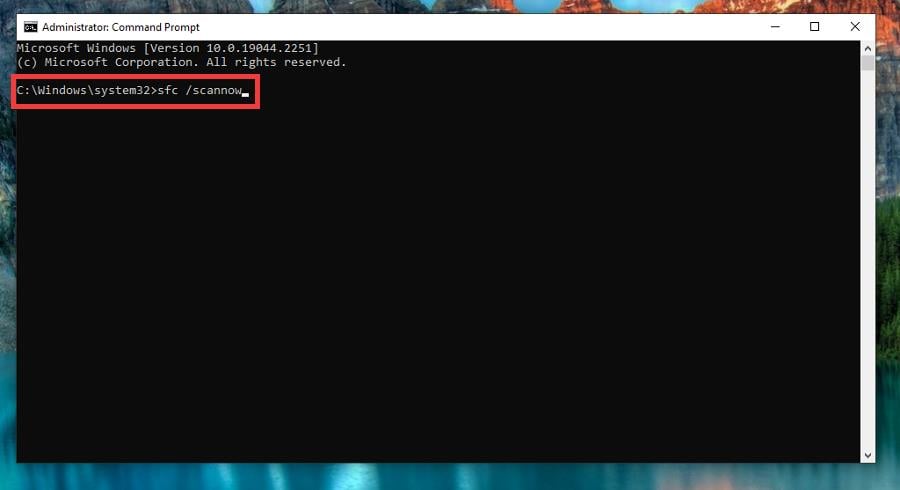
Like the previous solution, search for the Command Prompt on Windows 10 and click Run as administrator.
Type in the following command and hit Enter on your keyboard: sfc /scannow.
Give the software time to finish the scan. Once done, restart your computer.
If the Mfplat.dll file is still missing or the problem persists, you can try using PowerShell instead. But first, bring up PowerShell on the Windows 10 search bar and run it as an administrator.
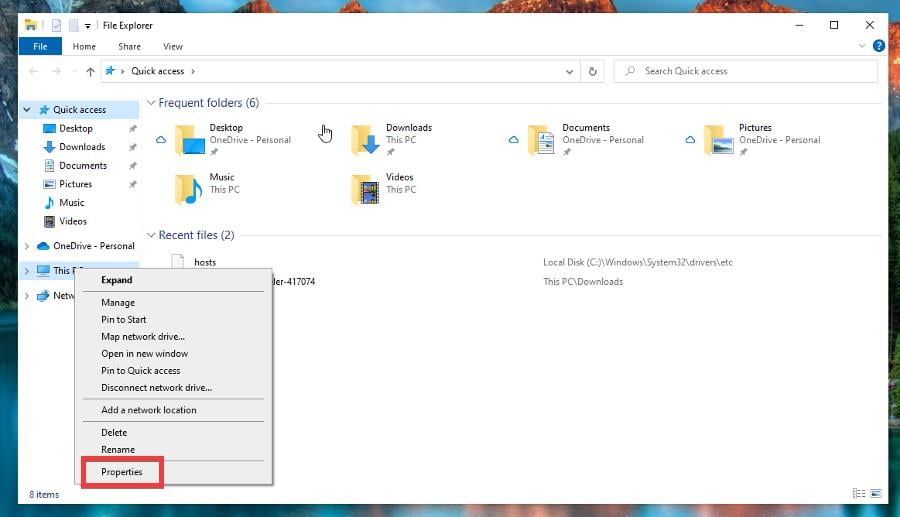
Right-click This PC, and select Properties in the context window that appears.
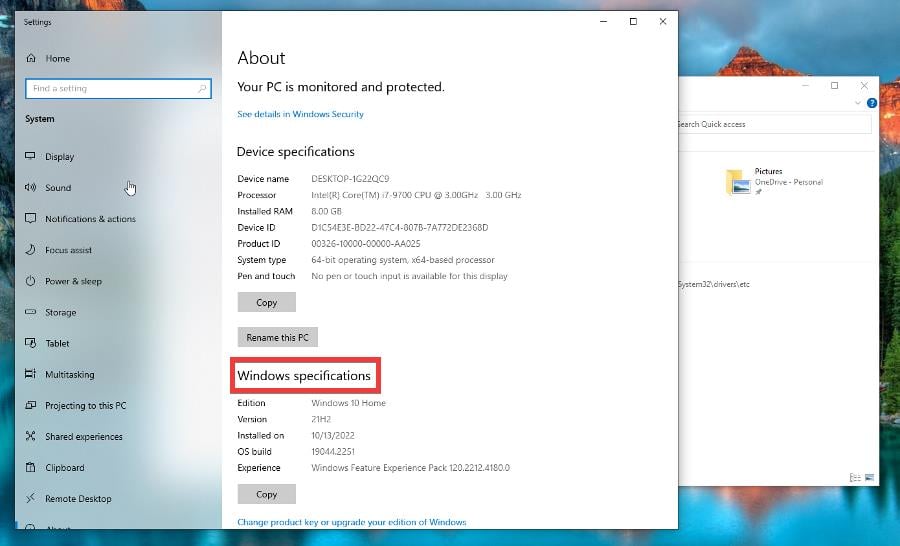
Check what edition of Windows 10 you have under Windows specifications.
If the letter N is found at the end of the OS name, such as Windows 10 Home N, proceed to the next step.
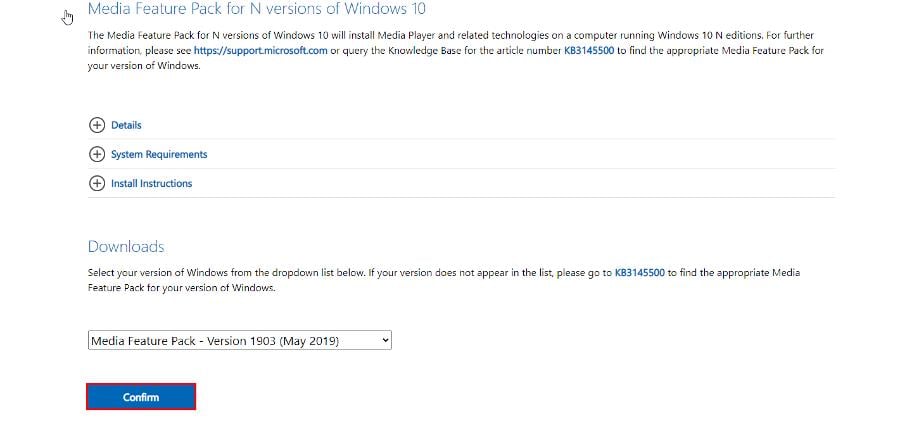
Go to the Media Feature Pack page on Microsoft’s website.
Choose the latest version of the Media Feature Pack and click the Confirm button.
Select the 32-bit or 64-bit package, whichever fits your computer best. In this guide, 64-bit Download was chosen.
Run the file you just downloaded to install it. Once done, restart your computer to complete the process.
Conversely, you can do the same with Command Prompt. Begin by searching for Command Prompt and run it as an administrator.
Type in the following and hit Enter on your keyboard: dism /online /enable-feature /featurename:MediaPlayback
If your Windows 10 edition doesn’t have the letter N at the end, you cannot install the Media Feature Pack.
4. Enable Media Playback
Search for the Command Prompt on your Windows 10 computer and run it as an administrator.
Type in the following and hit Enter on your keyboard: dism /online /enable-feature /featurename:MediaPlayback
Give your computer time to finish the action.
The Media Playback feature may be disabled, so you’ll need to enable it; however, this solution only works in conjunction with the Media Feature Pack. You do this in case the Media Feature Pack does not work.
5. Update drivers
Search for the Device Manager and click the entry you first see.
Expand Display Adapters and right-click the entry you see.
Click Update driver, and select Search automaticallyfor drivers in the following window.
The drivers will now automatically install.
Are there other essential Windows 10 fixes worth learning about?
Because it’s usually a corrupt system file or malware infecting your computer, we recommend running the System File Check here. And be sure to check out our guide on fixing video streaming problems.
Playback problems result from a faulty internet connection, hardware acceleration being enabled, or a poorly optimized website. Try turning off your firewall temporarily; that should work.
Feel free to comment below if you have questions about other video game problems or bugs. And please tell us if there’s a specific guide for a game that you’d like to see.
Graphic tablets are essential tools for visual artists. Wacom has made a name for itself as one of the most prominent manufacturers of such tools and related accessories.
There are several key points to consider when choosing a graphics tablet, and Wacom has proven to meet all these requirements.
Good resolution is the most important requirement, followed by tracking speed, operating system, software compatibility, and pressure sensitivity.
All these considered, we picked the best Wacom tablet deals available right now, so make sure to check the listings below and get your hands on a great graphics tablet at a discount price.
What are the best Black Friday deals on Wacom tablets?
Wacom provides a large variety of tablets, and we made sure to pick products that not only offer a good deal, but also appeal to a wide range of artists.
We covered tablets of various sizes and functionalities. Some of the listings have built-in displays, while others are dependent on your other devices.
Please read carefully the description of each product to make sure that they are compatible with the operating system of your choice.
Please let us know which of these Wacom tablets you prefer. Also, if you have any suggestions, feel free to comment below.
With incredible sound quality and comfortable gaming constructed, HyperX Cloud headsets are designed to provide cutting-edge sound capabilities.
These gaming headset products put a lot of effort into details, offering crystal clear sound plus very convenient traits like signature memory foam, focus on weight distribution, or clamping force.
Regarding the models, you have HyperX Cloud II Headset that brings immersive sound quality with impactful gaming sound, a detachable noise-canceling mic, and virtual 7.1 surround sound.
You can as well acquire HyperX Cloud Alpha headset that delivers valuable immersive in-game audio, dual-chamber drivers, detachable mic, and is compatible with PC, PS4 Pro, Xbox One, and more.
What are the best Black Friday HyperX Cloud headsets? offers
You can find multiple HyperX Cloud products to offer you the most satisfying gaming sessions, with impeccable audio sound and long-life battery support.
In order to consciously pick your headphones, be sure to check the Amazon descriptions to see which one fits you.
If you already made your mind about what to choose, feel free to tell us in the comments.
You must have just gotten the error message troubleshooting wizard can’t continue. Here is all you should know.
Troubleshooting wizard has been a part of the Windows operating system for years. This tool lets you quickly check if a particular component of your operating system is working correctly.
Unfortunately, some users reported Diagnostics troubleshooting wizard has stopped working with error messages on their Windows 10 PC.
Since this can be a significant problem, we’ll show you how to fix it today.
Why am I getting Troubleshooting wizard can’t continue message?
For many users, a few factors may trigger this error message. However, in most cases, these are the most common ones:
Corrupt files – Users sometimes experience this error because important hard disk files are corrupted.
Issues with .NET Framework – Almost every Windows operating system has .NET Framework installed, but sometimes this framework can cause many problems.
Malware – The presence of computer malware will trigger many system issues, and this error may be one of them.
Stopped services – For some users, this Troubleshoot interruption may occur if essential services are not running.
However, no matter the cause, the solutions we suggest should come in handy.
Here are some more examples of similar issues:
An unexpected error has occurred. The troubleshooting wizard cannot continue – This is another common error message people get when the troubleshooter stops working.
An error occurred while troubleshooting Windows 7 – If you’re experiencing the problem with Windows 7 troubleshooter, you can still use most of the workarounds presented below.
The solutions we will discuss will help you even if the Troubleshooting wizard is restricted or you get the error messages an unexpected error has occurred the troubleshooting wizard cannot continue 0x80131700, 0x80004003, or 0x80004005.
How can I fix the Troubleshooting wizard can’t continue error?
1. Repair or Reinstall Microsoft .NET Framework installation
Press Windows Key + S and enter control, then choose Uninstall a program.
Look for Microsoft .NET Framework and select it, and from the menu on the top select Change or Repair, then follow the wizard to complete the process.
Alternatively, click Uninstall in Step 2, download a new .Net Framework file, and install it.
.NET Framework is used for all sorts of applications on the Windows platform, ranging from system applications to video games.
According to users, this framework can be responsible for the Diagnostics troubleshooting wizard has stopped working error message.
You’ll need to repair or reinstall the .NET Framework installation to fix this problem.
2. Scan your PC for malware
Type Windows Security in the Search bar, and click on the relevant search result.
Now, click on Virus & threat protection here.
Click on Scan options.
Now, select Full scan and click on the Scan now button at the bottom.
Sometimes malicious applications will interfere with core Windows 10 components, and they can also cause the Diagnostics troubleshooting wizard has stopped working error message appears.
If you see this message, perform a detailed scan of your system with your antivirus tool. In addition to your antivirus, you might want to use TotalAV or a similar tool to check for malware.
3. Check if the necessary services are running
Press Windows Key + R and enter services.msc. Next, press Enter or click OK.
When the Services window opens, locate Diagnostic Policy Service and double-click it.
Set the Service status to Running and the Startup type to Automatic, then click Apply and OK to save changes.
Now, locate Diagnostic Service Host and Diagnostic System Host services on the Services app. Open their properties and ensure they are both running and their Startup Type is set to Manual.
Like any other Windows component, the Diagnostic Troubleshooting wizard relies on certain services to run correctly. However, if those services aren’t started or if they aren’t properly configured, you might encounter problems with the Diagnostic Troubleshooting wizard.
Batch files can be handy since they allow you to run multiple commands almost instantly. Before you can run a batch file, you need to create it, and you can do that by following these steps:
Open Notepad.
When Notepad opens, paste the following lines:
@echo off
net stop wuauserv
cd %systemroot%
ren SoftwareDistribution SoftwareDistribution.old
net start wuauserv
net stop bits
net start bits
net stop cryptsvc
cd %systemroot%system32
ren catroot2 catroot2.old
net start cryptsvc
regsvr32 Softpub.dll
regsvr32 Wintrust.dll
regsvr32 Mssip32.dll
regsvr32 Initpki.dll /s
echo Restarting Computer
shutdown.exe -r -t 00
Click on File, then Save as.
Now set Save as type to All Files and set the File name to update.bat. Click Save to save the file.
Locate the update.bat file you just created, right-click it and choose Run as administrator. After all the commands are executed, your PC will restart.
After your PC restarts, check if the problem is resolved.
5. Run the sfc scan
Press Windows Key +X and choose Command Prompt (Admin).
Type the script below and hit Enter: sfc /scannow
Wait while your computer is being scanned. Then, if there are any problems with your Windows 10 installation, they should be automatically fixed.
This scan will repair any corrupted Windows 10 components and hopefully fix the Diagnostics troubleshooting wizard has stopped working error.
The troubleshooting wizard is a significant part of Windows 10, and if you’re getting Diagnostics troubleshooting wizard has stopped working error message, be sure to try repairing the .NET Framework installation.
If that doesn’t work, try any other solution from this article.
The appropriate motherboard, whether you’re purchasing a new one or simply constructing a new system, is critical in ensuring that the other components have all of the functionality that you require. Manufacturers such as MSI, ASUS, and Gigabyte, produce high-performance computers.
MSI manufactures more than just motherboards; we can see that they also manufacture GPUs, pre-built systems, and other goods. For motherboards, MSI offers a wide selection of models that are suitable for users of all financial backgrounds.
You can easily get the best value for your money by purchasing one of the several MSI motherboards available.
When it comes to the performance of a motherboard, the most crucial factor to consider is its stability. MSI motherboards provide excellent stability, even when overclocked, however, this is only achievable with high-end motherboards.
Allow us to begin by looking at some of the irresistible Black Friday motherboard deals that are currently on the market.
What are the MSI Black Friday motherboards for sale?
There’s no use in purchasing the most advanced motherboard available if it won’t fit into the computer cabinet you already have. Motherboards, like gaming PC cases, are available in a variety of sizes to meet the needs of a wide range of customers.
Gamers who seek an immersive gaming experience in the latest video games prefer to have access to the most up-to-date features available.
They may not require a motherboard with as many expansion options as Enthusiast gamers, but they still expect the highest level of performance and individuality from their gaming computers.
The recommended motherboard and CPU for this category of gamers will be ideal for you if you typically use the best mid-range graphics cards (RX 580 and above/GTX 1660 and above) and want to get the most frames per second you can out of the most value-for-money hardware.
Google Home Mini is an ultra-compact, small-sized speaker that can handle a lot of your smartphone’s functions using your voice. On a large scale, it is similar to Amazon Alexa or Siri.
The device is compatible with more than 5,000 smart home devices from more than 150 brands, taking you one step further to the smart home that we’re all dreaming of to some extent.
As a result, you can tell your Mini what you want to browse or stream, that you want to turn off the lights and turn on the fan, that you need more warmth, or even check if your door is locked.
For a great many, a Google Home Mini proves extremely useful when they’re on the go and need to save some time from taking care of a lot of stuff. Others say that this is Google (or technology) turning humans lazier.
Can I find any Google Home Mini deals?
Obviously, Google Mini sells on Google Store. But you can also find good deals on other online websites, such as the one included in this article, which offers you the gadget for less than $10.
Tech specs worth knowing before buying a Google Mini: it measures 1.65” (H) x 3.86” (diameter), it’s compatible with Android or iOS, offers clear all-surrounding sound via a 40mm driver, has 2 mics, and supports HE-AAC, LC-AAC, MP3, Vorbis, WAV (LPCM), Opus, FLAC audio formats.
Power on/power off and volume adjusting controls are on the sides of the device (activated by tapping).
On the other hand, the device communicates with you through the 4 LED lights on the upper side. There’s a long history of what the lights tell you, which you can consult in the user guide.
360 sound
Partially made of recycled plastic
Extremely portable
Wide compatibility with smart devices and appliances
Nintendo Switch is one of the best selling mini gaming consoles. Although it was launched way back in 2016 it’s still a hit this year. Of course, the top-selling advantages are the low price and portability.
You can use it as it is and no one will have anything against that. However, there are so many accessories out there that can make the gaming a lot more enjoyable that it’s a pity not to give them a second look.
This would be the perfect package accessory for anyone who just bought the Nintendo Switch gaming console.
It’s an 18-in-1 package that includes a carrying case, a compact game cartridge case, a tempered glass screen protector, a 4 channel charging dock, and many more.
It even includes 2 wheels and two grips for the Joy Cons to share the games with a friend or family.
Nobody said that it’s not nice to play directly on the Nintendo Switch but a controller makes gaming sessions a lot more enjoyable.
The YCCTEAM Wireless Pro Controller works with both Switch and Switch Lite consoles and has all the buttons and features from a full-fledged controller, including the rumble feature.
It has an anti-slip texture and a 10-hour battery life. And if you still run out of battery, don’t worry because you have a long 40-inch USB-C cable for recharging and you can still play while charging.
Joy Cons are the perfect accessories to Nintendo Switch. They can be either attached to the left and right of the console and act as a single controller or they can be used detached, as two separate wireless controllers.
Each one has its full set of buttons and has accelerometer and gyro sensors so they can act also as stand-alone controllers for a two-player game. This Joy-Con pack is an absolute must for game boosting.
In the heat of the battle, you need to hear what exactly is happening, even if you’re in a remote place, where you can’t crank up the volume. That’s where the PDP 500-162-NA-BLRD headset comes perfectly in place.
The piece has powerfull 40 mm audio drivers, a noise cancelling mic and it’s licensed officially by Nintendo. The cushions are breathable and the headset is light alltogether, perfect for long gaming sessions.
If you’re a very active gamer you will definitely need a MicroSD card for your Nintendo Switch game console.
The SanDisk 256 GB MicroSDXC card is officially licensed by Nintendo so you don’t have to worry a bit about compatibility.
As for the capacity, 256 GB is plenty of storage space for any hardcore gamer on the mini console. The card has a read speed of up to 100 MB/s and write speed of up to 90 MB/s.
This was our selection with the best accessories for the Nintendo Switch game console. If you have any additions or suggestions, don’t hesitate to leave us a note in the comments section below.
Photo editing software doesn’t have to be expansive and iPixio is the great proof of that.
Although their software is more affordable than many others, the company is also having a special discount that you should check out.
Save 50% on Photo Studio ULTIMATE today
Photo Studio has a lot of features that can help you enhance your photographs without great photo editing skills.
The software is incredibly simple, and it allows you to make edits with just a click of a button. With it you can remove objects from photos simply by highlighting them.
Background remover feature is also present, allowing you to remove subjects from the background and use them for future editing.
That’s not all, Sky Replacement feature is available and with it, you can remove the sky or replace it to achieve more dramatic effects.
Speaking of editing, a photo montage feature is available, allowing you to make some amazing creations by combining images, text, and stickers.
Image enhancing is present, allowing you to adjust colors quickly. Of course, you can always manually fine-tune your photos for perfect results.
And if all that was not enough, inPixio Studio 12 is now enhanced with AI-powered tools, making it even more easy to create your perfect photos.
Smart switches can be of great help for your smart or regular house, offering modern life advantages like adjusting the light using virtual assistants.
Let’s say you want to control your home lights remotely, without having to move every time for the switch and turn the light on. Now, this is possible with a smart switch system.
You can control all the lights in the house connecting the switch at Wi-fi, using voice-control function via Amazon Alexa or Google Assistant.
If you’re thinking about the installing process, it is incredibly easy and safe to do it by yourself with step-by-step instructions that come with the products. You can follow the guided steps and resolve fast even the wiring matter.
Note: All the prices and offers in this article are subject to change, so be sure to check the official product page to get the latest deal. If the product/offer you’re looking for is no longer available, you can try to find it on its official manufacturer page or get another one from our list.
What are the best deals for smart switches this year?
As you can see, there are plenty of product deals you can choose from. All of them provide great quality as a smart switch for welcoming homes, plus offering cutting-edge features to make your everyday life easier.
Besides, to find the most suited solution for your house it’s advised to read the product description on Amazon.
Let us know what products worked smoothly for you in the comments below.
For this shopping season, many products are on discount, but even those might be out of someone’s budget. However, many devices are now more affordable than ever, and you can get them without breaking the bank by taking advantage of our Black Friday deals under $30.
We’re referring mostly to small but useful gadgets that you might use from time to time or on an everyday basis. You’ll be surprised how many devices are there that you never thought you need, and this is the perfect time to get them.
Some of these might include a Bluetooth tracker or an SD card, and with massive discounts going on, you can find some great Christmas deals under $30.
So join us while we take a look at some of the devices that are at a massive discount for this shopping season.
Have you been eyeing a new motherboard? Do you need that extra memory and boost your PC’s performance? It seems that you may be in luck because ASUS has just dropped some of its top deals on motherboards.
If your CPU has been giving you some problems, it’s time for an upgrade, and what better time than now when you can have more for less?
A majority of the ASUS motherboards are already compatible with your CPUs such as the Ryzen Ryzen 5000, 3rd/2nd/1st Gen AMD Ryzen CPUs so you won’t have any compatibility issues to deal with.
These motherboards will come in handy especially since the release of Windows 11. A lot of games released since then may require a significant chunk of your memory.
So, if you are looking to enjoy your favorite games without having to put a cap on the number of downloads, get your hands on one of the powerful ASUS motherboards.
Note: All the prices and offers in this article are subject to change, so be sure to check the official product page to get the latest deal. If the product/offer you’re looking for is no longer available, you can try to find it on its official manufacturer page or get another one from our list.
What are some of the top ASUS motherboards available this year?
Apart from the heavily discounted prices which could make an early gift for you or your loved one, the features are mind-blowing.
You will be getting ultrafast connectivity with the various ports; USB 3.2 Gen 2×2 Type-C port, 10 and USB 3.2 Gen 2 ports.
Overheating will be a distant memory once you purchase one of these hot sale motherboards. With comprehensive cooling solutions, hybrid fan headers and fan head management capabilities, you won’t have anything to worry about having to switch off your PC when things are getting too hot.
The transmission speeds will blow your mind. With Two M.2 slots and the latest PCIe 4.0, you will experience flexibility in storage and some of the fastest data speeds available. Gaming fans will have a field day with these features.
These features are dependent on the motherboard you select but generally, you can be assured of great speeds and fast connectivity.
Be sure to visit the Amazon page for a detailed list on the features and prices as the above are just some of the top motherboards available on sale so you may want to take advantage right away.
Is there any ASUS motherboard that has been on your wishlist and is now up for sale? Let us know in the comment section below.
It’s never too late to pursue your new year’s resolution of getting into tip-top shape. Of course, there are some preparations to make before you dive in chief among them getting the right equipment. And whatever exercise you will be taking up, a Fitbit is likely to be one of the must-haves.
Now, we went out and looked around for some amazing Fitbit deals. Here they are.
What are the top Black Friday Fitbit deals to get right now?
Fitbit Sense Advanced smartwatch brings now more reliable stress monitoring capabilities thanks to the EDA Scan app that it incorporates. This app detects your body’s electrodermal activity so you can understand how you respond to stressful situations.
The device also comes with a compatible ECG app, or a voice assistant, and can help check your skin temperature or optimize your sleep.
Unfortunately, those under 22 years old should not use this smartwatch model, as per Fitbit regulations.
This is the perfect smartwatch for outdoor runs, rides, hikes, regular workouts, that can show a workout intensity map with your heart rate and or calorie burn.
You can also use it to make secure purchases with Fitbit Pay and take calls, send texts and read app notifications.
For those who need motivation, you’ve got 20+ goal-based exercise modes, that will keep you on track.
This sleek-looking wearable is the smart hub to deliver not only stats but also to provide coaching and useful on the go nuggets as you crank up the pace.
It’s backed up by excellent essentials such as a built-in GPS, SmartTrack automatic exercise recognition, and multi-sport modes.
Just like other models, this one can also store and play hundreds of songs, plus you can download your favorite extra tunes from Pandora.
The corning gorilla glass 3 is one of the toughest and resists damage. Then, it has more pixels in addition to amplified brightness (by up to an extra 1000 nits).


 NOTE