Microsoft Surface Duo Review: A dual-screen phone to love, if you give it a chance

You probably read the early reviews, saw the videos on YouTube, and heard the podcasts online. Everyone thinks the Surface Duo is disappointing.

Well, to begin my own review, I have a big message for everyone who is reading. Those early reviews of the Surface Duo are wrong. You shouldn’t dismiss the Surface Duo as a “bad phone” and you need to give it a chance, first.

Why? One month ago, I purchased the Surface Duo with my own money. I even sent away my Google Pixel 3XL to Microsoft to pay for it. And, after having it in my pocket as my daily driver for close to a full 30 days, I have a very different message.

The Surface Duo really changed the way I use my phone. It is an exciting dual-screen Android to love — if you give it a chance and use it the right way and don’t compare it to other phones on the market. Here’s my Duo story.

Editor’s note: The Surface Duo was not provided for review to us by Microsoft. Arif purchased the phone with his own money.

The Specs: A lot for $1,400

As with all my Surface reviews, I try not to delve into the technical aspects of the device. The Surface Duo will be no different. I’m going to focus on how I used the device, the hiccups I experienced. I will not be running Geekbench Benchmarks or battery tests. But, here’s a look at the specs.

Name Specs
Dimensions (closed) 145.2 mm (H) x 93.3 mm (W) x 9.9 mm
4.8mm thin
Weight 250 grams
Display Dual PixelSense Fusion Displays open: 8.1” AMOLED, 2700×1800 (3:2), 401 PPI
Single PixelSense Display: 5.6” AMOLED, 1800×1350 (4:3), 401 PPI
Battery 3577mAh
Charger 18W USB-C included
Camera Adaptive camera 11MP, f/2.0, 1.0 µm, PDAF and 84.0° diagonal FOV optimized with AI for front and rear
Networks WiFi: WiFi-5 802.11ac (2.4/5GHz)
Bluetooth: Bluetooth 5.0
LTE: 4×4 MIMO,
Processor Qualcomm Snapdragon 855 Mobile
Connections USB-C 3.1
Storage 6GM RAM, 128GB of internal storage
Speaker and Audio Mono speaker, Dual Mic noise suppression, and echo cancellation
Qualcomm aptX audio

This model of the Duo I am reviewing is available for $1,400 at the Microsoft Store. You can also find a more expensive option with 256GB of storage for $1,500, too. If you’re looking to save on the Duo, though, you can trade-in your old phone and get back up to $700 off. I got $400 back for my Pixel, making my purchase close to $1,000.

The hardware and design: Hinges, thinness, and fit and comfort
Surface Duo Design 1

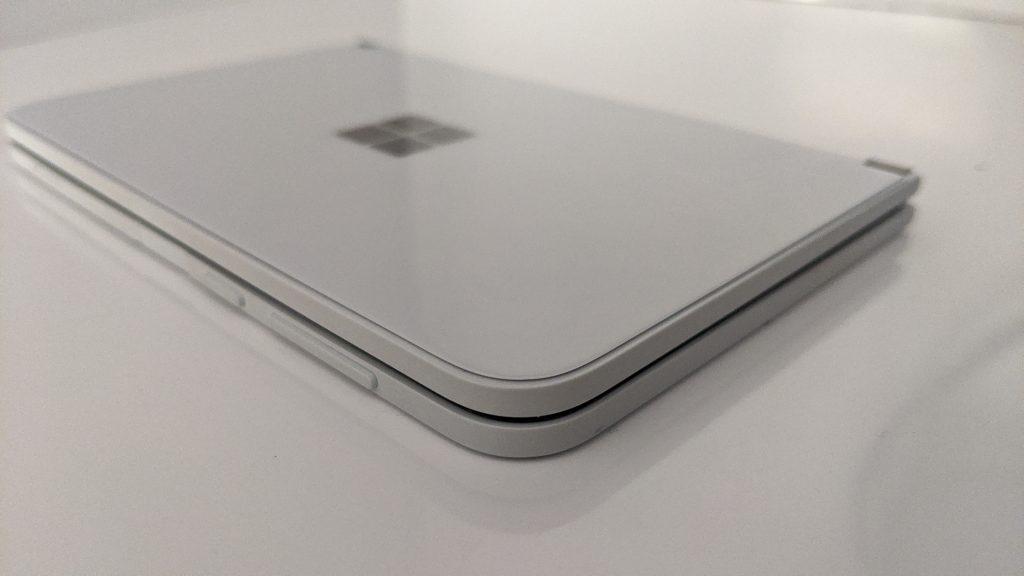
Like everyone else, one of my favorite things about the Surface Duo is the hardware. The phone is made of Gorilla Glass around the front and back. The buttons, fingerprint reader, and frame on the Duo facing the right are made of composite material, but the left side has the metal hinge. The fingerprint reader is on the right side of the device and is spot-on, never missing a login.

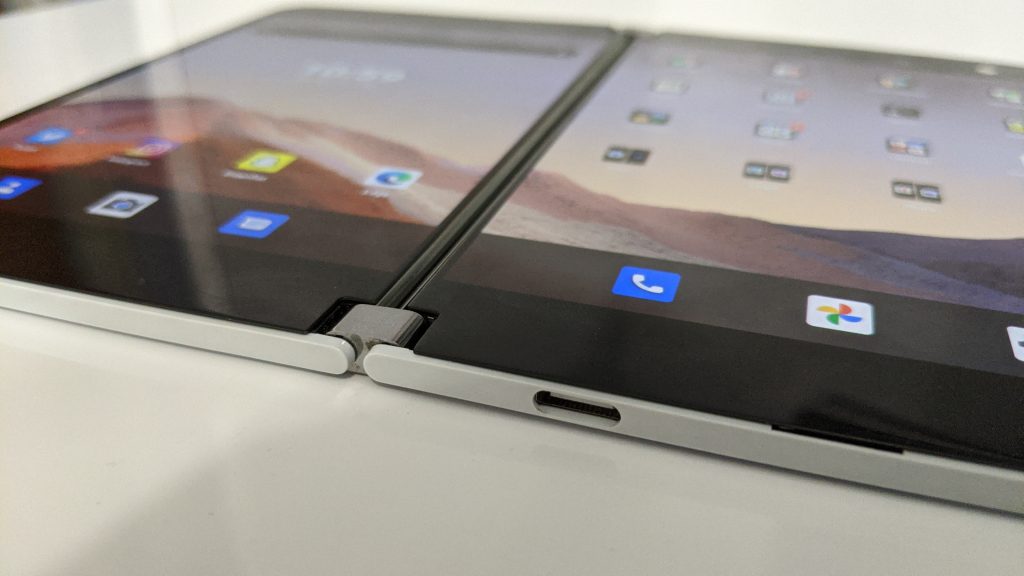
Then, there are the 360-degree hinges itself. The hinges separate the two screens and are tucked away at the top and bottom, encased in the two halves of the metal enclosure to the left of the phone (or just middle when folded open.) In one month of use, and thousands of times opening and closing, these hinges never failed me. Nor did it pick up pocket lint, dirt, or any other material.

To me, the hinges always felt just as precise and operational as the watchband hinges on a Lenovo Yoga. It creates a cool look because the hinges are polished metal. Plus, it helps holds the Duo up at almost any angle, if you’re to use it in one of its different modes.
Surface Duo Bottom

This all means the Duo feels premium, but also thin. As I said in my early- hands-on, I’ve never felt a phone like this. On this matter, the Surface Duo really is in a league of its own when compared to other flagships. The phone itself is almost as slim as the USB-C port on board the bottom of the device. It’s quite unique at 4.8 mm thin.

Asides from that, the fact that the Duo has those two screens, separated by the hinge, make it stand out from the Galaxy Z Fold. The hinge does make the gap a little seamless, though. I found that as I slide my hands between the two screens the hinge feels like it isn’t there, even if it is visually separated.

Oh, and about putting the Duo in your pocket. At 250 grams in weight, and with its overall thinness, it fits fine in a pair of my tightest jeans. When the weather was warm, it slid easily into my shorts. Then, as the weather got colder, It slid well as my sweat pants and jeans pockets. I never had to worry about the fit, and you shouldn’t either.

The screens: Aspect ratio, inking, sensitivity, bezels
Surface Duo Screen

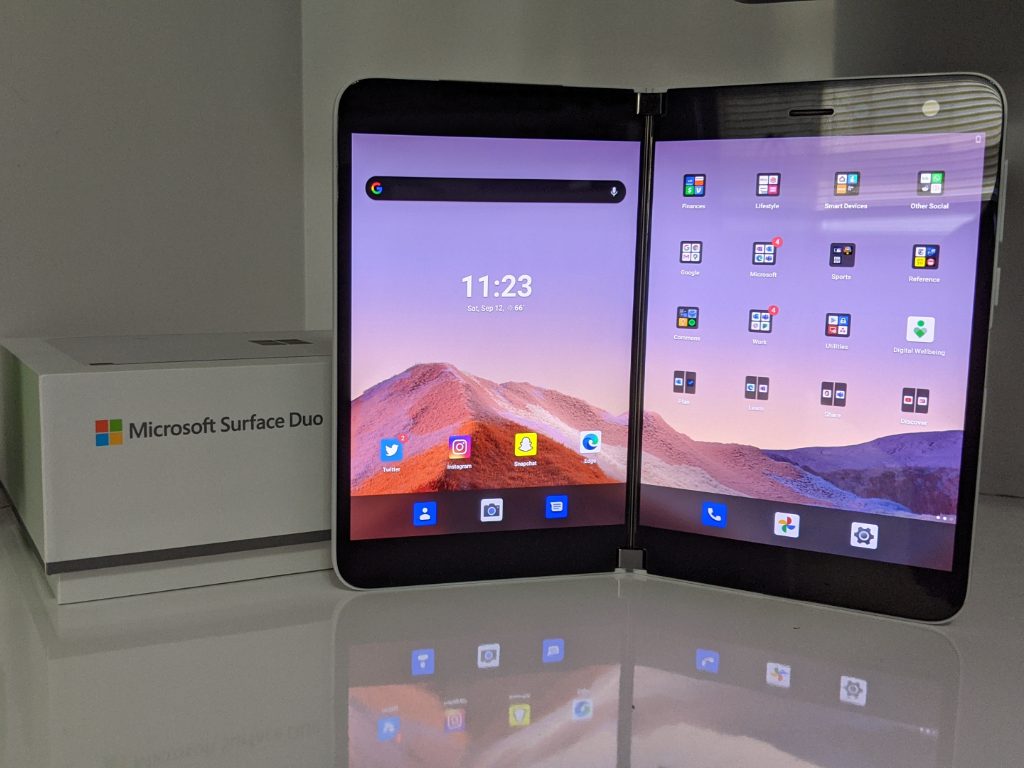
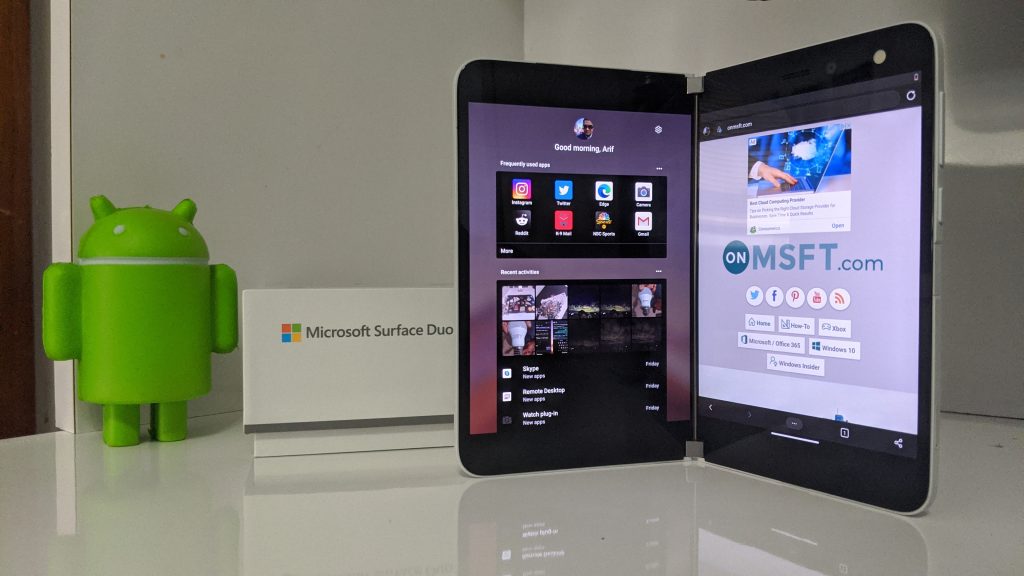
Now, for more on the screens. The Surface Duo comes with two 5.6 inch AMOLED panels. Each has a 1,800 x 1,350 resolution, and each is set in the 4:3 aspect ratio. When expanded out, the displays open up to a single 8.1 inch AMOLED display at 2,700 x 1,800 resolution in the 3:2 aspect ratio, albeit with split down the middle.

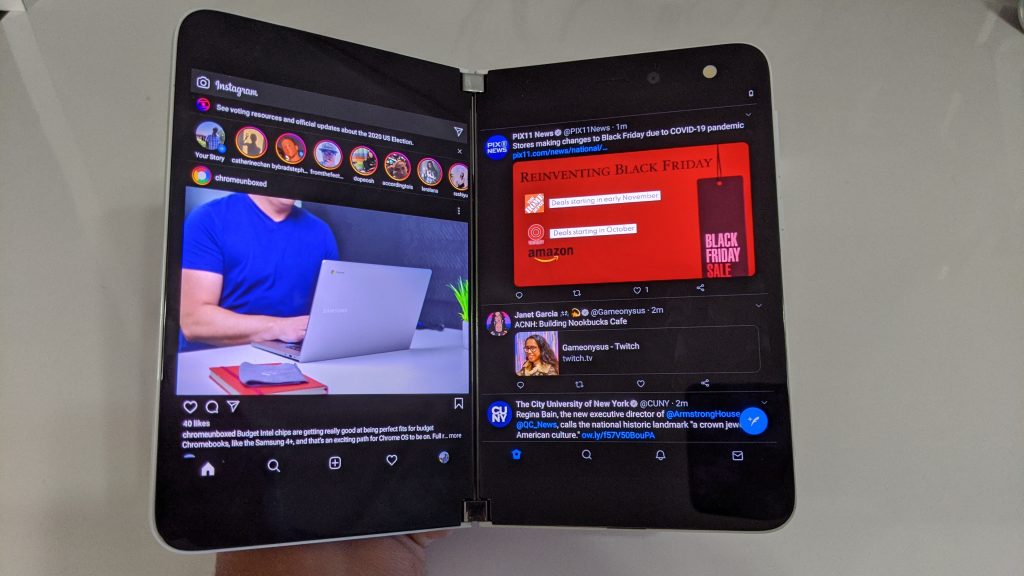
I initially had some trouble getting used to this new screen. Coming from an iPhone XS, the Duo felt a little shorter and wider than I was used to. Some apps like Instagram felt a bit cramped due to this aspect ratio. I felt the Duo wasn’t meant for social media, but after a few days, the aspect ratio felt more welcoming. Giving it a chance, I felt as though the Duo’s aspect ratio was putting more emphasis on the content I actually wanted to see, like a specific picture on Instagram, or a single tweet in my Twitter timeline.
Duo Apps Side By Side

Asides from that, the Duo’s screens are visually impressive. In both bright sunlight and indoors, everything on the screen appears sharp and crisp. It’s a pretty pleasing experience, especially with the adaptive brightness, which makes sure the screen is at the optimal brightness.

I’ll also touch on the bezels here. While many have criticized the phone for its thick bezels, I think it does help in terms of usability. When I switch the Duo into its various modes of use or decide to use the Surface Slim pen, having those thick bezels helps with holding the device in a more comfortable matter. I never had to worry about my hands accidentally touching the screen.

Finally, there’s the sensitivity and inking experience. While some early reviewers reported bugs with the touch-screen experience, I haven’t had any major issues. Almost 99% of the time the keyboard was responsive, as well as the swiping and moving of apps and general day to day usage.

The other 1% of the time the issue with my screen was just with the orientation. Out of my 3 weeks with the device, a few times the Duo’s screens would not respond when I rotated it, or it would rotate on its own about once a week. Sometimes, an app also wouldn’t slide to the other screen. Usually, locking and unlocking the phone would fix this, and it wasn’t something that was breaking the phone.

Even inking was a great experience. With a wide and short format, and the ability to fold like a book, the Duo feels a lot like a Moleskine notebook. I was able to pull up an image on one screen. and then mimic it and draw on the other. I also used the Duo as a journal, but more on that next where I get into how the Duo changed how I used my phone.

The dual-screen experience and modes of use: Change the way you use your phone

Duo Filded Over Front

I headlined this review as “a phone to love” and that’s all because of the Surface Duo’s dual-screens. Coming from iPhone, a Pixel, and a Lumia 950 XL, the Duo really changed the way I use my phone. For $1,400, you’re getting a lot of phone in one device.

But, why you may ask? Well, the hinges on the Duo allow you to fold it into various modes of use or postures, like a modern Windows 2-in-1. These include Book Mode, Compose Mode, Dual Landscape Mode, Single Screen Mode, Tent Mode, and Peek Mode.

It is here where things come into play and where the Duo is unlike any other phone you’ve ever used. I found myself switching between these various modes, based on what situation I need my phone for. Combined with various gestures Microsoft has talked up for multitasking and swiping apps around, this means the Duo is versatile.

Book mode
Surface Duo Book Mode

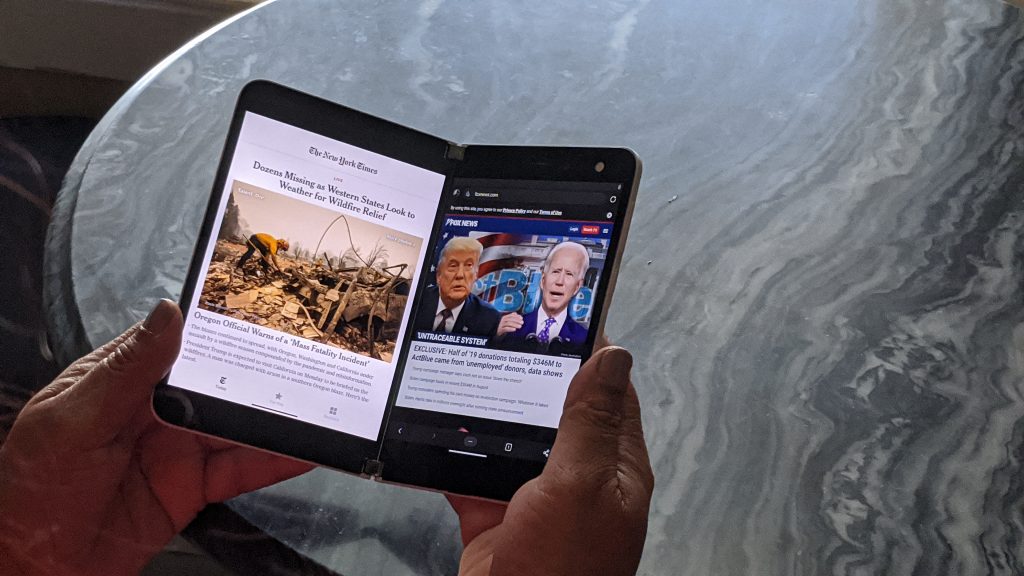
Book mode is how I spent the majority of my time using the Duo. For Book Mode, reading webpages and checking the news was fun. I was able to keep two different news apps, or two different webpages side by side, one on each screen. This is done by swiping the app to the screen you want it on and then pulling up to open the secondary app from the home screen. Twitter alongside Instagram. Snap alongside WhatsApp, Edge alongside Chrome? The possibilities are endless.

Essentially, you’re able to get more done and see two things in different apps at once, in a full-view that’s not squished down as it would be on a Galaxy Fold. And, what about this? Enjoying full-screen Android on one screen, and Windows 10 on the other, via a remote session!

For me, Book mode is also useful for inking. I folded the Duo open in this mode and inked in OneNote with Surface Slim Pen as a journal. With the way the Duo’s aspect ratio feels, and how OneNote is optimized for the Duo, it’s quite natural and exactly like writing in a Moleskine notebook. I highly recommend Surface Slim Pen for this reason, as it adds a whole set of new use cases to the device.

Book mode also has another interesting use. If you hold an app to the middle of the hinge, the Duo will span it across both screens. Amazon’s Kindle app supports this mode and will split so you see pages on each screen. A lot of apps don’t support this splitting yet, though, and will just be divided down the middle with the hinge. As dual-screen phones become more mainstream, this is something that’s up to Android developers to adapt their apps to, and not Microsoft.

Compose mode
Surface Duo Compose Mode

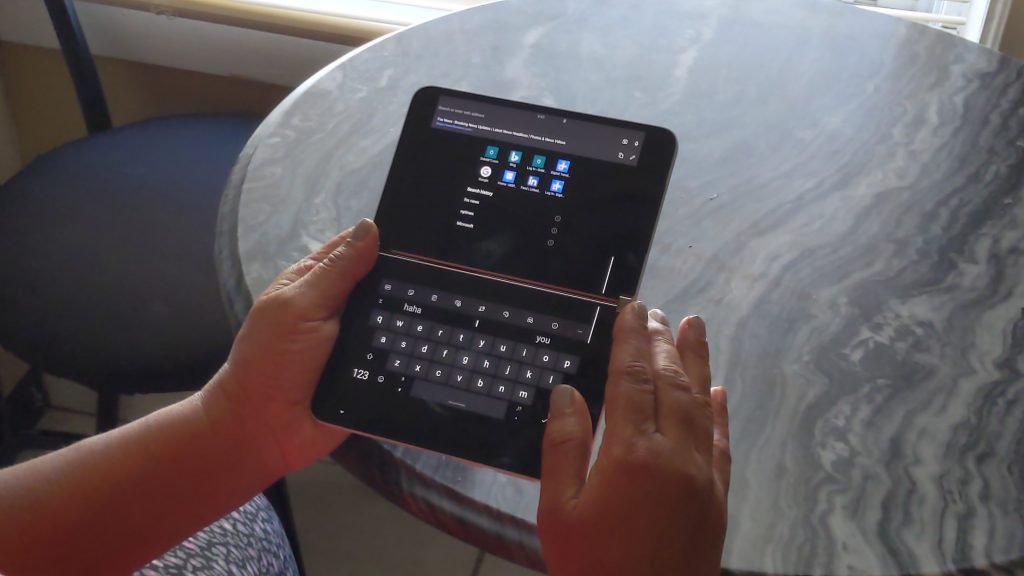
Compose mode is one of the weird use cases of the Duo. In this mode, you turn the Duo around vertically and span an app on the top, to get a keyboard on the bottom. This is for typing emails in Outlook or a document in Word. You also can fold the Duo like a laptop with the screen in a laptop mode to enjoy this mode. As much as Microsoft tries to sell it, this was a bit strange to me because of the small screen and keyboard. I never used compose mode much because I didn’t find it comfortable.

Landscape mode
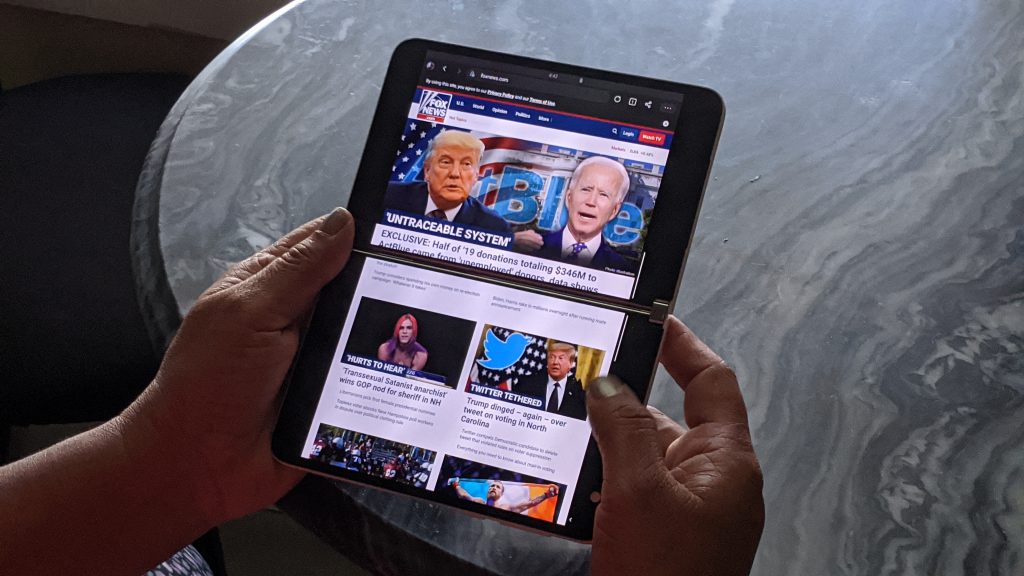
Duo Landscape Mode

Then, there’s Landscape Mode. This is one of my favorite modes for spanning one app across both displays, with the phone rotated vertically. Here you hold an app in the middle to span it vertically and get to use the full 8.1-inch screen to your advantage. This is great for web browsing, as it feels like you’re holding a newspaper in your hand. With the exception of the hinge cutting out content, scrolling, reading content feels quite natural here, especially on Twitter and Instagram.

Single screen mode

Duo Single Screen Mode

Next, there’s the single-screen mode. For most people, this mode will feel most natural. You can fold the Duo back, and hold is as you would a traditional phone. This mode cuts back on the Duo’s dual-screen features, but it’s the most comfortable for replying to texts at quick, without having to deal with swiping on the mini-keyboard. And yes, the back screen does go inactive when the phone is folded, but you can always switch back to it by flipping the phone and double-tapping it.

Heck, you even can use the Slim Pen to use your handwriting and ink on the screen respond to texts in this mode, too, if you install GBoard.

It’s also where you’ll spend most of your time if you’re taking photos. I’ve seen some people fold the Duo and keep it like this in their pocket too, for quicker access to the cameras and such, but it’s not something I’ve tried. I am worried about scratching the screens.

Tent mode

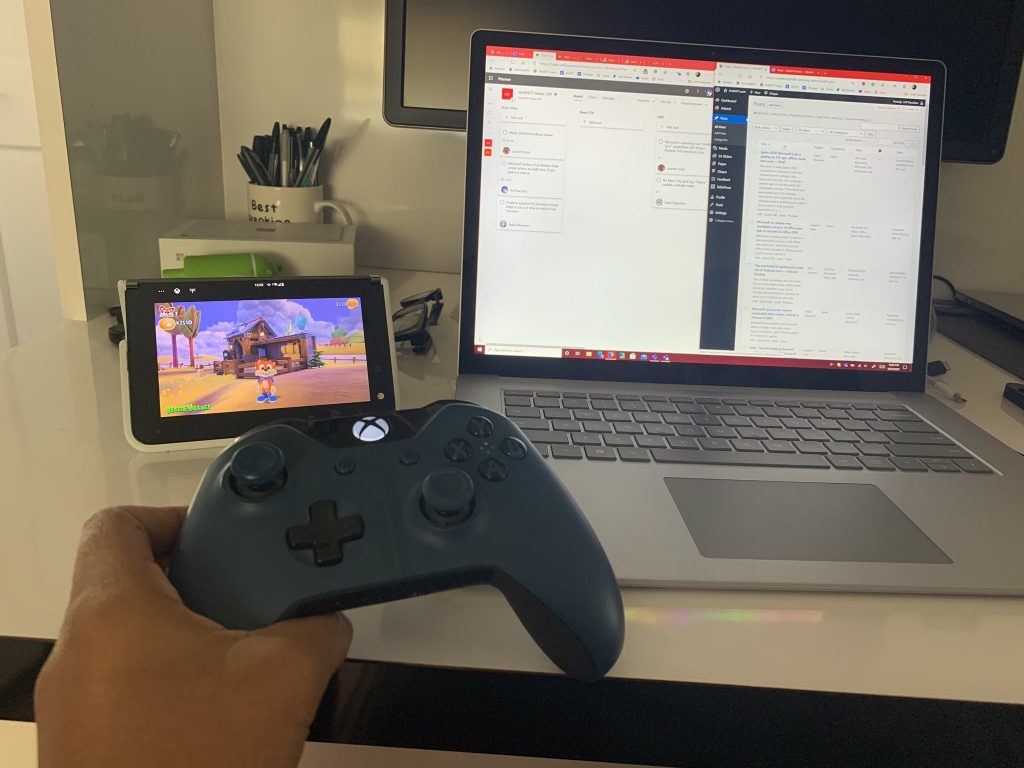
Tent mode is one of the most unique aspects of Surface Duo. Here you fold the Duo over into a “tent.” I like this mode for one reason, and it relates to multi-media or gaming. Folding the Duo over like this is great for watching movies or other TV shows. I enjoyed watching NASCAR Races, MLB games, episodes of Spongebob, as well as gaming via xCloud on the Duo in this mode. The possibilities are endless because you can prop your phone anywhere and enjoy it, without buying a stand.

Peek mode
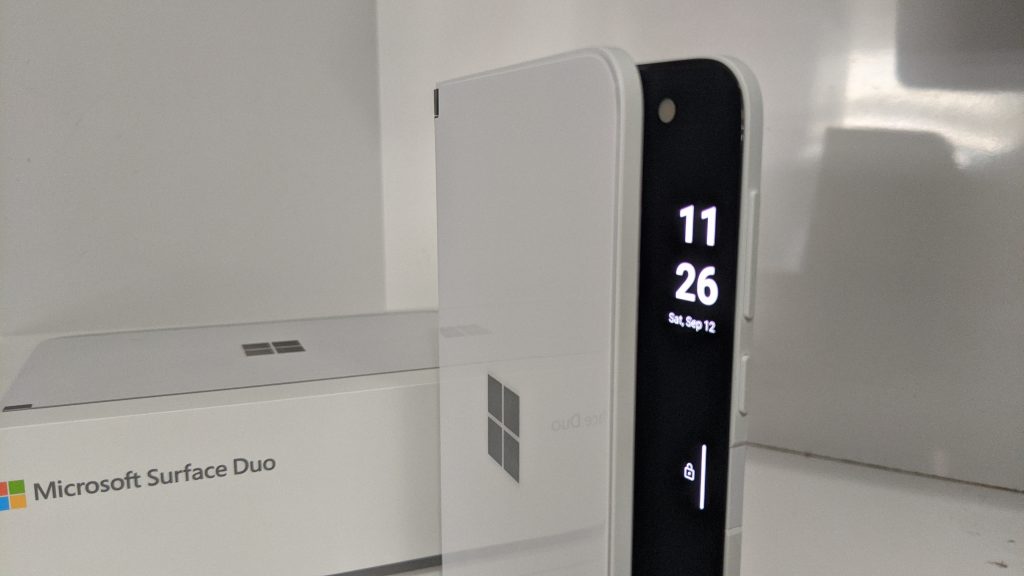
Duo Peek

Finally, there’s the peek mode. Since the Duo lacks an external screen, in peek mode, you get to “pull” the Duo open at its side and see your notifications and the time on a glance screen. Right now, peek mode only works with seeing the time and date, but tweaking a setting gets it working to show notification badges. It’s a cool way to make up for the lack of an outside screen.

The camera: Good enough, but could be better
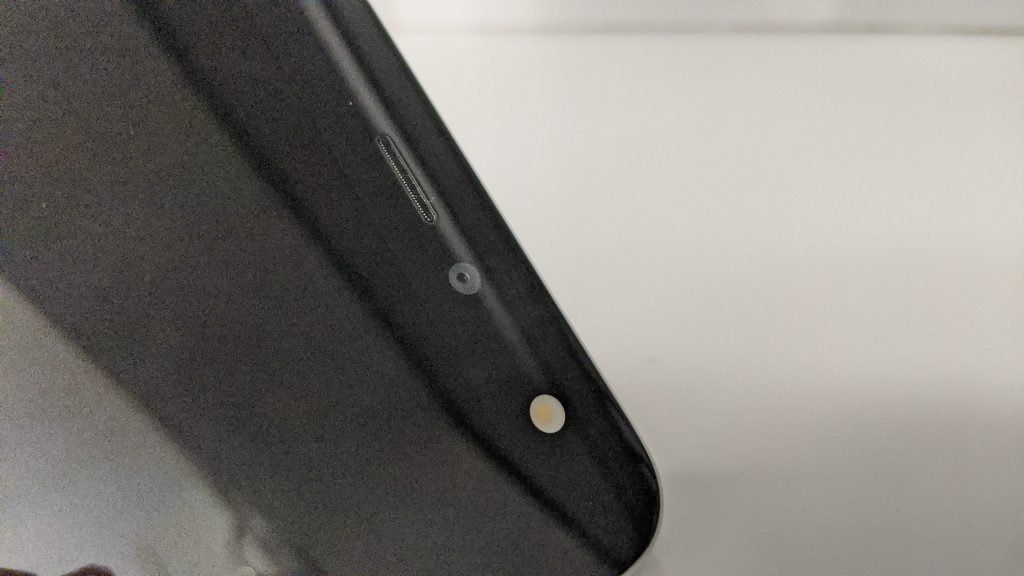
Surface Duo Camera

One of the most controversial things about the Duo has been the lack of an external camera. I’ve mentioned my concerns about this multiple times in different posts, but after using the phone for about a month, I’ve come to a different conclusion: For $1,400, the camera isn’t the greatest you could find on a flagship Android or iPhone, but it does get the job done and could be a little bit better.

Compared to my iPhone XS (and my Pixel before I traded it in) the Surface Duo’s single 11MP camera is just decent. With an f2.0 lens, and the lack of lasers to autofocus (it uses PDAF) the low-light images aren’t the best on the Duo. But, for outdoor shots, and general day-to-day photography in good lighting conditions, the Duo is great. You can see this in the slider below, where I took some photos of flowers using the Duo’s cameras.


In inside lighting, the photos also come out decent. However, the Duo’s cameras do like to wash out some colors or even the reflections of lights. I wrote a post about how to correct this through Google Photos. But you can see the difference in my Tweet below.

One thing of note, though, is the way that you handle the camera. With no exterior camera, you need to fold the phone and then rotate it to switch from selfie mode to world-facing mode. Sometimes (which I say at 4% of the time,) the Duo wouldn’t properly flip photos or have a delay in the shutter click when I did this. It was awkward and annoying, but eventually, I did get used to it. I remain hopeful this can be get patched in future software updates.  It’s just something you need to be patient with to properly enjoy the Duo.

With the exception of the photos I’ve posted and taken of the Duo itself (with my iPhone,) I’ve used my Duo exclusively for Instagram, Snapchat, and other pictures on social media. Nobody has told me that my photo quality has dropped. So, there is that. I think the camera is good for what I need. Compared to the dual or triple camera setup on other phones it isn’t the best, but I do have hope that Microsoft can improve it in software updates, too.

I also want to mention that the Duo does have a portrait mode like the iPhones and Pixels, but it’s pretty much useless if you’re taking a photo of something that’s facing you. For selfies, though, it’s pretty magical and will give you a fantastic bokeh effect you’ve likely seen on iPhones and Pixels. The front-facing camera is good for Teams, too, with my colleague telling me I was “crystal clear” when we did a test call.

The performance, software, connectivity, and the bugs: Not like everyone says
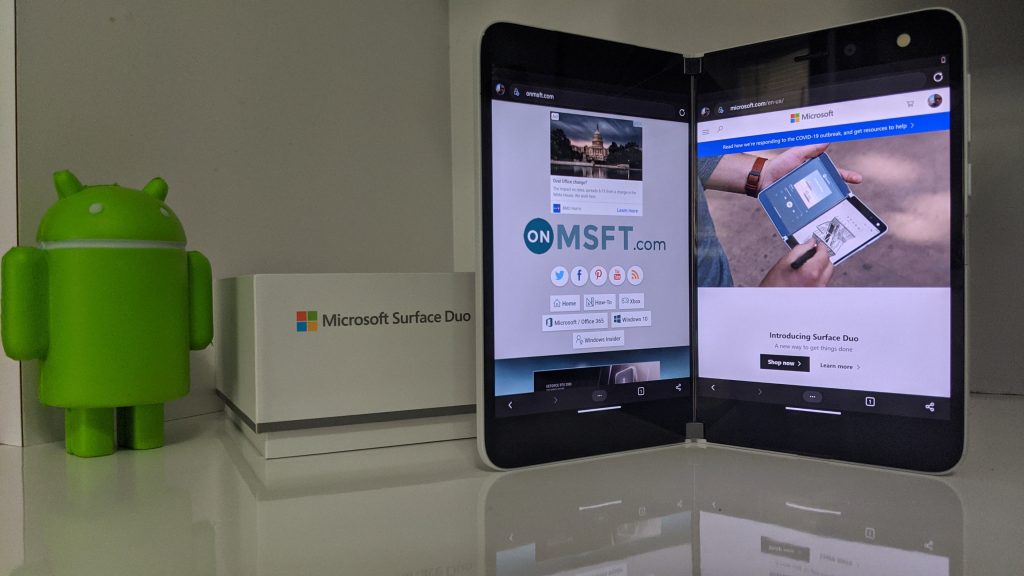
Duo Apps Onmsft Open

Now, for the performance. Powered by Android, and with last year’s Snapdragon 855 processor inside paired with 6GB RAM, a lot of people and reviewers have slammed the Duo for having outdated specs for its price. While this is true, and that is a rightful comparison, there’s another side to the story.

There’s a need to talk about how one actually uses the device without getting into the Geekbench and technical scores. Again, time to give the Duo a chance and put it into a real perspective.

For day-to-day usage, productivity, and social media, a Snapdragon 855 with 6GB of RAM on an Android phone is more than enough to get anything you need to do, done. All of my favorite apps, including Snapchat, Instagram, Twitter, WhatsApp, and Microsoft Edge performed fine on the Duo. I didn’t experience device-breaking lag or freeze (especially in Microsoft Edge) that those early reviewers have complained about.

Leveraging the dual-screens, I was able to run Twitter alongside Instagram. Edge alongside Chrome. Netflix alongside Amazon Videos… and the list can go on. Performance-wise, there wasn’t a single thing that the Duo couldn’t handle that my iPhone or Pixel can.

And, when setting up my apps, the Duo sped through it all with speed. Just be aware, not every Android app is optimized to use the dual-screens. Most non-Microsoft apps aren’t optimized and will default to the opening on one of the Duo’s single screens.

But it’s not always roses and perfume for the Duo. Just like the camera, occasionally there is a bug or two. While the Duo works fine 99% of the time, there are some bugs. Sometimes, Microsoft Launcher (which powers the Duo on top of Google’s Android) could not respond to my swipes as I moved apps across the screen, or swipe up on the screen to see all apps.

Usually, I’d just lock and unlock the phone to fix this, and it works fine. Again, another case where you have to give the phone a chance while Microsoft works out the bugs via software updates.

It should be noted that a lot of performance issues with the Duo can be addressed with software updates. The phone already received two since it launched, and more is on the way. Microsoft is also committed to three years of Android updates and monthly security updates for the Duo, so I am hopeful any bugs will be patched.

Battery life: More than enough to get through the day
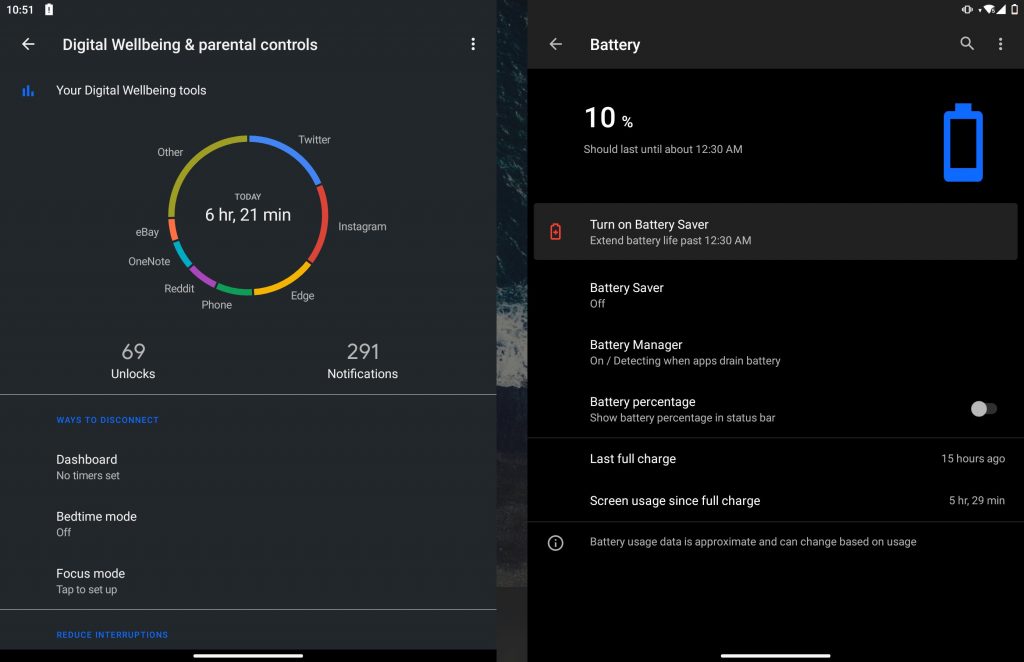
Surface Duo Battery Life

When it comes to battery life on a phone, it depends on the user. Some people are glued to their phones all day, and others mainly keep it in their pockets. I am someone who falls in between that.

For my typical 8 AM- 10 PM day, the Surface Duo lasts me fine. With a full charge at 100% in the morning, I’d be down to 20% by the evening before bed. I’d also get anywhere between 4-6 hours of screen on-time, depending on how much I used the phone on a given day.

Considering the Duo has two screens, and a small 3,577mAh battery, I’d say that’s good enough for most people. I never was worried about battery life, and the Duo was always ready for me when I needed it. Plus, with an 18-watt quick charger included in the box, it charged up the device from 20-100% in about 45 mins.

Use as a phone: Can you hear me now? Good!
Duo Phone Microsoft

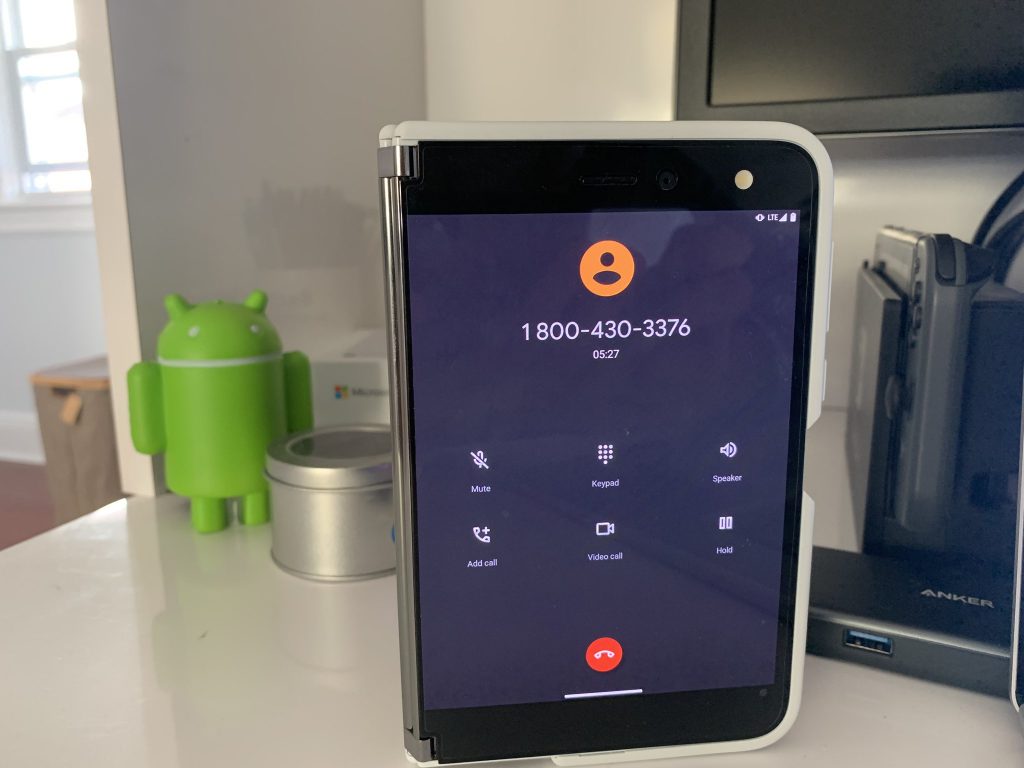
Of course, the Duo is a phone. Although Panos Panay and Microsoft don’t like calling it one, the Duo has all the functionalities of a cellphone. Here, there are no surprises. While the size makes the Duo a bit weird to hold in your hands to your ears, it’s as excellent of a phone as it is anything else.

Answering calls on the Duo works well. The phone rings, and as you open the screen, you’ll see it appear on the right screen (which has the earpiece.) I’ve had no issues with dropped calls or voice quality. The earpiece is loud, and everyone has told me that I sound clear, and as if I were in the room with them. And, when I finished the call, I could just fold the Duo closed to hangup.

PS: the Duo supports Voice over LTE and all the major networks in the USA. I used it with T-Mobile so I was able to enjoy WiFi calling. Just be aware, there is no 5G support on the Duo, mainly because of its chipset not supporting it.

The case and the bumpers: Much needed for protection

Duo Case

Midway through my review period, I decided to put the included bumper case on the Duo. I thought I would live without it, but after a few weeks, I felt like the Duo was too fragile, so I went for the extra protection.

The bumper case pastes to the sides of Duo with double-sided tape. It’s not a permanent bond and can be pulled back off later, but officially Microsoft says it’s not meant to be removed. It comes in four colors and adds a nice level of grip and makes the Duo feel a bit safer in the hands.

However, the bumper is made of a tacky rubber, which means it gathers pocket dust. But, it also does protect the composite side of the screen near the power buttons, which people have can lose its colors.

All in all, the bumper case is a must for the Duo. It helps protect the phone, and it’s nice that it’s included. After all, the last thing you want is to crack your $1,400 phone.

A great phone, despite the missing things

3,000 words later, and this is what I have to say. Yes, the Surface Duo isn’t perfect. It has its bugs and is far from the monster smartphone, but if you give a chance, you’ll love it. Sure, the camera isn’t the best, but the real use cases for the Duo are with it’s dual-screens. It changes the way you use your phone.

Things like NFC are missing from the Duo, but you can fix that by pairing it with a watch. And 5G support? is it even needed? And, expandable storage? With Microsoft 365, you get 1TB of OneDrive for your photos, so this shouldn’t be a worry. And how about wireless charging? You can add it to the Duo with third-party accessories.

Give the Duo a chance. You’ll love it.

The new Spotlight feature is now generally available in Microsoft Teams

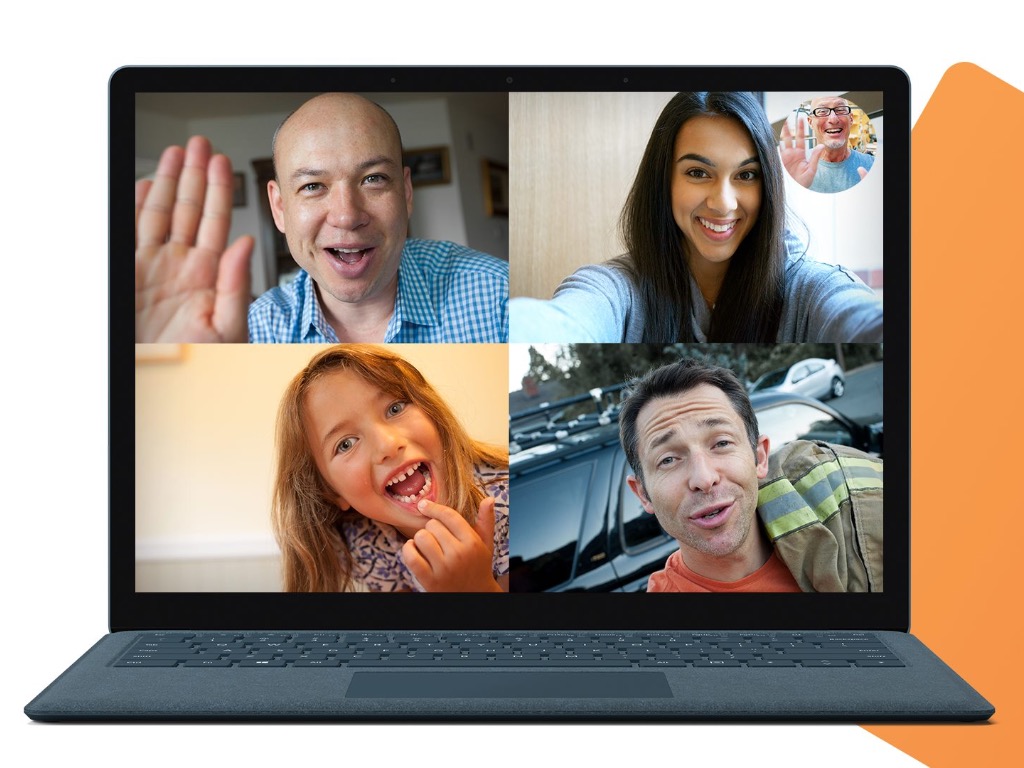
Microsoft has now made it easier to highlight a specific person within a call with the new Spotlight feature, now generally available in Teams meetings. The company says that the new experience should be available for all commercial users in the Microsoft Teams desktop app.

The Spotlight feature allows presenters to lock an individual video feed for everyone to see during a Teams meeting. Once a person receives a spotlight, their camera feed will be prioritized over all attendees. The feature is particularly useful when a participant wants to act as the meeting host, present data, or answer a question.

Here’s a video look at how the Spotlight feature works.

To use the feature in Microsoft Teams, all you need to do is click the ellipsis icon next to any attendee and choose “Spotlight.” Once a participant is spotlighted, an icon should appear next to their name within the participants list.

Keep in mind that the organizer/presenter can only spotlight one video at a time. Moreover, if they record a meeting in which a person video is highlighted, the video won’t be spotlighted in the recording.  At this point, Teams users won’t be able to start or stop spotlighting on their mobile devices. However, when someone using the desktop app spotlights a video feed, that video will be spotlighted for mobile users as well.

Yellow Screen of Death in Windows 10: Here’s how to solve it

You may be familiar with the Blue Screen or Black Screen of Death errors, but when you hear other colors, it changes everything.

Apparently, there are other colors, though not so common, but computer users have experienced the purple, brown, yellow, red, and even green screen of death.

The main reason for such errors is malfunctioning or corrupted hardware drivers on your computer system.

And this color coding simply helps when you get the issue and the tech support at Microsoft can help you resolve it as they understand how deep an issue each one carries.

This article is about the Yellow Screen of Death, which occurs when an ASP.NET web application encounters a problem and eventually crashes.

ASP.NET is an open-source web application framework used in Windows OS for web development to build dynamic web pages.

So what happens when you get the yellow screen of death in Windows 10? We’ve got some troubleshooting tips for this PC error!

How do I fix the Yellow Screen of Death issue in Windows 10?

  1. Uninstall and reinstall the graphics card driver
  2. Update your drivers
  3. Boot in Safe Mode
  4. Perform a clean boot
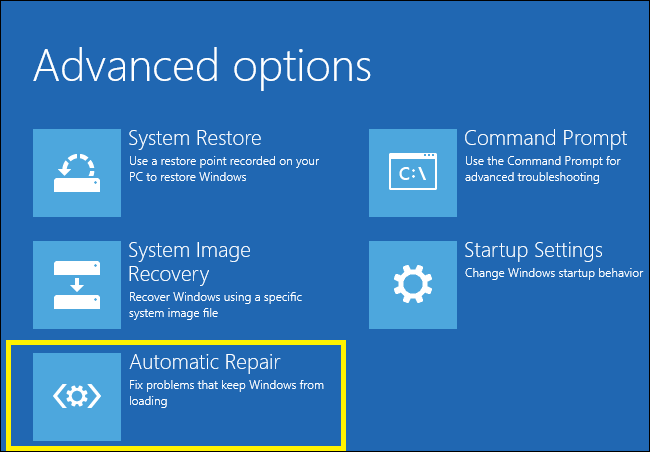
  5. Perform an Automatic Repair

1. Uninstall and reinstall the graphics card driver

  1. Right-click Start.
  2. Select Control Panel.
  3. Go to Programs.
  4. Click Uninstall a program.
  5. Right-click the graphics card driver you’re using and select Uninstall.
  6. Confirm that you wish to continue with the uninstall.
  7. A prompt will appear asking if you want to delete all saved profiles. Clicking Yes will delete all its software and saved profiles. Clicking No will remove its software but the profile files are saved on your hard disk.
  8. Once driver files have uninstalled, restart your computer to complete the uninstallation.
  9. Turn on your computer and reinstall your graphics card driver.

Outdated drivers can cause a variety of issues and are the very first thing to check when experiencing the Yellow Screen of Death issue.

However, do note that driver files should be uninstalled before you update to newer drivers, or when removing an older graphics card and replacing it with a new one.

Just use the steps detailed above in order to uninstall the graphics card from your system.

Moreover, other outdated drivers can cause this problem as well and there’s no secret that updating drivers manually can be a long and tedious process.

Therefore, you might want to use a tool that will easily update all your drivers for you. Just download Outbyte Driver Updater to do it automatically.

As confirmed by users worldwide, Outbyte Driver Updater will help you avoid any kind of damage to your PC by downloading and installing the wrong driver versions.

⇒ Get Outbyte Driver Updater

2. Update your drivers

Update drivers from Device Manager

  1. Right-click Start.
  2. Select Device Manager.Yellow Screen of Death in Windows 10
  3. Click Display adapters to expand it.Yellow Screen of Death in Windows 10
  4. Right-click on the graphics card driver.
  5. Select Update driver software.Yellow Screen of Death in Windows 10

If you don’t have any driver updates available, right-click on the graphics card driver and click Uninstall, then restart your computer.

Update drivers from Windows Update

  1. Click Start.
  2. Select Settings.Yellow Screen of Death in Windows 10
  3. Select Update & Security.Yellow Screen of Death in Windows 10
  4. Select Windows Update.Yellow Screen of Death in Windows 10
  5. Click Check for updates.Yellow Screen of Death in Windows 10

Update drivers from the manufacturer’s website

  1. Right-click Start.Yellow Screen of Death in Windows 10
  2. Select Device Manager.Yellow Screen of Death in Windows 10
  3. Expand the Sound, Video and game controllers option.Yellow Screen of Death in Windows 10
  4. Right-click on the name of the graphics card.
  5. Click Update driver software.Yellow Screen of Death in Windows 10
  6. Restart your computer.

Go to your graphics card manufacturer’s website, check for the latest Windows 10 drivers available and then install it based on the instructions on the website.

Besides, you can as well update your drivers using a specialized driver update program aforementioned in the first solution.

3. Boot in Safe Mode

  1. Click on the Start button.
  2. Select Settings.
  3. Click Update & Security.
  4. Select Recovery from the left pane.Yellow Screen of Death in Windows 10
  5. Go to Advanced startup.Yellow Screen of Death in Windows 10
  6. Click Restart now.
  7. Select Troubleshoot from the choose an option screen.Yellow Screen of Death in Windows 10
  8. Click Advanced options.Yellow Screen of Death in Windows 10
  9. Go to Startup Settings and click Restart.Yellow Screen of Death in Windows 10
  10. Once your computer restarts, a list of options will come up.
  11. Choose 4 or F4 to start your computer in Safe Mode.

Safe mode starts up your computer with limited files and drivers but Windows will still run. To know whether you’re on Safe mode, you’ll see the words at the corners of your screen.

If the issue of the Shift key, not working persists, check whether it occurs while your computer is in Safe mode. Follow the above steps to start your computer in Safe Mode.

A quicker way to get into Safe Mode is to restart your computer then do the following:

  1. From the Choose an option screen, select Troubleshoot > Advanced options > Startup Settings > Restart.
  2. Once your computer restarts, a list of options will come up.
  3. Choose 4 or F4 to start your computer in Safe Mode.

If the issue isn’t there while in Safe mode, then your default settings and basic drivers are not contributing to the issue.

4. Perform a clean boot

  1. Go to the search box.
  2. Type msconfig.Yellow Screen of Death in Windows 10
  3. Select System Configuration.
  4. Find the Services tab.Yellow Screen of Death in Windows 10
  5. Select Hide all Microsoft services box.Yellow Screen of Death in Windows 10
  6. Click Disable all.Yellow Screen of Death in Windows 10
  7. Go to the Startup tab.
  8. Click Open Task Manager.Yellow Screen of Death in Windows 10
  9. Close Task Manager, then click OK.
  10. Reboot your computer.

Performing a clean boot for your computer reduces conflicts related to software that can bring up the root causes of the Shift key not working.

These conflicts can be caused by applications and services that start up and run in the background whenever you start Windows normally.

In order to successfully perform a clean boot on Windows 10, you have to be logged on as the administrator, then follow the above procedure.

You will have a clean boot environment after all these steps are carefully followed, after which you can try and check if the Shift key not working problem is gone.

Can’t open Task Manager? Don’t worry, we’ve got the right solution for you.

5. Perform an Automatic Repair

  1. Insert the Windows installation disk or USB drive, then restart your computer. You will see a message requesting you to Press any key to boot from DVD.
  2. Do so and press any key to boot from DVD.
  3. Once you see the Install Windows page displayed, click Repair your computer to start Windows Recovery Environment (WinRE).
  4. In WinRE, go to Choose an option screen.
  5. Click Troubleshoot.Yellow Screen of Death in Windows 10
  6. Click Advanced Options.Yellow Screen of Death in Windows 10
  7. Click Automatic Repair.Yellow Screen of Death in Windows 10

In order to do this, you need to download Windows 10 ISO then create a Media Creation Tool, which you can do from another computer.

Once you have the installation media, follow the steps above. If you don’t see the Press any key to boot from DVD message, change the boot order in your BIOS settings to start from disk or USB.

Be careful when changing BIOS settings as the BIOS interface is designed for advanced computer users because you may change a setting that may prevent your computer from booting properly.

You should only update BIOS when necessary like when solving a compatibility problem. It can be complicated and render your computer inoperable in case of any errors.

Follow the steps below exactly as they are to change the boot order then perform a repair:

  1. In the restart process, check for any instructions on how to interrupt normal startup.
  2. Enter the BIOS Setup Utility. Most computers use F2, F10, ESC, or DELETE key to begin this setup.
  3. Find a tab in BIOS set up utility labeled Boot Order, Boot Options, or Boot.
  4. Use the arrow keys to go to Boot Order > press Enter.
  5. Locate the removable device (CD, DVD, or USB flash drive) in the Boot list.
  6. Use arrow keys to move the drive upwards to appear as the first in Boot list > Press Enter.
  7. Your boot order sequence has now been changed to boot from DVD, CD, or USB flash drive.
  8. Press F10 to save changes and exit the BIOS Setup Utility.
  9. Click Yes in the confirmation window and your computer will restart normally.
  10. Let the scan proceed for a few minutes to remove any malware infecting your computer.
  11. Select your preferred language, currency, time, keyboard, or another input method.
  12. Click Next > click Repair your computer.
  13. Choose the operating system you want to repair (in this case Windows 10) > Click Next on the Choose an option screen.
  14. Select Troubleshoot.Yellow Screen of Death in Windows 10
  15. Select Advanced Options.Yellow Screen of Death in Windows 10
  16. Click System Restore or Startup Repair.Yellow Screen of Death in Windows 10

Once the repair is complete, check whether Windows 10 will not boot issue goes away, otherwise try the next solution.

Did any of these solutions help you fix the Yellow Screen of Death in Windows 10? Let us know in the comments section below.

Microsoft announces “GR for GRowth” initiative to accelerate digital transformation in Greece

Microsoft today announced that it’s planning to build new data centers in Greece, bringing the total number of Microsoft data centers worldwide to 63. With this new initiative called “GR for GRowth,” the company aims to invest in the cloud services infrastructure, support economic growth, and launch digital skilling programs.

The new data centers will deliver companies local access to Azure, Microsoft 365, and Dynamics 365, along with compliance, security, and privacy combined with data residency. The initiative will also help the company achieve its long-term goal of becoming carbon negative by 2030. 

“By a substantial margin, this is the largest investment Microsoft has made in Greece in the 28 years we have been operating here. In part, this reflects confidence that our world-leading datacenter technology can help enable innovation and growth across Greece’s economy. In addition, this large investment reflects our optimism about Greece’s future, its forward-leaning government, and the country’s ongoing economic recovery,” said Brad Smith, President, Microsoft.

As a part of the digital-skills training program, the new data center would generate more than 10,000 job opportunities for local people by 2025. Microsoft believes that the new investment marks a major milestone in its mission to bring financial benefits of 1.0 billion euros to the country over the next five years. “Microsoft aims to boost the digital competencies of an estimated 100,000 public sector, business and IT professionals, educators, and students to support the digital transformation of public and private organizations,” the company explained. 

FIX: The handle is invalid error in Windows 10/11

If you’re getting the ERROR_INVALID_HANDLE error code with The handle is an invalid description, follow the troubleshooting steps listed in this article to fix it.

This error affects Windows 10 users when they try to log in to their computers. The error message prevents users from connecting to their accounts and actually using their PCs.

There are two main causes for this error: a recent Windows 10 update didn’t install correctly or some system files got corrupted or damaged. Here’s how one user describes this problem on Reddit:

So I just installed the upgrade and it was working just fine for a while .
But now it went bat sh** crazy and BSOD […] I tried restarting the PC and it gives The Handle is invalid. […]
Another issue is when I press shutdown after the Handle invalid it stay on and wont shut down.

On Windows 10, this error also blocks the print process, leaving users unable to add a printer or use the one already installed.

The handle is invalid error also affects older versions of Windows, preventing users from installing any updates or software on their computers.

In this article, we’re going to show you how to fix this error on Windows 10, as well as on older Windows versions.

How do I fix the Handle is invalid error?

1. Press the restart button

If you can’t access your user account due to this error, try restarting your computer several times. Many users confirmed that this simple action solves the problem.

If you don’t want to perform a hard reset, you can hold down the Shift key and click the on-screen power button, select the restart option while holding the Shift key, and then select Continue to Windows 10.

This will force Windows to repair damaged or corrupted update files.

2. Boot into Safe Mode and uninstall the security updates

  1. Hold down the Shift key and click the on-screen power button
  2. Select the restart option while holding the Shift key
  3. Select Troubleshoot, then Advanced options, choose Startup Settings , and hit Restart
  4. Select Safe Mode after restart.
  5. Go to Update & Security, click on Windows Update and click on Advanced options
  6. View your update history and uninstall the latest updates
  7. Restart your computer.

Note: Many users report that cumulative updates KB3135173 and KB3124262 are actually the culprits, and uninstalling these two updates fixed the problem.

3. Update Citrix VDA

This solution works only for users running Citrix VDA. Some Windows updates are incompatible with Citrix VDA 7.6.300, causing The handle is an invalid error. To fix this, download the cumulative update VDA 7.6.1000.

If you’re using VDA v7.7, download the newer versions of the tool, VDA 7.8 or higher, which contain the fix. For more information and a step-by-step guide, go to Citrix’s support page.

How do I fix The handle is invalid printer error?

1. Run a full system scan

Malware may cause various issues on your computer, including errors. Perform a full system scan in order to detect any malware running on your computer.

You can use Windows’ built-in antivirus, Windows Defender, but you can also opt-out for an advanced security tool, such as a third-party antivirus with deep malware scans included.

Install and run the antimalware removal tool, which should come with your antivirus security suite.

You should use the antivirus software to scan the entire computer, including the printer driver. Check to see if the printer is still unrecognizable after filtering and removing possible malware.

2. Update your PC drivers

How to update drivers on Windows 10?

  1. Type update in the Search box, and click Check for Updates to download and install the latest updates.
  2. To install particular drivers, launch Device Manager.
  3. Expand the available categories and select the device that you wish to update the driver for.
  4. Right-click on the driver and select Update driver.

Note: Another option is to download the available driver updates directly from the manufacturer’s website.

Looking for the driver on the manufacturer’s website can be risky because you still might get the wrong one and produce more damage.

That’s why we recommend downloading and installing Outbyte Driver Updater that updates all your drivers automatically in just a few seconds.

This excellent tool has a library of over 18 million drivers and it’s extremely easy to use so try it out right now. It scans for updates as antivirus scans for threats so, in a way, it has the same mission, to keep your system safe.

After the installation, Outbyte Driver Updater will automatically run a scan and in a few seconds, it will provide you with a list of files to update.

Clicking on the Update All button will install all the recommended updates but you can also install them individually by selecting their corresponding boxes and clicking on their Update buttons.

⇒ Get Outbyte Driver Updater

3. Update your OS

Make sure that you’re running the latest Windows OS updates on your machine. As a quick reminder, Microsoft constantly rolls out Windows updates in order to improve the system’s stability and fix various issues.

Go to Windows Update, check for updates, and install the available updates.

4. Repair your registry

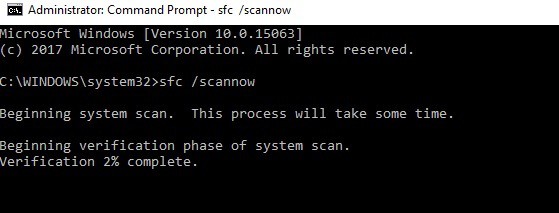
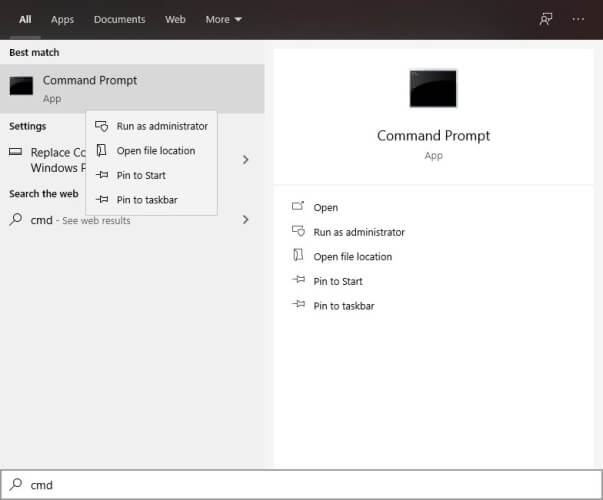
1. Go to Start, type cmd, and click on Run as administrator to start Command Prompt

2. Now type the SFC /scannow command

3. Restart your computer. All corrupted files will be replaced on reboot.

Note: The simplest way to repair your registry is to use a dedicated tool, such as CCleaner. Don’t forget to first backup your registry in case anything goes wrong.

If you haven’t installed any registry cleaner on your computer, check out our article on the best registry cleaners to use on Windows 10 PCs.

You can also use Microsoft‘s System File Checker to check for system file corruption.

5. Download the HP Universal Print Driver

Many Windows 10 users reported that downloading the HP Universal Print Driver fixed The handle is an invalid error. As a quick reminder, this tool automatically detects and configures supported HP devices and some non‑HP devices.

You can download the HP Universal Print Driver from HP’s website.

6. Uninstall and reinstall Microsoft Print to PDF

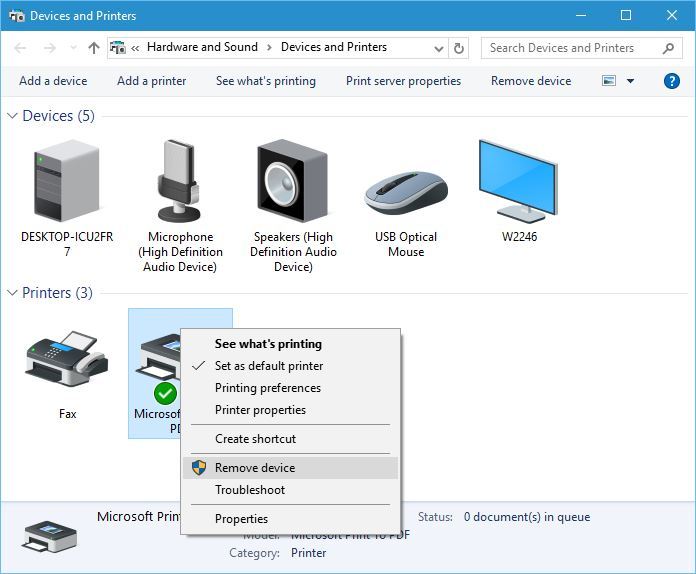
  1. Go to Devices and Printers section.
  2. Locate Microsoft Print to PDF, right-click it, and choose Remove Device.
    remove-device
  3. Click the Add a printer button.
    add-a-printer
  4. Click The printer that I want isn’t listed.
  5. Select Add a local printer or network printer with manual settings and click Next.
  6. Select PORTPROMPT: (Local Port) from the menu and click Next.
    portprompt-printer
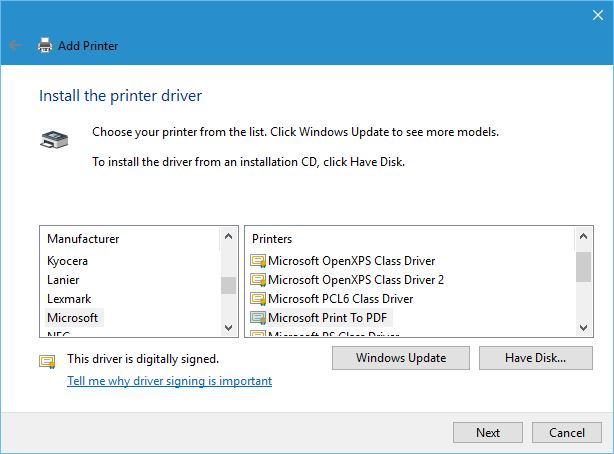
  7. Select Microsoft and Microsoft Print to PDF.
    microsoft-driver
  8. Select Replace the current driver option and click Next.
    replace-driver
  9. Add a name for the printer and wait for Windows to install it.

How do I fix The handle is invalid error on all Windows versions?

1. Install the latest updates or upgrade to Windows 10

Microsoft regularly rolls out updates to all supported Windows versions. Go to Start, type update, click Check for updates, and install the available updates.

If you’re using Windows 7 or Windows 8, you can use the Upgrade Assistant to get your OS to the latest version.

2. Update the app affected by this error

Installing the latest version of the app affected by The handle is invalid error may help you fix the problem.

To do this, you can either use the update button of the app or go to the app’s official website and install the latest version from there.

3. Download the HP Universal Print Driver

If The handle is invalid error is preventing you from using your printer, download the HP Universal Print Driver. This tool automatically detects and configures supported HP devices and some non‑HP devices.

You can download the HP Universal Print Driver for Windows 7 and newer from HP’s website.

By following these steps, you should be able to get rid of the annoying error message for good.

As always, if you’ve come across other workarounds to fix this error, you can help the WindowsReport community by listing the troubleshooting steps in the comments below.

Video_tdr_failure atikmpag.sys Error in Windows 10 [Fix]

In most situations, the errors that you may experience while using Windows 10 are caused by the firmware itself.

Sometimes, certain alerts and errors are being displayed because of corrupted files related to hardware components, such as the graphics card.

In our situation, the video_tdr_failure atikmpag.sys alert is telling you that something went wrong with your AMD / ATI graphics card.

Don’t panic, this isn’t a hardware malfunction, but a software mismatch between your graphics card and the Windows 10 platform.

Thus, as always, when BSoD errors occur, you need to find the perfect troubleshooting solutions. And that’s why we are here for you.

How do I fix video_tdr_failure atikmpag.sys error in Windows 10?

  1. Update display and graphic drivers
  2. Reinstall the graphic drivers from Safe Mode
  3. Use CMD commands

1. Update display and graphic drivers

  1. Press the Win+X keyboard keys. From the list that opens click on Device Manager.device manager drivers
  2. From Device Manager find the Display adapters entry and expand it.
  3. Right-click on each graphics card driver and select update.
  4. If asked, select search automatically for driver software.
  5. Wait while the wizard is running.
  6. Restart your Windows 10 system in the end.


Keep in mind that all outdated drivers cause malfunction and errors.

Since updating drivers manually can be a long and tedious process, you might want to use a tool that will automatically update all your drivers for you.

Download and install Outbyte Driver Updater to do it automatically. This tool will help you avoid permanent damage to your PC by downloading and installing the wrong driver versions.

You will notice that after installation, this awesome tool starts automatically and begins scanning your system for any problems with the drivers.

After a few seconds, you will get a complete report with a list of all the drivers recommended for installation.

Outbyte Driver Updater automatically update drivers

The only thing left to do is to hit the Update All button. That’s if you want to install all the drivers.

If you just want to install the graphics card drivers, you will have to check the corresponding boxes from the left of their names and click on the Update buttons from their right.

⇒ Get Outbyte Driver Updater

2. Reinstall the graphic drivers from Safe Mode

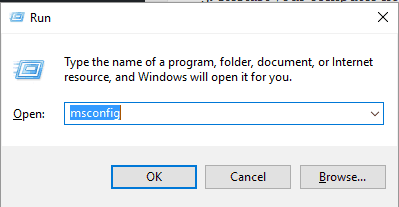
  1. Press Win+R, type msconfig and press Enter.msconfig windows 10
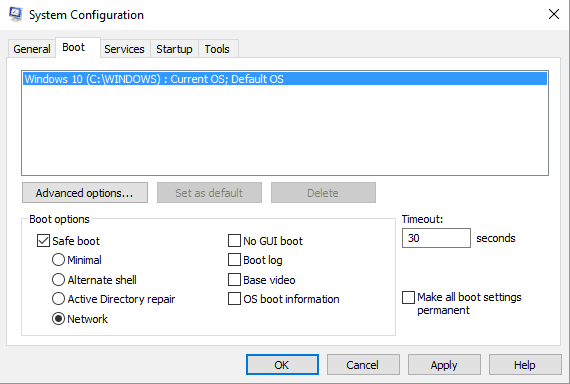
  2. From System Configuration switch to Boot tab.
  3. Under Boot options check Safe boot and beneath click on Network.safe mode with networking
  4. Save and apply your changes and restart the Windows 10 system.
  5. From Safe Mode, access Device Manager as already showed and find your graphic cards.
  6. Right-click on each driver and select uninstall.
  7. Install the latest version of the Intel chipset driver on your computer.

3. Use CMD commands

  1. First of all, download the latest built of ATI / AMD graphics card driver.
  2. Next, on your computer navigate towards the following path: C:WindowsSystem32drivers.
  3. Look for the atikmdag.sys file and rename it into atikmdag.sys.old.
  4. Access the ATI directory located on your C drive and copy-paste the atikmdag.sy_ file on desktop.
  5. Open Command Prompt as administrator.
  6. In cmd type chdir desktop and press Enter (this will change the default cmd directory).
  7. Enter expand.exe atikmdag.sy_ atikmdag.sys and press Enter.
  8. Copy the atikmdag.sys file from your desktop and place it to C:WindowsSystem32Drivers
  9. Restart your Windows 10 system in the end.

Note: If you are using an NVIDIA or Intel display driver the issue will be slightly different because the error code is named nvlddmkm.sys or igdkmd64.sys but the solutions from above should help you fix them.

For more information on how to fix error nvlddmkm.sys,  check out this troubleshooting guide.

Daemon Tools not working / not installing [DT issues fixed]

When Windows 10 was initially released, it created some sort of a gap between Microsoft’s operating systems. One of the most visible differences was the list of compatible apps and software.

Many older programs, that worked well on Windows 7 or older versions of the system, simply didn’t work in Windows 10. Years later, various updates to the OS improved this situation, though.

These compatibility differences can cause a lot of problems for users switching from one version of Windows to another. Incompatible programs usually do more damage to the system, than just not working.

They can prevent some Windows 10 features from working, conflict with other software or even cause installation fails of updates.

One of the most troublesome programs in Windows 10 is the world’s most popular image-mounting tool, Daemon Tools.

If you are running one of the latest Windows 10 versions, you definitely need to have at least version 5.0.1 of Daemon Tools installed for maximum compatibility.

If you’re running an outdated operating system, such as Windows 10 A, Daemon Tools version 4.47 or later is actually compatible and users should have no problems.

However, many users are still running older versions of Daemon Tools, and they’re experiencing very serious and annoying issues.

Namely, an outdated version of Daemon Tools can prevent you from installing updates, or even upgrading to Windows 10.

But what’s even a bigger problem is that users are not able to uninstall Daemon Tools in some cases, which pretty much leaves their hands tied.

Here’s what one user said on Microsoft’s forums, and a lot of people confirmed they have the same problem:

I have DAEMON tools on my computer and I just installed the updates on my OS.  DAEMON tools worked fine before the update but now I get a bubble saying it won’t work.  If I open My Computer where the virtual drives used to be listed it gives me the same error, “does not work on this version of windows click here to learn more”.  The OS also blocks the uninstall app, so virtual drives are stuck installed on the PC.

The following article also covers the following topics, so read it well:

  • Daemon Tools not enough space on drive
  • Daemon Tools corresponding cue file not found
  • Daemon Tools not installing
  • Daemon Tools lite installer not working
  • Failed to initialize Daemon Tools installer
  • Daemon Tools engine isn’t loaded

How do I fix common Daemon Tools issues?

1. Uninstall Daemon Tools with uninstaller software

Unfortunately, there’s no confirmed solution to work for everyone. Other users have reported that the Daemon Tools engine isn’t loaded.

The best solution involves uninstalling Daemon Tools using uninstaller software.

A professional removal tool allows you to clean your system from bloatware and other software. It’s more powerful than Windows 10’s default uninstalling tool, so you can give it a try.

Third-party uninstallers are capable of going past the incompatibilities between the older software that is installed and Windows.

They are also better suited to identify any software leftovers and perform a deeper and more exhaustive uninstall process and keep track of those changes. When you remove that piece of software, this kind of tool will know exactly what other files are no longer needed.

This way, the removal process is more thorough.

2. Manually run uninsat.exe

Another solution for uninstalling Daemon Tools from your computer is running the uninsat.exe command from the Daemon Tools folder. You can find this command in Daemon Tool’s installation directory.

If the solutions listed above don’t get the job done, you can try updating Daemon Tools to its latest version, and then uninstall it.

That way, you’ll replace an incompatible version of the software with a compatible one, and the problem could be solved. You can download the latest version of Daemon Tools from its official website.

Microsoft is probably aware of this problem, because users have been reporting it since last year, but the company hasn’t released any fix yet. So, users are forced to solve the issue on their own.

If you plan to install Daemon Tools on your Windows 10 computer, please make sure that you’re installing the latest version of the software.

As you can see, an outdated version of Daemon Tools can get you into trouble, so it’s better to avoid it.

3. Daemon Tools installation issues

Usually, the errors involve Daemon Tools not installing, or the system failing to initialize Daemon Tools installer. This also applies to the Daemon Tools Lite installer not working as well as the Pro version.

There are two things that you can do. First, make sure the .exe is downloaded from the official website and contains the latest version possible.

Secondly, make sure your .NET framework is updated accordingly. Visit the Microsoft .NET download page to make sure you have the latest version on your computer before trying to install Daemon Tools.

4. Daemon Tools corresponding cue file not found

  1. Go to the folder which contains the .cue file that issues this error.
  2. In that folder, you should see a .bin file and a .cue file. Note the name of the .bin file.
  3. Right-click on the .cue file and open with Notepad.
  4. Search for the .bin section in Notepad and you should see a different name. Replace it with the one from step 2.
  5. Save the changes and try again.

A very common error that is easily fixed. All you need to do is in the steps outlined above.

We hope that any issues you had have been solved using one of the solutions proposed. Leave us a comment below if there’s anything we missed or to let us know how well it worked out for you.

Microsoft news recap: Trove pays you for your photos, Apple TV app being tested on Xbox One, and more

Microsoft news recap is a weekly feature highlighting the top Microsoft news stories of the past week. Sit back, grab some coffee, and enjoy the read!

Get paid for your photos with Trove, a Microsoft Garage project

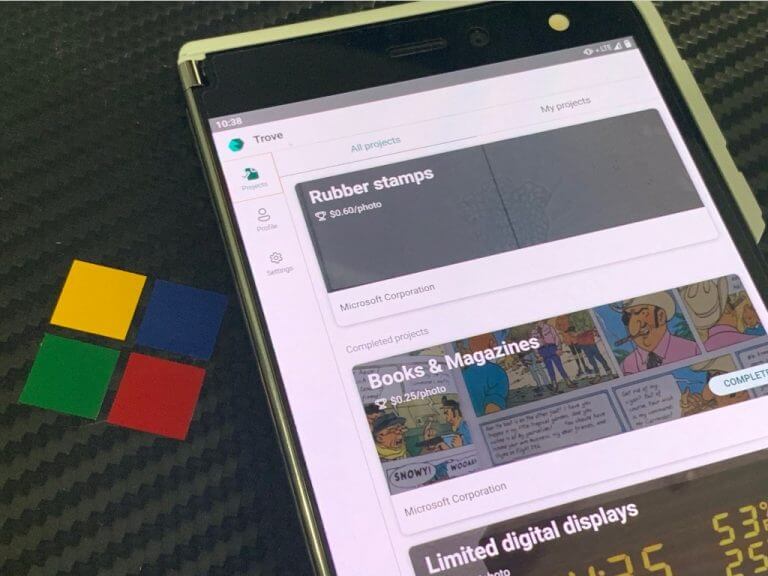
Microsoft Garage project Trove has received a fairly major update. Now, users of the Trove app can upload their photos to earn money. The photos are used to help train AI. Earnings are paid via PayPal, but the app is only available in the United States.

Ms Trove

Bing to appear as Search choice on new Android phones in 13 European countries after winning Google auction

Microsoft’s Bing search engine has won an auction by Google to feature within the Search choice selection of search engines on Android phones across 13 European countries. This means that Android users setting up a new device will be offered an option to select Bing as their default search engine from the outset.

Bing Android App

An official Apple TV app is currently being tested on Microsoft’s Xbox One consoles

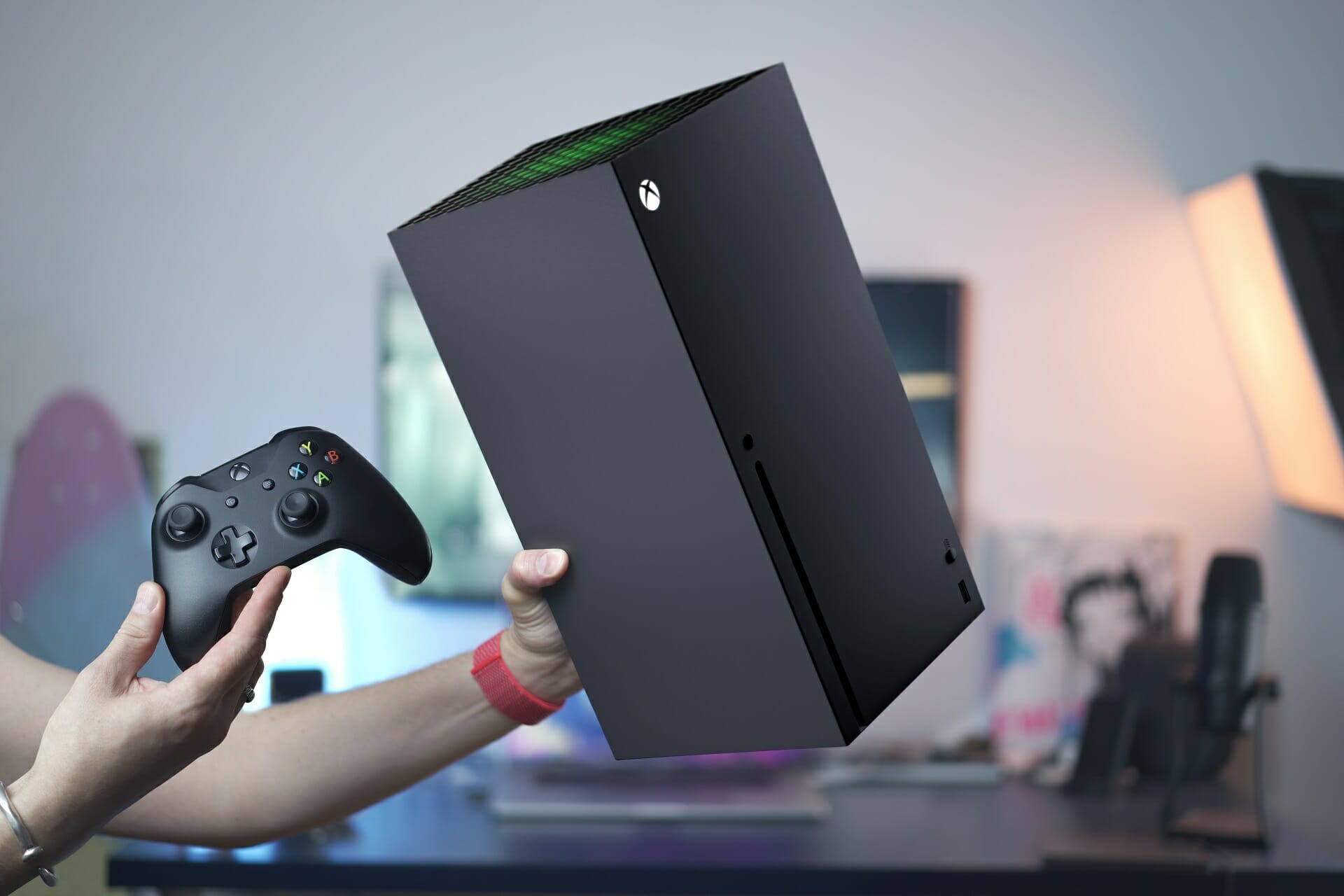
Suspicions over an Apple TV app possibly coming to Microsoft’s Xbox games consoles have been confirmed this week, after several users reported seeing the app show up on their Xbox One consoles. The app appears to be very limited in reach at the moment, so is likely still in a testing phase.

Microsoft starts rolling out Hard Mute feature in Microsoft Teams

To help reduce interruptions, a new Hard Mute feature is now rolling out to Microsoft Teams. It allows meeting organisers to mute all attendees before or during a meeting, as well as control whether attendees can unmute themselves or not.

That’s it for this week. We will be back next week with more Microsoft news.

5 best Paint.net plugins you must have

When it comes to image editors, Paint.NET is a pretty popular choice for many users. The software is simple to use, and it offers great features.

Paint.NET also supports various plugins, and in this article, we’re going to show you the best Paint.NET plugins and how to install them.

How to install Paint.NET plugins?

Extract the plugin to the required directory

  1. Download the plugin archive.
  2. Open the archive.
  3. Go to the Paint.NET installation directory at:
    C:\Program Files\paint.net\

paint.net folder best paint.net plugins

  1. Now extract the plugin to the required directory. In most cases, the plugin will come with instructions, so you’ll know where to extract it.

For the Windows Store version do the following:

  1. Go to the following directory:
    C:\Users\your_username\Documents
  2. Create a new folder called paint.net App Files.
  3. Navigate to the paint.net App Files directory that you just created.
  4. Now create three different folders inside it named: Effects, FileTypes, Shapes.
  5. To install a plugin, just download it and move it to the directory that’s mentioned in the instructions file.

GIF Animation Creator FileType plugin

This plugin is created by a user called midora, and it requires two additional plugins in order to work. To use this plugin, you need to create layers individually.

After doing that, you need to rename them but adding // in their name. Once you do that, you can assign various animation attributes to that layer.

For example, you can assign the number of loops for the animation, or the duration for each individual frame.

This isn’t necessary for all frames, since the frame will copy the duration of the previous frame unless you manually specify it. If needed, you can also add comments for each layer.

Overall, the GIF Animation Creator FileType plugin is a solid Paint.NET GIF plugin, so you should really consider it.

=> Download GIF Animation Creator FileType


PSD Plugin for Paint.NET

PSD Plugin for Paint.NET best paint.net plugins

PSD Plugin for Paint.NET is a Paint.NET Photoshop plugin, and it lets you work with Photoshop files. The plugin will allow you to open and save PSD files with ease in Paint.NET.

The plugin will save RGB images, color depth of 8 bits per channel, raster images, layers along with their blend modes, and RLE compression from PSD files without any problems.

By using this plugin, you can easily edit your files in both Paint.NET and Photoshop, and if you’re using both applications, be sure to try this plugin.

=> Download PSD Plugin for Paint.NET


Distort This!

Distort This best paint.net plugins

If you’re looking for a Paint.NET perspective plugin, you might want to consider using Distort This. The plugin is simple to use and it will be available from the Effects menu.

To create the perspective effect, you just need to move the image corners to get the desired effect. You can also apply the antialiasing effect or create a forced perspective.

Overall, the plugin is incredibly simple to use, and it can create great perspective effects, so be sure to download it and try it out.

=> Download Distort This


VTF Plug-In for Paint.NET

VTF Plugin best paint.net plugins

VTF files are associated with Valve’s games, and if you want to create your own VTF files, then this might be the perfect Paint.NET VTF plugin for you.

VTF Plug-In for Paint.NET brings support for a single frame or multi-frame VTF files. In addition, the plugin also works with 3 or 4 channel VTF files.

The plugin is simple to use, and it can be used to create simple VTF files. Although it’s not as powerful as other dedicated tools, it still offers solid features, so you should try it out.

=> Download VTF Plug-In for Paint.NET


Object Bevel

Object Bevel paint.net plugins

If you’re looking for a bevel plugin for Paint.NET, Object Bevel might be just what you’re looking for. The software allows you to create various types of bevel effects with ease.

Speaking of bevel effects, you can create 10 different types of effects. All effects can be customized, and you can change the position of the light source, overall depth, the color of the bevel, etc.

The plugin is simple to use, but it offers extensive features, and it’s one of the best bevel plugins for Paint.NET out there.

=> Download Object Bevel

Paint.NET is a great image editing software, but it’s even better with plugins. We listed some of the best and most commonly used plugins in this article that will make Paint.NET even better than before.

Did we miss your favorite plugins? Let us know in the comments below.

[wl_navigator]

How to record HD video from webcam to PC

Sometimes you might need to record HD video on your webcam, and all that you need is a webcam that supports HD recording and suitable software.

In today’s article we’re going to show you how to record HD video from webcam to PC with ease, so let’s get started.

How can I record HD video from webcam to PC?

How do I capture HD video?

  1. Make sure that your computer webcam is connected and working properly.
  2. Press Windows Key + S, type camera, and select Camera.

    camera app record hd video from webcam to pc

  3. When the Camera app opens, make sure that your video is showing.
  4. Now click on the Take Video option on the right.
  5. Click on the Take Video button once again and you’ll start recording.
  6. To stop the recording click the Stop button or you can press the Pause button to pause the recording.

Keep in mind that the Camera app offers the most basic features, but there is a wide array of applications for video recording that you can use instead.


Need a webcam software for your Windows 10? Try one of these tools!


What is the best HD video recording software?

Adobe Premiere Pro

Adobe Premiere Pro is one of the best-known video editing software for professionals. The software offers integrated workflows, so you can focus more on important tasks.

As for supported formats, the software can handle any format with ease, including 8K and virtual reality formats.

Since this is an Adobe software, it works great with other tools from Adobe, so if you’re already using Adobe software, Adobe Premiere Pro will be a perfect choice.

Other useful features:

  • Ability to reformat videos
  • Ability to detect edits automatically
  • HDR for broadcasters support

Adobe Premiere Pro

If you’re looking for a professional video editing and recording software, Adobe Premiere Pro is the best choice.
$20.99/mo Visit website

Adobe Premiere Pro is a professional software and the best when it comes to HD video recording, but if you’re looking for something different, feel free to check our other HD video recording software.


What is the best game recording software for YouTube streaming?

Bandicam

Bandicam is a well-known screen recording software that can create MP4 or AVI videos. The software allows you to select and record a specific part of a screen, or you can record the entire screen.

The software is optimized for gameplay recording and it will optimize and compress the video in order to save your space.

In addition, the software can optimize videos for YouTube in 720p or 1080p so you can upload videos without having to convert them.

Other useful features:

  • Ability to record from your console, smartphone, webcam, or computer
  • Support for system audio and voice recording
  • Support for chroma key
Bandicam

Bandicam

Bandicam is screen recording software that can also be used to record your webcam in HD.
Free trial Visit website

Bandicam is great software, and if you’re looking for similar tools, be sure to check our game recording software for YouTube article.

Recording an HD video from a webcam isn’t hard, as long as have a good webcam and software for video recording.

As for video recording, you can always use the Camera app on Windows 10, but for more advanced features, we suggest using third-party software.

FIX: Media Transfer Protocol Not Working, wpdmtp.inf Missing

If you want to transfer files from a multimedia device, you need to use the Media Transfer Protocol, but sometimes this application isn’t working properly. Today we’re going to show you how to fix that, so let’s get started.

How do I fix the Media Transfer Protocol if isn’t working?

1. Update your current MTP device driver

  1. Press Windows Key + X, and select Device Manager.
  2. Go to View menu, and check the Show hidden devices option.
  3. Locate your multimedia device, right-click it, and choose Update Driver Software.
  4. Your device should be located in Portable devices or in the Other devices section.
  5. Select Search automatically for updated driver software option.
  6. Wait for Windows 10 to find and install the latest driver.

When you connect a new multimedia device to your PC, it automatically installs the necessary drivers.

However, it can occur that you don’t have the proper Media Transfer Protocol driver installed. To fix the issue, you need to update it.

If Windows can’t automatically find and download new drivers, you can check our helpful guide to quickly solve this issue.

Few users reported that you can fix the problem simply by installing the necessary driver manually. To do that, follow these steps:

  1. Press Windows Key + X, and select Device Manager.
  2. Go to View menu, and check the Show hidden devices option.
  3. Locate your multimedia device, right-click it, and choose Update Driver Software.
  4. Click on Browse my computer for driver software.
  5. Select the Let me pick from a list of device drivers on my computer option.
  6. Choose your device from the list. In our case, we chose Mobile devices.
  7. Select MTP USB Device and click Next to install it.

In addition, you can also visit your device manufacturer’s website and download the latest USB driver for your device.

1.1 Update drivers automatically

Downloading drivers manually is a process that carries the risk of getting the wrong driver installed, which may lead to serious malfunctions.

The safer and easier way to update drivers on a Windows 10 PC is by using an automatic tool such as Outbyte Driver Updater.

This application is designed to automatically search and download the necessary drivers for you and optimize your PC in minutes.

It scans your system and lists all existing and possibly missing drivers. The tool also detects if there is already a new version for current records. If necessary, these can be updated directly via Outbyte Driver Updater.

To do this, load the corresponding file on your PC and copy the new version to your computer with one click. A wide range of hardware is supported, including drives, printers, and scanners.

➡️ Get Outbyte Driver Updater

2. Install wpdmtp.inf file

  1. Open File Explorer, and navigate to C:WindowsINF.
  2. Open the INF folder, and locate the wpdmtp.inf file.
  3. Right click it, and choose Install from the menu.
  4. Restart your PC.

If the Media Transfer Protocol isn’t working on Windows 10, you might be able to fix it simply by running wpdmtp.inf file.

Few users reported that they don’t have this file on their PC. If that’s the case, you need to transfer the wpdmtp.inf file from another Windows 10 PC.

3. Check if your phone supports MTP

We have to mention that not all devices support the MTP. Some older phones might not be fully compatible with your PC since they don’t support this protocol.

If that’s the case, you probably won’t be able to transfer files from this device using a USB connection.

Fortunately for you, most Android, iOS and Windows Mobile devices fully support the MTP, so you shouldn’t have any issues with it.

4. Make sure that your phone is set to work in the MTP mode

Multimedia devices such as smartphones and tablets support two connection modes, MTP and PTP.

PTP allows you to transfer pictures, but the MTP mode lets you transfer any type of file to your PC.

All modern multimedia devices allow you to choose between these two modes, and in order to transfer multimedia files you need to use the MTP mode.

You can set the MTP mode on most phones simply by navigating to the Settings menu and choosing to connect your phone as a Media or MTP device.

Most devices allow you to change this setting right from the notification menu, so be sure to check there as well.

It’s worth mentioning that minor glitches with this feature can occur, and you can sometimes fix them simply by switching between PTP, MTP, and Charging mode a couple of times on your device.

5. Try a different port or cable

Sometimes the Media Transfer Protocol isn’t working due to problems with your USB port or cable.

If your media device isn’t recognized and you can’t transfer your files, try connecting it to a different USB port.

USB hubs can also cause this problem, therefore it’s recommended that you connect your device directly to your PC without using the hub.

Lastly, be sure to try using a different cable and check if the problem still persists.

6. Turn on the Airplane modeexpand Media Transfer Protocol not working

Airplane mode is a useful feature on mobile devices and laptops that will turn off all wireless signals.

According to some users, wireless signals can sometimes interfere with the Media Transfer Protocol.

To fix this issue users are recommending that you turn on Airplane mode on both your phone and PC and check if that solves the problem.

Most phones have an Airplane mode option, and you can turn it off from the Settings menu or from the notification panel.

Airplane mode is also available on laptops, and you can turn it off by doing the following:

  1. Press Windows Key + A, and open Action Center.
  2. Locate Airplane Mode icon and turn it on.
  3. If this icon isn’t available, click Expand to show all options.

If you need more info on how to turn Airplane Mode ON of OFF in Windows 10, take a look at this dedicated guide.

Alternatively, you can turn on Airplane mode by going to the Settings app. To do that, follow these steps:

  1. Press Windows Key + I, and open the Settings app.
  2. Go to Network & Internet section.
  3. Select Airplane mode from the left pane and turn it on.

7. Install Media Feature Pack

The Media Transfer Protocol is closely related to Windows Media Player.

N and KN versions of Windows 10 don’t have the Windows Media Player installed by default. As a result, the Media Transfer Protocol won’t work on your PC.

Fortunately for you, you can easily install Windows Media Player and all its components. To do that, simply download Media Feature Pack and install it.

After installing the Media Feature Pack, check if the Media Transfer Protocol is working properly.

In addition to Media Feature Pack, several users reported that the Media Transfer Protocol Porting Kit can also fix this issue. To solve this problem simply download the Media Transfer Protocol Porting Kit and install it.

After doing that, restart your PC and check if the problem is resolved.

8. Use Command Prompt

  1. Press Windows Key + X, and choose Command Prompt (Admin) from the menu.
  2. Enter net localgroup Administrators local service /add.
  3. Close Command Prompt and check if the problem is resolved.

If you’re having trouble accessing Command Prompt as an admin, then you better take a closer look at our guide.

9. Edit your registry

  1. Press Windows Key + R, and enter regedit.
  2. In the left pane navigate to HKEY_LOCAL_MACHINESYSTEMCurrentControlSetControlClass
  3. Right-click the Class key, and choose Export.
  4. Select the save location, enter the file name for your backup, and click the Save button.
  5. In case anything goes wrong after modifying the registry, you can always use this file to restore your registry to its original state.
  6. Press Ctrl + F, and open the Search window.
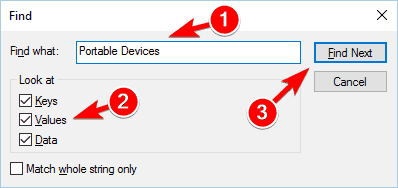
  7. Enter Portable Devices in Find what field.
  8. Select Keys, Values and Data.
  9. Click on the Find Next button.
    portable devices Media Transfer Protocol not working
  10. Registry Editor will search for Portable Devices value. If Registry Editor can’t find this value, you can skip this solution since it doesn’t apply to you.
  11. If Portable Devices value is found, look for UpperFilters value in the same key.
  12. Delete UpperFilters value, and restart your PC.

We have to mention that this solution is potentially dangerous. If you accidentally delete a wrong value you can cause stability issues with your PC.

Modifying the registry can lead to system instability, therefore we strongly advise that you create a backup of your registry or System Restore point.

10. Reinstall your driver

  1. Press Windows Key + X, and select Device Manager.
  2. Locate your multimedia device in Universal Serial Bus controllers or any other similar section.
  3. In some cases your device can even have an exclamation mark before its name, thus signaling a problem with the driver.
  4. Right-click your multimedia device and choose Uninstall from the menu.
  5. If available, check Delete the driver software for this device.
  6. Restart your PC.

Once your PC restarts, Windows 10 will install the default driver automatically. After the driver is installed, check if the Media Transfer Protocol is working properly.

11. Disable driver signature enforcement

  1. Press Windows Key + I, and open the Settings app.
  2. Navigate to Update & security, and select the Recovery tab.
  3. Click the Restart now button in the Advanced startup section.
  4. When your PC restarts, a list of options will appear.
  5. Choose Troubleshoot, and go to Advanced options.
  6. Select Startup Settings, and click on the Restart button.
  7. After your PC restarts you’ll see another list of options.
  8. Press 7 or F7 on your keyboard to disable driver signature enforcement.
  9. Your computer will restart and Windows 10 will start normally.

FAQ

Why isn’t MTP working on my device?

MTP may not work due to outdated drivers or incorrect settings. Ensure your device is in MTP mode and that your computer has the latest drivers installed.

How can I fix MTP if it’s not detecting my device?

Try reconnecting your device or using a different USB port. If the issue persists, restart both your device and computer to reset the connection.

Why does my phone not show up when using MTP?

Check that your phone’s USB settings are set to “MTP” and not “Charging only.” Also, ensure the USB cable is not faulty or damaged.

What should I do if MTP shows an error on Windows?

Update your device drivers via Device Manager or uninstall and reinstall the MTP drivers. Restart your PC afterward to apply the changes.

Driver signature enforcement is a useful feature that ensures that all your drivers are valid and digitally signed. This prevents the installation of unverified and potentially dangerous drivers.

After disabling driver signature enforcement feature, try to install drivers for your multimedia device manually. For more information on how to do that, be sure to check the first solution of this article.

If you need more info on how to disable Driver signature enforcement on Windows 10, check out our useful guide. To resolve MTP connection issues, you may also want to check out our guide on how to fix ADB interface installation problems. This could help in ensuring that your device is properly recognized and communication is established.

All versions of Windows use this protocol to transfer multimedia files, however, issues with it can occur and you might get the following messages:

  • MTP USB device not installing
  • MTP USB Device driver failed
  • MTP not recognized

Although sometimes the Media Transfer Protocol isn’t working, you should be able to fix it by using one of our solutions.

If you have any other suggestions or questions, don’t hesitate to leave them in the comments section below and we’ll be sure to check them out.

5 best data protection software to keep your files safe

Keeping files and folders unsecured on your device can be a huge opportunity for malicious threats and viruses.

Not only that, but it can also be the case that you are not the sole users of your PC, and perhaps you don’t want everyone having access to all your personal files.

Luckily there are several tools you can use in order to ensure you have some privacy on your device and also when browsing online.

In this guide, we will show you our data protection software to keep your files safe, so keep reading.

What are the best data protection software to keep files safe?

WinZip

WinZip is an extraordinary encryption software that allows you to password-protect your sensitive files.

The great thing about this tool is that it allows you to do more than just that, and it has some amazing features that will make it your number one choice.

One such great feature is that you can compress practically anything from images to folders and PDFs. 

Additionally, the integrated repair feature will not only keep your files secure and protected but also optimized.

You will be able to share, encrypt, backup all your files and folders, and share them in just a few seconds via email.

Moreover, if you are working with Dropbox, OneDrive, GoogleDrive then the WinZip integration will be perfect for allowing you to work on your documents directly in the folder.

Here are some of its key features:

  • Cleaner feature that identifies and deletes unused files
  • File Splitting options.
  • Password protection.
  • Supports multiple compression formats: Zip, Zipx, RAR, 7z, TAR, GZIP, VHD, XZ, and more.

”WinZip”

”WinZip”

”Keep
”Free”
&aff_sub2=Native” current_url=”true” button_text=”Get it now” image=”https://windowsreport.com/wp-content/uploads/2017/11/WinZip-button-210×160.png”]

IObit Protected Folder

IObit Protected Folder is another great software that will keep your files and folders safe. It’s an easy to use program with a user-friendly interface.

With this tool, you can protect any file or folder you want and set a master password for it. The only way someone else can access it is by using the same folder locker.

Not only is this tool protecting your sensitive data from being accessed by unauthorized users, but it will also keep them safe against malicious attacks.

Here are some of its key features:

  • Protection for all sensitive data and folders.
  • Locking files feature even when the PC is infected by malware.
  • Exclude list feature.
IObit Protected Folder

IObit Protected Folder

Lock and encrypt all your sensitive files in no time at all, with this versatile software. Get the best deal now!

Gilisoft Privacy Protector

Gilisoft Privacy Protector

Nowadays, encrypting sensitive files has become a must in order to keep informations safe from being accessed by unauthorized users.

Using a dedicated tool such is advised and in that matter, we think GiliSoft Privacy Protector is a great option.

With this software, you will be able to easily delete all your browsing history,  along with any third-party software traces.

Due to its second layer of protection, your documents, photos, videos, or audio files will not only be read-only or invisible. They will be kept private and out of reach for hackers or malicious software.

Another great feature of GiliSoft Privacy Protector is the option to create a Safe Space on your device for storing personal documents, videos, or sensitive files.

No one will ever know it’s there, you can turn it off and on as needed.

Gilisoft Privacy Protector

Gilisoft Privacy Protector

Keep your data confidential and secure at all times with this versatile tool. Get the best deal now!
Free trial Visit website

Gilisoft File Lock Pro

Gilisoft File Lock Pro

Any time you are using your device, for personal or professional purposes, the files you are working on and saving, if not protected, could be accessed by anyone.

GiliSoft File Lock Pro is a great tool for ensuring data privacy and protection against malicious threats.

You can use it to protect documents, files, folders, videos from your local or external USB drivers, memory card, pen drive, and network drive.

You can make your files and folders will be read-only, password protect them, hide or encrypt them.

Although it does a lot of complex things, this software’s interface is very easy to use and user friendly.

This amazing software brings a solid layer of protection for all your files and you can even create a secret folder on your USB external hard drive. 

All the GiliSoft File Lock Pro’s features provide a variety of security options to protect your data from unwanted access.

⇒ Get GiliSoft File Lock Pro

Folder Lock

folder lock software

This software is one of the best protection solutions for keeping your files, folders, documents, external USB drives, and even wallets with store credits protected.

With Folder Lock you can encrypt all your files in one folder, and include there all you need protected and set up a master password to open it.

Whenever you delete a file from your device, is not a guarantee that it cannot be recovered, therefore using the Shredding feature of this software is recommended.

It will not only shred the files but it will also shred the empty drive so that all the previously deleted files will never be recovered.

⇒ Get Folder Lock


There you have it. We hope this guide provided you with all the information you need to decide which data protection software is best in order to keep your files safe.

If you have any other questions, don’t hesitate to leave them in the comments section below.

[wl_navigator]

Get a sneak peek into the upcoming YouTube app for Xbox One

It seems that a YouTube app for Xbox One is under development and might be launched in the Microsoft Store.

In a series of tweets, Aggiornamenti Lumia and other users revealed a few photos of the app, as installed on their devices.

How can I see or test the YouTube app?youtube app xbox

The app is not available for the general public yet, but a few users running on Windows Insider managed to see the app in the Store and also install it via the appx file.

So for now, the app is probably still under development. As the pictures show, it is a UWP app, not a PWA.

Since it only takes up a few tens of MB, it will probably not be released as an application per see.

youtube app details

However, it promises an improved user experience when installed in Xbox One.youtube app in ms store

At this point, in order to watch YouTube on Windows users open the app in a web browser or via third-party apps. But the UWP should bring about new features.

For now, the tested app only has keyboard input.

It’s well known that Google has been trying to collaborate with Microsoft for some years now to develop a fully-featured YouTube app. Previous attempts on both sides to build an app for the Windows Phone have failed.

Neither Microsoft nor Google have confirmed anything about a possible soon-to-launched YouTube app yet.

Are you looking forward to such an app, though? Tell us your opinion in the comments section below.

[wl_navigator]

FIX: uTorrent stuck on connecting to peers & not downloading

UTorrent is one of the foremost BitTorrent software for downloading torrent files. However, some users can’t download torrents when the connecting to peers issue arises. When that error arises, uTorrent downloads get stuck on a connecting to peer status.

The uTorret software gets stuck on connecting to peers as the client can’t start a download for the required torrent file. The issue can be due to firewall and port settings or even ISPs that don’t permit you to utilize torrents.

If you need to fix uTorrent’s connecting to peers error, check out these resolutions.

What can I do if uTorrent gets stuck on connecting to peers?

1. Download torrents using a VPN connection

Some VPN (Virtual Private Network) software and connections might bypass restrictions for downloading torrent files.

This can increase performance and security, as it will be less likely to get targeted by phishing attempts when you use software that hides your IP address.

Some VPNs offer unlimited bandwidth, allowing you to download as much data as you need. Pair that with a large server coverage, and you get private and quick torrenting.

Make sure to use a VPN that gets constant updates so you benefit from the best privacy and security features. 

2. Run uTorrent as an administrator

  1. Open File Explorer (Windows key + E).
  2. Open your uTorrent software folder in File Explorer.
  3. Then right-click the uTorrent.exe to open its context menu.
    The Run as administrator option utorrent stuck on connecting to peers
  4. Select the Run as administrator option to open uTorrent with elevated privileges.

3. Delete the resume.dat files

  1. Open the window for File Explorer.
  2. Next, open your user folder in File Explorer.
  3. Select the Hidden items setting on the View tab.
    The Hidden items setting utorrent stuck on connecting to peers
  4. Open the AppData and Roaming subfolders from your user folder.
    Roaming subfolder utorrent stuck on connecting to peers
  5. Then open the uTorrent folder in the Roaming folder.
  6. Hold the Ctrl key and select the resume.dat and resume.dat.old files.
  7. Click the Home tab.
    The Home tab utorrent stuck on connecting to peers
  8. Press the Delete button to erase the resume.data and resume.dat.old files.

Note: Deleting those files will clear the torrent list in the uTorrent window. However, you can still resume downloads by manually opening torrent files from the uTorrent subfolder in Roaming.

4. Allow uTorrent through the Windows firewall

  1. First, open Windows 10’s search utility by clicking the magnifying glass icon by the Start button.
  2. Type firewall in the search utility’s text box.
  3. Next, click Windows Defender Firewall to open that Control Panel applet.
    Windows Defender Firewall utorrent stuck on connecting to peers
  4. Click Allow an app or feature through Windows Defender Firewall to open the Allowed apps options shown directly below.
    Allow apps settings utorrent stuck on connecting to peers
  5. Select the Change settings option.
  6. Select the Private and Public checkboxes for uTorrent.
  7. Click the OK button.

5. Enable the port forwarding for uTorrent

  1. Open the uTorrent window.
  2. Click the Options menu.
  3. Select Preferences to open the settings window for uTorrent.
  4. Next, click Connection on the left to open the options shown in the shot directly below.
    Preferences window utorrent stuck on connecting to peers
  5. Select the Enable UPnP port mapping and Enable NAT-PMP port mapping options.
  6. Check the Add Windows Firewall exception option to select it.
  7. Don’t forget to click the Apply option.
  8. Click OK to exit.

6. Select forced protocol encryption

  1. Launch the uTorrent software.
  2. Click Options in uTorrent.
  3. Then click Preferences to open that window.
  4. Select BitTorrent on the left of the Preferences window.
    BitTorrent tab utorrent stuck on connecting to peers
  5. Select the Forced option on the Outgoing drop-down menu.
  6. Click the Apply and OK options to save settings and exit.

Those are some of the resolutions users have confirmed they’ve fixed the connecting to peers download error with. So, there’s a pretty good chance they’ll fix the issue for most users.

GOG Galaxy to feature enhanced Epic Games Store integration

Good Old Games has always been a trustworthy digital distribution platform, and many gamers fell in loc with their design, DRM-free policies, incredible discounts, and more.

Well, their desktop client called GOG Galaxy has been through many changes since its inception, and their most recent iteration, GOG Galaxy 2.0, has been an immense success.

Of course, this tool is primarily a gaming library, but also a means to buy other games from their catalog, which makes it very similar to other similar tools, such as:


GOG Galaxy will soon feature EGS exclusives


A while ago, GOG Galaxy 2.0 included the ability to bring all of your libraries into the same window, so you wouldn’t have to stay with a lot of clients opened just to see what games you own.

Well, this was taken a step further today, since GOG representatives just announced that you can use GOG Galaxy to buy Epic games-exclusive titles as well.


However, the most interesting part is that they will be applying their world-famous refund policy to these titles as well:

Most importantly, all purchases are covered by our 30-days refund policy as well as 24/7 human support.

User feedback to this news was mixed. On one hand, some are concerned that the Epic Games titles will not be DRM-free like the ones from GOG‘s own catalog.

Gotta say, this feels like a step backward. I’m all for the single launcher life but GOG sells itself on being DRM free.

By adding the Epic launcher and running it in the background while playing EGS games, you’re enabling their DRM. Kinda hoping there’s something I’m missing here because otherwise this feels like the first step down the wrong path.

On the other hand, the GOG representative did specify that only a hand-picked selection of games will be chosen from the Epic Games Store.

This in turn could hint that they may have been referring to the titles that are DRM-free there as well.


All in all, this change is great news for those that like the idea of having a unified gaming library, and more platform integrations will be expected in the future.

Are you excited about this new change brought to GOG Galaxy?

Let us know how you think this will affect your gaming experience by leaving us your feedback in the gaming section below.

[wl_navigator]

Cool Instagram bio ideas anyone can use [Big List]

A creative Instagram bio helps you make that impact on first impression. This is essential if you are an influencer or a business trying to reach your audience on Instagram.

Most people decide whether to follow and engage with accounts after reading the bio. Depending on whether you want to show off or simply advertise your hobbies, there are plenty of cools Instagram bio ideas that anyone can use to make the right impact.

In this article, we have listed the best Instagram bio ideas to help you customize your profile and take your social media game a notch higher.

How do I find the best Instagram bio ideas?

Instagram bio ideas with emoji

Instagram bio ideas

  • ? Check out my latest blog post ?
  • Be ?ing in myself.
  • Welcome to my ?dom
  • ?but ?
  • ???. That’s it. That’s the bio.
  • I’m in ?saving mode.
  • ?: (twitter handle) ?: (snapchat handle) ?: (youtube handle)
  • Traveller ✈️ Book Lover ? Obsessed with tacos ?
  • We love all animals ? and donate a percentage of sales to marine life ?
  • ? Swipe for less
  • Cancer survivor ?️
  • My life with the ??
  • The world is ?. Let’s read them together.
  • Paradise found ?
  • Sweet like ?.
  • Obsessed with tacos ?
  • Personal Trainer ? Dancer ? Meditator ?
  • Currently hanging out in ??
  • ?colored glasses
  • Catch ✈️ not ?
  • Welcome to my ?dom.
  • Equal parts ? and ?.
  • ? Depends on the week
  • ? worry ? happy.
  • Traveller ✈️ Book Lover ? Obsessed with cheese ?.
  • ❤️ Lover not a fighter spreading ✌️all over the ?
  • Entrepreneur ➕ Globetrotter ➕ Motivational Speaker

Instagram bio ideas for girls

Instagram bio ideas

  • My standards are high… just like my heels.
  • I dress as if I’m about to see my arch-nemesis
  • My clothes might not change the world, but I sure will
  • Turning my dreams into my vision and my vision into reality
  • Sand in my toes and saltwater in my curls
  • I’m a woman with ambition and a heart of gold
  • Sometimes depressed, stressed…, but still well dressed
  • I’ll make you stop and stare
  • My clothes highlight my colorful life
  • I may be a fashionista but I’m not all about labels
  • Shopping is my therapy – hey, it’s cheaper ?
  • I shine from within so no one can dim my light
  • Happiness never goes out of style
  • “I need new clothes.” – Me, every damn day
  • My ex doesn’t go with my outfit
  • Money can’t be the root of evil since shopping brings people so much happiness
  • Smart. Strong. Silly. Straight up class act.
  • Who runs the world? ME.
  • Always give 100% — unless you’re donating blood.
  • Women can look beautiful in any outfit but the right outfit can make women become powerful

Vegan Instagram bio ideas

Instagram bio ideas

  • ? Believer ??Wife??‍♀️Mom?Actress?Vegan
  • Celebrating plant-based living with cookbooks ?Vegan
  • ❤️ Vegan Recipes ??‍??????
  • ??? Health, Healing, Love, & Travel ?Vegan
  • Follow me for a Wholesome plant-based lifestyle
  • ?Vegan ?Motivator | Gamechanger
  • ?Healthy and vegan versions of all your favorite foods
  • Simply Delicious Vegan Food ?
  • Recipe developer + dog mama ?Vegan
  • Recipe Developer?Food Photography? ?Vegan

Photography Instagram bio ideas

Instagram bio ideas

  • Seeing the world through my own lens
  • My camera = your window to the world
  • Cinematic & portrait photographer
  • Southeast Wedding Photographer
  • Photographer | HI-Cali | Events | Travel | Portraits
  • Do you see what I see?
  • Documenting my life and the things I love to see
  • Making photography easy. How to take pictures with an iPhone.
  • Photos around the world: my visual travel diary
  • “In photography, there is a reality so subtle that it becomes more real than reality.”
  • “The best thing about a picture is that it never changes, even when the people in it do.” — Andy Warhol
  • Wedding Photographer | Local + Destination Wedding
  • Your neighborhood photographer, specializing in [type of photography]

Now that you have seen the list, it is time to take your Instagram bio to the next level with unique and creative bios.

However, instead of merely copy-pasting the bios, make sure to add your own little touch. Your hobby, interest, profession, etc., goes a long way, setting you apart from others.

[wl_navigator]

Attackers might be trying to steal information

Modern web browsers like Chrome are all good until you start getting annoying errors. One such error is Your connection is not private.

The error throws a certain message for different users based on the Internet service they are trying to access.

If you are stuck with the Attackers who might be trying to steal your information from… warning, this guide will help you fix the issue on your web browser.

As I said, this error can be different based on the user. So, we have gathered all the errors and fixes related to the issue in this article.

Here are some of the most common error variations you may face:

  • Attackers might be trying to steal your information from mail.google.com
  • Attackers might be trying to steal your information from www.google.com
  • Attackers might be trying to steal your information from the localhost
  • Attackers might be trying to steal your information from myattwg.att.com
  • Attackers might be trying to steal your information from yts.am
  • Attackers might be trying to steal your information from lsapp.dev
  • Attackers might be trying to steal your information from iso.frontier.com

Alright, let’s dive right in and see how you can get rid of this cyber security problem.

How to remove steal information warnings?

  1. Scan for malware
  2. Flush DNS
  3. Change DNS server address
  4. Check your computer’s date and time
  5. Enable Password Protected Sharing
  6. Check your Internet Security Settings
  7. Clear browser cache and cookies
  8. Use Chrome’s built-in malware removal tool
  9. The problem can be on the server end

1. Scan for malware

If your PC is infected with malware, Google Chrome may throw this error when the malicious program tries to redirect browser requests to some insecure websites.

The best way to fix this is by running a scan using your antivirus program.

If you truly want to find the best protection for your PC, stop your search here. In this comprehensive article about the best virus and malware removal tools, you can make your choices.

It’s important to choose one that meets compatibility with other software in terms of security and unlimited encrypted traffic, so you can get the most of the anti-virus software.

After you have done the scan, go to the next steps for more safety measures.

2. Flush DNS

  1. Press Windows Key + X. Click on Command Prompt (Admin).
    Windows 10 Flush DNS
  2. In the command prompt, type the following command and hit Enter: ipconfig /flushdns
  3. The command will work with all the versions of Windows. Just make sure you open the command prompt as an administrator.

Windows caches IP address to speed up things that are similar to how cache works for apps. Sometimes cache may include bad results that lead to network-related problems.

For example, attackers might be trying to steal your information. One way to fix the issue is by flushing the DNS.

3. Change DNS server address

  1. Open Control Panel by pressing Windows Key + X.
  2. Click on Network and Internet.
  3. Open Network and Sharing Center.Network and Sharing Center
  4. Open Change Adapter settings. (left pane)
  5. Right-click on your Wi-Fi or LAN connection and select Properties.
    Wifi properties internet sharing center control panel - fix attackers might be trying to steal your information from
  6. In the properties window, select Internet Protocol Version 4 (TCP/IPv4) and click on the Properties button.
    change dns server manually WiFi properties - fix attackers might be trying to steal your information from
  7. Select the Use the following DNS server address option.
    Change DNS server manually - fix attackers might be trying to steal your information from
  8. In the Preferred DNS Server and Alternate DNS Server field, enter a third-party address. For this guide, I have used Google DNS server.
  9. Enter the following DNS server one by one:
    Preferred DNS server:
    8.8.8.8
    Alternate DNS server: 8.8.4.4
  10. Click OK to save the changes.

If flushing the DNS doesn’t work, change the DNS server address manually. You can also use a DNS changer program to do the same.

You can’t open Control Panel? Take a look at this step-by-step guide to find a solution.

You can also use DNS Jumper

DNS Jumper - fix attackers might be trying to steal your information from

DNS Jumper is a free utility program for Windows OS that enables you to change the default DNS server with free third-party DNS servers.

It also has the option to find the fastest free DNS server. Download DNS Jumper, click on the Fastest DNS  button, then apply the DNS server.

4. Check your computer’s date and time

  1. Click Start and open Settings.
  2. Open Time and language.
  3. Turn off the Set time automatically option.
  4. Click on the Change button under the Change date and time section.
    Windows 10 change time and date settings - Fix attackers might be trying to steal your information from
  5. Set the correct date and time and click the Change button to save the changes.

Security-related network errors are common, and one of the reasons for this can be incorrect dates and time on the computer.

The modern web browser does block the users from accessing any websites thinking it is a phishing attack when the time, date, and timezone on the PC mismatch with its own servers.

You can check the time and date on the taskbar beside the Action Center icon. If the time and date are incorrect, do the following to correct it.

Just make sure you turn on the Set time automatically option before closing the Settings window.

5. Enable Password Protected Sharing

  1. Open Control Panel.
  2. Go to Network and Internet > Network and Sharing Center.
  3. On the left pane, click on Change advanced sharing settings.
  4. Look for Home or Work profile. If you don’t find them, look for All Networks and expand it.
  5. Scroll to the end and select the Turn on password protected sharing option.
    Turn on password protected sharing - fix attackers might be trying to steal your information from
  6. Click on the Save changes button.

If you have turned off password-protecting sharing in the network and sharing center for your network, the attackers might be trying to steal your information from error may occur.

Make sure that password-protected sharing is turned on to fix the issue.

6. Check your Internet Security Settings

Different antivirus programs offer different kinds of security and at times security programs may block all the SSL/HTTP connections to/from the network.

Avast Web shield - fix attackers might be trying to steal your information from

For example, if you are using Avast security, try to disable Webshield security or go to customization for Web Shield and turn off the HTTPS scanning option.

Check for similar settings in other security programs as well. If nothing works, disable the firewall temporarily.

Then, disable antivirus temporarily to see if that makes any difference.

7. Clear browser cache and cookies

  1. Click on Menu > More Tools > Clear browsing data.
  2. Select the time range and set it back to 1 day or 1 week, depending on when the error first occurred.
  3. Check Cookies and other side data and cached images and files option.
    Google chrome clear browsing data - fix attackers might be trying to steal your information from
  4. Click on the Clear data button to clear the cache.

The bad cache can cause Your connection is not private error in Google Chrome and other web browsers. Here is how to clear cache and cookies in Google Chrome and Edge.

8. Use Chrome’s built-in malware removal tool

  1. Open Google Chrome. Click on Menu and select Settings.
  2. Scroll to the end of the page and look for the Reset and Clean up section.
  3. Click on Clean up computer.
    Google Chrome reset and clean up - fix attackers might be trying to steal your information from
  4. Click on the Find button to begin the scanning process.
    Chrome clean up tool - fix attackers might be trying to steal your information from

Google Chrome comes with a built-in malware removal tool. The tool will check for any malicious software that might be affecting the browser and remove it.

The tool will scan and remove any harmful software from your computer if found.

9. The problem can be on the server end

If you are facing a connection not private error while visiting a particular website, the problem can be from the owner’s end.

In this situation, you can report the problem to the website administrator and wait for it to be resolved.

The connection is not private – attackers might be trying to steal your information error can be annoying, and we hope one of the mentioned solutions may have helped you resolve the issue.

Make sure to leave a comment if the problem persists or if you have found a new solution. We would try to update the article with any new information available.

Does Dropbox compress photos?

Dropbox is a popular file hosting service with its app available on across all the platforms. It offers all the essential features of a cloud drive utility including automatic file synchronization, personal cloud, and client software.

Messenger apps like WhatsApp compress media files to speed up upload and download speed. This is also true for other cloud storage apps like Google Photos.

But what about Dropbox? Does Dropbox compress photos?

How can I find out if Dropbox compresses photos?

Dropbox compress photos

If you read the Dropbox blog, it says:

When you open the app, photos, and videos from your iPhone or iPad are saved to Dropbox at their original size and quality in a private Camera Uploads folder.

However, this may not have been the case a few years ago. A simple search on the internet would bring up the results that do show file re-compression with Dropbox.

That said, in our testing, Dropbox doesn’t seem to re-compresses your photos before it uploads them to your account. And there are no visible changes in the image quality.

Dropbox compress photos

We uploaded an image to Dropbox with a file size of 4.47 MB and a disk size of 4.48 MB.

After uploading the photo and viewing the details on Dropbox, it shows the photo size as 4.48 MB, which is similar to the disk size shown on PC.

Downloading the same photo did not downgrade the image quality either. The downloaded file retained the same size and image quality.

After brief testing, we can say that Dropbox does not compress photos. Even if there is a compression or re-compression, it is not visible in the uploaded or downloaded images.

So, unlike other cloud services and messaging apps, Dropbox can be used to share media files without worrying about the loss of quality.

[wl_navigator]

How to fix Gog Galaxy white screen issue [Full Guide]

GoG Galaxy is a gaming client that allows you to purchase and play your favorite PC games on the same platform. It is popular as it allows users to customize game data storage and game update settings.

However, many users often find themselves unable to avoid the pesky GoG Galaxy white screen issue.

If you are facing this problem then fret not, and read our comprehensive guide below.

How can I fix the Gog Galaxy white screen problem?

1. Update Graphics Card Drivers

Update via Outbyte Driver Updater

Updating your drivers implies complicated steps like searching manually for all drivers on the specific producer’s website, comparing the versions to the ones that you think you need, and ultimately downloading them one by one.

Even these steps don’t ensure that you didn’t get one of them wrong, which in turn can cause your PC to malfunction.

To ensure that you don’t expose your PC to any risk of installing non-compatible drivers, and perform the entire process automatically, we recommend that you use Outbyte Driver Updater.

Simply download and run the software, and an automatic scan will start to identify the best drivers for your system.

Not only will find the right drivers for your components but it can actually increase the entire system performance by getting the latest manufacturer drivers.

After the driver installation process is completed, restart your computer and run GoG Galaxy again.

⇒ Get Outbyte Driver Updater

Update using the Windows 10 built-features

  1. Go to Settings, then double click on Updates and Security.
  2. Click on Windows Update in the menu on the left.
  3. Click on check for updates and download all new driver updates.

2. Uninstall and reinstall

  1. Navigate to Control Panel and double click on Programs and Features.
  2. Find GoG Galaxy and right-click on it.
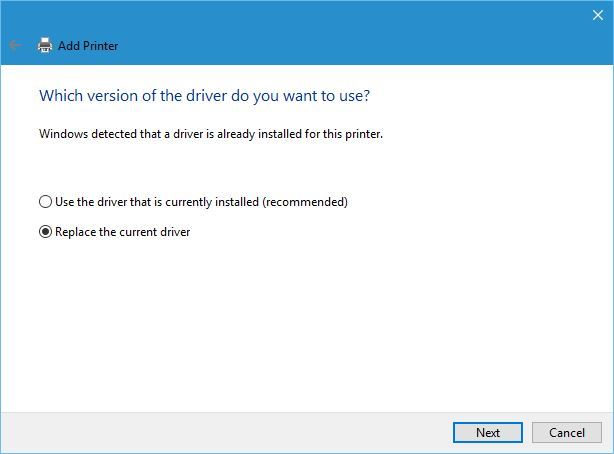
  3. Select Uninstall.
  4. Go to your C drive (or GoG files location) and delete any remaining files.
  5. Download GoG installer.gog galaxy download
  6. Follow the prompt to install and stick to the recommended options. Do not customize download location.

3. Run an SFC scan

  1. Press Windows Key + X together and run Windows PowerShell (as admin).
  2. Type sfc /scannow and then Enter.
  3. Give the scan about 10 minutes to finish.

4. Turn off the Windows firewall

  1. Visit Control Panel and double click on Windows Defender Firewall.
  2. In the submenu to the left, double click on the Turn Windows Defender Firewall on or off option.
  3. Turn of the firewall for public and private networks.
  4. Run the GoG Galaxy to verify any change.
  5. Restore the firewall if no change is detected.

If the issue is fixed by turning off the firewall, this means that your firewall settings are somehow conflicting with the GoG galaxy launch. You may need to peruse your firewall properties.

5. Turn off Full Screen and change resolution

  1. Launch GoG Galaxy and select the game you want to play from the library.
  2. Navigate to the settings icon and click.
  3. Select Additional Executables and the Graphic Mode Setup.gog galaxy settings
  4. Make sure the Full Screen option is unchecked.gog galaxy fullscreen off
  5. Navigate to the Advanced Settings.
  6. Find the Window Resolution option and set it to 1280×768.
  7. Run GoG Galaxy to verify.

In this guide, we covered how to fix the GoG Galaxy white screen issue. Solving the problem can involve anything from changing your firewall settings to buying a new graphics card.

Feel free to try any of our 5 solutions and let us know which one worked for you in the comments below.

Furthermore, if you have a fix not included in this article, we welcome you to share your knowledge with us.

How to day trade Penny Stocks? [Guide & Best Tools]

Investors often get attracted to penny stocks because of their high volatility and low share prices.

That being said, sifting through penny stocks isn’t quite the baby steps to take for an investment portfolio.

According to the SEC (Securities Exchange Commission), penny stocks are securities that trade for less than $5 per share. Penny stocks are speculative in nature but they are also cheap and great for traders with not much capital. Useful steps to start day trading penny stocks:
  • Find a stockbroker: To start trading, you need a stockbroker. A simple search online will give you options, pick one who doesn’t have hidden charges.
  • Identify the best penny stocks: Use a market scanner to find a hot penny stock. Go for penny stocks with high volume.
  • Learn different strategies: Test different trading strategies and pick the best that works for you.
  • Practice risk management: They are known as “high-risk investment” for a reason, and they should be treated as such.
  • Execute multiple trades: Ensure you invest considerably in different penny stocks to diversify your trading portfolio.
The available software for trading penny stocks is called a trading platform. Most trading platforms come with all tools you will need to find, analyze, and make excellent risk/reward trades that will fit your need.

What are the best tools for day trading on penny stocks?

StocksToTrade

stockstotrade StocksToTrade is a unique trading platform that comes equipped with all the tools you will need for the modern market.

It is a one-stop platform that gives you access to news feeds, algorithmic trading analysis, charting analysis, and scanner stock in one place. To try them out, take advantage of their free trial before making a purchase.

⇒ Try StocksToTrade

Trading Alerts with Profit.ly

Profit.ly is a multifunctional tool that’s partly a social network, educational resource, and an analytical resource tool. You can find members’ experiences in the penny stock trading universe.

They share their entry and exit points and commentaries. Not only would you learn to trade with Profit.ly; you’ll also get advice, and know-how to implement them.

⇒ Try Profit.ly

Townsend Eze EMS

With over three decades under its belt, Eze EMS (formerly called Townsend RealTick) goes down as the best place to find reliable market data. It has an entirely customizable user interface and gives you access to custom tickers.

Joining a trading community is essential to succeed, Townsend RealTick can help out. The minimum funding requirement for Townsend RealTick is $10,000.

⇒ Try Eze EMS

Stock Rover

Largely regarded as one of the best Penny stock trading tools, Stock Rover is modern and slick. It offers top-notch fair value and margin of safety.

With this tool, you get 10-year historical data for earnings, financial, Morningstart analyst ratings, and dividend database. An advanced feature of Stock Rover is that it lets you correlate your portfolio and screen and balance dividends.

⇒ Try Stock Rover

Jigsaw Trading

If you’re into book order trading, then you should consider Jigsaw Trading. This tool provides economic indicators, resiting orders, the accurate, current price for multiple stocks, and much more.

Jigsaw offers a unique Tape tool, which lets you measure volume and volatility at one glance. Compared to other similar Penny stock trading tools, Jigsaw is inexpensive and easy to jump on, thanks to the training courses it provides.

⇒ Try Jigsaw

Just like every traded stock, day trading penny stocks could sometimes cause a significant drawdown to your investment.

If you feel confident in your trading system, it’s definitely worth your time to educate yourself a little more on how to day trade penny stocks and go for it.

Despite the risks involved in stock trading, penny stocks certainly present amazing potentials.

[wl_navigator]

Xbox One, PlayStation 4, and PC crossplay comes to the hit Apex Legends video game next week

Apex Legends is finally getting crossplay next week on October 6th. The ability for players to play with others across Xbox One, PS4, and PC has been an often-requested feature ever since the game launched back in early-2019.

The crossplay functionality will technically be in beta testing but it will also be available for all players to try.

“Since the launch of Apex Legends, cross-play has been one of the most requested features from our players who want the ability to play with their friends on other platforms,” Apex Legends’ game director, Chad Grenier, said in a blog post. “During the cross-play beta, players will have full access to cross-play functionality while we collect data, test the feature at scale, and most importantly, listen to you, the fans, for feedback.”

Curiously, cross-saves still won’t be supported with this update. This means that, while gamers will able to play with their friends on other platforms, they still won’t be able to switch to another platform themselves and pick up where they left off.

The ability to carry progress between devices and platforms is a common feature supported by games such as Fortnite so its absence is a little odd here, especially with Apex Legends being in a similar genre.

This upcoming update will also add a new limited time mode, 24 new cosmetics, and new special offer bundles. More details on all of the above are available here.

Are you an Apex Legends player and are you looking forward to crossplay? Share your thoughts with the community in the comments below and then follow us on Pinterest and Facebook for more Xbox gaming news.

Apex Legends™
Apex Legends™
Developer:
Electronic Arts
Price:
Free

Star Wars: Squadrons video game is now live on Microsoft’s Xbox One consoles

The Star Wars: Squadrons video game is now live and ready to play on Microsoft’s Xbox One, Xbox One S, and Xbox One X consoles. The game will also be playable on the Xbox Series S and Xbox Series X consoles when they launch next month.

Unlike Star Wars Battlefront II which offered a wide variety of gameplay styles, Star Wars: Squadrons is a game dedicated purely to flying, allowing players get to fly as either New Republic or Empire pilots during a time set Just after Star Wars Episode VI: The Return of the Jedi and several years before The Mandalorian.

Star Wars: Squadrons supports crossplay between Xbox, PC, and PlayStation gamers in addition to 4K Ultra HD visuals when plays on an Xbox One X consoles (or the Xbox Series S and X).

Here’s the official game description:

Master the art of starfighter combat in the authentic piloting experience STAR WARS™: Squadrons. Buckle up and feel the adrenaline of first-person multiplayer space dogfights alongside your squadron. Pilots who enlist will step into the cockpits of starfighters from both the New Republic and Imperial fleets and fight in strategic 5 vs. 5 space battles. Modify your starfighter and adjust the composition of your squadron to suit varying playstyles and crush the opposition. Pilots will triumph as a team and complete tactical objectives across known and never-before-seen battlefields, including the gas giant of Yavin Prime and the shattered moon of Galitan.

Take control of starfighters such as the X-wing and TIE fighter. Customize loadouts and cosmetics, divert power between weapons, shields, and engines, while immersing yourself in the cockpit.

Learn what it means to be a pilot in a thrilling STAR WARS™ single-player campaign set after the events of Return of the Jedi. Seen from alternating perspectives between two factions, iconic and emerging leaders on both sides are battling for the galaxy. The New Republic fights for freedom. The Empire demands order. We need you to join the galaxy’s finest.

Have you had a chance to play Star Wars: Squadrons yet? Let us know if you’re enjoying it (or not) in the comments below and then follow us on Pinterest and Twitter for more Xbox gaming news.

STAR WARS™: Squadrons
Developer:
Electronic Arts
Price:
Free

How to add Steam, Xbox Live, and other game libraries to GOG

CD PROJEKT RED’s GOG platform has been a major hit with gaming enthusiasts, especially those that are fans of older titles, or those that love DRM-free games.

Their platform eventually spawned a desktop app called GOG Galaxy, which eventually grew and evolved into what we know today as GOG galaxy 2.0.

The platform is incredibly reliable, and it is no different than other digital distribution platforms such as Steam, Epic Games Store, Xbox Live, and more.

However, with so many platforms available, not many players are happy with having a dozen gaming libraries spread out across countless apps.

That is why GOG Galaxy implemented a way to integrate most other important platforms into its own allowing you to have all of your games within a single menu.

The supported platforms are the following:

With the possibility at hand, we will show you exactly how you can bring all of your gaming libraries together in GOG Galaxy 2.0.


How do I integrate other digital platforms into GOG Galaxy?

  1. Register to, download, and then install GOG Galaxy 2.0
  2. Launch GOG Galaxy
  3. Press the cogwheel button in the top-left corner of the menu
  4. Select Settings
  5. Go to the Integrations tab
  6. Click on Connect next to all the platforms that you want to add to GOG Galaxy
  7. You will then be prompted with a confirmation message asking you whether you agree to give GOG Galaxy access to your credentials
  8. Press Connect again
  9. Log into the targeted gaming platform to finish the integration.

Your Gaming library should now also include whatever titles were registered to your other platforms.

Things to remember when using this method:

You don’t need to worry about searching games now, since GOG Galaxy will also create separate tabs for each third-party platform.


Keep in mind that this integration is mostly visual since pressing the download button of a third-party game within GOG Galaxy will still cause it to install via its original platform.

In the screenshots below, pressing Install on Command & Conquer Tiberian Sun will still cause it to install via Origin.
You can disconnect GOG Galaxy at any time you want, and you can rest assured that GOG Galaxy will not store your third-party credentials in any way.


By following these steps, you should now be able to bring all of your gaming libraries together into a single menu, allowing you a better overview of what titles you’ve amassed over the years.

Do you think this feature is handy? Let us know how much you enjoy this game library centralization by leaving us a message in the comments section below.


[wl_navigator]

Where to stream Top Gear Specials online? [Full Episodes]

Top Gear is one of the most popular car shows. It’s overflowing with awesome car tests, stunts, and comedy. Thus, it makes sense that people from all around the world would want to watch it.

However, there’s been a lot of confusion regarding Top Gear, especially considering that it has new and old series. While younger members of the audience might prefer the newer version of the show, others prefer the old Top Gear trio.

Netflix had an on-off relationship with the show, which caused the whole uproar and confusion.

However, we have some good news: you can still enjoy classic Top Gear episodes presented by Jeremy Clarkson, Richard Hammond, and James May.

Where can I stream Top Gear episodes & specials?

Where to watch old Top Gear?

Currently, you can stream old Top Gear on Netflix. Around July, fans were shocked to discover that the show suddenly disappeared from the streaming platform. After receiving a lot of complaints, Netflix brought it back for its UK fans.

Thus, if you’re currently in the UK, all you have to do is create a Netflix account (if you don’t already have one), lookup Top Gear and start streaming at your leisure.

On the downside, Netflix didn’t bring back all the old episodes, so you may be out of luck if you were looking for a certain episode that’s not on the list.

Another great streaming platform that has a more complete collection (including old Top Gear episodes) is MotorTrend. However, you might need to use Amazon Prime Video Channels in order to get full access to the service.

The great news is that Amazon Prime/MotorTrend has all the seasons in store, so you won’t miss a thing.

Where to watch the new Top Gear?

Same as before. If you’re into that, you can watch the new version of Top Gear (US) on Netflix or MotorTrend. However, for the US version, we offer you a third option: BBC iPlayer.

Note that BBC iPlayer doesn’t offer any of the old Top Gear episodes. Thus, we recommend you to stick with the options above (i.e. Netflix or MotorTrend) if you want the whole Top Gear experience.

Where to stream Top Gear Specials?

Unfortunately, Netflix doesn’t offer you the ability to stream Top Gear Specials. It’s no surprise, considering that even some of the UK series’ episodes haven’t been added back.

However, Amazon Prime/MotorTrend seems to have the whole Top Gear Specials collection. There’s good news and bad news about this.

On the downside, you may need to sign up for two accounts. On the other hand, both Amazon Prime Video and MotorTrend offer generous trials.

How to stream Top Gear outside of the UK/US?

1. Use a reliable VPN service

  1. Purchase a CyberGhost VPN subscription planuse CyberGhost VPN to unblock Netflix
  2. Download and install the VPN on your PC
  3. Log into your account
  4. Connect to a UK/US server, depending on the streaming service
  5. Go to Netflix/Amazon Prime Channel/MotorTrend
  6. Look up the show
  7. Start streaming Top Gear

As we mentioned just earlier, you can watch the new version of Top Gear (US) on BBC iPlayer. You will still need a VPN connected to a UK server for that.

CyberGhost VPN

CyberGhost VPN

Want to stream Top Gear UK episodes? CyberGhost VPN can definitely help you do that.
$2.75/mo. Buy it now

Check out our guide to learn how you can stream BBC One live if you’re outside of the UK.

2. Use a Smart DNS service

Smart DNS Proxy, or other similar services, can help you bypass geoblocking restrictions without losing speed. These tools help you change your ISP-assigned DNS and strip any bit of location-revealing information from your requests.

The advantages of using a Smart DNS service instead of a VPN comes from not losing speed, which is kind of a big deal with online streaming.

A Smart DNS service doesn’t encrypt traffic, so it is definitely faster than a VPN, at the expense of your security/privacy.

3. Clear cached data

If you used the methods above and are still unable to stream Top Gear, maybe it’s time to do a bit of maintenance work on your system. First and foremost, make sure to clear any cached data and/or cookies from your browser.

Second of all, avoid to launch the browser and access any website after clearing the cache if your VPN isn’t running. Launch the VPN, connect to an appropriate server, then navigate to the streaming platform.

If you’re still having a hard time getting to stream Top Gear, flush your DNS. In order to do that, take the following steps:

  1. Launch an elevated CMD instance on your PC
  2. Type the following commands:

ipconfig /flushdns
ipconfig /registerdns
ipconfig /release
ipconfig /renew
netsh winsock reset
exit

Restart your computer and everything should be alright. Re-launch the VPN or Smart DNS tool, access your favorite streaming platform and you should be able to watch Top Gear without hassle.

Final thoughts on streaming Top Gear

All things considered, if you’ve been wanting to stream Top Gear (both US and UK) for a long time, now you can do it without too much hassle. Granted, there’s some confusion regarding the series, as well as the special episodes.

However, if you follow our instructions carefully, you should be able to start the stream effortlessly in no time.

Keep in mind that a VPN service will not only unblock geo-restricted websites, but it will also encrypt your traffic, keeping it away from prying eyes. A Smart DNS service will be faster, but your traffic will be exposed.

[wl_navigator]

We couldn’t update the System Reserved Partition

Updating your Windows system should be straightforward if you follow the right procedure. However, it’s not uncommon to run into errors. The one we’ll tackle here says We couldn’t update system reserved partition, with and it’s usually paired with the error codes 0xc1900104 or 0x800f0922.

This update error comes up due to a full System Reserved Partition (SRP). This partition stores your Windows system boot information. It’s normal for it to fill up because third-party security software, such as antiviruses write data to the System Reserved Partition.

To fix the issue,  you need at least 15MB of free space on the System Reserved Partition. Follow me as I walk you through the two steps to clear this partition and fix the We couldn’t update the System Reserved Partition issue.

How do I fix the We couldn’t update the System Reserved Partition problem?

1. Find out the partition style

We-couldnt-update-the-System-Reserved-Partition-find-partition-style

  1. Click on the Start button and search for diskmgmt.msc.
  2. Select Disk Management from the results.
  3. Right-click on the primary disk on which you have Windows and choose Properties.
  4. Go to the Volumes tab.
  5. Confirm the partition style.

NOTE: The partition style could either be a GUID Partition Table (GPT) or Master Boot Record (MBR). You will need this information for the next steps.


2. Delete font files

For GPT partition

  1. Click on the Start button and search for command prompt.
  2. Right-click on Command Prompt and hit Run as administrator.
  3. In the Command Prompt window, type in y: /s and press Enter.
  4. Type in y: and hit Enter.
  5. Type in cd EFI\Microsoft\Boot\Fonts and hit Enter.
  6. Type in del*.* and press Enter.
  7. Confirm the deletion.

For MBR partition 

Open Disk Management
  1. Press the Windows key and search for diskmgmt.msc.
  2. Click on Disk Management from the search results.
  3. Right-click on the System Reserve partition and click Change Drive Letter and Paths.
  4. Click on Add.
  5. Select drive Y and hit OK.
Open Command Prompt and run these commands
  1. Click on the Start button and search for command prompt.
  2. Right-click on Command Prompt and select Run as administrator.
  3. In the Command Prompt window, type y: and press Enter.
  4. Next, type the following commands and press Enter for each of them: cd Boot\Fonts takeown /d y /r /f icacls Y:\* /save %systemdrive%\NTFSp.txt /c /t  del*.* icacls T:\ /restore %systemdrive%\NTFSp.txt /c /t

If you got errors in the previous step, type in icacls . /grant system:f /t and hit Enter.

Change drive letter
  1. Return to Disk Management.
  2. Click on the Refresh button.
  3. Right-click on the reserved system partition.
  4. Click on Change the drive letter and paths.
  5. Choose the Y: drive.
  6. Click Remove and hit OK.

The first step was to determine if the System Reserved Partition is in the GPT or MBR partition style. After that, you have to follow the steps applicable to your partition style.

If your computer runs on Windows 8.1, 8, or 7, check out the steps recommended by Microsoft.

Once you clear the SRP, you’ll no longer see the We couldn’t update the System Reserved Partition error and can upgrade your Windows system.

[wl_navigator]

Among Us: The game you tried to join is full [Solved]

The game you tried to join is full. Check with the host to see if you can join next round. Got this error? Well, you are not alone. Among Us is reportedly showing this error when the player tries to join a match lobby.

The error, as the message indicates, is occurring due to the lobby you are trying to join being full. The error could also be triggered due to server issues.

In this article, we explore a few quick troubleshooting steps to help you resolve the game you tried to join is full error in Among Us.

How do I fix the Among Us the game you tried to join is full error?

1. Try to join again

The game you tried to join is full
The game uses complex algorithms to match players based on their ranking and KD and puts them in the queue. However, when there are many players in the queue, and the lobby is full, the game will show the error indicating the same.

The best thing you can do here is to try joining a new game again. At times, it may take more than a couple of tries to successfully match and join a lobby.

If that does not work, check to see if it is a server shenanigan. Changing to a less populated server can help you resolve the error as well.


2. Change Among Us server

The game you tried to join is full

  1. Launch the game on your PC.
  2. Click the little globe icon in the bottom right corner of the screen.
  3. Select a less popular server but make sure it is nearer to your region.
  4. Relaunch the game and check for any improvements.

While changing the Among Us server can help you fix the error, it is important to choose a correct server. Poor server selection can cause connection issues due to high ping.

If the issue persists, after changing the server to a different region, select your previous server again and see if that works.


3. Check for network issues

The game you tried to join is full
 

  1. Keeping the router and modem power on, unplug the power and Ethernet cable.
  2. Leave the router idle for a few minutes.
  3. Reconnect the power and ethernet cable to the router.
  4. Wait till the lights stop blinking and connect your PC to the network.
  5. Launch Among Us and check for any improvements.

Flush DNS and reset the network adapter

The game you tried to join is full

  1. Press the Windows key, type cmd.
  2. For Command Prompt, click on Open as Administrator.
  3. In the Command Prompt window, enter the following commands one by one and hit enter:
    netsh int ip reset
    netsh advforewall reset
    netsh winsock reset
    ipconfig /flushdns
    ipconfig /release
  4. Relaunch Among Us on Steam and check if the error is resolved.

The game you tried to join is full – check with the host to see if you can join next round error can occur due to server issues or if the game lobby is full. Try joining again or change the server region to fix the error and join the game again.

[wl_navigator]

Outlook Won’t Print the Entire Email [Quick Fix]

There have often been reports of printing issues via Outlook mail, and many users reported that Outlook won’t print the entire email on their PC.

Here’s how one user described this printing problem on the Microsoft Answers forum:

At the end of outlook email task bar the last item is –

” … “

A drop down menu gives me several options one of which is “print”.

I use this to display my full email (without my folders on left-hand side and without ab ad on the right-hand side.

Now I have windows 10 and try & display the whole email before printing, it goes to an Microsoft edge ad showing 2 devices only.

I can’t print my whole email.

This might be frustrating when you need to do some quick action but the printer is not printing the whole email.

That said, getting around the issue is quite simple and a few tweaks later, you can have your printer in your full command. Here is what you need to do to print the email with ease.

What to do if Outlook won’t print the entire email?

1. Update the printer’s driver

  1. You can do this by visiting the company website and see if there is an updated driver available for your printer. If it is, download and install the same.update driver device manager outlook won't print entire email
  2. You can also do this via Device Manager. For this, launch Device Manager (type Device Manager in the Cortana search box and select from the result shown).
  3. Locate the Printers section and expand it.
  4. Right-click on the printer and select Update driver. Follow on-screen instructions to update the printer software.

Alternatively, you can update your printer drivers automatically by using third-party tools such as Outbyte Driver Updater.

This effective program has a user interface that makes you feel comfortable and creates a restore point before updating any of your drivers.

That’s how the rather time-consuming procedure you often try to avoid becomes simple even for those who aren’t tech-savvy. Best of all, it installs quickly and always shows lots of detail on the drivers installed on your PC.

⇒ Get Outbyte Driver Updater

2. Change to black-and-white prints

  1. Click on the Print icon for the mail that you want to print.
  2. In the Print dialog box, click on More Settings link from the left pane.
  3. In the windows that open, navigate to Output options at the bottom.
    change printing settings outlook won't print entire email
  4. Select Monochrome from the Color mode drop-down box.
  5. Click on OK and then Print.

3. Change default printer to Microsoft XPS Document Writer

  1. Click on the Print icon for the particular mail that you want to print.
  2. In the Printer dialog box that opens, click on the Printer drop down box at the top left corner.
  3. Select Microsoft XPS Document Writer.
    set default printer microsoft xps document writer outlook won't print entire email
  4. Make sure that the All pages option is selected under Pages.
  5. Click on the Print button at the bottom.
  6. You should be able to print all right.

While the above should help you deal with the scenario when Outlook isn’t printing an entire email, here are some related resources for you to read.

Xbox series X canceled pre-orders are driving gamers mad

The launch of the Xbox series S and Xbox series X is just a few weeks away, but November 10 seems much closer than that.

This is especially the case if you are an Xbox enthusiast and have already pre-ordered the devices.

However, that enthusiasm might be cut short, especially if you pre-ordered from certain retailers.


Best Buy canceled Xbox series X pre-orders without notice

Many users have gone onto public forums expressing their confusion as to why Best Buy canceled their pre-orders of the Xbox series X console:

Check your preorder status. Just noticed Best Buy canceled and refunded my Series X preorder.

What makes the situation all the more awkward is that in some cases Best Buy refunded the users without actually confirming the pre-order cancelation:

This scared me. Best Buy charged my credit card but in noticed the other day my card was no longer carrying a charge from Best Buy but it still says I have it ordered.

The main cause of this issue seems to be the number of pre-orders that users made right as Best Buy went live with their Xbox series X.

That being said, even if the orders were made mere minutes apart, Best Buy most likely canceled the once made right after their stocks were officially depleted.

Users aren’t very pleased with this turn of events, since many stated that it would have been more logical to not have their pre-orders canceled, even if it did mean waiting a bit longer for a re-stock.

Yeah I don’t understand their thought process here or why people are having to fight over preorders, should just let everyone place orders and wait for their turn in line as stock gets filled.


All in all, this inconvenience indirectly affects Microsoft’s revenue for the Xbox series X launch, although dedicated Xbox gamers will probably order the console again once the stocks are filled.

Alternatively, they could always try to go to a different retailer, although not too many are available.

Don’t forget that the Xbox series S and Xbox series X consoles will become available on November 10, and that many new things await you as of that date.

These include:

Have you made an Xbox series X pre-order yet? Let us know if you were affected by this supply shortage by leaving us a message in the comments section below.


[wl_navigator]

Yakuza 0, Yakuza Kiwami 1 and 2 are free to play with Xbox Live Gold this weekend

Jonathon Stebel, Communications Manager, Sega of America announced this weekend’s Free Play Days on Xbox Wire. Starting now until October 4th, Xbox Live Gold can play Yakuza 0, Yakuza Kiwami, and Yakuza Kiwami 2 free all weekend long. Here’s Stebel’s take on what the Sega’s Yakuza series is all about.

“Yakuza is, at its core, a series about a bunch of very serious men doing very silly things. There’s no shortage of drama, intrigue, and genuinely emotional moments to keep you hooked. but you can also take a break with some of the most hilarious minigames and substories you’ll ever experience – build tiny cars and race in the Pocket Circuit Stadium, manage a Cabaret, compete in dance fights at the disco, and so many more. Each game also takes place in a painstakingly detailed recreation of a real Japanese city. Consider it the perfect virtual tourism experience.”

Yakuza 0 was added to Xbox Game Pass in February, followed by Yakuza Kiwami in April, and Yakuza Kiwami 2 launched on Xbox Game Pass at the end of July. As always, Xbox Live Gold members can download all three games through Xbox.com or via their console dashboard. The special Yakuza Free Play Days weekend is in preparation of Yakuza: Like a Dragon, landing on the Xbox Series X and Xbox Series S launch day on November 10, 2020. Yakuza: Like a Dragon is available for pre-order now and will also be available on other platforms, including Xbox One and Windows 10.

Yakuza 0
Yakuza 0
Developer:
SEGA
Price:
Free


Yakuza Kiwami 2
Yakuza Kiwami 2
Developer:
SEGA
Price:
Free


Yakuza Kiwami 2
Yakuza Kiwami 2
Developer:
SEGA
Price:
Free


Yakuza: Like a Dragon Day Ichi Edition

Wireless keyboard touchpad isn’t working [Logitech, RII]

A common issue with wireless keyboards is that the touchpad is not working or responding to touch input. Logitech, RII, and more users complain about this keyboard issue.

However, this could be the result of a connectivity glitch and can be taken care of easily. Refer to the below steps in that regard. Your wireless keyboard touchpad should work like new in no time.

What to do if the wireless keyboard trackpad isn’t working?

1. Update keyboard drivers

To correct the issue, make sure you are running the latest Windows iteration, as a driver mismatch can often lead to keyboard issues.

The same applies to your PC’s keyboard drivers. Therefore, visit the keyboard manufacturer’s site and see if there is a new driver available for the particular model you are using.

Up next, download and install the driver and check if the problem is still there. If you’re not particularly skilled in performing such procedures, you can use third-party tools such as Outbyte Driver Updater.

This lightweight program will automatically update all your drivers and it’s a matter of a few clicks only this time.

Moreover, Outbyte Driver Updater creates accurate drivers’ backups before making any changes. Therefore, if you ever change your mind, you can easily revert to an older version.

⇒ Get Outbyte Driver Updater

2. Check the batteries

A low battery charge could lead to wireless keyboard issues. So, try inserting the new batteries and see if the trackpad is responding to touch input.

3. Press the Fn + F8 keyboard shortcut

Some keyboards require you to press the keyboard key combo of Fn + F8 to toggle between the touchpad and keyboard controls.

If the aforementioned keyboard combination doesn’t work, you might want to check your manual and find the correct shortcut.

4. Re-sync your keyboard and the USB receiver

Try re-establishing the wireless connectivity with the USB receiver. You can do so by switching off the keyboard and/or the USB receiver if the USB receiver has a switch.

Alternatively, disconnect the receiver and insert it to a different USB port. It might also take a few minutes for the connections to stabilize, or so be patient.

After the connection is established, see if the trackpad is responding. You might also want to restart your computer as well to allow things to start afresh.

5. Verify signal interference

If the trackpad is working erratically, the cause might be a potential interference with another wireless device in the vicinity.

To minimize the interference, change the location, and see if the device is working properly. You can also disable other wireless devices and check if that helps.

6. Check with another PC

Lastly, check the keyboard by connecting to another PC. If it is still malfunctioning, the keyboard itself might be at fault. Get in touch with the manufacturer to remedy the issue.

There you go, these are a couple of solutions that you can try if your wireless keyboard trackpad isn’t working. Feel free to let us know in the comments section if our solutions worked for you.

New Skype Insider update brings Microsoft Teams’ Raise Hand feature

Microsoft announced the release of new Skype Insider update this week, which brings a couple of new features across all platforms. The biggest addition is a “Raise hand” feature for Skype video meetings, which will add an icon next to your name every time you raise your hand to notify other participants that you would like to speak.

“Very handy for classroom meetings, but you can also use it as a simple voting mechanism,” the Skype team said about this new Raise hand feature. Microsoft Teams, the company’s communication hub for Microsoft 365 got a similar Raise hand feature earlier this year, which was a top-requested feature from Teams users.

In addition to Raise hand, Background Blur is another feature that has is available on both Microsoft Teams and Skype. With this latest Insider update (version 8.65.76.73), the feature is now available for Android users after shipping first on Windows, Mac, Linux, and iOS.

This new Insider update also makes it possible to customize the reaction picker to pick up any emojis you prefer to use to react to messages. On iOS, Skype Insider has also gained direct Share support so you can easily share URLs, text, and photos with your recent Skype contacts right from the iOS Share menu.

The Skype Insider app for Windows, macOS, and Linux can be downloaded from this page, and an online version is also available here. The Android version can be downloaded from the link below, while the iOS version will require you to install Apple’s Testflight app and to visit this page from your iPhone and iPad.

Skype Insider
Skype Insider
Developer:
Skype
Price:
Free

Microsoft details how the new Edge has become more efficient with multi-process architecture

Microsoft’s new Chromium-based Edge browser improves browser security and reliability by using a multi-process architecture, the company said yesterday. Microsoft claims that this architecture has significantly reduced the amount of memory and CPU that its browser needs. 

For a while, we have known that Google Chrome is considered one of the biggest memory hogs, especially on Windows 10 PCs. Since the new Microsoft Edge is based on the same Chromium engine, the company wants to avoid its browser going in the same direction. 

In a lengthy blog post published yesterday, Microsoft dives into detail with Microsoft Edge’s multi-process architecture. The company explained how Microsoft Edge uses system resources and noted some major benefits of the multi-process architecture. 

More specifically, the Microsoft Edge browser is split into different processes, and all of them work together to give users customized browsing experience. The list of processes includes the browser process, renderer processes, GPU process, utility processes, crashpad handler process, as well as plug-in processes and extension processes. 

Here’s a look at a browser instance with four tabs open and two extensions turned on: 

Diagram showing browser processes in a single browser window

While the first benefit of this multi-process architecture is the lower resource usage, it also improves security, reliability, and resource accountability in terms of resource usage. This should be quite a noteworthy achievement, especially for those who spend most of their waking hours staring at screens. 

Microsoft is also continuing to work on reducing the amount of memory and CPU power the browser needs. “These solutions include providing websites and extensions developers with information to help them use fewer resources and helping users understand how their browsing habits can affect Microsoft Edge’s resource usage,” the company explained. 

Surface Fall 2020: Microsoft announces Designer Compact Keyboard and and other new accessories

Along with the slew of other Surface announcements Microsoft made today, including the Surface Laptop Go and Surface Pro X, the company is also introducing some new accessories. All these products have been designed to “outfit your new work or school spaces” perfectly.

The most striking update is the Microsoft Designer Compact Keyboard, which features a narrow, slim, and elegant design with 2-year battery life. As far as what’s under the hood, the new Bluetooth keyboard allows users to switch between 3 devices seamlessly. It comes in two color options and will be priced at $69.99.

Then there’s the Microsoft Number Pad. This one is smaller, and it connects via Bluetooth. Through this device, Microsoft aims to “enable you to get the most out of your Surface or modern PC.” Microsoft’s new Number Pad costs $24.99. 

Microsoft also revealed a new Microsoft Bluetooth Ergonomic Mouse. This is a device designed to be your constant companion, thanks to the new comfortable ergonomic design. Like all of the other accessories announced today, it has a light and durable design. The Microsoft Bluetooth Ergonomic Mouse is available in various colors and, it will cost you $49.99. 

If the Surface Mobile Mouse isn’t exactly new, Microsoft is releasing a new color variant. In order to align with the new Surface Laptop Go, the company has announced that the Microsoft Modern Mobile Mouse is now available in Sandstone as well.

Finally, Microsoft introduced a new Microsoft 4K Wireless Display Adapter that supports 4K resolution, allowing you to extend your display to the big screen easily. The 4K Wireless Display Adapter will be available for $69.99.

Surface Fall 2020: Microsoft refreshes its ARM-powered Surface Pro X with new SQ 2 processor and Platinum finish

Microsoft has officially announced new Surface devices this morning, a new 12.5-inch Surface Laptop Go that starts at $549, and a better version of last year’s Surface Pro X featuring a brand new Microsoft SQ 2 processor for customers who need more power. The software giant has once again teamed up with Qualcomm to create this new custom-designed SoC which is “the fastest processor in its class” according to Microsoft.

This new Microsoft SQ 2 processor, which will be coupled with a more powerful Adreno 690 GPU will only be available on the top end Surface Pro X SKUs with 16GB of RAM starting at $1499.99. The Surface Pro X with the existing SQ1 processor will keep its $999 starting price, and Microsoft is also adding a new Platinum finish as an alternative to the original Matte black color. Surface Pro X keyboards, which are still sold separately, are also available in three new colors, Ice Blue, Poppy Red, and Platinum, in addition to the original Black color.

It’s important to note that the Surface Pro X with the new Microsoft SQ 2 processor will retain the same design, 13” PixelSense Display, and ports as the original model with the SQ 1 processor, though the new chip should bring significant performance improvements to customers. Surface Pro X devices with the new SQ 2 processor also come with the same Qualcomm Snapdragon X24 LTE modem that supports Gigabit LTE speeds, so we’ll have to wait to see a 5G model.

Notably, Microsoft announced that all Surface Pro X devices should now deliver up to 15 hours of battery life thanks to “additional software improvements,” and the company is also promising more native apps coming soon to the platform including an ARM64 version of Microsoft Teams. Starting in November, Microsoft will also start testing support for x64 emulation with Windows Insiders, which should really help to fix the app compatibility issues on Windows 10 on ARM.

The Surface Pro X remains Microsoft’s thinnest Surface Pro tablet, and it’s also the first Surface tablet with two USB-C ports, a removable SSD, a Firmware TPM chip for enterprise security. “Surface Pro X is the thinnest and most connected 2:1 we’ve ever shipped and we’re excited to deliver these new experiences at a time when connectivity has never been more top of mind,” said VP of Surface Pete Kyriacou today.

The new Surface Pro X with the new Microsoft SQ2 processor is available for pre-order today in select markets at the Microsoft Store and other major retailers, and it will start shipping on October 13. Microsoft also announced this morning that Surface devices are now available in 11 new European markets including Bulgaria, Croatia, Czech Republic, Estonia, Greece, Hungary, Latvia, Lithuania, Romania, Slovakia, Slovenia.

Fix: Windows Live Mail error 0x8007007A on Windows 10/11

Error 0x8007007A may show up if you use Windows Live Mail to send and receive emails on Windows 10. This error usually roots from a conflict between One Drive and Live Mail.

More particularly, this error mostly shows up when users try to send images, which are uploaded from OneDrive, in their emails.

In this article, we look into some troubleshooting methods to resolve Windows Live Mail error 0x8007007A.


How do I fix Windows Live Mail error 0x8007007A?

  1. Switch your email server to another email client
  2. Delete Pending emails from Outbox
  3. Send Images as Attachment, not Album.
  4. Remove and reconfigure WLM account
  5. Fix Windows Live Mail

1. Switch your email server to another email client

The built-in email client that comes with Windows is decent. It has all the basic functionalities most people need.

But if you want more, or you simply have problems, errors , or bugs with it, it’s time to consider making a switch. You won’t lose any emails, and you will gain new features.

It’s a win-win situation if you choose MailBird – winner of Most popular mail alternative 2020.

  • Compatible with common email services such as Outlook, Gmail , and Yahoo as well as private services.
  • Easily add multiple emails accounts and see them in one unified Inbox
  • Integration with WhatsApp, Dropbox, Twitter, Facebook, Slack , and many more
  • Our favorite: LinkedIn lookup with the app

That’s it. The best alternative to your current email client.

Mailbird

Mailbird

The best email client for Windows
Free trial Visit website

2. Delete Pending emails from Outbox

  1. Find the Outbox on the left pane of the Windows Live Mail window.Fix: Windows Live Mail error 0x8007007A on Windows 10
  2. Select all pending emails that have Pictures attached as albums. (Make sure to keep a backup if it’s something important).
  3. Delete the selected emails.
  4. Compose a new email with text only. Try sending it.

The first thing to try in order to resolve error code 0x8007007A is to delete all pending emails from the Outbox of your Windows Live account.

This solution is particularly for those who getting an error even when trying to send a simple text email via Windows Live mail.

Error code 0x8007007A will most likely not appear anymore. If it does, move onto the next solution.


3. Send images as Attachment, not Album.

  1. On Windows Live mail, compose a new email.
  2. Click on the Attach File icon (the little paper Clip).
  3. Find the picture you want to attach & select it.
    • In case you want to send multiple images in the same email, follow the same steps and when selecting pictures, hold the Ctrl key while selecting the intended pictures.
  4. Once you’ve done this, and added the necessary body and subject to the email, simply send it.

The second thing to try is sending images as attachments and not albums. Doing this will almost certainly resolve Error code 0x8007007A. Follow these steps:

Hopefully this didn’t produce error code 0x8007007A. Just in case it did, move onto the next solution.


4. Remove and reconfigure the WLM account

  1. Open Windows Live mail and go to Tools.
  2. Find and open Accounts from the menu.
  3. Select the email address you intend to remove.
  4. Click the Remove button on the right side of the window.
  5. Click OK to confirm.Fix: Windows Live Mail error 0x8007007A on Windows 10
  6. Now to add your account again, open the same window (Tools > Accounts).
  7. Click the Add button, and select an email account.
  8. Click next and type in your email address, password and display name.Fix: Windows Live Mail error 0x8007007A on Windows 10
  9. Once you’re done, click Next and then Finish.

Removing and reconfiguring your Windows Live mail account could also help resolve error code 0x8007007A.

Try sending an email again. If error code 0x8007007A persists, move onto Solution 4 below.


5. Fix Windows Live Mail

  1. Open Control Panel.
  2. Go to Programs and Features.
  3. Find and select Windows Essentials.
  4. Click on the Uninstall/Change button on the top of the window.Fix: Windows Live Mail error 0x8007007A on Windows 10
  5. In the dialogue that opens, select Repair all Windows Live programs.
  6. Wait until the process completes. Once it does, restart your computer.
  7. Try sending the email again.

Hopefully one of these solutions worked for you. If it didn’t try contacting Microsoft Support.

Also, in case you have any additional troubleshooting steps you deem worth suggesting, feel free to do so in the comments section below. We more than welcome them.


[wl_navigator]

Lenovo ThinkSmart View: Great communications hub, wrong time

Starting at $349

Following the wave of Microsoft Teams’ adoption, Lenovo is introducing its revised Teams-centric dedicated communication hub, the ThinkSmart View.

The View is a dedicated Teams box that is designed to be an office (small or large) single point of chat communications and OnMSFT was given two to test out.

In July the View arrived at my doorstep in a pretty large box given the actual size of the product, but never the less receiving something in the mail has become a highlight of my day in this COVID-19 existence.

The Hardware

Out of the box, there was minimal setup with a single power cord connector and the sleekly designed device itself. The actual software setup for home use is a bit more complicated than just logging into your Teams account, as an admin needs to set up a network and issue credentials specific to the device.

The View is a matte black origami-like design full of triangular folds with the bulk of its weight spread across a semi-triangular base. There is a premium heft to the device that discourages continual movement or repositioning over an extended period. While it is no heavier than a Bluetooth speaker, because of its 1/3 glass construction makeup, I didn’t feel comfortable with handling it beyond my stationery desktop setup.

Thinksmart Origami View

The View houses a 5MP camera with Lenovo’s patented Privacy shutter, an 8-inch IPS display, a 10-Watt speaker system, and dual-array microphones with a manual mute switch and connects via Wi-Fi and Bluetooth technologies.

During my time with the View, I tried to run as many close-to-office-life simulations from my home office as possible to get a feel for how Lenovo’s ThinkSmart View would hold up in an actual conference room. Fortunately, at OnMSFT, we’re Teams enabled outfit, and converting my workflow to the View was painless and, in some cases, a pleasant addition.

Usage

It should be noted, much of what the ThinkSmart View offers can be had with a smartphone or PC from home, but in an office where traveling back and forth between the conference room and an office desk could be made cumbersome with extra hardware, a dedicated communications hub is welcomed.

Thinkview Desktop Cropped

The most important feature of the View is its ability to make and receive calls and from home my tiny home office on questionable Wi-Fi at times, it was exceptional. With dedicated calls, voicemail, and calendar icons that sit in the bottom left corner of the screen throughout most interfaces, making a call was intuitive and easy to accomplish.

Pairing it via Bluetooth to your smartphone or PC also helps with establishing call continuity so you can pick up and end calls across devices.

Once on a call with the View, the audio was also surprising. Instead of the tinny sounds pumped out by laptops, the 10-Watt full-range speaker with 2 passive tweeters the View produced loud and clear audio, and testing on the receiving end the audio picked up by the 360-degree microphone array proved to be similarly unobstructed.

Thinkview Call Cropped

The interface of the View is broken up into three parts that include a dialer screen, a call screen, and a calendar screen. As far as previous chats or shared files, there is limited support for those interfaces, but the bulk of the View’s use cases rely on quick calls and video meetings that leverage a company’s Teams network.

Summary

In a world where several mainstream consumer devices are being outfitted with Zoom support, new Teams dedicated communications hubs feel like a natural progression. However, the Lenovo ThinkSmart View is not as consumer-friendly as say a Google Nest Hub or Amazon Echo and seems to shine more at a conference table than on a home desk.

Thinksmart Desktop Cropped

Prior to social distancing mandates, conference rooms were in need of simplified tools that mitigated the number of fail points during meetings and the ThinkSmart View helps massively in that department. Unfortunately, the conference room has quickly evolved to be practically whatever device can host an app and a decent webcam, and in that world, the ThinkSmart View becomes a super niche device at a steep price point. For the enterprise, a $350 communications hub is par for the course, and one that abstracts the growing clutter of chat apps has a place in business, however, I just think it’s bad timing for the ThinkSmart View to be rolled out.