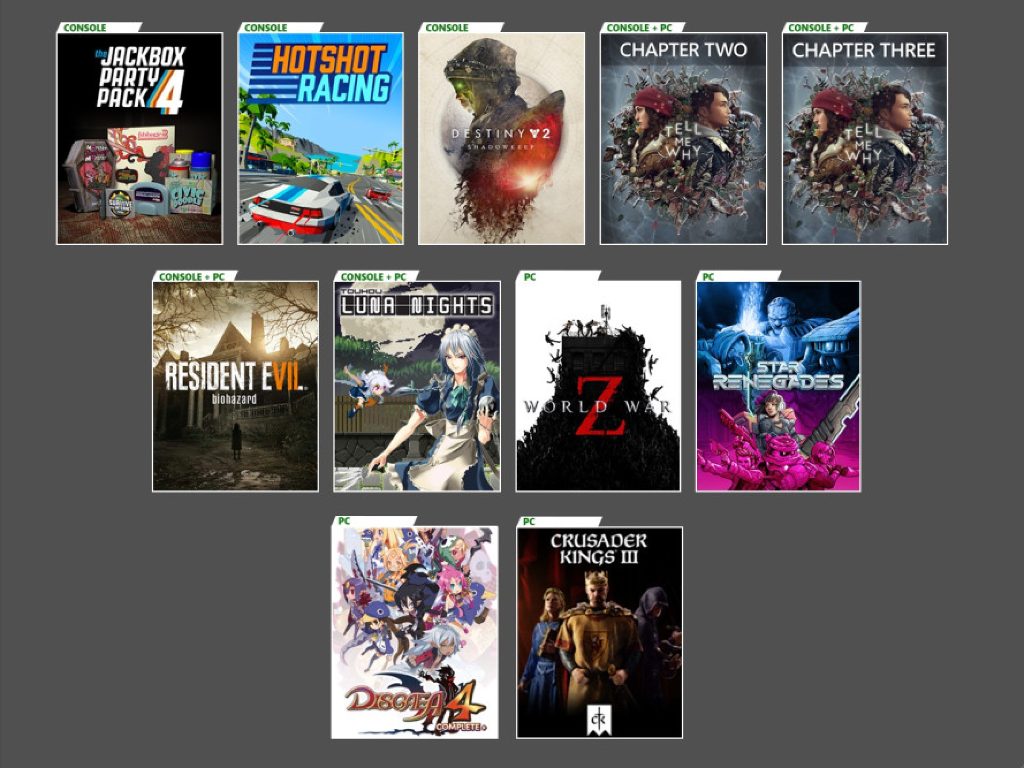
Xbox Game Pass is welcoming Destiny 2: Shadowkeep & Forsaken and more this month

Microsoft announced another wave of new Xbox Game Pass titles this morning. With the launch of Cloud Gaming as part of Xbox Game Pass Ultimate tomorrow, new Xbox Game Pass announcements will include three platforms going forward: Xbox Consoles, Android devices, and PCs.

The first new Xbox Game Pass game coming in September is the PC RTS game Company of Heroes 2, which will be available on Thursday, September 17. It will be followed next week by two other games on September 22, Halo: 3 ODST on PC as well as Destiny 2: Shadowkeep & Forsaken on Console and Android. Beyond Light, the next Destiny 2 expansion launching on November 10 will also be available on Game Pass on day one.

Two more games will join Xbox Game Pass on September 24, Warhammer: Vermintide 2 on Console and Android, as well as Night in the Woods on Console, PC, and Android. Last but not least, the Xbox team announced that the following six games will leave the Xbox Game Pass catalog on September 30:

  • Bad North (Console & PC)
  • DiRT Rally 2.0 (Console & PC)
  • Dishonored 2 (Console & PC)
  • Panzer Dragoon Orta (Console)
  • Westerado: Double Barreled (Console)
  • Yooka-Laylee (Console)

In case you missed it, Xbox Game Pass for PC will also drop its beta tag and double its price to $9.99/month on Thursday, September 17, though existing subscribers will get to keep paying just $4.99 for the next billing cycle. For new subscribers, all new Xbox Game Pass subscriptions remain at $1 for the first month, and that also applies to Xbox Game Pass Ultimate which now includes Xbox Game Pass for Console and PC, Xbox Live Gold, and starting tomorrow, September 15, access to 150 Xbox games via Cloud Gaming on Android devices.


OneNote vs OneNote for Windows 10, what’s the difference?

If you ever looked through the list of apps on your Windows 10 PC, you might have noticed that two versions of OneNote are installed. Well, you shouldn’t be too confused.

If at one point you installed the Microsoft 365 apps (Word, Excel, PowerPoint) in your PC, you would have gotten a dedicated OneNote app installed as part of your Office purchase. However, most new PCs also come with another OneNote app (known as OneNote for Windows 10) installed as well.

Both versions of this app share the same codebase and will help you take notes (and do the same thing,) but there are actually quite different. OneNote for Windows 10 is a dedicated desktop app that you can install via the Microsoft Store, while OneNote is a classic Win32 program (like Google Chrome.) But the differences don’t end there. Today, we’ll explain how these two apps are unique.

OneNote

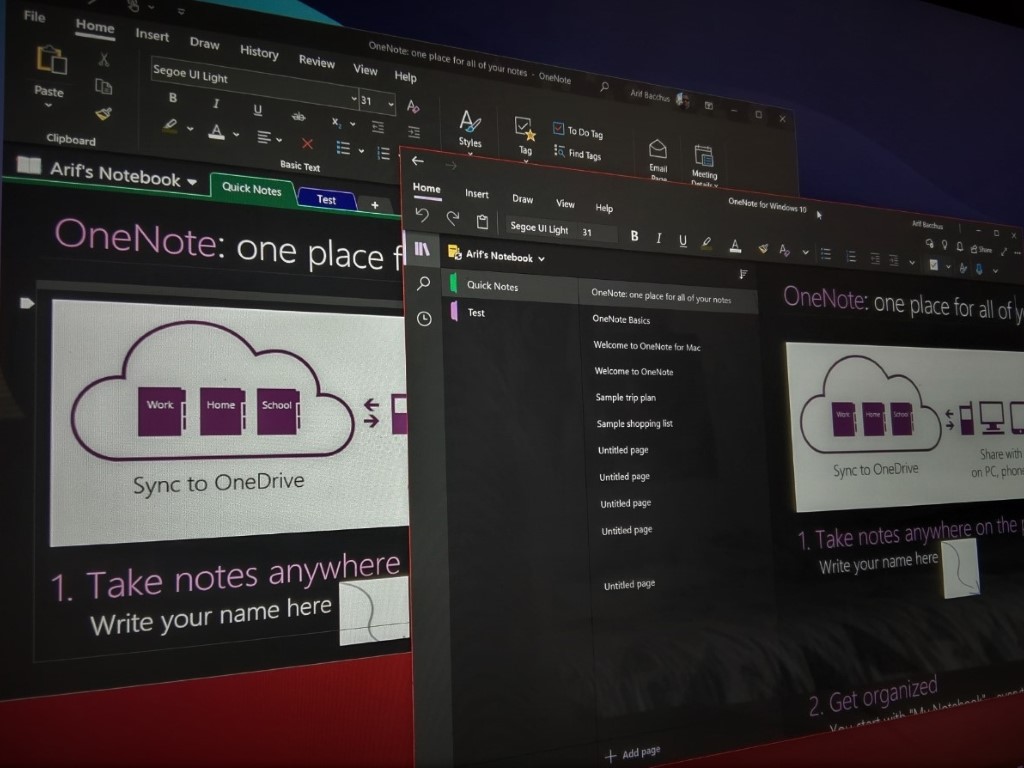
Onenote Desktop App

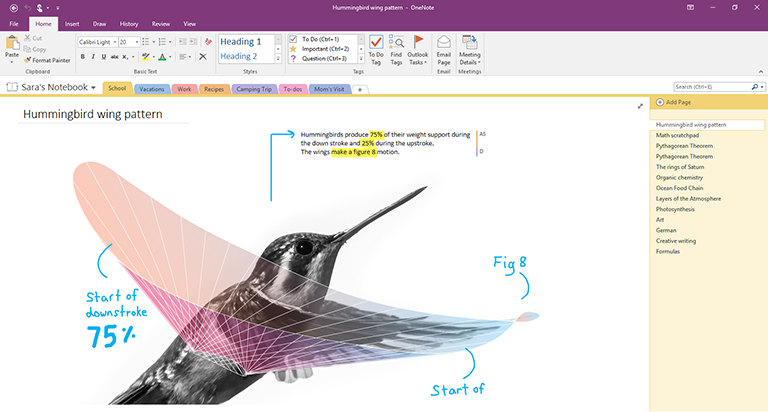
First up, there’s OneNote, also known as the OneNote desktop app. This version of OneNote is bundled with Office 2016, Office 2019, and Office 2013 versions, but it also can be downloaded on its own from Microsoft’s website. This desktop app was also known as OneNote 2016 or OneNote 2013, in the past, but it is now known as just “OneNote.”

When you open the OneNote desktop app, you’ll notice that it looks quite familiar to the other Microsoft 365 apps. It has a full Office ribbon, just like Word, Excel, or PowerPoint might have. It also has colorful section tabs, and things are displayed vertically across the screen, with a list of page tabs being shown on the right side of the screen. Keep this in mind, as this one of the core differences of the app compared to OneNote for Windows 10.

Additionally, to update OneNote, you’ll have to update it just as you would any other Microsoft 365 app. You’ll need to click File, followed by Account. Then, next to Office Updates, you’ll have to click the Update Options button, followed by Update Now.

We’d also like to mention that if you prefer to store your notes on your computer’s hard drive, you’ll need to use OneNote. The OneNote for Windows 10 app won’t be able to read your disk-based notebooks.

OneNote for Windows 10

Onenote For Windows 10

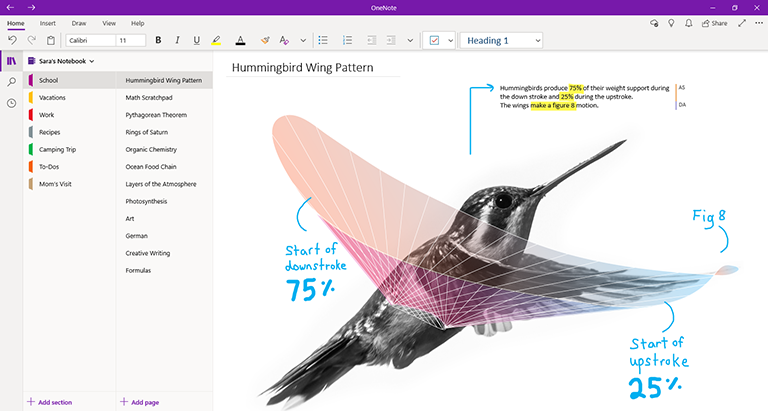
Now, for OneNote for Windows 10. This version of OneNote comes pre-installed on all editions of Windows 10 and is available as a free download in the Microsoft Store. Visually, you will see that this app is a bit different from OneNote desktop as it doesn’t feature a ribbon. Instead, you’ll see that it has a smaller single-line interface near the top of the screen.

Additionally, the navigation pane and navigation of Notebooks works a bit differently. When the navigation pane is revealed, it displays colorful notebook section tabs vertically on the left side of the screen. The list of page tabs is also shown directly to the right of the section tabs.

Updating OneNote for Windows 10, meanwhile, is a bit easier. It is updated on a much more regular basis than the standard OneNote desktop app. Just click the Start button, open the Microsoft Store, and then click the See more button followed by Download and Updates. In the Downloads and updates window, click Get updates in the upper right corner. OneNote will then update.

The differences

OneNoteNotebooks

Finally, we’ll end with the differences. First, there are some important notes about what you can ONLY get in the OneNote desktop app. These features will be appreciated if you’re using OneNote alongside the other apps like Outlook or Teams. Some of the features that plugin with the rest of Microsoft 365 are only available in the desktop version. We’ve gathered these into a list below.

  • Embedding Outlook Tasks
  • Send emails and meetings from Outlook
  • Sorting your notes with custom tags
  • Applying templates to pages
  • Storing notebooks on your hard drive instead of on the cloud.

Now, for OneNote for Windows 10. This version of OneNote has more features that will be appreciated by general consumers. It now shares the same codebase as the desktop app, but there are some cool features. One of those is being able to sync your notes through OneDrive, and view them across the OneNote app all your devices, even if they’re not Windows-based (like iPhones) See the others below.

  • Share notebooks with your colleagues and work on notebooks with them at the same time
  • Replay your inking and handwriting to provide step-by-step instructions, or to better understand the flow of others’ thoughts
  • Use the Math Assistant so OneNote can help you graph or solve it step-by-step
  • Enjoy new ink colors like rainbow, galaxy, gold
  • Use a researcher tool to help you during projects to find quotes, articles, sources, and more
  • Use an immersive reader

Check out our other OneNote coverage for more

Now that you know the differences, we invite you to check out our other OneNote coverage. We’ve previously explained how you can use OneNote 2016 with Outlook for your productivity advantage. We’ve also explained some of our favorite tips and tricks for OneNote on Windows 10, too. Which version of OneNote do you prefer? Let us know in the comments.

FIX: This content isn’t available right now [Facebook Error]

Sorry, this content isn’t available right now is one of the most common Facebook errors.

Almost everyone faced this error message from Facebook, but we all know that this beloved social platform can sometimes also block some contacts.

It has to make you think if your crush is suspiciously quiet after a social networking dispute. That means you have been blocked.

And you will not receive a message about any block, but only the above-mentioned error message.

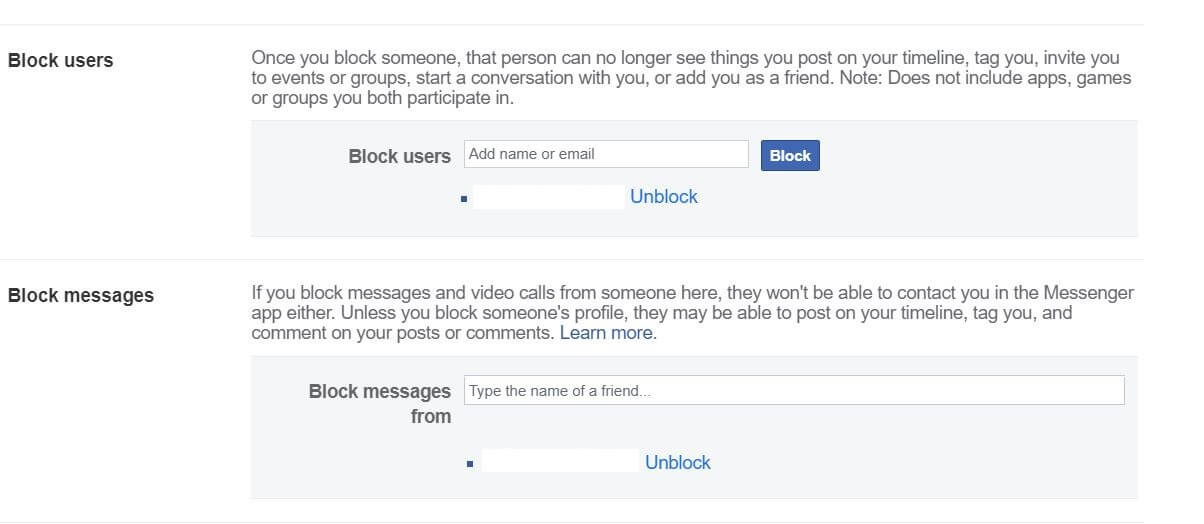
What does it mean when Facebook says this content isn’t available right now?Facebook error this content isn't available right now block profile

If you’ve been blocked on Facebook, the following features will no longer be visible or available to the contact on the blocking user:

  1. Content and new posts from the contact will no longer be visible or available to the blocking user.
  2. Adding as a friend is no longer possible.
  3. Chats cannot be conducted.
  4. Invitations to groups and events can no longer be issued.
  5. You can’t see almost anything from the other contact. Only comments and old conversations can appear.

Check out the solutions below to learn how you can get past this annoying problem.

How can I fix the Sorry, this content isn’t available right now error?

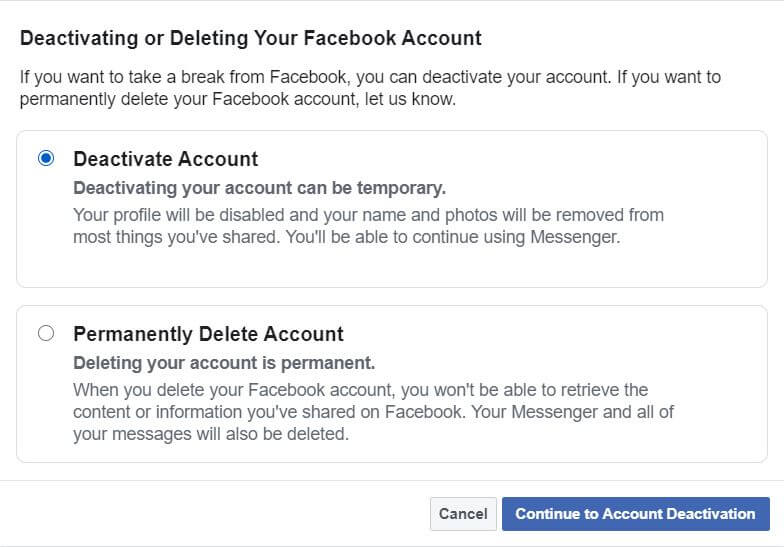
1. Your profile has been deactivated or deleted

Facebook error this content isn't available right now deactivate and delete

The error message can appear because of the violating guidelines or the authenticity of your profile.

Facebook optimizes its website every day by removing profiles that are susceptible of vicious content, and you have to make sure that you are up to date with its guidelines.


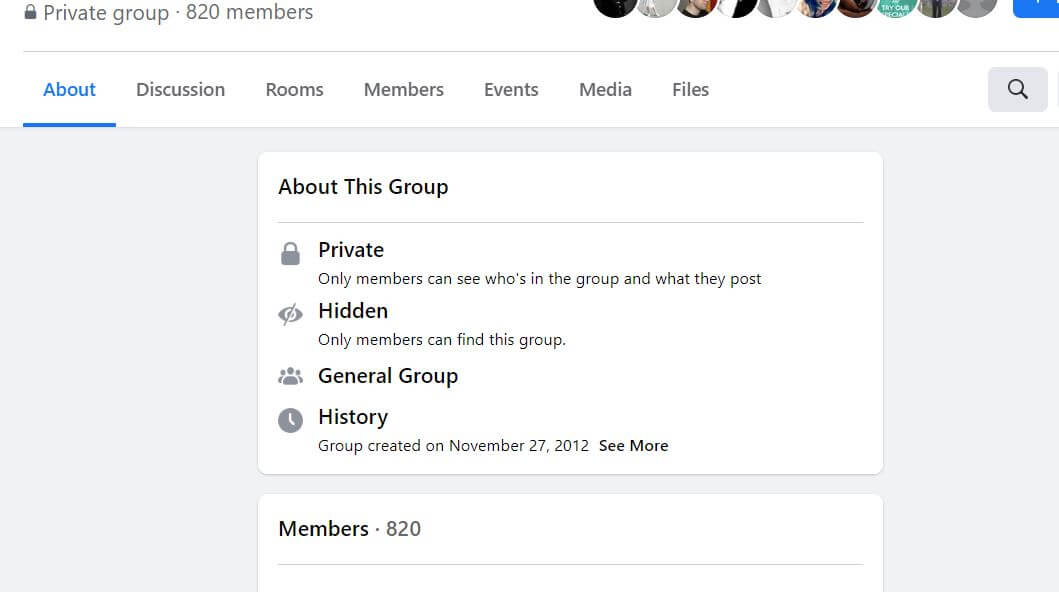
2. The owner has changed his privacy settings

Facebook error this content isn't available right now private group

Privacy settings could be a reason why you receive this error message. If the post owner changes his privacy settings after some time, the content remains available only to those whom he allows to.

Be sure to check with the owner about the recent changes that he implemented.


3. You are logged out

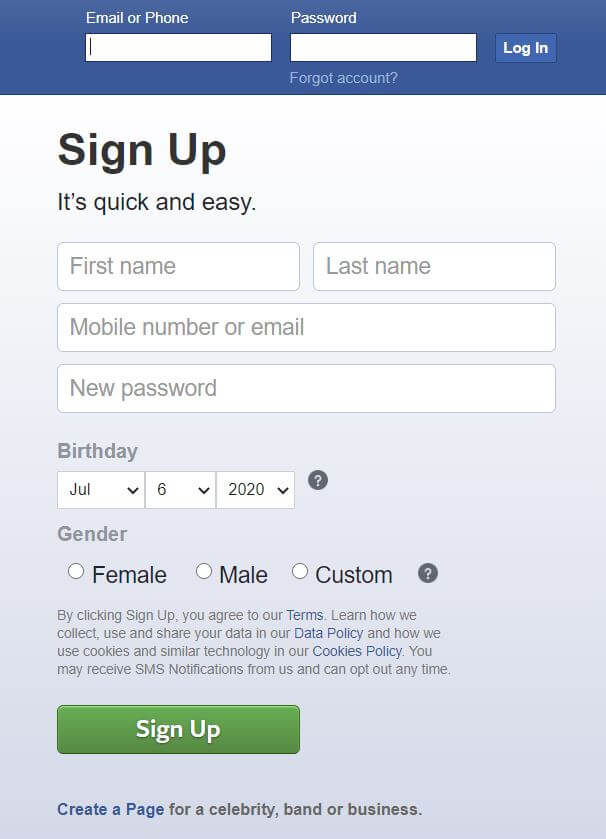
Facebook error this content isn't available right now sign up

If you are spending too much time on the Internet, it might happen that Facebook makes you log out of your account involuntarily.

You have to refresh the page and enter your credentials.


If you want to replace your browser with a better one, check out this list with the best Facebook browsers.


4. Facebook’s servers are down


Sometimes Facebook is doing maintenance work, or the server is overloaded. Usually, maintenance does not take longer than a moment.

However, you can try to log in at regular intervals of 15 minutes.

If you have any more questions or suggestions, feel free to leave them in the comments section below.

[wl_navigator]

FIX: NVidia driver error code 3 on Windows 10/11 [OpenGL]

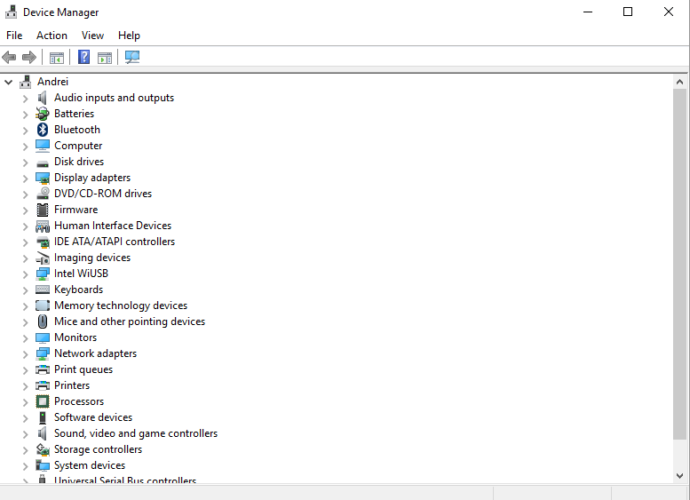
Whenever you get error codes related to drivers, the first place you need to check is your computer’s Device Manager.

You basically need to use it to locate your error code and then click on the specific error to get more detailed information about it.

You can find the error code by going to Device Manager and double-clicking on the device type that has the problem.

Once you double click on the device, right-click, and select Properties, then you will find the error code in the Device Status area.

Error code 3, on Device Manager, usually reads The driver for this device might be corrupted, or your system may be running low on memory or other resources, but this shouldn’t be a cause for alarm.

If you get the NVidia driver error code 3 with a similar message description, you can use the solutions below to fix it.

How can I fix the NVidia driver error code 3?

  1. Update the driver
  2. Run a troubleshooter
  3. Close some open apps
  4. Uninstall and reinstall the driver
  5. Install additional RAM

1. Update the driver

There are different ways you can update the driver: from Device Manager, from Windows Update, from the manufacturer’s website, or by using a dedicated tool.

Update drivers from Device Manager

  1. Right-click Start.NVidia driver error code 3
  2. Select Device Manager.NVidia driver error code 3
  3. Click Display adapters to expand it.NVidia driver error code 3
  4. Right-click on the NVidia card driver.
  5. Select Update driver software.

If you don’t have any driver updates available, right-click on the graphics card driver and click Uninstall, then restart your computer.

Update drivers from Windows Update

  1. Click Start.
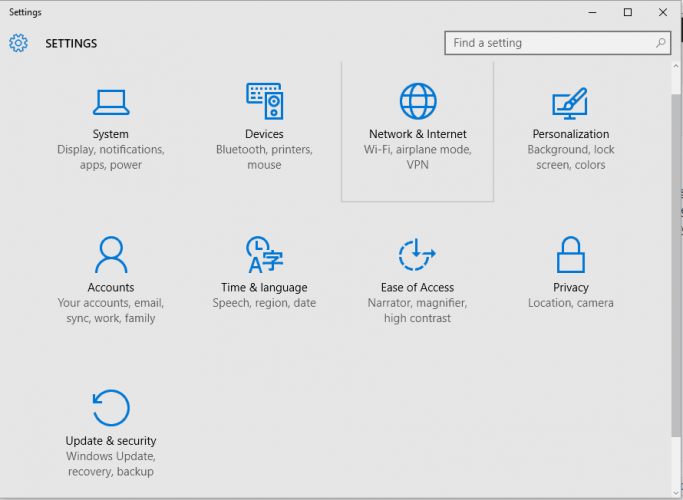
  2. Select Settings.NVidia driver error code 3
  3. Select Update & Security.NVidia driver error code 3
  4. Select Windows Update.NVidia driver error code 3
  5. Click Check for updates.NVidia driver error code 3

Update drivers from manufacturer’s website

  1. Right-click Start.NVidia driver error code 3
  2. Select Device Manager.NVidia driver error code 3
  3. Expand the Sound, Video, and game controllers option.NVidia driver error code 3
  4. Right-click on the NVidia card.
  5. Click Update driver software.
  6. Restart your computer.

You can also o to the NVidia manufacturer website, check for the latest Windows 10 drivers available, and then install it based on the instructions on the website.

Update drivers by using a dedicated tool

Sometimes, downloading and updating drivers on your own can damage your system by choosing and installing the wrong versions. On top of that, you might lack the time for such a task these days.

In order to prevent any unfortunate situation from the very start, we strongly suggest doing it automatically by using a specialized tool.

As imagined, it will help you avoid damaging your PC by downloading and installing the wrong driver versions.

2. Run the hardware troubleshooter

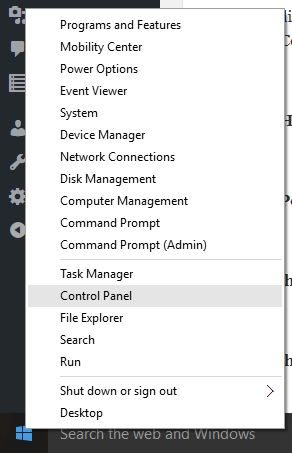
  1. Right-click Start.
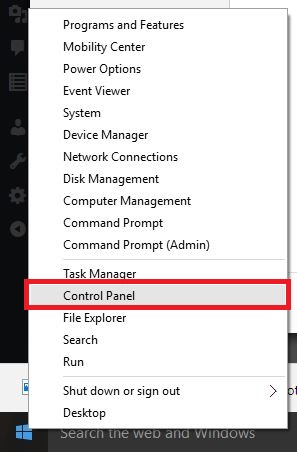
  2. Select Control Panel.
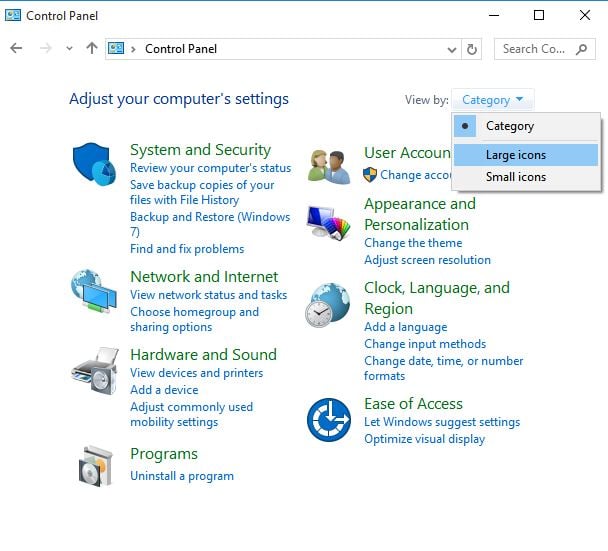
  3. Go to the View by option on the top right corner.NVidia driver error code 3
  4. Click the drop-down arrow and select Large icons.NVidia driver error code 3
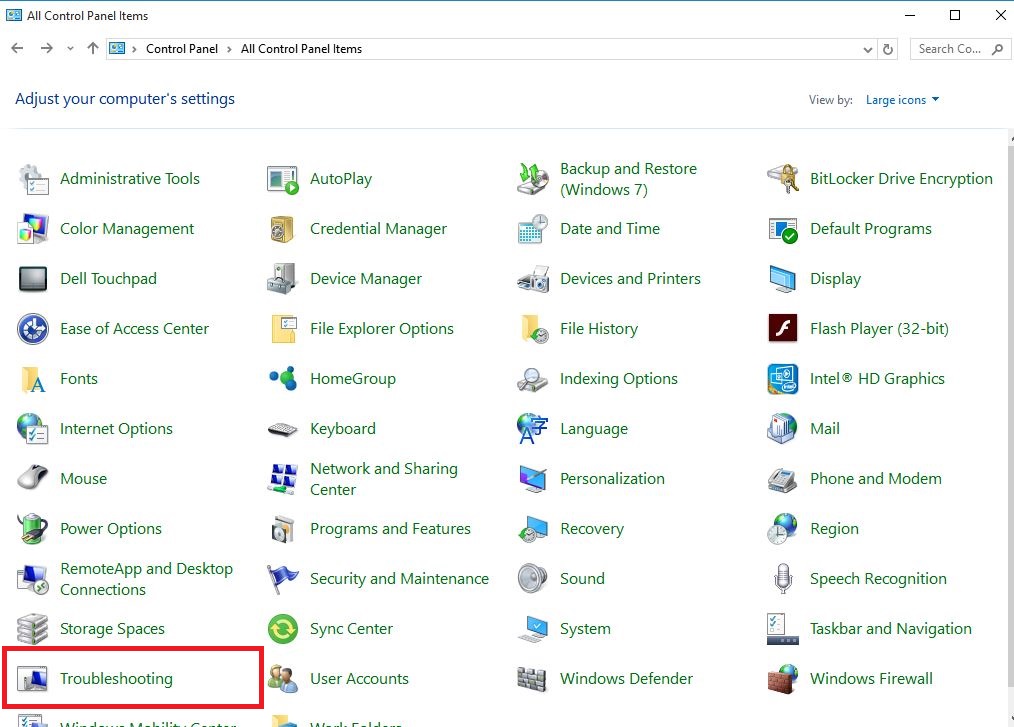
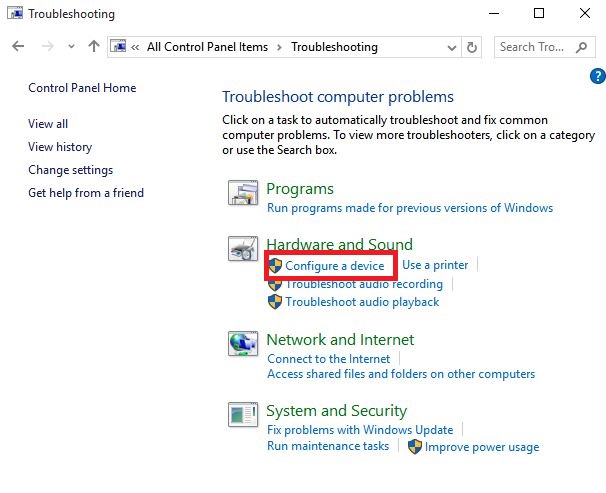
  5. Click Troubleshooting.NVidia driver error code 3
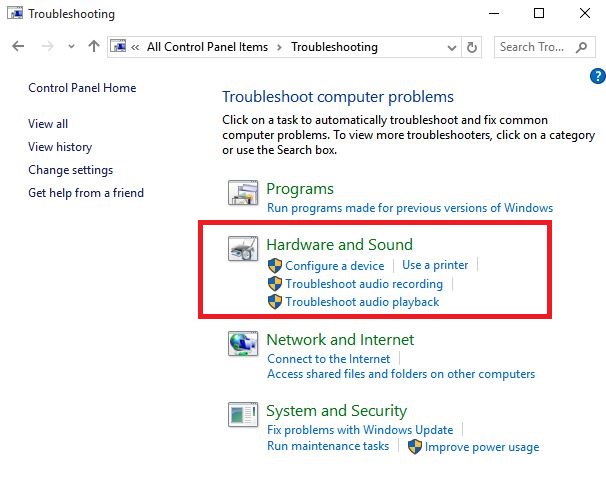
  6. Click Hardware and Sound.
  7. Click Configure a Device.NVidia driver error code 3
  8. Click Next to run the troubleshooter.

The Hardware and Devices troubleshooter checks for commonly occurring issues and ensures any new device or hardware is correctly installed on your computer.

Follow the instructions to run the Hardware and Devices troubleshooter. This will begin detecting any issues that may be causing the drag and drop problem.

3. Close some open applications

  1. Right-click Start.NVidia driver error code 3
  2. Select Task Manager.NVidia driver error code 3
  3. To view virtual memory, right-click Start.NVidia driver error code 3
  4. Select Control Panel.NVidia driver error code 3
  5. Click System and Security.NVidia driver error code 3
  6. Select System.NVidia driver error code 3
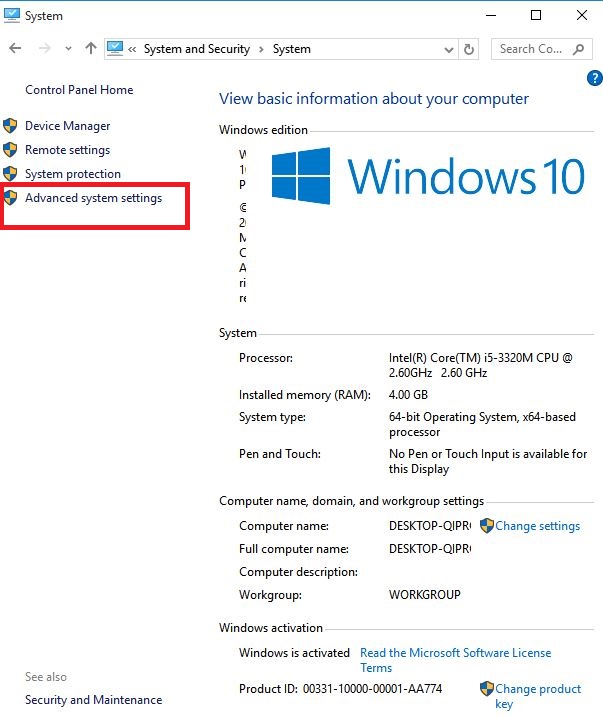
  7. Click Advanced system settings.NVidia driver error code 3
  8. Open System Properties dialog box.NVidia driver error code 3
  9. Click the Advanced tab.NVidia driver error code 3
  10. Click Settings under the Performance area.
  11. Click the Advanced tab and check Virtual memory.NVidia driver error code 3

As mentioned earlier, NVidia driver error code 3 can be caused when your system is running low on memory or other resources.

If this is the case, or your computer has insufficient memory to run the device, close some apps to avail more memory.

You can also check memory and system resources, plus virtual memory settings by doing as described above.

Can’t open Task Manager? Don’t worry, we’ve got the right solution for you.

4. Uninstall and reinstall the driver

  1. Right-click Start.NVidia driver error code 3
  2. Select Device Manager.NVidia driver error code 3
  3. Go to Sound, Video, and Game controllers and click to expand the list.NVidia driver error code 3
  4. Right-click on the NVidia graphics card.
  5. Select Properties.
  6. Click the Driver tab.
  7. Select Uninstall and follow the prompts to uninstall the driver.
  8. Restart your computer.
  9. Right-click Start again.NVidia driver error code 3
  10. Select Device Manager.NVidia driver error code 3
  11. Right-click the Action tab on the menu.NVidia driver error code 3
  12. Select Scan for hardware changes and follow the instructions to complete the reinstall.NVidia driver error code 3

The device’s driver may have become corrupted so you may need to uninstall the driver from Device Manager and scan for new hardware so as to install the driver all over again.

You may be prompted to provide the path of the driver. Windows may have the driver built-in already or may have the driver files installed from the last time you set up the device.

Sometimes, however, it will open the New Hardware Wizard which may ask for the driver. If you are asked for the driver and you don’t have it, download the latest driver from the hardware vendor’s website.

5. Install additional RAM

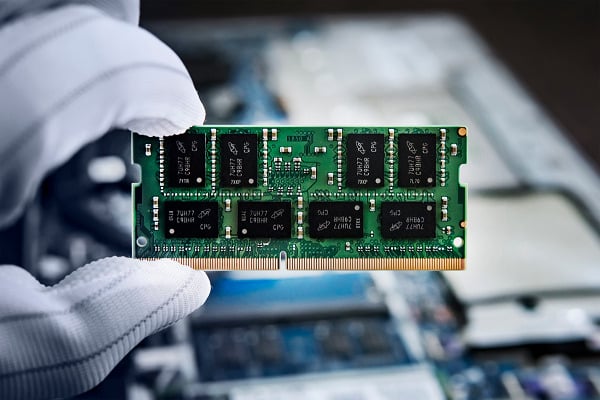
try to install additional RAM

NVidia driver error code 3 may also be caused by insufficient memory so you can install additional Random Access Memory (RAM) on your computer.

Did any of these solutions help fix the NVidia driver error code 3 on your computer? Let us know by leaving a comment in the section below.

FIX: No Directx 10 or 11 adapter or runtime found

The No Directx 10 or 11 adapter or runtime found error message is one that occasionally pops up for some Grand Theft Auto 5 players.

When they launch GTA 5, the game returns this error message:

No Directx 10 or 11 adapter or runtime found. Please install latest Directx runtime or install a compatible Directx 10 or 11 video card.

Consequently, GTA 5 doesn’t run when that error message pops up. If that sounds like a familiar issue, this is how you can fix it.

How do I fix a missing Directx 10 or 11 adapter?

  1. Update the Graphics Card driver
  2. Check that your Graphics Card supports DirectX 10 or 11
  3. Switch TruePlay on
  4. Uninstall the D3D Gear software
  5. Switch off the Game Bar

1. Update the Graphics Card driver

You can manually update your driver following these steps:

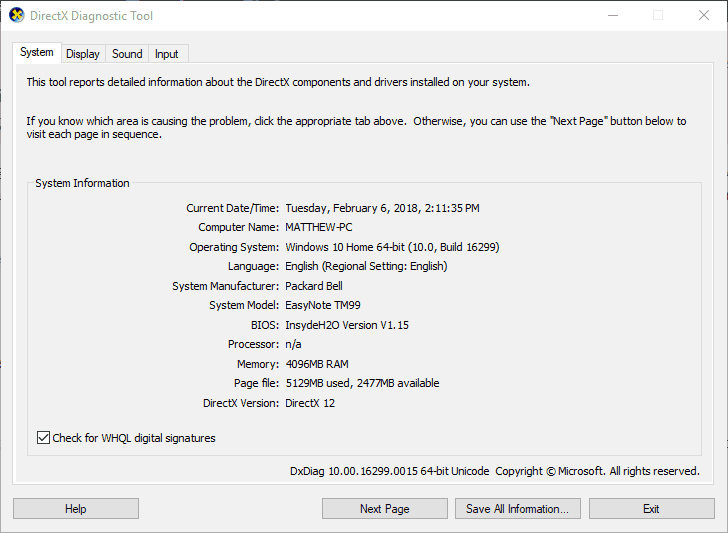
  • First, open Run and enter dxdiag to open the window in the shot directly below.
  • Note down the operating system listed on the System tab and the graphics card title listed on the Display tab.
  • You’ll need those details to update the video card driver.
  • Next, open your graphics card manufacturer’s website, such as Nvidia or AMD, in your browser.
  • Open the driver section on the manufacturer’s website.
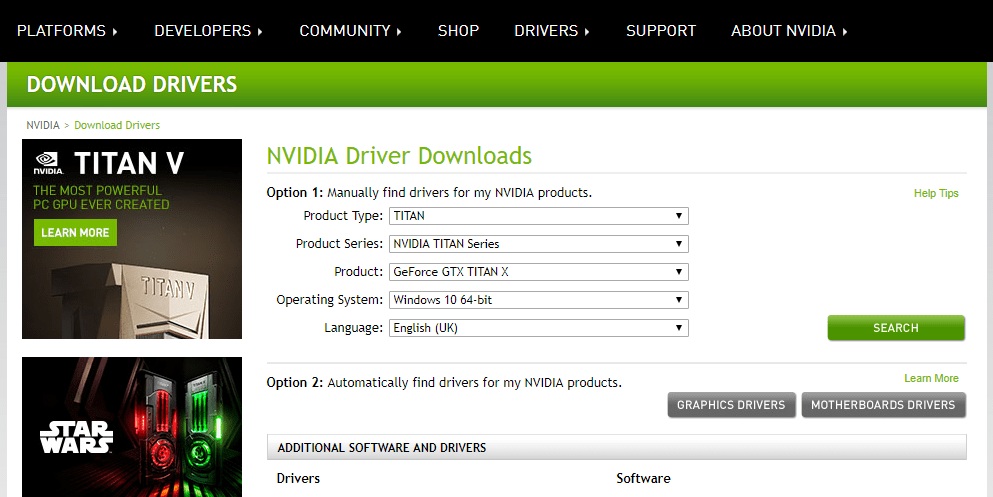
  • For example, on the Nvidia site you can click Drivers to open the drop-down menus in the snapshot directly below.
  • Select the required graphics card details from the drop-down menus it the site includes menus.
  • Alternatively, you might need to enter your graphics card in a search box.
  • Then the site will list drivers that match the details selected or keyword entered when you press the Search button.
  • Download a driver that matches your 32 or 64-bit Windows platform.
  • Thereafter, press the Win key + X hotkey.
  • Select Device Manager on the Win + X menu.
device manager windows 10
  • Double-click Display adapters to expand its devices.
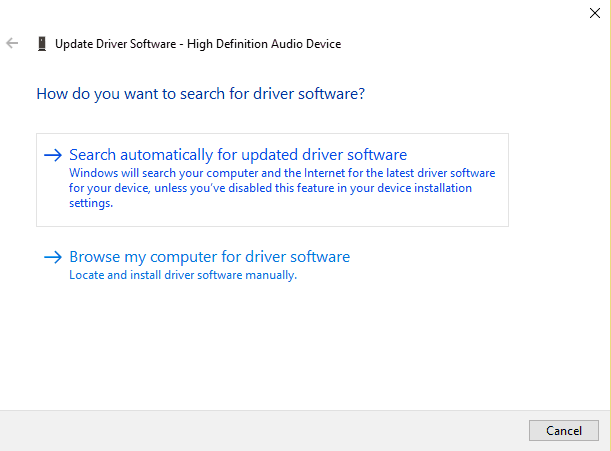
  • Then right-click your listed graphics card and select the Update driver option to open the window directly below.
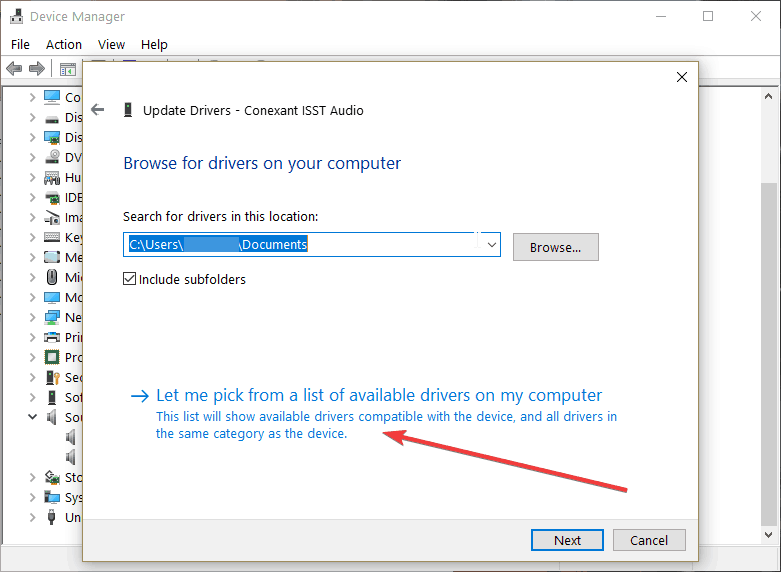
  • Click the Browse my computer for driver software option on that window.
  • Then you can select a Let me pick from a list of available drivers option to select the latest graphics card driver.
  • Press the Have Disk button.
  • Click the Browse button to select the required driver file, and then press the Open button.
  • Click Next to install the driver.
  • If your video card driver is already the latest one and doesn’t need updating, reinstall it by right-clicking the graphics card listed on the Device Manager window and selecting Uninstall device.
  • Windows will then automatically reinstall the driver when you restart the desktop or laptop.

Reinstalling graphics card drivers has fixed the DirectX runtime error for some Grand Theft Auto 5 players. There are a few ways that you can reinstall a video card driver.

Your best bet is probably to get the most updated graphics card driver from the manufacturer’s website to ensure you have the latest one, and then install that driver.

2. Check that your Graphics Card supports DirectX 10 or 11

  • Press the Win key + R hotkey to open Run.
  • Enter dxdiag in Run and click OK to open the window directly below.
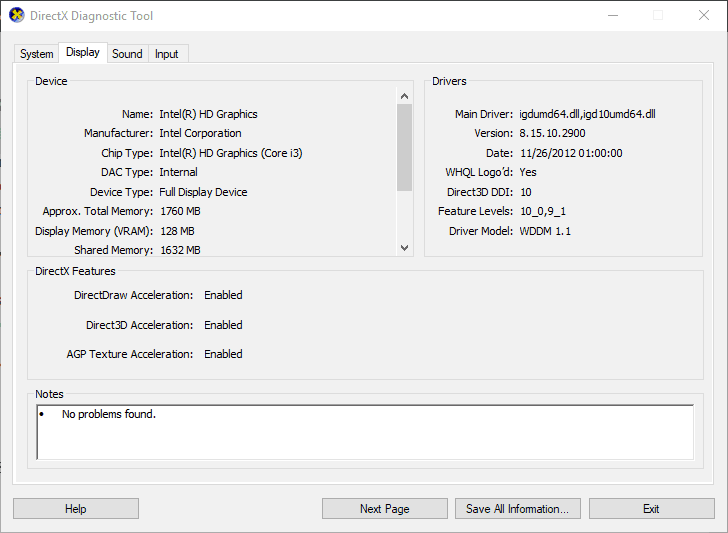
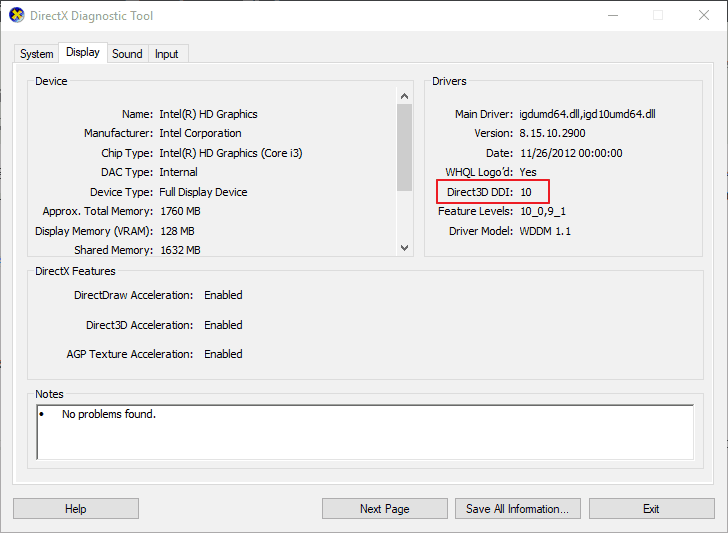
  • Now click the Display tab.
  • Check the Direct3D DDI detail highlighted in the snapshot directly below.
  • That should have a value of at least 10 (for DirectX 10), and if it’s anything lower than that you’ll probably need a new DirectX 11 compatible graphics card.

First, check that your graphics card is DirectX 10 or 11 compatible. If your video card only supports DirectX 9 or less, then GTA 5 isn’t going to work. So, it might be the case that you need a new video card.

3. Switch TruePlay on

  • First, press the Cortana button on your taskbar to open the search box.
  • Enter TruePlay in Cortana’s search box and select TruePlay.
    • That will open the window in the shot directly below.
  • Now click the TruePlay setting to toggle it on.

If your graphics card is DirectX 11 compatible, switch the TruePlay setting on. Microsoft hasn’t made it entirely clear what this setting is supposed to do, but some have found that switching the setting on can fix the DirectX runtime error.

The TruePlay setting details do state, Turning this off may limit the games you can play.

4. Uninstall the D3D Gear software

  • Press the Win key + X hotkey, and select Run from the Win + X menu.
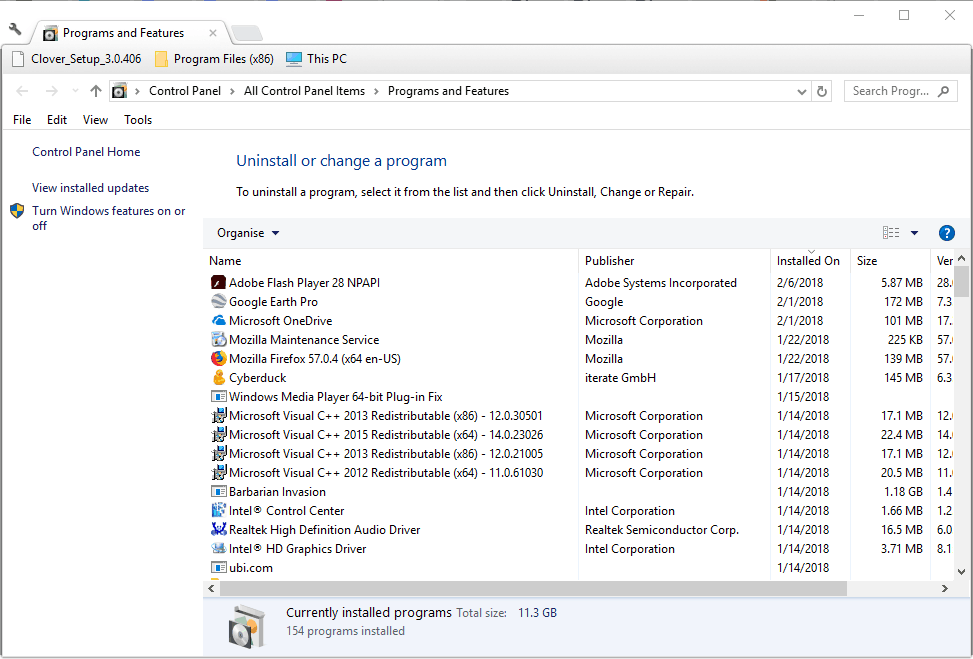
  • Enter appwiz.cpl in Run’s text box, and click its OK button.
  • Now select the D3D Gear software listed on the window shown directly below.
  • Press the Uninstall/Change button.
  • Click Yes to further confirm that you need to remove D3D Gear from Windows.

D3D Gear is software that records games. Some Grand Theft Auto 5 players have fixed the DirectX runtime issue by uninstalling that software. If you have D3D Gear installed, this is how you can remove that program.

5. Switch off the Game Bar

  • Open the Cortana app.
  • Enter Game bar in Cortana’s search box, and click the OK button.
  • Select Control how Game bar opens and recognizes your game to open the window shown directly below.
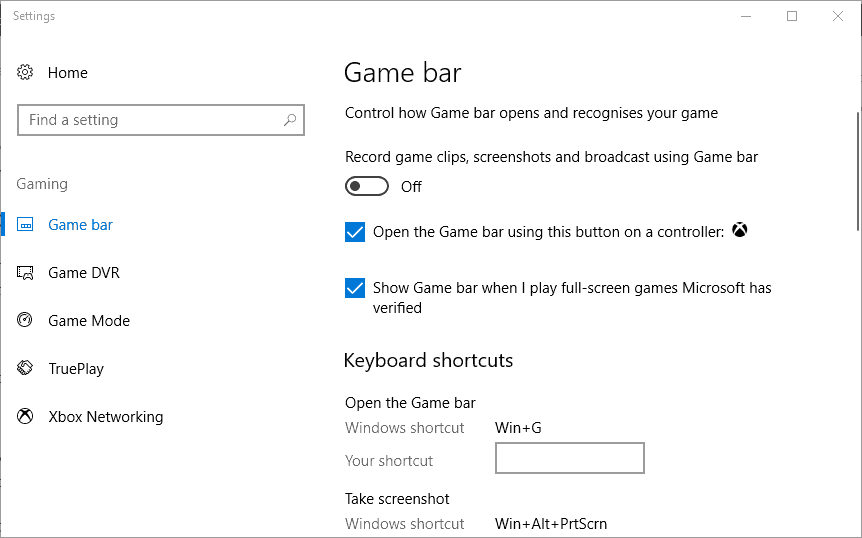
  • Toggle the Record game clips, screenshots and broadcast using Game Bar setting off if it’s currently on.
  • In addition, click Game DVR and toggle the Record in the background setting off.

Update Windows 10 builds also include Game bar and Game DVR-recording options. Switching the Game bar off might also help resolve the DirectX runtime issue.

One, or more, of those resolutions, might kick-start Grand Theft Auto 5 for you. This article also provides further tips for fixing DirectX error messages. Do you have any other fixes for the DirectX runtime error? If so, please share them below.

[wl_navigator]

Microsoft news recap: Xbox Series X and S prices announced, GitHub adding new integration with Microsoft Teams, and more

Microsoft news recap is a weekly feature highlighting the top Microsoft news stories of the past week. Sit back, grab some coffee, and enjoy the read!

GitHub announces new integration with Microsoft Teams

A public preview has been launched of a new integration between GitHub and Microsoft Teams. The aim of the integration is to allow developers to communicate with the team for tracking issues, pull requests, deployment status updates, code reviews, and more right within Teams.

GitHub Integration Microsoft Teams

Microsoft will offer EA Play for free with Xbox Game Pass this holiday season

Starting this holiday, Xbox Game Pass Ultimate will begin to include EA Play, EA’s game subscription service, as part of the bundle, at no extra cost. This means that Xbox Game Pass Ultimate member’s will have access to an even larger number of games, without any individual purchases being required.

Xbox Game Pass Ea Play

Xbox Series X and Xbox Series S prices and launch dates have leaked

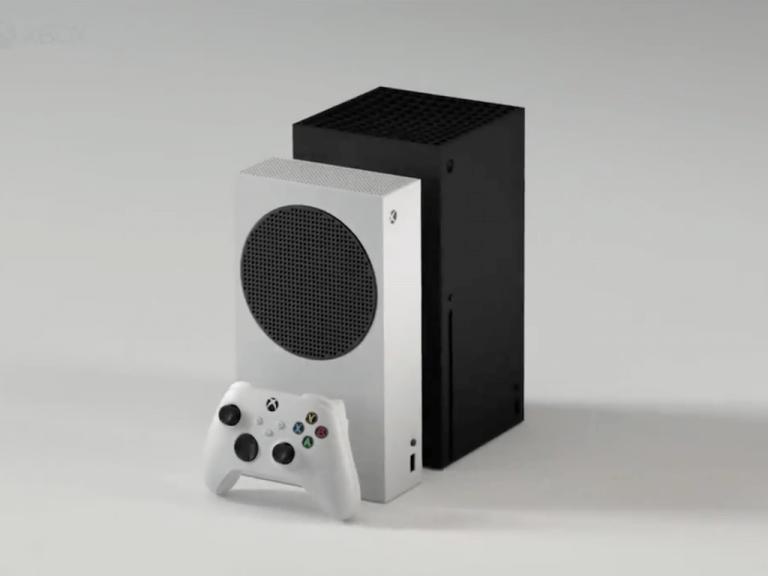
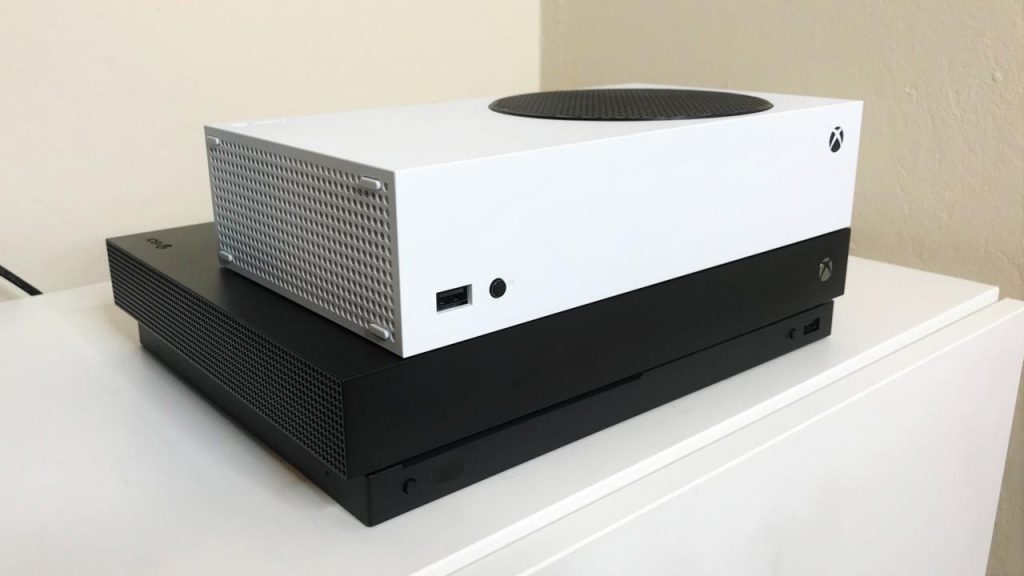
First leaked, and later confirmed by Microsoft, the Xbox Series X and Xbox Series S prices and launch dates have been revealed. The Xbox Series X will come in at $499, whilst the Xbox Series S will come in at $299. Both will be available on Xbox All Access at $35/month and $25/month respectively. Both consoles are set to launch on November 10.

Xbox Series S And Xbox Series X

Xbox All Access is coming to 12 more countries this holiday season

As noted above, both of Microsoft’s new Xbox consoles will be available on Xbox All Access, a monthly finance agreement to own an Xbox console with no upfront cost, and everything you need thrown in – such as Xbox Game Pass and Xbox Live Gold. Now, Xbox All Access is set to come to 12 more countries from this holiday.

Xbox All Access

That’s it for this week. We’ll be back next week with more Microsoft news.

Microsoft’s Xbox Virtual Press Briefing has leaked online and its cancellation may have been a blessing

The past week was a pretty big week for next gen Xbox news. After a number of leaks, Microsoft was pretty much forced to confirm the Xbox Series S and Xbox Series X prices and specs which triggered the premature announcements of EA Play coming to Xbox Game Pass, Dolby Vision and Atmos support on the Series X, and Xbox All Access expanding to more regions.

Microsoft was originally planning to make all of these announcements in one big digital presentation but that was scrapped after it became clear that all of its big reveals would be known by the audience beforehand.

Nothing ever stays hidden on the internet for long though and the entire pre-recorded Xbox Virtual Press Briefing has now leaked online and can be watched in full thanks to reliable Microsoft news leaker, WalkingCat.

Rather amusingly, the Xbox Virtual Press Briefing is a bit of an awkward watch due to an incredibly corporate vibe and a scripted faux interview format that most will associate with cheesy shopping channel shows. All of the leaked information from the past week is here but it’s a surprisingly low key 30 minutes for what should be an exciting debut of an unannounced console (the Xbox Series S) and a collaboration with EA that no one saw coming.

This feels more like an investors meeting than a buzz-worthy video event.

There’s also several moments that are unintentionally hilarious as those on screen very noticeably begin over articulating the ‘S’ and ‘X’ in the consoles’ names so as not to confuse the Xbox Series X and Xbox Series S with each other. Things get even more convoluted when the Xbox One X is brought into the mix.

While the naming of the Xbox Series X and S consoles is easy to understand in writing, this Xbox Virtual Press Briefing is a reminder of how confusing these next gen Xboxes can sound in spoken conversation.

Funnily enough, it actually feels like Microsoft may have dodged a bullet here as the leaks, and the spaced out official announcements of each product and service over the days that followed, garnered a lot of attention online and allowed the media and consumers to process each major announcement on its own before the next one was revealed. Xbox news dominated the entire week.

The viral sharing also created a fun and excitable energy around each item that was seriously lacking in the formal briefing. The whole ordeal does make one wonder if Microsoft might reconsider how they do their announcements going forward.

What do you think? Do you think seeing this Xbox Virtual Press Briefing first would have been better or do you prefer how Microsoft spread out all of the news via their social channels? Share your thoughts with us in the comments below and then follow us on Twitter and Facebook for more Xbox gaming news.

Killing Floor 2 packet loss: how to fix it?

Killing Floor 2 is the sequel of the popular Killing Floor co-op horror survival game. The title might not immediately give it away, but the purpose of the game is to defend your fragile existence from zombies (which the game calls specimens or ZEDs);

You can either play by yourself, but trust us, when facing several waves of increasingly powerful zombies, you’ll want all the help you can get. Including matching up with random strangers on the Internet.

Now comes the not-so-fun part: if you do play Killing Floor 2 online, you’ll probably face (at some point) certain connectivity issues such as packet loss, jitter, and high ping.

Left untreated, these problems may eventually ruin your gaming experience and make you stick to playing by yourself. However, that’s now how things should be: certain issues such as high ping and packet loss could be easily fixed.

What is packet loss in Killing Floor 2?

Packet loss isn’t something that immediately catches your eye. For instance, when you lag, it quickly becomes obvious.

ZEDs freeze and then fast forward to bludgeoning you (we call that rubberbanding; the freeze-teleport thing, not the bludgeoning), menus become irresponsive, you know the drill.

Now here’s the thing: packet loss triggers similar symptoms, which might make you mistake it for high latency. However, packet loss occurs whenever data packets can’t reach their destination.

So the server creates a temporary delay, still hoping to receive the packets, which then never come. Losing packets can create desync issues so severe that you might even get disconnected from the game.

And that can be downright frustrating, especially late-game.

What can cause packet loss in Killing Floor 2?

There’s a huge list of reasons why packet loss can occur. This goes for every situation that might prone to leaking packets, not only Killing Floor 2. Here are just a few of the potential causes:

  • Network congestion
  • Bad Ethernet cables
  • Using WiFi instead of wired connections
  • Game server issues
  • ISP throttling
  • Improper routing
  • Poor subnet management
  • Outdated drivers
  • Connection can’t handle high-quality settings you’re using in-game
  • Bandwidth-hogging background apps or services
  • Subpar Internet subscription

And the list is far from being complete. As you can see, the number of reasons is quite large as it is.

It might seem somewhat pointless to pinpoint the potential causes of packet loss, but truth be told, knowing what you’re dealing with can help you find a fix quicker.

How to detect packet loss in Killing Floor 2?

First thing’s first, you’ll have to identify the IP address of the Killing Floor 2 server. You can tackle this task in several ways, ranging from using the CMD netstat command, turning to third-party tools like WireShark, or just using the Internet.

Note that Killing Floor 2 doesn’t have any official dedicated server. Neither did Killing Floor, by the way. All the servers are hosted by other players like you, or by dedicated hosting companies that have nothing to do with TripWire.

Whatever floats your boat. Unfortunately, the game‘s server locator doesn’t display the IP addresses. After you identify the IP address of the game server, take the following steps:

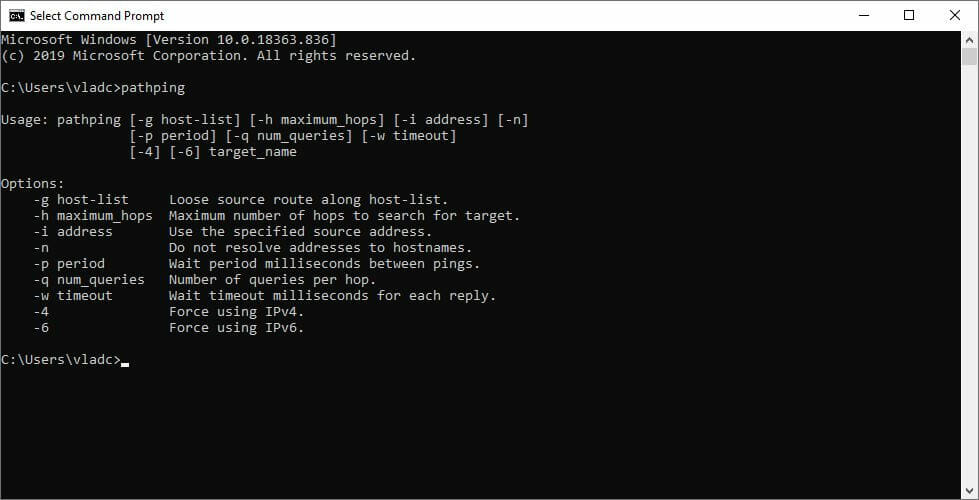
  1. Launch CMD instance on your PC
  2. Type pathping x.x.x.x (make sure to replace x.x.x.x with server IP)CMD pathping
  3. Wait for the test to finish
  4. Check if there’s any packet loss on any hop

What pathping does is show you packet loss values for each hop (node) your connection bounces through. Thus, it’s quite important to locate the server’s IP address before you start the test.

You could do the pathping test with another host, but the results wouldn’t be as relevant to your Killing Floor 2 packet loss situation.

How to fix Killing Floor 2 packet loss?

1. Try another server

This is quite the most effective fix we could think of. Killing Floor 2 doesn’t have server-tied progress, so you could take your character and move to another server without any repercussions.

Two things could come of this fix: either it works, which means that the previous server was leaking packets, or it doesn’t, which means that the problem lies someplace else.

Either way, it’s cheap, it’s fast, don’t hesitate. Pull the plug and try another server.

2. Use a VPN

  1. Purchase a subscription plan from Private Internet Access
  2. Download the VPN installer
  3. Install PIA on your PC
  4. Launch the VPN client
  5. Connect to your account
  6. Choose a fast server to connect to (nearby servers are generally faster)
  7. Launch Killing Floor 2
  8. Check if you’re still losing packets

Note that using a VPN such as Kape Technologies’ PIA won’t work if the problem lies with you or the game server.

This quick-fix will only work if your ISP is causing the packet loss by limiting your bandwidth or routing traffic improperly.

Private Internet Access

Private Internet Access

Getting packet loss in Killing Floor 2? PIA could help you fix it in no time.
$2.85/mo. Buy it now

The VPN will bypass your ISP’s default connection, thus circumventing any limitations that your provider might’ve imposed on it.

3. Troubleshoot your connection

  • Flush your DNS
  • Restart Killing Floor 2
  • Use another server
  • Restart your PC, router, modem
  • Update your drivers to their latest version
  • Replace old, poor-quality Ethernet cables
  • Use a wired connection instead of Wi-Fi
  • Call your ISP if you notice something wrong on their side
  • Reset your network adapter
  • If you’re not using a VPN to bypass network congestion, avoid peak hours

It goes without saying that these suggested fixes might not work every time. As a matter of fact, they might not work at all, since we’ve already told you that packet loss could have an outstanding number of causes.

However, trying them certainly won’t hurt your connection. In fact, you might even improve the overall quality of your connection, which might slightly improve packet loss, if not curb it altogether.

Final thoughts on Killing Floor 2 packet loss

All things considered, sometimes you might experience packet loss in Killing Floor 2. Although it sounds bad, the truth is that this issue usually solves by itself after a while.

However, if you start to notice a pattern, you might want to step into action. You can use a VPN to get rid of packet loss, but it will only work if the problem is triggered by your ISP.

Alternatively, you can also try some manual troubleshooting suggestions like switching to another server, restarting your PC, or replacing any old component on your side of the network.

Remember, a well-maintained network is less prone to connectivity issues such as packet loss.

Fix: Email attachments stuck in outbox [Gmail, Outlook]

Gmail is one of the most used email services on the market, but some users reported that emails are stuck in outbox while uploading attachments.

This can be a problem and cause all sorts of issues, but there’s a way to fix this problem, and today we’ll show you how to do it.

What can I do if Gmail/Outlook attachments are stuck uploading in outbox?

1. Check the size of the attachments

  1. Check the size of your attachments.
  2. If sending multiple files, try sending fewer files at a time.
  3. If possible, try to reduce the file size of the attachment.

These are just simple tips, but they can be helpful if you have large email attachment stuck in Outbox.


2. Use cloud storage to host the files

  1. Upload the files that you want to send to the cloud storage.
    cloud storage gmail send uploading attachments outbox stuck
  2. Once the files are uploaded, add the link to them to your email message.

This is just a workaround, but it might help if your Gmail emails with attachments are stuck in Outbox.


3. Check if the Gmail app has storage permissions

  1. On your Android phone go to Settings > Apps.
  2. Select Gmail > Permissions.
  3. Make sure that Gmail is allowed to access your storage.
    gmail storage allow gmail send uploading attachments outbox stuck

4. Clear Gmail app cache and data

  1. Tap and hold the Gmail app to open its properties.
  2. In the Storage section, tap the Clear cache button.
    clear storage gmail send uploading attachments outbox stuck
  3. Restart your phone and check if the problem is still there.
  4. If the issue is still present, repeat the steps, but this time use the Clear storage or Clear data button.

Note: If you use the Clear data option, you might have to log in with your Gmail account again before you can use the Gmail app.

Few users reported that you don’t have to clear the cache. You just need to use the Force Stop option and restart the app.


5. Turn off Wi-Fi and update the app

  1. Turn the Wi-Fi off on your phone.
  2. Wait for a few moments and turn it back on.
  3. If that doesn’t help, you might have to update the app and check if that helps.

If Gmail attachments are stuck in outbox while uploading, you might be able to fix the problem by reducing the size of the attachment or uploading files elsewhere before sending them.


6. Remove an attachment stuck in outbox in Microsoft Outlook

  1. In Outlook, click on Send/Receive and choose Work Offline.
  2. Now navigate to your Outbox.
  3. You can now delete the message, or just move it to the Drafts folder and remove the attachment.

This is a simple solution, but it should help if you have Outlook email with attachments stuck in Outbox.

In case nothing else works, you can always use the Gmail web app as an alternative.

[wl_navigator]


5 best sniping software that bids for you on eBay

eBay is one of the oldest e-commerce sites out there. However, it isn’t like the traditional Amazon e-commerce website that only allows you to buy through fixed-price listings. eBay offers both fixed priced listing and auction format listing. In the auction format listing, the seller puts a product on sale through auction. The auction runs for only a limited amount of time that is 1-10 days depending on the seller’s preference. The interested buyers must place a bid that should be higher than the current bid. When the time ends, the highest bidder wins. This is where it gets interesting in this sales format. eBay uses an in-house automatic bidding algorithm that takes the maximum bid from the users and automatically adds a bid with an increment. Since no one knows what the highest bid set by the other member is, and they don’t have time to sit in front of the computer to bid after every few seconds, they use automated bidding software that does last second bidding. The process of last-second bidding is known as sniping, and the automated bidding programs are called sniping software aka sniper. If you are new to the eBay auction and wondering why you lose some last time deals despite sitting in front of your computer at the right time, this is the reason. A good number of eBay users take advantage of this type of software to place last minute bidding, hence increasing the chances of winning the bid. Do keep in mind that eBay recognizes the bid sniping tactic on its official website. As eBay says while the use of sniping software does not guarantee a winning bid, it is perfectly normal to use the software to place your bid. So, what software should you for bid-sniping on eBay? There are several sniping software tools available on the Internet that include Chrome extensions, web-based apps, and desktop applications. To make the task easier for you, we have put together a list of bid sniping software that bids for you on eBay.

What’s the best sniping software that bids for you on eBay?

Rapidcatch

try out Rapidcatch

Rapidcatch is an automated bid placing system that allows you to place a bid on auction sites such as eBay, Newauction, Skylots, etc.

It is a cloud-based system, so no installation is required. Rapidcatch offers a free plan to get started but limited to 1 auction site and one bid per day.

The more premium plans remove these limitations offering 1-10 auction site support with an unlimited number of bids per day.

The user needs to register to use the software. From the dashboard, you need to enter your auction credentials like the username and password, URL of the website, etc.

To place a bid, click on the Place Bid button. Select a bidding scenario like just watch, do not place a bid, try to buy all items from the list, or exact quantity.

Next, enter the Item URL, bid amount, the quantity you want to buy, load time (the time to place the bid before the bid ends, in seconds), email address, phone number, etc.

You can check the status of the bid from the Bids tab. It shows active, leading, losing, won, and lost bids. You can easily add multiple auction site credentials from the Settings > Credential tab.

Rapidcatch also offers a Google Chrome extension allowing the Rapidcatch users to bid directly from the auction page without having to access the Rapidcatch account.

Click the extension icon and fill the details to place the bid. The bid details can be accessed from the Rapidcatch account if needed.

Rapidcatch is one of the most popular automated bidding systems. Sign up using the free account to test the software without any risk.

⇒ Go to Rapidcatch 

Gixen

try out Gixen

Gixen is a free eBay auction sniper service that is available both online and offline for desktop use. It automatically places your bids on eBay at the last second.

It also comes with Group bidding and allows you to make unlimited bids. If you are on Mozilla Firefox, Gixen has a free plugin for the browser.

Gixen also offers a premium service called Gixen Mirror that costs $6 a year.

Gixen Mirror comes with all the great features of standard Gixen, plus:

  • A multi-server, fault-torrent sniping service that sends your snipes twice for two different locations to increase the chances of winning
  • It is ad-free, offers contingency group biding and a new multi-win group bidding
  • You can customize snipe time from 3 to 15 seconds based on your preferences
  • Auction end times are refreshed hourly instead of daily

Using Gixen is easy. First, create an account with Gixen. Next, open eBay and log in. Go to the auction page and from the URL copy the item number.

In Gixen, enter the item number and your maximum bid for the auction. Click on Add to save the changes.

That’s it. Gixen will snipe the bid in the last seconds. With the premium plan, you get more features, although completely optional.

⇒ Download Gixen 

EZ Sniper

try out EZ Sniper

EZ Sniper is another popular sniping software that offers an automated bidding system for multiple auction sites including eBay.

It is a premium service with a free trial on offer. EZ Sniper offers commission-based, subscription-based, and pre-paid plans.

To use EZ Sniper, you need to register for the service. From the Auction tab, you can set new snipes.

Under the Add interface, type Item ID (that is item number from the auction URL), max bid, auction site (in this case eBay), contingent if any, and Note (optional).

Click on the Snipe button to schedule the bidding. EZ Sniper will automatically snipe the bid at the last second.

You can view your eBay watching list, subscription plans, change account settings, and archives from the Menu.

You can search for items on eBay directly from the EZ Sniper dashboard. From the bottom left, click on eBay search under EZ Sniper Recon and enter the keyword for the item.

Hit Enter and EZ Sniper will display all the available listing on the dashboard.

Note: The latest version of EZ Snipper may require you to link your eBay account with the service for better stability.

⇒ Go to EZ Sniper

BidNapper

try out BidNapper

BidNapper is a sniping service offered by the same company as EZ Sniper. The only difference appears to be in the pricing plans on offer.

BidNapper allows you to increase the chances of winning auction through automated last-minute bidding.

It also keeps your bids private, allows to change or delete bids, keeps prices down, and bid only as much you need to win the auction.

BidNapper also offers a free trial account that allows you to snipe three bids on any site. The working of BidNapper is identical to EZ Sniper with an identical set of features.

⇒ Go to BidNapper

YouBidder

try out YouBidder

YouBidder is a Google Chrome extension that allows you to place unlimited bids on eBay auction for free.

The extension automates the bidding process, so you don’t need to keep your PC running.

The working of the plugin is straightforward. After installing it on Chrome, visit the auction page for bid sniping.

Click on the YouBidder icon on your browser and enter your eBay username and password. Next, you need to enter your highest bid.

The extension will automatically bid at the last second. Why free? The website doesn’t specify how the free thing works.

But, if we are to guess, seems like the developer’s added their affiliate ID to every bid their automated system makes on your behalf which in return generates revenue for the developer at no extra cost to the buyer.

YouBidder is a popular extension and has 4.5 stars on the Chrome Webstore. However, the only problem seems to be reliability. While it works, it works, if not, it won’t let the user login.

⇒ Get YouBidder  

All the software tools listed in this article offer a sniping feature allowing you to bid automatically on eBay. However, sniping software does not guarantee anything.

While using such sniping tools, it is important to understand the fact that this software can only snipe at the right time and you can hope it to outbid hundreds of other bidders using the sniping services.

Try the services listed in this article for sniping eBay auctions. You will able to assess the effectiveness of the tools in a short time without having to spend a fortune.

[wl_navigator]

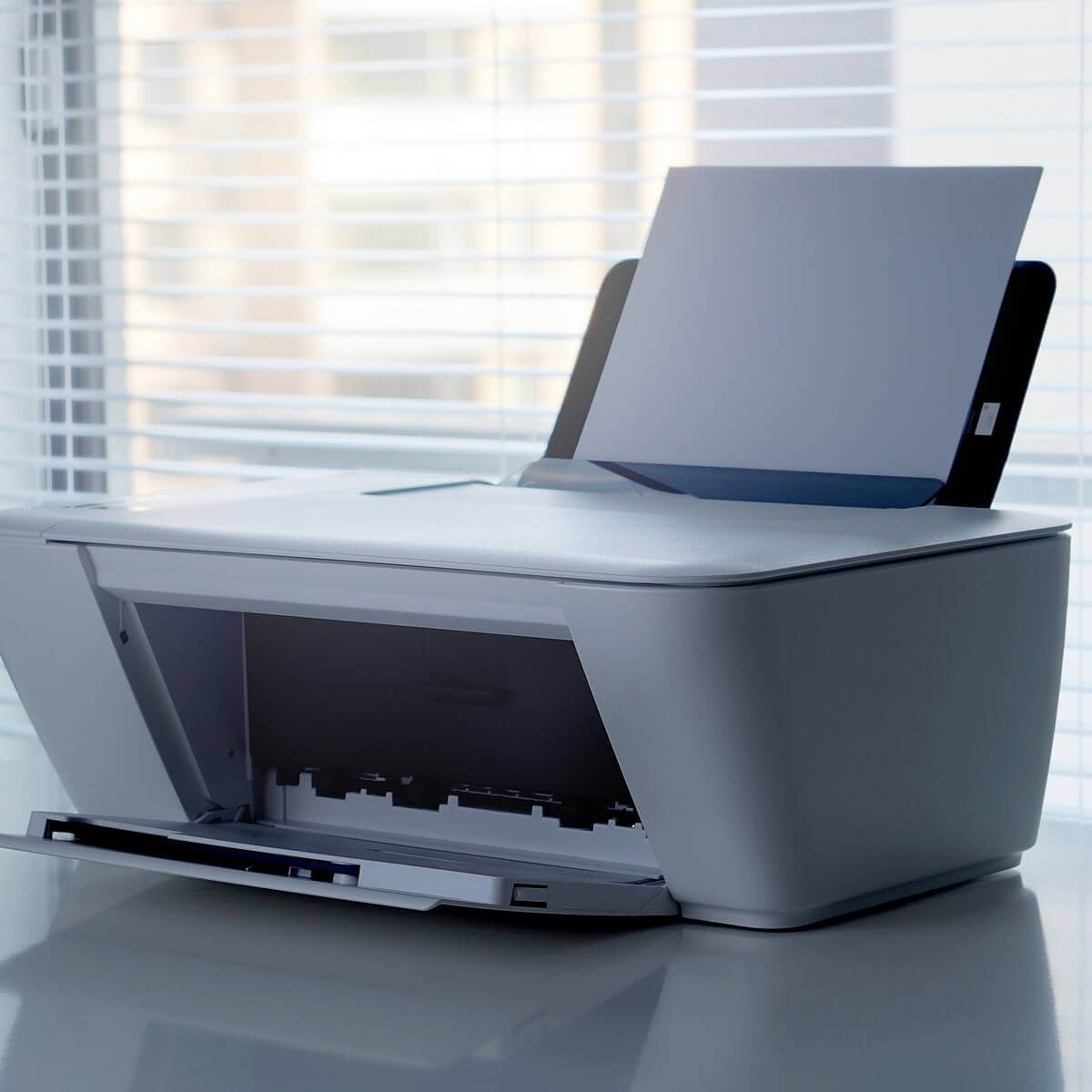
How can I fix HP driver error 1603 on Windows 10/11 PCs?

When you install HP software on your computer, you can get the HP driver error 1603 a fatal error occurred during installation displayed on your screen. The text ERROR_INSTALL_FAILURE may also accompany the error message.

Error 1603 occurs when the Windows Installer is trying to install multiple programs simultaneously such as system updates, startup services, or other installations.

Specifically, HP driver error 1603 occurs when:

  • An app that’s already installed on your computer
  • The folder you’re trying to install the Windows Installer Package to is encrypted
  • The drive containing the folder you’re trying to install the Windows Installer Package to is accessed as a substitute drive
  • The system account doesn’t have full control permissions on the folder you’re trying to install Windows Installer package to, so the error comes because the Windows Installer service uses the System account to install software.

Here’s how to fix the HP driver error 1603 when it pops up on your computer.

  1. Update drivers
  2. Run the hardware troubleshooter
  3. Use a Microsoft Fix It
  4. Verify that the Windows Installer service is set to Automatic
  5. Install the driver in compatibility mode
  6. Grant full control permissions to the System account
  7. Register Windows components
  8. Temporarily disable services, and then reinstall the HP software
  9. Upgrade to the latest Microsoft Windows Installer version

How can I fix the HP driver error 1603?

1. Update drivers

  1. Open the Start menu on your Windows PC
  2. Go to Settings and click on Update & Security settings
  3. Select Windows Update
  4. Click on the Check for updates button

If you get HP driver error 1603, you can fix it by uninstalling previous versions of drivers installed for the HP printer from the computer, and then download the latest drivers and firmware updates. Follow the steps mentioned above to update HP drivers using Windows Update.

There are many versions for HP printers, so select the appropriate model of the printer and then download and install the drivers.

This can be a long process, especially if you do it manually, therefore we recommend that you use a dedicated tool to do it automatically.

This kind of tool will help you avoid permanent damage to your PC by downloading and installing the wrong driver versions.

Download and launch the software, start the scan and wait until it finishes downloading and installing the latest drivers on your device.

If there are any missing drivers or broken ones, this tool will identify and update/fix them as well.

Additionally, you can set it up to regularly scan your drivers. This way, the app will run in the background and fix and update your drivers as you take care of other tasks.

The tool is very lightweight, so you won’t have to worry about it affecting your PC’s performance.

⇒ Get Fortect Driver Updater

2. Run the hardware troubleshooter

  1. Right click Start and go to Control Panel.HP driver error 1603
  2. Go to the View by option on the top right corner and select Large icons.HP driver error 1603
  3. Click Troubleshooting.HP driver error 1603
  4. Next, go to Hardware and Sound.HP driver error 1603
  5. Click Configure a Device and press Next to run the troubleshooter.

HP driver error 1603

3. Use a Microsoft Fix It

Microsoft Fix It or easy fix solutions help diagnose and resolve issues for Microsoft products or third-party software that affects them.

Once you click the download button, a Microsoft easy fix solution will download to help you deal with software issues automatically.

The easy fix package can be a .msi or .diagcab (for later versions of Windows only) based on the technology used to create the package.

4. Verify that the Windows Installer service is set to Automatic

  1. Click Start
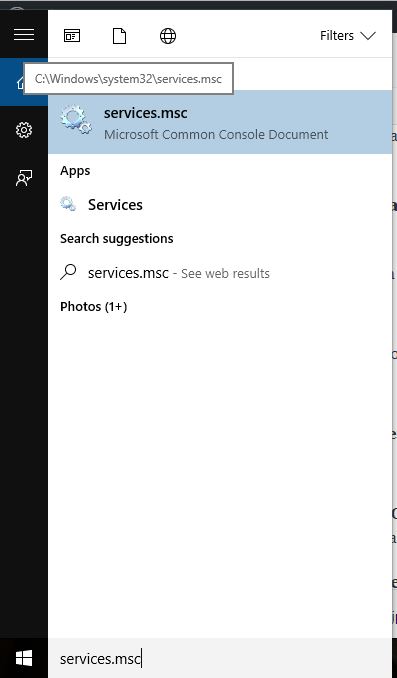
  2. Type services.msc in the search box and press enter.HP driver error 1603
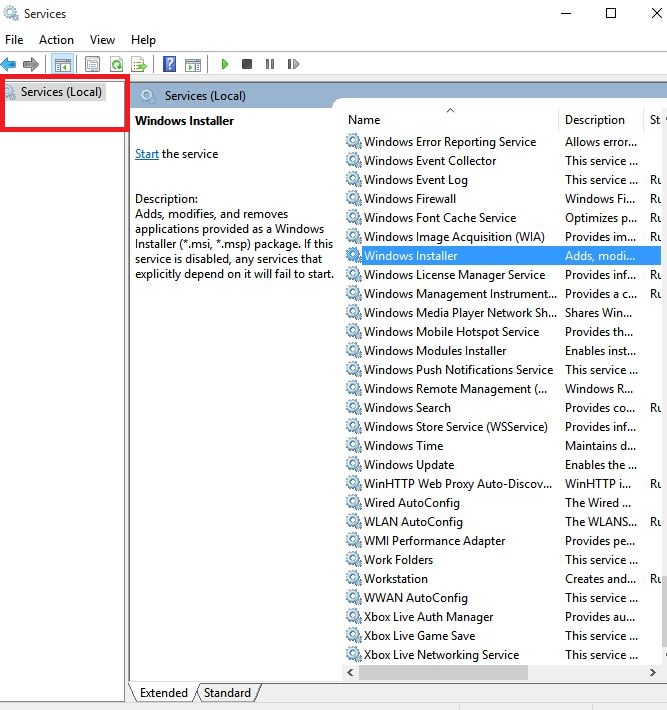
  3. In the Services list, double-click Windows Installer.HP driver error 1603
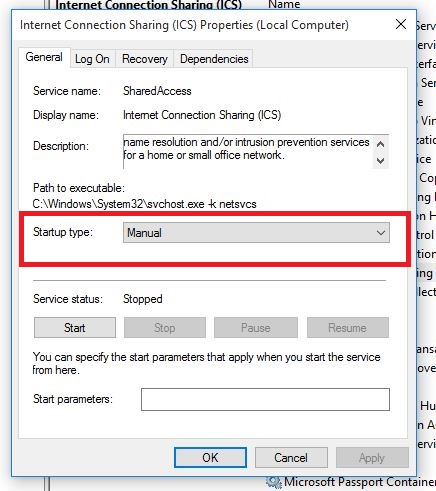
  4. In Windows Installer Properties dialog box, click Automatic under Startup Type list.
  5. Click Apply and then OK.
  6. Start the software installation.

5. Install the driver in compatibility mode

  1. Download the latest driver and right-click on the driver setup file.
  2. Click Properties and go to the Compatibility tab.
  3. Click the checkbox Run this program in compatibility mode.
  4. Restart your computer.

6. Grant full control permissions to the System account

  1. Open File Explorer.
  2. Right click the drive you want to install the Windows Installer package to.
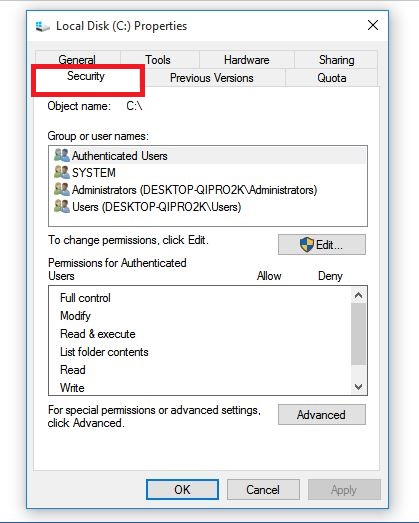
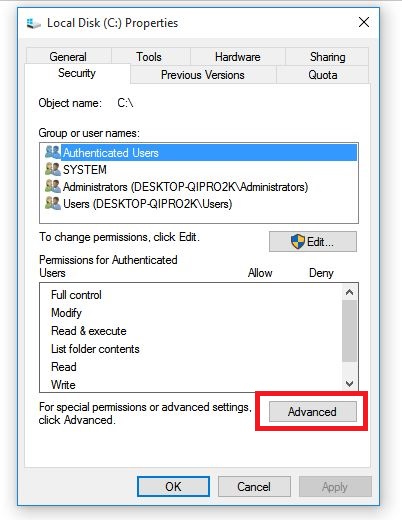
  3. Click Properties and go to the Security tab.HP driver error 1603
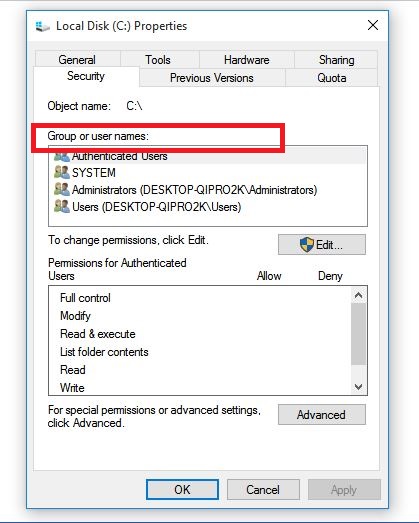
  4. Verify that the Group or user names box contains the SYSTEM user account.HP driver error 1603
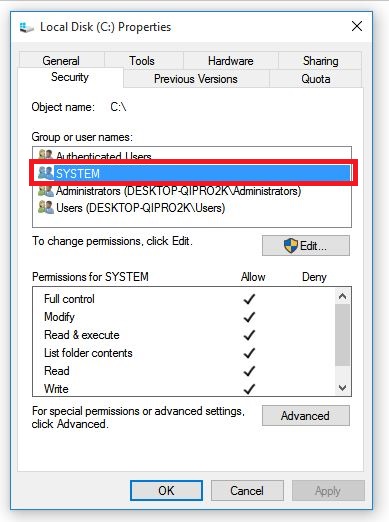
  5. Select SYSTEM user account.HP driver error 1603
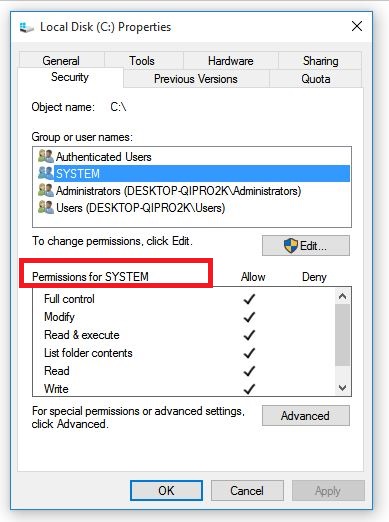
  6. Verify in the Permissions section that Full control is set to Allow (if not set, select Allow checkbox).HP driver error 1603
  7. Close Permissions dialog and return to Properties dialog then click Advanced.HP driver error 1603
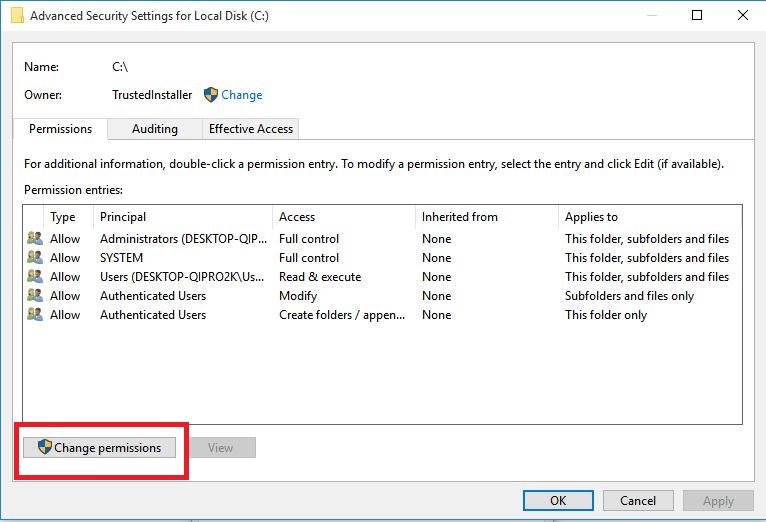
  8. Select Change Permissions.HP driver error 1603
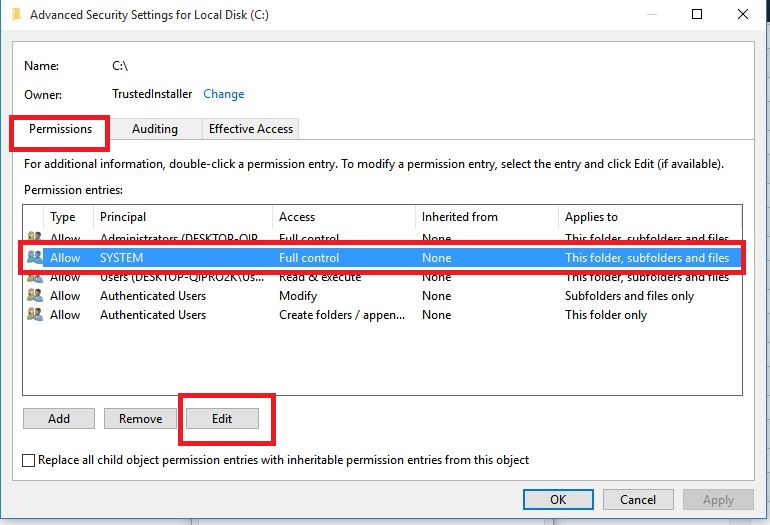
  9. In Permissions tab, select SYSTEM entry and click Edit.HP driver error 1603
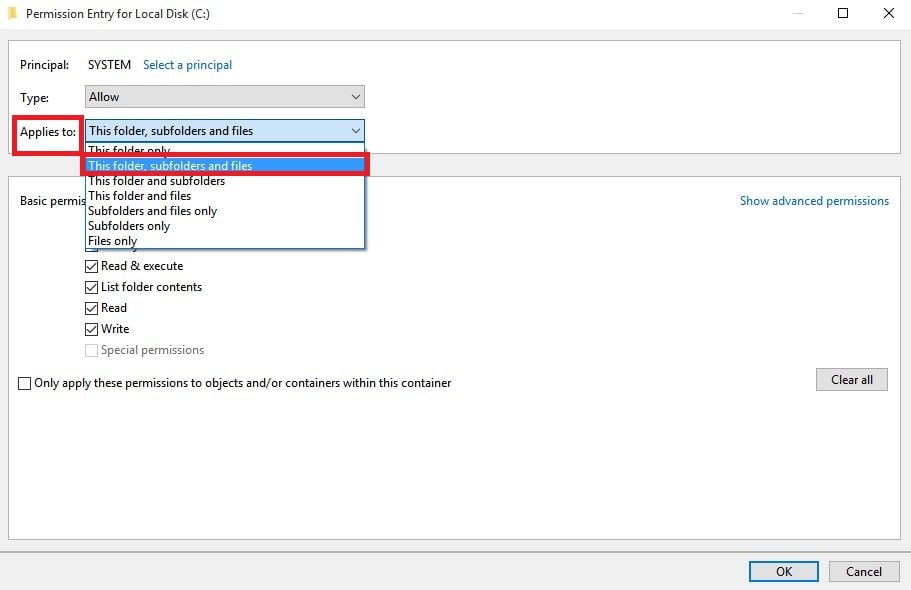
  10. Click Applies to dropdown and select This folder, subfolder and files then click OK.HP driver error 1603
  11. Run the Windows Installer package.

7. Register Windows components

7.1. Register the Atl.dll file

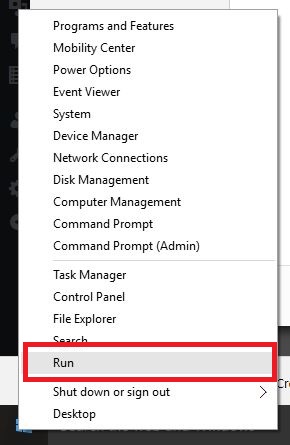
  1. Right click Start and select Run.
  2. Type regsvr32 Atl.dll and then press enter or click OK
  3. On the RegSvr32 screen, click OK

7.2. Unregister and reregister Microsoft Windows Installer

  1. Click Start.
  2. Type cmd in the search box.
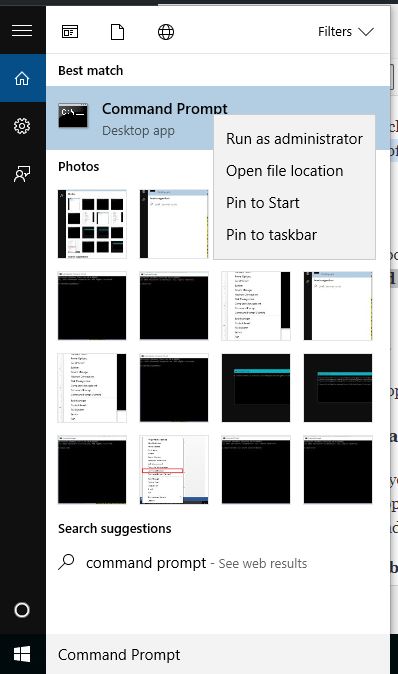
  3. Right-click Command Prompt and select Run as Administrator.HP driver error 1603
  4. Type MSIEXEC/UNREGISTER and then click OK.
  5. Try installing the program and check if the issue persists.

7.3. Reinstall HP software

  1. Turn on the printer.
  2. If your printer is connected to the computer with a USB, disconnect the cable from the printer.
  3. Go to the HP website under Software and Driver Downloads.
  4. Identify your printer model and follow the instructions to download it.
  5. Click Download next to the full feature driver or click Basic Drivers for other options

8. Temporarily disable services, and then reinstall the HP software

8.1. Temporarily disable startup services

  1. Click Start.
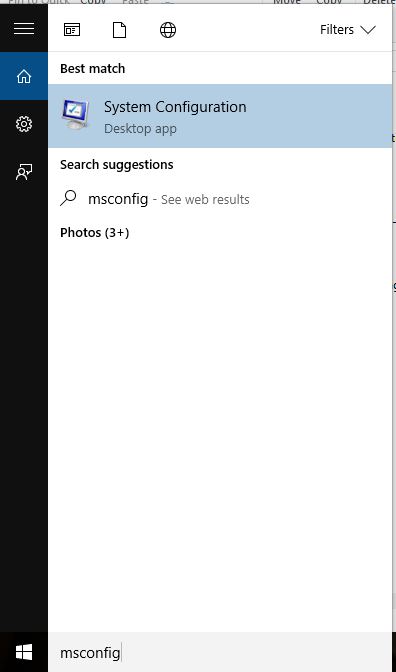
  2. Type msconfig in the search box and press enter.
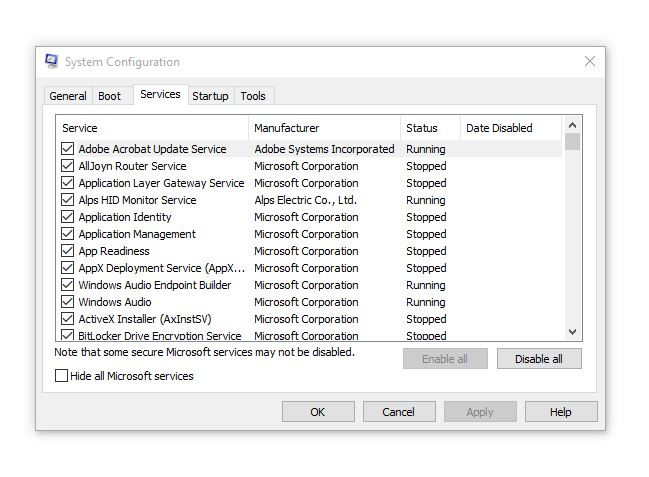
  3. Select Services tab and click Disable All to turn off any programs that start when you turn on your computer.HP driver error 1603
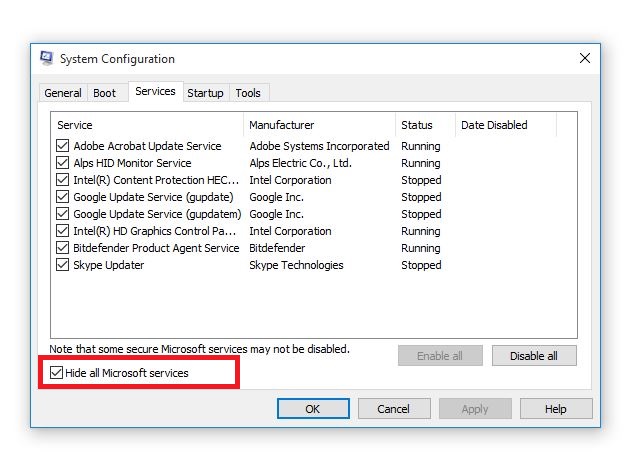
  4. Select Hide All Microsoft Services checkbox.HP driver error 1603
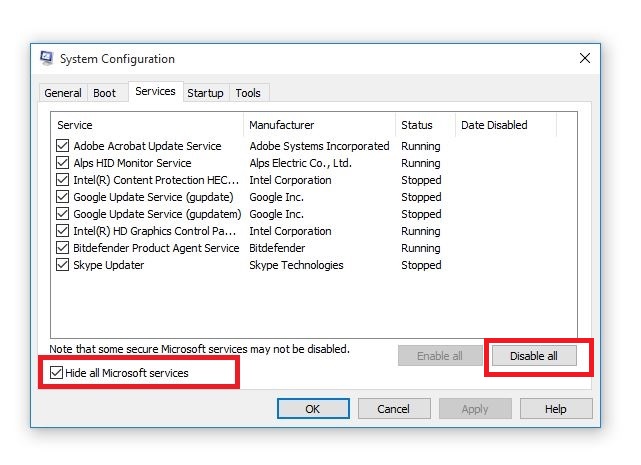
  5. Click Disable All and click OK
HP driver error 1603

8.2. Temporarily disable Windows Update

  1. Click Start
  2. Click All Programs and go to Windows Update.
  3. In the left pane, click Change settings.
  4. Under Recommended updates, click Never check for updates.
  5. Click OK.

8.3. Remove  and reinstall HP software

  1. Unplug the USB cable connecting the HP product to your computer.
  2. Right-click Start and select Control Panel.USB WiFi adapter is not connecting to the Internet
  3. Open the list of installed programs and remove the software
  4. Click Programs
  5. Right click the HP product and select If asked to remove shared files, click No as other programs using these files may not work if you delete them.

8.4. Reinstall HP software by doing the following:

  1. Turn on the printer
  2. If your printer is connected to the computer with a USB, disconnect the cable from the printer.
  3. Go to the HP website under Software and Driver Downloads.
  4. Select a method to identify your printer model and follow the instructions to download.
  5. Click Download next to the full feature driver or click Basic Drivers for other options.

8.5. Enable startup programs

  1. Click Start.
  2. Type msconfig and press enter.HP driver error 1603
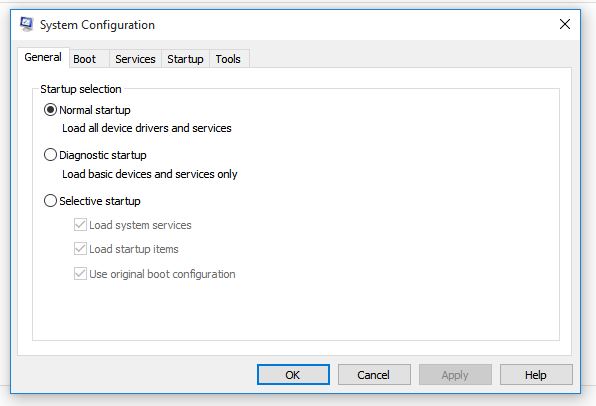
  3. Select the General tab and select Normal startup checkbox.HP driver error 1603
  4. Click Apply and then click Close.
  5. Restart your computer.

8.6. Re-enable Windows Update

  • Click Start
  • Select All Programs
  • Click Windows Update
  • In the left pane, click Change settings
  • Under Install updates automatically, click Never check for updates and click OK

9. Upgrade to the latest Microsoft Windows Installer version

  1. Right-click Start and select Run.fix error 80070436
  2. Type appwiz.cpl and press Enter.
  3. In Currently Installed Programs list, select Windows Installer.
  4. Click Remove and follow the instructions to remove Windows Installer.
  5. Visit the Microsoft website to install the latest Windows Installer version. Make sure you download the .msi file for your version of Windows.
  6. If you have 32-bit version, you’ll see x86, and 64-bit version gives x64. If you’re unsure, download and install the latter version.

Did any of these solutions work for you? let us know in the comments section below.

Is VPN safe for online banking? [Complete guide]

Online banking is a risky business because you have to enter your login credentials and credit card info on the web. If you’re directly connected to the Internet, you might accidentally leak them and compromise your data. But you can use a VPN to stay safe.

A virtual private network creates a secure tunnel and uses it to isolate your data traffic from the public web, all thanks to encryption. In case of a man-in-the-middle attack, a hacker might obtain your data but can’t unscramble it.

Should you use a VPN for online banking?

Yes, you should definitely use a VPN for online banking since it makes you safer on the Internet.

Although most banks are doing the best they can to make you feel as safe as possible when making online transactions, sometimes they fail.

Internet banking is particularly dangerous during the COVID-19 pandemic when most people stay home and pay taxes or shop exclusively online. But a VPN helps a lot.

Here are some legit reasons why you need a VPN for online banking:

  • Keeps you safe from cybercriminals when using public Wi-Fi hotspots.
  • Amps up your security level when traveling and connecting to the airport, hotel, or restaurant Wi-Fi.
  • Shields your mobile apps since they’re most vulnerable to hacker attacks.
  • Adds an extra layer of security to your home network and protects your router.
  • Excellent in combination with HTTPS websites.

How to use a VPN for safe Internet banking

1. Say no to free VPN

don't use free VPN

A VPN is only as good as its privacy policy. If you stumble upon a legit service with a strict, no-logging policy, that’s great! But you can’t trust a free VPN with your data. In fact, it’s safer to use online banking without a free VPN.

Even if the VPN provider won’t collect your data, there are still dangers since free mobile apps are usually ad-supported. Any ad or banner to a third-party website is a door left open for malware injections. But a premium VPN is worth it.

2. Don’t use VPN servers from other countries

PIA VPN countries

If your bank is actually doing a good job and monitoring your account for any suspicious activity, it will flag and freeze it if you try to connect from another country. Plus, it will probably call you soon to let you know.

Clearing this issue with the bank BEFORE won’t do you any good if you keep connecting to various countries through the VPN. And it’s never a wise idea to ask your bank to stop doing this, in case an authorized user actually attempts this.

Instead, limit your VPN server options inside your own country. It doesn’t matter which one you use, anyway, since all bring the same level of security.

3. Set the VPN‘s security settings to the max

maximize VPN security

VPNs have numerous benefits, like circumventing geoblocks and unlocking streaming services like Netflix. But, when it comes to online banking, what you’re looking for is the highest level of security.

Set your VPN service to use a highly secure protocol, like OpenVPN with 256-bit military-grade encryption, WireGuard, or SSTP. Keep in mind that more encryption means a slower connection.

If you have trouble maintaining your Internet connection stable over VPN, dial it down a notch until you find the balance between encryption and speed. Whatever you do, never use a VPN over PPTP or L2TP because they provide low security.

Besides encryption, enable the app’s kill switch, activate its built-in ad and malware blocker, and switch to its private DNS servers, depending on what features are supported by the VPN service (unlike encryption, they won’t slow you down).

4. Don’t use weak passwords or turn off 2FA

A VPN can’t keep your online banking account safe from illegal logins, so don’t compromise when it comes to passwords and two-factor authentication. Set a strong lengthy password made out of a random combination of uppercase and lowercase letters, numbers, and symbols (or use a password generator).

If you have trouble keeping up with your passwords, use a reliable password manager to keep track of them, especially since it’s recommended to change them often. Furthermore, check if you have two-factor authentication enabled.

5. Use a secure browser

Tor browser

Unless you use a mobile app to access your banking account, consider switching to a secure web browser for online banking. You don’t have to get rid of the current browser if you’re fond of it since you can install a new one to use for banking purposes, such as Tor Browser, Brave, or Firefox.

6. Use security-focused browser addons

If you want to continue using your current web browser, even if it’s unsafe, you can amp up its security level by turning to security-focused extensions like DuckDuckGo Privacy Essentials, Ghostery, Privacy Badger or HTTPS Everywhere.

What’s the best VPN for safe online banking?

use Private Internet Access for online banking

Made by Kape Technologies, Private Internet Access (PIA) is the top-ranked VPN for Internet banking, thanks to its excellent security features. It uses OpenVPN with up to 256-bit military-grade encryption to redirect your entire network traffic through VPN.

PIA also supports the newer WireGuard protocol. And, if you want to raise the bar, you can connect to a second VPN location through Shadowsocks or SOCKS5 proxy. However, as we previously mentioned, it’s not advisable to connect to another country.

This VPN app has its own ad and malware blocker for web browsers called PIA MACE, which keeps you safe from phishing and other scams. It runs private DNS servers and cuts off your Internet access in case the VPN connection drops to ensure your data isn’t compromised.

What else you must know about PIA:

  • Fully transparent with a zero-logging privacy policy
  • No IP, DNS, or WebRTC leaks
  • Works with Windows, Mac, Linux, iOS, Android, routers
  • Static and dynamic IP addresses
  • 24/7 live chat support
  • 30-day money-back guarantee (no free trial)

Private Internet Access

Private Internet Access

Use this awesome VPN for online banking to stay safe and make secure transactions anywhere.
$2.85/mo. Buy it now

A lot of people believe that HTTPS is enough to stay safe when making online banking transactions. Although it’s designed to provide end-to-end encryption, HTTPS is not foolproof. But you can throw into the mix a trustworthy VPN like Private Internet Access to change that.

[wl_navigator]


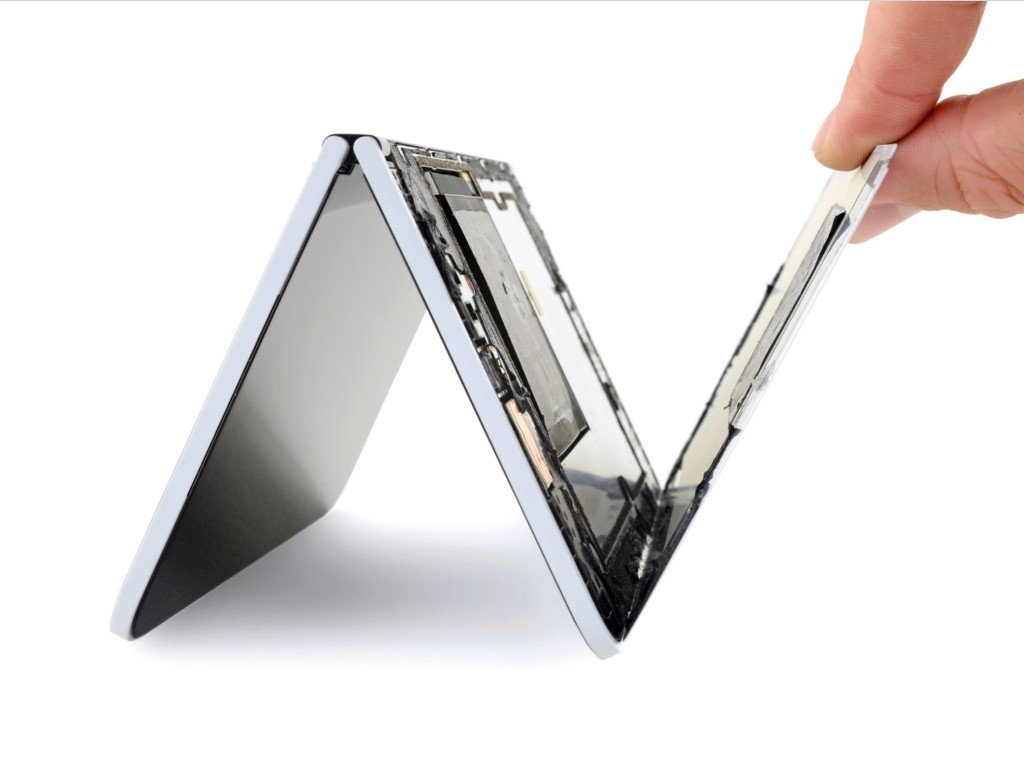
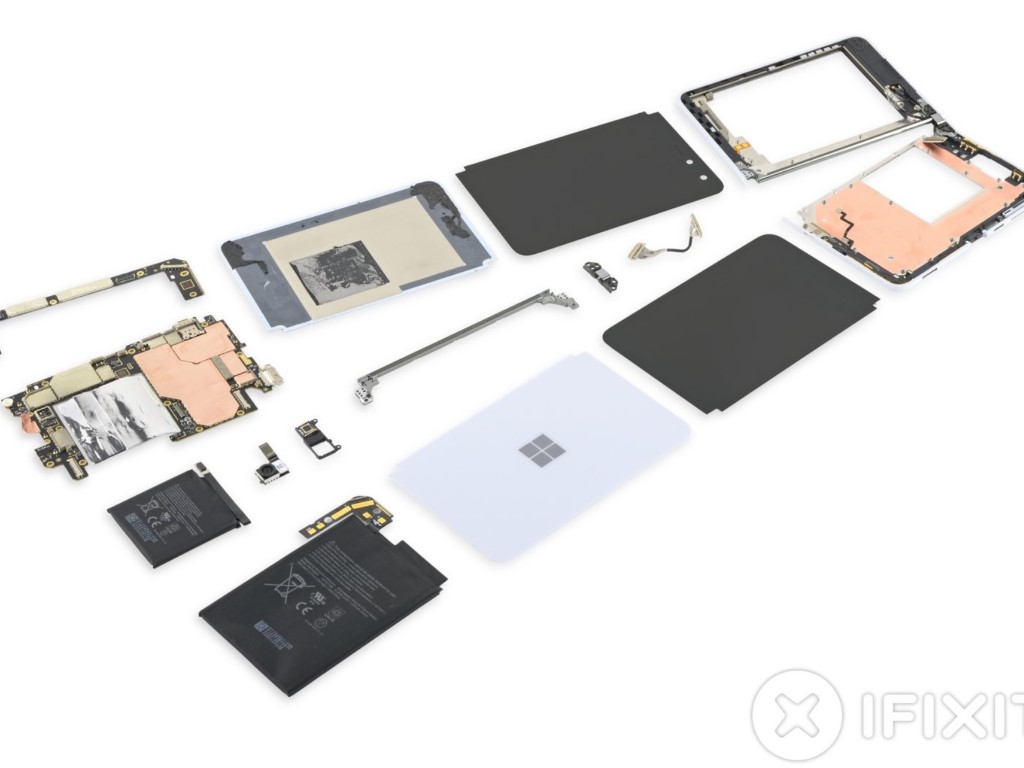
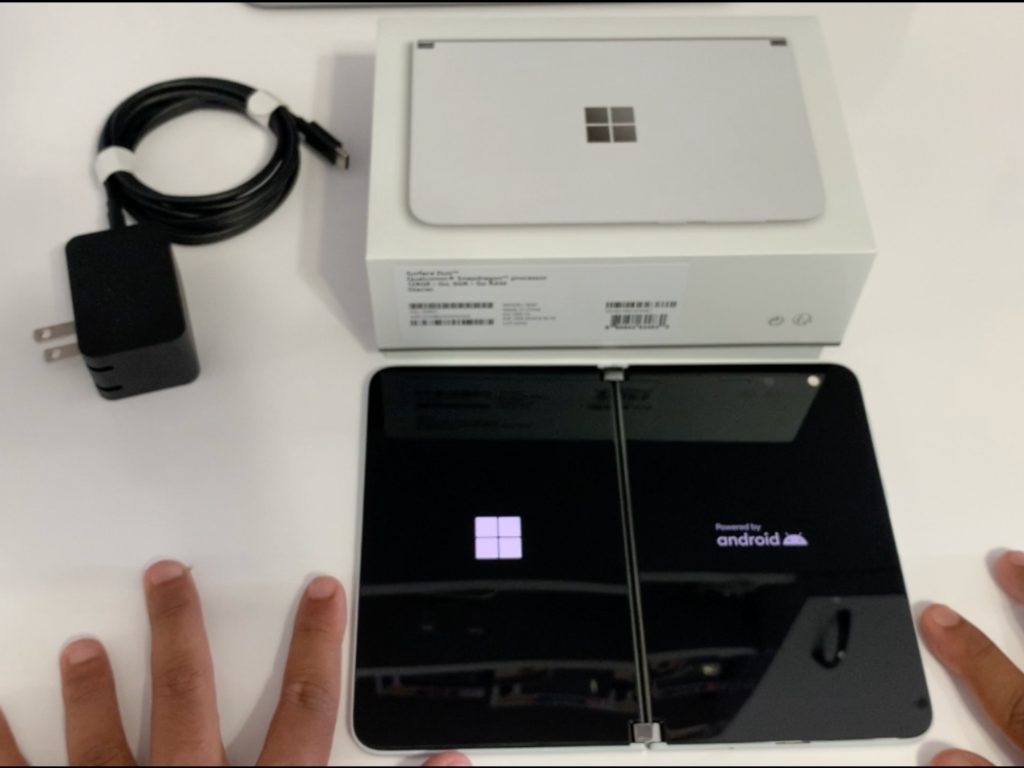
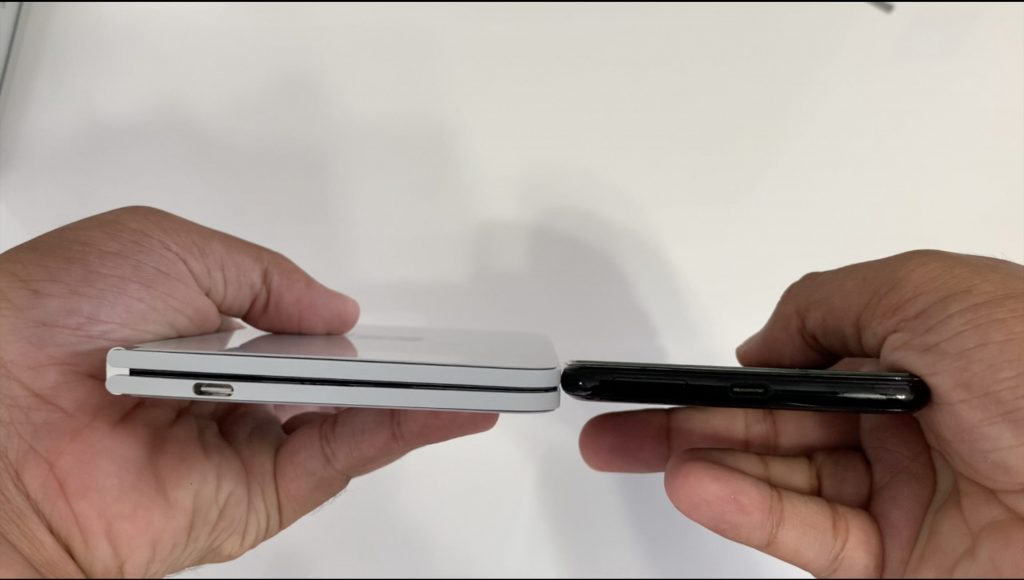
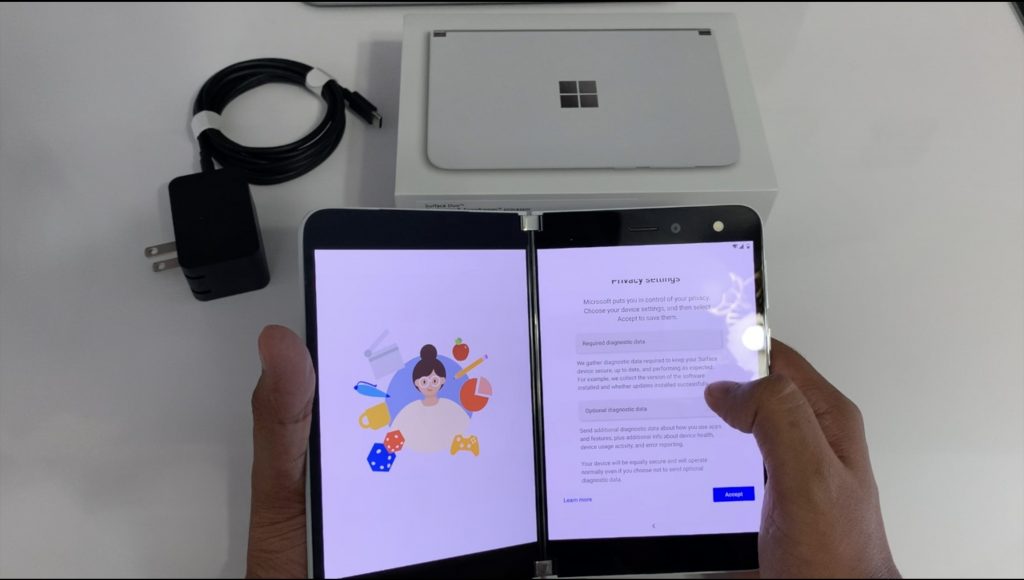
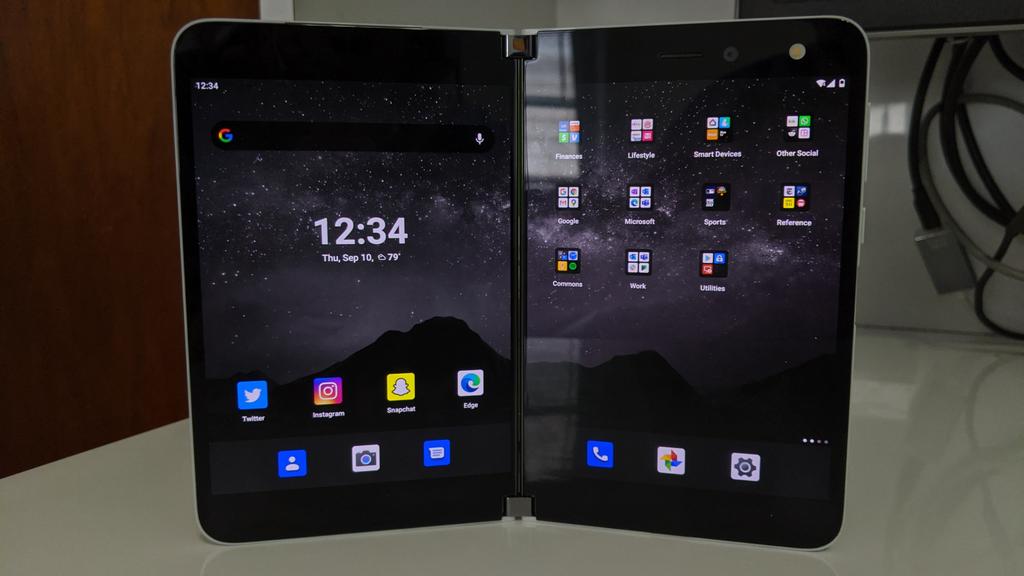
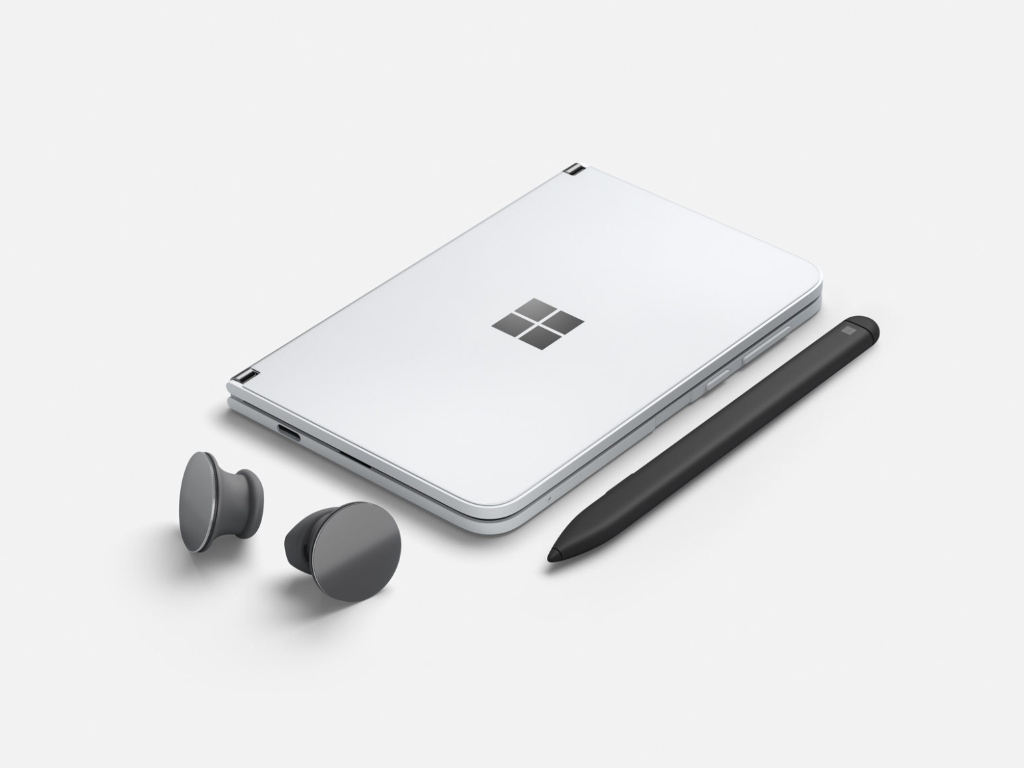
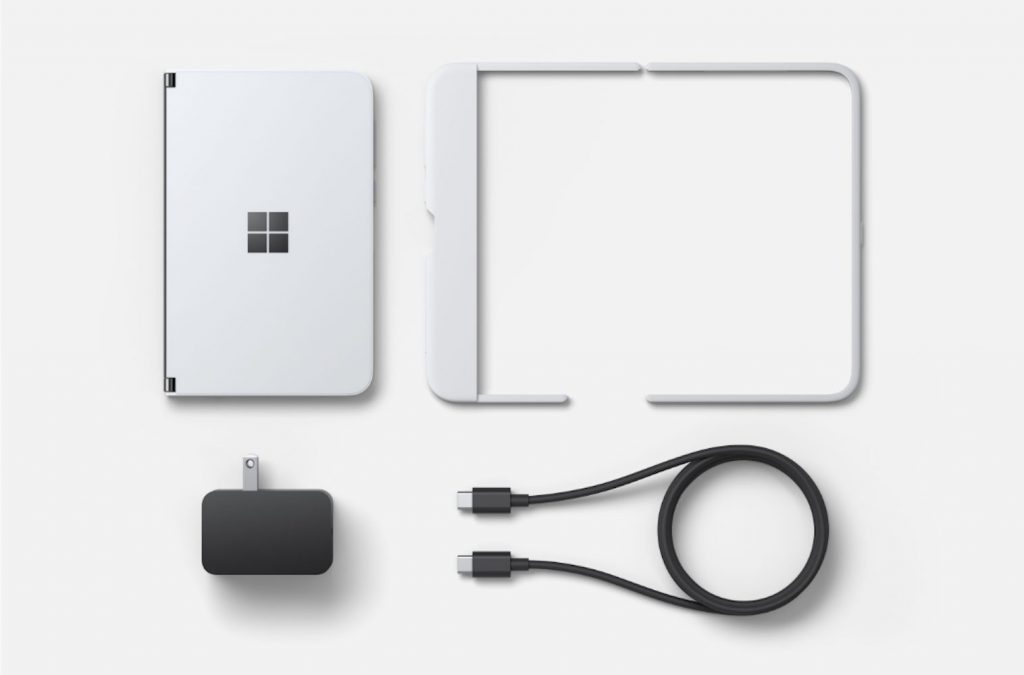
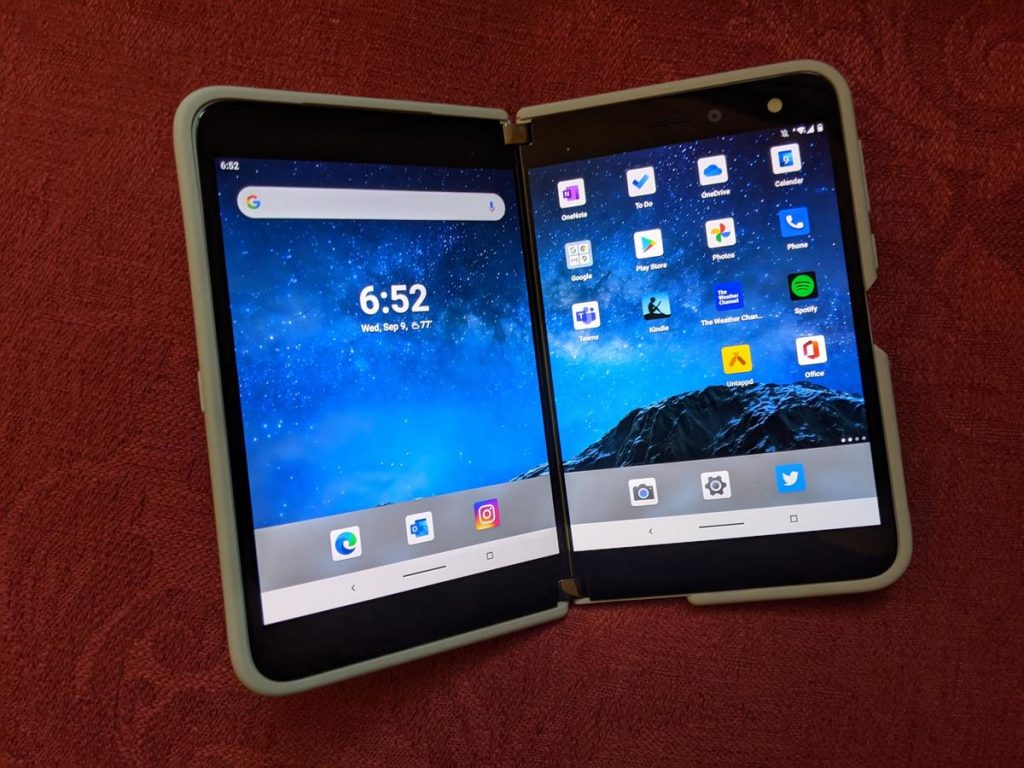
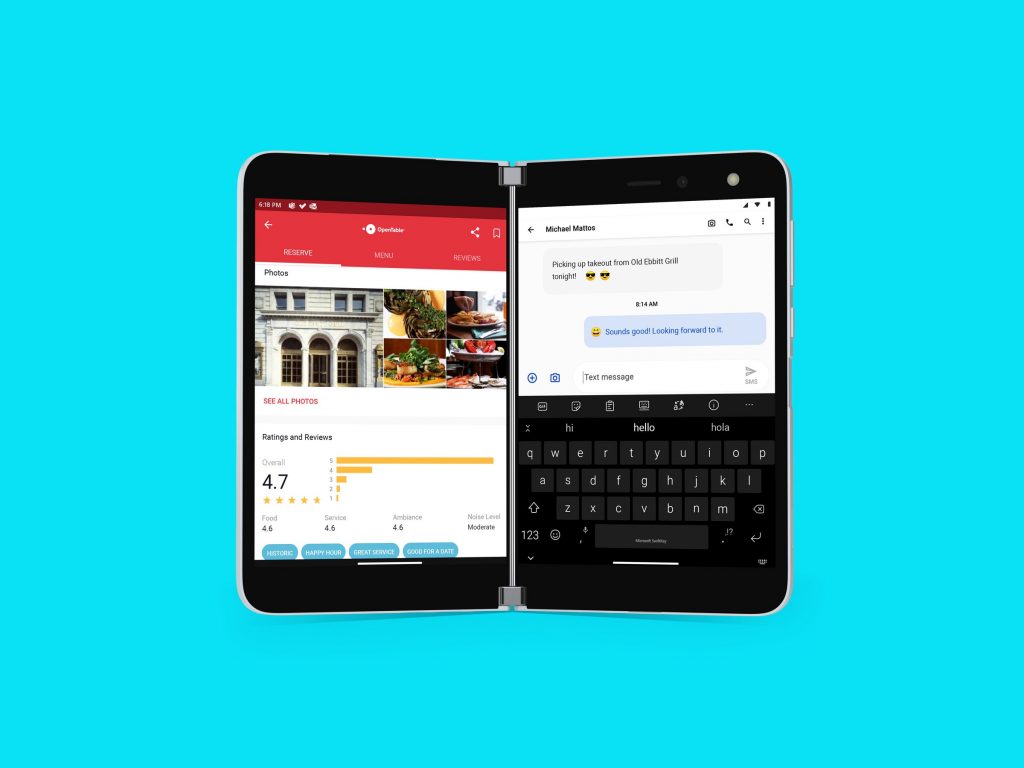
Microsoft’s Surface Duo is “not meant to be repaired,” says iFixit

Repair website iFixIt is back with a new teardown, and despite the gains Microsoft made with the Surface Pro X and Surface Laptop 3, this time things aren’t in favor of the Redmond giant. In its latest teardown, iFixit gives the Surface Duo a score of 2/10.

According to a press release from the repair website, this score means Surface Duo is not something “that is meant to be repaired, maybe not even by Microsoft.” Factors in the score include very easy to slice cables, sticky glue traps, and the pains of replacing the battery.

iFixit’s only high was the displays and the back covers being able to be replaced without disassembling other components. Unfortunately, though, the batteries being glued, and the USB-C port being soldered contributed to the low score. Other issues include uncommon tri-point screws, OLED panels not being protected from accidental prying, and the stubborn glue at all entry points.

Surface Duo Teardown

Some other interesting points in the detailed teardown reveal the Duo’s left battery resembling a mini iPad, and the right half being full with lots of circuitry. There’s also the multi-strand interconnected cables, too, which are routed through the hinges. Finally, there’s an interesting bit about the Duo’s geared hinges which iFixIt calls a “pretty simple hinge design compared to some of the other options we’ve seen.”

Indeed, it looks as though if you’re buying a Duo, there’s no chance that you’ll be able to repair it on your own if something goes wrong. The Duo might not be the “glued-filled monstrosity” that iFixit deemed the original Surface Laptop to be, but it still doesn’t look like something that’s easy for yourself or repair shops to replace. You should instead consider investing in the $200 Microsoft Complete Protection Plan at checkout, which covers accidental damage.

How to fix Hulu proxy error [NordVPN, ExpressVPN]

Hulu is one of the hottest video streaming services, but it doesn’t offer the same movies and TV shows to all countries. If you want to bypass licensing issues and geo-location restrictions, you need a VPN.

Using a free VPN to stream Hulu is not usually a good idea since most free VPNs get immediately detected and blocked by the website. That’s why most users turn to premium VPN services like NordVPN or ExpressVPN to fix the Hulu proxy error.

In some cases, however, Hulu might detect and block NordVPN or ExpressVPN, resulting in the dreadful error. If you stumbled upon Hulu videos unavailable to your location, too, here’s what you can do about it.

How to fix Hulu proxy error (NordVPN)

Disable WebRTC in your web browser

block WebRTC leaks with NordVPN

If WebRTC is enabled in your web browser, your VPN leaks your true IP address and geo-location. That means that you will encounter the Hulu proxy error even when connecting to a NordVPN server.

However, you can easily fix this issue by disabling WebRTC and preventing browser leaks. Make sure to use NordVPN’s browser extension, even if you also use the desktop client, because it has an integrated feature for turning off WebRTC.

Disable CyberSec or your ad blocker

CyberSec in NordVPN

CyberSec is NordVPN’s exclusive ad blocker. If you turned it on, it might interfere with Hulu’s website, resulting in the Hulu proxy error.

Try turning it off and accessing Hulu while connected to a NordVPN server. Otherwise, if you don’t have CyberSec enabled, make sure to deactivate any other ad blocker extensions in your web browser.

Enable obfuscation mode

use NordVPN obfuscated servers

Obfuscation mode is a rare feature found in VPN tools. It hides the fact that you’re using a VPN, making your network traffic look like HTTPS instead. It’s a cool way to access websites that reject VPN connections, and it might just work with the Hulu proxy error.

NordVPN is one of the few VPNs with support for obfuscated servers, which you can find and enable in the settings panel. Keep in mind that it works only when using the OpenVPN protocol.

Once you turn it on, make sure to connect to the Obfuscated Servers.

Use NordVPN’s SmartDNS instead of VPN

enable NordVPN's SmartDNS

SmartDNS is an awesome feature shipped with NordVPN, which lets you stream media content on devices without VPN support, such as smart TVs and gaming console. It doesn’t encrypt your network traffic like a VPN, but it changes your geo-location for Hulu (US only).

Besides, you can also use SmartDNS to stream other media services like Prime Video US, BBC iPlayer, HBO US, and Netflix Originals. Since there’s no encryption involved, your connection will be significantly faster, which is great for those who can’t benefit from stable Internet connections. It’s a great way to bypass the Hulu proxy error.

You can enable the SmartDNS feature in the Nord Account dashboard by whitelisting your IP address (without connecting to VPN). If you have a dynamic IP, you have to update the whitelist every time it changes. Otherwise, you can request a static IP address from your ISP or set up dynamic DNS. Only IPv6 addresses are supported.

Switch to a better VPN

use Private Internet Access for Hulu

  • Sign up for a PIA subscription plan.
  • Download and set up PIA on your device.
  • Launch the app and connect to a VPN server.
  • Enjoy Hulu streaming!

If you end up getting disappointed by NordVPN due to the Hulu proxy error and can’t find a permanent fix for it, consider canceling your NordVPN subscription and looking for an alternative, better VPN service, such as Private Internet Access (PIA).

Created by Kape Technologies, PIA is one of the best VPNs for video streaming. You can use it to watch not only Hulu but also Netflix US and other media streaming services. The service covers more than 3,300 VPN servers across 48 countries.

PIA comes with exclusive DNS servers, split tunneling, WireGuard and OpenVPN with up to 256-bit encryption, Shadowsocks and SOCKS5 proxy, a kill switch, and port forwarding.

Besides, you don’t have to worry about video buffering caused by VPN since PIA optimized for streaming. It’s compatible with all major platforms, including Windows, Mac, Linux, iOS, and Android.

More about PIA:

  • 10 simultaneous connections
  • Zero logs and leaks
  • 24/7 live chat support
  • 30-day money-back guarantee
  • No free trial
Private Internet Access

Private Internet Access

Upgrade to this awesome VPN to bypass the Hulu proxy error without any issues.
$2.85/mo. Buy it now

ExpressVPN Hulu proxy error

configure ExpressVPN settings

In addition to NordVPN, users have complained about getting the Hulu proxy error with ExpressVPN. To fix this issue, use the solutions we provided for NordVPN above when it comes to WebRTC leaks, ad blockers, and the Smart DNS feature (ExpressVPN calls it MediaStreamer).

You can also head over to the app’s settings panel and make sure to activate IPv6 leak protection, ExpressVPN DNS servers, and Windows networking optimization.

If everything fails, consider dropping ExpressVPN and making the switch to Private Internet Access.

In conclusion, the solutions we presented in this article should help you fix the Hulu proxy error caused by NordVPN or ExpressVPN.

[wl_navigator]

FIX: Facebook won’t let me post anything from my PC

Facebook is one of the most beloved social networking platforms with 2.2 billion active users.

If we exclude mobile devices, the application was always rather stable on PCs, even after numerous aesthetic and functional changes.

But a moderate number of users occasionally encounter some issues with this app, as they are unable to post anything or interact with their feed from a PC.

In the following lines you will find five simple solutions to solve this annoying problem.

How can I fix Facebook posting from PC?

1. Make sure you’re not banned

Facebook banned

Facebook’s regulations are harsh occasionally, and the penalty for spamming your profile can come in a limitation of posts.

However, you should know that Facebook informs all users who cross the predicated boundaries. So, we suggest logging out of all devices and logging in again.

After you log in, there should be viable information about your potential wrongdoings. You can file a complaint to Facebook, and if that’s your first ban, chances are they’ll reduce the ban length or terms.


2. Clear browser’s cache

  1. Open a new page in Google Chrome.
  2. Press Shift + Ctrl + Delete to open the Clear browsing data menu.
  3. Select All time as the preferred time range.
  4. Check the Browsing history, Cookies and other site data, Cached images and files boxes.
  5. Click on the Clear data button.


3. Remove extensions and suspicious applications

  1. Open a new page in Google Chrome.
  2. At the top right, go to More tools and click on Extensions.
  3. You can add, remove or just disable a site.
  4. Remove the unnecessary extensions.

If we exclude the extensions you’re using by choice, there are some which can infiltrate unknowingly. We all know about toolbars and hijackers which basically take the control over an affected browser.

Furthermore, to be completely safe, you should remove all the malicious applications.

  1. Press the Win + R keys to open the Run window.
  2. Type control and hit Enter.
  3. Open Control Panel.
  4. Go to Programs and select Uninstall a program.
  5. Remove the suspicious software.

4. Scan for malware and run anti-PuP tool

  1. Download Malwarebytes.
  2. Run the tool and click Scan Now.
  3. Wait until the tool scans your system and click Clean & Repair.
  4. Restart your PC.

PC have to be clear from malware which potentially spreads into browser‘s configuration files. If that’s the case, only removing the malicious extension won’t do any good.

Use Malwarebytes to scan for malware and successfully remove all PuPs (Potentially Unwanted Programs) from the system registry.


5. Reset the app

facebook won't let me post anything from pc

  1. Open Settings.
  2. Choose Apps.
  3. Under the Apps & features section, search for Facebook.
  4. Open Advanced options.
  5. Scroll down and click Reset.

We can’t overlook temporary Facebook server issues (especially when they decide to implement changes) as a possible reason for this error. Therefore, you’ll have to wait awhile until you’ll be able to post again.

Don’t forget to tell us whether one of the steps get you through the problem. You can do so in the comments section below.

[wl_navigator]

Mute vs Do Not Disturb on Snapchat [Difference Explanation]

Social media platforms can be a bit noisy – you open the Snapchat app, for example, and are greeted with thousands of posts. You leave the app closed, and your smartphone is flooded by notifications.

To keep it all sane, Snapchat (and almost every other social platform) have the block, mute, and Do Not Disturb features.

Blocking is straightforward, as it outrightly bans the user from your account. However, Snapchat‘s Mute vs Do Not Disturb features are confusing as they seem to be one and the same.

How can I tell the difference between Snapchat’s Mute vs Do Not Disturb?

How does the Mute option work in Snapchat?

snapchat-mute-vs-do-not-destroy-muting

When the muted user posts a story, it’s not queued with other recent stories. Instead, the story will be relegated to the end of your story list.

On your story slideshow, the stories from contacts that you muted will be nowhere to be found. This feature is similar to the muting feature of Instagram.

Muting a Snapchat group or user is like taking a break from them. In this sense, nothing changes on the side of the muted contacts.

People that you mute will have no clue that you did that because Snapchat will continue to show your recent stories to them in the story slideshow.


How does Do Not Disturb work in Snapchat?

mute-vs-snapchat-do-not-disturb

When you use the Do Not Disturb feature on a Snapchat contact or group, your application stops delivering notifications from the person or group.

Unlike the Mute feature, Snapchat doesn’t stop showing you their stories; this one is all about your notifications.

Nothing happens inside the app itself. As the name says, you simply don’t want that contact or group to disturb you anymore.

Whenever you’re ready to open the Snapchat app, you’ll see all of their recent stories and messages as they should be, just like everyone else’s.

On Snapchat, if you no longer want to have anything to do with a user, you can block them.

However, if it’s not that deep, and you only want to take a break from them, you have the Snapchat Mute and Do Not Disturb features to play with.

Muting a contact or group hides their stories from you, while the Do Not Disturb feature stops their notifications from coming through.

[wl_navigator]

[Updated] Microsoft releases new Windows 10 Dev build with no new features to test servicing pipeline

If Microsoft already released a new Windows 10 Insider build for the Dev Channel yesterday, the company is following up today with the cumulative update build 20211.1005 (KB4581021) that includes no new features. “This update does not include anything new and is designed to test our servicing pipeline,” the team said today.

This isn’t the first time that the company does such testing, though because this is just a cumulative update, this build should be pretty quick to install. As a reminder, the build 20211 released yesterday added Search to the Default Apps pages in Settings, as well as the ability for users to attach and mount a physical disk inside of a WSL 2 distro. You can get more details in our previous post here.

We hope to see the Windows Insider team releasing another Dev build with more new features next week. In case you missed it, the company also released a new 20H2 build for the Beta channel on Tuesday.

Update 1PM PT: The Windows Insider team said it has pulled the update after discovering a bug preventing Insiders from installing it.

GitHub announces new integration with Microsoft Teams

Microsoft has launched a public preview of a new GitHub integration with Microsoft Teams. The integration will allow developers to communicate with the team for tracking issues, pull requests, deployment status updates, code reviews, and more right within Teams. 

“Developers spend a considerable amount of time communicating with the team, monitoring the issues, pull requests and deployment statuses. This necessitates constant switching of context between GitHub and Microsoft Teams (collaborate). The GitHub integration for Microsoft Teams gives you and your teams full visibility into your GitHub projects right in your Teams channels, where you generate ideas, triage issues and collaborate with other teams to move projects forward,” the company explained. 

The GitHub integration with Microsoft Teams gives developers the ability to add the GitHub (Preview) app from the Teams app store, just like they have been able to integrate the service with Slack. Users will be able to subscribe/unsubscribe notifications for pull requests and issues organization or a repository’s activity to get customized notifications. 

Subscribe

Moreover, the app also brings the ability to list notifications for issues and pull requests under a parent card to promote collaboration. The card will group the latest issues as well as details about the title, description, assignees, reviewers, labels, and checks.

PR Card

Another new feature that the company highlighted allows developers to ‘unfurl’ GitHub links. The feature has been designed to automatically extract information from a GitHub page when a user posts a link in a Microsoft Teams channel. The current implementation supports link previews for pull requests, issues, comments, code snippets, repositories, accounts or organizations. 

Keep in mind that the GitHub integration with Microsoft Teams is still a work in progress and the company promised to bring additional capabilities soon. Feel free to check out the GitHub support page to learn about the installation process. 

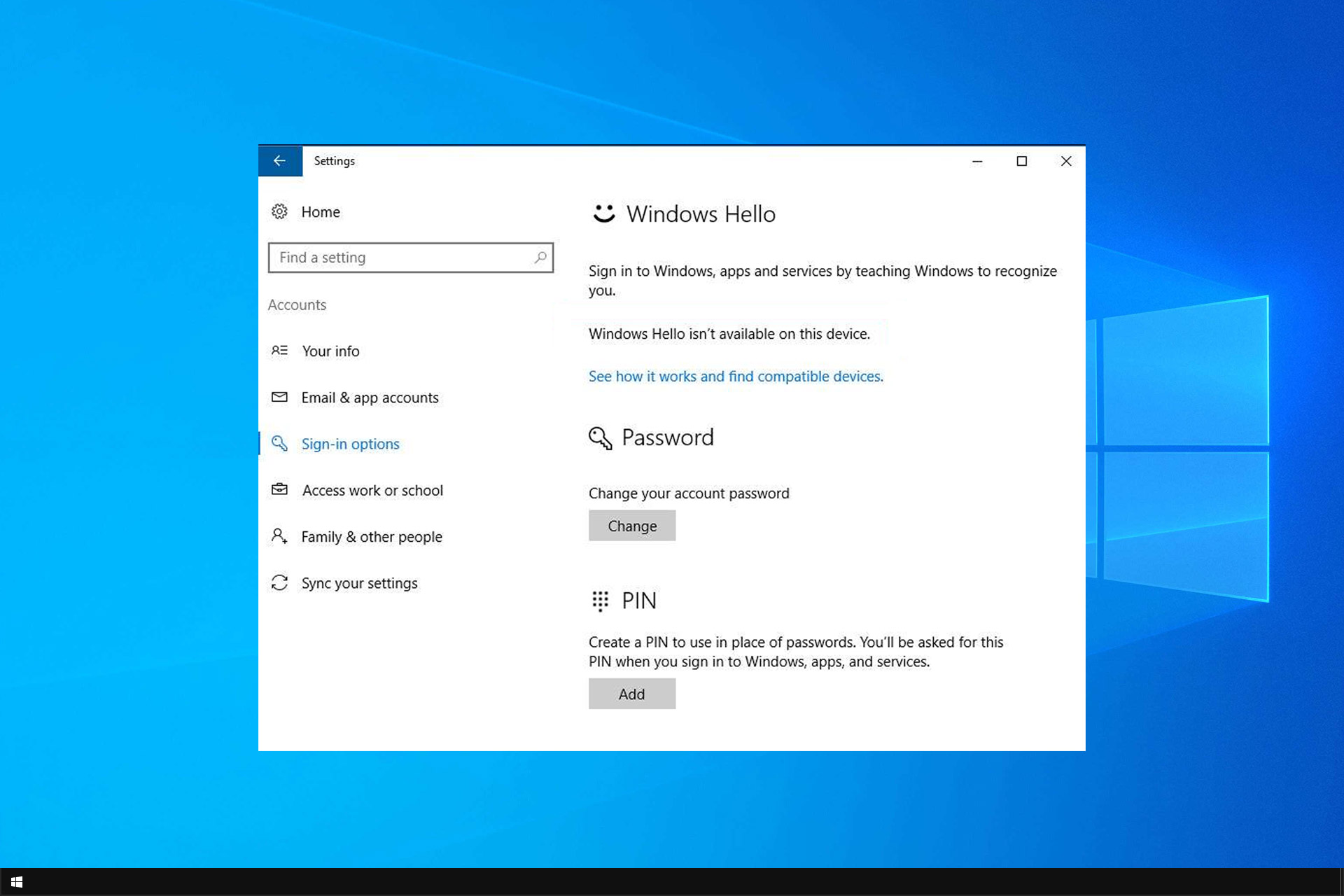
Windows Hello is Not Available on This Device: How to Get it

Windows Hello isn’t available on this device is a common error issued by the Windows 10 system. This can be a serious error since you can’t log into Windows 10 with biometrics until you fix it.

This can leave your PC vulnerable to access from third parties, so it’s important to fix this issue as soon as possible. In today’s guide, we’re going to show you how to do it properly.

Why is Windows Hello not available on my device?

  • Missing or incompatible biometrics driver will cause this problem to appear on your PC.
  • Sometimes this issue appears because Windows is out of date.
  • In case our group policies aren’t properly configured, you’ll get this error message.

What can I do if Windows Hello isn’t available on this device?

1. Update the drivers

  1. Press the Windows key + X keyboard keys and click on Device Manager from the displayed list.device manager windows 10
  2. Click on Scan for hardware changes.
  3. Expand the Biometric devices section.
  4. Click on Update.
  5. Alternatively, you can choose Roll back in order to use a previous build of the driver and see if that works.
  6. You can also try to delete the driver and install it again.

Automatically update drivers

Installing the drivers manually involves a risk of damaging your system by downloading and installing the wrong driver version. Thus, we recommend updating your drivers automatically with a dedicated tool.

We strongly recommend Fortect Driver Updater, which is currently the best tool for this task. Here’s how you can update your drivers very easily:

  1. Download and install Fortect Driver Updater
  2. Launching it will automatically start scanning your computer for new drivers or problems with current ones.
  3. Now you just need to select which drivers you want to install or update. Or just hit the Update All button. It’s THAT simple!

This solution is so simple that it almost looks too good to be true, but it worked for so many users that it would be a shame not to try it.

⇒ Get Fortect Driver Updater

2. Make sure your device is running the latest Windows updates

  1. Press the Windows key + I keyboard keys in order to bring Windows System Settings.
  2. Click on Update & Security.update & security windows 10
  3. Click on the Check for updates option.
  4. Well, initiate this scan operation and if you are prompted with any updates, apply them.update windows
  5. Reboot your computer and verify if the Windows Hello feature was restored.

After updating your system, check if the problem is still there.

3. Enable the Allow the use of biometric option

  1. Press the Windows key + R keyboard keys and in the Run window type gpedit.msc; press OK when done.
  2. From the Local Group Policy Editor you need to navigate towards Computer Configuration, then go to Administrative Templates. Lastly, go to Windows Components and choose Biometrics.
  3. Look for the Allow the use of biometrics feature located on the right side of the main pane.
  4. Double-click on the option.
  5. Select Enabled and then click OK and Apply.
  6. Reboot your Windows 10 system.

We hope that everything works as it should now. Those solutions can be applied when you deal with the Windows Hello isn’t available on this device error.

In case you’re having additional problems, we have a great guide on what to do if Windows Hello is grayed out, so we encourage you to check it out.

You can tell us how the troubleshooting process worked using the Comments section below.

Microsoft’s Xbox Series X and Xbox Series S next gen consoles will support Dolby Vision and Dolby Atmos

Dolby announced today that both their Dolby Vision and Dolby Atmos technologies would be fully supported on Microsoft’s upcoming next gen Xbox Series X and Xbox Series S consoles when they release on November 10th later this year.

This will make each next gen Xbox the first ever to support gaming in both Dolby Vision and Dolby Atmos.

Microsoft’s current gen Xbox One X console does support Dolby Vision right now but it only works for supported video content such as movies like Star Wars: The Rise of Skywalker in the Disney Plus app. Dolby Atmos, however, does work with video games on the Xbox One X console so the addition of this feature on its own isn’t too ground-breaking.

What is Dolby Atmos and Dolby Vision?

Dolby Atmos is a technology that allows for a more immersive audio experience that moves beyond separate audio channels and creates the illusion of a three-dimensional space by making certain sounds sound as if they’re happening closer to or further away from the listener.

Dolby has confirmed that gamers will still need to download the free Dolby Access app on their Xbox console to enable this feature. A Dolby Atmos-enabled TV, soundbar, or home theater system is also required. Those will headphones will still need to pay for the Dolby Atmos for Headphones add-on through the app though existing owners should be able to continue using it on the next gen consoles without paying again.

Dolby Vision creates a more realistic color profile in games and media. Dolby claims that Vision enhances content even more than HDR with 40x brighter highlights and 10x deeper blacks. A TV with Dolby Vision support will be needed to use this feature. Unlike Dolby Atmos, Dolby Vision won’t be available at launch on the Series X and S and is set to come sometime in 2021.

Are you excited for Dolby Vision and Dolby Atmos support on the Xbox Series X and Xbox Series S or are you fine with your current setup? Share your thoughts with the community in the comments below and then follow us on Pinterest and Twitter for more Xbox gaming news.

Dolby Access
Dolby Access
Developer:
Dolby Laboratories
Price:
Free

Lost internet connection on Windows 10? Here’s how to fix it

Many Windows 10 users reported that KB3201845 caused a loss of Internet connection. This problem is causing a lot of discomfort and trouble, especially for online gamers who get disconnected while trying to climb up the ladder. To help users and the gaming community, we will offer you a tutorial on how to fix Internet connection issues.

Why does my internet keep disconnecting?

There are three common reasons why Internet disconnects:

  1. The first reason could be a configuration error caused by the Transmission Control Protocol/Internet Protocol or the TCP/IP.
    • If it is not renewed, this might generate Internet connection loss errors. Getting a valid IP configuration may fix this problem.
    • You can easily validate your IP address in Command Prompt.
  2. Internet may disconnect due to Winsock API registry key corruption issues or simply because this key disappeared.
    • This API gives apps permission to use the transport protocols, granting them the Internet access they need.
    • You can easily reset the Winsock API in Command Prompt.
  3. The third reason why this loss of Internet connection may occur is because the network device driver may not be compatible or correctly installed.
    • This network device driver manages the communication of the computer with other network computers or operating systems, so corruption or incompatibility issues make it impossible to keep the Internet connection up.

How do I fix the loss of Internet connection

1. Update your driver

The final fix to the network device driver can be achieved by updating your driver. You can download the latest driver for your PC from the manufacturer’s official website. You can also open Device Manager to download the latest driver updates on your computer.

For the direct approach, go to your PC’s manufacturer’s official website and download the suitable driver.

For the updated version, after downloading the file from the Internet, use Win + X to go to Device Manager, select Network Adapters, and right-click the option used for the Internet connection, and then select Update Driver Software.

When the browsing window pops up, choose the downloaded file, click Next, and after the installation is complete restart your PC.

In order to prevent PC damage by installing the wrong driver versions,  we strongly suggest doing it automatically by using Fortect Driver Updater.

This tool will find the right driver versions and will keep your firmware up to date. Keep in mind that some drivers can be installed by this tool in multiple steps.

⇒ Get Fortect Driver Updater

2. Renew your IP

To fix the TCP/IP configuration problem, you need to renew your IP.

Open Command Prompt using Win + R and type cmd.exe or go to Windows search and type cmd or use Win + X and launch Command Prompt as Admin.

Once you open Command Prompt as administrator, type the command ipconfig/renew. You have to repeat this step two times in order for it to work.

3. Reset Winsock API

Fixing the Winsock API takes only a couple of minutes. Launch Command Prompt as Admin and enter the following commands:

  • netsh winsock reset catalog
  • netsh int ipv4 reset reset.log

After inserting these two commands, you need to restart your computer for the commands to take effect. Sometimes this can prove to be a temporary fix as many users had to reset Winsock API every time they started their PCs.

However, this must have been caused by a virus and we suggest that you also run a system scan and repair any corrupted files. That might turn this temporary fix into a permanent one.

That’s about it, we hope that this article helped you fix the annoying loss of Internet connection issues. If you’ve come upon other solutions to fix this problem, please list them in the comments below to help the Windows community.

Is Avast VPN good & safe for torrenting? [Must read]

Avast VPN is, as its name suggests, a virtual private network service, but is Avast VPN fit for your torrenting needs? It’s widely accepted that a VPN should be capable of keeping both your privacy and security safe.

However, it’s been proven that certain providers only offer these amazing features on paper. Therefore, we’re going to carefully analyze Avast VPN and find out whether or not it’s fit for the job when it comes to hiding torrenting data.

What makes a good torrenting VPN?

1. Privacy

First and foremost, a decent VPN should be able to protect your Internet activity against prying eyes. Since some users partake in P2P activities, it’s safe to say that torrenting is also a type of online activity.

Therefore, it should be shielded by your VPN of choice, by default.

We put privacy at the top of our list as we believe that this is what separates great VPNs from ones that we would never recommend. If you chose a VPN based on its server speed, then you probably shouldn’t use one, to begin with.

A VPN‘s privacy can be measured by how restrictive its privacy policy is, in regards to data collection. Usually, a VPN that has a strict no-logging policy is fit for torrenting use.

2. Security

While torrenting, you connect with other peers, which can easily see your IP address and location. With just a bit of skill and the right tools, even a script kiddie (non-experienced, hacker wannabe) can do harm to your PC.

A good VPN won’t let that happen by doing a bunch of things. First of all, it will shield your IP address. Second, it will assign you a fake location, based on the server you connected to. A good VPN will also be leak-proof.

Last, but not least, all traffic between you and the VPN gateway will be safely encrypted. Although we placed security on the second spot, it’s actually a tie between it and privacy. No competition, they’re equally important.

You can check if your VPN‘s leaking by visiting either one (or all) of these services:

We advise you to do so before actually torrenting, as it can save you from a lot of headaches with local authorities.

3. Does it allow torrenting?

Before you go any further, it’s worth mentioning that some VPN providers frown upon P2P activities such as torrenting, while others downright forbid you from engaging in torrenting.

Thus, you’ll need to figure out whether or not your VPN provider allows torrenting. If it does, you’ll also want to know what are the terms you must follow while performing this action.

Some great ways of figuring out if a VPN allows torrenting are:

  • Asking a customer support agent or company rep
  • Giving a thorough read to the VPN’s Terms of Service (we know you won’t do that)
  • Checking if there are any dedicated P2P servers you can connect to

4. Speed

Alright now, even though speed is saved for last, it’s not exactly unimportant. If your VPN has passed the privacy and security tests, you’ll obviously need it to be fast.

But not just fast. The fastest. You’ll want to look after VPNs that don’t have the habit of restricting bandwidth. Yes, they are real, just like bandwidth-limiting ISPs are still a thing in the 21st century.

How good is Avast Secureline VPN for torrenting?

1. No-logging policy

Privacy-wise, Avast VPN can be a trustworthy torrenting ally. We absolutely don’t mean that in a shady way, not just one bit. We don’t endorse any kind of unlawful activity, and neither does Avast.

We’re just saying that if you decide to download some files via torrent, Avast VPN will keep it on the hush if the authorities start asking questions.

While Avast does collect some data from you while using the service, it’s not information you can be identified after.

Data Avast VPN collects:

  • Connection timestamps
  • Original IP address subnet (only the last digits)
  • The IP address of the VPN server you’re connected to
  • How much data you transmitted
  • OS version
  • Avast VPN client’s version
  • App events

Data Avast VPN doesn’t collect:

  • Full IP addresses of its customers
  • Online activity logs that may include what websites you visit or what services you use
  • Any DNS queries you may make (Avast VPN uses proprietary DNS servers)

2. Great security features, no leaks

Like any respectable VPN provider, Avast VPN provides its customers with military-grade 256-bit AES standards. This means that all of your Internet traffic will be safely encrypted by the client and kept away from prying eyes.Avast VPN main window

Reportedly, the VPN service is based on OpenSSL and OpenVPN. These are some of the best and widely-used protocols in the world in terms of transparency, reliability, compatibility, and overall security.

We’ve connected to a P2P-enabled server, started torrenting a file (legally, of course), and performed the leak tests we’ve mentioned above.

You can check the results below.

  • ipleak – no IP, DNS, location, Torrent address, WebRTC leaks ipleak test Avast VPN torrenting
  • IPX – no IP, DNS, WebRTC, location leaksIPX leak test Avast VPN
  • BrowserLeaks – no IP, DNS, location, WebRTC leaksBrowserLeaks test Avast VPN

The ipleak service also has a torrent address test. After connecting to a VPN server, you add a magnet link to your default torrent client and wait for the results. As you can see, there was no leak on our side while using Avast VPN.

Therefore, it’s safe to assume that security-wise, you’re in good hands while torrenting behind Avast VPN.

3. Does Avast VPN allow torrenting?

Yes, Avast VPN does allow torrenting. We wouldn’t have gotten so far with our article just to reach this point and tell you that it doesn’t.

There’s no mention of P2P we could find in the Terms of Service documentation (which is shared with other Avast products and somewhat confusing).

However, if you access Avast SecureLine VPN’s FAQ page, you’ll notice that they covered a question regarding whether or not this service allows P2P connection. The answer is yes.

To clarify things even further, there are several dedicated torrenting servers you can connect to within the Avast VPN app. Just look for the P2P category or a small P2P indicator next to the server you want to use.

Avast VPN P2P servers

4. Speed tests

Well, we’ve seen that Avast VPN can keep your privacy safe, and your connection secure, and leak-free. But how well does it fare when it comes to speed?

We’ve run some tests to determine if and how much does Avast VPN slow down your connection while torrenting.

The results are not exactly good, but they’re not awful, either. While using a P2P-enabled server, we’ve attempted to torrent a Linux distribution from its official website, with and without the VPN.

  • While using the VPN, the speed peaked at about 10 MBps, give or take ~ 1 MBsAvast VPN torrent with VPN
  • Without the VPN, we reached a top speed of approximately 30 MBps, give or take ~ 2-3 MBsAvast VPN torrent without VPN

Thus, we can assume that using Avast VPN while torrenting results in a speed drop of about 2/3. However, we weren’t satisfied with these results and decided to do one more test.

We’ve used two different speed test tools (Netflix’s fast.com and Ookla’s Speedtest.net) to see if our initial assessments were correct. Mind you that we’ve used the same server throughout our entire battery of tests. Here are the results:

  • Fast.com
    • With VPN: 83 Mbps / 30 MbpsFast.com speed test with Avast VPN
    • Without VPN: 920 Mbps / 490 MbpsFast.com speed test without Avast VPN
  • Speedtest.net
    • With VPN: 151.72 Mbps / 21.22 MbpsSpeedtest with Avast VPN
    • Without VPN: 839.4 Mbps / 500.38 MbpsSpeedtest without Avast VPN

Although we were hoping to notice a smaller difference between VPN/non-VPN speed values, the speed test results have yielded a huge difference between the two types of usage.

As you can see, using Avast VPN gave us an average of ~ 90% speed reduction. Thus, it’s safe to conclude that even though Avast VPN does great when it comes to privacy and security, it’s not exactly brilliant when it comes to speed.

Final thoughts on torrenting with Avast VPN

All things considered, if you’re looking for a safe VPN to use while torrenting, Avast VPN might be exactly what you’re looking for. It has a strict no-logging policy, has military-grade encryption, and is completely airtight (no leaks).

On the downside, if you care a lot about speed, you’re in for some disappointment. Neither our torrenting tests nor our standard speed tests showed great results regarding Avast VPN’s speed.

Our speed tests lead us to believe that Avast VPN has some speed restrictions, despite the fact it advertises unlimited bandwidth.

[wl_navigator]

How to use two Instagram accounts? [Multiple Accounts Login]

Instagram is the largest social network in the world, and many Instagram users have two accounts. Managing two accounts can be hard, especially because you need to switch back and forth between them.

In this article, we’ll show you how to login to two Instagram accounts and how to easily switch between them.

How to add & switch between multiple Instagram accounts?

1. Add new Instagram account on your phone

  1. Open the Instagram app and go to your profile.
  2. Now tap the Menu icon in the top right corner and choose Settings.
    settings login two accounts instagram
  3. Scroll down to the Logins section and tap on Add Account.
    add account login two accounts instagram
  4. Enter the login credentials for the other account.
  5. After doing that, the new account will be added.

To switch between accounts, you just need to do the following:

  1. Go to your profile on the Instagram app.
  2. Tap the arrow next to your username.
  3. Select the account you want to switch to.

2. Use Incognito mode or a different browser

  1. Click the Menu icon in your web browser.
  2. Now select New Private Window.
    new private window login two accounts instagram
  3. A new window will appear.
  4. In the new window, visit Instagram and log in with your second account.

After doing that, you should be able to use two Instagram accounts simultaneously on your PC.

You can also use another browser as a permanent solution. To do that, follow these steps:

  1. Open a non-default web browser on your PC, for example, Microsoft Edge.
  2. Now visit Instagram and log in with your second account.

Now you can use two Instagram account simultaneously.

If you’re looking for a browser that is optimized for social networks, you should consider using Opera. The browser is based on Chromium, and it can even run Chrome extensions.

Opera One allows you to run Instagram and Twitter in the sidebar, so you can always keep a close eye on your social media feed.

The browser also allows you to have a messenger in the sidebar, and you can use Facebook Messenger, WhatsApp, Telegram, and VKontakte right from Opera One.

As for security, the browser has tracking protection, built-in ad blocker, VPN and there’s even free AI.

If you’re looking for a fast and reliable browser that is optimized for social networks, and especially for Instagram, be sure to consider Opera One.

Editor's choice
Opera-browser
  • Fast browsing technology
  • Free VPN
  • Includes Messenger Apps
  • Has Dark Mode
  • Built-in Ad-blocker

Merge/combine two Instagram accounts

Although it’s permitted to have multiple Instagram accounts, currently there’s no way to combine or merge two Instagram accounts.

The only way to use two Instagram accounts is by following the methods we previously mentioned.

Having multiple Instagram accounts can be useful, especially if you have both personal and professional accounts.

Managing two Instagram accounts doesn’t have to be a hassle, and we hope that you understand better how to do it properly after reading this guide.

[wl_navigator]

What happens when you block someone on WhatsApp [Full Guide]

WhatsApp is one of the most used instant messenger applications, and it currently has 2 billion users. With such a large number of users, sometimes you need to block certain contacts.

In today’s article, we’re going to show you what happens when you block a certain contact in WhatsApp and how to actually block someone.

What happens when I block someone on WhatsApp?

1. WhatsApp block, how does it work?

WhatsApp blocking is pretty simple, and you just need to select a contact and then pick the Block option from the menu.

After doing that, the messages from the blocked contact won’t be delivered to you, and the same goes for calls.

In addition, the contact won’t be able to see your status updates, online/last seen status.


2. WhatsApp block, how to know/check?

  1. Check if you can see the contact’s last seen or online status in the chat window.
  2. Pay attention to the contact’s profile photo. If it doesn’t change for you ever, you might be blocked.
  3. If your messages always have sent instead of delivered status, it’s rather likely that you’re blocked.

3. WhatsApp block, what can they see?

Blocking a contact on WhatsApp is pretty simple, and if you choose to block somebody, that person won’t be notified about being blocked.

However, the blocked person can figure out if it’s blocked because it won’t be able to see certain information from your profile.

This applies to your last seen status or your online status in the chat window. Also, all messages that are sent by the blocked contact will always have sent status next to them.

Of course, the biggest clue are calls that won’t be able to go through at all. The same applies to messages, they’ll be sent, but never delivered.


4. Whatsapp block, how to unblock?

  1. Select the contact that you want to unblock.
  2. Tap the Menu icon and choose Unblock from the list of options.

Alternatively, you can do the following:

  1. Go to More options > Settings.
    settings whatsapp block what happens
  2. Now choose Account > Privacy > Blocked contacts.
    blocked contacts whatsapp block what happens
  3. Tap the constant that you want to unblock and choose the Unblock

If you’re blocked by someone, there’s no way to remove the block, and only the person that blocked you can do that on its own.

Blocking someone on WhatsApp is pretty simple, and you can do it in a matter of moments from the chat or from the Blocked contacts page.

Although the blocked person won’t be notified about being blocked, it won’t be able to contact you at all, and the same goes for you if you’re blocked by someone.

We have a similar guide on what to do if You have been blocked from originating in Messages, so don’t miss it.

Did you find this guide helpful? Let us know in the comments below.

Arma 3 rubberbanding and packet loss: how to fix them?

Arma 3 is a popular military sandbox game. It manages to place you quite realistically in a soldier’s virtual combat boots. The game’s single-player campaign has a wide variety of missions, such as infiltrations or armored warfare.

What makes Arma 3 stand out in a crowd is the variety of weaponry and objectives you can easily switch between. Thus, there’s no wrong way to play it as long as you manage to meet your briefing’s objectives.

But you’re not here for the singleplayer babble. Arma 3 also comprises multiplayer, which is totally awesome.

However, like many other online titles, Arma 3 can sometimes face a series of unfortunate connectivity issues, such as packet loss.

What is packet loss in Arma 3?

Packet loss occurs whenever data packets you send or receive never make it to their destination points. The connection increases the waiting time, expecting the packets to be a bit delayed, but the packets never make it.

In Arma 3, packet loss is the cause of various noticeable phenomena, including sluggish movement, rubberbanding, and even sudden disconnections.

Arma 3 rubberbanding

Perhaps you’ve heard the term rubberbanding in reference to video games at least once. If not, at least you might’ve experienced it without knowing what it is.

Has it ever happened for you to keep the focus on an enemy player and taking a shot that should’ve been a certain hit, only to realize that the enemy has been suddenly yanked to another part of the map?

Or maybe it’s been happening to you; running towards an objective and discovering that you’ve been rolled back to a previous game point or suddenly teleported to a random spot on the map?

That’s rubberbanding. We know, it’s annoying, and it can totally ruin your game if it doesn’t pass after a few moments. Fortunately, rubberbanding doesn’t happen by itself and has a bunch of easy fixes that can counter it.

What can cause packet loss in Arma 3?

Wherever you may encounter it, packet loss usually happens for the same reasons: poor connection, network congestion, bad cables, improper ISP routing, outdated drivers.

Actually, anything awry regarding your connection can trigger a packet loss episode. Truth be told, it’s quite difficult putting your finger on an exact reason if it’s not immediately apparent.

For instance, if you only experience packet loss during peak hours, it goes without saying that the reason is most likely network congestion.

How to detect packet loss in Arma 3?

  1. Find the IP address of the Arma 3 server you’re playing on
  2. Launch a CMD instance on your computer
  3. Type pathping x.x.x.x in the CMD (replace x.x.x.x with the server’s IP)CMD pathping
  4. Wait for the test to come to an end
  5. Check for packet loss at each node (hop)
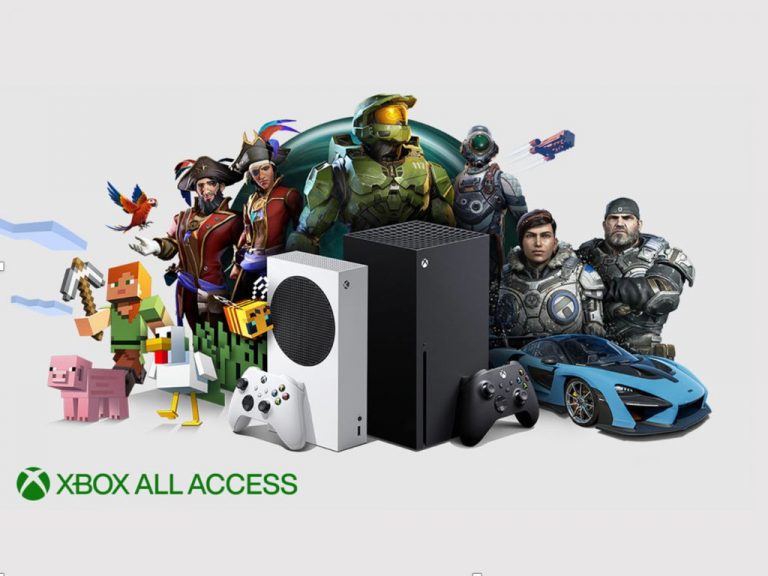
Although it looks a bit complicated, the pathping method is among the most accurate ones when it comes to packet loss. It shows you all the hops your connection bounces through until it reaches the server.

Furthermore, pathping also shows ping and packet loss values for each hop. Thus, not only will you get to know for sure if the issue is indeed packet loss, but you’ll also find out exactly the connection spot where it happens.

Fortunately, the official site has a dedicated section where you can find the IP addresses of official servers. You won’t have to rely on network monitors or other similar third-party tools.

How to fix packet loss in Arma 3?

1. Rely on a VPN

  1. Buy a Private Internet Access subscription plan
  2. Download the VPN installer on your PC
  3. Install PIA’s VPN client
  4. Launch Private Internet Access
  5. Log into your account
  6. Choose a fast server to connect to (nearby servers are faster)
  7. Launch Arma 3
  8. Check if the packet loss issue still persists
  9. Optionally: run the pathping test again to make sure

Kape Technologies‘ Private Internet Access is an excellent VPN tool that can help you in a wide variety of scenarios. Aside from the obvious privacy and connection security features, this VPN can tackle many other issues.

For instance, you can use it to improve packet loss, reduce in-game ping, circumvent geoblocking, and even stop ISP bandwidth throttling.

Private Internet Access

Experiencing rubberbanding and packet loss in Arma 3? Private Internet Access can help you fix these issues.
Free Trial Visit Website

Although using a VPN such as PIA is one of the fastest ways to get rid of packet loss, there’s a catch. This quick-fix will only work if there’s something wrong on your ISP’s side, such as bandwidth throttling or improper routing.

Therefore, it won’t work if the packet loss occurs on your home network or if there’s something wrong with the game server.

2. Switch the server

As we said just a bit earlier, the reason why you’re losing packets might have something to do with the Arma 3 server. In this case, there’s almost nothing you can do about it since it’s merely a matter of waiting for it to pass.

However, you could at least try playing on another server. Just disconnect from the Arma 3 server you’re currently playing on and choose another one.

If the problem seems to have vanished, then at least you’ll know the issue wasn’t on your side.

3. Troubleshoot your connection manually

  • Carefully check your end of the connection for any malfunctioning component
  • Fix or replace anything that might seem out of the ordinary
  • Replace old Ethernet cables with new ones, especially old Cat types
  • Try using wired connections while playing Arma 3 (Wi-Fi packet loss happens more frequently)
  • Update any outdated drivers, especially network-related ones
  • Restart your PC, router, and/or modem
  • Try restarting the game
  • Don’t connect during peak hours if possible, to avoid network congestion (or use a VPN)
  • Contact your ISP and ask them if they can do anything about it (after running a pathping test)
  • Reach out to Arma’s customer support section and let them know if there’s something wrong with the servers
  • Try lower-quality settings and see if there’s any improvement
  • Flush your DNS
  • Close any unnecessary service and/or background application that might be bandwidth-consuming
  • Try running the game on another device if possible to rule out your PC as the culprit

Agreed, there are a lot of potential fixes. However, as we’re sure we’ve told you before, packet loss is no simple matter. It can happen at any time, and for a huge number of reasons.

Thus, it can’t hurt trying our suggested fixes, especially if the first two steps didn’t seem to produce the desired effect.

Most of these suggestions are related to network maintenance. Truth be told, a healthy, well-maintained network can be less likely to host issues such as packet loss, jitters, or any other connectivity-related problems.

Final thoughts on Arma 3 packet loss

To wrap it up, if you’re among the ones who encounter packet loss in Arma 3 on a regular basis, there might be something you can do about it.

First thing first, make sure it’s packet loss you’re dealing with by running a pathping test.

After the results come back, you’ll know exactly if and where there’s packet loss on your connection. Using that knowledge you can take the most appropriate measure.

If the packet loss occurs on your ISP’s side, just use a VPN. If it occurs on either end of the connection, you’ll need to get your hands a bit dirty and perform a bunch of manual troubleshooting.

Microsoft Surface Duo unboxing and quick impressions: We can get used to dual-screens

After a year of anticipation, the Surface Duo is finally here, and today, we’ll be unboxing it. Available from Microsoft starting at $1,400, we purchased our own Surface Duo for a full review. Our unit comes configured with 128 GB of storage, and 6GB of RAM, as well as the Qualcomm Snapdragon 855 processor inside. Of course, the RAM and processor are standard, but adding extra storage will cost you an extra $100 and bring the price up to $1,500.

We opted to go the cheaper route and stick with the base configuration.  Anyway, we’ve spent the last couple of hours with the Surface Duo, here’s our unboxing and quick impressions:

What’s in the Box:

Duo Bumper

Inside the Surface Duo are some routine things. As soon as you open the box, you’ll find the Duo housed on top, and then another box with the Duo’s Bumper Case. As we’re planning to take photos of the Duo in its nude and glory, we won’t be installing the case just yet. However, it is pretty straight forward to install and there’s a pamphlet explaining how to do so. It’s as simple as peeling the blue stickers off and then applying the bumper to the Duo.

Other than the bumper case, the box also includes a USB-C to USB-C charging cable. There’s also an 18-watt quick charger, included as well. In our brief tests, we were able to get about 20 percent of juice added to the Duo’s battery in just a few minutes.

Touching the Duo:

Duo Thinness

As we took the Duo out of the box, we felt similar impressions as to our initial hands-on at Best Buy. The Duo is a super-thin phone. It’s just as thin as a USB-C port. We also compared the Duo to our Pixel 3XL and found that it’s just as thick as the Pixel when its two screens are folded shut. However, the Duo is much shorter and wider when compared to a Pixel. Not surprising, as Microsoft wanted to keep the 3:2 aspect ratio and make it feel really natural.

Setting up the Duo:

Duo Privacy Settings

Comparisons done, we also guide you through setting up the Duo. It takes just a few steps. An initial update is available, and it weighs in at around 270 MB. Installing takes about 15 minutes, and when the install is finished, you get to finish the setup. You’ll sign in with Google, choose your privacy settings, and then sign in with Microsoft, too. There’s also a step to configure diagnostics data, as well. When you get to the end, a welcome screen will explain some of the Duo’s gestures and other offerings, if you’re not familiar with it.

Using the Duo:

Duo In Use

After the setup, we spent the remainder of the afternoon using the Duo in place of our iPhone XS. We set it up with our apps which include Instagram, Twitter, WhatsApp, Snapchat, and more. Most apps aren’t ready for dual-screen support just yet, including Snapchat and Instagram, and they are separated in the middle when you use it in the expanded mode across the two screens. Microsoft apps like OneNote, Outlook, and Edge, though, can take advantage of the dual-screens, which isn’t all too surprising as it is a Microsoft phone. his is all something we can get used to.

We also tried out the camera, which as many have said, appears to be decent. Photos definitely don’t have as much brightness or vibrancy as they do on other phones, but at first glance, they will pass and get the job done.

We also didn’t experience any crashes or bugs that early reviewers have mentioned. Apps work fine in the single-screen mode, and it’s really fun to pair apps like Instagram and Snapchat, and experience two social media at once. However, one interesting point we want to note is that the Duo “squishes down” apps to fit the screen when multitasking. When in split-screen or open on one screen, Apps like Instagram or WhatsApp will feel a little more narrow and wider than you’d expect, coming from a Pixel or an iPhone. However, the one advantage is that this aspect ratio allows for more things to fit wide across the screen (when display settings are configured for a smaller display text.) We were able to see an entire almost row of stories along the top of the screen on Instagram, which was never before possible for us.

Have any questions? Let us know

Again, we’re still playing with the Duo and will be exploring more situations soon before our full review in a few weeks. Your feedback helps us, too, so be sure to submit your questions to us below. We’ll discuss them during our upcoming Podcast!

Surface Duo gets first batch of firmware updates after launch

Microsoft officially unveiled its Surface Duo last month with the dual-screen device reaching its first customers starting today. With the Surface Duo just available, the company already rolled out the first batch of firmware updates for the device (via Neowin).

The changelog isn’t big in number, but these updates largely bring camera stability, performance, and image quality enhancements for Surface Duo owners. The unlocked Surface Duo is getting the firmware version 2020.812.86, while the AT&T Locked version is getting version 2020.812.87, but the fixes are identical across both variants.

You can see the official changelog below:

  • Device stability improvements.
  • Camera stability, performance, and image quality improvements.
  • Improved application gestures for dismissing and moving apps to full screen.
  • Improvements in calling features and stability.

If you have a Surface Duo arriving today, you can grab these updates right away by tapping Settings > System > System update > Check for update. Otherwise, the new Surface Duo is available to buy now in the US with a price starting at $1,399. The product comes in 128GB and 256GB variations, and you can get up to $700 cashback with a qualified trade-in when you purchase from Microsoft Store.

FIX: Microsoft Jigsaw is not loading / working [Quick Guide]

Microsoft Jigsaw is a fun jigsaw app. However, some MS Jigsaw users have posted on forums stating that the software app crashes when they start it.

Consequently, they can’t get the app up and running. These are a few resolutions that might fix a Microsoft Jigsaw app that isn’t working.

How to fix Microsoft Jigsaw problems?

  1. Open the Microsoft Store App Troubleshooter
  2. Reset MS Jigsaw
  3. Reset the Microsoft Store cache
  4. Check for app updates
  5. Set up a new user account
  6. Reinstall Microsoft Jigsaw

1. Open the Microsoft Store App Troubleshooter

  1. Open Cortana by pressing the Type here to search button on the taskbar.
  2. Enter troubleshoot as a keyword in Cortana’s search box.
  3. Select Troubleshoot to open the list of troubleshooters in Settings.
  4. Select Microsoft Store App and click Run the troubleshooter.
  5. Then you can go through the app troubleshooter’s resolutions.

First, check out the Microsoft Store App troubleshooter included in Windows 10. That troubleshooter fixes apps that aren’t working. You can do so by completing the above procedure.

2. Reset MS Jigsaw

  1. Open the Cortana app.
  2. Enter the keyword apps in the search box, and then select to open Apps & features.
  3. Scroll down the app list and select MS Jigsaw.
  4. Then click Advanced options to open the settings shown directly below.
  5. Press the Reset button.
  6. A small box then opens stating that the option resets the app’s data. Press the Reset button there to confirm.
  7. Restart Windows after resetting MS Jigsaw.

Resetting apps is one of the best ways to fix them. Windows 10 includes a Reset option that erases app data and restores the selected app to its default settings.

Do not hesitate to reset MS Jigsaw as described above.

3. Reset the Microsoft Store cache

  1. Open the Win + X menu by pressing its Win key + X hotkey.
  2. Select Run to open that accessory.
  3. Then enter wsreset.exe in Run.
  1. Press the OK button to reset the MS Store cache.

A corrupt MS Store cache can have an impact on UWP apps. Some users have confirmed that resetting the MS Store cache fixed Microsoft Jigsaw for them.

4. Check for app updates

  1. Click the Microsoft Store tile on the Start menu to open that app.
  2. Click the See more button at the top right of the MS Store app.
  3. Select the Downloads and updates option to open a list of updates.
  4. Then press the Get updates button to check for updates.

An outdated app is more likely to crash when it starts than an updated one. So make sure that MS Jigsaw is the most updated version. You can check for app updates within MS Store as described above.

5. Set up a new user account

  1. Press the Settings button on the Start menu.
  2. Then select Accounts > Family & other people to open the window shown below.
  3. Select the Add someone else option to open the window in the snapshot below.
  4. Click I don’t have this person’s sign-in info to open the account setup fields.
  5. Click the Add a user without a Microsoft account option, fill out the required account text boxes, and press Next.
  6. Then log out of Windows, and sign in with your new user account.
  7. Open the MS Jigsaw app within the new user account.

The MS Jigsaw app might not work due to a user account issue. To check if that’s the case, set up another user account and then run the app from there.

One, or more, of those resolutions, might kick-start the Microsoft Jigsaw app. In addition to those resolutions, a System File Checker scan might also fix the app.

6. Reinstall Microsoft Jigsaw

Alternatively, you can reinstall Microsoft Jigsaw. To do that, right-click Microsoft Jigsaw on your Start menu’s app list and select its Uninstall option.

However, you further need to use an appropriate method to scan for leftovers after the standard uninstall. This is the most suitable job for an uninstaller software

You should use dedicated software for this task to completely uninstall the app with all its registry entries. Otherwise, the app will leave residual files behind.

If you thus consider powerful tools to help you with this, choose from the most efficient uninstaller programs out there.

If you have another fix for the MS Jigsaw app, feel free to share it below.

New Windows 10 Dev Channel build brings minor updates to Settings and WSL2

Microsoft has just released the Windows 10 Insider build 20211 for Windows Insiders in the Dev Channel. This new flight brings two new features, the ability to search the Default Apps pages in Settings, and to attach and mount a physical disk inside of a Windows Subsystem for Linux 2 (WSL2) distro.

This new build also brings some fixes for bugs affecting the Lock Screen, Live tiles, Windows Update, as well as the Start Menu on Windows 10 on ARM devices. You can find all details about new features, bug fixes, and known issues below:

What’s new in Build 20211

Adding Search to the Default Apps pages in Settings

After making some updates to help improve performance, this changeto enable searching the lists of file types, protocols, and apps when setting a default is now rolling out to all Insiders in the Dev Channel – thanks everyone who’s shared feedback along the way.

Search the lists of file types, protocols, and apps when setting a default.

Access Linux file systems in the Windows Subsystem for Linux

This latest insiders preview build adds the ability for users to attach and mount a physical disk inside of a WSL 2 distro. This enables you to access file systems that aren’t natively supported by Windows (such as ext4). So if you’re dual booting with Windows and Linux, and are using different disks, you can now access your Linux files from Windows! To learn more about this feature please read this blog post on the Windows Command Line blog.

Fixes

  • Fixed an issue where certain 32-bit applications running on a 64-bit OS do not get properly promoted to the discrete GPU for hybrid configurations.
  • We fixed an issue that could result in Start menu tiles continuing to display an “app update in progress” progress bar after an app had already finished updating.
  • We fixed an issue that could result in some of the app icons in Start appearing unexpectedly tiny.
  • We fixed an issue on ARM64 devices resulting in Start crashing on launch the next time it was opened after launching certain apps from Start and then closing them.
  • We fixed an issue that could result in the lock screen hanging.
  • We fixed an issue that could result in ShellExperienceHost.exe hanging.
  • We fixed an issue where hero images weren’t showing up in notifications (for example, when taking a screenshot using WIN + Shift + S).
  • We fixed an issue from the last few flights that could result in Windows update getting stuck while downloading the update.

Known issues

  • We’re looking into reports of the update process hanging for extended periods of time when attempting to install a new build.
  • We’re working on a fix to enable live preview for pinned site tabs.
  • We’re working on enabling the new taskbar experience for existing pinned sites. In the meantime, you can unpin the site from the taskbar, remove it from the edge://apps page, and then re-pin the site.
  • We’re investigating reports of some Office applications crashing or missing after updating to a new build.
  • We’re working on a fix for an issue resulting in Settings crashing for some Insiders when opening Manage Disks and Volumes.
  • We’re working on a fix for the Linux kernel not being installed when using the `wsl –install` command in the Windows Subsystem for Linux. For an immediate workaround run `wsl –update` to get the latest kernel version.
  • We are investigating an issue affecting Windows Subsystem for Linux 2 distros where users can receive the error: “The remote procedure call failed” on startup.
  • We’re working on an issue where on a small subset of devices the Start menu does not reflect when an update is pending restart and scheduled restarts are cancelled. To install the next update, you will need to update and restart through the Windows Update settings page, notification area (system tray) icon, or restart notification.
  • We’re investigating a bug where the vEthernet adapter in Windows Subsystem for Linux 2 distros becomes disconnected after a period of use. For full details please follow this Github thread.
  • We’re working on a fix for seeing generic errors when using `wsl –install` in the Windows Subsystem for Linux.

The Windows Insider team also announced that the next Windows Insider webcast, which will air on September 15 at 10 AM PDT, will focus on Windows 10 on ARM. Following the closure of Microsoft’s Mixer platform, the livestreams are now happening on Twitch.tv/windowsinsider.

Com.apple.mobilephone Error 1035 [Verizon, AT&T]

Visual voicemail allows you to view voicemails that you receive on your iPhone, which can come in very handy in some situations.

Voicemail greetings are the short messages that your callers listen to before they record voicemail messages.

The com.apple.mobilephone error 1035 pops up sometimes when you attempt to configure or update your iPhone‘s visual voicemail greetings.

This software issue comes with a prompt that says:

The operation couldn’t be completed. (com.apple.mobilephone error 1035.)

This problem arises due to network connectivity misconfiguration. It also comes up mostly when you are connected to a Wi-Fi network, and not mobile data.

In this guide, we’ll teach you how to get rid of this com.apple.mobilephone error 1035 quickly.

How do I fix com.apple.mobilephone error 1035?

1. Put your device in Airplane Mode

Before we go into more in-depth troubleshooting procedures, first make sure that the com.apple.mobilephone error 1035 is not caused by a minor connectivity issue.

To check this, disable all your connectivity options using the Airplane Mode.

Swipe your screen and tap on the Airplane Mode icon. Leave Airplane Mode enabled for around a minute and then disable it back.

When your network connections come back on, recreate the error, and see if it still shows up. If it does, continue to the next solution.

2. Configure the visual voicemail

com.apple_.mobilephone-error-1035-configure-visual-voicemail
  1. Swipe your screen and enable your Wi-Fi connection.
  2. Open the Call applet on your iPhone.
  3. Dial 1 and hold it until you are taken to the voicemail settings screen.
  4. Put in your voicemail password.
  5. Continue to set up your voicemail.
  6. When done, hang up the phone.
  7. Restart your device.

When your iPhone comes up fully, return to your voicemail, and confirm if the solution worked.

3. Switch to your mobile data

com.apple_.mobilephone-error-1035-mobile-data
  1. Go to the Settings app and tap on Cellular.
  2. Toggle on the switch to enable Cellular data.
  3. Return to the previous screen and tap on Wi-Fi.
  4. Switch off your Wi-Fi connection.

4. Reset your iPhone network

com.apple_.mobilephone-error-1035-reset-network-settings
  1. Open the Settings app.
  2. Tap on General.
  3. Go to Reset > Reset Network Settings.
  4. Allow the phone to restart.

Putting your iPhone in airplane mode and then disabling airplane mode is the most straightforward fix for the com.apple.mobilephone error 1035.

Switching to mobile data and resetting your network also help.

However, if the problem is caused by configuration in your voicemail, you have to set it up properly.

How to see everyone in a Microsoft Teams video meeting

After much anticipation, Microsoft Teams now allows you to view video streams from everyone in a meeting simultaneously. Well, in most cases it’ll be everyone, but unfortunately very large teams may still be out of luck – Microsoft now caps support at 49 participants, a leap upwards from the previous 9.

To enable this new layout, click the “…” icon at the top-right of a Teams meeting. From the menu which appears, choose “Large gallery” to enable expanded participant support.

With this mode selected, Teams will display up to 49 participants in a 7×7 grid on your display. The grid will be dynamically scaled depending on the actual number of guests – it starts out at 2×2, then 3×3, followed by the new 4×5, 6×5 and 7×7 layouts. Teams will automatically resize the grid as people join and leave.

As with the previous 4- and 9-speaker limits, Teams chooses people to display based on whether their camera is enabled and whether they’ve spoken recently. If you do end up in a meeting with more than 49 individuals, people will switch in and out of the grid based on who’s contributing the most.

If you don’t see the Large Gallery option, make sure there’s actually more than ten people in the meeting. It only becomes available when at least ten individuals have their cameras enabled. There’s no way to enable Large Gallery at the start of the meeting, so you’ll have to remember to turn it on yourself once the eleventh participant has added.

Check out more on Microsoft Teams from OnMSFT.com!

Microsoft Endpoint Manager adds Day 0 support for Surface Duo

Microsoft today announced Day 0 management support for its new Surface Duo device. In a recent Microsoft Endpoint Manager Blog post, the company explained that Surface Duo users will now be able to access the Android enterprise controls like Conditional Access, App Protection Policies, and Android Enterprise management directly from the Microsoft Endpoint Manager admin center.

Microsoft Endpoint Manager is basically an integrated endpoint management platform that has been designed to make it easier to manage all devices in an organization. It helps IT Admins to protect corporate data while allowing employees to work using both personal and corporate devices.

With this announcement, Microsoft Endpoint Manager gains some significant improvements to offer an optimized Surface Duo experience. The first improvement that the company highlighted today is dual-screen optimization. Moreover, the Microsoft Authenticator app and the Company Portal app will now come pre-installed for Surface Duo users. Here’s a video showing Microsoft Endpoint Manager app protection experience on Surface Duo:

Microsoft noted a bunch of Company Portal and Work Profile enhancements that will be reflected in the Duo experience, including an improved sign-in experience, setup checklist design, and more. If you want to learn more about the upcoming features and support for Surface Duo in Microsoft Endpoint Manager, make sure to check out Microsoft’s official support document.

Check out how the Xbox Series X looks next to the Xbox Series S and the Xbox One X

If Microsoft’s new Xbox Series X and Series S consoles won’t start shipping until November, the company has shipped some dummy units to a couple of publications this week such as GameSpot and The Verge. We’ve already seen both next-gen consoles side by side in video trailers and marketing images, but we now have pictures of the two consoles taken from all angles, as well as a side by side comparisons with the Xbox One X.

Microsoft has said that the Xbox Series S would be nearly 60% smaller than the Xbox Series X, and the console is indeed much more thinner as well as slightly shorter in height. Both consoles look pretty great vertically, and they also both come with a single USB port on the front (they both have two more USB ports on the back).

Xbox Series X Next To Xbox Series S The Verge
image credit: The Verge.

When put horizontally, the Xbox Series X is just as wide as the Xbox One X, though it’s much taller. However, the Series X is quite shorter in length, and in that position, the top fan will fire hot air on the side instead of the top. It’s clear that the vertical position is probably best for the Xbox Series X, and all marketing images actually also show the console in the vertical position. However, depending on the dimensions of your cabinet, laying the console horizontally is possible.

Xbox Series X Next To Xbox One X Gamespot
Image credit: GameSpot

Compared to the Xbox Series X, the Xbox Series S looks much better in horizontal position, and it’s actually quite similar to the Xbox One S with the large fan on the right. Overall, the console is much smaller than the Xbox One X, and GameSpot also noted that both consoles have about the same height. Considering that the Series S packs the same powerful CPU as the Xbox Series X plus a GPU that will support 1440p/60FPS gaming and DirectX Ray Tracing, this compact design is pretty impressive.

Xbox Series S Next To Xbox One X Gamespot

Again, you’re looking at non-functional consoles which have just been created for taking side by side pictures. Microsoft has already shown bits of gameplay footage on its next-gen consoles, though we have yet to truly see how next-gen features like DirectX Raytracing and Variable Rate Shading will make a difference on the Xbox Series X and the Xbox Series S. It will also be interesting to see how next-gen games will look on the latter, which will target 1440p at 60FPS but still be able to upscale every games to 4K.

This holiday season, Microsoft will have the most powerful next-gen console with the $499 Xbox Series X, which will target 4K at 60FPS. However, the cheaper Xbox Series S may well be more attractive for gamers on a budget or everyone else who doesn’t obsess about playing games in native 4K. The smaller form factor may also be a big selling point, and the Xbox Series S is indeed the smallest Xbox console ever created by Microsoft.

Do you prefer the design of the Xbox Series S over the Xbox Series X’s taller form factor? Let us know in the comments below.

Surface Duo review round-up: Solid hardware, a camera that falls short, and buggy, unpolished software

Today marks Surface Duo Launch day, and after tech reviewers had the last two weeks to spend time with the Duo (under an embargo) the final reviews are finally out. The reviews cover a wide spectrum, which is a lot of good about the hardware and a lot of bad about the software (which has been updated twice so far, by the way.)

From Windows Central, ZDNet, Wired, and more, we’ve gathered up a look at some of these reviews thus far. We also remind you that we will be doing our own review soon, too, to help you with your buying decision. In the meantime, check out this roundup, and our hands-on from Best Buy, too.

Windows Central: 3/5: A dual-screen phone of tomorrow, that’s not quite ready today

First on our list is a review from our friends at Windows Central. This well-trusted publication amongst many Microsoft fans gave the Duo a score of 3/5. For Daniel Rubino, some pros of the Duo were the overall design, and the hinge, as well as the battery life and the dual-screens increasing productivity. The cons, meanwhile, included the OS being buggy, RAM, and CPU slowing down the experience, the device being expensive. There’s also the lack of Qi charging, additional cameras, and water resistance.

In a one-sentence summary, Daniel proclaims that “Can dual-screens be better than one? The answer is yes, but Microsoft has some work to do before Surface Duo is ready for the masses.” There you have it, you be the judge.

Petri.com: The Pursuit of Productivity

Next up is a review from Brad Sams, another trusted source with Microsoft reviews. In his review, Sams finds that the Duo is the “best ‘productivity pocketable’ available today but it is far from the best smartphone for the money.” Sams also mentions the excellent feeling hardware, the bright screens, and the tactile feeling of the buttons.

When it comes to the camera, meanwhile, Sams finds that the “experience falls short of other premium smartphones.” Other highlights of the review include a look at how productivity works on the device, as well as the learning curve that comes with it. “The Duo, for the right type of productivity user, is the best device available today but it is not for everyone: it is not a mass-market device and it is not perfect,” summarizes Sams’ review in one sentence.

Sams talks a lot about the productivity aspect of the Duo, so if you’re into that, we suggest you give his review a read.

The Verge: 6/10: Double Troubles

Third, on our list is a review from The Verge’s Dieter Bohn. This reviewer finds that the Duo has all the right ideas, but is spoiled by buggy software and a bad camera. Some of the good stuff for him includes using two apps at once, the thin and beautiful hardware, as well as the good battery life. The bad stuff, meanwhile, include the “terrible” camera, the software being buggy, and the price.

The Verge’s review really dives a bit deeper into the troubles with the software, and if this is a concern for you, we suggest giving it a read. Microsoft pushed out a firmware update, but the Duo is still buggy for now, and that “it’s worth waiting to see what more people say about their Surface Duo experience over time before considering buying one.”

ZDNet: I am not so sure the Duo scratches any itch for me

Du Foley Review

Moving along is a “non-reviewers review” of the Surface Duo from veteran Microsoft reporter, Mary Jo Foley. In this review, Foley discusses how the Duo is an “interesting concept, but it definitely feels like a “Generation 1 solution that’s in search of a problem more than a solution to a problem I have with mobile devices.”

Her review is one that’s simple, and straight to the point. So, if you’re not interested in the technical things and just want to see how someone uses the Duo, give Foley’s a read.

Anyway, like everyone else, Foley is impressed with the overall hardware, as well as the battery life. She also mentions how the Duo is a “big and somewhat unwieldy phone” for phone calls. As for camera quality, she says it “is OK but it is not amazing.” Other points of the review mention the perplexing gestures, too.

At the end of the day, Foley did find one thing. She says that though the Duo can replace her Pixel 3XL, she still found herself reaching for her single-screen pixel when she was in a rush to get things done. She also finds it can replace her Kindle, but not her Surface Laptop 3.

“I don’t open multiple browser tabs on my phone. I don’t use two side-by-side monitors in my PC setup, which may be a reason I don’t feel a need for two separate screens on a mobile device,” said Foley.

Wired: 4/10 “A future for mobile technology that is both exciting and disappointing”

Gear Microsoft Surface Duo Two Apps Side By Side Source Microsoft

A final review for our list comes from Julian Chokkattu, a senior associate editor at WIRED. This review is definitely one of the most critical, as it explains a lot of the personal issues that were faced due to the buggy software. For Julian, the two screens on the Duo are the future. He gets into how the screens are bright, the battery life is good, and how Microsoft’s user interface is likable.

Then, there are the lows. Like everyone else, it includes the stuttery performance, typing being hard, the camera being bad, and apps not being optimized. “What drains the Duo of its mobile multitasking charm is glitchy software that makes this $1,400 phone feel like a work in progress,” said Julian.

Other reviews: MKBHD, Mr. Mobile, and more

Of course, we can’t possibly cover all the Surface Duo reviews in one post, but we do want to end by highlighting some other perspectives. In his review, popular YouTuber Mr. Mobile finds that the Duo is “Double Trouble” He proclaims that “Those considering investing $1399 in one of these wafer-thin experimental gadgets should do so only if they’re the most devoted of Microsoft fans.”

Finally, there’s everyone’s favorite tech YouTuber, MKBHD. He says that most people should not buy the Duo and that there is a lot of “Good” “Meh” and “Ugly” with it. All of his gripes also come with it being a first-gen device, it seems.

What do you think of these reviews? Do you think it’ll hold you back from buying one? Let us know in the comments below, and remember to drop us anything you want us to discuss or talk about in our next podcast, too!

How to update headphone drivers in Windows 10 [Safe Guide]

If your headphone has stopped working or facing other issues, it could be due to a glitchy headphone driver in Windows 10.

There are multiple ways to update hardware drivers in Windows 10. You can use the proprietary software included with your headphone, use a third-party tool or the more traditional Device Manager to update the driver.

In this article, we take a look at the best ways to update headphone drivers in Windows 10.

How can I update headphone drivers in Windows 10?

1.  Update drivers manually

update headphone drivers
  1. Press the Windows key + R.
  2. Type devmgmt.msc and click OK. This will open the Device Manager.
  3. In Device Manager, expand the Sound, video and game controllers category.
  4. Right-click on your headphone from the list and select Update Driver.
  5. Select Search automatically for drivers.
  6. Device Manager will download and install the compatible drivers for the headphone.

Once installed, connect your headphone to the computer and check if your headphone is working.

2. Update drivers using a dedicated tool

A professional program allows you to update your computer hardware drivers automatically without having to go through all the drivers one by one manually.

With a built-in download manager and drive backup feature, these tools offer unprecedented features with just a few clicks of the mouse, while also creating a backup of current drivers for safety.

3. Update drivers using the official tool

For Razer headphones

update headphone drivers
  1. Download and install the Razer Cortex
  2. Launch the app and click the Update Software button.

You can also manually check for updates by going to Settings (gear icon) > Software Updates. Click Check now to scan for pending updates.

If you are using headphones from Razer or HyperX, you can use the propitiatory tools like the Razer Cortex to download and install the pending driver updates for your headphones.

4. Install Windows updates

update headphone drivers
  1. Press the Windows key + I.
  2. Click on Updates & Security.
  3. Open Windows updates tab.
  4. Proceed to download and install pending Windows 10 updates.

Installing the latest Windows 10 updates will update the outdated sound and headphone drivers automatically.

If your Windows 10 won’t recognize headphones. you’ll find all the required steps in this comprehensive guide.

Updating the headphone drivers in Windows 10 is easy. While the Fortect Driver Updater tool offers a convenient way to update your drivers quickly, you can also manually update individual drivers from Device Manager.

Buy a drink at Taco Bell to get the chance to win an Xbox Series X console

We’re now just two months away from the launch of Microsoft’s next-gen Xbox consoles, and the company has once again teamed up with Taco Bell to give US consumers the chance to win one. Starting September 24, any purchase of a medium or large drink at Taco Bell will include a code on the cup for a chance to win an Xbox Series X console.

In the announcement, the Xbox team specified that consumers will be able to redeem up to three codes per day, adding that “there will be a winner every 15 minutes throughout the promotion.” It’s worth mentioning that you’ll also get a code on your drink if you purchase it via Taco Bell’s mobile app. “To get your hands on a free taco and gain even earlier access to win an Xbox Series X bundle, make sure you sign up for Taco Bell’s all-new rewards program,” the Xbox team added.

Every winner will get an Xbox Series X bundle including a console, the new Xbox Wireless Controller, and six months of Xbox Game Pass Ultimate. The console only will cost $499 and start shipping on November 10 alongside the $299 Xbox Series S. This promotional offer is only available in the US, but consumers in other Xbox markets will be able to pre-order both the Xbox Series X or the Xbox Series S on September 22.