Microsoft Teams mobile app now supports video calling

The Teams mobile app is getting a couple of consumer-focused features, starting today. These include the ability to chat and make video calls.

In the recent past, Microsoft has added multiple features to Teams, especially to empower remote workers worldwide. For example, the functions below either exist in or are coming to Teams:

  • Pop-out apps: The ability to pop out apps into separate windows is soon coming to Teams.
  • Meeting participants: Currently, Teams supports up to 250 meeting participant. That limit is set to change to 300 according to some reports.
  • Asana integration: Asana users can now access Teams conversations to track tasks.

But most of these upgrades are either enterprise-oriented or not available on the Teams mobile app altogether. That’s going to change with the incorporation of more consumer-centered features into the application.

Microsoft Teams mobile app gets new features

Microsoft is rolling out the new Teams mobile app features in preview over the next few weeks, starting today.

According to the company, Teams will now be offering some of its core features to individual users instead of just enterprises.

Whether you’re a busy parent managing daily family life or just trying to stay connected and in sync with those who matter most, the new features are designed to alleviate the need for disparate tools and instead offer one central hub for individuals, groups, and families to collaborate and stay connected and organized.

In brief, the new updates to the Android and iOS versions of Teams include:

  • Enhanced communication: The app lets friends, families, and loved ones communicate via video, text massages, and chat.
  • Collaboration: You can now collaborate on Office-365-powered documents, including Word and Excel in the Teams mobile app.
  • Location sharing: You can now share your physical location via the app.
  • Personal task management: The new Teams mobile app lets you organize your life and share your to-do lists, docs, and even calendars.

What do you think of the consumer-oriented features that the Microsoft Teams mobile app is getting? Kindly share your opinion or any user concerns via the comments section below.

[wl_navigator]

Edge for Windows 7 update doesn’t alter your default browser

Microsoft Edge for Windows 7 and 8.1 is now available. It’s about two weeks since Microsoft released the new Chromium-based browser for the more recent versions of the OS, including, theWindows 10 May 2020 update.

The Redmond-based tech giant acknowledges that Edge may not be the most popular Windows 10 browser right now. So, it has been shipping it without forcing it to users as the default browser.

This policy continues, according to the release notes for the Edge update.

So, if you’re a Windows 7 or 8.1 user, you can install Edge without having to replace Chrome or your favorite browser.

The new Microsoft Edge for Windows 7 and 8.1

The new Microsoft Edge for older versions of Windows automatically creates taskbar and desktop shortcuts after installing on your PC. Also, the update doesn’t interfere with Internet Explorer.

In addition, you have to manually make Chromium Edge your default browser since the update doesn’t support automatic transition.

Here are the changes that the Edge update for Windows 7 and 8 brings:

  • The new Microsoft Edge will be pinned to the taskbar and add a shortcut to the desktop. If your current version of Microsoft Edge already has a shortcut, it will be replaced.
  • The new Microsoft Edge will not replace Internet Explorer.
  • This update will not change your default browser.

Microsoft is pushing Edge on Windows 8 and 7 PCs via Windows Update. This version became available after Microsoft announced that it had deprecated the old Edge on Windows 10.

Windows 7 already reached end of support on January 14, 2020. As such, the OS is no longer receiving free security updates from Microsoft.

Also, while you may receive security fixes for Edge on Windows 7, the OS itself may expose your entire browsing experience to threats. That’s why Microsoft still recommends that users move to Windows 10.

Are you still using Windows 7, and do you like the new Microsoft Edge for the OS? You can always leave your feedback in the comments section below.

[wl_navigator]

Google Chrome experiment warns of malicious add-ons

Browser extensions should enhance your browsing experience every day, from password managers to VPNs. But some are malicious, as the Google Chrome extensions checkup experiment currently warns.

For example, when you install a VPN extension, you expect it to guarantee your privacy and protect your anonymity online. However, some of these tools can share your information to other entities.

Quick Tip:

If browsing the Internet privately is your main priority, then switching to a browser that features built-in security features is the next logical step.

As such, we recommend you give Opera a try. It comes with an ad and tracking blocker as well as a VPN service.

These security features can be further enhanced by the wide selection of extensions that are available thanks to the browser’s Chromium-based engine.

Opera

An excellent web browser that offers many useful tools, including the ability to save and print your web pages.

Google Chrome experiment warning

Google Chrome recently added an extensions checkup experiment that may warn you about the possibility of some extensions compromising your security and browser performance. You have to enable the feature to get the warning, though.

In addition, the feature gives you multiple warning message options depending on how it’s enabled.

For example, the Enable on Startup setting can offer a neutral, performance, or privacy-focused message.

So, depending on the setting you choose, you may receive the warning that some extensions can monitor your browsing activity. Also, the warning messaging advises you to deactivate any add-on you didn’t install.

It appears that some malicious extensions may also cause your browser to behave abnormally. You should consider turning off the extension in question in such a case too.

Google takes down malicious Chrome extensions

The extensions checkup warnings are joining Chrome’s list of experimental features a few days after reports that Google took down about 106 malicious Chrome add-ons.

Before this move, cybersecurity firm Awake had uncovered 111 illegitimate Chrome extensions. Users had downloaded these malicious browser add-ons about 33 million times.

According to the firm, the extensions were part of a broader privacy breach. The now-removed apps could take screenshots of the user’s device or read user input.

In addition, some of the extensions delivered malicious payloads.

Google Chrome uses numerous security techniques, including sandboxing, to prevent malware from affecting the user’s PC. However, it seems that the bad extensions bypassed all these features.

What do you think Google Chrome should do to enhance browser privacy and security? You can always let us know via the comments section below.

For Honor packet loss: How to fix high packet loss?

For Honor is a popular action video game released by Ubisoft in 2017. The game gathered quite some traction in the past few years thanks to its intuitive combat system that took fighting games to a whole nother level.

In For Honor you can pick a hero from various factions (knights, Vikings, and samurais), and wreak havoc to your enemies. Imagine a medieval fighting game that uses a third-person perspective.

Add a bunch of objectives, an awesome combat system, perks, and AI minions, and you got For Honor.

What is packet loss in For Honor?

Like many other online games, For Honor is subject to certain technical issues including high ping, network congestion, jitter, and packet loss. The latter is what we’re going to focus on today.

Packet loss occurs whenever some of the packets that you send and/or receive never make it to their destination. Thus, instead of receiving the full set of data, the destination (you or the server) retrieves only a part of it.

This situation triggers a series of subsequent issues, depending on the gravity (i.e. how high the packet loss count is).

Some of them include high lag/latency, rubberbanding, in-game slowdowns, no responsiveness, and even crashes or connection timeouts.

More often than not, network congestion is the main culprit when it comes to packet loss. In which case, the wisest way to tackle this challenge would be simply waiting it out.

However, if you can’t afford wasting time waiting for the packet loss situation to fix itself, here’s how you can take care of it yourself.

How to fix high packet loss in For Honor?

1. Use a VPN

  1. Download Private Internet Access and install it on your PC
  2. Launch it and log into your account
  3. Connect to a server of your choice (make sure it’s a low ping one)
  4. Relaunch For Honor
  5. Check if the problem still persists

Experiencing issues with For Honor? Our comprehensive guide can help you fix common errors.


Private Internet Access is an excellent VPN service from Kape Technologies that can help you improve packet loss in no time. Usually, all it takes is launching it and connecting it to a random server.

Private Internet Access

Private Internet Access

Experiencing For Honor packet loss? PIA could be of help.
$2.85/mo. Buy it now

However, note that if the packet loss issue doesn’t occur on your ISP’s side, using a VPN won’t do much. Thus, it won’t work if you’re the one leaking packets or if the game server has high packet loss.

It’s worth mentioning that using a VPN can also improve your ping, boost your privacy, secure your connection, and even circumvent geoblocking.

Therefore, even if it doesn’t solve packet loss, it’s still a wise decision to invest in a trustworthy VPN.

2. Troubleshoot the connection manually

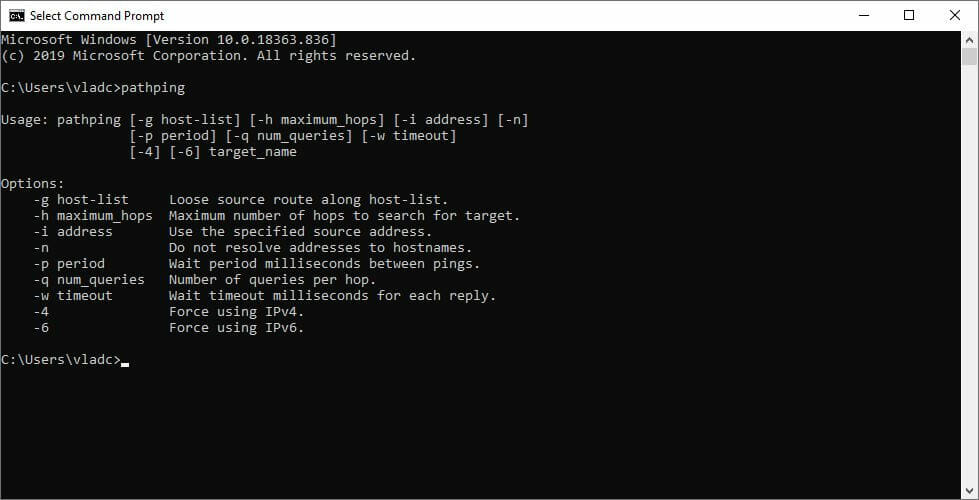
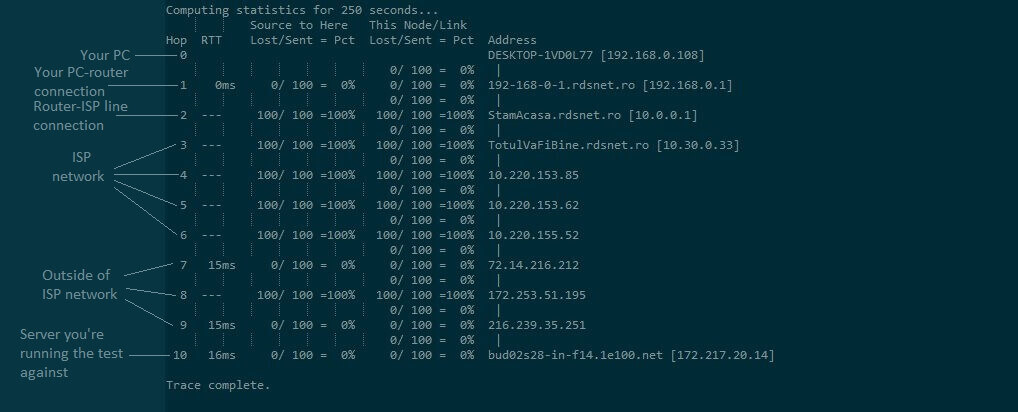
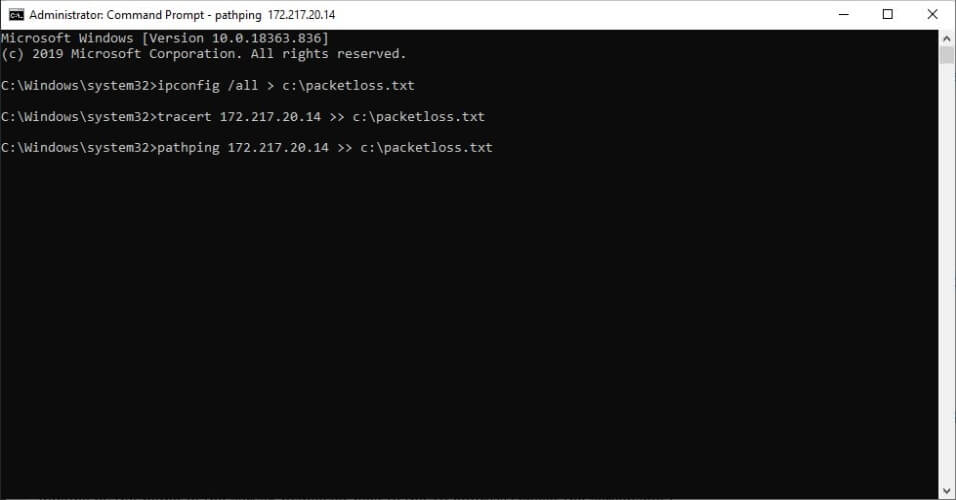
  • Run a packet loss test using the pathping x.x.x.x (replace x.x.x.x with the server’s IP address) commandCMD pathping
  • Call your ISP if the tests show that they’re leaking packets
  • Contact the For Honor server host if they’re the ones with high packet loss
  • Switch to wired instead of Wi-Fi (Wi-Fi leaks packets more often)
  • Check and replace/update/repair/upgrade any faulty component of your network (PC, drivers, software, cables, router)
  • Restart your router and/or modem
  • Try connecting straight to your home line or modem (bypass the router)
  • Avoid peak hours if possible
  • Upgrade your Internet subscription if it’s a low bandwidth one
  • Try closing any other bandwidth-consuming processes on your PC

These suggestions aren’t guaranteed to solve your packet loss situation since leaking packets can have an awful lot of causes. However, it can’t hurt trying them all and ruling them out one by one.

More often than not, packet loss is caused by network congestion. However, sometimes even something as little as upgrading your CAT 5 cables to CAT 6 can improve packet loss dramatically.

For Honor packet loss can be fixed

All things considered, if you’re experiencing packet loss in For Honor, it would be a wise thing to see where exactly does this leak occurs by running a pathping test.

Once you got that out of the way, you can start considering the best approach.

If you’re the one leaking packets, try checking every component of your network and repair or replace it if necessary. Even outdated drivers or older Ethernet cables can play a huge role in triggering high packet loss.

If, on the other hand, the leak seems to be on your ISP’s side, try using a VPN. Sometimes your ISP might throttle your bandwidth.

Using a VPN re-routes all your traffic through its private servers, away from your ISP’s malevolent bandwidth limitations.

[wl_navigator]

BF4 packet loss: How to test and get rid of it?

BF4, short for Battlefield 4, is a popular first-person game developed by EA DICE. This game was released in late 2013 and followed the 2011 Battlefield 3 title.

Maybe the most popular trait of Battlefield 4 was, and still is, its multiplayer mode. As far as its singleplayer campaign goes, it wasn’t so well received by the series’ fans.

That’s why it’s safe to say that BF4 was heavily-focused on online playing. While that’s not inherently bad, the game was and still is subject to a series of technical challenges that many other online services face.

Namely, these issues are high ping, jitter, network congestion, and the dreaded packet loss.

What is packet loss in BF4?

Packet loss is the same regardless of where you encounter it. It occurs whenever data packets you transmit (send/receive) never make it to their destination.

As a result, it triggers other issues such as rubberbanding, slowdowns, and even connection timeouts.

In Battlefield 4, packet loss can make the difference between glorious victory and crushing defeat.

You might be familiar with placing your enemy right in the middle of your crosshairs and pulling the trigger, only to discover it rubberbanded and you missed the shot.

That can be frustrating or downright infuriating. More often than not it’s caused by packet loss. This issue is usually caused by network congestion, which means that the best way to fix it is often waiting for it to pass or avoiding peak hours.

How to test for packet loss in BF4?

  1. Locate the IP address of the server you suspect of packet loss
  2. Launch an elevated (Administrator) CMD instance
  3. Run the pathping x.x.x.x (replace x.x.x.x with the BF4 server’s IP address) commandCMD pathping
  4. Wait for the test to come to an end
  5. Locate the hop that’s leaking packets

This test will run a traceroute to the BF4 server while also pinging each hop along the way and returning the values back to you, along with packet loss percentage.

If you want to log the results to a file on your PC instead of displaying them within the CMD window, simply add > C:packetloss.txt (replace packetloss with a file name of your choice) at the end of the pathping command.

Thus, the full command should look like this:

pathping x.x.x.x > C:packetloss.txt

How to get rid of packet loss in BF4?

1. Use a VPN service

  1. Download Private Internet Access and install itPIA BF4
  2. Run it and log into your account
  3. Connect to a fast server (low ping ones are best)
  4. Launch BF4 and check if the problem still persists
  5. Run the test above and check if packet loss improved

Private Internet Access is an excellent VPN service brought to you by Kape Technologies. It can cover a lot of ground regarding connectivity issues, ranging from reducing packet loss, to even improving ping or eliminating jitter.

However, it can take care of even more such as safekeeping your privacy, securing your connection, or helping you circumvent geoblocking.

Private Internet Access

Private Internet Access

Getting packet loss in BF4? PIA might come in handy.
$2.85/mo. Buy it now

Note that using a VPN might not work every time. In fact, if you leak packets on your end, or the game server does, using a VPN won’t do any good.

Therefore, for this fix to work, the packet loss must occur on your ISP’s side (bandwidth throttling or improper routing).

2. Troubleshoot your connection manually

  • Restart your router and/or modem
  • Try connecting straight to your modem or home line
  • Switch to wired instead of Wi-Fi (Wi-Fi packet loss happens more often)
  • Check and replace/update/upgrade/repair any faulty component on your side (PC, cable, drivers, router)
  • Call your ISP if you pick up something wrong on their side and ask them to look into it
  • Contact the BF4 server owner if there’s something wrong on its side of the connection
  • Try to avoid peak hours if possible
  • Switch the BF4 server if it’s possible

BF4 packet loss can be improved

All things considered, even using a VPN can improve packet loss, but only if the issue is on your ISP’s side. Other times it might just be the byproduct of network congestion and fixes by itself.

Last, but not least, you might want to try some of our manual troubleshooting suggestions.

They might not help you improve packet loss all of the time (especially if the leaks occur on your ISP’s side or the game server’s), but keeping your home network in top shape never harmed anyone.

[wl_navigator]

3 best VPNs for Dying Light to fix lag and reduce ping

If you have Dying Light lag and high ping, you can easily fix it with a VPN.

Dying Light is a first-person shooter and survival horror game that takes place in a post-apocalyptic world. You can freely roam the open world, look for supplies, build weapons, and do everything you can to escape the zombie invasion.

The game features a single-player mode together with online PvP and co-op for multiplayer. You can play it on Steam, Windows, Mac, Linux, PlayStation 4, and Xbox One.

However, many players have trouble with Dying Light lag in the multiplayer mode. If you’re one of them, you can use a VPN to improve your ping and get back to enjoying the game with your friends.

What you need is a premium Dying Light VPN with a vast network of servers, superior connection speed, and excellent security features. Besides, you can also minimize packet loss with a VPN.

What are the best VPNs to fix Dying Light lag and ping?

Private Internet Access

PIA is the best Dying Light VPN

If you’re looking for a quick Dying Light lag fix, choose Private Internet Access (PIA). It’s a superior VPN service created by Kape Technologies, which can help you bypass geoblocks and access blocked sites using an extensive network of VPN servers.

You can quickly connect to the recommended server of PIA to get the best speed. Furthermore, the tool keeps your device safe from DDoS attacks during gameplay. You can set up an ad and malware blocker, as well as host game servers for you and your friends.

In addition, PIA is one of the few virtual private network solutions that support port forwarding and 24/7 live chat, so that you can get help as soon as you need to deal with Dying Light lag.

More about PIA to reduce Dying Light high ping:

  • Works with Windows, macOS, Linux, PS4, Xbox One
  • +3,300 VPN servers in 48 locations
  • 10 connections at once
  • No logs
  • 30-day money-back guarantee (no free trial)

Private Internet Access

If Dying Light is running slow on PC, use PIA to quickly fix this issue.
Check price Visit website

CyberGhost VPN

use CyberGhost VPN to fix Dying Light lag

Whenever Dying Light starts lagging on your PC or PS4, you can turn to CyberGhost VPN for assistance. Owned by Kape Technologies, this VPN service offers you a huge network of servers to reduce jitter and boost your gaming experience.

If you don’t know how to begin, simply connect to the VPN server recommended by CyberGhost VPN to test your new Internet connection speed. It’s one of the best Dying Light VPN apps that can not only fix latency and lag issues but also handle network congestion.

Moreover, CyberGhost VPN supports split tunneling, a practical feature for managing your bandwidth resources in case you don’t want to redirect all network traffic through VPN.

More about CyberGhost VPN to lower Dying Light ping:

  • Compatible with Windows, macOS, Linux, PS4, Xbox One
  • +6,500 VPN servers in 89 locations
  • Up to 7 connections at the same time
  • Zero logs
  • Up to 45-day money-back guarantee (1-day free trial)

CyberGhost VPN

If you need a Dying Light lag fix on low-end PC, use this powerful VPN tool.
Check price Visit website

NordVPN

use NordVPN to lower Dying Light ping

NordVPN offers a fast and easy Dying Light lag spike fix to help enhance your gaming experience. Operated by Tefincom & Co., NordVPN is one of the fastest VPN apps on the market that can also fix Wi-Fi packet loss.

Besides connecting you to the nearest VPN server, the tool adds security to your browsers by keeping your safe from malware (CyberSec). You can also use it to get around VPN blocks by connecting to obfuscated servers, as well as to repair Xbox packet loss.

What makes NordVPN a great Dying Light VPN is the fact that it can not only speed up your Internet connection but also protect your device from hackers. And, whenever you want to go back to your regular connection, you can quickly turn off the VPN.

More about NordVPN to fix Dying Light lag:

  • Install it on Windows, macOS, Linux, PS4, Xbox One
  • +5,100 VPN servers in 59 countries
  • Supports 6 simultaneous connections
  • No identifying logs
  • 30-day money-back guarantee (no free trial)

NordVPN

Get rid of Dying Light multiplayer lag and high ping using this dependable VPN app.
Check price Visit website

Dying Light is an awesome game that can be best enjoyed with your friends in PvP or co-op mode. But it can be impossible to do so when you have to handle lag issues.

You don’t need to switch back to the single-player mode when you can get rid of Dying Light lag and high ping with a trustworthy VPN service. It’s also a great way to fix packet loss in games.

Surface Duo to support PC syncing via Your Phone

Microsoft has in the past published the design principles it wants developers to follow when creating apps for its upcoming dual-screen devices. We all know that, for example, applications on the Surface Duo should support multiple screen modes.

Apart from that, the tech giant should be done developing the hardware aspects of the device by now. So, it’s currently concentrating on building pre-installed apps for the futuristic form factor.

Well, it appears that Microsoft is now working on a dual-screen version of the Your Phone app. If the application comes pre-installed on the Surface Duo, the device will have the ability to pair with a PC, out of the box.

Surface Duo could get the ability to sync with PC

According to images that Twitter user Alumia shared recently, Your Phone is getting multi-screen support.

The images showcase the app’s frame in single-screen and two-screen modes.

While the tweet does not categorically state that this version of Your Phone is coming to the Surface Duo, it would be unimaginable for the device to ship without PC syncing support.

Logically, if Surface Duo can sync to a PC, it has to use Your Phone, the only Android application Microsoft has for this function.

The Surface Duo isn’t the typical smartphone, so all the other apps it’s getting support multiple screen modes too.

For example, it recently emerged that a two-screen version of Microsoft Edge will be the default browser for the device. As such, the Chromium-based app will have the ability to span across the two displays of an open Surface Duo.

It shouldn’t be long before the device finally ships, according to the expectations of many. Holiday 2020 is the official release date for the device, though. Unsurprisingly, Microsoft remains tightlipped as to whether this has changed.

What are your expectations of dual-screen user experiences on the Surface Duo? Feel free to let us know via the comments section below.

[wl_navigator]

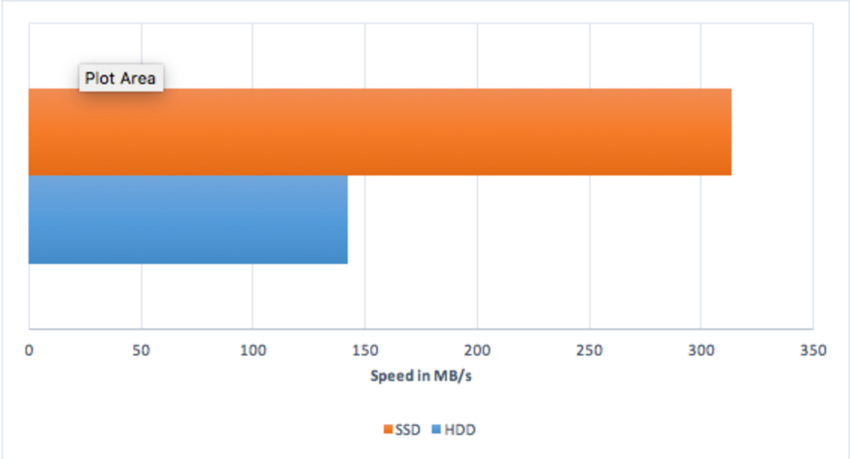
Windows 10 version 2004 defrags your SSD too often

There’s nothing wrong with defragmenting your drive once in a while to optimize your system’s speed.

However, if you updated to Windows 10 version 2004 and you’re using an SSD, you will notice that the system defragments your disk every day if you restart your computer.

It’s not recommended to defragment your SSD too often as it might result in shortening its life.

Why is Windows 10 defragging my SSD every day?

If you check the Automatic Maintenance feature in Windows 10, you will see that the OS performs some maintenance tasks based on a schedule. 

And these include, of course, checking the drives for optimization (defragging and trimming) and other diagnostics.

You can check that for yourself by going to Control Panel, then System and Security, and then clicking on the Security and Maintenance.

Security and maintenance options

As you can see from our example, the Automatic Maintenance just run in the morning.

After it optimizes the drives, Windows 10 records the last time it did that so that it doesn’t perform the process too often.

However, as the members of WilderSecurity realized, after the release of Windows 10 2004, the Optimize Drives feature simply doesn’t remember the last time a drive has been optimized.

The drive needs optimization

And the proof is that when you go into Windows Defragger, you will notice that our SSD drive clearly points out that it needs optimization even though the optimization already run this morning.

Drive needs optimization again

Microsoft stated that with the Insider Preview Build 19551 they have fixed this issue:

Thank you for reporting that the Optimize Drives Control Panel was incorrectly showing that optimization hadn’t run on some devices. We’ve fixed it in this build.

Well, it seems that it hasn’t been fixed yet, so Windows 10’s automatic maintenance will defrag an SSD drive more often than once a month, as it should.

There is a slight workaround for this. If you launch an optimization directly from the Optimize Drives, the SSD will only perform the Trim function and not defragging.

To learn more about this feature, we have a guide that answers if trimming SSD is safe, so don’t miss it.

Did you experience this problem? If so, let us know in the comments.

CrossfireX closed beta is now available on Xbox One, with open beta to follow on June 25

CrossFireX is now available on Xbox One for Xbox Insiders with Xbox Live Gold subscriptions as a closed beta. The game will be available for everyone else as an open beta starting on June 25, 2020. CrossFireX offers gameplay similar to Counter Strike, and is a massively popular online PC game title throughout Asia.

Here’s a look at the CrossFireX Open Beta Announcement Trailer.

As noted in a post on Xbox Wire, the CrossfireX open beta is available starting June 25, 2020, with the closed beta available starting today for Xbox Insiders with active Xbox Live subscriptions. CrossfireX is available exclusively on Xbox One.

Here is how you can install the CrossFireX closed beta:

  1. On Xbox One, sign-in and launch the Xbox Insider Hub app.
  2. Navigate to Insider content, select Games, then search for/select the CrossfireX BETA.
  3. Select Join.
  4. Wait for the registration to complete to be directed to the Store and install the CrossfireX Beta.

Remedy Entertainment, the game developer behind Alan Wake and Quantum Break, is currently working on a single player campaign for CrossFireX. Xbox Insiders can join the closed beta today via the Xbox Insider Hub app on Xbox One. Act fast, there are limited spots available!

Fix: Error 111 ‘insufficient memory available to run setup’

When installing a game or software on your Windows machine, you may encounter the error 111 insufficient memory available to run setup error.

This error can occur due to several reasons, including permission issues as well as compatibility issues.

Users were able to resolve this error by running the game in compatibility mode, as an administrator or simply by extracting the content of the file to a folder and running the setup.exe file.

In this article, we explore the best solutions to help you resolve the insufficient memory available to run setup error in Windows.

How do I fix error 111 insufficient memory available to run setup error

1. Run the program as administrator

insufficient memory available to run setup

  1. Open File Explorer and navigate to the location where the game or program file is saved.
  2. Right-click on the .exe file.
  3. Select Run as Administrator.
  4. Click Yes if prompted to confirm by UAC.
  5. Wait for the installation to complete.

Programs and games developed for the older version of Windows may run into permission issues during installation. The best way to troubleshoot this problem is to run the program in administrator mode.


2. Extract the CD/ISO file to C drive

Error 111 Windows

  1. If you are trying to install from a CD or ISO, do the following.
  2. Right-click on the CD drive or ISO.
  3. Select Extract.
  4. Extract the contents of the package to C drive.
  5. Open the extracted folder.
  6. Run the setup.exe file.
  7. If it fails, run the setup.exe file as administrator.

Several users have reported that extracting the contents from the ISO file or CD to a new folder, and then running the .exe file has resolved the error.


3. Install in compatibility mode

insufficient memory available to run setup

  1. Open File Explorer and navigate to the location where the installer is saved.
  2. Right-click on the installer and select Properties.
  3. Open the Compatibility
  4. Click Change settings for all users button at the bottom.
  5. Check “Run this program in compatibility mode for” box.
  6. Click the drop-down menu.
  7. Select an older version of Windows OS.
  8. Also, check Run this program as an administrator under Settings.
  9. Click Apply and OK to save the changes.

Close the Properties window. Run the installer and check if the error is resolved.


4. Run Memory Diagnostic tool

insufficient memory available to run setup

  1. Press the Windows key.
  2. Type memory diagnostic
  3. Click on Windows Memory Diagnostic tool.
  4. Click on Restart now and check for problem option.

The system will restart and detect any issues with the memory. At times, you may face issues when installing programs or even Windows OS if one of the memory sticks on your system is defective.

Windows Memory Diagnostic tool will scan the system’s memory for issues and show the results. If you miss the result, you can view it from Even Viewer.

Error 111 Windows

  1. Press the Windows key.
  2. Type Event Viewer and open the Event Viewer app.
  3. Go to Windows Logs > System.
  4. Open the most recent log with MemoryDiagnostic-Results.

If there no errors, then the error is occurring due to other reasons. However, if there is an error you may need to replace your memory stick or run without the spare one.

The insufficient memory available to run setup error can occur if there is a bug in the program, or due to compatibility and permission issues. Follow the steps in the article one by one to fix the error. Do let us know which method helped you resolve the issue in the comments.

[wl_navigator]

GoG Galaxy blurry text / vision [Full FIX]

GOG Galaxy is the gaming client for the GOG platform. Gamers like it mostly because it has a simple and lightweight design.  For all it’s simpleness, it’s not clear of issues.

One of them is the blurry text. So, if you’ve come across GOG Galaxy’s Blurry text/vision problem, you are in the right place. In this article, we give you solutions to get rid of this drawback.


How can I remove the blurry effect on GoG Galaxy?

1. Verify what version of GOG Galaxy are you using

gogo-client-logo

Sometimes, updating GOG Galaxy is enough to solve this issue. Updates come with all sorts of patches for reported problems. However, if the problem persists, check our other solutions.


2. Disable display scaling on high DPI settings in Windows 10

  1. Go to the GOG Galaxy installation folder.
  2. Find the Galaxyclient.exe file, right-click on it and go to Properties.
  3. Now, in the Compatibility tab, click on the button that says Change high DPI settings.compatibility-tab-for-gog-galaxy-client
  4. Check the Override high DPI scaling behavior box. In the list below the box leave Application selected.disable-dpi-for-galaxyclient
  5. Click OK, then Apply.

This is a common and well-known fix for issues related to blurry images or fonts in applications. It works very well for GOG Galaxy, too.


Having issues launching GOG Games? Check out this guide to solve all your issues.


3. Disable FXAA in Nvidia Control Panel for GOG Galaxy Client

  1. Open the Nvidia Control panel and go to Manage 3D Settings.nvidia-control-panel-image
  2. Position yourself in the Program settings tab. Select GOG Galaxy client in the applications field, make sure the Nvidia processor is selected, and then turn off FXAA in the Settings area.disable-fxaa-nvidia-control-panel However, this works only for those who own a system with an Nvidia GPU.

We hope that you find in this article a way to get rid of GOG Galaxy’s Blurry text/vision issue once and for all.

Try the solutions above and tell us what you think in the comments section below.


[wl_navigator]

Amazon checkout Rewards Points not showing up [2 Solutions]

If you’re a frequent Amazon user, you probably know already about the rewards program they have with Chase.

Using the Chase Ultimate Rewards points might seem an easy thing to do, but those who are really into reward programs insist that at the end of the day your points have a monetary value that shouldn’t be used for less than they are worth.

That’s when your reward points show up on the payment page, of course…

Because after enrolling in the Amazon rewards program, there’s a lot of doubt about how to see the points balance, how to redeem the points, or how to use the points.


Why can’t I see any Amazon Rewards Points at checkout?

1. Make sure you are still enrolled in the program

As you might know, if you are enrolled in the rewards program, you should be able to use your Rewards Points on the payment page, when ordering on or off Amazon.com.

That is, when you choose your credit card, you’ll also be prompted about using your available points.

At this stage, make sure that the card linked to the purchase is the same as the one registered in the program.log in to amazon account

If you don’t see your Rewards Points, refresh the page. If there’s still no change, check the Shop with Points page on your account, to make sure you can see your credit card registered.

It is possible that your bank has not updated Amazon on the existing reward points balance or that your closing statement for the respective card has not been updated.

Your card issuer, and not Amazon, will deal with any trouble with the respective credit card. Actually, according to members of the program that have had the same issue, mentioned that Amazon advised them to call their bank.


2. Keep the score of your pointsamazon reward program

According to the Rewards Program rules, your Rewards account points balance reflects your points balance as of your last billing cycle.

As mentioned above, points earned in a billing cycle are available for use once the billing cycle has ended and your card issuer has sent this information over to Amazon.

On the other hand, if you use your points to shop at Amazon.com, your points are deducted from your account when the order ships.  And if you redeem points on Chase.com, these are immediately deducted from your points balance.

While you might not play around with your Rewards Points that much, it is useful to always know how the balance around specific dates.

Last but not least, keep in mind that when you share the rewards program details with other family members, they might also use the points. More than once customers were asking about recent points only to find out that their partner had already used them all.


Have you got any other ideas on this topic? We’d like to hear from you so use the comments section below.


[wl_navigator]

Retriable error on DoorDash [Solved]

DoorDash is frequently listed among the top food delivery services in North America and Australia due to the good variety of collaborations they have with local and national restaurants, as well as for the in-app recommendation feature that allows customers to discover new eateries.

As far as the service functionality is concerned, it seems that customers frequently report problems with the DooDash website, but mostly with their app.

DoorDash app users often get very general errors – unknown error or retriable error – that don’t necessarily have a specific solution, but rather a set of troubleshooting steps. Customers are advised to take them in turns, and see which one works.

What’s more, both customers and Dashers (delivery workers) have complained about the app.


What can I do if I get a retriable error on DoorDash?

1. Uninstall and reinstall the appuninstall doordash

Although this might be a last resort, a lot of users recommend uninstalling the app to get rid of all the possible in-app glitches and also to make sure you get the latest version available upon reinstalling.

Additionally, both the service and the users recommend that after uninstalling the app, you turn off the phone for a few minutes. Reinstall the DoorDash app from App Store or Google Store after powering the phone on.


2. Force quit the apptroubleshoot doordash

To force quit the app, you have to double-tap the home button and swipe up on the Dasher app.

If there’s no home button on your phone, just force swipe up on the screen and swipe up on the Dasher app.


3. Check Internet connectionfix error with doordash app

To efficiently use the DoorDash app, you need a very good Internet connection.

So turn off and on the WiFi option on your phone to force reconnection. If you’re not using WiFI, make sure the mobile data is working.

To test the connectivity, try to log into your DoorDash account from a browser instead of using the app. If it’s working, the problem might be with the app, so check for updates in the App Store or Google Store, or uninstall as mention above.


4. Mind the area or time of daydoordash app error

According to DoorDash, the app is overloaded at certain times of the day such as around lunchtime or dinnertime, so it’s possible that the app crashes.

Also, the service recommends that if you are a Dasher, you try and go to areas that are not marked as hotspots, as those attract a large number of Dashers, again making the app perform badly.


5. Check DoorDash social media accountsdoordash on social media

DoorDash has proved quite responsive on social media, especially on Twitter, when it comes to problems related to their platforms. So take a look there to see if the problem is on their end.


Hopefully, one of these solutions will help you bypass the error you have encountered. However, if you’ve used another method, feel free to share it with us.


[wl_navigator]

MTG Arena ‘invalid command line’ error [Solved]

Magic: The Gathering Arena, also known as MTG Arena, is the digital adaptation of the hugely popular card game Magic: The Gathering (MTG).

It’s a rather new-comer to the digital world; the beta version of the game was launched in 2017, and the final version for Windows users was released at the end of 2019.

Ever since the launch of the repeated testings, users complained about a recurring error. Namely, after each update, when they were trying to run the game they got an invalid command line error.

The publisher, Wizards of the Coast (WotC), acknowledged the error and launched patches that were supposed to fix the problems. However, they still persist.


How can I fix the invalid command-line error on MTG Arena?

1.Uninstall and reinstall the game

  1. Open the Start menu.
  2. Go to Settings, then to App.uninstall mtg arena app
  3. Find Magic: The Gathering Arena in the app list, click on it and hit Uninstall.

Some users noticed that even after uninstalling and reinstalling the game, the issues persisted. Therefore, a more thorough uninstall process was necessary. This can be done using the Registry Editor. If you’re not sure how to do this, check out our detailed guide for cleaning the Windows 10 Registry.

While this is a useful method to truly clean everything related to an unwanted or faulty app, it is also a risky process, so make sure that you know what you are doing.

  1. Click the Search bar and enter Regedit. You can also open the Search bar by using the Windows Key + S shortcut.
  2. Using the left side navigation panel, go to HKEY_CURRENT_USER and then to Software.fully delete mts arena
  3. If any registries are left from the app that you have uninstalled, you will find them here. If that is the case, right-click on the file and hit Delete.

This is a method that WotC repeatedly recommended to all users complaining of the invalid command line error. It is also a solution that seemed to work for most players.

However, there were some that mentioned that the error reappeared after a few weeks. So it might only be a temporary fix.

If that is the case, try the next solution.


2.Run the installer from Temporary folder

  1. Press Windows Key + R to open the run dialog box.
  2. Now type %temp%  to access AppData temporary folder.how to open mtg arena from temporary folder
  3. Find MTGA and run the MTGAinstaller located there.

This proved to be a solution that worked all of the time.


Hopefully, you’ll find at least one of these solutions helpful so that you can fully enjoy the game. As annoying as the mentioned error might be, the game is still new, and the publishers have proved quite responsive to the community’s feedback.

So to help them out, you should report any issues here to let the MTGA team know of any ongoing problems.

On the other hand, we’d like to hear your feedback as well, so if there was any other thing that you tried to bypass this problem, please let us know in the comments section below.

Before you leave, don’t miss our latest guide on MTG Arena network error to see how to fix it. We also have an article on Asset error detected in MTG Arena so you might want to check it out.

Letter recognition games online [Best selection]

Letter recognition games or alphabet games are useful for pre-school or primary school children to help them recognize letters and how they sound. Additionally, they can be used as an alternative to similar educational activity books, workbooks, or coloring books.

The aim of such games is to improve children’s reading and writing skills.

You will find plenty of games online. They come in various difficulty levels, they can be static or with more action, and some are focused on specific letters or letter types.

Most of them don’t just train the recognition skills, but also the hearing and matching capabilities, and even digital tracing skills. One can even say that some games resemble certain word games that adults play online.

Note that these games can expose your child to a longer period of time in front of a computer/tablet/phone screen.


Best letter recognition games online

Abcya

alphabet games

Abcya.com is a website with a good variety of letter recognition games for pre-kindergarten and kindergarten children.

For each game, in the right-upper corner of each thumbnail, you can see the recommended grade. Many games are suitable for more stages.

Most of them are puzzle-type games.

The owners of the site even included strategy or skill games for all ages they address, including pre-kindergarten.

⇒ Try some games on Abcya

ABC Match

abc match

ABC Match is a letter-matching game offered by ReadWriteThink, in which children have to match letter cards and picture cards that begin with the same letter.

The purpose of the game is to accelerate the learning process for how letters sound, and so to also create the path for better reading skills.

The game comes in two player modes – with or without timer.

What is interesting is that kids can’t turn upwards all cards in a category. They can only see an object card and then a letter card. This way they can also memorize where they’ve seen a certain letter.

⇒ Play ABC Match

Alphabet Tracing Game

alphabet tracing game

Alphabet Tracing Game on Learningapps.com is exactly what its name says – kids train their digital drawing or tracing skills, using both capital and lowercase letters.

The board is wide and clean enough to keep them focused. Children can use various colors and an eraser, in case something doesn’t come out as it should.

There’s no background music or any type of sound when the letters are finished or upon turning the page.

⇒ Play the Alphabet Tracing Game

Alphabet Games

letter recognition games for free

The Alphabet Games on Education.com are an excellent resource of all kinds of letter recognition games for various ages, similar to our first suggestion, but perhaps cleaner in terms of design and arrangement.

Games are grouped by grades, by subject, and by core. Inside the Alphabet category, you can find games grouped by letters. This way, you can direct kids to certain games as they are learning the alphabet.

⇒ Play some Alphabet Games


With such a good selection, it will be hard to unglue kids from the computer.

We’d like to hear your opinion on this selection; use the comments section below.


[wl_navigator]

5 Rummy card games online [Best choices]

Rummy and its other popular variant Gin Rummy are some of the most popular casino games. While nothing compares to the adrenaline felt while sitting up at a real rummy table, when you don’t have such an option, taking part in an online game might do the thing. You can pick from the many options available online that will help you either sharpen up your skills or experience the real deal from behind a screen. So let’ take a look at some of the best options to play rummy online. All for free.    

What rummy games can I play online?

Rummy on VIP Games

rummy on vipgames

This platform not only offers the classic rummy game,  but they have also built a community of rummy fans.

First, you can try out your hand in a game against 3 computer opponents. You don’t have to create an account or anything.

But if you want to join the community and look at the ranking, perhaps even be part of the leaderboard, you have to sign up.

⇒ Play rummy on VIP Games

Gin Rummy on MSN Games

rummy on msn games

Microsoft’s official Game Zone is one of the first platforms with free online games. Gin Rummy was among the first card games to be introduced along the more popular Solitaire or Spades.

Playing doesn’t require an account, but if you have a Microsoft account and want to use it, you can personalize your experience a bit more.

Once you open the game, you can either observe or play. You can select from a couple of themes and you can also pick your opponent if somebody from the Microsoft community that you know is online.

⇒ Play Gin Rummy on MSN Games

Gin rummy online

gin rummy online

A click-and-play option to play a quick round of Gin Rummy.

It is suitable for beginners since it has a very clean board and written instructions. You always play against a computer.

From the Appearance option in the Menu, you can change the board color or theme, as well as the card design.

It’s a bit challenging since you never see the opponent’s melds and they don’t see yours, so neither of you can lay off cards on an existing meld.

⇒ Play Gin Rummy online

Rummytastic

free gin rummy online

Yet another easy-to-access Gin Rummy table, also suitable for beginners. In this one, you actually see the melds, unlike in the previous option.

Game options are simpler here,  or rather you have none. You just play.

⇒ Play Gin Rummy on Rummytastic

Cash Rummy

indian rummy

Indians are avid rummy fans and they are usually playing Indian Rummy, a variation of Gin Rummy.

A lot of websites where you can play rummy are Indian. RummyCircle is the second most popular such site, with one of the largest communities of rummy fans.

A particular aspect of this site is that you can play (legal) cash rummy. After a mandatory account creation, you will join the community and you can enter a rummy lobby. Here you can observe or play, cash-free at first.

When you are ready, you can invest some money, using one of the payment options. The minimum contribution starts at  Rs. 25 (about $0.33). The platform sets default monthly and daily cash limits (in terms of cash addition).

⇒ Play Cash Rummy on RummyCircle


So these were our recommendations for the best options to play rummy online. If you found this helpful, share your comments with us.


[wl_navigator]

Looking to play a Clue-like game online? 4 Best web games

Clue/Cluedo is a classic murder mystery board game, with a history that spans over 70 years, and that has been played by millions. The storyline includes a horrible murder, a grand mansion, and a gathering of suspicious characters. The aim of the game is to find the murderer.

In the digital era, it was only natural that given the popularity of the game a web game should be released.

While the original game has been substantially altered by owner Hasbro, fans wanted to keep exploring the mystery-game genre in online games similar to Clue.

For copyright reasons, similar games thrive on the murder plot, but the characters, the setting as well as the name of the game are different. Note that most of the games don’t come for free.

Best Clue games to play online

Clue/Cluedo: The Classic Mystery Game

clue official game online

This is the official digital adaptation of the classic board game of the same name.

The aim of the game is to determine who killed the game’s victim, with what weapon and in which room. This version can be played by up to 6 players (also the number of the characters).

The game is available for Nintendo, as well as for Android and iOS devices.

⇒ Get Clue/Cluedo on Steam

Mysterium

clue like games online

Mysterium is an official adaptation of the famous board game of the same name. It’s also a cooperative deduction game in which a ghost guides a group of psychics to solve a murder mystery.

The group has to uncover the murderer, as well as the weapon and location of the murder, using only visual clues. It comes in three play modes: solo, local multiplayer, and online multiplayer, the number of possible payers being from 1 to 7.

The game is available for Windows, Android and iOS.

⇒ Get Mysterium

Cluedo in Java

java clue

This is an open-source alternative to the classic game, developed in Java.

It includes several maps (and mapping tools), AI players, configurable cards, and sounds. In the pipe-line: networking support, improved graphics, and advanced artificial intelligence.

⇒ Play Clue in Java

Agatha Christie – The ABC Murders

the abc murders

This is an adventure and investigation game adapted from Agatha Christie’s detective stories with Hercule Poirot (just as Clue/Cluedo bears a striking resemblance with Agatha Christie’s And Then There Were None).

It is a single-player game, in which you embody Hercule Poirot, and you have to explore many crime scenes in various cities across the United Kingdom.

The game is available for Xbox, PC, PlayStation 4, Android, and iOS.

⇒ Get Agatha Christie – The ABC Murders on Amazon

And that’s about it. Actually, you can find a lot of detective games, spiced up with a horrible murder, but most of them are not multiplayer and you only get to play the detective. With each game, the storyline is farther away from the multiplayer idea.

We’d like to hear your opinion on these alternatives, though, so if you have any suggestions, please use the comments section below.

Windows 10 news recap: May 2020 Update gets printing bug fix update, Microsoft Edge sees memory usage reduce, and more

Welcome back to our Windows 10 news recap, where we go over the top stories of the past week in the world of Microsoft’s flagship operating system.

Microsoft touts reduced memory usage for Microsoft Edge on the Windows 10 May 2020 Update

Following the release of the Windows 10 May 2020 Update, Microsoft Edge is said to use up to 30% less memory, thanks to some under-the-hood improvements, making the browser run more efficiently.

Surface Go 2 gets June firmware updates with pen performance improvements

A new firmware updated has been released for the Surface Go 2 that improves the performance of pen input.

Windows 10 May 2020 Update gets new patch to fix printing issues

If you were facing issues with printing since updating to the Windows 10 May 2020 Update, Microsoft has released a new update that aims to fix these printing issues.

That’s it for this week. We’ll be back next week with more Windows 10 news.

Microsoft Outlook gets a pre-installed polling tool

Microsoft Outlook is more than just an email client. Over time, it’s grown into a multi-purpose resource that supports task management, note-taking, and calendar functions.

It even promotes workforce collaboration, thanks to its integration with Office 365 tools like Teams Meetings.

As the email client continues to evolve, Microsoft Outlook now offers a pre-installed polling tool.

Poll in Microsoft Outlook

The ability to create polls within Microsoft Outlook has existed for a while now.

Thanks to its existing integration with Microsoft Forms, you can insert a poll into an email in Outlook and distribute it to employees across your organization. But the Poll feature was only available as an add-in, previously.

Now Microsoft says that Poll comes pre-built into your Outlook mailbox. As such, the feature is ready for use without any extra configurations.

As usual, respondents can vote within the email you sent them. Or they can open the poll in a separate browser tab to participate.

Now you can create a real time poll in seconds when composing an email in Outlook. Once sent, recipients vote directly in email or click on an included link and vote in a browser window. You can then check poll results in real-time using the voting card. Poll is now pre-installed to your Outlook mailbox so you no longer need to install the add-in yourself.

Moreover, the voting card in the body of the email displays poll outcomes in real time.

The latest Microsoft Outlook update should help you get started with online surveys a bit faster.

In other related news, Microsoft Forms now supports the sharing of survey form design and results with specific users. The feature minimizes the risk of survey content falling in the wrong hands within your organization.

To organizations that use Microsoft Outlook, do you find the pre-installed Poll feature particularly useful? As always, you can leave your feedback or any questions in the comments section below.

[wl_navigator]

You can now let specific users edit your Microsoft Forms

Microsoft Forms is increasingly becoming useful to organizations unable to carry out in-person polls in recent times. It’s an Office 365 app based in the cloud, making it ideal for conducting surveys among remote workers.

The polling tool, which boasts integrations with apps like Teams and Outlook, received new features recently. Notably, the application now lets you collaborate on Forms with specific users, rather than your entire organization.

Microsoft Forms sharing with specific users

Now you can choose a specific user or group in your organization with whom to share any Form, Microsoft has revealed.

As such, you may involve an individual or several workmates in creating a Form. Similarly, you can pick out specific colleagues to include in the analysis of poll results.

The new feature is something of a survey confidentiality or privacy measure in Microsoft Forms. It should make it more difficult for the wrong persons to view your poll contents (questions/responses).

Before this change, Microsoft Forms offered general access restrictions, such as to only people in your organization.

Similarly, the app let you limit Form viewing and editing privileges to persons with Office 365 school or work accounts. This generalization changes with the ability to pick your collaborators based on their email addresses.

There’s now a new option available to let you specify Specific Users or Groups within your organization to collaborate with.  You can specify one or more co-authors using their email address.  As this is more restrictive than existing collaboration styles, this setting is optimal for forms with more sensitive content.

So, if you’re handling sensitive poll content, the risk of the wrong person in your organization seeing or changing it is now minimal.

Besides enforcing survey confidentiality, Microsoft Forms includes automatic anti-phishing features. These make it more difficult for scammers to use the platform to collect your private, sensitive information.

Do you think Microsoft Forms is a secure tool for conducting online surveys? Kindly share your views via the comments section below.

[wl_navigator]

Microsoft Teams conversations plug into Asana app

There’s no doubt that the COVID-19 situation is responsible for the spike in remote working in recent times. And Microsoft Teams is one of the leading providers of SaaS collaboration tools that have cranked up innovation in response.

Unlike rival Slack, Teams’ growth and success depend more on the depth and breadth of Office 365 than third-party app integration. But that’s not to say that Teams isn’t integrating with solutions from other tech firms.

Little wonder, then, that Asana announced a new integration with the Office 365 SaaS tool.

Microsoft Teams integrates with Asana

Asana’s integration with Microsoft Teams should enable teammates to automate workflows even as they collaborate remotely, the company said.

At a time when teams around the world are physically apart, a shared sense of clarity, transparency, and accountability is needed now more than ever. We’re thrilled to deepen our integration with Microsoft to deliver tools that streamline and automate workflows, empowering teams to stay connected and achieve their most important initiatives.

Microsoft Teams/Asana integration should deliver the following perks:

  • In particular, the new integration gives Asana users visibility into Teams conversations. It enables them to streamline task management as a result.
  • Another benefit is the incorporation of a bot that auto-generates notifications about Asana task changes. Teams users can receive and personalize that information accordingly.
  • The Teams user interface lets teammates track and share info on the status and progression of Asana tasks.
  • Within Microsoft Teams, colleagues can find and share Asana tasks.

Plugging a workflow automation tool into Teams should make latter a little more powerful than it is already.

Don’t forget that the Office 365 solution is soon receiving an RPA injection, thanks to Power Automate integration. Microsoft announced that during the recently concluded Build 2020 event.

What do you think about the new Microsoft Teams/Asana integration? Kindly share your views or ask any questions via the comments section below.

How to Check and Fix Smite Packet Loss

Smite, as any other online game, can sometimes face technical challenges. Namely high ping/latency, jitter, and the much-dreaded packet loss. Leaking packets in Smite happens whenever data packets you transmit never make it to destination. As a result, you might experience some issues such as slow movement, rubberbanding, slow responsiveness, or connection timeouts.

More often than not, packet loss in Smite is caused by network congestion. Top that by the fact that Smite is a free-to-play game, and you’ve got yourself a recipe for disaster. Our best advice is to avoid playing Smite during peak hours altogether, if possible.

However, sometimes you might notice a pattern in packet loss occurrence. Times like these are the perfect opportunity for you to step in and try to fix it yourself.

How to fix Smite packet loss?

1. Check packet loss in Smite

  1. Run Smite and let it connect to the game server
  2. Launch CMD with administrator rights
  3. Run netstat -aNetstat results
  4. Locate the IP address that’s connected to the 9000 port
  5. It should look like x.x.x.x:9000
  6. Note down the IP address and close the CMD instance
  7. Launch another elevated CMD instance
  8. Run pathping x.x.x.x (x.x.x.x is the IP you’ve noted down before)
  9. Check each hop for packet loss percentage

2. Use a VPN

  1. Download Private Internet AccessPIA Smite
  2. Install it on your PC
  3. Launch it and log into your account
  4. Connect to the server of your choice
  5. Check if the problem still persists

Private Internet Access is an excellent VPN from Kape Technologies. It can help you lower packet loss percentage in Smite, but there’s a catch. It only works if your ISP is the one causing the packet loss.

However, improving packet loss isn’t the only reason why you’d turn to a VPN. They’re also great for giving you a much-needed privacy boost, circumventing geoblocking, and securing your connection.

3. Troubleshoot your connection manually

  1. Run the pathping test above and see where the packet leak occursCMD pathping
  2. Try switching to wired instead of Wi-Fi (Wi-Fi packet loss is more often)
  3. Restart your router and/or modem
  4. Try connecting straight to your modem or home-line
  5. Call your ISP and ask them to look into the situation if the issue is on their side
  6. Contact Smite’s support team and inform them if there’s something wrong on your side
  7. Check and repair/replace/update/upgrade any faulty component on your network (PC, drivers, cables)

Packet loss in Smite can be easy to fix

The bottom line is, packet loss is natural and happens to everyone. Sometimes it’s more severe, other times it’s not, but waiting has proved to be the most effective way to tackle it.

Mainly because it’s caused by network congestion, and if you’re not some sort of wizard or network administrator, there’s little to nothing you can do about it.

Using a VPN works like a charm most of the time, but only if the ISP caused your packet loss to begin with, whether by throttling your bandwidth or routing their network improperly.

However, in those rare times that your ISP is not guilty, you might have to get your hands dirty by troubleshooting manually.

We also have a complete guide on how to fix FPS drops, lag and stuttering in Smite that may come in handy.

Did you manage to fix packet loss in Smite using our solutions? Tell us in the comments below.

Attackers used Office 365 voicemails as phishing bait

Reports from multiple cybersecurity firms show that Office 365 users are increasingly being targeted with phishing emails.

The phishing attacks are sometimes too sophisticated to detect or stop even using advanced anti-spam filters. That’s partly because cyber criminals are using legitimate domains to send their malicious emails.

An Office 365 phishing campaign that Check Point uncovered recently is enough proof that organizations need to deploy smarter cybersecurity tools to thwart such attacks.

Office 365 voicemail attacks

In this particular Office 365 phishing campaign, targets received email notifications about missed voice messages. The emails prompted them to click a button under the impression that it would take them to their legitimate Office 365 accounts.

But clicking the link redirects the user to a phishing page disguised as the genuine Office 365 sign-in page. This is where the attackers steal the victim’s Office 365 login credentials.

What’s surprising here is the fact that anti-phishing tools should usually detect email links with patterns like that. So, you may wonder how exactly these attackers deploy such malicious redirects and payloads undetected.

The answer is simple: the bad actors include legitimate platforms in their plans. In this case, the attackers sent harmful emails from addresses belonging to genuine servers in the University of Oxford (UK).

Using legitimate Oxford SMTP servers allowed the attackers to pass the reputation check for the sender domain. In addition, there was no need to compromise actual email accounts to send phishing emails because they could generate as many email addresses as they wanted.

However, there are several steps you can take to protect your employees from phishing attacks:

  • Educate your staff about phishing and password safety.
  • Install email-scanning software that can detect messages with malicious payloads.
  • Keep your operating system update. Most importantly, always install Patch Tuesday security updates from Microsoft (they’re free of charge).
  • Install an up-to-date antivirus solution.

Does your organization use Office 365? How do you deal with the ever-growing phishing threat? Feel free to share your tricks and methods via the comments section below.

[wl_navigator]

GW2 packet loss: What is it and how to fix it?

GW2, short for Guild Wars 2, is a popular MMORPG published by NCSoft and ArenaNet. It gathered a lot of traction in the past few years and still has it going on pretty good, considering it’s been released eight years ago.

The environment of the game is vividly colored, vibrant, and encourages you to explore it. Compared to other MMORPGs, the combat system also feels like a breath of fresh air.

Also, GW2 has an interesting life state system. You can be either alive, downed, or defeated. If your character’s health points drop below zero, it doesn’t immediately die but enters the downed mode.

You get a special set of skills (downed) that you can use to fight for your life. If you succeed, you’ll regain your life. So much blabbing about GW2’s life state system for a packet loss-based article, but guess who got excited?

What is packet loss in GW2?

In GW2, packet loss behaves the same as for any other similar online game. It happens whenever the packets that you send/receive never make it to their destination. It sounds worse than it actually is since packet loss usually fixes itself.

As a byproduct of network congestion, packet loss is more often than not no more than a nuisance. It triggers other issues such as high ping, jitter, rubberbanding, trouble interacting with your inventory, and even disconnections.

If you can take some time off, that’s the best way to tackle packet loss, especially if it’s occasional and doesn’t last for long. However, if you start to notice a pattern, that’s when things get complicated.

How to check packet loss in GW2?

  1. Navigate to your GW2 folder
  2. Right-click the GW2.exe file and select Create Shortcut
  3. Rename the shortcut to something relevant (e.g. GW2 Diagnostic)
  4. Right-click the shortcut
  5. Choose Properties from the context menu
  6. In the Target field, append -diag at the end of the text
  7. The end of the field should look like GW2.exe -diag
  8. Click OK
  9. Run the GW2 Diagnostic shortcut (or however you renamed it)
  10. Click the View Results button to see the test results

Note that even if you close the results, the Diagnostics tool creates a NetworkDiag.log file and saves it automatically to your PC. It’s in the same place where you can find your GW2 screenshots.

Results of pathping

The test results should look something like the screenshot above. Note that you’ll have hops along with their ping value and packet loss percentage. If there’s any packet loss, the Diagnostics will reveal it.

Normally, you can check for packet loss with Windows’ built-in pathping tool. However, GW2 made it all easy for you by embedding the diagnostics tool within the game files.

Important note: GW2 must be running in order for the test to run successfully.

GW2 packet loss fix

1. Use a VPN

  1. Download Private Internet AccessPIA GW2
  2. Install it on your computer
  3. Launch it
  4. Log into your PIA account
  5. Connect to a fast server of your choice
  6. Launch GW2
  7. Run the test above to see if the problem still persists

Private Internet Access is a great VPN service brought to you by Kape Technologies. It can easily bypass any packet loss situation you encounter, but there’s a catch.

Using a VPN will only work if the packet loss is caused by your ISP. Whether from improperly routing the network or limiting your bandwidth, if it’s ISP-related, VPNs can improve packet loss in this situation.

Private Internet Access

Private Internet Access

Leaking packets in GW2? PIA might come in handy.
$2.85/mo. Buy it now

On the other hand, even if it’s not 100% able to fix your packet loss issue, having a VPN is useful in so many other ways. For instance, it can circumvent geoblocking, boost your online privacy, and secure your connection.

2. Troubleshoot your connection manually

  • Reset your router and/or modem
  • Switch to wired instead of Wi-Fi (Wi-Fi causes packet loss frequently)
  • Reboot your computer
  • Try connecting straight to your modem/home line
  • Make sure software isn’t blocking the game server’s attempt to communicate with your computer
  • Check/replace/update/repair any faulty components on your home network (PC, router, cables)
  • Call your ISP if there seems to be an issue on their side
  • Contact GW2’s support team if there’s something wrong with the game server
  • Avoid peak hours

GW2 packet loss can be easily detected and fixed

To sum it up, if you’re having issues with packet loss in GW2, you can easily perform a check by using the game‘s diagnostic tool. This tool performs a traceroute and shows you ping and packet loss for each hop in the connection.

Packet loss is usually triggered by network congestion, which can be bypassed by merely waiting it out. However, if the underlying cause is not congestion, you might want to perform some manual troubleshooting or turn to a trustworthy VPN.

Keep in mind that using a VPN won’t work all the time. In fact, in order for this fix to work, the packet loss situation must be caused by your ISP, whether by improperly routing the network or throttling your bandwidth.

[wl_navigator]

3 best VPNs for Fallout 76 to fix lag and reduce ping

If you’re experiencing Fallout 76 lag spikes, high ping, latency, stuttering, and other connectivity issues, you can use a VPN to fix this. Fallout 76 is an action role-playing game that you can play exclusively online. It’s available for Windows, PlayStation 4, and Xbox One. You can find it on Steam. A lot of players report Fallout 76 lag which interferes with their gameplay. If you’re one of them, you can use a VPN to improve your ping. Although a VPN is primarily designed to spoof your IP address and encrypt your data traffic, you can also use it to speed up your Internet connection for gaming. Furthermore, it’s possible to improve your packet loss with a VPN. What you need is a powerful Fallout 76 VPN service that provides you with high-speed VPN servers and gaming features, such as custom DNS servers and anti-DDoS protection.

What are the best VPNs to fix Fallout 76 lag and ping?

Private Internet Access

PIA is the best Fallout 76 VPN

The best way to get rid of Fallout 76 lag spikes is by using Private Internet Access (PIA). Operated by Kape Technologies, this VPN app gives you access to more than 3,300 VPN servers across 47 locations worldwide. It’s great for minimizing jitter.

PIA features exclusive DNS servers that you can use to optimize your Internet connection for gaming. You can forward ports, encrypt your data traffic using OpenVPN or WireGuard, and protect your browsers with an integrated malware blocker.

You can set up PIA on Windows, PlayStation 4, and Xbox One, enable a kill switch and split tunneling, bypass geoblocks, as well as defend your router from hackers. And it’s one of the few VPN services with 24/7 live chat support.

More PIA features:

  • Allows 10 simultaneous connections
  • Strict zero-logging policy
  • Works great with Fallout 76 mouse lag
  • 30-day money-back guarantee (no free trial)
Private Internet Access

Private Internet Access

Easily reduce Fallout 76 lag using this fast and secure VPN.
$2.85/mo. Buy it now

CyberGhost VPN

use CyberGhost VPN to fix Fallout 76 lag

Whenever Fallout 76 starts to lag and freeze on your PC, you can fix it with CyberGhost VPN. Also a product of Kape Technologies, this VPN solution can not only optimize your network connection for gaming but also fix Wi-Fi packet loss.

CyberGhost VPN gives you the possibility to connect to over 6,400 VPN servers across 89 countries. You can use it to minimize network congestion and protect your Wi-Fi from hacker attacks.

You can install CyberGhost VPN on PS4, Windows, and Xbox One to redirect all network traffic through its VPN servers, connect to the nearest VPN server to get the best possible speed, as well as turn on DNS leak protection.

More CyberGhost VPN features:

  • Permits 7 simultaneous connections
  • No identifying logs
  • Offers a quick and easy Fallout 76 lag fix
  • 45-day money-back guarantee (1-day free trial)
CyberGhost VPN

CyberGhost VPN

If you need a powerful VPN for Fallout 76, you can't go wrong with this VPN service.
$2.75/mo. Buy it now

NordVPN

use NordVPN to reduce Fallout 76 ping

An alternative solution to deal with Fallout 76 lag on PC and console is by using NordVPN. Owned by Tefincom & Co., this VPN app lets you connect to more than 5,400 VPN servers across 59 different locations worldwide. And it’s great for fixing Xbox packet loss.

NordVPN is the only VPN app on this list that comes with obfuscated servers. You can connect to them if your VPN connection gets blocked by the remote host, in order to get around this issue. You can also use NordVPN to host game servers.

The app secures your browsing sessions using CyberSec, an exclusive anti-malware feature. It has VPN servers optimized for gaming, streaming, and torrenting. Besides, you can easily turn off your VPN connection to reroute all network traffic directly to the Internet.

More NordVPN features:

  • Up to 6 connections at the same time
  • No data logs
  • Swiftly fixes Fallout 76 lag on PC and console
  • 30-day money-back guarantee (no free trial)
NordVPN

NordVPN

Whenever you start having Fallout 76 multiplayer lag, turn to this reliable VPN service for help.
$3.49/mo. Buy it now

In conclusion, your Fallout 76 lag spikes and high ping issues can be easily resolved by downloading and installing a trustworthy VPN that can optimize your Internet connection for gaming and fix packet loss.

If you can’t decide between the three virtual private network solutions we presented above, we suggest going with PIA.

[wl_navigator]

Windows 10 update calendar helps IT departments to plan ahead

Windows 10 has over 1 million users and most of them use it inside companies all over the world. It’s easy to understand why Microsoft needs to work with the IT departments.

So it’s no surprise that with the latest changes on the update process and schedule, and the Insider channels switching to rings, Microsoft issued a new rapid deployment calendar for enterprises.

How can I use the Windows 10 update calendar?

This new calendar approach creates a single view of Windows, Office, and Configuration Manager release cycles to help reduce the complexity of updating an operating system (OS) for any business, regardless of size, and provides flexibility for using multiple calendars across various user scenarios.

Microsoft update calendar

Of course, if you’re an IT manager, you can schedule the deployment to your own plans but that can give you an idea about the releases of the Microsoft updates.

The rapid deployment calendar or Windows 10 update calendar also comes with Microsoft Learn courses on how to plan, prepare, and deploy the updates for Windows 10 and Microsoft 365 apps.

That’s not all. Microsoft also recommends you to download the Update Baseline, a set of tools for IT administrators to handle Microsoft policy configurations for Windows 10.

How to transform Windows feature updates with a servicing calendar

Microsoft also published a table on how organizations can expect to update infrastructure dependencies.

Update release calendar

For  organizations that plan to apply one or both Windows feature updates each calendar year, investments should be made across compatibility, deployment, capability, and modernization.

For  organizations looking to reduce the amount of effort needed to apply updates by only maintaining supportability, the majority of effort should be focused on compatibility and deployment activities when feature updates are deployed

 explains Microsoft on the Tech Community Blog.

The Windows 10 update calendar is also very useful for developers and those who follow all the news about Windows 10 and Microsoft 365.

Are you an IT manager? What do you think about Microsoft’s schedule? Tell us what you think in the comments section below.

[wl_navigator]

Microsoft’s Brad Smith says app stores need to be regulated

A couple of days ahead of Apple’s annual developer conference, the iPhone maker is currently in hot water. Not only has the EU announced earlier this week an antitrust investigation into Apple’s restrictive App Store rules, but iOS developers who saw their apps being refused on the App Store have also started to speak up.

It’s quite fascinating to see how Apple and Microsoft’s situations have reversed in 25 years, with Apple now getting closer to Microsoft’s situation at the end of the nineties. As you may know, Microsoft went through a much-publicized antitrust battle due to Windows’ dominance on the PC market, and now Apple owns one of the most popular app stores in the world that iPhone and iPad owners are forced to use to install any apps on their devices.

This week, Microsoft President Brad Smith had interesting comments about how big tech companies are managing their app stores. Speaking at an event hosted by Politico (via Bloomberg), Smith said that some regulation may be necessary when app stores owners enforce rules that are not fair to developers.

“They impose requirements that increasingly say there is only one way to get on to our platform and that is to go through the gate that we ourselves have created,” Smith said. “In some cases they create a very high price per toll — in some cases 30% of your revenue has to go to the toll keeper.”

“The time has come — whether we are talking about D.C. or Brussels — for a much more focused conversation about the nature of app stores, the rules that are being put in place, the prices and the tolls that are being extracted and whether there is really a justification in antitrust law for everything that has been created,” Smith said.

While Smith didn’t explicitly mention Apple in his comments, a Microsoft spokesperson later confirmed to Bloomberg that Smith was indeed referring to Apple’s App Store. Microsoft can’t afford not to release its apps on the iOS App Store, and by doing that the company also agrees to let Apple take its 30% cut on app sales and in-app purchases, including Microsoft 365 subscriptions.

It’s worth noting that Smith also didn’t mention the elephant in the room, which is Microsoft’s own Microsoft Store that made its debut with Windows 8 back in 2012. Microsoft is also taking its 30% cut on apps and in-app purchases on the Microsoft Store, and these Store fees have pretty much become a standard practice pioneered by Apple and Google on mobile devices.

Microsoft’s situation is different as Windows remains an open platform, though the 30% tax also applies to the Xbox Store, which is the only way to purchase apps and digital games on the console. However, walled garden on consoles are probably a whole different story.

Anyway, all eyes are going to be on Apple and how it chooses to address (or not) the App Store controversy when WWDC kicks off in June 22. In the meantime, more and more iOS developers are starting to speak up, and the bad PR comes at the worst time possible for Apple.

https://twitter.com/marcoarment/status/1273792094050684928

Again, who would have imagined 30 years ago that Apple would one day be accused of monopolistic practices? It’s true that iPhones remain far less popular than Android phones, and Apple is free to do what it wants on its own platform, but it really seems that iOS developers have become fed up with Apple’s inconsistent App Store policies. What’s really problematic is that Apple is competing with third-party developers on productivity, gaming, music, as well as video services, and in some cases, Apple won’t allow other companies to compete at all.

Earlier this week, the New York Times revealed that Facebook saw its Facebook Gaming iOS app being rejected at least five times in the past couple of months. Microsoft likely has similar issues with its own Project xCloud app on iOS, which “due to App Store policy” only supports one game (Halo: The Master Chief Collection) as of today, compared to dozens on Android. That may well have something to do with Apple launching its own Arcade game subscription service on iOS devices last year, which Apple is promoting heavily on the iOS App Store.

How low can it go? Data shows Mixer rarely gets more than 70K concurrent viewers

Microsoft has been trying for years to compete with Twitch and other video game streaming services, but the company’s Mixer platform seems to be getting nowhere. Despite signing exclusive contracts with popular Twitch streamers such as Ninja and Shroud, those personalities have undoubtedly lost a big part of their audience by moving to Mixer.

T.C. Sottek, Executive Editor at The Verge pointed that out in a series of tweets earlier this week, emphasizing that Mixer rarely gets more than 60K concurrents viewers on the platform.

https://twitter.com/chillmage/status/1273475929969496066

If everyone can easily see viewing statistics for the most popular games and streamers on Mixer, you have to look elsewhere for global viewing statistics. The website MixerStats.com is probably the most popular open analytic platform that tracks all kinds of data using the Mixer API. Looking at the global stats, you can see that the number of concurrent viewers usually reach a p and the global stats for the past 10 days show that the peak number usually varies between 60K and 70K viewers. As for active channels, they vary from below 10K to above 20K every day.

Source: Mixerstats.com

There were two exceptions this week when that number rose to 90K, and that was during the PlayStation event on June 11 and the Fortnite event on June 15. Overall, 70K concurrent viewers and extremely low compared to Twitch’s massive viewership numbers. According to the tracking platform Twitchstats.net, Twitch has an average number of viewers of 1.9M in 2020, with an average of 75K active channels.

There’s no denying that compared to Twitch, YouTube, or even Facebook gaming, Mixer is pretty much a ghost town. A recent report from StreamElements and Arsenal showed that all game streaming platforms except Mixer saw massive growth in April, with 98% more hours watched year-over-year for Twitch. For Mixer, that YoY growth number dropped to a barely noticeable 0.2%.

As we’re getting closer to the launch of a new generation of consoles, Mixer is sitting in an incredibly weirder position. It’s backed by one of the richest companies in the world, and it also managed to sign some of the most popular streamers, but that didn’t make any difference in recent months. And this won’t get any better with no Mixer apps on PlayStation 4 and Nintendo Switch, two platforms that are obviously more popular than Xbox.

This certainly has been said before, but Mixer’s situation is really similar to what happened with Google+, or Microsoft’s own Windows Phone mobile platform. In both cases, Microsoft and Google both wasted tons of resources to catch up with their competitors, but this was just way too late. The ship had already sailed, and it doesn’t look that Microsoft can prevent Mixer from slowly sinking.

Earlier this week, partnered streamer TheNinjaWolf asked Mixer streamers on Twitter their top three requests for the platform. His tweet got a lot of traction, as well as comments from streamers who left Mixer over frustration. A more stable platform was one of the top requests, along with an increased focus on non-anglocentric markets. It actually seems almost impossible to meet the requirements for reaching Partner status if you don’t speak English, and becoming a Mixer Partner is pretty much the only way to get promoted and make some decent money from streaming.

Among rumors of low morale at Mixer, a video leaked earlier this year showing Mixer general manager Shilpa Yadla trying to re-motivate her troops in what are certainly difficult times for the streaming platform. Microsoft stills appears committed to Mixer, but it’s not clear if it’s still sustainable for the company to maintain a platform that’s not getting any traction. Maybe Microsoft can find synergies between Mixer and its upcoming Project xCloud game streaming service, similar to Google’s planned Stadia/YouTube synergies, but the Redmond giant hasn’t said anything about that so far.

We’ll continue to follow what’s happening on Mixer in the coming months, but after signing Ninja and a couple of other big names last year, Microsoft seems no longer interested is getting more popular faces on Mixer. In the meantime, it’s not unusual to see big Twitch streamers like Dr Disrespect making fun of Mixer.

If you’re regularly streaming on Mixer or watching other streamers on the platform, we’d love to hear your thoughts about it. Do you think Mixer will end up like Windows Phone or Google+, or do you think Microsoft can’t afford to give up so early while game streaming is becoming increasingly popular? Sound off in the comments below.


New UEFI scanner a shot in the arm for Windows Security

Microsoft has launched the Unified Extensible Firmware Interface (UEFI), adding a much-needed boost to Windows Security. That’s to be expected of Microsoft.

In recent times, the Redmond giant has shared a lot regarding how it feels about firmware and hardware-backed PC security. It, therefore, proposes baked-in anti-malware solutions that prevent hackers from turning system drivers and the kernel into their playground.

You may also have heard about secured-core PCs. Enter the new UEFI scanner, and you can see that Microsoft means business when it comes to reinforcing firmware security.

UEFI scanner a boost to Microsoft Defender ATP

Microsoft Defender Advanced Threat Protection helps to detect, prevent, and resolve PC security threats. But it lacks in the inherent capacity to scan and stop attacks that leverage system drivers or firmware. That changes with the incorporation of the UEFI scanner into the Windows 10 antivirus tool.

What this means is that Microsoft Defender ATP can now scan firmware files for any imminent threats. As such, it can detect malicious code executed to tamper with the functionality of any system firmware.

The UEFI scanner is a new component of the built-in antivirus solution on Windows 10 and gives Microsoft Defender ATP the unique ability to scan inside of the firmware file system and perform security assessment. It integrates insights from our partner chipset manufacturers and further expands the comprehensive endpoint protection provided by Microsoft Defender ATP.

The new UEFI scanner for Windows 10 PCs is an idea whose time has come. It’s launching at a time when hackers are increasingly taking advantage of firmware and driver vulnerabilities to strike IT systems.

In the vast majority of firmware exploits, bad actors spy on system files, steal data, or even remotely take control of hardware. It’s such a shame that these threats are too low-level for most third-party antivirus solutions to detect and neutralize.

Do you think Microsoft Defender ATP is any better with the new UEFI scanner? Feel free to share your opinion via the comments section below.

[wl_navigator]

Office 365 users target for calendar invite attack

Many organizations around the globe have turned to cloud-based productivity and workforce collaboration tools to support remote working. Unfortunately, these platforms, for example, Office 365, have become an easy target for hacking and email phishing.

The cybersecurity firm Abnormal Security recently uncovered how malicious players built an Office 365 phishing site targeting remote workers that use the platform. Today, the company exposes a similar attack that exploits calendar invites.

As always, phishing attackers impersonate credible authorities, such as your employer, bank, or the government, to gain your trust. If you’re an Office 365 user, they could target you via any app or resource available on the platform.

Office 365 users a target for credentials theft

In this case, the attacker poses as personnel from the Wells Fargo security company. If you’re a target, the impersonator sends you an email stating that you need to update your account’s security key.

They have one objective: to steal sensitive information from you.

Financial institutions are always common targets for attackers. Access to a user’s sensitive information would allow an attacker to commit identity theft as well as steal any money associated with the account.

Next, the attacker warns that you have to update to the new combination to keep your account active. Of course, they say that to create a sense of urgency and get you to follow through with their malicious plan.

So, now you have to read an email attachment and follow the provided instructions.

But this attachment is actually a calendar invite (.ics file).Usually, these files hold scheduling data for calendar events. As an Office 365 user, the calendar invite may not initially look strange.

Apart from that, the invite includes a SharePoint page, which has a link you have to click to secure your account. Clicking on the link takes you to a fake Wells Fargo site instead.

The phishing page captures your account numbers, username, password, pin, and other sensitive personal info.

While Office 365 has multiple built-in security features, these can’t always catch all the threats to your personal information. So, it’s always good to exercise discretion and consult with your internal IT security team before responding to emails requiring sensitive information.

Have you dealt with any Office 365 security incident amid the COVID-19 crisis? Feel free to share your experience in the comments section below.

[wl_navigator]

Revamped Edge add-ons site lets you find extensions faster  

Pretty much every extension that works in Chrome is perfect for Edge. That’s because both browsers share the same Chromium code or engine. But it doesn’t mean that a Microsoft Edge add-ons store would be unnecessary.

So, if you’re an Edge user, you can start exploring the newly redesigned Edge extensions website that Microsoft announced. It offers a simpler and more user-friendly interface that gets you to the add-on you’re after much quicker.

The new Microsoft Edge add-ons store

The revamped Edge add-ons website, which offers 1500+ apps, is still a work in progress.

Earlier this year, an update to the site enabled users to start providing feedback and ratings for add-ons. It also received an editor’s pick page to help visitors find the best solutions available.

Well, the Edge add-ons store transformation continues. And now, you get an improved UX that lets you quickly discover extensions that suit your browsing needs.

To help users easily discover and find extensions for their needs, we’ve introduced a carefully curated storefront with an array of inviting new collections. The search page was also redesigned to offer more insights into the search results while significantly improving navigation.

The new site puts apps in specific categories so that you always know where to look to get what you’re after.

On top of that, it introduces an improved search. The feature lets you apply filters to any category to narrow down your add-ons search.

Microsoft’s efforts toward making Edge and the web more inclusive and accessible via the Chromium-based browser are no secret. You can tell that from features like the Immersive Reader that makes online reading a breeze.

Little wonder accessibility improvements are also coming to the Edge add-ons website. Microsoft has employed a blend of techniques to make that happen.

For example, high contrast and assistive tech like Narrator should help visually impaired persons navigate the store with less difficulty.

Have you visited the beta version of the new Edge add-ons store yet? Feel free to head on over there and let us know what you think via the comments section below.

[wl_navigator]

3 best VPNs for Total War: THREE KINGDOMS to fix lag

If you’re experiencing Total War: THREE KINGDOMS lag in multiplayer mode, use a VPN to fix this. Total War: THREE KINGDOMS is a turn-based strategy real-time tactics game that you can play on Windows, Mac, and Linux. Find it on Steam.

You can choose one of 12 factions and lead it to victory by defeating everyone else to become the ruler of China. Although the game has a single-player mode, it strives in the multiplayer version that you can enjoy with your friends in co-op or PvP.

However, many players stumble upon Total War: THREE KINGDOMS lag, high ping, latency, stuttering, and other connectivity issues that affect their multiplayer sessions.

There are several ways to fix this problem, and one of them is by downloading and installing a Total War: THREE KINGDOMS VPN. You can use a VPN to reduce ping and refine your gameplay by connecting to a VPN server that’s closer to the remote host. Besides, you can also improve packet loss with a VPN.

What are the best VPNs to fix Total War: THREE KINGDOMS lag?

Private Internet Access

PIA is the best PIA Total War THREE KINGDOMS VPN

If you’re looking for a quick Total War: THREE KINGDOMS lag fix, you can’t go wrong with Private Internet Access (PIA). It’s a VPN solution operated by Kape Technologies, which provides you with high-speed servers for Windows, Mac, and Linux.

PIA is an excellent choice when you want to host game servers for you and your friends. That’s because you can easily open ports with the app’s native port forwarding mode.

When using Private Internet Access, you can choose between static and dynamic IP addresses. Plus, you can quickly minimize network congestion. If you ever need help with this Total War: THREE KINGDOMS VPN tool, you can use the 24/7 live chat support.

More PIA features:

  • +3,300 VPN servers (47 locations)
  • Allows 10 connections at the same time
  • No-logging policy
  • Works great against Total War: THREE KINGDOMS multiplayer lag
  • 30-day money-back guarantee (no free trial)
Private Internet Access

Private Internet Access

Quickly reduce Total War: THREE KINGDOMS lag and high ping using this fast and secure VPN.
$2.85/mo. Buy it now

CyberGhost VPN

use CyberGhost VPN to fix Total War THREE KINGDOMS lag

Another great way to deal with Total War: THREE KINGDOMS laggy servers is by using CyberGhost VPN. Owned by Kape Technologies, this VPN tool has an impressive range of VPN servers optimized for gaming and streaming. You can also use it to fix Xbox packet loss.

CyberGhost VPN is one of the fastest VPNs for Total War: THREE KINGDOMS that you can use to minimize jitter. It works with Windows, Mac, and Linux. And it comes with smart features to help you manage the bandwidth of your restricted network.

Using split-tunneling mode to create whitelists or blacklists, you can route the game traffic through the VPN while excluding all other apps. CyberGhost VPN can not only reduce Total War: THREE KINGDOMS lag but also protect you from DDoS attacks.

More CyberGhost VPN features:

  • +6,400 VPN servers (89 locations)
  • Supports 7 simultaneous connections
  • Zero logs, full transparency
  • Easily fixes Total War: THREE KINGDOMS battle and menu lag
  • Up to 45-day money-back guarantee (1-day free trial)
CyberGhost VPN

CyberGhost VPN

Don't exit Total War: THREE KINGDOMS due to lag and latency when you can repair them with this reliable VPN.
$2.75/mo. Buy it now

NordVPN

use NordVPN to reduce Total War THREE KINGDOMS ping

To swiftly fix Total War: THREE KINGDOMS campaign map lag and other ping problems, you can trust NordVPN. Made by Tefincom & Co., it’s an excellent VPN solution that can not only optimize your Internet connection for gaming but also reduce Wi-Fi packet loss.

You can install NordVPN on Windows, Mac, and Linux, so it doesn’t matter on which operating system you play the game. The tool redirects all network traffic through VPN and secures your browsing sessions with CyberSec, an exclusive malware blocker.

Furthermore, NordVPN has a built-in kill switch that automatically turns off your VPN to preserve your online anonymity in case your Internet connection suddenly drops. It also lets you set up custom DNS servers to increase your speed.

More NordVPN features:

  • +5,400 VPN servers (59 locations)
  • Up to 6 connections at once
  • No logs
  • An excellent VPN for Total War: THREE KINGDOMS
  • 30-day money-back guarantee (no free trial)
NordVPN

NordVPN

Easily reduce Total War: THREE KINGDOMS lag and lower ping with this top-notch VPN app.
$3.49/mo. Buy it now

In conclusion, if you need to quickly fix Total War: THREE KINGDOMS lag and ping, use a VPN. The role of a virtual private network solution isn’t only to hide your IP address, encrypt your traffic, and help you bypass geoblocks to access blocked pages.

You can also use a VPN to speed up your Internet connection for gaming and to fix packet loss easily. And, if you can’t decide between the three best VPNs for Total War: THREE KINGDOMS, we suggest going with PIA.

[wl_navigator]

GMod packet loss: What is it and how to fix it?

GMod, short for Garry’s Mod, is a popular sandbox game that was first released as a mod for the Valve Source game engine. The mod was created by Garry Newman.

However, the standalone game was developed by Facepunch Studios, and published by Valve.

The principle of the game is quite simple. It’s a physics sandbox and you get to make all the rules. If you choose to play all by yourself or on your own server, that is.

GMod throws a plethora of tools your way and lets you have fun with them. However, players have gotten creative and developed servers with a higher aim than goofing around in a physics sandbox.

For instance, there are a lot of RP (roleplay) servers around, and are quite popular, too. Even RP servers have their own subgenres such as DarkRP, Purge RP, SCP RP, and WW2 RP. If you love chaotic fun, you’ll definitely enjoy playing GMod online.

What is packet loss in GMod?

The less fun part is that every online game faces a series of technical challenges. These may include high ping, jitter, and the awful packet loss. Packet loss occurs whenever data packets never make it to their destination.

And it can go both ways, too. So data packets that you forward never make it to the server, and packets sent by the server leak somewhere on their way and never make it to you.

This, obviously, can cause brief de-syncs. Notice the brief there; more often than not, packet loss fixes by itself and has what we call a comes-and-goes type of behavior.

That’s mainly because network congestion is one of the main causes of packet loss, even in GMod. So the best way to fix it is simply avoiding peak hours or taking a break for a few hours.

On the other hand, sometimes packet loss might last for quite a while and becomes increasingly noticeable. Rubberbanding, sluggish movement, inability to use the voice chat feature, and even disconnections; these are all symptoms of severe packet loss.

In which case, it might be wise to take action.

How to find packet loss in GMod?

  1. Find the IP address of the server you play on
  2. Launch CMD with administrator rights
  3. Run the pathping x.x.x.x command in CMD (x.x.x.x = the IP address of the server)CMD pathping
  4. Wait for the packet loss test to complete
  5. Locate the node that’s leaking packets in the test results

If you choose to save the results to a log file on your computer, simply append the > C:packetloss.txt argument after the IP address of the server. The full command should look like pathping x.x.x.x > C:packetloss.txt.

Results of pathping

After the test comes to an end, your log file should look like the screenshot above. Keep in mind that each node (hop) corresponds to a segment of your connection, as we’ve explained in the image annotations.

As the hop number increases, the connection goes further away from the source, which would be your PC.

How to fix packet loss in GMod?

1. Use a VPN

  1. Download Private Internet AccessPIA GMod
  2. Install it on your computer
  3. Launch it and log into your account
  4. Connect to a fast server
  5. Launch GMod
  6. Check if the problem still persists

Private Internet Access is a great all-round VPN from Kape Technologies. It can help you get rid of the packet loss situation in GMod.

However, keep in mind that using a VPN can improve packet loss only if it’s your ISP that’s causing the packet loss (bandwidth throttling or improper routing).

Private Internet Access

Private Internet Access

GMod is leaking packets? PIA might come in handy.
$2.85/mo. Buy it now

On the other hand, even if it doesn’t fix your packet loss, a VPN can help you in several other ways. For instance, it can boost your online privacy, circumvent geoblocking, and even secure your connection.

2. Troubleshoot your connection manually

  1. Run a packet loss test as instructed abovePacket loss analysis Windows with tracert and pathping
  2. Locate the hop that’s leaking packets
  3. Depending on the hop number, take the appropriate action from this list:
    • Check and repair/replace/update any faulty hardware/software components on your home network (PC, cables, router)
    • Contact the server host and inform them about the packet leak (if it’s on their side)
    • Call your ISP and ask them to inspect their network (if they’re the one leaking packets)
    • Switch to wired instead of Wi-Fi (Wi-Fi leaks packets more often than wired)

GMod packet loss can be avoided, and even fixed

All things considered, it’s safe to say that leaking packets in GMod is not the end of the world. This situation can sometimes be easily avoided by keeping your home network in top shape.

More so, you might want to avoid peak hours or switch the server if you notice congestion.

If you considered investing in a VPN, now is a perfect time. Not only will a trustworthy VPN fix your packet loss situation, but it can also help you circumvent geoblocking, give you a much-needed privacy boost and secure your connection.

[wl_navigator]

Data scientists can now leverage NVIDIA CUDA on WSL

Windows 10 Insider Preview build 20150 hit the Dev Channel (formerly Fast ring) already. It brought a couple of features that may later go live with build 21H1, although nobody can tell that for sure. But if you’re a data scientist, the build introduces something that may interest you—NVIDIA CUDA on WSL 2.

NVIDIA CUDA on WSL goes to public preview

Microsoft announced that it teamed up with NVIDIA to deliver a tool that facilitates GPU accelerated ML training within the Windows Subsystem for Linux. Windows 10 insiders in the Dev Channel and members of the NVDIA Developer Program can access the feature.

This preview includes support for existing ML tools, libraries, and popular frameworks, including PyTorch and TensorFlow. As well as all the Docker and NVIDIA Container Toolkit support available in a native Linux environment, allowing containerized GPU workloads built to run on Linux to run as-is inside WSL 2.

The deployment of NVDIA CUDA on WSL 2 should spark interest among Windows 10 users in the field of artificial intelligence. It enables data scientists to leverage GPU-accelerated deep learning (DL) on Microsoft Windows platforms.

NVIDIA developed CUDA to power parallel computing on devices that utilize the company’s graphics processing units. The technology enables developers to accelerate compute-intensive applications, such as ML training, by leveraging the power of GPUs, in addition.

So, with CUDA on WSL, your compute applications can get the most out of NVIDIA graphics cards and PCs powered by GPUs.

Besides CUDA programming support, you can now work with TensorFlow, MXNet, PyTorch, and other DL frameworks within WSL 2. Open source software libraries like RAPIDS are also available to you.

With GPU compute support coming to WSL 2, data scientists should be getting ML training results much faster going forward.

Are you an AI enthusiast or professional eager to explore NVIDIA CUDA on WSL 2? You can share your thoughts or expectations via the comments section below.

[wl_navigator]

5 Best Desktop Computers For Multi-Monitors [2026 Guide]

If you’re looking to upgrade your PC for dual-monitor setups, then you need several things. First of all, your PC needs to have multiple PCI slots open, so that you can accommodate more graphics cards, or invest in a good USB-C external GPU that can take the stress.

Second of all, the processing capacity of you setup needs to be up to par, to handle the multiple graphics cards, and the data you’re trying to project onto your multiple-display setup.

If your PC doesn’t have multiple PCI slots, then it should have at least a graphics card that supports multiple monitors, and when it comes to the processing power, you simply need a good-enough CPU.

Since there are a number of models out there that support this kind of setup, we’ve decided to compile a list of what we consider to be the best desktop computers for multi-monitor setups.

How we chose the best PCs for multi-monitor use

The combined experience of our testing team surpasses 15 years of testing both software and hardware, so you can rest assured that any devices that ended up being chosen for this list have been chosen for a very good reason.

Our panel of experts has tested all the devices included in this guide, both on their own and as a direct comparison between each of them, thus enabling us to present you with an unbiased and updated perspective on what product is worthy of your consideration.

<!– wp:reflectormedia-universalis/editorial-tip-block {"text":"Editor’s tip:

To ensure that you understand what the principles of our device reviews are all about, here are some very important markers that you need to take into consideration when making a choice;

➡ CPU power
➡ GPU power
➡ RAM size
➡ Drive type and capacity”,”icon”:”/wp-content/themes/windowsreport/assets/images/svg/tip-flash.svg”} /–>

If you take these ideas into consideration when choosing the best fitting PC for multi-display use, then you’ll surely be set with a powerful-enough device that offers everything you need.

What to consider when choosing the best PCs capable of handling a multi-monitor setup?

CPU power

The CPU, also known as the central processing unit, is of paramount importance when choosing a PC, as this is the ‘brain’ of your device.

Having a good CPU not only ensures that your dual-monitor setup will work perfectly, but will also allow you to run resource-intensive applications without lagging.

GPU power

The GPU, also known as the graphics processing unit is an extremely important element of your PC setup, as it is not only responsible for the quality of the image your double-monitor setup will have to offer, but also the overall capability of your device to process graphics of any kind.

Choosing one that fits your needs could seem complicated because of the variety of models in existence, but rest assured that this guide will help you make the choice without any issue.

RAM size

Also known as rapid access memory, this part of your PC will enable you to run a variety of apps and programs at the same time. The lower the RAM size, the lower the number of applications you can run concomitantly.

A good value when it comes to RAM size is always up for debate, but no matter what you think about this topic, more is always better.

Drive type and capacity

As a computer without a storage device can’t really be of use to anybody, having a good amount of storage space is incredibly important.

This of course applies even more if you’re planning to play games, or run image-processing software on your device, as the files contained in them need a lot of space.

➡ Types of drives

SSD and HDD

Not all storage drives are the same though, the HDD being the most common. Investing in a powerful Solid State Drive (SSD), will offer more than double the data transfer speeds of the previously mentioned HDD.

Below you can see an example of comparison between boot speeds with HDD and with SSD:

As you can see, the booting speed for a device that has an SSD installed is more than two times faster than with an HDD.

For a faster PC, it is always good to aim for SSD, but a combination of these types can also prove useful in some cases.

SSD Types

Not all SSDs are the same either. You would have the option to choose from a normal SATA-based SSD and the powerful NVMe SSD. 

The latter will always deliver more raw bandwidth and performance when compared to any SATA-based SSD, and will be extremely useful especially while gaming.

As you can observe from the graphic above, the difference between NVMe SSD and a SATA SSD, is even greater than the difference between a SATA SSD and HDD.

This is a very important factor when choosing the type of storage, but rest assured that we will help you make the choice in this guide.

➡ Drive capacity

No matter if you’re going with an SSD, an HDD, or a combination of the both, another very important factor is the storage capacity you’ll have on your PC.

This of course applies even more if you’re planning to run resource-intensive content like the latest games, editing video and images in rendering software or planning on storing a large number of 4K videos.

<!– wp:reflectormedia-universalis/editorial-tip-block {"text":"Buyer’s tips:

➡ If you want to go for the best PC setup that will be able to run anything you throw at it in a multiple-monitor setup, you don’t have to look any further than our top pick in this guide, the powerful MSI CUK MPG Trident.

This battleship of a PC not only combines an incredible CPU with a great 24 GBs GPU, but offers you amazing storage space including both an NVMe SSD and an HDD, and has a 64GB DDR4 RAM included.

➡ In case you don’t feel that you need so many GBs on your GPU, and would prefer a PC setup that also is as silent as possible, but not compromising the area of processing power and storage capacity too much, the CyberpowerPC Gamer Supreme is the option for you.

This option also offers you an NVMe SSD storage, a very good CPU and GPU, and a revolutionary liquid cooling system ensuring you won’t be bothered by the noise even while using at full speeds.

➡ If you find that storage capacity is not an important factor for you, but you also want a great processor that doesn’t shy away from heavy tasks, we recommend that you consider either the more powerful iBUYPOWER 9260 the CyberPower Xtreme options.

➡ If you’re more interested in design and are not on a budget, but still want to be able to run decent graphics and use a multiple-display setup, you can simply choose the SkyTech Archangel.”,”icon”:”/wp-content/themes/windowsreport/assets/images/svg/tip-lightbulb.svg”} /–>

MSI CUK MPG Trident

  • Intel Core i9-10900KF 10 core processor
  • 64GB DDR4 2933MHz RAM
  • 1TB NVMe SSD + 2TB 5400rpm HDD
  • NVIDIA GeForce RTX 3090 24GB GDDR6 graphics
  • Clutch GM11 mouse & Vigor GK30 keyboard
  • 3-Year CUK Limited Warranty
  • Even though useful, the warranty is limited

The MSI MPG Trident is truly a battleship of a PC, offering you unprecedented processing power and speed, a great GPU, and more hard drive space than you could use.

If you want to ensure that you will not need to invest in another PC for a few years, this option is for you.

The powerful i9-10900KF 10-core processor from Intel has a 20MB cache and runs with speeds from 3.7Ghz to 5.3 GHz at 62 W, ensuring that you will never experience lag, even if you’re going to expose it to the best graphics in existence, and run the world’s most processor-intensive applications like advanced programming.

To ensure that the power of the processor doesn’t go to waste, and every last bit of it can be used, this amazing device also comes with 64 GB of RAM, allowing you to run multiple demanding software, games, processing images, and play 4k quality videos at the same time on your multiple-monitor setup.

Storing your data on this powerful device comes easy, as sit comes loaded with 3 TB of data storage capability in total. You will have a 1 TB SSD, and also another 2 TB HDD running at 5400rpm.

As the cherry on the cake, to finish off this incredible setup, the GPU is a powerful and stable NVIDIA GeForce RTX 3090 with 24GB GDDR6.

This will ensure that the processing power will truly flourish and will enable you an incredibly immersive experience no matter if you’re playing games, watching 4K quality movies,  using demanding coding software, or rendering high-quality 3D products.


CyberpowerPC Gamer Supreme

  • Intel Core i7-10700K 3.8GHz CPU
  • 16GB DDR4 RAM
  • 1TB PCI-E NVMe SSD
  • NVIDIA GeForce RTX 2060 6GB
  • Liquid cooling system
  • More RAM on the GPU would help

The CyberpowerPC Gamer Supreme is another astonishing option if you’re interested in getting one of the top PCs on the market, which will allow you seamless multiple-monitor usage.

It comes loaded with the Windows 10 Home edition, so all you need to do to start using it is to plug the cables in and press the power button.

The i7-10700K at 3.8GHz from Intel impressed us with the processing power, not being far behind the i9 processor from the previously mentioned device. 

What makes a huge difference here is the price of the processor in comparison with the aforementioned option. The Intel i9-10900KF only performs 4% better on average, the i7 having only 3% less speed when looking at 1 core.

When it comes to the GPU, even though not as impressive, the NVIDIA GeForce RTX 2060 with 6GB can handle most games and image-rendering software without an issue.

The decent 16GB DDR 4 RAM on this device will ensure that you won’t encounter problems while playing a 4K quality video on one of your monitors and browsing the internet on the other.

Even though it only has a 1TB NVMe SSD, the fast data processing speeds with surely be of help, and you can always invest in another SSD or HDD to expand it.

What makes the CyberpowerPC Gamer Supreme stand out from its competitors is its water cooling system.

Even though some might think that it’s only about the looks and wow-effect, a water-cooled system is incredibly silent compared to a device that uses fans to cool down the components.

This element can prove extremely efficient if you want to reduce noise, but still get the best cooling effect possible at this point in time.


iBUYPOWER 9260

  • Intel Core i7-9700F 8-Core processor
  • 16GB DDR4 RAM
  • 240GB SSD + 1TB HDD
  • NVIDIA GeForce GTX 1660 Ti 6GB
  • Assembled in the U.S.
  • RAM needs upgrading
  • Small SSD

In case of looking for a good computer for multi-monitor setups, let us tell you from the start that the iBUYPOWER Element 9260 gaming computer desktop is worthy of your attention. Even though not as powerful as the previous models we covered in this guide, it still packs a punch.

The powerful Intel Core i7-9700F 8-Core running 3.0 GHz is overall, only 9% slower than the processor of the previous option.

To break this information down, the 1-core tests have shown that the i7-9700F scored 89.2 points, while the i7-10700K has scored 92.3. This also applies to both 2-core, 4-core, and 8-core tests, averaging a 10% difference between the two.

The iBuyPower 9260 has a 1TB HDD and only a 240GB SSD, and even though that might seem enough to some users, it is important to note that the SSD is most likely not big enough.

When it comes to the GPU, the CyberpowerPC uses the NVIDIA GeForce GTX 1660 Ti 6GB which is a very capable device, offering very good scores on both rendering and overclocking tests.

While comparing the NVIDIA GeForce GTX 1660 Ti 6GB found in this device with the GPU from the previously mentioned PC, we see that CSGO has been played at 240 EFps, GTA V at 86 EFps, and Overwatch at 99 EFps.

As you can see, even though we’re dealing with demanding games, the GTX 1660 has performed well across the board.

To ensure that you can use it as soon as it’s set up, it comes with Windows 10 Home installed, and with bloatware removed entirely.


CyberPower Xtreme

  • Intel Core i5-9400F 2. 9GHz 6-Core
  • 8GB DDR4 RAM
  • 1TB HDD
  • NVIDIA GeForce GTX 1660 6GB
  • Window side panel
  • Thick keyboard keys

The CyberPower Gamer Xtreme is a good choice for those of you that love to play, but having just one monitor just doesn’t cut it anymore. This of course requires the processor of your PC to be capable to handle two monitors (or more) running at full capacity, and at the same time, the GPU should be able to render images at a high level as well.

This PC covers both these elements, using an Intel Core i5-9400F running at 2.9GHz and an NVIDIA GeForce GTX 1660 with 6GB of memory as a GPU.

When it comes to the RAM, the CyberPower Extreme offers you an 8GB DDR4 component, which is sure to be able to take on most of the tasks you can throw at it at one moment.

 The element that impresses more with this device is the design of the computer case, offering you a glimpse into the inside workings of the PC by using a window side case panel.

Added to this, it also features a custom RGB lighting feature on the case, and also comes bundled with an RGB 7  color gaming mouse and a keyboard.

As you can see, this device features good high-quality components that will make your games run smoothly, and the high amount of USB ports and 1 HDMI and 1 display port will surely help considerably.

To ensure that you can start using it as soon as the package arrives, the PC comes with Windows 10 Home Edition already installed, thus all you need to do is plug it in the wall socket, and you’re ready for some serious gaming.


SkyTech Archangel

  • AMD RYZEN 3 1200 4-Core 3.1 GHz
  • 1 TB 7200RPM HDD
  • Nvidia GeForce GTX 1050 Ti 4GB GPU
  • 8GB DDR4 RAM
  • No bloatware
  • Not enough USB 3.0 ports
  • No SSD
  • Not suitable for using as workstation

If you plan on having a multi-monitor setup strictly for gaming, but your budget can handle it, then the Skytech Archangel is the right choice for you.

It might not be as strong as the PCs we mentioned previously in this article, but overall, it is still an amazing option that can offer you hours and hours of exciting double-display usage.

The processor on this PC is an AMD RYZEN 3 1200 4-Core running at 3.1 GHz, and even though it can’t be compared with the other processor units covered previously in this guide, it works well for gaming and handles the load even better with normal desktop usage.

When it comes to using this processor for a workstation-like environment, you might think twice, as from time to time you might have issues with slowing and lagging. 

That being said, the SkyTech Archangel brings you immersive graphics powered by using the Nvidia GTX 1050 Ti graphics card, making it optimized for 1080p gaming and partnered with 8GB 2400 MHz memory.

Even though it only contains a 1TB HDD, meaning it will be a lot slower than an SSD, the size enables you to store considerable amounts of data, so it shouldn’t pose a problem.

To ensure that you won’t need to worry about the maintenance of your PC too much, this device comes with a 1-year warranty on parts and labor, and also lifetime free U.S. technical support.


Bottom runners

In this following section, you can explore some other great PCs for running multiple-display setups that didn’t make our Top 5 list for a variety of reasons.

This doesn’t mean that they are not capable of doing a good job, but their components are a bit more limited that the list presented above.

➡ iBUYPOWER Trace 4 MR 180A

A greatly designed computer case that offers a light show while running, the Trace 4MR 180A is running an Nvidia GeForce GT 710 GPU and uses an AMD Ryzen 5 3600 processor.

➡ iBUYPOWER ARCB 108Av2

The slick looking ARCB 108Av2 desktop is powered by a AMD Ryzen 3 3100 processor, and uses a Nvidia GT 710 with 1GB as a GPU.

Even if not the best option, it still is capable of delivering good quality graphics on multiple display setups.

➡ Alarco Gaming PC

For a low budget, the Alarco Gaming PC is one of the best options you can buy. Even though, as expected, it can’t be compared when it comes to the Top 5 lists, the price is considerably lower as well.

It is powered by an Intel i5 3.10GHz, it has 8GB RAM, and an Nvidia GTX 650 GPU with 1 GB, which makes it a good-enough option in some cases.


Regardless of whether you are using them for gaming or if you just love multitasking at work, having a multi-monitor setup does come with its share of perks.

That is why having a PC that can support that efficiently is extremely important. While in theory, any computer can support multi-monitor setups, only powerful ones can make having them worthwhile.

Have you checked out our top picks? Don’t hesitate to let us know your choice by using the comments area below. 

Microsoft simplifies Windows 10 optional monthly updates

In April, Microsoft released the last non-security update and paused the so-called C and D releases to concentrate only on the security updates in the face of the global pandemic.

Based on feedback, Microsoft announced that they will resume optional releases in July of 2020 for Windows 10 and Windows Server, version 1809 and later.

There was, however, an exception, as Microsoft just released an optional update to fix printing problems that started to occur after June security updates.

However, that update is only available in the Microsoft Update Catalog and not in Windows Update.

Microsoft changes the update process

With this announcement, Microsoft also specifies that they will also change the update process to simplify it.

First, in response to feedback, these validated, production-quality optional releases will be now called Preview releases for clarity, and will be offered only for Windows 10 and Windows Server, version 1809 and later.

The naming will also change in the release title from the Windows Update page so that you know exactly what the update is all about.

Windows 10 optional update example

The preview releases will only appear in the C week

To simplify update management for the IT department, the Preview releases will be delivered only in the C week. So there will be a specific week in a month dedicated to C releases.

However, if you’re an Insider, you will receive the C updates in the Release Preview Channel in the B week.

Microsoft specified that there won’t be any change to the cumulative monthly security updates (B release) or Update Tuesday releases.

Also for those who use Windows Server Update Services (WSUS) to manage updates, you will no longer see Preview (or C) releases for Windows 10 or Windows Server in the WSUS channel.

What do you think about the new update system for optional, non-security updates? Let us know in the comments below.

[wl_navigator]