Here’s a new colorful Firefox Quantum dynamic theme for Windows 10

If Mozilla Firefox is your default browser and you want to add more color to your Windows 10 experience, then you should try out this new dynamic theme for Firefox Quantum.

This colorful theme colorizes the title bar, tabs, and URL bar based on your Windows accent color.

Its author initially created it to work with just dark colors. He explained that while he was making the script to get the system accent colors, he realized that the only way to create variations was to create transparent layers of black over top. In other words, he accidentally discovered that this would work with other themes as well. You can see the result in the screenshot below.

firefox quantum dynamic theme

The theme works with any accent colors. However, keep in mind that the font might sometimes look a bit strange on very light colors. Also, you should use accent colors that are dark enough in order to enable better contrast between the text color and the background. Otherwise, these two might conflict.

It is worth mentioning that this new theme works on all operating systems.

As far as user feedback is concerned, this theme already has a large number of fans.

Honestly, this is something I kept thinking about for a long time, it’s an awesome idea, and really well done, it works really nice! Thanks for your time and effort.

Of course, there is still room for improvement. For example, the browser color changes when the browser is not in focus. This is how the browser looks like when in focus.

firefox dynamic theme

But when I opened Windows 10’s Settings page, that beautiful green color simply turned into dark blue. I actually thought it would remain green irrespective of what I was doing on the computer.

dynamic theme firefox

If you’re interesting in installing this dynamic Firefox theme, you can download it from the browser’s add-on page.

RELATED STORIES TO CHECK OUT:

Task Scheduler is Not Waking up Computer: How to Fix it

Scheduling tasks is relatively simple, but many reported that Task Scheduler is not waking up the computer.

This can be a problem if you want to automate PC tasks on your computer, so it’s important to tackle this issue. But let’s see what causes this problem in the first place.

Why is Task Scheduler not waking up the computer?

  • Your settings – If settings such as Hybrid Sleep aren’t enabled, you might experience this issue.
  • Power plan settings – Your power plan might not be configured properly, which can cause issues such as these.

What can I do if Task Scheduler is not waking up the computer?

Before we start, you can try the following:

  • Create a new task – Sometimes, you have to create a new task to get this feature to work.

1. Enable Hybrid Sleep

  1. Click Start and select Control Panel.
  2. Go to Hardware and Sound.
    Task Scheduler won’t wake up computer
  3. Click Power Options.
    Task Scheduler won’t wake up computer
  4. Select Change Plan Settings for your current power plan.
    Task Scheduler won’t wake up computer
  5. Select Change advanced power settings.
    Task Scheduler won’t wake up computer
  6. Go to Sleep.
    Task Scheduler won’t wake up computer
  7. Select Allow wake timers and enable them.
    Task Scheduler won’t wake up computer

2. Create a new user profile with admin rights

  1. Click Start.
  2. Select Settings.
  3. Click Accounts.
    Task Scheduler won’t wake up computer
  4. Select Family and Other people.
    Task Scheduler won’t wake up computer
  5. Click Add someone else to this PC.
    Task Scheduler won’t wake up computer
  6. Fill in the form with the user name and password. Your new user account will be created.
  7. Click on Change account type.
  8. Click the drop down arrow and choose Administrator to set the account to administrator level.
  9. Restart your computer.

Login to the new account you just created and set Task Scheduler.

3. Reset and restore power plans to default

  1. Go to the search bar and type CMD.
  2. Right click on Command Prompt and select Run as administrator.
    Task Scheduler won’t wake up computer
  3. Run the following command: powercfg –restoredefaultschemes

This will reset the power plan settings to default, so any customized power plans will be removed.

4. Set the computer to wake up and run a task

  1. Go to the search bar and type task scheduler then press enter.
  2. On the right pane, select Create Task.
    Task Scheduler won’t wake up computer
  3. Go to General tab and fill Name and Description.

  4. Check the box Run with highest privilege.
    Task Scheduler won’t wake up computer
  5. Go to Triggers tab and click New.
    Task Scheduler won’t wake up computer
  6. In the new window, select One Time (set the date and time you want your system to wake from sleep.
    Task Scheduler won’t wake up computer
  7. Go to Actions tab and mention a task then click New

  8. Select Action as: Start a program. If you want to schedule a task that executes cmd.exe command with command line arguments, copy-paste under Program/script/c “exit”.
  9. Go to Conditions tab and check the box Wake the computer to run this task. Click OK and exit task scheduler.

Your computer will wake up from sleep at the time you set it to.

5. Check your graphics card driver and enable Hibernation

  1. Go to the search bar and type CMD.
  2. Right click on Command Prompt and select Run as administrator.
    Task Scheduler won’t wake up computer
  3. Type the command powercfg –h on and press Enter.
  4. Go to Control Panel and click Hardware and Sound then select Power Options.
    Task Scheduler won’t wake up computer
  5. Click Choose what the power buttons do.
    Task Scheduler won’t wake up computer
  6. Click Change settings that are currently unavailable.
    Task Scheduler won’t wake up computer
  7. Scroll down and tick Hibernate then click Save changes.
  8. Click Start>Power>Hibernate to test the new feature.

We hope that our guide helped you fix this problem. To learn more, we suggest reading our guide on how to schedule tasks in Windows.

Did any of these solutions fix the problem? Let us know by leaving a comment in the section below.

Fix: Darksiders 2 issues in Windows 10/11

If you are a fan of hack and slash role-playing games, you might be familiar with Darksiders 2. This game was released in 2012, and it’s no surprise to see Darksiders 2 has certain problems on Windows 10, so today we’re going to fix those problems.

Fix Darksiders 2 problems in Windows 10

Table of contents:

Fix – Darksiders 2 crash

Solution 1 – Turn off Steam Overlay

If Darksiders 2 is crashing on your Windows 10 computer, it might be due to Steam Overlay, so in order to fix this problem, it advised that you disable Steam Overlay. We have to mention that by disabling Steam Overlay you won’t be able to see any Steam-related notifications and messages, so keep that in mind. To disable Steam Overlay do the following:

  • Open Steam, locate Darksiders 2 and right click it. Choose Properties from the menu.
    steam-properties
  • Go to General tab and make sure Enable the Steam Overlay while the in-game option is not checked.
    enable-steam-overlay
  • Save changes and run the game again.

Solution 2 – Disable Steam Cloud synchronization and delete options.dopt

Users reported that after changing few options the game doesn’t start anymore and instead it crashes to Desktop every time. This problem makes Darksiders 2 almost unplayable, but there’s a way to fix it.

First, we need to disable Steam Cloud sync:

  • Start Steam and go to your game Library. Right-click Darksiders 2 and choose Properties.
  • Navigate to Updates tab and uncheck Enable Steam Cloud synchronization for Darksiders 2.
    steam-cloud
  • Click Close.

After Cloud sync has been disabled, you can safely remove options.dopt file by following these steps:

  • Go to <your steam folder>userdata<number>388410remote and delete options.dopt file.
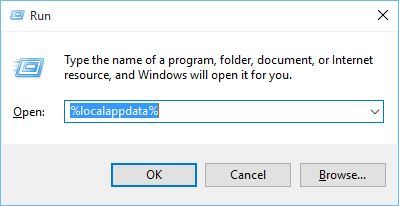
  • Press Windows Key + R and type %localappdata%. Press OK or Enter.
    localappdata-run
  • Locate Darksiders2 folder and delete options.dopt file from it.

You should be able to start the game, but keep in mind that all your graphics settings will be reverted to default values. If you need to adjust any video settings remember not to change the shadows setting, or you’ll cause the game to start crashing again.

Solution 3 – Lower shadows setting in graphics options

If Darksiders 2 is crashing on your computer, a crash can be related to the shadows setting. It’s advised not to set shadows to Maximum, so make sure that you lower or turn off shadow settings.

For a better gaming experience, we recommend downloading Game Fire for free. It will help with various gaming issues, such as freezes, crashes, low FPS, lags and slow PC.

Solution 4 – Run the game in compatibility mode

Windows 10 is a modern operating system, and certain software and video games aren’t fully compatible, therefore it’s recommended to run those game in compatibility mode. To do that, follow these steps:

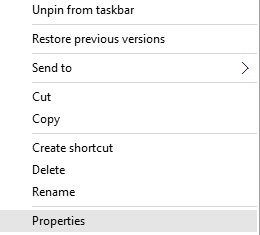
  • Locate Darksiders 2 shortcut or .exe file and right click it. Choose Properties.
    open-properties
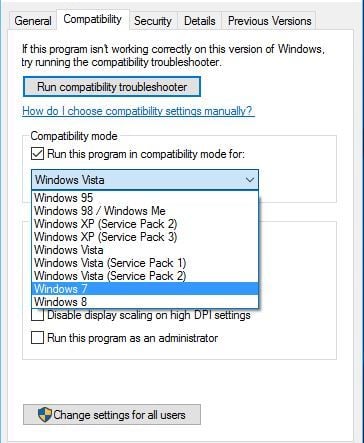
  • Navigate to Compatibility tab and check Run this program in compatibility mode for.
    compatibility-mode
  • Choose one of the older versions of Windows, for example, Windows 7 or even Windows XP.
  • Click Apply and OK to save changes and run the game again.

Solution 5 – Install DirectX and Visual C++ Redistributables

Darksiders 2 requires DirectX and Visual C++ Redistributables in order to work properly, and if any of those isn’t installed, it will cause the game to crash. In order to fix that, you need to install both DirectX and Redistributables from Darksiders 2 directory.

  • Navigate to C:Program Files (x86)SteamsteamappscommonDarksiders 2.
  • Inside Darksiders 2 folder you should see the vcredist folder. Open it and install both vcredist_x86.exe and vcredist_x64.exe.
  • Head back to Darksiders 2 folder and find DirectX folder, open it and run dxwebsetup.exe.

After installing all the required components, Darksiders 2 should start working again.

Solution 6 – Turn off anti-aliasing and Vsync

Darksiders 2 can crash due to your graphics settings, and users reported anti-aliasing option can sometimes cause issues with Darksiders 2. In order to fix this problem, it’s advised that you disable anti-aliasing option from the options menu. Another cause of the Darksiders 2 crash is Vsync, so it’s recommended that you turn off this option as well.

Solution 7 – Add Darksiders 2 to the list of exceptions in your firewall/antivirus

Darksiders 2 crashes can sometimes be caused by your antivirus or firewall software, so before starting Darksiders 2, make sure the game is added to the list of exclusions in your firewall and antivirus.

Solution 8 – Reinstall Darksiders 2

Another common-sense-driven solution is to perform a clean reinstall of the game. There are various reasons why the installation might’ve gone awry, starting with the corruption of some files or the nature of Windows 10 which changes the platform with every major update. For that purpose, we advise you to reinstall the game and move from there.

Here’s how to do it with Steam:

  1. Open Steam.
  2. Choose Library.
  3. Locate Darksiders 2, right-click on it and choose ”Uninstall”.
  4. Use IOBit Uninstaller or similar third-party tool to remove the remaining files and registry entries.
  5. Open Steam again and navigate to Library.
  6. Download Darksiders 2 and install it again.

Fix – Darksiders 2 black screen

Solution 1 – Delete AMD_Logo_movie.wmv

If you are getting a black screen while the game is starting, you should know this problem is related to a single file. If you’re having this issue, it’s advised you open the game’s installation directory, navigate to mediavideos and delete AMD_Logo_movie.wmv. Before deleting the file, be sure to make a copy and save it to a safe location, just in case.

Solution 2 – Change your desktop resolution

Few users reported black screen issue was caused due to their system resolution, and the only solution is to temporarily change your desktop resolution. It seems Darksiders 2 has issues detecting certain resolutions, so it’s advised that you lower your screen resolution and try starting the game again. We have to mention that you might have to try a few different resolutions before you find the one that works for you.

Solution 3 – Disable Comodo defense+ feature

As we previously mentioned, it’s important to add Darksiders 2 to the list of firewall exceptions, but in some cases, that doesn’t fix the black screen issue. Users reported Comodo firewall can cause issues with Darksiders 2, so if you’re using Comodo, be sure to disable its defense+ feature before starting the game.

Solution 4 – Update GPU drivers

Game issues too often go hand in hand with faulty or incompatible graphics drivers. The thing with drivers is the complexity of the problem. Sometimes generic drivers provided via Windows Update won’t suffice, sometimes they will. On other occasions, Darksiders 2 might be supporting only the specific driver release for your graphics card.

This means that even the official drivers that are up-to-date won’t work as intended. Basically, you’ll need to experiment with drivers in order to find the one who can run the game.

Here’s how to install/upgrade proper drivers in Windows 10:

  1. Right-click the Start button and open Device Manager.
  2. Expand Display adapters.
  3. Right-click on your GPU device and uninstall it.
  4. Navigate to one of these sites in order to obtain the proper drivers:
  5. Download and install proper drivers and restart your PC.

A safer and quicker method is to use dedicated software such as Fortect Driver Updater. It will detect whether your driver is out of date and download and install the best version available. It is easy to use, lightweight, and most of the process is automated.

Solution 5 – Run the game as an administrator

Another side workaround that can come in handy is to run the game with administrative permissions. By doing so, you should be able to avoid possible limitations imposed on the game’s process.

Follow the instructions in order to run Darksiders 2 on Windows 10:

  1. Navigate to the folder in which Darksiders 2 are installed.
  2. Locate the game’s main exe file.
  3. Right-click on it and open Properties.
  4. Under the Compatibility tab, check the ”Run this application as an administrator” box and confirm changes.

Fix – Darksiders 2 stuttering

Solution 1 – Make sure you meet the requirements

The first rather obvious thing we can’t overlook when addressing stutters in Darksiders 2 is system requirements. Darksiders 2 isn’t an overwhelmingly demanding game, but it’s still valuable to meet, at least, the minimum hardware requirements.

Minimum requirements:

  • OS: Windows Vista/7/8.1/10
  • Processor: 2.0Ghz Intel Core2 Duo Processor or AMD equivalent
  • RAM: 2GB
  • Hard Drive: 20 GB space free (10 GB free after install)
  • Video Card: NVIDIA 9800 GT 512 MB Video Card or AMD equivalent
  • Online Steam account

Recommended requirements:

  • OS: Windows 7/8.1/10
  • Processor: Any Quad-core AMD or Intel Processor
  • RAM: 2GB
  • Hard Drive: 20 GB space free (10 GB free after install)
  • Video Card: NVIDIA GeForce GTX 260 512MB Video Card or AMD equivalent
  • Online Steam account

Solution 2 – Use RadeonPro

Before we start, we have to mention this solution only applies to AMD owners, so if you own a Nvidia graphics card, skip this solution.

  1. Before we start, make sure Vsync is turned off in Darksiders 2.
  2. Download RadeonPro from here.
  3. Run the program and add Darksiders 2 profile.
  4. Go to Advanced tab, find flip queue size and set it to 1.
  5. In RadeonPro go to Tweaks tab and set Vsync to Always on.
  6. To apply changes find your Darksiders 2 profile in RadeonPro, right click it and choose to Apply now.
  7. Minimize RadeonPro and start Darksiders 2.
  8. Close the game and start it again in order to apply changes.

Solution 3 – Change Nvidia Control Panel settings

  1. Make sure that Vsync option is disabled in Darksiders 2.
  2. Open Nvidia Control Panel and click on Manage 3D settings.
  3. Go to Program settings tab and locate Darksiders 2 on the list. If the game is not on the list, click Add and locate game’s .exe file to add it.
  4. Find Maximum pre-rendered frames option and set it to 1.
    darksiders-2
  5. Turn on Vertical Sync.
  6. Click Apply and close Nvidia Control Panel.

Solution 4 – Change Catalyst Control Center options

  1. Open Catalyst Control Center.
  2. Go to Performance tab and select Framerate.
  3. Move the slider up to 60fps.
  4. Navigate to Games tab and choose Properties.
  5. Locate Framerate control and turn on Vsync and Triple Buffering.
  6. Start the game and activate Vsync from the options menu.

Solution 5 – Replace d3d9.dll file

If Darksiders 2 is stuttering on your computer, download this file. After you’ve downloaded the file, open it, and move d3d9.dll and antilag.cfg to Darksiders 2 installation directory.

Solution 6 – Change Darksiders 2 process priority to High

In some cases, Darksiders 2 can stutter if its priority isn’t set to High, but we can easily change that by doing the following:

  1. Start Darksiders 2.
  2. Press Alt+Tab to minimize the game.
  3. Press Ctrl + Shift + Esc to open Task Manager.
  4. Go to Details tab and locate Darksiders 2 process.
  5. Right-click Darksiders 2 process and choose Set Priority > High.
    set-priority-high
  6. Close Task Manager and return to the game.

If this solution fixes stuttering problems, you will have to repeat it every time you start Darksiders 2.

Darksiders 2 is an extremely fun game, but as you can see, it has its share of issues on Windows 10. If you’re having any of these issues, feel free to try some of our solutions.

Windows 10 is Stuck at Low Resolution? Change it by Force

Low resolution on Windows 10 can be a big problem since it will interfere with your daily activities and it will make your PC harder to use.

This will also affect the quality of your display, so it’s important to fix this issue, and today’s guide will show you how to do that.

Why is my PC stuck on low resolution?

  • Your drivers might be outdated, and that can cause issues with resolution.
  • Specific settings in the registry might not be configured properly, thus resulting in low resolution.
  • DPI value isn’t correctly set on your PC.

How do I fix low resolution on Windows 10?

1. Update your display driver

  1. Visit your graphics card manufacturer’s website.
  2. Locate your model on the list.
  3. Download the latest driver.
  4. Once it’s downloaded, run the setup file to install it.

For more information, check our guide on how to update your graphic driver. This should help if Windows 10 has low-resolution programs or games.

All your drivers need to be updated, but doing it manually is very annoying, so we recommend you use a professional driver updater tool to do it automatically. 

Update drivers automatically

If you don’t want the hassle of updating drivers manually, we strongly suggest doing it automatically. This third-party driver updating tool will check your installed driver versions against its cloud database of the latest versions and recommend proper updates.

2. Change the registry values

  1. Run Registry Editor by typing regedit in the Search box and selecting Registry Editor from the list of results.
  2. When Registry Editor opens you’ll need to search for a specific value, and you can do so by pressing Ctrl +F.

    In the Find, window enter display1_downscaling_supported.
  3. Double-click click Display1_DownScalingSupported key and change its Value Data to 1 and click OK to save the changes.
    Next, you need to press F3 to search again. Now repeat the step 4 and 5 for all Display1_DownScalingSupported keys that you find.
  4. After you’ve changed all Display1_DownScalingSupported you can restart your computer.

If you can’t find Display1_DownScalingSupported in Registry Editor try this:

  1. Open Registry Editor and search for LogPixels key. You can search it by Pressing Ctrl+F, or you can navigate to: HKEY_CURRENT_USER\Control Panel\Desktop
  2. Find LogPixels and double-click it.low resolution windows 10
  3. Set its value to 87. Depending on your screen size, you might need a lower value.

In case you’re stuck at certain Windows resolution, this guide might help you. If you can’t edit your registry, we have a special guide that can help you with that.

3. Roll back your driver

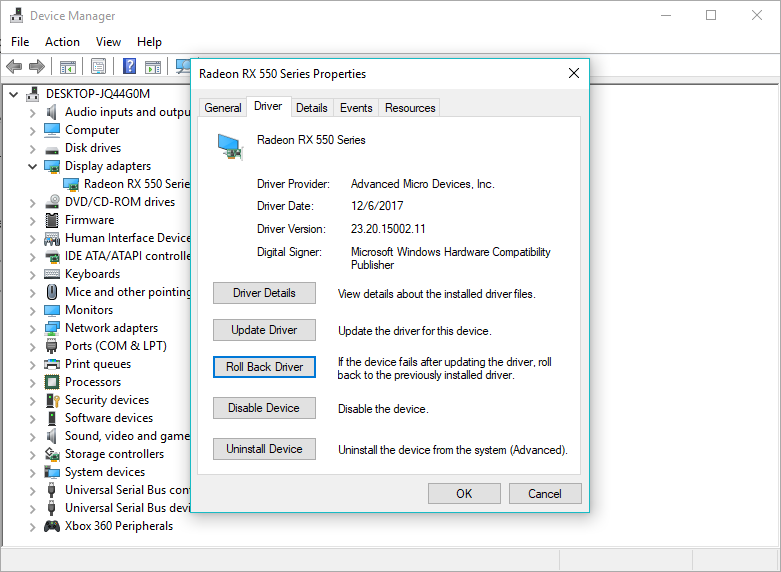
  1. Go to Search, type devicemngr, and open Device Manager.
  2. Find your graphics card under Display Adapters, right-click it and go to Properties.Windows 10 low resolution programs
  3. Head over to the Driver tab.
  4. Click Roll back driver.
  5. Follow further on-screen instructions.
  6. Restart your computer.

If the rollback is successful and the problem disappears, you’ll have to block Windows from automatically updating drivers in the future.

4. Set DPI size

  1. Go to Settings and select System. Then, choose Display.
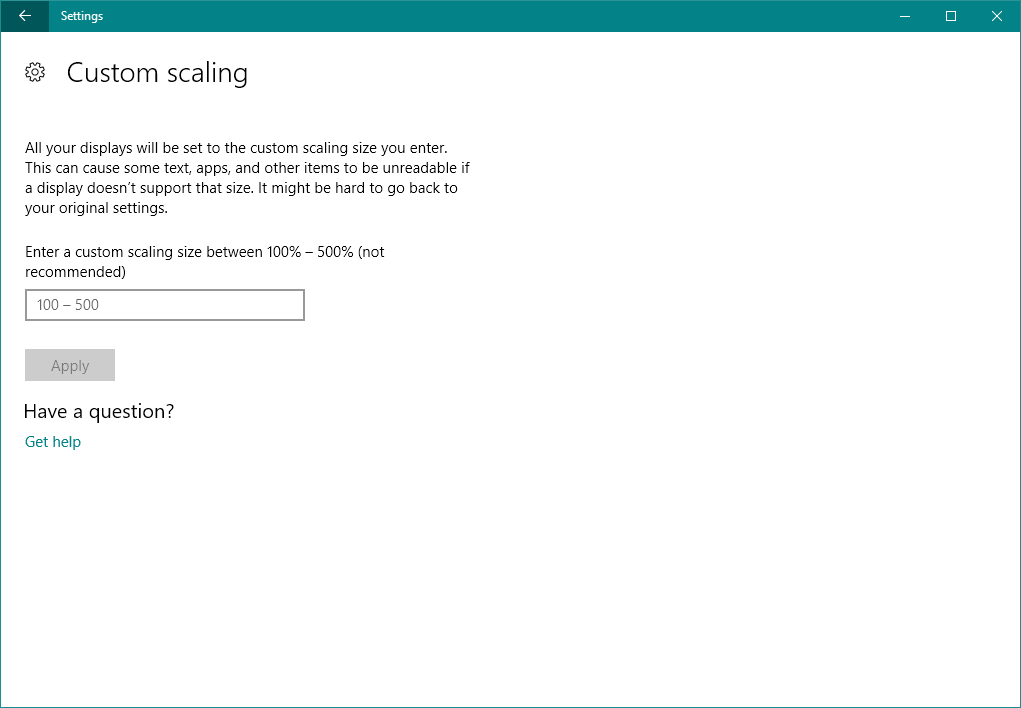
  2. Now, go to custom scaling, and you’ll see a screen like this:

Now, choose one of these three options and save the changes:

  • Smaller – 100% = 96 DPI (Pixels/Dots Per Inch)
  • Medium – 125% = 120 DPI (Pixels/Dots Per Inch)
  • Larger – 150% = 144 DPI (Pixels/Dots Per Inch)

Once you’ve chosen the right DPI size, just restart your computer, and you should be good.

5. Update monitor drivers

  1. Go to Search, type devicemngr, and open Device Manager.
  2. Expand Monitors.
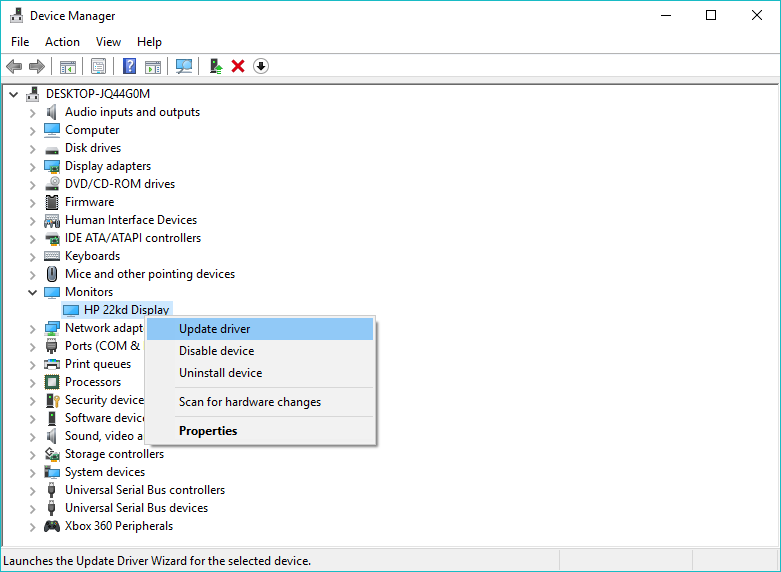
  3. Right-click your monitor, and go to Update driver.Windows 10 low resolution games
  4. Let your computer find new drivers for your monitor.
  5. If there are any new drivers available, let the wizard install them.
  6. Restart your computer.

Bonus: Stuck at a certain resolution

  1. Go to Settings > System > Display.
  2. Go to Display adapter properties.
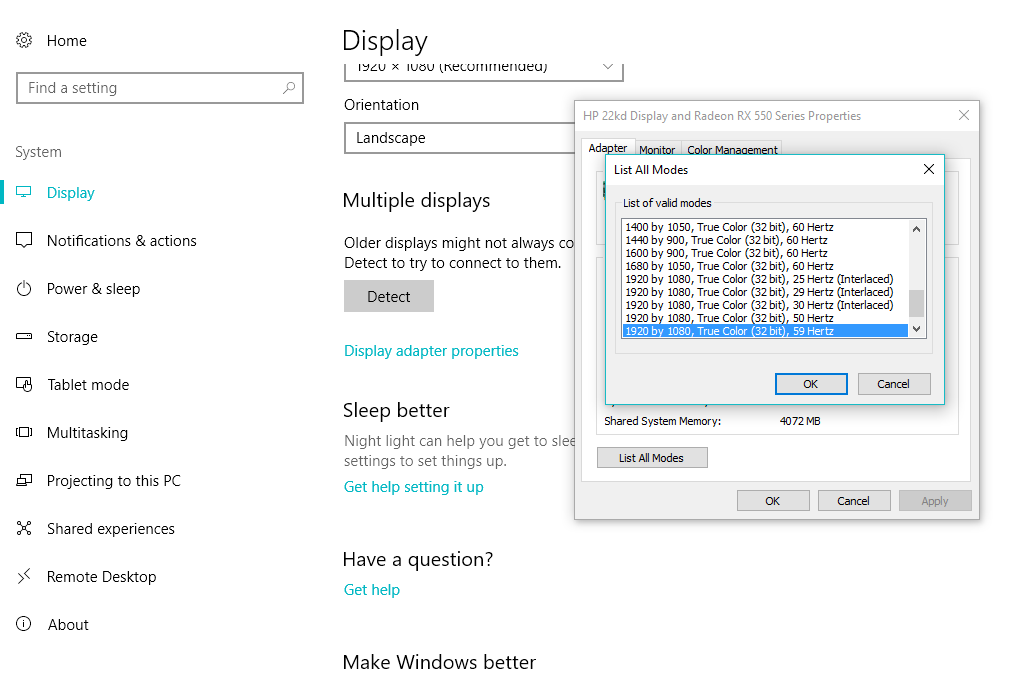
  3. On the Adapter tab, click List all modes.Stuck at Windows resolution
  4. Choose a desired resolution.
  5. Save the changes and restart your computer.

If you want to create custom resolutions, we have a dedicated guide that will surely help you.

This is a common and easy-to-solve issue, so one of these solutions will definitely help. If you have some other screen problems after the Windows 10 update, you can check out our article about solving problems with screen in Windows 10.

If you have any questions or comments, reach for our comments section, below.

VANQUISH, Lara Croft, and Guardian of Light and Brave come to Xbox One Backward Compatible catalog

Today is Tuesday, traditionally the day on which Microsoft adds new games to the Xbox One Backward Compatible catalog. That said, there are three Xbox 360 titles which are coming to Xbox One via Backward Compatibility today: VANQUISH, Lara Croft and Guardian of Light, and Brave. As always, we’ve included the details for you below the Tweet.

VANQUISH: ($19.99)

VANQUISH is a sci-fi shooter of epic proportions with a fast, fluid and frenetic combat system. It takes the shooter genre to the next level by adding unique offensive and defensive moves, and kinetic melee combat.

Lara Croft and Guardian of Light: ($14.99)

Experience the first ever co-op action-adventure game featuring Lara Croft. Team up with a friend or go at it alone as you traverse and solve deadly traps, fight hordes of undead enemies, and collect over 60 artifacts and relics. Lara Croft and the Guardian of Light offers fast-paced action and breathtaking visuals shown through an isometric view.

Brave: The Video Game: ($19.99)

In Disney Pixar Brave: The Video Game, challenge destiny and change your fate! Play as Merida, a Will ‘o the Wisp and other popular characters from new Disney Pixar film, as you run, jump and battle your way through the rugged landscape of mythical Scotland. With your wits and bravery, face off against fierce enemies to end a magical curse and save the kingdom!  Play as Merida Single-Player or Coop with a Will ‘O The Wisp  Compete with archery mini-games using Kinect for Xbox 360

These three titles are the first to join the catalog since Mafia II and the 2006 Prey game joined back last week. Just as usual, if you own digital copies of these titles they should appear in the ready to download section of the Xbox One guide now. And, if you own physical copies, all you need to do is insert the disk into the Xbox One and let the system work that Backward Compatible magic.

Xbox One’s Super Lucky’s Tale could be getting a sequel

Super Lucky’s Tale is a solid and adorable Xbox and PC platformer, but could there be more adventures and perhaps a sequel ahead for the furry fox hero? A new tweet from the developer of the game suggests so, saying that we’re likely to see Lucky again.

It’s not exactly clear if the studio is indeed already working on a sequel or DLC for Super Lucky’s Tale, but the tweet does suggest that the studio has some sort of additional plans. This is great news for those who were a fan of the original game, which may have felt a bit too short.

As usual, more is likely to develop over time, but for now, fans of Lucky will have to settle for replaying Super Lucky’s Tale in 4K on Xbox One X.  The game is already solid as is, and we’re hoping the rumors will hold up to be true. You can download Super Lucky’s Tale via the link below.

Super Lucky's Tale
Super Lucky's Tale
Developer:
Xbox Game Studios
Price:
Free

Parallels Toolbox 1.5 for Windows is out with new features to help you be more productive

Parallels, the Bellevue-based company behind Parallels Desktop for Mac is launching a new version of its Parallels Toolbox suite of productivity tools for Windows and Mac today. “The new suite of easy-to-use tools simplifies tedious everyday computing chores down to just a click or two,” the company explained, and there is indeed a lot to like about the collection of 30+ tools available in an all-in-one app.

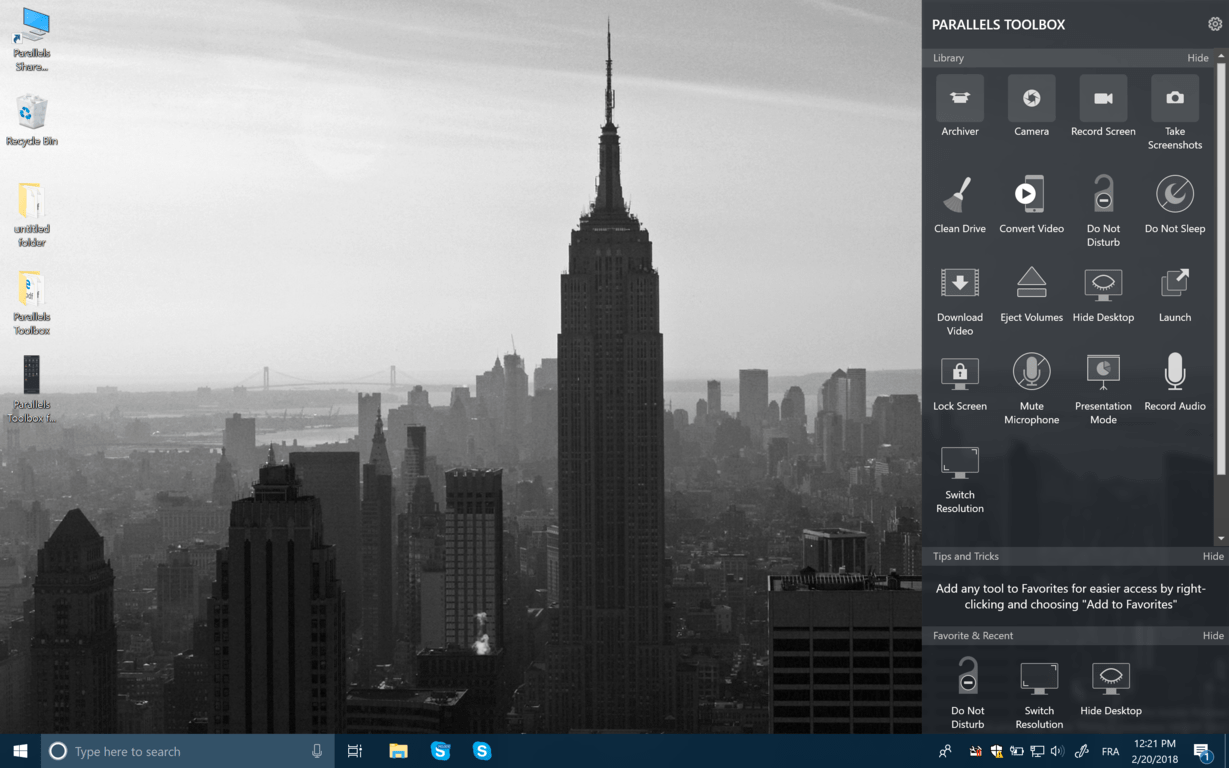
For Windows users, one of the most important additions in Parallels Toolbox 1.5 is the new Presentation mode, which was already available in the Mac version of the software. When you turn it on, Presentation mode will hide all files on your desktop, block all notifications, prevent sleep mode and automatically optimize display settings.

Also new in Parallels Toolbox 1.5 are Clean Drive, a tool that can help you reclaim disk space on your PC, as well as a Switch Resolution which can optimize display settings to makes text and images look easier on the eyes. Many existing Parallels Toolbox tools for recording audio or videos from your screen, downloading videos from YouTube, Facebook, Vimeo and more have also been updated in this new release.

For Mac users, Parallels Toolbox 2.5 for Mac comes with enhancements to existing features plus three new tools for batch image conversion, reclaiming RAM memory and taking screenshots of webpages. The company is also launching today Parallels Toolbox Business Edition, which will make it easier for IT admins to manage licenses and customize the tool library for employees.

Parallels Toolbox 1.5 for Windows and Parallels Toolbox 2.5 for Mac are both available as a $19.99 yearly subscription, which will give you access to free updates and enhancements several times a year. You can download a free 7-days trial from Parallels’ website and see for yourself is the collection of time-saving tools can help you be more productive.

Cybercriminals stole $16.8 billion worth of personal data in 2017

Businesses’ efforts to combat fraud were not very successful in 2017 because it turns out that cybercriminals stole $16.8 billion personal data last year according to the latest researches.

A new identity study states that the number of victims increased by 8% in 2017 compared to 2016 and it reached 16.7 million people last year. This is, unfortunately, the highest number of victims since the phenomenon started to be measured about 15 years ago by the research company Javelin Strategy & Research.

Fraud is becoming more complex

Embedded chip cards made it possible for the fraud to shift online, so it went beyond physical stores. Fraudsters are becoming more and more adapted to the newest technologies, and they are continually improving their criminal techniques.

It seems that there’s a change in the way that fraud was committed last year because cybercriminals opened a massive number of intermediary accounts including e-commerce services on Amazon and email payments made via PayPal.

The main findings of the fraud-related research

  • 35% Social Security numbers were compromised and 30% credit card numbers in breaches.
  • 64% of consumers were victims of identity fraud in 2017, and this means a million more compared to 2016.
  • Account takeover tripled over 2017 compared to 2016 and victims had to pay about $290 and spend around 16 hours to resolve the issues.
  • Cybercriminals are using more complex methods to devise monetization schemes.
  • Consumers are losing trust in institutions due to data breaches.

The Equifax data breach might be connected to the fraud

The same survey mentioned about says that the Equifax breach has something to do with what happened in 2017 – the fraud rose from 51% in 2016 to 69% in 2017. The Equifax breach is extremely dangerous for the victims because cybercriminals can use the stolen data to craft even more convincing campaigns for phishing. This is serious because phishing is blamed for 9 out of 10 data breaches.

Other severe examples of data breach are WannaCry contagion from May 2017 and GoldenEye/Petya a few months after that.

General Data Protection Regulation will be implemented shortly, and businesses all over the world should consider enhancing their IT security as soon as possible.

Speaking of improving security, check out the following articles to learn how you can protect your online privacy:

Microsoft patent reveals a Surface Pen with haptic feedback features

A few days ago, a patent suggested that the Surface Pen could be getting its own version of a mouse scroll wheel. Today, a more recent patent has surfaced, showing that Microsoft may be exploring adding a haptic feedback feature on the Surface Pen (via Windows Central.)

The Microsoft patent for “Haptic Stylus” was filed internationally on February 8th, 2017, and shows the company is considering using electromagnets in the tip of the Surface Pen to create haptic feedback. It also suggests that haptic feedback functionality can vary based on how the pen is moved and used.  Here’s a more technical description, straight from the patent:

A a coil mounted or patterned on the substrate, and a controller configured to induce haptic feedback via the tip based on applying a signal to the coil, which thereby acts as an electromagnet. A surface of the substrate faces the resilient element. The resilient element presses against the surface in response to the tip receding toward the housing.


With Microsoft’s notebook style folding Andromeda device in mind, this is definitely interesting. It shows that Microsoft may be looking to evolve the Surface Pen into something much more than a stylus. The vibrations created from haptic feedback might also help make writing feel more natural, and also create special feedback for when elements of the Windows 10 UI or certain apps are open and being used.

As always, there is no telling if the tech in this patent will ever come to be, but it still sounds promising. Do you think haptic feedback in the Surface Pen makes sense to you? Let us know your thoughts on this patent in the comments below.

EA is running a big Xbox Games sale, starting tomorrow

The Microsoft Store will be holding a special one-week sale on select EA titles starting tomorrow, February 20, 2018. The Microsoft Store EA Publisher Sale features new and popular EA titles on Xbox One, including Star Wars Battlefront II, FIFA 18, Madden 18, Battlefield 1 Revolution, Need for Speed Payback, Mass Effect Andromeda, and many more.

All week long during the EA Publisher Sale, if you give the gift of an EA title or DLC priced at $4.49 or more, you’ll receive a free month of EA Access. Existing EA Access members will also enjoy an extra 10% off any sale-priced items.

Microsoft Store, EA, Gift, Xbox, Video Games

EA Access is similar to the Xbox Game Pass program, where you pay a monthly fee to download and play popular EA titles available in the EA Access library. EA Access costs $4.99 a month or $29.99 for the year. While you won’t have access to the latest EA game titles on their launch date, you can still get early access to EA game titles before they are released and multiplayer betas.

Take a look at all the EA titles you can play on Xbox One with EA Access. Stay tuned and check the Microsoft Store in your region for details.

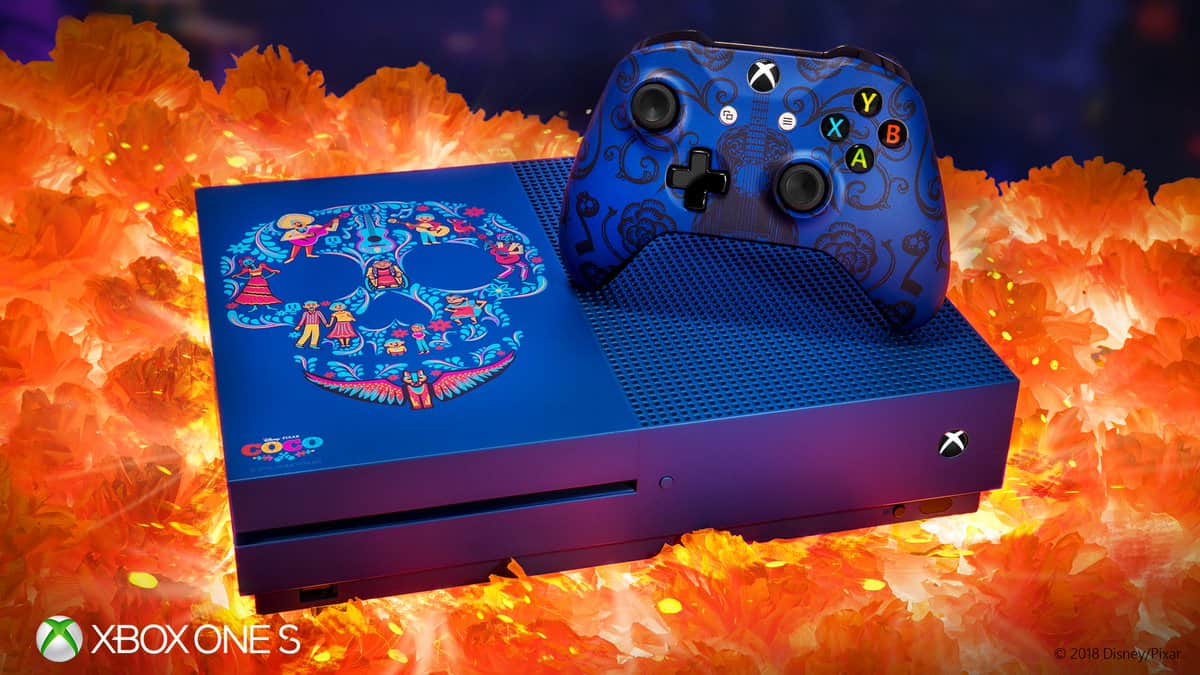
Disney Pixar and Xbox are giving away 5 Coco inspired Xbox One S consoles.

Feeling lucky this week? If you are, you might want to try your luck at winning one of 5 Coco inspired Xbox One S consoles.

You can enter now for your chance to win this special Xbox One S, inspired by the hit Disney Pixar Film, Coco. All you need to do is visit this website and enter your email. The sweepstakes begins at 12:00 PM ET on 2/14/17 and ends at 11:59:59 PM ET on 3/12/18. Please be aware that the sweepstakes is only open for legal residents of the 50 US/DC who are 13 years of age or older.

The sweesptakes celebrates the launch of Disney Pixar Coco in 4K on Microsoft Movies and TV. Coco follows the aspiring musician Miguel as he enters the Land of the Dead to find his great-great-grandfather, a legendary singer. You can download Disney Pixar’s Coco by clicking here.

We’d also like to remind you that Microsoft is giving away a custom Air Jordan III Inspired Xbox One X Console. You can check out that sweepstakes by going on Twitter.

The sweesptakes celebrates the launch of Disney Pixar Coco in 4K on Microsoft Movies and TV

Microsoft publishes then removes document detailing “necessary limitations” for Windows 10 on ARM

Back in December, the first Windows 10 on ARM laptops from Asus and HP were revealed during Qualcomm’s Snapdragon Technology summit, and both machines are expected to be released later this year. Together, Qualcomm, Microsoft and PC OEMs will try to shake the PC market with “Always Connected PCs,” which are ultrathin machines with instant-on capabilities, integrated LTE and great battery life.

For the first time ever, we’ll soon see full Windows 10 running on an ARM processor (the Qualcomm Snapdragon 835), and Windows 10 on ARM seems to be exactly what Windows RT should have been back in 2012. Microsoft previously explained that Windows 10 on ARM should support legacy Win32 apps through emulation, but the OS will still have some limitations compared to the same Windows 10 running on an x86 processor.

Last week, Microsoft published a document detailing the limitations of Windows 10 on ARM (via Thurrott.com). The information has since been removed from the Windows Dev Center website, but here are the highlights:

  • The OS will only support ARM64 drivers, which means that some of your old peripherals which only have x86 drivers won’t be compatible.
  • If Windows 10 on ARM will be able to run legacy Win32 apps through emulation, the OS will only support 32-bit apps, not 64-bit apps. This shouldn’t be an issue for popular apps such as Google Chrome or VLC which are both available in 32-bit and 64-bit flavours.
  • Games that use a version of OpenGL later than 1.1 or that require hardware-accelerated OpenGL won’t work on Windows 10 on ARM. Additionally, games that use anti-cheat drivers won’t be supported.
  • Apps that customize the Windows experience such as input method editors and assistive technologies may not work on Windows 10 on ARM. Microsoft also included in this category all apps that use shell extensions, including cloud storage apps which add badges on Files or additions to right-click menus.
  • You won’t be able to use Hyper-V to run virtual machines on Windows 10 on ARM.

Some of these limitations will probably be a dealbreaker for power users, and Microsoft and its partners will have a lot of work to do to educate consumers about the differences with x86 PCs. Yes, Windows 10 on ARM should pretty much work like “full” Windows 10, but it’s almost guaranteed that some early-adopters will complain about peripherals and apps that don’t work properly. The performance of emulated Win32 apps also remains a big question, and we won’t really have the answer until Asus and HP ship their first Windows 10 on ARM PCs later this year.

DuckDuckGo founder answers user questions about online privacy

Online privacy is one of the hottest topics of debate in the world. The idea that user data is a commodity doesn’t appeal to anyone.

Unfortunately, nowadays being online and exposing personal information go hand in hand. Your online activity, including the pages that you visited, the keywords that you searched for, the time of the day that you go online and many more metrics are carefully scrutinized.

There are huge databases about you and your online activity and many users aren’t even aware of this fact.

Fortunately, the antidote is available as well. There are quite a few programs out there that you can use to hide your online tracks. The Internet search engine DuckDuckGo is one of them.

DuckDuckGo puts  searchers’ privacy first and avoids personalized search results. In other words, this search engine doesn’t track its users.

If you haven’t heard of DuckDuckGo before and you don’t really know what to think about it or you’re not familiar with this whole Internet privacy debate, this article will shed some light on the matter.


In case you want to be secure while surfing the internet, you will need to get a full-dedicated tool to secure your network. Get now Cyberghost VPN (77% flash sale) and secure yourself. It protects your PC from attacks while browsing, masks your IP address and blocks all unwanted access.


Gabriel Weinberg, DuckDuckGo’s creator recently hosted a ‘Ask Me Anything’ session on Reddit that kind of went under the radar for many.

Well, we went through the answers and compiled the best of them in this article. So, if you’re curios to learn more about Internet privacy and DuckDuckGo, check out the list of facts available below.

Here are a few interesting facts about DuckDuckGo

  • DuckDuckGo doesn’t collect or share any personal information related to its users. So, if a governmental authority asked DuckDuckGo to hand it information about users, there would be nothing to be handed over. The company has no user accounts to hand over.

That’s one great thing about web search, that all searches can be independent and so you don’t need to save anything about the person searching after the search.

  • DuckDuckGo makes money primarily by serving ads, and also through donations and affiliates.
  • The DuckDuckGo browser extension and mobile app can block Google and Facebook trackers across the Internet.
  • Weinberg pledged DuckDuckGo would not cooperate with government bodies to create a backdoor to any of their programs.
  • Sometimes search results are not very accurate or not as  good as those displayed by Google. To clear it up, it’s always best to add another search term.
  • Weinberg explained that the name DuckDuckGo appeared before he even envisioned a search engine. It popped into his head one day while he was walking with his wife, and he liked the name so much that he decided to use it for whatever he worked on next. And that next project happened to be a search engine.
  • The connection between you and DuckDuckGo is encrypted. No one in between the search engine and the user can see your search terms.
  • DuckDuckGo doesn’t store your IP at all, there is no record of it after your search.
  • Plans for additional DuckDuckGo services are already on the list. The DuckDuckGo app was only recently launched allowing users to take control of personal information on phones as well.
  • A DuckDuckGo email service is on the list.

You can check out the full AMA session on Reddit.

If you’re interested in protecting your online privacy, check out the following articles:

For enhanced privacy, we recommend that you pair DuckDuckGo with CyberGhost.

Have you used DuckDuckGo on your Windows computer? Tell us more about your experience in the comments below.

Windows 10 news recap: Skype’s classic installer gets pulled due to security flaw, Uber drops Windows 10 support and more

Welcome back to our Windows 10 news recap, where we go over the top stories of the past week in the world of Microsoft’s flagship operating system.

Microsoft pulls installer for “classic” Skype for Windows desktop app due to security issue

While Microsoft is pushing the new Skype experience on Windows 10, Android and iOS, the classic Skype installer for previous versions of Windows is still a thing. Now, due to a security issue with the classic installer, the company has pulled the installer. While users can continue to use the classic Skype, it is recommended that users upgrade to the new experience.

https://twitter.com/WithinRafael/status/964386715606515712

Uber ends support of Windows 10 app

Uber appears to have ended support for its UWP app, effectively ending support for Windows 10 and Windows 10 Mobile, after a recent response from Uber’s support team stated that they now only support iPhone and Android devices. This comes after users complain of issues with the Windows 10 app for Uber.

Uber on Windows Phone

Google’s Project Zero exposes new Microsoft Edge security flaw

Project Zero, Google’s team of security researchers who aim to find flaws in first-party and third-party software, have released details of a security flaw in Microsoft Edge, after Microsoft failed to patch the flaw in the allocated timeframe, and being given extensions.
microsoft, edge

Windows Insider Program continues to grow, Insiders for Business hits 30K milestone

Around a year after launching the Windows Insider Program for Business, aimed at IT pros, Microsoft has announced that the program continues to grow, and that it now has over 30,000 insiders taking part in providing feedback to Microsoft from a business and IT pro perspective.

Windows 10, Anniversary update, Microsoft, Ninja Cat

That’s it for this week. We’ll be back next week with more Windows 10 news!

Microsoft news recap: Outlook.com beta gains redesigned “People” area, Build 2018 registration now open and more

Microsoft news recap is a weekly feature highlighting the top Microsoft news stories of the past week. Sit back, grab some coffee, and enjoy the read!

Outlook.com beta now has a redesigned “People” section

As Microsoft continues to work on an improved experience for Outlook.com users, the company has now launched a redesigned “People” section in the Outlook.com beta. This brings the People area in line with the design of the Mail and Calendar areas.

Microsoft Build 2018 registrations are now open

It’s that time of year again! Registration for Microsoft’s annual conference, Build, is now open. Build 2018 runs from May 7th to May 9th, located in Seattle.

LinkedIn launches ‘Scheduler’ to automate interview scheduling for recruiters and candidates

In a vid to help recruiters and candidates manage interviews easily, LinkedIn has added a new feature called “Scheduler”, with the aim of automating the interview scheduling process.

Microsoft Edge for Android picks up improvements with latest update

Microsoft Edge on Android continues to receive incremental updates delivering improvements. The latest update brings the ability to customise the New Tab newsfeed based on region and language, improvements to setting Edge as the default browser, and more.

Edge Android

That’s it for this week. We’ll be back next week with more Microsoft news.

Uber ends support of Windows 10 app

Uber has been a long-time supporter of Microsoft’ efforts in mobile, despite its efforts not paying off. The ridesharing firm has had a number of apps, from web wrappers, to Windows Phone 8/8.1, and in 2015, a Universal Windows Platform (UWP) app.

As Microsoft itself no longer supports Windows 10 Mobile, dealing a blow not only to its mobile platform, but also to its UWP ambitions, other companies are following suit. Uber’s support team, when asked about support by a customer, has come out and stated it no longer supports Windows (via Neowin), instead recommending that users switch to iPhone or Android:

Yes, we’re no longer supporting app on Windows. You can use Uber with the following smart devices instead:

-iPhone (iOS 7 or newer)

-Android (Jelly Bean or newer)

In addition to the comment by Uber’s support team, it is clear that they’re no longer as interested in the app as they once were, as the reviews complain of the app barely working, particularly with it being unable to detect the pickup location accurately.

How to fix error 0x8e5e03fb in Windows 10/11

Error 0x8e5e03fb is generally found in Windows Updates in the auto-update settings, which usually happens when Windows crashes or freezes, or when you have startup, shutdown and installation problems.

Windows Updates are usually checked and installed automatically through the internal Windows Update service, and with it comes security patches, new driver, fixed bugs, and updates/upgrades.

Whenever you get Windows update errors, there are several reasons that bring it up such as firewall and Internet connection issues, file system corrupt and/or the Windows Update service is damaged. It can also be as a result of activation or a missing source file.

Some of the first troubleshooting steps you can take to fix error 0x8e5e03fb include ensuring date and time are correct, installing pending updates, disabling any security software temporarily and re-enabling after the issue is sorted out, placing the computer in clean boot and installing service pack 1, or running the Windows Update Troubleshooter.

FIX: Error 0x8e5e03fb in Windows 10

  1. Enable .NET Framework 3.5
  2. Run an SFC scan
  3. Run DISM RestoreHealth
  4. Reset your PC
  5. Reset Windows Updates components

Solution 1: Enable .NET Framework 3.5

This .NET framework for Windows 10 must be separately enabled to run apps that depend on it.

  • Right click Start and select Control Panel

error 0x8e5e03fb

  • Click Programs

error 0x8e5e03fb

  • Select Programs and Features

error 0x8e5e03fb

  • Click Turn Windows features on or off

error 0x8e5e03fb

  • Check the .NET framework 3.5 box to install pre-requisites. If not successful, uninstall the KBs related to .NET framework 3.5 then reinstall them and restart your computer if needed.

error 0x8e5e03fb

Solution 2: Run an SFC scan

This will fix any file system corruptions it finds during the scan.

  • Click Start
  • Go to the search field box and type CMD
  • Go to Command Prompt then right click and select Run as Administrator

error 0x8e5e03fb

  • Type sfc/scannow and press Enter

error 0x8e5e03fb

Solution 3: Run DISM RestoreHealth

RestoreHealth performs repair operation automatically, then records those to the log file. Perform both scans so as to resolve the issue.

  • Click Start
  • In the search field box, type CMD
  • Click Command Prompt in the search results list

error 0x8e5e03fb

  • Type Dism /Online /Cleanup-Image /RestoreHealth to scan and correct any causes of error 0x8e5e03fb
  • Press Enter

Solution 4: Reset your PC

Performing a reset allows you to choose which files you want to keep, or remove, and then reinstalls Windows, so follow the steps below:

  • Click Start
  • Click Settings
  • Click Update & Security

error 0x8e5e03fb

  • Click Recovery on the left pane

error 0x8e5e03fb

  • Click Reset this PC

error 0x8e5e03fb

  • Click Get started

error 0x8e5e03fb

  • Select Keep my files option

error 0x8e5e03fb

Note: all your personal files will be deleted and settings reset. Any apps you installed will be removed, and only pre-installed apps that came with your PC will be reinstalled. After reset, you can install updates cleanly without issues.

Solution 5: Reset Windows Updates components

Disclaimer: this solution contains steps that are part of modifying the registry. Please note that serious problems may occur if you do this incorrectly. Ensure you follow these steps correctly, and carefully.  Back up the registry before you modify it, then restore it if a problem occurs.

  • Right click Start
  • Select Command Prompt (Admin)

error 0x8e5e03fb

  • Click Yes when asked for permissions
  • Stop the BITS, Cryptographic, MSI Installer, and Windows Update Services by typing the following commands at a command prompt:
  • net stop wuauserv
  • net stop cryptSvc
  • net stop bits
  • net stop msiserver
  • Press Enter after each command you type
  • Rename the SoftwareDistribution and Catroot2 folder by typing the commands below in the Command Prompt then press Enter after each command you type:
  • ren C:\Windows\softwareDistribution SoftwareDistribution.old
  • ren C:\Windows\System32\catroot2 Catroot2.old
  • Restart the BITS, Cryptographic, MSI Installer, and Windows Update Services by typing the following commands in command prompt:
    • net stop wuauserv
    • net stop cryptSvc
    • net stop bits
    • net stop msiserver
  • Type Exit in the Command Prompt to close it

Try running Windows Updates again to check if the error has gone.

Has any of these solutions helped? Let us know in the comments section below.

RELATED STORIES TO CHECK OUT:

Google’s Project Zero exposes new Microsoft Edge security flaw

Google’s Project Zero, a team of security researchers tasked with finding vulnerabilities in Google’s own software and that of third-parties, has exposed a new security flaw in Microsoft Edge (via Neowin), the default web browser in Windows 10.

The flaw affects Microsoft’s Arbitrary Code Guarantee (ACG) that aims to mitigate arbitrary native code execution. ACG forced Microsoft to move its JIT (Just-in-Time) functionality into a separate process, effectively running it in an isolated sandbox. Google explained how the flaw works, by predicting the address that the JIT process calls itsVirtualAllocEx() function:

  1. Unmap the shared memory mapped above above using UnmapViewOfFile()

  2. Allocate a writable memory region on the same address JIT server is going to write and write a soon-to-be-executable payload there.

  3. When JIT process calls VirtualAllocEx(), even though the memory is already allocated, the call is going to succeed and the memory protection is going to be set to PAGE_EXECUTE_READ.

The flaw is marked as a “Medium” in severity, and Microsoft was made aware of it back in November 2017 and was given the usual 90-day window to resolve the flaw. Microsoft later told Google that the complexity of the flaw meant it would need more time, so a 14-day extension was granted. Microsoft missed the new deadline and Google’s Project Zero released details of the flaw publicly.

Now, the flaw remains unresolved and Microsoft has targeted March 13th for a patch.

Microsoft discontinues the Reader app in favor of Edge

Microsoft just discontinued its native PDF reader for Windows 10, Microsoft Reader. This decision comes as no surprise, as the company announced it will be getting rid of the app in November last year.

Redmond uses the discontinuance of Reader to promote Microsoft Edge now. As soon as you open the defunct app, you’ll be asked to use Windows 10’s built-in browser for reading PDF documents. As it appears, the Reader app was sacrificed for another effort of promoting Edge. As a reminder,  Microsoft also used to force other browsers’ users to use Edge by forcefully opening tabs in Windows 10’s browser.

Many users agree this move will do more harm than good to Microsoft. Simply because Edge still isn’t as attractive to users as Microsoft wants it to be. In fact, the whole PDF-reading experience in Microsoft Edge feels stripped down, and too dull. From that point of view this will only encourage users to switch to more advanced third-party PDF readers that objectively have more to offer than Microsoft Edge.

The Reader app is still available in the Microsoft Store, however. But it will only try to redirect you to Microsoft Edge using the window  shown above. So, there’s really no need to keep this app installed on your computer. Wheter you want to follow along and use Microsoft Edge or turn to a third-party PDF reader.

What do you think about Microsoft’s move to discontinue the Reader app for the sake of promoting Edge? What PDF reader will you be using? Let us know in the comments below.

Assassin’s Creed III could be getting an Xbox One remaster

As noted by MSPU, it looks like Assassin’s Creed III is getting the HD treatment on Xbox One. The Xbox 360 version of the game is already backward compatible on the Xbox One, but Ubisoft will apparently re-release it on the new console. Indeed, a new Xbox One version of the game has recently earned a PEGI 18 rating, as you can see below:

Assassin’s Creed III was released in 2012 and, at the time was widely considered to be the best Assassin’s Creed title to date. For those unfamiliar, the game followed the birth of the United States with the Revolutionary War at the forefront. Since its release, there have been a healthy number of followups to the series such as Assassin’s Creed IV: Black Flag, which was also re-released on the Xbox One after its initial launch on the Xbox 360 back in 2014.

Assassin’s Creed is probably one of Ubisoft’s most popular game franchises these days, and the latest episode Assassin’s Creed Origins received critical acclaim. Are you looking forward to revisiting Assassin’s Creed III on the Xbox One? Let us know below.

Outlook.com beta now has a redesigned “People” section

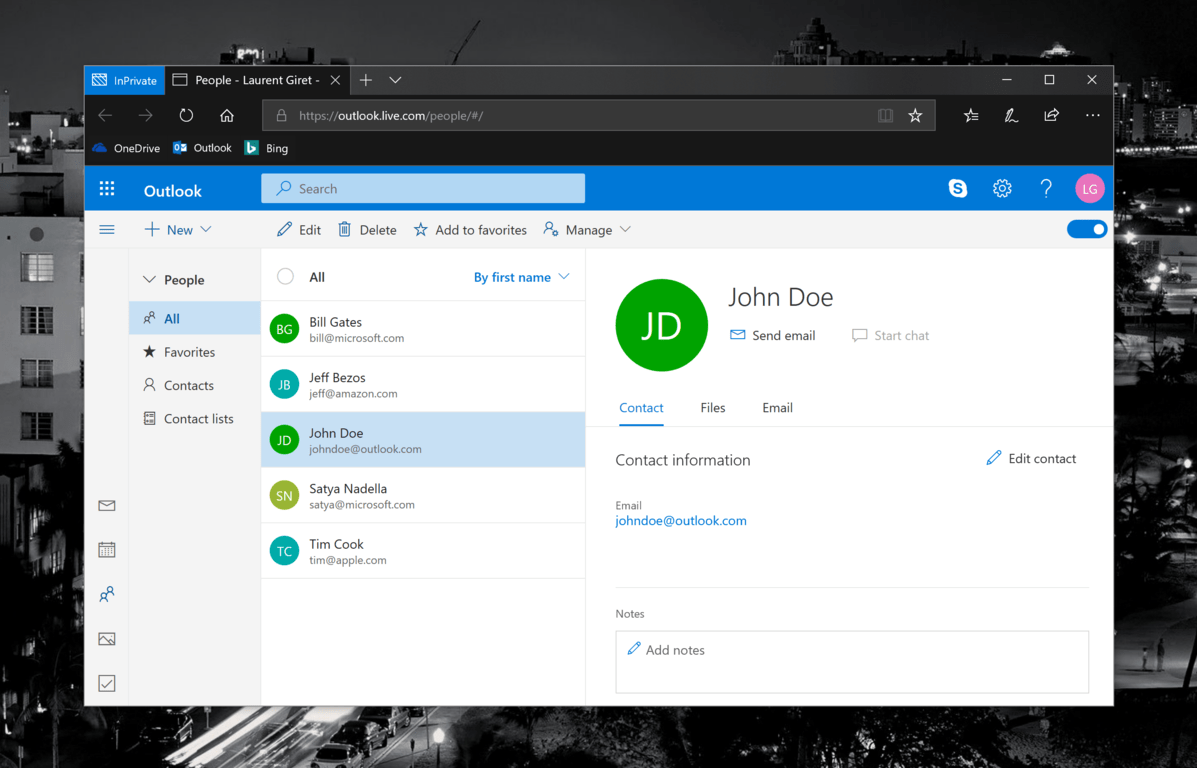
Over the past couple of months, Microsoft has been busy working on a redesigned version of its Outlook.com webmail, now available in beta. After revamping the Mail and Calendar sections and bringing back the Skype integration, it’s now time for the People section to receive some love.

The redesigned address book now uses the same design language as the other sections of the web app. The contact cards are also more useful, and you can quickly check all recent interactions you had with a specific contact, included shared files. Moreover, it’s still possible to create contact lists or add select contacts to your favorites.

There is a lot to like about Outlook.com beta, and we would love to see it become a full-fledged Progressive Web App with Windows 10 version 1803. For Outlook.com users, it already works pretty much like a lightweight version of the Outlook desktop app, with the Skype integration as a bonus. We’ll see what happens in the coming months, but in the mean time you can still give your feedback and help Microsoft prioritize new features by visiting the Outlook Feedback website.

Enter for your chance to win a custom Air Jordan III Inspired Xbox One X Console

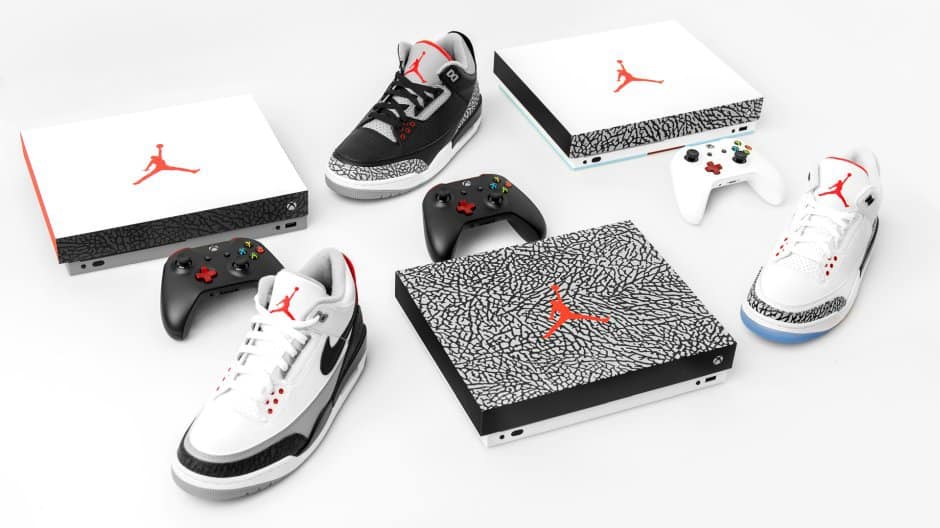
Microsoft has previously given away special Xbox Consoles to celebrities but now is your chance to win one for yourself. To celebrate the reveal of the iconic Air Jordan III sneakers, the company will be giving away an Xbox One X console inspired by the upcoming Air Jordan III releases.

One of the consoles is inspired by the Air Jordan III Free Throw Line, released on February 14, the second by Air Jordan III Black Cement, and the final by the Air Jordan III Tinker. As noted by Microsoft’s Aaron Greenberg, each console pays tribute to a special moment in Air Jordan history.

The Free Throw Line Xbox One X pays homage to the unforgettable dunk by Michael Jordan in 1988. The Black Cement Xbox One X is inspired by the sneakers with all the same detailing which made these, considered by many, the greatest sneakers of all-time, and the Tinker Xbox One X showcases Tinker Hatfield’s original design for what the shoe was going to be.

You can enter to win one of the consoles by heading to Xbox’s Twitter Page and retweeting the special tweet above. The contest is open from Friday, February 16 at 6 a.m. PT to Wednesday, February 21 at 10 p.m. PT. You never know if you can win, so be sure to try your luck at winning this one of a kind console!

Microsoft pulls installer for “classic” Skype for Windows desktop app due to security issue

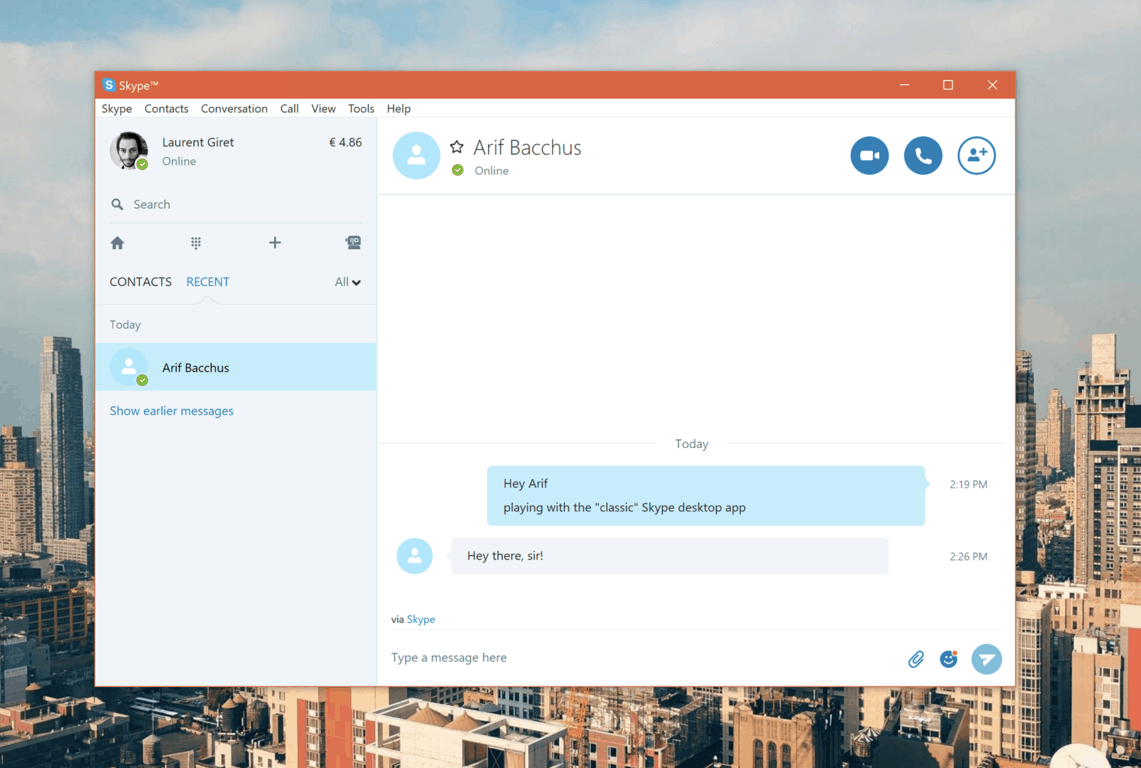
If you still prefer using the “classic” Skype desktop app for Windows over its more modern alternatives, then it looks like Microsoft may sunset this app earlier than expected. Indeed, the company has just pulled the installer for this old version of Skype, citing a security issue with the installer. Ellen Kilbourne, Program Manger at Skype shared the following message on Skype’s community website:

At Skype, we take security very seriously.

There was an issue with an older version of the Skype for Windows desktop installer – version 7.40 and lower. The issue was in the program that installs the Skype software – the issue was not in the Skype software itself. Customers who have already installed this version of Skype for Windows desktop are not affected. We have removed this older version of Skype for Windows desktop from our website skype.com.

The installer for the current version of Skype for Windows desktop (v8) does NOT have this issue, and it has been available since October, 2017.

Consumers who have already installed this “classic” Skype app on their Windows PC can continue to use it just like before, for now at least. When checking for updates, the app will invite you to try “the new version of Skype,” which depending on the version of Windows you’re running will either be the new cross-platform Electron-based app (version 8.x) or the UWP app for Windows 10. Unfortunately, both of them still lack power user features such as the ability to open multiple chat windows, be notified when your contacts go online and more.

Yes, Microsoft has two separate “modern” Skype apps for Windows: Skype UWP (left) and the new Electron-based app (right).

Even if the installer for “classic” Skype is no longer available to download from Skype’s website, Microsoft watcher Rafael Rivera noted that you can still find it on the Internet, though you may want to act fast before it disappears. Proceed with caution, however, as Microsoft pulled the installer due to a security flaw.

https://twitter.com/WithinRafael/status/964386715606515712

Do you still use the old Skype desktop app for Windows, and are you worried that Microsoft may force you to switch to its new desktop apps at some point? Sound off in the comments below.

Grab the Tokyo Ghoul anime’s first season for free on Xbox One & Windows 10

The first season of the popular anime series, Tokyo Ghoul, is now available to claim for free via the Microsoft Store on Windows 10 devices and Xbox One video game consoles. Here’s its official description.

Tokyo lives in fear of creatures called Ghouls. By day, they live as ordinary humans, but by night, they become flesh-eating monsters. When a young man becomes the first Ghoul-human half breed, he must learn to harness his deadly, newfound powers.

This anime series is definitely one for older viewers as it features a significant amount of gore and sexual references. If this sort of anime is your bag, make sure to grab it here. The offer expires in six days.

The Microsoft Store has a large number of anime movies, series, and video games on sale right now so it’s worth having a look if you’re an anime fan. Have you bought anything in the anime sale this month? Share your recommendations with the community in the comments below.

Microsoft is Yet to Introduce VPN Support for Windows 10 on Phone

Windows 10 for phones is in it’s earliest testing phase, which means that a lot of features are missing from it. And one of the issues of Windows 10 Technical Preview for phones is lack of Virtual Private Network connectivity.
install windows 10 for phones on non-supported devices
In case you’re not familiar with the term ‘VPN,’ it means Virtual Private Network and it allows you to create your own private network within a bigger public network, like the Internet. VPN connections are especially useful for business people or other people who are often on the move.

It allows them to easily access necessary files from their ‘main’ computers on their laptops or smartphone devices. VPN connections are available on PC, Android and iOS devices, and Windows 8.1 phones, but it still isn’t available for Windows 10 Technical Preview users.

But lack of VPN connectivity in the first build of Windows 10 Technical Preview for phones shouldn’t worry us. Just as a reminder, Windows 8 for phones didn’t have VPN support on its release, and users had to wait for the VPN feature to be added. And since this is just the earliest build of Windows 10 for phones, we should expect this feature to be added if not in some of the next builds, then in the final release of the operating system.

People from Microsoft announced that we’ll get new builds of Windows 10 Technical Preview for Windows Phone devices almost every month, which means that more and more bugs and issues will be fixed and more features will be added. And we hope that Microsoft will feature a VPN connectivity in its new mobile operating system very soon.


A VPN tool can be crucial for you and your privacy while surfing the internet. You can secure yourself by installing Cyberghost (77% flash sale), a leader in the VPN market. It protects your PC from attacks while browsing, masks your IP address and blocks all unwanted access.


Do you use a VPN connection right now, and will you use it on your Windows 10 device to transfer files through your private network? You already know what to do, tell us in the comments, we would love to hear it.

We would also recommend you to check out some of the best VPN tools for Windows 10 that you can try out. Or, if you are still on Windows 7, we’ve got you covered. Even on Windows XP, although we would highly recommend you upgrade to the latest Windows version.

Update – you can now Connect to a VPN in Windows 10 Mobile, here’s the official guide from Microsoft.

Read Also: Fix: Wireless Network Shows ‘Not Connected’ but Internet Works

How to enable Windows Projected File System on Windows 10

Microsoft recently rolled out a new Windows 10 build to Fast Ring Insiders. So, if you already got bored with the previous build, you can now install build 17604.

This new release adds a very interesting feature to the table, namely the Windows Projected File System.

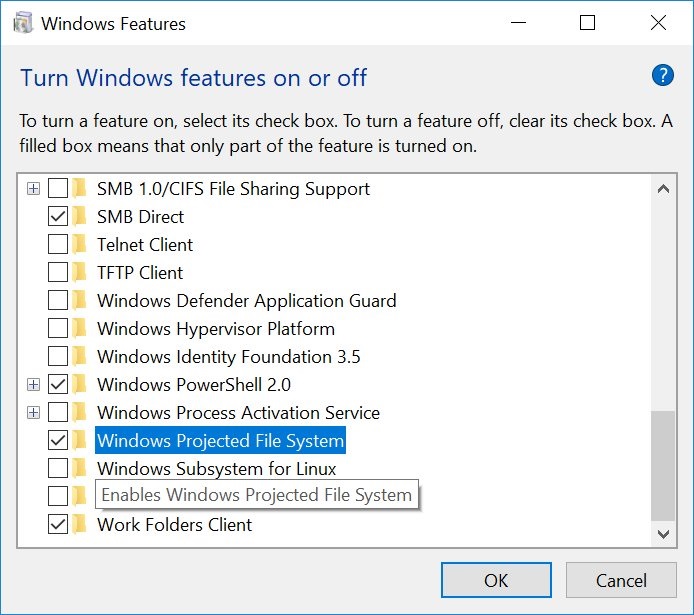
Insiders can already enable this feature by going to Windows Features > Turn Windows features on and off. All you need to do is check the Windows Projected File System box and that’s it.

Windows Projected File System

Tero Alhonen also noticed this change and shared the screenshot above with the whole world on Twitter.

On the other hand, Walking Cat suggests that Microsoft renamed the GVFS (Git Virtual File System) to ProjF (Windows Projected Filesystem).

Anyway, we’ll dig more into this and update the article as soon as new information is available.

So, if you installed the latest Windows 10 build on your computer and tested the Windows Projected File System feature, tell us more about your experience in the comments below.

UPDATE:

As one of our readers explained, instead of having developers install GVFS, the Redmond giant is now including it as a feature of Windows. This corroborates Walking Cat’s hypothesis.

For more information, you can check out our reader’s comment below. Thank you, Josedolf.

Windows Projected File System is not security-related as Windows Security is focusing on Virtualization-Based Security. Windows Projected Filesystem is likely similar to what they did with OneDrive: the files are on a remote server, and you can see “placeholders”, but they’re not actually on your machine unless you open them (thus a “projected” file system).
UPDATE
: Just checked some Windows Insider and other developers’ Twitter accounts, and Windows Projected File System is what powers GVFS, allowing for very large repositories with little performance impact. It is marked “Beta” because there is no documentation yet.

RELATED POSTS TO CHECK OUT:

Microsoft once again offers PUBG copy with new Xbox One X purchases, savings on Xbox One S

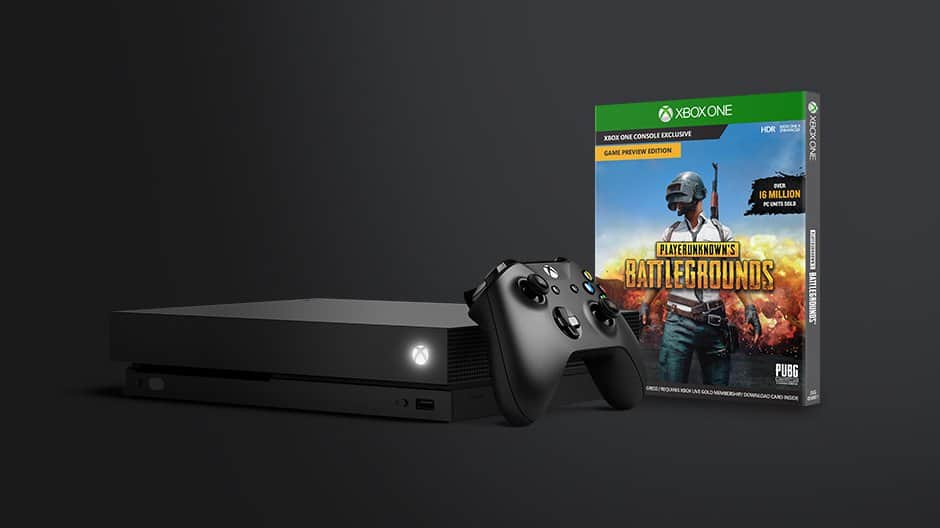
During the holiday season, Microsoft bundled Player Unknown’s Battlegrounds (PUBG) with the Xbox One X. The promotion was a great way to enjoy the power of Xbox One X and the multiplayer fun of PUBG together as one. If you missed that initial deal, please be aware that Microsoft is once again offering a free PUBG copy with any new Xbox One X purchase.

The new offer is valid in most Xbox One markets starting February 18 through March 4. Here in the United States, the promotion will run from February 18- February 24, and it’s best to check with your local retailer or the Microsoft Store for more. You can also see below for the days when the promotion is valid in other countries:

  • Available in Canada, Ireland, the United Kingdom, the United States and select Latin American countries starting February 18
  • Available in Australia, India, Korea, New Zealand, Singapore and select European, Middle Eastern and African countries starting February 20

In addition to the above deal, Microsoft is also offering savings on Xbox One S bundles. Here in the United States, you can save $50 on Xbox One S from February 18 through March 3. In Canada, you can save $60 CAD on Xbox One S Bundles from today until February 23.

It remains interesting to see that Microsoft is marketing PUBG so heavily, even though it’s still in a preview and not a first-party title. Regardless, these latest deals are sure to save you a few bucks, so be sure to check it out and let us know your thoughts in the comments.

It’s official: Xbox Live Free Play Days set for this weekend

As leaked by WalkingCat a couple of days ago, Free Play Days starts today and lasts all weekend long on Xbox Live. Xbox is unlocking Xbox Live Multiplayer for everyone with an Xbox One or Xbox 360 console, so you don’t even need an Xbox Live Gold subscription to play online.

In addition, all Xbox One gamers can play Rainbow Six Siege and NBA 2K18 for free through Sunday, February 18 at 11:59 p.m. PST. Any progress you get in any of the unlocked multiplayer games will be saved and you can continue your progress should you decide to sign up for Xbox Live Gold. Something tells me this is just the first of many Free Play Days for All on Xbox Live and we should see more Xbox One games available free to play later this year.

Download Rainbow Six Siege and NBA 2K18 and start playing today!

Free to Play: Rainbow Six Siege
Developer:
UBISOFT
Price:
Free


Free to Play: NBA 2K18
Developer:
2K
Price:
Free

Don’t forget to grab Assassin’s Creed Chronicles: India and Crazy Taxi, now free with Xbox Live Gold

Xbox Live Gold subscribers can download the two remaining Games with Gold titles for February a day early: These are the 2.5D side-scrolling platformer Assassin’s Creed Chronicles: India and the Xbox 360 score attack game Crazy Taxi (also backward compatible on the Xbox One). Both games represent $19.98 in value, and we’ve added download links, official descriptions and video trailers below.

Assassin’s Creed Chronicles: India ($9.99 ERP): Available today through March 15

Embody Arbaaz in his quest for retribution through a colourful depiction of 19th century Colonial India in 2.5D stealth gameplay. Zip-line across the streets of Amritsar, hide in the shadows of the palace, and hunt legendary artifacts, following in the footsteps of Alexander the Great.

Crazy Taxi ($9.99 ERP): Available today through February 28

Hey hey, come on over and have some fun with Crrrrrazy Taxi! Barrel through traffic packed streets, hurdle off parking garages, and Crazy Combo your way to Crazy Money in a wild frantic race to scare up the most fares. In Crazy Taxi, time is money, and only the Craziest Cabbies come out victorious.

If you haven’t done it it yet, we remind you that you have until the end of the month to grab the FPS Shadow Warrior for free with your subscription.

Windows 10 KB4074588 install fails for many

Microsoft rolled out a bevy of interesting updates on Patch Tuesday. Unfortunately, not all Windows 10 users have managed to install the latest patches. Many Windows 10 Fall Creators Update users reported that KB4074588 often fails to install due to various error codes.

KB4074588 won’t install

If you successfully downloaded KB4074588 on your computer but you got error 0x80070bc2 after restart, well you’re not the only one.

Judging by the number of user reports, it seems that this is the most common error that’s preventing users from updating their OS. Unfortunately, fixing it is not an easy task, as this Windows 10 user reports:

I have done everything that the Microsoft Computer has told me to do to correct this problem except the last one which is a clean install! None of them have worked. I did send an work order to my virus protection company. Will be waiting to hear back from them. Reason: It was said the some virus programs may not have been updated by them yet and should ask them!
This is the update in question put out on Feb. 13, 2018. Which is really new (2018-02 Cumulative Update for Windows 10 Version 1709 for x64-based Systems (KB4074588))
I really do not understand this problem because this is the first time I have had a problem. [..] Would ask Microsoft but they really make it hard to talk to them!

Other users reported that the update didn’t initialize despite several attempts.

Update will not initialize. I’ve tried ten times. 2018-02 Cumulative Update for Windows 10 Version 1709 for x64-based Systems (KB4074588) – Error 0x80070422

There is also a third error that we identified scouring user reports: ‘Couldn’t complete the updates, undoing changes‘.

Once i got the update KB4074588, i restarted my pc like normal and upon startup, the update got to 90% and then it said  “couldn’t complete the updates, undoing changes”.

Fortunately, this time we’ve got a good piece of news for you. You can quickly fix this error by following the steps available in this troubleshooting guide.

We’ll end this list with error 0x800f0922.

I tried to install this file but when I restart, it goes to 100% but the it shows “We couldn’t complete update KB4074588.

WindowsReport has a dedicated troubleshooting guide on how to fix Windows update error 0x800f0922. Do let us know if the instructions available in the respective guide helped you fix the problem.

So, as you can see, KB4074588 triggered quite a few install errors on users’ computers.

For more information on how to fix various update issues and errors, check out the troubleshooting resources available below:

Hotspot Shield VPN fixes vulnerability that reveals user information

One of the main roles of a VPN service is to protect user privacy. There are many companies fighting to collect as much user data as possible and this fact is a major concern for Internet and technology users.

As a result, many decided to install a VPN software on their computers in order to block such attempts.

Unfortunately, recent news revealed that a particular VPN software bug allowed hackers and attackers to pinpoint user location.

Hotspot Shield VPN location vulnerability

The VPN in question is Hotspot Shield VPN and the man who spread the news is Paulos Yibelo, a specialist in application security and client side offensive exploit research.

Lately, I’ve been interested in VPN clients. I was focusing my research on paid commercial VPN clients with 2M+ installs. one of the clients that stood out was Hotspot Shield […] While analyzing this application, I noticed its riddled with bugs that allow sensitive information disclosure and easy compromise

He discovered that this vulnerability could reveal mainly location data which includes the country where users are located, the Wi-Fi network name, and in some extreme cases, even the IP address.

location VPN vulnerability

Obviously, this piece of news embarrassed AnchorFree, the company behind Hotspot Shield VPN but they reacted quickly.

Fortunately, they already patched this severe vulnerability last week, so everything’s back on track now.

If you haven’t updated your VPN software in a while, this means that your computer is still vulnerable. Hurry up and check for updates as soon as possible to make sure that you’re running the latest Hotspot Shield version available.

Speaking of VPN and user data privacy, check out the articles below to find out how you can better protect your privacy while online:

Best 15 Windows 8, 10 Tower Defense Games

Tower defense games have taken birth on the more popular platforms of iOS and Android but more people are looking for them in the Windows Store for their Windows 8, Windows 10 tablets and PCs, as well. Here are top 15 tower defense games for you to play on your Windows 8, 10 device.

We have mentioned some of these apps in our list with the best 18+ Windows 8, Windows 10 games to play, so head over there if you are interested in more awesome games for your Windows 8, 10 tablet. It’s hard to say which was the first game to introduce the tower defense style of games, but what is sure is that it has become a loved genre.

So, here’s the top 15 tower defense games to play in Windows 8, 10. As always, if you play or know another reliable tower defense game, then do share the information with us by leaving your comment at the end of the article.

Best tower defense games for Windows PCs

  1. Pirates Love Daisies
  2. Defense Zone 2
  3. Royal Revolt
  4. Radiant Defense
  5. Hills of Glory 3D
  6. Vikings Tower Defense
  7. Immune
  8. Paper Defense
  9. Siegecraft Defender
  10. Prime World: Defenders
  11. Last Hope – Heroes Zombie TD
  12. Swamp Attack
  13. Defend Your Life!
  14. Epic Incursion
  15. Bloons TD5

1. Pirates Love Daisies

pirates love daisies windows 8 tower defenseI couldn’t say why exactly, but this is my favorite Windows 8 tower defense game. Maybe it has to do with the cartoonish graphics, but overall, it just feels like one great Windows 8 game that I gladly recommend.

Davey Jones is sending his minions to collect your most precious resource, your Daisies!! Hire a crew, and use them to thwart the creeps. Fast paced Tower Defense action! Block legions of minions from collecting your precious daisies. Multiple maps and game modes. Post your scores on a global leaderboard!

2. Defense Zone 2

defense zone 2 windows 8 gameDefense Zone 2 is a game that will keep you carying your Windows 8, 10 tablet anywhere you go. A lot of awesome weapons and ongoing fire are bound to make you ask for more.

The new, engaging levels are even more stunning and impressive. New weapons have been added, along with new opponents, and even more action and tactics. The game settings are balanced to meet the goals of different players. If you want to test your skills and strategy, you can play the difficult level. If you are just playing for fun, then choose easy or medium level. Greater variety of weaponry and landscape types gives you huge freedom in choosing your battle tactics. Choose the right weapon type and position to make sure your defense is effective. Airstrikes and the possibility of temporarily increasing weapon power can give you the advantage, and guarantee you will never get bored in the battle process.

Update: Defense Zone 3 is now available for download. The long-awaited sequel to Defense Zone 2 brings new weapons, landscapes, and options. The core of the game is still the same, but now everything happens at a larger scale.
3. Royal Revolt

windows 8 tower defense game royal revoltNow, this is a more advanced Windows 8 tower defense game. It’s not a regular one, and it comes with a 3D environment. For the truly passonat ones for this kind of game.

Royal Revolt is a brand new reverse T-defense game for Windows with beautiful 3D graphics and intuitive touch and/or mouse controls! Lead your soldiers to victory against your greedy relatives who have stolen your father’s throne.

Read Also: Play Pacman in Windows 8: Five Best Games

4. Radiant Defense

radiant defense windows 8Aliens have landed in this Windows 8 tower defense game, and your mission is to reject them. Great background music, as well. What are you waiting for? Get playing!

Radiant Defense is a tower defense game set in a vibrant universe invaded by countless alien hordes. Build your space fortress any way you wish, set up wide variety of weapons and traps and let the invasions begin! Radiant Defense is free to play without any ads, supported only by in-app purchases. Each in-app purchase greatly enhances your tactical options.
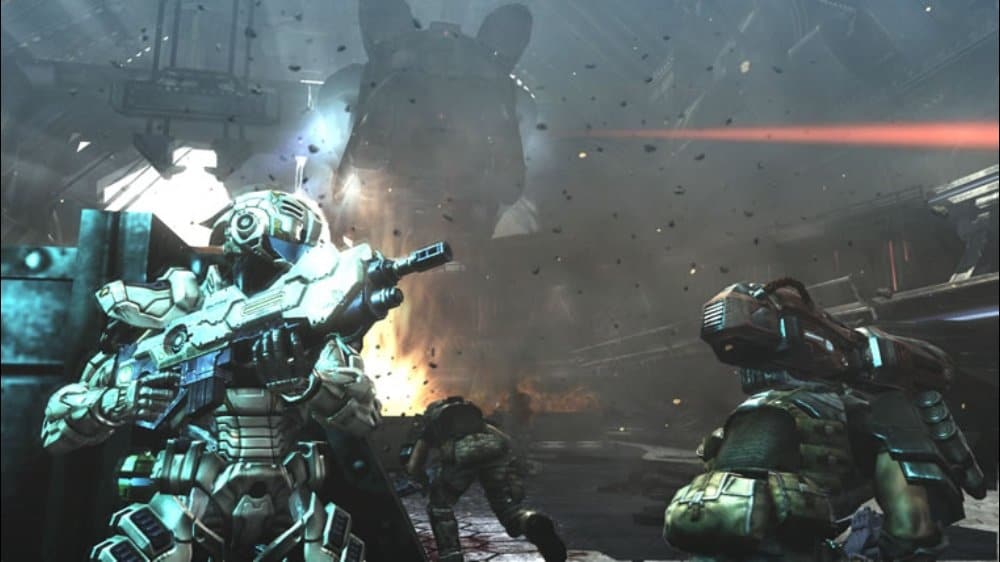
5. Hills of Glory 3D

hills of glory windows 8 tower defenseIf you have previously looked for games in the Windows Store, then most likely you have heard about this game. Hills of Glory 3D is a WW2 reverse tower defense game with lots of fun.

“It’s time to save Europe and make History. We’ll land in Italy, fight many battles to reach Germany and end this War. We need you to maintain our most critical positions!”. Lose yourself in Hills of Glory 3D, a WW2 reverse tower defense game with stunning 3D graphics. In this war game, defend your bunker against hordes of enemies with the military arsenal at your disposal. Rifle, mortar, flamethrower, air strikes… don’t hold back!


6. Vikings Tower Defense

I always found something mysterious about vikings…But this game doesn’t have to do anything with that, as it’s all fun and entertaining spending of your time!

vikings windows 8 tower defense game

Vikings! Tower Defense lets you take control of the Celts and repel the encroaching horde from both the sea and land. Bright, inviting graphics and animation as well as intuitive mechanics reveal a fiendish, hectic game of strategy. Players must gather money and place characterful units such as the hefty Caber Tosser and even Nessie herself to win and triumph over the Viking menace.

7. Immune

A very original Windows 8 tower defense game, Immune is a game where you have to protect your organism against viruses. Speaking of which, I’ve got a naughty cold right now…

immune windows 8 tower defense game

Prepare your vitamins, take your pills, This is a tower defense game based in the immune system against viruses. – 40 Rounds, -5 Scenarios, – 9 Towers with 4 evolutions each one, – 12 types of viruses. New scenarios and play modes soon.

Read Also: 8 Windows 8 Board Games to Play With Friends

8. Paper Defense

Paper Defense seems like a very basic Windows 8 tower defense game, but you will be surprised at the amount of fun you can actually have by playing. Download it at once!

paper defense windows 8 game

Paper Defense is a Tower Defense game. Buy towers to protect yourself against waves of enemies.

9. Siegecraft Defender

This game is highly addictive and will hook you in front of your computer’s screen for hours on end. As a player, you’ll build your own castle defense and protect the Knights from the evil Lizardmen.

siegecraft defender

After nearly 2 years of peace from the great wars of Siegecraft, the usually reclusive Lizardmen have risen up against the Knights of Freemoi. Where are your allies, the Vikings and Samurai of Freemoi?

Here’ what to expect from this game:

  • Classic TD game play set in the beautiful world of Siegecraft.
  • Over 1 Million people have enjoyed the world of Siegecraft to date!
  • Dozens of enemies on screen at once, all rendered in amazing 3D!
  • Real-time shadows and pixel shaders for your visual pleasure!
  • 15 unique towers and 18 unique units
  • Over 30 levels and more than 10 hours of campaign mode
  • Endless single player maps for infinite game play
  • Multiplayer for fun combat against your friends in local hotseat.

10. Prime World: Defenders

Prime World: Defenders features fantastic graphics and a bevy of magic tricks that you can use to protect your towers and fend off the attackers.

prime world defenders tower defense

Enter the Prime’s World Universe and destroy countless enemies with towers and magic. Make your own unique cards collection and fuse your towers to get them even more powerful! Enhance your hero, your spells and your skills, be strategic and don’t forget to try Heroic Mode to become the greatest Defender.

Key elements of this game include:

  • Stunning 3D-graphics with amazing effects
  • Over 26 towers with up to 25 levels of upgrades and 13 kinds of spells
  • Share your progress via Facebook
  • 36 types of violent monsters and mighty bosses with unique abilities
  • 23 missions, extra boss levels, and randomly generated missions.

11. Last Hope – Heroes Zombie TD

If you like playing zombie games and tower defense games, then Last Hope – Heroes Zombie TD is the perfect game for you.

Last Hope - Heroes Zombie game

Join the ongoing war, in an open world, against the zombie horde, scavenging raiders and other threats roaming the wasteland! Choose between multiple powerful heroes all with unique epic gear and skills! With the wide variety of towers you can create your own perfect strategy.

Here’s what this game offers you:

  • Over 140 levels which will challenge your defense and strategy.
  • 8 Special Heroes to choose between, the precious Princess, mighty Barbarian, mysterious Scout, gun crazy Mechanic, support Soldier, Mech warrior, experimenting Scientist or the righteous Sheriff.
  • 12 Different Towers to defend yourself with, each with a unique research tree to make them even more powerful, including a Tesla Tower.
  • Endless mode

12. Swamp Attack

Swamp Attack game

Swamp Attack is not your regular tower defense, but it follows the same pattern. As a player, you need to protect your swamp cottage against hordes of crazy animales and zombies that are out to get you.

The game has more than 300 different levels, 8 episodes and Quick Missions for instant action. You can use more than 30 awesome defense tools to defend your house, including shotguns and the super A-bomb!

13. Defend Your Life!

This awesome game challenges you to fight for your life in the human body. As a player, you’re in charge of keeping bacteria and viruses at bay using your immune system.

defend your life

Think tactically, construct and upgrade buildings, reinforce troops, support them with special upgrades and annihilate the enemy with mighty powers. Battlefields are situated in 17 human body organs like aorta, appendix, stomach and you will fight even in brain.

14. Epic Incursion

Epic Incursion is a tower defense game that’s perfect for everyone. It features a n Easy Mode for children, a Normal Mode for experienced players and a Hard Mode for those who are up to the challenge.

Epic Incursion tower defense game

DARKNESS is on the way to enslave this lands. Stop it now or never!
Use strategy, manage 27 unique warriors, upgrade their abilities and battle against final boss Xyllos – The Demon of DARKNESS

15. Bloons TD5

This tower defense game features  unrivaled depth and replayability. The game features HD graphics, original Tracks and Special Missions, and much more. You’ll have a lot of fun playing this game.

Build awesome towers, choose your favorite upgrades, hire cool new Special Agents, and pop every last invading Bloon in the best ever version of the most popular tower defense series in history. […] Bloons TD 5 delivers hours of fun and challenging play to fans and new players alike.

There you go, there are the best tower defense games that you can download from the Microsoft Store.

If you’ve played other similar games that you think we should add them to this list, let us now in the comment section below.


RELATED ARTICLES:

Fix: ”The folder can’t be displayed” in OneDrive

Windows 10 and OneDrive go hand in hand, and it seems that the cloud services are something Microsoft finds especially lucrative. However, there are so many variations of OneDrive and, even though the most preferred one is the UWP native app, the software is plagued with various issues. One of the errors is ”The folder can’t be displayed”, which prevents users to access one or more synced online folders in OneDrive.

For that sake of resolving this issue, we provided a few most commons solutions that should help you address it. If you’re in doubt on how to tackle this problem, make sure to check them out below.

How to address OneDrive’s ”The folder can’t be displayed” error on Windows 10 app

  1. Run automatized troubleshooter
  2. Update the app
  3. Check the connection settings
  4. Sign out/sign in again
  5. Reinstall the app

1: Run automatized troubleshooter

This procedure is the part of basically any troubleshooting procedure concerning Windows 10. The success rate isn’t exactly sky high, but since we’re addressing the issue regarding the UWP app, it should be more helpful than usual. Furthermore, there’s only so much you can do when the native app starts misbehaving due to various complex factors, so the unified Windows App troubleshooter is within the group of the scarce options the end-user can use.

Here’s how to run Windows 10 App troubleshooter in Windows 10:

  1. Right-click Start and open Settings.
  2. Choose Update & Security.the folder can't be displayed onedrive
  3. Select Troubleshoot from the left pane.
  4. Scroll to the bottom and expand Windows Store Apps troubleshooter.
  5. Click on the ”Run the troubleshooter” button.the folder can't be displayed onedrive

2: Update the app

As you can conclude on your own, the possibility that one of the updates for OneDrive break it is fairly high. Luckily, since updates are somewhat frequent, you can hope to resolve the ”The folder can’t be displayed” error by obtaining the latest update. Most updates include minor changes and fixes, so there’s a hope in that.

Here’s how to update OneDrive app on Windows 10:

  1. Open Microsoft Store.
  2. Click on the 3-dot menu and select Downloads & updates.the folder can't be displayed onedrive
  3. Click on the ”Get updates” blue button.the folder can't be displayed onedrive
  4. Wait for the updates to install.

3: Check the connection settings

In comparison to the standard OneDrive desktop app, the UWP app accesses only online files. With that in mind, you can access the locally stored files with the former, but not with the latter. Thus, you’ll need the proper connection in order to access the files online. Now, there are various steps you can take to confirm that your connection is working as intended. We’ll try and stick with segments which can affect the OneDrive access and invoke the aforementioned error.

Here’s what to do:

  • Restart PC, modem, and router.
  • Disable third-party firewall temporarily.
  • Turn off VPN and Proxy and try accessing OneDrive without them.

4: Sign out/sign in again

”Sign out and sign in again” is a frequently advised solution when OneDrive starts misbehaving. We’re aware that this seems to simple to address the complex errors reoccurring on OneDrive app. But it shouldn’t take too much of your time and it can certainly help in some scenarios. We can’t reproduce the error and thus it’s hard to tell whether this will restore your missing files and resolve the error, but you can try it out.

Here’s how to sign out and back in the OneDrive app for Windows 10:

  1. Open OneDrive app and click on the sandwich menu to expand options.
  2. Click on the Accounts icon and expand your Microsoft/OneDrive account.the folder can't be displayed onedrive
  3. Click Sign out.the folder can't be displayed onedrive
  4. Close the app and reopen it.
  5. Follow the same path and sign in again.

5: Reinstall the app

Back when Windows 10 was introduced, OneDrive was the indelible part of the platform. However, that changed over time and now you can uninstall OneDrive just like any other third-party app. This is more than useful when things go astray as in this case. With that in mind, you’ll need to enter your credentials again and select the sync folder. However, this should resolve the ”The folder can’t be displayed” error.

Here’s how to reinstall OneDrive in Windows 10:

  1. Press Windows key + I to open the Settings app.
  2. Open Apps.the folder can't be displayed onedrive
  3. Under the Apps and features tab, navigate through the list and locate OneDrive.
  4. Expand it and click Uninstall.the folder can't be displayed onedrive
  5. Navigate to Microsoft Store and install OneDrive again.

That should do it. As a side note, if you’re using Bussines account, we advise you to inform your network administrator about the issue, as they can impose certain limitations upon the usage of the stored data. In case you have questions, suggestions, or alternative solutions, be so good to share them with us and our readers in the comments section below.

RELATED STORIES YOU SHOULD CHECK OUT:

Download Windows 7 KB4074598, KB4074587 to fix browser crashes

It’s Patch Tuesday, folks! If you haven’t updated your Windows 7 computers yet, it’s time to check for updates and install the latest patches available for the OS.

Windows 7 Monthly Roll-up KB4074598 and KB4074587 focus mainly on security, addressing a series of issues that could affect the following Microsoft components: Windows Graphics, Windows Kernel, Common Log File System driver, Microsoft Windows Search component, and Windows storage and file systems.

Monthly rollup KB4074598  also fixes some bugs that could cause input issues in Internet Explorer and prevent users from properly using their browser.

Also, if you often experience crashes on Internet Explorer, this update will fix them. Microsoft addressed a script-related issue that caused Internet Explorer to stop working. Thanks to this update, IE freezes and crashes should now be history.

Speaking of this browser, it is worth mentioning that Microsoft also fixed the issue with launching a new page in Internet Explorer. Sometimes, when users tried to launch a new page nothing happened or the respective page would quickly close.

Download KB4074598, KB4074587

You can automatically download and install Windows 7 KB4074598 and KB4074587 throughWindows Update.  You can also download the standalone package from the Microsoft Update Catalog website.

As a quick reminder, Microsoft warns Windows 7 users that these patches won’t install on computers on which the antivirus ISV have not updated the ALLOW REGKEY.

You should contact your antivirus manufacturer to verify that they set the following REGKEY: Key=”HKEY_LOCAL_MACHINE"Subkey="SOFTWAREMicrosoftWindowsCurrentVersionQualityCompat"Value Name="cadca5fe-87d3-4b96-b7fb-a231484277cc”
Type=”REG_DWORD”
Data=”0x00000000”

KB4074598 issues

KB4074598 issues

Some users reported that KB4074598 fails to install due to error 80073701. However, it seems that this error is not related to the antivirus ALLOW REGKEY requirement that we mentioned above.

My computer is running Windows 7. Recently, I received a bunch of updates to Windows and Office which I have installed, except for KB4074598. Whenever I tried to install it, either automatically or manually, it returned error 80073701. I have tried to reset Windows Update components but it didn’t solve my problem.

If you’re also experiencing this error, try running the Windows Update Troubleshooter and then rename the SoftwareDistribution folder.

Go to Start, search for cmd and launch Command Prompt as administrator. Run the following command: Ren %systemroot%SoftwareDistribution SoftwareDistribution.bak

When this command completes, enter a new one: Ren %systemroot%system32catroot2 catroot2.bak
Restart your computer and check for Windows Updates again.

Have you installed KB4074598 and KB4074587 on your Windows 7 computer? Tell us more about your update experience in the comments below.

RELATED STORIES TO CHECK OUT:

[wl_navigator title=”Find out more”]

Microsoft announces Windows App Preview Program, giving early access to Windows 10 app updates

To pair up with Windows 10 Insider Preview Build 17101 for Fast & Build 17604 for Skip Ahead, Microsoft today officially announced the Windows App Preview Program. The announcement comes several days after reports indicated the company may be considering such a program.

With the Windows App Preview Program, Microsoft will make it easier for Windows fans to try out the latest app updates with Insider Preview builds. “We heard feedback from Windows Insiders that having to opt-in to Skip Ahead to receive the latest app updates wasn’t ideal,” noted Dona Sarkar in today’s announcement post.

Indeed, this means any Windows Insider (regardless of which Ring they are enrolled in) can now opt-in to preview new versions of individual Windows 10 apps. According to Microsoft, the following apps will be in the first-wave of the program, with previews rolling out in the next few days.

  • Feedback Hub
  • Microsoft Photos
  • Microsoft Sticky Notes
  • Microsoft Tips
  • Paint 3D
  • Windows Alarms & Clock
  • Windows Calculator
  • Windows Camera
  • Windows Mixed Reality Viewer
  • Windows Voice Recorder
A look at app previews in settings.

Windows Insiders who already opted into Skip Ahead won’t need to opt-in to the program to preview these apps. Microsoft will be pushing app updates to Skip Ahead Insiders just like before. Other Insiders in the other rings can opt-in to preview an app by going to the settings or about page for the app and clicking “Join Preview” (Seen above.)

Microsoft, though, appears to be limiting the number of Insiders who can preview apps but is also allowing Insiders to leave the preview at any time. ” If the limit has been met for that app preview for the app you will get a notification on clicking the button and as more slots open up you can join the preview,” writes Dona Sarkar.

This program is currently only for Windows Insiders, and Microsoft will be gathering feedback from how the program is going. It is likely to grow over time, so be sure to check it out!

Here are the fixes, general changes, and known issues with Windows 10 RS4 build 17101

It’s shaping up to be a lovely day to be a Windows Insider. Microsoft today released Windows 10 Build 17101 to the Fast Ring and Redstone 5 Build 17604 for those who opted to Skip Ahead. As always, neither of these builds is perfect and will have a set of issues. We’re dividing up the releases today, so have a look below for the known issues and fixes in Build 17101.

Known issues (Build 17101)

  • We have observed seeing longer-than-normal delays during install at the 88% mark. Some delays are as long as 90 minutes before moving forward. Please be patient as the install will complete successfully.
  • Plugging in an external optical drive (DVD) will cause an Explorer.exe crash.
  • Settings will crash if you open the Themes Settings page.
  • Buttons on Game bar are not centered correctly.
  • Selecting a notification after taking a screenshot or game clip opens the Xbox app’s home screen instead of opening the screenshot or game clip

General changes, improvements, and fixes for PC (Build 17101)

  • We fixed an issue from the last flight were some PCs failed to resume from hibernate (requiring a hard reboot to recover).
  • We fixed an issue resulting in 3 and 4 finger gestures on the touchpad being unresponsive in the last two flights.
  • We fixed an issue after upgrading to the last flight where Start didn’t work for Insiders who’d had HomeGroup added as a folder to appear on Start.
  • We’ve updated the touch keyboard so that if you try to shapewrite in an unsupported text field or when the typing resources aren’t installed, you won’t see the shapewriting trail as you swipe your finger over the keys.
  • We fixed an issue where the touch keyboard showed an English layout with no IME on/off key when an East Asian keyboard is the only input method on your system.
  • We fixed an issue where if you install a font product from the Microsoft Store, then later install a new build (feature update), the Store package will remain installed, but the fonts within the package are not installed. Until this is fixed, the temporary workaround is to uninstall the product from the Apps page in Settings, then re-acquire the product from the Store.
  • We fixed an issue where the touch keyboard might stop invoking automatically after locking the PC and then unlocking the PC by using the touch keyboard to enter your PIN or password.
  • We fixed an issue where the Japanese IME sometimes wouldn’t turn on correctly.
  • We fixed an issue where the floating dictation UI could be unexpectedly tiny.
  • We fixed an issue that could result in the mouse cursor suddenly jump to screen corner while mouse was moving in a List Control.
  • We fixed an issue that could result in tabs hanging and not loading content recently in Microsoft Edge after using the browser for a few days with an adblocker enabled.
  • We fixed an issue resulting in newly installed Microsoft Edge extensions not appearing in the Extensions pane in the last two flights.
  • We fixed an issue in Microsoft Edge where favicons in light theme were unexpectedly getting black backgrounds.
  • We fixed an issue that could result in UWP apps sometimes launching as small white rectangular boxes.
  • We fixed an issue resulting in certain fingerprint readers not working in recent flights.
  • We fixed an issue where Windows Hello failed to work on Surface Laptops with the last build.
  • We fixed an issue that could result in the labels for files on the desktop overlapping their icons.
  • We’re updating the “Advanced graphics settings” link on the Display Settings page to now just say “Graphics Settings”.
  • When your volume is muted, the volume icons in the Sound Settings page will also now appear muted.
    If you click the Reset button on the App volume and device preferences page, it will now also reset any app specific volumes you’ve set back to default (100%).
  • We fixed an issue resulting in app updates failing in the Microsoft Store with error 0x80070057 in recent builds.
  • We fixed an issue resulting in app updates failing in the Microsoft Store with error 0x803FB005 in recent builds.
  • We fixed an issue where bringing up Game bar using the Xbox button on an Xbox One controller didn’t work in some games.
  • We fixed an issue where in the text box for the Mixer stream title using non-character keys (e.g. Tab, Delete, Backspace, etc.) might cause the game to hang for a few seconds.
  • We fixed an issue where keyboard and mouse input might not work correctly in the Game bar when playing a first person game (e.g. Minecraft).
  • We fixed an issue where in some games—such as Destiny 2 and Fortnite—mouse and keyboard input would still go to the game while Game bar was open.
  • We fixed an issue during first shutdown/boot, or reboot, where for some users the device goes into a boot loop and the OS never loads.

As you can tell, lots of fixes in this build. With the release of Redstone 4 coming in a few months, you can expect many more fixes to come soon. Keep your feedback coming to Microsoft via the FeedbackHub and let us know your thoughts on this build by dropping us a comment in the section below.