Microsoft Confirms Office.com and Copilot Outage in North America; Later Mitigates It

Microsoft users in North America faced a rough patch this week as many struggled to access Office.com and the popular Copilot assistant. The outage first surfaced through user reports on DownDetector, with widespread complaints about login failures and server errors.

What Microsoft says about the outage

According to Microsoft’s incident notice, spotted by Bleeping Computer, the disruption mostly hit users in the U.S. and Canada. However, the company admitted the full extent was still being assessed. The issue was tracked internally as MO1138499 and flagged as a critical service incident.

The company explained that only “some users attempting to access Office.com and m365.cloud.microsoft” were affected. While engineers worked on diagnostics, Microsoft encouraged customers to use alternate entry points to Copilot, including copilot.microsoft.com, the Microsoft 365 app, and built-in integrations within Teams and Office apps.

Troubleshooting and rollback

In an update late on August 20, Microsoft linked the disruption to a recent configuration change. The change was rolled out at nearly the same time as the first outage reports. Out of caution, Microsoft immediately started reverting the update.

Earlier today, Microsoft confirmed that the issue had been fully resolved after the rollback. Impacted users were advised to restart their browsers to restore full access.

Microsoft noted, “We’ve completed the reversion throughout the affected infrastructure and confirmed that [the] impact is resolved for all users. Users may need to refresh their browsers to experience relief.”

This isn’t the first time Microsoft 365 customers have run into service outages. Earlier this summer, the company rolled out a workaround for Teams connection errors, and just two months ago, authentication problems rattled users across EMEA and APAC.

Microsoft Edge Experiments With Passkey Roaming and Sync Controls

After Android, Microsoft is testing new passkey-related features in the Canary version of Edge on desktop, introducing options for passkey roaming and clearer management settings.

What Are Passkeys?

Passkeys are a password replacement built on WebAuthn and FIDO2 standards. They allow you to sign in securely using cryptographic keys stored on your device, protected by biometrics such as Windows Hello or a phone’s fingerprint sensor. Unlike passwords, passkeys cannot be phished or reused, offering stronger protection for online accounts.

What Is Passkey Roaming?

Roaming means passkeys aren’t limited to a single device. Instead, they can sync securely through your account, allowing you to sign in from multiple trusted devices without needing to recreate or manually transfer them.

Edge is testing new experimental features for passkey roaming, revealed through two flags in Canary: “Passkey roaming” and “Passkey roaming management and settings.”

Passkey roaming: Positions Edge as a passkey provider, enabling it to sync saved passkeys across devices. The description reads: “Edge is providing passkey functionality as a passkey provider and will sync saved passkeys across devices. – Windows”

Passkey roaming management and settings: Introduces options to give users more control over how synced passkeys are handled. Its description states: “Management and settings related support for passkey roaming. – Windows”

New experimental flags in Edge Canary mention passkey roaming and related management settings. Image Credit: Venkat | WindowsReport.

Enabling these flags adds a new entry under Profiles > Sync in Edge settings, labeled “Passwords and passkeys“, with the description:

“Stored securely and made available on all your devices. Review security settings to help make your Microsoft account even more secure.”

After enabling the flags, Edge shows a new ‘Passwords and passkeys’ option under Profiles > Sync. Image Credit: Venkat | WindowsReport.

This is the first time Edge has explicitly listed passkeys alongside passwords in sync options, showing Microsoft’s intention to integrate them directly into the browser.

Until now, Edge’s passkey support has relied mostly on Windows Hello and platform-level integrations. The addition of roaming and management settings suggests Microsoft is preparing to make Edge a first-class passkey provider, with sync and security controls available directly in the browser.

That’s not all. Microsoft is adding Smart GPT-5 to Edge Copilot and has moved the address bar above the tabs. The company is also testing Copilot in InPrivate browsing.

Copilot on Windows Gets Smarter With Semantic Search and New Home Experience

Microsoft has rolled out a new update to the Copilot app on Windows, introducing new tools that make it easier to locate your files and work more efficiently. First, you’ve the semantic file search, a feature exclusive to Copilot+ PCs.

You can now use natural language to locate what you need. This cuts the hassle of relying on exact file names. In other words, typing “find my CV” or “show me the photo of a bridge at sunset” is enough to surface results, even if you don’t remember the file’s exact title.

You can always adjust the permissions for what Copilot can access under its settings, giving you full control over what the assistant can read or retrieve.

A redesigned home for Copilot

This update also introduces a new home experience inside Copilot. Recent apps, files, and conversations are now front and center, making it easier to pick up where you left off.

Clicking a recent app launches a Vision session for guided help, while selecting a file uploads it directly into the chat window. From there, Copilot can summarize a document, identify objects in an image, or simply provide insights.

Windows-Hub-1024x638-min
Image: Microsoft

Microsoft notes that Copilot relies on the standard Windows “Recent” folder to show your latest files. These are local files, so nothing gets scanned or uploaded automatically. Only compatible files you’ve recently opened will appear, and Copilot only processes a file if you explicitly attach it.

The latest update is rolling out to Insiders

The update, version 1.25082.132.0 and higher, is now rolling out through the Microsoft Store across all Insider Channels. Features are arriving gradually, so not every Insider will see them right away.

Earlier today, Microsoft also released build 27928 to the Windows 11 Canary channel. The update is focused on deeper Settings migration and bug fixes. Moreover, the company has also released emergency OOB update to fix reset and recovery issues in Windows 11 trigged by August Patch Tuesday update.

Windows 11 Canary Build 27928 Is Here With Battery Icon Rollback & Settings Migration

Microsoft has released Windows 11 build 27928 to the Canary Channel, and while the update brings meaningful improvements, it also comes with a small reversal. The redesigned battery icons that debuted in build 27802 have been disabled for now, though Microsoft confirms they’ll return in a future flight.

More Control Panel features move to Settings app

The biggest change this build focuses on is the continued migration of legacy Control Panel items into the modern Settings app. Time and language options have been also moved:

  • Additional clocks can now be added from Settings > Time & language > Date & time, with support for showing them in the taskbar tooltip and Notification Center.
  • Users can now switch time servers directly in Settings.
  • Date and time formatting, including custom AM/PM symbols, has been consolidated under Date & time.
  • Number and currency formats, along with the option to enable Unicode UTF-8, are now part of Language & region.
  • Language and region settings can now be copied to the system account, welcome screen, or new user profiles.

Bug fixes across Windows 11

The latest Build 27928 also addresses a wide set of bugs. Microsoft fixed crashes linked to dao360.dll and textinputframework.dll, squashed File Explorer preview glitches, and resolved issues where taskbar previews would stop responding.

That’s not all; login reliability has been improved as well, reducing instances of white screens or missing UI elements after sleep. Moreover, Live captions, Settings stability when adding security keys, and Group Policy Editor errors have also been corrected.

That said, not everything has been fixed yet, as Microsoft warns that Storage > Temporary files may still hang when scanning. On top of that, past Windows installations might not display. Some users may also notice more frequent DWM crashes causing black flashes.

Microsoft has also squashed incorrect drive colors in File Explorer’s dark mode and cases where opening Command Prompt from the Run dialog defaults to Windows Console Host instead of Windows Terminal. In a related Windows 11 news, Microsoft has released emergency OOB update to fix reset and recovery issues trigged by August Patch Tuesday update.

Sony Increases PS5 Prices in the U.S. Amid Economic Pressures

For the first time in recent memory, consoles are not getting cheaper as their generation ages. One major factor is the lasting effect of Trump-era tariffs, which increased costs for imported electronics. Instead of falling prices, gamers are now facing higher price tags on hardware that has already been on shelves for years.

Sony has confirmed that it will increase the retail price of every PlayStation 5 model in the U.S., with changes taking effect tomorrow, August 21. Each version of the console will see a $50 jump.

That means the PlayStation 5 Digital Edition now starts at $499.99, while the standard model with a disc drive will rise to $549.99. The most expensive option, the PlayStation 5 Pro, moves up to $749.99.

“Similar to many global businesses, we continue to navigate a challenging economic environment. As a result, we’ve made the difficult decision to increase the recommended retail price for PlayStation 5 consoles in the U.S. starting on August 21,” Sony explained in its announcement.

New PlayStation 5 (PS5) pricing

  • PlayStation 5 with disc drive – $549.99 (previously $499.99)
  • PlayStation 5 Digital Edition – $499.99 (previously $449.99)
  • PlayStation 5 Pro – $749.99 (previously $699.99)

Even with the increase, the PS5 Digital Edition remains $50 cheaper than Microsoft’s Xbox Series X Digital Edition, which retails at $549.99. However, the $599.99 Xbox Series X with a disc drive is now slightly pricier than the regular PS5.

Interestingly, Microsoft’s $729.99 Galaxy Black Special Edition Series X with 2TB of storage undercuts the PS5 Pro by $20, although Sony’s console is considered more powerful.

Does ClipChamp Have a Watermark? We answer

Quick answer

  • No watermark on exports when you edit your own media and use free assets, up to 1080p.
  • Watermark appears if your project includes premium stock video/images/audio or paid features not included in your plan.
  • Remove it by replacing paid items with free ones or upgrading to a plan that covers those assets.

When you’ll see a watermark

  • You added Premium stock clips, images, graphics, or audio.
  • You used a paid feature (e.g., certain effects, templates, brand/brand kit items that require a plan).
  • You imported a watermarked file from elsewhere (it exports as-is).

How to remove the Clipchamp watermark (fast)

  1. Identify premium items: In the timeline or media panel, look for Premium badges/icons.
  2. Replace or delete: Swap them with Free assets or your own files.
  3. Upgrade if needed: Choose a plan that includes the specific stock or feature used.
  4. Re-export at 1080p: Export again; the watermark should be gone.

Tips to avoid watermarks

  • Filter for Free assets before inserting stock.
  • Stick to your own media (camera footage, screen recordings, images, voiceovers).
  • Preview before export: If you see a diagonal watermark overlay on a clip in preview, it’s usually a premium item.
  • Keep exports at 1080p for the free tier; higher tiers may unlock extra options.

FAQs

Is Clipchamp completely free?
Core editing and 1080p exports are free. Premium stock and some advanced features require a paid plan.

Why do I see a watermark in the editor but not in the final video?
Previews can display a watermark over premium assets. If you remove or license them, the final export will be clean.

Does the free plan export 4K?
The standard free workflow targets 1080p. For advanced codecs/resolutions, check paid options.

Do templates add watermarks?
Only if the template uses premium assets. Replace those with free media to avoid a watermark.

Will my screen recordings have a watermark?
No, not if you export without any premium items added to the project.

ROG Xbox Ally & Ally X Finally Get Official Release Date

In just a few weeks, ASUS and Xbox will officially launch their handheld gaming lineup. The ROG Xbox Ally and the more powerful Xbox Ally X are set to officially launch on October 16 across major markets. Some regions, including Brazil, India, and China, will see a slightly later rollout.

While the release date is now official, pricing remains a mystery. Both companies confirmed that exact numbers will be shared “in the coming weeks.” Fans, however, are already voicing frustration over the missing detail. But, don’t worry, we have you covered.

Leaked Prices of the ROG Xbox Ally and Xbox Ally X

Now, thanks to well-known deal hunter Wario64, who has spotted (via Wccftech) early listings on Best Buy. The ROG Xbox Ally and Xbox Ally X both appear with official pricing, matching previous reports.

Pre-orders are not open just yet, but they’re expected to drop any moment. Previous reports also hinted that pre-orders would go live today, lining up perfectly with these new retail listings.

Features of the ROG Xbox Ally Handhelds

When the handhelds hit shelves, gamers will gain access to a unified library that blends Xbox titles, Battle.net games, and leading PC storefronts like Steam and GOG. This makes the Ally lineup the closest thing yet to a true Xbox handheld.

Both devices were teased earlier this summer, but this is the first time Microsoft and ASUS have confirmed a global rollout date.

List of countries where the new Xbox handhelds will be first available

RegionCountries
North AmericaCanada, Mexico, United States
EuropeBelgium, Czech Republic, Denmark, Finland, France, Germany, Ireland, Italy, Netherlands, Norway, Poland, Portugal, Romania, Spain, Sweden, Switzerland, United Kingdom
Asia-PacificAustralia, China (Xbox Ally X only), Hong Kong, Japan, Malaysia, New Zealand, Philippines, Singapore, South Korea, Taiwan, Vietnam
Middle EastSaudi Arabia, Turkey, United Arab Emirates

Microsoft Reportedly Investigating Windows 11 KB5063878 SSD Failure Reports

Microsoft has finally acknowledged reports of SSD failures linked to the August update for Windows 11 24H2. The issue, first flagged by @Necoru_cat on X and later picked up by Japanese outlets, appears to surface after installing KB5063878 (Build 26100.4946).

Today, folks over at Windows Latest reported that Microsoft confirmed that it’s working with partners like Phison to investigate the problem. The company hasn’t advised users to uninstall KB5063878 yet, hinting that the problem remains rare and highly workload-specific.

What’s the backstory?

Well, Windows 11 users have been reporting that their SSD suddenly vanishes from Windows, sometimes even the BIOS, with the partition showing as RAW. In other cases, File Explorer crashes, SMART becomes unreadable, or I/O errors appear mid-task.

According to reports, the bug emerges under heavy write loads, like updating massive games such as Cyberpunk 2077 or Honkai: Star Rail. Interestingly, the failures seem isolated. Most cases come from Japan, suggesting a workload pattern specific to local usage.

Early findings suggest that SSDs using Phison controllers are more vulnerable, though isolated reports also mention InnoGrit and Maxio chips. Drives from Samsung and Seagate don’t appear to be affected.

The exact trigger seems to involve SSDs with more than 60% capacity filled and a write workload of 50GB or more in one go. While some users recovered drives with a reboot, others weren’t so lucky, facing corrupted partitions that required deeper recovery tools.

For now, unless you’re running massive game updates on a nearly full SSD, you probably won’t encounter this issue. We are hoping that Microsoft will soon roll out a patch to mitigate the issue.

Microsoft Releases Emergency OOB Updates (KB5066189, KB5066188 & KB5066187) to Fix Reset & Recovery Issues

Microsoft has released emergency out-of-band updates to fix a serious problem caused by the August 2025 Patch Tuesday updates. The bug broke reset and recovery features on systems running Windows 10 and older versions of Windows 11.

The faulty updates included KB5063875 for Windows 11 (versions 23H2 and 22H2), KB5063709 for Windows 10 22H2 and LTSC 2021 editions, and KB5063877 for Windows 10 LTSC 2019 releases.

After installing these, users found that attempts to reset their PCs, keep files, or recover systems through built-in tools would fail. IT professionals also reported problems when using RemoteWipe CSP to reset devices remotely.

To resolve the issue, Microsoft quickly rolled out emergency patches: KB5066189 for Windows 11, KB5066188 for Windows 10 22H2 and LTSC 2021, and KB5066187 for Windows 10 LTSC 2019.

It’s worth noting that these cumulative updates replace the problematic August patches and do not require previous updates to be installed first.

Microsoft advised users who have not yet installed the August security updates to apply the new out-of-band releases instead. Devices unaffected by the issue do not need this patch.

The latest updates are available as optional downloads via Windows Update and Windows Update for Business. Users can also manually install them through the Microsoft Update Catalog.

What was Before Windows 7? Windows Vista explained (version, dates, support)

What was before Windows 7? Windows Vista. Here’s the short timeline and the essentials you need for quick answers.

Quick answer

  • Predecessor to Windows 7: Windows Vista (version 6.0)
  • RTM: November 2006
  • Business availability: November 30, 2006
  • Consumer/general availability: January 30, 2007
  • End of extended support: April 11, 2017

Vista editions

  • Starter (select markets), Home Basic, Home Premium: Consumer tiers with Aero options varying by SKU.
  • Business, Enterprise: Corporate features, domain join, advanced backup.
  • Ultimate: All features combined.

Hallmark features (why Vista mattered)

  • Aero Glass UI & DWM: New desktop compositor and visual effects.
  • UAC: User Account Control to curb silent system changes.
  • DirectX 10 & new driver model: Graphics and stability groundwork for Windows 7.
  • Search & indexing: Start menu search and improved file indexing.
  • BitLocker (Enterprise/Ultimate): Full-disk encryption for supported devices.

How Vista compares to Windows 7 (fast take)

  • Performance & polish: Windows 7 refined Vista’s architecture with better speed and memory handling.
  • Compatibility: Broader driver/app support in Windows 7.
  • UI: Similar look, cleaner taskbar and window management in Windows 7.

FAQs

What’s the version number of Windows 7?
Windows 7 is version 6.1, following Vista’s 6.0.

Can you still use Vista online?
You can, but it’s not safe. Vista has been unsupported since 2017.

What came after Windows 7?
Windows 8 in 2012, then Windows 10 in 2015 and Windows 11 in 2021.

When did Windows 8 Come out? Release timeline

Windows 8 came out in 2012, with Windows 8.1 following in 2013. Below is the concise timeline, plus what’s still supported and how to check your version.

Quick answer

  • Windows 8 RTM: August 1, 2012
  • Windows 8 general release (GA): October 26, 2012
  • Windows 8.1 release: October 17–18, 2013 (Store rollout on Oct 17; retail Oct 18)
  • Support status: Windows 8 support ended January 12, 2016; Windows 8.1 extended support ended January 10, 2023.

What shipped (editions)

  • Windows 8 (Core): Consumer edition for home users.
  • Windows 8 Pro: Adds BitLocker, Hyper-V client, domain join.
  • Windows 8 Enterprise: Volume licensing features for organizations.
  • Windows RT: ARM-based devices (preinstalled only).
  • Windows 8.1/8.1 Pro/Enterprise: Successor refresh with Start button return, better Store/apps, SkyDrive/OneDrive integration.

How to check if you’re on 8 or 8.1 (fast)

  1. Press Win+R, type winver, press Enter.
  2. Look for Version 6.2 (Windows 8) or 6.3 (Windows 8.1).
  3. Or open Control Panel > System to see the edition and activation status.

Upgrade path (high level)

  • To Windows 10: Use the Windows 10 installation media to upgrade in-place or clean-install, then activate with a valid license.
  • To Windows 11: Requires eligible hardware (TPM 2.0, Secure Boot, supported CPU). Most Windows 8 PCs won’t meet specs without workarounds.

FAQs

Was Windows 8 a free upgrade?
No. Windows 8 was a paid upgrade from Windows 7/XP/Vista. Windows 8.1 was a free update for Windows 8 users.

Is Windows 8 still safe to use?
No. It’s out of support. Move to Windows 10 or 11 for security updates.

Can I still activate Windows 8/8.1?
Activation servers typically still respond, but there are no security updates. Upgrading is strongly recommended.

Microsoft Surface Won’t Turn On: 6 Tested Solutions to Fix

When your Microsoft Surface won’t turn on, that is usually because of low battery or it’s not charging. We also have solutions if it’s not waking up from sleep.

What can I do if Microsoft Surface is not turning on?

1. Disconnect accessories and make sure your Surface is charged

  1. Remove all connected accessories like USB drives, SD cards, USB accessories, external monitors, and the Type Cover (for Surface tablets).
  2. If you use a Surface Dock, unplug your Surface from it.
  3. Connect the power supply that was designed for your Surface and plug it into a power outlet.
  4. Charge your Surface for at least 15 minutes.
  5. Press the power button to turn on your Surface.

This solution ensures that any external devices or accessories aren’t interfering with your Surface’s boot process and verifies that your device has enough power to start.

2. Wake it up using keyboard shortcuts

  1. Connect or use an integrated keyboard.
  2. Press and hold the Windows logo key + Ctrl + Shift + B simultaneously.

This method is a quick way to wake up a Surface that might be in a deep sleep state or stuck in hibernation. We also have a dedicated guide on how to wake up Microsoft Surface devices.

3. Force a restart

  1. Press and hold the power button for at least 20 seconds.
  2. Release the power button once the logo appears on the screen.

Forcing a restart can help resolve many startup issues by shutting down and rebooting your Surface completely.

4. Check the Surface charging cable

  1. Ensure the charging cable LED light is on when plugged into the Surface.
  2. If the LED light is not on, disconnect and reconnect the cable.
  3. Try a different power socket.
  4. Reverse the cable and plug it in the other way around.
  5. Bend the cable slightly in different places and see if the LED light flickers.

A faulty charging cable can prevent your Surface from charging properly. Checking the cable ensures that your device is receiving power.

When checking charging problems, also review power settings like smart charging. You can learn more in this guide on how to turn off smart charging on Microsoft Surface.

5. Perform a soft reset

  1. Press and hold the Volume Up button and the Power button simultaneously for 15 seconds.
  2. Release both buttons and wait for the Surface to restart.

A soft reset can fix common issues without affecting your files, settings, or programs.

6. Contact Microsoft technical support

  1. If none of the above solutions work, visit the Microsoft Support website.
  2. Chat with a support agent or visit your nearest Microsoft Store for assistance.
  3. If needed, send in your Surface for professional repair.

Getting professional help ensures that any deeper issues with your Surface are diagnosed and fixed by experts.

If your Surface remains unresponsive after trying these steps, it may need to be sent to Microsoft for repair. We also have a guide on what to do if Surface Go is not turning on. You might also be interested in our dedicated guide on fixing Surface Book 2 if it won’t turn on.

To prevent future issues, make sure to regularly update your Surface and avoid using incompatible accessories.

Microsoft Headquarters Occupied by Protesters Over Israel Contracts

A group of Microsoft employees, former staff, and community members staged a protest at the company’s Redmond, Washington headquarters on Tuesday. The protestors reportedly took over a plaza and declaring it a “Liberated Zone.”

They renamed the area from East Campus Plaza to “The Martyred Palestinian Children’s Plaza.” Besides, the pro-Palestine protestors set up tents, art installations, and a negotiating table calling on Microsoft executives to end the company’s partnership with the Israeli military.

According to multiple news outlets, around 50 people attended the event, which included symbolic displays highlighting civilian losses in Gaza, including shrouds and a large plate reading “Stop Starving Gaza.” The protesters plan to remain at the plaza until authorities remove them, and Microsoft has not yet issued a response.

The demonstration follows a series of protests targeting Microsoft over its work with Israel. Earlier this year, employees interrupted speeches by AI CEO Mustafa Suleyman and CEO Satya Nadella, urging the company to stop providing Israeli military access to its AI tools. Both employees were later terminated. Reports also indicated that Microsoft began blocking emails containing keywords like “Palestine,” “Gaza,” “apartheid,” and “IOF off Azure.”

The protest group, operating under No Azure for Apartheid, released a statement calling the action the “biggest escalation” against Microsoft to date. The statement referenced investigations showing Israel’s alleged collection of Palestinian call data influencing military operations.

The group also circulated a manifesto urging Microsoft and workers at other companies to cut ties with Israel and divest from partnerships tied to human rights abuses. It called for an end to what they described as “genocide and forced starvation,” reparations for Palestinians, and protections for workers supporting Palestinian advocacy. Protesters invited Microsoft executives to negotiate directly at the plaza.

Microsoft Brings Full MCP Support to Visual Studio

Microsoft has rolled out general availability for Model Context Protocol (MCP) in Visual Studio, giving developers a powerful way to connect AI tools to external services.

MCP, a standard introduced by Anthropic in 2024, acts as a bridge between AI agents like large language models and external data sources or tools. Each tool typically has a dedicated MCP server that standardizes communication.

With the new Visual Studio update, developers can easily connect to both local and remote MCP servers using the .mcp.json configuration. The IDE also supports MCP authentication, making secure connections possible regardless of the authentication provider.

Adding servers has never been easier; GitHub Copilot Chat now allows one-click server additions through the green + icon, eliminating manual JSON edits. Outside Visual Studio, Microsoft encourages developers to watch for one-click install options in MCP server repositories.

IT administrators now have extra control with GitHub policy settings, letting them toggle server features at a granular level.

The MCP integration is designed to enhance developer productivity by streamlining AI-assisted workflows. Copilot Chat users can enjoy smarter, more connected conversations while maintaining enterprise-grade connectivity.

This update builds on Microsoft’s recent AI-focused IDE improvements, including the announcement of GPT-5 integration, signaling a major shift toward AI-powered development tools.

Helldivers 2 Arrives Next Week With Halo-Themed Warbond for Xbox, PS5, and PC

The crossover fans have been waiting for is finally arriving. Helldivers 2 is teaming up with Halo: ODST for the new Legendary Warbond, set to drop on August 26 at 5 am PT / 1 pm BST.

This special edition brings iconic ODST-themed weapons, armor, patterns, and more, giving players a chance to gear up like the legendary Helljumpers of Managed Democracy.

The Legendary Warbond features a lineup of familiar Halo weaponry adapted for Helldivers 2. Players can wield the MA5C Assault Rifle, complete with an ammo counter and compass for precise targeting. The M6C/SOCOM Pistol adds a suppressor for quiet, tactical play.

Meanwhile, the M90A Shotgun features a mounted flashlight, and the M7S SMG combines caseless ammo with a built-in suppressor for silent, rapid attacks. Each weapon brings its own flair to combat while staying true to the ODST aesthetic.

Armor sets include the heavy-duty A-9 Helljumper and the sleek A-35 Recon set, both offering the “Feet First” passive, which reduces noise from movement, increases range when finding points of interest by 30%, and grants immunity to leg injuries. Players can also equip ODST-themed capes like the Honored Heirloom and Eye of the Clandestine for added style and in-game benefits.

Beyond gear, the Legendary Warbond includes ODST-inspired player cards, a new player title, and the Mean Green vehicle pattern for your hellpod, shuttle, exosuit, and FRV.

The Helldivers 2 x Halo: ODST Legendary Warbond will be available in the Acquisitions Center for 1,500 Super Credits. Note that this Warbond tier does not support the new Premium Warbond Token launching the same day, so make sure your Super Credits are ready to claim this legendary gear.

Firefox 142 is Here with AI Link Previews and Tab Enhancements

Firefox has rolled out its latest update, version 142, bringing several new features designed to enhance browsing efficiency and personalization.

Among the highlights is a new Link Previews feature, which allows users to long-click or right-click links to view summaries before opening them. This feature uses local AI processing on systems with sufficient memory and supported languages, giving users quick insights without leaving the current page.

Firefox 142 also upgrades tab management with improved tab groups, making it easier to organize and navigate multiple sessions. Meanwhile, the new tab page now offers smarter article recommendations to help users discover content relevant to their interests.

Security remains a priority, with the update including standard fixes for known vulnerabilities. Enterprise users can access detailed release notes for administrative oversight.

Here’s the full changelog:

New

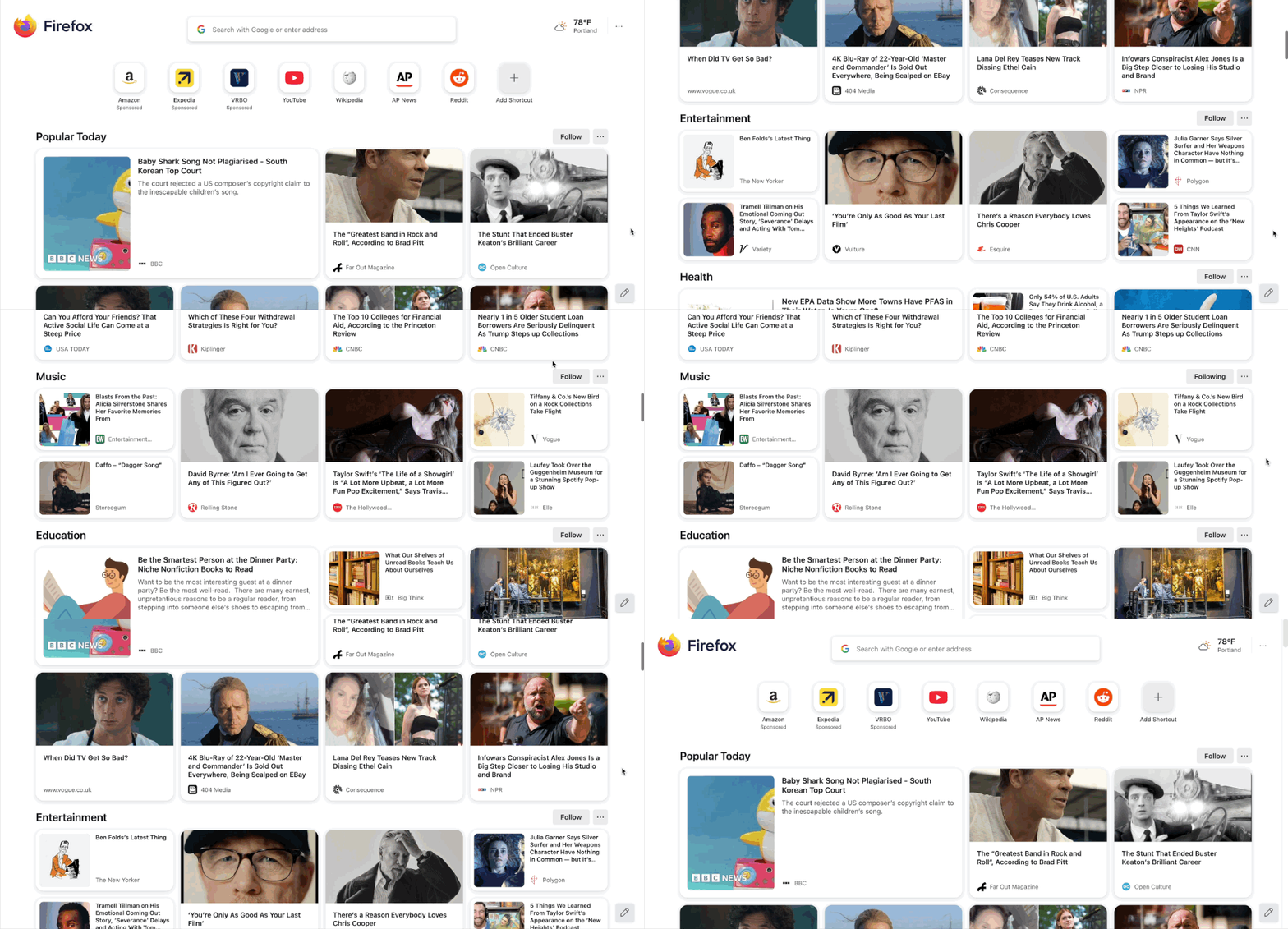
  • For users in the United States, article recommendations on your New Tab page are now grouped into topic sections like Sports, Food, and Entertainment to make stories more organized and easier to scan. You can also follow topics you’re interested in and block ones you’d prefer not to see, giving you more control over what shows up when you open a new tab.gif for newtab
  • You can now see what’s behind a link before visiting it with Link Previews. Long-press a link (or right-click and choose Preview Link). Previews can optionally include AI-generated key points, which are processed on your device to protect your privacy.
  • Link Previews is gradually rolling out to ensure performance and quality and is now available in en-US, en-CA, en-GB, and en-AU for users with more than 3 GB of available RAM. This feature is part of a progressive rollout.
  • On Windows, clicking a persistent notification when Firefox is closed or restarted will now properly open Firefox with the relevant webpage, instead of just opening the main page of the website.
  • ETP Strict mode now supports a flexible exception list to fix broken site features caused by tracker blocking. Exceptions are split into baseline (core functionality) and convenience (extra features), letting users choose improved site compatibility without compromising key privacy protections.
  • Keep an active tab visible in a collapsed tab group.
  • Focus on just one tab in a group without the clutter. Your active tab stays in view, keeping things tidy even with the group collapsed.
  • You can now remove extensions from the sidebar by right-clicking the extension icon and selecting Remove from Sidebar.

Fixed

  • Improved the scroll speed in the bookmarks dialog to not go beyond the component area.
  • Improved drag-and-drop support for blob images.
  • Various security fixes.

Changed

  • Improved search results from browsing history via the address bar, reducing the likelihood of duplicate results being shown.
  • Improved Netmonitor so that Request Headers/Cookies/Params are displayed in the Network panel even if the request isn’t finished yet.

Mozilla has also expanded its built-in translation service, now supporting Chinese, Japanese, and Korean. This update further strengthens Firefox as a versatile browser for global users.

To install Firefox 142, users can navigate to Menu > Help > About Firefox, or download it from the official Firefox website.

Call of Duty: Black Ops 7 to Include Co-Op Campaign and Global XP System

Call of Duty fans have something to look forward to this November. During Gamescom’s Opening Night Live, Activision revealed the first gameplay details for Black Ops 7, set to launch on November 14, 2025, five weeks after Battlefield 6.

The biggest highlight this year is the new co-op campaign. Players can team up with up to four friends and explore the coastal city of Avalon.

Unlike previous entries, every elimination, objective, and breakthrough in the campaign contributes to a Global XP system. Well, it carries over to multiplayer progression. Xbox’s blog explains that this integration allows your Co-Op efforts to fuel your overall rank and unlock new abilities directly.

In addition to the campaign, Black Ops 7 introduces a multiplayer endgame designed for up to 32 players. Gamers can select Operators, craft custom Loadouts, and level up their Combat Rating to tackle advanced challenges across Avalon.

The multiplayer launch includes 16 6v6 maps and 2 20v20 Skirmish maps, featuring classic locations from Black Ops 2. The Omnimovement system returns with enhancements like Wall Jump and Combat Roll, offering fluid mobility in every match. Zombie mode also returns with the largest Round-Based map ever, alongside Survival Maps for fans of intense undead action.

Like last year, Black Ops 7 will support Xbox Play Anywhere and will be available on day one with Game Pass Ultimate and PC Game Pass. It will also release on Xbox Series X|S, PS5, last-gen consoles, Battle.net, Steam, and the Xbox app on PC.

For a closer look, the Xbox @ Gamescom 2025 broadcast continues today at 6 AM PT, showcasing Black Ops 7 alongside Ninja Gaiden 4, Overwatch 2, and The Outer Worlds 2.

Indiana Jones and the Great Circle Heads to Switch 2 in 2026

Indiana Jones and the Great Circle is set to arrive on the Nintendo Switch 2 in 2026, marking the first Xbox game to be ported specifically for the new console. The action-adventure title, which has already seen releases on PS5 and other platforms, continues its journey to reach a wider audience.

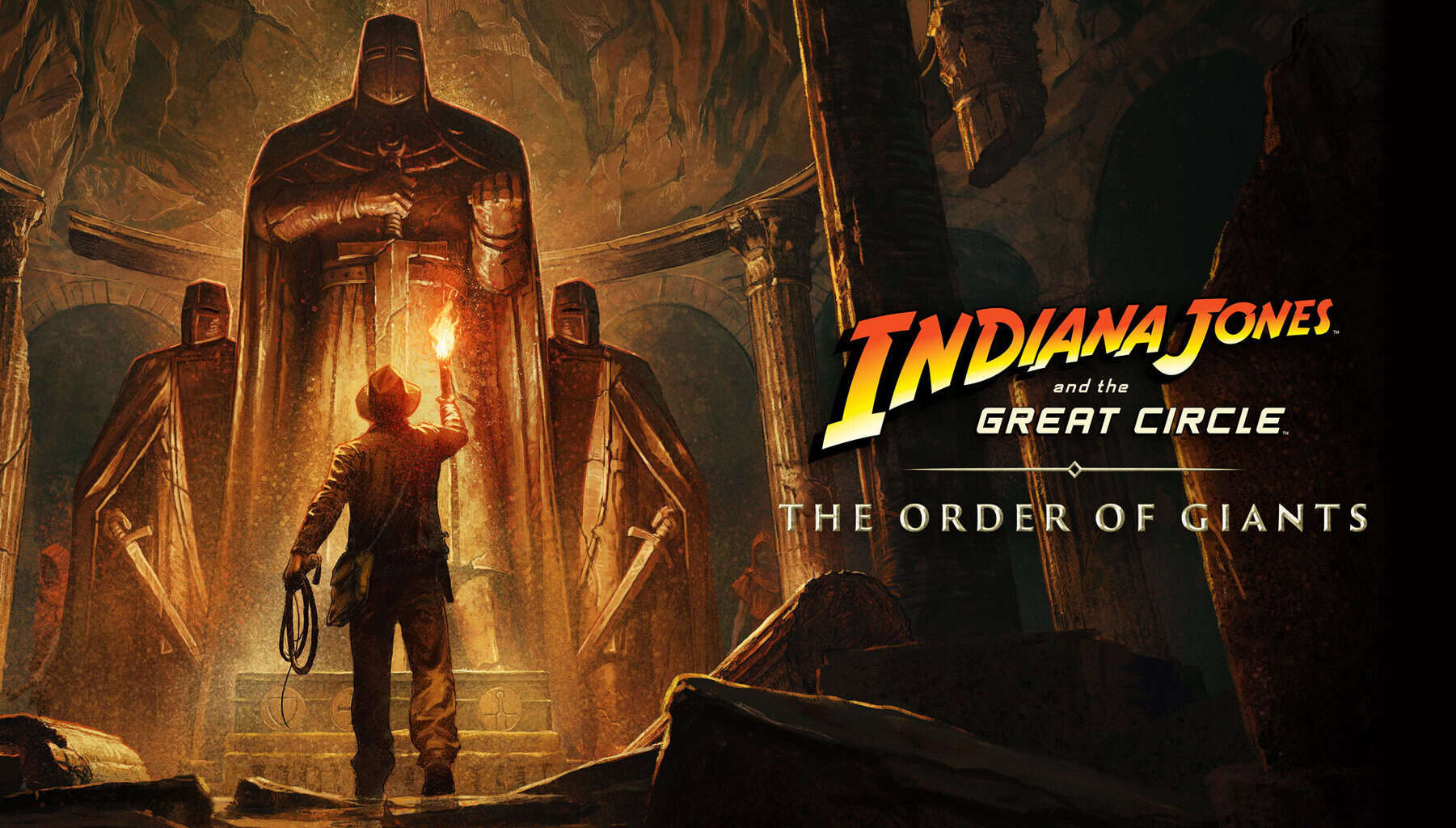
The announcement came at the tail end of a trailer for the game’s upcoming DLC, The Order of Giants, scheduled for September 4. This new chapter will see Indiana Jones explore the secrets of the Roman Empire, adding fresh content to the original adventure.

To catch you up, the reveal appeared during Gamescom 2025’s Opening Night Live. It was accompanied by other major showcases including a gameplay trailer for Call of Duty: Black Ops 7.

Switch 2 owners are seeing a growing library of both original titles and ports. Earlier this summer, Atlus confirmed that Persona 3 Reload, a remake of the 2006 classic, will launch on Switch 2 in October. Additionally, the revival of Kirby Air Ride, renamed Kirby Air Riders, is planned for an exclusive release on the console in November.

At this time, Nintendo and the publishers have not shared details on pricing or an exact launch window for Indiana Jones and the Great Circle on Switch 2.

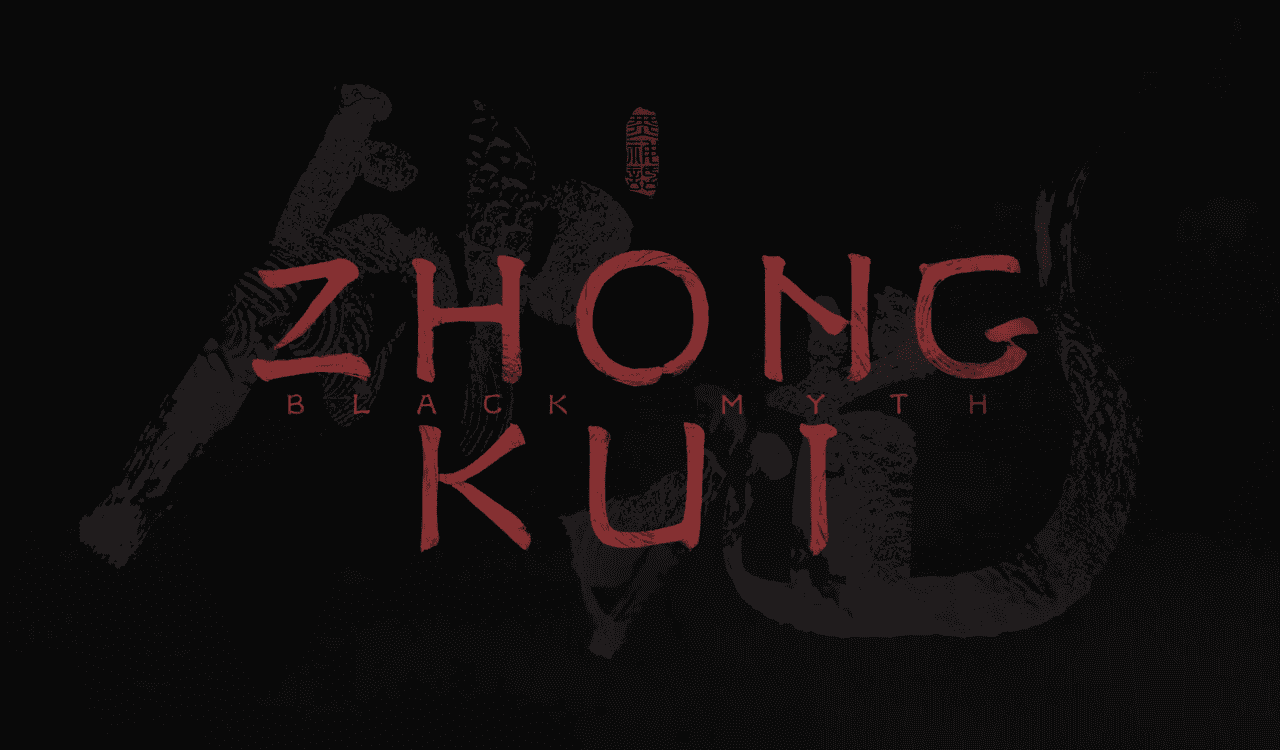
Black Myth: Zhong Kui Announced at Gamescom 2026 with Horror Twist

The next chapter in the Black Myth franchise is here. Black Myth: Zhong Kui was unveiled during Gamescom 2025’s Opening Night Live, following the massive success of Black Myth: Wukong.

The sequel promises to expand on Wukong’s acclaimed combat while introducing a darker, more horror-focused tone. You can check out the official teaser trailer below.

Unlike its predecessor, Zhong Kui centers on the Taoist deity known as the “king of ghosts,” who exorcises and commands evil spirits. Players can expect a single-player, action-focused RPG experience, though the teaser trailer leans heavily into horror and otherworldly elements rather than combat mechanics.

The short trailer sets an eerie scene. Two brothers argue before noticing two enormous monsters approaching. The camera then pans to a procession of demons, culminating in Zhong Kui himself riding a giant tiger, fully armored and ready for battle.

The imagery hints at more frightening environments and supernatural encounters, building on the creature design praised in Wukong. While the teaser does not show Zhong Kui in action, the narrative focus and horror-driven aesthetics signal a shift from the fast-paced spectacle of the previous game.

Fans of the series can expect the sequel to retain the challenging combat of the first game while exploring darker, more atmospheric themes. No official release date has been set for Black Myth: Zhong Kui, but the announcement has already hyped fans, thanks to visually striking and intense follow-up.

Vampire: The Masquerade – Bloodlines 2 Launches October 21 with Fabien Storylines

Paradox Interactive and The Chinese Room have announced the release date for Vampire: The Masquerade – Bloodlines 2. The long-awaited RPG will arrive on October 21, marking the end of years of delays and development hurdles.

The news came during Gamescom’s Opening Night Live showcase, alongside fresh gameplay insights.

One of the biggest reveals centers on the Malkavian clan. While players cannot make Phyre, the game’s protagonist, a Malkavian, the bloodline still plays a crucial role. Phyre shares their head with Fabien, a disembodied Malkavian detective.

At certain points, players will control Fabien in sequences set in a moody, neo-noir version of 1920s Seattle. His fractured perception of reality adds a surreal layer, making detective work feel like solving puzzles between truth and delusion.

Bloodlines 2 will also launch with multiple editions, each packing extras. The Santa Monica Memories cosmetic pack brings nostalgic touches from the original game, letting players decorate Phyre’s apartment.

That’s nort all; the Shadows & Silk DLC, which unlocks two additional clans: the manipulative Lasombra and the alluring Toreador. Both offer new playstyles that add variety beyond the main storyline.

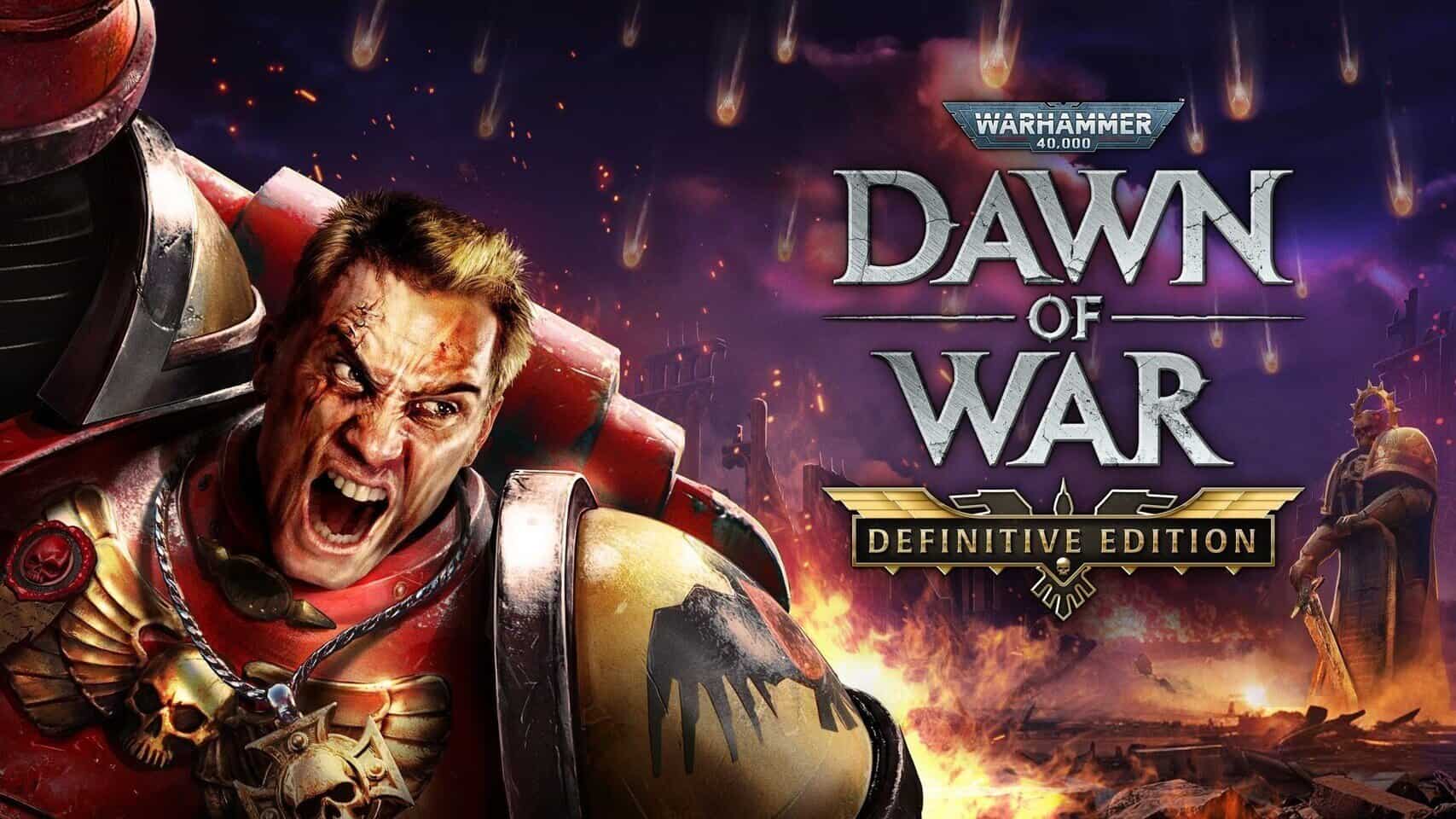
Warhammer 40,000: Dawn of War – Definitive Edition Launches on PC

Relic Entertainment has officially released Warhammer 40,000: Dawn of War – Definitive Edition for PC. The game is now available on both Steam and GOG at $29.99 USD.

Players who already own the Anniversary Edition of the original game can take advantage of a 30% Veteran’s Discount. Additionally, all players will receive a 10% launch discount for the next two weeks.

This Definitive Edition revives the genre-defining real-time strategy title with performance upgrades tailored for today’s systems. It combines the original Dawn of War with all its expansions, including Winter Assault, Dark Crusade, and Soulstorm, ensuring fans get the complete experience in one package.

Key Enhancements for Modern Systems

Relic has packed the re-release with upgrades that preserve the game’s original charm while improving stability and visuals. Players can now enjoy full 4K resolution with upscaled textures, refined lighting and reflections, and improved shadows and emissive effects.

The update also includes a wider draw distance, enhanced camera controls for cinematic battles, and an optimized HUD for widescreen monitors. Built on 64-bit architecture, the game promises smoother performance and better stability during large-scale clashes.

RTS Legacy Lives On

Beyond visuals, gameplay improvements include enhanced pathfinding and large-army support. With nine playable armies, more than 100 skirmish maps, and compatibility with two decades of mods, the Definitive Edition aims to be the ultimate way to relive this RTS classic.

Availability and Pricing

Warhammer 40,000: Dawn of War – Definitive Edition is now available on PC through Steam and GOG for $29.99. Veteran players can claim their 30% loyalty discount, while all buyers can benefit from a limited-time 10% launch discount over the next two weeks.

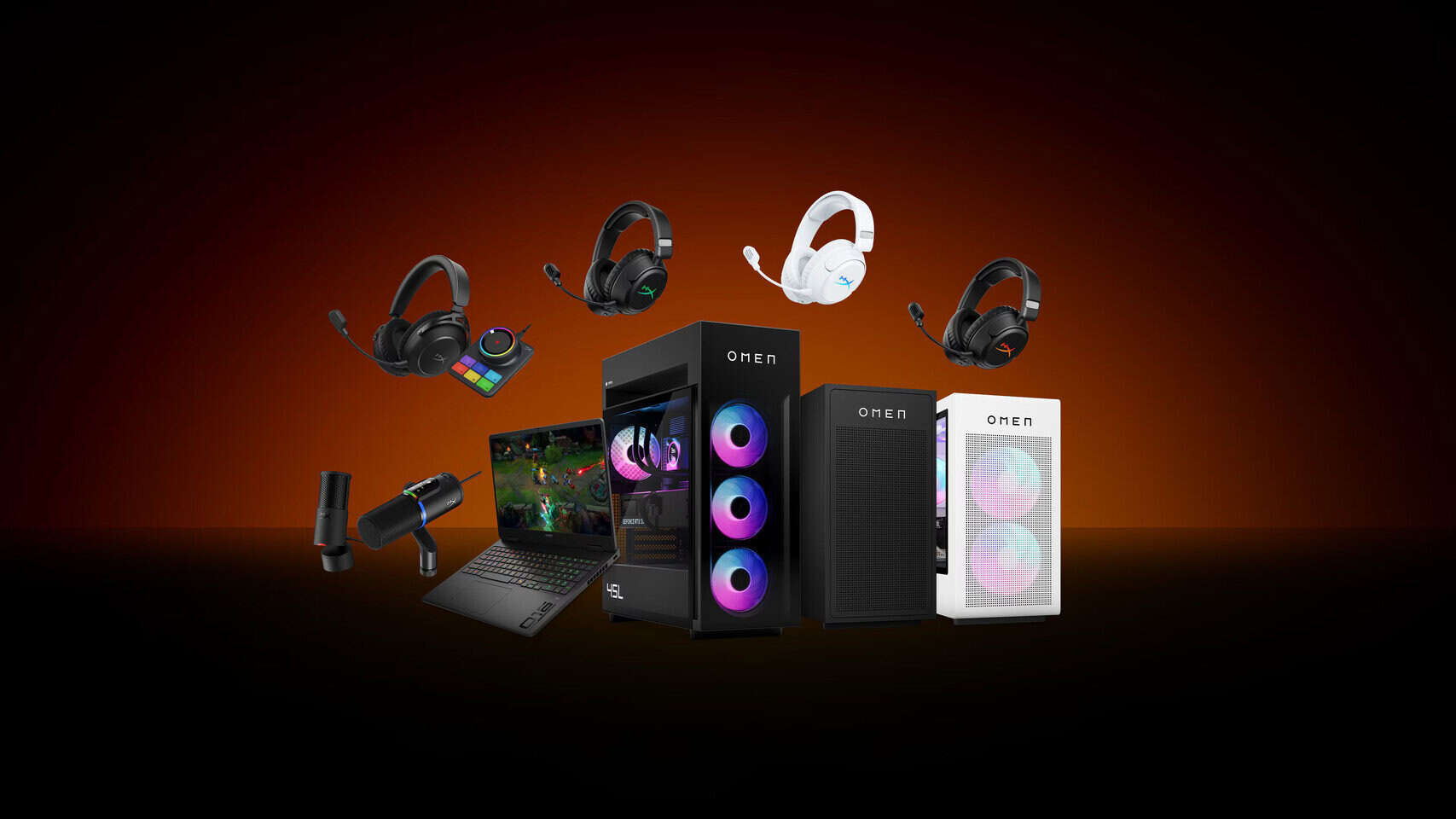
HP Expands OMEN and HyperX Lineup With AI Enhancements and New Gaming Gear

If you’ve been keeping up with HP’s gaming hardware news, you must know the company has been leaning heavily on AI and performance-driven designs. At its first-ever Level Reforge event, HP took things further by unveiling a fresh lineup of OMEN desktops and HyperX peripherals.

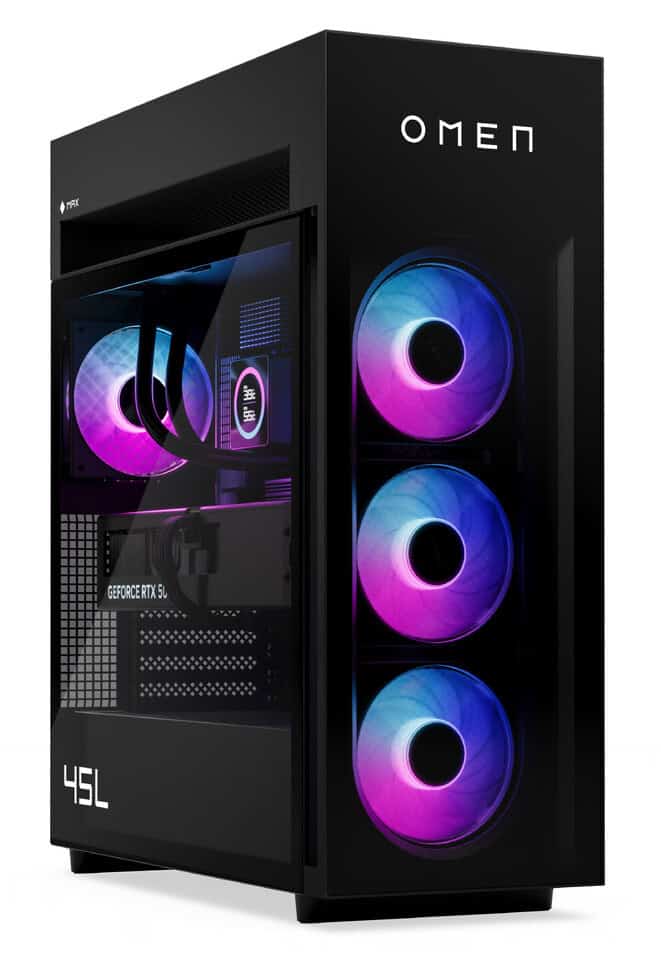
OMEN MAX 45L: Flagship Powerhouse

The star of the show was the OMEN MAX 45L Gaming Desktop, HP’s most powerful gaming tower yet. It packs up to an AMD Ryzen 9 9950X3D CPU and NVIDIA GeForce RTX 5090 GPU.

HP OMEN 45L
Image: HP

HP’s patented CRYO CHAMBER cooling keeps things steady with lower CPU temps under load, while a fully modular 1200W PSU offers customization and real-time monitoring. OMEN MAX 45L will be available on HP.com in December, with pricing announced closer to launch.

OMEN 35L and Stealth Edition: Performance Meets Style

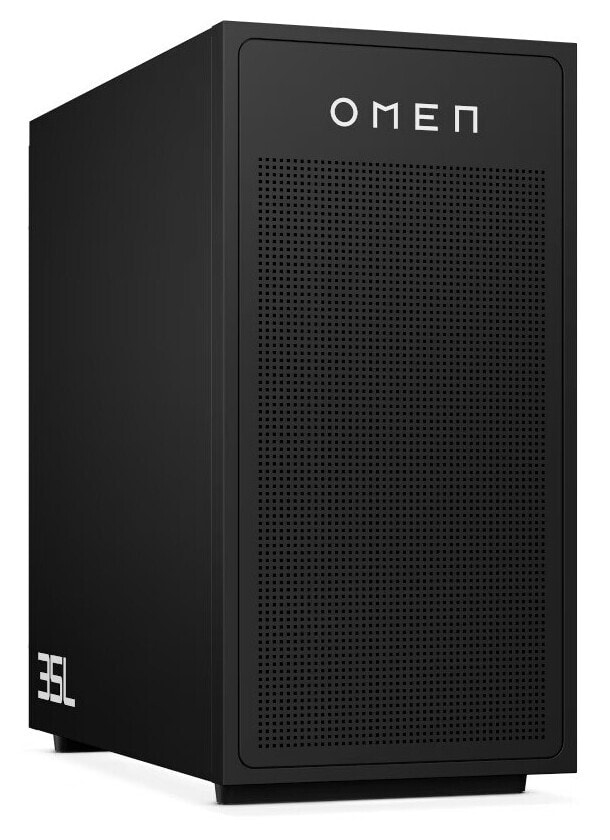
Joining the MAX is the refreshed OMEN 35L, delivering high-end specs in a flexible design. A Stealth Edition also debuts, featuring the same hardware but with an all-black, RGB-free build.

HP OMEN 35L
Image: HP

It has already been named the official PC of League of Legends Esports and the VALORANT Champions Tour. Both models will be available in October on HP.com starting at $1,499.99.

HyperX Cloud Headsets: Built for Endurance

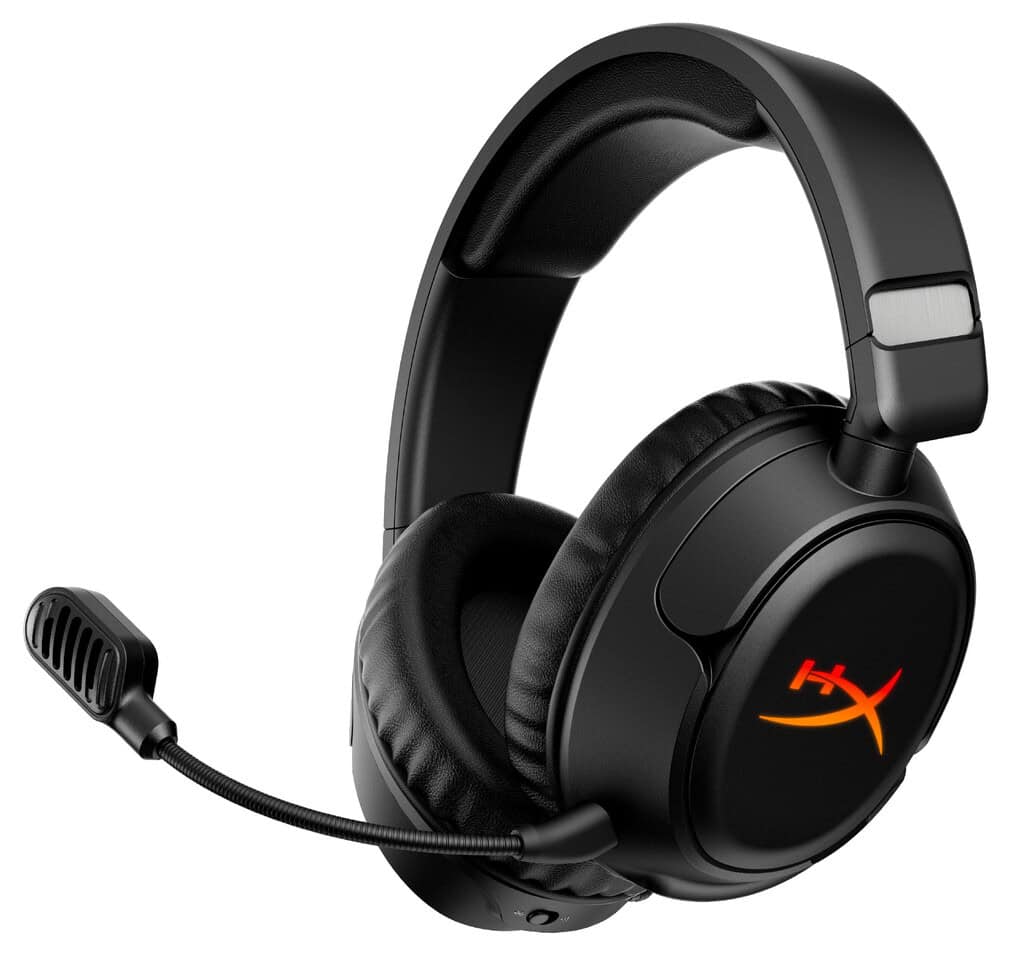
HP also revealed the HyperX Cloud Alpha 2 Wireless, promising up to 250 hours of battery life and immersive audio with dual-chamber drivers. The Cloud Flight 2 adds full RGB panels and removable earcup plates, while the CloudX Flight 2 brings Xbox compatibility.

HP Hyper X Cloud Headsets
Image: HP
HP Hyper X Cloud Headsets 2
Image: HP

Pricing and Availability:

  • Cloud Alpha 2 Wireless: $299.99, available August on HP.com and HyperX.com
  • Cloud Flight 2: $129.99, available October
  • CloudX Flight 2: $139.99, available December

HyperX Microphones: Studio-Grade Simplicity

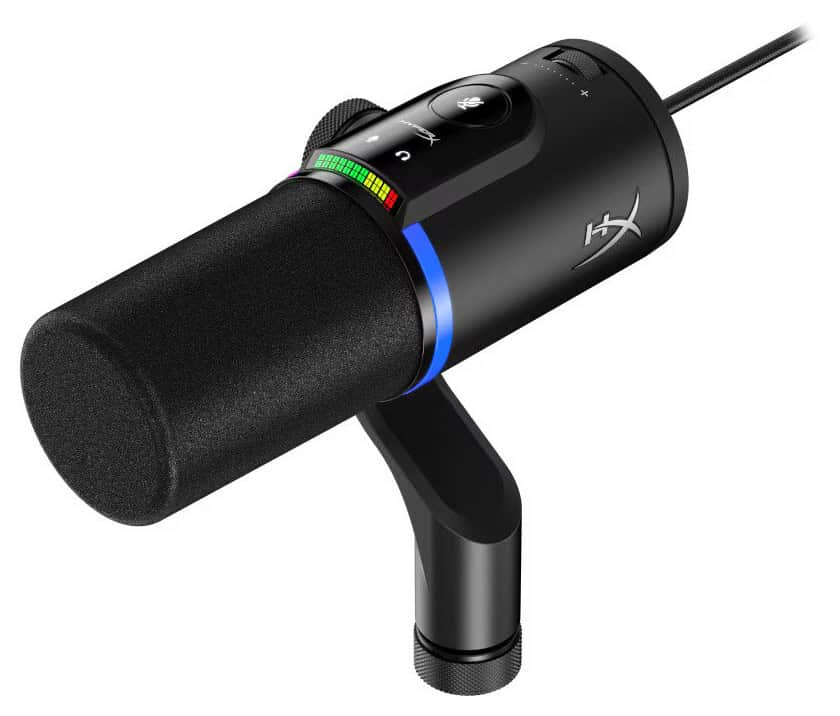
For creators, the new HyperX FlipCast offers USB and XLR support with pro-level audio tools, while the HyperX SoloCast 2 brings compact, plug-and-play versatility.

HP HyperX Microphones
Image: HP
HP HyperX Microphones 2
Image: HP

Pricing and Availability:

  • FlipCast: $229.99, available August
  • SoloCast 2: $59.99, available August

HP says the launch shows how it’s reimagining gaming ecosystems with AI-enhanced performance, smart cooling, and hardware that adapts to both competitive play and creative workflows.

NVIDIA Bundles Borderlands 4 With GeForce RTX 50-Series GPUs

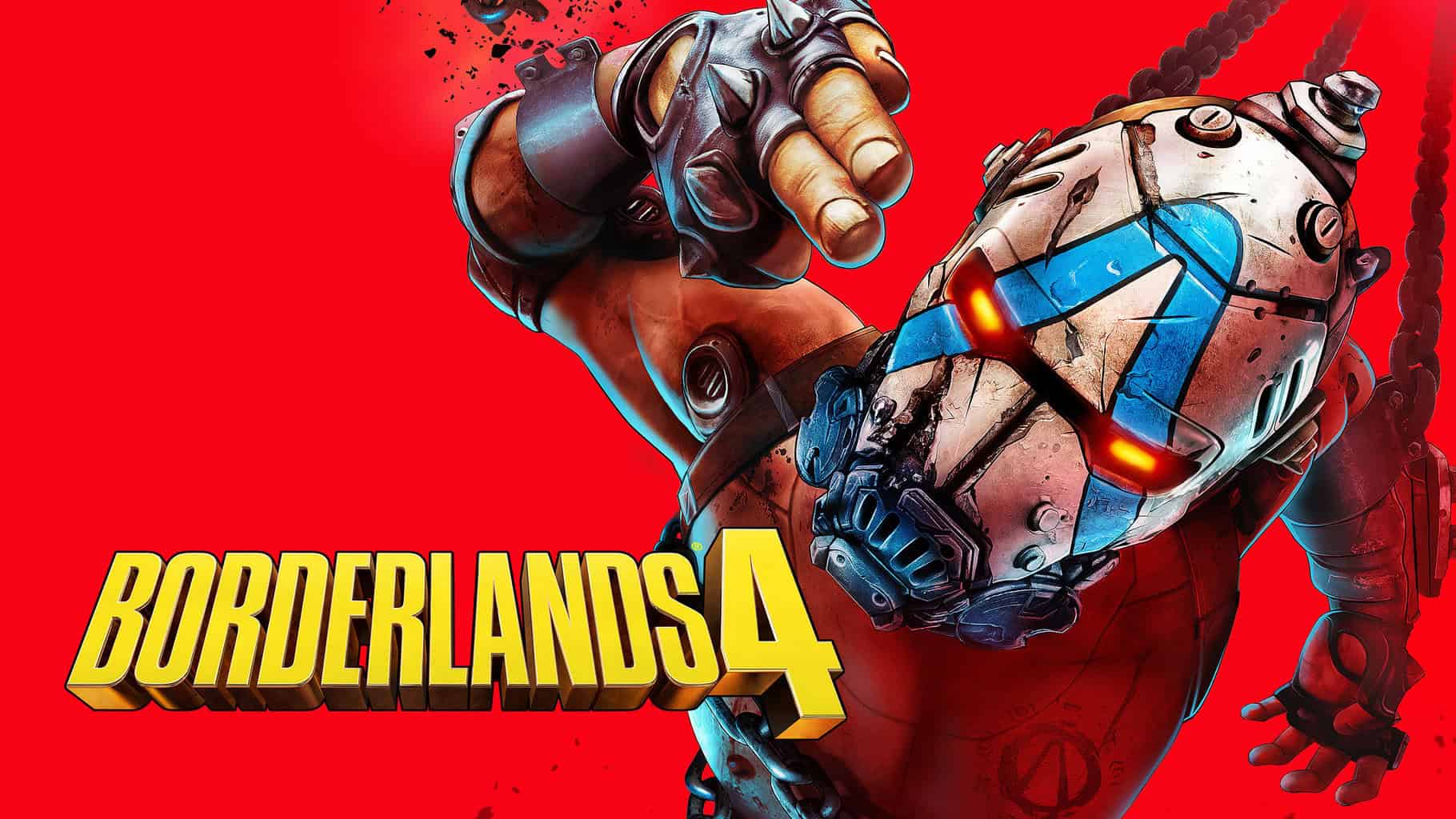
NVIDIA has announced a new gaming bundle in partnership with Gearbox Software. The partnership will bring an exciting deal ahead of the launch of Borderlands 4. The mayhem-filled FPS RPG, known for its signature cel-shaded style, will officially release on September 12, 2025.

As part of the promotion, players purchasing select GeForce RTX 50-series “Blackwell” GPUs will receive a free copy of Borderlands 4. NVIDIA says that the bundle will be available with the RTX 5090, RTX 5080, RTX 5070 Ti, and RTX 5070 graphics cards.

Not to forget, the offer also extends to prebuilt desktops and laptops powered by these GPUs, ensuring both PC builders and laptop buyers can take advantage of the deal.

NVIDIA isn’t just including the base game. Players who redeem the promotion will also unlock the “Gilded Glory Pack” DLC, offering bonus content to kick off their adventure in style.

The bundle will be available through September 22, giving players a limited window to secure both the latest graphics hardware and one of the year’s biggest game releases.

With the RTX 50-series set to push performance even further, NVIDIA is highlighting how its latest GPUs will bring Borderlands 4’s chaotic combat and vibrant visuals to life like never before.

Xbox Unveils Big Lineup at Gamescom 2026, Including Fallout TV Show Teaser

Xbox has officially revealed a massive slate of announcements at Gamescom 2025’s Opening Night Live, headlined by a surprise teaser for the second season of the Fallout TV show. The showcase also featured blockbuster game reveals, expansions, and fresh trailers across some of Xbox’s biggest franchises.

Kicking off the event, fans got their first extended look at Call of Duty: Black Ops 7, showcasing its new co-op Campaign, along with glimpses of Multiplayer and Zombies. The game launches on November 14 and will be available day one on Game Pass.

Following that, The Outer Worlds 2 received a new trailer focused on its Companion characters, while Ninja Gaiden 4 debuted a story trailer introducing fresh weapons, enemies, and characters.

Indiana Jones and the Great Circle: The Order of Giants was another highlight, with a gameplay trailer teasing the Rome-based DLC expansion arriving September 4. Double Fine also showed off Keeper, its emotional, otherworldly adventure releasing on October 17.

Meanwhile, Blizzard lifted the curtain on World of Warcraft: Midnight, the next chapter in its ongoing Worldsoul Saga, featuring a new Housing system and Void vs. Light storyline.

Not to be left out, Age of Empires IV: Anniversary Edition is expanding to PlayStation 5 later this year, alongside the Dynasties of the East DLC for all platforms. Fans of classic shooters also got good news with the announcement of Heretic + Hexen in an enhanced edition.

Overall, Xbox’s Gamescom 2025 showcase delivered something for nearly every kind of player. With more gameplay, interviews, and reveals promised across the two-day Xbox Broadcast, the event is only just getting started.

Xbox Game Pass August Wave 2 Adds Gears of War: Reloaded, Dragon Age: The Veilguard & More

Microsoft has confirmed a fresh lineup of titles heading to Xbox Game Pass this month, with some heavy hitters leading the charge. As revealed ahead of Gamescom’s Opening Night Live, fans can look forward to new releases, remasters, and beloved RPGs making their way to the subscription service.

First of all, you’ve the Blacksmith Master (PC) and Void/Breaker (PC) kicking off the wave. Blacksmith Master lets players manage their own medieval workshop, while Void/Breaker brings fast-paced roguelite FPS action against a relentless AI opponent.

On August 20, the quirky Goat Simulator Remastered arrives with upgraded visuals and DLC included. That same day, the fan-favorite Persona 4 Golden lands on console, cloud, and PC, offering a coming-of-age journey packed with mystery and heartwarming friendships.

Herdling, a day-one title on August 21, tasks players with leading adorable creatures on an alpine adventure filled with challenges. Fast forward to August 26, Gears of War: Reloaded will be available. This Unreal Engine-powered remaster of the original blockbuster includes all post-launch content, new optimizations, and bonus campaign material.

Just two days later, Dragon Age: The Veilguard joins through EA Play, inviting fans into a new chapter of the acclaimed RPG saga. For those who missed it, Heretic + Hexen is also now available, bringing back two classics in enhanced form.

Not everything stays forever, though. By August 31, games like Borderlands 3, Sea of Stars, and This War of Mine: Final Cut will leave the library. Xbox reminds players they can purchase favorites with a discount before they disappear.

How to Fix “EA AntiCheat Has Detected an Incompatible Driver” on Windows 11?

The error “EA AntiCheat has detected an incompatible driver” appears when launching certain EA games such as EA FC 24, Battlefield 2042, or Apex Legends. This typically blocks the game from starting entirely and is caused by one or more of the following issues:

  • An outdated or unsigned driver
  • A conflicting third-party tool (e.g., RGB software, overclocking tools)
  • Remnants of old anti-cheat systems or kernel-level services
  • A misconfigured Windows setting, such as Test Mode being enabled

This guide shows you exactly how to identify and fix the incompatible driver error step by step. If you’re also facing issues like EA AntiCheat service encountered an error, the troubleshooting steps below may help with that as well.

How to Fix “EA AntiCheat Has Detected an Incompatible Driver”?

1. Identify the Driver Name (If Shown)

If the EA AntiCheat error window displays a file name like gdrv.sys, mhyprot2.sys, or something else:

  • Note the exact filename
  • Search it online to identify the software it belongs to
  • Proceed to uninstall or disable that software

If no driver name is listed:

  • Open Event Viewer (Win + X > Event Viewer)
  • Go to Windows Logs > System and look for EA-related error entries

Users encountering this alongside issues in Origin may also want to review our guide on fixing the Origin Access Error.


2. Uninstall Conflicting Software or Tools

Certain background programs are known to inject unsigned or low-level drivers that trigger this issue.

Remove the following if installed:

  • GIGABYTE App Center or RGB Fusion – uses gdrv.sys
  • MSI Afterburner & RivaTuner – injects monitoring services
  • MyHoYo (Genshin Impact, Honkai) – leaves behind mhyprot2.sys
  • Cheat Engine or similar modding tools
  • Driver emulator tools or virtual drives

Steps:

  1. Press Win + R, type appwiz.cpl, hit Enter
  2. Uninstall any conflicting apps
  3. Reboot your PC

3. Update Device Drivers (Especially GPU & Motherboard)

Outdated or unsigned drivers are a top cause of EA AntiCheat failures.

How to update safely:

  • Open Device Manager
  • Right-click your GPU (under Display Adapters) > Update driver
  • Do the same for System Devices, Network Adapters, and Storage Controllers

You can also use:

If you notice messages like A driver cannot load on this device, check our fix guide for Windows 11 driver loading issues, as those may also block EAAC.

To avoid future problems, follow this checklist of driver update compatibility issues, especially if you recently installed system or BIOS updates.


4. Reinstall EA AntiCheat

Corrupt AntiCheat installation files or incorrect privileges may cause validation issues.

Steps:

  1. Go to C:\Program Files\EA\AC
  2. Run EAAntiCheat.Installer.exe as Administrator
  3. Select your game > Click Uninstall
  4. Then click Install
  5. Restart the PC

Apex Legends users may also encounter an EA AntiCheat startup block. In that case, see this specific Apex AntiCheat error fix as it includes game-specific tips.


5. Disable Windows Test Mode

EA AntiCheat will block any PC running in Test Mode, as it allows unsigned drivers.

To check and disable it:

  1. Open Command Prompt as Admin
  2. Run: bcdedit /set TESTSIGNING OFF
  3. Restart your PC

You can verify status with:

bcdedit

Look for testsigning and ensure it’s not set to Yes.


6. Run EA AntiCheat with Admin Rights

Improper permissions or UAC interference may prevent EAAC from verifying system integrity.

Steps:

  • Navigate to C:\Program Files\EA\AC
  • Right-click EAAntiCheat.Installer.exe > Properties > Compatibility tab
  • Check Run as Administrator, then click Apply
  • Do the same for your game’s EXE

7. Perform a System File Check

Missing or altered Windows system files can interfere with driver loading.

Run the following commands in Command Prompt (Admin):

sfc /scannow

Then also run:

DISM /Online /Cleanup-Image /RestoreHealth

This will repair corrupted system files that may be affecting driver validation.


8. Check for Unsigned or Hidden Kernel Drivers (Advanced)

To check all loaded drivers and verify their digital signatures:

  1. Open Windows PowerShell (Admin)
  2. Run: driverquery /v /fo list > %USERPROFILE%\Desktop\drivers.txt
  3. Open the drivers.txt file from your Desktop
  4. Look for non-Microsoft drivers with suspicious names

Use tools like Autoruns from Microsoft Sysinternals to locate any driver loading at boot.


Additional Tips for Persistent Issues

  • Temporarily disable your antivirus if it’s injecting a network filter (e.g., Avast, Bitdefender)
  • Ensure you’re using UEFI + Secure Boot, as some EA titles check system integrity
  • Do not attempt to bypass the error with modified EXEs or cheat loaders — EA AntiCheat is kernel-level and will block these

FAQs

What causes the “incompatible driver” error with EA AntiCheat?

Usually it’s due to unsigned or conflicting drivers loaded by motherboard tools, overclocking software, or old anti-cheat engines.

Can I fix it without reinstalling the game?

Yes. The issue is usually related to drivers or Windows configuration and doesn’t require game reinstallation.

Is mhyprot2.sys safe to delete?

Yes. It’s used by Genshin Impact’s anti-cheat. If you’ve uninstalled the game, it can be removed manually from C:\Windows\System32\drivers.

Why does EA AntiCheat block tools like MSI Afterburner?

Some overlay or monitoring tools inject DLLs or drivers, which interfere with anti-cheat validation.


Get Back in the Game Without Errors

EA AntiCheat errors are strict for a reason, to ensure fair, cheat-free gameplay. However, many users run into this issue because of completely harmless tools or outdated drivers left behind from older software.

By cleaning up your drivers, checking for known software conflicts, and ensuring your system isn’t in Test Mode, you can fix this permanently.

Want to avoid driver-related errors in the future? Use a trusted tool to install only signed, compatible updates, and always reboot after uninstalling any system-level software.

If all else fails, reach out to EA Help and attach the EAAC log files from your install directory for manual analysis.

DYMO Drivers for Windows 11: How to Download & Install

Drivers are a critical piece of software that helps relay commands between the OS and the devices, and it’s all the more critical that you get the latest Dymo drivers for Windows 11. 

When you upgrade the OS, connectivity issues or problems with the printer may arise if the previously installed drivers are not compatible with the current iteration. Or even otherwise, it’s recommended to have the latest drivers to enjoy seamless connectivity.

Does Dymo LabelWriter work with Windows 11?

Yes, most recent models of LabelWriter are compatible with Windows 11, including models like 550, 550 Turbo, 450, 450 Turbo, and 450 Turbo, amongst others in the series.

But a few legacy devices don’t work on Windows 11. This includes 310, 330, 330 Turbo, and 400 Turbo, as per the Dymo compatibility chart.

How do I download and install DYMO drivers on Windows 11?

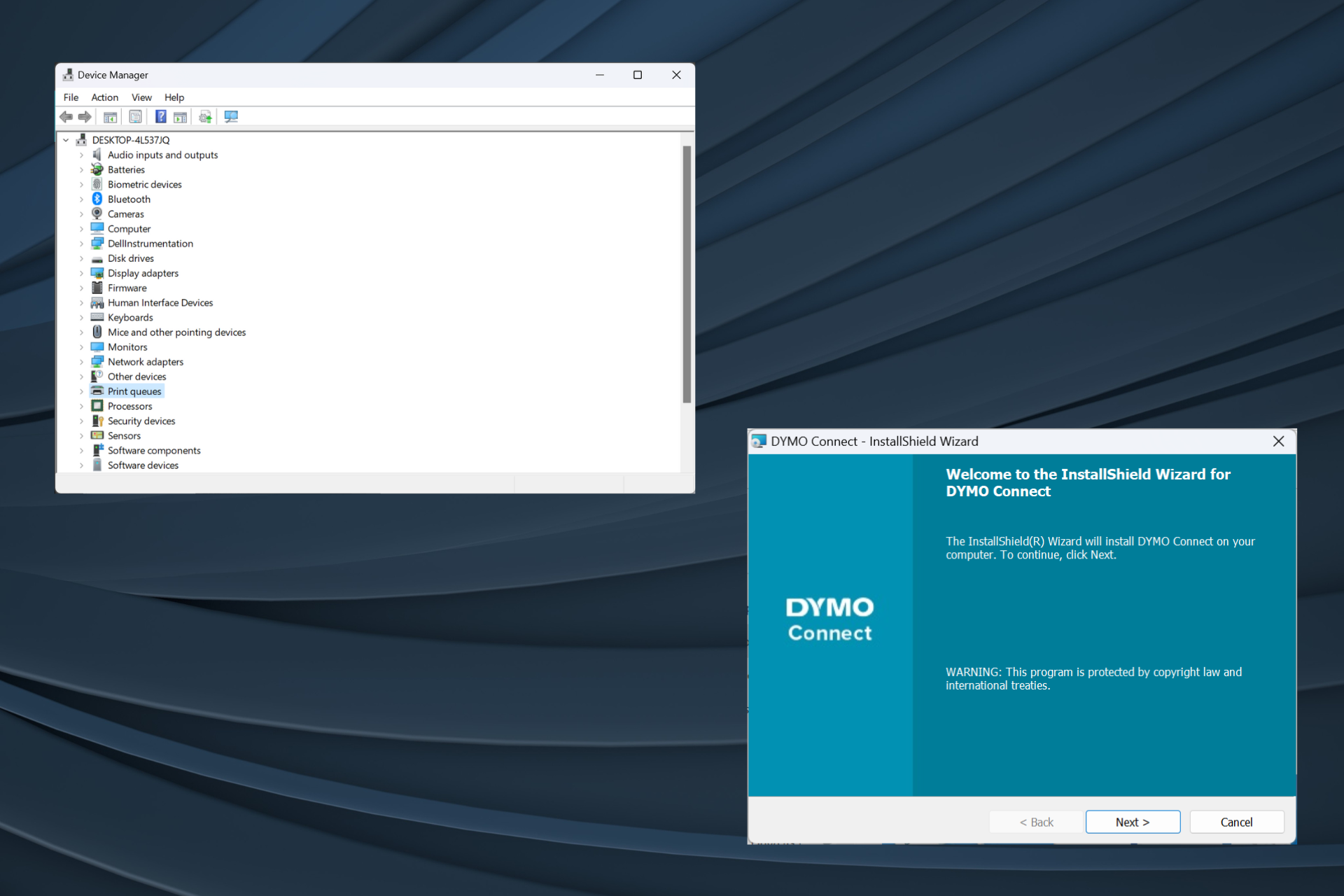
1. Download and install from the official website

  1. Go to Dymo’s Support Center webpage, and expand the section that lists your printer model. Say, for the Dymo LabelWriter 450 driver download, we will select The Latest Software and Drivers for all LabelWriters and LabelManager.official website
  2. Click the Download button under Dymo Connect for Desktop Windows.dymo connect to install dymo drivers windows 11
  3. After the Dymo software download, double-click the DCDSetup file to run it.
  4. Click Yes in the UAC prompt.
  5. Now, follow the on-screen instructions to complete the installation process.dymo connect

Once you download Dymo Connect, establish a connection with the printer, and it will automatically install the latest Dymo 400 and other Windows drivers, depending on the connected printer. Besides, it is recommended that you have the Dymo Connect Utility installed for seamless operations.

And remember, different Dymo printer models require different software. For instance, you need Dymo ID for XTL and Rhino machines.

2. Use a driver update utility

Many of us are not comfortable with manual driver installation, and it makes sense, given that any mistakes here can render the device unusable, even if temporarily. 

And that’s where automatic driver update tools come into the picture. They can automatically identify all connected devices, find the latest driver version for each, and download them within minutes.

3. Via Device Manager

  1. Press Windows + X to open the Power User menu, and select Device Manager from the list of options.
  2. Expand the Printers entry, right-click on the Dymo printer and select Update driver. If the printer is not listed here, check the Other devices category, and make sure the hidden devices are visible.update dymo drivers windows 11 
  3. Now, click on Search automatically for drivers and wait for Windows to install the best version available locally.search automatically
  4. If that doesn’t work, again, go to driver update, and this time, choose Browse my computer for drivers.browse
  5. Click on Let me pick from a list of available drivers on my computer.availabe drivers
  6. If presented with a list of devices, select Printers, and click Next.
  7. Select DYMO from the left pane, then your printer model from the right, and click Next.install dymo drivers windows 11
  8. Once the printer driver is installed, restart the computer for the changes to come into effect.

If you are facing problems with the device, say Dymo is printing black labels, an easy way out is to install the latest printer driver. Make sure to choose the correct model because incompatible drivers can cause the device to malfunction.

Will Windows 10 printer drivers work on Windows 11?

We can’t generalize it. For some printers, the drivers from Windows 10 will work on Windows 11, while for others, it will not. So, it comes down to specific models, the PC’s hardware, and other changes during the upgrade process.

For instance, during the early days after the latest iteration was released, Brother printers connected via USB failed to work, but the issue was resolved in the subsequent updates.

You now know that Dymo printer driver downloads in Windows 11 are not really that complex. The best part, you can install printer drivers without administrative privileges.

In case it ever happens that the printer stops working, uninstall the recent OS updates, run the dedicated troubleshooter, or install the latest drivers!

For any queries or to share which method worked best for you, drop a comment below.

How to Fix The Fall Guys Error Code 200_2147483647

If you have encountered the Fall Guys error code 200_2147483647 on your Playstation, this guide can help! We will discuss the common causes and expert-recommended fixes to resolve the issue.

What causes the Fall Guys error code 200_2147483647?

  • The Epic Games server is facing downtime.
  • Weak internet connection.

How can I fix the Fall Guys error code 200_2147483647?

Before we go to the advanced fixes to get rid of Fall Guys error code 200_2147483647, here are a few preliminary checks you should do:

1. Restart your PSN

  1. Press & hold the PS button on your PSN controller and choose Power.PSN button - Fall guys error code 200 2147483647 PSN
  2. Select Turn Off PS4/5 or Restart PS4/5. Make sure you don’t choose Enter Rest Mode, as it doesn’t turn off your device completely.

Once you restart your PlayStation, try the same thing that caused the error to check if it persists. Rebooting your console can help you fix other issues like the Join Party error in Fall Guys on all consoles, including Xbox.

2. Change the DNS settings

  1. Go to Settings.
  2. Select Network, then click Set up Internet Connection.
  3. Select Wi-Fi, then choose Custom (select the Network and enter its credentials)
  4. Next, set these settings:
    • IP Address Settings – Automatic
    • DHCP Host – Don’t Specify
    • DNS Settings – Manual
  5. Enter the Primary DNS – 8.8.8.8 and Alternate DNS– 8.8.4.4, then click OK to confirm the changes.DNS server - Fall guys error code 200 2147483647 PSN
  6. Also, choose Automatic for MTU Settings and set Proxy to Do Not Use.
  7. Now select Test Internet Connection and check if it works.

2. Change the Wi-Fi band from Automatic to 5 Gigahertz

  1. Go to Settings.
  2. Select Network.Network - Fall guys error code 200 2147483647
  3. Wait for the initial scan to complete, and click the Options button from the Controller to get the Advanced menu.Options
  4. Under Wi-Fi frequency bands, choose 5GHz.
  5. Your PSN will scan for Wi-Fi networks again on the 5GHz band; once you see the network listed, select it, enter the credentials, and follow the on-screen instructions to complete the steps.

To conclude, if you face this issue, you must first check the server status of the game launcher and your console, then make sure you have a stable internet connection.

You can also try restarting the console, changing the DNS settings or choosing a 5GHz Wi-Fi band to ensure seamless connectivity.

To improve gameplay on Fall Guys, you must use a VPN, as rerouting the game traffic via VPN servers can help. To learn more about what VPNs to use, read this guide.

A VPN can also fix packet loss, protect your router from DDoS attacks, bypass ISP throttling, get rid of Internet restrictions, & more.

Did we miss a step that helped you? Feel free to mention it in the comments section below. We will add it to the list!

Valve’s Deadlock Update Brings New Heroes and The Hideout

Valve’s freshly released free-to-play MOBA, Deadlock, has received a major update that takes effect on gameplay as well as presentation. The patch, deployed on August 18, includes a combination of new content, balance adjustments, and a new hero release strategy.

The top-line addition is Mina, a range glass cannon who drains her enemies with vampiric attacks. She’s the sole new hero who can be accessed immediately, but more characters were officially coming, Valve said, gradually over the next fortnight.

Players even get to decide which next hero they want to release by casting votes accumulated after each game. The new voting system is in place of the cancelled Hero Labs feature for now. The staggered rollout also gives Valve greater flexibility to balance between releases.

Another significant shift is the introduction of The Hideout, a private hub replacing the previous Dashboard. Based on game systems found in titles such as Warframe, it provides the player with a personal area to visit, host friends, and have access to practice modes.

The Hideout features a mini firing range to test movement and skills without having to wait for full-game loads. Valve has also hinted that player customization and seasonal events will come to this region in the future.

Outside of the new hub, the update sees a visual makeover. The hero select screen now features a better layout, while a number of maps and characters have received cleaner designs. Valve states this is the start of a larger visual redesign designed to make Deadlock look more refined and unified.

With a new hero, new lobby design, and player-managed release scheme, Deadlock’s recent patch is one of the largest leaps forward since its initial launch.

NVIDIA Slashes Prices of GeForce RTX 50-Series GPU by 10% in Europe

If you’ve been eyeing one of NVIDIA’s latest RTX 50-series cards but held off because of the steep pricing, now might be the time to revisit.

NVIDIA and its GeForce add-in card (AIC) partners have rolled out price cuts across several Blackwell GPUs in Europe, trimming nearly 10% off their original launch tags, according to a report by Videocardz.

Per the report, the biggest drop comes to the flagship RTX 5090, which has fallen from €2,329 to €2,099, cutting almost €230 off the asking price. The RTX 5080 is now listed at €1,059, down from €1,169, while the RTX 5070 dips from €649 to €589.

Meanwhile, the RTX 5070 Ti, RTX 5060 Ti, and RTX 5060, however, remain unchanged at €879, €399, and €319, respectively. Even the entry-level RTX 5050 has seen a modest reduction, now €251 instead of €269.

So, what’s behind these sudden price adjustments? Well, two things: currency movement and tariffs. The Euro has strengthened significantly against the U.S. dollar, climbing from roughly $1.04 in January to about $1.16 today, a shift of nearly 12%.

This eventually makes importing hardware into Europe cheaper than when the cards launched. On top of that, the EU faces lower import tariffs on computer hardware compared to the U.S., easing costs further.

SharePoint Site’s New Header and Footer Enhancements Will Start Rolling Out Soon

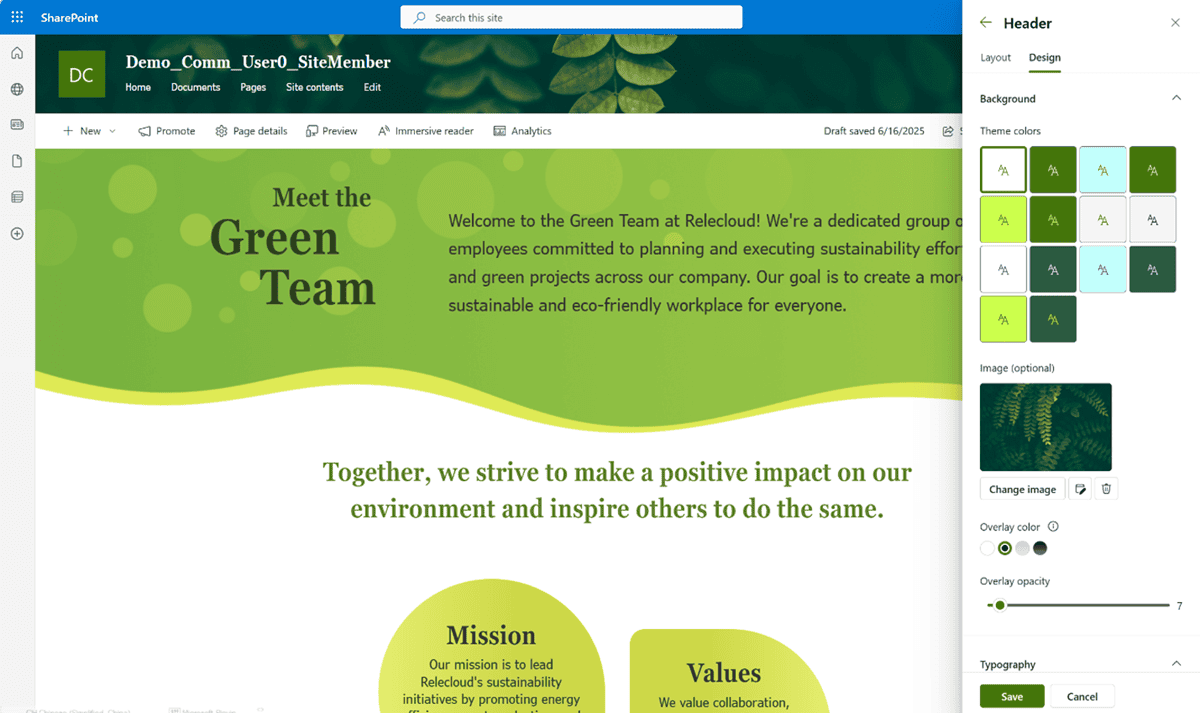
If your SharePoint sites have always seemed a little stodgy, Microsoft is finally relaxing things a bit. The new update, scheduled to release between late August and mid-September, introduces a reworked header and footer experience.

The upcoming change will be simpler to customize and considerably cleaner to navigate. It’s worth noting that the most significant difference is background image support.

As a site owner, you can drag an image behind a site’s header or footer and adjust overlay colors to suit your brand. It supports all layouts, and you can access it under the “Change the Look” design tab.

Sharepoint header update
Image: Microsoft

Microsoft is also giving some attention to the fonts. Rather than being limited to a single type, you can now choose from a group of predefined titles, navigation links, and footer text families. If you want a more corporate feel or a friendlier one, your design can now bear it out.

Another notable addition is fluid footer alignment. Previously, footers were tied to centering. Now, with the update, you can left-align them if centering is not ideal for your design.

Not to forget, in view mode, the command bar no longer surfaces, which keeps surfing neater and less distracting. While these are a small batch of updates, they amount to a neater, more contemporary SharePoint experience.

If you’d like to get a glimpse of the new tools at work, watch Microsoft’s walkthrough video with Tina Chen and Vesa Juvonen. Alternatively, you can simply jump into the refreshed “Change the Look” settings and begin experimenting. In relatable news, SharePoint is also getting “Sections with AI” for smarter page building.

Microsoft Rolls Out August 2026 Hotfix Update for Skype for Business

If you’re running Skype for Business Server, Microsoft’s latest hotfix update is one you won’t want to skip. Released on August 18, the update introduces critical security improvements for hybrid environments and ensures the Skype Meetings Application keeps working past October 15, 2025.

So, what’s new? The biggest change is support for a Dedicated Hybrid Application in Microsoft Entra ID. Previously, Skype for Business relied on a Microsoft-managed Shared Service Principal to integrate with Exchange Online.

The aforementioned setup handled features like archiving, calendar-based presence, and profile picture sync. But moving forward, organizations will need to configure their own Dedicated Hybrid Application to keep those hybrid features running smoothly. Worth noting that Microsoft has provided step-by-step guidance in its official documentation.

The update also takes care of the Skype Meetings Application, which will stop functioning properly after mid-October unless this patch is installed.

For admins running Skype for Business Server 2015, there’s an extra step: you’ll need to run the add_sfbassets.ps1 script after applying the hotfix to keep meetings stable.

Here’s the breakdown of supported versions:

  • Skype for Business Server 2015 CU13 (KB3061064)
  • Skype for Business Server 2019 CU8 (KB4470124)
  • Skype for Business Server Subscription Edition RTM (KB5065372)

With minimum build numbers raised (2015 at 6.0.9319.881, 2019 at 7.0.2046.553, and Subscription Edition at 7.0.2046.820), Microsoft is making it clear that organizations must update. Apply the hotfix, set up the dedicated hybrid app, and your Skype for Business integrations will stay ready for what’s next.

SharePoint Gets “Sections with AI” for Smarter Page Building

Microsoft is giving SharePoint creators a new productivity boost. Starting this week, a new feature called “Sections with AI” is rolling out.

As the name suggests, this feature letting you build complete SharePoint page sections with just a simple prompt. It pulls from your existing page context, organizational knowledge, and even linked files to generate rich, full-fidelity sections in seconds. Now, you must be wondering how to use the new feature, right?

Well, you first need to click the new “Add section using AI” button between page blocks. From there, you’ll see suggested prompts tailored to your current content, or you can type your own. Additionally, you can attach relevant files like meeting notes or project docs.

Once you’re done, click on “Generate,” and SharePoint will create polished layouts that can mix text, visuals, and organizational insights. Copilot can pull in transcripts, recent documents, or other knowledge your team already has access to.

If you don’t like the first result, you can cycle through multiple variations using the arrows in the header.

What sets Sections with AI apart is how editable the results are. You can refine both the look and the wording with natural language prompts like “make the text more professional” or “add John Smith’s contact information.” Need something different altogether? Just regenerate for new suggestions.

Microsoft says it aims to cut down the time it takes to create professional, knowledge-rich pages. In demos, the tool showed how quickly it can build usable layouts that adapt to different needs, all while keeping you in control. Moreover, SharePoint sites are soon getting header and footer enhancements starting late August.

How To Change Windows Live Mail Spam Settings [Step-By-Step]

Windows Live Mail spam settings let you filter junk messages, whitelist trusted contacts, and block senders. Below is a fast, step-by-step setup plus tweaks for safer inbox management.

If you still run Windows Live Mail on Windows 10 or 11, it’s important to know that compatibility issues can sometimes cause sync glitches or crashes. Before adjusting spam controls, check this dedicated guide on how to download and install Windows Live Mail on Windows 10 and Windows 11.

How to Change Spam Settings in Windows Live Mail?

Time needed: 15 minutes

  1. Open Safety Options

    n Windows Live Mail, go to Home › Junk › Safety options… on the ribbon. On some builds, use File › Options › Safety options… (name can vary slightly by version).

  2. Choose your filtering level

    In Safety Options, open the Options tab and pick one: No Automatic Filtering, Low, High, or Safe List Only. High is aggressive; Safe List Only accepts mail only from approved lists. Click Apply.

  3. Add trusted senders (whitelist)

    Go to Safe Senders › Add…, type an email or domain (e.g., [email protected] or @company.com), select Also trust e-mail from my Contacts, then OK.

  4. Add safe recipient lists

    On Safe Recipients, Add… mailing lists or aliases you trust (e.g., [email protected]) so mail to those addresses never lands in Junk. OK.

  5. Block unwanted senders (blacklist)

    Open Blocked Senders › Add… and enter the spammer’s address or domain. Use Remove later if you block something by mistake. OK.

  6. Tighten international filtering (optional)

    In International, use Blocked Top-Level Domain List to block countries you never receive mail from, and Blocked Encoding List to filter messages in scripts you don’t use. OK.

  7. Turn on phishing protection

    On the Phishing (or Security) area, enable the option to move phishing-suspicious messages to Junk and to block external images in HTML mail. Apply › OK.

  8. Train the filter as you go

    In your Inbox, select a spam message › Home › Junk › Junk E-mail to send it to Junk E-mail. For false positives, open Junk E-mail, select the message, choose Not Junk to restore and learn.

Create Message Rules to Auto-Move Persistent Spam

If certain promos still slip through, add a rule that catches keywords, addresses, or subjects and moves them straight to Junk (or a custom “Spam” folder).

  1. Open Message Rules: Folders tab › Message rules.
  2. Pick conditions: e.g., “Where the From line contains people” or “Where the Subject contains specific words.”
  3. Set the action: “Move it to the specified folder,” then choose Junk E-mail (or your Spam folder).
  4. Add details: Click underlined values to add addresses, domains, or keywords, then OK.
  5. Move rule up: Keep your spam rule near the top so it runs early. OK to save.

Best-Practice Tweaks (Quick Wins)

  • Start at Low, then adjust. If spam still hits the Inbox, switch to High; if wanted mail is blocked, go back to Low and grow your Safe Senders list.
  • Use server-side spam filters. If your account is Outlook/Hotmail/Live, Microsoft’s cloud filter works before messages reach the app—log into the webmail junk settings to refine safe/blocked lists there as well.
  • Keep languages aligned. If your UI/language don’t match your typical mail, adjust the app language to reduce misclassification and pair it with International filtering. Here’s how to change Windows Live Mail language.
  • Planning a move to Outlook on Windows 10? If you’re migrating or syncing with Outlook/Outlook.com, set expectations and follow this guide so your mail and rules carry over cleanly. Use Outlook with (or instead of) Windows Live Mail on Windows 10.

Troubleshooting False Positives (Legit Mail in Junk)

  1. Add the sender/domain to Safe Senders.
  2. Open the mail in Junk and click Not Junk to retrain.
  3. Check you didn’t over-block in International (unblock needed encodings or TLDs).

Changing Windows Live Mail Settings for a Safer Inbox

Windows Live Mail is an older client, but with careful spam filter setup, it can still handle unwanted mail effectively. The key is balancing filtering strength with trusted sender lists so that you minimize junk without losing important messages.

If you notice issues with how Live Mail works on modern systems like Windows 10, it’s worth reviewing its limitations and considering alternatives. Microsoft has long shifted focus to Outlook, but with proper configuration, Live Mail remains usable for many.

For detailed steps on accessing your account, see our Windows Live Mail login guide.

Finally, don’t overlook ongoing management. Keep adjusting your Safe/Blocked lists, review phishing protection settings, and use message rules for recurring spam. Combined, these steps will give you more control of your inbox and make Live Mail a safer choice for everyday communication.


FAQs

What’s the safest filtering level to start with in Windows Live Mail?

Start with Low to reduce spam without losing mail, then move to High if needed. Safe List Only is strict and can hide new legitimate contacts.

Where is Junk settings if I don’t see the Junk button?

Use File › Options › Safety options…. On some UIs the ribbon entry is hidden, but Safety Options is still available from the menu.

Do Safe/Blocked lists work with IMAP and POP?

Yes, rules and lists run in the client. For best results, also configure spam controls in your provider’s webmail so filtering happens before delivery.

Can I auto-file recurring spam by subject or keywords?

Yes, create Message Rules to move matching mail to Junk E-mail or a custom folder automatically.


Microsoft Confirms August Patch Tuesday Updates Trigger Reset & Recovery Failures

Microsoft has officially confirmed a serious issue introduced in the August Patch Tuesday updates. The bug affects reset and recovery features across multiple supported versions of Windows 10 and Windows 11.

The problem prevents users from resetting or recovering their PCs through standard tools. The company notes that impacted options include Reset this PC, Fix problems using Windows Update, and device wipes through RemoteWipe CSP. Not to forget, all these recovery actions fail on affected builds,.

Which versions are affected

As first reported by Neowin, Microsoft’s Windows Release Health dashboard details that the following client versions are impacted:

  • Windows 11, version 23H2
  • Windows 11, version 22H2
  • Windows 10, version 22H2
  • Windows 10 Enterprise LTSC 2021
  • Windows 10 IoT Enterprise LTSC 2021
  • Windows 10 Enterprise LTSC 2019
  • Windows 10 IoT Enterprise LTSC 2019

Interestingly, Windows 11 version 24H2 is not affected. It’s worth noting that Windows Server editions are also unaffected. Microsoft has also confirmed that an out-of-band (OOB) fix is already in development. The company plans to roll it out before the next scheduled Patch Tuesday on September 9, 2025.

Until then, users running impacted builds should avoid using reset or recovery options. Microsoft recommends waiting for the emergency patch to ensure system stability.

All in all, the bug highlights the risks tied to routine security rollouts, even as updates deliver essential fixes. Microsoft says it will share further details once the OOB update is available.

NVIDIA App Finally Adds Global DLSS Override and More Cool Features

If you’re tired of clicking through each game to tweak settings, NVIDIA’s latest app update has your back. Starting August 19, the NVIDIA App gets a major overhaul packed with global DLSS toggles, better motion smoothing, Project G-Assist upgrades, retro 3D options, and more.

There are even smoother setup tools for multi-display gaming. Let’s break down what you can expect, starting with something that saves you time right out of the gate.

Ever wanted to force a DLSS setting across your entire game library? Well, now you can. The new global DLSS override brings all compatible games under one roof. Want to use the latest transformer model? Done. Prefer Ultra Performance or DLAA mode? One option for all.

You can still dial settings per-game if needed, but this feature alone is a time saver, especially if you have a monster library. Wondering if it’s active while gaming? The DLSS override appears right in your in-game overlay (Alt+R), showing the DLSS status next to FPS and GPU usage. Handy, right?

NVIDIA also notes that context switching is smoother than ever. The company has also extended the Smooth Motion AI tool to all RTX 40-Series GPUs. Whether you’re playing a modern game or an older DX11/Vulkan title, you can now inject smoother gameplay even if the game doesn’t support frame generation natively.

That’s not all; G-Assist now runs on all RTX GPUs with 6GB+ VRAM, including laptops, and uses 40% less memory. It’s smarter at picking the features you need, plus it’s more stable and responsive. And yes, you can now install plugins directly from mod.io in just a few clicks.

If you’re a multi-monitor flight or racing fan, NVIDIA has you covered. The updated NVIDIA app includes a streamlined NVIDIA Surround setup for easier horizontal or vertical arrangements. Want older games to look crisp? Legacy 3D settings like anisotropic filtering or PhysX are now back in the app, both globally and per-game.

The company further says that laptops equipped with Advanced Optimus can now show you which apps are stopping dynamic GPU switching. You’ll also get better notifications, so you’re never left wondering why your GeForce GPU isn’t kicking in.

NVIDIA isn’t stopping here, as it plans to bring more legacy control panel options, new features, and fine-tuned updates in future releases. If you’ve got any questions or need to report anything, head to the “Feedback” or “Report an issue” buttons inside the app.