How to Download Epson ScanSmart for Windows 11 (Quick Guide)

Need Epson ScanSmart for Windows 11? This quick guide shows you how to download and install Epson’s smart scanning utility so you can start scanning, saving, and sharing documents with ease.


✅ Download Epson ScanSmart on Windows 11

  1. Go to Epson’s Official Support Website

    1. Visit the Epson support site: epson.com/Support
    2. In the search bar, type your scanner or printer model (e.g., Epson ES-500W, Epson WorkForce WF-4830).
    3. Select your product from the list.

  2. Choose Windows 11 as Your Operating System

    1. On your product’s support page, look for the Operating System dropdown.
    2. Make sure Windows 11 (64-bit) is selected.

  3. Download Epson ScanSmart

    1. Scroll to the Drivers and Utilities section.
    2. Look for “Epson ScanSmart” and click Download.
    3. The file will usually be labeled something like:
    ScanSmart_Setup.exe or epsonXXXX_ScanSmart_Installer.exe. Sometimes, it might be bundled inside the Drivers and Utilities Combo Package Installer.

  4. Install the Application

    1. Run the installer and follow the on-screen instructions.
    2. Once installed, open Epson ScanSmart from the Start menu.download epson smart scan windows 11

Why Use Epson ScanSmart?

  • 📄 One-click scanning to PDF, email, or cloud
  • 🔍 Built-in OCR for searchable PDFs
  • 🖥️ Clean, modern interface designed for productivity
  • 🔄 Supports auto document feeder (ADF) for multi-page scans

FAQs

Is Epson ScanSmart free?
Yes, Epson ScanSmart is free to download from Epson’s official website. Some advanced features may require compatible hardware.

What printers and scanners support ScanSmart?
Most Epson WorkForce, FastFoto, and ES-series models support ScanSmart. Check your product’s support page to confirm compatibility.

Can I use ScanSmart without Epson Scan 2?
Yes. ScanSmart is a standalone app, but for full driver functionality, Epson Scan 2 may be installed as well.


Final Tips

Make sure your Epson product supports ScanSmart and always download the utility directly from Epson’s official website. Avoid third-party driver sites to prevent installing outdated or unsafe software.

Microsoft to End Support for Visual Studio 2015 This October

Microsoft has announced that support for Visual Studio 2015 will officially end on October 14, 2025. That’s the same date when Microsoft will end support for Windows 10.

In a support update published yesterday, the company is encouraging users still relying on the legacy IDE to move to Visual Studio 2022. For the uninitiated, it offers new features like GitHub integration, AI-powered Copilot, and support for .NET 8 and 9.

For developers and organizations still holding on to 2015, this sunset means no more security updates, bug fixes, or technical support. This affects all editions, including Enterprise, Professional, Community, Build Tools, and more.

Microsoft says that it will also affect components like Visual C++ Redistributable, SDKs, Remote Tools, and Release Management tools. “Upgrading isn’t just about staying supported—it’s about improving productivity and building on a more secure, modern stack,” says Paul Chapman, Microsoft’s Principal Program Manager.

For those using even older versions of Visual Studio, Microsoft also outlined key support timelines:

More importantly, projects still built with MSVC Tools v140 (the compiler toolset used in VS 2015) will also need to be updated, even if opened in a newer IDE. All that said, Microsoft advises developers to migrate to the latest tools available in Visual Studio 2017 or newer.

Canon imageFORMULA R40 Driver for Windows 11, 10 (Download)

Looking for the Canon imageFORMULA R40 driver for Windows 11? You’re not alone. This guide shows how to download and install the official driver to get full scanning functionality on Windows 11.


✅ Canon imageFORMULA R40 Driver Windows 11

1. Driver Download

  • Canon released an official Software Installer v1.4.3024.1225 on 11 February 2025, still the most recent package. Compatible with Windows 11 and Windows 10 (64‑bit)
  • The package is about 558–572 MB and includes the TWAIN driver, Canon CaptureOnTouch, Readiris, Cardiris, and user manual. You can download it from here

2. Why You Need It

  • This v1.4 installer is built for Windows 11 compatibility, fixing earlier bugs and ensuring the scanner is recognized properly
  • Older versions caused “app not compatible” errors in Windows 11

3. Download & Install Steps

  • Visit the Canon support page for imageFORMULA R40 (e.g. Canon Europe or U.S.) and select Windows 11 OS
  • Download R40_Installer_V1.4.3024.1225_Windows.zip.
  • Extract and run the installer—driver, software, and manual install together.

4. Troubleshooting Tips

  • If the scanner isn’t recognized, run the Restoration Tool for Windows Registry found under the Utilities tab on the same download page
  • Also try restarting the Windows Image Acquisition (WIA) service: stop, wait 30 seconds, then restart it
  • Disable Windows Defender temporarily if it’s blocking device communication. That has helped some users post-installation

💡 Summary

StepAction
1. DownloadGet v1.4.3024.1225 from Canon support site, released Feb 11, 2025.
2. InstallRun the installer for driver + software on Windows 11.
3. TroubleshootUse the registry tool and restart WIA service if scanner isn’t found.

FAQs

Is the R40 driver compatible with Windows 11?
Yes. Canon’s v1.4.3024 installer, released Feb 11 2025, explicitly supports Windows 11

What if Windows says the app isn’t compatible?
Ensure you’re using the latest R40 installer (v1.4.3024) — older versions may cause compatibility errors on Windows 11

How do I fix detection issues post-install?
Use the Restoration Tool for Windows Registry and restart the WIA service. Some users also resolved issues by disabling Windows Defender temporarily


Final Tips

  • Always use the version marked v1.4.3024.1225 from February 2025.
  • Avoid using older installers that might trigger errors.
  • If issues persist despite installing the correct version, apply registry fixes and service restarts as outlined above.

Battlefield 6 Developers Confirm AI Bots Will Auto-fill Servers If Player Count Drops

EA and DICE are seemingly in no mood to take any chances with empty lobbies in Battlefield 6. In a recent interview with a Taiwanese outlet, GNN (via Insider Gaming), Development Director Anna Narrevik confirmed that bots will automatically fill multiplayer matches when servers aren’t full.

In other words, AI soldiers will step in anytime player numbers dip. Of course, real players can still join mid-match and replace bots instantly. While some longtime fans may find this frustrating, EA and DICE wants to keep the chaos going, no matter the time of day.

“Battlefield matches need to be filled at all times to feel truly epic,” Narrevik said, speaking with GNN. She added, “The way the game uses AI is that when the server is not full, AI will be added to fill the gap.”

Well, this isn’t the first time EA has taken the help of AI to maintain momentum in its online shooters. However, speaking in terms of Battlefield, which is heavily player-driven, makes this quite a bold move.

Narrevik also shared that Battlefield 6 will bring back older maps, starting with Firestorm. While it wasn’t part of the reveal event in Hong Kong, she hinted that fan-favorite maps will return based on community demand.

The team is aiming for quarterly updates and plans to keep updating the game after launch. For Narrevik, one feature that already stands out is tactical destruction. “If a building suddenly collapses, it gives you new ways to play and more control,” she explained.

Worth noting that Battlefield 6 enters open beta on August 9, with early access beginning tomorrow. The full game launches on October 10, with preload already live across all platforms. Meanwhile, EA has also confirmed the requirement of enabling Secure Boot to play Battlefield 6 on Windows 10 & 11 PCs.

EA Confirms Secure Boot Mandatory for Playing Battlefield 6 on PC

EA has announced that Secure Boot must be enabled to play Battlefield 6 on PC starting with its Open Beta (early access August 7, general beta August 9–10). EA, in its press release, mentioned that this requirement supports Positive Play and strengthens the game’s anti-cheat defenses.

For the uninitiated, Secure Boot is a feature in Windows 10 and 11 that ensures only trusted software runs during startup. As a result, it blocks advanced cheats, like rootkits, kernel-level cheats, memory injections, hardware spoofing, and VM manipulations.

This is all done by validating cryptographic signatures before the operating system loads. EA says Secure Boot powers its new Javelin Anticheat system and helps block sophisticated bypass methods.

EA_Javelin_Anticheat
Image: EA

If Secure Boot is disabled, players will be blocked from launching Battlefield 6. A notification will prompt them to enable it. TPM 2.0 must also be active, and the drive must use GPT format, not MBR. These prerequisites ensure the anti-cheat stack works as intended.

How to check and enable Secure Boot quickly

  1. First, press Windows Key + R, then type msinfo32, and hit Enter.
  2. In System Information, verify BIOS Mode is UEFI and Secure Boot State is on.
  3. To enable Secure Boot: go to Change Advanced Startup Options, restart, then enter UEFI firmware. In BIOS, set Secure Boot to Enabled.
  4. If Secure Boot is marked “Unsupported,” your PC may not support it. Therefore, you’ll need to check the motherboard’s manual.

For TPM check, make sure to run “tpm.msc“ to confirm TPM 2.0 is on. Finally, confirm that your system drive is GPT via Disk Management; otherwise, convert using the mbr2gpt tool before enabling Secure Boot.

As in-game cheating is evolving, EA is making sure to maintain stronger gameplay integrity with the help of Secure Boot. Javelin Anticheat was built specifically for Battlefield and works hand-in-hand with Positive Play to refine detection and improve fairness across multiplayer. Not to forget, Battlefield 6 developers have recently confirmed that AI bots will auto-fill servers in case player count drops.

Millions of Dell PCs hit by Broadcom chip vulnerabilities, urgent firmware update released

Dell is urging users to install critical firmware and driver updates after security researchers uncovered major vulnerabilities in Broadcom chips used across millions of its PCs.

As reported by The Register, five high-severity flaws were discovered in the Broadcom BCM5820X chips, which power Dell’s ControlVault3 security subsystem. For the uninitiated, these chips power Dell Latitude and Precision laptops, particularly in enterprise settings.

While Dell first warned its customers privately on June 13, the company has publicly made the advisory available just this month. Speaking to the news outlet, a Dell spokesperson said:

Working with our firmware provider, we addressed the issues quickly and transparently disclosed the reported vulnerabilities in accordance with our Vulnerability Response Policy. Customers can review the Dell Security Advisory DSA-2025-053 for information on affected products, versions, and more.

Dell has outlined five vulnerabilities, CVE-2025-24311, CVE-2025-25215, CVE-2025-24922, CVE-2025-25050, CVE-2025-24919, in an advisory updated on August 1. The company has confirmed that each vulnerability carries a CVSS score above 8.0, putting them in the “high” severity bracket.

In other words, attackers could exploit the aforementioned vulnerabilities to leak sensitive data, execute remote code, and more. Since ControlVault3 handles things like passwords, certificates, and biometrics, risks are high.

Fortunately, there are no reported cases of attackers exploiting these vulnerabilities yet. However, Dell has urged its customers to update their devices as soon as possible. The company has released firmware and driver updates for ControlVault3 through the official advisory, which we linked above.

If you use a Dell Latitude or Precision laptop, especially in an IT or enterprise setting, we recommend checking the advisory and installing the released updates.

Article feature image source: Unsplash

Microsoft’s new AI agent can spot malware without human help

Microsoft has announced a new AI-powered tool called Project Ire, and it’s built to spot malware on its own. While it’s still early days, the results already look promising.

In a real-world test, Microsoft used almost 4,000 suspicious files, and guess what, Ire correctly identified nearly 9 out of 10 malicious files. Well, it didn’t spot everything, though. According to Microsoft’s blog, the system flagged only about 25% of the total malicious files present.

That said, the files it did catch were mostly accurate, with very few false positives. The company calls this type of classification the “gold standard” in malware detection.

Typically, it takes skilled analysts hours to reverse-engineer questionable software. They have to dig into each file, figure out its intent, and decide if it poses a threat. But that process doesn’t scale, especially when threats number in the thousands.

Project Ire tries to solve this by breaking malware analysis into smaller steps. It reasons in layers, which helps prevent overload and boosts accuracy. The AI also pulls from a wide range of tools, including sandbox environments, decompilers, memory analysis, and even internal documentation.

Microsoft is planning to integrate it into Defender to speed up and scale threat detection. Meanwhile, Google is also moving in a similar direction. Its AI-powered bug-hunting agent, shown off earlier this year, recently spotted nearly 20 vulnerabilities.

Microsoft admits Project Ire still has a way to go, but it’s a glimpse into how defenders could get faster, smarter, and less dependent on manual work, especially when dealing with modern malware at scale.

Microsoft Brings OpenAI’s “gpt-oss-120b & 20b” Models to Azure and Windows AI Foundry

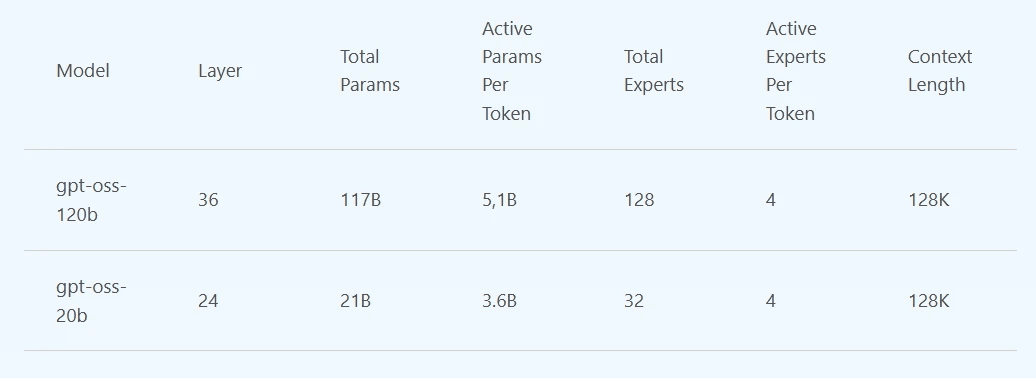
Microsoft has launched OpenAI’s new open-weight AI models, gpt-oss-120b and gpt-oss-20b, through its Azure and Windows AI Foundry platforms. These models are fully open and customizable, giving developers deep control over how and where they deploy them.

The bigger one, gpt-oss-120b, comes with 120 billion parameters. It comes close to o4-mini performance but stays efficient enough for single-GPU servers. The smaller gpt-oss-20b is even more flexible. It’s designed to run on local Windows machines with a decent discrete GPU, ideal for offline apps and fast-response tasks.

Screenshot-2025-08-05-131046
Image: Microsoft

This is the first time since GPT-2 that OpenAI has released open weights. It means no vendor lock-in; you can run these models locally, in your datacenter, or across the cloud.

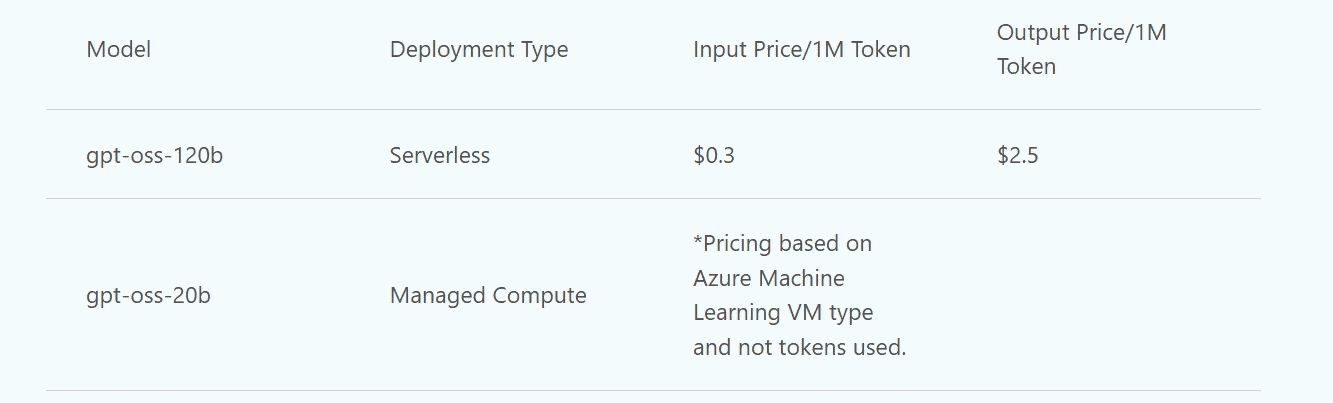
Foundry makes the experience even more customizable. Developers can fine-tune models using LoRA, QLoRA, or PEFT. You can compress them, quantize for performance, edit attention layers, or integrate them into ONNX and Kubernetes stacks. There’s even an offline deployment option with Foundry Local.

image-9
Image: Microsoft

Microsoft says this is AI becoming part of the stack, not just an extra tool. “With gpt-oss, you can build with confidence and customize without compromise,” said Microsoft AI execs Asha Sharma and Logan Iyer.

It also gives Microsoft a serious edge in hybrid AI. Big models now work across cloud and edge, unlocking faster, cheaper, and more private use cases. It’s worth noting that the support is live on Windows and Azure, with support for Mac coming later down the line.

Microsoft May Tighten Return to Office Rules Starting January

Microsoft might be rethinking how flexible its hybrid work setup really is. According to a report by Business Insider, Microsoft is considering a stricter in-office policy for 2026, with some teams likely to be asked to return at least three days a week.

Well, if you are among those to be affected, the decision shouldn’t surprise you. That’s especially because Microsoft has had a rule since 2020 that lets employees work remotely up to 50% of the time. But in practice, many teams have reportedly operated with far more freedom. Some employees barely set foot in the office.

That flexibility could soon shrink. Let’s not forget that rivals like Meta and Google already require more in-office time. So, it seems Microsoft is also heading that way.

While nothing has been finalized, the updated RTO policy will reportedly start to take effect at the company’s main Redmond campus in January, with other locations following later. Worth noting that Microsoft’s legal division has already moved to a model that aligns with the proposed change.

If this new RTO policy applies company-wide, it would put Microsoft in line with others like Amazon and AT&T, who’ve gone even further with stricter five-day-a-week rules.

Microsoft’s spokespeople haven’t confirmed any concrete plans yet, only saying they’re reviewing their hybrid approach.

But internally, the company has already stepped up performance tracking, rolled out new improvement plans, and announced layoffs tied to productivity. If this goes forward, an official announcement could land by September.

Firefox Soon Can Reinstall Itself After Windows 11 Upgrades

While Chrome recently tested a tool to check Windows 11 upgrade eligibility, Mozilla has quietly developed a new tool designed to help Firefox survive OS upgrades and new device setups, a time when many users unknowingly lose the browser from their systems.

According to a bug report now marked as fixed, Mozilla is replacing the traditional Firefox desktop shortcut with a small executable called the Firefox desktop launcher. Unlike a regular shortcut, this launcher can detect whether Firefox is currently installed and take action accordingly.

Mozilla’s “Desktop Launcher” for Firefox on New Windows 11 Devices

How it works

When a user launches the new desktop app:

If Firefox is installed, the launcher reads the Windows Registry and opens the browser.

If Firefox is missing, it attempts to download and run the stub installer.

If the installer can’t be downloaded, it falls back to opening the Firefox download page in the system’s default browser.

Mozilla has also added support for a /Prompt command-line flag, allowing the launcher to ask for user permission before installation begins.

Why is Mozilla doing this?

As outlined in the bug report, a “substantial number of users” upgrade to Windows 11 in a way that removes Firefox from the system. However, personal folders like Desktop and Documents are often synced via OneDrive or other cloud services and automatically restored on new machines. By placing this new launcher in such folders, Mozilla gives Firefox a better chance of being reinstalled or reactivated after migration.

In simple terms, this launcher acts as an install entry point that travels with the user’s files, even if the browser itself doesn’t. Mozilla hopes this approach will result in a higher recovery rate for Firefox on freshly set up Windows 11 devices.

To implement this new behavior, Mozilla created the launcher executable, added a dedicated installer script, included it in default Firefox builds, and enabled support for non-release versions. A local testing server was also set up. The team has improved Registry handling, configured the Python environment, and added user prompts for install actions. The launcher is now built by default, adding just 206KB (roughly 0.2%) to the installer.

Status

The feature is expected to roll out with Firefox 143 and future versions. Mozilla has marked the bug as resolved and considers the work complete.

In short, Mozilla’s smart launcher ensures Firefox doesn’t disappear quietly during Windows 11 upgrades. By syncing with cloud-backed folders like Desktop, it gives the browser a second shot, reinstalling itself or pointing users to download it again, even if Firefox was never manually restored.

That’s not all. Mozilla is introducing the Mica design effect to the Firefox toolbar and context menus on Windows 11, and allows you to pin native web apps to the Windows 11 taskbar. Firefox is also testing IP Protection to promote its VPN and now offers a dedicated Firefox.com homepage for browser downloads

PS6 Tipped to Offer Major Ray Tracing Upgrade Over Base PS5

It seems PlayStation 6 will bring a serious upgrade in ray tracing performance, far beyond what the PlayStation 5 offers. According to Moore’s Law is Dead (via Wccftech), the next-gen console could feature up to 5-10x better ray tracing, alongside a 2–3x jump in rasterization performance.

The comments were shared in the latest episode of the Broken Silicon podcast. While some of the leaked specs might have changed internally since last week, the overall direction hasn’t. Sony is reportedly shifting its focus toward smarter visuals instead of just raw framerate boosts.

With the PS5 already handling many games at 4K and high frame rates, the PS6 is reportedly tuned to hit 4K at 120 FPS without overdoing raster power. Instead, the big jump will come from features like ray tracing and AI upscaling.

If Moore’s Law is Dead is right, the PS6 could land somewhere around RTX 4080–5080 levels when it comes to visual effects. That too at a lower price point than those GPUs.

With Xbox also taking a different route for its next console, the next-gen race might look very different this time. Sony is going all in on performance, and with reasonable pricing, it could be exactly what the console market needs.

Assassin’s Creed Mirage, Rain World, and More Join Xbox Game Pass This August

Xbox Game Pass is getting a fresh batch of games this August, and the lineup covers just about every mood. Whether you’re into stealth, strategy, roguelikes, or survival, there’s something coming your way.

Let’s start with the big one. Assassin’s Creed Mirage arrives August 7 for cloud, console, and PC players. You’ll step into Basim’s world as he rises from street thief to Master Assassin in ninth-century Baghdad. It’s one of the most anticipated additions this month, and yes, it’s available through Game Pass Ultimate and PC Game Pass.

Rain World is already available across all platforms, including Xbox. It is unique survival platformer where you’re a slugcat dodging predators and trying to survive in a broken ecosystem. On August 6, Citizen Sleeper 2: Starward Vector, MechWarrior 5: Clans, Lonely Mountains: Snow Riders, and Orcs Must Die! Deathtrap drop for Xbox Series X|S..

The same week, Aliens: Fireteam Elite returns to the library on August 12, and 9 Kings (Game Preview) hits PC on August 14. Let’s not forget that Descenders Next and He Is Coming are also available now in Game Preview.

A few updates are worth checking out, too. Senua’s Saga: Hellblade II is getting enhanced graphics and modes, and Sea of Thieves kicks off Season 17 on August 14 with new cargo runs and heists. Xbox Game Pass perks also include bonuses for Smite 2, Naraka: Bladepoint, War Thunder, and Call of Duty: Warzone. Moreover, Anthem, Persona 3 Reload, and Farming Simulator 22 are leaving on August 15.

This is what Microsoft’s ‘Windows XP Crocs’ looks like

Microsoft has found an unusual way to celebrate its 50th anniversary by turning one of its most iconic operating systems into a fashion statement. Earlier today, folks over at The Verge reported that the company has launched Windows XP-themed Crocs.

According to several employees, Microsoft designed the nostalgic footwear as a limited edition item, and they’re now up for preorder, internally, for now. Employees get first access before the shoes eventually make their way to a broader public release.

The design of the Crocs aligns all the way into early-2000s nostalgia. The shoes feature the unmistakable Bliss wallpaper, blue skies, fluffy clouds, and a green sole to mimic those rolling hills.

They also reportedly ship with six custom Microsoft Jibbitz charms. You can expect throwbacks like the MSN butterfly, Internet Explorer icon, the classic mouse pointer, and yes, Clippy.

At $80, they’re more than just quirky memorabilia. For many, they’re a wearable tribute to one of the most recognizable pieces of software history.

The Bliss image itself is considered the most viewed photo in the world, thanks to its years as the Windows XP default background. It’s worth noting that Microsoft hasn’t made an official announcement yet.

Feature Image Source: The Verge

Microsoft Bumps Up Zero Day Quest’s Prize Pool to $5 Million

Generally, tech companies offer bug bounty programs to crowdsource security research, and Microsoft is doubling down on that idea in a big way.

The company just announced a massive $5 million prize pool for its 2025 Zero Day Quest, a global hacking challenge aimed at uncovering security flaws in cloud and AI products.

Open from August 4 to October 4, the contest is calling on security researchers worldwide to dig deep into Microsoft platforms like Azure, Copilot, Dynamics 365, and M365. There’s even a 50% bounty bonus up for grabs for those who uncover critical, high-impact issues.

The top-performing participants will score an invite to a live, invite-only hacking showdown at Microsoft’s Redmond campus next spring. Along the way, the company plans to offer support and training from its internal AI Red Team and other security units.

This expanded initiative falls under Microsoft’s Secure Future Initiative (SFI), a push to overhaul the company’s security culture following federal criticism.

Microsoft says the findings from the contest will help inform its AI and cloud security strategies and will be disclosed transparently through the CVE program, whether or not customer action is needed.

As part of the update, Microsoft also boosted some .NET and ASP.NET Core bug rewards to $40,000 and widened its scope for the .NET bounty program.

Google’s NotebookLM now available for all Workspace for Education users

Google is making its AI-powered learning tool, NotebookLM, available to all Google Workspace for Education users, no matter their age group. NotebookLM acts as a personal tutor, helping students and teachers break down content with real-time summaries, quizzes, lesson plans, and even audio overviews.

Educators can upload materials like lecture notes or curriculum documents and let the AI generate helpful study tools based on them.

This tool is now covered under Google’s Workspace for Education Terms of Service, meaning user data won’t be used to train AI and remains private. It also meets privacy standards like FERPA and COPPA.

NotebookLM works in over 180 regions and supports 35+ languages. Users can control who accesses their notebooks and share them only within their organization. It’s live now under both Rapid and Scheduled Release, and comes built-in for all Education Fundamentals, Standard, and Plus users.

What makes NotebookLM stand out is how naturally it fits into classroom workflows. Teachers can turn their notes into guided lessons in seconds, and students can ask follow-up questions or replay audio overviews to reinforce learning.

It’s designed to support active, self-paced education across age levels, making it easier to understand even complex topics.

Mafia: The Old Country, Witch It, and More Xbox Games Launching This Week

A fresh batch of Xbox games is dropping throughout this week, between August 4 and August 8, covering a wide variety of genres. You can choose to play mob drama to multiplayer chaos, all this week.

Starting with Mafia: The Old Country launches August 8, bringing players back to the roots of organized crime in early 1900s Sicily. It’s a narrative-driven third-person action game optimized for Xbox Series X|S.

If you are an anime fan, you can deep dive into Demon Slayer -Kimetsu no Yaiba- The Hinokami Chronicles 2 on August 5. It follows the Entertainment District and Swordsmith Village arcs and lets you play through key moments from the hit series.

If you’re looking for fast-paced multiplayer fun, Witch It (August 5) offers a prop-hunt style hide-and-seek game with a magical twist. Meanwhile, Slopecrashers is launching on Xbox on August 7 with animal riders and party racing.

Other notable titles dropping this week include Gradius Origins, a massive retro shoot-em-up collection arriving August 7, and Dark Steel Legends, an action-packed medieval combat game launching August 5. You’ll also find quirky indies like Little Helper Café, Alien Breakout, and Hex Cats joining the lineup.

For puzzle lovers, Detail Hunter and Mystery Hotel: Hidden Objects will test your observation skills. If you’re in the mood for storytelling, Knowledge, or Know Lady mixes romance, sim chaos with live-action scenes.

All games will be available digitally, with some offering pre-order discounts. You can check the Microsoft Store or the Subscriptions tab on your Xbox console for full details and release timing.

How to Change Power and Sleep Settings in Windows 11

Want your PC to stop sleeping too soon or save more power? Windows 11 lets you customize power and sleep settings to match your usage style. Here’s how to do it step-by-step.


How to Change Power and Sleep Settings in Windows 11

Step by step for changing quickly Power and Sleep settings in Windows 11

  1. Open Settings

    -> Press Windows + I to launch the Settings app.

  2. Navigate to System > Power & Battery

    -> In the left panel, click System.
    -> Scroll down and select Power & battery

  3. Expand Screen and Sleep Settings

    -> Under the Power section, click the dropdown for Screen and sleep.

  4. Set Sleep and Screen Timers

    -> Choose how long your screen stays on when on battery or plugged in.
    -> Choose when your PC goes to sleep in both scenarios.

  5. Save and Exit

    -> Settings apply automatically.
    -> You can now close the Settings window.

Firefox 141.0.2 update targets NVIDIA crash, dev tools issue & more

Mozilla has released a small but important update for Firefox that addresses a handful of frustrating bugs, especially for Linux users running NVIDIA graphics. The update follows the Firefox 141 update, which introduced AI tab grouping, vertical tab tweaks, better Linux memory handling, and more.

Firefox version 141.0.2 is now rolling out and includes a fix for a crash that hit systems with older NVIDIA drivers. According to reports, the browser would fail to launch on Linux machines using outdated drivers like 560.35.03. Windows users weren’t affected by this issue.

Mozilla has also resolved another issue that made canvas objects behave weirdly on some websites. Firefox was incorrectly letting users drag canvas objects, which ended up breaking functionality on sites that rely on them.

The update also squashes a crash in the Web Developer Tools panel, which occurred when developers tried to inspect sites containing iframe elements. You can download Firefox 141.0.2 by checking for updates from the Help menu or by heading to the official download page. It’s also expected to show up on the Microsoft Store for Windows users shortly.

The update follows Firefox 141, which introduced AI tab grouping, vertical tab tweaks, better Linux memory handling, and more. If you haven’t explored those features yet, now might be a good time to revisit them.

AMD’s Radeon 25.8.1 driver update fixes stutters, crashes, and adds fresh game support

Gamers using AMD Radeon graphics cards have a new driver to install. Version 25.8.1 WHQL has been released, bringing game-specific improvements, new GPU support, and a long list of bug fixes to boost the stability across several popular titles.

One of the notable highlights is support for the recently launched Radeon RX 9060 non-XT GPU, ensuring it’s ready to handle modern games out of the box. But this update isn’t just about hardware compatibility, it also fine tunes gameplay for a long list of titles.

Among the games getting performance improvements or official support are Cyberpunk 2077, F1 25, Valorant (Unreal Engine 5), The Alters, Lies of P, and Battlefield 6 Open Beta. There’s also an added support for FidelityFX Super Resolution (FSR) 4, AMD’s upscaling tech designed to improve frame rates without a big drop in visual quality.

In terms of fixes, AMD has addressed several issues that were bothering the gaming experience. For instance, the update reduces stuttering in Call of Duty: Warzone, particularly on the “Verdansk” map. AMD notes that this is only a partial improvement, but more is in the works with the developers. There’s also a fix for a YouTube playback issue that caused choppy 4K videos in Chrome.

Monster Hunter Wilds, Battlefield 2042, and Dragon Age: The Veilguard all had intermittent crash issues, which should now be resolved with this update. Even AMD’s own Radeon Anti-Lag and Instant Replay features were causing problems in certain scenarios, and those bugs have been fixed too.

That said, not everything is fixed just yet. The company has also outlined a few ongoing issues in games like The Last of Us Part II, Call of Duty: Black Ops 6, and Mafia: The Old Country on certain Radeon GPUs. In some cases, players might still see crashes or graphical glitches, especially with FSR 4 enabled.

The 25.8.1 driver is now available for 64-bit versions of Windows 10 and 11. You can download it directly from AMD’s official site if you’re running a compatible Radeon card.

Nintendo Raises Prices for Switch Consoles, Accessories & More

Nintendo is adjusting prices across its hardware lineup in the U.S., and it’s already hitting consumers’ wallets. While the new Switch 2 retains the launch price of $449, Nintendo has not ruled out future price increases for it, its games, or even Nintendo Switch Online memberships.

The price hike will affect the older Switch consoles and accessories seeing price jumps. The price of original Nintendo Switch has bumped up from $300 to $340. Additionally, the Switch Lite now costs $230, up from $200.

That’s not all; the OLED model has increased from $350 to $400. That puts the OLED version just $50 less of the new Switch 2’s price. Well, the bad news is that the accessorories’ prices have also increased.

Joy-Con controllers are now $90, a $10 increase, with the Switch Pro Controller going up to $80. NES-style controllers now retail at $70. The Switch 2 Pro Controller joins the hike too, increasing by $5 to match the Joy-Con 2s, which now sit at $100.

Moving on, charging docks, controller straps, amiibo figures, and even novelty items like the Nintendo Alarmo clock now see an increase of between $1 and $5.

Notably, these changes went live on Nintendo’s official U.S. store last week and are expected to appear at other retailers soon. While the company hasn’t provided much detail, it described the increased price as a response to unspecified “market conditions.”

A Subtle MDM Change from Apple Favors Microsoft Intune

Apple is rolling out a major update to how device management works in iOS, iPadOS, and macOS 26, and Microsoft is all for it.

At WWDC 2025, the Cupertino tech giant introduced a smoother MDM (Mobile Device Management) migration process. One of its standout features is that it lets IT teams move devices between management tools without wiping them or requiring manual re-enrollment.

Microsoft has since confirmed the new system works well with Intune, its own endpoint management platform. IT admins can now migrate Apple devices to Intune using Apple Business Manager, and users won’t experience downtime or data loss.

However, devices must be enrolled in a device management service and updated to version 26 or later of Apple’s operating systems. According to Microsoft’s announcement, admins will still need to prepare for the migration carefully.

The list of things includes setting up Intune’s Apple MDM push certificate, linking it with Apple Business Manager, and documenting existing settings. Once done, the migration starts from Apple Business Manager and requires approval on the device itself.

Not to forget, Apple’s system also adds a non-dismissable prompt if users miss the initial enrollment deadline. That ensures devices don’t fall through the cracks. Microsoft advises testing the process on a few devices before scaling it up.

Do note that replicating current configurations ahead of the full migration can help avoid unexpected issues. All in all, this update makes things much easier for organizations juggling Apple and non-Apple hardware.

ChatGPT Will Now Ask You to Take Breaks in Long Conversations

OpenAI has announced a new feature in ChatGPT that reminds users to take a break during lengthy conversations. The company says that this will help support healthier interactions with the AI assistant, especially as usage continues to soar.

Users engaged in extended chats will now see pop-up reminders such as, “Just checking in. You’ve been chatting for a while — is this a good time for a break?” To continue, users must actively dismiss the notification.

The feature is rolling out gradually and is part of OpenAI’s effort to improve the emotional tone and guardrails of ChatGPT. OpenAI’s decision follows growing concerns about how users emotionally interact with ChatGPT, particularly in high-stress or vulnerable states.

Previously, we’e come across reports where ChatGPT failed to defuse harmful or delusional conversations, at times even enabling users with pre-existing mental health issues. OpenAI has confirmed that it’s actively addressing such concerns.

Future updates will prompt users to reflect rather than offer direct answers to sensitive personal topics, like major life decisions or emotional distress. This change also follows feedback on ChatGPT’s overly agreeable tone, which previously led to an update being rolled back in April.

All in all, it’s always good to see that a AI-heavy company is thinking about it’s users. We can only hope for now that the new feature rolling out to ChatGPT will help users develop healthy digital habit, especially in the era where AI and humans are trying to co-exist.

Microsoft Layoffs More Employees in Washington Despite Record AI Investments

Microsoft isn’t done laying off its employees. After trimming thousands of roles globally this year, the company has confirmed another round of job cuts in Washington state.

The news comes via The Seattle Times, which reported that a new state filing reveals that 40 more positions have been eliminated. Do note that these layoffs are separate from Microsoft’s larger announcements in May and July.

With this week’s filing, the total number of employees laid off in Washington this year climbs to 3,160. Not to forget, Microsoft says the latest reduction is minor in scale. An email statement sent by a Microsoft spokesperson to the news outlet reads:

Organizational and workforce changes are a necessary and regular part of managing our business. We will continue to prioritize and invest in strategic growth areas for our future and in support of our customers and partners.

The timing of the layoffs coincides with Microsoft’s aggressive push into artificial intelligence. Last week, the company reported record fiscal-year earnings, driven largely by growth in its cloud and AI services.

In a memo to staff, CEO Satya Nadella acknowledged the tension between layoffs and success. He mentioned that job cuts have weighed heavily on him. However, Nadella further described the tech industry’s momentum as “dynamic, sometimes dissonant, and always demanding.”

Microsoft Edge Just Moved the Address Bar Above the Tabs — Copilot Mode Might Be the Reason

After launching Copilot Mode, Microsoft is testing a major visual change in the Edge Canary version. The new design moves the address bar, where you type web addresses, to the very top of the browser, above the tabs, rather than below them.

This isn’t just a small tweak; here’s what’s new:

Address Bar on Top: The web address and search box now sit in the topmost row.

Tabs Below: Your open tabs are shown in a separate row underneath.

Shorter Address Bar: The address bar appears more compact, creating more room for toolbar icons.

More Room for Tabs: This setup gives the tab strip more breathing room and a cleaner look.

Edge Canary’s new layout with the address bar moved to the top row and tabs displayed below it. Image Credit: Venkat/WindowsReport.

This change could make Edge feel less crowded, helpful if you keep many tabs open. It might also be preparing space for new features in the top bar.

In contrast, here’s the layout most users are familiar with:

Tabs on Top: Open website tabs are in the top row.

Address Bar Below: The address bar sits directly under the tabs.

The present Edge layout with tabs on top and the address bar positioned below. Image Credit: Venkat/WindowsReport

Right now, the new design is only in testing, so not everyone will see it. Microsoft hasn’t said if it’ll become a permanent feature.

Why this may be tied to Copilot Mode

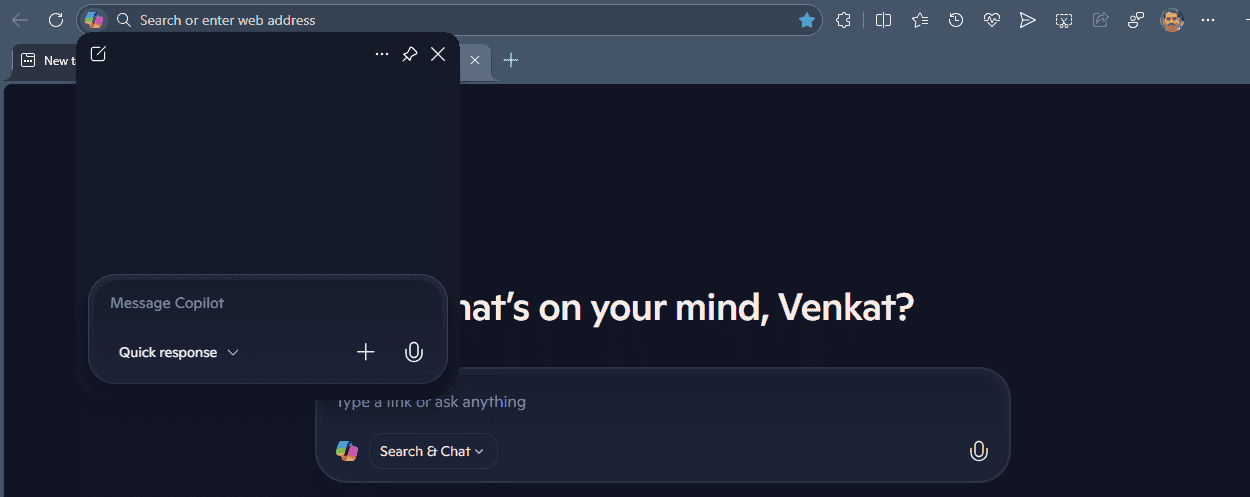
Microsoft recently added Copilot Mode in Edge replaces the usual new tab page with an AI-powered assistant and moves the Copilot chat panel near the address bar.

This new layout might be designed to make the Copilot panel easier to find and keep the top of the browser clean and focused.

But there’s a small downside: The Copilot panel now overlaps part of the tab row. In the old design, tabs stayed fully visible above it. Now, you might need to move or close the Copilot panel more often to see or switch tabs.

With the new address bar placement, the Copilot chat panel overlaps tabs, making it harder to see which sites are open. Image Credit: Venkat/WindowsReport.

If you often juggle many tabs while using Copilot, this could slow you down a bit.

That’s not all. Microsoft is testing Edge Copilot in Private browsing mode, and Edge may show a comparison banner when you search for Chrome. Additionally, Edge Copilot is getting an Action Mode.

Apple Reportedly Developing In-House “Answer Engine” to Power Smarter Siri & Safari

Apple is reportedly building a homegrown AI “answer engine” that could one day power smarter searches inside Siri, Safari, and other services.

According to Bloomberg’s Mark Gurman, the company has formed a new internal team named “Answers, Knowledge, and Information” to lead the effort.

Well, it seems Apple wants more control over how its devices answer user questions, without depending entirely on partners like OpenAI or Google.

Apple wants to create a system that can deliver web-based answers in a conversational format, similar to ChatGPT or Google’s AI Overviews.

The answer engine might launch as its own app or sit quietly behind the scenes in existing Apple services. Either way, it’s meant to boost Apple’s AI capabilities from within, especially as its current Siri upgrade, powered by ChatGPT, continues to face delays.

Apple is also hiring aggressively for this initiative. Job listings point to a need for engineers with backgrounds in search algorithms and engine development.

That’s a signal the company wants to build more than just a surface-level chatbot. It’s aiming for something that can truly understand and pull data from across the web.

ChatGPT to hit 700 million users as OpenAI revenue surges

OpenAI’s ChatGPT is having its biggest year yet. The company says it is on track to serve 700 million people every week, a steep jump from the 500 million it reached just four months ago. The growth isn’t just personal use; businesses are signing up fast, too.

OpenAI now has 5 million paying enterprise customers using the service, up from 3 million in June. Annual recurring revenue has hit $13 billion, climbing from $10 billion in just two months. That figure could pass $20 billion by the end of the year, according to internal projections.

This user spike and business adoption come alongside a fresh $8.3 billion funding injection, strengthening OpenAI’s lead in a market that’s gotten far more competitive since GPT introduced.

Nick Turley, VP of Product at OpenAI, shared the milestone on X and noted:

This week, ChatGPT is on track to reach 700M weekly active users, up from 500M at the end of March and 4× since last year. Every day, people and teams are learning, creating, and solving harder problems. Big week ahead. Grateful to the team for making ChatGPT more useful and delivering on our mission so everyone can benefit from AI.

While OpenAI didn’t break out how much of the growth is from its consumer or enterprise tiers, the rise in paying teams signals strong traction among developers, agencies, and larger companies folding AI into daily work.

The milestone comes ahead of GPT-5’s imminent release, which the company has hinted will bring major updates for coding, logic, and business use. In a related company news, Anthropic has accused OpenAI of misusing Claude to train GPT-5 and has blocked APIs access to the company.

Microsoft rival Anthropic accuses OpenAI of misusing Claude to train GPT-5

Anthropic has blocked OpenAI from using its Claude API, alleging that the GPT-maker violated its terms of service, according to a report by Wired. The move came after Anthropic discovered its rival had integrated Claude into internal tools to test everything from coding to safety prompts.

The company’s spokesperson Christopher Nulty linked the tests to OpenAI’s next major release. “Claude Code has become the go-to choice for coders everywhere, and so it was no surprise to learn OpenAI’s own technical staff were also using our coding tools ahead of the launch of GPT-5,” he told Wired.

He further added, “Unfortunately, this is a direct violation of our terms of service.” OpenAI didn’t deny the use but called it standard practice. The company’s spokesperson, Hannah Wong, told the news outlet that testing competing models “to benchmark progress and improve safety” is common across the industry.

Anthropic doesn’t see it that way. The company argues OpenAI’s activity wasn’t just evaluation. It says OpenAI used Claude in ways that directly support GPT-5’s development, which violates a ban on using the service to build competing tools.

This isn’t the first time API access has become a competitive weapon in tech. Platforms like Facebook and Salesforce have used similar cutoffs to box out rivals. Anthropic has left a small window open. It says OpenAI can still benchmark Claude for safety, but not to develop its next model. Whether OpenAI adjusts or pushes back remains to be seen.

NVIDIA will support Windows 10 Game Ready drivers until 2026

Microsoft is ending support for Windows 10 in October 2025, but not everyone is ready to move on. For PC gamers still using the aging OS, NVIDIA has now confirmed how long it plans to stick around.

In a recent driver release blog, NVIDIA said it will continue updating Game Ready drivers for all GeForce RTX GPUs on Windows 10 until October 2026. That’s a full year past the official end-of-life date.

These drivers deliver day-one game optimizations and performance improvements, so gamers can keep playing new titles without being forced to upgrade to Windows 11 right away.

The update also outlined NVIDIA’s roadmap for older GPUs. After October 2025, Maxwell, Pascal, and Volta-based GeForce cards will no longer get Game Ready updates. Instead, they’ll shift to quarterly security patches through October 2028.

Well, that gives legacy users continued protection for another three years, though without fresh optimizations for newer games. This kind of extended support isn’t usual.

NVIDIA points out that some of these cards have now seen up to 11 years of updates. It’s a quiet nod to the fact that many gamers hold on to hardware longer than software lifecycles might suggest.

Once 2026 ends, though, the driver support window officially closes. Games and cards will still work, but there won’t be any new updates. Moreover, performance issues and bugs will likely go unpatched, and support for upcoming titles will stop.

Microsoft streamlines Azure SQL migrations with new schema tool

Microsoft is making it easier to migrate to Azure SQL by taking the grunt work out of schema setup. A new update to Azure Database Migration Service (DMS) introduces a built-in schema migration tool that’s now generally available.

With this, admins no longer need to manually recreate every table, index, view, or stored procedure before moving data over. The process now handles it all in one step, drastically reducing setup time, and more importantly, user error.

Here’s the key benefit. Instead of building your target database object-by-object, you can now move missing schema components along with selected or all tables in a single pass. It’s a small change that solves a big headache, especially during complex migrations.

This feature is exclusive to migrations headed to Azure SQL Database. To use it, you’ll need to meet some firm requirements. The on-premises SQL Server must grant db_owner permissions, and the user targeting Azure SQL must hold server-level roles like ##MS_DatabaseManager## and ##MS_LoginManager##.

The above permissions allow for database creation, login management, and access to all system catalog views. Microsoft strongly recommends using the ##MS_DatabaseManager## role instead of the older dbmanager for broader control. While high-level access is essential during setup, it can likely be rolled back post-migration to tighten security.

How to Fix Low FPS Issues in Grounded 2

Low FPS issue in Grounded 2 has become a widespread complaint among players, even on high-end PCs and consoles. Whether you’re experiencing stuttering, drops during combat, or low frame counts in visually simple areas, gameplay can feel unplayable. 

This guide dives into the real causes and delivers effective solutions to boost FPS and keep you immersed. You’ll learn to tweak in-game settings, override Unreal Engine features, update drivers, and optimize hardware and software, all proven fixes backed by real player data. Without further ado, let’s jump into the solutions.

Step-by-step Methods to Fix Low FPS Issues in Grounded 2

1. Lower resolution and render scale to reduce GPU load

Many report that Low FPS in Grounded 2 happens even at low settings because the game renders at full resolution by default. Reducing render scale or resolution can dramatically improve stability without sacrificing clarity.

  • Set resolution to 1080p (or 70–75% render scale)
  • Apply the lowest graphic preset (Low or Medium)
  • Turn off dynamic resolution and lower render scale
  • Relaunch the game to test frame rate improvements.

2. Disable Lumen in Engine.ini to bypass heavy lighting effects

Unreal Engine’s Lumen lighting system is a major factor in causing low FPS issues in Grounded 2, especially in open-world environments. Disabling it via config can give huge FPS gains.

  • Locate %LocalAppData%\Augusta\Saved\Config\Windows
  • Create or edit Engine.ini with the following:

    [/Script/Engine.RendererSettings]  

r.Lumen.DiffuseIndirect.Allow=0  

r.FilmGrain=0  

  • Save file and set as read-only to prevent overwrites
  • Restart the game and monitor FPS gains.

3. Reduce shadow quality and turn off reflective effects

Grounded 2 players also report that FPS is significantly lowered by Epic shadow and lightning settings. Even in smaller scenes, reflections and high shadow detail cause drops.

  • Reduce shadow quality from Epic to High or Medium in config.
  • Disable reflections and ambient occlusion via GameUserSettings.ini
  • If possible, remove dynamic light sources in your base
  • Relaunch to observe improved stability

4. Make sure your GPU drivers are fully up to date

Old or mismatched GPU drivers often cause frame drops and stutters in Grounded 2. A clean driver installation can resolve underlying rendering glitches.

  • Visit NVIDIA’s or AMD’s official website
  • Download the newest Game Ready or WHQL-certified driver
  • Perform a clean install (clean install option enabled)
  • Restart your PC and retest the game

5. Close background apps and enable Game Mode on Windows

Background tools can consume CPU/GPU cycles, resulting in inexplicable drops even with Grounded 2 Low FPS. Windows Game Mode helps reduce that interference.

  • Exit heavy programs (Chrome, Discord, etc.)
  • Open Task Manager (Ctrl+Shift+Esc) and end unnecessary tasks
  • Go to Settings → Gaming → Enable Game Mode
  • Relaunch the game under Game Mode enabled

6. Switch power settings to High Performance and check for thermal throttling

If your system auto-throttles due to power or heat, low FPS in Grounded 2 becomes unavoidable. High Performance mode prevents downclocking during gameplay.

  • Open Power Options in Control Panel
  • Set your plan to “High Performance” or “Ultimate Performance”
  • Use tools like MSI Afterburner to monitor CPU/GPU temps (keep under ~85 °C)
  • Remove any active overclocking or revert to safe voltages

7. Verify game files and confirm both game and OS are updated

Unoptimized or corrupted files, even small ones, can introduce FPS glitches in Grounded 2. Matching game versions across players is also vital in multiplayer situations.

  • On Steam: Right-click Grounded 2 > Properties > Local Files > Verify Integrity
  • On Xbox / Game Pass: Manage > Repair or Apply Updates
  • Install Windows updates for best compatibility
  • Restart the system and relaunch the game

For multiplayer join failures and Shared World errors after performance tweaks, read our full guide on Grounded 2 shared world not working to restore co-op access quickly.

Causes of low FPS in Grounded 2

  • Unreal Engine optimization gaps in early access and a lack of DLSS/FSR upscaling.
  • Overly demanding lighting via Lumen causes drastic drops in outdoor or open areas.
  • Epic shadow quality, especially around lights and reflective surfaces, drops FPS by up to 30–40.
  • Outdated or missing GPU drivers and Windows patches lead to frame stutter and dips
  • Background software interference or power-plan throttling reduces performance unexpectedly
  • Game files or OS versions mismatched across devices can cause inconsistent rendering behavior

Conclusion

Low FPS in Grounded 2 results from Unreal Engine demands and a lack of built-in upscaling. By lowering resolution, disabling Lumen, trimming shadows, updating drivers, and optimizing your system, you can regain playable frame rates fast. We also have a guide for those facing crashing issues while launching Grounded 2. 

If you stick with the aforementioned issues, you’ll likely resolve the Grounded 2 Low FPS issue on your own. If performance remains poor, drop your comments, and we’ll try to provide relatable solutions in the comments below. Moreover, you can also check our guide to fix multiplayer not working in Grounded 2.

FAQs

Why do I get ~30 fps outside when inside zones run in Grounded 2 at 60–100 fps?

Unreal Engine Lumen lighting is heavily taxed outdoors, particularly around dynamic shadows or foliage. Even high-end GPUs take a hit. Disabling Lumen via edit fixes this, in enclosed areas, FPS leaps back up.

Will editing Engine.ini really improve performance?

Yes, users report improvements from 30fps to over 60fps just by adding a few lines to disable Lumen and film grain. This bypasses heavy GPU-bound lighting in Unreal 5. 

Why do shadows tank FPS so much in Grounded 2?

Epic shadow settings include full dynamic lighting and detailed reflections. In elaborately lit bases or sunlight-heavy zones, the GPU struggles, cutting FPS dramatically with no optimization path. 

Could poor internet cause low FPS?

Not directly, as Grounded 2 is offline-heavy. But high ping or uploads in the background can indirectly affect performance via CPU/GPU contention. The main issue is rendering, not network latency.

Should I wait for optimization patches instead of tweaking manually?

Early access will get improvements, but current fixes like Engine.ini edits, render scale adjustments, and driver installs offer immediate relief. It’s a faster route than waiting for standardized updates.

Does low FPS affect all platforms equally?

Yes, PC builds lack DLSS/FSR, causing frame drops even on high-end GPUs. Xbox consoles also struggle with resolution scaling. Performance varies, but all benefit from similar adjustments.

Q1. Why do I get ~30 fps outside when inside zones run at 60–100 fps?
Unreal Engine Lumen lighting is heavily taxed outdoors, particularly around dynamic shadows or foliage. Even high-end GPUs take a hit. Disabling Lumen via edit fixes this, in enclosed areas, FPS leaps back up. 

Q2. Will editing Engine.ini really improve performance?
Yes, users report improvements from 30fps to over 60fps just by adding a few lines to disable Lumen and film grain. This bypasses heavy GPU-bound lighting in Unreal 5. 

Q3. Why do shadows tank FPS so much?
Epic shadow settings include full dynamic lighting and detailed reflections. In elaborately lit bases or sunlight-heavy zones, the GPU struggles, cutting FPS dramatically with no optimization path. 

Q4. Could poor internet cause low FPS?
Not directly, Grounded 2 is offline-heavy. But high ping or uploads in the background can indirectly affect performance via CPU/GPU contention. The main issue is rendering, not network latency.

Q5. Should I wait for optimization patches instead of tweaking manually?
Early access will get improvements, but current fixes like Engine.ini edits, render scale adjustments, and driver installs offer immediate relief. It’s a faster route than waiting for standardized updates.

Q6. Does this affect all platforms equally?
Yes, PC builds lack DLSS/FSR, causing frame drops even on high-end GPUs. Xbox consoles also struggle with resolution scaling. Performance varies, but all benefit from similar adjustments.

How to Fix Grounded 2 Multiplayer Not Working

Multiplayer not working in Grounded 2 is a common headache for fans trying to play with friends across PC, Xbox, or Steam. Whether you can’t access the Multiplayer tab, host a session, or connect to a shared world, it disrupts the fun and makes the game feel broken.

Players have been reporting of not being able to host or join multiplayer, error messages like “multiplayer connection failure,” or screens that crash back to the main menu. Sometimes they can’t even open the multiplayer menu in the first place because the game kicks them out or freezes. 

Worry not, this guide digs into the causes, account linking, VPNs, quick resume, corrupted saves, and gives you proven fixes that keep you in-game.

Easy Steps to Fix Grounded 2 Multiplayer Not Working Issue

1. Restart your router and gaming device

A lot of multiplayer failures in Grounded 2 are caused by minor connection glitches. Restarting resets the network session and gives the game a clean connection to work with. It’s one of the quickest ways to fix temporary sync issues.

  • Unplug your router and wait 30 seconds before turning it back on.
  • Restart your PC or console and relaunch Grounded 2.
  • Try hosting or joining a multiplayer world again.

2. Try switching Xbox or Microsoft accounts to reset multiplayer state

Sometimes, your account gets stuck in a bad multiplayer state. Switching to another account and back again can force the game to reload your session and fix invite or join bugs.

  • Log out of your main Xbox or Microsoft account.
  • Sign in with a different account and open Grounded 2 multiplayer.
  • Log back into your main account and try again.

3. Turn on Crossplay and Xbox Live is working

Multiplayer issues in Grounded 2 can happen if crossplay is off or Xbox services aren’t fully connected. Crossplay must be enabled for cross-platform sessions, and Xbox Live should be active in the background.

  • Go to Grounded 2 settings and enable Crossplay.
  • Check if Xbox Live is connected by launching another online game.
  • Reinstall “Gaming Services” from the Microsoft Store if needed.

4. Set your NAT type to Open or Moderate, not Strict

A strict NAT often blocks multiplayer invites, especially in peer-to-peer games like Grounded 2. Adjusting your NAT settings can fix connection drops or failed joins in multiplayer mode.

  • On Xbox or Windows, check your NAT status under Network Settings.
  • Log into your router and forward ports 3074 (UDP & TCP) and 53 (UDP).
  • Enable UPnP if available and restart your router afterward.

5. Rebuild corrupted shared worlds

If your friends can’t join your shared world, or it won’t load at all, your save might be broken. The best way to fix Grounded 2 multiplayer not working in this case is to rebuild the world.

  • Open the Shared World and create a single-player copy.
  • Launch the single-player copy and save the world again.
  • Convert it back to a Shared World and re-invite friends.

For a focused walkthrough on repairing cloud sync and save issues in co-op, see our full guide on Grounded 2 shared world not working and apply those steps after rebuilding your world.

6. Update Grounded 2 to the latest version (if available) on all devices

Mismatched builds are a common reason for multiplayer syncing problems. Everyone in the session must be on the exact same version of Grounded 2 to avoid errors.

  • On Steam, check for updates and verify file integrity.
  • On Xbox or Game Pass, go to My Games > More Options > Update.
  • Ask your friends to confirm they’re also updated.

7. Disable VPNs, firewalls, or antivirus software temporarily

Security tools sometimes block Grounded 2 from accessing network ports. This can lead to multiplayer not loading, joining errors, or dropped sessions.

  • Turn off any active VPN software or extensions.
  • Add Grounded 2 to your antivirus or firewall’s “allowed” list.
  • Try connecting to multiplayer again with protections off briefly.

Causes of multiplayer issue in Grounded 2

  • Xbox account authentication bugs prevent the game from recognizing your license for online play.
  • Network/NAT restrictions, especially on strict router setups causing multiplayer traffic to be blocked.
  • Gaming Services or crossplay is disabled, which blocks login or invites when missing.
  • Corrupted Shared World saves, especially after host crashes or server issues.
  • Server-side load or downtime, causing a temporary inability to connect via peer-to-peer.

Conclusion

Most multiplayer issues in Grounded 2 multiplayer issues stem from Xbox account/log-in problems, crossplay conflicts, Quick Resume complications on Xbox, or corrupted shared world saves. By switching accounts temporarily, fully quitting the game, verifying network setup, disabling VPNs, and recreating saves, you’ll resolve most errors without reinstalling.

You can stick with the aforementioned steps one by one, and you’ll restore your ability to host and join shared worlds in no time. If multiplayer still doesn’t work in Grouned 2, help from Obsidian support or forum bug reports may be required, as they track these issues actively.We also have a guide for those facing crashing issues while launching Grounded 2. Moreover, you can check our guide to fix multiplayer not working in Grounded 2.

If you play other games, you might also run into similar problems. In that case, see our Ready or Not multiplayer not working guide for proven fixes.

FAQs

Why can’t I access the Multiplayer tab or host in Grounded 2?

Many users report being kicked to the main menu at the multiplayer load screen. A clean login via a secondary Xbox account often unlocks the tab, letting your main account work afterwards.

What is the “Multiplayer Connection Failure” error in Grounded 2 about?

This happens when the game can’t reach the multiplayer service. Known causes include VPNs, firewalls, or Xbox Live login issues, even with a stable internet.

Why does Grounded 2 multiplayer break after using Quick Resume on Xbox?

Quick Resume preserves session memory that can go stale. Fully quitting the game from the dashboard resets the connection and resolves multiplayer issues.

How do I fix shared world loading or save corruption?

Games may load older or broken backup saves. Use “Create Standard Copy” from the world browser, play it single-player, then convert it back into a shared world before inviting others.

Does Crossplay need to be enabled for multiplayer to work?

Yes, especially for PC/Xbox cross-platform play. You’ve got to enable Crossplay and sign in with a Microsoft account in the Multiplayer settings menu.

How to Fix Grounded 2 Crash on Startup (UE Augusta Fatal Error)

Grounded 2 crashing on startup (UE Augusta Fatal Error) is frustrating players across Steam and Xbox. The crash appears immediately when you launch Grounded 2, and it’s tied to Unreal Engine’s core files. The message usually reads, “An Unreal process has crashed: UE Augusta”, and forces the game to close before it even loads.

This isn’t just a minor glitch; it points to issues in your system’s GPU drivers, BIOS, corrupted cache files, or even certain high-end graphics features.

Whether you’re playing via Steam, Xbox, or the EA App, this startup crash prevents you from accessing any part of the game. The worst part? It often returns even after reinstalling. Luckily, this isn’t a permanent error and is fixable by following the steps mentioned below.

Easy Steps to Fix Grounded 2 Crash on Startup (UE Augusta Fatal Error)

1. Restart Your PC

Start simple. Restarting your computer clears out temporary memory issues, background processes, and minor driver conflicts that can interfere with Unreal Engine games like Grounded 2. This refreshes your GPU and RAM allocation before the game starts loading anything intensive.

2. Update Graphics Drivers

Outdated GPU drivers are the number one cause of Unreal Engine fatal errors like this one. Whether you’re using NVIDIA or AMD, it’s critical to do a clean install of the latest driver version, especially Game Ready drivers that target new releases.

Here’s how to do it:

  • Head to NVIDIA or AMD’s official website.
  • Download the latest driver for your GPU model.
  • Select Clean Install if available.
  • Reboot your PC and try launching Grounded 2 again.

3. Verify Grounded 2 Game Files

File corruption during downloads or updates can trigger the UE Augusta error in Grounded 2 at launch. Verifying your files ensures all required assets are intact and no Unreal Engine dependencies are broken.

Steps based on launcher:

  • Steam: Right-click Grounded 2 > Properties > Installed Files > Verify Integrity.
  • EA App/Xbox: Select the game > Manage > Click Repair or Verify and Repair.

4. Update BIOS (Intel 13th/14th Gen Users)

If you’re running on newer Intel CPUs, your BIOS version may be too old to support stable Unreal Engine operations, especially with Grounded 2. Many players have fixed the fatal startup crash after updating to microcode version 0x12B or higher.

To do this safely, you can follow the steps given below:

  • Check your motherboard model.
  • Visit its support page and download the latest BIOS.
  • Follow the official instructions for BIOS flashing.
  • Restart your system and test the game.

5. Turn Off Heavy Graphics Features

Grounded 2 can push mid-range systems hard, especially with ray tracing, reflections, and post-processing turned on. These features can overload your GPU or trigger Unreal Engine bugs, especially if your drivers are fresh but your card is near capacity.

You can reduce the graphics load by doing the following:

  • Lower texture and shadow quality.
  • Disable ray tracing and DLSS.
  • Turn off ambient occlusion, motion blur, and film grain.
  • Run the game in borderless windowed mode.

Not to forget, this method is also handy when low FPS issues hit you in Grounded 2.

6. Delete Unreal Engine Cache for Grounded 2

Corrupt cache files from Unreal Engine often cause fatal startup crashes like UE Augusta. Clearing these forces, Grounded 2 to rebuild its engine environment from scratch. Here‘s how you can do it to fix the UE Augusta fatal Error in Grounded 2. 

  • Press Win + R > type %localappdata% > hit Enter.
  • Navigate to: Grounded2/Saved/Config/Windows and DerivedDataCache
  • Delete both folders
  • Relaunch Grounded 2 to rebuild the cache

Conclusion

The Grounded 2 crash on startup caused by the UE Augusta fatal Error is usually tied to GPU driver issues, outdated BIOS, or corrupted Unreal Engine cache files. While it looks serious, the steps outlined above have helped many players get the game running again without needing to reinstall or reset their entire system.

You can simply start with a full restart, then update your graphics drivers and BIOS if needed. Don’t skip verifying your game files or clearing Unreal’s cache. Lowering graphics settings can also prevent the crash from happening again, especially on mid-range setups. Moreover, you can also check our guide to fix multiplayer not working in Grounded 2. 

For co-op join failures and cloud sync problems after fixing the crash, see our guide on Grounded 2 shared world not working to restore multiplayer access quickly.

FAQs

What is the UE Augusta Fatal Error in Grounded 2?

This crash is linked to Unreal Engine failing during startup. It often shows up as “An Unreal process has crashed: UE Augusta.” The issue usually stems from graphics driver problems, corrupted game files, or system instability caused by BIOS or hardware-related conflicts.

Why does Grounded 2 crash immediately after launching?

Instant crashes on startup are usually due to GPU overload, outdated drivers, or bad cache files from previous sessions. In the case of UE Augusta, Unreal Engine can’t initialize due to one or more of those problems failing early in the boot process.

Can the UE Augusta fatal error in Grounded 2 be caused by Intel CPU BIOS issues?

Yes. Users with 13th or 14th-gen Intel processors have reported this issue due to old BIOS versions. Without the latest microcode update (0x12B or newer), Unreal Engine titles like Grounded 2 may crash at startup even if everything else is up to date.

Do high graphics settings trigger the EU Augusta fatal error in Grounded 2?

They can. DLSS, RTX, high-res textures, or advanced effects like ambient occlusion have been known to stress the system. If the GPU hits a memory bottleneck or can’t process those effects due to driver mismatches, it can lead to a UE Augusta crash.

How do I know if the Unreal cache is causing the crashing issue?

If Grounded 2 consistently crashes despite driver and BIOS updates, your engine cache may be corrupted. Deleting the cache folder under %localappdata%\Grounded2\Saved forces Unreal to regenerate clean files on the next launch, which often solves it.

Will reinstalling Grounded 2 fix the EU Augusta fatal error?

Not always. Reinstalling may skip over corrupted cache or retain bad configs unless you manually delete related folders. That’s why verifying game files and clearing the Unreal cache is more reliable than a full reinstall in many cases.

Leaked PS6 Details Hint at $499 Price, 2027 Launch, and New Handheld

A new leak claims Sony is targeting a 2027 launch for the PlayStation 6, with pricing expected to land around $499. While that’s still a few years away, the details have spilled, suggesting a powerful console designed to stay competitive while supporting the PS5 library out of the box.

The leaked details come via YouTuber Moore’s Law is Dead’s recent video (via Wccftech), who says AMD pitched early PS6 hardware to Sony last year. Based on that, the upcoming console could offer up to triple the GPU power of the PS5, with far better ray tracing and faster load times.

That’s not all; it might even run cooler and more efficiently than current-gen hardware. According to the leak, Sony is aiming for full support for both PS5 and PS4 titles.

Not to mention, it would be a big change from the early PS5 days. If the details are accurate, it could make upgrading a much easier decision for longtime PlayStation users.

Meanwhile, Sony is reportedly working on a new handheld to launch alongside the PS6. This one sounds closer to a proper gaming PC than the streaming-focused PlayStation Portal.

The leak suggests that the handheld will feature a microSD slot, an M.2 SSD slot, a touchscreen, haptic vibration, and dual mics. The device will reportedly rival the performance of the ROG Xbox Ally X, all while offering video output over USB-C.

All that said, it’s worth noting that there’s no official word from Sony yet, but if timelines stay on track, we might start hearing more by 2026.

Microsoft to Restrict Key Office Features in 2026 for Outdated Apps

Microsoft is warning IT admins and organizations about an upcoming restriction for some popular Office tools. As first spotted by Neowin, the company has posted a notice in the Microsoft 365 Admin Center, confirming it will stop supporting older versions of Office that rely on “Office Intelligent Services.”

This change affects features like Read Aloud, Dictate, and Transcribe. These tools are built into apps like Word, Outlook, OneNote, and PowerPoint, and they’ll stop working unless users upgrade to version 16.0.18827.20202 or newer before January 2026.

Microsoft says it’s upgrading the backend systems that power these tools. IThe company hasn’t reportedly shared full details but labeled the update as a “major change,” which usually means it could disrupt daily workflows if left unaddressed.

In other words, users and admins have roughly six months to upgrade. After that, anyone on an outdated version won’t be able to access those dictation and transcription features. Admins can find the official message under ID MC1127222 on the Admin Center.

Microsoft says the tools will continue working normally on updated clients. In short, organizations relying on voice tools in Office apps need to take action. Without the update, Read Aloud, Dictate, and Transcribe will simply vanish when 2026 arrives.

If you’re managing Office deployments, now’s a good time to double-check which version you’re running, before it’s too late.
Microsoft to end support for Windows 11 SE

Microsoft’s attempt to take on Chromebooks in classrooms is coming to an end. The company has confirmed (via Dr.Windows) it will stop supporting Windows 11 SE in October 2026, wrapping up a quiet chapter in its long-running education strategy.

Launched in 2021, Windows 11 SE was built for low-cost laptops used by students and teachers. It was only available on select education devices from companies like HP, Dell, and Lenovo, and even got a $249 Surface Laptop SE from Microsoft itself.

Unlike regular Windows, SE was locked down. It limited which apps could be installed and focused heavily on web tools like Progressive Web Apps. Microsoft wanted to make management easier for schools, but it also made the OS feel restrictive.

Many IT admins had to request special permission just to run basic software. Microsoft says these devices won’t get the 25H2 update later this year. They’ll stay on 24H2 until support ends next fall.

After that, they’ll keep working, but without updates or security fixes. Microsoft is advising schools to switch to other Windows editions. Windows 11 SE follows a string of earlier efforts like Windows 10 S Mode, which also tried and failed to curb Chrome OS growth.

Report: Windows Recall Caught Screenshotting Passwords & Credit Card Info, Again

Microsoft’s Windows Recall feature is back under fire after a fresh round of testing showed it still isn’t reliably blocking sensitive data.

As reported by The Register, a new analysis found the tool’s filter fails to stop screenshots of passwords, bank details, and other private information, even after Microsoft’s recent security updates.

Recall, which logs screen activity on Copilot+ PCs, was supposed to ignore things like credit card numbers or social security data. Microsoft added a content filtering system to catch that kind of material before the AI takes a snapshot.

But in tests by The Register’s Avram Piltch, the filter only worked when clear markers, like “password” or “pay,” were on screen. Without those keywords, Recall often snapped everything, including text files full of login details and a bank account page with balances and transactions.

The issue runs deeper than just mislabeling. Piltch also confirmed that screenshots could be accessed remotely if someone had the user’s PIN, even though Microsoft touts Windows Hello’s biometric login as a safeguard.

That means if someone gets into your account with just a PIN, they could scroll through every Recall image stored on the PC.

Despite being in preview, Recall is already pushed during Windows 11 setup and promoted heavily as a Copilot feature. But with security issues continuing to pile up, turning it off might be the safest option for now. To catch you up, Signal, AdGuard, and even the Brave browser have started blocking Windows Recall to safeguard the ptivacy of users.