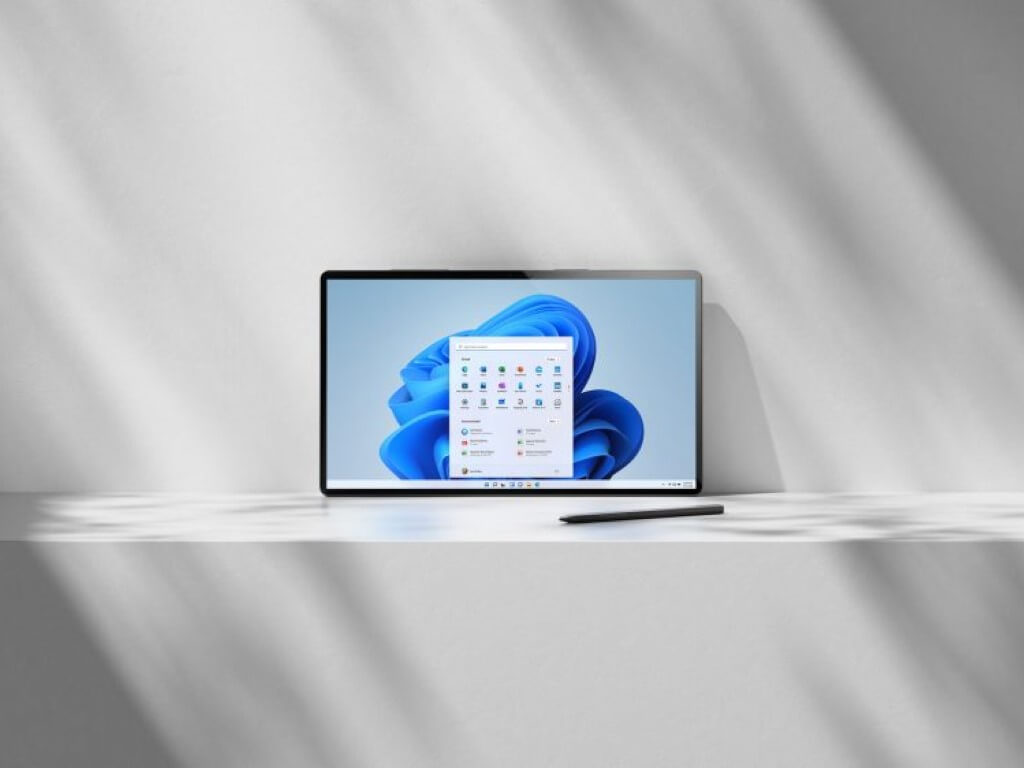
Compatibility View Settings on Windows 11 [Enable/Change]

Internet Explorer has been the default browser of various versions of Windows for almost two decades. This browser also includes a web compatibility viewer function.

With this setting, Internet Explorer allows users to view older web pages designed for previous versions of the browser, making it compatible with older web pages.

The major change that Microsoft is making with the new Windows 11, however, is dropping Internet Explorer altogether, with the new default browser becoming Microsoft Edge.

It’s true that not necessarily many users expected to find IE on the new OS, but they hoped at least to find the 32-bit version. This will not be the case, because Windows 11 is planned to run only on 64-bit.

Although it was already announced that IE would be removed as of June 15, 2022, Microsoft has however made it public that Windows 10’s Long-Term Servicing Channel (LTSC) will include IE for certain OS versions.

But what will happen to users who, for various reasons as well as for enabling Compatibility View settings, will need to access IE on the new Windows 11? Discover below our ways to get the online experience you need.

How do I enable Compatibility View in Windows 11?

Change the default browser

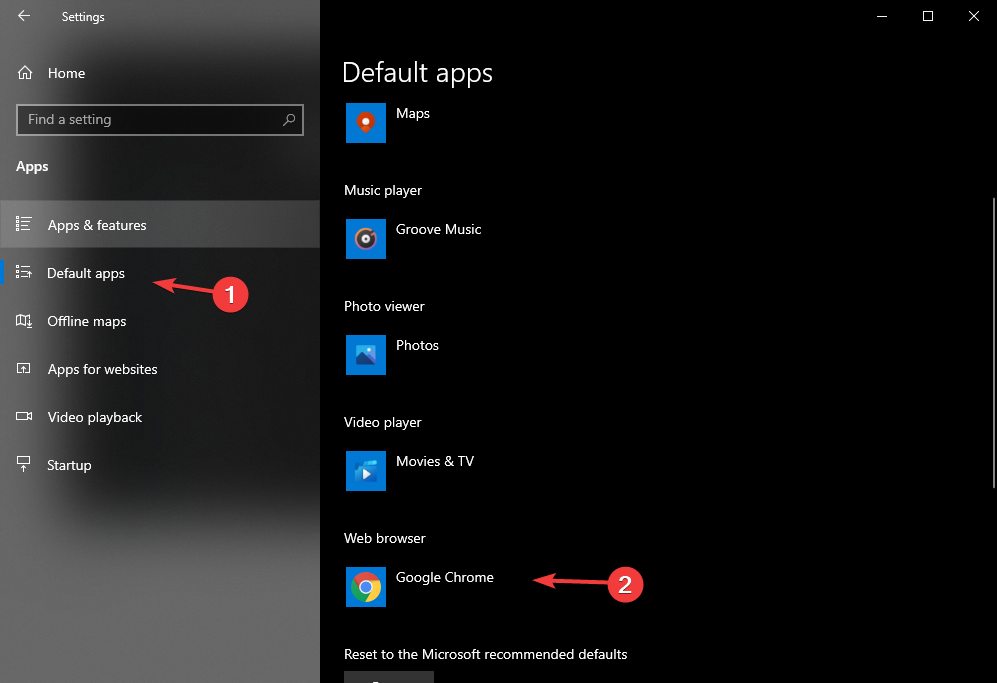
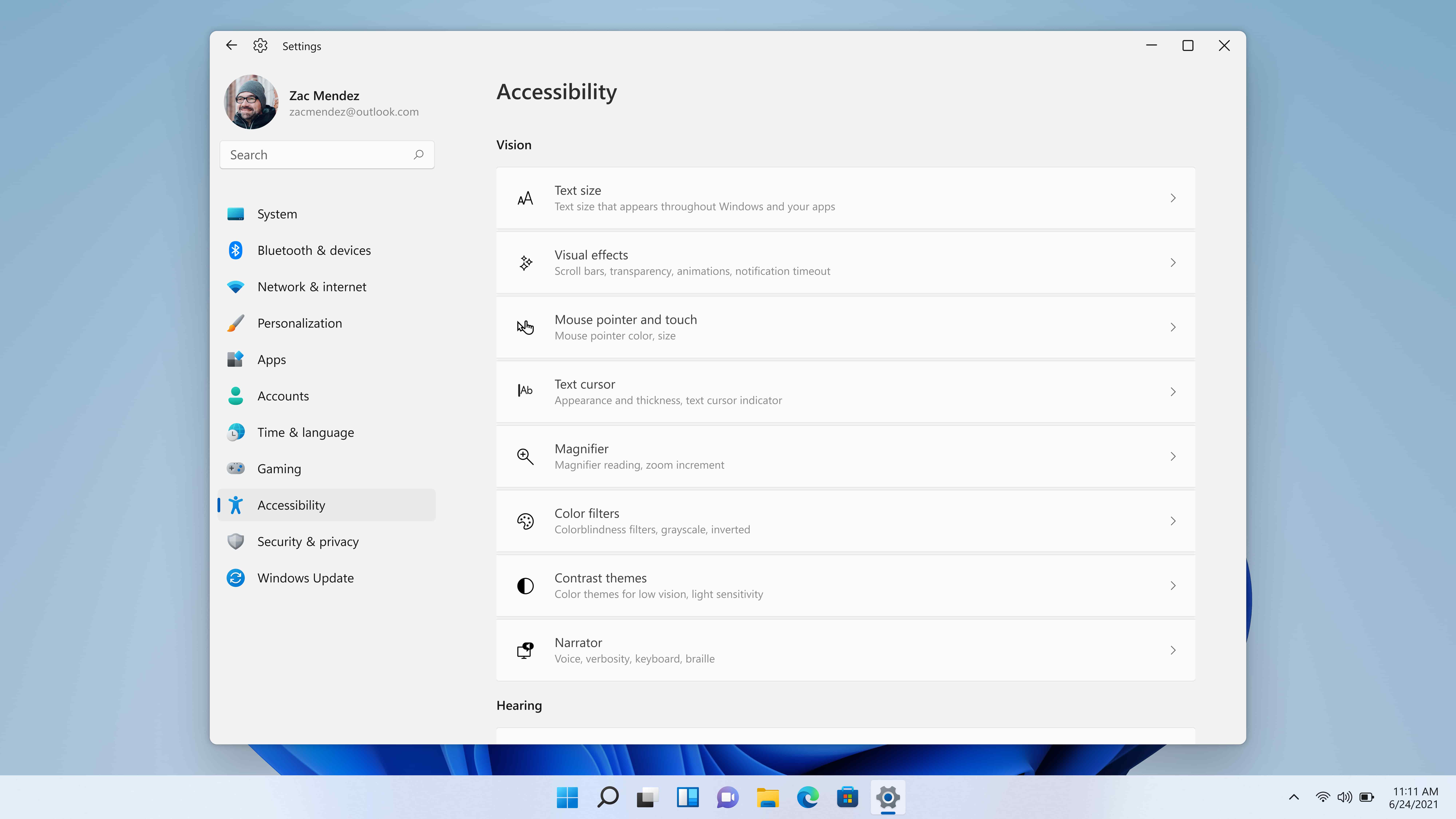
  1. Go to the Start menu, and click on the Settings button.
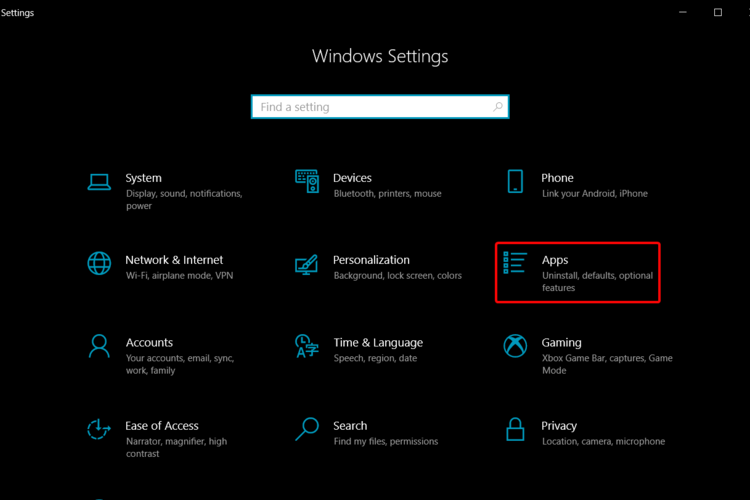
  2. Select the Apps section.
  3. Choose the Default apps tab, and scroll down until you find the Web browser section.
  4. Click on the Web browser button, select your desired browser, and set it to the default status.

As we already know from the preview provided by Microsoft, Windows 11 comes with the default Edge browser.

If you are used to working with a different browser or need to access older sites, then you can choose the browser that suits your needs.

By performing this action, you will not disable other installed browsers, but you will only make the selected browser the default one.

IE features supported by Microsoft Edge

  • IE settings and Group policies that affect the Security zone settings and Protected mode
  • Microsoft Edge Extensions
  • Controls for ActiveX (Silverlight/Java)
  • All Enterprise modes and Document modes
  • The F12 developer tools for Internet Explorer
  • Browser helper objects

IE features not supported by Microsoft Edge

  • IE11 or Microsoft Edge F12 developer tools
  • IE toolbars
  • IE settings and Group policies that affect the Navigation menu

On the new Windows 11 operating system, organizations can use the Local Group Policy Editor to update or remove a website from IE compatibility for all devices on the intranet at the same time.

If you want a wider view of the differences between Windows 10 and Windows 11 coming later this year, then take a look at our comprehensive guide and find out useful details.

For more suggestions or other questions, do not hesitate to access the comments section below. We’d love to hear your opinion.

All-4-One just made a new remix of “I Swear” to promote Microsoft’s Xbox because YOLO

In a marketing move that no one saw coming, Microsoft has released a new music video featuring All-4-One singing a parody version of their 90s hit, I Swear, called It’s All There.

The video, which can be watched below, is a full-on 90s-style music video used to promote the Xbox All Access subscription service that allows consumers to get their hands on a new Xbox Series S or Xbox Series X console and pay it off gradually on a monthly basis.

The video shows a woman playing on a Day-One Xbox One console and eventually upgrading to the new Xbox Series S after checking out the Xbox All Access details on her smartphone. The Xbox Game Pass service, which is included in the Xbox All Access plan, is also featured.

“As gamers begin the next generation of play on Xbox Series X|S, we do so remembering the great experiences we had before with excitement for what’s to come,” Xbox All Access’ senior marketing manager, Bogdan Bilan, said of the promotion. “And no one knows how to navigate the waters of love, loss and love again than 90s R&B singers. So, we thought, what better way to celebrate the reimagining of how you can join Xbox with the all-inclusive offer of Xbox All Access than with the ‘90s R&B sensation, All-4-One, reimagining “I Swear,” their 1994 ballad?”

I Swear originally came out in 1994 and was All-4-One’s second single. The hit went on to win a Grammy for Best Pop Performance by a Duo or Group with Vocal and was awarded Favorite New Artist Soul/Rhythm and Blues at the 1995 American Music Awards.

Xbox Insiders to get console notifications for new features, tasks, and updates

Starting today, Xbox Insiders will begin receiving notifications on their enrolled Xbox One and Xbox Series X consoles relating to new Insider news and changes.

The notifications will use the Xbox toast system that’s also used for Xbox Achievement notifications and those relating to screen recordings and downloads.

Once live, all Xbox Insiders will receive notifications by default though they can be disabled by manually turning off the Xbox Insider option in the Xbox Notifications settings page.

Xbox Insiders are groups of Xbox consoles owners who have opted into testing new features and builds of the Xbox operating system before they’re pushed out to the general public.

Are you an Xbox Insider and are you going to keep notifications enabled? Share your thoughts with the community in the comments below and then follow us on Twitter and Facebook for more Xbox gaming news.

Microsoft Writing Apps for Windows 10 & 11: Top 5 of 2026

Writing on your Windows 10 tablet or touchscreen laptop is easier when you are using the tools that you find most useful or that meet your needs to help you have a relaxed typing experience.

Everything is easier to accomplish if you have the right writing apps at your disposal. Go distraction-free with these best apps to start writing on your tablet.

The typing experience had to go through a lot of changes since touchscreens were integrated on most of the devices we use.

Fewer people are looking for the perfect keyboard feeling and more are looking at how responsive and user-friendly the software they are using is. And with Windows 10 this is just as valid.

It is harder and harder to find the all-in-one software wonder we are all looking for, however, there are some apps available at the Microsoft Store.

If you are trying to find the best writing apps to fit your writing needs, you deffinitely have to check out some of these apps.

What is the best Windows 10 writing app?

Notepad

No introduction needed, if you are in need of something simple, this is the best app for you. Everyone remembers Notepad, the easy-to-use writing software that was integrated on all Windows-operated computers.

This Windows 10writing app is somewhat different compared to what Notepad used to be, but as we all know, not all change is bad.

The app looks great with its new and shiny appearance and it is certainly easier to use. The pro version includes different themes as well.

The UI was completely remade to fit the current generation of devices and everything is more accessible and feels natural even when you are using it from your Windows 10 tablet or smartphone.

The keyboard is very touchscreen-friendly and responsive which makes it ideal when in need to write something while on the road, or you only have access to your smartphone.

The software is compatible with the Xbox series X|S, Xbox One, Hololens, PC, and even mobile devices that run the Windows system.

Here are the software’s main features:

  • Dark and light theme
  • Can be set as default text editor
  • Jump list for recently accessed documents
  • Edit multiple documents concurrently
  • Drag & drop support

Notepad

The classic writing software that gets the job done in a simple, comprehensive, and easy way.
Check price Visit website

ModernNote

If you are someone that finds himself editing a lot of the previously created text documents, this is the app you are looking for your Windows 10 tablet.

At a first glance, the UI looks like it needs some time to get used to, but after a couple of minutes everything seems really intuitive.

There are some important features that are needed by some but not available on most Windows 10 writing apps.

The software has a really easy to follow interface with comprehensive tools that don’t require background knowledge to use.

You will find basic text editing stuff, like Bold, Italic, Underline, highligts, and different text colors to evidentiate important parts from one another.

If you are looking for simple text formatting, search, or spell-checking, you will be happy to hear that ModernNote is tailored specifically for you.

Here are the software’s main features:

  • Create and edit text files
  • Cut/copy and paste text
  • Spell checking
  • Multi-document support

ModernNote

This awesome app lets you create, view, and edit rich text documents!

Cloud Notes+

Accessibility is one of the signature traits of today’s world and is one of the best characteristics of Cloud Notes+.

The ability to store, share and access your work from all your Windows 10 devices is one of the main things that make our life easier.

The app itself uploads your documents on cloud and allows you to access, edit or create new documents on-the-fly.

You can modify text written on your PC from your smartphone on your way to work or just complete it with new ideas effortlessly.

All of the changes will be synchronized on the stop with all the different connected devices you have. All you have to do is make sure you’re logged into the same account.

The software works in snapping mode as well, so you can place it on the left or right side of your screen while keeping other apps opened on the other side.

Take a look at the program’s core features:

  • Simple text notes
  • Synchronize notes between devices
  • Share text links into Cloud Notes

CloudNotes+

This is a simple and intuitive cloud-based text software that is compatible with all of your devices.
Check price Visit website

WritePlus

WritePlus is a very useful writing app that you can use to quickly write texts on a distraction-free platform. WritePlus has a minimalist interface that features only basic formatting options.

However, these options are more than enough to allow you to write and edit your texts in an efficient manner.

WritePlus also features a built-in dictionary/thesaurus that you can use in case you’re running out of words or ideas.

The minimalist interface will not desitract you from focusing on the matter at hand, and that is, obviously, writing stuff!

Most of the similar apps in our list are compatible with multiple devices, but unfortunately, WritePlus only works for Windows PCs.

Additionally, this app was previously knowsn as WritePlus++, but has been changed and rebranded as WritePlus, so some of you might know about it.

Check out the app’s best features:

  • Minimalist interface
  • Basic formatting settings
  • Spellcheck
  • Autosave
  • Word count
  • Text to speech

WritePlus

WritePlus is a simple text editing app that includes essential formatting tools to take notes on the fly.

Write

This is one of the most simple Windows 10 apps you can find out there to do your writing, and that is probably what makes it one of the better ones.

The UI contains the bare minimum number of elements and it is built to help you accomplish one thing: write.If you get easily distracted by features while trying to get something done, you will love writing on this app.

Write operates on the principle point and shoot and that is exactly what you have to do. The pages will keep rolling and you will never lose focus, getting lost in the interface or the settings menu.

The app is no longer available in the Microsoft Store, however, it has its own website created especially for the app, which is great.

This way, the software doesn’t have to rely on the Microsoft Store or doesn’t have to give them a portion of the profit earned through it.

⇒ Get Write

Text formatting

In case you were wondering, we’re going to give you a brief explanation of what text formatting means, and what is consists of precisely.

Text formatting is the name of the process of changing either the size, color, or the content of a written text, and is usually associated with editing.

Most of the software that deals with texts has different fonts, dimensions, and other things that will make different parts of the text different from others.

Notepads are useful

As the title suggests, having a notepad to quickly write important information can be a life saver in many situations.

Taking notes of important details you out about will make sure you don’t lose the information later. You never know when you need someone’s number or name.

Additionally, people usually take notes during conferences, presentations, and other work-related things. Keeping track of metrics and numbers is the best way to increase productivity.

Digital versus paper

We all know that nothing beats paper, both when it comes to writing and reading. However, there are some benefits when using a digitalized notepad.

For instance, you’re never going to run out of it. You can create endless pages of text, delete and change them freely. The same cannot be said for paper, obviously.

More so, there’s another benefit. Accessibility and space! Your phone is much smaller than a notebook and occupies less space.

The above four mentioned are what we consider to be the best, but maybe we are mistaken and there are others equal or even better.

If you love narrating instead of writing, here’s a thorough list of the best speech-to-text software for increased productivity.

Or, maybe you are not satisfied and you are looking for more. Give us your opinion in the comment section below.

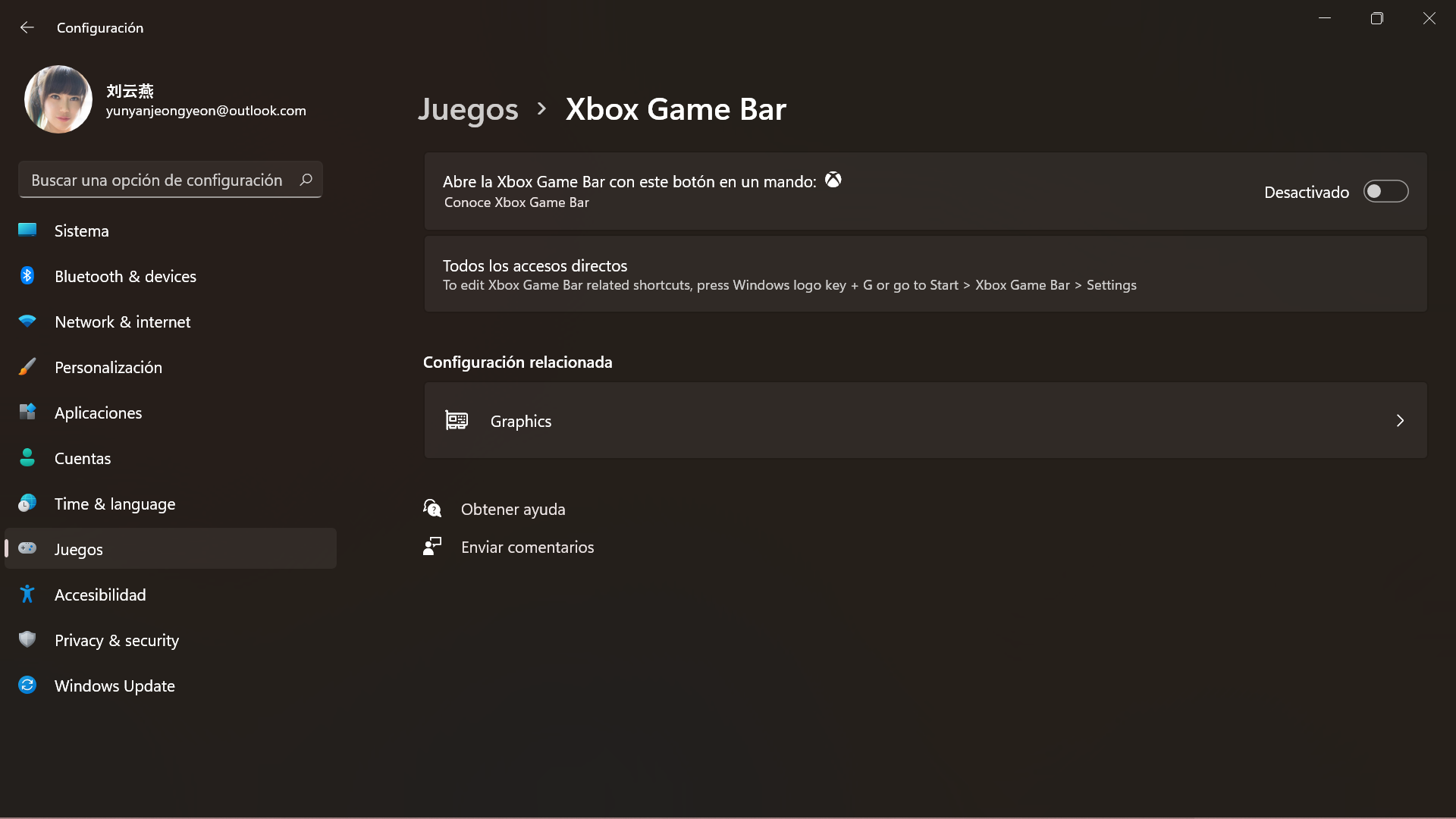
Xbox Game Bar is buggy and can’t be disabled in Windows 11

Given the fact that, for now, Windows 11 is simply a preview build, bug reports are flowing in large quantities, each day.

It just goes to show how much work this new operating system still needs, and why user feedback is critical in this early stage.

The silver lining here is that the community is constantly flagging these issues so that Microsoft can take action and actually solve them before the OS goes live.

Xbox Game Bar not properly recording

And speaking about Windows 11 bugs, users keep signalling major issues going on with the Xbox Game Bar. Apparently, there are a lot of things going wrong with this gaming integration.

The record feature is not working as it should and users are starting to get fed up with not being able to properly record their gameplay.

Microsoft Answers user Mr sideways reported that, although recording works for him, it doesn’t record fullscreen, but only shows a zoomed out version of what he is trying to actually record.

Quick question for the PC Xbox game bar. I’ve had issues with recording and it not capturing the gameplay on the complete screen. In this case, it will just be a zoomed-out video and isn’t zoomed in to the normal computer size. Is there something I’m doing wrong or is there a fix?

Troubleshooting the app from the system settings won’t do you any good, as it doesn’t fix this issue.

So, if you were thinking about capturing some awesome gaming moments using the Xbox Game Bar, on Windows 11, you better change your plans because there is no workaround or fix for this problem, yet.

You can’t disable the Xbox Game Bar on Windows 11

So we established that the Xbox Game Bar is far from functional on the new OS and there might some users that would just want to deactivate it, in order to spare themselves future disappointment.

However, while navigating the Windows 11 settings, you will not find such an option, unfortunately.

Users of Microsoft’s new operating system are already taking social media by storm in order to warn others that disabling the gaming integration is not an option, on this early OS build.

Source: Reddit

In conclusion, before Microsoft releases a new build, with applied fixes to all the issues and bugs that were flagged during this testing period, we have to accept that some features aren’t completely functional.

And this should come as no surprise, considering the state that Windows 11 is in right now, meaning that it is the earliest version of the OS, and everything that’s happening is somewhat normal for new software.

What issues have you stumbled upon, while using Windows 11? Let us know in the comments section below.

Windows vulnerability roundup: Updates on PrintNightmare, PowerShell, and NETGEAR compromise

Recently, it has felt like Windows vulnerabilities have been piling up as various third-party endpoint connections lead to large swaths of personal information being compromised.

Fortunately, it seems Microsoft is aware of the latest compromises and is underway issuing updates and companion information on its known vulnerabilities.

Working from semi-oldest to newest, Microsoft published an update to PowerShell 7.0 and 7.1 to protect a .NET Core remote code execution vulnerability reported last week.

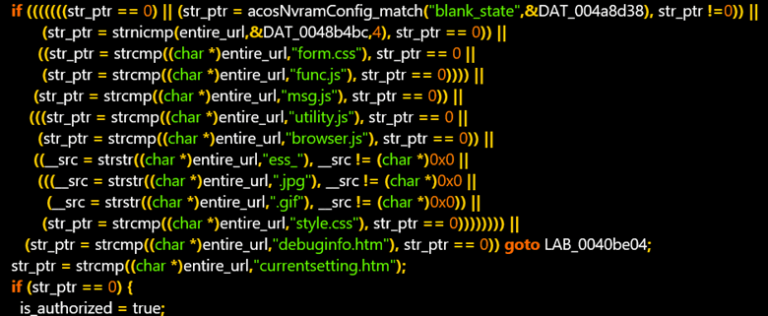
More specifically, Microsoft listed on its GitHub repository at the time that “a remote code execution vulnerability exists in .NET 5 and .NET Core due to how text encoding is performed.” As it stood, it vulnerable package is System.Text.Encoding.Web and left versions 4.00-4.5.0, 4.6.0-4.7.1, and 5.0.0 vulnerable.

Fortunately, Microsoft’s July 1 update can be applied to version 7.0 to 7.0.6 and version 7.1 to 7.1.3 and appears to protect against the new vulnerability. Meanwhile, Microsoft also claims that “Windows PowerShell 5.1 isn’t affected by this issue.”

Next up is the now infamous “PrintNightmare” remote code execution vulnerability that’s affecting Windows Print Spooler services. The “PrintNightmare” compromise is a bit stickier in that it deals with a more widely used Windows execution, printing.

By creating a middle-man setup between print processes and Windows, “An attacker who successfully exploited this vulnerability could run arbitrary code with SYSTEM privileges. An attacker could then install programs; view, change, or delete data; or create new accounts with full user rights,” according to Microsoft.

Microsoft has not gotten a handle on the “PrintNightmare” vulnerability it has issued an update on the situation via Twitter.

Issuing CVE-2021-34527 to “PrintNightmare” means Microsoft can now also highlight some ways to mitigate exploitation while the company continues to work on a solution.

  • Administrators
  • Domain Controllers
  • Read Only Domain Controllers
  • Enterprise Read Only Domain Controllers
  • Certificate Admins
  • Schema Admins
  • Enterprise Admins
  • Group Policy Admins
  • Power Users
  • System Operators
  • Print Operators
  • Backup Operators
  • RAS Servers
  • Pre-Windows 2000 Compatible Access
  • Network Configuration Operators Group Object
  • Cryptographic Operators Group Object
  • Local account and member of Administrators group

There are also some recommended workarounds that can include disabling print spooler service or disabling inbound remote printing through Group Policy. To read the impacts of doing either option, visit the MSRC page here.

Last and the most recent Windows vulnerability includes NETGEAR firmware vulnerabilities that could, in Microsoft’s words, “lead to identity theft and full system compromise.”

Microsoft discovered the vulnerabilities in NETGEAR DGN-2200v1 series routers that can be used to compromise a network’s security structure.

More specifically, Microsoft’s Security Vulnerability Research team found three vulnerabilities in the router firmware that they have been able to reliably replicate.

Windows vulnerability - NETGEAR DGN

However, working with NETGEAR, Microsoft and the router company were able to issue a critical security issue score (CVSS) of 7.1 9.4., to which NETGEAR has already begun issuing fixes. To read the full breakdown, Microsoft outlines unpacking the firmware, the codes to identify the specific vulnerabilities, deriving saved router credentials, how information is retrieved, and preparatory steps for prevention, here.

Microsoft Teams makes Together mode available for all meeting sizes

Microsoft is expanding the availability of its Together mode feature in Teams meetings. As spotted by Microsoft MVP Amanda Sterner, the company is rolling out a new update that will make Together mode available for all meeting sizes.

The Microsoft Teams desktop app launched Together Mode for meetings back in July 2020. Currently, the feature accommodates up to 49 people at a time, and it uses AI to place all participants in a shared background digitally. Up until now, the feature was enabled when 5 people, including the organizer, had joined the meeting. Thanks to this update, organizers will now be able to activate the Together mode option in small meetings with two or more participants.

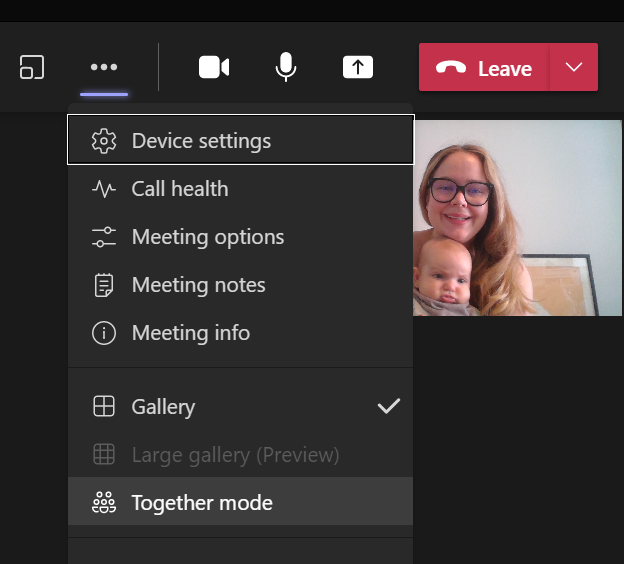
To try out Together mode, users will need to navigate to the meeting controls available at the top of the meeting window. Then click on the 3-dot menu on the top right corner and finally select the “Together Mode” option from the list.

Overall, the new Together mode experience should help to make small meetings more engaging and effective for participants. In case you missed it, Microsoft announced in May that Teams users can now build their own Together Mode scenes using a newly built Scene Studio, and you can find more information on this support page.

Tropico 6, Farming Simulator 19 and Bloodrots are coming to Xbox Game Pass in July

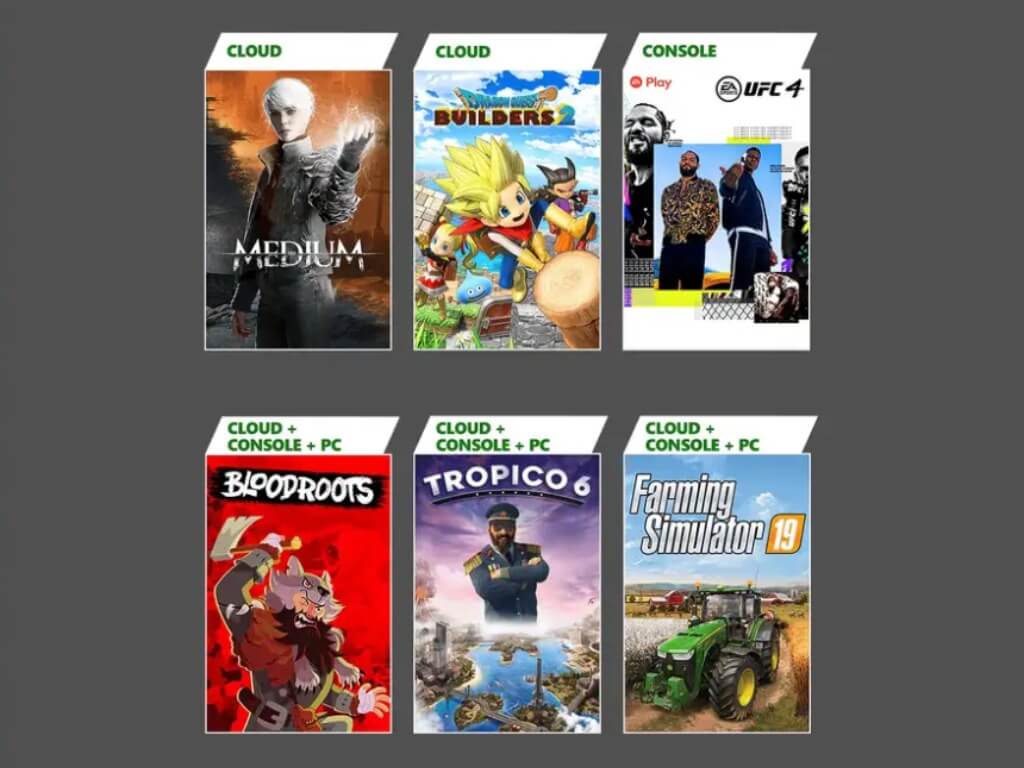
Microsoft has revealed this morning the next wave of new Xbox Game Pass games coming to the catalog in July. This week, the construction and political simulation game Tropico 6 will be available on Console, PC, and Cloud on Thursday, July 8. On this same day, the Minecraft-like Dragon Quest Builders 2, which is already available on Xbox Game Pass for Console and PC will also become available on Xbox Cloud Gaming.

The MMA fighting game EA Sports UFC 4 will also join the EA Play list on July 8, meaning that it will also be available on Xbox via EA Play for Xbox Game Pass Ultimate subscribers. Two new games will also join Xbox Game Pass on July 15 with Farming Simulator 19 and the indie action game Bloodrots, and unlike EA Sports UFC 4, both of them will be available on Xbox, PC, and Xbox Cloud Gaming.

Now that Microsoft is done upgrading its Xbox Cloud Gaming servers with custom Xbox Series X hardware, Bloober Team’s The Medium will also become available on Xbox Cloud Gaming on July 15. The survival horror game was the first exclusive Xbox Series X|S title to be released this year, and even though it’s set to be released in September on PlayStation 5, it will be coming first to Microsoft’s cloud gaming service.

Xbox Cloud Gaming is now generally available on Android, iOS devices, and PCs in 22 markets, and all you need to try it is an Xbox Game Pass Ultimate subscription that costs just $1 for the first month. There are currently over 100 cloud-enabled games in the catalog, and many of them support touch controls on Android, iOS, and Windows devices. Xbox Game Pass Ultimate remains excellent value for gamers, and stay tuned for more Xbox Game Pass announcements later this month.

Xbox Game Pass Ultimate

Windows 10’s popular free Sketchbook drawing app goes paid after ownership change

In a bit of a surprise move, the popular drawing app, Autodesk SketchBook, has rebranded as Sketchbook and been spun off from Autodesk into its own company, Sketchbook, Inc.

“After careful consideration and evaluation, we found the perfect home for SketchBook with a company formed by people who previously built and evangelized the SketchBook brand,” Autodesk’s Thomas Heermann wrote in a blog post. “This company, appropriately named Sketchbook, is focused wholly on the health and growth of SketchBook and its community.”

Since this announcement was made, the listings for the Sketchbook app have begun to update in app stores across all of its supported platforms from Android and iOS to Windows 10. With the update, Sketchbook will be switching back to being a paid app, just over three years since it changed from paid to free. No subscription model is planned.

As of the time of this writing, Android and iOS users who currently have the app in their accounts will continue to receive updates going forward (presumably at no charge) while those on a Mac computer will need to upgrade to the new paid Sketchbook Pro app. The original Sketchbook app should still work though, it just won’t get any updates. Those who downloaded the app directly from the Autodesk website or via the Amazon app store are in the same boat as Mac users.

The original app listing for the free Autodesk SketchBook app has been removed from the Microsoft Store app store while a new listing for the paid Sketchbook Pro app has appeared as a separate product currently being sold for $19.99. An official blog post is encouraging Windows users to wait before buying the new app as the company is currently talking with Microsoft about how to transfer ownership to owners of the original app.

Regardless of what happens with the new Microsoft Store version of Sketchbook, the original app should still work as usual. It will no longer receive updates though.

A full FAQ for users is available here.

Sketchbook has been one of the more popular digital drawing apps in the market for over a decade now and was one of the first of such apps to launch on Apple’s iPhone in 2009 before eventually coming to Microsoft’s Windows App Store in 2012. Last year, Sketchbook attracted over 10 million monthly users across all of its supported devices.

Are you a Sketchbook user? Let us know what you think of this development in the comments below and then follow us on Pinterest and Twitter for more Windows app news.

Sketchbook Pro
Sketchbook Pro
Developer:
Sketchbook
Price:
$24.99

Windows 11 HDR vs Windows 10: Is it Better Optimized?

There’s no question that Windows 11 is vastly improved from the old Windows 10. However, many of our readers are asking if the HDR feature on Windows 11 is better optimized and that’s what we’re discussing in this article.

The short answer is that Windows 11 improves HDR for gaming, movies, and TV content substantially but let’s see more about that.

What do I need to use HDR on Windows?

HDR is an acronym for High Dynamic Contrast and if you enable it on your PC, the image on your display will have brighter and more vivid colors and a better definition image.

However, HDR is not available for all devices. You will need a compatible display and a capable graphics card.

Here are the requirements to use HDR on your computer and an external display:

  • An HDR display supporting HDR10
  • DisplayPort 1.4 or HDMI 2.0 or higher
  • Integrated or dedicated GPU with PlayReady 3.0 support such as:
    • Intel UHD Graphics 600 series or higher
    • Nvidia GeForce 1000 series or higher
    • AMD Radeon RX 400 series or higher

Windows 11 has a new, Auto HDR feature that you may turn on and enjoy the improved graphics but that is only if your machine fulfills the above requirements.

If you are using an Nvidia RTX card, you can follow this detailed guide on how to enable HDR on RTX in Windows 11 to unlock the best visuals.

Is Windows 11 HDR optimized better than Windows 10?

As a well-known fact, with Windows 10, leaving the HDR option enabled on your PC kind of messes up the overall visual experience, making things washed out and generally unappealing.

This no longer seems to be an issue on the new OS. Even with games, there are significant improvements to how this setting affects visuals.

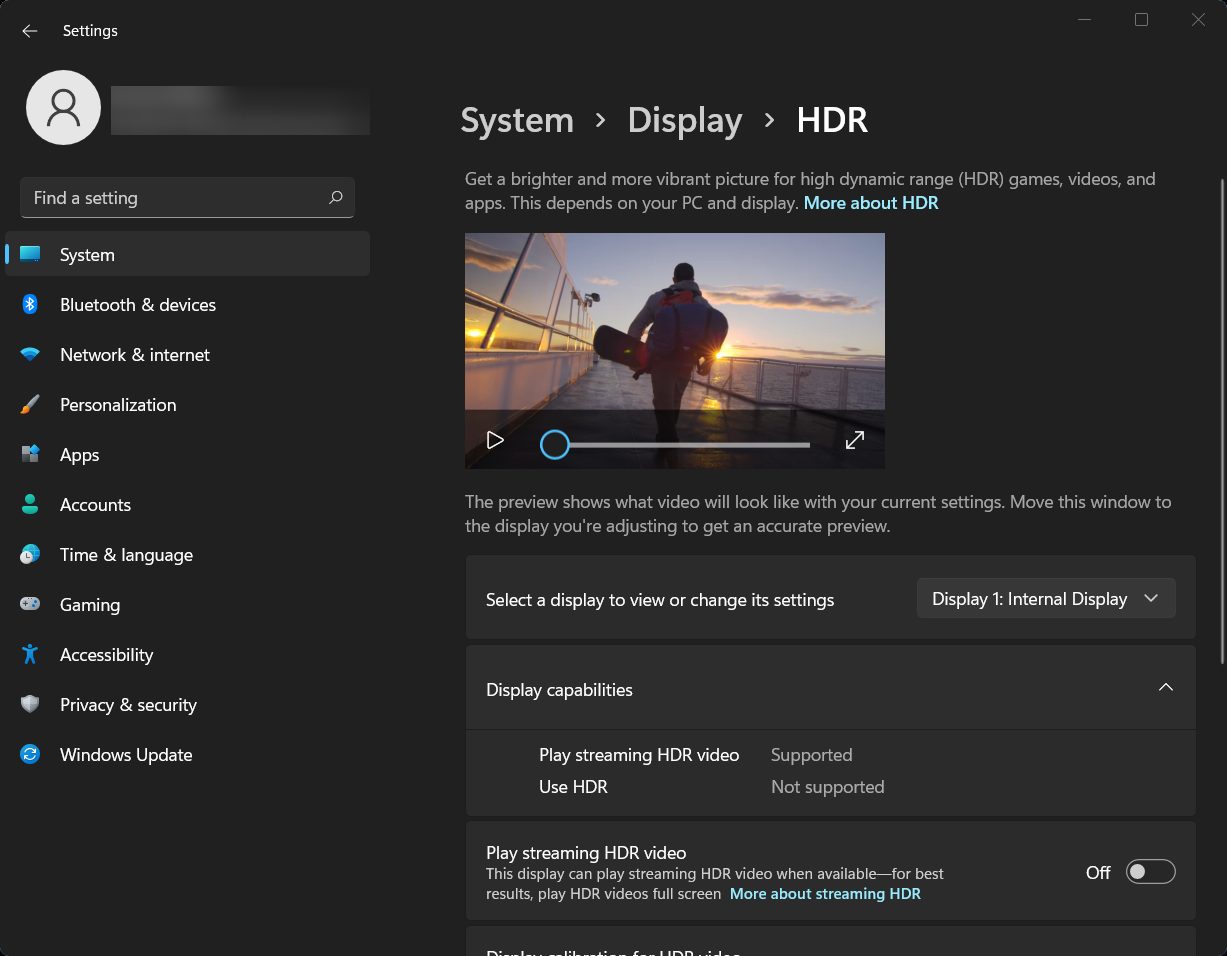
With the Use HDR option on, Windows will automatically ensure that the HDR is on when you launch a game.

While Auto HDR is on, supported games will be automatically upscaled, and the games that won’t support such high resolution will display SDR, without having to toggle it every single time.

Windows 11 HDR is better on a good display

HDR manifests itself at the system level. In other words, the Auto HDR option on Windows 11 is affecting all the content on your display.

However, we reached a definitive matter here: the display! If your display has a lower brightness than 1000 nits or a low contrast, Auto HDR won’t make much of a difference.

We also remind you that your display has to be at least HDR 10 compatible and connected to the PC through HDMI 2.0 or DisplayPort 1.4 for Auto HDR to work on your Windows 11 device in the first place.

That being said, we also have a guide on how to choose the best Windows 11 HDR settings.

Also, you might be interested on what to do if Windows 11 HDR is not supported with the apropriate solutions.

We’re all curious to see how Microsoft will deal with the increasing graphics demands of games, movies, and other software, now that 4K is no longer the maximum threshold.

Are you running Windows 11 on a device that supports HDR? If so, tell us about your visual experience so far, in the comments section below.

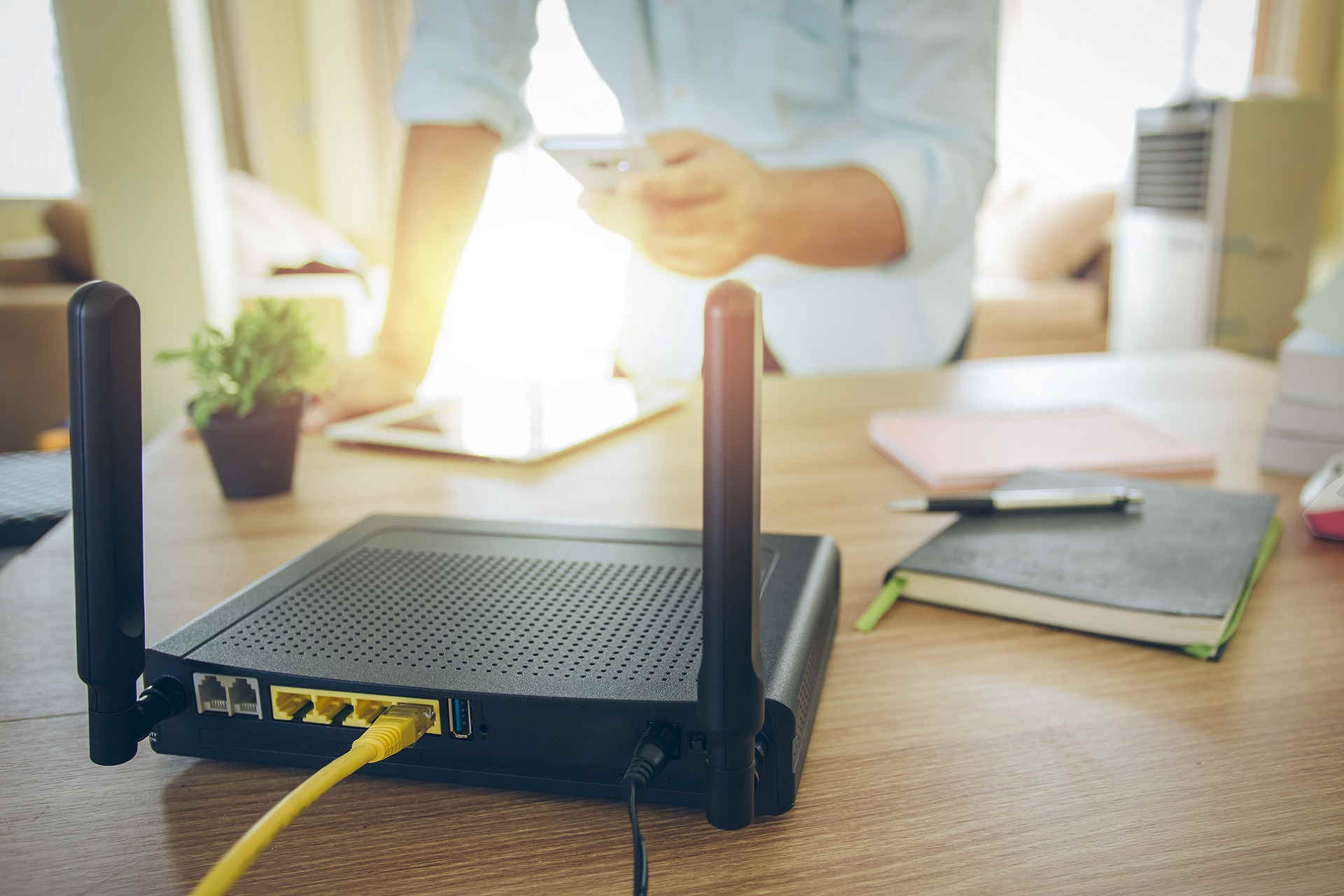
How to fix problems with wireless N routers in Windows 10/11

There can be many issues regarding the wireless N routers you have in your home but following this tutorial below will explain exactly what you need to do in order to fix the problems you are having and get your wireless N router.

This issue you are having with your wireless N router is usually caused by upgrading to Windows 10 and in order to fix it, you will need to adjust some IP settings for the router in Windows 10.

You also need to check your router and your connections if they are in good parameters in order to get it up and running in no time on the Windows 10 operating system.

How can I fix problems with wireless N routers in Windows 10?

1. Turn off/restart your router from the power socket

  1. First, you will need to reboot your Windows 10 device.
  2. Check and see if the wireless connection were made properly and you don’t have the limited connectivity exclamation mark.
  3. If you still have the exclamation mark on the wireless internet connectivity you will need to unplug the wireless N router from the power socket.
  4. Wait 30 seconds for the router to power down correctly.
  5. Plug in the wireless router to the power socket now.
  6. Wait approximately 30 seconds and try to connect to the wireless router.
  7. Check and see if your Internet connection works now.

If you have limited connectivity on the wireless N router it means that your Windows 10 device is connected to the wireless router but the Internet connectivity is not working.

2. Check IPv4

  1. Type command in Windows search and click on Run as administrator to start Command Prompt with full privileges.
  2. Write the following command and press Enter to run it: Ipconfig /all
  3. You will have there a list in which you should have an IP Adress (IPv4).
  4. If you have an IP address that means it can establish a connection with the router.
  5. If the connection is working then you will need to update the wireless card driver you use for the Windows 10 and also check if there are any updates available on the Wireless N router you are using.

This is a simple method to check whether or not you can establish a connection with a router so perform the easy steps above to do that.

3. Reset your router 

  1. You will need to try to reset the Wireless N router.
  2. This is usually done via a small button at the back of the router but for a more detailed explanation, read the Wireless N router manual.
  3. After the reset is completed, reboot your Windows 10 device.
  4. Connect to the Wireless N router and see if you have the same connection issues.

Resetting the router is a basic procedure in such cases and in can be easily performed by pressing the reset button on the router.

Common wireless connection issues in Windows 10

It is important to mention that some of these problems may also occur because of other system errors. You may want to check your computer if it connects to the router and if it is not a wireless adapter or access point issue.

It may be that the problem is in your Wi-Fi adapter range and in this case, check our dedicated article which will guide you in order to fix these Wi-Fi range problems.

These are the methods that you can try in order to fix your Wireless N router and make it work as it should with the Windows 10 operating system.

If none of the methods above do work, you might consider purchasing a Wi-Fi adapter for your computer.

Please write us below for any additional information that you may need on this subject.

Microsoft Store Surface listings add “free upgrade to Windows 11” banner

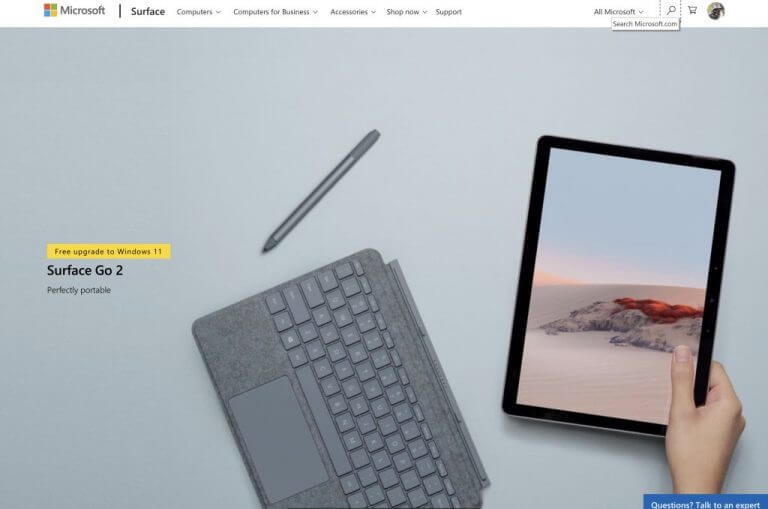
If you’re buying a new Surface in hopes of running Windows 11, Microsoft has your back. The company recently updated its store listings for Surface devices with a new banner to indicate compatibility with the next-generation operating system.

As of right now, the majority of the “modern” Surface devices from the last three years are compatible with Windows 11, per the store listings. Looking at just the “Free upgrade to Windows 11” banner at the top of the product listing, the following devices are getting Windows 11: Surface Laptop 4, Surface Book 3, Surface Laptop Go, Surface Pro 7/7+, Surface Pro X, and Surface Go 2.

Microsoft Store Windows 11 Surface

Currently, it looks as though the Surface Studio 2 is the only “modern” Surface that is still up for sale in the Microsoft Store that won’t be getting Windows 11. Though not listed in the Microsoft Store, Surface Pro 6, Surface Laptop 3 and Surface Book 2 are eligible for the WIndows 11 update, too, according to PCWorld. Everything else is out of the picture and won’t work with Windows 11, officially.

You probably already know why, but this limit is because Microsoft has some strict requirements for Windows 11. That includes TPM 2.0, as well as 8th generation Intel or Ryzen 2000 and newer CPUs. A lot of Surface devices aren’t including in that range, but you can always try the Dev Channel of the Windows Insider program workaround to beta test Windows 11 on ineligible devices, then go back to Windows 10 once the OS ships.

PSA: New Office Insider build with Windows 11 visual refresh is now coming later this week

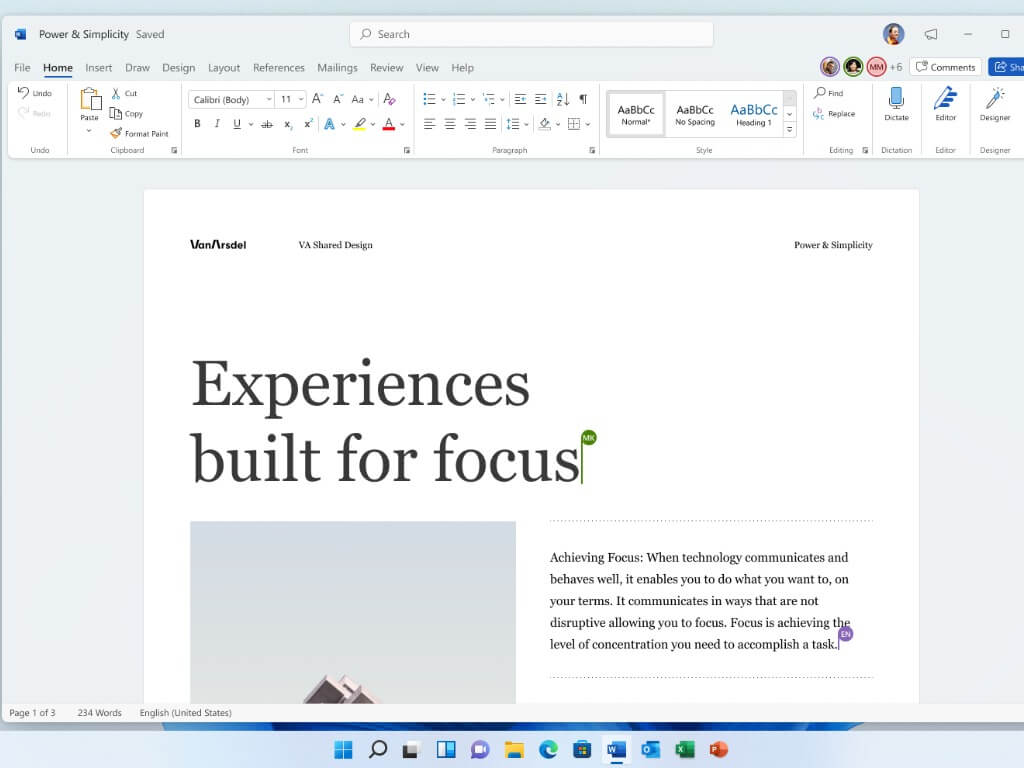
A week ago, Microsoft announced a visual refresh of its Office apps for Windows 10 and Windows 11, with a new design language that looks consistent with the upcoming Windows 11 launching later this year. Microsoft asked Office Insiders to start testing this new visual refresh using a “Coming Soon” toggle in the top right corner of the Office apps, but the redesigned apps were nowhere to be seen last week.

The Office Insider team has since apologized and promised that the much-anticipated visual refresh will make its debut later this week in a new build coming to Beta Channel Insiders. Once it’s available, you can except a coherent user interface across Word, Excel, PowerPoint, OneNote, Outlook, and other Office apps, with a new neutral color palette, a customizable ribbon, and rounded corners.

This new version of Office for Windows will also match your Windows theme and Dark Mode will look really good in Word. Office Insiders will also notice that the Quick Access Toolbar is now hidden by default to simplify the UI across the Office apps for Windows. While Microsoft will be listening to user feedback to improve this visual refresh ahead of its general availability, Insiders will be able to turn the new design on and off by using the “Coming Soon” feature.

In case you missed it, Microsoft also released last week the first ARM64 build of Office for Windows 11 on ARM testers. This build was also slightly delayed, but it brings some very welcome performance improvements on Qualcomm-powered PCs such as Microsoft’s Surface Pro X tablets.

Civ 5 video settings not saving [Easy Fixes]

Civilization 5 is a great game, but many users reported that Civ 5 video settings are not saving. This can be a major problem, especially if the game isn’t running properly, and you need to change the video settings.

However, there are ways to fix this problem, and in today’s article we’re going to show you how to do it properly, so be sure to follow our instructions.

What can I do if Civ 5 video settings are not saving?

1. Update your graphics card driver

If your video settings are not saving in Civilization 5, your graphics card drivers may be causing this issue.

To fix this problem, we suggest updating your graphics card drivers with specialized driver updater software.

2. Run the game in Compatibility mode

  1. Navigate to the Civilization 5 installation directory. By default, it should be: C:\Program Files(x86)\Steam\SteamApps\common\Sid Meier's Civilization 5
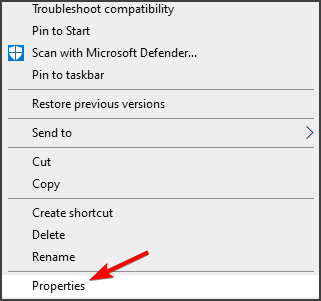
  2. Locate the game launcher, right-click it and choose Properties.
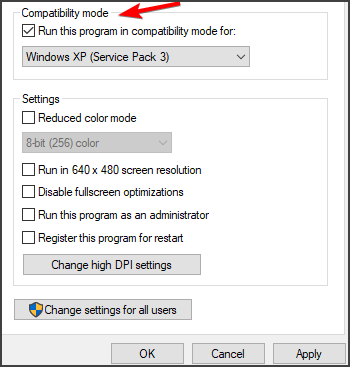
  3. Navigate to the Compatibility tab.
  4. Check Run this game in compatibility mode for and select Windows 7 or older from the list.
  5. Click on Apply and OK to save changes.

After making these changes, check if the problem with saving settings is gone.

3. Try manually changing the .ini file

  1. Navigate to the following directory: C:\Users\UserName\Documents\My Games\Sid Meier's Civilization 5\
  2. Open GraphicsSettingsDX11.ini or GraphicsSettingsDX9.ini file depending on the version that you’re using.
  3. Now edit the file to change the settings.
  4. Save changes.

This is an advanced solution, and in order for it to work, you need to make sure that you change the values in the .ini file correctly.

This is a simple workaround, but it might help if Civ 5 video settings are not saving.

4. Disable Controlled folder access

  1. Press Windows Key + S and enter folder access. Select Controlled folder access from the list of the results.
  2. Not set Controlled folder access to Off.

After disabling this feature, check if the problem is still there. Keep in mind that disabling this feature in Windows Defender can make your PC slightly vulnerable to ransomware.

Therefore, if you choose to disable it, be sure to remain vigilant while browsing the web.

If Civ 5 video settings are not saving, it’s possible that you don’t have the access to the directories that hold the configuration files or that your drivers are out of date.

We hope that this guide helped you fix this problem on your PC. And if Civilization V won’t launch, then we’ve got a dedicated guide as well.

Did you find a way to fix this issue on your own? Feel free to share it with us in the comments section below.

Dell Touch Screen is not Working & Responding: 5 Ways to Fix

Dell devices are some of the most popular among Windows users. However, many reported that the Dell touch screen is not working for them.

This can be a problem, especially if you rely heavily on the touchscreen functionality of your device. Luckily, there are ways to fix this problem, and today, we will show you how to do it.

Why is my Dell touch screen not working?

  • Your system or touch screen drives might be out of date.
  • Minor glitches with the device and operating system can also cause this issue.

What can I do if my Dell touch screen is not working?

1. Update your operating system

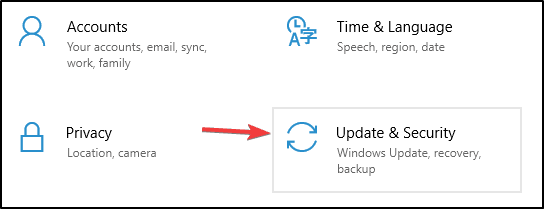
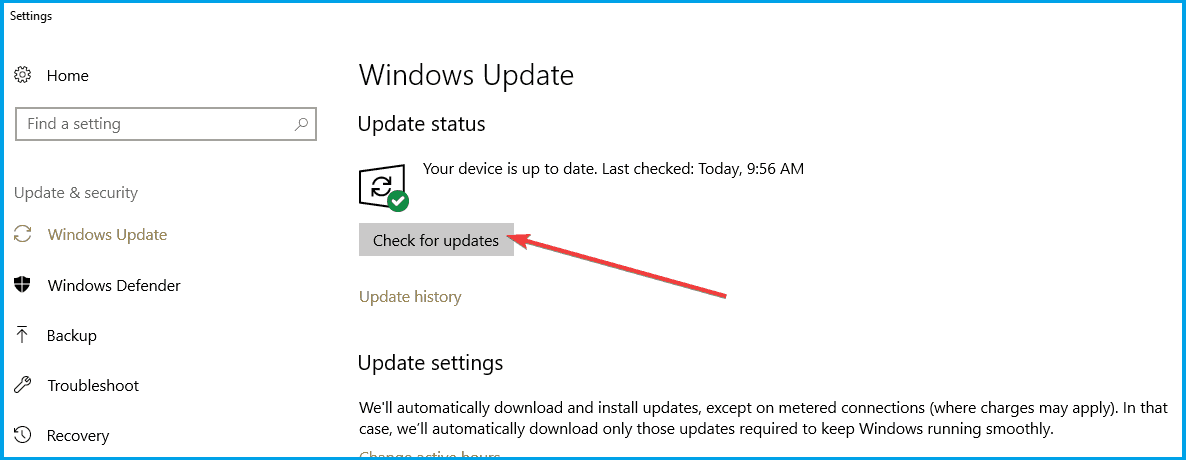
  1. Open Settings.
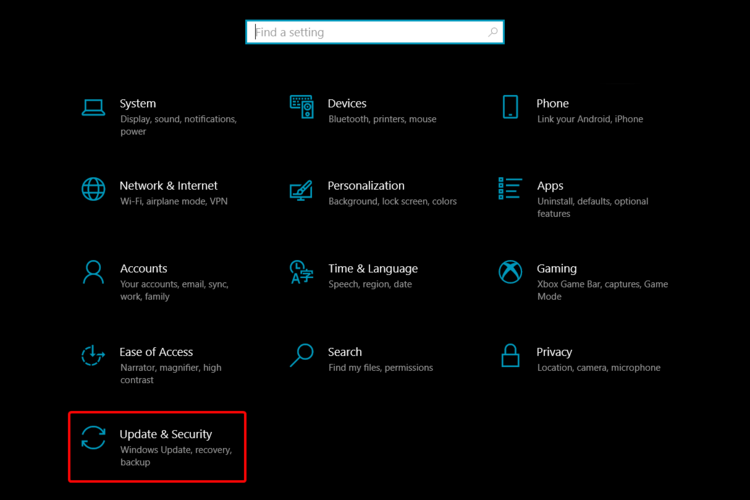
  2. Go to Update & Security.Update & Security
  3. From the left window pane, select Windows Update, then select Check for updates, from the left side.check for updates

2. Run the troubleshooter

  1. Open Settings.
  2. Go to Update & Security.
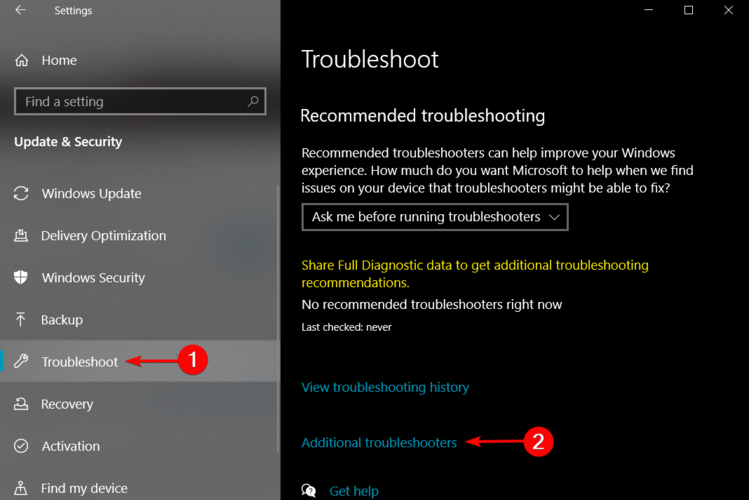
  3. From the left window pane, select Troubleshoot, then select Additional troubleshooter from the right side.
  4. Search for Hardware and Devices, click on it, then select Uninstall.

3. Use a third-party software

When updating drivers is never a bad idea to employ the help of professional driver updating tools.

This professional software is able to scan your whole system and identify the drivers you need, and with just a few clicks you can have them downloaded and installed.

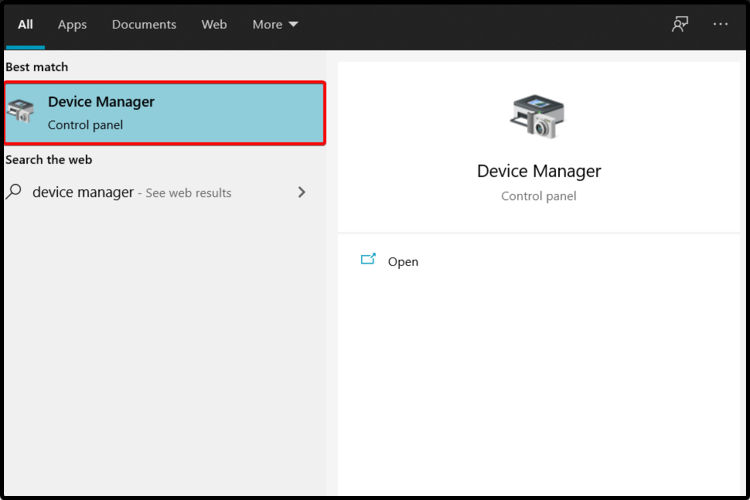
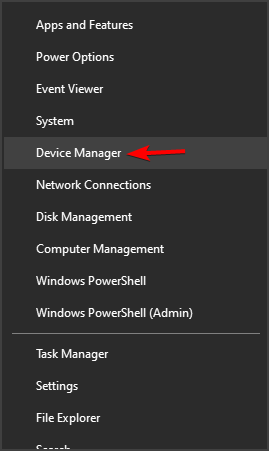
4. Try Device Manager

  1. Open Device Manager.
  2. Click on View, then select Show hidden devices.
  3. Click on Action, then select Scan for hardware changes.
  4. Check if your Dell touch screen driver shows up under Human Interface Devices.

5. Download the driver from the manufacturer’s website

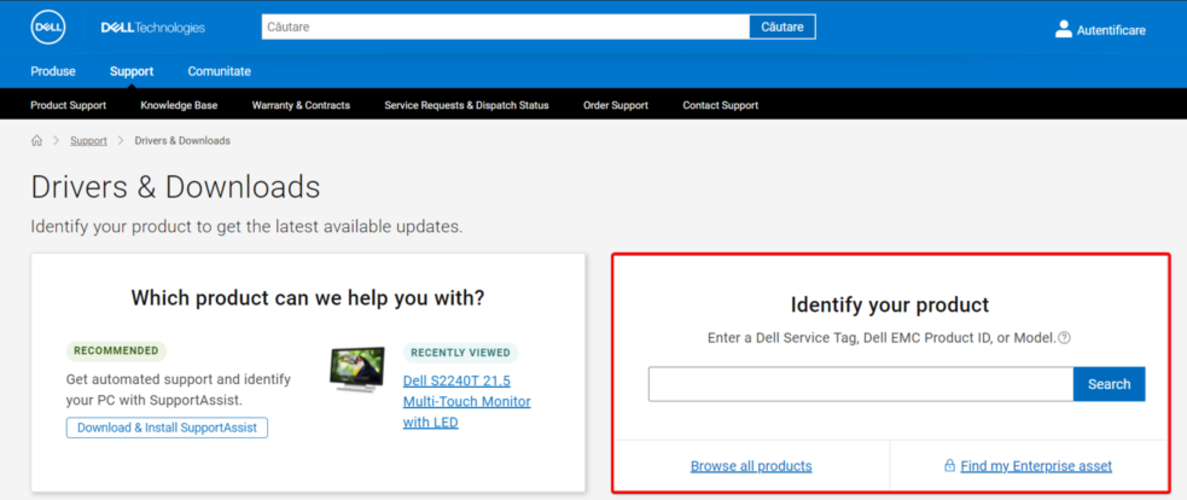
  1. Go to the Dell Drivers & Downloads webpage.
  2. Search for the exact name of your product and click on it.
  3. In the list shown, search for the touch screen or touch monitor driver, then click on the Download button.
  4. Follow the on-screen steps to install the driver.

Downloading the driver manually will also help when touch screen is not working in tablet mode.

There you go! If your Dell touchscreen is not working, at least one of the above solutions should definitely solve it.

If you’re ever unable to install drivers on Windows 10, don’t hesitate to check a full-fix guide regarding this subject. Unfortunately, this is a common problem, and many reported that the touch screen is not working on Windows 11 either.

One way to fix that is to calibrate your touch screen on Windows 11. However, if the HID-Compliant touch screen driver is greyed out, then you might be having a driver or hardware issue.

For any other questions, feel free to comment in the section below.

Red border: League of Legends can’t move the camera [Fixed]

League of Legends is one of the most popular video games. Thus, playing it in optimal conditions represents a must-have.

However, while being in-game, some users reported suddenly seeing a red border around their screen. After this, League of Legends couldn’t move the camera anymore.

In these terms, gamers have to play with a locked camera for the rest of the game. This is an annoying problem, which would stop players from using their true skills.

This guide will show you a series of options that will surely help fix the League of Legends camera issue that you’re experiencing.

How can I move the League of Legends screen with a mouse?

1. Use the F9 key

  1. Go to LoL Settings.
  2. Select HotKeys, click on the Additional HotKeys, then select Menus.
  3. Select Toggle Mouse Screen Lock.

League of Legends allows you to use an additional key that makes your camera move in optimal conditions. Most commonly, the F9 key option is set by default.

However, it can also be set on a different key. If so, you should follow the above procedure. Our presented issue can occur if you randomly pressed the F9 key on your computer keyboard.

This is related to multiple-screen usage. Thus, the mouse cursor won’t leave the game. If you’re encountering this problem, the first thing to do is just pressing the F9 key again. You should be able to move the camera around freely.

2. Uninstall and reinstall the game

Uninstall League of Legends

  1. Open Settings.
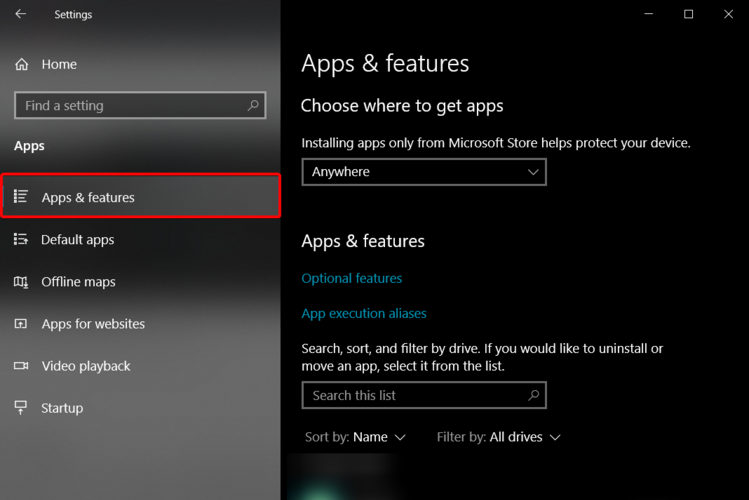
  2. Go to Apps.
  3. Select Apps & Features, from the left window pane.
  4. On the right side, scroll down to the Search this list bar, then type the game’s name.
  5. Locate and select your game, then click on Uninstall.

Reinstall the game

  1. Open the RIOT support website.
  2. Click on the Download for Windows button.
  3. Follow the on-screen instructions to install the game.

3. Submit a ticket to the support team

  1. Go to the League of Legends support website.
  2. Log in with your LoL credentials.
  3. Scroll down, then click on the Submit a ticket red button.
  4. In the search box, select the General League of Legends question, complete the indicated bars, then click on the Submit button.

We made sure to select the most valuable methods that will definitely help you get rid of the red border and fix the League of Legends moving camera.

If LoL is acting unusual, you can always check a full guide about how to fix League of Legends crashes on Windows 10.

Because your opinion is important to us, feel free to share your thoughts regarding this subject, and leave a comment in the section below.

FIX: Zoom filters not showing error

Due to the global pandemic, more and more people started working from home so a lot of meetings have become entirely digital.

Zoom has become a popular choice amongst users due to its features, from high-quality HD video and audio to cross-platform messaging and fun filters that can brighten any boring meeting.

So what do you do when you can’t access these fun filters? You follow our easy step-by-step guide to fix this issue and use the desired filters to transform your living room into a beach and hide the mess behind it.

How to fix the Zoom filters not showing error?

1. Re-install the latest version

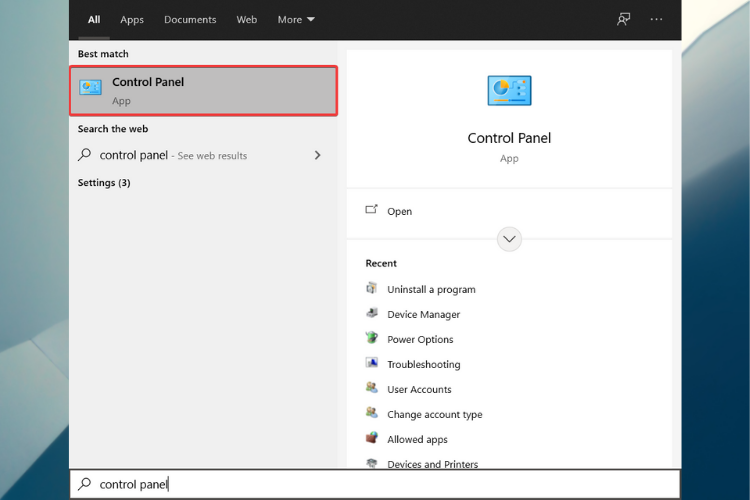
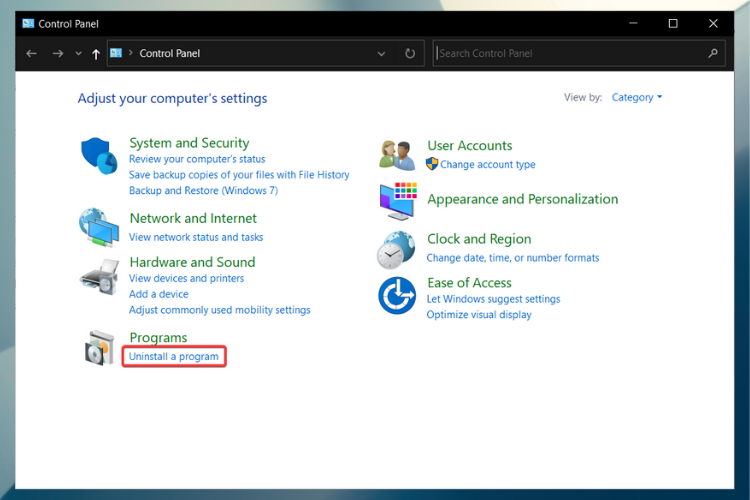
  1. Go to the Search bar, type Control Panel then hit Enter.control panel
  2. Select Uninstall a program under Programs.Control Panel - Uninstall
  3. Locate the Zoom app, right-click on it and select Uninstall.
  4. After the process is complete, restart your PC.
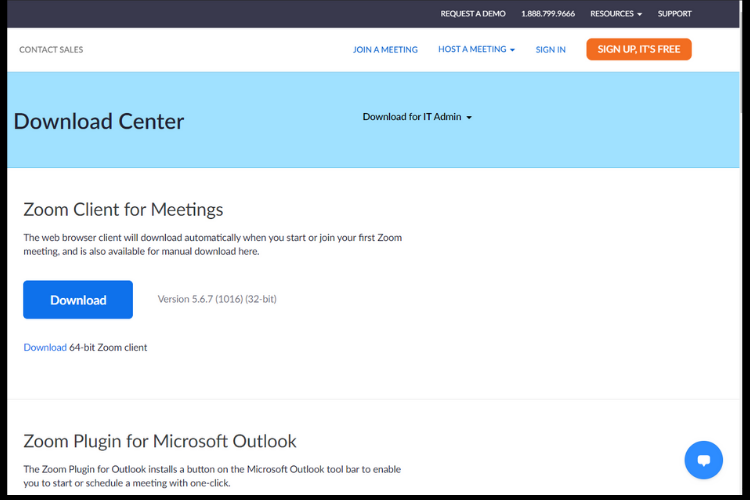
  5. Now, go to the official Zoom website and download the latest version.zoom download
  6. Install the app following the on-screen instructions.
  7. When opening Zoom on your PC, go to the one base filter which is called Touch up my Appearance.
  8. To access it, click on the gear icon on the top right and go to the video tab.

If you want to make sure you completely remove any trace of the Zoom app from your PC, we strongly recommend using a dedicated tool.

Using specialized software like CCleaner, you may search and erase any repository files from your computer, ensuring a clean re-installation of any application.

Health Check combines renowned optimization and cleaning functions from CCleaner into a single, easy-to-use interface.

When the zoom filters are not showing, this is an issue that may be fixed with a clean install if the program was properly removed with CCleaner.

Hence, you can entirely remove Zoom and its files with the help of this practical uninstalling method.

2. Create an account

  1. Go to the official Zoom website.
  2. Complete the age verification process and then click on Continue.
  3. Confirm your email.
  4. Click the Sign-Up button.
  5. Check your email for confirmation.
  6. Click on the Activate Account button.
  7. Complete your information to create a Zoom account and log in on the downloaded app to access the filters.

3. Use a more reliable app

You know that if you’re not completely happy with Zoom, you can use another app. There are many good apps you can choose from for your video calls.

We hope that our guide helped you and you can now use the Zoom filters as intended, to make meeting more fun and memorable.

Moreover, take a look at the best video conferencing software in order to enjoy face-to-face chat even if all the participants are miles away.

If you have any questions or some suggestions, we can only encourage you to use the comments section below.

Windows news recap: TikTok for Windows arrives in the Microsoft Store, MSN Sports app to be discontinued, and more

Welcome back to our Windows news recap, where we go over the top stories of the past week in the world of Microsoft’s flagship operating system.

Official TikTok app launches for Windows devices in the Microsoft Store

TikTok have launched their own app in the Microsoft Store for Windows. The app is similar to that of Instagram, whereby the app is essentially the web experience of the platform, as opposed to a specially-crafted app.

Windows TikTok app
Windows TikTok app

Microsoft is testing giving ETAs for OS updates on Windows 11

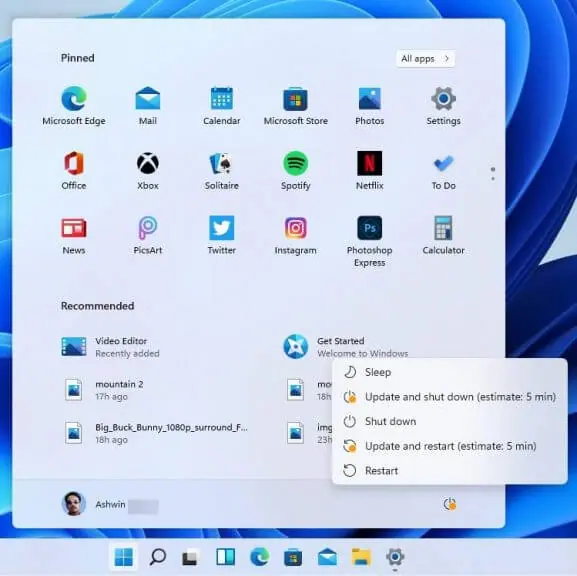
The first preview build of Windows 11 is now available, and some people are seeing that Microsoft is testing showing ETAs for updates, helping to provide an indication of how long an update will take, before you actually commit to updating. This can be useful if you’re sceptical of updating whilst tight on time.

Microsoft is testing giving etas for os updates on windows 11 - onmsft. Com - july 2, 2021

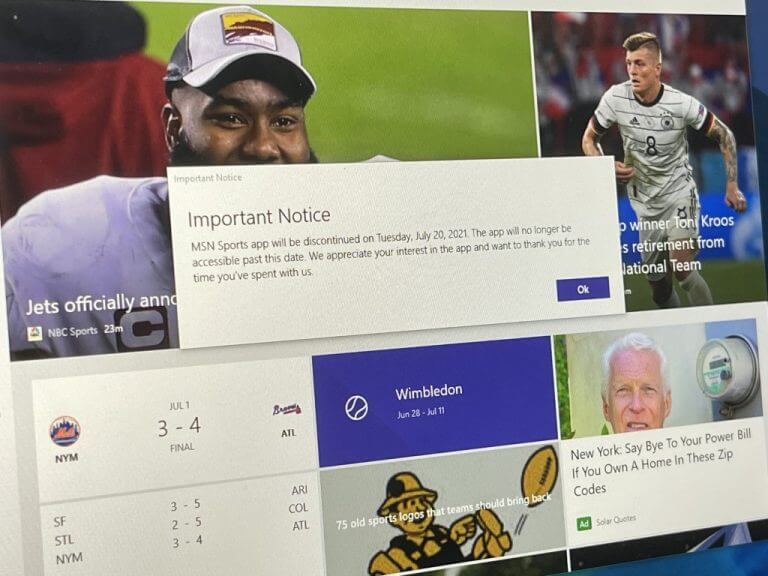
Microsoft to discontinue the Windows 10 MSN Sports app on July 20

The MSN Sports app on Windows 10 will be discontinued on July 20. No reason has been provided for the discontinuation.

Microsoft acknowledges “PrintNightmare” remote code execution vulnerability affecting Windows Print Spooler service

A new security vulnerability has been acknowledged by Microsoft. “PrintNightmare” is a remote code execution vulnerability which affects the Windows Print Spooler service. The company also confirmed that it is in all versions of Windows, but it’s not clear if all versions are susceptible to the flaw. Microsoft is continuing to investigate.

That’s it for this week. We will be back next week with more Windows news.

Fix: Third Monitor Keeps Disconnecting on Windows 10

Having a third monitor can have its advantages, from improving work productivity to getting the best experience when playing your favorite online games.

Unfortunately, this leaves room for Windows 10 errors such as connectivity issues, hardware problems, or even faulty graphics drivers.

If your third monitor randomly disconnects and displays a no signal message, read our guide and follow the steps to fix it.

What can I do if my third monitor keeps disconnecting?

1. Change the display settings

  1. Go to the Start and click on Settings.
  2. Select System.System
  3. On the Display option, scroll down to Multiple displays sections.multiple displays
  4. Make sure the Extend these displays option is chosen.
  5. While here, check also all your display settings to make sure they are set up for multiple monitors.

2. Update Windows 10

  1. Open the Start Menu and click on Settings.
  2. Click on Update & Security.Update & Security
  3. On Windows Update, click the button Check for updates. check for updates
  4. If there are any available updates, install them.
  5. After the process is complete, restart your PC.
  6. You can now check if the issue still persists.

3. Update your drivers

3.1 Use Device Manager

  1. Right-click on Start and select Device Manager.
  2. Search for the Display adapters section and expand the menu.display adapters
  3. Right-click on your graphics driver and choose Update Driver from the menu.update amd driver
  4. Click on Search automatically for updated driver software.search automatically for the updated driver
  5. Windows will now search and install the latest driver for your PC.
  6. Follow the on-screen instructions to finish.
  7. After the update is complete, reboot your computer.

3.2. Use automated software

You’ll be happy to know that you can also use a third-party app that can search and install all necessary drivers with only a few clicks.

This dedicated software tool will scan your computer for compatible drivers, automatically download and install them, all while keeping your system constantly updated, so you won’t have any problems in the future with outdated drivers.

Plus, it helps you to prevent any serious damages to your system provoked by installing the wrong drivers for your devices.

Such practical software will definitely optimize your system functionality with the latest version of your drivers, so if you need such services to resolve this error, you should go for it.

⇒ Get Outbyte Driver Updater

4. Set the power plan to high in Windows

  1. Press the Windows + R keys to open the Run dialog box.
  2. Type in the following powercfg.cpl and then press Enter.powercfg.cpl
  3. In the Power Options window, choose High Performance.high performance
  4. Change the plan settings to Never.
  5. Click Save changes and exit.save changes

5. Change the resolution

  1. Right-click your desktop and select Display settings.desktop-display settings
  2. Scroll down to Scale and Layout and click the drop-down menu located under Display Resolution.display resolutions
  3. Because Windows 10 assigns these resolutions as recommended based on the display’s hardware you need to select a screen resolution that works best for your monitor.
  4. Lastly, make sure your monitor and graphics card can run at your chosen resolution.

6. Additional solutions

Here are a few additional solutions worthy of your attention:

  • Try another video cable on your monitor and check if the problem persists
  • Verify if there’s a lack of power to the card from your power supply unit in the system
  • Make sure that your video cable from the monitor is securely and firmly connected to your PC
  • Sometimes, unplugging the monitors and plug them back in one at a time can help your computer recognize all three monitors and use them properly
  • Try to use HDMI ports for all your monitors; sometimes, using VGA or DisplayPort can cause disconnections

We hope our guide fixed your problem and that you can now use your third monitor with no interruptions.

For more details on this topic, check out our guide on how to use multiple monitors like a single monitor.

If you have questions, suggestions, or want to share other solutions you might’ve encountered regarding this issue, just use the comments section below.

How to install mouse driver without mouse

Your mouse isn’t working properly, and you can’t use it at all? This can be inconvenient, so today we’ll show you how to install a mouse driver without a mouse.

Many users reported that their mouse drivers aren’t installed properly, and this can significantly impact your performance and make your mouse useless.

To fix this problem, you need to rely on keyboard shortcuts, use the touchpad, or your phone to control your PC. Now that you’re ready to go, let’s see how to fix this problem, shall we?

How can I install a mouse driver without a mouse?

1. Use driver updater software

The simplest and fastest way to install the missing drives is by using driver updater software. With such a tool, all your drivers will get updated with just a couple of clicks.

These tools are also great for long-term maintenance of your system as they can be set up to perform regular scans so you can make sure your drivers never go out of date again.

2. Install the latest Windows updates

  1. Press Windows Key + I to open the Settings app.
  2. Navigate to the Update & Security section.
  3. Now select the Check for updates button.

If any updates are available, they will be installed automatically. Once your system is up to date, the latest mouse driver should be installed.

3. Use the Device Manager

  1. Press Windows Key + X and select Device Manager from the list.
    device manager
  2. Expand the Mice and other pointing devices section.
  3. Right-click your mouse (or use the context menu key on your keyboard) and select Update driver.
  4. Select Search automatically for updated driver software.
  5. Windows will now scan for missing drivers and install them automatically.

This is the simplest and the fastest method to install mouse drivers on your PC but keep in mind that you’ll need to rely on your keyboard and keyboard shortcuts or any other input method to perform these steps.

4. Reinstall the current drivers

  1. Open the Device Manager.
  2. Now expand the Mice and other pointing devices section.
  3. Right-click your mouse or use the context menu key on the keyboard.
  4. Now select the Uninstall device option.
  5. When the confirmation dialog appears, select Uninstall.
  6. Do this for all mouse devices that you have on your system.
  7. After you remove them all, restart your PC.

This is a simple workaround that should force Windows to automatically install the default mouse driver on your PC.

Few users reported that they managed to fix the problem by leaving just one mouse device on their PC, so feel free to try that as well.

5. Try a different port or mouse

If you need to install a mouse driver, try connecting the mouse to a different port. Sometimes certain USB ports won’t recognize your mouse, so be sure to try all ports on your PC.

Moreover, be sure that your mouse isn’t faulty in any way. In the worst-case scenario, try using one of the best PC mouse models and check if that helps.

To install a mouse driver without a mouse you need to rely on other input methods or keyboard shortcuts, but this isn’t as hard as it may seem.

We hope that you found this guide informative and that you managed to install the missing drivers without too much hassle.

FIX: CS GO video settings are not saving

Released in 2012, Counter-Strike: Global Offensive is the fourth game in the CS series, being extremely popular worldwide.

However, players reported that sometimes CS GO video settings are not saving. After checking the best forums, we selected the most reliable descriptions of this problem.

This is what users are saying on the StackExchange forums:

Every time I decreased my visual setting it maximizes the whole settings at every restart. I don’t know if I used a console command unintentionally. 

Also, gamers reported the following on the Reddit forums:

Csgo video settings not changing from auto. Even after changing it remains Auto.

Our guide will present the best methods that can surely help to solve this irritating issue. We selected the most efficient ones, so make sure you keep an eye on this article to find out which suits you the most.

What can I do if CS GO video settings are not saving?

1. Change video settings properties

  1. Open the File Explorer.
  2. Go to the following location: C:YourSteamFolderHereuserdata765****730localcfg
  3. Right-click on video.txt, then select Properties.
  4. Uncheck the Read-Only box, then click on OK.

2. Reload your HUD

If your CS GO video settings are not saving, you should also consider using some command to reload the HUD, also known as the head-up display. Thus, we recommend the following:

hud_reloadscheme

The above command will help you to reload the HUD, applying all the custom changes.

cl_reload_hud

This command will cancel all the changes to CS:GO HUD, returning the default settings.

3. Uninstall and reinstall the game

Uninstall CS GO

  1. Open Settings.
  2. Go to Apps.
  3. Choose Apps & Features from the left window pane.
  4. On the right side, scroll down to the Search this list bar, then type the game’s name.
  5. Locate and select your game, then click on Uninstall.

Uninstall Steam

  1. Close Steam.
  2. Open Control Panel.
  3. Search for Programs and Features, then click on Add or remove programs.
  4. Select Steam from the list and click on Uninstall.
  5. Follow the on-screen steps to complete the process.

Reinstall

  1. Access the Steam Powered official store.
  2. In the right-top corner, click on the Install Steam green button.
  3. Follow the on-screen instruction to install it.
  4. After the installation is completed, click on the Play game green button.

4. Update your game video driver

You should consider the support of third-party software as being one of the most efficient methods to stop CS GO settings from randomly reset. Our listed problem can be related to some driver issues. Thus, we come up with this great idea of a long-term ally.

How can it make a difference? Unlike the options presented above, using a specialized tool is an automatic way to keep your game drivers always up to date.

5. Contact the CS GO Steam Support

  1. Access the CS GO Steam support website.
  2. Scroll down, and click on Log in for more personalized options.
  3. Enter your Steam credentials.
  4. Describe your problem as detailed as possible.

This was our list that presented the best recommendations to make your CS GO video settings save. Thus, you’ll never worry again about this kind of trouble.

For the times when your PC is acting weird, you should definitely check a full guide regarding computer crashes while playing games in Windows 10.

Because your opinion is important to us, don’t hesitate to leave a comment in the section below with which solution suited you the most.

How to update video driver for Rainbow Six Siege

Considering your PC games, the video drivers are some of the most important software components. Thus, installing and constantly updating them represent mandatory processes.

Fortunately, these actions can be done with ease. So, you don’t have to be an expert to perform any of them.

After checking the most popular forums, we made sure to select a series of efficient options that you should definitely consider.

This article will show you how to update the video driver for Rainbow Six Siege with a minimum effort from your side.

How can I easily update the video driver for Rainbow Six Siege?

1. Update your operating system

  1. Open Settings.
  2. Go to Update & Security.
  3. From the left side, select Windows Update, then click on the Check for updates, in the right window pane.

2. Use Device Manager

  1. Open Device Manager.
  2. Expand Sound, video, and game controllers.
  3. Locate the needed sound device on the list, right-click on it, then choose the Update driver option.
  4. Click on Search automatically for updated driver software.
  5. Windows will automatically find a suitable driver and will try to update it.

3. Try the support of a dedicated tool

You can easily update your Rainbow Six Siege video driver using the support of a dedicated tool. Unlike the methods presented above, this one is able to perform the processes in an automatic way.

With its help, you’ll not have to worry again about keeping your drivers up to date. Thus, this software will surely get to be your mainly long-term ally.

After checking the most popular forums, we can strongly admit that these are the quickest and most efficient solutions you can find.

For any other automatic driver support, we strongly recommend checking a list including the best driver update software for Windows 10.

If you have additional questions or information, don’t hesitate to leave a comment in the section below.

GMod Game Crashes When Joining the Server [Full Fix]

More and more players have been searching the forums in hope of an answer and solutions to why Garry’s Mod crashes when they’re joining the server.

Like any other game, issues can occur for a variety of reasons, from running too many programs in the background to improper game settings, or due to the game’s cache.

Because GMod makes no exception, you’re bound to encounter crashes, so try our solutions below to fix it.

What to do if the GMod game crashes when joining the server?

1. Unsubscribe

steam account
  1. Log in to your Steam account.
  2. Open the Subscribed Files page in the Workshop.
  3. Here, we recommend you unsubscribe from everything.
  4. Scroll to the bottom of the page and find the option to display 30 files at once.
  5. Press the Ctrl + Shift+ J keyboard shortcut at the same time to open the console.
  6. Hold down Ctrl + V and paste this code into the Console: (function() .jQuery (‘. Btn_grey_black’). Map (function)-this.click()-)-) ()
  7. Press Enter to complete.
  8. Use this method multiple times in order to delete all add-ons if you have over 30.

2. Delete all add-ons

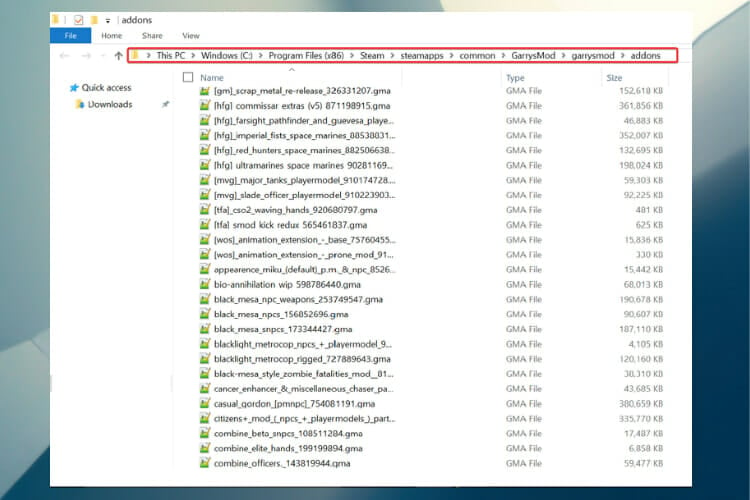
Add-ons folder Gary's Mod
  1. Navigate to:
    C:Program Files (x86)SteamsteamappscommonGarrysModgarrysmodaddons
  2. Select and delete everything in the add-ons folder.

3. Reinstall the game

Coantrol Panel - Uninstall
  1. Go to the Search bar, type Control Panel then hit Enter.
  2. Select Uninstall a program under Programs.
  3. Locate Gary’s Mod, right-click and select Uninstall.
  4. After the process is complete, restart your PC.
  5. Now try installing the game again and see if you can join the server.

You can also try removing GMod from your computer using a dedicated tool that will automatically scan and remove all repository and unnecessary files from your computer in a matter of seconds.

IObit Uninstaller 10 PRO

IObit Uninstaller 10 PRO

With IObit Uninstaller Pro it’s easy to remove apps and clean their leftovers completely!
Check priceVisit website

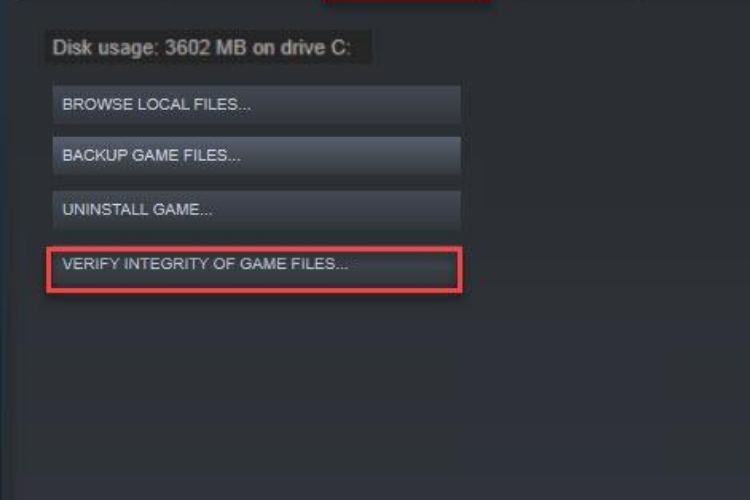
4. Verify the integrity of your game files

Verify integrity Gary's Mod
  1. Open Steam and click on the Library tab.
  2. Right-click on Gary’s Mod and go to Properties.
  3. Click on Local Files and then on Verify integrity of game files.
  4. This will check for any missing or corrupt files you have and redownload them.
  5. Wait for the process to finish.
  6. Relaunch GMod.

5. Turn off your firewall

Because anti-virus software often interferes with Steam, it can lead to various issues, from connection problems to games not launching properly.

Being that the games in Steam do not have viruses, or else they’d be off the market, the firewall might cause GMod to crash whenever you’re joining the server.

Just set your firewall to Game Mode or turn it off altogether before launching Steam and you should be fine.

6. Unmount Team Fortress 2

1. At first, open Gary’s Mod.
2. On the bottom right-click the controller.
3. Scroll down until you find Team Fortress 2.
4. Make sure the box beside it is not checked.
5. Now restart GMod.

If you’re interested in having the best possible experience when playing GMod, check out our article and discover all there is to know about fixing Garry’s Mod issues on Windows 10.

You should now be able to join the server and play the game with no problems. For thank you notes or questions, just use the comments section below.

FIX: Microsoft account password reset doesn’t work

Depending on the issue you are dealing with, there are several ways on solving any problem related to your Microsoft account and it does not have to be a time-consuming task.

It’s not uncommon to forget the Microsoft password and find yourself in a situation where you need to reset it in order to log in. Your Windows 11 password may have changed on its own but it seems though, that for many users this is not possible.

In case you are wondering what to do if the Microsoft account password reset is not working, we’ve got you covered. Just keep on reading this article to find out some quick tips.

What to do if the account password reset doesn’t work?

1. Check for incorrect entries

Although it sounds like an easy solution, it is always a good thing to check one more time and to remember at the same time that passwords are case-sensitive.

Make sure to check that all caps are not on and try to ensure that you do not have typos in your password. Using Notepad to check the accuracy of the password is recommended.

Another important aspect is to ensure that you have entered your email correctly and that the domain name you are using is the correct one. The domain name is the one that appears after the @ symbol.

2. Clear browsers’ history

  1. Simultaneously press Google Chrome’s Ctrl + Shift + Del keyboard shortcut.
  2. Select the All Time option on the drop-down menu.
  3. Tick the checkboxes for cookies, cached images, and browser history.
  4. Click the Clear data option.

3. Use a different way to sign in

In case you have set up previously a Windows Hello PIN for the current Microsoft account go to the devices and try to recover your account.

If for example you have been locked out of your Windows PC, then the first thing to do is to go to the login screen and click on the I Forgot My PIN option. Follow the steps presented on the screen to recover your login credentials.

After you regain access with an alternate sign in or PIN recovery, update your credentials immediately by following our How to Change Microsoft 365 Password guide.

4. Fill out the recovery form

If you have tried all the above solutions but none of them was successful then the next recommended thing to do is to fill out a recovery form.

Before proceeding with this step, it’s important to make sure that you have a working email address that you can access as there you will receive the information about your request.

The email account does not need to belong to you, it can just as easily be one that a friend or a relative uses. Or you can create a temporary outlook.com account for free.

It is recommended that you complete the recovery form by using a device that you have previously used to sign in to your account and from a commonly known location.

This is about all. We hope that the information we have presented in this article will help you solve the Microsoft account password reset not working problem.

Perhaps a good idea in the future will be to use a tool that will help you manage all your passwords automatically. By doing this you should avoid this kind of situation from happening again.

As always, don’t hesitate to drop us a message in the comments section below and let us know which one of the presented solutions here helped you solve the problem.

How to change Microsoft Family member from adult to child

Microsoft Family allows you to create family groups, stay connected, and keep your kids safer. Its main advantages are the free cost and the simplicity of using it.

There are times when users need to switch the status. This article will show you some of the best methods to change the Microsoft Family member from adult to child.

Note that on the 17th of July 2020, Microsoft released Microsoft Family Safety on Google Play and App Store as well. So, you have many more options to manage your children’s accounts.

How can I change the Microsoft member from adult to child?

1. Add a new member

  1. Open Settings.
  2. Go to Accounts.
  3. Click on the Family & Other Users in the left window pane.
  4. Select Add a family member.
  5. Enter your family member details, and add a new Child account.

2. Use account removal

  1. Under your account, remove the Adult member account from your family.
  2. Add the account back, but select Child instead of Adult.
  3. Log into your child’s account and accept the family request.
  4. Once the process is completed, they will be added back into your family as a Child.
Note icon NOTE
In order to gain more control, keep in mind that you can also manage their restrictions.

3. Change the date of birth

  1. Access the Microsoft Account official page and sign in.
  2. Select Your info.
  3. Up next, select Edit date of birth.
  4. Make your changes and select Save.
  5. Re-invite the user as a child.

At least one of the solutions listed above should help you easily change the Microsoft Family member from adult to child.

If you want to keep your family members close to each other even when you’re apart, feel free to check how Microsoft Teams just became a lot more family-friendly.

For other additional questions, don’t hesitate to leave a comment in the section below. We’ll suggest some of the most valuable options to solve anything you need.

Microsoft LifeCam Not Working: Fix It with 6 Easy Tips

LifeCam Studio is a webcam for Windows PCs. Despite being a Microsoft camera, it is not without flaws some users are reporting that LifeCam is not working on their PC.

If that’s happening to you as well, rest assured that there are quite a few solutions that you can try to apply. Just take a closer look at the fixes in this guide.

Why is Microsoft LifeCam not working?

Listed below are some of the notable reasons Microsoft LifeCam might not be working:

  • Outdated driver: The most prevalent reason Microsoft LifeCam keeps disconnecting is an outdated or faulty driver. You can fix this by reinstalling or updating the driver.
  • Issues with the hardware: Sometimes, this problem might occur because of some minor hardware and connection issues. You need to run the Hardware and Devices troubleshooter and check your connections to solve the problem.
  • Outdated PC: If Microsoft LifeCam cinema doesn’t work properly on your PC, it might due to an outdated operating system. The solution is to update your PC.

How to fix a LifeCam Studio webcam that’s not working?

Here’s what to do first:

  • Your camera might work fine when connected to a different USB port. Try plugging your Lifecam camera into alternative USB ports on your PC.
  • Also, make sure you plug the LifeCam directly into the PC without any USB hub.
  • Aside from that, it would be best if you also unplugged any superfluous USB devices. The mouse is one notable exception, but make sure you unplug things like external hard drives, USB hubs, etc.

1. Update your PC’s USB port and camera drivers

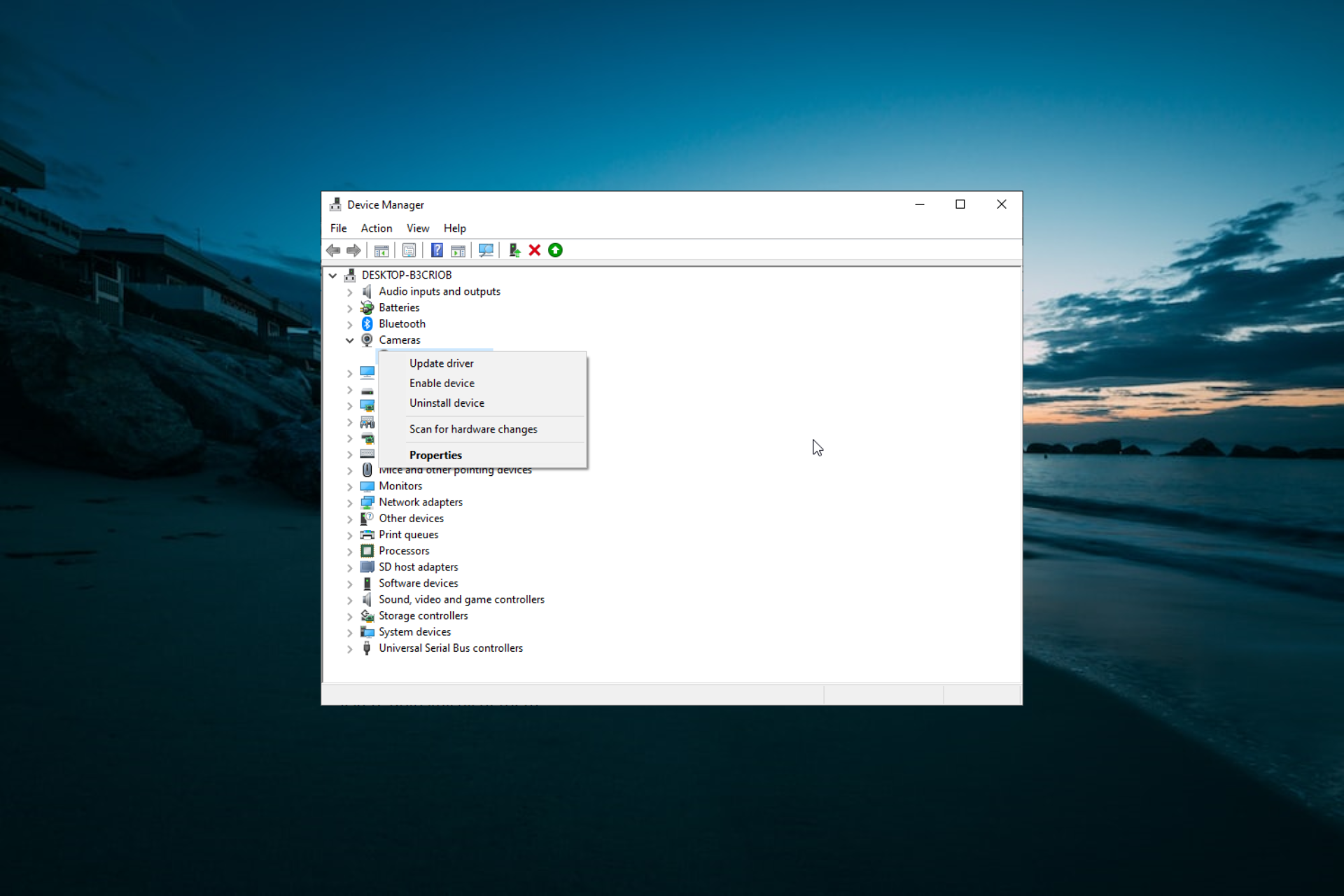
  1. Press the Windows key + X and select the Device Manager option.
    device manager
  2. Double-click the Imaging devices or Cameras option to expand it.
  3. Now, right-click LifeCam and select Update driver.
    update driver
  4. Finally, choose Search automatically for drivers and install any available updates.
    searcch auto microsoft lifecam not working

It’s recommended to scan your PC with driver updater software to identify outdated or faulty USB ports or webcam drivers.

A driver updater utility will show you all the devices you need to update drivers for. Then you quickly update drivers for devices with the driver updater software.

2. Run the Hardware and Devices troubleshooter

  1. First, make sure your LifeCam Studio camera is connected to your PC.
  2. Press the Windows + S, type cmd, and click Run as administrator under Command Prompt.
    cmd admin
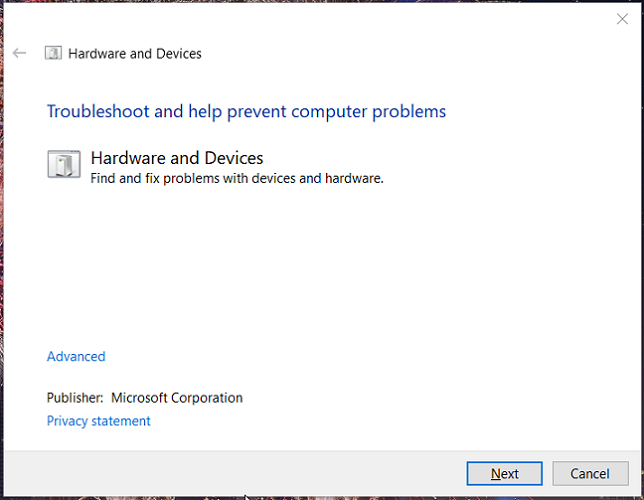
  3. Next, input this command and hit Enter: msdt.exe -id DeviceDiagnosticmsdt microsoft lifecam not working
  4. Click Advanced in the Hardware and Devices troubleshooter window.
    Hardware and Devices troubleshooter lifecam studio not working
  5. Finally, check the Apply repairs automatically checkbox and click the Next button to resolve hardware issues with the troubleshooter.

3. Make sure the LifeCam webcam is enabled

  1. Right-click your Start button and select the Device Manager shortcut on the menu.
    device manager microsoft lifecam not working
  2. Next, click the View menu and select Show hidden devices.
    show hidden
  3. Double-click the Imaging devices category, which usually includes Microsoft LifeCam Studio cameras. However, double-click the Cameras or Sound, video, and game controllers category if you can’t find it in Imaging devices.
  4. Finally, right-click your LifeCam camera and select the Enable device option if that webcam is disabled.
    enable device

4. Uninstall the LifeCam driver

  1. Launch Device Manager and expand the Imaging devices or Cameras section.
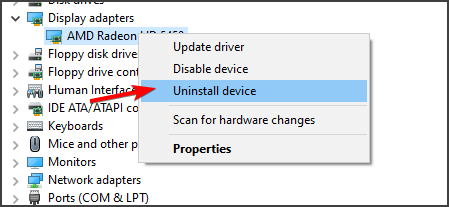
  2. Right-click the LifeCam device and select Uninstall device.
    uninstall device
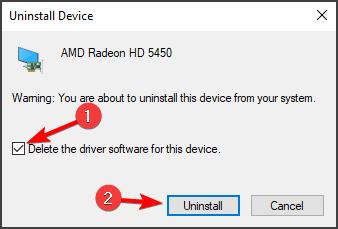
  3. Now, click the Uninstall button to confirm the action. If there are multiple LifeCam devices listed, uninstall all of them.
    uninstall
  4. Finally, restart your PC, and Windows will automatically reinstall the drivers.

5. Check your PC’s camera settings in Windows 10

  1. Press the Windows key + I and select Privacy.
    privacy microsoft lifecam not working
  2. Select the Camera in the left pane.
  3. Now, toggle the Allow apps to access your camera switch forward to enable it.
    allow
  4. Also, enable the listed camera apps you need to utilize LifeCam Studio with.

6. Update Windows 10

  1. Press the Windows key + I and select the Update & Security option.
    update and
  2. Now, click the Check for updates button.
    check for
  3. Finally, download and install any available updates, including the optional ones.

The above resolutions might be enough to fix LifeCam Studio webcams not working for most users. If those resolutions aren’t enough, you can get in touch with a support agent via the Microsoft Contact Us page for more troubleshooting guidance.

And if you still happen to suspect a driver-related issue, just take a closer look at this guide dedicated to Microsoft LifeCam software and drivers.

Hardware troubleshooters might also come in handy for fixing LifeCams not working in Windows 10. Just let us know which method worked for you in the comments area below.

TPM 1.2 vs 2.0: Differences & How to Upgrade

As you probably know, Windows 11 was recently announced, and it brings a wide array of new features as well as some specific requirements.

Regarding Windows 11 hardware requirements, the new change everybody is talking about is the TPM chip, and unless you have it, you won’t be able to upgrade to Windows 11 due to TPM 2.0 errors.

There are two versions of TPM, and in this guide, we’re going to compare TPM 1.2 vs 2.0 and see which one is better.

TPM 1.2 vs 2.0, which one should I use?

A quick history of TPM

TPM was first introduced by Trusted Computing Group in 2009, and since then it has been used in computers, ATM devices, and set-top boxes.

As for the TPM 1.2, it was released in 2005, and it has received the last revision in 2011. On the other hand, TPM 2.0 was released initially in 2014, while the latest revision being from 2019.

The two versions have various differences, but before we start comparing them, let’s see what TPM does and how it protects your PC.

What is TPM?

TPM stands for Trusted Platform Module, and it’s a dedicated microcontroller that provides encryption features and an additional layer of security to your PC.

TPM is usually a chip on your motherboard, but it can be also integrated inside of the CPU, or it can run in firmware separately. Some motherboards have TPM connectors, so you can add a TPM chip on your own.

There’s also a completely virtual TPM that runs on a software level, but many experts believe that it’s not as safe as its physical counterpart.

How does TPM work?

TPM is used mostly for encryption, and it will generate and store parts of the encryption keys. This means that if you want to unlock an encrypted drive, you’ll need to use the same TPM chip that generated the encryption key.

Since the encryption key isn’t stored on your drive, it’s harder for hackers to decrypt your data since they need access to the TPM chip as well.

TPM chips also have tamper protection, and in case the chip or motherboard is tampered with by a hacker, the TPM should still be able to keep your data locked.

In addition to encryption, the TPM can protect your PC from bootloader malware by verifying the boot loader. In case your bootloader has been tempered with, TPM will prevent your system from booting.

TPM also has a Quarantine Mode that you can use to fix bootloader issues. Lastly, TPM stores all your passwords inside it, which makes them secure from hackers.

As for other uses, TPM is used for digital rights management, protection of software licenses, and in some cases, as prevention from cheating in video games.

TPM 1.2 vs 2.0, what are the differences?

TPM 2.0 is an improvement over TPM 1.2, and while they are similar, you should know that TPM 2.0 isn’t compatible with TPM 1.2.

TPM 1.2 has a one-size-fits-all specification, while the 2.0 version has platform-specific specifications that define which parts of the library are mandatory or optional.

As for algorithms on TPM 1.2, SHA-1 and RSA are required, while the AES is optional. With TPM 2.0, SHA-1 and SHA-256 are required for hashes.

RSA and ECC with Barreto-Naehrig 256-bit curve and a NIST P-256 curve are used for public-key cryptography and asymmetric digital signature generation and verification in TPM 2.0.

As for symmetric digital signature generation, the TPM 2.0 is using the HMAC, and 128-bit AES for symmetric-key algorithms.

The difference between algorithms is noticeable, which makes TPM 2.0 a far secure solution.

Regarding the crypto primitives, the TPM 1.2 and 2.0 offer the following:

  • Random number generation
  • Public-key cryptographic algorithm
  • Mask generation function
  • Digital signature generation and verification
  • Symmetric-key algorithms

Despite sharing the same features, TPM 2.0 uses Direct Anonymous Attestation using the Barreto-Naehrig 256-bit curve, so it’s safer to use.

In terms of hierarchy, TPM 1.2 has just the storage hierarchy, while TPM 2.0 has a platform, storage, and endorsement hierarchy.

Regarding the root keys, only SRK RSA-2048 is supported with TPM 1.2, while the TPM 2.0 supports multiple keys and algorithms per hierarchy.

As for authorization, TPM 1.2 uses HMAC, PCR, locality, and physical presence. TPM 2.0 offers the same authorization features as well as password protection.

In terms of NVRAM, TPM 1.2 supports only unstructured data, while TPM 2.0 supports unstructured data, Counter, Bitmap, Extend, PIN pass and fail.

As you can see, TPM 2.0 offers a wide array of improvements, and it’s a more secure choice when it comes to data protection and encryption.

Here’s a quick overview of the algorithms that TPM 1.2 and TPM 2.0 support.

Algorithm type:Name:TPM 1.2TPM 2.0
AsymmetricRSA 1024YesOptional
RSA 2048YesYes
ECC P256NoYes
ECC BN256 NoYes
SymmetricAES 128 OptionalYes
AES 256OptionalOptional
HashSHA-1YesYes
SHA-2 256NoYes
HMACSHA-1 YesYes
SHA-2 256NoYes

Why is TPM 2.0 better than TPM 1.2?

TPM 1.2 only uses the SHA-1 hashing algorithm, which is a problem since SHA-1 isn’t secure, and many agencies started moving to SHA-256 in 2014.

Microsoft and Google removed the support for SHA-1 based signing of certificates in 2017. It’s also worth mentioning that TPM 2.0 supports newer algorithms that will improve drive signing and key generation performance.

TPM 2.0 also offers a more consistent experience, and the lockout policy is configured by Windows. With TPM 1.2, the implementations vary by policy settings, which can be a security concern.

We also have to mention that certain features such as device encryption, Windows Defender System Guard, Autopilot, and SecureBIO are available only when using TPM 2.0.

Here’s a list of features that TPM 1.2 and TPM 2.0 support:

TPM 1.2TPM 2.0
Measured Boot✅✅
BitLocker✅✅
Device Encryption❌✅
Windows Defender Application Control✅✅
Windows Defender System Guard ❌✅
Credential Guard✅✅
Device Health Attestation✅✅
Windows Hello✅✅
UEFI Secure Boot✅✅
TPM Platform Crypto Provider Key Storage Provider✅✅
Virtual Smart Card✅✅
Certificate storage✅✅
Autopilot❌✅
SecureBIO❌✅

Does Windows 11 require TPM 2.0?

When it was first announced, the Windows 11 hardware requirements stated that Windows 11 will work with TPM 1.2 and TPM 2.0, with the latter being a more secure choice.

According to the documentation, an upgrade to Windows 11 would be allowed with a TPM 1.2 chip, but not advised. However, Microsoft has updated its documentation, and currently, the TMP 2.0 stands as the requirement for Windows 11.

This leads us to believe that TPM 2.0 is the requirement for Windows 11 and that users with TMP 1.2 chips won’t be able to use Windows 11.

However, there’s a way to install Windows 11 without TPM, if you’re tech-savvy. On the bright side, it seems that some Windows 11 systems will work without TPM 2.0 chips, which is great news for many.

Is TPM intended only for business users?

Although TPM was developed initially for business users, the technology is now available on home PCs as well.

While encrypting your data isn’t essential for home users, if you want to ensure that your files are safe at all times, then encrypting your files and using TPM is a must.

Not all encryption requires TPM, but using it offers a layer of hardware security which makes it harder for hackers to access your data.

It offers tampering protection, so you can rest assured that your encrypted files will stay protected against hackers even if they try to modify your hardware.

TPM isn’t just used for file encryption, and you’re probably using it as a home user without even knowing it. If you’re using Windows Hello feature, you’re already using a TPM.

Your passwords and PINs are also stored in TPM, even for home users. Lastly, TPM provides you with a Secure Boot feature that stops bootloaders from infecting your PC.

So even if you’re not a business user and you don’t encrypt your data, you still benefit from TPM as a home user.

Conclusion

TPM 1.2 and TPM 2.0 have their benefits, and with recently announced Windows 11 requirements, the TPM chips will become a must-have, so if you don’t own a TPM chip, you might want to consider buying a TPM chip.

If you want to learn more, we also have a guide on TPM in Windows 11, so don’t miss it.

So which version of the TPM is better? The answer is pretty simple, the TPM 2.0 is newer, more secure, and it offers more security features, it works better with Windows, and we can safely say that TPM 2.0 is a better choice than TPM 1.2.

Check out the new changes in Windows 11 Accessibility

One of the key factors that Microsoft takes great pride in when talking about Windows 11, is accessibility. The company is now hard at work trying to make its new OS much more accessible to all users.

In their latest blog post, the Redmond-based tech company details the major changes that it’s about to implement on the upcoming operating system.

Accessibility is Microsoft’s greatest focus for Windows 11

As the tech giant keeps repeating ever since they first mentioned a new operating system, the main design focal points will be productivity, creativity and ease of use.

Windows 11 comes with some of the already familiar assistive technologies such as Narrator, Magnifier, Closed Captions, and Windows Speech Recognition, in order to support users across the disability spectrum.

Also included in the new OS will be screen readers, magnification programs, CART services, speech commanding and other experiences.

Accessible technology is a fundamental building block that can unlock opportunities in every part of society. A more accessible Windows experience has the power to help tackle the “disability divide” — to contribute to more education and employment opportunities for people with disabilities across the world.

Deaf and hard of hearing, language learners, and people in noisy or in quiet environments can enjoy redesigned Closed Caption themes that are easier to read and customize.

Besides improving the already existing accessibility features, introducing new features and making users’ preferred assistive technology compatible with Windows 11, these accessibility features will be easier to find and use.

Microsoft also rebranded Ease of Access Settings to the much simpler Accessibility and introduced a new accessibility icon.

Support for Linux apps and the modern accessibility platform

Another important change that Windows 11 brings is the possibility for both Microsoft and partner assistive technologies to work with applications such as Outlook hosted in the cloud, in Azure Virtual Desktop.

To be more exact, with Windows 11, Office is accessible as a Remote Application Integrated Locally using Narrator.

According to Microsoft, Windows 11 will also support Linux GUI apps like gedit, through the Windows Subsystem for Linux (WSL), on all devices that meet this app’s system requirements. 

The tech company has also admitted to working with assistive technology industry leaders in order to co-engineer a modern accessibility platform.

What this means is that the new OS will deliver a platform that enables more responsive experiences and more agile development, including access to application data without requiring changes to Windows.

It seems that developers are really thinking about a larger number of scenarios than initially imagined by users that kept a close eye on these features, exclusively.

And there is probably even more to come, meaning that Microsoft might still have some surprise features that it will unveil when the time is right.

What is your opinion on Microsoft’s take on accessibility for the new OS? Share your thoughts with us in the comments section below.

First ARM64 version of Office is now available for Windows 11 on ARM testers

Microsoft announced two big news for Office Insiders earlier this week: First of all, there is a new beta version of Office for Windows with a fresh user experience aligned with the design of the upcoming Windows 11. Additionally, Microsoft also announced the release of a 64-bit version of Office for Windows 11 on ARM testers, which offers significant performance improvements compared to the emulated version that’s still available for Windows 10 on ARM users.

Well, even though this first ARM64 build of Office was announced on Monday, it only became available today according to Windows Central. If you own a Qualcomm-powered PC like Microsoft’s Surface Pro X, you’ll need to install the Windows 11 Insider build 22000.51 first before being able to try the 64-bit version of Office for Windows on ARM.

“This new version of Office is designed specifically for the next version of Windows on ARM. It has been recompiled for the ARM architecture to run fast, bring greater memory availability, offer better support large documents, and maintain compatibility with existing 64-bit add-ins using the new x64 emulation capability provided by Windows,” the Office Insider team explained.

Zoomed view of new theme in Word, Excel, and PowerPoint

This first Office on ARM64 build is an ARM64EC (Emulation compatible) app, which means that it supports legacy add-ins that haven’t been recompiled for the ARM64 architecture yet. For now, only Word, Excel, PowerPoint, Outlook, and OneNote have been ARM-optimized, with the rest of the Office apps still running in x64 emulation mode.

To install the first Office on ARM64 build on a Windows 11 on ARM PC, you’ll need to follow these steps:

  • Uninstall any 32-bit versions of Office, if currently installed.
  • Install Office using a most recent copy of the installer from office.com.
  • Join the Office Insider program and update to the current Beta channel build.

If this first Office on ARM64 build brings some very welcome performance improvements on Qualcomm-powered PCs, be aware that the Teams integration with Outlook is currently incomplete and that some Search features are also broken. “We will continue to make improvements while the next version of Windows remains in Insiders, so be sure to stay on the Office Beta Channel for continuous updates,” the Office Insider team said.

Windows 11 comes with an optional TPM Diagnostics tool

You may like to know that ​Windows 11 will come with a new optional feature which is called TPM Diagnostics, tool that will allow administrators to browse the TPM security processor of a certain device.

An obvious move, considering that Microsoft keeps insisting on these TPM 2.0 security processors as a requirement, necessary for powering some of its security features.

The new OS will have a default TPM Diagnostics tool

As you probably know already, from the endless discussions that this Windows 11 requirement has sparked, a TPM chip is actually a hardware security processor.

Its main purpose is to protect encryption keys, user credentials, as well as other sensitive data from malware attaccks and other forms of hacking or data extraction.

Microsoft keeps insisting on this requirement and keeps stressing the paramount importance that this little piece of hardware actually has, in a new blog post.

PCs of the future need this modern hardware root-of-trust to help protect from both common and sophisticated attacks like ransomware and more sophisticated attacks from nation-states. Requiring the TPM 2.0 elevates the standard for hardware security by requiring that built-in root-of-trust.

So, this brand new Windows 11 command-line tool called TPM Diagnostics will now give all administrators the ability to query the TPM chip for stored information.

After installing the software, you will find a new tpmdiagnostics.exe executable located in the C:\Windows\System32 folder.

TPM 2.0 is a critical building block for providing security with Windows Hello and BitLocker to help customers better protect their identities and data. In addition, for many enterprise customers, TPMs help facilitate Zero Trust security by providing a secure element for attesting to the health of devices.

What commands can I use with this new tool?

Its important to know that, unless you totally understand what data is being stored in your TPM chip, its not recommended messing with it too much.

Any mistake you make could accidentally remove the keys necessary for the operation of your device.

Know that the Microsoft Trusted Platform documentation, along with the new TpmDiagnostics.exe tool can provide a plethora of information about the underlying security mechanics of Windows 11.

This is the full list of commands which you can use on your new Windows 11 TPM tool:

tpmdiagnostics : A tool for Windows 10 build 22000
Copyright (c) Microsoft Corporation. All rights reserved.

Flags:
	PrintHelp ( /h -h )
	PromptOnExit ( -x /x )
	UseECC ( -ecc /ecc )
	UseAes256 ( -aes256 /aes256 )
	QuietPrint ( -q /q )
	PrintVerbosely ( -v /v )

Use the 'help' command to get more information about a command.
Commands:

TpmInfo:
	GetLockoutInfo
	IsOwned
	PlatformType
	CheckFIPS
	ReadClock
	GetDeviceInformation
	IfxRsaKeygenVulnerability
	GatherLogs [full directory path]
	PssPadding
	IsReadyInformation

TpmTask:
	MaintenanceTaskStatus
	ShowTaskStatus
	IsEULAAccepted
	ProvisionTpm [force clear] [allow PPI prompt]

TpmProvisioning:
	PrepareTPM
	CanUseLockoutPolicyClear
	CanClearByPolicy

AutoProvisioning:
	IsAutoProvisioningEnabled
	EnableAutoProvisioning
	DisableAutoProvisioning [-o]

EK:
	EkInfo
	ekchain
	EkCertStoreRegistry
	GetEkCertFromWeb [-ecc] [cert file]
	GetEkCertFromNVR [-ecc] [cert file]
	GetEkCertFromReg [-ecc] [ output file ]
	GetEk [-ecc] [key file]
	CheckEkCertState
	InstallEkCertFromWeb
	InstallEkCertFromNVR
	InstallEkCertThroughCoreProv
	EKCertificateURL

WindowsAIK:
	InstallWindowsAIK [-skipCert]
	WinAikPersistedInTpm
	UninstallWindowsAIKCert
	GetWindowsAIKCert [cert file]
	IsWindowsAIKInstalledInNCrypt
	EnrollWindowsAIKCert
	GetWindowsAIKPlatformClaim ["fresh"] [output file]

OtherKeys:
	PrintPublicInfo [ srk / aik / ek / handle ] [-asBcryptBlob / -RsaKeyBitsOnly / -RsaSymKeyBitsOnly] [-ecc]
	TestParms [ SYMCIPHER | RSA ] [ algorithm specific arguments ]
	EnumerateKeys

NVStorage:
	EnumNVIndexes
	DefineIndex [index] [size] [attribute flags]
	UndefineIndex [index]
	ReadNVIndexPublic [index]
	WriteNVIndex [index] [data in hex format | -file filename]
	ReadNVIndex [index]
	NVSummary

NVBootCounter:
	CheckBootCounter
	ReadBootCounter [/f]

PCRs:
	PrintPcrs

PhysicalPresence:
	GetPPTransition
	GetPPVersionInfo
	GetPPResponse
	GetPPRequest

TPMCommandsAndResponses:
	CommandCode [hex command code]
	ResponseCode [hex response code]

Tracing:
	EnableDriverTracing
	DisableDriverTracing
	FormatTrace [etl file] [output json file]

DRTM:
	DescribeMle [MLE Binary File]

Misc:
	Help [command name]
	DecodeBase64File [file to decode from base 64]
	EncodeToBase64File [file to encode]
	ReadFileAsHex [file to read]
	ConvertBinToHex [file to read] [file to write to]
	ConvertHexToBin [file to read] [file to write to]
	Hash [hex bytes or raw value to hash]
	GetCapabilities

New Black Screen of Death has been spotted on Windows 11

Microsoft is preparing to replace its infamous Blue Screen of Death (BSOD) used to signal fatal system error on Windows with a new Black Screen of Death on Windows 11. The new black screen has been spotted in the first Windows 11 preview build the company released earlier this week, but according to The Verge’s Tom Warren it “isn’t fully enabled yet.”

As you can see in the video below, the new Black Screen of Death looks identical to the existing blue BSOD, except for the new black background color. “The Verge understands Microsoft will be switching to a Black Screen of Death for Windows 11, matching the new black logon and shutdown screens,” Warren wrote.

The Windows Insider team has yet to say something on the introduction of this new Black Screen of Death, but the new black color should be probably easier on the eyes for Windows 11 users. The next version of Windows is expected to be released this holiday season, and Microsoft still has plenty of time to introduce more visual changes in the new OS.

If you have yet to install the first official Windows 11 preview build, it’s currently available for Insiders in the Dev channel, though you’ll need a PC with a 64-bit dual-core processor and a minimum of 4GB of RAM to install it. The biggest changes so far include the new Start Menu and Taskbar, the redesigned Microsoft Store, and a new Dynamic Refresh Rate feature. However, this first preview build doesn’t include Android apps and the new built-in Teams consumer experience.

Microsoft to discontinue the Windows 10 MSN Sports app on July 20

Microsoft is getting ready to sunset the MSN Sports app. Come July 20, the app will no longer be supported on Windows 10, according to a new in-app message that is triggered by a recent app update.

According to the message, after July 20, MSN Sports will no longer be accessible for download. Microsoft didn’t provide reasoning as to why, and instead lets MSN Sports users know about their appreciation for using the app with a note saying “thanks for spending time with us.”

As a note, we’re seeing the message in app version 4.54.31792.0, which was recently pushed to the Microsoft Store a couple of days ago. This doesn’t appear to impact the iOS or Android versions of the app, however, as we haven’t yet seen the message on those platforms.

Sunsetting the MSN Sports app on Windows could be seen as surprising, but it actually does make a lot of sense. Microsoft now has the News and Interests section in the taskbar in Windows 10, where you can see sports scores and stories, as well as news and weather. Meanwhile, in Windows 11, there are Widgets, where you can add your favorite sports teams to keep up in the action. Removing MSN Sports would be a good way to push users there instead.

Thanks Bruce for the tip!

Microsoft acknowledges “PrintNightmare” remote code execution vulnerability affecting Windows Print Spooler service

Microsoft has acknowledged a new remote code execution vulnerability that is currently affecting its Windows Print Spooler service. The exploit labeled “PrintNightmare” is currently being investigated by Microsoft, and the company confirmed that the code that contained the vulnerability is in all versions of Windows but it’s not clear yet if all versions of the OS are vulnerable.

The Windows Sprint Spooler is a component that manages the printing process on Windows PCs, and the Printnightmare remote code execution vulnerability can be exploited when the Windows Pint Soopler improperly performs privileged file operations. “An attacker who successfully exploited this vulnerability could run arbitrary code with SYSTEM privileges. An attacker could then install programs; view, change, or delete data; or create new accounts with full user rights,” Microsoft explained.

While Microsoft is working on a fix for this remote code execution vulnerability, the company is recommending customers to apply the security updates released on June 8, 2021. IT Admins are also invited to disable the Print Spooler service via Powershell commands, though this will disable the ability to print both locally and remotely. Another workaround is to disable inbound remote printing through Group Policy, which will block the remote attack vector while allowing local printing.

You can learn more details about the different workarounds on this page, which Microsoft plans to update with more details about the severity of this vulnerability. We don’t know yet when Microsoft will be able to release a patch, but we’ll let you know once we have more information about a fix.

Windows Telegram app updates with new video chat and screen sharing options for desktop

The popular messaging and chat app, Telegram, updated today for all its main platforms and added the ability for users to switch to video while in voice chats and share their screen with up to 30 chat participants.

“Today’s update lets you turn on your camera or share your screen during Voice Chats in groups – on all devices, including tablets and desktops,” the official announcement explains. “This brings voice chats to a whole new level, ready for online classes, business meetings and family gatherings.”

These changes are now live in the Windows 10 Telegram app and should work as soon as the app is updated via the Microsoft Store app store.

Here’s the brief release notes:

GROUP VIDEO CALLS

  • Start video conferences from Voice Chats in any group.
  • Share your screen or video from your camera with up to 30 participants (limit to be increased soon).
  • Talk without video with an unlimited number of participants.
  • Create voice chats using the voice chat button in the title bar of any group where you are an admin

Telegram is one of the strongest platforms for text, voice, and video communications on Windows due to its absolutely massive list of features that continue to grow by the month and the fact that it’s completely free to use.

Recent updates to the Windows Telegram app added credit card payments to chats, voice chats that support literally millions of listeners, and an increase of file transfer limits to 2GB.

Telegram Desktop
Telegram Desktop
Price:
Free

New Awake tool in PowerToys prevents Windows 10 from entering sleep mode

You should know that Microsoft has just released a new update for PowerToys, one that comes with a new Awake tool, which prevents PCs from going to sleep.

Also worth taking into consideration is that the PowerToys version 0.41.2 includes some stability bug fixes, accessibility improvements, and more.

Microsoft presents the new Awake tool for PowerToys

To be more exact, the Awake tool will give you the ability to prevent your Windows 10 devices from entering sleep mode.

It provides users with options to keep their PCs awake indefinitely, or a predefined amount of time, during which the OS will not be allowed to enter its low-power state.

The Redmond-based tech company says that this feature is a more than convenient way for us to keep our screens awake on demand.

And for those of you who are interested on browsing through the entire list of changes that version 0.41.2 of PowerToys brings to the table, we got you covered:

  • Shortcut guide removed support for long Win press to activate.
  • Turned off FancyZones canvas editor magnetic snapping to allow keyboard support
  • Updated Color Picker GIF for OOBE.
  • Removed outdated MSIX code
  • Upgraded all projects to Modern WPF 0.94
  • Dropped support for the module interface API to save settings
  • Removed Winstore dependency

General

  • Improved auto-update experience in PowerToys Settings
  • Updated general bug report information to be more robust
  • Improved settings layout for radio button groups. Updated images and menu for OOBE.
  • Localization updates

Awake

  • New Awake utility added! Power-Users can now keep their computer awake on-demand without having to manage its power settings.

Color Picker

  • Improvements to Color Picker’s zoom functionality.
  • Prevent duplicate colors from appearing in selection history
  • Improved UX to better support keyboard navigation.
  • Fixed OOBE hotkey description.

FancyZones

  • Full keyboard support for canvas editor’s main window and context.
  • New support for faster layout selection by double clicking a desired layout from the editor to automatically apply it and dismiss the editor.
  • New zone activation behavior allows users to snap a window to the zone who’s center is closest to the cursor.
  • Added process icon for FancyZones.
  • Fixed issue with zoning minimized windows.
  • Fixed a bunch of accessibility bugs
  • Now an independent exe, detached from the runner process.

File Explorer Add-Ons

  • Adjusted Markdown newline behavior to be less strict so the add-on behaves more like GitHub implementations
    Image Resizer
  • Fixed bug with custom size option where leaving a height/width value blank caused the output to be a 1 x 1 square pixel. Now the blank value automatically adjusts to the height/width that was set.

Image Resizer

  • Fixed bug where specifying a width but no height generated a 1×1 px image instead of auto-adjusting the height.

PowerRename

  • Fixed File Explorer crash when running PowerRename

Settings / Welcome to PowerToys

  • Fixed Color Picker’s key-binding information

Shortcut Guide

  • Customize key-binding from settings menu
  • Took Shortcut guide out of the runner process to remove unnecessary interdependencies

Installer

  • Updated .NET Core dependency to 3.1.15
  • Reduced the network traffic by making the updater not download files when they’re already cached

New maintenance update, a few hours after patch release

Interestingly enough, only a couple of hours after the release, the PowerToys team has offered users another maintenance update, which would address a serious problem.

The issue was that PowerToys kept being incorrectly flagged as a malicious program by Bitdefender antivirus software.

Thus, Microsoft advised users to install version 0.41.3 in order to resolve this problem.

Have you also updated your PowerToys? Let us know if you encountered any issues, in the comments section below.

Google’s decision could affect how we run Android apps on Windows 11

If you weren’t aware, know that Google has just announced a major change for developers that want to list their apps on the Google Play Store, a change that could have a great impact on the Android app ecosystem.

For the moment, the default format for app publishing is APK, but according to Google, starting with August, the new system will require developers to post apps as Android App Bundle.

Developers will have to say goodbye to APKs

As you probably know, running Android apps via the Amazon App store is considered to be one of the biggest features of Windows 11. However, Google has decided to complicate things a bit.

Even though not many users are happy with Microsoft’s decision to sideload apps through another Store, that isn’t Microsoft’s own, or the Google Play Store, the situation got even more convoluted than before.

Even considering that this change only applies to new apps listed on the Google Play Store starting August 2021, this decision casts a shadow over Microsoft’s Android aspirations for the new OS.

So, as we mentioned above, the new Android App Bundle format will therefore replace APK as the standard publishing format. Note that over one million apps are already using the Android App Bundle format.

Is Google trying to somehow sabotage Microsoft’s plans?

Nobody is saying that this shift that Google has announced is directly aimed at Microsoft’s plans to bring Android apps to their new operating system, but some are definitely considering it.

This is mainly because Google’s announcement comes just days after Microsoft unveiled Windows 11 and its ability to let you sideload Android apps as APKs.

Google’s controversial switch to App Bundles could mean that there will be even fewer apps available to run on Windows 11, although you’ll also be able to get Android apps on Windows 11 from the Amazon Appstore.

Its still early, and Microsoft plans to release the new OS somewhere towards the end of the year. This gives the company plenty of time to rethink its strategy and come up with a solution.

All we can do now is wait and hope that the tech giant will indeed find some middle ground with Google and actually deliver the possibility to use Android apps natively on Windows 11.

What is your opinion on this whole situation? Share your thoughts with us in the comments section below.