New Xbox update brings Game Pass recommendations and Suspend games feature

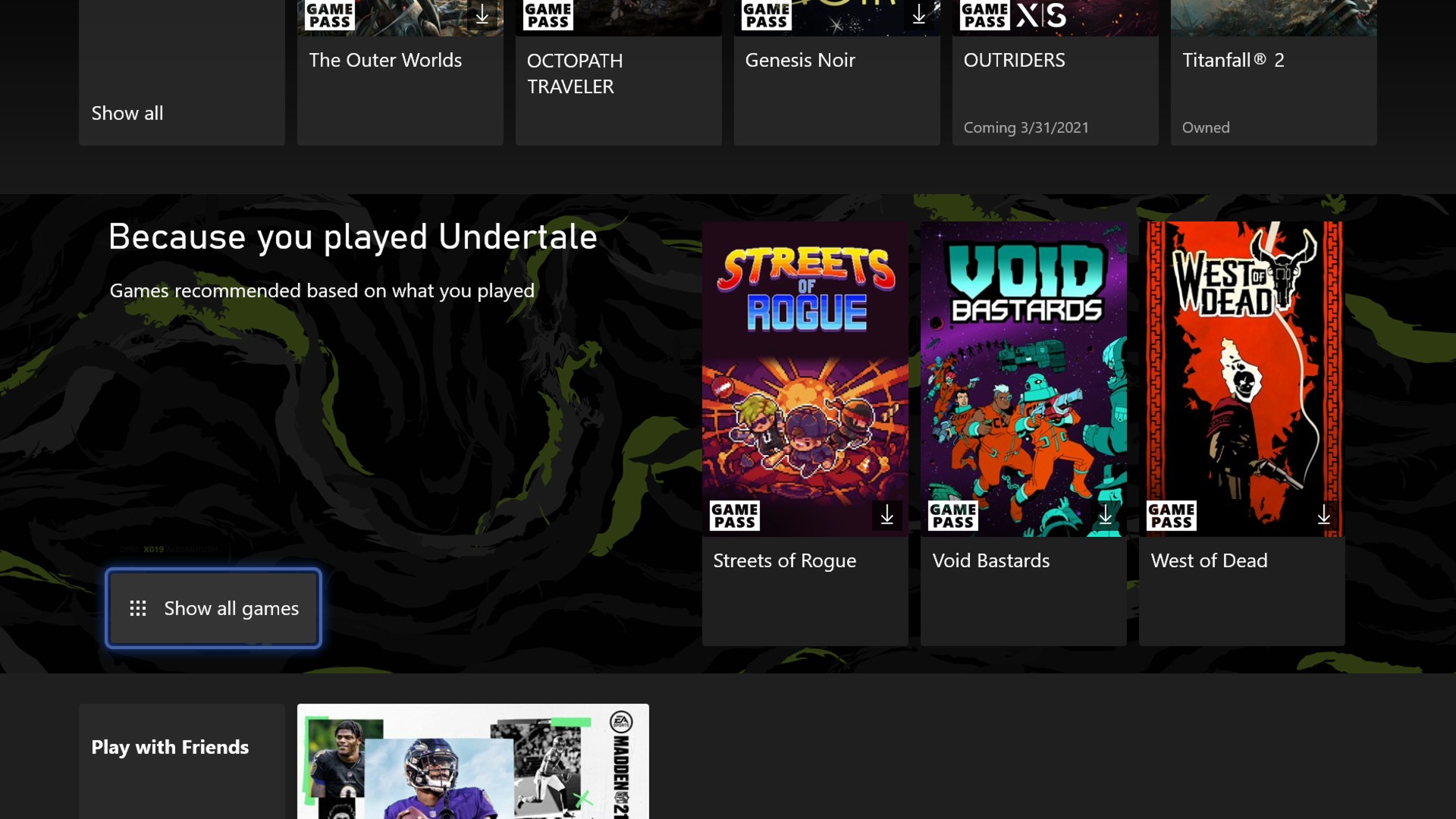
A new Xbox update is available today on Xbox One and Xbox Series X|S consoles, bringing improvements for Xbox Game Pass and game downloads. After installing this update, Xbox Game Pass subscribers will notice new game recommendations and collections in the Xbox Game Pass hub on the console.

The “Because you played” section will offer a curated collection of games based on your gameplay history, and there’s also a a new “Play with friends” section showcasing Xbox Game Pass games your friends are currently playing. Subscription services like Netflix have done a great job at recommending new content to watch to subscribers, and maybe Microsoft can do more here in the future by introducing a like/dislike system for Xbox Game Pass games.

Because you Played

The second new feature coming with this update is the ability to suspend active games to improve download speeds for your games installing in the background. On Xbox Series X|S consoles, suspending a game won’t prevent Quick Resume to work, meaning that you can still jump right back into your game after suspending it.

Last but not least, Microsoft has recently brought back achievements to the Xbox app for iOS and Android, but more improvements are coming later this month. “Starting today, select gamers can check out monthly leaderboards to see how you rank against your friends. We’ll also be adding the ability to view achievements on game detail pages to help track your progress,” the Xbox team said today.

Remote Troubleshooting Software: 7 Best to Use in 2026

Remote troubleshooting software allows people to access computers using the internet from a remote location.

This is useful in such situations where multiple computers need to be managed, connecting devices for educational purposes, or for sharing files while giving presentations.

Having said that, this article is going to concentrate on one of the most important aspects of remote troubleshooting software, which is for support, but we can’t negate the importance of keeping safe from online threats as well.

How can the remote troubleshooting tools help me?

For anyone who has ever had to sit at home or at their office waiting for tech support, remote troubleshooting software is an extremely useful way to save time and money.

Even though in some cases, you can encounter issues with the remote software, these types of apps have become increasingly important considering most people work remotely at this point in time.

For people looking for an easier, quicker, and cheaper option than getting onsite support, here there is the best remote troubleshooting software for Windows 10.

What are the best remote desktop troubleshooting tools for Windows?

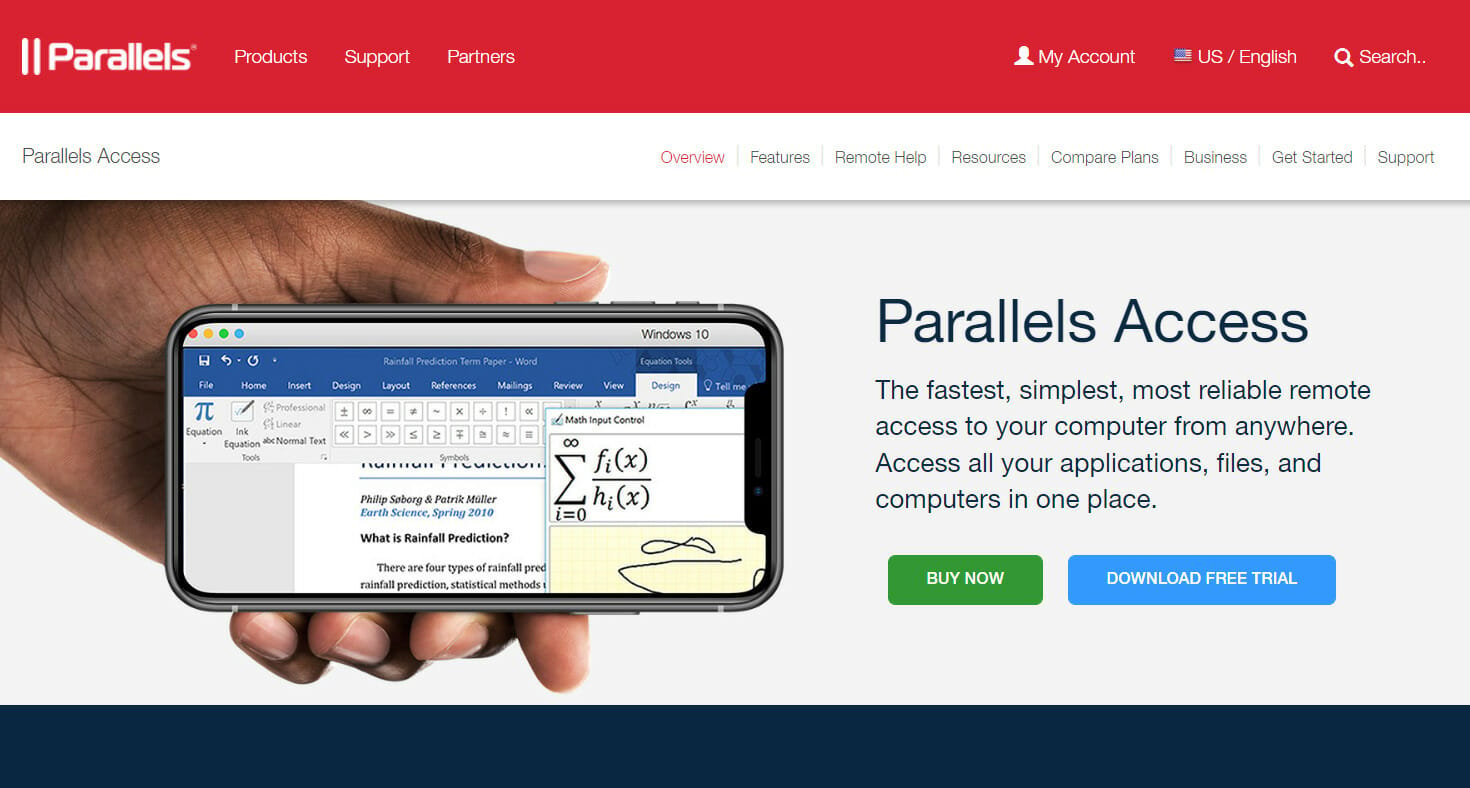
Parallels Access – The fastest tool

Parallels Access offers you quick access to troubleshooting tools that can be operated remotely, and all you need to do is download and install it on your system.

Where Parallels Access really comes into its own is its ability to change desktop apps to the same size as mobile apps.

This is a real advantage for anyone who has ever tried to use traditional remote desktop software and found that the size of the desktop on the mobile device makes it almost impossible to use.

This feature is extremely useful if you use a tablet or phone to troubleshoot technical problems.

On a side note, another important feature of Parallels RAS is the reduction of the possibility of data loss or malicious activity.

This helps organizations when it comes to adhering to data compliance including GDPR, which came into law on May 25, 2018.

Key features:

  • Virtual Desktop Infrastructure
  • Remote desktop services (RDS)
  • Remote PC and hosted desktop infrastructure (HDI)
  • Turbo.net containerization
  • Microsoft App-V

With its ease of installation and use, especially with mobile devices, Parallels Remote Application Server is certainly worth considering for your remote troubleshooting software needs.

Parallels Access

Take advantage of the great speed offered by the HDI infrastructure and other features of Parallels Access today!
Check price Visit website

Mikogo – Great all-rounder

If you are looking for easy-to-use remote troubleshooting software, Mikogo is definitely one you should look at.

Besides built-in VoIP services that offer crisp and clear voice conferencing, you will be able to take advantage of the scheduler and multi-user whiteboard, to offer top-of-the-range troubleshooting aid remotely.

Even though this software doesn’t have any encryption features, you can easily use a VPN with it, to cover this aspect as well.

This lightweight remote control software not only gives you good speeds because of its infrastructure but also great performance.

Key features:

  • Desktop sharing with multiple participants
  • Switch presenter
  • Remote keyboard/mouse control
  • Scheduler
  • Recording and playback

Mikogo

This lightweight but fast software enables you to quickly and efficiently offer remote troubleshooting support.
Free trial Visit website

Radmin 3 – Reliable for professionals

Radmin was developed by Famatech’s and is one of the company’s most popular products. You can use this tool to access office computers from anywhere in the world.

However, even though it allows easy access to files, Radmin is primarily a remote control software for desktop and server management.

The remote troubleshooting software was first developed in 1999 and the company has been continuously developing and improving it since then.

It can also be used for system administration, making remote system administration easy and efficient for unattended computers and servers over a LAN or via the Internet.

System administrators can update software, troubleshoot PCs and servers, and switch off computers remotely.

There is a 30-day free trial, which is always appreciated but unlike some of the other software listed below, there is no free option.

Famatech has some fairly impressive figures behind it as well. It has over 17 years of remote support software solutions market experience, and 18 million users worldwide.

While it is fair to say that the software is not loaded with features, Famatech’s Radmin is very good at doing the job it was primarily designed to do.

It is worth mentioning this tool is used by 40% of the Fortune 500 enterprises. These companies can’t all be wrong.

Let’s review some of its best features:

  • Provide internal IT support across your organization
  • Access your office computer, e-mail, and files from home or while on a business trip
  • Access unattended computers and perform server maintenance remotely
  • Control remote computer comfortably even on 3G connections
  • AES256-bit data encryption

Radmin 3

Easily access office computers remotely from anywhere in the world with this powerful and efficient software.
Check price Visit website

SupRemo – The most flexible

SupRemo is a cost-effective, highly secured, trustworthy, and reliable remote access tool that is great for tech customer support.

The software is cross-platform, available for Windows, macOS, Android, iOS, and even Linux. Therefore, you can connect any device, including phones, PCs, tablets, laptops, from anywhere in the world.

The app increases productivity, especially for those who work in customer support, having lots of features designed to make the interaction between the customer and the employee smooth and easy.

Additionally, you shouldn’t worry about security. SupRemo benefits from a strong security system that will protect your connection and keep your data safe while using it.

You can use the tool completely free of charge for non-professional and/or non-continuous use, but you can purchase it for these purposes at an affordable price, starting from 6$/month per user.

All the licenses allow unlimited installation to an infinite number of PCs. This means that you can use your license on multiple devices since what really matters is the number of simultaneous connections.

There’s actually no limit on endpoint or seats where to install the license.

That’s not all. Flexibility is their motto. The company offers quarterly or annual plans, depending on your company’s needs.

Still not convinced? Why don’t you try it out, since you get 21 days of a fully functional trial!

SupRemo’s main features will improve your workflow. Let’s take a look at them:

  • Integrated Chat for better interaction with the remote user through instant messaging
  • Encrypted connections provide secure data flow
  • The unattended access feature lets you access devices without needing permission
  • The Allowed ID feature lets only the devices you consider safe access your PC
  • File transfer between the connected PCs during the connection
  • Automatic Update keeps you up with the latest features and patches
  • Online Address Book that lets you share your SupRemo contacts between colleagues
  • Online Reports from all the connected devices
  • Remote printing lets you print documents stored on the remote device to your local printer
  • Full customization to make your interface suit your needs

⇒ Get SupRemo

Rescue by LogMeIn – Very popular

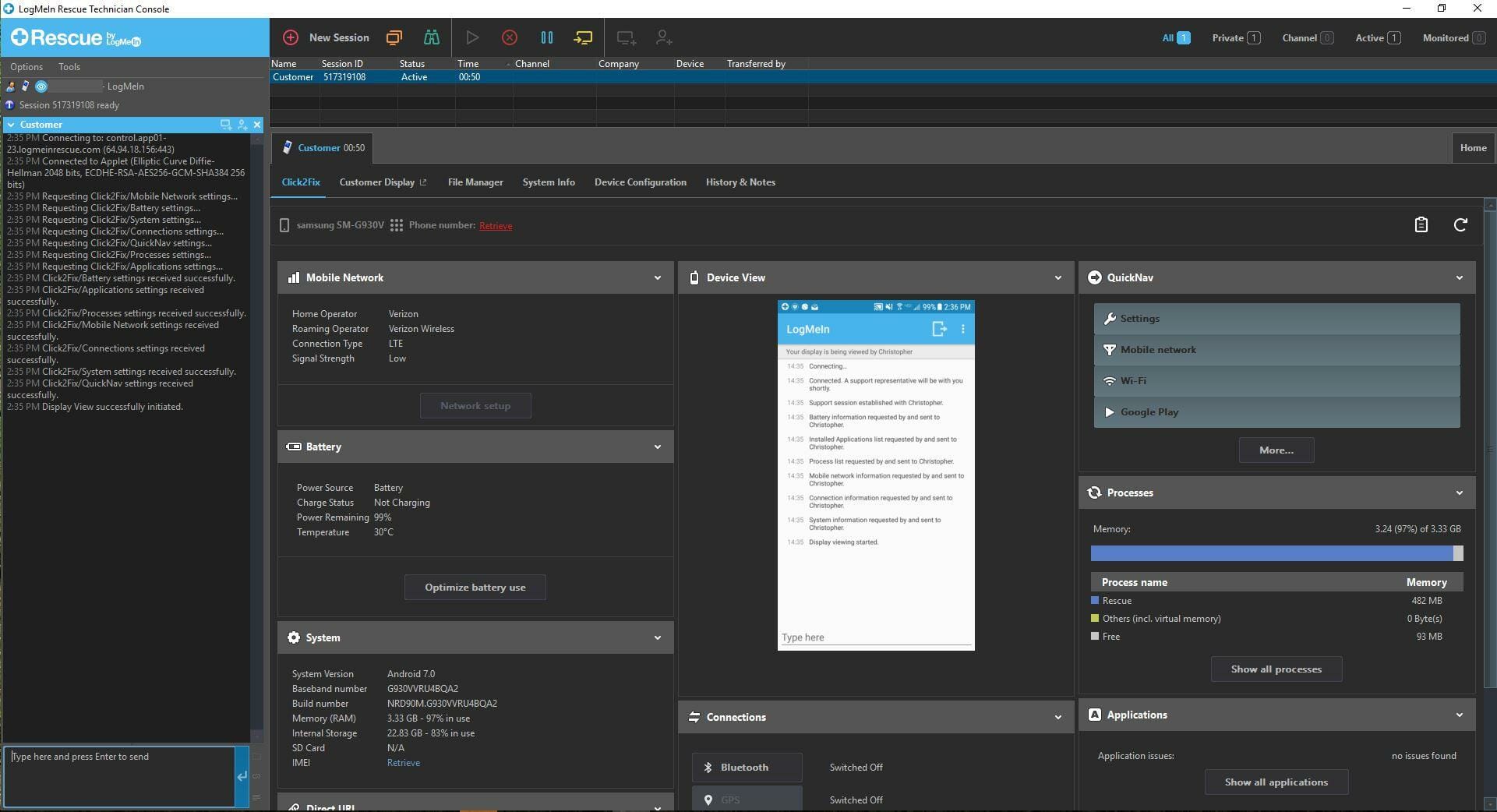
Rescue by LogMeIn is one of its most popular products, and there are a lot of reasons why.

Besides great portability, the Rescue software offers good processing speeds, and also some very efficient tools that might be of help in your troubleshooting endeavors.

The seamless integration enables you to use the software on a variety of devices, and on a variety of operating systems.

LogMeIn Rescue has a number of useful features One such feature is Reboot and Reconnect which can be done even if the computer being worked on is unattended or in Safe mode.

Another extremely useful feature is ‘Remote Diagnostics’, which allows the remote user to get a summary of everything on a machine.

This feature works particularly well with another feature that allows the remote device to be accessed during periods of downtime — for instance, lunch breaks or after work.

Key features:

  • Remote support
  • Mobile support
  • Video support (Lens)
  • Integrations and Apps
  • Security
  • Administration and Reporting
  • Customization and branding

⇒ Get LogMeIn Rescue

FixMe.IT – Fast and reliable

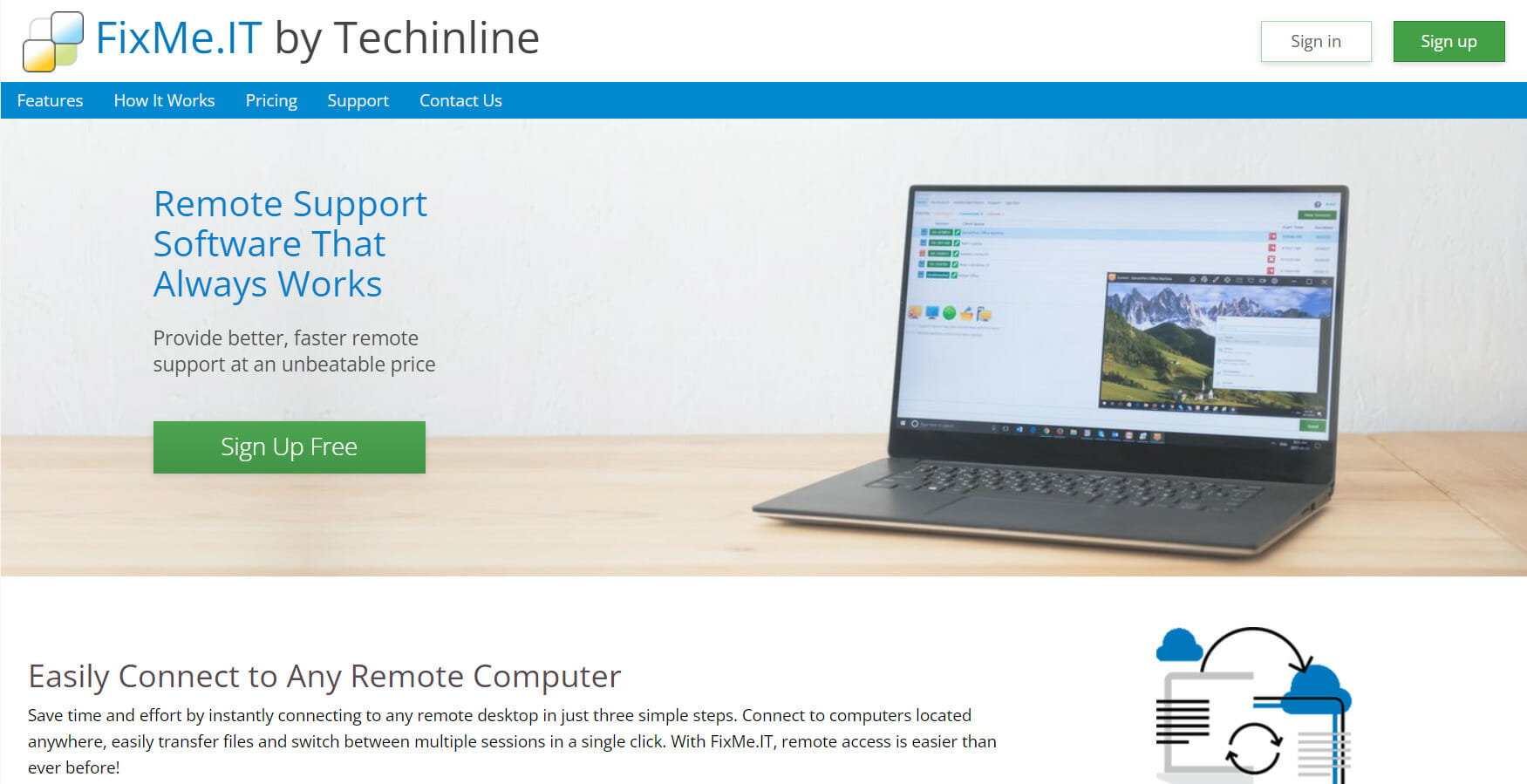
While FixMe.IT is not the oldest company to offer remote troubleshooting software, it may well be one of the least expensive. Additionally, you get quite a lot of features for your money.

One of the best features that FixMe.IT has its own support on the website. There are a plethora of articles, which makes working with the program so much easier.

FixMe.IT is a good alternative to the more advanced platforms above with more than enough features for most people’s needs.

This is not an extensive list and nor is it meant to be, but I hope it gives you some idea of the remote troubleshooting software that is available, not only for established businesses but also for the entrepreneur just starting out.

Key features:

  • Multi-session handling
  • Unattended access
  • Drag-and-drop file transfer
  • Share clipboard data
  • Instant chat
  • Whiteboard tools
  • Perform administrative tasks

⇒ Get FixMeIT

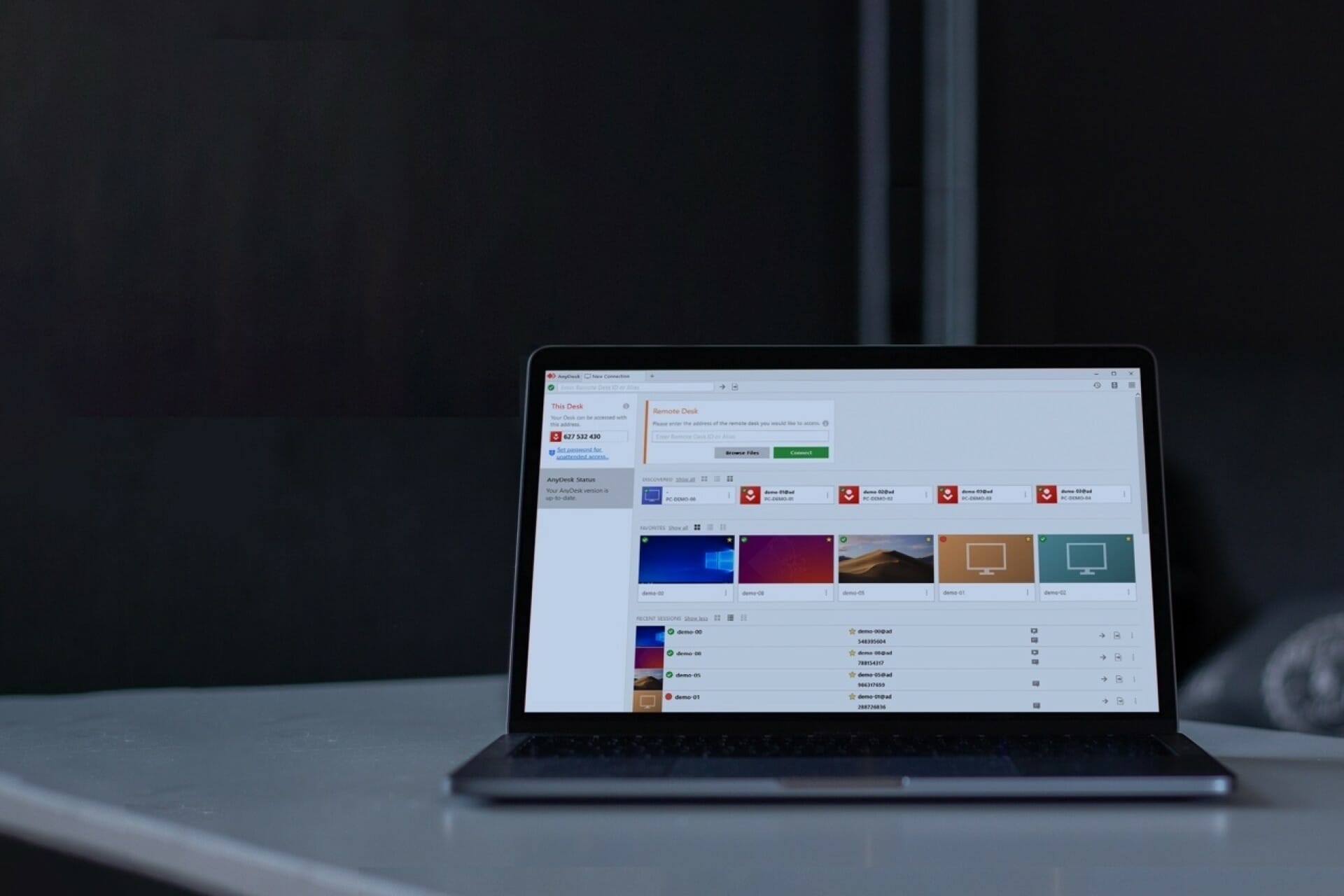
AnyDesk – Great encryption

AnyDesk offers an incredible set of features that can be easily accessed and understood with its easy-to-understand and customizable user interface.

This not only de-clutters the main menu environment but also enables you to easily access the features that are needed.

Beyond good looks, this software offers unparalleled protection from third-party intruders by using TLS 1.2 encryption and RSA 2048 standard. This is a state-of-the-art privacy protection that fits this powerful software seamlessly.

To ensure that you’ll always be able to access the wide range of useful features AnyDesk has to offer, this software was designed with compatibility across systems, including macOS, Linux, Chrome OS, iOS, Android, and, of course, Windows platforms.

Optimized to work at great speeds while also not trading any other feature, AnyDesk is the software to have when in need of stable and powerful remote access software.

Key features:

  • International keyboard support
  • Can be used locally on in the cloud
  • User-friendly UI
  • Amazing processing speeds
  • TLS 1.2 encryption with RSA 2048 standard

⇒ Get Anydesk

This guide has presented you with a useful set of information that will enable you to choose remote troubleshooting software wisely.

No matter if you’re more interested in great processing speeds, or compatibility on a variety of platforms, this list covers them all.

Make sure to try out our top picks first, as they have been chosen because of their ease of use, adaptability, and number of useful features.

Feel free to share your thoughts on this subject by using the comment section found below.

How to show drive letters before drive names in Windows 10

I know that many of you are wondering if you can change and place the drive letter before the drive names in Windows 10. The answer to your question is Yes.

So, follow the instructions below to learn how to change the drive letter positions in Windows 10. This will only take you a few minutes of your time.

The default status in the system of Windows 10 is that the drive letter is shown only after the HDD name. With the help of some Registry tweaks, we can change the order.

Also, another idea to keep in mind is that before attempting the steps below, you should create a backup of all your important files, folders, and applications.

We are going to the Registry Editor feature and if by any chance, something goes wrong, this will damage your operating system might get damaged.

How can I show drive letters first in Windows 10?

1. Tweak your Registry

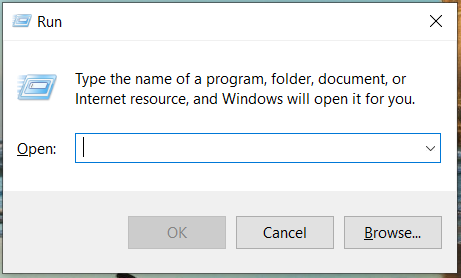
  1. Press and hold the Windows  + R hotkeys.
  2. You should have in front of you the Run window.
  3. In the run dialog box write the following regedit.
  4. Press the Enter button on the keyboard.
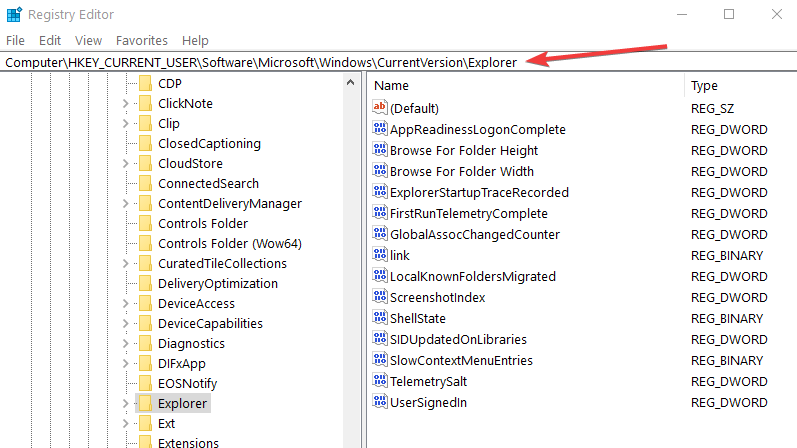
  5. The Registry Editor will pop up. If you are asked by a user account control window to allow access please left-click or tap on the Yes button to proceed.
  6. Find on the left side panel the folder HKEY_CURRENT_USER and left click or tap on it to open.
  7. In the HKEY_CURRENT_USER folder find and open SOFTWARE.
  8. From the SOFTWARE folder find and open Microsoft.
  9. Now in the Microsoft folder find and select Windows.
  10. Within the Windows folder find the CurrentVersion folder and open it.
  11. From the CurrentVersion folder find and open the Explorer folder.ShowDriveLettersFirst windows 10 registry
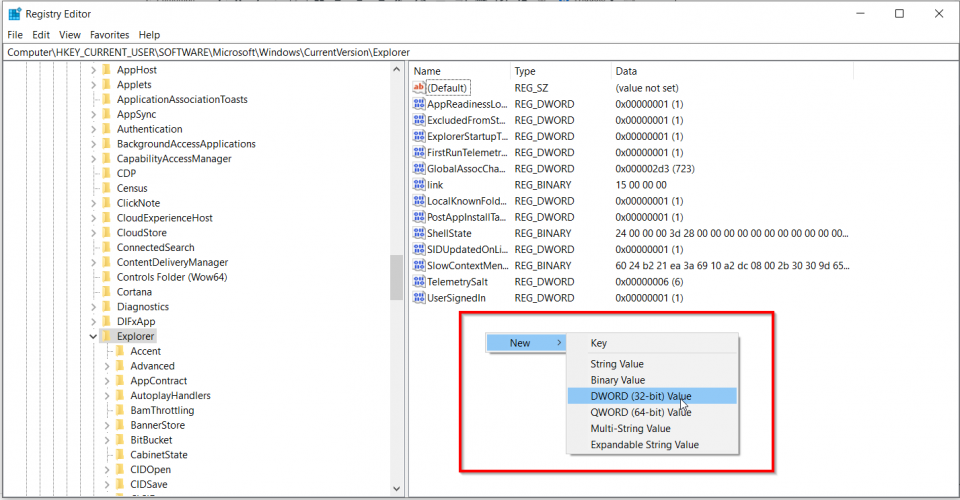
  12. In the Explorer folder search for the ShowDriveLettersFirst DWORD. If you don’t find the DWORD, you’ll have to create it.
  13. To create the key, in the right-side panel right-click or hold tap on a blank spot, left-click on the New sub-menu, and select from there DWORD (32 – bit) Value.
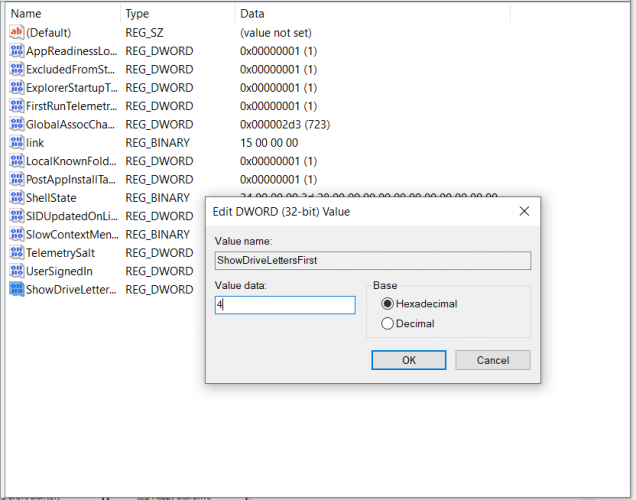
  14. After you created it you will need to name it ShowDriveLettersFirst.
  15. Now double click the new key created to open it, and in the Value data field, you will have to write the number 4 in order to set all your drive letters before the drive names.
  16. Left-click or tap on the OK button to save your changes.
  17. Close the Registry Editor window and reboot your Windows 10 operating system.

After the device has started open the File Explorer folder to check if the drive letters show in the order you wish.

If you wish to change back the drive letters and drive names you will only have to go back to the registry DWORD you changed and set the value to 0.

Sometimes, the Registry editor is disabled or other issues prevent you from opening it. In this case, check our dedicated guide and fix the problem with ease.

2. Use DriveLettersTool

driveletterstool download

If the idea of tweaking the Registry is not at all appealing to you, then you can download and install a little software called DriveLettersTool.

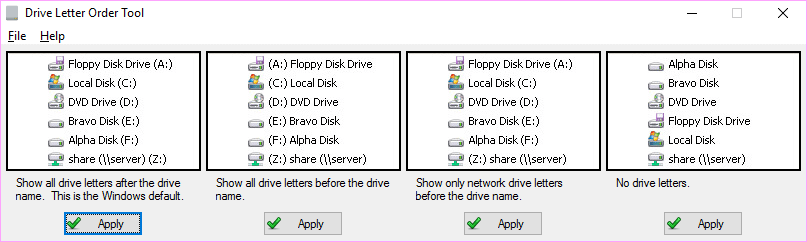
As its name suggests, this software lets you tweak Explorer settings so that you can change the drive letter order. More specifically, there are four options that you can choose from:

  1. You can use the Explorer default drive letter order, for example, Local Disk (D:)
  2. The tool can show drive letters before the drive name, for example, (D:) Local Disk
  3. The tool can display shows only network drive letters before the drive name
  4. You can drop the drive letters entirely

You now know how to change the drive letters position on the Windows 10 operating system. If for some reason, your HDD doesn’t appear in File Explorer, use our quick guide to fix the issue.

Use the comments section below to let us know if you’ve run into any issues along the way. We will help you fix these issues as soon as possible.

Microsoft Teams now lets meeting organizers set a time limit for Breakout rooms

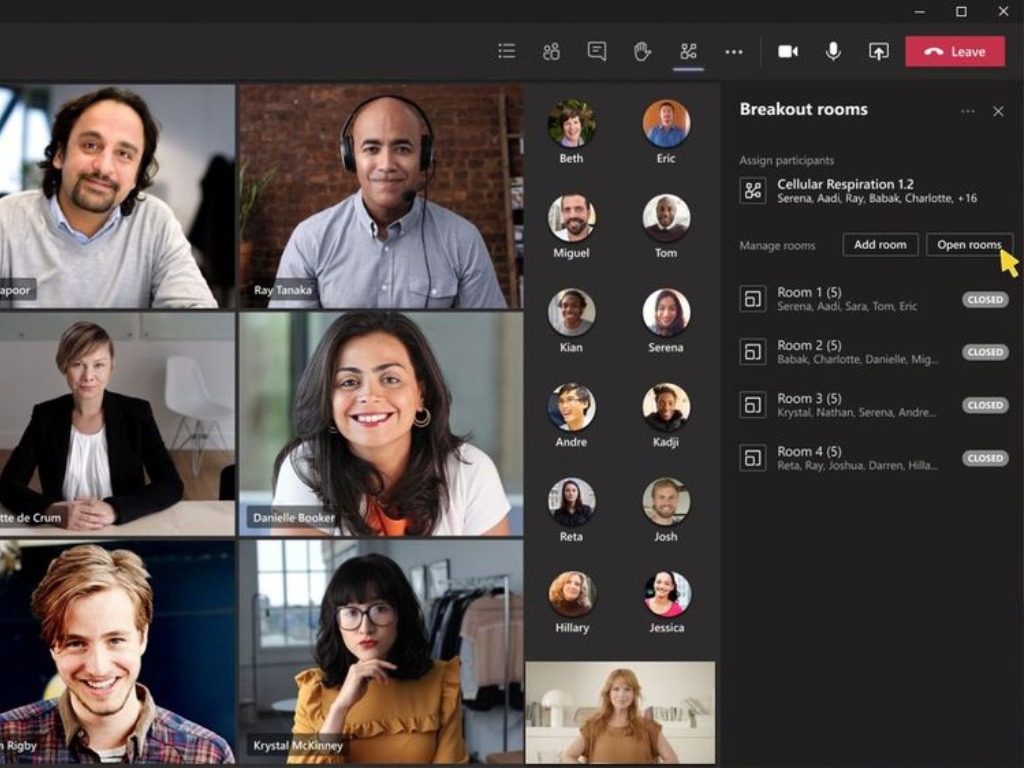
Last month, we reported that Microsoft Teams is getting a big update which will make it easier for organizers to manage Breakout rooms in meetings. Indeed, these features and enhancements have started rolling out globally to all desktop users, according to the Microsoft 365 roadmap.

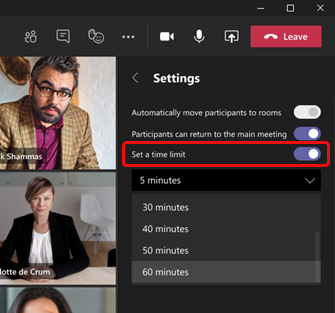
The first new functionality that is coming to Microsoft Teams meetings is the ability to set timers for Breakout rooms. The organizers will now be able to set a time limit for all breakout rooms created in a meeting session. To do this, head to the Breakout rooms Settings panel and turn on the “Set a time limit” toggle button.

Breakout timer

The timer starts when the first participant joins the meeting, and it will automatically alert all attendees that the Breakout room session will close in 60 seconds. Once the timer expires, the room will automatically close, and participants will come back to the main meeting. The meeting organizer can also provide an option to participants to choose to disconnect or return to the main meeting room.

Next up, the app is also introducing a participant reassignment capability in Breakout sessions. Previously, reassignment could only be done when rooms were closed. Thanks to this feature, the organizer will also see an option to move joined participants across rooms and main meeting while Breakout rooms are open.

Finally, Microsoft Teams will now keep room configuration and assignments over multiple sessions or recurring meetings. This means that all attendees will remain assigned to their Breakout rooms, and the meeting organizer will need to change them manually.

The new Breakout room functionality is a welcome change for Microsoft Teams users. The ability to set timers could be helpful in a classroom setting where a teacher may want to split students into different groups for brainstorming sessions. While the update started rolling out a couple of days ago, and it’s not available to everyone just yet. We hope that the deployment will be complete by the end of this month.

How to Spotlight someone in a Microsoft Teams meeting, and why you might want to

There might come a time when you’re in a Microsoft Teams meeting and you’ll want to put focus on a certain person who is talking on your call. It could be an important guest, a student, or even yourself. As long as you’re an organizer or presenter in the meeting, Teams makes it possible to do this with a feature known as “Spotlight.”

As the name suggests, spotlighting will allow you to make someone’s video feed the main feed for everyone else in the meeting. It’s a nice little Teams trick, and today, we’ll show you how to use the feature for yourself.

Some quick notes

Before getting into anything, we just want to mention some quick notes about spotlighting in Teams. The feature does not work if your view is set to Large gallery or Together mode. Additionally, if you end up recording a meeting where you spotlight someone’s video feed, their own feed will not be spotlighted in the final recording. Finally, you only can spotlight one video at a time.

These last two issues are just the current limits of Teams. Microsoft urged you to “stay tuned for updates” on these limits in the future.

Spotlighting on desktop or the web

Microsoft Teams Spotlight Feature


To spotlight a video on Teams on the desktop on the web, you can right-click the person’s video feed and choose Spotlight from the menu. In addition, you also can choose to Show Participants to see a list of everyone who is in the meeting, and then look for the person who you want to spotlight, then select the Spotlight button. You can end the spotlighting at any time by right-clicking and choosing Stop Spotlighting.

If you’re hoping to spotlight your own video, the process is a bit different. You can select Show Participants and then under Participants, right-click your name and choose to Spotlight me. To stop spotlighting, you can Right-click again and choose to stop spotlighting to exit.

Spotlight on mobile

Teams Spotlight Mobile

Unfortunately, spotlighting video feeds in a Teams meeting on iOS and Android is a bit of a complicated situation. Currently, it is not possible to start or stop spotlighting on the mobile versions of Microsoft Teams. However, if someone using the desktop version of the app is spotlighting a video feed, the video feed will be spotlighted for you on mobile, too. You can also spotlight first on desktop, and then transfer the call to mobile, following our previous guide, if need be.

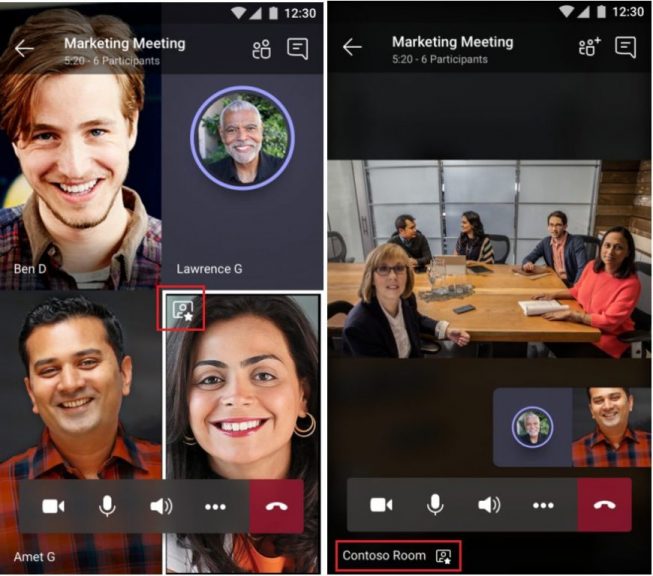
You’ll know when you’re spotlighted, as you’ll see an icon in the top-left corner of your video feed. If another person is spotlighted, you’ll see the video as the most prominent one on your screen, and you’ll see the spotlight icon in the lower-left corner.

Other ways to get the most out of video meetings on Teams

Spotlighting someone in a Teams meeting is a great way to improve your meeting experience and focus on who/what matters, but we do have some other tips, too. We previously covered how you can get the most out of video calling in Teams. Our list includes using background blur, a pre-set background, or a custom background, raising your hand when you want to speak, together mode, and a lot more. Check our article on that here, and also feel free to visit our Microsoft Teams hub, we have other guides, how-tos, and the latest Microsoft Teams news.

FIX: MaxxAudio Pro not working [Full Guide]

Waves MaxAudio Pro is an audio enhancement suite that comes preinstalled with Dell PCs. However, some users have reported issues about MaxAudio Pro not working right.

Those users have said that app’s controls don’t work for them or it doesn’t detect certain audio devices on their PCs, and in today’s guide, we’re going to show you how to fix that.

How can I fix MaxxAudio Pro if it’s not working properly?

1. Update your Realtek audio driver

Waves MaxAudio Pro not working can be due to app incompatibility with your PC’s Realtek audio driver. Updating your PC’s Realtek audio device driver with driver updater software might fix the issue.

A driver updater utility such as Fortect Driver Updater will notify you if you need to update your PC’s Realtek audio device driver.

⇒ Get Fortect Driver Updater

2. Deselect the Enable auto popup dialog

  1. Press the Windows + E keys at the same time to open the File Explorer window.
  2. Next, open this folder in File Explorer: C:Program FilesRealtekAudioHDA
    HDA folder maxxaudio pro not working
  3. Click the RtkNGUI64.exe file to open an audio manager app.
  4. Then click the Advanced tab.
  5. Select Jack Information to open the options in the snapshot directly below.
    The Enable auto popup setting maxxaudio pro not working
  6. Uncheck the checkbox for the Enable auto popup dialog, when device has been plugged in option.

Note: This resolution is for fixing Waves MaxxAudio Pro not detecting headphones and other audio devices.

3. Roll back Windows 10

  1. Press Windows Key + R and enter rstrui. Now press Enter or click OK.
  2. Then select the Choose a different restore point option if it’s available.
  3. Click Next to proceed to the restore point list.
  4. Select the Show more system restore points checkbox if the System Restore utility doesn’t list all available ones.
  5. Now choose a restore point that will roll Windows 10 back to a date when your MaxxAudio Pro worked fine. If you’re not sure, just select the oldest restore point available.
  6. Press the Next button to proceed to restore point confirmation.
  7. Click the Finish button to start the system restoration.

By performing System Restore you should be able to fix the problem with Waves MaxxAudio Pro not detecting headphones on your PC.

Note: Rolling Windows 10 back to an earlier time will uninstall software installed after the selected restore point’s date.

To check what software and updates a restore point removes, click the Scan for affected button within System Restore.

4. Reset the Waves MaxxAudio Pro UWP app

  1. First, open Settings with the Windows + I hotkey for it.
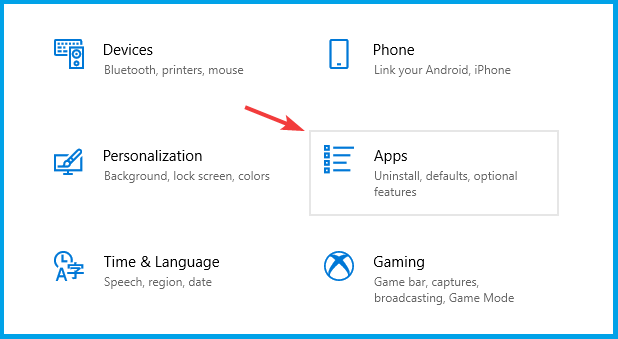
  2. Click Apps in Settings.
  3. Select the WaveMaxxAudio Prop app.
  4. Click Advanced options to open the application settings .
  5. Press the Reset button.
    Reset button maxxaudio pro not working
  6. Then click Reset again to provide further confirmation.

Note: This resolution is more specifically for users utilizing the Waves MaxxAudio Pro Microsoft Store app.

The above resolutions might fix the Waves MaxxAudio Pro app’s when it’s control options not working and it’s not detecting audio devices.

As for other issues, many reported WavesSvc64 high CPU usage, but we covered that in a separate guide.

In addition to those resolutions, uninstalling and reinstalling the MaxxAudio Pro by downloading it from its MS Store or Dell page might also fix some issues.

Microsoft to open first datacenter region in Malaysia

Microsoft announced this morning that it will open its first datacenter region in Malaysia as part of an ambitious plan to advance the country’s economy. The new datacenter region in the Greater Kuala Lumpu will provide local customers access Azure, Microsoft 365, and Dynamics 365 and Power Platform, with the ability for customers to store data in-country.

This planned Malaysia datacenter region will support Microsoft’s global sustainability goals, with the company aiming to use 100% renenable energy by 2025. Moreover, Microsoft intends to support Malaysia’s digital transformation by working with the government, startups and enterprises, in addition to plan to help 1 million Malaysians to learn digital skills by the end of 2023.

Microsoft has been operating in Malaysia for 28 years, where it has 200 employees and 2,000 partners in the country. According to an IDC study (sponsored by Microsoft), the company’s latest investments in Malaysia could generate up to $4.6 billion in new revenues and 19,000 new jobs in the country over the next four years.

The upcoming datacenter region will be a game-changer for Malaysia, enabling the government and businesses to reimagine and transform their operations, to the benefit of all citizens,” said Jean-Philippe Courtois, Executive Vice President and President, Microsoft Global Sales, Marketing and Operations.

Xbox Cloud Gaming on Windows 10 PCs and iOS devices will enter private beta tomorrow

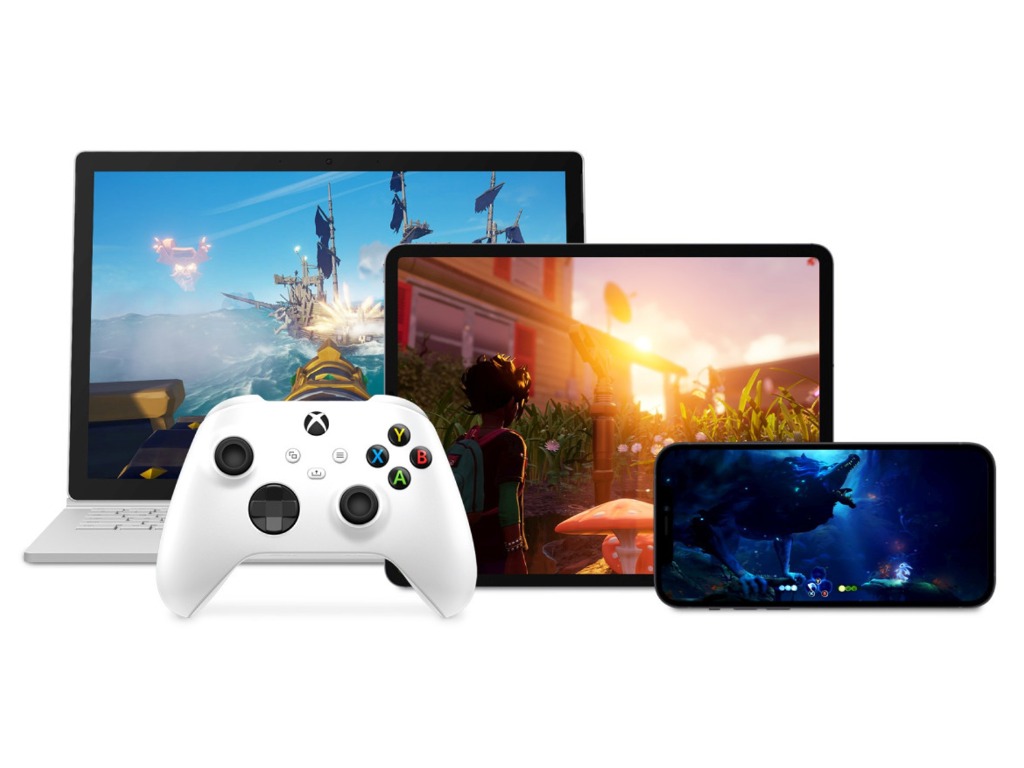
Microsoft is finally getting ready to bring its Xbox Cloud Gaming technology to more devices beyond Android phones and tablets. Starting tomorrow, select Xbox Game Pass Ultimate members will get access to over 100 cloud-enabled Xbox Game Pass games on Windows 10 PCs and Apple iPhones and iPads via the web on xbox.com/play.

Microsoft’s cloud gaming technology will work on Microsoft Edge, Google Chrome, and Apple’s Safari browser. Xbox Game Pass Ultimate members who receive a beta invite will just need a compatible Bluetooth or USB-connected controller to get started, but over 50 Xbox Game Pass games also support touch controls.

The limited beta is our time to test and learn; we’ll send out more invites on a continuous basis to players in all 22 supported countries, evaluate feedback, continue to improve the experience, and add support for more devices. Our plan is to iterate quickly and open up to all Xbox Game Pass Ultimate members in the coming months so more people have the opportunity to play Xbox in all-new ways,” the Xbox team said today.

Xbox Cloud Gaming launched in beta on Android devices in Fall 2019, and Microsoft officially launched it in September as a free perk for Xbox Game Pass Ultimate members. Even though there are now more 2.5 billion Android devices in use worldwide, Windows 10 and iOS both have more than a billion users, and using the web is the best way to bring Xbox Cloud Gaming to more people.

Competing cloud gaming services including Google Stadia have been available on the web from the beginning, and it’s great to see the Xbox team finally catching up. “This is an exciting step on our journey to bring gaming to the 3 billion players around the world,” said Catherine Gluckstein, Vice President & Head of Product, Project xCloud.

Microsoft starts testing new Performance Mode in the Edge Canary channel

Microsoft Edge is adding a new Performance Mode feature that will help to optimize the overall speed and resource usage of the browser. The experimental feature was first spotted by Microsoft Tech Community Forums user HotCakeX, and it is currently available to select Insiders in the Microsoft Edge Canary build 91.0.856.0 or higher (via WinCentral).

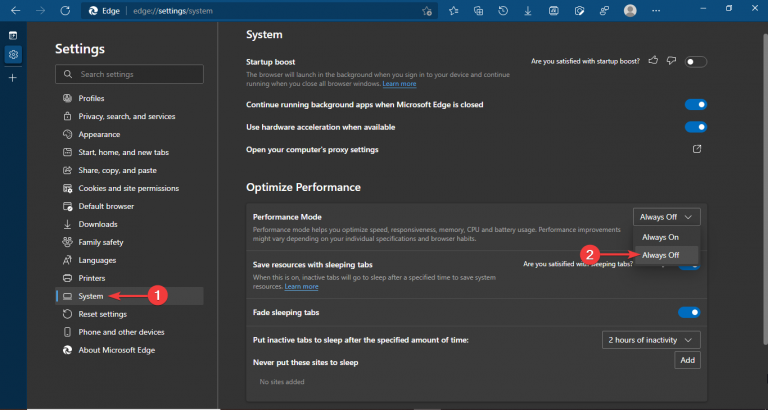
Performance Mode is an optional feature that users can turn on or off in Settings. This feature could come in handy for low-end devices, and it will likely improve the overall browsing experience for Edge users. “Performance mode helps you optimize speed, responsiveness, memory, CPU and battery usage. Performance improvements might vary depending on your individual specifications and browser habits,” the description reads.

Microsoft Edge performance mode

Microsoft Edge Canary Insiders can enable it manually with a launch parameter by following the steps mentioned below:

  1. First of all, right-click on the Edge Canary desktop shortcut and select “Properties”.
  2. Navigate to the target field in the Shortcut tab, add a space, and then paste the following parameter:  –enable-features=msPerformanceModeToggle
  3. Click the Ok button and restart the browser to apply the latest changes.
  4. Finally, head to Settings >> System >> and enable the “Performance Mode” toggle button available under the Optimize Performance section.

It is important to note that enabling performance mode will automatically set the Sleeping tabs timer to five minutes. The Sleeping tabs feature will put inactive tabs to sleep to help save system resources.

Currently, there’s been no word on when this update will go live for everyone in the Stable, but we hope that but it should begin showing up for users in the Dev channel soon. Microsoft is also working on a new Workspaces feature for its Edge browser, which makes it easier for users to manage tabs by creating dedicated Workspaces.

Microsoft Word hasn’t been activated? Fix it in 5 easy steps

Microsoft Word is a text input and storage-based software that affords a great deal of versatility to its users. Fittingly, it is popular across industries and has become the standard for composition.

However, many complain that their Microsoft Word hasn’t been activated. This is despite purchasing it from the website.

This can be a consequence of many different errors. Find out more about these errors and how to negate them in our all-purpose comprehensive guide below.

How can I fix Microsoft Word is not activated?

1. Make sure you’re covered

  1. Visit your Microsoft services page to check if your plan has expired.
  2. Scroll to the bottom and find the Help with Microsoft Account section.services and subscriptions Microsoft office
  3. Read up on options like recurring billing to automate payments at the end of each plan.
  4. Scroll to the top of the page and select your subscription under the Microsoft 365, Office 2019, or Office 2016 heading (depending on your purchase).
  5. Follow the prompt to renew your plan or choose a new one.

We urge you to read up on the full specs before making your choice. This method will only activate Microsoft Word if you are late on updating your subscription.

Microsoft Office 365 has been renamed Microsoft 365, and several plans have been renamed as well. As a result, you may need to reconfigure Word, which is part of the Microsoft 365 suite, due to recent updates or changes. We recommend that you double-check this on the official website linked below.

Choose only official Microsoft 365 products to make sure that your Word copy is genuine and fully updated. This way, you are secured from being blocked and you can safely use your Microsoft 365 account.

2. Check your login credentials

  1. Sign in with the email address used to purchase your current Microsoft Office plan.
  2. Login to your Microsoft Account and navigate to your Services tab  (if the email address is correct, you will see your Microsoft Office subscription listed).
  3. Open Microsoft Word and press Alt + F.
  4. Navigate to Account and double click. File Menu Check Activation

Users with the correct email account and an existing plan may still see that Microsoft Word is not activated. For such users, deactivation is most likely caused by software issues or faulty settings.

3. Check for installed versions of Microsoft Office

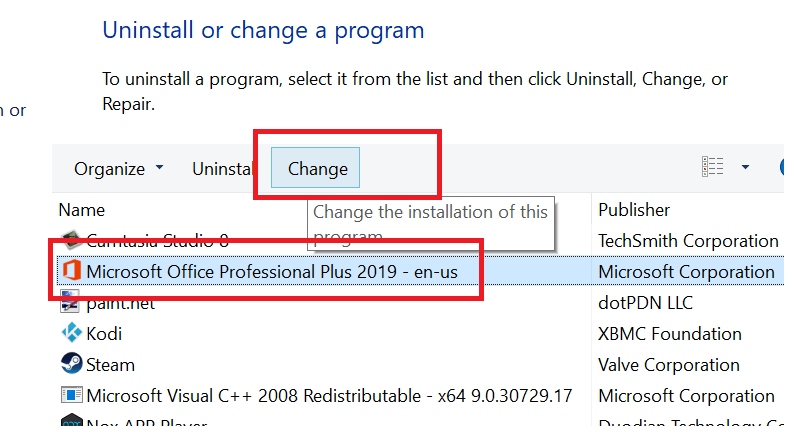
  1. Go to Control Panel and double click on Programs and Features. programs and features Microsoft Word
  2. Uninstall all versions of Microsoft Office but leave the latest one untouched. Uninstall Microsoft Word
  3. After all the uninstall/uninstalls, reboot your PC and subsequently login to Word to check activation status.

4. Streamline your computers date, time, and time zone settings

  1. Close all Microsoft Office applications.
  2. Navigate to Settings and then Time and Language. Time and Language Microsoft Word
  3. Once in the Date & Time menu, turn on the Set time automatically and Set time zone automatically options.date and time Microsoft Word
  4. Your time should be updated to the time zone you’re in. If not, turn off the set time zone automatically option and manually select your time zone.

When you restart Microsoft Word, the calibration of your new time will enable your computer to communicate with the Microsoft Office server and any pending activation request will be queued and executed.

5. Troubleshoot Microsoft Word

  1. For Microsoft 365 users, download the Microsoft Support and Recovery Assistant.
  2. Run the downloaded .exe file and click install. The install itself is fairly straightforward and offers no customization. Troubleshoot install microsoft word
  3. When the program executes, you will be prompted to log in. Enter the email that was used to purchase Microsoft 365. Troubleshoot login microsoft word
  4. Follow the prompt to troubleshoot.Troubleshoot interface microsoft word

For Office 2019 or Office 2016, download the Activation Troubleshooter. The install and usage are also fairly similar to the Microsoft Support and Recovery Assistant.

Microsoft Word is one of the most versatile programs given its usage and popularity. However, this also means that the bugs will be just as multifaceted.

It is important to be aware of system irregularities or changes when you face this issue. Your knowledge of your own system coupled with our guide should definitely resolve this problem.

BookSteam: Online appointments scheduling made easy

Making appointments face to face is almost long-forgotten history by now, with online appointment scheduling being far easier and much faster, while also being accessible to anyone from pretty much anywhere.

Well, dedicated apps exist to make that even easier, allowing businesses to boom and make more revenue while dealing with less paperwork and manpower, and one of the best is BookSteam.

What is BookSteam?

BookSteam is an online appointment scheduling software, also includes class and course scheduling, and it is constantly enhanced to include more and more tools so that it can stay among the top tools of its kind.

It already includes a ton of useful tools, including:

  • Syncing your personal calendars with BookSteam
  • The ability to personalize client notifications
  • Online credit card processing services
  • Invoice management and sending
  • Scheduling courses and workshops, and more

Online video scheduling has just been added

Businesses everywhere have been impacted by the global pandemic, and with more people forced to work remotely, and with video conferencing tools, webinars, and other similar tools being on the rise, BookSteam decided to join the ride as well.

That being said, BookSteam released a new highly requested feature, that being the ability to add video and/or meeting links to your services, classes or courses.

As of the writing of this article, BookSteam supports the following video conference software: Zoom, GoToMeeting, Microsoft Teams, etc.

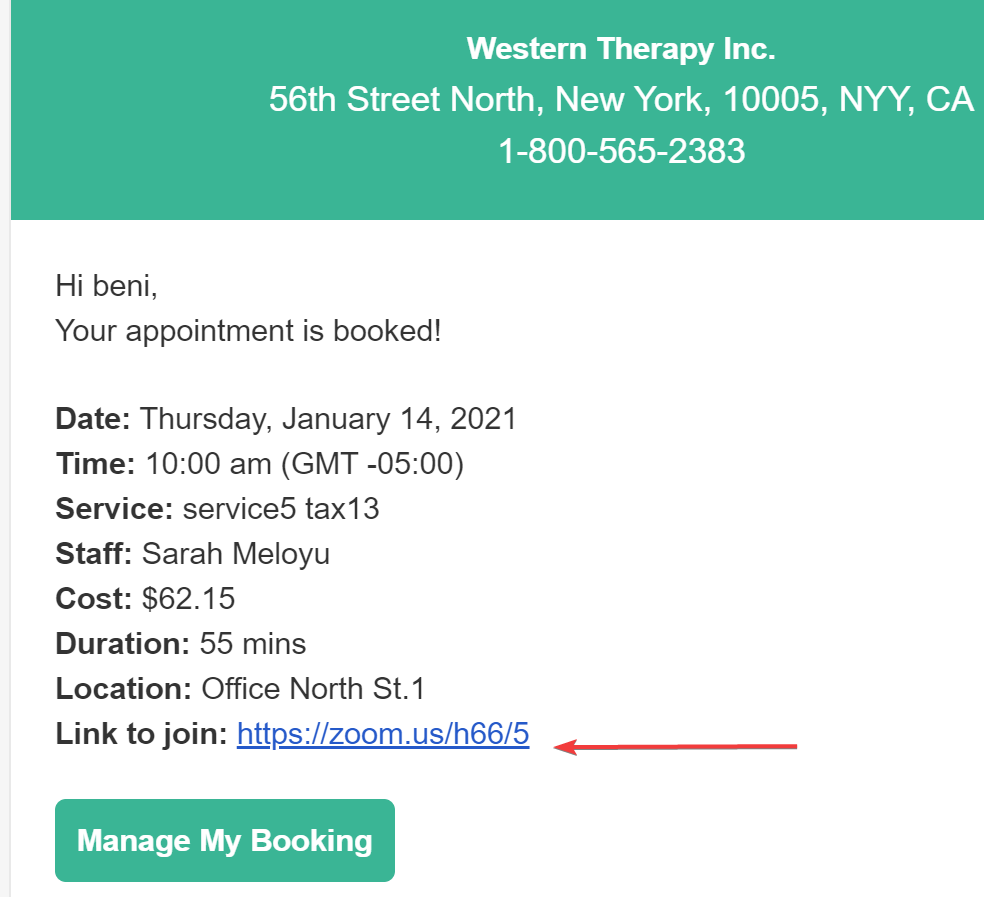
These links will be automatically added to the customer email confirmations and reminders, and using the feature is incredibly easy, as we will proceed to describe below:

  1. Log into your BookSteam service.
  2. Navigate to the Settings.
  3. Go to the Services tab and edit an existing service.
    • You can also add a new one.
    • This can be done for both classes and courses.
  4. Go to the Service, Class, or Course profile.
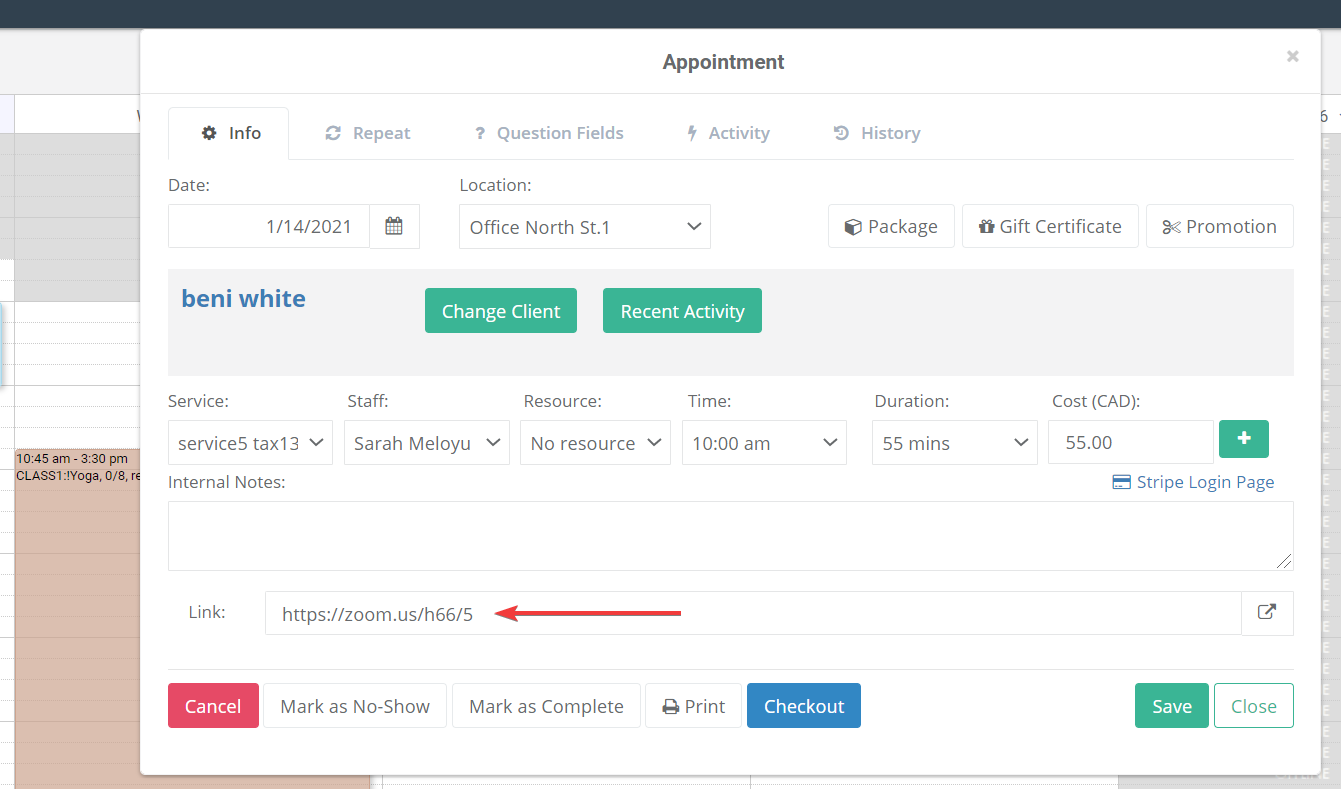
  5. In the section Video Link (optional): add your link and click Save.

Once customers book their sessions online, your live streaming link will be displayed, and they will receive the booking email notification containing the live streaming link.

This live streaming link can also be viewed from the customer’s Bookings section on their account page.

As for the staff, they can view the live streaming link by clicking on the booking and switching to the Calendar view.

With this new tool, BookSteam has elevated its toolset to that of other top-tier conferencing tools, allowing users to get in touch and schedule appointments in a much more personal way than before.

This concludes our brief overview of BookSteam and its newly-added video meeting scheduling tool.

What do you think about this latest feature that they have added? Let us know what other tools BookSteam should include in its service by leaving us your feedback in the comments section below.

How to securely transfer big files with AnyDesk

Transferring large files between your devices is not easy if you don’t have external storage to put them in. Cloud systems are also great, but they require you to upload the files before transferring them.

Therefore, using remote control software that allows you to transfer the files on the go is the easiest way. But not all of these tools work well with larger files.

Thankfully, AnyDesk has no problems transferring files of any size, and it benefits from file encryption for maximum security. Today, we’ll show you how easy it is to do it.

AnyDesk has different interfaces for Linux, Windows, and MAC, but today we will be focusing on the Windows 10 side of things.

If security is your concern, you should know that AnyDesk benefits from access control list, device locking, permissions, and other security-related features.

More exactly, it uses military-grade TLS technology to block unauthorized acces to your device, and utilizes RSA 2048 asymetric encryption that verifies any c onnection.

There are two ways to transfer files between your devices if you use AnyDesk. Both of them are easy to use and comprehensive and don’t have limits to the size of the file.

How can I transfer big files securely with AnyDes?

1. Use the Clipboard

  1. Right-click the file you wish to transfer on the respective device.
  2. Select Copy or press the CTRL + C keys.
  3. Go to the other connected device.
  4. Right-click and select Paste or press the CTRL + V keys.

Thankfully, AnyDesk provides a synced clipboard that integrates the Copy & Paste features from Windows and MAC.

2. Use the File Manager

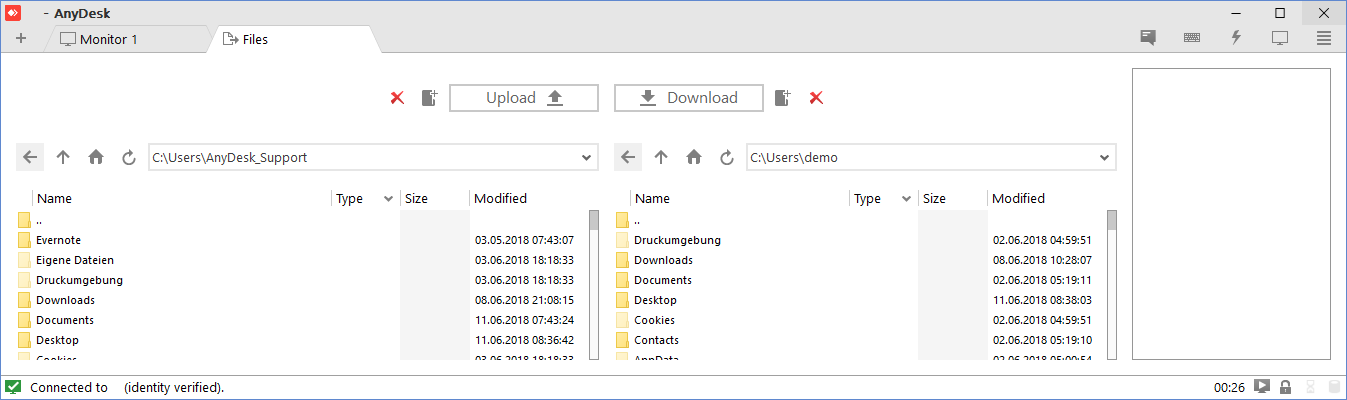
  1. Connect to the devices you want to transfer files from.
  2. Once you start the session, click on the File transfer icon.
  3. Next, two separate windows will pop up.
    • The one on the left will be your current device.
    • The one on the right will be the remote-controlled device.
  4. Select the files you want to transfer, then press the Upload button at the top.
  5. Then, press the Download button to retrieve the selected files on the remote-controlled device.

AnyDesk has a File Manager mode that opens up two windows from both devices. There, you can navigate through the system directories and select the files you wish to transfer.

That’s about it for this quick article. There wasn’t much explaining to do, since AnyDesk’s has a comprehensive and simple UI.

We have to mentiona that you can transfer any type of file format with no problems, and all of the files are secured, so nobody else has access to them.

Have you tried our methods to transfer files with AnyDesk? Tell us about your experience, and feel free to share with us any other tipes regarding the subject in the comment section below.

Remote Printing Software: 5 Best to Use in 2026

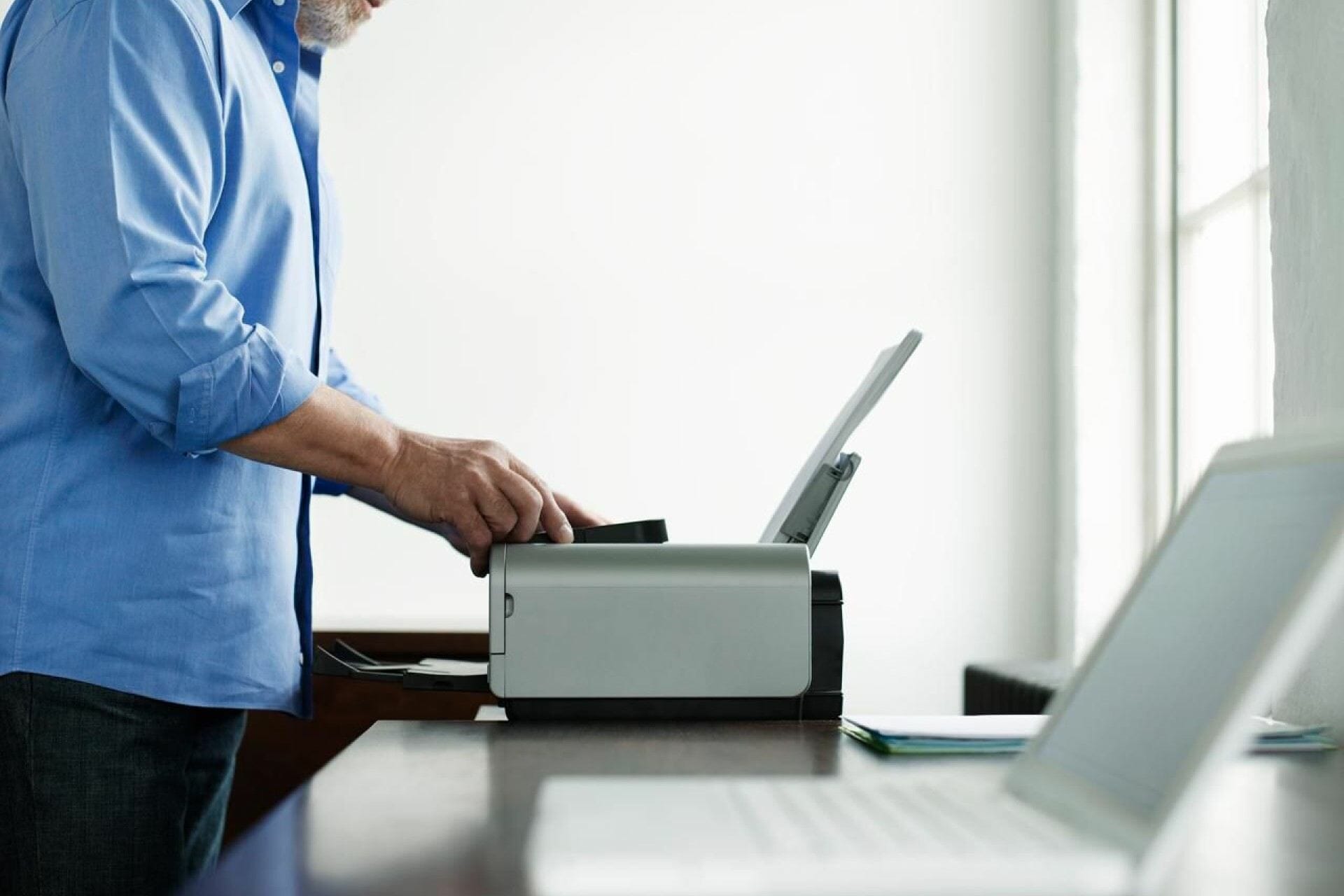
Printers are everywhere nowadays. Everybody has one in their home, because they are useful, especially when you have to deal with mass amounts of documents.

If you travel and move a lot during the day, you won’t have access to your computer or laptop often, and subsequently, you won’t be able to use your printer.

Thankfully, there’s nothing to worry about, because you can still access your computer from anywhere in the world, through your phone. How exactly will you do that? With remote control software.

What is the best remote printing software for Windows 10?

AnyDesk

AnyDesk is our first remote control software choice because it is compatible with every device, including tablets, phones, PCs, and laptops from different brands and operating systems.

The program provides a fast and latency-free connection between two devices. This means that you can download the program on your phone and on your desktop, leave it on, and control everything with the phone app.

What’s even better is that AnyDesk allows you to send files between the connected devices, so you can actually send the documents you need to print to your desktop in case you don’t have them.

Since the phone interface is optimized to show your desktop’s contents in an accessible manner, you can open up the printer software and customize the document as well.

Besides being easy to use, AnyDesk is also quick to set up. You just need to download it, then you can connect right away.

Also, make sure you give the necessary permission to change system files to your connected phone.

Lastly, we’d like to mention that the software is very secure, which will protect you from unauthorized access. AnyDesk verifies the connection with RSA 2048 asymmetric encryption.

AnyDesk

AnyDesk

Use your devices from half-way across the world thanks to AnyDesk, the muli-platform remote control software.
Get AnyDeskVisit website

Mikogo

Mikogo is a browser-based collaboration software that doesn’t require any download. You just need to create an account and log in on both devices.

Speaking of devices, you should know that Mikogo works with all of them, and it allows you to connect between them. All you need is an internet connection and a browser.

The tool is the perfect fast alternative, since creating an account is completely free, and you don’t have to encumber your computer with yet another software.

Millions of people around the globe are using Mikogo, especially for meetings and other work-related tasks, but the program has remote control functionalities as well.

Therefore, you can safely use it for personal purposes. We should mention that Mikogo also benefits from an encrypted connection, so security is not a problem.

Mikogo benefits from a session scheduler, app selection and multimonitor, and file transfer, which, as mentioned before, is great when you need to transfer files that need to be printed.

Mikogo

Mikogo

Mikogo is a popular browser-based remote control tool with screen sharing and other useful features.
Free trialVisit website

Radmin VPN

Radmin VPN is the most secure choice on the list. The software creates a special VPN for your connected devices and hides their actual location and sensible data throughout the session.

It manages connection speeds of up to 100mb/s, ensuring a smooth and latency-free connection, even while transferring or downloading the files that you need to print.

Although the program is really secure, these extra security measures come at a cost, having to set up a specific server and modifying some parameters on your computer before being able to use it.

This shouldn’t be much of a problem, since the interface is pretty straightforward, and you won’t get lost in it, but it might be confusing for those with no background knowledge of computers.

Consequently, once you manage to set everything up and connect to your other device, you’ll find that the program does its job well, and completely free as well!

Radmin VPN

Radmin VPN

Radmin is a secure remote control tool which you can safely use to print and do other tasks on your home computer from anywhere.
Free downloadVisit website

Parallels RAS

Parallels is a dedicated software that is compatible with legacy and current Windows servers. This means that you can mix and match technologies from different operating systems.

This is the perfect tool for remote desktop usage, using streamlined VDI deployment, automated image optimization, configuration wizards and customizable tools for IT usage.

Parallels allow you to quickly switch between your devices, having full control over them. This means that you can access emails, delete, transfer, and, obviously, print data whenever you want.

The software is secured with granular permission policies, SSL (Secure Sockets Layer), 140-2 encryption, smart card authentication, and FIPS.

Parallels RAS

Parallels RAS

A proffesional remote desktop software for business, enterprise, and personal use.
Check priceVisit website

TeamViewer

Our last product is TeamViewer, the choice of many IT corporations, and often used in customer support, since it is free, has a fast set up, and an easy-to-use UI.

The TeamViewer cloud platform provides you with access to any devices, at any time, from anywhere in the world. Additionally, it allows you to customize your permissions.

The tool is used by many well-known companies since it is reliable, secure, and provides a smooth experience.

TeamViewer is also great for remote work, since you can set it up to fully acces, delete, and transfer files between your devices.

⇒ Get TeamViewer

That’s about it for this article. All of the tools mentioned above will allow you to fully utilize your printer remotely. If you have any other suggestions, feel free to tell us in the comment section.

FIX: License limits the maximum session duration to partner

If you’re a TeamViewer user, and you encountered your license limits the maximum session duration to a partner error message, also known as commercial use detected or suspected, you’re in luck.

The error mostly appears because TeamViewer is free for personal use only, not commercial use. This means that you can help your loved ones, or use it to access your own devices.

If the program’s algorithm considers that you violated the free-of-use agreement, it will give you this error and your session will end.

A random Reddit user complained about the following problem on the software’s subreddit:

Just got this error (detail below) shortly after trying to reconnect to my mom’s laptop. We’re on a free personal license. I had been connected to her laptop for only a minute before that and then she brought something else up so I tried to reconnect and got this error.

It seems that the program might glitch and think that you are trying to use it unconventionally, resulting in you being stuck with the same error message and unable to use it.

It seems that more and more people are affected by these issues. Some users came to the conclusion that TeamViewer’s detection algorithms are getting more aggressive to push sales.

How do I fix the TeamViewer maximum session duration error?

1. Uninstall TeamViewer and reinstall it again.

  1. Press the Windows Key + S and type in Control Panel.
  2. In the Control Panel window, select uninstall a program.
  3. Find TeamViewer, right-click on it then select Uninstall.
  4. Let the program uninstall itself.
  5. On your start menu, type %appdata%.
  6. Search and delete the TeamViewer folder.
  7. Open the regedit  then delete the follow the following paths: HKEY_CURRENT_USER\Software\TeamViewer HKEY_LOCAL_MACHINE\SOFTWARE\TeamViewer
  8. Delete the folders at the end of those paths.
  9. After, reinstall TeamViewer.
  10. See if the issue persists.

The first thing that you should try is a free reinstallation of TeamViewer. This will work if the program glitched or bugged out, and requires a bit of work.

Note icon NOTE
You should also try contacting TeamViewer customer support about the issue. Reinstating your free license for personal use can also fix the Windows 10 error.

2. Switch to a third-party remote control software

You are able to fix this error by switching to another efficient remote control tool. Mikogo will offer the service of screen sharing free, with practical features like connecting via web or great audio conferencing.

Mikogo is an efficient share screen software that allows you to show the desktop easily in online meetings, or to help anyone remotely to solve any issues.

So, regardless of your sharing screen needs, using this software you will get qualitative remote support for your PC.

⇒ Get Mikogo

That being said, this concludes our article. TeamViewer’s growing licensing problem can be easily fixed, but we do recommend trying out other specialized software.

We encourage you to leave us any kind of feedback or suggestion regarding the subject in the comment section below.

Windows 10 news recap: Surface Laptop 4 announced, Windows Terminal gets a new Settings UI, and more

Welcome back to our Windows 10 news recap, where we go over the top stories of the past week in the world of Microsoft’s flagship operating system.

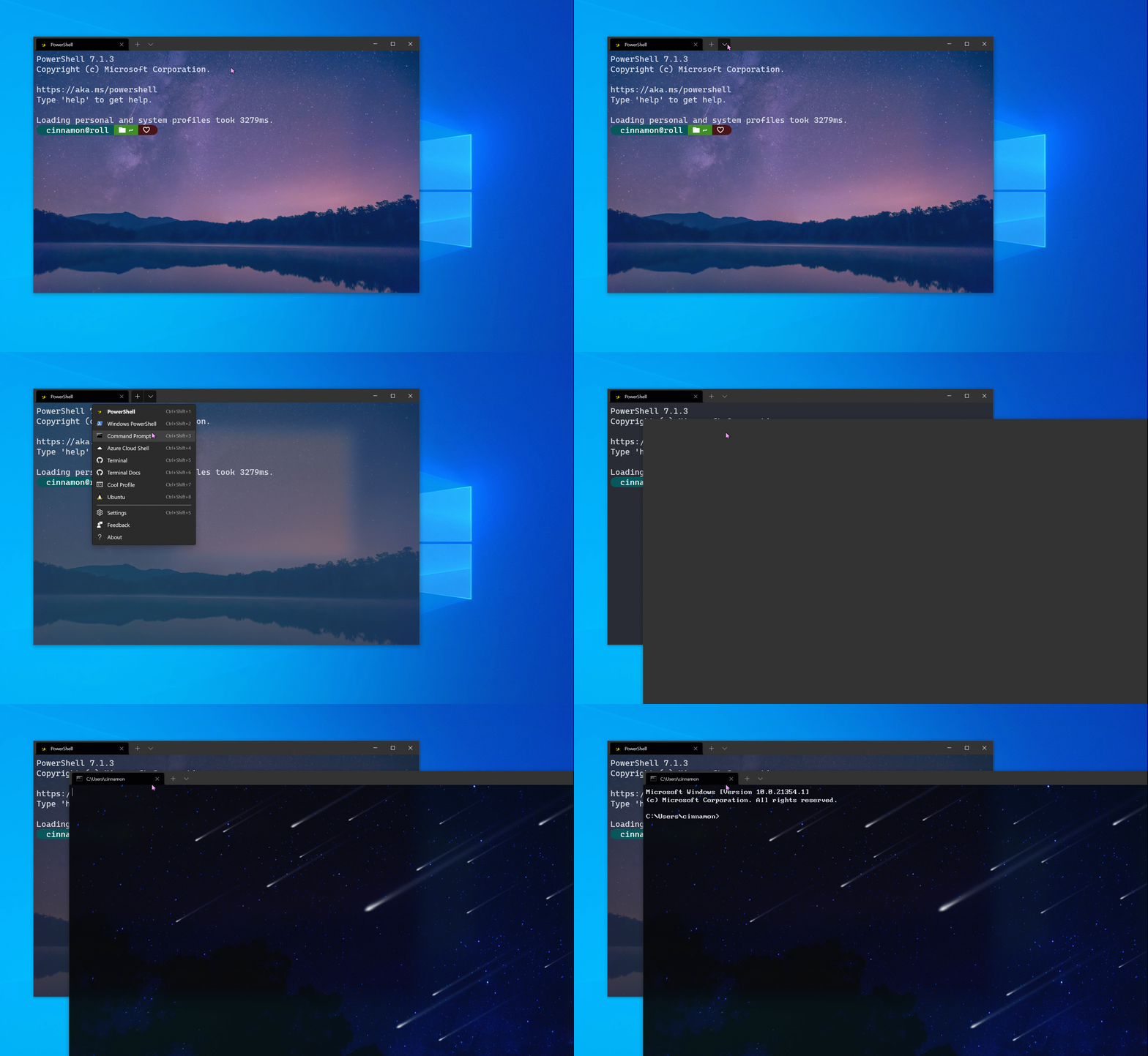
Windows Terminal version 1.7 is out with new Settings UI

Version 1.7 of Windows Terminal has started rolling out to users, and with it comes a new interface for Settings, whilst a new Preview version has also been released, coming in at version 1.8.

Windows Terminal version 1.7 is out with new Settings UI OnMSFT.com April 15, 2021

Xodo PDF Reader updates on Windows 10 with new viewer settings

Users of the Xodo PDF Reader app have received a new update this week that brings new viewer settings, as well as some bug fixes. You can see the changelog here.

Xodo PDF Reader app on Windows 10

Microsoft unveils new Surface Laptop 4

The latest Surface Laptop was announced by Microsoft this week, introducing the Surface Laptop 4. With the latest incarnation of the Surface Laptop, customers will have a choice of either Intel or AMD CPUs on both the 13″ and 15″ models. Whilst the design of the new and old laptop are essentially identical, there is a new “Ice Blue” finish.

That’s it for this week. We’ll be back next week with more Windows 10 news.

Microsoft news recap: Microsoft Edge rolls out Kids Mode and Password Monitor, Minecraft’s next update split into two, and more

Microsoft news recap is a weekly feature highlighting the top Microsoft news stories of the past week. Sit back, grab some coffee, and enjoy the read!

Surface Duo for business expands to education and commercial customers in new European markets,

Microsoft is expanding its Surface Duo for business to more education and commercial customers across 9 new European markets. The new markets include Austria, Belgium, Denmark, Finland, Ireland, Italy, Netherlands, Sweden, and Switzerland.

Surface Duo Book Mode

Microsoft Edge version 90 starts rolling out with new Kids mode and Passwords Monitor

The latest major version of Microsoft Edge, version 90, began rolling out to users this week. The latest release includes a new Kids mode, as well as Password Monitor. Kids Mode allows parents to select an age range, which will deliver a curated experience for the respective age range, as well as enabling Bing SafeSearch and preventing tracking. Password Monitor, on the other hand, will detect if any saved passwords are involved in any leaks, and will alert you to change your password if that’s the case, helping increase security of your accounts on the internet.

Minecraft’s big Caves and Cliffs update is being split into two releases

The next major update for Minecraft, Caves and Cliffs, has been split into two separate releases to help ensure that the quality of the update is high, to deliver a polished experience. The first-half is still expected to be released this summer, whilst the other is expected in the holiday season.

Microsoft Flight Simulator’s latest free World Update focuses on France and Benelux

The next free World Update for Microsoft Flight Simulator will be taking the game to France and Benelux, providing more detailed visuals of Paris and Amsterdam, and providing three new hand-crafted airports at Megève, Nice, and Rotterdam.

This week in Microsoft Teams

Dynamic View for Microsoft Teams Meetings is now available in public preview

Microsoft Teams’ Dynamic View feature, which lets you share content side-by-side with participants, has now entered public preview.

Microsoft Teams now lets Mac users share system audio with Meetings participants

System audio on Mac can now be shared with meetings participants, allowing you to share audio from your Mac with those taking part in the meeting.

Microsoft is simplifying the name of its Tasks app in Teams

The name of the Tasks app in Microsoft Teams is to be simplified. Currently named “Tasks by Planner and To Do”, it will soon be renamed to just “Tasks”, making it easier to understand.

Microsoft Teams for iOS gets custom backgrounds support for meetings

Video calls and meetings on the Microsoft Teams app on iOS have now received support for custom backgrounds. The feature has started rolling out across iPhone and iPad.

Microsoft launches new “Modern” accessories certified for Microsoft Teams

A new line of accessories have been launched by Microsoft, dubbed “Modern”, that are certified for use with Microsoft Teams. The line-up includes a webcam, two headsets, and a USB-C speaker.

Approvals in Microsoft Teams is getting eSignature support, Approval Templates this month

A slew of new features are coming to the Approvals feature in Microsoft Teams, including the ability to have eSignatures, create templates, and more. Some features have already launched, with the remainder expected by the end of the month.

That’s it for this week. We’ll be back next week with more Microsoft news.

Windows 7 Screen Sharing Tools: Best Options in 2023

Unfortunately, not many screen sharing software tools are still working on Windows 7 but we found the best ones that you can continue using.

As you probably know, Microsoft dropped the support for Windows 7 so at least for security reasons you should cross over to the more advanced and feature-rich Windows 10.

Coming back to our subject, these remote desktop solutions might be the ideal way of either help someone solve a problem remotely or just communicate with someone.

Without any other introductions, let’s take a look at what we consider to be the best screen sharing software for this operating system.

What is the best screen sharing software for Windows 7?

AnyDesk

get AnyDesk

AnyDesk is perfect even to use on the old Windows 7 because it’s extremely light and doesn’t need a lot of resources to operate.

In fact, this tool is praised by its editors as a lighting fast solution, with a latency of only 16 ms that will make you think that you’re actually on the computer you’re trying to control remotely.

Although Windows 7 can be vulnerable because of its lack of support, AnyDesk comes with TLS technology and RSA 2048 asymmetric encryption that verifies any connection.

Of course, this tool is not only designed for Windows, but for all major platforms and operating systems and can work seamlessly across them.

Key features that you are about to enjoy:

  • Two-Factor Authentication
  • Privacy Mode included
  • Compatible with all major platforms
  • User-friendly interface
AnyDesk

AnyDesk

Even though you’re still using Windows 7, you can have the best screen sharing app too.
Get AnyDeskVisit website

Mikogo

get Mikogo

If you’re looking for a more complex, conferencing software, Mikogo can be a viable option for your Windows 7 device.

This tool not only offers screen sharing capability but also comes with voice conferencing, multi-user whiteboard, application selection, multi-monitor, and many more.

And yes, in case you were wondering, you can even send files of up to 200 MB across which will save you the time and means to send the files later in the e-mail app.

What makes it perfect for business is the fact that you can record your screen and VoIP call so you can watch it later by using the built-in Session Player.

Key features that you are about to enjoy:

  • Session Scheduler to set up meetings in advance
  • High-quality VoIP
  • Advanced Annotation Tool 
  • Instant chat messages
Mikogo

Mikogo

Forget about voice assistance, with Mikogo you can start live conferences to convey your message to all peers.
Free trialVisit website

TeamViewer

get TeamViewer

Well, TeamViewer still works on Windows 7. For how long? We don’t know that but for now, let’s enjoy this great collaboration software that works on multiple platforms.

As you already know, this is not only a free screen sharing software for Windows 7 but a complex tool that you can use for conferencing, remote desktop access, file sharing, and more.

This solution even comes with a whiteboard function and it can be used independently, without installation with its portable version.

And yes, you can log your conversations so it can be really helpful in a business working environment without problems.

⇒ Get TeamViewer

Join.Me

Get Join.Me

Join.Me was designed to work even on Windows Vista and XP so it will work for Windows 7 without problems and you can also use it on 32-bit or 64-bit systems.

With this tool, you can share your screen on the spot for all participants to the meeting space. Yes, as its name suggests, this solution is more complex and implies conference and collaboration.

Designed by LogMeIn Inc, the software is very easy to use and you can invite up to 10 participants to the VoIP meeting. It comes as a free version too, so you can test it before committing.

⇒ Get Join.Me

Microsoft Remote Desktop

Get Microsoft Remote Desktop

Remote Desktop is one of the most popular apps for screen sharing on Windows as it’s part of your system. It’s free, so you don’t need to do any extra effort to get it.

It’s not the most easy-to-use app out there and it doesn’t feature the most interesting user interface but it does the job right and you can definitely use it for screen sharing.

It also doesn’t have the richest function for remote desktop controlling but it’s simple to configure and it’s perfectly matched for Windows users, even for the Windows 7 ones.

⇒ Get Microsoft Remote Desktop

This is our selection of the best screen share software for Windows 7. We hope that you found one that can perfectly fit your needs.

If you decide not to stop your searches here and improve your workflow, take a look at these reliable collaboration tools for small businesses too.

Tell us in the comments section below what solution did you choose and why. We would also like to see some of your other suggestions if you have any.

5 Best Remote Pairing Software for Windows 10/11

Nowadays, more and more individuals are looking for job offers that can be done from home. Thus, using the best remote pairing software is a must.

Working from home evolved in the past years, and technological advancements made this possible. You don’t need to be in the same place to have a business meeting or to access your Windows 10 PC.

Collaborative tools made it possible to speak with multiple persons at the same time, share the screen, and particular files, and even work on the same document remotely.

These tools were most used in IT support, for remote troubleshooting. But they also include features like screen sharing, whiteboards, or video conferences.

Because of these great elements, they can also be used when working from a distance and need to get together with others, but not in the same physical space.

In this article, we will present you with the best tools to use when you need to remotely access your work PC, or collaborate with someone else, be it a friend, coworker, or a business meeting.

What is the best remote pairing software to use?

AnyDesk

AnyDesk is maybe one of the best tools to use as remote pairing software. Working from home brings unique challenges that are easily addressed by this app.

It helps you easily access your work computer remotely, but in a secure way, keeping your company data safe from any intruders.

Additionally, it features a whiteboard, allowing you to share your screen with others, write notes, draw over the shared information. Best features when you have to train new employees, for instance.

Trusted by many IT professionals, that’s why AnyDesk is an ideal tool to use when you have to work with people around the world.

Here are some of the best features:

  • Remote support to easily solve issues
  • Connect from anywhere
  • Runs stable even with low bandwidth
  • Remote printing option
  • File transfer between remote and local devices

AnyDesk

Use a reliable and secure remote software to easily share your screen, information, and ideas.
Get AnyDesk Visit website

Radmin 3

Radmin 3 is another reliable software that you may use in order to access work computers from anywhere in the world if you have an Internet connection.

This tool is mostly used for remote control over a computer, such as in IT support to troubleshoot issues on other PCs from distance.

If your company includes servers, the system administrator can use it to manage them remotely for installing updates, solve issues, and even shut them down.

When you need to work outside your office, use Radmin to access your files with no risks of losing data because the files remains on the office PC.

Some of its important features include:

  • Secure remote access to computers in a network
  • High operating speed
  • All transferred data is protected with AES256-bit encryption
  • Can be used for remote essential network operations
Radmin 3

Radmin 3

Access your work PC from distance, no matter where you are, with one of the best remote tools available now.
Check priceGet it now

Mikogo

mikogo

Mikogo is another collaborative tool that makes online meetings more interactive and productive, due to its amazing features.

You can use this tool on multiple platforms, such as Windows, Mac, and even on your phone, so no meetings remain unattended.

While in a business meeting, you can assist them with a remote keyboard and mouse control and even hand them the control of your PC if needed.

Moreover, its whiteboard and annotation tools let you highlight the main ideas from your presentations.

Other important features of Mikogo:

  • Session scheduler tool to help you set up your meetings in advance
  • Chat options to improve communications
  • You can share up to 4 monitors
  • Session recording also included

Mikogo

Attend online meetings, share your presentations, and more with this great remote pairing software.
Free trial Visit website

Microsoft Teams

Microsoft Teams is part of the Microsoft Office 365 office, being the tool that helps users to collaborate on the same projects, hold meetings, and more.

This a complete solution that can be used for multiple purposes such as chats, video calls, file sharing, online meetings. You can even share your desktop and give control to others.

Within this tool, you can create teams where everyone can easily chat and share files with all participants. The conference has a File tab, where the documents are available for everyone.

Furthermore, individuals from the same team can edit documents at the same time. You can actually see where your coworker is editing so you won’t write over him.

Teams is also a cloud solution, and it works remotely. You don’t even need to connect to your company network in order to use it. Just use your own Internet solution.

More great feature of Microsoft Team includes:

  • Synchronized calendar with Outlook
  • Can be used even on mobile phones
  • It is also web-based if you don’t want to install the client
  • Online video calling and screen sharing
Microsoft Teams

Microsoft Teams

Use this amazing tool that allows you to remotely work and collaborate with coworkers on the same projects.
Check priceGet it now

Zoom

Zoom is maybe the most used platform for online meetings. You only need an Internet connection to be part of an important meeting, from the comfort of your home.

It can be used for meetings that include up to 1000 participants around the world, from any type of device (phone, computer, tablet) and platform.

Zoom for home is a dedicated remote solution to use when not in the office. You can attend video meetings, phone calls, collaborate with colleagues through interactive whiteboarding.

The Zoom Developer Platform can be used to pair programs remotely, helping developers to build apps, by offering a dedicated infrastructure including forums, extensive documentation.

⇒ Get Zoom

This list includes the best remote pairing tools to use when you need to interact with people that can’t be in the same place with you or to access your work computer.

If you want to discover even more great teleworking tools for similar project management tasks, check our best telework software list.

Feel free to tell us in the comments section below, which one you have used until now, or if you have any other suggestions that we should include in our guide.

PDF to Excel Converter: PDFs to spreadsheets in 3 clicks

In a world where working from a PC or laptop has become the new norm, knowing how to handle PDF files and spreadsheets is pretty much mandatory.

However, while you may develop the skill over time to work easily with both PDF and Excel, there still isn’t a fast and efficient way for users to quickly convert from one format to the other.

Fortunately enough, there are a few software solutions that can get the job done easily, one of them being PDF To Excel Converter.

Turn PDFs into spreadsheets easily

There’s not much to say about PDF to Excel Converter other than the fact that it works. The interface may look a bit dated, but at least it is simplified and uncluttered with all manner of tools that the average user may never even touch.

Using this tool is extremely simple, and converting a PDF to an Excel spreadsheet can be done easily:

  1. Download and install PDF to Excel Converter for free
    • A free trial is available, but it only lets you convert the first page of a PDF
  2. Launch the program, and open a PDF by using one of the following methods:
    1. Press the big green Plus icon to add a single PDF file
    2. Press the Folder with a plus button to add a PDF file from a folder
  3. Select the conversion parameters from the right side of the screen
  4. Press Start Converting Now

This process should take anywhere between a few seconds to a good couple of minutes, depending on how big the PDF file is, the conversion parameters, and how much data there is that needs to be dealt with.

Here is a brief overview of PDF to Excel Converter’s features:

  • It can convert PDF to Excel without Microsoft Excel installed.
  • Allows you to merge all PDF pages into one single Excel XLSX sheet.
  • Will not just convert forms, but also keep all PDF text into Excel result files.
  • Conversion engine that is reportedly 160% faster than that of other PDF converters.
  • Converts PDF to Excel XLS or XLSX format, which lets you edit PDF forms in MS Excel.
  • Converts PDF to XML and CSV formats, which can be edited in most spreadsheet tools.
  • Batch conversion that can handle hundreds of PDF documents to Excel XLS and XLSX files at once.

Try it before you buy it

As mentioned earlier, the program can be downloaded and tested for free, although you can only convert the first page of a PDF.

This feature is pretty helpful since a single page can let you understand whether the program is actually good or not, although you are pretty limited in terms of what you can convert.

PDF to Excel Converter

PDF to Excel Converter

Turn hundreds of PDF files into Excel spreadsheets easily with this amazing tool!
Free trialVisit website
Tip icon Tip

While these notifications can indeed be a bit of a nuisance, it doesn’t change the fact that the program is actually good at what it does., efficiently turning tables from PDFs into functional Excel worksheets.

This concludes our brief overview of PDF to Excel Converter. If we’ve managed to pique your interest in this product, let us know by leaving us your feedback in the comments section below.

Foxiebro Virus: What is It and How to Get Rid of It?

If you’re familiar with the idiom A wolf in the sheep’s clothing, you’re already halfway in understanding what Foxiebro is and how dangerous it can be.

The adware browser modifier is one of the most deceitful malicious programs you’ll ever encounter in everyday use. And Foxiebro is right there at the top.

For that purpose, we prepared a detailed explanation of this malware and ways how to remove it from your system.

If your browser is already infected, or you want to find out how to protect, make sure to continue reading.

Quick Tip:

Whenever you suspect that any type of malware has gotten into your OS, your first concern should be to clean the device as quickly as possible. It is possible that you have to enter Safe Mode to do that.

Our recommendation comes with a Ransomware Protection tool that is designed to find exploits even before they are launched.

However, if the system has already been infected, the tool will rapidly scan your system and detect even the most advanced known or emerging threats, thanks to the ultimate technologies it uses.

TotalAV

TotalAV

With TotalAV software solution you can have total protection for your PC against malware threats. Try it out now!
Free trialVisit website

What is Foxiebro malware and how it works?

Foxiebro is primarily a variation of BrowserModifier (adware), but it is commonly associated with Trojan viruses and various spyware extensions.

It installs in the background and integrates into your default browser. And then the problems begin. This nasty malware commonly comes in the form of an add-on, plug-in, or browser extension.

Once installed, it will do the following:

  • Bombard you with numerous ads in search results, on websites, or with pop-up advertisement windows.
  • Change the default search engine and the home page of the affected browser.
  • Tweak registry keys in order to start with the system.
  • Occasionally hijacking your online accounts and spam acquired e-mail address.
  • Enable viruses and malware to install on your computer in the background.

So, it’s not only an annoyance as BrowserModifiers tend to be but a proper high-level threat. An ad blocker might help you to some extent, but as you can see for yourself, ads are only the tip of the iceberg.

It can reach your system in various ways, including spam e-mail, malicious links, or, most commonly, through a third-party program installation.

The following programs are known carriers for the Foxiebro malware, as stated by Microsoft Malware Protection Center:

  • AdvanceMark
  • AppBud
  • Between Lines
  • BrowseFox
  • DoughGo
  • Fragile Fixer
  • GrooveDock
  • Hold Page
  • Jotzey
  • KingBrowse
  • Metal Maker
  • Nettock
  • Newer Version
  • Primary Result
  • ResultsBay
  • Screen Flip
  • Search Vortex
  • Special Box
  • TowerTilt
  • Web Amplified
  • Wiseenhance

Take a close look when dealing with these or similar programs and don’t let them install any unwanted feature.

Due to the complexity of Foxiebro malware intrusion, you’ll need to make an effort in order to remove it from your computer.

How do I remove Foxiebro from my PC?

  1. First, type Control in the search bar, and open Control Panel.
  2. From the Category view, open Uninstall a program.
  3. Uninstall lately installed, suspicious programs. (The list above should come in handy here.)
  4. Navigate to C:Programs (or Programs x86) and delete the remaining files of the uninstalled program.
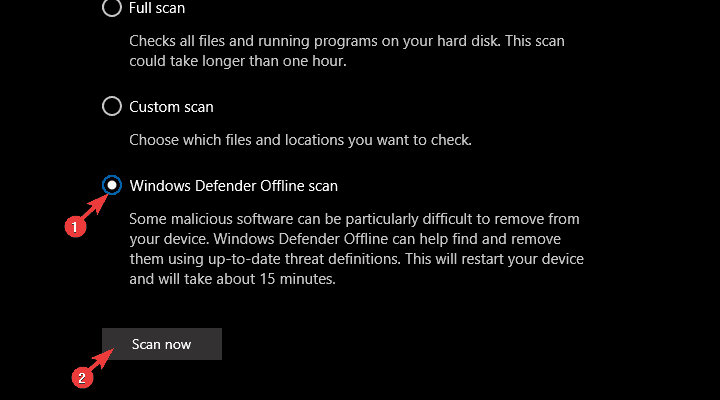
  5. Now, open Windows Defender from the taskbar notification area.
  6. Choose Virus & threat protection.
  7. Open Advanced scan.
  8. Select Windows Defender Offline Scan and click Scan now.
  9. Your computer will restart and the scanning procedure will start.

You can perform the deep scan using Vipre, as well, as suggested in the beginning.

Additionally, in case the adware got too far into the system, you can find here a full guide on recovering your Windows 10 device after malware infection.

And this is the safest way to deal with Foxiebro. We’d like to hear what’s your experience with BrowserModifier or Foxiebro in particular? Tell us in the comment section below.

Here’s why Microsoft pushes AMD64 specific updates to Intel PCs

Back in 2019 a lot of Windows 10 users have noticed that Windows 10 v1903 includes AMD64 software updates even though they have an Intel based system.

Because Intel and AMD are different manufacturers and also competitors, this raised some eyebrows. Here’s how one user described it:

Microsoft Windows Professional 10 was using a 64 bit intel chip was downloading only AMD64 updates.[…] have to reboot into safe mode and remove the contents of the directory every time the delay ticker is met to stop a 16 hour update cycle with a 52% install and the a forced return to the previous version as the update is trying to apply AMD code to my windows installation on an Intel 64bit processor.

windows v1809/v1903 amd64 update on intel system

And here’s a screenshot of the original OP:

Although this could seem a big problem that affects a lot of people, you don’t have to worry about it.

AMD64 update is applicable to Intel based systems

If you saw the same thing on your PC, you have to understand that AMD owns the 64-bit architecture and the AMD64 updates are applicable to AMD and Intel-based systems alike, as another savvy user confirms:

AMD invented and owns the 64bit architecture, so even if your system is Intel based, as long as it is 64bit, that update will be applicable.

AMD64 is a generic name for an instruction set used by AMD and Intel. It doesn’t affect one or the other in any way because it’s used for 64-bit processors, regarding the manufacturer of the CPU.

So if you were having the same dilemma, don’t worry about it and just leave the update run its course. Everything is how it’s supposed to be and the update should take place without any issues.

If you encounter any problems similar to the user above, they are most likely caused by something else and surely not from the AMD64 update.

OneDrive is getting the 64-treatment as well

Two years after the release, an update to the Microsoft 365 roadmap stated that,

OneDrive is now available as a 64-bit install for AMD64-based devices.

Thanks to the 2019 AMD64 update, you don’t have to worry if you want to install the new OneDrive on an Intel PC, since they will now work.

If you have any more questions, feel free to reach for the comments section below.

AVG Antivirus Won’t Update or Uninstall

It’s more essential to update antivirus utilities than most software. However, some users have stated on forums that their AVG antivirus utilities don’t update.

That leaves them with outdated AVG antivirus software. Here are a few resolutions that might fix an AVG utility that isn’t updating.

What can I do if AVG fails to update?

  1. Manually Update AVG
  2. Change your antivirus solution
  3. Delete Temporary Update Files
  4. Scan for Malware
  5. Turn Off the Windows Firewall
  6. Reinstall AVG Antivirus

1. Manually Update AVG

  1. First, open this page in your browser.
  2. Select your AVG version on the page, and then click update to save to HDD or USB drive.
    AVG antivirus won’t update or uninstall error
  3. Open your AVG utility in Windows.
  4. Click Options at the top right of the AVG window.
  5. Then select Update from directory to open a Browse for Folder window.
  6. Select the folder that includes the AVG update, and press the OK button.

First, try updating AVG manually. That’s not exactly a fix for AVG’s automatic updates, but at least you might then get the software updated. This solution shows you how you can manually update AVG.

2. Change your antivirus solution

If AVG does not make the cut, it might be a good idea to consider replacing your antivirus with a more well-balanced security solution that benefits from regular updates.

It is the ideal software to keep your computer virus-free, protecting it from viruses, spyware, worms, ransomware and different types of malware.

This antivirus will not affect your computer performance while running, so that you can play games, watch movies or create presentations without any interruptions or slowdowns.

Whenever you perform different actions at your computer, you will not experience any annoying pop-ups or system updates.

This antivirus solution contains an intelligent battery-saving mode, thus allowing you to stay online and unplugged longer.

Enjoy playing your favorite games without having to stop and close different pop-ups that may appear.

TotalAV

Choose TotalAV to protect your computer from viruses, worms, ransomware and other types of malware.
Check price Visit website

3. Delete temporary update files

  1. Click Options and select Advanced Settings on the menu.
  2. Click the + to expand Update, and press the Manage button.
  3. Then you can select a Delete temporary update files option.
  4. Click Yes to confirm and erase temporary update files.

Deleting the software’s temporary update files might fix AVG updates if it returns an error message when updating. To do that, open the AVG window and complete the above procedure.

4. Scan for malware

Whenever we hear about different programs that affect our computers in a negative way, they enter the malicious software category.

Also known as malware, these harmful computer programs are divided into many sub-classes such as viruses, ransomware, and spyware.

The malware is a code developed by cyberattackers, whose purpose is to cause damage to your computer or to gain access to your private information.

Malware can block AVG updates. As such, purging malware might fix the utility’s updates.

5. Turn Off the Windows Firewall

  1. Open the Cortana search box by pressing the Type here to search button on the taskbar.
  2. Input the keyword Windows Defender in Cortana’s search box, and select to open Windows Defender Firewall.
    Fix error when AVG antivirus won’t update or uninstall
  3. Click Turn Windows Defender Firewall on or off to open the firewall settings shown directly below.
    How to fix the error AVG antivirus won’t update or uninstall
  4. Select both the Turn off Windows Defender Firewall options there, and press the OK button. You can turn the firewall back on after AVG updates.

The Windows Firewall might be blocking AVG from updating. To ensure that isn’t the case, you can temporarily switch that firewall off.

6. Reinstall AVG Software

  1. Open the Run accessory by pressing the Windows + X hotkey and selecting Run.
  2. Enter appwiz.cpl in Run to open the Control Panel applet shown directly below.
    AVG antivirus won’t update or uninstall error
  3. Select your AVG antivirus package listed there, and press its Uninstall button.
  4. Then click Yes to confirm that you intend to remove the software.
  5. Restart Windows after uninstalling the software.
  6. Alternatively, you can more thoroughly remove AVG utilities with AVG Remover.
  7. Click Download on this page to add AVG Remover to Windows.
  8. Uninstall the antivirus software with AVG Remover, and restart Windows.
  9. You can download the latest AVG software from this page.
  10. Then reinstall your AVG utility with its setup wizard.
    • Note that you might also need to reactivate non-freeware AVG antivirus software with a product key.

For a clean reset of your security setup, follow our guide to uninstall AVG Antivirus completely before you reinstall the latest version.

Reinstalling the AVG utility will at least ensure that you have the latest version installed. A fresh copy of AVG will also replace the utility’s components and settings, which can fix numerous update issues.

Follow the guidelines above to reinstall AVG. One or more of those resolutions might get your AVG anti-virus software updated.

Note that you can also select a Repair option for AVG in the Programs and Features Control Panel applet. That option might also come in handy for fixing AVG update errors.

If you want to discover other great security tools, we recommend you to take a look at our guide including the best lifetime license antivirus tools.

Share your experience with us in the comments section below.

Skype has over 300 million monthly active users, says Microsoft

Skype has become synonymous with the idea of VoIP programs, with the term skyping becoming a real thing.

Well, the program’s popularity has only grown, or at least that’s what we are to believe according to the Skype 2016 release.

Skype reaches an important milestone in terms of active users

The Build 2016 conference brought many new announcements for developers that will improve their efforts to build more functionality and features into their apps.

Microsoft also took the opportunity to announce some great news, like Windows 10 having more than 270 Million users and Skype being integrated with Cortana.

Microsoft also announced that Skype has finally reached the 300 million monthly users mark, a great milestone for the program.

In addition to the new Cortana and Bots-related feature to be built right inside Skype, Microsoft has worked quite hard to integrate Skype deeper inside Windows after acquiring it.

With this number of monthly users, Skype has entered the league of some of the most used instant messaging and VoIP apps even if its numbers are still lower than the number of WhatsApp and Facebook Messenger users.

Apart from this, Microsoft made several other announcements related to Cortana as well as HoloLens, which you should definitely check out.

Microsoft Edge’s surf game is now available on other web browsers

Along with the rollout of Microsoft Edge 90 and its list of new features the team also rolled out its timewaster surf game to other browsers.

Back in November of 2019, the Microsoft Edge team enabled an 8-bit surfing game hidden with its Edge browser as an Easter Egg for Insiders.

The game simply referred to as “the surf game” was inspired by the classic Windows game SkiFree which was a vertical scroller that pit players against objects that popped up in various locations on the screen while they navigated the ski slope on their way to the bottom.

The surf game is a spiritual successor to SkiFree with a water theme and slightly updated graphics while still maintaining the simplistic directional input methods for controls.

Microsoft Edge Surf Game Hero

Since its introduction, the Edge team has built out more gameplay to the vertical scroller that includes endless mode, time trial mode, zig-zag mode, reduced speed more, and some other enhancements.

With its popularity was gained solely on the Edge browser by Insiders, Microsoft has begun rolling out accessibility to the game via other browsers with a simple URL search now.

Typing edge://surf in most modern address bars will bring up a search page with the top result being the Microsoft surf game. After selecting the search result, the player is dropped into a sample of the game. At the top left of the page is a recommendation to use the Edge browser to unlock the full game (tricky).

According to the latest NetMarkeShare analysis, Microsoft is making modest inroads in the browser market, and using its fan-favorite 8-bit surfing game as a carrot, may help it gain a few more percentages over time.

ScanGuard Antivirus Review: Is it legit and safe to use?

Browsing through Microsoft’s forum, we noticed there is one term that caught the attention of many people: ScanGuard. Most users believe this software is actually a malicious program and avoid installing it on their machines.

Other Windows users aren’t sure whether ScanGuard is a virus or not, and simply want to gather more information about it. So, is ScanGuar malware or not?

What is ScanGuard, is it safe, and should I remove it?

Do not use this, I believe it to be a scam. The first trick is it is free——-oh no it aint, sooner or later your brain will ask just how much is this going to cost me, carry on at your peril ! If you do back out (common sense kicks in) make absolutely sure you can delete it all in its entirety.

ScanGuard is a PC clean-up and optimization tool. Since it’s a very new program, there is not much information available about it.

All data indicates that ScanGuard was rolled out in September last year, but the fact that its creators have yet to provide potential users with more details is, indeed, worrisome.

However, the tool’s official website appears to be genuine, although this is not a solid evaluation criterion.

As far as users’ feedback is concerned, it appears ScanGuard leaves much to be desired because its behavior is similar to a malware’s.

Here’s what one user reports:

Beware this Scanguard software. If you don’t purchase the removal tools after it finds multiple problems on your computer it will then take over your computer via the Edge browser and threaten to lock it.

Other users report that while well-known antivirus solutions can’t detect any threats on their machines, ScanGuard comes up with a long list of potential threats.

big scam not free. found loads of malware on my computer that had just been scanned and found to be safe and clear, but they come up with loads of preinstalled alerts about infections that just are not there. then they expect you to buy it to clear your fictitious malware, not Free just a scam don’t use it.

What does Microsoft say about ScanGuard?

Microsoft’s forum moderators recommended users to stick to Microsoft Security Essentials and Windows Defender. These tools are powerful enough to protect your computer against virtually all the threats lurking in the dark.

For Vista or Windows 7 use MSE – Free. For Windows 8/8.1 and 10 use Windows Defender which in those OS’s is a full antivirus (same as MSE).
And use the Windows Firewall. Use Malwarebytes – Free as an On-Demand scanner if needed.

Why are there so many people promoting ScanGuard?

Many users are also wondering why there are so many tech websites and tech gurus promoting the product. There are quite a few positive ScanGuard reviews available online.

It is worth mentioning that ScanGuard has a very enticing affiliate program, its partners can earn up to $70 for each user that signs up for a paid account.

Of course, there may also be users and tech websites that actually found value in ScanGuard and then decided to promote the product — to each his own.

The suggested alternative to ScanGuard antivirus

While no cybersecurity company has confirmed that ScanGuard is a malware, the tool’s unstable behavior doesn’t recommend it for use. Indeed, the program appears to be genuine, yet its adware behavior ruin its reliability.

Users complained about its marketing oriented approach: you can download it for free, use it to scan your PC, but when it comes to actually removing the threats detected, you’ve got to show ScanGuard the money.

Many users wouldn’t have this hostile attitude towards ScanGuard if things had been laid out clearly from the very beginning. Again, technically speaking, the company behind ScanGuard never lied because it never stated that the tool would also remove the threats for free.

Indeed, the download and scanning processes are free. However, if you want ScanGuard to go to the next level, you need to pay.

With our software recommendation you can have total protection for your PC against malware threats. You can enjoy its amazing features for a 30-day trial period before you buy it.

Now you protect your data, can make secure bank payments, take care of your passwords and all the smart devices in your home at full capacity.

⇒ Get TotalAV

Conclusions —  ScanGuard: scam or legit?

In a nutshell, we don’t recommend ScanGuard to anyone. There are many user testimonials that point to its malware-like behavior. Also, the scan results always seem to be the same, and this raises many questions.

Another fishy element is the lack of reaction of the company behind ScanGuard Antivirus. Most user reviews are negative, yet ScanGuard has yet to issue any comments on the situation.

However, if you decide to give it a go, install it on an old PC where you don’t keep essential files and folders. In this manner, you can quickly reformat the device if you don’t like the way that the software is behaving.

Also, don’t forget to create a Restore Point before installing the software. In case anything goes wrong, you’ll be able to restore your PC’s settings and files to a time when everything was running smoothly.

We strongly suggest you check out some of the best lifetime license antivirus tools before falling prey to ScanGuard.

Please leave your comment below and let us know what has been your experience so far with ScanGuard on Windows 10 or on any other Windows OS version.

How to uninstall Segurazo antivirus [Easy Guide]

Malware enters your computer system in various forms. The Segurazo virus is a PUA (potentially unwanted application) that gets in by disguising as a legitimate productivity tool or antivirus.

This program is free to download, but many users also install it unintentionally.

Does the Segurazo harm your computer system? Is it a virus? Should you remove it? How do you uninstall the Segurazo virus? These are burning questions in the minds of everyone who’s installed this program.

In this article, we’ll answer all of these questions in detail.

Is Segurazo a virus, and should you uninstall it?

Segurazo is not really a virus, but it’s malicious. Also known as SAntivirus Realtime Protection Lite, this program claims to help you find and remove threats from your computer.

However, instead of doing that job, the Segurazo gives you false positives, showing you non-existent threats and encourages you to purchase software that you don’t need and may be harmful to your PC.

Therefore, you have to uninstall Segurazo before it causes further damage.

The Segurazo virus tricks you into downloading and installing it on your system. When you realize what the application really is, you also find that there’s no straightforward way to uninstall it.

The application hides, and you wouldn’t even find it in the Add or Remove Programs list. Even if you manage to uninstall it, the program tends to reinstall itself.

How can I uninstall the Segurazo application?

1. Use the Segurazo uninstaller

  1. Navigate to: C:/Program Files (x86)/Segurazo
  2. Double-click on SegurazoUninstaller.exe.
  3. Select Remove Protection.
  4. Restart your PC.
  5. Close all open windows and return to the Segurazo Uninstaller window.
  6. Mark the Segurazo Antivirus and Configuration Files checkboxes.
  7. Click on the Uninstall button.
  8. Don’t restart your PC when prompted. Hit No.
Note icon NOTE

2. Remove the Windows Registry entries

  1. Go to Search, type regedit, and open the Registry Editor.
  2. In the Windows Registry, hit the CTRL +F combination, search for Segurazo, and click on Find Next.
    It should take you to: HKEY_CURRENT_USER\Software\Microsoft\Windows NT\CurrentVersion\AppCompatFlags\Compatibility Assistant\Store
  3. Right-click and delete the uninstaller program found in: C:\Program Files (x86)\Segurazo\SegurazoUninstaller.exe
  4. Press the CTRL + F combination again and hit Find Next.
    This should take you to: HKEY_LOCAL_MACHINE\SOFTWARE\Microsoft\Tracing\segurazoclient_RASAPI32
  5. Delete the following folders:
    1. Segurazoclient_RASAPI32
    2. Segurazoclient_RASMANCS
    3. SegurazoService_RASAPI32
    4. SegurazoService_RASMANCS
    5. SegurazoUninstaller_RASAPI32
    6. SegurazoUninstaller_RASMANCS
  6. Press CTRL + F and click on Find Next. You should land on the following folder: HKEY_LOCAL_MACHINE\SOFTWARE\WOW6432Node\Microsoft\Windows\Segurazo
  7. Delete the Segurazo folder.
  8. Go to the following path and delete the PendingFileRenameOperations value:  HKEY_LOCAL_MACHINE\SYSTEM\ControlSet001\Control\Session Manager
  9. Press CTRL + F and click on Find Next.
  10. Delete the value: \Device\HarddiskVolume5\Program Files (x86)\Segurazo\SegurazoClient.exe
  11. Navigate to the folder: HKEY_LOCAL_MACHINE\SYSTEM\ControlSet001\Services\EventLog\Application
  12. Delete the SegurazoSvc key.
  13. Press CTRL + F and hit Find Next.
  14. Delete the value found at: \Device\HarddiskVolume5\Program Files (x86)\Segurazo\SegurazoUninstaller.exe
  15. Go up the Registry Editor navigation, and click on Computer.

3. Delete persistent files in Command Prompt

Remove DLL files

  1. Close all open programs on your system.
  2. Press the Windows key and search for cmd.
  3. Right-click on Command Prompt and select Run as Administrator.
  4. In the Command Prompt window, enter the following commands and hit Enter after every line:

del /f C:\Program Files(x86)\Segurazo\SegurazoShell64_v1069.dll

del /f C:\Program Files(x86)\Segurazo\SegurazoKD.sys

Remove the Segurazo folder:

  1. Open File Explorer and go to: C:\Program Files(x86)
  2. Delete the Segurazo folder.
  3. Permanently delete the folder from the Recycle Bin.

The process explained above is the right way to effectively uninstall the Segurazo virus for good. You don’t need to purchase or download any special uninstaller.

Also, modifying or deleting folders and values in the Windows Registry can damage your system; so you must be careful to follow the steps carefully.

4. Try an alternative antivirus tool

To make sure you don’t encounter other misleading software, you need a proper antivirus solution. That’s why we recommend using one of the most reliable antivirus tools on the market, which will protect your PC optimally.

This antivirus is available on multiple platforms, including Android, so give it a try. You also benefit from a free 30-day trial period where you can familiarize yourself with its best features.

This amazing software offers exquisite protection against all threats including spyware, rootkits, worms, viruses and even adware. So if security is a priority for you, then it’s worth a try!

TotalAV

Use one of the best antivirus solutions on the market and protect your PC from malicious software. Try TotalAV now!
Free trial Visit website

Malware has always been one of the biggest PC problems. We hope our solutions above have helped you to uninstall Segurazo antivirus safely.

If you want an antivirus with unlimited validity, be sure to try out any of the programs from our best lifetime license antivirus tools guide.

For more solutions to fix this problem or other questions, please visit the comments section below.

Fix corrupt battery alert: What is it and how to remove it

Sadly, the shock-and-awe scare tactics of the cybercriminals still work and that is increasingly concerning for all Windows 10 users.

Lots of Windows users still fall for the frivolous gimmicks, some of them get robbed of the precious data while others get completely overwhelmed by adware and PUPs.

One common false alarm informs the users that their laptop battery is corrupt, and they need to fix it with an enlisted tool.

We made sure to explain what is wab.exe in Windows 10 and provide you with ways to deal with it. Make sure to check the article in detail and find out how to fix this problem.

How can I fix the Corrupt battery prompt?

1. What is Corrupt battery prompt?

Let’s start with the most important disclaiming fact. Your battery can’t get corrupted. It can deplete faster than usual but you can also do something to preserve some of that battery life.

But it can’t get corrupted. What are we looking at is the malware scam in action.

One of the many false alerts which prey on inexperienced users. They click on the pop-up, thinking that the message comes from the system.

Hoping to fix this critical issue, they open their system to malicious invaders and that’s when the real problems start.

These can lead to a recently popularized ransomware attack or your whole system might get infected with a virus or adware.

Usually, they’ll suggest installing a frivolous third-party tool that will magically fix the battery corruption.

That’s why the presence of the antimalware solution, be it Windows Defender or a third-party suite, is of the utmost importance.

So, if you ever see a prompt which claims that a piece of your hardware, especially battery, is corrupted, avoid it like a plague. Don’t click on it and don’t download anything it offers.

2. How can I remove the Fix corrupted battery scam?

2.1 Use Windows Defender

  1. Open Windows Defender from the taskbar notification area.
  2. Choose Virus & threat protection.fix corrupt battery
  3. Choose Scan options.fix corrupt battery
  4. Select Windows Defender Offline Scan.
  5. Click Scan now.fix corrupt battery
  6. Your PC will restart and the scanning process will commence.

In addition, you probably want to remove it from good and make your PC safe to use again. This is the next step you’ll need to follow through.

Most of the antimalware solutions will deal with it automatically. However, depending on the quality of the tool, these malicious atrocities can slip in without detection.

But not for good! By performing a deep scan, you should be able to clean everything. In addition, we suggest using some kind of anti-PUP and anti-Adware tool to clean all affected browsers.

We showcased the procedure for Windows Defender above. Of course, you can use any combination of security programs to get basically the same results.

2.2 Use a third-party antivirus

Windows Defender offers great protection but it’s not a top security solution and it might not get the job done and remove this malware.

That’s why we recommend using a third-party security solution that will definitely remove this pesky PUP and if you’ve had it installed it wouldn’t have allowed this prompt to get into your system in the first place.

The various versions of this antivirus is installed by over 110 million users around the world and that makes it a trusted solution everywhere.

TotalAV

TotalAV comes with a complete and reliable solution that will get rid of any malware and protect you further from other threats.
Free Trial Visit Website

After that, you shouldn’t see any more false alarming prompts regarding your battery. We can also advise keeping your eyes open while browsing and downloading third-party applications.

Lots of them tend to sneak in a PUP into your system. As they sometimes come through with an e-mail, you should also check our list with the best e-mail scanning software to get rid of any malware.

We provided the corrupted battery fix that should solve the problem. If you have additional questions or suggestions, make sure to post them in the comments section below. We’ll be glad to hear from you.

Snipping Tool Couldn’t Copy That Image: How to Fix it

Snipping Tool can be useful if you want to make screenshots. However, many reported Snipping Tool couldn’t copy that image error message.

This will prevent you from copying and editing screenshots, which can be a big problem. However, you can always view snips and screenshots location and find your files.

However, this is just a workaround, so let’s see how we can fix this problem permanently.

Why can’t I copy an image in the Snipping Tool?

  • You might encounter this issue if the Auto copy feature isn’t enabled on your PC.
  • In some rare cases, third-party applications can cause interference with this feature.

How do I fix Snipping Tool couldn’t copy that image error?

1. Check the Auto copy to clipboard option

  1. Open the Snip and Sketch tool from the Desktop or Action Center.
  2. Click the Menu button (three dots).
  3. Select Settings from the options.
  4. In Settings, under Auto copy to clipboard, make sure the Update the clipboard automatically when annotating option is enabled.
  5. If not, turn on the option and close the Settings window.

On Snipping Tool:

  1. Launch the Snipping app and click on Tools.
  2. Click on Options.
  3. Check the Always copy snips to the clipboard option.
    Enable Copy to Clipboard option in Snipping Tool
  4. Now try to snip anything on your screen and check if it copies the image to the clipboard.
  5. If you don’t see the Settings option in your Snipping App, you may have to update your Windows OS to the latest build.

After making these changes, check if Snipping Tool is still not saving to clipboard. If Snipping Tool is not working, you won’t be able to paste in Paint as well.

2. Repair Microsoft Office

  1. Type Control Panel in the home screen search box and open the app.
  2. In the Control Panel, go to Programs and select Programs and Features.

  3. Select Microsoft Office and click on Change. Click Yes if asked to confirm.
  4. Here, you will see the following options:
    Quick Repair – Select this option first. It will quickly try to repair all the files related to your Office application without requiring internet access.
    Online Repair – Use this option if Quick Repair does not work. However, this option requires an Internet connection to find and resolve the issues.
  5. Reboot the system once the repair is complete and check for any improvements.

The solution is valid if the issue occurs when you try to copy/paste the screenshot on any of the Microsoft Office apps like Outlook or MS PowerPoint.

As you can see, it’s pretty simple to fix Snipping Tool couldn’t copy that image error message on your PC.

Unfortunately, this isn’t the only issue you can encounter, and many reported that they can’t find Windows Snipping Tool, however, we covered that issue in a separate guide.

What method did you use to fix this problem? Share it with us in the comments section below.

PowerToys experimental version 0.36 is now available with Video Conference Mute tool

Microsoft has released a new update of its PowerToys suite of tools to users running the pre-release versions. The experimental version 0.36 contains all the additions and fixes that were included in version 0.35, along with the much-anticipated Video Conference Mute tool.

Microsoft first announced the Video Conferencing utility back in September last year. As the name suggests, it enables users to mute audio and video feed during video calls with a single keystroke. However, the team had to remove it in subsequent releases because it needed more time to iron out issues and ship a workable solution.

After months of waiting and anticipation, the Video Conference Mute tool is finally available for testing in the experimental builds. The company adds that it has changed the virtual webcam driver into a DirectShow filter “This is our first release with the webcam driver actually being a DirectShow filter. This solves a multitude of quirks and simplifying the signing through our compile pipeline,” said Clint Rutkas, Program manager lead on PowerToys.

Moreover, it turns out that there are still a bunch of known issues with the Video Conference Mute feature, despite being tested for so long. Here’s the full list of known issues and limitations:

  • with some webcams, there is an incompatibility with Teams and the overlay image is not rendered, instead a corrupted frame is shown. If your camera has this quirk, please let us know the model in the [main tracking issue – #6246]
  • the application preview (Teams, Meet, etc.) may show the overlay image flipped horizontally but that is expected, the image will show correctly to the other people on the call.
  • in order to enable/disable the VCM, PowerToys should run as administrator
  • changes to some of the VCM settings require the application to restart to pick up the new values such as a new overlay image.
  • in some cases, the overlay image can be shown flipped vertically (the workaround is to edit the image and flip it before selecting it).
    (#6246)
  • if the PowerToys Video Conference Mute webcam doesn’t show up in the video conference app, try restarting the app and if still doesn’t show up try restarting Windows.

As of this writing, there is no word on the possible ETA for the official launch of the tool, and the firm is currently fixing bugs and finalizing the offering. Those that are interested to install the experimental version can head to the GitHub page to try out the Video Conference Mute feature.

How Good is Windows Defender to Protect My Computer

If you want to install a reliable antivirus on your Windows 10 PC but don’t know the best free antivirus, we are here to help you.

Even though many users swear by third-party security software solutions, Windows Defender should not be cast aside, as the software comes pre-installed on all Windows 10 devices for free.

This antivirus software has received several improvements in the last few years, but read more about it below.

Does Windows Defender protect your Windows PC?

is windows defender good

Microsoft has done an excellent job adding new features and upgrading a lot of the functions that Windows Defender comes with.

Now, having included ransomware protection, browser control, and device performance, the built-in antivirus can hold its own against most other antivirus utilities.

In the battle for the best free Windows antivirus between Windows Defender and Avast, Maximum PC choose Avast, but here’s what they said about Windows Defender:

Avast wins this bout by taking three of the five categories and tying in another, though it’s not quite as lopsided as it appears. Windows Defender, while not as fully featured as Avast, is capable of blocking common threats, and it doesn’t put a drain on system resources. Avast’s army of defenses is just bigger and better trained to spot danger from more places, like IM clients. It also has a bigger arsenal of weapons.

If you want extra protection or more features like email scanning or machine learning to block malware automatically, then you might be better served by a third-party antivirus solution.

Third-party antivirus software that can replace Windows Defender

As a third-party antivirus solution to replace Windows Defender, we recommend a tried and tested alternative.

Similarly to Windows Defender, our suggestion has little to no impact on your system, and it will quietly work in the background to provide the best level of security one can hope for.

In addition to the features offered by Windows Defender, using our suggestion, you can benefit from more specialized tools that incorporate functionality obtained by using several programs.

You have top-notch anti-malware protection, also a webcam protection, and all this with low system requirements.

Also, keep in mind that you can try out this antivirus for 30 days, completely free and with full functionality.

TotalAV

Enjoy the protection of your data and your Windows PC with this reliable antivirus solution.
Free trial Visit Website

If you are looking for an alternative to protect your PC, check out our list of the best lifetime license antivirus tools, and find the right one for your needs.

While Windows Defender is pretty reliable, if you encounter any issues, you can always use Microsoft Safety Scanner to remove viruses from your PC.

To ensure that no security issues occur, read our guide on the best Microsoft Defender advanced threat protection settings.

For more suggestions, please access the comments section below. Also, let us know what you prefer: Windows Defender or third-party security software.

Kingdom Two Crowns video game is free to play on Xbox One and Xbox Series X this weekend

As part of Microsoft’s weekly Free Play Weekend campaign, Kingdom Two Crowns has now been made free to play for all Xbox One and Xbox Series X console owners with an active Xbox Gold Live subscription.

As with previous Free Play Weekends, the video game will remain completely unlocked and free to play in full until the end of Sunday at 11:59 PM PDT.

Kingdom Two Crowns is a side-scrolling game that launched on Xbox One back in 2018. Kingdom: New Lands, also now available, builds on the world established in Kingdom Two Crowns while both are included in the Kingdom Treasury Collection for those that want to really dive in.

Here’s the official game description for Kingdom Two Crowns:

Kingdom Two Crowns is a side-scrolling micro strategy game with a minimalist feel wrapped in a beautiful, modern pixel art aesthetic. Play the role of a monarch atop their steed and recruit loyal subjects, build your kingdom and protect it from the greedy creatures looking to steal your coins and crown.

In the brand-new campaign mode, monarchs must now work to build a kingdom that stands over time until finding a way to defeat the Greed for good. Explore the environments to discover new mounts and secrets hidden in the deep. But you don’t have to rule alone! Introducing a cooperative play experience that is totally unique to Kingdom: Two Crowns, monarchs can now choose between a classic solo experience or seek the assistance of a friend, working together locally or online, dropping in or out at will.

Are you going to play Kingdom Two Crowns this weekend on your Xbox Series X or Xbox One? Let us know why or why not in the comments below and then follow us on Pinterest and Twitter for more Xbox gaming news.

Kingdom Two Crowns
Kingdom Two Crowns
Developer:
Raw Fury
Price:
$19.99


Kingdom: New Lands
Kingdom: New Lands
Developer:
Raw Fury
Price:
$14.99


Kingdom Treasury Collection
Developer:
Raw Fury
Price:
$29.99

MOVAVI Video Editing Range of Products [Review]

With the outgrowing number of content creators, online courses, and remote jobs, the demand for adequate software that helps interaction and learning has also increased.

Specialized software is required to create a video showcasing something, a tutorial meant to teach people, or even entertaining content for platforms such as Vimeo, YouTube, and many others.

There are many video editing software out there, some of them good, some of them bad. It is really important to choose software that suits your needs.

In other words, the quality of the programs you use to create, edit and finish your video will be reflected in your line of work.

That being said, today we are going to review some of Movavi‘s video editing software. Let’s see what these interesting tools have in store for us.

Movavi Video Editor

Movavi Video Editor is a comprehensive, easy-to-use desktop software that lets you dive into your creativity and develop crazy ideas into awesome videos.

Telling your story and inspiring others has never been easier, thanks to Movavi! The newly refined user interface has all the software’s tools at your fingertips.

Movavi Video Editor comes with two modes:

  • Quick Video: for creating movies automatically
  • Manual mode: for creating movies manually

Quick Video

This mode will automatically create movies based on videos and photos you upload. The process takes only 5 steps:

  1. Upload your files (either photos or videos).
  2. Choose the template that you like: Family, Memories, Love story, Travel, and more.
    • The template will define the titles, transitions, and music in your video.
    • Additionally, you can choose the No transitions theme and customize it yourself.
  3. Choose a soundtrack from the built-in collection, or upload your own.
  4. Preview your video. Insert text in the opening and closing titles, adjust the slide duration, and fill the black bars.
  5. Export the results. You can save the videos in any format, share them online, or continue editing them in manual mode.

Manual Mode

The manual mode gives you full control and editing freedom. You can customize your videos entirely, add your effects and other files, crop, cut, and insert video sections.

The editing space is multitrack, which lets you add up to 99 tracks that you can use in your video, audio, and titles. The handy timelines mark the length of your video.

You can scale it up and down for more precise editing. Thanks to the drag-and-drop style of controls, everything is done easily.

The preview window on the right lets you see the results and adjust the quality of the video for the preview. Keep in mind that higher resolutions will take up more system resources.

Additionally, the preview windows allow you to change the aspect ratio, enable guidelines for placing objects, and take screenshots.

The manual mode contains a series of useful editing-related tabs. Let’s take a look at them, shall we:

Import

In the Import tab, you can upload files from your computer, and record yourself with the webcam or microphone. You can add your files directly to the multitrack, or you can store them in the Media Bin for later use.

Additionally, you will find built-in content such as sounds, music, videos, backgrounds, and effect packs.

Filters

This tab contains a broad range of image and audio filters, including artistic effects, color filters, blur effects, 3D objects that you can insert into the video.

If you’re a fan of old movies, you can use one of the retro filters to give your work an old-school feel. You’ll find options such as sepia, vignette, grayscale, and much more.

Moreover, the tab also includes a Favourites section where you can find selected filters of your choice. To favorite a filter, all you need to do is click the heart icon.

Transitions

The Transitions tab contains a plethora of different effects, and even more available on the Movavi Effects Store. Join your clips together with elegant fades to make your video feel smoother.

Choose from parallax, artistic, zoom, circle, blocks, geometric, and many more quality transitions and give your video the uniqueness it deserves.

Titles

Next, we have the Titles tab, which contains different fonts to add to your videos. You can find more awesome fonts on the Movavi Effects store.

You can use an animated template to create opening or closing credits, subtitles, or captions, and you can also create your own intro video and save it as a sample.

Stickers

Another awesome and comical tab that lets you give your videos a heartwarming and cozy feel is called Stickers.

This collection of stickers contains various clip-art objects, arrows, headlights, emojis, and many more cool additions you can find in the store.

Tools

The Tools tab has enhancements and special effects for video and audio editing.

Video Editing:
● Color adjustments: easy (automatic filters and LUTs) and advanced (manual settings)
● Crop and rotate
● Overlay
● Pan and zoom
● Stabilization
● Animation
● Highlight and conceal
● Chroma Key
● Scene detection
● Logo
● Slow-motion

Audio Editing:
● Synchronization (similar tracks from different devices)
● Equalizer
● Noise removal
● Audio effects
● Beat detection

Export

Save your results in any file format available, including MP4, MOV, AVI, GIF, MP3, and even more by clicking the export button.

Moreover, you can also upload your video to YouTube, Vimeo, or Google Drive directly from the inside of the program, or optimize the output for your device.

Besides choosing the file format, you can also choose the aspect ratio, resolution, and video quality, and you will get information about the audio, and the file size before you finish exporting.

Pricing

Before mentioning the prices, you must know that Movavi Video Editor has a 7-day trial period which you can test out before you upgrade to one of its two price plans.

However, the trial version has some limitations:

  • Lasts for 7 days
  • All videos will have a watermark on them
  • When saving a project as an audio file, only half of the audio is saved

One year subscription

  • $39.95 renewed yearly
  • Benefit from all features
  • No watermark
  • No cut audio when saving in the audio format

Lifetime purchase

  • $59.95 for a lifetime purchase
  • Benefit from all features
  • No watermark
  • No cut audio when saving in the audio format

Movavi Video Editor

Create awesome content and customize it with a variety of effects by using Movavi Video Editor!
Check price Visit website

Movavi Video Converter

Being a content creator requires more than video editing software. It implies lots of research hours, searching for the perfect thumbnails or other multimedia you will include in the final product.

Thankfully, the company developed another tool that will help you during your research and content planning, respectively, Movavi Video Converter.

What is Movavi Video Converter, exactly? Simply put, it is a fast desktop multimedia conversion software that supports video formats but audio and graphic files as well.

The tool has a detailed UI, filled with useful information and options, yet it manages to keep everything simple, therefore, it is easy to use, requiring only 3 steps:

  1. Upload your files.
  2. Choose the output format or device.
  3. Click Convert and you’re good to go.
Note icon NOTE
If you’re interested in the program’s supported formats, you’ll be pleased to know that Movavi listed all of them on their official site.

Overview

Besides converting the files on your PC, Movavi Video Converter can identify any connected tablet or phone and will suggest optimal conversion changes.

You will also benefit from some additional settings for advanced file conversion:

● manually adjust bitrate type, bitrate size, and file size to see how it affects
the output quality
● convert a sample to make sure you like the results
● select audio tracks and remove the ones you don’t need
● change the frame size, frame rate, resize quality, and method

The built-in editor allows you to enhance your files if needed:

  • stabilize shaky footage
  • adjust colors manually or automatically
  • overlay effects: fill edges, fish-eye, sharpen
  • add color filters
  • crop videos
  • normalize volume
  • remove background noise
  • rotate and trim videos without conversion
  • add a text or image watermark

Movavi Video Converter has a whole range of tools for working with subtitles:

  • upload a file from your computer
  • search online from within the program’s interface
  • change fonts, colors, and position
  • synchronize subtitles with audio and video
  • remove unnecessary language tracks

Hardware acceleration

Movavi Video Converter supports hardware acceleration for NVIDIA NVENC, NVDEC, Intel HD Graphics, and AMD.

What is hardware acceleration? It’s a process that uses certain hardware to its full potential, thus making the conversion process faster.

Additionally, the converter is also optimized for multi-core processors, which dominate the market nowadays, using them most efficiently not to overload the CPU.

Learn everything about the software’s hardware acceleration, how it works, and its impact on its speed in Movavi’s official article.

SuperSpeed mode

Since we’re talking about speed and fast computing power, we need to mention Movavi’s Video Converter SuperSpeed conversion mode.

This mode is available only for specific formats and lets you convert files with the same codecs, but you cannot change the file’s properties.

It is based on the remultiplexing method that doesn’t require decoding and reencoding, thus keeping the file quality while taking only a few seconds to convert it to another format.

Obviously, you will have all the information and spicy details regarding the way this mode works and how impactful it is on their official site.

Pricing

Movavi Video Converter follows their price plan model, having a limited trial version as well as premium paid versions.

The trial version:

  • Watermarks the output videos
  • Has a 7-day trial period
  • When converting the audio files, only half of their length is converted
  • When using the SuperSpeed mode, only half the length of the video file is converted

One year subscription

  • $39.95 renewed yearly
  • Benefit from all features
  • No watermark

Lifetime purchase

  • $49.95 for a lifetime purchase
  • Benefit from all features
  • No watermark

Closing thoughts

We messed around with both programs for a while, and we were pretty pleased with what they are capable of.

We were never confused by the features because most of them have tutorials explaining what they do and how to use them, and the interface was easy to follow.

However, even if the free trial includes all the cool tools these programs have, it is still limited to 7 days. That shouldn’t be a problem, however, since upgrading to premium is totally worth it.

Movavi Video Converter and Video Editor are definitely on our top list of video editors, especially if you’re a beginner just starting on content creation.

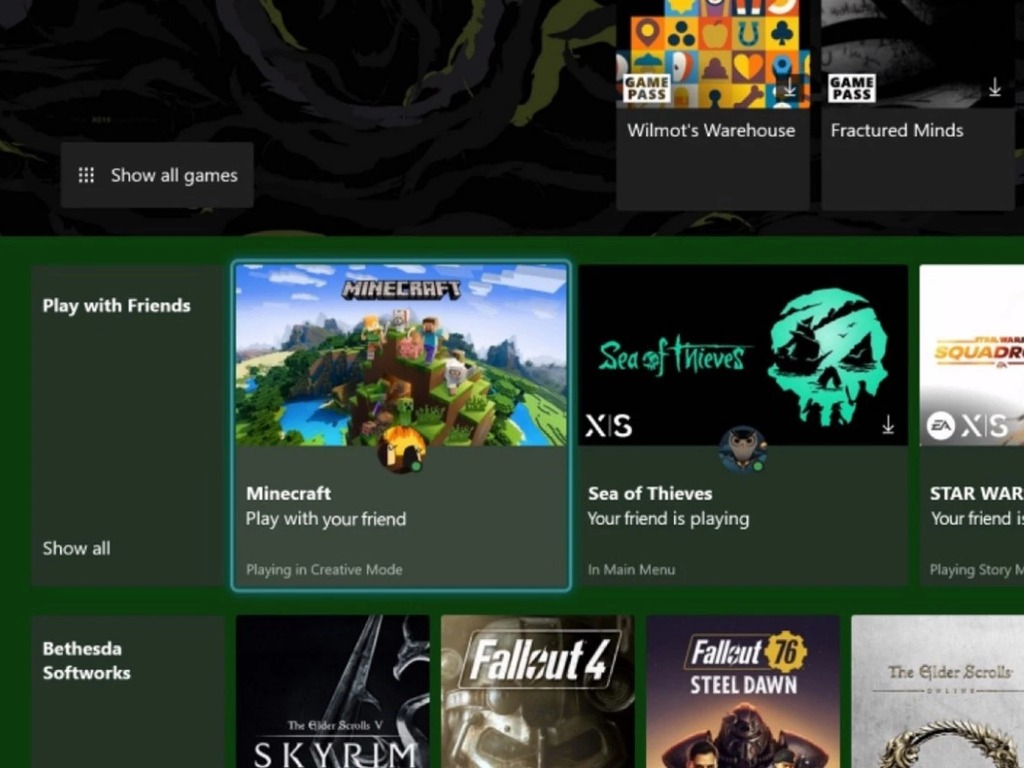
New Surface Neo video leak appears on YouTube

In 2019, Microsoft announced two new dual-screen mobile devices at a New York hardware event. The Surface Duo and Surface Neo were the devices revealed at that event.

While the big M has released the Duo, the Neo remains on ice. A new YouTube video suggests Microsoft has canceled the Neo.

The Surface Neo was originally slated for a 2020 release. However, that device has not seen the light of day. Microsoft has reputedly delayed Surface Neo because of a changed Windows 10X strategy.

Therefore, it has been speculated Microsoft will hold back on releasing Neo until 2022.

Some speculate that the delay may lead to a cancelation

Such delays have inevitably fueled rumors that Microsoft has canceled Surface Neo. A new Hikari Calyx Tech video page on YouTube says the Surface Neo has been canceled.

That page includes the video directly below.

That video shows what looks like a genuine Surface Neo like the one shown in the official Microsoft Neo video. The video includes what looks like a prototype chassis of the Neo tablet. The device doesn’t incorporate its paired displays.

Rumors about Neo cancellation were raised by changes on the big M’s website. Microsoft has completely removed the Surface Neo product listing page from its website.

The original product listing page for the Neo once said Microsoft will release that device in the 2020 holiday season.

Yet, Microsoft’s Mr. Panay reiterated throughout 2020 the Neo is only delayed. In a Verge interview, Mr. Panay is quoted as saying:

Neo is delayed… I wanted the right time to bring that product with the right experience. We believe in that concept and form factor and size. It will be a beautiful complement to Duo with Windows and I’m excited about it. It’s a product that’s near and dear to my heart.

So, the official Microsoft line is that the Surface Neo has been delayed. If you really can’t wait for the Neo, Microsoft’s Surface Duo dual-screen mobile is the next best thing that is currently available

No Man’s Sky suddenly got laggy [Quick Fix]

No Man’s Sky is an exploration survival game released back in 2016. The game is available on Windows PCs, Xbox One, and PlayStation consoles.

Years after the initial release, and after several updates, the game is still affected by various issues. Some gamers said they encountered performance issues where the game suddenly started lagging on their devices.

One of the users even turned to Steam and created a thread about the issue. The OP described the issue in the following manner:

The last time I played the game was last year and everything was silky smooth. I was quite happy with performance. I’ve just started it again to check the latest updates and the whole thing is laggy as hell, even after turning settings way down and restarting. I’m currently going from 80fps down to 5fps with no warning, huge hiccups and lag spikes.

Many players from the gaming community responded to the thread confirming they also noticed performance issues. One of them encountered mouse sensitivity issues and reported that textures not loading properly.

How do I quickly fix No Man’s Sky lag issues?

Some gamers suggested updating the video card drivers or clearing the cache. Some players confirmed that clearing the cache worked for them. 

It looks like this problem is mainly caused by your system’s hardware configuration.

Alternatively, if the problem persists, you can uninstall the game, delete all the folders from your device with a dedicated tool such as CCleaner and then install the latest updates.

If you’ve successfully tried another method, please share it with us in the comments.

FIX: Password expired/ Remote PC won’t accept blank passwords

If you find yourself seeing the error message Your password may have expired or the remote PC might not accept blank passwords, you came to the right place.

This error occurs when trying to connect to a remote PC by using Remote Desktop, and a large number of users facing this issue are not happy about it.

Encountering this error message means that you will not be able to connect to the remote server, and the reasons for this error appearing are very varied.

There could be some issues with your Network Adapter, the machines you’re trying to connect might not be compatible because of different settings, or it could be caused by a conflict in installed drivers.

In today’s article, we will explore all the possible reasons for this error occurring, and we will discuss the best methods to apply in order to solve it.

Please follow the steps mentioned in this article in the order that they were written in. This will allow you to avoid making any changes that would impact your system badly.

How do I fix password issues on Remote Server?

1. Run the Network Adapter troubleshooter

  1. Press the Win+X keys on your keyboard and select Settings.
  2. Inside the Settings window, click on the Update and Security button.
  3. Choose the Troubleshoot option from the left-side menu.
  4. Scroll inside the right side menu and choose Network Adapter.Network adapter troubleshooting - Your password may have expired or the remote pc might not accept blank passwords
  5. Select Run the troubleshooter and follow the on-screen instructions to complete the process.

2. Change your server’s password and update your network drivers

  1. Press Win+X keys and select Device Manager.
  2. Inside the Device Manager window, toggle the Network adapters list.Network adapters - Your password may have expired or the remote pc might not accept blank passwords
  3. Right-click your Network driver and choose Update driver.
  4. Press the option Automatically search for the best driver online then wait for the process to complete.
  5. If the search didn’t find any new drivers, please follow the next method. 

3. Disable the Network Level Authentication option

  1. Press Win+X keys on your keyboard and choose Settings from the menu.
  2. Click on System and choose the Remote Desktop option.System option inside Settings - Your password may have expired or the remote pc might not accept blank passwords
  3. Click the option Advanced settings found on the right.
  4. Un-tick the box next to Require computers to use Network Level Authentication to connect (recommended).
  5. Check to see if this fixes your issue.

4. Restart the Remote Desktop Services

  1. Press Win+R keys; type services.msc and press Enter.
  2. Inside the Services window, right-click the Remote Desktop Services and select Restart.Remote Desktop restart - Your password may have expired or the remote pc might not accept blank passwords
  3. Try to see if this method fixed your issue.

If you can’t fix the problem, you can try Mikogo as alternative remote management software. It is a popular tool that has many useful integrated features. Moreover, if you need additional support with your device, you can try these remote troubleshooting tools.

In today’s guide, we explored the best troubleshooting methods to apply in order to repair the Your password may have expired error.

Please feel free to let us know if this guide helped you solve your issue. You can do so by using the comment section below.

Posted in Fix

How to control the PC from your Android phone via Wi-Fi

There are moments when you want to have access to your Windows 10 computer while relaxing on the couch, being in another room, and enjoying your dinner.

Or you might need some documents from your computer and you search for alternative ways to manage your PC so that you can easily move slides and keep your audience engaged.

For such scenarios that are quite common, we present you with some great applications that allow you to control a computer from your Android phone via Wi-Fi.

There are not too many reliable apps that you can use on your Android smartphone or tablet to control your Windows 10 device.

But we have scanned thoroughly and found no less than five of the best remote control apps to use. Without further ado, take a closer look at what they have to offer right away.

What are the best apps to control the PC from Android?

Mikogo

To instantly connect to a meeting or try to screen share instantly on your phone, we strongly suggest using Mikogo. 

This platform links a huge number of users using a web browser on both the Mac and Windows operating systems. Let’s take a look at Mikogo’s features:

  • There is no need to download anything, you connect directly through a mobile browser 
  • Send files instantly 
  • 128 bit secure encrypted connection 
  • Cross-platform function to ease file transfer from Android to iOS
  • Access your PC remotely from the mobile app available to download
Mikogo

Mikogo

Instant connection and fast sharing through a browser? You’ll be able to do it with Mikogo!
Check priceVisit website

Microsoft Remote Desktop

The official Microsoft Remote Desktop application uses the RDP protocol, offering a fast and reliable way to access your Windows 10 system without installing additional server programs.

You need to enable remote connections on your PC by going to Control Panel > System and Security > System, then click on Remote settings from the left panel.

Then, on the Remote tab, simply check Allow remote connections to this computer. After doing that, connect your PC with an Android device.

Install, open the application, and tap on the + sign. Enter a name for your connection, the hostname or IP address of the PC, the login credentials, and click on Done.

⇒ Get Microsoft Remote Desktop

TeamViewer

get TeamViewer

For those of you who don’t know, TeamViewer also offers easy, fast, and secure remote access, being one of the world’s most popular providers.

You can control any Windows, Mac, and Linux computer from your Android device via Wi-Fi. TeamViewer is free for personal use and keep in mind that it’s capable of sound and High Definition video transmission.

After you download and install it, run the program on both your systems and from your Android device, connect to the PC using the ID and Password shown in the TeamViewer window.

⇒ Get TeamViewer

Splashtop

To access your computer from across the Internet you can use Splashtop, making your Android device control a PC simply via Wi-Fi.

The application fully supports Windows 10 touch gestures, giving you access to your applications and all data you have.

If you like the idea, Splashtop Personal is free, for personal use enabling you to use your desktop as you wish. For connecting to up to 5 computers, security, and manageability, there is a business version available, Splashtop Business.

Keep in mind that it is very easy to use. The first steps involve downloading and installing Splashtop on your Android device, then creating an account using an e-mail address and a password.

Then, you ned downloading the app on your Windows 10 system from the developer’s website and log in using the account you just created.

Now all you have to do is search for your computer on the Android device and connect. On a further note, interactive 3D gaming is part of the package as well.

⇒ Get Splashtop

Chrome Remote Desktop

As most of you enjoyed at least once the Google Chrome browser, you must know that is a tool that is extremely easy to use.

Well, let us tell you that you can remotely control your Windows 10 directly through it. All you have to do is to install a Chrome Remote Desktop extension on the browser, on your Android phone.

After that, just pair your device with your Windows 10 computer. You may now forget all about using your mouse and keyboard to control your computer

⇒ Get Chrome Remote Desktop

AnyDesk

get AnyDesk

The most noteworthy tool that you can use to control the Windows PC from your Android phone is none other than AnyDesk.

You should know from the very start that it provides robust communication across all major operating systems: Windows, Mac, and Linux for desktops, as well as Android and iOS for mobiles.

Therefore, if you ever change your mind and switch platforms, AnyDesk may easily remain your choice. What more could you take into consideration?

Well, when data is being transferred between devices, connections are secure. This software provides high levels of security with encryption and verified connections, keeping your data safe from prying eyes.

These are some key features that you’re about to enjoy:

  • User-friendly, intuitive interface
  • Increased stability
  • Safe access guaranteed by bank-level security standards
  • Two-Factor Authentication
  • Technical support by help desk ticket

⇒ Get AnyDesk

Hence, you are looking for alternative ways to control your computer. Doing so from your Android phone via Wi-Fi is easier than you can imagine, as you can see above.

Moreover, take a look at these best software tools to control another computer on Windows 10. Some of them may be what you need as well.

If you’re looking to perform other tasks like using your tablet as a drawing pad for your PC, we have a detailed guide on how to go about it.

Do not forget to let us know in the comments which of these apps is your final pick and if you managed to efficiently manage your PC.