6 Best PDF Reading Software With Bookmarks & Night Mode

Are you a Windows 10 PC owner stuck with a premium PDF reader with limited capabilities? How about 6 best free PDF reading software? This post is meant for you.

Portable Document Format (PDF) is a common file format that was developed by Adobe Systems in the 1990s for document presentation.

PDF files can contain items such as text, images, hyperlinks, interactive buttons, forms, embedded fonts, videos, and many more.

However, some PDF readers are available at a premium price though they come with extended features.

There is some free PDF reading software available that can work wonders compared to premium PDF readers.

What is the best free PDF reading software?

Soda PDF – Advanced technology
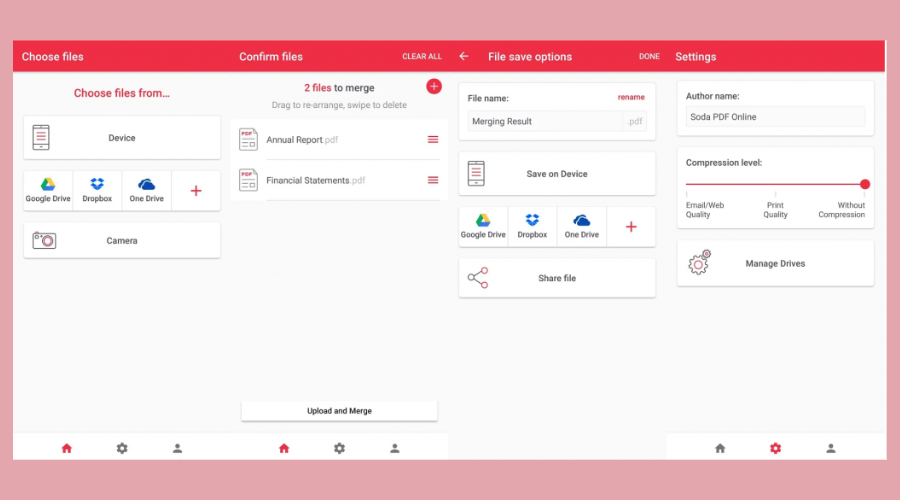
This program enables you to view your PDF files in 3D. Soda PDF presents the PDF document with a real-life view.

You can view PDF files in regular modes, such as single, continuous, facing, and facing continuous for a better reading experience.

It is very easy to use because all you have to do is to upload your document or simply drag and drop it and the software will automatically open your PDFs.

It has a Side by Side feature that allows you to view and work on two documents simultaneously on the same screen.

You can also benefit from the Synchronous Scrolling feature with which you can scroll through both files at the same time or just use the Snapshot tool to screenshot a specific part of your active file.

Other noteworthy features of Soda PDF 3D Reader include:

  • Convert PDF files into Microsoft Word format
  • Mark PDF documents
  • Add text, shapes, and images to documents
  • Flip through pages to view PDF documents.

Soda PDF

Free Trial Visit Website

Adobe Acrobat Reader DC – Collaboration features
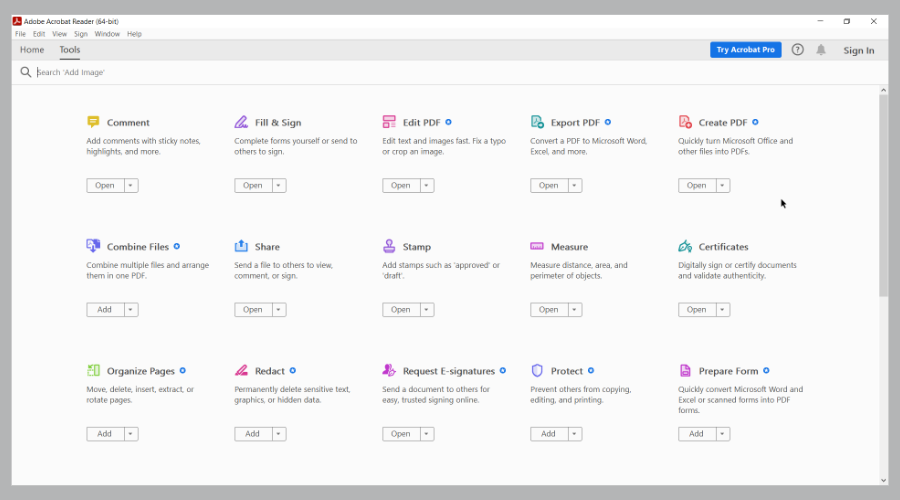
Adobe Acrobat Reader DC has a free version and is a user-friendly PDF reading software. Adobe Reader, as its name suggests, is perfect for viewing and printing PDF files.

This tool supports different files such as Microsoft Office formats, Encapsulated PostScript, text, images, Autodesk Autocad, 3D files, MS Visio, and many more.

If you want to fill out PDF forms, you can do that as well. Adobe Reader enables you to navigate using outlines, links, and bookmarks. In addition, you can also use various viewer layouts, fit modes, and zooming tools within the program.

Moreover, this tool incorporates collaboration features like getting comments from different users on a shared online PDF.

As more people from the business industry spend more time on their smartphones, Adobe Reader adapted the application to mobile users.

Directly from your phone, you can edit, review, sign any PDF file and you can capture documents with your phone camera in order to save them as PDFs.

This application eases the process of collecting PDF files, as Adobe Reader is linked with Adobe Document Cloud in order to allow easy access to PDFs anywhere you are.

Adobe Acrobat Reader

What better way to get rid of all PDF-related issues than by using the world’s most well-known PDF editor and reader?
Free Trial Visit Website

Icecream Ebook Reader – Lightweight solution

Although not a dedicated PDF reader per se, Icecream Ebook Reader is very much capable of opening PDF files too, since many Ebooks come in that format anyway.

The application has a very lightweight overall feel to it, and the system impact is minimum, so you can run it even on very dated PCs.

As for the PDFs, it can open them without a problem, supporting internal linking, images, and pretty much any elements included inside.

Besides, you can use it to track reading progress, add notes, translate text, use bookmarks, and more. 

Icecream Ebook Reader

Read your favorite eBooks as well as any PDF that you need with the help of this extremely useful software tool.
Free Trial Visit Website

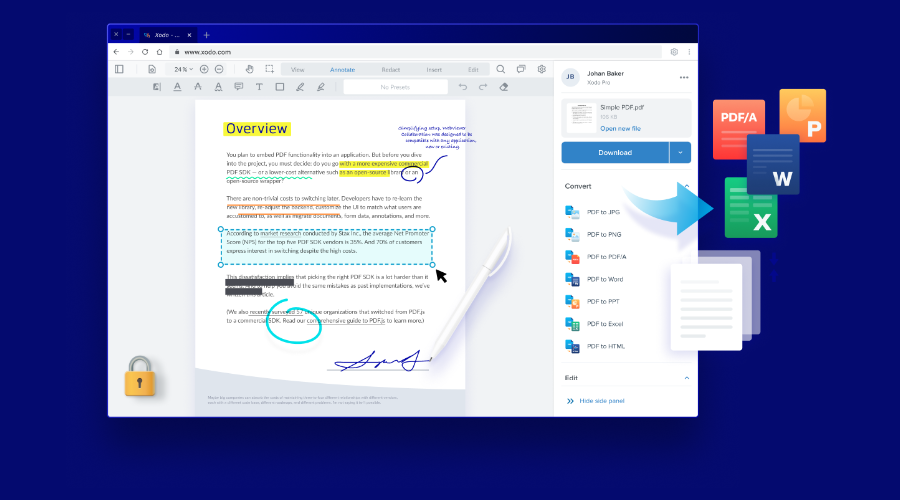
Xodo PDF Reader – Free usage

This free program is an excellent PDF reading software. You can view PDF files and also edit them as well.

In addition, you can Xodo PDF Reader to convert images into PDF documents. Some great features of Xodo PDF Reader include:

  • Fill out, save, and send PDF forms
  • Draw and type text on the PDF document
  • Attach comments and bookmark for references
  • Use a table of contents to navigate to sections and chapters
  • Insert, delete, and rearrange pages of PDF documents
  • Night Mode for reading in a dark environment.

⇒  Get Xodo PDF Reader

Reader – Easy to use

free pdf reading software windows 10

Reader is a Windows built-in PDF reading software. This program has a user-friendly interface, and it is easy-to-use even by novice PC users. Reader is lightweight and only requires 15MB of your disk space.

Reader has the following amazing features:

  • View PDF documents
  • Fill out, save and send PDF forms
  • Print PDF documents
  • Search for phrases or words
  • Register comments and take notes
  • Support for TIFF and XPS files

However, the downside feature of Reader is its bookmark navigation which is very poor.

⇒ Get Reader

PDF Annotation Lite – Basic editing tools
PDF annotation

Last but not least; PDF Annotation Lite is an ideal free PDF reading tool for Windows 10 PC.

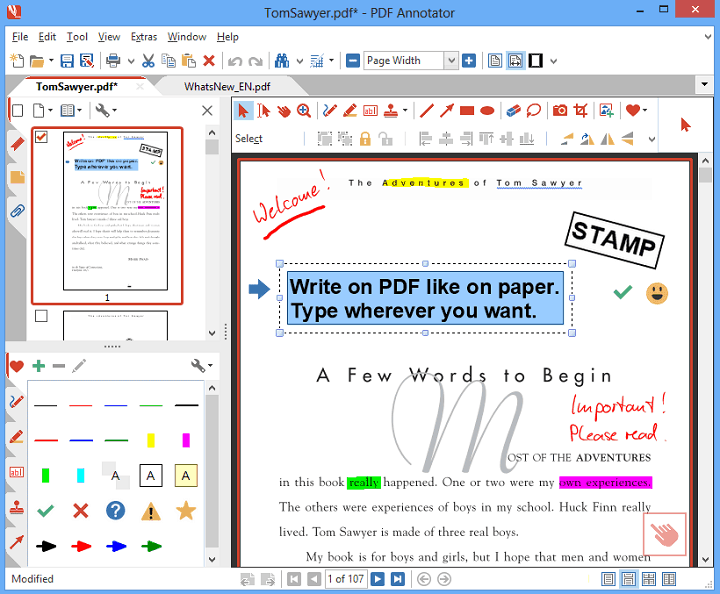
This program is commonly regarded as the Photoshop of PDF readers; in addition to viewing PDF documents, you can edit them as well with this program.

PDF Annotation Lite enables you to add text, and shapes, edit elements, and of course, draw on PDF documents.

⇒ Get PDF Annotation Lite

Have you already used some of the software we mentioned above? Share your experience with us in the comment section below.

How to open OMF file in Windows [4 Top software]

While working with the audio editors, you may come across the OMF file and wonder what’s an OMF file.

OMF is an audio file that is stored in a media format based on OMFI (Open Media Framework Interchange). If you received the file from a friend or colleague, you might want to know how to open an OMF file in Windows.

OMF does not work with a standard audio player, and you may end up with an error. This is due to the audio project saved in the OMF format consists of multiple audio tracks and its properties such as pan information, volume, and references to audio files.

In this article, we take a look at the best software that can open OMF files in Windows. Let’s get started.


What are the best software tools to open OMF files?

Adobe Audition

Adobe Audition is among the most popular audio editing, podcasting, and composition software. Just like other Adobe software, Audition also offers an intuitive user interface for intermediate level musicians as for advanced artists.

You will be able to fix audio content by adding sound effects, consulting the spectral frequency display and Diagnostics tab. It will ease considerably the audio editing workflow, so you will deliver a high-quality sound.

Not to forget about recording and editing high-quality podcasts as well as adding music clips from other scenes.

Being a professional audio mixing software, Audition supports the OMF file format, so it can open and export OMF files together with Final Cut Pro Interchange format

If we talk about managing of OMF files, Adobe limits the size of this file format to 2 GB. As well, Adobe Audition allows you to save the uncompressed audio file to AIFF or WAV and other formats.

Adobe Audition is included in Creative Suite, so it can perfectly work with Adobe Premiere Pro, in order to create a flawless work.

Adobe Audition

Adobe Audition

Create, mix, and design sound effects like a pro, thanks to its multi-featured interactive tool sets, so try it out now!
Free trialVisit website

Avid Pro Tools

open OMF File

Avid Pro Tools is a freemium music composition tool and industry standard when it comes to collaboration and music creation. It is used by music, film and TV industry to create, compose and record, edit and mix audio in the studio.

The free version of the Pro Tools offers basic editing features. It also supports the OMF file format. Download and install Avid Pro Tools to open the OMF file.

⇒ Get Avid Pro Tools


Steinberg Cubase

Open OMF file

Steinberg Cubase is one of the most popular music creation software used by professionals for creating all kinds of audio. Its unrivaled range of flexible tools allows you to explore and create the next masterpiece.

Needless to say, Steinberg Cubase also supports the OMF file format. You can import the OMF file into Steinberg Cubase to edit the audio file. It offers tools for composing, sequencing, beat making, recording, and audio editing work.

⇒ Get Steinberg Cubase


Avid Media Composer

media composer

Avid Media Composer is another popular software from Avid and offers all the required to edit your audio as well as video files. If you have an Avid Media Composer, you don’t need to download Avid Pro Tools to open the OMF file in Windows.

Avid Media Composer offers advanced editing features with an intuitive interface so that both professionals and beginners, can create stunning videos with minimal effort.

⇒ Get Avid Media Composer


All the software listed in this article is capable of opening the OMF file in Windows.  Do let us know your pick to create music in the comments below.


How to reduce or eliminate screen shaking in Valheim

Unfortunately, screen shaking is a problem in most survival games and Valheim is no exception.

If you look at the positive side, the camera shake adds a little bit of thrill to the game when a boss comes to play but for some users, this effect is too much:

Some games have a way to disable/reduce screen shake. I get awful headaches playing survival games where the screen shakes every time I harvest a resource.

Is there a way to reduce this in the game yet? I saw nothing obvious but sometimes people have some easy hacks like changing a value on an INI or something and I was hoping someone had advice for me?

The problem is that screen shaking can also occur for regular activities in the game like harvesting resources as the gamer above complains.

Fortunately, there is a simple solution for this and we are going to share it with you in this article.


How can I reduce the screen/camera shake in Valheim?

1. Turn off camera shake

Actually, the solution is extremely easy to apply, but it’s not where you would expect it to be. The game developers actually included a camera shake option in the Settings menu of the game.

So, to fix this problem go to Settings and click on the Miscellaneous option. Then turn off the camera shake setting. This will reduce or even eliminate the Valheim screen shake.


2. Install the Valheim Plus mod

The Valheim Plus mod adds a ton of improvements and features to the game, and also added a screen shake reduction option.

So, it doesn’t hurt to try it and we also have a great guide on how to install the Valheim Plus mod.

However, you will have to do that at your own risk because using third-party mods can also cause some problems like disappearing items in Valheim.


Some users also reported problems with Valheim crushing on the loading screen and if you encounter it, you can fix it using this comprehensive guide.

Without question, there are some problems with Valheim but it’s still an awesome game. Therefore, hit the button below and get the game right now.

Valheim

Valheim

Valheim is one of the greatest new survival multiplayer games with very engaging gameplay and nice graphics.
Check priceVisit website

How many computers can I install my Creative Cloud apps on?

If you’re wondering how many computers can you install your Creative Cloud apps on, you found the perfect article.

We will discuss this entire concept, and we will also observe all the details of how to better manage your license buying funds in order to get the most out of the Creative Cloud Suite.

This set of applications from the Adobe suite covers a wide range of uses, including graphic design, video editing, web development,  and also photography.


Quick Tip:

If you are eager to see what’s in the Creative Cloud Suite, then take a closer look at our suggestion.

The suite packs the best tools for photo and graphic design, video editing, illustration, UI & UX, 3D & AR, and social media.

Adobe Creative Cloud

Adobe Creative Cloud

The Adobe Creative Cloud suite is well-known across the globe, as it offers one of the best selections of creative apps on the market, to give it a try!
Free trialVisit website

Some of the most well-known apps that are part of the Creative Cloud suite – Adobe Acrobat, Adobe After Effects, Adobe Audition, Adobe Illustrator, and Photoshop, just to name a few.

With such a great selection of apps available for a fast and easy download, there is no wonder why the suite from Adobe has so many fans.

In today’s article, we will answer a very important and pertinent question, that being How many computers can I install my Creative Cloud apps on? To find the answer, please read on.


How many computers can I install Adobe Creative Cloud on?

The Adobe Creative Cloud suite can install the containing software on two different computers at the same time. This applies even if you have two Windows computers, two macOS PCs, or one of the same kind.

This feature comes in very handy, especially if your work computer is a Mac, and your home PC is a Windows-based device.

If you try to install software on the third computer, then the Adobe Creative Cloud will ask you to deactivate one of the previously used computers.

This means that you will get to use the Adobe CC on the third computer only after one of the previously activated PCs is removed from the list, but that implies that you can re-activate the original PC once you’re done with the third PC.

This technique is only applicable in the case that you are not going to use the third computer very often.

If you do need to use the third computer often, then the best way of dealing with this would be to invest in another Adobe CC license and extend the number of PC licenses.


How do I find the serial number of my Adobe product? Read this article for the answer.


In today’s how-to article we explored some details of how the Adobe Creative Cloud licenses work, and we also found out how many computers can the contained software be installed on.

We hope that this guide was helpful in your situation and that you now understand how to use your Adobe Creative Cloud licenses optimally for the best performance.

Please feel free to let us know if you have any suggestions or opinions to share with us. You can get into contact with us by leaving a comment in the section found below this article.


Microsoft Edge Canary now lets users delete multiple passwords at once

Microsoft is currently experimenting with a new feature for its Edge browser, which will allow users to delete multiple saved passwords at once. This capability is available in the Edge Canary build 90.0.807.0 (or newer), as spotted by Reddit user Leopeva64-2.

The new Microsoft Edge comes with a built-in password manager that saves and syncs credentials across desktop and mobile devices. Currently, if a user wants to delete multiple passwords simultaneously, they have to do it manually one by one. To address this problem, the company has now added checkboxes next to saved passwords. It should enable users to delete multiple or all password fields directly from the Settings page.

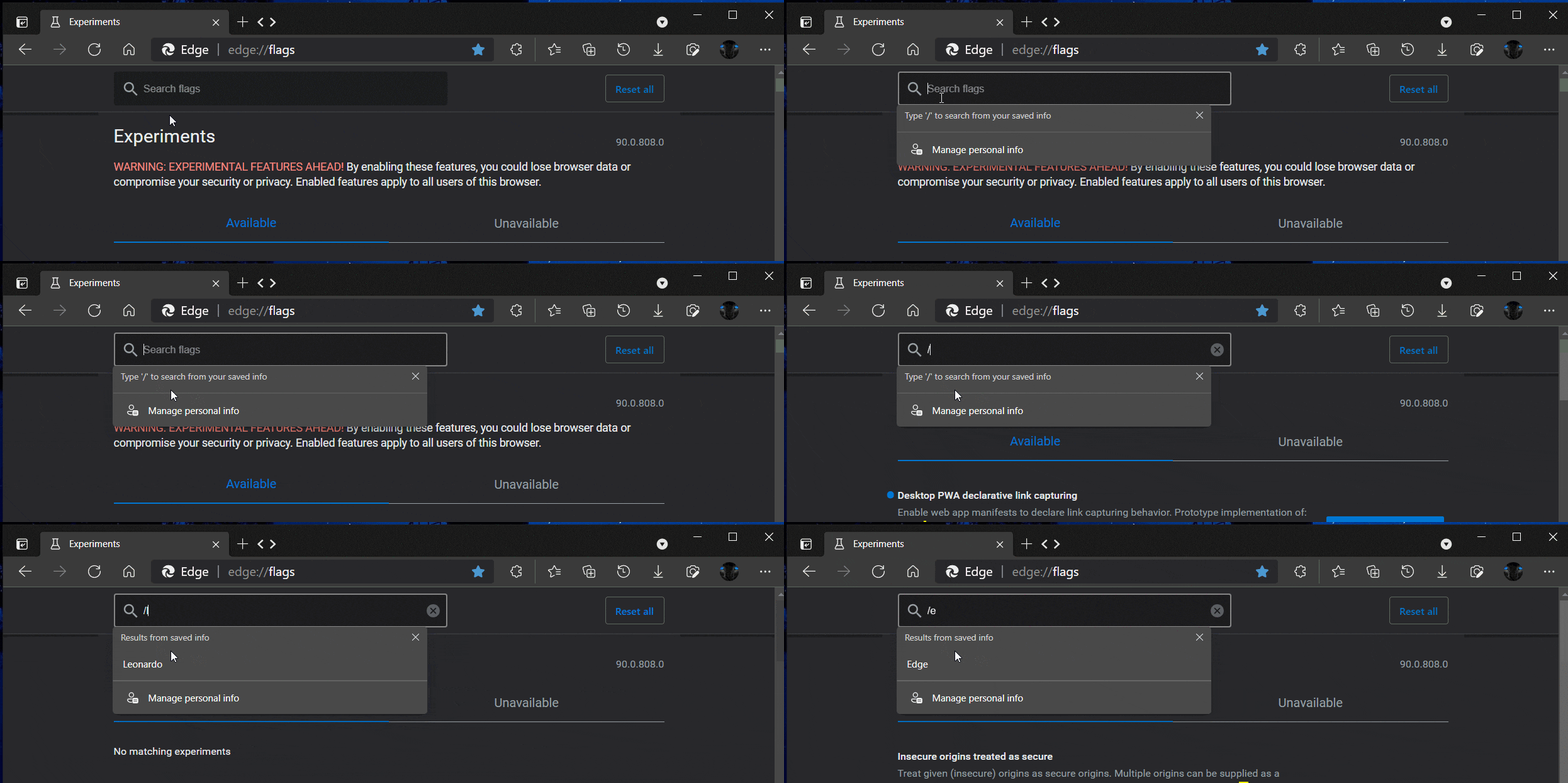
Microsoft is also working on a new user-initiated search experience for autofill suggestions that should help users while filling out forms in the browser. It makes it easier to search for information on online forms that do not support the autofill functionality.

“Today, if you have your information saved on Microsoft Edge, autofill suggestions pop up automatically and help you save time while filling out forms. but in cases where autofill misses a form, or if you want to fetch that data in forms that don’t typically have autofill (like temporary forms) – you can explicitly search for your information and fill it easily,” the company explained on the What’s Next page.

This new autofill experience is available as a preview in the Microsoft Edge Canary and Dev channel today, and you’ll need to type a / in the search box to enable it. This feature will likely come to the stable channel of Microsoft Edge with version 90 in April 2021. If you want to know about other features coming to Edge, Microsoft has recently published a new roadmap info page for the browser.

Microsoft is adding new AI-based capabilities to Polls in Teams meetings

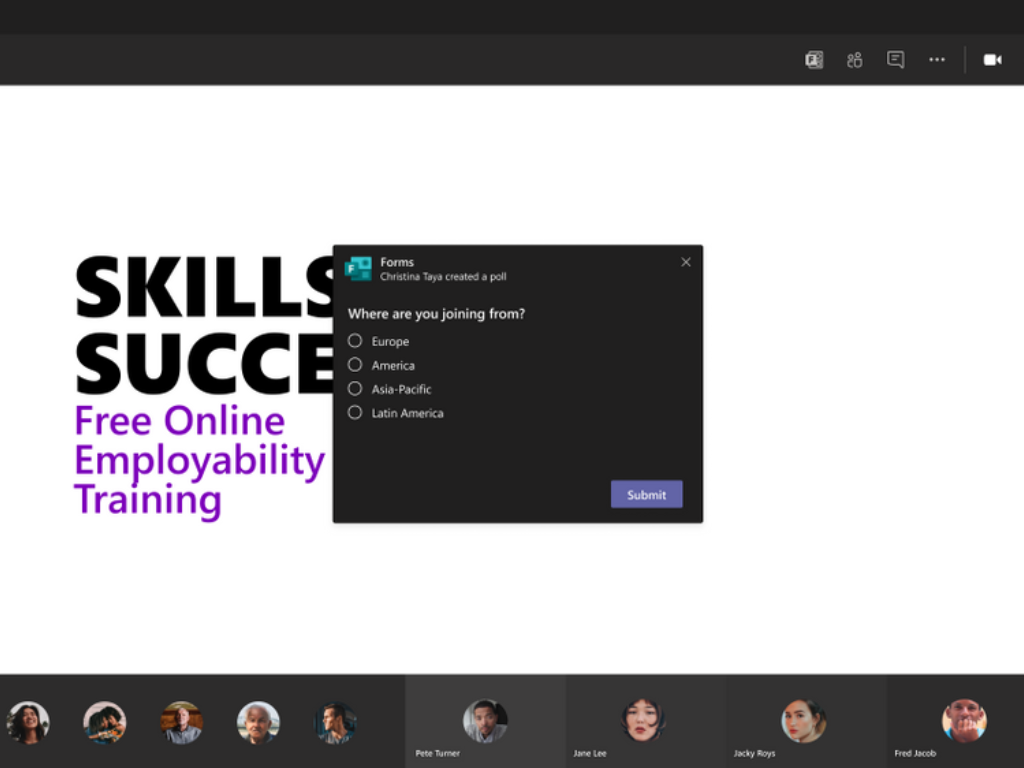
Microsoft Teams is slated to get a host of new capabilities to improve the new built-in Polls feature in meetings, according to an update to the Microsoft 365 roadmap (via Neowin). These updates have been designed to enhance the Teams meeting experience and make virtual meetings more productive and engaging.

First off, the company is planning to introduce some general improvements based on user feedback. With this update, Polls in Teams Meetings will be adding support for external guests and an optimized mobile experience.

The AI-based poll question suggestion is another change coming soon to Teams meetings. This means that Microsoft Teams will leverage the Forms intelligence service’s power to suggest polls to users automatically. The feature will take into account the purpose of the meeting and the user’s historical poll data to offer poll suggestions.

Other upgrades concern making suggestions for the poll options. This should enable users to quickly create surveys to gather instant feedback on a particular idea during discussions. In addition, a new “open text” question type will let meeting organizers collect open-ended information from attendees either before, during, or after the meeting.

Microsoft is bringing the ability for poll creators to select one or more correct answers for multiple-choice questions. The Results card and the Forms site will display this correct answer to the participants after the voting session.

Lastly, Microsoft Teams will make it easier for the organizers to manage the polls data collected during Teams meetings. A new word cloud data insight feature will provide meeting hosts a quick overview of the most commonly used text phrases used by poll respondents.

Furthermore, if a user has created a poll, the app will automatically generate a summary report after a meeting has ended. This report will be shared with the meeting organizer, presenters, and teachers.

Microsoft Teams introduced the polling capability into Teams meetings back in November 2020. The roadmap listing indicates that most of these features will begin rolling out in March, and we hope to see these announcements at the Ignite 2021 conference next week. However, both the Correct Answer choice and word cloud data insight features are scheduled to launch in April this year.

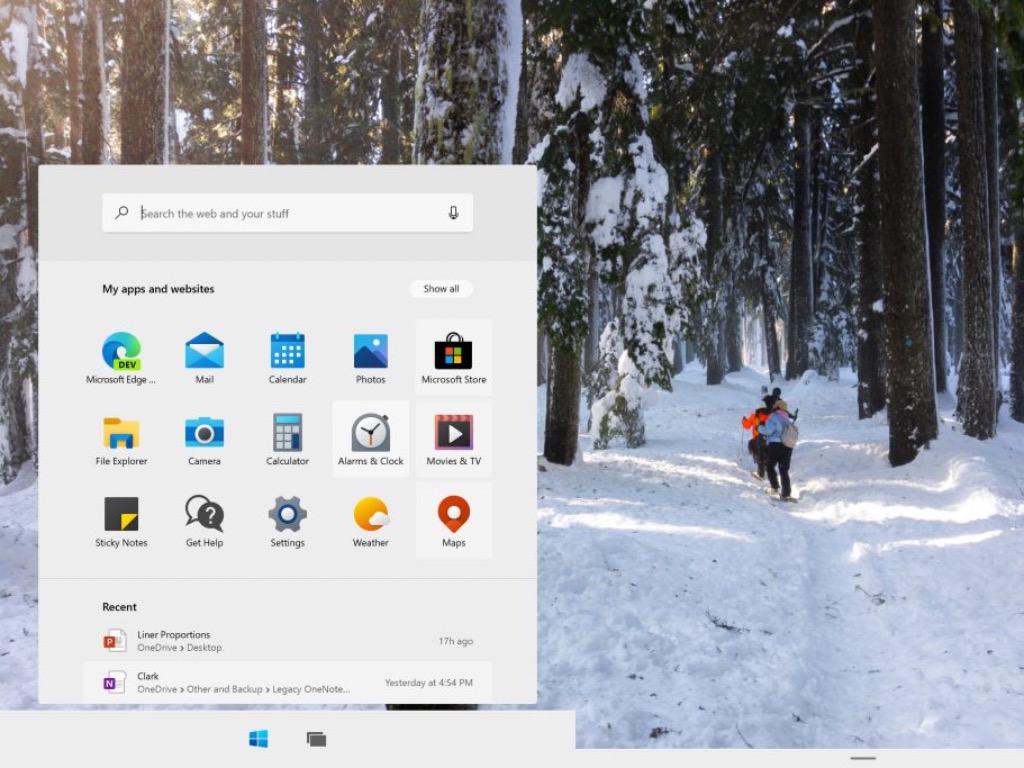
Microsoft may market upcoming Windows 10X as “The New Windows”

Windows 10X, Microsoft’s Windows-based Chrome OS alternative, is expected to make its debut on education-focused devices very soon. In a series of tweets yesterday, the reliable Microsoft leaker “WalkingCat” first teased that “The New Windows” was coming next month, though he later backtracked to say that it’s coming, “but maybe not next month.”

The leaker later put the emphasis on the naming, suggesting that he may have seen “The New Windows” on official marketing materials for Windows 10X. If Windows 10X is definitely a new version of Windows that will be optimized for Chromebook-like devices, it won’t be a replacement for the soon-to-be six years old Windows 10 OS.

Previous reports suggested that the first Windows 10X coming this year will target the education market, with a consumer push to follow next year. At launch, Windows 10X won’t be able to run legacy Win32 apps natively, though support is expected to come at a later date. However, that shouldn’t be an issue for the education market where Chromebooks have been enjoying real momentum in recent years, especially in the US.

Microsoft’s main goal with Windows 10X is to create a lightweight version of Windows that is easy to manage for IT admins, and works great with Microsoft Store apps and web apps. The OS was initially announced for dual-screen devices like Microsoft’s Surface Neo, but Microsoft later changed its plans to optimize the OS for single-screen devices. The company will hopefully share more details about Windows 10X in the coming weeks as we get closer to the release of Windows 10 version 21H1.

Dev type stories: The good, bad and ugly on my Windows Development journey – Part 1

This is a four part piece feature story on my Windows Development journey; the good, bad and ugly. This is Part 1 of my Windows development journey with the launch of Topen News Hub to Central News app.

I have been a developer for seven years using Javascript and C# on Visual Studio for UWP app development and it has been a bumpy ride in a rapid shift towards mobile first, web first, cloud first.

From humble beginnings

Windows App Studio Generate
Windows App Studio

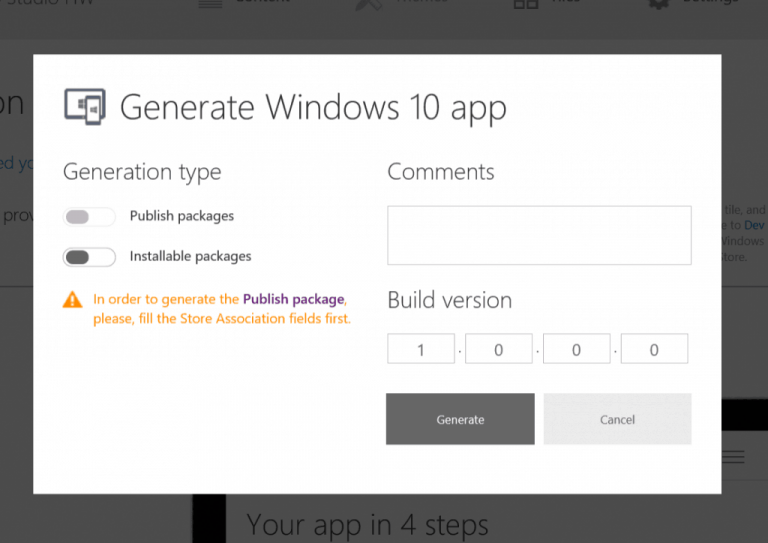
My Windows Development journey began on the fall of 2014 using Windows App Studio which eventually ended up getting shut down in December 2017. The app was an RSS news app prototype for Windows Phone 8.1 and Windows 8.1 called Topen News Hub in October 2014. It took me 20 minutes to download the package, load Visual Studio create an app package and ended up publishing it to the Microsoft Store that generated £100 of pounds of revenue. This is the time when I launched Freeman Technologies.

The Good

Central News
Central News app promo – Courtesy of Freeman Technologies

January 5th 2015, under Freeman Technologies I officially launched and rebranded Top News Hub to Central News app as a redesigned RSS app from Windows App Studio for free of charge. Then released Central News Plus+ two weeks later as an ad free premium RSS news app service for $1.29 at the Microsoft Store. It generated over 100 downloads, it was a great start for me to tap into the Windows development world.

The benefit of the app launch it was more discoverable and can find innovative ways to grab an app hungry Windows Phone community in forums like Windows Central, Reddit, and AppRaisin.

The Bad

Stress Pic

The reviews was positive, however the functionality fell short compared to a plethora of RSS news apps in the Microsoft Store.  For the app promotion to boost app downloads, it was a struggle to pitch my app and get major Windows app coverage from major Microsoft centric sites.

The Ugly

Another weakness was with the wrong outdated app business model, with the separate Paid app and free Lite version of the app where app makers of all platforms were moving towards to the Freemium model with ads, and in-app purchases for more functionalities and more feature set updates.

Summary

Launching the Topen News Hub app on Windows platform was an new experience for me entering into the Windows app world initially as a hobby that turned from a passion to a small business starting out with Central News app. I have learned so much with my Windows development experience, from many of the benefits, struggles, weaknesses and the mistakes of my apps I have published under the UWP ecosystem over the short span of 6 years.

Stay tuned for Part Two. Inspired by my Windows development journey? Learn more about Windows development here. Share your experience with Windows app development in the comments below!

FIX: The File is damaged and could not be repaired error

The File is damaged and could not be repaired error message pertains to the Adobe PDF software (including the Adobe PDF Reader Internet Explorer add-on).

This error pops up when users try to open PDF documents (usually downloaded or uploaded) within Adobe Acrobat or Internet Explorer.

As a result, the Adobe software doesn’t open the PDFs and shows this error instead: There was an error opening this document. The file is damaged and could not be repaired.

As one might have guessed, the error highlights that the PDF is corrupted. If that’s a recurring situation for multiple documents, you will need to address the core reason instead of just repairing one corrupted file.


How do I fix the damaged file error?

  1. Reinstall Adobe Acrobat
  2. Repair your PDF file
  3. Repair Adobe Acrobat
  4. Erase temporary browser files
  5. Download the PDF again
  6. Open PDF documents with alternative software

1. Reinstall Adobe Acrobat

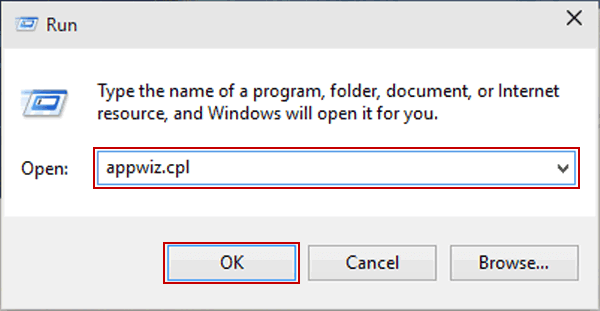
  1. Input appwiz.cpl in Run and click OK to open Programs and Features in the Control Panel.appwizcpl command
  2. Select the listed Adobe Acrobat Reader software.
  3. Select the Uninstall option.
  4. Click Yes to confirm and uninstall the software.
  5. Restart Windows after uninstalling Adobe Acrobat.
  6. Click Install Now on the Adobe Acrobat DC page to reinstall the software.

Reinstalling Adobe Acrobat will ensure the software is updated and replace the program’s files.

Therefore, that might be enough to fix the File is damaged and could not be repaired error.

Adobe Acrobat Reader

Adobe Acrobat Reader

Settle for the best PDF reader, viewer and editor on the market and never have issues with PDF files again!
Free trialVisit website

2. Repair your PDF file

  1. Download and install Stellar Repair for PDF.
  2. Launch the program.
  3. Select Add File.
  4. Choose the PDF file you need to repair.
  5. Press Repair.
  6. Preview your PDfs to see if the process was successful.

If the issue is not related to your PDF viewer, then you may be facing a damaged PDf file. If that’s the case, simply fix it using a third-party tool like Stellar PDF Repair.

Stellar Repair for PDF

Stellar Repair for PDF

Repair all of your PDF files and restore their properties with this straightforward tool.
Free trialVisit website

3. Repair Adobe Acrobat

  1. Launch Run by pressing the Windows key + R keyboard shortcut.
  2. Input appwiz.cpl in Run and click OK to open the uninstaller in the Control Panel.
  3. Then select Adobe Acrobat Reader, and click the Change button.
  4. Select the Repair installation errors in the program option on the window shown directly below.repair adobe acrobat reader setup
  5. Then click the Next button.
  6. Restart Windows after repairing Adobe Acrobat.

That’s how you can use the Repair installation option to fix Adobe Acrobat when the software throws out error messages such as File is damaged and could not be repaired error.


4. Erase temporary browser files

  1. Press the Windows key + R keyboard shortcut to launch Run.
  2. Input inetcpl.cpl in the text box and click OK to open the window shown directly below.internet explorer settings
  3. Press the Delete button on the General tab open the window in the snapshot below.
  4. Select all the checkboxes on that window.
  5. Press the Delete button to erase IE’s temporary files.

This File is damaged resolution is more specifically for Internet Explorer users who download documents or can’t open PDFs with that browser.

Some Internet Explorer users have confirmed that clearing that browser’s temporary files fixes the issue.


5. Download the PDF again

If the File is damaged and could not be repaired error only arises for a few specific PDF documents, try downloading the files again.

Those files probably got corrupted when downloading. So, delete the original PDF documents and download them again.


6. Open PDF Documents with alternative software

Remember that Adobe Acrobat isn’t the only PDF software for Windows. Users might find that alternative PDF software opens the files they need without any issues.

Try opening the documents with the freeware Foxit reader. Click the Free Foxit Reader Download button on Foxit reader’s webpage to add that software to Windows.


One, or more of the above fixes, might resolve The file is damaged and could not be repaired error, thus enabling users to open PDF documents again.

Which of these methods worked for you? Feel free to share your experience with us via the comments section below.

FIX: Abbyy Finereader.exe has stopped working

Abbyy Finereader will be terminated error messages can pop up for any Windows software. When that error window pops up, the program will stop running.

Does that same error window often pop up on your desktop or laptop when running the Abby Finereader OCR software for Windows? If so, this is how you can fix the Abbyy Finereader.exe has stopped working error message.

Quick Tip:

If you don’t have the time to spend the next 10 minutes troubleshooting Abbyy Finereader, you can switch to Adobe Acrobat Reader DC.

It only takes one minute to download and install Acrobat Reader on your computer. Get it now to quickly resume working on your documents.

Adobe Reader

Adobe Reader

What better way to get rid of all PDF-related issues than by using the world’s most well-known PDF editor and reader.

How do I fix Abbyy Finereader problems?

1. Run a System File Checker Scan

  1. Enter this line in the Prompt’s window, and press the Return key: DISM.exe /Online /Cleanup-image /Restorehealth
  2. Then input the line below and press Enter to initiate the SFC scan, which can take about 20-30 minutes: sfc/scannow
  3. When the scanning is complete, restart your desktop or laptop if the Command Prompt states that WRP repaired system files.

Check that there’s nothing up with any Windows system file. You can do that with the System File Checker utility in Windows 10 by pressing the Windows key + X hotkey and selecting Command Prompt.


2. Update Device Drivers

The Abbyy Finereader.exe has stopped working error might also be due to outdated or incompatible drivers. In this case, you can try updating your drivers manually.

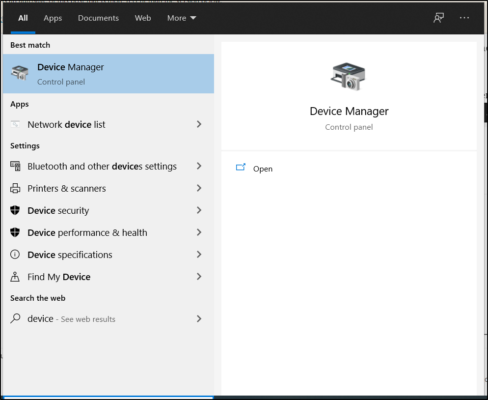
  1. On the Windows taskbar, enter device manager, and click Device Manager.
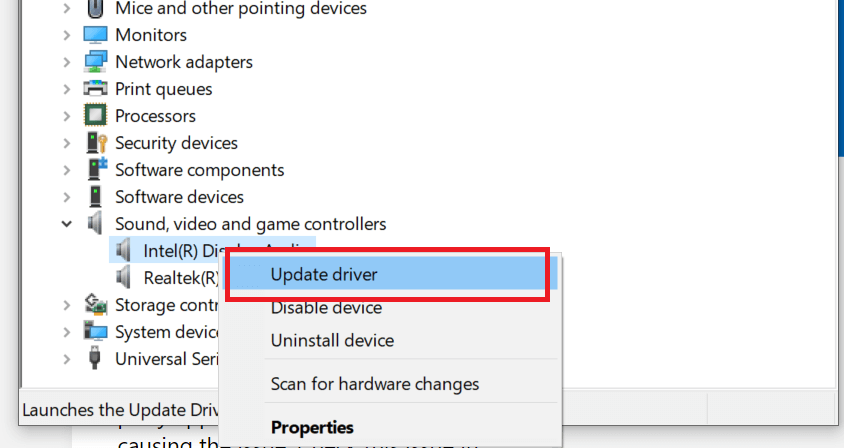
  2. From the list select the category of the device you’d like to update,then select that particular device.
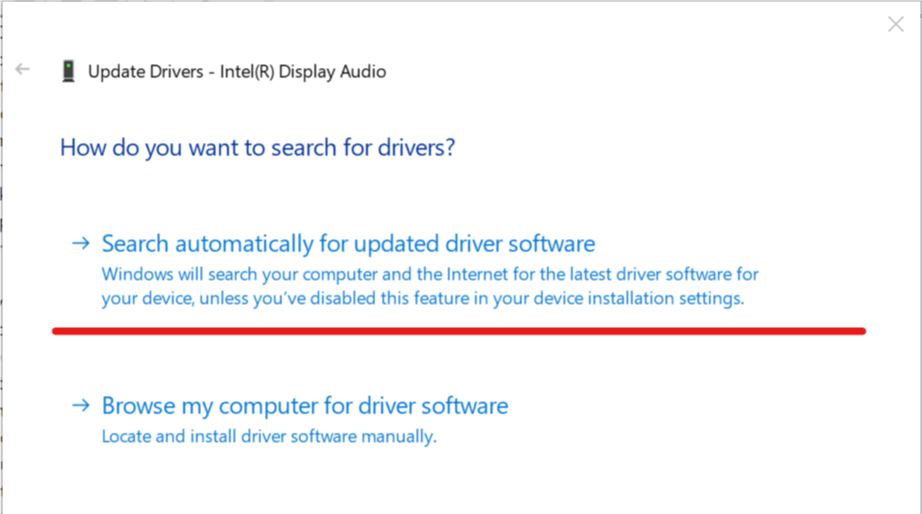
  3. Select Search automatically for updated driver software.
  4. Click Update Driver.

A great alternative is to update your drivers with a dedicated tool that can scan your computer and provide you with a detailed report of all the elements that need updating.

This software tool is not only a driver fixer but also a driver updater and replacer, and it is powered by an extensive online library that is constantly updated with the latest drivers straight from the manufacturers.

Thanks to that feature, you always know that you have the latest drivers at your disposal with just a click of a button. All you have to do is choose whether to update all of the drivers at once or one by one if you have reasons not to install certain drivers.

⇒ Get Outbyte Driver Updater

3. Run Abbyy Finereader as an Administrator

  1. Running programs as an administrator can often kick-start software.
  2. To run Abbyy Finereader as an administrator, right-click its .exe file or desktop shortcut and select Properties.
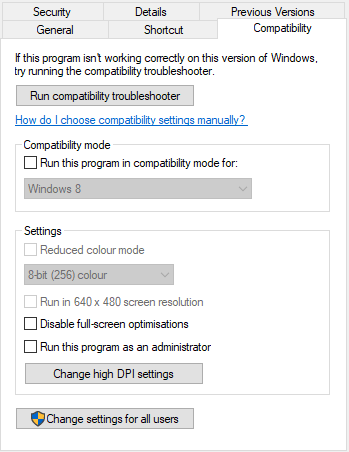
  3. Select the Compatibility tab shown directly below.
  4. There select the Run this program as an administrator option.
  5. Click the Apply button, and select the OK option to close the window.

Running Abbyy FineReader as an Administrator is a rather simple solution that can help you solve the error. Start off by accessing the Properties menu and continue with the steps we described above.


4. Run older Abbyy Finereader versions in Compatibility Mode

There are lots of Abbyy Finereader versions for Windows. If you’re utilizing an older Abbyy Finereader version that predates Windows 10, it might not be entirely compatible with that platform.

As such, running Finereader in compatibility mode could feasibly fix the error.

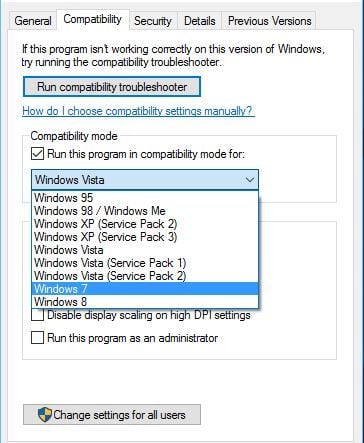
To do that, open the Compatibility tab as outlined above; and select the Run this program in compatibility mode option.

Select an earlier Windows platform on the drop-down menu. Then press the Apply and OK buttons.


5. Clean Boot Windows

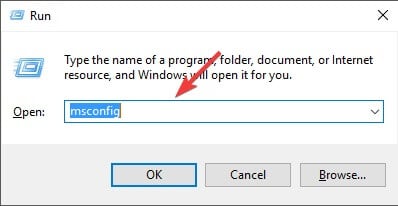
  1. Press Run’s Windows key + R keyboard shortcut, type msconfig in and click OK to open the System Configuration utility.
  2. Click the Selective startup radio button on the General tab and deselect the Load startup items option.
  3. Select both the Load system services and Use original boot configuration checkboxes if they aren’t already selected.
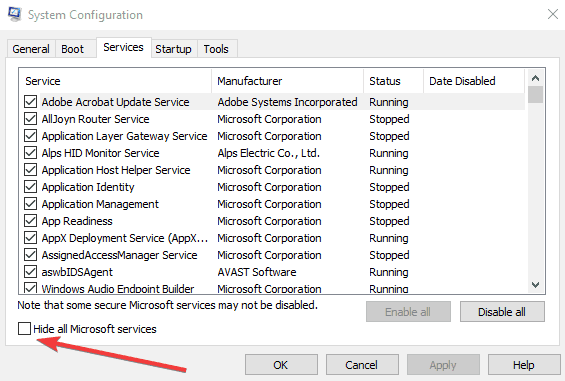
  4. Click the Services tab shown in the snapshot directly below.
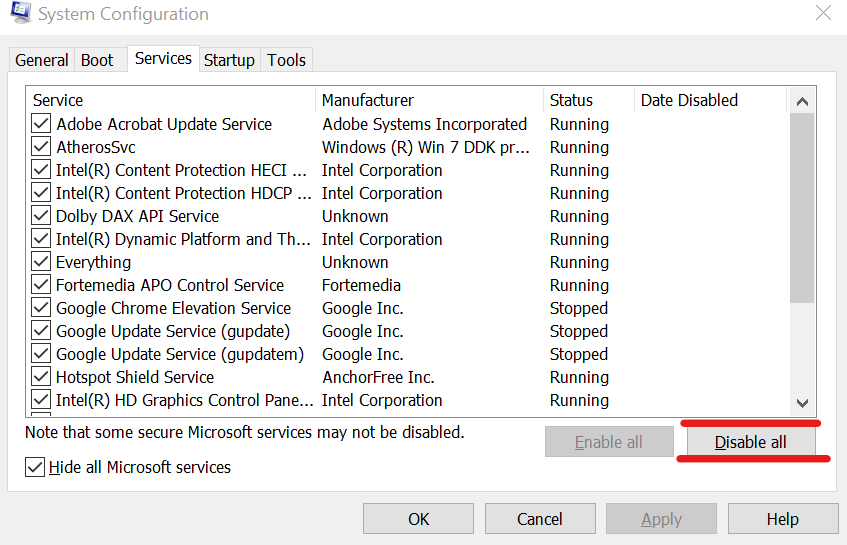
  5. Select the Hide all Microsoft services checkbox and press the Disable all button.
  6. Select the Apply option then press the OK button to close the System Configuration window.
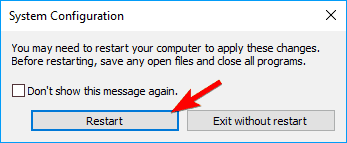
  7. Select the Restart option on the dialog box that opens.
Improve performance by disabling Windows services

This error message can often be due to conflicting software. So clean booting Windows, which will remove superfluous startup software and third-party services.

This is another potential resolution for the Abbyy Finereader.exe has stopped working error message.


6. Remove your antivirus software from the Windows Startup

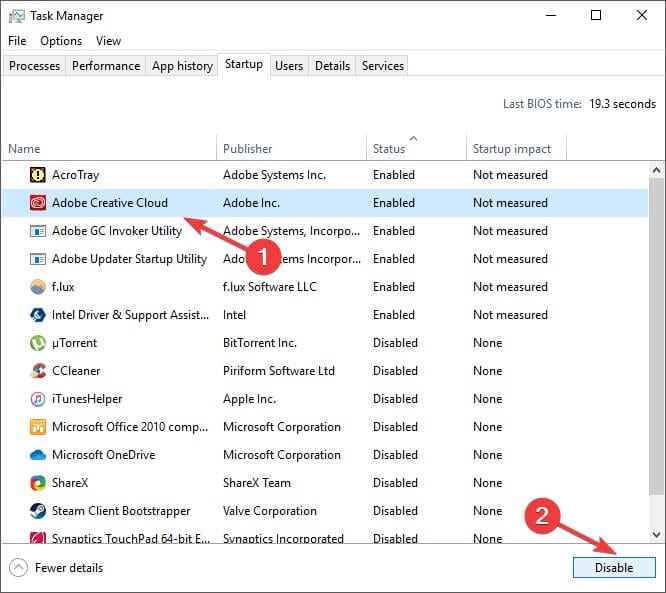
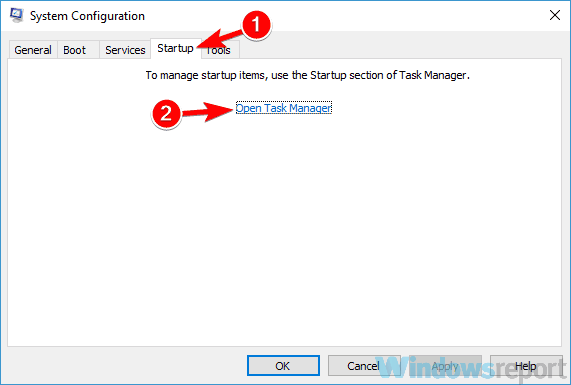
  1. Right-click the Windows 10 Start button and select Task Manager. Alternatively, you can open that utility by right-clicking the taskbar and clicking Task Manager.
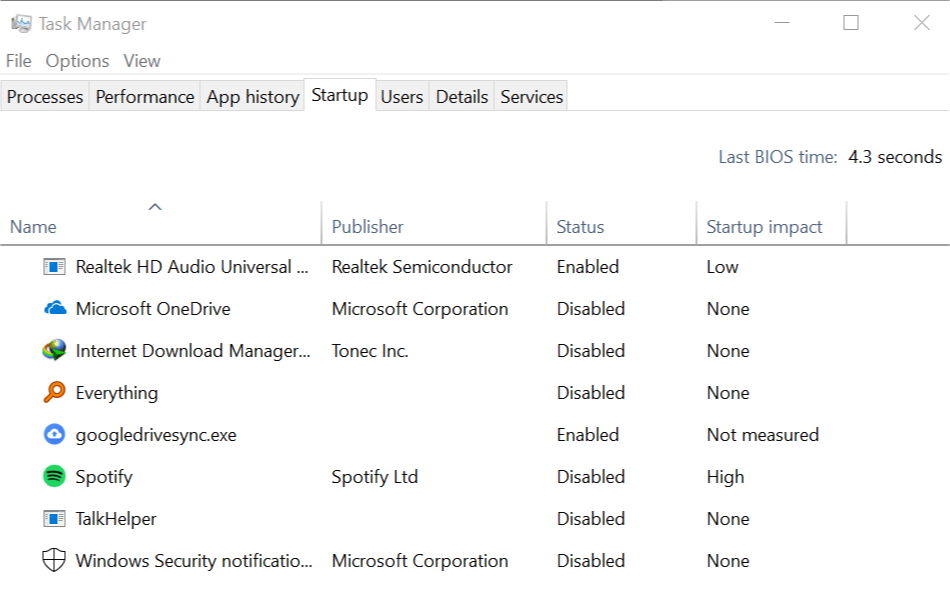
  2. Select the Startup tab shown in the shot directly below.
  3. Then select your anti-virus software, and press the Disable button.
  4. You can turn your anti-virus software back on when you don’t need to open Abbyy Finereader by clicking Enable.

If Abbyy Finereader works fine when you clean boot Window, third-party antivirus utilities are the most probable conflicting software.

As such, after restoring Windows to the standard startup, try removing just your anti-virus software from the system startup instead.


7. Turn off DEP for Abbyy Finereader

  1. Press the Windows key + X to open the Win + X menu.
  2. Then you can click Command Prompt (Admin) to open an elevated Prompt window.
  3. Input this command in the Prompt: bcdedit.exe /set {current} nx AlwaysOff
  4. That will turn off the DEP when you press Enter.
  5. Then run Abbyy Finereader in Windows.
  6. You can turn the DEP back on later by entering the following line as in the snapshot below and pressing the Return key : bcdedit.exe /set {current} nx AlwaysOn

This error message can also pop up if Data Execution Prevention prevents programs from running. Thus, temporarily turning DEP off for Abbyy Finereader is a potential resolution.


These are a few resolutions that might fix the Abbyy Finereader.exe has stopped working error so you can utilize the software again. Some of the resolutions may also fix similar error messages for other software.

Click on the Advanced button and if it reads Paper Capture, this indicated that the initial document has been turned into a PDF with the help of an OCR software.


Multimedia Authoring Software: 14 Best to Use in 2026

In order to choose the best authoring tool software, it is imperative to understand what authoring tools are.

Authoring tools, commonly referred to as eLearning authoring tools, are used to create, collaborate, integrate, and publish engaging and interactive content meant mostly for training and educational purposes.

The best authoring tool software lets you work with digitized elements, and/or learning objects to use in your training.

However, they take on more functions as you will discover while checking out our top picks for authoring tools. Authoring tools are important because content really is king, more so in the eLearning space.

To this end, trainers are constantly looking for creative and innovative ways of creating and publishing custom content that can be used on the Internet, in companies, or in CD-ROMs.

In other cases, there is a need for doing ‘crash courses’ or rapid eLearning, like in organizations where information needs to be deployed and thereby reducing training costs.

Authoring tool software can, therefore, be applied when you have large teams with varying skill sets, or for trainers who prefer blended training solutions that use a combination of both classroom and eLearning material, thus killing two birds with one stone.

If this sounds like what you’re looking for, here are our top picks for the best authoring tool software you can use right now.

What are the best authoring tools for Windows 10?

Adobe Captivate

get Adobe Captivate

This authoring tool software helps you author batches of content rapidly on an HTML5-based platform.

It is a desktop app available for Windows operating systems, touted as the most powerful authoring tool software in the industry, but it needs a lot of understanding to work with it.

However, you don’t need much technical ability to create interactive content as it uses wizards to guide you as you create and publish your content.

Its features include color palettes, slide master, responsive and interactive output, geolocation capability, powerful scripting functionality, and you can define group actions when working on multiple projects.

Adobe Captivate

You are about to enjoy a fully-featured set of tools to create highly interactive, ready-to-use training courses for desktop and mobile.
Free trial Visit website

TalentLMS

get TalentLMS

TalentLMS includes an extensive set of training tools that both businesses and independent professionals can use to perfect their training sessions and skills.

The course management features allow for course building from zero, using ready-made templates, and later on integrate previously used elements into new presentations.

They are easy to customize with your own logo and preferred themes, visually scalable, and fast-loading.

You can even extend your presentations into a personal homepage, exposing only a part of your work, for promotional purposes.

Furthermore, you can integrate your courses with over 200 services, among them Zapier, Shopify or Salesforce.

User-friendly dashboards will help you collect reporting data about user behavior to organize your eLearning strategy.

TalentLMS

Cloud-based intuitive training platform that suits both beginner and advanced trainers, packed with all the tools to create professional, scalable courses.
Check price Visit website

ProProfs Training Maker

get ProProfs Training Maker

For those of you who don’t know, ProProfs Training Maker is an incredibly intuitive cloud-based learning management system that can meet most of your training requirements.

Designed with small businesses, large enterprises, educational institutions, and corporate trainers in mind, this tool offers course authoring, assessments, consolidated scores for each learner, as well as collaborative tools to encourage knowledge exchange.

Coding skills aren’t required in order to take advantage of all these. Quite the opposite, ProProfs Training Maker is very easy to use and customer support is always helpful.

Moreover, keep in mind that training courses can be created and accessed with ease from anywhere. You can actually do so by using a tablet or a mobile device even while on the go.

These are some key features that ProProfs Training Maker brings to the table:

  • Simplicity for all users
  • Real-time learning tracker
  • Quizzes, surveys, and polls integration to assess knowledge retention
  • Insightful reports
  • Customization and branding options

⇒ Get ProProfs Training Maker

Elucidat

get Elucidat

This is a simple, intuitive authoring tool software designed to deliver high-quality learning with a faster response time.

With this tool, you can control the look and feel of your brand and content by creating templates and other material aligned to your brand guidelines.

You can design unique and engaging content using the Layout Designer feature, speed up and simplify content creation using the Team collaboration feature such that your team can comment and leave feedback within projects.

You can also create and update multiple versions of your content with the Variations Manager feature, translate content to multiple languages and track user data globally.

Even more, feel free to analyze and improve your content using the Analytics feature that captures detailed information about your content’s users such as their location, devices, time spent on the content and how they answer questions.

Other features include simple editing, HTML5 output which is modern and loads fast, browser support as far back as Internet Explorer 7, full responsiveness.

Future proof is included as well, meaning your content is safe and any changes are automatically updated, an Asset Library, Gamification and branching, superfast hosting, and free reviewing options.

⇒ Get Elucidat

Articulate 360

get Articulate Storyline 360

This authoring tool software comes with the right apps and resources for you to create engaging and interactive content with high impact.

Its award-winning authoring apps include Storyline 360 and Rise, among a slew of other apps. Features include over 2 million course assets such as templates, photos, videos, icons, and characters.

With Articulate’s Storyline 360, you can develop custom engaging, high learning impact and interactive courses that can work on any device, plus novices and experts alike can use it too.

Articulate Rise app is useful for building responsive courses in the shortest time possible, but you need a web browser only and you’re well on your way to create the most beautiful courses for any screen.

Other features include the Articulate Review which hastens the project review process with feedback provided in a browser, live training online using live webinars, no coding required, and a user-friendly interface.

Some of the benefits you get with Articulate include an active online community where you can get tips, tricks, and share information, flexibility, and run your content on all devices.

⇒ Get Articulate 360

Lectora

get Lectora

This is an affordable, but powerful cloud-based SaaS authoring tool software which you can collaborate with anywhere, and at any time, plus it works with all browsers and operating systems.

Lectora offers benefits such as an intuitive interface, automatic file backup, zero installation, publishing to any learning management system (LMS), and it is easy to learn.

Features include a quiz builder, collaborative review tools, pre-made actions to create animations, flexible scripting, access to eLearning Brothers graphics and template library, and a 30-day free trial.

⇒ Get Lectora

Eliademy

get Eliademy

This authoring tool software lets you create your own online course with benefits such as simplicity, security, and it is fully available for free forever.

You can instantly create online courses, quizzes and forums then share or embed them to your course.

It is truly mobile so you can access your content from any modern device online, including your tablet or smartphone, meaning you can even create a course on these devices and preview in a browser.

Other features include an educational calendar where students can find all the courses, quizzes, and deadlines as assigned so they’ll not miss any updates, plus you can own your LMS and upload your contact list then everyone in it will join you on your LMS, which you’re fully in control of.

⇒ Get Eliademy

Easygenerator

get Easygenerator

As its name rightly suggests, Easygenerator is an authoring tool software that is simple, easy to use, and generates custom content as it is cloud-based.

This tool is classified as a SaaS solution and lets instructional designers, or trainers in different subject matters to create engaging and interactive content with high impact.

It is affordable, future proof, simple to use when creating, designing and publishing your custom content, and is used in more than 120 countries globally.

You can try Easygenerator for free, and create beautiful courses fast, and easily, without the need for coding or installation.

It is also fully responsive, plus you don’t have to worry about hassles of the past like design, optimization, measuring results, or publishing to the correct standards.

All you need to do is focus on creating your custom content, and Easygenerator does the footwork for you.

At its core is a strong instructive framework that ensures learners get the best results through a standard objective setting and success measuring approach that uses assessments.

Its intuitive interface delivers a WYSIWYG (what you see is what you get) output, and there’s no need for scripting or programming with this software.

Other features include TinCan and SCORM-compliant content integrated in the tool, and conversion to mobile devices as it works in the cloud thus is responsive.

More benefits include content repurposing or reusing, predesigned smart templates, one-click publishing, advanced cloud infrastructure, a smart delivery team, and tracking learning progress.

⇒ Get Easygenerator

Shift Learning

This authoring tool software offers a single workspace with all the tools you need to work smarter what with its simple, intuitive platform that delivers high performance and gives you full control.

Features include an extensive template builder and library, built-in audio recording studio, easy to use interface with no coding requirements, drag and drop builder for custom designing.

Even more, get ready for interactive templates where you can add videos, quizzes, images, or audio, a resource library, plus responsive design for mobile and desktop, and built-in review system.

You can get the 15-day free trial version and test run it.

⇒ Get Shift Learning

Atomi

get Atomi

This is another powerful and rapid authoring tool software with a unique feature called ActivePresenter. This feature includes all tools you need to record, edit and create your custom content.

Other features include Smart Capture that lets you capture the screen with a mouse click or keypress, full-motion recording, software simulation, quiz building, mic and speaker recording.

You can also benefit from audio and video editing without quality loss, a variety of shapes to choose from, colors and effects, interactivity, video, and HTML5 export, as well as SCORM-compliant content which is widely supported by most LMS.

⇒ Get Atomi

Composica

get Composica

This is a social e-learning authoring tool software with real time collaboration capability, and a powerful environment free of programming so you can create your high quality, interactive content with embedded social media.

It is fully responsive, and you can create courses, quizzes, or games using your browser, or collaborate with your team to share ideas, assign tasks, and reuse content, then finally publish your creations to your LMS, HTML5, PDF, or desktop.

Other features include interactivity, real feedback, social embedding, assessments divided into sections or categories with unparalleled feedback options, and multi-language options.

It also helps you import to existing PowerPoint presentations, gamify quizzes or questions, has teamwork features, version control for your courses, reuse, review and assign tasks, among others.

⇒ Get Composica

CourseArc

get CourseArc

CourseArc authoring tool software transforms the learning experience both in an educational set up or in your organization by making the learning process count.

It also transforms how you deliver training and other professional development, streamlines onboarding process, plus it is so efficient, saves you money, and increases engagement because it is interactive.

It is a digital content creation tool whose benefits include accessibility, ease of content creation, affordability, and transformation of your training activities.

⇒ Get CourseArc

dominKNOW

This is a simple authoring software tool with fast and responsive features such as adaptive output, HTML5 authoring, reuse and sharing of content, real-time collaboration, plus you can publish to your LMS, or apps and also print the content.

If you need to create responsive content or simulations at the click of a button, this is your tool.

It has three authoring modes: Responsive, Tradition eLearning, and Software simulations, which let you deliver content anywhere, and any time.

It is cloud-based and accessible on any device whether it’s a PC, laptop, tablet, or smartphone.

You can quickly publish whatever you create as a web app, as a desktop package, document or to the dominKNOW mobile player to use it as a performance support tool.

Content can be reused so you don’t have to keep creating more versions.

⇒ Get dominKNOW

Gomo

get Gomo

Gomo is a really interesting elearning authoring software that packs a series of additional features, including hosting, analytics, and apps.

If you need a tool that can help you to create content within minutes, then Gomo Learning Suite is the right choice for you.

There are many content templates that you can choose from so we’re sure you’ll find one that meets your content creation needs.

The tool allows multiple authors to work on the same content which is perfect for collaboration purposes.

Another advantage is that this is a cloud based tool and there’s also a free trial available. So, go ahead and test Gomo to see if this tool can cover all your authoring and content creation needs.

⇒ Try Gomo for free

Have you settled on an authoring tool software you want to use? Let us know your favorite and if you’ve used any before, share with us your experience in the comments section below.


How to Save Browser Screenshots as PDF

Capturing screenshots in Windows is quite easy: you just need to press a single key and save the image or use a simple screen capturing tool.

However, capturing screenshots from web pages can be challenging because we often need to capture the whole page.

The best solution, in this case, is to use a third-party tool to take screenshots while browsing the Internet.

No browser offers users the option to save screenshots as PDF by default. But if you’re using Google Chrome or Mozilla Firefox, you can go to their extension store and install an extension that does just that.

Quick Tip:

Some lines of work require that you take screenshots of websites daily, so arranging your system to do that as smoothly as possible can be a lifesaver.

One way you can do this is to switch to a better browser, such as Opera One. It comes with plenty of built-in features, such as Snapshot, a dedicated tool that allows you to take screenshots of your web pages, edit them, and share them with ease in Opera’s integrated messengers.

Opera One

An excellent web browser that offers many useful tools, including the ability to save and print your web pages.
Free Download Visit website

How do I save a screenshot as a PDF Windows 10?

1. Download FireShot to save browser screenshots as PDF

An extension called FireShot allows you to save an entire webpage as PDF with just a few clicks. FireShot is available in the Chrome Webstore and Firefox’s Add-Ons page for free.

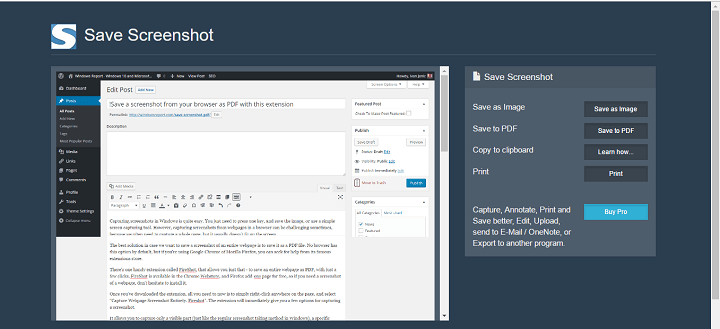
Once you’ve downloaded the extension, simply right-click anywhere on the page and select Capture Webpage Screenshot Entirely. The extension will immediately give you a few options for capturing a screenshot.

It allows you to capture only what’s visible, a specific section of the screen, and of course the entire web page.

When you choose what to capture, a new window will immediately show up. Here, you can save the screenshot as a PDF, as a regular image, or even print it.

screenshot pdf windows 10

You can also set a few hotkeys to take screenshots by simply pressing them. In fact, there is a hotkey for every option this extension offers: Last Used Action, Capture Visible Part, Capture Selection, and of course Capture Entire page.

Fireshot is currently available in Google Chrome and Mozilla Firefox only, so if you want to save a screenshot to PDF Chrome, this is a great option.

2. Use Adobe Acrobat Reader for taking screenshots

If you often take screenshots and work with PDF documents frequently, we suggest using Adobe Acrobat Reader for saving screenshots.

The tool has a built-in Snapshot feature that lets you copy an area of a PDF as an image.

Keep in mind that this feature is only available within Acrobat Reader, you can’t use it to take screenshots on your browser.

How to use the Snapshot tool in Adobe Acrobat Reader

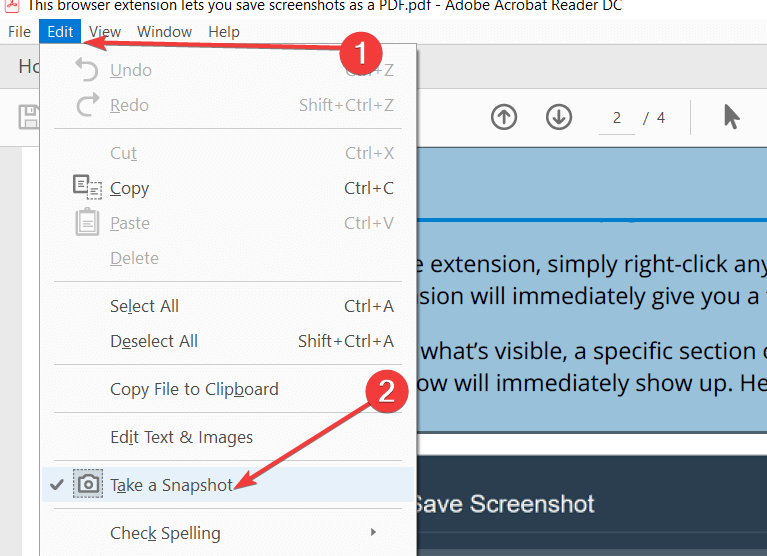
  1. Navigate to the Edit menu > click on Take A Snapshot.take snapshot adobe acrobat reader
  2. Select the area you want to copy.
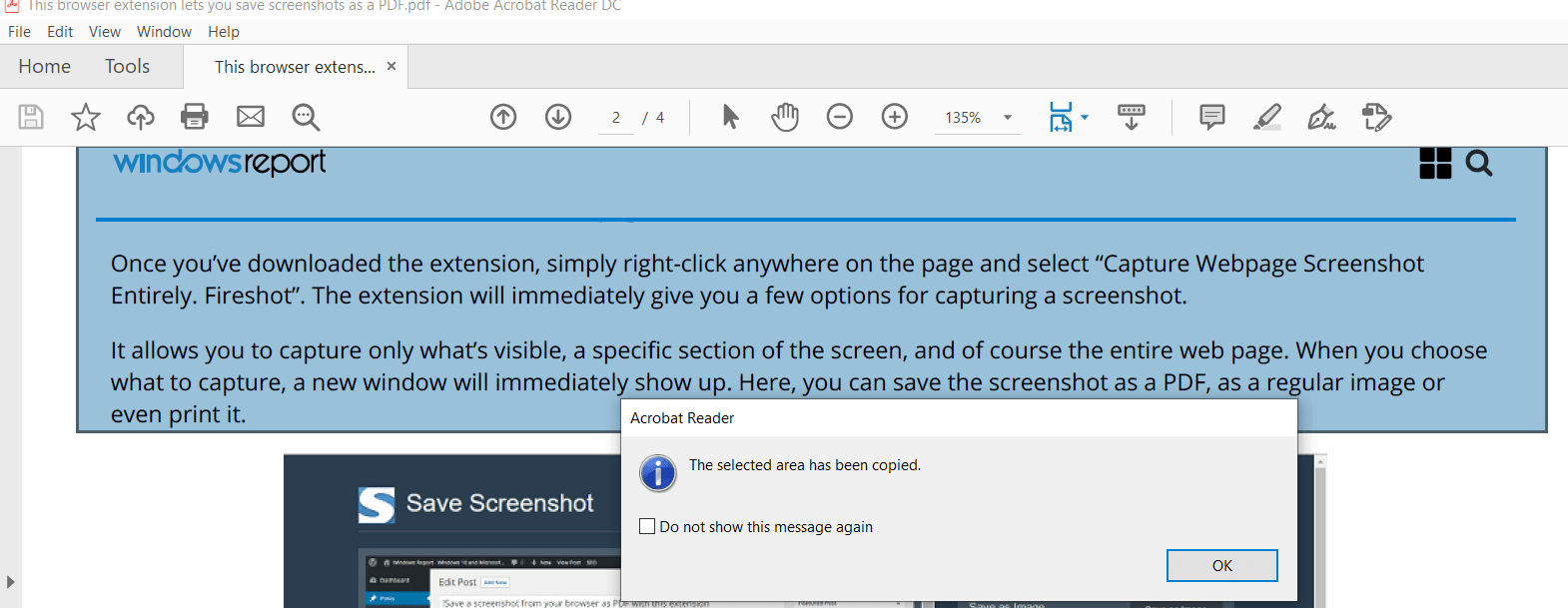
  3. A confirmation message will appear on the screen.save snapshot adobe acrobat reader
  4. You can now paste the copied image into another application.

Will you use it to capture screenshots from your browser? Tell us in the comments below.

FIX: Windows DVD Maker fails to burn disks

It can sometimes be annoying when you want to burn a CD or DVD and it interrupts right in the middle of the process.

There are a few methods that you can try in order to fix your Windows DVD burner and prevent any further damage when you try to burn a DVD or a CD. Follow the steps below in the order they are listed to fix the problem.

The Windows DVD burner application in Windows 10, might interrupt at some point in the burning process mainly because you have some corrupt system drivers or the DVD drive is not reachable via an assigned drive letter.

So, if your Windows DVD Maker cannot create DVD, here’s how you can fix the problem.


How do I solve Windows DVD maker unable to burn disks?

1. Use Adobe Premiere Pro

Before going through any of the troubleshooting steps written below, maybe you should consider using a third-party tool that can burn your DVDs.

Most often than naught, third-party tools greatly simplify the process of what they are tasked to do.

In the case at hand, a great tool to consider is Adobe Premiere Pro, a world-leading video editor that has all the tools to turn a simple video recorded on your mobile into a movie of near-Hollywood proportions.

Besides the fact that it can open any video format and edit in whatever way you see fit, you can also use it to then burn your work of art to DVD for safekeeping.

⇒ Get Adobe Premiere Pro

2. Burn DVD with Windows Media Player

  1. Move the mouse cursor over to the upper right side of the window, click on the Search feature and in the search dialog box write: Windows Media Player.
  2. Click on the Apps feature and from the Apps menu, click on the Windows Media Player icon.
  3. In the upper right side of the Windows Media Player app, click Switch to Library, then in the new window access the Burn tab.
  4. Click Burn Options then click on the Data CD or DVD feature.
  5. Now place a blank DVD or CD into the DVD Burner.
  6. Now select the drive letter that corresponds with the DVD burner you placed the DVD in.
  7. Drag and drop the items you wish to burn from the details panel to the list panel to make a burn list.
  8. Now after you made the list you will need to left click or tap on the Start burn button.
  9. Check to see if your burning process works in this application.

Some users have claimed that they fixed the problem in regards to burning a disc in Windows 10 by using Media Player. This is a rather easy solution to an issue that may seem more complicated than it actually is.

There are plenty of other third-party apps that you can use to burn a DVD if you are not fond of Windows Media Player. This applies when you want to use a converter that has additional video editing features, such as trimming an element, creating a DVD menu, adding music or a picture, and adding a subtitle.


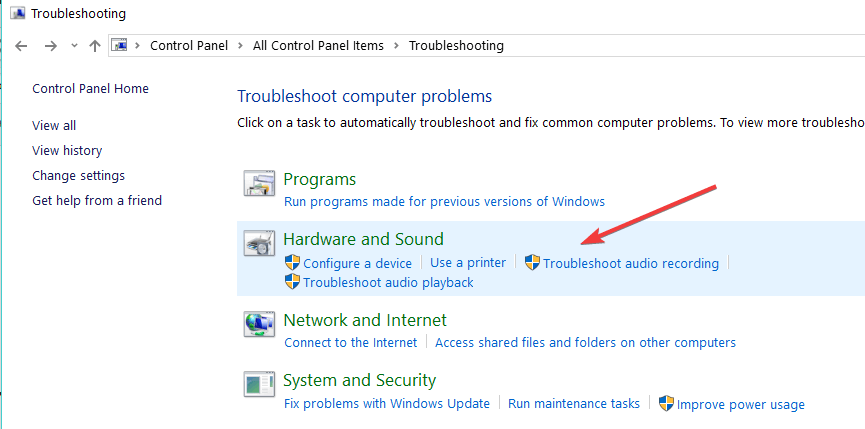
3. Run the Hardware and Sound Troubleshooter

  1. Hold Windows+R hotkeys to open the Run window, in the dialog box write control then press Enter.
  2. Open Control Panel and in the upper search box type troubleshooter.
  3. Left-click or tap on the Troubleshooter icon after the search has finished.
  4. Under the Hardware and Sound topic left click or tap on the Configure a device feature.hardware sound troubleshooter
  5. Follow the instructions on the screen to finish the troubleshooting process.

Another solution for when you’re unable to burn a CD in Windows 10 is to run the Hardware and Sound Troubleshoother.

By performing this action you can ensure yourself that all multimedia hardware settings are in place, and thus there are no errors that can disrupt your recording process.

Note: you might be prompted by a window where you need to write your administrator account and password in.


4. Tweak your Registry

  1. Reboot your Windows 10 operating system then log-in with your administrator account
  2. On the Start screen press and hold Windows+R hotkeys.
  3. In the run dialog box write regedit the line below and press Enter.
  4. In the Registry Editor window double click on the HKEY_LOCAL_MACHINE folder.
  5. In the HKEY_LOCAL_MACHINE folder open the SYSTEM folder then access the CurrentControlSet folder.
  6. In the CurrentControlSet folder open the Control folder, then access the Class folder.
  7. Now open the {4D36E965-E325-11CE-BFC1-08002BE10318} folder then on the right side pane left click on the UpperFilters registry, click Yes.current control set registry editor
  8. Click on the LowerFilters in the right-side panel and do the same steps as for the UpperFilters to remove it.
  9. Reboot your operating system.
  10. Try again your Windows DVD burner to see if the process works normally this time.

If you cannot burn a DVD in Windows 10 then applying some small changes to your System Registry may fix the issue, since this procedure followed by a system reboot can fix certain errors.

Note: Before doing the steps below you will need to make a backup copy of the system or at least your important documents and files that you might need later on.


5. Change EnumDevice DWORD

  1. Press Windows+R hotkeys to open the Run window, type regedit, then press Enter.
  2. In the Registry Editor window open the HKEY_LOCAL_MACHINE folder from the right-side pane, then access the SYSTEM folder.
  3. Open CurrentControlSet, access the Services folder, then right-click on the atapi folder, then click on the New feature.
  4. From the New submenu click on the Key feature, then as a name write Controller0 then press Enter.
  5. Click the Controller0 feature and click on the New option, from the submenu click on the DWORD(32-bit) Value option.
  6. For the DWORD write EnumDevice, then press Enter. Click on the EnumDevice1 DWORD, then tap on the Modify feature.
  7. Next to Value Data feature write 1 then click OK.
  8. Close the Registry Editor window and reboot your operating system.
  9. Check again to see if your Windows DVD burner works for you.

Changing the EnumDevice DWORD is one option if you encounter issues burning a DVD. Simply start off by opening the Registry Editor and follow another few easy steps to complete the procedure.


In this article we presented you with all the efficient solutions you can apply if you’re unable to burn a DVD in Windows 10, because it fails in the middle of your burning process.

If you have further questions regarding this article, you can always write to us in the comments section of the page situated below and we will help you further as soon as possible.


3 best virtual guitar apps and software

If you are looking to transform your Windows 10 tablet, or desktop device into a guitar player, you should know that there are apps that you can use for that.

We have featured below three such apps that we consider to be the best for Windows 10 guitar aficionados.

The guitar is one of the greatest instruments you can play. It allows anyone to create great music and to play almost any possible song, but, like most musical instruments, it takes some time to master.


Adobe Audition (recommended)

Adobe Audition - Sound voice recorder

Adobe Audition is the best tool for designing sound effects, including a virtual guitar instrument effect.

After creating your own artwork of music sound using instruments and vocals, you will have to improve the sound of the audio for a more precise effect.

Adobe Audition can be the right choice to craft smooth and textured effects by modifying vocals and drums from the Guitar Suite panel.

As well, you have the possibility to improve the sound of the guitar that you already created by optimizing or altering it, in order to achieve high-quality audio.

Moreover, there are a lot of features for virtual instruments like guitars, so you are free to create a tighter sound effect or to reduce dynamic mixture in the Compressor tab.

As well, the guitar sound can be improved by applying filters, modelers, and by using Distortion features for the professional and expressive performance of the artist.

You will be able to filter frequency, set the resonance, to amplify, and to mix the audio. Adobe Audition will ease the overall process of mixing and editing audio.

The tool allows you to work on more layers and effects at the same time, especially if you use more instruments and want to improve aspects of the vocal in the audio file.

Besides editing sound effects, Adobe Audition gives you the option to record and mix podcasts, to remix the songs effortlessly and automatically, and to fix audio files with the help of frequency display and Diagnostics features.

Adobe Spark

Adobe Spark

Adobe Spark is the best tool for audio effect design, so feel free to try it out!
Free trialVisit website

Play Guitar! app

play guitar! windows 10 app

With the Play Guitar! app for Windows, you can practice playing in a virtual environment, when you can’t pick up the real thing.

The Play Guitar! app for Windows is an awesome way to learn a few chords also, so you can give it a try if you are only now starting to learn to play guitar.

The app is in a sense similar to Piano8, which we reviewed a while back, and if you liked that one, then you cannot like Play Guitar!

This freely downloadable app can be found in the Windows 8, Windows 10 Store and it can be a great way to learn the basic chords, which is the first step if you want to learn how to play guitar.

The app is very similar to the Android guitar app that so many loved, and therefore, I think that those who have moved to Windows 10, Windows 8 will like just the same.

The app itself is fairly simple, as it opens straight to the “playing area”, where users can simply start clicking or tapping the cords to create sounds.

The fact that the guitar itself has very nice graphics and it looks awesome also adds to the app’s quality. The decision of the developer to not add any ads within the app is great, as it allows the user to focus on the music.

The user has two possibilities to use the app:

  • Free Play – where you can play just by clicking or tapping to the cords
  • Chord Play – where users can drag and drop different chords in the special box that appears on the bottom of the screen

In Chord Play, you can also see where you have to press in order to create the specific sound of each chord. This can be a great way to memorize them before moving to a real guitar, or for practicing.

The guitar that is used in this app is an acoustic guitar, but if you want to learn how to play an electric guitar, there is a specialized app for that as well.

⇒ Download Play Guitar!


Rock Guitar! app

rock-guitar-windows-8-app-electric-guitar (2)

If you click on the Other Apps button and you will see the Rock Guitar! download button.

Rock Guitar! app  has the same interface as Play Guitar!, with the same buttons and features. This makes it very easy to use by anyone.

Also, the sensitivity of both apps is awesome, so you won’t ruin your song by pressing multiple cords at once. I salute the developer of these two apps for a fantastic job!

Rock Guitar!’s developer recently updated the app adding a series of interesting new features, such as virtual guitar support, a new chord viewer, and chord editor.

Both Play Guitar! and Rock Guitar! are awesome apps that should not miss from the device of anyone who likes music. The apps are both simple, the sound is great and the difference between the chords is audible.

The app received mostly positive reviews and many users confirmed that using it feels like using a real guitar:

⇒ Download Rock Guitar!


Those were some cool virtual guitar apps that you can try out. Feel free to tell us if you enjoyed them in the comment section below.


PhotoDonut for Windows 10/11 [Review and Download Link]

Are you looking for a powerful photo editor that lets you create stunning images? PhotoDonut is a reliable Windows 10 app that you may use to turn your visions into interesting artistic creations.

PhotoDonut lets you enhance your pictures with an array of sight-pleasing filters and presets.

Each of them offers a unique take on a picture’s lighting and presets such as Gold Sun to really make a photo pop.

After you’re done, you will be required to save your work and PhotoDonut allows you to do so in a number of formats.

The available format list includes popular formats such as PNG, JPG, as well as PSD. That’s why professional artists and enthusiastic art fans alike may find PhotoDonut useful.


What’s so great about PhotoDonut?

try out PhotoDonut

The best part about PhotoDonut? It’s cross-platform, bringing a whole other dynamic to the table and making the software that more versatile.

Lighting is just a tip of the iceberg when it comes to the array of options offered by PhotoDonut.

If you’re looking for more editing-based features, tap into the software’s texture altering capabilities where single solutions and combinations of effects are mashed together to bring out the very best in every photo.

Versatility is one of the program’s top strengths. Just as you can apply great effects and photo enhancements on the fly and perform what can be referred to as one-click wonders.

You may also apply different layers in such a way that emphasizes all of the picture’s strengths. Another great thing is the fact that some people call upon expensive photo editing studios that milk you for money.

That won’t be necessary since PhotoDonut comes as a healthy, not so expensive choice — challenging the way you look at everyday photo editors.

⇒ Download PhotoDonut here


Adobe Photoshop – a great alternative to PhotoDonut

You can’t talk about the most powerful photo editor at the moment without a name like Adobe Photoshop crossing your mind.

Whether it’s photo editing, animation, digital painting, or graphic design that you’re after, there’s virtually no limit on what you can express creatively with Photoshop.

If you’re not sure what’s possible, you can get inspiration by viewing what other people have created.

And since the creative power of Photoshop has reached to iPad as well, you may now work even while on the go.

Adobe Photoshop

Adobe Photoshop

Adobe Photoshop is the best animation, photo editing, and digital paining app that you can get right now.
Free trialVisit website

Alien’s Ripley and Xenomorph come to the Fortnite video game on Xbox and other platforms

Epic Games really aren’t holding back with their crossover characters this year. Players have already been given the opportunity to add Green Arrow, The Flash, The Terminator, Sarah Connor, The Predator, and The Walking Dead’s Michonne and Daryl to their collections and now Ripley and the Xenomorph from the popular Alien franchise have arrived.

Both characters were added to Fortnite earlier today on Xbox One, Xbox Series X, and all other supported platforms. Each character was also accompanied by a variety of accessories including a Xenomorph tail back bling and a Fortnite llama chest-burst emote.

An official trailer for the Alien content was also released today. You can check it out below.

Fortnite’s current season, which has the hunters theme, is set to run until the end of March so it’s likely that at least a couple more special crossover characters could be making an appearance. Some file leaks seem to be hinting at some Family Guy content being added in the near future though it’s unclear how that would fit in with the season theme.

In other Fortnite news, after being teased earlier in the week, the Fortnite Crew Pack content for March has now been officially revealed. Subscribers of the add-on membership can look forward to the Llambro outfit (shown below) along with some similarly-themed pickaxe, back bling, and wrap accessories in addition to the usual 1,000 V-Bucks.

Fortnite March Crew Pack Llambro

Are you excited for all of this new Fortnite content or are you ready for the next season to begin? Let us know in the comments below and then follow us on Pinterest and Twitter for more gaming content.

Fortnite
Fortnite
Developer:
Epic Games Inc.
Price:
Free


Fortnite - 1,000 V-Bucks


What kind of files can Adobe Illustrator open?

Adobe is well-known for the host of products that it provides to users worldwide. This also includes their line of programs aimed at graphics design, such as Adobe Illustrator, or Adobe Photoshop.

Adobe Illustrator is Adobe’s de-facto vector graphics editor, and many people use it in order to create intricate drawings.

These can be both artistic in nature or precise designs used in real-life applications, such as architecture. However, no matter how popular Adobe Illustrator is, not a lot of people know just what kind of files it can open.

Normally you would probably think that it supports all standard image formats, such as JPG, BMP, etc, and some of Adobe’s proprietary formats, such as Photoshop’s PSD.

Of course, you couldn’t be further away from the truth, since the list goes way beyond that.


What are the supported file formats for Adobe Illustrator?

Depending on what exactly you want to do with Adobe illustrator, the list of supported file formats varies.

1. File formats supported for opening

Adobe Idea file (idea)CorelDRAW 5, 6, 7, 8, 9, 10 (cdr)PCX (pcx)
Adobe Illustrator (ai, ait)Encapsulated PostScript (eps, epsf, ps)Photoshop (psd, pdd)
Adobe Illustrator Draw (draw)Enhanced Metafile (emf)Pixar (pxr)
Adobe Illustrator Line (line)GIF89a (gif)PNG (png, pns)
Adobe PDF (pdf)Illustrator EPS (eps, epsf, ps)SVG (svg)
Adobe Photoshop Sketch (sket)JPEG (jpg, jpe, jpeg)SVG Compressed (svgz)
AutoCAD Drawing (dwg)JPEG2000 (jpf, jpx, jp2, j2k, j2c, jpc)Targa (tga, vda, icb, vst)
AutoCAD Interchange File (dxf)Macintosh PICT (pic, pct)Text (txt)
BMP (bmp, rle, dib)Microsoft RTF (rtf)TIFF (tif, tiff)
Computer Graphics Metafile (cgm)Microsoft Word (doc, docx)Windows Metafile (wmf)

2. File formats supported for placing

Adobe Illustrator (ai, ait)GIF89a (gif)PNG (png, pns)
Adobe PDF (pdf)JPEG (jpg, jpe, jpeg)SVG (svg)
AutoCAD Drawing (dwg)JPEG2000 (jpf, jpx, jp2, j2k, j2c, jpc)SVG Compressed (svgz)
AutoCAD Interchange File (dxf)Macintosh PICT (pic, pct)Targa (tga, vda, icb, vst)
BMP (bmp, rle, dib)Microsoft RTF (rtf)Text (txt)
Computer Graphics Metafile (cgm)Microsoft Word (doc, docx)TIFF (tif, tiff)
CorelDRAW 5, 6, 7, 8, 9, 10 (cdr)PCX (pcx)Windows Metafile (wmf)
Encapsulated PostScript (eps, epsf, ps)Photoshop (psd, pdd)
Enhanced Metafile (emf)Pixar (pxr)

3. File formats supported for saving

Adobe Illustrator (ai)AutoCAD Interchange File (dxf)PNG (png)
Adobe PDF (pdf)BMP (bmp)SVG (svg)
Illustrator EPS(eps)CSS (css)Targa (tga)
Illustrator Template (ait)Enhanced Metafile (emf)Text Format (txt)
SVG (svg)Flash (swf)TIFF (tif)
SVG Compressed (svgz)JPEG (jpg)Windows Metafile (wmf)
File formats supported for exportingMacintosh PICT (pct)
AutoCAD Drawing (dwg)Photoshop (psd)

4. File formats supported for saving for web

GIF (gif)
JPEG (jpg)
PNG (png)
File formats supported for saving for screens
Adobe PDF (pdf)
JPEG (jpg)
PNG (png)
SVG (svg)

All in all, if you’re into graphic design, then Adobe Illustrator is a must-have in your toolkit, as it is an industry-standard with pretty much everybody using it.

Adobe Illustrator

Open a wide variety of files with the industry-leading goliath, Adobe Illustrator.
Free trial Visit website

Other software tools that are similar to Adobe Illustrator

As far as supported file formats go, there are plenty of other software solutions that do pretty much the same job as Adobe Illustrator.

Here are our suggestions for Adobe Illustrator alternatives:

As you can see, Adobe Illustrator is quite handy at opening a wide variety of formats. While it is a bit more limited when it comes to formats that it can place or save, they are more than enough for the common user.

Do you think Adobe Illustrator supports enough file formats, or should the list be expanded? Let us know what you think in the comment section below.


Star Wars: Squadrons and NFL 21 coming to Xbox Game Pass and EA Play next month

March is going to be a good month for EA fans with both Star Wars: Squadrons and Madden NFL 21 coming to the EA Play subscription service and, as a result of EA Play being part of Xbox Game Pass, to Xbox Game Pass as well.

The Madden NFL 21 video game is set to be added to the EA Play/Game Pass library on March 2nd while no set date has been locked in for Star Wars: Squadrons just yet.

NHL 21 was also announced to be coming to EA Play today though it won’t join the library until April.

All three titles are fairly new which makes their addition to EA Play and Xbox Game Pass a bit of a boon for subscribers. Let us know which one you’re looking forward to playing in the comments below and then follow us on Pinterest and Twitter for more Xbox gaming news.

STAR WARS™: Squadrons
Developer:
Electronic Arts
Price:
Free


Madden NFL 21 Xbox One
Developer:
Electronic Arts
Price:
Free


NHL® 21
NHL® 21
Developer:
Electronic Arts
Price:
Free

How to remove Logitech Download Assistant from Startup

Logitech Download Assistant is one of those pesky applications that usually don’t do much on your PC, and many users are wondering if they can remove Logitech Download Assistant.

The answer to this question is yes, and in this guide, we’ll show you a couple of quick and easy methods that can help you remove this software from your PC.

How do I get rid of Logitech Download Assistant?

1. Disable the app from running

  1. Press Ctrl + Shift + Esc to start Task Manager.
  2. Choose the Startup tab and search for Logitech Download Assistant.
  3. Right-click on the Logitech file and choose Disable.

If you want to disable Logitech Download Assistant, this is the simplest and the fastest method to use.

2. Uninstall Logitech Download Assistant

  1. Press simultaneously Windows key + I to open Settings.  
  2. Navigate to the Apps section.
  3. Select Logitech Download Assistant on that list.
  4. Click on Uninstall to remove it.
  5. Follow instructions on the screen to complete the process.

This is one way to uninstall Logitech Download Assistant but to make sure that it’s completely removed, we suggest using dedicated uninstaller software.

It will delete any application along with all of its files and registry entries from your PC with ease. It will save up some memory space and also prevent these files from causing reinstall errors.

After using this software, it will be as if Logitech Download Assistant was never installed on your PC. Uninstaller software are also able to force-uninstall malicious and stubborn software.

Regardless of the type of app you want to remove, these tools will do the job in just a few minutes. They are similar to the Add or remove programs utility within Windows.

They display a list of all your software and you select what you want to remove, in this case, the Logitech Download Assistant. Wait for the process to complete and reboot your PC.

3. Delete LogiLDA.dll from System32

  1. Press Windows key + E at the same time to open File Explorer.
  2. Find LogiLDA.dll in the location
    C:WindowsSystem32
  3. Right-click the Logitech dll file and select Delete.
  4. Restart your system.

To disable Logitech Download Assistant removing LogiLDA.dll from your System32 folder might be the simplest method that you can use.

Note: After trying out this solution, the automatic update feature will not work anymore. As a consequence, you will simply have to manually update your Logitech product in the future.

These are just a couple of solutions that can help you remove Logitech Download Assistant.

Be sure to try all of our solutions and let us know if they worked for you.

FIX: Oblivion crashes on startup or when launching a new game

The Elder Scrolls IV: Oblivion was a popular RPG, but many users reported that they experienced Oblivion crash on startup.

This issue will prevent you from playing the game, but fortunately, there’s a way to fix this problem once and for all using our solutions.

How do I fix Oblivion crashing on startup?

1. Delete the game folder from My Games

  1. Click on My Computer.
  2. Select and click on Documents.
  3. Click on My Games.
  4. Open the folder named Oblivion.
  5. Skip the Save folder.
  6. Select everything else.
  7. Right-click and choose the Delete option.
  8. Restart the game.

When you delete the Oblivion folder, this overwrites and resets any possible wrong configurations you have previously made or the improper ones after the game was installed.

Although simple, this solution will help you prevent Oblivion crashes on startup.

2. Uninstall problematic software

  1. Log into your admin account.
  2. Open the Settings app and go to the Apps section.
  3. Identify and select Cyberlink Power DVD 5.
  4. Click the Uninstall button to remove it.

Even though it is a reliable application available for users in different formats, Cyberlink Power DVD 5 can cause Oblivion to crash on startup.

If you want to continue using this software, you can just update it to the latest version from the link below.

Cyberlink Power DVD

Cyberlink Power DVD

Cyberlink Power DVD is an advanced multimedia player that can easily any file type or disc.
Free trialVisit website

3. Install K Lite Codec Pack

  1. Visit our best codec packs for Windows 10 article. 
  2. Go to the K-Lite codec packs section.
  3. From there, download the K-Lite codec pack.
  4. Choose the Basic version.
  5. Click on Download Basic.
  6. Now run the downloaded file to install the codecs.

Installing a good quality pack on your computer is a necessary strategy that prevents Oblivion crash on startup.

After using this solution, restart your computer to apply these changes and run Elder Scrolls: Oblivion to check if the issue has disappeared.

Just like many other popular RPG games from the past, Elder Scrolls: Oblivion will sometimes encounter issues when played on Windows 10.

Unpleasant as it may be, the Oblivion crash on startup is not something that can’t be solved.

If you found our solutions helpful, do let us know in the comments section below.

Here’s how to use Magic Select in Paint 3D

If you started using Paint 3D, and you’re curious about how to use the Magic Select tool, you have found the best answer by visiting Windows Report.

Paint 3D offers you the ability to use advanced-grade tools easily by taking advantage of its user-friendly interface and simple commands.

The Magic Select tool from Microsoft’s Paint 3D also allows you to easily remove any background, and create your desired project without much of a learning curve.

In today’s article, we will discuss how you can use the Magic Select tool to get professional-looking results easily. Read on to find out how to do it.

How can I use Magic Select in Paint 3D?


1. Open Paint 3D and click the New button to create a new project.
2. Click the Menu icon found at the top-left side of your screen.
3. Choose the Insert option and select the image you want to remove the background of.
4. Click the Magic Select tool from the upper menu.
5. Drag the corners of the blue box to fit the part you want to keep from the image.
6. Click the Next button.
7. Use the Add and Remove buttons to fine-tune the selection.
8. Click Done when you’re finished to have the subject cut out and the background removed.

In this guide, we discussed what the Magic Select tool does, and also how to use it efficiently for great results.

Please feel free to let us know if you found this article helpful by leaving a comment for us. You can do so by typing inside the comment section below.

5+ Best Cross-platform Code Editors for Programmers

Having a reliable cross-platform code editor is of utmost importance for programmers.

Most programmers work on multiple computer platforms, so being able to switch from one platform to the other quickly is very important.

In this article, we’ll list the best cross-platform code editors that you can use to make writing and revising code easier.


What are the best cross-platform code editors?

Adobe Dreamweaver – Best cross-platform code editor

Topping out our list is a software tool that is famous for taking out the code editing part for code editing, allowing users of all experience levels to create pretty much anything.

The UI is extremely intuitive, which helps users easily navigate through the entire tool set. More so, the program helps you with various tips and tricks through the use of auto-complete functions and suggestions.

Finally, you don’t have to worry at the end whether your code works or not since Dreamweaver tests it out in real-time, alerting you if something is ever wrong.

All of these wonderful tools are available for both Windows and Mac users, so cross-platform work is also an option.

Here are some of the perks of using Adobe Dreamweaver:

  • Autocomplete and suggestions help users compile faster
  • Great synergy with other Adobe products
  • Intuitive interface
  • UI makes it an excellent entry-level product
  • You benefit from a free 7-day trial

Adobe Dreamweaver

Get rid of code editing and create whatever you want with Adobe Dreamweaver even if you are a beginner or a pro.
Free trial Visit Website

Visual Studio Code – Versatile option

visual studio code

Visual Studio Code is Microsoft’s source code editor for Windows, Linux, and macOS.

This powerful and versatile cross-platform code editor supports a series of features such as debugging, syntax highlighting, intelligent code completion, embedded Git control, code refactoring, and more.

If the standard version of the tool doesn’t meet all your needs, you can always install more extensions to add new languages, debuggers, and other additional services.

You can install as many extensions as you need – they run in a separate process and won’t affect the editor’s speed. As a quick reminder, Microsoft recently added a new JavaScript debugging extension to VSC.

VS Code also comes with built-in Git commands, allowing you to review code right from the editor and push and pull from any hosted SCM service.

The editor features a very interesting and useful feature called IntelliSense, which provides smart completions based on variable types, function definitions, and imported modules.

⇒ Get Visual Studio Code


SlickEdit – Over 60 languages support

slickedit cross platform code editor

SlickEdit is a very interesting cross-platform, multi-language code editor that supports over 60 languages on 9 platforms.

SlickEdit brings a bevy of tools into a single program: it’s a text editor, C++, C# editor, Groovy, Go, Java, Verilog, COBOL editor, Hex, HTML, PHP, JavaScript editor, etc.

If you’re looking for a powerful and fast code editor, then SlickEdit is the right choice for you. It can load large files within seconds. Its smart editing features help you boost your productivity.

The software comes in two variants:

  • SlickEdit Standard: ideal for single file oriented operations and one-off scripts.
  • SlickEdit Pro: perfect for large or complex projects. It supports features such as instant sync with version control integration, tagged symbols for quick and easy lookup, analysis, and navigation.

If you buy licenses for a team of 4 developers or more, you can also get an interesting Team Bundle Discount.

⇒ Get SlickEdit


Sublime Text – Highly customizable

sublime text code editor

Sublime Text is a complex yet highly customizable code editor for programmers. It’s one of the best cross-platform code editors available on the market, and it can handle anything you throw at it.

One of its most interesting features is the multi-caret editing. This option allows you to type the same code in several places at the same time.

The Split editing feature helps you get the most out of your wide-screen monitor. You can enable split editing support and edit files side by side, or edit two locations in one file.

You can use multiple windows, as well as multiple splits in each window. It is available on Windows, Mac, and Linux. One license allows you to use the tool on every computer you own.

You can download and evaluate the software for free. However, a license is required for continued use.

⇒ Get Sublime Text


UltraEdit – Great interface

UltraEdit is a fast, powerful, and versatile Windows, MacOS, and Linux code editor.

It’s highly customizable, enabling different themes so the editor’s interface looks exactly how you’d like it to. You can set one of the themes available in the library or create your own.

Key features include:

  • Column mode – this feature allows you to edit along the Y axis anywhere in your document.
  • Multi-caret/multi-select – the multi-selection and editing feature helps you to the job faster and be more productive.
  • Integrated FTP, SSH & Telnet – UltraEdit is perfect for both quick edits to a file on a server and uploading huge codebases.
  • 4k UHD support – the tool’s interface looks great on Retina and other ultra high-definition displays.
  • 3 for 1 licenses – you can use the tool on up to 3 machines on any combination of platforms.

⇒ Get UltraEdit


ICEcoder – Browser-based code editor

ICEcoder is a browser-based code editor specialized in website-building tasks. This tool allows you to code directly within the web browser, online or offline. You can test your product in mid-development on actual web servers.

When the website is ready, you can then easily provide maintenance services using the same tool.

You can use ICEcoder on any computer with a modern browser and customize it to your liking. You can also use ICEcode as a desktop code editor with PHP 5.0+ (ideally PHP 5.3+). You can run it on Linux and PC via WAMP, XAMPP, and Mac via MAMP.

ICEcode runs great on Windows, Linux, Mac, Android, Google Chrome, Mozilla Firefox, Microsoft Edge or Safari.

⇒ Get ICEcoder


In case you are looking for the best code editors for your low-end PC, read this guide to check out the options.

Microsoft rumored to be getting cozier with AMD for Surface Laptop 4 release

Microsoft has been mum on the release of a Surface Laptop 4, let alone the existence of the device at all. The global pandemic had put traditional hardware release schedules on their heads in 2020 and as a result, some companies delayed or outright canceled the release of some devices slated for distribution last year.

While Microsoft’s Surface hardware is normally on an unconventional cadence regarding product releases, with some devices coming in late Spring, early Fall, or spec bumps in mid-summer, presumably a missing Surface Laptop 4 announcement the entirety of 2020 was some part, a result of the pandemic.

However, there are hints that Microsoft could be set to release its year-delayed flagship follow-up sometime in 2020 and also unveil a variant powered by a custom AMD Ryzen 5 3590 U Surface Edition CPU with 6 cores, 12 threads, and clocked at 2.20GHz.

The rumors follow a Geekbench benchmarking listing that’s surfaced with the above specs codename Renoir and based on the Zen 2 CPU and Vega GPU microarchitectures. The site Windows Latest backs the finding with a report that clarifies that the AMD Ryzen 5 listed in the Geekbench finding is most likely a placeholder. An AMD Ryzen 5 chipset already exists in the current Surface Laptop 3 with the exact same title but does not come with the same sort of specs as recently discovered.

According to the new listing, Microsoft has based the Surface Laptop 4 on the Renoir platform, although the Ryzen 5 3580U Microsoft Surface Edition is listed as the processor name. Inevitably, the latter is a placeholder, as the Ryzen 5 3580U does not have six cores and twelve threads.Geekebch Results Surface Laptop 4 768x768

Presumably, if and when this Surface Laptop 4 does ship, it will come with a more modern Ryzen 5 4600U, 550U, or even the Ryzen 7 3780U onboard given the state of chips being dropped into current devices powered by AMD.

Regarding the actual performance gains from a potentially more advanced AMD chipset in the latest Surface Laptop, it appears to be more a spec bump than an all-out-processing revolution. Given the deficit AMD chips have customarily had when compared to Intel-powered devices, the fact this new chip is charting above its predecessor shows the valley between Intel and AMD is shrinking.

Once again, it should be noted, Microsoft has not confirmed that it’s going to sell a Surface Laptop 4, any time soon, so please take the above speculations, and theories with a huge grain of salt and keep your fingers crossed for a 2022 release if you’re in the market for a new Microsoft laptop.

FIX: Video could not be decoded on Windows 10/11

It’s arguable whether Windows 10 is an upgrade over Windows 7/8.1, but we can all agree that the transition process wasn’t exactly the best.

A lot of users which switched from the older Windows iterations to Windows 10 had a hard time with video playback.

To be more precise, most of them weren’t able to play DVDs with the system built-in player. They only get prompted with the Video could not be decoded error in Windows 10.

This might be a grave problem, especially if you like your movies on physical copies in the well-known format. For that reason, we prepared some solutions which should come in handy.

In case you have issues with the aforementioned error, make sure to check them out.

What to do if the video could not be decoded on Windows 10?

  1. Install an industry-leading Adobe product
  2. Download a third-party codec pack
  3. Install an alternative player
  4. Update Windows

1. Install an industry-leading Adobe product

Perhaps you have had enough struggles for a short amount of time. Video editing should be exciting and fun and that’s precisely what you are getting from Adobe Premiere Pro.

Aren’t you sure that you need this video editing software tool? Firstly, that’s your chance to put an end to this error for good. Moreover, consider that it can serve all of your editing purposes at once.

You’re getting countless creative features, the app’s own export options along with the Adobe Media Encoder package, as well as integration with other services.

That being said, you should benefit from best-class video editing services and consider Adobe Premiere.

2. Download a third-party codec pack

  1. Download the K-Lite Codec Pack Standard version.
  2. Run the installer.
  3. Follow the instructions and skip on the complex customization. You don’t need it.windows 10 error video could not be decoded
  4. After the installation ends, restart your PC and try playing videos or movies again.

This is an obvious omission made by Microsoft when the transition from Windows 7/8.1 to Windows 10 was made.

Namely, don’t hold our word on this, but it seems that they skipped on older formats and codex, which renders the default video player completely unusable for certain video files.

Most reports state that the affected users are unable to play DVD’s, which mostly come in AVI format. These a bit of outdated formats just won’t run on the Movies & TV built-in player.

Now, this might be addressed in various ways, and the first way is to, in lack of pre-installed codecs, you download a third-party codec package. This should enable even the built-in player to run the nowadays scarce video formats.

There’s a lot of different codec packs, all of them free. We had the best time with the K-Lite Codec pack, which is fairly light in comparison to some other similar packs.

3. Install an alternative player

windows 10 error video could not be decoded

This is as apparent as it can be. If you’re not a purist and want to use exclusively system-provided apps for your multimedia dosage, the best you can do is give a try some other multimedia player.

And there’s a lot of those available for free. The first one which crosses our mind is the Master of utility, VLC media player.

There’s probably not a single video format that can’t be played with VLC. The interface is indeed obscure, but all in all, this is probably the best all-in-one video player you’ll ever find.

Some alternatives you can try out are BS Player, GOM Player, or KM Player. All free and, mostly, paired with adequate audio and video codecs.

This means that all of them should perform much better with video files, and you’ll most certainly avoid the above-mentioned error.

4. Update Windows

Finally, if you’re determined to use Windows resources for the DVD reproduction’s sake, but the error is omnipresent, the only remaining thing you can do is to update your system.

Some users reported that the error even speeded on the browser’s video streaming, but it was resolved by updating the system.

So, make sure that your system is up to date and maybe, and just maybe, the error will be gone. Furthermore, you can navigate to Store and update the Movies & TV app from there.

Changes are frequent and there’s a chance that there’s a resolution for the issue at hand.

That should do it. We hope that this was a helpful read and encourage you to share your experience in the comments section below.

President Biden wants to investigate semiconductor shortage affecting PS5 and Xbox Series X|S production

US President Joe Biden is willing to address the semiconductor shortage that has been affecting various industries since the beginning of the worldwide COVID-19 pandemic (via Reuters). AMD, the company that manufactures the SoCs found in the Xbox Series X|S and PlayStation 5 consoles, previously warned that chip shortages should continue until mid-2021, and NVIDIA is also struggling to manufacture its brand new NVIDIA RTX 3000 Series GPUs.

The US President has now signed an executive order to start a 100-day review of the semiconductor production pipeline. The executive order will cover four critical products: semiconductor chips, large-capacity batteries for electric vehicles, rare earth minerals and pharmaceuticals. “Make no mistake, we’re not simply planning to order up reports. We are planning to take actions to close gaps as we identify them,” an administration official said.

President Biden also said yesterday that he would be seeking $37 billion to fund legislation to boost chip manufacturing in the US. “I’m directing senior officials in my administration to work with industrial leaders to identify solutions to the semiconductor shortfall,” the US President said on Wednesday. “Congress has authorized a bill but they need … $37 billion to make sure that we have this capacity. I’ll push for that as well.”

According to the Semiconductor Industry Association, the current shortage is “a reminder of the essential role semiconductors play in so many critical areas of society, including transportation. This trend will only continue as demand for electronics and connectivity grows.” The U.S. semiconductor industry remains the worldwide leader with a 47% global market share, though only 12% of global manufacturing is actually done in the US.

Microsoft Teams meetings will now prioritize participants with video feeds

Microsoft announced today via the Microsoft 365 Admin Center that a recent update has enabled a new Video only Meeting stage experience in Teams. This new view automatically fills the meeting layout with video-only participants even if they aren’t active speakers. The company explained that this feature is now generally available in Microsoft Teams.

Previously in Teams, the meeting window used to show the video feeds of up to 9 participants on screen in a mixed grid view. It contained a mix of both audio-only and video-only participants. However, people who had turned off their video feed appeared as avatars, resulting in occupying a significant space on the screen.

Microsoft says that the new view has been optimized for video experience in Teams. This means that the app will now prioritize meeting participants who have turned on their video, and participants with audio will be shown under the videos. The change will only impact meetings with more than 9 participants.

The new experience will allow the app to utilize all the extra space to show more video participants on the screen, and it will eventually encourage more people to turn on their video feeds. On the flip side, this can also cause meeting fatigue during longer meetings with small breaks.

Here’s how to fix Abbyy Finereader activation failed error

Abbyy Finereader is a great tool, however, many users reported Abbyy Finereader activation failed error. Most commonly, this issue is caused by misconfigured antivirus and firewall software.

Therefore, the software can’t connect to the Abbyy servers. In this article, we will explore several methods to solve this issue in order for you to be able to use Abbyy Finereader again.

How to fix Abbyy Finereader’s activation failed error? First off, check your Internet connection, since Abbyy Finereader requires a stable Internet connection for activation.

In case there’s any problem with your connection, restart the router. If that doesn’t work, change Windows Firewall settings, and make sure that Abbyy Finereader is allowed to access the Internet.

How can I fix Abbyy Finereader activation failed error?

1. Make sure you are connected to the Internet

Even though this might sound like logical advice, a lot of the issues of this type that were reported by users were solved simply by restarting the router or re-connecting your Internet connection.

In order to restart your router, you will need to locate it in your house first. After you’ve done this, you need to press the Power button, wait for 30 seconds and turn the router back on again.

After the connection is established, check if the Abbyy Finereader activation failed error is still there.

internet icon taskbar Abbyy Finereader activation failed

To verify if your Internet connection is working on your PC, you can simply check the Network Connectivity icon found in the Taskbar, near the clock.

If the Internet connection icon found in the Taskbar has an exclamation sign next to it, it means that there are issues with your Internet connectivity.

To solve the issue, right-click on the Wi-Fi/Ethernet connection icon, and choose to Troubleshoot problems.

Windows will open a troubleshooting window that will take you through a step-by-step guide. Follow the on-screen instructions and then check to see if the problem is resolved.

2. Change the firewall settings

Change the settings for Windows Defender

  1. Rick-click on Start button > Settings.settings win + X menu Abbyy Finereader activation failed
  2. Choose Update and Security.update & security Abbyy Finereader activation failed
  3. Choose Windows Security.windows security Abbyy Finereader can't activate
  4. Click on Firewall & network protection.
  5. In the Windows Defender Security settings window, click on Allow an app through firewall.allow an app through firewall Abbyy Finereader activation failed
  6. Click on Change Settings.change settings Abbyy Finereader activation failed
  7. Search for AbbyyFinereaderin the list, click on it, and check both boxes for Private and Public.

Note: If you can’t find Abbyy Finereader in the list above, choose the option Allow another app.., and then browse your PC for the executable file.

Change the settings in third-party antivirus software

Depending on which brand and version of antivirus you’re using, the activation process of Abby Finereader can be affected.

To eliminate the possibility of this causing the issue, you can simply right-click the antivirus icon found in your Taskbar, and stop the protection services for a small amount of time.

After you’ve done this, it is recommended that you try activating Abby Finereader again, and see if the problem is solved.

If you’re looking for a fast and reliable antivirus that won’t interfere with your system in any way, you might want to try out the following antivirus

⇒ Get TotalAV

3. Use an alternative third-party reader software

Every once in a while it happens to regret your decisions. Abbyy Finereader was your first OCR application choice, yet you may also try out Adobe Acrobat OCR.

Acrobat easily turns any of your scanned documents into editable PDFs. You just need to open the file for editing and Acrobat will instantly do its magic and run OCR in the background.

Using this document management software instead will make the difference and help you see, edit or convert official files just in minutes.

⇒ Get Adobe Acrobat Reader

In this article we explored two methods that can help you fix Abbyy Finereader activation failed error for good, so be sure to try them both.

Also, feel free to let us know if these methods helped you by using the comment section below.

FIX: Adobe scanner doesn’t support presets

A wide range of users has reported encountering issues when trying to use presets for scanning files with Acrobat DC and their scanner hardware.

In some cases, the program freezes on one screen while loading the preset. In other cases, it automatically goes back to the default option, after the preset has been selected.

This can be frustrating, as you can’t take advantage fully of the services offered by Adobe Acrobat. This problem can cause even more stress if you need to scan and process a large batch of files.

In this article, we will explore some of the best troubleshooting methods to try and solve this issue. Please follow the steps provided in this guide carefully in order to avoid causing any other issues.

What can I do if Adobe scanner does not support presets?

1. Make sure you run an up-to-date version

Before going through any troubleshooting steps, make sure that your issue isn’t caused by you having an outdated version of Adobe Acrobat Reader.

This is a common mistake, but it happens far too often to be ignored, so the best thing to try before attempting any fixes is to make sure that you are indeed updated.

More so, it is best if you uninstall the old version and perform a clean install of the latest Adobe Acrobat version.

2. Check if the scanner works properly in other software

In order to check if the issue is coming from your scanner hardware, try scanning your document using another application from your PC (like Microsoft Word).

If the issue persists, you will need to contact the manufacturer of the scanner device and ask them for help.

3. Install the latest driver version for your scanner

  1. Visit the scanner manufacturer website and download the latest driver.
  2. Navigate to Windows (or Winnt) folder on your PC.
  3. Delete all files that contain twain in their name (ex. twain_32.dll).
  4. Restart your PC.Windows restart button - Adobe scanner doesn't support presets
  5. Install the latest scanner driver version by following the on-screen instructions.

You can also automatically download the latest drivers for your scanner and other hardware by using third-party driver updater software.

4. Restart your PC after disabling all startup items

  1. Close all running applications.
  2. Press Win + R keys on your keyboard and type msconfig, then press Enter.run window with msconfig command - adobe scanner doesn't support presets
  3. Inside the newly opened window, select the Startup tab ->select Open Task Manager -> Disable all startup apps.Task manager disable button - Adobe scanner doesn't support presets
  4. Click Ok and restart Windows.
  5. Check to see if the issue persists.

Note: Follow the steps from method 3 and enable all start-up options to restore the Startup applications to normal mode.

In this article, we explored some of the best troubleshooting methods to try and solve the issue caused by Adobe presets not working properly in Adobe Acrobat.

Please feel free to let us know if this guide helped you solve your issue by using the comment section below.

FIX: Windows Voice Recorder couldn’t save this recording

Windows 10 comes with a handy built-in voice recorder app. It works fine most of the time.

However, some users have reported that the voice recorder deletes the recording and shows couldn’t save this recording error while recording the audio.

As soon as the user completes the recording, an error appears and the audio recording is deleted:

We couldn’t save this recording. It looks like the autosaved file was deleted before you finished recording it

If you are facing these errors, or the Windows voice recorder crashes, here is a guide explaining how to fix it on your computer.


What can I do if Voice Recorder app won’t save recordings?

1. Use a third-party audio recorder

While Windows 10 is indeed great for having so many built-in apps, we have to admit that they aren’t as good as the real deal.

Thus, if audio recordings are important for you, you’d be better off using third-party software for the job.

For example, a very good audio-recording tool that you can try is Adobe Audition, which is pretty much an audiophile’s dream come true.

Not only does it let you record your own sounds and music, but the extensive tools that it has will allow you to edit the recordings in whatever direction you see fit.

Adobe Audition

Adobe Audition

Use one of the best software available for audio recording that can be also used to edit your audio.
Free trialVisit website

2. Run the Recording Audio troubleshooter

  1. Click on Start and select Settings.
  2. In the Settings window, click on Update and Security.
  3. From the left pane click on Troubleshoot.
    Troubleshoot - Recording Audio
  4. Under Find and fix other problems section, look for Recording Audio.
  5. Click on Recording Audio and select Run the Troubleshooter.
  6. The Troubleshooter will scan the PC for the problem and ask you to choose an audio device to troubleshoot.
  7. Select your default microphone and click on Next.Troubleshoot - Recording Audio - select Microphone
  8. The troubleshooter will run the scan and again and suggest some fixes if found any. Apply the fix to see if that resolves the error.
  9. Close the troubleshooter and check for any improvements.

Windows OS comes with a built-in troubleshooter for recording and audio. Run the troubleshooter to scan and fix any audio recording-related errors automatically.


3. Update the audio drivers

  1. Type Device in the Cortana/Search bar and open Device Manager.
  2. From the Device Manager, click and expand Sound, video and game controllers.
    Audio Recording - Update Intel Audio Driver
  3. Right-click on Intel Display Audio and select Update Driver.
  4. Select Search Automatically for Update Driver software option.
  5. Windows will now look for any pending updates, download and install it.
  6. Next, right-click on Realtek Audio and select Update Driver.
    Update driver Intel Audio - Search Automatically
  7. Select Search Automatically for Update Driver software option.
    • Wait for Windows to download and install the updates.
  8. Repeat the steps if there are more audio devices installed.
  9. Restart the PC and check for any improvements.

Microsoft supplies generic, as well as vendor-supplied drivers through Windows updates. The audio device might malfunction if the drivers are outdated.


4. Perform a Clean Boot

  1. Press Windows Key + R to open the Run dialog box.
  2. Type msconfig and hit enter to open System Configuration.
  3. In the System Configuration window, click on Services tab.
    hide all microsoft services
  4. Under the Services tab, click on Hide all Microsoft services box.
    • This will hide all the core Microsoft services.
  5. Once all the Microsoft services are hidden, click on Disable all button.
  6. Go to the Startup tab and click Open Task Manager.
    open task manager slow windows 10
  7. Open the Startup tab.
    Disable All Startup apps
  8. Select each startup item and click on Disable.
    • Close the Task Manager after disabling all the startup items.
  9. In the System Configuration window click OK and close the window.
  10. Restart your system and try to re-record the audio.
    • If the recording saves successfully, you may have third-party software installed on your PC that is creating the conflict.

Rebooting your computer in Clean Boot state allows you to determine if the problem is caused by third-party software.

In the Clean Boot state, you disable all the third-party services and restart the PC with only core Microsoft services running. 

Try to uninstall any of the recently installed software that may be causing the error. Makes sure that you enable all the disabled services again from System Configuration > Services > Enable all.


4. Perform System Restore using Restore Point

  1. In the Cortana/Search bar type Restore.
    • Click on Create a Restore Point option.
      System Restore - System Properties
  2. Click on System Restore button in System Protection tab.
    System Restore - Choose a different REstore Point
  3. In the System Restore window click on Choose a different restore point and click Next.
    show more restore points
  4. Check the Show more restore points box at the bottom.
  5. Select any one of the Restore Point and click Next.
  6. Click on Finish button to begin the system restore process.
    • System Restore will restart your computer to apply the changes.

Note: System Restore does not delete any data on your computer during the restore process. However, any program installed after Restore Point date will be uninstalled.

Windows OS  when enabled creates Restore Points whenever the user makes major changes to the system like installing a new app or updating the OS.

Using the Restore Point, you can restore your system to an earlier point when it was working without any errors.  


[Full Fix] HTTP_driver_corrupted error on Windows OS

There are myriad BSOD (Blue Screen of Death) issues that can arise on Windows platforms.

The HTTP_driver_corrupted error, which has a 0x000000FA bug check code, is among the BSOD issues some users need to fix.

When that BSOD error arises, users have to restart Windows.

How can I fix a recurring HTTP_driver_corrupted error?

1. Update drivers using a dedicated tool

Outbyte Driver Updater is a third-party system maintenance utility that can feasibly resolve the HTTP_driver_corrupted error and other BSOD issues.

The Outbyte Driver Updater driver updater software will quickly scan your PC and identify any outdated, corrupted, or incompatible drivers on it.

Outbyte Driver Updater Pro users can quickly download and install new drivers for ones that need updating or replacing.

This software will automatically install drivers when users select its Automatically Install option. Although users can manually update drivers, it’s much quicker to utilize Outbyte Driver Updater Pro.

Plus, the tool has a very small footprint and you can let it run in the background and keep your drivers in check at all times. You won’t have to worry about manually checking or updating them in the future.

Outbyte Driver Updater is easy to use. Just let it scan your PC and approve all new driver installs/repairs. Once the process is completed, reboot your PC and see if the issue persists.

⇒ Get Outbyte Driver Updater

2. Uninstall faulty drivers with Device Manager

  1. Right-click the Start menu button and select the Device Manager option.
  2. Have a look through the listed devices to see if there are any with yellow exclamation marks beside them.
  3. Right-click a device with a yellow exclamation mark and select Uninstall device.Device Manager http driver corrupted
  4. Then click Uninstall to provide further confirmation.
  5. Uninstall all devices with yellow exclamation marks, and then restart Windows.

3. Roll Windows back to a restore point

  1. Press the Win + X keyboard shortcut, and click Run on the menu that appears.
  2. To open the System Restore window, input this Run command and click OK: rstrui
  3. Click the Choose a different restore point radio button if System Restore recommends a restore point.
  4. Press the Next button to open a restore point list.
    System Restore http driver corrupted
  5. If the System Restore list doesn’t display a full list of available restore points, select the Show more restore points checkbox.
  6. Select a date that will restore Windows to a time that predates the HTTP_driver_corrupted error on your desktop or laptop.
  7. Click Next to continue.
  8. Then select the Finish option to start the system rollback.

Note: System restore points delete software installed after their dates. You can check what software gets uninstalled for a chosen restore point by clicking Scan for affected programs in System Restore.

4. Uninstall recent Windows patch updates

  1. Press the Windows + I keyboard shortcut for Settings.
  2. Select Update & Security to open the Settings tab shown directly below.
    Window Update http driver corrupted
  3. Click the View update history option to open a list of installed patch updates.
  4. Then click the Uninstall updates option to open the Control Panel window in the snapshot directly below.
    The Installed Updates applet http driver corrupted
  5. Right-click the most recently installed patch update and select the Uninstall option. If there are multiple patches with the same date, uninstall all the most recently installed ones.

Note: You can stop the uninstalled Windows update patches from reinstalling with the Show or Hide Updates Troubleshooter. Alternatively, you can disable automatic updates as outlined within our Disable Windows 10 automatic updates guide.

5. Reset Windows

  1. To open the search utility, press the Windows + S hotkey.
  2. Type the keyword recovery in the search box.
  3. Click Recovery options to open Settingsas in the snapshot directly below.The Recovery tab http driver corrupted
  4. Press the Get started button to open the Reset this PC utility.
    Reset this PC utility http driver corrupted
  5. Select the Keep my files option.
  6. Select the Next option, and then click Reset to restart Windows.

There’s a pretty good chance the resolutions above will fix the HTTP_driver_corrupted issue.

If you still need more potential fixes, check out Microsoft’s Troubleshoot blue screen errors troubleshooter page. Answering the troubleshooting questions on that page might also help you fix the error.

How to Create Your Own Fonts for Free

Fonts are a great way of expressing yourself through text, as the different graphics styles can emphasize the message that you are trying to transmit.

However, we can’t always find the fonts that we like, so sometimes we may think of making them for ourselves. With that thought in mind, here are some ways you can create your own fonts for free.

How do I create my own fonts for free?

1. Use Adobe Fonts

If you’re not the artistic type, or if time is simply not one of your strong points, then maybe you would prefer you have access to an almost unlimited supply of fonts that are already created from head to toe.

That being said, a service like Adobe Fonts will come in handy, as it is an online service that offers a subscription library of high-quality fonts.

The service is extremely efficient in that it delivers the fonts in an extremely simple manner:

  • You can use them directly on websites
  • You can sync them via Adobe Creative Cloud to applications on the subscriber’s computers

Fortunately enough, this service is usually available as a subscription-based service, but you can now test it for free for 7 days, and download all the fonts that you want.

⇒ Try Now Adobe Fonts

2. Use Microsoft’s Font Maker app

Microsoft has updated its new Font Maker app for Windows 10 users, which is available for free in the Microsoft Store. You can download and use the app for free on any Windows 10 PCs.

The Font Maker App from Microsoft is a basic tool that comes with many options, allowing users create their own font. The great thing about it is that they can install that font on their device and use it for everything.

Another important thing with the app is that it supports pens, meaning that users can use the Surface Pen to create a special font and then use it in Windows 10.

The app doesn’t have many requirements, but it does ask for a few things. For example, it will only work on Windows 10 PCs and tablets that can support Integrated Touch.

If you’re not sure if your device has the Integrated Touch feature, you can download the app and see if it works. The app has an approximate size of 15.59 MB, according to the information in the Microsoft Store.

Microsoft has brought some features related to pen options in the previous updates, so the Font Maker app should get some more improvements in the following months.

⇒ Download Microsoft Font Maker

By following these steps, you should be able to create, or at least gain access to a wide variety of font styles. And if you’re looking to add more cheer, check out our recommended Christmas fonts for the season. Make sure to give us any feedback regarding the subject in the comment section below.

How to Transfer Windows 7 Files to Windows 10

Upgrading to Windows 10 from Windows 7 or Windows 8.1 is easy. Simply download the ISO, create a bootable drive and upgrade to the best OS yet.

However, what’s not so easy is to transfer Windows 7 files to a Windows 10 PC, especially if you have a brand new Windows 10 system.

Windows 10 had the Easy Transfer functionality in the earlier version which made it easy to transfer files from Windows 7 to Windows 10.

Sadly, the option is not included in the latest versions of Windows OS. But worry not, there is a way out.

In this article, we will show you exactly how to transfer data from Windows 7 to Windows 10.

How to transfer Windows 7 files to Windows 10?

1. Use FastMove

FastMove not only can transfer files easily between Windows 7 to Windows 10 but it can also migrate them from a 32-bit system to a 64-bit system just like that.

And the process is extremely simple and straightforward. Just connect the two PCs to the same network, select the files that you want to transfer, and let FastMove perform the magic move.

Anybody can move files with a USB stick but this solution can also move programs from one computer to another so you can forget about redownloading and reinstalling them on your new device.

In fact, it will do the same with the user accounts and settings and even your device drivers, passwords, desktop settings, and more. With FastMove, transferring any data from one PC to another becomes a breeze.

Let’s see what are the best features of FastMove:

  • Easy-to-use interface and usage
  • Lossless transfer for any files and even drivers and settings
  • Can move files between different versions of OS
  • Can move programs from one PC to another
  • Perform all the actions in one quick move

FastMove

Forget about external drives and Flash drives because FastMove will move any files in a quick action.
Check price Visit Website

2. Use Laplink PCmover Professional

Microsoft has partnered with Laplink, and they brought you a powerful tool called PCmover that can easily help you move your files without omitting your apps and settings.

Let’s quickly go through PCmover Professional’s key features:

  • All features from the Express version
  • Ability to transfer hard drive contents from old PC
  • Support for In-Place Windows upgrade
  • Ability to restore old PC image to a new operating system
  • Can transfer selected applications

PCmover Professional

Transfer all your precious assets – files, settings, and apps – in one go with this exceptional software.
Check price Visit Website

3. Use Easy Transfer

 3.1. Copy Migwiz folder

  1. On your Windows 7 machine, insert a USB drive.
    Transfer Files from Windows 7 to Windows 10
  2. Open the File Explorer and navigate to the following location:
    C:WindowsSystem32
  3. Find the migwiz folder and copy it to the connected USB flash drive. You can also upload it to your cloud drive account, and download it later on.
  4. Disconnect the USB flash drive.

 3.2. Run Easy Transfer on an Old Computer

  1. On your Windows 7 computer, launch Windows Easy Transfer.
  2. Search for Windows Easy Transfer in the search bar and open it.
    Transfer Files from Windows 7 to Windows 10
  3. The Window Easy Transfer Welcome window will show all the data that will be transferred to your new system.
  4. Click the Next button.
  5. Select A Network option for What do you want to use to transfer items to your new computer?. This option will transfer data between the new and old PC via the network.
  6. However, if you are upgrading your Windows 7 PC to Windows 10, select An external hard disk or USB Flash drive option and follow the on-screen instructions.
    Transfer Files from Windows 7 to Windows 10
  7. Click on the This is my old computer option.
  8. In the next window, you will see a Windows Easy Transfer key. Note down the key and keep it somewhere safe, you will need it on your new computer.

3.3. Run Easy Transfer on the new computer

  1. Now on your new Windows 10 computer, insert the USB disk on which the migwiz folder was moved.
  2. Move the Migwiz folder to your computer’s hard disk.
  3. Open the Migwiz folder and double-click on Migwiz.exe.
  4. Click Next and then select This is my new PC.
  5. Select My old computer is running Windows 7.Transfer Files from Windows 7 to Windows 10
  6. Click Next.
    Transfer Files from Windows 7 to Windows 10
  7. Now it will ask you to enter the Windows Easy Transfer Key.
  8. Enter the key and click Next.
  9. Make sure both systems are connected to the same network before you begin the transfer.
  10. The system will scan your Windows 7 system for files. If you want, you can customize which data to transfer and which data to exclude.
  11. Click on the Transfer button to begin the process.
  12. This may take a few minutes to hours depending on the size of the data.

4. Use the Backup and Restore feature

4.1. Backup your files

  1. Open Control Panel.
  2. Navigate to System and Security and select Backup and Restore.
  3. Now select Set up backup.
    setup backup transfer files windows 7 to windows 10
  4. Connect your external storage device and choose Refresh.
  5. In back Backup Destination, choose your storage device and then choose Next.
    set up backup copy files from windwos 7 to windows 10
  6. Select Let me choose and click Next.
  7. Navigate to the Computer section and select the folders you want to back up (Bear in mind that all files in Documents, Music, Pictures, and Videos will be backed up automatically).
  8. Uncheck Include a system image of drives checkbox and click Next.
  9. Choose the Change schedule.
  10. Disable Run backup on a schedule checkbox and click OK.
  11. Now click on Save settings and run backup.
  12. Once the backup is complete, remove the external storage drive.

4.2. Restore the files

  1. Connect the external storage drive that you used in the previous section on a Windows 10 PC.
  2. Now go to the Settings app > Update & security.
  3. Select Backup from the menu on the left. Now choose Go to Backup and Restore (Windows 7).
    go to backup and restore transfer files windows 7 to windows 10
  4. Choose Select another backup to restore files from.
    select another backup how to transfer files from windwos 7 to windows 10
  5. Select the backup that you created on Windows 7 and click Next.
  6. Now choose Select all files from this backup and click Next.
  7. The files will now be backed up to their original location. If you want to change that, you can select In the following location option and set the location manually.
  8. Click Restore to start the restoration process.

In order to use the Backup and Restore feature, you need to have an external storage device ready.

5. Use OneDrive

sending large files in outlook with one drive
  1. Download and install OneDrive on Windows 7.
  2. Start the application and login with your Microsoft account. Use the same account that you use on Windows 10.
  3. Once the OneDrive opens, go to the Backup tab and click Manage backup.
  4. Select the folders that you want to back up and click on Start Backup. If a certain folder isn’t available, simply select it from the File Explorer and drag and drop it to the OneDrive window.
  5. The folders will be uploaded to the cloud automatically. Bear in mind that this process can take a while, depending on the size of your files and your upload speed.

Now switch to your Windows 10 PC, sign in to OneDrive with the same Microsoft account and your files should be there. Just copy them to your PC, and that’s it.

If you have a fast network connection and you don’t want to deal with external storage, OneDrive might be the most streamlined way to transfer files from Windows 7 to Windows 10.

Note: Although this method is pretty simple, it can be slow, especially if you’re using a connection with a slow upload speed.

In addition, OneDrive is limited to 5GB, so if you have more data, you’ll need to transfer it in batches or purchase additional space for OneDrive.

That should do it – feel free to try any solution mentioned here and let us know the outcome.

Should you happen to know about other methods to transfer data from Windows 7 to Windows 10, feel free to share your expertise with us via the comments section below.

FIX: Fresh Paint app keeps crashing in Windows 10

Have you recently upgraded to Windows 10 and your Fresh Paint application keeps crashing in the middle of your work?

Well, you don’t need to be alarmed because there are some tips you can use to fix your Fresh Paint app if it keeps crashing in Windows 10.

Upgrading to Windows 10 always has a strong impact on your Fresh Paint application. Once you’ve hit the Update button, you either need to upgrade your graphics driver or update the Fresh Paint app.

You need to transform yet another ordinary image into a painting full of realism. Time is of the essence and it’s only natural to get frustrated when the Fresh Paint app keeps crashing.

In this tutorial, you will learn how to do both and fix your issue on Windows 10 for good.

How can I fix Fresh Paint crashes on Windows 10?

  1. Reinstall Display adapter drivers
  2. Reinstall the Fresh Pain app
  3. Run the Microsoft Store troubleshooter
  4. Update your OS

1. Reinstall Display adapter drivers

  1. Click on Search on your taskbar.
  2. In the Search box write Device manager then press Enter.
  3. If prompt by a user account controls window you will need to left-click on the Yes button.
  4. You will need to select the Display adapter feature on the left side of the screen.
  5. Right-click on the name of your display adapter and click on Uninstall.reinstall display drivers windows 10
  6. Then press Ok on the window that pops up.
  7. Now after the uninstall process is finished you will need to restart your computer.
  8. After the restart, it should install the latest driver automatically.
  9. Check and see if your Fresh Paint application is still crashing after using this solution.

Note: If your PC doesn’t install the driver you need to go on the manufacturer’s website and download the latest version from there that is compatible with your Windows 10 device.

2. Reinstall the Fresh Pain app

  1. Go to Control Panel.
  2. Select Uninstall a program.
  3. Then select Fresh Paint.
  4. Right-click on it and press uninstall.
  5. Reboot your PC.
  6. Install the same Fresh Paint application.
  7. Reboot your computer again.
  8. Check and see if your Fresh Paint application still crashes.

3. Run the Microsoft Store troubleshooter

  1. Go to Settings.
  2. Then go to Update & Security.

  3. Lastly, go to Troubleshoot.
  4. Scroll down to locate the troubleshooter.
  5. Select it then let it run its course.

Windows 10 features a very useful app troubleshooter that helps you to quickly fix the app that you downloaded from the Store.

4. Update your OS

  1. Go to Settings.
  2. Then go to Update & Security.
  3. Click on Windows Update.
  4. Let windows check for updates.
  5. Update to the newest available version if there is one.

If you want to make sure your apps and programs run smoothly on your computer, make sure to install the latest OS updates. Microsoft rolls out new OS updates at least twice a month in order to fix the bugs reported by users.

We hope that the solutions listed above helped you fixed your  Fresh Paint app issues on Windows 10.

If you have any questions regarding this post, let us know in the comments below and we will try to find additional solutions for you.

Fix tinted screenshots on Windows 10/11 with these methods

Sometimes, Windows 10 users may report that their screenshot has an orange tint to them, regardless of the screen capturing method they are using.

Some reported that the screen turns red when they try to capture a screenshot. They also claimed that they tried using different snipping tools, and the regular PrtSc button, but the issue persisted.

In this article, we’re going to analyze what solution you can resort to when the F.lux screenshots are tinted.

How can I fix tinted screenshot issues in Windows 10?

1. Use Acrobat Reader DC

Acrobat Reader DC is a popular document management system with lots of powerful features appreciated by users all over the world.

Chances are you’ve heard of its ability to export to other formats, render text into speech, sign PDFs, and track responses in real-time.

However, not many users know about the Snapshot tool. This basically copies an area as an image and you may easily paste into other applications.

Simply select Edit then click Take a Snapshot, and then drag a rectangle around the area you intend to copy. Up next, feel free to release the mouse button and exit Snapshot mode.

While in another application at your choice, simply paste the copied image. No tinted screenshots will ever bother you again.

Acrobat Reader DC

Acrobat Reader DC

Don’t miss out on the best PDF reader that comes with a myriad of advanced features!

2. Troubleshoot your display driver

  1. Press Windows Key + X.
  2. Click Device Manager.
  3. Expand Display Adapter.

From here on out, you can choose to right-click on one of the two options listed below:

2.1. Rollback the driver

  1. Click Properties.
  2. Navigate to Driver tab.
  3. Click the rollback option if available.


2.2. Update driver from manufacturer’s website

  1. Go to the website of the driver’s manufacturer or computer’s manufacturer.
  2. Download the latest available drivers for your graphics card.
  3. Uninstall your old driver and install the new one.
Uninstall video driver

You will need to restart your computer after the above steps. This troubleshooting process may solve the problem with the snipping tool displaying a yellow tint.

3. Adjust F.lux or any similar apps when taking screenshots

  1. Press Start.
  2. Type in Power & sleep Settings.
  3. Right under Related Settings select Additional Power settings.
  4. Select Choose what the Power buttons do.
  5. Choose Change settings that are currently unavailable.
  6. Uncheck  the Turn on faster Startup box.Adjust screen settings for tinted screenshots
  7. Click Save Changes.
  8. Restart your computer.

If these changes don’t fix the issue, you should consider turning f.lux off altogether when taking screenshots, and turning it back on after you are done.

Certain previous updates seem to have generated some issues with F.lux v4.104 running in the background, that’s why is so important to keep your apps and system up to date.

This problem leads to tinted screenshots regardless of the means of taking the screenshot, even when using third-party screen recording tools.

In this article, we analyzed the most efficient methods that you can apply when the Flux screenshots are tinted.

While using Acrobat Reader can be a great way to solve the problem you can also go for manual troubleshooting, and if you follow our steps you’ll fix the issue in no time.

Are things any better now? Let us know your opinion in the comments section below.


Best File Encryption Software For Windows 10 [2026 Guide]

If you are searching for software to encrypt your files, you’ve come to the right place. In this guide, you will find useful information about products that encrypt files, not a full drive tool like Microsoft’s Bitlocker.

Full disk encryption is an efficient data protection feature, but it is not helpful when you wish to share encrypted documents.

When you encrypt your confidential files, they become unreachable to various users of your computer or even hackers. Let’s see what file encryption tools you can install on your PC.

Best free file encryption tools you can use on Windows 10

WinZip – Bank-level encryption methods

encrypt password protect winzip

WinZip is probably not the first software you may be thinking of when you talk about file encryption, but it has evolved throughout the years to the point where we consider it to deserve the top spot on this list.

Starting off as a typical WinRAR-like file compressor, WinZip has become one of the most reliable tools when it comes to keeping data stored privately, and in a way that doesn’t take up too much storage space.

It features bank-level encryption methods, so all of your archives will not only be easier to send but also protected from outside view.

Speaking of sending, WinZip features built-in integrations that make it an excellent choice to use alongside cloud services like OneDrive or Google Drive, and it has integrated sharing options with social media platforms.

Other key features of Winzip:

  • Safe share
  • Automatically detect duplicate files
  • Secure Backup

WinZip

Compress your files and encrypt them using the highest security standards.
Free trial Visit Website

Easy File Shredder – Powerful performance

If you fear that your data will end up in the wrong hand, another way of keeping it safe besides encryption is making sure that you delete all traces of it from all locations.

That’s precisely why we recommend that you use a tool like Easy File Shredder, since it will make quick work of any file on your PC, and not even a professional data recovery tool will be able to bring it back.

Besides just deleting the data itself, the program also overwrites all traces of it with random data patterns, making leftover data even harder to recognize.

If you’re looking to create a clean slate, then know that Easy File Shredder can also format entire hard drives, so make sure you use it to its full potential.

The methods through which Easy File Shredder gets rid of all data on your PC are Bruce Schneier’s Algorithm, German VSITR, ITSG2006, Random algorithm, and more.

Other key features of Easy File Shredder:

  • Securely shred confidential files
  • Clean-wipe hard drive space
  • Remove all traces of already deleted files

Easy File Shredder

Easy File Shredder will delete any data from your PC, and make it impossible to recover as well!
Check price Visit Website

DoGoodSoft Best Encryption Expert – Strongest encryption algorithm

DoGoodSoft Best Encryption Expert is a powerful software that adopts the strongest and most advanced encryption algorithm to offer you the highest security.

With this app, you can encrypt your files and folders that ultimately cannot be decrypted or opened without the correct password.

After you finish using the specific file, you don’t have to worry about its possible leakage because it will be re-encrypted automatically.

Furthermore, besides password-protecting and hiding your folders, you can disguise them as well which means the original content won’t be shown and will appear like a disguised object.

Best Encryption Expert can help you shred all the unwanted files from your computer so that it can’t be recovered by common data recovery software.

Other key features of Best Encryption Expert:

  • Protect Local Disk and USB storage device
  • Enhanced security
  • Improved cryptographic infrastructure

DoGoodSoft Best Encryption Expert

Get the strongest encryption algorithm and protect your files, folders, and more.
Free Trial Visit Website

Gilisoft File Lock Pro – Invisible mode

GiliSoft File Lock Pro is a Military Grade Encryption Tool for your confidential files. It is available in 7 languages.

This tool uses different data protection levels. The main functions are hiding data, read and write locking, and encryption.

This applies to your files, folders, and drives from the local disk or external USB drives. Those files can become completely invisible to anyone or any program even in Windows Safe Mode.

You can hide the program itself in Invisible Mode. This software also secures your folders shared on a network, but the free trial version can be applied just to files.  It features an appealing interface.

You can encrypt a file by right-clicking on it, or just drag-and-drop it into the program’s window.

Actually, you can select multiple files at once. But this isn’t an option for multiple folders, and some users consider that an issue.

When you start installing the software, you can set up the main password. Also, you can provide an email address, which will help you retrieve your keyword.

Every time you attempt to access or modify a protected file, you must enter the password. And if someone enters a repeatedly false password, Gilisoft File Lock Pro will send you notifications.

Other key features of Gilisoft File Lock Pro:

  • Portable encryption
  • Folder/disk monitoring
  • Self-protection mode

Gilisoft File Lock Pro

Add a powerful layer of security and control your files better.
Free Trial Visit Website

File Lock Lite – File modifications monitoring

File Lock Lite is one of the best-rated encryption software because it is secure and easy to use. It has more than 54 million downloads and counting.

This program protects your files, folders and drives, USBs and CD drives, email attachments, pictures, and documents with a simple drag-and-drop.

The File Lock encrypted files are hidden and secured from kids, friends, other users of your computer, viruses, and hackers. Also, it helps you set up virtual encrypted wallets, where you can save confidential banking details.

All these encrypted files cannot be lost because File Locker back up data to a secured cloud. You can always simply recover your files from your online account. This requires users to make an account.

The price of this software is a bit higher than other similar programs, but it features a lot of applications including Stealth Mode, Hacker Attempt Monitoring, Shred files, AutoLock, Auto Shutdown PC, Lock your PC, and Erases PC tracks.

File Lock includes a virtual keyboard and password strength meter, which helps you create strong passwords for your encrypted files. Furthermore, it allows you to recover your password, in case you forget it.

Other key features of Gilisoft File Lock Lite:

  • Make files completely invisible
  • Watch file modifications or changes
  • Easy to lock folders

Gilisoft File Lock Lite

Protect your information by encrypting it with this great program.
Free Trial Visit Website

Privacy Drive – Easy to use

Privacy Drive is another solution to help you lock, hide, and encrypt your data. This software can create virtual encrypted disks on which you can store your files.

All the data on these virtual disks are encrypted automatically before it’s saved.

You don’t have to encrypt or decrypt each file individually. And once you have finished with your files, just dismount the virtual disk and all the files will be instantly secured.

With Privacy Drive, you can securely transfer your encrypted files to email attachments, USB equipment, external HDD, different portable devices, and cloud servers (like Microsoft OneDrive, Dropbox, or Google Drive).

Other key features of Privacy Drive:

  • Lock, hide, encrypt, and password-protect all kinds of documents
  • Drag-and-drop functionality
  • Easy to use

⇒ Get Privacy Drive

idoo File Encryption – Simple design

idoo File Encryption program is suitable for various types of files. It is fairly easy to use and there is an online help manual.

This software helps you secure your confidential data.  All you have to do is right-click on a file, folder, or hard drive, and choose one of the options: hide, deny write, lock, encrypt or shred.

When someone using a false password tries to repeatedly access your Idoo encrypted files, you receive an email notification and the program shuts down.

Password recovery is a useful tool. Some users report it to be, at the same time, a bit worrisome, because the keyword is sent in plain text to the email address provided, which indicates that anybody can find it in some idoo servers.

⇒ Get idoo File Encryption

AxCrypt – Password generator

AxCrypt has been designed for home and small business users.  It uses either 128-bit or 256-bit AES encryption. And it is available in 11 languages.

This program works perfectly with individual files, but cannot encrypt multiple files.

Still, you can build secured folders that will individually encrypt the files that you store there. AxCrypt applies also to uploaded cloud files that are stored in cloud services (such as Google Drive and Dropbox).

It features also passport management and an AxCrypt password generator.

There is a free version, but some features and 256-bit AES encryption are available with the paid version. Being a rather simple program, the price for AxCrypt is more accessible than other software presented in this article.

⇒ Get AxCrypt

VeraCrypt – Three different encryption algorithms

Although VeraCrypt does not apply to individual files, it’s worth mentioning that it’s a free encryption tool.

Most of the users that are familiar with TrueCrypt should know that VeraCrypt is an updated and improved version of it.

Using 3 different encryption algorithms such as AES, TwoFish, and Serpent, VeraCrypt has been developed to fix many of the security issues in TrueCrypt. And it is available in 37 languages.

While VeraCrypt cannot be used to encrypt single files, it is a powerful tool for partitions or entire drives and we decided to include it in this list.

⇒ Get VeraCrypt

And now let’s see what are the best premium paid PC file encryption software versions available on the market.

These tools bring additional features and options compared to the free software listed above.

Most of them have a free trial period, so be sure to check them out.

Best file encryption software for Windows 10 (Paid Version)

EasyLock – Cross-platform solution

 EasyLock encrypt files

EasyLock is a cross-platform solution that integrates with Endpoint Protector for Enforced Encryption. It uses the AES 256bits mode encryption, just like other solutions presented in this article.

It secures confidential information stored on your computer, on USB storage equipment, burned on CDs and DVDs, or even uploaded to cloud services (like Dropbox, iCloud, or Ubuntu One).

This software is an easy-to-use tool, featuring an intuitive interface. Simply Drag-and-Drop or Copy-Paste your files. And just double-click, when you want to open the encrypted files.

When you have finished editing the files, Easylock encrypts them.

Confidential data can safely be transferred on encrypted USB portable devices. Then you can access it on any computer, by providing the correct password. This way, the risk of data loss or data theft is eliminated.

⇒ Get EasyLock

Secure IT – Simple interface

secure IT file encryption

Secure IT is another good file encryption software. You can just right-click on the file and choose the option to encrypt it. Secure IT uses AES 256-bit encryption or a 448-bit BLOWFISH algorithm.

Being an older code, encryption with 448-bit BLOWFISH works fine with small-size files (less than 32GB).  Still, the users report security issues when used for larger files.

Secure IT has a file shredder to help you erase all remains of the information, but it doesn’t have a password recovery process. It is a bit more costly than other file encryption software, but it comes with three licenses.

⇒ Get Secure IT

CryptoForge – Top-rated software

CryptoForge is a high-rated encryption program.  It is simple to use, such as right-clicking the file, choosing “encrypt” and then entering the password. Decrypting and shredding your files is just as simple.

This encryption software offers AES 256-bit, the most secure encryption algorithm. It also uses 3 other codes (448-bit Blowfish, 168-bit Triple DES, and 256-bit GOST), but those work fine just with small files (less than 32 GB).

CryptoForge includes a helpful application that allows you to send encrypted files by email attachment to other users, without having to install CryptoForge on their computer.

You can also use this application from a USB drive or memory card.

Although is not as fast as other similar programs, CryptoForge is still a top-rated file encryption software. And it features a password meter to help you choose stronger keywords.

⇒ Get CryptoForge

Digital Safety Deposit Box (CertainSafe) – Good for small businesses

certainsafe

Certainsafe is developed as a secure cloud service that helps small and medium businesses to secure their confidential information.

Built as a responsive HTML website, Certainsafe encrypts your private files and splits them into pieces that are saved on different servers. This considerably reduces the risks of various hacking attacks.

You can store, access, and share your files using any browser on any platform or device (like tablet and smartphone), not having to download or install the program.

Still, there is no recovery password and average users find CertainSafe overpriced if you just consider it a cloud storage service.

But CertainSafe works like a safe deposit box for your files, using AES 256-bit code. Furthermore, CertainSafe highlights security over all else and it’s just as easy to use as a website.

⇒ Get Certainsafe

We hope this guide provided you with all the information you need to decide what file encryption tool to install on your computer.

If you have any other questions, don’t hesitate to leave them in the comments section below.

The software solutions presented above are also good if you are interested in the following topics:

Best hard drive encryption software – All the products listed here can protect all of the data that is stored on one’s hard drive.

FIX: Error opening file message in Paint.NET

A large number of users have seen the Error opening file message in Paint.NET. This error is more common than you might think.

This issue can be caused either by a faulty installation of Paint.net, a conflict between your antivirus or firewall software and Paint, or using a wrong image format for the specific project.

Seeing this error message every time you want to open an image inside Paint can become extremely annoying over time.

We compiled the best solutions in this article, so please read this guide carefully. It is also recommended that after you try each method, you try to check if the issue is still there or not.

How can I fix the Paint.NET opening file error?

1. Try saving the file in another format

  1. Download and Install Gimp.
  2. Right-click the image with issues.
  3. Select Open with, then choose Gimp from the application list.
  4. Inside the Gimp window click File, then Save as.
  5. In the newly opened pop-up window -> choose a name for your file and also a location on your hard-drive.
  6. Click on the drop-down list next to Format choose JPEG, BMP, or PNG (depending on your needs and original file format), then click Save.

In the case of some users, the issue was caused by the extremely big size of the file they were working on.

This can be caused by saving the image either in a format that doesn’t exist or in the wrong format for your circumstances. To save the file that’s causing trouble in another format, you can follow these steps:

Change file format manually:

  1. Right-click the image file you’re trying to modify then choose Rename.
  2. Type a name for your file.
  3. Delete the .jpg, or .png format next to the name.
  4. Type the desired new format.
  5. Click anywhere on the screen to de-select the image and save it in a new format.

2. Disable antivirus and firewall software

How to disable windows firewall:

  1. Open Start button.
  2. Click on Settings, then Update & Security.
  3. Choose Firewall & Network protection.
  4. Select a Network profile.
  5. Then, under Microsoft Defender Firewall toggle the option On/Off.

In some cases, the conflict that generated the Paint.net error opening file issue on Windows 10 was caused by a third-party antivirus and firewall software.

Simply un-install or stop the protection of these two software options, and check to see if the issue persists. If it does, please follow the next method presented in this article.

Note icon NOTE
Each Antivirus software has its own interface so there are different ways of disabling or turning them off depending on which one you use.

3. Reinstall Paint.Net

  1. Press Win+X keys then select Programs and Features.
  2. Find Paint.NET in the list
  3. Select it then click Uninstall.
  4. Download the latest Paint.NET version.
  5. Open it and follow the on-screen instructions.

4. Use an alternative third-party app

You may end up losing a lot of time while dealing with this issue, so our team has taken the initiative to perform in-depth online research about the best alternative.

If you like the sound of it, try this great tool coming from Adobe. Photoshop has a long history of providing amazing imaging and graphic design results while being mostly error-free and really optimized.

Use the best graphic design tool on the market and explore its vast library of features of Adobe Photoshop!

⇒ Get Adobe Photoshop

We hope these methods helped you solve your issue with Paint.NET not opening the file.

Please feel free to let us know if you have any suggestions, by using the comments section found below.