5 of the best browser sound editors for online editing

Most users will utilize sound-editing software, such as Audacity, for editing audio clips. However, there are also various online audio editors you can utilize within web browsers.

Those browser sound editors are freely available and are fine for basic audio editing. Check out these online audio editors.

What are the best browser sound editors?

TwistedWave Online Audio Editor

TwistedWave browser sound editor

TwistedWave Online is a browser-based version of the TwistedWave software. Unlike some of the alternatives, this sound editor opens in a separate window outside your browser.

That makes it feel more like a separate app as users can maximize and resize its editor window.

This browser sound editor has comparable features to the TwistedWave software.

It packs in a wide variety of VST effects along with other important ones for fading, crossfade, changing pitch speed, amplification, etc. Its users can also trim silences and convert clips to stereo.

Other features

  • Enables users to export their clips to Google Drive or SoundCloud
  • It includes a Convert Sampling Rate tool
  • Users can drag-and-drop audio files to edit into TwistedWave
  • TwistedWave’s Analyze option provides detailed statistics for audio clips

⇒ Get TwistedWave

Sodaphonic

Sodaphonic browser sound editor

Sodaphonic is a straightforward browser sound editor for basic audio editing.

Although it doesn’t have as many editing options as some of the alternatives here, users can still apply 11 effects to their music clips with it.

Sodaphonic also enables you to trim, cut, erase, and paste parts of audio clips.

Other features

  • It users can import music files from DropBox and Google Drive
  • Sodaphonic includes a built-in audio recorder for recording new clips
  • This browser sound editor has several keyboard shortcuts

⇒  Get Sodaphonic

Beautiful Audio Editor

Beautiful Audio Editor browser sound editor

Beautiful Audio Editor is one of the most feature-rich browser sound editors for Chrome and Firefox.

This is a browser app you can add to Chrome by clicking Add to Chrome on the Beautiful Audio Editor app page. You can also click Demo on the Beautiful Audio Editor page to try it out.

Beautiful Audio Editor enables users to apply 12 different effects to their sound clips. Users can select effects like Dynamic Compressor (for weakening loud parts), revert, peaking (to boost range frequencies), and gain.

This sound editor includes a good choice of frequency effects.

This browser sound editor also enables users to fade volume with volume envelopes. Its users can add control points to envelope areas with which to fade volume.

That’s a great Beautiful Audio Editor feature for generating fade-ins and outs within musical clips.

Other features

  • Its Edit Mode toolbar includes duplicate switches for duplicating sections
  • Users can split sections in tracks Beautiful Audio’s Editor’s split button
  • Beautiful Audio Editor’s usability is enhanced with its various keyboard shortcuts
  • This sound editor also supports multi-track editing

⇒ Get Beautiful Audio Editor

Bear Audio Tool

Bear Audio Tool browser sound editor

Bear Audio Tool is a handy browser sound editor for some quick audio editing. With it, you can trim down, cut, merge, and rearrange MP3, WAV, and OGG sound clips.

It also incorporates fade-in, fade-out, and high-pitched options for editing music.

Other features

  • It enables users to open audio files with URL links
  • Bear Audio Tool includes a free sound material clip library
  • Users can drag-and-drop clips into Bear Audio Tools
  • This sound editor enables users to export clips with six alternative formats

⇒ Get Bear Audio Tool

Audacity Audio Editor Online

Audacity Audio Editor Online browser sound editor

Audacity is one of the best freeware software sound editors for Windows. You can also edit your clips with Audacity Audio Editor Online in your browser.

Audacity editor online has a very similar UI design to its software counterpart and shares many of the same features.

The Audacity Audio Editor Online menu includes a wide range of effects to apply to clips (along with additional plugins).

It enables users to edit and mix a large number of tracks, fade the volume up and down, and alter single sample points. This editor also incorporates four different analysis modes.

Other features

  • Users can open files from and save them to Google Drive
  • Audacity audio editor online users can select two alternative input modes
  • This browser sound editor supports plug-ins like Nyquist, VST, and LADSPA
  • It also incorporates a built-in file manager tool

⇒ Get Audacity Audio Editor Online

The above browser sound editors are very accessible ones that are easy to utilize and pack in numerous editing options and tools for editing audio files.

They’re more than adequate for basic editing, and some of them pack in more advanced music creation tools.

Windows 10 news recap: Windows developer event to be held on June 24, Windows 7 and 8.1 users may get free upgrade to Windows 11, and more

Welcome back to our Windows 10 news recap, where we go over the top stories of the past week in the world of Microsoft’s flagship operating system.

Microsoft to hold separate digital event for Windows developers on June 24

Aside from the planned Windows event where Microsoft is expected to announce Windows 11 officially, or at least the next-generation of Windows, Microsoft is also set to hold a digital event that focuses on Windows developers, on the same day, June 24.

Microsoft may offer free Windows 11 upgrades to users still on Windows 7 and 8.1

As it did for Windows 10, there are signs that Microsoft might offer a free upgrade path for Windows 7 and 8.1 users to move to Windows 11.

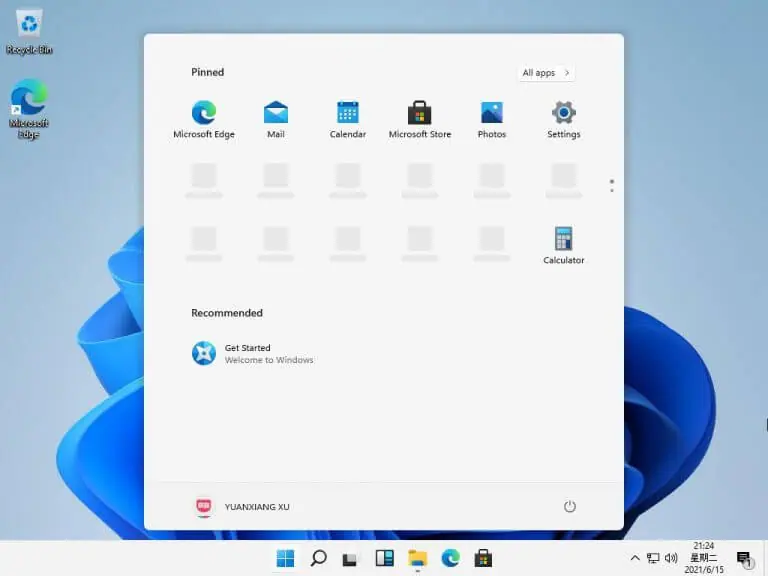
Leaked screenshots of Windows 11 reveal Windows 10X-inspired Taskbar and Start Menu

When Microsoft put a halt to its Windows 10X project, it said that some elements from it would move into the main Windows OS, and now, leaked screenshots of Windows 11 have shown a new Taskbar and Start Menu that are inspired by Windows 10X.

Leaked screenshots of windows 11 reveal windows 10x-inspired taskbar and start menu - onmsft. Com - june 15, 2021

That’s it for this week. We’ll be back next week with more Windows 10 news.

Fix: HID-Compliant Touch Screen Driver is Greyed Out

Microsoft is constantly rolling out new updates to fix reported bugs and provide additional security on Windows 10.

But even with constant updates to fix bugs, some users still report that their touchscreen refuses to respond or work.

This problem usually occurs when users upgrade their operating system from a previous version. When we install a new OS, all the drivers are installed again from scratch.

In this case, it is possible that your drivers were not installed correctly. Keep reading and find out how to fix the HID-Compliant touch screen driver.

What can I do if the HID-Compliant touch screen is disabled?

1. Install the latest Windows updates

  1. Open the Start Menu from the bottom of the screen.
  2. Click to open Settings.
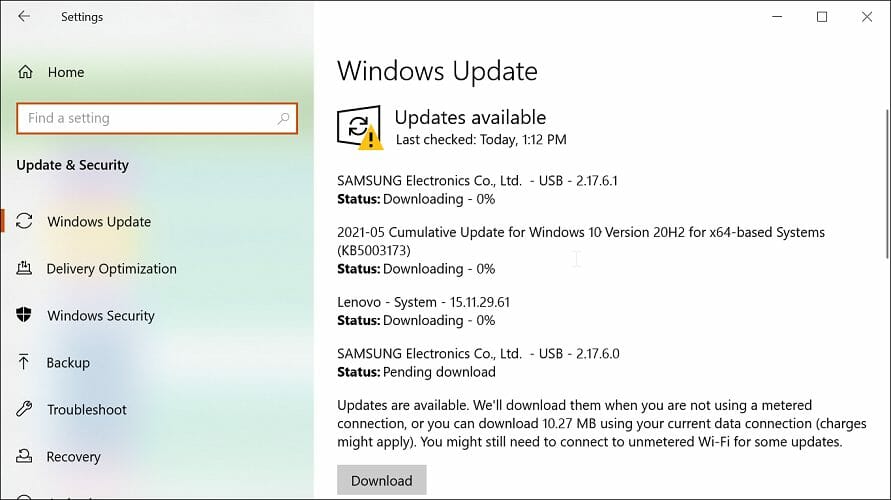
  3. Click on Update & Security.Update & Security
  4. Click on Windows Update, then click on Check for updates button.check for updates
  5. If there are any available updates, install them.
  6. Restart your computer after the process is complete and check if the issue still persists.

2. Re-enable it using Device Manager

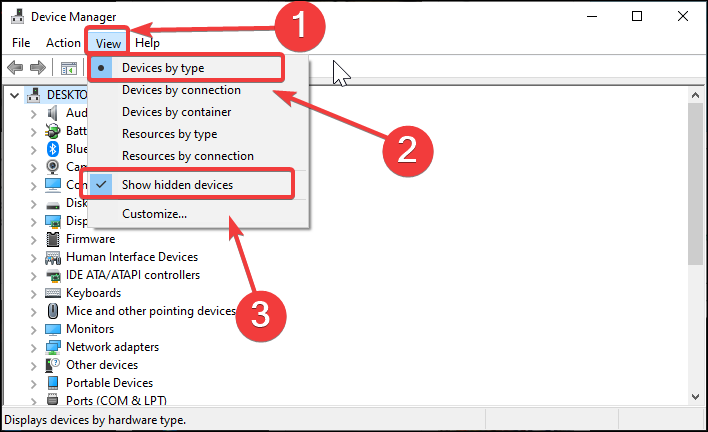
  1. Right-click on Start and select Device Manager.
  2. Search through the devices until you find Human Interface Devices and click on the drop-down menu.
  3. Go to the HID-complaint touch screen, right-click on it and select Disable device.HID - disable device
  4. Windows will warn you that disabling it may stop it from working. Press OK.
  5. Now, right-click on the option again and select Enable this time.
  6. Check if your touch screen is working.

3. Update your touchscreen driver

3.1 Manually

  1. Follow the steps from the previous solution until you reach the HID-complaint touch screen in Device Manager.
  2. This time, right-click on it and select Update driver.HID - update driver
  3. Select Search automatically for updated driver software.search automatically for the updated driver
  4. If the driver update wizard finds a new driver, install it.
  5. Check to see if your touch screen works.

3.2 Automatically

Another safer way to install or update necessary drivers is with the help of a standalone tool called Outbyte Driver Updater. This magic software will automatically install and update any missing driver with only a few clicks.

Its interface was designed to be used even by the least experienced users so you don’t need to worry about having an IT degree.

4. Changing power management settings

  1. Again, open the Device manager and go to Human Interface Devices.
  2. Select the HID-complaint touch screen, right-click and select Properties.HID - properties
  3. Once in Properties, select the Power Management tab.
  4. Uncheck the box that says Allow the computer to turn off this device to save power.
  5. Save changes and exit.
  6. Restart your computer and check if the problem is solved.

5. Disabling USB selective suspend

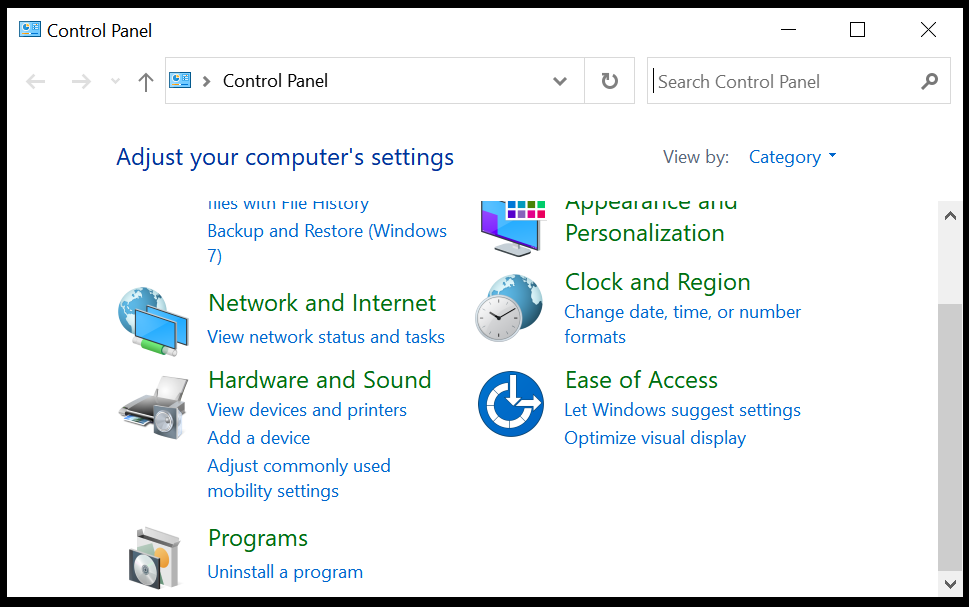
  1. Open the Search bar, type control panel in the dialog box and press Enter.
  2. Select Hardware and Sound. hardware and sound
  3. Now click on Power Options.power options
  4. A new window will appear consisting of all the power plans your computer has. Choose the one you are using and click on Change plan settings.change plan settings
  5. To navigate to advanced settings, click Change advanced power settings.change advanced power settings
  6. Locate USB settings from the list of options and click on it to expand it. You will have another option named USB selective suspend settings that you need to expand.USB selective
  7. Select Disabled in both cases: on battery and Plugged in.
  8. Save changes and exit.
  9. Now, do a cold reset. Turn off your computer, remove the battery if it is a laptop, or unplug the power cord. After waiting 10 minutes, restart your computer and check if the touch screen is fixed.

There you have it, a fully functional touchscreen driver. Be sure to follow all the steps carefully in order to fix this issue once and for all.

If you want to ask us a question, have a suggestion, or thank us, use the comment section below.

Automatically detect settings keeps getting checked [Fix]

Internet browsers are often configured in such a way that the Automatically detect settings option is enabled in order to accommodate networks that use a proxy server.

While the intention is to make life easier, users have been complaining that every time they open the browser the option keeps getting checked, therefore the browser takes a lot of time to figure out what the settings should be.

This issue can occur if you use a Proxy on your computer or due to malware infections, and while the problem isn’t a complicated one, it can get on people’s nerves, so here are a few easy methods to fix it.

How do I fix the auto-detect settings on my browser?

1. Turn off the Automatically detect settings option

  1. Go to Start and select Settings.
  2. Click on Network & Internet.
  3. Select Proxy from the left-hand pane.
  4. Under Automatic proxy setup, disable the Automatically detect settings option.automatically detect - off
  5. Under Manual proxy setup, disable Use a proxy server option.use a proxy - off
  6. Restart your PC to fix the LAN settings automatically detect settings.

2. Check your computer for malware

Protecting your PC from malware is highly recommended if you want your computer to function properly without any issues.

On that note, we recommend TotalAV. This antivirus quickly reacts to incoming threats and silently monitors your system for suspicious activity, plus protecting from dangerous malware or phishing attacks, ransomware threats, and more.

That being said, you can have powerful security and remove this browser issues using malware removal tools, capable of detecting cyber threats instantly.

3. Check the permissions on Internet Settings in registry

  1. Press Windows key + R.  
  2. Type regedit and hit enter.regedit
  3. Navigate to: HKEY_LOCAL_MACHINESoftwarePoliciesMicrosoftWindowsCurrentVersionInternet Settingsinternet settings - regedit
  4. Right-click on Internet Settings and select Permissions.Permissions - full
  5. Check that your user profile has full control. The proxy automatically detects settings on or off issue will be fixed.

4. Reset network functions

  1. Go to the Search bar and type Command Prompt.
  2. Click on Run as administrator.cmd - run as admin
  3. Type netsh winsock reset and press enter. This will reset various network functions of your PC, such as clearing out old connection data and getting a new IP address from the router.netsh winsock reset
  4. Restart your computer.

5. Reset network settings

  1. Open Settings and select Network & Internet.
  2. On the Status tab, locate Network reset at the bottom. This will remove all network information from your computer.network reset
  3. Click Reset now.
  4. After the process is finished, restart your PC.

6. Run the troubleshooter

  1. Open Settings and go to Update & Security.Update & Security
  2. Select Troubleshoot.troubleshoot
  3. Click on Additional troubleshooters.Additional troubleshooters
  4. Choose Network Adapter from the list and click on Run the troubleshooter.run the troubleshooter
  5. Follow the on-screen instructions.

There you have it, 6 methods to fix the automatically detect settings keep getting unchecked issue. It’s quite easy to resolve any computer issues if you simply follow our step-by-step guides.

Have any questions or suggestions? Use the comment section below and we’ll get back to you.

Opera Adblock vs uBlock Origin – Detailed Comparison

Ads on web pages help web admins monetize their content. However, some web pages have too many intrusive ads that ruin the browsing experience and, at times, even redirect to suspicious websites.

One way to avoid intrusive ads is to install an adblocker. There are plenty of ad blocker extensions like uBlock Origin that can help you block ads on websites.

However, installing an ad block extension means working with a third-party app on your browser that is heavy on your system resources. This is where browsers with built-in ad blockers shine.

Opera browser is one of the few browsers with a built-in adblocker. Now that you have an ad blocker built into your browser, do you need a dedicated ad blocker like uBlock Origin?

In this Oprea Adblock vs. uBlock Origin comparison, we have compared the two popular ad blockers on their effectiveness, interface, filter options, system load, and affordability. So, let’s get started with the comparison.

Opera Adblock vs. uBlock Origin – which is a better adblocker?

Compatibility and installation

uBlock Origin is a dedicated ad blocker available on several platforms, including Firefox, Opera, Safari, Chrome, Edge, and Chromium.

Opera Adblock, being a built-in ad blocker, is only available on the Opera browser, be it on mobile or desktop. Opera browser is available on Mac, Windows, Linux, Android, and iOS platforms.

Opera Adblock vs uBlock Origin

You can install uBlock Origin from your browser’s web store, like Chrome Store. uBlock Origin is only available through Chrome Store and other official browser app stores, so don’t confuse it with uBlock.

Opera Adblock does not require any extension, as it comes pre-installed. So, when it comes to finding and setting up the adblockers, Opera Adblock has an edge as you don’t have to install anything.

UI and Design

The interface on both the ad blockers has nothing fancy. To access uBlock Origin, click the icon on the toolbar.

It will show the button to enable and disable it, statics for blocked ads, connected domains, and options for other features such as Log, Element Zapper, and Settings. Click the More options, and you can access more to customize webpage content even further.

For Opera, click the Menu icon and scroll to Privacy and Security to enable or disable the adblocker.

To customize the ad blocker settings on Opera, you need to access the Privacy and protection settings.

Both tools are easy to access and offer a no-nonsense interface.

Opera Adblock vs uBlock Origin

It is when you go into the settings of uBlock Origin that things can get a little complicated. You can modify and micro-manage general settings, privacy options, and default behavior.

uBlock Origin settings offer access to filter lists, your filters and rules, trusted sites, and more. uBlock Origin offers many features for power users, but if you prefer something click and go, Opera AdBlock is a better choice.

Performance

Both the ad blockers are enabled by default and will start blocking ads on the website as soon as you land.

When using Opera on a smartphone, you may notice ads even when Adblock is enabled. These are known as Acceptable Ads. However, you can disable even filtered ads in the settings.

After landing on a web page on Opera, you can notice a blue shield icon in the top right corner. Clicking on the Privacy Protection icon will show how many ads are blocked on this website.

To allow ads on any website, click the shield icon and choose to Turn off for this site.

For more details, you can also check our complete guide on uBlock Origin not working on YouTube to fix video ads specifically on the platform.

Filter Options

As discussed above, uBlock Origin has more filter options than Opera Adblock. Opera Adblock doesn’t have any filter option.

With uBlock Origin, you can change the default behavior, disable the cosmetic filter, block media elements with size, block remote fonts, and disable JavaScript.

Opera Adblock vs uBlock Origin

You can also add your filters or import and append an existing file and add/remove rules through manual addition or importing a file. You can add and remove trusted sites to allow some websites you trust to show ads.

Resource usage

Browser operations are resource-hungry tasks. Add extensions and add-ons that consistently run in the background; it can increase resource usage and affect system performance.

While uBlock Origin is relatively less resource-hungry than other ad blockers, Opera Adblock is still the most efficient browser due to built-in adblocking.

Which program is the best?

uBlock Origin is an excellent ad blocker offering an extensive set of features to micro-manage every aspect of a website. Opera Adblock is a simple built-in ad blocker that blocks ads with a few customization options.

If you are using an Opera browser, the built-in ad blocker works great. It blocks ads, allows you to add a website to the exception list, and even blocks trackers.

uBlock Origin is useful for both the average internet user who wants to block annoying ads and power users looking to do more than block ads.

If you don’t need all the additional features and rather avoid installing a third-party ad block extension to control system resource usage, Opera Ad-block is a better choice.

In case you decide to use the default option, be sure to check our guide on how to enable or disable Opera GX adblocker.

Many also reported that Opera GX adblock is not working on YouTube, but we have addressed that in another guide.

If you’re not familiar with Opera’s adblocker, we have a great guide on how to block ads in Opera, so don’t miss it.

Take both blockers for a spin to get a better idea of which tool meets your requirements best.

FIX: Forza Hub is not updating stats for Horizon 4

Forza Hub is a way to stay connected to the Forza video game world on your Xbox One. Thus, it seems to be the best place to check your rewards.

Even if it is extremely efficient, users reported that Forza Hub is not updating stats for Horizon 4.

Most commonly, the inventory is showing a smaller number of collected elements than it should. Another frequent issue is that the level ratings appear lower than they actually are.

Our article will explore some useful options that will help you fix this annoying issue and get your deserved stats.

How to fix Forza Hub not updating stats for Horizon 4?

1. Complete a few races

As a first option, it might be worth logging in to the game and completing a few races so the Hub can update optimally.

Besides the fact that many users confirmed this tip as working, chances are to have fun while doing so.

2.  Sync Forza Horizon 4 with the cloud

  1. After launching the app, you’ll be asked to enter your Microsoft account details.
  2. Enter the password or PIN for your computer.
  3. Keep the Xbox app running and launch Forza Horizon 4 on your PC.
  4. This time the game should sync all your data and let you play without any error.

3. Submit a ticket to the support website

  1. Open the Forza Motors support website.
  2. Sign in with your FH4 credentials.
  3. Go to the submit a ticket page.
  4. Describe your issue and send it to the support team.

We hope that our list has been helpful to you, so you managed to get your Forza Horizon 4 stats. Also, if your multiplayer mode is crashing, don’t hesitate to check a full-fix guide about how to play Forza Horizon 4 online on PC.

Comment in the section below and share your thoughts regarding the presented subject. We’re eager to hear your opinion as well.

Microsoft goes after the websites that leaked Windows 11 ISO

It is true that everyone was so excited to see and also interact with the new Windows 11 OS, that nobody actually stopped for a second to ask where the leak actually came from.

It could be that for some users it was hard tracking the leak’s origin, since they discovered this information on different social media platforms such as Reddit, Mega, or Telegram.

Even though the new OS hype is far from being over, Microsoft has officially confirmed Windows 11 through the DMCA complaint that they registered.

To see what our readers thought about the newly-announced Windows 11 OS, don’t hesitate to have a look at our extensive Windows 11 survey results.

The results were extracted from the answers provided by 6056 users who completed the survey entirely, which were located mostly in the US, but with very close numbers from the UK, India, Canada, and Australia.

That being said, the survey was taken by people located in more than 152 countries around the world, so the sample size is varied enough to be considered objective.

Microsoft wants justice for the Windows 11 leak

Recently, Microsoft Japan has filed a Digital Millennium Copyright Act (DMCA) complaint against the Indian tech news publication Beebom.

The charges for which Microsoft is pursuing legal action is that of distributing unreleased Windows 11 ISO files that were copyrighted to Microsoft.

The Redmond tech giant also petitioned Google to remove Beebom’s article from the search results, because it of the same reasons.

The Indian website we mentioned above is not the only target for Microsoft, as there were other web based third parties that facilitated this information leak.

And although what the current version of Windows 11 contains is not really that much, except for some of the UI changes, the company still wants this spectacle to end as soon as possible.

Microsoft has just confirmed the existence of Windows 11

Through the DMCA complaint that Microsoft has registered against the web publications that leaked the new OS information, the company inadvertently confirmed that Windows 11 is actually on its way.

This could confuse some of the users that were banking on the operating system to have a different name, after Microsoft said that Windows 10 will actually be the last version of the Windows OS series.

Or maybe Microsoft is just calling it Windows 11 now, so it can later reveal the new operating system name during one their own hosted events.

Recent rumors suggested that the tech company could actually name the new OS Sun Valley, as the massive visual overhaul update that they promised the public not that long ago.

In the end, whatever Microsoft decides to name the new software is quite a bit redundant, as long as we all know that the project is well on its way to our PCs.

As you remember, the tech giant is going to host a massive reveal event on the 24th of June, in which many believe that we will actually get all the information we need about the future of the Microsoft OS family.

Do you think the new operating system will be called Windows 11 or Sun Valley? Share your thoughts with us in the comments section below.

Microsoft Wireless Display Adapter driver update

The Microsoft Wireless Display Adapter has the great benefit of allowing you to enjoy the multimedia content you want on an external display.

Microsoft has released a fresh update for the Wireless Display Adapter for the Windows 10 users.

This seems to be a minor update, but it brought a new user interface which makes things seem more fluid on Windows 10. Still, to enjoy the adapter, you must first download the app from the Microsoft Store.

This app automatically downloads and installs the latest firmware updates for the adapter, and the major benefit is that it allows users to adjust settings as needed.

Here are the key features of the device:

You can now use this app to personalize the name of the adapter, change the adapter language, customize the display wallpaper, and connect your adapter to Wi-Fi for better performance.

It also allows you to enable HDCP to stream copyrighted digital content, activate the PIN when connecting a new device, and enable the password for adapter settings.

This new update supports the latest generation of Microsoft 4K Wireless Display Adapter, so get this app from your Microsoft account and install on up to ten Windows 10 devices.

How can I use the Wireless Display Adapter on Windows 10?

  1. Launch the app.
  2. Plug the USB and HDMI from the Microsoft Wireless Display Adapter into your screen device.
  3. You can then connect your Windows 10 computer to your big screen.
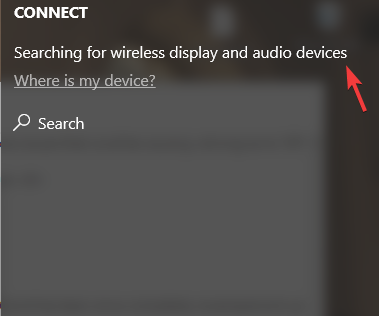
  4. Go to the Action Center, and select Connect.
  5. Select the Microsoft Wireless Display Adapter.
  6. Navigate to the Adapter Settings and name the adapter, select the language, and adjust the screen.
  7. You can also secure your device and set a password.
  8. If you want to refresh the connection, you can select the Restart Adapter option.

Furthermore, if you have been plagued by various problems with your Microsoft Wireless Display Adapter in Windows 10, check out our comprehensive guide to help you fix it.

⇒ Get the Wireless Display Adapter

We hope that this information regarding Microsoft Wireless Display Adapter driver update helped you to better understand it, and to use it properly.

For more suggestions or other questions, please access the comments section below.

What is low code development?

A low code development platform allows business workers to quickly create and deliver custom business applications without the need for extensive programming to boost organizational agility.

Though low-code development platforms in their current form have been around for over a decade (there’s the popular Zoho Creator, for example), in principle, they’ve actually existed much longer. This development approach works on a common premise of high-level programming abstractions and offers a visual development approach to application development for non-technical users.

Low-code platforms are now a first-class development approach and a way for businesses to pivot and adapt to rapidly shifting work requirements. The low-code market is predicted to grow to $45.5 billion by 2025.

Benefits of low-code development

Essentially, low code is a disruptive software development method that allows office workers to create enterprise-grade business apps – like conference apps for event attendees or internal apps for procurement and employee onboarding processes – using drag-and-drop functionality and visual guidance—with “very little or no coding experience or knowledge”. Low code platforms can help businesses make internal workflow applications, build timesaving automations, and create seamless integrations.

The idea is to allow almost everyone—with no high-level technical or programming expertise—develop professional-grade apps that solve specific business challenges. These business users are referred to as ‘citizen developers,’ and helps frees up developer resources so that they can work on more complex, business-critical projects. Low code development platforms make businesses more productive and agile by allowing existing staff as citizen developers. It’s also a quicker approach and reduces costs.

Low code application development isn’t all easy-peasy though. For most enterprise-grade solutions, the citizen developers still need IT guidance or support from the development team.

Low code vs No code

Low code and no code are quite similar alternative approaches to traditional application development with several things in common. Both enable citizen developers develop apps in a fast, affordable, and accessible manner.

Of course, no code is the best approach if speed is a consideration, and the intended apps need to accomplish simple automation tasks and not require any customizability or scalability. While a low-code development platform needs minimal manual programming, there’s still a need for basic understanding of programming. No code solutions, on the other hand, do not require any coding knowledge. As a corollary of that, apps built with no code solutions have limited capabilities but the low code ones allow developers to create more sophisticated apps.

To summarize, while low code platforms are useful for both business users and professional developers to create apps without IT guidance, a developer is still required for any significant customization. No code platforms, on the other hand, allow anyone with moderate computer skills to rapidly develop apps. That said, these apps can be difficult to customize and do not allow for greater flexibility and control as the ones developed with low-code platforms.

Microsoft Power Apps

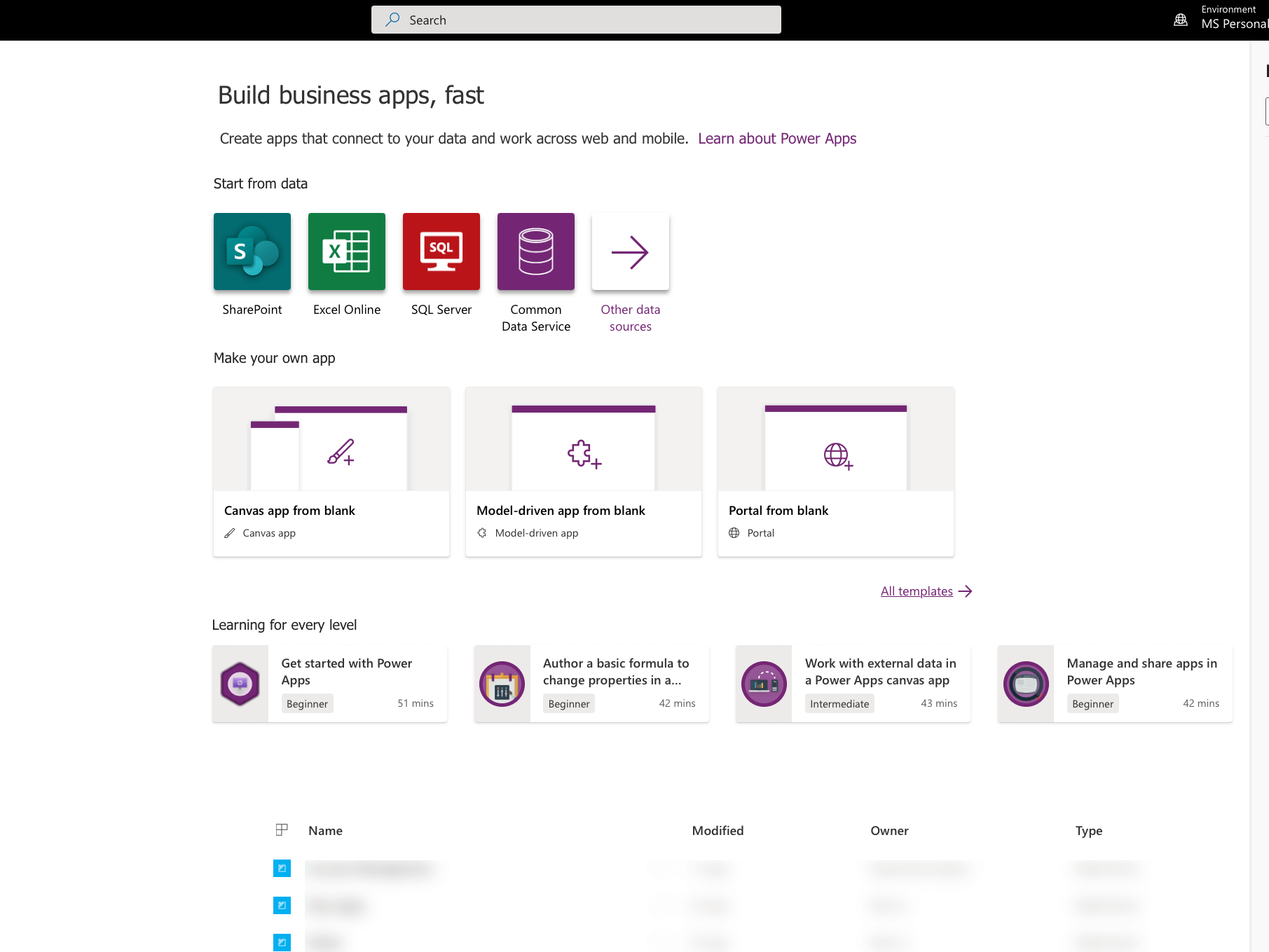
Microsoft Power Apps is a low-code development platform to easily build low-code apps that help modernize business processes, optimize efficiency with time-saving automations, and integrate other Microsoft products and services like Teams.

Part of the Microsoft Power Platform, Power Apps offers a suite of apps, services, connectors, and data platform to build custom business apps that connect to your business data stored either in the underlying data platform (Microsoft Dataverse) or in other data sources like SharePoint, Microsoft 365, Dynamics 365, et al. It offers a visual development experience with a drag-and-drop user interface and prebuilt templates allowing business workers to add rich business logic and workflow capabilities to their apps.

That said, do note that Power Apps is a low code platform, and not a no code one. Despite what the marketing suits will tell you, to build anything that fits an organizational need, you’d probably need professional developer guidance. On the other hand, the Power Platform also has Power Automate that allows workflow automation directly in your apps with a no-code approach.

Of course, Power Apps is an extensible platform so that professional developers can programmatically interact with data, apply business logic, create custom connectors, and integrate with external data, if needed. They can also use Azure to extend these low-code apps and create enterprise solutions that scale to meet the organization’s needs.

Source: The Forrester Wave – Low-Code Development Platforms for Professional Developers

Essentially, Power Apps aims to democratize app development experience and enables business workers to build feature-rich, custom business apps with only a little bit of code.

Since Microsoft is ubiquitous in enterprise, Power Apps is fast becoming a standardized low-code platform of choice and in a recent report, Forrester declared it to be a Leader among 14 providers in low-code development platforms for professional developers.

Is Windows 11 Good for Gaming? FPS Data Says Yes

Even though users are now busier than ever, checking out everything the new OS has to offer, there is one question that most of them were itching to get answers to.

Will games run smoother on Windows 11? Based on community feedback, video games seem to perform better on the new OS than on Windows 10.

Because we’re very interested in this new OS release from Microsoft, we decided to ask our readers what they think about the possible name and if they would be interested in upgrading.

As a result, we created an exclusive survey that covers the answers of WindowsReport users from across the globe.

Around 8000 people from 152 countries answered, and 6052 users finished the survey. Most of the results come from the US, but the UK, India, Canada, and Australia are not far behind either.

How are games performing on Windows 11?

Social media platforms have been taken by storm by users wanting to share their Windows 11 gaming experience with the rest of the world.

Although some thought this OS wouldn’t support games too well, we are happy to say this is not the case.

As we previously discussed, Windows 11 runs a lot smoother and faster than its predecessor, so it should be no surprise that games will also perform better on this improved OS.

Some games users have tried on the new operating system were Minecraft, Far Cry, and Crash 4.

However, most gamers were interested in some of the more recent, system requirements-hungry games, like The Callisto Protocol, Football Manager, etc.

As one of the Reddit users points out, he was more than impressed with the OS’s performance he was more than impressed after trying A Plague Tale Requiem and Stray (an indie game in which you play as a cat).

The titles worked flawlessly on Windows 11 and performed significantly better than ever on the previous OS version, maintaining stable FPS through cut-scenes and in direct gameplay with complex architectures and interactions.

Windows 11 has already revolutionized PC gaming

From our own experience with games like The God of War, Uncharted 4 Legacy of Thieves, and many other high-end titles, Windows 11 performs amazingly.

As video games are becoming more and more realistic and eating up a lot of RAM, the requirements for the GPU and the processor also increase drastically. Even high-end PCs are not exempted from game stuttering, so having a gaming-optimized OS like Windows 11 can make a huge difference.

It could be that we will see never-before witnessed gaming specs for Windows 11, maybe even a dedicated version, in the future, which could feature other improvements, including more efficient use of resources and memory.

Microsoft is also improving Xbox integration into Windows 11 which has effectively replaced the old Games for Windows Live. The Xbox Game Bar and Windows Game Mode remain the same as Windows 10 and add more functionality and accessibility to these elements.

We look forward to finding out what other PS games will become available on PC while scouring the web for the latest releases to play on our Windows 11 PC.

What games are you eager to try on Windows 11? Let us know in the comments section below.

9 Best File Compression Software to Use in 2026

Sharing large files is easier than ever nowadays, yet there are situations when users need to compress their files due to file size limitations.

Also, compressed files have a lesser impact on users’ system resources, preventing unnecessary strain on their computers.

There are plenty of compression tools available on the market and choosing the right one for you can turn into an annoying task.

To make this action time-efficient, we’ll list the best file compression software currently available for Windows 10, together with their main features, and you can choose the app that meets your needs the best.

Which are the best file compression tools for Windows 10?

WinZip

best file compression winzip

Perhaps the most popular compression tool for Windows 10 is WinZip. It currently has more than one billion active users.

This tool is more than a simple compression tool as it also allows users to share, manage, protect, and backup their files.

WinZip unzips all compression major formats, such as Zip, Zipx, RAR, 7z, TAR, GZIP, VHD, XZ, and more.

Other features include finding, opening, editing, moving, and sharing the files stored on PCs, networks, or cloud services.

WinZip also encrypts files to secure information and data and can create read-only PDFs and add watermarks to deter copying.

If you’re dealing with a lot of files, you can pin and access the favorite ones in WinZip’s Files pane. You can pin them to the Quick Access section and access them with the click of a button.

The tool is integrated with Dropbox, G-Suite, or OneDrive for complete integration and cloud back-up functions.

Let’s see what are its most important features:

  • Uncompresses major formats including Zip, Zipx, RAR, 7z, TAR, GZIP, VHD, XZ and others
  • Cloud storage integration
  • File encryption feature for increased security
  • Easy sharing and back-up options
  • Combine more PDF files into a bigger one
WinZip

WinZip

Manage your important large files with this versatile compression tool for Windows.
Free trialVisit website

WinRAR

WinRAR is a powerful compression tool, with over 500 million users worldwide standing proof for the tool’s performance.

It compresses files for efficient and secure file transfer, faster e-mail transmission, and organized data storage. The tool is also available in over 50 languages.

WinRAR supports the following compression formats: RAR, ZIP, CAB, ARJ, LZH, ACE, TAR, GZip, UUE, ISO, BZIP2, Z, and 7-Zip.

Users can also split archives into separate volumes, making it possible to save them on several disks.

Its 256-bit password encryption and its authenticated signature technology ensure secured file transfers.

WinRAR is compatible with several operating systems in both 32-bit and 64-bit, and it is the only compression software that can work with Unicode.

WinRAR comes with a free trial and you can use it absolutely free for 40 days enough time to test it before taking a decision.

Take a look at some of the most important features:

  • The only compression software that can handle Unicode
  • Can handle all major formats, including RAR, ZIP, CAB, ARJ, LZH, ACE, TAR, GZip, UUE, ISO, BZIP2, Z, and 7-Zip
  • 256-bit password encryption for top of the line security
  • Available in more than 50 languages
  • Over 500 million users around the world
WinRAR

WinRAR

Compress, encrypt, package, and backup all your large files with this all-in-one efficient tool.
Free trialVisit website

NX Power Lite Desktop

NXPowerLite Desktop is a powerful tool that allows you to compress and optimize Excel, PowerPoint, Word, JPEG, and PDF files up to 95% without losing any quality and free up disk space or send them by email.

Optimized and compressed files retain the original format and are fully editable. It’s especially effective for office work and for people who work with lots of multimedia files.

The advanced settings give you the possibility to set the desired balance between the quality and compression ratio.

Additionally, this software integrates with Microsoft Excel, PowerPoint, and Word as well as email clients and automatically compress attachments when they are sent.

This tool has a 14-day trial period that gives you enough time to get it tested before considering to buy.

When you install and register the software, you can also decide what components to install, and you can set your own settings.

You can even configure the location of the options of NXPowerLite in the Microsoft Office ribbon conveniently.

Let’s review some of its most important characteristics:

  • Greate compression rate of up to 95% for documents, photos, and PDF files
  • Automatically compress files for e-mail transmission
  • Compress up to 10,000 files at a time
  • Available as a Windows Installer .MSI file for easy installation
  • Compress files directly from Windows Explorer
NXPowerLite Desktop

NXPowerLite Desktop

Quickly compress your files and folders with this simple, yet fully-featured tool.
Free trial Visit website

7-Zip

This compression tool is 100% free and delivers a high compression ratio. It packs and unpacks the following file formats: 7z, XZ, BZIP2, GZIP, TAR, ZIP, and WIM, and can unpack more than 30 file formats.

For ZIP and GZIP formats, it provides a compression ratio that is 2-10% better than the ratio provided by PKZip and WinZip.

You can use 7-Zip on any computer, including a computer in a commercial organization. You don’t need to register it.

The only slight downside is that it only supports 12 languages, including English but for an open source software it’s still great.

It’s good to know that if you’re looking for hardcore security, you have to go for a 7z and ZIP formats because you will be able to apply an AES 256-bit encryption to your archives.

It’s also important for developers and programmers to know that 7-Zip is integrated into Windows Shell for quick commands.

Other important features include:

  • Strong AES-256 encryption in 7z and ZIP formats
  • Self-extracting capability for 7z format
  • Integration with Windows Shell
  • Powerful File Manager
  • Localizations for 87 languages

⇒ Get 7-Zip

PeaZip

PeaZip is a free file archiver utility that works with more than 200 archive formats so it’s improbable that it won’t be able to find an unsupported format.

If you’re tired of ads, you’ll be glad to know that PeaZip doesn’t contain any of those, so you won’t be bothered.

This tool also deploys a powerful and complete file manager, and strong security features, such as strong encryption, encrypted password manager, secure delete, and file hashing.

The user interface is very friendly, with an intuitive design so it will be easy to get accustomed to it very fast.

Moreover, the versions for Linux and Windows doesn’t need installation. You can simply extract and use the application freely.

⇒ Get PeaZip

PowerArchiver 2021 Standard/ Professional

PowerArchiver is a professional compression utility, able to operate with all the compression formats currently available.

Apart from its compression capabilities, this tool can also encrypt files, reduce their size by 90% and back them as well.

This solution includes the Advanced Codec Pack, which is the most comprehensive compression format available today.

It comprises many filters and codecs that create the best possible compression/speed ratio for your files.

The thing is that the Smart Optimized modes will decide automatically the best compression/speed ratios based on the individual files.

So, when you’re compressing a batch with different file formats, PowerArchiver will use multiple codecs and adapt its conditions on the fly.

UAC elevation support is required when it detects the need for an admin account in order to read or write in some folder.

⇒ Get PowerArchiver

Ashampoo ZIP FREE

Ashampoo ZIP FREE compresses and decompresses files fast and easily. It supports creating and extracting ZIP, 7-ZIP, CAB, TAR (TAR, TAR.GZ, TAR.BZ2, TAR.XZ), and LHA formats.

The tool features unlimited size of the archive, unlimited size of files inside the archive and an unlimited number of files inside archive when using ZIP and 7-ZIP formats.

It comes with integrated preview that supports many different images, text and other file formats. Preview files without ever extracting them from the archive.

The solution also includes a Repair ZIP Tool that can do magic when it comes to repairing broken ZIP files.

You can apply uncompromised security to your archives with the 256-bit AES encryption for backup or transfer purposes.

Lastly, but no less important is the friendly graphical interface that it easy to understand and use to its full extent.

The tool is fully integrated with Windows 7, 8 and 10, as well as Windows Server editions with support for both 32-bit and 64-bit versions.

⇒ Get Ashampoo ZIP FREE

Bandizip

This free compression utility creates archived files in various formats and can open and extract them as well.

Bandizip is lightweight, has a very fast Zip algorithm for compression and extraction with Fast Drag and Drop, High-Speed Archiving, and Multi-core compression.

However, it handles only the most popular compression formats so if you’re dealing with more unusual archives, you’re not going to unpack them with this tool.

However, it makes up with an excellent, built-in password manager and a great archive repair tool.

It also features a preview for the photo archive so you can see exactly what’s inside before starting to unpack the file.

Bandisoft regularly releases updates and bug fixes for this tool and will probably add more compression formats to its tool in the future.

If you want an ad-free compression tool, with a very user-friendly interface, that costs you nothing.

⇒ Get Bandizip

Zipware

Zipware is a free compression tool that is very simple to use. This tool supports all major archiving formats including the new RAR5 format and is fast and stable to handle both small and large archives.

Zipware offers full drag & drop support with Windows Explorer. The Windows Explorer context menu can scan any files using over 50 anti-virus products via VirusTotal.com, securing your folders.

It can also calculate MD5, SHA-1, SHA-256 and SHA-512 checksums for any file and the function is integrated into Explorer’s context menu.

For extra security, Zipware’s program files are signed by a Verisign/Symantec digital certificate to prevent any possible modification.

This compression tool also converts the supported archive formats to Zip, 7z so you can send them to others that don’t have advanced unarchive tools.

You will also be glad to know that the program comes with a password manager that helps you store passwords and other information.

⇒ Get Zipware

How to decide on the best compression software

Compression software are great for storing files effectively and creating back-ups. They are also very useful for compressing your files and sending them through e-mails.

However, these software can have a lot of other features so let’s see what are the most important characteristics to take into account when choosing an archiver software.

High compression rate is important

If you’re aiming to create a major backup for your system or files, the compression rate is paramount because when dealing with big files, you will be able to save a lot of space.

That means that you will be able to use lower space back-up solutions or fit more data on the same media.

Consider other features and integration

For example, the most popular archiver software like WinZip comes with cloud storage integration which means that you can get to store your files directly on your supported accounts.

Safety is always important, and you will notice that not all the archivers support 256-bit AES encryption. For back-ups, select the best choice.

More formats, the better

Usually, you will be encountering Zip, Rar and a couple of other type of archives but what if you get a more obscure format that you badly need to open and you can’t?

It doesn’t happen too often, maybe never, but it’s enough to face the situation once to convince you get prepared so try to pick a compression software that supports the most formats possible.

That’s it! We hope that you found the best file compression tool for your PC and they helped you create an extensive backup of your files.

You might also be interested in the best software to create and open ISO files that are also a type of compressed file.

As always, if you’ve already used one of the compression tools listed above, you can tell us more about your experience in the comment section below.

Task Scheduler not running the Python script? Try these fixes

Task Scheduler helps with scheduling (the same way you schedule jobs) programs, and scripts, and one of the scripting languages it is used on is Python.

Many users claimed that when it isn’t working, the Python script in Windows 10 cannot be launched at the times or intervals as planned.

Before resolving the issue, check the last time it worked, and whether you made any recent hardware and/or software changes on your computer.

Here are some helpful solutions to help you fix the Task Scheduler if it’s not running the Python script, so keep reading!

What to do if Task Scheduler is not running the Python script?

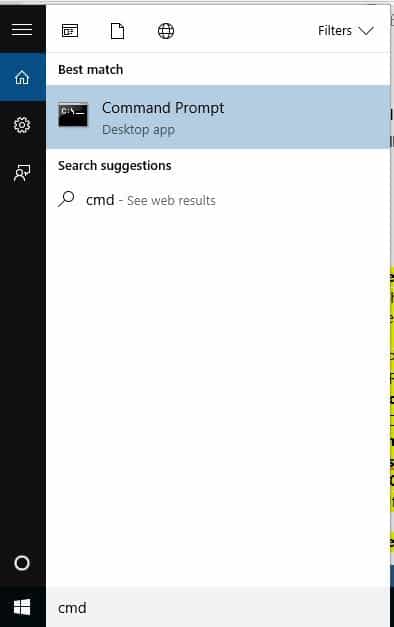
1. Start Task Scheduler from Command Line

  1. Click Start, and type CMD in the search field box
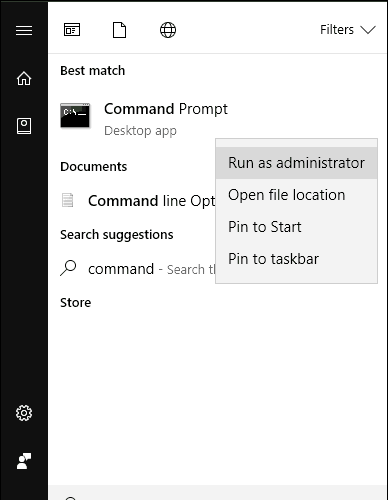
  2. Right-click Command Prompt, and select Run as Administrator.
  3. When the Command Prompt opens, type net start task scheduler.

If it still doesn’t open, then you can proceed to the next solution below.

Also, you can learn to work in Command Prompt like a real technician with our comprehensive guide, so be sure to check it out.

2. Check if Task Scheduler is actually running

  1. Click Start, and type services.msc in the search field box, and hit Enter. services.msc windows 10
  2. Look for Task Scheduler.
  3. Right-click it, then select Properties.
  4. Under Startup Type list, select Automatic.
  5. Click Start, select Apply and Ok.

A good solution is to check that the Task Scheduler is actually running by following our steps above. If you’re still not having luck, continue with the next fix.

3. Run a System File Checker scan

  1. Click Start, and type CMD in the search field box.
  2. Select Command Prompt. game crash
  3. Right-click, and select Run as Administrator.
  4. Type sfc/scannow, and hit Enter.
  5. Restart your PC.

A System File Checker scan checks or scans all protected system files, and then replaces the incorrect versions, with the genuine, correct Microsoft versions.

If the Task Scheduler still isn’t running the Python script, try the next solution.

4. Delete the corrupted task

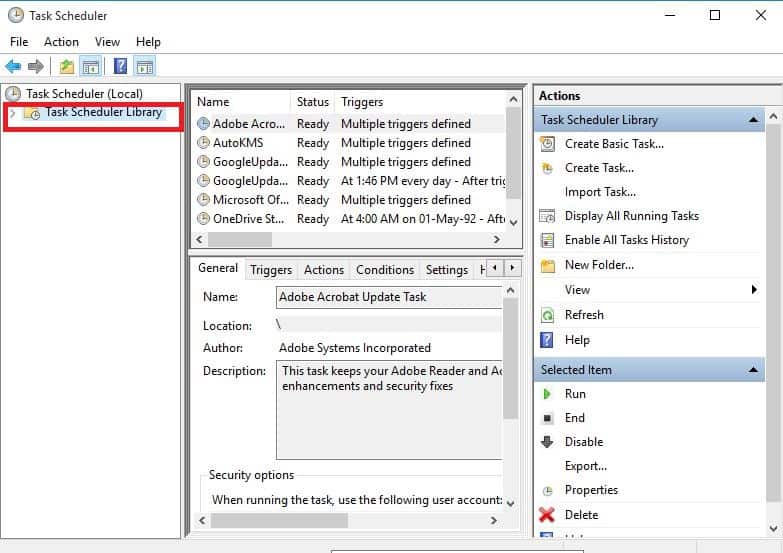
  1. Click Start, type Task Scheduler in the search field box, and press Enter.
  2. On the left pane, click on the Task Scheduler library.
  3. Select backup task in the middle pane, and delete it.

If you cannot find the corrupted task, do the following:

  1. Click Start, and type CMD in the search field box.
  2. Right-click on the Command Prompt, and choose Run as Administrator.
  3. Type the following command: schtasks /query | findstr /i

Once the command is executed, look for either of the following errors:

  1. ERROR: The task image is corrupt or has been tampered with.
  2. ERROR: The task cannot be loaded: task name.

Finally, try scheduling a task or run a Python script, and check if the issue persists.

5. Restart Task Scheduler

  1. Click Start, type services in the search field box, and press Enter.
  2. Right-click Services, and click Run as Administrator.
  3. Give the necessary password or permissions or click Continue.
  4. Right click Task Scheduler service, and select Restart.

6. Change Service Configuration

  1. Click Start, and type CMD in the search field box.
  2. Choose Command prompt.
  3. Right-click, and select Run as Administrator.
  4. Choose to continue at the UAC prompt.
  5. In the console window, type the following command: SC Comfit schedule start= auto
  6. If you get the reply [SC] ChangeServiceConfig SUCCESS, the service will be changed to automatic once you reboot.

If these solutions are too complicated, then you can ease your work by installing one of the task scheduler tools from our list, so be sure to take a closer look.

7. Perform a Clean Boot

  1. Go to the Search box, type msconfig, and press Enter.
  2. Select System Configuration.
  3. Find the Services tab, and select the Hide all Microsoft services box.
  4. Click Disable all.
  5. Go to the Startup tab, and click Open Task Manager.
  6. Close the Task manager then click Ok.
  7. Reboot your PC.

Performing a clean boot for your computer reduces conflicts related to software that can bring up the root causes of the Task Scheduler not running Python script.

These conflicts can be caused by applications and services that start up and run in the background whenever you start Windows normally.

You will have a clean boot environment after all the above steps are carefully followed, afterwards check if your Task Scheduler still doesn’t run the Python script, or if the problem is gone.

8. Create a new user account

  1. Click Start, and select Settings.
  2. Choose Accounts, and click on Add someone else to this PC.
  3. Fill in the form with the user name and password.
  4. Your new user account will be created.
  5. Select Change account type.
  6. Click the drop-down arrow, and choose Administrator to set the account to administrator level.
  7. Restart your PC.
  8. Login to the new account you just created.

You can create a new user profile then change settings to administrator privileges, and check if the issue of Task Scheduler not working persists.

If the issue goes away, then it may mean your other user profile is corrupted. Learn how to fix that by following our detailed guide.

You can try the following in case of a corrupted user profile:

  1. On your new account, use it to downgrade your usual account.
  2. Click Apply or Ok.
  3. Raise back your old account to its default admin level.
  4. Rinse and repeat a few times as this will help to remove any corruption.
  5. Leave your account on as Administrator.

Check whether the issue of Task Scheduler not working goes away when using the newly created account. If it does, then you can either fix the old user account or migrate to the new account.

9. Perform a repair install

  1. Insert the Windows installation DVD.
  2. Restart your computer.
  3. If asked to boot from your DVD drive, do so.
  4. Choose your language.
  5. Click Next.
  6. Click Repair your computer.
  7. Select the operating system you want to repair.

Also, if Windows 10 won’t install, no worries, we got the right solutions for you, just take a closer look at our comprehensive guide.

Particular troubleshooting steps on Task Scheduler

1. A task doesn’t run as and when it is expected to

If this happens, ensure the task is enabled, and check that the triggers on the task are set correctly. Check the task’s history to see when it was started and check for errors.

A task only runs if its conditions are met. Some run when a particular user is logged in depending on the security options on the task itself, so ensure the task’s security options are correctly set.

2. The task runs, but the program didn’t run correctly

If this happens, try running the program manually (not from the task) to check that it works properly. You can add a command line option to the program’s path.

Some programs need elevated privileges to run correctly, so set the task to run with the highest privileges by changing its security options on the General tab of the Task Properties dialog box.

If the program doesn’t run properly, check the task’s history for any errors.

3. You get an error when the task tries to send an email

If this happens, and the email isn’t sent correctly, ensure the settings for email action on the task are properly set.

The email action should have a valid value for the SMTP server To and From settings. Ensure the SMTP server is set up correctly.

4. A task uses 100% of the CPU

  1. Restart in Safe Mode (Task Scheduler doesn’t run in Safe Mode).
  2. In Windows/System32/Tasks folder, rename the task file, or delete it.
  3. Restart in Normal Mode.
  4. Redefine the task.

If this occurs, the system can be rendered unusable. Disable the task, then change its trigger. If the system is unresponsive because of this issue, follow the above steps.

Now that your Task Scheduler works fine and the Python script is running normally, check out our comprehensive guide to learn to use it at its full potential!

We hope that our solution were helpful and helped you to fix the Task Scheduler if is not running Python script. For more suggestions, please access the comments section below.

FIX: Computer Not Going to Sleep on Windows 10/11

Even though everything considerably evolved in Windows over time, Sleep mode is still something that’s there and it will be for a long time.

Its main use is to shut down HDD and computer monitor after a specified period in order to prevent unnecessary power consumption.

But, what to do when your PC just won’t go to sleep on Windows 10? You’re at the right place to find out.

In this article, we’ll list all the possible solutions to fix this problem. Make sure to take follow them in the presented order.

What can I do if my Windows 10 PC won’t go into Sleep mode?

  1. Make sure the Sleep Mode is enabled
  2. Scan for viruses
  3. Remove peripheral devices
  4. Disable Hybrid Mode
  5. Change Advanced Power Settings

1. Make sure the Sleep Mode is enabled

  1. Press the Windows key + I to instantly open the Settings app.
  2. Choose System.computer not going to sleep system settings
  3. Select Power & sleep from the left pane.
  4. Set preferred values under the Sleep section and exit.computer not going to sleep power and sleep options

Let’s start with the obvious and confirm that the Sleep Mode timeout is enabled in the first place. A lot of users are not even aware of certain, minor changes that are made after every system update.

So, if you updated Windows recently, make sure to check out your Power Plan settings. There’s a slight chance that something changed without your knowledge.

Since we know that there can be problems with the Settings app, we’ve created a useful guide dedicated to fixing the Settings app if it doesn’t open. Make sure to give it a read.

You can also restore Advanced Power Settings for the active Power Plan by following the steps below:

  1. Press Windows key + I to open Settings.
  2. Select System.
  3. Choose Power & sleep from the left pane.
  4. Click on the Additional power settings in the top right corner.computer not going to sleep additional power settings
  5. Select Change when the computer sleeps.computer not going to sleep change when the computer sleeps
  6. Now, click on Restore default settings for this plan.
  7. Save changes.computer not going to sleep restore default settings for this plan

Can’t find your Power Plans? Here’s a neat guide about enabling Windows Power Plans if they are missing from your device.

2.  Scan for viruses

  1. Open Windows Defender from the Notification area.
  2. Select Virus & threat protection.computer not going to sleep virus and threat protection
  3. Click on the Advanced scan section.computer not going to sleep windows defender advanced scan
  4. Choose Windows Defender Offline Scan and then click on the Scan Now button.computer not going to sleep windows defender offline scan
  5. Your PC will restart and the scanning procedure will commence.

In addition, some users reported that malicious software such as malware was preventing their computer from going into Sleep or Hibernation.

Allegedly, if the computer is not going to sleep, there might be harmful software working in the background, mostly adware hidden within the Chrome browser.

In order to follow through with this step, you’ll need to perform a deep system scan with either a third-party antivirus from this awesome list or Windows Defender.

This will make sure the Sleep Mode issues aren’t caused by malware. Since the procedure varies on different third-party solutions, we made sure to show you how to perform the scan.

Need additional info on how to perform a full system scan directly from Windows Defender? Find out more in this dedicated guide.

3. Remove peripheral devices

Another valid reason behind a PC’s inability to go to sleep lies in peripheral devices. Some of them, like a mouse or keyboard, shouldn’t cause any issues. However, we can’t say the same for webcam, printer, or SD reader.

In addition, make sure to remove DVD from DVD-ROM in case it’s not in use. After you unplug peripheral devices, your problem should be resolved.

On the other hand, if you’re still stuck with an insomniac PC, make sure to continue with the steps below.

4. Disable Hybrid Mode

  1. Press Windows key + I to open Settings.
  2. Select System.computer not going to sleep system settings
  3. Choose Power & sleep from the left pane.
  4. Click on Additional power settings in the top right corner.computer not going to sleep additional power settings
  5. Select the preferred Power Plan you actively use and click on Change plan settings.
    computer not going to sleep change plan settings
  6. In the next window, click on the Change advanced power settings.computer not going to sleep change advanced power settings
  7. In the tree menu, expand Sleep.
  8. Expand the Allow hybrid sleep and turn it OFF.
  9. Save changes.
    computer not going to sleep disable hybrid sleep

The Hybrid Mode is, as the name itself says, the hybrid of Sleep and Hibernate power-saving modes. Its primary use is to resemble hibernation power saving traits while keeping the loading speed of the Sleep mode.

That sounds great but not every motherboard supports this technology. Meaning, if you’re using an older PC configuration and the Hybrid mode is enabled, there’s a high possibility that your PC won’t ever go to sleep.

In order to resolve this, an obvious solution is to disable Hybrid Mode and move from there. Finally, if none of these solutions helped you, there’s still one thing you can do.

5. Change Advanced Power Settings

  1. Press Windows key + I to open Settings.
  2. Select System.computer not going to sleep system settings
  3. Choose Power & sleep from the left pane.
  4. Open Additional power settings from the top right corner.computer not going to sleep additional power settings
  5. Select your preferred Power Plan and click on the Change plan settings.computer not going to sleep change plan settings
  6. Click on the Change advanced power settings.computer not going to sleep change advanced power settings
  7. Expand Multimedia settings.
  8. Set When sharing media option to Allow the computer to sleep.
  9. Confirm changes.
    computer not going to sleep allow computer to sleep when sharing media

There are some minor things that are too often overlooked when it comes to Power Plans and their advanced settings. To be more precise, the Multimedia sharing option and Multimedia sharing that lies within.

This feature prevents PC to sleep when you stream something on your PC, e.g. YouTube videos. Since it’s enabled by default, we advise you to disable it and, hopefully, fix this problem once and for all.

If you’re uncertain how to do it, these steps should show you how:

With that, we can conclude this article. We certainly hope that it was a helpful read and that assisted you to finally put your PC to sleep.

Did your power icon disappear, leaving you unable to power off your PC? Here’s a useful guide dedicated to fixing the power icon if it disappeared from your device.

In case you have some dilemmas, feel free to tell us in the comments section below. We’ll make sure to provide you with additional tips.

Programs to Type Faster: Top 10 of 2026

Do you want to learn how to type faster? Do not worry; this post is meant for you. We have compiled the best learn-to-type faster software in this post.

Typing has become an essential part of computing as most jobs require typing in one form or another. It is usually embarrassing when typing works are incomplete due to you being a slow typist, but this can be rectified thanks to the availability of several typing software.

Most programs are available for download, such as TypingClub for Windows 11, while others are browser extensions.

This software teaches users how to type quickly with all ten fingers without looking at the keyboard this technique is called the touch typing technique.

This technique gives users speed and accuracy rather than other techniques such as the hunt and peck technique, in which a person uses two or five of his fingers to type by looking at the keyboard, or the buffering technique where a person memorizes a few words and types it quickly without looking at the keyboard.

The typing software that offers to teach touch and type techniques are numerous, but these are the top typing software that teaches users in a user-friendly and effective manner with great features.

What are the best tools to learn how to type faster?

Typing Master 10 – Step-by-step approach

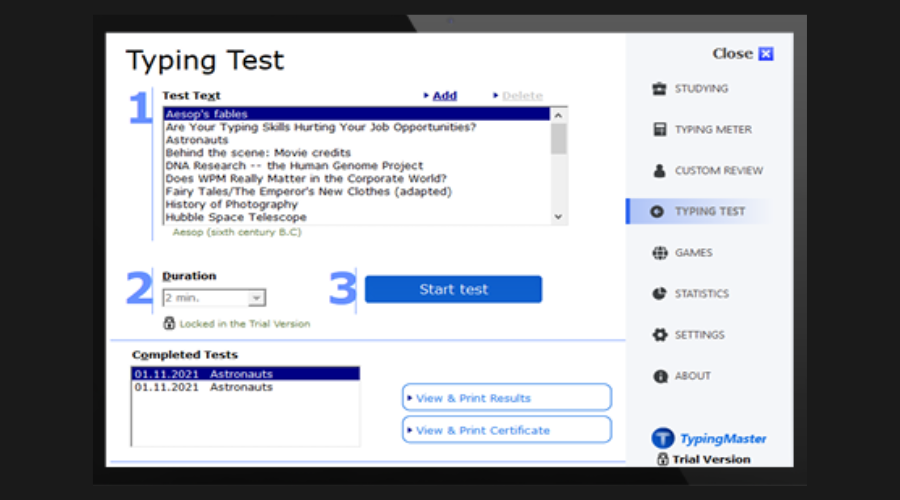
Typing Master is a good software for learning how to type with unique features such as diverse typing tests, reviews to fix specific typing difficulties, and typing meters. The software also comes with some fun typing games.

Users can also set the learning pattern suitable to them for quicker learning. It supports US and Canadian Multilingual, Danish, French, and Belgian keyboard layouts. Users can choose whether typing speed is displayed in words per minute or keystrokes per minute.

Pros

  • Good features
  • Good typing games
  • Step-by-step approach to professional keyboarding
  • Typing Meter to record and analyze typing habits

Cons

  • Poor user interface

Typing Master 10

Improve your typing skills and write faster with this progressive & customizable app.

Key Blaze Typing Software – Multiple keyboard layouts

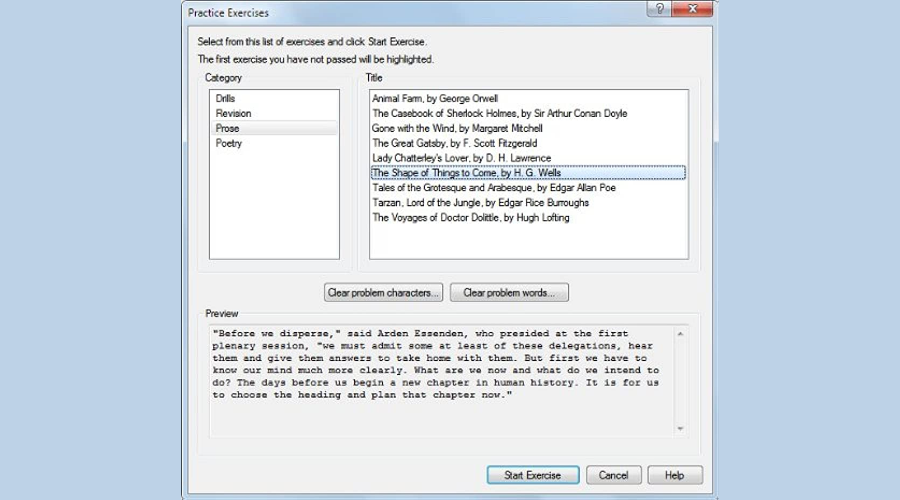
This software is at the top of our list because it supports user profiles from kids, teen beginners or improving, adult beginners, improving or professional, and more.

It comes with various typing games that are geared toward improving typing efficiency and speed.

We should also mention that it comes with options such as games, practice, and speed tests.

Keyblaze also supports various keyboard layouts like UK English, Dvorak, German, French, US English, and many more. Users can also compare test results with friends and colleagues.

Pros

  • Allows for the creation of different profiles
  • Multiple keyboard layouts
  • Allows sharing of test results

Cons

  • Poor customer care service

Key Blaze

The Key Blaze program has the perfect methods of training your typing speed.
Check price Visit Website

KAZ Type – On-off site testing

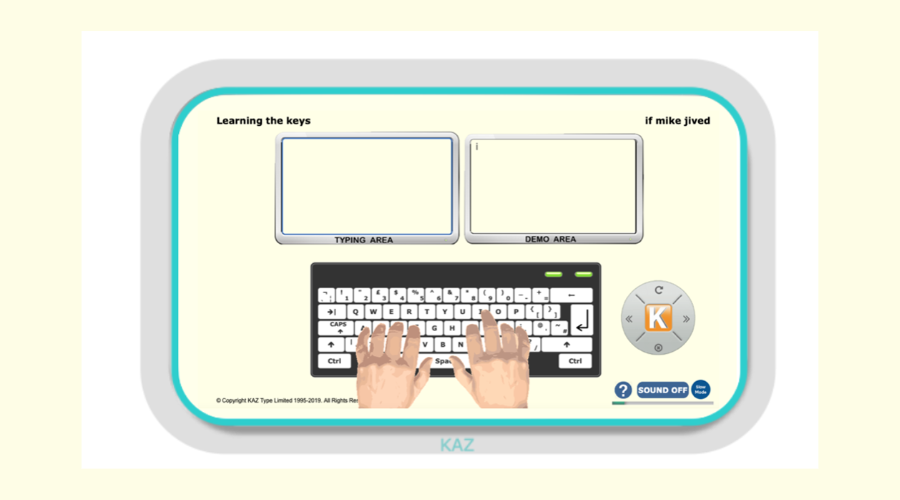
Kaz is a versatile typing program available for users of all ages and its courses are focused on accelerated keyboard training.

The software has been designed according to the principles of Accelerated Learning, a unique approach where the information is retained in a stimulating and natural way. There’s a 90-minute course that teaches you the A-Z keys for the U.S. and U.K. keyboards.

Pros

  • Various editions, including one for users with special educational needs
  • On-off site testing
  • Simple and responsive interface
  • Versatile tools like audio narration and inline quizzes

Cons

  • No typing games
  • Only U.S. and U.K. keyboards are available

Get KAZ type

KAZ type

This awesome tool will train you as a typing specialist.
Check Price Visit Website

Typing Instructor Platinum – Nice user interface

Typing Instructor Platinum is an award-winning premium typing software that teaches users to touch typing effectively. It offers unique features such as Multi-Level, High-Quality Typing Games, and about 20 typing courses.

The typing software also takes into note the ability of users with different stages, from beginner to professional and gives real time feedback on users’ progress.

Typing instructor also gives certification after completing its various course,s which are quite unique. It is compatible with various languages, which is ideal for multilingual typing schools.

Pros

  • Nice user interface
  • Quality Typing games
  • Multiple language compatibility

Cons

  • Test exercises are few

Typing Instructor Platinum

Learn to type and speed up your skills with Typing Instructor Platinum.
Check Price Visit website

GS Typing Tutor – Keyboard layouts multi-compatibility

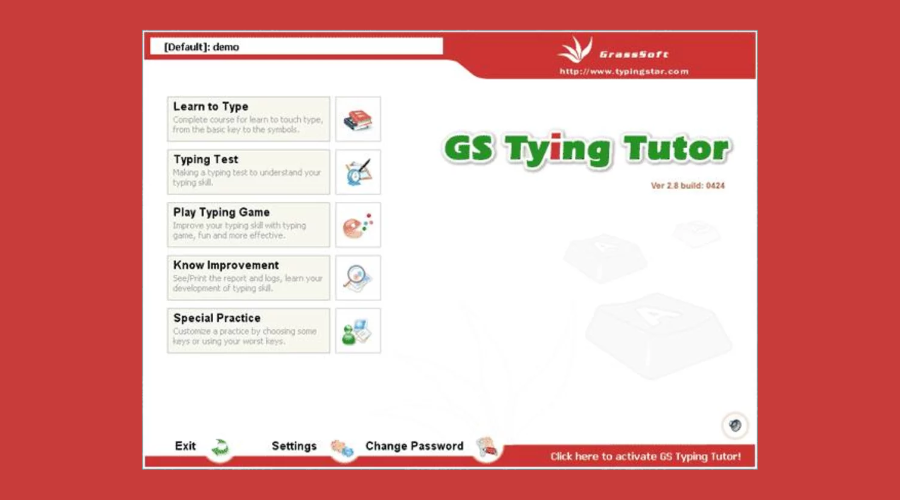
This typing software is one of the popular typing software with its powerful and feature-rich tools for learning touch typing. The software supports numerous language options like English, French, Spanish, and many more.

The software gives users course options such as beginner for users just new to typing to performance for users who are experts and want to test their typing skills. Users can choose to learn to type either single-handed or double-handed, which is a good feature.

It also provides an onscreen keyboard for novices to know where the keys are located and other features of this software include typing tests, diverse types of courses, statistics, and typing games.

The software also supports over 20 keyboard layouts, such as QWERTY, Latin American, Swiss-French & German, and many more. It is available for free trial, which can be purchased fully for $30.

Pros

  • Nice user interface
  • Compatible with many keyboard layouts

Cons

  • Poor customer support system

⇒ Get GS Typing Tutor

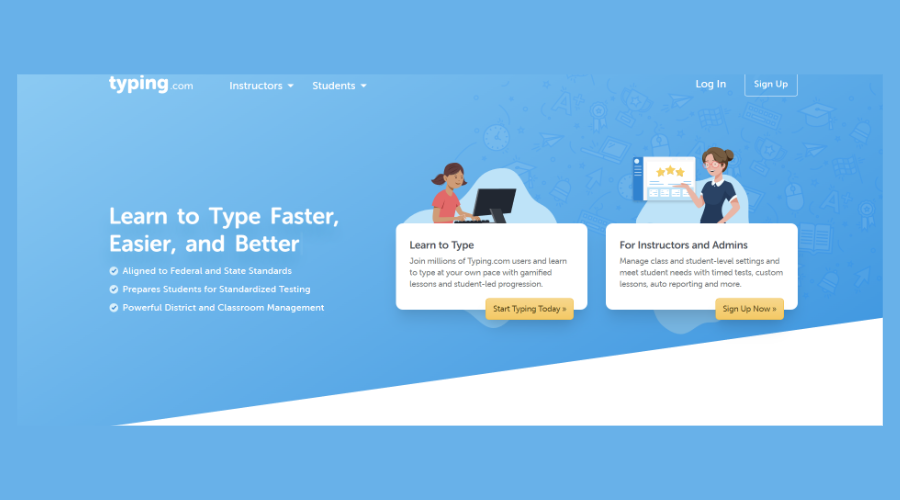
Typing.com – Engaging games

Typing.com is a progressive typing program that aims to help users build essential keyboarding and computer skills.

It’s equipped with robust features ideal for educational use and allows teachers to track their student’s progress in real time with specialized in-built tools. The platform offers content in English, Spanish, and Portuguese.

Pros

  • Provides coding fundamentals
  • Engaging games, lessons, and tests
  • Single Sign-On (SSO) technology and syncing with Google, Clever, and ClassLink
  • Highly customizable platform

Cons

  • Most tools are available for educational use only

⇒ Get typing.com

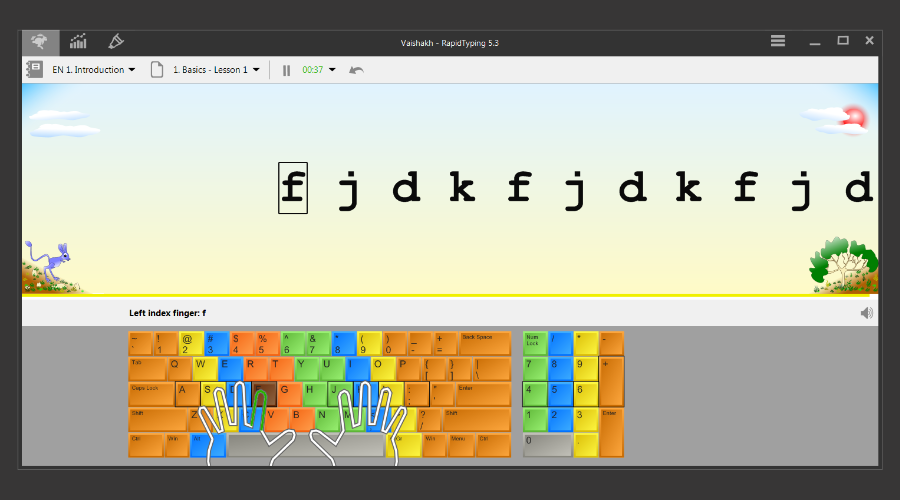
Rapid Typing Software – Typing flexibility

Rapid typing software has unique features that make it very popular for typists. Users can choose to learn typing either one-handed or two-handed. It allows users to configure the keyboard based on language.

It also gives users different training courses for beginners, experienced, and advanced with tests to check for users’ proficiency in typing after each course.

The software supports up to 24 languages, such as French, English, Spanish, and many more, which gives it a worldwide appeal and is ideal for multilingual typing schools or businesses.

It also comes with a unique rapid typing portable typing software this version does not require installation and can be taken anywhere using a USB stick, which is quite cool. The software is also free to download.

Pros

  • Typing Flexibility
  • Multi-level lingual keyboard layout

Cons

  • Lack of typing games

⇒ Get Rapid Typing

Typesy – Large amount of courses

This typing software has consistently been among the best typing software and most popular among typists and entrepreneurs. Typesy packs innovative and amazing features that give users a unique experience of touch typing with its user-friendly interface.

However, this software includes video tutorials, step-by-step lessons with an expert instructor, 7 learning strategies, and over 500 typing lessons.

Also, it provides advanced monitoring statistics such as personal help, social profile with a dashboard, smart goals, typing count per minute that gives a totally unique experience to users.

In addition, this program supports a variety of keyboard layouts like US, UK, Australian, Canadian, Spanish, and more. The software also supports cross-platform compatibility and is available on major Windows OS. It does not have free trial but is available for $30.

Pros

  • Large amount of typing courses
  • Good user interface
  • Entertaining games
  • Multiple users support

Cons

  • No preset goals

⇒ Get Typesy

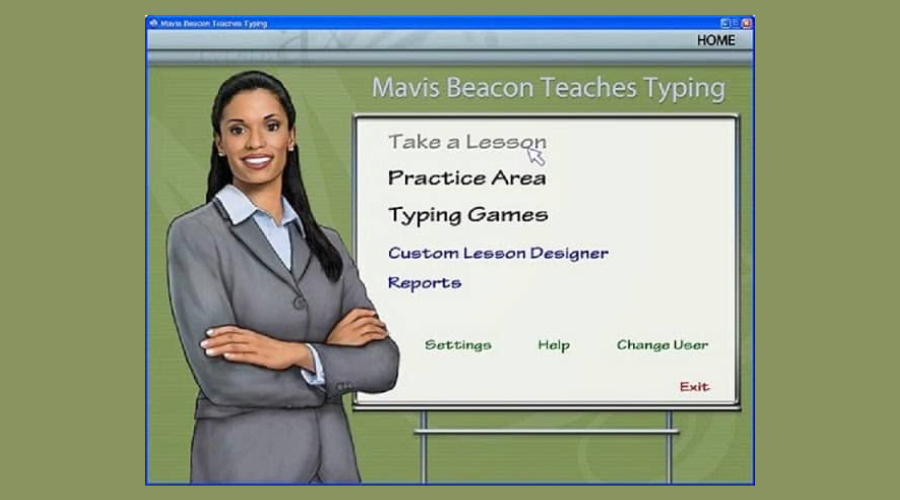
Mavis Beacon Teaches Typing Software – Detailed reports

Mavis Beacon is one of the premiere and oldest typing software which is popular among students and typists. This software has updated learning tools, with features that make it the most comprehensive typing tutor that guarantees typing improvements in a very short time.

However, this software gives users comprehensive personal typing instruction with detailed reports to illustrate users’ overall progress and assist in identifying specific strengths and weaknesses.

Mavis Beacon’s main features help users to learn essential keyboarding skills or improve overall typing efficiency.

These features include 430 Personalized lessons, exercises, and tests, detailed tracking and progress reporting, and 16 Arcade-style games including multi-level games.

Mavis Beacon also supports multilingual keyboard layouts in English, Spanish, and French. Users can also import their own MP3 files and type while listening to their favorite tunes. It is free to download

Pros

  • Over 430 Personalized lessons
  • Good typing games
  • Detailed interface

Cons

  • Poor customer care service

⇒ Get Mavis Beacon Teaches Typing

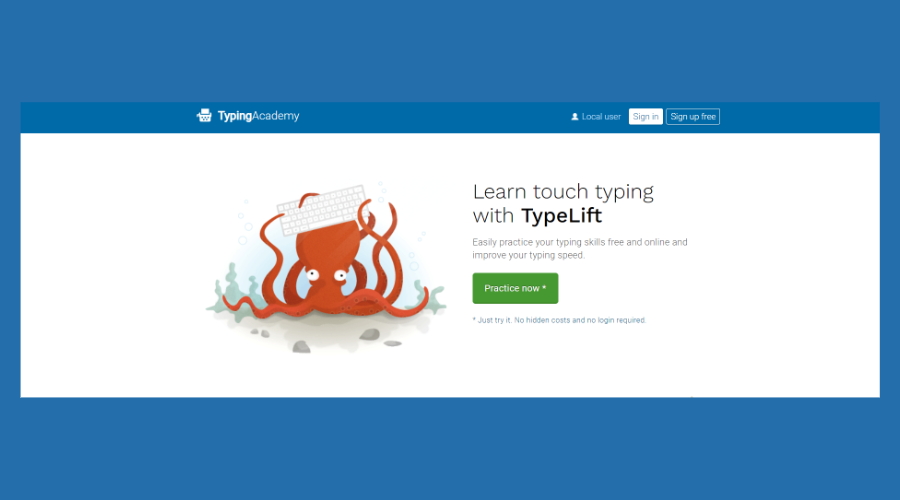
TypeLift – Intuitive and accesible

TypeLift is a free platform designed to help users practice their typing skills and significantly increase their typing speed.

It is an online platform that runs directly in your browser to assist you in practicing your keyboard skills effectively.

TypeLift offers typing tests, learning fundamentals, and a multiplicity of free typing lessons to increase your skills cautiously.

Thanks to its statistics feature, you can follow your progress and see your newest results and long-term development.

Moreover, it has lessons suitable for everybody, and you can create up to 10 customizable typing courses to concentrate better on your personal needs.

Pros

  • Suitable for both beginners and advanced
  • Customizable typing lessons
  • Progress report

Cons

  • Additional settings are only available in the Pro version

Do share with us your experience in using any of these learn to type faster software we mentioned above. Feel free to comment below.

6 Best Speech Therapy Software to Use in 2026

Speech therapy software is used by patients to practice at home in between sessions. It can help them improve their language on their own.

Such digital tools are becoming more commonly accepted these days as legit forms of home practice, maximizing the benefits of speech therapy.

Speech therapy software is becoming increasingly popular because patients are presented with tons of ways to make the most of their practice time.

On the other hand, speech therapy software can help business improve their operational, clinical, and billing functionalities and efficiency.

Such tools help practices, and health centers eliminate all the time-consuming paperwork and improve clinical productivity.

Here are five of the best speech therapy tools that come with extremely useful features for both patients and businesses.

What are the best speech therapy software for your business?

1. PT Practice Pro by PT Billing Solution

This is a fully integrated Practice management program that is explicitly designed for Rehab sciences, and it can provide solutions and growth.

PT Practice Pro is a really evolved practice management software. With this program, you don’t need to manage multiple systems together.

The PT Practice Pro also comes with features including auto-posting ERAs, care plan management, insurance management, patient records, patient scheduling and registration, progress tracking, and practice management.

It is a web-based system that allows patients’ practice to handle documentation, reports, scheduling, and billing.

And it’s especially good with documentation. All the content is filtered by body part for easy access. Also, you can customize all the templates for your business.

Another huge benefit is that Practice Pro automates billing requirements specific to the patient and his or her payment options, including Medicare, Medicaid, Workers Comp, and others.

Practice Pro also fills your appeal forms and exports them as PDF documents for your convenience and it’s the best speech therapy EMR software.

Check out the program’s most important features:

  • The software is best used in practices that focus on the Rehabilitation Sciences
  • It serves all disciplines from Physical Therapy all the way to Aquatic Therapy
  • The program comes with fully customizable documentation
  • It provides scheduling features that allow doctors and staff members to schedule appointments
  • PT Practice Pro has an easy-to-use interface
  • It is one of the most robust and reliable systems in today’s market

⇒ Get PT Practice Pro

2. Double Time Docs

Double Time Docs is occupational therapy software that mainly serves Pediatric Speech-Language Specialists as well as individuals, private clinics, and schools.

It includes features such as progress tracking, assessment management, and patient records.

They currently have a couple of school and clinic-based versions that help you achieve documentation consistency among your SLP, OT, or PT teams.

The pricing starts at 5$ per month for individuals that will give you access to create, edit, and download your documents. For large teams, you will have to contact them to get a customized pricing quote.

The automatically generated result for the Standardized assessment is a huge time saver and one of the most utilized options of the app.

It actually takes about 3 hours to complete such evaluation, but the software will reduce that time to minutes.

And it will even reduce common errors like incorrect names or pronouns inherent when creating such a document.

Let’s take a look at some of its best features:

  • Will drastically reduce the number of common errors in the reports
  • Documentation consistency among SLP, OT, or PT teams in a school or clinic
  • Utilize DTD as a teaching tool for new SLP, OT, and PT graduates
  • Helps you address all aspects of your student with the comprehensive questions and format provided

⇒ Get Double Time Docs

3. CONNECT by Cedaron Medical

This is an occupational and speech therapy practice management system that comes with CPT codes, libraries of diagnosis, and assessment tools.

The tool comes with integration with hospital HER, billing and patient permanent medical records.

You can use this tool specifically for rehab with lots of features for the physical, occupational, and speech therapists as well without having any issues communicating with the central hospital system.

The automated processes will save therapists and administrators lots of time with the paperwork.

CONNECT is one of the best on-premise practice management solutions for rehabilitative practices of all sizes and it’s also a great speech therapy software for adults.

The modules in this solution incorporate all the requirements for each specialty so you can customize workflows and access an increasing library of tests, tools, and measures. 

Cedaron’s CONNECT aims to maximize efficiency and it’s always updated on legislation and compliance. Of course, that will lead to profits increase of your business.

Take a look at this tool’s essential features:

  • It focuses on methods that provide medical services including physical therapy speech therapy, and occupational medicine
  • APTA Connect is built around an Electronic Medical Records app that offers procedure workflows, a patient portal, and tablet support
  • Entering patients’ data via point-and-click drop-down menus is effortless
  • The tool comes with a scheduling module that allows you to view schedules by the clinic, therapist, or clinician
  • APTA Connect comes with a picture archiving system
  • Users can upload and store any type of documents or images from a patient’s medical record
  • The system also includes a full library of diagnosis codes

⇒ Get CONNECT

4. Mercury Medical by CrisSoft

This is a modular medical solution that offers credential management, patient record management, appointment scheduling, and claims to process.

This solution comes with a table-driven interface to meet operational designations for any RCM process including CMS 1500 and UB04 claim requirements.

This is an excellent solution for billing companies that are looking for a reliable and proven professional Accounts Receivable solution that drastically reduces processing times, shortens payment cycles, and increases cash flow.

Mercury Medical is a practice management solution ideal for a variety of specialties and practices provided on SaaS or On-Site.

It comes with business-intelligent reporting that can offer information to negotiate contract terms and ensure compliance

The interface of this system seamlessly integrates with electronic clinical systems so that the implementation is easy and flawless.

It also comes with a great support team that will help you deal with any integration efforts along the way. It integrates well with stroke speech therapy software.

Take a look at the most impressive features of this system:

  • It allows users to customize solutions with an easy interface
  • Mercury Medical has 63 reports that are configured with filters and that provide data analytics
  • It lets users supplement business decisions
  • Users can also manage bundled payments
  • The program is entirely HIPAA compliant

⇒ Get Mercury Medical

5. ReDoc powered by xfit Software

ReDoc powered by xfit Software is a cloud-based rehab therapy documentation, scheduling and practice management software.

This is a fully integrated solution from Net Health, and it drives PT, OT, and SLP workflow that helps practices move through the day quickly and efficiently.

Besides software, more services are available such as the one for billing and collections and workflow optimization consulting.

This program will turn out to be all you need for scheduling, billing and electronic medical records.

The software comes with options such as integrated fax management, appointment reminders, and an integrated home exercise program.

It also features an excellent infrastructure for communication and issue resolution that will help you in any possible situation.

Moreover, ReDoc is easily adaptable to your business and very simple to operate across all your departments.

Here are the best features of this software:

  • It ensures compliance and boosts efficiency
  • It supplies enough tools to grow the revenue
  • It provides users access to over eleven million therapy episodes of care
  • The program is straightforward to use and very functional
  • Flexible and adaptable to your clinic procedures
  • The program gets regular updates and security measures
  • This solution includes functional assessments and configurable workflow

⇒ Get ReDoc

6. Optima Therapy by Optima Healthcare Solutions

Optima Therapy by Optima Healthcare Solutions offers streamlined workflows and compliance tools to improve clinical, operational, and billing efficiencies.

This cloud-based solution provides electronic medical records, patient scheduling, and billing to speech therapy, physical therapy, and rehabilitation practices. It is ideal for practices of all sizes.

Overall, Optima Therapy is the leading therapy management solution for contract therapy businesses and skilled nursing facilities as well.

It comes with integration with more than thirty software systems, and it will help your business thrive, and your patients get the best care.

The system is easy to deploy, and it comes with customizable and secure functionalities. It’s continuously updated in order to comply with regulatory requirements.

Optima Therapy includes integration with software such as MatrixCare, PointClickCare, and HealthMEDX.

You can use the tool to manage billings, denials and appeals, eligibility, invoicing, and e-signatures that will get you through the necessary paperwork.

Check out its essential features below:

  • It provides case management features
  • You can use this program to set up therapy plans based on various disciplines and diagnosis codes.
  • It comes with automated scheduling tools
  • The system includes configurable calendar views
  • It provides capacity alerts for therapists
  • You can enter therapy notes while you are offline and they will be synced once you go online
  • The business intelligence module offers reporting and role-based dashboards
  • Users can access features using Android, iOS and Windows devices

⇒ Get Optima Therapy

Here is where our roundup of the best services for speech therapy comes to an end. Each solution presented above comes with its unique set of features targeted at different needs and clients.

Analyze them all and choose the one that seems the best suited for your needs and for increasing your medical business efficiency and productivity and for helping your patients.

Select the best medical care software

All these software solutions provide the most necessary tools to run your practice and to help you deliver the best quality medical care.

Speech therapy software and services also help you communicate better with compliant documentation and boost workflow and efficiency between the financial and the clinical side of your practice.

If you’re in charge of the clinic’s documentation department, whether you’re dealing with 3 or 10 departments, you will need to take some important factors when choosing the software.

Assess the level of paperwork needed for each department

The software addressed in our article is focused on speech therapy and language training but you can use it in many other departments and practices.

The first step is to find out exactly what papers the clinicians need to fill and any other compliance documents and then fit the software accordingly.

Ensure security and a proper back-up system

The medical business, any healthcare business is in danger of disclosing or losing patient data and that is a liability problem with rather catastrophic consequences for your business.

Make sure that the software you’re implementing across your business is perfectly safe or secure it with backup systems and malware protection.

Pick the best level of assistance

When you decide on a software solution for your business, make sure that you will have all the assistance necessary to implement and support it within your practice.

Whether you have a capable IT department or not, there are issues that can only be solved by the developer of the software. That goes also for updating the system.

That concludes our guide and list with the best speech therapy apps for Windowse that will help your business.

If you’re also interested in tools designed specifically for clinicians, you can also check our speech therapy/language training software for Windows list.

Do you have any other suggestions that might fit our selection? Let us know in the comments section below.

To sell Windows 11, Microsoft needs to come clean

This week there was a bit of a kerfuffle on Twitter (now deleted) between a couple of tech pundits about previous reporting on unreleased information about the leadup to Windows 11. I won’t get into details, but the point here is that Microsoft so far hasn’t done a good job of controlling the narrative; information about Windows 10X, about Core OS, about Sun Valley, and now about Windows 11 have largely come not from Microsoft, but from reporting and speculation by a few tech writers.

And there are some problems with that. While some pundits have access to insider information, they rarely have full access. It’s like looking through the wrong end of a telescope: you’re only seeing a very small piece of what’s usually a much bigger picture.

Yet, Microsoft continues to allow the narrative to be controlled by others – not so much by locking down access and looking for ways to punish leakers (known as “a Sinofsky”), but by not taking hold of the narrative themselves, especially when leaked information leads away from what’s really going on.

It may well be that there simply hasn’t been a single story to tell. From afar we’ve seen that it’s been a journey with Windows 10X – we doubt there was a plan from the beginning to use 10X to create a set of UX changes on top of Windows 10 to market as Windows 11.

Windows Vista
Windows Vista

There’s been some questioning too about if this “Sun Valley” update is really even worthy of a version change. This move to 11 is different. MS-DOS to Windows was obviously huge, but so was the move from Windows 3.1 to 95, from 95 to 98, and so on. The move from Vista to Windows 7 was less of a sea change, but it was necessary to sweep away the negative vibe that came with Vista (see: control the narrative).

Windows 10 to Windows 11 is much less about sea changes and much more about creating some new excitement around a nearly 6 year old OS at a time when PCs are suddenly popular again.

That’s all fine, but the “lipstick on a pig” narrative has already begun. Thanks to tech punditry along with a lack of transparency, there’s a viewpoint that Microsoft failed with Windows 10X, and shifted gears at the last moment, trying to salvage what they could.

There are good reasons why Windows 11 makes sense, but if the narrative veers off into “it’s just a coat of paint to sell more devices,” or “it’s still a mess under the hood,” then selling Windows 11 is going to be a lot more difficult.

Microsoft needs to gain back control, by coming clean, for starters. Let’s hear “here’s the story of the twists and turns we took getting from where Windows 10X started out, to where we are now. And now that we’re here, this is the path leading forward” That story needs telling, and it’s either going to be the wrong end of the telescope version, or a real, transparent assessment of why we’re where we are today. And that may be the difference between selling Windows 11, or having it go the way of Vista.

Microsoft releases Visual Studio 2022 Preview 1 with 64-bit support

Microsoft announced the release of Visual Studio 2022 64-bit Preview 1 yesterday, and it is available for download now. For the first time in Visual Studio history, Visual Studio 2022 marks the first release of a 64-bit version of Visual Studio. The “key goal with this preview is to test and tune the scalability of the new 64-bit platform”, Microsoft says. Because converting Visual Studio to 64 bit affects every part of the suite, Microsoft has stated that the preview’s scope is much bigger than the team’s usual previews with Visual Studio.

The idea to make build a 64-bit version of Visual Studio is to ensure better use of system resources when tasked with more complex solutions overtime. According to Microsoft, during the early testing of Visual Studio 2022, customers were able to run the VS IDE for days, even with solutions containing 700 or more projects.

However, there are a “small number” of features missing from Visual Studio 2019 in the publicly released VS 2022 Preview 1 as noted under the release notes, Microsoft has stated. Visual Studio 2022 previews can be installed side-by-side with earlier versions of Visual Studio’s existing three branches of editions – Community, Pro, and Enterprise. Previews of Visual Studio 2022 are, of course, free to use.

As part of its Visual Studio 2022 roadmap, Microsoft has shared that testers should expect new features and performance improvements showing up overtime with Preview 2. You can download the VS 2022 Preview 1 here.

Thought Organizing Tools: 13 Best to Use in 2026

Mind mapping is a great way to visualize ideas and put them in a more realistic form. It is a great way to make a plan, brainstorm, and turn those ideas into the steps needed to make them real.

If you often get lost in the thicket of ideas or are tired of chasing after those creative words that arise from your brainstorming sessions only to disappear later, then you should consider using mind mapping software.

Thankfully, there is a universe of tools out there that can help you build and organize mind maps. Mind mapping tools can help you explore new concepts.

They will also map out new ideas in a more detailed manner than you have done before, and help you figure out and fix holes in the plans.

Anyone can use mind mapping tools to fine-tune their plans and ideas. Students can use them to organize their work, like map out how to split an essay into headings, paragraphs, etc.

If you are planning a party, you can draw the nodes with all the aspects to be covered from guests to snacks, location, etc. At a corporate level, a mind-mapped SWOT analysis can help you spot a strategy’s strengths and weaknesses.

In this article, we will introduce you to the best mind mapping tools so you can plan and organize your work effectively.

What are the best mind mapping tools?

MindMaster by Wondershare

Organizing your ideas and thoughts can be more difficult than it sounds, especially if you consider how many of them you can have at a certain point in time.

Since there isn’t always time for you to just sit back and organize yourself the old fashion way, getting a more hands-on approach to how you plan and link your ideas can be extremely helpful.

That is where MindMaster comes into play, as it is a versatile, user-friendly, and professional mind mapping tool especially designed to promote productivity.

It is available on multiple platforms, including PC, tablet, mobile, and web, you can create mind maps and access them from each platform.

Additionally, its toolset includes elements that allow the sharing of your ideas, basically turning this mind mapping tool into a collaborative tool as well.

If you love organizing things in a certain way, then you will love the customization options and templates that you can apply to your train of thought.

Choose between 12 different structures, 33 different themes, and over 700 clip arts to create an ideal path that is as unique and memorable as it needs to be.

Here are some of its core features:

  • Gantt chart mode
  • Tag and resource
  • Track progress
  • 33+ themes
  • 12 different structures
MindMaster by Wondershare

MindMaster by Wondershare

It is a versatile, intuitive and professional mind mapping tool. Easily organize your ideas in a more effective and visual manner.
Check priceVisit website

MindMeister

mind_mapping_tools_mindmeister

Hailed as one of the best and most popular mind mapping tools, MindMeister is an online mind mapping tool that boasts over 4 million registered users.

This award-winning mind mapping tool allows you to brainstorm, take notes, make detailed project plans, and perform other creative tasks.

So whether you use Windows, Linux or Mac OS, you can use MindMeister to easily access your mind maps.

Team collaboration is what it does best. Whether you are thousands of miles away or in a face-to-face meeting, MindMeister allows you to collaborate with your colleagues.

You can communicate with your coworkers in real-time and discuss changes in an integrated chat platform for ease of access.

And when your mind maps are complete, you can present them in form of slide shows using the integrated presentation mode.

You can also broadcast it live to your collaborators, or even export the slides as PNG. Pricing varies starting from $6 per month per user for personal use to $15 per user per month for businesses.

Let’s take a look at the software’s core features:

  • Collaborative brainstorming
  • Customizable Designs
  • Multimedia attachments
  • History view
  • Presentations
MindMeister

MindMeister

An onine mapping tool that allows you and your team to design, capture and brainstorm visually.
Check priceVisit website

Scapple

Scapple is not just a regular brainstorming tool. Actually, it’s main purpose is not to be a mind mapping tool, but you can use it as one.

In fact, Scapple doesn’t call itself a mind mapping tool in its documentation, but a note-taking app instead.

However, this is just a marketing trick, because more people are familiar with the term note-taking app than with the mind mapping tool.

This program allows you to create mind maps by typing anywhere on the screen. When you type your ideas, you simply connect them with branches.

After scrambling all of these ideas and structuring them properly, you got yourself a simple, yet very understandable mind map.

The software also supports images, and even allows you to make your full diagram out of images. Importing images into Scapple is easy, you simply drag and drop them.

Here are its best features:

  • Write notes anywhere
  • Connect them using drag and drop
  • Complete freedom
  • Customizable
  • Full-screen mode
Scapple

Scapple

Put your thoughts on a piece of paper and organize your ideas creatively and interactively.
Check priceVisit website

Mind Maps Pro

mind maps pro presentation page

Mind Maps Pro allows you to easily take notes and to change their position, interline, color and order.

It is the perfect app for note-takers that are used to create mind maps at a fast speed because the app is user-friendly and designed to quickly add on the drawing board whatever you want.

If you are using other apps in order to take notes, Mind Maps Pro fits perfectly in your inventory. We have to mention that you can save your maps as text, image, OPML, PDF, or Visio.

You can import notes from other apps as well so you can arrange all of your observations, thoughts, plans, notes in a single document.

Annotate and highlight important stuff you write down on the go with the free-hand tools, then export the result in different file formats.

Turn your thoughts and ideas into reality thanks to this awesome mind mapping tool full of features and customization options.

⇒ Download now Mind Maps Pro

Coggle

Available as a Chrome extension, Coggle mind mapping software is well known for its sheer simplicity. Coggle comes in three packages: free, awesome, and organizational.

Though the commercial versions come with premium features such as presentation modes, the free version packs all you need to create unlimited maps and do more.

You can use it to create detailed maps with colored nodes and branches as well as add detailed notes to the branches.

And if you want to embellish your maps with images, Coggle allows you to drag and drop images from your desktop.

And since Coggle maps are collaborative as well, you can invite members, see who and what was edited in real-time as well as message the team members.

The software also allows you to download the created mind maps in different types of formats, such as text, PNG, or PDF.

⇒ Download Coggle

Bubbl.us

Bubbl.us is available as a web app, so you don’t have to download anything in order to use it. Simplicity is one of its key selling points.

All you have to do is launch it in your preferred browser, click the ‘start brainstorming’ button, and off you go. And if you get stuck, you can use the help page or go through the provided tutorial.

The free version allows you to create up to 3 mind maps. You can create the mind maps, save them in your free user account, export them, and even share them with colleagues.

However, if you need more mind maps, you can sign up for the premium version at $6 per month that allows you to create unlimited mind maps, insert images and get priority support.

The app makes it easy to organize and structure your ideas visually so that you and others can follow and re-read them easily.

Therefore, install Bubbl and learn to increase productivity by focusing on certain tasks and mapping strategies with the software.

⇒ Get Bubbl.us

MindMaple

Available for Windows, Mac, and iOS, MindMaple is an amazing mind mapping tool that has a free and a paid version on offer.

This awesome software comes loaded with various templates and themes that make mind mapping easy and enjoyable.

Additionally, It comes with a clip art library that you can use to add appropriate graphics and other interesting things to your mind map.

More so, you can also add files, hyperlinks, relationships, and boundaries to your mind map to make it more interesting and detailed.

If you upgrade to the pro version, you get advanced features such as Microsoft Office exporting, password security, and PDF exporting.

You can export your mind map in a variety of file formats, such as HTML, Excel, Word, PowerPoint, Image files, or XMind files.

⇒ Get MindMapple

XMind

xmind windows 10

XMind is another powerful mind mapping tool that has been around for a long time. However, despite the fact that it was built for older operating systems, XMind still perfectly works in Windows 10.

The biggest power of XMind is its flexibility, and a high variety of graphical options for creating diagrams, and other graphical designs.

You can choose various styles for putting your ideas on the screen. Whether it’s a simple mind mapping style or a fishbone flowcharts style.

As the tool allows you to customize your maps and diagrams, you can add images and icons to different parts of the project, hyperlinks, and more.

Unlike Mindjet, XMind is completely free and open-source, which makes this tool one of the most popular mind mapping software on the list.

However, if you’d like to spend some money on XMind, you can purchase Plus or Pro versions for $79 and $99, respectively.

⇒ Get XMind

WiseMapping

wisemapping windows 10

WiseMapping is another online-based mind mapping tool that doesn’t even require you to log in to start using it.

It’s extremely easy to understand, as you’ll need just a few minutes to get around. It works on all modern browsers, across all platforms, and uses vector graphics and HTML5 to make your mind maps possible.

However, if you’re planning to use WiseMapping more frequently, it is advisable to open a free account, because you can save your mind maps if you’re not logged in.

It uses the drag and drop principle, so all you need to do is to write down your ideas, and arrange them by your desire, with a few mouse moves.

WiseMapping allows you to save your projects as images, PDF documents, or FreeMind files, and you can also embed them into any website.

The collaboration feature allows you to share and work on your mind maps with your friends and colleagues to get the best results possible.

⇒ Get WiseMapping

Freemind

freemind windows

Freemind is another extremely flexible, free mind mapping software for basically any platform. As it is GNU General Public Licensed, it works on any platform you’re using.

This includes Linux, and Windows 10. Freemind owes its popularity to a big number of features, flexibility, and consistent performance.

With Freemind, you can create any mind map you want, be it a simple to-do list, or a complex diagram with tons of ideas.

When creating complex diagrams, you can add branches, graphics, and icons to differentiate notes and properly connect them. Of course, you can add hyperlinks to any part of your project.

Freemind can export your mind maps into various types of files, including HTML/XHTML, PDF, OpenDocument, SVG, or PNG.

However, if we take a general look at its design, it looks a little bit dusty, because the tool is pretty old, but it still does a marvelous job, regardless of platform.

⇒ Get Freemind

NovaMind

novamind windows

NovaMind is a multiplatform brainstorming software. It is available across a high variety of platforms, including Windows, iPad, Mac OS X, or Android.

Therefore, if you own more devices, you can sync your ideas between them. It has a free basic version, which is very limited, so if you’re more serious about using this tool, a commercial version is advisable.

NovaMind is fairly easy to use and understand, especially because it starts with a tutorial, and a demo mind map, to show you all of its features and concepts.

It has a unique user interface in form of a dial, that holds all needed features. NovaMind offers integration with its own cloud storage, NovaMind Cloud, where you can save up to 10 documents.

As we said, all of its main features are available in the commercial version. The free version actually serves as a demo for trying out the tool, as it doesn’t even allow you to save your projects.

You can find more details about the tool, its awesome features, and other interesting information regarding the price or the company on its official website.

⇒ Get NovaMind

Mindjet

If you want to pay for mind mapping software, and office productivity is one of your concerns, then you should go for Mindjet.

Mindjet is more than mind mapping software, it is designed to help you and your colleagues collaborate, brainstorm, and stay organized at all times.

If you have a project, you can use Mindjet to assign different tasks to all individuals, flesh out all the job requirements, and organize every arm of the project.

Whether you are organizing your own to-dos, working with a dozen, or even over a hundred members, Mindset has all you need to create and organize the mind maps.

In addition to mind mapping, it integrates well with the common tools and web services such as Box, Microsoft Office, and more.

The individual plan costs $15 per month per user while the enterprise plan cost $30 per month per user, which is pretty affordable.

⇒ Get Mindjet

Text2Mindmap

text2mindmap windows

Text2Mindmap is another web-based mind mapping tool, a lot of users like because of its speed and simplicity. It allows you to create mind maps simply by creating text lists.

Once you complete your text list, each text line will be converted into a single node in the minimap. A similar technique is present in Microsoft Powerpoint’s tool for creating diagrams.

Additional features of Text2Mindmap are the ability to save your projects as PDF, use keyboard shortcuts, and access maps via a unique URL.

Text2Mind map is available for completely for free, and it is web-based, working on all browsers flawlessly, without the need to install anything.

The web version is based on the older software that is no longer support and cannot be accessed anymore. Think about this as a tribute to it.

Therefore, why don’t you try it out quickly? As we said, it’s completely free, fun to use, and simple enough for anyone to start using right away.

⇒ Get Text2Mindmap

The best mind mapping tool

There are many things that make a mind mapping app great. So how should you go about choosing the right tool then?

Some of the factors to consider include price (free or paid), ease of use, collaboration, looks, import and export options.

Obviously, it really depends on what you want to use the software for, and what you expect from it. Each user will have different needs.

Mind mapping in your office

If you intend to use the software in an office setting or with team members, then you should go for a tool that has collaboration and presentation features.

Software that can properly structure your workflow, goals, and create meaningful graphs will make your business skyrocket.

Export options like PDF are important for printing and presentation purposes. But if you are new to mind mapping, then you should probably start with a mind mapping tool that is available free of charge.

Overall benefits

Mind mapping will definitely make you a better businessman, either while being part of a team, or being a one-man-army for your own business.

Using this process, you can better organize your ideas, and keep track of them, creating branches and sub-branches filled with ideas, all transformed into a cohesive concept.

By using mind mapping software, you can improve your ability to communicate ideas. This way, an entrepreneur will be able to share his mindset with stakeholders.

Owning a small business and you’re not sure what to do to keep your data safe? Here’s a nice list of the best business software for you to choose from.

We really hope you will find this article useful. Additionally, feel free to give us any kind of back regarding the subject in the comment section below.


5 Best Dell Latitude Laptops [Ranked by Popularity]

Dell is a major name in the PC industry, delivering quality products at a level not many competitors can match, which is constantly involved in technological innovation, development and maintenance of PCs.

The Latitude laptop series are known worldwide for their quality and can be used for demanding business tasks, everyday home use, gaming or even video editing.

That’s why we’ve compiled a list of the best Dell Latitude laptops you can use in different instances for all budgets, so read on to discover the proper one for your needs.

Note icon NOTE
Note: Deals are subject to change. Keep in mind that the price tag may vary, as some discounts may no longer be available by the time youu2019ve made your purchasing decision.

What are the best Dell Latitude laptops to buy?

Dell Latitude 7410 – business laptop

  • Compact design
  • Anti-glare touch display
  • Good battery life
  • IR Camera
  • Great keyboard
  • Heavier than competitors

Dell’s Latitude 7410 is a 14-inch FHD (1920 x 1080) Anti-Glare touch display, Intel UHD Graphics premium tablet that includes Intel Core 10th Generation i7-10610U processor (Quad Core, up to 4.90GHz, 8 MB cache, 15W).

You can also get the machine with up to 16 GB RAM of memory and up to 256 GB SSD of storage. The 720p front-facing camera supports Windows Hello and the rear-facing camera is 8MP.

Unlike the Surface Pro, this device features two USB Type-C ports with support for Thunderbolt 3.

The laptop comes with a 52WHr battery that should last you long enough to get the work done throughout the day.

Because the safety of your documents and files is so important, Dell has put facial recognition together with Windows Hello software to ensure maximum protection.

This particular laptop comes with infrared webcam and proximity sensors to easily detect when you’ve moved away from or near your laptop.

As for the battery, when you plug in, the ExpressCharge Boost feature will get a 35% charge in about 20 minutes or up to 80% in an hour.

  • Great battery life
  • Lightweight
  • Robust performance
  • Colorful display
  • backlit keyboard
  • Price tag

The Dell Latitude 7320 2-in-1 is a very powerful handheld device that will be useful for happy home users who need a lightweight device with good and fast performance.

Thanks to its Core i5 processor, the laptop can handle most work or online streaming needs with flying colors for users who prefer classic Netflix and chill.

Plus, the laptop has a host of security features to make sure your important information is safe from prying eyes.

In terms of battery longevity, the Latitude 7320 2-in-1 holds up heroically for web browsing over Wi-Fi at 150 nits of brightness.

The full-size keyboard and clicky, backlit keyboard stroke are great for typing and crown this well-built little laptop.

So if you’re looking for a secure, lightweight 2-in-1 for working from home, you can’t go wrong with the Dell Latitude 7320 2-in-1.

Dell Latitude E7450 – video editing laptop

  • Robust design
  • Long battery life
  • Convenient keyboard
  • Solid carbon-fiber/magnesium-alloy body
  • Flat sound

The Dell Latitude E7450 is a strong choice when it comes to a business Ultrabook, with its solid carbon-fiber/magnesium-alloy body.

The E7450 has passed testing for an 810G rating to military standards and withstands both high and low temperatures, shock or moisture.

As for the keyboard and touchpad, the sensitivity of the mouse, touchpad and stick pointing speed can be set individually, or turned off as desired to ensure comfort when editing a video, for example.

This great laptop features a 14-inch 1366×768 resolution screen with a matte finish that ensures productivity while keeping you from glare

With its integrated Intel HD Graphics 5500, the E7450 is good for video editing or maybe some light gaming in the off time.

Dell Latitude 9510 – gaming laptop

  • Slim and sleek design
  • 15-inch display
  • Robust performance
  • Long battery life
  • Compact keyboard
  • Price tag

Dell has managed with the Latitude 9510 an extraordinary battery life performance in addition to its very-very-slim size and a bright 15-inch screen.

The Latitude 9510 is a 2-in-1 laptop, so you can flip this machine into tent mode or tablet mode however you need.

In terms of security, the Latitude 9510 is equipped with vPro for remote management and a TPM security chip.

This great, super slim laptop has passed endurance tests, so it can handle extreme temperatures, altitude, shock, vibration or dust.

In terms of performance, it comes with an Intel Core i7-10810U vPro processor with 16 GB of RAM, which will make gaming run on perfect terms to ensure your victory.

Coming to the highlight of this model, the battery, continuously surfing the internet via Wi-Fi at 150 nits of brightness, it managed 18 hours before running out.

Dell Latitude 5490 – budget pick laptop

  • Great security options
  • Good battery life
  • Strong performance
  • Fingerprint sensor
  • Affordable price
  • Heats up quickly

The Dell Latitude 5490 is an ideal laptop option that offers security and performance at an affordable price.

This great laptop is built tough and has survived the tests that US military equipment has to pass, so you don’t have to worry about falling on the floor, sandy and dusty winds, or very low or very high temperatures.

In terms of performance, the Latitude 5490 is equipped with an Intel 1.7 GHz Core i5-8350U Quad Core CPU and has 6 GB DDR4 and 512 GB SSD, which makes it powerful enough to perform serious multitasking.

In terms of battery life, you should know that it lasted almost 10 hours in continuous website browsing tests at 150 nits of brightness.

This laptop offers a number of optional security features: an infrared webcam, a fingerprint reader and a smart card reader.

With all these features on its side, we can say it’s a great choice if you’re paying attention to both budget and performance.

What should be considered when choosing a laptop?

The Dell Latitude series of laptops is reliable and ready to help you whenever you need it, when you’re in the office or working from home or just travelling.

They’re slim and stylish yet powerful and durable laptops that will serve you faithfully when you come in need.

Once you’ve determined which Dell Latitude laptop best suits your budget and needs, it will be very important to consider the components inside the laptop that will make it run smoothly.

Most laptops also offer the possibility to customize them with new specifications, but if they are not useful to you, they just become a financial strain for you.

That’s why we recommend taking a look at the often customizable components inside a laptop:

The central processing unit (CPU), i.e. the core element of the laptop that is interdependent with all its other working components.

It plays a very important role in the speed at which your chosen laptop can operate, so if you’re going to use it for multiple tasks such as video editing or gaming, you need to invest some money in it.

The GPU, or graphics card, is responsible for the dynamic-aesthetic side of what you’ll see on your chosen laptop.

If you work in a visually creative field, or are a hardcore gamer, then you’ll really need to invest in this part in order to enjoy demanding video games.

Also, if you’re just a home user and only perform basic tasks on your laptop, then the standard video card your laptop comes with from the factory will be enough for you.

Storage: we recommend that you always consider the possibility of storing important information in the cloud.

This will save you a lot of money in the long run that you would otherwise invest in additional storage options on your laptop. You may have to choose between HDD and SSD.

For a brief overview of the two options, we inform you that HDD offers a higher storage capacity, but also has a lower performance for fast recovery of your files. That’s why a dual storage approach may be desirable.

RAM, or random-access memory, is another piece of resistance in your laptop ecosystem, on which the speed and efficiency with which your applications run depend.

So if you need to perform multiple tasks simultaneously, then you’ll definitely need 8 GB. For other, more demanding programs or tasks, you’ll most likely have to opt for a few extra GB.

And the last but not the least component to keep in mind is the display.

A screen with a resolution of at least 1080p will ensure good viewing of images and text, while gamers will choose a Full HD screen.

Of course, you also need to consider the screen size, well, those extra inches will make all the difference when you’re undertaking certain gaming activities, for example.

We hope that these Dell Latitude laptop recommendations from our list were helpful. For more suggestions or other questions, please access the comments section below.

Windows 11 runs better & faster on old or low-spec devices

There are endless discussions and millions upon millions of threads about Windows 11 nowadays, everyone wanting to get their point of view across, as far as this OS goes.

While some are intrigued and have grown to like this primitive Windows 11 build, others are bashing it and saying that it’s just Windows 10 with a new skin, while nothing new is being brought to the table.

Because of this reason, we decided to ask you, the readers, what is your opinion about the new version of Windows called most likely Windows 11.

To do this as objectively as possible and then compound the results in an easy-to-understand manner, we created a thorough survey that covered the possible name choice and many other interesting elements.

Our survey was completed by 6056 users from across the globe, most of the readers’ opinions coming from the US and UK, but with great numbers in India, Canada, and Australia as well. In total, there were participants from 152 countries across the globe.

Windows 11 seems to perform better than its predecessor

This is more than normal news, considering that a company as big and tech-savvy as Microsoft wouldn’t just invest in visual upgrades for an operating system as big as theirs.

So the fact that Windows 11 actually performs better than the previous OS shouldn’t come as such a shock to us.

We can all agree that this was the number one aim for Microsoft developers while designing the future.

Users that got their hands on this early Windows 11 build are already starting to sense the differences between how this operating system performs, in comparison with Windows 10.

Some of them even tried installing this OS on some pretty old devices, which resulted in a better outcome than they have initially expected, with the system running as smooth as ever.

As you can imagine, they were more than eager to share this information with users everywhere, via social media platforms, such as Reddit.

I’ve done both a clean win10 VM and clean win11 VM as well as an image of a semi-bloated win10 and upgraded to win 11 and it seems faster and less of a resource hog than Windows 10 did. Not comparable to a clean Linux install but still way better than before

Too early to tell much about Windows 11

So a few days have passed ever since this version of Windows 11 got leaked on the internet and, although everyone has his own opinion, the truth is that it is still too early to be able to judge the new OS.

As we stated in a previous article, this version of the operating system is highly restrictive and only showcases a few of the features that will be available with the complete edition.

Just to get an idea of how many things are missing from this early Windows 11, keep in mind that even basic built-in apps such as the Microsoft Store have not been included.

Also, users that want to try this new experience must be able to login with a Microsoft account, or say goodbye to the whole situation.

Basically, Microsoft is already nudging users to do this, the only workaround for avoiding having to use a Microsoft account is by not connecting to the internet.

Only time will tell and only when the tech giant decides to release a more complete version of Windows 11, will we be able to actually judge the new OS for what it actually is.

5 Best Omegle Alternative Clean Chat Websites in 2026

Omegle is one of the most well-known chatting websites in the world, allowing you to connect and talk to strangers all over the world, thus introducing you to new ideas and individuals with different cultural backgrounds.

As a result of Omegle’s popularity and traction, lots of new chatting sites were created, trying to improve and surpass it by implementing new features.

Thanks to all of these sites, we are left with a plethora of choices when it comes to online chatting.

Whether you’re interested in exploring a new chatting platform or got tired of dealing with Omegle server connection issues, we suggest taking a look at these similar sites.

What are the best Omegle alternatives?

TinyChat

TinyChat is an online chat website launched in 2009 that allows video chatting, voice calling, and instant messaging between users.

In addition, you can create separate chatrooms with friends or strangers based on specific topics of your choice.

Since 2017, TinyChat updated its layout and interface to a modernized design, adding video chat rooms with HD quality video streaming, as well as launching the app for Android and iOS.

The site allows up to 12 video feeds per room, and you can log in using your social media accounts.

⇒ Get TinyChat

ChatRandom

ChatRandom strives to become a household name like Facebook or Twitter, and Youtube. It is a webcam site that pairs you up with random strangers.

The site connects people all over the world, constantly adding new countries and languages to their mix.

You can interact randomly with one person, a group, or with a specific gender. In addition, you can select topics and chat preferences.

The site is constantly adding quality-of-life features for its users, and it is also free.

⇒ Get ChatRandom

Chatroulette

Chatroulette is a webcam-based chat service that was created in 2009. Even without advertising, the site grew in popularity fast, becoming one of the biggest in its area.

You can connect to random strangers and keep chatting or press next to move on to the next person if you wish to.

You can chat by typing and you can also use your webcam. The interface is minimalistic and retro-looking, and the site is free.

⇒ Get Chatroulette

FaceFlow

FaceFlow allows its users to have video chats with up to three people at a time.

It offers free video and chat conferencing with your buddies directly from your web browser, without the need to download any software.

Additionally, you can talk with strangers, and create a searchable profile where they can share their favorite images and videos.

Lastly, FaceFlow has released a multiplayer version of the famous and addictive Flappy Bird game.

⇒ Get FaceFlow

Paltalk

paltalk

Paltalk is a video chat app that supports all major formats, including Windows, macOS, Android, and iOS.

It allows you to create your own public virtual chat room and communicate with your friends via voice or text messages. Besides, there are thousands of chat rooms available and you can join any of them based on the topic you’re interested in.

Paltalk has a simple and intuitive interface, with fun features like sticker collections and gifts you can send as a conversation starter.

⇒ Get Paltalk

There are many online chatting websites on the internet, and most of them are easy to use.

Check the aforementioned options if you are looking to make new friends and meet new cool people.

Still exploring the best Omegle alternatives? Expand your options with our guide to Ome TV alternatives for safe, reliable video chat picks.

Feel free to give us any feedback regarding the subject in the comment section below.

5 Best CPUs For RX 5704GB / 8GB [2026 Guide]

Radeon RX 570 is a solid graphics card, but to achieve the best possible performance in games, you need a CPU that is just as powerful.

Finding such CPU won’t be a problem, and in today’s article we’re going to show you the best CPU for Radeon RX 570, so let’s get started.

Radeon’s RX 570 tech specs:

Architecture:Graphics Core Next 1.3
Fabrication process:14 nm
Transistors:5.7 billion
Bus interface:PCI-E 3.0 x 16
Graphics clock:1168 MHz
Boost clock:1244 MHz
Memory size:4096 / 8192 MB
Memory type:GDDR5
Memory clock:1750 MHz
Memory interface width:256 bit
Memory bandwidth:224.0 GB/s
Maximum digital resolution:7680 x 4320

What is the best CPU for Radeon RX 570?

Intel Core i5-9600K

  • Six cores and threads
  • 3.70GHz, up to 4.60GHz with Turbo Boost technology
  • 95W TDP
  • LGA1151 socket
  • Unlocked and overclockable
  • Not intended for high-end gaming

Intel Core i5-9600K is a mid-range processor, and it’s a great CPU for RX 570. The processor comes with 6 cores and 6 threads, and it works at 3.70GHz, but that can be raised to 4.60GHz.

The processor is unlocked, so you can overclock it as you need. Regarding the compatibility, the CPU can work with the LGA1151 socket, and it’s compatible with 300 series chipsets.

Overall, Intel Core i5-9600K is a solid processor, and thanks to its overclocking ability, you should be able to get the maximum performance out of it.

It has a 9 MB cache, and you will need to cover for its 95 W power usage so keep that in mind when choosing your power source.

This pcocessor uses a lot of advance technologies like Intel Optane, Intel Turbo Boost 2.0, Intel vPro, Intel virtualization technologies and more.

It supports a maximum 4096 x 2304 pixels resolution at 60 Hz through the HDMI 1.4 specifications.

Intel Core i7-9700

  • 8 cores and threads
  • 3GHz, can be raised to 4.7GHz
  • LGA 1151 socket
  • 12MB cache
  • TDP 65W
  • High temperature for some users

Another great CPU for Radeon RX 570 is the Intel Core i7-9700. This processor comes with 8 cores and 8 threads, and a base clock speed of 3GHz, but that can be raised to 4.7 GHz.

Regarding the socket, this model uses the LGA1151 socket and 300 Series chipset. As for the cache, there’s 12 MB of cache and TDP is 65W.

Intel Core i7-9700 offers great features, and if you’re a gamer, this processor should be enough for most gaming needs.

Moreover, it supports Intel Optane memory which is also a great thing to consider for gamers.

The CPU is made with a 14 nm architecture and it supports a maximum memory amount of 128 GB, depending on the type used.

It has a memory bandwidth of 41.6 GB/s and it supports resolutions of up to 4096 x 2304 pixels and a 60Hz refresh rate.

Intel Core i7-9700 features Intel Turbo Boost 2.0, Intel vPro and virtualization technology but it doesn’t support Hyper Threading.

Intel Core i7-10700KF

  • Uses LGA1200 socket and 400 Series chipset
  • 8 cores and 12 threads
  • 16MB cache
  • 3.8GHz base clock, can go up to 5GHz
  • 125W TDP
  • No major cons

Intel Core i7-10700KF is another CPU from Intel, but this processor is compatible with the latest LGA1200 socket and 400 series chipsets.

Base speed is 3.8 GHz but thanks to the Turbo Boost Max 3.0 technology it can be raised to 5.1 GHz. It’s important to mention that the CPU has 8 cores and 12 threads, so it’s perfect for all resource-intensive tasks.

Intel Core i7-10700KF is a great CPU, and with a 16 MB cache, and TDP of 125 W, it’s a great choice for gamers and overlockers.

Of course, there is no surprise that it supports Intel Optane memory, but this one also comes with Intel’s Hyper-Threading technology that delivers two processing threads per physical core.

So, assuming that you also have some applications that use this technology, you will be able to crank its powers to the max.

What’s more interesting is that the CPU also features the Intel’s Identity Protection technology that protects your access to your online data from threats and fraud.

It provides a hardware-based proof of a unique user’s PC to websites, financial institutions, and network services and can be used as a two-factor authentification solution.

AMD Ryzen 7 3700X

  • AM4 socket
  • 8 cores and 16 threads
  • 4.4GHz max frequency
  • 36MB cache
  • 65W TDP
  • High temperature

If you’re a fan of AMD, and you need a CPU for RX570, then AMD Ryzen 7 3700X is a perfect choice. The processor has 8 cores and 16 threads, and the maximum frequency is 4.4 GHz.

Regarding the socket, this CPU uses an AM4 socket, so it will work with a wide array of motherboards. It’s important to mention that the CPU has 36MB of game cache and 65W TDP.

Overall, AMD Ryzen 7 3700X is an amazing CPU for gamers, and since it’s unlocked, it’s a perfect choice for overclocking as well.

It’s praised for delivering ultra-fast 100+ FPS performance in the most popular games on the market.

We also need to mention the if you mount it on an advanced socket AM4 platform, it can support PCIe 4.0 on x570 motherboards.

In its package you will also find the Wraith Prism LED Cooler which complements its power with cool LED colors and support for Razer Chroma.

AMD Ryzen 5 3600XT

  • 6 cores and 12 threads
  • Max clock speed 4.5GHz
  • 35MB cache
  • AM4 socket
  • 95W TDP
  • Can get hot after a while

AMD Ryzen 5 3600XT is another great CPU and it comes with 6 cores and 12 threads. Regarding the clock speed, the maximum speed is set at 4.5 GHz.

The CPU has a TDP of 95W and a 35 MB cache. Regarding the socket, this CPU uses an AM4 socket, but you might need to upgrade your firmware to use it.

AMD Ryzen 5 3600XT offers great performance, and it’s a great CPU from AMD for both gaming and other resource-intensive needs.

You should also know that the CPU can support PCIe 4.0 sockets on X570 and B550 motherboards.

The AMD Ryzen Master software will provide real-time monitoring and per-core clock rates and temperatures so you know the performance situation at all times.

In the package you will also get the Wraith Spire cooler, so you don’t need to invest in a different solution for chilling your CPU.

This CPU is a great and affordable solution to pair with the Radeon RX 570 graphics card and it delivers great performance.

If you own an RX 570 graphics, any of the CPUs from this article will work nicely with it and improve its performance.

How to build around your graphics card for a gaming PC

The most important component of a gaming PC is the graphics card. The performance of that piece of technology will determine the quality of gameplay and graphics you will experience.

However, that is not all you should think about because there are more elements in the configuration of a computer that count as much.

The amount of memory is paramount

Games will use the graphics’ card memory, but it will also use a lot of RAM. So, even if you have a high-end GPU, you will still be needing at least 16 GB or RAM for a comfortable outcome.

That’s if you want to play fast-paced, action games that imply lots of movement. For less resource-hungry games, you can go with 8 GB.

Pick up a compatible CPU

If your graphics card can go with a PCI 4.0 slot and your CPU and motherboard only work with PCI 3.0, you will lose important resources.

Also, a slow CPU will also slow down the games because it addresses the memory and other processes used by the game.

Choose the right display

You can have a top-notch configuration, great GPU and lots of memory but if you have a small monitor with low resolution and low refresh rate, it will all be for nothing.

If you’re going to play action games, get a monitor with as high as possible refresh rate and low response time for optimal results.

And if you’re going to use multiple monitors, make sure they are all the same and they match your GPU.

If you’re interested in boosting your PC, we also have a selection of the best gaming graphics cards for your PC.

What is your CPU of choice? If you made a decision or have anything else in mind, let us know in the comments below.

Windows 11 multitasking features follow iPadOS in clearing up the gesture guessing game

As an operating system designed to maximize productivity, Microsoft’s Windows has arguably led the field in windows management to enable users to highlight the most necessary information when needed.

During Apple’s WWDC event, executives rallied around a new visual indicator in iPadOS that would help improve its multitasking, bringing its touch-first operating system closer to parity with Microsoft’s flagship operating systems windows management.

Apple introduced a visual prompt that sits atop apps helping users snap and organize apps on an iPad, with greater convenience. No longer do users need to implement the secret handshake with their devices to get access to the nuances of widow’s management on an iPad.

Apple iPadOS 15

Across the tech divide, Microsoft’s Windows 10 has added some visual cues to help users make the most out its support for 1×1, 1×2 and 4×4 windowed management, or 1x1x1 on ultrawide displays. However, playing around with the leaked build of Windows 11, it seems Microsoft is set to bring some similar intuitive cues to its own windows management, with a big caveat.

In Windows 11, the windows resizing icon at the top left of windows can now be hovered over to normally display four different windows configurations but up to six if a widescreen monitor is involved. Going a step beyond an added visual cue, the displayed grid support acts as a placeholder for the eventual snapping of windows into desired locations on the desktop.

While the addition is less revolutionary and more evolutionary, it does add to Microsoft’s newfound focus on the usability of Windows. In Windows 10, users could grab a window and toss it into the corners of their desktops to see what their grid and groupings options were based on apps live on the computers.

Furthermore, if users made use of Power Toys, they could get a wider range of windows management when using Fancy Zones.

As intuitive as it seems for power users or long-time users of Windows to simply find a corner of the desktop to align the grouping of Windows, there is still a fair bit of guessing that goes when using gestures to group windows on Windows.

Yes, there are keyboard shortcuts that add a bit more mechanical execution of window grouping/snapping, but for those of us who navigate the desktop via a mouse or touch, grouping windows lacks precision and convenience.

From not knowing how far to drop a window into the sides of the desktop before it gets locked into place to having to manually select each app to place in a new grid grouping, windows management could use some additional refinement. Now it seems, Microsoft is addressing some of that refinement with Windows 11.

More than just adding a grouping menu when hovering over the maximize button on windows, Windows 11 users can automatically set their grouping/grip from the maximize menu. Once a grouping/grid is select, it’s just a matter of choosing the app to ‘flow’ it into place, rather than tasking the user with Tetrisizing their way into the corners of the desktop. It’s a small improvement but seconds saved could be dollars earned for some professions.

The intuitiveness extends beyond the grid prompt in the maximize button and is now an accessible feature in the new taskbar. When viewing applications in the taskbar users will now see the groups these apps are associated with. The feature really becomes useful when grouping duplicate windows of the same applications or flipping between desktops with various groups/grids in place.

via GIPHY

The multitasking features coming with Windows 11 should be roundly accepted by Windows users a clear improvement, however,at this point they’re not guaranteed to catch on. As mentioned earlier, there is a caveat to the additional multitasking features which involves developers implementing the Windows 11 supported code into their Windows apps.

As of testing this premature Windows 11 build, it seems that while Microsoft’s native apps make use of the new grouping prompt, 3rd party apps do not. Applicaitons such as Windows Mail, File Explorer, Photos, Edge and others support the new prompt while 3rd party solutions such as Filmora, OBS, and Discord do not yet implement the multitasking prompt from the maximize menu.

There does appear to be a through line between native Windows designed apps from the Microsoft Store that automatically support the new API, as well as PWAs as expected. Perhaps, the proliferation of the new multitasking feature will come with Microsoft “big news” regarding its Store upgrades and developer focus during its June 24th event.

Microsoft to hold separate digital event for Windows developers on June 24

Microsoft has just announced a dedicated event for Windows developers on June 24, which will follow the much-anticipated Windows event at 11 AM ET where the company is expected to officially announce Windows 11. The separate developer event will kick off at 3 PM ET on the same day and will be open to everyone, and early enthusiasts can already set a reminder on the YouTube page.

We don’t have any more details about the developer event yet, though the “what we have in store for developers” wording hints at some important Microsoft Store changes. At Build 2021 last month, Microsoft CEO Satya Nadella promised that the next version of Windows would “unlock greater economic opportunity” for developers and creators. “We will create more opportunity for every Windows developer today and welcome every creator who is looking for the most innovative, new, open platform to build and distribute and monetize applications,” Nadella boldly said.

Back in April, Microsoft made headlines by announcing that it would reduce its cut to 12% on game sales starting in August 2021, and catch up to the more generous terms that a company like Epic Games has been offering to developers. Since then, a previous report suggested that Microsoft could make some big moves to allow apps like Google Chrome on its Store by allowing developers to submit unpackaged Win32 apps that can also circumvent Microsoft’s own systems for payments and updates.

Launching a new major version of Windows is certainly a good opportunity for Microsoft to get more developers to embrace its digital storefront. After trying (and failing) to get developers to build Metro-style apps and then UWP apps, it seems like Microsoft finally ready to reboot its store as a more open platform.

5 best 3D printers to make action figures

From the invention of the first 3D printer in the year 1986, the technology has evolved incredibly, reducing in size and becoming more efficient and user-friendly overall.

It has never been easier to make 3D printed action figures. The most important step is to invest in a good 3D printer that allows you to create detailed action figures, is easy to use, and fits your price range.

Because the market is now full of a large range of 3D printers, it can be overwhelming to do the research required in order to make an informed decision.

That’s where this buying guide comes in handy, offering you a quick and effective overview of the best offers on 3D printers on the market. Read on to find out more details.

Note icon NOTE
Note: Deals are subject to change. Keep in mind that the price tag often varies. We recommend going on the vendor’s website to check the price. Some of the products may be out of stock by the time you’ve made your purchasing decision. So, hurry up and hit the buy button.

What are the best 3D printers for action figures?

Official Creality Ender 3 V2

  • Silent motherboard with strong anti-interference
  • Stable motion performance
  • Can resume printing
  • Customer service is not responsive

The Official Creality Ender 3 V2 printer is one of our picks for the mid-range price category printers that can make action figures from the comfort of your own home.

This printer offers a 220x220x250 mm total building volume and features a very useful technology that allows the machine to automatically fill the resin tank.

Ender-3 V2 comes with an in-house developed silent motherboard, with anti-interference features and low noise operation.

It’s important to have a power supply that can deliver fast and constant heating and this device comes with a MeanWell component that is safely enclosed in the body.

Another included innovation is a rotary knob on the extruder that facilitates the filament feeding process.

Also, the printer comes with a new operation UI and a smart, 4.3-inch color screen that will make your user experience even better.

If the printing has been interrupted about, let’s say, a power outage, you can always resume the process from the exact same moment.

ANYCUBIC Mega S Upgrade FDM 3D Printer

  • Easy to set up in just 3 steps
  • Resume print & sensor detection
  • Lifetime technical support
  • The instruction manual is not so clear

The ANYCUBIC Mega S Upgrade FDM 3D Printer is our second pick in the mid-range 3D printers category that allows you to create beautiful action figures.

This 3D printer uses FDM technology for the drying of resin layers, and the company claims that it can build models 8 times faster, and 9 times more accurately than other printers.

The manufactures states that you can assemble the printer in just three minutes by coupling only 3 cables and mounting 8 screws.

They also specify that the printer’s rigid metal frame will minimize the shaking during printing and thus improve the overall print quality.

This printer can also resume the printing from the last recorded position and also, a dedicated sensor pauses the process and sets off an alarm when you run out of filament.

The printing dimensions cannot exceed 8.27 x 8.27 x 8.07 inches but when you set up the design you won’t be able to load a higher volume 3D construction.

Mega S comes with a very responsive 3.5-inch TFT screen that will display all sorts of important information about the printing job.

ANYCUBIC Photon UV LCD

  • Affordable price
  • Photon Slicer software included u2013 offers a very user-friendly menu
  • Uses a carbon filtration system
  • A minimum layer height of 25 microns
  • The quality of the print could be improved, but it is good considering the price range

The ANYCUBIC Photon 3D printer, the cheapest option found in this buying guide, is a great option that allows you to build action figures easily.

This 3D printer uses a 2560 x 1440 pixels UV LCD screen that dries out each layer of material that was printed and has a volume of 115 x 65 x 155 mm.

The screen is made out of 15 pcs lamp beads that are able to carry out uniform exposure for every layer and thus ensuring great quality models.

The Z-axis guide rail structure and stepper motor have great stability and have an accuracy of 0.01 mm practically eliminating layer patterns.

Its printing speed is 2.5X faster than the regular, extruder-based 3D printers, and that means rapid prototyping and low downtimes. It only takes 1.5 seconds to cure a layer of resin.

The printer comes with a removable one-piece transparent cover that will protect your eyes from the light and will keep away any impurities to get to your resin and model.

Photon 3D printer is great for printing pieces for board games, miniatures and characters from movies and games and all sorts of other creative objects.

FabPro 3D Systems

  • Compact and good looking device
  • The company claims to produce same-quality designs 3 times faster than the competition
  • Very useful software that helps streamline the production of action figures
  • Can be adapted with a UV curing unit
  • Great printing quality
  • Small building surface but enough for making action figures

The FabPro 3D Systems is another great 3D printer that fits into the higher price range section but offers amazing print quality and fast processing speeds.

This 3D printer offers a build volume of 4.92 x 2.76 x 4.72 inches, with a minimum layer thickness of 30 microns.

The printing process implies the use of a 405-nanometer projector to imagine each layer for precise printing. You can also build several smaller parts on a single platform to increase your productivity.

FabPro 3D brings the 3D Sprint print management software that will help you optimize the material usage and waste less.

Although the printer produces high-quality, industrial-grade 3D models, it’s extremely easy to operate and to change the trays and the printing materials.

The downside is that you will also need an optional LC-3DPrint Box UV post-curing unit for cleaning and curing the models properly.

Just to give you a hint about the actual printing speed, it can be up to 21 mm/h which is not the greatest out there but on par with most affordable solutions.

LulzBot Mini 2

  • High-quality E3D Titan Aero extruder with .50 mm nozzle
  • Compatible with flexible and rigid materials
  • Heated print bed: borosilicate glass/PEI
  • 281.4 inches print volume
  • The print volume is pretty low

The LulzBot Mini 2 desktop 3D printer is ideal for any DIY enthusiast that want to create his or her objects and express their creativity.

And the 2 sufix tells you that there has been another iteration of this printer and this is the improved version that has been created from the previous experience of the manufacturers.

As the Mini from its name suggests, the printer doesn’t have a very high printing volume but 6.3 x 6.3 x 7.08 inches is not too small either.

Although it looks very simple, it is made out of very resistant materials and quality components.

We can start with the E3D Titan Aero with .50 mm nozzle that is an excellent piece for high-end results when it comes to extruders.

It also features a heated print bed made out of borosilicate glass/PEI that will ensure quality prints right from the start.

You will get a 1-year with 7-days/week phone and email technical support for any trouble you may get yourself in although the printer is extremely easy to operate.

Owning a fast and reliable 3D printer can streamline the process of creating the best action figures you can imagine.

This list contains 3D printers from all price ranges and offers you an efficient overview of the pros and cons of each model.

How to choose the right 3D printer for your project

Nowadays, there are all sorts of 3D printers for any budget, with different technologies, speeds and precision.

The price can be a starting point but you also want to consider the user’s opinions that already tried the products. Here are some criteria to take into consideration while choosing a 3D printer.

Choose the right technology for your 3D design

In the low price, amator level devices, there are two available technologies. The extruding process is performed by heating a plastic filament and deposing a thin layer over a surface.

The other is by UV-light curing a resin in a small basin, layer by layer, progressively. Both have their advantages and disadvantages.

Differences between extruder and UV curing 3D printers

Extruder printers are slightly cheaper, the materials are also less expensive, and you can use a lot more materials, but they are slower, and the end product needs finishing.

That’s because you will see the lines where the layers have been deposed. You will also lose more plastic in the process.

On the other hand, the UV curing technique is faster, offers a better definition of the finished product, you lose less material, but the resin is slightly more expensive, and you don’t have too many choices.

Check the print volume

If you’re buying the printer for creating some objects with certain dimension specifications that you already know, check the maximum build dimensions of the printer.

The resin curing printers tend to have smaller volumes so check the values first. You can create an object from several components and stick them together afterward. That’s also an option to keep in mind.

After you choose the right device, you can also check our excellent selection of the best 3D printing software for PC.

Please feel free to let us know if you found this guide helpful, and what option you chose to purchase, by using the comment section below.

Microsoft brings back Xbox Design Lab for customizing its new Xbox Wireless Controller

It’s finally happening, Microsoft’s Xbox Design Lab is officially back and ready to let Xbox fans customize the next-gen Xbox Wireless Controllers that made their debut with the Xbox Series X|S consoles last Fall. The customization program will once again let customers create a unique Xbox controller by personalizing its features including the colors of the body, back case, hybrid D-pad, bumpers, triggers, thumbsticks, as well as all buttons.

“With Xbox Design Lab, you can customize a controller to match your creative style, tell a story, or celebrate a special moment. From there, you can further personalize your design with laser engraving to add your name, Gamertag or custom 16-character message. We’ll then hand-make your controller and ship it to your doorstep with free shipping,” the Xbox team explained.

For now, the Xbox Design Lab is only available in the US, Canada, and most Western European Countries, and customized controllers will cost $69.99 (adding a personalized laser engraved message costs $9.99 more). Literally millions of color combinations are now available, and Microsoft said that most of the color options are made with plastics containing 30% post-consumer recycled (PCR) materials.

“We have a bold vision for customization through Xbox Design Lab, and this update is just the beginning. Our team is hard at work developing new processes, testing new materials, and innovating so that we can continue to evolve the Xbox Design Lab experience.” The team said today. You can get started creating your customized Xbox Wireless Controller today on xbox.com.

Windows 11 SE is the first real hint at Microsoft’s newest OS

While every self-respecting Windows 10 user in the world was waiting for some details about the new operating system, scheduled to make an appearance at the June 24 event, something else happened.

A Windows 11 build got leaked earlier this week, much to everyone’s delight, and gave us a pretty good idea of what to expect in the near future.

The first Windows 11 build is highly restrictive

A new SKU, which is called Windows 11 SE, has been discovered recently and it seems to be a primordial version of the OS, but with some pretty tough restrictions to what users can actually do.

Judging by available information, it looks like the new Windows 11 SE is a SKU destined for enterprises.

Users have the ability to switch to other enterprise-focused SKUs as well. You can actually go ahead and change it from Enterprise to Education, Pro for Workstations, and others.

As we mentioned above, this new version of the OS is somewhat of a confining SKU, with many of the basic options that users usually have, being not available at the moment.

Just by accessing the Settings app, you can already observe that we’re not dealing with a complete version of the software yet.

Another basic feature that is missing from this version of Windows 11 is the Microsoft Store. This seems to be an odd restriction, seeing how Microsoft usually trusts its Store to be a safe space for apps.

When trying to access it, the app prompts users with an error, saying that the Store is blocked, and are urged to contact an IT admin.

Note icon NOTE
With such unquestionable issues, 26% of users wonu2019t upgrade to Windows 11, as revealed in our exclusive Windows 11 survey. The results include responses from 6056 readers, coming mostly from US inhabitants, as well as readers from India, United Kingdom, Canada, Australia, and other 147 countries.

You need a Microsoft account for this experience

One of the other important restrictions that users have to face is that the PC has to be set up with a Microsoft account.

So, basically, Microsoft is already nudging users to do this, the only workaround for avoiding having to use a Microsoft account is by not connecting to the internet.

Take into consideration that offline account creation is also broken in this edition, according to users that have shared this information on social media.

You can also switch to a local account after the fact, keeping in mind that it is not possible to have more than one local account through the UI, except by using the command line.

If we really think about it, some of these restrictions could be because of bugs that are plaguing this unfinished state of the build.

Some good news about this Windows 11 SE is that it seems to support Win32 apps that originate from outside the Store, which Windows 10 S didn’t.

The one possible explanation for this is that Microsoft intended for organizations to limit their employees to very specific apps needed just for work.

We will just have to wait and see how Microsoft intends to move forward with their plans, and if they can deliver a more complete version of the OS on the 24th of June.

That’s your chance to watch the Windows 11 unveiling event at 11 am Eastern time. Microsoft likely has quite a few surprises still in store.

How to fix Xbox ventilation error for a smooth gameplay

Your Xbox produces heat as soon as you turn it on, and sometimes you can get a ventilation error on your console due to excessive heat.

This error means that there’s insufficient ventilation, and your Xbox will shut down in order to prevent damage to the system.

This can be a major problem and prevent you from playing all games on your Xbox, but there are few ways to fix this problem.

How can I fix the Xbox ventilation error?

1. Let the console cool down

When you get a ventilator error on your Xbox it will automatically turn itself off, but if that doesn’t happen for some reason, be sure to turn it off manually.

After turning the console off, wait for a few minutes until the red light stops blinking. Turn on your console, and it should start without any problems.

2. Move your console

If you’re getting a ventilation error on your Xbox, you might want to try moving it to a different location.

Before moving your Xbox, be sure that you turn it off completely and place it in an open, well-ventilated area.

You should also try to keep it away from other electronic devices and make sure that other devices and objects don’t obstruct the airflow.

Keep in mind that even small objects near the ventilation openings can obstruct the airflow and cause this error to appear.

In addition, make sure that your console and power supply are positioned on a hard surface. Try to keep your console away from soft surfaces such as rugs.

Lastly, keep your console away from heat sources such as ventilation openings and other heat-emitting devices. If you can, try to keep your console away from direct sunlight as well.

Also, if your Xbox One games and apps won’t open, check out our comprehensive guide and fix these problems in no time.

3. Move the power supply

We already described how to position your console properly, and the same rules apply to your power supply.

Users reported this issue while having their power supply on the ground, but after moving their power supply to a different location, the ventilation error was resolved.

4. Clean your console

Few users suggested that you can fix this problem simply by cleaning your console. To do that, turn off your console and unplug the power cable.

After that, take a dry microfiber cloth and use it to clean the surface of the console. Thereafter, make sure you start it up again safely.

5. Clean the fan

Sometimes you might get a ventilation error because your fan is clogged by dust, and in order to fix it you need to open your console and clean the fan.

We have to warn you that opening your console will violate your warranty, so keep that in mind.

Also, if you encounter the error message The current profile not allowed on Xbox, you should check our step-by-step guide to fix the problem.

6. Remove X-clamps and replace thermal paste

According to users, few of them managed to fix this problem by opening their Xbox, removing X-clamps and putting new thermal paste on the GPU and CPU.

Before you apply the new paste, be sure to clean the old thermal paste completely. After doing that, return X-clamps to their position and close your console.

Some users are suggesting to replace your X-clamps with new ones, so you might want to do that as well.

We have to mention that this is an advanced procedure, therefore be extra cautious.

Keep in mind that opening your Xbox will violate your warranty, therefore it might be best that you take your console to the Microsoft repair center if you’re having this problem.

Xbox’s ventilation error can be caused by a hardware problem, and if that’s the case, you might have to take your console to the repair center.

If your hardware is working properly, you should be able to fix this error by keeping your console clean, and keeping it on a well-ventilated area.

Also, if you want to protect your console, take a closer look at our dedicated guide for the best Xbox One dust cover, and find the proper one for your needs.

We hope that these recommendations helped you to fix the Xbox ventilation error. For more suggestions, please access the comments section below.

Microsoft to hold Xbox Games Showcase Extended at 10AM PT today, watch it here

Microsoft is getting ready to share more details about its upcoming first-party games during the Xbox Games Showcase Extended at 10 AM PT this morning. The event should be an interesting a follow-up to Sunday’s Xbox & Bethesda Games Showcase, which was Microsoft’s most viewed E3 event ever according to Xbox head Phil Spencer.

Today’s event will feature interviews with developers working on various upcoming Xbox Game Studios titles, including games coming later this year such as Halo Infinite, Microsoft Flight Simulator, Psychonauts 2, Age of Empires IV, and Forza Horizon 5. Rare will also be here to discuss the Pirates of the Caribbean crossover event in Sea of Thieves, and Ninja Theory will also share a behind-the-scenes update on Senua’s Saga: Hellblade II, a game that absent from last week’s Xbox E3 2021 showcase.

The Xbox Games Showcase Extended will air on Twitch, Facebook, YouTube this morning, but you can watch it below:

These past couple of days have been pretty crazy for video games fans, and Microsoft even had some big pre-E3 announcements with the expansion of Xbox Cloud Gaming to more platforms including TVs and Xbox consoles. The software giant also revealed that it’s nearly done upgrading its xCloud servers with Xbox Series X hardware, which will make it possible to bring next-gen games like Microsoft Flight Simulator to Xbox One gamers.

If E3 2021 officially finished two days ago, today’s Xbox Games Showcase Extended event is a good way for Microsoft to increase mindshare for the Xbox brand. The “Xbox has no games” memes had a pretty good run, but the Xbox ecosystem now appears stronger than ever with Microsoft showing on Sunday no less than 27 new games coming to Xbox Game Pass on day one.

Microsoft details new features coming to Teams Rooms devices, including the Surface Hub

Microsoft announced this morning that it was bringing Fluid components to Teams Meetings and other Office apps, which should empower employees to collaborate more seamlessly across the Microsoft 365 ecosystem. The company also announced some enhancements to Teams Meetings and Teams Rooms devices to make the meeting experience more engaging for everyone, including people not in the room.

Later this year, Microsoft also plans to roll out a new immersive layout named “front row” on Teams Rooms devices. When enabled, the new meeting layout will move the video gallery at the bottom of the screen and surround meeting content with chat messages on the right and other contextual information such as agenda and tasks on the left.

Teams Rooms devices are also getting support for new video layouts that can split the video gallery across multiple displays when no content is being shared during the meeting. Desktop features including live reactions, spotlight, chat bubbles are also coming to Microsoft Teams Rooms devices this summer, with the ability to pin multiple video streams to follow later this fall.

Microsoft also announced today a new Teams Rooms on Surface Hub experience, which will bring several new Meeting features including a modernized meeting stage, Together Mode scenes, and PowerPoint Live. This summer, a new Microsoft Whiteboard experience will also allow coworkers to collaborate more seamlessly on the same canvas, and the new Whiteboard experience will come to Surface Hub devices later this year.

Support for Xbox 360’s GTA Online, Max Payne 3, and L.A. Noire video games to end this year

Rockstar announced this week that it would be ending support for the Xbox 360 versions of the GTA Online, Max Payne 3, and L.A. Noire video games by the end of the year.

On September 16th, the sale of GTA Online’s in-game Shark Cards items will be discontinued and online support and website stat tracking for Max Payne 3 and L.A. Noire will stop. Online services for GTA Online will continue until December 16th.

These changes only affect the online functionality of the three titles. All offline content, such as the main campaigns or story modes, will continue to work as usual and Xbox Achievements should continue to be unlockable. In GTA Online’s case, this means that the main game it’s a part of, GTAV, won’t be affected.

Those hoping to transfer their GTA Online progress from Xbox 360 to Xbox One, Xbox Series X, or Windows are unfortunately out of luck. “There is no feature available to transfer character data or progress from those platforms,” the official announcement reads.

L.A. Noire launched on Xbox 360 and Windows PC way back in 2011 and was eventually re-released on Xbox One with all of the original’s DLC and a 4K visual upgrade. Max Payne 3 came out on Xbox 360 in 2012. It was the third and final entry in the Max Payne video game series.

GTA Online launched on Xbox 360 in 2013 as part of GTAV. It was soon re-released on Xbox One the following year and got an additional release for Windows PC in 2015. Yet another re-release of GTA Online is expected this November for Microsoft’s new Xbox Series X console.

FIX: flashing black box in Windows 10 [Quick Guide]

In today’s guide, we’re going to talk about a rather unusual error in Windows 10. Namely, a couple of users reported that while they were using their computer, a flashing black box appeared on their screen.

There are a few possible causes of this problem, so be sure we’ll try to find proper solutions for them.

How do I get rid of the black box in Windows 10?

1. Use the DISM command tool

  1. Right-click on the Start Menu button and choose Command Prompt.
  2. When you see the User Account Prompt, simply click Yes to grant admin privileges to the CMD window.
  3. Enter the following line and press Enter: DISM.exe /Online /Cleanup-image /RestorehealthDISM command tool to fix flashing black box
  4. Let the DISM scan your computer for errors and find possible solutions.

Maybe some corrupted system files are the very core of this flashing black box issue, so you can try scanning your computer for broken files and try to fix them.

If DISM failed on Windows 10, just check out this quick guide about DISM failing on Windows 10 and set things right again.

2. Check Video Adapter drivers

  1. On your keyboard, press the Windows Key + R to invoke the run box.
  2. Type devmgmt.msc and click OK.
  3. Find your display adapter and right-click on it.
  4. Go to the Update driver software option.
  5. If the update is available, just let the wizard finish updating.
  6. Restart your PC.

By now, Windows Updates should cover all your drivers. However, if you’re using a display driver for which Microsoft doesn’t offer any official updates, you’ll have to update the driver automatically.

By updating drivers automatically with the help of a dedicated driver updater program, you can save time and update all the drivers you need easily and safely.

However, a program like Outbyte Driver Updater not only downloads and installs drivers, but also manages them by troubleshooting, backing up, and restoring them. For this reason, it is worthwhile to use it!

⇒ Get Outbyte Driver Updater

3. Run an SFC scan

  1. Go to Search, type cmd, and open Command Prompt (as Administrator).
  2. Type in the following line and press Enter: sfc/scannowsfc/scannow command
  3. Wait for the process to finish.
  4. Restart your computer.

The next thing you’re going to try is running the SFC scan. System File Checker is a built-in feature designed to deal with various system issues, so it may help.

You’ll find detailed steps on how to run the SFC scan in Windows 10 above.

Scannow command has stopped before the process finished? Don’t worry, we’ve got an easy fix for you in this guide dedicated to fixing the problem.

4. Run the Troubleshooter

  1. Go to Settings.
  2. Go to Updates & Security, then Troubleshoot.
  3. Then, click Run the troubleshooter and wait for the process to finish.
  4. Restart your computer.

Windows Troubleshooter successfully deals with various problems, including the flashing black box problem.

However, if you’re having trouble opening the Settings app, take a look at this article dedicated to fixing the problem.

5. Disable the onboard graphics

  1. Restart your computer while holding the SHIFT button.
  2. The Advanced Startup menu will open on the boot.  Go to Troubleshoot.
  3. Now, go to Advanced Options then Startup Settings.
  4. Click the Restart button.
  5. A window with various startup options will show up.
  6. Press F5 on your keyboard to choose Enable Safe Mode with Networking.
  7. Wait for your computer to boot.
  8. Now that you’re safe in the Safe Mode, open Device Manager.
  9. Locate your onboard graphics.
  10. Right-click it and from the menu choose Disable.
  11. Restart your computer, and check if the black box is still there.

If you have both onboard and external graphics cards in your configuration, and both are enabled, there can be some interference. So, the best solution, in this case, is to simply disable the onboard graphics card.

Before you can actually disable your onboard graphics card, let’s boot in the Safe Mode, just to avoid any potential problems.

6. Change brightness settings

Another reason for the flashing black box on the screen could be the wrong brightness settings.

Setting display brightness to 100% when your device is plugged in causes this problem, so it’s best that you use a lower value.

  1. In the Power Options, find your current power plan and click Edit plan settings.
  2. Up next, click the Change advanced power settings option.advanced power settings
  3. Locate the Display brightness setting and make sure that you set the display brightness to 99% or 98% when your device is plugged in.
  4. Save changes and restart your computer.

Is the Windows Troubleshooter giving you headaches? Here’s a quick guide dedicated to fixing the Windows Troubleshooter.

If you’re aware of other solutions or need more help, don’t hesitate to contact us by using the comments section below.

MSI Driver CD Not Working in Windows 10/11 [Solved]

MSI is a popular gaming computer, hardware, and peripherals maker. The company offers a CD containing essential drivers to install their peripherals and hardware such as the motherboard and GPUs.

However, quite a few users have reported the MSI driver CD not working when trying to install the drivers.

This problem can occur due to several reasons, including a faulty driver disc or other glitches that may prevent the computer from installing drivers from the computer.

In this article, we show you how to easily solve the MSI driver CD not working issue on your Windows 10 computer.

What can I do if the MSD driver CD is not working?

1. Update motherboard driver using a driver updater software 

If you have access to the Internet, use driver updater software to automatically download and install the required drivers.

Note that using a dedicated driver updater software is better than trying to update device drivers manually. This is because it can look for missing device drivers and determine the best version to install.

2. Clean the hard drive 

  1. Press the Windows key + R shortcut to open Notepad.
  2. Type the following in the Notepad:
    set DEVMGR_SHOW_NONPRESENT_DEVICES=1
    start devmgmt.msc
  3. Click on File and choose Save. Name the file as setdev.bat.
  4. Click the Save as Type drop-down button and choose All Files.
  5. Next, click OK to save the changes.
  6. Double-click on the setdev.bat File. This will open the Device Manager with an advanced MSC version.
  7. In Device Manager, click on View and choose Devices by type.
  8. Click View again and choose Show hidden devices.
    MSI driver CD not working
  9. Device Manager will populate the screen with all the devices that have ever been installed on your computer. Devices that are currently uninstalled will be grayed out.
  10. Expand each category under Device Manager. Locate the grayed-out devices, right-click and choose Uninstall.
  11. Repeat this until you have removed all the non-existing devices from your system. Reboot the computer once all the devices are removed.

After the reboot, you can remove the hard drive and install it onto new hardware. Removing ghost drivers can help you fix the issue that is preventing the MSI driver disc from installing drivers. 

3. Install the drives from the official website 

  1. Go to the MSI download center. It consists of all the latest drivers for MSI hardware devices.
    MSI driver CD not working
  2. Choose your motherboard model from the list and download the latest drivers available. If your PC does not have an Ethernet connection, download the driver using a different computer and then move it to your PC.
  3. Run the driver installer and follow on-screen instructions to complete the installation. 

If you have an active Ethernet connection, you can download and install all the required drivers through Windows updates. Microsoft bundles third-party vendor updates depending on your PC’s Windows updates. 

4. Install pending Windows updates 

  1. Click on Start and open Settings.
  2. Go to Update & Security.
    MSI driver CD not working
  3. In the Windows Update tab, scan for any pending updates. Download and install all the updates till no new updates are shown as available. 

Installing pending updates will also install all the required drives for your motherboard. MSI driver discs can have outdated drivers depending on when the hardware was released.

If doing so did not help, try reinstalling the Windows OS. Even more, if the MSI driver disc not working issue persists, perform a clean installation of Windows 10. 

We are here to also remind you that it’s essential to constantly back up your drivers. We can only encourage you to use the best driver backup software for Windows 10 in that regard.

As you can see, you may experience the MSI driver CD not working issue due to several reasons. Follow all the steps in this article one by one and let us know which method helped you in the comments.

Canon Inkjet Print Utility Driver is Not Installed [Fix]

Printer software allows you to configure your printer, and if the Canon Inkjet Print utility driver is not installed, you won’t be able to use your printer or scanner.

This can be a big problem since you won’t be able to print any necessary documents, so fixing this issue as soon as possible is important.

Why is my Canon printer driver not available?

  • You might be dealing with a corrupted driver installation, so it might be necessary to reinstall the printer software.
  • Your printer driver might be outdated, or Windows might use the default driver.
  • In some cases, the firewall can block your printer from working properly.

What can I do if the Canon inkjet print utility driver is not installed?

1. Reinstall the scanner software 

  1. Remove any cables that connect your scanner to your PC.
  2. Next, go to Control Panel and click on Programs and Features.
  3. Locate the printer driver and click Uninstall.
  4. Restart your device and go to the manufacturers’ website.
  5. In the search area, type in your product name.
  6. Click on it and go to the Drivers & Downloads section.
  7. Download the displayed driver and install it on your device.

2. Use Device Manager

  1. Simultaneously press the Windows + R key to open the Run box.
  2. Next, type in devmgmt.msc and press OK.
  3. Search for the Imaging devices on the list and locate your scanner.
  4. Check out if there is a yellow mark next to it and if it is, right-click on it.
  5. Select Properties and go to the Driver tab.
  6. Here, click on Update driver and allow for the process to finish.
  7. Restart your device afterward.

If you’re unable to complete this process, we have a great guide on Canon printer is not installing drivers that you might want to check out.

3. Use a dedicated tool

Like all devices, printers may fail to work properly although nothing seems wrong on the surface at least. Most of the time, the malfunction of a printer has a lot to do with the existence of a faulty or outdated driver.

As you can see, there are several ways that will help you figure out what is wrong with the driver, although checking them manually can take some time.

Using a dedicated tool to help update and fix faulty or missing drivers is recommended if you get the message that the MP navigator ex-scanner driver is not installed.

4. Disable your firewall

  1. Press Windows key + S and type firewall. Select Windows Defender Firewall.
  2. Now choose Turn Windows Defender Firewall on or off.
  3. Select the option to turn off firewall for both private and public networks.
  4. Save the changes.

After you disable your firewall, give the scanner another try and see if it works properly now. In case it does, then we would recommend that you add the appropriate ports as exceptions.

Keep in mind that if you’re using firewall software, the disabling process will be different.

5. Run the troubleshooter

  1. Go to Search and type in Settings.
  2. In here, locate the Devices option and click on it.
  3. Next, click on Printers & scanners and from the right side, select the scanner.
  4. In the Printers & scanners section click on Manage.
  5. Now click on the Run the troubleshooter option.
  6. Allow for the process to finish and follow the indicated steps.

With this last recommendation, we will conclude our list of solutions. Now you know what steps you need to take if you get the error message that this software does not support the scanner driver or is not installed.

By fixing this issue with printer software, you’ll also fix Canon printer not scanning and other matters.

In the dedicated section below, let us know what solution worked best for you. We would love to know.

Fix: Something Went Wrong Error on BBC iPlayer

Many users reported experiencing an annoying issue when trying to use BBC iPlayer on their devices.

When attempting to play content on the BBC iPlayer, the 02001 error pops up on the screen with the following message:

Something went wrong loading this programme. This is usually a temporary problem. You can try this programme again or try a different programme.

Although the software itself is the culprit in most cases, your devices may trigger this problem as well. In order to fix the issue, we compiled a list of solutions that you can use right now.

How can I fix the BBC iPlayer 02001 error?

1. Reset your Internet connection

  1. Firstly, reboot your PC. If that doesn’t help, refreshing your internet connection could fix this iPlayer error. Simply disconnect your device from the internet and connect it back.
  2. If you’re using a wired connection, you can just unplug the cable and plug it back in. A wireless connection would require you to disable and enable the connection through your device settings.
  3. Consider performing a hard reset to your modem/router as well. Turn off the modem/router and wait 10 minutes before turning it back on.

After you complete these tasks, check to see if this fixed the issue. If the 02001 error still occurs, then you can try our solution below.

2. Use a reliable VPN

BBC iPlayer is a great Internet streaming, TV, and radio service from BBC delivered to viewers based in the UK.

For those who are not UK residents but want to enjoy their content, using a VPN service seems the best solution.

Also, due to the geo-restrictions users may encounter the 02001 error which prevents them from continuing streaming. But a reliable VPN service will get rid of this problem in no time.

Private Internet Access allows you to access geo-restricted content, like BBC’s iPlayer and many others. Additionally, you benefit from the highest-grade data encryption and secure connections.

With that being said, it only remains to get informed about the best VPNs for Windows devices and rejoice in your favorite BBC productions.

3. Update the smart TV’s firmware

3.1 Update the firmware automatically

  1. Press the Menu button on your remote control.
  2. Select the Support menu, and choose Software Update.
  3. Choose Update Now, and select Yes if there are updates found.

Also, if you are looking for the best browser to stream movies and TV shows, you can take a closer look at our detailed guide for the best options to choose from. This also helps with the iPlayer Error code: 02062.

3.2 Update the firmware using a USB flash drive

  1. Find the device model on the sticker located on the back of the TV or from the device menu in the Support section.
  2. Access the official Samsung website, input your device model, and download the updates, copying them to the USB flash afterward.
  3. Make sure that you copy the update files after you’ve unzipped the archive and be sure to have the USB flash formatted as a FAT32 type.
  4. Connect the USB flash to the TV, and access the Support menu.
  5. Choose the Software Update option, and find the option to update the software using a USB flash.
  6. The device will automatically find the updated files.
  7. Confirm the update installation, and let the process automatically run.

Normally after updating the firmware using a USB flash drive the error 02001 on the BBC iPlayer should disappear.

4. Try to uninstall and reinstall the app

  1. Press the Home button on your remote control, then choose APPS, and select Options.
  2. Now you can select iPlayer, and choose to Delete.
  3. Press the Home button on your remote control, and go to the APPS menu.
  4. Select the app icon in order to access the Samsung Store.
  5. There you can manually search for iPlayer, and choose to install it.
  6. After installing it, check to see if it fixed the issue.

Many users have confirmed that after reinstalling iPlayer, error 02001 completely disappeared, and they were able to enjoy the streaming.

Before you go, don’t miss our guides on the BBC iPlayer error code 02050, and error code 02062 since they might give you more solutions.

We hope that these solutions helped you to fix the BBC iPlayer 02001 error. For more suggestions or any other questions, please access the comments section below.

How to Split Screen in Portrait Mode [Easy Guide]

Split screen is a feature that allows you to use two apps simultaneously. It’s very useful for multitasking and keeping track of multiple things simultaneously. For example, you can have a video playing on one half of the screen while you browse the web on the other half. 

Before Windows 11, users had to install split screen software if they wanted to split their screens. While these work great, not everyone enjoys installing third-party software, especially if you have limited space. Today, we show you how to split in portrait mode.

Can I split my portrait screen into two?

Before we get into the details of how to split screen in portrait mode, let’s talk about what portrait mode is. For those unfamiliar with this term, portrait mode refers to vertical orientation. The horizontal orientation is called landscape. 

This is an important distinction when it comes to using two apps at once because most apps can only be used in one orientation or another but not both.

How do I split my screen vertically in portrait mode?

1. Use Windows keys 

  1. On the window you wish to split, press the Win + Left or Right keys.
  2. Your main window will move in the direction you selected. Next, select another window you wish to place on the other side, then press the Win + Left or Right keys combination again. This time, press the direction that is yet to be filled up.
  3. If you would like more than two sections, click on one of the two windows and press the Win + Up or Down keys combo to create space.
  4. Now, your screen will be split into different sections. 

2. Use Snap layout 

  1. Click on the Windows key, then open the Settings menu.settings windows 11
  2. Go to System, then navigate to Multitasking.
  3. Find the Snap windows section and turn it On.enable snap windows multitasking
  4. To explore various options, you can expand this section by clicking on it.
  5. There, checkmark whatever you need. Keep in mind that you can choose multiple options.multitasking section snap windows additional options
  6. To split the screen into two sections, you have to open the window you want to split and hover the mouse cursor over the maximize button near the top-right corner of the window. Do not click until the layouts appear.
  7. Select the first layout to split the window into two portrait sections.select number of split windows
  8. Now, your current app window will snap into the selected half of the screen, and the other open apps will be displayed as thumbnails in the other half.
  9. Click on the one you want to add to the other half of the screen.
  10. You’ll now see two app windows. And the best part is that you can access and work on them simultaneously.

3. Use the mouse to resize 

Another alternative to split screen in portrait mode is using your mouse. This will require a lot of manual work as you resize your windows and drag them from side to side until they are your desired size.

If they are two windows, you can easily create a balance, but any more would be too much work, and we recommend using any of the above two methods instead.

If an app or windows fails to split, it does not support the feature. Sometimes, it’s not the app, and you’ll find that the split screen is just not working. If so, feel free to check out our fix guide on how to get it to work again.

You can also enjoy the split screen feature on your Chrome browser. We have compiled a list of split-screen extensions allowing you to view multiple windows simultaneously.

And that’s how to split your screen in portrait mode on your PC. If you have any additional thoughts on this topic, leave us a comment below.