If you’re still sporting the Microsoft Surface Duo, we have some big news for you. Xbox Game Pass beta now supports spanning across the dual-screens of the Duo, with a new dedicated gamepad area showing on the second screen of the device. Additionally, the Surface Duo is also getting its March firmware and security update, too.
Now that the Xbox Game Pass Beta app is optimized for the Microsoft Surface Duo, playing some of your favorite Xbox games on the dual-screen device should be a lot more fun. Several notable games already have the support for the new dedicated gamepad on the second screen, as pointed out by Daniel Rubino on Twitter. Minecraft Dungeons is one of them and New Super Lucky’s Tale is another. Minecraft Dungeons even has custom controls, catered to the things you can do in the game.
It is up to developers to specifically tweak the controls for the game though, so your mileage might vary depending on the game. And, importantly, this is still a beta, so you’ll need to download the (separate) Beta version of the app via the Google Play Store to try it out.
here’s xCloud running on Microsoft’s Surface Duo across both screens. You can now get touch controls on the other screen with the latest Xbox Game Pass beta app ???? pic.twitter.com/6AA0UHo1or
Still, this is indeed nice to see the feature as Microsoft initially teased these types of controls in the Surface Duo trailer back in 2019. This also makes playing games more ergonomic, too, as our own Kareem Anderson argued when he said that the Duo was the perfect showcase for both Google Stadia and XCloud. See it for yourself above, as The Verge’s Tom Warren demonstrates.
Anyway, we’ll end by mentioning the latest Surface Duo firmware update. This update is a bit small and weighs in at 82MB and first rolled out on March 2. It’s currently only rolling out to unlocked versions of the Duo and will bring March’s Android Security Updates, too. The latest version of Android on Surface Duo is now at version 2021.207.70 and the security patch should now be up to March 5th, 2021 after the update.
So, head to the Google Play Store now and download the latest beta of Xbox Game Pass to try out these new touch controls. And, when you’re done, update to the latest firmware, too. Happy downloading!
Nintendo Switch is one of the best-selling game consoles in the world with a wide array of great accessories.
The Switch also has some amazing online games, but if you’re looking for something different, you might want to consider getting Ring Fit Adventure for Nintendo Switch.
Ring Fit Adventure, an adventure game that will keep you fit
What’s Ring Fit Adventure actually?
Ring Fit Adventure is a Nintendo Switch game released in late 2019, and it’s an adventure that utilizes motion control. In order for the game to run, you’ll need Ring-Con and Leg Strap accessories that you attach your controller to.
Once your controllers are attached to the accessories, you can start on your adventure. The game takes place in a fantasy world, and to traverse it and defeat enemies, you need to perform certain exercises with the Ring-Con and Leg Strap accessories.
The game has 60 real-life exercises and 100 levels in over 20 worlds, so you’ll have a good workaround while trying to beat the game. If you’re not in the mood for an adventure, you can enjoy in 12 different minigames or you can create your own customizable workout routines.
The game itself looks great, with cel-shaded graphics, and it will give you hours of fun and great exercise at the same time.
Ring Fit Adventure is a creative adventure game that utilizes motion controls, and if you won’t feel like working out, then this game might be the perfect way for you to get a quick exercise.
The game comes with the Ring-Con and Leg Strap accessories, so you just need to attach your controller to it, and you’re good to go to start your adventure and get some exercise.
It’s not easy to create a video and give it a professional look, ready to be posted or shown to your friends and relatives. It takes a lot of time and skill and usually, you will need to invest in a dedicated video editor.
You need to cut your clip, add some effects, maybe add pictures sound and text, a logo, and a lot of other elements, especially if you want to create a tutorial, a presentation video, or a video collage.
What would you say if we told you that you can do all that with a new online tool from InVideo?
How to create a video with pictures and music using InVideo?
First, you will have to create an account on InVideo’s website to be able to edit videos on the go. It takes just a couple of seconds and you will be able to use your Google or Facebook account to start.
The next thing to do is to choose one from over 4,000 templates available on the platform. And you can be sure that you will find the one you need for your video, especially if you’re creating a video for your business.
As you can see, you can even set the format of the video to select the perfect template. Moreover, you can also create a video from a bare text or, if you’re a pro, you can start with a blank canvas.
How do you find the correct template for your video? You can use the search function to find the thematic like testimonial or slideshow or even a product like shows or sunglasses if you want to create an ad.
InVideo’s interface is extremely easy to use
Once you’ve found your template, you can start customizing the video with your own text and videos, or you can use one of over 1 million clips available to use in the app.
You can even add your own fonts, company logo and soundtrack to customize your video. And as you can see from the picture above, the interface is extremely friendly and easy to use in just a few minutes.
If you’re still a bit puzzled, you can use one of the many tutorials that will guide you on the spot for any function of the editor.
Changing the colors, adding the brand logo with a simple drag-and-drop movement, and saving the video is also like a gameplay even for beginners.
When you’re done, you can create dedicated versions for all the social network services and YouTube, export it and download it or simply uploading it with just a click.
InVideo
Use the best watermark free online tool to create stunning videos for you and your business in only 5 minutes.
With that being said, you can unleash your creativity with this free watermark free video creation tool and start to create and share videos. If you already did, share your experience in a comment below.
Many Blue Screen of Death errors can be caused by hardware or software incompatibilities, therefore it’s important that you fix those incompatibilities if you want your PC to be stable and without errors.
Microsoft is aware of all major issues, and it’s constantly working on them, therefore if you want to fix BSoD errors on Windows 10, we advise you to download the latest patches through Windows Update.
Many of these patches add new features, but there are also security improvements along with various bug fixes related to both hardware and software.
Downloading Windows updates is one of the simplest ways to fix and prevent Blue Screen of Death errors from appearing, so be sure to download them frequently.
2. Update your drivers
Drivers are important because they allow Windows 10 to recognize and utilize your hardware.
When a certain driver is outdated or buggy, you won’t be able to use a specific hardware component, or you might even get a
To ensure that your system is stable and that your hardware is recognized and working well, it’s always good to keep your drivers up to date.
Blue Screen of Death errors usually tell you which file caused the crash, and if it’s a driver, you just need to update that driver in order to fix the problem.
If you can’t find out which driver is causing the crash, it’s advised that you update all your drivers.
Users reported few issues with Dell laptops and audio drivers, but after downloading the necessary drivers the problem was fixed.
In order to update your drivers, you just have to visit your hardware manufacturer’s website and download the latest drivers for your device.
Be sure to download motherboard and chipset drivers first, and then move to all other drivers.
Update drivers automatically
Searching for drivers on your own can be time-consuming. So, we advise you to use a tool that will do this for you automatically.
Using an automatic driver updater will certainly save you from the hassle of searching for drivers manually, and it will always keep your system up to date with the latest drivers.
We recommend you update your drivers with Outbyte Driver Updater. Just install the utility and let it scan your drivers. It will detect the exact driver version that is compatible with your driver, and then install it to your PC.
The software can also repair damaged drivers and you can set it up to automatically check and update your drivers so you won’t have to think about it again.
Open the Settings app and go to the Update & Security section.
Select Troubleshoot from the menu on the left.
Select BSoD from the right pane and click Run the troubleshooter.
Follow the instructions on the screen to complete the troubleshooter.
Another thing we can try is running Windows 10s built-in troubleshooting tool. This tool is designed to deal with various system issues, including BSODs. So, it might be helpful in this case, as well.
4. Run the SFC scan
Right-click on the Start Menu button, and open Command Prompt (Admin).
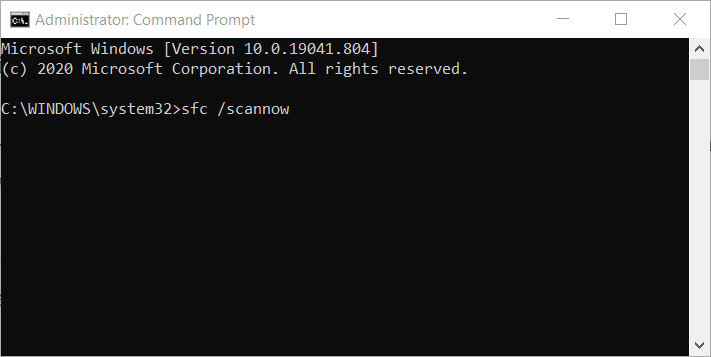
Enter the following line and press Enter:sfc/scannow.
Wait until the process is done (it may take a while).
If the solution is found, it will automatically be applied.
Now, close the Command Prompt and restart your PC.
If Windows 10’s troubleshooter didn’t get the job done, let’s try another one. The SFC scan is a command-line tool that scans the system and searches for potential issues.
So, it can be useful when dealing with the
5. Run DISM
Standard way
Right-click Start and open Command Prompt (Admin).
Paste the following command and press Enter:
DISM /Online /Cleanup-Image /RestoreHealth
Wait until the scan is finished.
Restart your PC and try updating again.
With the Windows installation media
Insert your Windows installation media.
Right-click the Start menu and, from the menu, choose the Command Prompt (Admin).
In the command line, type the following commands and press Enter after each:
Antivirus and firewall are crucial for the safety of your PC, but sometimes third-party antivirus software can cause Blue Screen of Death errors to appear.
Almost any third-party antivirus program or firewall can cause
If removing your antivirus and firewall fixed the problem, then you can reinstall the same antivirus program, or you can switch to different antivirus software.
Bear in mind that just uninstalling the software won’t probably fix the problem, and you’ll have to use a dedicated removal tool to completely remove any files associated with your antivirus program.
In this regard, we recommend CCleaner because it lets you uninstall the application and remove corresponding files from one central UI.
7. Remove the problematic software
Press and hold the Shift key on your keyboard and click the Restart button.
Choose Troubleshoot > Advanced options > Startup Settings and click the Restart button.
When your computer restarts you’ll see a list of options. Select Safe Mode with Networking by pressing 5 or F5.
Sometimes these types of errors can be caused by certain software, and if you want to fix this error, you’ll have to find and remove the problematic software.
If you installed or updated certain software recently, be sure that you remove it in order to fix this error.
To see if
Safe Mode uses only the default drivers and applications, and if the BSoD error is caused by any software, you shouldn’t have any BSoD errors in Safe Mode.
If your computer is stable in Safe Mode you just need to find the application or driver that is causing this error and remove it.
8. Reset Windows 10
Restart your PC a few times during the boot sequence. You can also just hold Shift and click the Restart button.
Choose Troubleshoot > Reset this PC > Remove everything. If you’re asked to insert Windows 10 installation media, be ready to do so.
Choose Only the drive where Windows is installed > Remove everything. Click the Reset button to start the process.
Follow the instructions to complete Windows 10 reset. This process is almost identical to Windows 10 installation, so you won’t have any problems with it.
If the
This procedure is similar to clean install, and it will remove all files from your C partition, so be sure to create a backup before you proceed.
If the problem persists even after Windows 10 reset, it’s most likely that the issue is caused by your hardware.
9. Check your hardware
If the Blue Screen of Death error still appears, it might be due to a faulty hardware. The Most common cause for BSoD errors is faulty RAM, so be sure to check your RAM first.
If you want to perform a thorough scan we suggest that you use MemTest86+ and test each RAM individually.
If your RAM is working well, be sure to check other components such as your graphic card, motherboard, hard drive, network adapter, etc.
I recently wrapped a review of Microsoft’s Surface Pro 7 Plus at the same time I was fortunate enough to have had snagged a couple of JUICED Systems Adapters to help me properly put the device through its paces.
Now that we’re officially in the future of dongles, choosing the right one is becoming as important as the flagship device they’re going to be attached to. Fortunately, there is no shortage of dongles, however, the reliability and quality across the sea of connected peripherals vary from excellent to device ruining.
A couple of weeks ago, I was given three JUICED adapters to try out, 2 of which, were specifically designed for use with a Surface Pro. It’s not often you find Surface Pro-specific hardware being sold that isn’t coming from Microsoft, and it’s even rarer to find something of lasting quality. So, given the chance to try out the Quad HUB – USB-C 4 Port Travel Hub, Surface Pro 6 – Optix Multifunction Adapter, and ZipHub Pro – Surface Pro 7 Adapter, I had to answer the call.
While I don’t currently possess a Surface Pro 6, I was able to test out the other two adapters.
The ZipHUB Pro is the latest adapter that Juiced Systems has designed specifically for the Surface Pro 7. The aluminum casing makes this unit perfect for those business trips or remote work spaces. We added only the essential ports without any compromise to performance. HDMI 4K @ 60 Hz, Gigabit Ethernet (10/100/1000), two USB 3.2 Generation 2 ports, and a USB-C port featuring USB 3.2 Gen 2 10 Gbps. Zip through your tasks with the ZipHUB Pro.
HDMI 4K @ 60 Hz
Gigabit Ethernet (10/100/1000)
2x USB-A 3.2 Gen 2 (10 Gbps)
USB-C 3.2 Gen 2 (10 Gbps)
For $35.00 (sometimes on sale on Amazon), you get a cool-to-the-touch piece of solid aluminum. Unlike other docks, hubs, or dongles I’ve used the ZipHUB Pro doesn’t flex or creak under pressure, doesn’t appear to get warm and its connecting pins continue to feel as rigid as they were on day one.
Thanks in part to its precision-cut dimensions, the ZipHUBvPro feels like more of an extension of the Surface Pro 7 than most other dongles, it snaps in to place alongside the tablet with ease.
With both support for HDMI 4K @ 60Hz and USB-C 3.2 Gen 2 with 10 Gbps, I was able to usher aside my dependency on my Surface Dock and use the much more portable ZipHUB Pro. While the custom design is great for aesthetics, it should be noted its proximity to the adjoining Surface Pro 7 ports, peripherals with short cables may need a second consideration when choosing the ZipHUB Pro.
The other thing of note is its support for 4K @ 60Hz which makes it ideal for most normal workstation setups but for gaming and professional level video editing, users may need to look elsewhere.
Now that I’m back in the office, I was able to test out the hardwire connectivity of the gigabit ethernet connector and while I didn’t run any specific speed tests, the connection was every bit as quick as it was for my dedicated desktop setup.
More importantly, there felt like there was zero lag between the ZipHUB Pro and my Surface Pro 7 Plus when transferring large files like edited audio, videos, batch image files, and CAD projects.
1x (10 Gbps) FULL FEATURE
DATA / POWER DELIVERY / VIDEO SUPPORT
SD Memory
60 mb/s
N/A
In hand, the ZipHUB Pro is about 2/3 the length of a 12.3-inch Surface Pro 7 and Plus tablet, about as wide as the device as well, and weighs a little bit more than Apple TV or Roku Stick. The ZipHUB Pro is pretty slender and pocketable which made it the ideal carry between the home office and work office for me. I used to rely on my Surface dock at home, an additional USB port on the Surface Pro 7 Plus charger, and a dongle to achieve what I can now do with the ZipHUB Pro.
If I were to have any complaints about the ZipHUB Pro, it would be the color options. The ZipHUB Pro comes in only a matte black color, which is an ideal match for a black Surface Pro 7 but I have the magnesium grey and would have preferred a similar color tone. Again, not quite a legitimate complaint of its design or functionality, just a “wish they had” sort of observation.
QuadHUB – USB-C 4 Port Travel Hub
While the title is a bit of a tongue twister, this JUICED four-port hub is anything but complicated. Users get a straightforward four-port dongle connected through USB-C as many other options before it.
At $35.00 the QuadHUB offers the basics in dongle connectivity with two USB-C (10 Gbps) and two USB-A ports all of which, do not support video output. Womp-womp!
Tech Specs
Ports
2 USB-C (10 Gbps) NO VIDEO OUTPUT
2 USB-A (10 Gbps) NO VIDEO OUTPUT
Dimensions
80x40x13mm
Compatibility
Any USB-C Device
Box Contents
QuadHUB
Warranty
1-Year Warranty
The QuadHUB was designed for quick device connections and rapid data transfers. Two USB-C ports and two USB-A 3.2 Generation 2 (10Gbps) ports will keep your efficiency at optimal levels. The QuadHUB serves as a quick USB hub for all of your external peripheral needs. Whether you need to connect multiple external hard drives or just a simple full-size keyboard, the QuadHUB is a fast easy solution. The QuadHUB does not need an external power supply to work and will power itself through the laptop’s bus power. The small form factor makes this the smallest and most powerful travel hubs available.
There isn’t much else to the QuadHUB, but unlike its ZipHUB brethren, this dongle is the most versatile of the bunch thanks to its tried-and-true form factor.
Owners will get a similar cold aluminum touch dongle with a sturdy rubber-covered USB-C stemmed wired.
For a quick fix or portable expansion, the QuadHUB is more than serviceable and can be used on any device with a USB-C port, so I was able to toggle its use between my Surface Pro 7, Lenovo’s X12 detachable, Chromebook, and Surface Go 2 without an issue.
The read and write speeds for the ports are quick at 10Gbps per port and while it doesn’t host a dedicated SD card or HDMI port, double the USB-A’s and USB-C’s connections cover more than 80% of use cases for most people.
The physicality of the QuadHUB is that it is slightly thicker than the ZipHUB Pro but shorter than it as well. The 4-inch rubber-clad USB-C connector is relatively rigid at the moment, and I’ll have to follow up with this measure after prolonged use. The QuadHUB also feels lighter than the ZipHUB Pro despite being a little thicker at its base.
Life-Line USB-C Cable Combo
In addition to the dongles, I also received a JUICED Life-Line USB-C Cable Combo which retails for $40.00 on the company’s website. A set of USB-C to USB-C and USB-C to USB-A set of 10ft-long threaded cables that come in a nifty threaded hard case for travel. The red, green, yellow and mostly black color aesthetic of the cable is a stand-out while the case itself is black and accented with neon green highlights coordinated design, like the Xbox theme.
For buyers who already have their favorite dongles or hubs at home but need charging cables or would like a bit more distance from an outlet, the Life-Line USB-C Cable combo should be another area of interest to visit on the JUICED website.
These were just a handful of peripherals I was able to recently test but based on the build quality, reliability, and craftsmanship, I’ve already ordered a couple of other items to round out my workstation at home and on the go.
Windows 10 version 21H1, the next version of the desktop OS is now available for commercial customers ahead of its public release later this Spring. Just like Windows 10 version 20H2 before it, 21H1 will be a service-pack-like update that will be installed via an “enablement package” that will activate dormant features in Windows 10 version 2004 or 20H2.
New features in Windows 10 version 21H1 include multi-camera support for Windows Hello, as well as performance improvements for Windows Defender Application Guard. The update is already available for Windows Insiders in the Beta channel, but Microsoft will now IT admins install it on commercial devices through all standard channels.
“We not only want to ensure that you have access to the upcoming Windows 10 feature update payload via any channel you may use today, we also want to enable you to validate with confidence. Therefore, customers in the Windows Insider Program for Business can once again receive Microsoft Support for the Windows 10, version 21H1 build available through WSUS, ISO download, Azure Marketplace, and directly from Windows Update in the Release Preview Channels,” the company said today.
Last year, Microsoft released a big Windows 10 update in the Spring followed by a minor update in the Fall, but the company is expected to do the opposite this year with a more substantial update in the second half of 2021. We don’t have any official details about the “21H2” update so far, though previous reports suggested a big design update for Windows 10 codenamed “Sun Valley.” Windows 10X, a new version of the OS designed for Chromebook-like devices is also expected to ship later this year.
If you use a Trend Micro antivirus and you’re still using Windows 10 version 1709 on your computer, you should know that might result in BSoD errors.
More specifically, when attempting to install the Windows 10 Fall Creators Update while running a Trend Micro antivirus tool, the following bluescreen error occurs: PAGE_FAULT_IN_NONPAGED_AREA.
Due to this error, the install process fails and Windows 10 rolls back to the previous version (Windows 10 version 1703).
Click on Check for updates, and let the update process unfold
Since this will be an upgrade between major versions of Windows 10, it may take a while.
Restart your PC
Since this BSoD error mainly occurs with Windows 10 v1709, the most obvious solution is to simply update your OS to a newer version, maybe even the newest if your PC hardware allows it.
2. Tweak Trend Micro’s process exceptions list
Identify if there’s an endpoint that has already applied the Windows 10 Update by checking the OfficeScan web console
Go to Agents > Agent Management
Sort by Platform, and look for Windows 10 10.0.17134
Select endpoints with the Windows 10 update
Apply the following exclusions via Settings > Behavior Monitoring Settings > Exceptions > Add to Approved List. Add the following processes:
If you have both Deep Security Agent (DSA) and OfficeScan (OSCE) agent installed on the same host, it can trigger a BSoD error due to driver conflicts and crashes, so not having both active would be ideal.
3. Remove the Deep Security Anti-Malware function
Press the Windows key to open the Start Menu
Type in registry and open the Registry Editor with administrator rights
Go to the following location: HKEY_LOCAL_MACHINESYSTEMCurrentControlSetservicestmevtmgr
Check out the version of Tmevtmgr.sys.
If the Tmevtmgr.sys version is 5.5 or above, re-install DSA with disabled AM function to avoid the Tmevtmgr.sys file from being replaced again.
Re-install the OSCE client to rollback the Tmevtmgr.sys file to the version used by OSCE AM.
4. Consider using an alternative antivirus tool
While Trend Micro is a great cybersecurity solution, there are plenty of other tools out there that can do the same job, if not more, so don’t be discouraged if Trend Micro is causing BSoDs, since alternatives are plenty.
More so, a lot of the better antivirus tools offer a free trial period of several days, so you can test them out and see whether they too cause any errors and if they do a better job at protecting your PC.
BSoDs are caused by a wide variety of reasons, both software and hardware-related, and this makes it difficult to figure out which component is the culprit.
While this could be something you could easily find out if you knew where to look and how to read the BSoD logs, it can be time-consuming, and there’s always the chance of human error.
That’s why we suggest you go for a third-party automatic system scanner and fixer since these go ahead and handle all of the most common causes of BSoD errors, from bad DLLs, broken registries, software incompatibilities, and more.
By following these steps, you should be able to avoid future BSoD errors caused by using Trend Micro products again.
Let us know which solution worked best for you by leaving your feedback in the comments section below.
Microsoft has long been working to phase out passwords in favor of Windows Hello, a security key, or a pin to help add an extra level of security to both your PC and your online logins.
But in addition to using a pin or Windows Hello on the computer itself, two-factor authentication (2FA) or an app like Microsoft Authenticator is also a good idea. The combination adds an extra layer of security to your accounts when you’re logging in across different devices.
But did you know, Yubico is also part of that passwordless and security journey, too? Yubico was founded in 2007 with the mission to make secure login easy and available for everyone. Their sole invention, the YubiKey, is a piece of hardware (like an actual physical key) used around the world to help secure servers and logins.
Basically, with YubiKey, instead of having a 2FA code texted to your phone (or using an app like Microsoft Authenticator), you can use a physical Yubikey to prove your identity and log into your online accounts across different devices and platforms. It adds a third hardware-based layer of 2FA to your account, where you’ll need to plug a key into your machine or phone (or tap it) then touch it to prove your identity (you can see a list here of services that work with Yubikey. there are many!)
At my curiosity and request, the company was kind enough to send me a few of their YubiKeys for review. Particularly, I got three keys from the YubiKey 5 Series — YubiKey 5Ci, YubiKey 5C Nano, YubiKey YubiKey 5 NFC. I also got a traditional Security Key NFC, too. Here’s a look at each of these keys, and why Yubico has a security key for every one of your login needs.
Pick a Yubikey 5 Series security key that’s right for you!
Before getting into my review, I want to note that Yubico has a lot of security keys for sale on its website. That might seem confusing, but each of the keys is different and catered to different form factors. The company actually has a survey you can take to pick one that’s right for you. All keys are battery-free and draw power from your device to work.
If you’re considering buying one, I highly recommend the survey to begin your YubiKey journey. Most of these YubiKeys support FIDO2, FIDO U2F, Yubico OTP, OATH-TOTP, OATH-HOTP, Smart card (PIV), OpenPGP, and Challenge-Response capability protocols. It’s best to check the product pages, though to see which is compatible with your needs. Keep in mind they are also IP68 rated and dust-tight and water submersible, too.
In terms of the 5-series, though, there are currently six keys you can buy. There is the YubiKey 5 NFC ($45,) the YubiKey 5C NFC ($55,) YubiKey 5CI ($70,) YubiKey 5C ($50,) and the YubiKey 5C Nano ($60.) Note that only the YubiKey 5 NFC and the YubiKey 5C NFC offer NFC communication and wireless, whereas the rest of the keys will require you to physically plug it into your device.
The focus of this review will be on the YubiKey 5Ci, YubiKey 5C Nano, and YubiKey 5 NFC. This post has the mindset of the average consumer in mind, but we’re also planning a separate post later on which explains YubiKey for enterprise and business. We sat down with Yubico’s Chief Solutions Officer, Jerrod Chong to discuss that matter, and will follow up next week with a separate post next week with our discussion.
YubiKey 5Ci security key
Out of the bunch of security keys that Yubico sent my way, my favorite is the YubiKey 5Ci. The reason comes down to the key being multiplatform and mobile-centric (which is what all YubiKeys do one way or another). Also, this security key is the most compact of the bunch and is durable, and portable, too. It comes in black plastic and has a metal-reinforced hole for attaching to a keyring. Anyway, the key slides into my iPhone, as well as my Android phone, and my PC, too (this is the multiplatform aspect I hint to.)
It works across all my mobile and desktop devices, thanks to the lighting port on the bottom and the USB-C end on the top. There’s also a metal notch on the middle, too, which is used to verify you’re touching it. YubiKey 5Ci can do everything YubiKey 5 NFC can do, too, which is one of Yubico’s most popular keys. 5Ci supports the same protocols, sans the NFC support.
It’s important to note, though, that before using any YubiKey, you’ll need to set it up with your service first. I used all of the Yubikeys I am mentioning here with various services that I use every day. YubiKey is compatible with most services that consumers use. I used it with my Google, Twitter, Microsoft, and Instagram accounts.
Of course, you’ll have to run the setup through these services before doing anything. YubiKey suggests you visit their getting started pages for more information on how you can do this. YubiKey even suggests using the Yubico Authenticator app to store and manage your credentials on/from a YubiKey and not on your mobile phone.
In most cases, to get started, you’ll have to plug YubiKey into your device and follow the setup instructions on the screen for your service or app. In the case of Twitter, it involves setting up 2FA via the desktop web version of Twitter and plugging YubiKey into your device. With Instagram, I needed to enable 2FA from the web, plugin my YubiKey into my iPhone, and then scan a QR code via the Yubico Authenticator app.
My accounts then became protected and subsequent logins only required me to plug in the key or enter in a key from the Yubico Authenticator app itself after plugging in and touching the key itself. A great way to stay safe and carry my YubiKey across devices! YubiKey has a nice video that explains the process here.
YubiKey 5C Nano Security Key
While I think the YubiKey 5Ci is all about multiplatform and having a key you can carry everywhere for different devices, there’s also the YubiKey 5C Nano, too. This key is the smallest of Yubikey’s products and is designed to plug into a PC and stay out of the way.
In my initial review period, I tested this key solely with my Microsoft Account and used it to sign into and out of my account on a single-PC. That’s why I’ll dedicate this section to talk about the Microsoft Aspect of YubiKey. Just be aware that currently, a YubiKey cannot be used in conjunction with signing into your computer using a Microsoft Account.
In terms of the hardware, YubiKey 5C Nano works just like all the other security keys, except it’s more compact. It’s TINY and is designed to slide into a USB-C port and stay there. I preferred this for my personal computer, which I usually keep under lock and key and away from everyone else. For logins to my Microsoft Account, I just needed to tap my finger to the 5C Nano whenever I wanted to get in via the web. The video below explains my experience.
For setup, I needed to plug the key into my computer, visit the Microsoft Account sign-in page, visit Security options, and add the key to my account. After that, I was able to authenticate any subsequent logins across different with my YubiKey 5C Nano instead of my password.
Of course, I could still use Microsoft Authenticator if I prefer, too. But it is nice to see that the YubiKey adds an extra layer of security. You can manage Yubikeys from Windows 10 settings itself, too. Simply click Accounts, Sign-in options, and Security Key. You can erase a key, or protect it with a PIN from here. Of course, you can download YubiKey’s dedicated app on Windows, too to get started.
YubiKey 5 NFC security key and more!
To end my review, I have a note on the YubiKey 5 NFC. YubiKey tells me that this product as well as the Security Key NFC (which is not part of the 5-series) is one of their most popular amongst consumers. YubiKey 5 NFC is one of the best sellers, too. Unlike the other UbiKeys which I have mentioned, this one has NFC capabilities, so you can tap it to log in to your accounts, rather than plug it into a USB-A port. It still keeps the key chain form factor, though, and is plenty portable.
I really enjoyed trying out these security keys, and I now strongly believe in protecting my accounts with 2FA and YubiKey. With recent high-profile hacks, you’re just never certain who can gain access to your accounts, or how. Having a YubiKey keeps you safe, and if you’re in a business, your work safe, too. Stay tuned for another look at YubiKey next week, and my interview with Chief Solutions Officer, Jerrod Chong.
It’s been a pretty crazy week for Xbox news so far with new Xbox Game Pass games and FPS Boost support for a couple of Bethesda games, but next week is shaping to be just as exciting. Indeed, Microsoft has just announced an ID@Xbox showcase on Twitch on Friday, March 26 where the company plans to show new trailers and reveal new indie games coming to Xbox and Xbox Game Pass.
“We’re featuring tons of independent titles, including brand new game announcements from developers and publishers such as DrinkBox, Curve Digital, Devolver Digital, Dear Villagers and others,” the company explained. Overall, more than 25 games will get some screen time during the event including S.T.A.L.K.E.R. 2, Second Extinction, The Ascent, The Wild at Heart, Voidtrain, and Exo One.
The event will kick off at 9AM PDT on March 26, and it will be live-streamed on twitch.tv/twitchgaming and twitch.tv/xbox. This is hopefully just the first in a series of digital game showcases Microsoft is planning for 2021. The software giant held a special roundtable last week to discuss its acquisition of Bethesda with some of the company’s execs, but there were no announcements in this event. However, we learned that Bethesda is planning a big game showcase to stick with its tradition of having a press conference during E3.
2021 is shaping to be a pretty exceptional year for Xbox, with Microsoft going all-in on Xbox Game Pass and bringing more third-party games on the service on day one. That will be the case for Square Enix’s Outriders on April 1, and the company will likely announce a few more surprises during its ID@Xbox Twitch showcase next week.
Microsoft has recently announced a new capability that is coming soon to Excel on the web (via Petri). The feature will allow users to track all changes made by their colleagues to the Excel workbook during the past 60 days. The update started rolling out last week and is available in preview for Office Insiders running the Targeted release builds.
“The Show Changes feature enables you to collaborate confidently with others by letting you see exactly what edits were made to your workbooks in the past 60 days. You can see details about who changed what, where, and when, along with the previous value of the cell for quick reversion, if needed,” the company explained.
The ability to spot and review changes comes in handy for people who collaborate remotely on shared workbooks. It enables the document owner to filter bulk edits by choosing an Excel sheet, a specific range, or even an individual cell. The feature is supported on all platforms, including Mac, Windows, iOS, Android, and iPads.
To try out this feature, you will need to open the Excel workbook in the Web app, select the Review tab, and then click the “Show Changes” option. The list of changes will appear on the right side in the Changes pane, and the most recent changes will appear at the top of the screen.
Microsoft has noted that the Excel file must be stored in OneDrive or SharePoint to track these changes, and this functionality is only available to users with editing permissions. The Office Insider team has also acknowledged a couple of known issues as well, and you can find the list on this support page.
The Xbox Series X fridge meme lives on this month thanks to a new partnership between Microsoft and Dwayne “The Rock” Johnson. Indeed, the software giant has designed new Xbox Series X mini-fridges to promote The Rock’s new ZOA energy drinks, and Xbox fans will get the chance to win one of these fridges starting next week on the Microsoft Rewards website.
“Fans have the chance to win their very-own customized ZOA Xbox Package that includes a custom Xbox Series X ZOA mini-fridge fully stocked with ZOA Energy products, a custom ZOA Xbox wireless controller and other fun surprises through Microsoft Rewards beginning next week on March 25,” the company explained today. Be aware that the sweepstakes will only be available for US citizens and will end on June 1, 2021.
You may have already seen some influencers receiving the cool-looking Xbox Series X mini-fridges this week. YouTuber iJustine posted a video of the mini-fridge inside her real Xbox Series X fridge that Microsoft sent to her and other celebrities last fall.
Unfortunately, Microsoft isn’t selling these Xbox Series X fridges to Xbox fans, which is probably a missed opportunity. The company managed to surf pretty well on all the memes that followed the original reveal of the Xbox Series X at the Game Awards 2019, and it’s clear that Series X’s monolith design has already left its mark in the history of video games consoles. Microsoft’s new Xbox consoles may remain very hard to find these days, but there’s probably a lot of fans who would like to spend some money on a collector item like these Xbox Series X fridges.
Blue Screen of Death errors aren’t that common, but they are without a doubt one of the most serious errors that you can encounter on Windows 10.
Since BSoDerrors can create so many problems, today we’re going to show you how to fix KERNEL_MODE_EXCEPTION_NOT_HANDLED_M error.
You can encounter the error code 0x1000008E, which is the same as the above issue. The complete text of the pop-up is:
The KERNEL_MODE_EXCEPTION_NOT_HANDLED_M bug check has a value of 0x1000008E. This indicates that a kernel-mode program generated an exception which the error handler did not catch.
How do I fix KERNEL_MODE_EXCEPTION error?
1. Use a third-party tool for BSoD
There are numerous software tools that you can use in order to detect the cause of a BSoD error and also to find a valid solution for it.
They can repair system files, DLL files, restore virus damage, and more. Also, they can offer a basic report on your hardware and guide you on how you can change your user behavior to make it perform better and maintain it for a longer time.
2. Run the BSoD troubleshooter
Open the Settings app and go to Update & Security section.
Select Troubleshoot from the menu on the left.
Select BSOD from the right pane and click Run the troubleshooter.
Follow the instructions on the screen to complete the troubleshooter.
This tool is designed to deal with various system issues, including the BSOD problems. So, it might be helpful when resolving this error and others similar, as well.
If the Windows troubleshooter doesn’t complete the task or has become unresponsive or inaccessible, use our dedicated guide and fix this problem.
3. Update your Windows and drivers
Installing the latest updates is important for your system’s stability and safety, and you can download all the necessary updates by using Windows Update.
Windows 10, just like any other operating system, has its share of flaws, and sometimes certain hardware or software issues can cause the Blue Screen of Death error to appear.
To fix this and many other problems, it’s highly recommended that you download the latest updates. Many of these updates bring security improvements and various bug fixes.
If the Windows 10 update is not working on your computer, use our comprehensive guide to troubleshoot and solve the issue.
In addition to Windows 10 updates, it’s just as important to download the latest drivers. They are a major component of your OS since they allow your operating system to work with your hardware.
In case your drivers are outdated, or not compatible with Windows 10, you won’t be able to use your hardware and you’ll most likely encounter a Blue Screen of Death error.
To fix this issue it’s important that you update your drivers, and you can do that simply by visiting your hardware manufacturer’s website and downloading the latest drivers for your device.
Bear in mind that usually, one driver is causing this issue, so you’ll need to find it and update it. If you cannot find the problematic driver, you’ll need to update all your drivers in order to fix this issue.
Searching for drivers on your own can be time-consuming. So, we advise you to use a tool that will do this for you automatically. Using an automatic driver updater will always keep your system up to date.
Enter the following line and press Enter:sfc/scannow
Wait until the process is done (it may take a while).
If the solution is found, it will automatically be applied.
Now, close the Command Prompt and restart your computer.
The next troubleshooting tool we can try is the SFC scan. The System File Checker is a command-line tool that scans your system for potential corrupt system files.
So, if a system file is a culprit of the KERNEL_MODE_EXCEPTION_NOT_HANDLED_M error, this tool will likely deal with it.
5. Run the DISM tool
Open the Windows search bar and type cmd.
Select Command Prompt (Admin).
Paste the following command and press Enter:
DISM /Online /Cleanup-Image /RestoreHealth
Wait until the scan is finished.
Restart your computer and try updating again.
The third troubleshooting tool we’re going to use here is DISM. It is another possible solution to resolve the KERNEL_MODE_EXCEPTION_NOT_HANDLED_M error.
Deployment Image Servicing and Management (DISM), as its name says, re-deploys the system image all over again, and resolves potential issues along the way.
However, DISM scan can fail to complete or to run. If this happens, we recommend you take a look at our dedicated guide and learn how to deal with the issue.
6. Check the hard drive
Enter the Advanced Startup (Restart your computer while holding the Shift key).
Choose Troubleshoot > Advanced Options.
Select Command Prompt from the list of options.
When Command Prompt appears, enter the following lines and press Enter after each line in order to run it:
bootrec.exe /rebuildbcd
bootrec.exe /fixmbr
bootrec.exe /fixboot
Some users are also suggesting that you need to run additional chkdsk commands as well.
To perform these commands, you need to know drive letters for all your hard drive partitions. In Command Prompt you should enter the following (but remember to use the letters that match your hard drive partitions on your PC):
chkdsk /r c:
chkdsk /r d:
Restart your computer and check if the issue is resolved.
If you encounter any errors with your HDD and you think of getting a new one, check our dedicated guide with the best hard disk to buy.
Antivirus and firewall tools are important, especially if you want to protect your PC from malicious software. Unfortunately, sometimes antivirus programs can cause BSoDerrors.
To fix this issue, it’s recommended that you temporarily stop, or even remove all your antivirus programs for a short period of time
Bear in mind that Windows 10 comes with Windows Defender that works as a default antivirus, so even if you remove all third-party antivirus solutions, your computer will still be safe.
We have to mention that uninstalling the antivirus software isn’t enough since many of these tools tend to leave certain files even after you uninstall them.
To completely remove all files associated with your antivirus, like the registry or other configuration files, we strongly suggest that you use a dedicated removal tool.
A third-party app and junk file remover will help you to easily get rid of all residual files, called leftovers, that are otherwise, hard to find and remove. CCleaner is a typical example of such a tool.
Once the Device Manager opens, locate the driver you want to uninstall, right-click it and choose Uninstall.
If available, check Delete the driver software for this device and click OK.
After you remove the driver, restart your computer.
Certain software can cause these errors to appear, therefore we suggest that you remove all recently installed apps, using the recommended tool from the above solution.
We have to mention that certain drivers can also cause this error to appear, therefore you might have to uninstall them. To uninstall a certain driver, do the above steps.
When your computer restarts, Windows 10 will automatically install the default driver. If the default driver works well and your PC is stable, you can continue using it, or you can try to update it.
9. Reset Windows 10 and check for faulty hardware
Restart your computer a few times during the boot sequence to start Automatic Repair.
Choose Troubleshoot > Reset this PC > Remove everything.
During this step you might need to insert Windows 10 installation media, so be sure to have one ready.
Now choose Only the drive where Windows is installed > Just remove my files and click the Reset button to start the process.
Follow the instructions to complete the reset.
After you complete the reset, don’t install any new applications, drivers, or updates. Instead, just test your PC for a while, and check if the error appears again.
If the error appears, it’s probably caused by your hardware, therefore we strongly advise that you check if all of your hardware components are working properly.
We have to warn you that this process will delete all files from your C partition, therefore it’s recommended that you back them up.
KERNEL_MODE_EXCEPTION_NOT_HANDLED_M error can be problematic, but we hope that you managed to fix it by using one of our solutions.
If you have any other suggestions for us or if you encounter a different type of BSoD issue, please write us a comment below and we will try to help you out.
Windows 10X, Microsoft’s answer to Chrome OS, may not be ready until later this year according to a new report from Windows Central. Earlier this month, Microsoft’s Chief Product Officer said that “it’s going to be a massive year” for Windows, though the exec didn’t discuss anything related to Windows 10X or the Windows 10 “Sun Valley” Update during the event.
This silence is ahead of the release of “The New Windows” is pretty strange, though Microsoft may have some good reasons to remain secretive. According to Zac Bowden from Windows Central, the software giant may have decided earlier this year to delay the release of the first Windows 10X devices to the second half of 2021, which could give the company and its partners more time to iron out the edges of the new OS.
According to my sources, earlier this year the company decided to push the launch of Windows 10X back a bit more to ensure the product is ready and robust for a smooth release. I believe Microsoft is now aiming to sign-off on a shipping build of Windows 10X in late spring, and hopes to have the first single-screen PCs begin shipping later in the second half of this year.
Previous reports suggested that the first Windows 10X devices targeting the Education and Enterprise markets might ship in the first half of 2021 alongside the release of Windows 10 version 21H1, but that’s apparently no longer in the cards. Microsoft is expected to hold a series of digital events focusing on gaming and Windows this year, but it will be interesting to see if Microsoft’s Build 2021 conference, which expected to be held on March 25-27, could be an opportunity for the company to share more details about Windows 10X.
We went hands-on with a leaked Windows 10X build back in January, and our overall impression was that Microsoft did a job transforming an OS initially designed for dual-screen devices into something quite similar to Google’s Chrome OS, with some unique twists and pretty cool animations. This leaked build was not final and many things may have changed since then, but Microsoft may also use the additional development time to add support for legacy Win32 apps on Windows 10X, which would really help the first devices to be more competitive against Chromebooks.
Shadow Tactics: Blades of the Shogun allows gamers to dive into a world ruled by assassination, sabotage, and espionage. This hardcore tactical stealth game is set in Japan around the Edo period when a new Shogun seizes power over the land.
Players will take control of a team of deadly specialists and sneak in the shadows behind enemy lines. You’ll always need to be one step ahead of your enemies, as you infiltrate mighty castles, set traps, or even poison your opponents.
Just like any game, Shadow Tactics: Blades of the Shogun also brings its own share of issues.
As such, many gamers complained about black screen issues during the first start-up.
Game boots to a black screen, both through steam and running the game as admin directly through the launch application in the game folder. When done through steam, pulling up the steam community UI by hitting Shift + tab will prevent me from exiting the steam community
Just to be sure that we eliminate some possible causes, when installing the game, make sure that your system meets the necessary requirements.
Now, let’s see how this game blocker can be fixed so that you can enjoy smooth gameplay.
Note: The same solutions should be useful if you’re faced with Shadow Tactics: Blades of the Shogun pink screen or even a purple screen.
How do I fix Shadow Tactics black screen issues?
1. Get all the necessary system components
It’s possible that although your system meets the requirements, some components are missing.
In that case, just install the Microsoft Visual C++ Redistributable Package 2010 (x86) from the official Microsoft page. It will download the latest full package, replacing the one that you already have.
Relaunch the game afterward and check if you still get the black screen.
2. Update your drivers
There are good chances that outdated drivers might cause this type of error. If you experience black screen issues with this game, you should thus check your drivers to be up to date.
Instead of updating drivers manually, which can take time, you can use dedicated software to manage your drivers safely, installing the latest version of the needed drivers.
Hence, by choosing the expert driver manager from below you will update every driver or fix damaged drivers in a few simple steps, quickly and without much effort.
This action will solve the DirectX-related problems that may lead to the BSoD issues you’re experiencing.
Just type update in the home screen search bar and open the Check for updates feature. Allow the system to download any missing updates if that is the case.
4. Verify the integrity of the game files
Restart your computer and launch Steam.
From the game’s library page, select Manage > Properties.
Select the Local files tab and click the Verify integrity of game files… button.
Steam will start verifying the game’s files. The process may take several minutes.
5. Tweak some game files
Games say that when deleting the gameState.save file, they were able to bypass the black screen issue.
The file should be located in the savegame folder located, at the following location: C:\Users\your_username\AppData\Local\Daedalic Entertainment GmbH\Shadow Tactics Blades of the Shogun\user\gameState_00
If none of the solutions listed above work for you, use this Steam support thread to provide the game‘s developers with more details about the bug.
On the other hand, if you’ve tried other solutions that worked, please share them with other gamers in the comments section.
Microsoft admits that after installing periodic major system updates a series of devices are faced with functionality issues.
On this note, black screens are one such example of a stop error that users have faced on their laptops upon restarting their system.
With the Windows updates running on millions of devices worldwide, complaints about Asus laptop black screen or Toshiba laptop black screen start to appear.
Microsoft oftentimes confirms the issues, while also mentioning that there might be more laptops impacted. They usually offer a workaround until a final fix.
How do I fix black screen issues on a laptop?
1. Force reboot your device
Microsoft sometimes recommends a forced reboot. It should return the laptop to a working state, but the bug will again come up when trying to wake from sleep at some point.
This problem then reoccurs the next time the lid is closed and re-opened, the giant tech company explains.
In such cases, the problem might be related to the display driver installed on those specific laptops, and users are strongly advised to download and install the latest drivers.
2. Run a black screen troubleshooter
Black screens can be caused by a wide range of factors, so trying to find out exactly what caused them can be somewhat difficult.
That’s where specialized software can come in handy, especially one that goes around and fixes pretty much all software-related issues on your PC, and even troubleshoots some of the hardware as well.
3. Roll back the updates
You might have to log into Safe Mode.
Once on the home screen, type update in the search bar.
Choose View update history.
Go to Uninstall updates.
Choose the one that has caused the black screen issue, right-click and uninstall it.
4. Reset your PC
Start your PC and enter the BIOS
Tweak your setting to allow your PC to boot from either a bootable Windows CD or a bootable removable media
Follow the on-screen instructions to reset your PC
Keep note that you need to be careful what kind of reset you choose during this process, since you may end up wiping out all of the data stored on that device.
These were a few general solutions to fix a black screen stop error after installing a mandatory Windows update.
Should you face a black screen issue randomly, Microsoft also recommends to use the OS bootable media to fix it.
We hope that one of these solutions was helpful in your particular case. If so, let us know in the comments how the experience went.
Blue Screen of Death errors are one of the most serious errors that you can encounter on Windows 10.
These errors can cause instability issues and data loss, therefore today we’re going to show you how to fix MANUALLY_INITIATED_CRASH error.
Since BSoD crashes are so problematic, you need to make sure you get rid of them completely. We’ve comprised a list with the best solutions, so make sure you follow all of them.
1. Update your drivers and install the latest Windows 10 updates
Press the Windows Key + S and type in Settings.
Go to Update and Security.
Select Windows Update.
Then, select Check for updates.
Let windows search and install any necessary updates.
Downloading the latest Windows 10 updates is crucial for system stability and safety. Many of these updates offer security improvements and new features, but there are also various hardware and software bugfixes.
Blue Screen of Death errors are often caused by hardware or software issues, and if you want to keep your system stable and free from errors, we strongly advise you to download the latest patches.
In addition to Windows updates, it’s also important that you download the latest drivers for your hardware. Your hardware cannot work without the proper drivers.
If your drivers are outdated or just not fully compatible with Windows 10, that can cause Blue Screen of Death error such as MANUALLY_INITIATED_CRASH to appear.
To update your drivers, you can simply use Device Manager by following these steps:
Press Windows Key + X and select Device Manager from the list.
When Device Manager opens, select the device you want to update.
Right click it and choose Update Driver Software.
Choose Search automatically for updated driver software and Windows 10 will automatically download and install the best driver for your device.
Repeat these steps for all devices that you want to update.
Update drivers automatically
Although downloading drivers by using Device Manager is simple, we have to mention that Device Manager doesn’t always download the latest drivers.
In fact, it’s usually better that you download the necessary drivers automatically, by using third-party software that will ensure the correct drivers are installed on your computer.
To proceed with this you should install this specialized tool that will run a comprehensive scan on your system and detect outdated drivers.
Afterward, it will request you to choose which drivers need to be updated before starting the process automatically. The process works smoothly and you can rest assured regarding the system protection.
Press Windows Key + X and choose Device Manager from the menu.
When Device Manager opens, locate the driver you wish to uninstall, right-click it and choose Uninstall. Click OK to confirm.
These types of errors can often be caused by your software, therefore it’s important that you find and remove any software that can cause this error.
These errors are most commonly caused by your antivirus, and if you want to fix the MANUALLY_INITIATED_CRASH BSoD error we advise you to temporarily remove all third-party antivirus programs.
It’s important to know that Windows 10 comes with its own antivirus program, so even if you delete all third-party antivirus programs, your computer won’t be without any protection.
We have to mention that certain drivers can cause this error too, and you might have to remove them in order to fix it. According to users, removing keyboard and processor drivers can sometimes fix it as well.
After uninstalling a driver, Windows 10 will install the default one instead. If the default driver works, you can continue using it, or you can update it to the newer version.
3. Perform a Windows 10 reset
Start Automatic Repair by restarting your computer a few times during the boot sequence.
Choose Troubleshoot > Reset this PC > Remove everything.
During this step you might be asked to insert Windows 10 installation media, so be sure to do that.
Choose Only the drive where Windows is installed > Just remove my files. Click the Reset button.
Follow the instructions on the screen to complete Windows 10 reset.
If the MANUALLY_INITIATED_CRASH error is caused by third-party software, you can fix it by performing Windows 10 reset. Before you do that you should know that this process will delete all files from your C partition.
so be sure to back them up. You might also need a bootable USB flash drive with Windows 10 to complete this process, so keep that in mind.
After the reset process is complete, you’ll have a clean installation of Windows 10. If the error appears again, it means that is caused by your hardware.
4. Check if your hardware is working properly
Blue Screen of Death errors are often caused by hardware, and if you’re getting MANUALLY_INITIATED_CRASH BSoD error, we strongly advise you to check your hardware.
Be sure to check your RAM first, and then move to other major components. Several users reported that this issue was caused by a faulty motherboard, so be sure to check and replace your motherboard.
With this occasion, you should clean your PC for dust and clogged fans, because overheating is also a cause of BSoD issues, and you should take every measure to make sure your components are properly ventilated.
5. Run the Hardware Troubleshooter
Open the Settings app and go to Update & Security section.
Select Troubleshoot from the menu on the left.
Select BSOD from the right pane and click Run the troubleshooter.
Follow the instructions on the screen to complete the troubleshooter.
If none of the previous solutions resolved the problem, we’re going to turn to built-in troubleshooting tools.
The first tool we’re going to try is Windows 10’s built-in troubleshooter. You can use this tool to resolve various issues, including the BSOD problems.
6. Run DISM
Right-click Start and open Command Prompt (Admin).
Paste the following command and press Enter: DISM /Online /Cleanup-Image /RestoreHealth
Wait until the scan is finished.
Restart your computer and try updating again.
The next troubleshooter we’re going to try is the Deployment Image Servicing and Management (DISM). As its name says, this tool deploys the system image all over again, so it might resolve the BSOD issue on the way.
The procedure above is the standard one that you should follow simply without any other requirements. If you have Windows Installation Media, you should use another procedure.
In the command line, type the following commands and press Enter after each: dism /online /cleanup-image /scanhealthdism /online /cleanup-image /restorehealth
Now, type the following command and press Enter: DISM /Online /Cleanup-Image /RestoreHealth /source:WIM:X:SourcesInstall.wim:1 /LimitAccess
Make sure to change an X value with the letter of the mounted drive with Windows 10 installation.
After the procedure is finished, restart your computer.
7. Use System Restore
Sometimes the best way to fix BSoD errors is to use System Restore. Using System Restore is easy, and you can do it by following these steps:
Restart your computer a few times during the boot in order to start Automatic Repair.
Choose Troubleshoot > Advanced options > System Restore.
Select your username and enter your password.
Select Choose a different restore point and click Next.
Select restore point that you wish to return to and click Next.
Wait for the restore process to finish.
8. Run the SFC scan
Right-click on the Start Menu button, and open Command Prompt (Admin).
Enter the following line and press Enter:sfc/scannow
Wait until the process is done (it may take a while).
If the solution is found, it will automatically be applied.
Now, close the Command Prompt and restart your computer.
And finally, the last troubleshooting tool we’re going to try is the SFC scan. This tool scans your system for potential issues and resolves them, if possible.
So, if none of the previous solutions resolved the BSOD error, we hope you’ll have more luck with the SFC scan.
MANUALLY_INITIATED_CRASH BSoD error can cause you many problems, but we hope that you managed to fix this error by using one of our solutions.
Make sure you give us any feedback regarding the error in the comment section below.
Blue Screen of Death errors such as ATTEMPTED_WRITE_TO_READONLY_MEMORY can cause you a lot of problems on Windows 10 since they will frequently restart your PC in order to prevent damage.
These errors can cause system instability and data loss, therefore today we’re going to show you how to fix this error.
Press Windows Key + X to open the Power User Menu and select Device Manager.
Once Device Manager opens, locate the device you want to update, right-click it and select Update Driver Software from the menu.
Select Search automatically for updated driver software and wait for Windows 10 to install the appropriate driver for your device.
Repeat the steps for all devices that you want to update.
Blue Screen of Death errors are often caused by outdated or incompatible drivers, therefore it’s important that you update them as often as you can.
Windows 10 relies heavily on drivers in order to recognize and use certain hardware, and if your drivers are corrupted, or simply not compatible with Windows 10, that will cause an ATTEMPTED_WRITE_TO_READONLY_MEMORY or any other BSoD error to appear.
In order to fix this error, it’s highly recommended that you update your drivers. Updating drivers in Windows 10 is fairly simple, and you can do that right from the Device Manager by following the steps above.
Using Device Manager to update your drivers is pretty straightforward, but some users claim that Device Manager doesn’t always download the latest drivers for your device.
To download the latest drivers, it’s always better to visit your hardware manufacturer’s website and download the necessary drivers manually.
Bear in mind that you’ll have to update as many drivers as you can in order to fix this issue.
1.2 Update drivers automatically
Searching for drivers on your own can be time-consuming. So, we advise you to use a tool that will do this for you automatically.
Using an automatic driver updater will certainly save you from the hassle of searching for drivers manually, and it will always keep your system up to date with the latest drivers.
The tool recommended below will help you update drivers automatically and prevent PC damage caused by installing the wrong driver versions.
Outbyte Driver Updater is able to update multiple drivers at the same time. Just let it scan your whole PC and then approve all updates necessary and wait for the process to complete.
It can also automatically update your drivers on a regular basis with no effort on your part. You only have to schedule how often you want the app to scan, update and repair your drivers and you are all set.
Open the Settings app and go to the Update & securitysection.
Select Troubleshoot from the menu on the left.
Select BSoD from the right pane and click Run the troubleshooter.
Follow the instructions on the screen to complete the troubleshooter.
If updating your drivers didn’t get the job done, let’s try Windows 10’s troubleshooting tool.
This is a universal tool that basically deals with all sorts of issues within Windows 10. And it might also be helpful with the BSOD issues.
3. Run the SFC scan
Type cmd in Windows search and click on Run as administrator to start Command Prompt as administrator.
Enter the following line and press Enter:sfc/scannow
Wait until the process is done (it may take a while).
If the solution is found, it will automatically be applied.
Now, close the Command Prompt and restart your computer.
The next troubleshooting tool we’re going to run is the SFC scan. This is a command-line troubleshooter that scans your system for potential issues and resolves them (if the solution is possible, of course).
4. Run DISM
4.1Standard way
Right-click Start and open Command Prompt (Admin).
Paste the following command and press Enter:
DISM /Online /Cleanup-Image /RestoreHealth
Wait until the scan is finished.
Restart your computer and try updating again.
4.2With the Windows installation media
Insert your Windows installation media.
Start Command Prompt as administrator as indicated in the previous solution.
In the command line, type the following commands and press Enter after each:
Make sure to change an X value with the letter of the mounted drive with Windows 10 installation.
After the procedure is finished, restart your computer.
DISM is the third troubleshooter we’re going to try, in case the previous two failed to resolve the problem.
DISM stands for Deployment Image Servicing and Management, and as its name says, it reloads the system image. So, maybe this process will resolve the BSOD issue.
5. Remove problematic applications
Errors such as ATTEMPTED_WRITE_TO_READONLY_MEMORY can be caused by certain applications, therefore it’s necessary that you find and remove them.
Users reported that Gigabyte On/Off software is the common cause for this error, so if you have this software installed, be sure that you remove it.
Another common cause for BSoD errors can be your antivirus software. Users reported that tools such as NoVirusThanks can cause these types of errors, and according to them, the issue was fixed after removing this tool.
We have to mention that almost any antivirus program can cause this error, and if you want to fix this problem, you’ll have to remove all third-party antivirus programs from your PC.
To completely remove an antivirus program, we strongly suggest that you use a dedicated removal tool.
Many antivirus companies have dedicated removal tools available for their software, so be sure to download one for your antivirus program.
If uninstalling the antivirus fixes the issue, you might want to download the latest version of the same antivirus program that you were using before, or you can switch to any another antivirus software.
6. Reset BIOS to default
Few users reported that they managed to fix this error by resetting BIOS to default, and you can do that easily. To see how to access and reset BIOS, be sure to check your motherboard manual for detailed instructions.
Before you reset BIOS, we advise you to check your SATA Controller and see what mode you are currently using.
Controller mode will be set to IDE, AHCI, or RAID, so be sure to set the SATA controller mode to the same value after you reset BIOS.
7. Use System Restore or Windows 10 reset
7.1 Perform a System Restore
Hold the Shift key on your keyboard and click the Restart button. Alternatively, you can restart your computer a few times during the boot sequence to start Automatic Repair.
Select Troubleshoot, selectAdvanced options,and click on System Restore.
Select your username and enter your password if you have one.
Select Choose a different restore point and click Next.
Choose the restore point you wish to return to and click Next. Wait for the process to finish.
If the ATTEMPTED_WRITE_TO_READONLY_MEMORY error is caused by a software problem, you should be able to fix it by performing System Restore.
If System Restore didn’t fix the issue, you’ll have to perform a Windows 10 reset. To complete Windows 10 reset you might need Windows 10 installation media.
You can easily create an installation media by using Media Creation Tool and an empty USB flash drive.
7.2 Perform a Windows 10 reset
Start the Automatic Repair process and choose Troubleshoot, then click onReset this PC, and then on Remove everything. Be prepared to insert Windows 10 installation media if you’re asked to.
Select Only the drive where Windows is installed, selectJust remove my files and click the Reset button.
Follow the instructions to complete the reset process.
We have to warn you that the reset process is similar to a clean install, so make sure that you back up important files from your C partition before you start this procedure.
If the BSoD error appears even after Windows 10 reset, the error is most likely caused by faulty hardware.
8. Check your hardware
ATTEMPTED_WRITE_TO_READONLY_MEMORY error can be caused by your hardware, so we urge you to check if your RAM is working properly.
The easiest way to do that is to test your RAM modules one by one, but you can also use tools such as MemTest86+ to perform a detailed scan of your RAM.
If your RAM is not the problem, you should check all other major hardware components.
The BSoD such as the Windows error ATTEMPTED_WRITE_TO_READONLY_MEMORY can be sometimes hard to fix, but we hope that you managed to fix this error by using one of our solutions.
If you have any other suggestions or solutions, don’t hesitate to leave them in a comment below.
Blue Screen of Death errors can be quite problematic sometimes, therefore it’s important to know how to fix them.
Errors such as STATUS_SYSTEM_PROCESS_TERMINATED can be severe. Therefore, today we’re going to show you how to fix this error on Windows 10.
How do I fix the STATUS SYSTEM PROCESS TERMINATED error?
1. Use a third-party BSoD fixer
The easiest way to solve BSoD errors is to install software that will automatically detect any crucial problems with your system and system files and automatically repair or replace what is necessary.
You won’t have to worry about finding the root of the problem and even worry about fatal errors or crashes overall, as long as you have specialized repair software installed on your PC.
With these tools, you can detect risky screen errors automatically with a thorough scan. Then, it will resolve malfunctioning or missing Windows software files in a few moments.
2. Download the latest Windows 10 updates
Press Windows Key + S and type Settings.
Go to Update & Security.
Then, go to Update, and select Check for updates.
Let Windows run its course and install any updates.
Just like many other operating systems, Windows 10 has some issues with certain hardware and software.
Usually, the software or hardware isn’t fully compatible with Windows 10, and that can sometimes cause STATUS_SYSTEM_PROCESS_TERMINATED errors to appear.
To fix this and many other Blue Screen of Death errors, it’s recommended to use Windows Update to download the latest Windows 10 patches.
Microsoft is releasing new patches frequently, and many of these patches bring improved security along with various bug fixes related to both hardware and software.
If you want your PC to be stable and error-free, we strongly suggest you download the latest Windows updates frequently.
Having antivirus software installed is important for your safety, but sometimes your antivirus can cause STATUS_SYSTEM_PROCESS_TERMINATED and other Blue Screen of Death errors to appear.
To fix this error, you might have to temporarily remove all antivirus programs from your PC. Bear in mind that Windows 10 comes with Windows Defender that works as a default antivirus program.
So, even if you remove all third-party antivirus programs, your PC won’t be completely unprotected.
We have to mention that uninstalling the antivirus program might not fix this error because antivirus programs tend to leave certain files and registry entries once you uninstall them.
Sometimes these files can also cause BSoD errors to appear. To completely remove all files associated with your antivirus software, we strongly advise downloading a dedicated removal tool.
Many antivirus companies have these tools available for download, so be sure to download one for your antivirus program.
4. Update your drivers
In order for your hardware to work with your operating system, you have to have the proper drivers installed. If your drivers are outdated or if they contain specific bugs, you won’t be able to use them.
And you might get STATUS_SYSTEM_PROCESS_TERMINATED or any other Blue Screen of Death error. To fix this problem, it’s recommended that you find and update the problematic driver.
If you cannot find the problematic driver, we advise that you update drivers for all major components, such as your motherboard, chipset, network adapter, etc. This also helps with Error 1067: The process terminated unexpectedly.
Be sure to update as many drivers as you can to fix this problem. Updating your drivers is fairly simple, and you can do it by visiting your hardware manufacturer’s website and downloading the latest drivers.
Update drivers automatically
As we previously mentioned, you might have to update all drivers on your PC in order to fix this error. Updating all your drivers can sometimes take a while, especially because you need to find and download them one by one.
If you need to update them quickly and you want to make sure the proper version of the driver is installed on your computer, we suggest using a third-party tool that will do that for you.
5. Enter Safe Mode and remove the problematic applications
Restart your computer few times during the boot sequence to start Automatic Repair.
Alternatively, you can just hold the Shift key on your keyboard and click the Restart button.
Choose Troubleshoot > Advanced options > Startup Settings and click the Restart button.
When your computer restarts, you’ll see a list of options.
Press 5 or F5 to select Safe Mode with Networking.
Sometimes BSoD errors are caused by third-party applications, and the only solution is to find and remove the problematic application.
To determine if software is causing STATUS_SYSTEM_PROCESS_TERMINATED error to appear it’s advised that you enter Safe Mode.
Safe Mode starts with only default applications and drivers, therefore, if the problem is caused by third-party software or drivers, you shouldn’t have any problems in Safe Mode.
If your PC is stable in Safe Mode, you can now use it to find and remove the problematic software.
6. Reset Windows 10
Restart your computer a few times during the boot sequence to start Automatic Repair.
Select Troubleshoot > Reset this PC > Remove everything.
To complete this step you might need to insert Windows 10 installation media, so be prepared to do that.
Choose Only the drive where Windows is installed > Just remove my files and click the Reset button.
Follow the instructions to complete the reset.
Once you complete Windows 10 reset, don’t install any software or drivers. Instead, test your PC for a while. If the BSoD error appears again, it means that it’s being caused by your hardware.
Sometimes you just can’t find the application that is causing this error, so it’s recommended that you perform Windows 10 reset.
To complete this process you might need a bootable USB flash drive with Windows 10, but it’s also recommended that you create a backup since this process will delete all files from your C drive.
7. Find and replace the faulty hardware
Sometimes STATUS_SYSTEM_PROCESS_TERMINATED errors can be caused by recently installed hardware, especially if that hardware isn’t fully compatible with your PC.
If you installed any new hardware, be sure to remove it or replace it and check if that fixes the problem. If the error still persists, we suggest that you perform a detailed hardware inspection and replace the faulty hardware.
8. Check your hard drive for errors
On your keyboard, press Windows Key + S.
In the search box, type cmd, then run Command Prompt (Admin).
In the command prompt window enter the following command: chkdsk /f X:chkdsk /r X:
X is the letter of the driver to scan.
Change it for your needed driver.
You can also use another simple manipulation from your PC to check your hard drive for errors.
STATUS_SYSTEM_PROCESS_TERMINATED error can be problematic, but users reported that they fixed it by updating Windows 10 or by performing a Windows 10 reset.
If these solutions don’t work for you, feel free to try any other solution from this article.
Ninja Gaiden: Master Collection is a new bundle of classic Ninja Gaiden video games set for release on Microsoft’s Xbox One and Xbox Series X consoles on June 10th.
This new collection includes Ninja Gaiden: Sigma, Ninja Gaiden: Sigma 2, and Ninja Gaiden 3: Razor’s Edge plus all of their costume-related downloadable content (DLC).
Ninja Gaiden: Sigma originally came out on PlayStation 3 back in 2007 as a kind of remaster of the Xbox title, Ninja Gaiden, that debuted on the original Xbox console in 2004. This Sigma release boasted improved visuals and some additional game modes and in-game content.
Similarly, Ninja Gaiden: Sigma 2 came out in 2009 on PlayStation 3 and was an enhanced version of the Xbox 360’s Ninja Gaiden 2 that came out in 2004.
Ninja Gaiden 3 launched on both the Xbox 360 and PlayStation 3 in 2012. Interestingly, it was then enhanced for a re-release on the Nintendo Wii U that same year which was called Ninja Gaiden 3: Razor’s Edge. Ninja Gaiden 3: Razor’s Edge in turn was then released on the Xbox 360 and PlayStation 3 the following year.
It’s a little confusing but essentially Ninja Gaiden: Master Collection includes two enhanced versions of Xbox games that haven’t been available on Xbox consoles until now and an Xbox 360 game re-released for the Xbox One and Xbox Series X. Most of the content appears to be in tact though the Microsoft Store listing does mention that online support has not been added for several online modes in the second and third game.
In good news, the listing does mention that Ninja Gaiden: Master Collection will support 60 FPS+ which means that gamers should expect some very fluid gameplay this time around.
In any organization, financial data and reports are very important and sometimes even critical. Many reports and analyses done in the Finance Department are used by managers in making key decisions.
Closing month-end, performing ad hoc analysis, reconciling, and other reports are increasingly difficult tasks. If you are a manager or work in Finance, you probably know that by now.
The best news is that there are tools that can make your life easier, GL Wand is a perfect help.
What is GL Wand, and how does it help you?
1. GL Wand: Intro
GL Wand is an add-in to Microsoft Excel that allows you to have real-time financial reporting and analysis. It has been designed to work with your ERP security settings with no middleware needed, so it is very easy to set up.
It features an easy-to-use Excel interface, providing self-service tools. You can create highly customized reports with complex requirements. You can then schedule mass distribution of reports in multiple formats via email or shared drive.
This amazing tool can be used for all modules of your company. Access data covers the most common information requests from Finance, HR, Projects, and other modules.
2. Integration with Oracle E-Business Suite
Gl Wand has integrations will Oracle E-Business Suite. On installation, the add-in will automatically detect your Oracle E-Business Suite. Moreover, you can use HTTP, so it will connect to the Oracle Application Server.
It is an alternative to Oracle Standard or Custom Reports, OBIEE, Discoverer, Web ADI, and others for operational reporting.
It works perfectly with SAP. You can run a report from any SAP module, including MM, SD, AP, AR, and AA. Furthermore, in the GL Wand tab, you can run CDS Views.
Nonetheless, you can use this great tool as a complementary solution for BOBJ, BW, and other reporting software.
4. Budget, Planning, and Journal Wand
Other great Excel-based solutions that can be used combined with GL Wand are Budget, Planning, and Journal Wand.
You can use Budget Wand to import budget values or journals through the Oracle budget-loading interface. It effectively replaces Web ADI and allows for faster creation and uploading of budgets.
Use Planning Wand to enable the validation and upload of budget planning and forecasting data from Excel to SAP. This amazing feature will reduce manual work and time-consuming tasks for maintaining planning models. You will quickly update plans and produce new forecasts, critical tasks in today’s economic environment.
Besides these two ideal Excel-based solutions for your company, you can also have Journal.
Journal Wand allows you to batch-upload journal entries with multiple attachments into Oracle. In addition, you can quickly create custom templates, populate them with journal data, validate, and upload the journals into Oracle.
GL Wand: Verdict
With GL Wand, obtaining, analyzing, sharing, and presenting essential information when and how you need it is easy. Because of these great features, this Excel add-in is a reliable solution for any company, helping your Financial department work more efficiently.
Blue Screen Of Death has been torturing users for ages. This issue is one of the most annoying ones in the history of Windows, and various factors can cause it.
But this time, we hopefully have a solution for the CRITICAL_STRUCTURE_CORRUPTION error.
There are a couple of things that could cause the CRITICAL_STRUCTURE_CORRUPTION error.
Users have complained about this issue in the Microsoft forum:
I have encountered the blue screen error on my Windows laptop whilst surfing and shopping online. Please help.
We have researched this issue and prepared a few solutions for it. Read the next section and learn what you should do to fix the critical_structure_corruption error in Windows 10.
How can I fix the critical_structure_corruption in Windows 10 error?
1. Use third-party software
The critical_structure_corruption in Windows 10 error can be dealt with when you use a dedicated solution. For this reason, we recommend considering third-party software.
It is a complete system solution that not only will prevent this error in Windows 10, but it will optimize your PC. After you download and install it, this software removes any detected malware files.
Thus, you can use this repair tool and run a deep scan to detect system fatal errors and fix them accordingly.
2. Download Hardware Acceleration Manager
One of the reasons CRITICAL_STRUCTURE_CORRUPTION appears is when the kernel of your system finds a critical error in itself or associated data.
This usually happens when you want to run an emulator of some other system on your Windows 8/8.1 (Android emulator, for example).
To solve this problem try downloading Hardware Acceleration Manager from your chipset manufacturer’s site.
This critical error could also appear due to some corruption in your external hardware. To find out what external hardware causes you problems, disconnect all external devices except mouse and keyboard.
When you find out what piece of hardware gives you headaches, try updating its driver or consider replacing it with the new one, if there’s no other solution.
Also, check if drivers of your other external hardware are up to date, just in case to prevent this problem from happening again.
4. Check for the presence of faulty software
A user of the Microsoft forum reported he used a program called MacDrive installed on his computer. He noticed that the program caused the above-mentioned error.
You also should check if there’s any software on your computer that may cause a CRITICAL_STRUCTURE_CORRUPTION error.
We have gathered for you the main solutions to a couple of problems that cause Blue Screen Of Death.
If you have some additional questions, comments or suggestions, please reach out for the comments section, we would love to hear your thoughts.
When you are an active person that enjoys learning and improving, then lectures, interviews and meetings should be your best choices. You can make an inspired choice in this regard after finding out about the best voice activated recorder.
To extract the main ideas from these activities, you need a reliable device, and in this guide we’re going to help you pick one for your needs.
Zoom H5 Portable Recorder is the perfect device, enhancing your abilities in creating audio of a professional quality. This recorder device contains a detachable stereo X/Y microphone.
The Zoom H5 also utilizes a system composed of interchangeable input capsules. This allows you to always choose the best microphone for every situation.
Choosing this high-quality product means finding the perfect recorder for live concerts, rehearsal recording and AV settings.
Moreso, you can also use the Zoom H5 4-Track Portable Recorder for broadcasting, podcasting and news gathering.
Sony ICDUX560BLK is a thin and light digital voice recorder that allows you to capture all your meetings, radio broadcasts and lectures. Using settings optimized for every situation, the result is clear and high-quality audio files.
Use Sony ICDUX560BLK’s new user interface let’s you search with ease for your recordings and music files to play. You can also monitor the recording levels at the same time.
Be always ready for recording: Sony ICDUX560BLK has a storage capacity of up to 4 GB, expandable using MicroSD cards.
It supports both SDHC and SDXC card formats and uses fast-charge technology via its built-in USB port.
Zoom H1n was designed especially for journalists, podcasters, musicians and other professionals. This recorder has a compact and portable design and it will provide you with high-quality features.
You will be amazed by this portable device’s capability to record WAV and MP3 up to 24-bit/96 kHz. Its stereo X/Y microphone configuration allows you to capture stereo recordings with astounding accuracy and realism.
You can record to microSD and microSDHC type memory cards with a capacity of up to 32 GB. Also, Zoom H1n contains a high-quality built-in speaker that allows you to listen right away to your recordings.
Other notable features include intuitive menu with 1-button recording, playback functions with physical controls, input and volume levels, and more.
Use Sony ICS-PX370 to easily record lectures and meetings, and create high-quality audio files with ease. Enjoy its long battery file of up to 57 hours and use its built-in USB port for a fast and easy file transfer.
Thanks to the MP3 file support, files will occupy less storage space, making this device excellent to use for recording a long lecture or a meeting.
Expand Sony ICD-PX370’s has 4GB of internal storage, but there’s microSD card slot for expansion.
Optimize your audio settings with the Scene Select feature, allowing you to choose from four presets: music, interview, dictation or meeting.
Use EVISTR Digital Voice Recorder to create clear voice recordings, reminders or to take notes. This device has a good quality built-in speaker that will easily play crystal clear sound.
With its user-friendly design, EVISTR Digital Voice Recorder supports the following audio file formats: MP3, FLAC, WAV, WMA, OGG, and APE.
EVISTR has created a small and lightweight voice recorder for your needs, weighing only 63 grams. It is so small and compact, you can hold it in the palm of your hand.
These are the best voice activated recorders you could buy this year. We have chosen them because of their good rating and variety of features.
Read this small guide, check them out and let us know your opinion about them in the comments section.
Microsoft recently released a new cumulative update for Windows 10 21H1 preview; it contains several bug fixes, among them a few ones that address high CPU usage.
This new cumulative update, KB5000842, makes for the bigger update that Microsoft has launched for those who are part of their Insider program.
Notable improvements in this new build that any Windows user can benefit from are being brought to the performance of File Explorer processes.
Namely, the developers have addressed issues where the Explorer search froze or where the program used too much memory.
Toward a more reliable File Explorer experience
Being an important component of the Windows 10 OS, File Explorer has been constantly improved via the latest Windows updates. The newest addition is a faster search bar.
However, Explorer has also been underperforming for many users, and with this update, Microsoft seems to have fixed several issues:
We fixed an issue with a heap leak that might cause explorer.exe to consume high amounts of memory.
We fixed an issue that might cause File Explorer and other applications to stop responding for several minutes. This issue occurs after a client reconnects to the corporate network and attempts to use mapped drives to access file shares on the corporate network.
We fixed an issue that causes multiple instances of explorer.exe to run on a system when AppLocker is enabled and the system is not on the internet.
The update also fixes an issue where the Explorer column header gets stuck with a Computing Filters message appears or the program simply freezes when you click on filters.
In case you’re still experiencing problems with File Explorer, checking for malware or removing temporary files are a few useful basic steps to troubleshoot the situation.
The cumulative updates notes also mention the recent BSoD printer fix that was caused by the latest Patch Tuesday files.
The full release note are available in the Insider Program resources so if you’ve experienced trouble with your OS lately, be sure to check them out.
Windows BSoD ( Blue Screen of Deaths) errors can occur due to multiple reasons and often shows different error messages.
Intelppm.sys error is one of Windows 10’s driver system files (for Intel architecture). There are a few BSoD error messages that can include intelppm.sys.
How is this error displayed and how does it impact the PC?
The PAGE FAULT IN NONPAGED AREA STOP 0×00000050 intelppm.sys error is just one example of the numerous related errors messages.
The error sometimes also reads kmode_exception_not_handled intelppm.sys. This is how some affected users were affected by the error:
I am frequently getting BSOD errors with error code that intelppm.sys has stopped working. Alternate black and white boxes like a chess board appear on my screen then my computer freezes and BSOD is displayed. It happens 3-4 times a week.
Fortunately, there are a few ways to solve the PAGE FAULT IN NONPAGED AREA STOP 0×00000050 intelppm.sys error, which is why we recommend you carefully read our guide below.
How do I fix the intelppm.sys BSOD error in Windows 10?
1. Edit the Registry
Press the Windows key + R.
Enter regedit in the Open box, and clickOK to open the Registry Editor.
Then open this registry path: HKEY_LOCAL_MACHINE\SYSTEM\CurrentControlSet\Services\Processor
Double-click Start DWORD to open the Edit DWORDwindow.
Enter 4 in the Value data box, and click OK.
Next, browse to this path in the Registry Editor: HKEY_LOCAL_MACHINE\SYSTEM\CurrentControlSet\Services\Intelppm
Select the Intelppm subkey, and double-click the Start DWORD.
Delete the current value in the Value data box, and then enter 4 as the replacement value.
Click the OK button.
Thereafter, restart Windows.
2. Run a BSoD troubleshooter
To fix BSoD errors, we recommend repairing your operating system and restoring it to a previous state of health with the help of dedicated advanced software.
Relying on this kind of tool, you can repair damaged files that are sometimes responsible for BSoD errors, as well as remove any other errors from your PC.
3. Uninstall the problematic driver
Press the Windows Key + X to open the menu, and select Device Manager from the list.
When Device Manager opens, locate the problematic driver, right-click it and choose Uninstall device from the menu.
A confirmation dialog will now appear. Click on Uninstall to remove the driver.
Optional: You can click on the Scan for hardware changes icon or restart your PC, and Windows will install the default driver.
Sometimes the PAGE FAULT IN NONPAGED AREA STOP 0×00000050 intelppm.sys error can appear due to problematic drivers, and in order to fix it, you need to find and remove the problematic driver.
Keep in mind that almost any driver can cause this problem to occur, so you’ll need to do a bit of research before you find the problematic driver.
4. Run System Restore
Open the Run accessory.
To open System Restore, enter rstrui in Run, and click OK.
Select Choose a differentrestore point if the System Restore window includes that option, and press the Next button.
Click the Show more restore points checkbox.
Choose a restore point.
Press the Scan for affected programs button to check what software gets removed for a restore point.
Click the Next button, and select theFinish option.
5. Run System File Checker
Press the Windows key and type cmd.
Click on Run as Administrator for Command Prompt.
In the Command Prompt, enter the following command and hit Enter: sfc /scannow
Wait for the system file checker tool to scan, and validate the system files.
The tool will fix missing or corrupted files in the system if required.
Once the scan is 100% complete, reboot the computer and check if the error is resolved.
The SFC scan is a command-line tool that will scan your system for potential errors and resolve them on the way. So, it can also fix the PAGE FAULT IN NONPAGED AREA STOP 0×00000050 intelppm.sys error.
Open Windows 10’s Search box by pressing the Windows key + S.
Input the keyword reset in the search box, and select Reset this PC to open Settings as shown directly below.
Click Get started to open the window in the shot directly below.
Select the Keep my files option.
Press the Next button, and select the Finish option to confirm.
Useful tips for users
The Blue Screen of Death errors are critical errors that the operating system was unable to repair automatically, and there are many reasons why BSOD errors occur.
Among other reasons, these may occur due to outdated operating systems, so be sure to always keep your OS updated to the latest version.
Another common cause for Blue Screen of Death on Windows 10 is your drivers. That’s why you can use a reliable tool to take care of drivers in the background, without you even knowing about it.
Malware can damage certain registers of your PC, and this leads directly to BSoD errors. Fortunately, there are plenty of powerful antivirus programs that destroy and keep viruses off your PC.
By following the above solutions, you should be able to use your PC again normally, and no longer have to deal with errors like the PAGE FAULT IN NONPAGED AREA STOP 0×00000050 intelppm.sys error.
We would like to know which of these solutions is the most efficient, so it would help if you let us know which ones you used by leaving us a message in the comments section below.
Microsoft has just released the Windows Insider build 21337 for Dev Channel Insiders and it’s a pretty big one. There’s a new Auto HDR feature for PC games, several improvements to Windows Virtual Desktops, and even a new layout for File Explorer.
Let’s start with Auto HDR for PC, which will bring enable HDR visuals on over 1,000 DirectX 11 and DirectX 12 games. Auto HDR was introduced on Microsoft’s new Xbox Series X and Series S consoles, and it’s a feature that uses an algorithm to apply an HDR treatment to SDR images. The results can be quite impressive, and it’s nice to see this technology makes its way to Windows 10.
“While some game studios develop for HDR gaming PCs by mastering their game natively for HDR, Auto HDR for PC will take DirectX 11 or DirectX 12 SDR-only games and intelligently expand the color/brightness range up to HDR. It’s a seamless platform feature that will give you an amazing new gaming experience that takes full advantage of your HDR monitor’s capabilities,” the DirectX team explained in a separate post.
if your PC monitor is already configured to use HDR, Auto HDR will be enabled by default, but you can turn it off in the Windows HD Color Settings page. It’s also possible to enable a split-screen mode showing both the SDR and HDR images side by side using an admin command prompt, and we invite you to check the DirectX developer blog post for more details.
If you use Virtual Desktops for multitasking on your PC, the build 21337 will allow you to reorder and customize the backgrounds for each of them. In Task View (Win + Tab), you can reorder Virtual Desktop by using drag and drop with your mouse, doing a right-click on a Virtual Desktop thumbnail, or using ALT + Shift + Left / Right Arrow on your keyboard to move them around.
The Windows 10 File Explorer is also getting a new layout in this build with additional padding between elements. “The level of padding is designed for better consistency with modern (XAML) experiences. This should also make it easier to work with File Explorer when using a touch screen,” the Windows Insider team explained.
This is a minor change overall, but the classic layout can be restored by clicking on “Use Compact mode” in the View Options Menu. The team said that the UX for switching between the new and classic layouts isn’t final, so make sure to share your feedback about these changes in the Feedback Hub.
Other minor updates in the build 21337 include the rollout of the addition of Power Automate Desktop and Windows Terminal as inbox apps that will ship with the OS. The Notepad app will also be updated via the Microsoft Store going forward, and it has also been removed from the Windows Accessories folder to have its own place in the Start Menu. There’s even a new icon inspired by Microsoft’s Fluent Design language.
You can find below a list of other changes, fixes, and known issues in the build 21337 for Dev Channel Insiders:
Changes and Improvements
We are now rolling out the new IME candidate window design to all Windows Insiders in the Dev Channel using Japanese, Chinese Traditional, and Indic IMEs. We’ll let you know once the rollout for the remaining IMEs increases.
We’re updating the emoji panel (WIN + Period) to support searching in more languages, including Amharic, Belarus, Cherokee, Filipino, Faroese, Icelandic, Khmer, Mongolian (Cyrillic script), Burmese, Sindhi, Serbian (Cyrillic script), Serbian (Latin script), Swahili, Thai, Turkmen, Tonga, Uzbek (Latin script), and Cantonese (Traditional). Please continue sharing feedback about the emoji search results in the Feedback Hub under Input and Language > Emoji Panel.
Live previews for websites pinned to the taskbar from Microsoft Edge are now rolling out for all Insiders.
Fixes
We fixed a DWM memory leak impacting Insiders in recent flights.
We fixed an issue resulting in errors for some Insiders when trying to launch Settings via URI, including when using the Display Settings and Personalization options when right clicking the desktop.
We fixed an issue where if you click on the Advanced Options page under Settings > Update & Security > Windows Update would crash Settings in the previous flight.
We fixed a set of issues causing crashes in many x64 apps on ARM64, particularly in scenarios involving video or DRM content. Examples of x64 apps no longer crashing include Microsoft Translator, BlueJeans, The CW, Alexa, Astroneer, and Epic Games Launcher.
We fixed an issue that could result in the Windows Security icon in the taskbar saying an action was needed, but the app had no actions to take.
We fixed an issue that could result in the Windows Security icon in the taskbar being unresponsive.
We fixed an issue in recent flights that could result in some games freezing after locking and unlocking your PC while the game was in full screen mode. This issue may also have resulted in freezes after ALT + Tab.
We fixed an issue in recent flights resulting in flickering when hovering over icons and buttons in certain apps.
We fixed an issue in recent flights for some Insiders with domain joined devices where their credentials for apps and websites would unexpectedly be lost on upgrade.
We fixed an issue resulting in some Insiders noticing that System File Checker (SFC) tool would erroneously saying it found corrupt files the first time it was run after each upgrade.
We fixed an issue causing certain UPS to show up in Device Manager with error code 43.
We fixed an issue that could result in werfault.exe crashes.
We fixed an issue in recent builds resulting in some insiders not being able to resume their devices from sleep or experiencing a bug check with the error IRQL_NOT_LESS_OR_EQUAL.
We fixed an issue resulting in some Insiders unexpectedly seeing a Bitlocker recovery screen after upgrading to recent Dev Channel builds.
We fixed a ctfmon.exe crash impacting the reliability of voice typing (WIN + H).
We fixed a ctfmon.exe crash that could occur if you switched to a Microsoft IME while in a 3rd party IME reconversion session.
We fixed an issue in recent builds that could result in Search not opening after clicking the search box in the taskbar.
Known issues
We’re looking into reports of the update process hanging for extended periods of time when attempting to install a new build.
We’re working on enabling the new taskbar experience for existing pinned sites. In the meantime, you can unpin the site from the taskbar, remove it from the edge://apps page, and then re-pin the site.
[News and interests] We’re addressing an issue where news and interests may not be available when signing into Windows without internet access but returns when online.
[News and interests] Sometimes the news and interests flyout cannot be dismissed with pen.
[ARM64] Insiders who installed the preview version of the Qualcomm Adreno graphics driver on the Surface Pro X may experience reduced brightness of the display. This issue is fixed with an updated version of the preview graphics driver at https://aka.ms/x64previewdriverprox. If you are experiencing this issue, please see the feedback collection for more information.
We’re working on a fix for an issue where some devices with Realtek network adapters running driver version 1.0.0.4 may experience intermittent loss of network connectivity.
We are working on the fix for an issue where on some high-refresh-rate monitors, games will only run at 60Hz. Variable-refresh-rate monitor scenarios may also result in tearing.
The network flyout on the login screen doesn’t open on this build, which will prevent you from connecting to a new network before logging in. If your account is in a state that requires internet to log in, you can work around the issue by plugging in Ethernet, getting the device in range of a previously configured Wi-Fi network, or logging in with any other available account first.
We are working on the fix for an issue Insiders reported in the previous flight where devices with certain NVMe drives may experience disk resets or WHEA_UNCORRECTABLE_ERROR bugchecks. If you were impacted by this on Build 21332, you may want to pause updates.
We’re investigating reports of an issue with some devices receiving DPC_WATCHDOG_ERROR bugchecks. If you were impacted by this on Build 21332, you may want to pause updates.
Following several builds focusing on bug fixes and UI changes for news and interests in the taskbar, it’s nice to get a new flight with several new features to play with. Auto HDR coming to PC games is probably the biggest news today, and it’s definitely interesting to see some synergies between the Xbox and PC universes. HDR monitors are still pretty rare in the PC world, but a feature like Auto HDR could really help to change that in the coming years.
It’s been quite some time since we last heard of Age of Empires IV, but we’re about to get some news on April 10 during the just-announced Age of Empires: Fan Preview event. After Microsoft unveiled the first trailer at its X019 event back in November 2019, the Age of Empires team has teased “a new look at gameplay, civilizations, campaigns, and more for you to enjoy” at the upcoming event.
The Age of Empire Community has remained pretty active in recent years thanks to the release of the Definitive Editions of Age of Empires, Age of Empires II, and Age of Empires III. We reviewed the latter last year and really liked the various efforts to enhance an old classic, but as the RTS franchise is celebrating its 20 anniversary this year, fans are definitely hungry for more Age of Empires IV news.
Back in December, Shannon Loftis, Studio Head of World’s Edge, said that the teams working on Age of Empires IV were making “great progress” and playing the game every day. She added:
RTS development is funny: it takes a while to build the separate systems (AI, economy, sim, rendering, etc), and then it takes a while for them to come together. But when they do, you suddenly have a game—a game that needs debugging and balance and polish— but the core of the game that you know you’re going to ship. And the best part is that it feels like an Age of Empires game.
We’re looking forward to seeing more of Age of Empires IV next month, but this Age of Empires: Fan Preview event will bring some news for Age of Empires II: DE and Age of Empires III: DE as well. The event will kick off at 9AM PT on April 10, and it will be live-streamed on the Xbox channels on YouTube and Twitch.
Microsoft Forms has released a new update that adds an option for designers to shorten the URL of their survey for collecting responses. The feature is beginning to roll out to all enterprise users starting this week, and it will be available soon to worldwide customers.
Microsoft Forms allows users to create a survey or quiz and share it with their colleagues or students to get instant feedback. Thanks to this update, form designers can now choose to generate a short and simple URL that is more memorable than a long and complicated link. The feature was spotted by Michel Mendes, a Microsoft 365 consultant, who shared a screenshot of the Shorten URL option on Twitter yesterday.
To get started, open the form, and click the Share button. Now, in the Share pane, choose from whom you want to collect responses, and then select the “Shorten URL” option. Finally, click the “Copy” button to copy the link and share it with respondents.
Keep in mind that this option is currently unavailable for GCC, GCC High, and DoD customers, and it doesn’t work with personal Microsoft accounts. The team will be listening to feedback on the UserVoice forum to improve the experience for Microsoft Forms users. You can learn more about how to create a survey and collect responses on this support page.
Microsoft has started testing a new feature that will allow gamers to suspend an Xbox game that’s currently running so that games downloading in the background will do so at full speed. This should be a good alternative to closing any running games to increase download speeds, as suspended games will remain resumable on Xbox One or Xbox Series X|S consoles.
Hey Xbox Insiders! Did you notice these changes rolling out now? Suspend in the queue will let you download at full speed while making sure your game remains resumable (or quick resume-able on Series X|S). New banners in the Full Library will take you to more useful categories! pic.twitter.com/L49winRpM0
As of today, the Xbox OS automatically throttles background download when a game is running to provide the best gaming experience. To remove download constraints, gamers need to either wait for the console to suspend running games, or to close games manually by pressing the Menu button and selecting Quit. Again, you don’t really want to do that if you want your game to be resumable, especially if you have an Xbox Series X|S console that can suspend several games in a “Quick Resume” State.
This new “Suspend My Game” feature is currently being tested with Xbox Insiders, and it’s accessible in My & Games and apps with a new button above the download queue. We don’t know yet when the feature will roll out to the public, but it should be another nice quality of life improvement following the recent addition of Auto HDR and FPS Boost toggles for back compat games in the Xbox March 2021 Update.
Suspending games in the queue isn’t the only new feature currently being tested with Xbox Insiders, as Microsoft also introduced a new game recommendation feature for Xbox Game Pass subscribers. If you’re an Xbox Insider, you should now see a new “Because you played” category in the Xbox Game Pass app alongside other categories highlighting new games to discover in the ever-growing catalog.
One of the most common issues upon the release of the latest NVIDIA GPU drivers is the recurrence of the Blue Screen of Death error on Windows 10.
Most users claim that once they installed the new patches for the Nvidia drivers they get the BSoD right after they restart their computer.
The latest update from NVIDIA is also aimed at the gaming community, and it’s meant to provide the best experience regarding a variety of games including the ones developed on VR technology.
This Game Ready driver includes the latest GameWorks VR tweaks, errors, bug fixes, and optimizations to ensure your gaming sessions go smoothly.
What can I do if the NVIDIA driver update failed?
1. Roll back drivers in Safe Mode
1.1. Roll back drivers manually
Press Windows + R hotkeys at the same time to open the Run dialogue box
Type devmgmt.msc and click OK, this will open Device Manager.
In the Device Manager menu click Display adapters and right-click Nvidia graphics card device, select Properties.
Click the Driver tab. Then click Roll Back Driver.
A pop-up message box will appear asking if you want to roll back the Nvidia drivers to a previous version, click Yes.
Restart PC.
A user who had driver-related problems in Windows 10 reported the BSoD errors right after they updated the drivers and they needed to restart their device.
One solution is to downgrade the drivers in Safe Mode to a previous version and you can do this easily by following the steps above.
1.2. Uninstall and reinstall drivers automatically
Download Display Driver Uninstaller and make sure that you have the latest NVidia driver pack downloaded onto your computer.
Go to the DDU icon on your desktop and run the installation wizard on your computer.
When you are required to choose the Launch Option, select Safe Mode and click Reboot to Safe Mode.
Upon restart you may get an error that says This app can’t open, click close.
On the DDU menu that appears on your screen select deleting your NVidia drivers. Afterward, select Clean and Restart.
Click on the NVidia drivers icon on your desktop and select Uninstall.
Go to the NVidia site and perform a clean installation of the graphics drivers.
If you encounter the BSoD error after the NVidia driver update in Windows 10, performing a Clean Graphic Cards Drivers installation will definitely help you solve it.
Start off by uninstalling all of your graphics drivers with the Display Driver Uninstaller tool, and after rebooting download the latest version of the NVIDIA drivers as we’ve shown you above.
If you can’t download your graphics card drivers, you might need to perform certain actions like the ones presented in this user-friendly guide on what to do if you can’t download NVIDIA drivers on Windows 10.
2. Update drivers automatically
After you finish uninstalling the driver, the system will automatically install a default one, but when it comes to graphics drivers, you want the exact driver for your device.
You can start looking for drivers on the NVIDIA website but that can be time-consuming and tricky if you don’t get things exactly right.
You may as well update your device with professional software that will start updating your device as soon as you install it. With this excellent tool, you can be sure you’ll never miss any other important updates.
This solution has a large daily-updated driver database, so it will propose the most recent drivers available after scanning your system.
You will also receive a comprehensive report detailing the exact condition of your Windows 10’s missing, damaged, or obsolete drivers. You may rely on Outbyte Driver Updater to make such changes to ensure a proper update with the most recent graphics card drivers.
Launch the UEFI’s firmware update tool and create a backup of your existing firmware to your flash drive. (just in case something goes wrong)
Use the UEFI utility to select the new firmware image you saved on the flash drive.
Run the firmware update utility. Once the update process is over, restart your PC.
Certain users also stated that installing the latest version of BIOS helped solve the issue they had with the occurrence of the BSOD error after the NVidia driver update failed.
Which solution turned out to be the best for you? We’d like to hear more from you on this matter, so leave us a comment in the dedicated section below.
Who doesn’t love movies? If you own a Windows 10, Windows 8 or Windows 8.1 tablet, then you’re probably searching for some of the best movie apps to download from the Microsoft Store.
Look no further than this article as we have just what you need!
For all of you who have installed the new Microsoft operating system, Windows 10 is always in the search for the best apps to personalize your computer or tablet.
These apps promise to vastly improve your Windows 10 experience and make your device resemble an Android or iOS smartphone. We only hope that the Microsoft Store will be able to rise to the level of its competitors.
We hope that these movie apps for Windows 10 will help you achieve that. An important aspect of mobile devices is the multimedia capabilities they possess, and it does not get more important than video playback.
Movies are at the forefront of entertainment media, and thanks to this, app developers are struggling to give your Windows 10 device some of the awesome apps and programs that are available on other platforms.
We’ve gathered some movie and video apps because they basically share the same purpose – fulfill the needs of film fans.
What are the best Windows 10 movie applications?
It’s true, there are not many good apps on the Microsoft Store right now, and some are less than perfect, but remember that the other app markets started the same way, and so, we must be patient with the developers and encourage them.
Each update will give the apps more functionality and more features, and so, an app market similar to the other is just around the corner.
Also, don’t forget to rate these apps in the store, so other users like you could know if they are of any use or not.
This helps the community overall, that is if you care for it, but we hope you do, because it will also help you know if an application is good or not, right before trying it out.
Our top is purely personal and subjective, indeed, so don’t judge us too hard if we don’t meet your own personal criteria. We’ll be updating this article with fresh movie apps for Windows 10 if we find any.
We have listed 2 categories, because the second one can also be used for videos, not only movies. For now, let’s see what we have in matter of movie applications for Windows 10.
If you have kids, or you want to reconnect with your inner child, Disney+ is a must for your home entertainment list of options.
However, Disney+ is not all about cartoons nowadays. You can watch all the content from Disney Channel and more like, for instance, some exciting Star Wars series and movies, or the titles from the X-Men franchise.
One of the latest instant success stories signed by Disney + is The Mandalorian short series that had blazing success from all the Start Wars fans and not only.
Disney +
Disney + is a must if you have kids, but you can also enjoy its exclusive mature content.
Hulu is a well-known service that allows you to watch your favorite shows online, with great picture quality and without any interruptions.
Although limited to the US, you can still access this service from other countries if you use the latest version of Chrome or Firefox with the use of a great extension.
Keep in mind that the service is not free, so must pay a fee for watching a movie online via Hulu Plus.
There’s one awesome feature that film and TV show fans will appreciate – you can watch videos while you’re working (if your boss doesn’t mind).
Hulu Plus
Hulu is an awesome on-demand video service that will bring all the family together for a great experience.
Paramount + is a movie application that will stream, that’s right, movies only from the Paramount production company.
It doesn’t have such a great rating, maybe because it doesn’t allow users to purchase movies, as they have to have purchased the movie on their Paramount account.
So, basically, the Paramount Movies application in the Microsoft Store serves as a mirror to the movies that you have purchased on your Paramount account. Works well for Paramount users, but that’s just it.
Paramount +
If you’re a fan of Paramount videos in particular, This app will bring their world into your home.
Audials is not an on-demand service, it’s a huge entertainment software that will aggregate all your on-demand accounts like Netflix, Hulu, HBO but also add a lot of other streaming content, video podcasts and more.
For instance, you will benefit from over 300 streams from English and international TV channels and over 25,000 high-quality video podcasts from around the world and subscribe to the ones you prefer.
And not only that you can view all this content at your own pleasure, but you can also record them. This way you will be able to create your personal video library complete with descriptions to all recordings.
If you’re a sports fan, you’ve hit the jackpot with fubotv, one of the best streaming platforms focused mainly on sports.
All American sports league transmissions will come straight to your home whether it’s NFL, NBA, MLB, NHL, NCAA, or even college football, fubotv will bring everything but the beer and chips.
You will have to choose from the 30 live sports broadcast channels including soccer from Europe or MLS and from over 100 live streaming channels.
However, this is not all about sports. You can also watch CBS, TNT, NBC, FOX, and many more because they are constantly adding new content and channels.
If documentaries are your thing, Curiosity Stream is the pinacle of content in that area. Available in HD or 4K, the service offers a high quality and wide selection of documentaries structured in distinct themes.
Its library features over 3,000 titles but the future plans include expending that number to over 11,000 documentaries. The categories cover every possible theme including lifestyle, science, technology, history, nature etc.
Right now, there are over 900 exclusive documentaries on the platform which makes, once again, Curiosity Stream, the place to go for original and new documentaries.
US citizens have enjoyed this service for quite some time now, and it’s no surprise: Netflix offers a wide variety of movies and episodes for users to enjoy.
Now, you can use this service on your Windows 10 computer via the free app available in the App Store. After installing and logging in, you will see how great the app is designed, but sadly, it still lacks some features.
Maybe with the next updates, Netflix will get more features and will become an even more complete movie application for Windows 10. For now, it’s pretty well-crafted with a great reddish design.
Vudu is an app which on you can buy or rent movies. You can join this service for free without subscription. It allows you to stream directly to your Windows 10 PC so you can enjoy movies anywhere.
You can find there the latest movies before they are out on DVD. It also supports TV shows so you can watch episodes the day after broadcast.
This app does not support Windows phones and tablets but it does for Android and iOS mobile devices. You can download it from the store for free and give it a try.
Just like the other Xbox apps, the Video section is pretty good. Although, as a video player it needs lots of work to be done to it before it can be compared to other players.
However, it does give you nice features and integration with your other devices, such as your Xbox console and SmartGlass technology.
For now, better stick to other players, but keep this app in mind if you are in need of information about a movie.
You don’t even have to look for it in the Microsoft Store, as it comes pre-installed in your Windows 10 system under the Video name.
It also allows you to put your video in the same place where your movies and TV shows are.
By now, you’re probably used to the common layout of movie apps for Windows 10. Popcorn Time follows it by slightly changes it.
You now have a long column with 2 rows of movies, all of them being Box Office Blockbusters. There’s also a special spot for a movie from 2011, which currently is the last year.
But don’t worry, you can change the genre and there are quite a lot there actually. You’ll find such unusual genres as Film Noir, Disaster, Education, Indie, Neo-noir, Road movie and many others.
There’s also the possibility to change categories, from Box Office to In Theaters and Up Coming. Basic and very nippy movie application.
Movie ShowTime is a movie application that will display the movies that are available in your location.
So, when you first open the application, you will be asked to input a location so that the system could find movies that are near you.
Sadly, it won’t work for all the countries in the world, so there’s a chance that if you’re not living in rich or known countries, the application won’t be able to find the show time for movies in your location.
Another drawback is that some movies might not have thumbnails. If you select a movie, you will be showed the list of theaters where it is played and a trailer. Pretty neat. Other than that, serves you great.
Local Movie database is a totally different movie application for Windows 10 that will be highly appreciated by movie fans and picture-goers from all over the world.
We’ll spill the beans and say the following – this is our favorite movie application from this whole big list. Why? Well, because it’s made in a geeky way.
First of all, you can search for movies and they are not simply presented to you as many other apps do. This one is an application for those that are really passionate about movies.
Basically, you’re selecting the movies that you like, for example and then you’ll have your own database. Something like a watchlist, but with extended functionalities.
Also, another neat feature allows you to import movies from your hard drive.
So, if you have your HDD packed with movies, a good way to make some extra storage space would be to import their names and delete them, as you can always download them later.
The creators of this app have done a good job, that’s all I must and will say.
A video sharing service, very similar to Google’s YouTube that can be of great use. Just like its counterpart, you have the possibility to watch videos in HD format.
You can upload your own videos to this service (within a 500MB/week limit) and share them with the rest of the world just as you would do on YouTube.
Just like YouTube and other apps presented here, this is more a video-oriented app than a movie one, but you can also find movies in chunks, if you search good enough.
This is one of the best designed movie applications in the Microsoft Store at the moment. Sadly, it’s only available in Romanian language, so those speaking that language will greatly appreciate it.
So, this app will work for those living in Romania, Moldova, and generally, for those that speak Romanian. I decided to include it in this post because it has an awesome design and great functionality.
Just like Cinemagia, Kino Poisk is an application that is available only in Russian language, and the reason why it made this top is that I am sure there are English speaking persons that can speak Russian, as well, and will find it very useful. I hope Russian readers will find it pretty useful for their needs.
As you can see, there are enough apps available for Windows 10, that will help you watch videos and movies.
Also, these movie and video apps will give you much more than the possibility to watch movies, but also, they will provide information about movies, releases, and much more.
Give them a try and see how they can help your Windows 10 become much more functional and gain new features. Share your thoughts in the comments section below.
Encountering errors in Windows is a common occurrence. We all do! But the Blue Screen of Death errors are intricate and indicate a severe underlying problem. One such is the Bugcode USB Driver blue screen error in Windows.
A BSOD crashes the OS, followed by a blue screen that lists the error code and any other relevant information, which in most cases doesn’t turn out to be helpful, as is the case with USB blue screen in Windows 10. So, let’s find out how you can fix things.
What is a Bug code USB driver?
The Bugcode USB driver is a critical error in Windows, which usually appears automatically but could also be triggered by recent changes to the PC. As the name suggests, it’s linked to the USB device or a relevant driver. Here are a few reasons you might be getting the error:
Outdated or incompatible drivers: In most cases, it was an incompatible or outdated driver that led to the blue screen error. If you recently updated the driver, check whether the correct version was installed.
A Malfunctioning USB device is connected: A problematic or malfunctioning device can cause a range of BSODs in Windows.
Third-party antivirus: Your third-party antivirus, if using an unreliable one, can conflict with the effective functioning of the OS and trigger the Bugcode USB Driver error.
A dead USB port: Often, insufficient power supply to the USB port, or it is dead altogether, can cause the error to appear.
How can I fix Bugcode USB Driver Windows 10 error?
Before we head to the slightly complex solutions, perform these quick checks and tricks first:
Restart the computer.
Unplug all non-critical peripherals from the PC, including any connected controllers, printers, or wired webcams.
If you can identify the device triggering the error, connect it to a USB 3.0 port on the computer instead of USB 2.0.
If you have overclocked the PC, revert the settings to the default.
Solid system health tools are an effective way to repair the Blue screen of Death driver error. You can fully scan your Windows system and detect the problems that cause this error.
With specialized software, you may resolve system crashes and optimize your PC to run efficiently without recurring BSoD errors.
2. Check for Windows updates
Press Windows + I to open Settings, and click on Update & Security.
Click on Check for updates.
If an update is listed after the scan, click on Download and install to get it.
In some cases, it was a bug in the current version of the OS that triggered the Bugcode USB Driver error, and simply updating Windows got things running.
3. Update the installed drivers
Press Windows + X to open the Power User menu, and select Device Manager from the list.
Expand the USB Serial Bus controllers entry, right-click on the USB Root Hub device, and choose Update driver.
Select Search automatically for drivers and let Windows install the best available version.
Outdated drivers are just as likely to affect the functioning of the device and trigger the Bugcode USB Driver in Windows. So, it’s best that you update the drivers. Also, if Windows can’t find one, you can always manually install the latest driver.
4. Change the USB selective suspend setting
Press Windows + S to open Search, type Control Panel, and click on the relevant search result.
Click on System and Security.
Click Change battery settings under Power.
Now, click on Change plan settings next to the currently active power plan.
Click Change advanced power settings.
Expand USB Settings, then USB selective suspend setting, and choose Disabled from the dropdown menu.
Finally, click on Apply and OK to save the changes.
Press Windows + R to open Run, type devmgmt.msc, and hit Enter.
Double-click on Universal Serial Bus controllers, right-click on USB Root Hub, and then select Properties.
Navigate to the Power Management tab, untick the checkbox for Allow the computer to turn off this device to save power, and click OK to save the changes.
The Power Management settings for the USB hub, when set to turn off devices to save power, can cause the Bugcode USB Driver to appear. Simply disabling the setting should do the trick for most.
6. Perform an in-place upgrade
Go to Microsoft’s official website, and click on the Download tool now button to get the Media Creation Tool for Windows 10.
Run the setup, click Yes in the prompt, and wait for things to get ready.
Click Accept to agree to Microsoft’s license and terms.
Choose Upgrade this PC now, and click Next to proceed.
Wait for the download to complete and follow the on-screen instructions to complete the upgrade process.
An in-place upgrade should help fix things when encountering the Bugcode USB Driver error on the PC, but it will take a few hours to complete. The best part, you won’t lose any installed apps or stored files in the process.
Tip
In case of the solutions here don’t work, it’s likely the hardware at fault, and we recommend you contact the manufacturer or take your PC to a repair shop.
Windows cannot find the Microsoft license software terms error can sometimes appear while trying to install Windows.
How do I fix the Microsoft license software terms issue?
1. Disconnect the installation media during the installation
Follow the installation steps until you reach the Install Now screen.
Disconnect your installation media and click the Install Now button.
Continue the installation as you would do normally.
Once the setup is ready to start copying files, it will ask you to reconnect your installation media, so be sure to do so.
After you connect the installation media, follow the instructions on the screen to complete the installation.
This solution might sound a bit counter-intuitive, but some users claim that you can fix the Windows cannot find the Microsoft license software terms message simply by removing your installation media.
2. Use a third-party tool to create an installation media
Many users prefer using the Media Creation Tool for creating installation media.
The Media Creation Tool lets you download a Windows 10 installation file to a flash drive for use in reinstalling Windows 10.
This backup option is essential in the event that something goes wrong with your computer. Furthermore, having a physical copy of the operating system is helpful.
After you download the ISO file, add it to the dedicated software and create the installation media.
3. Try using a different flash drive
If you keep getting Windows cannot find the Microsoft license software terms message, perhaps there’s an issue with your flash drive.
Your flash drive can sometimes be a problem, and in order to fix this issue, you might want to try replacing it.
If you have an extra USB flash drive, use it to create an installation media and boot Windows from USB. This isn’t the most reliable solution, but it might work for you, so feel free to try it.
4. Check your hardware
According to users, sometimes Windows cannot find the Microsoft license software terms message can appear due to hardware issues on your PC.
Several users reported that their hard drive was the issue, but after replacing it, they were able to install Windows 10 without issues.
Another cause can be your CPU, and few users reported that the problem was resolved after replacing their CPU, so you might want to check your processor as well.
If your PC is under warranty or you don’t know how to do fix hardware errors properly, perhaps you should contact a professional.
5. Use Diskpart to clean your drive
NOTE
By using this solution you’ll remove all files from your hard drive, so be sure to back up important files.
Boot your PC using the installation media.
Once you get to the Install Now screen, click Repair your computer.
Navigate to Advanced Options, selectTroubleshootand then Command Prompt.
When Command Prompt starts, run the following commands:
DISKPART
list volume
You’ll now see a list of all drives on your PC. Now you need to locate the correct drive. This step is crucial and if you select the wrong hard drive you’ll erase all files from it. Simply replace the # symbol with the number of your hard drive. Once again, double-check everything and make sure that you’re selecting the correct drive in order to avoid permanent file loss. After you find your drive, run the following commands:
select disk #
clean
convert mbr
partition primary
active
format quick fs=ntfs
exit
exit
Make sure that you select I will install operating system later option in the virtual machine wizard.
Now select the version of Windows that you want to install and click Next.
Now click the Customize Hardware button.
Select the DVD drive and in the Connection section select Use ISO image file. Now select the Windows ISO file.
After doing that, you can start your virtual machine and the Windows installation should work without any problems.
If you’re getting Windows cannot find the Microsoft license software terms message while installing Windows on a virtual machine, then your settings might be an issue.
To fix the problem, you just need to create a new virtual machine and make a few changes. To do that, follow the steps above.
If you need reliable virtual machine software we recommend getting the one below. It’s the most popular among coders and it’s great for running under Windows 10.
Click on Security under the Hardware settings from the left pane and click on Enable Secure Boot from the right (make sure that the virtual machine is not running because otherwise, the option will be greyed out, like in our example).
Some users claim that this error is caused by the fac that the Secure Boot option is disabled in Hyper-V. Therefore, you can enable it by using the simple steps above to fix the problem.
8. Increase the amount of RAM and remove the floppy drive in the virtual machine
Sometimes Windows cannot find the Microsoft license software terms error can occur on a virtual machine due to your settings.
To fix the problem, many users are suggesting that you remove the floppy drive from your virtual machine, so be sure to open the hardware settings and remove it.
In addition, some users are suggesting disabling Dynamic RAM feature and instead setting the fixed amount of RAM that the virtual machine will use, so be sure to try that as well.
Some users are suggesting increasing the amount of RAM that the virtual machine is using, so feel free to try that as well.
If you’re unable to install Windows due to this error message, perhaps the problem is your ei.cfg file. To fix the problem, create a new ei.cfg file with the following values:
[Channel]
OEM
Now open the installation media and navigate to the sources folder. Paste the ei.cfg file to it. If asked to replace a ei.cfg file, be sure to choose Yes.
Alternatively, you can open ei.cfg file on the installation media and make sure that it has the same values as above.
Once you overwrite or modify the ei.cfg file, try to install Windows again and the error message shouldn’t appear anymore.
One of our readers managed to fix this problem by disabling the floppy drive in the virtual machine so make sure you try that too.
Windows cannot find the Microsoft license software terms message can be quite problematic, but we hope that you managed to fix the problem using one of our solutions.
If you have other solutions, we haven’t already covered, don’t hesitate to leave us your suggestions in the comment section below.
Dungeons and Dragons: Dark Alliance, the upcoming video game based on the popular Dungeons and Dragons roleplaying game, has been given the new release date of June 22nd for Microsoft’s Xbox One and Xbox Series X consoles. The game will also release on Sony’s PS4 and PS5 consoles and PC on the same day.
Dungeons and Dragons: Dark Alliance is a third-person action role-playing title set within the world of D&D and will feature real-time combat and dynamic co-op gameplay. The game was originally expected to launch in 2020 but, like many other projects due for release last year, was delayed.
The episode in a new behind-the-scenes series, Making Dark Alliance Episode 1, debuted today which delves into the early stages of the title’s development. Check it out below.
Are you excited for Dungeons and Dragons: Dark Alliance? Will you play it on PC or console? Share your thoughts with the community in the comments below and then follow us on Twitter and Facebook for more gaming news.
In an age where phones can take photos in 4K, and their storage capacity has been widely expanded, it goes without saying that your first impulse is to take as many pictures as possible.
The only problem is when you overdo it and end up with duplicates or tens of pictures that are incredibly similar, and that is when you need some extra storage space.
Well, if you too have encountered this issue, we recommend that you try out Duplicate Photo Cleaner, an easy-to-use software utility that, as you can probably guess from the name, identifies and deletes image duplicates, or even images that are too similar between each other.
A great tool for Windows, Mac, and mobile devices
While most of you probably take photos using your phone, the bulk of them will eventually be backed up on some cloud service or your PC’s HDD.
That is precisely why Duplicate Photo Cleaner was designed to work on Windows PCs, Macs (including Mac Photos albums), and mobile devices (although the latter still requires a PC connection).
Additionally, Duplicate Photo Cleaner can be used to declutter your Lightroom catalog to manage your photos more effectively.
Speaking of which, here are the system requirements to run this program efficiently:
OS: Windows XP/ Vista/ 7/ 8/ 10
CPU: 400 MHz or higher
RAM: 128 MB or more
Hard Drive: 5 MB of free space
All you need to do is launch the program, and then connect the external device to your PC, and it will be automatically identified, and you will also be prompted whether to add this new media to the scanning list or not.
Specify exactly which directories need scanning
When it comes to many duplicate finders and cleaners, one big drawback is that few offer you the chance to customize which directories get scanned for duplicates instead of preferring full system scans.
While this may sound like the scans will be more thorough, it is overkill in terms of time, especially when you know you don’t have too many duplicates, and you also know exactly where they might be.
On that note, Duplicate Photo Cleaner lets you manually add and remove folders from the scan list, and even entire directories, removable or otherwise. There’s also an Ignore List where you can add the folders you never want to scan. By default, the Ignore List contains important system folders.
You can further narrow down the search by specifying exactly what image formats the program should be looking for, as well as the minimum and maximum file size.
Scan for both duplicates and similar photos that take up space.
When it comes to photos, the real problem isn’t the number of duplicates, because let’s face it, creating duplicates isn’t that easy, but rather photos that are incredibly similar to one another that add no real value.
That’s another reason why you should try out Duplicate Photo Cleaner, since it lets you set a similarity threshold so that it will find both duplicates and photos that are quite alike.
In addition to that, resized, cropped, converted, and an average duplicate finder will never detect otherwise edited images because technically they’re not 100% identical.
This feature is a huge space-saver, especially if you use professional or semi-pro cameras and store both RAW and JPG photos on your hard drive.
While this particular tool may take some time to get used to, it will end up being the biggest variable in terms of how many dupes are found and removed.
Multiple scanning modes
Once you’ve determined which locations on your HDD you want to scan and what parameters the scanned images should meet, the next step is to determine what type of scan you want to run.
Duplicate Photo Cleaner currently supports 9 different scanning modes:
Standard scan
As you can tell from the name, this is your typical scan where all specified directories will be scanned for duplicates.
Sector Detail Scan
This lets you look for a specific detail found in one photo and look for the same element in other photos. This is particularly useful when you have a boat or, say, a car in a photo and you want to find the rest of the photo containing that element
Folder Comparison
This next scanning mode lets you select a source folder that contains your originals and compare other folders against it. This way you will never delete your original files by accident.
Same Subject Scan
The Same Subject Scan mode lets you select a photo and find all other images that feature the same subject.
This mode is particularly useful not only when you want to delete duplicates and similar shots, but when you want to sort your photos by subject: photos of your cat, sunsets, etc.
Mobile SmartScan
Mobile SmartScan is exactly like the Standard Scan, but it only targets removable media devices like phones connected to your PC.
Lightroom Scan
DPC’s Adobe Lightroom scan mode makes it easy for Lightroom users to organize their Lightroom catalog by deleting duplicates and managing similar images.
Your Lightroom catalogs are added to the scan automatically, which saves you the trouble of adding them manually.
Picasa Scan
Just as the name suggests, DPC’s Picasa Scan will help you manage duplicate and similar photos in your Picasa albums.
Corel PaintShop Pro Scan
If you use Corel PaintShop Pro to manage your photos, then you can use Duplicate Photo Cleaner to get rid of pesky duplicates and similar – choose the Corel PaintPro scan mode from the menu.
Photos Scan (Mac only)
For Mac users, Duplicate Photo Cleaner offers a really handy scan mode that will find and remove duplicates from Photos albums.
Try before you buy
One great thing about this tool is that you can download and test it out for free, although the free version will only let you preview the photos that were found as duplicates or too similar without letting you remove them.
However, this is more than enough since you can see how good it is at identifying the extra wasted space, with cleanup being just one purchase away.
Speaking of which, the developers offer multiple purchasing plans, each more efficient than the previous ones:
1 PC, 1 year: $39.95
3 PCs, 1 year: $49.95
5 PCs, 1 year: $59.95
10 PCs, 1 year: $69.95
Duplicate Photo Cleaner
Scan your PC, Mac, or mobile devices for photos that are duplicates or too similar, and remove them with this amazing tool
Lets you easily add or remove scanning directories
Can be used on Windows PCs, Macs, and mobile phones
Cons
Scanning large directories with thousands of pictures can take a while
All in all, if you’re the type that takes hundreds of photos a day, be it professionally or simply because it is fun, you know the pain of having to free up space because of duplicates.
If you no longer want to deal with this, go ahead and try out Duplicate Photo Cleaner, and see just how useful it can be in the long run.
A laptop with a touchscreen is the best option if you need a versatile and portable device, with both tablet and laptop features.
Budget laptops are not meant to be used for high intense tasks like gaming or video editing. They have enough performance for video conferences, browsing, watching movies, and more other lighter tasks.
In this guide, we will present you with the best touchscreen laptops under $300 you can buy.
If you’re looking for the best touchscreen laptop under 300$, perhaps you want to consider HP 14. This is a 14-inch device and it comes with a 1366 x 768 touchscreen display.
The device is powered by AMD 3020e processor and AMD Radeon Graphics. Regarding the memory, there’s 4GB DDR4-2400 SDRAM and 64GB eMMC for storage.
HP 14 comes with Windows 10 Home, and it should be more than capable to handle basic everyday tasks with ease, so be sure to consider this model.
Lenovo Chromebook Duet is a stylish, sleek 2-in-1 device that has a great performance and design.
It is 360 convertible, so you can use it in many modes, like a tent, tablet, laptop, or stand mode. It is also less than 1-inch thin and about the weight of a hardback book.
Lenovo Chromebook comes with an 11-inch touchscreen display that’s perfect for day-to-day computing and multimedia, both online and offline.
If you want a portable and convertible laptop, but with a bigger display, HP Chrombook is the best choice for you.
It runs Chrome OS and has an 14 inches HD WLED display of 1366 x 768 resolution. Even if it has a bigger display size, it weighs 3.4 lbs. and measures 0.7″ thin, which makes it very portable.
The HP Chromebook 14 is a good choice if you want an inexpensive Chromebook for doing simple tasks, like browsing the web, sending emails or watching YouTube videos.
Acer Chromebook Spin 311 is one of the best convertible laptops that you can find on the market.
It runs Chrome OS, an operating system by Google. All the Google apps you know and love come installed on every Chromebook. This means you can edit, download, and convert Microsoft Office files in Google Docs, Sheets, and Slides.
Acer Chromebook Spin comes with built-in virus protection, automatically updates, and boots within seconds, making it a good option.
Another great touchscreen laptop is the HP Chromebook x360. This is a 14-inch device and it uses 1366×768 resolution. The laptop is powered by Intel Celeron N4000 dual-core 1.1-2.6 GHz CPU.
As for the memory, this device has 4GB LPDDR4-2400 SDRAM that can be upgraded. Regarding the storage, it’s using a 32GB eMMC.
It’s worth mentioning that this model has a 360-degree hinge, so you can use it in a laptop, tablet, or tent mode. Lastly, stylus support is also there, which is another plus.
When buying a device, there are many factors to consider and plenty of models from all the known brands, with different features and capabilities. Because of this, choosing a touchscreen laptop isn’t as easy as it might seem.
In this article, you can find the best 2-in-1 portable devices with a focus on price without neglecting the performance.

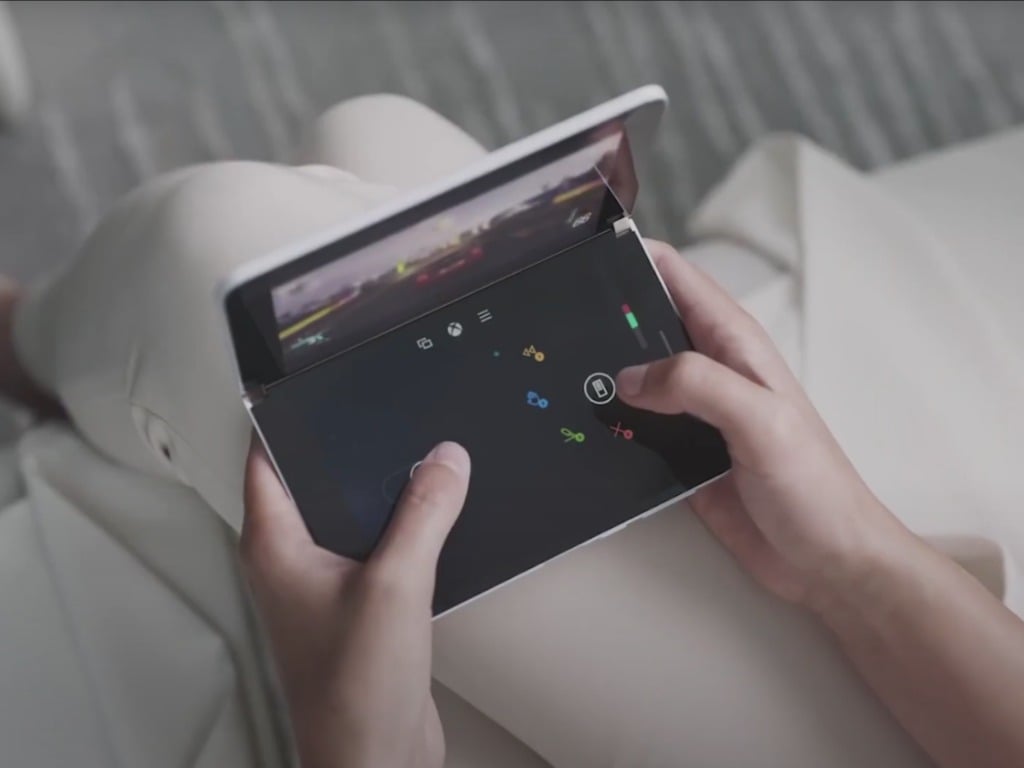

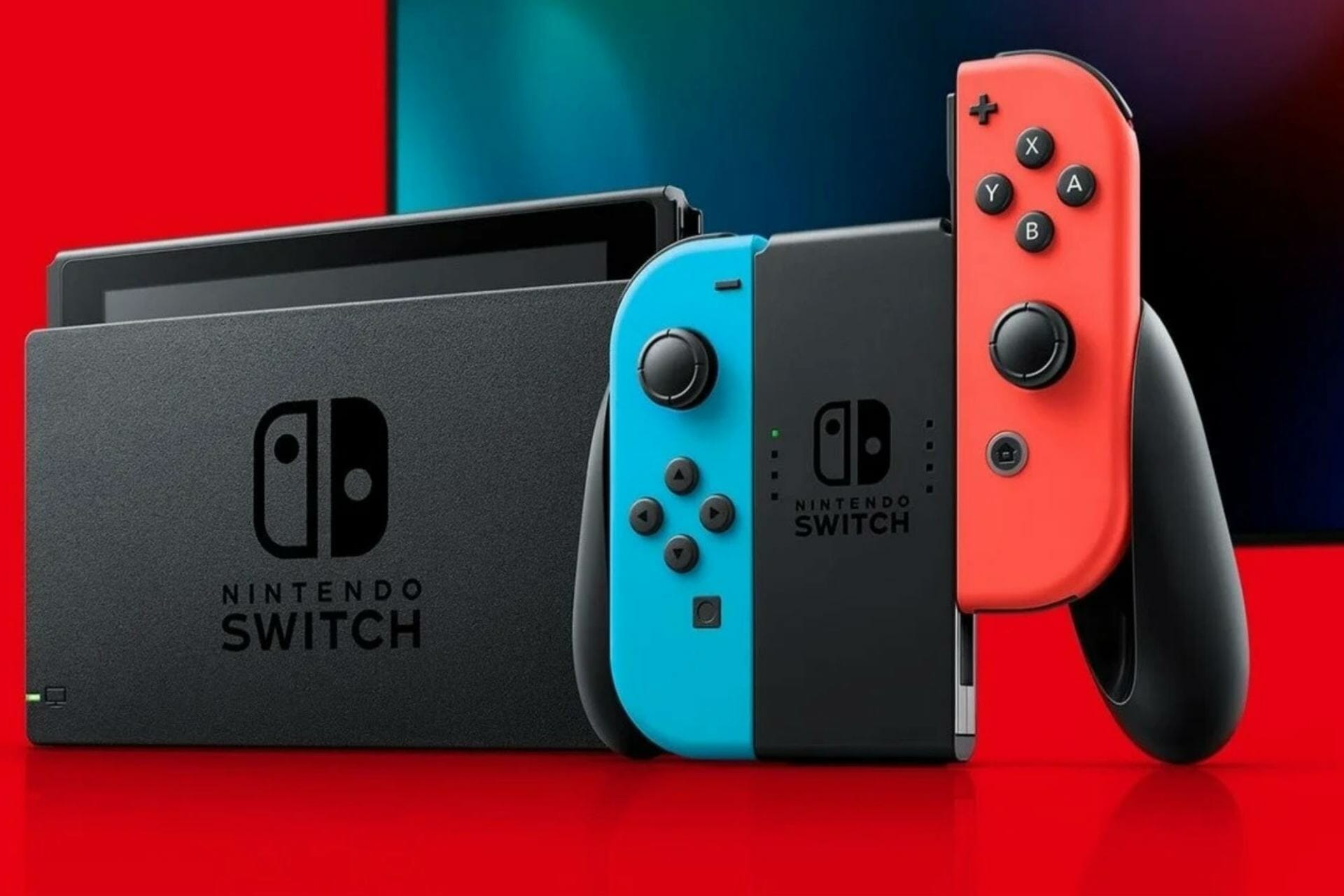






![Terminal server driver made incorrect memory reference [Solved]](https://windowsreport.com/wp-content/uploads/2018/09/Terminal-server-driver-made-incorrect-memory-reference-Solved.jpg)

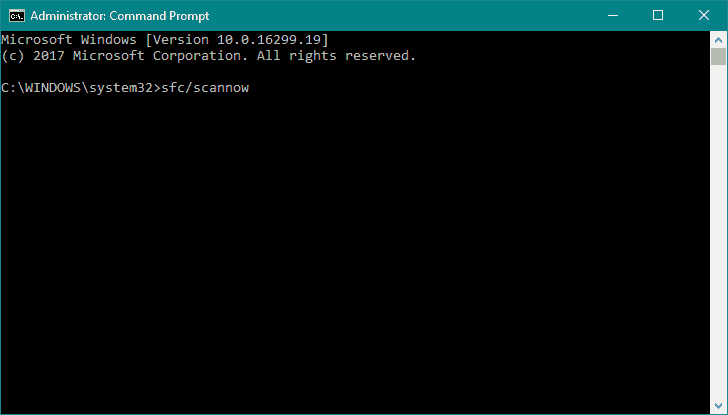

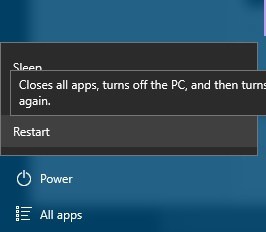
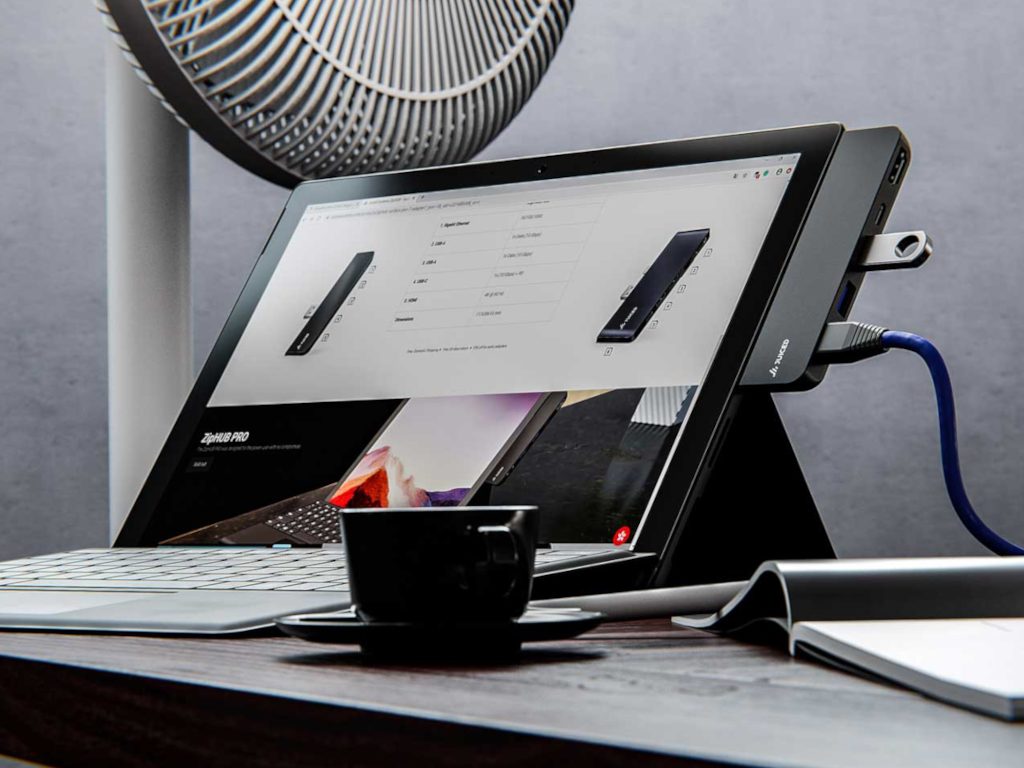
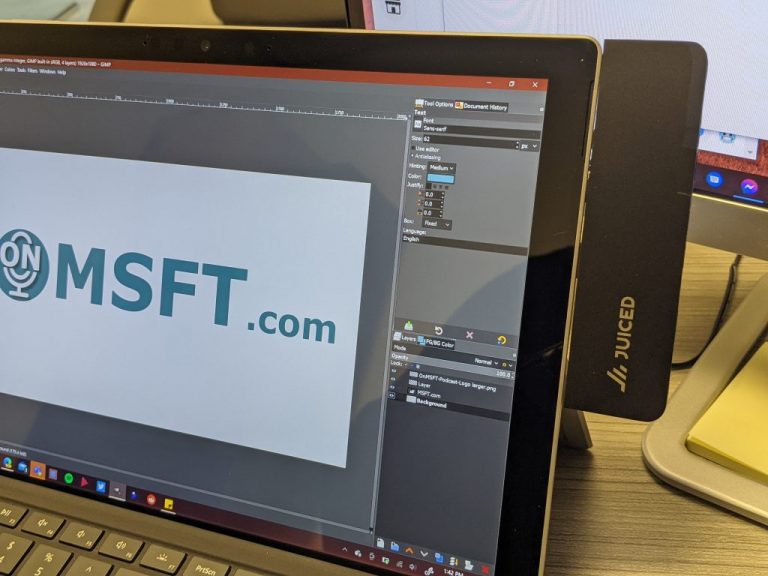
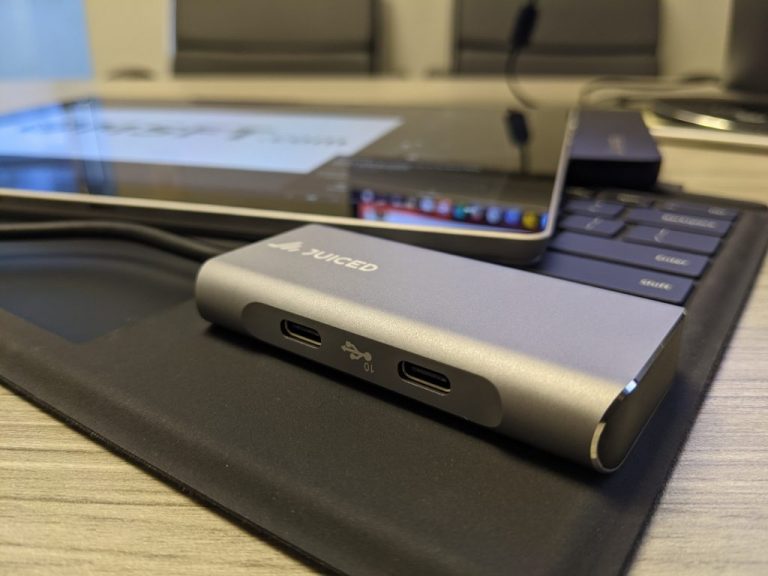
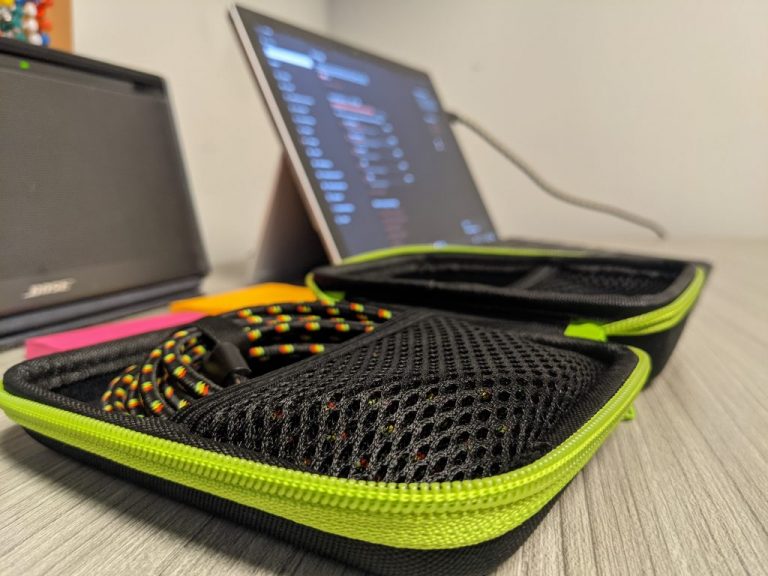
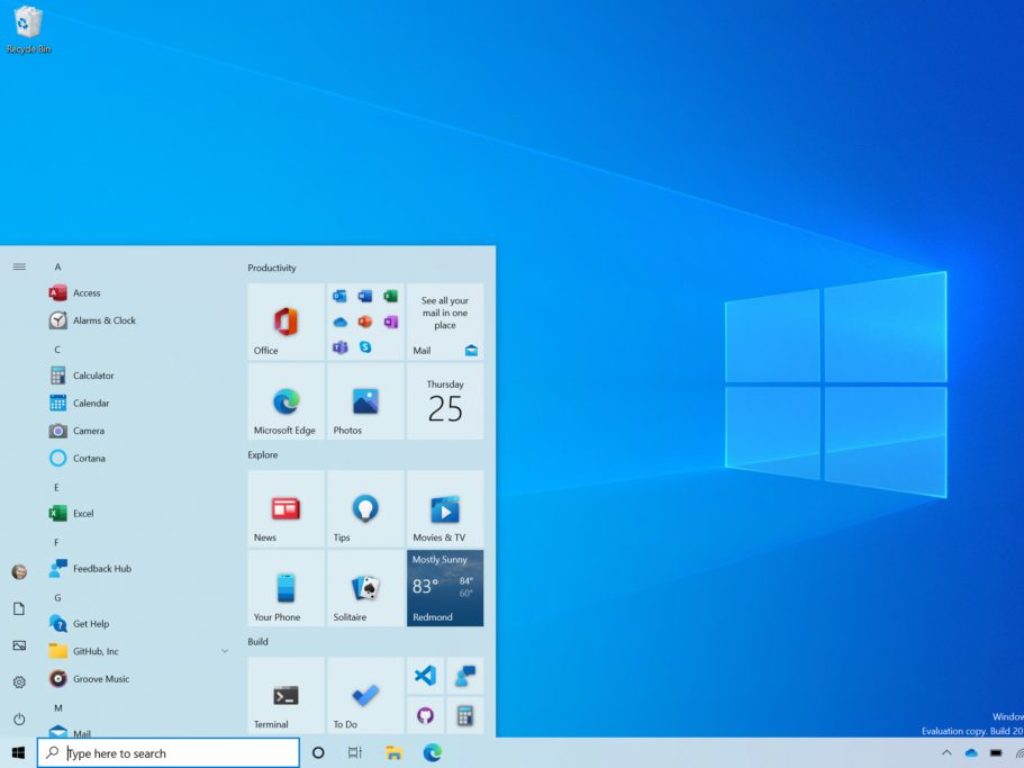

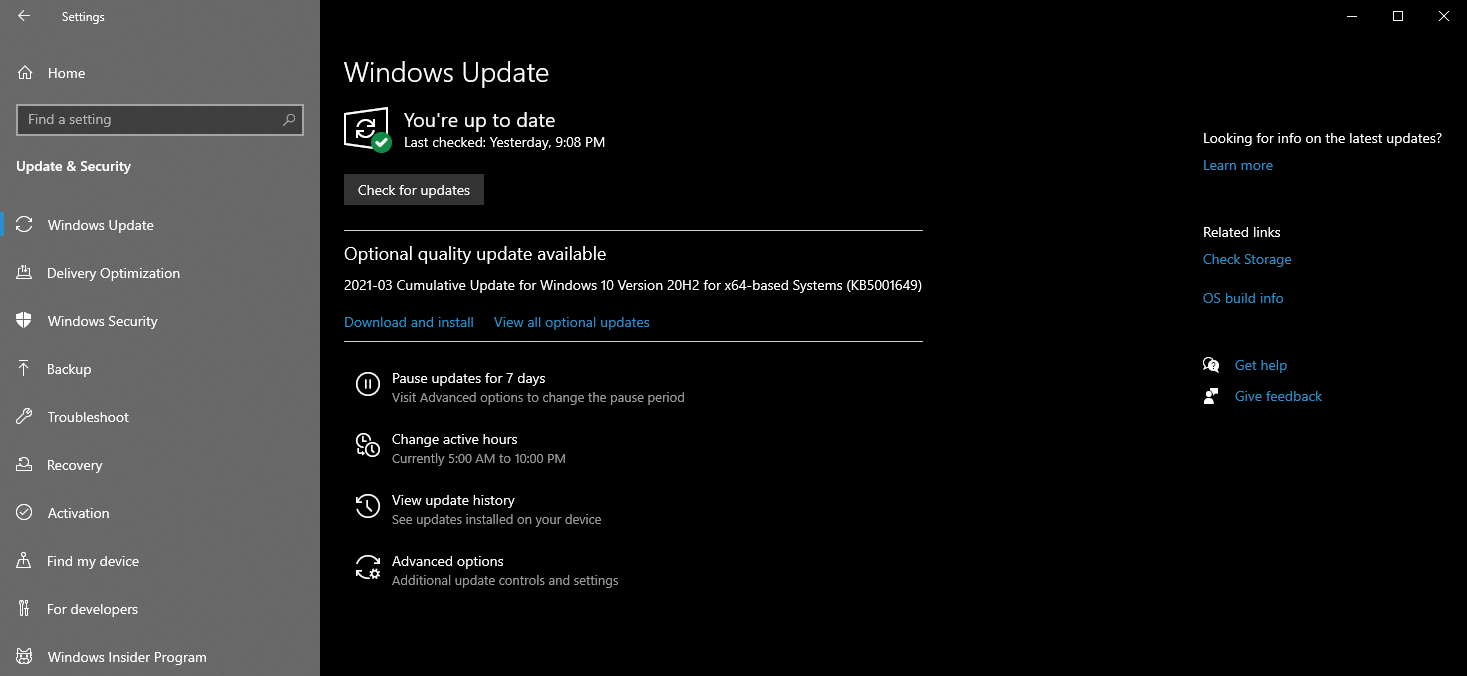


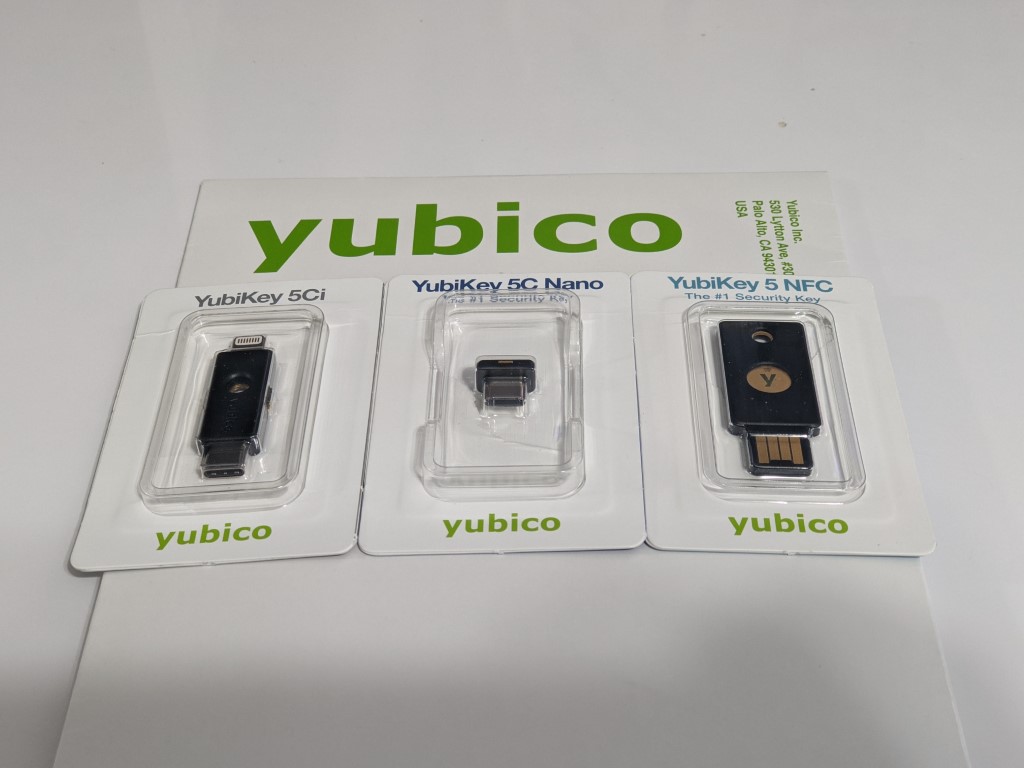
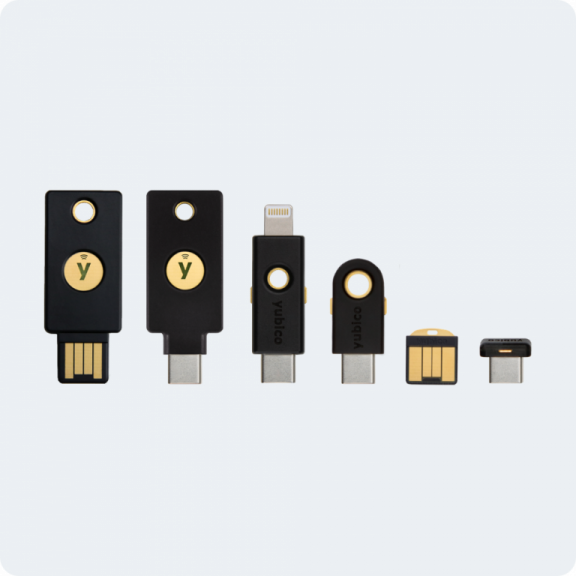
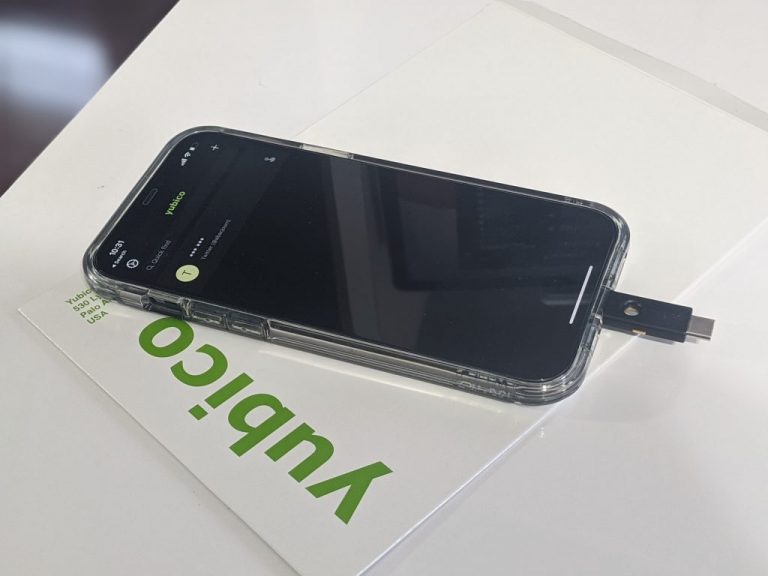
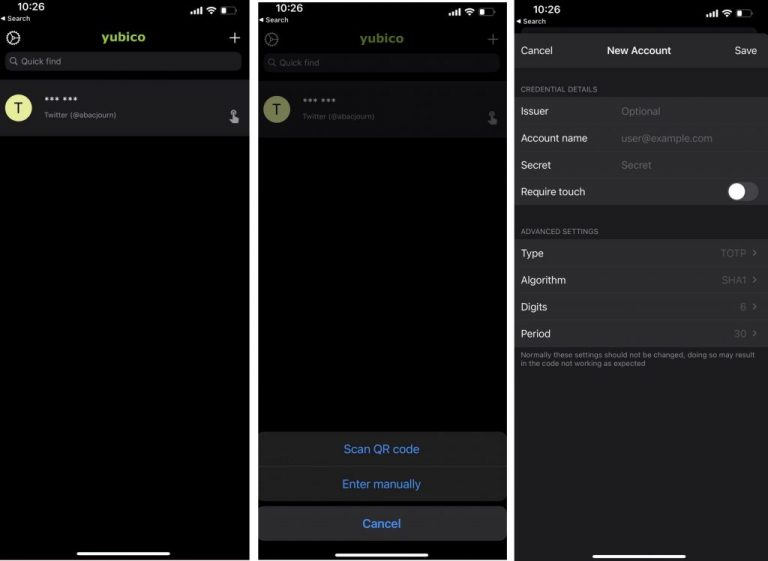
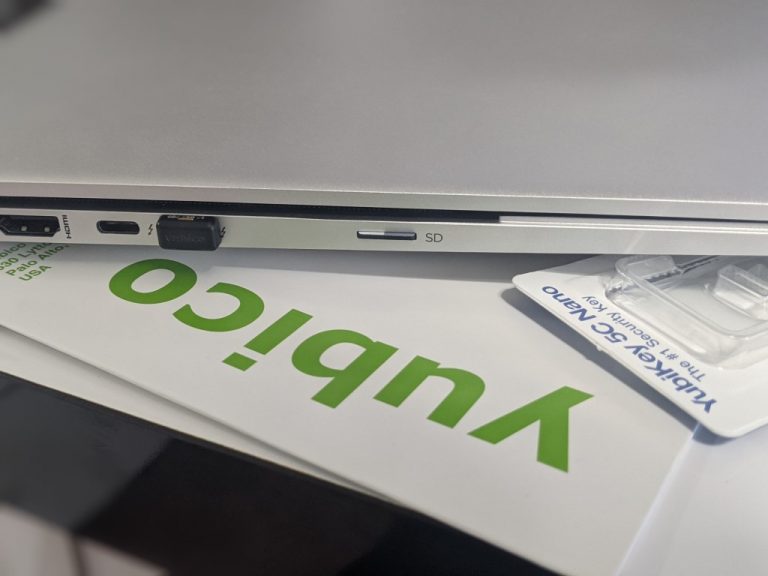
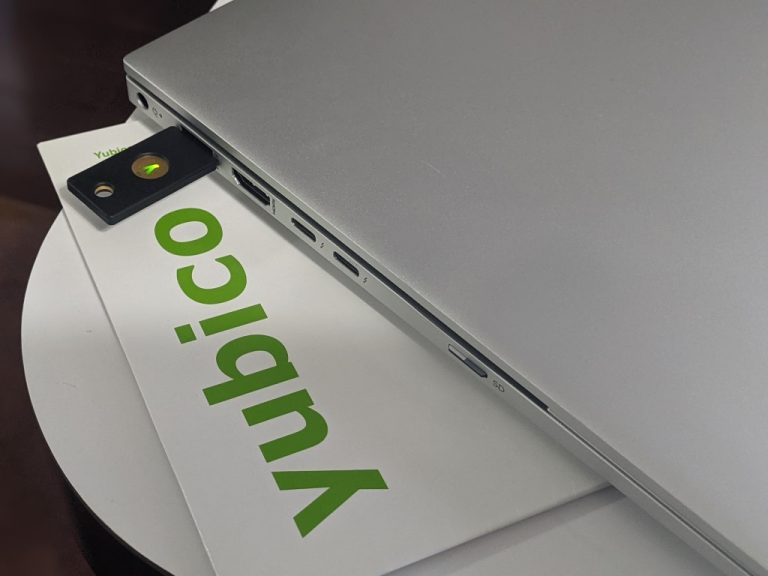
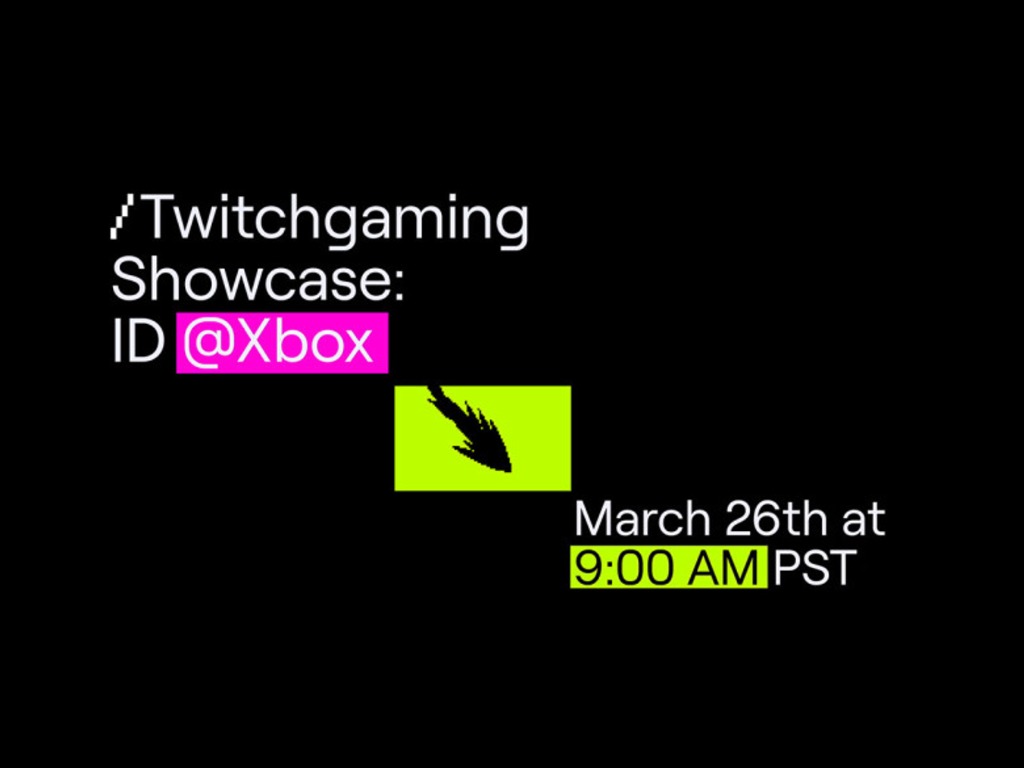



![Kernel Mode Exception Not Handled M in Windows 10/11 [FIX]](https://windowsreport.com/wp-content/uploads/2021/03/computer-error.jpg)

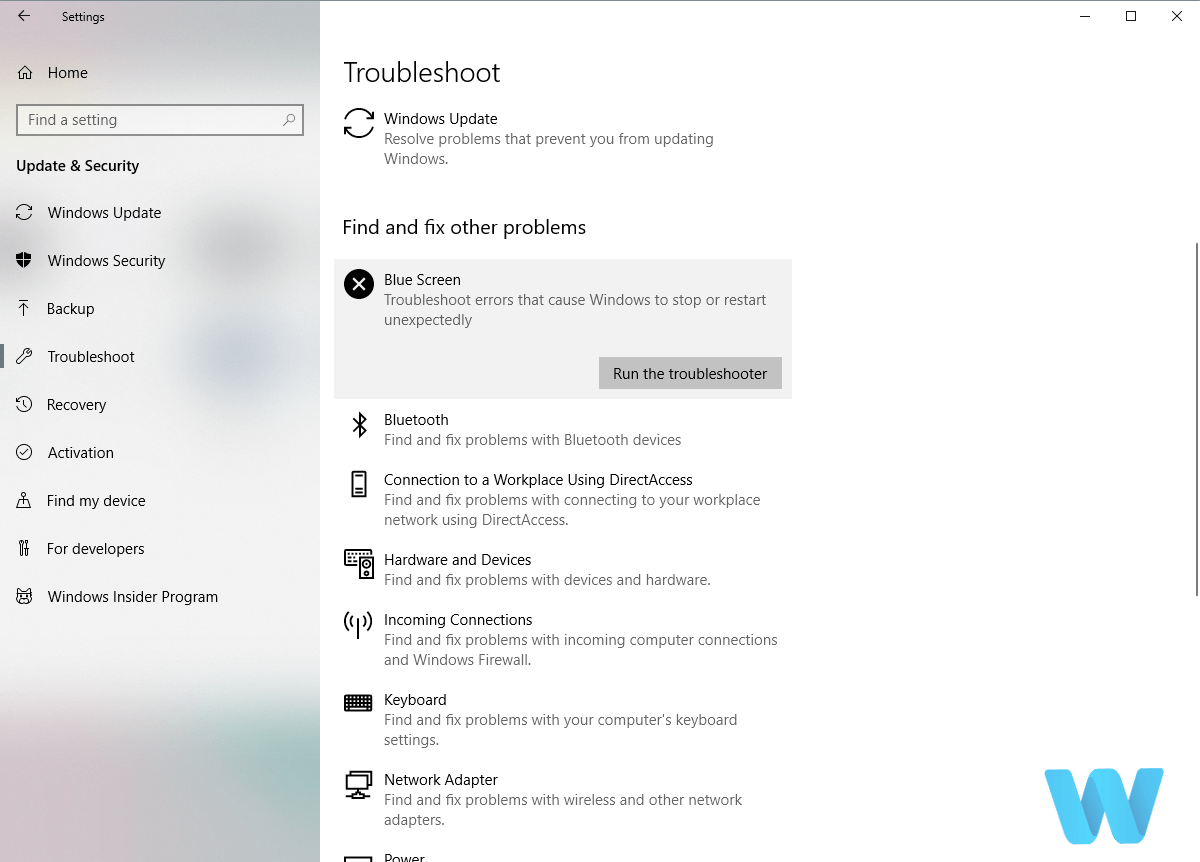
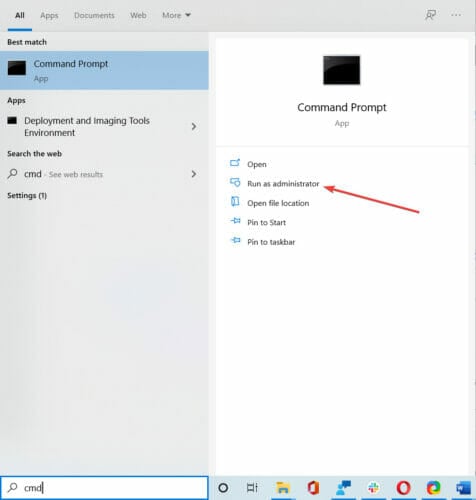
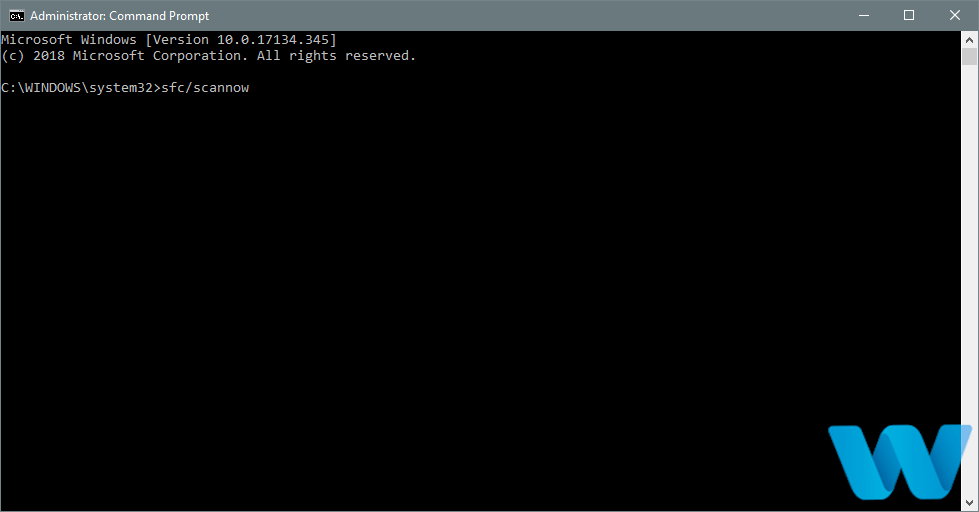
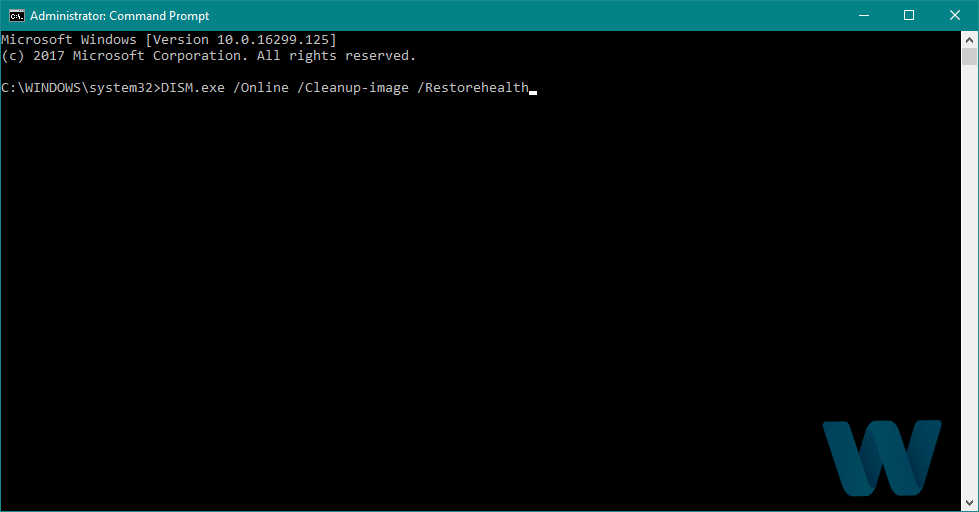

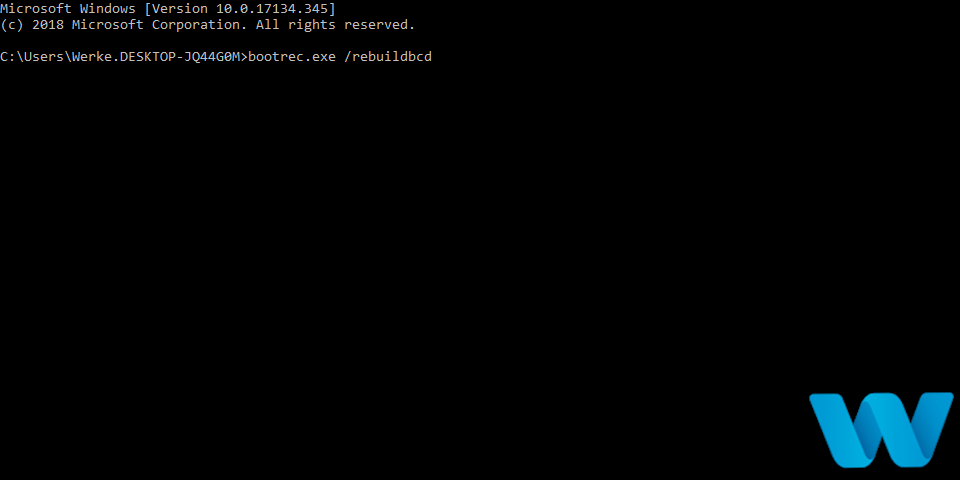
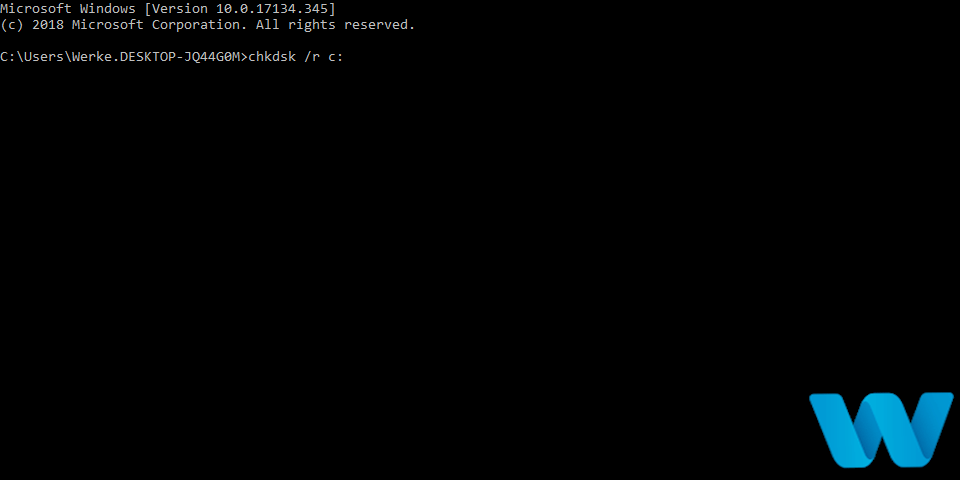


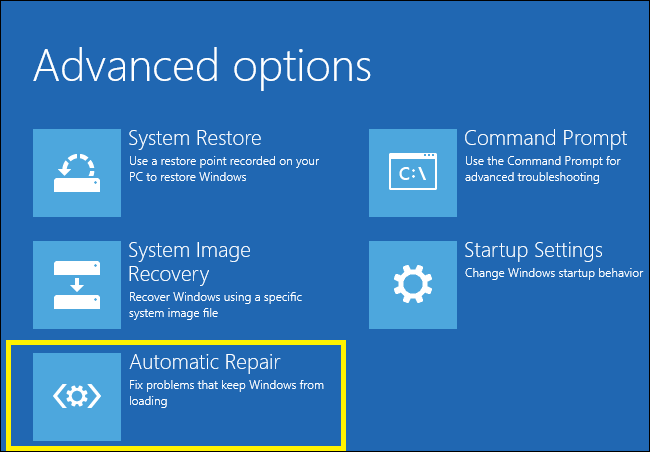

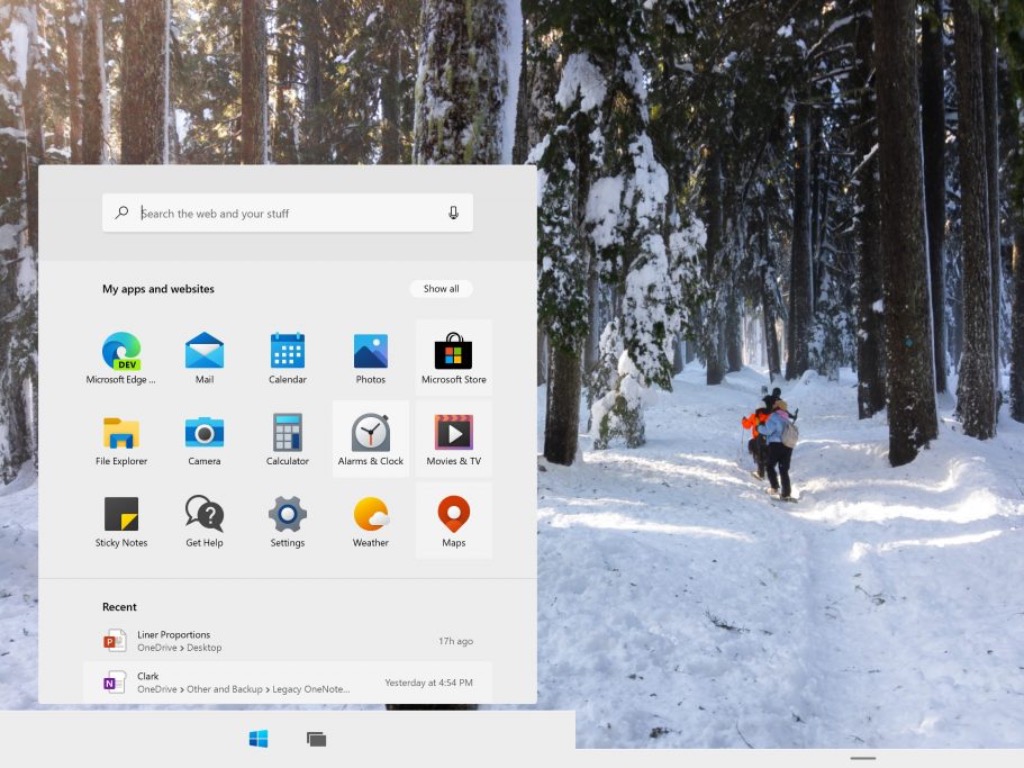
![Shadow Tactics: Blades of the Shogun black screen [FIX]](https://windowsreport.com/wp-content/uploads/2016/12/fix-Shadow-Tactics-Blades-of-the-Shogun-black-screen-1.jpg)
![Black screen laptop issues after Windows updates [FIX]](https://windowsreport.com/wp-content/uploads/2017/05/laptop-on-desk-with-coffee-cup.jpg)

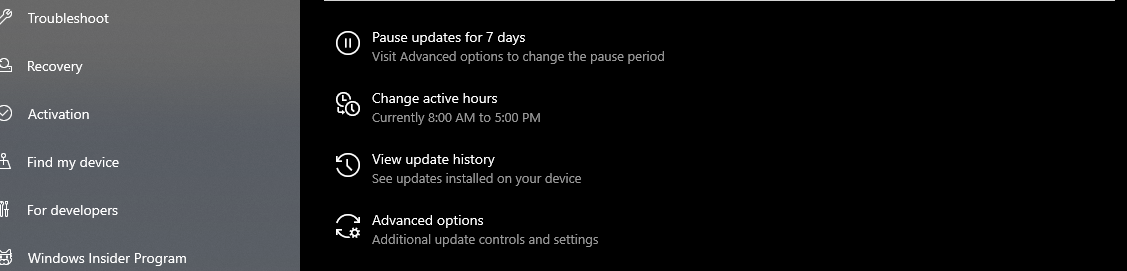
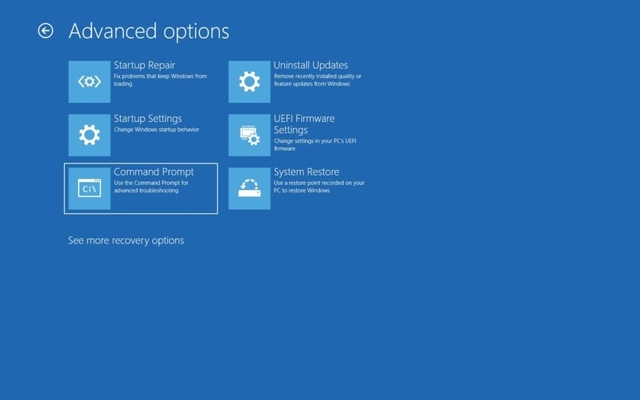

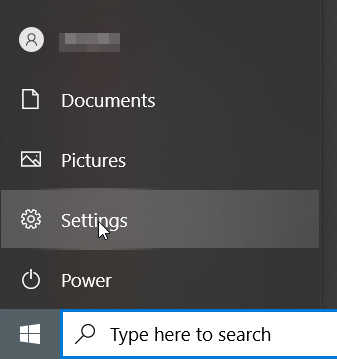
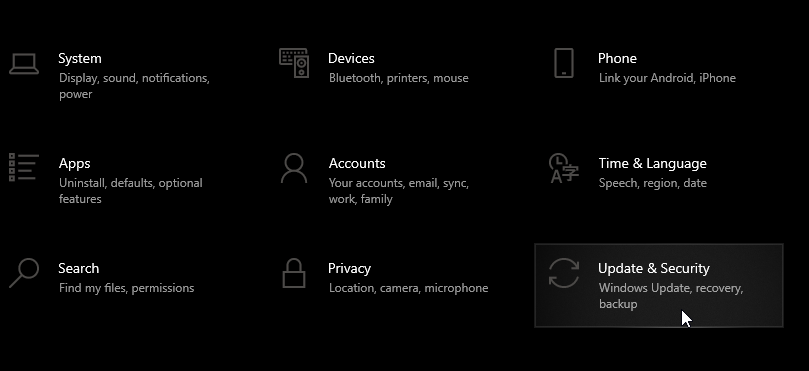
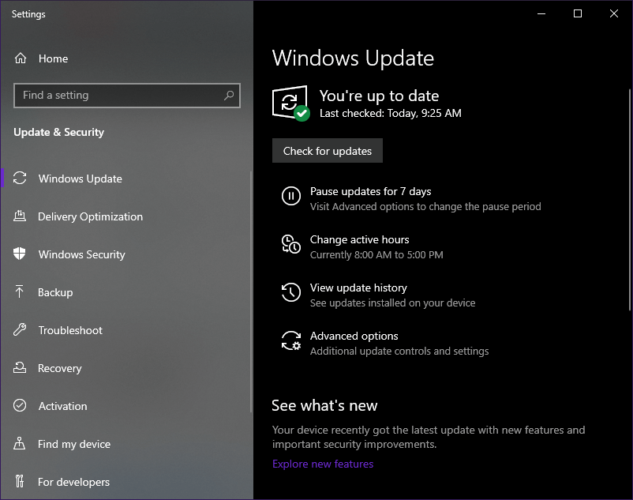


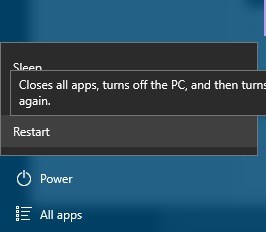


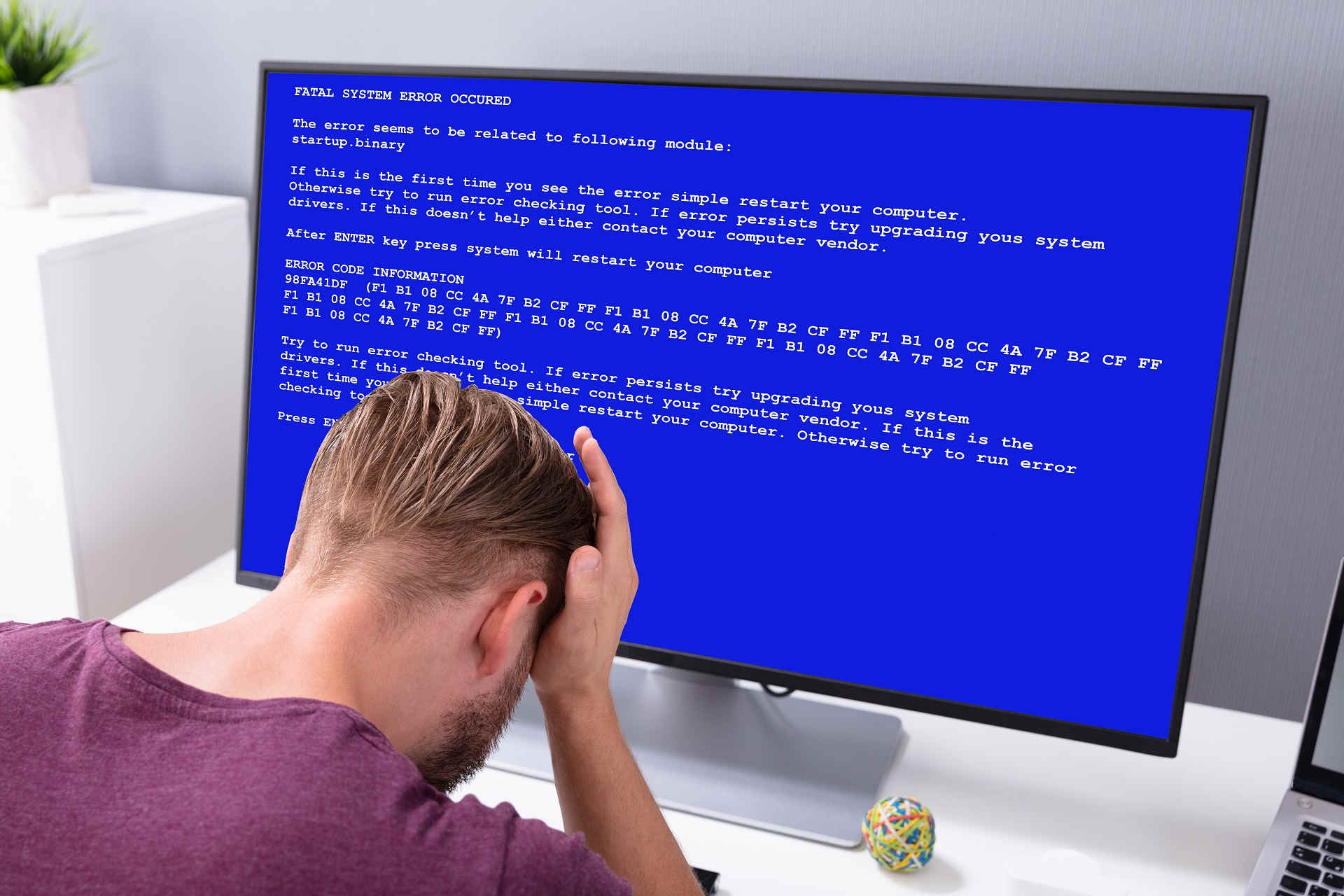
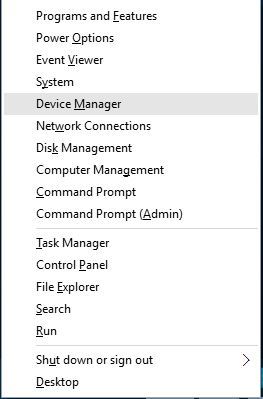
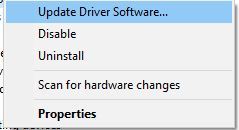
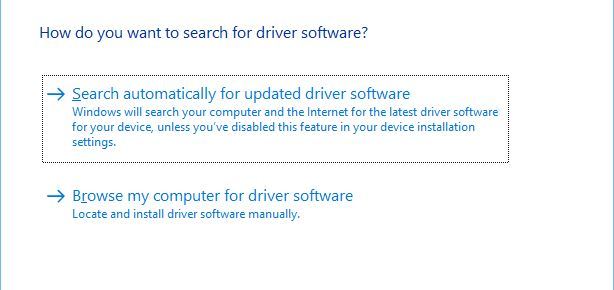
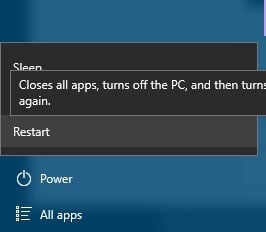







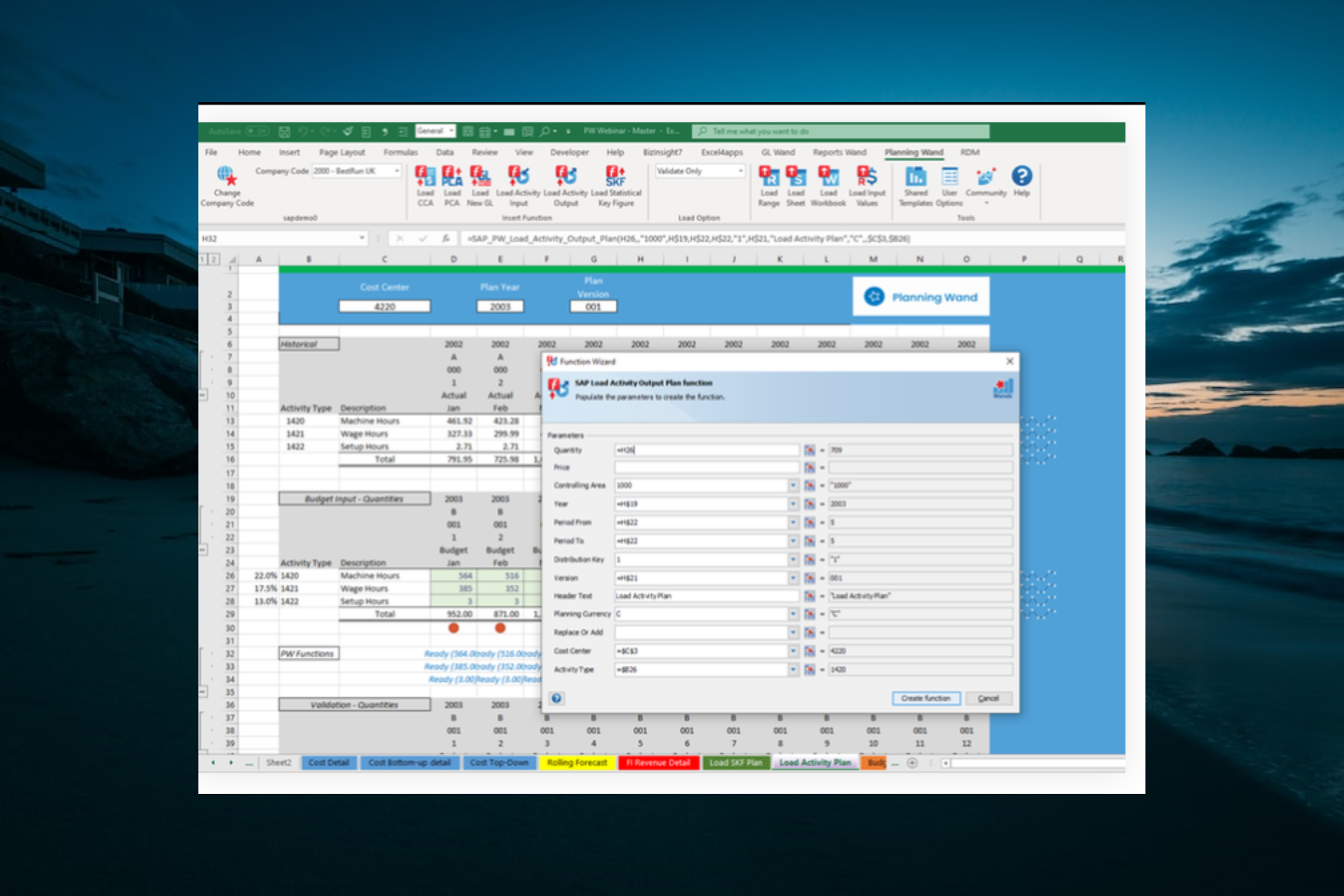


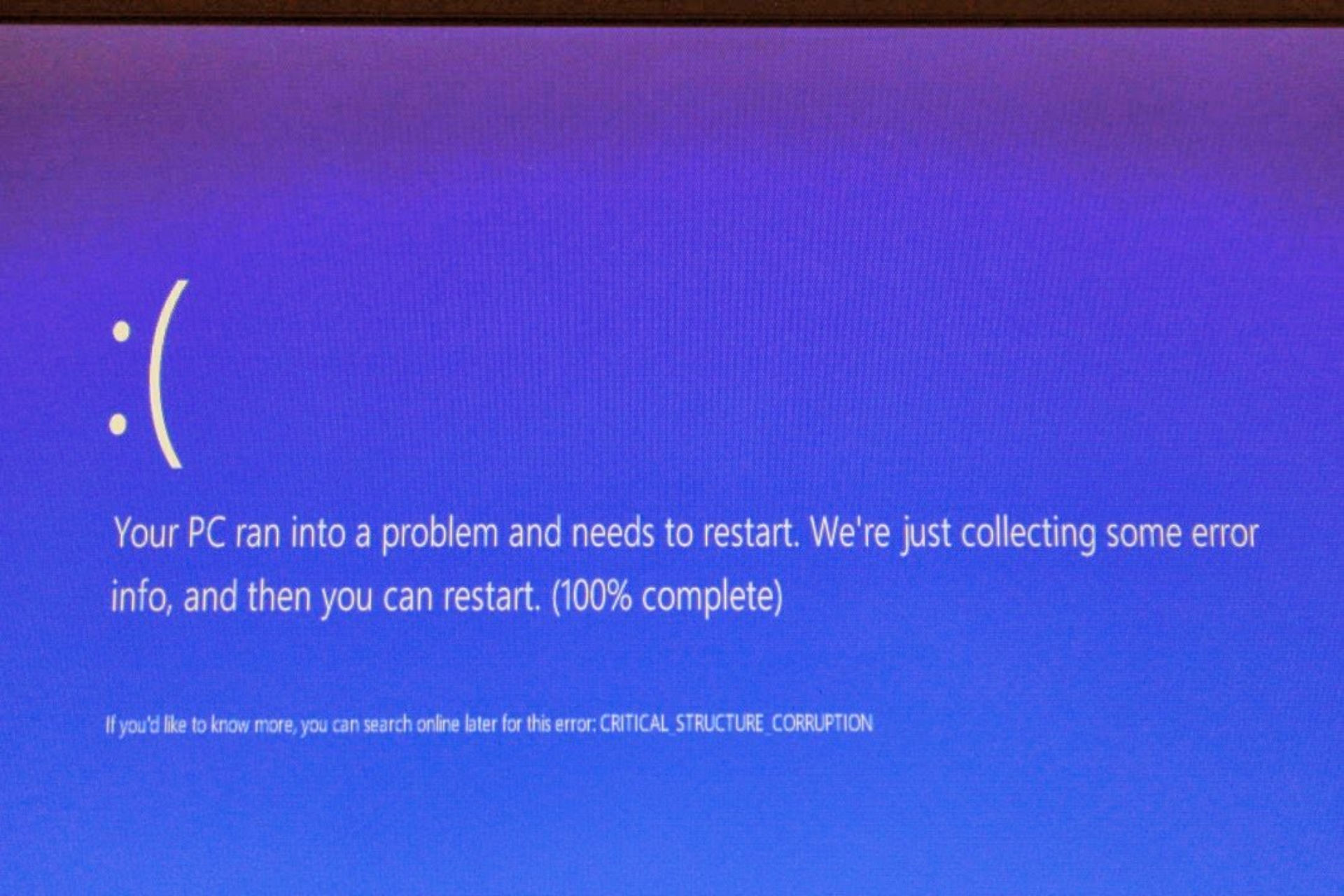

















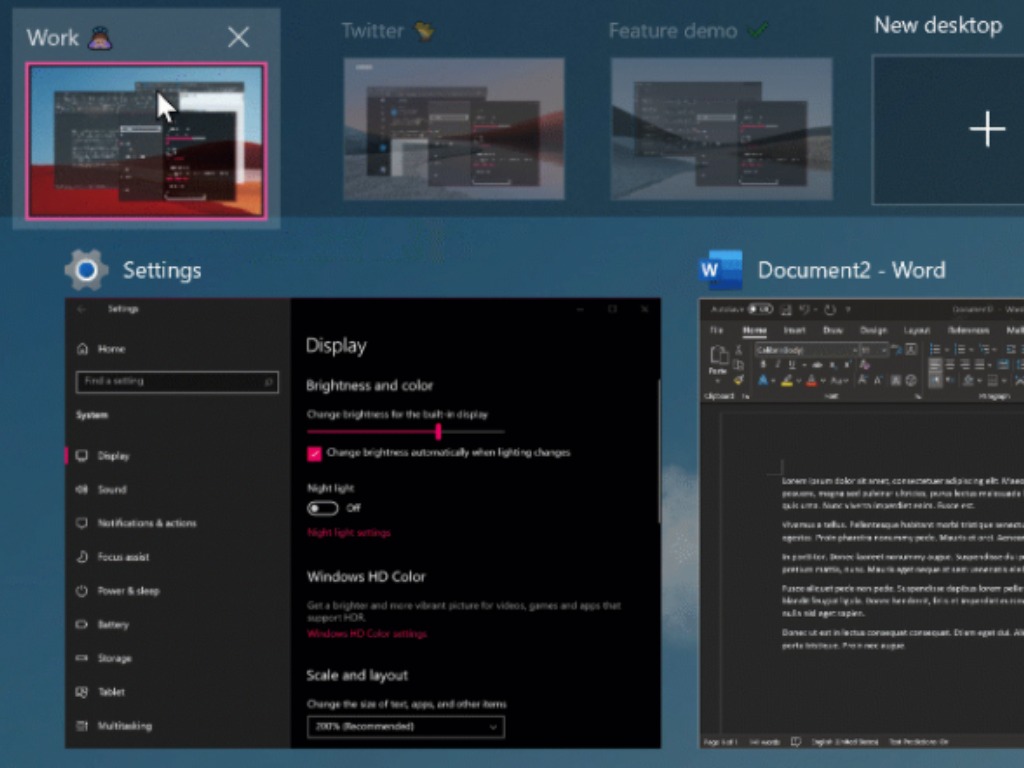
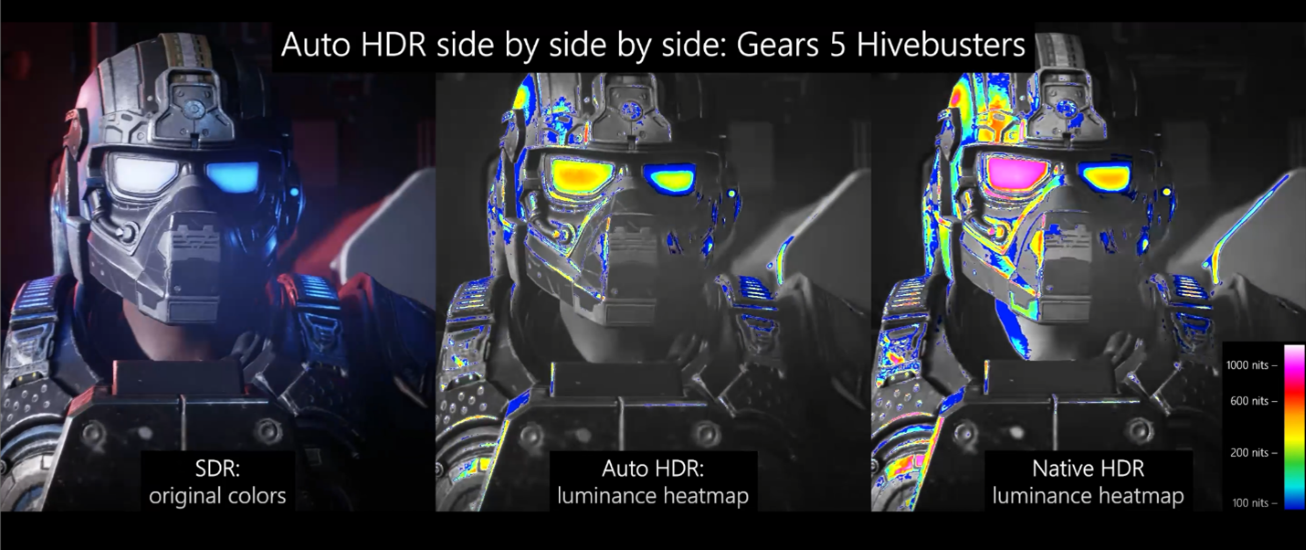




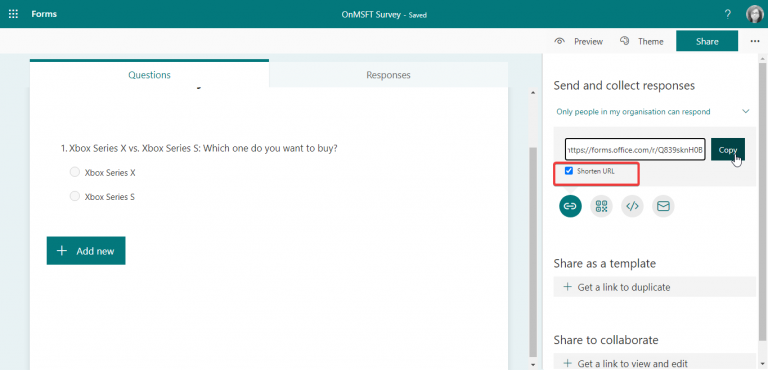
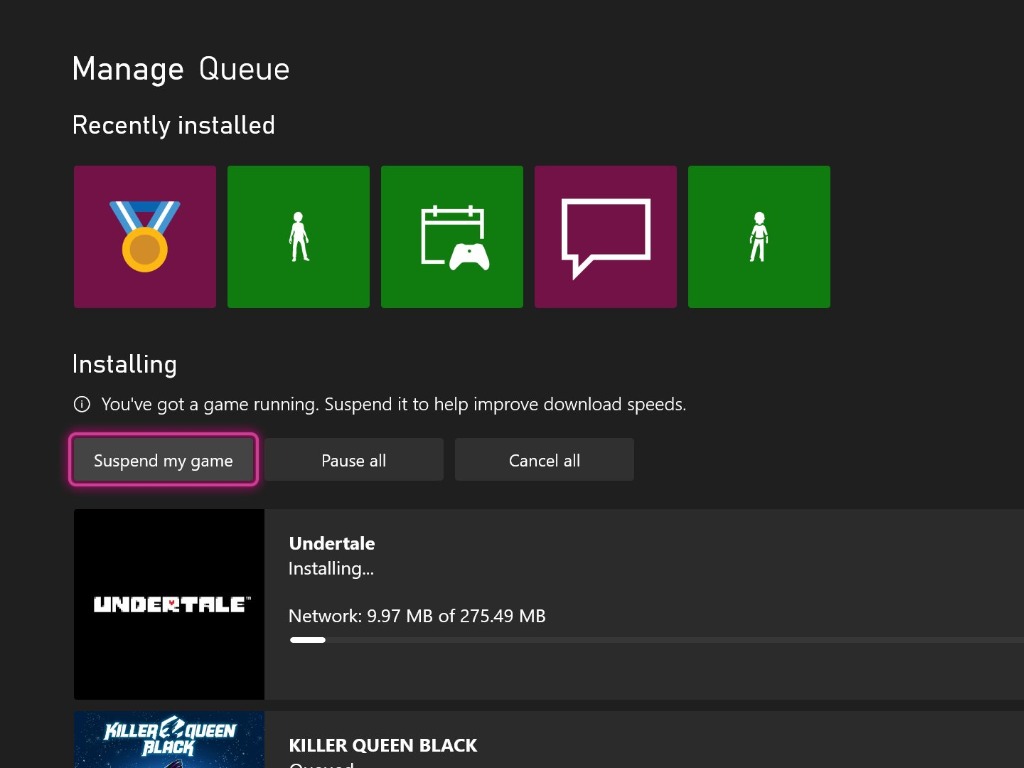
![NVIDIA driver update failed / BSoD error [Complete Fix]](https://windowsreport.com/wp-content/uploads/2021/02/Fix-NVIDIA-high-definition-audio-not-plugged.jpg)