6 quick fixes for Black Screen of Death on Windows 10

The annoying Blue Screen of Death has been a major headache for Windows users ever since the Windows XP era. But it seems that wasn’t enough, as its brother, the Black Screen of Death started to bother users.

Apparently, Windows 10 isn’t immune to BSOD errors either, and some users reported this issue sometime after they upgraded their system.

Unlike Blue Screen of Death, which represents a critical hardware issue in your computer, the Black Screen of Death represents a software issue, which is reportedly easier to fix. But even a B(Black)SOD could be caused by some more serious problems, and it certainly requires your attention.

Various things could cause this issue, from driver problems and incompatibility to overheating, and we will cover all the causes and solutions for BSOD in this article.

How do I fix Black Screen of Death in Windows 10

  1. Use dedicated software to fix Windows errors
  2. Fix software incompatibility issues
  3. Fix driver problems
  4. Fix overheating issues
  5. Run the built-in troubleshooter
  6. Additional troubleshooting methods

1. Use a dedicater tool to fix Windows issues

Specialized software takes the guesswork out of PC maintenance by allowing you to diagnose and fix issues before you get to the black screen of death phase. All you need to do is start the scan and watch it do its magic.

2. Fix software incompatibility issues

  1. Right-click on the icon of the program you want to start
  2. Go to Properties > Compatibility 
  3. Click on Run compatibility troubleshooter.

Whilst most software incompatibilities have been already resolved, there are still some programs out there that don’t work with Windows 10.

So in most cases, when you try to run an older program that is not compatible with Windows 10, it won’t even start. But in some cases, it might cause the Black Screen of Death, as well.

The only thing you can do to resolve this issue and prevent BSOD from appearing in the future is to run the Compatibility Troubleshooter.

What this does is check if the program can be opened in compatibility mode with a previous version of Windows. 9 times out of 10, this will solve the issue.

3. Fix driver problems

windows 10 manual driver update
  1. Right-click on the Start button
  2. Open Device Manager
  3. Go through the list of the main components (CPU, Chipset, GPU)
  4. Right-click on the device
  5. Select Update Driver
  6. Follow the wizard

Additionally, a black screen can appear if your graphics card driver is not working correctly. If your CPU has an integrated graphics card, disconnect your monitor from the dedicated GPU and plug it in the integrated one.

If the issue disappears, then uninstall your GPU drivers and reinstall them from scratch. You can use a specialized utility like DDU to completely uninstall a GPU driver.

Drivers are the most common causes of both blue and black screen of death. You should take the time to update your drivers to their latest versions as this greatly improves system stability and performance.

In case you need more automated support to update drivers correctly, you can get the latest drivers or fix corrupted ones with software like Outbyte Driver Updater.

4. Fix overheating issues

If you’re using Windows 10 on a laptop, you might face the Black Screen of Death issue because of overheating problems.

If that’s the case, turn off your computer, wait some time until it cools off, and then turn it on again. We also recommend getting an external cooler for your laptop because it is very helpful in preventing it from overheating.

Dust ingress is the main cause of overheating. If you’re handy with a screwdriver, you can take the back panel off and clean the inside of the laptop of any dust. Dust tends to accumulate around the vents and inside the fans.

Of course, if you are not confident in doing this, we highly recommend taking your system to a specialized technician to be cleaned.

One thing to mention is to always keep your laptop/PC on a solid and elevated surface. This allows the air to circulate and cool the system.

On the other hand, if you’re sure that overheating is not a problem, and it didn’t cause the BSOD on your laptop, you can try some of the solutions listed above.

5. Run the built-in troubleshooterblue screen troubleshooter
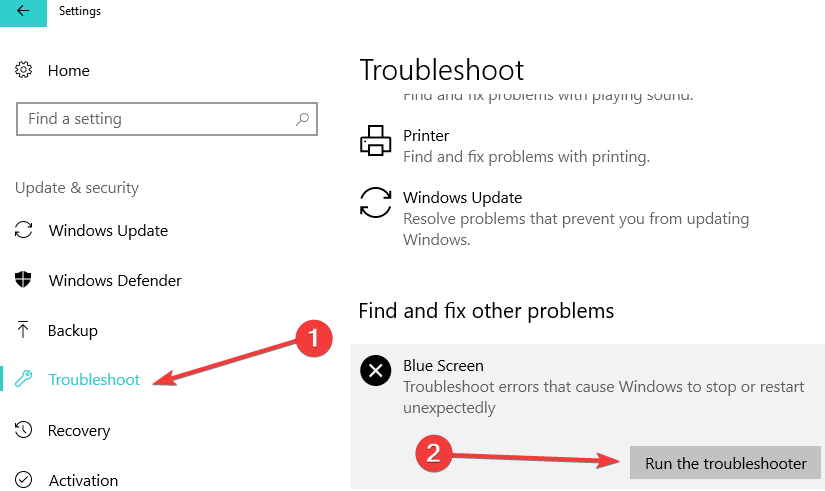
  1. Go to Settings
  2. Update & Security
  3. Run the troubleshooter

Windows 10 also comes with a built-in Blue Screen Troubleshooter. While this guide focuses on how to fix black screen issues, it is still a good idea to run the Blue Screen Troubleshooter as well.

This tool troubleshoots errors that cause Windows 10 to stop or restart unexpectedly and may help you to fix your black screen issues too.

6. Additional troubleshooting methods

  1. Listen for any beeps. Some systems will have an auditory signal when an error occurs, which can point you to the faulty component.
  2. Disconnect all your peripherals and restart your computer. Sometimes, your external peripherals may trigger this problem so you need to identify the problematic device.
  3. Remove recently installed programs, especially if this problem occurred shortly after you downloaded new apps and programs.
  4. Disable Fast Startup from the Control Panel.
  5. Remove your laptop battery.
  6. Disable your antivirus software.
  7. Go to Event Viewer > Windows Logs > System and check for the reported cause of the error.

If you know about any other methods to fix a black screen on a Windows 10 system, let us know in the comments section below.

Fix: Deus Ex: Invisible War crashes/freezing/black screen

Numerous players have posted on Steam’s forum about Deus Ex: Invisible War not working on Windows 10.

For these players, Deus Ex: Invisible War won’t start. Players have said Deus Ex either crashes to desktop (or freezes) on its loading screen or the game‘s screen goes black when they try to start new games.

How can I fix Deus Ex: Invisible War crashing on startup?

Deus Ex: Invisible War crashes at the loading screen

1. Select a single CPU core

  1. Start Deus Ex as usual.
  2. When the game crashes at loading, press the Ctrl + Shift + Esc hotkey.
  3. Click the Details tab on the Task Manager window that opens.
    Details tab deus ex invisible war crash
  4. Right-click the DX2Main.exe and select Set affinity to open the Processor affinity window shown directly below.
    Processor affinity window deus ex invisible war crash
  5. Deselect the All processors checkbox.
  6. Then select just one CPU checkbox on the Processor affinity window. It doesn’t matter which one you select, but you must select just one.
  7. Click the OK button to close the Processor affinity window.

Note: The above fix is for Windows PCs with multi-core processors.


2. Clean boot Windows

  1. Press the Windows and R keys at the same time, which will open Run.
  2. Type msconfig in Run’s text box and click OK to open the MSConfig utility.
    The System Configuration window deus ex invisible war crash
  3. Select the Selective startup radio button, and deselect the Load startup items checkbox.
  4. Select the Load system services and Use original boot configuration options if they’re not checked.
  5. Click the checkbox for the Hide all Microsoft services option on the Services tab.
    Services tab deus ex invisible war crash
  6. Press the Disable all button to deselect the non-Microsoft services.
  7. Click the Apply option, and press the OK button to exit.
  8. Press the Restart button on the System Configuration dialog box that opens.
  9. After restarting Windows, try playing Deus Ex again.

Note: If clean booting works, that probably means Deus Ex was crashing because of a conflicting program or service. Players have confirmed that CDviewer, Skype, and Skype for Business are among the conflicting software that can cause the game to crash.


3. Check the wait chain for Deus Ex

  1. Launch the Deus Ex game.
  2. Open Task Manager with the Ctrl + Shift + Esc hotkey when Deus Ex crashes on loading.
  3. Next, select Task Manager’s Details tab.
  4. Right-click dx2main.exe on the Details tab and select Analyze wait chain.
    Analyze wait chain window deus ex invisible war crash
  5. The Analyze wait chain window might list some programs that are stopping Ex Deus running (crashing it). Note down the programs listed on the window, and click Cancel.
  6. Close all the programs listed on the Analyze wait chain window by selecting them on the Processes tab and clicking End Task.
  7. Then launch Deus Ex after you’ve made sure none of the programs that were on the Analyze wait chain window are running.

Deus Ex Invisible War black screen

1. Close Logitech apps and background processes

  1. To fix the black screen issue for Deus Ex, right-click Windows’ taskbar and select Task Manager.
  2. Look for any Logitech processes on the Processes tab.
    Processes tab deus ex invisible war crash
  3. Terminate all Logitech apps (such as SetPoint.exe) and background processes by right-clicking them and selecting End Task.
  4. Then try running Deus Ex after you’ve closed all Logitech apps.

2. Play the game within a new Windows 10 user account

  1. Click the Type here to search button on the taskbar in Windows 10.
  2. Enter accounts in the search box, and click the Add, edit or remove users button.
    The Add someone else to this PC option deus ex invisible war crash
  3. Click the Add someone else to this PC button.
  4. Click I don’t have this person’s sign-in information to open the window shown directly below.
    Microsoft account window deus ex invisible war crash
  5. Select the Add a user without a Microsoft account option.
  6. Enter the required new user account details in the text boxes, and click the Next button.
  7. Log out of Windows 10, and then sign in to the new user account.
  8. Then try playing Ex Deus within the new user account you just set up.

Players have confirmed the above fixes can resolve Ex Deus crashing on loading and black screen crashes.

Also note that Ex Deus: Invisible War is an old game originally launched for Windows XP.

Some of the tips in our How to Play Old Games post might also fix some Ex Deus issues for Windows 10.

Fix: Windows 10 Video Editor Export is Not Working

Windows 10 Photos app is a handy application with slideshow and video editing features. Unfortunately, some users have reported Windows 10 Photos app video export stuck problem.

The error message associated with this issue reads something went wrong, We couldn’t export your video. This problem can occur due to many reasons, including corrupted Photos app.

You can find similar issues in the Microsoft community:

I choose the medium setting on export and then it starts to save until it reaches 17% through and it comes up with a message saying ‘something went wrong. We couldn’t export your video’ 

This troubleshooting guide will help you to fix the Photos app video export stuck issue in Windows 10, so keep reading.


What can I do if Windows 10 video editor export is not working?

1. Use an alternative program for exporting videos

If you had enough of Microsoft Photo’s mishaps, then maybe it is time to move on to a different tool to fulfill your video exporting needs. That being said, no tool can do the job better than Adobe Premiere Pro.

This product is an industry-standard in terms of video editing, and its versatility in terms of supported file formats allows it to handle pretty much any time of video file.

However, if you aren’t interested in video editing, you can simply use it as a file converter and exporter, allowing you to transform to and from any format.

Adobe Premiere Pro

Adobe Premiere Pro

Try Adobe Premiere Pro now to stop having problems with video editing exports.
Free trialVisit website

2. Run the Microsoft app troubleshooter

  1. Click on Start, and select Settings.
  2. Go to Update and Security.
  3. From the left pane click on Troubleshoot.
  4. Scroll down to the end, and click on Windows Store Apps.
    Windows 10 Photos app video export stuck
  5. Click the Run the troubleshooter button.
  6. The troubleshooter will scan the Windows Store apps for any issues. If found, it will recommend some fixes.
  7. Apply the fixes and check for any improvements.

Windows 10 comes with built-in Microsoft apps troubleshooter. The troubleshooter will scan the system for any issues and fix them.


3. Terminate and reset the Photos app

  1. Click on Start and select Settings.
  2. Go to Apps.
  3. Search for the photos app and click on it.
  4. Click on Advanced Options.
    Windows 10 Photos app video export stuck
  5. Scroll down and press the Terminate button. This will kill any process related to the app.
  6. Click the Reset button, and press Yes to confirm the action.
  7. Once the Reset is complete, search and launch the Photos app.
  8. Try to export the video and check if the Windows 10 Photos app video export stuck issue is resolved.

If the issue persists, resetting the app can fix any temporary issues with the app.


4. Update or reinstall the Photos app

1. Update the Photos app

Windows 10 Photos app video export failed
  1. Check if new updates are available for the Photos app.
  2. Open the Windows Store app, and search for the Photos app.
  3. If a new update is available, download and install it.
  4. After the update is installed, try exporting a video.

2. Reinstall the Photos app

  1. Right-click on Start.
  2. Select the Windows PowerShell (Admin) option.
    Windows 10 Photos app video export failed
  3. In the PowerShell window, enter the following command and hit Enter: get-appxpackage *Microsoft.Windows.Photos* | remove-appxpackage
  4. This will uninstall the Photos app from your PC.
  5. Restart your PC.
  6. After the reinstall, launch the Microsoft Windows Store.
  7. Search for the Photos app, and install it.
  8. Check if the photos and videos appear in the Photos app.
  9. If not, double-click on the videos that you want, and it will start appearing in the Photos app.
  10. Try to export the video and check for any improvements.

As a last resort, you may try to uninstall the Photos app to fix the issue. This should help you resolve any issue that is embedded in the Photos app, causing an issue with video export.

5. Disable the graphics card adapter

  1. Press the Windows key + X and select Device Manager from the list.
  2. Double-click the Display adapters.
  3. Double-click on the name of your adapter and select the Driver tab.
  4. Click on the Disable Device button.
  5. Windows will use generic drivers without using hardware acceleration.
  6. Restart your PC and export your video.

After you’re done exporting your video you can reenable your video driver by reversing the actions in this solution.


You can fix video export failed issues with the Photos app in Windows 10 by following the steps in this article. Do let us know which fix helped in the comments.


Best Mesh Routers To Buy For Seamless Coverage Everywhere

In order to create a wireless network that covers your entire home, many users are using mesh routers.

These types of routers are usually a bit more expensive, especially if you need to cover a larger area, but they are easier to set up.

If you want to set up a mesh network and eliminate dead Wi-Fi spots once and for all, here are the best mesh routers to consider.

Note: Deals are subject to change. Keep in mind that the price tag often varies. We recommend going to the vendor’s website to check the price.

Some of the products may be out of stock by the time you’ve made your purchasing decision. So, hurry up and hit the buy button.


What are the best mesh router deals to get right now?

Google Wi-Fi

  • Up to 1,500 feet range
  • Dual-band
  • Expandable mesh Wi-Fi
  • Dedicated app that lets you control your network
  • Family Wi-Fi controls
  • Issues with NAT if you’re using multiple Google WiFi devices

The first item on our list is the Google WiFi mesh router. This is a dual-band device and it works with 2.4GHz and 5GHz frequencies. As for the speed, it can deliver up to 1200Mbps.

The device has a range of up to 1,500 square feet, and thanks to a dedicated app, you can set up and control your network with ease.


Eero

  • 1,500 feet range
  • Simple to set up
  • Speeds up to 550 Mbps
  • Dual-band Wi-Fi, MU-MIMO, beamforming
  • Potential signal issues when using multiple Eero devices

Eero is another great mesh router that has a range of up to 1,500 feet. Of course, you can easily expand the range by using another Eero device. The device uses TrueMesh technology in order to avoid any connection issues.

This is a dual-band device and it supports speeds of up to 550Mbps. As for additional features, there’s 2×2 MU-MIMO and beamforming as well as WPA2 encryption.

The setup is also quite simple thanks to the dedicated mobile app so you should give it a try.


TP-Link Deco

  • 2,000 feet range
  • Uses AC1200 standard
  • Dedicated app for parental controls and network management
  • WPA/WPA2 encryption
  • Minor connection issues with certain devices

This mesh router is more affordable than our previous entries, but despite its price, it still offers solid features.

A single device can provide you with a range of 2,000 feet, but you can easily expand it with additional Deco devices.

The router provides speeds up to 1200Mbps and it can be set up easily thanks to the dedicated app.

The app itself offers advanced parental controls, easy management and the ability to create guest networks for visitors.


Synology MR2200ac

  • Extra security with WPA3-Personal, WPA3-Enterprise, and OWE
  • Tri-band 2.13Gps router
  • Easy setup and remote management
  • Minor firmware issues

Synology MR2200ac is a tri-band 2.13Gbps router and just like other entries on our list, it’s easy to set up thanks to the dedicated app or web client.

Regarding the security, this device supports WPA3-Personal, WPA3-Enterprise and OWE standards.

This router also has advanced parental controls so you can easily create different rules for different users.

There’s also a real-time traffic control so you can see the bandwidth usage for each device and application.


Linksys Velop Home

  • 1,500 feet range
  • Easy setup and management with a dedicated app
  • Dual-band support with speeds up to 867Mbps and 400Mbps
  • Minor issues with initial setup

Linksys Velop Home is a mesh router with a range of up to 1,500 feet. This is a dual-band device and it offers speeds of 867Mbps and 400Mbps.

The router comes with a dedicated app that is used for setup and network management.

Regarding network management, this router supports guest access, parental control, device prioritization, and voice control features.


Mesh routers are perfect if you have dead Wi-Fi spots in your home and you want a simple and easy way to get rid of them.

We hope that you found our list helpful and that you managed to find the perfect device for your needs.

This specific deal is part of our bigger selection of the best router deals you can find.

You might also want to check out our dedicated Black Friday hub for tech deals.

FIX: Inet_e_resource_not_found error in Microsoft Edge

The inet_e_resource_not_found error is one that pops up with browser tabs for some Edge users. The inet_e_resource_not_found error message is included under details on Edge’s Can’t reach this page tab.

When this browser issue occurs, Edge users can’t open the required page. Some Edge users have stated that the error first emerged after the Creators Update.

This is how you can fix an Edge browser that returns the inet_e_resource_not_found error code.


How can I fix the inet_e_resource_not_found Edge error?

1. Use Opera

While Microsoft Edge is indeed quite revolutionary because of the Chromium engine, its stability is still up for debate.

Speaking of the Chromium engine, Opera is also built around it, so if you need an alternative to Edge, Opera is your best bet.

In fact, Opera can be considered to be exactly like Edge, but with a few extra tools. for example, their extensions are cross-compatible, although not 100%, but Opera’s dedicated library is far vaster.

More so, if you prefer the browser in its native form, without extensions, then you’ll be glad to know that Opera is one of the fastest browsers around in that state.

Put that into perspective when you also consider just how insignificant the system requirements and RAM use is, even with multiple tabs opened.

Opera

Opera

If you value fast browsing, low system requirements and advanced security features, then look no further than Opera!

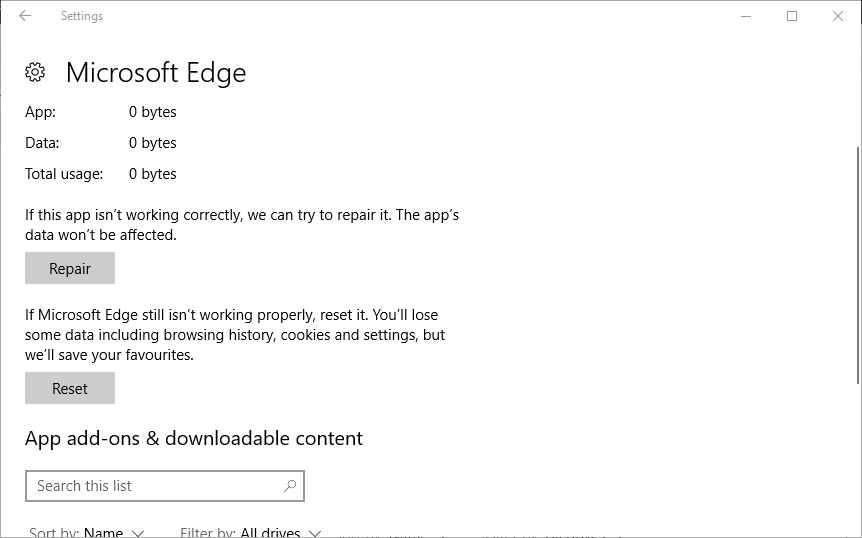
2. Reset the Edge browser

  1. Press the Cortana button on the Windows 10 taskbar to open that app’s search box.
  2. Input apps in Cortana’s search box to select Apps & features.
  3. Next, enter Edge in the search box shown in the shot directly below.
  4. Select Microsoft Edge and click Advanced options to open the options in the snapshot directly below.
  5. Press the Reset button. A box opens with another Reset button on it that you can press to confirm the selected option.

There’s also a Repair option that you can select to fix the Edge inet_e_resource_not_found error with without clearing data.


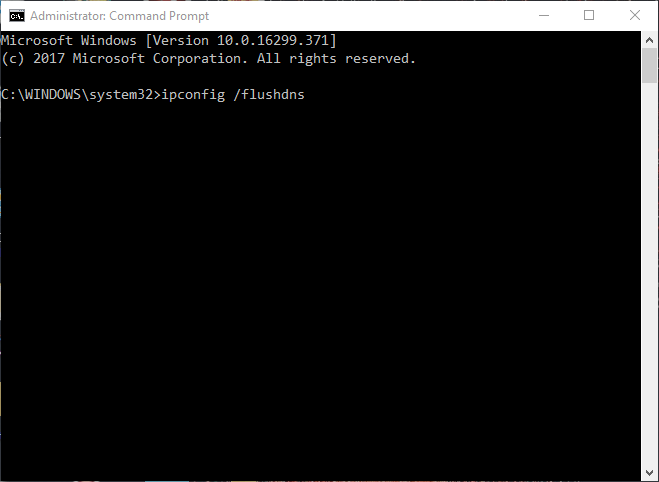
3. Flush the DNS

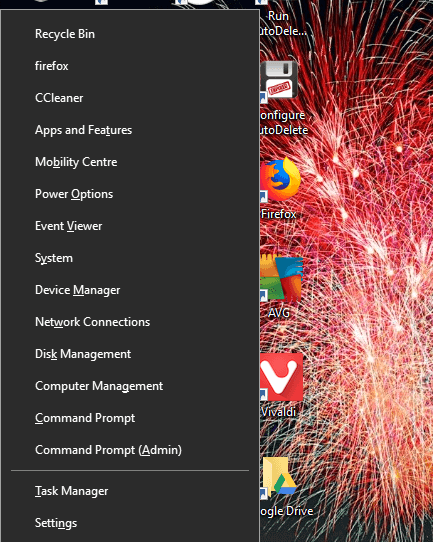
  1. Open the Win + X menu shown in the screenshot directly below with the Windows key + X hotkey.
  2. Select Command Prompt (Admin) to open the Prompt as admin.
  3. In the Command Prompt‘s window type the code below then press the Return key: ipconfig /flushdns

4. Adjust the User Account Control Settings

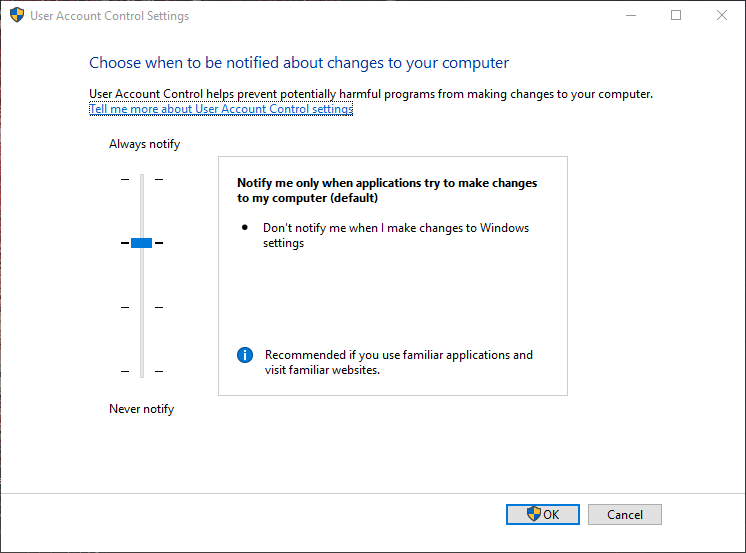
  1. Enter UAC in Cortana’s search box.
  2. Click Change User Account Control settings to open the window shown directly below.
  3. If the bar slider is at Never notify, raise it so that it’s at least one down from Always notify.
  4. Click the OK button to confirm.

Adjusting the User Control Settings can be done in just a few clicks and it may solve the the Microsoft Edge inet_e_resource_not_found issue.


5. Adjust the DNS server addresses

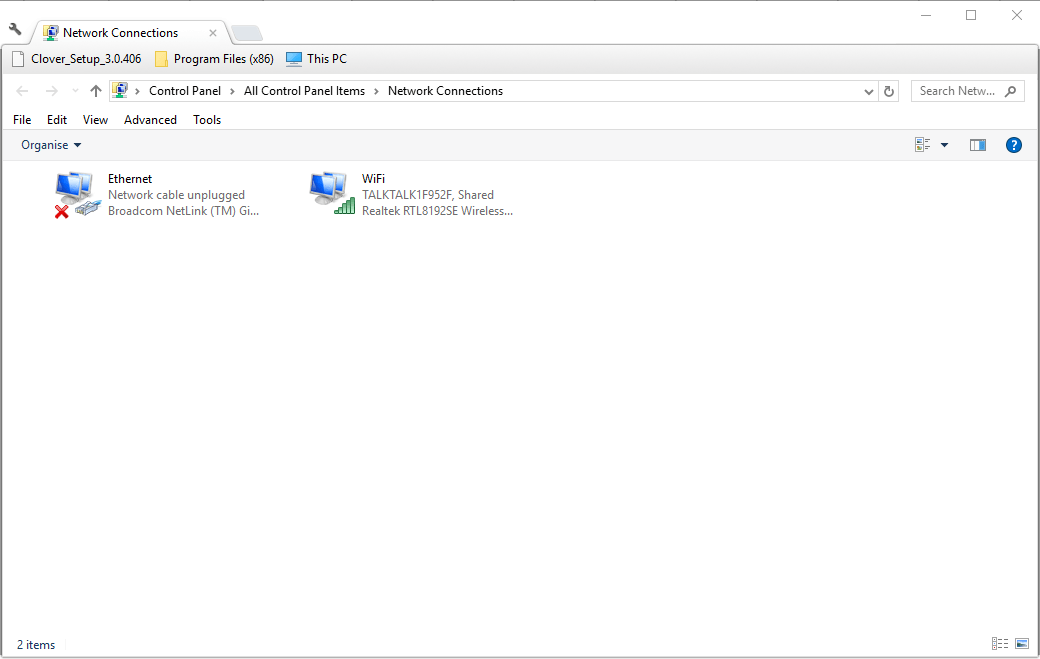
  1. Open the Run accessory by pressing the Windows key + R hotkey.
  2. In Run‘s text box enter the code below then click OK to open Network Connections in the Control Panel: ncpa.cpl
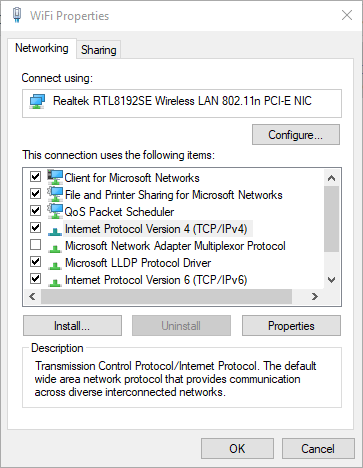
  3. Right-click your network adapter and select the Properties option.
  4. Select Internet Protocol Version 4 (TCP/IPv4) on the Networking tab, and press the Properties button.
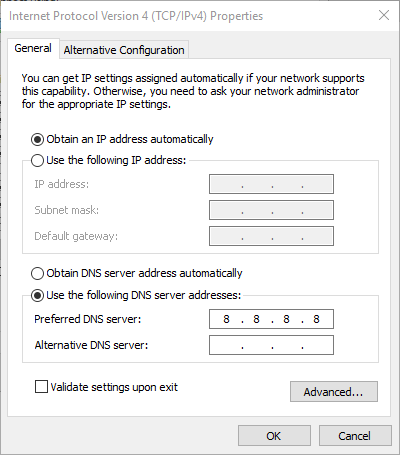
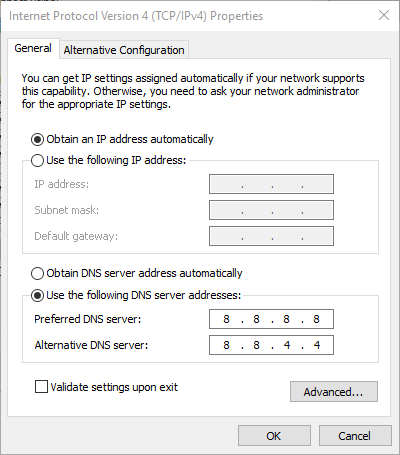
  5. Select the Use the following DNS server addresses option on the General tab.
  6. Enter the value 8.8.8.8 for the Preferred DNS server.
  7. Then input 8.8.4.4 for the Alternative DNS server as shown in the shot directly below.
  8. Click the OK button to close the Internet Protocol Version 4 (TCP/IPv4) Properties window.

After completing these the inet_e_resource_not_found dns error should be solved. However if you still find that the problem persists, just try our next solution.


6. Reinstall the Wi-Fi adapter driver

  1. Press Windows key + X hotkey and selecting Device Manager to open the window directly below.
    device manager
  2. Double-click Network adapters to expand that device category.
  3. Right-click your network adapter and select Uninstall device.
  4. Press the Uninstall button to further confirm.
  5. Windows will reinstall the driver when you restart the desktop or laptop.
  6. Note that you’ll also need to re-enter Wi-Fi password after restarting Windows.

Reinstalling the driver for the Wi-fi adapter can be done in just a few steps and it might fix the Microsoft Edge inet_e_resource_not_found error.


7. Reset Winsock

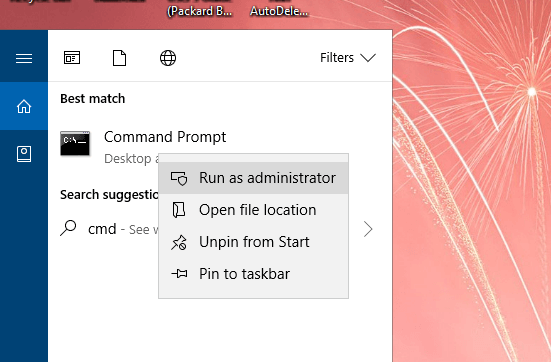
  1. Enter CMD in Cortana’s search box.
  2. Right-click the Command Prompt and select Run as administrator to open its window.
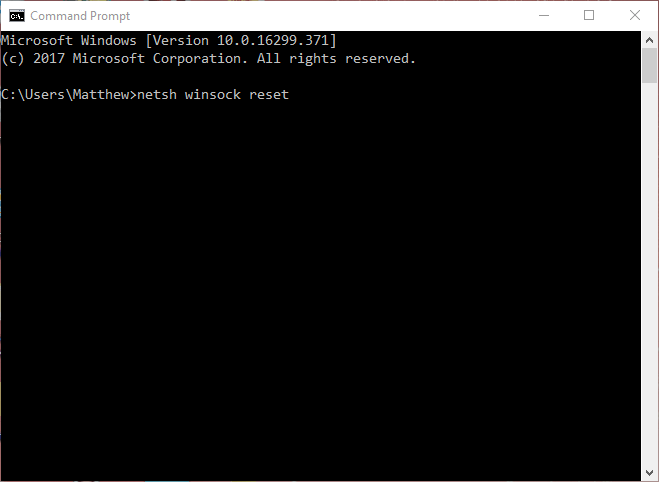
  3. In the Prompt’s window input the code below and press Enter: netsh winsock reset
  4. Restart the Windows platform.

These are a few of the resolutions that might fix the inet_e_resource_not_found in Windows 10, so that you can open the required website pages in Edge again.

We’d like to know more from you on this subject so drop us a comment in the comment section below.


KB4601319 fixes issues that prevented user from using chkdsk

The Patch Tuesday updates for the Month of February have just been rolled out by Microsoft, and they bring plenty of fixes, enhancements, and new features to all versions of the Windows 10 OS.

This includes older entries like Windows 10 v1507, up to the latest, which is currently Windows 10 v20H2.

We’ve already written an article where we included detailed changelogs for each cumulative update, as well as direct download links.

However, some cumulative updates stood out from the rest, either through the major changes that they brought, or the major issues encountered in them.

Such would be the case of KB4601319 that applies to Windows 10 v20H2/ and 2004.


Windows 10 v20H2/v2004 users can finally use chkdsk again

Since the last updates, it was discovered somewhere along the way that many users would experience startup issues or even file damage after running a chkdsk /f.

Considering that a Chkdsk scan is usually among the go-to solutions to fix system files, this issue was quite ironic indeed.

Fortunately enough, those of you that have Windows 10 v20H2 or v2004 installed on your PC should no longer worry about the issue, since according to Microsoft, it has been successfully been taken care of.

Unfortunately, the update has failed to fix an issue discovered during the February 2nd update, where users reported issues with Discord App overlay:

Microsoft and Discord have found incompatibility issues with some games using Direct3D 12 when the in-game overlay feature of Discord is enabled. When attempting to open affected games you might receive an error, or the game might close silently.

More so, during last month’s Patch Tuesday updates, it was discovered that those running Windows 10 v 20H2 and v2004 might experience system and user certificate losses post-update, and the issues still seems to be persisting.


This concludes our short briefing of KB4601319, and we hope that it has given you enough information to help you make a decision regarding downloading or postponing the instalation of this update.

While these changes alone would warrant installing the updates, don’t forget that the main focus of the Patch Tuesday updates is the improvements in terms of security.

That being said, if you don’t use other means of avoiding malware attacks, go ahead and install the updates at once, since these updates can be obtained in the same way as regular updates:

  • Via the Windows Update menu
  • Via the Windows Update Catalog
  • Via the Windows Server Update Service
  • Via Group policies set up by your network administrator

Don’t forget that there are some measures that can be taken to further ease the update process, so don’t forget to follow them as well.

Will you update your PC as soon as the updates become available in your region? Let us know by leaving your feedback in the comments section below.

KB4601318 fixes 11 different Windows service errors, among others

The Patch Tuesday updates for February have finally arrived, and, like always, they bring a host of new features that enrich the Windows 10 OS.

More so, these updates include enhancement to already-existent features and fixes to issues that have been around for a shorter or longer period of time.

Whichever the case, the updates are here and they are ready to download, although you must know that certain cumulative updates do have some issues associated with them.

Such would be the example of KB4601318 that applies to Windows 10 version 1607


KB4601318 fixes high CPU use, fatal error messages, and more

Among this month’s cumulative updates, KB4601318 addresses the most issues, according to the Microsoft changelog:

  • Addresses an issue with a Service Host (svchost.exe) process that causes excessive CPU usage in some Input Method Editor (IME) language environments, such as Traditional Chinese. This issue occurs when you try to add an input method in Control Panel.
  • Corrects historical daylight savings time (DST) information for the Palestinian Authority.
  • Addresses an issue with German translations of Central European Time.
  • Addresses an issue that causes LSASS.exe to stop working because of a race condition that results in a double free error in Schannel. The exception code is c0000374, and the Event Log displays Schannel event 36888, fatal error code 20, and error state 960. This issue occurs after installing Windows updates from September 2020 and later.
  • Addresses an issue that might cause systems that use BitLocker to stop working and display the error 0x120 (BITLOCKER_FATAL_ERROR).
  • Addresses an issue that prevents scheduled tasks that have multiple actions from running again if you have previously disabled them while they were running.
  • Addresses an issue that fails to log events 4732 and 4733 for Domain-Local group membership changes in certain scenarios. This occurs when you use the “Permissive Modify” control; for example, the Active Directory (AD) PowerShell modules use this control.
  • Addresses an issue that incorrectly reports that Lightweight Directory Access Protocol (LDAP) sessions are unsecure in Event ID 2889. This occurs when the LDAP session is authenticated and sealed with a Simple Authentication and Security Layer (SASL) method.
  • Addresses an issue with Server Message Block (SMB). This issue incorrectly logs the Microsoft-Windows-SMBClient 31013 event in the Microsoft-Windows-SMBClient or Security event log of an SMB client when an SMB server returns STATUS_USER_SESSION_DELETED. This issue occurs when SMB client users or applications open multiple SMB sessions using the same set of Transmission Control Protocol (TCP) connections on the same SMB Server. This issue most likely occurs on Remote Desktop Servers.
  • Addresses an issue that causes the LanmanServer service to stop unexpectedly. This issue occurs if the OptionalNames registry value is set and the service restarts.
  • Addresses an issue that causes stop error 0x54 in SRV2.SYS.

While the two fixes regarding German and Palestinian localizations could be considered minor, the other issues that resulted in common error codes were probably the most expected among users.


Given the sheer number of fixes showcased, it is highly advisable that you get the latest Patch Tuesday update s as soon as they becopme available in your region.

Remember that installing these Patch Tuesday updates is important purely for security reasons.

More so, the identified issues only happen in a handful of cases, and not everyone that gets the cumulative update will automatically experience the.

If you do decide to install the latest Patch Tuesday updates, you can get them through multiple means, including:

  • The WIndows Update Catalog
  • The Windows Update menu in Windows 10
  • The Windows Server Update Service (WSUS)
  • Through Gorup policies set up by your network administrator

On the flip side, you can choose to postpone the updates for up to 35 days until the bugs and issues that you are trying to avoid are hopefully solved.

Let us know whether you decided to install the latest cumulative update or not by leaving us your feedback in the comments section below.

A disc burner wasn’t found [Error fixed]

Many Windows users have downloaded ISO files and then burned them using their computer’s optical drive to a CD or DVD. However, some of them have encountered the error: Disc burner not found.

This usually happens whenever you want to save important content while using the native Windows application isoburn.exe.

If your DVD ROM doesn’t have the necessary writing capabilities, then you will receive this annoying error message.

Another cause for this issue may be a common glitch in your operating system. There are also instances when explorer.exe can encounter problems and send this error message.

If your optical unit has a corrupted driver, then the DVD writer will not function as it should. Some users have discussed about this error on Microsoft forums:

When I try to burn an image, I get the following message: A disc burner wasn’t found. Make sure that a burner is installed properly, and you have the appropriate permissions to burn the disc.

How do I enable the native image burner?

We have researched this issue and prepared several solutions that should prove useful to you. Just read our following section and learn how the disc burner not found error can be solved.

How can I fix the disc burner was not found error?

1. Use a reliable 3rd party software

If you want to burn a disk image (an ISO file) to a USB drive, you will no longer use isoburn.exe. This native Windows software will only function when you use disks.

As iso burn will not allow you to burn iso files on a flash drive; you will need to find a viable alternative. An option worthy to consider in this regard is to use a top 3rd party application.

You may also mount an ISO file on your current operating system if you wish to use it as a virtual CD or DVD at some time, and you can build backups of your own discs by converting them to ISO format.

If you merely wish to preserve the ISO file as-is on a DVD, you must use a DVD burning tool to make a data disc for storage.

ISO files, on the other hand, refer to a disk image bundled into a single file that may be used to duplicate the original system. If this is what you want, then you must burn the ISO on a DVD with a reliable free DVD burner.

2. Verify if the DVD unit has writing capability

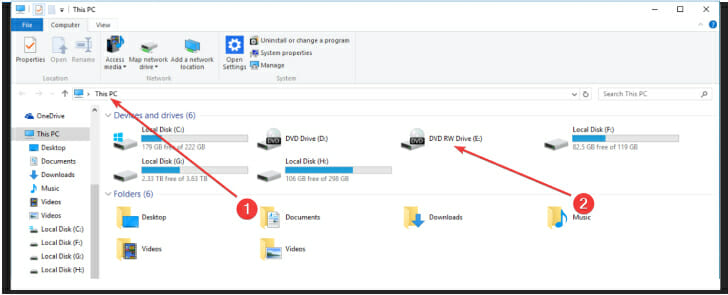
  1. Open File Explorer and navigate to This PC.
  2. Verify the name of your DVD drive in the right section of your screen.DVD Writer drive
  3. Ensure that its name finishes with RW (Read-Write).

If the answer is yes, then this abbreviation lets you know your DVD unit has the capability of burning disks using the isoburn.exe utility.

If you own a ROM drive, then you won’t be able to use it for copying data on CD or DVD. Also, in the case of a normal optical drive, the solutions from this section will not work.

3. Restart explorer.exe file

  1. Press Ctrl + Alt + Delete to launch Task Manager.
  2. Choose Processes, locate and right-click on explorer.exe from the list.
  3. From the newly appeared context menu select End Task.
  4. Press Windows key + R to open Run and type in cmd inside the box.
  5. Press Ctrl + Shift + Enter to open Command Prompt.
  6. After the User Account Control (UAC) notifies you, click Yes.
  7. Type in the following command and press Enter in Command Prompt: explorer.exe
  8. Navigate to and right-click on the ISO file location in File Explorer.
  9. Select Burn disc image from the newly appeared menu.
  10. Configure and launch the utility, then verify if the error still appears.

Use this solution to close all Windows Explorer instances. Then, you need to open this section again from Command Prompt.

After launching Windows native writer, the Burn Disk Image, the disc burner software not found error should disappear.  

4. Reinstall the DVD writer drivers

  1. Press Windows key + R to open Run and type in devmgmt.msc.
  2. Press Enter to open Device Manager and wait for a notification from the User Account Control (UAC).
  3. Select Yes to grant UAC administrator privileges.
  4. In Device Manager expand the CD/DVD-ROM section.
  5. Right-click on the problematic DVD writer and click Uninstall.
  6. Click Yes to start the uninstallation process.
  7. Restart your computer.

When the next startup takes place, the operating system will have to install a new driver to replace the one you have previously uninstalled.

After the startup has been completed, burn the ISO file again to verify if the problem has been solved.

In certain cases, the disc burner or software not found error message on Mac or Windows 10 can be caused by inconsistency with your DVD writer drivers.

By using the Device Manager feature and uninstalling the old driver, you will force Windows to install the newest one at the next startup.

The disc burner not found error message may appear when you want to write an ISO file on a DVD or CD. It can be generated by multiple causes, but we prepared several solutions to fix this issue.

You must first verify if your DVD unit has writing capabilities, restart File Explorer, or use the professional PowerISO software. This detailed list includes even more burning software options to pick from.

Read carefully our previous section, apply the solutions we have specified there, and leave us a comment to tell us which one worked for you as well. We’re eager to hear from you.

FIX: Gpapi.dll error in Windows 10

As an essential component that ensures Windows 10 programs operate properly is not a surprise that any errors related to the gpapi.dll files can create headaches.

Not to mention how time-consuming can be trying to figure out why they appeared and how to fix it. Usually, the error messages related to gpapi.dll files indicate that the file may have been incorrectly installed, corrupted, or even removed.

We’ve gathered in this article a list of easy to perform steps that will help you solve the gpapi.dll error in no time so check it out.

What can cause a gpapi.dll error?

  • Due to an error that may lead to losing data, the gpapi.dll file is inaccessible or damaged.
  • The antivirus software may have blocked the gpapi.dll file’s access.
  • The Windows registry’s database is damaged.

Common gpapi.dll errors include:

  • gpapi.dll is missing
  • gpapi.dll error loading
  • gpapi.dll crash
  • gpapi.dll was not found
  • gpapi.dll could not be located
  • gpapi.dll Access Violation
  • The procedure entry point gpapi.dll error
  • Cannot find gpapi.dll
  • Cannot register gpapi.dll

How can I fix the gpapi.dll error in Windows 10?

1. Perform a system file checker

  1. Go to Search, type cmd in the Search box, and then right-click on Command Prompt.
  2. Next, click on Run as administrator.
  3. At the Command Prompt, type the following command: sfc /scannow
  4. Type Enter and allow the process to continue.

If your DLL file is provided by Microsoft, running the System File Checker will replace the corrupted copy of the dbghelp.dll file with the cached one.

2. Reset your device

  1. In the Windows search box enter reset this PC.
  2. Click on Reset this PC and press on the Get started button.
  3. Select the Keep my files option from the displayed list.
  4. Finally, press the Next button and Reset to confirm.

Problematic applications or even outdated drivers can cause the gpapi.dll error and you can easily fix this problem by following the steps indicated in this article.

3. Use a dedicated DLL repair tool

The fastest way of solving the gpapi.dll error is to find and download the file into the original folder. You can do this by accessing a dedicated DLL library, and downloading the correct igdumdim64.dll file based on your device.

These libraries are usually updated frequently and by searching the file based on your system details( 64-, or 32-bit) you should have no problems in finding the right one.

If you want to save some time and make sure you get a smooth experience, you can use dedicated DLL management and repair software.

4. Scan your device

Sometimes the gpapi.dll error is prone to happen due to a virus or a malware infection on your device. A malicious program could intentionally corrupt the DLL files in order to substitute them.

Running a virus scan using your antivirus program in order to determine if your system is virus-free is recommended

5. Update drivers

You can manually update the drivers for the associated program where the gpapi.dll error appears but this can be a bit time-consuming.

Also, making sure you don’t install the wrong drivers is essential, in order to avoid more damage to your device.

In order to avoid all this from happening, we would recommend using a dedicated third-party tool that will do this for you automatically.

We definitely hope that following the steps indicated in this guide has managed to help you resolve the gpapi.dll error.

Don’t hesitate to share with us in the comments section below any other recommendations or suggestions you may have.

3 best SolarWinds User Device Tracker alternatives [Tested]

For network administrators, it is important to locate users and devices on the network in order to better decide on other network resources, and this process can be improved by using specialized software.

Such monitoring software has the specific purpose of putting together data about users, ports, and network devices while allowing switch port monitoring as well.

We’ve compiled a list of the best SolarWinds User Device Tracker alternatives that have been tested by our experts, so make sure to keep on reading.

What are the best User Device Tracker alternatives that I can use?

PRTG Network Monitor

Microsoft Network Monitor alternatives

PRTG Network Monitor is our first recommendation for one of the best choice when it comes to User Device Tracker monitoring.

This fantastic tool allows you to track multiple devices, switch port monitoring, and data to help you see their location at all times.

Moreover, PRTG Network Monitor works with all the biggest manufacturers and all the important features are included without any additional costs.

The 3 types of sensor available will make it easier SNMP sensors, Packet Sniffer Sensor and the NetFlow/sFlow/jFlow sensors.

Thanks to the SNMP preconfigured sensor you will know exactly the CPU load in your switch and the memory available as well.

PRTG Network Monitor

PRTG Network Monitor

The most reliable and performant User Device Tracker with incorporated features that are designed to keep you updated at all times.
Free trialVisit website

ManageEngine OpManager

router temperature monitoring software

ManageEngine OpManager is yet another comprehensive tool that provides traffic analysis, network monitoring, bandwidth analysis and is a great alternative for SolarWinds User Device Tracker.

The software comes with a new monitoring module which makes it the perfect choice for inspecting the network traffic.

Thanks to this feature you will gain real time access to bandwidth monitoring and detailed traffic reports which will let you know where you stand at all times.

The reporting profiles available are also a great addition since they come with customization options so that you could see all the needed data at a glance.

Key features of ManageEngine OpManager:

  • Ease to use and install on your device.
  • Temperature, power, and voltage monitoring.
  • Network Maps, category-wise Device Maps, and List viewsReports on hardware health status.
  • Multi-vendor support with over 650 device templates.

ManageEngine OpManager

Inspect network traffic and get real-time reports with ManageEngine OpManager.
Free Trial Visit Website

Nagios Network Analyzer

Nagios Network Analyzer is our last recommendation but definitely not the least. With this tool, you will easily be able to have access to detailed traffic analysis.

As a great alternative for User Device Tracking, Nagios Network Analyzer will offer a central view of network traffic in a comprehensive home dashboard.

The integrated features will help you keep track of specific subsets of network information, maintain historical network flow data or monitor the network usage for specific applications.

Moreover, you’ll be able to have a central view of the bandwidth data and network traffic. And with the use of the advanced alerting and reporting features you’ll stay updated at all times.

⇒ Get Nagios Network Analyzer


These are the 3 best SolarWinds User Device Tracker alternatives that we have also tested and we would recommend you give them a try as well.

In conclusion, there are several great alternatives to SolarWinds User Device Tracker, offering powerful network monitoring features. For more on free network monitoring tools, visit our guide on Free Network Monitoring Tools.

If there are other recommendations or suggestions that you have tried and worked best for you, we would love to hear them in the comments section below.

Get the Windows 10 February Patch Tuesday updates today

Now that February 9th is here, it means that Windows 10 enthusiasts will be receiving their monthly Patch Tuesday updates that they waited for since the beginning of the year.

As always, these updates are expected to bring much-needed fixes, tweaks, and updates to the Windows 10 OS, as well as much-needed security improvements against common malware and CVEs.


What the February Patch Tuesday updates might bring

Back on January 12th, Patch Tuesday brought many fixes, but some of the cumulative updates also caused issues with the system and user certificates, problems that weren’t fixed with the minor updates from February 2nd.

Speaking of which, not only was the issue not fixed, but some of the cumulative updates from February 2nd affected the way Windows 10 behaves with certain games:

Microsoft and Discord have found incompatibility issues with some games using Direct3D 12 when the in-game overlay feature of Discord is enabled. When attempting to open affected games you might receive an error, or the game might close silently.

As expected, most users, especially gamers, will be looking forward to a fix for this issue. On the other hand, one could also simply get the latest version of the Discord app installed.


Whichever the case, the Patch Tuesday updates will hit live in just a couple of hours at 10 AM PST, so be ready to receive the latest changes and enhancements for your OS.

Don’t forget that there are many ways through which you can update your PC with the Patch Tuesday update:

  • Having your System Administrator manually scheduling the update via Group Policies
  • Downloading each update directly from the Windows Update Catalog
  • Updating your PC normally through the Windows Update menu
  • Using the Windows Server Update Service

What changes and fixes are you expecting this month from Microsoft? Let us know by leaving your feedback in the comments section below.

How to save a webpage as a PDF [Chrome, Firefox, Edge]

Sometimes you need to save a certain webpage to read it later, and many users choose to save the webpages they need as PDFs.

This is quite simple to do in Windows 10, and in this guide, we’re going to show you how to do it without any third-party tools.

How can I save a webpage as a PDF?

1. How do I save a webpage as PDF in Chrome, Firefox?

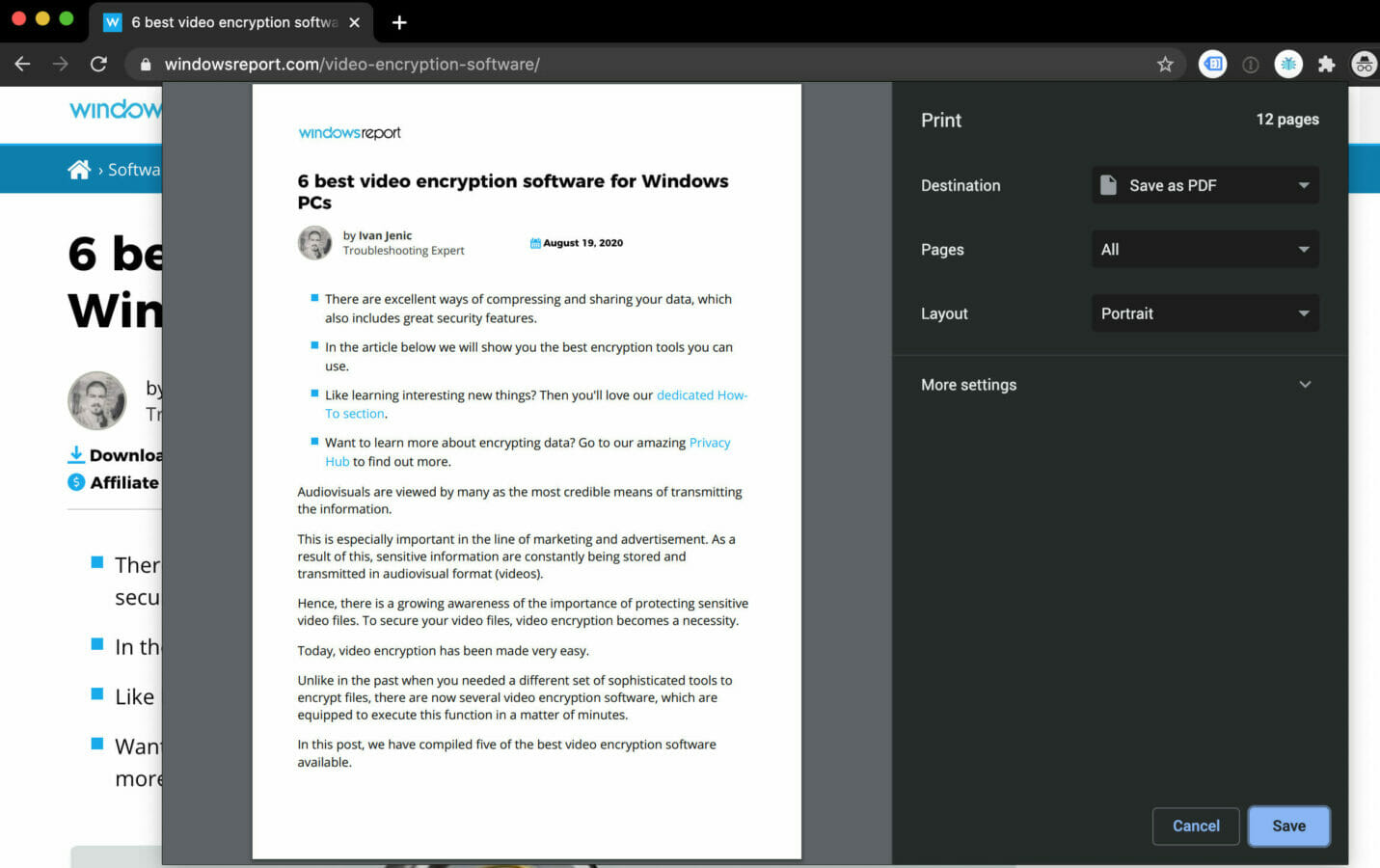
Save as PDF in Chrome
  1. Open the webpage.
  2. Press Ctrl + P.
  3. In the new window, in Chrome from Destination select Save as PDF, while in Firefox we select Microsoft Print to PDF.
  4. The Print button is the last one needed to finish the process. Click on it and a new file will show on your computer.

Note: The process is similar in most browsers. The hotkey Ctrl + P is a universal combination that is a shortcut for the print command.

It works just as well in Word documents, PDFs, and it’s the fastest way to save a webpage to PDF.

2. Here’s how to save webpages as PDF in Internet Explorer

  1. Open a webpage you want to save as PDF with Microsoft Edge.
  2. Click on the dotted menu, and choose Open with Internet Explorer.
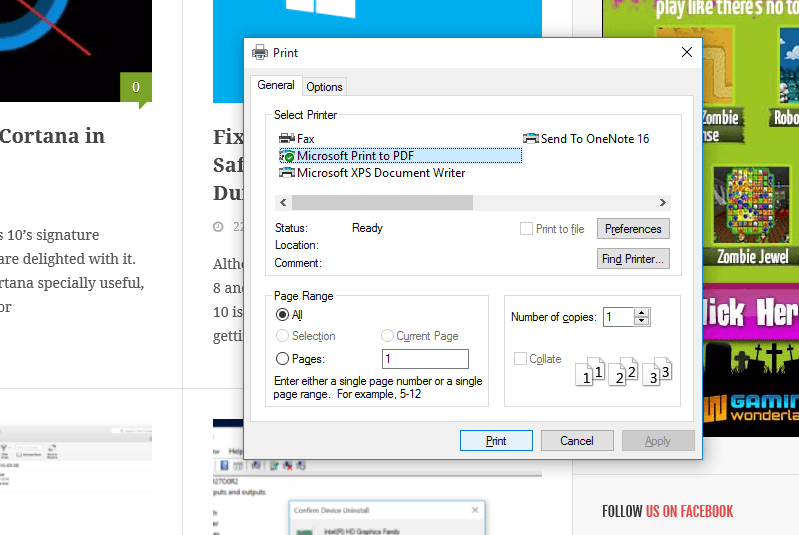
  3. In Internet Explorer, click on Tools (gear icon), and choose Print.
  4. Choose Microsoft Print to PDF, under Select Printer.print in windows 10
  5. Click on Print.
  6. Choose the location of your PDF document, and give it a name.
  7. Wait a couple of seconds, and your PDF document will be saved.

Note: This method is pretty simple, and it’s the easiest way to save a page in Internet Explorer on Windows 10.

3. How do I save a webpage in PDF in Microsoft Edge?

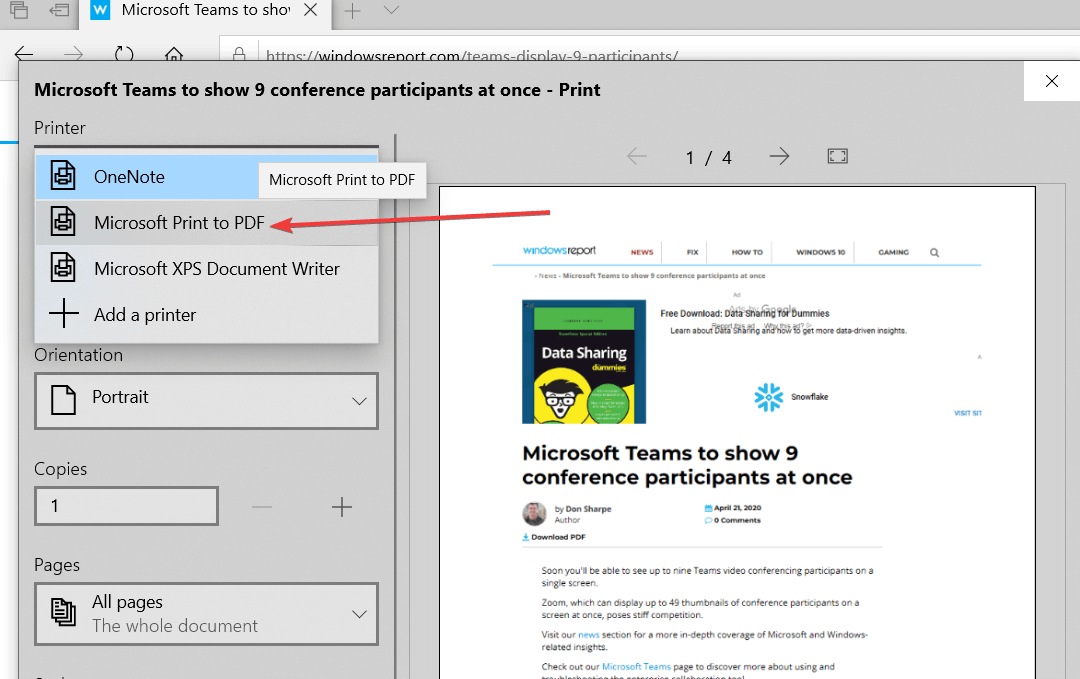
  1. Open the webpage you want to save as PDF.
  2. Press Ctrl + P or click the three-dot menu and select Print.
  3. Select Microsoft Print to PDF to save the respective webpage as a PDF file.microsoft edge print to pdf
  4. Hit Print.

Note: And just when I wanted to write a report about that, and tell you that you can save a webpage to PDF in Edge normally now, I dug a little deeper, and I found out that the issue is still here for many users.

Fortunately, I did find some solutions to this problem, and I’ll list them below.

4. How do I fix the Microsoft Edge Save Print to PDF not working?

1. Use a different browser

Most people who have this problem, also say that saving a webpage as PDF works in other browsers.

We recommend installing the Opera browser as an alternative to Microsoft Edge. Opera is a reliable browser that will always protect your privacy — a crucial characteristic in today’s world.

Making the switch to Opera is quite easy. Once you install it, you can easily import all of your bookmarks from Edge, Chrome, or Firefox.

Then, you can start using the browser and see how faster web pages will load. Because it comes with a built-in ad blocker, you will see fewer ads and better loading speeds.

Other really useful features are readily available: integrated messengers, free and unlimited VPN, grouping tabs together using Workspaces, or sharing content with your other devices using My Flow.

The browser also supports printing web pages to PDF. To print webpages to PDF on the Opera browser, press CTRL + P and select Save as PDF.

Opera

One of the best browsers available, with AdBlocker and security features. Opera is a great solutions to save a webpage as PDF.

2. Repair or reset Edge

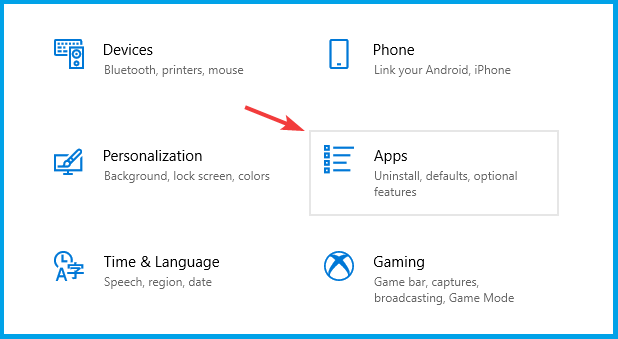
  1. Open the Settings app by pressing the Windows key+I keys combination.
  2. Go to Apps.
  3. Select Apps and Features.
  4. Scroll down to Microsoft Edge.
  5. Select the browser and click on Advanced Options.
  6. First, click on Repair.
  7. If the issue persists, click on the Reset option.

3. Install a much better tool for HTML-PDF conversion

  1. Download Adobe Acrobat and install it.
  2. Open your browser, go to the page you want to convert to PDF, and copy the URL.
  3. Open Adobe Acrobat, and go to Tools.
  4. Click Create PDF.
  5. Click Webpage.
  6. Go to Advanced Settings and click OK.
  7. Paste the URL and click Create.

Note: Third party-solutions are pretty much the best course of action regardless of what you are trying to do since they are usually created to do specifically that in a manner that is extremely simple for the user.

Such would be the case with Adobe Acrobat, an iconic software tool that has become almost synonymous with PDF files. Thus, it is a great idea if you use Adobe Acrobat to convert HTML pages to PDFs as well.

Do you have this issue with printing PDF in Microsoft Edge? Or do you maybe have a solution for us?

If you have a solution to this problem, please write it down in the comments, our readers who are facing this issue will surely appreciate it.

FIX: Igdumdim64.dll error in Windows 10/11

Without any doubt, the igdumdim64.dll can be quite frustrating as they can happen at any time, and without any further indications for what to do next.

There are various reasons and factors that could affect how the igdumdim64.dll files are working on your Windows 10 device.

In this article we will explore some of the most efficient and easiest ways to solve this error, so check it out.

What is igdumdim64.dll?

The igdumdim64.dll file is associated with User Mode Driver for Intel(R) Graphics Technology. This type of file is used to run User Mode Driver for Intel(R) Graphics Technology-based applications.

You will see that for certain, more sophisticated and complex video games and software are using the igdumdim64.dll to get access to certain API functionality.

Igdumdim64.dll error messages

  • The program can’t start because igdumdim64.dll is missing from your computer.
  • This application failed to start because igdumdim64.dll was not found.
  • The code execution cannot proceed because igdumdim64.dll was not found.
  • Cannot start {program}. A required component is missing: igdumdim64.dll. Please install {program} again.

How can I fix the igdumdim64.dll error on my Windows 10 device?

1. Download igdumdim64.dll file

Ensuring that you have the compatible and latest version of the DLL files your system needs can be easily done by using specialized DLL fixing software.

The great thing about this type of software is that it is updated frequently and you should not have any trouble finding the right DLL file, and have it on your system with just a few clicks of your mouse.

It doesn’t matter if your PC has corrupted or just missing .dll files; with this multifunctional software, you will resolve the issue using effective support.

The process will also work automatically, and you only have to select the files to be fixed. After this, the tool you want will find new DLL files to replace your problematic ones in minutes.

2. Scan your device

Before moving forward with any other step, we would recommend that you scan your device for any malware or virus threats.

It’s possible that some igdumdim64.dll files are associated with a virus or malware infection on your device, which has actually caused the file to not work properly.

If that’s the case, running a virus scan using your antivirus program in order to determine if your system is virus-free is the best way to proceed at this point.

3. Reinstall the program

In case you receive the igdumdim64.dll error when running a specific program, then reinstalling it will substitute the missing file, the registry entries, and of course the correct igdumdim64.dll file.

Make sure to first reinstall it, and then proceed with the new installation of the program. A restart of your device may be required in both situations.

4. Reset your device

  1. Open Windows search box and enter reset this PC.
  2. Click on Reset this PC and press on the Get started button.
  3. Next, select the Keep my files option.
  4. Press on the Next button and Reset to confirm.

5. Update drivers

Updating the drivers for the associated igdumdim64.dll files is our next recommendation. You can do this manually although this could be time-consuming and you may also risk not installing the correct ones.

In order to avoid this, we would suggest that you use a dedicated tool that will automatically do this for you and it will also maintain your device drivers updated at all times.

One such reliable tool that our team recommends using is Outbyte Driver Updater. This software will prevent your device from any damage caused by installing the wrong drivers.

Another good reason to use this software is represented by increased system performance and better speed for your operations.

Hence, using the latest driver versions improve your overall PC performance and also keeps you away from device errors.

⇒ Get Outbyte Driver Updater

6. Install Windows updates

  1. Press Windows Key + I  to open the Settings app.
  2. Navigate to the Update & Security option.
  3. Next, click on Check for Updates button.
  4. In case there are new updates found make sure to install them.

The igdumdim64.dll error can be caused by outdated drivers or problematic applications, and you can easily fix this problem by following the steps indicated in this article.

We definitely hope that one of the above solutions helped you solve the igdumdim64.dll error.

If you have any other recommendations or suggestions, don’t hesitate to write them in the comments section below.

FIX: Libmysql.dll missing/was not found [File Error]

The libmysql.dll files are essential system files of the Windows 10 operating system.

Usually, they contain a set of procedures and driver functions and are indispensable components that ensure the Windows programs are working properly.

Anytime the libmysql.dll file is missing this can potentially have a negative impact and consequences on how the associated software works.

There are multiple reasons for the appearance of a libmysql.dll error, including registry issues, malicious software, faulty applications, incorrect installation of the file, and more.

We will explore in this article a few easy steps that will help you solve the file error, so make sure to keep on reading.

Libmysql.dll error messages

There are several ways on how the libmysql.dll errors can appear on your device.

  • libmysql.dll is missing
  • libmysql.dll error loading. The specified module could not be found
  • libmysql.dll crash
  • libmysql.dll was not found
  • libmysql.dll could not be located
  • libmysql.dll Access Violation
  • The procedure entry point libmysql.dll error
  • Cannot find libmysql.dll
  • Cannot register libmysql.dll

How can I fix the ibmysql.dll missing / was not found [File error]?

1. Restore the libmysql.dll file

The easiest way to find and restore the libmysql.dll file is to use dedicated software that will do this automatically.

Thanks to the online libraries that this kind of tool uses to compare the data found in your device. After the scan is complete, the software will start downloading and replacing any faulty registries, DLL files, or any damaged files found during the scan.

2. Restore the file using Recycle Bin

Although it may not be so easy to believe, the easiest cause for a missing libmysql.dll file can be due to being mistakenly deleted.

If you have even the slightest suspicion that you may have accidentally deleted the DLL file, then make sure to check the Recycle Bin.

If the file is found there, simply select Restore and the file will be replaced in its initial folder.

3. Reinstall the program

If the above solutions failed then we would recommend that you simply reinstall the program that has the libmysql.dll file missing.

By doing that, all the initial packages of the file will be reinstalled on your device, which will also include the DLL file.

4. Update Windows

Since Microsoft is regularly releasing new updates in order to improve the OS performance, checking to see if there are any new ones to install on your device is our next recommendation.

Usually, updating the DLLs is included in the new releases which would help you solve the problem.

5. Run a malware scan

The libmysql.dll not found file error can be due to a virus or a malware infection on your device that has damaged the DLL file.

Moreover, it is possible that the libmysql.dll error is related to a hostile program on your device.

A simple scan of your device will help you quickly fix the issue by detecting and removing any possible threats or infections. Make sure to restart your device after the scan process is finished.

6. Perform a system rollback

  1. Go to the search bar and type System Restore.
  2. Select Create a restore point.
  3. Next, click System Restore button.
  4. Select Choose a different restore point and click Next.
  5. Select a date for restoration before the issue occurred, then click on Next.
  6. Enter your password if asked and follow the on-screen steps to choose a restore location
  7. Reset your device.

We hope that one of the solutions presented here helped you solve the libmysql dll missing file or any other DLL-related issues.

If you have additional recommendations or suggestions we would love to hear about them in the comments section below.

How to play 2 player browser games

There is nothing better than playing your favorite game with your friends. Today, most games support multiplayer, but what about browser games?

A gaming search engine that allows 2 player browser games should have some key characteristics like RAM and CPU limiters, a video pop-out, or an integrated messenger app.

For a long time, browser games were designed for the single-player experience, but today we’re going to show you how to play 2 player games in your web browser.

How can I play 2 player browser games?

1. Use Opera GX

Playing games online with your friends is pretty straightforward, but for best performance in games, it’s advised to use a gaming browser such as Opera GX.

This browser comes with a built-in ad blocker, which will come in handy when dealing with those annoying ads. The ad blocker will also block various tracking scripts and make websites load faster.

Opera GX has a Control GX feature that allows you to allocate your hardware resources. By doing so, you’ll ensure that both your browser and other processes are running smoothly.

It’s a powerful feature that comes in handy if you’re playing Steam games, 2 player online browser games, or other installable games.

The browser also has a built-in messenger that supports several popular services, which can come in handy if you want to play with your friends.

Other features include a highly customizable user interface, Twitch integration, a pop-out video player, and a free VPN with unlimited bandwidth.

Opera GX

Use Opera GX gaming browser if you want to have some great online fun engaging in 2 player browser games!

2. Use Multiplayer Games for Chrome

If you want to have faster access to multiplayer games that you can enjoy in your browser, you should download the dedicated extension for Chrome.

Google Chrome is a popular browser for two-player games thanks to the fact that it incorporates plenty of features that allow this type of online fun.

Thanks to its customizable security features you can be sure that your gaming sessions with your friend are safe from any annoying cyber-threats or dangerous websites.

You’ll also benefit from the fact that Google Chrome facilitates a fast-speed web browsing experience so you can stay productive and get your job done in no time.

3. Play them on gaming websites

  1. Visit any website that hosts online games.
  2. Look for 2 Player category or enter 2 player in the search field.
  3. Select the desired game.
  4. Once the game loads, click Play to start it.

Some of these games will allow you to play together on a single PC, while others will support remote play. It all varies from game to game.

Regardless of what website you use, the process is almost the same on all web browsers.

Engaging in 2 player browser games is simple, and you can do that on any website that hosts online games. If you found this guide helpful, let us know your opinion in the comment section below.

Microsoft Project vs Microsoft Planner vs Microsoft To Do — which project management tool is right for you?

In the Microsoft world, there’s a lot of different programs or apps you can use to manage your project for your small business. As part of your Microsoft 365 subscription, you might have heard of Microsoft Planner, but you also might have heard of Microsoft To Do as well, especially with the recent rebrand of the “Tasks” app in Teams.

And, if you’re looking for a more extensive solution, there’s Microsoft Project, too. So, which tool is right for you?  And how are these three Microsoft tools different from each other? What if you’re doing a solo or a team project? Are you depending on anyone?

Each of these tools can answer those questions, and today, we’ll explain the differences between each tool, and which one you might want to consider using.

Microsoft Project & Project Online

To begin, we’ll start Project Online and Microsoft Project. Project Online is a web-based experience and a paid add-on for Microsoft 365 plans. It’s designed for medium and large businesses primarily for creating schedules, tracking projects, portfolios, and creating timesheets. Microsoft Project (the desktop app) is more about creating a standalone project plan, and organizing works into phases.

This project management tool is one of the most extensive from Microsoft and is best if you’re a larger operation, looking for a more concise solution with a broader focus. Some features can be seen below.

  • Starting in a centralized view, create new projects easily, quickly access important, top-of-mind projects, or open projects most recently worked on.
  • Plan and manage projects, using an ordered list of tasks.
  • Visually track project tasks for better workflow and status, using out-of-box and custom task boards.
  • Track and understand dates, assignments and the relationships of project tasks in visual timeline view
  • Work together on projects, using Microsoft Teams.
  • Work together with stakeholders and team members to edit and update task lists, project schedules, and more simultaneously.
  • Includes familiar scheduling tools to assign project tasks to team members and use different views like Grid, Board, and Timeline (Gantt chart) to oversee the schedule

Microsoft Project Online is priced at $10 per user per month. However, you also can opt for Project Plan 3 or Project Plan 5. These are $30 a user per month, or $44 a user per month. These plans come with a desktop client. They come with the benefit of building roadmaps, timesheets, managing resources. Note that the top-end plan also has access to portfolio selection and optimization, demand management.

Microsoft Planner

Next, there’s Microsoft Planner. Unlike Microsoft Project, Planner is included as part of Microsoft 365 for no extra cost, and it’s a lot simpler to learn to use. That said, it is designed for smaller operations and is for quickly creating plans, assigning tasks, and collaborating. Planner plugs in with Teams and the rest of Microsoft 365, too. Some features of Planner are below.

  • With a familiar getting-started experience, you can create new Kanban boards in minutes, without expert help.
  • Plans are comprised of content-rich task cards that contain expected elements like due dates and extra elements like files and labels. Everything is in Planner, so you can search less and work more.
  • Planner automatically visualizes task status into pie and bar charts for you with no setup required.
  • Planner has iOS, Android, and web apps
  • Planner and Teams work well together. The Tasks app in Teams combines all your Planner and To Do tasks and pairs team and personal to-dos with advanced collaboration tools.

Note that unlike Project which has a desktop app, Planner is only web-based on Windows 10, though there are mobile apps for iOS and Android. It is also designed around Teams and can plug in with Teams to help you track things while you collaborate with coworkers. While it’s not as extensive as Microsoft Project, for most people it will get the job done.

It’s also worth noting that Planner is going through a rebrand, at least in Teams. Microsoft recently renamed the Planner app in Teams to “Tasks” as part of putting both Planner and To Do front and center on the collaboration platform. They’re looking to merge the two at some point.

Microsoft To Do

Last on the list is Microsoft To Do. This is one of the most lightweight of the project management tools.  According to Microsoft, To Do is all about “prioritizing and completing the most important things every day.” To Do has both a consumer version which you can use in your personal life, as well as a work version. You can see some of the features of To Do Below.

  • Set yourself up for success with My Day, intelligent and personalized suggestions to update your daily to do list.
  • Enjoy To Do across iOS, Android, MacOS, Windows, and the web
  • Shared to do lists help keep you connected with friends, family and colleagues.
  • Break tasks down into simple steps, add due dates, and set reminders for your daily checklist to keep you on track

Note that Planner and To Do plug into Microsoft Teams better than Project does. So, if you’re already using Teams, then you might want to consider To Do or Planner instead. You can learn more about To Do here. 

Again, keep in mind that Microsoft is looking to centralize its tools a bit, so To Do is getting pushed into the “Tasks” app in Teams, as part of a three-phase effort. The name change is purely cosmetic though, and the functionalities are still the same in Teams.

Microsoft Lists, and The best of Microsoft 365

To end, we also want to make note of Microsoft Lists. While this isn’t really a project management tool, it shares a lot of its heritage with To Do, Planner, and Project. Lists is intended as an app to share and track information. With lists, users are able to track information such as workflow issues, contacts, issues tracking, and status reporting within Microsoft Teams, SharePoint, and Outlook. There’s also a Lists mobile app, too.

If there’s one thing in common between these three tools, it is that they’re all part of Microsoft 365. Though we think that Project and Project Online is one of the most extensive project management solutions from Microsoft, Planner, and To Do seem to be the one for most small businesses. We’ve been covering this over the past few months in our “Getting Started” series, so feel free to check it out.

5 best dead nodes monitoring software

Managing the node activity and seeing which ones are live and which ones are dead allows you among other things to measure the quality of node to node communication.

There are many possibilities that will allow you to gather data regarding the node activity and thankfully you do not have to test them all in order to make the best decision.

We have tested them and in this article we will present you the best dead nodes monitoring software so keep on reading.

What are the best dead nodes monitoring software I can use?

PRTG Network Monitor

Microsoft Network Monitor alternatives

PRTG Network Monitor comes with excellent performance and features to better optimize and manage all the network traffic details.

This tool will allow you to monitor the nodes and see which ones are live and which are dead nodes.

Moreover, this tool allows you to view your network stats in real-time and can monitor all devices, traffic and all applications that exist in your IT infrastructure.

SNMP, WMI, Packet Sniffing, and NetFlow. PRTG are among the supported features. They are great for both personal and professional usage.

Key features of PRTG Network Monitor:

  • Analyzes data packets and monitors all data traffic.
  • Monitors IP, UDP, and TCP traffic.
  • Extensive server monitor.
  • Application and bandwidth monitor.
PRTG Network Monitor

PRTG Network Monitor

A fantastic dead nodes monitoring software that will offer comprehensive and detailed data for all the network traffic.
Free trialVisit website

Solarwinds Network Performance Monitor

Solarwinds Network Performance Monitor is perfect when it comes to monitoring dead nodes in your infrastructure.

The network monitoring features will allow you to create different data including charts, alerts and reports and also a map of managed nodes.

Moreover, you can define manually the relationship and connections between the nodes. Once you create and activate the map it should start to automatically display the current status of the nodes.

Having all this information available at a glance will allow you to quickly see and decide where a problem may be occurring and how to best solve it.

Key features of Solarwinds Network Performance Monitor:

  • Customizable topology and dependency-aware intelligent alerts.
  • Dynamic wired and wireless network discovery and mapping.
  • The capacity of forecasting, alerting, and reporting.
  • Detailed monitoring of F5 BIG-IP family of products.

⇒ Get Solarwinds Network Performance Monitor


ManageEngine OpManager

ManageEngine OpManager is our next recommendation thanks to its powerful features that will allow you to easily monitor all dead nodes alongside the network traffic from your infrastructure.

The software will provide you with real-time metrics, and thanks to the dozens of integrations it should work with all the latest services.

Moreover, the alert functionality is of great help for making sure that you will identify, detect, and troubleshoot all critical network issues before turning into a serious issue.

Key features of ManageEngine OpManager:

  • Temperature, power, and voltage monitoring.
  • Uses SNMP to collect hardware health data.
  • Reports on hardware health status.
  • Alerts to quickly detect and identify network issues.

ManageEngine OpManager

Analyze real-time metrics and benefit of powerful integration with this professional tool.
Free Trial Visit Website

Zenoss CiscoMonitor ZenPack

With its included features, this tool allows you to monitor all your physical and virtual network.

It collects and stores data for in-depth analysis, where the collection of metrics, events, logs, streaming and model data will ensure you see the current status of each element.

Thanks to this tool you will increase the performance of your business since it’s been built with the modern IT infrastructure in mind.

Key features of CiscoMonitor ZenPack:

  • Intuitive and performant management platform.
  • Unified monitoring of all physical and virtual systems.
  • Integration and monitoring of SNMP traps.
  • Simple to install with minimal configuration required.

⇒ Get Zenoss CiscoMonitor ZenPack


WhatsUp Gold Network Traffic Monitor

WhatsUp Gold Network Traffic Monitor offers a range of impressive features and traffic monitoring that makes it perfect for monitoring the dead nodes as well.

This software could not be left out from our list as it allows for allows for real-time bandwidth monitoring. This will help you identify interfaces, applications, or links and how much they are occupying the bandwidth.

The built-in functionalities will allow you to easily study the traffic patterns over a selected period of time. You can set for the software to do this as well, automatically, and then it can identify trends in bandwidth usage.

Key features of WhatsUp Gold Network Traffic Monitor:

  • Discover, map and visualize device dependencies automatically.
  • Flow, and sFlow to monitor network bandwidth.
  • ToS verification available.
  • Top Protocols, Top Senders, Top Application reports.

⇒ Get WhatsUp Gold Network Traffic Monitor


We hope that the details offered in the list above helped you decide on which dead node monitor to choose next. As you can see monitoring the dead nodes is not at all difficult with the right tool.

In conclusion, exploring alternatives to SolarWinds User Device Tracker can enhance your network monitoring experience. For more on dead nodes monitoring software, visit our guide on Free Network Monitoring Tools.

We would love to know if you have additional recommendations or suggestions, so don’t hesitate to leave them in the comments section below.

5+ best browsers for Schoology and Google Classroom

Online learning platforms such as Schoology and Google Classroom are quite popular, but to use them, you need to have a proper browser.

These platforms are optimized for all major browsers, and in today’s article, we’re going to show you the best browser for Schoology and Google Classroom.


What is the best browser for Schoology/ Google Classroom?

Opera One

Opera One has a long history, and it has been present on the market for 25 years. The latest version of Opera One is Chromium-based, and it even supports Chrome extensions.

The browser supports workspaces and tab islands, allowing you to easily manage your tabs. Speaking of tabs, there’s also an advanced search feature that lets you search for open tabs.

Opera One also has an integrated messenger, snapshot tool, ad blocker, tracking protection, and a free and unlimited VPN.

Opera One is fast, lightweight, and overall a great browser, so if you need a reliable browser for online learning, Opera One might be the right choice for you.

Other great features:

  • Built-in unit converter
  • Opera Flow feature to send files and links
  • Battery saver feature
  • Video pop-out player
  • Native AI

Opera One

For a smooth and pleasant experience in Google Classroom or Schoology, Opera should be your top choice.
Free Download Visit website

UR Browser

Ur Browser is one of the safest browsers you can get out there. In fact, the main focus of this browser is providing you with the safest internet environment.

To be precise, the browser has toggles for many protection-related features. You can opt for strong protection or a low one, depending on preference.

Ur Browser will keep you safe and your identity private. Your classroom projects will be safe while you’re using it. One other cool thing about this browser is that it is really fast, having optimized bandwidth usage.

Here are some of its key features:

  • Highly customizable
  • Really fast browser
  • Safe
  • Keeps your identify private
  • Downloads up to 4x faster
  • Personalized homescreen
Ur Browser

Ur Browser

Attend to your online classrooms and present your projects safely with Ur Browser.

Microsoft Edge

Microsoft edge best browser for schoology / google classroom

If you’re using Windows 10, then you’re probably familiar with Microsoft Edge. The browser has been revamped, and it now comes with a Chromium engine and support for Chrome extensions.

The new version of Edge brings you improved performance as well as better privacy control. With newer versions you can see how your browsing data is collected, so you can choose what to share.

Regarding safety, Microsoft Edge works with Microsoft Defender SmartScreen to protect you online against all sorts of threats.

Microsoft Edge went through some major changes, and if you don’t feel like switching to a new browser, be sure to give Microsoft Edge a try.

Other great features:

  • Available on Windows, macOS, iOS, and Android
  • Support for themes and Chrome extensions
  • Screenshot highlight feature
  • Coupons and discounts feature

⇒ Download Microsoft Edge


Mozilla Firefox

firefox logo best browser for schoology / google classroom

Firefox is a well-known web browser that comes from a non-profit organization, so it won’t ever sell your personal data to advertisers and third parties.

The browser has built-in tracking protection, so websites such as Facebook and others won’t be able to collect any data regarding your browsing activity.

As for protection, Firefox will give you an alert if you try to visit a breached website, and thanks to the built-in password manager, you don’t have to worry too much about your online accounts.

Firefox is private, reliable, and lightweight, so it’s a perfect browser for Schoology and Google Classroom alike.

Other great features:

  • Available on all desktop and mobile platforms
  • Highly customizable user interface
  • Pop-out video player
  • Tracking protection
  • Cryptomining blocking

⇒ Download Firefox


Vivaldi

vivaldi browser best browser for schoology / google classroom

Another great browser with a focus on privacy is Vivaldi. The browser comes with a built-in ad blocker, so you won’t ever have to deal with pesky ads.

The browser supports extensive tab management, and you can easily display tabs side by side, stack them or display them vertically for quick access.

The built-in sidebar is a welcome feature that allows you to pin your favorite websites and web apps for quick and easy access.

Vivaldi is a powerful web browser that offers great tracking protection and performance, and it’s a great choice for online learning and other browsing needs.

Other great features:

  • Customizable keyboard shortcuts
  • Quick commands
  • Notes
  • Support for Chrome extensions
  • Built-in screenshot tool

⇒ Download Vivaldi


Google Chrome

google chrome logo best browser for schoology / google classroom

Chrome is a well-known browser, and currently, it’s the most popular browser in the world. The browser is built by Google, so it fully supports Google Translate, Google Play, and Chromecast.

As for security, Chrome will keep track of your passwords, and it will warn you if your password has been compromised.

The browser will also flag harmful extensions, so they won’t be able to cause damage to your PC.

Additionally, Chrome can detect phishing websites and malicious files, and keep your PC safe from all online threats.

Other great features:  

  • Privacy controls
  • Frequent updates
  • Available on almost all desktop and mobile platforms
  • Phishing and malware protection
  • Sync feature

⇒ Download Google Chrome


Schoology and Google Classrooms are great e-learning platforms, and they are even better if you use them with one of the web browsers from this article.

If you have recommendations regarding one or the other when used with E-learning programs, share your opinion with us in the comments.


Microsoft Network Monitor Replacements & Alternatives [Tested]

Microsoft Network Monitor was a popular packet analyzer tool that enabled capturing, viewing, and analyzing network data and decoding network protocols.

However, Microsoft has archived the tool now, and the existing users are looking for the best Microsoft Network Monitor alternative.

Fortunately, there are a few good Microsoft Network Monitor alternatives available for IT professionals and system admins. These third-party packet analyzers offer similar if not better monitoring and network analysis features.

In this article, we have handpicked the best Microsoft Network Monitor replacement and alternatives and tested them to help you find the best packet analyzer tool depending on their implementation, usability, and reliability.

What are the best Microsoft Network Monitor alternatives?

PRTG Network Monitor

Microsoft Network Monitor alternatives

PRTG Network Monitor is the ultimate all-in-one network monitoring solution for capturing packets. It can monitor all the major protocols, including IP, UDP, TCP traffic. It can also monitor data traffic and data packets with the help packet sniffer.

PRTG Network Monitor uses different packet sensors such as Packet Sniffer, NetFlow, and sFlow to monitor web traffic, Cisco router, and switches while putting less strain on your network. The jFlow sensor is often used for Juniper Network devices.

Additionally, PRTG Network Monitor also offers features such as custom sensors that allow you to choose the types of data you wish to capture, a clean user interface and dashboard, and a top list for each sensor’s overview.

Key features of PRTG Network Monitor:

  • Monitor data traffic and analyze data packets
  • Monitors IP, UDP, and TCP traffic 
  • Supports several sensors and custom sensors 
  • Clean user interface and dashboard 

PRTG Network Monitor

This powerful software offers you even more network monitoring capabilities than Microsoft alternatives, with great customization options.
Free trial Visit website

NetFlow Analyzer by ManageEngine

Microsoft Network Monitor alternatives

NetFlow Analyzer by ManageEngine is a flow-based network traffic monitoring tool for in-depth traffic analysis. It leverages flow technologies to provide real-time visibility into the network’s bandwidth performance. 

Using the continuous stream mining engine technology, you can detect a broad spectrum of external and internal security threats. NetFlow Analyzer can also help you with tracking network anomalies and zero-day intrusions.

Other notable features of NetFlow Analyzer include app-centric monitoring to share app traffic, capacity planning, and billing, the ability to monitor voice and video data effectively, and support for flow technologies.

Key features of NetFlow Analyzer:

  • Bandwidth monitoring and traffic analysis 
  • Network forensics and security analysis 
  • Capacity planning and billing 
  • Effective voice and video data monitoring 

<strong>NetFlow Analyzer</strong>

Detect security threats and monitor data effectively with this powerful tool.
Free Trial Visit Website

Omnipeek Network Protocol Analyzer

Microsoft Network Monitor alternatives

With its rapid-fire analytics and insights, Omnipeek Network Protocol Analyzer allows you to quickly make better decisions about your network health, including security and performance.

While decoding over 1000 protocols, Omnipeek Network Protocol Analyzer can provide real-time analysis for various types of network segments from 1 to 100 gigabit, 802.11 WiFi, and voice and video over Internet Protocol.

All the data captured by the analyzer is presented in an intuitive graphic display and visualization, allowing for faster resolution of network and network and application performance.

Key features of Omnipeek Network Protocol Analyzer:

  • Can decode over 1000 protocols 
  • Support various types of network 
  • Great graphics display and data visualization 
  • Good network analysis workflow 

⇒ Get Omnipeek Network Protocol Analyzer

NetworkMiner

Microsoft Network Monitor alternatives

NetworkMiner is an open-source Network Forensic Analysis Tool for Windows and works on Linux and macOS platforms.

It can be used as a passive network snipper or packet capturing tool to detect sessions, hostnames, IOS, and open ports while putting less strain on your network.

NetworkMiner makes it easy to perform advanced NTA (Network Traffic Analysis) using extracted artifacts. The data presentation makes it easy to analyze and regenerate transmitted files and certificates from PCAP files.

Key features of NetworkMiner:

  • Live sniffing 
  • Parse PCAP and PcapNG giles 
  • Support multiple protocols 
  • Compatible with Windows, macOS, and Linux 

⇒ Get NetworkMiner

Wireshark

Microsoft Network Monitor alternatives

Wireshark is a network packet analyzer and presents captured packed data in detail on the dashboard.

It can be used to troubleshoot network problems, examine security problems, verify network application and debug protocol implementation.

Wireshark is available on both Unix and Windows systems. It can capture live packet data from a network interface, and open files containing packet data capture with tcpdump/WinDump, Wireshark, and other packet capture programs.

Besides this, you can also import packets from text files containing hex dumps of packet data.

Due to its deep packet inspection and ability to monitor live captures and offline data, Wireshark is one of the most widely used packet analyzers on the market.

Key features of Wireshark:

  • Compatible with Windows and UNIX platform
  • Capture live packet data from a network interface
  • Open packet data captured files from tcpdump/WinDump and Wireshark 
  • Save capture packet data
  • Colorize packet display with filters

⇒ Get Wireshark

The Packet Analyzers are an essential tool used by the network administrator and security engineers to troubleshoot network problems, learn network protocol internals and debug protocol implementations.

All the tools listed in this article can be used as Microsoft Network Monitor alternatives for Windows users.

Rsaenh.dll error corrupted file in Windows 10/11 [Fixed]

Rsaenh.dll is a Dynamic Link Library system file for the Microsoft Enhanced Cryptographic Service Provider.

When that DLL file is corrupted, various Rsaenh.dll error messages can pop up in Windows for different software. These are some of the rsaenh.dll error corrupted file messages:

C:windowssystem32rsaenh.dll is either not designed to run on Windows or it contains an error.
The file rsaenh.dll is missing or corrupt.
Failed to load rsaenh.dll.

Users can’t usually utilize software those DLL errors arise for. Although those messages have some variations, they all basically mean your PC needs a new rsaenh.dll. A corrupted rsaenh.dll is no good for software that requires it.

How can I fix corrupted file Rsaenh.dll errors?

1. Replace the corrupted file

Being able to quickly and efficiently replace any corrupted DLL files on your system can make a huge difference both in the sense of time expenditure and security.

While it might seem easy to download a DLL file, getting the wrong one can cause your system to malfunction entirely, thus it is recommended that you use specialized software to do so with ease of mind.

2. Scan system files

  1. To open the search tool, press the Windows and S keys at the same time.
  2. Enter cmd in the search tool that opens.
  3. Make sure you right-click Command Prompt and select Run as administrator to open it.
  4. Press Enter after inputting this Deployment Image Servicing scan command: DISM.exe /Online /Cleanup-image /Restorehealth
  5. When the Deployment Image Servicing scan is complete, type this command in the Prompt’s window: sfc /scannow
  6. Press the Enter key to start the System File Checker scan.
    The System File Checker command rsaenh.dll error
  7. Thereafter, wait for the System File Checker to complete its scanning.
  8. Restart Windows if the scan reports that Windows Resource Protection has repaired system files.

3. Reinstall software the rsaenh.dll issue arises for

  1. Right-click your Windows 10 Start button to select the Run accessory.
  2. Select Run’s OK option after entering this command in its Open box: appwiz.cpl
  3. Thereafter, select a program where the rsaenh.dll error arises.
    The uninstaller utility rsaenh.dll error
  4. Click Uninstall and Yes on any confirmation prompts to remove the software.
  5. Restart your desktop or laptop after uninstalling the software.
  6. Reinstall the latest version of the software you just uninstalled.

4. Register the DLL file

  1. Open your Windows search utility with the Windows + S keyboard shortcut.
  2. Type in cmd to find the Command Prompt.
  3. Next, right-click Command Prompt and select the Run as administrator context menu option.
  4. Then type in the command: regsvr32 rsaenh.dll
    The regsvr32 command rsaenh.dll error
  5. Press the Enter key to register the DLL file.

5. Roll Windows back to a restore point

  1. First, press the Windows and X keys at the same time.
  2. Select Run on the Win + X menu.
  3. Press the OK button after entering this command: rstrui
  4. Next, click the Choose a different restore point button on the System Restore window that opens.
  5. Click Next to open your list of restore points.
    The Show more restore points option rsaenh.dll error
  6. Select the Show more restore points setting to fully expand the list of dates.
  7. Choose a restore point that will roll back Windows to a date when there wasn’t a rsaenh.dll error on your PC.
  8. Click Next and hit the Finish button to initiate the Windows rollback.

Note: You can also click the Scan for affected programs button to see what software gets deleted for a restore point.

6. Run a malware scan

Your rsaenh.dll might be corrupted because of malware. Or there might be a malware DLL file on your PC. In either case, running a malware scan with a decent anti-malware utility can resolve the issue.

In order to have strong protection from viruses on different websites, the best idea involves malware scanners.

Hence, take initiative for your online safety and see how efficient website malware tools will prevent your PC from getting infected.

Those are some of the best ways you can fix corrupted rsaenh.dll errors on your PC.

You might also be able to fix corrupted rsaenh.dll issues with some of the resolutions within our How to fix DLL errors guide.

MSVCR90.DLL missing or not found [Error fixed]

DLL (Dynamic Link Library) file errors are relatively common on Windows.

Some users have posted on Microsoft’s forum about an msvcr90.dll missing error that arises when they try to run certain software.

One of the most common msvcr90.dll missing error messages states:

The program can’t start because MSVCR90.dll is missing from your computer. Try reinstalling the program to fix the problem.

What is msvcr90.dll?

Msvcr90 is a Dynamic Link Library file associated with Microsoft Visual Studio 2008. It’s part of the Visual C++ 2008 service pack, and the msvcr90.dll missing error will often arise for older software made with the Visual C++ 2008 development framework.

How can I fix the msvcr90.dll missing error?

1. Install the Visual C++ 2008 Service Pack 1

  1. Open either the Visual C++ 2008 32-bit or Visual C++ 64-bit download page in a browser depending on your system requirements.
  2. Press the Download button on the Visual C++ 2008 page.
    Visual C++ 2008 download webpage msvcr90.dll missing
  3. Open the Visual C++ 2008 Redistributable Setup window.
  4. Click Next on that window to install Visual C++ 2008.

2. Repair Microsoft Visual C++ packages

  1. Launch Run with the Windows + R keyboard shortcut for that accessory.
  2. Type in this run command for opening Programs and Features: appwiz.cpl
  3. Click the OK option to open the uninstaller window in the snapshot directly below.
    The Programs and Features applet msvcr90.dll missing
  4. Right-click a Visual C++ package to select its Change option.
  5. Then click the Repair option.
    The Repair option msvcr90.dll missing
  6. Repeat the above steps for all Visual C++ packages you can select a Change option for.

3. Repair applications the msvcr90.dll missing error arises for

The Change button msvcr90.dll missing

Some applications, such as those of the MS Office suite, have their own repair options.

If the DLL error arises for an MS Office application, try selecting its Change and Repair options via Programs and Features.

You can do much the same as outlined for Visual C++ packages in resolution two.

4. Restore files in the Recycle Bin 

  1. Click the Recycle Bin icon on the Windows desktop.
    The Restore all items option msvcr90.dll missing
  2. Then press the Restore all items button.
  3. Alternatively, you can enter msvcr90.dll in the search box. If you find it, select msvcr90.dll and click Restore the selected items.

5. Restore Windows to an earlier date

  1. Launch the Run accessory.
  2. Enter this System Restore command in the Open text box: rstrui
  3. Click OK to open the System Restore window.
  4. Then select the Choose a different system restore radio button, and click the Next button.
    System Restore utility msvcr90.dll missing
  5. If System Restore includes a Show more restore points checkbox, select that option.
  6. Choose a date that will restore Windows to a time when there wasn’t an msvcr90.dll missing error on your PC.
  7. Click the Next option to continue.
  8. Press the Finish button to confirm your chosen restore point and initiate the system rollback.

Note: You won’t be able to select restore points as outlined above if you haven’t enabled System Restore on your PC. Also, note that restore points delete software installed after their dates. Click the Scan for affected programs button in System Restore to see what software a restore point deletes.

6. Reinstall software the msvcr90.dll error arises for

  1. Open Run’s window.
  2. Type this command in Run’s Open text box: appwiz.cpl
  3. Press the Enter keyboard key to open the Windows uninstaller utility.
  4. Select the software that displays the msvcr90.dll missing error message.
  5. Click the Uninstall button for the selected software.
  6. Select the Yes option on any confirmation prompts that might appear. 
    A confirmation prompt msvcr90.dll missing
  7. Restart your desktop or laptop after you’ve uninstalled the software.
  8. Download the latest version of the software from its webpage.
  9. Reinstall the software with its downloaded installer.

7. Scan system files

  1. Press the Windows and S keys at the same time to open a search box.
  2. Type cmd in the search utility’s text box.
  3. Right-click Command Prompt in the search results and select Run as administrator.
  4. Input this Deployment Image Servicing command in the Prompt and press Enter: DISM.exe /Online /Cleanup-image /Restorehealth
  5. Thereafter, input this System File Checker command and hit Enter: sfc /scannow
    The sfc /scannow commandmsvcr90.dll missing
  6. Wait for the System File Checker to finish scanning.
  7. Restart your desktop or laptop if the scan reports it repaired files.

The above resolutions will probably fix most msvcr90.dll missing errors.

Some of the resolutions in our general How to fix DLL errors guide might also help resolve msvcr90.dll issues.

Fix error 3002 on your MagicJack device

As a voice over Internet Protocol (VoIP), MagicJack provides the same services as a phone does, only that instead of an actual phone line it uses an Internet connection.

Many users have recently complained about getting the 3002 error on their MagicJack device. This error usually appears when trying to plug the device into a modem trying to use it on Windows 10.

Fortunately, there’s a way to fix this error, and today we will explore in this article how you can do it in just a few easy steps.

How to fix error 3002 on MagicJack?

1. Restart your router

try to restart your router

In order to see if you are dealing with a IP/TCP inconsistency, the first thing to do is to restart your router and recreate the connection.

Many users reported that this is a common issues, especially at the first try of attempting to configure the device.

In case the 3002 error code is the result of an issue regarding network inconsistency, then this action will flush the DNS IP and also clear the temp data which may have something to do with the error.

To perform this action, locate the Power button, turn it off and wait for 30 seconds before powering it back on. Next, restart both the router and your device and check if the error is still there.


2. Disable the firewall

  1. Press Windows key + R keyboard shortcut to open up a Run dialog box.
  2. Next, type appwiz.cpl inside the text box and press Enter.
  3. In the Programs and Features menu, locate the security program and choose Uninstall.
  4. Follow the given indications to complete the process.
  5. Finally, restart your device and reconnect your MagicJack device.

To get more answers, check out this quick guide dedicated to users who want to know for sure if Windows Firewall is blocking a port or a program.

This could be the case too, so don’t hesitate to follow the above procedure and disable the firewall if it’s indeed the culprit.


Isn’t the Windows key working? Then, count on us to solve the issue in no time!


3. Check your Internet connection

Low Internet connection speeds or unstable network connections can easily cause the 3002 error. In order to avoid this from happening, we recommend a minimum upload speed of 3 Mbps.

In case you don’t have this kind of Internet connection speed, then adjusting it is essential. After doing this, make sure to check once again if the MagicJack error 3002 is still there.


4. Contact customer care

If you have completed all the above steps and you still experience the issue, then another solution we recommend is to contact the MagicJack customer care service.

On their support page you will need to select the category, where the issue you are experiencing fits and further you will have the option for Live support from their side.


Not being able to use MagicJack can be a problem, but we hope that you found this guide helpful and that you managed to fix this issue.

If you have additional recommendations, don’t hesitate to let us know in the comments section below.

Disney Plus Not Working on Fire Stick [Unavailable/Stuck]

Is Disney Plus not working on Firestick for you? If that’s the case, you’re not alone, since many have encountered the same problem, but there are way to fix it.

Why is Disney Plus not working on my Firestick?

Missing updates or temporary glitches with Firestick can cause this problem. Issues with cache and the Disney Plus app can also lead to issues.

How to make Disney Plus work on Fire Stick?

Before we start fixing the issue, check if the service is working on other devices, other than Firestick.

1. Try to restart the Fire Stick

  1. Go to the Home screen and select the Settings icon.
  2. Select My Fire TV.
    settings disney plus not working on firestick
  3. Press on Restart.
    restart disney plus not working on firestick
  4. Within a couple of seconds, the Fire Stick will automatically restart.
  5. Wait for it to start again and check if the issue is still there.

2. Log out and log into Disney Plus

  1. Launch Disney+ and select the Settings option.
  2. Click the Log-out option.
  3. Now, wait for the process to complete, relaunch the app and log in again.

3. Update Firestick

  1. Go to the Home page and click the Gear icon.
  2. Select the My Fire TV option.
    settings disney plus not working on firestick
  3. Now, select About.
    about
  4. Finally, click the Update option.

4. Clear the cache

  1. Press on the Home button of your Fire Stick.
  2. Go to the Settings page.
  3. Select Applications from the list.
    settings app disney plus not working on firestick
  4. Next, choose Manage Installed Applications.
    manage installed apps
  5. Select Disney+ and press Clear Cache.
    disney+
  6. Restart the app and see if the issue has been solved.

5. Uninstall Disney Plus

  1. Go to the Home screen and select the Settings icon.
  2. Choose the Applications option.
    application
  3. Now, select Manage Installed Applications.
    manage installed apps
  4. Finally, click Disney+ and choose the Uninstall option.
    disney+

Try uninstalling and then reinstalling the Disney Plus app. Once the process is finished, make sure to restart your device. Afterward, go back and look for Disney Plus and proceed to install it once again.

Again, make sure that once Disney Plus is reinstalled, you restart the device again before trying to see if the Fire Stick issue has been solved.

⇒ Get Disney Plus now

6. Factory reset Firestick

  1. Go to the Home page and select the Settings option.
  2. Select My Fire TV.
    settings disney plus not working on firestick
  3. Now, click the Restore to Factor Defaults option and follow the onscreen instructions to complete the process.
    reset default disney plus not working on firestick

That is what you can do to make Disney Plus work again on your Fire Stick. So, be sure to try out each of the solutions. Hopefully, you don’t have to resort to the last option before you can get your device to start working.

If your Firestick is not booting up properly, check our detailed guide to fix this issue. There are other issues with Disney Plus and we have a guide on what to do if Disney Plus keeps buffering.

Before you go, don’t miss our guide on Disney Plus login not working for more information.

Please let us know which solutions worked best in the comments section below.

Adblock Doesn’t Work in Crunchyroll [Full Fix]

If you are an anime fan, you are for sure familiar with the Crunchyroll website. It is the best anime-streaming service around, and you can find tons of popular shows.

You can watch most of the anime on Crunchyroll for free, but you will have to tolerate many ads. With a paid account, you can access the entire library of anime, manga, and drama unlimitedly and without ads.

Crunchyroll applies many techniques to overcome the most known ad blockers. In this article, we will guide you on how to watch Crunchyroll without ads if your AdBlock is not working.

How can I stop ads on Crunchyroll if AdBlock is not working?

1. Use a browser with a built-in ad blocker

The best solution to avoid installing and reinstalling adblockers is to have a browser with a built-in feature for adblocking.

Opera One is a great browser that fits the description. Its built-in blocker detects and blocks ad scripts the moment you request a webpage.

To activate the feature, you have to go to OperaOne’s Settings and enable the AdBlock feature. You can use the ALT+P keys combination to open Settings fast.

Opera One

This browser will guarantee that watching Crunchyroll content will go unhindered by annoying ads.

2. Update your AdBlock extension lists

  1. Open the Google Chrome browser and click on the Action Menu.
  2. Click on More Tools and then Extensions.
  3. Activate Developer Mode from the right side.
  4. Click on Update button to update the extensions and lists.
  5. Restart Chrome and then open Crunchyroll to check if ads are blocked. 

3. Reinstall your adblocking extension

  1.  To open Google Chrome Extensions follow steps 1-3 provided at the first solution.
  2. Locate AdBlocker and click on Remove button.
  3. Restart the browser and then go to Chrome web store.
  4. Search for your AdBlocker and add it to Chrome.
  5. Relaunch Chrome and check if ads are still displayed on Crunchyroll.

If updating your extensions didn’t solve the problem, then reinstalling them may solve it.

4. Use a different adblocker

Crunchyroll is quite successful in applying techniques to overcome ad blockers.
Maybe your adblocking extension is not able to cope with Crunchyroll techniques. In this case, changing your Adblocking extension is a good idea.

The following extensions are known to work for Crunchyroll ads:

  1. AdBlock
  2. AdGuard
  3. StopAll Ads
  4. Ublock
  5. Ublock Origin
  6. Adblock Plus

Install one at a time, restart your browser, and see if it is working. If not, remove it and try another one from the list.

All of the above solutions will help you bypass those annoying ads on the Crunchyroll website. They also work for other different websites that display ads.

Of course, the best solution by far is to buy a premium account if you can afford it. The prices start from 7.99 $/month and you can access the entire library of anime without ads.

4 best VPNs to use while in Japan for security & speed

Japan is, without doubt, one of the most technologically advanced countries in the world, with the number of internet users only a few percentages short of being absolute (93% of the adult population).

The country is, by a long stretch, the most tech-inclusive country in the Far East. As such, there is little to no form of censorship or restriction on internet usage/access.

However, with the state of tech advancement in Japan (and the Western world) there is an increased risk of hacks, snoops, and cyber-theft — which, for the past decade, have become severely critical.

In light of this, the issue of internet security (and privacy) has been given more attention like never before. And one such is the advent of Virtual Private Networks aka VPN.

Although most durable VPNs offer paid services, you are afforded the opportunity of using them for free, albeit for a limited period of time. This article brings you a succinct compilation of some of the best VPN for Japan. Read on!

Looking for a free VPN for Japan?

Private Internet Access (recommended)

In the case of Japan, you will probably be looking for a VPN service that prioritizes encryption, security, and the removal of adware.

One VPN service that meets those criteria, and many more for that matter, is Private Internet Access.

This exceptional VPN service owned by Kape Technologies is a world leader in Internet privacy, allowing you to browse the Internet unhindered.

The service will provide you with a secure VPN account along with Wi-Fi encryption and support for up to 10 devices.

This means that both you and your family and friends can enjoy Japan without having to worry about security when browsing the Internet.

Of course, you don’t need to think about bandwidth issues, since the subscription includes an unlimited amount of it.

Additionally, the 3300 servers located in 46 countries mean that you will be completely hidden, even from your own ISP.

Here are some of the perks of using Private Internet Access:

  • 3300 servers in 46 countries mean geo-location is near impossible
  • You are provided with a secure VPN account
  • You receive support for up to 10 devices
  • Your traffic logs will not be stored
  • You get multiple VPN gateways
  • You can encrypt your Wi-Fi
  • Easy to use and set up
  • and more…

Private Internet Access

Keep your browsing habits private with this amazing VPN, now at a discounted price for a limited time only!
Check price Visit website

CyberGhost

The foremost VPN brand/service provider is arguably Cyberghost. This VPN provider, a Romanian-based Internet-security firm, stands out as one of the best across the board. In terms of coverage, speed and connectivity, security protocols, ease of use, and more significantly, affordability.

Cyberghost hosts the best obtainable encryption protocol in the industry, in reference to the 256-bit AES protocol. This provides you with an impregnable connection to any site, especially geo-blocked or censored sites.

Basically, Cyberghost offers one of the most extensive VPN server coverage with over 3000 proxy servers in about 65 locations across the globe. In fact, Cyberghost hosts numerous servers in the Far East (Asia), with about 10 local servers in Japan alone.

With this, the 100 million+ internet users in the country (tourists and citizens alike) are afforded the opportunity of connecting to the “home servers” with convenience.

In addition, Cyberghost hosts an extensive set of security and geo-encrypting features.

Some of these include an automatic kill switch, no logging policy, OpenVPN protocol, unrestrained server switching, unlimited bandwidth, industry-class authentication (MD5 HMAC), 3100+ IPs, and more.

Other notable features of Cyberghost include cross-platform compatibility (for mobile and desktop devices), multiple simultaneous support (up to 7 connections), and more.

The most significant feature, however, is its 45-day refund policy, which enables you to reclaim your money within a 45-day grace period.

For this reason, we included CyberGhost on this list.

CyberGhost VPN

Need a great VPN to use in Japan? CyberGhost VPN is a great choice.
Check price Visit website

NordVPN

NordVPN is one of the best VPN service providers in the market, which offers free service to its users across the globe. As such, this service provided by Tefincom & Co., S.A. makes our list of best free VPN for Japan.

This VPN is best known for its dual encryption protocol, which ensures that your connection is secure end-to-end.

In terms of coverage, NordPVN can stand toe-to-toe with any VPN service provider. It has a server presence in more than sixty countries worldwide, with servers numbering well over 5,200.

Also, NordVPN features the best encryption/security and connection protocols in the industry. Specifically, these include the standard AES 256-bit, 2048-bit SSL, STP, IPSec, PPTP, and more.

Key features of NordVPN include:

  • P2P sharing
  • Internet Kill switch
  • Multiple simultaneous connections (maximum of 6)
  • Optimized servers and dedicated IPs
  • Cross-platform support (Windows, Mac OS, Android, etc.)
  • 30-day money-back guarantee

NordVPN’s hosted features ensure that you are easily able to override any form of geo-restriction and access your favorite sites, without revealing neither your identity nor your location.

With this, you are provided with absolute privacy on the web. Interestingly, you can enjoy all these for free.

NordVPN is made available to US subscribers for free. Users in Japan and other countries can also enjoy the VPN’s service for free, albeit for only a limited period of time.

Specifically, new users can use NordVPN on a free trial, for a period of 7 days.

Meanwhile, you can still enjoy NordVPN’s service for free for an extended period. This is made possible by the money-back guarantee feature, which allows you to reclaim your money within 30 days of subscription.

NordVPN

Keep your browsing habits private with this amazing VPN, now at a discounted price for a limited time only!
Check price Visit website

IPVanish

IP Vanish, distributed by StackPath, LLC, like CyberGhost and NordVPN, is not outrightly available for free. However, it provides new users with free access (limited) to its service for a brief period of time.

This VPN has a physical presence (servers) in over 60 countries across the globe, with an average of 20 servers in each location. Some of these servers are available in Japan and other Asian countries.

IPVanish is especially suited for small teams and emerging businesses, as it has the capacity to support up to ten connections at a time.

This means you can secure all your team members’ connections to every site (even restricted site), with a single IPVanish account.

Other key features of IPVanish include 24/7 customer support, 40,000+ shared IPs, multiplatform compatibility, zero traffic logging, optimized speed, P2P traffic (unlimited), connection protocols (IPsec, OpenVPN, etc.), money-back guarantee and more.

IPVanish’s free trial version is available to only customers using iOS devices. For others (Windows, Mac, and Android), there is a 7-day money-back guarantee on the cancellation of subscriptions. As such, you can use IPVanish for free for a period of one week.

IPVanish paid (subscription) plans starts at a relatively affordable rate. Other plans include the annual plan, the 3-month plan, and the monthly plan.

IP Vanish

IPVanish can help you protect your privacy no matter where you are.
Check price Visit website

Conclusion

There are tons of free VPN services out there. However, virtually all these VPNs cause more harm than good, as most of them are designed to siphon (to third parties) the data they are meant to protect. Hence, it is strongly recommended to stay away from them.

The reviewed VPNs while being paid services, allow you to use their services for free, albeit for a limited period of time, ranging from one week to one month to one-and-half months.

After this period, you can decide to subscribe to one of the paid plans, which are offered at affordable prices.

Free*: In this guide, ‘free‘ means being able to use the software for free for a limited period of time. There is a tremendous effort behind every VPN tool. Companies need to cover these costs via paid subscriptions.

5 best DVD-VHS combo players to watch old videos

Many users still manifest a fascination for watching movies the classic way, directly on film or sometimes feel like taking a walk down the memory lane and watch those old VHS home made videos.

The digitalization of multimedia technologies has made VCR players almost obsolete. Most people have chosen to have their VCR tapes converted to DVD-s because they found it that this is a more practical to conserve their old videos.

However VCR players offer a type of experience that resides in nostalgia.

If you still find yourself drawn to this type of feeling then this article will give you the most comprehensive guide to the best DVD-VHS combo players of the moment.


What is the best VCR DVD combo?

Sony SLV-D380P

  • CD, MP3, and JPEG playback
  • VHS, CD, DVD card slot
  • Audio, video input for watching videos form camcorder
  • No HDMI support

Sony introduces a high-quality VCR-DVD combo that set itself apart with a progressive output (480p) for DVD-s, precision drive 3, fast/slow playback with sound and many other versatile features.

You can watch your favorite DVD while recording a VCR of your favorite TV show. Feel free to create your own TV archive by pop-in a VHS tape,turning on source component and press record.

This device also allows you to rewind a T-120 tape in no time, approximately 120 seconds. Another perk that you’ll surely love is the multi-brand TV remote control.


Toshiba SD-V296 

  • Audio D/A Converter: 192KHz, 24-Bit for an excellent sound quality
  • OSD Language: English, French, Spanish
  • Digital to analog video converter
  • No DVD Recorder

A VCR-DVD combo that provides video D/A converter 108MHz/14-Bit and a Color Stream Pro component video output.

If versatility is what you’re looking for then this device is what you’re looking for. You can enjoy the benefits of playing a variety of multimedia files like DVD, DVD-R , DVD RW, CD, CD-R, CD-RW or VCD.

You are into for a great cinema experience with this VCR-DVD player thanks to the Dolby Digital DTS compatible 3D surround sound, that will offer you that crystal clear audio quality to your music or videos.


Emerson ZV427EM5

  • HDMI 1080p output
  • 6 hours of tape recording thanks to a 5-speed feature
  • Progressive scanning characteristic
  • No coaxial input

Thanks to the HDMI output with a capacity of 1080p, this device is ideal for watching DVD-s or VHS tapes at a high-quality.

With DVD progressive scanning you can produce a videos in different formats such as 480p (NTSC) or 576p (PAL). The 5-Speed feature allows you to record VHS tapes of up to 6 hours long.

A lightweight practical device that weighs only 12.6 pounds and uses 2AA batteries making it energy efficient.


Samsung DVD-V9700 

  • Parental control
  • Modern sleek design
  • HDMI cable included
  • No tuner

A device from Samsung that comes with a DVD progressive scan player and a VHS HiFi Player making it a perfect piece of technology for a versatile video experience.

The HDMI has a capacity of 1080p which means that it provides playback flexibility for both audio and video. The player is DIVX compatible, so you can watch videos that come in older digital formats.

With this device you also get to enjoy the perks of a DTS decoder for an excellent audio playback quality.


GoVideo DV2140

  • EZ Play for skipping the DVD menu and going to the start of the movie
  • Progressive scanning for sharp video images
  • Dolby Digital and DTS Digital outputs
  • No remote control

This device comes with progressive-scan DVD output for excellent, flicker-free images on high-definition and high definition TVs sets.

One very interesting aspect is that this DVD-VCR player was developed to work even with older TVs, it passes DVD as well as VHS signal through both composite-video RCA and RF coaxial outputs.

This device ensures a full multimedia experience thanks to its versatile abilities to play multiple multimedia formats like DVDs, DVD-R/RW, DVD+R/RW, MP3/WMA CD, JPEG image CD, and VHS tapes.


In this article we presented you with the best DVD-VCR combo players that are suitable for playing those old videos you love at optimum quality and we sure hope that our selection covered your needs.

We want to keep in touch with you so please give us your opinion on this subject in the comment section below.

Forgot PDF Password? 4 Ways to Open Locked PDFs

There are various pesky situations that every user confronts. One of the most common is forgetting the password to certain personal accounts or important password-protected files.

Being cautious about the information that you store in a PDF document often means setting a password and restricting certain features such as printing and editing. If you forgot the password for PDF files, stay with us.

Unfortunately, it is not possible to recover a password in order to open a document in Adobe DC. You can’t do so even if you are the author and you will have to recreate the file.

How can I edit my PDF file if I forgot the password?

However, there are ways to edit a secured PDF document and we are going to offer you handy solutions on how to open a PDF with a forgot password code.

1. Use Passware PDF Key

  1. Start by downloading and installing Passware Kit to your PC.
  1. Open the software, and click on Recover Password.
  2. Locate your PDF file, select it, and click Open.
  3. Select Run Wizard and follow the step-by-step prompts.

As you probably know, that’s the ideal choice when it comes to viewing, signing, collecting feedback, and sharing PDFs.

Besides all these, you may use it to open PDF files if you forgot the password by applying a few nifty steps, as described above.

This way, nothing stops you from sharing these files to consolidate comments from multiple reviewers in a single online PDF and keep the workflow as high as intended. If you need to quickly edit a password-protected PDF, there’s no better tool than Acrobat Reader for this task!

2. Unlock the file with PDF Password Remover software

  1. Download PDF Password Remover and install it on your PC.
  1. Add the encrypted PDF document to the app.
  2. Select a destination folder to save the unlocked PDF file.
  3. Click the Start button to begin unlocking the PDF.

Assuming that you want a lightweight and easy-to-use tool, rest assured that PDF Password Remover is worthy of your full attention.

Once you know the password, feel free to remove it and prevent entering it every time you open the encrypted document. Be aware that you can also test other PDF password remover tools if you’re not satisfied with the one above.

3. Get a copy of the file from your Google Drive account

  1. Open Google Drive and sign in to your account.
  1. Access the Google Drive Settings menu.
  2. In the pop-up Settings window, choose Convert uploaded files to Google Docs editor format.
  3. Upload your PDF file to Google Drive, select the target PDF, and right-click the program.
  4. Pick Open with Google Docs option.
  5. Go to the Google Drive Menu and download your PDF document as a Word file.

As users confirm, getting a copy of the file from Google Drive is another inspiring option to consider. Just follow the above steps if you’d like to do the same.

At the same time, you can use dedicated web platforms to recover your forgotten PDF password online.

4. Unlock PDF with an online tool

It is also possible to unlock your PDF with an online tool if you forgot your password. Here’s how you can try to accomplish that:

  1. Go to the pdfFiller website, select Functionality index, and then PDF Collaboration for Teams.
  1. Select Unlock PDF and drag and drop your locked PDF to upload the file.
  2. Choose Tools, then Protect>Encrypt option.
  3. Select Remove Security and save your unlocked PDF.

    How to open PDF if you forgot the password using Chrome

    If Google Chrome is your browser of choice, you can use it to open your password protected PDF file. All you need to do is open the file in Chrome and then save it as PDF to remove the protection.

  1. 1. Open Google Chrome.

  2. 2. Drag your PDF file into the browser.

  3. 3. Click Change to change the print destination.

  4. 4. Select Save as PDF from the options.

  5. 5. Click Save. The PDF file is now no longer password secured.

  6. 6.. Open the PDF file.

Refer to the above procedure and you’ll achieve your goal in no time.

There are various ways in which you can still edit your PDF-encrypted document and in this article, we’ve demonstrated a few handy and user-friendly solutions to this predicament.

Make sure to keep your PDF files secured, without worrying about forgetting the password. If this happens, you at least know what to do about it.

For Excel sheets, refer to our article on how to remove passwords.

We want to know your opinion on the subject as well, so feel free to use the comments section below in that regard.

5 best writing computer desks for great posture

Writing desks are usually made from wooden, have an antique look, and a traditional aesthetic design. Sometimes they have drawers or small storage space.

Modern writing computer desks can hold a laptop, but their workspace area has a smaller size. They don’t have a dedicated tray for a computer keyboard, thus they are not suitable for desktop PC systems.

It has a simpler design with a lot of space at the feet area because it does not include a dedicated space for a PC unit.  Instead, a computer desk is larger and includes features like space for multiple monitors or cable management holes.

In this article, we will present you with the best writing desks that you can find on the market.


What are the best writing computer desks?

Tribesigns Writing Desk

  • It can also be used as a computer desk or office workstation
  • Spacious leg room
  • You can choose different colors for the tabletop
  • Overall solid design
  • The price tag

With a modern and simple look, the Tribesigns writing desk is one of the best desks you can buy.

It is especially easy to assembly this desk, and it will only take you about 15 minutes. Furthermore, it is made of 0.98 inches thick laminated MDF which is waterproof, and scratch-resistant.

Its metal legs and adjustable leg pads, make the desk keep stable even on uneven floors.

If your work requires a lot of space then the Tribesigns writing computer desk is the best choice. With 63 inches x 23. inches of tabletop and 58.26 inches of legroom, this desk gives you plenty of space for any task or project.


Coleshome Computer Writing Desk 

  • Reinforced brackets
  • 47 inches x 24 inches for the tabletop and 29 inches in height
  • Easy to assembly
  • Comes in multiple color schemes
  • Adjustable feet are made of solid plastic

The computer writing desk from Coleshome is a great option if you’re looking for a mid-sized desk.

It features a sleek, modern design. If you are a fan of darker tones, this desk will delight your sight. However, if you prefer lighter tones, you can choose the Walnut color option for the tabletop.

The desk frame is made of heavy-duty powder-coated steel which ensures stability and durability.  Additionally, the tabletop itself is waterproof, scratch-resistant, and easy to clean.


Foxemart Writing Computer Desk 

  • Easy 15-minute assembly
  • Tabletop made from a thick MDF
  • Scratch-resistant desk
  • Could use a bit of extra space
  • Not suitable for someone that needs to have more than one monitor

If you are looking for something small, then the 39 inches writing computer desk from Foxemart, is an excellent choice.

It is a compact desk with a stylish design, perfect for dorms and other small spaces. Anyway, it offers just enough space for a laptop, books and a coffee so you can get comfortable and start writing.

Another great feature is the adjustable leg pads, as well as the triangular brackets that aids in support and eliminate shaking or noise. For sure you don’t need a noisy desk when writing.


Foxemart Writing Computer Desk 

  • Effortlessly assembles in under 15 minutes
  • Extra sturdy metal frame
  • Elegant wood finish
  • Adjustable leg pads
  • You can feel it is a bit wobbly if you place it on a carpet

If you need a desk to fit perhaps a printer, then this great piece of writing desk from Foxemart is a good option.

With a modern sleek design, the desk can be used in any home, office dorm, school, and workspace. The tabletop has 47 inches x 24 inches, which provides you ample space for a computer, monitor, printer, and other office supplies.

 This computer table is made of thicker MDF, it is scratch-resistant, anti-collision and waterproof. You can use this durable desk for years.


Cubiker Writing Desk

  • Adjustable leg pads
  • Comes in a variety of sizes and colors
  • Sturdy and stable
  • Comes with a side storage container
  • The storage bag color does not match the desk color

The writing desk from Cubiker is a handsome piece of furniture and an ideal choice for a resistant desk.

It is made from a modern metal frame with a classic wood grain tabletop. The extra steel support beams offer durability. In addition, the desk includes a built-in storage bag that will help you organize your working space.

This multipurpose desk is perfect for those who are limited on space, like students’ dorms or small apartments.

You can place a writing desk anywhere in the room, it will look perfect along a wall or in the middle of a home office floor.


All of the above desks have a simple and modern design that will definitively help you concentrate on your writing.


4 cheapest background check services [Criminal Record]

There are a number of reasons why you might want to run a background check. With the background check services, you can be sure about the data that is made available to you when getting into a personal or professional transaction.

Background check service are also useful if you have lost contact with someone and search for them. When it comes to privacy, these services don’t keep public records of searches made and the party of interest.

While these services are easy to use and can be used to perform all kinds of checks, they can be limited if you want more than just names, addresses, and telephone numbers.

With so many background check services available online, in this article, we take a look at the cheapest background check services providing criminal and financial history with other details.

What are the cheapest background check services available online?

Intelius

cheapest background check services

Intelius offers one of the most reliable ways to search for people, telephone numbers, addresses, background checks, criminal records and more. It can help you to reconnect with old friends or find out who’s calling you again and again.

 If you are a business looking to hire, Intelius allows you to check an associate’s criminal record. Property dealers can look for property data on the house they want. You can even check what appears in your background check.

Intelius shows a connection graph to make it easier to relate things and connection. The company claims to keep all searches private and confidential.

Pros:

  • Shows contact information, educational history and criminal records
  • Graphed visualization
  • Single-report and subscription-based options

Cons:

  • Expensive
  • Reports cannot be downloaded

⇒ Get Intelius


TruthFinder

cheapest background check services

With accurate, and easy-to-use information, and detailed explanation of how to use background reports, TruthFinder is one of the reliable background check service available online.

 Compared to other background check performing services, TruthFinder returned up-to-date contact information including phone number, email address without cluttering the background report with outdated information.

 With the Fair Credit Reporting Act making it illegal to use information from regular background checks to make hiring decisions, TruthFinder is transparent about how you can use the information you find in the background report.

On the flip side, TruthFinder does not offer any option to purchase individual reports, and there is no trial period either. Another pet peeve is an unnecessary emphasis on horoscopes.

Pros:

  • Number of search parameters
  • Membership offers unlimited background checks
  • Social media report included
  • Mobile apps for iOS and Android platform

Cons:

  • Cannot purchase individual reports
  • No trial period

⇒ Get TruthFinder


Instant Checkmate

cheapest background check services

Instant Checkmate is an affordable all-rounder among the background check services available online. However, don’t take the bit Instant in the name too seriously, as the service takes a good 12 minutes to perform a check.

The user interface offered by Instant Checkmate is intuitive with various parameters to perform searches. It can extract information from Social Media, photos, police records, background checks, civil judgement, contact information and more.

Instant Checkmate offers complete privacy to the users, and the searches are secured with a 128-bit encrypted connection with verified security protection.

Pros:

  • Affordable solution with many features
  • Reliable and up to date data
  • Search tool with excellent options

Cons:

  • No single-report option
  • Phone data can be inconsistent

⇒ Get Instant Checkmate 


BeenVerified

cheapest background check services

BeenVerified is for those who are specifically looking for a background check service to help with uncovering employment history of potential candidates as the tool shines when it comes to uncovering employment history.

 On the flip side, it does not include property or business-related information by default. However, you can access this information with optional extra. You also won’t find any option for individual reporting.

However, for what’s on offer, and for the price BeenVerified is a fine choice for businesses. You can opt for either one month plan or go big with three months subscription.

Pros:

  • Excellent employment history
  • Affordable monthly and longer plans
  • Reliable data

Cons:

  • Property and business information costs extra
  • Must have a subscription to use the tool

⇒ Get BeenVerified


Background check have increasingly become normal in the hiring process.

With the help of cheapest background services you can easily confirm person’s identity and good-standing.

These services also help you to cross-verify records of criminal and financial behaviors before you get into business with the person.

How to open and use QlikView in a browser

Many enterprise organizations utilize business analytic software to ensure that their decision-making process is as exact as possible.

Such software can provide an invaluable overview of financial and more specific product data for organizations.

What is QlikView used for?

QlikView is analytic software some organizations utilize to set up data visualization documents. Then their QlikView users can view and analyze business data.

The advantage of QlikView is that it displays data charts and tables in much more interactive and engaging ways than spreadsheets.

QlikView is a web-based software with a QlikView AccessPoint web portal assigned users can view business data with.

Assigned users can access the QlikView AccessPoint web portal in its supported web browsers, such as Google Chrome, Internet Explorer 11, Firefox, Edge, and Safari.

How to open and utilize a QlikView AccessPoint portal in a browser

Open QlikView

  1. First, open a QlikView compatible browser.
  2. Type the following command in the URL bar, and press the Enter key (replacing the<ipaddress> with the IP address for the host PC): https://<ipaddress>/qlikview/
  3. Thereafter, a QlikView AccessPoint web portal page will open in the browser, which includes the QVW documents assigned to you.
  4. Click a QVW document to view it in the browser.
    QlikView AccessPoint how to open qlikview in browser

Use in browser (useful tips)

reopen closed tabs browsers

To see additional info for a QVW document, you can click the View details links beneath their thumbnails.

If you can’t find a document you’re looking for, using the handy Search Here box will surely be of help.

You can also switch to a list view by selecting the List View option shown directly below, and can add documents to a favorites list by clicking the Add to favorites option.

Then you can easily get access to Favorites by using the the Category drop-down menu to filter favorite QVW documents.


So, that’s how you can open your assigned QlikView documents within a web browser.

You can also open QVM documents within the QlikView Desktop client software, which is compatible with 64-bit Windows 10 and 8.1 platforms.

Windows 10 KB4598291 broke Discord screen share with audio

Last week, Microsoft rolled out KB4598291, an optional cumulative system update that contained lots of fixes for browser-use and games.

However, it seems that while the update did correct frequent crashes, it also brought along other issues, which users have rapidly shared on dedicated forums.

Discord users, for instance, encountered problems with their audio while sharing their screen or while using the platform.

I updated Windows. I would consistently get Sorry we couldn’t access… – UAC also would not always pop up. Even when it did though, it didn’t matter.

It took just one user to voice out the issue on the forum, that others followed.


How do I fix Discord audio after update crash?

fix discord audio after update

One user also posted a full list of what he tried to troubleshoot audio in Discord. All his solutions are commonsensical and are general fixes that anyone would try (and that we’d also recommend) when faced with such a problem.

I’ve tried almost all the fix available on the internet but none seems to work. From adding Google Chrome to the games list under Game Activity, resetting the Voice Settings, uninstall and update the audio drivers of the system. I’ve also reinstalled Discord twice or thrice but that didn’t work too. 

What others have also tried was to access the chat platform in another browser, but that didn’t work either.

So the only thing left to do to make sure that Discord works smoothly again is to actually uninstall the faulty update.

How do I uninstall an optional update?

uninstall optional updates
  1. Type update in the home screen search field.
  2. In the Settings’ Update & Security section go to View update history.
  3. Click on Uninstall updates.
  4. Choose the update corresponding to KB4598291, right-click on it and Uninstall.

The procedure is the same if you want to uninstall any other cumulative update that is causing issues with one or more apps or processes.


What issues did KB4598291 fix?

KB4598291 was launched as an optional update, meaning that it wasn’t immediately pushed onto Windows 10 systems and that users could actually choose whether they want to install it or not.

And yet, many users supposedly were interested in the many fixes it contained:

  • Ctrl+Caps Lock and Alt+Caps Lock key combination for some regions
  • Freeze when playing games in tablet mode or in full-screen.
  • Faulty process when extracting online-only ZIP files
  • Blank lock screen after a device wakes up from Hibernate
  • Duplicate cloud provider folders in the File Explorer
  • Incorrect deactivation of some Windows 10 Education devices after upgrading to Windows 10, version 2004
  • Issue with Start menu, Cortana, and tiles pinned to the Taskbar

So reverting KB4598291 to fix Discord will most likely also cause some of these bugs to reappear (in case you also experienced them). But at this point, this is the only fix, until the next Patch Tuesday updates.

4 best router temperature monitoring software [Real temp]

Heat is the number one adversary of electronics, and your router is no different.

Irrespective of the kind of business you have, a router is what helps you manage the traffic and connect multiple networks efficiently.

Overheating issues can shutdown or at items results in the untimely demise of your network routers. The best way to prevent this mishap from happening is to invest in router temperature monitoring software.

Top of the line business routers come equipped with temperature sensors out of the box. However, to gather the required data via SNMP, you need router temperature monitoring software.

Finding the right router temperature monitoring software can be a daunting task no matter if it’s used for your router or for monitoring your CPU temperature.

That’s why we have jotted down a few network monitor software that can collect temperature data from your router.

What is the best router temperature monitoring software?

PRTG Network Monitor

 router temperature monitoring software

PRTG Network Monitor is an agentless network monitoring software from Paessler AG.

Apart from monitoring and classifying various conditions, it can also offer a powerful network and CPU temp monitor program.

PRTG Network Monitor can check network components’ status and performance, measure bandwidth usage, and send alerts if anything on your network requires attention.

The temperature software can monitor disk space, CPU loads, memory usage, routers, and servers.

Using the tool, you can monitor all the systems, devices, traffic, and applications in your IT infrastructure with ease. All the software runs on your hardware giving full control for customization.

Key features of PRTG Network Monitor:

  • Temperature monitor software for routers and computer hardware 
  • Software runs on on-premise hardware 
  • Complete control and full customization option 
  • Easy to use and plenty of tutorials 
PRTG Network Monitor

PRTG Network Monitor

The PRTG Network Monitors enables accessible and fast information about your router’s temperature and also other hardware.
Free trialVisit website

ManageEngine OpManager

 router temperature monitoring software

OpManager by ManageEngine is a network management application that can monitor network devices such as routers, switches, firewalls, load balances, wireless LAN controllers, servers, and more. 

The hardware health monitoring feature allows you to monitor the health of key device parameters, including temperature, voltage, power, fan speed, and disk arrays. OpManager uses SNMP to monitor and collect the hardware health status of your router and switches.

OpManager can provide historical reports on the status of hardware health, trigger and suppress hardware alarms for individual devices, and customize the hardware health monitoring interval at the device level.

Key features of ManageEngine OpManager:

  • Monitor key device parameters such as temperature, voltage, and power 
  • Collect hardware health data using SNMP
  • Offers historical reports on hardware health status 
  • Trigger and suppress hardware alarms 

ManageEngine OpManager

Monitor router temperature and other key parameters with this professional software.
Free Trial Visit Website

Zenoss CiscoMonitor ZenPack

 router temperature monitoring software

If you use Cisco switches and routers, then CiscoMonitor ZenPack by Zenoss provides health and performance monitoring for a wide range of Cisco products.

This includes switches, routers, and network devices, virtual resources such as firewalls, load balancers, and extensible LANs.

CiscoMonitor ZenPack collects reports using syslog and SNMP traps. The auto-discovery feature provides access to a router’s various parameters

These parameters include temperature, power, fans speed, chassis, fiber channel interfaces, and line cards.

Key features of CiscoMonitor ZenPack:

  • Monitors physical and logical parameters 
  • Monitors Cisco router and switches temperature 
  • Class-based QoS monitoring 

⇒ Get Zenoss CiscoMonitor ZenPack


WhatsUp Gold Network Traffic Monitor

 router temperature monitoring software

WhatsUp Gold Network Traffic Monitor allows you to identify and remediate potential problems resulting from sub-optimal operating conditions for the hardware equipment.

It can obtain internal device temperature measurements from Cisco switches and routers, dell servers, and HP Procurve switches.

Apart from the hardware monitoring tools, WhatsUp Gold Network Traffic Monitor allows you to discover all devices on your network, create customizable network maps, and provides real-time alerts. 

WhatsUp Gold Network Traffic Monitor can monitor anything that can be accessed with standing monitoring protocols like Ping, SNMP, WMI for Windows, and SSH for Linux.

Key features of WhatsUp Gold Network Traffic Monitor:

  • Monitor anything with an IP address
  • Hardware monitoring tool to get real-time reports on router temperature and more
  • Customizable network maps
  • Can automatically discover all devices on a network 

⇒ Get WhatsUp Gold Network Traffic Monitor


Router overheating can lead to many issues, including dropped connections, slower speed, hardware malfunction, at times burnt plastic odor, and complete shutdown.

Explore the router temperature monitoring software listed in this article and find the right tool to help you detect overheating issues before it happens.

Top 5 tips and tricks to get the most out of your Surface Pen

If you’ve just purchased a Surface, then a Surface Pen is a must-buy add-on for your new tablet or laptop. Not only can you use it to bring out your creative side in drawing apps like Fresh Paint, but Surface Pen can also be used to navigate Windows 10, launch apps, and a lot more. That’s why we’ve put together this guide, showcasing our top 5 tips and tricks for Surface Pen.

A guide to Surface Pens

Before getting into anything, we want to give you a bit of a history lesson. It’s important for us to mention this because not all Surface Pens are created equal. There are different Surface Pen models, designed for the very first Surface in 2012 up until the most recent Surface Pro X in 2020.

Each pen has different features, too. Here’s a quick summary if you’re considering buying a used or new Surface pen for your device.

  • First Gen Surface Pen: This pen is powered by Wacom technology. It is no longer supported on most modern Surface devices (Surface Pro 3 and newer) for that reason. It’ll only work on Surface Pro 1 and Surface Pro 2. You can tell this pen apart from others because it has a giant physical button on the right side and has a black plastic-like design.
  • Second Gen Surface Pen: This pen uses N-trig technology. The N-trig technology is used in all modern Surface devices. For this reason, a second generation Surface Pen works on the Surface Pro 3 and onwards. The second gen Surface Pen supports 1,024 pressure points, and has Bluetooth connectivity with Surface. It also slid into a pen loop on the Surface Cover, and it has two buttons on the side barrel of the pen. It needs to be powered by a single AAAA battery and has a plastic eraser button, though it can’t be used as an actual eraser.
  • Third Gen Surface Pen: Also using N-Trig technology, this pen was introduced along with the Surface Pro 4.  It works on all modern Surface devices. You can tell it apart from the others thanks to its single button on the side. This pen also brought back a top-mounted physical rubbery-like eraser, and could be mounted to the side of the Surface magnetically. It also needs AAAA battery, too.
  • Fourth Gen Surface Pen: Another pen powered by N-trig technology, this pen was introduced with Surface Pro 5th generation, and has since been the default pen on the Surface Pro 5, 6, and 7. This pen is Microsoft’s most sophisticated, and the one we suggest buying. It comes with 4,096 levels of pressure points. You can tell this pen apart from the others as it now comes in multiple colors, and it doesn’t have a pen clip on the side. It’s still powered by an AAAA battery.

We’ll end this section by mentioning the Surface Slim Pen. This pen is the most modern from Microsoft. It changes up the design from previous pens as it is flatter like a carpenter’s pencil. It also removes the need for AAAA batteries, as it comes with its own USB-C charging holster, or can recharge via the Type Cover in the Surface Pro X. Pressure sensitivity is the same, though. We’ll be using this pen in our guide.

Tip 1: Use your pen to navigate Windows 10

Surface Pen Nivigate Windows

Typically, you might use your mouse to get your way around Windows 10, but if you have a Surface Pen, it also can be used for navigation. It also might be more convenient, especially since you’re already likely holding the Surface Pen in your hands.

There’s a couple of different ways Surface Pen can be used in place of your mouse in Windows. First off, you can tap your pen on the screen on an item to click or select it. Then, you can press and hold on the side button on the pen to right-click, or simply hold your pen down on the screen, too.

You also can drag and drop by placing your pen on an item, holding it until you see a circle, and then moving it around. Or, simply draw a box around the item and drag the item with the pen itself. Finally, you can select multiple items by pressing and holding the side button and dragging the pen over the items you want.

Tip 2: Use the eraser button to do things in Windows 10

Rface Pen Whiteboard

On Surface Pen Gen 3 and 4, the top of the pen has an eraser that can be used to remove inking in drawing apps, but did you know the eraser button can also be clicked down to open select apps in Windows 10? By default, there’s a couple of different functions configured for the eraser button in Windows. These can be seen below. Keep in mind, you’ll need to have Bluetooth turned on, and have paired your pen to your Surface for this to work.

  • Click the top button once: Opens Microsoft Whiteboard
  • Double click the top button: Open Snip & Sketch
  • Open Sticky Notes: Press and hold the top button

You can always change these defaults by pairing your Surface Pen to your Surface and then going to Pen & Windows Ink in System Settings. We’ll have more on those in our next tip.

Tip 3: Change your Surface Pen settings

Pen Settings Windows 10

Our third tip isn’t about the pen itself, but rather the way it works in Windows 10. If you visit Settings and then click Devices there will be a category for Pen & Windows Ink. Click this, and then you can change your Surface Pen settings. You can switch which hand you use the pen with, change visual effects, fonts when writing, and when handwriting boxes will appear. You also can change what the eraser button does, or assign to launch a specific app.

Finally, there’s a note on changing the pressure sensitivity of the Surface Pen. If you open the Surface app in Windows 10, and then click the pen icon in the left bar on the screen, you can use the slider to adjust the sensitivity of the pen so it fits your own needs. You can always reset it to default, too.

Tip 4: Change your pen nibs!

If you’re using a Surface Pen with no clip or a surface pen with a single button on a flat edge, then we have a cool tip for you. Microsoft actually has different pen “nibs” for these generation Surface Pens. The nibs come in a little box, in the 2H, H, HB, B sizes. There are different sized “nibs” for different tasks. Nibs should work with the third-gen or fourth-gen Surface pens only.

You can use a medium tip to get the feel of a pencil or swap it out with a low-friction tip similar to a fine-point pen. Nibs can be removed by using the tweezer in the box, squeezing the nib out, and pushing it back in. Note that these nibs only work with third-gen pens, though. You can learn more at Microsoft here, and buy the nibs for $20 through the Microsoft Store.

Tip 5: Attach your pen to your Surface to keep it safe

Surface Slim Pen Side Of Type Cover

As long as you have a third-gen of a fourth-gen Surface Pen, then your Surface Pen will attach magnetically to the side of your Surface. It’s best to attach it to the left side of the device, so it frees up your charging port. Surface Slim Pen will also slot to this side of Surface, too, though it doesn’t have the best hold. If this doesn’t work for you, then you can slot the Surface Pen to the left side of Type Cover when it is closed. This is a great way to travel with the Surface Slim Pen when it’s not in use as we have above.

How are you using Surface Pen?

That was a look at some of our Surface Pen tips and tricks. Do you have any of your own Surface Pen tips? Feel free to let us know in the comments below. And, be sure to check out our Surface news hub for more Surface guides, how-tos, and news articles.

10 Best Network Traffic Monitoring Tools for Linux [IT Pro]

Network traffic monitoring tools for Linux helps you monitor your Linux network bandwidth usage and visualize the behind the network happenings.

These tools are essential to not only analyze and troubleshoot network related issues but many times can help you prevent them from happening.

Linux has plenty of open-source network monitoring tools available. However, premium tools offer more features.

The premium features include elements like monitoring network interfaces and ports, critical network services, firewall, web server services, network bandwidth, packet loss monitor, and even bandwidth usage checking.

In this article, we have listed the best network traffic monitor tools for Linux to help security engineers and network admins monitor the most critical aspects of their network.

What are the best network traffic monitor tools for Linux?

ManageEngine OpManager

network traffic monitoring software Linux

ManageEngine OpManager is a highly scalable and powerful Linux network monitoring tool. It can monitor all the Linux devices in your network for availability, including health and performance in real-time. 

ManageEngine OpManager is one of the very few network monitoring tools for Linux that can maintain an inventory of all your Linux devices, show your Linux devices’ real-time status, and identify traffic congestion in the interfaces and show detailed performance reports.

The intelligent Linux network fault management alerts the IT admin about network failures. Network automation helps with the automation of repetitive but important tasks reducing the workload on IT admins.

Key features of ManageEngine OpManager:

  • Customizable dashboards
  • Real-time performance and network monitoring 
  • Monitor critical hardware components 
  • Recurring tasks automation

ManageEngine OpManager

Monitor network performance and other key parameters with ManageEngine OpManager.
Free Trial Visit Website

PRTG Network Monitor 

network traffic monitoring tools for Linux

PRTG Network Monitor is an all-in-one network monitor tool that is compatible with Linux and allows you to keep an eye on several PRTG servers at once. With PRTG Desktop, you can configure your Linux monitoring environment, track your monitoring results and keep an eye on the network.

PRTG Network Monitor offers total control over multiple servers, making it an ideal solution for large network managers. It offers features like Device Tree Management, Multi-Server, Multi-Edit, and more.

Irrespective of the Unix system running, PRTG Network Monitor supports all the major Linux distributions such as Ubuntu, Debian, Mx Linux, Linux Mint, and Fedora.

Key features of PRTG Network Monitor:

  • Access multiple PRTG core server at once 
  • Compatible with all the major Linux distributions 
  • Compatible with mobile devices 
  • Plenty of network monitoring tools 

PRTG Network Monitor

Easily manage all aspects of your network traffic on Linux by using this great software today.
Free trial Visit Website

Zabbix Network Monitoring 

Zabbix Network Monitoring is an open source monitoring solution for network monitoring supporting various metric collection methods and protocols such as SNMP, IPMI, Active and passive modes, and IPv6 support. 

Zabbix Network Monitoring allows you to monitor network performance, including network bandwidth usage, packet loss rate, interface error rate, high CPU or memory utilization. It also monitors your network health and records configuration changes.

Key features of Zabbix Network Monitoring:

  • Support multiple metrics collection methods and protocol 
  • Flexible and extendable data gathering 
  • Autodiscovery to detect network devices 
  • Pre-made templates for metrics monitoring 

⇒ Get Zabbix Network Monitoring

Nagios Core

network traffic monitoring tools for Linux

Nagios Core is another open-source tool that enables organizations to identify and resolve IT infrastructure problems before affecting business workflow.

Core features of Nagios Core including comprehensive monitoring, visibility, and awareness to monitor applications and offer a centralized view of the entire monitored IT infrastructure. It also offers alert acknowledgments to provide communication on known issues with support for historical reports on alerts, notifications, and alert response.

Other notable features of Nagios Core include integration with in-house and third-party applications with multiple APIs, full access to source code, and multi-user access to the web interface allowing the stakeholders to view infrastructure status. 

Key features of Nagios Core:

  • Comprehensive monitor tools 
  • Centralized view of entire monitored IT infrastructure 
  • Event handlers and alert acknowledgment 
  • Extensive reporting tools

⇒ Get Nagios Core

Zenoss Zenpacks Linux Monitoring

network traffic monitoring tools for Linux

Zenoss Zenpacks Linux Monitoring offers monitoring support for Linux servers by leveraging OpenSSH for data access. Apart from the system’s health, it can also monitor LVM, services, and processes.

Zenpacks Linux Monitoring automatically discovers hard disks, processors, IP services, and file systems and updates their attributes and collections with modeling.

Additional features offered by the tool include performance monitoring, service impact, and root-cause analysis.

Key features of Zenoss Zenpacks Linux Monitoring:

  • Monitor multiple Linux flavors and versions 
  • OpenStack LVM volume integration 
  • Block device monitors
  • Dynamic view support and root-cause analysis 

⇒ Get Zenoss Zenpacks Linux Monitoring

OpenNMS

network traffic monitoring tools for Linux

OpenNMS is an open-source network management system to monitor Linux server applications and services. Built for enterprises, it can monitor millions of devices from a single instance. The flexible architecture allows service polling and performance data collection. Included network discovery system can add any new device that enters the system automatically.

Key features of OpenNMS:

  • Open source network traffic monitoring 
  • Flexible and extensible architecture for service polling 
  • Supported by a large community of users 

⇒ Get OpenNMS

Cacti

network traffic monitoring tools for Linux

Cacti is a complete network graphing solution designed to harness RRDTool’s data storage and graphing power. It offers the fast poller, advanced graph templating, multiple data acquisition methods, and user management features—the intuitive and easy to use interface designed for complex networks with thousands of devices.

Key features of Cacti:

  • Network graphics solution 
  • Offers fast poller, and advanced graph template 
  • Clean and easy to use interface with multi-device support
  • User management features 

⇒ Get Cacti

ntopng

network traffic monitoring tools for Linux

Based on the original ntop, ntopng is the new-gen network traffic analyzer that can monitor network usage. Its portability ensures it can be run on every Unix platform, macOS, and even Windows systems. Ntopng offers an intuitive web user interface for exploiting real-time and historical network traffic information. 

Key features ntopng:

  • Shows real-time network traffic and active hosts 
  • Ability to produce long-term reports for several network metrics, including L7 application protocols
  • Sort network traffic with filters like IP address, port, and layers

⇒ Get ntopng

Htop

network traffic monitoring tools for Linux

A text-mode application for console and X terminals, Htop is an interactive process viewer. Compared to top, Htop is an advanced process that is more interactive and works in real-time. However, the tool does not have a graphic based interface, unlike other tools in this list.

Key features of Htop:

  • Advanced interactive process viewer
  • Easy to use command-based UI

⇒ Get Htop

Darkstat

network traffic monitoring tools for Linux

Darkstat is a cross-platform, real-time network traffic monitoring tool that captures network traffic, keeps a tab on data bandwidth usage, and serves the reports over HTTP. It is a simple and lightweight utility that can be installed directly from the software repositories of major Linux distributions, including RHEL/CentOS and Ubuntu. Below is the command that you can use to install Darkstat on your Linux server.

$ sudo apt-get install darkstat

Key features of Darkstat:

  • Portable and efficient web-based network traffic analyzer 
  • The web interface shows network traffic graphs and reports on host and ports
  • Support IPv6 protocol 

One of the main reasons behind monitoring a Linux server is to know what’s going with your network at any given point to maintain and improve your quality of service.

All the tools listed in this offer excellent Linux network monitoring tools to track performances and extract detailed imports.

Email Scanner Software: 9 Best to Use in 2026

Email attachments proliferate and spread malware. For example, Melissa was one of the more notable mass-mailing viruses back in the 90s.

Thus, email-scanning programs are effectively antivirus utilities that scan and detect the adware.

Most of the best antimalware software automatically scans emails for viruses, and there are still quite a few that don’t come with this feature.

In addition, there are also some more specific packages for network mail servers that eliminate malware and block spam.

In this article, we have compiled some of the best email-scanning software for combating mail viruses.

What are the best antivirus tools to scan emails?

VIPRE Antivirus Plus

The VIPRE Antivirus Plus software is our first recommendation for safely removing malware from your emails.

This amazing tool keeps you safe from ransomware and other nefarious malware in an era of unprecedented attacks.

The Email Security feature and its suite of add-on solutions, delivered from the convenience of cloud-based architecture, is the secure choice for today’s pervasive email threats.

The software is also rich in features, including:

  • Advanced Active Protection
  • Anti-spam Protection
  • Cloud-enabled Security
  • Personal Profile Protection
  • Dark Web Scanner
VIPRE Antivirus Plus

VIPRE Antivirus Plus

You can have total protection for your emails against malware threats with the VIPRE Antivirus Plus software!
Free trialVisit website

Bitdefender Antivirus Plus

bitdefender antivirus email scanner

While we’re at essentials, we can’t overlook Bitdefender Antivirus Plus which is, arguably, one of the best free antivirus you can get for your Windows OS.

But, there’s a catch: the amazing virus detection and protection features are all you’ll get. No additional features, no multi-structural protection, password managers, or Wi-Fi advisors.

Most of the antivirus software nowadays evolved into multi-functional hubs for everything even remotely related to PC security.

So what you’ll get with this tool are the ultimate anti-malware and anti-phishing protection traits. Other features are:

  • Complete Reat-Time Data Protection
  • Web attack prevention
  • Anti-Pishing & Anti-Fraud
  • Network Threat Prevention
  • Social Network Protection
Bitdefender Antivirus Plus

Bitdefender Antivirus Plus

With Bitdefender Antivirus Plus you get the best real-time protection, as well as 24/7 anti-phishing and anti-fraud security.
Free trialVisit website

Panda Dome Essential

panda email protection

The Panda Dome Essential antivirus packages come with both, a free and a paid version.

Once known as Panda Free Antivirus, it can be found on the official website but it has limited features for advanced users, especially for those which have special expectations for email protection and web surfing.

If you want to access all of its potentials – you’ll have to upgrade up to full version. The free version has special algorithms and can filter URLs and web surfing.

The separate Panda Email Protection comes as a tool designed only for email scanning. It manages email security by company, domain or user.

The tool comes with a multi-layer system of filters for inbound and outbound email, using multiple connections, antivirus, and content filters to deliver the most effective security.

Other Panda Dome Essential comprehensive features are:

  • Antivirus protection with firewall
  • Free VPN
  • Wi-Fi network protection
  • External/USB devices scanner
  • Antivirus protection for Mac & Android
Panda Dome Essential

Panda Dome Essential

Use the dedicated email protection from Panda Dome Essential to get top anti-spam and anti-malware security.
Free trialVisit website

Norton 360

Norton email scanning tool

Norton 360 is one of the most highly rated anti-virus utilities. This software has Standard, Deluxe, and Premium editions.

The Premium subscription is the best version that offers full anti-spyware, antivirus, malware, and ransomware protection with a lot of extra options, including VPN and cloud backup space.

On the other hand, Norton has a  separate non-SSL POP3 and SMTP Email Scanner that scans incoming email attachments and hyperlinks for viruses, spyware, and malware.

The email tool is configurable as you can select it to scan either incoming or outgoing mail. In addition, it also includes instant messaging scanning for Yahoo, MSN, AOL, and Cerulean Studios.

Other essential features are:

  • Password Manager
  • Smart Firewall
  • SafeCam
  • Dark Web Monitoring
  • Parental Control
Norton 360

Norton 360

Use Norton’s improved protection features to benefit from seamless email security.
Free trialVisit website

AVG Internet Security

get AVG Antivirus for email security

AVG is award-winning anti-virus software for Windows. As such, it’s a good choice for eliminating email viruses.

You can add the freeware version of AVG or AVG Internet Security to Windows, Mac or Android platforms. 

This antivirus has a limited email scanner that will block suspicious email attachments and hyperlinks. It will also scan for and block spam and phishing emails.

The software includes a variety of email configuration options for users. For instance, users can select to scan for incoming or outcoming emails, scan inside archives, and to use heuristics.

AVG Internet Security’s other features include:

  • AI Detection
  • PUA Scanner
  • CyberCapture
  • Turbo Scan
  • Behavior Shield
AVG Internet Security

AVG Internet Security

Protect your personal files and your private life from malware only with AVG Internet Security.
Free trialVisit website

GFI MailEssentials

GFI MailEssentials is email-scanning software specifically designed for network mail servers. It will scan for all manner of email junk, be it viruses, spam, or phishing.

The software is compatible with the Microsoft Windows Server platform.

The great thing about GFI MailEssentials is that it incorporates five renowned anti-virus engines. It supports Kaspersky, Avira, BitDefender and McAfee engines for scanning emails.

Furthermore, the software is loaded with anti-spam filter tools such as SpamRazor, Sender Policy Framework and Grey List that block junk emails.

Other extensive features are:

  • Protection against Trojans and email exploits
  • Centralized management console
  • Integrated reporting
  • Hassle-free spam and malware protection
  • Anti-Pissing & Spyware

⇒ Get GFI MailEssentials

MailScan

MailScan is an email anti-virus software for mail servers. So, this is primarily business network software that eliminates email viruses and malware from email.

The software supports a variety of mail servers among which are Microsoft Exchange Server, SMTP Server, Lotus Notes and VPOP3.

It’s also compatible with most Windows platforms including the Server series.

It scans any emails before they enter the system and works with outbound messages as well as incoming emails.

Other features include:

  • Attachment Filtering
  • Advanced Anti-Spam and Anti-Phishing
  • Blocking Image Spam
  • Comprehensive Attachment & email Archiving
  • LDAP & POP3 Authentication

⇒ Get MailScan

Mailwasher

email protection mailwasher

Mailwasher is primarily spam-filtering software, but can also be a handy email anti-virus utility.

This is one of the foremost spam-filtering programs you can use with pretty much any email software be it Outlook Express, Incredimail, Microsoft Mail, and Windows Live Mail.

In addition, it also enables you to delete email spam and viruses with webmail providers, plus to preview and delete emails at the server before the email software has got them.

The software is also rich in features, including:

  • Effective anti-spam tools
  • POP3, IMAP, Hotmail, AOL, Gmail etc
  • Colored grid lines for easy reading
  • Real-time spam filter service
  • Auto delete spam

⇒ Get Mailwasher

BullGuard Internet Security

bullguard antivirus email scanning

BullGuard Internet Security is a tool that will suit your antimalware needs.

This extremely versatile antivirus is good against any type of online threat and combines multiple protection layers like anti-malware, antiphishing, anti-ransomware, and vulnerability scanner.

It will scan and block every threat before it reaches your PC as it has a special behavioral engine. The tool is similarly efficient in terms of email scanning.

However, please note that BullGuard Internet Security doesn’t scan incoming emails at the network level. Instead, it uses email client add-ins (Outlook and Thunderbird are supported).

Key features include:

  • Dynamic Machine Learning
  • Vulnerability Scanner
  • Secure Browser
  • Cloud Integrated Backup
  • Home Network Scanner

⇒ Get Bullguard

All the email-scanning software listed here is reliable and easy to find, install, and manage. They use few resources and offer maximum protection against viruses and malware.

If you have any other suggestions or questions, feel free to leave them in the comments section below.

[Fixed] Solarwinds not sending email alerts

Since 2000, Solarwinds has been a constant presence in the IT industry.
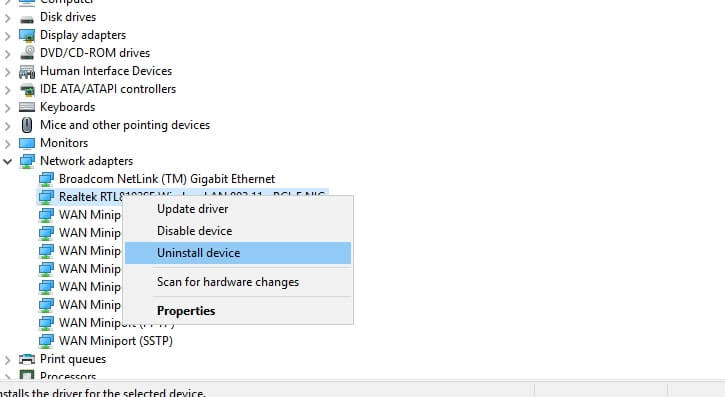
Their purpose is to provide powerful IT infrastructure management software at affordable prices. Many of their users have encountered the Solarwinds not sending email alerts issue.

Users have complained about this problem in the Solarwinds forum:

Me and the team from Solarwinds have been trying for three days to fix this error but without success. Does anyone have experience with this issue, and if so, please help me find a solution.

We have investigated this issue too, and you will find in our next section our best solutions. They have been tested to help you fix the Solarwinds not sending email alerts issue.

How can I fix the Solarwinds not sending email alerts error?

1. Verify if the STMP server is valid

  1. Use an account with administrative privileges.
  2. Log in to Orion Web Console and click Settings.Orion Web Console interface
  3. Navigate to Reports and Alerts and click  Manager SMTP Servers.
  4. Choose SMTP Server and click Edit.
  5. Provide the following: Username/IP address and SMTP Port Number.
  6. To authenticate, check This SMTP Server requires Authentication.
  7. Provide the necessary credentials and click Send Test Email.
  8. Insert email addresses there: one of your recipient and one for Reply.
  9. Click Send. 

2. Verify if the Email action is enabled

  1. Use an account that has administrative privileges.
  2. Log in to Orion Web Console.Login Orion Web Console
  3. Click Settings, navigate to Reports and Alerts and click Manager Alerts.
  4. Click the Action Manager tab, a group that lists based on Action Type.
  5. Verify Send an Email/Page action if the affected alert is enabled.

3. Verify the Solarwinds log

  1. Go to the following path: C: ProgramDataSolarwindsLogsOrion
  2. Search for the Alerting.Service.V2.
  3. Verify what (if any) errors appear in the list.

Note: An error implies that an incorrect SMTP server was used for one of the alerts, or the issue might be caused by a subscription problem preventing the SWIS v3 from launching.

4. Use a professional third-party solution

To resolve the Solarwinds not sending email alerts issue from appearing again, you can always choose professional software. The proper one to use in this situation is a WiFi analyzer.

We recommend you Paessler PRTG Professional WiFi analyzer that allows us to monitor all your wireless connected devices.

Use it to manage your routers using five important factors: device status, speed, load, traffic, signal strength, and WiFi usage.

There are several solutions you can try to fix the Solarwinds not sending email alerts issue.

Using a professional third-party application such as PRTG Network Monitor not only prevents the email issue from occurring again, but is far less time-consuming and allows you to avoid any other issues.

We also recommend you to verify the following: valid SMTP server, enable Email action and verify the Solarwinds log.

Feel free to share your experience with us by using the dedicated comment section found below this guide.