Windows cannot find explorer.exe [8 fixes that really work]

The File Explorer in Windows 10 earlier known as Windows Explorer in 7 and earlier version is a file manager that allows you to manage files and folders.

File Explorer is one of the most frequently used tools by any Windows user. Unless you are good with the Command prompt, File Explorer is the way to go.

However, at times Windows may fail to find or read the explore.exe file and throw this Windows cannot find explorer.exe error.

This error leads to system crashes, BSOD, black screen, and missing taskbar.

What causes Windows cannot find explorer.exe errors?

There is no specific reason why you may see this error on your Windows PC. In fact, different users had given different reasons when this error first popped up on the screen.

Some users have reported that the error only appears if an administrator or the new user tries to access the account.

Others have reported the error to be random and appear on PCs that were not in use for an extended period.

An external peripheral device can also cause this error.

If Windows fails to recognize any of your external peripheral devices like a keyboard or mouse and if the device creates conflict with the explorer.exe file you may end up with this error.

Another reason for Windows cannot find explorer.exe error could be a virus-infected PC or file corruption. You may also face this error while trying to access the Desktop properties function.

It is also possible that you or someone else may have accidentally deleted the explorer.exe file resulting in this error.

How can I fix Windows cannot find explorer.exe errors?

Depending on whether your PC has a hardware issue or infected with a virus, there are multiple solutions to this problem.

In this article, I have listed all the possible solutions to fix this error on Windows. Here they are:

  1. Check your computer for Virus Infection
  2. Manually Start Explorer.exe from Task Manager
  3. Change File Explorer Options
  4. Run System File Checker Sfc / Scannow
  5. Delete Explorer keys from the Registry Editor
  6. Restore PC using Restore Point
  7. Check your External Peripheral devices
  8. Perform Clean Install

1. Check your computer for Virus Infection

One of the common causes of Windows cannot find explorer.exe error is the possibility of a virus-infected PC.

The virus may disable the filexplorer.exe file altogether to prevent the user from accessing the local drive thus saving itself from being deleted.

We have a detailed guide on the best Windows 10 compatible antivirus software. Follow the guide to download the best antivirus in case you don’t have one already installed.

If you have an antivirus installed, scan the PC for a potential virus. If found, quarantine the virus and restart your PC. Some traces of viruses may remain even after removing the file.

After removing the virus, check the report in your Antivirus program and find the location where the virus was installed.

Navigate to the location and delete any file and folder associated with the virus.

2. Manually Start Explorer.exe from Task Manager

You can try to restart the explorer.exe process manually from the task manager.

You can open the task manager by right-clicking on the Taskbar and Start button. If these options are inaccessible, do the following.

1. Press the Control + Alt + Delete keys on your keyboard. From the options, click on Task Manager to open it.

Or

2. Press Ctrl + Shift + Esc to open Task Manager.

3. From the Task Manager window, click on File and select the Run a New Task option.

Task manager - Run new task

4.  Type explorer.exe and check the option Create this task with administrative privilege and click OK.

Explorer- exe run manually

This will run the explorer.exe process. In a few seconds, you should see the File Explorer window and get it to work again.

If that didn’t work, try the following steps.

  1. After running a scan for Virus infection, open the Task Manager.
  2. Click on File > Run a new Task.
  3. In the Task Runner, type C:Windows and hit enter.
    Task Manager - New Task - open C folder
  4. Now search for Explorer.exe file. Right-click on Explorer.exe and select Run as Administrator.
    Explorer Exe Run as Admin

Wait for a few seconds, and the Windows File Explorer should start working again.

3. Change File Explorer Options

You can tweak the preference in File Explorer Options to fix the Windows cannot find explorer.exe error in Windows. Here is how to do it.

  1. In the Cortana/Search bar type, File Explorer Options and open it from the result.
  2. In the General tab, click the drop button for Open File Explorer to: and select Quick Access. If the option is already set to Quick Access, set it to This PC.
    File Explorer Options
  3. Click OK and then Apply to save the changes.

Now try to open the File Explorer to see whether the error is resolved or not.

4. Run System File Checker Sfc / Scannow

Windows 10 comes with a built-in system file checker tool that scans the PC for missing or corrupt system files and replaces it with fresh system files from the local drive.

Here is how to run the System File Checker tool on Windows.

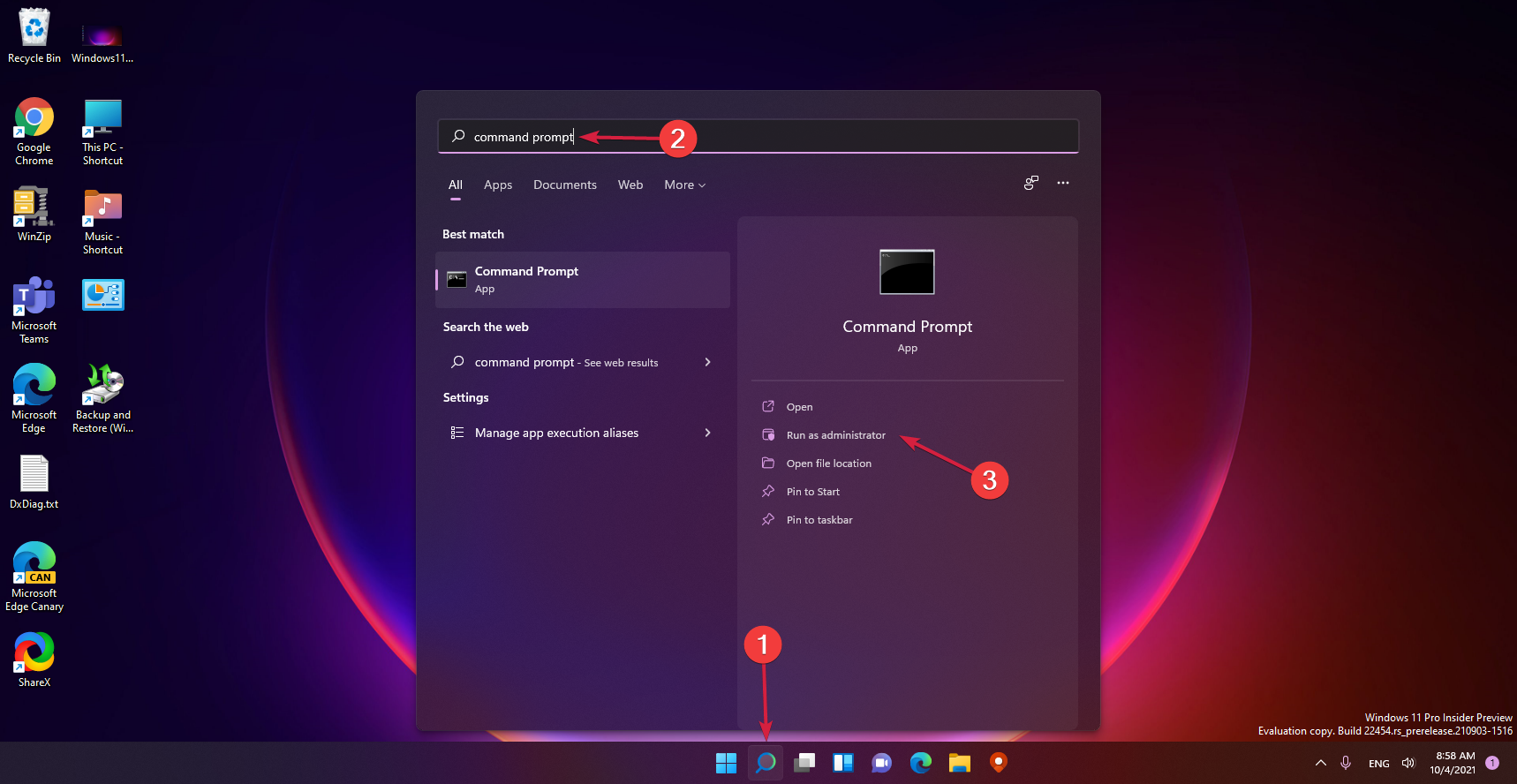
Open Command Prompt as admin. To do this, click the Search / Cortana bar and type cmd. Right-click on Command Prompt and select Run as administrator.

Or

Press Windows Key + R. Type cmd but don’t hit enter yet. After typing cmd, press Ctrl + Shift and hit enter. This will open the Command Prompt with administrative privileges.

In the Command Prompt enter the following command and hit enter:

Sfc /scannow

Now the System File Checker will scan and check for the corrupted or missing files and fix them. If Filexplorer.exe file has been altered in any way, this scan should fix it.

5. Delete Explorer keys from the Registry Editor

You can try to fix the problem by deleting two key entries from the Registry Editor. Here is how to do it.

Note icon NOTE
Before making any changes to the Registry Editor, it is recommended to create a Restore Point using the guide. Proceed with the below steps after the Restore Point is created.

Press Windows Key + R. Type regedit and hit enter.

In the Registry Editor, navigate to the following path. You can copy and paste this path in the registry editor for easier navigation.

HKEY_LOCAL_MACHINE\SOFTWARE\Microsoft\Windows NT\CurrentVersion\Image File Execution Options

Under this key, you will find two subkeys named Explorer.exe and iexplorer.exe. Delete both the keys completely.

Next, you need to navigate to the following path in the registry editor.

Computer\HKEY_LOCAL_MACHINE\SOFTWARE\Microsoft\Windows NT\CurrentVersion\Winlogon

Click on the Winlogon key and from the right pane and look for an entry named Shell.

Regedit - fix FileExplorer_exe not found

Double click on Shell. Under its Value Data: You should see explorer.exe. If there are other entries apart from explorer.exe in the field, highlight and delete them.

Close the Registry Editor and restart the PC.

Upon restart, you should be able to access the File Explorer without any error.

6. Restore PC using Restore Point

Windows PCs automatically create Restore Points in your local drive. These Restore Points consist of a working image of your Windows System that can be restored in case of file corruption or system crash.

Here is how to use Restore Point to fix Filexplore.exe not found error in Windows.

  1. In the Cortana/Search bar, type Restore, and select Create a Restore Point from the result.
    System Restore - System Properties
  2. Next, click on the System Restore button.
  3. In the System Restore Window, you will see two options. Select Choose a different restore point and click Next.
    System Restore Point Select
  4. Next, check the Show more restore points option. This will show all the Restore Points in your system.
  5. Select one of the Restore Points and click on Scan for affected programs. This will display all the programs that will be installed/reinstalled during the restoration process.
  6. Click Finish to initiate the process.

Wait for the System Restore process to complete. The PC will automatically restart possibly fixing your problem.

7. Check your External Peripheral devices

At times, an incompatible peripheral device can cause the explorer.exe related error on Windows.

Begin by removing all the external devices connected to your PC like the USB drive, USB dongle for Bluetooth device, USB mouse, keyboard, external hard drive, webcam, etc.

Restart your PC after removing all the devices and see if the error is resolved.

8. Perform a clean install

If none of the above solutions work for you, you may try to clean install Windows.

By doing so, you will be able to install the latest version of Windows but also lose all the installed programs on your PC.

Make sure you create a complete backup of your data before proceeding with the clean install.

To clean install Windows, you need installation media. You can create a Bootable USB flash drive using Windows ISO. Follow the guide for more instructions.

Conclusion

The Windows cannot find explorer.exe error can occur due to several reasons. Prime reasons are virus infection and system file corruption.

Follow the solution given in this article, and you should be able to fix the problem on your computer.

There are plenty of other File Explorer problems but if you have another one, you can find a solution in our Fix File Explorer errors hub

Most of our articles focus on Windows 10 errors since they are pre predominant cause of distress for the users. Check our Windows 10 errors hub to find solutions for any such problems.

Let us know which of these solutions helped you fix the problem or if you have a new fix in the comments.

Why you should install the new Microsoft PowerToys update now

PowerToys is an app that allows a user to tweak and customize Windows software for better performance.

While some may consider “tweaking” windows for higher performance to be unnecessary or even wrong, in many cases there are features that can be added to maximize efficiency and productivity.

In addition, Microsoft also added a new Always-on-Top feature to PowerToys that will boost productivity.

PowerToys latest version is available for download now, but don’t be fooled by the release number. It’s actually a minor update that rolls out without any new features or upgrades, but enables an important security patch for the previous release instead!

This should however not make it less important given the importance of security updates. After all, PowerToys introduced a new mouse function recently so when it comes to updates, it is definitely not lacking.

New security update

While you’re waiting for the next big Windows update to arrive with new features, a new update is now available for those who installed Microsoft’s PowerToys utility program.

Microsoft has now updated its PowerToys suite in an apparent attempt to add on some light security measures to every user’s system.

This is a patch release to fix issues in v0.55.1. due to an installer bug and .NET 5 doing an update for the runtime, We deemed (it) important for stability based on incoming rates.
PowerToys has been synonymous with tiny tools for Microsoft software users and the concept began as a way to rapidly iterate on small tools and other apps. 

Since its reboot in 2019, it has provided new tools and features regularly. The latest release is no different, with a feature you cannot afford to ignore.

The new version is already available for download on Microsoft Store so do not hesitate to keep your system protected.

Do you feel this feature is underwhelming and more updates should have been included? Share your thoughts in the comment section below.

FIX: Facebook app is not working in Windows 10

More and more social networks find their place in Microsoft Store. The Facebook app is there for a while, followed by the Facebook Messenger app which is mandatory for the chat.

However, even though this Windows 10 integration works rather well, there are still some internal issues plaguing users.

Some users weren’t even able to open the Facebook app upon installation. This is a reoccurring issue and the app just won’t work for some Windows 10 users.

In order to address this, we suggest following the steps below. Hopefully, you’ll be able to resolve the issue with one of the enlisted solutions.

We also have a small guide on how to reinstall Facebook on your computer so real the entire article and bookmark it for further reference.

How can I fix Facebook app issues on Windows 10?

  1. Run the Store Apps troubleshooter
  2. Update DirectX and check display drivers
  3. Reset the Facebook app
  4. Reinstall the Facebook app
  5. Try alternatives until the problem is sorted out

1. Run the Store Apps troubleshooter

  1. Click the Start button and select Settings.
  2. Chose Update & Security.
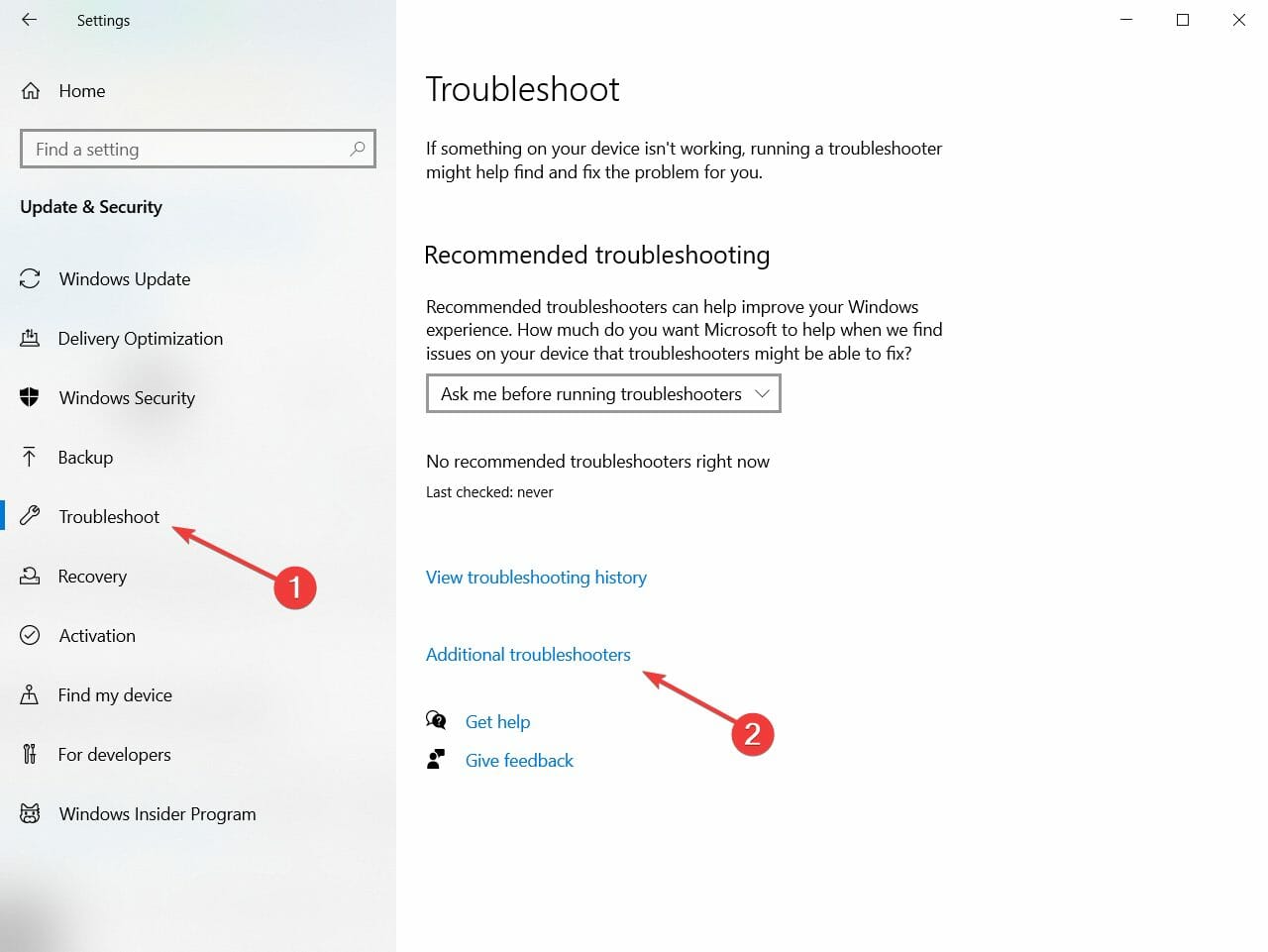
  3. Click on Troubleshoot from the left pane, then select Additional troubleshooters from the right.
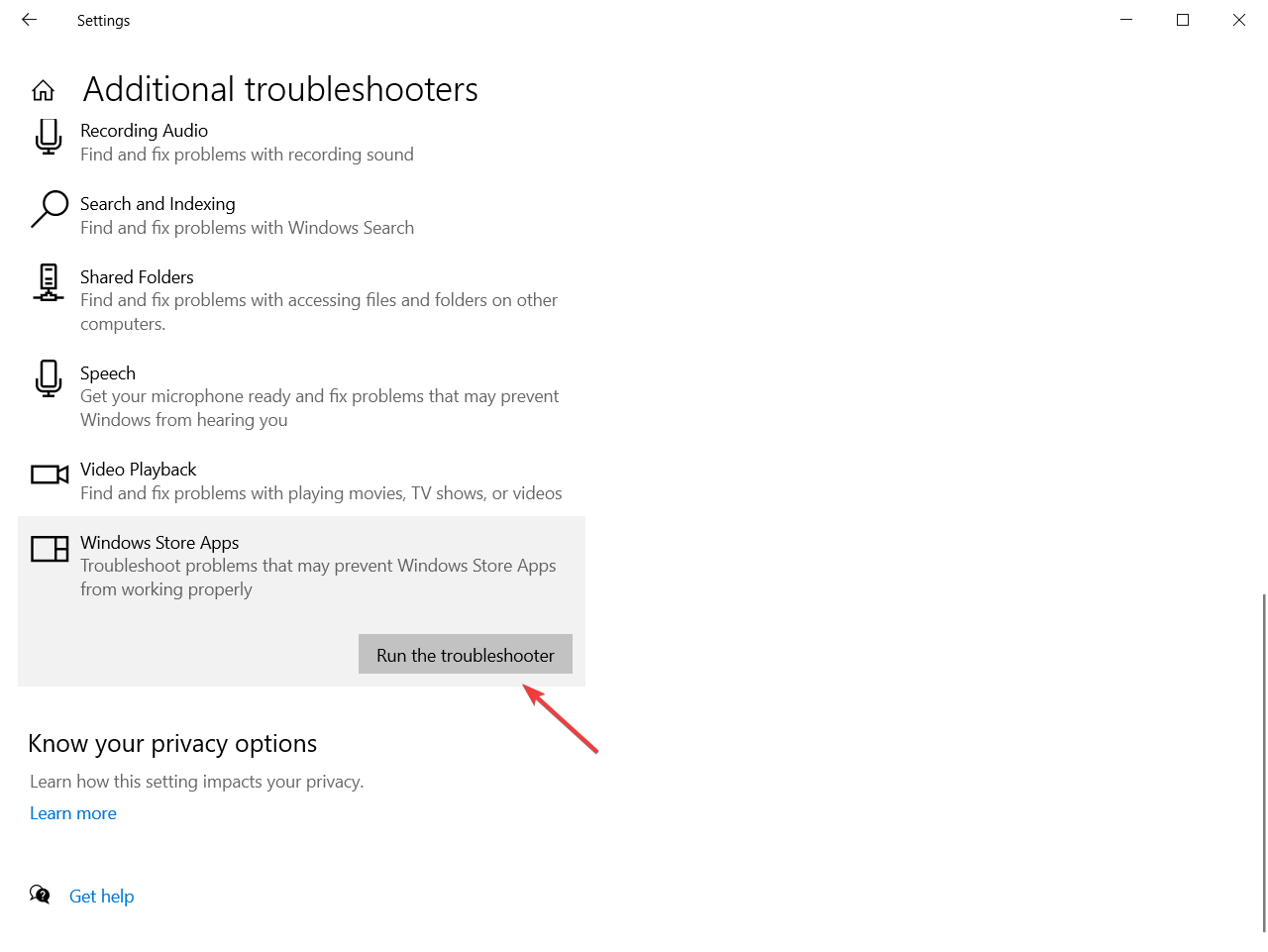
  4. Now scroll down and click on Windows Store Apps, then hit the Run the troubleshooter button.
  5. Follow the steps to get through with the troubleshooter.

Let’s start with the built-in troubleshooter which deals with app-related issues on Windows 10.

Due to a slow integration and frequent changes in Microsoft Store apps, this tool is a valuable asset in dealing with all major in-app issues.

If you’re unable to open the Facebook app for Windows 10 or the app underperforms, running the dedicated troubleshooter might help.

Follow the simple steps above to learn how to run the Windows Store Apps troubleshooter.

2. Update DirectX and check display drivers

Some users who experienced issues with the Facebook app resolved the problem by checking the DirectX and updating the display driver.

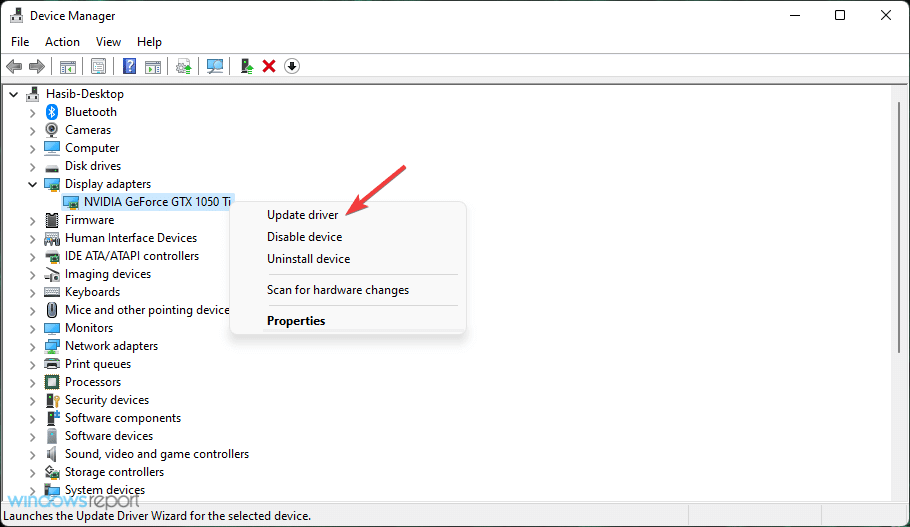
Updating the DirectX shouldn’t be a problem, but display adapters are somewhat hard to address, even though the generic driver looks up to date.

You’ll need to find that’s not what always works the best. Rather, you should navigate to the OEM’s official support website and download the official driver compatible with your device.

These are the 3 main graphics cards manufacturers. Follow the links to get directly to their driver download page:

And here’s where to find the DirectX installer:

You can also use dedicated driver updater software such as Outbyte Driver Updater. This kind of tool will automatically update your drivers whenever necessary, without requiring you to manually check for updates.

⇒ Get Outbyte Driver Updater

3. Reset the Facebook app

  1. Press Windows key + I to open Settings.
  2. Choose Apps.
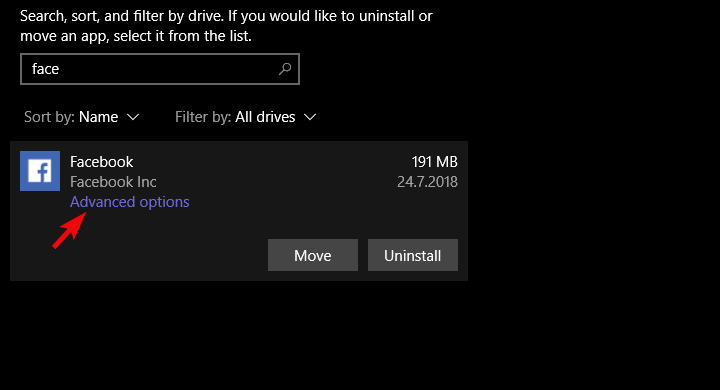
  3. Under the Apps & features, search for Facebook.
  4. Expand Facebook and select Advanced options.facebook windows 10 app not working
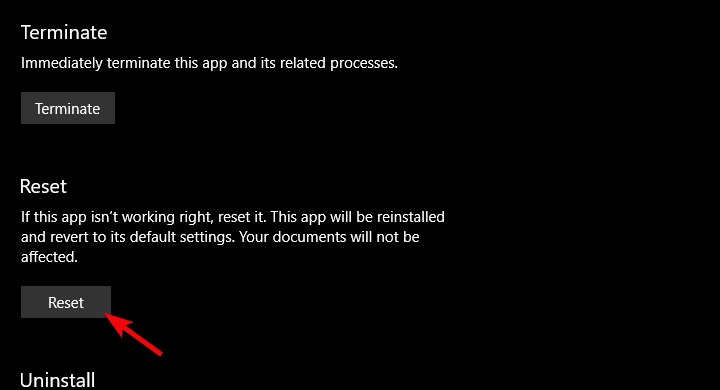
  5. Scroll down and click Reset.facebook windows 10 app not working
  6. Check the app permissions.facebook windows 10 app not working
  7. Repeat this for Facebook Messenger.
  8. Restart your PC.

In addition, if an app is underperforming or you experience repetitive issues, you can always reset it to factory values.

This option was introduced to improve the troubleshooting of Windows UWP apps. Once you reset it, the app should start working properly.

Of course, this isn’t a rule, but we suggest trying it out. Also, make sure that the essential permissions are granted to Facebook and you can also reset Messenger as well.

Follow the steps above to reset the Facebook app and get things back to normal again.

4. Reinstall the Facebook app

  1. Open Settings.
  2. Choose Apps.
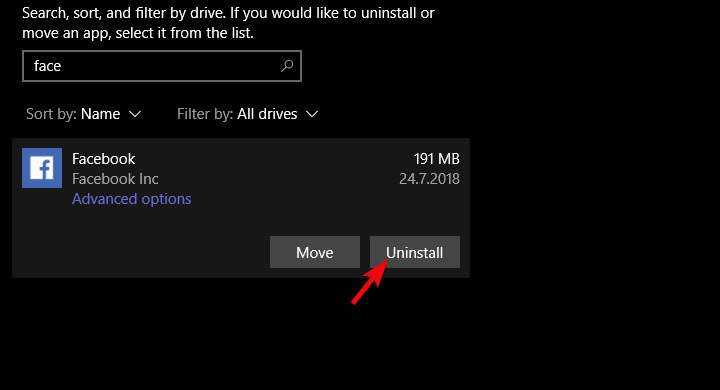
  3. Under the Apps & features, search for Facebook and expand it.
  4. Click Uninstall.facebook windows 10 app not working
  5. Run the third-party tool recommended below to clean the remaining associated files.
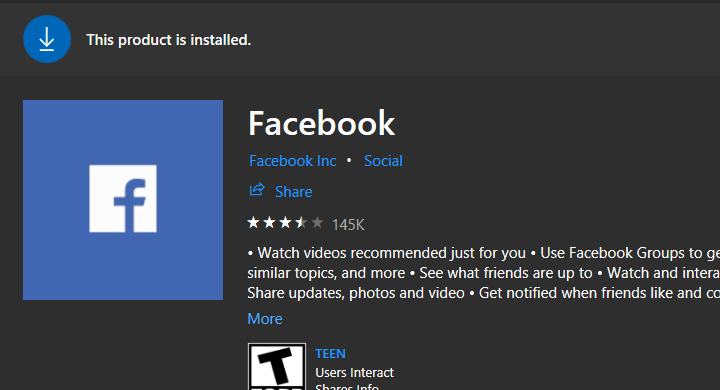
  6. Open the Microsoft Store and search for Facebook.
  7. Install Facebook.facebook windows 10 app not working

If the previous step fails, you can still have another solution to try, and that is to reinstall the app.

Now, we suggest (and it’s recommended by users who resolved the issue), to use some kind of a third-party cleaner or uninstaller to remove the associated files before installing the app again.

Uninstaller software can force uninstall stubborn or malicious apps that won’t be removed with Windows Settings. Nonetheless, it guarantees a clean procedure by removing any leftover that may have remained on your device from previous installation.

5. Try alternatives until the problem is sorted out

Finally, if the official app falls short, we suggest trying out the 3rd-party alternatives available in the Store. There’s a limited number of apps at your disposal, but we can point out 2 or 3, for sure.

You can browse the Store on your own and find the fitting one, and the majority is free so there’s that, as well.

So, check out our special selection of the best apps to get on Facebook from your favorite devices.

With these at your disposal, we can conclude the article. We also hope that you managed to fix Facebook Messenger if it’s not working on your computer.

You can try getting back to Facebook after some time, as the error might be resolved and you’re finally able to access the app.

This isn’t the only issue you can encounter, many also reported error performing a query on Facebook message, but we have a guide that addresses that issue.

We also have a guide on what to do if Messanger is not working on a Windows 11 PC, so don’t miss it.

Don’t forget to tell us how the enlisted step worked for you. The comments section is just below, so don’t shy away from leaving a comment.

Fix: WiFi certificate error on Windows 10 [Can’t Connect]

There’s a variety of Wi-Fi errors in Windows 10 platform and some of them are quite hard to deal with. One problem, albeit not as common as others, concerns the Wi-Fi Certification and it prevents users from connecting to a network or access a certain website.

We enlisted some solutions below so make sure to give them a try.

How do I fix Wi-Fi Certificate error in Windows 10?

  1. Check Time & Time Zone
  2. Update your network drivers
  3. Set the Windows Time service startup to Automatic
  4. Restore Advanced Network Settings to defaults
  5. Enable Hyper-V Hypervisor

1. Check Time & Time Zone

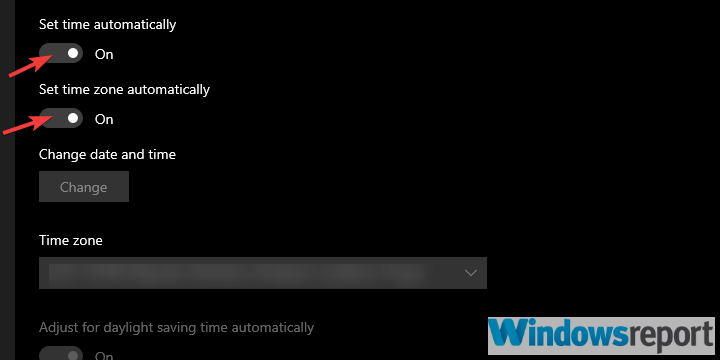
  1. Right-click on Start and open Settings.
  2. Choose Time & Language.
  3. Disable and re-enable the time and time zone automatic settings.windows 10 wifi certificate error
  4. Restart your PC.
  5. If the problem persists, set the time and time zone manually.

Let’s start by making sure that the time and date are properly set. This seemed to be a problem for some users, due to the discrepancy between the system and the regional time.

Resetting the Automatic time and date settings should resolve the problem, but you might also go for the manual approach if it fails.

2. Update your network drivers

Certificate errors with both WiFi and ethernet connections can also be caused by outdated network drivers.

You can look up and download the latest drivers for your hardware online, but be careful because faulty drivers may cause even more problems.

You can also update your drivers from Windows settings. Just open the Device Manager panel from the taskbar, find your network drivers, right-click on them and select update.

Alternatively, use a third-party driver updater like Outbyte Driver Updater to easily get rid of the problem instantly.

The program is portable, meaning that you just need to download it and you can run it straight for the client. It will then proceed to scan your system for outdated, damaged, or missing drivers, and then automatically fix them.

Outbyte Driver Updater is packed with libraries containing all known drivers, and as long as you are connected to the Internet, you can thus gain access to all the latest versions of your required drivers.

3. Set the Windows Time service startup to Automatic

  1. In the Windows Search bar, type Services and open Services.
  2. Search for Windows Time service. Right-click on it and click Restart in the contextual menu.
  3. If the problem is persistent, right-click on the Windows Time service and open Properties.
  4. Change the Startup type from Manual to Automatic and confirm changes.

Windows Time Service regulates and maintains the date and time synchronization on a network. This service should start manually, when necessary.

However, it can get into a stall and thus invoke the error at hand. Restarting this service should be enough, but you can also go for the Automatic Startup type which will ensure the service is always on as soon as the system boots.

4. Restore Advanced Network Settings to defaults

  1. In the Windows Search bar, type Internet Options and open Internet Options.windows 10 wifi certificate error
  2. Choose the Advanced tab.
  3. Click on the Restore advanced settings.windows 10 wifi certificate error
  4. Scroll down through the Settings list until you find the ” Warn about certificate address mismatch” setting. Uncheck the box.windows 10 wifi certificate error
  5. Confirm changes and reset your PC.

It usually isn’t necessary to meddle with the Advanced Network Settings, at least not for home users. And that’s how they should stay in order to address this issue.

With one option being the only exception and that’s the Warn about certificate address mismatch which should be disabled.

5. Enable Hyper-V

  1. In the Windows Search bar, Windows Features and open Turn Windows features on or off.windows 10 wifi certificate error
  2. Check the Hyper-V box to enable it.windows 10 wifi certificate error
  3. Confirm changes and restart your PC.

Finally, we suggest enabling the Hyper-V system feature. This, of course, applies only to users who have issues with servers. These issues started after the update to Windows 10 1803 so you can also roll back the update as your last resort.

That should do it. In case you have any questions or suggestions concerning Wi-Fi Certificate errors, we encourage you to post them in the comments section.

Android Fastboot Drivers For Windows 11: How to Install Them

If you want to configure your Android device, you will need to install Fastboot drivers for Windows 11, and this guide will show you how to do it.

How do I install Fastboot drivers on Windows 11?

1. Use Windows Update

  1. Press the Windows + I keys simultaneously to open the Start Menu.
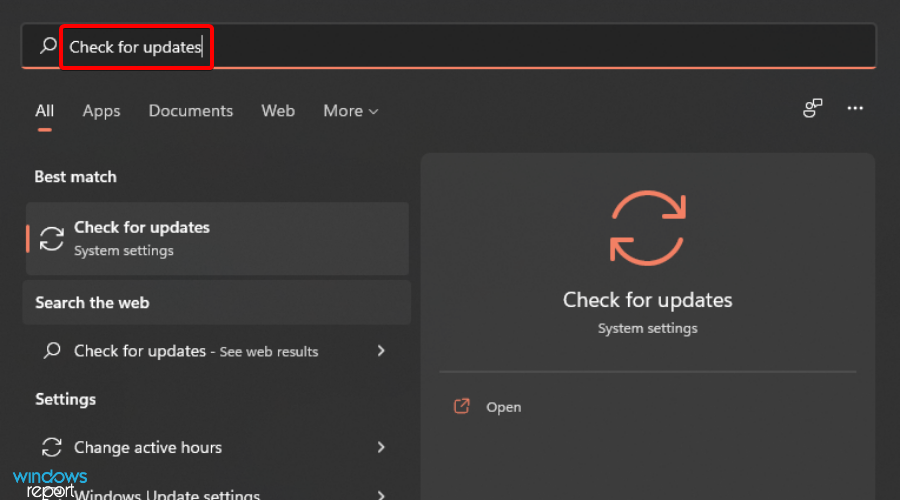
  2. Enter Check for updates on the search bar and click to open.
  3. Select Advanced options.
  4. Select Optional updates.
  5. Click on Driver updates and select Download & install.

2. Use an APK

  1. Navigate to your browser on your PC and download Android SDK Platform Tools.
  2. Set up and install the APK.
  3. Check the Android SDK Tools and Android SDK Platform tools boxes.
  4. Select Accept License and click on Install.
  5. Wait for installation to finish until you see the message: Done loading packages at the bottom and your Fastboot drivers will be installed.

3. Use a third-party driver software

If you need to install Fastboot drivers automatically on Windows 11 OS, you should best consider a specialized driver software like Fortect Driver Updater.

This automated tool will perform a complete scan on your system and detect missing drivers, plus install them in a few simple steps without requiring complicated actions.

With a very large cloud database, this software solution has all it takes to provide you with Fastboot drivers and update or fix other broken drivers from your PC without compromising your system.

⇒ Get Fortect Driver Updater

4. Use Google USB drivers

  1. Navigate to your browser and download the Google USB driver.
  2. Extract the zip files.
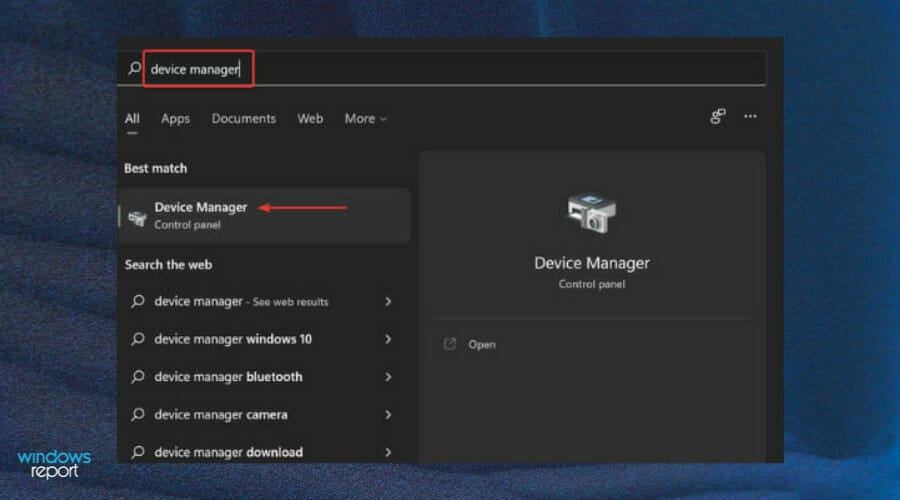
  3. Hit the Windows key, search for Device Manager, and select to open.
  4. Find your phone under the Portable devices, right-click and select Update driver.
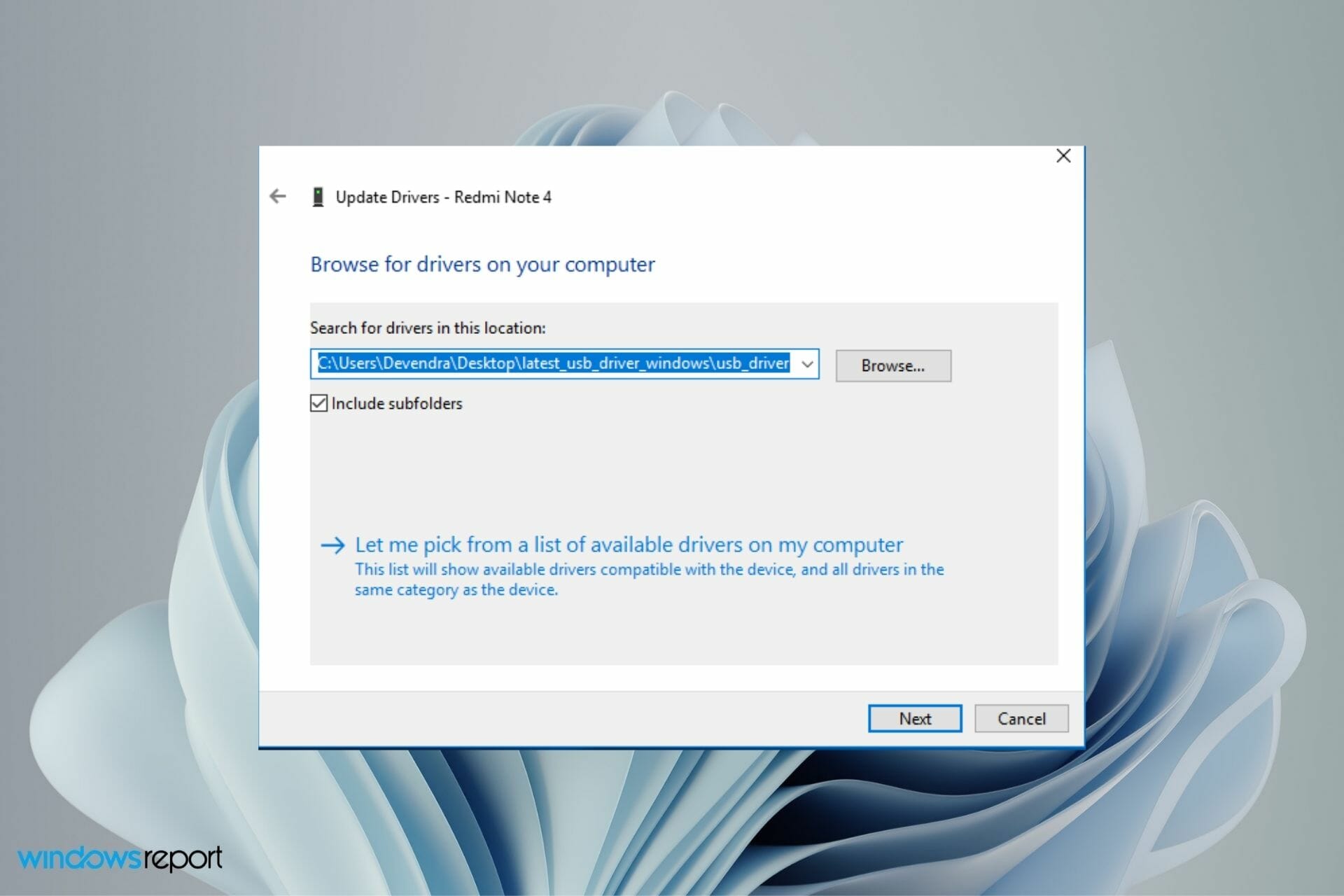
  5. Select Browse my computer for driver software.
  6. In the driver window, select the Browse button, click on Include subfolders then select Next.
  7. Your PC should now be able to recognize your phone.

You can also learn more about how to install Google USB driver on Windows by checking this install Google USB driver guide which helps improve phone detection on your PC.

What do I need in order to install Fastboot drivers?

  1. Navigate to Settings on your phone.
  2. Select About phone.
  3. Select Software information and tap on Build number seven times to enable Developer mode.
  4. Go back to Settings and open Developer options.
  5. Navigate to USB debugging and toggle on.

Sometimes, your OS may be unable to install drivers but worry not as our excellent guide on how to install your Android device drivers can help you resolve the issue.

Are Fastboot drivers safe to use?

Fastboot is a special diagnostic and engineering protocol that you can boot your Android device into. It offers a variety of features and perks that allow you to perform a number of operations on your device, including installing custom ROMs or unrooted updates.

If you know what you are doing, it is a very useful tool. However, the risk comes in when you have no idea about the operations you are performing. You may enter commands that erase your data or install firmware that is incompatible with your phone.

As a precaution, back up all your data and files on both your PC and phone before installing any Fastboot drivers. Have a look at our recommended backup software solutions and select one that works for you.

If the ADB driver is not installing, visit our dedicated guide for for a quick fix. We also have an article on how to download ADB drivers for Windows 11, so don’t miss it.

We hope you were able to proceed without any hiccups and that you got everything you needed when you came looking for a solution to install ADB fastboot drivers for Windows 11.

A few users reported that Fastboot is not detecting the device, but we have a whole guide dedicated to this issue, so don’t miss it.

For any comments, queries, and suggestions, feel free to share in the comments section below.

Fastboot Not Detecting Device on Windows 11 [Fix]

Fastboot is a useful protocol for sending commands to Android devices over USB. It is commonly used with unlocked bootloaders as it provides a way of flashing images onto the phone.

It is an essential tool for Android users as it allows you to perform a number of actions on your smartphone from the computer, including installing and debugging apps.

However, just like other drivers, they too tend to fail and may stop working. A common reason for this is that the computer doesn’t recognize the phone. This can be caused by a number of things, including not having the correct drivers installed or an issue with your USB cable or port. 

If your device does not show up in Windows Device Manager as an Android Bootloader Interface, then it probably needs to have the driver installed again. 

Why does Fastboot not recognize my device?

Whereas installing Fastboot drivers is easy, sometimes your device may not be recognized. The problem is when users get stuck in Fastboot mode and have no idea how to get out of it.

Some of the reasons why your device cannot be detected include:

  • Fastboot is not included in some builds of Android and there are several versions of itself, so it may or may not work for you.
  • The USB port may be damaged or the cable may be faulty – Try using another USB port on your computer (if available).
  • On your device, there are at least 2 USB modes: Charge only and MTP (Media Transfer Protocol) – In order to get into Fastboot mode, you need to set your USB mode to Charge only.
  • Missing device drivers – The problem is that Windows cannot locate the drivers for the device. Fastboot can only be used when the drivers are installed so if you have not installed them, then you will get the Fastboot not working error.
  • Drivers not installed properly is a common cause – This means that you might have a problem with the drivers for your phone. Normally, Windows will automatically install them for your device and you’ll be able to use Fastboot with no problem.
  • The next most common reason is that Fastboot can’t communicate with your device – This usually happens when you have the wrong drivers or there’s something blocking Fastboot such as a required signature.

What can I do if Fastboot is not working?

1. Update Fastboot drivers

  1. Press the Windows key, search for Device Manager, and click to open.
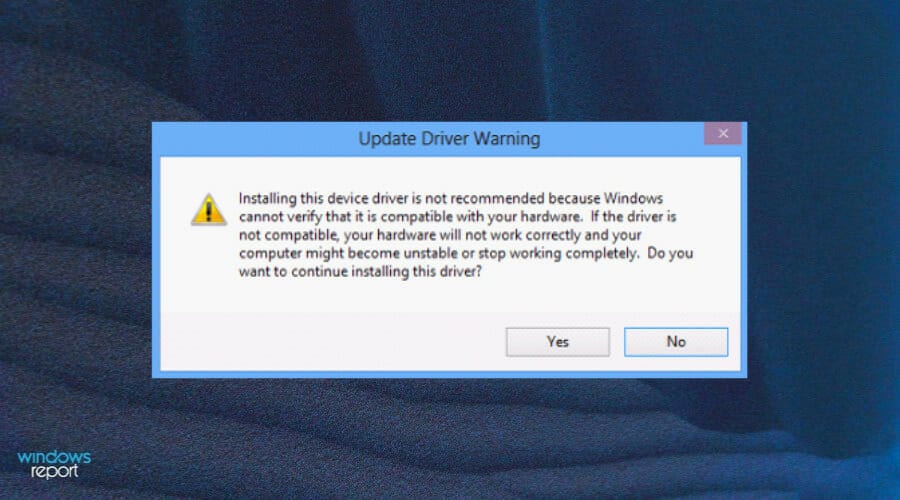
  2. Navigate to your selected driver, right-click and select Update Driver Software.
  3. Next, select the Browser my computer for driver software option.
  4. Click on Let me pick from a list of available drivers on my computer then click Next.
  5. Uncheck the Show compatible hardware option and click Next.
  6. Double-click on your phone brand, select Android Bootloader Interface and click on Next.
  7. This should install according to your manufacturer and drivers will start working.

If you happen to encounter any difficulties, we strongly advise using a dedicated program for automatic scans of outdated drivers such as Outbyte Driver Updater.

2. Deactivate driver signature

  1. Press the Windows key and select the Power button while holding down the Shift button.
  2. Your PC will restart in Advanced Options mode.
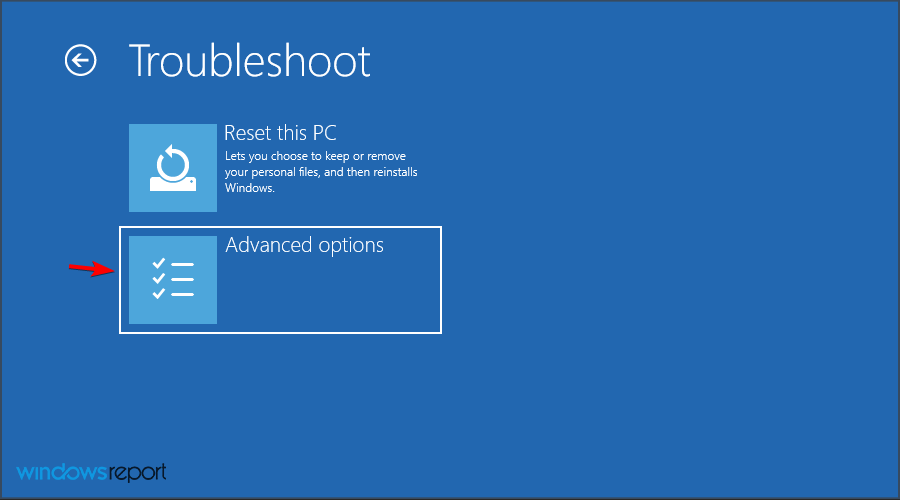
  3. Select Troubleshoot option.
  4. Navigate to Advanced options.
  5. Select Startup settings.
  6. Next click on Restart.
  7. Select Disable driver signature enforcement. 
  8. Your PC will reboot again and you can now try installing your Fastboot drivers.

3. Update Windows driver updates

  1. Press the Windows key, search Check for updates, and click to open.
  2. Select Advanced options.
  3. Go to Optional updates.
  4. Select Driver updates and proceed to Download & install then restart your system.

What can I do if I’m stuck at Fastboot mode?

Unfortunately, things don’t always go so smoothly. Some users have reportedly found their phone stuck in Fastboot mode with no way out. If that happened to you as well, don’t worry.

So what happens when your phone gets stuck in Fastboot mode? Well, it becomes useless for most practical purposes because you can’t make calls, send messages, or do anything productive with it.

If your Android phone is stuck on the Fastboot screen, it means that your device is not able to boot normally and it has landed itself in this mode. 

This problem can occur due to various reasons but the most common ones are:

  • The bootloader is corrupted
  • Also, the system partition might be corrupted
  • There are issues with the firmware
  • You forgot the PIN or password of your phone

To fix the issue, you simply need to restart your phone. Hold the Power + Volume Down buttons simultaneously until you see the Fastboot text on-screen. Then, use the volume keys to choose Recovery mode from the menu that appears and press the Power button. 

Your phone will boot into recovery mode. You may need to use your Volume down button several times to select Recovery Mode because it first displays FASTBOOT MODE text at the top of the screen. Once it displays the Recovery mode option, select it by pressing the power button once.

If this also doesn’t work, then you should try to reset your phone to factory settings by following these steps:

  1. Hold the Power + Volume buttons and select Recovery Mode.
  2. Use the Volume keys to highlight wipe data/factory reset and press the Power button to confirm it.
  3. Go back to main menu by pressing Back button once and select reboot system now option with help of Volume keys.

We hope this guide was able to help you get your Fastboot drivers working again. We also have a comprehensive guide on how to install drivers if you experience any difficulties.

Do not hesitate to share with us what method worked for you and any other additional comments you may have in our comments section below.

How to stop Microsoft Edge from opening Bing links in new tabs on Windows 10, Windows 11, macOS, and Linux

Microsoft Edge does something weird any time you use Microsoft Bing to search. A new Edge tab automatically opens to display your searched content, while the search page stays open in a different tab. On the onset, it’s not clear if Microsoft Edge or Microsoft Bing is at fault for this.

As I quickly learned, opening a new tab for every search you make is frustrating issue for some people. But as a Microsoft Rewards member, I can’t pass up the chance to search using Bing for points to get movies, gift cards, and Xbox swag from the Microsoft Store.

MICROSOFT EDGE ON MICROSOFT BING

You do a search on Microsoft Bing, click a link from the results and you are taken to a new tab. You click on the back button to return to the results, but it keeps you in the new tab that was just opened. Now, you click a different search result, and you get taken to yet another tab.

When you click a link from the search results, you go to a new tab, and the results are left open on the original tab. But going back won’t take you back to the original tab, so before you know it, you will have an overwhelming number of tabs open.

This issue is not only a problem for Windows users, but also happens when using Edge on Bing.com for macOS and Linux users too. After searching through every Microsoft Edge setting possible, the solution is surprisingly located within Microsoft Bing’s SafeSearch settings.

Microsoft Edge on Windows, macOS, and Linux

Here’s how to change the settings so any time you click a search or news link on Bing, it won’t open in a new browser tab.

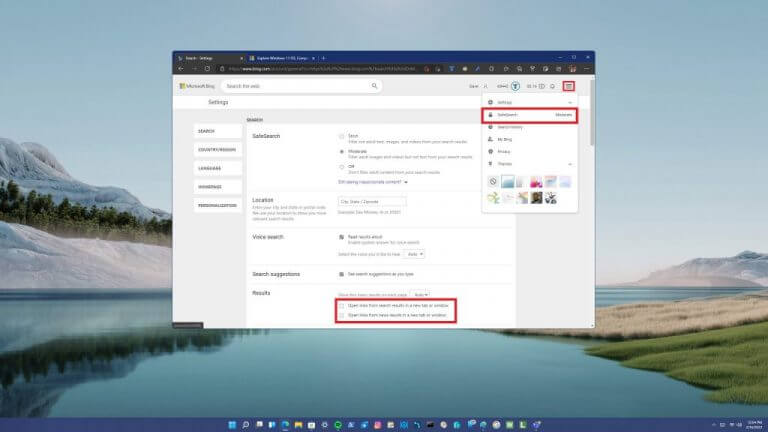
  1. Use Microsoft Edge to go to Bing.com on Windows, macOS, or Linux
  2. Click the hamburger menu in the upper-right and choose SafeSearch
  3. Go to Results section
  4. Uncheck both “Open links from search results in a new tab or window” and “Open links from news results in a new tab or window”microsoft edge
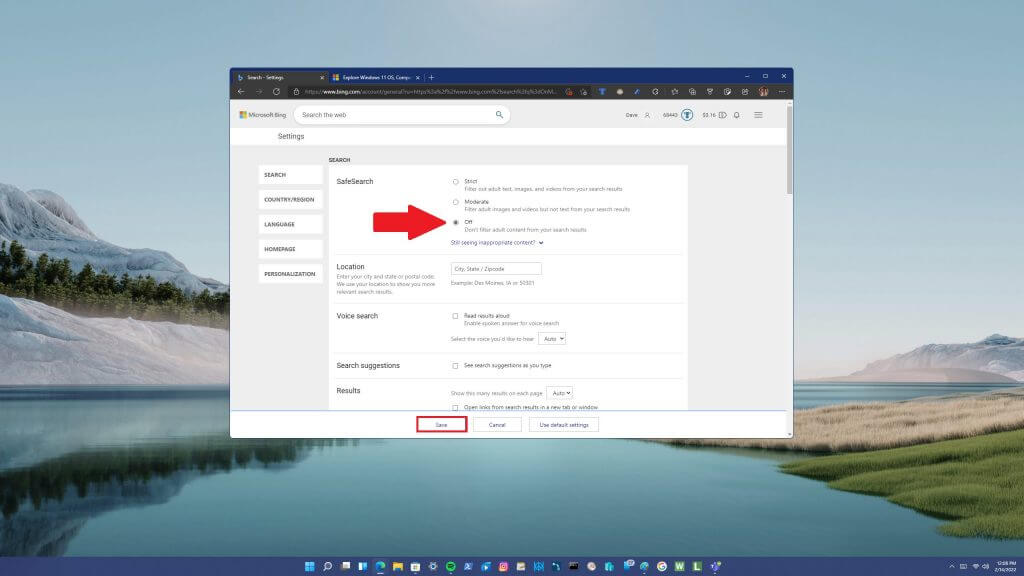
  5. Click Save to confirm the changes

That is all there is to it. Of course, Microsoft wants you to keep Bing open as much as possible when you search. Some people have also said that SafeSearch settings get reset every so often, so be on the lookout in case you need to repeat these steps again.

Another option is turning off SafeSearch completely.

microsoft edge
Turn off SafeSearch

Keep in mind, there doesn’t seem to be a real “confirmation” that your Bing.com settings are saved and applied to your actual Microsoft Bing search preferences.

Interested in learning more? Check out the latest OnPodcast episode also available on SoundCloud. Are there any other Microsoft Bing “features” that you find frustrating? Let us know in the comments!

Windows 11 Refresh Rate Bug: Fix Dynamic Rate Not Showing

You may measure your screen’s refresh rate by counting the number of times per second that an image is updated. DRR is a new feature included in Windows 11 that helps you conserve battery life while giving a more fluid display, but it is no surprise when it is not working as it should.

Screens with higher refresh rates are expected to become more common as more manufacturers announce plans to discontinue the production of 60Hz displays. This would result in smoother scrolling and better gaming, but it would come at the expense of reducing the battery life.

However, the Dynamic Refresh Rate feature in this iteration of OS is a beautiful addition that can have a major impact on your overall experience. Continue reading as we will go over what you can do if Windows 11’s dynamic refresh rate is not showing or not working properly. Follow along!

What does dynamic refresh rate do?

DRR dynamically adjusts the refresh rate of your device in response to what you’re doing. It will automatically vary between a 60Hz and a 120Hz refresh rate on a compatible system to balance power and performance.

If you perform ordinary chores such as word processing or streaming video material, your PC will use a 60Hz refresh rate to conserve battery power.

When you use suitable apps that require inking and scrolling, Windows 11 will increase the display rate to 120Hz, providing you with a more responsive and fluid display experience.

Users with a compatible display can run either the performance-enhancing 120Hz (or higher) refresh rate or the battery-saving 60Hz refresh rate. With DRR, though, you may have the best of both worlds.

DRR is supported by Adobe Acrobat, Adobe Illustrator, and a few Microsoft applications, including Office, Edge, Whiteboard, and Snip & Sketch. It is anticipated that the number of supported applications will grow over time.

With most contemporary mid-range laptops featuring high refresh rate displays, it’s only logical to want to take advantage of the extra power. The faster the refresh rate, on the other hand, the greater the proportion of battery it consumes.

It is also used by systems with greater refresh rates, which always run on it. When necessary, you must manually reduce the frequency to 60Hz. It is just not viable to perform this every five minutes for apps.

What can I do if Windows 11’s dynamic refresh rate is not working?

1. Check compatibility

  1. Press the Windows + S key to open the Search bar, then type in dxdiag, and open the top result.dxdiag windows 11 dynamic refresh rate not working
  2. In the DirectX Diagnostic Tool, navigate to the Display tab, then check the Driver Model plus Version.dxdiag-display windows 11 dynamic refresh rate not working

2. Make sure it is enabled

  1. Start by going to the Start menu and searching for Settings, then selecting the top match.settings-search windows 11 dynamic refresh rate not working
  2. From the left panel, click on System and then navigate to Display followed by the Advanced display option.advanced-display-option windows 11 dynamic refresh rate not working
  3. In the Choose a refresh rate dropdown box, select the Dynamic refresh rate option. Some computers will require an aditional reboot.drr  windows 11 dynamic refresh rate not working

For further information on the topic, do not hesitate to check out our article on specifically enabling the DRR feature.

3. Update your OS

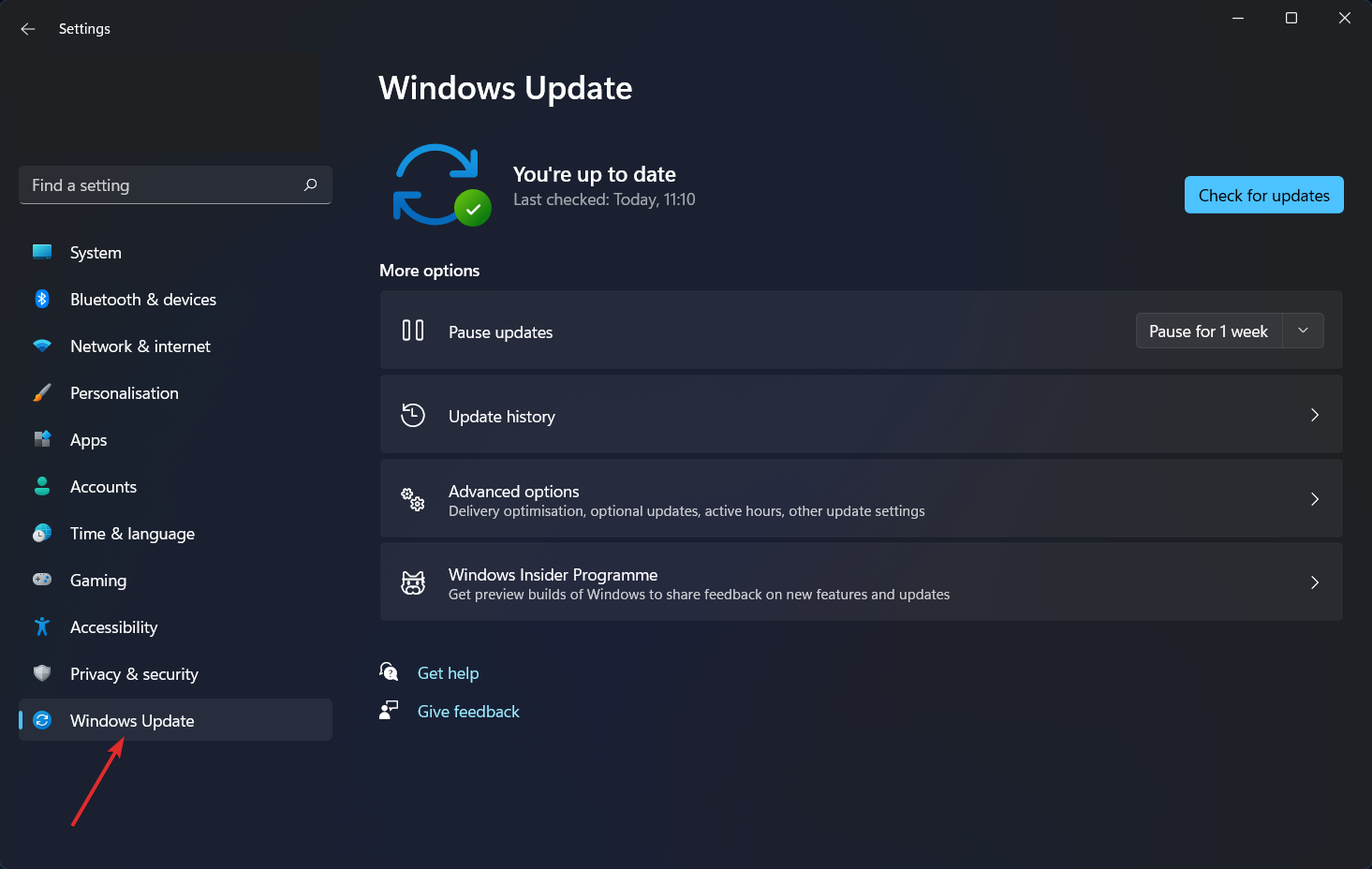
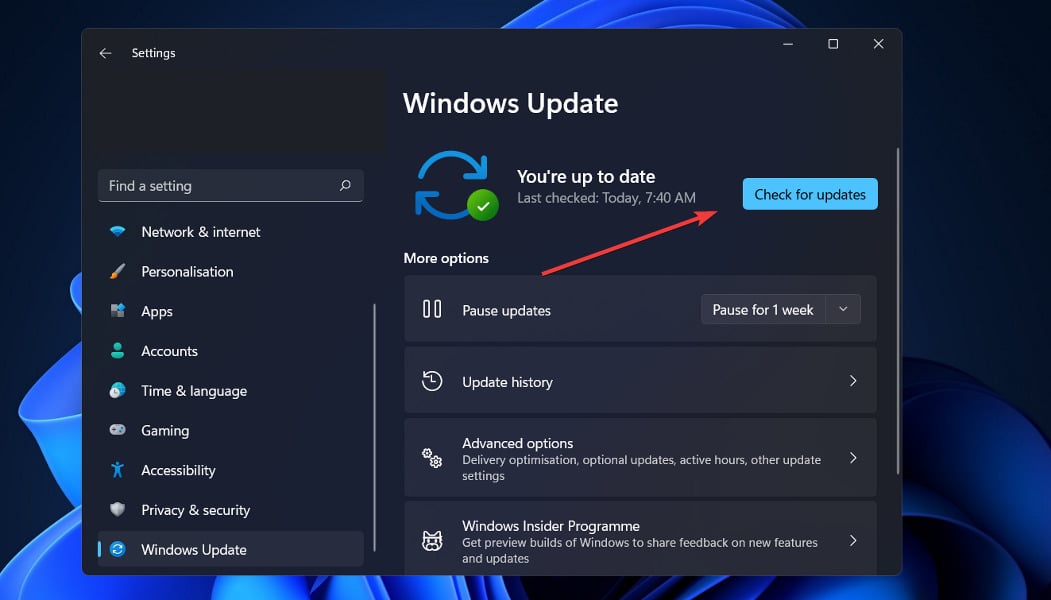
  1. Press the Windows key + I to open the Settings program, then select Windows Update from the left-hand navigation bar.windows-update windows 11 dynamic refresh rate not working
  2. In order to determine whether any new updates are required to be downloaded, select the Install now option; otherwise, use the Check for updates button to determine whether any new updates have been issued.check-for-updates windows 11 dynamic refresh rate not working

It is likely that you are using an older version of Windows, and that this is what is creating the problem, which may be fixed by upgrading to the most recent version. It is guaranteed that the problem will be rectified in a subsequent upgrade to the software package.

4. Update your drivers

  1. Press the Windows key + I to launch the Settings program, go to the left panel, and select Windows Update, then Advanced options on the right.windows-advanced  windows 11 dynamic refresh rate not working
  2. Click on Optional updates after scrolling down to the Additional options section.optional-updates-option  windows 11 dynamic refresh rate not working
  3. Now pick Driver Updates from the drop-down menu, then select all of the driver updates that are shown to you, and finally click on the Download and install button. In our case, we don’t have any more updates to install. no-update windows 11 dynamic refresh rate not working

Even though Windows is generally in charge of driver updates if you are experiencing an issue, you can perform a manual search for updates.

We strongly advocate using a specialist program such as Fortect Driver Updater to do an automatic replacement for outdated drivers.

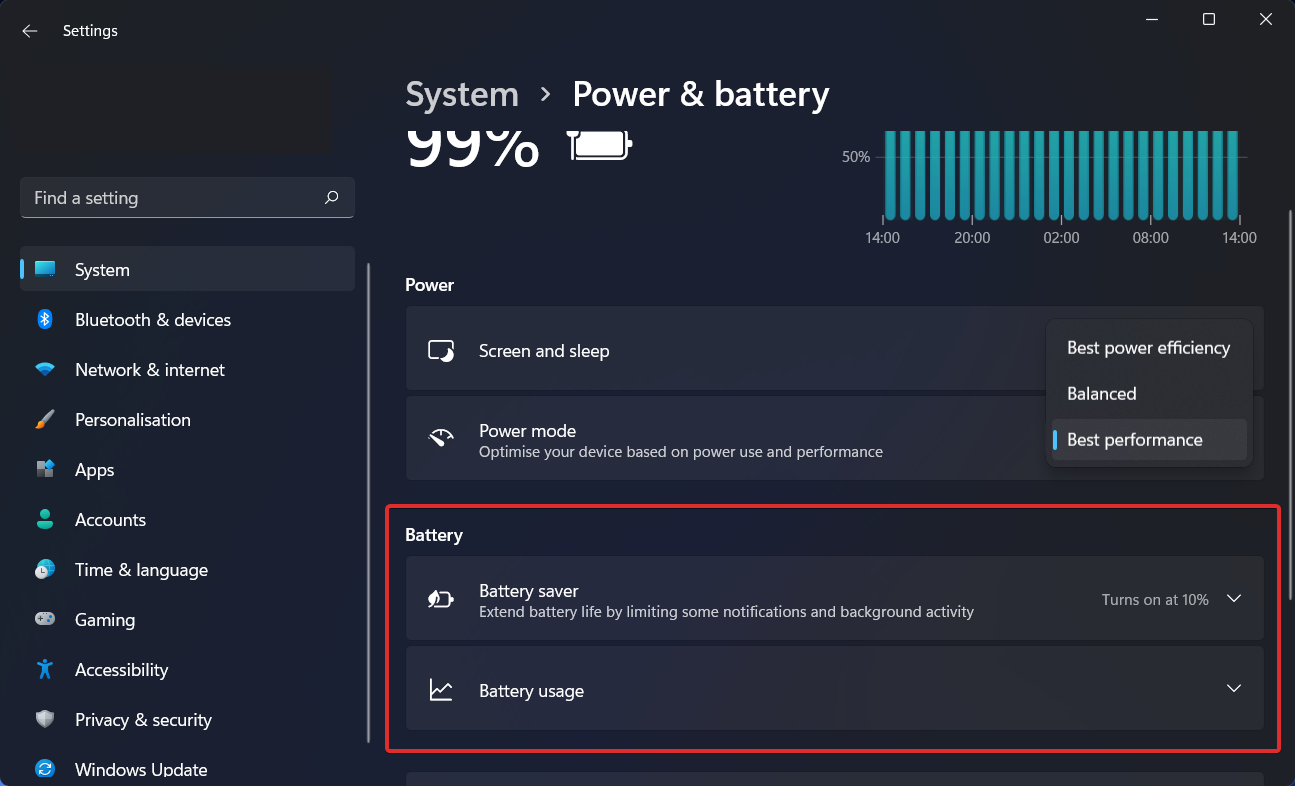
How can I increase my laptop’s battery life?

If you spend a significant amount of time working away from a power outlet, it’s a good idea to get into the habit of adjusting your laptop usage in more battery-saving ways, such as by keeping to one program at a time and shutting everything else when you’re not using it.

It’s similar to shutting off the lights in a room when no one is present. If you’re constantly switching between the kitchen and the pantry, or between Firefox and Microsoft Word, by all means, keep both sets of lights (and programs) on at the same time (and open).

However, if you’re just cooking or viewing a YouTube video, it’s best to turn everything else off and close the door behind you.

Additionally, if you know you’ll be working on a document that doesn’t require web access, consider setting Airplane mode in Windows or turning off Wi-Fi and Bluetooth while shutting down other programs while you single-task.

battery windows 11 dynamic refresh rate not working

Not only does the Airplane mode reduce distractions, but it also removes one of the most major sources of battery depletion: not only the wireless radios themselves but also the background apps and processes that are continuously using them, such as updaters and push notifications.

It will take longer for your system to recharge its battery if you have numerous apps and processes running at the same time, and the chances are that you will not be actively using everything. The Settings app in Windows is the first place to look for programs that consume a lot of energy.

As long as your laptop is equipped with a powerful graphics processor, you may limit its use to only games and other graphics-intensive applications. At the same time, everything else can take advantage of the more efficient graphics processing hardware built into the processor itself.

The Program Settings tab in the GeForce control panel (which is normally placed in the Windows notification area on the right side of the taskbar) is where you may allocate each application to a specific graphics-processing chip if your system is equipped with Nvidia GeForce graphics.

Allocate the GeForce separate graphics processor to games and photo- and video-editing applications like Adobe Photoshop and Premiere while assigning the integrated graphics chip to everything else on the computer.

Since you are interested in optimizing your PC’s performance, take a look at the best FPS counter software for Windows 10/11. DRR is not the only new special feature, instead, here are some amazing new features in Windows 11 you need to know.

Just keep in mind that refresh rate features can make your monitor stuck at 60Hz on Windows 11, but this issue can be easily resolved. And rest assured that our detailed guide will also help you decide whether to keep the variable refresh rate on or off.

Let us know in the comments section below whether the article proved helpful for you or not. Thanks for reading!

Microsoft plans to fully reopen Redmond campus on February 28th after more than 2 years of pandemic closures

Like many/most other businesses, Microsoft has had to significantly restructure during the pandemic, closing most offices and requiring workers to work from home. However, that appears to be finally coming to an end, according to an email to employees from the company’s Chief Marketing Officer Chris Capossela (via GeekWire).

Microsoft is planning to “fully reopen” its Washington state facilities, including its Redmond campus, and Capossela told workers in a post this morning that:

“From this date, employees will have 30 days to make adjustments to their routines and adopt the working preferences they’ve agreed upon with their managers”

Microsoft initially instituted a mandatory work from home policy for its employees in March 2020, and partially reopened again back in March of 2021, but has delayed a full opening a number of times due to the continuing pandemic crisis. Still the company is continuing to offer digital only conferences, like the newly announced Inspire 2022, and it still may be quite some time, if ever, that the company (or the world, for that matter) returns to a pre-2022 “normal.”

(Update: Microsoft has published the full Capossela post, you can read it on the Official Microsoft Blog).


Microsoft will issue warnings to users who run Windows 11 on unsupported devices

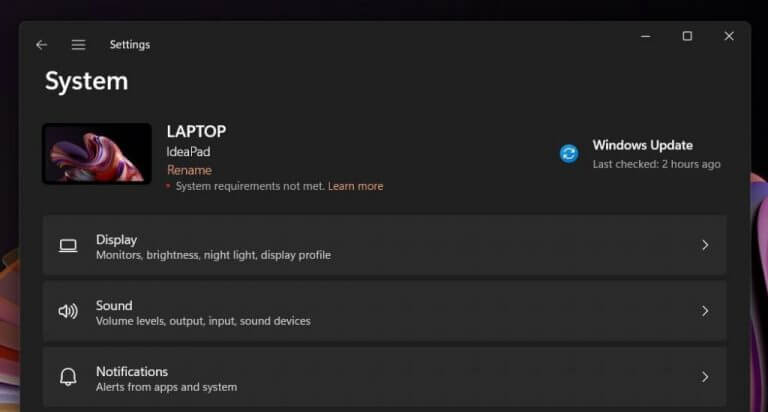
Are you using Windows 11 on a device that does not meet the system requirements? Well, Microsoft is onto you. You might soon receive a warning through a new alert within the Windows Settings App to let you know your device isn’t officially supported. (Via Windows Latest.)

The news should not come as too much of a surprise, as Microsoft had previously provided an avenue for users to upgrade their devices to Windows 11 despite them not meeting the set system requirements. These users needed to make a couple of modifications to their Registry to run Windows 11 on their devices and Microsoft officially warned of the potential compatibility issues in doing so.

In recent Windows Insider preview builds, the warning has stepped up a bit. The Settings App header in these builds now bears a message that will inform unsupported users that their device does not meet the system requirements. However, there are no indications that Microsoft could expand the message deeper. It just links out to a Microsoft webpage on the potential risks that one stands to encounter by running Windows 11 on an unsupported device, like the previous incompatibility issues.

It’s a small warning, to say the least, and it’ll be interesting to see if the company takes things further and adds watermarks or other messages about devices being unsupported. Let us know what you think in the comments below.

This developer got Windows 11 running on a Pixel 6 in a VM with Android 13, because, why not?

Windows 11 runs on all different kinds of hardware, both supported and unsupported, but one person has delivered the OS to Google’s own hardware.

Spotted by Wccfetch, Android developer Danny Lin recently managed to get Windows 11 running on a Pixel 6 Pro. The task definitely doesn’t seem like something the average user can do since it requires root access, but it showcases the power of Windows on ARM.

But, how, you might ask? Well, it’s thanks to Android 13’s Developer Preview, which enables virtualization technology. Lin was able to use this to run a full-blown Windows 11 install in a virtual machine on the device.

You might also be wondering how the performance is in a VM, and, well, you might be surprised. Lin says the VM is “really usable,” but also mentioned the lack of graphics acceleration, CPU, I/O, and memory pressure. That might sound worrying, but he did manage to get the device to run Doom.

This isn’t the first time we’ve seen Windows 11 in a strange place. The well-known Windows developer, Gustave Monce, previously got Windows 11 running on the Lumia 950 XL. Windows 11 on the Pixel 6 Pro definitely seems just as strange, so let us know your thoughts in the comments below.

Fix: Decentraland not using GPU

When you notice that Decentraland is not using GPU of your computer, don’t get panicked. This article will show you the way to troubleshoot it effectively.

Metaverse is a new technology that is creating a lot of hype. Decentraland is one of the best examples of it where you can amazingly explore the Virtual World.

This game is browser-based and free to play. So, It has been popular in recent days. However, sometimes, problems like not using GPU can stop you from getting a satisfactory experience with it.

You can easily get rid of Decentraland not using GPU problem. But, before that, you should know why it happens so you can avoid reencountering it in the future.

Why your computer doesn’t utilize GPU power while running Decentraland?

Not only the Decentraland, but any video games may also go through this issue. However, the main reason behind this problem is the outdated driver for your graphics card.

Two other things also may cause this problem in many cases. If your browser configuration does not allow any browser-based games to use GPU with priority or if your PC Settings are in an incorrect state, you can face this problem.

If you can remove all these reasons, the problem won’t appear again on your computer.

How can I fix Decentraland not using GPU issue?

1. Update GPU driver

  1. Open the Start menu.
  2. Type devmgmt.msc and hit enter to open Windows Device Manager.opening windows device manager
  3. Expand Display adapters and right-click on your graphics card driver.
  4. Choose Update driver.updating gpu win11 device manager
  5. Click on Search automatically for drivers. search automatically for drivers
  6. It will check for updates and install if there is an updated version for the GPU driver.

However, Using a driver updating tool is the best way to update the GPU driver. In this case, you can try any of these best driver update software for Windows.

2. Enable hardware acceleration on browser

2.1 Enable in Chrome

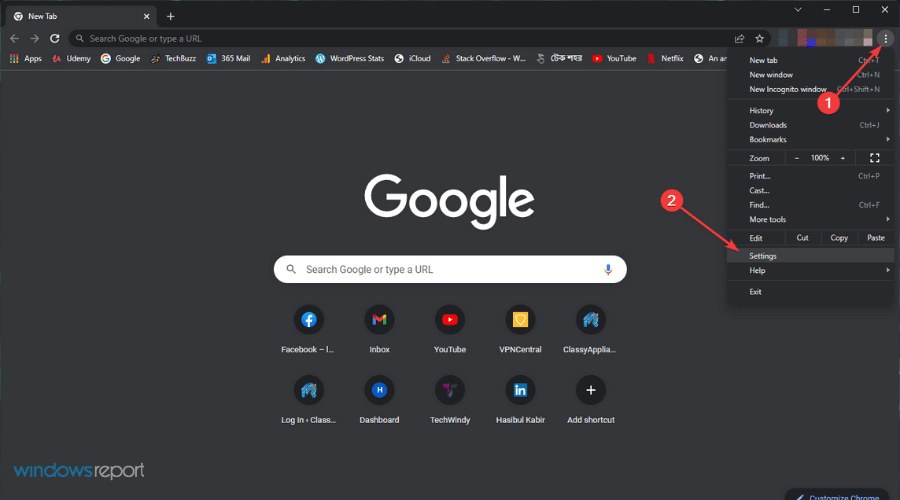
  1. Click on three vertical dots on the top-right corner and go to Settings.going settings chrome
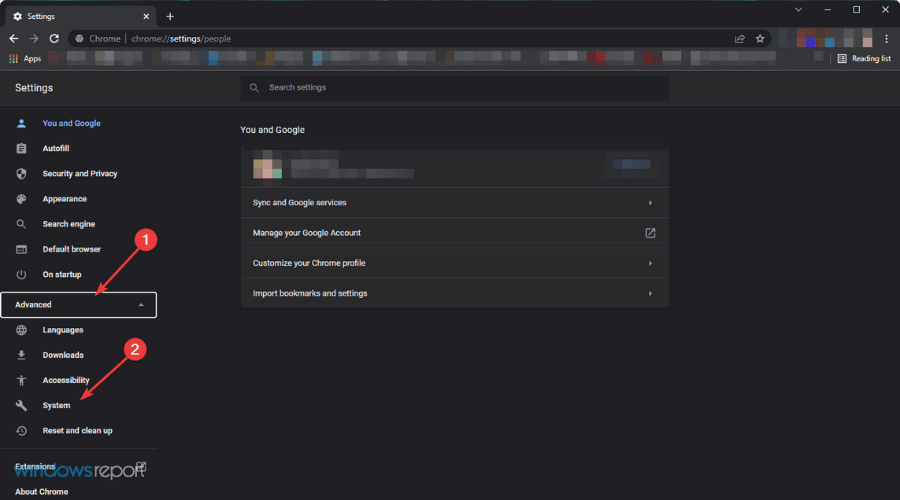
  2. Click on Advanced, find System, and click on it.going system chrome
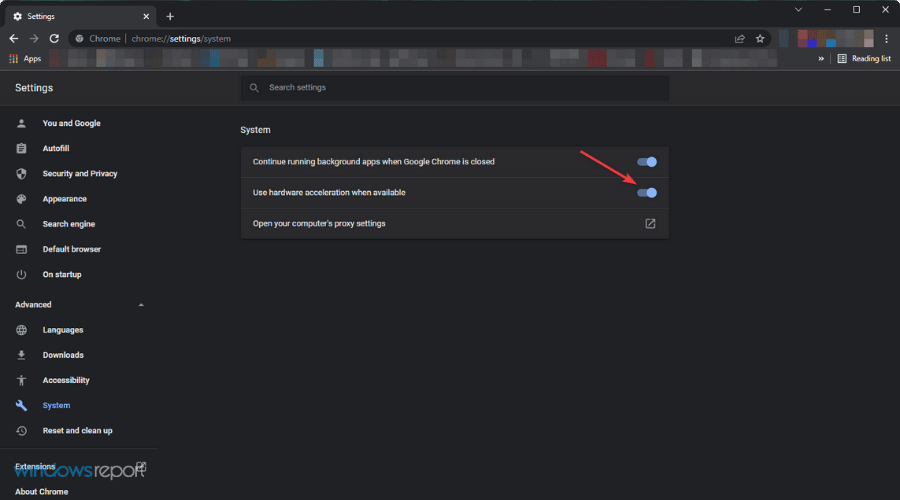
  3. Enable Use hardware acceleration when available.enable hardware acceleration chrome
  4. Relaunch Chrome.

2.2 Enable in Edge

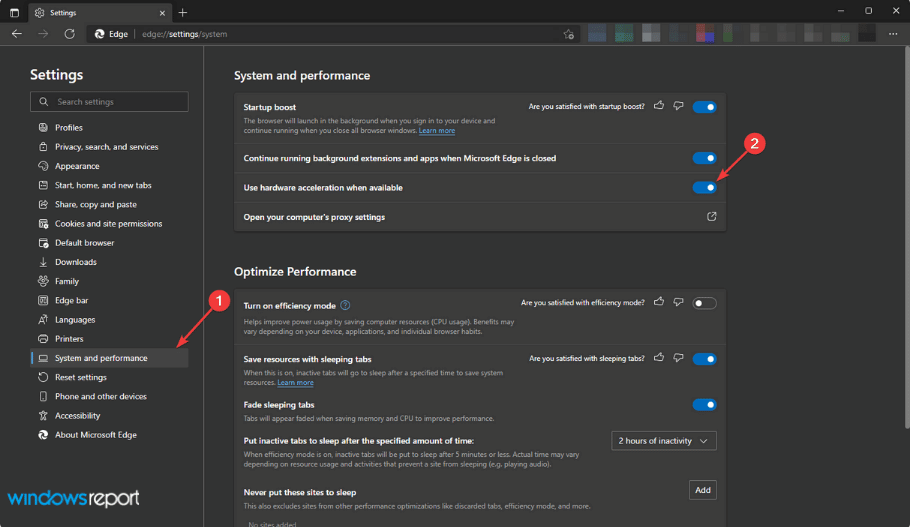
  1. Go to Settings of MS Edge, similarly to Chrome.
  2. Click on System & Performance tab and enable the switch for the hardware acceleration.disabling hardware acceleration edge
  3. Restart the browser.

It should fix Decentraland not using GPU issue. You can start playing it after the necessary changes have been made to verify.

3. Enable High performance mode

  1. Open the Start Menu.
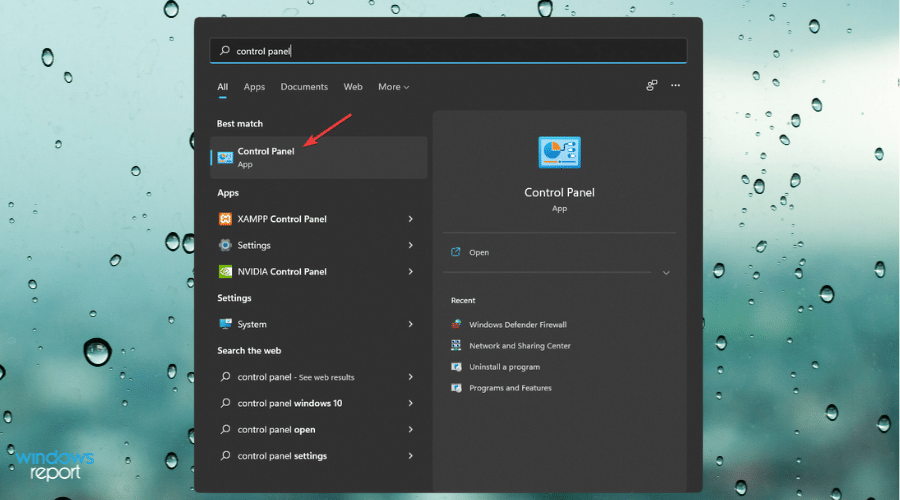
  2. Search for Control Panel and open it.opening control panel
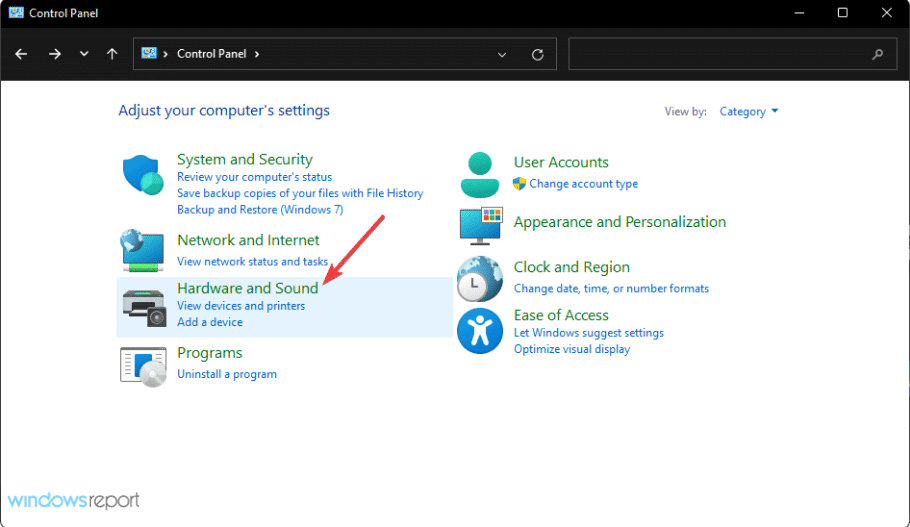
  3. Go to Hardware and Sound.going hardware and sound control panel win11
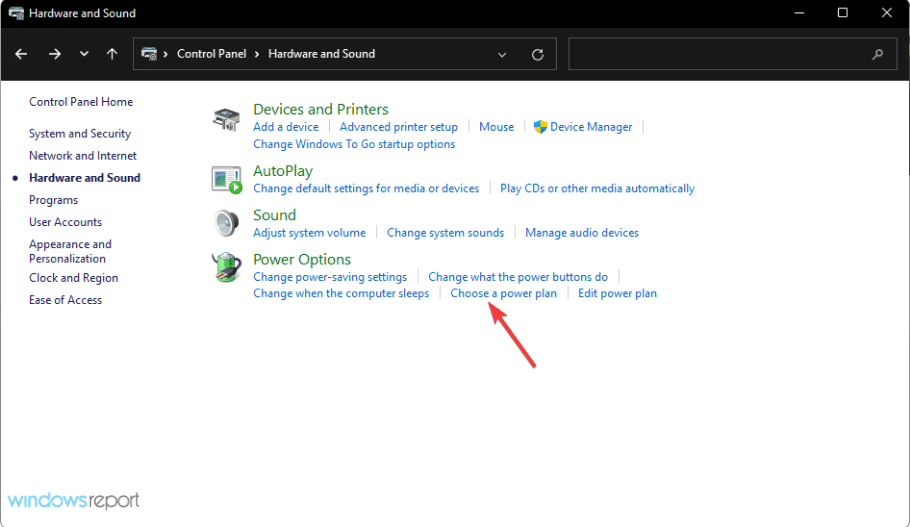
  4. Click on Choose a power plan.going choose power plan control panel
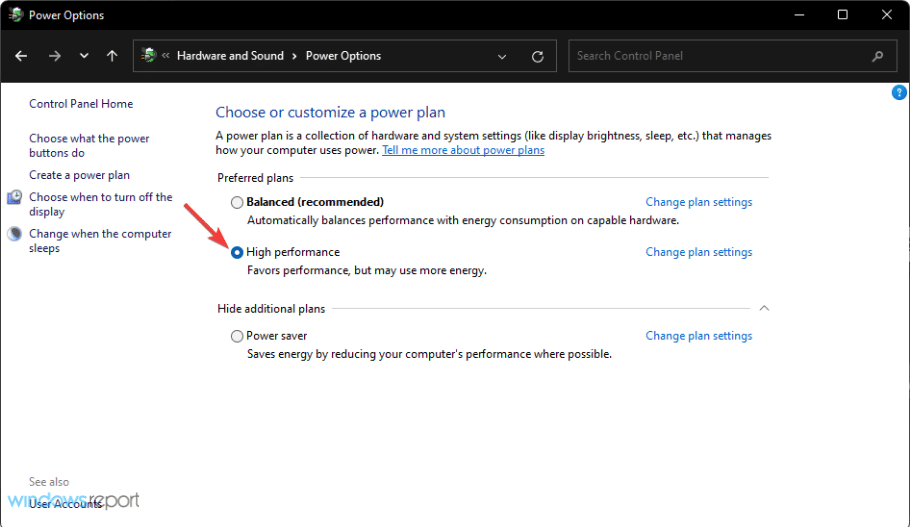
  5. Check the High performance.set high performance power plan control panel

To save battery, you may have enabled Balanced or low power mode. But, That may restrict your Windows laptop to utilize the dedicated graphics card. In this case, setting the Windows power plan to high performance will help.

4. Set graphics performance to high for browser

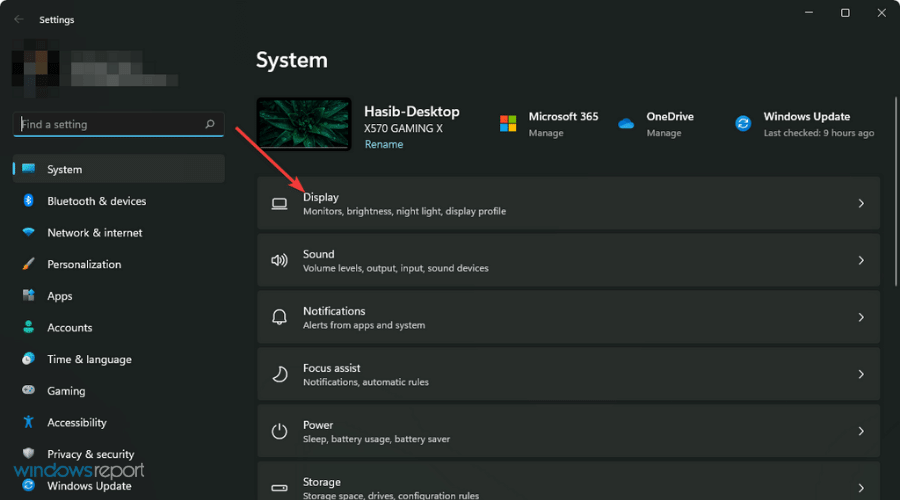
  1. Press Win + I to open Windows Settings.
  2. Click on Display.going display in win 11 settings
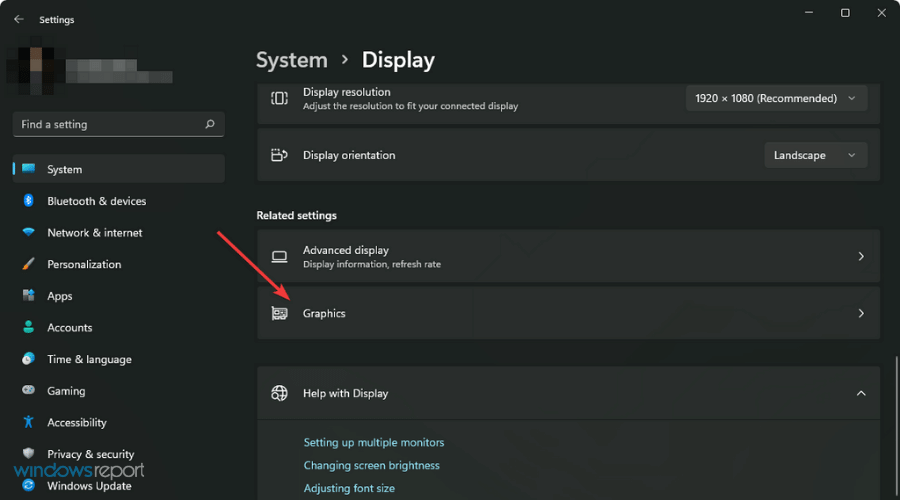
  3. Scroll down and go to Graphics.going graphics in win 11 settings
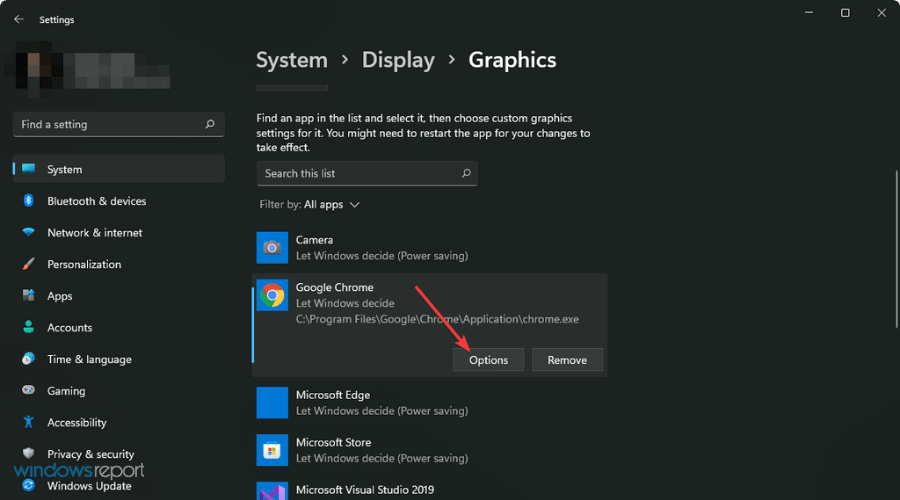
  4. Find and click on the browser that you use to run Decentraland.
  5. Click on Options.going graphics option chrome win11 settings
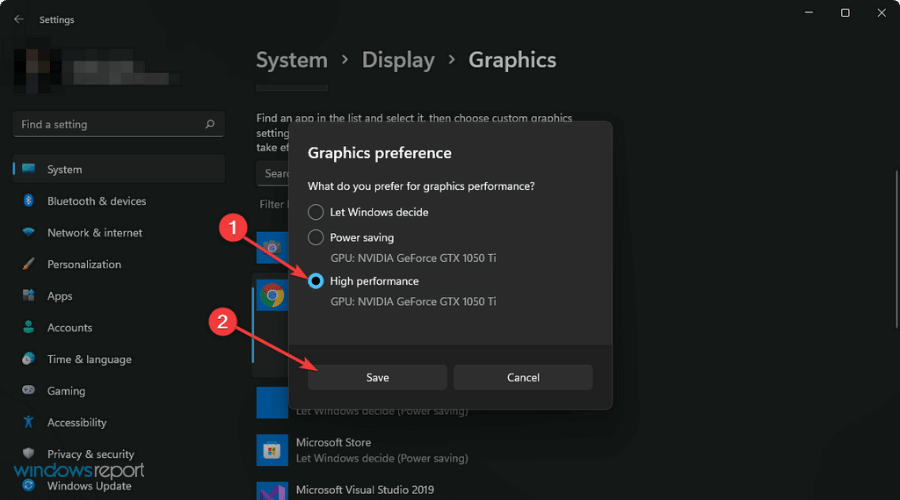
  6. Check High Performance and click on Save.set high performance and save graphic preferences chrome win11

5. Update browser

5.1 Update Chromium-based browsers

  1. Open your browser settings as shown in method 2.
  2. Go to the about page.going about chrome
  3. It will automatically check and update the chromium-based browser.
  4. Click on Relaunch after the update.relaunch chrome after update

5.2 Update Firefox

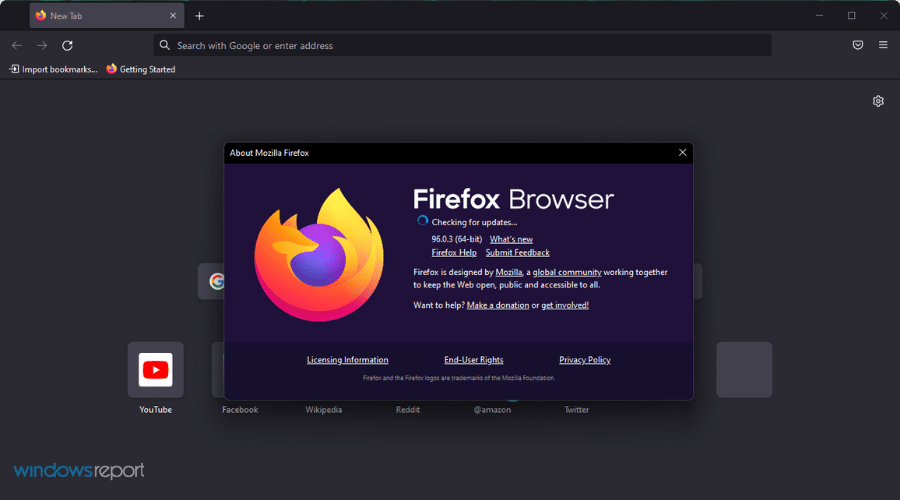
  1. Click on three vertical lines and then click on Help.going help firefox
  2. Go to About Firefox.going about firefox
  3. Firefox will automatically update itself if any new version is available.firefox checking update

6. Re-Install graphics card driver

  1. Open Windows Device Manager like before.
  2. Expand Network adapters.
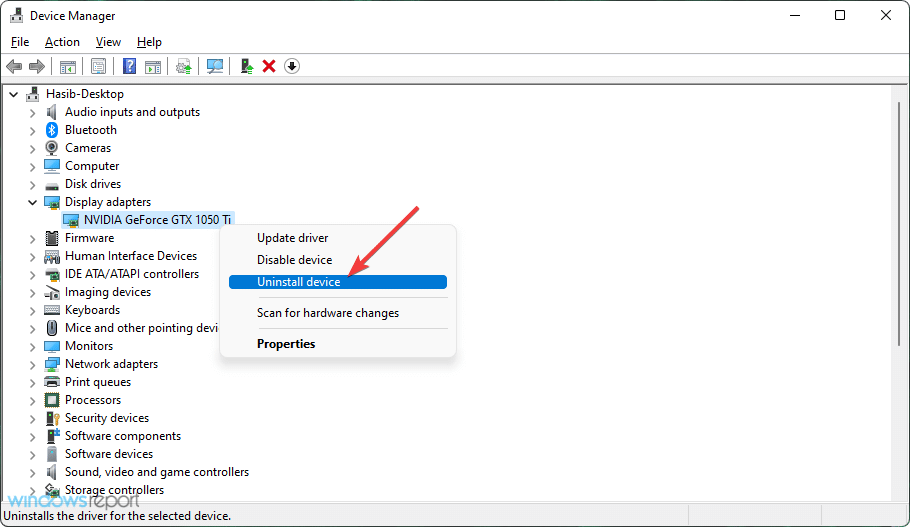
  3. Right-click on Video driver and choose Uninstall device.uninstalling graphics device windows
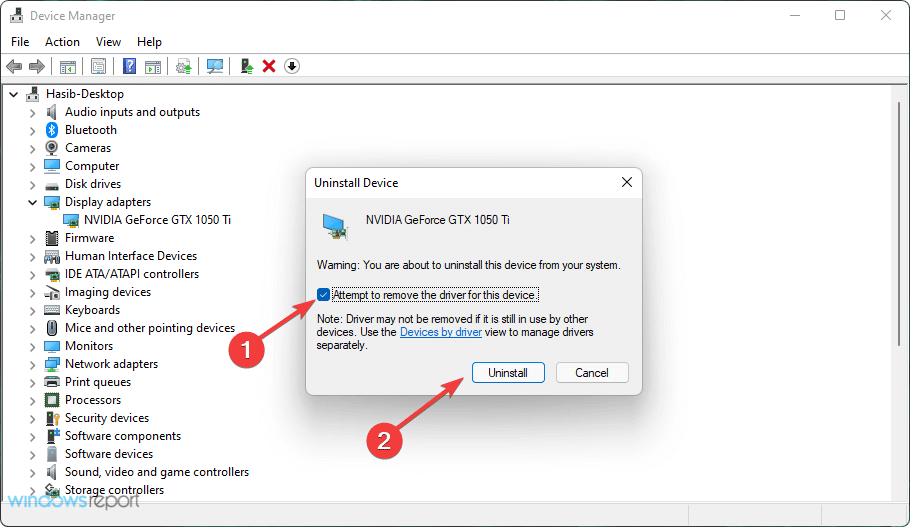
  4. Check Attempt to the driver for this device and click on Uninstall.uninstallin graphics driver windows
  5. Restart your PC.

Your PC will automatically re-install the driver. After that, try to update it as shown in method 1. It should completely fix Decentraland not using GPU issue.

7. Upgrade GPU

GPU crisis is occurring worldwide. As a result, many people have decided to keep their existing GPUs. Though most GPUs should be OK with the latest Windows. But, some GPUs are too old to perform regular tasks.

As a result, Windows 11 and 10 treat them as incompatible for many tasks. This type of GPU may not work with Decentraland. In this case, you should consider upgrading the GPU.

Can I run Decentraland with iGPU?

There is no definite answer to this question. Officially, Decentraland recommends having 2 GB video memory to run this virtual world game smoothly. So, A dedicated GPU should be a safe choice.

However, Some processors with good iGPU also can handle this virtual world. But, the performance may vary. If you don’t have a dedicated Graphics card, you can find your luck with the built-in one.

For the latest Macs, there is no dedicated graphics card. But, These can handle this game perfectly. However, the Macs with less RAM struggle to run Decentraland in many cases.

We can see that only some iGPUs work well with Decentraland. So, a dedicated graphics card is the best option.

However, if Decentraland does not use the GPU, the methods given above are enough to fix it. You are also welcome to share your thought in the comment box if you know any other way that works.

How to Fix Windows 11 Installation Assistant Error 0x8007007f (Quick Guide)

If you’re getting the Windows 11 Installation Assistant error 0x8007007f, you’re likely stuck mid-upgrade and unsure how to proceed. This common Windows 11 update error often pops up when running the Installation Assistant, especially if permissions, drivers, or antivirus software interfere with the process.

The good news? You can fix it in just a few steps. Below, we’ll guide you through all the proven solutions to resolve this error and upgrade to Windows 11 without issues.

What Causes the 0x8007007f Error in Windows 11?

This error typically appears when the Windows 11 Installation Assistant fails to execute due to:

  • Insufficient permissions
  • Driver incompatibility or outdated drivers
  • Antivirus interference
  • Corrupt or missing system files

You may also get related errors like Installation Assistant is already running or Something went wrong.

How to fix the Windows 11 Installation Assistant error 0x8007007f

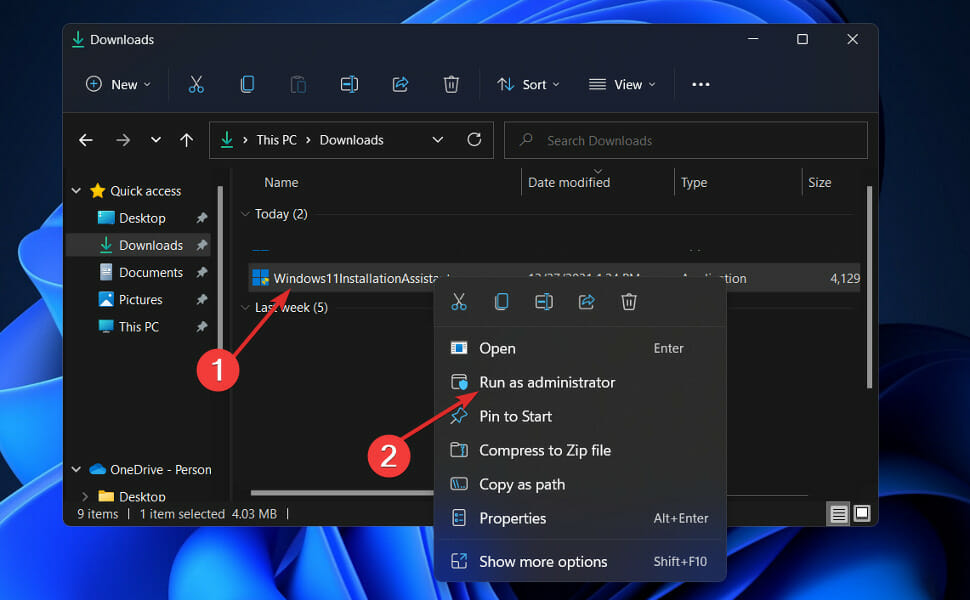
1. Run the Assistant as an administrator

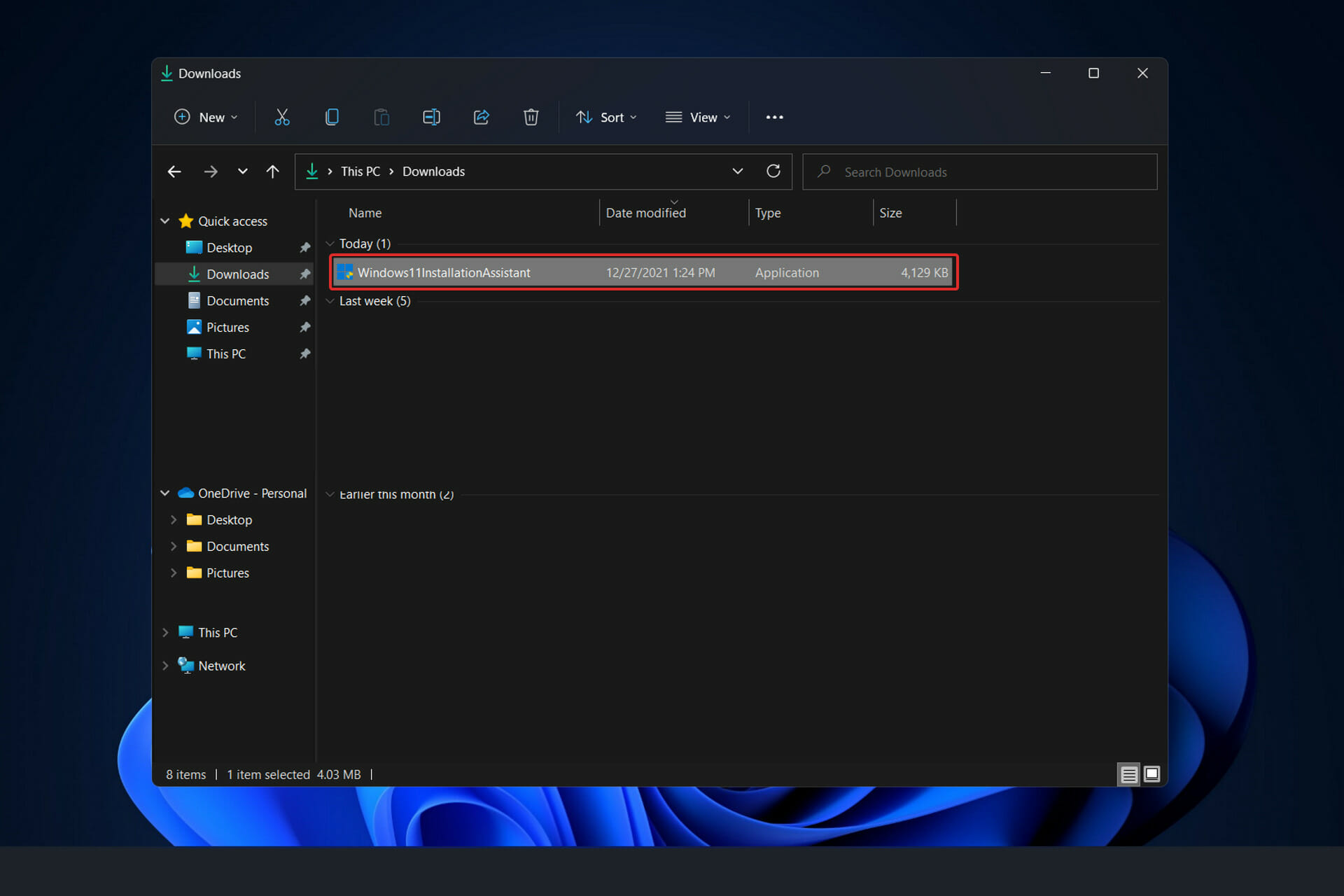
  1. After you have downloaded the Installation Assistant from Microsoft’s official website, locate the executable program file. It will most probably be in the Downloads folder of your PC.
  2. Once you found it, right-click on the executable file and choose Run as administrator.run-as-admin-installation-assistant windows 11 installation assistant not working
  3. A dialog box will pop up to ask your permission. Click Yes to allow Windows 11 Installation Assistant to run with administrator privilege.

Now continue with the installation steps that are shown to you. Make sure to follow them carefully.

2. Disable your antivirus

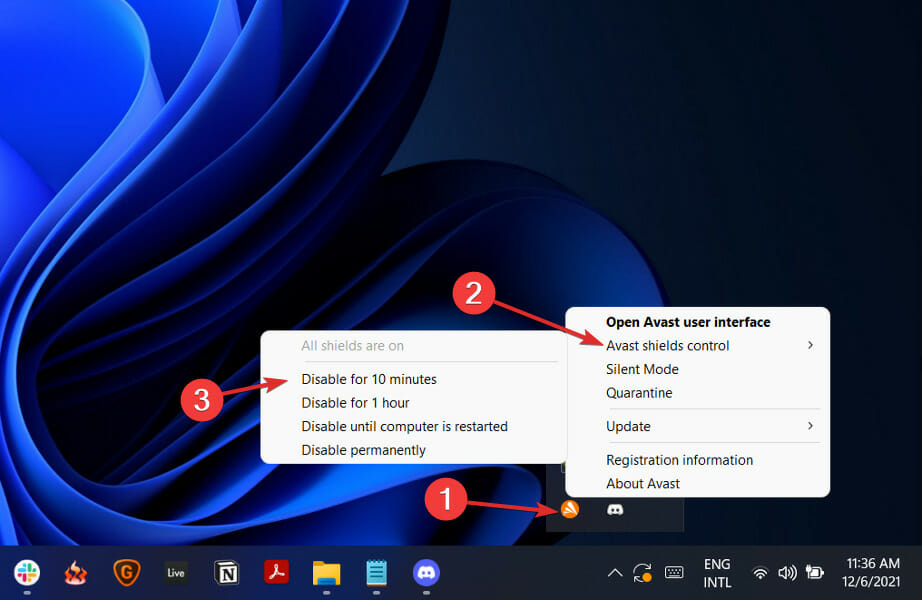
  1. Tap on the expand arrow from your taskbar then right-click on your antivirus to choose Avast shields control followed by Disable for 10 minutes.disable-antivirus-icon xbox controller not recognized windows 11
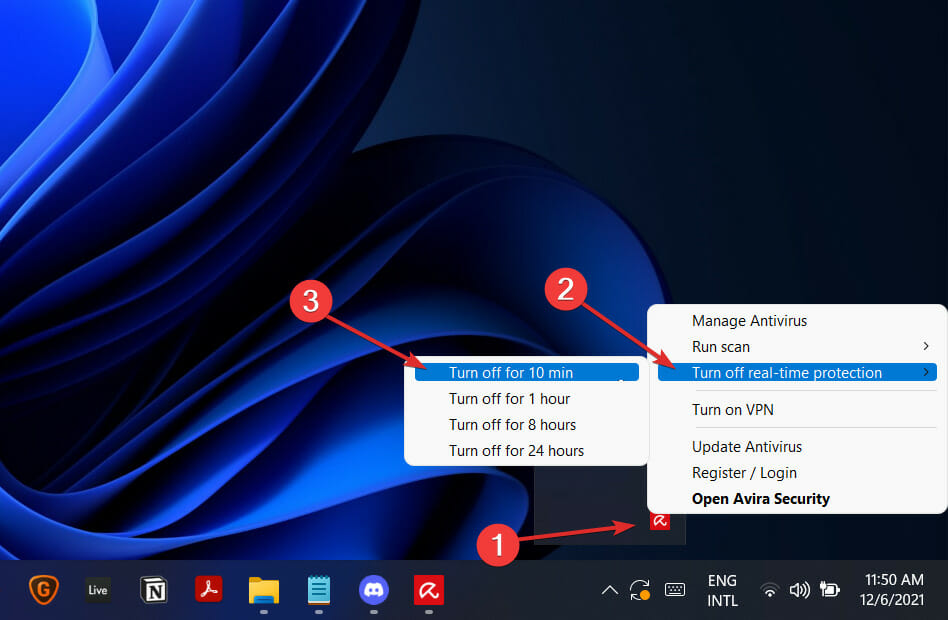
  2. If you have other antivirus programs installed, you can temporarily disable the app by following the same or similar methods as before.avira-disable-icon xbox controller not recognized windows 11

The likelihood that your antivirus application was the source of the problem is high if the problem no longer occurs. In order to secure your computer, you should consider using another antivirus product that is compatible with Windows 11.

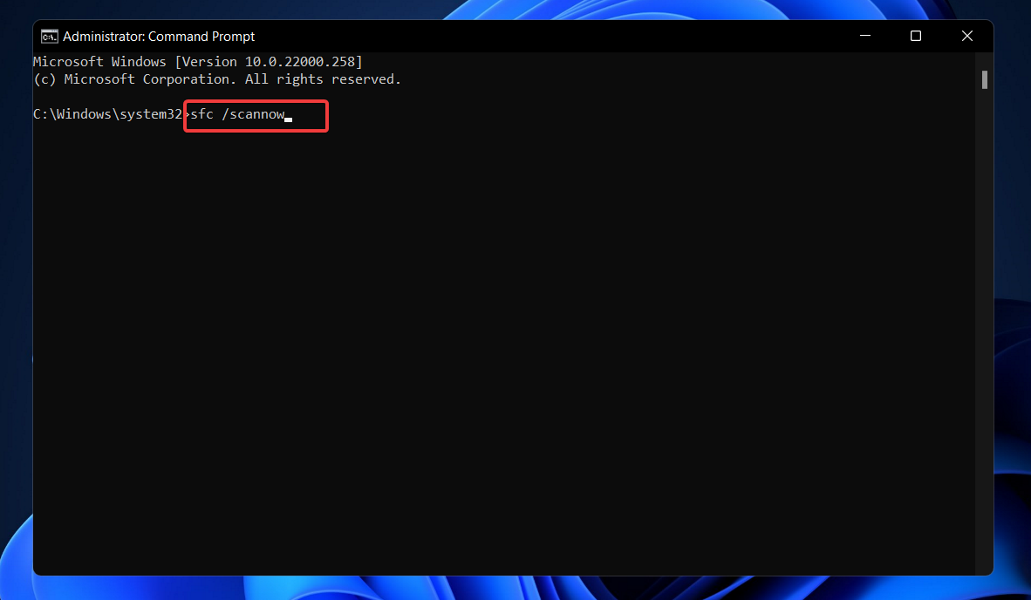
3. Run SFC

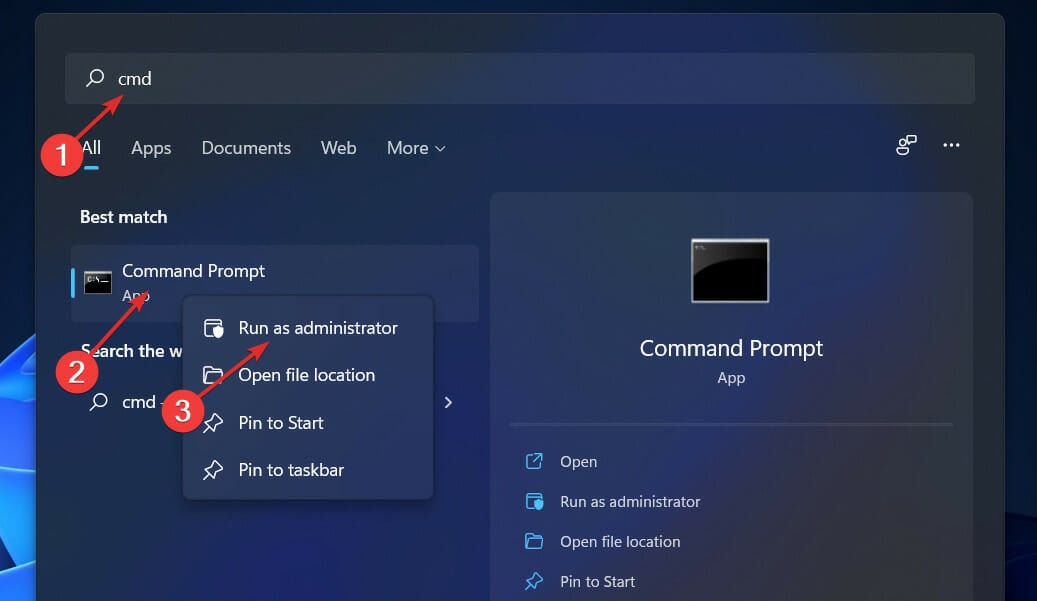
  1. Press the Windows + S key to open the Search bar, then type cmd. Next, right-click on the most relevant result given to you to run it as an administrator.cmd-run-as-admin avast high cpu windows 11
  2. Type or paste in the following command and press Enter in order to perform the scan:
    sfc /scannowsfc-scan-windows-11 kernel security check failure windows 11

When you’ve finished waiting for the process to complete, restart your computer (which could take some time). Alternatively, you can a specialized third-party repair tool that will scan your PC and fix any issues related to missing or corrupted system files.

4. Set the compatibility mode

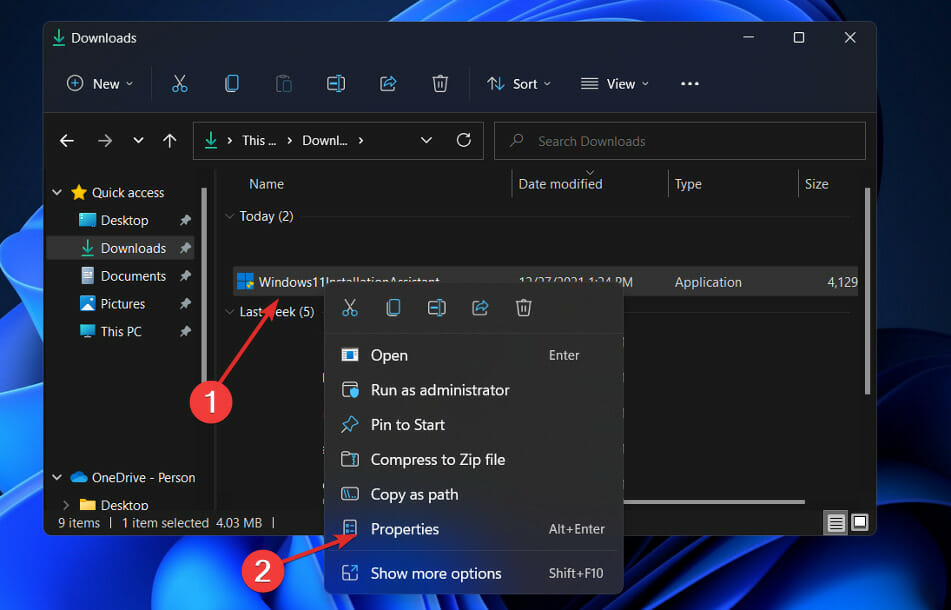
  1. After you have downloaded the Installation Assistant from Microsoft’s official website, locate the executable program file. It will most probably be in the Downloads folder of your PC.
  2. Right-click on it, then choose Properties.assistant-properties windows 11 installation assistant not working
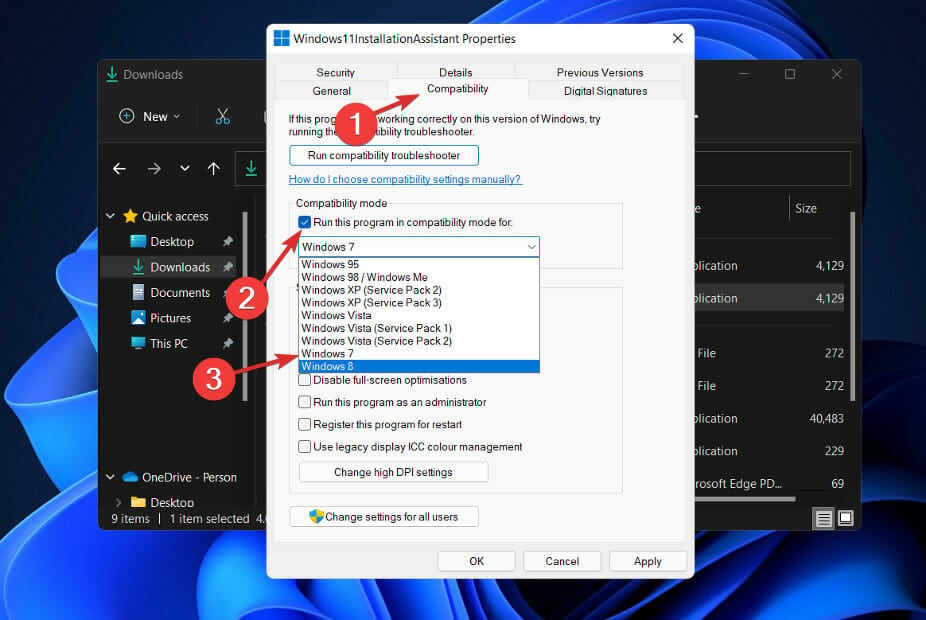
  3. Now navigate to the Compatibility tab, click on Run this program in compatibility mode for: and choose Windows 7.windows-7-compatibility windows 11 installation assistant not working
  4. Hit Apply to save the changes, then run the executable normally and see if the window nor remains open long enough for you to perform your tasks.

How to check for new updates in Windows 11?

During the development of Windows 11, the developers made a point of analyzing the data to determine which settings are used the most and which settings are used the least.

Without a question, Windows Updates were given top priority, and a new menu was built specifically for them. Manually updating Windows 11 can be accomplished as follows:

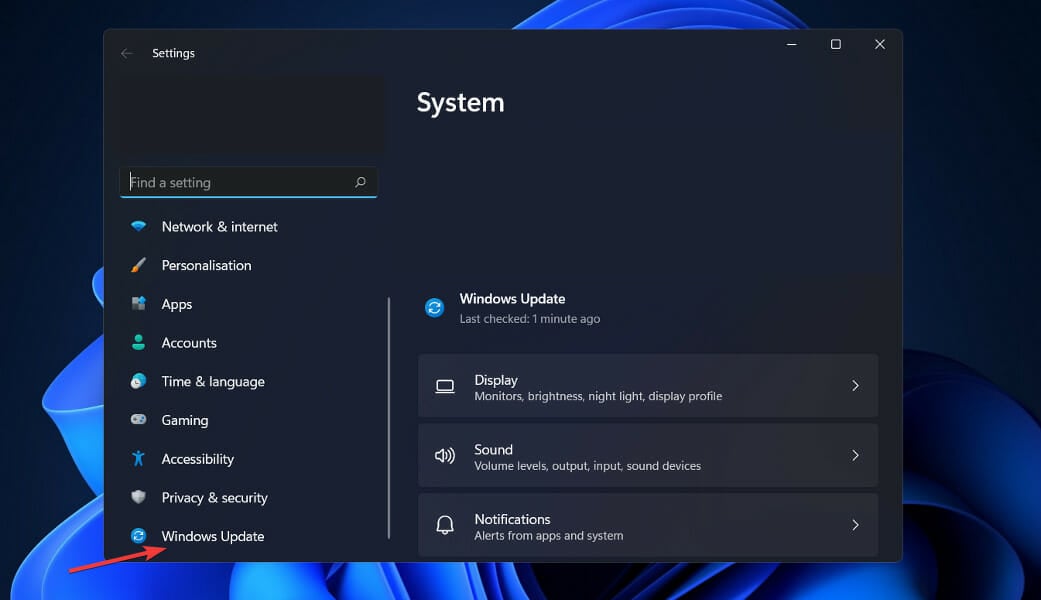
  1. Press the Windows key + I to open the Settings app, then click on Windows Update in the left panel.windows-update-settings kernel security check failure windows 11
  2. If you have any new updates to download, click on the Install now button and wait for the process to finish, otherwise click on the Check for updates button.checl-for-updates kernel security check failure windows 11
  3. If there are any new updates, the system will download and install them right away.

That’s all there is to it! The new OS has been installed on your computer, and we hope that our solutions assisted you in completing the upgrade without difficulty.

Please remember that Windows 11 is recently launched, and there may be a number of glitches and faults to contend with; nevertheless, we will provide solutions for these issues on our website.

If you find that you don’t have the option to upgrade to Windows 11 from the Windows Update settings, you can try to install Windows 11 without the Installation Assistant.

FAQs

What does error 0x8007007f mean in Windows 11?

It’s usually caused by permission issues, outdated drivers, or interference from antivirus software.

Is it safe to run the Installation Assistant?

Yes, as long as it’s downloaded from the official Microsoft website.

Can I install Windows 11 without the Installation Assistant?

Yes, you can use the Media Creation Tool or download the ISO file directly.


Summary

The Windows 11 Installation Assistant error 0x8007007f is frustrating but easy to resolve. Run the tool as admin, disable antivirus, or use compatibility mode. You can also upgrade using alternative tools like the ISO file or Media Creation Tool if problems persist.

Let us know in the comments which fix worked best for you, and whether you’re enjoying Windows 11 or missing Windows 10!


.Net celebrates 20 years with a special webcast today

This February marks the 20-year anniversary of Visual Studio .NET and the team’s month-long celebration is introducing a webcast on Valentine’s Day.

At 9:00am Pacific Time on February 14, 2022, Scott Hunter, Scott Hanselman and a bevy of special guests will broadcast their stories and journeys through .NET development as well as announcing a host of other celebratory events for the remainder of the month with the community.

During the commemorative event, host and guests will presumably cover both past accomplishments as well as what’s to come for .NET as hinted at in the blog post announcement.

We just released .NET 6 in November 2021 and are full speed ahead building .NET 7. In fact, .NET 7 Preview 1 will release this week. With .NET 6 you now have a unified set of base libraries and SDK, a simplified development experience with investments in C# 10 and minimal APIs, high productivity with hot reload, and a whole lot more. .NET 6 is the fasted adopted version of .NET yet, and we’re seeing very good reception from users. I encourage you to give it a try if you haven’t already.

We’re excited to get the .NET Multi-platform App UI (.NET MAUI) release out the door and in your hands very soon. .NET MAUI will let you build native apps for Windows, macOS, iOS and Android with a single codebase and we are now focusing on quality and bugs so now is the time to try the preview and give us feedback while we can act on it.

For those interested, be sure to visit the .Net home page to watch the special webcast as well as get more details on upcoming events for the community.

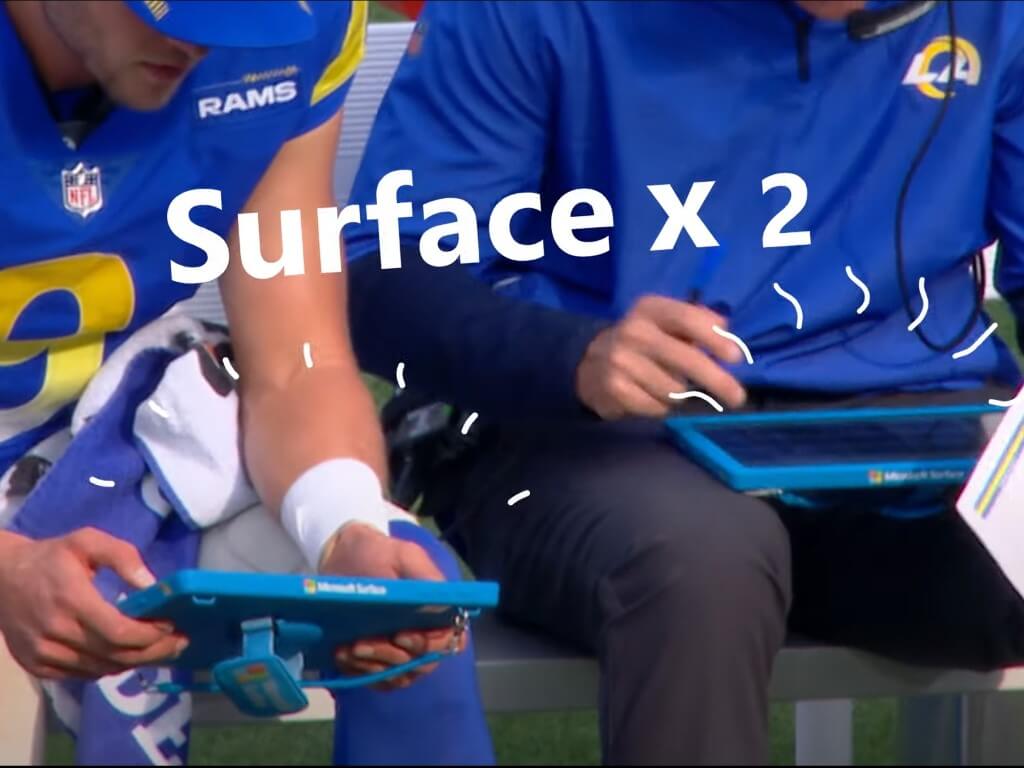
Microsoft’s post-Super Bowl YouTube spot wants you to “respect the power of Surface”

The talk of the Super Bowl ads might be Coinbase’s QR code, and although Microsoft didn’t pay up for its own ad this year, it did release a fun post-game spot over on YouTube. The short 30-second ad wants you to “respect the power of Surface,” and showcases some superstitions behind the game.

Since Microsoft has a big contract with the NFL, the ad naturally highlights how Surface devices are used on the sidelines. In it, there are a few superstitions that Microsoft plays fun at. The first is swiping with the pen to get the ball back, the second is touching the Surface to get a touchdown, the third is turning around with the Surface to turn the defense around.

Of course, superstitions or not, Surface devices have made headlines because of the NFL and it’s likely the “Respect” part of the ad is a nod to this. Back in December, Tom Brady tossed a Surface tablet on the sidelines, after his team fell to a loss against the Saints. The NFL warned him not to do it again, but even before that, Aaron Rodgers did the same back in 2015.

You’ll soon be able to get into your favorite Teams apps right from Outlook

Ever wanted to use one of your Teams apps in Outlook? Well, it’s something that Microsoft is planning, as the feature was recently added to the Microsoft 365 Roadmap, for release later this year (via Windows Central.)

According to the roadmap entry, Microsoft says that Outlook users will be able to “acquire and use these updated Teams apps,” without leaving Outlook. Presumably, this hints that developers might need to update their Teams apps to support both apps. It also looks as though these cross-Teams and Outlook apps are catered for personal, and/or search, per the roadmap.

The feature is set for release in December of 2022 for both Outlook on the web, as well as desktop. However, seeing as though that’s just Microsoft’s best timing for when you can expect this, it could come even later. Also, with Inspire 2022 coming up in July, you might expect the company to talk more about this then, as the conference always sports a lot of Teams news. Until then, you’ll just have to settle with using your Teams apps separate from Outlook.

8 ways to open Control Panel in Windows 10 or Windows 11

There are many ways to open Windows Control Panel. Still the central hub of Windows, the Control Panel can help you manage almost all aspects of your operating system.

Be it keyword or mouse settings, password and users records, or fiddling with the sound and other hardware settings, Control Panel has access to all. Even though Microsoft is taking steps to replace Control Panel with Windows Settings, you can still control your PC from the Control Panel, and for some settings it’s the only place to go.

It’s therefore not a surprise that there are so many ways one can use to Open the Control Panel in Windows. So let’s first get started with some of the more straightforward ways at our disposal.

1. Start Menu search bar

The Start menu search bar is the place that lets you access almost all of your apps or folders from a single place. Not surprisingly, you can also use it to open Control Panel in your Windows. Here’s how:

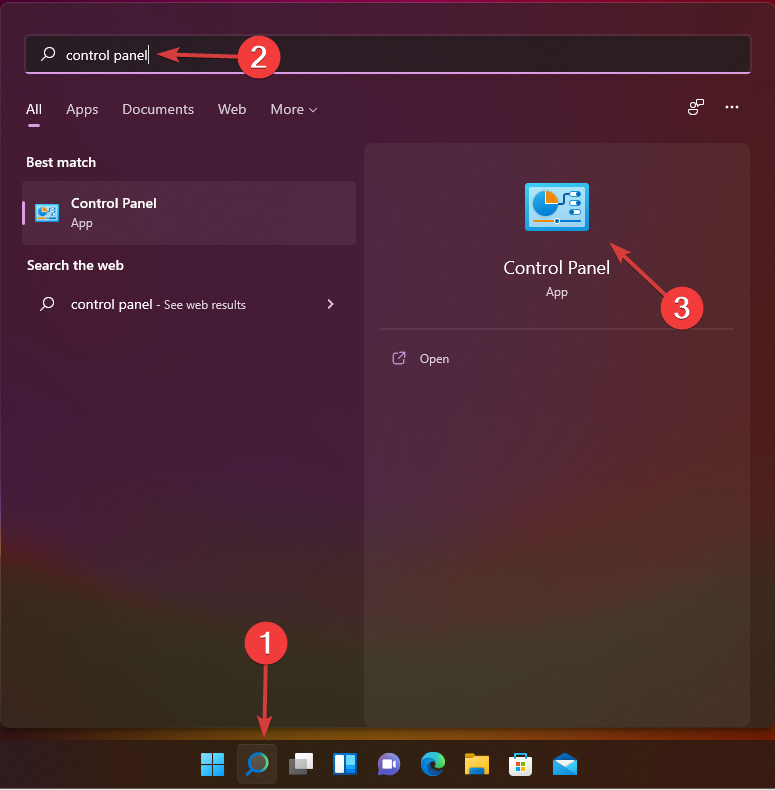
Go to the Start menu search bar, type in ‘control panel’ in the search box, and select the Best match. The Control Panel will be opened.

Related: How to customize your Windows 11 Start Menu in the best way

2. File Explorer

You can also open the Control Panel from the File Explorer. The File Explorer, previously also called the Windows Explorer, is a file management application that works as a graphical user interface, which in turn helps you edit, manage data and other file contents.

To open the File Explorer, select the folder icon from the taskbar below.

In the File Explorer, select Desktop and from there, click on Control Panel.

3. Run dialog box

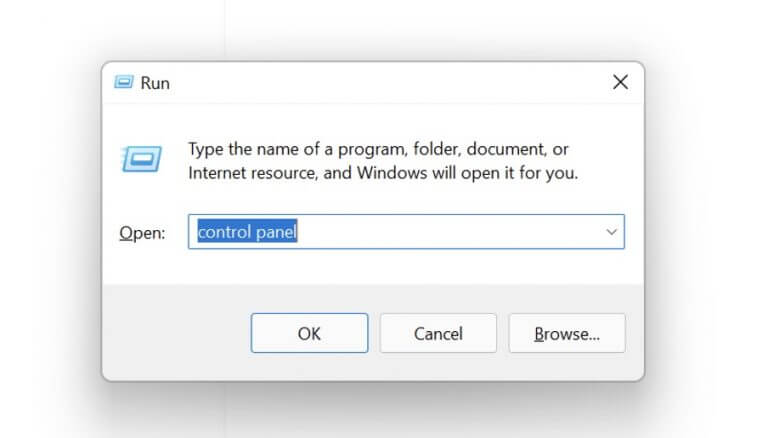
The Run dialog box is a handy utility to help you access all kinds of files on your Windows computer. You can also launch the Control Panel with it. To get started, go to the Start menu, type in ‘run’ and select the Best match. Or alternatively, press Windows key +R.

run dialog box

In the Run dialog box, type ‘control panel,’ and hit Enter. The Windows Control Panel will be launched.

4. Command prompt

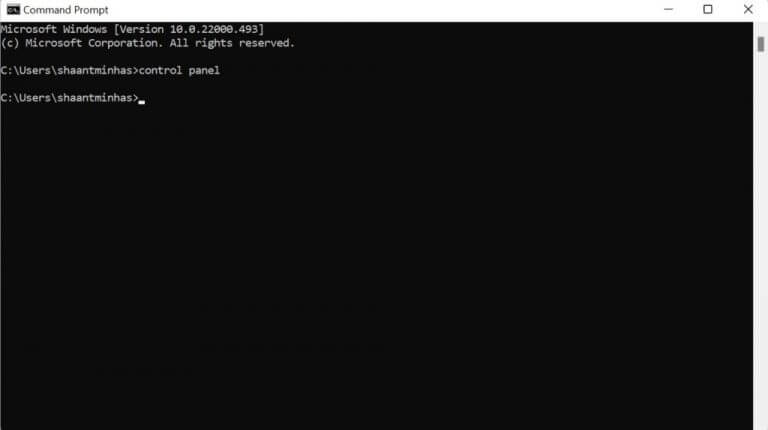
You can also use the Windows Command prompt to open the Windows Control Panel. Simply go to the Windows key + X. Or Alternatively, go to the Start menu search bar, type in ‘cmd,’ and hit Enter.

When the Command prompt gets launched, type in the following command and hit Enter:

control panel
command prompt

The Control Panel will be launched in your Windows 10 or 11.

5. Start menu shortcut

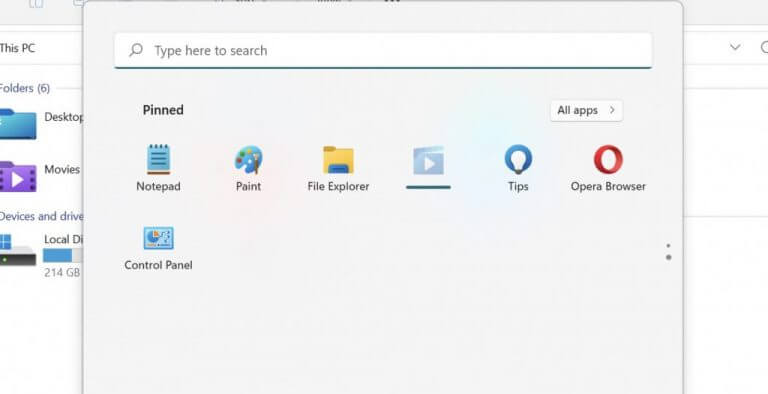
If you’ve to open the Control Panel almost every day, then there’s a sneaky way to access it. How? You can simply pin the Control Panel shortcut to the Start menu so that you can launch anytime from there. Here’s how:

Click on the Start button, and type in ‘control panel’. From there, right-click on the Control Panel and select Pin to Start.

Now, whenever you want to open the Control Panel, simply click on the Windows Start button, and you’ll find the Control Panel icon in the Pinned section.

start menu

6. Task Manager

Infamous as a rescuer for any and all hanged Windows processes, the Task Manager is a handy application in the Windows operating system; just any gamer.

But it has many other uses as well. One such use is its feature to launch different Windows apps. Here’s how:

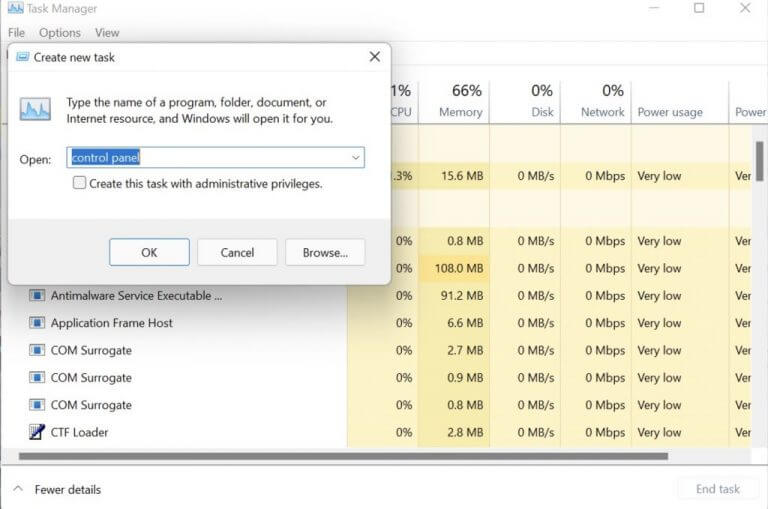
To launch the Task Manager, go to the Windows power menu. Right-click on the Windows Start button, and select the Task Manager. In the Task Manager, click on File > Run new task.

task manager

In the new window, type in ‘control panel’ and hit Enter. The Task Manager will be opened.

7. Desktop shortcut

Desktop shortcuts are a handy way to launch different Windows apps. They are also super convenient, especially if you’ve to use the specified app again and again. Interestingly, you can also open the Control Panel with a simple shortcut. Here’s how:

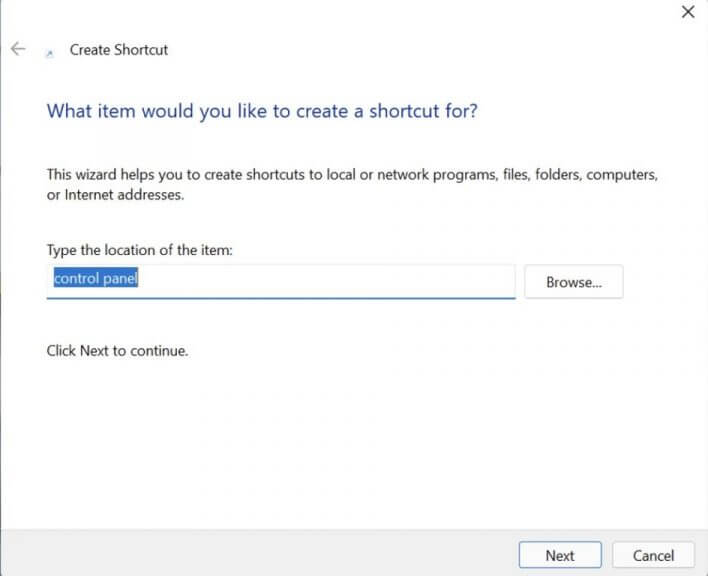
Right-click anywhere in the desktop and select New > Shortcut. In the new dialog box that pops ups, type in ‘control panel’ in the Browse… box, and hit Enter. Then give a relevant name to the screenshot (we’ve named it Control Panel), and select Finish.

open control panel in windows

8. File Explorer’s address bar

The File Explorer’s address bar is located in the top-left corner of the Windows operating system. Interestingly, you can also use this address bar to open the Control Panel in your Windows. Here’s how:

Click on the > option in front of the computer icon. As soon as you do that, you’ll get a drop-down list from where you can select the Control Panel. Click on that icon of Control Panel, the Control Panel menu will be opened.

Open Control Panel in Windows 10 or Windows 11

And these are all the different ways to open Control Panel in your Windows. We hope one of these methods helped you launch the Windows Control Panel without any hassles. Be sure to also check out our separate guides on how to open Task Manager as well as File Explorer.

These older versions of Visual Studio will soon no longer be supported by Microsoft

In an announcement, Microsoft let users of older versions of Visual Studio know that they will no longer get support. These users are being encouraged to make the update to Visual Studio 2022. which has better security.

Here are the various versions of Visual Studio that will no longer be supported.

  • Visual Studio 2012: support ends on January 9, 2023 for the IDE and its associated products, runtimes, and components. We recommend users upgrade to a newer version of Visual Studio.
  • Visual Studio 2017: mainstream support ends April 12, 2022, and the product will transition to extended support until April 2027. During extended support we’ll provide fixes only for security issues. We recommend users move to the 15.9 supported baseline to remain under support.
  • Visual Studio 2019 version 16.7: support ends April 12, 2022. We recommend users move to the version 16.11 supported baseline, or to Visual Studio 2022.
  • Visual Studio 2019 Preview Channel: after April 2022, we will no longer provide updates to the Preview Channel of Visual Studio 2019. We recommend users migrate to either the Visual Studio 2019 Release Channel or to Visual Studio 2022 Preview to stay secure and receive the latest feature updates.

Once you make the upgrade to Visual Studio 2022, you will have access to three channels which include the Preview channel, the Current Channel, and the Long-term Servicing Channels. The Preview Channel is in place to serve as a platform where users can interact with the developers and give feedback in regards to the latest features and their functionality.

On the other hand, the Current Channel is where you can access these new features once they are ready for use. Microsoft further indicated that users should make all the updates that come to this channel to ensure that they are covered in terms of support. The Long-Term Servicing Channels essentially gives the developer more control over you once you embrace the new feature releases. Furthermore, Microsoft provides 18 months’ worth of security upon release.

Download Visual Studio 2022 to get accustomed to it before Microsoft stops providing support to the current version you are on.

Windows news recap: fake Windows 11 installers warning, WhatsApp Beta gains clean dark mode, and more

Welcome back to our Windows news recap, where we go over the top stories of the past week in the world of Microsoft’s flagship operating system.

Be careful! HP details fake Windows 11 installers that can infect your computer

HP has warned of fake Windows 11 installers doing the rounds. Whilst these aren’t new, and were going around even before the official Windows 11 launch, this particular one has a very similar-looking installation process to the official Windows 11 installer, making it harder to distinguish.

Windows 11

New Your Phone feature to show recently opened Android apps on your Windows 11 Taskbar

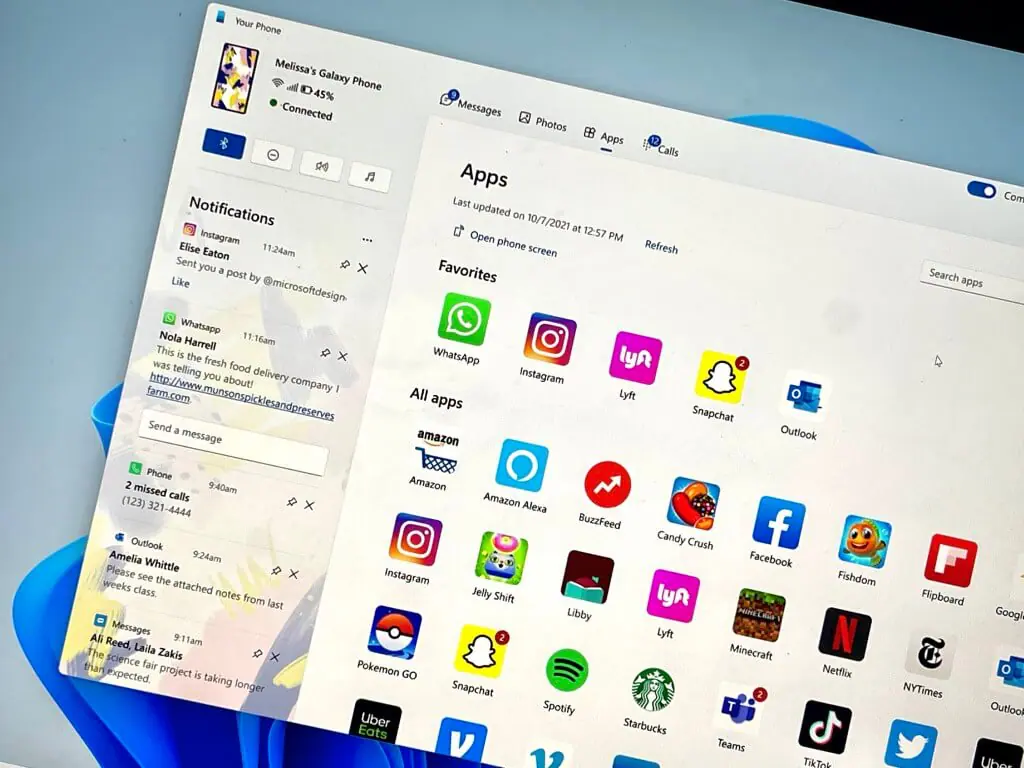
Windows Insiders will soon see that the Windows 11 taskbar can show recently opened Android apps, thanks to a new feature in the Your Phone app, making it quicker to access apps you’ve recently used.

New Your Phone feature to show recently opened Android apps on your Windows 11 Taskbar - OnMSFT.com - February 9, 2022

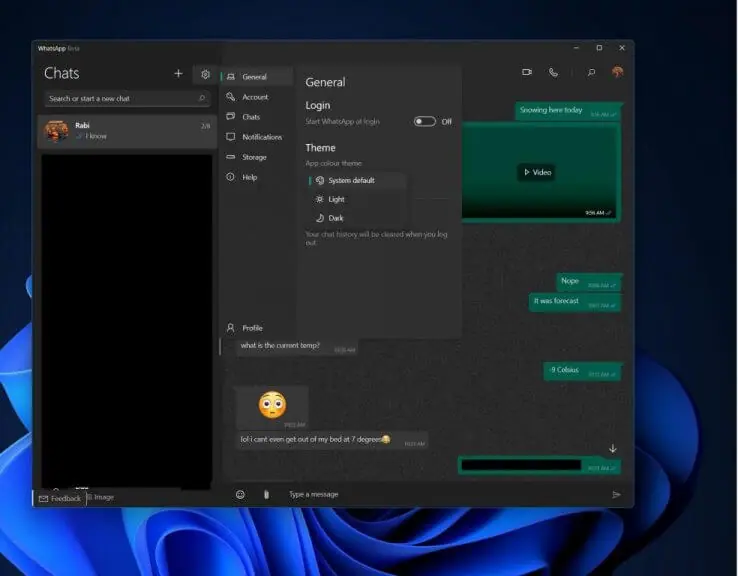
WhatsApp Beta on Windows 10 and 11 gets a clean dark mode

A clean dark mode is being tested in the WhatsApp Beta app on Windows 10 and 11, allowing it to better match your Windows colour theme, and be less demanding on your eyes at night or in different light conditions.

WhatsApp Beta on Windows 10 and 11 gets a clean dark mode - OnMSFT.com - February 9, 2022

That’s it for this week. We’ll be back next week with more Windows news.

Microsoft news recap: Open app store policies, LinkedIn adds option to block political content, and more

Microsoft news recap is a weekly feature highlighting the top Microsoft news stories of the past week. Sit back, grab some coffee, and enjoy the read!

Microsoft lays out new open App Store principles

In what appears to be an effort to butter up regulators, Microsoft has announced a set of Open App Store Policies aimed at putting Microsoft in a positive position as laws and regulations around app stores tighten by appearing more friendly to competition and consumer choice. It’s also likely that this move is, at least in part, to help smooth its acquisition of Activision Blizzard.

Call of Duty WWII on Xbox One

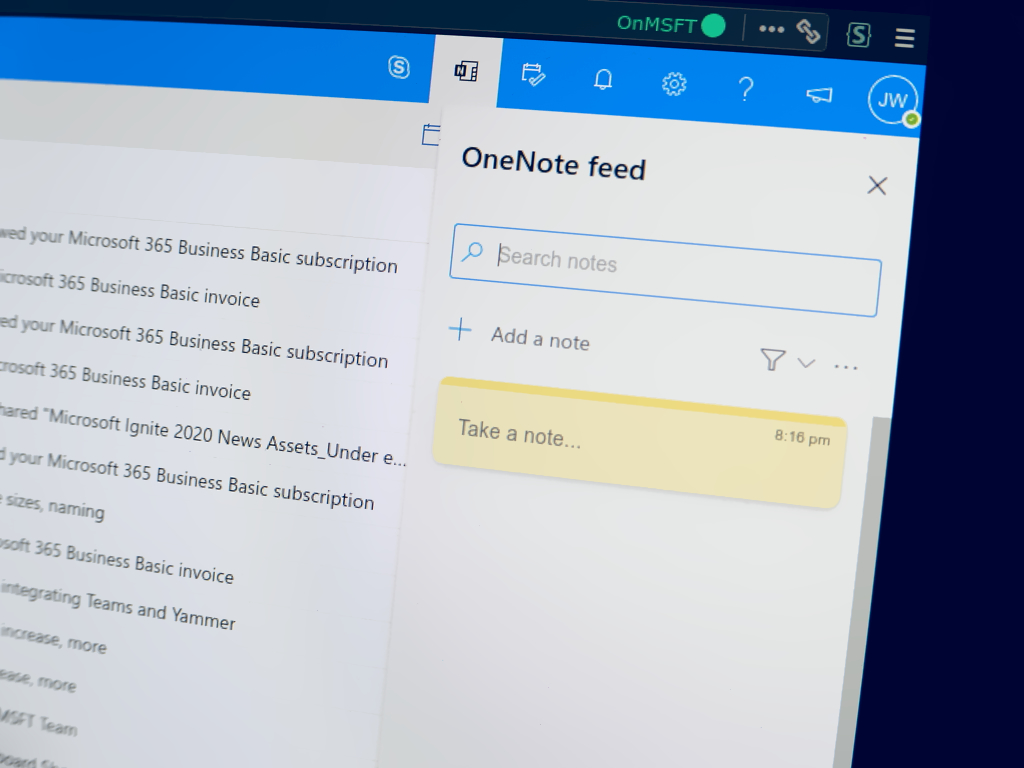
OneNote for web gets a ton of new improvements

OneNote for web has received a fairly significant update, bringing a whole host of improvements, including improved Copy/Paste, a new mode switcher, auto-inking, and more. See the full list here.

Photo showing the OneNote feed in Outlook web app

You can now block out political content from your LinkedIn feed

People often avoid political discussions at work, and now it’s possible to filter out political content on your LinkedIn feed. The new option to block political content means that you’ll no longer see content related to candidates, parties, election results, and more.

LinkedIn sign at conference

Call of Duty, more to stay on PlayStation beyond Sony’s agreements with Activision after acquisition, says Microsoft

Alongside the announcement of Microsoft’s open app store policies, the company also announced that it is committed to keeping Call of Duty and other popular Activision Blizzard titles on PlayStation, even after current agreements end, after its acquisition.

Call of Duty, more to stay on PlayStation beyond Sony's agreements with Activision after acquisition, says Microsoft - OnMSFT.com - February 9, 2022

That’s it for this week. We’ll be back next week with more Microsoft news.

How to Fix Error Code 22 on MSI Afterburner & Safely Close your PC

MSI, or Micro-Star International, is a world-leading gaming laptop brand. Most MSI gaming laptops offer impressive specs and powerful video cards capable of handling the most power-hungry games.

But recently, many users have complained about MSI afterburner error code 22. The entire error message reads CTaskSchedulerinterface::AddTask failed with error code -22!

What is Error Code 22 on MSI Afterburner?

MSI Afterburner is the most popular graphics card program, as we all know, but let’s see what the main causes for Error Code 22 are:

  • Task Scheduler issues – The MSI Afterburner Error Code 22 occurs mainly due to some error in the Task Scheduler that can prevent your PC from auto-shutting down.
  • Registry issues – Indirectly, a clogged Registry may affect MSI Afterburner and produce this error code.

Now that we know why this happens, let’s apply the solutions below to fix the problem quickly.

How can I fix AddTask failed with error code -22?

1. Run a quick SFC scan

  1. Click on Start, search for command prompt, and select Run as Administrator.
  2. Type the following command and hit Enter:
    sfc/scannow
    msi afterburner error code 22
  3. Restart your device once done and check if the MSI afterburner error is resolved. 

Is the System File Checker not working on your device? If yes, read our guide to fix it.

For a more thorough file check, we recommend a specialized tool for finding and repairing damaged or corrupted Windows system files.

2. Run a DISM scan

  1. Click on Start, search for command prompt, and select Run as Administrator.
  2. Type the following commands one by one and hit Enter:
    DISM /Online /Cleanup-Image /CheckHealth
    DISM /Online /Cleanup-Image /RestoreHealth

    Restore health
  3. Restart your device and check if the error message still appears.

System image corruptions are also known to cause MSI afterburner error code 22. Running a DISM Scan will find and repair system image corruptions.

Several users complain about the fact that they are unable to run the DISM scan. Rest assured that our guide shows you what to do if that happens.

3. Use the Registry Editor

Note icon NOTE
Before starting this method, create a System Restore Point or back up your Registry. So, if anything goes wrong, you can restore it, and your Windows system will be back to normal.
  1. Click Windows key + R to open the Run dialog box.
  2. Type regedit and hit Enter.
    msi afterburner error code 22
  3. Once the Registry Editor opens, navigate to the following path:
    Computer\HKEY_LOCAL_MACHINE\SYSTEM\CurrentControlSet\Services\Schedule
  4. Double-click on Start in the right pane.
    regedit start
  5. Type 2 in the Value Data field and click OK to save the changes.
    msi afterburner error code 22

4. Reinstall MSI Afterburner

  1. Click the Start button and select Settings.
  2. Now, click on Apps. In Windows 11, also click on Installed apps from the right pane.
  3. Look for MSI Afterburner in the list of apps, click on it, and select Uninstall. In Windows 11, after finding the app, click on the three dots menu and select Uninstall.
  4. Go through with the uninstallation, then go to the MSI Afterburner download page and download a fresh copy of the software and install it.

This was how to fix the error code 22 in MSI Afterburner, and we hope our solutions helped you solve this issue.

If the troubleshooting methods didn’t solve this error, try our MSI Afterburner fix guide for more information.

If you still have issues or you have other solutions that we overlooked, feel free to drop a comment below.

DPC Latency Caused by TCP/IP.SYS: How to Fix It in 5 Steps

DPC stands for Deferred Procedure Call and is meant to perform high-priority tasks first and low-priority tasks later. However, tcpip.sys latency issues can sometimes interfere with DPC.

TCP/IP or Transmission Control Protocol/Internet Protocol handles PC communication. If the tcp/ip.sys goes corrupt, then it will misbehave and often lead to BSoD errors. Thankfully in this guide, we have a lot of solutions that will help you to resolve the tcp/ip.sys latency issue in your PC.

What can cause DPC latency?

There are several common causes for DPC latency, with the following ones being the most common:

  • Outdated drivers – Outdated drivers can cause this and many other issues. To fix it, just update your drivers and the issue should be gone.
  • DNS cache – DNS cache can sometimes cause problems with your network adapter, but you simply need to flush DNS to fix that.
  • Power settings – Adjusting the power plan or network adapter settings can sometimes fix this problem.
  • IPv6 – This is a fairly new protocol, and it can cause issues with certain network adapter drivers.

Now that we know the reasons behind this problem, let’s apply the right solutions.

How can I fix tcpip.sys latency?

1. Flush the DNS cache

  1. Click the Search icon on your taskbar.
  2. Search for command prompt and run the app as administrator.
  3. Type the below commands and press Enter, one by one:
    • netsh winsock reset
      netsh int ip reset
      ipconfig /release
      ipconfig /renew
      ipconfig /flushdns
  4. Restart your computer and check if this resolves the issue or not.

One of the ways to fix the DCP latency issue caused by tcpip.sys is to flush the DNS cache. Running commands removes the IP addresses or other DNS records from the cache.

2. Change the current power plan

  1. Open the Search menu from the taskbar.
  2. Search for control panel and open the app from the results.
  3. Click on Power Options.
  4. Select a different power plan except for the Balanced option.

Several users have reported that switching from the Balanced power plan to a high-performance or other power plan helped them resolve the tcpip.sys latency.

3. Update the network driver

  1. Right-click on the Start menu and select Device Manager.
  2. Expand the Network adapters.
  3. Right-click on your network adapter and select Update driver from the context menu.
  4. Hit the Search automatically for drivers option.
  5. Let the system look out for a new driver for your network and follow the prompts if it detects one.

Chances are the outdated network drivers are causing the tcpip.sys latency issue on your PC. Update the driver by following the above steps and check if this resolves the issue or not.

Another simple and fast solution to keep your drivers updated and avoid future errors is to use an automated driver update tool.

⇒ Get Fortect Driver Updater

4. Turn off the Energy Efficient Ethernet option

  1. Right-click on the Start menu and select Device Manager.
  2. Expand the Network adapters.
  3. Right-click on your network adapter and select Properties from the context menu.
  4. Switch to the Advanced tab.
  5. Click on the Energy Efficient Ethernet.
  6. From the Value drop-down menu, select Disabled.
  7. Click OK to apply the changes and check if this resolves the issue.

After doing that, check if tcpip.sys latency is gone.

5. Disable the IPv6

  1. Press the Win + R keys to open the Run dialogue.
  2. Type ncpa.cpl and hit Enter.
  3. Right-click on your internet and select Properties.
  4. Uncheck the box for Internet Protocol Version 6 entry.
  5. Click OK.
  6. Restart your PC and check if this resolves the issue or not.

There are chances that the internet protocol that you have selected is problematic. In such a case, you can disable the protocol and check if this resolves the issue or not.

If you are facing an audio latency issue on your Windows PC, you can check out our guide, which gives you a bunch of solutions to resolve the problem.

You can also refer to our guide, which lists five effective solutions to resolve high ping, ping spikes, and latency issues on your Windows PC.

Let us know in the comments below which one of the above solutions helped you resolve the tcpip.sys high DPC latency issue.

6 Best Server Ping Monitor Software

A server ping software is a useful tool that allows for testing the strength of the network connection or to see whether or not there are any packet losses on the network.

Performing the monitoring of your network using such a tool gives you a clearer perspective regarding the performance of your key devices.

What is ping and packet loss monitoring?

Ping is basically the action of testing how long does it take for a package to go from one device to another. And if the package doesn’t reach its destination in one piece, we call that effect packet loss.

That’s where these tools come into the picture to monitor all this data and provide you with the most accurate reports possible.

So, in this article, we’ll walk you through the best server ping software to use in order to make an informed decision.

What is the best server ping software I can use?

Site24x7

Site24x7 is undoubtedly one of the best server monitoring software and that includes pinging them to assess their connection response.

However, if you’re just looking for a simple ping tool, this is not it because it has a lot more complex features.

For instance, Site24x7 monitors over 60 network performance metrics for up to ten servers and offers inventory reports for them.

It doesn’t matter what type of servers or the systems they’re running, including Debian, SUSE, or CentOS, this tool will get you covered from all sides.

Moreover, the solution also looks at the Microsoft applications’ performance. The list of supported software is pretty long, but we will mention Office 365, SharePoint, Hiper-V, Exchange, and SQL.

You will be able to build your own plugin integrations but you will discover the readily available ones for Apache, MySQL, and Nagios.

Overview of the best features of Site24x7:

  • Over 60 performance metrics, including ping and packet loss
  • Single dashboard control
  • Microsoft applications monitoring
  • Plugin integrations for Apache, MySQL and Nagios included
  • Manage customer accounts and endpoints securely

Site24x7

With this complex too you can ping up to 10 servers and manage all their traffic.
Check price Visit website

PRTG Network Monitor

PRTG Network Monitor is one of the most popular monitoring tools that pings devices in order to measure their availability.

Using this tool, you will actually scan the devices by their IP range, and you can also use one of the available features for ping monitoring.

Some of them are Ping Sensor, Cloud Ping Sensor, and Ping Jitter Sensor. Thankfully, after the monitoring, you may opt between seeing the data live or historically.

You will have included the ping time, maximum and minimum ping time, and also the packet loss percentage.

Let’s go through some of its best features:

  • Scan devices by their IP range
  • Built-in Ping Sensor, Cloud Ping Sensor, and Ping Jitter Sensor
  • Automated performance monitor
  • Receive packet loss percentage data
PRTG Network Monitor

PRTG Network Monitor

Measure the ping time and other important network metrics with this performant and reliable tool.
Free trialVisit website

Solarwinds Network Performance Monitor

Solarwinds Network Performance Monitor is another tool that will help you perform a ping check on your network.

Thanks to the information received as a result of the ping utility you will be able to see the performance of your DHCP and DNS server.

This tool allows you to generate a report with all the IP addresses that responded to your ping.

In this report, you’ll see the response time which is needed for establishing if and where are any problems.

You can export the results in a CSV, TXT, or XLS file and then import it into other utilities for further analysis and comparison.

Take a look at its key features:

  • CSV, TXT, or XLS export
  • Monitor performance of DHCP and DNS servers
  • Generate reports with all the IP addresses
  • Check out response time and packet loss data

⇒ Get Solarwinds Network Performance Monitor

Nagios Network Analyzer

Nagios Network Analyzer is one of the best server ping software solutions that you can use. This tool provides a view of the availability of your devices and detects any packet loss.

Knowing all this will help you decide faster on how well your network is performing. The software allows you to customize the layout for each user as needed or simply use one of the available options.

Let’s see some of its most important features:

  • Monitor all your devices from a single interface
  • Get detailed reports on packet loss
  • Monitor all in-house and external applications
  • Set up alerts to notify you when potential threats arise

⇒ Get Nagios Network Analyzer

ManageEngine OpManager

ManageEngine OpManager has a Free Ping and Traceroute Tool that allows you to quickly and efficiently see how your network is performing.

With this tool, you will see how available are your servers and routers, switches, and websites. Using this server ping software tool will give you a clear view of the succeeded and failed ping counts.

Moreover, you will be able to save snapshots of ping details and view alerts on your dashboard, in case the servers are not available.

Let’s review a few of this tool’s best features:

  • Dedicated ping and traceroute tools
  • Checks your servers, routers, switches and websites
  • Assess default dashboards or create your own
  • Over 200 performance widgets available

Obtain comprehensive real-time reports on your network with this powerful tool.
Free Trial Visit Website

Spiceworks Network Monitor

Spiceworks Network Monitor comes with features that offer real-time status alerts of your network. You will be able to catch the problems before anyone else notices and also solve them as fast as possible.

Thanks to the ping monitor feature you will see which devices are online and available and if there are any issues.

In the Spiceworks Connectivity Dashboard, you will have all data about servers, routers, switches, printers, and more.

Take a glimpse at some of its best features below:

  • Simple to install and set up
  • Get real-time insights and spot sluggish network connections
  • Fully loaded help desk creation
  • Scan your IP devices and collect the data in minutes

⇒ Get Spiceworks Network Monitor

Ping monitoring is essential for managing network devices, therefore, choosing the best server ping software is crucial.

We hope that the information presented in this article will help you make an informed decision. You can take a peek at our list including the best server monitoring tools and get more ideas for this kind of help.

Also, we would love to know which tool has worked best for you, so don’t hesitate to let us know in the comments section below.

6 Ways to Fix FPS Drops, Lag, and Stuttering in Battlefront 2

Star Wars Battlefront II is an action shooter based on the Star Wars franchise. Despite being a great game, many users reported FPS drops in Battlefront 2.

This isn’t the only issue, many have reported mouse lag in Battlefront 2 and we covered this issue in a separate guide.

What causes performance issues on Battlefront 2?

There are several things that cause performance issues on Battlefront 2, but we will highlight the most common:

  • Outdated graphics drivers – If you don’t update the drivers for your graphics card, you may encounter performance problems with all your games, not only Battlefront 2.
  • Old OS version – Having an operating system that isn’t fully updated can cause various Star Wars Battlefront 2 problems. You might even have the game not working on Windows.
  • Bad port or build – Running Battlefront 2 on the older generation of PC or graphic card could also cause performance issues due to a bad port or build since this game requires more than enough of your machine’s power.
  • Limited resources – If your PC configuration is right on the edge of the minimum system requirements, not only that the performance of the game will be affected, but sometimes you won’t be able to run the game at all.

On the other hand, stuttering in games might be brought on by a drop in FPS, the game engine loading assets, or an imbalance between FPS and refresh rate.

Now that we know what can cause poor performance in Battlefront 2, let’s see what we can do to improve it.

How do I fix FPS drops, lag & stuttering in Battlefront 2?

Before getting into more complicated troubleshooting, let’s crosscheck some basic methods to improve the performance in Battlefront 2:

  • Check if you meet the recommended requirements:
Minimum requirementsRecommended requirements
CPUAMD FX-6350 or Intel Core i5 6600KAMD FX 8350 Wraith or Intel Core i7 6700 or equivalent
RAM8 GB16 GB
Video cardAMD Radeon HD 7850 2GB or NVIDIA GeForce GTX 660 2GBAMD Radeon RX 480 4GB or NVIDIA GeForce GTX 1060 3GB
Dedicated video RAM2 GB3 GB (4 GB AMD)
Pixel Shader5.05.1
Vertex Shader5.05.1
Free disk space15 GB15 GB
  • Close any other apps and services you don’t need.
  • Check the game settings and lower graphics settings to improve the performance of the game.

If you have checked these easy workarounds from your list, let’s go to the actual solutions to fix the Battlefront 2 performance issues.

1. Full-screen optimization

  1. Right-click on the game’s executable file and choose Properties.
    properties error 87 the parameter is incorrect
  2. Then, choose the Compatibility tab. 
  3. Select Disable full-screen optimizations and click on Apply.Compatibility mode - fps drops battlefront 2

2. Turn off DirectX 12

  1. Go to the in-game menu.
  2. Turn off DX12.Direct X
  3. Save the changes and try to play the game.

3. Update the graphics driver

  1. Right-click the Start button and select Device Manager.
  2. Click the Display adapters section to expand it, right-click on your adapter, and select Update driver.
  3. Choose Search automatically for drivers.
  4. Install the new driver if the system finds any new updates.

Outdated graphics drivers can result in gaming performance issues. You can try using specialized software to scan your device and update all your old drivers with the most recent updates from its database.

4. Disable Game Bar or Game DVR

  1. Click the Start button and then select Settings.Windows settings - fps drops battlefront 2
  2. Click on Gaming.
  3. Go to Game Bar or Game DVR.Disable Game Bar
  4. Turn the switch off. 

5. Disable Game Mode

  1. Click the Start button and then select Settings.Windows settings - fps drops battlefront 2
  2. Click on Gaming.
  3. Select Game Mode and turn the switch off.Game Mode

6.  Switch to Borderless window

  1. Press Alt + Enter key combination to play in borderless window form in Windows. Alt + Enter - fps drops battlefront 2
  2. Press F11, if using a browser. 
  3. After doing that, check if the problem is resolved.

We hope that you can now fix the issue of FPS drops, lagging, and stuttering in Battlefront 2. All our solutions are simple to follow, and they will surely help you fix this issue.

Did you find a different solution for this problem? Let us know in the comments below.

OneNote is getting some much-needed updates

Microsoft is looking to boost the appeal and functionality of its OneNote note-taking app with a range of new features.

The company has announced it is rolling out new features that are designed to make it easier for users to find what they are looking for in the web app of Microsoft OneNote. 

The updates include search improvements, copy and paste enhancements, as well as a number of smaller tweaks.

Microsoft OneNote updates

OneNote is one of the most useful software tools Microsoft has ever made. But since the company made it available for free, it hasn’t given it much attention and the app has grown long in the tooth.

The company has revealed a host of new features for the OneNote web app and they’re all pretty welcome, especially if you use OneNote on a regular basis.

First up, there’s the new mode switcher that lets you switch between Page Mode and Full Page Mode to change how you view notes. There’s also an improved copy/paste experience with support for enhanced formatting, tables and lists from other apps like Word.

There are also improvements to page navigation that make it easier to jump between different sections and pages of your notebook. You can now add highlighting to your text, too, making it easier to pick out important bits of text in a hurry.

The company is also adding support for Office Lens, Microsoft’s app for scanning documents on the go by snapping photos of them on your phone or tablet.

In the future, Microsoft hopes that its note-taking app will play a crucial role in helping users across the world transition to the new way of hybrid working. It has also launched a revamped training program for organizations hoping to use Note as part of their remote working strategy.

The new design, which will be available soon, aims to provide users with a cleaner look and feel while retaining all of the features familiar to existing users. 

In addition, Microsoft is working hard to provide a fast, reliable experience that’s on-par with desktop apps, so you can take notes wherever and however you choose. 

Available updates

Microsoft has not ignored the rest of OneNote, and the app has received a number of significant updates.

The priority for Microsoft is Teams, which is meant to be a hub for all work. This means that OneNote is still getting new features, but they are being developed in close conjunction with Teams. 

Some of the announced updates have been released gradually, while others are still forthcoming. One upcoming feature, improved link sharing in Teams, will be released in the future.

This makes sense from an organizational point of view: Teams is where Microsoft wants users to be working in the future, so it’s logical to focus effort on it. However, users will want to get as much functionality as they can into OneNote itself.

The new mode switcher which is in live preview mode in the Office Web Apps lets you switch between editing and viewing content, preventing accidental changes to read-only sections or files where users may not have edit permissions.

The improved Copy and Paste function enables users to keep text formatting intact when copying and pasting text between OneNote and another program. 

Additional features

Microsoft further launched additional updates to its digital note-taking application, OneNote, through the Windows Store. 

With these updates, users can now zoom in or out on documents with the app’s picture view and lock any images or printouts to be used in place of a background. Videos can also be resized by clicking and dragging the right side of a video on the screen. 

Another tweak allows Stylus users to automatically include ink in their notes while they take them. OneNote will now remember where you left off working after you close it and reopen it.

Following these updates is the announcement by Microsoft in combining the OneNote for Office and the OneNote for Windows 11 app from the Microsoft store into a single app.

Through this combination, Microsoft aims to stem confusion on which app to install at the same time encouraging more users to try out OneNote.

What is your take on the updates of the new features on Microsoft OneNote? Let us know in the comments section below.

Microsoft continues to listen to Windows users

Microsoft has added a new service to its Windows 365 Cloud PC for enterprise, making it easier for admins to onboard users through its cloud identity platform, Azure Active Directory (AAD).

Microsoft describes it as a cloud-native desktop experience and is targeted at remote workers. It was made as part of the company’s efforts to respond to the coronavirus pandemic.

The new service lets admins set up new AAD-only or hybrid AAD users by uploading an Excel file. It’s meant to help organizations quickly add employees working from home for the first time.

Microsoft says the update will make it easier for employees to work remotely or switch devices while on the job.

Feature on demand

Microsoft Azure Active Directory (AAD) is a crucial part of Microsoft’s identity and security services, as well as its join feature for controlling access to devices. 

Now, AAD is coming to the company’s Windows 365 Cloud PC—the monthly-subscription version of Windows 11 it launched recently.

The ‘join’ feature means your organization can use AAD to control access to devices in the same way it manages application and service access today.

The new feature, called Azure AD Join, is designed to work with Windows 365 Enterprise and gives organizations more flexibility in how they manage their employee’s devices.

Microsoft says that its Azure Active Directory (AAD) Join feature has been the most requested addition to Windows 365 Enterprise, a version of the company’s cloud-based software.

 As AAD Join is integrated with the on-premise variant of Microsoft’s Active Directory, it provides a way for admins to enroll devices without using the on-premise software.

Microsoft’s announcement of Azure AD Join is the latest in its efforts to give enterprises cloud-based options for managing user access.

When you select the Azure AD join type, you do not need an existing Azure infrastructure to use the service.

Cloud ID is a public preview currently available to administrators of the Microsoft Endpoint Manager admin center, who may provision Cloud PCs for users via their subscription-free Azure accounts. 

Improving configuration process

Microsoft is improving configuration options for Cloud PCs so that they will always be available in the user’s preferred language upon login. Currently, there are many different local language options available for Microsoft Cloud PC clients.

Increasing the number of languages for Cloud-based computers will ensure that users accessing the new service from around the world are able to use it in their native tongue.

To help streamline the process of pre-configuring and deploying Windows client images, administrators can now set a Language Pack and a Region to be installed on Cloud PCs as part of the provisioning policy.

Administrators who deploy Windows 11 with language packs can configure the operating system to install those language packs automatically. The feature saves time and effort.

Microsoft’s Windows 365 managed PC service is gaining a new feature: the ability to configure software updates to be installed on a schedule. Microsoft says this is the most-requested feature for Windows 365, so hopefully, it’ll make some admins very happy.

In addition to scheduled updates, there are a number of other new features that have been added. There’s now the ability to enforce network access controls and upload logs to Azure Monitor, which can be used by admins to monitor devices in real-time.

Microsoft’s Windows 365 managed PC service has added two new regions, US Central and Germany West Central. These regions allow admins to create a virtual network in the cloud that provides access to an on-premise network.

Has the new feature in windows 365 been of help to you and your organization in this time of covid? Let us know from the comments section.

Microsoft makes Defender exclusions more difficult

Microsoft is finally addressing one of the major concerns with Defender, which is that it’s relatively easy to bypass when setting up exclusions. The issue has been that even a standard user can add an exclusion, and that can allow malware to evade scans.

Microsoft is changing the way it handles file exclusions in its Windows Defender antivirus software. The default setting will now require users to provide administrator privileges to add an exclusion, a move that Microsoft says will improve security.

Users of Windows 11 Home and Pro are currently able to exclude files from Defender scans without any extra permissions. In a post on its Tech Community site, Microsoft said that the change would help prevent malware from bypassing detection by adding exclusions.

The change seems relatively simple but could improve security for those who are not paying attention or are unaware of the risks of running Defender without real-time protection enabled. 

Microsoft Defender’s score

This latest change to Microsoft Defender is designed to make bypassing Windows Defender scans harder by changing Exclusions permission.

Microsoft Defender’s latest feature is designed to address this very issue. The company has now changed how you can add exclusions to Windows Defender effectively making it harder for attackers to bypass scans from Windows Defender and other antivirus solutions on Windows 11.

In Microsoft Defender’s most recent assessments, the software received higher marks in its second year.

Microsoft’s improving score implied that the company had made great strides in the field and probably would continue to improve as time goes by.

Windows Defender exclusions

Bypassing antivirus scanners is nothing new. Ever since they were invented, hackers and malware authors have been looking for ways to evade them, and one of the easiest ways has been through exclusions.

Many antivirus programs allow you to exclude certain files or directories from scans to improve performance and prevent false positives. 

These exclusions are usually meant for large enterprise systems or big program installs that slow down the scanner. But they can also be used by hackers and malware authors to easily bypass scans.

According to Microsoft, the permissions for Windows Defender Exclusions have recently changed and users no longer have access to them if they are not an administrator.

The change is a result of a report from Microsoft that highlighted how a security hole could be used by attackers to hide malicious code on Windows 11 machines by adding files and folders to the exclusion list.

Microsoft has now changed the permissions required to view the Exclusions. Before this update, anyone with access to a machine could see the exclusions set on that machine.

However, after this update, it has been modified such that only someone with Administrator rights can view the Excluded files and folders.

The change essentially blocks access to the Registry key that contains the list of applications and files that are excluded from Defender scans. In previous versions of Windows 11, any user could access and edit the Exclusions list.

A user trying to query the Registry address gets an error when accessing it with Command Line. The person previously could see the excluded files and folders.

Importance of updates

Microsoft’s decision to make this change is a wise one, as leaving these permissions open could allow malicious actors to unload their payloads inside one of those folders and run it without triggering any kind of alert from Windows Defender.

The Exclusion feature in Windows Defender is meant to exclude specific folders from the application’s scanning. 

It seems like Microsoft will continue to remove this feature in upcoming builds until they find a way for users to make changes to those exclusions without risking having malware bypass Defender scans.

Microsoft has still not announced exactly how it plans to roll out the update, but many believe that the recent patch was when the update was introduced.

What are your thoughts about the new updates on Microsoft defender scans? Share in the comments section below.

Latest Windows update consuming CPU and overheats PCs

Windows 11 has had its own fair share of issues since its launch and it doesn’t seem that the problems are ending anytime soon.

If you recall, Microsoft had a problematic patch Tuesday that had to be recalled and later reinstated because of the number of issues.

Microsoft widgets task has been in a high CPU load (as it does not properly close after use) and this causes laptops to run very hot and cause a significant drain of the battery.

Overheating and high CPU usage

If you have noticed high CPU usage and overheating in your PC after installing Windows 11 Update, you’re not alone. Many users have run into this issue after the latest update.

High CPU usage and overheating are often the result of a misbehaving application. The first thing you should do is close any programs that you’re not using. 

The issue was spotted by a number of users who have posted complaints on social media platforms, mentioning that the latest update has been causing high CPU usage, resulting in overheating and performance issues.

Further, even if you are able to kill the process through Task Manager, it appears that the process immediately restarts again in a loop.

For more powerful CPUs, visit our guide and pick one that fits your needs

Beta and Release channels affected

The problem appears to be prevalent in the Beta and Release channels and the CPU usage goes up to 100%.

According to this Reddit user, there was too much CPU usage they had to force close the widgets in the task manager.

At the moment, users are advising each other to force stop from the task manager but it seems that it is an unending loop so it can be frustrating.

If you are yet to update, this is your sign to hold off until Microsoft gives an official statement.

Have you experienced any issues with the latest Windows 11 update? Let us know in the comment section below.

Generation Zero is unplayable on Xbox Series X consoles, with HDR turned on

Even though it’s not one of the most popular games in the world, Generation Zero has still managed to gather thousands of interested players.

And some of those players have actually decided to upgrade their current gaming setups and opt for some updated devices.

We’re, of course, talking about the new generation of Xbox consoles. And we all know that the most powerful one of these new models is the Series X.

However, if you are planning to play Generation Zero on your new Series X machine, remember to turn Auto HDR off, or suffer the consequences.

Auto HDR makes Generation Zero glitch on Xbox Series X

Fancy playing a few rounds of Generation Zero on your brand new, state-of-the-art console? No problem there, just remember one key aspect before you install the game.

Don’t get the wrong idea, we’re not saying it won’t work on your Series X, we’re just reminding you that you should most definitely turn Auto HDR off before you install it.

Why? Because if you don’t, you will be in the same predicament as this Reddit user, who didn’t realize what he was doing wrong until he had to install the game twice to find out, and a third time to actually play it.

Of course, no one could have seen this coming, so it’s hard to anticipate something like this happening, especially when you spend so much money on your new gaming rig.

More so, when that expensive console comes from Xbox, you sort of have a guarantee that it won’t malfunction, bug, or glitch when you play a three-year-old game.

However, this one did, just because the above-mentioned feature remained turned on, by default, and the game was unplayable.

If this happens to you as well, don’t throw the controller at the screen, as that won’t really solve the glitch. Simply uninstall it, turn off Auto HDR and reinstall the title.

The user that’s spotted this flaw also sent an email to devs, so we expect this issue to be fixed in the near future. But, just to be on the safe side, disable it before you start a gun battle with your friends.

Have you also had this problem while trying to play Generation Zero on your Series X? Share your experience with us in the comments section below.

A new audio update is coming for Xbox Series X/S users

True gamers will surely agree with what we are about to say right now. It’s not just the graphics that make a game what it actually is, as sound plays a major role in every experience.

And the truer the sound, the better you immerse yourself in the world of your hero. Sound fidelity has come far these last years, considering that stereo systems and headphones are so sensitive nowadays.

That being said, Xbox Series X|S owners will soon be able to enjoy a new update that lets them preview how their audio setup will behave when gaming. 

Better customize audio settings on your Series X/S console

Xbox Insiders in the Alpha, Alpha Skip Ahead, and Beta rings can now preview a new audio setup screen that lets users scroll through and test a variety of different options.

Among these options are regular stereo uncompressed, 5.1 uncompressed, and Dolby Atmos for home theater, so you can maximize your gaming experience. 

A sound pattern will play along with an animation to show which speaker in your setup is active, allowing you to make any necessary adjustments.

On the off chance you were among the people struggling to determine the difference between each audio setup, or simply want to ensure that your speakers are placed in the correct position, this is certainly a handy feature to have. 

It goes without saying that you’ll need a compatible receiver to take advantage of some of these options, so don’t expect DTS: X for home theater to work if you don’t have a license or compatible setup that supports DTS: X. 

This isn’t the first audio upgrade to the Xbox Series X and Xbox Series S that we’ve seen, and console users will know exactly what we’re talking about.

The Redmond tech giant recently rolled out a feature that automatically mutes your TV speakers whenever you connect a headset.

Also, important noting is that this feature only supports three types of spatial audio: Windows Sonic, Dolby Atmos, and DTS: X.

Is this a feature that you were waiting for on your new generation Xbox console? Let us know in the comments section below.

Twitch error: Unable to join call [3 Easy Solutions]

This is one of the most used live streaming video platforms, but it seems like some users encounter the Twitch error, which makes them unable to join a call in Twitch. It can be a pretty annoying error, but it can be easily fixed.

The developers at Twitch Interactive managed to solve the problem after people have continued to report it.

In this article, we will explore a few steps you should consider to make sure the issues are not local, in the case this error occurs again.

Before getting into the main subject, let’s take a look at some causes that can explain why it can appear while using the app.

Why am I unable to join a call in Twitch?

  • Wrong privileges – If you’re unable to join a call on Twitch, it might be possible that you’ve tried to access it with the wrong privileges. Thus, you’re gonna have to make sure that you run the app with the administrator ones. Keep on reading and discover how to easily do it.
  • Hardware acceleration-related problems – Twitch hardware acceleration is also known as hardware rendering. Its main purpose is to use PC hardware more efficiently than in software running on a general purpose. It aims to decrease latency and increase throughput. Yet, the opposite result may occur. Then, you may need to run Twitch without GPU hardware acceleration.
  • Antivirus or similar software is blocking the app – Many Windows users have gone through it. While launching an app or game, Windows Firewall or any other antivirus software might block specific features.

Fortunately, we’ve compiled a list of solutions that will solve our presented issue, in any of the above situations.

What can I do if I’m unable to join a call in Twitch?

1. Run Twitch with administrator privileges

  1. Navigate to your desktop, and find the Twitch executable.
  2. Right-click on it, and select Run as administrator.

2. Toggle software rendering option

  1. Hit the Windows key, type Twitch, then open the app.
  2. Make sure you’re logged in with the account you want to join the call.
  3. Click on your profile image, from the upper-right corner of the window.
  4. Navigate to Settings.
  5. Stay on the General tab, then toggle the Software Rendering Mode option.

3. Make sure your antivirus is not blocking the app

3.1 Windows Defender

  1. Use the following keyboard shortcut to open the search box: Windows + S.
  2. Type Firewall, then open the first shown result.
  3. Inside the Windows Defender Firewall check to see if there are any rules set up for Twitch in both the Inbound and Outbound tabs by scrolling through the list to the right.
  4. In the case you find Twitch in those lists, make sure to set all Inbound rules to allow connections.

Your antivirus or firewall can sometimes block Twitch. Thus, you’re going to be unable to join a call in this app.

3.2 Antivirus software

Depending on which software you use to protect your computer from viruses, you will need to check if it is blocking any connections for Twitch. Toggle all settings to Allow to resolve the issue. Alternatively, you can disable it to fix this issue.

If the problem is related to your antivirus, perhaps you should consider switching to a different antivirus.

Thus, we have a better alternative named TotalAV Essential which offers advanced malware protection and security tools for improved digital privacy.

There you go, these are several quick solutions that might help you with the Twitch error, which makes you unable to join a call. Feel free to try them all and let us know in the comments section if these solutions worked for you.

Twitch error 0x20B31181 on Xbox: Here’s the fix

Twitch is one of the biggest online streaming platforms. Hundreds, if not thousands of streamers try entertaining millions of viewers on a daily basis.

It is valued both by streamers and viewers, letting users quickly get started with new channels and also keep track of their subscriptions. Twitch is also very much focused on letting users build and maintain strong communities within their niches.

Streamers can broadcast gameplay using different devices: computers, consoles, mobile phones, or tablets. However, it seems like some of them encountered an issue when trying to broadcast through Xbox One and the error message says like this:

Your account is restricted from broadcasting – you must be an adult to broadcast using Xbox One – Check your account settings for any content restrictions Error Code: 0x20B31181

In an attempt to fix Twitch error 0x20B31181 on Xbox, we compiled this list of quick solutions. Before discovering them step-by-step, let’s take a look at some reasons that explain why this error can appear.

Why does the Twitch error 0x20B31181 on Xbox?

  • Problems related to the Internet connection – In this case, you’ll only have to check your Internet connection and properly set it up. You’re going to discover how to do it later in this guide.
  • Profile presence is set on Off – It seems like our presented error might occur due to some incompatible profile presence settings. To normally run Twitch with Xbox, you’ll have to make sure your profile presence is set On.
  • Privacy and Online Safety settings – In some cases, these ones were blocking the users’ actions. Thus, you’ll have to allow some related options.
  • Temporary bugs – Like any other software, both Twitch and Xbox may run intro trouble. In this situation, the best thing to do is reconnecting your accounts.
  • Twitch saved data are blocking the process you want to perform – There might also be some elements that limit your activity, so it is recommended to clear them.

How can I fix the Twitch error 0x20b31181 on Xbox?

1. Check your Internet connection

1.1 Through Xbox Settings

  1. Press the Xbox button, then open Settings.
  2. Navigate to Network.
  3. Go to Network settings.
  4. Select Test network connection.
  5. Analyze the results and see if you have decent download/upload speed and ping.

1.2 Set up your Internet connection properly

  1. Use a wired connection instead of Wi-Fi
  2. Contact your internet provider if you notice abnormal internet activity.

2. Change your profile presence to Online

  1. Press the Xbox button, then select your gamerpic
  2. Select My profile.
  3. Now, choose to Appear online.

3. Change Privacy and Online Safety settings

  1. Press the Xbox button, then open Settings
  2. Go to Privacy and Online Safety.
  3. Set Broadcast gameplay to Allow.
  4. Set Share content made using Kinect to Allow.

4. Reconnect accounts

4.1 Unlink your accounts

  1. Press the Xbox button, then open Settings
  2. Go to Account.
  3. Choose UNLINK [your gamertag]

4.2 Perform a Power cycle to the Xbox One

  1. Turn off the console from the Xbox Power button of the console
  2. Leave the console off for about 10 seconds
  3. Turn the console back on.

Link your Twitch account back to the Xbox account

5. Delete Twitch saved data

  1. Press the Xbox button, then select Home
  2. Go to My games & apps.
  3. Press the Menu button on Twitch, then choose to Manage app.
  4. Under Saved data on the right, choose the appropriate gamertag.
  5. Press the Menu button.
  6. Select Delete saved data
  7. Alternatively, you can choose Uninstall and then reinstall the Twitch app back.

What other Twitch error codes can I encounter on Xbox?

  • Twitch app error code 995f9a12 – This one a common problem it it seems like in most cases it appears after making some changes like replacing the display name or deactivating the twitch account.
  • Twitch error code 61d3870c in Xbox – If you’ll ever face this one, you have to know that you’ll get the following message: SOMETHING WENT WRONG. We’re so sorry; something unexpected happened. 61D3870C.

We hope that our guide helped you to fix the Twitch broadcasting issue on your Xbox One. If you liked this article, leave a comment in the comment section below.

Microsoft launches SwiftKey update for Android and iOS

Great news from Microsoft today, as SwiftKey has just received another update on both Android and iOS, one that brings some exciting new features to the table.

One of the features that were highly requested and have now hit live, allows Android users to search emoji using as many as 139 languages in the SwiftKey keyboard app, including Persian, Romanian, Thai, and Turkish.

Also, after installing this latest update, SwiftKey users on Android can type in Awadhi, East Frisian, Garhwali, Hmar, and Saraiki.

New multi lingual features added to SwiftKey

Besides the features we already described at the beginning of the article, Microsoft also added Intelligent Nudge, which automatically detects a task and asks users whether they want to add it to Microsoft To Do.

For Android users, this SwiftKey update brings the build to 7.9.6.8, and adds the following, according to the official release notes:

  • Emoji search is now available to 139 languages including Persian, Polish, Romanian, Thai and Turkish. View the full list here: https://aka.ms/sk-android-emoji-search
  • You can now type in Awadhi, East Frisian, Garhwali, Hmar and Saraiki.
  • We’ve added the Intelligent Nudge, which automatically detects a task and prompts users to add it to To Do.

Therefore, the new interface is a lot more user-friendly and offers a wide variety of dialects to choose from, so keep that in mind next time you use it.

What about iOS users?

You’ll be pleased to know that iOS users weren’t left out and they also received an update for their version of Microsoft’s SwiftKey.

This latest update takes the version of the app to 2.9.2 and includes no other new features except for the ability to search emoji in many new languages. The full official changelog is given below.

Emoji search is now available for most languages in SwiftKey Toolbar to find your emoji easier!

You can download the Microsoft SwiftKey app from the Google Play Store for your Android smartphone from the Apple App Store if you are using an iOS smartphone.

Either way, there are new features to enjoy and explore, in many different languages. Excited about the new SwiftKey changes? Share your thoughts with us in the comments section below.

Twitch app error code 995f9a12 on Xbox One [Quick fix]

Some users reported that the Twitch app gives the error code 995f9a12 on Xbox One and it seems to be pretty annoying. If you’re also facing it, make sure you verify this guide completely.

The Xbox Twitch app allows you to stream contents live from your console to your Twitch viewers.

However, some users reported encountering the Twitch app error code 995f9a12 on Xbox One. It seems to be pretty common, and this is how people describe it:

Been streaming on xbox one with the Twitch app and alls been good. Recently changed my display name, and now on the xbox app i get this message when trying to broadcast:
“something went wrong. We’re so sorry; something unexpected happened. 995F9A12”

If you are also troubled by this error, here are a couple of troubleshooting tips to help you fix the Twitch app on Xbox one gives error code 995f9a12.

When does the Twitch app error code 995f9a12 appear on Xbox?

It seems like this issue occurs after making some changes like replacing the display name or deactivating the twitch account.

However, there might be some other reasons that explain it, such as a server or app-related problems or temporary bugs.

To discover the best options to get rid of this error, make sure you keep on reading.

How can I fix the Twitch app error code 995f9a12 on Xbox?

1. Disconnect Xbox from Twitch Profile

  1. First, navigate to the Twitch website.
  2. If you’re not logged in, click on the Log in button, from the upper-right corner of the window.
  3. Now, enter you Twitch credentials, then click on Log in.
  4. Click on your profile image.
  5. Navigate to Settings.
  6. Open the Connections tab.
  7. Find Xbox and click on Remove/Unlink.
  8. On your Xbox, launch the Twitch app and click on Sign in.
  9. You will get a 6 digit sign-in code. Enter it and login.
  10. Now you should be able to login to your Xbox Twitch app without any error.

This is the most recommended fix for the Twitch app error code 995f9a12 as it proved to be extremely efficient in several worldwide cases.

2. Reset Xbox Alternate MAC Address

  1. Press the Xbox button on your Controller.
  2. Go to System tab, then select Settings.
  3. From the left window pane, navigate to Network.
  4. Select Network Settings.
  5. Now select Advanced Settings.
  6. Click on Alternate MAC Address.
  7. Select the Clear button.
  8. Click on Restart to restart the Xbox console and check for any improvements.
  9. If you had used alternate MAC address to deal with network issues in the past, it can create issues in the future as well. Resetting the alternative MAC Address can help you resolve this Twitch error.

3. Leave a Comment on Live Stream

  1. As strange as it may sound, users have reported that trying to leave a comment on Live stream has helped them resolve the error.
  2. So, access any random live stream from your Xbox Console and try to leave a comment. If you get an error code, try again a few more times.
  3. Now go back to the Home screen of Twitch app and check if you can sign in again and if the Twitch Xbox one error code 995f9a12 is resolved.

4.  Reset Stream Key

  1. Navigate to the Twitch website.
  2. If you’re not logged in, click on the Log in button, from the upper-right corner of the window.
  3. Now, enter you Twitch credentials, then click on Log in.
  4. Click on your profile image.
  5. Navigate to Settings.
  6. Click on the Channel and Videos tab.
  7. From the left window pane, navigate to Stream.
  8. Now, from the right window pane, look at the Primary Stream key section, then click on the Reset button.
  9. Wait for a few minutes for the key to reset.
  10. Now go back to the Xbox and launch the Twitch app. Try to sign and check if the issue is resolved.

If the issue persists, try to uninstall and reinstall the Twitch Xbox app. This should resolve any issues occurring due to app file corruption.

What other Twitch error codes can I encounter when using Xbox?

Unfortunately, our presented problem is not the only one that might appear while running Twitch. Because it is always important to prevent or quickly fix such errors, make sure you check the following list:

  • Twitch error 0x20b31181 on Xbox – This one will notified you by broadcasting restrictions. In these terms, keep in mind that you must be an adult to broadcast using Xbox One.
  • Twitch error code 61d3870c in Xbox – If you’ll ever face this issue, you’ll get a message that says SOMETHING WENT WRONG. We’re so sorry; something unexpected happened. 61D3870C.

So, these are the best solutions to try if the Twitch app gives error code 995f9a12 on Xbox One.

Because your opinion is important to us, feel free to let us know which one worked the best for you, by leaving a comment in the section below.

NordVPN Review – Is It Safe & Worth the Price?

Using a VPN is the best way to ensure that your online activities aren’t monitored. As you most likely know, your traffic is routed through an encrypted tunnel to a server fully controlled by the VPN provider.

Since the traffic is exiting the VPN server, your computer shows up as having the IP address of the said server, masking your location and keeping you safe from prying eyes and snooping Wi-Fi hotspots.

Moreover, a powerful VPN can help you enjoy streaming media or bypass geographic restrictions on your favorite website.

If you want to make the best choice, don’t hesitate to take a closer look at NordVPN. You’ve come to the right place for that.

What is NordVPN?

Developed by Tefincom & Co., S.A., NordVPN is a feature-rich VPN provider that offers a robust collection of advanced client-side features, a slick interface, and unmatched security and encryption.

Transparency and innovation are both essential concepts when it comes to NordVPN. This VPN service excels at helping the VPN industry follow its course and mature robustly through expert knowledge while serving over 14 million users worldwide.

That’s possible thanks to a network of 5500 servers in no less than 59 countries, and the numbers are growing.

The server list has recently expanded, and that’s good news for a VPN’s speed as long as more servers lead to less crowding.

As for the wide variety of locations, this works in your favor as well. There’s simply a higher chance you’ll find one nearby.

How to use NordVPN?

There are various ways to connect to a NordVPN server. In fact, you can always do so with just a couple of clicks:

  1. Make a choice by using the map
make a choice by using the map

The quickest way to connect to a server is by using the map with all locations marked. All these countries include NordVPN servers, so make a choice right away by clicking on a location.

If necessary, move the map around by dragging it with your mouse button.

2. Pick a server from the list of countries

pick a server

If using the map isn’t your cup of tea, don’t hesitate to click on Countries in the top-left part of the interface.

You may now choose the desired country by simply clicking on its respective entry.

3. Select a server within the desired country

select a server within the desired country

You can use also use the attributes of a country of your choice as a filtered measure. They provide you with the following information: Region and Server.

4. Auto-connect on Wi-Fi

Auto-connect on Wi-Fi

In order to go one step further and skip the hassle of manually deciding on a country or a specific server, click Settings in the upper-left part of the app.

You simply need to look for the Auto-connect on Wi-Fi option and toggle the switch On.

5. Obfuscated servers (OpenVPN)

obfuscated servers

NordVPN’s obfuscated servers use special algorithms to appear that you perform regular Internet browsing activities with no VPN involved.

They are ideal for countries with restricted access, so feel free to go to Settings and locate the Obfuscated servers option.

Turn it on and click the On button in the upper part of the window to connect to an obfuscated NordVPN server.

After successfully connecting to a server, the bar at the top of the page should say that your status is Protected.

your status is Protected

At this point, your IP address cannot be tracked back to your identity and actual location. However, do note that your connection safety depends on the password you use.

As with all other online accounts, using a strong, unique password is extremely important.

How fast is NordVPN?

Let’s continue with the obvious question: is NordVPN fast? In September 2020, AV-TEST performed a thorough investigation of some popular VPN solutions, and we’d like to tell you more about their results.

The chart representing the measured download performances in the US reveals that NordVPN is above the rest of the products, outperforming the second-placed VPN by over a quarter of the download speed.

measured download performances
The average download speed in Mbps in the US for local VPN connections compared to the unencrypted connection and industry average

Regarding the average US upload speed, NordVPN is again leading with approx. 320 Mbps, showing that NordVPN indeed provides the fastest VPN product in the market.

average US upload speed
The average upload speed in Mbps in the US for local VPN connections compared to the unencrypted connection and industry average

That’s possible thanks to the WireGuard-based protocol NordLynx, a technology that delivers incredibly fast downloads and near-instant connection times without compromising your privacy.

All these make NordVPN the ideal choice for Netflix watchers worldwide. Just make sure to use the servers closest to your current location, and you’ll also find this VPN’s speeds both consistent and reliable.

Therefore, yes, NordVPN is fast and recommended for streaming, torrenting, as well as normal browsing.

Is NordVPN safe?

You need to know from the start that NordVPN is a no-log service, therefore it will never track or share your private information when you’re connected to one of the VPN’s servers.

NordVPN takes the no-logs policy extremely seriously. They recently had PWC Switzerland audit them, and it turned into a new validation that this service never puts users at risk.

At the moment, NordVPN utilizes the following VPN protocols:

  • OpenVPN – that’s a popular and extremely versatile protocol that can be used on both TCP and UDP ports; since it’s open-source, its code has been scrutinized for vulnerabilities
  • IKEv2/IPsec – all users’ details are kept protected since this protocol employs strong cryptographic algorithms and keys
  • WireGuard/NordLynx – that’s the latest protocol in the VPN industry; it’s free, open-source, and surprisingly fast

Moreover, NordVPN uses AES with 256-bit keys recommended by the NSA for securing classified data. So, NordVPN isn’t just our recommendation as the most reliable and modern VPN service, but we also rank it as being one that takes your privacy seriously.

After the passage of a new national security law affecting Hong Kong, let us remind you that countless VPNs announced their intention to remove their server presence from the city.

This wasn’t the case with NordVPN. Once again, the company addressed the problem with the utmost responsibility.

All NordVPN servers are either diskless or encrypted, so the users’ privacy is guaranteed even in the event of an unfortunate physical takeover.

No less important, to increase security, NordVPN has started running its first collocated servers, which are owned and maintained exclusively by NordVPN.

These servers from Finland are just a glimpse of what’s to come. This practice of housing privately-owned servers will continue, and more of NordVPN’s servers will be under their ownership by the end of 2020.

⇒ Get NordVPN Now

What is Threat Protection on NordVPN?

One key feature of NordVPN is Threat Protection, which you can enable from the program’s Settings menu.

While it is optional, do consider that this feature is an advanced technology solution that can play a huge role in ensuring secure access to the network.

Threat Protection can keep you safe from cyber threats since it compares websites you’re browsing with known blacklists and will block your access if a threat is already confirmed.  

Even more, your device won’t participate in DDoS attacks, even if malware has already begun to infect it. More precisely, it will eliminate connection and communication between the device you use and the control server of the botnet.

Finally, this feature is your chance to forget all about the annoying pop-ups and targeted ads that invade your screen.

Is NordVPN worth the price?

Users worldwide take advantage of the well-distributed NordVPN server fleet, strong privacy policy, and countless intuitive features. Chances are you look for these as well.

There are desktop applications for Windows, mac OS, and Linux waiting for you in French, German, and Spanish, along with mobile apps for Android and iOS.

NordVPN also provides customer support assistance – in German and French – to answer all your questions regarding general information about the included features, billing, and connectivity.

A single subscription lets you use six devices simultaneously, including your smart TV and router, making it a good value for a household with many members and personal devices.

And if you’re disappointed with the service or if it simply doesn’t work for you, do keep in mind that you have up to 30 days to get your money back. That’s why NordVPN is a great choice.

NordVPN

Staying safe from snooping Wi-Fi hotspots has never been easier. Claim the best NordVPN offer now!
Try it Now! Visit website

That’s what NordVPN is all about – a service with the fastest speeds and strong security; a chance to enjoy a newer, better VPN experience. Are you ready for the change as well?

Here are a few of the most underappreciated Xbox 360 games ever

The Xbox 360 was home to a wealth of great games, many of which have gone on to become classics. The names Bioshock, Skyrim, and Red Dead Redemption are some of the ones that most readily come to mind when someone brings up the 360 (though none of these were exclusive to the system).

But there were so many other great games for Microsoft’s seventh generation effort that never really got the limelight they deserved, as so often happens in this hyper-saturated era of gaming in which it can be so hard for games to stand out. In all console generations it is inevitable that some more-than-worthy titles will fall by the wayside for one reason or another – whether it be a lack of/bad marketing, bad timing, or in some cases a game may just be ahead of its time.

Here we are going to have a look at some of the more underrated games that called the Xbox 360 home.

Alice: Madness Returns

(Backwards Compatible with Xbox One)

A sequel to American McGee’s Alice (American McGee is the name of a video game designer, in case you are wondering. Coincidentally, he is American) this game flew under the radar when it was released. It was an independently-developed action-adventure platform game with a serious dark side that explores the darkest recesses of protagonist Alice’s psyche. Despite not really taking full advantage of the 360’s capabilities, the game features some pretty impressive graphical artistry, especially in some of the “trippier” environments. In all it was a very solid game that never really got its due, though it does have a cult following these days that still yearns for an Alice 3.

Lost Odyssey

(Backwards Compatible with Xbox One and Series X/S)

This was Final Fantasy creator Hironobu Sakaguchi’s first effort with his own Mistwalker Studios after leaving Square Enix. The game, an impressive jrpg with a design and mechanics traditional of that genre, was published by Microsoft Game Studios. It was much more than just a bone to throw jrpg-starved Xbox fans, however, with a deep storyline and dynamic characters, all of it complimented by some gorgeous visuals. While the sun had already set on the genre’s golden age by the time Lost Odyssey released, it remains a very worthwhile play for lovers of the Japanese style roleplaying experience.

All the games described here are playable on Series X/S in one fashion or another.

Child of Light

(Not backwards compatible. Available on Xbox One, Series X/S)

Child of Light was a highly acclaimed side scrolling action rpg with semi turn-based combat and jaw-dropping, hand painted watercolor graphics. Designed to be “a playable poem” in the words of the lead designer, the game’s character dialogue is in the form of lyrics. This along with the classic narrative of a heroic quest give the game an unmistakably storybook feel and aesthetic. It all made for quite a unique take on the genre at the time, and one that is still well worth playing today.

Enslaved: Odyssey to the West

(Backwards Compatible on Series X/S)

This game was inspired by the Chinese literary classic Journey to the West, though you would scarcely guess that judging from the game’s post-apocalyptical setting. Originally intended to be a CGI film, the action adventure title released in 2010 to general critical acclaim and commercial failure. It has since gone on to garner a cult following and is known today as one of the seventh generations’ biggest hidden gems, noted for its overall solid gameplay, gorgeous settings and visual design, and memorable story with cinematologist-guided scriptwriting.

So there are just a couple of the most underplayed Xbox 360 games. But really, there were so many more that are still worth discovering today. It was a great console generation overall, and the 360 especially earned a place in gaming memory with a slew of great games. Do yourself a favor and check some of them out sometime.