Today we’ll show you how to make sure the files you download from Google Drive are safe. The cloud service usually scans files on its own, but it only does it for drivers smaller than 100 MB.
However, there are a few ways to still verify files before downloading them on your computer. We listed and explained all of them below.
How to fix Google Drive “Can’t Scan This File for Viruses”
1. Scan for viruses on your computer
1.1 Using Windows Defender
Click on the shield in the notification area to start Windows Security.
Select Virus & threat protection.
Up next, select Scan options under the Quick scan button.
Check the Full scan option and hit the Scan now button below.
Wait for the scan to complete and restart your PC.
If you already have an antivirus software installed on your computer, you can use it to scan Google Drive files. This method only applies if you have the Google Drive client installed on your computer.
As you probably know, all files from your Google Drive storage will also appear in the local folder on your computer.
So, all you need to do is to make your current antivirus program scan the content of your local Google Drive folder. If any security threats are found, you’ll be instantly notified.
1.2. Using a third-party antivirus program
Windows Defender is pretty good, but if you want to make sure that your Google Drive files or all the other files are perfectly protected, you will need a third-party antivirus. We recommend TotalAV for this.
To get the most out of TotalAV for your Google Drive files, make sure real-time protection is turned on—this way, any files you download will be automatically scanned.
TotalAV
Keep your Google Drive files and all your other data clean at all times with this great antivirus.
Verify that the file extensions are what you expect. For example:
A document should end in .pdf, .docx, or .txt, not .exe or .bat.
An image should be .jpg or .png, not .scr or .vbs.
Malicious files often use deceptive extensions like .exe (executables), .bat (batch files), .scr (screensaver files), or .vbs (VBScript files). Always ensure the file type matches its intended use to avoid potential threats.
Summary
Those are our methods of scanning Google Drive for viruses. Unfortunately, there’s still no major antivirus service that offers full Google Drive integration.
However, installing a powerful antivirus on your PC will ensure that the uploaded files will always be clean.
Adding full security integration for Google Drive will surely benefit both users and antivirus makers. Do you know about some methods we didn’t list here? Let us know in the comments below.
Imagine you open Skype in the morning to check up on your friends or relatives and, suddenly, you see a plethora of strange messages sent left and right from your account.
This isn’t something anyone wants to see. But some users did as they were affected by this Skype virus which is sending messages automatically.
Is Skype a virus? Not even close but it can be affected by this annoying virsu. If you also have this problem, don’t stress out. Just follow the steps we listed below.
What do I do if Skype virus sends messages automatically?
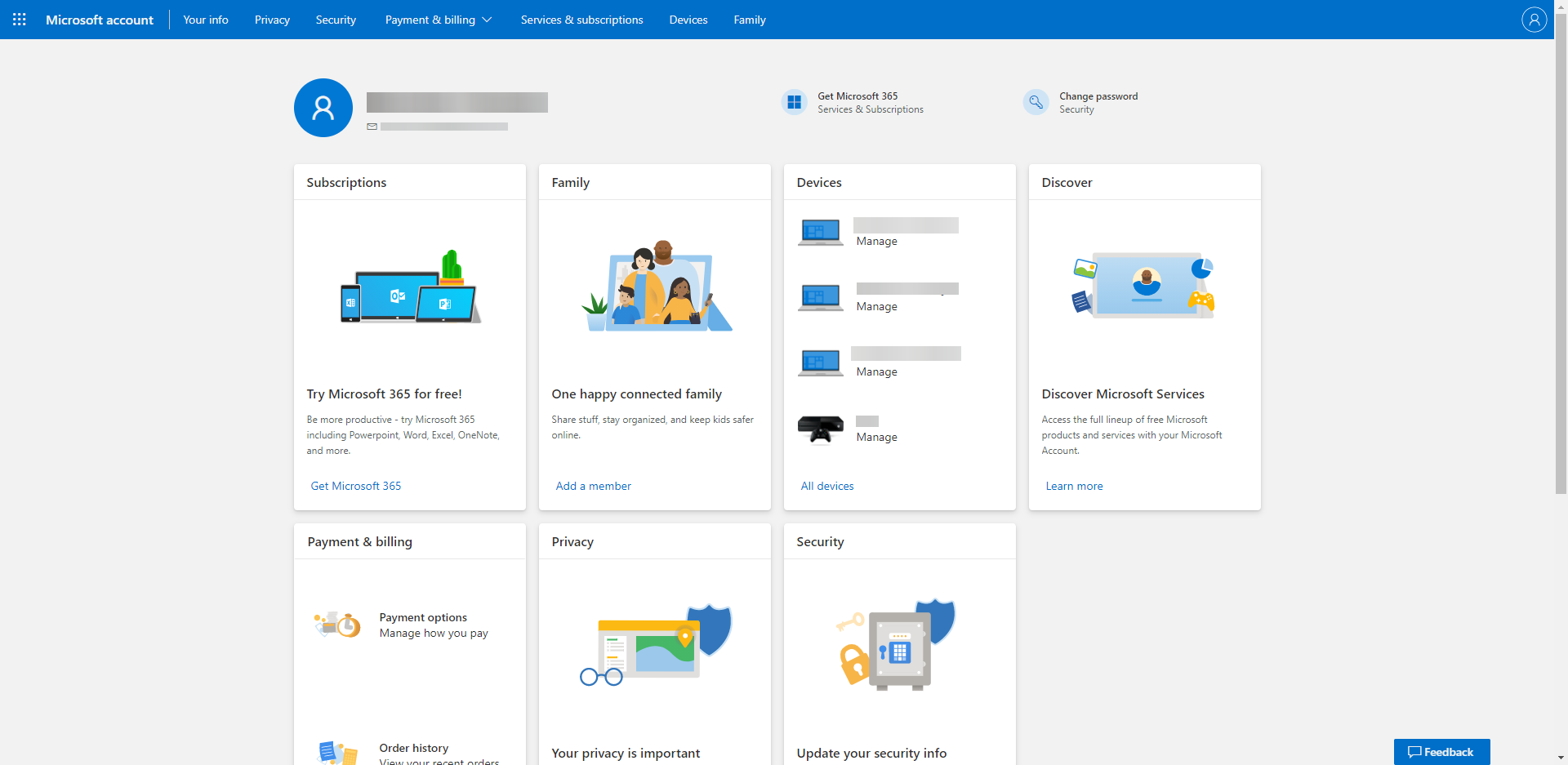
Sign in with the Microsoft account you’re using for Skype.
Choose Security from the Menu bar.
Click on Change password.
Change your password. We suggest combining uppercase and lowercase letters, signs, and numbers to create a stronger password.
Now, get back and click on Update your security info and add an additional layer of security. You can go for the phone number, but you can choose an alternative email address if that’s your cup of tea. These are the 2-step verification options, and we strongly suggest them.
Confirm the changes but don’t sign in to Skype just yet.
The 2-step verification method will add an extra layer of security to your account, making it virtually impenetrable.
If you get the Specified account already exists error in skype, we have a great guide that will help you fix the problem.
2. Scan PC for malware
Open Windows Security from the taskbar notification area.
Choose Virus & threat protection.
Choose Scan options.
Select Windows Defender Offline Scan.
ClickScan now.
Your PC will restart and the scanning process will commence.
Another option is to get a dedicated antivirus. We strongly recommend the security solution below.
This tool offers excellent protection for all your devices, even your router, and webcam. It also provides perfect protection for any banking or online transactions.
TotalAV
TotalAV will make sure that no such Skype virus ever gets into your system.
Open Start, right-click on Skype and uninstall it.
Press Windows key + R to open the Run elevated prompt.
In the command line, copy-paste %appdata% and press Enter.
Open the Skype folder.
Delete the shared.xml and delete it.
Restart your PC.
Install Skype again.
Sign in with your account and a fresh password and you should be safe.
Finally, we’ve come to the last step which is reinstallation. This applies to both UWP and desktop versions of Skype, and both require a clean installation.
This means that you’ll need to delete a certain XML file that contains malicious files spammers used to get control over your PC.
Also, if you’re using Skype for Android or iOS, make sure to delete the app and all cached data and install it again.
And remember not to click on stranger’s messages. The new version of Skype allows people who’re not on your contact list to send you messages. So please act with caution.
With that said, we can conclude this article. Hopefully, after these steps, you won’t have any more issues with the ui.skype.com virus and automatic message-sending gimmicks it brings.
Don’t forget to tell us whether this helped you or not in the comments section below.
The iusb3mon.exe has kept a lot of users wondering whether it’s genuine or a malicious process. A suspicion was triggered after it was noticed that the process was not signed by any publisher.
Also, it was discovered that the resource impact is not shown in the Task Manager.
What exactly is iusb3mon.exe?
The acronym IUSB3MON stands for Intel USB 3.0 Monitor, and the genuine iusb3mon.exe is a software component belonging to Intel USB version 3.0 Host Controller.
The iusb3mon.exe has a feature that can monitor the current status of every USB port. The iusb3mon.exe automatically generates a pop-up event notification when a device is connected or disconnected to a USB 3.0 port.
However, iusb3mon.exe is an optional component that isn’t fundamental to your operating system. So you can choose to uninstall it through Programs and Features or just leave it.
No potential threat has been diagnosed regarding the iusb3mon.exe. Also, it has not been identified as malware.
How to check for the iusb3mon.exe executable?
You can confirm to see if you have an iusb3mon.exe executable at the right location. This is method can be useful if you want to be sure that iusb3mon.exe is genuine and not malware in disguise.
Open File Explorer and navigate to C:> Program Files > Intel > Intel(R) USB 3.0 eXtensible Host Controller Driver > Application. If you can find the iusb3mon.exe executable here, you should know that the file is genuine and not malware in disguise.
Furthermore, if you suspect that the process is malicious for some reason, you can perform a full security scan on your computer. To do this, you would need reliable antivirus software that will detect malicious activities on your PC.
How to uninstall iusb3mon.exe?
It is possible to uninstall the iusb3mon.exe process, which will not affect your system’s functionality. However, removing only the executable is not advisable because it can lead to problems with the USB 3.0 extensible Host Controller software. So, you have to uninstall the lntel(R) USB 3.0 eXtensible Host Controller.
Follow these steps to uninstall the iusb3mon.exe software
These short steps will direct you on how to uninstall the USB 3.0 extensible Host Controller software.
Open up a Run window by pressing the Windows key and R on your keyboard. Type appwiz.cpl in the run window and hit Enter for the Programs and Features to open up.
Right in the Programs and Features, browse through the application list and find Intel(R) USB 3.0 3.1 eXtensible Host or Intel(R) USB 3.0 eXtensible Host Controller. Right-click and select Uninstall.
Follow the on-screen instructions to complete the uninstallation. After that, reboot your computer.
Alternatively, you can remove this application by using uninstaller software. The software will remove all files and registry entries associated with Intel(R) USB 3.0 eXtensible Host Controller.
The most ideal way to thoroughly uninstall any applications or files from the system is to employ efficient uninstaller software.
Many users are concerned whenever they see an unknown exe file and wonder if icmon.exe is a virus. We have answered this question in a separate guide, so don’t miss it.
Here’s everything you need to know about iusb3mon.exe. The file itself isn’t malicious and will not harm your PC, so you can leave it alone.
Microsoft is launching a new feature that will enable users to have a group chat in Teams with external partners. The Microsoft 365 Roadmap listing indicates that the feature is expected to be rolled out to all users later this month.
Microsoft Teams already supports calling or chatting with people in other organizations and inviting them to meetings. With support for group chats, users will be able to create a group chat with up to 250 participants across different organizations. However, this update will require IT Admins to enable the external access policy in their tenant. It’s a long-awaited feature that should eliminate the need to constantly set up formal meetings for collaborating with external users on projects.
No matter who you are, if you use the online environment, you must have a working personal email address. In fact, they are mandatory when creating accounts of all kinds.
Besides needing an email account in order to use social media, people around the work use them for work and school-related projects.
They are versatile, which makes them great and useful. Therefore, many companies, such as Yahoo, Google, and Microsoft, created their mail platforms and domains.
One of the most well-known and used email apps is Outlook. We all know about it since it is included in the Microsoft Office suite.
Despite being the most popular email client on the Windows platform, and rightfully so. Despite its popularity, many users have turned to alternatives that bring more features.
This resulted in people using multiple email platforms for different needs, such as gaming, work, casual things, etc. This brought another problem. How can they manage all these accounts easily?
That’s where the following tool comes into play. If you want to connect multiple apps for ease of access, and you’re a business person who manages multiple email addresses, you need Mailbird
What exactly is Mailbird?
Mailbird is a Windows email client that can integrate social media apps, emails, and other productivity apps into one single, compact, and intuitive tool.
Think about having Google Chrome, WhatsApp, Facebook, and many other programs you use daily at your fingertips, in the same place.
More so, you can manage your work emails, communicate with teams, and share projects without switching between programs, removing stress and increasing productivity.
Communicate with other users, customers, employees, friends, family, all in one place. Expressing yourself has never been easier.
The software is great for small and medium-sized businesses since it includes plans that include offers for bulk purchases.
We should also emphasize the fact that Mailbird is a simple, user-friendly software that has the most intuitive user interface, fully customizable to your liking.
It doesn’t require background knowledge or a degree in thermodynamics in order to use it. The software is accessible, made for the everyday person, and it is filled with details and short descriptions for more clarity.
Start it, and, upon being prompted by the Add account window, insert your credentials, and click Continue.
Next, the software will find the best server settings for your account. After it’s done, click Continue.
After, you will need to allow your Mail to be used by Mailbird.
Once you’ve granted permission to the program, choose your layout and theme color and press Continue.
Next, choose which apps to integrate into the tool and press Continue.
Lastly, press Start using Mailbird if you don’t need to add more accounts.
If you wish to add more accounts, select Add more accounts.
Enter the credentials for the other account you wish to add in the special window that opens.
The app setup is pretty straightforward. You’ll need to enter the account credentials, then you can customize your layout and choose which apps to integrate.
How to access the settings
Click on the icon on the top-left side.
Next, click on Settings.
You will find different helpful tabs there.
Click on the tab you need to access, and do the changes.
The settings tab is where you’ll find changes and customization options for most of the features, as well as details about Mailbird itself.
If you wish to activate your Mailbird license or update the software, you can go to the About Mailbird tab. You will find all the information about the license agreement, version, and licensing, there.
Features and tools
Unified inbox
This awesome tool allows you to manage all of your mail addresses and contacts from one single inbox at will, without having to switch between them.
Add how many accounts you need, give them names, and manage them easily. You can also compose emails and choose whichever mail you wish to send it from.
Enjoy lots of key shortcuts for faster navigation, find even year-old mail attachments, and fly through your emails with the help of special features.
Additionally, snooze messages that you don’t consider important and create scheduled alerts to prioritize messages that are of the utmost importance.
Moreover, you will find all the default categories and tabs you would normally see when you’re using Gmail, Yahoo Mail, and other similar clients.
This includes a favorite tab where you can mark important emails, drafts, where you can see work-in-progress messages that you haven’t sent yet, and a special Folders tab available only to Mailbird.
This special tab contains important and snoozed emails, as well as spam and trash folders. You can also manage, customize, and search for specific items inside it.
Customizable Layout
When it comes to customizable UI, Mailbird does pack a punch. The software has multiple themes and colors, different page layouts, and more.
As for customization, you can choose between many available backgrounds and create your unique layout with ease.
And that’s not all. If you’re one of the people who use dark themes with their Facebook, Windows, and the many other apps with this feature, know that Mailbird also has it.
You can freely enable or disable them at will, using the interface. Additionally, since the list is so large, there is a search box that will help you find them easier.
App integration
Forget constantly switching between your devices to use social media like WhatsApp, Facebook, and other apps such as Calendars, Linkedin, etc.
Mailbird has them all! Its list includes a huge, and we literally mean huge, amount of software that you can integrate into it.
This means that, while you can use the software to communicate with others, you can also send files, store them through cloud apps like DropBox, or search for something online using Google.
Multi-language compatibility
Mailbird was created for people all around the world, therefore it is to be expected that the app supports multiple languages. Currently, it is fully compatible with many languages.
If you cannot find your language in the list below, don’t worry because the developer team is constantly working to include more and more languages. Time is all you need.
NOTE
The compatible language list includes: English, Spanish, French, German, French (Canada), Italian, Hungarian, Dutch, Dutch (Belgium), Norwegian, Danish, Swedish, Polish, Portuguese, Portuguese (Brazil), Romanian, Turkish, Russian, Chinese (Mandarin), Catalan, Indonesian, Bulgarian, Czech, Greek
24/7 Customer Care
If you encounter a problem at any time of the day, you can freely send a ticket mail to Customer Support and you will be contacted by an expert that will help you and provide answers to your questions.
There are many great email clients, but if you’re looking for a simple and user-friendly application, you should consider Mailbird. As soon as you start the application, you’ll be asked to choose the desired layout.
Technical support is a must while using software and computer-related stuff. Many users do not have the background knowledge to deal with problems, and they can potentially get stuck.
Therefore, having someone to help you constantly is god’s given and should be appreciated, and Mailbird doesn’t hesitate to offer help whenever possible.
Price plan
As you can see, Mailbird has different price plans, depending on your needs. You can opt for a monthly fee or a one-time purchase.
Moreover, if you’re the owner of a business company, you can also there’s a special plan just for you. No matter what you choose, you will benefit from all the features and tools.
We want to mention that you can get Mailbird Business entirely for free if you invite your acquaintances to use the program.
All you need to do is invite people with your primary email address. When 4 or more of your friends install Mailbird through your referral link, you will get a free reward.
That’s not all, though. Each one of them will also receive one free month of Mailbird Business. Remember that these bonuses can only be earned once by both the referral and referred.
Final verdict
Pros
Insane amount apps that can be integrated
Great all-in-one mail
Clean design and appearance
Easy to use
Cons
Cannot sort by subject
Some keyboard shortcuts don't work
We finally reached the point where we give our final thoughts (and prayers, if it’s the case). Thankfully, we were pleased by the software overall.
Mailbird has lots of special features, and it basically serves you quality-of-life changes on a platter, for a really acceptable price. You can also get the software for free through referrals.
The software does everything that it claims it can do. You’ll have many tools that will help you sort and manage your emails and other content for work and outside it.
However, we think that the developers were so enthusiastic about the innovations they forgot to make sure some basic functionality features were completely functional.
These small bugs, glitches, and omissions can be easily fixed with small patches in the future, so we don’t worry about them too much, but they do exist.
Mailbird
Manage your work accounts and use social media on the same app thanks to Mailbird.
Once upon a time, Microsoft offered users the opportunity to upgrade to Windows 10 for free.
Years have passed since the free upgrade offer expired, but the good news is that you can still install Windows 10 on your computer completely for free.
All you need to do is download the Windows 10 update assistant on your machine, and follow the on-screen instructions – it’s that simple.
Even tough the process is quite straightforward and easy to implement, at least in theory, many of us came across an unpleasant situation.
The upgrade itself froze for hours on end, checking for updates. We figured there might be plenty of users out there facing the same issue, which is why we came up with these simple steps to help you with your stubborn update for Windows 10.
How can I fix a Windows 10 that is stuck on getting updates?
Press Windows + R
This command will automatically launch the dialogue box.
Type services.msc, and look for the Windows Update Service
Double-click it > Go to the General tab
At Startup type, select Disabled
Go to the following file path: C:\Windows\SoftwareDistribution
Delete all the files stored in that location.
Restart your PC
Go back to the Windows Update Service and restart the service.
Go back to the Windows 10 Setup window
The upgrade process will resume and successfully complete
Nobody knows for sure why this upgrade loophole still exists. Microsoft has yet to issue any comments on this situation. Some rumors suggest that Microsoft wants to reward curious users who visit the upgrade page even today.
After all, the company wants to see as many computers as possible on Windows 10, so why remove this opportunity? Either way, it’s highly unlikely that Microsoft simply forgot to shut down the Windows 10 upgrade channel.
Do not hesitate to share your thoughts and experience on this topic by hitting the comments’ box below – we would love to keep in touch.
Corsair makes some of the best gaming peripherals, including gaming mice. Corsair mouse consists of multiple side buttons that allow the gamer to customize the action based on their requirements.
However, recently several users have reported the Corsair mouse side buttons not working issue.
Your Corsair mouse side buttons may stop working due to several reasons. Incorrect button assignment, malfunctioning Corsair software, and hardware failure are some of the reasons.
Today, we take a look at a few working solutions to help you fix the Corsair mouse side buttons not working problem in games and other applications such as GeForce Now.
How do I fix the Corsair mouse side buttons not working?
1. Update device drivers
Outdated and missing device drivers can cause Corsair mice to malfunction. If you have recently installed a Windows update, some mouse functionalities may stop working due to pending updates.
While you can manually update your mouse driver from the Device Manager, it can be cumbersome to update multiple device drivers manually.
iCUE is a proprietary tool for Corsair that manages the customization of its peripheral devices, including the mouse. If the side button on your Corsair mouse is not working, make sure iCUE runs in the background.
Right-click on the taskbar and open Task Manager. Check if the iCUE process is running. If not, relaunch the tool and let it run in the background. Check if the side buttons work now with iCUE running.
If the issue persists, repair iCUE from the Control Panel. It comes with a built-in repair tool to find and fix issues preventing the software from working.
3. Clear onboard storage
Launch the iCUE app.
Open the Settings tab.
Under Device Settings, select your Corsair mouse.
Click the Clear onboard storagebutton for Device Memory.
Click Yes to confirm the action.
Clearing the onboard storage will delete all profiles from the device’s memory. Once cleared, Leave your custom profile as the only option and reboot the computer. Make sure to delete all the default profiles available to resolve the issue.
4. Remap the side button
Launch iCUE.
Under Device, choose your Mouse.
Click the + icon in Actions to add action.
Click the Macro drop-down menu and choose Remap MouseButton.
In the Mouse Button settings, choose the action that you want the side buttons to perform.
Choose the same action from the predefined actions tab.
Open the Advanced tab and check the Retain original key output.
Do this for all the actions that you want to assign to your side buttons. Close iCUE and check if the Corsair mouse side button not working issue is resolved.
5. Repair iCUE
Delete Corsair composite virtual input device
Open Device Manager.
In Device Manager, expand the Human Interface Devices.
Right-click on Corsair composite virtual input device and Uninstall device.
Check the Delete the driver software for this device box and click Uninstall.
Once the driver is deleted, you can proceed with the repair process. However, before repairing iCUE, it is important to Corsair composite virtual input device driver.
Repair iCUE
Press the Windows key + R to open Run.
Type control and click OK to open the Control Panel.
Click on Uninstall a Program under the Programs section.
Locate and select the iCUE software from the list of installed apps.
Click the Uninstall button and then click Yes to confirm the action.
In the iCUE software setup screen, click on the Repair option.
Click Next and wait for the tool to scan and repair any issues with the software.
If the Repair option is not available, rerun the installation file for iCUE and choose Repair from the setup screen. Once the repair is complete, reboot your PC and check if the macros and remaps are working.
6. Uninstall your Corsair mouse driver
Press the Windows key + R to open Run.
Type devmgmt.msc and click OK to open Device Manager.
In the Device Manager, expand the Mice and other pointing devices section.
Right-click on your Corsair mouse device in the list (if you have more than one pointing device connected) and choose Uninstall Device.
When the Uninstall Device prompt appears, click the Uninstall button to confirm the action. This will uninstall the Corsair mouse installed on your PC.
Once uninstalled, restart your computer. Make sure the mouse is connected to your PC during the restart. After the restart, Windows will detect and reinstall the device.
Reinstalling the Corsair mouse seems to have fixed the Corsair mouse side buttons not working issues for many users. On PCs with new Windows updates, a quick uninstall has resolved the issue for many.
The Corsair mouse side buttons not working issue in Windows can occur due to onboard profile conflict or incorrect button mapping.
Additionally, reinstall the mouse device, and repairing the iCUE software can help you fix the issue quickly. Follow the steps and let us know which method helped you resolve the issue in the comments.
It seems that after installing the Windows 10 March update, the Dymo printers are having some troubles in the form of printing blank labels.
The issue has also been posted on their website:
We are sorry to inform you that at the moment we are experiencing some issues with printing from our latest versions of DYMO Software on Windows 10 computers. We would like to confirm that the team is working on fixing it and as a temporary solution, please download DYMO Label Software v.8.5.4.
The problems caused by the latest update have also been acknowledged by Microsoft on their website, informing them that they are working on a permanent resolution as soon as possible.
It is also possible that after this update when you try to print now using Dymo, you will see a blue screen that will also generate the error APC_INDEX_MISMATCH.
In this article, we will explore the exact steps you need to make to solve the Dymo printing blank labels, so make sure to keep on reading.
What can I do if Dymo is printing blank labels?
1. Remove the update
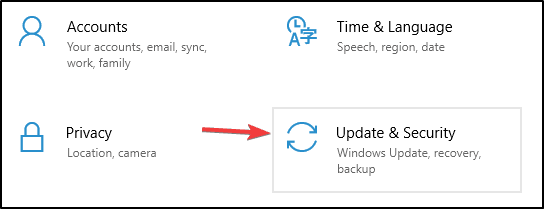
Open Settings and click on Update & Security.
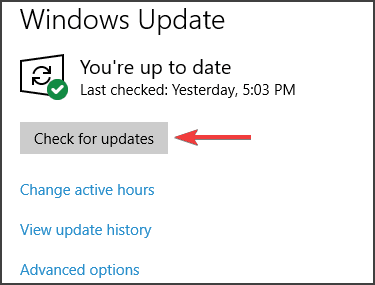
Go to Windows Update and click the View update history button.
Now click the Uninstall updates option.
Next, select the Security Update for Microsoft Windows (KB5000802) update.
Next, click the Uninstall button.
Click the Yes button and Restart afterward.
Many users reported that update KB5000802 was the main cause behind Dymo printing blank labels after Windows Update, but the issue was resolved after removing the update.
2. Suspend Windows Update
Go to Start and click on Settings.
Now click on Update& Security and select Windows Update.
In the Pause updates, you can select the 7 days period
You can also go to Advanced options and in the Pause updates section, select the drop-down menu and specify a date for updates to resume.
Keep in mind that this solution should be used after removing the KB5000802 in order to prevent Windows from installing it again.
Open Windows Update and click on Check for updates.
Click on View optional updates.
Pick the following one from the list:
KB5000802 for Windows 10 2004/20H2 & Windows Server 2004/20H2
KB5000808 for Windows 10 1909 & Windows Server 1909
KB5000822 for Windows 10 1809 & Windows Server 2019
KB5000809 for Windows 10 1803 & Windows Server 1803
After installing this update, restart your device and try again the printer.
After installing the required updates, check if the Dymo is still printing blank labels.
Unfortunately, these kinds of problems can happen with some Windows updates, but with the proper guidance, you can find a workaround to help you fix the issue. Also, reinstall the Dymo printer drivers in case a newer version is available.
Please let us know in the comments section below if you have additional recommendations and suggestions and which of the presented solutions worked best for you.
Welcome back to our Windows 10 news recap, where we go over the top stories of the past week in the world of Microsoft’s flagship operating system.
Windows 10X is not coming this year as resources shift to Windows 10
A new report claims that Microsoft is shifting resources away from Windows 10X to focus on Windows 10. Windows 10X was supposed to be Microsoft’s lightweight alternative, able to compete with Chromebooks.
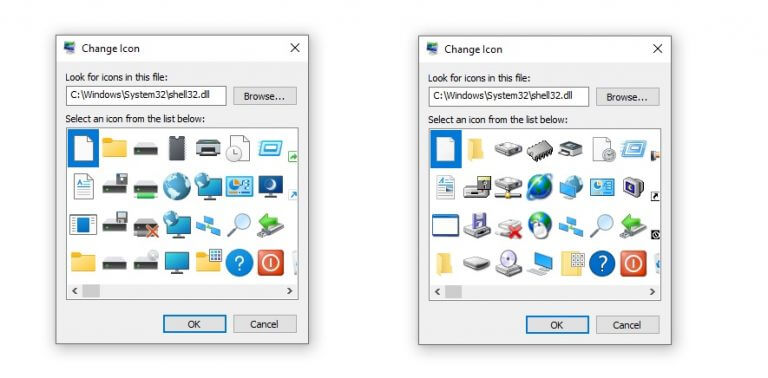
Microsoft is updating more outdated Windows 10 icons with upcoming “Sun Valley” update
The upcoming “Sun Valley” update for Windows 10 is likely to bring some new icons, as Microsoft seeks to refresh icons that haven’t been updated in decades.
Microsoft will completely remove Adobe Flash from Windows 10 this summer
Adobe Flash is set to be completely removed from Windows 10 in the summer. A mandatory update will be released in July that, once installed, will remove the Flash component on all versions of Windows 10, Windows 8.1, and Windows Server 2012. The update is expected in July.
Twitter update brings search, threads, and promoted tweet changes to Windows 10 and web
A new update for Twitter has been released that brings a number of changes. The new threaded conversations style that came to Twitter’s mobile apps recently, is now available on Windows 10 and the web. Search and promoted tweets are also getting new experiences, which are currently rolling out.
Copyright Marisa Allegra Williams (@marisa) for Twitter, Inc.
That’s it for this week. We’ll be back next week with more Windows 10 news.
Microsoft news recap is a weekly feature highlighting the top Microsoft news stories of the past week. Sit back, grab some coffee, and enjoy the read!
Magzter teams up with Microsoft Rewards to offer digital magazines and newspapers
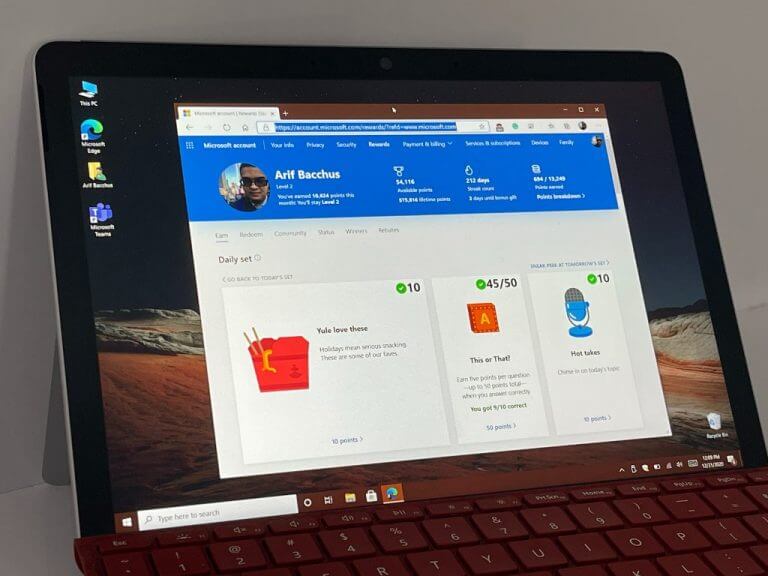
Magzter and Microsoft Rewards have teamed up to enable Microsoft Rewards members to redeem their points for digital magazines, by making the Magzter GOLD subscription service a redemption option. It’s only available in the United States.
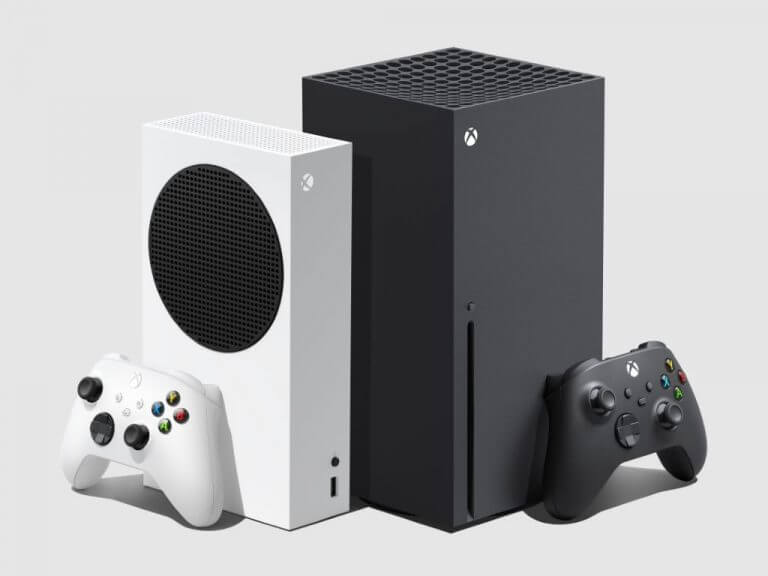
Xbox exec confirms Microsoft isn’t making money from console sales
Microsoft makes further investments to store and protect EU data
Microsoft is doubling-down on its EU data practices. This week the company announced further investments to store and protect EU data, announcing plans that have started immediately and will continue until the end of next year, that will make it so that EU data is only stored and processed in the EU.
This week in Microsoft Teams
Microsoft Teams Meetings to get an automatic recording option
Microsoft Teams for iOS and Android can now cast content to Teams Rooms devices
iOS and Android users can now cast content to Teams Rooms devices. Users will be able to wirelessly cast their device’s screen to a Teams Rooms device.
Microsoft announces new Teams for Education features including Reading Progress and Group assignments
To help students practice their reading, Microsoft Teams for Education is gaining a new Reading Progress feature, allowing students to practice independent reading, have the results recorded for assessment by the teacher. The feature is expected to release in late August. Another new feature is Group Assignments, which will allow students to collaborate on an assignment and submit just one assignment. You can read more about the new features here.
Microsoft Teams is getting Live Transcription support for unscheduled and channel meetings
While Windows allows you to manually download and install new driver updates for connected devices, updating individual drivers is a time consuming task. Driver updater software for Windows 7, as the name suggests, automates this task.
Outdated or missing driver updates cause several issues with the Windows 7 computer, including the blue screen of death and device incompatibility problems. These driver updater programs make it easy to keep your drivers up to date.
If you are looking for the best driver updater software for Windows 7, we’ve got you covered. This article explores the best software to update your system drivers to reduce dependency on Device Manager.
What are the best driver updater software for Windows 7
Fortect Driver Updater is a professional software dedicated to updating any drivers it will encounter during its scan.
This tool has a simple interface and is very easy to use. Right after installation, the software will perform an initial scan in which it will identify your computer’s components in order to find the best drivers for them.
Being very powerful and with access to a large drivers database it will have no problem finding the right drivers for any system configuration.
Fortect Driver Updater also comes with advanced features that allow you to create and deploy driver backups in case of an emergency.
With this software, you can also set up automatic scans so that you will always be informed when one of your drivers is going out of date.
All in all, this tool is a fantastic helper that will not only correct issues but will also help you prevent them.
Main features of Fortect Driver Updater:
Large driver database
Very easy to use
Create and deploy driver backups
Automatic and scheduled driver scans
Fortect Driver Updater
Make sure all your drivers are up to date with this powerful software.
Fortect Driver Updater is a robust tool designed to streamline the process of updating drivers on your PC.
Once installed, it immediately scans your system for outdated or missing drivers and provides an easy, one-click solution to update them all.
Fortect’s vast driver database ensures compatibility with a wide range of devices, and its automatic backup feature adds a layer of safety by creating restore points before applying updates.
In addition to driver updates, Fortect Driver Updater helps diagnose and resolve issues caused by faulty drivers, improving overall system stability.
The tool’s intuitive interface makes it accessible even for less tech-savvy users, while advanced features like scheduling allow you to automate the update process.
Key features of Fortect Driver Updater:
Scans and updates drivers with a single click.
Extensive driver database for wide compatibility.
Automatic backup and restore points.
Intuitive interface with advanced scheduling options
Fortect
Easily update all your driver and handle PC maintenance with this powerful tool.
A simple, fast, and secure driver updater software for Windows 7, Outbyte Driver Updater offers lightning-fast scan and one-click updates for all the outdated and missing drivers.
Outbyte Driver Updater scans your system after the initial launch and provides a detailed report of all your up-to-date and out-of-date device drivers. You can choose to update a single driver or all the drivers at once.
The built-in download manager also comes with a driver backup feature that saves all of your drivers to a compressed zip file. The schedule manager scans updates notifications and backups automatically.
Key features of Outbyte Driver Updater:
Lightning-fast scans
Built-in download manager
Access to over 18 million driver files
Driver backup and schedule manager
Outbyte Driver Updater
Update all your drivers automatically with just a couple of click using Outbyte Driver Updater software.
Driver Booster is a freemium driver update utility available for all versions of Windows. It comes with a new offline driver update feature that downloads the driver updates in advance. You can install these drivers in offline mode if you have network connectivity issues.
Driver Booster’s large database that can fix everything from outdated display drivers causing blue screens of death to no sound issues due to corrupted sound card drivers.
While you can choose to update drivers manually from the Driver Booster dashboard, enabling the auto driver update can help you get the latest updates in real-time.
Key features of Driver Booster:
Built-in driverdownload manager
Auto driver update to install driver updates automatically
Create a restore point before installing drivers
Fast scans and lightweight utility
Driver Booster
If you need driver software that support both offline and online driver updates, Driver Booster is the way to go.
Another great driver updater software for Windows 7 that you might want to consider is Driver Fusion. The software will scan your system and notify you about any issues that it detects.
Driver Fusion is fully automated, and it will scan your PC every two weeks, but you can change the schedule if you want.
Regarding automatization, the software will update, restore and install the drivers from the database that consists of 10 million drivers. Of course, support for local driver backups is available as well.
Key features of Driver Fusion:
Fully automated
Driver updating and restoring
Database of 10 million drivers
System backup
Driver Fusion
Keep your drivers updated and ensure that your PC is running without any issues with Driver Fusion software.
DriverMax is another driver updater software that works with all versions of Windows, including Windows 7.
Regarding the driver updates, the software offers drivers for over 2.3 million different devices. In addition to drivers, DriverMax will also update the software packages such as C++ Runtime, Java, etc.
To ensure that the downloaded drivers are authentic and safe, DriverMax will test each driver before installing it, and it will create a backup of your system, so you can restore it if anything goes wrong.
Other great features of DriverMax:
Completely automated
Database of over 2.3 million drivers
Can update software packages
Validates drivers before installing
Driver Max
DriverMax is the simplest and fastest to automatically update your drivers on Windows 7.
As the name suggests, Driver Easy is a lightweight driver updater software. It can automatically download and update missing and outdated device drivers. This tool is easy to use and offers tons of automated driver customization options.
Apart from its ability to find and install new drivers, Driver Easy also works as a driver backup and driver uninstallation utility. Furthermore, it offers good information on installed and available drivers, including version details and sources.
Key features of Driver Easy:
Schedule manager to check for driver updates automatically
Built-in driver uninstallation and backup features
Quick driver scan and fast download
Downloadsdrivers updates directly from within the software
Driver Easy
Need to update all your drivers quickly? Use Driver Easy for fully automatic driver updates.
All the driver updater software listed in this article can update outdated and missing drivers with a single click. Explore the driver updater tools and let us know your pick in the comments below.
Web Assembly or Wasm as it is also known is an open standard for running binary code across multiple platforms serving both client and server scenarios. Most people know it as the vehicle for being able to run languages like C++,C# and Rust in the browser with near native performance. However it can also be run on servers, for example as part of a Node.js solution.
Wasm gives developers almost endless possibilities; the edge between desktop and web computing is increasingly blurred as of late. It allows developers to reuse mature and powerful libraries and solutions which were originally built for servers and desktops with very little modifications to the code.
The Alliance
The Bytecode Alliance was formed by Mozilla, Intel, Red Hat and Fastly with the intention of improving and promoting the technology. In addition to the founding members just a few weeks ago Microsoft, Google, Shopify, ARM, DFINITY Foundation, Embark Studios and University of San Diego joined the effort. Their aim is to make sure software remains fast, modular and most importantly secure.
Security is important
Microsoft is going all in with WebAssembly, their flagship SPA web framework Blazor literally depends on the continued success of Wasm. They understand that large modern applications consist dozens if not hundreds of libraries, after all why should developers try to re-invent the wheel. Leveraging third party libraries is nothing new, modern modular applications sometimes contain over 80% of code which originates from package registries like npn, PyPi and crate.io. However this means vulnerabilities in those libraries or packages are unfortunately inherited by your application.
This is one of the problems the Bytecode Alliance is aiming to solve. The idea is to design and build secure software by default. This is not an easy task, it requires massive coordination as the Wasm ecosystem grows, the more players which are aligned with this goal the better.
What are you thoughts on organizations like The Bytecode Alliance? Do you think they are effective in keeping technology and open source projects moving in the right direction? Check out the official announcement here and the organizations official page if you are interested in learning more information on their initiatives and goals.
Getting the message your version of windows 10 will reached the end of service on Windows 10 can be confusing as it does not offer additional information on why this message has suddenly appeared.
Most users seeing this message on their device would panic, but there is no need to since it can be easily solved.
We will explore in this article the exact steps you need to make to solve the end-of-service message, so keep reading.
What does Your version of Windows 10 will reach end of service soon mean?
An end-of-service soon means that the version of Windows 10 you are currently using is approaching its end-of-life date, after which Microsoft will stop providing security updates or support for that version of the operating system.
Microsoft releases new Windows 10 regularly, providing support and updates for each version for a certain period.
This period of care is the support lifecycle or end-of-life for that version. When a version reaches its end-of-life, security updates, bug fixes, or technical support for that version will cease.
Continue to use a version of Windows 10 that has reached its end of life. Your computer will be more vulnerable to security threats and may encounter compatibility issues with newer software and hardware.
How do I fix Your version of Windows 10 will reach end of service soon message?
Before proceeding with any actions to fix the end-of-service error message, ensure your device is listed in the list of devices tested for Windows 10 version 2004 (May 2020).
You can check whether this is the case, depending on what device you are using by accessing this list of tested devices.
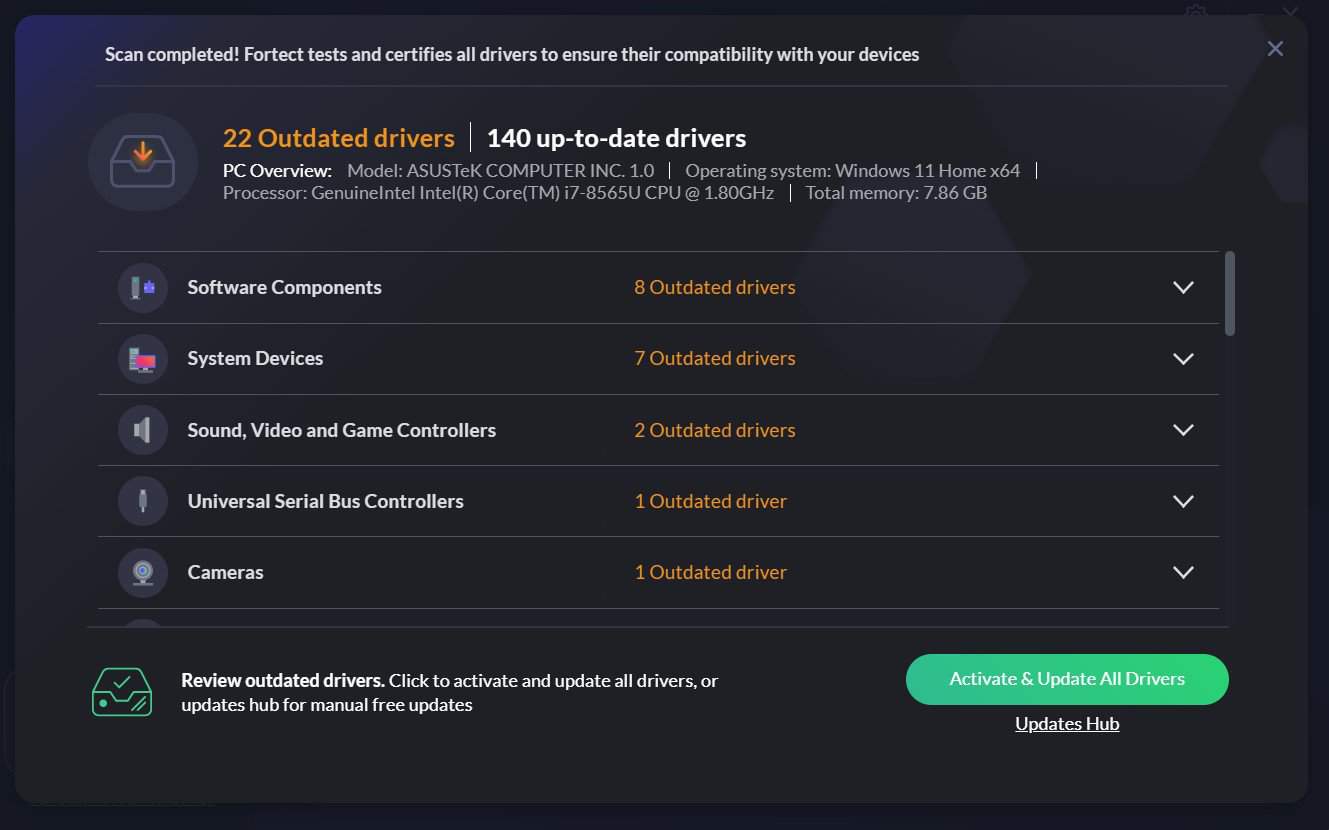
1. Update your drivers
Many error messages are caused by faulty or outdated drivers, so ensuring they are updated is essential.
Users reported issues with Conexant SmartHD Audio, but there’s a quick and easy way to update them and fix this issue.
If you want to manage the drivers for your PC properly, the most reliable way is to use automated assistance for drivers.
With dedicated tools, you will update all drivers automatically and quickly without causing further system problems. By choosing this software, it’s most likely to fix and update any old drivers you have.
It costs nothing to update to the new feature release of Windows 10, and doing so will eliminate the end-of-service message.
It’s also important to know that once you update your Windows 10 device you will not lose any of the files stored on your device so it is completely safe.
Nonetheless, having a backup is always a good idea in case any issues appear after the upgrade.
We hope that one of the solutions presented in this article helped you solve the problem with Windows 10 will reach the end of service soon message.
Windows Defender is Windows 10’s built-in antivirus software. That utility scans as a part of the OS’s automatic maintenance.
However, Windows Defender needs to scan your computer Action Center notifications can still pop up with regularity for some users.
So, some users might wonder what they can do to ensure Windows Defender notifications don’t keep on popping up.
How can I eliminate Windows Defender scan notifications?
1. Install a better, third-party antivirus
The Windows Defender notifications problem leads us to one of the most obvious solutions, and that is installing a third-party antivirus that will automatically disable the default antivirus.
The solution recommended below not only that will help you get rid of the annoying notifications but will provide a superior level of protection for your PC and your other devices.
Exactly, with the same licence you will secure all your devices, including your webcam or your router.
Moreover, this multi-layered security tool will secure all your online payments and banking transactions so it’s the perfect solution for the modern person.
TotalAV
This TotalAV solution will make you forget about scan notifications and possible threats to your PC.
Open the search box with the Windows key + S hotkey.
Enter notifications in the search box and click on Notifications & actions settings.
Then turn off the Get notifications from apps and other senders option. That will turn off all the Action Center notifications.
Users can turn off Action Center notifications, which will also turn off Windows Defender’s scan notifiers. You can do that by following the steps above.
3. Turn off Windows Defender notifications with the Group Policy Editor
Right-click the Start button and selectRun on the menu.
Enter gpedit.msc in Run’s text box, and select the OK option.
Thereafter, click Computer Configuration, Administrative Templates, Windows Components, Windows Defender, and Client Interface on the left of the Group Policy Editor window.
Next, double-click the Suppress all notifications option on the right.
Select the Enable option.
Click the OK button.
Users can turn off Windows Defender scan notifications with the Group Policy Editor in Windows 10 Pro and Enterprise.
If you have a Windows 10 Home version installed, you can still use this expert guide to install the Group Policy Editor.
4. Don’t erase Windows Defender log files with your utility program
Some CCleaner users have said that Windows Defender notifications keep appearing within the Action Center because CCleaner deletes Windows Defender’s log files.
Thus, CCleaner can erase Windows Defender’s scan record. Consequently, the Action Center still displays Windows Defender scan notifications even though there have been recent scans.
Therefore, some CCleaner users might need to uncheck the Windows Defender check box within the Cleaner tab shown directly below.
Other disk cleaner utilities can also erase Windows Defender’s log files. That’s especially the case if users have configured them for scheduled disk cleaning.
Users should check that Windows Defender check boxes aren’t selected in whatever disk cleaners they utilize.
5. Set up a new Scheduled Task for daily Windows Defender scans
Open the Run accessory by pressing the Windows key + R.
Input taskschd.msc in Run and click OK to open the window shown directly below.
Select Task Scheduler (Local) on the left of the window.
Right-click Task Scheduler (Local) to select Create a Basic Task.
Enter Windows Defender daily scan in the Name box and click the Next button.
Select the Daily option and select theNext option.
Users can leave the time settings at their default values if they wish.
Press Next to go to the Action tab.
Select the Start a program option and click the Next button.
Click Browse to select the following path: C:\\Program Files\Windows Defender\MpCmdRun.exe
Press the Next button, and then clickFinish to exit the wizard.
The new scheduled task will ensure there are daily Windows Defender scans so that the Action Center doesn’t blurt out scan notifications.
So, that’s how you can fix recurring Windows Defender needs to scan your computer notifications in Windows 10. You can also turn off Windows Defender’s scans with the Real-time protection option.
However, that isn’t recommended unless users have replacement third-party antivirus utilities for WD.
We hope that our solutions worked out just great and you managed to get rid of the notifications and you also learned how to turn off automatic scan for Windows Defender in Windows 10.
This whole problem with the scan notifications can be avoided completely with a third-party antivirus so check out one of the best antiviruses with unlimited validity to get the right one for your PC.
Tell us which one you chose. Also, if you have any other questions or suggestions, you can use the comments section below and leave us a message.
Deep & machine learning are tools that try to replicate the brain’s neural network in machines. They introduce self-learning techniques that teach AI to behave under certain conditions. Usually, the AI has to do a certain task and learn from its own mistakes in order to fulfill it.
If you want to get into machine learning and deep learning you might need to take a look at your current computer. In other words, even if your desktop can perform everyday tasks with ease, that doesn’t mean it will have the computing power to run machine learning & deep learning programs.
GPU and CPU are crucial. You need a graphics card with high memory and your processor must have many cores. In addition, your RAM memory needs to be high as well, somewhere around 8 gigs or more.
Because these processes run for long periods of time, the computer you’re looking for needs to be able to run them as long as possible without problems. In conclusion, a powerful cooler is required to stop your components from overheating and causing thermal throttling.
What are the best desktops for machine & deep learning?
HP Obelisk Omen is the most powerful item on our list. Geared with the latest hardware such as the 9th generation Intel Core i9-9900K Processor and the hyper-realistic NVIDIA GeForce RTX 2080 Super,
It is perfect for machine learning and deep learning.
If you want speed, power, customization, and the best quality products out there, this is the choice for you.
Our last item on this list is another midrange choice, the Hp Pavilion. It is close in performance to the Skytech Shiva while also being a bit cheaper.
The GeForce GTX 1660 TI is just about 10% weaker than the aforementioned RTX 2060, but it is less expensive. In addition, the i5-9400f is still capable of deep learning & machine learning processes.
The SkyTech Blaze II Gaming Desktop is the best budget choice on this list. If you’re just starting out with machine & deep learning and you don’t want to spend that much money on the computer, this one is perfect for you.
Equipped with a Ryzen 5 2600 processor and a GTX 1660 TI graphics card, it is capable enough of running parsing data algorithms. Furthermore, both the GPU and the CPU can be overclocked.
CyberpowerPC Gamer Supreme is our next recommendation on the list. Coming close to the HP Omen mentioned above, this desktop trades a bit of power for a lower price.
The Intel Core i7-9700k and GeForce RTX 2070 Super still offer cutting-edge performance for more affordable prices. Moreover, this desktop can also be overclocked with no problem.
Skytech Shiva is our first budget-oriented choice. Significantly cheaper than the other two desktops from above, yet still holding strong in terms of performance, this computer is perfect for those who want some balance between price and power.
This product is geared with an AMD processor, precisely the Ryzen 5 2600, and an RTX 2060 non-Super version. The CPU is about 20% slower than an i7-9900k, but it is so much cheaper. Moreover, both the CPU and GPU can be easily overclocked.
This list covers all you need to buy a brand new desktop for deep learning & machine learning.
We hope that you found this guide helpful. Don’t hesitate to share your experience or recommendations with us by using the comment section below.
Microsoft’s Azure cloud service is getting a bit of a new look, but not in the way you might think. This afternoon on May 7, Microsoft revealed a new Fluent-design-inspired icon for Azure, now bringing it up to speed with the rest of Microsoft’s product lineup.
This new icon will be rolling out across Microsoft’s Azure product experiences and websites in the coming weeks, according to Microsoft. Microsoft also says the icon has been carefully crafted so that it’s familiar to what Azure customers already know and love.
We’re a fan of the new icon, as it is pretty sleek and modern. It is a lot like what we’ve already seen across Word, Excel, PowerPoint, and the rest of Microsoft 365. Microsoft is obviously going for some consistency now across its entire product lineup, and it’s great to see Azure getting a new look, too.
You can expect to see more of this icon at Build 2021, and beyond that across all of Microsoft this year, Let us know what you think by dropping us a comment in the section below.
Math Solver is the newest, exciting feature that is now available in the Microsoft Edge stable channel.
The feature will help solve problems ranging from mathematical concepts to calculus and statistics. Thanks to this feature you can take pictures on the problem, and it also comes with a mathematical keyboard.
This is not all though after you solved the problem with Math Solver you also have the option to view more learning resources that will deepen your understanding of the math concept.
How do I enable Math Solver in Microsoft Edge?
Open your Edge browser and type in edge://flags/.
Search in the displayed list the Math solver option.
From the options provided, enable this option.
Next, go to Settings and click on Appearance.
Go to the Customize toolbar and toggle the Show Math Solver button.
This will ensure that the Math Solver button is visible in the toolbar as well.
Once you enable this option, using it is fairly simple. Using the selection tool, make sure you are capturing the math equation you want to solve. Afterwards simply click on Solve and the equation will be completed by Math Solver.
You will receive an instant solution to the equation and also step-by-step guidance on other available methods that can help solve the same problem.
And if you want to see the graphs for the equation you can simply scroll the math pane and view them.
Additionally, the Math Solver feature also provides learning resources, such as videos and worksheets, which is a great way for helping the student to better understand the topic.
In order to see this content, you will simply need to click on the Show more learning content option.
What are your thoughts about this feature? Have you tried it already?
As always, don’t hesitate to leave us a comment in the dedicated section below, we would love to hear it.
The launch of the Xbox One X has created a lot of buzz among gamers. Everybody wanted to test the new console and share their results with the world.
Indeed, judging by gamers’ reports, Microsoft was right to call the Xbox One X the most powerful gaming console in the world.
Players confirmed that Final Fantasy XV looks stunning on the Xbox One X compared to the PS4, while GTA 5 fans reported that the console loaded the game in just 24 seconds.
If you purchased an Xbox One X console, don’t forget to registry its warranty on Microsoft’s official website.
It’s easy to forget to do that when you’re eager to try out the new console, but it’s better to stay safe than sorry. In case you need to repair or replace your console, that warranty will come in handy.
Also, registering a console for a warranty will save you from dealing with third-party services which can’t replace the console. This free warranty registration should save you trouble and bring you the ease of mind in case something goes awry.
How do I register my Xbox One X’s warranty?
Here are the steps to follow to register your product:
Create a free Microsoft account. In order to register your new Xbox One X console, you need a free Microsoft account.
You can find the controller serial number under the bar code inside the battery compartment.
Once you’ve registered your console, you’ll also see its warranty status, and as long as the console is within warranty, repairs are free.
Xbox One X issues
Many Xbox One X owners already reported various issues, ranging from black screen issues to random shutdowns. In most cases, the solution offered by Microsoft’s support teams was a console replacement.
Due to a sheer number of initially released consoles, things like this are not as uncommon as one would expect.
Albeit, these cases still can be isolated, considering the fact that the sales doubled in late 2017 and we’re talking about thousands of platforms distributed to customers.
As you can see, it’s better to be safe and be able to have your console repaired or replaced, than sorry.
Some Camera app users have discussed a Windows 10 error 0xa00f4246 on forums. That’s an error that arises when users try to utilize their integrated or external webcams with Camera and other apps.
The error message states: “Can’t start your camera… If you need it, here’s the error code: 0xa00f4246 (0x887A0004).” Consequently, users can’t record anything with their webcams. Some of the resolutions below might fix Windows 10 error 0xa00f4246.
Can’t start your camera on Windows 10? Try these solutions
First, try fixing the issue with some of Windows 10’s troubleshooters. They don’t always provide a fix, but those troubleshooters are worth noting nonetheless.
The Windows Store Apps troubleshooter might provide some resolutions for users who try to utilize the webcam with Camera and other UWP apps. This is how users can open that troubleshooter.
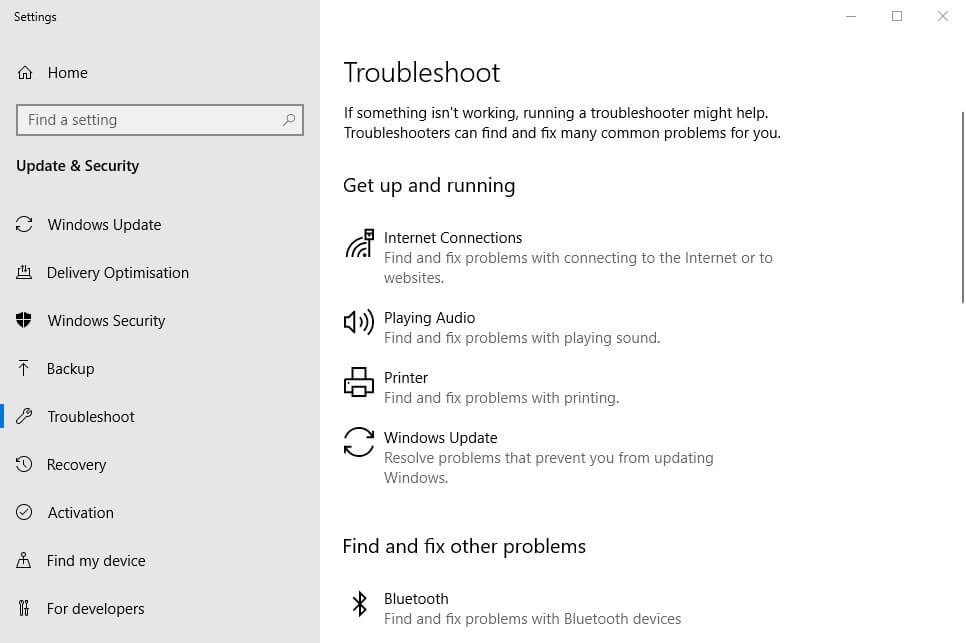
Press the Windows key + Q keyboard shortcut to open Cortana.
Enter troubleshoot as the keyword in Cortana’s search box.
Select Troubleshoot settings to open the window in the shot directly below.
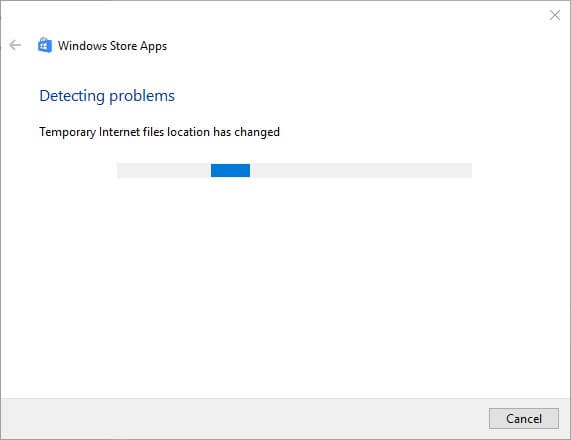
Select the Windows Store App and click Run the troubleshooter to open the window shown below.
Thereafter, go through the troubleshooter’s suggested fixes.
2. Update the Webcam’s Driver
Error 0xa00f4246 might be due to an antiquated, missing, or corrupted driver. The 0xa00f4246 error message states, “If you’re sure your camera is connected, and installed properly, try checking for updated drivers.” That’s one potential resolution mentioned within the error message.
To check if the webcam driver needs updating, add Driver Booster 6 to Windows. Click Free Download on the Driver Booster 6 webpage to save the setup wizard for that software. Then add DB 6 to Windows with its installer.
Downloading and installing the wrong drivers might put your system at risk. This may lead to serious malfunctions. We recommend updating your drivers automatically using a dedicated tool.
Automated driver updater tools will scan your PC and detect any out-of-date, damaged, or missing drivers and automatically install the best versions available.
Outbyte Driver Updater is our top recommendation when it comes to this type of software because it is easy to use and lightweight. It has a small footprint, and you can set it up to update your drivers on a regular basis. It can run in the background without affecting your system’s performance.
Settings include options with which users can configure apps to access the webcam. Some users might need to adjust those settings to ensure that the required apps can utilize the camera. This is how users can check the camera settings.
Press the Type here to search button to open Cortana.
Input camera in the search box.
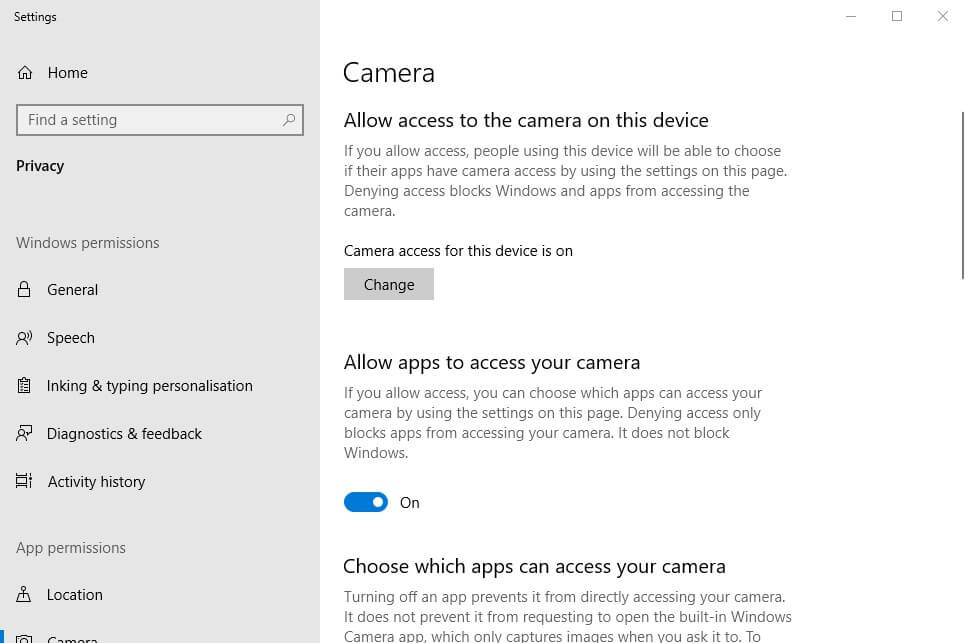
Click Camera privacy settings to open the window in the shot directly below.
First, check that the Allow apps to access your camera setting is on. If not, toggle that option on.
Make sure that the app you’re trying to utilize the webcam with is toggled on under Choose which apps can access your camera.
In addition, users can try toggling off webcam apps that they don’t need to utilize. That will ensure there aren’t any webcam app conflicts.
4. Edit the Registry
Users have confirmed that editing the registry fixes Windows 10 error 0xa00f4246. So, editing the registry is probably one of the best resolutions. Just edit the registry exactly like this.
Right-click the Start menu and select Run.
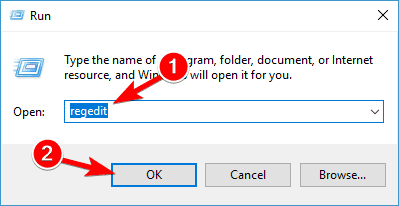
Input regedit in Run and click OK to open the Registry Editor.
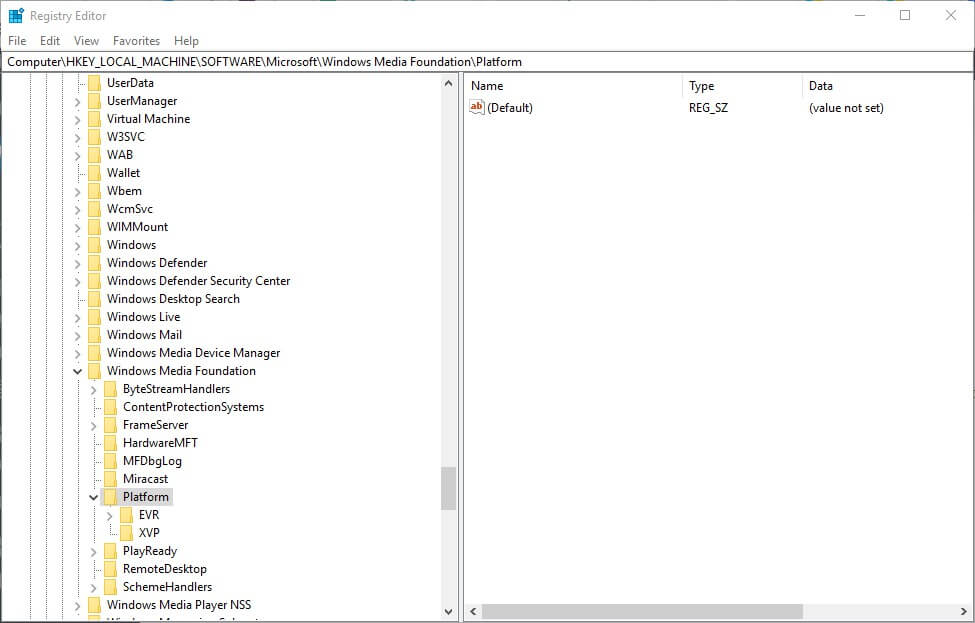
Browse to this registry path: HKEY_LOCAL_MACHINE\SOFTWARE\ Microsoft\Windows Media Foundation.
Then select Platform on the left the Registry Editor’s window.
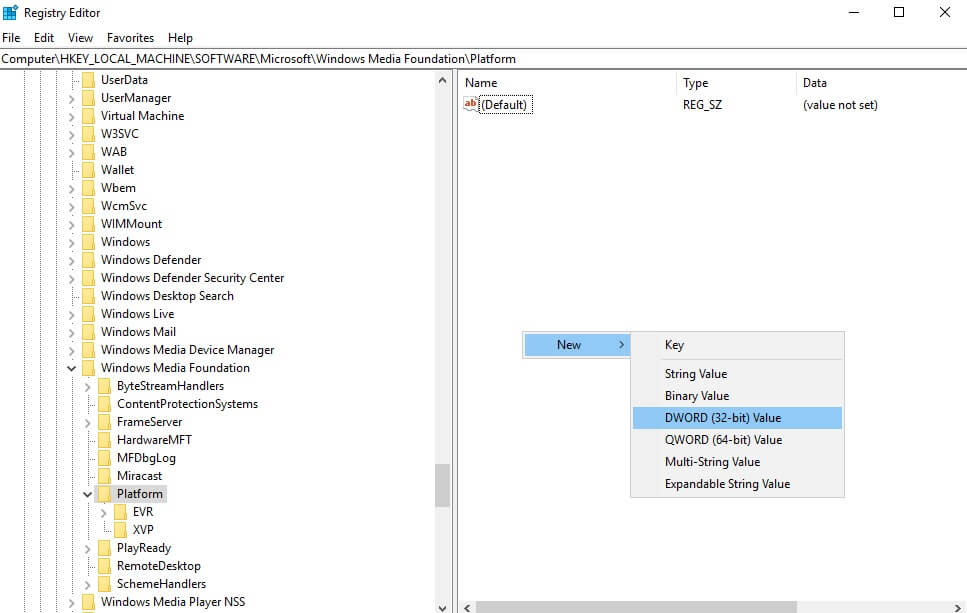
Right-click an empty space on the right side of the Registry Editor window to open a context menu.
Then select New > DWORD (32-bit) Value on the context menu.
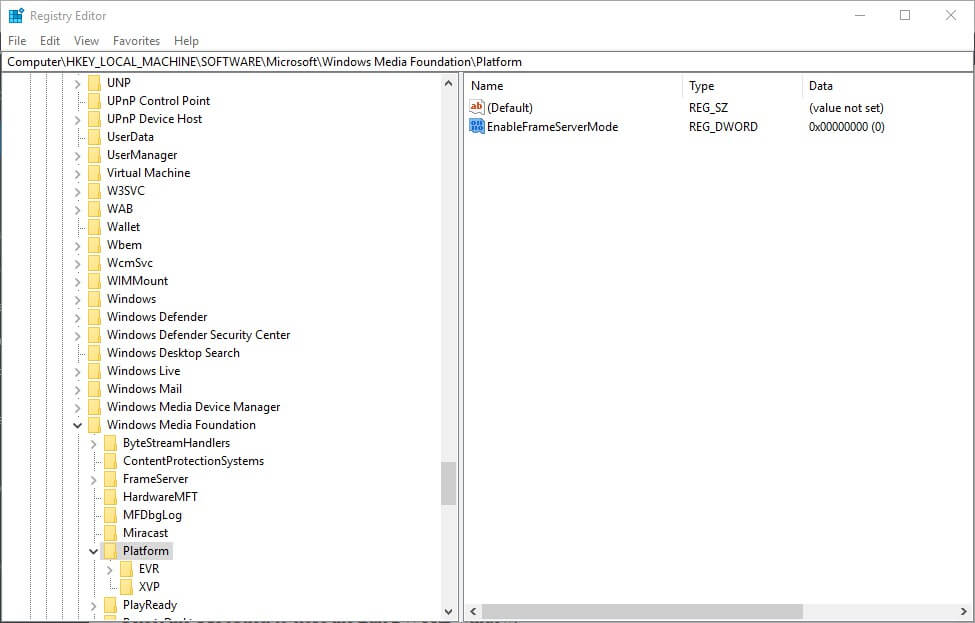
Next, enter EnableFrameServerMode as the title for the new DWORD.
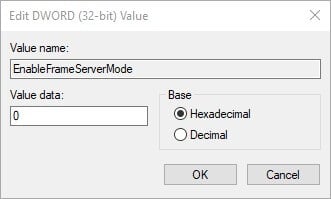
Double-click EnableFrameServerMode to open an Edit DWORD window.
Enter ‘0’ in the Value data box as shown below.
Select the OK option to close the Edit DWORD window.
Then close the Registry Editor’s window.
Restart Windows after editing the registry.
So, that’s how users can fix Windows 10 error 0xa00f4246. Editing the registry usually does the trick for most users. If error 0xa00f4246 arises after a Windows update, rolling back recent updates with System Restore might also resolve the issue.
For some years now, Malwarebytes has been listed among the top 10 best antivirus software on the market. What’s more, according to PC Mag, it tops the market for speedy scanning.
On the other hand, it seems that Malwarebytes has been having setbacks with real-time protection that won’t work properly.
Users have repeatedly complained about the fact that the real-time protection option won’t turn on and the developer acknowledged the problem. Several program updates should have fixed this issue.
We’ll be looking at a few solutions suggested on support forums, with more or less success, and also at one solution that surely fixes the problem.
How do I turn on Malwarebytes real-time protection?
1. Enable self-protection module early start
Open Malwarebytes.
In the Protection tab go to Setting then Startup Options.
Switch on the Enable self-protection module early start option.
Reboot your device.
This should enable real-time protection early in the computer’s boot process. However, if the program keeps notifying you that the device is not protected, move on to the next solution.
2. Turn off Malwarebytes completely
This means that you have to close the app like you normally do, but you also have to right-click on the Malwarebytes system tray icon and select Quit Malwarebytes to shut down the process.
Then reopen the program and see if there is any change when you try to turn on the real-time protection feature.
Users reported that this didn’t necessarily help, but it’s worth trying anyway. Sometimes, restarting the programs resolve a series of issues.
3. Reinstall a clean copy of Malwarebytes
First, uninstall the program using their recommended tool.
Reboot your computer as prompted.
Install the latest version of Malwarebytes, which you and in on their website.
Turn on real-time protection and see if it works.
The clean copy should inherit your license key details, so don’t worry about losing your subscription. Many subscribers were successful with this clean re-install.
If however, you still can’t use the real-time protection feature, it is recommended that you contact Malwarebytes support, and send diagnostic logs.
Malwarebytes is a great antivirus that protects you from online attacks that threaten your identity, your files, your system, and your financial well-being.
However, sometimes it just runs into multiple kinds of errors. Thus, your computer might not be fully protected.
We recommend you to use another great AI-based antivirus, which is completely compatible with your Windows 10 computer, so you won’t see functionality issues.
It is one of the most trusted antiviruses by millions of users, that uses machine learning, and multiple new technologies to offer you better protection each day.
TotalAV
Use a great antivirus with real-time protection that work efficiently on any Windows 10 computer.
Speed reading software can significantly help increase your reading speed, recall, and comprehension. It is speculated that this type of software can help an individual read and comprehend 1000 to 2000 words per minute as opposed to the normal 200 – 400 words per minute reading speed of the average reader.
Utilizing reading techniques such as meta guiding, skimming, Rapid Serial Visual Presentations (RSVP) can help one reach this level of expertise in reading. Fortunately, speed reading software is a highly effective catalyst for users who wish to become expert readers.
Speed reading software can be useful not only for professionals who are required to be efficient readers in their line of work, but also for students who need advanced reading skills in order to excel in their tests and school work. Even reading enthusiasts who wish to read a large amount of content on a daily basis for entertainment, can certainly make use of speed reading software. Below we will list several of the best speed reading software that are compatible with the Windows OS.
What’s the best speed reading software to get?
7 Speed Reading
This highly popular software offers users a wide variety of exercises and testing programs that are specifically tailored to boost your reading prowess. Regardless of how old the user is, 7 Speed Reading can significantly boost his/her reading skills.
The software is easy to use and even entertaining. Users will enjoy themselves while they learn a new, essential skill.
Furthermore, they have a stunning database of over 20,000 eBooks (here are some really useful eBook readers for your Windows PC). Users will be able to access a wide variety of genres, including self-help books, classics, business guides, religious books, biographies, and more. You also have to option to import your own documents to be used as practice material.
The software can used by multiple users. In other words, educational institutions can use 7 Speed Reading as a teaching software for students of all levels.
7 Speed Reading is compatible with Windows 7, 8, 10 and Vista. Perhaps, the only drawback of this software is its not so cheap price. It will cost users roughly $80.00 USD to buy and download the software. However, once you buy it, you will not have to pay a regular fee.
Spreeder
Spreeder is a top-notch software that offers a large amount of content for its users. The program is designed to help you read three times faster. You’ll be able to run through written content at a much faster pace than before after you have utilized the features and training this software offers.
Some of its features include, a cloud library, numerous e-book formats compatibility, access to press websites, social profiles, tracking, multi-users, and more. Probably what sets this software apart from other speed reading software in this list is its social profile feature. Users can create social profiles to track their own as well as their friend’s reading improvement progress.
The software is constructed to help users eliminate their bad reading habits. Typically, readers will have habits such as single word fixation, subvocalization, losing their reading place, etc. The easy to access and use training programs on Spreeder will help users get rid of these bad habits and help their reading skills improve dramatically.
You can download and buy Spreeder for around $40 USD.
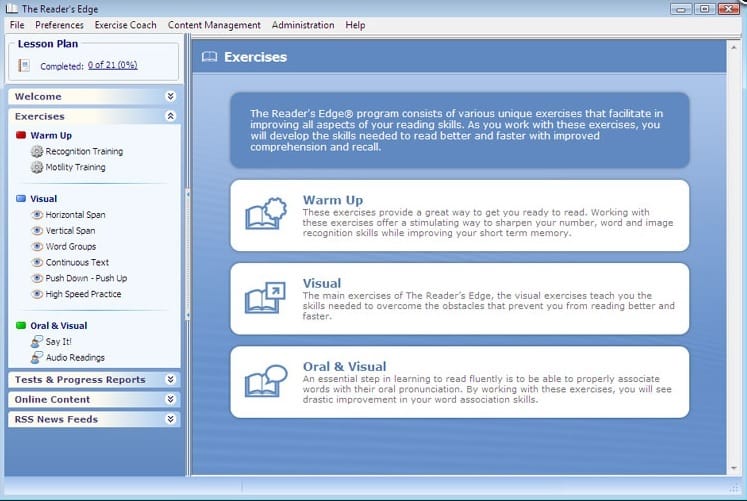
The Reader’s Edge
The Reader’s Edge software is created by The Literacy Company. This company is one of the leading creators of reading improvement software. The Reader’s Edge not only focus on helping individuals read faster and more efficiently, but they also help users comprehend more and get the most out of a reading experience. Using this software will give you an edge in your career or school life.
Users have the option to either download this software on your Windows computer or use it online. It is advised to get the downloadable version as you will be able to access the software even if you do not have an internet connection.
Furthermore, there are two versions of the Reader’s Edge: basic and professional. The professional version has far more features than the basic one, but it will cost you almost twice as much. The basic version is $79.95 USD, while the professional edition will set you back $149.95 USD.
Nevertheless, if you are simply looking for a speed reading software to use for yourself, then you may want to just purchase the basic version. On the hand, since the professional version features unlimited accounts, it is ideal for businesses, schools, etc.
EyeQ is a software created by Infinite Mind, which is a company dedicated to improving human performance. A neat thing about eyeQ, besides having a clever name, is that they have training courses that are specifically designed for different categories. In other words, you can choose a course based on your unique wants and needs. There is a business training course for professionals, a school category for students, a home section for families, and more.
In order to access the courses from eyeQ, users will have to pay a monthly fee. You can either choose to sign a contract or not. Not signing a contract will give you the option of bailing out at any time. However, it will cost you less money in the long run to sign a contract. A normal plan without a contract will cost you $19 USD per person.
Iris Speed Reading
Iris Speed Reading focuses primarily on teaching speed reading by using video courses. While all of the programs above can be used by individuals five years and older, this software is designed more for professionals, college students, and advanced readers.
Other features include free ebooks, amazing support, webinars, and other bonus training content. Iris Speed Reading software is unique as they only provide courses. They have three different courses, each costing $75.00 USD. You can also choose to purchase all three courses for $149.00 USD.
Furthermore, Iris Speed Reading claim that their courses are used by titans such as CNN, Google, amazon, IBM, Microsoft, and more.
Speed reading software has been proven scientifically to help strengthen a person’s comprehension skills as well as his/her reading speed. There are numerous ways increased comprehension and reading speed can benefit an individual. Thankfully, these programs in this list are here to help us improve our reading.
Are you a software developer? Are you in need of a reliable setup creator? If so, then this article is just for you. In this piece, we’ll be looking at some of the best setup creator software, specifically those supported on Windows PC.
A setup creator is a computer program that facilitates the creation of setup installers for applications. It is best suited for software developers and programmers, who run (develop) multiple software programs on a daily basis. Essentially, a setup creator software enables you to easily organize all your applications/software in a single, unified, setup, to make it easily retrievable, deployable and distributable, as and when due.
However, as an advanced computer program, there are numerous substandard setup creator software out there, which, if adopted, could cause irreparable damage to your entire system setup. To avoide this, simply follow this article.
Here, we bring you four of the most durable/reliable setup creator software in the market.
What are the best setup creator software to use on PC?
DRPU Setup Creator is one of the leading programs for creating installation setups on Windows. It is exclusively designed for creating installation files for Windows apps/programs.
Setting up an installation package, using this software, is as simple as “logging details” and “saving products” on Setup files. There is also a compression tool for reducing file size on compiled setups.
This software is optimized to combine relevant programs into a single installation setup, to facilitate deployment and distribution of apps among multiple users. It is very easy to use, as the whole setup process is planned and executed on the platform’s UI.
DRPU Setup Creator software hosts a powerful set of features, which make it stand out as one of the best setup creator software in the market. One noteworthy example is the customizable interface, which allows you to take complete control over your setup homepage and display.
As such, you can easily add and remove dialogs, modify notifications, add/remove images and run as many modifications as you see fit.
Beow is an outline of some of the key features of Setup Creator Software (DRPU):
Compact Installation
Creator Wizard (for setup installation)
Desktop Icons
In-depth Install/Uninstall Utility
Modifiable interface
Expandable platform
Save Log & Registry Support
And more
DRPU Setup Creator software is available at a starting price of $69.
Setup Factory is one of the oldest and most powerful setup creator software in the market, having been around for over 26 years (since 1992). It is the ultimate choice (of thousands of developers) for creating package installers (setups) for Windows applications. The program is compatible with all Windows OS between Windows XP and most recent Windows 10 version.
Setup Factory hosts a powerful, yet easy-to-navigate, interface, which, on one hand, is simple enough for rookie programmers, and on the other hand, highly advanced (complex) for professional developers.
This makes it ideal for all levels of usage. And regardless of how powerful or simple your software is, Setup Factory is well equipped to support it.
Notable features of Setup Factory include advanced OS commands, basic on-screen control, compact installation, cross-platform Windows support, intuitive user interface, flexible coding environment, flexible licensing, reliable tech & maintenance support and many more.
Essentially, in terms of reliability and durability, Setup Factory is arguably the best setup creator software.
However, there is one obvious blemish — the software is a bit expensive. Although the pricing appears justified (considering how powerful the software is), it is not ideal for low-end/average earning developers.
As such, it is better suited for organizations, with monthly/yearly budgetary plan. Notwithstanding, it is still one of the best, and if you can afford it, kindly go for it.
Setup Factory is available in three licensed variants. The basic (lowest) variant is the Single User License edition, which goes for $395. Its advanced variants, Team Pack and Deployment Suite, are available at $995 (per 5 users) and $995 (per user) respectively.
There is, however, a free trial version for new users, which is designed to enable them test the suitability of the software, before making full purchase.
InstallForge is one of the most popular setup creator software for Windows PC. It is compatible with all modern Windows OS, including the latest version of Windows 10.
As emphasized by most of its users, InstallForge stands head above shoulders among its peers, in terms of speed, stability and ease of usage.
Creating setups with InstallForge requires no script writing; hence, it can be used by rookie developers, with little or no scripting knowledge. In plain words, creating a setup with InstallForge is as easy as “filling forms” and “attaching documents”. Nevertheless, someone with no coding background might find the interface a bit tricky.
InstallForge stores setup files in ZIP format, and any file can easily be extracted from a compiled setup, with the use of any ZIP-supported (data compression) application.
Also, the setup creator software hosts a multilingual support for up to 10 different languages, including English, French, Chinese (Mandarin), German and more. With this, you can create installation setups in your preferred language (with respect to your target audience).
Other notable features of InstallForge include customizable interface, reliable client support, support for Visual Update Express (a third-party update program) and more.
InstallForge is a freeware, which means it is offered at absolutely no cost. Its development is being financed by donations from across the globe.
DCP Setup Maker is another top-rated setup creator software. Unlike most setup creators, DCP Setup Maker is compatible across platforms – with Windows, MacOS, Linux and even mobile devices (iOS and Android). It is formidably built to withstand huge volume and sizes of installation packages.
DCP Setup Maker uses a relatively simple UI to create much complex setup installers. The interface operates a wizard, which makes the whole process completely hassle free. With this, anyone with basic coding knowledge can easily adopt DCP Setup Maker to create setup packages.
The creation of installation files, using DCP Setup Maker, is in three rounded steps. These steps include; scanning file directory, setting package parameters (on what actions to perform) and tweaking (to finalize) your settings as appropriate. Each step is an assemblage of multiple operations.
Key features of DCP Setup Maker include: Formidable cross-platform installers (for Windows, Mac and so on), Wizard-enhanced UI, Web-based (centralized) installers, Quick-time setup creation, Customizable (and expandable) platform, Change Log support, Powerful IzPack integration and many more.
This setup creator software is an open source application; hence, it is available for free.
An average software developer spends quality time and resources daily to organize, deploy and distribute his/her programs. Most times, this could be cost ineffective. And to address this issue, setup creators were invented, to ease up software storage, deployment and distribution processes.
While there are many setup creator software out there (standard and substandard), we have listed, in this article, four of the most durable ones, to better inform your decision on which one to employ.
Outlook Express was without a doubt one of the most popular email clients on Windows platform. Unfortunately, Outlook Express was scrapped by Microsoft despite being one of the the best email clients on Windows.
Over the years many Outlook Express alternatives appeared with OE Classic and Thunderbird being the most popular ones.
Since both Thunderbird and OE Classic are such popular emails clients, we decided to make a comparison between the two.
Thunderbird or OE Classic
Thunderbird was originally created by Mozilla in 2004, and ever since its release, Thunderbird has been rather popular among the users. However, Mozilla decided to stop the development of Thunderbird in order to focus on more important tasks, and the development of Thunderbird was given to the community.
On the other hand, OE Classic takes after Outlook Express and it does its best to use the same simple visual style that many Windows users are familiar with. If you’re looking for an email client that is a proper Outlook Express replacement, OE Classic might be just what you need. Unlike OE Classic, Thunderbird‘s user interface relies heavily on tabs, and many Outlook Express users might not like the tabbed interface. Another advantage of OE Classic are its big and colorful icons that allow you to easily check for mail or create a new email message.
The first thing you’ll notice when you open Thunderbird is its offer to create a new email account by using one of their partners. If you already have an email address, you can choose the option to use an already existing email account.
We have to give credit to Thunderbird for making the account setup process fast and straightforward. You just have to enter your username and password and Thunderbird will automatically configure your account. Of course, you can manually change all the necessary data if necessary.
OE Classic on the other hand doesn’t offer you to create a new email address as soon as you open it, instead it requires you to to select that option manually. The process of account creation is simple and straightforward just like in Thunderbird.
Even though Thunderbird uses modern-looking user interface, we can’t shake the feeling that its interface is a bit packed with features. Unlike OE Classic, Thunderbird comes with Event Scheduler and Calendar, and even though Event Scheduler is a welcome feature, you won’t use it if you already use any other to-do list app. Same goes for Calendar, it works great with Event Scheduler by showing all scheduled events in the calendar, however such feature isn’t necessary for an email client.
OE Classic doesn’t have Calendar or Event Scheduler, and instead of adding somewhat unnecessary features creators of OE Classic focused on developing an email client that resembles Outlook Express as much as possible. This means that there are no tabs, or any unnecessary features that you probably won’t ever use in an email client.
Thunderbird also comes with a chat option that allows you chat over Google Talk, IRC, Twitter, XMPP, and Yahoo. We were surprised to see chat a option available in an email client, but we assume that this option might be useful for some users.
Although OE Classic offers more simplistic and easier to use interface, we have to admit that we miss the Thunderbird’s Quick Filter option that allows us to quickly search for email messages. OE Classic has the option to search emails, but in order to use it, you need to click the find button and search for emails in a new window. In our opinion, Thunderbird’s Quick Filter option feels more natural because it allows you to easily search for emails right from your inbox, without opening any additional windows.
In terms of developer support, Thunderbird is being developed by community and not by Mozilla, therefore updates might not be as frequent as they used to be. As for OE Classic, the developers of OE Classic are constantly working on it, and in fact, they are closely listening to user feedback and suggestions regarding new features. If you have a feature you’ll like to see in OE Classic, feel free to share your ideas with the developer and they will certainly consider it.
Thunderbird offers a modern tabbed user interface that looks great, but the interface might feel a bit crammed with features. Features such as Chat and Calendar are useful, but we can’t shake the feeling these features aren’t really necessary for an email client.
OE Classic doesn’t have modern user interface, but it does its job perfectly. As we mentioned, OE Classic is inspired by Outlook Express, one of the most used email clients on Windows, therefore it resembles Outlook Express in terms of simplicity and user interface. If you want a simple client to send and receive emails, without any unnecessary features, we suggest that you try OE Classic.
Consumers today want to engage with your brand, or their favorite brands online, mostly on their mobile devices, so there is need to find a common ground where your brand and target customers meet and share an amazing experience.
Wi-Fi has brought both brands and customers together, which means that clever brands will find a brilliant way of leveraging on this intersection to monetize and grow brand loyalty.
Most companies or stores have free Wi-Fi which they offer to their customers. This is a good place to meet your customer where they’re at by using the best Wi-Fi advertising software that helps you keep them engaged, as they stay updated on your latest offerings.
Let’s delve into the best Wi-Fi advertising software you can get for your brand, and some of the benefits you get from making this investment.
What’s the best Wi-Fi advertising software?
1. Socifi
With its headquarters in Silicon Valley, this Wi-Fi advertising software is a marketing and monetization solution for sponsored mobile data, 3G/4G networks, Wi-Fi and beacons.
Features include the following:
Guest and social Wi-Fi, provided as a service with an easy to use cloud-based management with lead generation, paid internet plans, vouchers, marketing, data mining, brand awareness, billing, and authentication.
Beacons that provide nearby notifications, data mining, proximity marketing and heat maps, plus smart technology that lets you update beacon ads without internet connectivity, all in one cloud-based management, free of hassles and maintenance.
Sponsored data. With this, you get the worth that comes from mobile data. Solutions include user engagement, data mining, targeting, sponsors management, ad campaign management, data gifting, plus an easy onboarding process for carriers and sponsors.
Wi-Fi, sponsored data and beacons are changing how connected brands function, and this can transform your business if used correctly.
Purple’s promise is turning insight into action. How? By delighting your customers and delivering ROI for your business.
This Wi-Fi advertising software is the global leader in guest Wi-Fi analytics.
Some of the benefits you get from choosing Purple Wi-Fi advertising software include:
Guest Wi-Fi, which delivers valuable insights from physical spaces so you can promote your business through a beautiful, branded and seamless interface. Customers simply login once across all your venues, or turn on social login that you can leverage to drive social engagement to the top.
Social login, a free and frustration-proof way for guests and customers to access your Wi-Fi network because people want a quick and simple login process without the sign up forms and many pages. You can also understand your customers using this feature.
Bespoke campaigns. You can build targeted marketing campaigns relevant to your users, such that when they use social login, you can send creative e-shots or SMS that are targeted and relevant to them.
Wi-Fi analytics lets you measure and monitor your guest behavior in real time plus access a wealth of rich analytics with bounce rates, conversions, dwell times, return visits, which help you understand your customers even more.
Reports through visual graphs based on the analytics with user demographics information so you can even wish your regular customer a happy birthday or offer free services to them.
Engagement tools that reach your guests at the right place and time with geo-fencing technology and cloud software for your venue(s) for triggered messaging.
Messaging and emails, from which you can send relevant SMS in real time, or use the drag and drop email editor to send e-shots in different templates, colors and fonts without coding.
This Wi-Fi advertising software offers smart targeting with high impact.
Some of the benefits of using Parbou include targeting of specific segments such as location, age and gender, so you can reach your guests in venues close to point of sale.
Features include:
Advertising, through which you can create maximum impact on your campaigns by leveraging the power of mobile, local and Wi-Fi
Easy reach through smart devices once people connect to your Wi-Fi
Real time reporting so you can view status and reports of your ad campaigns in real time, and optimize or adjust accordingly
Smart targeting based on location, gender and age to suit your needs
Wi-Fi marketing to promote physical offline venues and reach customers on the go once they’re connected to your Wi-Fi
Hyper Local so you can advertise to those in local establishments and the ad is relevant to the area you promote to
Budgeting to help you control your ad spend by setting your own lifetime budget
High CTR based on highly targeted, responsive ads served in full page to your audience, plus a bidding system to get the most revenue per click
Wi-Fi monetization through the ad network
Integrations with any social Wi-Fi or hotspot systems you currently use
Multiple ad formats to choose from including website visits, app downloads, coupons, and video plays for the highest click through rates per ad served.
If you want to know more about your customers, or promote your brand and earn money, WiFiAdz is your friend.
This Wi-Fi advertising software lets your customers be more engaged, loyal and satisfied, whether you’re running a small diner or huge company with many visitors.
Some benefits of using WiFiAdz include:
Free Wi-Fi connection, while delivering valuable content relevant to your business and customers’ needs through own brand promotion, increase of user engagement, advanced user analysis, and social media integration.
Earn revenues through Wi-Fi by joining WiFiAdz media network as a member, open your Wi-Fi to advertisers, and make money from it.
Free ad-sponsored Wi-Fi for your customers, while advertisers deliver content tailored to customers’ interests.
New media space for advertisers, revenue streams, visitor data analysis, plus you can set up and promote your brand.
Ease of use, plus you can customize your hotspot splash page with your logo, background and brand name, and they automatically prepare a responsive version for all devices and resolutions.
Social media integration for Facebook and Twitter increases fans and followers on your pages, while they read and share your feed content.
Valuable insights through responsive banners, surveys and offers sent to your customers for feedback.
Cloud-based platform, with a WiFiAdz dashboard so you can control and manage your brand, campaigns and hotspots, while watching your cash flow and getting user analysis.
This Wi-Fi advertising software touts itself as the prescribed solution for using Wi-Fi hotspots as a marketing medium.
With this software, you can build your own free Wi-Fi advertising network, or take advantage of HotspotRx network to capture your audiences with targeted marketing, so as to get direct feedback and contacts.
The features that make this the best Wi-Fi advertising software include:
A custom micro-site support system using templates or customize to your liking with easy upload and instant publication
Cloud-based management of advertising programs
Unlimited users and locations
Bring your own bandwidth (BYOB)
Advanced custom even tracking
Integration with Google Analytics
Wired LAN and cellular support
HotspotRx is an AaaS (app as a service) hotspot management system that deploys Wi-Fi hotspots across your locations using a range of physical hardware devices.
Each hotspot acts as a custom captive portal to serve targeted ads to your users, while tracking their activity and you get direct feedback in return.
With GoZone WiFi, your guests will easily connect with the long process or time taken by your staff giving out passwords, some of which are generated daily.
Some of the features this Wi-Fi advertising software provides include:
Safe and secure connection to smart Wi-Fi, without passwords
Branded login screen where you can promote your brand and customize messages
Social login that redirects customers to like your social media pages
Automated marketing with automatic list building to capture emails and social followers, then sync to MailChimp or other automated smart emailing systems for consistent messaging and marketing
Powerful dashboard with insights to client demographics and ad campaign performance
Promote guest loyalty through the intelligent tracking with each guest revisit, or scheduling of messaging with special offers
Smart Wi-Fi security for your network that separates your guest Wi-Fi from your venue’s point of sale
This Wi-Fi advertising software was built to provide a secure and engaging Wi-Fi experience, by combining all essential Wi-Fi services into a unified platform managed in the cloud with the CaptiveXS solution.
Key features of this software include:
Cloud-based management dashboard with all features and configuration done through this tool, plus you get to view analytics reports and download logs per venue with one click
User management to control bandwidth speeds for all connected users with a custom landing page and session validity per user
Rich analytics with user data and demographics, user IP, device and browser type. You get information as detailed as logins and sessions per day or week, top accessed sites, clicks, CTR, among others.
Content filtering for web security, including categories, domains and URLs you can use to block unsuitable content for your locations like porn or heavy bandwidth sites
In-browser content insertion that lets venues insert venue-specific promoted content or ads on all webpages users visit using your Wi-Fi
Captive portal with social login options that capture user information, which you can use to target end users in real time. You also get monetization options via video and banner ads.
What you can achieve with the best Wi-Fi advertising software
A forecast by Gartner Inc. reveals that by the year 2020, the number of connected things that will be in use will stand at 25 billion. In fact, by 2015, this number was at 4.9 billion.
This just rubber stamps the fact that mobile technology is with us for a very long time, and connectivity is getting more personal and diverse as time goes by.
Some of the amazing things you can do with Wi-Fi advertising software include:
Capturing your target customers’ demographics, shopping patterns, habits, and purchases then use the data for more targeted and effective marketing
Converting browsers into buyers and loyal customers
Enhance in-store experience while offering extra platforms to engage with your brand – Wi-Fi is an added reason for them to stay on and shop at your store
Leverage beacons to alert customers about sales through detection of in-store locations
Offer loyalty rewards for return customers via mobile devices
Create a consistent, multi-channel experience to customers
Personalizing the retail experience to keep customers coming back for more
Help customers navigate the store for stuff they’re looking for based on shopping history
Improve management and tracking of your inventory
Enhancing your customer relationship management database
Have you decided on one of these Wi-Fi advertising software for your brand? Let us know your favorite in the comments section below.
As we all know, the security of your private information has always been of the utmost importance, especially in an age where we tend to make everything public over the Internet.
Unfortunately, putting a password on everything, although effective, can be mind-numbing, especially when it comes to remembering them all.
That’s precisely when a password manager can really come in handy, and we’ll be looking over one today, namely NordPass.
You can highly rely on this password vault for your company, as well. There is a brand-new plan for businesses for anybody who needs comprehensive data security company-wide.
Plus, you can set password policies for the entire firm and use the authenticator feature to log in everywhere in seconds.
What is NordPass?
For all intents and purposes, NordPass is a password manager that anyone can download, since it is available completely free of charge.
This tool can help anyone better organize their complex passwords and keep them securely in a single place, thus making credential security something that you no longer have to worry about.
Not only that, this all-around password manager launched a business plan with incredibly practical features. For instance, you have encrypted access between multiple teams, an invalid password detector, or data breach security.
➡️ Note: You can activate this intuitive password manager dedicated to companies starting from $3.59 per user/ per month.
What are NordPass’s features?
Only you can see your passwords
Through the use of complex mathematical formulas called encryption algorithms, NordPass ensures the protection of your passwords in a safe and secure place.
Create stronger and more secure passwords
A staple in most password managers nowadays is the ability to create passwords, not just store them, and this is a feature that is present in NordPass as well.
This way you no longer have to remember them or write them down anywhere else. Just remember that one Master Password that unlocks the encrypted vault, and that’s it.
Let NordPass do the form-filling for you
NordPass comes with an Autofill feature that writes down the credentials for you, so there will be times when you won’t even need to know your own passwords since NordPass will write it down and complete the forms for you.
Besides, any login credentials you do create yourself can be added to the NordPass vault with just one click, so basically they are saved as soon as you create them.
Log in from anywhere, fast and easy
NordPass has apps that are available on Windows, macOS, Linux, Android, and iOS, so no matter where you are, you can log into any website with your account easily.
This tool doesn’t just remember your credentials, it also remembers the websites that you frequently visit, so as you open a web page, your credentials will already be there in the login form.
What’s more, NordPass also keeps your credit card credentials safe and secure, so shopping will go smoother as you won’t have to look for your wallet and read the numbers off of your card anymore.
A truly free service without any limitations
NordPass comes with a free version, and unlike a lot of other password managers that offer such subscription plans (there are few of them anyway), there are no limitations associated with functionality.
As such, you don’t have to worry about any limit on the number of passwords or personal information you can keep, and you can also sync it across multiple devices.
You can even set up automated backups or import data from other password managers through the NordPass app.
NordPass
Keep your passwords in a safe and secure place and fill out forms faster starting now.
Our tests proved that NordPass is exactly what it claims to be: a safe and secure password manager that takes a lot of the headaches from remembering login details, credit card numbers, and other personal information.
Besides, the Secure Notes feature is another handy touch, especially when you need to keep your private thoughts private.
All in all, we recommend that you give this password manager a try, especially since it is completely free, so there’s nothing to lose.
There’s new malware being created and set loose every single day, and it’s already a known fact that your antivirus software doesn’t protect you 100% from it.
Sometimes it can take up to a few days until the virus analysts get a hold of a particular sample to be added to the latest virus definition.
When the offline/online keylogger mode is activated, anything that you type on your keyboard will be recorded and logged to a file or even instantly transferred to the controller.
This is where keystroke encryption software comes in the picture, and it works in a really deep level of Windows to prevent keyloggers from logging the real keystrokes or blocking them. We’ve gathered five keystroke encryption tools that you can currently find to protect your system.
SpyShelter is an excellent anti-keylogger software, and it’s fair to say that it’s one of the best free keystroke encryption security tools out there. It is able to protect you from keyloggers.
Check out the most important features of this software below:
It is able to detect and remove any keylogger hacking tool that you might have installed on your system.
It can encrypt all of your keystrokes to protect your vital data.
Malware will not have access to your passwords.
SpyShelter provides financial malware protection.
The program also offers powerful HIPS System Protection.
The software is fast and lightweight, and it’s able to provide real-time keystroke encryption.
SpyShelter works without a signature database.
It provides extremely solid protection against known and unknown zero-day spy.
It protects your system against monitoring software such as keyloggers, screen loggers, webcam loggers, and even advanced financial malware.
It protects your webcam and microphone as well against hijacking.
The program can stop all suspicious screenshot capturing activities immediately.
It allows you to define rules for each one of your apps because you are in charge of your computer. The AntiNetworkSpy proactive module prevents dangerous Trojans from stealing your private data while conducting essential Internet transactions. You can get SpyShelter from the official website.
Zemana AntiLogger is a powerful and efficient app with a user-friendly interface that keeps track of who is doing what on your system. The software can monitor your PC against hackers, and it prevents any kind of attempts to record or steal your private data, blocking any kind of suspicious activities.
Here are the most important features of this software:
It makes it possible that your credit card numbers, login credentials, and social security numbers are securely transmitted while blocking attackers.
It allows you to camouflage your daily activities online including shopping. Texting, calling, online backing and more.
It provides reliable ransomware protection.
It detects and cleans the browser’s add-ons, unwanted apps or toolbars, and adware infections.
This is a lightweight and efficient online malware scanner.
Each unknown file is analyzed carefully in the cloud via Pandora technology before it has time to execute on your system.
Zemana provides real-time protection and you also get 24/7 technical support if you are experiencing any problems, check out more details on Zemana and get it now from free.
GuardedID is able to eliminate your vulnerability to data theft caused by keylogging attacks which is one of the leading causes of cyber-crime. Unlike anti-malware and antivirus software, GuardedID protects your data from both known and unknown keylogger threats.
Take a look at the most impressive features packed in this program below:
It is easy to install, and it will not slow down your Windows computer.
It is patented, built and supported in the US.
The program protects against kernel and desktop based keyloggers.
The program also provides advanced anti-clickjacking and anti-screen capture technology.
It offers multiple layers of protection against cyber-attacks.
It outsmarts cybercriminals because they’ll only be able to see a meaningless sequence of numbers.
It stops malicious keylogging programs by encrypting keystroke data and then routing it straight to the Internet browser or desktop via a secure pathway that is invisible to keyloggers. The software protects this pathway with military-grade 256-bit encryption code.
KeyScrambler is another excellent security software that offers adequate protection with little user effort. After you type on the keyboard, the keystrokes enter Windows, and the encryption module starts working in real time.
The encrypted keystrokes go through your OS, and the snooping keylogger will see only junk. Your keystrokes will return to normal at the destination.
Check out the best features of KeyScrambler:
The program encrypts typed info in more than 60 browsers.
It can encrypt typed info in more than 170 standalone apps.
It is able to encrypt typed info in more than 140 business programs and other advanced security features.
The program automatically updates to the latest version.
The online support helps you locate relevant info quickly, and the FAQ will help you get answers and troubleshooting tips about the program.
You have the opportunity to choose the KeyScrambler edition that best works for you: the personal edition, professional edition, and premium edition. The latter comes with the most features.
NextGen AntiKeylogger protects your data from all sorts of keylogging programs both unknown and known and also the ones that are being currently developed.
Check out the essential features of this software below:
It uses a unique method of protection by intercepting keystrokes at the lowest level possible.
It encrypts the keystrokes and sends them via its own protected path straight into the protected app.
The software is able to defeat all types of software keyloggers.
The program has no false positives, unlike the programs that are based on proactive protection.
This software works out-of-the-box, and it doesn’t require any additional configuration.
Even inexperienced users can work with it really easy.
NextGen AntiKeylogger is able to protect web browsers, IM clients, editors, password managers and more.
The program helps you to protect your overall privacy.
The software only supports 32-bit computing.
It comes with a clear and straightforward interface.
This is a handy package for users to protect their systems from keyloggers that are not picked up and removed by their virus or malware scanner. The program helps ensure any logging software logs incorrect keystrokes while at the same time Windows will still receive the correct keystrokes.
These are the best five keystroke encryption tools for Windows, and they’re all guaranteed to work flawlessly to protect your system from unwanted cyber-attacks.
Check out more details about them on their official websites and download the one that seems to fit your security needs the most. Good luck!
Windows 10 adds a lot of great features to an already feature rich Windows platform, but it also removes some of them while in the process of discarding some features that have stagnated.
One of such features was the WIndows Media Center – a great piece of software designed for running Windows on your TV’s, that couldn’t take off because of the stubborn cable companies in U.S.
You might think, that’s not such a big of a deal – but it was also the software of choice to play DVD’s on computers, as it naturally provided the best interface and feature set for it. This list goes through your 10 best options for playing DVD’s on Windows 10.
PowerDVD 17 is more of a media hub than a media player. It can neatly organize your movies and photos in a library, it can download videos from YouTube and Vimeo for later viewing; it can even enhance the video while playing it with the TrueTheater filter. All this comes for a price though – it starts at 49.99$.
GOM Player can play DVD’s in various formats and even supports subtitles in multiple formats – but the best feature of GOM Player is that it supports 360 VR videos, so you are futureproofed. It also supports various advanced features such as playback speed control and an in-built Codec finder that will download and install codecs for your media files.
VLC by VideoLAN is quite possibly the most popular video player out there – mostly because it can play whatever you throw at it.
It supports every video format known to man, and on top of that comes with extremely fleshed out features that help it make more than just a DVD player.
It can even live stream videos from the internet via various protocols – of which it supports an uncountable numbers of.
MPC-HC might not support every video and audio format known to man, and it might not have an insane amount of features – but it will run any video it can run smoothly, even on a computer that’s 2 decades old.
MPC-HC is extremely light, and is able to accomplish the art of video playback with the least amount of resources possible, and that’s its strength.
PotPlayer is not only a player with tonnes of features but also a player that is pleasant to look at and features an elegant UI that is not hard to understand or complicated to browse through.
One of the best things about it is it’s ability to run in portable mode – though not simple enough to set that up, just the fact that it is possible makes this a great player. The instructions to get the portable version are here.
KMPlayer features a clean and simple UI but at the same time supports various video and audio formats, while staying light on usage and maintaining a huge set of features.
It might not be the best player out there and it might not have all the features of others but it might be just the right balance you are looking for.
SMPlayer tries to differentiate itself from the rest by adding features not commonly found in other softwares – namely, the ability to watch YouTube videos in the player itself and the ability to download subtitles for what you are watching from within the player. It might not be the best looking player or the easiest to understand, but it might have features you are looking for.
BSPlayer comes in two versions – free and pro – the pro version is the one that lets you play DVD’s. BSPlayer has a unique feature though – it lets you load your complete DVD movie into the computer’s RAM.
This may sound too geeky, but this will directly benefit you by giving you longer battery life since the computer does not have to access the DVD or the Hard Disk for it anymore.
ArcSoft’s TotalMedia Theater not only support DVD’s but also BluRay’s and has full support for 4K videos. It also has seamless integration with all of your Miracast enabled devices so you can cast your movies wirelessly to your projector. It also has full touch screen support and is able to enhance your older DVD’s and try to make them look HD.
MPlayer is a free and open source player and it is highly customizable – from the way it works, to the way it looks, everything can be changed. It supports a wide variety of video, audio and subtitle formats so it will play whatever you throw at it. It also supports subtitles in multiple languages.
The Windows DVD Player is what Microsoft proposed as a solution to the problem. An app you can get from the App Store that fills the gap that Media Center left – however, this app costs you a whopping 15$.
If you want to pay that for the official way to do it, go ahead. The official app is not better than the alternatives, arguably it has less features.
Parma Video Player supports multiple file formats, and subtitle formats. Besides being able to play DVD’s, it will also scan your PC for other movies it can play. It also has support for custom subtitles, so if your DVD did not come with subtitles in your language, you can add custom subtitles.
VLC not only has an an application for Desktop, but also for the App Store. The App Store version is not very different from the desktop application, except that it supports touch screens; rest assured, it can play every video format you throw at it and it can do it very well, with support for various advanced features.
MXPlayer is more popular on Android, but it has a prototype version for Windows 10 – and it can play whatever you throw at it. It lacks certain advanced and some essential features just because of how new it is but you can be sure the team is hard at work for it. Looking at how good their Android client is, the Windows 10 app will be as good if not better.
These were some of the best windows 10 DVD players. There are a lot of options for you to pick from, at the end you have to pick the one you like the most – this depends on what features you want and whether or not you like the way the player works and looks. At the end, you can make a decision for yourself and pick the best suited to you.
While using Internet Explorer, or any other associated software, you may receive the Do you want to allow this webpage to access your clipboardalert. This message is displayed by default each time a website or a web page tries to access the clipboard’s memory.
This is a security sort of a security alert, and you have the option to either allow or deny access to the clipboard. But why does the alert appear in the first place, and is there a way to get rid of it? Read ahead to find out!
Why does Do you want to allow this webpage to access your clipboard message appear?
Here are a few reasons users reported the Internet Explorer Do you want to allow this webpage to access your clipboard error:
Problems identifying actions: Your browser often has trouble identifying actions performed via the mouse or through the GUI, which is why we recommend using the keyboard shortcut instead.
IE Mode enabled in Edge: Several users also reported seeing the alert on multiple websites when IE mode was enabled in Edge.
Corrupt browsing data: If everything else seems in order, it could be the corrupt browsing data triggering the error.
How can I fix Do you want to allow this webpage to access your clipboard?
Before we start making slightly complex changes, here are a few quick ones to try:
Restart the computer.
Use the keyboard shortcut for the copy-and-paste operations instead of selecting the option from the context menu. To copy, use Ctrl + C and to paste text or image, use Ctrl + V.
If none work, move to the fixes listed next.
1. Reconfigure Internet Options
Press Windows + R to open Run, type inetcpl.cpl in the text field, and hit Enter.
Head to the Security tab, choose Internet, make sure the slider is set to Medium, and then click on the Custom level button.
Now, scroll down to Scripting, then select Enable under Allow Programmatic clipboard access, and click OK to save the changes.
Click Yes in the confirmation prompt that appears.
Your primary approach when trying to get rid of the Do you want to allow this webpage to access your clipboard error should be to enable Allow Programmatic clipboard access in Internet Options.
2. Clear browsing data
Open the browser that’s throwing the error, and press Ctrl + Shift + Del.
Now, select All time from the Time range dropdown menu, and tick the checkboxes for Browsing history, Cookies and other site data, and Cached images and files.
Scroll down, then select Site permissions, and finally click on Clear now.
Once done, head back to the webpage that was earlier throwing the prompt and check whether the problem is resolved.
3. Disable IE mode in Edge
NOTE
The solution only works for those getting the Do you want to allow this webpage to access your clipboard prompt in Microsoft Edge, but it reads Internet Explorer.
Launch Edge, paste the following path in the address bar, and hit Enter:edge://settings/defaultBrowser
Click on the dropdown menu next to Allow sites to be reloaded in Internet Explorer mode (IE mode), and select Don’t allow.
Finally, click Restart for the changes to come into effect.
If you encountered the Do you want to allow this webpage to access your clipboard error in Microsoft Edge, it’s the IE mode to blame, and disabling it should do.
To get rid of this issue, which could be triggered because of some system errors, you could use Comfort Clipboard Pro.
This tool will allow you to do multiple operations with your clipped content in order to optimize your work with copied data. Here are some of the most important features of this amazing clipboard manager:
Available information about the copied/cut content
Editing text fragments
Choosing hotkeys for the selected content
Color code
Drag and drop directly from the clipboard
You can purchase this tool from the official website, but it also has a free version that you can try. The tool supports any format, allowing you to easily copy text, links, images, files, and more.
You also have the option to password-protect the content on your clipboard so that no one can access it without your permission.
That’s it! One of the solutions here should have helped fix the Do you want to allow this webpage to access your clipboard error in Internet Explorer or Microsoft Edge.
In case it persists, you can also switch browsers. Here’s our created list of the best browsers for Windows.
Tell us which fix worked for you in the comments section below.
Download managers are essential computer applications, which are specially designed for speeding up and making file download easier. In this article, we’ll be looking at some of the best download manager software solutions for Windows 10 computers.
Every browser comes with a built-in downloader. However, most times, these downloaders are not ideal for downloading huge files. To improve download speed and download huge files with ease, download managers are the ultimate solutions. Hence, today, download managers now serve as the perfect alternatives to conventional browser downloaders.
So, if you are the type who regularly download files (videos, music, apps, and the likes), a download manager is essential for you. And for your convenience, we’ll be outlining some of the best download managers for Windows 10 PC in this article.
There are quite a number of download manager Windows 10programs in the market. However, many (if not majority) of these programs are no different from the conventional “browser downloaders”. In light of this, we have curated a list of the 5 best download managers for Windows 10. Read on!
Internet Download Manager is arguably the most popular download manager out there, and it has been heralded by its users as the most durable download manager of Windows 10 software. Aside from Windows 10, Internet Download Manager is also compatible with other notable Windows OS (Windows Vista and later).
Also, Internet Download Manager, conveniently tagged IDM, integrates conveniently with virtually all known internet browsers, including Google Chrome, Mozilla Firefox, Microsoft Edge, Internet Explorer, MSN, Opera, and more. It also supports proxy servers, FTP/HTTP protocols, and more.
Internet Download Manager is optimized to download at a 500% rate, compared to the normal browser downloaders. Also, it performs a set of unique functions like download resume and schedule, error recovery & resume, and others.
These functions are there to ensure your downloads are not terminated by unexpected interruptions like power outages, system shutdown, disrupted internet connection, and the likes.
Some of the key features of IDM include scheduler pro, download accelerator, download categories, zip preview, multilingual support, multiplatform support, enhanced security (against the virus), download panel (for web-players), multiple simultaneous downloads, user-friendly GUI, MMS protocol support, reliable customer support and many more.
Internet Download Manager offers an initial 30-day free trial, after which users are to subscribe to the paid plan, which is offered at a starting price of $29.95.
Free Download Manager, conveniently tagged FDM, is one of the most widely used download managers across the globe. It is supported on both Windows (10/8.1/8/7/Vista/XP) and macOS desktops/laptops.
In addition, it is able to integrate seamlessly with prominent web browsers, including Microsoft Edge, Google Chrome, Internet Explorer and others.
FDM offers a variety of downloading modes, depending on the type and size of the file you want to download. It can also schedule and run multiple simultaneous downloads. And in case of internet or power disruption, FDM automatically resumes download(s) upon internet/power restoration.
Key features of Free Download Manager include:
Accelerated downloads
File preview
BitTorrent supportPowerful download scheduler
Adjustable trafficMultilingual support (30+)
Spyware & Adware protection, Download resumption (on disrupted downloads)
Cross-platform compatibility and more.
Free Download Manager, as the name implies, is free software. It is licensed under GNU’s General Public License; hence, it can easily be downloaded for free.
JDownloader is one of the leading download manager of Windows 10 applications in the market. It is an open-source program, which is a product of many developers from far and wide. The program is not exclusive to only Windows OS computers; it is also compatible with macOS and Linux systems.
The most striking feature of JDownloader, surprisingly, is not its speed. Although it typically runs faster than all conventional browser downloaders, its “scheduler” is what actually catches the eye.
This “download scheduler” (a plugin function) allows you to preset when to download (or terminate) a particular file(s). This enables you to automate your download process while focusing on other important things.
Other noteworthy features of JDownloader include multiple simultaneous downloads, integrated package manager, multilingual support, multiple connections support, cross-platform support, pause and resume, video-hosting sites support (YouTube, Vimeo and the likes), and many more.
JDownloader, as stated earlier, is an open-source application licensed under the General Public License (GPL). Hence, it is offered to the general public free of charge.
Ninja Download Manager is one of the best download manager Windows 10 software, which is renowned for its creative GUI design. It is compatible with both Windows OS and macOS.
This download manager runs multiple simultaneous connections, dividing large files into smaller parts during the download process. As such, a 500 MB could take as low as 10 seconds to download. In simpler terms, you can increase your download speed by up to 2000% (compared to standard browsers) with Ninja Download Manager.
Ninja hosts some of the best obtainable features in the industry, in terms of speed and other management features (scheduling, organizer, and the likes). It is arguably the fastest download manager out there.
Some of its key features include Download scheduler (auto-download/terminate at a later time), drag & drop download, multiple file download, multiple simultaneous connections, password manager, download queues, clipboard monitor, proxy support, pause & Resume and many more.
Ninja Download Manager is available in three pricing models, with respect to the number of users. The lowest plan is available at the rate of $19/year (for one user), while the two remaining plans are offered at $29/year (for 3 users) and $49/year (for 6 users) respectively.
EagleGet download manager is one of the leading Windows-compatible download managers out there. It is basically designed to speed up the file download process and ensure every downloaded file is free from any form of malware or virus.
This program is supported on every modern Windows OS (Windows 10/8.1/8/7/Vista/XP). And it is equipped to work perfectly with all standard web browsers like Mozilla Firefox, Chrome, Opera, Internet Explorer, and more.
EagleGet is especially suitable for downloading videos from notable streaming sites like YouTube and Vimeo. It houses a feature known as “Video Sniffer”, which can be used to download videos from sites lacking direct download links. Another noteworthy feature is the “Media Grabber”, which is designed to download videos directly from streaming sites.
Other key features of EagleGet include optimized download speed (with multi-threaded technology), multiple language support (30+ languages), customizable UI (with themes), auto-malware checker (with system Antivirus), smart scheduler, automatic virus scan, proxy server and HTTP/HTTPS/FTP support, task monitor and many more.
EagleGet stands out as one of the most reliable download managers of Windows 10 programs, with respect to its relative speed and convenience of use.
We have looked at five of the best download manager Windows 10 apps in this article. These apps were selected and ranked on the basis of their relative download speed, download management features, compatibility, and of course, affordability.
Hence, if you are looking for a durable download manager for your Windows 10 PC, this article has recommended five of the most reliable ones.
Microsoft’s wish of Congress enacting a bi-partisan CLOUD Act got a booster shot as the company announces new EU data security measures.
Earlier this week Microsoft announced a pledge to European Union that see the company expand its commitments to both commercial and public EU customers storing and processing data on its cloud.
Today we are announcing a new pledge for the European Union. If you are a commercial or public sector customer in the EU, we will go beyond our existing data storage commitments and enable you to process and store all your data in the EU.
In other words, we will not need to move your data outside the EU. This commitment will apply across all of Microsoft’s core cloud services – Azure, Microsoft 365, and Dynamics 365. We are beginning work immediately on this added step, and we will complete by the end of next year the implementation of all engineering work needed to execute on it. We’re calling this plan the EU Data Boundary for the Microsoft Cloud.
In a blog post penned by Microsoft president and chief legal officer, Brad Smith, he continued to extol the virtues of the company’s exceeding measures to meet EU guidelines as well as give a nod to the EU’s “Europe Fit for the Digital Age” vision.
There weren’t any other meaningful technical details about Microsoft’s push to protect EU data in the region aside from mention about engineering new tools into their core cloud services such as “Lockbox and customer-managed encryption.”
This week’s EU cloud news is yet another step that feels related to Microsoft’s recent Supreme Court visit.
Backing up just bit to 2014, Microsoft, the US government and the Republic of Ireland got into a bit of a tiff over cloud data and the privacy privileges granted to individuals who store data across borders.
In the 2018 court case that reached the US Supreme court, the US government leveraged the 1986 Communications Privacy Act as a precedent to issue a warrant for Microsoft to turn over emails from one Gary Davis who was allegedly tied to Silk Road case.
Microsoft won an appeal to prevent the US government from attempting to seize Mr. Davis’ data which is store on the company’s serves in Ireland, despite Davis being held in the US. During its appeal, Smith mentioned the CLOUD Act as a possible solution to dealing with international data being held by a US-based company.
The CLOUD Act is controversial for many reasons, but would at least set the stage for creating laws more empathetic towards international procedures regarding data procurement.
Well, Microsoft’s continued investment in physical data centers and solutions specific to the EU further inoculates the company from US-based law enforcement hassles.
Smith addresses the issue of lawful procurement in the post as well, “we will challenge every government request for an EU public sector or commercial customer’s personal data—from any government—where there is a lawful basis for doing so.”
It seems like the long expected change is finally about to happen and users are at the edge of their seats in anticipation of what is to come.
This visual revamp is said to bring Windows operating system into a whole new era, look-wise.
Sun Valley changes the way we see Windows 10
The long sought-after visual overhaul that Windows 10 is about to go through will bring more fluidity and futuristic designs to the way that the OS currently looks.
We’re not only talking about more rounded edges for the windows, but also a floating design for the taskbar jump list menu. There’s further talk about a completely new look for the Start menu.
More changes will apply to the icons we got so used to seeing in SHELL32.dll, many of them unchanged since Windows 95 was released.
The new dark mode that is also set to be released with the Sun Valley update is a big improvement and will surely be well-received by everyone.
The release date for this product hasn’t yet been specified, but we can expect it to drop later this year or early next year.
Here is a more in depth look on the new visual experience prepared by Windows.
All in all, it seems like Windows 10 is going to look very different in the near future. The new fluent and interactive designs planned by Microsoft will surely make the operating system more popular and loved by its users.
Tell us what you think about this new visual experience in the comments section below.
Users are now dealing with a problem which puts so much pressure on they’re PCs that it could even lead to the operating system having a slow response time.
The bad news is that the actual issue we are talking about is caused by one of Windows’ built-in security features.
Windows Defender bug fills up Hard Disk Drive
Even though Microsoft Defender wasn’t the public’s number one choice when it came to protection software, in recent years it started to slowly make a comeback into users’ preferences.
According to user reports on Reddit, this new bug affects PC performance by creating hundreds of thousands of duplicate files, taking up most of the disk space available.
To be more specific, when the real-time protection feature is turned on, in a short time span, the Windows Defender scan folder will fill up with thousands of files no larger than 1kb or 2kb.
To make you understand the scale of this system clog, a folder that usually takes up almost 1Gb, is now as big as 30Gb. This can, in some cases, cause the UI or even the entire system to freeze.
In order to restore your system to its former glory and get rid of all these unwanted and, let’s face it, useless files, all you have to do is update Windows Defender.
From the Settings menu, visit the Windows Update options and simply check if there is an update for Defender. Once the software has finished patching to version 1.1.18100.6, this issue will be taken care of.
However, you are now left with the tens of gigabytes of surplus files. To delete them simply go to the location we mentioned above, enable the view of hidden items, and delete all of them.
There are alternatives to using Windows Defender as the main antivirus software on your PCs. However, if you still trust it and want to continue using it, you can do so knowing that this issue has been fixed.
Tell us if this article was helpful towards solving this issue for you in the comments section below.
Windows 10 is an extremely versatile and self-sufficient OS. One of the biggest testimonies to that fact is that it comes with a very efficient built-in protection system called Windows Defender.
However, things don’t always go smoothly for Windows Defender. For example, some users have reported receiving a Windows Defender error code 0x800b0100 when trying to launch the program.
This error will prevent you from turning on Windows Defender, rendering you defenseless. Since this is a very problematic issue that completely blocks the functionality of a vital Windows component.
That is why we’ve created this step-by-step guide that will show you exactly what you need to do.
How do I fix Windows Defender Error 0x800b0100?
1. Perform a Clean Boot
Press Windows + R.
Type in msconfig and press Enter.
Go to the Services tab.
Check the option that says Hide All Microsoft Services.
Right-click and select Disable for all processes found in the Startup tab.
Press OK to confirm the changes.
Reboot your PC for the changes to take effect.
By following these steps, you should be able to see whether a third-party application was blocking Windows Defender. If this is indeed the cause, reverse the changes you’ve made for each program.
It is best if you reverse the process one at a time to determine which program exactly is causing the issue.
2. Check your Windows Defender Service
Press Windows + R, type msconfig and press Enter.
Locate Windows Defender.
Double-click the following items:
Windows Defender Service
Windows Defender Advanced Threat Protection Service
Windows Defender Network Inspection Service (if available)
Make sure the Startup Type is set to Automatic and that the service is Started.
You need to check whether or not the Windows Defender processes are working by performing the steps above.
4. Check your PC for malware
Quite ironically, this Windows Defender error can be caused by an already-present infection of your Windows 10 PC.
As such, simply install a very good third-party antivirus to perform a complete scan and cleanup of your Windows system.
The tool recommended below is the best you can get on the market within a reasonable budget. Its multi-layered security technology ensures perfect protection.
So not only that you will eliminate any possible malware infection but you will also fix the Windows Defender error in no time.
TotalAV
This excellent tool not only will eliminate any malware from your PC, but you will also get rid of any errors.
The System File Checker scan will detect any possible corrupted system files and will repair them, setting things right again.
6. Perform a DISM
Start Command prompt as administrator, as indicated in the previous step.
Type in the following command and press Enter: DISM.exe /Online /Cleanup-Image /RestoreHealth
Wait for it to perform the scan, it can take about five to ten minutes, sometimes more.
If the progress bar gets stuck on 20 percent, don’t worry, that’s perfectly normal, you just need to be patient.
After DISM has finished its scan, restart your computer.
By following these steps, you should be able to fix the Windows Defender error 0x800b0100 and enjoy a malware-free PC experience.
If you still can’t get it to work or if you’re tired of such errors, consider switching to another antivirus. Take a look at our great selection of the best unlimited licence antiviruses that we prepared for you.
Which of the methods listed above worked for you? Let us know in the comments section below.
Maps are essential tools for planning and making decisions for businesses in various industries. A while ago, companies were constrained to rely on skilled cartographers for making the maps that they required for different tasks. All this changed with the development of the Global Information System aka GIS.
This is basically a computer-based system that analyzes and presents various geographical data into readable maps. Nowadays, GIS-based software makes it possible for use for even the most inexperienced people. You may never attended a cartography class in their lives, but with this software, you can create useful maps.
And every business these days starting from telecoms, retail, mining, transport or construction companies to local authorities, governments and non-governmental organizations usually will use some kind of mapping.
Here are five of the best such software that you can currently find on the market. Make sure to check out their best features and functionalities.
In this manner, you can eventually make the best-informed decision.
The best map design tools for PC
ArcGIS
ArcGIS online mapping tools are some robust but straightforward ways so that any user regardless of their experience is able to make and share complex maps without effort.
This software is able to provide complete and comprehensive support for maps, applications and much more.
The sophisticated features and functionalities that are packed in this software include maps, analytics, apps, collaborations, administration and more.
Take a look at the key features that you will be able to enjoy while you are using ArcGIS:
The service is cloud-based, and it was designed from scratch to automatically scale to meet peak periods of demand.
Regardless of the number of the viewers that you may have, the program will scale everything for you without having to install and manage anything.
ArcGIS provides mapping applications and tools that will make it much easier to work and share your work with others as well.
The tool comes packed with a massive suite of base maps, high-res imagery, and also with the highest rated demographic information.
You will be able to make 2D and 3D maps using the built-in map viewer and scene viewer.
You can also access maps and various layers on hundreds of topics in the Living Atlas of the World which is a vast collection of the Esri community that is continuously growing.
With this software, you will be able to offer your coworkers the ability of self-service mapping as well.
All the mapping tools that are included in this program are sophisticated but easy to use by everyone in your organization regardless of their skills.
You can learn more about this software and start using ArcGIS on the official website of the tool.
CARTO
CARTO is another excellent and useful mapping software. It’s basically a platform for turning location data into a fantastic business outcome.
This program is a self-service business user app targeted at spatial analysis and visualization.
Check out the main features and functionalities that are included into this handy tool:
The CARTO builder allows analytics to be performed via the drag-and-drop feature.
This is a tool that will definitely empower business analysts to optimize operations and also quickly deploy location apps.
You will not have to be chained anymore to the legacy GIS products or processes, and instead, you will be the one who controls the power of location intelligence.
The customer support provided by this software is beyond excellent, and the team continually provides and required help as quickly and efficiently as possible.
The software lets users display massive datasets that have been created and this way you will get the chance to convey an enormous amount of data.
The latest version of this software is genuinely improved compared to the previous ones, and you will get the ability to move data points with the click of a mouse without having to manually change all the long and lat numbers.
The CARTO Engine delivers rapid application deployments with software development libraries, cloud-managed databases, APIs and more.
Using this tool, you will be able to enjoy one of the fastest ways for increased impact on your organization or business.
You can also augment your data and broaden your analysis with thousands of economic, demographics and real estate data sets.
You can check out a lot more features and functionalities that are included in this software, and you can start using CARTO right now by heading to its official website.
Maptitude Mapping Software
The Maptitude Geographic Information System is a software that offers users the ability to use maps and the necessary demographic data that you need to analyze and understand the complex ways in which geography can help your business.
Just take a look at the best features that are included in this software:
The program helps you analyze and visualize information in innovatory ways, and it can quickly convey that data.
Maptitude Mapping Software gives users everything they need in order to achieve the benefits of desktop mapping and spatial analysis.
You will be able to see where the sales are highest and know precisely where the customers are located.
You will also be able to find hidden opportunities and spot geographic trends and patterns that cannot be seen in database tables and spreadsheets as well.
Using Maptitude Mapping Software, you can finally answer all the geographic questions that have an increased impact on your business.
Maptitude 2019 includes also one of the best features of Microsoft MapPoint. This is the ability to share and save your work using a single document.
This software packs a wealthy set of features and functionalities, and it will offer you the option to use its enhanced features to make it much easier for you to create and edit maps even if you are not an advanced map enthusiast.
You can find out even more features that are included in this software by visiting Maptitude Mapping Software’s official website where you can also buy this handy tool. All the necessary information about pricing and more will be on the website as well.
Map Business Online
Map Business Online is another great tool that lets users create complex maps regardless of their experience in mapping. This is an affordable, accessible and fast software that has been used by tons of businesses for quite a while and it’s still a favorite option.
Companies have been using this software in order to better organize and analyze their organizations from a geographical point of view.
Check out more functionalities and benefits of using this piece of software:
With the help of this mapping software, small and large businesses can create custom maps of their sales territories, expansion and workflows as well.
All you have to do is to import an Excel spreadsheet of the business information and then you will get the chance to analyze your customers, business resources, and prospects.
Using Map Business Online, you will be able to make the most informed decision for your organization’s success.
This tool can be seen as a replacement for Microsoft MapPoint for your business.
After visualizing your customers and competition, you will be able to expand the business intelligence and plan the future more strategically.
You will be able to drive the sales accountability and the growth of your business.
You will also get the chance to communicate with maps and leverage the power of your colleagues and teams by setting up map editing features.
Also, it has a free trial version which you can use for a limited period of time.
Check out more benefits that you can enjoy if you do decide to try Map Business Online and head over to its official website to find out more information related to the software.
eSpatial
This mapping software will help you transform your business information into maps in just a few seconds. eSpatial is an easy-to-use cloud based mapping software that provides users with sophisticated mapping services. With the help of this tool, you can understand data and the connection to geography.
Just take a look at the best features that are packed in this software:
You will get the chance to share your findings precisely with others with various styling options.
Using the fantastic Territory Builder, you can design and assign territories effortlessly even if you don’t have tons of experience.
You will be able to help your team work better and more productively.
Using this tool, you will feel supported at all times with a superior customer support service.
This great product is used by lots of non-profit organizations and commercial enterprises throughout the world. To see if it’s suitable for your needs as well, check out more of its features on the official website of eSpatial.
No matter which of this mapping software you will decide to use, you’ll be able to increase your organization’s productivity in the long term. Just make sure to check these tools’ complete sets of features before making your final decision.
One of the best features of Windows 10 as an OS is just how self-dependent it is when it comes to pre-installed features.
For example, with the clever use of the Windows Defender, you might never need to use a third-party antivirus tool or a firewall.
However, Windows Defender is not without flaws, one good example being error code 0x800704ec that many users have reported encountering.
Fortunately enough, there are plenty of solutions one could try in order to get rid of this issue, and we will be going through them in the article below.
How do I fix Windows Defender error 0x800704ec?
1. Enable the Windows Defender Services
Press Windows key + R keyboard shortcut.
Type in services.msc and press Enter.
Search for the services for Windows Defender in the Services list to check if they are running.
Choose the services that have a blank slate in the Status column.
Right-click them and select Start.
Reboot the PC.
This error can signal the fact that Windows Defender is not working so you have to start its services manually performing the steps above.
2. Disable and uninstall all third-party antiviruses
It is not uncommon for third-party antivirus tools to interfere with Windows Defender, most of the time even preventing it from launching.
As such, simply open your list of installed programs and uninstall it like any other software, while following the on-screen instructions of the uninstall setup.
3. Modify the Group Policy
Press Windows key + R.
Type in gpedit.mscand press Enter (This will open the Group Policy Editor).
Double click the Administrative Templates folder under the Computer Configuration.
Choose Windows Components.
Select Windows Defender Antivirus and find Turn off Windows Defender Antivirus on the right.
Double click Turn off Windows Defender Antivirus.
Select Not Configured and then click Apply and OK.
As you can tell from the error message itself, the problem with Windows Defender is caused by an ill-conceived Group Policy. As such, the best course of action is to modify it.
4. Modify certain registries
PressWindows +R.
Type inregedit and pressEnter (This will open theRegistry Editor).
Go to the following address and delete the msseces.exe entry from both of them: HKEY_LOCAL_MACHINE/SOFTWARE/Policies/Microsoft/Windows Defender
Find REG–SZ on the right and double click it to set its value to 0.
Reboot the PC.
Can’t access the Registry Editor? Things aren’t as scary as they seem. Check out thishelpful guideand solve the issue quickly.
5. Install a better antivirus
Microsoft’s Windows Defender is a great defense tool to protect your PC after installing the OS, but it’s not as close to as effective as a third-party security solution.
If you want to avoid any such errors and tweaking sessions, we strongly recommend employing a full-fledged antivirus like the one below.
This tool is trusted by over 110 million users all over the world so it’s an excellent and safe choice.
If you want to carry on with all your banking and online payments in complete confidence, this is, without a doubt, the right solution for you.
TotalAV
Get rid of any errors and headaches and go for a trusted and effective defense against all threats.
Microsoft has announced a new feature for PowerPoint for Windows that allows users to lock select objects on their slides. This update is currently rolling out in preview to Office Insiders, and it will soon be available for all users.
The new feature will provide an option to lock any object like shapes and pictures on a slide to prevent others from accidentally moving or editing them. “Have you modified objects without meaning to while working on a presentation? By locking objects such as shapes, icons, pictures, 3D models, connectors, ink, you can now ensure that there won’t be any mishaps. In order to modify an object, you will have to unlock it first.” the company explained in the blog post.
To lock an object in PowerPoint for Windows, users will need to right-click the shape and then select the “Lock” option available in the context menu. Finally, users will be able to unlock any object by heading to the Selection pane and clicking the “Unlock” icon available next to the object name.
Microsoft noted that the shape attributes are kept locked even when the presentation file is opened on another PC. Moreover, the object will retain its locked state in all the older Office versions that support this option.
Overall, the ability to lock objects should help business and education customers create PowerPoint templates that follow specific guidelines and rules. However, the feature is only available for Office Insiders on Windows, and it’s not clear if it is also coming to the web and Mac client.

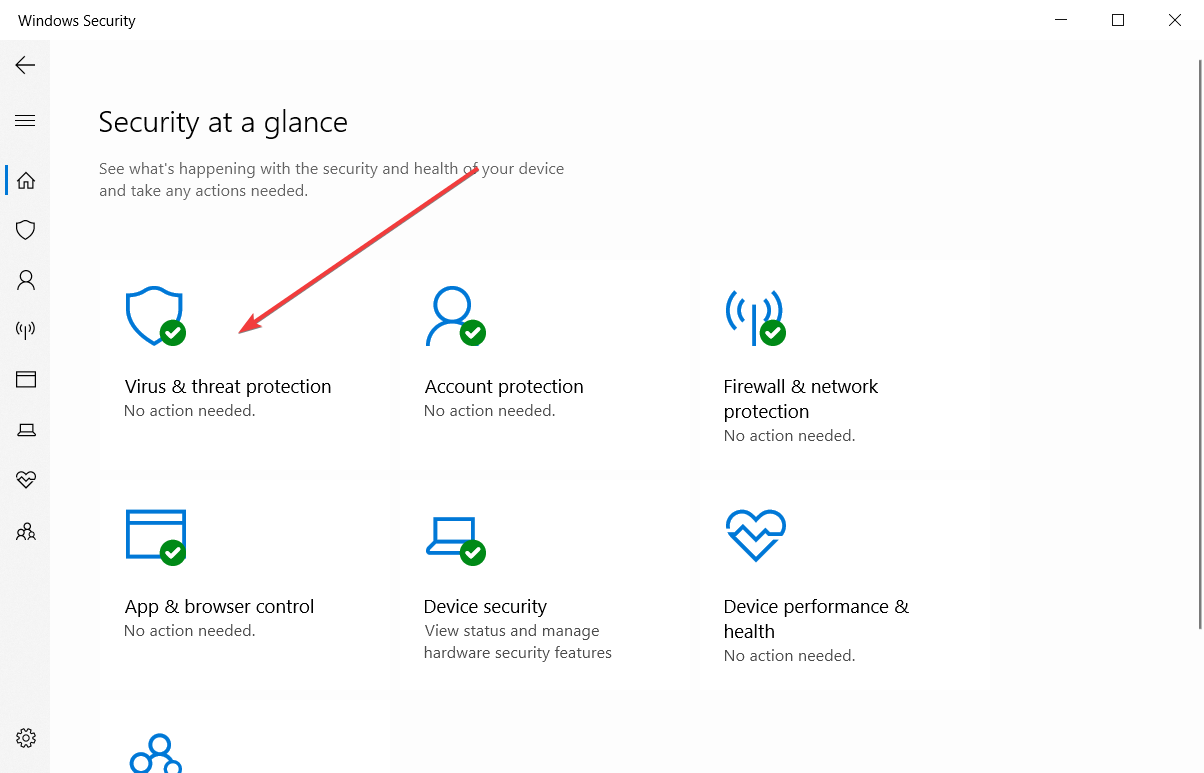
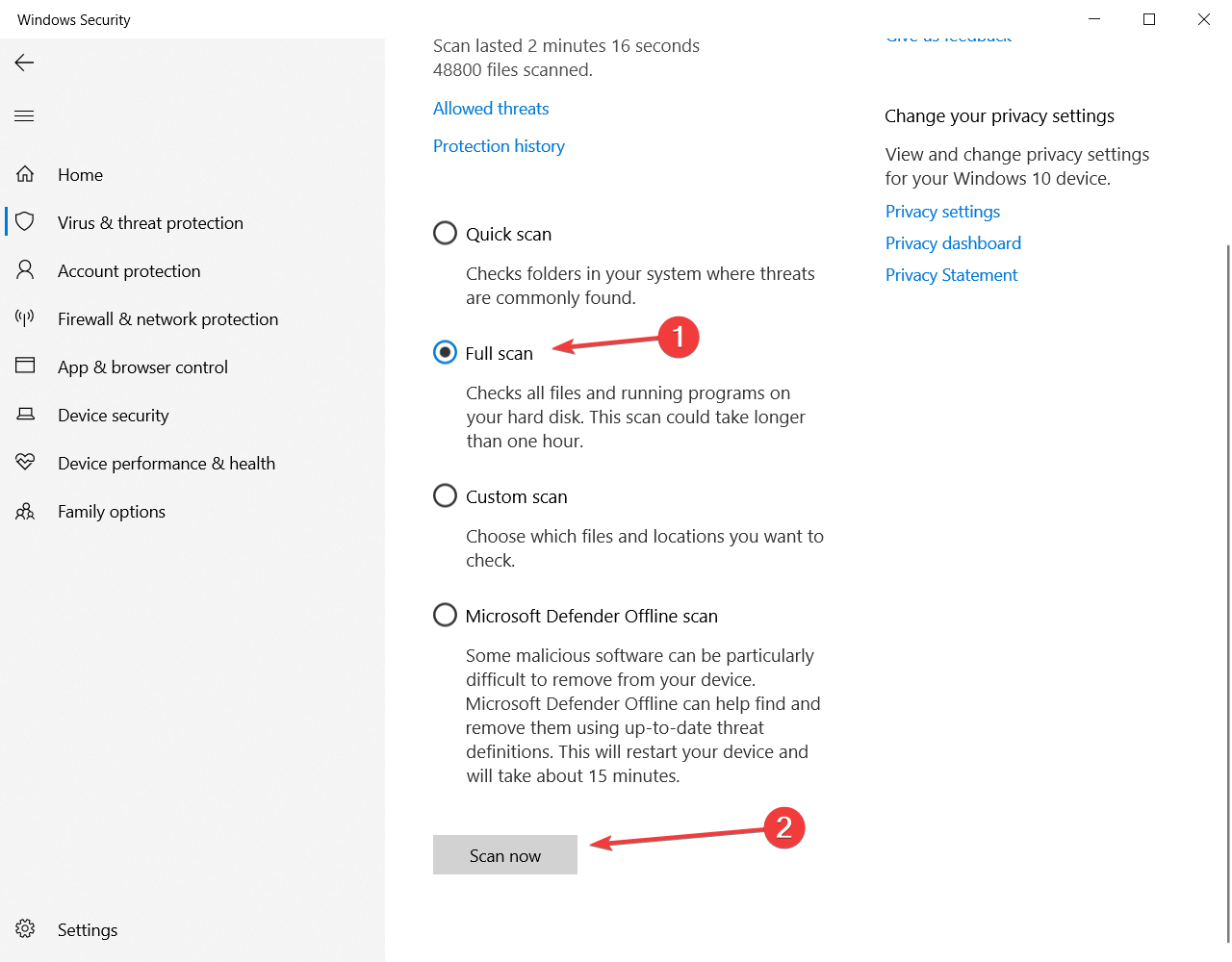







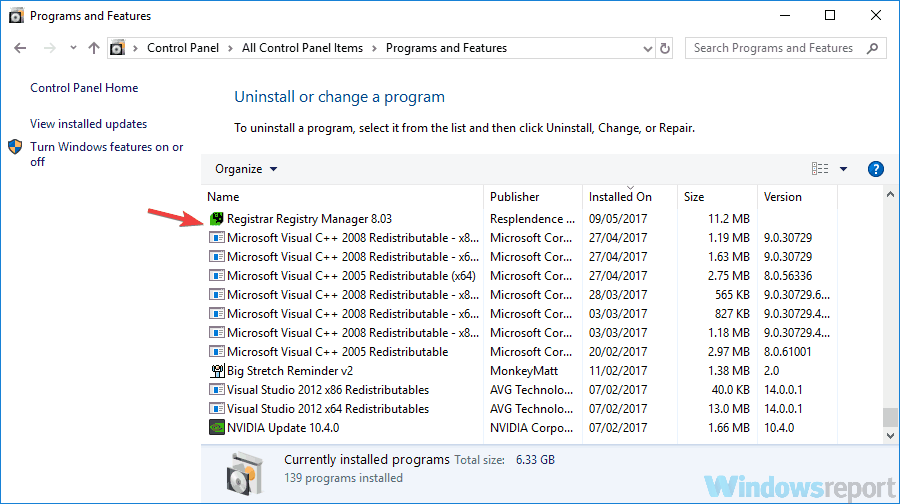

![Mailbird: A Powerful Email Client for Windows PCs [Review]](https://windowsreport.com/wp-content/uploads/2021/05/Mailbird-Review.jpg)





![Fix: Corsair Mouse Side Buttons Not Working [Scimitar]](https://windowsreport.com/wp-content/uploads/2021/05/Corsair-mouse-side-buttons-not-working-fixed-1.jpg)
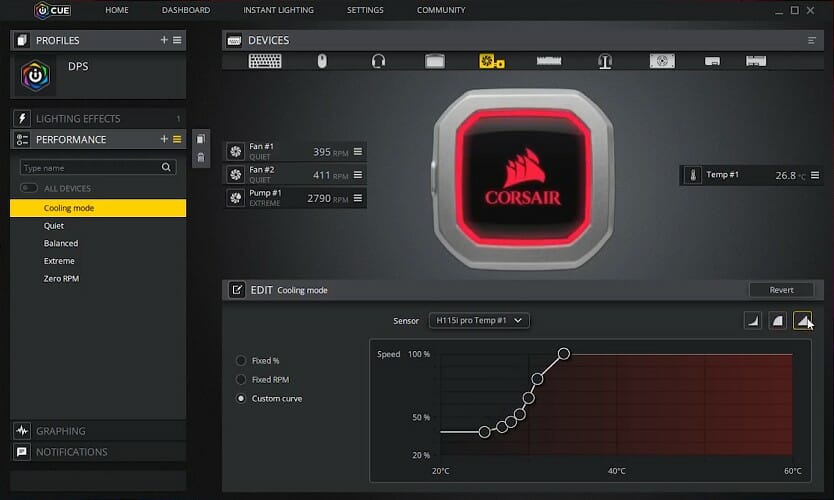


![Dymo Printing Blank Labels after Windows Update [Full Fix]](https://windowsreport.com/wp-content/uploads/2021/04/dymo-printing-blank-labels-after-windows-update.jpg)