FIX: w32tm /resync Computer did not resync error

The computer did not resync error arises for some users when they try to sync a Windows Server PC’s time with NTP server. The full error message states:

The computer did not resync because no time data was available.

The Command Prompt displays that error message for some users when they try to sync time with the w32tm /resync command. Check out these resolutions if you need to fix that issue and also the w32tm /resync access denied problem.


How can I fix The computer did not resync error?

1. Reconfigure Windows Time Service Group Policy objects

  1. To do that, launch Run with the Windows key + R keyboard shortcut.
  2. Open Group Policy Editor by entering gpedit.msc in Run and clicking OK.
    Group Policy Editor window the computer did not resync because no time data was available
  3. Click Computer Configuration to expand it.
  4. Then double-click Administrative Templates on the left of the window.
  5. Select System and Windows Time Service, which includes a Global Configuration Settings policy.
    Global Configuration Settings policy the computer did not resync because no time data was available
  6. Double-click Global Configuration Settings policy to open further options for it.
  7. Select the Not Configured radio button on the window that opens.
  8. Click OK to confirm.
  9. Then select Time Providers on the left of the window.
    Time Providers the computer did not resync because no time data was available
  10. Double-click Configure Windows NTP Client, Enable Windows NTP Client, and Enable Windows
  11. NTP Server to open those setting windows.
  12. Then select the Not Configured options for Configure Windows NTP Client, Enable Windows NTP Client, and Enable Windows NTP Server.
  13. Click the Apply buttons on the windows to save changes.
  14. Thereafter, you’ll need to restart Windows for changes to come into effect.

Microsoft’s official resolution for The computer did not resync error is to reconfigure Windows Time Service Group Policy objects to Not Configured.


2. Edit the registry

  1. Open Run’s Open text box.
    Registry Editor the computer did not resync because no time data was available
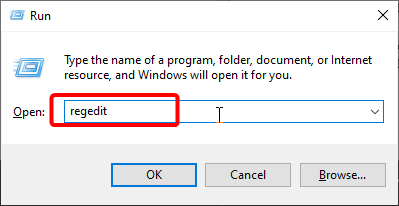
  2. Type regedit the Open box, and click the OK button.
  3. Open this registry key:
    • HKEY_LOCAL_MACHINE/SYSTEM/CurrentControlSet/Services/W32Time/Parameters
      Parameters registry key the computer did not resync because no time data was available
  4. Double-click the Type string to open the window in the snapshot below.
  5. If the Type string isn’t there, right-click an empty space on the right of the window and select New, then select String Value. Enter Type in the text box for the new string.
  6. Clear the Value data box. Then enter NT5DS in the Value data box.
  7. Click the OK button.
  8. Thereafter, restart Windows.

3. Run an extended Windows Time (w32tm) command

  1. An extended w32tm command might fix The computer did not resync error. Open the search tool with the Windows key + S hotkey.
  2. Enter the keyword cmd to search for Command Prompt.
  3. Right-click Command Prompt and select Run as administrator to open an elevated Prompt.
  4. Type this lengthy command into the Prompt’s window:
    w32tm /config /manualpeerlist:time.windows.com,0x1/syncfromflags:manual/reliable:yes /update
  5. Press the Enter key to initiate the command.
    w32tm /config command the computer did not resync because no time data was available

You can also review this guide on how to configure an NTP server in Windows to ensure your system uses the correct time source and avoids future sync failures.

So, that’s how you can fix The computer did not resync error so Windows syncs with time server. Those remedies will probably be enough to fix the issue for the majority of users.

However, there might be other resolutions; and users who have fixed the same issue with other methods are welcome to share them below.


PowerDirector 365: Features, Price & Value [Full Review]

Nowadays, with the help of powerful PCs and vivid imagination, pretty much anyone can start editing photos and videos as if they were an expert.

However, the difference between a good editor and a great one is the tool they use to create. For those who want to be great, the obvious choice is CyberLink’s PowerDirector 365.

Those unfamiliar with Cyberlink’s PowerDirector 365 think of it as the consumer-friendly versions of professional market software titles Premiere Pro and Avid Media Composer.

PowerDirector is loaded with all of the same essential editing tools as peers, and it supports all of the latest formats and technologies.

In addition to being a fraction of the cost, it also includes unlimited access to a royalty-free stock video, image, and music catalog that is powered by the industry-leading Shutterstock.

PowerDirector 365 Features

The latest version of PowerDirector comes packed with exciting new features. With an updated mask designer, dynamic keyframe controls, customizable motion graphic titles, green screen editing, and the ability to add customized shape objects to create text bubbles and callouts within your videos, to name a few.

Whether you’re new to editing or a seasoned pro, there are also instant creation tools to allow you to select templates from a vast library that are pre-designed with titles, transitions, and effects that you can then customize with a few clicks.

PowerDirector 365 is available as a subscription plan for $70/yr – significantly cheaper than its closest competitor Adobe’s Premiere Pro, which costs more than $240/yr.

With PowerDirector 365, you’ll also get much more with its subscription plan.

Here’s a list of the features that you will get with a PowerDirector 365 subscription:

  • Unlimited access to hundreds of thousands of premium and royalty-free stock photos, video footage, and background music from Shutterstock
  • Unlimited access to CyberLink premium plug-ins, templates, cinematic effects, motion graphic titles, LUTs, and pro-level effects for video editing
  • Expansive audio library with a growing collection of sound effects and background music tracks
  • Always up-to-date with the latest features and updates
  • Priority customer support

PowerDirector 365 System Requirements

  • OS: Windows 10, 8.1, 8, 7 (64-bit only)
  • Processor: Intel Core i-series or AMD Phenom II and above
  • Graphics:
    • Standard Video: 128 MB VGA VRAM or higher
    • 360-video: DirectX 11 compatible
    • AI Plugin: 2GB VGA VRAM or higher
  • Memory: 4GB required (6 GB or above recommended)
  • Hard Disk Space: 7 GB
  • Burning Device: Burning drive is required for disc burning purpose
  • Sound Card: Windows compatible sound card is required
  • Internet Connection: Required for initial software and file format activation, downloading software updates (patches), and accessing to DirectorZone services
  • Screen Resolution: 1024 x 768, 16-bit color or above

Installing PowerDirector 365

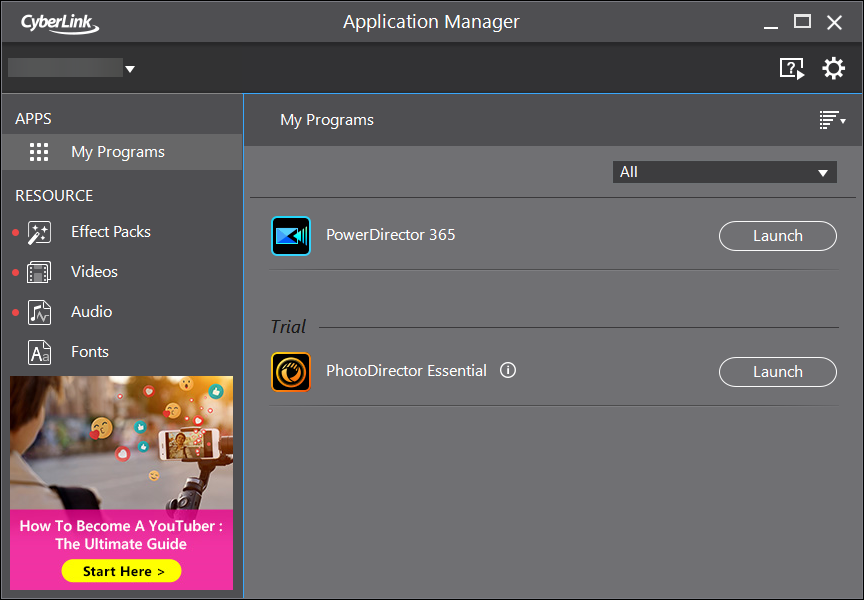
Once you’ve subscribed to PowerDirector 365, you will be able to access the program through the CyberLink Application Manager. 

The application manager will also manage the software’s updates, as well as manage the additional plug-ins and effects that the PowerDirector 365 subscription provides. 

Note: You will need an Internet connection to access your PowerDirector 365 license.

How do I get CyberLink PowerDirector 365?

Downloading and installing PowerDirector 365 is easy, and it all starts with creating a CyberLink account. Proceed with the following:

  • Go to the official PowerDirector 365 website
  • Select Buy Now
  • Select Annual or a Monthly Plan
  • Create a CyberLink account
  • Make your purchase
  • Open the CyberLink Application manager and download PowerDirector 365

How do I use PowerDirector 365?

The best part of PowerDirector 365 is the powerful core editing software that is not only feature-rich but it’s also easy to handle, even if you’re completely new to the video editing process.

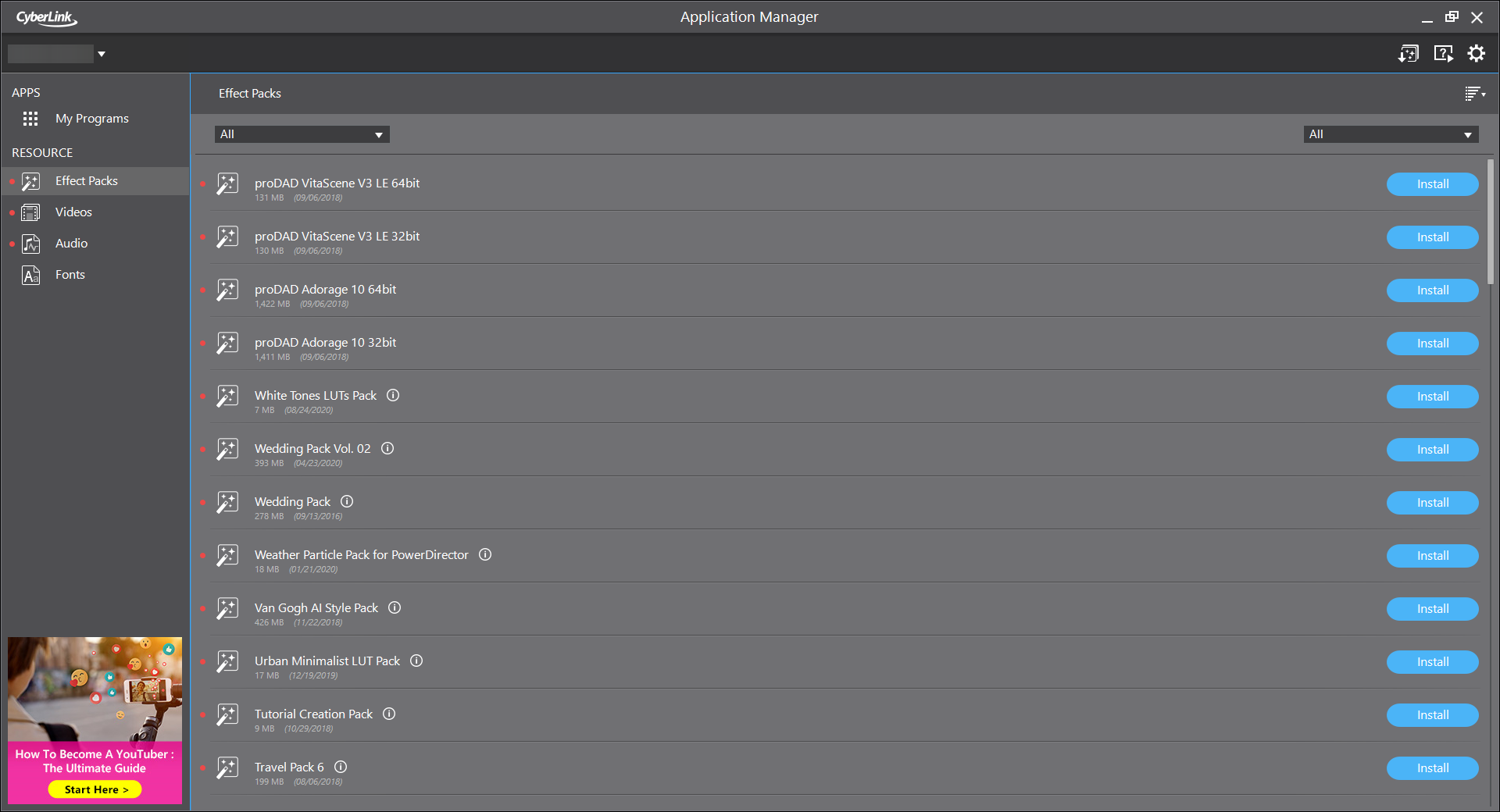
All of the additional content that you can download besides the base program can also be downloaded, updated, and removed with the App Manager, and these include:

  • Effect packs
  • Video packs
  • Audio packs
  • Font packs

Is PowerDirector 365? for professionals?

The great thing about PowerDirector 365 is that it caters to both novice and expert editors alike.

What makes PowerDirector standout is that it packs all of the amazing features of its competitors and more into a substantially more affordable package.

PowerDirector caters to every level of the editor. Advanced editors can go straight into full mode, and the interface will feel familiar with every editing tool that is standard to professional-grade platforms.

If you are new to editing, there are also options for a more approachable introduction to your first project. Additionally, you’ll have full access to their Learning Center, with many video tutorials to guide you at any step in your editing journey.

There’s a wide variety of design packs that the PowerDirector 365 subscription includes that will allow you to expand the horizons of what you can create.

Go from stitching together clips to creating professional-grade cinema just by upgrading to the PowerDirector platform.

Even if you’re unsure about committing to an entire year’s subscription, you can go month-to-month while you explore the platform.

There’s even a free version with limited features that you can try before subscribing.

Professional video editing with an incredible pricing

PowerDirector 365 subscription:

  • Annually – $54.99
  • Monthly – $19.99

PowerDirector 365

Enjoy one of the world’s leading video editing tools, now available as a subscription service with additional benefits!
Free trial Visit website

Closing thoughts on PowerDirector 365

Pros
More plug-ins compared to PowerDirector
New plug-ins and effects added each month
Unlimited access to Plug-ins and Effects
Very cheap annual upgrade option
Automatic product updates
Additional cloud storage
Cons
Internet access is required to use the software

Have you tried Cyberlink’s PowerDirector yet? Let us know what you think about this service by leaving us a message in the comments section below.

Star Wars: Squadrons video game to get free The High Republic content on Xbox and other platforms

Announced during the Star Wars: The High Republic livestream earlier this morning, the recently released Star Wars: Squadrons video game will be getting a new cosmetic item inspired by a lightsaber from Lucasfilm’s new publishing initiative.

The lightsaber item will unfortunately just be a cockpit flair with which players can decorate their ship with though this does make sense given that the Squadrons game is purely a dogfighting title and has no lightsaber-wielding characters.

This Star Wars: The High Republic item will be added to the game for free, much like the variety of items inspired by The Mandalorian that were added last year.

The High Republic lightsaber in Star Wars Squadrons video game on Xbox One and Xbox Series X

Star Wars: The High Republic is a new set of Star Wars stories set hundreds of years before the events of Star Wars Episode I: The Phantom Menace. Unlike The Mandalorian which is a live action TV series, all of the High Republic stories will be restricted to novels, children’s books, and comic books. The first books in the High Republic line, Light of the Jedi and A Test of Courage, launched today. The first issue of the Star Wars: The High Republic comic book series launches tomorrow.

Are you interested in the Star Wars: The High Republic? Would you like to see more content from it added to Star Wars video games? Let us know why or why not in the comments and then follow us on Pinterest and Twitter for more Xbox gaming news.

STAR WARS™: Squadrons
Developer:
Electronic Arts
Price:
Free

How to watch discovery+ outside the US

Discovery has recently announced the global rollout of its discovery+ streaming service.

However, as you’d expect, there are a few catches. One of the most important ones is that discovery+ isn’t exactly available everywhere.

Furthermore, it seems that, as with many other streaming services, US residents have it best. A question from the FAQ section reads as follows:

Can I access your shows while outside of the US?

Unfortunately, this app is only available in the U.S. and supported territories. However, most of our networks are global and we have apps and sites for each region, depending on your location.

Discovery Plus FAQ

But that shouldn’t stop you from trying to enjoy discovery+, now should it?

No, the truth is that you could still enjoy discovery+ even without being on US soil. And we’ll show you exactly how.

How can I watch discovery+ outside the US?

  1. Buy a VPN subscription (we recommend PIA)
  2. Download and install the VPN client
  3. Launch the VPN client
  4. Log in to your account
  5. Connect to a VPN server*
  6. Head over to the discovery+ website
  7. Enjoy streaming

*Get started by connecting to a VPN server inside the US. For example, we managed to connect with the Texas server. However, don’t be afraid to explore more server options.

Using a VPN is currently the most popular solution to unblock various geo-restricted content.

Given that discovery+ receives the geoblocking treatment much like many other streaming platforms, turning to VPNs makes sense.

Furthermore, you’ll also benefit from increased privacy and security if you choose a VPN.

We recommend Private Internet Access because it has an impressive range of security and privacy features, in addition to an outstanding network of servers (over 22,000 and counting).

Private Internet Access

Private Internet Access

Want to watch discovery+ from outside the US? PIA can help you with that.
Check priceBuy it now

Can I watch discovery+ for free?

It may sound weird, but apparently some countries can watch discovery+ for free, at least for now.

India, for instance, lets you access the page and watch discovery+ content without even asking you for an account.

If you try the same for the US or the UK, you’ll most likely face a login prompt, which will stop you in your tracks.

There may be other countries where you could watch discovery+ for free, we just haven’t figured them out yet.

So you may want to experiment with a VPN, try connecting to different countries, and access discovery+. Maybe you’ll hit the jackpot.

In this case, you could also try using a free VPN. However, you shouldn’t expect it to work 100%, as free VPNs are generally easier to detect.

Conclusion

To wrap it up, a VPN is your best course of action if you’re trying to access discovery+ from outside the US.

Furthermore, there are some countries where the service is (still) free, such as India.

Keep in mind that the service has its share of issues, and many have reported Discovery Plus error 400, but we have a guide dedicated to fixing this issue.

You could try and access discovery+ from various countries using a free VPN, just don’t expect it to work 100% of the time.

How to hide browsing history from your ISP [Privacy Guide]

Your ISP sees everything that you do online, including all the websites you visit. Using this information, they can personalize ads based on your location and product preferences.

In a lot of cases, Internet service providers are required by law to collect and store customer data for a limited period of time, so that legal investigation agencies can counteract cybercrime.

An ISP may also throttle network bandwidth if you’re engaged in streaming or torrenting activities.

Throttling can also be used to force you into upgrading to more expensive subscription plans with superior Internet speed.

So it shouldn’t come as a surprise that most privacy-concerned users are constantly looking for solutions to hide their browsing history from their ISP.

For instance, if you ever tried to use a web browser in incognito or browsing mode, know that it won’t prevent your ISP from monitoring your data.

Google Chrome clear explains this:

But we’re here to guide you on the right path and show you how to improve your online privacy by concealing your browsing activity from your Internet service provider.

How can I hide my browsing history from my ISP?

Use a VPN

PIA

A VPN service offers the easiest way to stop ISP tracking on Windows 10, Mac, Android, iOS, and any other platform.

You can use a virtual private network solution to hide the fact that you’re browsing, torrenting, gaming, or streaming, thanks to encryption.

But we advise against using free VPNs because they usually leak your IP address and compromise your integrity.

Instead, consider investing in a premium VPN service since it will tremendously help you on the long haul.

And we can’t think of a better candidate than Private Internet Access. It provides 256-bit military-grade encryption through OpenVPN.

You can also check out WireGuard, a newer, faster and just as secure protocol if you’re looking to block ISP spying on your computer.

When using a VPN, it’s essential to understand that you’re basically trusting the VPN provider with your data, instead of your ISP. That’s why you must opt for a VPN service that offers a zero-logging privacy policy.

Private Internet Access is a prime example in this case. It’s one of the few VPN services that proved its no-logging claims in court (twice).

More about PIA:

  • Exclusive DNS servers
  • VPN kill switch
  • Shadowsocks and SOCKS5 proxy
  • 24/7 live chat support
  • 30-day money-back guarantee (no free trial)
  • Pay with a credit card, PayPal, or crypto

Private Internet Access

Use a reliable VPN like PIA with a zero-logging privacy policy (proved!) to hide your browsing activity from your ISP.
Check price Buy it now

Change your DNS settings

You DNS servers are responsible for translating the domain names you enter in your browser address bar into IP addresses. It’s the way in which computers communicate with each other over the web.

By default, your ISP assigns your DNS servers. So, if your DNS resolver is poisoned, you risk exposing your web navigation details, downloads, torrenting and streaming activity to your ISP.

Here’s how to change your DNS settings on Windows 10:

  1. Right-click the Start button and go to Network Connections
  2. Click Change adapter options
  3. Right-click your Internet connection and select Properties (you need admin rights)
  4. Double-click Internet Protocol Version 4 (TCP/IPv4)
  5. Select Use the following DNS server addresses
  6. Set Preferred DNS server to 8.8.8.8
  7. Set Alternate DNS server to 8.8.4.4
  8. Click OK

In our example above, we used the Google Public DNS servers because they’re free, fast, and secure. You can also try CloudFlare or OpenDNS.

If you have IPv6 connectivity, make sure to also modify your IPv6 DNS server addresses.

However, if you’re the owner of a trustworthy VPN service like Private Internet Access (buy here), you don’t have to do anything.

That’s because PIA runs its private DNS servers as soon as you connect to a VPN server. It enhances your online privacy since you’re already encrypting your data traffic with a VPN.

Use Tor (The Onion Router)

The Tor anonymity network amplifies your online privacy and stops your ISP from seeing what you browse or download. It’s particularly great for users looking to defeat government censorship.

Tor encrypts and reroutes your data traffic through multiple nodes all over the world before it reaches its destination. It makes sure that no one can understand who you are or what you’re doing on the Internet.

All you have to do is download the Tor Browser, fire it up, and surf the web as if you’re using a regular browser.

If you’re worried that your VPN provider may not be truthful about its no-logs claim, you can install the Tails operating system, which is based on Tor.

Tails redirects all computer traffic through Tor. So, after installing your VPN service and connecting to a VPN server on Tails, your ISP or VPN provider will not be able to track you down.

Visit only HTTPS websites

HTTPS websites use SSL certificates to provide end-to-end encryption. It’s one of the best ways to protect your computer from eavesdroppers.

Using HTTPS instead of HTTP is also a great way to prevent your ISP from monitoring your data usage. And the simplest way to enforce HTTPS pages is by installing a web browser extension.

For example, Private Internet Access (buy here) has a browser addon with an integrated HTTPS feature. Otherwise, you can set up HTTPS Everywhere.

Keep in mind that an HTTPS browser extension won’t work outside of the web browser, such as torrent clients. A VPN is better in that case.

Use a secure search engine

open source privacy software

In 2019 alone, Google made almost 135 billion US dollars in ad revenue. It made it happening by collecting your data and creating attractive ad opportunities for third-party marketing agencies.

Your ISP also has a big role in this. But you can block IPS and Big Data companies from monitoring you by turning to a secure search engine as an alternative to Google, Yahoo!, and others.

DuckDuckGo is an excellent privacy advocate that ensures private search, tracker blocking, and site encryption. You can also try Startpage or other private search engines.

Conclusion

To recap, you can prevent your ISP from monitoring your downloads, browsing, and other online activities by getting equipped with a dependable VPN service like Private Internet Access (buy here).

You can also change your DNS settings, join the Tor anonymous network, access only HTTPS websites, and resort to a secure search engine like DuckDuckGo.

OneNote app does not sync on Windows 10

Microsoft OneNote is a great app for taking notes, compiling data, and organizing information. The best part is, it syncs with the cloud, meaning you can access your notes everywhere.

It is multi-platform, meaning it is available on Android, iOS, macOS, and the Web, besides being available on Windows 10 devices. But this cross-platform design comes with a problem.

Desktop users may frequently face problems when trying to sync data to and from the cloud. This is quite a common problem with the desktop version of OneNote on Windows 10.

In this guide, we look into some of the most common sync errors (notebook/particular section won’t sync, sync conflicts arise, storage issues show up, etc.) and how they can be resolved.

How do I fix OneNote that won’t sync

1. Install the latest updates

Firstly, it is worth noting that whatever problem you may be facing could be a result of an issue with the OneNote application itself. This is why you need to make sure that you have the latest updates installed. Updates will often contain fixes for bugs that may be causing your problems. To check for updates go to File > Account. Click on  Office Options then click on Update Now.

2. Check your Internet connection

Also, a no-brainer, make sure you are actually connected to the Internet before you attempt to troubleshoot OneNote. More often than not, sync issues are a result of bad Internet connections.

You can check your internet connection by looking on the right-down corner, where you should see a Wi-Fi icon or the Ethernet icon. You can also just open an internet page and see if it loads. 

If there are any issues, troubleshoot the problem with the help of your Internet Provider.

3. Manually sync the particular section

  1. Go to File then click on Info.
  2. Click View Sync Status, or right-click on the Notebook you want to sync and click on Notebook Sync Status.
  3. Under Shared Notebook Synchronization, you will find the Sync now button, click on it.

Note: This is a OneNote built-in solution to the problem of a particular section not syncing. 

4. Copy the pages to a new section

  1. Select the + tab or Right-click on the navigation bar,  and select New Section.
  2. Name the new section.
  3. Go to section with the sync problem, right-click on each of its pages and click on Move or Copy.
  4. Select the new section as the destination, and click Copy.

Note: Once you’ve followed through these steps, you can now use the manual sync method described above to sync the new section. Once you’ve synced the section, right-click on the old section and select Delete.

5. Empty the OneNote Recycle Bin

  1. Select the History tab.
  2. Select the Notebook Recycle Bin button.
  3. Right-click on the old section and click on Delete.
  4. You can also select Empty Recycle Bin and delete everything.

Note: The section you’re about the delete may contain important pages. Make sure you copy them before you permanently remove the section from the recycle bin.

Sometimes, when you remove a particular section that isn’t working or that you don’t need anymore, it may end up causing sync problems. For this reason, you need to remove them from the OneNote Recycle Bin. 

6. Fix misplaced sections on OneNote

A section of your notebook could get misplaced when you’re trying to share it with other users. This happens when OneNote tries to sync the changes made to the section but cannot find the section file.

When this happens the notebook gets marked with an icon in the Notebooks list. There are two solutions to this problem, move the misplaced section to another notebook, or delete that section.

Move the misplaced section

OneNote lets you manually resolve the problem of a misplaced section by letting you move the particular section.

  1. Right-click on the tab for the misplaced section.
  2. Select Move or Copy.
  3. Select the target notebook as the destination.
  4. Click on Move or Copy depending on what you would like to do.

Delete the misplaced section

If you’re sure that you do not need the section that has been misplaced, you could simply delete it to resolve the issue. Follow these steps:

  1. Under the Notebooks list, select Misplaced Sections.
  2. Right-click on the misplaced section you would like to remove and click on Delete.

7. Check if the notebook is accessible on the web

  1. Go to File then Info.
  2. You should find the link right below the notebook. Select the link then right-click on it and click Copy.
  3. On the web browser of your choice, enter the link you just copied and hit enter to open the notebook.

Note: If your notebook is accessible via the web browser then this confirms that there is a problem with the desktop app. If not, it could be a service error.

If the problem is with your desktop app, one of the simplest solutions to get your notebook to start syncing again is to close and reopen it. This should reset the connection, and get your notebook to start syncing again.

8. Check the sync status

If you were able to access the notebook online, but the changes you recently made weren’t added to it, you should check the sync status of the notebook to confirm whether or not it was synced. 

To check the status, go to File then Info, and from the right side select  View Sync Status. In the new windows, you will see an error message below the notebook with the issue.

If possible, click on the Get Help button in order to access more troubleshooting steps. If that’s not available,  note the error message and do a quick online research.

10. Check the service status

If you were not able to access the notebook online via a web browser, there could be a problem with the OneDrive service itself. To confirm this, open a web browser of your choice and proceed to the Office portal.

If the services are up and running, you should see a green screen with a tick mark, and the message  In case there is nothing wrong with the services, you should contact Microsoft for further assistance on your issue.

Make sure that you keep OneNote open and signed in during the troubleshooting process. You could potentially lose your data otherwise.

11. Fix content sync conflict on OneNote

When two or more people try and edit the same piece of text simultaneously, this will result in synchronization conflicts. These conflicts are automatically detected by OneNote which then proceeds to create multiple copies of the same page. This will be indicated via a yellow message that appears on the top of the page.

To prevent this issue from showing up in the future, make sure only one user is editing a page at a time. Or you could coordinate who edits which section.

To resolve this issue, you will need to copy the edited content to the main page and then proceed to delete the other page. To do this, click on the yellow message, copy the content from the temporary page, and paste it onto the primary page.

12. Fix storage sync conflicts on OneNote

You may occasionally run across error code 0xE00015E0. What this means is, either your file is too big to sync, or that your local device is low on space. Usually, it’s because OneNote has a lot of backups stored.

Here’s how you can resolve these issues.

Remove unnecessary backups

  1. Press the Windows key + R to open the Run dialogue.
  2. Paste the following and hit enter: %localappdata%.
  3. Double click on the Microsoft folder, then OneNote.
  4. Here click on the folder with a name corresponding to the version of your application (16.0 for OneNote 2016, for instance),
  5. Open the Backup folder.
  6. Delete all the backup files that you no longer need.

Optimize files and reduce automatic backups

  1. Go to File then Options.
  2. Select Save & Backup.
  3. Under Optimizing files, select Optimize All Files Now.
  4. Under Backup, reduce the number of backup copies to keep.

All of the above steps should help you out when OneNote is giving you trouble with synchronization.

If you are looking for a great alternative solution to OneNote, we recommend you Evernote. It will help you to store everything from personal moments to business projects, safe, always secure, and ready whenever you need them.

You can use it on multiple devices so your important notes are with you wherever you go. Read more about this excellent software in our Evernote guide.

Posted in Fix

Something went wrong while downloading your template [Fix]

MS Office 2013 users can utilize templates for preformatted documents. However, some Office users have said that a Something went wrong while downloading your template error message pops when they try to download templates.

Consequently, users can’t get new templates from within Word, Excel, or PowerPoint. These are some of the resolutions that have fixed the Something went wrong while downloading your template error for MS Office users.

How do I fix the downloading template error?

1. Get a template from the Office templates and themes page

download template Something went wrong downloading template

Note that you don’t need to download templates from within Office applications. You can manually download templates from Office templates & themes on Microsoft’s website.

Select a theme there, and click its Download button. That won’t fix the Something went wrong while downloading your template error within Office applications, but you can still get themes nonetheless.

2. Uninstall Visio Viewer

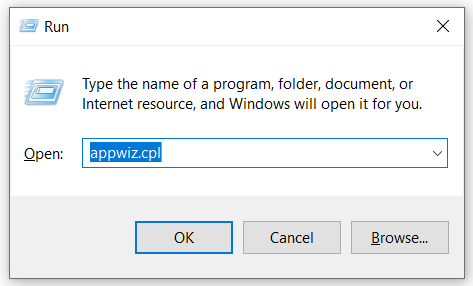
  1. Press the Windows key + R keyboard shortcut to launch Run.
  2. Enter appwiz.cpl in Run and click OK to open the uninstaller Control Panel applet.
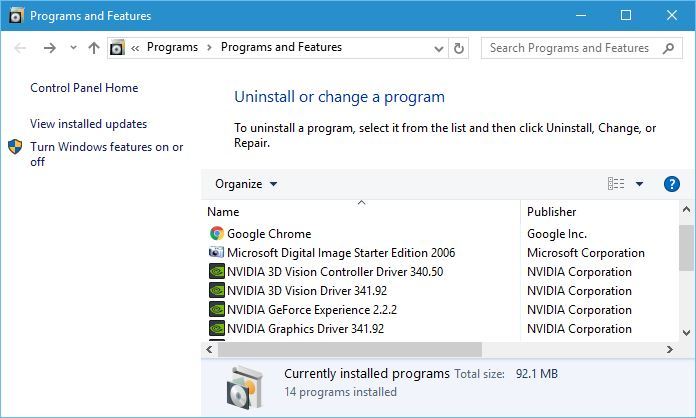
    uninstall application Something went wrong
  3. Select the Microsoft Visio Viewer, and press the Uninstall button.
  4. Click Yes on any dialog box window that opens.
  5. Restart Windows after uninstalling Visio Viewer.
  6. Alternatively, users can uninstall Viso with its uninstaller. To do that, press the Windows key + Q hotkey and enter Visio Viewer in Cortana’s search box.
  7. Then right-click Visio Viewer and select Open file location.
  8. Click the Uninstall.exe in Visio Viewer’s folder to remove the software.

Note: Lots of Office users have stated that uninstalling Visio Viewer fixes the error. That’s the software that enables users to preview their Visio pictures within Internet Explorer. 

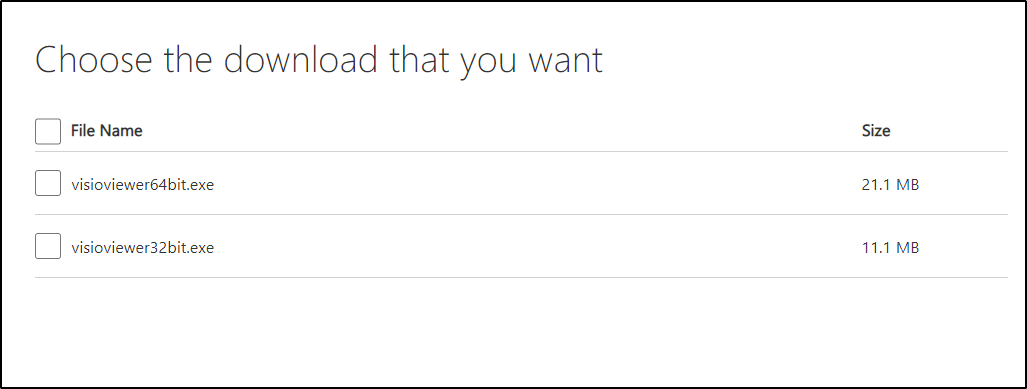
If you need to keep Visio Viewer, you can try reinstalling it. Click Download on this VV page. Then select either visioviewer64bit.exe or visioviewer32bit.exe and click Next to download the 64 or 32-bit version that matches MS Office’s bit version.

In addition, if you experience problems uninstalling Visio Viewers or other problematic applications on your PC, you can rely on other best uninstaller software that completely removes certain programs.

3. Repair MS Office

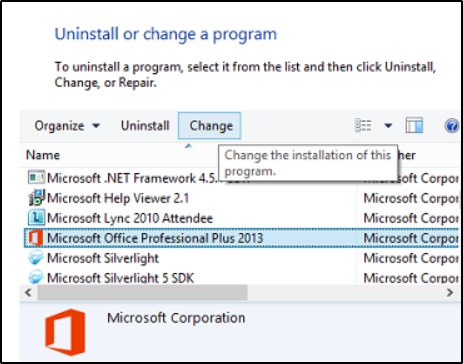
  1. Open the Run accessory.
  2. Input appwiz.cpl in the Open text box, and click the OK button.
  3. Next, select the MS Office suite listed within the Programs and Features Control Panel applet.
  4. Then press the Change button.
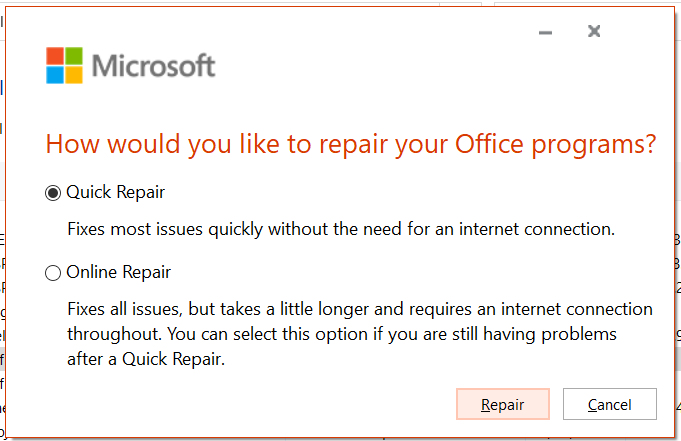
  5. Select the Repair option.
  6. Users can then select a Quick or Online Repair option.
  7. Press the Repair button.

Note: A better alternative Is to use Stellar File Repair, a tool designed to repair office files. It can fix several corrupt files such as PowerPoint presentations, Excel spreadsheets, ZIP archives, and Word documents.

4. Deselect the Allow Office to connect to the internet option

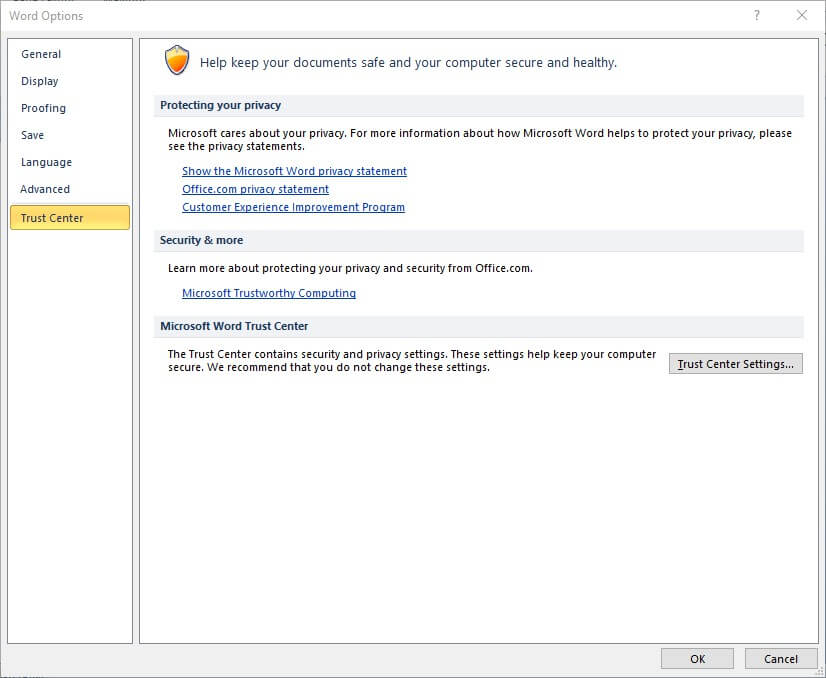
  1. Click File and Options in an Office application.
  2. Then click Trust Center on the left of the window.
    word options something went wrong downloading template
  3. Press the Trust Center Settings button.
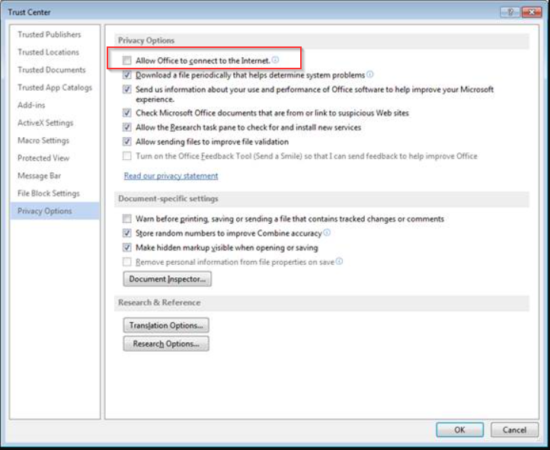
  4. Click Privacy Options on the left of the Trust Center window.
  5. Deselect the Allow Office to connect to the internet setting.
  6. Click the OK button on the window.

The above solutions are all confirmed resolutions and will fix the Something went wrong while downloading your template error for most MS Office users.

Then you can download the templates you need within Microsoft Office applications again.

Microsoft Edge starts rolling out History and Tabs sync to non-Insiders

Back in November 2020, Microsoft Edge Canary and Dev channels gained the ability to sync browsing history and open tabs across devices. While the new feature was only available to Edge Insiders until now, it appears that some non-Insiders are also starting to see this in the stable version of the browser.

According to Thurrott.com, the feature was spotted by a Twitter user that had Edge Stable with version 87, though we believe that it has yet to reach all users. The change appears to be a part of the controlled rollout strategy, so you may have to wait for a bit to see it on your machine. Unfortunately, we are not seeing it yet on a couple of Windows 10 PCs we checked.

To use this feature, you need to enable these sync options in Edge manually. To do this, head over to the Settings Settings and more ( … ) > Profiles > Sync. On this page, you should use the toggle buttons to enable Open tabs and History sync options and finally restart the browser.

Needless to say, this is definitely a welcomed change, as makes it easier to access browsing history and web pages across different devices. In case you missed it, the company has listed new Microsoft Edge features that will roll out to users in the stable channel with version 88 later this month. The list includes Vertical tabs, Password Monitor, Sleeping tabs, the ability to reset your sync data, and more. If you’re interested, feel free to check out the Microsoft Edge Roadmap for details.

Microsoft Launcher gets a quality update on the Surface Duo

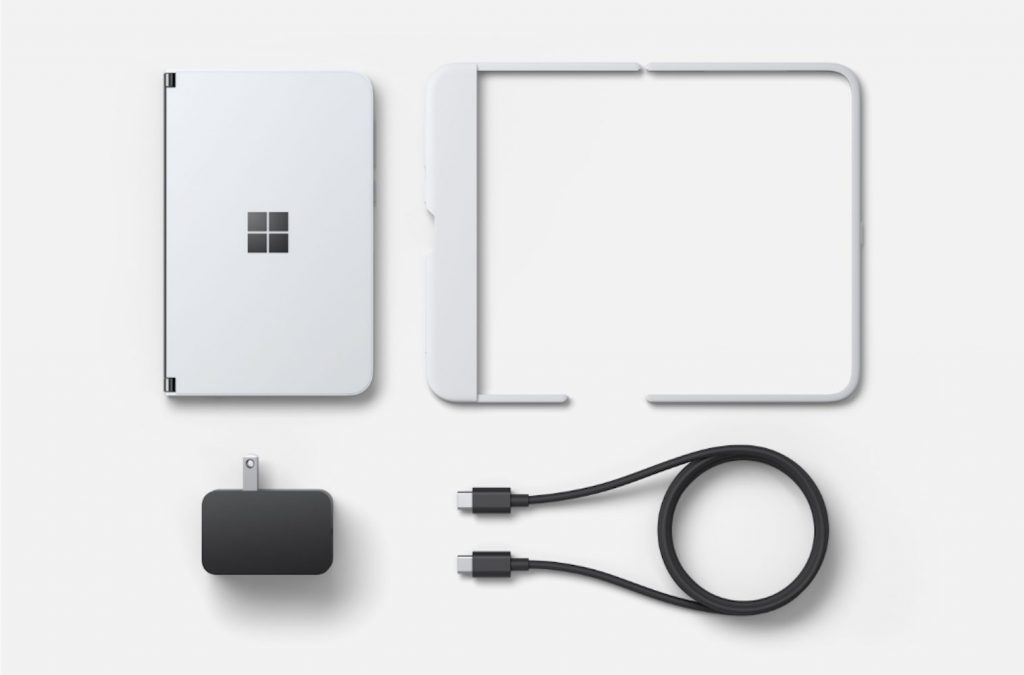
Over the holidays, Microsoft Launcher on the Surface Duo was updated to version 6.2.201102.92686. This quality update brings some small changes to the experience for those who own the Microsoft dual-screen Android device (via Windows Central.)

According to the Google Play Store listing, one of the changes includes Improvements for spacing and icon consistency in the app drawer. Other changes include support for keyboard search in the Office apps. Some of the other things that the changelog mentions don’t appear to be new, however, and have been seen in prior releases. The rest of the changelog is below.

  • Improvements on opening feed page in landscape and concurrent with another app on Surface Duo
  • Support overview on single screen of Surface Duo
  • Support screen time on Surface Duo
  • Improvement on app group creation flow via context menu
  • Multi-touch of app icon repositioning supported on home screen
  • Fixed known bugs on app drawer, app icon size, folder swipe up gesture

If you missed your chance to get Surface Duo, and want to experience Microsoft Launcher on the device, the wholesale retailer CDW is currently selling the base-model version of the Surface Duo at almost half the price. It’s selling for the all-time low price of just $740.

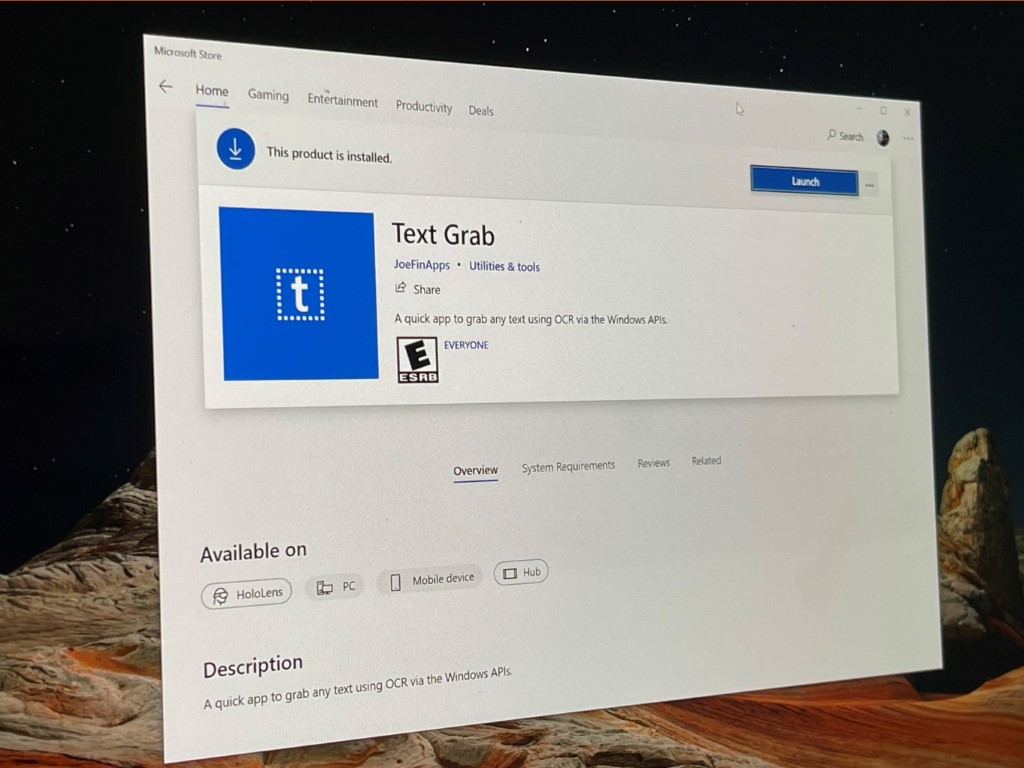
Hands on with Text Grab for Windows 10: An app that will make your life easier

One of the most common things you might find yourself doing in Windows 10 every day is copying and pasting text. Most often, it’s from a webpage, an email, or a document. But what if you want to copy text from a photo or a video (without selectable text) and paste it on your clipboard?

Usually, doing so would entail using the “search with screenshot” feature of the Windows 10 search box, and going into Bing on the web, and copying the text. Developer Joe Finney, though, has a new app that helps make the process a lot easier, without the use of the internet.

I wrote about the app the day he introduced it, but I’ve also been spending my time with it over the past few days, too. Here’s a hands-on look at the experience.

Using the Text Grab app

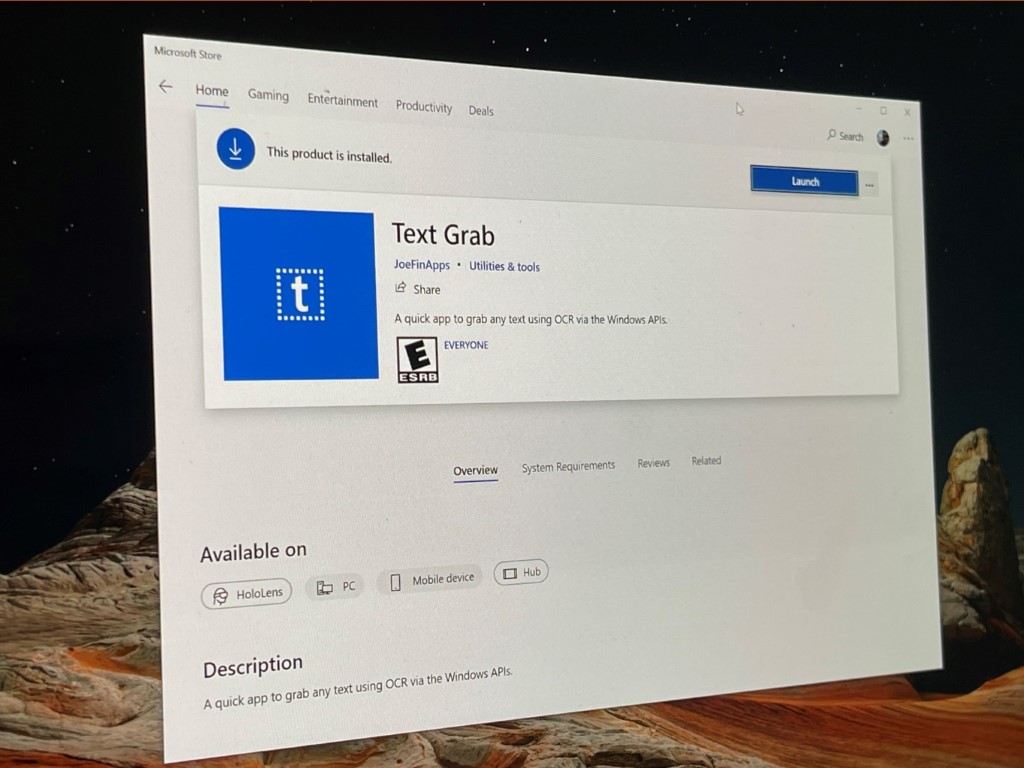
Using Text Grab is just as simple as using a screenshot tool. Once it’s downloaded from the Microsoft Store, all you need to do is launch it from the Start Menu, or pin it to your taskbar. Your screen will then change over to a lighter color, and you’ll see a pencil appear in place of your mouse. You can drag the pencil anywhere you want, and it will turn into a green box and will “grab” the text it sees on your screen. That could be text in a video, an excerpt from a PDF, or anything else you want.

Once you select from the part of the image you want, Text Grab will then paste the text to your clipboard. You can paste it anywhere you want, just as if it were always text. Most times, the end result will be pretty accurate. I’ve been using it to copy specs off supplied specs sheets, videos, and PDFs for CES related posts, and it’s been quite a time-saver, compared to having to manually drag my mouse around to copy things into my posts.

Do note that there’s also a functionality built into Text Grab where if you single-click, the app will attempt to copy the word which was clicked on. This is a function of the Windows 10 OCR, as we’ll get into next. It draws a box around each of the words it recognizes.

How Text Grab works

Ocr Joe Finn

So, how does this app work? While it sounds pretty basic, it actually functions using the Windows OCR API. For those unfamiliar, the Windows OCR is Optical Character Recognition. It’s part of the Universal Windows Platform (UWP.) The developer feature lets you extract text and text layout information from images. Unlike most apps that extract text and layout information from images, the OCR doesn’t require an internet connection. It’s also been used in Word, OneNote, OneDrive, and Office Lens. Since Office Lens has been removed from the Microsoft Store on Windows 10, this helps you fill that gap a bit.

Do note that Text Grab is also meant to be simplistic, too. It doesn’t have to run in the background all the time, and it can easily be launched with a keyboard shortcut if you pin the app to your taskbar. There’s also no clunky user interfaces with things such as a history page, or even popups asking for feedback.

Text Grab is open sourced!

The best part of Text Grab is that the app is open sourced. While Joe Finney says that his app is still a work in progress, the code for the app is available on GitHub. This means that it can change over time, with help from the community. You can check the app out here on GitHub if you’re the kind of person that likes to tinker or develop Windows 10 apps. Of course, we also invite you to check out the app via the link below, too. We’ll be having Joe on the OnPodcast this weekend, so be sure to drop us some questions that you might have for him, as well!

Text Grab
Text Grab
Developer:
JoeFinApps
Price:
$9.99


Old Windows Core “Polaris” build leaks, confirming that the ex-Microsoft project was a real thing

If you’re a close follower of Windows and Microsoft, you might remember the rumors of an operating system known as Polaris. It was believed to be a streamlined flavor of Windows Core OS for new PCs, cutting out legacy features in favor of better battery life, and performance on lower-end hardware. It was eventually canceled in favor of Windows 10X, but an early build of Polaris recently leaked online, confirming the project was actually once a thing at Microsoft (via Windows Central.)

Interestingly enough, this early Polaris build is designed for ARM32 PCs, like the Surface RT. However, it’s not really something to install, as there’s no Windows Shell, and there are no apps in the release. Zac Bowden reports that the leak is an RS3 RTM build, confirming that Microsoft has been working on the project since at least 2017. Again, though, there isn’t anything new or anything most people can play with in this leaked build. It’s rather designed for professionals who are interested in tweaking and exploring an unreleased version of Windows.

While there isn’t much to this leaked build, it’s still something you might want to check out. We don’t endorse or recommend installing it, but it’s available dow download on the Internet Archive.

Windows 10 Office Lens app has been removed from the Microsoft Store

Microsoft has removed Office Lens, the company’s free document scanning tool app for Windows 10, from the Microsoft Store. The app no longer supports certain cloud-based features, and users won’t be able to save their pictures to cloud services including OneDrive, and OneNote (via Aggiornamenti Lumia).

“Certain cloud-based services in Office Lens for Windows, such as saving your pictures to OneDrive, OneNote, Word, PowerPoint, or PDF, will become unavailable after December 31, 2020. You can continue to use other features of the app as installed on your device. In addition, Office Lens for Windows 10 will no longer be available for download from the Microsoft Store as of January 1, 2021,” the company explained.

As a recall, Microsoft launched the Office Lens app for the Windows Phone platform back in 2014. The handy tool allows users to convert their smartphones into a portable scanner for converting physical documents to Word, PowerPoint, or PDF format. The scanned documents can be uploaded to Microsoft’s OneDrive cloud storage and OneNote.

The company announced in October that Office Lens for Windows 10 is losing support by the end of 2020, and the change was detailed in a support document. While the Microsoft Store Office Lens version is no longer available, the app should continue to work on Android and iOS devices. For the best experience, you’ll need to download the latest version of Office Lens from Google Play or the App Store, though.


Microsoft’s getting closer to its ‘One Outlook’ vision with Project Monarch

According to a report from Windows Central journalist Zac Bowden, sources familiar within Microsoft are talking about a tangible timeline for the final consolidation of Outlook across platforms.

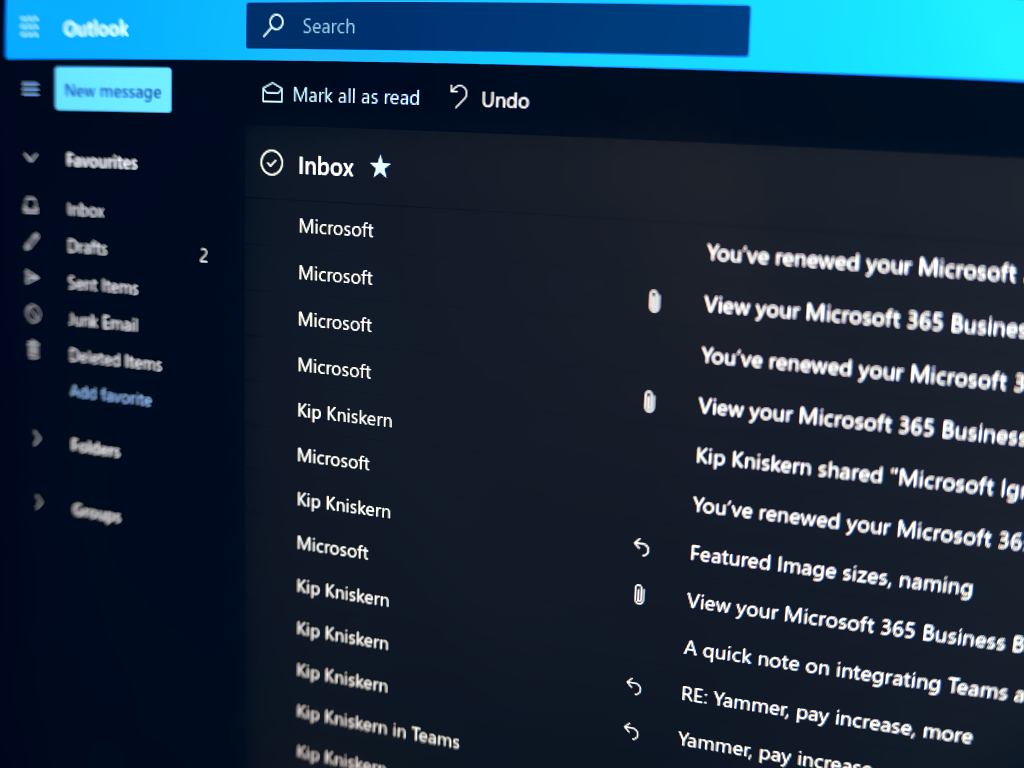
A few years ago, Microsoft spearheaded a project to redesign Outlook on the Web to bring it more in line with its own flagship enterprise email client. The result was a nicer looking web email client that still lacked most of the built-in functionality achieved by the native commercial offering of Outlook for the desktop. On top of its efforts on the web, Microsoft also divided up engineering resources to work on a more consumer-friendly in-box email client for its Windows 10 operating system that split the functionality of Outlook up between two apps simply titled Mail and Calendar. Once again, people were offered a sleeker-looking mail client that still lacked many of the features more flushed out mail services still offered.

It now seems that Microsoft is underway with a project called Monarch that intends to replace the Windows 10 desktop client with a new web app that will function identically across Mac, PCs, and the web. Other details include the web app hosting a much smaller install footprint as well as greater accessibility to users on both free and paid Office accounts while also gaining some native OS integration in the processes. Among some of the native features coming to Project Monarch are offline storage, share targets, and system notifications to start.

Microsoft watcher Tero Alhonen added to the intrigue with a screenshot of what looks to be an early look at Project Monarch:

Unfortunately, Project Monarch is a way off with Bowden reporting that testing of the new client may not happen until the end of 2021 and possible full replacement of the Mail & Calendar app in Windows happening sometime in 2022. Microsoft also wants to tackle its flagship commercial Outlook app through Project Monarch but that undertaking is even further down the road.

In the meantime, the Mail & Calendar app for Windows 10 will receive one more visual update as part of its maintenance upkeep that will showcase some early visions of the next design elements of Windows 10 via the company’s Sun Valley UI overhaul.

Again, it should be noted that Microsoft has not confirmed any of the above information, but Bowden tends to have reliable sources.

Let us know in the comments below what you make of Microsoft’s umpteenth attempt at consolidating its mail efforts.

How can I recover PowerPoint passwords within minutes?

Microsoft PowerPoint presentations usually contain important, sometimes classified, documents. Hence, most people tend to password-protect such documents against unauthorized access.

However, what happens if you forgot your password? To ensure your files are not lost forever, this article will provide you with the necessary solutions, to recover PowerPoint password.

Password protection is the most convenient way of preventing unsolicited/unauthorized access to digital files, accounts, and so on. On average, a typical individual finds it very difficult to keep track of all his passwords, and in such cases, he becomes a victim of his own trap.

At times, forgetting a PowerPoint password could mean nothing. Most times, however, it could be very damaging, especially if such a presentation contains important documents (for business or academic purpose). In this case, recovering the forgotten password becomes imperative, to enable you to regain access to the PowerPoint document.

This post will show you how to recover PowerPoint password and regain control of your PowerPoint presentation(s).

The easiest and quickest way to recover PowerPoint password is with the use of a reliable password recovery software. A typical password recovery software uses some set of decryption algorithms, to decrypt password-protected PowerPoint files, thereby providing you with a free pass to access the inherent documents.

Some programs are able to recover forgotten passwords, while others simply reset the passwords to simple, less complex, ones. Either way, you are able to recover PowerPoint password and access your .ppt documents.

What are the best programs to recover PowerPoint passwords?

Stellar Password Recovery

Stellar Password Recovery is a software that can recover your lost passwords. The program searches your other installed software for different passwords and gives you a list with all of them.

This way, you can remember the password you forgot, or you can try using a different one if you are the type of person who uses the same password for different accounts.

The app can also reset your system password on reboot, in case you forgot it and you think you will be locked out of using the pc. The password finder feature includes, among others, Microsoft Office products such as PowerPoint, which is great for recovering ur important work or college projects.

In addition, the software has a feature that finds the license keys of the activatet products on your device, in case you need to use them again.

Stellar Password Recovery

Recover all your data easily, find forgotten license keys and lost passwords with Stellar Password Recovery.
Check price View Website

Windows Key

  1. Purchase the program here and install it on your computer.
  2. Ensure you have a Windows Setup disk (CD) or ISO image (to create a bootable password reset CD or Flash drive)
  3. In case you have neither of the aforementioned hardware, you can request for an ISO image (for Windows Key) here.
  4. Burn the downloaded ISO image on an empty CD or Flash drive.
  5. Slot in the CD or Flash drive and allow it to take over the boot process of your system.
  6. Follow the on-screen instruction to recover/reset the forgotten PowerPoint password(s) and other security settings on your system.
  7. Recover password and retrieve your PowerPoint document(s).

Windows Key from Passware, also known as Passware Windowskey, is one of the most popular recovery programs used to recover PowerPoint password (and other system passwords) on Windows computers. It is compatible with all Windows OS between Windows 10 and Windows XP, as well as all Windows servers between 2013 to 2003.

The software works in tandem with a CD or Flash drive, to reset the security settings (including passwords) of a computer. With this, you can easily adapt the program to recover passworded PowerPoint documents.

Windows Key is optimized to perform virtually all security-related functions, including secure boots resetting, Admin password resetting, local policy resetting, designated password resetting, and more. Essentially, it can be employed to swiftly recover any system password on your system, at a 100% recovery rate.

Passware Windows Key is offered at a starting price of $39, and there are three major editions on offer: Basic, Standard Plus, and Business. There is also a free trial version, as well as a 30-day refund policy on all purchases.

Windows Key from Passware is quite easy to use, irrespective of the type (and complexity) of the password you seek to recover; be it PowerPoint, system admin password, or any other. Just follow the aforementioned steps and you are good to go.

Windows Key

Windows Key from Passware is a software that will reset your security settings of your system, including passwords.
Check price Visit Website

PassFab

PassFab has an unique password detection algorithm that is designed to find everything easy and fast. It can analyse each password’s length and its difficulty.

Moreover, PassFab allows its users to recover passwords from multiple computers at once, using three so-called Attack modes. The software allows you to restore or change your passwords after it has found them, and it also ensures that all your data is protected.

Lastly, in order to search and find your passwords faster, the program makes use of both GPU and CPU power for faster speeds and acceleration. Thanks to its amazing optimization, the software runs at full power on any combination of hardware.

⇒ Get PassFab

Note: To ensure you don’t forget your password in the future, simply reset your password to a simpler combination or you can remove the password completely.

To recover and access the restricted documents, the ultimate solution is to recover the protecting-password. And we have outlined, in this article, reliable recovery tools, any of which can be employed to recover a forgotten password and retrieve protected documents.

If you would like to add any information regarding password recovery, feel free to do so in the comment section below.

How to Fix Microsoft Money Issues in Windows 10/11

Windows 10 has some issues with the software, especially if it’s older software, so some incompatibility issues are going to happen. One of these issues is related to Microsoft Money Plus for Windows 10.

If you’re not familiar, Microsoft Money Plus it’s a personal finance management software created by Microsoft that allows you to monitor your bank accounts and expenses.

But this software was discontinued in 2008, and Microsoft isn’t working on it anymore.

Some users prefer using Microsoft Money Plus over other solutions, and since this is an older software, some issues are going to happen.

The common problem with Microsoft Money Plus on Windows 10 is that it requires Internet Explorer 6 to run.

Don’t worry, you won’t need to install Internet Explorer 6, this is just an error that occurs because Money Plus relies on Internet Explorer, and it checks the registry for it.

Fortunately for you, you can fix this problem simply by modifying your registry.

The process is simpler than it seems, and you should be able to do it by following our instructions closely. So without further ado, let’s get started.

How can I solve the issues with Microsoft Money in Windows 10?

Change the registry values for Internet Explorer

  1. Search for regedit, right-click it, and choose Run as administrator.
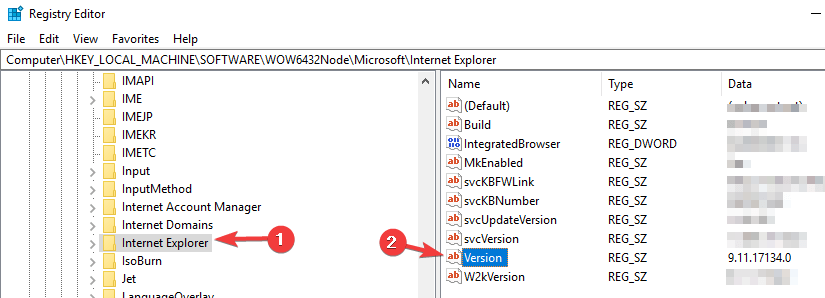
  2. On the left side you need to navigate to: HKEY_LOCAL_MACHINE\SOFTWARE\Wow6432Node\Microsoft\Internet Explorer
    version registry editor Microsoft Money Problems
    if you’re on 64-bit version of Windows.
    (If you’re using 32-bit version go to: HKEY_LOCAL_MACHINE\SOFTWARE\Microsoft\Internet Explorer)
  3. In the right pane you need to find Version registry value
    Modify its value from 9.11.10240.16384 to 9.11.10240.1638.
  4. After doing that, close the Registry Editor.

That’s it, just save the changes and you’re good to go. As you can see this is just a minor registry error, and by changing it Microsoft Money Plus should be working without any problems on Windows 10 now.

You can also try to uninstall and install the app again. If you don’t know how to do that, we have an excellent guide on how to download and install Microsoft Money on Windows 10.

If you have any other Windows 10-related issues you can check for the solution in our Windows 10 Fix section. If you found our solution helpful, feel free to let us know in the comments section below.

Could Not Reconnect all Network Drives: 5 Solutions to Use

You will receive different system notifications when your PC is connected to a specific network. Among these notifications, we have the alert that says: could not reconnect all network drives.

While this default notification lets you know that some devices from your network cannot be currently used, it can also be a false positive. In this guide, we will show you how to disable the notification.

Why does Could not reconnect all network drives message appear?

Below are some of the reasons you get could not reconnect all network drives error message:

  • Outdated PC: If your PC is outdated, you will likely get this error message when you connect your network drives. The solution to this is to update your operating system.
  • Wrong settings: Sometimes, some settings in GPO or Regedit can be the cause of could not reconnect to all network drives. You need to make the necessary changes to eliminate the error message.

How can I fix Could not reconnect all network drives error?

Here’s what to do first:

  • If this notification concerns a driver currently disconnected from your computer, you only have to re-establish the actual connection. For example, if we’re talking about an external hard drive that’s currently not recognized by your PC, and if this specific external hardware causes the actual alert, we should unplug and re-plug the USB cord.

1. Update your PC

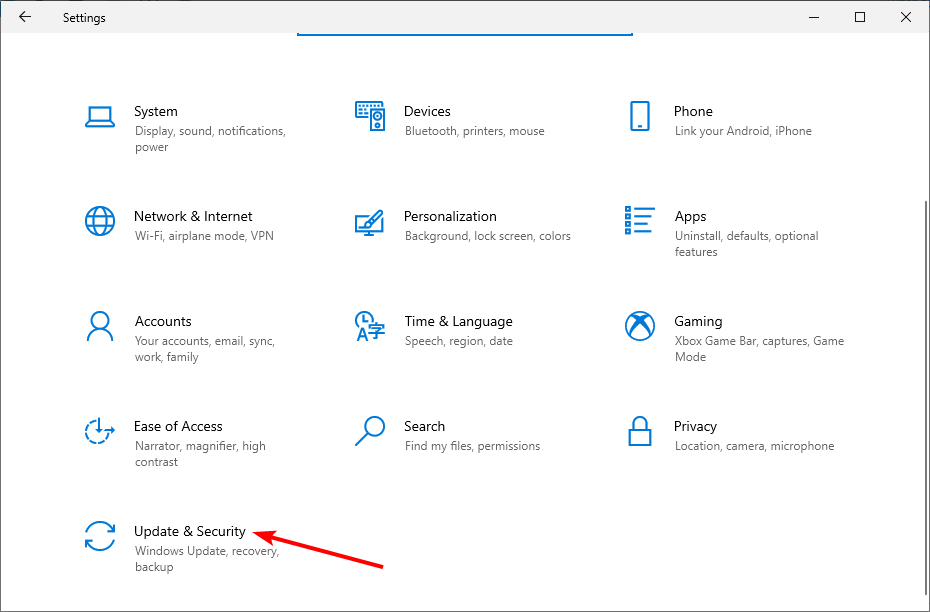
  1. Press the Windows key + I and select Update & Security.
    update and
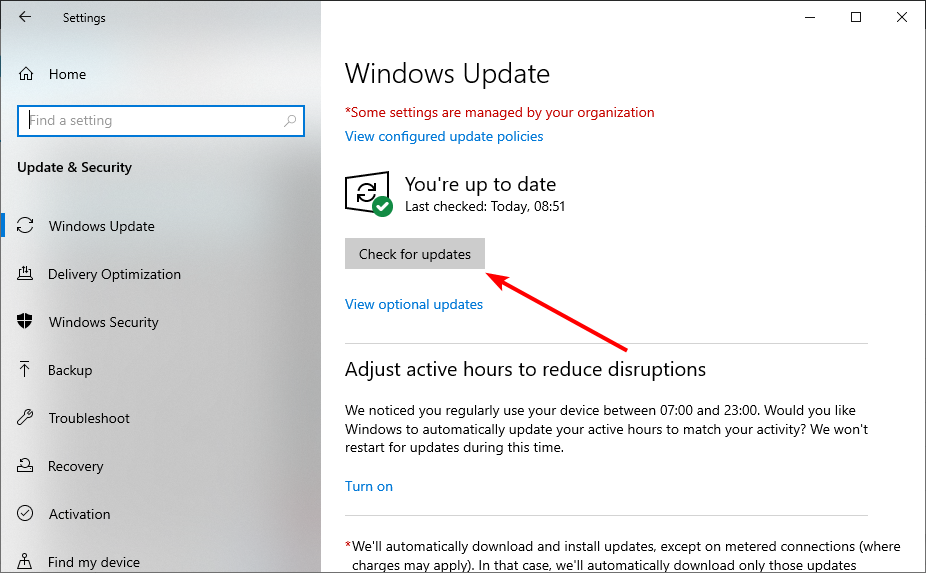
  2. Click the Check for updates button.
    check for could not reconnect all network drives
  3. Finally, download and install all available updates.

At times, could not reconnect all network drives issue might be due to an outdated operating system. Downloading and installing the latest patches should do the trick here.

2. Use a batch file from Microsoft

2.1. Create a startup file

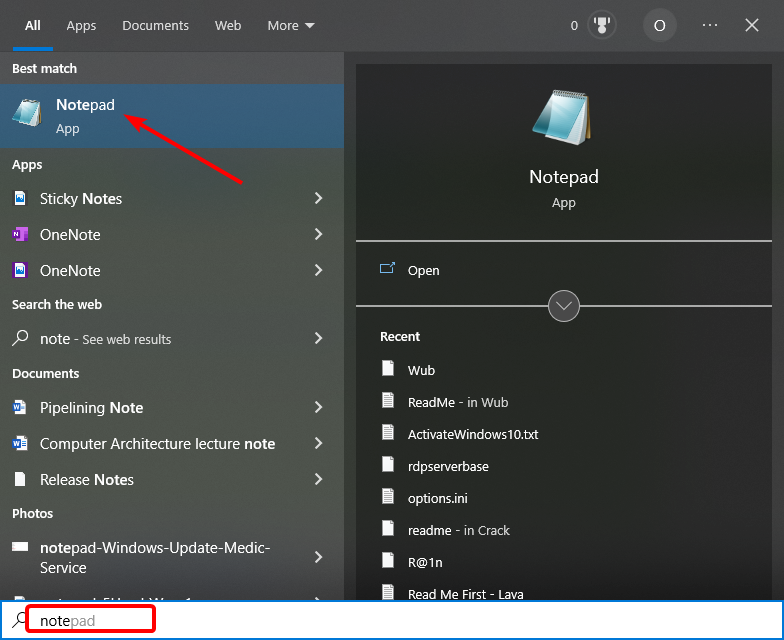
  1. Press the Windows key, type note, and select Notepad.
    notepad
  2. Copy and paste the script below on Notepad: PowerShell -Command "Set-ExecutionPolicy -Scope CurrentUser Unrestricted" >> "%TEMP%\StartupLog.txt" 2>&1
    PowerShell -File "%SystemDrive%\Scripts\MapDrives.ps1" >> "%TEMP%\StartupLog.txt" 2>&1
  3. Press the Ctrl key + S to save the file.
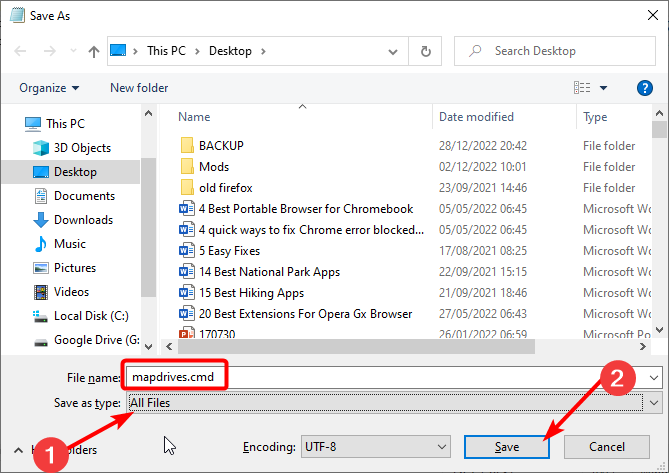
  4. Now, change the File name to MapDrives.cmd and choose All Files as the Save as type.
  5. Click the Save button.
    cmd could not reconnect all network drives
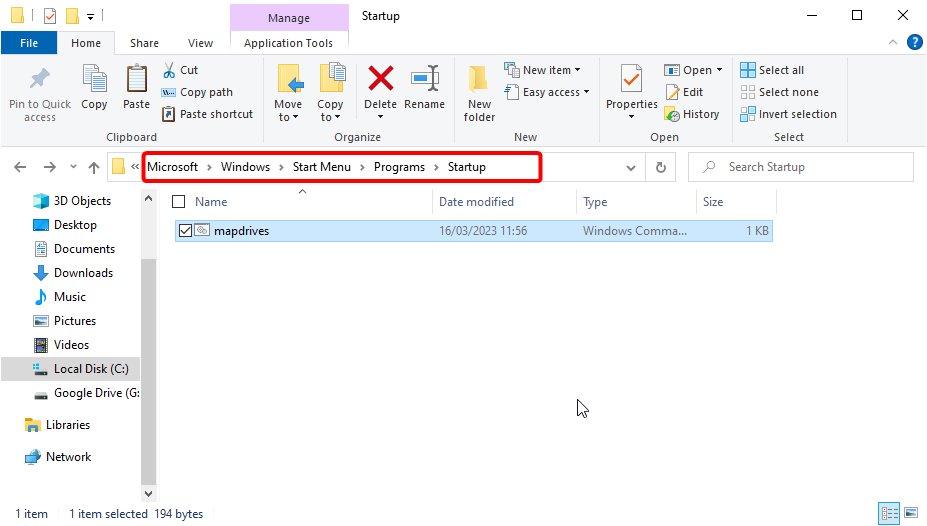
  6. Next, copy the MapDrives.cmd file and navigate to the path below: C:\ProgramData\Microsoft\Windows\Start Menu\Programs\Startup
  7. Paste the file into the StartUp folder.
    startup
  8. Next, open a new Notepad window and copy and paste the script below: $i=3
    while($True){
    $error.clear()
    $MappedDrives = Get-SmbMapping |where -property Status -Value Unavailable -EQ | select LocalPath,RemotePath foreach( $MappedDrive in $MappedDrives) {
    try { New-SmbMapping -LocalPath $MappedDrive.LocalPath -RemotePath $MappedDrive.RemotePath -Persistent $True
    } catch {
    Write-Host "There was an error mapping $MappedDrive.RemotePath to $MappedDrive.LocalPath"
    }
    } $i = $i - 1
    if($error.Count -eq 0 -Or $i -eq 0) {break}
    Start-Sleep -Seconds 30
    }
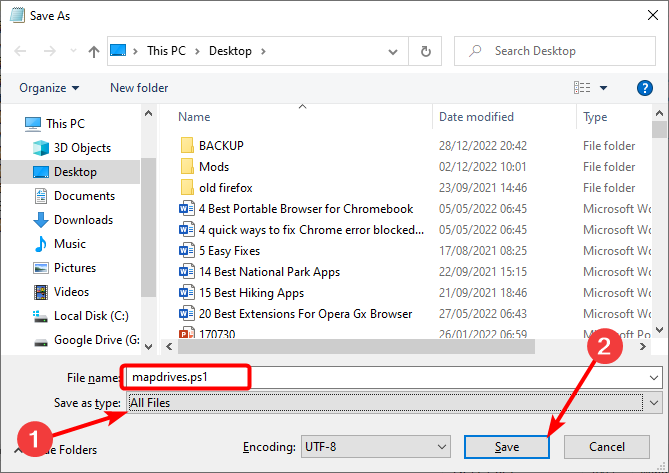
  9. Now, press the Windows key + S, set the File name to MapDrives.ps1, and Save as type as All files.
  10. Click the Save button.
    ps1
  11. Copy the MapDrives.ps1 file and click your C: drive in the left pane.
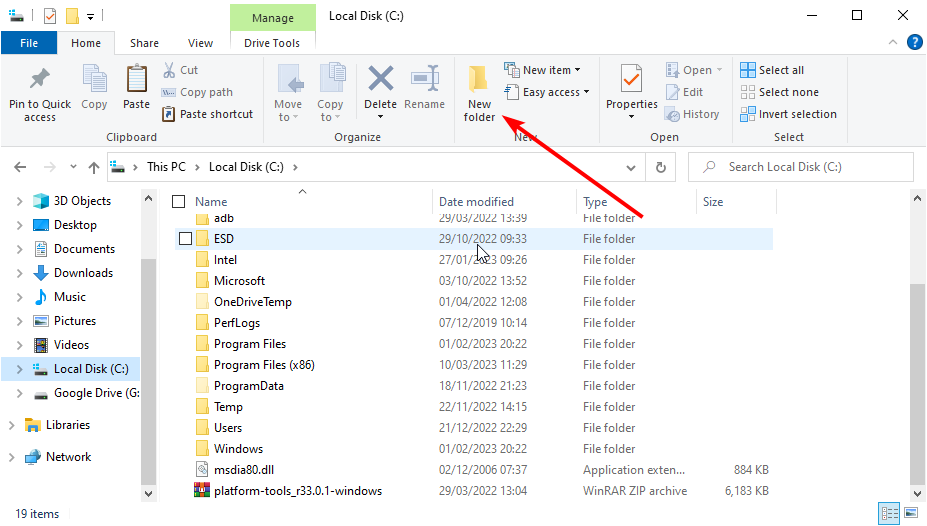
  12. Next, click the New folder icon at the top and name the folder Scripts.
    new folder could not reconnect all network drives
  13. Finally, paste the MapDrives.ps1 file into the Scripts folder and restart your PC.

If you keep getting could not reconnect all network drives error message, you can fix it using the batch file from Microsoft. If this method does not work for you, you can try running the batch file following the second method.

2.2. Use the Task Scheduler

  1. Leave the MapDrives.ps1 file in the Scripts folder, as shown in the solution above.
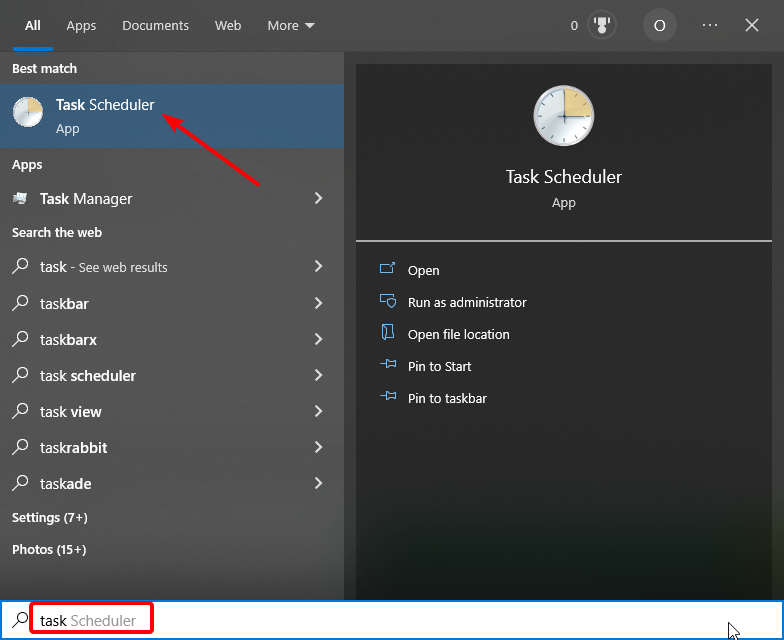
  2. Press the Windows key, type task, and select the Task Scheduler option.
    task scheduler
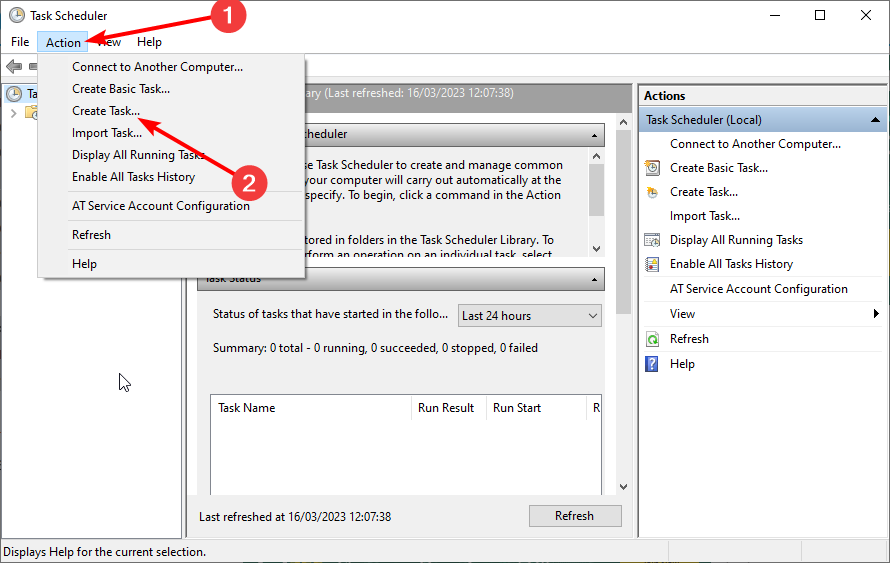
  3. Now, choose Action > Create Task.
    create task could not reconnect all network drives
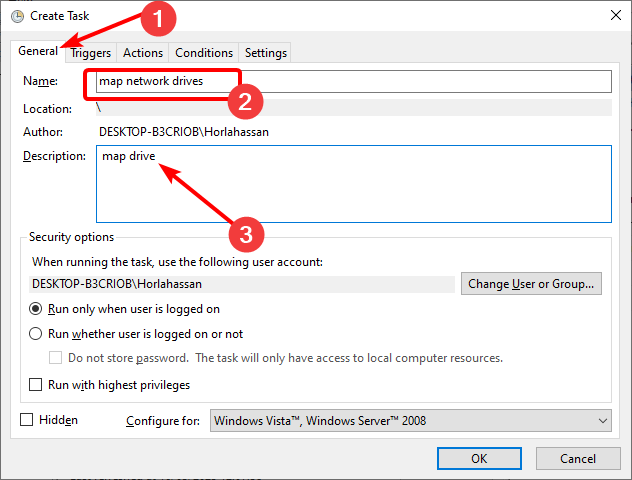
  4. Type the name (something like Map Network Drives) and description of the task in the Create Task dialog box under the General tab.
    mapdrive
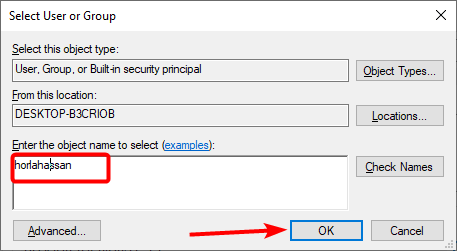
  5. Click the Change User or Group option, select a local user or group, and then click the OK button.
    username could not reconnect all network drives
  6. Next, choose New on the Triggers tab.
    triggers
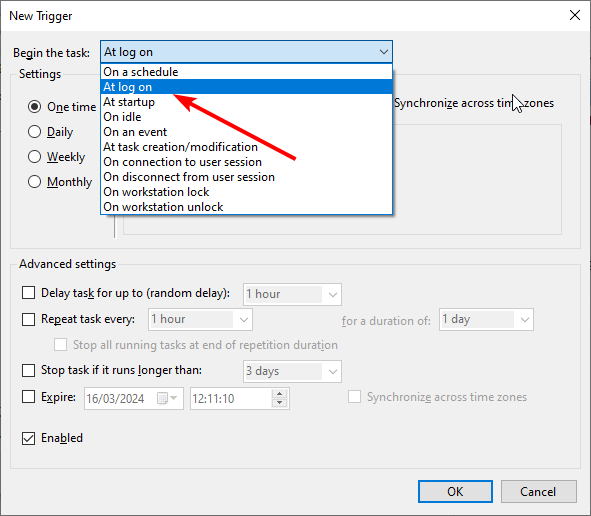
  7. Choose At log on under the Begin the task section.
    at log on
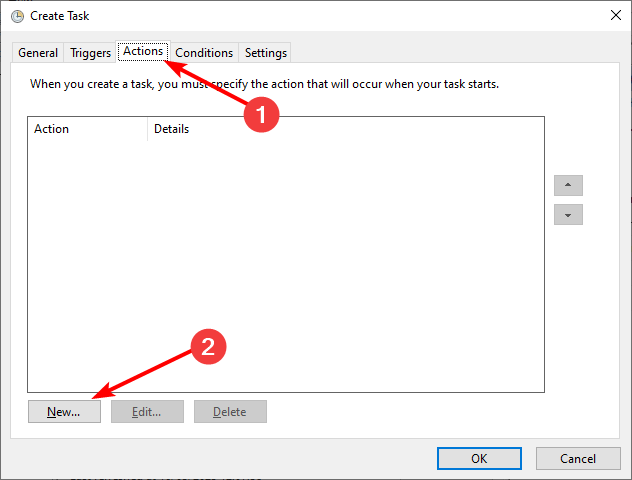
  8. Now, choose New on the Actions tab.
    gpedit
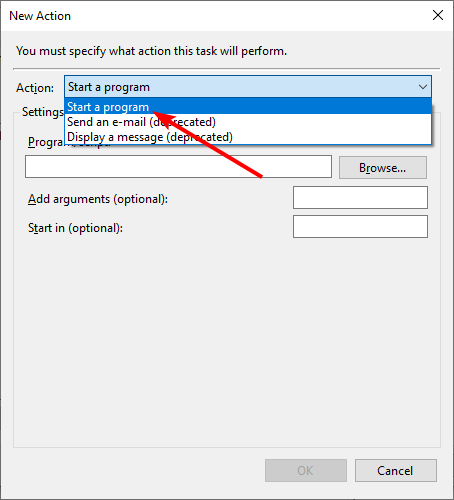
  9. For the Action field, choose Start a program.
    start a program could not reconnect all network drives
  10. Enter Powershell.exe in the Program/script field.
  11. Next, type the command below in the Add arguments (optional) field: -windowstyle hidden -command .\MapDrives.ps1 >> %TEMP%\StartupLog.txt 2>&1
  12. Type the location (%SystemDrive%\Scripts\) of the script file In the Start in (optional) field.
  13. Now, select Start only if the following network connection is available in the Conditions tab.
  14. Select Any connection and click OK.
  15. Finally, sign out and sign in to your PC to run the scheduled task.

If creating a startup file does not eliminate could not reconnect all network drives option, you can use the Task Scheduler.

3. Make Window wait for the connection before mapping network drivers

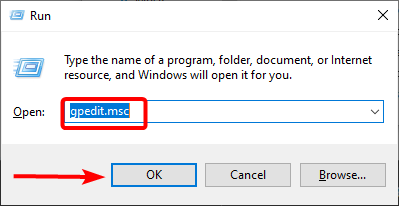
  1. Press the Windows key + R, type gpedit.msc, and click OK.
    gpedit could not reconnect all network drives
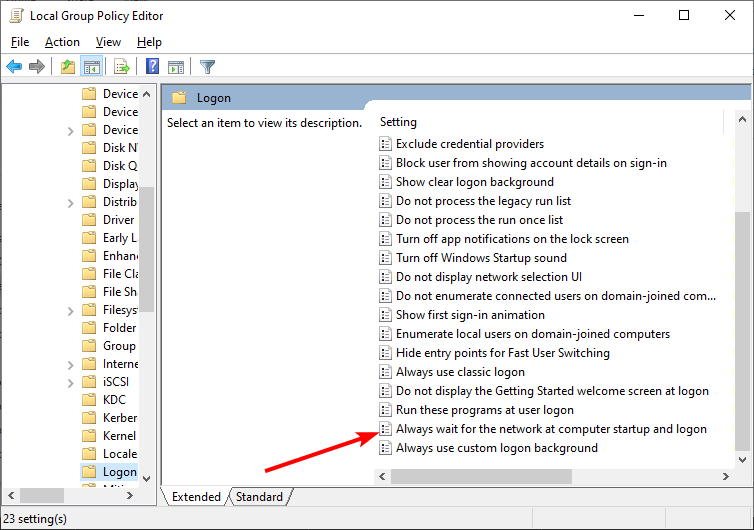
  2. Navigate to the path below in the left pane: Computer Configuration > Administrative Templates > System > Logon.
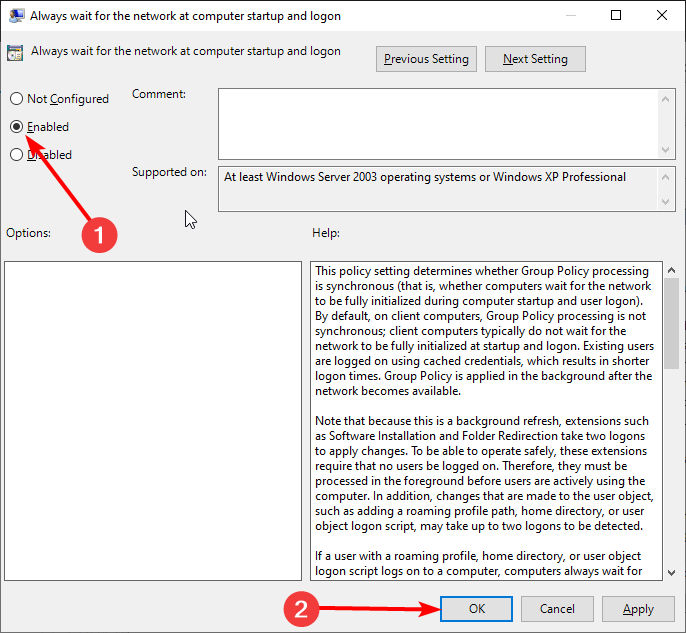
  3. Now, double-click Always wait for the network at computer startup and logon to open.
    always
  4. Tick the Enabled radio button.
  5. Finally, click the Apply button, followed by OK, and restart your PC.
    enabled

In some cases, could not reconnect all network drives message shows up because the policy that tries to map your drive is initiated at startup. However, there might be no drive connected at this point.

Hence, you must change the settings to wait until the drive is ready.

4. Disconnect network drive

  1. Press the Windows key + E to open Windows Explorer and click This PC in the left pane.
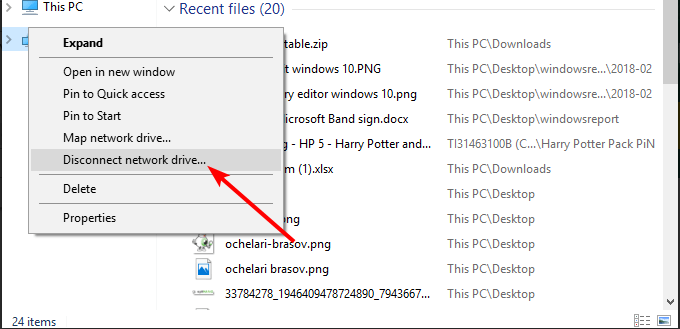
  2. Find the driver that’s not connected and right-click on its icon.
  3. From the list of options that are displayed click on the Disconnect network drive entry.
    disconnect
  4. Or, from the main window status bar, click on the Map network drive and choose Disconnect network drive.

5. Disable the Windows cannot connect to all network drivers message at start-up

  1. Press the Windows key + R, type regedit, and click OK.
    regedit could not reconnect all network drives
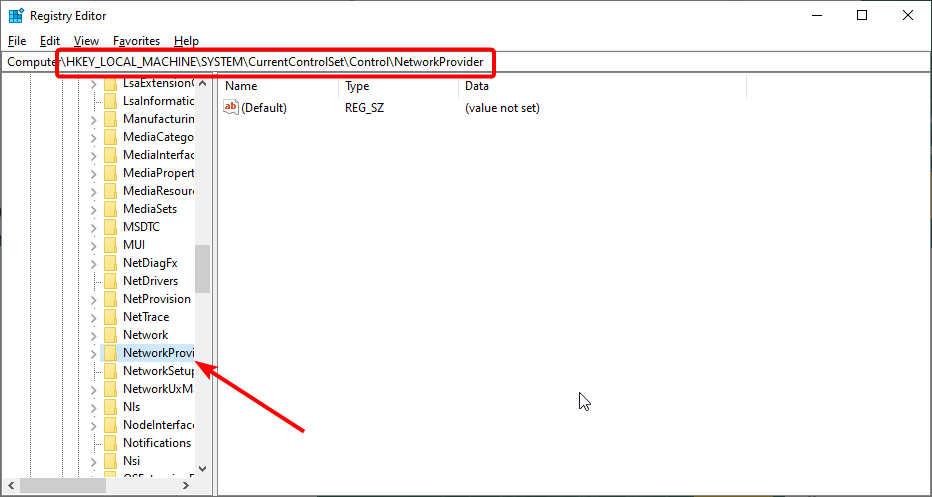
  2. Navigate to the path below in the pane: HKEY_LOCAL_MACHINESYSTEMCurrentControlSetControlNetworkProviderpath
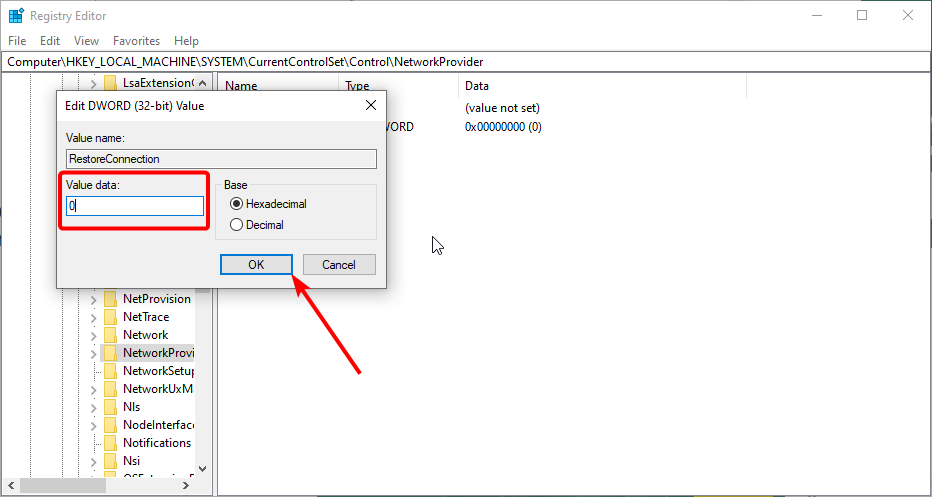
  3. Now, double-click on RestoreConnection in the right pane. If the option is not available, do the following:
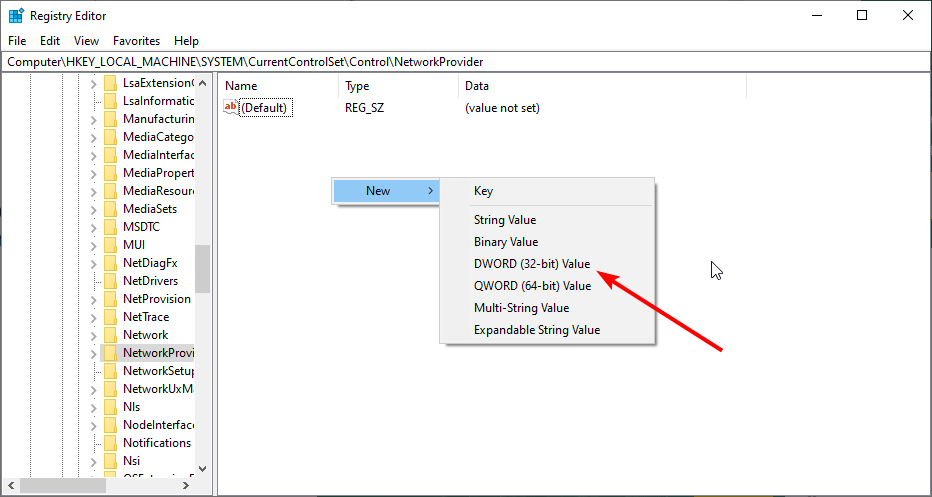
    • Right-click the NetworkProvider option and choose New > DWORD (32-bit)Value.
      dword
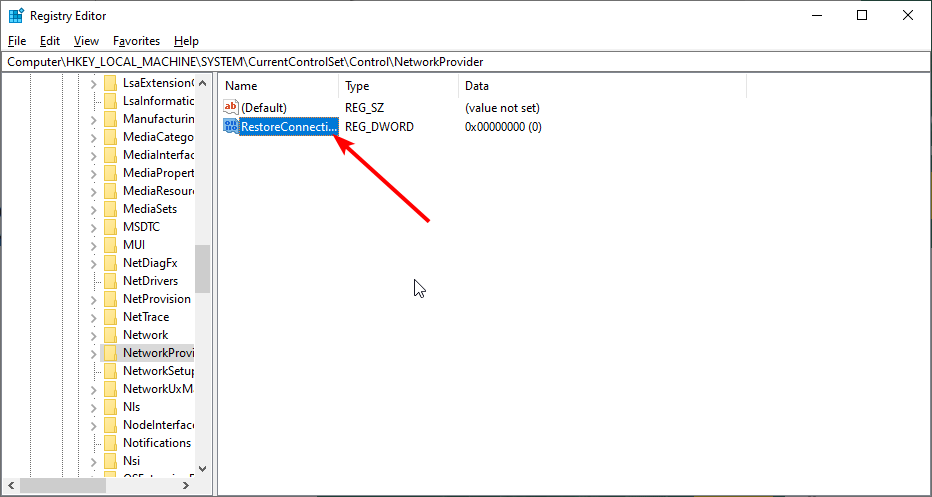
    • Now, type RestoreConnection as the DWORD name and double-click it.
      restore
  4. Set the Value data to 0 and click the OK button.
    value data
  5. Finally, restart your PC.

How to disable Could not reconnect all network drives on Windows 10 notification?

To disable could not reconnect all network drivers on Windows notification, you need to go through the Group Policy Editor. We have shown how to do this in solution four above.

The troubleshooting solutions we listed in our article should help you fix or disable could not reconnect all network drives message displayed on your Windows 10 computer.

If you can’t map a network drive on your PC, because of error_dev_not_exist, check our detailed guide to fix it easily. Network drives are known for issues, and we already wrote about WD My Cloud not showing on network in Windows 11 in a separate guide.

Feel free to let us know the solution that helped you fix this issue in the comments below.

FIX: Gathering required information Windows Installer error

Some users have said that they can’t uninstall programs with the MSI Windows Installer as it gets stuck while gathering the required information.

That error can arise for one specific program or numerous software. These are a few of the potential resolutions that might fix the Gathering required information error for some users.

Some users have confirmed that they’ve fixed the gathering required information error by updating Windows 10 to the latest build version.

Users have also said that they uninstalled software that the gathering required information error arises for with SafeMSI, which enables users to utilize the Windows Installer service within Safe Mode.

How can I fix Windows installer if it gets stuck?

1. Update the Windows 10 build version

  1. Click on the Windows button, then select Settings and click on Update & Security.Gathering required information Windows Installer error
  2. Press the Check for updates button.
  3. Click Download and install now when the latest build update appears.
  4. Thereafter, users will need to restart Windows 10 when the update has downloaded.

2. Uninstall software in Safe Mode with SafeMSI

  1. First, start Windows 10 in Safe Mode by clicking Power on the Start menu and holding the Shift key when pressing the Restart button.
  2. Thereafter, select the Troubleshoot and Advanced options after the desktop or laptop restarts.
  3. Select the Startup Settings option.
  4. Then click the Restart button.
  5. Press 5 to select the Enable Safe Mode with Networking option.
  6. Click Download Now on SafeMSI.exe’s CNET page.
  7. Open the File Explorer (press the Windows key + E hotkey).
  8. Open the SafeMSI ZIP file in File Explorer.Gathering required information Windows Installer error
  9. Click SafeMSI to run that program and enable Windows Installer in Safe Mode.
  10. Then try uninstalling the program that the gathering required information error arises for in Safe Mode.

3. Check out Repair MSI

Repair MSI is a utility that can fix numerous Windows Installer (MSI) errors. So, that software might come in handy for resolving the gathering required information error. Click Download Now on its Softpedia page to save the Repair MSI archive to a folder.

Users can click the RepairMSIWindowsInstaller.exe file to open the window in the snapshot directly below. Then press the Start button to fix MSI.

Gathering required information Windows Installer error

4. Reregister the Windows Installer Service

  1. Enter cmd in the search box and select Run as administrator under the Command Prompt app from the results.
  2. Input the following separate commands and press Enter after entering each one:
    %windir%\system32\msiexec.exe /unregister

    %windir%\system32\msiexec.exe /regserver

    %windir%\syswow64\msiexec.exe /unregister
    Gathering required information Windows Installer error

    %windir%\syswow64\msiexec.exe /regserver

  3. Thereafter, close the Command Prompt; and restart the desktop or laptop.

We hope that our solutions solved the gathering required information error with the Windows Installer. If you have any further suggestions don’t hesitate to write them in our comments section below.

Hedge fund pushes for Intel shake up amid growing Apple and AMD competition

As a tumultuous 2020 ends for the company, Intel finds itself once again under fire going into 2021.

According to a report from Reuters, activist hedge fund Third Point LLC is jockeying for a loud enough voice to force Intel to make some greater strategic moves to combat what will inevitably be an onslaught of AMD, NVIDIA and Apple silicon competition in the coming months and years.

While Apple’s consumer and commercial base only make up a fraction of Intel’s chip business, AMD’s recent gain in server chip provisions has elevated Third Point CEO Daniel Loeb’s argument that Intel needs to take some “immediate action to boost the company’s position as a major provider of processor chips for PCs and data centers.”

Over the course of a couple of years, Third Point has become a significant voice in Intel’s investors’ meetings as it has accumulated close to a $1B stake in the company which is why Loeb sent out an emergency flare in the form of a letter to Intel.

Loeb points out some key identifiers that should have most Intel investors worried, such as the loss of talent within the company due to “human capital management issues”, the erosion of Intel’s industry-leading position as a micro processing manufacturer to TSM and Samsung, and its market share loss in its core PC industry to ARM as of recent. Even when it comes to championing computational modeling for AI, Intel has been surpassed by NVIDIA.

Perhaps, not simply satisfied with sounding the alarm, Loeb also goes on to mention more strategic things Intel can do to stem the company’s bleeding of mind and market share beginning with an evaluation of its business as an integrated device manufacturer.

Among Loeb’s notes for Intel include a call for advisors to reexamine whether the company should remain an integrated device manufacturer and or divest failed acquisitions.

Third Point believes that Intel should consider separating its chip design from its semiconductor fabrication plant manufacturing operations, according to the sources. This could include a joint venture in manufacturing, according to sources.

Aside from its suggestions, Third Point is also ready to play aggressively if sees Intel brushing off its concerns. Loeb and company have reserved the option to submit potential nominees to Intel’s board to help facilitate the changes Third Point believes are a necessity for the company to ward off the continued dabbling its partners are doing with their own custom silicon as of late.

In a response to Loeb’s attentive letter, Intel offered the following, “Intel welcomes input from all investors regarding enhanced shareholder value. In that spirit, we look forward to engaging with Third Point LLC on their ideas towards that goal.”

Despite Third Point’s lack of subtly and nuance, the ideas that Loeb brings forth are worth examining for Intel as its once-dominant position is being quickly undermined by companies working faster and producing better alternatives for its partners.

FIX: Netflix streaming error M7111-1331 [6 tested methods]

Netflix is one of the most popular online video streaming services. However, its popularity doesn’t keep it clear of technical issues.

One of those is error code M7111-1331-2206, which arises for some users who access Netflix from web browsers.

Instead of streaming the movie, a Netflix tab opens and displays the error code M7111-1331.

If you’ve been in this situation, here are a few ways you can fix error code M7111-1331-2206.

How to fix Netflix streaming error This title is not available to watch instantly?

1. Check if Netflix is down

There might be something wrong with Netflix‘s servers if you encounter the error M7111-1331-2206.

In this case, there’s not much you can do to fix it other than waiting for a while. More often than not, the issue takes care of itself.

You can check if Netflix is down at DownDetector.com. Just type Netflix in DownDetector’s search box and wait for the results.

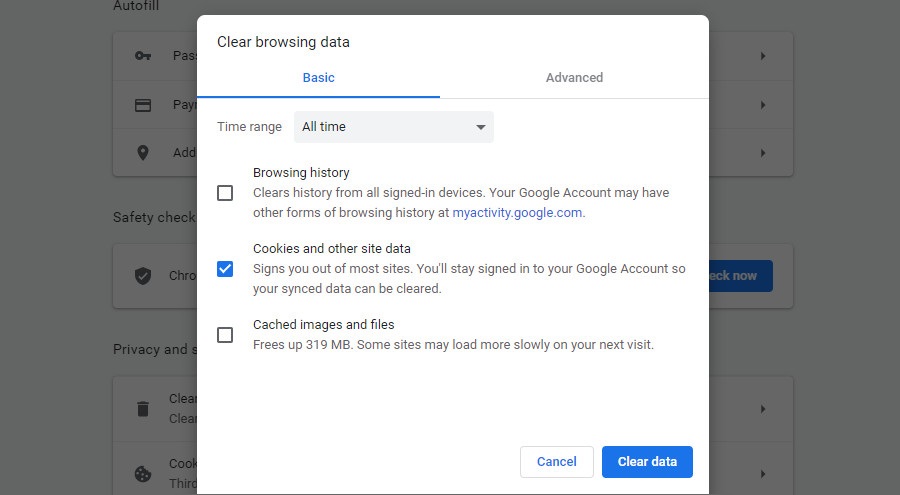
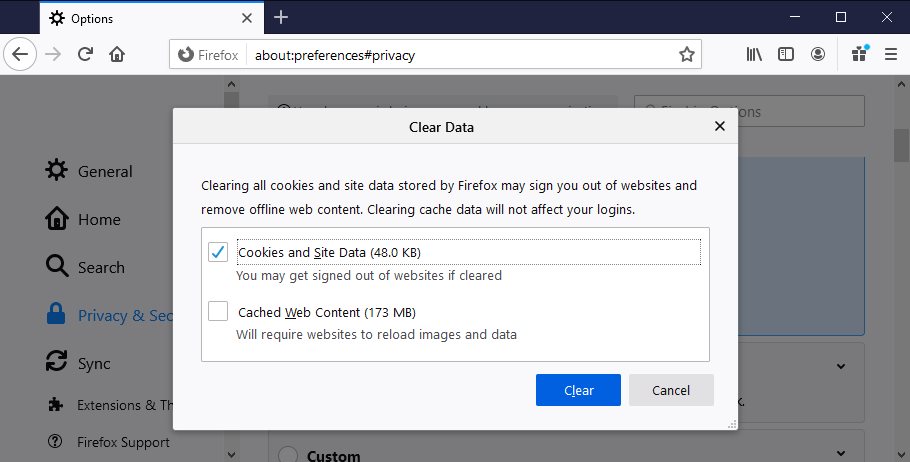
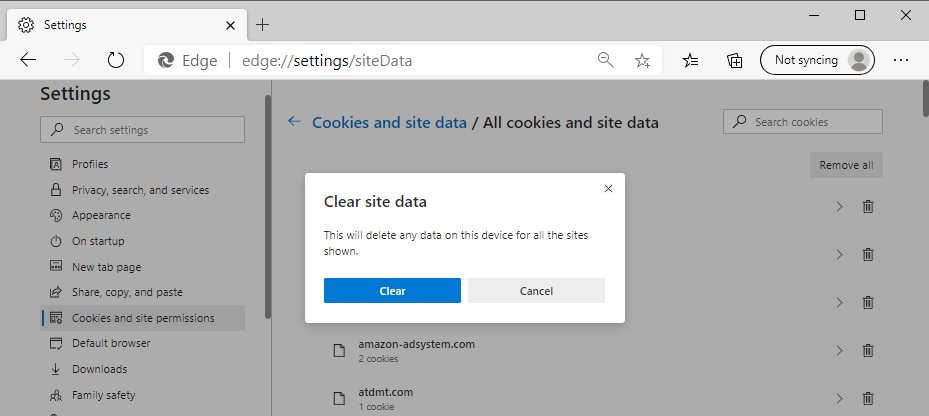
2. Clear browsing data

Error M7111-1331-2206 can often be due to corrupted or outdated browser data.

Therefore, one of the best solutions is usually to clear all browser data.

The browser’s cache is perhaps the most essential thing to clear, but users can also erase other website-related information.

This is how you can clear Google Chrome’s browser data:

  1. Click the Customize Google Chrome button at the top right of the browser’s window
  2. Select More tools
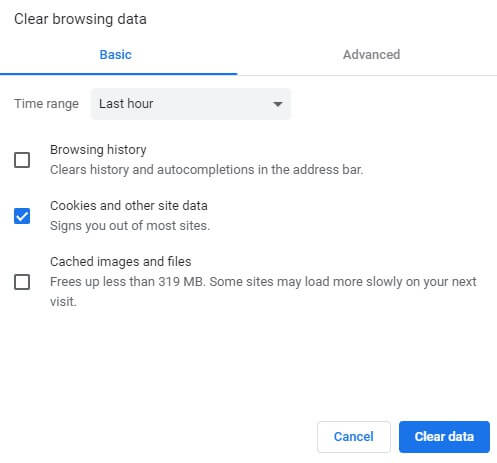
  3. Click the Clear browsing data buttonclear browsing data netflix streaming error m7111-1331
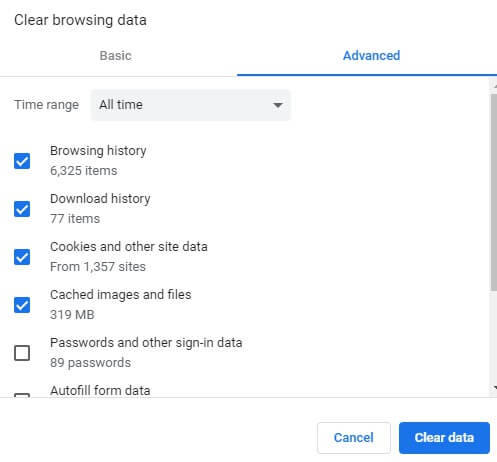
  4. Head to the Advanced tab
  5. Select the All time option from the Time range drop-down menuclear browsing data advanced netflix streaming error
  6. Cached images and files are the essential check box to select
  7. Thereafter, press the Clear Data button

3. Reset the Browser

Resetting the browser is another resolution that can help you clear browsing data.

However, that will also disable extensions that might have an impact on Netflix’s streaming.

Netflix 1080p is one extension that can potentially generate the M7111-1331-2206 error. Follow the guidelines below to reset Google Chrome.

  1. Go to Chrome’s Settings section
  2. Click the Advanced button to expand the tab
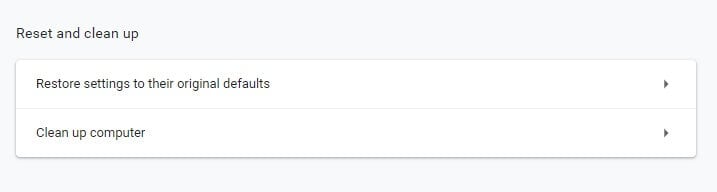
  3. Select the Restore settings to their original defaults option
    reset chrome netflix streaming error
  4. Press the Reset settings button

4. Try using Netflix in an alternative browser

As the M7111-1331-2206 error often pertains to corrupted browser data and extensions, users might find that Netflix works fine in alternative browsers they seldom use.

So, try streaming a Netflix show or movie in another (preferably newly-installed) browser.

Edge is probably the best browser for Netflix as it can stream movies at 4K resolution.

However, Opera One and Google Chrome are also Netflix compatible browsers and work great.

We recommend trying a browser that conveniently uses the processing capacity and has integrated techniques that focus on loading content-rich pages faster.

⇒ Get Opera One

5. Open Netflix From the URL Bar Instead of Bookmarks

Some Netflix users might need to refresh their bookmarks to fix error M7111-1331-2206.

If you open Netflix with a bookmark, try opening the website by typing www.netflix.com in the URL bar instead.

If that resolves the issue, delete the current Netflix bookmark and add a new one.

6. Turn off your VPN

Netflix Inc has clamped down on VPN software. Consequently, streaming errors can arise when Netflix detects a VPN.

So, try not to use a VPN to access Netflix, or temporarily disable your VPN and check if the error still occurs.

Alternatively, you could try to use a Netflix-friendly VPN. If you’re considering switching to a VPN that works great with online video streaming services, check out our best Netflix VPNs.

Conclusion

Those are a few resolutions that might fix the M7111-1331-2206 error for Netflix movie streaming in browsers.

Remember, however, that users can also watch movies with the Netflix app, which might be more reliable than utilizing the movie-streaming service within browsers.

AML Software for Accounts: Best to Use in 2026

With the evolution of the internet and the services people and companies provide online, there is an increased risk of exposure to scammers, money launderers, and other third parties that don’t have the best interest of your company at heart.

Because of these risks, being able to store information about your clients and verifying their validity, is very important. Activities that include market manipulation, trade of illegal goods, corruption of public funds, tax evasion, etc. are covered by AML regulations.

In the past, the process of finding possible money launderers was a painstakingly slow process that included manually searching through tons of papers and folders. Even after the searching process would be done, you would still have issues when it comes to gathering objective and exact information.

Fortunately, you can now use specialized software that allows you to easily streamline the research process of possible money launderers. Read on to find out more details.

What are the best AML software?

Shufti Pro

Shufti Pro is a top software in the financial industry that offers Identity Verification services with the help of KYC & AML Screening solutions.

It is a great tool for worldwide medium to large businesses because it scans over 3,000 documents written in more than 150 languages from around 230 countries and territories. Thus, Shufti Pro can guarantee up to 98.67% accurate identification results. 

The platform offers access to 1700+ datasets acquired from international sources including OFAC, EU, HMT, UN, DFAT, and others. Furthermore, the AML data bank is updated every 15 minutes.

Unfortunately, fraud is very common, thus, to avoid being a victim, performing regular AML checks will help to don’t lose money and your company’s reputation. Also, it is a simple way to verify and validate your customer’s transactions.

Shufti Pro’s AML engine works intelligently to reduce false positives. Global AML verifications are done in real-time to enable organizations to mitigate the financial risk associated with high-risk customers.

Most important features of Shufti Pro:

  • Quick and Accurate Verification Processing
  • Seamless API integration for service automation and higher flexibility
  • Comprehensive Global Coverage
  • Two-Fold Technology, AI (Artificial Intelligence) and HI (Human Intelligence)
  • It can be used as web-based, desktop software, Android or iOS application
  • PCI DSS and GDPR compliant
Shufti Pro

Shufti Pro

One of the best AML software, Shufti Pro identify high-risk entities with robust AML screening solutions.
Check priceVisit website

Encompass

Encompass is a great AML software that allows you to fully manage your company by storing data in an accessible and safe location and can also automate different aspects of the monotonous-type tasks of your practice.

The automation process is done using CDD (Customer Due Diligence) and EDD (Enhanced Due Diligence) processes.

Stream-lining these aspects of your practice is extremely useful, as it allows you to focus on more sensitive topics while also taking the time to analyze your data results. This type of software offers detailed information by connecting to various clients databases focused on the task at hand.

Encompass has a very intuitive user interface that offers you quick access to all the automation features, data sources, searches, and can even monitor ongoing data streams in real time.

This software offers optimal protection from risks posed by regulations, including the ability to simultaneously verify customer information, discover the previous beneficial owners, screen for issues, and can even perform media checks.

You can use Encompass to see an all stored data regarding specific customers in one simple file. This allows you to assess the risk involved with each customer, apply risk ratings,and also compare the risks to AML/CTF compliance. The Encompass API can be easily integrated with your AML system and it allows you to easily automate any process.

Notable features of Encompass include:

  • Access to global corporate registries
  • Electronic identity verification
  • Automated discovery of UBOs
  • Automated screening of individuals compared to your PEP sanctions data
  • Can automatically store negative results checks and uses AI to show you results quickly
  • Continuous monitoring of your customer’s profiles
  • Ability to build a complete audit trail for every action performed

⇒ Get Encompass


Taxcalc AML

Taxcalc is another great software options that was designed to help your accountant prevent, and deal with any AML issues encountered.

This software was launched in 2009, and since then, Taxcalc has become a partner with the global leader in identity and credit information, called Equifax. This feature allows you to rest assured that all the information you get regarding your customers is true and objective.

All you need to do in order to acquire customer information is to simply enter the name and address of your possible client. This will show you all known data regarding your client’s purchase history, outstanding payments, etc., so you can make a better informed decision.

Because of it’s powerful yet simple to use features, Taxcalc AML can be used in accountancy practices, by auditors, bookkeepers, and tax and payroll advisors as well.

Key features of Taxcalc AML include:

  • Pass and Refer results – after the identity check is completed, the system allows you to choose if the candidate was accepted on not and add notes relating to your decision
  • Built in Anti-Money Laundering Identity Checking Service

You can get Taxcalc AML with a basic licence that allows you to perform searches and verify registration for 15 people. As your business evolves, you have the possibility to buy more ‘personal searches’ packs, depending on the number of customers you need to verify.

⇒ Try TaxCalc AML


AMLCC

AMLCC - AML software

AMLCC is a powerful AML software designed for use in different industries, but it is greatly optimized for use in accountant practices. This easy-to-use tool will help you deal with all the responsibilities dictated by law.

This software can guide you through all the steps needed in order to successfully train your staff and offers you the possibility to create a full range of reports, both automated and manual.

Your data is always securely stored in the cloud, eliminating the risk of possible issues with data corruption or the loss of files and data folders. You can easily access all AMLCC data from anywhere in the world.

The AMLCC Recording System makes it easier than ever to create, manage, and store records, and also offer other features such as:

  • Risk assessments
  • Can verify client identities
  • Database with clients reported to the NCA
  • Residency checks
  • Ability to analyze ‘risk’ factors – politically exposed persons

One of the best features of AMLCC is the fact that it offers a comprehensive Training Module that contains two parts :

  • MLRO training – Money Laundering Reporting Officer
  • Training for all client-facing staff – receptionists, sales people, etc.

Both parts of the training module include a multiple-choice questions test that allow you to evaluate yourself.

⇒ Get AMLCC


Iris AML

This AML software from Iris is a very powerful tool for accountants, solicitors, etc., that allows you to manage every aspect of your company’s compliance recording.

You can use this app to produce a risk-based assessment of your customer’s database, that can give you an all-encompassing overview of your practice. The compliance features found in Iris ensures you are up to date with the latest legislation and also has regular updates.

Key features found in Iris AML:

  • KYC information – client risk and documentation
  • Ability to track staff training
  • Automatically identifies non-compliant clients
  • Unlimited electronic ID verification system
  • Download and search treasury sanctions list
  • Can import customer records from any existing database
  • AML compliance technical reference manual by SWAT UK Limited

⇒ Try Iris AML


Oracle Financial Services AML

Oracle Financial Services Anti Money Laundering is a great AML software that has a good range of features. You can use this AML software to easily identify, examine, and directly report any people that might be interested to engage in money laundering.

This offers you the possibility to streamline processes and focus your energy on other aspects of your practice.

This AML software from Oracle has a wide range of pre-configured AML scenarios, stored in libraries. These scenarios can simplify the process of data processing and collection and also keep up with rules imposed by laws.

Main features include:

  • Can monitor, investigate and report on any incredulous activities
  • Library of comprehensive behavior detection
  • Can customize your risk scoring and thresholds
  • Robust case management
  • Full compliance with national & international regulations
  • Detect, investigate & report suspected money laundering
  • Alert suppression
  • Trusted pairing
  • Threshold analytics
  • Create and manage workflows

⇒ Get Oracle Financial Services AML


In this article, we explored some of the best software options on the market that allow you to easily collect, manage and create a wide range of reports, and also protect your company against hidden money-laundering practices.

The features included in the above list cover a wide range of accounting and data collection tools that will surely help run your practice even more efficiently than before.

Please let us know in the comment section below what software did you choose from the list, and why.

2020 was a hit-or-miss year for Microsoft’s consumer initiatives

2020 was undoubtedly a very special year for all of us, with a worldwide pandemic that impacted everyone and profoundly changed the way we work. This year has been pretty brutal for many sectors including transport, restaurants and food services, or the events industry, though the biggest tech companies including Microsoft, Apple, Google, or Amazon are still thriving.

Like many of its competitors, Microsoft quickly enforced a work from home policy for its employees and cancelled all in-person events until July 2021. This global switch to remote work had a big impact on the growth of Microsoft Teams and Zoom, and the software giant also didn’t fail to launch various new hardware and services since the beginning of the COVID-19 pandemic.

While Microsoft has continued to perform very well quarter after quarter this year, there have been some notable misses on the consumer side of things, with the closure of the company’s Mixer game streaming service coming first to mind. As 2020 is coming to a close, this is my personal and non exhaustive list of Microsoft’s hits and misses for this year.

Microsoft Teams became a juggernaut

Microsoft Teams has been one of the fastest new Office 365 services since launch, and the app has experienced a meteoric growth this year due to the ongoing pandemic. Microsoft announced 115 million daily active users for Teams back in October, adding 40 million new users in just six months.

Teams continue to compete with Zoom and Slack, with the latter soon joining Salesforce following a $27.7 billion deal with the CRM heavyweight. Teams continue to benefit from being integrated with various Microsoft 365 commercial plans, but Microsoft also introduced new personal features in Teams this year that make us wonder if Skype is really here to stay.

Overall, Microsoft seems to have doubled down on Teams since the beginning of the pandemic, adding several new features to make the video conferencing experience better than Zoom’s. It’s sometimes hard to keep up with all the updates coming to Teams every month, but my colleague Rabia penned yesterday a good recap of what Teams added in 2020.

Microsoft Teams Breakout Rooms

Your Phone is becoming an essential Windows 10 app

If the selection of Microsoft UWP apps that ship with Windows 10 still leaves a lot to be desired, Your Phone is starting to really stand out. If you own an Android phone, Your Phone will allow you sync recent pictures, send and receive text messages, and even make phone calls right from your PC.

Apple has created similar synergies between iPhones and Macs many years ago, and it’s nice to see Windows 10 finally catching up. Microsoft has been testing some exclusive Your Phone features on select Samsung Galaxy devices, including the ability to run multiple Android apps on your PC, and the company can probably do more to make Android devices integrate even more seamlessly with Windows 10.

In recent years, Microsoft introduced several new Windows 10 features that didn’t really get momentum, and the list includes Timeline and the now deprecated My People shortcut in the Taskbar. Your Phone isn’t as deeply integrated to the system and remains an app that can be updated regularly through the Microsoft Store, and that’s probably best for users. Do you remember having to wait six months to get new features for the legacy Microsoft Edge? Yeah, Microsoft should probably avoid doing that again.

your phone app feature 1030x580

Xbox Game Pass remains one of the best deals in gaming

Xbox Game Pass crossed 15 million subscribers this year, and the service remains one of the best deals in gaming these days. This fall, Microsoft added EA Play games and Xbox Cloud Gaming to the Ultimate tier at no additional cost, and we’re continuing to see high-profile games join the service such as Control or Doom Eternal.

All new Xbox Games Studios titles continue to launch on Xbox Game Pass for Console and PC on day one, and this has really helped niche games like Microsoft Flight Simulator to reach over 2 million PC players since its launch in August. Microsoft’s upcoming acquisition of Bethesda/ZeniMax Media will guarantee a regular stream of new first-party games coming to the service, and Microsoft is likely not done with studio acquisitions and business deals with big publishers.

Following the addition of EA Play to Xbox Game Pass Ultimate, a recent rumour suggests the Ubisoft+ catalog could also join Xbox Game Pass next year. We’ll see what happens, but Microsoft is certainly ready to make Xbox Game Pass even more attractive than it is today.

Xbox game pass

Microsoft didn’t screw up the launch of its Xbox Series X|S consoles

We all remember the disastrous launch of the Xbox One seven years ago, when Microsoft had a console that was less powerful than the competition, but still cost $100 more due to the inclusion of Kinect. The Xbox One also really suffered from all the FUD about the console requiring to be always connected to the Internet, and Microsoft wasted years to rebuild the trust it had lost in the Don Mattrick era.

Fast forward to 2020, the recent launch of the Xbox Series X|S is a completely different story. Even though Microsoft didn’t share any sales numbers, both consoles have been selling out very quickly in all their launch markets, and many enthusiasts haven’t been able to get their hands on the new Xbox or PS5 consoles during the holidays.

The Xbox Series X and Series S unfortunately launched without the flagship game that should have been Halo: Infinite, but delaying the game to Fall 2021 was definitely the right thing to do even though we’re still a bit worried about it. We hope that Microsoft will have a stronger lineup of exclusive games next year, and the company also has yet to convince us that the Xbox Series X is the most powerful new console on the market. So far, many cross-platform games such as Assassin’s Creed Valhalla, Dirt 5, or the much-criticized Cyberpunk 2077 run just as well, if not better, on Sony’s PlayStation 5 console.

Xbox Series S Next To Xbox Series X

A not so exciting year for Windows 10 users

Five years after the launch of Windows 10, the OS finally crossed the 1 billion monthly active users mark earlier this year. The ongoing pandemic has apparently benefited PC manufacturers, with data showing that global PC shipments surged up 15% compared to last year.

Microsoft once again shipped two Windows 10 updates this year, with the latter being a pretty minor update with just a couple of UI changes. Panos Panay, Microsoft’s Chief Product Office Officer and new head of both Windows client and hardware said earlier this year that the company was going “to accelerate innovation in Windows 10” to meet customers where they are now. As a result, Windows 10X, Microsoft’s new OS originally designed for dual-screen devices has been delayed to next year, and it will now ship first on single-screen devices aimed at customers using cloud-powered apps first and foremost.

Windows 10x Start Menu

For now, we haven’t really seen the results of this “accelerated innovation in Windows 10,” though a significant design update codenamed Sun Valley could make its debut in the second half of 2021 with the Windows 10 21H2 update. As for Windows 10X, the first devices running the new OS are expected to be released next year, but Microsoft’s dual-screen Surface Neo, which was expected to be a launch device for Windows 10X this fall has been delayed to an unknown date.

Between the bi-annual Windows 10 release cycle, the company’s internal work on Windows 10X, and the slow progress on Windows 10 on ARM, it may look like the Windows division may have a bit too much on its plate right now. In many ways, it’s probably Apple that made PCs exciting again this year with the launch of the first Apple Silicon Macs, which don’t suffer from the same performance and compatibility issues that have been plaguing Windows 10 on ARM PCs for years.

If Apple expects to transition its whole Mac line to its own Apple Silicon over the next two years, Windows 10 on ARM still looks like a little side-project instead of the future of Windows 10 it should be. As you may know, the first Windows 10X devices will apparently keep using Intel chips that no longer offer the best battery life on mobile devices. It remains to be seen if Windows 10X can avoid ending up like another Windows RT or Windows Phone, but Apple’s being all-in on ARM chips seems to be the right thing to do right now.

The Surface family continues its slow growth

Just like Apple, Microsoft is a company that slowly iterates, and that’s why we keep seeing the same designs in the latest Surface Pro, Surface Book, and Surface Laptop devices. The Surface Pro X was an interesting change, but it looks like the refreshed design isn’t coming to the Surface Pro 8 expected to be announced in January.

Following the launch of its first Surface Go tablet in 2018, Microsoft followed up with more low-cost Surface devices this year with the Surface Go 2 and the Surface Laptop Go. While it’s certainly a good thing to make Surface devices more affordable, I also think that many Surface fans are still waiting for a true Surface workstation. I’m imagining this device as the “Surface Laptop Pro,” which would have a powerful dedicated GPU that’s still missing on the regular Surface Laptop models, and no gimmicks like the detachable (and somewhat unreliable) hinge from the Surface Book line.

Surface Laptop Go Screen Hero Cropped

I also believe there’s a market for a boring “Surface phone” with a single screen unlike the Surface Duo, but with the same premium design and top of the line specs. My colleague Arif, who is quite the Surface fan, reviewed the Surface Duo and initially liked it, but he eventually returned it because of the disappointing camera as well as an issue with USB-C port. He got an iPhone 12 Pro instead, and I don’t blame him.

Truth be told, the 1st-gen Surface Duo is overpriced for a device that shipped with a subpar camera and an unpolished OS. Even after a couple of software updates, the Android OS and its apps like the Microsoft Launcher apparently still requires some work, but that has to be expected from a new Android manufacturer. Actually, Microsoft acquired the operations team from a Finnish company working on the Surface Duo’s Android software this year.

Microsoft is obviously serious about its Surface Duo line, and we hope the Surface Duo 2 will fix the shortcomings from the first-gen devices. In the meantime, the company still has a deep partnership with Samsung and the company’s latest Galaxy devices have unique synergies with Windows 10 that could really make Surface Duo customers jealous.

Microsoft still doesn’t get social

This year saw the closure of Mixer, the game streaming service that Microsoft acquired four years earlier. The Redmond giant spent a lot of money to get big streamers like Ninja to stream exclusively on Mixer, but this didn’t really help to move the needle and Mixer continued to lag behind Twitch, YouTube, and Facebook Gaming this year when all these services experienced meteoric growth during the pandemic.

If Mixer’s Faster-than-light protocol will live on in other Microsoft products including Teams, this failed acquisition shows that Microsoft still doesn’t get social. While Zoom pretty much became the default app for video meetings this year, English comedian James Corden wondered “what the hell happened to Skype” in a funny video that went viral a couple of months ago.

Microsoft’s struggles with social apps continue with the new Xbox apps available on Windows 10, iOS and Android, which dropped all Xbox Live social features such as Looking for Groups or Xbox Live Clubs. More and more Xbox gamers are now ignoring Xbox Live’s social features in favor of Discord servers, and Microsoft itself is a heavy Discord user with many official servers for Xbox games or their studios.

I could see a Discord acquisition making a lot of sense for the company, but unfortunately, the company chased another rabbit this year with TikTok in what ended up as a quite embarrassing episode for the company. While the US Government pushed the Chinese social network to sell its US operations to a US-based company, Microsoft stepped it but ultimately dodged the bullet as despite an announced deal with Walmart and Oracle, the fate of the company’s US operations is still in limbo.

Again, I think Discord would be the perfect acquisition for Microsoft as it’s currently growing fast and tries to distant itself from its initial gaming focus. Discord also has a live streaming community that Microsoft could be interested in following the sunsetting of Mixer, and I also believe Discord is a much better social app than Microsoft Teams, which Microsoft is now trying to position as a Skype/Zoom alternative for consumers.

Microsoft Teams Personal Features

Looking forward to 2021

2020 was a good year for Microsoft overall, but 2021 should be much more exciting. Windows 10 users should see a big design update in Fall 2021, and the first Windows 10X devices should also make Windows interesting again. On the Xbox side of things, we should finally get Halo Infinite 2021 and see more games that really take advantage of the power of the Xbox Series X. Microsoft should also continue to surprise us with Xbox Game Pass announcements and maybe some new studios acquisitions.

I’m a bit less excited about Microsoft’s Surface division, which really needs to shake things up after Apple really impressed with its first Apple Silicon Macs. Microsoft is reportedly working on its own ARM chips for Surface devices and servers, but we likely won’t see the results of this work next year. Anyway, the “Wintel” alliance had a good run and it’s now time for Microsoft to really double down on Windows 10 on ARM in case PC manufacturers and consumers end up ignoring Windows 10X devices.

Lastly, 2021 should be another big year for Microsoft Teams, which has become one of the company’s most successful new apps since its launch in 2016. If companies have been embracing Microsoft Teams in a pretty big way this year, it remains to be seen if the addition of personal features can make the app appeal more to consumers. Microsoft had Skype and Mixer, but the latter is now dead while the former is now pretty much irrelevant. I’m not sure a TikTok acquisition would have made Microsoft cool again, but I doubt consumers will abandon Zoom and WhatsApp in favor of Microsoft Teams anytime soon.

22 Best New Windows Themes for Dual Monitors Setup [2026]

One of the key aspects of Windows 10 is its customization. Now, if you want to customize Windows 10, the best way to do it is through themes.

Speaking of themes, today we want to show you some of the best Windows 10 themes to download.

Each of these themes comes with multiple wallpapers, unique window colors and sounds.

Before we dive in, we want to remind you that you can now download Windows 10 themes from the Microsoft Store as well. Once downloaded, you can manage them from the Settings page.

Quick tip:

If you’re looking to customize the look of your PC, but you aren’t thinking just about the windows tint color, but a complete overhaul, then you’ll need a complete third-party tool like Stardock’s Object Desktop.

This software suit comes with pretty much anything you need to make your PC look and feel different, from themes, to live wallpapers, UI rearrangements, customized sounds, and more.

Object Desktop

Object Desktop

If you’re looking to give your Windows 10 PC a fresh new look, give it a complete makeover with Object Desktop!
Check priceVisiot website

Which are the top themes for Windows 10?

Aurora Borealis

best windows 10 themes

This theme comes with 8 wallpapers showing Aurora Borealis over beautiful landscape of Iceland and Norway.

The color of the windows is set to sea green and the wallpapers are set to automatically change after five minutes.

⇒ Download theme

A Rainbow of Birds

windows 10 theme

A Rainbow of Birds is a  theme designed for bird lovers that comes with 12 wallpapers with all sorts of birds on them such as flamingos, kingfishers, swans, peacocks and hummingbirds.

⇒ Download theme

GTGraphics

best windows 10 themes 4

This theme is designed for fans of science fiction and space exploration. GTGraphics comes with user created pictures of space and even though it doesn’t feature any real pictures of our galaxy it still looks amazing.

⇒ Download theme

Forza Motorsport 4

best windows 10 themes 6

Forza Motorsport 4 theme is designed for gamers that have played Forza Motorsport 4 or for fans of racing cars.

There are 17 high resolution wallpapers in this theme that feature cars such as Koenigsegg Agera, Mercedes, Jaguar, Mclaren, BMW and Ferrari.

⇒ Download theme

Child of Light

best windows 10 themes 7

Child of Light theme is based on Child of Light game, so it will be perfect for fans of the game.

Even if you’re not a fan of the game you still might enjoy beautiful 19 wallpapers that look like they were made with watercolors.

⇒ Download theme

Morning

best windows 10 themes 8

If you love nature and wildlife then you’re going to love this theme that captures morning in the nature.

There are 8 wallpapers and all of them include pictures of birds, insects,river banks, plants and meadows in the morning.

⇒ Download theme

Frozen Formations

best windows 10 themes 9

Frozen Formations theme features beautiful pictures of ice, so if you like icicles, sunrays over the ice and icebergs, this theme is for you. As for the number of wallpapers, this theme comes with 12 different wallpapers.

⇒ Download theme

Beach Sunsets

best windows 10 themes 10

If you’re not a fan of winter and ice maybe you would like a warmer theme and this one might be just what you need. This theme comes with 15 wallpapers of beautiful beaches during the sunset.

There is more than one picture of each beach and in this theme you’ll see pictures from Dillon Beach, Bodega Head, Kihei, LaHaina and Sonoma Coast.

⇒ Download theme

AN HSIN PU TZU

colorful windows 10 theme

If you’re looking for a them full of radiant, beautiful warm colors, then AN HSIN PU TZU is the right choice for you. This colorful Windows 10 theme will definitely put a smile on your face.

It comes with six wallpapers and adds a light blue-purple color to your Windows 10 tiles.

⇒ Download theme

Calligraphy

calligraphy windows 10 theme

Calligraphy is a beautiful Windows 10 theme that brings soothing hues of blue, light pink, green and more to your PC. As its name suggests, this theme brings your 6 images that confirm calligraphy is an art.

⇒ Download theme

Abstract Art

abstract windows 10 theme

If you’re a fan of abstract art, this Windows 10 theme is perfect for you. It brings ten abstract art images where lines, curves and dots artfully blend together to create amazing wallpapers.

The theme adds a grey color to your Windows tiles, while blue is the dominant color in most wallpapers.

⇒ Download theme

Color Splash

color splash windows 10 theme

If you need a bit of color in your life, this joyful Windows 10 theme will definitely put a smile on your face. Color Splash brings you 13 wallpapers full of vibrant colors.

⇒ Download theme

Dream Garden

dream Garden Windows 10 theme

If you were to design your dream garden, what flowers would you plant there? This nature Windows 10 theme could give you some ideas.

Dream Garden brings you a series of amazing photos where nature let time stood still for one second.

⇒ Download theme

Chocolate

chocolate windows 10 theme

Chocolate is a guilty pleasure for many. But why should you hide your passion for chocolate? Let the whole world know who much you love chocolate by installing this chocolate-inspired Windows 10 theme on your PC.

The 10 wallpapers that this theme brings will definitely make you want to go and buy some chocolate even if you’re on a diet. Yummy!

⇒ Download theme

Everyday Art 4

everyday art windows 10 theme

If you’re looking for an elegant and classy looking theme, Everyday Art 4 is the right choice for you. This theme confirms once again that photography is an art that allows people to freeze time.

The wallpapers included in this theme are mainly close-ups that will help you see things from a different perspective.

⇒ Download Everyday Art 4

Muscle Cars

muscle cars windows 10 theme

Add a car-themed wallpaper on your desktop and you’ll fuel your productivity. This impressive Windows 10 theme brings you 14 images depicting the most beautiful and powerful cars in the world.

Just hit the download button and check out the wallpapers.

⇒ Download Muscle Cars

Ducati

ducati windows 10 theme

If you love motorcycles, you’ll also love this Windows 10 theme. It brings you 7 wallpapers depicting the world’s most powerful motorbikes. This theme add a beautiful light red color to your Windows tiles.

⇒ Download theme

Spring Blooms

spring bloom windows 10 theme

When spring arrives, nature blooms. This Windows 10 theme depicts this very exact idea, bringing you beautiful spring images full of joyful colors.

⇒ Download theme

Clouds

clouds windows 10 theme

If you sometimes want to escape and run away from everything, this beautiful Windows 10 theme will help you do just that. It brings you 10 breath-taking images depicting beautiful places where mountains meet the sky or fields of wheat embrace the blue sky.

⇒ Download theme

Panoramas of  New Zealand

windows 10 panoramic themes

This theme packs 20 breath-taking images shot in the beautiful land of New Zealand. The wallpapers depict amazing images where the sea meets the mountains.

Of course, the dominant color in these pictures in green. The themes add a pleasant blue color to your tiles.

⇒ Download Panoramas of  New Zealand

Rock Formations

windows 10 dual monitor theme

If you like relatively dark colors such as brown, grey and light black, then this theme is for you.

As the title of this theme suggests, the images depict beautiful rock formations that confirm once again how nature can sculpt beautiful works of art over thousands or millions of year.

The themes add a complementary brown color to your tiles.

⇒ Download Rock Formations.

Animal Panoramics

windows 10 panoramic theme

Animal themes are very relaxing and often induce a feeling of general comfort. So, if you love animal wallpapers and you own a dual monitor system, then this theme is for you.

It brings 13 images that will definitely add a friendlier touch to your monitors. The themes add a complementary brown color to your tiles.

⇒ Download Animal Panoramics.

You saw our collection of top 20 themes for Windows 10. Tell us in the comments, which one you liked the most.

And if you’re interested in even more ways to customize your desktop, check out our Windows 11 themes collection for modern, high-res designs.

Still on Windows 10? Browse our huge list of 160+ free Windows 10 themes to find your perfect match. Feeling festive? Don’t miss these Christmas themes for Windows to bring holiday cheer to your screen.

How to Fix Netflix Issues in Windows 10/11 [Easy Guide]

As you probably know, Netflix is a major streaming platform with millions of users, and it seems that some users are having Netflix problems on Windows 10.

Therefore, today we’re going to explore those problems and see if there are any viable solutions.

How can I repair Netflix problems on Windows 10?

Update your display drivers

Netflix functionality issues could be caused by faulty device drivers. For example, many users reported problems with AMD display drivers.

Instead of immediately blaming your graphics card, thinking that it’s too old to handle online streaming, check your GPU and other drivers. Updating them is often enough.

However, besides the fact that it takes a long time, you risk installing the wrong drivers for your devices, which could result in serious computer malfunctions.

A safer and quicker way is to use an automatic tool such as Outbyte Driver Updater. It detects your current drivers and finds newer versions on the web, with minimum assistance from your side.

Discover our experience with this driver updating tool in our in-depth Outbyte Driver Updater review.

Use the Netflix app

download Netflix from Microsoft Store

If you normally watch Netflix in your web browser but doesn’t work anymore, try using the dedicated app instead.

You can download the official Netflix app from the Microsoft Store for free, log in with your Netflix credentials, and start watching your favorite movies and TV series.

If you’re already using the Netflix app but encountering various errors on the Windows 10 app, try reinstalling it. Any missing DLL files should be automatically installed by Microsoft Store.

Disable your free VPN or proxy

The online streaming platform doesn’t like VPN and proxy servers. That’s because free VPNs and proxy tools use free and public IP addresses that get immediately detected by blocked by Netflix.

Unfortunately, there are few free VPNs that work with Netflix. But they come with various restrictions, such as few VPN servers or restricted time on Netflix.

So, if you’re encountering the Netflix error with code m7111-5059, you have to turn off your VPN or proxy.

Use a premium VPN that works with Netflix

The trick is to resort to a paid VPN service whose IP addresses don’t get identified and rejected by Netflix. And one of the best tools for the job is Private Internet Access.

You can install PIA not only on Windows but also on Mac, Android, iOS, Linux, and even routers. It’s excellent for unblocking Netflix US anywhere in the world.

Besides Netflix, PIA can unblock other media streaming services like HBO Max or Peacock.

It allows up to 10 simultaneous connections, so your entire family can simultaneously enjoy different Netflix shows on their own devices.

And, if you wish to return to the original Netflix library available to your country but keep using the VPN for secure browsing and torrenting, it’s possible to split the VPN tunnel.

More about PIA:

  • Access VPN servers in over 12 US cities to watch Netflix
  • A zero-logging privacy policy
  • 24/7 live chat support
  • 30-day money-back guarantee (no free trial)
  • Pay with a credit card, PayPal, or crypto

Check for Windows Updates

  1. Click the Start button and type Windows Update
  2. Open the app and click Check for Updates
  3. If an update is available, make sure that you download it

Netflix relies on Silverlight. So, if you notice a pending update for Silverlight, make sure to get it.

Clear browsing data

If you’re trying and failing to watch Netflix on your browser, make sure to clear browsing data. Here’s exactly what you need to do:

Google Chrome

clear cookies in Chrome
  1. Go to Settings
  2. Click Clear browsing data
  3. Select Cookies and other site data and Cached images and files
  4. Set the Time range to All time
  5. Click Clear data

These steps also apply to Opera, Brave, and other Chromium-based web browsers.

Mozilla Firefox

clear cookies in Firefox
  1. Visit Options
  2. Select Privacy & Security
  3. Find Cookies and Site Data
  4. Click Clear Data
  5. Select Cookies and Site Data and Cached Web Content
  6. Click Clear

Microsoft Edge

clear site data in Microsoft Edge
  1. Go to Settings
  2. Select Cookies and site permissions
  3. Click Cookies and site data
  4. Select See all cookies and site data
  5. Click Remove all and Clear to confirm

We also have a great guide on how to clear cookies on Netflix, so don’t miss it for more information.

Conclusion

To recap, if you’re experiencing problems watching Netflix on your Windows 10 computer, make sure to update your drivers to the latest version.

It’s also a good idea to disable your free VPN or proxy. Instead, use a reliable VPN service that won’t get blocked by the streaming service, like Private Internet Access.

You can also clear browsing data, switch to the Netflix app if you normally use the web browser, and check for Windows Updates.

Unblock Netflix US and other libraries anywhere in the world with a VPN. Visit our VPN section or explore our Netflix Troubleshooting Hub for detailed guides on various Netflix problems.

Did these solutions work for you? What else can you suggest to Netflix viewers? Leave us a comment in the section below.

Text Grab, a new Windows 10 app from Joe Finney, applies auto OCR to screen grabs, pastes it to your clipboard

Ever wanted to copy text from a photo or a video that you see, and then paste it into your clipboard in Windows 10? Joe Finney, the same developer behind Ink Calendar in Windows 10, is back with another app to help you do just that.

Named “Text Grab” this latest app works similarly to a screenshot tool. However, instead of saving an image, it captures the text from the selected region and passes it to the Windows OCR API and then to the clipboard, so you can paste the text from the image anywhere. According to Finney, each word has its own bound box, so with a single click, you can select a word. See it in the demo below.

The app is still a work in progress, but Finney says on Twitter that he wanted to get the word out right away so people could play around with the app. It’s even open-sourced on GitHub, too, so you can contribute to the project, as well. Try the app now via the link below, and let us know how you’ll be using it, too.

Text Grab
Text Grab
Developer:
JoeFinApps
Price:
$9.99

[SOLVED] Cyberpunk 2077 Key Binding Failed Error

Cyberpunk 2077 is one of the biggest RPG games in recent years, and one key aspect of any RPG games is your ability to control your character within a certain environment.

Unfortunately, things aren’t that easy with Cyberpunk 2077, since by default it doesn’t let players change the key binding setup it comes with.

Whenever they try changing the key bindings, or try mapping out different keys on Windows 10, they are met with an error message that states:

Key Binding Failed

This issue is present on the PC and Stadia versions of the game, and it also affects those that attempt left-handed keybindings..

Because of the game’s popularity and the severity of the issue, we’ve decided to approach it with a solution. That being said, continue reading the guide below, and you’ll be well on your way to customizing your Cyberpunk 2077 key bindings to cater to your needs.

Note: The method below involves modifying game files, so make sure you create a backup of them in case things don’t work out as they are supposed to.

How do I fix the Cyberpunk 2077 Key Binding Failed error?

1. Modify the game’s Key files

  1. Open Steam
  2. Go to your Library
  3. Right-click on Cyberpunk 2077 and select Properties
  4. Go to the Local Files tab, and select Browse Local Files
  5. Navigate to Cyberpunk 2077
  6. Select r6
  7. Choose Config
  8. Open inputUserMappings.xml using Notepad
  9. Look for the IK_F key, and replace it with whatever letter you want
    • If you want to replace F with M, it should be changed to IK_M
  10. Save the file, and relaunch the game

2. Modify the User Settings file

  1. Navigate to the following location on your PC:
  2. C:UsersYour_UsernameAppdataCDPRCP77Usersettings.json.
  3. Open Usersettings.json. using the Notepad tool
  4. Edit the following values to whatever keys you prefer, similarly to the previous solution:
    • IK_W to IK_Up
    • IK_A to IK_Left
    • IK_D to IK_Right
    • IK_S to IK_Down
  5. Save the file, and relaunch the game

By following these steps, you should be able to successfully replace Cyberpunk 2077’s default key bindings without having to see any more error messages.

If you have problems with Cyberpunk 2077 corrupted or missing scripts file, open the highlighted guide for quick solutions.

Do you know of any other way to achieve these results? Let us know in the comments section below and we’ll be sure to update the article accordingly.

FIX: Error 421 cannot connect to SMTP server in Outlook

The server responded: 421 cannot connect to SMTP server error is basically associated with Microsoft Outlook accounts.

It occurs most often while trying to send an email message via the platform.

Although the most common cause is improper SMTP configuration, there are many other factors that could cause this error.

However, we’ll only focus on some of the most common ones, with emphasis on how to resolve the issue.

Read about our solutions in detail below.

How can I fix Error 421 cannot connect to SMTP server in Outlook?

Reconfigure SMTP settings

SMTP banner

The most probable cause, as stated earlier, is improper SMTP configuration.

Hence, checking the configuration is the first method we recommend in this guide.

To reconfigure your SMTP settings in Microsoft Outlook, follow the steps outlined below:

  1. Launch MS Outlook
  2. Click the File buttonoutlook file
  3. Click the Account Settings buttonoutlook account settings
  4. Select your account and then click the Change buttonoutlook account settings change
  5. Locate “Outgoing mail server (SMTP)” and enter the address (as provided by your web host)outlook Outgoing mail server (SMTP)
  6. Locate and click on More Settings.
  7. Navigate to the Outgoing Server tab
  8. Check the My outgoing server (SMTP) requires authentication option
  9. Select the Use the same settings as my incoming mail server optionoutlook Outgoing mail server (SMTP) use same settings as my incoming mail server
  10. Go back to the More Settings window and click the Advanced tab
  11. Under the Advanced tab, locate and change your port number, as provided by your Internet Service Providererror 421 cannot connect to smtp server outlook
  12. Save settings and close the program
  13. Check if the error is fixed: open Outlook and try sending an email

If the problem persists, we recommend you try our next fix.

Note: The above-outlined steps can be used with Microsoft Outlook 2016 and above.

Check your VPN

VPNs are basically used to mask locations and gain access to geo-blocked/geo-restricted sites and services, especially from restricted areas.

To some extent, this may interfere with your browsing behavior, including your access and transmission of emails in Outlook.

While VPNs have little or no direct influence on email transmission, VPN interference with Internet-based programs like Outlook is not uncommon.

Hence, you can check if the error is caused due to interference from your VPN by simply disabling it for a moment.

After disabling your VPN service, you can try to send an email; if the email goes through without an issue, the VPN is probably the cause of the error.

In this case, we recommend you try a different VPN service.  The best VPNs for Windows 10 PCs are up-to-date and continuously optimized to be as error-free as possible.

Check your antivirus

Most advanced antivirus and other security programs are pre-configured to perform checks on Internet-based activities and even set restrictions.

In rare cases, this could be the issue when The server responded: 421 cannot connect to SMTP server error occurs.

You can check, to ascertain the culpability of a security program on your system, by disabling it, and then try sending an email.

If the email goes through without a hitch, the security program (antivirus, firewall, antimalware) is obviously the cause of the error.

To resolve this, you can reconfigure your AV or security program to grant permissions or exclude the email SMTP server from all advanced security checks and restrictions.

If you have no idea how to go about this, you can easily disable the firewall or AV anytime you want to send an email and re-enable it shortly after.

Conclusion

All things considered if you’re getting The server responded: 421 cannot connect to SMTP server error while using Outlook, there are a few ways you can fix it.

Our recommendation is to try all of our suggested fixes one by one and don’t skip either one of them.

Check out our Outlook Hub to learn more about this Microsoft product.

Visit our Outlook Troubleshooting section for more fixes and easy-to-follow guides.

Have you successfully fixed the error? Which of our suggestions worked best for you? Tell us all about it in the comments section below.

FIX: Computer is stuck on 169 IP address [detailed guide]

If you find your computer stuck with a 169 IP address, it could generally mean either of the following:

  • The DHCP server is temporarily unavailable
  • The computer is not connected properly to the network
  • The computer is not authorized to connect to the network
  • The computer itself was unable to communicate with a DHCP server
  • Your router is wedged or jammed, and thus needs a reboot
  • WiFi or Internet connection isn’t working

The 169 IP range is reserved by Microsoft for private network addressing.

With that in mind, if your computer is configured to obtain an IP automatically, you may get one of those (169).

If this happens, the APIPA (automatic private IP addressing) checks to configure itself automatically with an IP address and a default class B subnet mask.

If you tried to reboot your computer/router and still find your PC stuck with a 169 IP address, we have a few solutions you could try.

What can I do if the Computer is stuck with a 169 IP address?

Check your system’s configuration

repairing boot configuration data

Some PC users might have made certain configuration changes to their systems.

Whether by updating the OS, upgrading to a major OS release, migrating to a new system, or performing a system restore, these can all affect your PC.

With that in mind, check for any recent changes on your system and try to roll them back one-by-one.

If you see no improvement, you can move to our other suggestions.

Reset your firewall

TinyWall firewall

One of the reasons that the 169 IP address is assigned is to let the network interface create an ad-hoc network without an established network.

This only happens if the network detects a proper hardware connection but can’t communicate with the DHCP server to get an IP address.

In this situation, more often than not, the culprit is the system’s firewall.

Therefore, it makes sense that resetting your firewall preferences and rebooting your system could fix this issue.

Reinstall the LAN network adapter

1. Right click your Start menu

2. Select Device Manager

computer stuck on 169 IP address

3. Find Network Adapters

computer stuck on 169 IP address

4. Expand the list

5. Right-click the LAN Ethernet adapter

6. Select Properties

7. Go to the Driver tab

computer stuck on 169 IP address

8. Click the Uninstall button

computer stuck on 169 IP address

9. Restart your computer

Reconfigure your IP

Wireless key mismatch error

1. Right click the Start menu

2. Select Run

computer stuck on 169 IP address

3. Type compmgmt.msc and press Enter

4. Select Device Manager

computer stuck on 169 IP address

5. Expand the Network Adapters list

computer stuck on 169 IP address

6. Right-click the troublesome Ethernet or Wireless Adapter driver (it may have an exclamation mark or error mark next to it)

7. Click the Uninstall button

computer stuck on 169 IP address

8. Right click the Network Adapters category

9. Select Scan for Hardware Changes

computer stuck on 169 IP address

10. Right-click the Start menu

11. Select Run

12. Type ncpa.cpl and click OK

13. Right-click your computer’s Network Adapter

14. Click the Properties button

15. Uncheck the Internet Protocol Version 6 (TCP/IPv6) box then click OK

computer stuck on 169 IP address

16. Right click Start

17. Select Command Prompt (Admin)

computer stuck on 169 IP address

18. In the command prompt window type the following commands, followed by Enter (for each of them):

  • netsh winsock reset catalog
  • netsh int ip reset reset.log
  • ipconfig /release
  • ipconfig /renew

19. Restart your computer and try to connect again

Use a VPN

  1. Buy a VPN subscription
  2. Download the VPN client
  3. Install it on your PC
  4. Launch the VPN client
  5. Log in to your account
  6. Connect to a server of your choice (regardless of location)
  7. Check if you’re still stuck with a 169 IP address

What a VPN does is it allows you to surf the web anonymously by assigning you a different IP address than your ISP-assigned one.

Thus, a VPN can not only keep you away from traffic monitors, spies, and hackers, but it can also prevent this type of error from occurring.

The best VPNs for Windows 10 have a large number of servers across the globe, allowing you a seamless connection at all times.

Disable fast startup

1. Right-click the Start menu

2. Select Control Panel

3. Go to the Power Options category

computer stuck on 169 IP address

4. Select the Choose what the power buttons do option

computer stuck on 169 IP address

5. Click the Change settings that are currently unavailable button

6. Scroll down to Shutdown settings

computer stuck on 169 IP address

7. Uncheck the Turn on fast startup option

computer stuck on 169 IP address

8. Click Save changes

Restart DNS service

1. Right click your Start Menu

2. Select Run

3. Type services.msc and press enter

4. Go to the Services section

computer stuck on 169 IP address

5. Select DNS client

computer stuck on 169 IP address

6. Right click and select Restart

computer stuck on 169 IP address

Run a SFC scan

This is useful especially if your computer has an infection with a proxy redirection, thus scanning your system will check these issues.

1. Click Start

2. Go to the search field box and type CMD

3. Right-click Command Prompt

4. Select Run as Administrator

computer stuck on 169 IP address

5. Type sfc/scannow

run sfc/scannow

6. Press Enter

7. Restart your computer and try to connect again

Reset IP address and subnet mask

1. Right click Start

2. Select Control Panel

3. Go to the Network and Internet category

computer stuck on 169 IP address

4. Click the Network and Sharing center button

computer stuck on 169 IP address

5. Select the Manage Network Connections option

7. Right-click your Local Area Network and select Properties (make sure that the device listed refers to a Realtek RTL Ethernet card)

8. Go to the Networking tab

9. Uncheck the Internet Protocol Version 6 (IPv6) option

10. Highlight (click) the Internet Protocol Version4 (IPv4) option

11. Click Properties

12. Go to the General tab

13. Select Use the following IP address and type the following:

  • IP Address: 192.168.0.1
  • Subnet mask: 255.255.255.0
  • Default Gateway: nothing (leave it blank)

14. Under the Alternate Configuration tab, set to Automatic private IP address

15. Click OK for both windows to save and exit

Rerun the automatic configuration for your network connection. If it does not complete successfully, set up the network information to:

  • IP Address: 168.0.2
  • Subnet mask: 255.255.0
  • Default Gateway: 168.0.1

Save and then test your connection once again.

Conclusion

To wrap things up, if you discover that your PC is stuck with a 169 IP address, there are many ways you can fix this issue.

We recommend you to try our methods one by one and avoid skipping any of them; the one you skip may be the very one that would’ve solved your issue.

Has any of our suggested fixes worked for you? Tell us how you managed to solve the problem in the comments section below.

Fix: uTorrent not responding in Windows 10/11 [Quick Guide]

uTorrent is one of the world’s most used software that eases downloading and distributing of large amounts of files.

Its convenience is coupled with the fact that you don’t need to worry about link breakdowns or having to wait to shut down your machine until all downloads are complete.

These characteristics and many others make uTorrent a favorite among over 150 million monthly users.

As soon as your internet connection is back up, uTorrent, which relies on peer-to-peer sharing, resumes the download process from wherever it stopped or was interrupted.

It is highly recommended to secure your personal info while downloading uTorrent files.

However, there have been some complaints about uTorrent not responding in Windows 10. This article outlines a few troubleshooting issues and solutions to resolve them.

What to do if uTorrent won’t respond?

1. Change security settings

1.1. Disable or uninstall firewall

One solution to fixing uTorrent not responding is to disable the firewall and reboot your computer.

In case you already have a strong antivirus then you need to uninstall unnecessary firewall software that usually causes uTorrent to crash regularly. The problem might be caused by tool such as V-Com System Suite, Norman Personal Firewall, NVIDIA Firewall or Cybersitter.

1.2. Adjust antivirus settings

For those who have Avast antivirus, you need to disable the P2P shield feature, in order to enjoy your uTorrent download sessions.

The Spyware Doctor 5 tool usually causes uTorrent to freeze during the installation process. To solve this issue you can uninstall it and choose an antivirus that doesn’t interfere with uTorrent, such as TotalAV.

If you are using an antimalware software like Outpost Pro, you need to exclude uTorrent from its rules in order to fix the issue

2. Change the copy of the torrent

There are also instances when you may encounter that uTorrent is stuck at a certain percent of the download process. A problem like that is caused by the fact that your copy of the torrent is incomplete, unavailable or it lacks seeders. In this case, you might need to get another version of the file you want to download.

3. Modify uTorrent associations

  1. Open uTorrent, got to Options.
  2. Open Preferences, choose General.

3. Click Associate with torrent files.

4. Back up uTorrent settings

  1. Press Windows+R to open Run.
  2. Type %appdata%uTorrent.

3. Press Enter, the torrent files are moved from the Roaming folder into the AppData folder.

4. Follow this guide to Uninstall uTorrent.

5. Reinstall uTorrent

6. Access the Preferences option under the File menu to set download location as the folder for incomplete downloads.

7. Open all .torrent files using uTorrent

There are various causes that might be at the root of uTorrent not responding and we presented you with the most common ones as well as the solution to each of them.

We’d like to hear more from you on this subject, so drop us a comment by accessing the section below.

5 best alternatives to Cyberpunk 2077 that you should try

CD Projekt Red’s Cyberpunk 2077 has the gaming community divided. On one hand, you have those that praise the game for what it delivers and how fantastic it is, while on the other hand there are those that just can’t get past the fact that it was rushed and released with many bugs.

Well, if you belong to the latter, and just can’t play the game until it has finally been fixed, here are a few great gaming alternatives for you to try while you wait.


Which are the best Cyberpunk 2077 alternatives that I should try?

Witcher III: Wild Hunt

With all the backlash CD Projekt Red received for Cyberpunk 2077, players have still forgiven them and are giving them the benefit of the doubt thanks to this little gem that they released back in 2015.

Widely perceived as one of the best RPG games in recent history, the Witch III: Wild Hunt follows the journey of Geralt of Rivia, a monster Hunter that has to face many challenges in a fictionalized version of Medieval Poland.

Just like Cyberpunk 2077, the game is praised for its fantastic graphics, intricate story, and engaging RPG elements that make you customize pretty much every aspect of Geralt’s fighting proess.

While game lacks Cyberpunk’s in-depth character customization features (since you play as Geralt), it more than makes up for it thanks to the story and sidequests that have the potential to keep you glued to your screen for well over 100 hours.

⇒ PC

⇒ Xbox

⇒ PlayStation


Assassin’s Creed: Valhalla

Few can talk about action-adventure games and not mention any entry from the Assassin’s Creed franchise.

Back when the first game was released, it revolutionized the way you environment can be used to your benefit, and stealth kills had never been so much fun to execute and plan out.

Well, 2020’s Valhalla abandoned the hooded assassin motif and went for the more Ragnar-like action combat style, and this is something that Cyberpunk 2077 also shines at.

So, until they manage to patch up Cyberpunk 2077 properly, and if you don’t mind Nordic forests and berserkers in the place of futuristic cities and cyber junkier, Assassin’s Creed: Valhalla is a great alternative.

⇒ PC

⇒ Xbox

⇒ PlayStation


Doom Eternal

Another great feature about Cyberpunk 2077 is the use of futuristic guns that make our current weapons look like sticks with a pointy rock tied to one end.

Well, if you’re into that, along with the burning desire to obliterate hordes and hordes of monsters that are inherently evil, then Doom Eternal is yet another great alternative.

While you will lack the same in-depth dialogs and story, you will still get a somewhat futuristic setting.

More so, the classic arcade shooting style combined with the myriad of guns to use and way to reduce your enemies to minced meat is especially appealing to games that just want to blow off some steam.

⇒ PC

⇒ Xbox

⇒ PlayStation


Watch Dogs: Legion

Another entry on our list is another 2020 title that features futuristic premises, GTA-like gameplay, and a pageant for hacking and the use of technology.

Watch Dogs: Legion had been anticipated by many, and just like Assassin’s Creed: Valhalla, it was another anticipated Ubisoft title that was a roaring success.

Walk the streets of modern-day London, and use the same gameplay mechanics as with the previous two entries in the series and play as a member of DedSec to fight an oppressive government that uses AI and modern technology to more or less control the world.

The graphics are amazing, and while the setting isn’t as futuristic and as Blade Runner-ish as Cyberpunk 2077, it will still give you a certain degree of satisfaction as far as your RPG with a futuristic setting needs are concerned.

⇒ PC

⇒ Xbox

⇒ PlayStation


Mafia: Definitive Edition

The last entry on our list is a game that, just like Assassin’s Creed: Valhalla, is a throwback to times long gone.

This action adventure game is set in a time that is reminiscent of the great Depression of the 1930s, and has a lot of similarities with Cyberpunk 2077 in terms of what it can do.

For example, you belong to a certain faction, you can ride cars, you can talk your way through fights, explore the city, grow as a character as the story progresses, and more.

For all intents and purposes, Mafia: Definitive Edition is basically Cyberpunk 2077, but with a different time setting, and without Keanu Reeve’s Johnny Silverhand.

⇒ PC

⇒ Xbox

⇒ PlayStation


This pretty much wraps up our list of most popular games that you can play instead of Cyberpunk 2077.

Keep in mind that these are not games that are intended to replace Cyberpunk 2077, but rather games that have been met with positive reviews that also happen to contain the same vibe as Cyberpunk, either because of the setting, the mechanics, or both.

What other games do you play as an alternative to Cyberpunk 2077? Let us know by leaving us you opinion in the comments section below.


Wondershare Document Cloud: Legally-binding documents made easy

We now live in a time where we need online services more than ever, and the cloud software business is booming.

However, with so much software to choose from, it becomes hard to tell apart the ones that are truly worth it from the ones that aren’t.

For example, collaborative tools are plenty, and one of them is Wondershare Document Cloud.

Which are Wondershare Document Cloud’s top features?

Cloud storage capabilities

You can’t have a product with the word Cloud in the name without actually offering actual cloud storage capabilities, and Wondershare offers plenty of it.

A single subscription will grant you 100 GB of cloud storage, which is more than enough considering that you will be using it for document storage.

This cloud can be accessed from any device at any time, and the only requirement is to have the credentials and an Internet connection.

One question that comes to mind when discussing cloud storage is the security of the stored data, and Wondershare Document cloud offers plenty of that, boasting the highest level of privacy protection to keep your documents safe.

Electronic signature support

Documents are only valid the moment they are signed by both parties, and Wondershare makes this easier by facilitating the creation of electronic signatures across all browsers.

This process is made to be even faster thanks to the fact that individual signers can access and sign the documents without actually having to register or download anything.

However, those that frequently have to send and receive documents to one another should have accounts themselves.

Easy contract creation, sharing, signing, and tracking

The entire cycle of having documents signed is very simple, as you can see below:

  1. Upload the document to the cloud
  2. Use Wondershare Document Cloud to create your own electronic signature
  3. Add fillable field in the PDF document
  4. Send the PDF to each recipient via email
  5. The Wondershare server will now send the email to the recipients
  6. The recipients can now sign the document from any device

One great feature is that you get real-time tracking of the document.

This includes:

  1. Getting notifications when someone signs the document
  2. Keep track of the signing process
  3. Details about the signers, including:
    • Timestamps
    • Email address
    • IP address

Try it before you buy it

If you’re still not convinced of how much potential this service has, try it out for yourself for free.

The free trial will provide you with the same exact functionality as the paid versions, except that you’ll only get 1GB of cloud storage and a 5-document limit, but other than that, all features are available for free.

Wondershare Document Cloud

Wondershare Document Cloud

Collaborate with your team better, faster, and in a more flexible manner with Wondershare Document Cloud!
Subscribe nowVisit website

This service isn’t something new, since it has been already included in plenty of other Wondershare products, such as Wondershare PDFelement.

Lastly, know that this service is not limited to the corporate environment, as you can download it for individual use as well, and the price plans vary based on your exact needs.

All in all, if you want to speed up productivity in a safe and efficient manner, Wondershare Document Cloud is the right step.

The Group Policy Client Service Failed the Logon [Fixed]

Windows 10 users may face different types of errors while trying to login to the user account. One such error is The group policy client service failed the logon. Access is denied while trying to log into your user account.

Strangely enough, the error does not occur when the user tries to login with an administrator account. If you are facing a similar error, here are a couple of ways to fix this error on Windows 10 systems.

How do I fix denied group policy client service logon access?

1. Restore your PC to an earlier point

  1. Type Restore Point in search/Cortana and open Create a Restore Point option.
    system restore main window The group policy client service failed the logon
  2. Click on the System Restore button.
  3. Select Choose a different system restore point option.
    System Restore Point Select The group policy client service failed the logon
  4. Click on Show more restore points option.
  5. Select one of the restore points listed and click on Next.
    Confirm your System Restore point
  6. Click on the Finish button to initiate the System Restore process.

Windows will restore the system to the selected Restore Point and probably fix the login error.

Additionally, to ensure that everything works properly, we recommend using a system optimization tool to scan your device.

2. Use admin account to edit the registry

  1. Login to your PC using the administrator account.
  2. Press Windows Key + R to open Run dialogue box.
  3. Type regedit and hit enter / OK to open the Registry Editor.
    registry editor Group policy client service failed logon Registry Editor 1
  4. In the Registry Editor, navigate to the following location. You can copy and paste the path directly in the registry editor as well.
    HKEY_LOCAL_MACHINESYSTEMCurrentControlSetServicesgpsvc
  5. Here you don’t need to modify anything but make sure the key exists.
  6. If it does, navigate to the following location:
    HKEY_LOCAL_MACHINESOFTWAREMicrosoftWindows NTCurrentVersionSvchost
  7. Right-click on Svchost. Go to New > Multi-String Value.
    SCVCgroup - new Multi-string value The group policy client service failed the logon
  8. Right-click on the new value, select Rename and rename it as  GPSvcGroup.
    Edit Multi-string value data The group policy client service failed the logon
  9. Double-click on GPSvcGroup and enter GPSvc as Value data. Click OK.

Next, you need to create a new key (Folder) under SVcHost key. Follow these steps do the same.

  1. Right-click on SVCHost, select New > Key. Rename it as GPSvcGroup.
    New - Key - Regedit The group policy client service failed the logon
  2. Click on the GPSvcGroup folder and create two DWORD value.
    new DWORD 32-bit value The group policy client service failed the logon
  3. Right-click in the right pane and select New > DWORD (32-bit) Value. Rename it as AuthenticationCapabilities.
    Edit DWORD value authenticationCapatibilities
  4. Double-click on the DWORD value and enter 12320 as the Data value. Click OK. Make sure you select the Decimal option (set to Hexadecimal by default).
  5. Right-click again and select New > DWORD (32-bit) Value.
  6. Rename it as CoInitializeSecurityParam. Double-click on the value and enter 1 in Value Data.D-word value colinitializesecurityparam 2 The group policy client service failed the logon
  7. Close the Registry Editor and restart your PC.

After the restart, you should be able to log in to your Windows 10 standard account without any issues.

3. Take ownership of GPSvc key in the registry editor

  1. Press Windows Key + R. Type regedit and hit enter.
  2. In the Registry Editor, navigate to the following location:
    HKEY_LOCAL_MACHINESYSTEMCurrentControlSetServicesgpsvc
  3. Right-click on the GPSvc key and select Permissions.
    GPSvc permissions regedit The group policy client service failed the logon
  4. Click on the Advanced button.
    GPSvc Change permission owner Advanced The group policy client service failed the logon
  5. The owner should be System or TrustedInstaller by default. Click on the Change link.
    GPSvc Change permission owner Advanced - Change owner link The group policy client service failed the logon
  6. In the Select User or Group window, type the user account name that is not allowing you to log in. Click on Check names to find the user account.
    GPSvc Change permission owner Advanced - Change owner link- check name The group policy client service failed the logon
  7. If found, click OK to save the changes.
  8. Next, right-click on the Start button and select Windows PowerShell (admin).
    PowerShell admin DWORD value The group policy client service failed the logon
  9. In the PowerShell Admin window, copy and paste the following line of code and hit enter:reg add “HKLMSYSTEMCurrentControlSetServicesgpsvc” /v Type /t REG_DWORD /d 0x10 /f

That’s it. Once you have successfully changed the user permission for the GPSvc key in the registry editor, close the permission window and the registry editor.

Restart your PC to apply the changes. Try to log in using the standard account. Check if the group policy client service failed. The login error is resolved.

4. Restart Group Policy service

  1. Press Windows + R to open the Run dialogue box.
  2. Type services.msc and hit enter.
    Group Policy Client Properties The group policy client service failed the logon
  3. In the Services window, look for Group Policy Client.
  4. Right-click on Group Policy Client and select Properties.
  5. Change the Startup type to Automatic.
  6. Click Apply and click OK to save the changes.
  7. Close the Services window and restart your PC.

5. Reset network adapter using PowerShell

  1. Right-click on Start and select Windows PowerShell (admin).
    Netsh winsock reset - group policy client failed to logon
  2. In the PowerShell window type the following command and hit Enter:
    netsh winsock reset

Close the Powershell window and restart your PC.

There you go, these are some solutions that you might want to try if you’re getting The group policy client service failed the logon Access is denied error message.

In case you have additional issues, you can say goodbye to SAP GUI’s Logon Balancing Error 88 with our comprehensive guide.

This isn’t the only problem you can encounter with Group Policy, and we wrote about Please wait for the GPSVC message in one of our other guides.

If our solutions worked for you, please let us know by using the comments section below.

FIX: ExpressVPN won’t connect after update (7 solutions)

ExpressVPN is one of the most popular VPN services on the web. However, many users have trouble connecting to VPN servers after updating ExpressVPN to the latest version.

This type of error isn’t new, since ExpressVPN often gets stuck when trying to connect. Don’t worry since you can quickly resolve this matter by following the troubleshooting steps below.

What can I do if ExpressVPN won’t connect after update?

Check your Internet connection

VPN slowing down Internet

Quit ExpressVPN, fire up your web browser, and try to access any page.

If you can’t visit any site, it means that you’re experiencing network connectivity issues that have nothing to do with the VPN service itself (before or after upgrade).

Here are some fixes you could try:

Try connecting to another ExpressVPN server

ExpressVPN servers

If you have Internet access when you’re not connected to the VPN, then try switching VPN servers.

It’s possible that the exact server you’re trying to reach is currently down for maintenance.

Use a different VPN protocol

switch ExpressVPN protocols
  1. Open the hamburger menu (≡) in the main window of ExpressVPN
  2. Click Options
  3. Go to the Protocol tab
  4. Select a VPN protocol
  5. Click OK
  6. Try to connect to a VPN server

The VPN protocol decides how ExpressVPN will connect to the VPN server, based on technical factors such as encryption, authentication and authorization.

If you have problems connecting to ExpressVPN after updating the app to the newest version, then change the VPN protocol.

You can choose from OpenVN over UDP, OpenVPN over TCP, IKEv2, and L2TP over IPsec (in this order, recommended).

Keep in mind that L2TP/IPsec is now considered an obsolete protocol due to weak security. You should only use it when computer safety is not a priority.

Disable your firewall and anti-malware program

Temporarily turn off your firewall and antivirus solution and try connecting to an ExpressVPN server again.

If the connection is successful, it means that your firewall, anti-malware tool, or both are blocking VPN traffic.

The permanent solution is to explore the settings of your firewall and antivirus application in order to make an exception for ExpressVPN.

Reinstall ExpressVPN and its network adapters

If the previous resolutions won’t help, then remove ExpressVPN from your computer and set it up again.

Besides the VPN app, you will be also reinstalling the TAP drivers responsible for creating the secure tunnel every time you attempt to connect to a VPN server.

Send diagnostic files to the ExpressVPN team

send ExpressVPN diagnostics
  1. Click the hamburger menu (≡)
  2. Go to Help & Support and select Diagnostic Information
  3. Click Contact Support
  4. Enter detailed information about the problem
  5. Check the box for Include details about recent connection errors or Include diagnostic information
  6. Sit back and relax until you receive feedback via email

If you’re not experienced enough to troubleshoot errors mentioned in the diagnostic files, then it’s time to contact the support team.

There might be a serious error with the ExpressVPN package which can only be resolved by its makers.

Switch to an alternative VPN service

PIA

If you keep receiving errors from ExpressVPN no matter what you try, consider switching to another premium VPN solution, such as Private Internet Access.

PIA has an impressive network of more than 22,500 VPN and proxy servers in 98 locations and 77 countries.

In addition to OpenVPN with up to 256-bit military-grade encryption, you can try the newer WireGuard protocol, which is faster.

And, if you purchased ExpressVPN within the last month, you shouldn’t have a problem with changing VPN providers since it offers a no-questions-asked 30-day money-back guarantee.

Plus, Private Internet Access is a lot cheaper than ExpressVPN.

More about PIA:

  • Kill switch, port forwarding, and exclusive DNS servers
  • Unblock Netflix US, HBO Max, and other streaming services
  • A zero-logging privacy policy
  • Protect up to 10 devices using the same account
  • 24/7 live chat support
  • 30-day money-back guarantee (no free trial)
Private Internet Access

Private Internet Access

If you got tired of dealing with ExpressVPN connection issues, consider switching to Private Internet Access, which is cheaper.
Check priceBuy it now

Conclusion

To recap, if ExpressVPN is not connecting to the Internet after the app updates itself, get started by checking the quality of your Internet connection.

You can also try to connect to another ExpressVPN, use a different VPN protocol, and reinstall ExpressVPN and its network adapters.

If that doesn’t work either, it’s time to contact the ExpressVPN support team and send diagnostic files for troubleshooting.

However, if you’re thinking of switching VPN providers, consider using Private Internet Access (buy here). It’s just as reliable as ExpressVPN but significantly cheaper.

Cyberpunk 2077 review: An enjoyable RPG despite some technical issues

Cyberpunk, one of the most-anticipated games of the year finally launched on PC, Xbox, and PlayStation consoles two weeks ago on December 10. While the initial PC reviews were generally very good despite some technical issues, developer CD Projekt has been facing some intense backlash since console players got their hands on the game.

Despite multiple delays, there’s no doubt that Cyberpunk 2077 shouldn’t have been released in that state on old-gen consoles. It’s easy to make fun of the game’s various glitches, but performance on the base Xbox One and PlayStation 4 consoles is so bad that Sony went as far as removing the game from its PlayStation Store.

CD Projekt has previously apologized for the game’s poor performance on 8th gen consoles and the developers already released a couple of patches, the latest one being released yesterday. It’s too bad to see a developer shoot itself in the foot by releasing an unfinished game, though CD Projekt Red can hopefully turn things around next year. The developer’s critically-acclaimed game The Witcher 3 was also not great at launch, but it went to become one of the best open-world RPGs following months of patches and the release of two excellent DLCs.

Reviewing Cyberpunk 2077 hasn’t been an easy task, though I did my best to ignore all the bad buzz to judge the game for what it really is today. I’ve been playing the game on Xbox Series X and Series S exclusively, and so far I’ve had a good experience with very few bugs. My colleague Arif has been playing it on PC with an Nvidia RTX GPU with ray-tracing on, and this is currently the best way to play the game until Cyberpunk 2077 is fully optimized for PlayStation 5 and Xbox Series X|S consoles next year.

Cyberpunk 2077 01

Why you should play Cyberpunk 2077 on Xbox Series X|S consoles

As of this writing, I wouldn’t recommend anyone to play Cyberpunk 2077 on the base Xbox One and PlayStation 4 consoles. The game really struggles to reach 30FPS on these now seven years old machines, and even the more powerful PlayStation 4 Pro and Xbox One X can’t run the game very well. It’s a different story on PlayStation 5 and Xbox Series X|S consoles, and Cyberpunk 2077 actually isn’t running like the rest of backwards-compatible games on next-gen hardware.

Usually, Xbox Series X owners get to run the Xbox One X version of backwards-compatible games, while Xbox Series S users get to play the Xbox One S version of games without 4K textures and other enhancements. However, a technical analysis from Digital Foundry revealed that Cyberpunk 2077 does things differently, and the game’s code seems to be aware that it’s running on next-gen console.

On Xbox Series X, Cyberpunk 2077 uses a 1080p/60FPS Performance mode by default that isn’t available on Xbox One X consoles. Players on Xbox Series X can also choose a Quality mode in Settings that applies a 30FPS cap, but with a dynamic resolution that can go up to 1800p. The Xbox Series S apparently uses a tweaked version of this Xbox Series X Quality Mode, with a 30FPS cap and a dynamic resolution that can go up to 1296p.

Again, CD Projekt Red is working on true next-gen versions of Cyberpunk 2077 that should be available next year on Xbox Series X|S and PlayStation 5 consoles, and this will be a free upgrade for those who already own the game. While CD Projekt Red has yet to share details about what to expect from these next-gen updates, I hope that a 4K/60FPS Performance mode and a Quality mode with ray-tracing at 30FPS is feasible on Xbox Series X.

Overall, Cyberpunk 2077 is a good-looking game on Microsoft’s next-gen consoles, and I’d say that it looks and better than Watch Dogs Legion, a game that’s already optimized for Xbox Series X|S with support for ray-tracing on both consoles. Watch Dogs Legion is locked to 30FPS even on the Series X, but Cyberpunk 2077 isn’t and it makes a big difference.

Cyberpunk 2077 02

Night City is a fascinating setting

Cyberpunk 2077 is set in Night City, a dystopian megacity that makes you feel like you’re in Blade Runner when it’s raining during night time, or in a futuristic version of Los Angeles or other sunny cities from the US West Coast during the day. Night City is pretty big, and I still have a lot to discover beyond the Japanese district, the business center, the not so shiny suburbs, and the surrounding Badlands.

You play the game as V, a cybernetically enhanced mercenary taking various jobs that will often have a violent outcome. Cyberpunk 2077 starts with a very detailed character creator where you’ll also get to choose between three life paths: Corporate, Nomad, and Street Kid. These life paths will determine your background, providing different dialogue options throughout the game. I opted for the Street Kid life path for my first playthrough, and each life path also has its own prologue mission.

I’ll do my best to avoid spoilers, but the story of Cyberpunk 2077 really gets interesting once you encounter Johnny Silverhand, a character played by A-list actor Keanu Reeves. In the game, Silverhand is a former rock star and terrorist who died while trying to take down the corrupt Arasaka corporation. During an infiltration mission where V attempts to steal a mysterious biochip from the same Asaraka company, the chip’s protective case is damaged and you’ll have no choice but to insert it in your brain to keep it working, without knowing that the chip hides the digital ghost of Silverhand.

Cyberpunk 2077 Johnny Silverhand

Silverhand first appears as a seemingly evil character trying to take over your body, and you’ll soon learn that the damaged chip inserted in your brain will ultimately kill you. This death sentence will ultimately force V and Silverhand to cooperate, and Keanu Reeves’s character, who can only be seen and heard by you, will interact with you during missions and your various interactions with secondary characters.


Overall, Keanu Reeves does a great job at playing the cynical and nihilistic Silverhand, a character you’ll never really know for sure if you can trust him or not. Besides Silverhand, Cyberpunk 2077 also has a great cast of secondary characters including Judy, the braindance editor you meet early on in the gaùe. Braindances in Cyberpunk 2077 are a form of VR experience used mostly for entertainment, but you’ll often use these 3D recordings in the game to investigate crime scenes.

CD Projekt Red is known for crafting immersive worlds with well-written quests and characters, and Cyberpunk 2077 shouldn’t disappoint fans of The Witcher 3. There are some truly memorable quests in the game, and in some of them, you’ll get to make important choices that can put the life of secondary characters in danger. Cyberpunk 2077 also includes multiple romance options throughout the game, and the game also has multiple endings.

Just like The Witcher 3, the game deals with adult themes and you can expect a good deal of violence, sex, drugs, and other themes inspired by the original material, a dystopian tabletop game originally released in 1988. CD Projekt Red probably went a bit over the top with the amount of dildos that can be seen in the game and which serve no real purpose, though the developer has already promised to fix it.

Cyberpunk 2077 Judy The Braindance Editor

A good mix of the best open-world RPGs

Cyberpunk 2077 was originally announced back in 2012, and expectations went pretty much through the roof after years of teasing and the release of the critically-acclaimed The Witcher 3 in 2015. What I was personally expecting is a more open version of Deus Ex: Mankind Divided, a game that also deals with cyberpunk themes but didn’t get the same AAA production quality as CD Projekt Red’s take on the genre.

Overall, Cyberpunk 2077 isn’t really pushing many boundaries, but it takes a lot of inspiration from other open-world games and adds CD Projekt Red unique’s storytelling expertise to offer something really unique. The gunfights, driving, and hacking aren’t that great in the game, but exploring Night City is never boring and you’ll always have lots of things to do. If you found the world of The Witcher 3 overwhelming, Night City seems just as intimidating at first with lots of optional quests to discover by visiting the various “?” symbols on the map.

The game’s missions are pretty varied, and most of them will allow you to try different approaches. I had the most fun playing games like Deus Ex: Mankind Divided and Dishonored 2 without killing anyone, though I believe it’s not possible to do that in Cyberpunk 2077. In some situations, enemies will start shooting at you or hold you at gunpoint, and avoiding combat just doesn’t seem possible. However, the game does encourage stealth, and you can use hacking to deactivate security cameras, distract enemies, or even blind them temporarily.

Gunfights are pretty good in Cyberpunk 2077, and with the right implants, you can use special weapons with homing ammo, bullets that can ricochet off walls, and more. Blades and other blunt weapons can also be quite powerful, allowing you to kill unaware enemies in just one blow.

Cyberpunk 2077 01

The more you’ll use a certain type of weapons, the more you’ll get deadly with them, but Cyberpunk also comes with a pretty complex skill tree with lots of specialization options. Every three levels, you earn an attribute point that you can use to improve one of your core attributes (Body, Reflexes, Cool, Technical Ability, intelligence), but you also gain a Perk point with every level that you can use on the Skill tree to get passive bonuses.

In addition to the classic level system, Cyberpunk 2077 also has Street Cred, which is a measure of your reputation in Night City. You’ll gain Street Cred by completing missions, and reaching higher levels will grant you access to new vendors, items, and side missions.

While implants are optional and will cost you money, they can really make a difference, giving you passive bonuses or allowing you to use new hacks and weapons. One of the most expensive implants I purchased allows V to perform a double jump midair, which really helps to apprehend the verticality of Night City. You can also do street fights in Cyberpunk 2077, and the Gorilla Arms implant that deals bonus damage can make your character really deadly.

There’s a lot of loot in Cyberpunk 2077 as well, and there’s also a crafting system for creating new objects and upgrading your existing equipment. Overall, it certainly takes some time to understand how to optimize your character, though it’s possible to ignore crafting, hacking, and implants and play the game like a regular loot shooter. However, some of the best missions are probably those where there’s no action at all. I particularly liked the few missions where you get to act as a detective looking for clues on a crime scene or in a virtual “braindance” VR experience.

Cyberpunk 2077


So many things can break the immersion

If CD Projekt Red succeeded in creating a fantasy world with some very detailed urban areas in The Witcher 3, GTA V’s Los Santos really raised the bar for urban open worlds. There’s no denying that Night City really shows CD Projekt Red’s attention to details, but car traffic, pedestrian AI, and so many other things can break the immersion when exploring Night City.

In general, driving vehicles doesn’t feel great in Cyberpunk 2077, though motorcycles are a bit easier to handle. For some reason, you can’t shoot guns while driving like in GTA, which is a really weird omission. While you can purchase many cars in the game, you can’t customize any of them, not even give them a fresh coat of paint, and that’s quite frustrating.

Cyberpunk 2077 is a first-person game, and you’ll only see your character while looking in the mirror or driving vehicles. Once you’re done creating your character at the beginning of the game, you won’t be able to change your haircut, or get some tattoos or jewelry. Equipment and some implants will change your appearance, but that’s pretty much it.
 

Cyberpunk 2077 inventory

When you think that The Witcher 3 was one of the first RPGs where your character could grow a beard and go to the barber, the absence of hair salons, tattoo parlors, and other places where you can change your appearance is really weird. I should add that most equipment in the game looks pretty bad, though that doesn’t really matter for a game using a first-person camera.

A lot of reviews have already pointed out the game’s lackluster AI, and I sadly have to agree with them. Enemy AI is pretty dumb in general, and it’s the same thing for pedestrians or cars who will struggle to go around you when you’re blocking the passage. Cars and pedestrians can also disappear or be replaced with others when you look the other way, and we really shouldn’t see such things in a game with such a big budget.

Just like in GTA V, your character in Cyberpunk 2077 has a phone that can be a great source of distraction. Your Phone is how you’ll get most of your missions, and you’ll usually get alerts when you visit a new area in Night City. A new character will call you or send you a message to ask for your services, and new missions and activities will be added to the world map, which can get intimidating really quickly. You’re free to ignore side missions to focus on the main quests, but it’s hard not to get overwhelmed every time you look at the world map.
Cyberpunk 2077 Map

Should you buy Cyberpunk 2077?

Cyberpunk 2077 has been released at a very busy time of the year for the video games industry, and there are many other blockbuster games to check out this holiday. Ubisoft just released three blockbuster games in a row with Watch Dog Legion, Assassin’s Creed Valhalla, and Immortal Fenyx Rising, while established open world games like Destiny 2 and Borderlands 3 just received new content. There are also new J-RPGs on the market such as like Yakuza: Like a Dragon and Dragon Quest XI S: Echoes of an Elusive Age, the latter being free to play with Xbox Game Pass.

I wish CD Projekt Red had delayed Cyberpunk 2077 to next year to fix all the bugs and the performance issues on base Xbox One and PlayStation 4 consoles, though the game is already a best-seller with 13 million copies sold as of December 20. The developer announced two big patches coming in January and February, and Cyberpunk 2077 will also get new DLCs as well as a multiplayer mode in the near future.

I’m usually fine with waiting a couple of years for games to get patched and receive more additional content before playing them, but I’ve been having a lot of fun with Cyberpunk 2077 so far. I really couldn’t put it down during the first 10 hours of gameplay, and if you’re playing on next-gen consoles like me, you probably won’t immediately notice the game’s lack of polish. Cyberpunk 2077 makes a very good first impression, and I find this world much more interesting than the dystopian London from Ubisoft’s Watch Dogs Legion.

 

Cyberpunk 2077

I’m looking forward to seeing how CD Projekt can fix the game in the coming months, but I’m confident Cyberpunk 2077 will end up just as good as The Witcher 3 did in the past decade. Actually, I think Cyberpunk 2077 is probably CD Projekt Red’s most accessible game ever, even more so than The Witcher 3 which I found pretty hard to get into. Creating successful and impactful new IPs is a very difficult thing to do, but I think CD Projekt Red pulled it off and we’ll probably continue to talk about Cyberpunk 2077 for many years to come.

If you expect to find the same level of freedom as in games like Fallout 3 or The Elder Scrolls V: Skyrim, you’re likely going to disappointed: Where Cyberpunk 2077 really shines is in its storytelling, immersive setting, with some truly unforgettable quests and supporting characters you’ll really care about. That’s enough for me to make it a really good game, and one I’d easily recommend next to the relatively uninspired Watch Dogs Legion. Cyberpunk 2077 also offers lots of replay value if you’re willing to choose another life path at the beginning of the game, and make different decisions during the few missions where your choices can make a real difference.

Cyberpunk 2077 is currently priced at $69.99 on the Xbox Store, and Microsoft recently announced an extension of its refund policy for all Xbox players dissatisfied with the game. The company also added a warning message to the store listing for players on base Xbox One consoles, though the hotfix 1.06 released yesterday should bring “improved memory management and stability” resulting in fewer crashes on all consoles.

If you got the opportunity to play Cyberpunk 2077 on console or PC since launch, feel free to share your thoughts about the game in the comments. Do you think it’s still one of the best games of the year despite all the bad buzz? Let us know below.


Cyberpunk 2077
Cyberpunk 2077
Developer:
CD PROJEKT RED
Price:
$29.99

FIX: Origin error code 14-1 & error code 14-7 (5 methods)
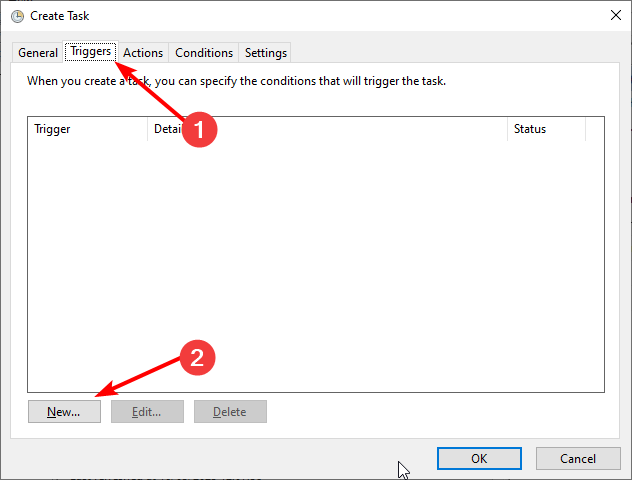
Origin is a popular game publishing and distribution platform from EA.

Some users complained that the Origin client for Windows has some recurrent errors that can affect its functionality.

Some of the most frequent issues are Origin error code 14-1 & error code 14-7.

Both of them are installation-related issues and they already have a lot of user complaints on Reddit.

How to Fix Origin error code is 14-1 & error code 14-7

Run the Installer as Admin

  1. Right-click the Origin installer executable
  2. Select Run as Administrator
  3. Check if you are able to install the app now

If you haven’t already, try running the Origin installer as Admin.

Depending on your system’s configuration, some actions may be reserved for system administrators.

If your system is restricted and you lack admin rights, try asking your sysadmin to install Origin for you.

Disable your VPN & antivirus

Although a VPN is great at keeping your online identity anonymous and secure your connection, it could interfere with Origin.

Not saying that’s 100% the case here, but just to make sure, disable your VPN client and check if there’s any improvement.

In order to rule off VPNs completely as a cause, you may try closing the VPN client, and even uninstalling it temporarily from your PC.

Make sure to remove any VPN-related components as well, such as additional drivers.

If you are using any antivirus software in your system, try disabling the antivirus temporarily and see if there’s any improvement.

Perform a clean boot

  1. Press the Win Key on your keyboard
  2. Type msconfig and click OK
  3. Go to the Services tab
    Origin error code 14-1
  4. Check the Hide all Microsoft Services option
  5. Click the Disable all button
  6. Go to the Startup tab
  7. Click the Open Task Manager button
    Origin error code 14-1
  8. Go to the Startup tab in Task Manager
  9. Select all the startup apps and disable them
  10. Go back to the System Configuration window
  11. Click Apply and then OK to save the changes
  12. Restart your computer
  13. After the restart, run the Origin installer again and check if the Origin error code 14-1 & error code 14-7 issue is still there

Run the System File Checker

Run Windows troubleshooter scans
  1. Launch a CMD instance with Admin rights
    Origin error code 14-1
  2. Type SFC /scannow
  3. Wait for the system file checker to scan and repair corrupted files
  4. Reboot your PC
  5. Run the installer again.

Reinstall Origin Client

  1. Press the Win key on your keyboard
  2. Type control
  3. Select Control Panel
  4. Go to Programs and Features in the Programs category
  5. Select and uninstall Origin
  6. Clean any remaining files manually, if necessary
  7. Reinstall Origin
  8. Check if the Origin error code 14-1 & error code 14-7 issue is resolved

Conclusion

To sum it up, if you’re encountering the Origin error code 14-1 & error code 14-7 issue on your PC, there are plenty of things to try.

This issue, which covers both error codes, is likely caused by a faulty installation, so it’s not that big a deal.

Our suggestion is to try all of the methods we explained in this guide, one by one, without skipping either one.

We’re confident you’ll eventually find the one that does the trick.

Microsoft Teams is getting a new History Menu in February

The desktop version of Microsoft Teams is about to receive a new History menu, which will allow users to easily navigate back and forth between frequently visited sections of the platform. The Microsoft 365 Roadmap entry indicates that the feature is expected to launch in February 2021 (via Windows Central).

“The History Menu for Teams desktop clients displays your recently visited locations when hovering over the backward and forward navigation options. Using the menu you can quickly jump back to previous locations, making it much easier to quickly get back to nested locations like tabs or documents. The menu is also accessible via keyboard shortcut,” the company explained.

Although many people have coped admirably with the disruption caused by the ongoing pandemic, there have still been challenges along the way. The new navigation experience will aid users by decreasing the time and effort needed to search for an important file or document while collaborating with their colleagues.

Microsoft keeps adding new features regularly to Microsoft Teams, and the company has released a bunch of new features this month. The list includes Breakout rooms, end of meeting notifications, new Together mode scenes, and more. If you’re interested, we invite you to check out our separate posts for more information.

Office Insiders can test simplified Microsoft Editor assistant in Word for Windows

Microsoft has announced an important update for its Microsoft Editor tool in Word for Windows, though these features are limited to Office Insiders at this time. The new capabilities include an upgraded Editor pane, a simplified view for suggestions, and a one-click reviews experience.

The first new feature that the company highlighted today is the ability to view spelling and grammar suggestions with one click. With this new experience, users will be able to click (either left or right) on an underlined word to display Editor suggestions. There is also an option to press the Shift+F10 or Alt+Down keys to view these recommendations.

Microsoft Editor

Microsoft is also making some improvements to the way the Editor displays suggestions. On this front, the company is introducing a simplified and dedicated Editor’s suggestions view in Word for Windows, allowing users to display additional information if required.

Wrapping up the list of announcements is the introduction of an upgraded Editor pane, which will provide a more accessible and contextual review experience. Users will be able to open the Editor pane directly from the ribbon or by pressing the F7 key to view suggestions.

Microsoft Editor Pane

The company is bringing the full Editor pane experience to Outlook for Windows and Outlook for Mac soon. It is important to note that all these new capabilities are already available in Microsoft Editor for Word on the web. However, there’s no word on when the new update will be rolled out to the browser extension.