Windows 10/11 App RT News Russia Today [Review]

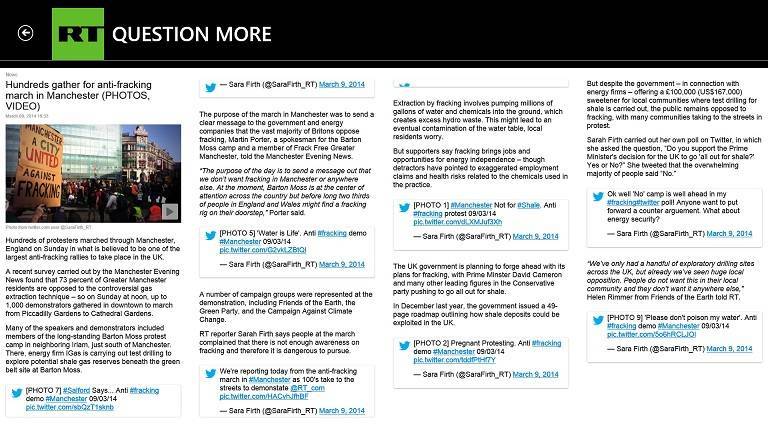
The official RT News English app, formerly known as Russia Today, has been made available for download in the Microsoft Store for Windows 10 users. Read the entire article below for more details and a video overview of the main features.

If you are interested in news regarding Russia and its oversea affairs, then you definitely need to check out the newly released ‘RT News English’ app in the Windows Store.

For those who don’t know, RT is funded by the federal budget of Russia through and presents round-the-clock news bulletins, documentaries, talk shows, and debates which are aimed at Russia but also on international happenings.

RT news app lands in the Microsoft Store

RT is a 24/7 English-language news channel. We are set to show you how any story can be another story altogether. Broadcasting over six continents and 100 countries, our coverage focuses on international headlines, giving an innovative angle set to challenge viewers worldwide.

russia today windows 8 app

Those who have watched Russia Today on the TV, or just RT, as it’s currently known, are already accustomed with the highly professional level of the shows and reporting, similar to other big outlets such as EuroNews or CNN.

I have tried out RT for Windows 10 for a few good minutes and you can see for yourself in the video from below that it looks pretty neat, indeed.

Everything inside the app is real snappy and what I particularly enjoyed was the live stream feature. I experienced no lags, whatsoever, even while using the highest quality of the stream.

rt news windows 8 app

Whenever you want, you can right-click or double tap and you will be able to choose from the news and on the air sections. In the Live area of the app, you will be able to follow news from Russia or from America.

RT also cared to mention on the official description that albeit the channel is government-fund, it shapes its editorial policy free from political and commercial influence. Having watched RT for more than a year now, I can attest to that.

According to the latest statistic, almost 650 million people watch the channel in more than 100 countries across the world.

This doesn’t necessarily mean that they are interested in Russia-oriented news, but they have become used with the professional reporting. To get the app on your Windows devices, follow the link below.

⇒ Download RRT News English for Windows 10

7digital Music Store Windows 10 App [Review]

7digital has just released its official app in the Microsoft Store for Windows 10 users.

With a quite ugly name 7digital Music Store recommended by HP, which I hope gets changed with a future update, the release of the app brings more than 25 million high-quality tracks that you can buy, download, synchronize with other devices, and listen to on the go.

If you already have a 7digital account, you can sign in to claim the songs you bought.

The official 7digital app has been available for Windows 10 users for more than one year ago, but it got pulled down. Now, the app has been officially launched once more, and it brings one of the most known music stores for Windows 10 users.

7digital windows 8 app

7digital’s Music Store now available for Windows 10 users

Shop for new music with 7digital. Choose from over 25 million high quality tracks in our store; buy, download, sync and listen to your music on the go. Managed by music lovers for music lovers. 7digital stores are available across 42 countries including the UK, Europe, the US and Canada. Sync your previously purchased 7digital music and have access to your 7digital collection across the web and all your mobile devices.

windows 8 app 7digital

Of course, you could’ve used 7digital’s services even before on Windows 10, but the dedicated app now brings the service to touch-enabled devices, as well.

And what I’ve discovered after reviewing so many Windows 10 apps on a non-touch device is that they look better and feel better designed than a desktop app.

You can also have a look at the video below to see how the app looks like before you actually download it (link at the end of the article)

The app brings many useful features, such as high-quality 320kbps MP3s, 30-second previews of all songs, and full-length streaming of your purchased music.

As mentioned, you can synchronize your 7digital music from the cloud to your phone and Windows 10 tablet.

Inside the app there’s an integrated music player that keeps playing as you explore new music on 7digital’s music store. You can even pin the songs and tracks you like to the start screen.

A feature that international users will notice is that the 7digital app for Windows 10 is available worldwide. As you can see from the above video, this app moves incredibly fast, and everything is really smooth.

Of course, this can also depend on your internet connectivity. The app is divided into the following main sections

  • New releases
  • Charts
  • Sale
  • Genre
  • Recommended
  • Bestsellers
  • Classic albums

The ‘Your Music’ section becomes available once you log in with your existing account or sign up for a new one. You can access it anytime by right-clicking inside the app and going to downloads or your music.

The Sale section will contain songs and albums available at a discounted price. So, if you have been waiting for this app to launch for Windows 8 users for a while now, follow the link below and grab it from the Microsoft Store.

⇒ Download 7digital app for Windows 10

Kobo Books eReader App for Windows 10 [Review]

Kobo released their official e-Reader app in the Microsoft Store for Windows 10 users a while ago, but it had to pull it down because of some problems related to UX and performance. Now it’s back and available as a free download.

I don’t have a Kobo e-reader, but I know many who do and who also have Windows 10 on their devices, so they will be really happy to learn that the official Kobo Books ereader Windows 10 app has been made available for download.

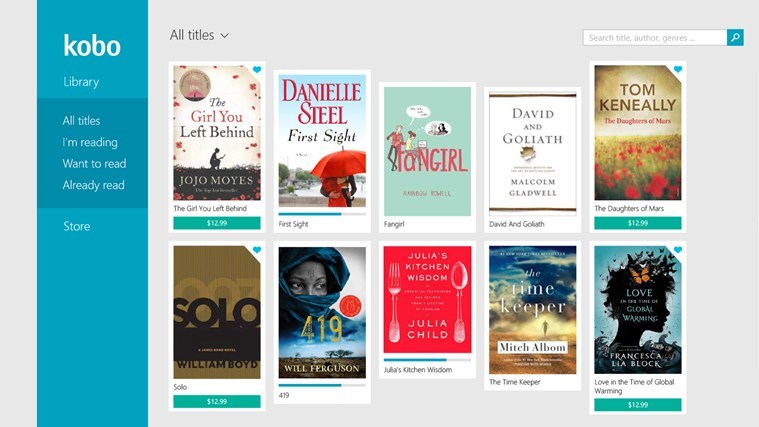
Somewhat similar to the official Kno Textbooks app, Kobo’s ereader app lets you browse from over 3.5 million eBooks, free and paid, comics, and children’s books.

Of course, in order to use the service, you need to have an account with Kobo, but you can also sign up for a new one from inside the app itself.

kobo ereader app windows 8

Kobo Books app for Windows 10 available for download

With Kobo, you can read on your Windows device anywhere, anytime. Download the Kobo app and browse from over 3.5 million free and affordable eBooks, comics and children’s books.

kobo books windows 8 app

Obviously, the app will run just as fine on your Windows 10 touch and desktop devices, and also on Windows RT.

Kobo Books for Windows 10 comes with many useful features, such as the ability to resume your reading and to have your bookmarks synchronized across all the devices where you have Kobo’s service installed.

Kobo Books will offer a ‘crisp, clear text,’ and of course, you will be able to choose the font size and style that you want. There’s also the Night Mode if you plan on doing some nighttime reading.

You can have your screen in portrait or landscape mode, so choose whatever suits you better and your reading positions. Before buying a certain book, Kobo will let you read the first chapter previews, and you will even be able to save them in your library.

The application also supports Live tiles, so by pinning it to the Start screen of your Windows devices, you can resume your reading easily. I have used the app for a few hours on my tablet, and I enjoy it.

Everything has a pristine quality and seems very fluid and robust. So, if you’re in need of a cool ereading app for your Windows 10 device, go ahead and download Kobo Books from below.

⇒ Download Kobo Books for Windows 10

Free BBC Good Food app for Windows 10 released

We certainly don’t lack cooking and recipe apps for Windows 10 users, but BBC has decided that there’s room for one more as it has just released its Good Food app in the Microsoft Store. Read below for more details on it.

Up until today, BBC had in the Microsoft Store only the paid version of BBC Good Food app for Windows 10, but now the free version has been made available, as well.

My guess is that the paid one will be removed, since the new version also lets you buy separate recipes, if you are interested. I’ve played with the app for a few minutes and you can see for yourself in the video from below that it looks gorgeous and everything moves really fast inside.

You can also have a look at the BBC Earth Wonders app, as well.bbc good food windows 8 app

Cook in style from your Windows 10 tablet

Whether you’re looking for weekday inspiration, trying to cook the perfect steak or attempting your own homemade ice cream, get cooking with the new BBC Good Food app. This app lets you buy and store all the existing BBC Good Food cookbook apps, and organise your favourite recipes in one place. The app is free to download, and comes with 20 of our favourite recipes, like, Beef & beer pie, Summer vegetable curry and Chocolate & raspberry pots. It also includes a basic glossary of ingredients and techniques, to get you started.

windows 8 app bbc good foodThere are enough free recipes to get you started and what’s really cool is that there is also a basic glossary of ingredients and techniques which will prove out to be really useful to those who’re just starting out in the world of cooking.

Every recipe also comes with nutritional information such as kcals, protein, carbs, fat, saturated fat, fiber, sugar, and salt per serving. This is a really great feature as it doesn’t teach only how to cook but also how to watch over your health.

The app looks just as great on desktop and on touch device, and it comes with plenty of recipes divided into the following categories:

  • Healthy with such options like salmon & ginger fish cakes, thai beef stir-fry, and Indian butternut squash curry;
  • Quick with Quick lamb biryani, Parmesan spring chicken and easy puds;
  • One-pot with Sausage casserole with garlic toasts to One-pot mushroom and many others.

Follow the link from below to download it and have a look at the above video for more insights.

⇒ Download BBC Good Food app for Windows 10


[wl_navigator]

Virtual Chemistry Lab is a cool Windows 10/11 app

The Virtual Chemistry Lab app has recently been launched in the Microsoft Store, so give it some time in case you’re not pleased with some of its features, as I’m sure the app will get better and better in time.

The idea behind this app is really nice as it wants to visualize and show in a 3D environment how chemical experiments take place.

But, as you will see from the video for yourself, there are still many areas where the app needs to be improved, so I’m reaching out to developers to make it even better.

windows 8 chemistry lab app

We definitely have a thing for Windows 10 chemistry apps as in the past we have talked about two interesting periodic table apps and about TouchMol, an app that allowed for molecule drawing. And now we’re talking about Virtual Chemistry Lab because they deserve it.


See chemical experiments on your Windows 10 tablet

Chemistry lab project, perform the following experiment Magnesium Ribbon burning, preparation of Oxygen Gas, Preparation of Hydrogen Gas, Preparation of Carbon Dioxide Gas. Help the students to perform the chemistry experiment.

chemistry app windows 8 appThe app works like a chemistry lab project, allowing you to perform such experiments as Magnesium Ribbon burning, preparation of Oxygen Gas , and others.

It is apparently aimed at teachers who want to help students, and it does the job pretty well for an initial launch.

Another area where I’d love to seem some improvement is with the chemical equations as it’s clear that the images are either scanned papers or washed down pictures.

Another drawback of the app is that you can’t currently install it on Windows RT devices, which is a real pity, but I hope that this will also get solved in the future.

To know more about the app, have a look at the video from above or follow the link below to download it.

⇒ Download Virtual Chemistry Lab app for Windows 10


[wl_navigator]

iTunes error 0xe80000a? We got fixes [Windows & Mac]

iTunes is a must-have tool if you have an iOS device, but unfortunately, many users reported iTunes error 0xe80000a on their computer.

This can be a big problem, and if you encounter it you won’t be able to connect your phone with your computer. However, there’s a way to fix that.


How can I fix iTunes error 0xe80000a?

1. Update your iOS and iTunes to the latest version

  1. Download the latest version of iTunes and install it.
  2. Update the system on your iOS device to the latest version.
  3. Update your computer operating system to the latest version.

Few users reported that updating both the iTunes and iOS fixed this issue, so be sure to try that first.


2. Disable your antivirus

disable antivirus iTunes error 0xe80000a
  1. Locate your antivirus icon in the systray and right-click it.
  2. Choose the option to pause or disable the protection.
  3. Now check if the problem with iTunes is still there.

This is just a general guide, and the actual process will vary depending on the antivirus that you’re using.

If disabling the antivirus helps, try adjusting your settings in order to allow iTunes to work properly.


3. Reset location and privacy settings on your iOS device

  1. Go to the Settings app and go to General. Not select Reset.
  2. Now select Reset Location & Privacy.
  3. Tap on Reset Settings to confirm.

After resetting Location & Privacy settings, check if the iTunes error 0xe80000a is still there.


4. Reset the Lockdown folder

  1. Press Windows Key + R and enter %ProgramData%. Press Enter or click OK.
    program data itunes error 0xe80000a
  2. Navigate to Apple directory.
  3. Locate the Lockdown directory and rename it Lockdown.old.

For Mac users:

  1. In Finder, select Go and choose Go to Folder.
  2. Type /var/db/ lockdown
  3. Once the lockdown folder is open, select all files and delete them.

After doing that, check if the error message is still there.


5. Stop iTunes processes and reconnect your iOS device

  1. Open Task Manager by pressing Ctrl + Shift + Esc.
  2. Locate the following processes:
    • PodService.exe
    • AppleMobileDeviceService.exe
    • iTunesHelper.exe
  3. Right-click each process and choose End task.
    end task task manager itunes error 0xe80000a
  4. Disconnect your phone from the PC and connect it again.

6. Reinstall iTunes

  1. Go to the Settings app and navigate to Apps.
    settings app apps section itunes error 0xe80000a
  2. Locate iTunes and click Uninstall.
    uninstall software itunes error 0xe80000a
  3. Follow the instructions on the screen.
  4. Once the application is removed, download it and install it again.

For Mac users:

  1. Open the Terminal.
  2. Now enter cd /Applications/
  3. Enter sudo rm -rf iTunes.app/ and press Enter.
  4. Enter the administrator password to confirm.
  5. Now visit the Mac App Store or Apple’s iTunes web page to download iTunes again.

After reinstalling iTunes, check if the iTunes error 0xe80000a is still there.

iTunes error 0xe80000a will prevent you from connecting your iOS device with your computer, but you should be able to fix this problem using our solutions.


Windows 10 app check: Al Jazeera

Al Jazeera is one of the best news channels in the Middle East, but it has slowly improved to become a global presence with millions of readers.

Along with EuroNews and the RT Russia Today’app, it represents one of the best news apps to be tried out on your Windows 10 device, be it a tablet or desktop unit

Al Jazeera has been available in the Microsoft Store for Windows 10 users for more than one year now, but we’ve decided to go through its main features only today, at the request of our readers.

A great app for all your international news needs

The Al Jazeera app for Windows 10 that we’re going to talk about here is the English version, but there’s one in Arabic language, as well.

We will be providing download links at the end of the article to both of them. The app can be downloaded completely for free from the Microsoft Store and comes with a size of fewer than two megabytes, so you won’t even feel it’s there.

Those who reside in the Middle East have definitely heard about Al Jazeera, but the TV channel has become quite popular across the entire globe thanks to its professional reporting and quality of news and programs.

windows 8 al jazeera app

I have had a look at the app for myself for a few good minutes and you can see in the video from below how it performs.

Al Jazeera English for Windows 8.1 brings you all the latest news and live broadcast of Al Jazeera English, free of charge. The 24-hour news and current affairs channel is the first international English-language news channel to broadcast across the globe from the Middle East. Al Jazeera’s global footprint continues to grow and now broadcasts to more than 260 million households on six continents in more than 100 countries.

Despite the fact that the Al Jazeera app for Windows 10 can be downloaded completely for free, I didn’t see any advertisement blocks inside the app, so this is really nice.

You get to follow your news and favorite channels and coverage without having to worry about ads, neat. Also, there are many news stories that come with videos that come with really good quality. Another awesome feature of this app.

al jazeera windows 8 app

What I didn’t like was the fact that while on a certain article, you couldn’t change its font, increase or decrease size and have access to other features, such as adding stories to a watch-it later column or to favorites.

Also, I couldn’t manage to get the live streaming to work, but maybe that’s a local problem. Al Jazeera says that they are the first international English-language news channel to broadcast across the globe from the Middle East, and in this profile, they are somewhat similar to the Windows 10 RT ‘Russia Today’ application.

The channel is said to broadcasts to more than 260 million households on six continents which span across more than 100 countries. Another cool feature of the app is the fact that it comes with Text to Speech feature for listening to news articles.

A pretty big downside, however, is the fact that the app isn’t currently available for Windows RT users, but I hope a future update will take care of that.

You can also have a look at some of the best Quran apps for Windows 10 devices. Follow the link below to download and install it on your Windows 10 touch and desktop devices.

⇒ Download Al Jazeera app for Windows 10


[wl_navigator]

Booking.com Windows 10/11 apps gets plenty of new features

Booking.com has released its official app for Windows 10 users in the Windows Store for quite a while now, but now it has received a really big update that we’re going to talk about below. It’s definitely one of the best Windows 10 travel apps around, so go ahead and download it.

A great app for those that love traveling

TripAdvisor and Booking.com are probably the most knowledgeable travel apps in the world. Naturally, Booking.com couldn’t have ignored the big amount of Windows 10 users and have released the official app in the Microsoft Store.

Just like expected, the app looks really great and moves pretty fast, you can judge for yourself in the video from below. There are no advertisements at all inside the app, as they make money through partnerships, naturally.

According to the official changelog of the Booking.com Windows 10 app, here’s what has been made new with the application:

  • The ability too securely store credit cards along with the previous ones
  • Resume recently viewed hotels in case you forgot to write it down
  • The rooms and locations have been enriched with more details and photos to make it easier for you to take the final decision
  • Touch-optimized semantic zoom feature to help you browse and navigate.

Also, the app has been updated and will now let you sign up for Booking.com deals newsletter straight from inside the app. Have a look at the video below for more inside details.

booking.com app windows 8 booking.com windows 8

The Booking.com app for Windows 10 comes with more than 290,000 properties worldwide and over 18 million reviews from real guests to make it easier for you to pick the most convenient place for your stay.

To further help with that, there are more than 8 million hotel photos at your disposal. The booking process is really fast, and security is being given special attention. So, just go ahead and follow the download links to get the app.

⇒ Download Booking.com app for Windows 10


[wl_navigator]

Review of Amazon App for Windows 10/11

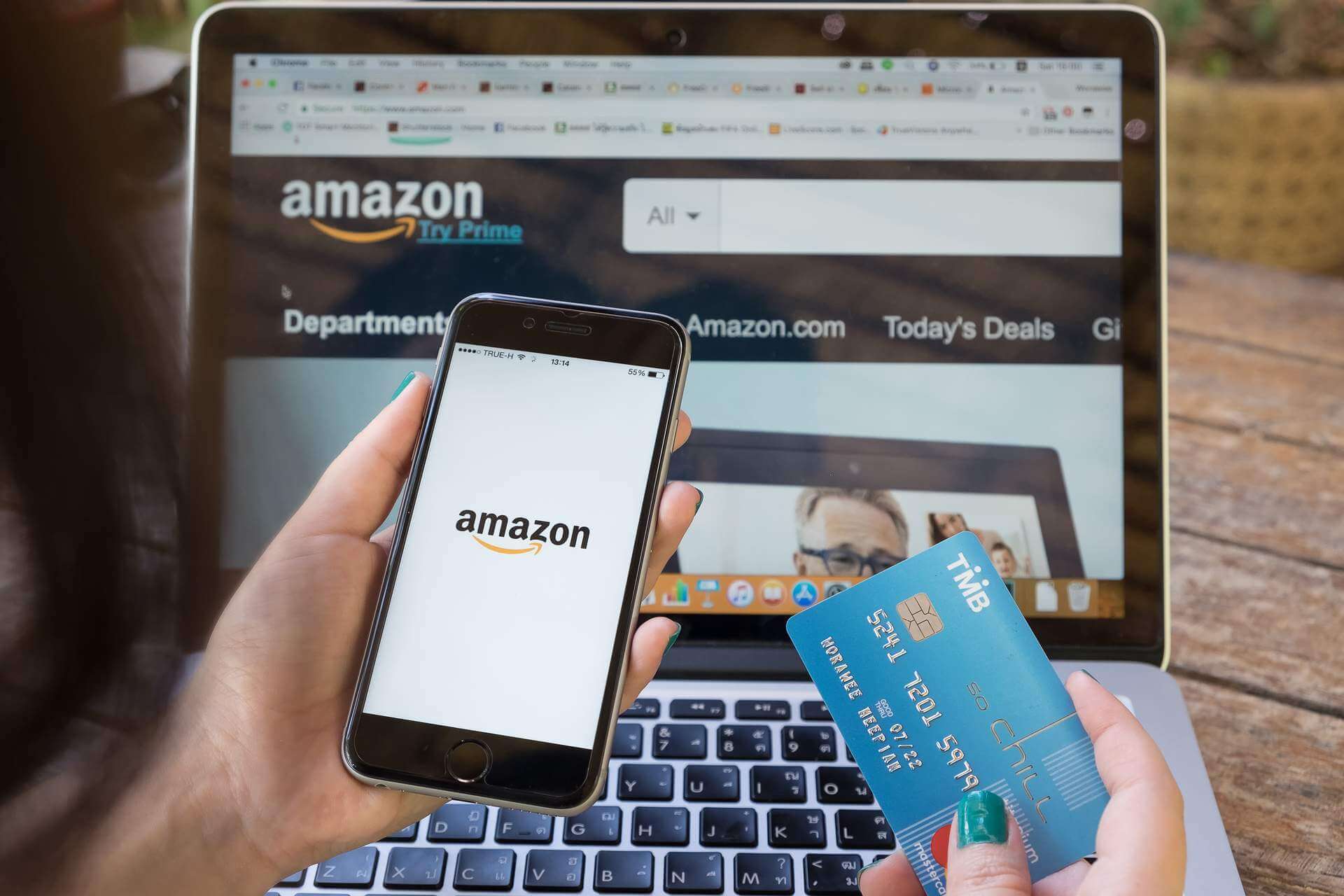
Alongside eBay, Amazon is the world’s most-known internet shopping website. You can find just about any item you want, both used and new, and at very good prices.

The online store is available for everyone worldwide, and it offers anyone the possibility to buy almost any item (depending on the seller’s shipping policy). And now there’s an Amazon app for Windows 10 and RT.

Furthermore, Amazon offers awesome deals on special occasions like Black Friday and Christmas. Also, buyers can compare prices and find the very cheapest ones.

Amazon is probably the best place to shoot this season, and be sure to look at their deals, where you will find great presents for every family member.

Amazon comes to Windows 10

Amazon has already delighted us with top-notch mobile applications for Android and iOS, and it has now come to Windows 10.

The app is free to download from the Windows Store, and it provides shoppers with lots of interesting features, but there is also room to improve. We’ll take you through the app and highlight its strengths and weaknesses.

Once you download and install the app, the main screen gives you some of the featured items on the store, which you can add to your wishlist or cart, your Sign-In and Card buttons are available on the upper right side of the screen as well as the search bar.

amazon-for-windows-8-review

Also, by scrolling to the right, you can see your Recommended items and another item that might interest you, based on your wishlists. Also, on the same screen, there are the most popular items (books, cameras , and electronics) from the online store and the most searched.

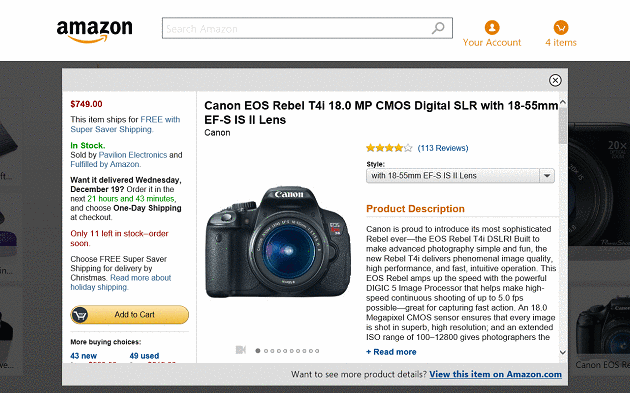
One thing that is missing from this otherwise great user interface is the view more button, as you can only see a few from each category, and also, for you to add an item to your wishlist, you will have to open it before doing so.

These would be a great addition in future app versions, and I’m sure that Amazon is already working on them.

amazon-for-windows-8-review-product-details

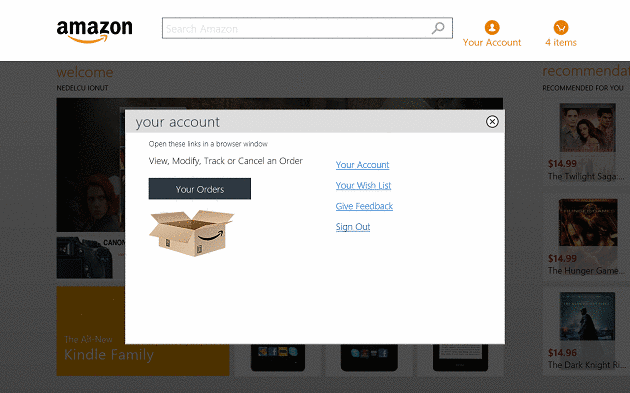
By opening your account, you can see your details and your wishlist and also give feedback or sign out from the app. Although these links are very well placed, they will forward you to the Amazon website (apart from Sign Out and Give Feedback).

The option to view your wishlist from the app is not yet supported, and as far as account details and information, these are also only accessible from the website, but I think this is more of a security measure then a drawback of the app.

amazon-for-windows-8-review-your-cart

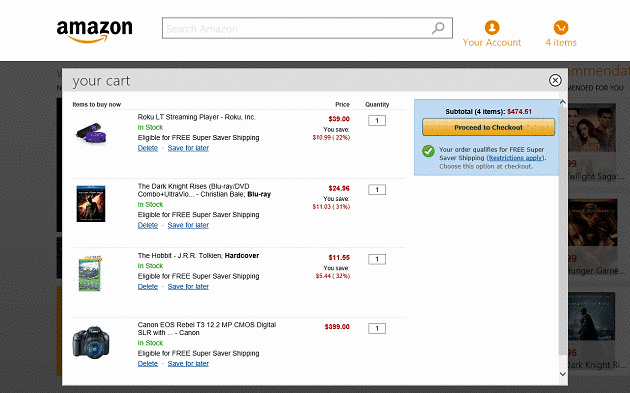
You can view at any time what items you want to buy by clicking on Card button. This will open an in-app window where a list of items and their prices can be viewed, as well as the total sum you will have to pay.

We also reviewed the eBay app for Windows 10, and if you’ve seen it, you know it does not support in-app purchasing.

Well, Amazon has this feature, and you can easily buy anything from within the app without having to visit the Amazon website.

amazon-for-windows-8-review-product-search-filters

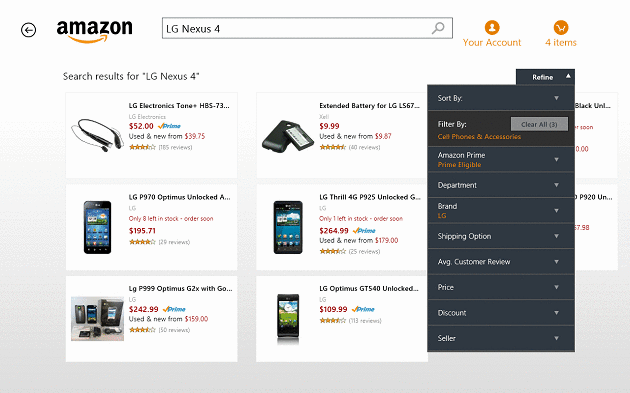
Another issue the app has, and I’d say this is more of a design flaw, is the filtering for search results. Although it works pretty well, its design is not as good as you would expect.

If you have added a filter that you didn’t want, or if you change your mind, you have to remove all the filters, not just a particular one.

Amazon app evolution

Amazon made many changes to the app after its launch. After many tests, they launched a big update with improvements and bug fixes in 2014. During the spring of 2016, they announced a new app for Windows 10 devices, to boost customers’ experience.

In the summer of 2016, Amazon stopped the support for Windows phones, but they launched the new app for Windows 10 PCs. However, the app from our review can always be used despite its age and the fact that it is “not-so-popular”.

Update: Amazon app for Windows 10 is a web wrapper that makes it similar to native site browsing. Even if this app might be the last for PC users, we observed some clues showing to a future mobile app.

In the app description, there is an Amazon icon that seems to be designed for mobile. The most optimistic users take that as a sign.

However, the Amazon app is still great for shopping, especially if you do not want to use your browser while doing it. Let’s see its strong and weak points.

Amazon for Windows 10 – Pros and Cons

These are the areas that impressed us the most about the app:

  • Easy to use
  • Clean and responsive UI
  • In-app purchase

But as good as it is, there are a few aspects that should be improved in the app:

  • No “view more” for any category of items
  • Filtering is awkward and not very intuitive
  • No possibility to edit your account from the app (might be a security feature, but still, it would have been nice to have this feature)

Final Thoughts

Although not without its issues, Amazon for Windows 10 is a great app that has many features and a very clean UI. All of these make it a must-have app for Amazon users, and thanks to its in-app buying feature, users will be able to purchase items without needing to visit the online store.

From a performance point of view, the app is rock solid, having no connection issues and no crashes during the testing period. Also, its search and share options work flawlessly and very fast.

Amazon for Windows 10 has all the ingredients of a great app, and after the developers will iron out all the minor kinks in the design of the app, it will be without reproach.

⇒ Get Amazon

HBO GO activate is not working? Try these solutions

Signing into HBO Go is pretty easy. However, many users are facing difficulties while activating it on any of their devices.

They access the HBO GO activation page and after entering the activation code that shows on the TV screen they get an error: Code not working or Code incorrect.

If you also face such issues, then look for the confirmed solutions we mention in the following article. Hopefully one of them will help you activate HBO GO and start enjoying those awesome programs.

What can I do if the HBO GO activate code is not working?

1. Try signing from different devices

  1. Exit the HBO GO app on your TV.
  2. From your computer go to HBOGO.com and from the right upper corner choose Sign In.
  3. Select your TV provider from the drop-down list.
  4. Log in using the username and password for your provider account. If you cannot remember the login credentials given by your TV provider, then reach out to them. HBO does not have access to that information.
  5. Once signed in on your computer, reopen HBO GO on your TV and choose Sign In.
  6. Open a new tab on your computer and go to HBOGO.com/tvsignin.
  7. Copy the code that appears on your TV and choose Next.

2. Clear cookies and cache

hbo go activate won't work

If the code still does not work, clear your browser’s cookies and your browser’s cache.

Clear your browser cookies and then close and reopen it. Go to HBOGO.com and try signing in again. If you cannot sign in, also try clearing your browser’s cache.

3. Try to use a different browser

  1. Try using a different browser than the one you are currently using.
  2. Follow the same activation steps as on the previous browser: type the URL you see on your TV (HBOGO.com/tvsignin or HBOGO.com/activate) and enter the activation code you’re your TV app.

We recommend opting for a browser with powerful capabilities meant to help you access content error-free. Security-oriented features, tools that boost the loading speed, incorporated ad blocks. Plus, this browser also comes with a built-in AI.

Opera One

Pick tAccess your favorite movies and series on HBO GO with this fast and modern browser!
Free Download Visit website

4. Hard reload your HBOGO.com page

fix hbo go activate browser
  1. On Chrome, hold down Ctrl and click Reload
  2. Hold down Ctrland press F5
  3. Hold down Ctrl + Shift and press R
  4. Press F12 to open the Chrome Dev Tools and click on the Reload button
  5. Choose from the dropdown menu – Hard Reload

5. Update your browser

Check for any updates available for your browser.  In order to do this, you can simply search on the Internet for updates and the name of your browser (i.e Chrome updates).

Some browsers update automatically in the background, but you can always perform this action manually. Either way, this is an important procedure that needs to be done in order for your browser to work properly.

An updated browser will benefit from the latest security measures, protecting your data while you navigate online.

6. Try a different streaming service

If you have tried all the steps above and the problem persists, we suggest you use Disney+. It is a streaming platform that has a generous library that includes Disney’s movies and shows for all ages.

For Disney’s legions of Marvel, Star Wars, and Pixar fans who want to enjoy those movies, and their extra features, this streaming service is what they need. The same goes for parents who want their kids to enjoy Disney’s family movies and TV shows.

That’s about it. If you carefully follow the steps presented above, you should be able to fix your HBO GO activation problem in no time.

If you have any more questions or suggestions, don’t hesitate to leave them in the comments section below.

How to Use VPN to Access Blocked Sites & Apps

A VPN reroutes your internet traffic to bypass web filters and blocks. It hides your browsing and app activity from your network, so restrictions can’t be enforced.

Below, we’ll explain more about this process and show you how you can quickly setup a VPN to bypass any type of web restriction.

How to use VPN to unblock websites?

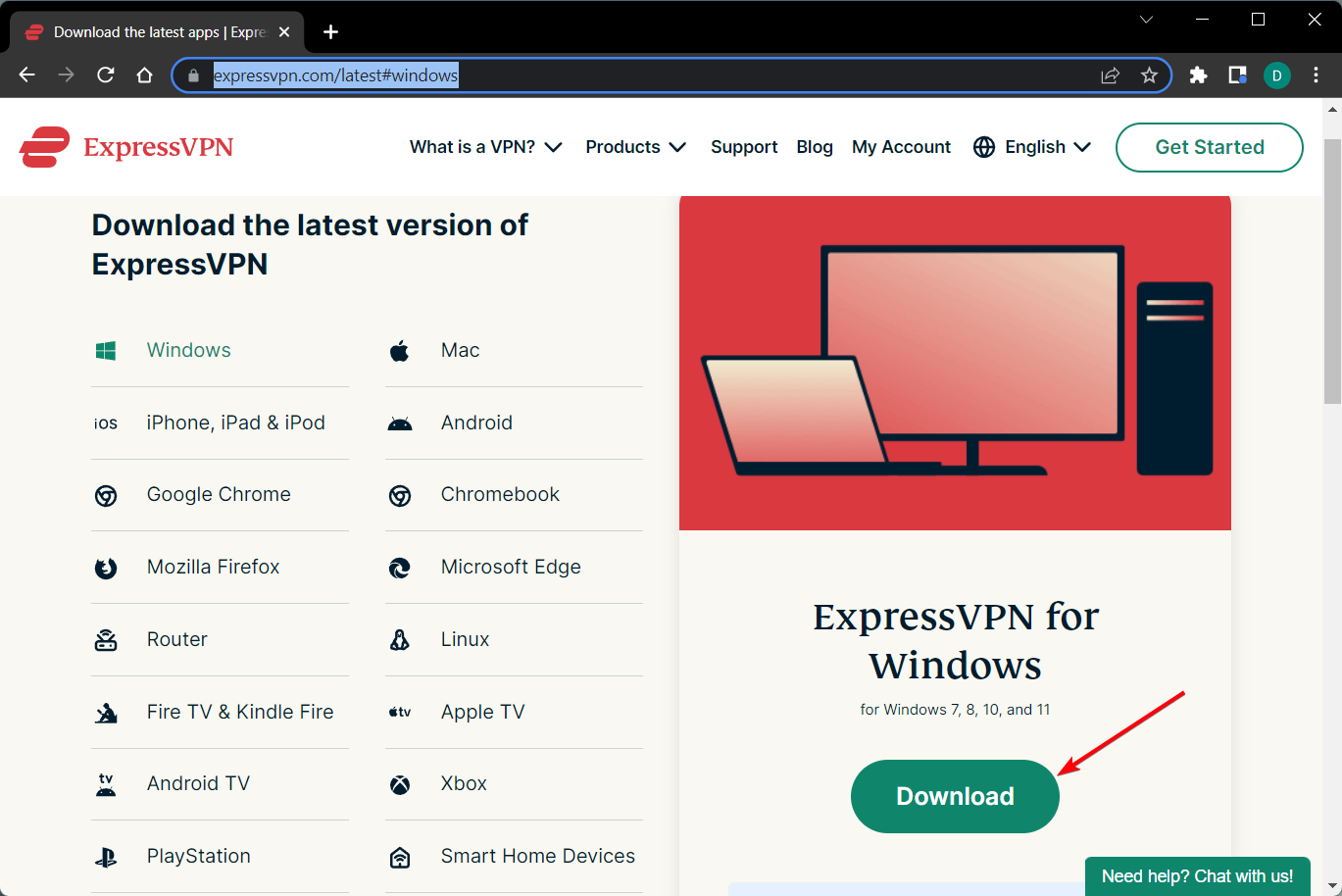
  1. Sign up for a VPN subscription and download it for your device. (We recommend ExpressVPN).
  2. Install it on your device.
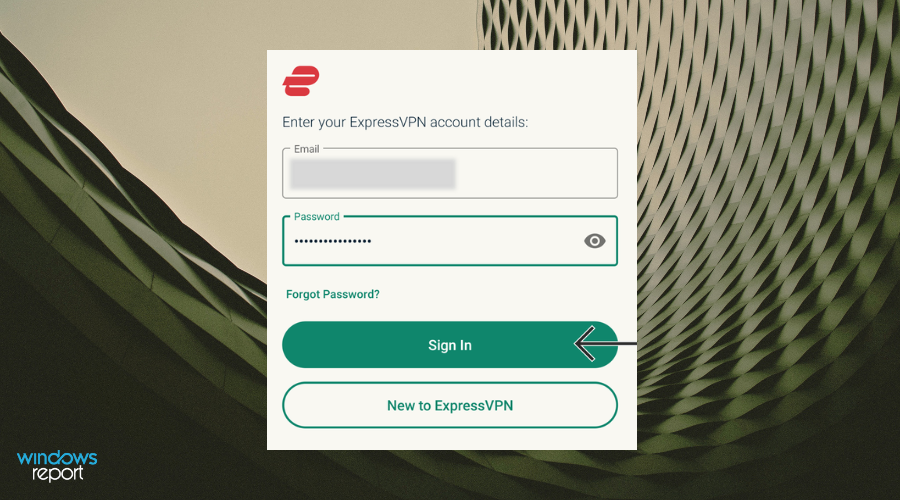
  3. Launch it to log in to your ExpressVPN account and verify it through email.
  4. Connect to an appropriate server. (*).
  5. Open a browser and access the website you want.

(*) – if you want to access a service that’s restricted outside of a specific country (for instance USA), you should connect to a server located in that country.

Why are some sites blocked?

Some sites are blocked because of restricting website access based on geographical criteria.

If a website got taken down, there’s nothing much you can do to access it any longer, besides checking for a cached version of it online, maybe.

However, if the site is blocked to specific regions, this limitation can be easily circumvented. We refer to this situation as geoblocking since that’s exactly what it is.

Some examples include the US version of Netflix, CBC, Hulu, and HBO GO. However, most of these entertainment platforms aren’t blocked because of political-social factors, but because of economic purposes.

Other ways to access blocked sites

1. Use a Smart DNS service

Using a Smart DNS service might prove to be more effective than using a VPN most of the time. Smart DNS services lack encryption, so it shouldn’t slow down your connection even one bit.

However, you should understand that using a Smart DNS service also exposes your connection to whoever might feel like listening to it.

Long story short, your public IP address is still the same, so your identity should stay the same. The only thing that a Smart DNS service modifies is, as its name clearly indicates, your DNS address.

It then routes all of your traffic through its private servers, tricking websites into believing that you’re accessing them from somewhere else.

Naturally, you have to make the right choice when choosing a server (e.g. select a USA server if you want to access a US-only website).

2. Use a proxy server

The good thing about proxy servers is that you can find a lot of free ones online and you can fix website is not accesible easily.

The downside is that you’re likely not the only one to use them, so you’ll have to share the same server with several other users.

This might lead to bandwidth throttling, which means that your connection will be terribly slow.

There’s also minimal protection, so you won’t benefit from the same level of security that a trustworthy VPN service would offer you.

3. Use a browser

Another option is to use a dedicated web browser that can unlock blocked sites and apps.

These browser are extra privacy feauters and often include some sort of proxy or VPN feature within their software. Good options include Opera and Brave.

Best free VPN for blocked websites

ProtonVPN is one of the best free VPN options out there.

However, keep in mind that the free plan has some restrictions with P2P applications, so if you want to do something like torrenting, you’ll need to upgrade to a paid plan or consider using I2P.

Wrapping up

To wrap it up, you can safely use VPNs to access blocked websites, but you should be aware that there are other ways to unblock geo-restricted content such as Smart DNS or proxy servers.

For a step-by-step example, see our full guide on Mysterium VPN Download for PC, which shows how to install and use a VPN to unblock websites on Windows.

A VPN, however, will do much more than just circumvent geoblocking, including safekeeping your online privacy, boosting the security of your connection, curbing packet loss, and even improving ping while you’re playing games or streaming media.

Keep in mind that also your ISP can restrict you from accessing a website. But it’s no different than applying geo-restrictions. Not by much, anyway. Thus, using a VPN, Smart DNS, or proxy can easily circumvent ISP website restrictions.

For more tested methods to bypass online restrictions and access any blocked site, read our full guide on how to unblock restricted websites.

Check out our best VPNs that can help you unblock websites easily. You can also visit our Unblocking Hub to discover more guides on using VPNs to unblock specific services.

Hotfix for PowerToys memory leak and more bugs now available

Windows 10 utilities like Microsoft PowerToys let you take better care of your PC, customize your experience, or even enhance system performance.

Some perform mission-critical functions, such as damaged hard drive recovery, while others enable you to organize your schedule or plan your day, for example, weather apps.

So, if you’re a fan of PowerToys, then you’ll most probably take interest in the hotfix that Microsoft released recently for the utility.

Microsoft PowerToys v0.19.1 patches multiple bugs

Microsoft released PowerToys update 0.019.1 to fix a range of issues affecting the Windows 10 utility.

Remember the key remapping feature that PT got recently, enabling you to modify certain key roles or disable them altogether? Well, it had a bug that prevented the activation of remapped keyboard shortcuts. Now you shouldn’t experience that problem anymore.

Also, with the update, you should be able to deactivate FancyZones when the Hold Shift key command option is deactivated.

Similarly, the patch resolves a race condition bug in OS detection, on top of patching a PT Run memory leak.

Here’s the list of issues patched:

#4578 – WinKey for PT Run throws a lot of false positives

#4646 – FancyZones: When “Hold Shift key” is deactivated, Shift key should deactive FancyZones

#4625 – [Run] Search text not updating on up/down navigation

#4432 – Mitigated the race condition in os detection

#2047 – Memory leak in PT Run

#4647 – Fix remapped shortcuts not getting activated in succession

However, PT version 0.019.1 didn’t fix all previously spotted bugs. One of those is the inability to open settings after shutting down PT in minimized mode from the taskbar.

Moreover, that’s a recurring issue that Microsoft intends on fixing in the upcoming PowerToys v0.20 release.

In the meantime, if you’d like to improve your proficiency in PowerToys, check out our expertly-written guide.

How has Microsoft PT impacted your everyday PC experience? Feel free to let us know via the comments section below.


HBO GO Time Warner not working? Try these solutions

Since Charter Communications acquired Time Warner Cable, many of its subscribers are facing difficulties signing in to their HBO GO app.

There is not even an error that appears on the screen. Most users are complaining that Time Warner is just not showing in the provider list.

Below, you can find a list of confirmed reasons and solutions for why this is happening. Make sure to check them and hopefully, one of them will help you regain access to your HBO GO app.

How can I fix HBO GO Time Warner not working?

1. Check that your Time Warner subscription is active

  1. Make sure to check that you have HBO as part of your TV service.
  2. You are using the correct username and password to log in.
  3. You’re in an area where the network or channel offers live streaming.

2.  Try searching for Spectrum or Charter-Spectrum

Depending on the type of device you are using, you will find the name of your provider under Spectrum or Charter-Spectrum.

If you are trying to log in from your laptop, then you should see Spectrum in the provider list. When signing in from Android or Apple phones, you should see Charter-Spectrum in the list.

3. Most of the partner apps need to be activated from a computer

HBO GO is available on the following devices: Amazon Fire TV, Android TV, Apple TV, Playstation 3 & 4, Roku, Samsung Smart TV, TIVo, Xbox 360, and Xbox One. Those need to be activated from a browser on a computer, not on a smartphone or tablet.

Chrome seems to be the browser that works the best.  If Chrome does not work for you try using another browser. You may need to clear your cookies, cache, and history for this process.

4. Uninstall and reinstall the HBO Go app

  1. On your Android TV, go to Settings > Apps.
  2. Under Downloaded, find and select HBO GO.
  3. Select Uninstall, and then select OK to confirm.
  4. Go to the Google Play Store, find the HBO GO app, then choose Install.

5. Try a different streaming service

HBO Go isn’t the only streaming platform out there, with other giants having a big chunk of the market, such as Disney+, Netflix, amazon Prima, Hulu, and more.

So, if you tried all the solutions listed above and HBO Go Time Warner still not working, you should consider switching to a different streaming service.

Disney+ is a streaming service that has amazing movies and TV shows for all ages.

⇒ Get Disney+

That’s about it. If you carefully follow the steps presented above, you should be able to activate your HBO GO app in no time.

Let us know in the comments below if our suggestions fixed your HBO GO Time Warner activation problem.

Edge for Android now lets you activate developer settings

Microsoft Edge for Android now lets you turn on/off developer settings via the Edge://flags page.

The screen, which already exists in the desktop version of the browser, helps when you need to activate or deactivate experimental features. Edge insiders, for example, may use it to enable or disable localized devtools for the Chromium-based browser.

The Edge://flags page in Edge for Android

You can get the feature by updating to Microsoft Edge for Android beta v45.06.24.5042 or a more recent version.

Typically, regular Edge users (including on desktop) don’t have direct access to the Edge://flags page. But you can access it by typing Edge://flags in your browser’s address bar.

However, this settings page is usually meant for advanced users because it offers features that are a work in progress. As such, disabling or enabling any of the experimental updates available on the page may dramatically alter your browsing experience.

There’s even the risk of compromising your browser data security or privacy. So always be sure that you’re conversant with any experimental feature you wish to tweak in Microsoft Edge for Android.

Nonetheless, the developer settings flag is vital to the improvement of the overall Edge browser experience. Thus, as you experiment on the beta features, Microsoft gathers your feedback and uses it to fix any arising issues.

As you might imagine, using any experimental features in Edge may trigger different types of bugs, such as browser crashes. The good news is that Microsoft learns from any reported experiences and fixes insider concerns before releasing a new feature to general availability.

Despite the latest update to Edge for Android, the browser isn’t anywhere near as feature-rich as its desktop alternative. It’s currently based on Chromium 77, for starters.

On the other hand, Edge for Windows 10 is in Chrome 83 or above.

What are your views on the evolution of Microsoft Edge for Android? Kindly let us know in the comments section below.

[wl_navigator]

Fix: OneDrive not syncing on Mac

OneDrive is a great cloud storage service that is available on multiple platforms, including macOS.

However, many Mac users reported that OneDrive is not syncing on their Mac. This can be a problem, so in today’s article, we’re going to show you how to fix that.

What can I do if OneDrive is not syncing on Mac?

1. Make sure OneDrive is running

  1. Open Finder and navigate to the Applications > Utilities.
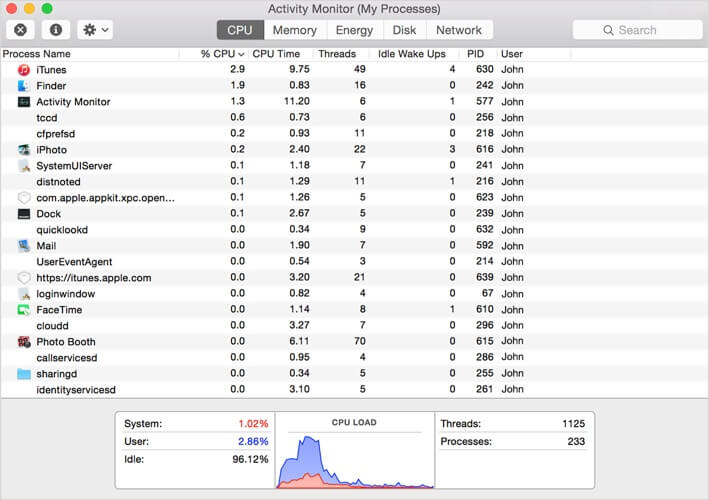
  2. Locate Activity Monitor and start it.
    activity monitor onedrive not syncing mac
  3. Select the CPU tab and look for OneDrive in Process Column.
  4. If OneDrive isn’t running, be sure to start it.

To avoid this problem in the future, make sure that you set OneDrive to start automatically.


2. Restart OneDrive

  1. Locate the OneDrive icon in the menu bar.
  2. Select the Quit OneDrive option.
  3. Start OneDrive again and check if the problem is still there.

3. Remove the .DS_Store files

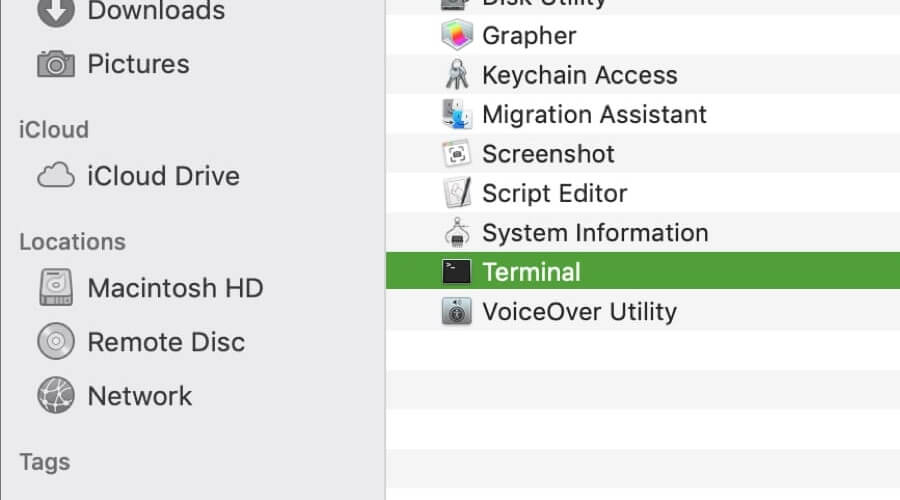
  1. Open the Terminal app.
    terminal app activity monitor
  2. Enter sudo ls command and press Return.
  3. Navigate to the folder that isn’t syncing using the cd command.
  4. Now run the rm -f DS_Store command and press Return.

After doing that, check if the problem with OneDrive syncing is still there.


4. Reset OneDrive

  1. Close OneDrive completely.
  2. Locate OneDrive in the Applications folder.
  3. Right-click OneDrive and select Show Package Contents.
  4. Navigate to Contents > Resources.
  5. Locate the ResetOneDriveApp.command or ResetOneDriveAppStandalone.command file and run it.
  6. After doing that, start OneDrive and complete the setup process.

5. Turn off Office Upload

  1. Click the OneDrive icon in the Menu bar and select Preferences.
  2. Select the Office tab and uncheck Use Office 2016 to sync Office files that I open.

In some instances, the Office Upload cache can interfere with OneDrive synchronization, so it’s advised that you disable it.

OneDrive is a great cloud storage service, but syncing issues with it can occur on your Mac.

In this article, we showed you several most common fixes for OneDrive sync issues, and if our fixes helped you, let us know in the comments below.

[wl_navigator]

Microsoft Project Freta boosts cloud malware discoverability

If you’re a commercial cloud user, Microsoft’s Project Freta may be what you need to optimize the security of your enterprise computing resources and data.  The service, which is available for free, lets you perform extensive memory audits of Linux systems to capture and stop virtually undetectable malware.

Project Freta for cloud security at scale

With the cloud security solution, you can analyze Linux system memory snapshots for advanced malware activity, including OS interference or sensor sabotage.

Apart from that, Microsoft says that Freta will make it economically unviable for threat actors to build undetectable malware.

Project Freta intends to automate and democratize VM forensics to a point where every user and every enterprise can sweep volatile memory for unknown malware with the push of a button—no setup required. The goal of this democratization effort is to increase the development cost of undiscoverable cloud malware toward its theoretical maximum.

Moreover, while performing memory scans, the system can sniff out rootkits and other advanced threats without alerting the malware. That makes it a lot more difficult for threat actors to build tools capable of breaching Project Freta’s sensors.

Right now, the platform supports up to 4,000 Linux kernels. But that’s just the beginning of it all seeing as Windows support is also in the pipeline.

Microsoft project Freta may finally achieve what traditional antimalware protection couldn’t, especially in the cloud. You can access it here. Documentation for the project is also available.

Nonetheless, this is not the first time Microsoft is mulling or proposing a non-conventional or paradigm-shifting approach to the fight against cyber attacks. For example, you may have heard about the concept of hardware-backed security, which Microsoft considers vital to the detection and elimination of kernel-mode and firmware-level malware.

We’d love to know what you think about Microsoft Project Freta. Please share your thoughts in the comments section below.

[wl_navigator]

How to confirm American Express card online

If you are looking to get the best credit card then you probably applied for receiving an American Express. From ultra-elite business travel cards to everyday rewards, American Express has credit cards that are a good choice for many different types of cardholders.

Known as the best solution credit card in the US, more and more users have applied to get one. Once your Amex arrives in your mail, your next step is to activate it. 

If you wonder how you can activate your American Express card online, please make sure to carefully follow the guidelines presented here. You will activate your credit card in no time.

How can I activate my American Express card online?

1. Gather your personal and credit card details

how can I confirm my american express credit card online

  1. Your laptop or a smartphone.
  2. A stable and secure internet/wi-fi connection.
  3. If you are applying for the first time you will need an email address.
  4. Your American Express Credit Card number (15 digits).
  5. The security code of your Credit Card (4 digits).
  6. Your first and last name.
  7. Date of birth.
  8. Zip code.
  9. Your mother’s middle name.
  10. And lastly, your home address and phone number.

2. Make sure you are eligible for Amex credit card

  1. You are a US resident.
  2. Your age is 18 or higher as this is the minimum age requirement for the Amex card application.
  3. You have a very high or clean credit score.
  4. No bankruptcy in the last 7 years.
  5. No active law case regarding finance.

3. Confirm your American Express card online

  1. Open your browser on your Smartphone or Laptop.
  2. Go to the American Express confirm card webpage.
  3. Enter your 15 digit- Credit Card details.
  4. Next, enter the 4 Digit- Card ID.
  5. After you entered these details, click Continue.
  6. On the next page, you will be asked for a login to your account or register for Amex.
  7. If you are an existing user of Amex – you can log in with your American Express account.
  8. If you need to register, enter your email address and choose a password.
  9. Provide your details, Full name, home address, card number, phone number, and zip code.
  10. Click Finish to complete the registration.

Note: The location of your Card details may differ depending on your Card.


4. Activate your American Express with a mobile app

  1. Download the Amex app from Google Play or the App Store
  2. On the app Login screen – tap create your account
  3. Next, you need to enter your credit card details
  4. You can scan your Card by clicking Scan Card and your card details will automatically be filled in
  5. Or, if you prefer, you can enter your Card Details manually
  6. Tap Continue
  7. Next, you will be asked to answer a security question. This could be your date of birth, the last 4 digits of your telephone number or your year of birth
  8. Enter the answer and then tap Submit
  9. Then choose your online services account user ID and the password.
  10. Next, you will have to choose an additional security question. This could be your mother or father’s birthday or, another memorable date or a four-digit security key. You’ll need this to log in, so make sure you remember it.
  11. Confirm the security answer
  12. Tap Continue
  13. If you haven’t already be asked for your phone number or email address then you will be asked to enter one or both
  14. Finally, you can choose whether or not to receive marketing communication
  15. Tap Continue and you are all done now.

Note: Remember to keep your online account details safe as you’ll need these each time you log in.


That’s about it. If you follow the presented indications precisely you should be able to confirm your American Express card online in no time. Let us know in the comments below if the solutions presented below were useful.


[wl_navigator]

Can’t Add Gmail Account to Windows 10/11 Mail [0x8000000b]

Luckily, Microsoft’s Mail app for Windows 10 doesn’t support Outlook only, as you can add your Gmail account to it.

However, some users reported that when they tried to add a Google account to the Mail app, an unexpected 0x8000000b error prevented them to do so.

Therefore, in this article, we’re going to show you how to get rid of that error.


How can I fix Gmail error 0x8000000b?

  1. Give a try to a different integrated email client
  2. Connect your Google account to PC
  3. Enable IMAP on your Google account
  4. Create a new IMAP account
  5. Stop Credential Manager Service
  6. Use a restore point

1. Give a try to a different integrated email client

try out Mailbird

Email web apps, such as Gmail, are indeed known for their simplicity and convenience when it comes to accessing your email while on the go.

However, when you’re at your desk, an email client can prove to be a much better choice. If you’re not sure what solution to use, let us tell you more about Mailbird – winner of Most popular mail alternative of 2020.

This isn’t one of those email clients that can handle one or two personal accounts. Quite the opposite, it became popular thanks to its capability to turn into a unified inbox for multiple email accounts.

The list clearly includes Gmail, Yahoo, along with so many other webmail clients that you may enjoy using.

Therefore, instead of worrying that you can’t add your Gmail account to Windows 10 Mail, add it to Mailbird and enjoy speed and efficiency all the time.

Mailbird

Mailbird

You can access all your different email accounts directly from Mailbird. Try it out and you’ll forget all about the Windows 10 Mail app!
Free trial Visit website

2. Connect your Google account to PC

connect your Google account

  1. Go to the Security section of your Google account.
  2. Under Connected apps and sites, go to Apps connected to your account.
  3. Make sure that Windows is on the list.

To solve the problem, you have to make sure that your Google account is connected to your Windows 10 computer. Use the above steps in that regard.


3. Enable IMAP on your Google account

  1. Sign in to Gmail.
  2. Click the gear in the top right.
  3. Select Settings.
  4. Click Forwarding and POP/IMAP.
  5. Select Enable IMAP.enable gmail IMAP
  6. Click Save Changes.

After you make sure that your Google account is connected with your computer, you need to create the new IMAP account, and hopefully, everything will work fine.

But, before you create a new IMAP account in your Mail app, you need to enable IMAP usage in your Google account.


Don’t know what to do if Gmail loads slow? You’d better take a closer look at this guide for quick solutions.


4. Create a new IMAP account

new IMAP account

  1. Open the Mail app.
  2. Go to Settings (Cog icon), Accounts, Add Account,  Advanced Setup, and then to Internet Email.
  3. Fill in the details like this:
    • Account Name: {any string like My Gmail}
    • Your Name: {your name like Fred Bloggs}
    • Incoming Mail Server: imap.gmail.com:993
    • Account Type: IMAP4
    • User name: {your gmail address}
    • Password: {the one time password you just generated, otherwise just your gmail password}
    • Outgoing SMTP email server: smtp.gmail.com:465
    • All checkboxes checked
  4. Now try to connect to your Google account with the new Account, and it should work.

After you enabled IMAP usage in your Google account, you can create the new IMAP account in your Mail app, and everything should work fine.

Just follow the above steps to create the new IMAP account.


5. Stop the Credential Manager Service

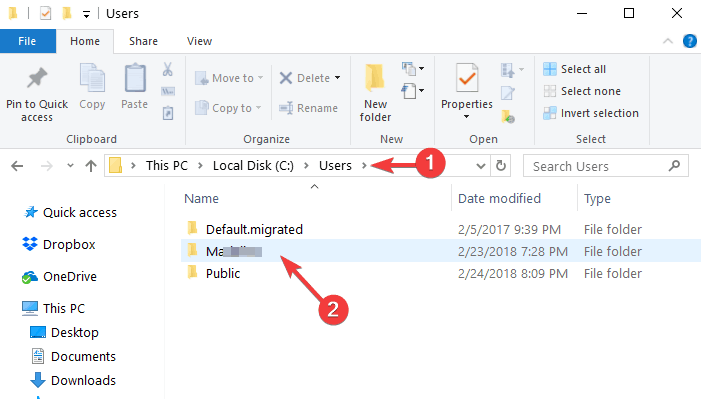
  1. Navigate to your user folder which should be available at this location C:Users[Name]
  2. Right-click on it > select Properties.
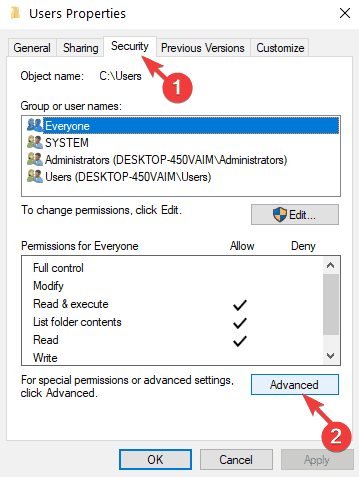
  3. Click on the Security tab > go to Advanced.
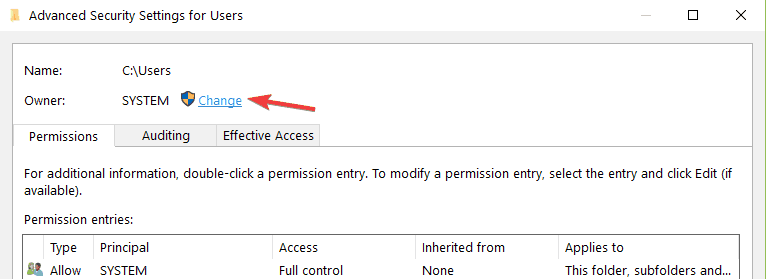
  4. Go to Owner > select Change.
  5. Click Add > Entity > Advanced > Search.
  6. Select All Application Packages > Accept > click on Full Control > Apply.
  7. Should you encounter any errors when applying for permission, simply ignore them.
  8. Go to Start > type services > right-click on the first result to launch  Services as Administrator.
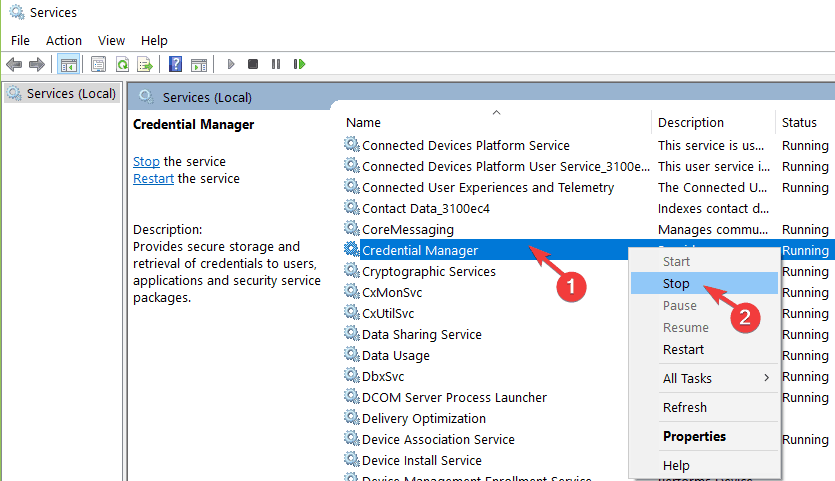
  9. In the Services window locate the Credential Manager Service > right-click it > stop it.
  10. Restart your computer
  11. Return to Services > select the Credential Manager Service > Start it > Set it to Automatic.
  12. Restart your computer again.

Some users confirmed that disabling the Credential Manager Service fixed this problem. Tou may try the above procedure as well.


6. Use a restore point

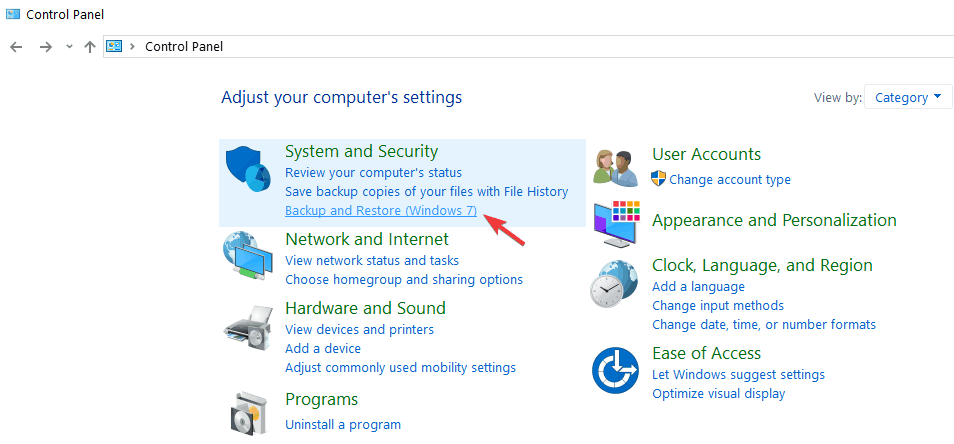
  1. Go to Start > type control panel > launch Control Panel > go to Backup and Restore.
  2. Go to Restore > select a Restore Point.

If this error occurs after you installed a particular program on your computer, try reverting your computer to its previous settings.

Of course, you can also try uninstalling the respective app or program. Using a restore point is a better solution as it allows you to undo all recent changes on your computer.


You can’t open Control Panel? Take a look at this step-by-step guide to find a solution.


Issues with Gmail and Mail app are not common, but if something like error 0x8000000b appears, you know what to do now.

The same goes for those of you who can’t add Gmail to Windows 10 mail. Users often try to click Google just to discover that this completely closes the window. Additionally, we can help you out if you can’t verify your Gmail account.

If you have any questions, comments, or maybe some other solutions for this problem, reach for the comment section below, because we would love to hear your thoughts.


[wl_navigator]

Fix: Be careful with this message on Gmail [Quick Guide]

Some Windows users reported seeing the warning message Be careful with this message. It contains content that’s typically used to steal personal information in their Gmail account. If you want to know what this warning is about and how to fix it, read on.

Gmail is one of the most widely used webmail, globally. In order to access several Google products such as Google Drive, YouTube, Google Docs, and several Google Apps, an active Gmail account is required.

Meanwhile, Google is highly apprehensive when it comes to Gmail’s privacy and security; hence, Google implements extreme security measures to prevent malware and DDoS attacks which may arise from the cybersphere.

In addition, Google consistently notifies Gmail account owners whenever there is a login attempt from a strange location.

This is why, after accessing their emails and see the warning message mentioned above, some users got worried. There are several reasons for this warning message which include:

  • The email is sent from a fake email account
  • The email may contain malware and may redirect you to spammy sites
  • The spam filter may confuse the bulk mail with spam
  • Error from Google filters assuming the mail is from unverified sources
  • The email is sent from a compromised email account.

How to remove Gmail’s Be careful with this message warning

1. Check the IP address

The first step to take after receiving the warning message Be careful with this message. It contains content that’s typically used to steal personal information is to check the sender’s IP address to make sure it is from a reliable source.

Some emails are used to either scam or steal users’ information after they click on unknown links which lead to scam webpages. Hence, you need to verify the origin of the domain/IP of the server.

Some online web applications such as Mxtoolbox, IPLocation and WhatIsMyIPAddress, etc can be used to check if the IP address of the sender is probably on the banned list for sending spammy messages.

2. Report phishing attempt

  1. In Gmail, open the suspicious message.
  2. Now, click on the down arrow next to Reply.
  3. Then, Reply drop-down arrow.
  4. Select Report Phishing. Google will look forward to further actions to be taken.

Sometimes, Google Mail may not be able to verify the real sender of the mail giving you the warning message. Emails from genuine webmail platforms do not come with the mentioned warning message.

However, emails from fake domains, do come with this warning message. Hence, the appropriate thing to do is to report such email sources to Google. This will prevent the sender from sending spammy emails to your email in the future.

Alternatively, you may carry out a whois check on the domain of the email host. Sites such as whois lookup, whois.com, etc can be used to find out more information about the sender.

Meanwhile, if you trust the message isn’t a scam, click on Ignore, I trust this message.

3. Use an antivirus to scan download files

Some Windows users ignore the warning message and they click on available links in the email which contain malware.

We recommend you use a powerful antivirus with adware removal features.

Run a full PC scan and allow your antivirus to remove or quarantine all threats found.

We strongly encourage you to use an antivirus that offers real-time protection against all sorts of threats.

You can find good security tools that are able to block malicious attempts of installing PUPS, detect malicious links and scan files as they download, so make sure that yours checks these boxes.

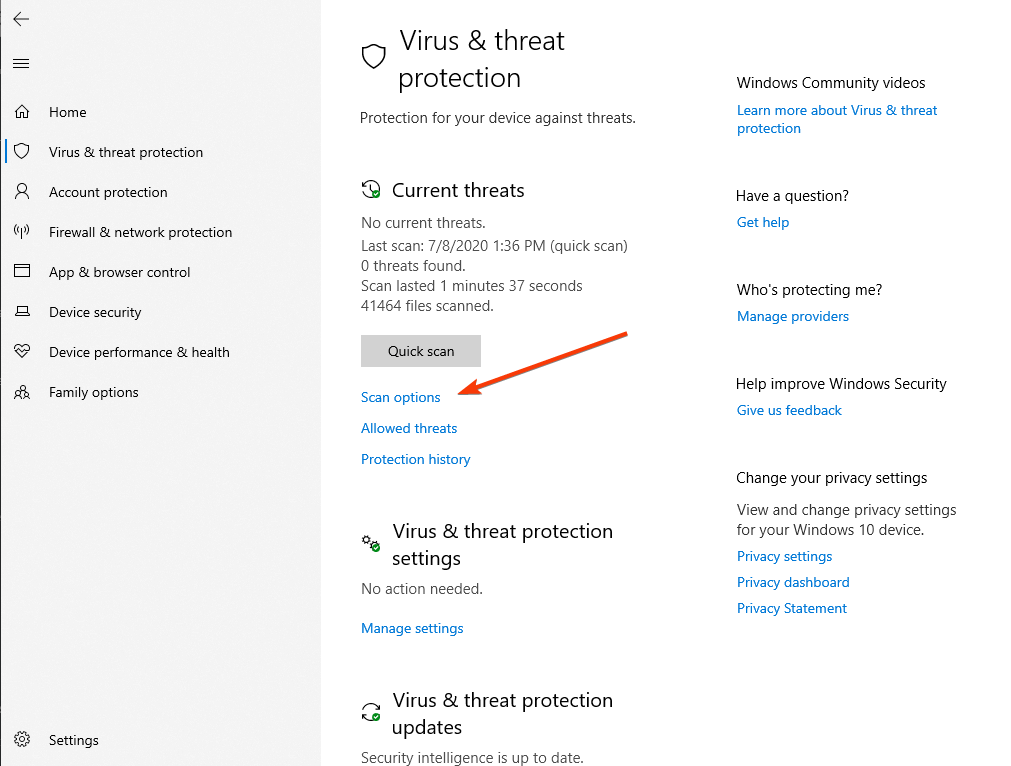
Alternatively, you can also use Windows’ built-in antivirus, Windows Defender. Here’s how to run a full system scan using Windows Defender:

  1. Go to Start, type defender and double click on Windows Security to launch the tool.
  2. Go to Virus and Threat Protection
  3. In the new window, click on Scan options.run windows defender advanced scan
  4. Check the full scan option to launch a full system malware scan.

4. Run a full system scan

After removing the suspected malware from your Windows PC, we do recommend that you carry out a full system scan to see if the malicious app caused any damage.

We recommend you use a specialized PC repair utility that is able to detect Windows errors and what exactly causes them.

To conclude with, the Be careful with this message. It contains content that’s typically used to steal personal information warning message should not be taken lightly.

Hence, the steps mentioned above should be taken as a precaution against obtrusive threats that may appear from opening questionable emails.

Have you received this warning message on Gmail? Share your experience with other Windows users on this platform by commenting below.

Can VPN affect WiFi? Secure your WiFi with these solutions

WiFi (short for Wireless Fidelity) is, perhaps, one of the most awesome perks of living in this era. Back in the day, cable was king, every connection was not only visible and immediately obvious, but also somewhat obnoxious.

Although wired connections are still alive and kicking, WiFi has already slithered its way into our daily lives so that we can’t seem to be able to live without it any longer.

Everywhere you go you hear the same questions over and over again:

  • Do you have WiFi?
  • Is the WiFi signal good here?
  • What’s the WiFi password?

You get the point. We’ve reached a time where wireless Internet is deemed as important as water. If not more.

How does WiFi work?

Wireless, WiFi, or WLAN (Wireless Local Area Network), whatever you want to call it, sends radio frequency signals between devices. That’s what makes your friends’ photo load in real-time on your phone.

Each connection has a transmitter and a receiver, which need to be set to the same frequency in order to communicate effectively. WiFi uses 2.4 GHz and 5 GHz frequencies, which are slightly different, in the sense that each has its ups and downs.

But that’s not why we’re here for.

Is WiFi secure?

To put it shortly, not at all. Like many other connection types, WiFi has its own set of security policies. Most of all revolve on encryption and password-protection for the access points.

However, as opposed to wired networks, where you’d need physical access to the router/switch/modem or a VPN server to become a part of the network, wireless lets you get in on two conditions:

  • You must be in range
  • You must know the router’s password

Getting in range is quite easy, you just have to position yourself in range of the network. And roughly half the battle is won. Talented hackers have proved to us that cracking or social-engineering the password can be done in a matter of minutes.

So we can’t stress this enough: WiFi is not secure and requires your constant attention if you want to prevent surprise attacks.

How to secure WiFi?

If you’re the owner of the network, you could take these following steps to boost your connection’s security:

  • Turn WPS off
  • Change the password every once in a while
  • Check if there are any unwanted devices on your network
  • Turn your network invisible or toggle hidden wireless mode

If you’re a client on the network, it would be wise to take these cautionary steps:

  • Try to avoid public, passwordless WiFi networks (they provide easy targets for attackers)
  • Turn off auto-connect for insecure networks
  • Use a VPN such as PIA

How can VPN protect me on WiFi?

  1. Download Private Internet AccessPrivate Internet Access
  2. Install PIA on your computer
  3. Launch it and log into your account
  4. Connect to a server of your choice (pick a fast one)
  5. Enjoy your secure WiFi connection

We’ve mentioned that using a VPN is one of the best ways to secure your device while using a wireless connection.

Your device has an assigned IP address, which, if identified, can be used to draw a straight line between your attacker and you. Provided that you’re on the same WiFi network, that is.

What a VPN does is it spoofs your IP address and replaces it with the address of the server you’re connected to. You’re now sharing an IP address with many other users, so singling you out becomes virtually impossible.

Private Internet Access

Private Internet Access

Want to secure your Wi-Fi connection? Why not try Private Internet Access?
$2.85/mo. Buy it now

Furthermore, consider this: wireless traffic is only encrypted for outsiders, so everyone who’s inside the network can use a packet sniffer and analyze your online whereabouts extremely easily.

Using a VPN encrypts your personal traffic so that even other devices on your network can’t access it.

Now it may all sound awesome, but using a VPN while on wireless can have some drawbacks. Spoiler alert: it’s actually one drawback.

Can VPN affect WiFi?

To put it shortly, yes, using a VPN can and probably will affect your WiFi connection. Let us elaborate. When you use a VPN, it adds a bunch of extra security layers on top of your insecure connection.

This, in turn, might make your connection act a bit slower since there’s suddenly encryption and decryption happening on it. Not to mention that using a VPN will increase the distance of your connection, depending on the location of the VPN server you chose.

However, you can choose a server that’s closer to you, if your only purpose is staying safe on WiFi. But we think that speed is a small price to pay for the array of security features a VPN reinforces your connection with.

Sometimes, your PC might lack proper configuration, which can make WiFi disconnect upon detecting a VPN connection. But even that can be easily fixed.

But sometimes using a VPN can have a beneficial effect while using WiFi. For instance, if your ISP throttles your bandwidth and you’re experiencing packet loss, using a VPN can help you improve packet loss on wireless.

VPN can affect WiFi, but it’s worth it

Considering that WiFi is generally less secure than its wired counterpart, using a VPN might not be the craziest idea. Your personal traffic will be encrypted and your IP will be masked.

Sure, it might be a bit slower than staying connected without any extra security layers, but the differences shouldn’t be huge. Just make sure you stick by a trustworthy VPN and choose a fast server that’s close to your actual geographical position.

[wl_navigator]

Microsoft dismantles COVID-19-themed phishing campaigns

We recently wrote an article on how malicious players have been increasingly carrying out COVID-19-themed phishing attacks. The bad actors recently made Office 365 users some of their favorite targets, but it appears that Microsoft’s Digital Crimes Unit (DCU) has been closely tracking some of them.

Microsoft takes apart COVID-19-themed phishing infrastructure

Microsoft revealed that it got a court order allowing it to take over control of certain domains that cybercriminals used to execute COVID-19-themed phishing or other forms of cyber attacks. As such, the threat actors in question can no longer use the seized IT infrastructure to commit cybercrime.

Today, the U.S. District Court for the Eastern District of Virginia unsealed documents detailing Microsoft’s work to disrupt cybercriminals that were taking advantage of the COVID-19 pandemic in an attempt to defraud customers in 62 countries around the world. Our civil case has resulted in a court order allowing Microsoft to seize control of key domains in the criminals’ infrastructure so that it can no longer be used to execute cyberattacks.

How hackers executed the Office 365 phishing attacks

As with any other phishing campaign, the attackers sent malicious emails appearing to originate from a trusted source.

They took advantage of the fact that many companies around the world expect some form of COVID-19 financial bailout. So, they used that theme to trick their targets into harmful interactions with malicious web applications.

As you’d expect, the cybercriminals sent the victims malicious links.

This time around, the hackers don’t explicitly ask the victim to supply their O365 security credentials via a web-based form. Instead, clicking on a malicious link leads to a prompt requiring the target to give access rights to a malware-loaded web app.

Since they criminals control the malicious app, they may now compromise the victim’s O365 account.

Apparently, any O365 app or tool can be a target for such attacks, from Microsoft Teams to OneDrive. Users, therefore, have no option but to be on high alert and implement adequate cybersecurity measures.

Have you had any experience with COVID-19-themed cyber attacks? Kindly let us know via the comments section below.

[wl_navigator]

How to recover deleted/archived emails in Gmail

Are you wondering how to recover deleted or archived Gmail messages? There is no need to worry, this post is for you.

Archived Gmail is neither saved in the Starred folder nor seen in the Inbox folder in your Gmail account. However, you can access the archived messages in the All Mail folder.

Sometimes, Windows users delete archived emails accidentally or intentionally, but they may need to unarchive them. However, emails from the Trash folder may not be recovered if they are deleted manually or automatically after the 30-day waiting period.

If you have yet deleted the archived Gmail from the Trash folder on your Gmail account, this issue is solvable, but if otherwise, you may have to contact the Gmail server administrator to help you recover your emails.

How can I recover archived Gmail messages deleted by accident?

1. Undelete from Trash

  1. Login to your Gmail.recover deleted archived gmail
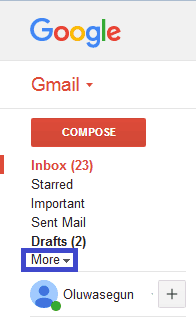
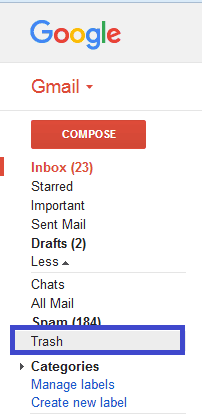
  2. On the left side of the page, click More. From here, go to Trash.recover deleted archived gmail
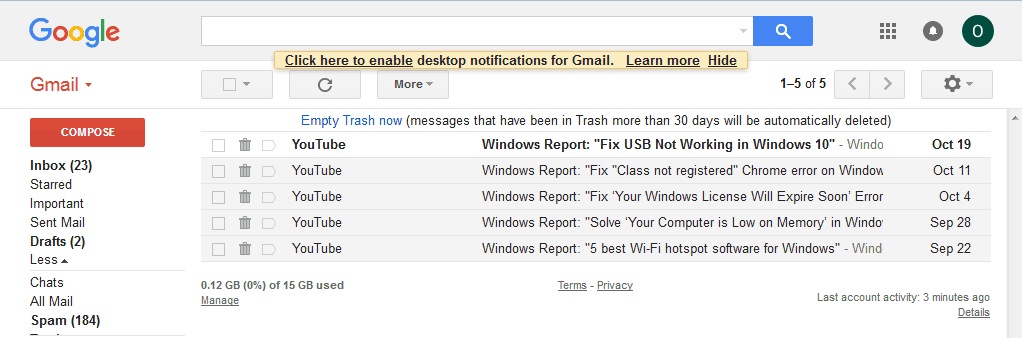
  3. In the Trash folder, check the box next to any messages you want to recover.recover deleted archived gmail
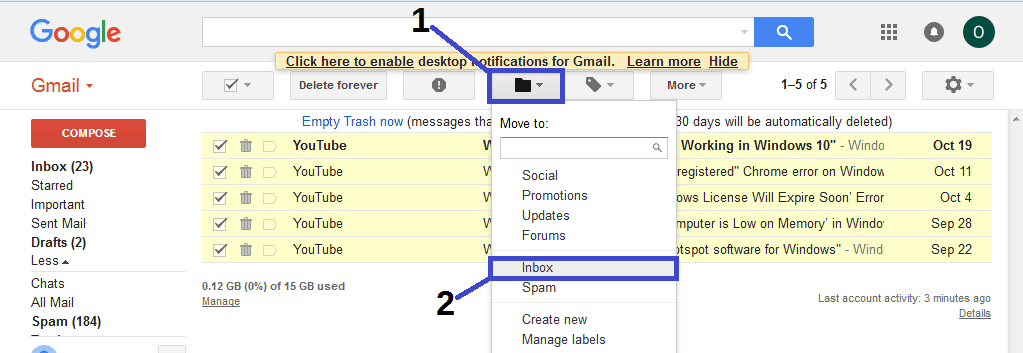
  4. Now, click on the Move icon, and then select Inbox.recover deleted archived gmail
  5. Select where you want to move the messages.recover deleted archived gmail

This method requires identifying the specific message you deleted from the archive; you should check the box next to the messages.

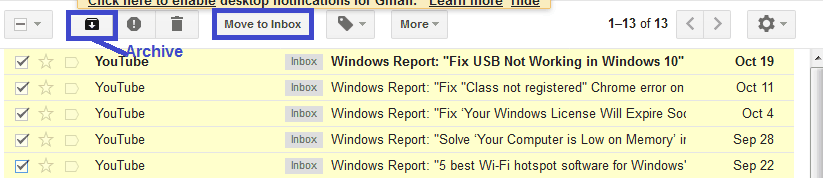
Alternatively, you can search for the deleted message in the search bar and move it back to the Inbox or Archived folder.

2. Use an alternative email client

Perhaps it’s time you changed the email client altogether since many great alternatives can replace Gmail.

And our top suggestion in this particular case would be Mailbird.

Currently, Mailbird is one of the most popular email clients and also one of the best email apps for Windows 10.

The tool comes in extremely handy, syncing all your emails and contacts from multiple accounts in one unified Inbox. Plus, it brings a lot of easy-to-set customizable features and options to serve the mentioned purpose.

Users praise Mailbird for its minimalist user interface, its low impact on the system, plus the ease of use of a lot of convenient shortcuts.

Mailbird

Use Mailbird to benefit from a seamless, lightweight emailing experience that brings all your email accounts to one place.

3. Use Microsoft Outlook

  1. Launch Microsoft Outlook and login to the email account.
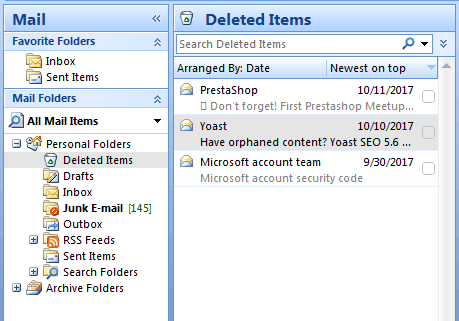
  2. Click on the “Mail Folder” tab and then “Deleted Items”.recover deleted archived gmail
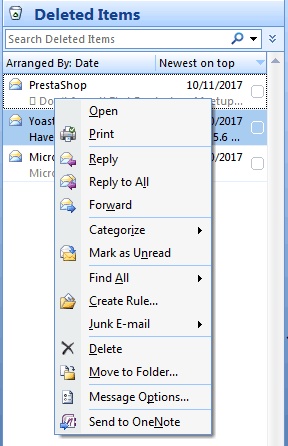
  3. Now, right-click on the deleted archived message and select “Move to folder” option.recover deleted archived gmail
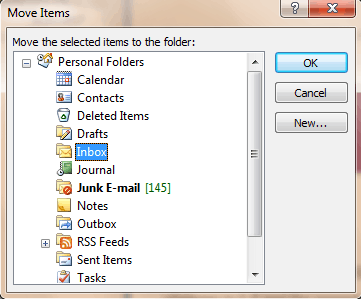
  4. Then, click on “Inbox to move the deleted message to the “Inbox” and wait for the process to be completed.recover deleted archived gmail

Some companies/organizations use Microsoft Exchange server for their corporate email address.

In addition, it is also possible to create a custom domain email with Gmail by using G-Suite available at a reasonable price per user every month.

4. Contact Gmail Support Team

recover deleted archived gmail

Another option for retrieving the deleted archived message is to contact the Gmail Support Team. Sometimes, the Trash folder may have been cleared accidentally or automatically; however, you can request the Gmail Support Team to help you recover deleted messages in your Gmail account.

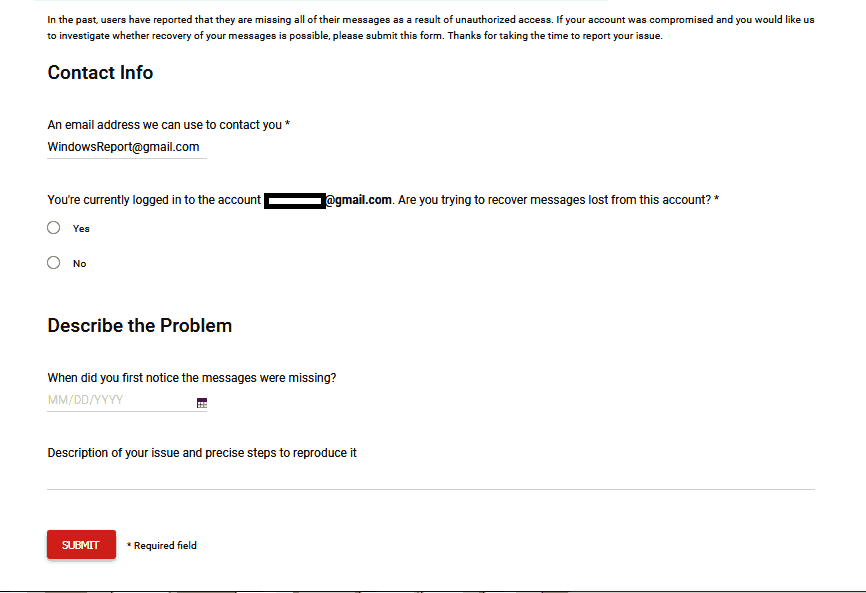
If you intend to reach out to Gmail Support Team, go to Gmail’s missing emails page.

Fill out the form and enter essential details such as your email address where the deleted archived emails have been deleted, whether you are currently logged in, and a short description of the problem (nature of the deleted email).

After completing the form, click on the Submit button; the Gmail Support Team will recover the deleted email for you.

In conclusion, you can use these methods to recover deleted archived Gmail messages on your Windows PC. As for Skype, check out how to recover deleted Skype messages.

We would like to hear from you, especially based on the addressed issue; you can comment below if you have any questions.

Office 365 users targeted in SurveyMonkey phishing attack

As phishing attacks continue to increase, it’s such a bad time for a Windows 10 user not to have an effective antimalware solution installed on their PC.

Worse still, spear phishing is the name of the game these days, in which case, the recipient of the malicious email or link is always a well-researched individual. It’s partly why such attacks are very difficult to stop.

Threat actors have targeted Office 365 users in these types of cybercrime multiple times before, and they continue to do so to date. Unsurprisingly, some of the latest victims/targets are employees participating in a fake SurveyMonkey survey.

SurveyMonkey phishing attack

The folks at Abnormal Security recently uncovered attempts to steal O365 user credentials on the pretext of conducting surveys among employees.

In the campaign, the victim receives an email from a genuine SurveyMonkey site. But the message contains a hidden link, which upon clicking, redirects the victim to a Microsoft form submission page.

The user has to submit their O365 email and password to proceed. This way, the malicious actors steal the unsuspecting user’s Microsoft account security credentials.

The email is sent from a real SurveyMonkey domain (surveymonkeyuser.com), but with a different reply-to domain. That reply-to domain was registered only 1 month ago. The email simulates an automated notification with a link to open the “survey”. This link is an actual SurveyMonkey link that redirects to the main phishing page.

It appears that these spear phishing attacks have a high probability of success due to various factors, including the use of a trusted domain. Likewise, concealing the redirect link makes it a little difficult for the target to suspect anything.

Abnormal Security points out that up to 50,000 mailboxes may have received the SurveyMonkey phishing link.

What’s your take on the state of cybersecurity against the backdrop of rising cases of Office 365-related phishing attacks? Feel free to let us know via the comments section below.

[wl_navigator]

Microsoft to boost its Dynamics 365 capabilities with new acquisition of Orions Systems

Microsoft announced this week the acquisition of Orions Systems, a company delivering smart vision system that it plans to use to improve its Dynamics 365 offerings (via ZDNet). Muhammad Alam, CVP of Microsoft Dynamics 365 explained how the smart vision systems expert could improve Microsoft’s solutions for companies looking to optimize their retail operations through computer vision.

“The acquisition will bring additional technologies that will allow solutions like Dynamics 365 Connected Store and the Microsoft Power Platform to offer retailers and other organizations a way to build and train their own AI models to customize and optimize how they can learn from their physical space. This extra set of tools will deliver on scenarios beyond what is offered out-of-the-box today and can adapt to the truly unique dimensions and needs of their physical spaces,” explained the exec.

Microsoft announced its Dynamics 365 Connected Store last year as a new way to improve the retail experience by analyzing data from video cameras and IoT sensors. The ongoing covid-19 pandemic hit the retail industry pretty hard, and Microsoft actually announced the closure of all of its retail stores worldwide last month. Still, the company remains committed to helping the retail industry reinvent itself with smart vision. You can learn more about upcoming Dynamics 365 features on this previous blog post.

[Solved] Windows 10 Fall Creators Update won’t install

Windows released the Fall Creators Update back in October 2017. And while millions of users were getting it, the rollout was not as smooth for everyone. In fact, there were some users who reported they were unable to install the freshest Windows 10 version.

If you’re dealing with Windows update problems as well, we’ve got your back. Here are some workarounds that we’re sure will help you obtain a Windows 10 update as soon as possible.

How to solve Windows 10 Creators Update installation issues

1. Make sure you have enough disk space

The very first thing you should do when installing just about any major update for Windows 10 is to check if your current configuration supports it. If you have a newer computer, there’s no need to bother at all, because a Windows update really doesn’t require a beast.

But if your computer is older than 5 years, you might as well take a look at the minimum system requirements:

  • Processor: 1GHz or faster processor or SoC
  • RAM: 1GB for 32-bit or 2GB for 64-bit
  • Hard disk space: 16GB for 32-bit OS or 20GB for 64-bit OS
  • Graphics card: DirectX9 or later with WDDM 1.0 driver
  • Display: 800×600

So, if your computer doesn’t meet the minimums here, first of all, make sure to get your PC ready for the installation of the update with a full clean-up, maintenance, and optimization process.

Use a dedicated cleaner and optimizer program to remove temporary files or unwanted system files so as to free your disk space and make it ready for installation.

These tools will help you find web browsing traces, hidden data junk, superfluous Registry entries, and system vulnerabilities that might interfere with other processes.

Furthermore, they will also remove unwanted software installations, plus they will scan all of your system components to make sure your drivers are up-to-date.

Their improved Defrag option merges free space on your device and retrims used space to make sure your drive is used to its full capacity.

2. Make sure you don’t pause updates

In a previous article, we explained how to block the Fall Creators Update on certain versions of Windows 10. And it involves deferring major upgrades.

So, if you have this option enabled, you won’t be able to receive any updates. In case you don’t know how to disable it, follow these instructions:

  1. Go to Settings > Update & securitydefer windows updates
  2. Now, go to Advanced options
  3. Make sure to set the option for deferring updates to default (Select date option).

3. Disable metered connection

The same goes for a metered connection. Users can set their Internet connection to metered in order to block certain updates from installing on their computers.

So, if you want to install the update, after all, you have to make sure your Internet isn’t set to metered. This applies to both WiFi and wired Ethernet connections. Here’s how to disable the metered connection in Windows 10:

  1. Go to Settings > Network & Internet
  2. Now, go to Properties
  3. Toggle Set as metered connection on off.

4. Disable Antivirus and Firewall

  1. Navigate to Control Panel.
  2. Click System and Security.
  3. Go to Windows Defender Firewall, then to Check Firewall Status.
  4. Select Turn Windows Firewall on or off from the left side.how to turn off windows firewall
  5. Turn off Windows Firewall for both Private and Public networks and click OK.
  6. Try updating again.

It’s known that third-party antivirus programs don’t go along very well with Windows 10 updates, especially major ones. So, if you’re still unable to download a particular update, disable your antivirus firewall or the antivirus entirely, only temporarily, and try again.

If the antivirus was indeed the culprit, you should be able to install the update without any problems.

Keep in mind that you should disable these security measures temporarily. It’s unwise to leave your computer completely unprotected for a longer period of time.

So, either re-enable your antivirus once the update gets installed, or switch to Windows Defender, which also received some changes in the Fall Creators Update.

5.  Restart Windows Update services

  1. Right-click Start Menu and run Command Prompt (Admin).
  2. In the command line type the following commands and press Enter after each:
    • net stop bits
    • net stop wuauserv 
  3. Now, close the Command Prompt and navigate to C:Windows/SoftwareDistribution.
  4. Backup this folder and delete everything inside.
  5. Restart the PC and try updating again.

6. Run the SFC scan

  1. Go to Search, type cmd, right-click Command Prompt, and select Run as administrator
  2. Enter the following command, and press Enter: sfc/scannowrun sfc command to fix windows update
  3. Wait for the process to finish

The SFC scan is a built-in tool that’s designed for dealing with various problems within the Windows OS. Even though it’s not specifically meant for resolving update issues, it certainly can help.

7. Install the update manually

And finally, if you’re still unable to install the upgrade even after performing all the previous solutions, perhaps your best bet is to take matters into your own hands and just update your system manually.

As we know, there are two legitimate ways to install a Windows update on your computer. So, if the automatic Windows Update process has failed, your only chance is to turn to the Media Creation Tool.

We already have the article about installing Windows 10 Fall Creators Update, so you can check it out for precise instructions. Even though the updates are different, the procedure is identical.

That’s it for now. We hope at least one of these solutions helped you finally obtain the Fall Creators Update. If you have any comments, questions, or know about a solution we didn’t list here, please let us know in the comments down below.

How to fix DoorDash login error

DoorDash is one of the most food delivering service across the US and Canada. With more than 340,000 stores they work with, there are plenty of options you can choose from.

The ordering process is pretty simple and straightforward. You log in to your account, enter your address and follow the steps in selecting what you want to have delivered home and from where.

If you have encountered an error when trying to log in on your DoorDash account, know that you are not the only one.

We investigated the issue and in this article, we are presenting a few confirmed solutions for you to try. Hopefully, this will fix the login error.

What to do if you can’t log in to DoorDash?

1. Check your internet connection

fix log in error doordash

For everything to work, you need a good internet connection when entering in your DoorDash account.

Turn on and off your Wifi to force reconnection. If you are not using Wifi, make sure the mobile data is working.


2. Clear data and cache

how to fix can't log in doordash

If you still get a checkout error, clear your browser’s cookies and your browser’s cache.

Clear your browser cookies and then close and reopen it. Go to DoorDash.com and try placing the order again.


3. Check DoorDash social media accounts

fix doordash unable to log in

Looks like DoorDash is very responsive on their social media accounts, especially Twitter. Make sure to check there for any reported issues on their part.

Hopefully, one of these solutions will help you fix the login error you have encountered. However, if you’ve used another method, feel free to share it with us in the comment section below.

[wl_navigator]

Fix email certificate errors [Expired, Invalid, Not Secure]

You may have tried at least once to log in to your email and encountered an email certificate error, but didn’t know how to work around it.

Certificate errors happen whenever there’s an issue with a certificate or a web server’s use of the certificate itself, thus Internet Explorer, Edge, Chrome, and other browsers display red flags through warnings about certificate errors.

The most common reason is that the certificate is valid for a certain period of time, so if your computer’s date and/or time is set to a different date or time, then you are likely to get the email certificate error warning.

However, if you still get the email certificate error even after adjusting the date and time, then it is possible that either the certificate of the website itself has expired and needs to be renewed, or, the website is not to be trusted.

You could have encountered the email certificate error on a site you visit regularly without errors, so in this case, the website itself may not be configured correctly.

Another cause could be that the website’s certificate has expired and the owner or operator needs to renew it so that you continue using it, as this cannot be corrected in your browser.

When you get an email certificate error, it is advisable that you do not put important login identities or passwords on such pages.

How can I fix email certificate errors?

1. Adjust time/date to appropriate values

  1. Right-click Clock on the taskbar.
  2. Click Adjust time/date.Adjust time and date
  3. Click Change date and time.
  4. Set the correct date and time.
  5. Click OK.

Check to ensure your time and date on the computer are set to the appropriate or correct values. If you set ahead of or behind the actual time/date, the certificate can read as invalid.

Use the above steps in order to check the time/date settings and adjust them easily.

2. Try out a more powerful email client

Think of a really important email that you’re ready to send. This email may be related to your family or work projects and it contains sensitive data that you’d never want to get in the wrong hands.

The same goes for not being able to complete the action due to countless email certificate errors. The best mail clients can keep you away from all of these, so maybe it’s time to think of a better choice too.

Mailbird isn’t simply designed to cover the basics you’ve come to expect from similar email clients. Trusted by users worldwide, it lets you manage multiple accounts.

Keep in mind that it not only packs various smart productivity tools, but messages are neatly organized so that you can enjoy an uncluttered interface.

Mailbird

Mailbird is intuitive, integrates with countless apps/services, and will keep you away from email certificate errors.
Check price Visit website

3. Retype the address

If it’s a site you visit regularly and you hardly get any email certificate error, then the site itself may not be configured correctly.

You should better try and retype the address then see if the problem persists.

4. Configure the use of mail over SSL settings

If you’re trying to connect to your email using a default mail server name, what happens is there’s a mismatch between the domain name, and that of the shared SSL certificate on the server, which results in an email certificate error.

In order to remove the email certificate error you receive, configure your email client with an SSL setting, because by default, when sending or receiving emails, they’re not encrypted so if they’re vulnerable and easy to intercept by cybercriminals.

Some users opt to use email over SSL owing to restrictions by their Internet service provider that prevents them from sending any email messages.

In order to use your email over an SSL, update the settings for both incoming and outgoing servers, plus ensure your email client has port 465 configured as the SMTP port.

Have any of the above solutions helped resolve the email certificate error for you? Let us know by leaving your comment in the section below.

Besides addressing email certificate expired issues, do note that the previously mentioned solutions are confirmed to work when facing the following errors as well:

  • Unable to fetch the certificate from the server – There are times when the name on the security certificate is invalid or doesn’t match the name of the site. Retyping the address may help.
  • Mail server certificate is invalid – One of the most common causes of this issue is the clock on your computer being wrong. Therefore, don’t hesitate to adjust the time/date settings.
  • Certificate not secure email – When facing this error, you’re once again entitled to suspect incorrect date and time settings. Even more, make sure to validate your device email settings with the email server settings.
  • Email server certificate not trusted – This specific error message is related to certificate installations that weren’t properly completed on the server hosting the site. Refer to the above tips for solving this issue in no time.

Game developers are now using Project xCloud to access Xbox Development Kits remotely

The Xbox and Project xCloud teams have learned to adapt on during the global COVID-19 pandemic. Working from home presents its own unique set of challenges for everyone, but especially for game developers. One pain point is that many game developers are unable to access their Xbox Development Kits.

Without this access, game developers, artists, and designers might not be able to churn out new game content for gamers. Most of the traditional Xbox remote access tools are not ideal to be used in a work from home scenario.

As noted in a post on their Game Stack Blog, Microsoft is working to make Xbox Development Kits more easily accessible.

Project xCloud
via Microsoft

“We’ve set out to solve these remote access challenges by re-allocating our Project xCloud resources; going beyond mobile and creating a PC app experience for developers that runs a low-latency 60fps gaming experience that allows for continued game development. By giving developers access to our PC Content Test App (PC CTA) they can remotely connect to their Xbox Development Kits from their PC, allowing them to test, play and iterate as if they were in the office. It also prevents them from having to download daily builds to local hardware in the home, which can often take hours.”

So far, the following game developers have used the PC CTA to improve their remote working environment, including Eidos-Montréal, Infinity Ward, Ninja Theory, Playground Games, Rare, Turn 10 Studios, and Undead Labs​.

Once the PC CTA is installed, game developers can use the Direct Connect functionality to access their Xbox Development Kit remotely. With the PC CTA, all the developer tools needed to develop your game are accessible, including game performance simulations, network testing, and game system resource monitoring are accessible.

How to Fix Error Code 30068 When Installing Office

Installing Microsoft Office is a straightforward process allowing users to access various productivity tools and features.

However, like any software installation, it is not immune to encountering errors. One such error that may arise during the installation process is error code 30068.

There are several ways in which the error codes can appear, including 30068-29 (2), 30068-4 (3), 30068-4 (1715), 30068-39 (3), and so on.

In this guide, we will provide step-by-step instructions for troubleshooting methods to tackle Error Code 30068 effectively.

What causes the error code 30068 while installing Office?

There could be various reasons for the error to appear; some of the common ones are mentioned here:

  • Corrupt system files – Damaged system files on your computer can interfere with the Office installation process and lead to Error Code 30068. Try running an SFC scan to fix it.
  • App interference – Certain applications or programs installed on your computer may conflict with the Office installation, resulting in the error.
  • Incomplete previous installation – If a previous installation of Office was not completed successfully or was interrupted, it can leave behind remnants or conflicting settings that can trigger the error.
  • Network connectivity issues – Network connectivity problems, such as intermittent or slow internet, can disrupt the installation process, leading to errors. Try basic troubleshooting to fix it.
  • Insufficient disk space – Office requires a certain amount of disk space to be available for installation; if it is lacking, error code 30068 may occur.

So, these are the causes of the error code; let us check out the solutions to fix it.

How can I fix the error code 30068?

Before proceeding with any steps for fixing the error, go through the following preliminary checks:

Once you have checked these, move to the troubleshooting steps.

1. Verify if the Microsoft Office Click-to-Run service is disabled

  1. Press Windows + R to open the Run dialog box.Services RUn command error code 30068 when installing office
  2. Type services.msc and click OK to open the Services app.
  3. Locate and right-click the Microsoft Office Click-to-Run service, then choose Properties.Microsoft Click-to-run
  4. Locate the Startup type and select Automatic from the drop-down.Select Automatic
  5. Click Apply, then OK to save the changes.
  6. Now restart your computer and try to install Office again.

2. Uninstall the previous Office app & its folders

Note icon NOTE
If you can’t find the old version of the Microsoft Office app installed on the computer, move to the following method to remove the app.
  1. Press the Windows key, type control panel, and click Open.Control Panel start menu error code 30068 when installing office
  2. Select View by as Category and click Uninstall a program.CP Uninstall
  3. From the list of installed programs, select Microsoft Office and click Uninstall.Uninstall Office
  4. Click uninstall again to complete the process.Uninstall Microsoft Office 1
  5. Press Windows + E to open File Explorer.
  6. Navigate to this path: C:\Program Files (x86)Office click Delete button
  7. Select the Microsoft Office folder and click the Delete button.
  8. Now go to this path: C:\Program FilesOffice click Delete button
  9. Select the Microsoft Office folder and click the Delete button.

Once Microsoft Office is uninstalled completely, try to install it to check if the issue persists.

3. Use the Microsoft Support & Recovery Assistant

  1. Download the Microsoft Support & Recovery Assistant.
  2. Once the SetupProd_OffScrub.exe file is downloaded, double-click it and click Install on the wizard.Install Recovery Assistant error code 30068 when installing office Follow the prompts to install the tool.
  3. Choose the version of Office you want to uninstall and click Next.Uninstall Office
  4. Follow the onscreen instructions to complete the process, then restart your computer.
  5. Once the PC is up, the tool will re-open to complete the final step of the process.
  6. Go to the Microsoft Office setup file and double-click to restart the installation. Follow the prompts to reinstall it.

4. Run SFC & DISM scans

  1. Press the Windows key, type cmd, and click Run as administrator.CMD elevated error code 30068 when installing office
  2. Type the following command to repair system files and hit Enter: sfc/scannowSFCSCANNOW CMD
  3. Wait for the complete to execute, then copy & paste the following command to restore Windows OS files and press Enter: Dism /Online /Cleanup-Image /RestoreHealthRestore health
  4. Once it is executed, reboot your computer to let the changes take effect.

This method ensures that all the corrupted files on your device are replaced with a healthy version of the file, ensuring no system file interferes with the installation process. Try to install Windows again.

So, these are the methods to fix the error code 30068 while installing Microsoft Office.

If you are facing other issues like Microsoft Office not working on Windows 11, we recommend you check out this informative guide to find the solutions.

Please feel free to give us any information, tips, and your experience with the subject in the comments section below.

Kindle Paperwhite Application Error: Easy Ways to Fix it

Kindle Paperwhite is a popular e-reader that allows you to download and read e-books from Amazon. That said, several Kindle users have reported the application error when using the reader.

As per the reports on Amazon’s official forum, the application error is temporary and can randomly occur when the device is in use. Performing a power cycle has fixed the error for many.

In this article, we have listed a couple of troubleshooting tips to help you resolve the application error in Kindle Paperwhite.

Why does my Kindle keep saying application error?

Below are some of the reasons you’re getting the Kindle Paperwhite application error:

  • Outdated Kindle software: If the Kindle software is outdated, you will likely encounter issues like this. Hence, it is good practice always to update your Kindle software.
  • Issues with Kindle Paperwhite: At times, this problem might be due to minor issues with your Kindle device. Performing a power cycle should help you rectify this most times.

How can I fix the application error on Kindle?

1. Perform a power cycle

  1. Press and hold the power button.
    press and hold kindle application error
  2. Wait for a power dialog box to appear, or the screen goes blank.
  3. Continue holding the button for another 40 seconds, then release.
  4. Leave the device idle for a few minutes.
  5. Press the power button to turn on the device.
  6. Check if the application error is resolved.

Performing a quick restart seems to have fixed the error for many. However, if the issue persists, leave the device idle for more than a few minutes.

For some users, turning off the device and leaving it idle overnight has helped fix the issue. Try to leave it idle for a couple of hours in a shutdown state before proceeding with the next set of steps.

2. Update the Kindle software

2.1. Download the software

  1. From the home screen, tap on Settings.
  2. Tap on three dots and select Device Info.
  3. Note down the Kindle software version.
  4. Now head over to the Kindle Software Update page using your computer.
    update page
  5. Download the latest version of the software available for your Kindle device.

2.2. Update Kindle Paperwhite manually

  1. Connect your Kindle device to your computer.
  2. Move the downloaded software package to the Kindle drive.
  3. Eject the device once the transfer is complete.
  4. On your Kindle device, tap on Menu.
  5. Select Settings.
  6. Tap on Menu and select Update Your Kindle.
    update your kindle
  7. Tap OK to initialize the updating process.

Kindle will locate and install the software update package from the internal drive. The update may take some time, so wait till the upgrade is complete.

Once installed, the tablet will reboot automatically. Register your Kindle Paperwhite with Amazon, and the device should start repopulating your purchases.

Kindle Paperwhite downloads and installs updates automatically when connected to the internet. However, if it fails, you can install the updates manually.

3. Reset to factory default

  1. Tap on Settings.
  2. Choose Menu.
  3. Select Reset Device.
  4. Tap Yes to confirm the reset action.
    yes kindle application error

Kindle will reset to factory default in a few minutes. Do not use or turn off/on the device during the reset process. The device will reboot automatically as the process completes.

Once restored, you may have to re-register Kindle Paperwhite on Amazon and restore your backups.

Note that factory resetting any device will erase all the data in the internal memory of the device. Make sure to create a backup of your data before proceeding with the factory reset.

How can I fix Kindle Paperwhite error while registering?

  1. Ask the owner to log in to their Amazon account.
  2. Go to Manage Your Content and Device.
  3. Click on Devices.
  4. Click the Action button.
  5. Select Deregister to remove the Kindle device linked to the account.

If you are receiving an error while registering a Kindle device, make sure it is deregistered by the previous owner. All the Kindle devices are linked to the original owner’s Amazon account and, to prevent theft, are blocked when accessed using an unknown account.

The Kindle Paper application error can occur due to a temporary glitch. You can fix the error with a quick restart, as described in the article above. Follow other steps if performing a power cycle does not help.

Similarly, if Kindle is not downloading books, check our quick guide for sure ways to fix it.

Feel free to let us know the solution that helped you fix this issue in the comments below.

How to use and customise the Office 365 Admin Centre homescreen

The Office 365 Admin Centre is the nerve centre of the administration experience for organisations using the platform. The default Home page gives you an at-a-glance view of your tenant’s installation, so it’s important to configure it to give you the most utility.

The homescreen uses a card-based interface. Each primary page within the admin centre has its own card, which lets you quickly drill down into the data you need. To add or remove cards, click the “Add card” button next to the searchbox at the top.

Select the cards which matter to you by dragging from the flyout pane onto your homescreen. You can rearrange cards at any time by dragging their header bar and moving them around the screen. To remove any card, click the ellipsis icon in the right of its header and click “Remove”.

Most cards contain some key information and a handful of important action buttons. Some display data within the card itself. One example is the “Active users” card, which displays a condensed version of the Active Users graph.

Effective use of the homescreen can accelerate common management tasks. For instance, the User Management card gives you one-click controls to add, edit and delete users – click the button and then search for the user to modify.

Your layout will save automatically and persist wherever you access the admin centre. One final control to mention is the searchbox at the top, which lets you quickly jump to other pages within the Admin Centre.

How to view and report Office 365 service advisories using the admin centre

Experiencing problems using Office 365? Heading to your admin centre will enable you to check all the latest service advisories which may explain the issue.

You can access the admin centre at admin.microsoft.com. You might need to re-enter your Office 365 credentials as an extra security protection. You’ll land on the dashboard, which can be configured to include a “Service health” tile.

The tile will give you an at-a-glance view of any active advisories and incidents. Click the categories to jump straight to the relevant details. If you don’t see the tile, expand the “Health” category in the left menu and click the “Service health” page. (If you don’t even see the Health section, you’ll need to add it using the “Customize navigation” button at the bottom of the menu.)

The Service Health page displays all the active advisories and incidents affecting Office 365 infrastructure. Click a service with an advisory or an incident to view the details. You can also use the tabs at the top (Incidents, Advisories and History) to see a list of all active issues. Click any one to expand its details.

To report a new issue, use the “Report an issue” button on the page. Fill out the form to describe the problem you’re facing. This should only be used when you’re confident the issue is caused by a temporary problem with Office 365 – if the product is working normally but you’re not sure how to use it, submit a support ticket instead.

Finally, you can subscribe yourself to get service alerts via email. Click the Preferences button to enable this option. Future advisories and incident reports will be sent straight to your inbox, keeping you informed of any potential problems before you run into them.

FIFA 14 Game for Windows 8, 10 Released in Windows Store [Review]

Note: Very important moment here for the evolution of the Windows Store, Electronic Arts has finally decided to break the ice and has released a notorious game for Windows 8, 8.1 and even RT users – FIFA. Read below for more on this and check out the video!
fifa 14 app windows 8
Since Rockstar has decided to release the popular Grand Theft Auto San Andreas game for Windows 8 and RT users, this is the second biggest launch.

The official Windows 8 app for the FIFA 14 game is now available for download completely for free in the Windows Store.

However, what needs to be said beforehand is that while it is mention that it will work for x86 and x64 devices, it doesn’t come with keyboard support, which is a real pity.

But it does come with mouse support, but it’s rather weird to play like that, I fear. However, since there is a FIFA 14 desktop game for PC players, it makes sense for the Windows Store version to be available only for touch devices.

The good part is that Windows RT users haven’t been forgotten.


windows 8 fifa 14

I tried out the game on my Windows 8.1 laptop, but will soon give it a try on my Windows 8 tablet, as well, to see how it performs. The good part in the fact that this is a game only for touch devices is that there are a lot of features and special touch controls that make the game experience quite awesome.

There are two gaming modes – touch and classic. The classic mode comes with a on-screen joystick and is easier to master than the touch mode which is made for professional player or those who are just really well acquainted with the game.

windows 8.1 app fifa 14

Welcome to the most authentic football game on Windows 8. Feel the excitement of every pass, shot, and tackle with new touch controls. Plus, live every moment of real-world football mastery with EA SPORTS™ Football Club Match Day. Featuring 34 leagues, over 600 licensed teams, and more than 16,000 players. From the English Premier League to La Liga and beyond. Plus, for the first time on mobile, listen to commentaries in English, French, German, Italian and Spanish! Earn and trade, or buy and sell FIFA players to create your own fantasy team. Compete in tournaments to earn coins, then spend them on new players and items to improve your team. Play for free or purchase packs. The choices are endless!

fifa 14 windows 8 game

The big advantage in touch mode is that it leaves a lot of screen space, but it might take a while until you will learn all the commands. That’s why there’s always a small tutorial before you start a game that teaches you different aspects of the game.

You can turn it off anytime, but make sure you’ve learned all the controls and commands when you do so. You can go in the Settings section of the game and from there adjust how you want to play the game.


Best football game in the Windows Store

While the game is free to download, naturally, it comes with inside-application purchases, so to get extra content or features, you will have to pay. The game is Xbox Live enabled and allows you to enter your Xbox account side by side with the Fifa 14 game.

There are some nice Xbox Achievements inside the game that you will definitely want to have on your checklist. Also, Origin has partnered with Electronic Arts and you can login with your account to connect with others.

fifa 14 windows 8 xbox live

Also on the Home section of the game, you are able to play games in the Ultimate Team mode, also known as FUT, where you get to experience the finest football (or soccer) played by the best players in the world.

The Games of the Week feature is also really cool as it allows you to play on your Windows 8, 8.1 or RT tablet games that are taking place in the real world!

There’s a penalty shootout mode if you feel like you want to master your skills in such important moments. The Manager and Kick Off modes are available for purchase inside the game.

fifa game windows 8.1

Another cool feature which has made FIFA 14 so enjoyable is the fact that there’s a Square Update function on the Settings tab, which means that by using it, you can get the latest players to your team, as per the most recent transfers.

To see how the game looks like, you can have a look at the below video. I later on discovered that you can use your mouse for playing, but it’s not as fun as your keyboard, touchscreen or a controller. Follow the link from below and start playing some nice football!

⇒ Download FIFA 14

Pro Evolution Soccer 2018: Most frequent issues

Pro Evolution Soccer 2018 was released last week and fans of the franchise are excited to finally try the next installment of their favorite sports simulation. But with many people recently reporting various issues in PES 2018.

Luckily, we’ve made a list of the most common issues in PES 2018 based on its earliest reviews. So, if you still haven’t bought the game, keep reading this article to find out what to eventually expect from the game.

We’ll also try to solve as many problems as possible, in hope that you won’t need anything else besides this article to solve your PES 2018 issues.


Reported problems in Pro Evolution Soccer 2018

1. Crash at launch

One of the first reported problems is a crash on launch, an issue many people are facing in the form of the PES stopped working, windows looking for a solution error. Here’s what one player said:

I just downloaded the game and when I launch it, I get a white screen and an error message. Does anyone else have the same issue? Any idea for a workaround?

There are a couple of things you can try to resolve the crashing problem. Since this issue may be caused by various factors, here are some of the most common solutions:

  • Update your graphics card driver
  • Update DirectX
  • Switch Windows sound to Stereo. Go to Search, type sound, and select Sound. Now, select your Playback device, go to Configure, and choose Stereo. Save the settings, and finish configuring your audio device. Restart your computer.

2. No in-game audio

Another player reported that there’s no in-game audio when a computer is connected to a TV through HDMI. Here’s what he says:

I have an integrated intel graphics card and an nvidia GTX 960M dedicated card. When plugging the laptop to TV through HDMI, intel display audio transmits the audio to the TV. This works well with PES 2017 and many other games, but with PES 2018, audio plays on the laptop speakers (realtek audio) and not on the TV.
Is Konami planning any fix, because it seems that the video game developer needs to handle this as it is working fine with some games and not others?

However, the same player who reported the issues in the first place also found a solution:

Lolo, the workaround I found is to play PES in windowed mode and to use borderless gaming tool (open source, free tool) to make the window take full screen)


3. Unable to play PES 2018 online

Some players also report they’re unable to play online as the game won’t connect to the servers:

hi guys , when I find someone to play with him online in myclub, it is disconnected and get me lose the match without we play ,, how to fix that ? anyone have same problem ? need help please

Unfortunately, we have no confirmed solution for this issue. But, you can check out our article about games being unable to connect to the internet for potential solutions.


4. VRAM crashing issue

One of the most common issues are game crashes due to a problem with the VRAM in a graphics cards.

hi well im very sure that my pc can run pes 2018 without any prob but i get the vram prob i put all the graph settings low but still got a very lagy gameplay the fps don’t even reach 29 what r ur thoughts guys ?!”

Unfortunately, nobody has the right solution yet. We’ll update this article as soon as we get more information or if someone finds a proper solution.


5. Screen flickering

And finally, another graphics-related problem is screen flickering. Here’s what one player who recently encountered the issue said:

I play in NVIDIA Surround (triple screen) and everything works like a charm. Only problem is that in the menus the player characters are flickering and semi-transparent. This happens (most of the time) when you choose your team and opponent team (then you see one player of each team) and also when you select your own generated player in the Be a pro mode…
Any ideas?
I also had stuttering (micro stutters?) problems although I can achieve high framerates with my TITAN X (Pascal) but could mostly get rid of it by disabling motion blur.


If you have any other solutions for any of these problems, please let us know in the comments below.

[wl_navigator]

FIFA 15 Ultimate Team for Windows 10/11 [Review]

Note: FIFA 15 Ultimate Team has been released for quite a few days on the Windows Store, but only now have we decided to give it a review and see whether it’s worth your time or not. Find the review below.
fifa 15 ultimate team fame windows 8
First of all, what you need to know is that we’re reviewing the official FIFA 15: Ultimate Team app from the Windows Store, which can be downloaded and installed on Windows 8, 8.1 and Windows 10 devices in the future when it will become broadly available.

This version of the game has been made with mobile devices in mind, but it can also be easily played with your keyboard and mouse, and as you’ll see in the videos below, this is exactly how I’m playing it.

What needs to be said beforehand is that the version for PlayStation or Xbox gaming consoles is far more advanced, so if you like the FUT concept that much and you also own one of these, I’d say to go for that.

But if you have a Windows tablet or you just want to have it downloaded on your Windows 8 or 10 laptop or desktop device, then this is the version you need to try out.


Inside the FIFA 15: Ultimate Team menu

The video from above walks you through the menu of the FIFA 15: Ultimate Team game for Windows 8, 10 devices and what you can accomplish inside.

If you know they FUT idea, then you know that Ultimate Team is all about buying and selling new players in order to build the most competitive squad that you will need to advance in divisions.

For winning games you get coins, and you use these to buy players, club consumables, managers and more.

fut windows 10

As you can see, there is a bunch of various rewards that you will get, so when you run short of coins, just go ahead and check what other quests you can finish.

There are 4 categories – recommended, learn, play and manage. You’ll find various challenges available in each of these.

fut 15 windows

When you will find new players through the Transfer Market, what you need to pay attention to most of all is chemistry. As you probably know by now, it is positively influenced if you pick players either from the same country, league or even the same club.

And you also need to assign them on their positions, or else they won’t play as good as they could. Or, you could use a ‘position’ card on them to help them learn new things.
fut 15 error servers

Unfortunately, just as the Android counterpart, there are still many problems with their servers, and what’s most annoying is that these mainly occur either when you’re bidding for a new player or after a game in simulation mode has ended.

A real let-down from EA, especially that this problem has been around for weeks now.

auction error fifa ultimate teamfifa 15 ultimate team windows

When a game is ended, you will get awarded coins for various tasks, such as goals, shots on target, tackles, corners, pass accuracy , and others.

You can also switch to match facts for more details and to player facts to see what scores they got. Scoring a lot of goals is a good strategy to making sure you never run out of coins.

fifa 15 ultimate team windows game

When purchasing a pack, you need to assign the new items in your club. If you don’t like that much what you have obtained, you can either quickly sell them all, which is not a good ideasince you will only be getting some coins; or, you can make a quick action and transfer them. You can also put them on the transfer list.


Playing the game

[wr_responsive_video_embed url=’https://www.youtube.com/watch?v=d4zTDpP-aJA&feature=youtu.be’]

The graphics are just like on other mobile devices, so if you’ve played the game on Android, iOS or Windows Phone, this is just about the same.

However, there are glitches, don’t you worry. Just have a look at the screenshot from below. Yes, what in God’s name was my player doing in the net? I guess that doesn’t qualify as offside…
fut windows 8 glitch

The camera are also pretty basic and I honestly was hoping for a broader selection, especially one that would allow me to see the game just as the player does. fifa 15 ultimate team windows 10 fifa 15 ultimate team windows 10 game

The simulation mode is a quick way to progress through divisions in order to get to the top. That is, of course, if you don’t want to play on the lower divisions. But it’s pretty fun there, as well. fifa 15 ultimate team windows 10 game soccer fifa 15 ultimate team windows 8.1Here’s how your squad looks like. The chemistry, as I’ve already explained, is linked to the country, league , and club similarity between the players.

Sometimes it can be a real pain in the ass to get great chemistry, but in the end, you’ll manage to reach 100.

fifa 15 ultimate team windows 8.1 review

And if you’re short of cash, there’s always the FIFA points, which can cost quite a lot. 12,000 FIFA points will cost you around $100…

fifa 15 ultimate team windows 8.1 gameWhat I disliked about the game is that there’s no love for keyboard users. I still didn’t figure out how to dribble, and I think I pressed all the keys on the keyboard.

The same thing goes for lobbing the goalie. On touchscreens, everything’s much more intuitive, and you have dedicated controls for every action.

However, when compared to the Xbox and PS versions, FIFA 15 Ultimate Team for Windows lacks a bunch of things, from the graphics department to the AI which is on many occasions favored.

Many times, the opponent players would just fault me and steal the ball in an obvious violation, but they’d get clean. When you are slightly touching them, it’s immediately foul.

Shooting at the net is also not that easy. On touchscreen devices, you can apply a finesse shot (and even there are problems) but here you just have the shoot button which, as always, is on the D button.

So, as a wrap-up, this game is worth getting if you own a Windows touchscreen, and if you’re on keyboard and mouse, you can still play it, but you’ll be frustrated with its drawbacks.


[wl_navigator]

PiPO W4 Review: an Ultra-Cheap Windows 8.1 Tablet for Less than $100

There are plenty of Windows-based tablets out there, for all the different type of buyers. If you’re a budget buyer looking to get a cheap Windows 8.1 tablet so that you could mix the desktop with the touch experience, then PiPo W4 could be a potential acquisition for you.
pipo w4 reviewPiPO W4 is one of the cheapest tablets with Windows 8.1 you can buy at the moment, so if you don’t want to spend more than $100 on such a product, then you could try with this 8-inch slate.

I’ve been using the tablet for the past week, and I pleased when it comes to certain features of the product, and a little bit letdown with others. But, hey, we’re talking about an ultra-cheap Windows tablet here, so your expectations really shouldn’t be high.


PiPO W4 Specs

Before I lay out my own impressions of the device, it’s important that we have a look at all its most important specs and features, so that we know what this device can and what it can not do.

  • Windows 8.1 with Bing pipo w4
  • Intel Z3735G Quad core  1.33Ghz
  • 1GB RAM, 16GB internal memory (expandable with a TF card memory)
  • 8-inch display, screen resolution 1280×800 pixels
  • Front 0.3 MP and Back 2.0 MP cameras
  • HDMI, Bluetooth
  • Wi-Fi 802.11 b/g/n, 1 Earphone Jack, 1 Micro USB Port, 1 TF Card Slot, 1 HDMI Port
  • 4500mAh battery, Power Device Adapter Input 100/240V Output 5V-2A
  • Supported Formats: video – MPEG4,H264,H263,VC1,etc; audio – MP3,MIDI,WAV,AAC,PCM,AMR,WMA; e-Book – UMD,TXT,PDF,HTML,RTF,FB2

In the package that I received after ordering the tablet from GearBest, I also got one USB cable, one charger, one OTG Cable and a user manual.

If you are going to order your product from Europe or other parts of the world, you should know that the charger won’t work and you’ll need an adapter for it.

However, I’m charging it using it the OTG cable and I have no problems whatsoever with the charging speed.


My experience with the PiPO W4

Let me tell you from the beginning that we’re dealing with a ultra-budget tablet here, so you need to know what that means. The biggest and the only problem, in my opinion, is the storage.

The tablet does come with 16 GB of internal storage, but you really, really need to get a microSD card if you want to use your tablet for more than just web browsing.

And, speaking of web browsing, the tablet manages to handle that pretty well, and I’ve actually been able to load several websites much faster on the tablet than on my laptop.

With 4500mAh paired with a low-resolution display, the tablet can last for several hours on one charge. I didn’t measure the exact time, but I can say that I wasn’t disappointed.

So, this here is a trade-off: you sacrifice the resolution but you get an increase in battery life.

pipo w4 cheap windows tablet
And now, back to storage, it needs to be pointed out that the tablet also comes with a one-year subscription to Microsoft Office, which is great. However, since you can’t install Microsoft Office on an external card, you are obliged to install it on your main storage.

And if you do that, you are left with almost zero storage, if you also take into account the mandatory Windows Updates. Therefore, to make use of the storage as much as you can, you need to either disable Windows updates or to choose not to install Microsoft Office, which is quite a pity.

So, storage is the biggest problem of the device, and you need to seek for a few ingenious solutions to fix that. But, all in all, the tablet offers good performance with good battery life. It comes with an all-plastic build but there’s no creaking nor flimsy construction.

It feels quite robust in your hand and if you put it to hard work, such as playing a game or browsing multiple tabs, it will heat, of course, but to a normal level. I mean, it won’t be that noticeable.

Watching movies on the tablet is quite pleasant, as well, but I must admit that I’ve had some problems with streaming the content from HBO GO.

After all, it comes with just 1GB of RAM. I suspect the WiFi connection to be the culprit here, as well, but I didn’t encounter that problem when watching YouTube videos.

After witnessing all its ups and downs, I’m now using the PiPO W4 as a very good tool to watch movies that I copy from my laptop, play some games from the Windows Store , and for heavy browsing.

Therefore, if you’re looking to get a tablet so you can read whatever you like on the web or also as an eBook reader, then this could be a good choice, if we take into account its great price.

There are two small speaker grills on the back which provide a modest sound experience. These aren’t the loudest and most clear sounding speakers, but I’m not disappointed in their quality when watching movies or playing games.

And you can always connect some external speakers to it if you want.

Albeit not confirmed, but it’s almost sure that we won’t be able to upgrade Windows 8.1 with Bing to Windows 10, and it’s quite hard to make the Technical Preview version to work, as well.

But if Microsoft changes its mind and allows for this, then it would be so awesome to be able to run iOS and Android apps, as well, on this device.

If you’re perhaps looking for another Windows tablet, do check-out what GearBest can offer you.

Disclaimer: this product has been offered as a free review unit by GearBest but all the thoughts expressed here belong to me.

[wl_navigator]