Digital pre-orders open for Ori And The Will Of The Wisps on Xbox One and Windows 10

The highly anticipated sequel to Ori and the Blind Forest, Ori and the Will of the Wisps, is finally available to pre-order digitally on Windows 10 and Xbox One consoles ahead of its March 10th release date.

Ori and the Will of the Wisps is an Xbox Play Anywhere title which means that buying it on one platform will unlock it for free on the other. The Xbox One and Windows 10 versions will also support cross-saves as well.

Here’s the official game description and trailer:

From the creators of Ori and the Blind Forest – the acclaimed adventure game with more than 50 awards and nominations – comes the highly-anticipated sequel, Ori and the Will of the Wisps. Embark on an all-new adventure in a vast and exotic world where you’ll encounter towering enemies and challenging puzzles on your quest to unravel Ori’s true destiny.

Ori and the Will of the Wisps, like its predecessor, is a 2D platformer with a visually dense art style and cinematic soundtrack. Players control the creature, Ori, who must navigate the numerous levels while unlocking new powers and defeating villains.


Like all Xbox One video games, Ori and the Will of the Wisps will also be playable on the newly-announced Xbox Series X console coming in late-2020.

Are you excited for Ori and the Will of the Wisps and are you going to pre-order it? Let us know in the comments below and then follow us on Pinterest, Twitter, and Facebook for more Xbox gaming content.

Differences between Windows kernel and Linux kernel

A system as complex as Windows cannot exist without the presence of certain elemental building blocks. In the case of Windows OS, these building blocks are called kernels.

The kernel is the link between all the hardware and software components of your computer and controls all the processes running on the system.

Of course, Windows isn’t the only OS on the market. There are many operating systems out there, and they all have their fair share of differences and similarities.

One good example of another OS is Linux, and it too is also based on coding known as kernels.

There are certain underlying differences between Windows and Linux kernels, and this article plans on detailing what those differences are.

What sets apart Windows kernels from Linux kernels?

1. Their purpose

The Windows kernel is a commercial kernel developed by Microsoft, while Linux‘s kernel is open-sourced based on Unix.

2. Accessibility to the source code

Being a commercial software, there is no access to the Windows source code, while everyone has access to Linux‘s source code. This means anyone can work on developing it, and it is free to use however you see fit.

3. Different architecture

There are differences even in the way the coding is built. Windows kernel has hybrid architecture while Linux kernel has monolithic architecture.

4. Different file access control protocols

Windows kernel uses an Access Control List for file access control protocols. On the other hand, Linux kernel uses traditional Unix Permissions and POSIX ACL  for file access control.

5. Location of the GUI stack

The Windows kernel includes a GUI stack in the kernel. However, the Linux kernel keeps the GUI stack in the user-space.

6. Multi-user support capabilities

Windows kernel can offer multi-user and multi-session support, but it depends on the version and edition of your Windows OS. Linux, on the other hand, offers 100% multi-user environments.

7. Configuration storage location

The Windows kernel keeps a registry to store its configurations. Linux chooses to keep its configurations into files.

8. The way it handles the devices it runs on

Depending on what device you are running the Windows kernel, it will behave differently due to a variable mechanism. Linux will behave the same on all devices.

A summary

As you can see, there are plenty of differences that set Windows and Linux kernels apart. Of course, most of them involve accessibility and the way they behave in certain situations.

While at first glance Windows kernel seems less permissive, it is also much easier to understand for the common user. This makes the OS it comprises far better for wide-scale commercial use, while the Linux code is better for development.

Did you find this article useful? Let us know if we skipped any major differences between the two kernels in the comment section below.

RELATED ARTICLES YOU SHOULD CHECK OUT:

Best practices to avoid Kernel Security Check Failure errors

Everyone who’s ever had Windows as their operating system has heard of the Blue Screen of Death (BSOD) error. Unfortunately, even those that have upgraded to Windows 10 haven’t gotten rid of it entirely.

The BSOD is usually caused by virus infections, and sometimes seven incompatibilities between your drivers, and the version of Windows you’ve just updated to.

Of course, while most of the time they happen randomly, there are a few things you could do to make them happen less frequently.

We’ve compiled a list of the best practices to avoid Kernel Security Check Failure errors, and they are listed in an easy-to-read manner.


We’ve written many articles about BSOD errors, so be sure to look them up if you encounter any such issues.


What can I do to avoid Kernel Security Check Failure errors?

1. Make sure everything is tightly connectedram

A lot of times the BSOD is caused by the memory slots or lack thereof. That is why checking if everything is well connected and inserted into their slots accordingly can be key.

The same basic principle can be applied to your hard drive. Faulty or damaged hard drives that have plenty of bad sectors can be a cause of BSODs. Additionally, the errors can also happen if your hard drive isn’t connected properly.

Thus, making sure that your hard drive in tip-top shape and well connected will lower the chance of BSOD errors.

Note: When checking the memory slots of hard drive connections, always remember to do it while the PC is turned off.

2. Keep your Windows updated

Microsoft always releases new updates for their OS. That is why it is a good idea to always get the latest updates as soon as possible.

Normally, updates download and apply themselves automatically, but when more critical ones become available, you need to manually confirm their download and installation.

To do this, simply follow these steps:

  1. Press Start
  2. Click on Settings
  3. Select Update & Security
  4. Go to Windows Update
    1. Click on Check for updates if none is downloaded already
    2. Click Download if an updated has already been detectedWindows update

3. Keep your drivers constantly updated

As mentioned above, a BSOD error can happen when your drivers are too old and no longer compatible with the latest Windows update you’ve just installed.

That is why keeping them updated to the latest supported version is critical. For a more in-depth guide on how to update your drivers, check out this great article.

4. Frequently scan your PC for malware

One of the most common reasons why you get a BSOD is because your PC has a virus infection.

In order to prevent such unfortunate events, frequently performing a full system scan can save you a lot of headaches in the long run. That is why performing a full system scan in order to detect any malware running on your computer.

There are several solutions that you can use, such as:

If you choose to use a third-party antivirus, then we wholeheartedly recommend Bitdefender. It is rated as the Nr. 1 best antivirus in the world, and for good reason.

Download Bitdefender Antivirus

5. Back up your PC just in case

Some BSOD errors prevent you from even properly logging into Windows entirely. If that happens, then your only solution is to either reformat your drive entirely or go back to a previous version of Windows by using a restore point.

If you don’t know how to create a system restore point, check out this in-depth guide for more info on the matter.


Can’t extract the original copy in System Restore? Learn how to solve the issue with this guide!


6. Try to avoid overclocking your PC

While overclocking your PC for the sake of gaming may seem natural, it can also increase the chance of you getting a BSOD error. As such, risking not to game at all just so you can make your PC run a game just a bit smoother defeats the purpose altogether.

That is why it is a good idea to revert your PC‘s settings to their default values (if the overclocking was done from the BIOS) and remove any overclocking software entirely.

Closing thoughts on BSOD preventive measures

By following the above-mentioned practices from time to time, you should be able to avoid running into any BSOD or Kernel Security Check Failure errors.

However, if they do happen, you should be able to know exactly what to do in those situations. For more details on how to handle a BSOD, check on this detailed guide.

Keep in mind that these errors can happen for a wide variety of reasons, so following all of the steps will greatly reduce the chance of you getting them.

Did you find the article to be useful? Let us know in the comment section below.

RELATED ARTICLES YOU SHOULD CHECK OUT:

Is your Master Boot Record on the wrong drive? Try this

Whenever you boot your PC, it will usually boot off of whatever drive has the bootloader installed on it.

This is usually an issue those with multiple drives encounter. This generally happens because the computer may not know which drive has the bootloader by default.

One common misconception is that the drive that has the Windows install files is also the drive that has the bootloader, but that couldn’t be more wrong.

Thus, you may need to change the Master Boot Record (MBR) if it is not on the intended drive. Since this process requires several steps, we’ve compiled a step-by-step guide to show you how you can do this.

How do I change the Master Boot Record?

1. Mark System Partition as Active with Windows Installation Media

  1. Enter your PC’s BIOS setup
    • This procedure varies from PC to PC, so check on your manufacturer’s website for more info
  2. Go to Boot order
  3. Set the CD-ROM (for CDs and DVDs) or Removable Device (for bootable USB drives) as the first boot devices
  4. Save the changes and exit the BIOS setup
    • The PC will now reboot from the Installation Media
  5. Boot your PC using Installation Media
    • This could be a CD, DVD or a bootable USB flash drive
  6. Once in the menu, select Repair your computer
  7. Choose Troubleshoot
  8. Select Advanced Options
  9. Enter the Command Prompt
  10. Input these commands, and hit Enter after each of them:
  • list disk
    • select disk x (In your case x is the number of the disk you will operate)
  • list partition
    • select partition y (In your case y is the number of the correct system partition)
  • active
change active drive

Your Windows PC should now booth from the appropriate drive.

2. Mark System Partition as Active with MiniTool Partition Wizard

There are plenty of third-party tools out there that can do the same job as the first method, only with fewer steps. One such tool is MiniTool Partition Wizard.

If you want to use it to change the boot drive, then follow the steps below:

  1. Create a bootable USB drive using the MiniTool Partition Wizard’s Bootable Media Builder
  2. Enter your PC’s BIOS setup
  3. Go to Boot order
  4. Set the Removable Device as the first boot devices
  5. Select the partition that you want to make bootable, and mark it as Active via the Set Active feature
  6. Select Apply to save the changes
  7. Restart the PC
  8. Go back to the BIOS
  9. Set the drive as the first Boot order choice
  10. Save your changes and press ExitMini partition wizard

Your Windows PC should now boot from the appropriate drive.

By following any of the two steps, you should be able to change the boot drive of your PC without any issues.

Did you find this guide to be useful? Let us know if you know other methods of changing the boot drive in the comment section below.

RELATED ARTICLES YOU SHOULD CHECK OUT:

Posted in Fix

This is how you can enable Master Boot Record Security

The Master Boot Record (MBR) is an important part of a disk. this is because it contains all the information needed to successfully boot from a disk and access the data on it.

Because of its importance, several safety measures are taken to maintain its well-being.

One such measure is the Master Boot Record Security that prevents changes to the MBR caused by malicious software. These threats come in the form of MBR viruses, or errors caused by faulty disk utilities.

Depending on your computer system, Master Boot Record Security may not be activated by default, so turning it on is recommended.

Because this process isn’t too straightforward, we’ve compiled a step-by-step guide on how you can perform this task successfully.

How can I turn on Master Boot Record Security on my PC?

  1. Turn on or restart your PC
  2. Enter the BIOS menu
    • This process varies from PC to PC, so go to your manufacturer’s website for more info on the matter
  3. Once in the BIOS menu, go to the Security tab
  4. Go to Master Boot Record Security
  5. Change it to Enabled
  6. Select Save Master Boot Record
  7. Save your changes
  8. Exit the BIOS menu

MBR Security

By following the steps mentioned above, you should be able to increase the security level of your MBR, which will greatly reduce the chance of any boot-related errors in the future.

Things to consider if you turn on MBR Security

If you activate Master Boot Record Security, the BIOS prevents any changes being made to the MBR of the current bootable disk.

You need to remember that every time you start your PC, the BIOS will compare the MBR of your current bootable disk with the one it has saved.

If the BIOS detects any changes, you will be prompted with an error message that will ask you to configure MBR Security.

If this happens, you have three choices:

  • Save the MBR of the current bootable disk
  • Restore the previously saved MBR
  • Disable the MBR Security feature

If the BIOS detects any changes and the bootable disk you have now is not the same as the one that was previously saved, you will be prompted with another error message.

If this happens, you will need to do one of two things:

  • Save the MBR of the current bootable disk
  • Disable the MBR Security feature

Do you think turning on MBR Security is worth the hassle? Let us know in the comment section below.

RELATED ARTICLES YOU SHOULD CHECK OUT:

Save up to 70% off Resident Evil 2, Borderlands 3, and more during the Xbox Game Awards sale

Since 2014, The Game Awards ceremony has been honouring the best video games released during the year. The annual show hosted by Canadian video games journalist will be held later today at the Microsoft Theater in Los Angeles, and the software giant is celebrating the event today with a limited-time Game Awards sale on the Xbox Store.

Until tomorrow, December 13, you can take advantage of up to to 75% discounts on games such as Tom Clancy’s The Division 2, A Plague Tale: Innocence, Borderlands 3, Call of Duty: Modern Warfare, Control, Destiny 2: Shadowkeep, Devil May Cry 5, Mortal Kombat 11, Metro Exodus, and more. Gears 5, Microsoft’s latest AAA game which received two nominations is also 50% off, while Obsidian Entertainment’s The Outer Worlds is 25% off.

The latter received a total of 4 nominations for the Game Awards 2019, including one for Game of the Year. Obsidian Entertainment is turning out to be a great acquisition for Microsoft, as The Outer Worlds has been doing very well for a brand new IP without an AAA budget. Now with Microsoft’s backing, we can only hope that this will become a very valuable franchise for Microsoft in the near future.

The Game Awards 2019 ceremony will kick off at 5:30 PM PT today, and Xbox head Phil Spencer will come back to the stage this year. The show will be live-streamed on many platforms including Microsoft’s Mixer, where you’ll be able to earn free “Mixpot” digital rewards if logged in with your Microsoft account.

Fortnite now supports split-screen multiplayer on Xbox One and PS4

In Fortnite’s newest update, v11.30 contains a number of bug fixes, performance updates, and now offers split-screen multiplayer support on Xbox One and PS4.  As noted in a post on the Fortnite v11.30 update, gamers can now play with their friends locally, split-screen in Fortnite. With split-screen support on Xbox One, Fortnite gamers can play Duos and Squads with a friend on the same console. Since this is an early release of split-screen support, the Fortnite team implores you to use the in-game feedback tool to report any issues.

In addition to bug fixes, here’s a look at the new features available in the Fortnite v11.30 update.

  • Preview what’s in the Item Shop using your mobile device.
    With Party Hub, you can now preview what’s new in the Item Shop before loading into the game.
    To do this, open Party Hub, swipe right, and tap “Preview Items.”
  • Increased the daily Item Shop gifting limit from 3 to 5.
  • Changed Ammo Indicator.
    Now a visual representation of the remaining ammo number rather than a solid bar.
  • You can now choose when to transition from the “Eliminated By” screen to the end-of-match XP screen.
    To transition to the end-of-match XP screen, press “Continue” on the “Eliminated By” screen.

In addition to the aforementioned changes, the Fortnite team also made changes for the upcoming Star Wars: The Rise of Skywalker event this Saturday, December 14, 2019, at 2:00 PM ET. The Rise of Skywalker event will feature director J.J. Abrams reveal “exclusive scene in-game ahead of the movie’s release, only in Fortnite! Remember to drop in early at 1:30 PM ET when the doors open.”

What other features would you like to see in Fortnite? Let us know in the comments!

Forza Horizon 4 new battle royale mode launches on Xbox One and Windows 10

Forza Horizon 4 has a new game mode launching later today. “The Eliminator” is a new battle royale game mode where you play a 72-player battle royale. The Eliminator is part of the Series 17 update arriving sometime today. Since the full Series 17 changelog is not yet available on the Forza Horizon 4 website, it’s hard to say what else will be included in the update. However, based on the video below, The Eliminator looks like it’s a lot of fun to play.

Going head-to-head in a 72-car battle royale mode trying to race towards the finish line while attempting to take each other out seems like the most fun and competitive Forza racing experience to come along in a while. Similar to other battle royale games, you will get eliminated if you stay outside a targeted area, or if you can’t complete a race by an opponent who challenges you to a 1V1 race.

The Eliminator is being included for free, as part of the Series 17 update arriving on Forza Horizon 4 later today. Personally, I am excited to start playing The Eliminator right now. Forza Horizon 4 is available as part of an Xbox Game Pass subscription, along with all the other games in the Forza series. You can also buy Forza Horizon 4 for $35.99 for Xbox Live Gold subscribers.

Are you looking forward to playing Forza Horizon 4 The Eliminator? Let us know in the comments.

Hands On with Surface Hub 2S: Say goodbye to your Whiteboards?

Microsoft might be best known for the Surface Pro, Surface Laptop and Surface Book lineup for consumers, but the company also has a vision for how it wants you to use its devices and services in the modern workplace. We’ve already seen this come to life in part with the original Surface Hub, but Microsoft in May 2018 revealed its successor, dubbed the Surface Hub 2.

The Surface Hub 2S is a form of the Surface Hub 2 that went on sale in June of 2019, and a demo unit was recently on display at the flagship Microsoft Store in New York City. I went hands-on with it and was very impressed, finding that it’ll make you want to say goodbye to your office whiteboard.

So thin, so cool

The original Surface Hub was mindblowing on its own for many reasons, but the Surface Hub 2S takes that to another level. It is now up to 40% smaller, coming in at 29.2″ x 43.2″ x 3.0″ over the original Surface Hub’s 46.12” x 86.7” x 4.15″.  It is also much lighter, and is a mere 61.6 pounds, compared to the original Surface Hub’s hefty 280-pound weight. The display, though, has shrunk and is now 50-inches instead of 55 inches like the original Surface Hub. There will be, however, a larger version with an 85-inch display coming later next year.

But those are just numbers on paper. You really do have to see the Surface Hub 2S in person to see how much it’s changed over the last generation. The side bezels are now much slimmer. The Surface Hub 2S also ditches the black color for Microsoft’s signature platinum, and the overall design and profile make it seem just like an oversized and slightly thicker Surface Book display. I’ve previously gone hands-on with a collaborative touch-screen display from Dell, and the difference is quite outstanding. The Surface Hub 2S really is thin for something of this size.


But what makes the Surface Hub 2S special is its ability to be mounted on an easel. While it indeed can still be mounted on a wall, Steelcase sells a mobile easel for the Surface Hub 2S which makes it a more mobile solution. Called the Steelcase Roam, the easel is just as slim as the Surface Hub 2S. It has a low profile and even a battery pack that lets you wheel the Surface Hub 2S around. The battery pack also doubles as somewhat of a stand, allowing for you to place a laptop or other objects on top. I really wanted to roll the Surface Hub 2S around the store, just because the stand seemed so cool.

A note on the computing power

Another thing that makes the Surface Hub 2S special is the fact that it has all its computing power built right into the unit itself, and is designed sort of like a cartridge system. It’s all located in the back of the Surface Hub 2S inside a circular-shaped housing. There is where you’ll find the quad-core 8th Generation Intel Core i5 processor, 8GB RAM, and 128GB SSD. You’ll also find some ports here on the back too. Connectivity on the 2S ranges from a USB-A port, Mini-DisplayPort, RJ45 Ethernet Port, HDMI Input USB-C with DisplayPort Input, and four USB-C ports.

This is quite a modern upgrade from the original Surface Hub, which sports the 4th Generation Intel Core i7 processor, 128GB SSD, as well as 8GB of RAM. It also only had 1 USB-C port, USB-3.0 port, USB 2.0 port, Ethernet 1000 Base T, DisplayPort Video Output, and 3.5mm Stereo Out.

Anyway, these specs make the Surface Hub 2S quite a beast for any multi-tasking. I opened up multiple tabs in Edge, instances of YouTube, and the Hub was able to keep up with it. I’ll also want to mention that the Surface Hub 2S will be upgradable to the Surface Hub 2X next year via a cartridge. It will have beefier specs to unlock the power of Windows Core OS, and the ability to combine four different displays together as one and rotate it into the vertical orientation.

A note on the operating system & user interface

When Microsoft showed off the original Surface Hub 2, it showcased a version running an operating system that we’ve come to know as Windows Core OS. The operating system was able to adapt to the display, and seemed a bit more modular. However, the Surface Hub 2S currently is powered by the Windows 10 Teams OS that currently ships on the original Surface Hub. If you’re not familiar with the OS, then I’m about to explain.

Basically, the Surface Hub 2S is a bit similar to regular Windows 10 but overlayed with Teams and a custom skin for a large screen display. If you walk up to it, you’ll be able to sign in. A pop-up message will then prompt you to tap the Start menu. When you do that, a somewhat modular-looking start menu will then show up. It seems a bit similar to the Windows Mixed Reality Start Menu. It also shows you a list of your pinned apps, and the option to join a meeting in Microsoft Teams or end the session. You also can expand it out and see a list of apps by pressing All Apps.

Once you open an app, you can send it full-screen, but you also can split-screen by tapping a split-screen icon on the taskbar. This will show you a list of open apps. If you choose one, it will give you a divider along with the screen, letting you size the apps as you see fit. You even can touch on the Action center icon which gives you access to some quick toggles for volume and do not disturb mode.

As I touched on before, Microsoft Teams is also overlayed on top of the UI on Surface Hub 2S. When open, it’ll appear on the left side, or right side of the screen. It’ll show you an agenda, as well as an option to join a meeting. As this is a collaborative display, that’s quite convenient.

Touch screen display that’ll knock you off your feet

As a collaborative display, the killer feature of the Surface Hub 2S has got to be its 50-inch IPS LCD touchscreen. It comes in at a resolution of 3840 x 2560 and sports the signature 3:2 aspect ration from the rest of Microsoft’s Surface lineup. In my time with the Surface Hub 2S, I opened up webpages and even a YouTube video.  Everything that showed on the screen was crystal sharp and clear. Even the fonts of the New York Times webpage looked sharp as I stepped back from the display.

It’s also worth noting that the display itself is flanked by some small bezels. According to Microsoft, it comes in at around 15.5mm. This is quite slim, as other collaborative displays will have thicker borders for you to grab hold of. It’s really quite inviting and begged me to go in and touch the display. Oh, the speakers are also hidden in those bezels too, but can still get quite loud and immersive. Microsoft says it’s 3-way stereo speakers. There’s also support for the Surface Hub 2 Pen, as we discuss later.

Power to the pen, touch, and other accessories

Finally, there’s the need to talk about touch and pen support. The Surface Hub 2S sports support for up to 10 points of touch, as well as the Surface Hub 2 Pen. I tried out the touch support by dragging and scrolling through a map of Manhattan, and it really was responsive. It didn’t lag, and it tracked the movements of my fingers.

To try out the pen, I inked up a map in the Microsoft Maps app, simulating directions on how to take the train to the airport from Manhattan. It too was smooth. The pen itself is also really comfortable. It’s rounded and feels nice and solid in the hands, similar to a Sharpie dry-erase marker for a whiteboard. There’s a button on the side, and an eraser on the top, just as you’ll find on the regular Surface Pen. It’s even magnetic and stick to the side of the display, so it stays out of your way when you don’t need it.

Another feature of the Surface Hub is the Surface Hub 2 camera. It is housed on the top and, according to Microsoft, allows you to “capture the room and conference participants in a full field of view.” It’s magnetically attached and has a 90-degree HFOV, with anti-dicker, and face-based auto exposure. It wasn’t something I got to try out, but I wish I did as these specs make it seem high-quality.

A high price to pay to replace whiteboards

At the end of the day, the Surface Hub 2S is quite amazing. It’s touch screen display really packs a lot of pixels, and the overall design is quite modern and thin. The computing power is also impressive, and the Windows 10 OS backs it with some cool touch gestures. Inking support and the Surface Hub 2 Pen also opens it up to replacing whiteboards, but at the high cost of $9,000.


Top 5 task managers for Mozilla Thunderbird

Mozilla Thunderbird is probably one of the world’s most well-known email clients. It comes with plenty of features that let you not only send and receive emails, but it lets you organize meetings, schedule your day, and more. Of course, there’s always room for improvement. In the case of Mozilla Thunderbird, these can come in the form of extensions or programs. They can improve an already existent feature of Thunderbird, or add a completely new one. For example, there are plenty of add-ons and tools for Thunderbird that allow you to organize tasks better. Since these can be very useful to those in working environments, we’ve decided to rank the best of the best based on several criteria.

Top Mozilla Thunderbird task managers to use

Lightning

LightningLightning is arguably one of the most well-known addons for Mozilla Thunderbird.

This is mainly because it was one of the first at giving the email client the calendar, task management, and scheduling tools that it lacks.

More so, it continues to be updated, and this allows it to stay the most popular addon of its kind even as of today.

Pros:

  • Give Mozilla Thunderbird the task management and scheduling tools it lacks
  • Can be used as a framework for other similar addons
  • Provides you with a calendar tool

Cons:

  • Pop-ups can be annoying if staked to close together

Download now

Todo.txt

Todo.txtTodo.txt is an interesting new way of handling and writing down the things you need to do throughout the day.

It works in conjunction with the Mozilla Thunderbird Lightning add-on and can be used to add task management functionality to the email client.

It will make writing down, managing and marking tasks as completed very easy to do, and you won’t need any other similar third-party program.

Pros:

  • Can be opened and modified with any text editor

Cons:

  • Requires the Lightning addon

Download now

Remember the Milk

Remember the MilkRemember the Milk is simple addon for Mozilla Thunderbird that is also available as an integrated service for Google or Gmail.

It is a simple task manager that allows you to input tasks into its interface, organize your tasks, and associate tasks with specific locations. You will then receive notifications right when or prior to when the tasks need to be completed

Pros:

  • Integrated with Google and Gmail already
  • Easy-to-use

Cons:

  • More of a list-maker than a scheduler

Download now

Tasks & Mails

Tasks & MailsTasks and Mails is a neat Thunderbird addon that links tasks directly to emails. For example, if you receive an email that requires a follow-up action. you can use the addon to link the task to that particular email.

Microsoft Outlook users may recognize this as the flag feature from their email client. The tasks are then stored with the email in the email folder, making it useful if many of your tasks are associated with emails and RSS feeds.

Pros:

  • You can use Tasks and Mails to link the task to the guiding email

Cons:

  • Useless if you frequently ignore notifications

Download now

Provider for Google Calendar

Provider for Google CalendarUsing multiple services is not uncommon nowadays, so using Mozilla Thunderbird in conjunction with Google Calendar isn’t all that odd.

However, switching between one another can be frustrating, so Provider for Google Calendar is here to make things easier.

This neat Thunderbird addon basically links the two services, so that all the tasks and schedules you have on Google calendar can be seen and used from within Mozilla Thunderbird.

Pros:

  • Links Mozilla Thunderbird to Google Calendar

Cons:

  • Some features are not cross-compatible

Download now

Closing thoughts on task managers for Mozilla Thunderbird

Unlike other email clients that also have several personal information organizing tools, like Outlook, Thunderbird is just a simple email client.

However, it can be customized with a wide variety of tools and addons that can fill in some of the gaps that it has. These allow you to continue using it without feeling as if you’re missing out on potentially beneficial tools.

RELATED ARTICLES YOU SHOULD CHECK OUT:

Top 5 ZIP archive recovery tools

Similar to their real-world counterparts, an archive file is a compilation of one or more computer files along with metadata. Their purpose is to collect multiple data files together into a single file for better portability and to occupy less space. Of course, an archive file is still a computer file, and like all files, deleting them can be rather problematic. This is especially problematic if they are no longer in the Recycle Bin anymore either. Thus, you will eventually need the help of third-party tools that deal with this type of file. The Internet is full of such tools, so compiling a list of the best ones seems to be appropriate. This is especially the case if you value a program that is efficient and easy to use.

What are the best ZIP archive recovery tools that I can use?

Kernel ZIP Recovery

Kernel for ZIPTopping off our list is a tool that can not only recover deleted archive tools, but it can also repair corrupted ones, regardless of why they were broken in the frist place.


Need to recover files fast and efficiently, not just archives? Thy out these programs!


Additionally, the simple easy-to-use interface makes it so that you don’t need a tutorial to know what you are doing.

Pros:

  • Can recover selected individual files from the corrupt ZIP archive
  • Recovers password-protected ZIP files
  • Fixes ZIP files showing CRC and checksum errors

Cons:

  • Need to pay to unlock full functionality

Get now

Recover Data for Zip

Recover Data for ZipWhat makes Recover Data for Zip so special is that it is the only entry on our list to feature two different repair modes.

You can use the Fast Mode for when archive corruption is at a minimum and you need to repair large amounts of data in the least amount of time.

Conversely, if data corruption is pretty severe, you can use Advanced Repair Mode. While it may take longer, it will repair mode data from more damaged archives.

Pros:

  • Features two different repair modes
  • Fast repair speeds

Cons:

  • More often than naught you’ll need to go for Advanced repair mode

Get now

SysInfo ZIP Recovery

zip-recovery (1)SysInfo ZIP Recovery is a neat archive recovery tool that also comes with a great gimmick: the free version is available as an online service, and you can use it to preview the content of a damaged archive.

This spares you the hassle of having to download and install a free demo only to be disappointed that it doesn’t even work properly.

Pros:

  • It extracts files from corrupted or damaged ZIP archives
  • Facilitates support for all ZIP file format such as spanned ZIP files, split ZIP files
  • Free ZIP Repair tool is available online to take Preview of recovered files

Cons:

  • The price tag

Get now

SysTools Zip Recovery

zip-recoverySysTools Zip Recovery is an archive recovery and repair tool brought by a developer specialized in making file recovery tools for pretty much every format.

That is precisely why this program works so well. Not only does it recover archive is a fast and professional manner, but it can do so with archives that are enormous in size as well.

Pros:

  • Repair & recover corrupt, damaged, erroneous zip file data
  • Allows to load & preview the files within the zipped folder
  • Supports Zip recovery of password-protected zip files

Cons:

  • The free download allows previewing data from a corrupt backup file

Get now

Stellar Phoenix Zip Recovery

Stellar Phoenix Zip RecoveryStellar Phoenix Zip Recovery is a tool that isn’t designed to recover ZIP archives files per se, it is made to recover backup files that also happen to include the ZIP format as well.

This makes it an excellent choice for those that have really important data to recover, and given the wide range of supported formats, it is also quite versatile.

Pros:

  • Supports recovery of corrupt Backup files (VHDX, BKF, ZIP, FD)
  • Restores all the instance of inaccessible data from the selected backup file
  • Saves the scanned output in a .DAT file format for later use

Cons:

  • Mainly used for recovering backup files

Get now

Closing thoughts on archive repair tools

Theoretically, if you use a universal file recovery tool it should be able to work on archived content as well.

However, if you’re looking for something more precise and with a higher chance of success, having a tool dedicated to ZIP archives is recommended.

All in all, the entries on this list should get the job done in no time.

RELATED ARTICLES YOU SHOULD CHECK OUT:

Fix: Windows Update red exclamation mark

Those of you that keep your PCs constantly updated and visit the Windows Update menu frequently have probably noticed that sometimes there’s a red exclamation mark on the Windows Update icon.

A lot of users have been asking on forums what does this mean and how they can get rid of it:

My PC hangs for an hour (and possibly longer) at “Restarting”. It never comes to “configuring updates“, restart and “working on updates“. The usual sfc and dism checks turned out that everything is ok. Free disk space is more than 20 GB. No third party antivirus or tuning sw installed. No driver change since two years. No USB device attached. 

Answers and solutions of the most diverse kind were soon to follow.

What is the red exclamation mark?

Apparently, updates marked with the red exclamation mark are critical updates, rather than simple updates, like antivirus definitions.

To that extent, they are there to signal that you must install the latest updates to benefit from the latest security features.

How do I get rid of the red exclamation mark?

1. Install the updates

Normally, Windows 10 can be set to download updates automatically, but there are some that need your permission. When a critical update appears that needs manual permission, simply download and install it and the mark will go away.

  1. Press Start
  2. Click on Settings
  3. Select Update and Security
  4. Click on Download
  5. Let the update run its coursedownload update

2. Remove any Windows update blockers

If you’ve set your PC to stop any updates, or are using a third-party tool to block them, then they will accumulate over time, and the red mark will never go away.

Thus, uninstall any program that blocks updates, and allow your PC to get them.

  1. Press Windows + R
  2. Type in control.exe
  3. Select Uninstall a program
  4. Right-click the program you use to block updates and select Uninstall
  5. Restart the PC

By following any of these steps, you should now have upgraded your Windows OS with all the critical updates, and the red exclamation mark should be gone.

Did you find this guide useful? Let us know in the comment section below.

RELATED ARTICLES YOU SHOULD CHECK OUT:

3 million gamers played Halo: Reach on PC and Xbox One during launch week

The long-awaited Halo Reach remaster had a “monumental launch” last week according to Aaron Greenberg, Xbox Games Marketing General Manager at Microsoft. The game was released on December 3 on Xbox One, Windows 10, and Steam, and it’s also available on Xbox Game Pass for PC and console.

Here are the launch numbers that Greenberg highlighted on Xbox Wire today:

  • Nearly 3 million players of MCC on PC and Xbox One during launch week
  • #1 top-selling game on Steam during launch week and the highest-ranking debut for an Xbox Game Studios title on Steam
  • #1 most-watched game on Twitch during launch day

As you may know, Microsoft doesn’t share game sales numbers for its first-party titles, preferring to highlight engagement instead. It’s true that having first-party games on Xbox Game Pass on launch day is certainly cannibalizing sales, but Halo Reach being a top seller on Steam (along with Age of Empires II: Definitive Edition) shows that Microsoft was definitely right to not make its PC games exclusive to the Windows 10 Store.

Halo: MCC’s overall reviews on Steam are currently “Very Positive,” and we hope the upcoming PC ports of Halo: Combat Evolved, Halo 2, Halo 3, Halo 3: ODST, and Halo 4 will meet the high expectations from Halo fans. 343 Industries recently said that the first Halo: CE PC build will ship to select Halo: Insiders after the holidays, with the rest of the Halo games to follow in 2020.

If you have yet to try Halo: Reach, the game is free with Xbox Game Pass for PC and Console, and you can also get it for just $9.99 on the Microsoft Store and Steam.

Halo: Reach
Halo: Reach
Developer:
Xbox game Studios
Price:
Free

How to fix the Adobe Creative Cloud download error

Adobe Creative Cloud usually enables users to select from a range of Adobe apps. However, some CC users have posted about a Download Error for Creative Cloud on Adobe’s support forum.

The Apps section of CC displays a Download Error message for those users. The error message states: Download error. Please retry to try again or contact customer support. Consequently, users can’t select any software on the Apps tab.

How can I fix Adobe Creative Cloud’s download error?

1. Reinstall Creative Cloud

!Quick tip: If you’re not using the Adobe Application Manager, make sure you reinstall the Creative Cloud Suite only from official sources.

  1. Some users have also said they’ve fixed the Download Error by reinstalling Creative Cloud. Press the Windows key + R hotkey.
  2. Input appwiz.cpl in Run and click OK, which opens the uninstaller.The uninstaller window adobe creative cloud download error
  3. Select Adobe Creative Cloud, and click the Uninstall option.
  4. Click the Uninstall button on the dialog box that opens to confirm.
  5. Restart Windows after removing Creative Cloud.
  6. Click Download Now on this page for the AdobeCreativeCloudCleanerTool.
  7. Right-click the AdobeCreativeCloudCleanerTool.exe to select Run as administrator.
  8. Then users can press 6 on the keyboard to select to remove Creative Cloud only. Users can also press 4 to remove CC apps.AdobeCreativeCloudCleaner utility adobe creative cloud download error
  9. Press the Y key to confirm.
  10. Thereafter, click Adobe Application Manager on the Adobe Application Manager page. Then you can reinstall Creative Cloud and other apps with Adobe Application Manager.
  11. Alternatively, users can download CC from the Creative Cloud website.

⇒ Download the Official Creative Cloud here


2. Delete the OOBE and AAMUpdater folders

  1. The official fix for the Download Error is to delete the OOBE and AAMUpdater folders. First, close the Creative Cloud app if it’s running.
  2. Next, open File Explorer with the Windows key + E hotkey.
  3. Select the File name extensions checkbox on the View tab.
    The Hidden items check box adobe creative cloud download error
  4. Open this folder in File Explorer: UsersApp DataLocalAdobe.
  5. Select the OOBE folder, and press the Delete button.
  6. Select the AAMUpdater folder, and then click Delete to erase it.
  7. Then launch Creative Cloud from the Start menu.

3. Update Creative Cloud

First, try updating the Creative Cloud software. To do that, sign in to a CC account via the login page for it. Then users can click Download and follow the instructions to update Creative Cloud.

Adobe sign in page adobe creative cloud download error


Creative Cloud installer failed to initialize? Follow this simple guide and solve the problem in no time.


Those are a few of the confirmed fixes for Creative Cloud’s Download Error. So, the resolutions above will probably resolve the issue for most users.

If you have any other questions or suggestions, feel free to leave them in the comments section below.

[wl_navigator]

Ready to finally give up on Windows Phone? Here are some of the best new phones you can buy

After nearly four years, Microsoft is finally ending support for Windows 10 Mobile. While it might seem like all is now lost if you have stayed true to the platform, there’s still plenty of hope left if you’re a Microsoft fan.

As we have previously explained, Microsoft is no longer just a single platform company. The company’s mission is to empower everyone to achieve more, and that now includes great mobile apps and experiences on iOS and Android.

So, if you’re giving up on Windows Phone, there’s still plenty of great phones you can choose from to get the Microsoft experience you were once accustomed to. Here are our picks for the best phones you can buy.

Samsung Galaxy S10 ($900) or Galaxy Note 10 ($849)

The number one picks on our list is the Samsung Galaxy S10 or the Galaxy Note 10. As we’ve detailed, Samsung and Microsoft now share a deep partnership when it comes to mobile phones. Newer Samsung phones — which the Galaxy S10 and Note 10 just so happen to be — share a “Link to Windows feature.” This feature essentially lets you enjoy some of the older synergies you once experience on Windows 10 Mobile, but now on Android.

Mainly thanks to the power of the Your Phone app in Windows 10, you’re able to get access to your text messages, photos, as well as your phone notifications from a Galaxy S10 or Note 10 right on your Windows 10 PC. You don’t even need to download a companion app onto the phone as it is all built right in. If you’re a Windows Insider, you also can connect your phone to your PC and mirror its screen, allowing you to take control of your apps and more.

Much like Continuum in Windows 10 Mobile, the Galaxy S10 and Note 10 feature something that Samsung Calls DeX. This lets you plug your phone into a display, and get a desktop-like experience. Your apps and games go full-screen, and you’re even able to use DeX as an app on your Windows 10 PC if need be. That allows you to extend out the power of your phone, just like Continuum once did on the Lumia 950, Lumia 950 XL, and HP Elite X3.

The Samsung Galaxy S10 is available through the Microsoft Store for $900. A larger S10+ is also available for $1,000. The S10 features a 6.1-inch display and the S10+ sports a larger 6.4-inch display. Compared to older Windows Phones, these displays are bigger, more immersive, and vibrant. The cameras are also excellent and have been called by many as the best you can find in the industry. You’re also getting beefy specs under the hood, with the Note 10  and S10 having 8GB of RAM, and the S10+ having 12GB of RAM.  There’s definitely a lot you’re getting for the buck in terms of performance.

You also can step things up and get the Galaxy Note 10 if you please, which has the added benefit of an even larger 6.3-inch screen and built-in stylus, similar to a Surface Pro device. It’s slightly cheaper at $849. There’s also the Galaxy Note 10+ which has a super-large 6.8-inch screen, approaching phablet territory.

Nokia 7.1 ($209)

Next on our list is the Nokia 7.1. As someone switching from Windows 10 Mobile or Windows Phone, you might remember that Microsoft once owned Nokia’s phone business. Well, after Microsoft sold its feature phone division to FIH Mobile Ltd, Nokia announced that it signed a strategic brand and intellectual property licensing agreement with the newly founded company HMD Global. Since then, HMD has released several new Android phones under the Nokia name.

So, if you don’t have $900 to spend on a smartphone, you might want to consider staying with something from Nokia. Just like when Microsoft pushed out Nokia phones like the Lumia 650, and the Lumia 640, the new Nokia 7.1 is an Android phone from HMD that’s well worth switching to. In fact, as an ex-Windows Phone user myself, it is a device that I recently purchased myself, and have really enjoyed using compared to my Note 8.

https://twitter.com/abacjourn/status/1201624185392508928?s=20

While the Nokia 7.1 might not have the beefy specs and built-in features of the Galaxy Note 8, it is still a great budget phone. Similar to the pure OS that you get with Windows 10 Mobile, the Nokia 7.1 runs stock Android, with no skins like other Android phones such as the Note 10. Much like I described a few years ago, you can also turn the Nokia 7.1 (and any Android phone) into an All-Microsoft phone if you want to.

Thanks to the power of Your Phone, you can download a companion app on the Nokia 7.1 and have it sync your messages, photos, and notifications to your Windows 10 PC. You also can swap out your app defaults, and switch them to Microsoft-only apps, such as Microsoft Edge. Then, there’s the power of Microsoft Launcher. Once installed, you’ll be able to see the Windows Timeline activity from your PC right on your phone. You also can enjoy Cortana, Glance Screen, and so much more.

iPhone XR ($600)

There aren’t many synergies between Apple’s iPhones and Microsoft Windows 10 but that doesn’t mean you should ignore the platform entirely if you’re switching from Windows 10 Mobile. While you can’t get your text messages or photos between iPhones and Windows 10, you still can get the best of Microsoft from the Apple device. Outlook, OneDrive,  Cortana, Microsoft Edge, Office 365 apps are all available on iOS, and you can technically use these apps instead of Apple’s if you go team iPhone and not team Android.

I originally owned an iPhone at one point after switching off Windows 10 Mobile, and the experience was alright. Although you can’t switch to default apps to Microsoft-only as you can on Android, the experience is still worth it. iOS is clean, concise, and is very secure, much like Windows 10 Mobile once was.

There are many options you can choose from

Much like when Windows Phone was in its prime, there are a lot of other Android or iPhone models you can choose from if you’ve chosen to move on from Windows 10 Mobile and Windows Phone. Some other suggestions include the budget-friendly Motorola G7 ($180,) as well as the iPhone 8 ($449.) You also can step up the ladder and grab the iPhone 11 ($700)  or the One Pus 7 Pro (around $700). Of course, you might also want to buy a cheaper device, for now, and hang on to buy the Surface Duo, which is Microsoft’s Android smartphone, set for release in Holiday 2020.

KB4530734 brings full-screen Windows 7 upgrade notifications

December 2019 Patch Tuesday updates are out, but if you’re a Windows 7 user, then you should pay extra attention to this month’s cumulative updates.

KB4530734 is the bearer of bad news for Windows 7 users

Why? Because Microsoft included a somewhat expected, but nonetheless annoying, change for its old OS:

Starting on January 15, 2020, a full-screen notification will appear that describes the risk of continuing to use Windows 7 Service Pack 1 after it reaches end of support on January 14, 2020. The notification will remain on the screen until you interact with it.

This pop-up notification will appear on Windows 7 Starter, Home Basic, Home Premium, Professional (without the Extended Security Update), and Ultimate.

It’s worth mentioning that the pop-up will not be present on domain-joined machines or machines in kiosk mode.

It’s well-known already that Windows 7 is closing fast on its end of free security updates. This doesn’t mean that the OS will be rendered useless, but only more susceptible to vulnerabilities and security threats.


Want to get Windows 7 Extended Support for your business? Check out this guide to find out how you can do it.


Will I be able to get rid of the upgrade pop-up?

While some Windows 7 Home and Pro users are already getting the end-of-support pop-up from time to time, the notification on January 15 will come in the form of a full-screen warning.

There will be 3 options: Remind me later, Learn more, and Don’t remind me again. The annoying part is that none of the options won’t permanently stop the warning.

This “feature” is already present in KB4530734 which is included with the December 2019 Patch Tuesday updates, so there’s no doubt about its implementation.

As a reminder, customers that purchased Extended Security Update (ESU) will still get security updates after January 14, 2020, if they follow certain procedures. For more info about that, check out Microsoft’s official support page.

What’s your take on this annoying notification? Leave your thoughts in the comments section below and we’ll continue the talk.

READ ALSO:

Patch Tuesday keeps your Office suite safe from attackers

December 2019 Patch Tuesday updates are finally here, and besides the usual non-security updates, this time Microsoft is fixing some denial of service vulnerabilities found in the Microsoft Office suite.

More specifically, Microsoft Word, Excel, and PowerPoint are getting patched through security updates. This means that they will not be exploitable anymore, as long as you update, of course.

Microsoft’s Office suite is getting patched for vulnerabilities

Microsoft Word – CVE-2019-1461

CVE-2019-1461 is a denial of service vulnerability that is present in Microsoft Word when the software can’t handle objects in memory. As a result, attackers could implement a remote denial of service.

It’s worth mentioning that this action can take place only when a specific document is accessed by a vulnerable user. Microsoft is recommending the installation of the latest updates to address this issue.

Microsoft PowerPoint – CVE-2019-1462

CVE-2019-1462 is a denial of service vulnerability that is present in Microsoft PowerPoint and is very similar to the one found in Word. But unlike that one, the exploitation of CVE-2019-1462 allows an attacker to run arbitrary code in the context of the current user:

If the current user is logged on with administrative user rights, an attacker could take control of the affected system. An attacker could then install programs; view, change, or delete data; or create new accounts with full user rights.

For this attack to manifest itself, a user would have to open a specific file from an email or to click on a certain link on a website.

Microsoft Excel – CVE-2019-1464

CVE-2019-1464 is a information disclosure vulnerability that is present in Microsoft Excel. This means that the exploitation of this vulnerability could lead to loss of sensitive data.

The attack could take place only if a user would open a specific file. Microsoft is recommending the installation of the latest updates to address this issue.

Just to be clear, all these vulnerabilities are addressed by the Redmond giant in the latest updates. If you want to keep your PC safe and updated, download and install the December 2019 Patch Tuesday from this link.

READ ALSO:

Download Windows 7 KB4530692 and KB4530734 updates

The December Patch Tuesday updates are here, and they come with plenty of new security updates.

These updates are extremely important since they provide users with the latest protective features against all modern security threats.

That is precisely knowing what to do when these updates become available is extremely important.

Patch Tuesday updates come to all versions of Microsoft Windows that are still supported, and this includes Windows 7.

What do KB4530692 and KB4530734 bring new to Windows 7?

As you probably already know, Windows 7 is at the end of its life and will stop receiving any security updates as of January 14. This means that this round of updates is among the last that it will be receiving.

These updates include security updates for:

  • Windows Input and Composition
  • Windows Virtualization
  • Windows Kernel
  • Windows Peripherals
  • Windows Server

Of course, those of you that still want to continue using Windows 7 can always opt to get Windows 7 Extended support for business.

Before attempting to install KB4530692 and KB4530734, you must first install KB4490628 and KB4474419.

Additionally, Microsoft strongly recommends that you install KB4531786.

Regardless of what OS version you have installed, keeping it updated is extremely important.

This is because by having the latest security updates, you can spare yourself the headache of falling victim to hackers, such as the ones that take advantage of Exploit Wednesday.

If you too want to get the latest Patch Tuesday updates, but have no idea how, check out this detailed guide for more info.

Did you find this article to be useful? Let us know in the comment section below.

KB4530689 improves mouse, keyboard and stylus security

If you like keeping your PC updated with the latest new tools and security features, then you better be prepared because the December Patch Tuesday updates are here!

If you don’t know what Patch Tuesday is, then you better read up on how important it is.

This new string of updates comes with a host of new features, mainly security ones. These include improvements to the mouse, keyboard and stylus security.

Why are mouse, keyboard and stylus security updates important?

Patches in general work to fix any vulnerabilities or exploitable bugs that may have been found with devices and features. As such, installing these new updates on your Windows PC will make it so that your mouse, keyboard, and stylus are safer and more secure.

For example, in the case of mice and keyboards, attacks from MouseJack can allow an attacker to break into the peripherals connected to your computer.

They can then connect their devices to it and send all the keyboard input they want. By doing this, they can get access to your personal files, passwords, usernames, and can even completely wipe your PC.

If you too want to get the latest features that this round of Patch Tuesday is bringing, then you better be prepared accordingly.

This is because, besides the above-mentioned features, the updates bring security updates to plenty of other Windows services as well, protecting you from all possible dangers.

Are you happy with what the December Patch Tuesday updates bring? Let us know your opinion in the comment section below.

Editor’s Note: If you want to know everything there is to know on Patch Tuesday, check out this in-depth guide.

Patch Tuesday brings a whole new level of day-to-day security

Microsoft just released a new batch of cumulative updates with the December Patch Tuesday updates, and there are a lot of new changes and features included.

Unlike the classic releases, the company is now being a little more vague when specifying all the changes. It seems that the new KBs bring “Updates to improve security when Windows performs basic operations”, but what it really means?

December Patch Tuesday improves Windows’ security

Well, first of all you should know that the December security release includes security updates for Windows, Internet Explorer, Microsoft Office, SQL Server, Visual Studio, and Skype for Business.

While that doesn’t sound very basic, the updates aim to improve usability and security in normal tasks.

As such, everything related to virtualization and the Windows Kernel is less vulnerable to external and internal attacks. Also, external devices like game controllers, web cameras, and other peripherals, get the same treatment.

Microsoft Scripting Engine and Windows Server are not left out. In addition to non-security updates, the December Patch Tuesday updates also include fixes for all vulnerabilities that affect Windows 10.


Want to download the latest December 2019 Patch Tuesday updates? Find them right here!


What can I expect from the new cumulative updates?

You can expect a more secure update process, an errorless diagnostics process, and day-to-day tasks should be less prone to security errors and vulnerabilities.

The Windows ecosystem gets some compatibility improvements to make devices and applications work flawlessly with new updates.

So, what do you think of the new Patch Tuesday improvements? Leave your answer in the comments section below and we’ll continue the talk.

Editor’s Note: If you want to know everything there is to know on Patch Tuesday, check out this in-depth guide.

READ ALSO:

Patch Tuesday improves game controller and webcam security

If you want to have the latest features that Microsoft rolls out with every update, then you need to keep your Windows PC updated at all times. This includes the Patch Tuesday updates that become available monthly.

For example, the December Patch Tuesday updates are now live, and they come with a host of new improvements and fixes.

There is one specific update that improves security when using external devices, such as game controllers and web cameras. The update is available for Windows 10 v1809 and you can download it by following the link below:

Why are webcam and game controller updates important?

Such vulnerabilities open your devices to external control, allowing hackers to gain control of them.

One such example is how your webcam ca be hijacked and someone can access it whenever it is plugged in, without your knowledge.

Additionally, scripts can be installed so that your webcam becomes active whenever you visit certain websites.

As for the game controllers, vulnerabilities that allow hackers to view your controller commands exist and they can lead to serious issues, such as account thefts.

These come in the form of controller-specific keyloggers that can monitor all of your usernames and passwords.

It is recommended that you always install any updates that Microsoft releases since they usually include security updates that protect your PC from external attacks.

Keep in mind that the update process is fairly simple. If you installed earlier updates, only the new fixes will be downloaded and installed on your device.

If you are having difficulties figuring out how to install the Patch Tuesday updates, check out this detailed guide.

Do you think getting extra protection for your webcams and game controllers is necessary? Let us know in the comment section below.

Editor’s Note: If you want to know everything there is to know on Patch Tuesday, check out this in-depth guide.

KB4530715 fixes Microsoft Store launch issues on ARM devices

The December Patch Tuesday updates are here, and they bring an entire host of improvements. This new batch of updates target three main directions:

  • Updates to improve security when Windows performs basic operations.
  • Improvements to security when using external devices
  • Fixes for an issue in which the Microsoft Store might fail to open on Windows on ARM

Microsoft Store now works better on Windows 10 on ARM devices

Thanks to the latest update, you can now launch the Store without any issues. Errors and launch issues should now rarely occur. Of course, the Microsoft Store is not perfectly optimized for ARM devices just yet, but the company has made significant progress in this direction lately.

As a quick reminder, games and apps that are not compatible with ARM device no longer show in the Store.

So, if you want to get this update, use the direct download link below:

KB4530715 known issues

Unfortunately, KB4530715 comes with its own fair share of issues.

For example, when you try to rename something, such as files or folders that are on a Cluster Shared Volume (CSV), you may failand get an error message.

Additionally, installing KB4493509 on devices with Asian language packs may also result in several error messages.

Keeping your Windows updated at all times is critical for a variety of reasons, that is why you should download the latest patch as soon as it becomes available for you.

If you don’t know exactly how you can install Patch Tuesday updates, check out this detailed guide for more information.

Do you think this round of updates is great for the functionality of your PC? Let us know in the comment section below.

Editor’s Note: If you want to know everything there is to know on Patch Tuesday, check out this in-depth guide.

KB4530684 improves the Windows Kernel and Virtualization

It’s Patch Tuesday time again, and Microsoft has some interesting changes in the bag.

As you already know, Windows 10 v1909 was released last month. This version of Windows shares the core operating system and the system files with Windows 10 v1903.

Because of that, many of the new features of v1909 were included in the v1903, thanks to the latest quality update. But they are inactive until the installation of a enablement package meant to activate the v1909 features.

For that reason, Windows 10 v1909 and v1903 share most of the new changes and features that come with KB4530684. This will bump up the OS builds to 18362.535, and 18363.535 respectively.

KB4530684 brings some error fixes for v1909 and v1903

KB4530684 brings improved security when Windows performs basic operations for both Windows versions, but not only that.

Some of the key changes for Windows 10 v1903 include:

  • Addresses an issue that might cause error 0x3B in cldflt.sys on some devices.
  • Addresses an issue that might prevent you from creating a local user account using the Input Method Editor (IME) for Chinese, Japanese, or Korean languages. This issue occurs when setting up a new Windows device during the Out of Box Experience (OOBE).
  • Security updates to Windows Virtualization, Windows Kernel, the Microsoft Scripting Engine, and Windows Server.

It’s worth mentioning that Windows 10 v1909 includes all the changes that come with v1903. Also, there are no know issues in the release.

KB4530684 includes an update for Microsoft HoloLens released December 10, 2019, but the big M will push it directly to the Windows Update Client for improved reliability.

How can I update to KB4530684?

download patch tuesday december 10, 2019

If you want to update to the latest KB4530684, you can do so automatically through Windows Update. Just go to Settings and click on the Check for updates button.

If you want to download the update manually, head over to the Microsoft Update Catalog down below.

Download KB4530684 – DIRECT LINK

What’s your take on Microsoft’s latest Patch Tuesday updates? Share your thoughts in the comments section below.

Editor’s Note: If you want to know everything there is to know on Patch Tuesday, check out this in-depth guide.

READ ALSO:

Download Adobe Patch Tuesday Updates [December 2019]

The December Patch Tuesday updates are upon us, and they bring a host of new updates that improve your PC’s functionality and security features.

One of the main highlights of this month’s Patch Tuesday updates are the security updates brought to Adobe products.

These include 4 very important updates:

What do these Adobe updates bring?

To start with, Adobe has released security updates for the 2018 version of ColdFusion. This update resolves a critical vulnerability that could lead to privilege escalation.

Another important update has been released for Brackets on all Operating Systems. This security update fixes an exploit that could lead to arbitrary code execution for the current user.

A third update was released for Adobe Photoshop CC. The security update brought to this graphics design tool fixes an exploit similar to the one mentioned for Brackets.

The last major Adobe security update is aimed at Adobe Acrobat and Reader. Yet again, these improvements fix an exploit where the user can suffer from arbitrary code execution.

If you are using any of these important Adobe products, it would be advised that you update your computer with the latest components as soon as possible. In order to install the latest Adobe updates, launch your Adobe product, go to Help and them search for updates.

If you’ve installed the latest updates and have encountered other issues, please let us know in the comment sections below.

Editor’s Note: If you want to know everything there is to know on Patch Tuesday, check out this in-depth guide.

Download the Windows 10 December Patch Tuesday updates today

Microsoft just released the December Patch Tuesday updates. The new set of cumulative updates are available for all the supported Windows 10 versions. At the same time, Microsoft pushed a new series of updates for Windows 7 and Windows 8.1 as well.

The Patch Tuesday updates are out. You can use the direct download links below to install them on your computer:

You can read the original report below.

Windows 10 December Patch Tuesday changelog

As always, don’t expect this batch of updates to introduce new features to the table. Keep in mind that Patch Tuesday updates are mainly security updates. This means they’ll include security improvements and fixes aimed at patching known vulnerabilities. In this manner, Microsoft makes sure Windows 10 is bulletproof against hackers’ attacks.

Taken into account the fact that this round of updates is the last one this year, we expect these cumulative updates to feature a rich changelog packed with security and system improvements.

Most likely, Microsoft will push new updates to improve Internet Explorer and Microsoft Edge security this month as well. As a matter of fact, browser security is extremely important for the tech giant. For this reason, almost all Patch Tuesday updates bring some security improvements for Windows 10‘s built-in browser.

We expect Patch Tuesday to bring some Adobe Flash updates as well.

How to install the December 2019 Patch Tuesday updates

You can install the updates automatically via Windows Update. However, if you want to download only specific updates, you can go to the Microsoft Update Catalog website, enter the KB number of the update and then hit the download button.

As always, don’t forget to backup your data just in case anything goes wrong after you’ve installed the updates.

Quick reminder: Windows 10 Mobile gets its last updates today

Speaking of updates, it is worth mentioning that Microsoft officially ends support for Windows 10 Mobile today. In other words, the company releases the last ever updates for its mobile OS right on this day.

We’ll update this post with the download links for the December 2019 Patch Tuesday updates as soon as they’re out.

Editor’s Note: If you want to know everything there is to know on Patch Tuesday, check out this in-depth guide.

End of an era: Microsoft ended Windows phone support

Update: Well, the big day has arrived. Microsoft officially ended Windows 10 Mobile support today, December 10, 2019. The company pushed the last ever Windows 10 Mobile update, KB4522812, to mark the event.

As Microsoft explains:

Windows 10 Mobile, version 1709 will reach end of service on December 10, 2019. Devices running Windows 10 Mobile and Windows 10 Mobile Enterprise will no longer receive monthly security and quality updates that contain protection from the latest security threats.

There you have it, folks. This is the end of an era. Let’s wish Microsoft good luck in their efforts to make the new Surface Duo and Surface Neo foldable devices successful.

You can read the original story below.


Folks, 318 Days To Go. The hyper for the Windows Phone is over now! It has almost lost its charm as only a few people are using the Windows Phone. The decline in popularity is blamed to be the reason behind the official end of support by Microsoft on December 10, 2019. It is a perfect time for the Windows Phone users to consider upgrading to a new phone. Why not choose iOS or Android this time?

The Windows Phone was launched more than 2 years ago. We have already seen a huge decline in support offered for the Windows Phone by third-party developers. There were a lot of speculations regarding the end of Windows 10 Phone since then. The Windows Phone has received very few features during the last four months.

However, it is worth mentioning that the stability of the mobile OS has been improved through a regular collection of tweaks and fixes during that time frame. Microsoft ensured the timely release of security patches and updates. But the company is soon going to discontinue the updates as the end of support date has been officially announced.

The start of the countdown clock for Windows Phone has begun

Notably, the last update to Windows Phone is declared to be the final update for Windows 10 Mobile (version 1709). Although the official support is not provided to most of the mobile phones for so long.

So, is Windows 10 Mobile still supported? The tech giant has announced to continue releasing security patches for the Windows Phones until December 10, 2019. Those who continue to use Windows Phone after the deadline should be prepared to face the consequences.

The company has no plans to provide support and monitor vulnerabilities for the users beyond December 10.

Windows Phone

How did users respond on social media?

Following the announcement, Windows phone fans used social media to express their opinions. A mixes reaction has been seen from the users, but most of them are not satisfied with Microsoft’s end of support decision. Some of them even referred the switching from Windows Phone to iOS or Android as a downgrade.

Windows Phone tweets


All Microsoft products including Windows 10 Mobile and Windows 10 Mobile Enterprise will fall under the end of support deadline. The mobile phone enthusiasts have recommended the Windows Phone users to upgrade to iOS or Android. It is yet to be seen that when the long-rumoured Andromeda or Surface Phone will be launched by Microsoft.

If you are a loyal Windows user, switching to either iOS or Android is the best alternative for you at the moment.

RELATED STORIES YOU NEED TO CHECK OUT:

Windows 10 Taskbar could get a force quit option soon

Microsoft is a very versatile OS when it comes to the features it brings and the way it can be controlled, but sometimes the most obvious features seem to have missed the planning phase.

For example, a lot of users are petitioning that Microsoft adds a force quit option to the taskbar menu.

One good example of why this is a good idea is that other operating systems seem to have this feature, and it works just fine:

This is exactly what macOS does, and has for years. It’s a good solution imo.

Normally, when you right-click on a program in the taskbar you are usually presented with 3 options:

  • The application’s icon, which will maximize the window when pressed
  • The Pin to Taskbar option
  • The Close window optionupdate

Normally, when a user chooses the Close window feature, most applications should shut down entirely. However, there are some that cannot be closed, unless specifically ordered to, such as Skype.

This button users are asking about would combine Close window feature with opening the Task Manager and completely closing the process from there.

Some have even gone as far as suggesting how this feature should be accessed:

It should. You should hit X, or Alt f4 or close about 4 times when it’s not responding and it will go white and then it’ll pop up to tell you.

Whichever the case, only time will tell if Microsoft will implement this apparently useful feature.

Do you think that such a new feature could be useful? Let us know what your opinions are in the comment section below.

RELATED ARTICLES YOU SHOULD CHECK OUT:

Windows Cursor Moving With Arrow Keys: 3 Ways to Stop it

The mouse and the keyboard are the main ways to interact with a PC. Some users reported unusual behavior in the form of Windows cursor moving with arrow keys.

There are other issues with the cursor you can encounter, and many reported that mouse cursor jumps around on their PC, but we covered that in a different guide.

If you’re in the same boat, here’s how to stop the direction keys from moving the mouse.

Why does my cursor move when I press the arrow keys?

  • Certain applications in the background might cause your cursor to move with arrow keys.
  • Features such as Mouse Keys are a common culprit of this issue.
  • Third-party mouse applications can sometimes cause these types of problems.

How do I stop my cursor from moving when I press the arrow keys?

1. Close MS Paint with Task Manager

  1. Users have fixed the direction keys moving the mouse cursor by closing the MS Paint background process. To do that, right-click the taskbar and select Task Manager.
  2. Then select the Processes tab if not already selected.Processes tab Cursor moves when pressing direction keys
  3. Select Paint listed under Background processes.
  4. Click the End task button.

2. Turn off Mouse Keys

  1. If the above resolution doesn’t fix the issue, users might need to turn off Mouse Keys via Settings. To do so, press the Windows key + S hotkey.
  2. Enter the keyword Mouse Keys in Windows 10’s search box.
  3. Click Turn Mouse Keys on or off to open the window shown directly below.Mouse Key settings Cursor moves when pressing direction keys
  4. Toggle the Turn on Mouse keys to use the numeric keypad to move the mouse pointer option off if it’s on.
  5. Users can also press the Num Lock key to turn off Mouse Keys if it’s on.
  6. Alternatively, open the Control Panel and click Ease of Access Center.
  7. Then click Make the mouse easier to use to open further settings, and deselect the Turn on Mouse Keys option.

After doing that, check if the Windows cursor is still moving with the arrow keys.

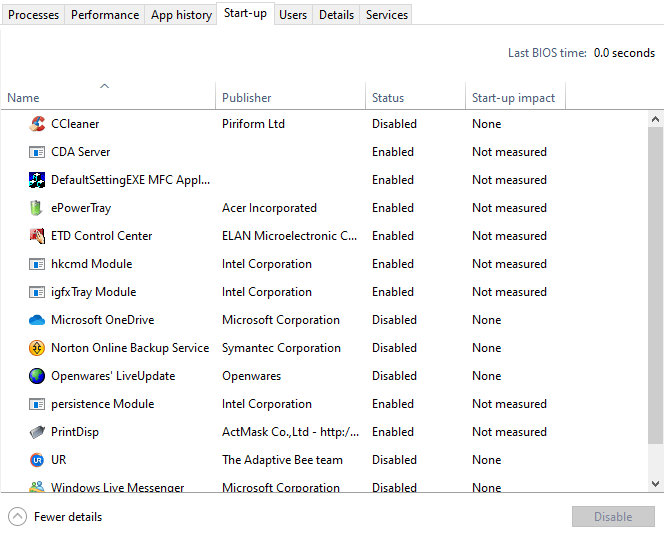
3. Remove third-party background software from the startup

  1. If the above resolutions don’t fix it, try removing third-party programs from the startup that might cause the arrow keys to move the cursor (such as NeatMouse). Right-click the taskbar and select Task Manager to open that utility.
  2. Click the Start-up tab shown directly below.
    Start-up tab Cursor moves when pressing direction keys
  3. Then select superfluous third-party software there.
  4. Click the Disable button to leave a selected program out of the system startup.

Those resolutions will probably stop the direction keys from moving cursors for most users. Users who have fixed the same issue with other resolutions are welcome to share them below.

There are other issues that you can experience, and in one of our previous guides, we covered what to do if mouse cursor has disappeared on your PC, so be sure to check it out.

Also, if you have any other questions or suggestions, don’t hesitate to leave them there.

5 Best Subwoofer Software Deals For Windows Pcs Today

It goes without saying that having a cutting edge sound system just wouldn’t be the same without a subwoofer, but were you aware that your setup could sound even more amazing if you just added subwoofer software to the mix?

Audio equalizer software is out there from a long time ago, but not all of the tools can change the parameters of your subwoofer, giving it the oomph it so desperately needs. Or that you need.

Some software utilities provide you with the ability to either boost your bass by applying a half-automated preset to its default sound, but other, more advanced programs actually let you mess around with the settings so that you can reach results that are as close to your liking as possible.

Boom 3D, ViPER4Windows and FxSound Enhancer are only a few software solutions that fall under the category which we kept blabbing about above, so come see what makes them so special.

What is the best subwoofer software that I can get?

Boom 3D

Boom 3D interface

Although its name might make you believe it’s an old 3D game, Boom 3D is actually a software solution that was designed to help you change the way your audio system sounds without having too much sound engineering knowledge.

After you install the program on your Windows 10 computer, you need to log into your Boom 3D account (yes, it’s mandatory) before you get to toy around with your audio system’s parameters.

This tool greets you with a bunch of information on how to use its features as effectively as possible, asking you to define your output device and select the type of headphones that you own (if applicable).

Boom 3D then lets you choose from a wide variety of sound presets such as Windows, Vocal, Jazz, Hip Hop, Rock and Bass Boost. Each of these presets can be customized to your own liking by simply dragging the slider buttons around until you’re satisfied with the result.

At the top of the screen, five more parameters, 3D Surround, Ambience, Fidelity, Night Mode, and Spatial, can be further customized.

Although Boom 3D can be downloaded and tried for free for about 30 days, if you want to continue using it to customize your audio experience, you must purchase a premium subscription plan.

⇒ Get Boom 3D

ViPER4Windows

ViPER4Windows' interface

ViPER4Windows is one of those software solutions that have gained an impressive amount of notoriety in a niche market, as it was (and still is) pretty popular amongst Android users, but not any Android users; only ones who were brave enough to root their devices could unleash ViPER’s full set of features.

However, those times have passed, as ViPER4Android has finally crossed the platform bridge and reached us Windows 10 users. The program can be downloaded as an archive, which you need to decompress before the actual setup.

Within the archive, you’ll also find some instructions that you might want to follow for everything to go smoothly.

ViPER4Windows enables you to switch between three usage modes: Music Mode, Movie Mode, and Freestyle, the latter of which grants you total control over the parametric equalizer.

Among its extra features, you can find xBass, which lets you define the size of your speaker (subwoofer) and adjust the bass level by dragging a slider until you’re satisfied with how things sound, but also xClarity (pretty self-explanatory), a tube simulator, a virtualized surround option, a convolver, pre- and post-volume controls and room adjustment settings.

ViPER4Windows makes it possible that you can adjust the size of the room you’re in, damping level, bandwidth, decay, density, pre-delay, early mix, and wet mix levels and save all of those customization steps in presets that can be easily loaded afterward.

⇒ Get ViPER4Windows

Breakaway Audio Enhancer

Breakaway Audio Enhancer interface

Breakaway Audio Enhancer is, as its name so boldly suggests, a software solution that you can use to enhance your computers’ audio components by adjusting most of its parameters down to the finest detail.

The program can be downloaded, installed and launched in a matter of moments. However, know that the first time that you’ll run Breakaway Audio Enhancer, you’ll be asked to configure a bunch of settings and your audio will be most definitely cut off during the configuration dialog.

Once you reach the tool’s main window, you’ll come to realize that it looks nothing like our screenshot, mainly because we’ve resized it (yes, you can do that). You can also dock it to the bottom of your screen and set it to be always on top if you’re into that.

Breakaway Audio Enhancer can help you adjust the volume of your audio output, as well as set the range, power, speed, bass type, and bass shape parameters without too much hassle.

More so, you can also choose from a list of references that are actually presets. Among the presets you can find Reference Classical, Reference Movies, Easy Listening, Eruption, French Kiss, Magnifying Glass, Oldies and more of these confusing names.

However, don’t judge a preset by its name, as we’ve done; you may find that the sound scheme it creates sounds nothing like a french kiss or a magnifying glass.

Breakaway Audio Enhancer can be downloaded and tried for free for 30 days, but a license must be purchased afterward if you want to keep using it.

⇒ Get Breakaway Audio Enhancer

EqualizerPro

Interface of EqualizerPro

From boosting your bass to raising the trebles just a little bit, EqualizerPro can help you do it all, and in an intuitive, effortless manner, as well.

Among sound equalizer software solutions, this program stands tall and proud, showcasing its various controls that can make generating the perfect sound profile a walk in the park.

Among its features, you can find a 10 band equalizer (probably its most powerful feat), bass boost effect, more than 20 presets for the equalizer, pre-amp volume control and, of course, a convenient on/off switch that you can quickly flick to cancel the utility’s effect on your audio system.

Note that during the installation, your whole audio output will drop for a few moments as the audio service is being restarted.

Another thing worth mentioning is that also during EqualizerPro’s installation, it will attempt to download a bunch of Microsoft Visual C++ 2013 components required for the well-functioning of the tool, but it will somehow fail.

The fix is trying to download the components yourself, otherwise, you’ll end up staring at an “MSVCR120.dll not found” kind of error, which we all can agree that is never pleasant.

EqualizerPro requires a paid license in order to run, but it also offers a 7-day trial. The catch is that you have to provide your credit card details for those seven days of demo.

⇒ Get EqualizerPro

FxSound Enhancer

FxSound Enhancer's main window

FxSound Enhancer’s name is already pretty suggestive, but it’s worth mentioning that “sound enhancer” just doesn’t do justice for this program’s full array of audio customization features.

If you want to be blown back by its capabilities, consider the following experiment: play your favorite tune, then begin installing the program. During setup, at some point, the audio will be completely cut and will stay that way for a while.

But when it does come back, you’ll have trouble realizing that yes, those are the same speakers that were playing music before and that only a bit of audio tweaking has changed everything for the better.

The interface of the tool is separated into three different sections that are relevant to us, Spectrum, Effects, and EQ. While Spectrum is only there to look pretty, Effects and EQ are the places where all the magic takes place.

The Effects section enables you to customize sound fidelity, ambiance, 3D surround level, dynamic boost value, and bass enhancement. Furthermore, the EQ comes with a 9 band equalizer which allows you to fine-tune the sound in order to create an ideal audio experience.

FxSound Enhancer can be downloaded and used for 7 days for free, but you need to purchase a license afterward if you want to keep on using it.

⇒ Get FxSound Enhancer

Conclusion subwoofer software for Windows PCs

If you’ve just bought a brand new, awesome audio system and want to get the best of it, don’t just leave it on default; a bit of software-based audio tweaking can go a long way when it comes to sound quality, especially if you turn to specialized tools.

Most of the audio enhancement programs available nowadays not only come with seemingly-uncomplicated, adjustable multi-band equalizers but they also encompass a broad range of presets, allowing you to switch to your favorite profile quickly, but also learn a few things about audio modeling while you’re at it.

Whether your choice is Boom 3D, FxSound Enhancer, Breakaway Audio Enhancer, you can’t go wrong with these software solutions that were designed to help you reach the audio quality you’ve been craving for all this time.

How to configure Linksys routers

There are a wide range of Linksys routers, and the best of them provide fast connections. You might, however, need to configure your Linksys router so that it works with all services from ISPs, such as IPTV and VoIP.

Users who utilize VPNs will also need to adjust Linksys router settings. Keep reading below to learn more about the Linksys setup process and how you can do it easily.

How can I configure my Linksys router?

1. How to open the Linksys Router setup page

  1. To adjust Linksys router settings, users will need to open the setup page for Linksys routers. To do that, open a web browser.
  2. Enter either ‘myrouter.local’ or the router’s default IP address in the browser’s URL bar, and press the Return key. The default IP address for Linksys routers is 192.168.1.1.
  3. Then enter the router’s password in the Access Router text box on the login page that opens. The default password for the Linksys router is admin.Access Router text box How to Configure Linksys Router
  4. Users can also click the Click here link to log in with Linksys cloud accounts.
  5. Press the Log in button.

2. How to configure VLAN

  1. Users who need to enable VLAN for their Linksys routers can do so by clicking Connectivity on the left of the Linksys setup page.Smart Wi-Fil Tools setup page How to Configure Linksys Router
  2. Then select the VLAN tab.VLAN tab How to Configure Linksys Router
  3. Toggle the VLAN option on.
  4. Select the required ISP profile on the Select Profile drop-down menu.
  5. Users who can’t find profiles for their ISPs on the menu should select Manual. Then enter a VLAN ID for an ISP, and choose an appropriate Tag and Priority setting.
  6. Press the Apply and OK buttons to save the new settings.

3. How to configure VPN

  1. To configure VPN for a Linksys router, click Connectivity on the setup page.
  2. Select the Internet Settings tab.Internet Settings tab How to Configure Linksys Router
  3. Click Edit beside the Type of Internet Connection subheading.
  4. Next, select PPTP on the Connection Type drop-down menu.
  5. Select the Obtain an IPv4 address automatically option.
  6. Input the IP address for the required VPN service in the Server IPv4 boxes.
  7. Enter the required VPN login details in the username/password text boxes.
  8. Press the Apply button.

4. How to configure Static IP

  1. Some users might need to set up a static IP connection for Linksys routers to browse websites. Users can do that by clicking Connectivity and selecting the Internet Settings tab on the Linksys setup page.
  2. Click Edit for the Type of Internet Connection heading.
  3. Select Static IP on the Connection Type drop-down menu.Connection Type menu How to Configure Linksys Router
  4. Then users will need to enter the required internet IP, subnet mask, gateway, and static DNS details for their ISPs.
  5. Select the Apply option.
  6. Click the OK button on the Applying Changes dialog box that opens.

5. How to configure Wi-Fi settings

  1. To configure Wi-Fi wireless options for Linksys routers, click Wi-Fi Settings on the setup page’s left navigation pane.
  2. Select the Basic tab.
    Basic tab How to Configure Linksys Router
  3. Click Edit to fill out the Wi-Fi name and password fields.
  4. Thereafter, users can configure various wireless settings for things like channel, channel width, network mode etc.Wireless tab How to Configure Linksys Router
  5. Click the Apply and OK buttons to save new settings.

So, that’s how users can configure Linksys routers with the Linksys Smart Wi-Fi firmware. If you’re utilizing Linksys routers with the Classic firmware, you can also adjust similar settings within the Classic setup page, but that has a slightly different UI design.

If you have any more questions or suggestions, feel free to leave them in the comments section below and we’ll be sure to check them out.

RELATED ARTICLES TO CHECK OUT:

ActivateWindowsSearch is slowing down my computer

ActivateWindowsSearch is one of Windows’ scheduled tasks. It is a part of the Windows Search service that is utilized for searching indexed programs and files. Thus, ActiveWindowsSearch is essential for the Windows Search indexer, which relies on it, and enables faster searches.

However, ActivateWindowsSearch (and Windows Search) can hog too much system resources for some users. Consequently, it might slow down low specification desktops and laptops for some users. This is how users can fix ActivateWindowsSearch slowing down computers.

What can I do if ActivateWindowsSearch is slowing down my PC?

1. Turn off Windows Search

  1. As Windows Search relies on ActivateWindowsSearch, turning Windows Search indexing off is the best way to fix ActivateWindowsSearch slowing down a computer. To do that in Windows 10, press the Windows key + R keyboard shortcut.
  2. Input ‘services.msc’ in the Open text box, and press the Enter button.
  3. Then double-click Windows Search to open the window shown directly below.Windows Search Properties window activatewindowssearch slowing down computer
  4. Select Disabled on the Startup type drop-down menu.
  5. Click the Apply button.
  6. Then press the OK button to close the window.
  7. Windows 8.1 and 7 users can turn off Windows Search by entering ‘appwiz.cpl’ in Run and clicking OK.The uninstaller activatewindowssearch slowing down computer
  8. Then click Turn Windows features on or off to open the window in the shot directly below.
    Windows Features window activatewindowssearch slowing down computer
  9. Deselect the Windows Search check box, and click the OK button.
  10. Select the Yes option to confirm, and then restart Windows.

2. Configure Search Indexing

  1. Alternatively, users can try turning search indexing off for certain folders, which in turn might reduce the impact of ActiveWindowsSearch on system performance. To do so, click the Type here to search button on Windows 10’s taskbar.
  2. Then input ‘indexing options’ in the search box. Click Indexing Options to open the window in the snapshot directly below.Indexing Options window activatewindowssearch slowing down computer
  3. Press the Modify button.Indexed Locations window activatewindowssearch slowing down computer
  4. Double-click the C: drive to expand it.
  5. Then users can deselect some folders there to remove them from search indexing. Deselect folders that include a lot of files that you rarely open.
  6. Click the OK button.

3. Remove programs from the System Startup

  1. Or users can try removing third-party programs and services from the system startup that consume RAM to speed up their PCs instead of turning Windows Search off. To do that, right-click the taskbar to select Task Manager.
  2. Click the Start-up tab shown directly below.Task Manager Activatewindowssearch slowing down computer
  3. Then select superfluous third-party software listed there.
  4. Click the Disable button.
  5. Open the Run accessory.
  6. Enter ‘msconfig’ in the Open box, and click the OK button.
  7. Select the Services tab.The Services tab activatewindowssearch slowing down computer
  8. Select the Hide all Microsoft services option.
  9. Then users can deselect superfluous third-party services to remove them from the system startup and preserve more RAM.
  10. Click the Apply button.
  11. Select the OK option.
  12. Then restart Windows. After freeing up more RAM, ActivateWindowsSearch might then not slow things down so much.

Task Manager is not working on Windows 10? don’t worry, we’ve got the right solution for you.


That’s how users can boost system performance when ActiveWindowsSearch is slowing things down. Never try disabling the ActiveWindowsSearch task as that can generate all sorts of issues with Windows Search.

Of course, it’s ok to turn off Windows Search, but that will also have some impact on certain features. So, you might prefer to configure search indexing and remove third-party programs from the startup as outlined for resolutions two and three.

RELATED ARTICLES TO CHECK OUT: 

4 geek beanie hats to buy this Christmas [GIFT IDEAS]

We’re a technology-focused website and we know how important it is for geeks to show their love for technology. For this reason, we compiled this list of the best geek beanie hats that you can get this Christmas. If there are any geeks in your family or group of friends, these geek beanies are perfect for them.

Speaking of Christmas deals gifts, we already compiled a list of the nicest Christmas sweaters for geeks. Buy a geek beanie, get a geek sweater and you’ve got the perfect Christmas present for your geek friends. Enjoy!

Get these geek beanies for your geek friends

Geek Pride

geek beanie

If your friend is a geek and he/she is proud of it, then this is the perfect beanie for him/her. We love the minimalist design which allow your friends to wear this beanie with a variety of outfits.

Get it now from Amazon

Vintage striped beanie for geeks

Vintage geek beanie

If your geek friend also loves vintage stuff, he/she will definitely love this striped winter hat. The pom pom is removable, so don’t worry about that.
Thanks to the high stitch density embroidery, this beanie offers excellent insulation and durability.

We give it 10 out of 10 for the design: simple, yet stylish.

Buy it from Amazon

I Love My WiFi geek beanie

i love wifi beanie

For geeks, the Internet is as important as air. This beanie allows your geek friends to express their love for their Wi-Fi internet connection. It comes in two colors: neon orange and neon yellow.

Buy it from Amazon

LED flashing beanie

LED beanie geek

Another interesting beanie to get this Christmas is this LED flashing beanie. It’s 100% acrylic and features six colored light-up bulbs. There are three flash functions that you can choose from and the batteries are included.

Get it from Amazon

So, which one these geek beanies are you going to buy?

RELATED STORIES YOU NEED TO CHECK OUT:

Best Secret Santa gifts under $50

Not all of you like the idea of Secret Santa gifts exchanged at home or at the office, yet don’t turn into Scrooge. It’s a tradition known to bring joy, or at least a smile to the face of any co-worker or family member you care more or less about. What’s the most important thing that you should keep in mind? Your Secret Santa gift can be anything but boring. As for those of you who have already drained the savings for Christmas, don’t fall into despair. Just let us help you out with some funny gift ideas under $50. It’s time to prove that you can be thoughtful. A gift no one else has thought of is definitely waiting for you in this awesome list that we’ve prepared for you. Note: Deals are subject to change. Keep in mind that the price tag often varies. We recommend going on the vendor’s website to check the price. Some of the products may be out of stock by the time you’ve made your purchasing decision. So, hurry up and hit the buy button.

What are the best Secret Santa gifts under $50?

Healing Crystal Chakra Stones

Healing Crystal Chakra

What do you say about helping Santa bring some serenity with these crystal polished engraved palm pocket stones? If your co-worker is feeling out of whack, get his spirit back into alignment right away.

Chakras are energy centers tied to both physical and emotional problems in the body, so you’re getting the perfect gift. You just need to pay attention to the actual sizes to avoid any later disappointments.

Pros:

  • 100% hand carved stones
  • 7 pcs per pack
  • Various chakras to choose from, including Amethyst, Green Aventurine, Yellow Jade, or Red Jasper
  • Friendly customer service

Cons:

  • Designs are not very distinct
  • Many buyers wish they were a bit larger

Check price

Never Have I Ever game

Never Have I EverYou probably already know that this is a great game for getting to know people and laughing with friends about some of your life’s most embarrassing or funny moments. Don’t worry as they’ll have to share as well.

Even more, keep in mind the main rule: no judgement is allowed while playing!

Pros:

  • Assures a few hours of entertainment in a close group of friends
  • Lets you know your friends a little bit better and find out some interesting things about them
  • Affordable, fun gift

Cons:

  • You need the right audience for such a game
  • Rule cards annoyingly repeat some of the instructions

Check price

Hot Sauce Set

Hot Sauce GiftDo you want gift to spice things up? These seven hot sauces, with the cutest packaging you can think of is one of our recommendations for you.

However, the thing to consider from the start is that the gift is ideal only for the foodies in your life and cannot be included in no one’s weight-loss diet.

You could be nice and give them a book with easy diet tips, but that’s rather a story for another day.

Pros:

  • Versatile enough to compliment any food
  • Gift bag ready item
  • Fast delivery

Cons:

  • Buyers are disappointed that bottles sometimes arrive broken

Check price

Echo Dot (3rd Gen)

Echo DotSanta isn’t there to help us with chores around the house, but a voice-controlled smart speaker with Alexa can certainly do some nifty tricks. Echo Dot (3rd Gen) has a new, compact design and is perfect for pretty much any home or office.

Pros:

  • Feel free to ask for music, news, information, set alarms, control compatible smart home devices, and more
  • Tracking fitness or playing games are part of the package as well
  • Improved speaker for richer and louder sound
  • Multiple layers of privacy protections and controls included

Cons:

  • Lacks product support
  • When playing music, sometimes the sound seems distorted

Check price

Cooluli Mini Fridge

Cooluli Mini FridgeWe all have at least one person in our lives who’s obsessed with looking stylish, whether she’s a co-worker or a family member. The Cooluli Classic 4-liter thermo-electric cooler/warmer mini fridge will be there to help her store all her important skincare products.

Even more, the Classic 4-L is not all picky. Beer and snacks are welcomed as well.

Pros:

  • The perfect place to store food or drinks; the list further extends to nail polishes, serums, and creams
  • Ultra-quiet unique semiconductor operation
  • Portable model
  • Matte finish and a modern overall profile
  • Pink and blue colour options to choose from

Cons:

  • Issues with the logo only half printed

Check price

Final words on Secret Santa gifts under $50

On the whole, something tells us that you want to get it right with this year’s Secret Santa. As you can see, you may surprise one of the foodies you care about or choose a gift to control compatible smart home devices. Tech lovers will certainly appreciate your idea!

One way or another, think outside the box and grab some amazing gifts that will surely be appreciated.

Christmas tech gifts for teenage girls

Shopping for teenagers has turned into such a difficult thing in the past few years, right? It’s not your fault because they are known for refusing gifts, having unrealistic expectations, and returning everything, so are you up for the challenge of finding the perfect Christmas tech gift? Just remember that gifting is all about taking into consideration the relationship you have with that person and celebrating friendship. And don’t worry, there’s still time to place that tech gift order online. Stop scrambling around for hours in shops and get creative with the help of our list of awesome tech gifts for teenage girls. Note: Deals are subject to change. Keep in mind that the price tag often varies. We recommend going on the vendor’s website to check the price. Some of the products may be out of stock by the time you’ve made your purchasing decision. So, hurry up and hit the buy button.

What are the best Christmas tech gifts for teenage girls?

Anker PowerCore+ Mini

Anker PowerCoreFirst, let’s talk about the need to have extra power on the go. It’s frustrating for a teenage girl to be stuck with a dead battery, or better said – this can literally release hell’s fury.

A portable charger such as Anker PowerCore+ Mini with high-speed charging technology is ideal for your teen to carry in her bag and remain as zen as possible.

Pros:

  • Travel pouch included
  • Adds at least 80% battery to smartphones
  • 18-month warranty
  • Friendly customer service
  • Cheap option for charging needs on the go

Cons:

  • Lightning cable for iPhone or iPad needs to be bought separately

Check price

Sonic Bomb Alarm Clock

Sonic Bomb AlarmWe understand the irony of your teen girl asking for an extra loud 113 dB vibrating alarm clock as a Christmas gift, but trust us. She needs such a piece of tech for those early morning classes she never gets to in time.

As for those not impressed just yet or worried about the cute, pinkish look, that’s a 12-volt bed shaker with pulsating lights for a wake-up call that no one can ignore.

Pros:

  • Very loud alarm, with tone and volume controls included
  • 5-level dimmer and snooze button
  • Seven colour options to choose from

Cons:

  • Plastic build
  • Snooze button easy to broke

Check price

Dodow Sleep Aid Device

Dodow Sleep AidIf the girl loves technology, and her stress level is way up high, reach for this handy metronome and light system that will help her sleep quicker.

Pros:

  • Intuitive light system that teaches those who have difficulties getting to sleep how to do that naturally
  • Touch sensitive surface to indicate exercise choice
  • Option for 8-minute mode and twice for the 20-minute mode
  • At the end of the exercise it switches off automatically

Cons:

  • Those with chronic insomnia would appreciate soothing sounds to complement the light system

Check price

ICE Theia Video Camera Glasses

ICE Theia GlassesIf you’ve got a photography lover on your hands, the ICE Theia Glares – Wearable Video Camera Glasses is a gift she’s sure to love. The HD Camera enables users take pictures or even videos with just a press of a button.

Moreover, Theia connects with pretty much any tablet or smartphone via Bluetooth, letting you play music wirelessly.

Pros:

  • Built-in flashlight for great nighttime captures
  • Generous 8GB built-in storage
  • Drive Safe Assist option designed to help your teen build a culture of safety while behind the wheel
  • Change lenses at your will as you may choose between funky colored ones or more serious “grown up” models

Cons:

  • The flash light is not discreet
  • Not user friendly, yet it’s for teens, remember?

Check price

Mpow S2 Bluetooth Headphones

Mpow S2 HeadphonesYour teen will be able to concentrate on studying or her workout routine with these Mpow Bluetooth headphones. They come at a rather stiff price, but it’s a quality product.

You won’t find that easily advanced IPX7 waterproof wireless headphones for outdoor sports, with CSR Bluetooth V4.1 tech and upgraded built-in lithium batteries support.

So be it a casual morning walk or the daily jog, taking calls and switching between playing music and phone calls – it’s just that easy!

Pros:

  • Premium CSR chip for HD sound
  • Hands-free calls with intuitive in-line microphone and volume buttons
  • Generous time of 8 hours of music and 150 hours of standby time
  • Three sizes of ergonomically ear tips – S, M, L

Cons:

  • Poor connection issues

Check price

Conclusion on Christmas tech gifts for teenage girls

All things considered, you can’t go wrong with any of these Christmas tech gifts. If you’re unsure, we have one advice for you: think of the person that you would be gifting. Would any of these add any value to her life?

You know the answer better than anyone else. Happy shopping!

Are Windows updates necessary? We answer

Windows is a well-established OS that receives constant updates. These come either in the form of smaller ones that are released randomly, or larger planned ones released during Patch Tuesday.

Of course, even after so many years, users are still wondering whether it is necessary to keep installing the latest updates every time they are available.

Their concern is well-placed, given how Microsoft doesn’t exactly have a good record when it comes to delivering issue-free updates.

Of course, one should remember that these updates come with the latest security features. This means that it is mandatory to get them unless you want to become a target during Exploit Wednesday.

Of course, security isn’t your only concern. Tech fans around the world eagerly await the latest updates to bring new features that will enhance their OS‘s functionality.

Because the debate is as old as time, we’ve decided to answer some of the most common questions regarding whether updating your Windows is worth it or not.

What you need to know about Windows Updates

Where are Windows update logs stored?

Microsoft changed a few things regarding the update logs, as they are no longer stored on your PC as a simple text file that anyone could read.

The Windows Update service now writes a number of Event Tracing for Windows logs (ETL files) under the location C:WindowslogsWindowsUpdate.

These can be viewed by using one of the following methods:

  • Using a PowerShell cmdlet
  • Using the built-in Event Viewer tool

Can Windows update without activation?

Windows don’t need to be activated in order to receive any updates. However, bear in mind that there are a few limitations to the unactivated versions, most of which are cosmetic in nature.Activate WIndows

What Windows update do I have?

You can see what update you are running by following these steps:

  1. Press Start
  2. Click on Settings (the cogwheel-shaped button)
  3. Select System
  4. Choose About
  5. Right under Windows specifications, check which edition and version of Windows your device is running

What Windows version

For more information on the matter, check out this detailed guide.

Do you have any more questions regarding why you should update your Windows OS? Let us know in the comment section below.

Why are Windows updates so slow?

Ever since it was released back in 2015, Windows 10 has garnered plenty of criticism regarding how slow the update process is.

To be clear, users aren’t complaining that updates aren’t frequent, just that they take a long time to download, even when they are small in size. This is a question many of you are eager to know the answer to.

Apparently, there are two main reasons why Windows updates may be taking so long:

  • You may have software that is conflicting with the Windows Update
  • Some of your Windows Update components might be broken

These aren’t the only questions regarding Windows updates that you’ve been asking. That is why we’ve decided to answer some of the other more common questions that users need an answer to.

Windows Updates F.A.Q.

Where are the Windows Update Settings?

Accessing the Windows Update Settings is quite easy since all you need to do is follow these steps:

  1. Press Start
  2. Click on Settings (the cogwheel-shaped button from the Start Menu)
  3. Go to Updates & Security
  4. Go to Windows Update

Can Windows update without Wi-Fi?

As long as you are connected to the Internet, you can perform a Windows update regardless of whether you are connected to the Internet via Ethernet cable or via Wi-Fi. Just remember that a cable connection is more stable and will probably provide better download speeds as well.

Where is the Windows Update Troubleshooter located?

The Windows Update Troubleshooter is an official fix tool provided by Microsoft that helps Windows users in resolving all problems related to Windows Update.

Unfortunately, it doesn’t come pre-installed on your system, but you can easily download the Update Troubleshooter from Microsoft.

Why is Windows Update status Pending download?

By default, Windows Update will automatically download and install any updates it deems as being vital or important. In this case, it means that the download that is pending is minor and of lesser importance.

Additionally, if you are connected to broadband which is marked as a metered connection, then it will not download the update.

Closing thoughts on Windows 10’s slow update speeds

While the slow download speeds currently remain a source of frustration for some, you should know that Microsoft is looking to solve this issue.

With the new changes that are set to come, you will be able to control the bandwidth settings of your Windows updates, and thus manage the speeds at which they download.

Do you have any more questions regarding Windows updates? Let us know in the comment section below.

Troubleshoot update install issues on Windows 10

We recommend bookmarking these update install guides just in case your computer fails to download and install the latest patches. We’re sure some of the solutions listed there will help you to solve your update issues.