Download Euronews App for Windows 10/11 to get fresh news

I don’t watch television too often, but when I do, Euronews is one of my favorite TV channels, thanks to their professionalism and really informative shows and reports. So, if you are using Windows 10, 8, be it on a tablet or on a desktop device, I am happy to inform you that the official Euronews app has been released in the Windows Store.
euronews windows 8 app
When first opening the app, you will be required to let the Euronews app run in the background. Don’t worry, if you don’t allow it in the beginning, you will be able to do it later on. It needs to run in the background, so that you can receive notifications and quick status updates. After this step, you will be asked to choose the language edition in which you want Euronews to run – English, Deutsch, Francais, Espanol, Italiano, Magyar, Portugues, Russian, Turkish, Greek or Ukrainian.

Euronews lands in the Windows Store with high-quality content

The Euronews app offers:  International, economic, cultural and scientific news videos  Documentaries and Magazines on VOD Customize your start screen with live tiles to keep up to speed on breaking news. Split your screen and follow the news while reading your mails.

The official Windows 10, 8 Euronews app looks smashing and everything moves really, really fast inside. The content is grouped in the following sections – top stories, news, business, Europe, culture, sci-tech, environment and programs. When you are in the main area of the app, you can access these section by right clicking and then choosing the content you want to explore; you can also change your language, as well. Most of the articles come with videos and these load really quickly. Also, another cool features is that there are no ads, at all, despite the fact that the app is totally free.

Euronews app video review

euronews for windows 8

We are updating the article with the video of Euronews for Windows 10, 8 embedded below. You will see that almost all news come with relevant videos and that these load very quickly. Also, changing languages gets instantly updated, and the quality of the design is top notch.

You can also rate stories as good or bad, and after rating, you will see the statistics for the story. Euronews will receive future updates which will include  new programs and features, the most important one being the live streaming of Euronews TV. Besides this, there will be news quiz, the option to bookmark your favourite stories and even a search engine. Also, Arabic and Persian languages will be added.

Download Euronews app for Windows 10, 8

UPDATE: The Euronews app now supports news quizzes allowing you to test your knowledge in order to see if you’ve been carefully listening to recent news reports. You can also express your opinion on the pieces of news that you read, as well as view other users’ opinions on an interactive map. Who knows, maybe coming into contact to a different opinion will change yours a bit.

If you really liked a particular news story, you can share it on social media so that others may hear about it as well. If you prefer to keep up to date with what’s going on in the world, you will soon be able to receive alerts for breaking news.

RELATED STORIES TO CHECK OUT:


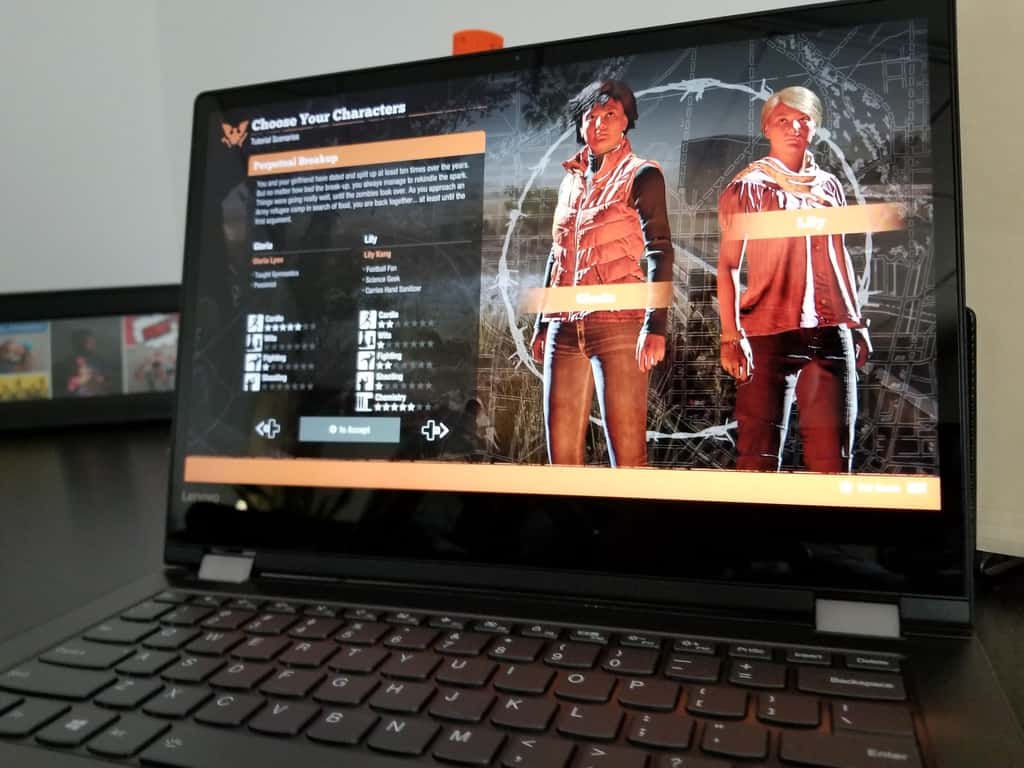
Lenovo Flex 6 14”: The overall option for the general consumer

There is no question that Windows laptops have come a long way since the days of weighing four plus pounds, tethering users to power outlets, and delivering regularly faulty trackpad, glitchy screens, and poor keyboard experiences.

Credit Apple’s MacBook line, the MacBook Air in particular, if you’d like but the net results of design focus choices, changes to the way Windows operates and years of refinement have brought Windows PC buyers a plethora of impressive options in the recent years.

Perhaps, the only downside to today’s PC buying experience has been the stark distinction laptop manufacturers are placing on premium experiences. Even relatively new laptop manufacturer Microsoft is participating in the price wars with its Surface line. While the overall PC design has gone through a renaissance of industrial artistry, company’s have been quick to segregate their lineup by price tags.

Fortunately, the rate at which design is evolving, companies such as Lenovo are superseding long-held but seemingly arbitrary cost barriers associated with premium experiences.

Enter the Lenovo Flex 6 (14″).

Processor

  • 8th Generation Intel® Core™ i5-8250U Processor (1.60GHz, up to 3.40GHz with Turbo Boost, 6MB Cache)
  • 7th Generation Intel® Core™ i3-7130U Processor (2.70GHz, 3MB Cache)
  • Intel® Pentium® 4415U Processor (2.30GHz, 2MB Cache)

Operating System

  • Windows 10 Home

Display

  • 14″ HD (1366 x 768) Anti-Glare Multi-touch
  • 14″ FHD (1920 x 1080) IPS Anti-Glare Multi-touch

Graphics

  • Up to Integrated Intel® HD Graphics 620

Camera

  • 720p HD

Memory

  • Up to 8 GB DDR4 2400 MHz

Storage

  • Up to 256 GB PCIe SSD

Battery

  • Up to 10 hours
  • *Features Lenovo Swift Charge

Audio

  • Harman speakers with Dolby® Audio™ Premium
  • 720p HD with dual array microphone

Ports

  • 1 x USB 3.0 Type-C
  • 2 x USB 3.0 (one always on)
  • HDMI
  • 4-in-1 card reader
  • Audio combo jack

Connectivity

  • 802.11 AC (1 x 1) + Bluetooth® 4.1

Dimensions (W x D x H)

  • 12.9″ x 9.01″ x .69″ / 328 x 229 x 17.6 (mm)

Weight

  • Starting at 2.2 lbs (1.6 kg)

Prices starts at $849.99

The Bad

As with all my reviews, I like to get the negativity out of the way first. I didn’t find very many downsides to the Lenovo 6 (14″) but there were a handful of things that raised my eyebrow during the review.

Battery

As great as newer PCs have gotten, there is just something about the combination of Windows and Intel that continue to hold laptops back from their full battery potential. The Flex 14 does a decent job of mantaining a healthy 5-6 solid hours of performance on a charge, which falls short of its 10 hour claims. Now, it should be stated that when I say 5-6 hours, that’s of constant on-screen use under a mix of Edge, Chrome, Office, Showtime Anytime (through the browser), Twitter PWA, Instagram (UWP) and Spotify, so I’m not sure which culprit specifically was the battery hog, but regardless, I felt the battery performance could have been better.

Weight

Consider me spoiled but in the age of ultra light laptops, the Flex’s 2.2lbs (1.6 kg) feels every bit as dense as the device looks. There is no sugar coating the weight of the Flex 6, it’s heavy and not very ergonomic when in tablet mode. Perhaps, it’s the matrerials used in the construction of the Flex 6 that lends it to a premium but heafty experience, but whatever the case, most users will know it’s in their backpacks, sacheals, or oversized purses.

Slow Biometrics

Lenovo continues to use fingerprint reading as its go-to Windows Hello bioauthentication choice, which would be fine with me, if it worked faster. I’m not saying it doesn’t work, but at the pace it takes to read a fingerprint correctly, I would rather just enter a pin, or leave the entire device unlocked (in secure locations like work or home). During my testing it took a full 30-45 seconds to read a finger, which, relatively speaking isn’t that long, but multiplying that by how many times in a day a laptop needs authentication, it becomes burdensome.

Necessary attachments

Interestingly enough, Lenovo appeared to have figured out how to incorporate a housing for its pen accessory with the X1 Thinkpad line but for what might be business reasons, has omitted it for the Flex 6. While the X1’s represent a hyper line of productivity machines, I see Flex users getting more use out of the Lenovo pen technology and thus, requiring a better solution than a pen loop attachment that hangs off a USB port.

While clever, I think the more Samsung Note approach to housing the pen accessory on the Thinkpad line should have been applied here. For me, it required too much thought to have always be congniscent of where the pen was when retreving the laptop from or putting it back into my backpack, because heaven help me if that attachment broke and left a chunk of plastic in my USB port.

The Good

The Screen

While only a FHD in a valley of QHD displays, the Flex 6 offers amazing viewing angles and crisp color reproduction. With the Flex 6, Lenovo is also moving toward sliming its bezel profile on its devices while staying sensable with its design. There are no hidden cameras in the Flex 6’s keyboard or placed at weird viewing angles to compensate for the slimmer bezels, it’s just a nice and welcomed thinning of the black area around the sides of the top and sides of the screen owners will appreciate when viewing everything from PDF’s to Netflix or YouTube.

Port Selection

Leovo remains steadfast in being one of the few manufacturers intent on offering bridging port selections for owners. The Flex 6 runs the gamuet of port selections including the coveted USB-C 3.0 port as well as a full HDMI port and a USB 3.0 plus full SD card slot for those external hard drives or camera attachments.

While the dongle-life never really bothered in theory, its was in the practice of need specialized attachments to get even the most basic functionality out of my devices that I took umbridge with. The idea of another piece of equipment taking up space in my bag, the potential for losing it skyrocketing expodentially, and the eventual lack of use of the hardware due to the complexity of set up is something I’m having to deal with more often as I test out newer hardware, and I’m not a fan.

Thankfully, Lenovo is keeping a majority of its port selections and thus making the Flex 6 the perfect transition PC for anyone looking to continue using their older attachements while they invest in newer technologies.

Lenovo Bloatware

That’s right, I’m saying that the Lenovo Vantage app is actually a plus for me. Other reviewers believe a pure Microsoft Signature experience is the only way to go, but with the Lenovo Vantage app, I’m able to maintain driver optimizations right along side my Windows 10 updates. The app takes a quick minute to load, but once I’m utilizing it , I can get lost in there, tweaking color calibraration, audio profiles, hardware scanning and adjust VOIP setups.

Design

The Flex 6 is an understated beauty. It’s brushed Onyx aluminum is solid from top to bottom with only a few accents of black for the screen and darker grey for the keyboard. Lenovo has arguably mastered the 360 hinge and while the watchband is used by the company to indicate a premium experience, I personally think the dual offset rotators are steardy and elegant. Perhaps, I’m a bit lame in what I should want from the design of my laptop, but this Lenovo Flex 6 is the perfect blend of Thinkpad utilitarianism and design flare of a Surface Laptop for me.

Summary

The Flex 6, is premium looking and feeling laptop that won’t break the bank. I would presonally recommend this laptop as a the transitional workhorse for anyone either sending their child off to college or for someone who does creative work in and outside of an office.

For under $1,000, buyers get a 14.0″ screen, the latest Intel processor, 256GB SSD, Fingerprint reader, USB-C 3.0, Harmon Speakers optiimized for Dolby Audio, Active Pen technology, and a touchscreen device that can double as a drawing board or notepad either in a crunch or for more creative pursuits.

The Flex 6 is like a human character in a D&D campaign; it solid across the board with the basics but has the ability (port selection, screen resolution, audio technology, maintenance software, and updated Intel processors and graphics) to be an extrodinary hero for most players.

Microsoft announced general availability of Azure SQL Data Sync

Microsoft recently announced that it’s making Azure SQL Data Sync Generally available (GA).

For anyone looking for a solid SQL deployment hybrid that will enable them to deploy data-based applications globally by utilizing the local copy of data in each region while keeping all data sychromized in all locations, Microsoft has answered your prayers.

Microsoft’s annoucement should come with its own tiny parade as users will now get their hands on:

What’s new in Azure SQL Data Sync

With the GA announcement, Azure SQL Data Sync supports some new capabilities:

  • Better configuration experience – More reliable configuration workflow and more intuitive user experience.
  • More reliable and faster database schema refresh – Load database schema more efficiently using new SMO library.
  • More secured data synchronization – We reviewed the end-to-end sync workflow and ensured user data are always encrypted at rest and in transit. Data Sync service now meets GDPR compliance requirement.

Interested parties can try out Azure SQL Data Sync here.

Microsoft Cloud expands in Norway just as Northern Europe Azure services go down for 5 hours

Microsoft yesterday announced plans two new data centers in Norway. One of the centers will be in the Stavanger area, another in Oslo, but both mark the first time that Microsoft will have data centers in the region.

The new data centers are expected to go online by late 2019 and will start with the availability of Azure, and then Office 365 and Dynamics 365 later in the year. According to Microsoft, both data centers demonstrate “ambitions to meet increasing customer demand for cloud.”

In the words of  Jason Zander, Executive Vice President, Microsoft Azure.

Over a billion customers around the world trust the intelligent Microsoft Cloud to provide a platform to help transform their businesses… By delivering the Microsoft Cloud from new datacentre regions in Norway, organisations will be empowered through cloud-scale innovation while meeting their data residency, security and compliance needs

Microsoft has had a presence in Norway since 1990, with 600 people working in offices in Lysaker, Oslo, Trondheim, and Tromsø. The new data centers build on this and should also bring innovation across the oil, gas, and other industries in the public sector.

The announcement of these new data centers happened on the same day that Microsoft Azure Europe went down for over five hours. Britain’s The Register reports that the outage was caused by underlying temperature issues in storage and networking systems.

Fortnite’s v4.4 Content Update is now live on Xbox One consoles

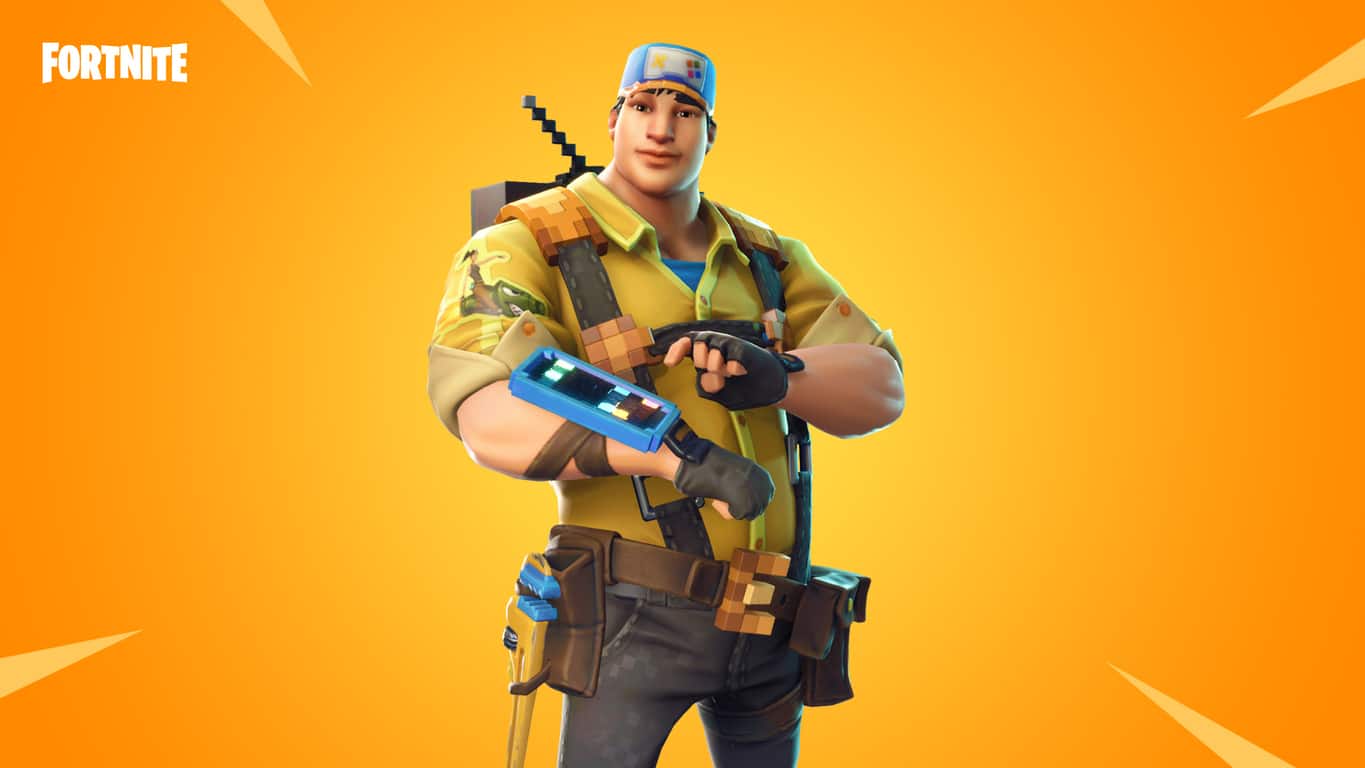
The v4.4 Content Update is now live in Fortnite on all platforms including Microsoft’s Xbox One. This latest update adds a new stink bomb weapon and the new 8-Bit Demo hero skin who seems heavily inspired by Wreck-it-Ralph (see above image).

This latest Fortnite update also adds a new mode called Final Fight in Battle Royale that limits teams to 20 players and stops the storm shrinkage after the third circle. Here’s the full release notes.

Battle Royale

General

Limited Time Mode: Final Fight: Teams of 20: Survive the countdown! The Storm Circles give players more room to hunt down opponents. The final circle triggers a countdown timer; when the time is up, the team with the most players remaining wins. In this LTM, teams can tie for the Victory Royale!

Final Fight plays similar to standard Battle Royale, but instead of the Storm circles closing all the way, the Storm stops after the 3rd circle. When the circles have finished closing in, the final countdown timer will begin. The remaining teams will battle it out until the timer expires. The team with the most players remaining at the end of the timer wins! In the event of a tie, the two (or more) teams tied for the lead win the match.

Weapons + Items

Stink Bomb added. Creates a stinky cloud that deals 5 damage every half-second within the cloud. 9-second duration. Epic rarity. Can be found from floor loot, chests, and Vending Machines. Loot in stacks of 3 with a maximum stack of 5.

Increased the reload time of the Rocket Launcher based on rarity. Rare from 2.3 seconds to 2.8. Epic from 2.185 seconds to 2.66. Legendary from 2.07 to 2.52.

The maximum number of unloaded Rocket Ammo that can be held has been changed to 12.

Bug Fixes

  • Enemy built structures are no longer lit up by the thermal scope.
  • Cozy Campfires are now lit by the thermal scope.

Gameplay

Bug Fixes

  • Back Bling no longer appears detached from players at a distance.
  • Fixed the two intersecting busses on the starting island.

Performance

  • Fixed performance issues on Switch related to frequently called time functions during gameplay (especially when skydiving).
  • Level streaming optimization to smooth out some hitches during skydiving on Switch.

Audio

Bug Fixes

  • The music for the Fresh emote has been re-added.
  • Fixed attenuation of Supply Drop opening sound so it doesn’t sound like it’s right next to players even if it’s opened far away.
  • The Clinger explosion sound now plays properly if detonated directly next to you on iOS/Switch platforms.

UI

Added the “Net Debug Stats” HUD UI option for Xbox.

Bug Fixes

  • Fixed a crash that could happen after buying items in the Item Shop.
  • When using styleable outfits, your last saved version will always appear in the locker preview.

Save The World

Missions + Systems: Bug Fixes

  • Fixed an issue which could block progression where the Chrome Husky would no longer spawn if the Magnets! quest was completed. Players who were blocked will now be unblocked with this fix.
  • Heroes: New Constructor Demolitionist: 8-Bit Demo added to the Event Store.

Do your play Fortnite on your Xbox One? Let us know what level you’re currently at in the comments below and then make sure to follow us on Pinterest for more Xbox news.

Fortnite
Fortnite
Developer:
Epic Games Inc.
Price:
Free

iPad Air vs Windows 8, 10 Tablets: a Short Analysis

Comparing Windows 8 tablets with other devices might be useful when trying to choose the best device on a fair price tag. Of course if you are on a budget you can buy an Android tablet, but let’s be honest that’s not an alternative in case you prefer good and quality devices. Because of that I have decided to compare Apple’s best tablet in 2013, the iPad Air, with Windows 8 tablets.
ipad air vs windows 8
Apple is, as we all know, one of the best developers and manufacturers when it comes to portable devices like tablets or smartphones. Apple is also the first company that released a device, the iPhone, which could be used just like a computer, with internet access and with everything else in that matter, that moment being the first step made in the mobile technology industry. Since then, Google had managed to bring something quite similar with the launch of Android OS, though the devices that are featuring Android OS are not that spectacular.

Preliminary debate

So, we can only conclude that Apple is really competing only with Microsoft, especially if we consider the advanced users who know what to appreciate when it comes to operating systems and with dedicated apps and tools – we can debate this subject for days, but this is not the topic of our review. In order to point that out, during the lines from below, I will compare the iPad Air with  Windows 8 tablets, in what I like to call iPad Air vs. Windows 8 tablets. Why am I doing this? Well, I think we all want to know if Apple, with its most appreciated iOS tablet of 2013, is better than Microsoft, which has presented great Windows 8 tablets for 2014.

Windows 8 tablets vs. iPad Air

So, can we compare only one tablet with the all Windows 8 devices? We can, if we want to decide in which platform to use when buying a new tablet: Microsoft windows 8 tablets vs ipad airor iOS. First of all, iPad Air is similar in performances with the iPhone 5C as Apple decided to equip the tablet with the same 64-bit A7 processor and Retina display. When we first see iPad Air we notice one thing: the tablet is light and thin; it can be easily used with one hand only – which is usually difficult especially when talking about 10 inch devices.

But do we have something similar with Windows 8? Of course we have and an example in that matter can be the Microsoft Surface Pro 2 or the Panasonic Toughpad 4K. All these tablets, including the iPad Air can be easily transformed into a laptop as you can attach a light, though extremely useful, keyboard and you can install dedicated apps for business area or just for your own entertainment. When coming to Apple, the most used apps that I can think of are Evernote, Mr. Reader, Safari, Tweetbot, or Gmail, while on Microsoft and Windows 8 you can anytime use Evernote, NextGen Reader, Internet Explorer, or Windows Mail.

What makes the difference is that with Windows 8 and also with Microsoft you can choose the device that you prefer the most. Let me explain you: with Apple you can buy only the iPad Air, which is Apple’s best tablet in 2013, while if you choose Microsoft you can buy a tablet made by Lenovo, Asus, Panasonic and so on. You can buy the device based on your budget or on the performances you want to obtain. You can choose a device that aims the business segment, or you can get a tablet for daily activities. All these tablets will feature Windows 8 and great dedicates apps and tools, while on Apple you can’t be able to do something similar.

The price is another important aspect when we compare Apple iPad Air with Windows 8 tablets. As we know, iPad Air is priced at £400 / $499, which can be too much for some users. In that matter, you can buy a budget friendly Windows 8 tablet – you can get high end performances by spending less money. If you still can’t decide in which platform to use, or if you are still having doubts in choosing a Windows 8 tablet, then you can read our next review: best Windows 8 tablets of 2014. In case you want to talk with our team, or if you want to obtain further details related to the Windows 8 system, don’t hesitate and email us, or use the comments field from below.

Various Windows tablets that are extremely good [lists]

You can choose an iPad if you want, but if after our analysis you are more into Windows, I strongly recommend you to look through some of our tablet lists, that we have handpicked and compiled into dedicated articles. If you have some specific tablets in mind, then you will definitely love the tablets inside it. Here are some of the most read articles:

If you find something suitable for yourself, please let us know in the comments so we could review it in the future.

8 Best Windows 10/11 Health and Fitness Apps

Do you want to live a healthier life? Of course you do, as this has become everybody’s goal since it is so hard to find healthy meals and also since we all have such a busy schedule. Nowadays it’s really difficult to actually take a break, or to relax after having a busy day at work. At the end of the day, we are tired and we just want to prepare ourselves for the next day, which will basically be the same. So, when do we make something just for us? Or when do we have time to live a healthier life? I know that it is difficult even to give an actual answer to these questions, so because of that during the lines from below I will try to help you out.

How? Well, basically I will describe you the best Windows 8 health and fitness apps. In a few words, these Windows 8 apps can be downloaded and installed on your smartphone and tablet which means that you can stay in touch with your health and fitness program even when you are at work. Each time you have a break you can access the app and resume your “health or fitness program”. Of course, in order to do that you will have to own a Windows 8 based smartphone or tablet and also you have to be confident on the results.

Keep fit with these health and fitness apps for Windows 8

The apps which are being listed below are developed by qualified fitness instructors and nutritionists and can be used for those who are trying to live a better life. The best Windows 8 health and fitness apps will help you lose weight, stay in touch with your friends and with their results (there is no competition but you can anytime encourage yourselves), read the latest advices on how to manage your diet and exercise regimens and you will also learn how to eat, when to eat and what to eat for living a healthier life. Therefore, let’s get started; here are the best Windows 8 health and fitness apps that are currently available on Windows Store.

The apps presented here will be:

  1. Back Trainer
  2. Endomondo
  3. FitBit
  4. Running Mate
  5. Nutrient’s
  6. Diet and Weight Control
  7. Yoga
  8. Daily Workouts

1. BackTrainer

back trainer windows 8

We have already described you the BackTrainer Windows 8 fitness app (read the review by going here) during our recent posts. As you might know, BackTrainer is a dedicated app that can help you against your back pain. The program will teach you the right exercises that will take away the back pain, so after using this Windows 8 fitness app you will feel better and you will be able to have a normal life without dealing with stressful pains. You can anytime download BackTrainer from here, for only $2.49. You can also get the app for free for one day only – there is a one day free trial version available.


2. Endomondo

endomondo windows 8 app

Endomondo is another Windows 8 fitness app that has been detailed by our team – check the review here. Endomondo is actually a social fitness network with more than 12 million users worldwide. With this Windows 8 app you will be able to get an overview of your fitness training. You will be able to schedule different tasks, obtain real-time results and see how the exercises are helping you and how can you improve the results. Don’t forget that this is a social network, so you will be able to compare your results with the ones registered by your friends, who by the way can offer you precious advices. You can download Windows 8 fitness app Endomondo from here.


3. FitBit

fitbit windows 8

First, this Windows 8 fitness and health app is designed to be used with Fitbit devices. The app will let you sync your Fitbit tracker with the help of the wireless sync USB dongle. Now, with Fitbit you can view the results of your activity exercises along with a proper view of your health and fitness trends. You can schedule new activities, you can see the results you have obtained and you can learn how to lose weight without taking pills and how to live a healthier life. You can read our Fitbit review as soon as you access the link from here.

Read Also: Best Windows 8 Apps for Valentine’s Day


4. Running Mate

Running menThis Windows 8 app uses a GPS connection in order to help you track your fitness workouts. Running Mate can be used for cycling, walking and running exercises; it is accurate and helps in improving your results. The app also tells you when you are skipping your workout and it motivates you in achieving new levels on your fitness program. Running Mate is priced $1.99 and can be anytime downloaded from Windows Store on your Windows 8 based tablet or smartphone.


5. Nutrient’s

Nutrient'sThis is a free Windows 8 health app that can help in you choosing the right alimentation. Along with a fitness program, Nutrient’s will teach you how to lose weight fast and how to feel better without eating meat or bread. Basically the app describes the nutrients that are present in different fruits and shows you how and when to eat fruits for getting the energy needed for your organism.


6. Diet and Weight Control

Diet and weight controlEveryone should have this Windows 8 health app on their smartphone or tablet. This is the best app to use when having weight problems or when trying to lose weight fast. So, Diet and Weight Control will tell you which diet to take in order to reduce your weight. You will learn how to eat properly and of course what to eat if you want to be relaxed and confident about yourself. This Windows 8 app can be downloaded for free from Windows store.


7. Yoga

YogaNow, this is the best Windows 8 app to use if you want to forget about your daily problems. Yoga will teach you how to be relaxed and how to enjoy your life. You will be able to learn more than 24 types of yogas (along with step by step process for each yoga exercise), exercises which can be performed right from your home. The tool has a user friendly interface and can be installed on Windows 8.1 OS. You can download Yoga from Windows store for free. As an extra app, you can also check out GymGuide app for Windows 8 that we have featured a while ago.

So, those were the best Windows 8 fitness and health apps that are currently available on Windows Store. Our selection was based on users review, but you can add more tools to the list from above anytime you want. You can feedback us by using the comments field from below and you can also point out your own Windows 8 health and fitness apps.


8. Daily Workouts

daily workouts windows 8 windows 10  screenshot

This is a great app that will be your personal trainer anywhere you will go. It is designed for all users, even for the laziest as it offers you daily exercises sets from 5 to 10 minutes. You don’t have to spend hours in order to learn some sophisticated exercises. You will have to choose between more than 170 exercises for all the major muscles and it is designed to give programs for both women and men.

If you struggle to learn some specific workout exercises, don’t worry: the app comes with videos for all exercises and explanations for the right technique. If these 170 exercises are not enough for you, you can purchase more. There are also some prepared routines that you can purchase and follow them in order to keep your body in a good shape.


If you are interested in more fitness and workout apps that could help you exercising daily, you can check our list with best apps for fitness. In case you are looking for some apps that can guide you for a more ‘bodybuilder program’ check these apps.

Read Also: 2014 Round-up: Best Windows 8 Tablets

Best Windows 8, 10 App This Week: Carcassonne, the Popular Board Game

Another week is starting and we have already presented the latest edition of the Windows 8 Red Stripe Deals. Now, it’s time to have a look at what we consider to be the best new Windows 8 app from the Windows Store for this week – the popular Carcassone board game.
windows 8 carcassone game
Last week, we kickstarted a new series of Windows 8 apps roundups – one that was describing only a single best Windows 8 app or game and another one that was enlisting the best Windows 8 games and apps for each Month. Last week we featured Georama, one of the best Windows 8 travel apps, and this time we’re going to talk about Carcassone, yes, that popular board game that you were probably playing as a kid. Filed in the Windows 8 strategy games category, it has a pretty small size of around 44 megabytes, so it won’t take up too much of your storage space.

Read Also: Discounted Windows 8 Apps & Games This Week #11

Play the classic Carcassone board game on your Windows 8 tablet

carcassone windows 8

Turn by turn, the players create a landscape by placing tiles with roads, cities, fields, and cloisters. The players deploy their followers – knights, monks, thieves, or farmers – to earn points. The player with the most points after the final scoring wins the game. The ever-changing landscape makes each game a new experience. You can play against clever AI opponents or with up to 5 other players in a local multiplayer match.

Since a board game can’t be played on your own, the Windows 8 version of Carcassonne comes with local multiplayer mode for up to 6 players. However, if you’re alone, you can still enjoy the game, battling against slick AI opponents that have their own strategies. The game isn’t quite cheap, as you will have to get 5 bucks out of your pocket to download and install it on your Windows 8 tablet, but if you’re a true lover of the Carcassone game, then this won’t be a problem.

There’s also a free trial option available, so you can try it out and see whether this game is worth buying or not. I’ve played around with it for a few good hours and I can recommend it. Playing it on a Windows 8 tablet makes it even more enjoyable, as the good old board game suddenly feels more interactive and fun to play.

Download Carcassone game for Windows 8

Carcassone for Windows in 2018 [update]

It is very important for Carcassone players or those who want to play it that the game will soon run out of license. You will be not able to buy the game on Microsoft Store anymore. This is not a problem for those who already purchased the game and want to redownload and reinstall it on another Windows device. Also, you are still able to buy expansion packs for the next few months and play online as the servers are still available.

In case Carcassone does not work on your computer and you are not able to play it anymore, no matter what you do, you can switch to other games from Store. You can check the list of best 30 games from the Store or best 100+ Store games that you can try to play on your Windows 10 PC this year. Be sure that you will find a good replacement to Carcassone in case it does not work.

Windows Server 2019 Insider build 17692 is out with first preview of Hyper-V 2019

Microsoft has just released 17692 preview builds for Windows Server 2019 and Windows Server version 1809, the upcoming Long-Term Servicing Channel (LTSC) and Semi-Annual Channel releases of its server OS. These new builds include the first preview of Hyper-V 2019, as well as a new System Insights feature that brings predictive analytics capabilities to the OS without any cloud connectivity.

Among the additional downloads available with these builds, Microsoft mentioned the release of Windows Admin Center Preview 1806, though we’re still waiting for more details about this announcement (a separate blog post mentioned in the release notes has yet to go live). We invite you to check out the full blog post for more details about the other Features on demand and known issues with these builds.

As usual, Windows Insiders can download these latest preview builds from the Windows Server Insider Preview download page. Let us know in the comments if you like the new features introduced with these 17692 preview builds.

Move over Cortana: Hands-on with Alexa on Windows 10 PC

Cortana has long been the only digital assistant available on Windows 10, but some of this year’s PCs from Lenovo, Acer, and HP also now come with Amazon Alexa installed on board. Yesterday, our colleagues over at Windows Central published a download link for the Alexa app on Windows, so after trying it today here’s a hands-on look at the experience.

Installing

Alexa is officially only supported on the previously mentioned PCs, but it can still run on any Windows 10 PC with the right .exe install files. Indeed, after clicking and running the .exe file, the Alexa setup will install Microsoft Visual C++ 2015 as part of the prerequisites. It will then install the Amazon Alexa App itself, and let you know when it is finished. Once done you can open the Alexa app from the start menu and sign in with your Amazon Password. You can also tweak the settings on this first boot and enable Alexa to launch when you boot up your computer.

Functions

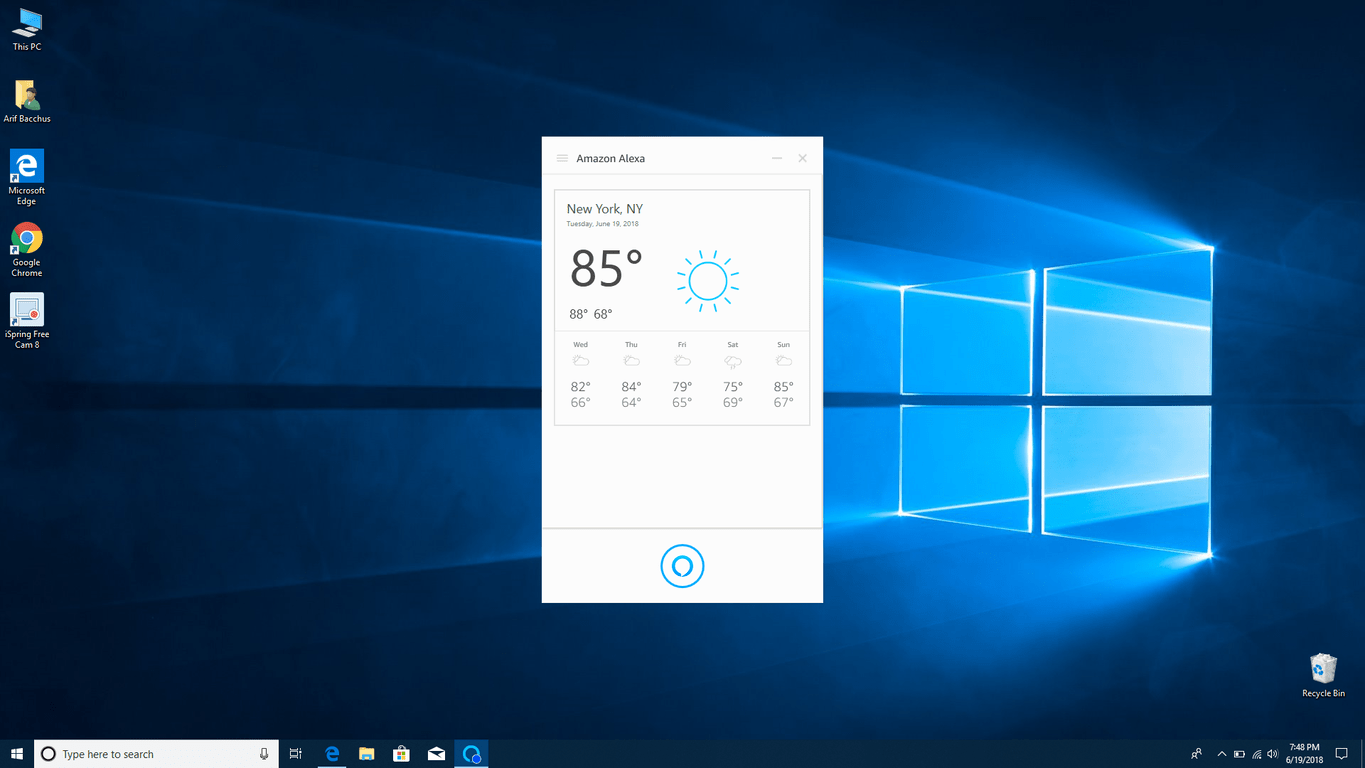
Even though Alexa’s wake word doesn’t work on my PC, the Alexa app on Windows 10 functions just as it would on an Echo device. Once pinned to the taskbar, you can manually summon Alexa and easily ask the assistant all kinds of general trivia or questions about weather, reminders, jokes, and the news. Of course, Cortana already can do most this stuff, but Alexa does have some extra third-party skills and knowledge which Cortana currently lacks. Please be aware, though, that Alexa on PC can’t make phone calls or send messages, as this is an exclusive feature for Echo devices.

Alexa also integrates nicely with Amazon’s own services, including Amazon Music. Amazon shopping is included too, and you can ask Alexa to add certain items to your shopping cart. Answers will be provided in a card-style interface, similar to the Android version of the app. You can see all this in the video below, where I asked Alexa about NASCAR, have it play Jeopardy with me, and asked it to play me a song. It’s nice to have this stuff available from another service, even though Cortana already does most of it.

Keeping Alexa on the taskbar

Cortana has a dedicated area on the taskbar in Windows 10, and you can do something similar for Alexa if you feel the need. To do this, you can head to the start menu and find Amazon Alexa in the list. After that, you can right-click on it, select “more.” and then click on “Pin to Taskbar.” This will eliminate the need to constantly open the Start Menu and click on the app to interact with Cortana.

What’s broken and doesn’t work

Alexa on Windows 10 can connect with your Microsoft Account so the assistant can read your Outlook calendar or make appointments, but that’s just about all the Microsoft data you’ll get from it. There is no support for voice volume controls with Alexa on Windows 10, and the assistant can’t send emails on Windows or read your contacts.

It’s likely a limit set by Microsoft, but with Alexa and Cortana partnership still on the way, more might be heading to the dedicated Windows 10 app soon. This also could be why the Alexa wake word also won’t work on certain PCs, as I described above.

Final thoughts

At the end of the day, Alexa on Windows 10 doesn’t really live up to the hype that I thought it would. The app does some extra things and has more third-party connections, but it’s not really as productive and integrated with Windows as Cortana is. As a Windows user, I feel as though Alexa is not nicely designed and clean, and just a wrap of an Android application. There’s more time on the road ahead for this Amazon Alexa app to evolve, and I’ll be sticking to Cortana for now.

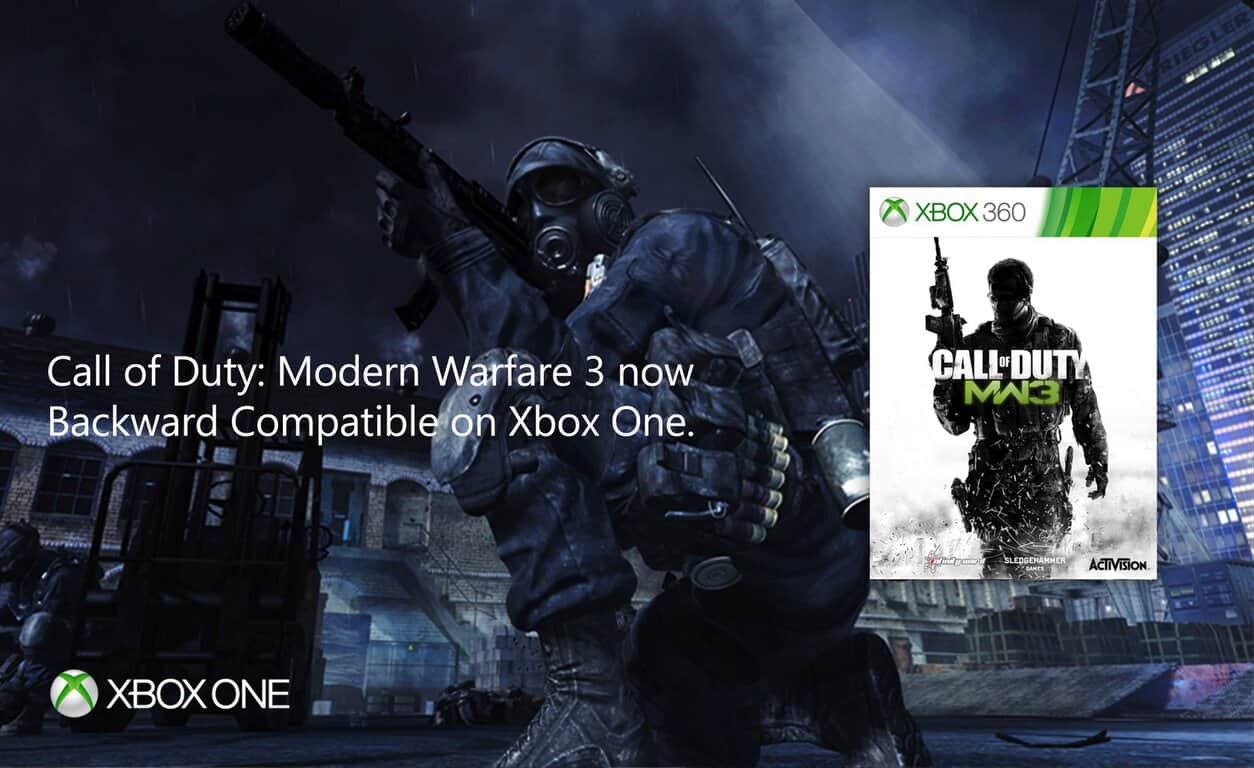
Call of Duty: Modern Warfare 3 is now backward compatible on Xbox One, get it while it’s on sale

Today is a great day for Call of Duty fans as Call of Duty: Modern Warfare 3, the last installment in the Modern Warfare saga is joining the Xbox One Backward Compatibility list. Modern Warfare 3 was one of the top requested Xbox 360 games from Xbox One gamers, and it’s also 50% off as part of this week’s Deals with Gold.

Call of Duty: Modern Warfare 3 was released back in 2011 on the Xbox 360, and while it didn’t get as much critical acclaim as the first and second games in the series, it remains a beloved games that brought a couple of innovations: there was a new cooperative mode called Survival, a revamped Killstreak reward system as well as a couple of new multiplayer modes.

Now that both Call of Duty: Modern Warfare 1 and 3 are backward compatible, you may be wondering if MW2 may be coming soon. It may not be the case as according to a recent leak, a remastered version of the game could be released on the Xbox later this Fall along with the upcoming Call of Duty: Black Ops 4. We’ll see what happens, but for now it’s nice to see Activision bringing back old-school Call of Duty games on the Xbox One.

WatchESPN Windows 10/11 App Launched in the Microsoft Store

We have reviewed the official ESPN sports app for Windows 8 quite a while ago and up until recently, it has been the single one released by ESPN. Now, the reputed company has released the WatchESPN app for Windows 8sports lovers.
watch espn windows 8
The official Windows 8 WatchESPN app has been launched in the Windows Store recently, letting subscribers enjoy live videos and replay footage at a very high quality. The app comes with non-stop access to ESPN, ESPN2, ESPN3, ESPNU, ESPNews and ESPN Deportes. Speaking of sports apps, you can try out NBC’s Sports Live Extra one if you plan on watching the 2014 Winter Olympics from your Windows 8 tablet.

  • Read Also: FIFA 2019 on Windows 10, Xbox One: The first game details

WatchESPN brings live sport coverage on your Windows 10, 8.1 tablet

The free WatchESPN app lets you keep up with your sports anytime, anywhere on your Windows 8, 10 computer or tablet. Watch live games and studio shows with 24/7 access to ESPN, ESPN2, ESPN3, ESPNU, ESPNews and ESPN Deportes. You can also watch on-demand clips of the latest news and highlights.

windows 8 watch espn app

Inside the app, you will be able to choose your favorite sport, the channel that you want to follow and live events. Also, in the featured area, you can follow the latest most important sports news, enjoy ESPN originals and other must-see moments hand-picked by the team of ESPN.

The app is available only for residents of the United States and Canada and you will need to have an account with one of the following providers:

  • AT&T U-verse
  • Bright House Networks
  • Charter
  • Comcast XFINITY
  • Cox
  • Dish Network
  • Google Fiber
  • Midcontinent Communications
  • Optimum
  • Time Warner Cable
  • Verizon FiOS TV
    As the app will get updated, more providers will be added to the list and we will make sure to inform you of this. If while using ESPN Plus, you are interrupted by selecting the TV provider prompt, this guide can help!

By using the app, it will be much easier to follow important sports events, such as Monday Night Football,  NBA Regular Season and Playoffs, Major League Baseball, The Masters, U.S. Open and The Open Championship, College Football and Basketball and all the four Grand Slam tennis events. If you’re an NFL aficionado, you can check out the NFL Connect Windows 8 app.

It’s a really handy app especially when apps like CBS Sports throw error 465 because of geo-restrictions.

Download WatchESPN app for Windows 10, 8.1

[UPDATE] The WatchESPN app has received support in Microsoft Store. Although, some users have encountered issues with the app. You can check one of the following articles if you have any similar issues.


Office 365 gains Adobe PDF technologies integration

Adobe announced today a new integration of its PDF technologies across Office 365, with the company’s PDF services now being available in the online versions of Word, Excel and Powerpoint. Office 365 subscribers with a subscription to Adobe Acrobat DC for teams or enterprise will be able to create PDFs from Office files right from the ribbon, but Adobe PDF services are also available in SharePoint and OneDrive.

In addition to these new PDF services integrations, Adobe also announced today new advancements in Adobe Sign, Microsoft’s preferred e-signature solution for Office 365. Adobe Sign is now more deeply integrated with Dynamics 365, with a redesigned UI providing quick access to data from LinkedIn Sales Navigator. Lastly, e’ve more deeply embedded Sign with Microsoft Dynamics CRMAdobe plans to host Adobe Sign on Microsoft Azure in the US in the next few weeks.

“Microsoft and Adobe share a common vision of the workplace of the future—one that is centered on teamwork and collaboration,” said Ron Markezich, corporate vice president, Microsoft Office 365 at Microsoft Corp. “Building on the initial success of our partnership focused on Adobe Sign, we’re thrilled that Microsoft Office 365 customers now have access to the expansive PDF services from Adobe, right within the tools they use every day.”

Get a free month of EA Access gaming by gifting Unravel 2 on Xbox One

Until June 25th, anyone who gifts the new Unravel 2 video game to someone else on Xbox One will get to enjoy one month of EA Access for free. To gift the game to a friend, all gamers need to do is visit the game’s product page either in a web browser or on an Xbox One console and choose the Buy as a gift option.

EA Access is a video game subscription service that’s not unlike Microsoft’s own Xbox Game Pass. Members typically pay a monthly fee and in exchange are given access to a select library of full video game titles. EA Access features a large selection of major video games that were published by EA such as Titanfall 2, Need For Speed Payback, and Battlefield Hardline so the service has become pretty popular with gamers who want to play popular titles but can’t afford to buy them outright.

Unravel 2 is a very new video game that was announced and launched during last week’s E3. It’s a sequel to the original Unravel, which was also released on the Xbox One, and improves on the original with a strong focus on local co-op and 4K resolution when played on an Xbox One X console.

Have you played Unravel 2 yet and are you thinking of gifting it to a friend to get that free month of EA Access? Let us know in the comments below and make sure to follow us on Pinterest for more Xbox content.

Unravel Two
Unravel Two
Developer:
Electronic Arts
Price:
Free

Windows 10’s To-Do app updates with new customization options

The Windows 10 Microsoft To-Do app has updated today with some new options and bug fixes. Of particular note is the new customization options for the My Day section which now allows users to add a background image and hide completed tasks.

Here’s the full official release notes for all of the details.

  • Have you tried out List Sharing yet? Just tap the sharing icon, create a list share link and send it to collaborators using the app of your choice.
  • We’ve added list options to My Day, so you can now select your background, sort your to-dos and choose to hide your completed to-dos there.
  • Speaking of My Day, you may have noticed that we weren’t always showing the recurring to-dos you’d added there. We’ve fixed that glitch, so we’ll no longer remove to-dos you add to My Day.
  • Our bulk editing has been improved, making it easier to update due dates for multiple to-dos. With this update, you can now bulk edit the due dates of groups of to-dos that currently have different due dates.

Microsoft To-Do is a basic Windows 10 task management app and is also available for free on iOS and Android devices. Users can sync data between the different To-Do apps by signing in with the same Microsoft account.

Do you use To-Do? Let us know what devices you use it on in the comments below and don’t forget to follow us on Twitter for more Windows 10 app news.

How to turn off Windows 10 Sets for individual apps

Not everyone loves the new Sets feature implemented by Microsoft. The tech giant recently made a change to the feature so that users will not complain that they’re forced to use it.

Sets is a feature that drastically changes the way we work in Windows, and it brings the OS closer to the way in which web browsers work. Via Sets, Microsoft brings a massive change in Windows 10 RS5. Users will get the chance to run various apps such as Edge, Netflix, and Office, all in the same window. Switching between the apps will take place in a similar way in which you would set between different browser tabs.

Not everyone loves the Sets feature

Of course, the feature is not appealing to all users. People who would instead work in discrete Windows may find this new feature and its button completely unnecessary. With these users in mind, Microsoft allows you to turn Sets off for various individual applications.

How to switch off Sets in Windows 10

Here are the steps needed to stop apps from running in Sets:

  1. Open Settings, go to System and then head to Multitasking.
  2. Under Sets, you will have to click on the + button to choose an app from the list that you don’t want to run in Sets.
  3. Scroll down in order to select the application that you don’t want working in Sets.
  4. Repeat the procedure for all the apps that you don’t want running in Sets.
  5. If the chosen app is open, you will have to restart it, and you will see the Sets tab gone.

If you want to turn Sets off for every app, you will have to repeat the whole process again for each and every one of them.

RELATED STORIES TO CHECK OUT:

Best Pregnancy Apps to download on Windows 10/11, 8

Young parents with a Windows 10, 8 tablet can download Windows 10, 8 apps that will help them to manage easier the beautiful time of pregnancy. Technology has evolved quite a lot and these days we can use our Windows 10, 8 devices to help us with pregnancy needs especially of the mothers.
windows 8 pregnancy apps
Technology is already deeply embedded inside our lives, so we must embrace it and accept this fact. Yes, even such a gentle and special time of your life – the pregnancy, especially if you are a woman, can be better understood and analyzed with the right technological tools. There are plenty of Android and iOS pregnancy apps and with the launch of Windows 10, 8 and launch of Windows 10, 8 tablet apps, we have seen pregnancy apps getting released in the Windows Store, as well. We have handpicked what we think are 4 of the best, but if you happen to know another worthy one, let us know in the comments field at the end of the article.

Take care of your pregnancy with these Windows 10, 8 apps

1. Mayo Clinic on Pregnancy

mayo windows 8 pregnancy app

Mayo Clinic on Pregnancy is one of the best Windows 10, 8 apps to look after pregnancy, and it also offers tips on how to look after your baby’s first three months. To start enjoying the features and advices of the app, you will have to input the baby birth’s date and then the app will start offering relevant advices. What’s really useful is that you will also be guided during the postpartum period, which we know can be difficult for mothers. The app comes with valuable knowledge as to how your body and your baby evolves, as well as explanation to various pregnancy ailments.

The app also comes with plenty other useful features, such as medications and immunizations, lifestyle techniques to stay fit and healthy during pregnancy, nutrition tips, prenatal care, images and slide shows to understand better the miracle of pregnancy, the option to make your very own blog and to ask the May Clinic directly about any concern that you might have.

UPDATE: The app is no longer available in the Microsoft Store.

2. Parents Pregnancy & Baby Guide

parents windows 8 pregnancy apps

Windows 10, 8 app Parents Pregnancy & Baby Guide is really useful as it comes with a week-by-week guide for those expecting the baby. You will be getting useful advices from the moment when you realize that you are expecting a baby until that happy moment. The app is fully synchronized with Windows 10, 8.1, so it comes with calendar integration, article and photo sharing, snap view, larger live tiles and larger images in portrait mode, which are really nice features, indeed.

Besides prenatal care related to your baby and yourself, you will be getting plenty of useful and accurate guidance on how to prepare for your breastfeeding and many other important post-natal tips. By using this app you will learn more about your baby – such details as: is he eating enough, how to comfort the crying baby, how to cope with the pain of teething? The app is free to use which is perhaps its biggest feature.

3. Pregnancy Plus

pregnancy plus windows 8 app

Pregnancy Plus is yet another pregnancy app that you really need to download and install on your Windows 10, 8 apps, especially as it comes with daily information, and not weekly. The app also comes with more than 1000 baby names, so it also can help you find the baby name you were looking for. There are plenty awesome features inside the app, such as beautiful colour and 2D ultrasound images, diet, exercise and medical advice  and even features to be able to track your health and weight.

There are even advices on how you prepare yourself for labour as well as baby shopping list and doctor appointments logs. Some awesome features that only this app has are the kick counter and the contraction timer, and I am sure that if you are a parent waiting for the baby to come, you will be interested in such features.

4. Pregnancy Pal

Pregnancy Pal is another useful app that helps you keep track of what’s happening with your baby as your pregnancy evolves. There is also a countdown to your due date, as well as details about your baby’s development.

The app also features a Feeding Journal that helps you to often keep track of how much your baby is taking. You can filter the data by feeding method and date. In case you’re not sure what name to pick for your baby, there is a list of over 5000 baby names for both boys and girls that you can choose from.

Did we miss any app? Let us know in the comments below.

RELATED STORIES TO CHECK OUT:


Medieval Apocalypse is a Fine New Windows 8, 10 Role Playing Game

There are plenty of Role Play Games (or RPG, as they are simpler called) in the Windows Store, and in the past, we have featured one of the best – Soul Craft. Now, we’re seeing a new cool Windows 8.1, 10 RPG game get launched – Medieval Apocalypse
windows 8 role playing game
Medieval Apocalypse is a fresh role-playing game that has been launched in the Windows Store for Windows 8 tablet and desktop device users. It’s a freemium game, meaning that you can download and play it for free but with the help of in-game purchases, you can complete certain missions faster or finish levels. The main character is a “little knight” if I can say so, that fights against zombies in an apocalyptic medieval world.

Medieval Apocalypse for Windows 8.1, 10 is a pleasant play

Medieval Apocalypse is an action-packed hack and slash role playing game that takes players to an apocalyptic medieval world. Playing as a knight, your goal is to complete quests and eliminate the attacking zombie hordes. You will receive coins and experience as reward that can be spent on improved equipment and skills. Use your skills wisely to defeat your enemies.

windows 8 rpg gameThe game has a pretty small size of more than 56 MB, yet it manages to deliver a good graphics quality. I’ve played the game for a few minutes on my Windows 8 tablet and I found it to be really enjoyable.

To stimulate the increase in hours of playtime, the developer is awarding the most frequent players, so if you will come back each day to play the game, you will be able to grow your rewards – from 300, 600, 900, 1800 coins to as much as 10 diamonds. You can then use them to purchase from the 45+ unique weapons and shields to make your knight stronger.

There are 10 different zombie types with unique characteristics that you will fight against and they will try to get you cornered on the tiny map. You will have at your disposal four options – attack, reflect, leap and whirlwind.

Of course, you can always keep on running, as some of the quests include survival missions, but in the end, you will have to get rid of the growing zombie hordes.

For its initial release, it’s a pretty good Windows 8 RPG game so I recommend you to follow the link at the end and see how it works out. But what I’d like to see in future updates are bigger maps, since one gets quickly bored with the same environment.

This game has received support in Microsoft Store and is available on Windows 10, Windows 8.1, Windows 10 Mobile, Windows Phone 8.1, Windows Phone 8. Many users have really appreciated it so far. Let us know about your experience with this game in the comments below.

RELATED ARTICLES TO CHECK OUT NOW:

Alpha and Skip Ahead Xbox Insiders will finally get the new Xbox Avatar editor on June 19

After a full year of delay, countless rumors, leaks, and some hush-hush from Microsoft execs, the new Xbox Avatars are finally ready for testing. Indeed, Xbox Insider Team Lead, Bradley Rossetti, unexpectedly revealed tonight that Alpha and Alpha – Skip Ahead Xbox Insiders will finally get the new Avatar Editor app tomorrow (June 19 in the US) by noon PDT.

As teased at E3 2017, Microsoft’s new Xbox avatars will reflect new categories and come with custom color combinations. Xbox Insiders lucky enough to test can expect to see a new range of body types, gender neutral clothes, and new items and accessories on Xbox avatars. These also include the ability to change fingernails, makeup, limbs, nose rings, and moods.

Bradley Rossetti added that only the Avatar Editor will be available for testing, with Xbox dashboard integration coming soon. New content (accessories, props, moods, clothing, and appearance categories) will also regularly be unlocked and added after launch, as Rossetti explained:

First unveiled last year, a major update to Avatars is arriving today for Xbox Insiders. Avatars will be a unique representation of your desired style, personality, creativity, and mood as you play on Xbox One. As an Xbox Insider, you’re among the first to get your hands on the new Avatars. With this release, you can get a head start on creating a new Xbox Avatar within the beta Xbox Avatar Editor app.

Xbox Avatars

Rosetti remarked that you’ll be able to change the skin tone, wearables, and props on an Xbox avatar in up to 16 million color options. Closet items will also support custom colors, and he claims that the color combos for any single item can go up to “from trillions all the way up to almost eighty octillion.”

In addition to the new categories and the custom color combinations, there will also be a new Photobooth feature in the Avatar Editor. From here, there will be new options for posting an Avatar in new emotes and advancing poses frame-by-frame or changing backgrounds. You also can expect the new Xbox avatars to reflect gamers with disabilities, including wheelchairs and prosthetics.

As is usual, the new Xbox Avatar Editor will likely roll out to the other rings in the Xbox Insider program in a few weeks, followed by a wider rollout to the general public. No word yet on if these avatars will also come to Windows 10, but things look pretty promising, so feel free to let us know your thoughts in the comments below.

SoulCraft is a Windows 10 RPG worth playing

SoulCraft is one of the first RPG games that have been released in the Windows Store for Windows 10, 8 users and it’s also one of the best, as well. We’ve covered a previous update back in the middle of December and now it seems that its developer, MobileBits GmbH, has issued another one.
soul craft windows 8
Only a few hours did we speak about Medieval Apocalypse, a new Windows 10, 8 RPG game that has been released in the Windows Store, and now it’s time to have a look at SoulCraft which has seen an important update released recently. SoulCraft is a freemium Windows 10, 8 RPG game, which means you can download it completely for free, but there are certain items that you can purchase inside the app for various benefits.

SoulCraft for Windows 10, 8 gets improved

SoulCraft is the best free2play Action RPG game for Windows 8. If you have been a hunter in enough dungeon crawlers and feel like you have been a warrior for all eternity already, answer the call, fight for the torchlight of hope, do your duty and choose to be a legendary hero in the action role playing game SoulCraft 🙂

According to the changelog of the latest version of SoulCraft for Windows 10, 8, we can see that the changes are the same as with the previous update – a new chapter 4,  improved Targas Quests, along with other bug fixes and improvements. This new update doesn’t have a changelog as of now, but going through the reviews on the Windows Store, I’ve seen that players say the game now seems faster and more stable. We will update the article once we get to know more about the change. Until then, feel free to follow the download link from below if you don’t have SoulCraft running already on your Windows 10, 8 device.

Download SoulCraft RPG game for Windows 10, 8

UPDATE: Since the writing of this post, a new SoulCraft game landed in the Microsoft Store. While not as popular as its predecessor, Soulcraft 2 brings a new multiplayer league, allowing you to challenge other players and upgrade your defenses in order to successfully fight off their attacks. SoulCraft 2 also brings a series of new heroes suitable for your playing style.

Download SoulCraft 2 from the Microsoft Store

RELATED STORIES TO CHECK OUT:


Fallout 76 B.E.T.A. to be an Xbox One timed exclusive, available for pre-order now

Fallout 76 was one of the most hotly anticipated games coming out of E3 2018 and perhaps among the top three well-received unveilings during the convention.

Hot off a successful fan tease at E3, developer studio Bethesda will be giving some eager fans a hands-on of things to come in Fallout 76 with its Break-it-Early test platform, aptly called B.E.T.A.

While it will offer some limited gameplay for fans the B.E.T.A is primarily designed for Bethesda to test server capacity issues that may arise as the game takes on a more open multiplayer format for this installment.

According to a report from ScreenRant, “considering Fallout has never been an MMO before, and the maps are promised to be four times bigger than Fallout 4, there’ss a lot that could go wrong in the early days of Fallout 76.”

Furthermore, Bethesda is granting Xbox One users who pre-ordered Fallout 76 early access to the B.E.T.A, ahead of its PS4 and PC counterpoints. The B.E.T.A exclusive grab is a big one for the Xbox division and with the Xbox One X and One S on steep discounts right now, it help the company rack up a handful of console sales prior to the holiday rush.

Unfortunately, there is no concrete timeframe for the B.E.T.A release on Xbox One, but fans who pre-order the game will be among the first to know exactly when they’ll be let into a part of the game prior to its release later this fall.

Twitter PWA now supports the Windows 10 Share dialogue

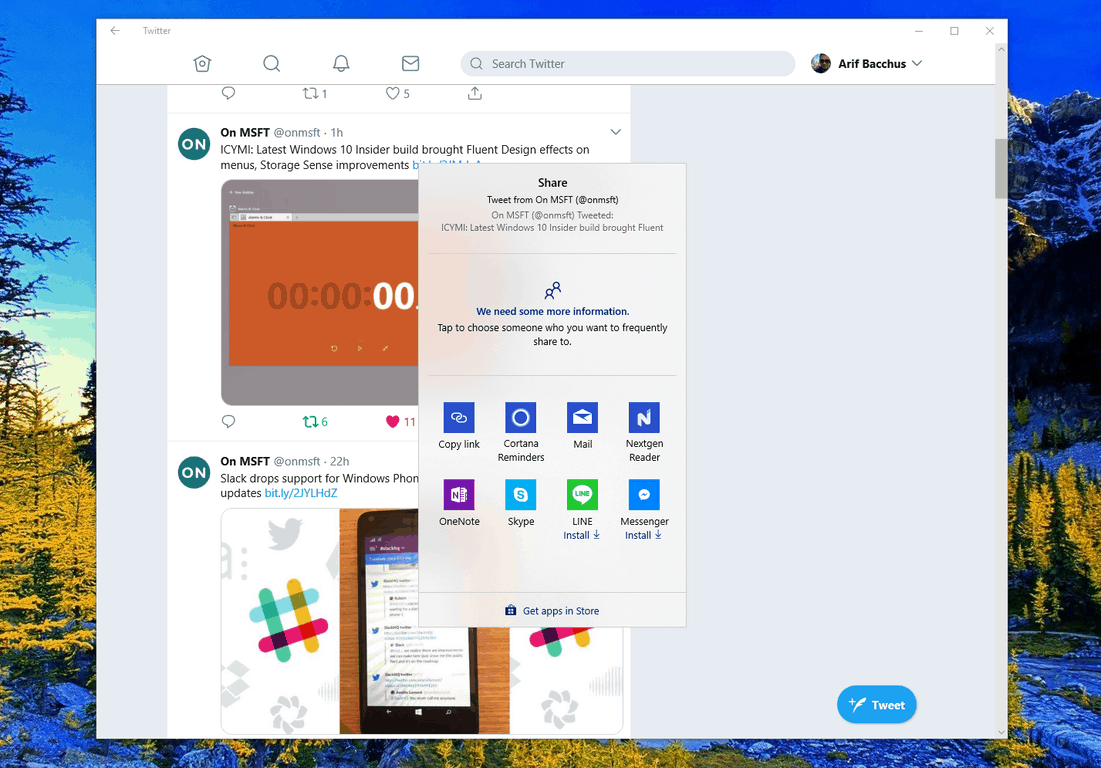
Twitter has steadily updated their Progressive Web app on Windows 10 over the past few months, and it is now picking up yet another feature. With the latest update, the app now supports the native share dialog in Windows 10 (via MSPoweruser.)

Seen in the featured image above, you can now summon the Windows 10 share dialog from the Twitter PWA and share links in more ways than one. You can choose to share to one of your contacts specifically, nearby devices, or just opt to share with other apps in the Store. Though a small touch, it is still a nice little feature that makes it easier for when you want to share that viral tweet with your family and friends.

This is just the latest addition to the Twitter PWA, which has gotten more updates in the last few months than the Twitter UWP ever received. Updates for all PWAs are automatic and previous Twitter PWA features include support for Live Tiles, Jump lists, and share dialog targeting.

You can head to the link below to download the Twitter PWA. Once you’ve downloaded, feel free to try out the share feature now and let us know your thoughts in the comments.

Twitter
Twitter
Developer:
Twitter Inc.
Price:
Free

Microsoft acquires video-based social learning platform Flipgrid

Microsoft announced this morning the acquisition of Flipgrid, a video-based social learning platform already used by more than 20 million students and educators worldwide, for an undisclosed amount. This is the company’s latest move to remain one of the top players in the education market, where it has been facing increased competition from Google and Apple in recent years

Flipgrid was created back in 2015 as video discussion platform for students, family and educators, and it currently has iOS and Android mobile apps, integrations with OneNote, Microsoft Teams and many other platforms. Now that Flipgrid is now part of Microsoft, the service has become free for all educators and students and Redmond will provide a prorated refund to every educator who upgraded in the past year.

“Equipping students with the skills they need to thrive in this future will require an engaged community made up of dedicated administrators, great teachers, motivated students and involved parents,” said Microsoft CEO Satya Nadella. “Technology is merely a tool to enable their creativity and ingenuity. Together with Flipgrid, we aim to democratise these tools to empower every indicators and student to create the world of tomorrow,” he added.

ICYMI: Latest Windows 10 Insider build brought Fluent Design effects on menus, Storage Sense improvements

Last week Microsoft released Windows 10 build 17692, and it came with new enhancements for the Game Bar and some other new features. As usual, these changes were documented the minute the build dropped, but Microsoft has since updated the build announcement post with two new features that were initially missed. Indeed, also new in Windows 10 build 17692 is Fluent Design in system flyout menus and some OneDrive Files On-Demand improvements.

Windows Insiders should now notice that light dismiss XAML controls and transient XAML services in this build now features Fluent Design’s Acrylic material. This is best seen in system context menus, flyouts, auto suggest box dropdowns, combo box dropdowns, date and time picker flyouts, and media transport control flyouts. Other apps which are using the SDK for this build or higher will also see this change by default.

Additionally, with the improvements to FIles on Demand, Microsoft is looking to help clean storage on your system when space is running low. With build 17692, users can now make any downloaded Files-On Demand from OneDrive online-only if they weren’t used in a certain period of time. The setting can be found in Settings > System > Storage > Storage Sense.

It’s nice to see that Microsoft is improving on Fluent Design and also helping users save space on their PCs. We’re looking forward to another new build this week and hope it comes with even more cool features and even the autoplay feature for Edge which was initially teased last week.

Windows 10 Insider build 17692: Known issues and bug fixes

Microsoft released Windows 10 Insider Preview Build 17692 (RS5) to Windows Insiders in the Skip Ahead ring and the Fast ring. The build brings lots of new features such as SwiftKey intelligence, WebDriver improvements, ease of access improvements, narrator improvements, game bar and game mode improvements, search improvements and more. Here are the known issues and bug fixes that are included in the build as well.

General changes, improvements, and fixes for PC

  • The issue that resulted in audio glitches on the system was fixed.
  • The issue involving the Eye Control’s fail was fixed.
  • The issue that made some games such as Counter Strike: Global Offensive to crash on launch was fixed.
  • The issue that triggered Settings’ crash when trying to open Data Usage Settings was fixed.
  • Delivery Optimization Settings is now directly listed as a category under Settings > Update & Security.
  • The issue that resulted in Windows Security app crashing when adding a process to the exclusion list got fixed as well.

Windows 10 build 17692 known issues

  • The login screen crashes in a loop when the active sign-in method is set to Picture Password, and you should remove Picture Password before you upgrade to this build.
  • DRM video playback in Microsoft Edge is broken, but you can use Netflix to play videos.
  • There are a few issues with the Narrator.
  • The build comes with known issues for developers as well, and you can read about them in Microsoft’s official notes.

Known issues for Game Bar

  • The Game Bar is likely to crash on x86 systems.
  • The framerate counter chart doesn’t show up correctly.
  • The CPU chart shows incorrect percentage.
  • Charts in the performance panel don’t update immediately.
  • The gamerpic does not display correctly even after you sign in.

How has your Windows 10 build 17692 experience been so far? Let us know in the comments below.

RELATED STORIES TO CHECK OUT:

Install MacOS Mojave Dynamic Desktop on Windows 10

Just recently Apple previewed macOS Mojave during its keynote event at the Worldwide Developers Conference in San Jose, California. The latest version of the Mac operating system introduced new features including Dynamic Desktop wallpapers and more. Now, an exciting announcement or Reddit says that a user managed to port the Mojave Dynamic Desktop feature to our favorite operating system — Windows 10.

Redditor ports Mojave Dynamic Desktop to Windows 10

I’ve written a small program that ports the new Dynamic Desktop feature in macOS Mojave to Windows 10. It uses your location to get the times of sunrise and sunset each day, and rotates through the 16 Mojave wallpaper images throughout the day and night.

He continues and says that Windows 10 natively supports cycling between multiple wallpapers, but the OS does not perform this based on a day and night schedule, so he decided to write an app that does this. He goes on and explains that all you have to do is run the app, enter your location and then close the app. Then the program will minimize to the system tray and change the wallpaper in the background.

I just released the first version, I’ve only gotten to test it for about a day, and it’s been working well so far but may still have bugs. If anyone is interested, I’d be glad to have more people test it and give feedback about what they think. P.S. I’m not an Apple fanboy, I just happen to like their Dynamic Desktop feature, says the Redditor.

Adding the app to the Microsoft Store

The user that created this small but useful app was asked by a Redditor whether he considered adding the application to the Microsoft Store. He answered that the idea is not bad, but there’s a fee of $20 to register to be able to submit apps, and he doesn’t know whether it’s worthwhile. Besides, the Redditor also said that this would make the app easier to find but if he were to make any changes to it, automatic updates could break it.

You can read the entire Reddit thread here. You can download the MacOS Mojave Dynamic Desktop for Windows 10 from Github.

RELATED STORIES TO CHECK OUT:

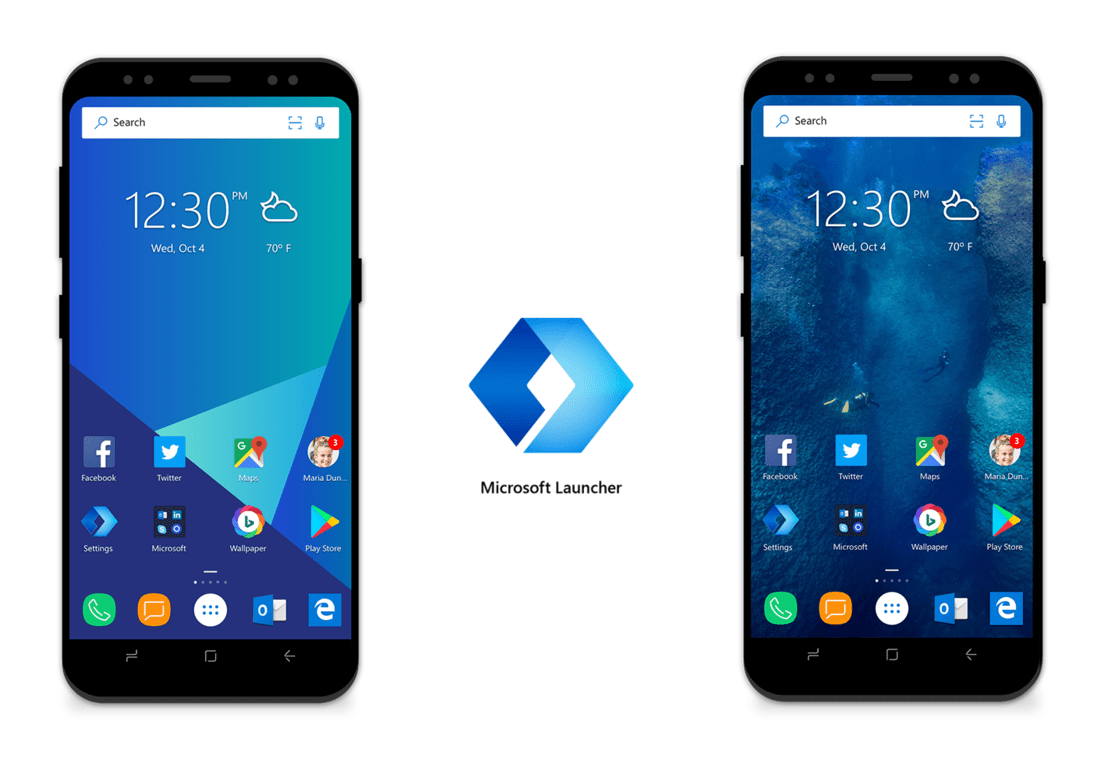
Microsoft Launcher brings family safety features, Microsoft Rewards integration to the public

Microsoft has released the latest major Microsoft Launcher update for Android users. Having been in beta testing for a few weeks, version 4.10 of Microsoft’s Android launcher bring a number of features out of beta and into the public release.

Here is the changelog for the update:

  • Stay up to date on your kids’ whereabouts and their app activities with the family card in the feed**
  • Search the web with a picture, snap a new pic from the search bar to visually search (US only)
  • Earn Microsoft Rewards points for using Bing Search (US only)
  • Wallpaper UX improvements

Users of the Microsoft Launcher can now keep a better eye on their kids’ whereabouts, thanks to the new family card that will show up in the feed. Additionally, Microsoft Rewards points can now be earned via the built-in Bing search.

The update is available now via the Google Play Store.

Microsoft Launcher
Microsoft Launcher
Price:
Free

Microsoft to launch 4 new Surface devices this year and the next

Recent reports detailed four new code names for devices that Microsoft has been working on and are set to be launched this year as well as next year. These new code names are Andromeda, Carmel, Capitola and Libra Surface. Here are more details on these mysterious devices.

Meet Carmel, Microsoft’s upcoming foldable Surface Pro

It seems that the Surface Pro 6th generation will be codenamed Carmel. The foldable device that will be running Windows 10 and was called the Surface Phone by some voices in the tech space will make its debut by the end of 2018. The much-awaited device will be probably launched as part of a brand new device ecosystem launch.

New details emerge about Andromeda

Microsoft Andromeda

Redmond is reportedly hoping to launch Andromeda with a little help coming from OEMs. This means that it won’t be an isolated launch, but instead, it will probably be a launch that involves a new form factor that will be supported by various OEMs.

Refreshing the Surface Pro and Surface Laptop

So. it seems that the Surface Pro 6 will be code-named Carmel and the new less expensive 10-inch Surface will bear the name Libra. The Surface Studio 2 is currently codenamed Capitola, and the Surface Phone is codenamed Andromeda.

ZDNet’s Mary Jo Foley noted that the tech giant might consider revamping the current Surface Pro and Surface Laptop with Intel’s 8th gen CPUs. This whole revamping does not necessarily have to be a next-generation product, and it could be just called the Surface Pro with a new CPU.

Availability

Unfortunately, the precise date that these products will be released is not known yet. All of them are supposed to reach the market this year or probably the next.

RELATED STORIES TO CHECK OUT:

Lazy FP State Restore security vulnerability affects Intel CPUs

Intel CPUs have been recently hit by a new flaw called Lazy FP State Restore and the tech company already confirmed the new bug. All vendors are in a hurry to roll out security updates to enhance CPU security for their customers. Microsoft is one of the tech firms that provided advice for dealing with the bug in a recent advisory. The company confirmed that security patches are currently being developed and they will be rolled out shortly.

Microsoft will release the fix on July Patch Tuesday

It seems that Microsoft will not send out these patches when they are ready, and the company is just waiting for the next Patch Tuesday to deliver them. This is scheduled for July 10. The company explains in its advisory that the bug is enabled by default in Windows and unfortunately this flaw cannot be disabled. The vulnerability also affects the kernel, virtual machines, and processes. The good news is that users running virtual machines in Microsoft Azure are protected.

Here’s how the flaw works

In its advisory, Microsoft explains that a hacker is able to cause data stored in the Floating Point, MMX and SSE register state to be leaked across security boundaries on Intel Core family CPUs via a speculative execution. In order to exploit this flaw, the hacker must be able to execute code locally on a system. This is quite similar to the other speculative execution vulnerabilities.

Microsoft continues and explains that the data leaked in the register state depends on the code execution and on whether any code stores sensitive data in the FP register state.

Recommended actions

The tech giant also provides steps that have to be taken in order to prevent disaster:

  • Register for security notifications mailer to be alerted of content changes to this advisory. See Microsoft Technical Security Notifications.
  • Go to Intel’s website
  • Apply security updates when they become available in a future Update Tuesday.

Head over to Microsoft’s advisory and read all the details on the Lazy FP State Restore flaw.

RELATED STORIES TO CHECK OUT:

Steam ends support for Windows XP and Vista in 2019

Windows XP and Windows Vista users just got some bad news. Valve revealed that their Steam gaming platform would end support for these OSs at the beginning of 2019, on January 1st to be more precise. It seems that the motivation for this decision has to do with a change made in Google Chrome which terminated support for older systems.

Steam will require users to run the latest Windows security and feature updates which are not available for Windows XP and Windows Vista.

Enjoy gaming on Steam while you can

Windows XP and Windows Vista users will still be able to purchase and play games via Steam for the rest of this year, but the New Year’s Eve will bring the death of support for these operating systems. Another sad news is that even if they can play games and buy new ones via Steam by the end of 2018, users will not be able to access any new features that are launched.

Steam Client will not run on the older Windows versions

Steam announced that they would end support for Windows Vista and XP after the Steam Client stops running on these OSs. They also said that in order to continue buying games and products from Steam and running them, you would have to update to a more recent version of Windows.

Valve says that new features such as Steam Chat are not available anymore for users of these older versions of Windows and they basically encourage everyone to update their systems.

We encourage all users on these operating systems to upgrade to newer versions of Windows in order to have ongoing access to the latest features of Steam, and to ensure future access to all games and other Steam content.

We’re also advising our readers to update their operating system to a newer version in order to be able to enjoy the latest security updates to protect their computers but also to be able to use their favorite gaming services and more. You can read Valve’s official announcement.

RELATED STORIES TO CHECK OUT:

Fun Windows 8, 10 Hunting Game to Play: Big Buck Hunter

I don’t approve the hunting of animals, unless it’s done on a mobile device, like your Windows 8 or Windows 10 tablet. Microsoft’s Big Buck Hunter is the best Windows 8, 10 hunting game to play at the moment and is available in the Windows Store. More details below.

Just a few moments ago, I was telling you about the Field & Stream Fishing game for Windows 8, 10 users, and somebody has asked me to review also a cool Windows 8, 10 hunting game. Well, if you’re passionate about hunting games or if you hunt animals for real (which I hope you don’t), then you need to download and install Big Buck Hunter (download link at the end).

This is the best Windows 10, 8 hunting game

If you will go right now in the Windows Store, I am telling you that this is the best Windows 8, 10 game that is also optimized for the touch user interface. Let’s have a closer look at the game’s features.

Big Buck Hunter Pro Adventure brings the number one arcade hunting game to Windows 8 in a fresh new format. Big Buck Hunter Pro Adventure features the brand new Adventure Mode where players embark on their own custom hunting vacation across 18 different locations across North America. The engaging and casual shooting interface is a proven winner with brand recognition at the head of the pack.

windows 8 hunting game


True, you can’t compare Big Buck Hunter with other games that are designed especially for computers, such as the Cabela series or many others, but for its purposes, Big Buck Hunter is a pretty cool hunting game to be enjoyed.

Inside the game, you will be able to hunt in 18 different locations across North America and you will be able to explore 6 hunting adventures with more than 300 scenarios featuring gorgeous whitetail deer, elk, moose, sheep, antelope, and caribou.

The game has an Adventure Mode with hunting challenges that are really awesome. The game has good graphics and you can also compete with your Xbox friends for the Hunter Hero badge. Fill your Trophy Room and become the ultimate hunter. The game can be bought for $4.99 but you can first try the free trial to see if it’s worth the money or not.

The game is now at version 2.1 and the latest update fixed minor bugs. The game is really enjoyed by many users, for the fun of it, not for the shooting skills that Counterstrike would develop. Enjoy the hunting, and remember to buy something for dinner as what you capped on screen doesn’t come on your plate.

We’re looking forward to hearing back from your hunting experience (even the real hunting stories). Feel free to leave us a comment in the box below. And if you’re interested in some more games, here are some good articles to check out now:


How to fix Microsoft Excel 2002 issues after Windows 10 update

The Windows 10 April 2018 Update did not manage to deliver the smooth experience everyone was expecting. More bugs and issues seem to pop up daily, and the latest one is a problem targeting Microsoft Excel 2002. Even if the app is old, many users are still fond of it, and it’s running on a large number of systems.

Microsoft Excel 2002 issues on Windows 10

Microsoft is not supporting the Office 2002 release anymore, but this does not prevent users from still running it. The productivity app is an old software solution, and not many are surprised by the fact that it has some bugs after installing Windows 10 April 2018 Update.

The issue is that Microsoft Excel 2002 crashes whenever users try to enter a new formula or a date in a cell. The app then tries to recover and apply the changes — all to no avail. Unfortunately, this issue triggers endless reboot loops of the app.

FIX: Microsoft Excel 2002 won’t work in Windows 10

We already know that Microsoft Excel 2002 is not getting fixes and patches anymore, so we can safely assume that the company is not planning to release any fix.

Fortunately, there is a way to fix the problem. You have to change the formatting of all the cells in the spreadsheets and align them to the left, right or center. It’s also important to note that you have to do this every time you open a new spreadsheet in Excel 2002.

RELATED STORIES TO CHECK OUT:

The Economist App on Windows 10/11: Microsoft Store Download

The Economist newspaper has been available as an application for Windows 8 users in the Windows Store for quite a while now, but only today do we have a thorough look at it.

You can also have a look at our reviews of the Financial Times app for Windows 8 and the New York Times one.

There are plenty of free news apps that you can download and install on your Windows 10, 8.1 tablet, and The Economist is definitely one of the best to try out. To be able to use the app, of course, you will need to have an account. If you don’t have one, you will register one right when you start the app. Also, after registering your account, in case you don’t have one, you will be asked whether you want to use the app in offline mode, which I recommend you to do in order to save up storage space.

Read The Economist on your Windows 10, 8.1 tablet

the economist windows 8

The best way to read The Economist on your Windows device. The app is free to download and includes free access to the editor’s picks – a weekly selection of articles from each week’s edition of The Economist. Digital and print subscribers to The Economist receive unrestricted access to each week’s full print edition by signing in with their economist.com e-mail address and password. Non-subscribers can register for an economist.com account to read the free editor’s picks.

With a free account, which means a non-subscriber profile, you will be able to read only the editor’s picks from a certain issue of the newspaper. You can also explore back issues of The Economist, with the first one being from June 2012. I’ve discovered that past issues have more free articles that you can enjoy and they look really bright on a Windows 8 tablet‘s display.

Each week’s issue of The Economist will be made available on every Thursday and if you will have enabled the offline mode, then you can download issues to your Windows 8 device and read them without having to rely on your Internet connectivity.

While reading an article, you can choose to mark it as a favorite, increase the font size and even listen to the audio version of it, which is really cool. We will keep an eye on The Economist for Windows 8 app and will report about any important future updates. Follow the link from below to get it on your Windows 8 tablets and other devices.

Download The Economist app for Windows 8

[UPDATE] The Economist app is now compatible with Windows 10. At the moment it seems that is temporarily unavailable to be downloaded, but developers work on that to fix it. However, if you encounter any issues with the app, make sure to check our articles below or run a search on site for your specific problem.


The Free Dictionary App for Windows 8, 10 gets Updated

There are enough dictionary apps in the Microsoft Store to be downloaded on your Windows 10, 8.1 device, but one of the best remains the official The Free Dictionary one. Not so long ago, the app had received full Windows 8.1 and Windows 10 support, and now another update has been put in place.
dictionary app windows 8
Windows 10 app
The Free Dictionary is one of the most complete dictionary apps to choose from the Windows Store. It has plenty of important features, such as the ability to search multiple English dictionaries, get in-depth info from specialty dictionaries, use Advanced Search options and even access dictionaries in 13 other languages, like Spanish, French, German, Italian, Chinese, Portuguese, Dutch, Norwegian, Greek, Arabic, Polish, Turkish, and Russian.

One of the best Windows 10, 8.1 dictionary apps

Get the power of TheFreeDictionary.com, the world’s most comprehensive dictionary. Search multiple English dictionaries, all from the most trusted sources, plus specialty dictionaries, including Medical, Legal, Financial, Acronyms, and Idioms, as well as multiple encyclopedias and even Wikipedia. Access dictionaries in 13 other languages and translate words into more than 40 languages. Read daily articles, add words to Favorites, and even share your favorite content via social networks and email. Plus play word games and customize your homepage with local weather and more.

The update that the app has received has brought plenty of bug fixes and optimizations for the app, and The Free Dictionary app for Windows 8 is now with more options and more stable. So, if you were looking for a Windows 8 dictionary app with all the features that you need, then waste no more time and follow the link at the end to get it.

Another update the app has received are flashcards. You can create flashcard sets to learn for exams, learn new words and how to use them, plus many more. This app provides a lot of features that motivate learners, and a wide range of example, articles that help you understand the usage of the word.

It sure looks like the development team strive to maintain this educative app on top and the users appreciate their great effort.

Download TheFreeDictionary app for Windows 8

For more dictionary programs you can check out this article with 5 best dictionary software and 5 of the best dictionary browser extensions. Here are some more related articles below:


Play Bowling on Windows 8, 10 With These Apps

Your Windows 8 tablet or Windows 8 desktop or hybrid device can become a real playing tool, for that, you only need to download and install the best apps from the Windows Store. Today, we’re featuring some entertaining Windows 8 bowling apps to be played on your tablet.
windows 8 bowling games
Previously, we have shared with you plenty of interesting games that you could play on your Windows 8 tablet – billiards games like snooker or the classic pool game, various cards games like UNO or Bridge and plenty other interesting Windows 8 games. Now, I realized that even bowling games can be played on your Windows 8 laptop, hybrid or tablet, so have decided to scout the Windows Store for some interesting titles. Here are the best 4 such games that I could found.

Trick Shot Bowling

trick shot bowling windows 8Trick Shot Bowling for Windows 8 comes with interesting trick shots that you can try on your Windows 8 tablet or desktop device. Don’t worry, you will be able to find the classic 10 pin games mode, but there’s also the option of trying various trick shot pin configurations. There are 24 unlockable balls with different weight, speed, and hooks. You can control the direction and spin of your bowling ball with your finger or mouse. Up to 4 different players can play on a local game.

Read Also: Use Windows 8 App Compass+ to See Cardinal Directions on Your Tablet

Vegas Bowling Free

vegas bowling free windows 8Another fun Windows 8 bowling game is Vegas Bowling Free. This is the free version of the game which is limited in functionality and also includes advertising. The paid app costs $4.99, but for a certain reason, it has a worse rating than the free version. There are four opponents of increasing difficulty, and special features of the game include realistic physics, adjustable curve balls, score history and also the ability to save or resume bowling games.

Lucky Lanes Bowling

lucky lanes bowling windows 8Lucky Lanes Bowling is definitely one of the best Windows 8 bowling games and my personal favorite. You can play in multiplayer mode against up to five of your friends in a game that features realistic physics keep and stunning graphics. The music is also great and the intuitive controls make it easier to score that strike that you want. The game also has 4 downloadable environments where you can play: Doc Holliday’s Summer Retreat, Major Tom’s Space Odyssey, Tiki Rain Forest, Captain Ahab’s Belly of the Whale, Graceland’s Hidden Playhouse.

Gutterball – Golden Pin Bowling

golden pin bowling windows 8The Golden Pin Bowling game for Windows 8 is part of the Gutterball franchise that has been launched back in 2002 and has plenty of players across the world. The game comes with 7 fun and unique alleys, more than 30 custom bowling balls and plenty of other features. Throughout the game, you will collect gold pins that you will use to enhance the game.  There are more than 40 bowling achievements in this interesting game, so go ahead and start breaking ’em bowling balls with your friends.

Read Also: Windows 8 Disney Games to Play on Your Tablet

Note: If none of these games are good for you, we can recommend you a list of other great game genres that will keep you entertained. Here’s the list with the clickable article titles:

Snook! for Windows 8, 10 Brings the Snooker Game to Tablets

Recently, we have shared with you a cool Windows 8 pool game to be played on your tablets and desktop devices, as well. For those really passionate about billiards games, today we are speaking about the Snook! snooker game.
windows 8 snooker app
Playing pool games on your Windows 8 tablet is really fun and entertaining and Cue Breakers seems to be one of the best titles to use. Snook! is another such game that is touted as one of the best Windows 8 snooker games to be played on your Windows 8 tablet or desktop device. The game is really to use but there’s something weird about it, albeit it is promoted as a snooker game, it includes only a 8-ball billiard game, but I’ve been told that there will soon be a new snooker mode game made available.

Snook! for Windows 8 is an interesting billiards game

Snooker is a cue sport that is typically played on a table covered with a green cloth or baize, with pockets situated in each of the four corners and a further two, commonly referred to as the middle, or side pockets, that sit in the middle of each of the long side cushions. The (baize) cloth on a snooker table has a directional nap running from the baulk end of the table towards the end with the (black ball) spot. This affects how a ball rolls depending on which direction it is hit or shot. A regular (full-size) table is 12 × 6 ft (3.7 × 1.8 m). It is played using a cue and 22 snooker balls: one white cue ball, 15 red balls worth one point each, and six balls of different colors: yellow (2 points), green (3), brown (4), blue (5), pink (6) and black (7)

The game comes with various difficulty levels, a 3D view manipulation option and a realistic physics model which makes the game entertaining. At the moment, you can only play the classical 8-ball game, but I really hope that the snooker game version will also get released as a new version. As a matter of fact, I’ve looked in the Windows Store and couldn’t find a reliable snooker game. If you know one, then let me know by leaving your comment below.

Download Snook! app for Windows 8

Other billiard games in Windows 10

Snook! isn’t the only game out there. In case you have already passed all the levels and quests available, you can switch to another great billiard game: King of Pool. It is available on Windows platforms and works just great. You can find more details in this dedicated review (plus download link). You can also try Cue Breakers, a great game with more modes in it: 8 ball, 9 ball, One Pocket and Straight Pool. 

READ ALSO: Play Bowling on Windows 8, 10 With These Apps