Steve Ballmer launches USAFacts, a financial report for government

A few months ago, some rumors showed that Steve Ballmer was working on a project aimed at helping the general public get a better consensus of government spending. Those rumors can now finally be put to the side, as the former Microsoft CEO has officially launched USAFacts, the non-profit initiative which releases financial reports on how the government is being run (via GeekWire.)

According to the website, USAFacts was inspired by a conversation Steve Ballmer had with his wife. She had wanted him to get more involved in philanthropic work, and he thought it made sense to first find out what government does with the money it raises. Ballmer then searched for solid, reliable, impartial numbers to tell the story, eventually putting together a small team of economists, writers, researchers to get his project up and running.

We soon discovered that dealing with something as big and complex as government – with its more than 90,000 jurisdictions and 23 million employees – required an organizing framework. What better place to look than the Constitution, and, more specifically, the preamble to the Constitution? It lays out four missions: “Establish justice, ensure domestic tranquility;  provide for the common defense;  promote the general welfare; and  secure the blessings of liberty to ourselves and our posterity.” While we don’t make judgments about policy, we all agree on the broad purposes of government as laid out in the preamble to the Constitution.


Based solely on government data, the interactive USAFacts website includes a 291-page slide deck, a 58-page summary document and also a report on governmental operations. The team which compiles the data for USAFacts reports includes academic institutions and experts. Stanford Institute for Economic Policy Research (SIEPR), the Penn Wharton Budget Model, and Lynchburg College all contribute. According to reports, the USAFacts team is composed of more than 30 people, some of which are lawyers and accountants who used to compiled Microsoft’s financial reports. Ballmer remarked on his project (which is being financed with his own money) in an interview with GeekWire.

I don’t buy that we’re in a post-fact world… People talk about alternate facts, they talk about fake news … but the numbers are what they are. They tell us about the past. They give us the ability to judge the forecast that we all have for the future… There are a lot of reasons why people believe what they believe about issues of government and politics… But at least you have to ground those proposals in a real understanding of what has happened, and what the numerical outcomes have been in the past. And I don’t really think that’s going to change.


USAFacts

Ballmer was Microsoft’s CEO from 2000 to 2014, and admits to GeekWire that he is “surprised by some of the data uncovered by the project, including improvements in crime, emissions, traffic fatalities.” You can learn more about USAFacts by visiting the website here, so be sure to check it out and let us know your thoughts in the comments below.

Xbox Insider Preview Alpha Ring gets its first 1705 build

Yesterday, the Xbox team explained that several new features would roll out to Xbox Insiders later this month including a new Party overlay, Arena and Xbox Live and more. Following this announcement, the team has also released a new preview build for Preview Alpha members to kick off the gradual rollout of these new features.

Please note that the following changelog doesn’t reveal which new features are included in this build:

DETAILS

OS version released: rs2_release_xbox_1705.170411-1700
Available: 6:00PM PDT 4/17 (1:00AM GMT 18/4)

NEW FEATURES:

Welcome to 1705 on Xbox One! This month we’re rolling out a new party overlay, more fan-requested improvements, and later this month…Killer Instinct and World of Tanks tournaments powered by Arena on Xbox Live!
You can read more about the features coming in this update on the Xbox News Wire.

NOTE: Not all planned features for this update are available at this time

Overall, it’s been a busy past couple of weeks for the Xbox team: the Xbox One March Update rolled out to everyone in late March, followed by a new feature update just last week. And as you can see, this first 1705 preview build suggests that all the new features announced yesterday should be ready for everyone in May.

Web browsers don’t work after installing Windows 10 Creators Update [Fix]

Windows 10 Creators Update was released last week. Initial impressions are mostly positive, as it seems that the features that were neglected in the previous patches now look significantly better and more user-friendly than before.

However, the Creators Update isn’t flawless, to say the least. Users around the world are reporting all kinds of issues that occurred after the update. One of those is related to browsers, especially Edge. Namely, even though the native browser received buffs of all sorts, some users experienced problems while browsing. To make the things even worse, that goes for various 3rd-party web browsers, as well.

Because of that, we enlisted solutions that should help you to resolve any browser-related issues in Windows 10 Creators Update. If you have any issues after the upgrade, you can find the possible workarounds below.

How to resolve browser issues in Windows 10 Creators Update

Check your connection settings

The slow or unstable connection can often cause browsing problems. Most of the time, the problems are related to the update itself, but the connection settings are also worth investigating.

The first thing you should check before moving on to internal problems is the connection. You should thoroughly inspect your modem/router. This is something you should check initially to remove all doubts.

The detailed explanation of the step-by-step troubleshooting can be found here.

Clear browsing data

Once we removed external suspects, let’s move to the browser itself. It doesn’t matter if you’re using a native browser like Edge or a 3rd-party browser, clearing data should speed things up. And, hopefully, resolve any browser-related issues.

You should have an easy time finding appropriate settings on different browsers, including Edge. But, in honor of remodeled, improved Edge, we’ll show you how to do it. To clear browsing data on the successor of atrocious Internet Explorer, follow these steps:

  1. Open Edge, click on the 3-dot menu and choose Settings.
  2. Click on Clear browsing data and select what you want to clear.
  3. Check all the boxes you want to delete and click Clear. The columns that you should take into consideration are ‘Cookies and saved website data’ and ‘Cached data and files’.
  4. Restart Edge and try again.

However, in case this wasn’t sufficient and you are still experiencing issues with the browser, move down to the other solutions.

Disable Adobe Flash Player

Most of the (if not all) mainstream browsers have integrated Flash player that substitutes earlier versions with external Adobe Flash Player. However, there’s a catch. With some browsers, the integrated Flash Player extension can cause a few issues now and then. One of those that is closely related to Windows 10 Creators Update, slows down or even completely stops the browser.

Some users have managed to resolve the browser issue by disabling the Flash Player on their respective browsers. Now it goes the same with browsing data: you should easily find the Flash Player extension and disable it. But, since Edge is a beloved child of Microsoft, we decided to show you how to disable Flash Player within Edge. Follow the instructions below:

  1. Open Microsoft Edge.
  2. Click on 3-dot menu and open Settings.
  3. Open Advanced settings.
  4. Uncheck the box under ‘Use Adobe Flash Player’.
  5. Restart Edge and check for improvements.

Reinstall browser/Reset Edge

If the previous steps failed, you should turn to other solutions. One of those is browser reinstallation. Namely, if you have installed a browser before the system upgrade, there’s a chance that something went wrong. The best solution for that is complete, clean reinstallation of the browser. You can find the complete reinstallation procedure for your browser online.

However, since the Edge is built-in Windows 10 browser, it can’t be uninstalled. You can only reset it to default settings. This isn’t as simplistic as you would expect since it’s performed trough PowerShell, so follow these instructions and give it a go:

  1. Create a restore point in case something goes wrong.
  2. Navigate to C:\Users\Your Username\AppData\Local\Packages\Microsoft.MicrosoftEdge_8wekyb3d8bbwe and delete everything within this folder. You need to enable Hidden folders to access this folder.
  3. Now, right-click the Start and run Microsoft PowerShell (Admin).
  4. Copy-paste the following code and press Enter:
    • Get-AppXPackage -AllUsers -Name Microsoft.MicrosoftEdge | Foreach {Add-AppxPackage -DisableDevelopmentMode -Register “$($_.InstallLocation)\AppXManifest.xml” -Verbose}
  5. This should re-register Edge, clear bugs, and posibly resolve your issue.

However, if the problem is still there, you may check 2 remaining solutions.

Use SFC to scan for corruption

The last step you should take is the universal fix for all kinds of corruption within Microsoft’s operating systems. And that’s the System File Checker or shortly SFC. This tool’s purpose is to check for incomplete or corrupted system files that may lead to a lot of malfunctions and system instability.

Additionally, if there’s a broken file, this tool will fix all of the issues and get you going.

This is how to use it:

  1. Right-click Start and open Command Prompt (Admin).
  2. In the command line type sfc/scannow and press Enter.
  3. After the process is finished, your system should be repaired.
  4. Restart the PC and check browser again.

That should be enough to relief you of all browser-related issues in Windows 10 after installing the Creators Update. And don’t forget to share your questions or suggestions in the comments section below.

RELATED STORIES YOU NEED TO CHECK OUT:

Bayonetta bugs: FPS drops, crashes, controller won’t work, and more

Bayonetta is an action game that follows the story of the last survivor of an ancient witch clan who keeps the balance between light, dark and chaos. The main character of the game, Bayonetta is discovered and revived after 500 years. Her revival triggers a series of events with cataclysmic consequences.

The only problem is that she doesn’t remember anything about her past. With a single clue available, she goes on a quest to discover who she really is. This process also involves fighting off hordes of enemies.

Bayonetta players also report that the game is affected y various technical issues, limiting the gaming experience. In this article, we’re going to list the most common issues reported by players.

Bayonetta reported bugs

  • FPS drops 

I run this game at the lowest settings possible, and I get 5-10fps. My PC was high end when i bought it. Surely tech doesn’t advance that fast? I am lost really… please give advice. I played this game with “Family Sharing.”

  • Game minimizes itself

If you’re experiencing this issue, update your graphics drivers and this should fix the problem.

When I launch the game, it minimizes itself. If I click on it, it minimizes itself again after one second, so I’m not able to change any configuration. I already checked the integrity of the cache.

  • Bayonetta won’t save

What is going on with this game? I can’t save it. When I go to the save game menu it won’t let me select a save slot. When I exit the game, I have to start from the beginning again. I can’t even find the chapter menu to select the chapter I was up too. Can anyone help?

  • Game crashes

[…] upon launch i see a window open and close instantly, I have checked the game files and validated but no luck…. If anyone is willing to help that would be great […]

  • Double screen in cinematics

I have a problem in cinematics with fixed images, I see a small screen in the upper left part, any know any solution for this error

  • Controller doesn’t work

I’ve got a Logitech wireless gamepad (F710). It works fine in Windows and in other games, but Bayonetta apparently only wants to accept keyboard and mouse input. The controller won’t navigate menus, select options, control the character, or really do anything at all.

These are the most frequent Bayonetta issues reported by gamers. If you’ve come across other bugs, use this Steam discussion page to provide the game’s developers with more details about the issues that you’ve encountered.

RELATED STORIES YOU NEED TO CHECK OUT:

MBR2GPT to Convert MBR to GPT: How to Do It

Windows introduced a new console tool called MBR2GPT, which lets you convert an MBR disk (Master Boot Record) to a GPT disk (GUID Partition Table) without data loss or modification.

MBR is an old method of partitioning disks that uses a special boot sector at the beginning of the partitioned storage to identify the location of the bootable operating system.

PCs with BIOS used to have MBR before the newer UEFI standard, which gave rise to GPT. It refers to the standard layout for partition tables using globally unique identifiers (GUIDs). But what’s the need for MBR2GPT? Let’s find out!

Why do I need the MBR2GPT command?

Earlier, users had to choose between MBR or GPT at the time of formatting the disk. That means changing the partition table style would erase data on the disk.

But with MBR2GPT released later, users can now convert an existing MBR disk to a GPT disk without deleting it. MBR2GPT.exe runs from a Windows Preinstallation Environment command prompt and a regular Windows 10 copy.

For those wondering where MBR2GPT is stored, its executable file can be found in the System32 folder. If the file is not there, repair the corrupt system files or perform an in-place upgrade.

How do I use Windows MBR2GPT?

Use Command Prompt

  1. Press Windows + R to open Run, type cmd, and then hit Ctrl + Shift + Enter.
  2. Click Yes in the UAC prompt.
  3. Now, paste the following command and then hit Enter:MBR2GPT /validate|convert [/disk:] [/logs:] [/map:=] [/allowFullOS]command

The command line parameters are described as follows:

  • /validate: Instructs MBR2GPT.exe to perform only the disk validation steps and report whether the disk is eligible for conversion.
  • /convert: Instructs MBR2GPT.exe to perform the disk validation and to proceed with the conversion if all validation tests pass.
  • /disk: Specifies the disk number of the disk to be converted to GPT. If not specified, then the system disk is used. The mechanism used is the same as that used by the diskpart.exe tool’s SELECT DISK SYSTEM command.
  • /logs: Specifies the directory where MBR2GPT.exe logs should be written. If not specified, %windir% is used. If specified, then the directory must already exist. It will not be automatically created or overwritten.
  • /map: Specifies additional partition type mappings between MBR and GPT. The MBR partition number is specified in decimal notation, not hexadecimal. The GPT GUID can contain brackets, for example, /map:42={af9b60a0-1431-4f62-bc68-3311714a69ad}. Multiple /map options can be specified if required.
  • /allowFullOS: By default, MBR2GPT.exe is blocked unless it is run from Windows PE. This option overrides this block and then enables disk conversion while running in the full Windows environment.

That’s all! You can now easily convert the partition style from MBR to GPT with the MBR2GPT command. This is useful technique, especially if you want to access the GPT protective partition without file loss.

If you find the process a little tricky, there are several other ways to convert MBR to GPT. Use one that seems straightforward and quick.

To learn more, we have a great guide that answers the question if Windows 11 can run on MBR partition, so don’t miss it. If you’re not sure if you want to switch to GPT, we have a great guide on MBR vs GPT that might change your mind.

For any queries or to share whether the method worked for you, drop a comment below.

Xbox Insiders to see Killer Instinct arena tournaments, fan requested features rolling out this month

Xbox fans have been excited about the new Arena feature since last year at E3. Today, Xbox Wire announced that select Insiders will be seeing the next installment of Arena on Xbox Live.

Starting sometime this month, Xbox Insiders will be seeing more and more tournaments cropping up. Club owners and admins will be able to create, host, and register Arena tournaments through the beta Xbox Live app on Windows 10. These will also include an invitation to guests of the club, making open public tournaments for available games.

Currently, this list of games is extremely limited. However, Killer Instinct, Halo Wars 2, Smite, and World of Tanks look to be on the rollout for participating titles. In fact, the first public arena-powered prized tournament will be hosted at the Microsoft Store in New York. The Killer Instinct Battle for New York will pit eight players against each other for cash and prizes valued at $10k.

Of course, the Arena feature isn’t the only interesting addition of note. Xbox Wire also mentions the new Party Overlay, a transparent view of who is using voice chat in the party. It can be placed anywhere on the screen and conveniently altered how visible it is.

Other features coming to Xbox Live include:

  • Share your Looking for Group post on the Activity Feed or through a message.
  • Unfollow a Club or Game Hub directly from your Activity Feed.
  • Your profile will display your Arena tournament history and upcoming tournaments.
  • For Beam and Twitch broadcasts, you will now have an option in the Guide for your Kinect to locate you automatically.
  • Captive Portal support for wireless internet is coming to Xbox One, which allows for Wi-Fi authentication through a browser. Great for colleges, hotels, or public Wi-Fi locations.
  • Filter posts on your Activity Feed on the Xbox app for iOS and Android.
  • On the Xbox app for Windows 10, we’re adding the option to select the audio input and output sources for Party chat.

To check out these features in action, you’ll need to be an Xbox Insider. Even then, some features are restricted to select participants. To opt-in, download the Xbox Insider Hub and enable the preview ring that you want.

Let us know what you think about the upcoming Xbox Live features in the comments below, or tweet us @OnMSFT what you’d like to see next.

The UXStyle software causes Windows 10 Creators Update crashes

If you’ve experienced various technical issues after upgrading to the Windows 10 Creators Update, the UXStyle software may be the culprit. This program enables third-party theme customization on Windows computers.

According to recent user reports, this tool sometimes causes a series of severe bugs, including BSODs, random driver crashes, as well as Windows Explorer issues.

How to fix Creators Update issues caused by UXStyle

The good news is that the UXStyle software is compatible with the Creators Update OS as long as you install it after you’ve upgraded your computer. Indeed, users confirm that the issues listed above occur only if you install the latest Windows 10 version whilst this software is installed.

In order to avoid these issues, you need to first uninstall the UXStyle software before you hit the upgrade button. Once the Creators Update has been installed on your computer, you can download and install the UXStyle software again.

Here’s how one user describes this whole situation:

If you are using the UXStyle software that allows you to install custom themes, UNINSTALL IT right now. If your system updates to the latest build of Windows whilst this software is installed, it will effectively brick your installation with random BSODs, random driver crashes and a lack of a working Windows Explorer. This happened to me on 3 computers, all of them I have had to reinstall the OS on.

Please share this around so others don’t fall into the pit that I did.

Have you reinstalled the UXStyle software after upgrading to Windows 10 Creators Update? Did you encounter any other issues or is everything running smoothly on your computer?

RELATED STORIES YOU NEED TO CHECK OUT:

Today is the last day of the Windows Store Spring Sale

Last week, Microsoft brought back its annual Spring Sale with plenty of discounts across the Microsoft Store, the Xbox Store, and the Windows 10 Store. The seven-day sale ends today, April 17, so now is a good time to check all the games, apps, albums and movies & TV shows that are still being discounted.

First of all, PC gamers may take a look at the great discounts on select Xbox Play Anywhere titles such as Halo Wars 2, Gears of War 4, Forza Horizon 3 and Recore. Microsoft is also offering up to 75% off popular productivity apps such as Adobe Photoshop Elements 15, Drawboard PDF and Grapholite, but you may also check the versatile recipe organizer app Recipe Keeper Pro or the Djing app edjing Pro.

Lastly, you can take save up to 50% off top movie and TV shows, including cool discounts on Star Wars, Harry Potter bundles. You can check all deals on this dedicated page or right in the Windows Store app.

Microsoft announces E3 Xbox FanFest, running Sunday June 11 through Tuesday June 13

Microsoft today announced the 2017 E3 Xbox FanFest, running from Sunday, June 11 through Tuesday, June 13. Just as in years past,  the experience will give 500 lucky fans a one-of-a-kind, up-close-and-personal experience to the gaming industry’s biggest showcase.

To participate, you’ll need to be the age of 21 and have an Xbox Live gamertag. You’ll also need to have a ticket, which unlike years past, will become an online registration process. Based on fan feedback from previous events, Microsoft has come up with the following method for locking in attendance to FanFest.

Here’s how it’ll work: 400 of the 500 tickets will be available first-come, first-serve starting this Wednesday, April 19. Tickets will be released in drops throughout the day, with the first drop starting at 6 AM PT. Stay glued to #XboxFanFest and @Xbox on Twitter for when those drops occur! Please note that you will need to have a credit card to hold the ticket. There is no charge to reserve a ticket but cancelation fees will apply. The remaining 100 tickets will be distributed through a variety of other promotions/giveaways. Follow #XboxFanFest on Twitter for when some of those promotions start. Be sure to hit the official Xbox FanFest: E3 2017 page for complete details and an FAQ.

The 500 lucky fans who receive tickets will be able to enter into the Xbox E3 2017 Briefing on Sunday, June 11, at 2:00 PM PT,  as well as a custom-built backpack full of gaming swag. As an added bonus, attendees will also get “Early Access” to Xbox’s hottest exclusives, Project Scorpio, and the biggest blockbuster games at a private event on Monday evening, June 12th. If you’re not lucky enough to attend, you can still tune into the Xbox Daily: LIVE @ E3 news show on Monday, June 12th by watching on Xbox One, Xbox.com, Xbox 360, and on the Xbox Twitch Channel.

My Life On Microsoft: Teams is what I need, but I want more

As you probably know by now, OnMSFT has switched over to Microsoft Office 365 and in doing so, we’ve adopted Microsoft Teams as our primary source of communication and workflow. But not all of us are taking the change easily. In fact, I could argue that the stapled together HipChat/Trello flow we used to have ran so much smoother than Teams/Planner in many regards. But I’m getting ahead of myself.

When our Senior Editor Kip Kniskern told me that we were switching over to Office 365 fully, I was ecstatic. After reading and writing about Microsoft Teams so much, it was a big moment to get my hands on the actual product.

At first glance, Teams is such an appealing option. The user interface is smooth and who doesn’t like threaded conversations to keep chat on topic? But even deeper, I love the idea of integrating all of our organization such as work email, alerts, newsletters, calendar events, schedules, requested time off, and deadlines all into one place. For me, I believed Microsoft Teams would be the ultimate work organizer.

What I Need

The most important part of any work organizer is exactly that, to be able to put together each integration into a coherent manner that will be easily adaptable. At the barebones, our writers needed to be able to work seamlessly with breaking news and features, aware of who is covering which story, and to chat efficiently.

We needed a replacement for the Trello system, where we would move stories that are constantly rolling in, updating on the fly who is taking care of which one, and quickly communicating this information through chat. How handy it was that Hipchat’s Trello integration would indicate when a task was moved and by whom, a goal that we sought to re-enact with a similar Planner setup integrated into Microsoft Teams.

What I Got

Microsoft Teams has plenty of features that make collaborating easier, many of which were new and exciting to discover. The most noticeable of which were the threaded conversations. I can’t tell you how many times I’ve lost track of a conversation in HipChat, and these threaded and focused chats made working on individual stories so much more organized. The feature alone could be praised as a reason to convert, which may be why other competitors felt the heat to add them. Furthermore, these are topped with an Activity Feed with notifications that keep you up to date in real time even through your phone.

Digging further into the functionality of this collaborative software, the fun yet professional communication tools have already stolen my heart. Not only can I use fun gifs and make my own custom memes, which admittedly I use a little too much, but the compose box transforms the standard chat text into significant content. Users are able to create a header, fill in paragraphs of text, write lists, and mark it as important with a bright red exclamation mark. Perfect for Team announcements or newsletters!

Of course, what Teams really excels in is integrating with other Microsoft Office 365 software. I know that’s no surprise, but it’s worth mentioning. Connectors let our team schedule upcoming events, share files, scour the newsfeeds, and even toy with bots if we so desire, even if the selection of bots are extremely limited.

But Microsoft Teams is not fully what I wanted it to be, at least not yet. For a software that was supposedly developed by a team that used it daily, Teams is lacking some essential features.

One of the features I’ve used a lot in the past is @here in chat. With a job where people come and go online, it’s hard to keep track of who is currently online. In Teams, the list of online members is already hidden in the background where you have to right click the team’s name to view it. Even then, members aren’t filtered by availability. You can organize by name, location, title, and role, but when it comes to wanting to contact someone that is immediately available, Teams is lacking.

What I Want

After about a month to play around with Microsoft Teams, I’ve got a list of complaints that I could go on and on about. Granted, the same could be said for praises. To minimize the amount of ranting, I’ve decided on three focus points that I want to see improved the most.

Minimal UI – The current Teams software is clunky. Much like other Windows 10 software, it loves its square tiles and bold headers. This might make it easier to navigate, but as time goes by, it tends to get in the way more than it helps. I’d like to see a compact version that minimizes the amount of dead space, makes icons smaller and looks more professional. Teams should be a quick and efficient to use software for businesses, and some of us work better without the bells and whistles. Currently, this idea needs feedback on UserVoice.

Sub-teams/Roles – In Microsoft Teams, you have few options for customizing your workplace. When a team is made, there is one role that controls all of those sub-channels. This also means that it is limited to tagging that one team, essentially as an @all feature. What I want to see is a way to have a single team, and within those channels be able to tag @Admins, @Editors, @Writers. Currently, this potential feature hasn’t been addressed as of yet. Instead, it seems users are encouraged to make private teams. But this is a different monster entirely. These private teams cannot be mentioned in another team’s conversation threads, rendering them useless. Sub-teams and roles would also fix another requested feature on UserVoice: more efficient permission handling.

Full Planner Integration – This is obviously a personal vendetta of my own. After all, not every business is going to use Planner as their main integration hub. However, for our setup, Planner is nearly essential even if it is lacking. Described as “Planner Lite” by other UserVoice members, this integration has performance issues between its web interface and Teams. It lacks the features that Planners has, can be unreliable, and cannot even be accessed unless you use a link from the tab in Teams to access the web interface. This feature has been ‘Planned’ in UserVoice since last November.

The switch to Microsoft Teams takes some of getting used to, that is for certain. We’re still just getting started though, poking and prodding at what we can do in the software to improve our behind the scenes writing. While I fully believe in the longevity of Office 365 products, there’s a part of me that is pining for the features in the previous OnMSFT setup. Until then, I’ve found my soapbox on the easily accessible UserVoice feedback forums, conveniently placed as a big square button in Teams, and I refuse to relent!

Unable to download Windows 10 Creators Update [Fix]

Windows 10 Creators Update is finally up and running. We can expect a lot of positive changes as it seems that Microsoft finally addressed some of the lackluster features from the previous release. However, for some users, it’s impossible to catch the glimpse of the latest upgrade since they’re unable to download it.

This is not an uncommon issue when it comes to Windows 10 major updates. Namely, all of the previous updates had the download issues, especially in the first couple of days after release. Since the Creators Update, just like its predecessors, was released in waves you may not get it within the initial release. Moreover, the servers can easily get overrun because of the number of active users eagerly clicking on that ‘Check for updates’ link.

Nonetheless, if we exclude those universal factors, you may have an individual, specific issue that’s blocking the update. For that purpose, we conducted a list of probable workarounds so you can resolve any update-related issues with your upgrade process. You can find them below.

How to fix Creators Update download issues

Disable Defer Upgrades option

The first step you should take is to check the Defer Upgrade option. Namely, when enabled, this feature will prevent a major upgrade from installation. And, since the Creators Update is a major update, ‘Defer Upgrades’ will most certainly block it. This is how you can disable it:

  1. Open Settings.
  2. Click Update & Security.
  3. Click Windows Update.
  4. Open Advanced options.
  5. Uncheck the Defer Updates box.
  6. Get back to Windows Update window and click ‘Check for updates’.

If the problem is non-related to Defer Upgrades, move on to the additional workarounds.

Check your storage

In order to install updates, especially the major one like Creators Update, you’ll have to provide enough free space on your system partition. Namely, you’ll need to have at least 16 GB of free space for the 32-bit architecture, and at least 20 GB for the 64-bit architecture.

You can manually relieve your hard disk of unused files by deleting or transferring data to the alternative partition. Furthermore, you can use built-in Disk Cleanup tool to gain more free space by deleting the temporary files.

  1. In the Search Windows, type Disk Cleanup and click on the Disk Cleanup icon.
  2. Under Files to delete select Temporary files and click OK.
  3. Additionally, you can clean the system files, as well. Just click on Clean up system files and click OK.

That should make enough space for Creators Update to be downloaded and installed.

Upgrade later

Have in mind that the Windows Update server may be overcrowded, especially in the first few days after the release. So, if you’re sure that every other aspect is on point, you should try updating later.

Disable metered connection

In addition, you should disable metered connection. The Metered connection is there to prevent additional expenses and to restrain Windows Update from hogging on your bandwidth. Simply put, when this feature is enabled, you won’t be able to download and install any updates.

So, make sure to disable it before downloading any updates. This is how you can do that.

  1. Open Settings.
  2. Click on ‘Network & Internet’.
  3. Open Advanced options.
  4. Toggle off Metered connection option.
  5. Try updating.

However, in order to avoid extra charges from your ISP, you should enable the metered connection after the Creators Update is downloaded.

Turn off Antivirus and Firewall

It’s a known fact that the 3rd-party antimalware solutions and Windows 10 are not exactly the best combination. Namely, antivirus software can prevent updates or block some of their features that later leads to errors and a nervous breakdown of users around the world. So, for your own good, try disabling your antivirus prior to updating via Windows Update. Moreover, you can disable Windows Defender, as well. And this is how:

  1. Open the Windows Defender from the Notification area.
  2. Click on Settings.
  3. Toggle off Real-time protection.
  4. Check for updates.

In addition, you may want to disable Windows Firewall temporarily. It goes the same as with the antimalware solutions: even the built-in Firewall will prevent updates occasionally. So, follow these steps to disable the Windows Firewall.

  1. Navigate to Control Panel.
  2. Click System and Security.
  3. Click on the Windows Firewall.
  4. Select Turn Windows Firewall on or off from the left side.
  5. Turn off Windows Firewall for both Private and Public networks and click OK.
  6. Try updating again.

Nonetheless, this is an important security feature so it’s advised to enable Firewall again once your upgrades are downloaded and installed.

Check for certain error code within our site

In addition, if you’re prompted with the specific error code, you can look out for solutions within our site article base. There you should find appropriate solutions for any issues regarding Windows Update.

Just type the alphanumeric code in the search bar and press Enter. Choose the suitable article and perform the given workarounds until you resolve the error code.

Use ISO file to install Creators Update

Moreover, if standard update procedure failed and you’re still having troubles downloading and installing the Creators Update, you can use the ISO file and install the update manually. Besides that, you can download Media Creation Tool and check for updates with it. Media Creation Tool can be found here. And the ISO of the Creators Update is here.

That should do it. In case you have any additional workarounds, please share them with other readers in the comments section. We’ll greatly appreciate it.

RELATED STORIES YOU NEED TO CHECK OUT:

Acer computers compatible with the Creators Update

If you own an Acer computer and you’re planning to upgrade to the Creators Update, don’t forget to check if your device is compatible with the OS.

Acer recently published a list of all its laptops, desktops and tablets that have been tested as being suitable with theCreators Update. If your product model is not listed below, Acer has not tested it and the drivers have not been updated for that model.

You can run the Creators Update on the following Acer computers

Acer Notebooks

Acer Aspire

  • AO1-131
  • AO1-131M
  • AO1-431
  • AO1-431M
  • Aspire E5-422
  • Aspire E5-422G
  • Aspire E5-452
  • Aspire E5-452G
  • Aspire E5-473
  • Aspire E5-473
  • Aspire E5-473G
  • Aspire E5-473T
  • Aspire E5-474
  • Aspire E5-521
  • Aspire E5-521G
  • Aspire E5-521P
  • Aspire E5-521PG
  • Aspire E5-531
  • Aspire E5-531G
  • Aspire E5-531P
  • Aspire E5-551
  • Aspire E5-551G
  • Aspire E5-551P
  • Aspire E5-551PG
  • Aspire E5-571
  • Aspire E5-571G
  • Aspire E5-571P
  • Aspire E5-571PG
  • Aspire E5-572G
  • Aspire ES1-420
  • Aspire ES1-421
  • Aspire ES1-422
  • Aspire ES1-433
  • Aspire ES1-520,
  • Aspire ES1-521,
  • Aspire ES1-522,
  • Aspire ES1-533
  • Aspire ES1-732
  • Aspire K4000
  • Aspire R5-431T
  • Aspire R5-471T
  • Aspire R5-571T
  • Aspire R5-571TG
  • Aspire R7-370T
  • Aspire R7-372T
  • Aspire S5-371
  • Aspire S5-371T
  • Aspire SW3-013
  • Aspire SW3-013P
  • Aspire SW3-016
  • Aspire SW3-016P
  • Aspire SW5-012
  • Aspire SW5-012P
  • Aspire SW5-014
  • Aspire SW5-014P
  • Aspire SW5-015
  • Aspire SW5-015P
  • Aspire SW5-173
  • Aspire SW5-173P
  • Aspire V3-532
  • Aspire V3-532G
  • Aspire V3-572
  • Aspire V3-572G
  • Aspire V3-572PAspire V3-572PG
  • Aspire VX5-591G
  • Aspire Z5-501MT-G
  • E5-491
  • E5-491G
  • EK-571G
  • ES1-523
  • ES1-524
  • ES1-572
  • SW1-011
  • SW5-017
  • SW5-017P
  • SW512-52
  • SW512-52P
  • Switch A20-10
  • Switch SA5-271
  • Switch SA5-271P

Acer Swift

  • SF114-31
  • Swift SF314-51
  • Swift SF514-51

Acer Spin

  • Spin SP315-51

Acer One

  • L1410
  • S1001
  • S1002
  • S1002P
  • S1003
  • Z1402

Acer Extensa

  • Extensa 2540

Acer TravelMate

  • TMB113-E
  • TMP645-S
  • TMP645-SG
  • TravelMate P248-M
  • TravelMate P248-MG
  • TravelMate P449-M
  • TravelMate P449-MG
  • TravelMate P459-M
  • TravelMate P459-MG
  • TravelMate P648-G2-M
  • TravelMate P648-G2-MG
  • TravelMate P648-M
  • TravelMate P648-MG
  • TravelMate P658-M
  • TravelMate P658-MG
  • TravelMate X349-M

Acer Predator

  • Predator G5-793
  • Predator G7-793
  • Predator G9000
  • Predator G9100
  • Predator G9-591
  • Predator G9-591R
  • Predator G9-592
  • Predator G9-592R
  • Predator G9-593Predator G9-791
  • Predator G9-792
  • Predator G9-793
  • Predator GX21-71
  • Predator GX-791
  • Predator GX-792

Acer Desktop Series

Acer Aspire

  • Aspire C20-220
  • Aspire C20-720
  • Aspire C22-720
  • Aspire C22-760
  • Aspire C24-760
  • Aspire GX-781
  • Aspire GX-785
  • Aspire T3-710_W
  • Aspire T3-715
  • Aspire T3-780
  • Aspire TC-217
  • Aspire TC-220
  • Aspire TC-230 (TC3)
  • Aspire TC-280 (TC3)
  • Aspire TC-704
  • Aspire TC-707
  • Aspire TC-708
  • Aspire TC-730 (TC3)
  • Aspire TC-760 (China)
  • Aspire TC-780
  • Aspire TC-780 (TC3) (KBL)
  • Aspire U5-710_Wtdw
  • Aspire U5-710_Wtuw
  • Aspire X3-710_W
  • Aspire X3-780
  • Aspire X3-780 (KBL)
  • Aspire XC-217
  • Aspire XC-230
  • Aspire XC-730 (XC3)
  • Aspire XC-780 (XC3)
  • Aspire XC-780 (XC3) (KBL)
  • Aspire Z1-211
  • Aspire Z1-601
  • Aspire Z1-602
  • Aspire Z1-612
  • Aspire Z20-730
  • Aspire Z22-780
  • Aspire Z3-700
  • Aspire Z3-705
  • Aspire Z3-711
  • Aspire Z3-715
  • Aspire Z3-715 (KBL)
  • Aspire ZC-700
  • AZ3-613_WDBJ1900
  • AZ3-710
  • S1-600
  • U27-880
  • Z24-88

Acer Extensa

  • Extensa M2610
  • Extensa M2710
  • Extensa M2711
  • Extensa X2610
  • Extensa X2710
  • Extensa X2711

Acer Veriton

  • Veriton M2632
  • Veriton M2632G
  • Veriton M2640
  • Veriton M2640 (KBL)
  • Veriton M2640G
  • Veriton M2640G (KBL)
  • Veriton M4640G
  • Veriton M4640G (KBL)
  • Veriton M6640G
  • Veriton M6641G
  • Veriton N2510G
  • Veriton N4630G
  • Veriton N4640G
  • Veriton N4640G
  • Veriton N6640G
  • Veriton N6640G
  • Veriton X2121
  • Veriton X2121G
  • Veriton X2632
  • Veriton X2632G
  • Veriton X2640
  • Veriton X2640 (KBL)
  • Veriton X2640G
  • Veriton X2640G (KBL)
  • Veriton X4110G
  • Veriton X4640G
  • Veriton X4640G (KBL)
  • Veriton X6640G
  • Veriton Z4640G
  • Veriton Z4640G (KBL)
  • Veriton Z4710G
  • Veriton Z4720G
  • Veriton Z4720G (KBL)
  • Veriton Z4820G
  • Veriton Z4820G (KBL)
  • Veriton Z6820G
  • Veriton Z6820G (KBL)
  • VeritonA420
  • VeritonA425
  • VeritonA450
  • VeritonA450
  • VeritonB430
  • VeritonB430
  • VeritonB830
  • VeritonC650
  • VeritonC650
  • VeritonD430
  • VeritonD430
  • VeritonD630
  • VeritonD730
  • VeritonE430
  • VeritonE430
  • VeritonE430
  • VeritonT430
  • VeritonT430
  • VeritonT630
  • VeritonT830

Acer Predator

  • AG3-605
  • Predator G3-710
  • Predator G3-710 (KBL)
  • Predator G6-710
  • Predator G6-710 (KBL)
  • Predator G6-720

Acer Revo

  • RL85
  • RN66

How to change system font size in Windows 10 Creators Update

Microsoft brought dozens of changes for Windows 10 with its Creators Update. The company added many new options, features, and tons of improvements, but also removed a number of features from the OS, tpp.

No more font changing in Windows?

One feature that was removed from Windows 10 Creators Update is the ability to change the font size for menus, title bars, message boxes, and tooltips. In other words, you might have noticed that you’re not going to be able to change the fonts for these things anymore without the hassle of manually editing the Registry. Before this decision, you could easily access these setting from under Display anytime you wanted. This seems quite a bummer.

Microsoft’s solution: The System Font Changer

As a replacement, a new program was revealed by Microsoft in order to help you change the font size of all the areas in Windows 10 that we have mentioned above.

System Font Changer is a free program that helps you change the font size of title bars, palette titles, menus, icons, tooltips and message boxes. The program creates a backup the moment you use it for the first time on your PC, and this will allow you to easily restore the original font size anytime you like. System Font Changer will also make sure that you can even export all these settings.

The best thing about System Font Changer is the fact that it’s free and a standalone utility, meaning that the program does not require to be installed. Download the newest version of System Font Changer now and give it a go!

RELATED STORIES TO CHECK OUT:

Windows 10 build 16176 bugs: Install fails, GSOD, USB scanners don’t work, and more

The second Windows 10 Redstone 3 PC build brings two new features to the table as well as a series of bug fixes. More specifically, Windows 10 build 16176 adds serial device support to Windows Subsystem for Linux and allows users to trigger a bug check by holding the power button for 7 seconds.

As expected, build 16176 also brings issues of its own. In this article, we’re going to list the most common Windows 10 build 16176 bugs reported by Insiders.

Windows 10 build 16176 reported issues

Install issues

If you’ve experienced install issues, you’re not the only one. Many Insiders report that they can’t install Windows 10 build 16176 because their computers revert to the previous build. Others say that after the first restart, they are requested to either troubleshoot their PCs or shut them down.

Just tried to install build 16176 Goes through the whole process and after restart I’m presented with a blue screen with 2 options:  troubleshoot or turn off PC.  I turn off PC then restart and goes back to build 16170. Has anyone else seen this issue?

Build 16176 crashes

Insiders who managed to install Windows 10 build 16176 report that they can’t use their computers due to frequent crashes. Fortunately, one resourceful Insider found out how to fix this issue: it appears that disabling the Intel SGX AESM service fixes the problem.

For me after a clean boot and install, I have found that need to keep disabling this service: Intel® SGX AESM

otherwise it would always crash the build 16176.

Green Screen of Death

It appears that the new Game Mode is causing GSOD issues on build 16176. Gamers report that their computers crash as soon as they hit the play button. Turning off Game Mode seems to fix the problem.

So just updated to 16176. Starting up Diablo 3 crashes to the green screen of death. NVidia drivers on GTX 970. No problems with previous build. Happens every time.

NVIDIA drivers won’t install

It appears that there is some sort of incompatibility between the Windows 10 build 16176 and NVIDIA’s drivers.

Can’t install any Nvidia driver using build 16176.rs_prerelease.170410-1642. Installer is freeze at checking system stage.

USB scanners won’t work

If you own a USB scanner and actually use it quite frequently, you should avoid installing build 16176. Insiders report that USB scanners won’t work on this build.

Build 16170 and 16176 – USB scanners don’t work

My Epson and Fujitsu scanners don’t work with these builds. The Epson driver reports that it cannot find the necessary files and requests a reinstall, which still doesn’t work. No error messages from the Fujitsu scanner but it doesn’t work. PC detects devices being attached and they show up in the device manager.

These are the most common Windows 10 build 16176 bugs reported by users. If you’ve come across other issues, tell us more about your experience in the comment section below.

RELATED STORIES YOU NEED TO CHECK OUT:

Disabling Cortana in Creators Update breaks the Search box

Cortana is Microsoft’s digital assistant and can be used to complete a number of tasks on the computer using vocal input alone. Acting as a true personal assistant, Cortana has been around for quite some time now and the Windows community has grown to like her but also get more accustomed to her. Unfortunately, the new Creators Update has gotten Cortana to act out and misbehave if anyone tries to shut her down.

User okinawanwarrior on Reddit took the time to warn their fellow Windows 10 Creators Update users about the dangers of disabling Cortana through either Powershell or group policies. Here is their comment about the situation and why taking the aforementioned actions is a bad idea.

Since I made this post I was trying to find a method to disable Cortana which I do not have so much of use. Disabling Cortana through group policy will always break the Search in my VMs and my Laptop in every installation. So yeah I had to do many writes in my SSD to figure this out.

If you want to disable Cortana always disable it from the registry or follow this guide here. You don’t need to apply the other tweaks if you are not interested in. I consistently not breaking my Search when I apply the registry modification.

I really want to know what other people have to say. Did you disable Cortana through Group Policies and break your Search (i.e Can’t locate newly installed apps)?

This seems to be just one of the many problems that have surfaced since Microsoft brought out the Creators Update. It is yet unknown how many total problems have occurred since the update, but the community is certainly not pleased with the increasing number so far.

RELATED STORIES TO CHECK OUT:

Windows 10 Creators Update disables Remote Desktop Connection for some users

The Remote Desktop Connection is a helpful tool in Windows 10 that lets users connect two computers running Windows over the same network or the internet, allowing access to both computer’s programs, files, and network resources.

But, if you have recently upgraded to the Creators Update for Windows 10, you may have noticed a bug with Remote Desktop Connection that prevents the tool from connecting online. One user raised the issue on the Microsoft Community page:

Before the Creators Update rolled out, I was able to use Remote Desktop Connection just fine. I update it, and it doesn’t work. I tried looking all over the internet for this, and I cannot find a solution. I got to the point where I can try to connect with a local IP, but it says that someone is already connected, even when I just started up my computer. Any other IP, and nothing happens.

I know this is not a problem with the internet I have because it worked fine before I updated. I updated (I believe it was) on 4/7/17.

The issue remains unsolved on the community page. A quick workaround, however, could be restarting any device that’s involved in the problem. Speaking of which, we do have a dedicated article on how to fix Remote Desktop Connection issues. Check it out and try out the workarounds listed in the article — they may help you fix this bug.

Are you experiencing the same issue with the Remote Desktop Connection tool after upgrading to the Creators Update? Did you manage to fix it? Let us know.

RELATED STORIES YOU NEED TO CHECK OUT:

RebootBlocker blocks auto reboots on Windows 10 PCs

While it’s important to keep Windows 10 up to date at all times, sometimes the OS picks unfortunate moments to complete important update actions. This contributes to that crushing moment where everything you’re working on is lost because Windows decides to reboot randomly. Luckily, there is an easy, free solution for this problem.

So what should people use?

RebootBlocker is a handy tool that prevents the automatic reboots that could completely ruin any progress made with work. Depending on how often a computer is updated, this issue can be small or pressing for users but is generally something people are frustrated with.

The solution is here and it works

RebootBlocker uses Microsoft’s own Active Hours feature to help the device keep track of a user’s settings on a computer and set a proper time to update. While this wouldn’t be very reliable as some tasks can take a rather long time to complete, RebootBlocker addresses the issue by continually changing the time period so that the computer always thinks it is within active hours. If the computer never leaves active hours, users are free to complete their work without the fear of their machine randomly shutting off.

You can download RebootBlocker for free from UDSE. The download works with all common browsers.

Have you already used this tool? Use the comment section below to tell us more about your experience.

Speaking of blocking reboots, there’s another interesting tool called ShutdownBlocker, that lets you intercept and block forced shutdown, restart, logoff, and other forms of interruption. If you’re interested, check it out as well.

RELATED STORIES TO CHECK OUT:

Microsoft responds to NSA’s Windows exploits, urges customers to upgrade to supported versions

Earlier today, we reported that Microsoft’s Windows operating system has been the victim of a number of zero-day exploits leaked by Shadow Brokers, which were being used by the National Security Agency (NSA).

Microsoft has now published a response to this leak by providing information on how its products are affected, the steps to secure them and which patches are in place.

The following is a table that shows the name of the exploit and how Microsoft has resolved it. Most of the exploits were resolved a number of years ago, whereas some are just a month ago.

Code Name Solution
“EternalBlue” Addressed by MS17-010
“EmeraldThread” Addressed by MS10-061
“EternalChampion” Addressed by CVE-2017-0146 & CVE-2017-0147
“ErraticGopher” Addressed prior to the release of Windows Vista
“EsikmoRoll” Addressed by MS14-068
“EternalRomance” Addressed by MS17-010
“EducatedScholar” Addressed by MS09-050
“EternalSynergy” Addressed by MS17-010
“EclipsedWing” Addressed by MS08-067

More importantly, it has been found that despite earlier reports that Windows 10 was not affected, “EternalChampion” affected both Windows 10 32-bit and 64-bit. Fortunately, a patch for this has already been released.

There were 3 additional exploits, “EnglishmanDentist”, “EsteemAudit” and “ExplodingCan” that could not be reproduced on supported versions of Windows by Microsoft’s engineers, thus no patches have been released for these issues. To ensure protection against these, Microsoft is urging customers to upgrade to a supported version of Windows, so that they have the latest security updates that are available.

NSA’s chest of Windows exploits leaked, affects Windows 2000 to 8 and more

Shadow Brokers, a hacking group, has released a treasure trove of zero-day exploits used by the United States’ National Security Agency (NSA). Amongst these exploits, which include a potential breach of the Swift banking system, is exploits for many of Microsoft’s previous operating systems, both consumer and server editions.

The operating systems affected include:

  • Windows 2000
  • Windows XP
  • Windows 7
  • Windows 8

Additionally and more importantly to businesses, the following Windows server editions are affected:

  • Windows Server 2000
  • Windows Server 2003
  • Windows Server 2008 and 2008 R2
  • Windows Server 2012

So far, Windows 10 has not been discovered as having any zero-day exploits in this latest leak, however, that’s not to say the NSA doesn’t have other caches of tools.

The BBC questioned Microsoft over the exploits discovered in this leak and gave the following statement, saying that they are “reviewing the report and will take the necessary actions to protect our customers”.

The best crossword software for Windows 10/11

Many people enjoy solving crosswords, and if you want, you can easily create crosswords on your PC. There are many great tools that can help you create a crossword puzzle, and today we’re going to show you the best crossword software for Windows 10.

What is the best crossword software for Windows 10?

EclipseCrossword

EclipseCrossword is a free crossword software for Windows 10. The application has a simple interface that allows you to create crosswords with ease. To create a crossword you just need to add the desired words and clues. In addition, you can also save the word list and use it later. This is rather useful since you will expand your word list the more you use this application.

After adding the desired words, you need to set the dimensions of your crossword. After doing that, you can save your crossword to your PC or save the word list for a later use. In addition to saving your crossword, you can also print it. Regarding printing, you can choose which elements you want to print as well as the number of copies.

If you want, you can also save your crossword as a web page. You can create an interactive crossword using JavaScript or a printable web page. The application also supports exporting, and you can export the crossword in RTF, WMF, EPS and Lite TEXT format.

EclipseCrossword is a simple application that allows you to create your own crosswords in a matter of minutes. The application has a simple interface, and it’s completely free, so be sure to try it out. We also have to mention that EclipseCrossword is available in Windows Store as a Universal app, so it should work on any Windows 10 device.

Crossword Compiler

Another crossword software that can create various types of crosswords is Crossword Compiler. The application has a useful wizard that allows you to choose the type of puzzle that you want to create. The application can create cryptic, quick, American, freeform or shaped puzzles. In addition, you can also create word search and sudoku puzzles, barred or coded puzzles.

We have to mention that you can create freeform or word search puzzles with your own set of words. The application also supports theme word lists, thus allowing you to create new puzzles easily. It’s also worth mentioning that you can create puzzles in rectangular or custom shape. Crossword Compiler supports newspaper-style puzzles, and you can choose between popular styles. In addition, you can choose the type of the puzzle, size and grid pattern. If needed, you can create your own grid pattern as well.

The application has AutoFill feature that can fill grids automatically using a word list. Speaking of word lists, you can also make your own word list. There’s also a Word List Manager that you can use to make and edit word lists. In addition, you can also import and export words from text files. Crossword Compiler also has a Clue Editor that you can use alongside third-party dictionary to create clues for your crosswords. There’s also a clue database in which you can store and extract clues.

After you create your crossword, you can print it or export it as a PDF file. In addition, JPG, GIF, PNG, TIFF, EPS, and RTF formats are also supported. The application can also publish your crosswords online. You can upload your crossword to a dedicated server or export the files and upload them to your own server.

Crossword Compiler offers a wide range of features, so it’s perfect for advanced users. We have to mention that this application isn’t free, so if you want to access all features you’ll need to purchase it.

Crossword Compiler

Another application that can help you create crosswords is Crossword Compiler. The application has more than 100,000 words available in the dictionary, thus making the puzzle creation process simpler and faster. There’s support for freehand and automatic grid design, and thanks to the AutoFill feature you can create crosswords in a matter of seconds.

After you create your puzzle, you can upload it online and share it with others. We have to mention that some features aren’t available in the free version. The application doesn’t allow you to import custom dictionary in the free version, and you can’t print or export your puzzle.

Unlike previous entries on our list, Crossword Compiler offers a bit humble user interface that can turn away some users. Despite this minor issue, Crossword Compiler is still a solid crossword software, so be sure to try it.

Klest-crossword

This is an open-source application that allows you to create crossword puzzles with ease. Unlike our previous entries, this one allows you to test your puzzles. In fact, the application has more than 1000 available puzzles that you can test, edit or play.

The application supports automatic grid creation as well as the ability to select words automatically from the dictionary. In addition, there’s also a semi-automatic selection for dictionary words. The application allows you to save your grid as a template, and you can also export your crossword puzzle. Regarding the export formats, the application supports RTF, PDF, PostScript, HTML, Text format AcrossLite, JPG, JPEG, TIFF, BMP, XPM, PNG, XBM, PPM, and OpenKlest format.

You can also import crosswords, and the application works with Text format AcrossLite and OpenKlest formats. The application also lets you print your crossword, which is always a welcome option. Klest-crossword also has the ability to check correctness of the crossword, which can be useful option to have. In addition, you can also see statistics or your puzzles.

Klest-crossword is a decent crossword software, but it doesn’t have the most appealing user interface. As a result, the application can be a bit confusing to use, especially to first-time users. Despite these flaws, Klest-crossword is a decent and completely free crossword software, so feel free to try it.

Crossword Construction Kit

Another crossword puzzle software that allows you to create and play your puzzles is Crossword Construction Kit. The application comes with several available crosswords, and you can easily modify or play those puzzles. All puzzles are sorted in categories, so you can easily find and organize your puzzles.

As for crossword creation, the application comes with 120 available grids, but you can also create your own grids. The application also allows you to change the layout of the puzzle, so you can choose the elements that you want to add. In addition, there’s also an advanced layout editor, so you can create custom layouts with ease.

Crossword Construction Kit supports spell checking in eight different languages. In order to help you with clue creation, the application offers 50,000 word thesaurus. The application allows 200 words per puzzle, and 150 characters per clue. In addition, the application will generate four different puzzles, so you can choose the best one. There’s also a useful feature that can ensure that all your text such as clues and title fits perfectly. In addition, the application allows you to import or export word and clue list with ease.

Crossword Construction Kit offers the ability to copy your puzzles to clipboard and to paste them to a different application. In addition, you can save your puzzle as JPEG, PNG or a Bitmap image. In addition, you can save puzzles and upload them online in both printable and playable format.

Crossword Construction Kit is a solid crossword software, but unfortunately it isn’t free. The application is available for a free trial, but if you want to continue using it, you need to purchase a license.

Sympathy Crossword Construction

If you want to create your own crossword puzzles, you might be interested in Sympathy Crossword Construction. The application supports fully checked grids, diagramless grids, blocked grids and barred grids.

The software allows you to choose from one of many available stock grids, but you can also create a custom grid if you want. If needed, you can also import a puzzle in ipuz open format.

Sympathy Crossword Construction supports grid editing and you can use your mouse or keyboard to edit the grid. There are also 10 grid symmetry types available that can help you customize your grid. As for the grid size, you can create grids that have up to 100 rows and columns. Regarding the grid, you can change the grid dimensions, colors and font. If needed, you can also highlight thematic answers. We have to mention that you can also change cell edges and replace them with dashes or use any other style.

The application supports clues, and you can also customize clue typography. Regarding the typography configuration, you can change font, type size as well as style. The application has a useful visual editor so you can see changes in real-time. If needed, you can create layout templates that you can use for future crosswords.

Sympathy Crossword Construction allows you to print the puzzle, but you can also export it to RTF, ipuz, and HTML format. In addition, JPEG and PNG formats are available for export as well. The application also supports grid filling, and there’s interactive filling that allows you to perform precise word selection. The filling process can use up to eight dictionaries in a specific order. If needed, you can remove undesired words and prevent duplicate entries.

There’s also a clue database that allows you to manage clues. If needed, you can fill the grid by using words from the clue database. We also have to mention that you can import clues from text files or from other crosswords created with this tool. The application also offers grid statistics, which can be useful to some users.

Sympathy Crossword Construction offers an extensive amount of features, so it might be a bit confusing for new users. The application has a humble interface that might turn away some users. Despite its complexity and slightly outdated user interface, Sympathy Crossword Construction is still an amazing crossword software. The application is available for a free trial, but if you want to continue using it, you’ll need to purchase a license.

Crossword Weaver

Another crossword software that you might want to try is Crossword Weaver. The application has a simple interface and it allows you to choose between freeform or symmetrical crossword. After choosing the puzzle type, you need to enter the desired words and clues. To make this process faster, you can import or export list of words.

After doing that you can create your grid. You can choose the size and create the grid manually. The grid creation supports symmetry mode so you can easily create a grid. The application offers statistics and you can easily see the exact number of words based on their length.

Crossword Weaver is optimized for printing, and you can preview different pages with ease. The application supports exporting, and you can even upload your puzzle online with a single click. The uploaded puzzle is fully interactive so you can start solving it immediately. In addition, you can test and solve your puzzle right from the application as well.

The application offers wide range of customization, and you can customize the look of every page along with the font style. We have to admit that the application might be a bit confusing to use, so you’ll have to invest some time to learn how this application works.

Despite some minor flaws, Crossword Weaver is still a great crossword software, so be sure to try it out.

CrossFire

This crossword software relies on Java in order to work, so before you can install CrossFire be sure that you have the latest version of Java installed. The application has fully interactive grid fill so you can easily create your crossword puzzle. There’s also an automatic quick grid fill as well as selective fill. Selective fill supports both quick or interactive modes, so it’s perfect for filling sub-regions.

CrossFire supports word editing, and you can easily create multiple custom word dictionaries. In addition, there’s also integrated rebus support. The application provides you with detailed statistics so you can easily see information such as letter count, word length and unfillable grid configurations. There’s also a clue database available, so you can easily organize your clues. We have to mention that this application also has online solving applet for instant deployment.

CrossFire offers a simple interface along with wide range of features. If you’re not familiar with crossword software it might take you a few tries to fully learn how this tool works. Regarding the compatibility, this application is available for Windows, Mac OS and Linux. CrossFire isn’t free, but you can download the trial version and use it for an hour. If you want to continue using this tool, you’ll need to purchase a license.

Crossword Forge

Another crossword software that you might want to check out is Crossword Forge. The application offers relatively simple interface so you should be able to get used to it with ease. Regarding the supported puzzle types, this tool can create crossword or a word search puzzle.

As for the grid, you can easily customize it and set puzzle width and height as well as the block size in pixels. You can also add background image or use a solid background for your puzzles. The application works with wide range of fonts, and you can easily change the font, color or size of every text element.

Crossword Forge supports file export and you can export your crossword as an image, text or PDF. In addition, there’s support for Web export as well. This is a solid crossword software, but it might take you a bit to get used to it, especially if you’re a first-time user. We have to mention that Crossword Forge isn’t a free application, so some of its features aren’t available in the free version. If you want to get access to all features, you’ll have to purchase the full version.

Crossword Maestro

Unlike previous entries on our list that allow you to create crosswords, Crossword Maestro can solve any crossword puzzle. This tool can work with wide range of clues so it should be able to solve most crosswords. The application will also describe its solving pattern in English, thus allowing you to improve your solving skills as well. We have to mention that the application has a lexicon that has hundreds of thousands of words and phases that are used to solve even the hardest problems.

According to the developer, the application has 75% success rate for solving cryptic clues. If any letters are added, the success rate will drastically increase. Regarding the supported languages, this tool works with British and American English. Crossword Maestro allows you to add a crossword from any source and solve it on your PC. In addition, the software allows you to add individual clues and store them for later use.

The application comes with sixty free crosswords, but you can download and add more puzzles. There’s also a free tool that can convert crosswords from web pages to a format that is compatible with Crossword Maestro. We also have to mention that this tool supports both barred and blocked puzzles.

Crossword Maestro doesn’t have a modern interface, but it offers amazing features when it comes to crossword solving. If you have any issues with a specific crossword, you might want to try this tool. We have to mention that Crossword Maestro isn’t free, but you can download and try the free trial version.

Crossdown

Another application that can create crossword puzzles is Crossdown. The application has a simple user interface so you can easily design your crossword grid. After you create your own puzzle, you can test it right from this application.

Crossdown has Librarian feature that works as a crossword puzzle database manager. Thanks to this feature, you can group any number of puzzles and create collections with ease. In addition, you can easily compare or browse your puzzles. The application also has a Cluebank feature that can store all your puzzle clues. Thanks to this feature, you can easily fill the puzzle with clues and speed up the creation process.

Application offers several export methods, and you can export your puzzle as EPS or XML file. If needed, you can also export the puzzle in a web-optimized format. In addition, you can copy your crossword to clipboard and paste it to any other application. The application supports printing, and you can even print your puzzle to RTF or PDF format.

Crossdown is a solid crossword software, and with its simplicity it should be perfect for almost any user. The application is available as a free demo, but if you want to access all its features, you’ll need to purchase the full version.

Puzzle Workshop

Puzzle Workshop is a portable crossword software, and you can use this application on your PC without installation. With this application you can create puzzles that are up to 30×30 in size. The application has a themed word list, and you can import words and clues from other files or from your clipboard. Regarding the clues, you can add them manually or import them from the word list. If needed, you can save your grid design and use it for future puzzles.

Puzzle Workshop offers statistics, and you can see the information regarding word usage and other useful information. You can print your puzzles, but you can also export them as Rich Text or HTML file. The application is rather simple to use, and you can generate a random crossword with just a couple of clicks.

Puzzle Workshop is a solid crossword software, and with its simple interface it will be perfect for both basic and advanced users alike. The application is available as a free demo, but if you want to unlock all features, you’ll need to purchase the full version.

As you can see, there are many great crossword tools that can help you create unique crossword puzzles from scratch. If you enjoy in crosswords and you would like to create your own, be sure to try some of the tools from our list.

Even with top crossword apps on Windows 10/11, the NYT Mini can sometimes fail to load or lock up; use our NYT Mini Crossword not working guide to troubleshoot app, browser, and account problems quickly.

READ ALSO:

How to fix Cortana issues in Windows 10

With the Creators Update, Cortana received various improvements, and we eagerly await to see changes in practical use. It seems that Cortana becomes much more useful, as it’s now able to store your recurring reminders while roaming trough Outlook and 365 Office for new memos. Additionally, with the Creators Update, you’re able to use Cortana in full-screen mode which is an interesting novelty.

However, don’t let that distract you from the fact that there are some issues you may stumble upon. It seems that the first experience with remodeled Cortana wasn’t exceptional for all users after they upgraded to the Creators Update.

If you have any issues with Cortana on Creators Update, you should take this list into consideration. These workarounds should get you started with your favorite virtual assistant.

How to resolve Creators Update Cortana issues in Windows 10

Check your regional settings

The first thing worth checking is whether you’re able to use Cortana at all. As you already may know, Cortana is supported within limited languages. This is the list of supported regions and languages:

  • Australia: English
  • Brazil: Portuguese
  • Canada: English/French
  • China: Chinese (Simplified)
  • France: French
  • Germany: German
  • India: English
  • Italy: Italian
  • Japan: Japanese
  • Mexico: Spanish
  • Spain: Spanish
  • United Kingdom: English
  • United States: English

If you were able to use Cortana seamlessly before the update, and now it’s not available, there’s a great chance that something with your Region settings is wrong. Either you have installed an unsupported language by mistake or the installation changed the settings on its own. In both cases, you can resolve this issue in a few easy steps.

  1. Open Settings.
  2. Click on Region & Language.
  3. Under the Country or Region drop-down menu, select one of the supported regions/countries.
  4.  Click on the Speech.
  5. Under Speech Language drop-down menu, select one of the supported spoken languages.
  6. Restart your PC and the Cortana should be placed on taskbar after the system is up

Have in mind that you can use Cortana even though you’re not from the supported region. You’ll find the thorough explanation in this article.

Use Troubleshooter

However, since the previous solution is related only to Cortana‘s absence issue, it won’t help much if you’re experiencing more complex problems. And there, the Windows Troubleshooter comes in handy. You can either use a newly introduced Unified troubleshooter or download a specific Start Menu Troubleshooter and run it. After the procedure is finished, restart your PC and check for improvements.

You can find Windows Start Menu Troubleshooter here.

Check your Microphone

Cortana is highly dependable on the microphone. If the microphone isn’t properly set up, there is a great chance that the voice commands won’t function. Because of that, take these precaution measures:

  1. First, check your hardware setup.
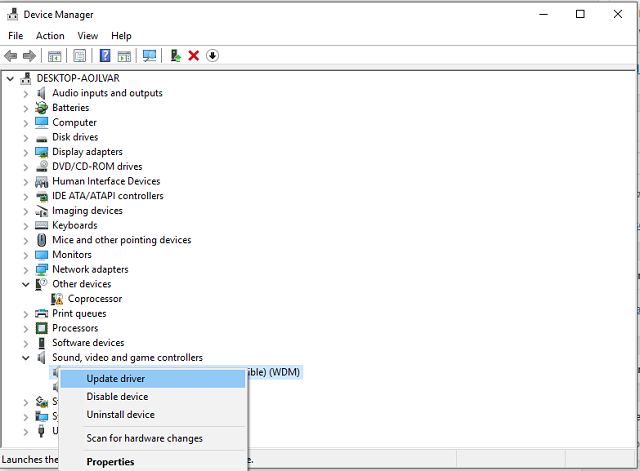
  2. Once hardware is out of the equation, right-click the Start and open Device Manager.
  3. Navigate to Sound, video and game controllers.
  4. Right-click on all sound-related drivers and click ‘Update Driver’.
  5. After you’ve acquired latest drivers, right-click on the Volume icon in the Notification area and open Recording Devices.
  6. Now, click on your preferred microphone and Set as Default.
  7. Right-click microphone and open Properties.
  8. Test microphone and look at the green bar. If everything works as intended, it should rise when speaking.
  9. However, if the microphone is still not functioning, right-click default device and open Properties.
  10. Under Levels tab, volume up your microphone by dragging the slider to the right.
  11. Restart your PC.

If the microphone isn’t the problem, move on to the additional steps.

Reset Cortana with PowerShell

When it comes to advanced troubleshooting, you can either use PowerShell to re-register Cortana or the simplistic unofficial workaround trough registry.

If you’re not familiar with the resetting procedure via Windows PowerShell, follow the instructions below.

  1. In the Search Windows, type PowerShell. Right-click on Windows PowerShell and Run as Administrator.
  2. Type the following command and press Enter:
      •  Get-AppXPackage -AllUsers | Foreach {Add-AppxPackage -DisableDevelopmentMode -Register “$($_.InstallLocation)\AppXManifest.xml”}
  3. After the input procedure is finished, restart your PC and try out Cortana.

Fix Cortana trough registry

Moreover, you can make a simple registry tweak to resolve Cortana issues. According to some users, this proved as a most fruitful solution for a multitude of issues. Follow these instructions to perform this simple registry tweak:

  1. In the Search Windows bar, type regedit, right-click regedit and Run as Administrator.
  2. Navigate to HKEY_CURRENT_USER\SOFTWARE\Microsoft\Windows\CurrentVersion\Search.
  3. Change the BingSearchEnabled value from 0 to 1.
  4. Make sure all of the Cortana flags are set to 1 instead of 0.
  5. Restart PC and check out Cortana again.

Have in mind that reckless use of registry can create a lot of problems. So, just follow the instructions without any additional changes.

Reset PC with Recovery options

In the end, you can start from scratch. Since a clean reinstallation may be lengthy, you can try with the simple ”Reset this PC” option. You can preserve all of your files but, all installed apps and programs will be lost.

Follow these workarounds to reset your PC:

  1. Navigate to Settings.
  2. Open Update & Security.
  3. Click on Reset this PC.
  4. Click on Get Started.
  5. Choose the ‘Keep my files’ option and start the reinstallation procedure.

After everything is finished, your Cortana issues should be resolved.

Nonetheless, if you have any additional workarounds or questions regarding the subject, please be free to share them in the comments section.

RELATED STORIES YOU NEED TO CHECK OUT:

Wileyfox to release a new Windows 10 phone in August

While British phone maker Wileyfox is more popular for its CyanogenMod devices, the company has other plans to take on the enterprise market with Windows Phone. Wileyfox’s vice president of sales Andy Lee believes the Windows platform is better for security and so it is more suited for B2B than Android.

Wileyfox is planning to launch the Windows Phone in August 2017 through a network of partners in the UK and other European countries. For the record, the company has operations in 15 countries including France, Spain, Germany and the Netherlands.

Lee says:

“Increasingly people are screaming for costs to come down and want a good affordable device. If businesses are going to buy thousands of devices to kit out their work force, they need a good price point. That’s where we’re going to hit it out. Most firms can’t afford to spend £500 per device. But with us they can be assured quality and the right features. For example, courier companies can use it to scan products and save money which is of course what they want. That is the benefit of Windows and how it’s adaptable for B2B.”

Wileyfox will also manufacture a wide array of accessories for the smartphone. According to Lee, the OEM plans to manufacture chargers, headphones, and cases to ensure a bespoke experience for users. The company will produce the accessories in-house in China, with plans to release them in the second to third half of the year.

When the phone launches, Wileyfox aims to sell 2 million units in 2017 alone. At present, the phone is under review as part of the Global Certification Status certification process. In the past, Windows Phone gained traction in the enterprise market. It now remains to be seen whether Wileyfox can accomplish the same success with its upcoming phone.

RELATED STORIES YOU NEED TO CHECK OUT:

Surface Pro 5 eyeing spring launch following Chinese certification

Microsoft initially planned to unveil the Surface Pro 5 and Surface Book 2 at an event this month, but it did not happen anyway. Now the Surface Pro 5 seems to be launching in the spring of 2017, if a leaked Chinese certification is any indication.

The China Compulsory Certificate, which maintains the safety of products imported and sold in the country, recently certified the new Surface Pro device. Reports even suggest the Surface Pro 5 is ripe now to hit the market. However, no further details are revealed in the leaked certification.

The specs and features for the upcoming Surface Pro product remain scanty, but it won’t be long before we learn about the details. While it is possible the launch of the next Surface Pro could take place later this month, May is also a potential window for debut since Microsoft will also hold the Build Developer Conference next month.

So far, the latest rumors indicate that the Surface Pro 5 will include the Intel Kaby Lake processor. In terms of design, the device won’t be bringing anything new to the table, save for an improved display and software features. A USB-C support will also be a no-show in the upcoming Surface Pro.

As for the second-generation Surface Book, debut for the device might be delayed as Microsoft appears to be needing more time to complete work for it. So instead of launching alongside the Surface Pro 5, the next Surface Book could see the light of day in the fall of 2017.

Are you eager to get your hands on any of these devices? Let us know.

RELATED STORIES YOU NEED TO CHECK OUT:

Users report that Windows 10 Creators Update slows down PCs

The new Windows 10 Creators Update is supposed to improve PC performance and deliver a faster, more reliable Windows 10 experience. Unfortunately, many users who upgraded to Windows 10 Creators Update are dealing with a series of issues that make their computers anything but fast and reliable.

There are multiple problems that appeared unexpectedly after months of test and optimization. Getting back to the matter at hand, it seems that some users are dealing with very sluggish PCs after they’ve updated to the Creators Update.

Sumit Gupta130, a Microsoft forum user, has decided to search for help online, wishing to know how to get rid of their annoying problem. Here is what happened to Sumit after updating to the Creators Edition.

Today i installed windows 10 creators update and it got installed without any issue. But after installing i m experiencing performance problems. Even some basic apps and video players are lagging very much.

And also i deleted my previous windows installation files so i can’t go back now. PLz help and tell me way to increase performance or tell me a way to roll back to previous build without deleting any data.

Also i have tried all the basic ways to increase performance  like deleting temp files, disabling effects , etc. So please don’t waste time in suggesting all those methods.

If you’re experiencing a similar issues, try using one of these Windows 10 PC optimization software. These tools can really make your PC snappier. Of course, you can also roll back to a previous Windows 10 version, while waiting for a quick fix for this Creators Update problem.

If you want to recover your previous build, follow these steps:

  1. Go to Settings > click Update and Security.
  2. Choose Recovery > Select Get Started under Go Back > follow the on-screen instructions.

Have you upgraded your PC to Windows 10 Creators Update? Is your computer slower now?

RELATED STORIES TO CHECK OUT:

How to set Microsoft Edge to read your eBooks aloud

The fact that most of us use our PC and mobile browsers to read e-books shouldn’t come as a surprise. The Creators Update brought access to a native eBook store, allowing you to purchase and store your favorite eBooks. And now, the newest build of the update immerses users into a greater reading experience through Microsoft Edge’s ability to read eBooks out loud.

To do so, open an eBook and press the Read aloud button. You’ll find it located at the top-right corner of Edge. Even cooler, under Voices, you’ll find a few accents you can choose from. Each one also has enhanced quality version.

When you enable this feature, you’re going to be able to see the vital text of the article, its headline, and pictures. You’ll have the option of changing background color and the font size. This will turn out to be pretty useful if you’re one of those reading-in-the-dark enthusiasts.

Here are the steps to make Microsoft Edge read to you:

  • Launch Microsoft Edge and press the Hub button.
  • Click the Books button and then press Read aloud. Once the action is confirmed, a nice voice will immediately start reading.

You have more options available while it reads, such as pausing, playing or switching to an earlier paragraph or to the next one. You can also change the reader’s speed from the same Voice button.

If you decide to restore original settings, press the dropdown arrow beneath the Voice button, click a voice, and hit the blue X. You’ll return to the original settings for the reading.

Give it a try and enjoy!

RELATED STORIES TO CHECK OUT:

Microsoft to hold Digital Difference media event in NYC on April 26th

Announced today in an email, Microsoft is set to hold a Digital Difference media event in NYC on April 26th. Featuring great dialogue and insights around advancements in several major areas, including health, retail, transportation, robotics, sports fan engagement and consumer goods, the event will highlight an array of global companies and digital start-ups, sharing how they are using technology to create new business models and products.

Judson Althoff, Executive Vice President at Microsoft, and Abbie Lundberg, a researcher at Harvard Business Review (HBR), will speak at the event. Planned discussions include how industries and organizations are being transformed not just in the way they operate, but in the impact that they have across the globe. We’ll be attending, so be sure to keep it tuned to OnMSFT for all the details as it unfolds live in New York City.

How to Free Up Space Using Auto Recycle Bin Cleaning in the Creators Update

You can never have enough ways of cleaning useless files from your Windows device. If you own a smaller hard drive, you’re probably familiar with the annoyance of regularly having to manage low disk space.

Whether you use Windows’ built-in tools or other popular repair tools, the task of cleaning old files always needs to be done manually unless you previously paid for premium software.

Now, this won’t have to happen anymore: Microsoft has added a new feature to Windows 10 with the Creators Update that allows you to save a small amount of disk space on your PC by automatically cleaning your Recycle Bin and removing temporary files not being used by apps you have already installed.

Follow these steps in order to enable this cool feature:

  1. Open Setting and go to the System.
  2. Once you’re in the System settings, open the Storage page from the sidebar.
  3. You’ll then see a toggle to enable the feature just under Storage Sense.
  4. Enable it and then click on Change how we free up space line below the toggle.
  5. You’ll be taken to another page with even more settings for Storage Sense. Here, you’ll be able to prevent it from deleting files that are being stored in your Recycle Bin for more than 30 days. You can also stop deleting temporary files that haven’t been used by your apps.
  6. You’ll also see a handy button for manually freeing up space whenever you need it.

You won’t be able to save tons of space with the help of this new feature, but you’ll still get to enjoy a small amount of extra disk space.

Color blindness software for Windows PCs

Color blindness is a visual impairment that restricts color vision. Thus, colors aren’t entirely clear for color blind software users. There isn’t much in the way of color blindness software for Windows that can assist users. However, these are a few Windows programs that color blind users can modify VDU display colors with as required.

Best color blindness software for PC

Visolve


Visolve is one freeware program for Windows, Mac OS X and iPhone platforms that transforms VDU display colors to enhance color perception. This software enables users to open a Visolve Deflector window frame that captures a portion of the desktop behind it. Then you can apply color Red-Green, Blue-Yellow or Increase saturation color transformations to the region captured within the frame. In addition, it comes with a toolbar that enables you to make color adjustments while browsing with Internet Explorer. The software also adds that toolbar to the taskbar so you can apply color configurations to the full desktop. This page on the publisher’s website shows you how the software adjusts display colors.


WhatColor

WhatColor is freeware software for Windows 10, 8 and 7 that enables users to identify colors by selecting pixels. The program magnifies an area around your cursor from which you can select some pixels to identify. The program will then tell you what the color of the pixel selected is and provide an RGB value for it. As such, this can come in handy if color blind users need to refer to colors in a document; or if another document or page refers to specific colors that might otherwise not be clear.


Sensible Colors – MantaDB Utilities

Sensible Colors is just one of the eight tools included with MantaDB Utilities for Internet Explorer, which is a freeware package you can add to Windows from this page. This enables users to remove all background images from website pages and converts text color to black on white background to enhance clarity. As Sensible Colors removes background images, it can also speed up browsing.


Color Enhancer


Color Enhancer is not exactly Windows software, but it’s a Chrome extension you can add to that browser from this web page. The extension adds a color filter to Google Chrome with which you can adjust page colors as required. To configure the colors, press the Color Enhancer button on the browser’s toolbar and select Set-up to open the filter shown in the snapshot directly below. Then you can select one of the rows and drag the bar slider to configure page colors.

Those are a few programs and tools that can assist color blind software users. They enable users to adjust VDU display colors as required to enhance software window and web page clarity.

RELATED STORIES YOU NEED TO CHECK OUT:

Microsoft rolls out its last Windows Vista updates, download them now

Windows Vista currently has a total market share of 0.72%. Most likely, more and more Vista users will upgrade their computers in the near future as Microsoft just ended support for the OS. We’re sure that for many users this fact constitutes a good enough incentive to upgrade.

In other words, the Redmond giant will no longer release security patches, non-security updates, or any other kind of support for Vista.

Microsoft has provided support for Windows Vista for the past 10 years, but the time has come for us, along with our hardware and software partners, to invest our resources towards more recent technologies so that we can continue to deliver great new experiences.

The company rolled out the very last Windows Vista updates this Patch Tuesday. More specifically, Microsoft pushed 12 dedicated updates to this OS version.

Windows Vista Updates

  • KB4014652: Security update for the libjpeg information disclosure vulnerability in Windows Vista
  • KB4014793: Security update for the Microsoft Office remote code execution vulnerability
  • KB4014794: Security update for the libjpeg information disclosure vulnerability in Windows Vista and Windows Server 2008
  • KB4015067: Security update for the scripting engine memory corruption vulnerability in Windows Vista and Windows Server 2008
  • KB4015068: Security update for the LDAP elevation of privilege vulnerability in Windows Vista and Windows Server 2008
  • KB4015195: Security update for the Win32k information disclosure vulnerability in Windows Vista and Windows Server 2008
  • KB4015380: Security update for the ATMFD.dll information disclosure vulnerability in Windows Vista and Windows Server 2008
  • KB4015383: Security update for the libjpeg information disclosure vulnerability in Windows Vista and Windows Server 2008
  • KB4017018: Security update for Microsoft Graphics Component
  • KB4016754: This update includes a fix for an incorrect device driver (“Microsoft – WPD – 2/22/2016 12:00:00 AM – 5.2.5326.4762”) that was released by a third-party on March 8, 2017 that affected a small group of users with USB connected phones or other media devices that rely on Media Transfer Protocol
  • KB3217877: Fixed the issue when you use the fread() function to read data from a pipe in Windows Vista Service Pack 2, and the runtime program may omit line feed (LF) characters between lines and cause corrupted output.
  • KB4012864: DST changes in Windows for Northern Cypress, Mongolia, and Russian Saratov region.

You can install these updates through Windows Update.

Are you still running Windows Vista? Are you planning to upgrade your computer to the latest Windows OS version?

RELATED STORIES YOU NEED TO CHECK OUT:

Microsoft has now started to block Windows 7/8.1 updates on PCs with recent processors

Last month, we reported that Microsoft might soon block Windows 7/8.1 updates on PCs with Intel’s Kaby Lake or AMD’s Ryzen processors. That’s right, Microsoft now claims that “new processor generations require the latest Windows version for support,” meaning that Windows 10 would soon be pretty much the only way to go for PCs with recent processors.

According to Ars Technica, Microsoft has finally started to enforce this new support policy this month. It’s still possible to install Windows 7 or Windows 8.1 on a PC with the latest processors from Intel or AMD, but you won’t get optimized drivers for the new processors, and worse, you also won’t be able to install Windows updates, including critical security updates.

Microsoft ended sales of Windows 7 and Windows 8.1 licenses to PC OEMs last October, and the company also stopped selling Windows 7 and Windows 8.1 licenses to consumers back in October 2013 and September 2015, respectively. This new support policy seems consistent with this state of affairs, and Microsoft is all about Windows 10 these days. However, it’s worth reminding that both Windows 7 and Windows 8.1 will continue to fully support Intel’s older 6th gen Skylake processors until 2018.

Will you be affected by this new support policy, and do you understand why Microsoft is enforcing it? Let us know your thoughts in the comments below.

Latest video on-demand service from India, ALTBalaji, launches universal Windows 10 app

ALTBalaji, a subsidiary of Balaji Telefilms, India’s leading television and movie production company, recently launched a video on-demand service which is now available as a UWP app for both Windows 10 PCs as well as mobile.

ALTBalaji aims to focus on an alternative to mainstream Indian entertainment with original content along with a library of movies of TV shows. At the moment though, there’s limited content with much of the catalogue listed as ‘coming soon’.

While the app is free and available for Windows 10 PCs, tablets, and phones, you’d need to subscribe for premium content while a large portion of content will be available for free as well. The app will feature content in Hindi, English, and regional Indian languages.

While it is a crowded video streaming market with Netflix and Amazon Prime Video as well as local players like Hotstar, Voot, Eros Now, HOOQ, and Sony LIV, only Netflix and Hotstar have apps for Windows 10, and the latter is just a barebones, web wrapper app. So, Windows users might just welcome ALTBalaji if it manages to offer diverse and interesting content.

The app has a dark UI with seamless navigation. It works quite well, and the streaming too is pretty good. The app also offers parental controls to ensure your kids watch age-appropriate stuff. Give it a whirl, and let us know how you like it. Download the ALTBalaji app from Windows Store here.

Xbox One’s Neo Geo library grows even bigger with Sengoku 2

The Xbox One’s Neo Geo game library has grown even larger today with the arrival of Sengoku 2 on the console. Like the other recently added Neo Geo games, Sengoku 2 has also been given arcade display settings as well as an online leaderboard for players to compete on. Here’s the official game description:

Sengoku 2 is a side scrolling action game released by SNK in 1993. Take on the role of a warrior summoned by a shrine princess, and fight over various historical periods in order to defeat the dark monarch. Players can enjoy new tactical features such as charge attacks and defensive abilities. The “ACA NEOGEO” series has faithfully reproduced many classic NEOGEO masterpieces. Players can change various game settings such as game difficulty, and also reproduce the atmosphere of arcade display settings at that time. Players can also compete against each other from all over the world with their high scores. Please enjoy the masterpiece that built a generation for video games.

Buy Sengoku 2 on Xbox One

Have you played any of the Neo Geo games on Xbox One yet? Let us know which ones in the comments below.

Xbox E3 website updates, pushes Beam as viewing option

Microsoft has updated their special Xbox E3 Briefing page on the Xbox website with the show’s date and time (Sunday, June 11th, 2:00 pm PDT), a link to add the event to a calendar and direct links for where to view the livestream on YouTube, Facebook, Twitch, and Twitter and icons suggesting that it can be watched on Xbox.com and the Xbox One console.

The company’s preferred method for watching their livestream though is via Beam which has been given both a large graphic on the page and a giant header saying, “Watch on Beam”. Microsoft purchased the Beam streaming service in late-2016 and has recently integrated it into both the Xbox One software and Windows 10 devices. It makes sense that they’d want to encourage more people to use it. Whether Microsoft can get people to choose it over the other more-popular services though remains to be seen.

Which service will you be using to watch the presentation? Let us know in the comments below.

Windows 7 KB4015546 patches many OS vulnerabilities, download it now

This month’s Patch Tuesday was probably one of the busiest ones in Microsoft’s history. Besides regular security and non-security updates, Microsoft also publically released the third major update for Windows 10, Creators Update, and ended support for Windows Vista.

Among other security updates, Microsoft released the new security update for Windows 7 dubbed KB4015546. This update is available to all eligible users of Windows 7 right now, and resolves some of the known vulnerabilities in the system.

More precisely, security update KB4015546 resolves vulnerabilities in the scripting engine, Hyper-V, libjpeg image-processing library, Adobe Type Manager Font Driver, Win32K, Microsoft Outlook, Internet Explorer, Graphics Component, Windows kernel-mode drivers and Lightweight Directory Access Protocol.

Additionally, this update also “enables detection of processor generation and hardware support status when PC tries to scan or download updates through Windows Update.”

If you still haven’t installed the new security update for Windows 7, you can obtain it through Windows Update.

Besides KB4015546, Microsoft released a handful of other security updates for all supported versions of Windows. Of course, the main focus was on Windows 10, as the company’s latest operating system received the most security updates, non-security updates, and other patches. And of course, the new major update.

For what we know, you should install security update KB4015546 without any problems, as there are no issue reports yet. However, if you encounter some issues while or upon installing this security update, feel free to let us know in the comments below.

RELATED STORIES YOU NEED TO CHECK OUT:

Windows 10 Creators Update security features: Everything you need to know

As promised, Microsoft is adding a new centralized portal called the Windows Security Center to Windows 10 as part of the Creators Update. The new security feature allows IT admins to monitor and respond to various security issues thanks to a link to the Office 365 Advanced Threat Protection. This security feature includes an integrated method to let security departments track threats across endpoints and emails. Microsoft also plans to broaden the scope of the Windows Defender ATP sensors so that they can detect persistent threats within memory or at the kernel level. That means IT security experts will be able to keep track of loaded drivers, in-memory activities, and in-memory modifications that signify potential kernel exploits.

Microsoft explains in detail the Windows Security Center:

The Windows Defender Security Center offers a single dashboard display so you can control your security options from one place – everything from anti-virus, network, and firewall protection; to assessing your device performance and health; to security controls for your apps and browser; to family safety options. For our enterprise customers using the Windows Defender Advanced Threat Protection (ATP) service, the centralized portal first delivered in the Anniversary Update called the Windows Security Center will link to Office 365 Advanced Threat Protection, via the Microsoft Intelligent Security Graph, to allow IT administrators to easily follow an attack across endpoints and email in a seamless and integrated way.

IT admins can also inject their own intelligence into the Windows Security Center to raise alerts on activities according to various compromise indicators. They can then isolate machines or block files to help resolve critical security issues within a shorter span of time.

RELATED STORIES YOU NEED TO CHECK OUT:

Microsoft to hold free online Data Amp event, demonstrate data innovation

Want to learn a thing or two about machine learning? Want to do it for free? Next Wednesday, you’ll get your chance. Microsoft Executive VP Scott Guthrie and Corporate VP Joseph Sirosh will be hosting Data Amp on April 19th, a free online event geared towards teaching people about data, intelligence, and analytics.

The event will take place at 8 am PT, and promises to be an educational time for anyone who’s interested in the whole machine learning scene. It also promises to be something of a showcase for the future of SQL Server, so fans of that service will probably want to tune in to see what direction it’s headed in.