Latest Xbox One Insider build is now rolling out to Preview Beta and select Ring 3 Xbox Insiders

It’s been a busy past week for Xbox Insiders, as we saw the Xbox team release several new builds for Preview Alpha, Beta and Ring 3 Xbox Insiders. On Sunday, Preview Alpha members received the last preview build which brought performance improvements and fixes to localisazed content. This same build is now rolling out to the the Preview Beta ring and select members of the Preview Ring 3:

You can find the complete changelog below:

DETAILS

OS version released: rs2_release_xbox_1703.170317-1902
Available: 6:00PM PDT 3/20 (1:00AM GMT 21/3)

FIXES:

  • Localization: Miscellaneous fixes to localized text and content.
  • Miscellaneous: Miscellaneous performance fixes and improvements.

KNOWN ISSUES:

  • Game Clips: After capturing a game clip, the game clip fails to automatically post to the Activity Feed (if your profile is configured to do so). Workaround: Manually view game clips in Profile > Captures > Manage captures and post to the Activity Feed.
  • Settings – Display & sound: The Audio output page is under construction and some of the new settings are not yet functional. New support is planned for Dolby Atmos for home theater, Dolby Atmos for headphones, and more in upcoming builds. An announcement will be made when these new features are ready to try out; enabling these settings now will have no effect.
  • Wireless Display: The Wireless Display app fails to launch and immediately crashes to Home.

Yesterday, the Xbox team also announced the upcoming availability of several new features including custom gamer pics, Arena on Xbox Live, improvements to Clubs and Looking for Groups and more. According to Microsoft, all these upcoming new features were all long requested by Xbox fans and we’re looking forward to try them in the coming weeks.

Mass Effect: Andromeda launches on Xbox One amidst negative reviews

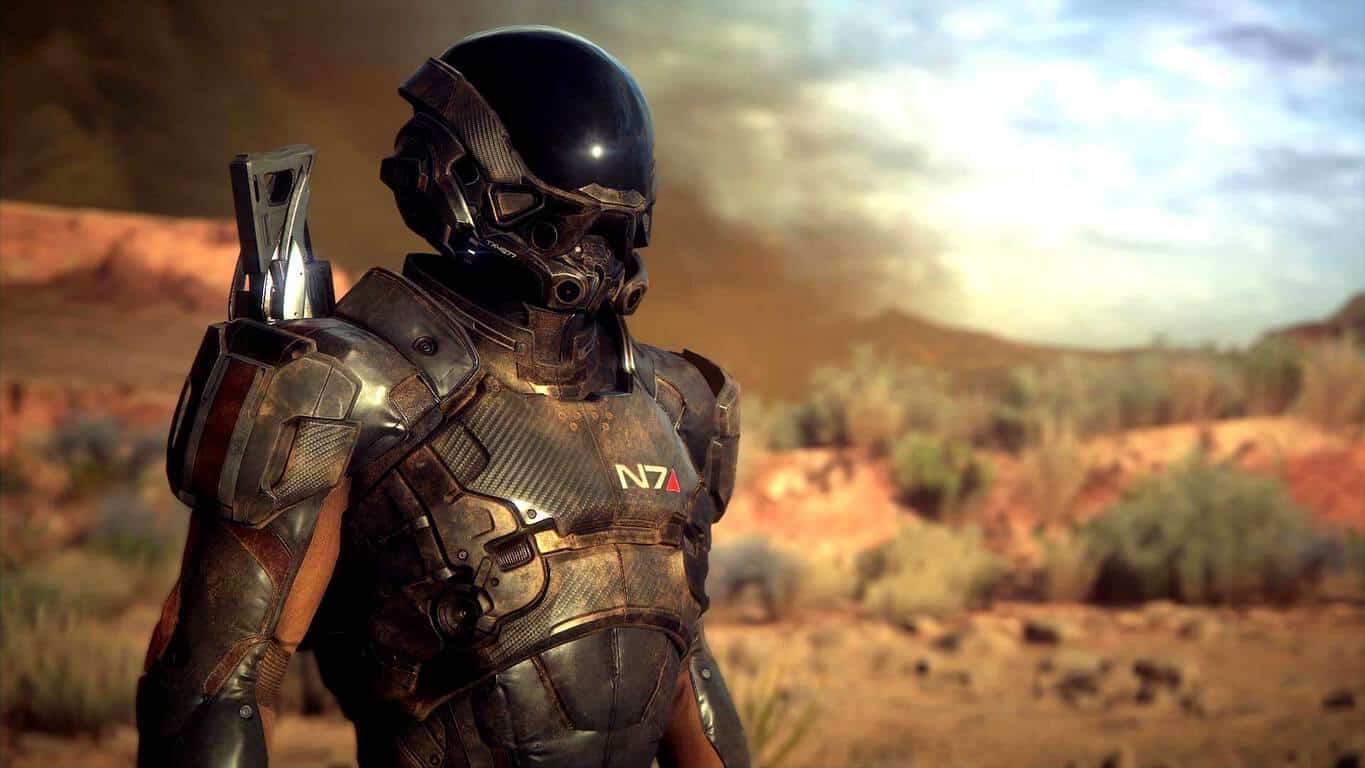
The highly-anticipated video game, Mass Effect: Andromeda, has finally launched on Microsoft’s Xbox One console today however the title has been met with quite a few negative reviews from games critics with most agreeing that it fails to live up to its predecessors and suffers from a variety of odd animations that look more like glitches than deliberate design choices. Like with the newly released Iron Fist series on Netflix which was also panned by critics, many fans are choosing to disregard what the critics say though and are actually enjoying their purchase.

Here’s the official game description:

Mass Effect: Andromeda travels deep into the Andromeda Galaxy, far beyond the Milky Way. There, you will lead our fight for a new home in hostile territory where we are the aliens. Take command as the Pathfinder, a leader of a squad of military-trained explorers, with deep progression and customization systems. This is the story of humanity’s next chapter, and your choices throughout the game will ultimately determine our survival in the Andromeda Galaxy. As you unfold the mysteries of the Andromeda Galaxy and the hope for humanity lies on your shoulders, you must ask yourself – how far will you go? HDR enhanced for richer, more luminous colors.

Buy Mass Effect: Andromeda on Xbox One

Buy Mass Effect: Andromeda Deluxe Edition on Xbox One

Buy Mass Effect: Andromeda Super Deluxe Edition on Xbox One

Have you played Mass Effect: Andromeda yet on your Xbox One? Let us know what you would rate the game in the comments below.

Microsoft now has a 12 year old Certified Solutions Expert

An 11-year old boy has finished six Microsoft-certified courses, making him the youngest Microsoft charter member. The boy, Uzair Abdullah (now 12-years old) enrolled himself in the courses and travelled to his nearest Microsoft Center in Peshawar to take the tests where he became certified in web development, server and networking, cloud platform and infrastructure, among others.

“We always wanted him to do such courses to enhance his abilities in his field of interest,” his mother, Ambreen Abdullah, told The Tribune. “A tutor used to teach him at home during his stay in Gujranwala where he did not go to school. With the help of tuitions he appeared in the board examinations of class eight.”

Microsoft offers a wide range of certification exams based on the company’s technologies ranging from entry-level courses through to those targeted towards IT professionals (or really motivated 11-year olds). Have you ever taken one of Microsoft’s courses? Share your experience with the community in the comments below.

Final Fantasy XV gets massive Games With Gold discount on Xbox One

This week’s Games With Gold video game discounts have been announced and there are some great savings to be had on both the Xbox 360 and Xbox One. This week in particular is a great one for Final Fantasy fans as the franchise’s latest entry, Final Fantasy XV, has been given some major discounts with the regular version of Final Fantasy XV getting a 40% discount and the FINAL FANTASY XV Digital Premium Edition receiving a 30% price cut.

Other Xbox One bargains to watch out for this week are The Peanuts Movie: Snoopy’s Grand Adventure with its 80% discount and Blood Bowl 2 and Divinity: Original Sin: Enhanced Edition which are now reduced by 75%. Also on Xbox One, Beyond Eyes, Thomas Was Alone, and Three Fourths Home: Extended Edition are now 67% cheaper than usual.

One the Xbox 360, Spider-Man: Dimensions, Realms of Ancient War, Mars: War Logs, Farming Simulator, Contrast, and Bound by Flame have been given 75% discounts. A full list of all of the Deals With Gold titles can be seen in the Games With Gold tab on the respective consoles.

Have you bought any cheap video games this week? Let us know which ones in the comments below.

Fitbit for Windows 10 now supports tracker notifications and Connected GPS with Creators Update

Fitbit kicked off a closed beta testing for the Call and SMS notification feature of its app in Windows 10 Mobile. The test followed recent Creators Update improvements that introduced support for the Bluetooth GATT server profile. A few weeks later, the beta has gone live.

The activity tracking company announced on its support forum that those who submitted a valid email address have started to receive an update to the Fitbit app. That means some Fitbit users are now getting device notifications.

The beta is available to users with the Windows build 15055. Beta testers are also receiving version 2.19.983.0 of the Fitbit app. Upon syncing their tracker, users on the latest app version will get a new permission request, asking them to accept the update in order to enable notifications.

Known Issues

In the forum, Fitbit also disclosed some known issues:

There are known stability issues at this time. We are not seeing the stable performance on current insider builds that we are seeing on internal builds from Microsoft. We’re investigating potential improvements we can make in the app, and also hoping that Insider build updates could resolve some of these issues.

Fitbit added:

These features are in active development, and are running on an in-development OS build. It’s highly likely that things may be broken, or perform badly and break from updates to the OS or the app.

The idea is for things to steadily improve until we are super solid for launch. You’re helping to make this feature awesome. If you’re expecting to get early access to a fully working feature, you’ll be disappointed.

The company also promised to add support for Calendar and third party app notifications and Connected GPS support in future versions of the app.

RELATED STORIES YOU NEED TO CHECK OUT:

Paladins issues: The game fails to start, audio problems, and more

Paladins has become quite popular over the course of a few months. Players love the new characters, game mechanics, and of course the fact that the game is free to paly.

However, not everything is a bed of roses in the Paladins universe. According to various players, the game is plagued with various bugs and issues. More or less annoying. To break it down for you, we’ve gathered some of the most common issue reports, and included them in this article.

So, if you’ve been experiencing some issues while playing Paladins, we want you to know that you’re not alone. Also, if you haven’t played the game yet, you should keep these in mind.

Paladins reported issues

Invisible crosshair

One player complains on the Steam forums that when he reloads, his crosshair becomes invisible:

“Sometimes, when i reload, my crosshair goes invisible and then reappears with my next reload. This might be gamebreaking for some players. Let’s hope they fix it.”

Other people from the thread suggest that pressing the Tab button solves the problem. Additionally, they also suggest one extra reloading, however there’s an ongoing discussion about whether that one extra reload could cost you a game. We’ll let you decide whether that’s correct or not.

Not receiving awards

Another player says he’s unable to receive rewards for winning games:

“Im not recieving any rewards for winning games, not exp, not gold, etc…. Im playing casual ina party with 2 friends, one of them is having the same problem, the other one not….”

HirezProxyLaunch has stopped working

Apparently, there’s a major problem with the “HirezProxyLaunch has stopped working” error, which prevents players from launching the game. There are numerous reports about this issue all around the internet. People have tried various solutions, but the problem still appears.

“Every time I try to launch Paladins, I face an immediate error popup saying “HirezProxyLaunch has stopped working”, with subtext saying the usual “Windows is checking for a solution to the problem…” just for the popup to close out on its own with no actual solution found or suggested.”

SMITE players had to deal with the same issue recently. However, the solution that helped them is not useful in this case. So, we’re sure players would like to know what’s going on.

All skins got unequipped

Some players have problems keeping their skins equipped on their characters. According to one player on the forums, skinks constantly get unequipped. Unfortunately, no one has a viable solution for this problem so far.

“Failed to initialize assembly file” error message

There’s another error that prevents players from opening the game. One user has reported the “Failed to initialize assembly file” error message, that appears every time he tries to launch Paladins.

“Guys Pls Help me once i try to open paladins this error message appaer “failed to initialize assembly file”  Help Me PLS”

Another player from the threat suggests that verifying the game cache resolves the issue, but nobody else confirmed this solution.

Unable to watch Replays

The problem with watching replays in Paladins is widespread, as numerous players have reported the same issues. Here’s what one of them says:

“Hey guys i wanted to watch a replay from my game but its just saying “Demorec.replay.fail” What to do?”

Unfortunately, we only managed to find more and more issue reports, but no confirmed solutions. So, it looks like the majority of players is experiencing the issue, but no one actually knows how to resolve it.

Login issues

We’re not done with launching issues. This time, one player says that he’s unable to login into the game.

“I can access the launcher, Pressed “Play”, Then Paladins came up, “Logging in”, Then “Loading Your Profile” Comes up and does not take me to the main menu. I have restarted Steam and no effect.”

Unfortunately, no one answered the thread, so the solution for this problem still remains unknown.

Audio problem

Audio doesn’t appear to be working in Paladins for everyone. One player hit the forums to tell us about audio issues in the game. However, he didn’t provide any additional info about the problem, so we can’t tell you if there’s solution for it. In case you’ve encountered any audio issues in Paladins, feel free to let us know in the comments.

Mid-game crashes

And finally, one player says that he experiences crashes mid-game, because of the server issues.

“Sometimes I can ply it without any crash. But always get crash in the middle of game.
Anyone else get crash? Or only me?”

Once again, no one had a proper solution for this problem, so we can’t tell you more about it.

That’s about it for our list of the recently reported problems in Paladins. If we take the number of reports into account, it looks like the game desperately needs a new patch.

But don’t get us wrong on this one, we still think Paladins is a great game, worth your time. It’s just that some players might get more lucky with issues than others.

If you’ve experienced some problem that we didn’t list in this article, feel free to let us know in the comments below.

RELATED STORIES YOU NEED TO CHECK OUT:

The Crow’s Eye issues: Puzzles can’t be completed, stuck on respawn, and more

The Crow’s Eye is a new psychological horror puzzle game that arrives on Steam today. So far, only testers and press members had the opportunity to try it, and write their first reports and reviews about this game.

According to the earliest reports, developer of the game, 3D2 Entertainment will have more work to do, as there are a few issues that already appear. We’ve wandered around Steam forums, and found the reported issues. So, if you’re planning to purchase the game, keep these in mind.

The Crow’s Eye reported issues

Stuck on platform puzzle

One player complains that he’s unable to reach the ladder, due to un unusual bug in the game. Here’s what he says:

“I’ve figured out how to raise the platform, but now the ladder’s too high for me to reach and I can’t see any way to pull it back down. Any hints from playes who have gotten past that? :)”

However, as some other players pointed out, the issues gets resolved with the latest fix. So, if you eventually get stuck on platform puzzle, as well, it’s time to patch your game.

Cube Puzzle Can’t Be Completed

Another player reported a similar issue. Only this time, the cube puzzle in level 6 can’t be completed:

“Without wishing to spoil anything, I won’t go into too much detail, but the cube puzzle early in level 6 can’t be completed and needs a quick fix. The purple socket isn’t correctly lined up as when the cube is pushed into it, the cube doesn’t slot in as it should and actually ends up going through the socket instead of inside it. The others all slot in as they should.”

Bug on Level 5

There’s also a bug that disturbs respawn in the game. Here’s what one player says about it on Steam forums:

“I’m currently in the sewers, in the room with moving platforms and poisoned water. It happened to me multiple times, that after falling in the water I didn’t respawned in the room but in the entrance area of the sewers.”

That’s it for now. Maybe three issues aren’t such a big deal for a game, but keep in mind that the game has been around for just one day. So, there’s still plenty of time and space for more issue reports. However, we hope there won’t be too many of them in the days to come.

Have you purchased The Crow’s Eye already? Is there anything bugging you in this game? Let us know in the comments below.

RELATED STORIES YOU NEED TO CHECK OUT:

New Microsoft video covers details about the Surface Dial

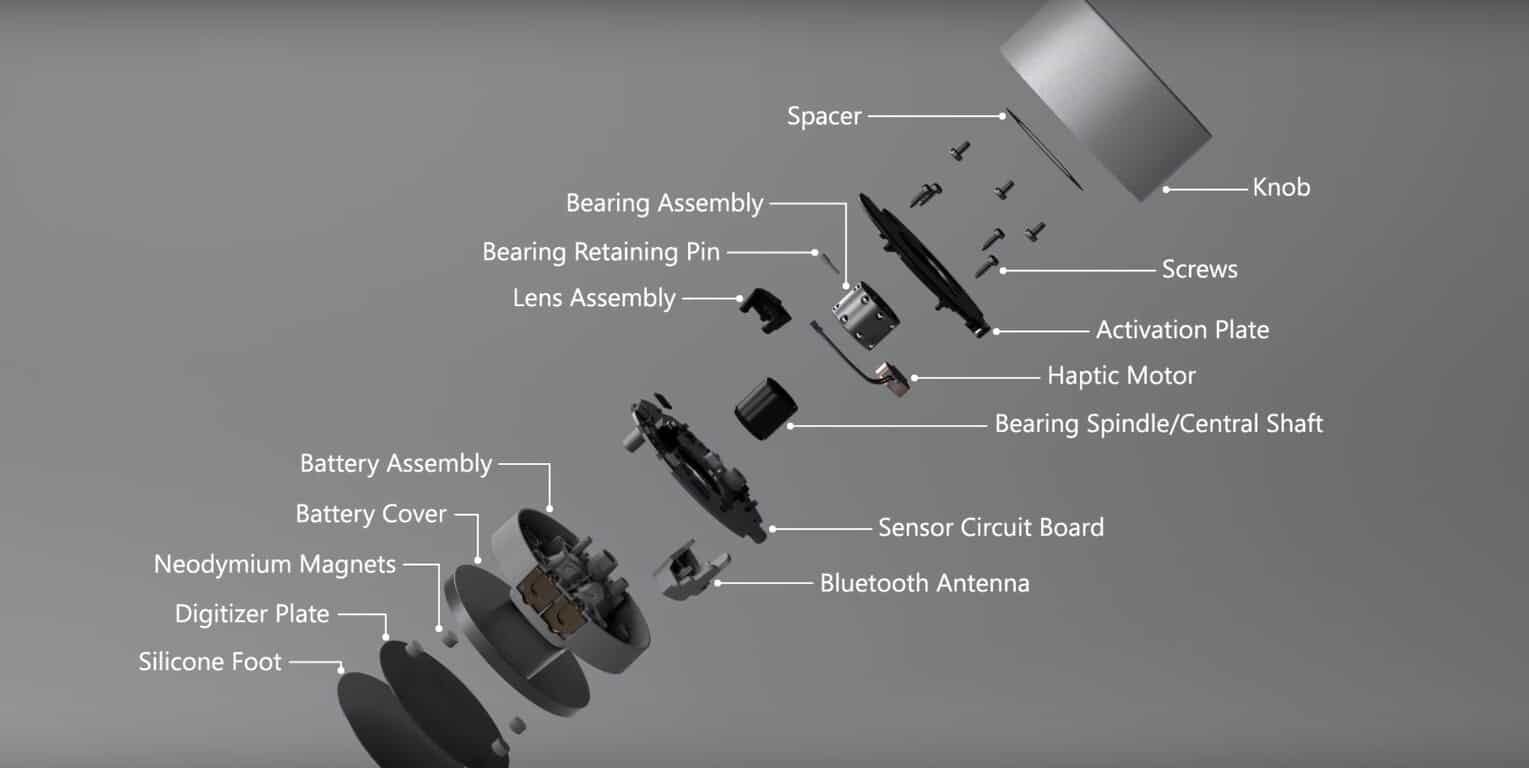
The Microsoft Dial has been understandably viewed as an accessory to the spotlight stealing Surface Studio. However, the Surface design team wants users to know the Dial is much more than hockey puck-sized add-on, the Surface Dial is as masterfully designed and complicated as the rest of the Surface line.

In five minute long video, the folks over at Microsoft Mechanics walk through the various capabilities and design features that make up the Surface Dial that include explaining how the Bluetooth works and its 3,600 points of precision.

For many, the Surface Dial has come to replace the decade’s old utility of the mouse and for good reason. The Surface Dial seems to mesh the world of tactile feedback with the precision and accuracy of a mouse, in a neat little package.  It’ll be interesting to see how Microsoft plans to improve on the Dial in iteration 2.

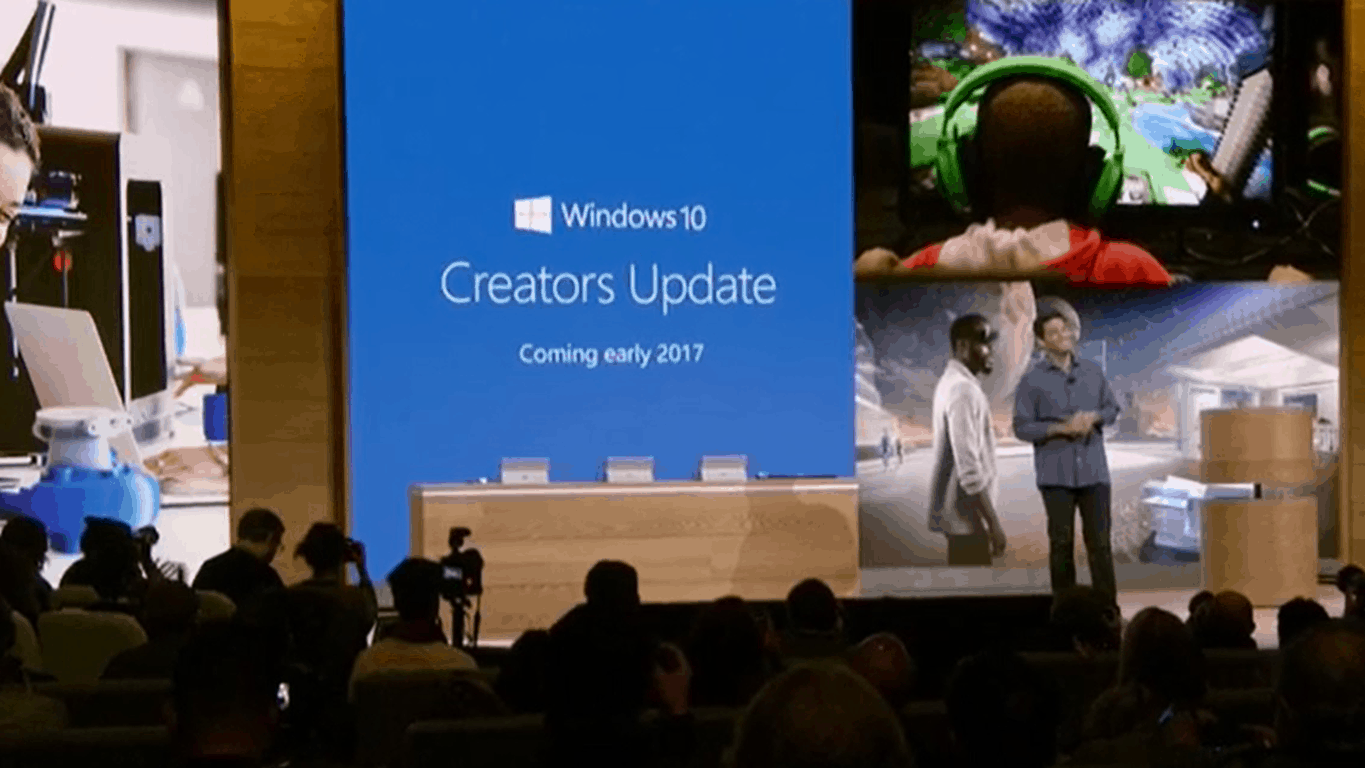
Windows 10 Creators Update could force updates over metered connections

Brace yourself for hefty data bills, as Microsoft changes language around Windows updates over metered connections, causing Windows 10 jitters among users. The changes are set to come along with the Creators Update next month.

Currently, Windows 10 handles updates on mobile data networks (metered connection) in a manner different from those over Wi-Fi connections. That is because updates released by Microsoft can consume large bandwidth, therefore leading to costly bills.  To help control huge data charges, Windows 10 downloads only the Priority Updates over metered connections.

However, a new report from SuperSite Windows indicates that the Windows build 15058, now available on the Insider Fast Ring, has altered that setup. The Windows Update section within Windows Settings now states that it will “automatically download only those updates required to keep Windows running smoothly” on metered connections.

Before, Windows 10 dispplayed the following language concerning Windows updates:

Available updates will be downloaded and installed automatically, except over metered connections (where charges may apply).

The new language now presents the following message:

We’ll automatically download and install updates, except on metered connections (where changes may apply). In that case, we’ll automatically download only those updates required to keep Windows running smoothly.

It was not immediately clear what these priority updates are or what size an update should have to qualify as a priority item. Microsoft has now alleviated worries among Windows 10 users by clarifying that it does not plan to push large updates over metered connections. On the other hand, the software giant intends for the change to send critical fixes whenever necessary going forward.

Redmond is also developing a new update delivery method that will push smaller updates in the future regardless of the nature of connection. Do you agree with Microsoft’s plan to force updates over metered connections? Share your thoughts in the comments.

RELATED STORIES YOU NEED TO CHECK OUT:

Ghost Recon Wildlands: How to skip all the intro videos

We’re sure that many Ghost Recon Wildlands players would like to simply skip the game’s intro videos and dive immediately into action. In this article, we’re going to show you how to make the game start up faster by removing the cutscenes.

How to remove Ghost Recon Wildlands intro videos

1. Go to Ghost Recon Wildland’s folder, and access the video file, which should be located at this address: Local Disk (C:)/Program Files/Steam/steamapps/common/Wildlands/videos

2. Locate these two video files: Nvidia.bk2 (wit the NVIDIA logo video) and Ubisoft_Logo.bk2 (with the Ubisoft logo video)

3. Rename the two files. This simple action helps you to remove the annoying Ubisoft and NVIDIA intros from the game. If you want to further speed up the start of the game, you can rename other files as well.

4. You can skip the cutscenes that always play when starting up the game by holding the ESC button. If you want to remove them completely, so that they don’t appear at all, rename the files VIDEO_EXPERIENCE.bk2 for the Operation Kingslayer intro, VIDEO_GLOBA_000.bk2 for the Sueno intro and VIDEO_INTRO_GAM.bk2 for the Santa Blanca intro.

5. Go into the TRC folder. A list of folders of different languages will appear on the screen. Select the folder for your language, and then rename Epilepsy.bk2 so it gets removed. If you do have epilepsy, pay attention to the warning or simply don’t rename the file and keep the video. Rename WarningSaving.bk2 to remove the intro that presents you the save icon.

It is good to know that these files will go back to their default names when Ghost Recon Wildlands gets an update or you download the game again. In this case, you need to perform the steps listed above once again.

RELATED STORIES YOU NEED TO CHECK OUT:

Windows 10 cumulative update 14393.969 is rolling out to PC users

Earlier today, PCs in the Production Ring started updating automatically with the latest cumulative update for Windows 10, build 14393.969, otherwise known as KB4015438. Compared to the changelogs from last week, this latest PC Production Ring build only has a couple of bug fixes, mainly regarding the update we saw last week.

Here is the changelog:

  • Addressed a known issue with KB4013429 that caused Windows DVD Player (and 3rd party apps that use Microsoft MPEG-2 handling libraries) to crash.
  • Addressed a known issue with KB4013429, that some customers using Windows Server 2016 and Windows 10 1607 Client with Switch Embedded Teaming (SET) enabled might experience a deadlock or when changing the physical adapter’s link speed property. This issue is most commonly seen as a DPC_WATCHDOG_VIOLATION or when verifier is enabled a VRF_STACKPTR_ERROR is seen in the Memory dump.

Devices should be updating already. If you haven’t yet, you can force a check in your Windows update settings.

More Windows 10 partners are adding Windows Hello into new PCs

Windows Hello is a password free solution to securely logging into your Windows 10 device using either a PIN, an integrated biometric sensor, or an external accessory. Microsoft has previously highlighted the growing list of Windows Hello enabled companion devices, and today the Redmond giant is highlighting how more Windows 10 partners are adding Windows Hello support into new PCs.

Covered in the Microsoft post are 10 Windows 10 PCs that unlock Windows Hello with built-in facial recognition cameras or fingerprint readers. The PCs range in price, form factor, and functionality, so we’ve included the list for you below!

Devices that support Windows Hello facial recognition:

Devices that have a built-in fingerprint reader for Windows Hello:

Do you use Windows Hello on your Windows 10 device? Or do you prefer to use a password since the feature is still in beta? Feel free to check out our Dave Shanahan’s post on how to set up and get started with Windows Hello and be sure to drop us a comment below with your other thoughts!

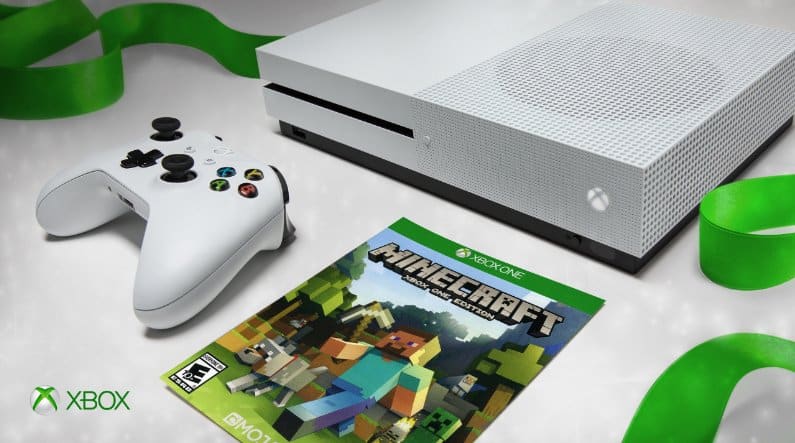
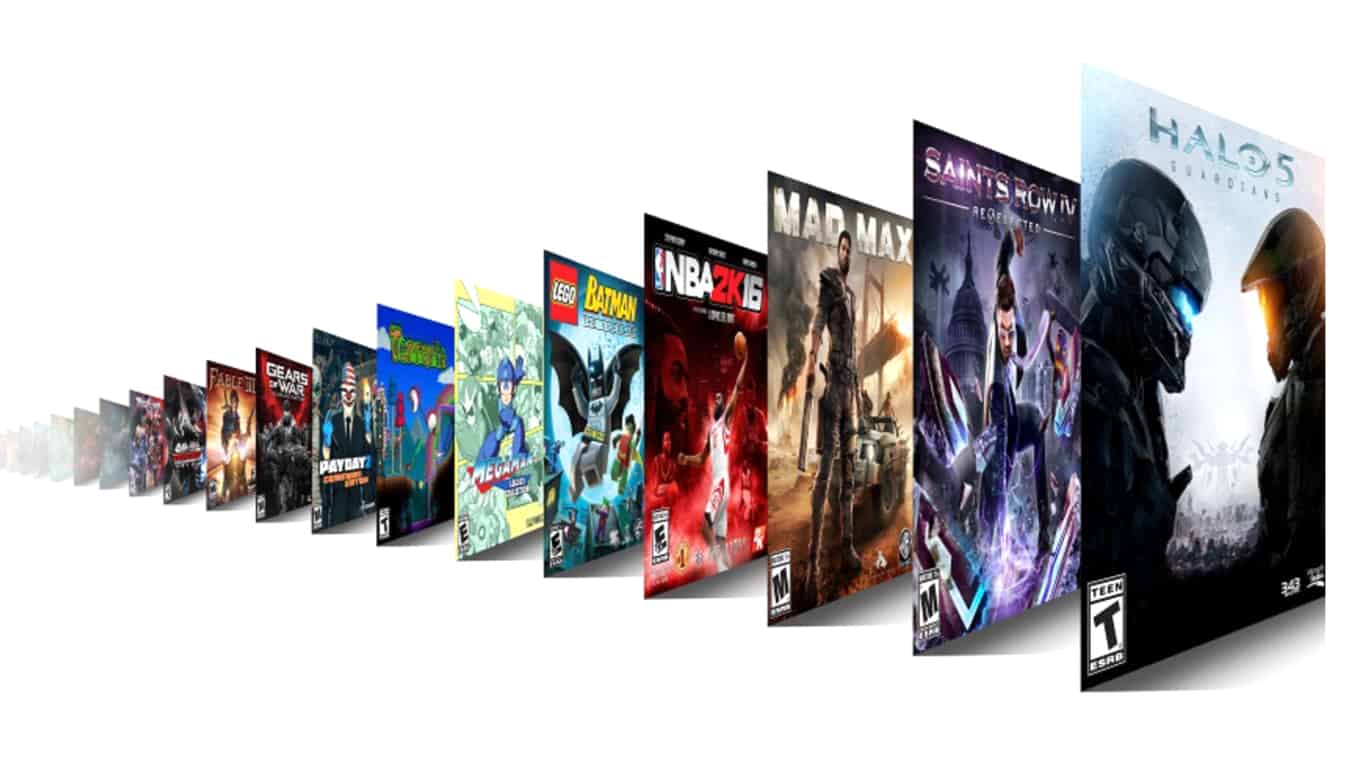
Xbox One S bundles include more free games, includes Mass Effect: Andromeda

Microsoft has been pushing the sale of Xbox One S bundles as of late. While some speculate that this eagerness to sell off stock of the most recent console to make way for Project Scorpio, that doesn’t stop us from reaping the benefits. Today, Major Nelson brought attention that more free games are being tossed into the $299 Xbox One S bundles to sweeten the deal (via Neowin.)

Perhaps the most interesting free game on the list, as Mr. Hryb notes, is  Mass Effect: Andromeda from BioWare that isn’t even released yet. During its early access this last week, the new piece of a long-loved franchise has been the topic of much internet controversy concerning its animations.

Nonetheless, this and plenty of other games can be nabbed from the list upon checkout. Here are a few more you might recognize:

  • Watch Dogs
  • Just Dance 2016
  • Just Dance: Disney Party 2
  • Hasbro Family Fun Pack
  • Assassins Creed Syndicate
  • The Crew
  • Tom Clancy’s Rainbow Six Siege
  • Tom Clancy’s The Division
  • Halo 5: Guardians
  • Mirror’s Edge Catalyst
  • Battlefield 1
  • Call of Duty: Infinite Warfare
  • Dead Rising 4
  • Deus Ex: Mankind Divided
  • Final Fantasy XV
  • For Honor
  • Forza Horizon 3
  • Gears of War 4
  • Halo Wars 2
  • ReCore
  • Lego Worlds
  • Watch Dogs 2

To choose your free games, add a preferred Xbox One S bundle to your Microsoft Store cart. From there, it will walk you through the process of selecting your titles.

As far as we can tell, there isn’t an end date for the promotion at this time so it is probably best to take advantage of it while you can. As we get closer to the Project Scorpio, expected by the end of the year, we’re sure to see only more ways for Microsoft to push off the Xbox One S. Games, however, will also play on the new console, so don’t expect a major standalone discount on them anytime soon.

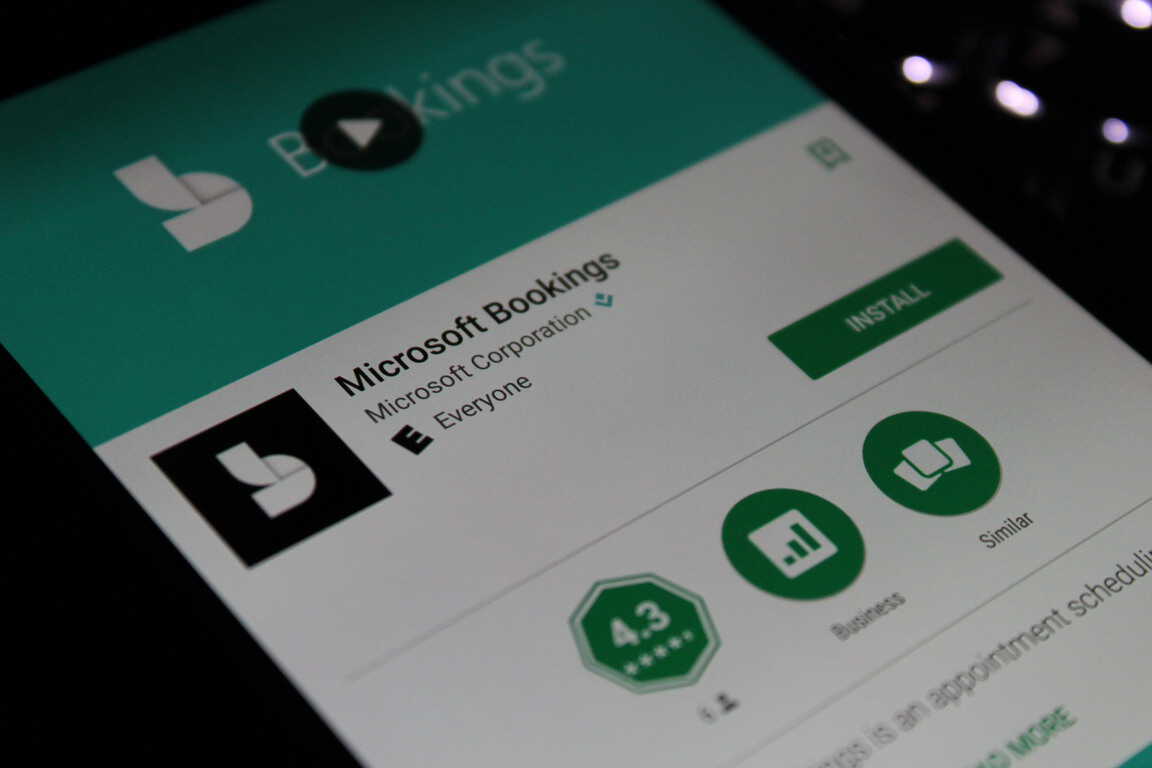
Microsoft Bookings begins global Office 365 Business Premium rollout

Eight months ago, Microsoft announced a new tool to join the Office 365 suite: Microsoft Bookings. Since then, customers in U.S. and Canada have already had access to it. Today, the appointment scheduling software is rolling out globally.

The online scheduler lets customers make appointments with your business/organization, not to mention the addition of a private calendar to manage personal affairs on the sideline. From reminders, re-scheduling, customer lists, and automatic calendar updates, your business can access all of your booking needs through the addition, hence the name. Customers that use the tool to make appointments don’t have to even have a business email to be routed through Office 365 to your calendar.

Here are some of the features rolling out worldwide:

  • Add your Office 365 calendar to Bookings—Connect your Office 365 calendar to Bookings, so that the times you are busy will automatically be blocked in your public Booking page.
  • Add buffer time before and after your appointments—Do you need prep time before or after an appointment? Adding buffer time to a service automatically blocks that time in your Booking page too.
  • Bookings apps for your iOS and Android phone—Now you can book an appointment, contact a customer or check a staff member’s appointments while away from the office.
  • Customize your Booking page—We added more color customization options, so you can better personalize your Booking page.

To use Microsoft Bookings in Office 365, you have to have a Business Premium subscription. It is also available to download via iOS and Android to keep up with new appointments. Check them out with the links below.

Microsoft Bookings
Microsoft Bookings
Price:
Free


‎Microsoft Bookings
‎Microsoft Bookings


New Xbox One Preview build brings performance improvements for Preview Alpha users

The Xbox team has been quite busy this past weekend, as it released new preview builds for Alpha, Beta and Ring 3 Xbox Insiders. Yesterday, another Xbox One preview build rolled out to the Preview Alpha Ring with additional performance improvements and fixes to localized content.

Please note that this new preview build has the same known issues as before, which will hopefully be fixed soon. You can find the full changelog below:

DETAILS

OS version released: rs2_release_xbox_1703.170317-1902
Available: 2:00PM PDT 3/19 (9:00PM GMT 19/3)

FIXES:

  • Localization: Miscellaneous fixes to localized text and content.
  • Misc Performance Fixes: Various performance fixes

KNOWN ISSUES:

  • Game Clips: After capturing a game clip, the game clip fails to automatically post to the Activity Feed (if your profile is configured to do so). Workaround: Manually view game clips in Profile > Captures > Manage captures and post to the Activity Feed.
  • EA Access: The EA Access app may indicate you are not an EA Access subscriber when you are. This does not affect your ability to download or play games from the Vault, or receive discounts on EA titles.
  • Settings – Ease of Access: When enabling the Mono output setting in Ease of Access – Audio, Settings becomes unresponsive, crashes, and fails to launch on subsequent attempts. Workaround: To launch Settings, perform a hard reset (hold down the button on the front of the console for five seconds until it fully powers down, then power it back on).
  • Settings – Display & sound: The Audio output page is under construction and some of the new settings are not yet functional. New support is planned for Dolby Atmos for home theater, Dolby Atmos for headphones, and more in upcoming builds. An announcement will be made when these new features are ready to try out; enabling these settings now will have no effect.
  • Wireless Display: The Wireless Display app fails to launch and immediately crashes to Home.

If you have been selected to receive this update, let us know in the comments if you notice some performance improvements after installing the new build.

NetCrunch Tools for Windows helps network administrators perform daily tasks

The NetCrunch network tools for Windows offer an all-in-one network administration solution with utilities including host ping, tracerouting, wake-on-LAN, DNS query functions, whois, and service scanning that help network administrators carry out their daily tasks.

NetCrunch comes with a set of basic IP tools, scanners, and subnet tools that you can use for network audit operations instead of using the command console. On top of those tools, the program also boasts a modern and intuitive interface that lets you gain access to all the functions with a single click. The tool integrates seamlessly with Windows 10.

NetCrunch Tools features

The Ping function allows you to check any available host or IP address and then estimates the time necessary to transmit a message to a PC in the network. The Traceroute tool, on the other hand, works to retrieve data related to packet transfer delays. You can also read view details about a domain or a DNS server using NetCrunch’s wake-on-LAN, DNS query and whois functions.

The tool also automatically verifies whether hosts in a certain IP range can be reached or not, courtesy of its built-in host scanner. You can search for opened ports in the input IP range as well and verify the status of some network services with the TCP port scanner and the service scanner. NetCrunch also includes a dedicated tool to audit SNMP nodes.

NetCrunch allows you to carry out reverse DNS lookup, identify errors in the DNS setting, and retrieve the MAC addresses for each host in an IP range. With that in mind, NetCrunch collects basic network audit and management tools in a single package, while offering a user-friendly GUI as an alternative to the command prompt.

Network administrators can, therefore, conduct simple tasks such as verifying whether a host is reachable or checking the status of network services and ports. The tool is available to download from Adrem Software.

RELATED STORIES YOU NEED TO CHECK OUT:

Mass Effect: Andromeda system requirements for PC

Mass Effect: Andromeda is a challenging game that takes players to the edge of space. Your mission is to explore distant galaxies and find a new home for mankind. This is not an easy task and you’ll confront many hostile alien forces that will put your will to survive to the test.

As a player, you’ll take control of either Scott or Sara Ryder from a third-person perspective. Once you’ve selected your character, you can start exploring the Andromeda galaxy by selecting various destinations.

As quests are completed, players earn “Andromeda Viability Points” that they can use for various upgrades. At the same time, planets increase their viability level, which means that explorers can build outposts there.

Completing the quests is not an easy task, as each planet has a boss that players need to defeat. However, if your character is not strong enough, you may not be able to defeat the boss on your first attempt and you may need to revisit the planet later.

If you’re planning to buy Mass Effect: Andromeda, don’t forget to check the system requirements. Make sure that your computer is capable of running the game in order to avoid technical issues.

Mass Effect: Andromeda minimum system requirements

  • CPU: Intel Core i5-3570 or AMD FX 6350
  • GPU: GeForce GTX 660
  • RAM: 8GB
  • OS: Windows 7, Windows 8.1 or Windows 10 (64-bit versions)
  • HDD: 55GB free space
  • DirectX: Version 11

Mass Effect: Andromeda recommended system requirements

  • CPU: Intel Core i7-4790 or AMD FX 8350
  • GPU: GeForce GTX 1060 3GB or GeForce GTX 970
  • RAM: 16GB
  • OS: Windows 7, Windows 8.1 or Windows 10 (64-bit versions)
  • HDD: 55GB free space
  • DirectX: Version 11

For more information about the game, you can watch the trailer below:

RELATED STORIES YOU NEED TO CHECK OUT:

Windows 10 news recap: Sling TV to come pre-loaded, updates on metered connections and more

Welcome back to our Windows 10 news recap. We are continuing the trend of our weekly “Windows 10 news recap” series where we go over the top stories of the past week in the world of Microsoft’s flagship operating system.

Sling TV partners with Microsoft to pre-load app on Windows 10, gives Xbox One app a facelift

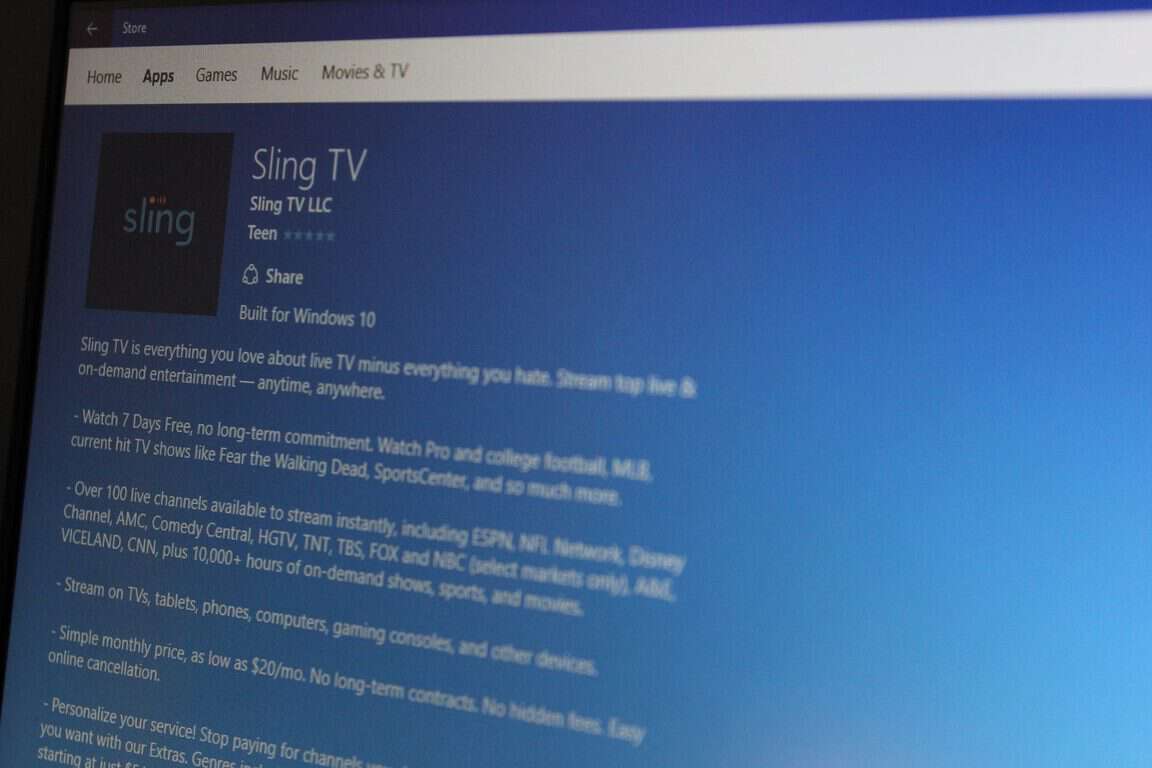
Windows 10 will begin to come pre-loaded with the Sling TV app, as Microsoft now partners with Sling TV.

SlingTV

Windows 10 Fitbit app finally bringing device notifications with Creators Update

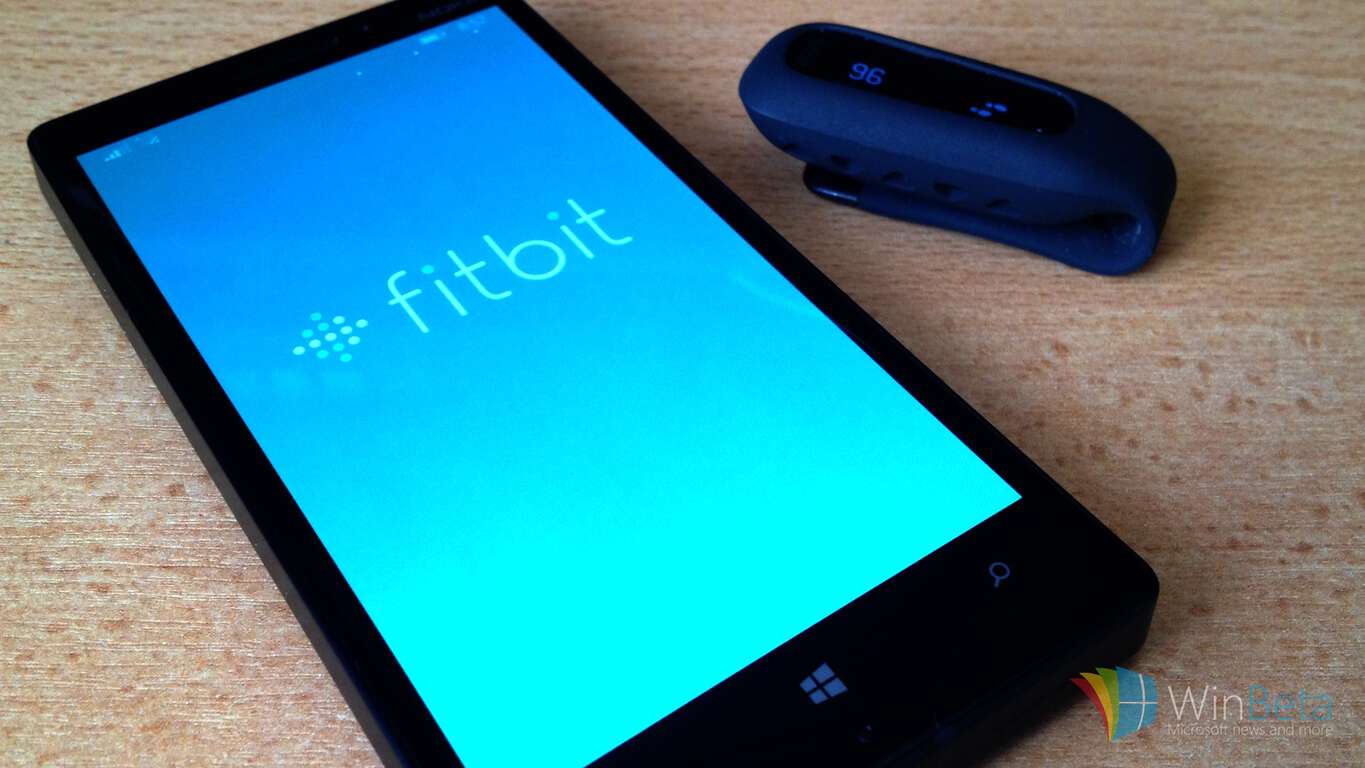
The Fitbit app for Windows 10 now supports device notifications, if you’re on the Creators Update. This is a feature that many have asked to have for some time.

fitbit

Windows 10 will soon update on metered connections despite user preference

As we know, mobile data connections and metered connections don’t come cheap. Soon though, Windows 10 will begin to update even on metered connections, regardless of what the user would like.

Microsoft lets Windows 10 users opt-in for advance Creators Update access

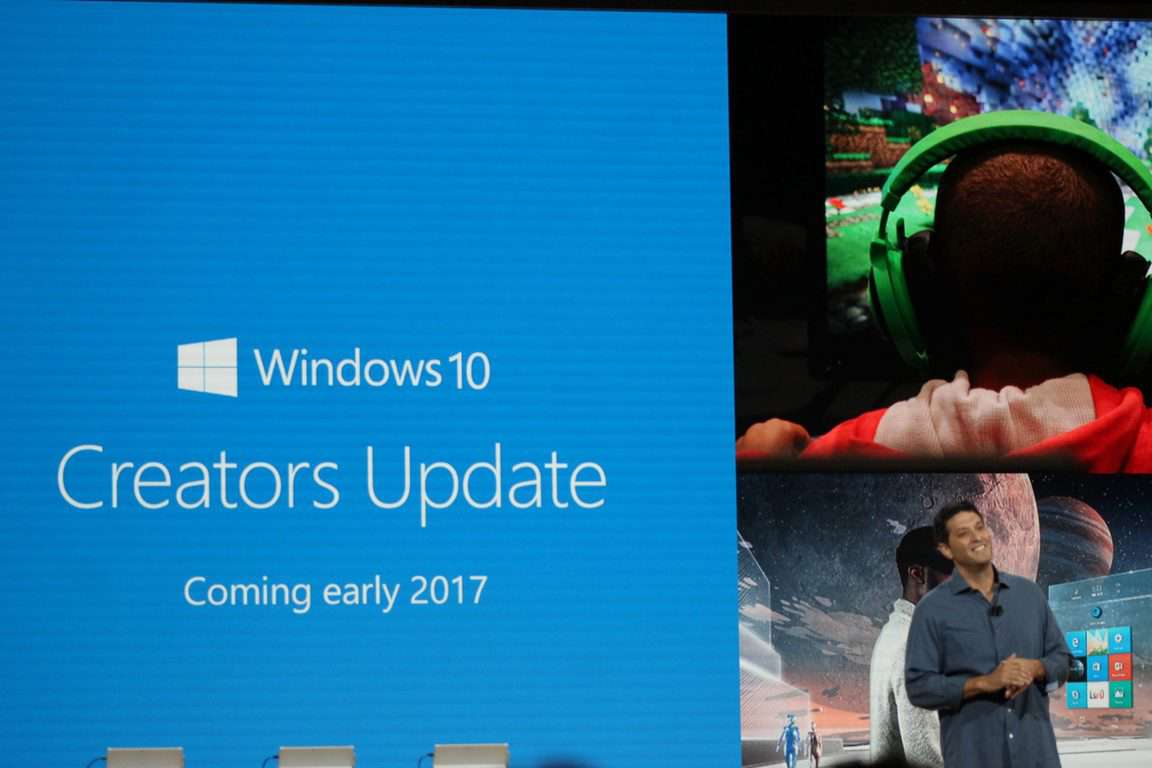
If you’re not on the Windows Insider program, it will still be possible to get the Windows 10 Creators Update a little earlier than others, as Microsoft is allowing users to opt-in to receive the update in advance.

Windows 10 Creators Update

That’s all the Windows 10 news for this week – we’ll be back next week with more!


Microsoft news recap: award for clean energy, Kellyanne Conway distrusts microwaves and more

Microsoft (MSFT) news recap is a weekly feature highlighting the top Microsoft news stories of the past week. Sit back, grab some coffee, and enjoy the read!

Microsoft employees poke fun at Kellyanne Conway’s “microwave cameras” comments

White House advisor Kellyanne Conway recently made a comment that microwaves can turn into cameras. In response, Microsoft employees took it lightly by placing a sign on a microwave in the office.

Microsoft’s commitment to clean energy is awarded as NA Wind Deal of the Year

Microsoft has been awarded “North American Wind Deal of the Year,” showing the company’s commitment to clean energy throughout its business.

Microsoft House Milan

Microsoft’s Project Torino helps visually impaired kids participate in coding classes

Microsoft has created a physical programming language that aims to help those who are visually impaired learn to code, known as Project Torino.

Microsoft details the top 10 grammar mistakes made in Word and Outlook

Grammar mistakes are made all the time, be it in writing, a Word document or an e-mail. Microsoft has detailed the top 10 grammar mistakes that are made in Word and Outlook.

  1. Leaving too many white spaces between words
  2. Missing a comma
  3. Missing a comma after an introductory phrase
  4. Missing a hyphen
  5. Incorrect subject-verb agreement
  6. Incorrect capitalization
  7. Mixing up possessive and plural forms
  8. Incorrect agreement with noun phrases
  9. Commonly confused words
  10. Incorrect verb form after auxiliary

That’s it for Microsoft news this week – we’ll be back next week with more!

The UC Browser for Windows 10 PC lands in the Windows Store

While the UC Browser may be far from the top browser, the program is increasingly gaining traction among mobile and desktop users. Now, the UC Browser is a step closer to dominating the mobile and desktop browser market after developer UCweb finally released the app’s Universal Windows Platform version to Windows Store.

UCweb announced several months ago that it would launch UC Browser on the Windows 10 PCs. The goal is to rival existing browsers that dominate the segment such as Google Chrome and Microsoft Edge. However, the browser won’t be available for mobile users. Also, it remains unclear when the developer plans to launch the mobile version of the app.

UC Browser features

UC Browser comes equipped with Cloud Sync, Voice Search, Tile-view Bookmarks, and Password Manager. Other features of the browser include:

  • Minimalist UI: Focus on the content.
  • Switch Between Tablet and Mouse/Keyboard Mode: If you are using a 2-in-1 computer like Surface Pro or Surface Book, it’s easy to switch the layout by turning on/off Tablet Mode. Find the most comforta
  • Mouse Gesture: Right-click and move to go back, forward, reload page, etc.
  • Smart Address Bar(Omnibar): Just type one letter to get most relevant suggestion. You can also use it to find matching bookmarks and browsing history, or enter any words to launch search engine.
  • Tile-view Bookmarks: Colorful and touch-friendly design for bookmarks.
  • InPrivate Window: Don’t want to leave browsing trace on the device? Go for InPrivate Window.
  • Cloud Sync: Sync bookmarks between mobile/other PCs by logging in to UC browser.
  • New Tab: Metro-style Magnet for popular sites.
  • Password Manager: Store your login info of all kinds of websites and lock them with a PIN. Easy to retrieve and edit.
  • Voice Search: Tap the microphone icon and say the words. We will take care of the rest.
  • Tab Stack: Smart tab-stacking to locate the active tab in a glance when there are many tabs open.
  • Floating Navigator: Use the sphere to quickly search, go forward and back, and view all the tabs.

You can now download UC Browser from the Windows Store.

RELATED STORIES YOU NEED TO CHECK OUT:

How to fix common Mass Effect: Andromeda bugs

Just like any new game, Mass Effect: Andromeda is also affected by a few technical issues. The good news is that BioWare has already published a very useful list of workarounds to help players fix the most frequently encountered Mass Effect: Andromeda bugs.

Fix: Mass Effect Andromeda common issues

1. Black screen on start-up/game only runs as a background process

This is a very common Mass Effect: Andromeda issue. To fix it, try uninstalling the Corsair Utility Engine. Launch the game again and see if the issue is still present. If this is the case, use the other workarounds listed in our dedicated article on how to fix black window issues in Mass Effect: Andromeda.

2. Ryder is stuck and won’t respond to commands

  1. Switch between Combat and Exploration mode
  2. Jump
  3. Open and close your scanner
  4. Save the game and restart it.

3. Ryder is stuck in the game and can’t get out

In this situation, simply fast travel to resolve the problem.

4. Low graphics quality

  • Alt-Tab away from the game several times
  • Turn HDR off and on again.

5. Multiplayer connection issues

  1. Restart your router to refresh your connection
  2. Make sure you’ve got an active Xbox Live Gold membership
  3. Check your Xbox One privacy or online safety settings to make sure they’re not blocking the connection. For more information, check out Microsoft’s support page.
  4. On PC, disable your proxy or disconnect from your VPN, especially if you get one of the following errors: 10044, 5800, 5801, 5802, 5803, 9001

These are the workarounds currently available for Mass Effect: Andromeda. We’ll update this article as soon as new fixes appear. If you’ve encountered any particular issues and you managed to fix them, feel free to list the troubleshooting steps in the comment section below.

RELATED STORIES YOU NEED TO CHECK OUT:

Posted in Fix

Preview Beta and Ring 3 Xbox Insiders receive update, brings new update screen and one fix

Following in the footsteps of the recent Preview Alpha build that was released to Xbox Insiders, the Xbox Insider team are also pushing new builds to those on the Preview Beta and Ring 3.

With this build comes 1 new feature: a new update screen. This screen will let you know when the Xbox console has been updated when you turn it on and offers a video showing what’s new.

Fixes

• Xbox App

Fixed an issue which would cause game streaming to stop when launching a new game.

Known issues

• Controller

Upon resuming from connected standby, you may be prompted to update your controller firmware when no update is available.

• Notifications

Some users may not receive certain types of notifications.

• Game Clips

After capturing a game clip, the game clip fails to automatically post to the Activity Feed (if your profile is configured to do so). Workaround: Manually view game clips in Profile > Captures > Manage captures and post to the Activity Feed.

• EA Access

The EA Access app may indicate you are not an EA Access subscriber when you are. This does not affect your ability to download or play games from the Vault, or receive discounts on EA titles.

• Settings – Ease of Access

When enabling the Mono output setting in Ease of Access – Audio, Settings becomes unresponsive, crashes, and fails to launch on subsequent attempts. Workaround: To launch Settings, perform a hard reset (hold down the button on the front of the console for five seconds until it fully powers down, then power it back on).

• Settings – Display & sound

The Audio output page is under construction and some of the new settings are not yet functional. New support is planned for Dolby Atmos for home theater, Dolby Atmos for headphones, and more in upcoming builds. An announcement will be made when these new features are ready to try out; enabling these settings now will have no effect.

• Wireless Display

The Wireless Display app fails to launch and immediately crashes to Home.

Let us know what you think of the new update screen in the comments below!

Xbox Insiders on the Alpha ring receive a new build with several fixes

The Xbox Insider team has released a new build for those who are on the Alpha ring. With this build, there’s quite a few fixes (mostly localised fixes) with a large reduction in known issues from the previous builds we’ve seen, showing that we’re getting close to RTM.

Fixes

• Game DVR

Fixed an issue which would cause two notifications to pop (instead of one) when uploading a Game DVR clip or screenshot.

• Localization

Miscellaneous fixes to localized text and content.

• Audio

• Fixed an issue which would sometimes cause audio to stop playing after plugging in a headset.

• Fixed an issue with Dolby Atmos for headphones that would cause audio to stop playing if headphones were plugged in or unplugged while using the Blu-Ray Player app.

• Resolved an issue with Dolby Atmos for headphones where apps would play no audio.

• Blu-Ray Player

Fixed an issue where the Blu-Ray Player app would incorrectly indicate an audio format is not supported, and fail to continue without closing and relaunching the app.

• Games & Apps

Resolved an issue which could sometimes cause newly installed apps to fail to launch, if launched while another app is in use.

• Beam

Pressing X while the virtual keyboard is open should no longer quit the stream.

Known issues

• Game Clips

After capturing a game clip, the game clip fails to automatically post to the Activity Feed (if your profile is configured to do so). Workaround: Manually view game clips in Profile > Captures > Manage captures and post to the Activity Feed.

• EA Access

The EA Access app may indicate you are not an EA Access subscriber when you are. This does not affect your ability to download or play games from the Vault, or receive discounts on EA titles.

• Settings – Ease of Access

When enabling the Mono output setting in Ease of Access – Audio, Settings becomes unresponsive, crashes, and fails to launch on subsequent attempts. Workaround: To launch Settings, perform a hard reset (hold down the button on the front of the console for five seconds until it fully powers down, then power it back on).

• Settings – Display & sound

The Audio output page is under construction and some of the new settings are not yet functional. New support is planned for Dolby Atmos for home theater, Dolby Atmos for headphones, and more in upcoming builds. An announcement will be made when these new features are ready to try out; enabling these settings now will have no effect.

• Wireless Display

The Wireless Display app fails to launch and immediately crashes to Home.

This build will hopefully deliver a smoother experience to Alpha Insiders – and let’s see how quickly those remaining issues will get resolved.

Let us know how your experience with this build is in the comments below!

Seven of the best first-person shooter games for PC

The first-person shooter is one of the biggest Windows and console game genres. Nothing beats the thrill of blasting away hordes of terrorists, soldiers, aliens, zombies or whatever the games throw at you. The best first-person shooters have fantastic 3D graphics, barrel loads of devastating guns, gripping single-player campaigns, pulsating soundtracks and enthralling multiplayer modes where players the world over blast their way to glory in one-on-one or team duels.

These are some of the best ever first-person shooters for Windows.

Half-Life

Half-Life isn’t just one of the greatest first-person shooters: it’s one of the best games ever. Launched in the late ’90s at a time when players were getting a little tired of Doom clones with weak plots, Half-Life revamped the first-person shooter genre. This was the game that propelled Valve in the gaming industry, and the publisher further expanded Half-Life with the Opposing Force, Blue Shift and Decay expansion packs.

Half-Life is a game with an absorbing plot, realistic gameplay, strong narrative and absolutely no cutscenes with the story unfolding through scripted sequences. The game, and the rest of its series, stars scientist Gordon Freeman who sets out to flee the Black Mesa compound in New Mexico after sparking an alien invasion from planet Xen. Aside from blasting away aliens, Freeman also has to deal with U.S. Marines deployed to mop up the outbreak. Half-Life was a tour de force of game design and scooped more than 50 Game of the Year awards.

You can buy Half-Life for $9.99 from Steam. If you’re planning to buy some of the game’s expansion packs, check out GamesDeal’s offer. The platforms offers interesting discounts for Half-Life’s packs.


Half-Life 2

This was the much-anticipated sequel to Half-Life that went through a $40 million development phase before Valve launched it. Valve didn’t rush through a half-baked sequel and delivered a game that was bigger and better than the original with larger environments, enemies and an even more absorbing plot. For many, Half-Life 2 is the best game ever. It was also the first title for Valve’s Steam client. You can add it to Windows from this Steam page.

In Half-Life 2, Freeman takes on the alien Combine that has taken over Earth 20 years after the resonance cascade at Black Mesa. The game is most notable for its advanced Havok physics engine that enables players to draw in objects and push them away with the Gravity Gun. It had advanced graphics, which although not quite photo-realistic still look pretty real. Half-Life 2 also had highly detailed environment designs that are especially memorable. Although the game is a tad dated, its graphical and audio quality still shine. It’s a pity that there’s still no Half-Life 3, and some Valve insiders have hinted the publisher has no plans to expand the series.


Call of Duty 2

Call of Duty is probably the biggest first-person shooter series on Windows and consoles and consists of 13 games. Call of Duty 2 was the second addition to the franchise and this was the blockbuster that really launched the series into the stratosphere. The game regenerates some of World War 2’s most epic battlefields in Russia, France and North Africa with realistic graphics and unsurpassed attention to detail. The game is compatible with Windows and macOS platforms and there’s also a phone version.

Call of Duty: 2 has some of the most gripping campaigns in any COD game because of how it tells the story of WW2 from the perspective of the soldiers. The game featured more expansive battlefields with a variety of mission objectives for less linear gameplay. At its time of launch, Call of Duty: 2 had a revolutionary game engine that enabled the developers to incorporate fantastic weather and graphical smoke effects into the game with dynamic lighting and shadows. The NPC squads that support you throughout the campaigns with realistic battle chatter also contributed to bringing the game to life. With various multiplayer modes to shoot through including tons of guns and maps, COD2 pretty much has all you could hope for from a first-person shooter game.

You can buy Call of Duty 2 for $19.99 from Steam.


Overwatch

Overwatch is a relatively new first-person shooter that made a big splash in 2016. This is a team-based multiplayer shooter set in the near future with a diverse range of hero characters. This is only Blizzard’s second attempt at launching a big game franchise, and the publisher certainly delivered an innovative shooter in Overwatch. The game is available for Windows, PlayStation 4 and Xbox One and retails at $59.99.

Overwatch features 6 vs 6 team duels with 24 heroes to select from that have different roles for offense, defense, support and tank. Players battle it out across 14 unique, colorful and luxuriantly detailed maps that have their own supported game modes for escort, assault, control and hybrid assault/escort combination. The game places greater emphasis on teamwork and has more strategic depth than most first-person shooters. Although Overwatch might have been a little light on features at launch, as a new game it will certainly get bigger and better with further free updates that add more maps, game modes, etc.

You can buy Overwatch for $39.43 from GamesDeal.


Call of Duty 4: Modern Warfare

Call of Duty 4: Modern Warfare dragged the COD franchise from its WW2 setting to modern times and for many fans remains the best game in the series. A 2011 Civil War setting for the COD 4 campaign gave the series a fresh new look and feel with a plethora of more advanced modern-day guns and accessories for players. With its modern setting, the game could also incorporate attack choppers, tactical helicopters, and aerial gunships into the gameplay for the first time, which made it a little more special.

Call of Duty 4’s epic campaign is undoubtedly one of the best in any first-person shooter. The campaign is based on a fictional 2011 Civil War in Russia in which players control both a U.S. Marine and SAS recruit for various operations. The campaign had plenty of thrills and spills on memorable missions such as All Ghillied Up and Charlie Don’t Surf.

Call of Duty 4 also has cinematic sound and graphics with some dazzling special effects. The remastered Call of Duty 4: Modern Warfare, launched last year, has even better graphical quality with enhanced rendering and high-dynamic range lighting and textures. The remastered version’s gameplay is almost exactly the same as the original title, so now you can play Call of Duty 4 with a state-of-the-art graphics engine. The snapshot below highlights just how photo realistic the remastered game is.

You can buy Call of Duty 4: Modern Warfare for $19.18 from GamesDeal.


Team Fortress 2

Team Fortress 2 is a team-based multiplayer first-person shooter that’s a sequel to a Quake mod. After Half-Life, this is another of Valve’s best game titles and delivers terrific multiplayer gaming. Team Fortress 2 is also freely available and you can it add to Windows, Linux or macOS by pressing the Play Game button on this Steam page.

In Team Fortress 2, players can select nine character classes that fall into defense, support and offensive roles. The game includes plenty of game modes for multiplayer battles, such as Capture the Flag, Special Delivery, King of the Hill, Payload, Arena, Control Point, Payload Race and more. This game also has cartoon-style graphics with unique animations and plenty of comical moments. One of the best things about Team Fortress 2 is that it gets regular free updates and patches that keep it fresh. The game has had 609 updates to date that have expanded its content, so TF2 has evolved considerably since Valve first launched it.


Titanfall 2

Titanfall is a very decent multiplayer first-person shooter romp, but it lacks a single-player campaign. Titanfall 2 is a sequel that refines the original game’s winning formula and expands it with a diverse campaign. This was one of the most exciting games of 2016 that you can play on Windows, PlayStation 4 and Xbox One. Standard and Deluxe editions are currently retailing on Origin from £19.99 ($24.30).

Titanfall 2 is a first-person shooter that includes Titans, which are huge mecha-style exoskeletons deployed for war. Players get to control Titan pilot Jack Cooper with and without his BT-7274 Titan armory through the single-player campaign, which is based on a war between the Interstellar Manufacturing Corporation and Frontier Militia. The campaign has plenty of highlights with time travel, space dinosaurs and planet-destroying weapons thrown into the mix for a diverse single-player game. The sequel retains all the terrific movement and combat mechanics from the first game and its multiplayer also includes new Titans, maps and playing modes.

You can buy Titanfall 2 for $26.64 from GamesDeal.


For some heart pumping, action packed first-person blasting, Call of Duty 2 & 4, Half-Life 1 & 2, Titanfall 2, Team Fortress 2 and Overwatch are hard to beat. These are Windows games that raised the bar for first-person shooters with their innovate campaigns, enthralling multiplayer modes, frenetic gameplay and amazing graphics.

RELATED STORIES YOU NEED TO CHECK OUT:

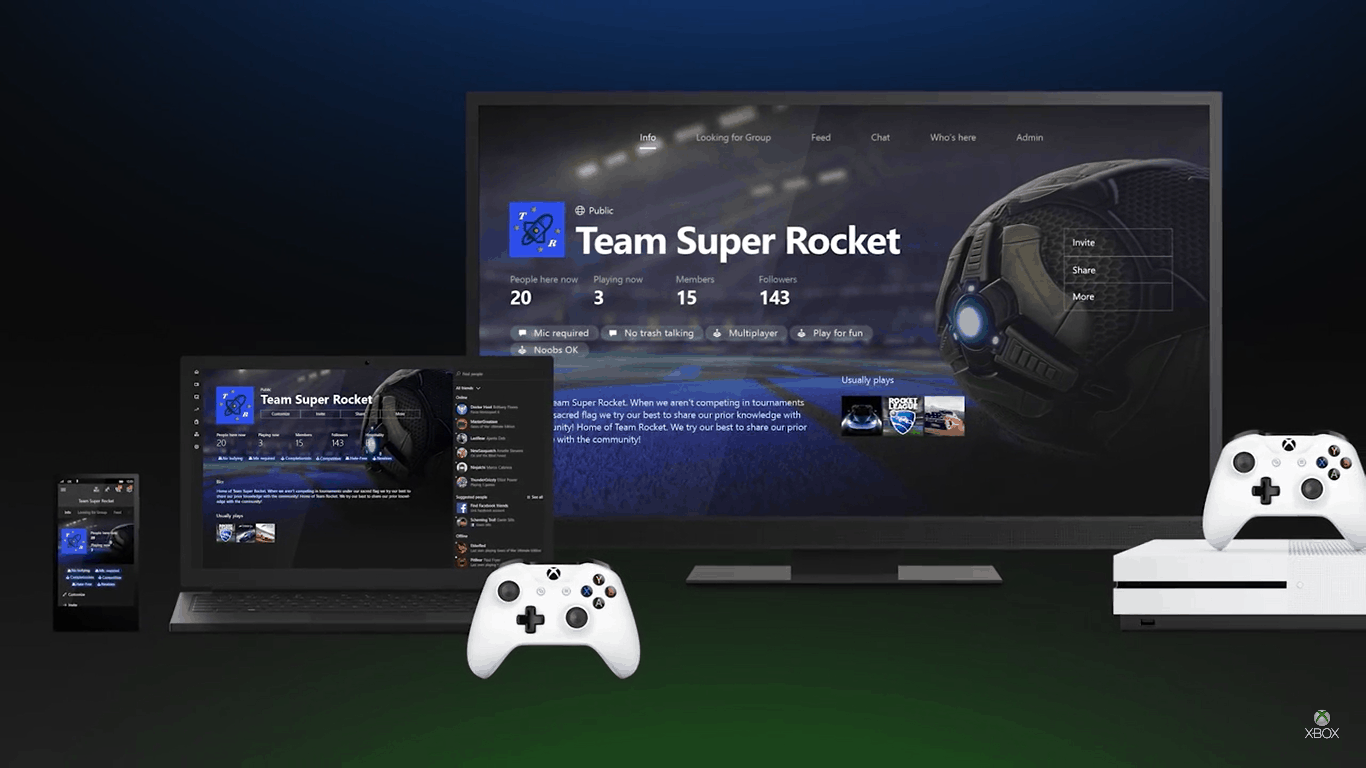
Game developers may be able to add in-game social features with Xbox Clubs API

Microsoft appears to be continuing to enrich its social gaming features through Xbox Live, as leaked developer documentation has shown that Microsoft is working on offering an Xbox Clubs API (Application Programming Interface) to game developers (via Windows Central).

This feature would allow game developers to integrate with Xbox Live to offer deeper social features while in-game, reducing or possibly removing the need to use the Guide and other areas of the Xbox operating system to perform social actions.

Specific details of what developers will have access to via this new API is not available, however, it could prove beneficial to multiplayer and social games, such as allowing Clubs to integrate with in-game clans.

This new feature is expected to arrive in April.

The best context menu tuner software to download

Context menu allows you to perform certain actions quickly and with ease. Using the context menu you can add files to archive, scan them for viruses, burn them to a DVD and much more. The more applications you have on your PC, the more actions will be available in the context menu. However, your context menu can become cluttered with actions that you barely use.

If you want to organize your context menu and remove actions that you don’t use, you might want to use context menu tuner. There are many great context menu tuners available, and today we’re going to show you the best context menu tuner software for Windows 10.

What is the best context menu tuner to download for Windows 10?

Context Menu Tuner

This is a lightweight and simple application that will allow you to customize your context menu. The application is free to use, and since it’s portable, it doesn’t require installation in order to run. According to the developer, the application allows you to add any Ribbon command to the context menu. You can even add Ribbon commands that aren’t available in the Ribbon menu by default.

The application also supports the ability to add custom commands to the context menu. In fact, you can even change title, icon and command line parameters for every new command. You can also add special commands for specific file types, which is rather useful. The application allows you to choose the position of the new command, and you can add it on the top or the bottom of the menu. In addition, you can add a separator in order to separate your custom commands from the default ones.

In fact, you can even make new context menu commands visible only if you press the Shift key on the keyboard. The application has a simple interface, so you won’t have any issues adjusting to it. Simply select the file type that you want to associate with a specific command and click the Add button. You can just as easily remove the added commands.

Context Menu Tuner is a simple application, and it will allow you to add custom actions to your context menu. The application is free and portable, so there’s no reason not to try it. We have to mention that you can’t use this application to change your default context menu, which is our only complaint.
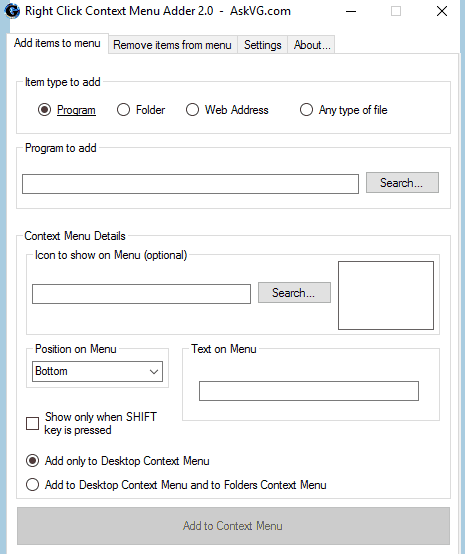
Right Click Context Menu Adder

Another free and portable context menu tuner is Right Click Context Menu Adder. The application has a simple interface, but it’s not as simple to use as our previous entry. First you need to choose what type of file you wish to add. You can choose between applications, folders and web addresses. After doing that, you need to select the desired file or application. If you want, you can also add an icon for your custom action.

In addition, you can choose between three positions while adding your new action, and you can also assign text to it. You can add the new action only to Desktop context menu or you can add it to context menu for both folders and Desktop. If you want, you can only show your custom action by holding the Shift key on the keyboard. Of course, all custom actions can be removed easily from the appropriate tab.

Right Click Context Menu Adder offers great features, but it doesn’t allow you to quickly add common actions to the context menu. This makes the customization of context menu a bit harder since you have to manually find the desired application on your PC. This is still a great application for context menu customization, but it might take you a bit until you adjust to it.
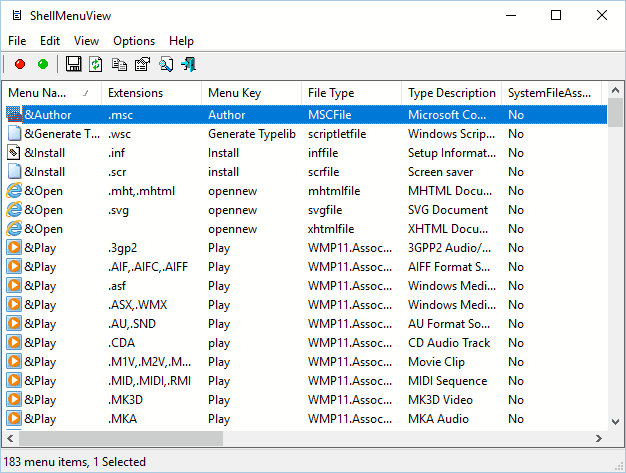
ShellMenuView and ShellExView

If you’re looking for a lightweight but powerful application to customize your context menu, you might be interested in ShellMenuView or ShellExView. ShellMenuView can show you the list of static menu items that appear in the context menu. Using this tool you can simply disable any action from appearing in the context menu.

Context menu also has some actions related to third-party applications. If you want to remove those actions from the context menu, you’ll need to use ShellExVew tool. The tool has a simple interface, and you can disable actions from context menus with ease.

We have to mention that both these applications are portable and free to use. As a result, you can use them on any PC without installation. In addition, the applications are compatible with older versions of Windows, and according to the developer, they can even work on Windows 98.

We have to mention that these tools are made for advanced users. In addition, the applications only allow you to disable actions, so you won’t be able to add any new actions to the context menu. If you’re an advanced user and you want to disable certain actions from appearing in your context menu, be sure to try these applications out.
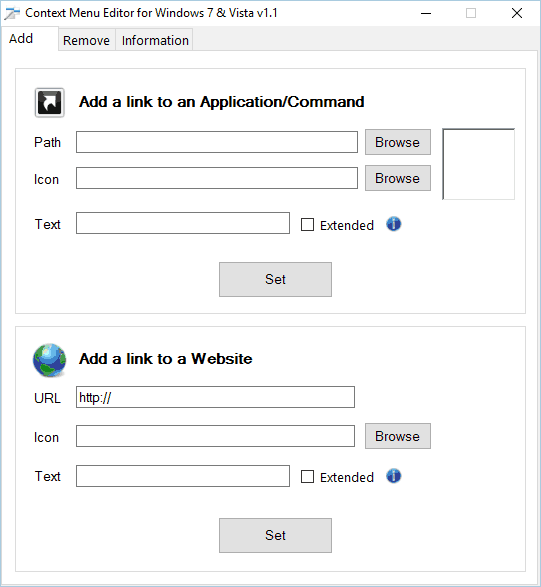
Context Menu Editor

This is another free and portable context menu tuner. Context Menu Editor allows you to easily add any application or web page to the context menu. The application is simple to use, and you just need to select the application or website that you want to add and choose its icon and text. If you want, you can choose to show custom actions only if you hold the Shift key while opening the context menu.

The application allows you to see and remove all added actions with a single click. In addition, you can also see the basic information regarding your PC right from this application. Context Menu Editor is a simple and lightweight application, and you can use it to add all sorts of applications or websites to your context menu. The application requires administrative privileges in order to work, so be sure to run it as an administrator.

Right-Click Extender

If you’re looking for a simple context menu tuner, you might want to check Right-Click Extender. The application has a simple interface, and it allows you to add actions to context menu with ease. Simply select one of the four categories on the top, and check the actions that you want to add to context menu.

Regarding the available actions, you can take ownership over a folder, hide it, open certain applications or even restart or turn off your PC. The application offers more than 30 actions to choose from, which should be more than enough for most users.

In addition, the application allows you to add icons for actions. You can also make your custom actions available only while holding the Shift key. Right-Click Extender is simple to use, but we have to notice that it doesn’t allow you to add custom applications to the context menu. Overall, if you want a simple tool to customize your context menu, Right-Click Extender might be just what you need.

Easy Context Menu

Another freeware context menu tuner that you can try is Easy Context Menu. The application has a simple interface with five lists that allow you to choose actions that you want to add. To add an action, simply select it and it will be added to the context menu.

Regarding the available actions, you can open all sorts of system tools, turn off or lock your PC, open Command Prompt or permanently delete or block access to certain folders or files. The application has more than 30 actions available. In addition, you can add your own custom applications and create new lists by using the List Editor feature. The application also has ContextMenu Cleaner that allows you to disable certain entries from the context menu.

Easy Context Menu is simple to use, and thanks to its user-friendly interface, it will be perfect for first time users. The application also offers some degree of customization with the ability to add third-party applications to the context menu. In addition to being free, the application is also portable, and it can run on any PC without installation.
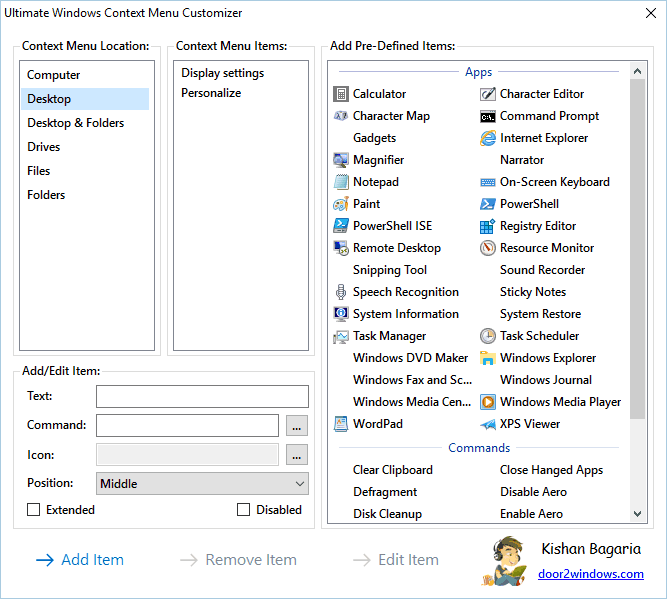
Ultimate Windows Context Menu Customizer

If you want to customize your context menu, you can do that with this simple application. Adding actions to context menu is simple, and first you need to select context menu location. After doing that, you can see the available items in the context menu. To add an action, simply select one from the menu on the right.

You can add various system applications such as Notepad, Registry Editor, System Restore, etc. In addition, you can also add various commands. The list of commands includes sleep, lock, shut down, hibernate, take ownership and many other commands. In addition, you can also add custom applications and commands using this tool. You can customize each custom entry with unique text or icon. If needed, you can make your own actions available only if you hold the Shift key.

Ultimate Windows Context Menu Customizer is a solid context menu tuner. The application is simple to use, and since it’s completely free and portable, there’s no reason not to try it.
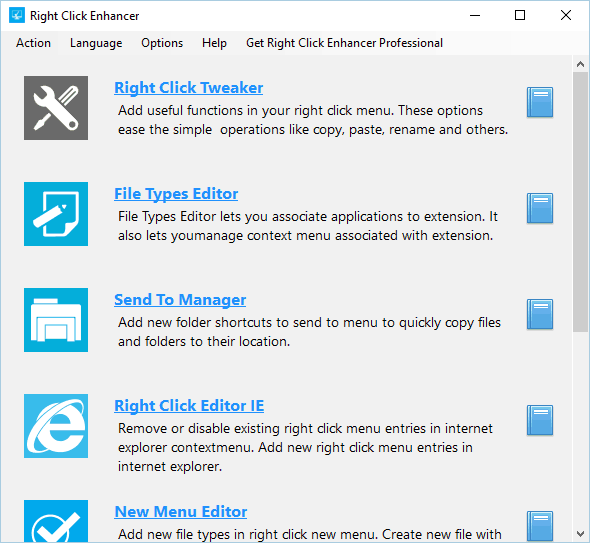
Right Click Enhancer

Modifying your context menu isn’t hard if you have the appropriate context menu tuner. Right Click Enhancer allows you to add popular actions to your context menu with ease. Some of available actions are take ownership, encrypt, open Command Prompt, etc. There are about 20 different actions that you can add to your context menu. The application also has File Types Editor that allows you to associate applications with certain extensions.

Right Click Enhancer also has an ability to change Send to menu, thus allowing you to add new folders or applications to it. Using this tool you can also add new options to the New submenu. This is especially useful if you want to create a specific type of file right from the context menu.

This tool also allows you to export your settings to a registry file so you can apply them on any PC. We have to mention that there’s also a Professional version available. The Professional version has the ability to create submenus and it also allows you to disable or remove entries from context menu.

Right Click Enhancer is a great context menu tuner, and you can download it for free. We also have to mention that there’s a portable version available, so you can run this application on any PC without installation.
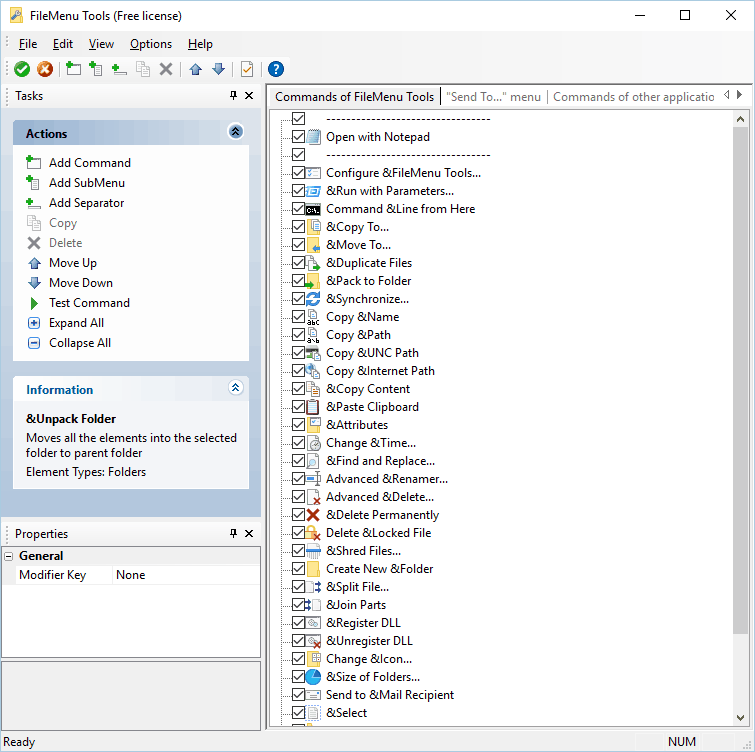
FileMenu Tools

Another solid context menu tuner is FileMenu Tools. The application comes with the list of actions that you can add to the context menu. Available commands allow you to open Command Prompt, delete or shred files, duplicate and move files, etc. There are about 30 different commands available, and you can also add your own commands from the menu on the left. In addition to new commands, you can also add submenus and separators. By doing so, you can easily organize your context menu.

It’s worth mentioning that the application also allows you to test your commands before adding them to the context menu. Using FileMenu Tools you can also edit Send To menu. You can remove entries from the menu or add new folders and applications to it. Lastly, you can disable or enable commands of other applications using this tool.

FileMenu Tools offers solid features, so it’s a great tool for every user that wants to customize context menus. The application is free, but there’s also a premium version available. The premium version allows you to use custom commands, and it also supports unlimited number of files and folders. In comparison, the free version only lets you use context menu commands with up to 20 files or folders. Despite these limitations, FileMenu Tools is still a great tool, and you can download it for free. There’s also a portable version available, which means that you can use this application on any PC without installation.
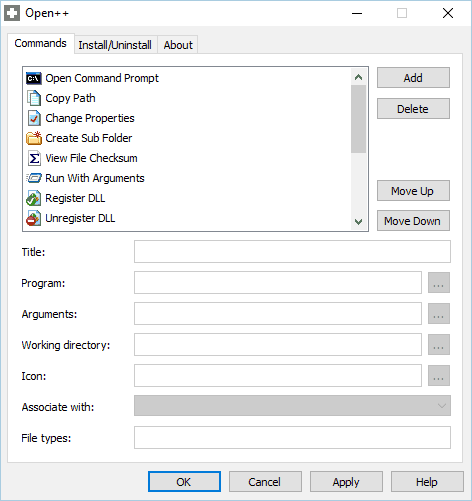
Open++

Open++ is another free context menu tuner. Using the application you can add new commands to the context menu. Open++ doesn’t allow you to add actions and applications quickly, so you’ll have to add them manually.

We have to admit that adding applications and commands to the context menu isn’t the simplest task. As a result, some users might struggle while adding new entries to the context menu. Regarding new commands, you can set title, arguments, icon and file types for each new command. If needed, you can also add separators.

All your commands are located in Open++ submenu so they won’t clutter your context menu. If needed, you can enable or disable Open++ submenu at any time right from the application. Open++ is a simple application, but we have to admit that adding new commands can be a bit tricky, especially for new users. If you’re an advanced user and you’re looking for a tool to customize your context menu, you might want to check Open++. We have to mention that the application is completely free and portable, so it should work on any PC.

QwikTulz

Another simple context menu tuner that you might want to check out is QwikTulz. The application offers several actions to choose from. To enable a certain action, you just need to select it from the list. Using these actions you can instantly open Command Prompt or File Explorer, create a new folder or open a file in Notepad or any other text editor. In addition, you can also view MD5 Hash, convert files to ISO, or copy the path to clipboard.

In addition, you can also convert certain files or use command line options with those files. The application has a simple interface, and even the basic users should be able to use it. Unfortunately, the application doesn’t allow you to add custom actions or applications.

QwikTulz is a simple application, and it will be perfect for basic users due to its simplicity. The application is free to use, so if you want to enhance your context menu with new features, you might want to try this application.

CCleaner

One of the best tools to remove unnecessary files is probably CCleaner. The application allows you to remove browsing history, temporary files, junk files, etc. In addition to removing files, CCleaner has several hidden features. For example, you can use CCleaner as a startup manager, but you can also use it to remove certain context menu items. CCleaner will show you all context menu entries along with the application names and their installation directories. You can easily disable certain entries from the list, or you can permanently delete them.

Before deleting any entries, we have to mention that CCleaner doesn’t allow you to add new entries. Therefore, we strongly advise that you use the disable option instead of delete option. It’s worth mentioning that you’ll see changes in real time, so there’s no need to save your configuration in order to apply changes.

CCleaner is a great tool for removing old files, and the option to customize context menu is a welcome addition. This feature offers basic options, and since it’s simple to use, even the most basic users won’t have any issues with it. CCleaner is available for free, and you can even download the portable version.

MenuMaid

Another free context menu tuner is MenuMaid. This application allows you to organize your Internet Explorer and File Explorer context menu. We have to mention that MenuMaid doesn’t allow you to add new actions to the context menu, and that’s its only flaw. On the other hand, the application allows you to disable certain elements from the context menu.

All entries are sorted into groups, and you can easily disable certain entries only for folders or files. Disabling an entry is simple, and you just need to uncheck the checkbox next to it. MenuMaid will show you the name of the application, but it won’t show the title of the entry or any other information.

The application will apply changes in real time which makes the customization process a lot simpler. MenuMaid is a simple and free application, so it will be perfect for first-time users.
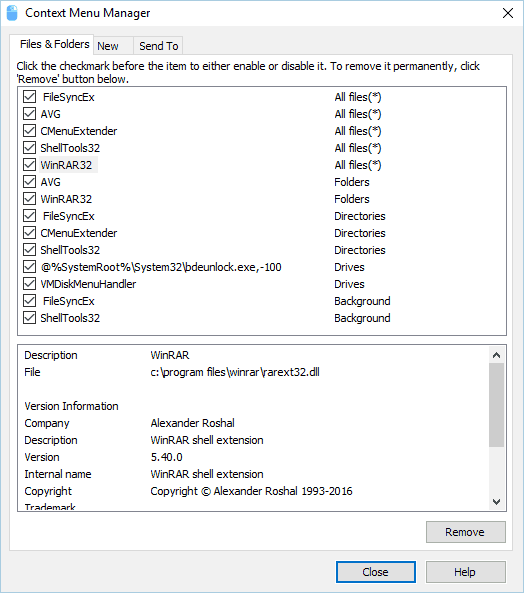
Glary Utilities

Another tool that can help you edit your context menu is Glary Utilities. This is a bundle of useful tools that can optimize your PC and fix all sorts of problems. The tool will automatically fix some minor PC problems and scan your PC for issues. However, if you’re an advanced user, you probably want to explore Advanced Tools section. The application allows you to defrag your hard drive and to organize your startup items. In addition, there’s support for file encryption, restoration and file shredding. This application can also analyze your hard drive or split large files. The application also works as a cleaner, and it can clean your disk and uninstall certain applications. Glary Utilities also has a useful ability that allows you to edit your context menu.

We have to mention that Glary Utilities doesn’t allow you to add new items to the context menu, which is its biggest flaw. All context menu entries created by third-party applications will be listed, and you can disable them with a single click. The application will apply changes in real-time, so you won’t have to save changes manually. You can also completely remove entries from the context menu, but since there’s no way to add new entries, we suggest that you don’t use this feature.

It’s worth mentioning that you can also disable entries from New and Send To submenus. However, there’s no way to add new entries to these menus. Glary Utilities offers some useful features that can optimize your PC and fix certain problems. Context menu editing feature is useful, but unfortunately it doesn’t offer the ability to add new entries, which is our only complaint. Glary Utilities is completely free for personal use, and there’s even a portable version available, so you might want to try it out.

Fast Explorer

Fast Explorer is a freeware context menu tuner for your PC. The application allows you to add new entries to your context menu with ease. To add an application to the context menu, simply select it and configure its parameters. The application also allows you to create submenu items. This includes separators and submenus. In addition, you can also add icons to your entries. If needed, you can even change the color of the submenu.

Fast Explorer also has Static Items Cleanup feature. This feature allows you to disable context menu items for certain file types. This is an advanced option, and although it’s useful, it might be a bit daunting to new users. There’s also a Shell Extensions Cleanup feature that can help you remove certain context menu items.

Fast Explorer is a powerful tool, but it might not be suitable for novice users. The application is completely free, and since it’s portable, it will work on any PC without installation.

ContextEdit

Another context menu tuner that you might want to try is ContextEdit. The application has a humble user interface, but it will allow you to remove context menu items. In addition, you can also add context menu items and commands using this tool.

The application is split into two panes, and you use the left pane to select the desired file type. As for the right pane, you can use it to disable context menu items or to add new ones. We have to mention that ContextEdit doesn’t have the list of actions or commands available. This means that you have to add each new command manually, which might not be easy for first-time users.

ContextEdit is a solid application, but with its plain user interface and complexity it might not be the best choice for novice users. The application is completely free to use, so you can download and use it without any restrictions.
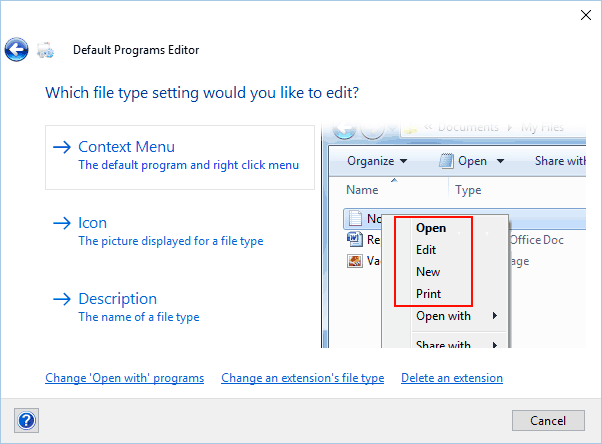
Default Programs Editor

This is another free and portable application that allows you to customize your context menu. Default Programs Editor allows you to change Autoplay settings as well as Default Programs. Using this application you can easily add new Autoplay options for different media types. In addition, you can associate extensions with desired applications.

These are useful features, but Default Programs Editor also allows you to edit your context menu. Unlike other applications on our list, Default Programs Editor allows you to edit context menu only for specific file types. If you want, you can edit or delete your default context menu commands for a specific file type. Adding new commands for specific file types is relatively simple. Just select the desired application and choose a command name and icon.

After making the changes, you can save them to the registry or as a .reg file. Default Programs Editor is a solid application that allows you to change default applications and Autoplay settings. Regarding the context menu, you can only change how context menu looks for specific file types. If you’re looking for more advanced context menu editing, you might want to consider some other application from our list.
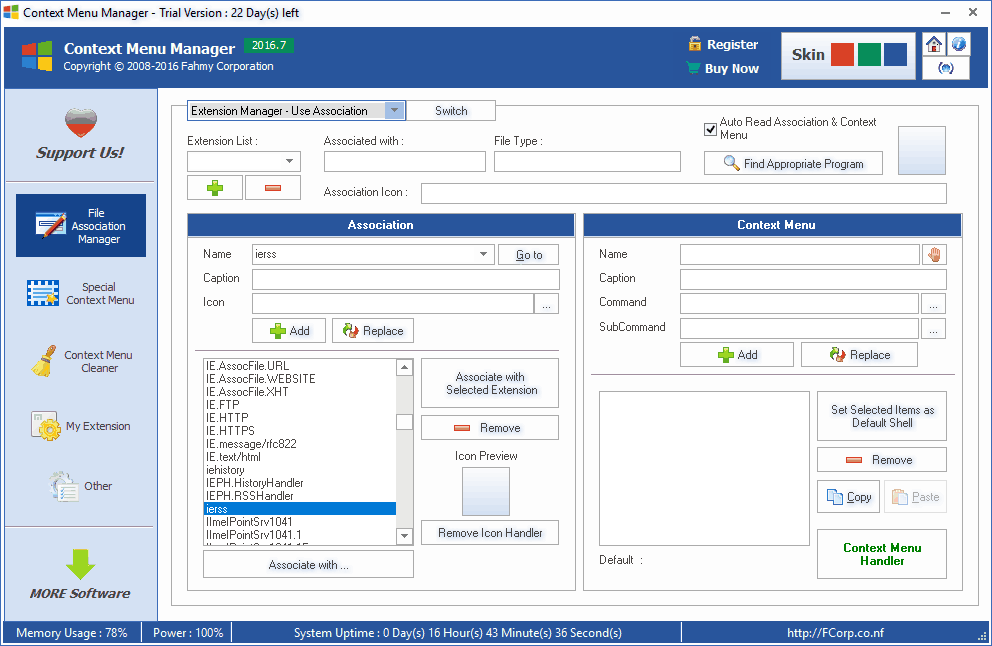
Context Menu Manager

If you’re an advanced user, and you’re looking for a powerful context menu tuner, you might want to check out this application. The application allows you to manage file associations, but you can also add additional menus or remove submenus. Using this tool you can also modify Open with submenu. This makes it easier for you to open files with specific applications.

We also have to mention that Context Menu Manager allows you to remove unused items from your context menu. We have to admit that user interface is hard to get used to, especially if you’re a first-time user. Context Menu Manager is a great application, but with its complex user interface it will be appealing only to advanced users. Although this application is portable, it’s not available for free. However, you can download and use the free trial version for 22 days.

Modifying the context menu is a simple task, if you have the proper software. Most context menu tuners from our list are free and portable, so we highly recommend that you try them out.

READ ALSO:

Here’s how to list recently opened files and programs in Windows

There is a native feature of Windows that currently allows users to list recently opened files called Windows Search and helps you locate the files you want to be included in that list.

The OS already keeps a roster of recently opened files for quick access, a process that’s more straightforward compared to manually scanning the Registry to find the information. This feature, however, limits results to the last three recently opened files.

While this can be enough, you may want to list more than three files or programs at times. But if three files are enough, there’s no need to download and install third-party programs.

Windows Search works pretty quick and easy. Click on the Windows key and type the program name you want to list. For example, you can type Photoshop in the search box and the program will be included in the recent listing results.

By clicking on the programs included in the recent listing, you can immediately launch the files in one fell swoop. Keep in mind, however, that you can open a file only if it still exists. That means you will not be able to launch a file if it has been removed or altered. This is also the case when a network share or drive is no longer available the moment you try to open the file in question.

Have you located the feature yet? Share your thoughts in the comments.

RELATED STORIES YOU NEED TO CHECK OUT:
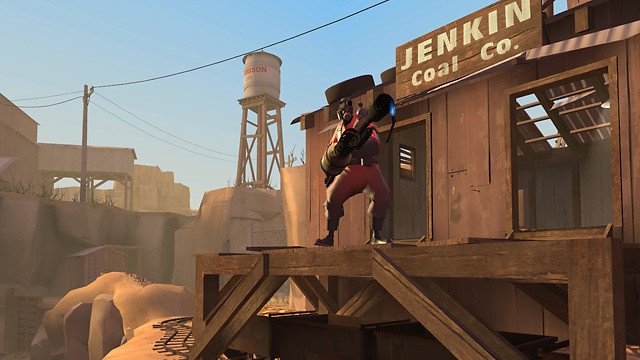
Installing Windows 10 on 5400 RPM drives is a bad idea

According to many Windows 10 users, the end of the 5400 RPM drive era is here. Microsoft’s latest OS is too disk intensive for the slow read and write speed of the 5400 HDD. Despite various tweaks and settings changes, somehow the 5400 RPM drive and Windows 10 combo doesn’t offer satisfying results.

As one Windows 10 user points out, computer manufacturers still offer the 5400 as the base for both the consumer and business computer models. However, its limitations are now becoming more obvious.

It feels like the end of an era. Windows 10 is forcing HDDs to be demoted to storage, not OS. This just hasn’t seemed to happen in years. […] There have been instances that push hardware, but the machines still function.[…]

Here, you can’t work at speeds that people are used to working. I guess it is just my experience, but the average to advanced customer can’t perform at a reasonable speed like they could previously. And honestly, I have stopped recommending or allow the purchase of 7200 HDDs in desktops: unless the desktop has tons of RAM and a super fast CPU.

Goodbye HDDs. It has been a long, long relationship. We can still be friends though: data friends, with no benefits.

5400 RPM hard drives are no longer suitable for users who need to access data quickly. Moreover, many users report that Windows 10 often uses 100% of the disk on 5400 RPM hard drives, slowing down all the apps and programs.

However, they do offer a series of advantages. For example, a 5400 RPM laptop consumes less power, resulting in better battery life and less heat.

The fact that 5400 RPM hard drives are slow on Windows 10 has forced many users to stick to their existing OS. They perceive this limitation as another argument against Microsoft’s Windows 10 upgrade invitation.

Another reason to not upgrade my 5400RPM laptop to Windows 10. The list keeps on getting bigger

What do you think? Has the end come for Windows 10 on 5400 RPM drives?

RELATED STORIES YOU NEED TO CHECK OUT:

Windows 10 KB4013418 breaks computers [FIX]

Microsoft didn’t miss this month’s Patch Tuesday edition and rolled out a series of updates to all the supported Windows OS versions. It appears that Windows 7 received the most stable updates, as there are very few bug reports regarding KB4012212 and KB4012215.

On the other hand, many Windows 10 users have complained about various technical issues especially after installing KB4013429. Unfortunately, recent reports have revealed that this is not the only update causing major issues.

It appears that Windows 10 KB4013418 is another update that can potentially break users’ computers. Many users report that their devices have been severely crippled after installing the update. More specifically, many apps and programs won’t work at all.

The worst part is that most troubleshooting actions, such as enabling safe mode or using a restore point, fail to fix the problem. Moreover, users can’t even uninstall the update.

I installed March 14th windows updates this morning, and for the most part, my computer does not work. Chrome opens, most programs do not i.e. start menu, steam, control panel, you name it. I went to uninstall the updates but cannot. I went into safe mode -> settings -> security and updates, but that instantly closes when I click it. Control panel, programs, updates (am able to reach the updates this way, however i am not able to uninstall the updates from March 14th. Not only can i not uninstall them, system restore and rollback build does not work.

Other issues caused by KB4013418 include:

  • High CPU usage from DCOM service host.
  • Many programs are brought to a crawl: e.g. Steam takes 15 minutes to install a 90MB update.
  • BSOD issues.
  • The Ethernet connection won’t work.

Fix: Windows 10 KB4013418 bugs

Many users agree that KB4013418 corrupts the user profile, and this is the root-cause of all the issues they’ve encountered after installing the update.

To fix all the annoying KB4013418-related issues, create a new user profile as admin and then simply transfer the essential files to the new profile. Once you’ve done this, delete the corrupted profile.

If you’ve come across other solutions to fix the issues caused by the latest Windows 10 updates, feel free to list the troubleshooting steps in the comment section below.

RELATED STORIES YOU NEED TO CHECK OUT:

OneDrive app for Windows 10 now available on Xbox One

While the original OneDrive app on the Xbox One was limited to a simplistic photo and video viewer, that has now changed. Microsoft has brought the UWP version of the OneDrive app to the Xbox One following the Skype Preview app release. That means users of Xbox One can now view and edit files on the console. The new OneDrive app comes with a few changes to make up for the Xbox One UI, offering a genuine Windows 10 or Windows 10 Mobile experience to users. However, the app is currently not able to open PDF documents.

Changelog

The app’s change log indicates:

  • You can now access all your OneDrive files on Xbox, not just your photos and videos. Check out the new OneDrive on Xbox to view and change your files.
  • Do you want to view only your photos and videos? The Photos app on Xbox is the best way to see all of your OneDrive photos and videos on the big screen.
  • Enjoy the improvements to camera upload
  • Bug fixes

Features

The app’s Windows Store listing adds:

Do more wherever you go with Microsoft OneDrive. Get to and share your documents, photos, and other files from your Windows 10 phone, computer (PC or Mac), and any other devices you use. Use the Office mobile apps to stay productive and work together, no matter where you are. The OneDrive app for Windows 10 lets you easily work with your personal and work files when you’re on the go.

  • Save and share files with free online storage.
  • Quickly open and save OneDrive files in Office apps like Word, Excel, PowerPoint, and OneNote.
  • Easily find photos thanks to automatic tagging.
  • Share albums of your favorite photos and videos.

Note: For you to sign in to OneDrive for Business, your organization needs to have a qualifying SharePoint Online or Office 365 business subscription plan. You can’t sign in with an account from an on-premises directory.

You will now see the new version of the app in your “ready to install” list instead of having to visit the Xbox One Marketplace to get the app, the usual case for new apps that come to the Xbox One.

You can now edit in Google Docs and publish in WordPress

Google Docs is one of the most popular real-time, cloud-based collaboration tools used. For content management, WordPress has been the dominant CMS tool. However, WordPress previously prevented users from editing together with colleagues. Also, the tool required users to manually transfer text from a word processor to the CMS. Now, that practice has changed with the release of a new WordPress.com add-on for Chrome that lets users write, edit, and collaborate in Google Docs before publishing a draft.

How it works

For writers and bloggers who use WordPress to publish stories, the tool should come in handy thanks to the integration of Google Docs’ formatting options in the CMS tool. WordPress’s George Hotelling how the add-on works:

  • To get started, just go to the Google Web Store page and click to install it.
  • You will be prompted to give our plugin access to post on your behalf, and then you are ready to write.
  • When you’re ready to save a Google Docs draft as a blog post, go to the Add-ons menu and open WordPress.com for Google Docs. A sidebar will appear where you can add WordPress.com or Jetpack-connected sites.
  • Click the Save Draft button — when it’s saved, a preview link will appear so you can see how it looks on your site. Edit the post in WordPress.com to make any small tweaks, then hit publish when you’re ready to go live!

The add-on is available for any WordPress.org website equipped with the Jetpack plugin. For site administrators, it comes with a sidebar where you can monitor all authorized sites and collaborators. The add-on generates a preview link for a draft once you save a piece. This lets you check how your draft appears online when published.

Automattic, the parent company of WordPress, has open-sourced the add-on on GitHub where the code for the tool is available to browse.

Microsoft quietly adds option to turn off Sender Pictures in Windows 10 Outlook Mail app

A couple of weeks ago, Microsoft updated its Outlook Mail and Calendar on Windows 10 devices to add contact icons that show up next to all your emails. While the new addition brings some consistency with the Windows 10 Messaging app, it seems Microsoft received some negative feedback about it.

As a result, Microsoft has quietly added an option to remove the contact icons in a new update which is now rolling out to Slow Ring Insiders. The new setting was first spotted by Reddit user screenspots, and you can see it in the screenshot below (via Windows Central).

The new update will let you toggle contact pictures off.

After installing the update, you can turn off contact pictures in Settings > Reading > Conversation. This is a welcome change, as the colored contact icons (when your contacts don’t have a profile picture) don’t look that good and can be a distraction. The new version should roll out to everyone in the coming weeks, and it’s good to see that Microsoft is listening to feedback.

Minecraft: Windows 10 Edition is over 60% off at $9.99, get it now

If you want to play Minecraft on your Windows 10 PC, you can now take advantage of a 60% discount on Minecraft: Windows 10 Edition on the Windows Store. The game will be a $9.99 purchase until May 5, which is really affordable for a sandbox games that you can spend a lot of hours on.

Compared to the “legacy” Java version of the game, you may know that the Windows 10 version is less full-featured: first of all, it doesn’t support worlds/saves from the Java version, and you also can’t use third-party mods with it. However, the Windows 10 version supports Xbox Live sign in and achievements, add-ons, Minecraft Realms and cross-platform play with Minecraft: Pocket Edition.

You can get Minecraft: Windows 10 Edition from the download link below. If you want to learn more about Minecraft and which edition of the game is right for you, we also invite you to check our recent in-depth overview.

(via MSPU )

Minecraft for Windows
Developer:
Microsoft Studios
Price:
Free


Xbox Game Pass Alpha Preview will be closing on April 7

Two weeks ago, the Xbox team launched the Xbox Game Pass, a new gaming subscription service that gives Xbox enthusiasts access to a catalog of Xbox One and Xbox 360 games for $9.99 per month. Select Xbox Insiders on the Preview Alpha ring can currently try the service for free before it becomes available to everyone later this spring, but it seems that the preview period will soon come to an end.

If you’ve been invited to try the service on your Xbox One, a new message in the Xbox Insider Hub is now telling users that the free preview will end on April 7 (via Windows Central):

Thank you for participating in the Xbox Game Pass Alpha Preview. Your feedback has been invaluable and will make the service better for all gamers. We will be closing Preview on April 7 in order to make our final tweaks and updates. But don’t worry, we’re getting close to launch and Xbox Game Pass will be available for all gamers later this Spring.

Microsoft has yet to reveal when the Xbox Game Pass will be generally available, but the company also announced that Xbox Live Gold subscribers would be invited to test the service ahead of launch. The Xbox team also clarified that Xbox Game Pass won’t replace the Games with Gold program, which gives Xbox Live Gold subscribers two Xbox One games and two Xbox 360 games for free each month.

Perhaps, in an effort of cross promotion, Game Pass members seeking to play online multiplayer games in the catalog will need to also have Xbox Live Gold accounts. For most looking to take advantage of Game Pass, the subscription to Xbox Live Gold may feel like a no-brainer.

Microsoft might start blocking Windows 7/8.1 updates for 7th gen CPUs soon

Last year, Microsoft announced that 7th gen CPUs from Intel and AMD would only be officially supported on Windows 10, with future processors to specifically require the latest operating system for Redmond. This came after Microsoft changed its support policy for 6th gen Skylake processors for Windows 7 and 8.1 PCs, which will now receive critical security updates until 2020 and 2023, respectively.

However, while it’s still possible to run Windows 7 or Windows 8.1 on a PC with the latest processors from Intel and AMD (you just won’t have optimized drivers for the new processors), a recent support article from Microsoft suggests that Windows Update will soon be blocked on those systems (via Ars Technica). Indeed, the company explains in the article that these users will see an error message saying that “your PC uses a processor that isn’t supported on this version of Windows  and you won’t receive updates.” Here is what the support page says about the cause of the error:

This error occurs because new processor generations require the latest Windows version for support. For example, Windows 10 is the only Windows version that is supported on the following processor generations:

  • Intel seventh (7th)-generation processors
  • AMD “Bristol Ridge”
  • Qualcomm “8996″

Because of how this support policy is implemented, Windows 8.1 and Windows 7 devices that have a seventh generation or a later generation processor may no longer be able to scan or download updates through Windows Update or Microsoft Update.

It’s still not clear yet if Microsoft has already started to enforce this policy, but it’s clear that Windows 10 will soon be the only way to go if you have a PC with a 7th gen processor. Not only will you have better performance and reliability thanks to official drivers, but you’ll be guaranteed to receive all security fixes and major Windows 10 updates such as the upcoming Creators Update.

Will you be affected by this new support policy, and do you think it could push Windows 10 adoption going forward? Let us know in the comments if you think Microsoft is doing the right thing.

Classic Neo Geo video game Sengoku comes to Xbox One

The latest Neo Geo video game to relaunch on Microsoft’s Xbox One video game console is here and it’s one that many 90s gamers might remember. Called Sengoku, this game is an action game set in the modern day with a mix of the traditional supernatural. Here’s the official game description:

“SENGOKU” is an action game released by SNK in 1991. Players will fight against past ghosts that have been revived to the present age in a devastated Washington City. Players can use special characters who are confined, after releasing them. Fighting by switching to Armour-clad Wolf, Samurai, or Ninja according to the situation will be your key to success. The “ACA NEOGEO” series has faithfully reproduced many classic NEOGEO masterpieces. Players can change various game settings such as game difficulty, and also reproduce the atmosphere of arcade display settings at that time. Players can also compete against each other from all over the world with their high scores. Please enjoy the masterpiece that built a generation for video games.

Buy Sengoku on Xbox One

Late last year, Microsoft announced that a variety of Neo Geo games would be coming to the both the Xbox One and Windows 10. While no Neo Geo titles have made their way to Windows 10 just yet, several have already been released on the Xbox One.

Are you a fan of Neo Geo games? Let us know which ones you’re waiting for in the comments below.