Worth noting that the announcement comes shortly after OpenAI announced a similar $1 plan for the federal executive branch only. Anthropic aims to give more agencies direct access to advanced AI tools.
According to the announcement, both Claude for Enterprise and Claude for Government will be part of the package. As you may know, Claude for Government is built to handle FedRAMP High workloads, which means it can process sensitive unclassified government data under strict security standards.
Anthropic says the goal is simple; it wants to make powerful AI accessible while maintaining the highest security. The company will also provide technical help so agencies can integrate Claude into their workflows.
Agencies can run Claude through AWS, Google Cloud, or Palantir, giving them more control over where and how their data is stored. This multicloud setup could be an advantage over OpenAI’s current FedRAMP High system, which is tied to Azure Government Cloud.
Anthropic, OpenAI, xAI, and Google are all approved AI vendors for civilian agencies. Not to forget, they have also received up to $200 million from the Department of Defense to develop AI for national security.
Limiting laptop battery charging to 80% in Windows 11 prolongs battery life,It prevents overcharging, helping maintain long-term performance and efficiency in daily use.
While the OS doesn’t offer a built-in method to set up a custom battery charge limit, there are still ways you can configure the battery settings. Keep reading to find out all about it!
How to set battery charging limit to 80% in Windows
Tip
Some laptop manufacturers offer built-in methods to set a charging limit, while for others, you would have to use a dedicated or third-party program. Head to the section for your laptop, and if the method doesn’t work, try the last solution.
1. On HP laptops
Press the Power button to turn off the computer, then turn it on, and as soon as the display lights up, repeatedly hit the F10 key to access the BIOS.
Go to the Configuration or Advanced tab, whichever is present.
Now, use the arrow key to head to Adaptive Battery Optimizer and set the feature to Enabled.
For some users, there’s the Battery Care Function option. In this case, set it to 80%, and the laptop will stop charging as soon as this limit is reached.
HP is one of the few laptop manufacturers that offer a built-in battery charge limiter in Windows via the BIOS.
Though with the BIOS updates, the UI and the dedicated settings have changed a bit, you should still find the relevant one here and be able to limit battery charge to 80% in Windows 11.
Run the setup and follow the on-screen instructions to complete the process.
Launch the app, and click on the Settings button towards the right in the Battery Information tab.
Navigate to the Custom tab, and drag the slider for Stop charging to 80%.
Once done, click OK to save the changes, terminate the utility, and restart the computer for the changes to fully reflect.
You can also configure the laptop’s battery to stop charging at any level above 55%.
Some of you might have the utility pre-installed, others should get it running after installing the setup from Dell’s website, while a few would have to download Dell Power Manager from the Microsoft Store as well.
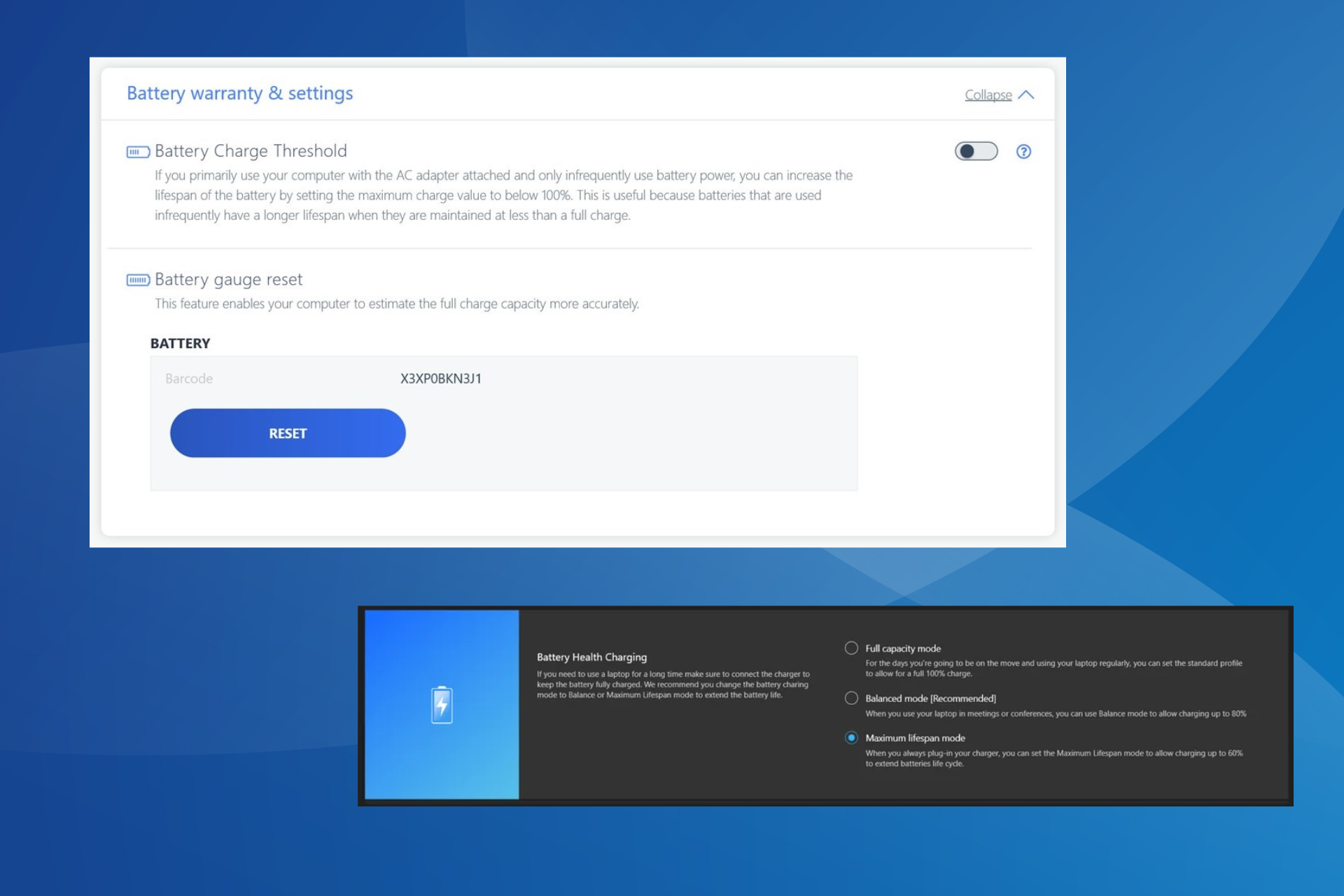
Select Customization from the navigation pane, and click on Power and Performance.
Now, choose Balanced mode under Battery Health Charging.
Asus laptop users need to download the MyASUS app to limit the battery charge to 80% in Windows 11. This will ensure battery longevity and increase the lifespan. If the utility doesn’t work, check if your laptop is supported by Battery Health Charging.
4. On MSI laptops
Download the MSI Dragon Center from the official website if it’s not already installed.
Click on the Battery icon at the bottom.
Select Balanced mode under Battery Health Option.
Restart the laptop for the changes to apply.
While MSI Dragon Center comes pre-installed on most devices, you might be required to manually download the utility if it’s not present.
Click on the Device menu near the top right, and select Power.
Enable the toggle for Battery Charge Threshold.
Now, select 60% (or as desired) from the Start charging when below dropdown menu, and set Stop charging at to 80%.
The Levono Vantage app allows users to personalize the PC, configure the required settings, and even limit the battery charge to 80% in Windows 11 or any other iteration of the OS. The app, earlier available on the official website, has now been moved exclusively to Microsoft Store.
6. On Microsoft Surface
Power off the Microsoft Surface laptop, hold the Volume Up button, and press the Power button.
As soon as the Surface logo appears, release the Volume Up button.
Go to Boot Configuration and select Advanced Options.
Now, turn on the Enable Battery Limit Mode entry.
Microsoft Surface laptops come with two built-in options to limit the battery charge. The Enable Battery Limit Mode feature will stop charging at 50%.
In case you want to limit the battery charge to 80% on a Surface laptop, turn on the Battery Smart Charging feature from the dedicated Surface app.
Though in most cases, the feature is enabled by default.
7. Use a third-party solution
If your laptop manufacturer doesn’t feature on the list, but you still want to conserve battery power, download one of the best battery management tools. Even otherwise, the built-in solutions don’t work on all models, and a third-party option becomes vital.
Remember, these don’t ideally limit battery charge to 80% or any other level in Windows 11 but are more of a notification system. They will trigger an alarm when the battery level hits a target preset by the user.
This way, you can unplug the laptop and prevent the battery from being charged for prolonged periods, thus enhancing the battery life.
How does Windows handle battery settings?
Both Windows 11 and Windows 10 offer a wide array of battery settings, but there’s no option to set a charging limit. This would have been a great addition, but it’s so far missing. MacOS, however, has a similar feature.
The Power Options in Windows are somewhat inclined toward low battery levels, the action to be taken, and how to notify users of it. And these are irrelevant in the present context when you want to limit the battery charge to 80% in Windows 11.
Power Options
Also, it’s important to understand why you need to set a charging limit on the laptop.
Most modern-day laptops use a Lithium-Ion battery, charged via an AC adapter. And when the battery is kept at full charge or the charging threshold for an extended period, it might swell up or start to malfunction, given the high stress it is under.
Frequently recharging a Lithium-ion battery would be a better approach as opposed to keeping it at full charge. And the former will also improve the battery health in Windows 11.
If you have been wanting Microsoft to do something about its printing solution, there’s some good news for you. Yesterday, the company announced the general availability of Universal Print anywhere, a feature that brings secure “pull print” functionality to Universal Print.
If you have used traditional corporate printing setups, you’ll know that choosing the right printer and collecting documents without delay can sometimes be a hassle. Well, Universal Print anywhere changes that.
Microsoft says that it allows users to print from any location and release their documents at any printer within the organization. That’s not all; it further improves both security and convenience, as documents are only released when the user is physically at the printer to authenticate.
Image: Microsoft
Worth noting that this prevents sensitive files from being left unattended, a common concern in shared work environments. In other words, employees no longer need to scroll through long printer lists or commit to a specific device before printing. Instead, they can send their print job to a universal “pull print” queue and retrieve it from any configured printer.
Microsoft believes this will simplify workflows, cut down on printing errors, and reduce unnecessary waste from forgotten printouts, ultimately lowering costs. The rollout also ensures compatibility across both Windows and macOS devices. That means organizations with mixed environments can still benefit from the same secure printing process.
Not to forget, administrators will have full control over which printers participate in the pull print network and can configure approved settings to standardize the experience. Microsoft confirms that Universal Print anywhere is available now for all Microsoft 365 organizations at no additional cost.
Moreover, the company also plans to expand functionality in the coming months, allowing printer manufacturers to integrate their own badge-release authentication methods for even greater flexibility.
OpenAI is introducing a major productivity boost to ChatGPT by integrating Gmail, Google Calendar, and Google Contacts directly into conversations. The company says that Pro users will get access first, with Plus, Team, Enterprise, and Edu plans to follow in the coming weeks.
Once enabled, these Google Workspace connectors allow ChatGPT to automatically reference relevant emails, events, or contacts in chat without requiring manual selection. This means faster, more seamless information retrieval when working across Google Workspace.
For those already using Gmail or Google Calendar in deep research, these tools can now also be used directly in chat. However, deep research still requires each connector to be enabled and selected separately for every new session.
More connectors for Plus and Pro users
The update also expands the available connectors for both Plus and Pro plans. New additions include Box, Canva, Dropbox, HubSpot, Notion, Microsoft SharePoint, and Microsoft Teams, with rollout starting this week.
Alongside connector updates, GPT-5 now offers three modes: Auto, Fast, and Thinking. Plus subscribers get 3,000 messages per week with Thinking mode, with overflow handled by GPT-5 Thinking mini.
After announcing to bring back GPT-4o after backlash, OpenAI has finally added it to the model picker for all paid accounts. The company has also added a “Show additional models” toggle in ChatGPT web settings and kept GPT-4.5 exclusive to Pro users due to GPU constraints.
Error 1005 HY000 is a MySQL-related error that typically appears when a database table can’t be created, altered, or accessed. This issue can occur on both local and remote servers and is often linked to foreign key constraints, missing tables, storage engine issues, or permission problems.
Below, we’ll go through the causes and solutions so you can get your database working again.
On self-hosted servers, make sure the MySQL data directory has proper read/write permissions for the MySQL user.
7. Restart MySQL Service
After making changes, restart the MySQL service to refresh connections and schema updates:
nginxCopyEditsudo service mysql restart
Tips
Always keep database schema changes documented.
Test changes on a staging environment before applying to production.
Avoid using reserved keywords as table or column names.
FAQs
What does HY000 mean in MySQL? It’s a general SQLSTATE error code indicating a non-specific MySQL error.
Is Error 1005 HY000 always a foreign key problem? Not always. It can also be due to file permissions, storage engine mismatch, or name conflicts.
Can I fix Error 1005 without dropping tables? Yes, if it’s a type mismatch or engine issue, you can fix it without data loss.
Summary – Fixes for MySQL Error 1005 HY000
Check detailed error message.
Verify foreign key constraints.
Remove conflicting foreign keys.
Check for existing table names.
Confirm storage engine.
Check file permissions.
Restart MySQL service.
Conclusion
Error 1005 HY000 is usually a sign of a schema or configuration conflict in MySQL. By carefully reviewing your foreign keys, storage engine, and table names, you can resolve the problem without risking data loss. For other 1005-related issues, especially when tied to site access restrictions, see our guide on Error 1005 Access Denied.
If you’re getting Error 1005 while trying to play GTA V, it usually means the connection to the Rockstar servers is blocked or denied. This error can prevent you from accessing online features, downloading updates, or even launching the game. In most cases, it’s tied to network restrictions, server-side bans, or IP blocking.
Below, we’ll walk you through what causes this error and how to fix it so you can get back to playing without interruptions.
Remember: some Error 1005 cases are permanent bans that require contacting Rockstar support.
1. Check Rockstar Server Status
Go to Rockstar’s official server status page and confirm that GTA Online services are running. If there’s a known outage, you’ll need to wait until it’s resolved.
2. Restart Your Router and PC
Turn off your PC.
Unplug your router for 30 seconds.
Plug it back in, wait for full reconnection, then start your PC. This clears temporary IP issues that may trigger Error 1005.
3. Change Your IP Address
Open Command Prompt as administrator.
Type: ipconfig /release ipconfig /renew
Press Enter after each command. A fresh IP can bypass region-based or IP-specific blocks.
4. Disable VPN or Proxy
Rockstar may block certain VPN IP ranges, leading to Error 1005. Disable your VPN or proxy and try launching GTA V again.
5. Flush DNS Cache
Open Command Prompt (Admin).
Type: ipconfig /flushdns
Press Enter. This removes outdated DNS data that might be redirecting connections.
6. Allow GTA V in Firewall
Open Windows Security → Firewall & network protection → Allow an app through firewall.
Locate GTA V and Rockstar Launcher, then allow them for both private and public networks.
7. Contact Rockstar Support
If none of the above works and the error persists, your account or IP may be banned. Reach out to Rockstar Support to verify your account status.
Tips for fixing Error 1005
Avoid using shared or public Wi-Fi for GTA Online.
Keep your Rockstar Launcher updated.
Refrain from using mods in GTA Online to prevent account bans.
FAQs for Error 1005
What does Error 1005 mean in GTA V? It indicates your connection is being denied by Rockstar’s servers, often due to IP blocking or account restrictions.
Can VPN fix Error 1005 in GTA V? Sometimes, yes. But many VPNs are blocked, so switching servers or disabling VPN can help.
Is Error 1005 a permanent ban? Not always. Some cases are temporary network issues, but repeated violations can lead to permanent bans.
Summary – Fixes for GTA V Error 1005
Check Rockstar servers.
Restart router and PC.
Change IP address.
Disable VPN/proxy.
Flush DNS.
Allow GTA V in firewall.
Contact Rockstar Support.
Error 1005 in GTA V can be frustrating, but in many cases, it’s solvable with a few network adjustments. If the issue is linked to a ban, only Rockstar can lift it. For other Error 1005 causes, including website access blocks, see our detailed guide on Error 1005 Access Denied for additional fixes.
If you’re happy with this format, I’ll move straight to Error 1005 hy000 next. Do you want me to keep the same “Before You Start + Steps + Tips + FAQs + Summary + Conclusion” format for all?
Microsoft has been actively making some changes to its core products for some time now. Now, it’s making some changes to Outlook, which is fairly useful if we talk in terms of user experience.
As first reported by Neowin, the company is preparing to roll out an update for Outlook for Android and iOS that will relocate the Send button in the Compose view.
If you use Outlook on mobile platforms, you must be aware that the button sits at the bottom within the Compose toolbar. Microsoft now admits it can feel cluttered. This design has led to unintentional message sends, especially on touch devices.
With the new update, the Send button will move from the bottom to the header of the Compose view. Microsoft says it’ll shift to a less crowded location will help reduce accidental taps. This will eventually create a more deliberate and error-free emailing process.
Microsoft has detailed this change in the Microsoft 365 Roadmap under ID 499900. The description notes that by simplifying the interface and separating key actions, Outlook users can expect a cleaner composition layout and a smoother sending process.
Moreover, the company plans to roll out this change in September 2025 and will be available on both Outlook for Android and iOS.
Autocomplete is a feature that helps your browser automatically fill in information for you. This can be useful if you often forget your passwords.
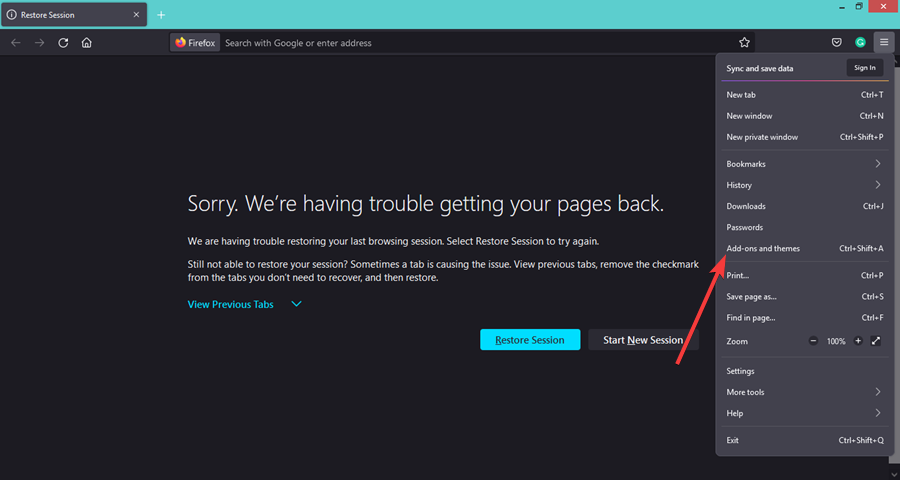
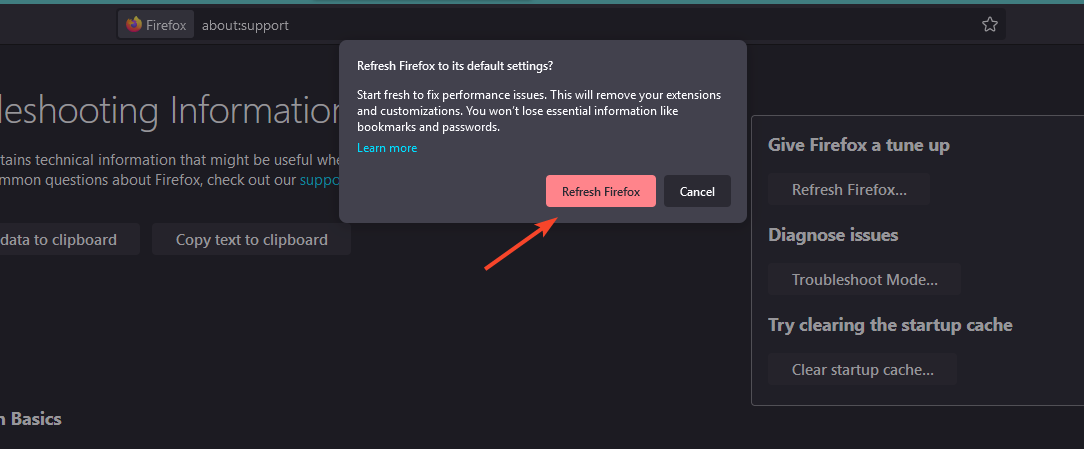
However, if you have sensitive information in the form, such as a credit card number, you may want to turn the feature off. Autocomplete off is a Firefox feature that allows you to stop the browser from remembering passwords, credit card numbers, and other personal information.
This privacy feature can be useful if you’re using your computer in a public place where someone else could easily view your screen or if you’re just concerned about the security of your information.
In addition, there have been instances where websites have been hacked, and passwords have been stolen from users who used the autocomplete feature on their browsers. However, when you try to turn it off, sometimes, you may find out that it is not working on Firefox.
If your Firefox browser has problems with autocomplete off not working, it could be because you don’t have the latest version of Firefox installed on your computer. You can opt to try browsers that are safe for autofill or follow our recommended solutions.
Why is autocomplete off not working?
The first step in troubleshooting autocomplete off not working is to figure out why it isn’t working in the first place. Here are some common issues:
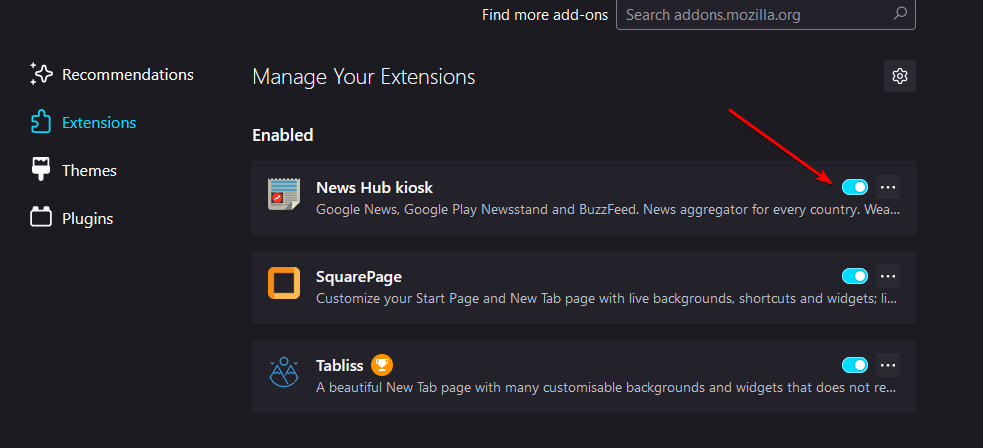
Corrupted extensions –Check if any extensions installed recently are causing this issue. If you don’t have any extensions, then you should try making a new profile and see if that fixes the issue.
Browser’s cache –If you have recently updated your browser, then it might still be using the old cache to fill in forms. To fix this issue, clear your browser’s cache and cookies.
Temporary files – Sometimes, temporary files can interfere with the autocomplete feature in your browser. Temporary files are often created when you download programs or install new software on your computer. You need to delete temporary files present on your hard drive as they may be interfering with the autocomplete feature on your computer.
Virus and malware – Viruses can cause this issue by disabling certain programs, including browsers and antivirus software. If you are having issues with autocomplete, or if you are unable to access websites, it is possible that your computer has been infected with a virus.
If any of the above reasons prevent you from turning autocomplete off in Firefox, proceed to troubleshoot using one or more of the methods listed below.
Quick Tip:
See if autocomplete works in another browser. We recommend trying Opera One because it offers a similar user experience to Firefox, and it’s very light and responsive.
On top of that, it includes modern privacy tools like anti-tracking and VPN, paired with quick access to social media and fully customizable workspaces. Plus, it brings a built in AI.
Opera One
Use all browsing features to full potential, without errors or bugs along the way!
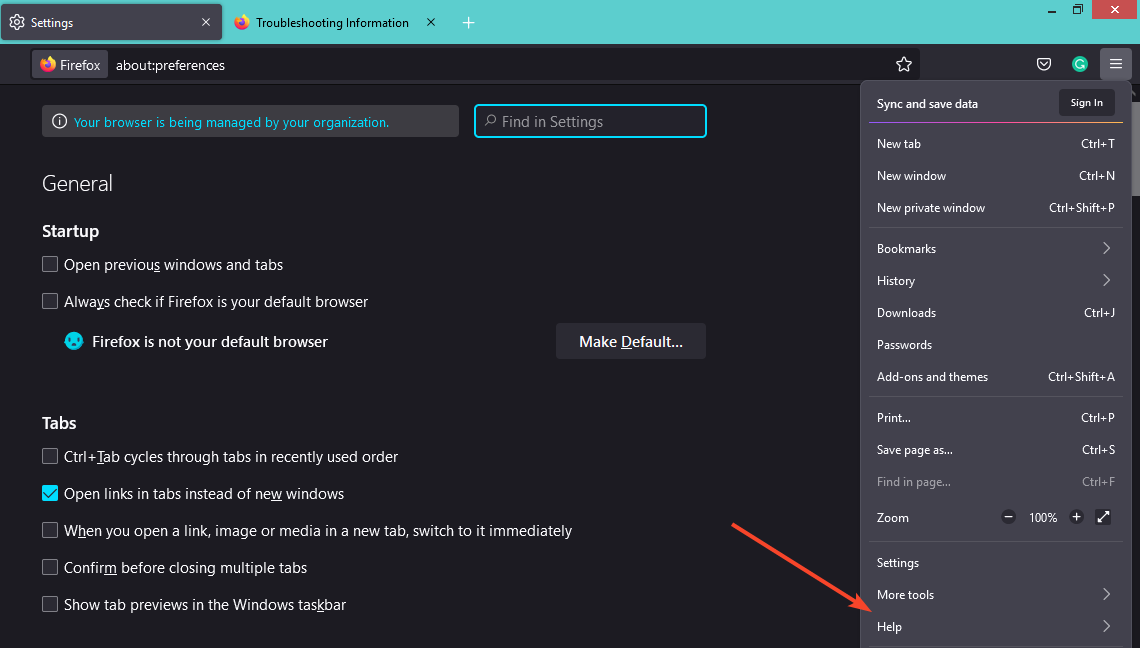
Launch your Firefox browser and navigate to the following address: about:config
In the page that appears, under Proceed with Caution, select Accept the Risk and Continue.
Type in the following in the search box: browser.urlbar.autofil
Now, double-click on the same entry until it changes to false.
If you have tried all the solutions above but autocomplete off is still not working in Firefox, it could be a problem with the browser. You can report an issue or try an alternative browser then revert to Firefox later and see if the issue has been resolved.
Evernote is a great service, but many users reported Sorry, we’re having some trouble loading Evernote Web. Try reloading the page error.
To first understand the issue, we first have to understand what the app is specifically designed for.
This service allows you to store and edit notes, and thanks to the availability on other platforms, your notes will be stored in the cloud and synced with other devices.
Go to Control Panel and select Uninstall a program.
Select Evernote, then click on Uninstall.
Restart your machine.
In this case, the best thing to do is to uninstall and reinstall Evernote. Once you’re done, simply download Evernote from its official website and install it.
To make sure the Sorry, we’re having some trouble loading Evernote Web error is indeed gone for good, and using uninstaller software.
A dedicated uninstaller will get rid of all remnants of already uninstalled programs, enabling a clean reinstallation.
This removes the possibility that the installer wizard will wrongfully detect that Evernote is already on your system.
CCleaner simplifies app control by storing all of your programs in one place and allowing you to uninstall them, even if they’re built-in. As a result, using CCleaner to uninstall Evernote allows for a clean reinstallation with no leftover files.
This benefits the health of your PC, and your system won’t be cluttered with useless files that take up space for no reason after a normal removal of any apps and software.
Plus, uninstaller software allows you to uninstaller multiple apps at a time, create backups, and more.
2. Update Evernote
If you’re getting Sorry, we’re having some trouble loading Evernote Web error, it’s advised to update Evernote.
Sometimes the issues you’re facing with synching, or even connecting to Evernote can be solved by downloading the latest update, so be sure to try that first.
3. Rebuild database
Open your Evernote program.
Select File, then select Sign out at the menu bar.
Select Evernote, then go to Options, click on General, then select the Open Database folder.
Move the username.exb file to your Desktop.
Open Evernote and log in to your Evernote account.
Sometimes Sorry, we’re having some trouble loading Evernote Web error can appear due to file corruption, and in order to fix it, you need to rebuild your database.
Even more, remember to allow access through the Windows Firewall or add an exception rule to your antivirus for Evernote.
So you’ll avoid blocked connections that Evernote needs to sync your data properly. If the problem persists, try switching from various Internet browsers, and check what works out for you.
We hope that these solutions were helpful and that you managed to fix Sorry, we’re having some trouble loading Evernote Web error.
In the meantime, let us know in the comments section down below, what other issues have you stumbled upon using Evernote.
You can never know when things could go wrong, so rest assured that you can always visit this Evernote section for the necessary solutions.
Why does Evernote Web show “Sorry, we’re having some trouble loading…”?
This error appears when the browser fails to load Evernote’s web client due to compatibility, cache, or session issues. It’s often triggered by outdated browsers, corrupted data, or conflicting extensions.
How can I fix the loading error on Evernote Web?
Restart your device, sign out and back in, update your browser, and clear the cache. If that fails, try a different browser or reinstall the current one.
What solutions do other users suggest from forums or Reddit?
Many users recommend switching browsers or using Incognito mode after clearing cache and cookies. Others resolved it by using Evernote’s mobile app or the desktop version instead.
Microsoft has announced that GitHub Copilot users in Visual Studio can now access GPT-5, which is OpenAI’s latest and most capable coding model. The rollout, which began yesterday, introduces faster response times, stronger reasoning, and improved clarity in code suggestions.
GPT-5 will improve the Visual Studio experience
Unlike its predecessors, GPT-5 is tuned for large, complex coding tasks with minimal prompting. As a developer, you can expect more maintainable solutions, better explanations of changes, and improved support for navigating unfamiliar codebases.
The company says that GPT-5 integration is available in both Agent Mode and Ask Mode. This gives users flexible ways to engage with the AI assistant depending on their workflow needs.
If you’ve subscribed to any of the paid Copilot plans, GPT-5 is available to you in Visual Studio, with availability expanding over the coming days. Users who do not yet see GPT-5 in their model picker should check again as the phased release continues.
It’s worth noting that Enterprise and Business customers will need their admins to enable GPT-5 in Copilot settings before it appears in Visual Studio. Once active, team members can switch to GPT-5 directly from the model picker inside the IDE.
In addition to the release, GitHub has announced the upcoming deprecation of older models, including o1, GPT-4.5, o3-mini, and GPT-4o. The deprecation will take place in phases to ensure a smooth transition for existing users.
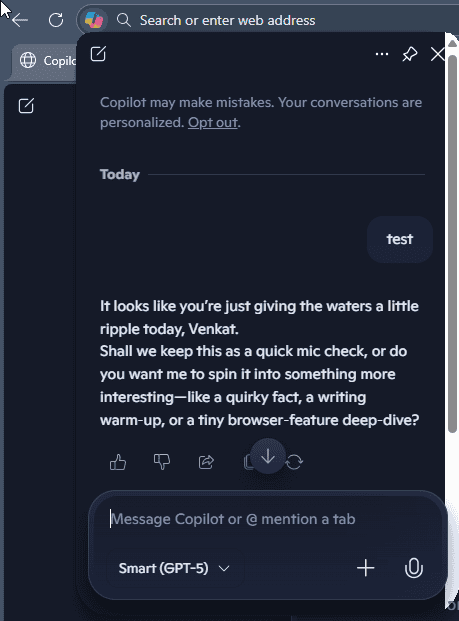
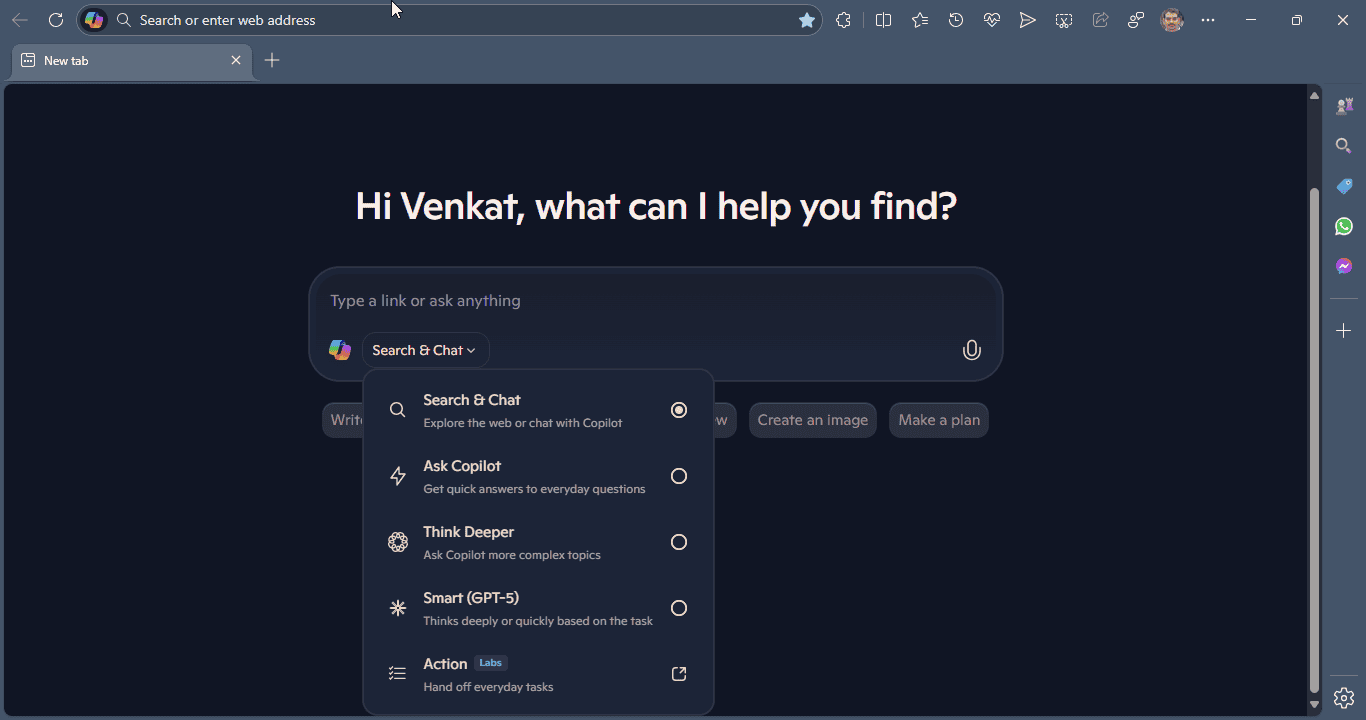
It appears Microsoft is quietly testing a Smart GPT-5 Mode in the Edge browser’s Canary version. This is one of the first times GPT-5 has been spotted working in Edge Canary’s Copilot Mode.
Smart Mode is built to automatically choose the best approach for your request. For quick questions, it gives a short, direct reply. For more complex topics, it switches to GPT-5 for a deeper, more detailed answer. Microsoft described how this works in its August 7th blog post when GPT-5 rolled out to Windows Copilot, Microsoft 365, and other products.
In our testing, the new Smart (GPT-5) option now appears alongside other modes in the Copilot Mode New Tab Page search box and the Copilot button in the address bar. This means you can launch a Smart GPT-5 session from different points in the browser.
Selecting the new “Smart (GPT-5)” option in Edge’s Copilot menu. Image Credit: Venkat/WindowsReport.Copilot answering a question using the Smart GPT-5 mode. Image Credit: Venkat/WindowsReport.
To try it, either click the Copilot icon in the address bar or open a new tab and select Smart (GPT-5). Then type your question. Copilot will use the GPT-5 model to handle the rest.
Smart GPT-5 appears as one of the available Copilot modes in the new tab menu. Copilot answering a question using the Smart GPT-5 mode. Image Credit: Venkat/WindowsReport.
Microsoft has not officially announced GPT-5 support for Edge, which suggests this is an A/B test limited to some Canary users.
If it expands to more people, Smart GPT-5 could make Edge’s Copilot more seamless by deciding when you need a quick answer and when you need a deeper response without manual switching.
For those unfamiliar, Copilot Mode in Edge is a special view that brings together web search, chat, and tools in a single sidebar. It offers different styles of help, including quick search and chat, in-depth Think Deeper answers, and Action (Labs) for running tasks, all without leaving your current page.
Apple Music is a popular streaming service that allows users to access a vast library of songs, albums, and playlists. The service is available on multiple platforms, including Windows, but downloading and installing it on Windows 11 can take time and effort.
This article will walk you through the steps to download and install Apple Music on your Windows 11 device to enjoy your favorite songs and albums without hassle.
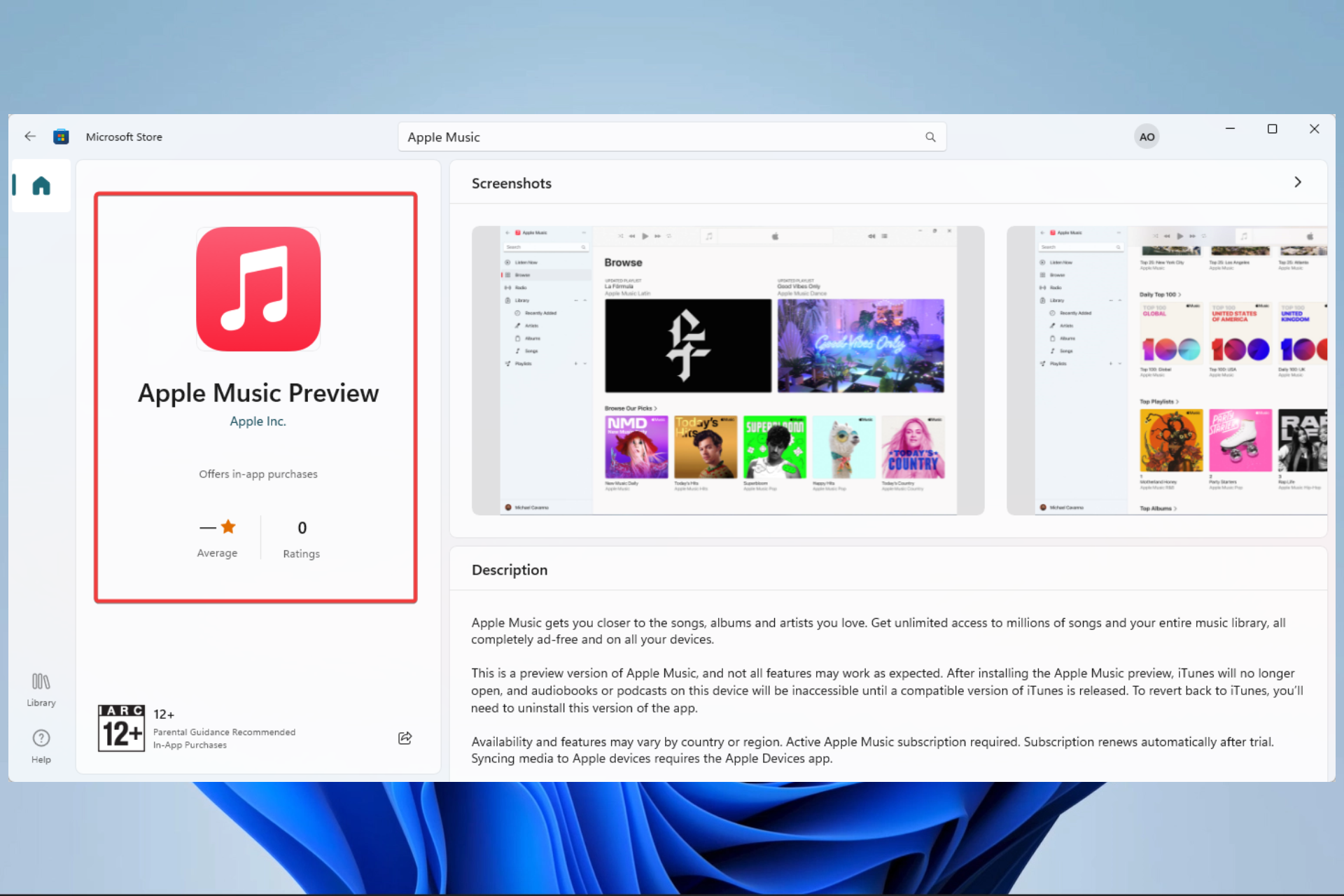
Apple Music is now available in the Microsoft Store for Windows 11 users. This new addition allows users to easily download and install the app on their Windows 11 devices and enjoy an extensive library of songs, albums, and playlists.
With the Apple Music app, users of the new Microsoft OS can now access all the service’s features, including offline listening, personalized playlists, and exclusive content. There is no need for a browser.
Also, adding the app to the Microsoft Store provides a seamless user experience for Windows 11 users. As a result, they no longer have to go through the hassle of downloading the app from an external source.
With the app available on the Microsoft Store, users can easily find and download it with just a few clicks. This makes it easy for Windows 11 users to access and enjoy the service without additional steps.
How do I install Apple Music on Windows 11?
1. Via Microsoft Store
Open the Microsoft Store on your Windows 11 device by clicking its icon on the Taskbar.
Search for Apple Music in the search bar.
Click on the Apple Music app in the search results. Click the Get button to begin the download and installation process (Note that the get button may not yet be available in your region).
Once the app is downloaded, open it and sign in with your Apple ID.
After you sign in, you’ll be prompted to start your free trial or to enter your subscription details.
Once you have subscribed, you can start listening to your favorite music and discovering new artists.
2. Install via the command prompt
Press the Windows key + X to open the Power User menu, and then select Command Prompt (Admin) or Terminal (Admin).
Type the script below and hit Enter. winget install --id 9PFHDD62MXS1
In conclusion, downloading and installing Apple Music on Windows 11 is a straightforward process, but it requires a few steps to be followed carefully.
With the help of this guide, you can easily download and install the Apple Music app on your Windows 11 device and enjoy an extensive library of songs, albums, and playlists.
A new industry study is questioning whether Xbox Game Pass is changing how people play games at all. A study conducted by market research firm Newzoo concluded that Xbox Game Pass subscribers behave much like PlayStation players.
“Despite all the efforts done by Microsoft with Game Pass, we struggled to find significant, different behaviour compared to players on PlayStation,” Emmanuel Rosier, Newzoo’s director of market intelligence, said on the Game Wise podcast (via The Gamer).
The research focused on games played for more than two hours, suggesting many subscribers may be trying titles briefly but not sticking around.
This “sampling” habit could be hurting major releases. Rosier pointed to Call of Duty: Black Ops 6 as an example, warning that its inclusion in Game Pass might reduce traditional sales.
For players, the service still offers strong value, especially for those who enjoy trying new releases without paying full price. But for big studios banking on launch-day sales, the trend could signal trouble.
If this behavior continues, Game Pass may be less of a game-changer in terms of player engagement and more of a tool for how games make money.
Here we go again! OpenAI CEO Sam Altman has blasted Elon Musk on X, accusing him of rigging X to promote his own content. The bashing came just hours after Musk accused Apple of unfairly boosting ChatGPT.
Altman vs. Musk: The Feud That Just Won’t Quit
It started when Musk, fresh off the launch of Grok 4, claimed Apple’s App Store policies make it “impossible for any AI company besides OpenAI to reach #1.”
He even called it an “unequivocal antitrust violation” and vowed legal action. Musk also fumed that Apple’s “Must Have” app section leaves out X and Grok, despite their high rankings.
“Are you playing politics?” Musk asked Apple, hinting at bias. Altman wasted no time hitting back via a post on X, calling Musk’s accusation “remarkable” and tossing in a stinging reminder of Musk’s own alleged tactics. He noted:
This is a remarkable claim given what I have heard alleged that Elon does to manipulate X to benefit himself and his own companies and harm his competitors and people he doesn’t like.
Altman even linked to an article accusing Musk of creating a special system to show his tweets first. “I hope someone will get counter-discovery on this,” Altman added, clearly inviting legal scrutiny.
The spat comes as Apple deepens its partnership with OpenAI, integrating ChatGPT into iPhones, iPads, and Mac. For the unitiated, ChatGPT is currently at the top of the App Store while Grok sits at #5. No wonder, that’s clearly annoying Musk.
Microsoft has detailed how developers can build and run AI applications locally using OpenAI’s newly released gpt-oss-20b model and the AI Toolkit for Visual Studio Code. The open-weight model offers strong reasoning abilities while running entirely on consumer hardware, making it suitable for edge and offline scenarios
As you may know, OpenAI recently launched gpt-oss-20b alongside its bigger sibling, gpt-oss-120b. Both use mixture-of-experts architecture with MXFP4 quantization. The smaller 20B version needs only 16GB of GPU memory, supports a 128k context length, and runs on common development setups.
Similar to 120B, it’s released under the Apache 2.0 license, so developers can use and modify it freely. With the AI Toolkit extension in VS Code, developers can deploy, test, and integrate gpt-oss-20b without relying on cloud APIs.
Deployment process
Well, the deployment is straightforward. You can simply open the Model Catalog, select gpt-oss-20b, and let the toolkit handle the download and setup. Once installed, you can view and manage the model directly from VS Code.
Ollama support adds flexibility for those working with the gguf format, letting developers run gpt-oss-20b via Ollama APIs while still managing it inside AI Toolkit.
The AI Toolkit also includes a Playground for testing and comparing models side-by-side. Developers can evaluate gpt-oss-20b against other locally deployed LLMs, such as Qwen3-Coder, in real programming scenarios. There’s also Agent Builder, a visual tool for creating AI agents that combine local models with additional services.
By combining open-weight models like gpt-oss-20b with a unified development environment, Microsoft is making it easier for teams to experiment with powerful AI locally. This approach gives developers more control, privacy, and flexibility, all without the costs or dependencies of cloud hosting.
Microsoft is stepping up its security for U.S. government agencies. The company has expanded Microsoft Defender for Cloud to include Cloud Security Posture Management (CSPM) and the full feature set of Defender for Servers Plan 2 in its Government Cloud offerings.
With this update, Defender CSPM is now available in Microsoft Azure Government (MAG) and Government Community Cloud High (GCCH). These environments meet strict standards like FedRAMP High and DISA IL4/IL5.
For agencies, that means continuous visibility into their cloud security posture, not just during audits but every day. Worth noting that CSPM tracks configuration changes, flags risks, and helps teams fix issues before they become problems.
It also uses attack path analysis to focus attention on the threats that matter most. And because it’s agentless, agencies can run scans without adding software to sensitive or older systems.
Server Security Reaches Full Parity
Microsoft has also rolled out the complete Defender for Servers Plan 2 in the U.S. GovCloud. The upgrade brings advanced protections such as agentless malware detection, secrets discovery, vulnerability assessments, and file integrity monitoring. It also includes baseline recommendations to keep environments in line with federal requirements.
For agencies managing complex server setups across on-prem, hybrid, and multicloud platforms, these features offer automated protection and compliance checks. This will eventually reduce the gaps that manual processes can leave behind.
Not to mention, government customers can turn on Defender CSPM or Defender for Servers Plan 2 through the Azure portal. Once enabled, both services run continuously, helping agencies maintain a strong security posture in some of the most regulated environments in the world.
Microsoft has also explained the steps to enable the Defender CSPM and Defender for Servers plans on your subscription. You can check it below:
It’s worth noting that the update also brings several performance and reliability fixes. Here’s what the changelog for the update states:
August 7 release
The following update is available for Surface Laptop (7th Edition) running Windows 11, Version 24H2 or greater.
Improvements and fixes:
Security:
Addresses security vulnerabilities that might expose the system to an insecure state.
Reliability:
Fixes an issue that caused unexpected shutdowns to occur after updates were installed and shutdowns related to the monitor display.
Performance and usability:
Fixes an issue that caused the backlight to flash when devices were used at the lowest brightness level.
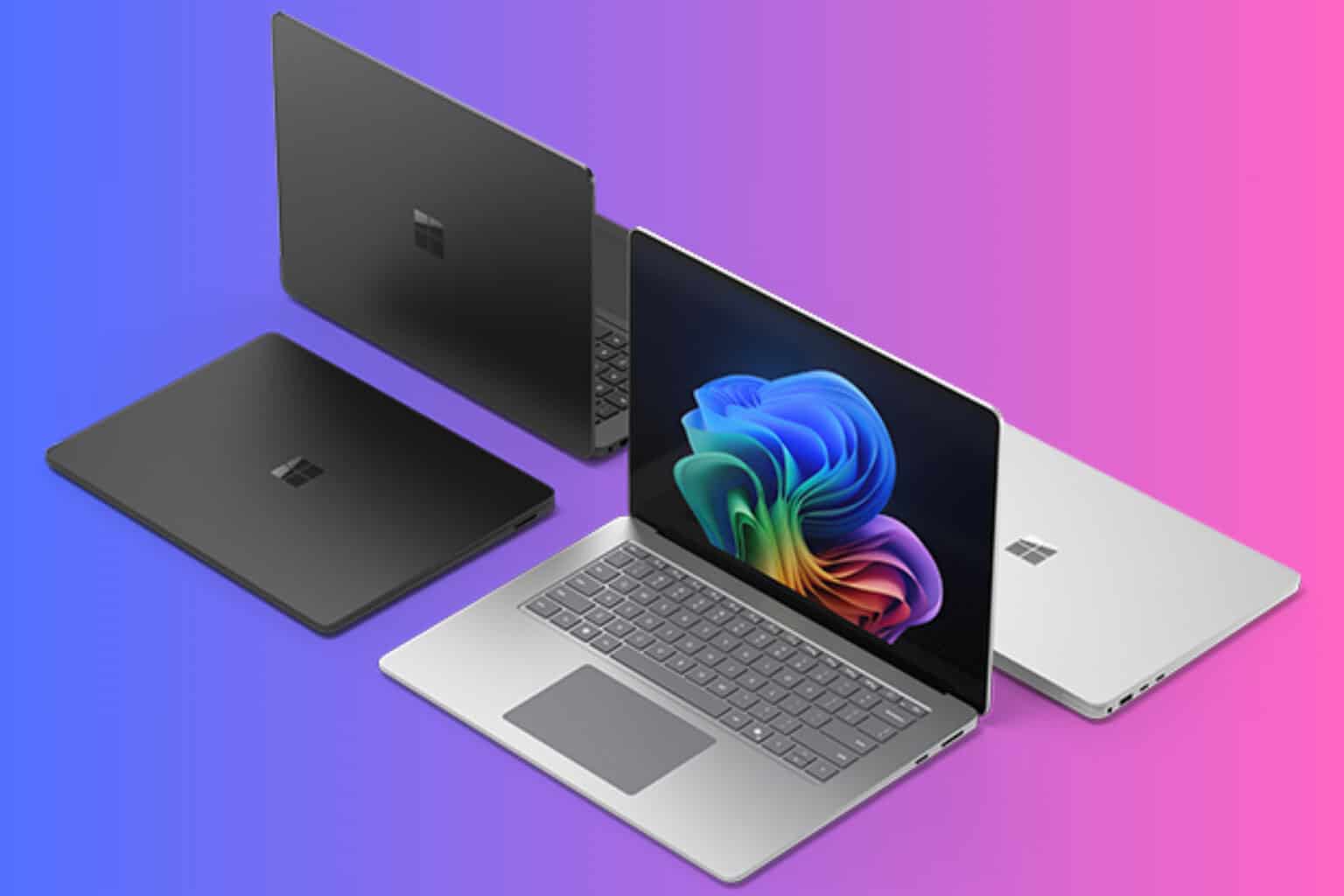
Enables a new battery-charging feature in the Surface app to extend the battery life and improve flexibility, allowing users to choose options for smart charging, limiting to 80%, or temporarily charging to 100%.
As mentioned above, the new controls appear in the Surface app, letting users set charging to “smart” mode, cap it at 80%, or temporarily push to 100% when needed.
These options have been available on newer Surface models for a few months, but this marks the first time they’ve been rolled out to the Snapdragon editions of Microsoft’s flagship devices.
The update also resolves an issue that caused unexpected shutdowns after certain updates and fixes display-related shutdowns. A brightness bug that caused backlight flicker at the lowest setting has been addressed as well. Security patches are included to protect against potential vulnerabilities.
For the umitiated, the Surface Pro 11 and Laptop 7 debuted as Microsoft’s first Copilot+ PCs, with dedicated NPUs for AI features.
In recent months, these PCs have got tools like Recall, Click To Do, and AI-enhanced search, features that make better use of their hardware.
Virtual staging is now a common method of showcasing rooms and properties within the real estate and interior design industries. The process of digitally furnishing and decorating spaces saves considerable time and money over hiring a professional stager.
However, it still requires skills in CAD and 3D modeling software. That’s where AI comes into play.
We tested the best interior AI virtual staging tools, narrowing down 6 top picks.
6 Best Interior AI Virtual Staging Tools
The following AI virtual staging tools allow you to quickly decorate and furnish room photos in different styles, without any design skills. Here’s how each tool stands out:
1. StageHQ AI – Overall Best Interior AI Virtual Staging Tool
StageHQ AI turns any empty room into a fully styled, photorealistic space in seconds—helping realtors, designers, and homeowners save time, money, and effort.
As our top pick, it stands out for its exceptional ease of use, affordability, and photorealistic results.
4 available modes focus on different tasks, including AI furniture staging only, furnishing and décor, full remodelling, or furniture removal.
The web-based tool doesn’t require any software downloads, and the AI does all the hard work, so you don’t need any design skills either.
All you have to do is upload a photo of your room (empty or furnished), choose a style, enter any prompts, and the one-click staging process transforms it in under 30 seconds!
When it comes to speed, Virtual Staging AI promises to render your room within 15 seconds. The powerful web-based platform supports both furnished and unfurnished rooms, and you can use the AI to remove furniture from your photo before rendering.
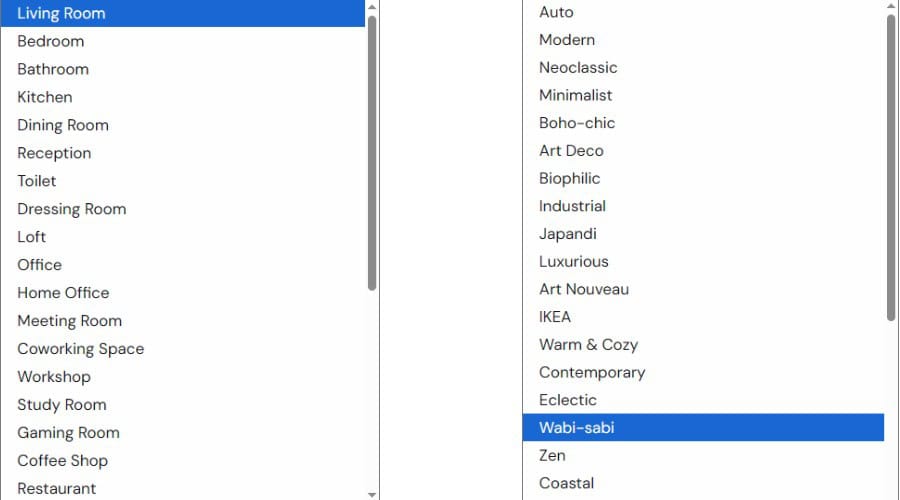
Simply drag and drop the photo, select the room type from 7 options, and choose from over 50 styles.
Although there is no prompting, every generation is unique, and no objects are pulled from a pre-rendered library. Instead, the AI makes a decision based on the settings and dynamics of the photo.
One standout feature is multi-view staging. This lets you apply consistent staging, with the same décor and furniture, to photos of the same room from different angles.
You can upload and stage one image for free, while premium pricing starts at $16/mo.
3. AI HomeDesign – Best AI Virtual Staging with Human Option
The virtual staging tool from AI HomeDesign is a comprehensive solution that generates high-res photorealistic images in seconds.
Simply upload a photo of an empty room or use the “remove furniture” feature to declutter it automatically. Then choose from 4 room types and 7 base styles, and it will revitalize the room with the appropriate décor and furniture within 30 seconds.
What’s more, if you can’t quite get the results you want, HomeDesign offers a professional human option for $9.99 per image.
Other notable features include:
Object removal and replacement via brush selection.
With REimagineHome, AI doesn’t just process the end result, it helps you at every step along the way.
As soon as you upload a photo of your room, it analyzes the shot’s strengths. For example: “This foyer image has great natural light and architecture, making it perfect for showcasing bold entryway designs.”
It then offers four suggestions for full virtual staging or style transformation, that you can view with one click. Alternatively, you can enter a descriptive prompt to bring your own ideas to life.
Once the first image is generated, it asks you to specify any changes, such as removing an item, changing the color palette etc. You can chat to the bot for as long as you need to refine the room.
Users get 5 free credits to try REimagineHome, while subscriptions start from $7/mo for 30 images.
From AI furniture staging to full room rendering, Sofabrain is a feature rich virtual staging solution.
It follows a familiar approach, allowing you to upload a furnished or unfurnished room photo, select the room type, and then choose from several styles. However, it is one of the few that also lets you choose the color palette directly.
Moreover, you can opt to only replace furniture or keep the furniture and only redecorate.
Another unique feature is the ability to use a style reference. This is a secondary photo you upload, and the AI takes its style and applies it to your original photo.
After rendering, you can even select individual objects to be recolored or removed entirely.
Sofabrain offers limited free features and paid plans starting from $18/mo.
Collov AI keeps things simple, providing fast photorealistic virtual staging from a single page. It covers all the basics, including room selection from 8 options, along with 8 styles, and a useful toggle to remove existing furniture from your photo before staging.
The no-prompt, one-click staging process generates results in less than a minute.
What’s more, if you are planning to apply your room styles in real life, Collov has a unique feature where you can purchase matching or similar furniture from over 300 partners.
Collov offers free credits to test the platform, while premium plans are available from $16/mo for 60 photos.
Thanks to AI, complicated virtual staging software or expensive physical staging are things of the past. Now, tools like StageHQ transform your room photos in seconds.
StageHQ currently leads the pack due to its vast selection or rooms and styles, and the ability to add your own prompts. However, all the tools we reviewed excel in their own way.
What’s your favorite interior AI virtual staging solution? Let us know in the comments below!
If you’ve been wishing for more creativity when inking in Microsoft Office apps, there’s some good news for you. Microsoft is rolling out new pen tools and a customizable Draw tab for Word, Excel, and PowerPoint on Windows
The update adds the Fountain pen and Brush pen, two tools that OneNote users might already know and love. The Fountain pen lets you write with more style and flourish, while the Brush pen is ideal for expressive annotations or creative touches.
Gif source: Microsoft
Alongside the new tools, Microsoft is making the Draw tab more flexible. You can now add, remove, and reorder your pens, pencils, and highlighters so the tools you use most are always at hand. That means less menu diving and more time actually drawing or writing.
How the feature works
Open the Draw tab, spot the two new pens, and start inking. To rearrange them, press and hold a tool, then drag it left or right.
Right-clicking (or pressing and holding) also lets you delete a tool entirely. There’s even an Add (+) button for quickly adding duplicate tools, though the Ink to Text pen is limited to one copy.
The new pen tools and customization features are available to Office for Windows users on Version 2508 (Build 19127.20000) or later. The rollout covers Word, Excel, and PowerPoint, so whether you’re jotting down notes, marking up a spreadsheet, or adding flair to a slide deck, you’ll have more control over how you ink.
StageHQ AI turns any empty or furnished room photo into a photorealistic staged interior in under 30 seconds.
Whether you’re in real estate, interior design, or simply renovating your home, virtual staging with StageHQ, is a fast and cost-effective way of visualizing your ideas.
Here’s everything you need to know:
What is Virtual Staging?
Virtual staging is the process of digitally adding or altering furniture, décor, and other elements in photographs of empty or sparsely furnished rooms. This provides a better idea of the space’s potential.
It’s a cost-effective and efficient alternative to traditional home staging, which involves physically moving furniture and accessories into a property. With the advent of AI and platforms like StageHQ, the process has gotten even easier.
What is StageHQ AI?
StageHQ is an AI virtual staging software that allows users to upload a photo of any room and generate fully furnished and decorated spaces. The web-based solution lets you select different styles and describe what you want to see with prompts, before generating high-resolution photorealistic photos.
The one-click staging process requires no design skills and most requests take less than 30 seconds to generate.
Paid users get commercial usage rights, making it ideal for real estate photo enhancement and exploring interior design ideas.
You can try StageHQ for free and purchase one-off packs based on the volume of photos you wish to generate.
Notable Features
After getting hands-on with StageHQ, here’s more about its standout features and how they work:
Staging For All Scenarios
Once you have uploaded your room photo, you can choose a staging mode for all scenarios.
Furniture Only – For photos that only require furnishing/refurnishing, choose “Precise Staging”. This maintains the surfaces, finishes, and overall geometry.
Full Decor – For photos that require “Creative Staging”, generating new accents, decor, and more stylish furniture.
Remodeling – When doing a full remodel, choose “Room Renovation” to completely transform the space, including the layout, furniture, fixtures, decor, accents, and finishes.
Furniture Removal – If your photo still contains old furniture and clutter, select “Remove Furniture” to strip the image, giving you a new base to work from.
With drag-and-drop and straightforward settings, it couldn’t be easier to get started.
Room Types and Design Styles
To ensure the result matches the room type of your source photo, you should select it from the extensive list. In the rare chance that a room isn’t listed, custom prompting can help refine the result.
StageHQ offers over 30 interior styles, including popular choices like modern, minimalist, and Art Deco. As well as more fun and out-there styles such as Cyberpunk and Medieval.
There are even seasonal styles, including Christmas and Halloween, which are useful if redesigning your space for a specific event.
Custom Prompting
Although relying on the selections will always produce a unique outcome, I like that StageHQ gives you the freedom to enter custom prompts, so you can explore your personal ideas further.
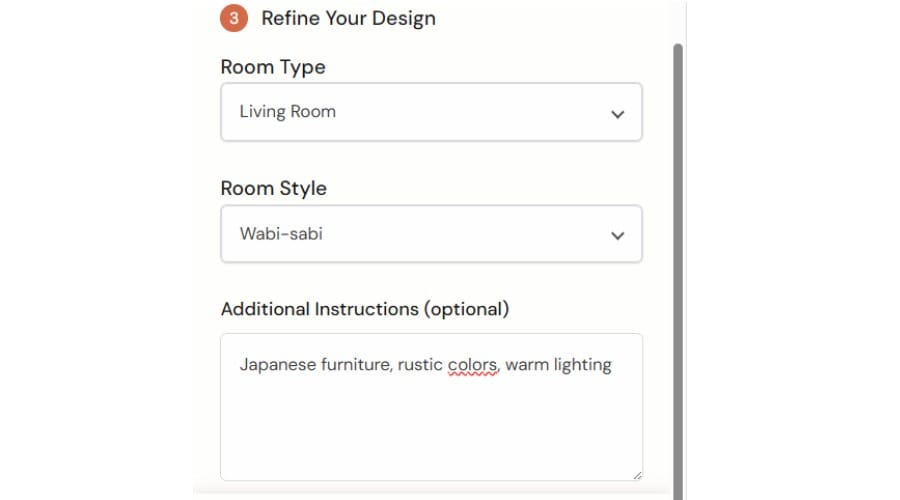
If you have used AI before, the process is familiar. Simply enter descriptive keywords, separated by a comma. E.g., “Japanese furniture, rustic colors, warm lighting.”
These prompts combined with style selections give you endless possibilities. What used to take hours or days, now only takes a few minutes.
Once done, hit generate and it will analyze the space and take no more than 30 seconds.
In my test example, I uploaded an empty living room photo, chose the creative staging option, and wabi-sabi style. The result was very impressive:
Overall, I found StageHQ produces very high-quality images. It is not a generic AI art generator, so you can be sure that every image is photorealistic and without imperfections or distortions.
While it’s best to use a high-resolution source image, the AI does a good job of upscaling and can output up to 4K standards.
The site supports JPG, PNG, and most other common image formats. Paid users get commercial usage rights.
Who is StageHQ for?
StageHQ is suitable for a wide variety of users that need interior virtual staging. Professionals and businesses involved in real estate and interior design might use it in their portfolios, listings, social media, magazines, or to show directly to clients.
From generating ideas or showing off what a room could look like, to forming the basis of a hands-on renovation, the tool is invaluable at every stage.
It’s also fun and useful for homeowners. Gone are the days of trawling magazines and websites for interior design tips, hoping the style will look good for your room. Now you can go a step beyond, creating your own styles and getting a realistic example before beginning work.
StageHQ can save time and money for:
Real estate agents and property managers
Homeowners and sellers
Property developers
Interior designers
Marketing professionals
Photographers and graphic designers
Design related magazines and websites
Pricing
You can try StageHQ for free before purchasing one of its premium credit packs. All purchases provide watermark-free images and commercial rights.
Note: As of writing, the Summer Special offers a 10% discount. Just enter the code on the pricing page.
20 AI Stage Photos ($19)
100 AI Staged Photos ($39)
250 AI Staged Photos ($69)
High volume users can also contact StageHQ for custom pricing.
All purchases are final and non-refundable.
StageHQ Review – Verdict
To conclude this StageHQ review, it’s one of the most powerful yet easy-to-use home virtual staging tools available. While other virtual staging software exists, it usually falls into the trap of being too complex or too generic.
With StageHQ, its AI can generate a unique, professional, and high-resolution photo in seconds. You don’t get this with more traditional editing software or basic web tools.
Professionals will appreciate its speed and consistency, allowing you to quickly explore custom interior design styles and download the ones you like for your marketing, website, or clients.
Likewise, homeowners with no photo editing skills can now preview room styles without lifting a finger.
Whether you need to update lots of real estate listings or are just redecorating your living room, StageHQ is definitely worth considering.
Try StageHQ AI free, or start from $19 for 20 staged photos in up to 4K resolution with full commercial rights.
Microsoft has rolled out one of the most requested features for OneNote users, the ability to paste text without formatting. The update is now live for OneNote on Windows, Mac, and the web, making it easier to keep notes clean and consistent.
Pulling text from emails, websites, or documents often brings along unwanted fonts, colors, and styles. The new “Paste Text Only” option strips all of that out, automatically matching your notebook’s default style. The result is cleaner notes and fewer formatting fixes.
Whether you’re gathering research, saving snippets, or drafting ideas, the feature helps maintain a distraction-free layout. Microsoft says it’s another step toward making OneNote a modern, streamlined workspace.
How It Works
On Windows, you can press Ctrl + Shift + V to paste without formatting, or right-click and choose Keep Text Only. Mac users can use Command + Shift + V or the same menu option. The feature works in both new and existing notebooks and supports content copied from sources like Outlook, Teams, and browsers.
Once pasted, the text adopts the notebook’s style rather than the original source’s design. This keeps pages uniform even when pulling from multiple places. The update is available in OneNote for the web and in desktop versions meeting these requirements:
Windows: Version 2508 (Build 19101.10000) or later
Mac: Build 16.100 (25080335) or later
Microsoft notes the rollout is gradual. If you don’t see the option yet, it may arrive in the coming weeks as the company monitors performance and feedback.
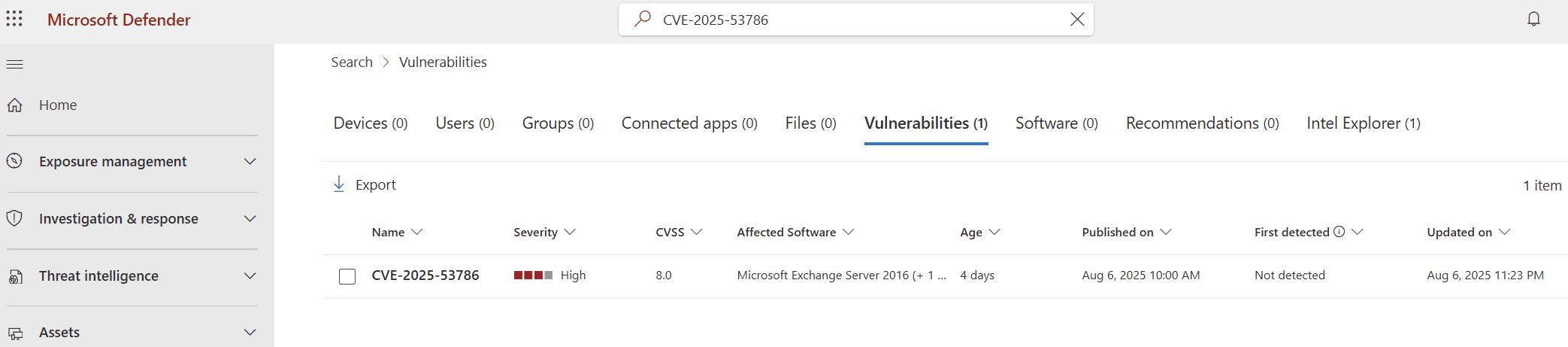
Microsoft has issued a warning about CVE-2025-53786, a serious privilege escalation vulnerability affecting hybrid setups of Microsoft Exchange Server. The company hints that the vulnerability could allow attackers with on-premises admin rights to take control of connected Exchange Online environments.
Image: Microsoft
The issue is relevant for Microsoft Exchange Server 2016 and 2019 when set up in hybrid configurations. With a CVSS v3.1 score of 8.0, it hasn’t been seen exploited in the wild yet. However, Microsoft warns that this vulnerability might be leveraged to compromise an entire domain due to the hybrid trust model.
Worth noting that Microsoft Defender Vulnerability Management (MDVM) can spot and prioritize fixes for at-risk devices to help manage risks. Additionally, administrators can look for this CVE in MDVM or use Advanced Hunting queries to identify affected servers that haven’t received necessary updates.
Microsoft has further suggested installing the April 2025 hotfix or any newer cumulative updates. These updates activate the Dedicated Exchange Hybrid App, which takes over from the older shared service principal trust that carries a risk of being misused.
Steps to Secure Hybrid Deployments
The company has also urged administrators to set up and enable the dedicated hybrid app by using the provided PowerShell scripts or the updated Hybrid Configuration Wizard. Once it’s up and running, the old shared trust keys must be removed to stop them from being reused.
Microsoft stresses the importance of confirming that the dedicated app is operational and that no old credentials are lingering around. If the Hybrid Configuration Wizard needs to be run again, the cleanup process will have to be repeated.
Even though there are no signs of active exploitation, Microsoft recommends making the aforementioned steps part of regular IT practices. You should also be keeping an eye on things with MDVM can help monitor patch compliance, uncover unprotected servers, and prevent any renewed exposure.
The architectural and interior design process takes a lot of time, especially when working from sketches or exploring different styles. With the help of AI, what used to take hours or days can take seconds. In this MNML.AI review, I tested its comprehensive AI render tools, which let you render and iterate ideas in one click.
What is MNML.AI?
MNML.AI is a web-based platform for AI-powered rendering and professional architectural visualization in seconds, especially for exterior and interior design. Its 12+ powerful AI tools can render your existing sketches, generate photorealistic designs from prompts, and transfer the style from a reference photo.
MNML.AI is trusted by 1.8M+ architects, interior designers, and real estate professionals. New users can start for free before requiring a credit pack or premium plan.
Notable Features
After getting hands-on with MNML.AI, here’s what stood out the most:
Sketch to Image AI
One of MNML.AI’s most powerful features is its ability to automate the rendering and iteration of your design sketches and images. Even the roughest of hand drawn sketches can be fully colorized and rendered into a photorealistic design by using the “creative” setting.
On the other hand, you might choose the “exact render” option for a more detailed sketch. This stays close to the original colors, materials, and geometry while levelling up the design quality.
There is also an additional geometry slider, giving you the freedom to try different levels of creativity.
The Sketch to Image AI automatically recognizes exteriors, interiors, home décor and furniture, products, art, and 2D plans. The latter can be a top view sketch, photo, or snapshot from a 3D model, allowing you to quickly generate fully visualized masterplans.
Working with a landscape photo or sketch? MNML.AI offers 15 landscape styles and you can render in watercolor, sketch, photorealism, and others.
Whatever you choose, positive and negative prompts help to refine your vision. Positive prompts are the descriptors and keywords you want to see in the design. This might include the architectural type, such as villa or townhouse, the style (i.e., modern or gothic architecture), colors, materials, time of day, and other objects like trees.
Conversely, negative prompts let you remove unwanted elements. This is particularly effective when the sketch itself includes something you now want to change.
Overall, the Sketch to Image AI streamlines the entire design process and lets you flesh out multiple ideas at record speed.
Text to Image AI
The Imagine AI tool brings your architecture or interior design ideas to life without even needing a source image. Through the power of prompting, you only need to describe what to render and make use of the settings.
Simply choose exterior, interior, or layout, the aspect ratio, and begin prompting. The MNML.AI prompt guide is there to help, but you’ll soon get the hang of it by ensuring to mention the main subject, additional objects, architecture style, colors, and lighting or weather.
For example, I chose exterior and entered this prompt: “Town houses, gothic architecture, iron gates, winter.”
The style strength slider fine tunes the level or realism vs how strongly it adheres to the prompt.
One way to improve your prompts or emulate a style is to use the prompt generator. Here, you can upload an existing image, and it reverse engineers what you would prompt to generate something similar.
AI Interior Design and Virtual Staging
For interior design, the virtual staging AI is an invaluable tool. This lets you start with a photo of an empty room and try out different ideas to see what it could look like.
Choose the desired room type, such as kitchen, then select from over 30 room styles from warm & cozy to rustic.
You can refine the design further with prompts and choose between precise (keeps the ceiling and geometry) or creative (for complete staging).
Whether you’re looking for some home décor inspiration, are a professional interior designer, or spicing up your real estate listings, this interior AI tool is perfect for quickly exploring different ideas.
Style Transfer
The style transfer tool is a quick way to apply the style from one photo to a render of your sketch or other image.
For example, your sketch or photo of a room might be plain or have a modern style. Uploading a similar angled shot of a room with a rustic style will apply that style, while maintaining the geometry and features of the original.
Editing
If you wish to modify a specific object or area, instead of using traditional image editing software, the Canvas editor combines several tools for erasing or replacing the selection.
Whichever you choose, the AI automatically fills in the gaps to blend in with the rest of the image.
Moreover, the Extender expands the borders of an image, generating new content that adheres to the style of the original design.
Export/ Download Options
Image renders can be easily downloaded in either JPG or PNG format at up to 4K resolution.
Paid users can also maintain an account history to access previous renders and projects.
MNML.AI does not use watermarks and paid users get full commercial rights.
Video Shorts
Video is a great way to showcase your designs online or privately to clients. With the AI video maker, you can quickly add professional camera panning to a still image.
In one click, it produces 10 seconds of motion in 1080p, which can be downloaded in MP4 format.
Upscaling
If you have an older design or low-resolution image, the AI image upscaler enhances the clarity and sharpness to match the standards of 4K resolution.
Now you can quickly enhance images without introducing the typical pixelation or blurriness associated with traditional upscaling methods.
MNML.AI Pricing
You can try MNML.ai for free, but for high resolution output and full commercial rights, you should purchase a premium plan. Visit the pricing page for more.
Credit Pack ($49) – A one off payment for 5,000 credits, equaling 500 designs or 1,000 text to image renders.
Basic ($19/mo or $189.60/yr) – 1,000 credits/mo, equaling 100 designs, 200 text-to-image designs, and 12 videos.
Pro ($39/mo or $390/yr) – 5,000 credits, equaling 500 designs, 1,000 text to image designs, and 65 videos.
Expert ($79/mo or $789.60/yr) – 10,000 credits, equaling 1,000 designs, 2000 text to image designs, and 130 videos.
Enterprise (from $199/mo) – Negotiate a custom plan for high volume use.
MNML.AI Review – Verdict
Although many AI platforms have the ability to generate architecture and interior design images, MNML.AI succeeds by making it the focus.
Instead of relying solely on prompting, it offers lots of useful tools that streamline different tasks. It’s incredibly easy to use, requiring only a few settings before hitting the generate button.
MNML.AI At a Glance:
Instant AI rendering for interiors, exteriors, and layouts
12+ tools and 40+ architectural styles
Sketch-to-image, virtual staging, 4K upscaling
Smart editing, video creation, style transfer
Free to try. Paid plans from $19/month
Whether you’re a beginner or a professional working in the industry, this powerful AI render suite is a can’t miss.
Ready to visualize your designs faster than ever? Try the MNML.AI architecture AI render tools free or pick a plan that fits your workflow.
Microsoft is rolling out a new Copilot-powered feature for Excel called Explain the formula. As the name suggests, the feature makes it easier for you to understand complex formulas without leaving the worksheet.
The tool delivers step-by-step explanations directly on the spreadsheet grid, right next to your data. With Explain Formula, users no longer need to open the Copilot chat pane to get help.
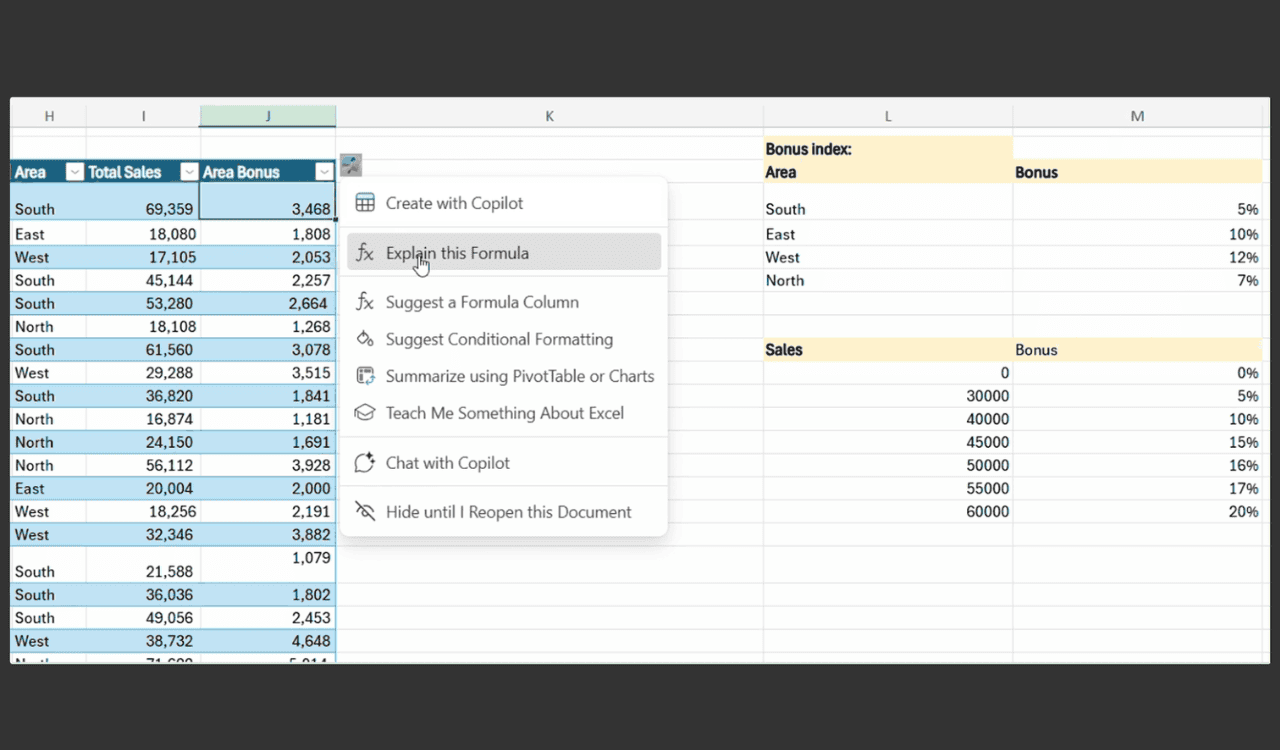
Instead, selecting a cell with a formula will display a Copilot icon. From there, choosing “Explain this formula” shows a breakdown of the calculation in a dedicated card on the grid.
Image: Microsoft
Image: Microsoft
The explanations are contextual, meaning they’re based on the actual data in the workbook, not just generic definitions. This makes it easier to scan, verify, and apply the information without breaking focus.
Microsoft says the feature can handle any formula, from simple math and logic to more complex functions like arrays, lookups, and text manipulation. The explanations cover the formula’s purpose, break down each function, and describe how they work together in the context of your sheet.
If the Copilot chat pane is already open, the explanation will still appear, but inside the pane instead of on the grid. Users can also switch into a deeper conversation with Copilot for more details.
The Explain Formula feature is currently making its way to Excel for Windows and Excel for the web. The rollout is gradual, so it may take time before it appears for all users.
Microsoft is introducing a new service for its Windows 365 cloud platform called Windows 365 Reserve. The offering is designed to keep businesses running when their primary PCs go offline, whether due to hardware failure, malware, or a bad software update.
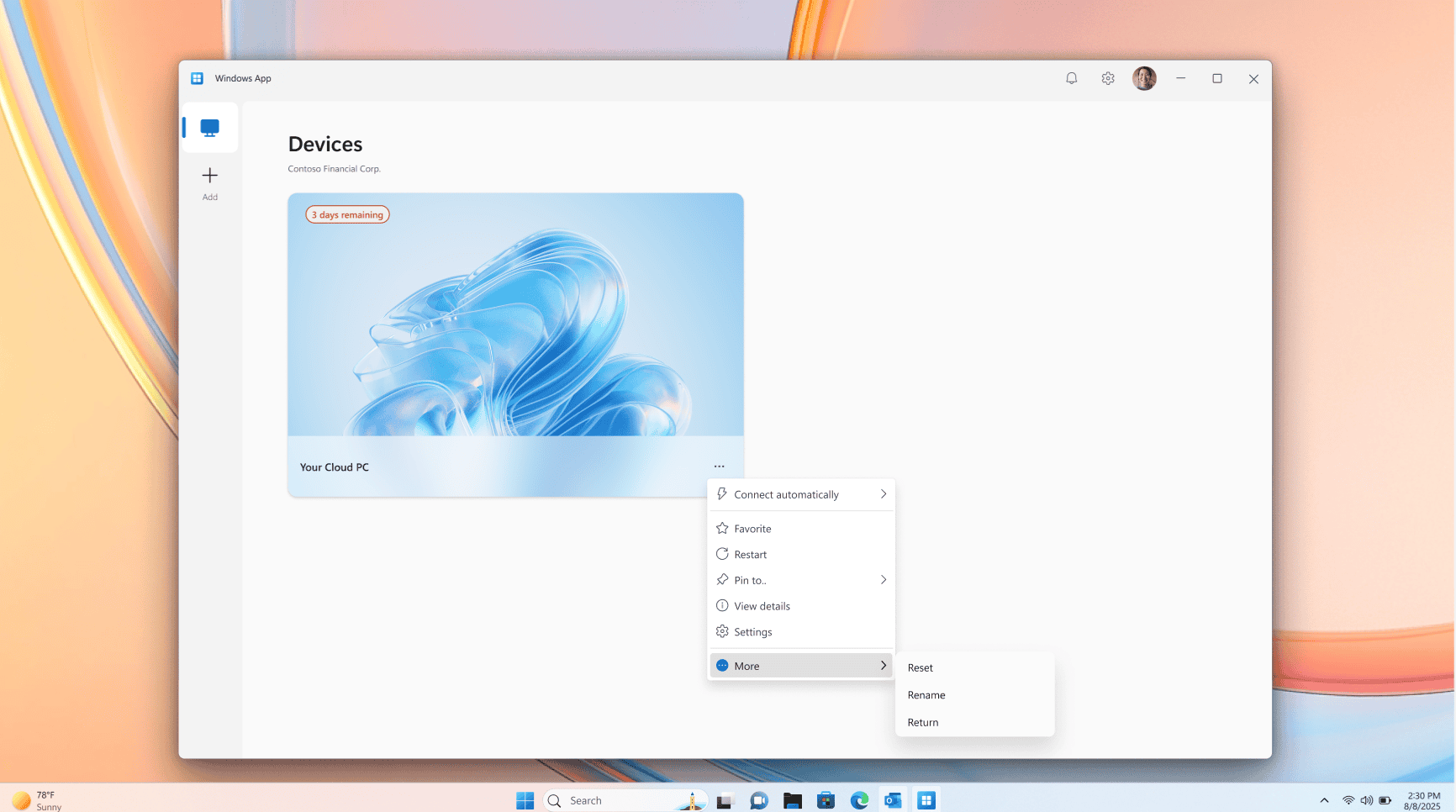
Image: Microsoft
Image: Microsoft
Windows 365 Reserve works as a standalone subscription, giving each user up to 10 days of access to a temporary Cloud PC per year. In a company-wide outage, IT admins can quickly deploy pre-configured cloud desktops with the required apps and settings.
This allows employees to pick up their work from any secondary device, all through a modern browser or the Windows app. Once provisioned, users receive a notification with details, including the expiration date. Windows 365 also sends a reminder three days before the temporary PC expires.
At the end of the session, users can deprovision the Cloud PC to save unused days for later. According to Microsoft’s announcement, Windows 365 Reserve is aimed at business continuity. The company highlights three main benefits:
Quick deployment to reduce downtime
Simplified IT management via Microsoft Intune
Built-in security following company policies, with easy access revocation
Windows 365 Reserve is currently in a closed public preview. Interested businesses can apply here or reach out to their Microsoft account representative.
Google is bringing its Gemini-powered image generation tool to the Google Docs app on Android. The feature first launched for the web version of Docs last November, allowing users to generate images in styles like watercolor, sketch, or photorealism.
Gemini image generation tool now in Google Docs for Android
On Android, you can access the image generation tool through the “Ask Gemini” icon at the top right of the screen. You can simply tap it, then, the app opens a panel at the bottom, where you can type detailed prompts.
For example, you could request “a photorealistic portrait of an astronaut drinking coffee on Mars”, and Gemini will create multiple versions to choose from, as seen in the image below.
Gif source: Google
Once the images appear, you can preview them full-screen, copy, download, insert them directly into your document, or upload them to Google Drive. The interface mirrors the web version’s workflow for consistency across platforms.
Rolling out to select Workspace subscribers
Google began rolling out the feature last Friday. According to the company, the rollout will be gradual, taking up to two weeks to reach all eligible users. For now, access is limited to paying customers on specific Google Workspace tiers: Business Standard and Plus, Enterprise Standard and Plus.
That’s not all; it’s also available to all those who’ve subscribed to Google AI Pro or Ultra. Customers with Gemini Education, Education Premium, Gemini Business, or Gemini Enterprise add-ons are also included.
GitHub CEO Thomas Dohmke has confirmed that he will leave the company at the end of 2025. Dohmke says he’s ready to “become a founder again” after guiding the platform through one of its most transformative periods.
GitHub saw major AI growth under Dohmke’s leadership
Dohmke announced his decision in a post to GitHub employees, later shared publicly. “Because of your relentless work, GitHub Copilot has introduced the greatest change to software development since the advent of the personal computer,” he wrote.
During his tenure, the developer platform passed 150 million users and crossed the one billion repositories mark. AI-related projects doubled over the last year, and GitHub expanded operations into the EU, Australia, and the US under FedRAMP certification.
GitHub Advanced Security became a key highlight, helping teams fix vulnerabilities three times faster while reducing remediation time by 60%. GitHub Actions also matured into the leading CI service, now processing three billion minutes of builds per month, a 64% jump compared to last year.
Perhaps the biggest introduction was the introduction of GitHub Copilot. Initially a simple code-completion tool, it has since grown into a multi-model AI platform that can review, repair, and even build full-stack applications. The service now serves more than 20 million developers, powered by models from Anthropic, Google, and OpenAI.
Dohmke, who moved from Germany to the US after selling his startup to Microsoft, described leading GitHub as “the ride of a lifetime.” Worth noting that he will remain CEO through the end of the year to assist with the transition. Afterward, GitHub will continue its mission within Microsoft’s CoreAI organization.
Microsoft has confirmed that its Edge browser will keep getting updates on Windows 10 until at least October 2028. Folks over at Windows Latest first spotted a recent update to Microsoft’s support documents and reported on it.
This extension comes even as Windows 10 itself approaches the end of its support life in October 2025. While Microsoft is ending official Windows 10 support, it has also offered optional Extended Security Updates (ESU) that let users continue receiving security fixes for up to three more years.
However, those ESUs don’t affect Edge updates. The updated Microsoft note says:
Microsoft Edge and the Microsoft WebView2 Runtime will continue to receive updates on Windows 10 22H2 until at least October 2028, coinciding with the end of the Extended Security Updates (ESU) program.
Well, you don’t need to pay for the ESU program to get these browser updates. That means Edge will stay current on Windows 10 devices, even if users decide not to buy extended Windows support.
If you want the ESU updates for Windows 10 itself, Microsoft offers three ways to get them. You can pay a $30 fee for each year of updates. Alternatively, you can sync your Windows Backup to OneDrive for free access.
The third option involves redeeming 1,000 Microsoft Rewards points, which you can earn easily by downloading apps like Bing, which gives 500 points. No wonder this decision will be a relief for users who haven’t upgraded to Windows 11 yet, knowing their browser stays secure even as Windows 10 support winds down.
What’s unclear is how long other browsers, like Chrome or Firefox, will continue to support Windows 10. We expect more news on that soon.
Pre-orders could open as early as August 20, possibly during Gamescom 2025, where Xbox is expected to share more details. The ROG Xbox Ally series was first shown off at the 2025 Xbox Games Showcase in June.
For the uninitiated, there are two models of the handhelds: the standard Xbox Ally and the higher-end Xbox Ally X.
Both use AMD’s Ryzen Z2 processors and support up to 24GB of RAM. They run a special gaming version of Windows 11, designed to boost performance and improve battery life compared to the regular version.
Earlier, Microsoft only said the devices would arrive sometime in the holiday season of 2025. This leak narrows that window to mid-October, with pre-orders launching two months before. The timing suggests Xbox will reveal pricing and specs during Gamescom.
In Europe, the standard Xbox Ally is expected to cost about 599 euros, while the Ally X will be priced at roughly 899 euros. Prices in other regions, like the US, could be different. This puts both models above the Xbox Series X’s current price of about $600.
OpenAI launched GPT-5 earlier this week, calling it its most advanced model yet. The release put the new AI in the hands of more than 700 million people worldwide.
What should have been good news for OpenAI turned into a nightmare as it faced backlash from both free and paid ChatGPT users. The problem many discovered that GPT-4o, a model they had built workflows around, had disappeared without warning.
During a Reddit AMA meant to celebrate the launch, CEO Sam Altman faced a wave of complaints. Several users said GPT-5 felt “dumber” than its predecessor and demanded GPT-4o’s return.
Altman replied that OpenAI had “heard the feedback” and would let Plus subscribers continue using GPT-4o, while tracking usage to decide how long it stays available. The rollout wasn’t just criticized for performance.
The removal of legacy models without notice left some feeling quite frustrated. At the center of the frustration is GPT-5’s new “real-time router,” a system that automatically picks the model for each task.
Altman admitted the router “wasn’t working as intended,” making GPT-5 appear less capable. He assured users it “will seem smarter” and promised more transparency about which model is responding.
For now, only Pro, Team, and Enterprise customers can toggle GPT-4o back on via the “show legacy models” setting. Free users don’t have that option. As for GPT-4.1, Altman said it would only return if Plus subscribers showed “enough demand.”
Closing the AMA, Altman pledged to “continue to work to get things stable” and to “keep listening to feedback” as GPT-5 rolls out.
Sony’s PlayStation 5 (PS5) has hit a major milestone, topping 80 million units sold since its late 2020 debut. The latest figure comes from Sony’s latest earnings report, which shows the console moving 18.5 million units in the 2024 fiscal year, followed by another 2.5 million in the first quarter of 2025.
That puts the PS5 at roughly 80.2 million units shipped to retailers worldwide, or 80.3 million if you go by Sony’s official business data page, which lists slightly higher sales for 2023.
The numbers still trail the PlayStation 4 (PS4), which hit 82.3 million in the same time frame after its launch. But the PS5’s road hasn’t been smooth.
Early supply chain bottlenecks, COVID-19 pandemic disruptions, and semiconductor shortages affected the sales in its first two years.
Despite those hurdles, its momentum remains strong. The PS5 is already trailing PS4’s early sales pace. With Grand Theft Auto VI (GTA 6) set for release next year, analysts expect it could soon overtake its predecessor.
Here’s how the PS5’s yearly sales have stacked up:
2020: 7.8M units (launch year)
2021: 11.5M units
2022: 19.1M units
2023: 20.8M units
2024: 18.5M units
2025 Q1: 2.5M units
Sony counts these as sell-in numbers, meaning shipped to distributors, not direct consumer purchases. Still, the milestone cements the PS5’s place as one of the fastest-selling home consoles in history, with plenty of big games still to come.
According to an investigative report by The Guardian, Israel’s Unit 8200 has stored 11,500 terabytes of intercepted Palestinian communications. That amount equals roughly 200 million hours of audio, kept on Microsoft’s Azure servers in North Holland province.
On Sunday, activists from the group Geef Tegengas reportedly scaled the facility’s roof and lit red flares. Others blocked entrances, demanding employees halt operations until the data is removed from the company’s servers.
Not to forget, The Guardian’s investigation, with +972 Magazine and Local Call, revealed that the data comes from military surveillance operations. The report prompted Dutch lawmakers to question whether the information could enable human rights violations in Gaza.
The country’s Foreign Minister Caspar Veldkamp promised an investigation and warned legal action could follow if laws were broken. Meanwhile, Microsoft has denied knowing the content of the stored data or supporting any surveillance of civilians.
The Israeli military insisted the partnership follows legal agreements and complies with international law to fight terrorism. The Guardian also reported Microsoft executives are urgently reviewing the arrangement amid fears of withheld internal disclosures.
Google has reportedly confirmed it will officially end support for Steam for Chromebook Beta starting January 1, 2026, marking the end of its “Borealis” project. The company has begun notifying users that the native Steam client for ChromeOS will no longer function after that date.
Image: 9to5Google
Originally launched as a way to bring high-end PC gaming to Chromebooks, the initiative struggled to gain traction. The main hurdle was hardware. Only a small number of Chromebooks shipped with powerful GPUs capable of handling demanding Steam titles.
Most devices in the market simply weren’t designed for local gaming of that scale, limiting the potential user base. In contrast, cloud gaming services have flourished on ChromeOS over the same period.
Platforms like NVIDIA’s GeForce NOW have offered access to large libraries of AAA games without relying on local hardware performance, making them a better fit for a broad range of Chromebook models.
By discontinuing Steam support, Google can redirect engineering resources toward features and technologies with wider appeal. The move also signals a stronger emphasis on cloud gaming as the primary way to play PC-quality titles on ChromeOS.
While the shutdown closes the chapter on an ambitious experiment, the growth of streaming platforms suggests most Chromebook gamers will still have access to a rich gaming experience, just not through native Steam support.
Microsoft has outlined a step-by-step method for passing custom user data to apps during sign-in, using Entra ID’s directory extension attributes. The process can help organizations include unique identifiers, such as sponsorship details, in SSO tokens for specific user groups.
In a recent guide, Microsoft showed how admins can register, assign, and map these attributes so they appear as claims in SAML or OIDC tokens, and only for selected groups.
Here’s how Microsoft suggests you to complete the process:
Step 1: Register Directory Extension Attributes
Use Graph Explorer to register two custom attributes, for example sponsorid1 and sponsorid2, in the target application.
Send a POST request to: POST https://graph.microsoft.com/v1.0/applications/{AppObjectId}/extensionProperties
Repeat this for each user, assigning the corresponding attribute (sponsorid1 or sponsorid2).
Step 3: Create Claims in Enterprise Application
Navigate to Entra ID > Enterprise Applications > [App Name] > Single Sign-On > Attributes & Claims.
1. Click Add new claim 2. Provide a name (e.g., sponsorClaim1) 3. Under Claim conditions, select Member and choose the group that should receive the claim 4. In the source attribute, use the directory extension attribute name (e.g., extension_<AppClientID>_sponsorid1)
Repeat for the second group and attribute.
Step 4: Handle Claim Mapping Error
If you see the error “Application requires custom signing key to customize claims”
You can temporarily bypass this by updating the app registration manifest:
“acceptMappedClaims”: true
This allows claims customization without custom signing keys.
Step 5: Test the Configuration
Call the application using https://login.microsoftonline.com/(Tenant ID)/oauth2/v2.0/authorize?client_id=(Client ID) &response_type=id_token&redirect_uri=https://jwt.ms&scope=openid&state=12345&nonce=12345 and sign in with users who belong to the defined groups. You should see the expected custom claims (sponsorid1 or sponsorid2) issued in the SAML or OIDC token in https://jwt.ms. Users not in any of the groups will not receive any sponsor claim.
Microsoft says this setup ensures sensitive or specialized data only reaches the right audience during sign-in, without exposing it to others.
xAI is opening up its latest AI model, Grok 4, to everyone, even those who don’t pay. The company announced the news on X, where it mentioned that free-tier users worldwide can now try the model’s Auto and Expert modes for a “limited period” with what it calls generous usage limits.
Grok 4, which only launched last month, had been locked behind xAI’s paid tiers. Auto mode decides on its own whether a question needs more reasoning power or a faster response. Expert mode puts that choice in the user’s hands.
There’s still a catch. The most powerful version of the model, Grok 4 Heavy, remains exclusive to SuperGrok subscribers. That’s not all; you won’t get access to Grok Imagine, the tool for generating images and videos, unless you’re in the US. Not to forget, Musk made it free for Americans just days ago.
It’s worth noting that paid users will still enjoy higher rate limits across all tools. Interestingly, the announcement came just a few days after OpenAI rolled out GPT-5 to all registered users, adding extra competitive heat to the ongoing AI race.
Musk also hinted at another big change on the horizon: ads. In a recent Spaces chat, he said Grok will soon show advertising inside its interface, including in answers and suggestions.
For now, free users have a rare chance to explore Grok 4’s capabilities. Whether the trade-off will eventually involve reading AI-generated answers between ad placements remains to be seen.
Mozilla recently rolled out Firefox version 141 with many new features, including AI-powered tab grouping. The browser can now scan your open tabs, figure out which ones are related, and group them with labels.
On paper, it sounds like a dream for anyone juggling dozens of tabs at once. In practice, some users say it is taking a toll on their PC’s CPU. Posts on the Firefox subreddit describe laptops running hot, fans going full blast, and battery life taking a hit.
One Reddit user said the update blew up their CPU after opening multiple tabs. Apparently, a mysterious process called “Inference” in the task manager shows that it is eating up resources until the browser is restarted.
Mozilla’s system keeps everything on your device, which means your browsing data stays private. But it also means the AI has to do all the work locally, and that can be heavy lifting if you have a tab hoarding habit.
A few Firefox fans are pointing the finger at Mozilla’s choice of Microsoft’s ONNX format for the AI models, saying that more lightweight formats might run smoother. Others aren’t bothered at all, arguing it’s a genuinely useful tool for research and big projects.
If you are among those affected and want the feature disabled, here’s what to do. You can head into Firefox’s advanced settings to disable the smart tab grouping. You can even delete the AI models entirely from the add-ons page.
Mozilla says more AI features are coming this year, joining Chrome and Edge in the push to make browsers smarter. Whether that makes Firefox more helpful or more of a battery hog will likely depend on how many tabs you keep open.