How to Download Blender for Windows 11 & 10 (Step-by-Step)

Want to create 3D animations or edit videos on Windows? Blender is one of the best free tools out there. Here’s how to download and install Blender on Windows 11 or 10 safely and fast.


What Is Blender?

Blender is a free, open-source 3D creation suite used for:

  • Modeling
  • Animation
  • VFX
  • Video editing
  • Game development

It works on Windows, macOS, and Linux—and it’s completely free to use.


How to Download Blender on Windows 11 & 10

  1. Go to Blender’s Official Website

    1. Visit blender.org from your browser
    2. The homepage will automatically detect your OS (Windows)
    3. You can also download from the Microsoft Store if you want to

  2. Click the “Download Blender” Button

    1. You’ll see a large blue button (e.g., Download Blender 4.1 LTS)
    2. Click it to start the download (.msi or .exe format)

  3. Choose Installer or Portable Version (Optional)

    1. The default is the installer, but you can choose:
    -> Installer – Adds Blender to Start Menu
    –> Portable ZIP – No installation required

  4. Run the Installer

    1. Double-click the .msi file
    2. Approve the security prompt (User Account Control)
    3. Choose “Next,” accept terms, and install

  5. Launch Blender

    1. After installation, open it from Start Menu or Desktop shortcut
    2. First launch may take a few seconds to load


System Requirements for Blender

Minimum:

  • OS: Windows 10 or 11 (64-bit)
  • RAM: 8 GB
  • GPU: OpenGL 4.3 compatible
  • Disk: 500MB+ for installation

Recommended:

  • RAM: 16 GB+
  • Dedicated GPU (NVIDIA/AMD)
  • SSD for faster performance

FAQs

Is Blender free for commercial use?
Yes, Blender is free under GNU GPL license—even for commercial projects.

Which version of Blender works best on Windows 11?
The latest LTS version (e.g., Blender 4.x) is always recommended for stability.

Can I run Blender on a low-end PC?
Yes, but expect slower performance in rendering or heavy 3D scenes.


Final Tip

Always download Blender directly from the official site to avoid malware or outdated builds. Once installed, you can start experimenting with 3D models, VFX, or even edit full videos.

Let your creativity begin with one of the most powerful free tools in digital content creation!

How to Download Tubi TV App on your PC

Tubi is a free streaming service offering thousands of movies and TV shows with no subscription required. If you’re using a Windows 10 or 11 computer, here’s how to download and use the Tubi app directly on your PC. No browser streaming required – this guide shows you how to install the actual app.

🖥️ How to Download Tubi TV App on Windows

Time needed: 1 minute

  1. Install via Microsoft Store

    1. Open the Microsoft Store on your Windows 10 or 11 PC
    2. Search for Tubi – Free Movies and TV or just click here
    3. Click Get (or Install) to download and install the official app through Microsoft’s platform

  2. Launch and Sign In

    1. When installed, click Launch from the Store or open Start Menu → Tubi
    2. Signing up for an account is optional but lets you save watchlists and preferences. No credit card is required

  3. Alternative: Use Tubi in Your Web Browser

    You can simply visit tubitv.com using Chrome, Firefox, Edge, or Safari
    Click Sign In or start browsing—no app necessary to watch content

✅ Why Use the Microsoft Store App?

  • Full compatibility with Windows 10 and 11
  • Optimized UI for desktop and laptop users
  • Ability to pin the app to your Start menu or taskbar for one-click access

⚠️ If the App Fails to Install

  1. Go to Settings → System → Troubleshoot → Other troubleshooters → Windows Store Apps → click Run
  2. Make sure Windows Update is current
  3. Restart your PC and retry the installation

Also, if you’re trying to access outside the US, it won’t work, so here’s a guide from VPNCentral that shows how to unblock it.

Quick Summary

MethodStepsBenefits
Microsoft Store AppStore → Install → LaunchSmooth, native experience
Browser (Web Version)tubitv.com → Sign in or browseNo app download needed
Troubleshooter FixWindows Store Apps troubleshootFix install issues if errors occur

AI Mode Pops Up in Chrome’s Search Bar and Lens as Google Quietly Tests It

Google earlier tested AI Mode in Chrome’s New Tab Page search bar and as a shortcut in the Omnibox. Now, the company is taking it a step further by integrating its entry directly into the address bar and Google Lens search results within Chrome.

After rolling out AI Mode in the U.S. and India, Google has now brought the AIM feature to the U.K. The company is also working to bring AI Mode into the Chrome browser across platforms.

On desktop, Chrome will show the AI Mode option when you focus the cursor in the address bar. When you click into the address bar, the AI Mode entry now appears at the end, replacing the shortcut that used to be displayed at the bottom.

This change is currently being tested behind a flag in Chrome Canary. The flag, called “AI Mode Omnibox Entrypoint,” is available on Mac, Windows, Linux, and ChromeOS. Its description reads:

“Enable icon button for AI Mode entry point in the omnibox.”

Chrome Canary showing the “AI Mode Omnibox entrypoint” flag on desktop. Image Credit: Venkat/WindowsReport.
AI Mode shortcut is visible in Chrome’s address bar when focusing the Omnibox on a desktop. Image Credit: Venkat/WindowsReport.

AI Mode Shortcut on Android

As we said earlier, Google has been experimenting with using AI Mode as a search engine alternative to Google Search in Chrome on Android. Now, it’s testing a shortcut that appears as soon as you start typing in the Omnibox.

This is controlled by a Canary flag named “Omnibox AIM Shortcut Typed State,” which says:

“Enables AIM shortcut in the typed start of omnibox.”

AI Mode shortcut in the typed state of the omnibox flag for Android Chrome. Image Credit: Venkat/WindowsReport.

AI Mode shortcut is visible in the Chrome Omnibox on Android when typing a query. Image Credit: Venkat/WindowsReport.

AI Mode in the Google Lens Side Panel

Another update involves AI Mode appearing in Google Lens search results shown in the side panel. According to a new Canary flag, Google is testing the ability to run follow-up queries powered by AI Mode without leaving the Lens overlay.

The flag named “AIM in Lens Side Panel” describes it as :

“Enables AIM follow-ups with the Lens overlay results side panel.”

Chrome flag “Enables AIM in Lens Side Panel,” which allows AI Mode follow-ups with Lens overlay results. Image Credit: Venkat/WindowsReport.

This suggests that after performing a Lens search, such as identifying an object or translating text, users could get additional AI-powered suggestions or ask further questions related to the results, all within the same side panel. This integration could make Lens more interactive and reduce the need to switch back to the main search page.

All in all, after bringing Gemini AI to Chrome, Google is now adding AI Mode into more parts of the browser, starting with the address bar and Lens. We’ll likely see it expand even further across Chrome on various platforms soon.

That’s not all. Google Chrome will soon get native HLS playback, the much-requested Vertical Tabs, and PlayReady DRM support on Windows 11.

It’s Official: Battlefield 6 Releases October 10 with Open Beta Access in August

After weeks of leaks and speculation, Battlefield 6 finally has a release date, and it’s closer than expected. EA officially confirmed the launch for October 10 during the game’s multiplayer reveal on July 31, giving fans their first real look at what’s coming.

Battlefield is returning to modern combat. Set in the year 2027, the new title brings back gritty, boots-on-the-ground warfare with the kind of chaotic destruction the franchise was once known for.

Explosions now rip through environments again, and familiar classes like Assault, Engineer, Support, and Recon are making a comeback. The multiplayer showcase also confirmed two public open beta weekends in August.

Players who pre-order select editions or earn a Twitch Drop will get into an earlier closed beta window a few days before. Nine multiplayer maps will be available at launch, spanning locations like Egypt, Brooklyn, and Tajikistan.

Battlefield 6 Beta
Image: Electronic Arts

A fan favorite, Operation Firestorm from Battlefield 3, is also making a comeback in a revamped form. While the full version drops in October, EA confirmed that a Battle Royale-style mode will first launch under Battlefield Labs, a space for testing experimental content.

After the troubled launch of Battlefield 2042, expectations are high. Battlefield 6 is shaping up to be a make-or-break moment for the series.

How to Open a CSV File in Windows 11 [4 Ways]

On Windows 11, opening a CSV file may seem straightforward—but many users run into issues such as broken formatting, jumbled text, or the file opening in the wrong application like Notepad instead of Excel.

If you’re wondering how to open a CSV file properly on your Windows 11 PC, this guide walks you through all the reliable options: from Excel and Notepad to Google Sheets and free alternatives like LibreOffice. Whether you’re a casual user reviewing data or someone managing large reports, we’ll help you pick the right method, avoid encoding issues, and ensure your CSV files are readable and well-formatted.

Let’s look at the easiest and most effective ways to open a CSV file on Windows 11.

  1. Open CSV in Microsoft Excel

    1. Right-click the CSV file → click Open with → choose Excel
    2. If not listed, click Choose another app → find Excel manually
    3. Excel will auto-detect separators like commas or semicolonssave as csv in windows 11

  2. Open CSV in Notepad or Notepad++

    1. Right-click the file → choose Open with → select Notepad
    2. For better formatting, install Notepad++ via https://notepad-plus-plus.org
    3. Set UTF-8 encoding if text appears broken

  3. Open CSV in Google Sheets

    1. Go to sheets.google.com
    2. Click File → Import → Upload, then select your CSV
    3. Customize delimiter (comma, tab, semicolon) in import settings

  4. Open CSV with LibreOffice Calc (Free)

    1. Download LibreOffice from libreoffice.org
    2. Open Calc → File → Open → select your CSV
    3. Choose delimiter and encoding in the import wizard

Fix CSV Not Opening Properly

  • Right-click the CSV → Properties → “Opens with” → set default to Excel
  • Change file extension to .txt and reopen in Excel via File → Open
  • Use Data → From Text/CSV in Excel to manually import and preview

Why It Works

CSV (Comma-Separated Values) is a plain-text format readable by many programs. Excel parses structured data best, but editors like Notepad work for basic review. Online tools offer cross-platform access without installation.


FAQs

What program opens CSV files by default on Windows 11?
By default, Windows may open CSVs with Notepad. You can change this to Excel in File Properties.

Why does my CSV show in one line or with weird characters?
This happens due to incorrect encoding or delimiters. Use Excel’s import feature and select the proper separator.

Can I open CSVs without Excel?
Yes, using Notepad, Google Sheets, LibreOffice Calc, or even a browser extension.


Xbox Free Play Days Brings WWE 2K25 & More Titles to Try This Weekend

Microsoft has announced another Free Play Days, and this week’s lineup includes WWE 2K25, available to try at no cost until August 3. The game features over 300 wrestlers, including Hall of Famers and current stars, plus story-driven career modes that let players build their legacy.

Also free this weekend are Dynasty Warriors: Origins, I, Robot, and The Ascent. The first two are available to Xbox Game Pass Core and Ultimate members. The Ascent is open to all Xbox players, regardless of whether they have a subscription.

Dynasty Warriors: Origins delivers large-scale battles and classic hack-and-slash combat. I, Robot, an arcade-style throwback from Jeff Minter, reimagines the 1980s Atari game with trippy visuals and twitch-based action.

The Ascent takes players into a gritty cyberpunk world filled with hostile factions, powerful weapons, and co-op options. It’s one of the more popular indies from recent years and is fully playable without Game Pass.

Each title is also discounted if you want to keep it after the weekend. Saves and achievements carry over. You can access the games via the Free Play Days section on Xbox consoles or through the Xbox Store online.

NVIDIA GeForce 580.88 Driver Focuses on Game Support and Stability Fixes

NVIDIA has released a new GeForce Game Ready driver (version 580.88) for Windows, aimed at gamers prepping for upcoming titles like Mafia: The Old Country, Microsoft Flight Simulator 2024, and Clair Obscur: Expedition 33. The driver brings full support for these games and enhances DLSS 4 performance where supported.

But the update isn’t just about new releases. It also fixes several long-standing issues. World of Warcraft now renders ray tracing correctly, Battlefield 2042 gets a lighting fix, and Marvel’s Spider-Man Remastered sees better stability.

Other improvements target crashes in games like Cyberpunk 2077 and Control, as well as graphical bugs in Red Dead Redemption 2. DXVK performance on 32-bit titles also gets a boost, and Blender rendering is now more reliable.

This release introduces a new Clang-based JIT compiler for OpenCL, improving performance and error handling for compute tasks. NVIDIA also added CUDA 13.0 support and included security updates from July’s bulletin.

Users running Windows 10 with RTX GPUs won’t be left out; NVIDIA says Game Ready support will continue through 2026. The update also resolves hardware-related issues, including flickering on Samsung’s Odyssey Neo G9 and sleep mode bugs on hybrid GPU laptops.

A few minor issues remain, like screenshot crashes in Cyberpunk 2077, but overall, 580.88 looks like a solid release for both gamers and creators. You can grab the update via GeForce Experience or NVIDIA’s official website.

Ollama Brings Local AI to Windows with New App

Ollama has launched a desktop app for Windows that brings powerful local AI models to everyday user, without needing any coding knowledge. With its new app, Windows users can download and run AI models on their own devices, talk to them in a simple chat window, and even analyze files or images by dragging them into the app.

This shift opens up local AI, where all data stays local on your PC, for more than just tech-savvy users. You can now ask questions, feed in PDFs or text files, or even interact with images, all inside a clean interface that feels more like a modern messaging app than a dev tool.

Ollama has also added advanced controls under the hood. You can tweak the context window up to 128,000 tokens. On top of that, the app’s new architecture gives models better stability, faster inference, and smarter memory use.

It’s built on Ollama’s own engine, which was designed to handle modern AI demands beyond what older frameworks could manage. Even though power users can still dive into the command-line version, the new Windows app is clearly built for people who just want to use local AI without fuss.

You can grab the app (macOS, Windows) from Ollama’s website starting today. The company further notes that those intersted in pure CLI versions of Ollama can download it from its GitHub releases page.

Proton Launches Free 2FA App for All Platforms, Including Windows

Proton, best known for its privacy-focused services like Proton Mail and VPN, has introduced a new two-factor authentication app, this time focusing on securing logins across devices, including Windows PCs.

The new app, Proton Authenticator, is free and works on Windows, macOS, Linux, iOS, and Android. While most 2FA apps stick to mobile, Proton’s decision to bring full desktop support sets this one apart.

On Windows, Proton Authenticator gives users access to their 2FA codes right from the desktop, eliminating the usual phone-switching hassle during logins. It’s built to sync across devices using end-to-end encryption, which means even Proton can’t see your codes.

The app supports time-based one-time passwords (TOTP), the standard used by services like Google, GitHub, and Dropbox. You can also back up your codes to Proton Drive if you want, with recovery support for when devices are lost or replaced.

Unlike some alternatives, there’s no paywall or “Pro” tier. All features, including cloud sync, are available without cost. That puts Proton Authenticator in a unique spot as many competitors charge for similar functionality.

For users already in the Proton ecosystem, it’s a natural addition. But for Windows users looking for a simple, private, and truly cross-platform 2FA tool, it may be worth a try, especially with nothing to lose. Proton says the app is now available to download on all platforms.

Activision Faces Backlash Over Alleged AI-generated Diablo x Hearthstone Poster

A new Diablo Immortal promo poster has sparked online backlas because fans think it was made using AI. The poster was part of a crossover event with Hearthstone, but it didn’t take long for players on Reddit to start picking it apart.

They pointed out strange visual details: duplicated playing cards, awkwardly shaped hands, a pendant that blends into skin, and even an ear that just didn’t look right. Many of these irregularities are commonly seen in AI-generated images.

The discussion quickly picked up, with thousands weighing in and accusing Blizzard of skipping real artists in favor of AI. For a company that sells pricey in-game items, some Reddit users saw it as a cost-cutting move that didn’t really amused them.

The timing of this blunder is something that players are most upset about. Microsoft, which now owns Activision Blizzard, has been vocal about using AI across different teams. Earlier this year, the company confirmed AI-generated assets were used in Call of Duty: Black Ops 6.

One Reddit user commented, “Microsoft loves ai slop more than anyone, I hope that the Hearthstone team will be able to keep up their promise of not using ai, but I’m not sure how long Microsoft will let them”

So far, Blizzard hasn’t said if AI was used in the image we have featured above. But the silence is adding to the frustration of fans, especially among players who value hand-drawn art and creative effort.

Temp Folder in Windows 11: Location, Access & Cleanup Guide

The Temp folder in Windows 11 stores temporary files used by the system and apps. These files can accumulate and affect performance or storage. Learn where to find it, how to access it, and how to safely delete its contents.

Where Is the Temp Folder in Windows 11?

There are two main Temp folders in Windows 11:

  • User Temp Folder:
    C:\Users\<YourUsername>\AppData\Local\Temp
  • System Temp Folder:
    C:\Windows\Temp

To open the user Temp folder quickly:

  1. Press Win + R
  2. Type %temp% and press Enter

To access the system-wide folder, you need admin rights:

  1. Press Win + R
  2. Type C:\Windows\Temp and press Enter

If you want to understand how this folder fits into the bigger picture, here’s a full guide on what the AppData folder in Windows is and why Windows stores user data there.

How to Access the Temp Folder in Windows 11

1. Using Run

  • Press Win + R
  • Type %temp% or C:\Windows\Temp
  • Hit Enter

2. Using File Explorer

  • Open File Explorer
  • Paste the desired path in the address bar – %temp%
  • Press Enter

3. Fix “Access Denied” Errors

If you can’t access the Temp folder, follow this guide:
👉 Windows Temp Folder Access Denied

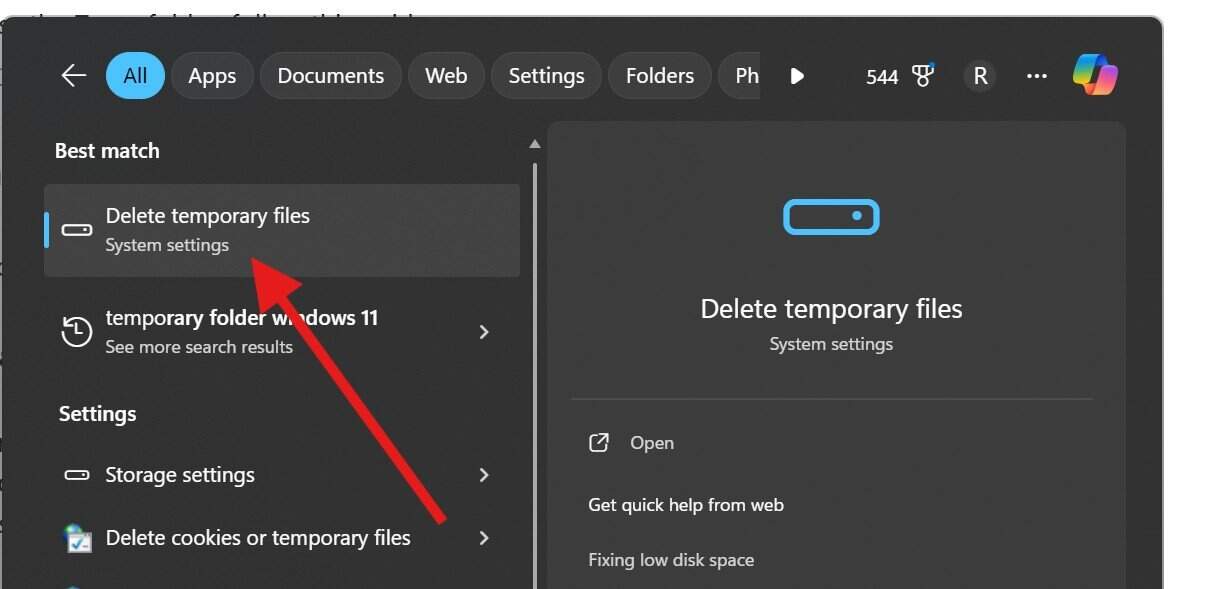
How to Safely Delete Temp Files in Windows 11

Removing temporary files can free up space and improve performance.

Method 1: Via Settings

  • Go to Settings > System > Storage
  • Click Temporary files
  • Select items and hit Remove files

Method 2: Manually from Temp Folder

  • Open %temp% or C:\Windows\Temp
  • Press Ctrl + A to select all
  • Press Shift + Delete to permanently remove them

More details here:
👉 Windows 11: Delete Temporary Files Guide

Method 3: Using Disk Cleanup

  • Press Start and search for Disk Cleanup
  • Select drive C:
  • Check Temporary files and click OK

Why Clearing Temp Files Helps

  • Frees up disk space
  • Speeds up system processes
  • Removes leftover data from uninstalled programs
  • Can fix app crashes and bugs

FAQs

What is the purpose of the Temp folder in Windows 11?
It stores temporary data needed during installations, updates, or runtime operations.

Is it safe to delete everything in the Temp folder?
Yes. Windows won’t let you delete essential files that are in use.

Why do I get access denied to the Temp folder?
You may need administrator rights. Follow this fix: Access Denied Solution


Related articles:

Battlefield 6’s leaked multiplayer trailer spills the release date

EA’s multiplayer reveal for Battlefield 6 was meant to go live later today, but a leaked trailer appears to have revealed key details ahead of time, including the release date.

A portion of the video trailer briefly surfaced on Battlefield’s official X account before being taken down. Not to mention, fans quickly reuploaded it, offering glimpses of the upcoming title’s multiplayer footage.

More importantly, one frame of the video clearly showed the release date: October 10, 2025, which is inline with a previous leak. The leaked video trailer also spilled urban combat, jet dogfights, helicopters, tanks, destruction effects, and players dragging downed teammates. These moments are expected to be part of the full trailer reveal.

Battlefield 6 is EA’s biggest title in years. The game will feature a single-player campaign, large-scale multiplayer battles, and may also include a free-to-play battle royale mode. According to EA’s official description, players will engage in close infantry combat, vehicle warfare, and environmental destruction across large-scale maps.

The multiplayer reveal is still scheduled for 11:30 AM PT today on the Battlefield YouTube channel. If the trailer leak is accurate, pre-orders are expected to go live shortly after the stream.

Microsoft Offers Windows 11 to PCs That Shouldn’t Get It

Some Windows 10 users with older PCs are now seeing an unexpected prompt to upgrade to Windows 11, despite not meeting the official system requirements. Borncity, a German tech blog site first reported on this story, but it only came into light after Neowin published a story around it last week.

Microsoft hasn’t said a word about what’s going on, which is only adding to the confusion. One of the Borncity’s readers (namely Georg) claimed to have received an upgrade that is being pushed to devices missing key requirements like TPM 2.0, Secure Boot, or a compatible processor.

Win11-Upgrade
Image: Borncity

To catch you up, these PCs were previously blocked from installing Windows 11. Now, the update is being offered with no warning or explanation. Not to mention, that’s raised a lot of questions. Is Microsoft relaxing its hardware rules, or did something go wrong behind the scenes?

So far, there’s no official answer. With no clarification from the company, users are left to guess whether this is intentional or just a glitch. Still, upgrading might not be worth the risk. Microsoft has long warned that unsupported PCs could face performance problems, driver issues, or fail to get critical security updates.

If your device suddenly gets the Windows 11 offer, don’t rush in. Back up your files and check whether your PC truly meets the requirements. If it doesn’t, you could be stuck with a system that doesn’t run smoothly, or worse, loses access to future updates.

How to Enable Numpad in Windows 11

The numeric keypad on your keyboard can stop working if Num Lock is disabled, system settings block it, or your keyboard isn’t detected properly. In Windows 11, enabling the numpad is simple once you check a few key settings.

1. Press the Num Lock Key

Most keyboards have a Num Lock key, usually located at the top-left of the number pad.

  • Press it once to activate the numpad.
  • If your keyboard has a Num Lock light, it should turn on.
  • If the key does nothing, continue with the steps below.

2. Enable Numpad in Accessibility Settings

  1. Press Windows + I to open Settings.
  2. Navigate to Accessibility > Keyboard.
  3. Scroll to the On-screen keyboard section and launch it.
  4. Click Options in the on-screen keyboard.
  5. Check Turn on numeric keypad, then press NumLock in the virtual layout.

This activates the number pad, especially helpful on laptops or compact keyboards.

3. Keep Num Lock Enabled at Startup

If the numpad keeps turning off after reboot:

  1. Press Windows + R, type regedit, and hit Enter.
  2. Go to:
    HKEY_USERS\.DEFAULT\Control Panel\Keyboard
  3. Find the value named InitialKeyboardIndicators.
  4. Double-click it and set the value to 2.
  5. Restart your PC.

For full details, see our guide on enabling Num Lock at startup.

4. Troubleshoot Numpad Not Working

If your numpad still doesn’t respond:

  • Try a different USB port or restart your PC.
  • Check Device Manager > Keyboards and update the driver.
  • Test another keyboard if possible.
  • If the issue persists, read our full guide on fixing number pad problems in Windows.

In most cases, enabling the numpad in Windows 11 only takes a single keypress. But if that fails, Windows settings, registry tweaks, or hardware checks will get you back on track.

Meta Faces Antitrust Probe In Italy Over WhatsApp’s AI ChatBot

Italy’s antitrust regulator, AGCM, has opened a formal investigation against Meta over how it introduced its AI assistant into WhatsApp. The regulator says the company may have breached EU rules by tying two services together—without giving users a clear choice.

At the center of the case is Meta AI, a smart assistant built into WhatsApp’s search bar earlier this year. Italy’s AGCM argues that this kind of bundling could unfairly steer users toward Meta’s own AI tools and limit competition.

In a statement, the watchdog said Meta may be abusing its dominant position by using WhatsApp’s bigger user base to push its AI assistant. The concern is that smaller AI services might get sidelined as a result.

Meta has responded by saying its integration benefits users by offering AI where they already feel comfortable. “Offering free access to our AI features in WhatsApp gives millions of Italians the choice to use AI in a place they already know, trust, and understand,” a spokesperson said.

The company says it’s working with the authorities, but the Rome-based AGCM has reportedly already launched inspections at Meta’s Italian office, with help from the national tax police’s antitrust unit.

If the watchdog finds Meta at fault, it could impose a fine of up to 10% of its global revenue under the EU’s antitrust law. Meta, in the past, has already faced backlash due to its AI, so it’ll be interesting to see the outcome of this investigation.

GitHub Copilot Now Helps .NET Devs Migrate Legacy Code to Azure

Microsoft has launched a new GitHub Copilot extension for Visual Studio 2022 that helps .NET developers modernize and migrate legacy applications to Azure.

Now in public preview, the extension uses AI to assess cloud readiness, flag outdated components, and suggest the right Azure services, like Blob Storage, Azure SQL, and Entra ID.

Well, the new extension doesn’t just stop at suggestions. If you are a developer, you can get automate code remediation that can rewrite parts of code automatically.

For example, it can replace local file I/O with Azure Blob or File Storage, convert SMTP email implementations to Azure Communication Services, or migrate identity setups from Windows AD to Entra ID.

The extension also fixes any compiler errors caused by these changes, keeping the code ready to build. Remember, everything runs inside Visual Studio. You can trigger fixes from the built-in assessment report or select specific tasks from a menu.

AI helps throughout, but developers are the one who controls it, by reviewing and approving each suggested change before moving forward.

To use the latest extension, you’ll need Visual Studio 2022 (version 17.14.7 or later) and a GitHub Copilot Pro, Business, or Enterprise subscription. Microsoft says the extension doesn’t retain code after a session, though it does collect usage data.

GitHub Copilot Hits 20 Million Users as AI Coding Market Heats Up

GitHub Copilot has now been used by over 20 million users, according to Microsoft CEO Satya Nadella. Those numbers popped up in the company’s Q4 earnings call from yesterday. Do note that the 20 million mark includes all-time users, not just those active today.

To catch you up, GitHub Copilot reached the 15 million user base milestone just back in April. Considerinbg those details, the new, reported number hints at a significant growth. Microsoft says Copilot is now used by 90 of the Fortune 100, while enterprise adoption jumped 75% since last quarter.

Nadella noted that Copilot is now bigger than GitHub was as a whole when Microsoft acquired it back in 2018. GitHub isn’t alone in this space, by the way. AI coding tools are becoming one of the few areas in generative AI that consistently bring in real money.

Cursor, which is a rival to GitHub Copilot, reportedly had more than a million daily users back in March. Its annual recurring revenue has since doubled from $200 million to over $500 million. That tells us the immense growth AI coding tools are seeing these days.

While GitHub and Cursor started out solving different problems, they’re now building similar features, including AI agents that review code and take on routine programming tasks.

Not to forget, Google has already acquired Windsurf’s founders, while OpenAI and Anthropic are expanding their own AI dev tools with Codex and Claude Code. Needless to say, the compeition in the assited coding space is going to only increase between these AI tech giants.

How to Get Free Microsoft Store Gift Card Codes

Looking for free Microsoft Store gift card codes? Whether you want to buy apps, games, or digital content, there are safe and legal ways to earn Microsoft credit – without paying a cent. Below, we list the best platforms and methods that actually work.


✅ 1. Microsoft Rewards (Official Method)

Microsoft Rewards is the most reliable way to get free Microsoft Store gift cards.

How it works:

  • Sign in with your Microsoft account at rewards.microsoft.com.
  • Earn points by using Bing, completing quizzes, or playing Xbox Game Pass quests.
  • Redeem your points for Microsoft Store credit.

🎯 Tip: Use Bing as your daily search engine to rack up points fast.

✅ 2. Free Survey & Cashback Sites

Some trusted platforms let you earn gift cards by completing surveys or cashing in rewards:

  • Swagbucks – Complete tasks and surveys, then redeem for Microsoft Store cards.
  • InboxDollars – Get paid for watching videos or trying offers.
  • PrizeRebel – Earn points and redeem them for Xbox/Microsoft Store codes.

Always check the gift card availability by country before signing up.

✅ 3. Microsoft Store Promotions & Events

Microsoft occasionally runs promotional campaigns where you can win or earn gift cards.

  • Look out for seasonal sales, student offers, or Xbox Live events.
  • Some giveaways happen via the Xbox Dashboard, especially around major launches.

✅ 4. Join Giveaways on Reddit or Discord

Certain subreddits like r/Giveaways, r/MicrosoftRewards, or gaming Discord servers host legit code drops.

  • Warning: Avoid links to shady third-party websites. Never enter credit card info for a “free code.”

🚫 Avoid Generators and Code Crackers

If a website says you can generate unlimited Microsoft Store codes—it’s a scam.
These tools are fake, often filled with ads, malware, or phishing pages. Stick to the methods above to stay safe.

🧠 Why This Matters

Microsoft gift cards don’t expire and can be used for apps, games, movies, and even Xbox Game Pass. Getting them for free through official channels helps you save money while staying secure.


Microsoft’s AI and Cloud Growth Push Q4 Earnings Past Expectations

Microsoft’s cloud and AI strategy looks to be paying off, as the company posted strong Q4 earnings. The Redmond tech giant eported $76.4 billion in revenue and $3.65 in adjusted earnings per share, exceeding Wall Street’s expectations.

Microsoft CEO Satya Nadella credited AI and cloud as the core drivers of growth across industries. “Cloud and AI is the driving force of business transformation across every industry and sector,” said Satya Nadella, CEO of Microsoft. “We’re innovating across the tech stack to help customers adapt and grow in this new era, and this year, Azure surpassed $75 billion in revenue, up 34 percent, driven by growth across all workloads.”

That cloud growth showed up in the Intelligent Cloud segment, which pulled in $29.8 billion, beating analyst estimates. According to the company, as more businesses are looking towards AI tools, the demand is still outpacing the capacity.

It’s worth noting that Microsoft’s shares jumped over 6% after the report, with pre-market trading pushing it even higher. According to market analysts, Microsoft’s real AI growth story will be something to watch out for in 2026. That’s when rollouts of its AI tools like Copilot are expected to ramp up.

Not to forget, Microsoft’s partnership with OpenAI is under some serious tension. OpenAI’s plan to restructure its for-profit division may affect Microsoft’s expected equity stake. If the deal doesn’t go through, OpenAI could lose out on $20 billion in funding, which would ripple through Microsoft’s broader AI strategy. Only time will tell how things will pan out for the Redmond giant.

How to Open .ASD File in Word and Recover Unsaved Documents

Accidentally closed a Word file without saving it? Microsoft Word automatically creates backup files with the .asd extension to help you recover unsaved documents. Here’s how to locate, open, and restore an ASD file in Word.

How Do I Open ASD Files in Word?

✅ Step 1: Locate the .ASD File on Your PC

  1. Press Windows + E to open File Explorer.
  2. Go to the default path:
makefileCopyEditC:\Users\<YourUsername>\AppData\Local\Microsoft\Office\UnsavedFiles
  1. Look for files with the .asd extension.

🔍 Tip: You can also search *.asd in File Explorer if you’re unsure of the exact location.

✅ Step 2: Open the .ASD File in Microsoft Word

  1. Open Microsoft Word.
  2. Click File > Open > Recover Unsaved Documents.
  3. Navigate to the folder where the .asd file is stored.
  4. Select the file and click Open.

Word will load the backup file, and you can choose to save it normally.

To prevent future data loss:

  1. In Word, go to File > Options > Save.
  2. Ensure Save AutoRecover information every X minutes is enabled.
  3. Confirm the AutoRecover file location is accessible.

Want a quick refresher on core editing features and settings? Start here: How to use Microsoft Word.

🛠 Can’t Open the ASD File?

  • Make sure the file isn’t corrupt.
  • Ensure you’re using a compatible version of Word (2010 or newer).
  • You can rename the .asd file to .docx and try to open it as a last resort.

FAQs

What is an .asd file?

An .asd file is a Microsoft Word AutoRecover file that stores an autosaved snapshot of a document after a crash, power loss, or unexpected close. It is not a final .docx, but a temporary recovery copy.

How do I open or recover an .asd file in Word?

Open Word, select File > Info > Manage Document > Recover Unsaved Documents, or go to File > Open > Recover Unsaved Documents. You can also double click the .asd if Word is associated, then save it as a new .docx once it opens.

Where are .asd files stored on Windows and Mac?

Common Windows paths are C:\Users<YourName>\AppData\Local\Microsoft\Office\UnsavedFiles and %AppData%\Microsoft\Word. On macOS, check ~/Library/Containers/com.microsoft.Word/Data/Library/Preferences/AutoRecovery.

Can I convert or delete .asd files safely?

After you recover and save the document as .docx, you can delete the leftover .asd to free space. Direct conversion is not needed; open the .asd in Word, then use Save As to create a standard .docx.

Summary

To open a .asd file in Word, simply locate it in the UnsavedFiles folder and open it through Word’s recovery options. It’s a quick way to get back an unsaved document and avoid losing hours of work.

Trying to open or recover a file without the desktop app? Use Word in your browser with this guide: Microsoft Word in the browser.

Microsoft reportedly testing Copilot’s new ‘smart mode’ ahead of GPT-5 rollout

Microsoft appears to be getting ready for GPT-5, as it is reportedly testing a new “smart mode” in Copilot. This mode is available in both consumer and enterprise versions of the tool, although Microsoft hasn’t publicly confirmed the change.

With Smart Mode, Copilot will automatically switch models to determine the best response. It can choose either with deeper reasoning or faster answers, based on what you’re asking. Internally, Microsoft describes it as choosing “the most relevant model” for better results.

None of the Copilot interfaces mentions GPT-5 directly. But given the imminent launch of GPT-5, it all makes sense. According to reports, OpenAI is expected to launch GPT-5 in early August, and Microsoft typically integrates OpenAI’s new models into Copilot shortly after release.

Last year, Microsoft began using GPT-4 in Bing about six weeks before OpenAI made it official. Sources familiar with Microsoft’s plans told The Verge that this smart mode feels similar to an internal feature once called “magic mode.”

To catch you up, that mode also focused on adapting automatically without user input. While it’s not clear whether these two are the same under the hood, both point to Microsoft moving toward a more seamless AI experience.

OpenAI CEO Sam Altman said earlier this year that they were working to eliminate the model picker entirely in favor of a “magic unified intelligence.” Needless to say, the idea isn’t new. GPT-5 is expected to bring that vision closer by folding in the o3 model as part of a single upgrade. If everything stays on track, Copilot’s “smart mode” could roll out publicly not long after GPT-5 drops.

See All Restore Points on this PC in 3 Steps

System Restore can be a lifesaver when something goes wrong with your PC – but it’s only useful if you know how to check if restore points actually exist. Whether you’re troubleshooting a recent driver update or want to roll back changes, this guide shows you how to view all available system restore points quickly.

We’ll cover the easiest methods for both Windows 11 and Windows 10 users.

Step 1: How to See System Restore Points Using System Protection

all restore points pc

This is the most straightforward and recommended method:

  1. Press Windows + S and type “restore point”.
  2. Select Create a restore point from the search results.
  3. In the System Properties window, make sure you’re on the System Protection tab.
  4. Click the System Restore… button.
  5. Choose Next in the wizard to see a list of available restore points.
  6. Select a restore point and click Scan for affected programs to see what will be changed.
list all restore points

✅ Note: If the list is empty, that means System Protection is disabled or no restore points have been created.

Want to learn how to use System Restore to actually roll back your PC? Check out our guide on how to use System Restore on Windows 10 and Windows 11.


Step 2: Use Command Prompt to List Restore Points (Advanced)

If you prefer the command line, here’s how to do it:

  1. Press Windows + R, type cmd, then press Ctrl + Shift + Enter to run as Administrator.
  2. In the Command Prompt, type the following: vbnetCopyEditvssadmin list shadows
  3. Press Enter.
  4. This will show a detailed list of all shadow copies — which includes system restore points.

ℹ️ The output will include creation dates, shadow copy IDs, and the volume associated with each restore point.

For a deeper look into system restore and its underlying components, see our guide on System Restore.


Step 3: What to Do If No Restore Points Are Listed

There are several reasons why your system restore point list may be empty:

  • System Protection is turned off – You must enable it manually.
  • Low disk space – Windows deletes older restore points automatically to save space.
  • You’re using a new Windows installation – Restore points don’t carry over across major OS changes.

To set up or fix missing restore points, follow this tutorial: Restore point tool for Windows 10


Additional Tip: Create a Restore Point Manually

If you want to create one now for future recovery:

  1. Open Create a restore point via search.
  2. Under the System Protection tab, click Create.
  3. Name your restore point (e.g. “Before graphics driver update”) and confirm.

Learn more in our detailed articles on restore points in Windows 11 and restore points in Windows 10.


Summary: how to view all restore points on your computer

  • ✅ Use System Protection settings to view and select restore points
  • ✅ Run vssadmin list shadows to list restore points via Command Prompt
  • ✅ Enable System Protection to ensure new restore points are created
  • ✅ Manually create a restore point before making major system changes

Final Thoughts

Checking your restore points regularly helps ensure you’re protected against software issues or system misconfigurations. Whether you use the built-in graphical interface or prefer the command line, knowing where to look is key.

Want to go deeper? Read more on how to use System Restore properly or explore tools for managing restore points effectively.

How to Find Your Windows 11 Username in 4 Easy Ways

Finding your username in Windows 11 takes only a few seconds. The fastest way is to use the Command Prompt, but we’ll show you four different methods in total – whether you prefer a keyboard shortcut, GUI interface, or want to confirm your Microsoft account name.

Follow the steps below to get started:

Step 1: Use Command Prompt to Find Your Username

find username windows 11

➡️ Quick tip: This is the fastest method available—just one command.

  1. Press Windows + R, type cmd, then press Enter.
  2. In the Command Prompt window, type: bashCopyEditwhoami
  3. Press Enter to see the result. It will look something like: CopyEditDESKTOP-123ABC\JohnDoe

Here, JohnDoe is your Windows username.

✅ You can also type:

bashCopyEditecho %USERNAME%

to get just the JohnDoe part without the PC name.


Step 2: View Username from File Explorer

find my username windows 11

This is another simple way to see your username:

  1. Open File Explorer (Windows + E).
  2. Go to This PC → Local Disk (C:) → Users.
  3. You’ll see a list of folders. The folder with your name (e.g. JohnDoe) is your username.

🔎 Note: If you’re signed in with a Microsoft account, the folder might show part of your email or be truncated (e.g., JohDo).


Step 3: Use Task Manager to Confirm the Username

find username windows 11 and windows 10

Task Manager lets you see all active user sessions.

  1. Press Ctrl + Shift + Esc to open Task Manager.
  2. Click More details (if not already expanded).
  3. Go to the Users tab.
  4. You’ll see your current user account listed, including the full name and status.

📌 This is useful on shared or multi-user systems.


Step 4: Find Your Username in Settings

If you prefer using the Windows interface:

  1. Press Windows + I to open Settings.
  2. Click on Accounts from the left menu.
  3. Select Your info.
  4. Your display name and account type will appear here.
    • If using a Microsoft account, this will show your name and email.
    • For local accounts, it shows the username only.

🛑 Note: The name shown here may differ from your C:\Users folder or command-line output, especially for Microsoft-linked accounts.


Summary

MethodSpeedBest For
Command Prompt⚡ FastestImmediate result via one command
File ExplorerEasyVisual confirmation of folder
Task ManagerMulti-userSeeing all signed-in accounts
SettingsUser-friendlyMicrosoft account confirmation

Final Thoughts

The quickest way to find your Windows 11 username is by using the Command Prompt and the whoami command. It works instantly and is reliable for local, domain, or Microsoft accounts.

If you need the username for scripting, troubleshooting, or configuring a profile, this method will save you time. However, all other options – like File Explorer and Task Manager – are just as valid, depending on your preferences.

Stay informed, and don’t forget to check out our related guides for more Windows 11 tips.

How to Disable “Pick an App” in Windows 11

Windows 11 repeatedly prompts you to “Pick an app to open this file or folder”, even when you’re not interacting with anything. This dialog may show up every few minutes or at startup, often when Windows tries to access a missing or unassociated file.

Here’s how to fix it:

Fix Pick an App pop-up

1. Identify the culprit process

  • When the icon appears, open Task Manager → Details view.
  • Add the Command Line column—this reveals which program or file is triggering the popup.

2. Reset file associations

  • Press Windows + I → Apps → Default apps.
  • Click Reset to restore Microsoft’s recommended default apps.
  • Also manually assign default handlers for the file type triggering the popup (e.g., .dcp, .ext)

3. Clean up broken file/folder references

  • If the path in the error refers to a missing folder (e.g. C:\Users\User\Documents\Learning), remove or recreate it

4. Use Clean Boot or disable startup apps

  • Run msconfig → Hide all Microsoft services → Disable all.
  • Use Startup tab in Task Manager to disable third-party apps.
  • Reboot and test whether the popup stops (Windows Report).

5. Run SFC and DISM scans

  • Open Command Prompt as Administrator.
  • Run: DISM /Online /Cleanup-Image /RestoreHealth sfc /scannow
  • These restore corrupted system files that may trigger unpredictable prompts

Why It Works

  • Unassociated files cause Windows to ask for a handler.
  • Clean boot isolates issues caused by rogue background apps.
  • System scans fix damaged or missing system associations.

FAQs

Why does the “Pick an app” pop‑up keep re‑appearing even after closing it?
Because Windows is repeatedly trying to open a file with no associated app, likely from a scheduled task, broken shortcut, or missing directory

Can I disable this by editing the registry?
Advanced users can launch regedit, navigate to HKCU\Software\Microsoft\Windows\CurrentVersion\Explorer\FileExts, and delete problematic file-type keys—but always back up first

What if the file type really has no meaning?
You can assign a dummy app or file handler, or remove the registry entry or startup reference triggering the prompt.

Quick Fix Summary

ActionBenefit
Identify process via Task ManagerPinpoints the source or script triggering popup
Reset default appsRestores correct file associations
Clean broken pathsStops Windows from attempting access
Clean boot + disable startup appsEliminates startup/shutdown app triggers
Run SFC/DISMRepairs OS-level corruption

Follow these steps and you should permanently disable the annoying “Pick an app” pop‑up in Windows 11. Let me know if you’d like help editing your registry or automating this fix!

GTA 6 alleged pricing details surfaces online

Grand Theft Auto VI (GTA 6) may carry a staggering development budget, but fans likely won’t have to pay more than industry standard prices when it launches.

Despite an unconfirmed report claiming Rockstar’s latest entry could cost up to $2 billion to produce and market, early expectations suggest the base version of GTA VI will be priced at £69.99, in line with most AAA titles.

Rockstar Games has yet to reveal official pricing details, but the publisher’s past release patterns and parent company Take-Two’s pricing philosophy offer some clues. CEO Strauss Zelnick has also previously defended the $70 price point for major games, pointing to the long playtime and replay value offered by titles like Red Dead Redemption 2.

Well, yesterday, Millie A on X shared alleged details about Grand Theft Auto VI’s upcoming release, suggesting the game will launch with three different editions: Standard, Deluxe, and Premium. According to the claims, UK pricing will begin at £69.99 for the Standard Edition, while the Deluxe and Premium versions will be priced at £89.99 and £109.99, respectively.

The report also indicates that both higher-tier editions will come with early access to the game’s online mode, which fans have tentatively dubbed GTA 6 Online. The Premium Edition is said to offer an earlier access window compared to the Deluxe version. Rockstar Games has not officially confirmed these details.

The leak claiming GTA 6’s budget is ten times higher than its predecessor surfaced on Reddit from the same user who shared accurate details about the game in 2022. Still, we’d like you to take all the information with a grain of salt.

Dropbox to Shut Down Passwords App by October 2026

Dropbox has announced it will phase out its password manager, Dropbox Passwords, with the full shutdown scheduled for October 28, 2025. The company says it’s shifting focus to strengthen other parts of its core product, and is recommending users begin moving their saved credentials to other platforms.

The phase-out will happen in stages. Starting August 28, the app will enter a view-only mode, and autofill will be disabled. Two weeks later, on September 11, the mobile app will stop working entirely. By the final cutoff in late October, all saved passwords and payment data will be permanently deleted.

Dropbox recommends 1Password as a secure alternative and has provided tools to export login and payment details as a CSV file. For the smoothest experience, users are encouraged to export their data using the browser extension before the deadline. Once deleted, Dropbox says, the data cannot be recovered.

For business teams, each member must export their data individually. Admins can track usage within the admin console and are encouraged to notify their teams about the upcoming changes as early as possible. Dropbox will also send app and email reminders closer to each milestone.

Despite the shutdown, Dropbox says data remains fully encrypted during the transition. Users are urged to save exported data to secure devices and avoid unprotected storage.

Microsoft Quietly Lauches ‘Smurface Edition’ Surface Laptop, with Just 100 Units Available

Microsoft has just launched a limited-edition Smurfs-themed Surface Laptop, and it’s called the “Smurface Edition.” First spotted by Mashable on Amazon, the quirky variant features laser-etched Smurfs on the lid and appears to be tied to the new Smurfs movie that hit theaters on July 18.

There’s been no formal announcement from Microsoft, and the release is about as quiet as it gets. The laptop is listed as an Amazon exclusive, with only 100 units available.

At the time of discovery, fewer than 90 were still in stock, suggesting a few early buyers have already jumped on it. Outside of its themed design, the Smurface Edition shares the same hardware as Microsoft’s standard 13-inch Surface Laptop, which debuted in May.

That means you’re getting an eight-core Snapdragon X Plus processor, a 1920 x 1280 touchscreen, and battery life rated up to 23 hours, slightly edging out its bigger sibling, the Surface Laptop 7.

It comes with 16GB of RAM and 512GB of UFS storage, priced at $999.99. So aside from the Smurfs artwork, buyers aren’t paying a premium for the special edition.

For fans hoping to snag one without spending the full price, Microsoft has also launched its Rewards program, which ends August 14. Users can enter by earning points through Bing searches, Xbox gameplay, and Microsoft Store purchases.

EA says “NO” to $80 games, for now

Electronic Arts (EA) has confirmed that it won’t be raising game prices to $80 this fiscal year. This move aligns with Microsoft’s recent decision to not hike the price of its games.

EA is choosing to stick with its current pricing mix despite growing industry pressure. The update came during the company’s Q1 earnings call, where executives responded to investor concerns about recent layoffs, game cancellations, and overall strategy.

CEO Andrew Wilson told investors that EA’s diverse pricing strategy is still working. From free-to-play titles to full-priced premium editions, the company sees its flexible model as a way to keep players engaged across different platforms and budgets.

“We’re not planning any changes on pricing at this stage,” Wilson said, while also noting the company will continue exploring different pricing opportunities over time. The decision lands as some major competitors are pushing standard game prices to $70 and beyond, with speculation around $80 titles gaining traction.

Wilson didn’t rule out future changes entirely but said nothing dramatic is on the table this year. More importantly, EA also clarified that its current financial forecast assumes no pricing adjustments. That means upcoming titles like Madden NFL 26, EA Sports FC 26, and the next Battlefield will likely launch at existing price points.

The price discussion comes on the heels of recent turbulence at EA, including the layoff of 300 employees and the cancellation of several unannounced projects. Still, the company appears focused on stability and maintaining value for its player base.

Microsoft Restores Services to Nayara Energy After Legal Push

Microsoft has resumed services to Nayara Energy after the Indian refiner filed a lawsuit in the Delhi High Court, challenging the sudden suspension of its access to critical digital tools.

A company spokesperson confirmed to Reuters that the restoration on July 30, saying Microsoft remains committed to supporting customers globally and is in talks with European Union regulators to ensure continuity.

The restoration comes just days after Nayara sued Microsoft on July 28, calling the earlier service cut-off “abrupt and unilateral.” The tech giant had halted support on July 22, following European Union sanctions against Nayara over its ties to Russian oil major Rosneft, which owns 49 percent of the company.

Nayara argued in court that the suspension blocked access to essential platforms like Outlook and Teams, despite its fully paid software licenses. It also accused Microsoft of applying foreign legal frameworks within India without prior consultation or legal justification.

The EU sanctions, part of the bloc’s latest effort to limit Russia’s oil revenues, bar Nayara from exporting refined products to Europe and restrict related financial and shipping services. Analysts say the move is already affecting Nayara’s operations, with delays in tenders and stranded shipments.

A senior Indian government official confirmed the restoration of services and emphasized the importance of tech resilience. He said businesses should avoid overreliance on any one country or provider to prevent similar disruptions.

Microsoft’s AI dominance could be at a crossroads as OpenAI explores other cloud services

Microsoft’s close partnership with OpenAI has been a significant factor behind the tech giant’s rapid growth in AI and cloud computing. However, as OpenAI expands to other cloud providers, such as Google, Oracle, and CoreWeave, investors are beginning to question whether that edge is at risk.

OpenAI has expanded its infrastructure plans with Oracle, including a huge 4.5 gigawatts of data center capacity. That’s not all; it recently added Google Cloud to its list of compute partners.

While Azure still benefits from deep integration with OpenAI’s models, the exclusivity that once defined the partnership appears to be softening. And this change appears to be coming at a delicate time.

Microsoft and OpenAI are reportedly renegotiating their agreement, just as OpenAI eyes a restructuring to become a for-profit organization. That change is key to securing a $40 billion funding round led by SoftBank, but it can’t happen without Microsoft’s sign-off.

Despite the uncertainty, analysts believe Microsoft is still in a strong negotiating position. Its leadership in AI and continued demand for Azure, even beyond AI workloads, have kept investor confidence steady.

YouTube Will Use AI to Spot Underage Accounts Automatically

YouTube is rolling out a new way to spot underage users, this time using AI. Starting August 13, the platform will begin using machine learning to estimate a user’s age in the US. If it finds someone under 18, it’ll automatically apply stricter safety settings to their account.

The AI tool will look at signals like account activity and account age to flag possible minors. YouTube says the goal is to make sure teens get the right protections, while adults aren’t wrongly restricted.

James Beser, YouTube’s Director of Product Management, explained, “We’ll begin to roll out machine learning to a small set of users in the US to estimate their age, so that teens are treated as teens and adults as adults.”

What changes for underage accounts

Once flagged, accounts will get the same privacy features already offered to users who’ve identified themselves as minors. This includes:

  • Blocks on age-restricted content
  • “Take a break” reminders
  • Limited ad personalization
  • Fewer repeat suggestions on sensitive topics
  • Privacy nudges before uploading or commenting

Mistaken identity? There’s a fix

Since AI can make mistakes, YouTube will give flagged users a way to prove their real age. They can upload a government ID, use a credit card, or even a selfie scan. This update follows other recent moves by YouTube to protect younger audiences, including new livestreaming age rules and stricter monetization guidelines.

OpenAI’s New Study Mode Wants ChatGPT to Guide Students

OpenAI is revolutionizing how students utilize ChatGPT in the classroom with a new feature, Study Mode. Rather than providing answers directly, ChatGPT will now assist students in working things out themselves.

OpenAI wants ChatGPT to assist learners in developing critical thinking, not merely copy-pasting answers. Study Mode turned on, ChatGPT won’t give away solutions. Rather, it poses leading questions, gently pushes you with cues, and breaks down challenging subjects into bite-sized portions.

The concept resulted from collaboration with teachers, scientists, and education specialists for months. They all agreed that learning is more effective when students work actively with the material, not merely read over an answer.

What’s in ChatGPT’s Study Mode?

According to OpenAI’s announcement, the Study Mode will have the following features:

  • Interactive prompts: Combines Socratic questioning, hints, and self-reflection prompts to guide understanding and promote active learning, instead of providing answers outright.
  • Scaffolded responses: Information is organized into easy-to-follow sections that highlight the key connections between topics, keeping information engaging with just the right amount of context and reducing overwhelm for complex topics.
  • Personalized support: Lessons are tailored to the right level for the user, based on questions that assess skill level and memory from previous chats.
  • Knowledge checks: Quizzes and open-ended questions, along with personalized feedback to track progress, support knowledge retention and the ability to apply that knowledge in new contexts.
  • Flexibility: Easily toggle study mode on and off during a conversation, giving you the flexibility to adapt to your learning goals in each conversation.

Study Mode is already being rolled out for all ChatGPT users, regardless of whether you’re on the Free, Plus, Pro, or Team plan. However, you need to make sure you’re logged into ChatGPT using an account. Moreover, it’s also arriving soon to ChatGPT Edu.

Microsoft study shows AI may replace jobs like translators, writers, and more

Microsoft is warning that artificial intelligence isn’t just helping at work, it’s already reshaping the job market. A new study highlights how AI is creeping into roles that rely on language, writing, and digital task execution, putting several professions at risk.

The research is based on over 200,000 conversations with Copilot users across the U.S., examining where people used AI the most. Based on user satisfaction and how often Copilot was asked to handle certain tasks, researchers calculated how likely AI is to take over different job roles

If you’re into translation and interpretation jobs, AI is coming for you. With modern AI tools already offering fast, multi-language voiceovers and real-time translations, these roles face the greatest overlap with what Copilot can do today.

The study found that historians often turned to AI to analyze social topics or verify historical facts. Since information gathering is a strength of language models, researchers saw clear replacement potential.

Writers, sales reps, and customer service agents also ranked high on the list. These jobs typically involve communication-heavy tasks, which users frequently handed over to Copilot with good results.

On the other hand, nursing assistants, massage therapists, and heavy equipment operators showed little AI impact. These jobs involve physical presence, hands-on care, or machine handling, things AI still can’t replicate.

To understand how suitable AI is for each profession, the study used an “applicability score.” The more positive feedback a task received, the higher the score. Here are the top 10 roles most likely to be affected:

  1. Interpreters and translators
  2. Historians
  3. Passenger attendants
  4. Sales representatives
  5. Writers and authors
  6. Customer service reps
  7. CNC tool programmers
  8. Telephone operators
  9. Ticket agents
  10. Radio DJs

Is your job role on that list? Do let us know, mine is already peeking from the number 5.

PlayStation Plus brings three big games for August: Lies of P, DayZ, and My Hero One’s Justice 2

PlayStation is giving subscribers a mix of action, horror, and anime this August. Starting August 5, PS Plus members across all tiers, Essential, Extra, and Premium, will be able to grab three new games for free: Lies of P, DayZ, and My Hero: One’s Justice 2.

Each title brings a completely different vibe, which makes this month’s lineup feel more varied than usual. Whether you’re into souls-like challenges, survival chaos, or anime brawlers, there’s something here worth trying before the games leave the catalog on September 1.

Lies of P leads the lineup

Let’s be honest, there’s still no Bloodborne sequel in sight, but Lies of P scratches that same itch. The game reimagines the Pinocchio story in a much darker world and layers it with methodical, punishing combat. If you’re a fan of FromSoftware games, this is the one to dive into. There’s also an expansion, Overture, released in June that adds more story and brutal boss fights. The game will be playable on PS5 and PS4.

Hardcore survival fans get DayZ

Then there’s DayZ, which is less about zombies and more about who you can trust. It’s been around for years, but if you’ve never dropped into its brutal world, now’s a good time. Expect tense encounters, scavenging, and constant paranoia. You can play the game on PS4.

For anime fans, My Hereo: One’s Justice 2 will be there

Rounding out the list is My Hero: One’s Justice 2, a fast-paced fighter packed with characters from the My Hero Academia series. You can play it on PS4. With a new game coming soon, this one helps set the stage for the final arc. If you haven’t claimed July’s games yet, be sure to grab them before August 5.

NotebookLM Adds Video Overviews to Help Explain Complex Topics Visually

NotebookLM, Google’s AI-powered research tool, just got a major update aimed at making complex topics easier to digest. Google is now rolling out Video Overviews, a new visual companion to its existing Audio Overviews, designed to break down complex material using narrated slides and illustrations.

These AI-generated videos pull from your documents, creating visuals with quotes, data, diagrams, and other supporting content. It’s particularly useful when you’re trying to understand abstract concepts or step-by-step processes that don’t always click with just text or audio.

You can also guide the output with specific prompts, such as asking it to explain diagrams to a beginner or tailor the material for your team’s expertise. Video Overviews are now available in English, with more languages expected soon.

Studio panel gets a much-needed boost

Alongside this, NotebookLM’s Studio panel, the workspace where users generate content like mind maps and study guides, has been redesigned for better flexibility. There’s one big change; you’re no longer limited to a single output of each type per notebook. Now, you can create multiple mind maps, reports, or overviews and organize them all in one place.

There’s also a new layout with clear tiles for each format and a list of your created content right below. You can even multi-task, like playing an Audio Overview while reviewing a mind map. The update is rolling out now and should reach all users over the next few weeks.

Grounded 2 Enters Early Access on Xbox, PC, and Steam

Grounded 2 is now playable in Early Access, giving players a chance to explore the sequel ahead of its full launch. It’s available on Xbox Series X|S, PC, Steam, Xbox Cloud Gaming, and Game Pass as part of Xbox’s Game Preview program.

Much like the first game, you’re still tiny, but this time the world feels even more dangerous. The new park setting is full of overgrown playgrounds, hidden corners, and fresh threats. There’s a bigger focus on story this time, with mysteries that get creepier the more you dig.

The game supports solo play and co-op, with a shared world system that lets players drop in or out while keeping progress. Whether you’re fighting off hungry spiders or sneaking through tunnels, bringing friends helps.

The standout feature? Buggies, small insect companions you can hatch, train, ride, and fight alongside. These creatures aren’t just for show. They’ll gather resources, help in combat, and even carry you through the wild terrain. It’s a major shift in how you explore and survive.

There’s also a new character class system that tailors gameplay to your style. Moreover, you get to shape your build and tackle challenges your way.