Opera Files Antitrust Lawsuit Against Microsoft in Brazil Over Edge

Opera has reportedly asked Brazil’s antitrust regulator to look into Microsoft’s handling of its Edge browser, accusing the tech giant of stifling competition on Windows PCs. The complaint, filed with CADE (the Administrative Council for Economic Defense), argues that Microsoft gives Edge an unfair edge…. literally.

Opera, in its lawsuit, argues that Microsoft has made Edge the default browser on all Windows devices and locking out rivals from key preinstallation opportunities. Opera’s legal chief, Aaron McParlan, said this gives Edge an artificial head start while other browsers like Opera are left fighting for scraps.

Opera claims Microsoft also frustrates users trying to switch browsers by making the process more difficult than it needs to be. “Microsoft thwarts browser competition on Windows at every turn,” McParlan said in a statement.

This isn’t the first time Opera has taken aim at Microsoft. Back in 2007, Opera filed a similar complaint in Europe, which later led to a $648 million fine against Microsoft. And just last year, Opera challenged a European Commission decision that excluded Edge from new Big Tech regulations under the Digital Markets Act.

The Brazilian complaint also alleges that Microsoft uses what are known as dark patterns, manipulative design choices, to nudge users toward Edge and away from competitors. It even claims that PC makers may be incentivized to preload Edge and avoid installing other browsers altogether.

Microsoft Excel Rolls Out Auto Refresh for PivotTables

Microsoft has introduced PivotTable Auto Refresh, a long-awaited feature for Excel users. By automatically updating PivotTables whenever new data is added to the source, this update helps to simplify data management.

Large data sets can be analyzed and summarized with the help of pivot tables. But up until now, users had to manually refresh the PivotTable to reflect any changes made to the data, such as new sales figures or corrections. By doing away with that extra step, this new feature guarantees that your data is always current in real-time.

Both the Mac and Windows versions of Excel now have the Auto Refresh feature, which is enabled by default for newly created PivotTables. With the PivotTable Analyze tool, users can quickly turn the feature on or off for already-existing PivotTables.

Any changes made to the source data are automatically reflected in the PivotTable once enabled, eliminating the need for human involvement. Auto Refresh guarantees that your analysis is always based on the most recent data, whether you’re tracking financials or working with sales data.

Additionally, an indicator will show in the bottom-left corner of the screen to alert users if a PivotTable is using out-of-date data. Users can immediately refresh all out-of-date PivotTables at once by clicking on this notification.

The Auto Refresh function is intended to operate on data that is currently in the workbook. It is not accessible when working with outside data sources or in specific co-authoring situations. Additionally, Auto Refresh might not work correctly if the data contains volatile functions like RAND() or NOW().

Beta Channel users can now access Excel’s Auto Refresh for PivotTables on Macs (Version 16.99 or later) and Windows (Version 2506 or later). Without requiring frequent manual updates, this update promises to save time and maintain the accuracy of your analysis.

Microsoft Reveals Critical Security Flaw Affecting macOS’s Spolight

A recently discovered flaw in the security of macOS systems has the potential to allow malicious actors to bypass privacy protections, thus allowing them to acquire sensitive user data. For those wondering, Microsoft, with the help of its Threat Intelligence team, uncovered this vulnerability.

The vulnerability pertains to Apple’s rounds of Transparency, Consent, and Control (TCC) framework. It is designed to control apps’ access to private data. The vulnerability is tied to the Spotlight app on macOS, the file search app that uses plugins to index files.

The Spotlight plugins have enough privileges to access certain protected areas even in a sandboxed environment. The alert suggested that an adversary could “misuse” a Spotlight plugin to bypass TCC protections of data stored in areas that have stricter privacy restrictions, such as download folder or sensitive Apple Intelligence caches.

Researchers have also provided a proof-of-concept tool, called “Sploitlight,” that shows how files could be made visible, including photos, media metadata, and even deleted files in the Photos app. In photos, metadata could include GPS coordinates, timestamps, device info, and so on.

Although it would mostly be unintentional and more indirect, the vulnerable plugins could also access private data stored in Apple Intelligence caches, such as summaries of bounced email messages of items they passed on and/or generated by AI notes. The vulnerability was given CVE identifier CVE-2025-31199, and Apple patched it in a minor release of macOS Sequoia 15.4, released in March 2025.

Microsoft & OpenAI Reportedly Closing In A New Deal to Extend Access to AI Tech After AGI Breakthrough

According to a new report by Bloomberg, Microsoft and OpenAI are reportedly close to finalizing a new agreement that would ensure Microsoft retains access to OpenAI’s technology. That too, even after OpenAI achieves artificial general intelligence (AGI).

Under the companies’ existing partnership, Microsoft would lose access to new OpenAI technologies once the AI firm’s nonprofit board officially declares the arrival of AGI.

For the uninitiated, that clause has become a key obstacle as OpenAI works to transition into a for-profit structure, according to people familiar with the matter. Talks between the two AI giants have been ongoing since late last year.

The potential new deal would likely remove the AGI clause and redefine how Microsoft interacts with OpenAI’s technologies in the long term. While nothing has been signed yet, sources say a deal could be reached within weeks.

Microsoft has invested nearly $14 billion into OpenAI and is tightly integrated into its ecosystem, hosting the company’s models on Azure and embedding them across its products, from Microsoft 365 to GitHub Copilot.

However, questions around Microsoft’s stake and long-term rights over OpenAI’s technology have reportedly slowed OpenAI’s restructuring efforts.

Chrome Now Shows AI-Generated Store Reviews to Help You Shop Smarter

Google is adding a new AI feature to Chrome that gives U.S. shoppers a quick summary of how trustworthy an online store really is. Now, when browsing a retail site on desktop, you’ll notice an icon to the left of the web address.

When you click on it, you’ll see a short AI-generated summary that touches on things like product quality, shipping experience, pricing, customer service, and how easy it is to return something. Basically, it’s a shortcut to figuring out if a store is worth your time and money, without digging through dozens of reviews yourself.

Web_Trust_Advisor_Keyword_Blog_I.width-1000.format
Image: Google

The summaries are built using data from trusted review platforms like Trustpilot, Bazaarvoice, Yotpo, and others. They’re only available in English for now, and only on desktop. Google hasn’t said when or if this will roll out to mobile.

This feature comes as Google is clearly feeling pressure to keep Chrome ahead of the curve. AI-powered browsers like Perplexity’s Comet are already rethinking how search and browsing should work. Meanwhile, Amazon’s been leaning into AI summaries across its product pages, using them to highlight key insights from customer reviews and improve recommendations.

UK Xbox Players Must Verify Age to Keep Social Features

Xbox is rolling out age verification for UK-based players to meet new safety rules. Starting now, adult users in the region will see prompts to verify their age. While it’s optional for now, that’s changing soon.

Starting from early next year, unverified users aged 18 and above will lose full access to social features such as voice chat, text messaging, and game invites. They’ll still be able to play and keep their game history and purchases, but chatting will be limited to friends only until the age check is complete.

Verification methods include government-issued ID, mobile number checks, credit card confirmation, or age estimation tools. All options use encrypted channels, and Microsoft says the data won’t be stored or reused for anything else.

For the uninitiated, this move is part of Xbox’s compliance with the UK Online Safety Act. According to Xbox, the one-time process helps ensure players are getting content that fits their age group.

Adults in the UK can start the age verification process by visiting here, on their phone, or desktop. Players verifying via web have to first sign in with their Microsoft account to begin. For more details and support, please visit this link.

Looking ahead, Xbox plans to expand this process globally but says methods may vary by region. It’s also working with regulators and partners to find balanced solutions that protect privacy without disrupting gameplay.

For parents and caregivers, Xbox recommends setting up child or teen accounts or checking out the Xbox Gaming Safety Toolkit. These don’t need verification and offer controls for screen time, spending, and content.

OneNote Finally Lets You Merge Table Cells and Paste Text Without Formatting

Microsoft is rolling out two long-awaited OneNote features that give users more control over how their notes look and behave, especially when working with tables and pasted content.

Merge cells in tables

For years, OneNote users have asked for the ability to merge table cells. Now it’s finally possible. You can select two or more cells, side-by-side, then, right-click or head to the Table tab and hit “Merge Cells.” Whether you’re making headers, grouping content, or cleaning up a messy table, this adds much-needed layout freedom.

This works across Windows, Mac, iPad, and web. Some platforms like iPhone and Android only support viewing merged cells for now, but Microsoft says editing support will come later.

PlatformMerge Support
Windows (16.0.19030.10000+)View + Create
Mac (16.100.715.0+)View + Create
iPad (16.100.715.0+)View + Create
iPhone (16.100.715.0+)View Only
Android (16.0.19030.10000+)View Only
WebView Only

Paste as plain text

OneNote for Windows and Mac also now supports a plain text paste shortcut—no weird fonts or backgrounds from emails or web content. You can press:

  • Ctrl + Shift + V on Windows
  • Cmd + Shift + V on Mac

You can also right-click and choose “Paste Text Only.” The feature keeps your notes consistent without extra cleanup. It also matches what users may already be used to in Teams, Gmail, and other apps.

This plain text paste option is available on Windows (build 16.0.19101.10000+), Mac (16.100.719.0+), and OneNote Online. All in all, these new features resolves common frustrations of users and make OneNote more reliable for organized, clutter-free note-taking.

Microsoft Sued By Nayara Energy Over Cutting Services’ Access Amid EU-Russia Sanctions

Nayara Energy, one of India’s largest refiners with ties to Russian oil leader Rosneft, is facing serious disruptions after its Microsoft accounts were reportedly frozen last Tuesday. The move is linked to EU sanctions aimed at curbing Russia’s influence amid ongoing aggression in Ukraine.

Sources have told Reuters that when Microsoft halted IT services, Nayara’s refinery workers lost access to essential tools like Outlook and Teams. Without these tools, internal communication broke down, leaving operations in disarray. As communication channels went dark, coordination became nearly impossible, affecting the overall productivity of the refinery.

In response to this abrupt interruption, Nayara Energy has filed a lawsuit against Microsoft in the Delhi High Court. The company says that the move as a critical setback, especially at a time when smooth operations are crucial. Insiders suggest that Microsoft’s decision may stem from Nayara’s connection to Russia, as the EU has been clamping down on firms with such ties.

Well, Nayara has switched to Rediff.com for cloud-based email hosting. While this temporary solution helps restore some form of internal communication, it lacks several features of Microsoft’s services such as access to historical emails and comprehensive cloud storage.

The ongoing issues may force Nayara to cut back on its refinery capacity, with potential impacts on output, revenue, and overall profit margins in the near future. Stakeholders remain alert as the legal battle and operational challenges continue to unfold.

Windows 11 Insider Dev & Beta Channel Preview Build 26200.5722 (KB5062669) Released with New Features

Microsoft has pushed a new version of Windows 11, Build 26200.5722 (KB5062669), to the Dev and Beta Channel. This update adds impcovements to user experience with various features . This update brings a range of improvements including an enhanced AI powered agent to use to navigate settings, updates to the taskbar, and changes to the lock screen and inform center.

settings-agent-static-1024x640
Image: Microsoft

One of the more significant features in this refresh is now the AI agent that has been embedded in the Settings app for anyone on AMD or Intel-powered Copilot+ PCs. The agent is meant to assist users in finding and changing the settings they want to use agreements between Microsoft and the user.

For example, a user can now declare in natural language that they want help doing something like manage their PC with their voice commands or make the size of the mouse pointer larger. The agent will, if allowed by the user, can also automate actions to fix issues. This is available for users that have specified English as their display language.

Secondly, Microsoft has enhanced the Click to Do functionality, which allows users to perform tasks, such as summarizing commonly obscured pieces of text, or deleting background images of pictures. A new interactive tutorial is included in the enhancements to help users effectively use this tool. Once users finish the tutorial, they can take the tutorial again at any time to refresh their knowledge, as well as learn more effective ways to complete those tasks.

c2d-tutorial-1024x577
Image: Microsoft

Taskbar functionality is also vastly improved and enhanced in this update, especially for enterprise users. For example, when IT admins set a pinning policy for a taskbar, users previously had to wait for an explorer restart in order to see the pinning, and the time variable was entirely up to the OS for the delay.

With this update, that time will take around eight hours, effectively bypassing explorer restart and reducing the wait time to a fraction of what it is, and enabling IT admins to apply pinning policy faster across all corporate devices.

For those that are reliant on Microsoft Search, users can now create a new grid view for search results in the taskbar. The intention of this change is to provide users a better opportunity to identify the right image or result when searching, and enhancing the experience for any and all searching to be quicker than ever.

wsb-results-images-grid-800x1024
Image: Microsoft

Additionally, Microsoft has further enabled the Notification Center to be functional enough to offer calendar information on secondary monitors, as well as the option to show a larger clock that even includes seconds in Notification Center. That also enables Notification Center to become even more functional by offering the user more information across devices, providing useful information across screens.

Moreover, Task Manager has been updated to how it calculates CPU usage on its various pages. The updated method complies with industry standards, presenting a clearer picture of CPU workloads. A new “CPU Utility” column has been introduced, giving users the possibility to reference the previous way of calculating CPU utilization, should they prefer the previous measure.

taskman-cpu-utility
Image: Microsoft

ChatGPT May Be Using Google Search Now, Here’s What That Means for Your Website

For a while, ChatGPT relied on Bing’s index when answering web-based questions. But new independent tests suggest it may have quietly switched to Google. Not to mention, this could have big implications for anyone trying to appear in AI-generated responses.

It started with a strange test. A developer in India, Abhishek Iyer, created a fake word and posted it on an unlinked webpage, then submitted it to Google. Soon after, ChatGPT gave him a definition copied directly from that page. Other search engines couldn’t find the term.

An SEO consultant, Aleyda Solís, ran similar tests and noticed that ChatGPT sometimes referenced what looked like a cached Google snippet. In one case, ChatGPT even admitted to using “a cached snippet via web search.”

So what’s going on? It seems ChatGPT may now be pulling from Google’s index, possibly even using Google’s cached content directly. This doesn’t mean ChatGPT has partnered with Google, but it’s clearly getting its hands on indexed pages one way or another.

For website owners, it’s another reason to focus on Google indexing. If your content isn’t showing up there, it probably won’t make it into ChatGPT’s answers either. The “Crawled but not indexed” pages are becoming more common in Search Console, and unindexed content is invisible to most AI systems.

Besides indexing, clean structure, direct answers, and schema markup still matter. AI isn’t ranking your site, it’s scanning it for clarity. So even if you’re not chasing top spots on Google, making your pages clear and accessible will help you show up where AI answers begin.

Sony Unveils FlexStrike, Its First Wireless Fight Stick for PS5 and PC

Sony is stepping into the fighting game gear ring with its first-ever wireless fight stick, now officially named FlexStrike. First teased earlier this year as “Project Defiant,” the controller is now being showcased ahead of Evo 2025, the biggest annual fighting game tournament in Las Vegas.

FlexStrike is built for PS5 and PC players and can be used wired or wirelessly through PlayStation Link, Sony’s own low-latency tech. That means no Bluetooth lag, even when things get chaotic mid-match. You’ll also find mechanical buttons, swappable square, circle, and octagon restrictor gates, and a storage compartment to keep them organized.

Sony is going all-in on portability, too. The fight stick ships with a sling carry case, and all the parts, including a USB-C cable and adapter, fit inside. There’s also a rechargeable battery to keep things wireless on the go.

Here’s what else stands out:

  • Dual device pairing: You can connect both the fight stick and Sony’s Pulse wireless audio gear with one USB adapter.
  • Ergonomics first: The angled base, rubber grip, and digital stick were all made with comfort and control in mind.
  • Full DualSense support: The FlexStrike includes the same buttons and even a touchpad. You can also keep your regular DualSense paired alongside it.
  • Input customization: Swap between directional styles or lock inputs mid-match to avoid slip-ups.

The fight stick will be playable at Evo 2025 between August 1 and 3. You’ll find it on display at the Fight Stick Museum and Arc System Works booth. Sony says the FlexStrike is coming in 2026, and fans can sign up for email updates on PlayStation’s official site.

Xbox PC App’s July Update Rolls Out New Features for Smoother, Smarter Gaming

Microsoft is expanding what you can do with the Xbox PC app, adding several new features aimed at making the platform more useful, flexible, and rewarding. These updates allow you to stream your own games, continue your progress across devices, and even earn Microsoft Rewards points just for playing.

One of the standout additions is “Stream Your Own Game,” which lets Xbox Game Pass Ultimate members play over 250 supported games they already own, without needing extra downloads. That includes big titles like The Callisto Protocol, Assassin’s Creed IV Black Flag, and Mafia: Definitive Edition. Just open the Xbox PC app, head to the Cloud Gaming section, and start playing.

Xbox is also improving how you pick up games across devices. With the new cross-device play history, your recently played games will appear on both console and PC, making it easier to resume where you left off—no matter what screen you’re using.

July-Wire-Cloud-Library-806bfbed1369a114022f-1900x1080
Image: Microsoft

In addition, players can now earn Microsoft Rewards simply by gaming through the Xbox PC app. You’ll see a progress tracker right on the homepage and get points just for doing what you already enjoy. It’s rolling out now for users aged 18 and up in select markets.

For accessibility and game variety, the update highlights new games with Xbox Play Anywhere support, lets users take advantage of touch and mouse-and-keyboard controls for more games, and continues to push retro classics and console-only titles to the cloud.

All of this comes as part of Microsoft’s larger goal of giving players more ways to access and enjoy Xbox games, with a focus on flexibility and value. Whether you’re in it for the tech, the titles, or the rewards, there’s something new waiting in the app.

Microsoft Teams Gets a 3D Makeover for Events

Microsoft is extending the way that humans connect and engage on-line through delivering immersive 3D experiences directly into Teams. Available now in public preview, the new immersive events capability enables creators to build branded virtual environments.

Users can freely move about, communicate through avatars, and share natural conversations that feel more intimate than two-dimensional video calls. Rather than depending on third-party apps, Teams now has native support for these 3D spaces.

Image: Microsoft

That means any Teams calendar user can plan and host immersive events without coding skills or additional software. You can even build the event space from built-in templates, add a logo or banner, and incorporate videos or 3D objects.

Image: Microsoft
Image: Microsoft

Want to hold a town hall meeting or team party? There are pre-made environments for those as well.
Presenters are free to concentrate on content, not logistics. You can put yourself in the spotlight, beam guests into seats, or have someone appear on stage for a brief Q&A, all with a few mouse clicks.

Image: Microsoft

There’s even a “find-a-person” feature if you need to find someone in particular in a room. Reactions, spatial audio, and walk-up conversations bring these events to life in a more natural and engaging way. If you’re already using Teams, the immersive events are only a few clicks away.

Microsoft Launches Copilot Mode in Edge to Offer AI-Powered Browsing Experience

Microsoft has just launched Copilot Mode in Edge. Instead of floating in a sidebar, Copilot Mode will offer a full-page overlay experience. It shows up when you need it, stays with you across tabs, and quietly helps you get things done in the background.

There’s just one prompt box now. You can type or speak your question, and Copilot will help with search, summarize pages, or even suggest what to do next. It also works across tabs. If you allow it, Copilot can check what’s open and give answers with that context in mind.

This smarter Copilot isn’t just about chat. It’s being pitched as an AI task assistant, something to help you plan a trip, compare products, or find info fast. It’ll soon get memory too, so it can remind you where you left off and what you were doing.

Microsoft says this new version focuses on simplicity. You don’t need to learn anything new. Just browse like normal, and Copilot is there when you want it. Everything is opt-in for now. So, it won’t access your tabs or activity unless you allow it to.

The new Copilot Mode is now rolling out to some users on Windows and Mac. More features are expected in the coming weeks, including better trip planning tools and smarter tab suggestions. If you want to try Copilot Mode in Edge now, click here.

Xbox Heads to Gamescom 2026 with Over 20 Playable Games and New Hardware Hands-On

Microsoft is gearing up for a major presence at Gamescom 2025 in Cologne, Germany, from August 20 to 24. At the event, the company will be bringing fans a stacked lineup of more than 20 playable titles, hands-on demos of its new handhelds, live broadcasts, and the return of FanFest for its 10th anniversary.

This year’s Xbox booth promises a mix of highly anticipated first-party games and titles from global partners, all spread across 120 gaming stations. Visitors will be able to test out upcoming games like Hollow Knight: Silksong, Ninja Gaiden 4, and Grounded 2, alongside third-party hits including Borderlands 4, Metal Gear Solid Delta: Snake Eater, and Final Fantasy XVI.

Attendees will also get the first public hands-on with the new ROG Xbox Ally and Ally X handhelds, created in collaboration with ASUS. These portable devices combine Windows flexibility with Xbox power and will be demoed using games like Sea of Thieves, Roblox, and Tony Hawk’s Pro Skater 3+4.

Obsidian’s The Outer Worlds 2 will be featured in a special theater presentation, offering fans an exclusive look at new story content. Meanwhile, Microsoft Flight Simulator 2024, Age of Mythology: Retold, and Indiana Jones and the Great Circle will all have a major presence on the show floor.

For fans tuning in from home, Xbox will host two days of live broadcasts on August 20 and 21, showcasing gameplay, developer interviews, and surprise reveals. Bethesda will follow with three days of additional livestreams from August 22, featuring more interviews and community content.

Gamescom attendees can visit the Xbox booth in Hall 7, with doors open daily from August 21 to 24. Xbox Play Anywhere and Game Pass will also be celebrated with interactive quests and prizes across the booth.

Accessibility remains a priority, with adaptive controllers, adjustable stations, and support staff available throughout the booth. For those not attending in person, Xbox’s broadcasts will be streamed globally with full localization and accessibility options.

And yes, Xbox FanFest is back, celebrating a decade of community with giveaways, meetups, and shared memories. Fans can follow the action all week via Xbox social channels and the #Xboxgamescom hashtag.

Inno3D Debuts Ultra-Slim Water-Cooled RTX 5090 and 5080 for Compact Builds

Inno3D has launched their new single-slot GeForce RTX 5090 and 5080 GPUs, aimed at gamers and creators who build in constrained environments and designed for liquid cooling.

The new GPUs were initially shown off during Computex 2025, and now they will be coming to global markets with an increased focus on efficient thermal performance and being space-efficient.

Developed with cooling-specialist Alphacool, the new “Frostbite Pro” editions feature a revised cooling block, and an improved geometry and thermal flow. The upgrades are said to have improved heat dissipation and better and more consistent performance for extended use, even in tight spaces.

In addition to low clearance new features, Inno3D has given a lot of thought to the new rear a liquid cooling port that replaces existing bulk and unhygienic standard cooling install. The previous two slot front option with the Frostbite Pro has been replaced with the new low-profile option with an unforgettable, efficient single-slot configuration.

With the multi-GPU rendering applications for the new generation GPUs, this makes low clearance compact builds possible. The carbon fiber backplate provides strength and thickness while helping to eliminate spots on the GPU core.

The cards have 16GB (RTX 5080) and 32GB (RTX 5090) next-gen GDDR7 memory to enable performance-heavy applications globally. Moreover, pricing and availability are both currently under the wraps, but we expect to hear from Inno3D soon.

Office and Exchange Support Ends October 2026 as Microsoft Shifts to Subscriptions

While the majority of attention has been focused on the demise of Windows 10, another significant change is looming for Microsoft Office and Exchange customers. You may know about it, but this is just a gentle reminder, rather than news. On October 14, 2025, Microsoft will stop support for Office 2016, Office 2019, and Exchange Server 2016 and 2019.

This will leave many organizations with some serious introspection. These products, which are still widely used in the workplace, will no longer receive patches for security vulnerabilities after that cutoff date.

After that time, those products will be exposed to significant vulnerabilities, especially for organizations that are still using Exchange servers to access their email. Without the installation of patch updates, your systems will experience increased risk of attack, data loss, and service interruption.

Microsoft has taken the opportunity to use the cut-off date as a way to push organizations to its subscription-based services, most notably Microsoft 365 and Exchange Online. For the very few organizations that are willing to stay on-prem, the only supported upgrade will be the new Exchange Server Subscription Edition.

Microsoft says it is designed to receive continuous updates and will not require any future large updates for versions. The transition also indicates Microsoft’s general shift away from up-front purchases. Organizations that are still living with past perpetual licenses will need to determine quickly if they are going to move or purchase new hardware.

Sam Altman Says ChatGPT Conversations Are Not Private Like Therapy Sessions

OpenAI CEO Sam Altman has warned users that what happens in chats with ChatGPT isn’t legally privileged in the same way that therapy, medical, or legal consultations are. The warning comes amid increasing numbers of people, particularly young users, seeking out the AI for personal advice.

In a recent Theo Von’s podcast, This Past Weekend w/ Theo Von, Altman stated that ChatGPT users frequently discuss very sensitive topics with the software, almost like a life coach or therapist. But unlike actual therapists, there are no legal safeguards surrounding such conversations.

If you discuss relationship problems or issues of mental health with ChatGPT, and there is a lawsuit, we may have to generate that,” Altman said, referencing a loophole in the way the law deals with AI interactions.

He also said chat history, despite being deleted by users, might still be accessed under certain security or legal situations. A Stanford University study has also warned of the use of AI chatbots for mental health services.

The researchers discovered that large language models tended to respond inappropriately to serious states, sometimes perpetuating dangerous stereotypes or neglecting signs of crisis. The research found that AI programs are not yet capable of playing the role of a counselor since treatment varied inconsistently from one mental condition to another and was below par in responding.

As AI becomes more dependent, particularly for emotional guidance, Altman feels that new legislation will be essential to safeguard the privacy of users. In the meantime, experts advise viewing AI as an auxiliary tool rather than one to be substituted for by professional services.

Black Screen With Cursor on Windows 11: How to Fix it

We have often encountered BSOD issues on Windows, but a black screen on Windows 11 is strange to most users. Add a movable cursor to the equation, and things get even stranger, resulting in the dreaded Windows 11 black screen with cursor error.

In this article, we will tell you all there is to know about the black screen with cursor issue and the most effective fixes for it.

When you encounter it, you cannot perform any task, and to many users, it may seem like a significant problem. However, it’s quite the contrary. Although the nature of the error is intricate, the causes and fixes are simple.

As with most errors, a basic understanding of the underlying issues is imperative before we delve into the actual solutions. Once you understand the cause, the troubleshooting will be a cakewalk.

Go through the following sections, and by the time you reach the end of the article, the black screen with the cursor issue would be fixed.

What causes the black screen with cursor Windows 11 issue?

  • Malfunctioning graphics driver
  • Misconfigured settings
  • Faulty monitor or loose connections connections
  • Misconfigured multiple monitors

With a basic understanding of the issues, you are in a far better position to proceed with the troubleshooting.

How do I fix the Windows 11 black screen with cursor issue?

1. Unplug the peripherals

External peripherals are also known to cause several errors in Windows 11, but the most prominent effect includes issues with the display.

If you have several devices connected to the computer, it’s likely that one or more of them are incompatible or have corrupt or outdated drivers. In this case, the OS may malfunction, throw display errors, or crash altogether.

First, shut down the computer, unplug all the peripherals that are not absolutely necessary for the system’s functioning, and then restart the computer. If it restarts normally and you don’t encounter the Windows 11 black screen with cursor error, it’s one of the devices you unplugged behind the problem.

To identify the malfunctioning device, again shut down the system, connect one of the devices earlier removed, and try to turn on the computer. Follow the same procedure while connecting one device at a time, until you can identify the problem.

2. Check the connections

Your prime approach when dealing with issues with the display should be to check the connections. In most cases, a loose connection or faulty cable is the real culprit.

A quick fix is to unplug the cable at both ends and then plug it back in firmly. Also, check the cable for damages; if any are found, replace the cable. This fix works for those using a desktop or an external monitor connected to the laptop.

3. Restart the PC

Restarting the PC is one of the best troubleshooting techniques and can fix a plethora of errors caused by trivial issues or bugs. When encountering a black screen with a cursor, you may not be able to shut down Windows 11 the normal way.

In this case, your only option is to force shut down the OS using the power button. Press and hold the button long enough for the Windows to shut down, and then press it again after a minute to turn it back on.

When you restart the OS, any bug causing the issue will likely be eliminated. Check if the black screen with cursor issue is fixed. In case it persists, head to the next fix.

4. Check the monitor

If you have a spare or additional monitor, connect it to the system and verify if the issue is resolved. If the issue lies with the monitor, it should be fixed after you replace it.

For users with multiple monitors, change the primary monitor to secondary and the secondary to primary. This has worked for several users.

Another fix that has worked for some users is connecting the monitor with HDMI and DVI cables if there’s an available port. While this may sound strange, it’s worth a shot.

If none of the fixes here work, the problem lies with the software. Head to other fixes to resolve the Windows 11 black screen with cursor issue.

5. Reset the graphics adapter

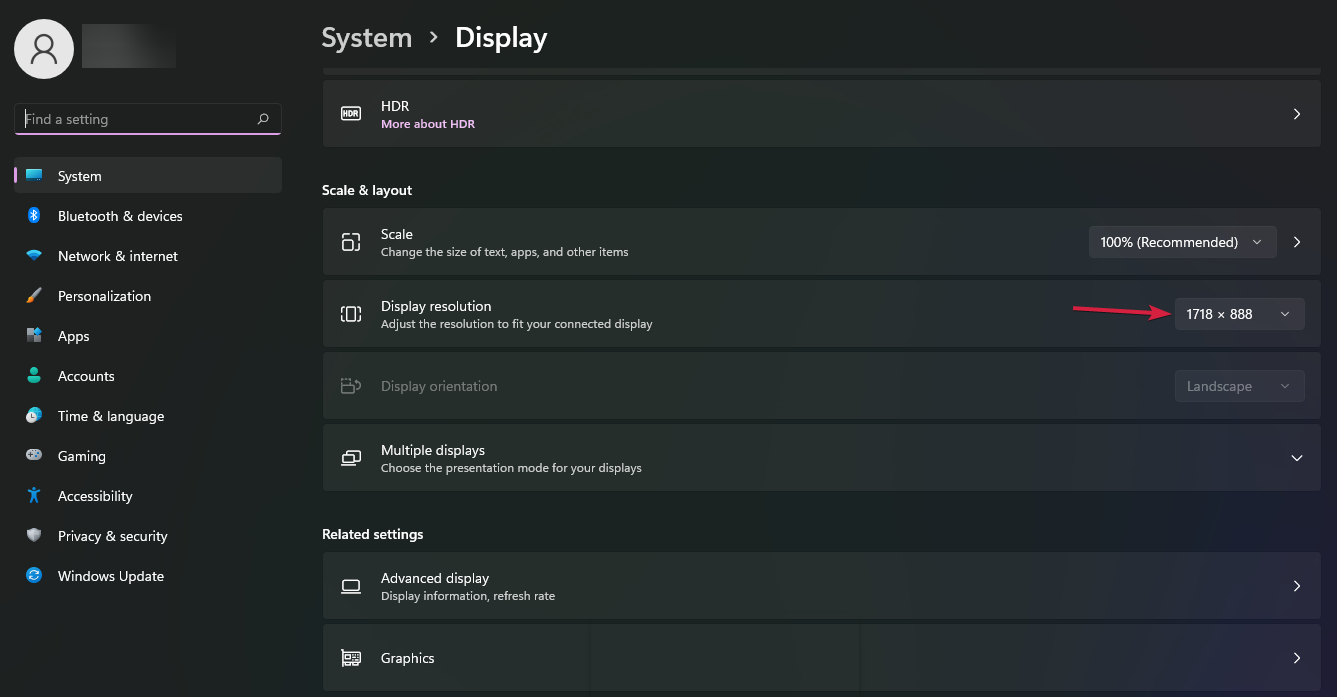
A quick way to fix issues with the display is to reset the graphics adapter. Just hit Win + Ctrl + Shift + B on your keyboard, and you should hear a slight beep followed by a momentary flash on the screen, indicating that the reset has gone through.

After the graphics driver is reset, check if the Windows 11 black screen with cursor issue is resolved and the display works normally.

6. Change the projection mode

  1. Press Windows + P to view the various projection modes.projection modes
  2. Use the arrow keys to select another mode and press ENTER to apply the changes.
  3. Repeat the process until you get the right projection mode and the black screen with cursor issue is fixed.

If you have misconfigured the projection settings, it would lead to a black screen with cursor issue. In this case, selecting the right mode will fix the error for you. Moreover, this fix can be executed even while the screen is blank/black.

7. Inspect and clean the hardware

Dust buildup is known to affect the PC’s performance, particularly because it affects the hardware. The CPU fan tends to run slower or ceases to function altogether. Carbon build-up on RAM, too is a major problem.

This calls for regular cleaning of the system. However, it’s recommended that you consult a professional in this regard for the best results. Dust buildup is known to cause the black screen with cursor issue on Windows 10 as well.

When you get the components cleaned, make sure you get them inspected for damages if one or more components are damaged, repair or replace them.

8. Create a Windows 11 bootable flash drive and try recovering the PC

  1. Create a Windows 11 bootable USB drive on another computer.
  2. Connect it to the Windows 11 device with the black screen issue.
  3. Power on the device and hit the the Esc, F2 or F9 key, as the case may be, to view the boot options. You can check the manual that came along with the system or the manufacturer’s website to identify the key to enter the boot options.
  4. In the boot options section, select the USB drive that you connected.Select bootable USB to fix Windows 11 black screen with cursor error
  5. Click on Next in Windows Setup.Enter installation setup to fix Windows 11 black screen with cursor issue
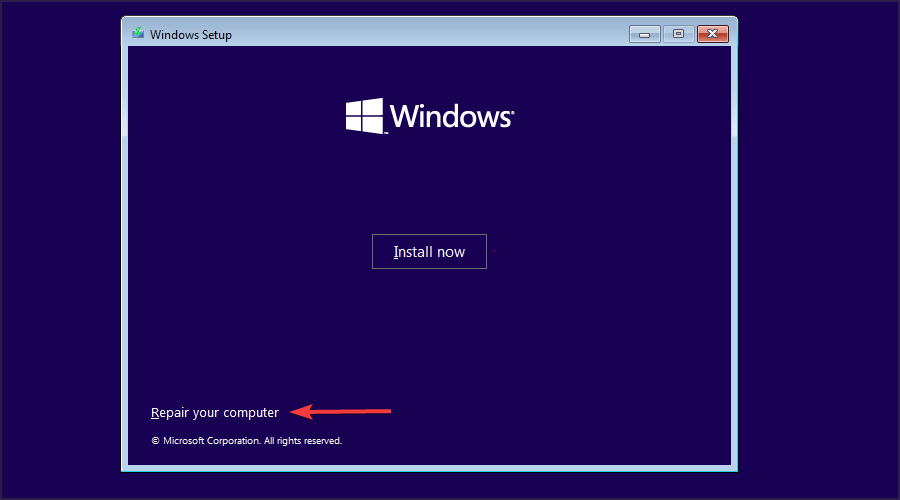
  6. Now, click on Repair your computer.Repair your computer to fix Windows 11 black screen with cursor issue
  7. Click on Troubleshoot.
  8. Cick Advanced options.
  9. You can now run the Startup repair or boot Windows 11 in Safe Mode to either update the drivers (for the malfunctioning external devices) or the OS, or uninstall the problematic applications,.

If the above methods haven’t worked, you can try recovering the device using a bootable USB drive to fix the Windows 11 black screen with cursor issue.

9. Reinstall Windows 11

If nothing else worked, reinstalling Windows 11 should fix the error. If there’s a problem with the installation, system files, or any other intricate issues, reinstalling the OS should do.

Though many methods are mentioned in the linked article, you can go ahead with the bootable USB or Recovery environment one. Since these two wouldn’t require access to the system, you already have a bootable USB ready from the last fix.

After reinstalling Windows 11, the error would most likely be eliminated, and you should be able to use the system as usual.

10. Take your PC to a repair shop

In case nothing else works, it’s probably the hardware at fault, and it’s best to take your PC to a repair shop. There are various components inside the computer, and if any of these malfunctions, you will likely encounter the Windows 11 black screen with cursor issue.

Also, we do not recommend meddling with the hardware unless you are an expert, since the components are fragile and any lapse on your part can damage the computer.

When do I encounter the black screen with cursor issue?

This is a fairly important question, and we have the answer. Based on the feedback submitted by users on various platforms, a trend can be identified in this regard. Most of them reported encountering the Windows 11 black screen with cursor after login.

While it was just a black screen with a cursor for many, others had a Windows 11 black screen with the language bar visible. These are the few variations you may find when dealing with the black-and-white squares on the screen issue.

Another observation made in these forums was that many users first reported Windows 11 black screen with cursor after update. This could be due to a bug in the update itself or a bunch of other reasons.update Windows

Whatever be the case or cause, executing the fixes listed above will resolve the issue on your PC.

These are the most effective methods to get your Windows 11 PC up and running in no time. But, the trick to quick and effective troubleshooting is identifying the underlying cause and applying the relevant solution.

The black screen with cursor issue in Windows is not new; it’s been present on the previous OS as well, though the fixes pretty much remain the same except for some minor changes. But black screen issues on Surface Go are slightly more complex to troubleshoot!

If none of the fixes listed above work, a bug in Windows 11 might be causing the issue, and we recommend that you roll back to Windows 10.

Let us know your experience and the solution that worked for you in the comments section below.

Microsoft Flight Simulator Might Be Heading to PS5, Says Insider

Microsoft could be preparing to bring yet another major Xbox title to the PlayStation 5; this time, it’s Microsoft Flight Simulator. According to insider NateTheHate, the long-running flight sim is expected to arrive on Sony’s console sometime in 2025.

He shared the info in a recent tweet, stating directly that the game “will land on PS5.” When asked about timing, he replied that the target is set for next year. No exact release date has been shared, but a late 2025 launch could line up with Xbox’s broader publishing strategy shift.

This isn’t the first time a big Xbox franchise has made the jump. Forza Horizon 5 recently showed up on PlayStation, and Gears of War is confirmed for an August release. If Microsoft Flight Simulator joins the list, that makes three major exclusives arriving on rival hardware within the same year.

Microsoft hasn’t confirmed anything publicly, but the rumor aligns with the company’s recent approach. Xbox has slowly started opening up its catalog, placing more emphasis on publishing games across multiple platforms rather than keeping everything locked to its own ecosystem.

If Flight Simulator does make its way to PlayStation, it’ll give many players their first shot at a game that’s part simulator, part relaxing sky tour. The series is known for its high level of realism, but once players settle in, it becomes a surprisingly meditative experience.

NVIDIA’s N1X Leak Hints at Integrated GPU Powerhouse for 2026

NVIDIA appears to be gearing up for the launch of its next-generation N1X processor, and an early Geekbench leak has given us a glimpse at what the chip might bring to the table. While official details are still under wraps, the benchmark hints at a CPU-GPU combo that could push integrated graphics to a whole new level in laptops.

The leak points to a 20-core CPU split into two clusters of ten, both clocked at 4 GHz. That setup could offer strong single-threaded speed while balancing heat and power across the system, something laptop chips have to manage carefully.

But it’s the GPU that really stands out. Geekbench detects 48 compute units. Based on NVIDIA’s usual 128 CUDA cores per unit, that works out to 6,144 CUDA cores. That’s in the same range as dedicated GPUs like the RTX 5070 Ti, at least on paper. It’s a bold move toward shrinking the gap between integrated and discrete graphics.

The test system had 128 GB of RAM, with half reportedly allocated to the GPU. Still, the GPU clocked in at just 1,048 MHz, likely limited by early firmware or power constraints during validation. The graphics score landed at 46,361, which puts it near the RTX 2050 in raw numbers.

It’s early days, and much could change before the chip officially launches in 2026. But if these numbers hold up, NVIDIA’s N1X might redefine what integrated graphics can do, especially in slimmer laptops where discrete GPUs don’t fit.

Mark Cuban Wants AI Ads Made Illegal, Warns of Social Media-Like Collapse

Mark Cuban isn’t thrilled about where AI might be headed, and he’s calling for guardrails before it’s too late. In a recent post on X, the billionaire investor urged the White House to make advertising inside AI models illegal.

He said it’s a lesson we should’ve learned from how social media algorithms chased engagement at the cost of truth and trust. “The last thing we need is to have algorithms designed to maximize revenue driving LLM output,” he wrote.

Cuban said he’s not completely against ads, but they need to be clearly marked and kept separate from chat responses. What worries him is the growing number of AI tools subtly recommending brands, with no clarity on whether money changed hands.

His comments follow a quiet trend across the industry. Big players like OpenAI and Anthropic are hiring former execs from Facebook and Instagram, people with deep experience in monetizing platforms through data and ads. In May, OpenAI brought in Instacart CEO Fidji Simo, who previously led Facebook’s ad business. Anthropic recently hired Instagram’s cofounder, Mike Krieger, to lead product.

Cuban has warned before that AI could make misinformation even harder to control. Now he’s pointing to the bigger risk: once monetization takes over, user trust could collapse just like it did on social platforms. “We need to get ahead of this,” he said, “not repeat the same mistakes.”

Microsoft’s Study Reveals Humans Are Struggling to Spot AI Images

AI-generated images are no longer so easy to recognize. That’s the conclusion of a new Microsoft report, which revealed that the majority of individuals barely noticed the difference between real and AI-generated images, particularly in landscapes and urban areas.

Microsoft’s “AI for Good” team conducted a global quiz-type experiment involving more than 12,500 people. Each was asked to decide if the images were actual or not. In a staggering 287,000 evaluations of images, participants were only correct 62% of the time. Just a bit better than flipping a coin.

Humans were most accurate at detecting fake human portraits. However, in detecting AI-generated images of nature or cities, they only got to about 59% accuracy. Such scenarios don’t tend to feature glaring tells such as creased faces or outlandish textures, so it would be more difficult to mark them as suspicious.

The researchers ensured that the team used a wide variety of images that individuals may, in fact, encounter online. Nothing was selected to be tricky or manipulative. Nevertheless, the findings indicated that even everyday, simple AI images can evade human judgment.

To assist in addressing the dangers of disinformation, Microsoft is now advocating for greater transparency standards. That means they can be seen in the form of visible watermarks and more robust detection mechanisms. But watermarks might not be sufficient. The report says that one can crop or edit them out through simple means.

Notably, Microsoft’s internal AI detector was 95% accurate on the same photographs. That implies that we may have to get machine assistance in order to maintain pace with the velocity and realistic nature of modern generative models. All in all, this research is a reminder that visual deception is becoming more advanced, and we might not always know it’s coming.

Sony’s New Job Listing Hints at Bigger Plans for PlayStation Games on Xbox, Nintendo, and More

Sony’s future plans for PlayStation look a lot less exclusive. A new job listing (via Windows Central) indicates that the company is building a team entirely focused on bringing PlayStation first-party games to more platforms, including Xbox, PC, mobile, Nintendo, and more.

The open position is for a senior director of multiplatform and account management. The selected candidate will report directly to a VP at Sony and lead the team responsible for expanding PlayStation Studios’ reach beyond its traditional hardware.

Sony Job Listing Senior Director Multiplatform and Account Management
Image: Sony

This includes platforms like Steam, Epic Games Store, and Xbox, according to the job description. Well, this isn’t about porting a few games. The job description states that Sony is looking to scale up its multiplatform and expand its relationship to include devices beyond PlayStation.

The new director will be responsible for shaping the mid-range commercial plan for all non-PlayStation platforms. This involves revenue optimization, collaboration with platform partners, and making sure the next generation of Sony titles launch where there are the most players.

With Sony’s recent directional changes to increase the number of people who have access to its content, this move makes sense. We already know Helldivers 2 is set for Xbox in August, and it seems likely Sony is preparing to roll out to other games, too.

Security Flaw in Microsoft Copilot Enterprise Let Attackers Run Code, Now Patched

Microsoft’s enterprise AI applications are expanding rapidly, but a recent discovery shows that security may not be keeping pace. In April, Dutch cybersecurity company Eye Security discovered a critical vulnerability in Copilot Enterprise.

The flaw was reportedly found when the security team was assessing Microsoft’s AI features. During the assessment, they discovered a way to execute commands at the system level, which stemmed from a security risk in the platform’s live Python sandbox (specifically in Jupyter Notebooks).

With the right command, attackers could run code in the background quietly. A system-level access vulnerability is a major risk for any enterprise platform. However, Microsoft rated the vulnerability a “medium” risk and did not offer a bug bounty. 

The researchers were able to leverage a commonly used tool, pgrep, to trigger the exploit. The fact that it worked was a security risk, and the features did not stop there. Eye Security’s team also accessed Microsoft’s Responsible AI Operations panel, intended for oversight and compliance in the Copilot systems. 

And they did not stop there; the analysis suggested broader issues related to Microsoft’s fast-expanding AI stack. With the speeding rollout of AI-enabled tools, established security practices have not caught up. Additionally, there have been recent intrusions attributed to state actors in Russia and China.

Moreover, it’s worth noting that Eye Security plans to break down the vulnerability in detail at BlackHat USA 25 next month. Their session, titled “Consent & Compromise,” is scheduled for August 7 at 1:30 PM in Las Vegas.

Is CDKeys Trustworthy? Everything You Need to Know Before Buying

Is CDKeys trustworthy, or are those cheap game keys too good to be true? In this guide, we break down how CDKeys works, if it’s safe, and what real users say about it.


How CDKeys Works

CDKeys.com is a third-party digital key store that resells activation codes for PC, Xbox, and PlayStation games.

  • Buys from regions with lower prices or discounted bundles
  • Offers up to 90% off compared to official stores
  • Sends keys instantly via email after purchase

Is CDKeys Legit or a Scam?

1. Trustworthiness Score

  • Founded: 2012
  • Trustpilot Rating: 4.3/5 from 100,000+ reviews
  • Delivery Time: Usually instant
  • Reputation: Generally positive among gamers

2. How They Source Keys

  • Not partnered with publishers (unofficial reseller)
  • Buys from gray markets, bundles, or cheaper regions
  • Operates legally but outside official distribution channels

3. Refunds and Support

  • Refunds possible for invalid or non-working keys
  • Support is via email – may be slow in some cases
  • No live chat or phone support available

CDKeys vs Other Game Key Sellers

FeatureCDKeysG2AGreen Man GamingSteam Store
Authorized Seller❌ No❌ No (P2P)✅ Yes✅ Yes
Price⭐ Very Cheap⭐ CheapModerateExpensive
Key DeliveryInstant EmailVaries (User-to-User)InstantInstant
Refund PolicyEmail-based onlyUnreliableReliableReliable
Support OptionsEmail onlyVariesLive Chat/EmailFull Support
Risk LevelLowMedium–HighVery LowNone

Pros and Cons of Using CDKeys

✅ Pros

  • Cheaper prices than most stores
  • Fast key delivery
  • Supports multiple platforms

❌ Cons

  • No official reseller status
  • Risk of region-lock or invalid key (rare)
  • No live support

Real User Testimonials

“I’ve bought over 15 games from CDKeys. Every key worked instantly. Never had a single issue.”
— @WolfenPC, Reddit

“Great for grabbing older AAA titles on the cheap. Wouldn’t use it for pre-orders though.”
— John H., UK, Trustpilot

“Had one bad key out of 20+ purchases, but got a refund in 3 days. Worth the risk for the price.”
— MiraGamer, YouTube comment

“Much better than G2A. No shady sellers – everything is direct and fast.”
— @PixelDust, Twitter


Is CDKeys Safe to Use?

  • HTTPS Protected – Site uses encryption
  • Secure Payments – PayPal, Apple Pay, Visa, Mastercard
  • No Login Required – Less personal data shared
  • Tip: Always buy from https://www.cdkeys.com (beware of lookalikes)

Alternatives to CDKeys

  • Humble Bundle – Legit + charity support
  • Green Man Gaming – Authorized and safe
  • Fanatical – Good deals, 100% legit
  • Steam/Origin/Epic – Always safe, but more expensive

FAQs

Is CDKeys legal?
Yes, but it’s a gray market seller, meaning it’s not officially endorsed.

Can keys get revoked?
Rarely, but possible if sourced improperly.

Does CDKeys offer refunds?
Yes, but support is via email only.

Is it better than G2A?
Yes – CDKeys sells directly, not via third-party vendors like G2A does.


Final Verdict: Is CDKeys Trustworthy?

Yes – CDKeys is a legitimate, safe-to-use platform for discounted game keys, with fast delivery and mostly positive user reviews. It’s not officially authorized by publishers, but for most users, the savings outweigh the minor risks.

Fix Brightness Slider Not Working in Windows 10 or 11

If your Windows 10, Windows 11 brightness slider isn’t working, it’s probably due to display driver or power setting issues.

So, if changing brightness doesn’t do anything, follow the steps below to fix it.

What brightness issues are encountered in Windows 10?

What can I do if Windows brightness is not working?

1. Update the display adapter drivers using Device Manager

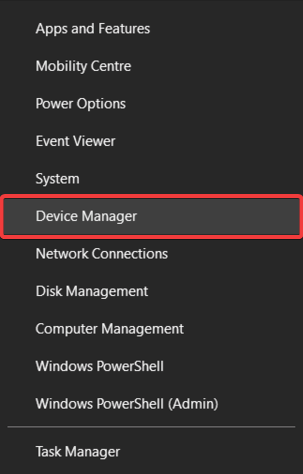
  1. Press the Windows key and select Device Manager.
    windows 10 brightness slider not working
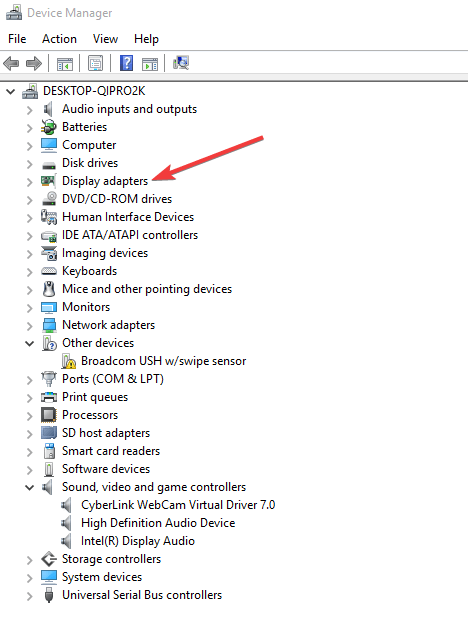
  2. Expand Display Adapters.
    display drivers Windows won’t let me adjust screen brightness
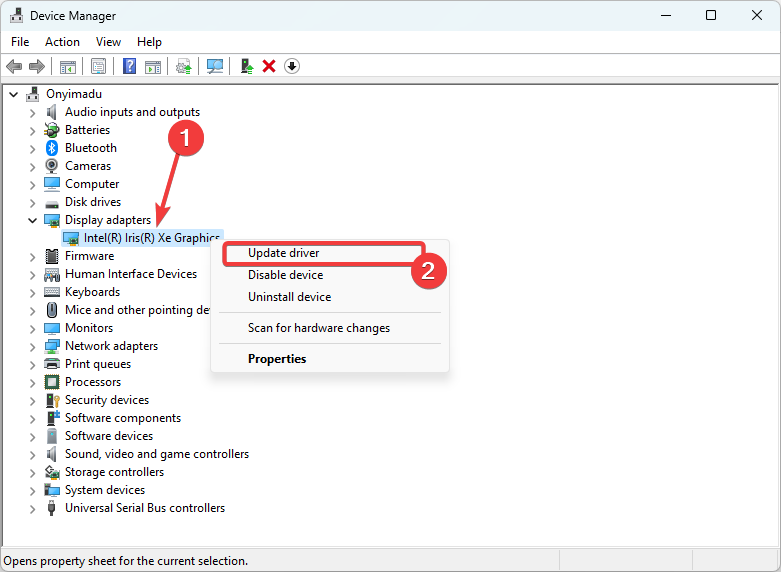
  3. Right-click on your Display Adapter listed and click on Update Driver.
    windows 10 brightness slider not working
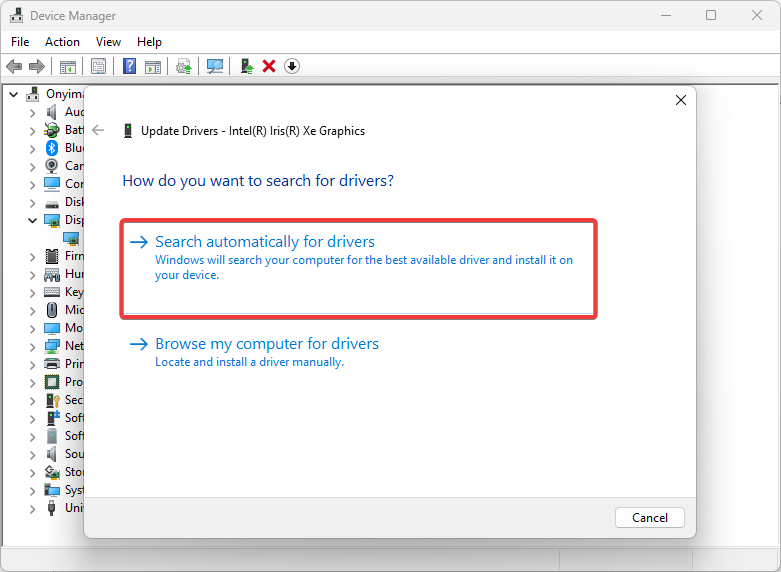
  4. Select the option to Search automatically for drivers.
  5. Restart the computer after it’s updated and verified.

You can also try and get the latest drivers from your computer’s manufacturer’s website and download and install the latest display and chipset drivers.

Another way to solve this is by going to your manufacturer’s website and finding Windows 10 driver download links/files that are compatible with your PC.

Installing the appropriate drivers should fix the issue.

2. Disable the automatic brightness level

Note icon NOTE
This works only on displays with ambient light sensors, so move to the next solution if you don’t find the feature.
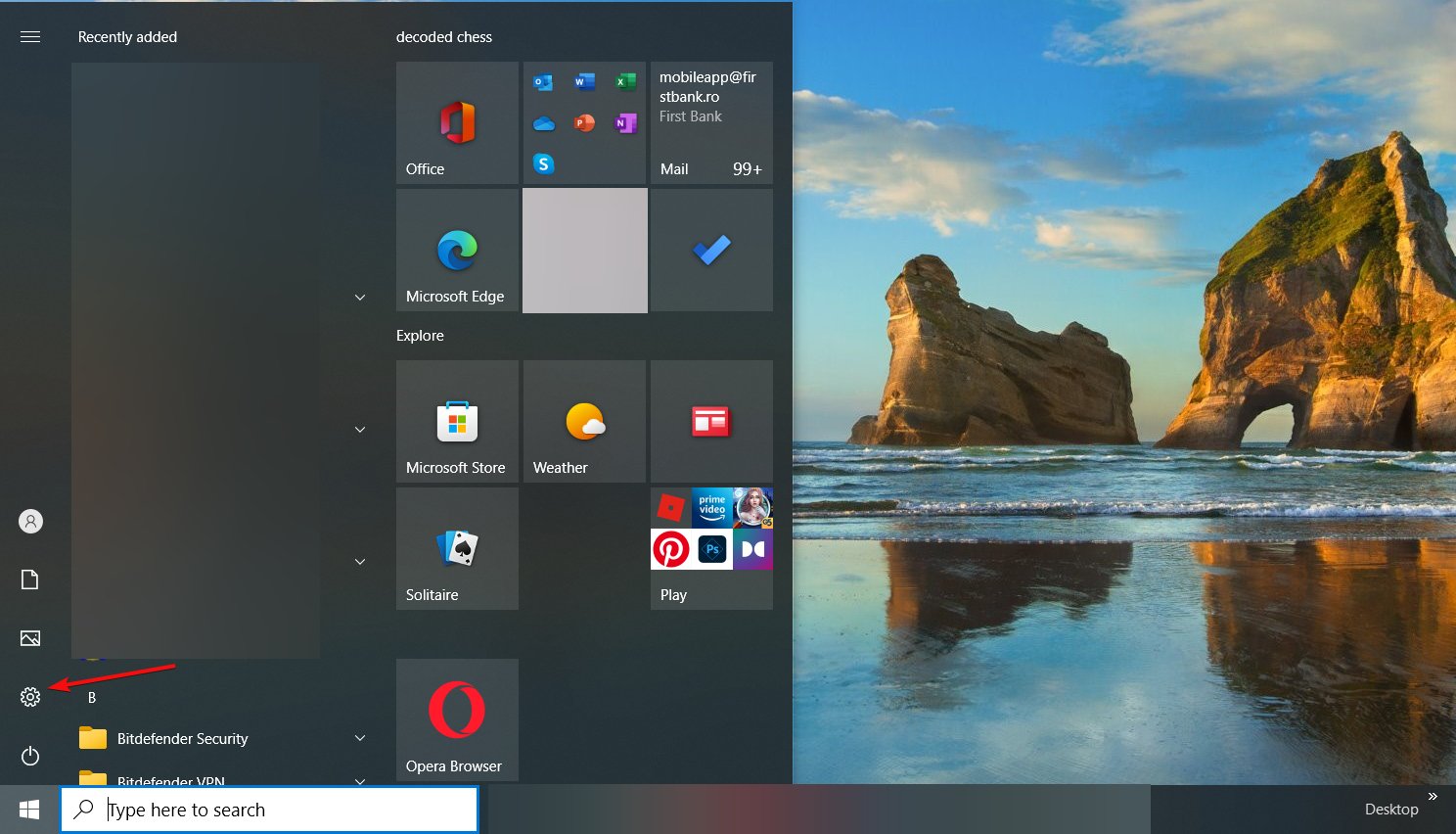
  1. Click the Start button and select Settings.
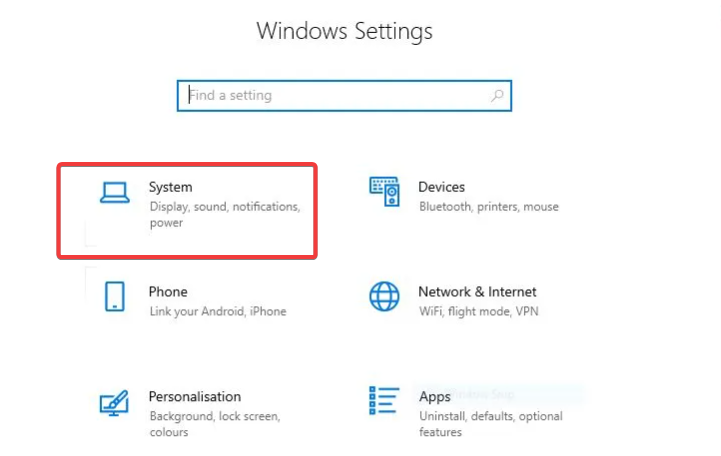
  2. Now, click on System.
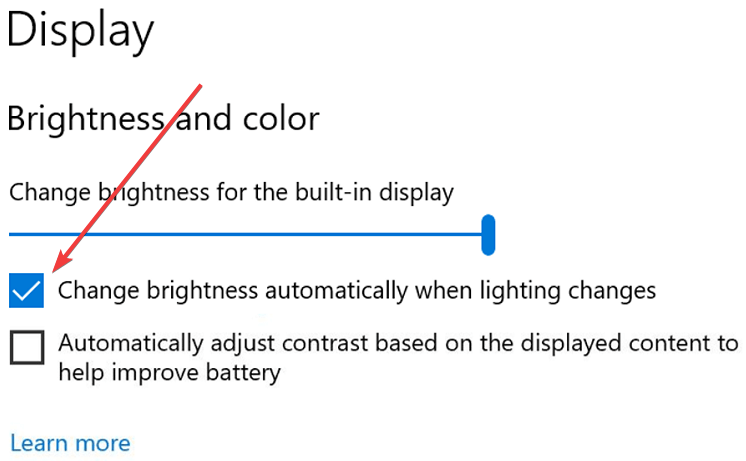
  3. Select Display from the left pane, then uncheck the box for Change brightness automatically when lighting changes.

Check if your Windows 10 brightness slider not working issue is now resolved.

3. Enable the PnP Monitor driver

  1. Press the Windows key and select Device Manager.
    windows 10 brightness slider not working
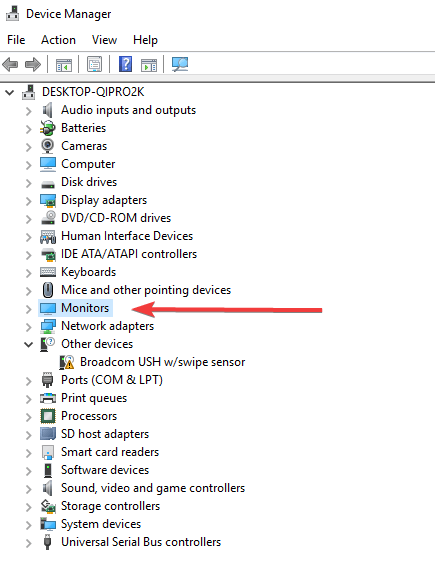
  2. Double-click Monitors.
    device manager monitors Windows won’t let me adjust screen brightness
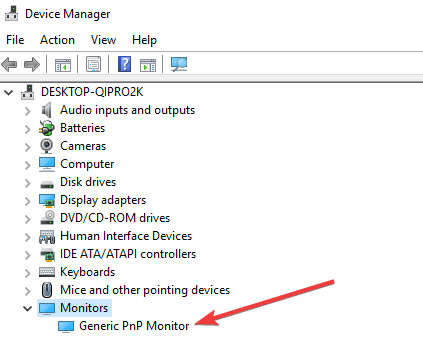
  3. Right-click on Generic PnP monitor to see if it is enabled.
    generic pnp monitor screen brightness not working windows 8
  4. If not enabled, click Enable device. If enabled, disable it.
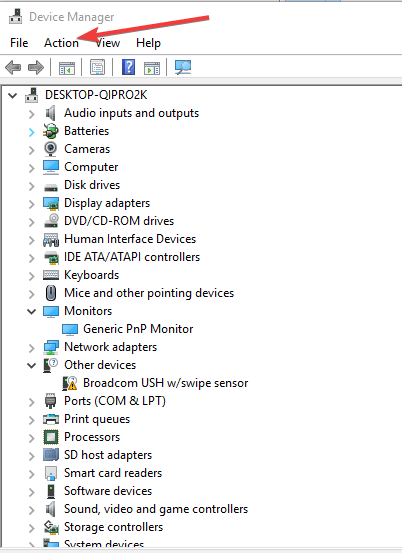
  5. Next, click on the Action tab at the top menu of Device Manager.
    action menu device manager how to adjust brightness in windows 7 pc
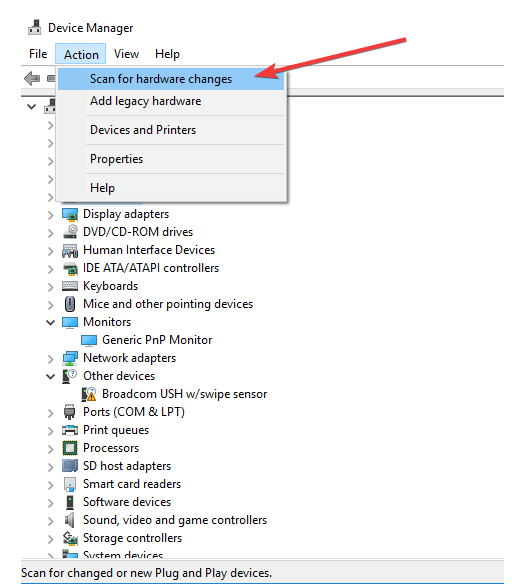
  6. Select Scan for hardware changes.
    scan for hardware changes can't adjust screen brightness

PnP stands for plug-and-play hardware devices that work without installing a driver. Instead, you consider it the generic driver for the display that will automatically get installed by Windows.

5. Update the registry to fix the brightness not working issue

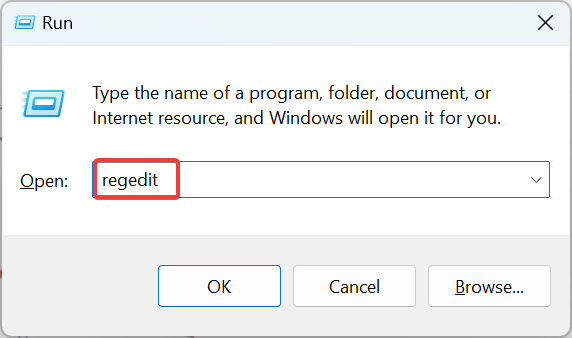
  1. Press Windows + R to open Run, type regedit, and hit Enter.registry
  2. Click Yes in the UAC prompt.
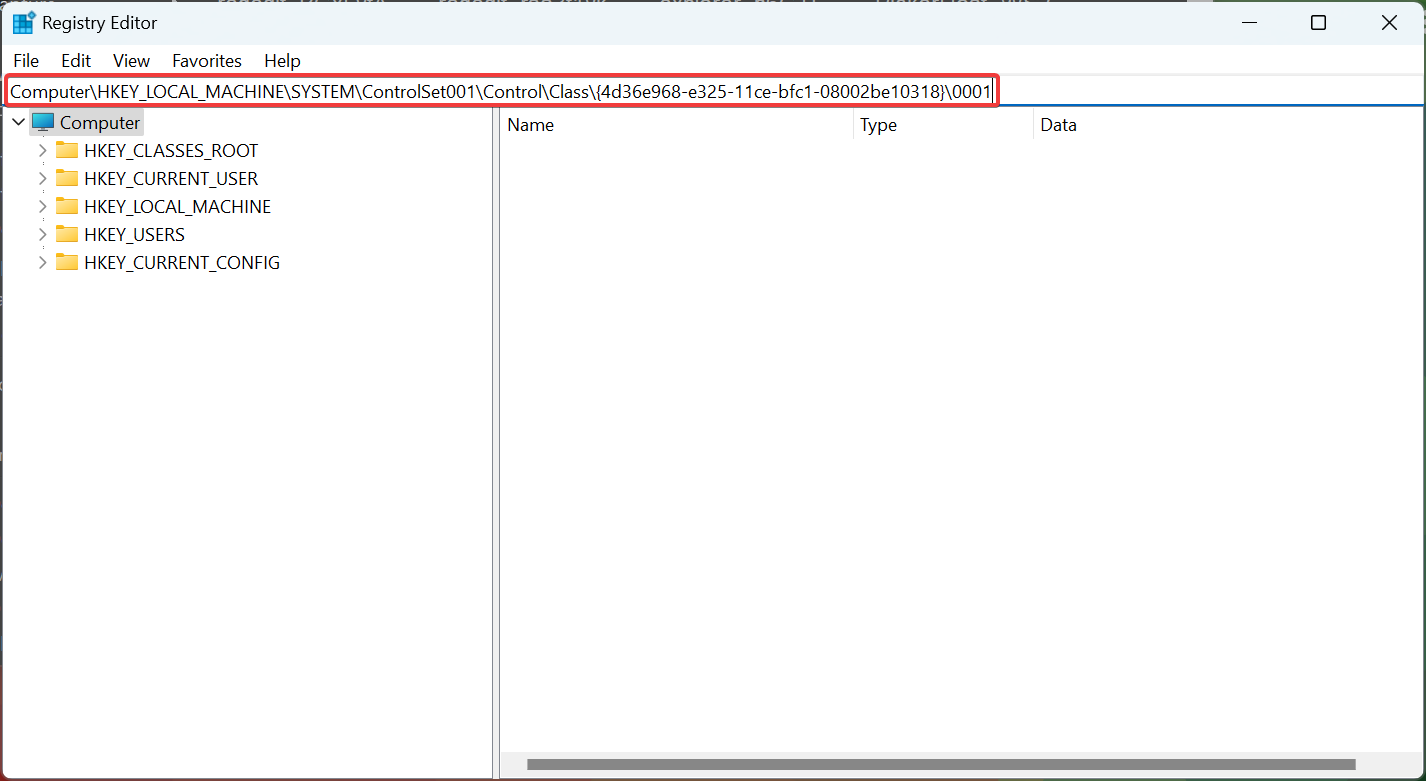
  3. Paste the following path in the address bar and hit Enter:
    Computer\HKEY_LOCAL_MACHINE\SYSTEM\ControlSet001\Control\Class{4d36e968-e325-11ce-bfc1-08002be10318}\0001path
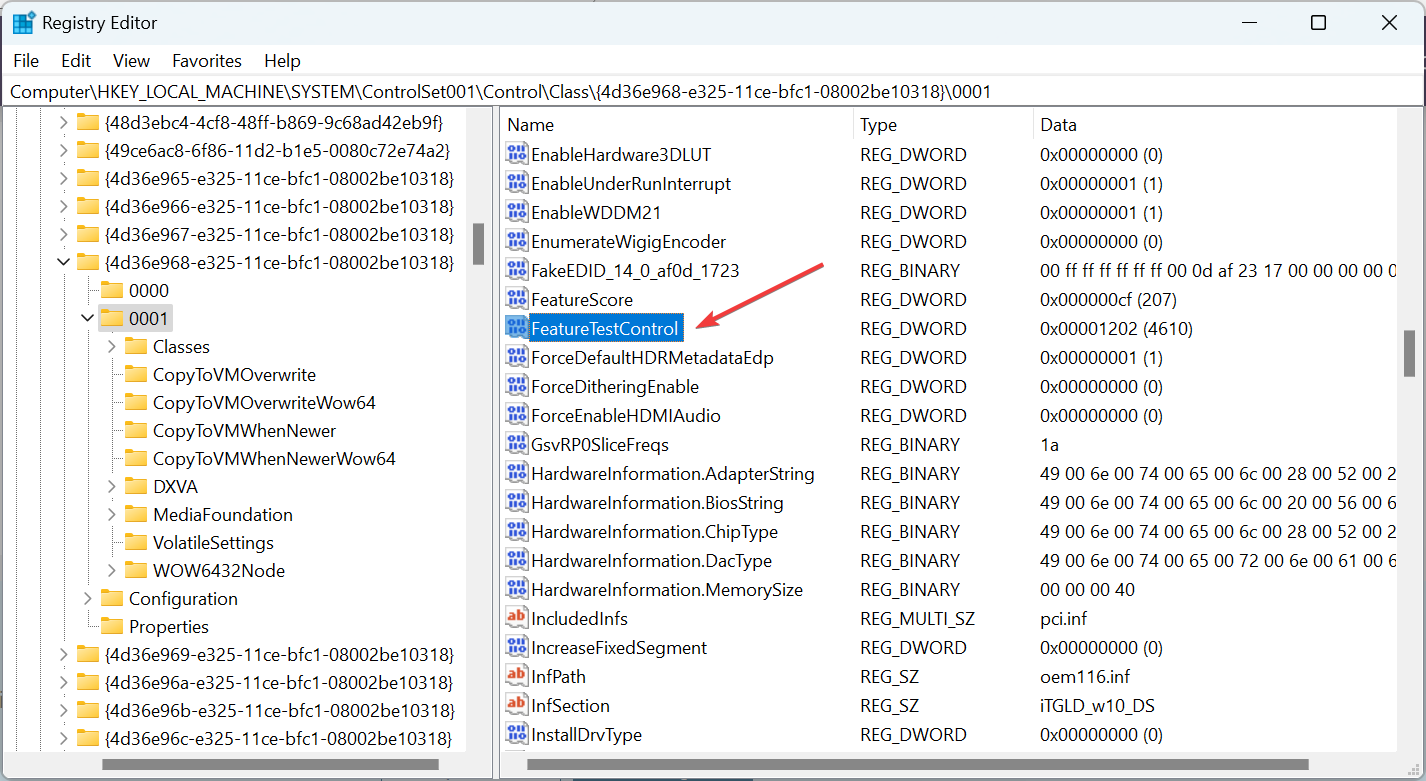
  4. Now, double-click on the FeatureTestControl entry here.FeatureControlSet
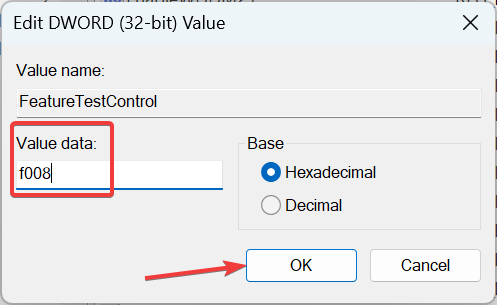
  5. Enter f008 under Value data, and click OK to save the changes.value data

If you’re still unable to adjust the brightness on your laptop, because the brightness button is not working, try updating the registry. Back up the registry before you modify it, then restore it if a problem occurs.

On the contrary, if this option is already enabled and you wish to get rid of it, we have a few tricks when the Adaptive brightness doesn’t turn off. Another common thing you may want to fix is monitor brightness changing by itself.

Also, you could use reliable screen brightness software and exercise higher control over it on the PC. These solutions should help you if your Windows 10 brightness slider is not working.

Try our tips, and let us know if your screen is ready to shine again.

35 Best Windows 11 Themes to Download for Free

Looking to customize your PC with some of the best Windows 11 themes & skins? Look no further.

In this article, we cover everything—from stunning 3D themes and immersive fantasy landscapes to sleek macOS and Ubuntu-inspired skins. We’ll also explain how to change your theme in just a few easy steps.

Table of contents

What are the best Windows 11 themes and skins?

Newest Microsoft Windows 11 themes – Best themes for Windows 11

You can find a huge library of Windows 11 themes right in the Microsoft Store.

There are hundreds of themes organized into 14 categories from animals, games, movies, and automotive to themes with custom sounds and panoramic themes for dual monitor configurations.

You just need to click the link and the theme pack download will start automatically. The only downside is that you can’t see any previews before downloading.

⇒ Get Microsoft themes

3D Theme – Best 3D theme

Don’t get yourself fooled by the fact that this appears like a Windows 10 wallpaperr source. They also work perfectly fine on Windows 11 too.

You will get 17 HD wallpapers that will blow your mind with 3D mesmerizing graphics. It’s not much, but the back is free to get and use as much as you like.

There’s really not much to say about the wallpaper except for the fact that they are not too brightly colored, but they can still be eye-catching and spectacular.

⇒ Get 3D Theme

Dark Fantasy Landscape – Great fantasy theme pack

If you’re a dreamer at heart, this Dark Fantasy Landscape theme pack will transport you right into the realm of non-existent worlds.

The 16 HD wallpapers inside the pack will get you to that dark, gloomy atmosphere of deserted obsolete landscapes.

Nevertheless, their art quality is impeccable and that makes them even more immersive even for a trained eye.

⇒ Get Dark Fantasy Landscapes

Dark Abstract Theme – Best abstract theme

If you like dark themes, this Dark Abstract Theme is right up your alley. And even more, if you enjoy the spacey, mesmerizing designs.

This theme pack contains 17 HD images that feature a mix of different shapes, colors, and textures. They will most likely woo your brain and, why not, relax you.

The images are crisp and clear so they will be a delight for your eyes.

⇒ Get Dark Abstract Theme

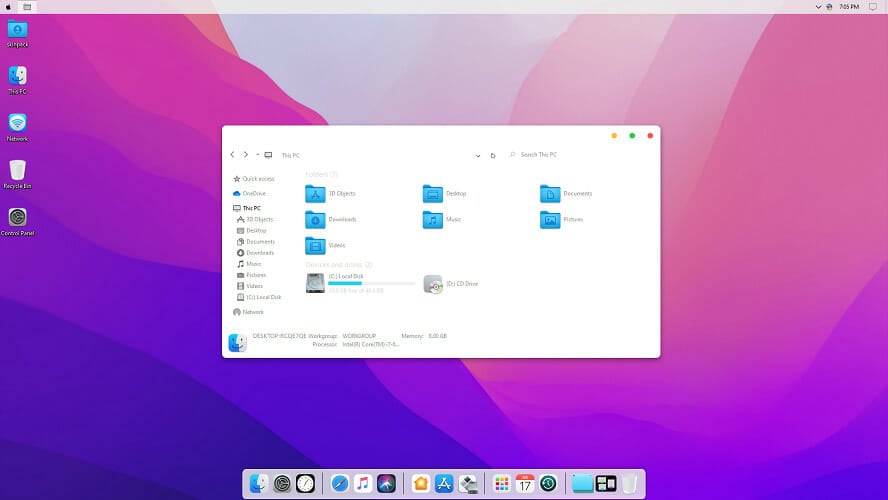
macOS Monterey SkinPack – Best macOS skin pack for Windows

Windows 11 already resembles macOS but if you want to go further with customizing it and make it look like the OS from Apple, the macOS Monterey Pack is exactly spot on.

This is not just a simple background that you just throw on as wallpaper. It’s a Windows 11 modern skin pack that will also change your icons, the taskbar, buttons, and windows.

The publisher recommends that you uninstall any other skin packs before installing this one because they might be conflicting.

⇒ Get macOS Monterey SkinPack

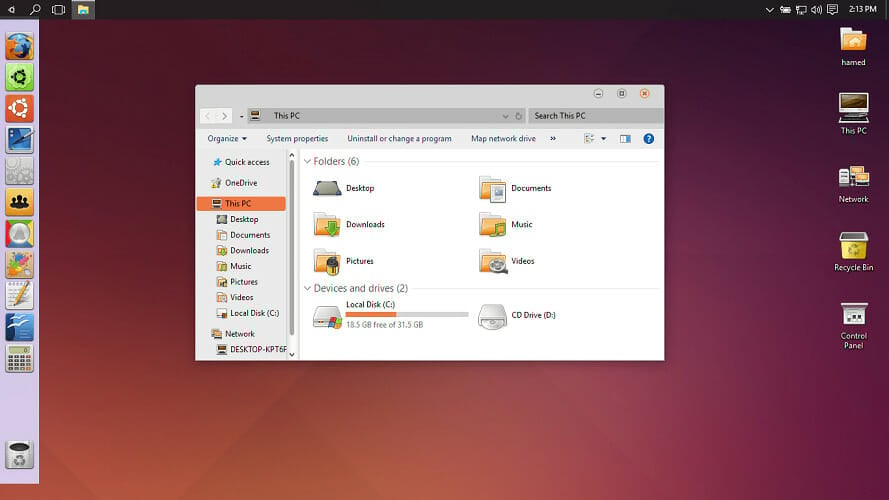
Ubuntu skin pack – Best Unix skin for Windows

Every Unix-based OS is light and fast although they still lack compatibility with many apps and features available in Windows.

This Ubuntu skin pack will convert the whole interface of your Windows 11, including the taskbar, buttons, menus so that it will feel like having Ubuntu installed on your PC.

The theme comes in a light version that is free. However, if you want to change the Windows 11 icons and extra features, you will have to pay a small fee for the whole pack.

⇒ Get Ubuntu skin pack

If you just want to change the look a bit and get yourself a nice Windows wallpaper, you can get it from WallpaperHub.

There, you will find over 50 high-resolution Windows-themed wallpapers. There’s even a Windows 98 one that spawned lots of nice memories into our heads.

⇒ Get Windows wallpapers

Money Heist (La Casa De Papel) Theme – Best movie theme pack

With this free theme pack, you will have no less than 15 HD wallpapers with scenes from the movies that you can set on your Windows 11 desktop.

Yes, you will see some nice shots of Tokyo and Berlin, and we’re not talking about the cities. You will find all the cast in the pack.

The images are top quality and very well chosen so if you’re a fan, you will enjoy them for sure.

⇒ Get Money Heist (La Casa De Papel) Theme

Squid Game Theme – Best theme for action movie buffs

Rarely do we see a Korean series with so much hype but Squid Game managed to become a binge-worthy title all over the world.

As you would expect, the Squid Game theme pack contains 15 HD images from the series but don’t worry because there are none depicting the gory scenes.

The images are high quality, showing all the important characters and their development through the episodes.

All the photos can be set as wallpapers on Windows 11 but the theme is also compatible with the older versions of Windows.

⇒ Get Squid Game Theme

Dune Theme – Best S.F. movie theme

The new iteration of Frank Herbert’s Dune was received extremely well by all science fiction fans all over the world.

As to be expected, if you’ve loved the movie, you want to stay closer to your favorite characters and the awesome scenery.

The amazing 15 HD images from this theme will offer a great quality overview of the film and the strange planet Arrakis.

It is a Windows 11 theme but it’s also compatible with older versions down to Windows 7.

⇒ Get Dune Theme

Baby Yoda Theme – Great theme for Mandalorian fans

If you’ve watched The Mandalorian series, you’d have to agree that Grogu, who everyone calls baby Yoda, is the cutest possible creature within the Star Wars universe.

Despite his questionable diet, the innocent huge eyes, the silly walk, and apparent fragility make this creature simply adorable.

The theme comes with 11 really cute wallpapers in HD resolution with baby Yoda posing in different instances to bring the ultimate innocence to your desktop.

⇒ Get Baby Yoda Theme

Star Wars Theme – Great for Star Wars fans

Who can ignore the battle between good and evil in the Star Wars universe? And if you’re one of the millions of fans out there, you will appreciate this theme pack.

It contains no less than 33 HD wallpapers with a lot of artwork and images from the epic saga.

And if you’re a hardcore fan, you will definitely recognize the key characters and moments from the story.

⇒ Get Star Wars Theme

Altered Carbon Theme – Best S.F. series themes

Altered Carbon is a great science-fiction series set in the future where all consciousness is digitized and stored.

As if that’s not scary enough, the story depicts a prisoner who returns to life in a new body and must solve a murder puzzle to win his freedom.

The Altered Carbon theme comes with 13 high-definition wallpapers with images taken from various scenes within the series.

⇒ Get Altered Carbon Theme

Fortnite Theme – Best free gaming theme

Fortnite is one of the most popular games running the Epic Unreal Engine 4 with fans all around the world.

The developers have added wallpapers and app icons for Windows that bring the survival game experience to your desktop wall.

This theme supports Windows 11 and all older versions up to Windows 7 so you will be able to enjoy it whether or not you upgraded to the newest OS.

It comes with 15 HD wallpapers that depict scenes from the game and all the main characters you can play with.

⇒ Get Fortnite Theme

Initial D Theme – Perfect for anime fans

If you’re an anime fan, you are probably more than familiar with the Initial D and the awesome cars within.

Well, at least that’s what the people who created the series think are the best-looking cars in the world.

Nevertheless, the 10 HD wallpapers inside the pack will bring back the atmosphere of the famous sports manga series of Japan.

It is all about illegal street racing in Japan, a pretty interesting theme on its own.

⇒ Get Initial D Theme

Yui Hirasawa Theme – Perfect for K-ON anime fans

If you’re familiar with the TV show series K-ON, you will be happy to watch Yui Hirasawa laying on the Windows plains again.

Who is she? It’s one of the five main protagonists of the Ho-Kago Tea Time band from the show.

She is a cute 15-year-old teenager that doesn’t know anything about stage fright or anxiety and in this 15 HD wallpaper pack for Windows 11 and 10, she is also the main star.

⇒ Get Yui Hirasawa Theme

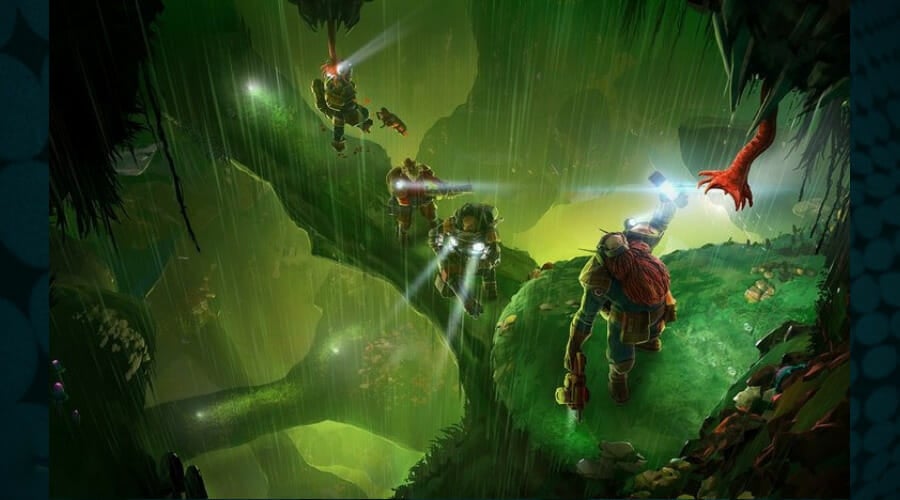
Deep Rock Galactic Theme – Great sci-fi gaming theme

We’re sure you know all about Deep Rock Galactic, a first-person shooter game you can play in single or multiplayer mode with up to four teammates.

And we’re sure you’ve had fun exploring the cave systems and cooperating with your mates to get complete the tasks.

The sci-fi-inspired graphics of the game looks great so if you want to remember the key scenes, you will love the Deep Rock Galactic theme.

This pack contains 9 HD wallpapers with scenes from the game that will get you in the mood for another playing session.

⇒ Get Deep Rock Galactic

Elder Ring Theme – Best fantasy world theme

Created by Hidetaka Miyazaki, the fantasy world within Elder Ring is simply breathtaking.

The characters, and the world, all are built to perfection and it contributes to the immersion in this fantastic world.

And even if you’re not a gamer or never played Elden Ring, the 15 HD wallpapers included in this theme pack will make you daydream about fantasy worlds.

⇒ Get Elder Ring

Watch Dogs Legion Theme – Ideal for action game fans

Legion is the third game from the Watch Dogs series and it follows the action from Watch Dogs 2.

The plot is set in a fictional London where a hacker union called DedSec is framed as a terrorist organization and they struggle to clear their name.

If you’ve enjoyed the game, it’s only natural you will want to get your mouse cursor on this Watch Dogs Legion theme pack and roll its 13 HD wallpapers on your Windows 11 desktop.

⇒ Get Watch Dogs Legion Theme

War Thunder Theme – Best war game based theme

Whether you’re a war machines history buff or you’ve enjoyed the War Thunder game, you will love the 15 HD wallpapers included in this pack.

If you don’t know anything about it, it’s a combat multiplayer game with lots of vehicles where combined armies of land, water, and air converge for total war.

History enthusiasts will find lots of war machines from all periods that span from World War I to the present day.

You will be able to control ground vehicles, aircraft, and warships from different countries of the world.

⇒ Get War Thunder Theme

World National Parks – Best nature theme pack

There’s nothing more beautiful than nature’s creation and a glimpse of its wonderful forms and colors can be even therapeutic.

Feast your eyes with an 18-theme set with images from some of the most spectacular national parks around the world.

Your mind will travel to India, New Zealand, Canada, Chile, and many other countries and witness the most incredible sceneries free of charge.

This fabulous trip around the world is free and so is the theme pack that will provide you a visual ride.

⇒ Get World National Parks

Beaches (Dual Monitor) Theme – Best dual-monitor beach theme

Who wouldn’t want to be on a beach right now with a cool drink in one hand resting? If we get a unanimous YES, check out this theme.

The Beaches Theme was created to be used on a dual-monitor setup so it also doubles the immersion effect.

With the 15 HD wallpapers included, you will get a glimpse of the powder-soft sands and the turquoise water from the most beautiful beaches around the world.

In short, you will simply teleport to a dream holiday just by sitting back on your chair and watching your monitors.

⇒ Get Beaches (Dual Monitor) Theme

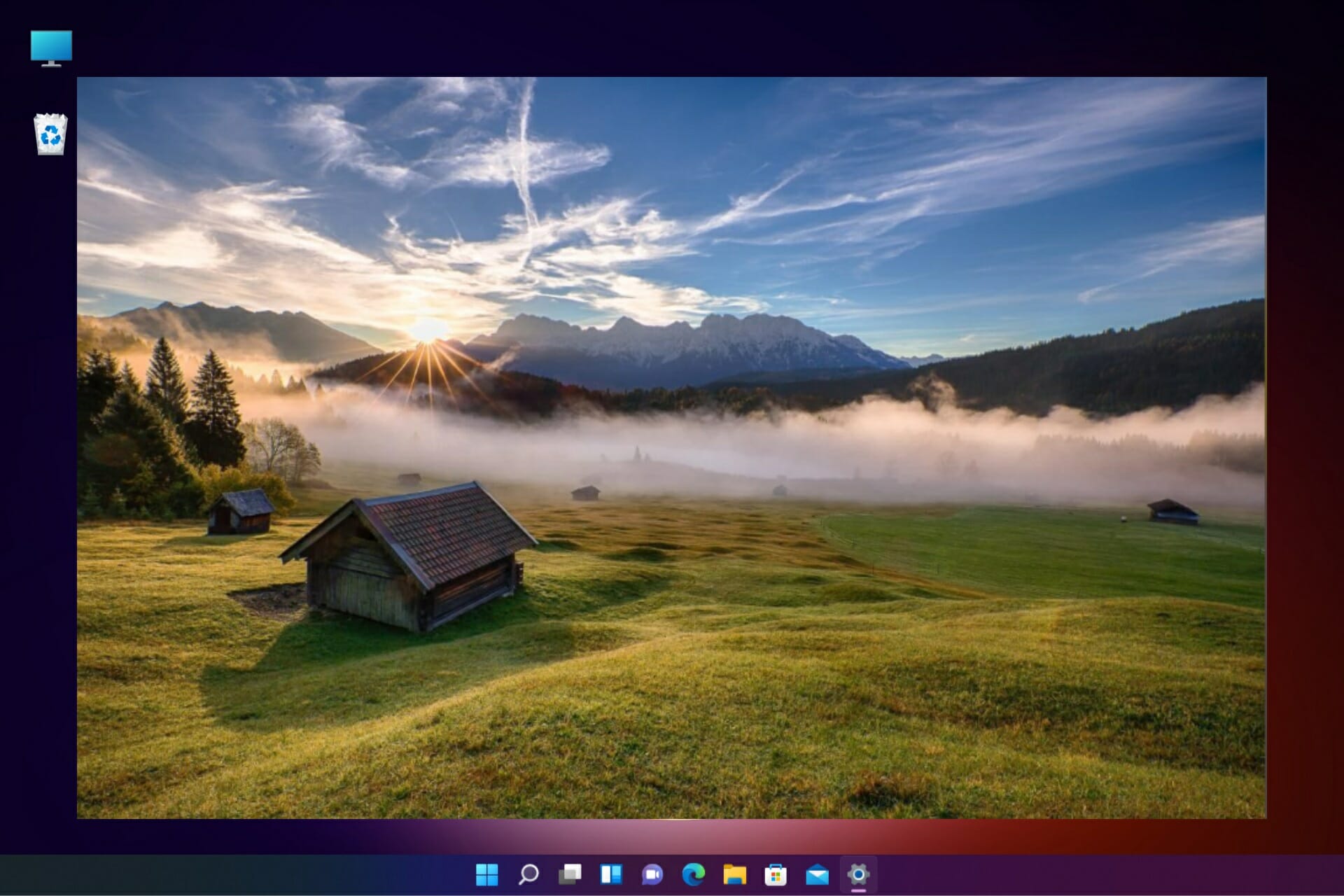
Mountain Dwellings – Best mountain theme

This superb theme is compatible with Windows 10 version 14951.0 and up, which means that is also ready for your Windows 11 PC as well.

Once installed, this theme will provide no less than 12 breathtaking images with huts placed in beautiful sceneries from the mountains.

Keep in mind that it’s free, it only has about 11 MB, and you will be able to use it on up to 10 devices.

The wallpapers recreate that mountain retreat feeling and you will almost feel the warmth of the fireplace inside the cabin.

⇒ Get Mountain Dwellings

Summer Landscape Theme – Best Summer theme

Every season has its own charm and beauty but summer really calls you outdoors with its warm temperature and awesome nature diversity.

Of course, if you live in an area where you experience huge wildfires and scorching heat, it’s hard to come to terms with this season.

However, this Summer theme pack will feast your eyes with 14 high-definition wallpapers that feature bright daytime landscapes of summer in all its splendor.

⇒ Get Summer Landscape Theme

Cosmic Beauty – Best space theme

Is it a bird? Is it a plane? It’s not Superman either and not even a close look at the molecular structure of some material.

In the Cosmic Beauty theme pack, you will find 20 breathtaking photos from outer space taken with the Hubble and terrestrial telescopes.

The vastity of space can really get you to feel a bit small and insignificant or, on the contrary, proud to be a member of the species capable of gazing at such marvels.

Get ready to travel between strange planets, nebula, black holes, quasars, stars, and their untold mysteries.

The images were created for Windows 10 but they also work as wallpapers for Windows 11 and they are free.

⇒ Get Cosmic Beauty

Amsterdam Theme – Ideal for traveling fans

A few cities can mix hundreds of years of history with the modern, edgy architecture of today but Amsterdam is a delightful example of that concept.

The capital of the Netherlands is considered an international city because a lot of cultures and languages have mixed to create a real Babel Tower of diversity.

With its artistic heritage, narrow, colorful houses, and amazing canal system, Amsterdam can be mesmerizing for any visitor.

This pack contains 13 beautiful HD images from different places in the city that depict the beauty and loveliness of the city.

⇒ Get Amsterdam Theme

Dubai Theme – Best new architecture theme

Dubai, the largest city in the United Arab Emirates is also the home of the famous Burj Khalifa, the highest building in the world.

It’s one of the fastest developing cities in the world and it is continuing to astonish visitors with new landmarks that are adding to the Dubai Marina and the only seven-star hotel in the world: Burj al Arab.

The theme brings 18 HD awesome pictures depicting all these wonderful marvels of architecture within the city.

⇒ Get Dubai Theme

Paris Theme – The most romantic city theme

When you’re talking about Paris, you instantly hear some accordion tunes and that joie de vivre that perspires from every street and corner of the city.

It’s called the most romantic city in the world for good reason and the old part of the city will always transport you into a different kind of reality altogether.

The view of the Eiffel tower on your desktop brought by these 17 HD wallpapers will almost make you taste the croissant and the coffee in the morning.

⇒ Get Paris Theme

Forgotten Relics – Best relics theme

It’s up for debate, of course, but there’s something attractive, and mysterious about old wreckage and desolate surroundings.

Although nature blends them into the scenery over the course of time, they remain odd and cling to their purpose as they want to keep telling stories.

The Forgotten Relics package is free and it contains 19 images of old rusty trains, planes, and automobiles, or their remains to be more clear.

They can be used only as wallpapers but if you’re into this kind of imagery, you won’t be disappointed.

And although they were designed for Windows 10, they work very well on the new OS too so give them a shot.

⇒ Get Forgotten Relics

Chicks and bunnies – The cutest theme

We’re closing to the finish line with a touch of extreme cuteness to present you the Chicks and bunnies theme for Windows 11.

It’s a free package with 14 images that will transform your desktop into the most sugary and cute space that you have ever seen.

Maybe you can’t handle so much fluffiness from the little bunnies or the small yellow-beaked puffy birds but together they might be the best present for your sensitive significant one.

Once you get the Windows 11 theme pack free download from the Microsoft Store, you can click on the three horizontal dots from the right of the Apply button and select Install on my devices.

That way you can install the theme on multiple desktops or tablets that have a Windows system installed.

⇒ Get Chicks and bunnies

Cougar Theme – Best wildlife theme

With the beige fur and black spots on the tail, the cougar lives in different ecosystems anywhere they can find shelter and prey.

It looks like a cat but this thing is a mean killing machine that can easily drop a human in just a few seconds.

However, they are still very beautiful to look at and observe in their natural habitat. But as you can’t do that too often, setting up some nice photos on your desktop is the closest thing.

The 15 HD image pack depicts these wonderful creatures in the wildlife, where they live and prey.

⇒ Get Cougar Theme

Dog Theme – Great for canine lovers

Dogs are our most loyal companions, our best friends because they love us unconditionally under any circumstances.

And, we have to agree with the fact that a lot of them are pretty funny and cute, especially when they do crazy stuff.

That’s why this Dog Theme pack with 15 high-definition wallpapers will cheer you up with nice images of dogs every time you will look at the desktop.

⇒ Get Dog Theme

Chihuahua Theme – Great for Chihuahua pet owners

We have to agree that there’s maximum cuteness in the little agile and serious posture of a Chihuahua.

This tiny canine lovable friend is depicted in all the 15 HD wallpapers from this pack in all sorts of hilarious poses and outfits.

And if you have one yourself at home, the images will offer a lot of inspiration for your next photo shoots.

⇒ Get Chihuahua Theme

Cats Theme – Best feline theme

Oh, don’t be fooled by the cuteness of your feline friend. Leave a plate or poor Cleo the golden fish unattended and you will notice the consequences soon enough.

Although cats are some of the cutest creatures that have ever spawned from nature’s DNA, good old Felix is still a predator at heart.

Some of them are more loving while others won’t have anything to do with you but nevertheless, all are beautiful.

⇒ Get Cats Theme

Mouse Theme – Best rodents theme

Well, we all know that mice and especially their bigger sewer rat cousins are mostly a danger to our goods.

They spread disease, eat our crops and they multiply like crazy despite all our efforts to keep the situation under control.

However, let’s face it, some of them can become the cutest pets because of their small marble eyes, their tiny paws, and long whiskers.

If you like these creatures, this Mouse theme contains 27 HD wallpapers that depict tiny mice in a lot of pretty sceneries.

⇒ Get Mouse Theme

How can I change the Windows 11 theme?

  1. Right-click on a free space on your desktop and select Personalize from the menu.
  2. Now click on Themes.
  3. Next, you only need to select the theme you like or hit the Browse themes button to get more from the Microsoft Store.

Tips on getting the right skins and themes on your PC

Before you dive in, here are a few quick tips:

➡ Create a Backup Before Changing the Skin

  • Skins change more than just wallpapers—they modify the Taskbar, icons, menus, and more.
  • Some features might not be fully optimized for your display. So create a backup before applying any skin to avoid issues.

➡ Choose the Right Resolution

  • When selecting themes or wallpapers, ensure you pick the correct resolution for your device’s display.
Check the display resolution

If you don’t know it by heart, right-click anywhere on your desktop and select Display settings to check the display resolution. That’s how you should know exactly what to choose.

➡ Change the desktop wallpaper in seconds

To change the background in Windows 11, you just need to right-click on an empty space on the desktop.

Go to Background, select Picture or Slideshow, and choose the preferred images. Also, learn how to change the wallpapers if you want a more in-depth explanation.

Summary

As you can see, it’s very simple to change the theme in Windows 11 but you need to know that the personalization features are not available if you didn’t activate your OS.

That concludes our list of the best skins and themes for your Windows 11 PC. We even have some wallpapers to check out so you can have a broader selection.

If you want to change the OS’s look, we also have a great guide on how to make Windows 11 look like Windows 10 again.

And if you’re also using Windows 10, check out our collection of over 160 free themes or browse the best Windows 10 themes for top picks. Want something seasonal? Don’t miss these festive Christmas themes to add holiday cheer.

Did you choose one of the themes? If you also have any other ideas, tell us all about them in the comments section below.

8 Best Notes Taking Apps for Windows Laptops [Touchscreen Supported]

A note-taking app takes the stress of forgetting your pen and paper and lets you do everything from your tablet or laptop.

Check out our top picks for note-taking apps, all of which are compatible with touch-screen laptops.

Which are the best note-taking apps for PC?

Here’s a quick look at the best options. Find more in-depth descriptions below.

ClickUpTask management with notesCustomizable notes, integrations (Notepad, Evernote), templates, team collaboration ➡️Get it here
Microsoft OneNoteSyncing across devices, multimedia notesPassword protection, sync across devices, web clipping, audio notes ➡️ Get it here
NotionCollaboration and organizationKanban boards, databases, cross-platform sync, customizable workflows ➡️Get it here
EvernoteDocument organization and scanningFile organization, scanning, web clipping, audio recording ➡️ Get it here
QuipDocument and spreadsheet integrationReal-time collaboration, embedding, Excel-like features ➡️Get it here
Sticky NotesQuick notes with remindersSync to OneDrive, text/image notes, pin notes to Start screen ➡️ Get it here
SimplenoteBasic, distraction-free note-takingTagging, note pinning, publishing with URLs ➡️ Get it here
ScrbleHandwritten notes on touchscreensAuto-scroll, customizable backgrounds, image/PDF annotation  ➡️ Get it here

1. ClickUp – note taking & task management

clickup note app

Digitally managing your work can easily get out of hand when there are way too many notes or way too many apps involved. That’s where ClickUp comes into play.

It’s an all-in-one productivity app with tons of useful features. Therefore, there are a few different ways to take notes with it.

ClickUp has its own note-taking features, plus it integrates apps like Notepad and Evernote, so you can pick your favorite tool, and also mix and match, depending on the type of your assignments. 

Other key features of the app include:

  • highly customizable
  • modern & accesible UI
  • nested subtasks & checklists
  • automation of routine tasks
  • time-saving pre-made templates
  • chat & comments for teamwork
  • multiple progress-tracking tools
ClickUp

ClickUp

Take customizable notes & stay on top of your game with tons of features and integrations. 
Free trial Visit Website

2. Microsoft OneNote – a free note-taking app for Windows

microsoft onenote

Microsoft OneNote comes with the Windows operating system and is available for free, or if you want the full Office 365, you can pay about $69 or so for it.

This app, which comes with the desktop version (OneNote) and a universal application, is fantastic for creating to-do lists, and projects and organizing your thoughts and other information.

The desktop version is meant for users of keyboards and mice, while the universal application that comes with the Windows 10 operating system is for touch tablets and laptops.

Besides being a note-taking app, Microsoft OneNote also helps you do the following:

  • Sync your notes across your PC and other devices
  • Password protects your files and notes
  • Search for typed text and handwritten notes
  • Capture web pages as notes, then add these to your Notes library
  • Save content from Outlook
  • Organizing your notes using the tabs and sections feature, based on each notebook you keep on your computer or device
  • Access your notes from all devices and your computer
  • Keep audio notes
  • Add to-do lists next to your notes to keep track

⇒ Get OneNote

3. Notion – note-taking app for desktop and mobile

notion note taking app

Taking notes has always been a task that was done with a pen and a small notebook, and that’s exactly the principle that our second pick follows.

The tool is available on all major platforms, including Windows, macOS, Android, and iOS, or as a web clipper. It allow smooth syncing between all of them.

Notion is a collaborative tool that acts, among other things, as a note-taking tool as well. Other than that, it has all the features a well-organized team may ever need, including:

  • A system that helps you keep your notes organized where you can add any type of content.
  • Kanban boards, tables, lists, and other tools that help you customize any workflow.
  • Tools that let you turn your knowledge into easy-to-find answers.

⇒ Get Notion

4. Evernote – apps for taking notes on the go

This popular note-taking app is ideal for use on Windows 10 and other operating systems, as well as the web and smart devices.

The app comes with different plans. You can get the free Evernote app with basic features, and an allowance of 60MB of file upload monthly, or you can get the Premium plan that gives you offline notebook access, integration with your emails, file searches, and much more.

Some of the tasks you can fulfill with Evernote include:

  • Adding text
  • Adding images, audio, and other files
  • Organizing your files into notebooks
  • Scanning documents such as handwritten notes, receipts, and other important documents with a simple snap of your phone’s camera
  • Note-taking
  • Recording audio
  • Clipping web pages for later using the app’s Web Clipper – simply click the browser extension then save
  • Save articles for reading later

⇒ Get Evernote

5. Quip – versatile note taking app

Quip is a versatile note-taking app. It works seamlessly on Windows and other devices, combining notes with documents and spreadsheets.

Unlike other apps, Quip saves each document or spreadsheet as its own file. It offers features like document embedding, team collaboration, and Excel-like spreadsheet functions, making it ideal for teams.

Some of its key features include:

  • Document and spreadsheet integration
  • Team collaboration with real-time updates
  • Powerful search and embed features
  • Excel-like spreadsheet functionality
  • Web publishing and multiple format saving options

⇒ Get Quip

6. Sticky Notes – notepad app for laptop

Remember the yellow sticky notes you use to leave a note on your fridge, or even on your laptop or PC so that you can remember stuff, or remind someone to do something?

Well, the Sticky Notes app has taken the paper out of the process and taken the place of the Post-It notes we used before technology made things easier – minus the clutter.

Sticky Notes allows you to fulfill the following tasks:

  • Take notes in form of text or images on stickies, the same way you’d write them on paper sticky notes (it also comes in different sizes and colors)
  • Organize your notes neatly
  • Pin your notes to the Start screen
  • Sync your notes to OneDrive for seamless access across your computer and other devices
  • Enable flight or calendar event features to keep up with your reminders
  • Write Sticky Notes using a pen (for Surface Pro users or compatible tablets)

You can get Sticky Notes for free on Windows for use with your Windows 10 computer or device.

⇒ Get Sticky Notes

7. Simplenote – easy Windows note taking app

This note-taking app was recently availed for Windows, and, as its name suggests, is for simple note-taking.

Unlike other note-taking apps, Simplenote doesn’t have any complications, meaning you can only take notes, but you don’t get to add media files, clip web pages, or email integration.

There are no formatting options for your text, so it’s just like using your notepad and pen.

Simplenote lets you fulfill the following tasks though:

  • Tag notes
  • Pin notes for easier access
  • Publish your notes with their very own URLs
  • A simple interface makes for faster searches

⇒ Get Simplenote

8. Scrble – app for taking notes on touchscreen laptop

Scrble is a free note-taking app for Windows, ideal for Microsoft Surface or touchscreen laptop users. It offers customizable backgrounds like lined paper or whiteboards and supports stylus or finger input.

A standout feature is its auto-scroll, which seamlessly adds new pages as you write, eliminating interruptions. You can also import images and PDF documents for annotation. The app is free, with a $4 upgrade for the full version.

Key features:

  • Customizable backgrounds
  • Stylus or finger input support
  • Auto-scroll for continuous writing
  • Image and PDF import for annotations
  • Free with an optional $4 upgrade

⇒ Get Scrble

Wrapping up

Do you use any of these note-taking apps? Share with us your experience in the comments section. And if you want recs specifically for your OS, check our guide on the best note-taking apps for Windows 11.

If you like using apps that make you more efficient and want to see more options, check out our Productivity Hub.

We also provide a large number of handpicked software suggestions for different types of activities. If you are interested in learning more, check our Software section.

Also, leave there any other questions or suggestions you may have and we’ll be sure to check them out.

That pretty much wraps up our list of the best apps that you can use to take notes. Let us know which of the ones above you’ve chosen as your favorite by leaving a message in the comments section below.

7 Best Focus Stacking Software & Solutions for Stunning Images

If you’re searching for the best software for focus stacking, this guide will help you find the right tool for your needs.

We reviewed both free and premium options that can help you showcase every inch of your image with precision.

So, if you want to improve your macro shots, keep reading:

What is the best software for focus stacking?

Product namePhoto retouch toolsRAW format supportImage blur control
inPixio Photo Studio ✅ ✅ ✅
Adobe Photoshop ✅ ✅ ✅
Helicon Focus ✅ ✅ ✅
CombineZP ✅ ❌ ❌
Affinity Photo ✅ ✅ ✅
PICOLAY ✅ ✅ ✅
Zerene Stacker ✅ ❌ ❌

inPixio Photo Studio Pro 12 – Beginner friendly blur control & object removal tools

With features like automatic object removal that make it easy to clean up images, InPixio stands out as a great focus-stacking software.

It can help you erase unwanted elements, manage blur settings, and correct clarity. We also like its user-friendly UI that requires little to no learning curve.

It’s great if you want a quick process that results in pro-looking macro shots without having to go through a complex workflow.

✅ Pros:

  • Intuitive interface
  • Automatic object removal
  • Easy background changes

❌ Cons:

  • Limited advanced features
  • Basic stacking options
inPixio Photo Studio 12 Pro

inPixio Photo Studio 12 Pro

Check out this powerful too, very well suited for photo stacking and any other editing needs.
Check Price Visit Website

Adobe Photoshop – Customizable interface

Adobe Photoshop is known for its versatility and advanced focus stacking capabilities. It allows precise control over the depth of field through its extensive layer management tools.

The customizable interface enables you to tailor your workspace, making complex tasks like blending multiple images and adjusting focus points more manageable.

Photoshop’s advanced features are suited for both beginner and professional-level focus-stacking projects.

✅ Pros:

  • Extensive feature set
  • Customizable interface
  • Powerful layer management

❌ Cons:

  • Steeper learning curve
  • Expensive

Helicon Focus – Smart retouching

Helicon Focus

Helicon Focus is designed for high-quality focus stacking with capabilities like multi-core processing and support for RAW files. It processes images with precision, preserving detailed colors and textures. The software’s smart retouching tools and advanced features cater to professional photographers who require detailed control over their stacks. It’s a robust solution for achieving sharp, high-resolution results.

✅ Pros:

  • High-quality results
  • Multi-core processing
  • RAW file support

❌ Cons:

  • Premium pricing
  • Complex for beginners

➡️ Get Helicon Focus

CombineZP – Simple app

CombineZP is a free and straightforward tool tailored for basic focus stacking needs.

Originally developed for microscope images, it provides a simple interface that is easy to use for stacking images with varying focus points.

While it offers fewer features than premium options, it is effective for users who need a no-cost solution for enhancing depth of field in their macro photography.

✅ Pros:

  • Free to use
  • Simple interface
  • Good for beginners

❌ Cons:

  • Basic user interface
  • Limited features

⇒ Get CombineZP

Affinity Photo – 360-degree image editing feature

With Affinity pro you get one-click focus merging. The editing process is straightforward, and the UI is pretty simple..

In addition, it offers features like Raw editing, HDR merge, Panorama stitching, professional retouching, batch processing, PSD editing, digital painting, 360-degree image editing, and more.

It’s a multi-purpose editing tool that’s excellent if you want straightforward focus-stacking elements.

✅ Pros:

  • Easy focus stacking
  • Comprehensive editing tools
  • One-time purchase

❌ Cons:

  • Limited advanced stacking features
  • May lack some specialized tools

⇒ Get Affinity Photo

PICOLAY – Various image enhancement tools

PICOLAY

PICOLAY is another freeware portable software for focus stacking. To edit the images, you can use the Enhance feature to tweak light and color contrast.

You can also use the Mouse tools that offer Paintbrush, blur, clean background, clone, and more tools for image enhancement.

After loading the images, run the program to get a stacked image. The final result can be saved in multiple formats including bitmap, jpeg, png, and gif format.

✅ Pros:

  • Portable and free
  • Basic stacking and enhancements
  • No installation required

❌ Cons:

  • Limited features
  • Requires some learning

⇒ Get Picolay

Zerene Stacker – Large images supporter

Zerene Stacker

Zerene Stacker is a premium focus stacking software designed for macro photography to create rich-in-detail images using the focus stacking technique.

It’s supporting images up to 200 megapixels. Moreover, itoffers advanced algorithms and full control over stacking parameters, making it ideal for high-resolution and complex projects.

The software also provides cross-platform compatibility and integration with Lightroom, catering to professional photographers who need precision and versatility in their focus-stacking workflow.

✅ Pros:

  • Supports large images
  • Advanced stacking control
  • Cross-platform compatibility

❌ Cons:

  • Premium pricing
  • Might be overkill for casual users

⇒ Get Zerene Stacker

Summary

To sum up, with the right focus stacking software, you can effortlessly combine multiple images to achieve a deep depth of field.

With the above-mentioned tools you’ll be able to enhance your macro photos. Every detail can become sharp and focused. Play with blur, layering, and background cleanup to achieve the best results.

6 Best Photo-Editing Software for PC

With the right photo editing tool, your vision can come to life.

Whether you’re a photographer who wants to refine snapshots, a graphic designer, a content creator, or a casual user, you’ll find below tools that include: raw converters, extensive filters, photo management features, layer masks, and more.

Let’s take a look at our top picks:

What are the best photo-editing software tools for PC?

inPixio Photo Studio Pro 12 – Versatile AI Photo Editor for Quick and Easy Projects

inPixio is a practical choice for those seeking a straightforward, AI-driven photo editor for quick enhancements.

ProsCons
✅ All-in-One: Comprehensive editing tools for cropping, background removal, and enhancement.❌ May lack advanced features for detailed editing.
✅ AI-Powered: Efficiently removes objects and backgrounds with ease.❌ Full features may require a paid upgrade.
✅ User-Friendly: Simple interface suitable for beginners and professionals alike.❌ Might hog system resources
✅ Fast Editing: Quick and precise edits with one-click corrections and effects.
✅ Versatile Effects: Offers artistic filters, effects, and blur options.

Its user-friendly interface makes tasks like background and object removal easy, while one-click corrections and effects streamline the editing process.

Ideal for both beginners and seasoned users, inPixio provides efficient tools to elevate your images with minimal effort.

InPixio

InPixio

Transform any image into a piece of art with InPixio!
Check price Visit Website

Adobe Photoshop Elements – Go-To Tool for Easy and Creative Photo Enhancements

Adobe Photoshop Elements is perfect for hobbyists and DIY enthusiasts who want to easily enhance their photos.

ProsCons
✅ Simple, step-by-step photo adjustments with Guided Edits.❌ Can be slow on older computers.
✅ AI-Powered: Easy subject selection and distraction removal.❌ Some features may take time to master.
✅Text styling, background replacement, and animated effects.❌ Limited compatibility with other Adobe products.
✅ Filters and effects for transforming photos.
✅ Quick creation of photo collages.

With intuitive guided edits and AI-driven features, you can quickly remove distractions, replace backgrounds, and add creative effects.

Its user-friendly design and diverse editing options make it an excellent choice for personal projects and making your photos stand out.

Adobe Photoshop Elements

Adobe Photoshop Elements

Photo editing is easy with this one-of-a-kind user-focused software that has it all. Are you ready to give it a try?
Free trial Visit Website

Adobe Photoshop Express – Handy Editor for On-the-Go Enhancements

Adobe Photoshop Express is ideal for users seeking a straightforward photo editor.

ProsCons
✅ Intuitive interface suitable for quick edits.❌ Not as robust as desktop versions.
✅ AI-Powered adjustments for automatic processes❌ May lag on older or lower-end devices.
✅ Versatile tools for cropping, text addition, and blend effects.❌ Fewer customization options compared to professional tools.
✅ Easy-to-use collage creation with various layouts.❌ Some advanced features may require a subscription.
✅ Quick sharing options for social media and other platforms.❌ JPEG quality settings may not meet high-resolution needs.

Although this app has fewer photo-editing tools than Elements, it’s a quick and easy image editor for mobile photographers who need to edit snapshots.

It offers a range of tools for quick enhancements, including auto-adjustments, text additions, and blend effects.

Adobe Photoshop Express

Adobe Photoshop Express

Start editing your photos with ease on the go with Adobe Photoshop Express!
Free trial Visit Website

Skylum Luminar – Advanced AI-Driven Photo Editing

skylum luminar interface

Skylum Luminar is an all-in-one photo editor that packs in color toning, layers, sharpness, B&W processing, contrast, dehaze, luminosity mask, masking, object removal, and layer photo enhancement tools.

ProsCons
✅ Intuitive AI-powered controls❌ Can be resource-intensive
✅ Advanced tools for portrait and landscape editing❌ Limited features in the basic version
✅ Non-destructive editing capabilities❌ Steeper learning curve for some advanced features
✅ Supports RAW files and various formats❌ Requires a powerful computer for optimal performance
✅ Integrates well with other photo editors❌ Occasional bugs with new updates

The image editing software tool has massive discounts for current and new Luminar users. And, if you want to get stunning results, you can combine it with Aurora HDR.

The real beauty of Luminar lies in its presets that you can apply to outdoor, travel, dramatic, portrait, and other photo categories. For example, you could select the 60’s Black and White preset to give your photo a retro feel.

Skylum Luminar

Skylum Luminar

Take advantage of powerful photo-enhancing features with this amazing tool.
Check Price Visit Website

CorelDRAW – Professional vector illustration toolkit

CorelDRAW is one professional graphic design software that has revolutionized image retouching through its unique layer-based photo editing tools and bitmap-to-trace vector technology.

ProsCons
✅ Comprehensive suite of design and photo editing tools❌ Can be complex for beginners
✅ Robust layer and masking capabilities❌ Higher system requirements
✅ Advanced color and contrast adjustments❌ Expensive compared to some alternatives
✅ Excellent for vector and raster graphic work❌ Steeper learning curve for advanced features
✅ Frequent updates and strong customer support❌ Can be overwhelming due to the numerous features

Some of its amazing enhancement and retouching capacities include imperfections removal, perspective correction, tone and color adjustments, and HDR editing from RAW images.

All this and much more is possible thanks to the incredible Corel PHOTO-PAINT integrated solution plus AfterShot 3 HDR feature.

CorelDRAW

CorelDRAW

Unleash your creativity with a complete design suite!
Check Price Visit Website

NCH PhotoPad – Perfect for photo collages

nhc photopad

PhotoPad is one of the best and simplest photo editors from the famous NCH Software. This tool has lots of features to offer, so you can easily edit all your photos.

ProsCons
✅ User-friendly interface and easy to navigate❌ Basic features may not suffice for advanced users
✅ Wide range of editing tools and effects❌ Limited support for some advanced editing needs
✅ Free to download with optional pro version❌ Performance can lag with large image files
✅ Includes a vast library of clipart and creative extras❌ Some features require additional purchases
✅ AI tools for automatic enhancements and corrections❌ Limited to basic photo manipulation

This is possible because it supports all popular image formats. In addition, the PhotoPad has a free version.

It edits RAW images, has many great features, and lets you edit photos like a pro without having too much experience with image editing tools.

NCH PhotoPad

NCH PhotoPad

Give your photos a professional look with this amazing photo editor.
Check Price Visit Website

What to look for in a photo editing software

Some of the most important features to keep in mind:

  • Vector graphics tools
  • RAW converters
  • Extensive filter effects
  • Paint and drawing options
  • Lens distortion correction
  • Shadow and highlight adjustment options
  • Photo management features
  • Layer masks and lots more advanced editing tools

Wrapping up

Those are the best photo editors to check out this year. The decision regarding the best photo-editing software depends on what exactly you need from it.

Speaking of your editing needs, plenty of specialized photo-editing tools are available on the market. Some are very lightweight, perfect for low-end PCs and basic editing needs.

If you prefer auto-editing, explore the image editing capabilities of DALL-E on ChatGPT.

Other tools offer advanced editing options suitable for professionals. What will it be? Share your choice in the comments section below.

Poki Games Online: 10 Best Free Games to Play in 2026

Looking for fun and free games online? These are the top 10 Poki games online you can play instantly – no downloads, no sign-up!


🕹️ 1. Temple Run 2

Run, jump, and dodge traps in this addictive endless runner.
👉 Play on Poki


🧠 2. Brain Test: Tricky Puzzles

Solve clever riddles and brain-teasers. Great for all ages.
👉 Play on Poki


🚗 3. Madalin Stunt Cars 2

Drive exotic cars and pull insane stunts in open 3D maps.
👉 Play on Poki


⚔️ 4. Stickman Hook

Swing like Spider-Man in this physics-based stickman game.
👉 Play on Poki


🧽 5. SpongeBob SquarePants: Trail of the Snail

Join SpongeBob in this side-scrolling platformer.
👉 Play on Poki


🛹 6. Subway Surfers

The classic endless runner with colorful visuals and upgrades.
👉 Play on Poki


🎮 7. 2048

A minimalist puzzle that’s simple, but addictive.
👉 Play on Poki


🔫 8. Venge.io

Fast-paced multiplayer shooting action with custom loadouts.
👉 Play on Poki


🧱 9. Narrow.One

Capture the flag in this archery-based multiplayer game.
👉 Play on Poki


🐦 10. Crossy Road

Guide your animal through traffic and rivers in this retro classic.
👉 Play on Poki


Why Choose Poki Games Online?

  • ✅ No installation needed
  • 🎮 Huge variety: action, puzzle, driving & multiplayer
  • 🆓 100% free and browser-based

FAQs

Is Poki safe to use?

Yes, Poki is a trusted online games platform with no malware or downloads.

Do I need to sign up to play?

No, all games on Poki.com are free to play instantly in your browser.

Can I play Poki games on mobile?

Yes, most games are optimized for both desktop and mobile.


5 Best MSN Free Online Games for You to Play Right Now

The best MSN free online games are found on Microsoft’s MSN Games site, also called the Zone. It offers a variety of MSN free games online, from card and board games like Hearts and Spades to popular puzzles like MSN 10×10.

These games were popular in the 90s and often came pre-installed on Windows. While Microsoft ended support for some older versions, you can still play them on current Windows systems.

What are the best MSN free online games?

Solitaire – Popular choice

Anyone into online games must have tried Solitaire at least once, and you can play MSN free Solitaire.

In its most common form, also named Klondike, the aim was to arrange all thirteen cards of each suit in order in a single group running from ace to king.

Normally, the ace was the first card on which two of the same suit were placed, followed by a three, and so on.

At the end of the game, the winner was rewarded with neverending cascading accolades of cards until one chose to start another game. It was really captivating.

But the most advanced players must know that there are different types of solitaire games, depending on how visible the cards are. The style mentioned above is known as simple builders.

⇒ Try Solitaire

Mahjong – Puzzle, single-player game

MSN games Mahjongg, also known as Mahjong Solitaire, is a puzzle, single-player game based on the same name game developed in China, however, with no relation to the rules or the original version.

The game is played with a set of 144 tiles based on Chinese characters and symbols. The aim is to match open pairs of identical tiles and remove them from the board, exposing the tiles under them for play.

The game ends when all pairs of tiles have been removed from the board or when there are no more exposed pairs.

Currently, you can find in the Zone several versions of the original online game, with different environments.

⇒ Try classic Mahjong

Tip icon Tip
For a smoother experience with MSN free online games, try using the Opera GX browser. It has useful features like a free ad blocker and network limiter to keep your games running without interruptions.

10×10 Classic – Get ready for some fun!

This is Microsoft’s basic version of a Tetris-like puzzle game. The aim of the game is to build blocks of the same color, which disappear once you arrange them in a horizontal line.

The game can go on forever as long as you don’t run out of room on the grid to place any of the blocks.

Unlike the original physical Tetris, in the online version, the blocks don’t fall from above, pressing the player to pick a position. They also can’t be flipped, and the horizontal lines don’t fall downwards as the blocks disappear.

This game is all about fast thinking and decision-making. Since it can be played online, you can compete with your friends and acquaintances. It is worth a try if you haven’t played it before.

⇒ Try 10×10 Classic

Jigsaw – Choose your level of expertise

Recently, Microsoft launched a new version of their Jigsaw game to allow fans to play it far into the future, even after the classic Flash version is retired at the end of 2020.

Microsoft launched 3 new puzzles every day to keep the fans entertained. Besides, the range of puzzle options is extensive, so for sure you can’t be easily bored.

Of course, one can choose their level of expertise, from easy (24pcs) to hard (100pcs).

⇒ Try Jigsaw

Chess – Classic game

Microsoft’s Chess game is based on the classic chess game, only that it is played on a computer. The rival can be either virtual or real.

Otherwise, all rules are the same, and the pieces look similar to the real ones. There is no time limit, and one can choose the expertise level to play.

The aim of the game is educational, as is for most MSN free games. Although an online version, this one had the same psychological benefits associated with memory and strategical thinking as the real chess game.

The game got more popular, the more chess champion Garry Kasparov took part in a chess championship organized by Microsoft. 

⇒ Try Chess

Also, find out the best platforms to play free games online without downloading.

What happened to MSN free games?

After Microsoft disabled support for it, MSN games are no longer available in Windows, but users can still play them online. The collection is just as good, and you can also play multiplayer.

Head to the MSN Zone official website, and play your all-time favorite games. Besides, there are several new titles that will keep you glued.

If MSN Games won’t launch, try this MSN Games troubleshooting guide. For great options, see the best MSN Games for Windows 10. Also, check out the top online Hearts games for some fun card gameplay.

So we’ve made our choice about the 5 best free online MSN games. How about you? Which one do you prefer? Share your thoughts in the comments section below.

How to Get Free Robux in 2026 (Legit & Risk-Free Guide)

Want free Robux without risking your account? Here’s the full lineup of legit, community-backed methods all safe and scalable.

✅ Step 1: Monthly Robux via Roblox Premium

📌 What it is

  • Roblox Premium members receive a monthly Robux stipend, depending on their subscription tier (e.g., 450–1100 Robux/month)
  • It also grants access to exclusive marketplace features: trading, selling, and more.

✅ How to Do It

  1. Subscribe via Roblox’s site or app.
  2. Monthly Robux delivered automatically.
  3. Use and reinvest Robux to build value or content.

💡 Why it works

Simple, recurring Robux with no work required – costs are the subscription itself.


✅ Step 2: Build & Sell on Roblox Studio📌 What it is

  • Earn Robux by:
    • Creating avatar items (clothes, accessories),
    • Building game passes or in-game products,
    • Developing experiences where players can spend Robux

✅ How to Do It

  • Learn Roblox Studio skills: building, design, scripting.
  • Upload items and set prices, or build a paid experience.
  • Use Developer Exchange (DevEx) to convert Robux to real money—30,000 Robux minimum
  • Promote your creations (in groups, via ads, or social media).

💡 Why it works

Scalable and community-supported—top creators earn six figures annually from quality content.

✅ Step 3: Earn Through Microsoft Rewards

📌 What it is

  • Accumulate points from Bing searches and activities, redeemable for Roblox gift cards (e.g., 400 Robux) via Microsoft Rewards

✅ How to Do It

  1. Join Microsoft Rewards (US, UK, Canada, etc.).
  2. Earn points daily with searches or quizzes.
  3. Redeem via Rewards → Roblox gift card (check availability)

💡 Why it works

Earn Robux without cost; just spend a few minutes a day on searches.

✅ Step 4: Leverage Group Payouts

📌 What it is

  • Some Roblox groups share Robux with active members (e.g., game dev teams or art/comm groups).

✅ How to Do It

  • Join reputable, Robux-distributing groups.
  • Contribute value—help build or promote group objectives.
  • Receive periodic Robux payouts from group’s funds (percentage-based).

💡 Why it works

A minimal-effort method that rewards small contributions and group teamwork.

✅ Step 5: Use Ads & Paid Access Experiences

📌 What it is

  • Use Sponsored Experiences or Paid Access to drive players into your game and earn Robux from visits or gamepass purchases

✅ How to Do It

  • Set up a paid access experience or game pass.
  • Promote it via Roblox Ads or social channels.
  • Earn Robux through both visits (Premium payouts) and purchases.

💡 Why it works

Monetization through player engagement and spending—perfect for active creators.

⚠️ Avoid Robux Scams & Generators

🚫 What to avoid

  • Any “free Robux generator,” quiz, or survey website—all scams per Roblox Support
  • These often steal passwords, install malware, or violate Roblox’s Terms.

🛡️ Safety Tips

  • Never enter your Roblox credentials outside of roblox.com or official apps.
  • Enable 2-factor authentication.
  • Report any suspicious links or offers inside Roblox

✅ Bonus: Daily Engagement & Creator Rewards

📌 What it is

  • Starting July 2025, Roblox launches Creator Rewards:
    • Daily Engagement Reward: 5 Robux per active spender.
    • Audience Expansion Reward: 35% revenue share on first $100 spent by new/returning users

💡 Why it matters

New passive revenue streams for creators—earning through user retention and referrals.


🧩 Summary Table

MethodFree?EffortRiskROI Potential
Roblox Premium✅ YesLowLowHigh (consistent)
Selling Studio creations✅ YesHigh (dev work)LowVery High
Microsoft Rewards gift cards✅ YesMediumLowModerate
Group payouts✅ YesLowLowLow-Mod (steady)
Ads/Paid Access experiences⚠️ PaidMedium-HighMedHigh (with spend)
Scams/generators❌ NoNoneHigh🚫

🤖 FAQs

Can I get Robux completely for free?

Yes—via Roblox Premium stipend, selling creations, group payouts, Microsoft Rewards, or emerging Creator Rewards.

Are generator sites safe?

No—they are scams and risk account theft. Roblox explicitly warns against them reddit.comanswers.microsoft.com+10answers.microsoft.com+10devforum.roblox.com+10

What’s Roblox Premium DevEx?

ou can convert Robux to real cash after earning 30,000 Robux and meeting eligibility criteria

How much can I earn with Creator Rewards?

You’ll get 5 Robux per active spender and 35% rev share on initial spend by new users—significant for popular experiences .

✅ Final Take

Don’t fall for scams. The only legit ways to get free Robux are through Roblox Premium, Studio content creation, Microsoft Rewards, group payouts, and new Creator Rewards programs. Want help setting up Studio, joining group funds, or redeeming Microsoft points? Just ask!

10 Best SolarMovie Alternatives to Watch Free Movies in 2026

SolarMovie has been a fan-favorite for years thanks to its vast library of movies and TV shows in HD. But in 2025, users often run into issues like downtime, annoying pop-ups, or geo-blocks. Whether you’re done refreshing broken links or just want a smoother experience, we’ve rounded up the best alternatives to SolarMovie — no sign-up, no hassle, just streaming.


✅ 1. 123Movies

  • Massive library of movies and TV shows
  • No account required
  • Streams in HD with subtitles
    Best for: Variety and fast-loading links

✅ 2. FMovies

  • Minimal ads compared to other free sites
  • Clean interface and HD quality
  • Regularly updated with new releases
    Best for: Easy navigation and latest content

✅ 3. MoviesJoy

  • Simple layout with quick loading
  • HD and Full HD stream options
  • Filter by genre, country, and release year
    Best for: No-fuss experience and fresh uploads

✅ 4. YesMovies

  • International content library
  • Subtitle support for global viewers
  • Updated regularly with trending titles
    Best for: K-dramas, Bollywood, and world cinema

✅ 5. Putlocker

  • One of the oldest free streaming brands
  • Thousands of movies and series
  • Clones available under various domains
    Best for: Nostalgia and evergreen popularity

✅ 6. PrimeWire

  • Community-rated streaming links
  • Playlist and favorite tools
  • Broad genre coverage
    Best for: Users who prefer curation and link choice

✅ 7. WatchSeries

  • Focuses heavily on TV shows
  • Clean UI and episode-wise filtering
  • HD and low-resolution options
    Best for: Binge-watchers of full series

✅ 8. Vumoo

  • Simple homepage and fast stream start
  • Mix of movies and shows in HD
  • No signup gate
    Best for: Minimalist design and quick playback

✅ 9. Cineb

  • Fresh site with modern UI
  • Updated daily with new titles
  • Search by genre or country
    Best for: New users looking for SolarMovie feel

✅ 10. Popcornflix

  • Legal, ad-supported platform
  • Licensed movies and series
  • Available on mobile and smart TVs
    Best for: Safe and smooth viewing without pop-ups

🧠 Final Thoughts

SolarMovie alternatives in 2025 are thriving — whether you want a simple mirror, international titles, or a clean viewing experience. Sites like 123Movies, FMovies, and MoviesJoy continue to lead the pack. For legal options, Popcornflix and others provide a safe streaming experience with minimal trade-offs.

If none of these options feel like a perfect fit, consider exploring sites similar to SolarMovie’s style and speed. For broader coverage across platforms with similar layouts and frequent updates, check our guide to M4uFree.tv alternatives.

For a safe and reliable streaming experience, explore legal SolarMovie replacements that suit your region and device. You can also check our detailed guide on a YIFY Torrents alternative for more secure viewing options.

Users who need troubleshooting help for streaming sites can read this guide on SDMoviesPoint not opening to get quick and simple fixes.

How to Connect to Hilton WiFi

You’re staying at a Hilton hotel or visiting the lobby and need internet access, but the WiFi sign-in page isn’t loading or you’re unsure how to connect.

📶 Step-by-Step for Hilton Hotel Guests

  • Turn on WiFi on your device
  • Select the hotel’s WiFi network (e.g., Hilton Honors, hhonors, or hotel-specific name)
  • Open a browser – the Hilton WiFi login page should auto-load
  • Enter:
    • Room number
    • Last name
  • Choose Complimentary access or upgrade to Premium WiFi (if available)
  • Tap Connect

🛜 Connecting in Lobby or Public Areas (No Room Number)

  • Join the same network (e.g., Hilton Honors)
  • If no sign-in page appears, go to:
    www.hhonors.com or www.google.com to trigger the captive portal
  • Select Free Lobby WiFi (if offered)
  • Agree to terms and connect

🌐 Using the Hilton Honors App

  • Open the Hilton Honors app
  • Go to your reservation and tap Connect to WiFi
  • The app will auto-log you in (no browser needed)

Why It Works

Hilton uses a captive portal system that loads a web-based login page once connected to their SSID. Room number + last name confirms guest status.

Troubleshooting Hilton WiFi Issues

  • No login page appears:
    Try browsing to neverssl.com or captive.apple.com to force the popup.
  • Invalid credentials:
    Double-check your room number format or confirm check-in status.
  • Still no internet?
    Forget the network → reconnect → reopen browser.

FAQs

Do I need a Hilton Honors account to connect?
No, but Hilton Honors members may receive free premium access.

Can I use multiple devices on Hilton WiFi?
Yes, but some hotels limit the number. Log in on each device.

Is Hilton WiFi free?
Yes, basic access is free. Premium options may cost extra unless you’re a Gold/Diamond member.

What’s the SSID name for Hilton WiFi?
Usually Hilton Honors, hhonors, or the hotel’s custom network name.