After years of use, computers are known to slow down due to a plethora of problems and that’s understood to most. But users who purchased the Dell XPS 17 were left in a lurch after their system showed random freezing within months of purchase.
When something like this happens, it’s usually the software at fault though there is a tiny possibility of the hardware causing this problem. Since the system is relatively new, it’s harder to locate the fault which makes troubleshooting a tad more difficult.
Therefore, we have decided to dedicate this guide to list out the most relevant methods to eliminate the freezing problem in Dell XPS 17, and get your system back up and running in no time.
What causes the freezing problem in Dell XPS 17?
Laptops can show signs of freezing from time to time due to a bunch of reasons. While some of these have to do with the hardware, most often than not, it’s the software at fault. We have listed the most prominent causes for freezing problems in Dell XPS 17 below:
Overheating
Incompatible drivers
Misconfigured power settings
Applications or processes consuming high resources
Malfunctioning system components
If you are able to identify the underlying cause from the ones listed above, simply execute the relevant fix below. Or, just follow them in the listed sequence for quick troubleshooting, in case you are clueless as to what’s causing the problem.
How can I fix the freezing issue in Dell XPS 17?
1. Update the graphics driver
Press Windows + S to launch the Search menu. Enter Device Manager in the text field at the top, and click on the relevant search result that appears.
Double-click on the Display adapters entry to view the devices under it.
Now, right-click on the graphics adapter and select Update driver from the context menu.
Select Search automatically for drivers from the two options in the Update Drivers window.
Windows will now scan for the best available driver on the system and install it for the graphics adapter.
Drivers are critical to the effective functioning of the system since they relay commands between the hardware and the OS.
If the installed drivers are either outdated or incompatible, you are likely to encounter issues. While simply updating should fix the former, manually installing the driver would be an ideal approach in the case of the latter.
The Device Manager method listed above only looks for newer versions of the driver on the system. If it isn’t able to find one, that doesn’t necessarily mean that an update doesn’t exist since there are other sources as well.
Many find the whole process of updating drivers troublesome and look for simpler alternatives. We recommend using Outbyte Driver Updater, a dedicated third-party tool that will scan all the available sources for updates and always keep the installed drivers up-to-date.
2. Disable sleep mode
Press Windows + S to launch the Search menu. Enter Edit Power Plan in the text field at the top, and click on the relevant search result that appears.
Click on the Put you computer to sleep dropdown menu under both On battery and Plugged in, and select Never from the list of options.
Click on Save changes, and preferably restart the computer for these to fully come into effect.
3. Switch to Best Performance power plan
Press Windows + I to launch the Settings app and click on Power & battery on the right in the System tab.
Click on the menu next to Power mode to view the available options.
Select Best performance from the list.
Windows 11 offers multiple power options to users to achieve the desired performance and power use. If your computer is running slow or freezing occasionally, switching to Best Performance power mode may help.
4. Check for problematic programs
Press Ctrl + Shift + Esc to launch the Task Manager.
Locate programs that are consuming high resources and identify if they are critical. The RAM consumption for each program will be listed under the Memory column.
If these aren’t critical, right-click and select End Task from the context menu.
When you have too many programs running in the background, it’s bound to affect the performance of the computer. With a plethora of programs running, the memory is likely to be occupied all the time. In which case, you can terminate the non-critical ones.
Also, check for the ones that you don’t use anymore and uninstall these apps to clear some storage space and boost the system performance. Once done, verify if Dell XPS 17 still shows signs of freezing. If that’s the case, head to the next fix.
5. Run Windows Memory Diagnostic tool
Press Windows + S to launch the Search menu, enter Windows Memory Diagnostic in the text field at the top, and click on the relevant search result that appears.
Click on Restart now and check for problems (recommended) to identify and eliminate problems, if any exist, with the RAM(memory).
The built-in Windows Memory Diagnostic tool comes in handy when facing trivial issues with the memory. It’s automatic, so there’s isn’t much effort from your end, other than simply running it. But before you do, make sure that all open files are saved to avoid data loss, since the system would restart.
6. Check for overheating
Overheating is often found to be causing performance issues in Windows 11, as well as the previous iterations. But, the best part about it is that, unlike software problems, overheating can easily be identified.
Once done with these, check if the freezing problem in your Dell XPS 17 is fixed.
7. Perform a system restore
Press Windows + S to launch the Search menu, enter Create a restore point in the text field at the top, and click on the relevant search result that appears.
Click on the System Restore button in the SystemProtection tab.
Click on Next.
Select a restore point from the ones listed here and click on Next at the bottom.
Finally, verify the details and then click on Finish at the bottom to start the restore process.
If the methods listed above don’t work or you are unable to identify the underlying cause, performing a system restore should help. When you do that, your computer’s state is basically taken back in time to a point where the error didn’t exist.
The process will not affect the stored files, though you may notice changes in configured settings or certain apps may be removed. Once the process is complete, check if Dell XPS 17 stops freezing frequently.
How can I speed up my Windows 11 PC?
If you go through Windows 11 forums, you will find several users complaining of poor performance on their Windows 11 PC.
As mentioned earlier, both hardware and software problems can lead to it. While you would be required to take your computer to the service center in case of hardware issues, the software ones can be easily dealt with.
These were all the ways you can fix freezing problems in Windows 11 along with enhancing the performance of your PC. In case these don’t work, you can contact Dell support or take your system to a repair center.
For the past couple of days, I’ve been using Windows 11 SE as my main operating system, running on a Surface Laptop SE. Windows 11 SE is a special education-first and education-only version of Windows, that is a lot like regular Windows 11, but with some tweaks for schools. Again, it only comes pre-installed on a select new wave of education devices and isn’t a Windows edition that you can download or buy on your own. That makes it quite unique, and, even with its limits (since I configured without Microsoft Intune), it’s quite interesting to use as a Microsoft fan.
The apps
When configured out of the box with a personal Microsoft Account, Windows 11 SE comes pre-packaged with select apps. The list includes all the core full versions of the Microsoft 365 desktop apps (including Teams, though you’ll still need a Microsoft 365 subscription to activate them all) as well as some core system apps. These include Alarms, Calculator, Camera, Groove Music, Maps, News, To Do, Whiteboard, Movies & TV, Notepad, Paint, Photos Snipping Tool, Surface, Sticky Notes, Voice Recorder, and Weather.
Education apps like Minecraft: Education Edition, and Flipgrid are also pre-installed. Yet there’s no Your Phone, Xbox App, or Xbox Game Bar for screen recording (which is why I had to set my camera up on a Tri-pod for this video) Even screen recording Chrome or Edge extensions won’t work as it won’t let me “share” the screen.
In Windows 11 SE, though, some system apps are unavailable for use. If you ask me, that’s what makes it unique. Command Prompt is listed but is blocked (since SE devices are intended to be used by students.) PowerShell is also unavailable, and the Microsoft Store isn’t there either. Even the classic Control Panel is listed, but can not be opened. Again, this is since Windows 11 SE devices are for education, and meant to be managed/provisioned by IT Admins and not end-users.
The limits, performance, & depending on the web
Going back to my last point, Windows 11 SE is meant to be cloud-managed by IT admins through Microsoft Intune. As a result, Win32 and Microsoft Store apps can not be installed by the end-user. These types of apps can only be installed by IT admins through Microsoft Intune.
However, an important app for most educational instructions, Google Chrome, is included on the list that IT admins can install on Windows 11 SE through Intune. So, while a user like myself can’t install Chrome, an IT admin could.
Even if you have a package for Microsoft Store apps, it won’t install either. For consumers, this behavior is a lot like the Win32 limit of Windows 10 in S-mode, but it’s not to fool you. This is an education-focused OS, and IT Admins can install approved education apps through Intune, though it has to fit 6 categories and go through Microsoft for approval.
Even if you have a package for Microsoft Store apps, it won’t install either. For consumers, this behavior is a lot like the Win32 limit of Windows 10 in S-mode, but it’s not to fool you. This is an education-focused OS, and IT Admins can install approved education apps through Intune, though it has to fit 6 categories and go through Microsoft for approval.
With those limits in mind, as a consumer, I feel as though Windows 11 SE is heavily dependent on the browser. As a writer, this is where I spend most of my time anyway, so it wasn’t much of an issue for me. Yes, Windows 11 SE does offer full-blown office pre-installed, which is something the previous education-focused Windows 10S never had, but the web is still where most things will be done. Then, with the lack of the Microsoft Store, I created PWAs for some of the apps I use. These include things like Instagram, Twitter, WhatsApp, Teams, and more.
As for overall system performance, on the low-end hardware of the Surface Laptop SE, I was actually surprised. The Intel Celeron N4120 CPU and 8 GB RAM onboard the Laptop SE keep Windows 11 SE chugging along nicely. Edge doesn’t freeze much, and my usual workflow with a mix of Asana, Twitter, YouTube, Office.com, all work well in the web browser. Microsoft indicates that Windows 11 SE “requires less memory and uses a smaller footprint than traditional Windows Pro, so it can perform faster,” and after three days, I do believe it. Even the battery life in Windows 11 SE is great, as I managed to get 12 hours from a single charge.
It still feels like Windows 11
At the end of the day, though, Windows 11 SE still feels like regular Windows 11. With the exception of the missing system features, File Explorer opening full screen, there only being two snap layouts, and widgets being pulled out, this is still the same Windows 11. For the setup process IT admins and schools go through, Windows 11 SE might feel like Chrome OS and handling Chromebooks, but I still think it’s a lot like regular Windows 11, with a focus on the browser.
Slack is a great tool for collaborating, but sometimes you might get a message saying that Slack couldn’t find your microphone.
This can be an annoying problem, and in today’s article, we’ll show you how to properly address this microphone issue.
What do I do if Slack can’t find my microphone?
1. Reinstall/update your audio drivers
Press Windows Key + X and choose Device Manager from the list.
When Device Manager opens, locate your audio driver, right-click it, and choose Uninstall device.
The confirmation dialog will now appear. If available, check to Remove driver software for this device. Click the Uninstall button to confirm.
Once the driver is removed, click Scan for hardware changes Windows will now install the default driver.
Once the default driver is installed, check if the problem is still there. If the issue remains, it’s advised that you update your drivers.
This is also relatively simple to do, and in order to do it, you just have to visit your motherboard or sound card manufacturer’s website and download the latest drivers for your device.
After doing that, just install the driver and the issue should be resolved. If this process seems a bit complicated to you, you can also update your drivers with third-party driver updater software.
2. Make sure that your microphone is working
If Slack couldn’t find your microphone, perhaps the problem is the microphone. To fix this problem, it’s advised that you test your microphone in other applications.
If your microphone works in Steam, Skype, or any other application, the problem isn’t related to the microphone, and most likely the microphone isn’t properly configured in Slack.
3. Use an alternative to Slack
If you’re using Slack strictly for the video conferencing tools, then you’re better off using one of the many alternatives available on the market, since there are tools dedicated specifically to that.
And if Slack is also having issues, then you have an extra reason to replace it, and we recommend that you give other apps a try.
4. Check if your microphone is set as the default recording device
Right-click the volume icon in the bottom right corner of the Taskbar. Choose Open Sound settings from the menu.
Go to the Input section and make sure that you have the proper device selected. If you want, you can test your microphone and check if the indicator responds. If it does, it means that your microphone is recognized and working.
After doing that, check if the problem is resolved.
You can also check the default recording device by doing the following:
Right-click the volume icon and choose Sounds from the menu.
Go to the Recording tab and look for your microphone. If your microphone isn’t set as the default device, right-click it and choose Set as Default Device from the menu. Now click Apply and OK to save changes.
After setting your microphone as the default device, check if Slack can’t still recognize your microphone.
5. Reinstall Slack
If Slack couldn’t find your microphone, perhaps the problem is related to the application itself. Sometimes your installation can get corrupted, and in order to fix the problem, it’s advised that you reinstall it.
There are several methods that you can use to reinstall an application, but the most effective one is to use an uninstaller software tool.
In case you don’t know, uninstaller software is an application that can remove any software from your PC, along with all of its files and registry entries.
This type of software ensures that no leftover file will interfere with your system in any way. They can also force uninstall malicious software.
After successfully removing the app, try to reinstall it and see if the problem persists.
6. Restart Slack
If you’re having problems with Slack and your microphone, perhaps the issue is just a temporary glitch.
Sometimes these types of problems can occur, and in order to fix them, the simplest solution is to restart your application.
Once Slack restarts, check if the problem is still there. If you’re using Slack in a browser, restart your browser and try to run Slack again.
Alternatively, you can try running Slack in a different browser and check if that helps.
7. Check if the microphone is properly configured in Slack
If you’re having problems with Slack, perhaps your microphone isn’t properly configured. Slack should find your microphone by default, but if it can’t you might have to manually configure it.
This is fairly simple to do, and you can do it from the Preferences page in Slack.
After you set your microphone properly in Slack, the issue should be resolved and you’ll be able to make voice calls with ease.
8. Use the built-in troubleshooter
Open the Settings app. To do that quickly, use Windows Key + Ikeyboard shortcut. After the Settings app opens, head over to the Update & Security section.
Select Troubleshoot from the left pane. In the right pane, select Hardware and Devices and now click Run the troubleshooter.
Follow the instructions to complete the troubleshooter.
Once the troubleshooter is finished, check if the problem is still there. If the issue is still present, try running Recording Audio troubleshooter and check if that helps.
9. Install the latest updates
Open the Settings app and head over to the Update & Security.
In the right pane, click Check for Updates.
If any updates are available, they will be downloaded automatically in the background. Once the updates are installed, check if the problem is still there.
Not being able to use a microphone with Slack can be a big problem, and speaking of problems, here are some common issues that users reported:
Slack call audio not working – This issue can occur if your microphone isn’t properly configured in Windows. To fix this problem, open the Settings app and check your microphone settings.
Please check your microphone. Slack isn’t receiving any audio right now – If this is your issue too, then be sure to check your audio settings in Slack and configure your microphone properly.
Slack not picking up microphone – This issue can occur due to your audio drivers, so in order to fix the problem, be sure that you update them.
Problems with Slack can occur once in a while, and if you have any microphone-related issues with Slack, be sure to try some of our solutions.
If you’re a fan of burning DVDs, CDs, and Blu-rays you probably label all of your music, movies, photo albums, and hard-copy archives with stickers or with a marker.
Perhaps you wish to find the most appropriate tool for designing product labels, such as packaging or stickers.
Whatever the reason, we are here to assist you in determining a suitable approach to design and print your labels.
There are label-making instruments that are ideal for designing easy items as names and office inventories, but they are only suitable for generating text labels.
Other software, on the other hand, can combine elements of photo editing and printing programs such as Adobe, Avery, and Canva to create personalized products and professional labels.
How can a label maker software help you?
A label’s power is that it can convey everything about your goods in a blink of an eye. Within seconds of capturing the customer’s attention, it establishes its pricing point, defines its contents, and builds enthusiasm.
Given the number of moving parts, label design may be intimidating; unlike logo design, which concentrates on a single feature, label design combines a variety of visual components and precision.
To further add some complexity, some of these design components are typically provided by other designers, while others must be created from scratch.
While dealing with this design challenge, visual comfort may be difficult to accomplish, this is where a specialized tool comes in handy.
We prepared a list of amazing label-making software tools that you can rely on, so keep reading.
What are the best label making software tools I can use?
Adobe is a professional business printing software that brings together a collection of 20+ desktop and mobile apps and services for photography, design, video, web, UX, and more.
Adobe Creative Cloud is often used by digital artists or those who use design software on a regular basis – mostly because of its cost, but also because of its depth.
It provides access to Spark, Dreamweaver, Illustrator, InDesign, Lightroom, and other fantastic tools for creation.
Adobe Spark and Illustrator
Adobe Creative Cloud Express encourages you to be creative while making labels. You may create a label in Adobe Creative Cloud Express Post and then scale it for various branding applications such as cards, flyers, brochures, or digital ads.
You can duplicate and resize designs to ensure uniformity across numerous materials. It’s free and easy to develop, store, and express your thoughts quickly, and you may add teammates, get permission, and publish your unique label.
Adobe Illustrator enables you to create and edit high-quality vector images that do not pixelate when resized. This ensures that your labels will be absolutely clear when printed.
The cloud features various pre-designed templates to best suit all kinds of business needs, and it supports all the popular paper stocks, including Avery papers.
Note that the software overall provides a quick cut, a copy/paste option that lets you copy images from other apps and paste them to its temples.
It boasts a vast palette of ready-made templates, and it allows you to add your clip’s art and logos. You can also create a background of your own and use one of its many supplied backgrounds.
You are in full control of the color blend so do not hesitate to create a professional-looking label with this tool.
You will benefit from the following best features:
Full suite with over 20 desktop and mobile apps
Extensive graphics tools
Dedicated templates for labels
Easy to include your brand elements
Seamless integration between all Adobe products
Adobe Creative Cloud
With Adobe Creative Cloud, you can create and design with a plethora of high-quality programs, as well as a growing variety of online services and handy mobile apps.
Struggling to get your labels printed? Label LIVE gives you the ease of use with flexible design and data import.
Label LIVE can combine various bits and pieces from a spreadsheet and format them directly onto your label. You can add text, images, variables, barcodes, and more to create printed labels that attract customers and increase sales.
A good label can help your brand stand out from the crowd. Using the best label maker software for PC and Mac will save you time and help draw attention to your products.
Label LIVE takes your data and label layout capabilities to a new level. It eliminates the training required in competing software, without skimping on advanced features.
Go ahead, delete the software that came with your printer. You likely won’t need it after using Label LIVE.
Label LIVE gives you the best without compromise. Explore and enjoy modern software that allows you to customize, update, save and share your creations effortlessly with just a few clicks.
Let’s have a look at some of the coolest Label LIVE features:
Use data from spreadsheets
Dynamically load images from your computer or the Internet
Batch print hundreds of labels without touching the app
Generate multi-label PDFs for sheets (Avery, U-LINE)
Real-time design updates with minimal clicks
Works equally well on Windows and Mac
If you can print a PDF to your printer then Label LIVE is compatible with it
Totally replaces clunky software that may have come with your printer
Label LIVE for Windows and Mac
Get the best label maker software that works with popular label sheets and label rolls!
With a software license to Canva, you’ll get access to Design Cloud which features various extra clipart templates and backgrounds for labels.
The tool has a very modern interface, thousands of graphics, photo-editing tools, and all these features make it one of the best software for CD and DVD labeling.
There’s a label design for every requirement, from wedding invitations labels to wine labels and price tags. Alternatively, you may always select the specific custom proportions needed and create from scratch.
Simply upload your brand assets into the editor and drag them into your design to add components like existing logos or photos to your label, and moreover, you can print your labels directly from Canva.
With Canva Print, you may create your design using one of over 50,000 templates, then have it professionally printed and sent to your door in just a few clicks using eco-friendly packaging that contains no plastic or bubble wrap.
Printing with Canva also gives you the option of printing your creations quickly in the comfort of your own home.
All of your adjustments are immediately saved when you use Canva’s label maker, so feel free to go back and make as many changes as you need, anytime.
Canva offers you a tracklist manager for mix CDs and also access to its online media base – the Design Cloud.
The graphics are SVGs or scalable vector graphics. This means that they won’t pixelate or warp during resizing or editing.
Let’s review some of its core features:
Scalable vector graphics
Over 50,000 templates to use
CD and DVD labeling
Easily accessible cloud-based platform
Dedicated label maker tools
Canva
You must do one thing using Canva, and that is brainstorm. Bring your unique ideas and demonstrate your ingenuity while designing a label.
This is one of the best and most easy-to-use label maker software, and it features lots of wizards to help you make complex labels for all of your projects.
Note that you can create professional style labels in just a couple of minutes. This tool is created to help novice label creators to create professional-looking labels.
You just have to pick a wizard and then all you have to do is add logos, graphics, text messages, cartoon images, and so on. You’ll be able to customize it and get it printed via any laser or inkjet printer.
The key features of the tool include more than 50,000 clip art images, support for 13 barcode formats, over 600 exclusive label fonts, and more.
These capabilities include contrast adjustment, color balance, 3D, Transformation, rotation, Graphical Lines. You can add more effects to pictures, such as borders, and work with many layers and numerous pages.
Overall, CorelDraw has evolved into a versatile vector editing application, particularly for its drawing and layout creation capabilities, which are both simple and powerful.
Vectors are scalable, which implies that whatever you produce with vectors may be resized to a billboard scale if necessary, so more in-depth control over designing a label.
Take a look at some of its most important features:
Over 50,000 clip art images
Support for 13 barcode formats
More than 600 label fonts
Add effects, borders, elements and more
Multi-layer design features
CorelDraw
CorelDRAW is a vector-based program that is frequently used in branding and packaging design, thus it might be an excellent choice for label creation.
Label Designer Plus Deluxe is also a very popular label-making software that will help you create customized labels very quickly.
You can use the tool to create some of the greatest CV/DVD labels, name tags, bottle labels, envelopes, letterheads, business cards, file folder labels, and so on.
Draw spirals, radials, arcs, and text of varying sizes. Change the font, size, color, style, shadow rotation, and blending parameters. For rich text on your label, combine text fonts, styles, and colors within a single text object.
Text can also be shown as a bar code, an auto-increment counter, or the current date and/or time.
You may print an unlimited number of labels beginning at any point on the page or specify particular places to print.
The interface is impeccable and clean, and it can offer you the opportunity to create great labels for your business.
Some of its most interesting features include the design wizard which allows you to create a custom-looking label from a vast range of templates in just a few minutes.
Up next, link your label to any of the built-in databases such as SQL, Access, Text, CSV, Dbase, and any other external database. You’ll benefit from top-quality customer support every time you need it.
With the Label Design Studio, you can create more than just a label; you’ll be able to create your very own customized label in a few minutes, and you’ll have a vast palette of options of well-designed templates to choose from.
The tool is very versatile, and you really don’t need to be very experienced in order to learn to use it and to create fantastic labels.
It enables you to easily print labels from your home computer. If you need to print a large number of labels, the program has tiling options that allow you to put several labels on a single sheet of paper.
Labels may be saved as pictures and submitted to a professional printing location for commercial printing.
The tool boasts a broad range of label templates for all kinds of purposes, which come in various sizes, shapes, and designs.
It allows you to insert data from an Excel or an Access file and then it will get automatically inserted on your label.
This label creation toolkit will generate your labels with the imported data automatically. There will be no need for manual tasks, saving you time off work in the long term.
You can export more image file types including TIFF, BMP, JPG, PNG, and more. You have the option of adding various shapes such as squares, diamonds, and more.
Take a glance at a couple of its core features below:
Large database of templates available
Export your creation in multiple formats like TIFF, PNG, BMP, JPG and more
Allows you to include data from Excel or Access files
This label maker software offers various options to customize the labels, and it’s also very easy to use.
You’ll be able to create fabulous labels for CDs and DVDs, return address labels, folder labels, mailing address labels, and more.
For more visual effects, you can insert BMP, JPG, GIF, JPEG, EMF, and WMF files, as well as clipart. Add counter numbers that increase with each label printed – perfect for serial numbers.
This tool allows you to design a wide range of labels in any font, color, or orientation by using text, images, boxes, ovals, lines, counters, and patterns.
Visual Labels comes with a large collection of Avery label templates. Text may be created in circles or half circles. Just specify how many degrees the CircleText includes, its initial angle, whether it is inclined or mirrored, and its color.
You may use its many text and font options for creating original labels and to design them in any shape you want to and also in any colors, gradient looks, and line thicknesses.
After you created the label, you’ll get an instant print preview.
There is no limit to how many times you may print your design, although it is meant to print one or more sheets with copies of the same label, such as series of copies for tea bag labels.
Remember that Visual Labels is intended to operate with sheet-fed printers such as LaserJet, DeskJet, inkjets, and so on, but not with continuous feed dot-matrix printers.
Take a look at some of its best features:
Large collection of Avery label templates
Extensive file type compatibility
Data incrementation features
Point and click, simple usage
Design with a wide variety of shapes using any color, pattern, line thickness and line color
Avery Design & Print makes it easy to create minimalistic labels by providing online access that allows you to immediately design a ready-to-use label with no complicated features.
Simply select a template, personalize your item, and print it yourself. Even better, you can do it from any device, at any time, and from any location.
With over 3000+ label variations to select from, you may purchase preformed Avery labels in the precise number you want, with no minimum orders.
Custom sheet labels may be ordered online and are ideal for smaller projects or young enterprises just getting started that need to have printed their brand on the products.
Using the free templates and design tools, you can easily modify and purchase your labels by the sheet in minutes.
Whatever you’re looking for, it’s there: tiny labels, large labels, decorative labels, Avery logo stickers, Avery big labels, blank sticker labels, printable label stickers.
You may purchase custom roll labels online in a number of quality forms, sizes, and materials if you require a label on a rolling tape.
Online, you may easily design your roll labels using free templates and have them printed in high-quality materials, at WePrint.
It also provides premium features and finishes to help you get the most out of your trademark’s appearance, such as waterproof films and Ultrahold shipping labels for labeling products that may be exposed outdoors.
Then just print your labels by yourself or have Avery WePrint professionally print them for you. Check out the WePrint template galleries to find labels that you can personalize for your small company items and packaging.
Microsoft has been working on a new feature that should make the search tool in File Explorer faster on Windows 11.
The Redmond-based software giant is currently testing a new option and asked Windows Insider testers to help improve File Explorer’s performance on devices running the company’s latest operating system.
With the new Windows 11 Build 22526 update, it seems like Microsoft will fix the issues that came with previous releases and make File Explorer faster on their next-generation operating system.
Has File Explorer been performing optimally?
Dealing with the contents of your PC, especially when you have a lot of files stored on it, is often easier said than done, especially if you don’t know exactly where to find what you are looking for. This is where File Explorer’s search tool comes into play as it makes it easier to find stuff on your device.
While searching your PC is easy with the tool, its performance may not be optimal as Microsoft is working on improving it in the next major update for Windows 11.
File Explorer to finally get a speed boost
The thing is that each time you run a search, Windows will re-index all the locations it had previously indexed. That makes sense since things like new files or system changes can happen without you knowing.
This process however takes some time. So if you are looking for a specific file and your computer is under heavy workload or has a slow hard drive, then that can affect how long it takes to find your file.
The latest Windows 11 Preview Build 22526 now brings even more improvements to the table. From now on, File Explorer will be able to index more locations. This means that you will be able to find the files faster and the overall experience is going to be faster.
Fewer crashes from now on
As part of the update, Microsoft also introduced a new feature for File Explorer in Windows 11 that is aimed at improving the overall experience when you are using it and preventing your PC from slowing down.
This is done by making File Explorer more responsive to your actions and reducing the number of crashes that you may experience while you use the search box.
Issues with the context menu in File Explorer are currently being addressed.
Opening the right-click menu should be slightly faster eventhough still buggy.
A new group policy that will turn off Office.com and Explorer integration has been added. Disabling it will exclude files from Office.com and connection requests by Explorer to Office will be stopped. The change will also extend to the Start Menu preventing the display of online Office documents.
What do you think of the new File Explorer updates? Leave us a comment down below.
Labels are a great way of neatly arranging and organizing your stuff, be it CDs, DVDs, books, or other materials.
But most people still use a felt or marker pen to write on their products, which can be a daunting task if you have a lot of things to catalog.
This is why label printing software comes highly recommended for the job. Not only that they take away the hassle of manual labor, but also save you time and reduce the stress on your part.
There are downsides to selecting the wrong software, especially in commercial or industrial settings, so you need to get the right one.
How to choose the right software for your needs?
Of course, the needs are totally different for individual and industrial usage and that’s what you need to decide first.
If you just want to label the pickle jars for winter, you need a small tool with a few cute templates to impress your loved ones.
However, if you’re doing that for a new line of products and the label will be featured on thousands of items, you’re looking for a dedicated graphics design tool.
We checked out the best label printing software and we covered all the needs you might have so here are our top picks.
Whenever it comes to graphic design, there is no way you can go wrong when choosing an Adobe product.
Of course, they have specialized their products into a variety of branches, and if you are looking for something to design a logo, then Adobe Creative Cloud Express is what you need.
In terms of how easy it is to use, then the only way it could be any easier is if the subscription would come with a graphics designer included to do the projects for you.
In fact, it is branded and advertised as a design tool for non-designers, since many of the features are made to be automatic, and guess what you were trying to do.
As for diversity, it doesn’t matter what you are trying to create a logo for since the template menu is incredibly diverse, and you can even use one as a starter and modify it from there.
More so, the supported image design and the integration with other Adobe products make this an incredibly great tool especially for those that need to create elaborate projects that would require the entire Adobe Creative Suite.
Let’s look at a couple of its best features:
Seamless integration with other Adobe software
Advanced graphic design features
Extensive library of templates
Easy label customization
Free to try
Adobe Creative Cloud Express
Lightweight and highly resourceful, Creative Cloud Express will provide all the tools you need to create stunning labels.
If you are looking for simplicity in your design and the design process itself, then you will need a tool like Canva.
It sports all the features you could expect from a logo-oriented graphics design tool, without cluttering the UI with too many tools you may not know anything about.
Additionally, it has plenty of templates to choose from, so your creative powers will not feel restricted in any way due to the lack of resources.
As for the final results, the designs are always clean with a tendency to be simplistic, although more bold designs are possible with the right combinations of fonts, colors, templates, and images.
You won’t need any experience using such software either since it is especially targeted to the wider masses that want to create casual logos, like the ones you may see on products marketed on Facebook or Twitter.
One great selling point about this app is that it is very friendly on older systems, despite the reputation that graphics design tools have.
This will allow even those that don’t have gaming rigs or workstations to do casual design from their home laptop.
Take a look at Canva’s best features:
Extensive library of free designs and graphic elements
Cloud-based platform
Free to use
Drag-and-drop functionality
Can be used online or as downloadable software
Canva
Create beautiful designs that are also print-ready and impress the audience with your labels!
If you like your products neatly organized and looking sharp, you cannot go wrong with the best label printing software.
Label LIVE keeps clutter and chaos out of your way so that you can design and design and print labels in minutes.
With extensive support for all popular label printer brands and models, ranging from thermal to color, and both laser and inkjet printers, Label LIVE is just what you need to create show-stopping labels that will attract the right kind of audience.
Label LIVE’s flexible and time-saving features allow you to create and edit your labels, import spreadsheet data, add barcodes, and save templates to share with your organization.
Let’s have a look at some of the best features of Label LIVE:
Include all types of barcodes, text, and variables to keep your labeling consistent
Print labels with data imported from Excel, CSV and Apple Numbers spreadsheet files
Create and store label templates for every occasion
Comprehensive design features: text, images, shapes, barcodes, QR, etc. with real-time design updates
Easy to navigate and setup with no-driver installation!
Label LIVE for Windows and Mac
Label printing software that integrates spreadsheet data!
A very efficient program for creating and printing labels is Disketch Disc Label software from NCH.
This tool allows you to create professional labels and covers with ease and speed. Choose from the provided templates and personalize labels with your own photos and artwork.
Label printing also gives you the chance to print on sticky labels, or directly onto printable discs. If you do not have a printer at hand, you can export files to send to a print shop nearby.
You can manually adjust the printing position on a page before printing which is pretty cool for last-minute retouch manipulations.
You will benefit from these important features:
Label images and text are easy to arrange and format
Place text and images on layers
A rich selection of text styles
Format, resize, and align your text with ease
Free templates and personalized designs
Disketch Disc Label
Format and arrange label images and text with great ease to achieve those show-stopping results you always wanted!
The most powerful graphics design suite is unsurprisingly great for creating labels among other things.
CorelDRAW provides all the tools, guides, and inspirational content you could want in order to get your creativity going.
From gorgeous typography and special fonts to cutting-edge, performance-oriented editing tools – everything is right there, at your fingertips, and neatly organized in an intuitive interface.
Of course, everything is in place and easily accessible – after all, this software is best known for its focus on collaboration and productivity. To sum it up, CorelDraw will help you get your labels done – beautifully and fast.
And you can create labels from scratch or based on a template – the assets library is more than generous for your convenience.
Take a look at a few of its best features:
Professional-level design tools
Excellent graphics features
Extensive templates library
Very well organized UI
Access to a large pool of fonts
CorelDRAW
Create inspirational content and one-of-a-kind labels quickly and easily, with this collaborative and professional vector illustrator!
At your service! This label printing software takes away the hassle and time loss that comes from having to create labels one by one using your own handwriting.
You can create and automate labels, RFID, plastic cards and so much more as this software encodes the labels quickly and correctly, then prints them consistently, and accurately.
This has helped so many organizations and individuals increase their efficiency, reduce costs and errors, plus meet regulatory requirements all in one go.
These intelligent templates help companies produce a large variety of label designs without having to create and keep separate files in the system.
You can also password protect layers (to prevent unauthorized access or edits) and share global data fields like serial numbers – pretty intuitive!
This label printing software features over 400 preformatted and ready-to-use components with over 60 symbologies, RFID support, advanced design, and printing, as well as the best technical support around the world.
Now you know what are the best label printing software tools you can use for your business or personal needs.
Although it might seem a bit less important, the label of the product can differentiate it from the competitor’s, offer precious information, and attract buyers so it’s a key element.
That’s why it should be easily readable, eye-catching, with a design that actually accentuates your brand and your message.
Content creation is a popular and accessible hobby, and individuals have access to countless video editing software that will help them pursue it.
Nowadays, people love to capture every moment of their lives either by taking photos or recording themselves with video recording software.
While a large selection to choose from can be great, it can also be quite daunting, especially for those who have no experience in editing videos.
So, to help you in that regard, we’ve selected four Windows 10 video editing software tools that reign supreme in terms of functionality, features, and convenience.
The editing software you choose will most likely depend on your budget, how serious you are about editing, and the equipment you use.
How hard is to learn how to edit videos?
Many people see editing videos as some kind of science that is difficult to learn. The truth is that, with enough patience and interest, anyone can do it.
Besides, it really depends on what you mean by editing, since it covers a wide spectrum. Cropping and cutting a video? That’s really easy. It takes you minutes to do it. Creating detailed effects and transitions? That’s something else.
That being said, there are plenty of tutorials and videos on the Internet that will teach you the ropes. Remember, practice makes perfect. We even have an article about editing videos in 4K that will show you how it’s done.
The level of difficulty and the learning curve also depends on the software you’re using since some of them are easier to learn or offer more guiding steps to the user.
For example, a person with almost no background knowledge will have difficulty learning to use Photoshop, because the tool was created for more advanced users.
What are the best video editing tools for beginners?
Adobe Premiere Elements is one of the most beloved video editing and video stabilization software on the market for nonprofessional consumers.
This is a great tool that allows you to create dynamic collages with your pictures and videos. With this software, you can easily add any song to your videos.
Movie magic is at your fingertips, and the creative possibilities are endless. Create, edit, organize, and share your work with the world.
Powerful AI will create beautiful collages, slideshows, or will add effects to your videos automatically. All of these are possible thanks to Adobe Sensei AI Technology.
The automation doesn’t just stop there. Intelligent editing will help you make precise selections, see effects in real-time, and improve grainy videos.
Adobe Premiere Elements has the face detection feature, and it allows you to center your videos around specific people. Thanks to the tagging system you can even sort videos by places, events, and albums in order to access them quickly.
Regarding the text, you can add videos inside it. This great software has the ability of color adjustment and playback control, so you can easily speed up your videos or create slow-motion effects.
After you’re done editing your videos, you can easily burn them to a DVD or upload them directly to YouTube, Facebook, Vimeo, or your own website.
Here are some of the software’s best features:
Intelligent editing
Automation
Step-by-step guides
Create & share
Smart tags to find videos
Automatic catalog structure backup
Adobe Premiere Elements
Adobe Premiere Elements is a great video editing software tool with intuitive features for beginners.
Cyberlink PowerDVD 21 software makes it easy for novices to learn video editing basics. It will teach you how to become a pro through unobtrusive and entertaining methods.
Part of the reason why this program is so easy for beginners is its unique ability to create express projects. In a way, you can see Express projects as an automatic editor.
In other words, all you have to do to create a professional-level video is to open the Express Project option, then import your videos.
After you import your videos and move them to the specific order you want them in, the software will do the rest.
Once the video is finished rendering, you have the option to directly upload the video to popular social media and video websites such as Facebook, YouTube, Daily Motion, etc.
Another special feature found in the Cyberlink software is its complete 360-degree editing capabilities. More and more videos are filmed in 360 degrees and now Cyberlink has the ability to edit these types of videos.
For 360-degree videos, you also have a wide range of tools you can use for transitions, animations, and more.
Most video editors only support videos with 60 frames per second or less. However, the PowerDVD 21 can import and edit videos up to 240 FPS.
Thus, slow-motion footage from GoPro, sports cameras, etc can be edited with no trouble.
This video editor also supports the ultra-high-definition 4k format. Other leading formats compatible with PowerDVD are XAVC-S, H.265, AVCHD, and 3D.
Audio and color editing is essential for any successful, attractive film. Thankfully, users of PowerDVD have access to both AudioDirector and Color Director.
As their names suggest, you will be able to fine-tune your audio and color to perfectly complement your videos.
Here are some of its core features:
All major formats supported
Hi-Res audio support
See YouTube like never before
Save time finding your last location
Listen anywhere
Cyberlink PowerDVD 21 Ultra
Compact, packed with features, and optimized for speed, PowerDVD 20 Ultra gives you everything you need.
Vegas Movie Studio 2022 is a great video editing software that supports a wide range of features, including video stabilization.
This tool is perfect for both basic and advanced users due to its simple and advanced editing modes. It allows 3D editing and has 4K resolution, which should be more than enough for most users.
Note that it also packs video stabilization features and advanced audio editing, so you can have full control over the audio effects.
The tool supports a wide range of file formats: you can burn your videos right to DVD or Blu-ray discs. If you want, you can preview your DVD movie and see how its menus work in action.
Import recorded media on any device by simply using drag and drop and benefit from convenient templates that work in a variety of situations.
Vegas Movie Studio will create an elegant, unified workflow. You can even create your own soundtracks, 2D or 3D animations.
The software gives you everything you need to start telling a story in the most unique and powerful way and share it with friends, family, or the rest of the world.
What are you waiting for? Capture what’s important to you and tell a memorable story through the edited footage.
Let’s have a look at the software’s main features:
Frame-precise keyframes
Full track handling
Multicam editing supporting up to 4 cameras
Find and close gaps
Real-time preview
Vegas Movie Studio 2022
Vegas Movie Studio 2022 is a professional video editing software with support video stabilization and many other advanced features.
One other multimedia product that is great for beginners with no previous background knowledge comes from AVS4YOU, precisely their Video Editor.
It’s included in the bundle and offers basic and professional-level editing tools, depending on your needs. Cutting, trimming, joining videos, and adding all kinds of effects has never been easier.
Process videos in any resolution: HD, Full HD, 2K Quad HD, 4K Ultra HD, and DCI 4K. Open, modify, and save video using popular codeсs H.264, H.265 (reading only), MPEG-4, etc.
The integrated video cache technology will speed up the process of editing HD videos. All you have to do is record the video, open the tool, and make it look professional.
By buying the AVS4YOU Multimedia Suite, you get access to editing, remaking, and converting tools that come with all the necessary features to create everything just the way you want it.
AVS Video ReMaker lets you cut or delete unwanted parts of a clip, or change the scene sequence. You can edit AVCHD, MOD, MTS/M2TS, TOD, etc. video files recorded with camcorders and video cameras.
With the video converter, you can convert your files into any other popular data format. This is useful when you’re planning to import the end result to a specific device.
Additionally, you can transfer videos from camcorders or video cameras to your PC, or create your own DVDs.
Here are some of the product’s core features:
Cut, split, and join as many videos as you want
Fix shaky footage with video stabilisation
Chroma key will change your background
Make vivid slideshows
Process HD video resolutions
Edit and save videos in all major formats
Hardware acceleration for faster processing
AVS Video Editor
Create awesome content and let your imagination loose thanks to AVS Video Editor, the ultimate multimedia editing family bundle.
Just like in any other hobby or job, there are some tips and tricks recommended for beginners:
➡ Get a beefy PC: Using a powerful computer will make rendering videos faster and better, so upgrade your rig if the current one is old.
➡ Practice the 3-2-1 rule: In case you didn’t know, the 3-2-1 rule is used by woodworkers, and it implies measuring twice and cutting once. Be precautious and patient with your work.
When it comes to video editing, the rule is applied when backing your data. Precisely, it encourages you to save the files in different places.
➡ Remember your creative goal: Never edit aimlessly. Always keep your story and goal in mind. This will help you remain focused and become happy with the end result.
➡ Take advantage of keyboard shortcuts: Perhaps you are not used to keyboard shortcuts, but they do make your life easier. It takes a while to get used to them, but afterward, you’ll be thankful.
➡ Use color correction: Color is a central visual element, and should not be overnighted, that’s why you should always use color correction and color grading.
This Windows 10 video editing software is ideal for everyone, regardless of whether you are a hobbyist, aspiring filmmaker, or simply a curious person.
As you can see, we want you to have the best products and recommendations available at the moment. So, which video editing software have you decided on? Let us know in the comments below.
Video editing can be complicated and when it comes to special effects, Hollywood studios have whole armies of people handling that particular aspect.
However, with AI and advanced technologies, that power has gradually been transferred to us through dedicated software that allows us to apply them with a click of the mouse.
Of course, you can’t expect Michael Bay level results right away, but you will certainly transform your videos into masterpieces.
That’s why we have created a selection of the best video editors with special effects that will help you make a difference.
What should you look for in a good video editor with special effects?
The first step is to determine whether you’re a pro editor or just a beginner because video editor software has different levels of complexity.
As you might expect, that will also influence the price of the tool so if you’re looking for a basic editor with simple transitional effects, you will find plenty of budget-friendly alternatives.
However, if you’re a pro working in a video production studio or you want to get there soon, you need a professional tool that is used in that environment.
We thought of all possible budgets and levels of knowledge when we collected for you the best video editor with special effects.
What are the best video editors with special effects?
Adobe After Effects is a visual effects software tool you can use in many post-production scenarios, ranging from television production, video games, or even the movie industry.
So, it’s specialized in special effects, and it works perfectly with Adobe Premiere Pro to produce a studio-level quality video from start to finish.
However, it’s mostly dedicated to professionals so it will be pretty complicated to master if you’re a beginner.
But once you start to become friends, this tool will help you have limitless possibilities, from animating a character or removing an object from the screen completely to generating complicated effects like rain or snow.
The toolset for this software is really impressive, including all the professional-level features you may expect for unlimited creativity.
Most such pro tools are very pricy and After Effects is not an exception, but you can still test it for a full 7 days for free which is great.
Here are some of the main features of Adobe After Effects:
Data-Based Animation
Lifelike Virtual Reality Videos
Virtual Reality Video Composition Editor
Full compatibility with other products from the Adobe family
Can be tested freely for 7 days
Adobe After Effects
Complete your professional video production with a set of full-blown Hollywood special effects.
Adobe Premiere Pro is one of the best video editors on the market right now, and as the name suggests, it’s dedicated to professional editors.
If you also get Adobe After Effects, this duo can perform seamlessly in any studio for any kind of video production.
However, Premiere Pro doesn’t lack special effects on its own. In fact, you will find a lot of plug-ins for creating realistic effects like snow, fire, rain, and more.
And if you add the green-screen background you’re up for an editing and post-production job with professional-level results.
This tool is also great for creating 4K, 8K, and VR 180 videos from start to end and it comes with native support for H264, HEVC, and ProRes including ProRes HDR formats.
All in all, if you need a pro video editor with advanced image processing and special effects like the ones you see in sci-fi movies, Premiere Pro is what you’re looking for.
Let’s see what are the most important features of Adobe Premiere Pro:
Excellent Adobe After Effects integration
Motion Tracking support
Extensive collection of online learning and training resources
Excellent toolset
Support for 4K, 8K, and VR videos
Adobe Premiere Pro
Get one of the best studio-level video editors with great special effects for start-to-end production.
First of all, Autodesk Maya is not your run-of-the-mill video editor but a fully-fledged environment that was specifically designed for video creation.
And yes, it’s designed especially for pros so if you’re just starting the journey into video creation, editing, or special effects, you can stay away from this one.
However, the plethora of menus, tools, and features included in this powerful software are very well-placed and handy for any video production purposes.
One of the most important features of Maya is the integrated programming language called MEL that allows you to create your own scripts or download some already created by other users.
So, unlike other professional video production software, with Maya, you can actually create your own effects to implement them in your productions.
The software also has an integrated renderer called Arnold that can be used to review the scenes you created in real-time and how they changed by the effects you apply.
Take a look at its most notable features:
Complex effects from explosions to cloth simulation
Create 3D animation sequences
MASH nodes — curve, world, placer, etc.
Shape 3D objects and scenes with intuitive modeling tools
Brush-based grooming tools – XGen
Autodesk Maya
Create your own special effects and animations with this video production powerhouse.
Wondershare FilmoraPro is a friendly video editor that even beginners can use to apply a lot of special effects and video enhancements.
In fact, you get plenty of features like easy-to-use motion tracking, animation editing, and more to make your videos really spark.
And the drag-and-drop way of using the elements and clips is making it all seem like you’re playing and having fun along the way.
Most of all, FilmoraPro doesn’t require a lot of resources like the professional tools mentioned above. It works just fine even on a Windows 8 PC with as little as 4 GB of RAM.
So, whether you just create a family video from the last trip or you’re working on a commercial for social media, this tool will deliver all the tools necessary, including filters, color correction, and a lot more.
More importantly, you get to use it on a free trial basis during which you’ll only be able to download your videos with a watermark.
Let’s see some of its best features:
Multi-track capability
Built-in library of special effects, transitions, elements, objects, filters, and more
Friendly and easy-to-use interface
Available as a free trial
Customizable animations available
Wondershare FilmoraPro
Spice up your videos with incredible special effects and filters that will wow everyone.
Designed by FOUNDRY, NUKE brings special effects integration to a whole new level by using machine learning tools.
It’s a professional tool that allows artists to create and apply their own high-quality sequence-specific special effects.
What is mind-boggling is that you can actually train neural networks to complete tasks using a node called CopyCat and then apply it to other areas of a sequence.
This includes filters and tools like removing motion blur, beauty work, upres, matte generation, and a lot more.
And if that’s not amazing enough, NUKE comes with 3D environments that allow you to render complex scenes into real environments that can replace whole sets.
With over 200 creative nodes, this software offers everything you need for digital compositing, including keyers, rotoscopes, color correction, vector paint tools, and more.
What are the types of special effects used in movies?
Nowadays, unless you’re a specialist, it’s hard to detect special effects from actual footage because of the advancements in computer and software technology.
However, we can discern some of the top types of special effects used very often in today’s cinematography.
➡ CGI (Computer Generated Graphics)
CGI is the norm today, and it’s used in the majority of commercials and movies you see now on the screen.
With some of the tools included on our list, you can replace just about any and all other elements, special effects, and objects on footage or simply create videos on the spot.
However, CGI technology ranges from a simple rain effect that can look more or less natural to a full-blown fight between some Transformer robots
Obviously, the prices of the tools will also vary from only a few dollars to thousands just for renting software.
➡ Animation
Although animation is included in the CGI department, you can also animate everything ranging from elements in a photo to a computer-generated character.
Animation in Filmora
This is also an effect that you will find in most production nowadays and it’s easy to create with all the editors from our top, in a diverse complexity.
➡ Stop motion
The Stop motion technique is probably one of the most time-consuming special effects to create animations, but the patience will pay off in the end.
It’s hard because it implies the use of real figurines and objects that have to be moved individually for every shot.
And after all the shots have been taken, you need to merge them, frame by frame with audio, sets, and all the environmental elements.
The special effect is mainly used in cartoons and all the software we presented in this article will help you join the shots and reach great results.
This concludes our article with the best video editors with special effects you can use on Windows 10 and 11 and we hope that you already made your decision on one product.
Outlook error 0x8004210B can arise when users try to send emails with that application. It typically arises for users utilizing Outlook as a client application for webmail, such as Gmail.
Many users choose Outlook for its ease of use and also the fact that it enables access to multiple email accounts from one central UI.
The good news is that the issue is minor and there are several easy tricks you can try to fix it.
The error message states:
Sending reported error (0x8004210B): The operation timed out waiting for a response from the sending (SMTP) server.
As a result, Outlook doesn’t send emails, so let’s see how you can fix that.
How do I fix Outlook error 0x8004210B?
1. Set up a new Outlook account
To set up a new Outlook account, press the Windows key + R.
Input Control Panel in Run, and press the Enter key.
Click Mail in the Control Panel.
Click the Email Accounts button.
Click New to open an Add Account window.
Fill out the email account details in that window.
Press the Next button.
Return to the Email tab on the Account Settings window.
Select the old email account, and click Remove to erase it.
Select the new account on the Email tab. Then select the Set as Default option.
Error 0x8004210B can be due to a corrupted Outlook account. Apply the above steps in that regard.
2. Repair a corrupted Outlook profile
Alternatively, you could try repairing a corrupted Outlook profile. You can do that from the Accounts Settings window. We covered more in the quick guide that provides further details for fixing corrupted Outlook accounts.
3. Check Outlook’s email settings
Some users might need to configure Outlook’s email settings to fix error 0x8004210B as follows. First, click Account Settings on Outlook’s File tab.
Click Account Settings on the menu that opens.
Double-click the Outlook account the issue arises for on the Email tab.
Click the More Settings button to open Internet Email Settings.
Select the Outgoing Server tab.
Select the My outgoing server (SMTP) requires authentication checkbox if it’s not selected.
Select the Use the same settings as my incoming mail server option.
Click the Advanced tab.
Change the Outgoing server port value to 587.
Click the OK button to exit.
4. Delete stuck emails
To fix that, click Outlook’s Send/Receive tab.
Click the Work Offline option.
Click Sent Items on the left of Outlook.
Right-click emails with attachments there and select the Delete option.
Click Work Offline again to restore Outlook’s connected status.
If you can then send emails again, you’ll still need to fix the attachment to send it.
Try fixing the attachment by changing its file format to a supported one or compressing it to reduce file size.
In more recent Outlook versions, error 0x8004210B can arise due to stuck emails with unsupported attachments. Apply the above steps to correct that easily.
5. Uninstall antivirus software
To uninstall antivirus software, right-click your Start menu button and select Run.
Enter appwiz.cpl in the Run accessory, and press the OK button.
Select the antivirus utility in the Programs and Features applet.
Click the Uninstall option, and select Yes to provide further confirmation.
Go through the uninstaller wizard that opens.
McAfee, Kaspersky, and other antivirus software might be blocking Outlook from the email server. Uninstalling the software as outlined above might leave some residual files behind.
You can uninstall some antivirus software with more specific and thorough uninstaller utilities provided by their publishers. So, check if there’s a specific uninstall utility for your antivirus package.
6. Use a different email client
You clearly experience severe problems with your actual email client, so take into consideration the option to try out a different email client.
With countless free color themes to match precisely your style and a minimalist, lightweight design, rest assured that you can’t go wrong when choosing Mailbird.
In fact, it isn’t about simply avoiding the error 0x8004210B. Mailbird also integrates perfectly with other applications that you use daily – Dropbox, Twitter, Evernote, Facebook – you name them.
Antivirus is one of the most important software that you have on your PC. Tools such as AVG are designed to protect you from malicious programs, so it’s always a good idea to have an antivirus installed.
Installation problems can always occur, and today we’re going to show you how to fix AVG install error on Windows 10 and 11.
If you can’t install AVG due to installation errors, you might want to consider using Ninite.
Ninite is a special service that lets you install the most popular programs with just a single installation.
Ninite supports a wide range of applications, and by using it, you’ll skip many installation dialogs and unnecessary bundled apps.
To install AVG using Ninite, simply go to Ninite’s website, check AVG, and download it. After that, run the setup file and wait while AVG is installed.
Fix: AVG install error 0xc0070643
1. Use a third-party uninstaller
While installing AVG antivirus you can sometimes install AVG PC Tuneup as well, since two applications are often bundled.
If you have AVG install error 0xc0070643, you need to remove AVG PC Tuneup tools from your PC.
To complete the uninstall process, you need to make sure all software leftovers and stubborn apps are removed from your PC. The easiest way to do this is with the help of uninstaller software.
2. Repair your registry
Users reported that error 0xc0070643 can appear due to problems with your registry. It seems that there are certain registry permission problems that prevent you from installing AVG.
To fix this problem, you need to download and install a third-party registry cleaner and DLL fixer on your PC. After problems with the registry are resolved, restart your PC and try to install AVG again.
3. Use the AVG Remover tool
If you get installation error 0xc0070643, one of the ways to fix it is to run AVG Remover tool. During the installation process, some AVG files will be stored on your PC.
Those files can interfere with future attempts to install AVG, therefore it’s crucial to remove those files.
To do that, you need to download AVG Remover. Run the tool and wait until it removes the previous installation of AVG.
After the tool removes AVG installation, restart your PC and check if the problem is resolved.
Some users are also suggesting to shut down your PC after you use this tool and turn it back on again, so you might want to try that as well.
Another tool that users are recommending is the AVG BFE Fix tool. Simply download AVG BFE Fix, run it and it should fix the problem.
After using all three tools, AVG install error 0xc0070643 should be resolved. We have to mention that few users reported that this method didn’t work for them.
According to them, the AVG Remover tool didn’t fix the problem, and they were still getting 0xc0070643 description: event exec_finished error while trying to install AVG.
To fix this problem, you need to run AVG Remover from Safe Mode. To do that, follow these steps:
Open the Start Menu and click the Power button.
Hold the Shift key on your keyboard and choose the Restart option from the menu.
Now you’ll see three options available. Choose Troubleshoot > Advanced options > Startup settings and click the Restart button.
When your PC restarts, you’ll see a list of options available. Choose Safe Mode with Networking by pressing F5 on your keyboard.
Once the Safe Mode starts, all third-party applications and drivers will be disabled, so there’s nothing that will interfere with the AVG Removal tool.
Simply run the tool and follow the instructions on the screen to remove AVG. After doing that, restart your PC and try to install AVG once again.
4. Download and install the offline version of AVG
If you can’t install AVG antivirus due to error 0xc0070643, you might want to try using the offline installation.
AVG, just like many other programs, uses an online installation that downloads the necessary files as you install the application.
This makes downloading AVG a bit faster since the setup file is only a few MB in size, but this method has its flaws.
If there’s any problem with your Internet connection or with AVG’s servers, your installation might fail, and you’ll get error 0xc0070643.
To avoid this problem, it’s recommended that you try using an offline installer.
This installer is significantly larger in size, and it will take you a couple of minutes more to download the setup file, but you should be able to avoid this error completely by using this method.
You can download the offline installation from AVG’s website or from a reliable third-party source.
Keep in mind that offline installation might be hidden in AVG’s download section, so you’ll need to look carefully for it.
5. Remove AVG entries from the registry
According to users, they were unable to install AVG due to problems in their registry.
Apparently, there are some AVG instances in their registry that can prevent AVG from installing, and in order to fix that, you need to remove those instances manually.
Changing your registry can lead to system instability if you’re not careful, therefore we strongly suggest that you export your registry and use that file as a backup in case anything goes wrong.
To fix AVG install error 0xc0070643, do the following:
1. Press Windows Key + R and enter regedit. Press Enter or click OK.
2. Registry Editor will now start. In the left pane, navigate to HKEY_LOCAL_MACHINESOFTWAREAVG
3. Right-click AVG and choose Delete from the menu.
4. Close Registry Editor.
After closing Registry Editor, try to install AVG again and check if the problem is resolved.
6. Check your permissions
Sometimes error 0xc0070643 can occur if you don’t have the necessary permissions to access the installation folder.
In order to install AVG, SYSTEM needs to have certain privileges. To do that, follow these steps:
Locate the AVG installation directory, right-click it and choose Properties.
Go to the Security tab click Edit button.
Select SYSTEM from the list, and make sure that Full control option in Allow column is checked.
Click Apply and OK to save changes.
If this process seems a bit complicated to you, you can use the AVG Reset Access tool to change permission settings with just a few clicks.
7. Disable all other antivirus/firewall tools
Antivirus tools are necessary if you want to keep your PC protected from malicious users, but it’s usually a bad practice to have multiple antivirus tools or firewalls installed.
Different security tools can sometimes interfere with each other, and in some cases, security tools can even prevent you from installing AVG antivirus.
According to users, AVG install error 0xc0070643 is caused by other antivirus tools, so before you try to install AVG, be sure to disable or uninstall other third-party antivirus or firewall tools.
Users reported that the Comodo firewall was interfering with AVG installation, but keep in mind that almost any third-party tool can cause this problem to appear.
8. Make sure that you have the necessary files
According to users, they were unable to install AVG due to 0xc0070643 description: event exec_finished error message.
This error is caused by missing files related to Visual C++ Redistributable for Visual Studio 2012 Update 4.
To fix the problem, make sure that you download the necessary files and install them.
Users reported that Visual C++ Redistributable for Visual Studio 2012 Update 4 was causing the problem on their system, but you might have to download a different version for your PC.
All the necessary files are available for download from Microsoft’s website.
9. Make sure that you have enough space on your C drive
Few users reported 0xc0070643 description: event exec_finished error message while installing AVG antivirus, and according to them, this message was caused by the lack of hard drive space.
Users reported that the installation error was resolved after freeing some space on their C drive.
Apparently, you need to have more than 4GB of free storage space on your C drive before you can install AVG on your PC.
We have to mention that AVG doesn’t take 4GB of storage space, but it requires this space to be available on your C drive in order to work properly.
10. Change Antivirus
In case you’ve tried out all of the solutions, yet nothing seemed to help, there’s always the option of changing AVG Antivirus with an entirely new antivirus tool. Before you switch to a different security suite, follow our detailed guide to uninstall AVG Antivirus safely so you avoid leftover files and software conflicts.
That being said, know that the market is full of such tools, some of which offer a free version, or even a free trial with full capabilities for you to test out.
TotalAV is among our top recommendations because it offers real-time protection on all fronts while being lightweight. It is easy to use and has one of the highest detection rates, plus it offers tons of useful features such as online payment support, parental controls, and webcam protection.
Fix – AVG install error 0xC007277B
Run setup as administrator
Users reported AVG installation error 0xC007277B, and according to them, you can easily fix this and some other installation errors simply by running AVG setup as administrator.
Running a setup as an administrator is quite simple and in order to do it simply right-click the AVG setup file and choose the Run as administrator option from the menu.
After doing that, the installation should start with administrator privileges and you won’t have any problems with it.
Fix – AVG install error 0x80070091
Solution: Remove AVG installation directories
If you can’t install AVG due to install error 0x80070091, you need to remove AVG installation files. To do that, delete the following folders:
C:Program FilesAVG
C:Program Files(x86)AVG
Instead of removing these folders manually, you might want to use the AVG Remover tool that will scan your PC and remove most AVG-related files from it.
Fix – AVG install error 0x6001f916, 0xe001f90b, 0x6001f90b or 0xe001f916
Restart your PC
If encounter 0x6001f916, 0xe001f90b, 0x6001f90b or 0xe001f916 error during AVG installation, it means that you need to restart your PC to complete it.
After restarting your PC, the installation will be completed and AVG antivirus will be installed to your PC.
Fix – AVG install error 0xe001d026 or 0xc00700652
Disable any additional installations
Install error 0xe001d026 or 0xc00700652 appears if you have another installation running in the background.
To install AVG properly, you need to be sure that there are no additional installations running in the background.
Almost any installation can cause any of these errors to appear, so be sure that nothing is updating or installing in the background before you try to install AVG.
Fix – AVG install error 0xe001f915
Start AVG installation again
Several users reported error 0xe001f915 while installing AVG. This error code usually appears if the installation is stopped by a user or another application.
This error can also appear if a certain component of AVG installation is stopped. This isn’t a serious error, and in order to fix this problem, you just need to restart the AVG installation.
Fix – AVG install error 0xe001d028
Remove problematic software
If you encounter error 0xe001d028 while installing AVG antivirus, it means that you have one or more applications that are in conflict with AVG.
Usually, those are antivirus or firewall applications, and if you have any additional third-party security software installed, we advise you to remove it before installing AVG.
Keep in mind that other third-party applications can interfere with AVG installation and cause 0xe001d028 error to appear.
AVG has a list of problematic applications and this list includes the following:
Ashampoo Firewall FREE
Better File Rename
BeTwin VS
TotalAV 4
Lock Folder XP
Malwarebytes’ Anti-Malware
PC MACLAN
PC Tools Antivirus
Sunbelt Personal Firewall
System Protect
Webroot Spy Sweeper
This is the list of problematic applications that don’t work with AVG antivirus according to AVG, but there might be also a few other applications that aren’t included in the list.
If you have any of these problematic applications on your PC, you can try updating them and check if that fixes the problem.
If the issue still persists, you need to uninstall these applications and try to install AVG again.
Fix – AVG install error 0xe0060006
Use the AVG Remover tool
Error 0xe0060006 or 0xE0018D06 usually appears if AVG installation is failing, which means that there’s a problem with AVG installation file.
To fix this problem, you need to run the AVG Remover tool and remove your current AVG installation. After that, try to install AVG again.
AVG is a great antivirus tool, but as you can see, there can be some issues while installing AVG. If you encounter any AVG install errors, be sure to try some of our solutions.
Microsoft’s Surface Go 3, the company’s most affordable Windows 11 tablet is now available in a new Matte Black finish. You can pre-order this new black Surface Go 3 on the US Microsoft Store today, and it starts at $549 for the model with an Intel Pentium 6500Y processor, 9GB of RAM, and a 128GB SSD.
If you prefer to get the Matte Black Surface Go 3 with the more powerful Intel Core i3 processor, the WiFi-only model will cost you $629.99 and the version with an LTE modem is priced at $729.99. As usual, the Surface Go Type Cover and Surface Pen are sold separately.
Now in Matte Black, our most portable Surface touchscreen 2-in-1 is perfect for your everyday tasks, homework, and play.
In addition to this new Matte Black Surface Go 3, Microsoft has also started offering a new Surface Pro 8 with LTE for business customers (via Windows Central). This new LTE model starts at $1,349.99 for the version with an Intel Core i5 CPU, 8GB of RAM, and 128GB of storage. The most expensive model is priced at $1,849.99 and it comes with an Intel Core i7 CPU, 16GB of RAM, and 256 GB of storage.
This new Surface Pro 8 LTE is currently only available in the classic Platinum finish, and it’s not clear yet if it will remain exclusive to the Microsoft Store for Business. Anyway, both the Surface Go 3 and the Surface Pro 8 are now available with an LTE modem, and this is great news for consumers interested in using the Windows 11 tablets on the go.
Security and privacy over the network are of prime concern. And, that’s why we rely on a good third-party antivirus. But, the BitDefender incessantly spams users with an Unsafe Wi-Fi network notification even on home networks and most are looking for ways to disable it.
Though the notification means no harm and is actually there to help protect the system from malware attacks and ensure security over the network, encountering it over home networks seems to annoy many.
Also, since the notification further promotes their VPN as a way to solve the problem, it further adds to the exasperation.
In the following sections, we will tell you why the notification pops up and will walk you through the steps to disable the Unsafe Wi-Fi network notification in Windows 11.
Why do I see the unsafe Wi-Fi network notification from BitDefender in Windows 11?
When BitDefender identifies a network with weak security, you will receive an Unsafe Wi-Fi network notification. Now, the question is which networks fall into the category and why is your network found to be unsafe?
Generally, it’s the password that’s the culprit. BitDefender categories passwords with both upper and lower case letters, and numbers as a strong password. This basically means that Hello1 is a safe password while alskdjfhg is not. Though it doesn’t make much sense, that’s how it works.
So, you have two options to disable the unsafe Wi-Fi network notifications. Either choose a password that matches the requirements of BitDefender or follow the steps listed below without the need to change your password.
How can I disable the unsafe Wi-Fi network notification in Windows 11?
Press Windows + S to launch the Search menu, enter BitDefender in the text field at the top, and click on the relevant search result that appears.
Click on the Protection tab in the navigation pane on the left.
Click on Open under the Vulnerability option.
Next, navigate to the Settings tab from the top.
Disable the toggle for Wi-Fi Security Advisor.
That’s it! The unsafe Wi-Fi network notification has now been disabled and you wouldn’t be receiving any from BitDefender from now on.
How can I set my Wi-Fi as Home/Office network in BitDefender?
Launch the BitDefender app and select the Protection tab from the left.
Click on Settings under the Firewall option.
Navigate to the Network Adapters tab.
Click on the Wi-Fi dropdown menu and select Home/Office from the list of options that appear.
The connected Wi-Fi will now be configured as the Home/Office network. Changing the Wi-Fi type is also known to disable the Unsafe Wi-Fi network notifications in Windows. So, if the method listed in the previous section didn’t work, this one certainly would.
That’s all there is to disabling the Unsafe Wi-Fi network notification from BitDefender in Windows 11. Once done, you will no longer be receiving a notification for networks with passwords that don’t adhere to BitDefender’s requirements.
The Twitter web experience and Windows app for computers and tablets running Windows 10 and Windows 11 updated with a variety of new features and functionality over the past month or so.
Among the more noteworthy changes include additional tools for Communities and Spaces, an improved DM experience, support for the newly launched Super Follows paid content, and the addition of a location option when composing a tweet.
Here’s the full release notes of new Twitter feature additions and updates:
New
Communities: We’ve been working on a number of things to help you manage and personalize your Communities. Community admins are now able to edit themes, banners, rules, and whether the Community is open or invite-only. More coming soon, keep up with everything with @HiCommunities.
DMs: There’s been a lot of work done to improve the scrolling experience within DMs. Scrolling through historical content should now feel much smoother, and the conversation will consistently stay pinned to the bottom when it needs to.
Spaces: Currently available to a limited number of hosts, we’re working to bring playback of recorded Spaces to Twitter.com. Learn more here, and keep up with all things Spaces with @TwitterSpaces.
Super Follows: The ability to compose exclusive Tweets for your Super Followers is now available to all creators on Twitter.com.
Twitter Blue: We’re exploring ways to take the Twitter experience to the next level. Now launched in select countries, Twitter Blue is an opt-in, monthly paid subscription giving you access to exclusive features to help you customize your Twitter experience. Along with sign-up and subscription management, we’re starting with a set of features including undo Tweet, top articles, reader mode, ad-free articles, and Bookmark folders. Learn more and stay up to date with @TwitterBlue.
Tweets: When new Tweets come in on timelines they’ll be grouped behind a new Tweets bar. This helps maintain your position while scrolling, and allows you to view new content when you’re ready.
Tweets: The Tweet composer on web now supports the ability to add a location to your Tweets if location services are enabled in your browser.
Updated
Accessibility: Improved accessibility role coverage for all modal views by default. This should improve usage generally for screen readers.
Accessibility: We’ve added badges to a number of different types of media for calling out when there is alt text applied.
Misinformation Labels: We’ve updated the look and feel of our misinformation labels to provide additional context and signal for associated Tweets.
Video: The player will now more gracefully handle requests to adjust the seek position, especially on longer videos. This should result in fewer dropped requests when seeking rapidly, or on slower network conditions.
Spaces: You can now report a Space from the preview screen instead of needing to join the Space to report. Reporting a Space will also display a toast to confirm the report.
Super Follows: Tweets and replies which are classified as exclusive will now show the proper context within the composer.
Tweets: Quote Tweets which contain media with sensitive content warnings will now render as links instead of showing a content preview.
Fixed
Accessibility: The password visibility button in the password input field is now properly accessible when tabbing.
Accessibility: Improved accessibility labeling and roles for dialog popups which capture focus, such as the alt text badge.
Accessibility: We’ve made improvements to handling when avatars should be focusable and when they shouldn’t be.
Carousels: Prevent flickering from content resizing when rapidly scrolling through carousels.
Composer: The modal composer will now prompt you to save or discard your draft if you’ve made changes, and are exiting the flow from within an inner modal such as the GIF picker or scheduler.
Composer: Creating a Tweet thread with a poll will no longer cause an error when adding additional Tweets in the same session.
DMs: Fixed cases where messages with long strings such as URLs would cause DMs to exceed the conversation screen width instead of wrapping.
DMs: The size of the DM composer button has been changed for mobile devices.
DMs: The scroller in the DM conversation window will no longer inappropriately snap you to the bottom when there’s no typing indicator.
DMs: When making multiple updates to a conversation group’s avatar, only the most recent update will render within the conversation.
Log In: We’ve improved the experience when logging in across mobile and web applications.
Log In: Prevent issues with the password input moving outside the viewport on mobile devices.
Multi-Account: Resolved instances where adding a new account would put you in a state where your previous account was incorrectly shown as logged-in.
Scrollbars: Fixed issues in a number of places where scrollbars were rendering under section headers.
Search: Attempting to search for the same query again using the enter key on the search results screen will now query again.
Search: The search filters screen will no longer redirect to the Explore page when there’s no query present.
Spaces: Prevent instances where the Spaces dock contents would move and flicker unexpectedly.
Super Follows: When composing exclusive Tweets, the save draft prompt will no longer be shown as they cannot be saved.
Super Follows: Scheduling controls have been disabled for exclusive Tweets as they are not currently supported.
Third-Party Sign On: The enter key will now properly submit the request to sign in. Additionally, the account name field should automatically fill with suggestions as expected.
Tweets: Tweets sent with the undo Tweet option enabled will no longer stick to the top of the timeline in certain scenarios.
Tweets: The new Tweets bar will no longer be shown when you’re already at the top of the timeline.
Tweets: Clicking the currently active tab will reveal any Tweets that are currently behind the new Tweets bar.
Tweets: Muting or blocking accounts will now properly remove any associated Tweets from the new Tweets bar.
Tweets: Corrected issues when there are pending Tweets yet to be sent, and you change accounts.
Tweets: Educational banners will now consistently render on the Tweet detail screen.
Typeahead: Fixed instances where the typeahead dropdown would be visually cut off on Android devices.
Verification: Progressing through the account verification process without an email address will no longer leave you in an unrecoverable state.
Video: Resolved instances where captions were unavailable for certain videos.
An app update isn’t required to view the above changes though some features and functionality may be restricted to certain regions as they’re tested.
In October 2012, Microsoft launched its first Surface tablet running Windows RT. The company is celebrating its 10th anniversary in a matter of months.
The Surface Go 3
It appears that the company is getting ready to launch a new product line. The Surface Go 3, as seen in leaked images, appears to have the same hardware as the existing model, except for its color.
Although a Microsoft listing is yet to be availed, and Amazon Germany listing has surfaced, and it indicates that the new Surface device will be available in stores on January 11.
LTE version
Microsoft is working on an LTE version of its Surface Go, so it’s likely that the black model of that device will be announced alongside it.
However, Microsoft has not yet officially confirmed the existence of the black hardware. We’ve heard from sources familiar with the matter that Microsoft is gearing up to celebrate the 10-year anniversary of its Surface lineup.
The Microsoft Surface Go 3 could be the first step in this direction if Microsoft refreshes the device this year.
What thrills you most about the release of the Surface Go 3? Share your thoughts with us in the comment section below.
We’re talking about the old 5.25-inch Floppy Disk Drives and their media and some of the commenters from the aforementioned post say that they still got some data on the soft disks.
In fact, we have a great guide on how to Use a Floppy Disk on Windows 10. You will find it useful on Windows 11 too because the indications are very similar.
Quick info about the Floppy Disk Drive
The first floppy disks, invented and made by IBM, had a disk diameter of 8 inches. In 1976, Shugart Associates introduced the 5.25-inch FDD.
After IBM introduced the 3.5-inch FDD, it became the most popular data storage and transfer in the first years of the 21st century.
It’s no surprise that 3.5-inch floppy disks can still be used with a Floppy Disk Drive but we wouldn’t expect that the 5.25-inch one would still be supported.
That’s because the old disks are obviously not manufactured anymore and those who are still catching dust in some collector’s stashes are probably demagnetized by now.
Still, as this finding clearly suggests, some users continue to use older equipment to read or transfer data from floppy disks.
The 5.25″ Floppy Disk drive still works in Windows 11
In the YouTube clip posted by the Reddit user, he clearly shows how he inserts the disk onto the Floppy drive and can access a photo stored on it.
Not only that File Explorer from Windows 11 is able to recognize the drive, but it also accesses the data pretty quickly.
However, it’s only an image with a few Kb of data so there is no real surprise there. A real challenge would be to see an early Windows kit installed with the help of those soft disks.
The world is digitizing at a head-spinning pace and a couple of dusty drawers or shelves no longer qualify as reliable storage alternatives.
Instead, modern storage systems such as NAS devices and Cloud solutions accommodate our most sensitive files and data. Thus, deploying an antivirus for NAS storage makes perfect sense to security-mindful and privacy-conscious users.
Needless to say that NAS devices are far more secure than a paper file and they boast all kinds of defensive mechanisms from encryption services to backup solutions, firewalls, DDoS protection, and so on.
But the very nature of the information they house makes them a particularly enticing prize for profit-hungry hackers prowling for new targets to exploit.
And let’s not forget they are physical devices after all, prone to hardware malfunction and failure, manual tampering, and many other risks.
Now, we are not trying to diminish NAS devices’ security enhancements, but merely to emphasize that there is no such thing as too much protection when it comes to cyber threats.
So, just how secure is a NAS? Is NAS safe from hackers? Let’s find out together.
Can NAS be hacked?
Unpatched IoT gadgets are high-profile targets in regard to the valuable information they hold and NAS devices make no exception, regardless of the brand.
Take, for instance, the QNAP NAS. It has a long record of ransomware-based attacks exploiting vulnerabilities in outdated firmware, unsecured ports, and so on. Needless to say, it is essential to secure these devices using a reliable antivirus tool specifically designed for QNAP.
While we’re at it, you can also have a look at these best QNAP NAS backup software programs just to be on the safe side. After all, not putting all eggs in the same basket has proved effective so far in the most diverse of scenarios.
Sinology, for instance, another immensely popular NAS provider has known its fair share of large-scale attacks based on weak credentials combinations. And the list could go on and on.
Since there are threats that do not aim to leverage specific vulnerabilities, your device would benefit from a network-wide security solution, capable to repel diverse attacks, from phishing to ransomware, malware infections, and so on.
The best way to add another layer of security is by deploying a good antivirus for Network Attached Storage.
Does NAS need antivirus?
Most hackers cannot be bothered with such sophisticated methods. The truth is, the most common way to compromise a NAS is by a brute-force attack.
Sticking to sensitive security policies such as strengthening your passwords, using encryption tools, multi-factor authentification, or not opening too many ports or connections is always a good idea.
But is it enough to keep your data safe? As you can see, the dangers lurking on the Web are far greater than a few random hackers targeting individual gadgets.
Thus, we suggest you use antivirus tools to prevent and remove malicious threats and maintain your data safe all the time.
Can you install antivirus on NAS?
You can and by all means, you should. There are a handful of security programs specifically designed with storage protection in mind.
Now that that’s out of the way, let’s see how he chose the best antivirus for NAS storage in the first place. Our experienced testers thoroughly scanned the market and compiled this selection of top antivirus solutions for storage devices.
They highlighted that cross-platform compatibility and high scalability are key factors when choosing a security software to safeguard the digital assets stored on a NAS.
As you probably know, not all NAS devices run on the same OS. Some popular alternatives such as QNAP gadgets run on different Linux-based distributions, while others rely on the good old Windows.
If you’re a home user, scalability will not be essential for you since a NAS already delivers plenty of storage space for your files, photos, videos, and so on.
However, things are entirely different when entering the enterprise segment and our guess is, you’d want a solution that is able to grow along with your workforce and secure your thriving corporate data.
As always, personal expectations and habits will shift the balance in one direction or another, but we can all agree that airtight security and good performance are not areas on which you’d want to compromise. So, here goes.
Tip
Here are the criteria on which we focused in order to pick the best antivirus for NAS storage:
➡ High scalability and wide compatibility (support for multiple NAS vendors) ➡ Encryption and credentials’ protection modules ➡ Network security tools (exploit-blocking capabilities, Wi-Fi weaknesses identification, firewalls) ➡ Powerful sanitization modules and device protection ➡ Performance optimization features and low CPU consumption rates ➡ Effective threats identification with proactive measures as well as instant reaction capacity ➡ Multi-layered defense to stop diverse, polymorphic, or hidden nuisance of all kinds ➡ Sensitive data protection, anti-hacking, and backup utilities ➡ Automatic updates of virus signatures to keep emergent threats contained
What is the best antivirus for Network Attached Storage?
Since scalability and compatibility ranked so highly on our criteria list, why not start there?
Bitdefender’s Security boasts unlimited scalability, allowing you to expand the number of scans as you add more servers and NAS devices into the mix.
The advantage is self-explanatory. You get to enjoy complete peace of mind thanks to an evolutive security solution that will grow along with your data.
Through continuous protection and the highest degree of availability, you can rest assured that no single point at the system or client level will ever be exposed.
Compatibility is at the heart of this best antivirus for NAS storage. Thus, it delivers impeccable defense for ICAP protocols, Citrix ShareFile, and Nutanix Files and it supports a plethora of NAS models from just as many vendors.
Heavy names such as Oracle, HPE, Dell, EMC, Hitachi, or IBM only account for a handful of examples.
Bitdefender’s modular architecture makes it easy to adapt to complex and heterogeneous multi-vendor NAS infrastructures from the same deployment while still keeping protection management as easy as a breeze.
This antivirus for Network Attached Storage relies on the central GravityZone console that allows for a unified management system, as easy to deploy as it is highly customizable.
You get access to the right amount of tools that enable you to tailor security as per your needs and it isn’t much you cannot do.
From defining global policies to setting up exclusions, and default actions, and creating real-time alerts along with comprehensive reports, you get to control security from endpoint to endpoint with granular precision.
When it comes to protection mechanisms, we were pleased to observe that this antivirus for NAS storage combines the most advanced techniques in the industry.
This includes virus signatures, cloud-based lookup, behavioral analysis as well as machine learning in order to deliver multiple layers of in-depth defense for all your shared storage systems and files.
From widespread infections to infamous zero-day attacks and other prolific cyber threats, Bitdefender can eradicate everything thanks to its unmatched, award-winning security that does not hurt your NAS device’s performance in any way.
Kaspersky is one resourceful vendor that does not fail to reinvent itself in order to stay fresh and deliver crisp security solutions that perfectly adapt to the shifting digital environment.
Flexibility is quintessential for their business and they manage to stay flexible through modular architecture defense solutions that can easily accommodate a bevy of infrastructures and platforms.
Kaspersky’s Network Attached Storage Security supports all major protocols such as ICAP and RPC-based storage systems as well as most major NAS manufacturers including Hitachi, Dell, Oracle, EMC, and more.
Its versatility goes beyond wide compatibility and it reflects all the way down to scanning and reporting levels.
Thus, you can specify with granular precision the type of files you want to include in your scans, those that need to be removed from this process, as well as the depth of anti-virus and anti-malware defense.
Reporting is just as versatile and you can search through large-volume logs, include visual elements into your reports such as graphs and diagrams to make information more digestible, and use filters to customize your data as per your needs.
A complex notification system is available no further than a click away and you can set differentiated privilege levels for each server admin individually for better management.
Speaking of management, you can rely on a dedicated console that allows for a simplified overview of all your operations, notifications, and updates.
Remotely or directly, you name it, Kaspersky delivers it, thus allowing you to keep an eye on each NAS equipment from a centralized location.
All this flexibility wouldn’t make a lot of difference if it weren’t for the integrated performance optimization-focused tools that aim to secure your network without overcharging your servers.
This antivirus for NAS storage boasts a minimal impact on performance.
Through small-sized update files, modular scanning options, and performance-boosting settings, Kaspersky will keep your infrastructure safe without slowing you down.
Similar to Bitdefender’s security solution for storage systems, this program is highly scalable and it will adapt to your increasing data and workload with no hassle and no special requirements or additional deployments.
This antivirus for NAS storage may not be the simplest tool to deploy, but it does simplify security once you have it in place.
Thanks to the McAfee ePolicy Orchestrator, you will be able to supervise all security-related actions and decisions from a centralized console with complete management tools including policies and reporting setup.
Thus, you not only streamline administration but also simplify your environment by protecting your entire infrastructure with a single, comprehensive security program that covers NAS devices from multiple vendors, running on multiple operating systems and platforms.
This antivirus for Network Attached Storage will keep a close eye on all your storage environments and instantly alert you in case of virus detection by email, SMS, or SNMP.
Speaking about virus detection rates, McAfee has another trick up its sleeve.
It’s the powerful combination of generic virus identification and state-of-the-art heuristics analysis that allows for instant reaction and blocking of viruses, malware, and other deceitful threats that can hide in ZIP archives stored on your NAS devices.
Its real-time defense can even detect PUPs and you can tweak its multi-scanner configuration in the most convenient way to perfectly suit your infrastructure and needs.
How do I protect my NAS?
How do I protect my NAS?
A sain routine implies sticking to some basic cybersecurity guidelines and this includes credentials and overall network protection. Start by changing the default passwords and go for strong credentials that won’t be easily compromised by brute-force attacks.
Speaking about password policy, it’s best to use multiple factors authentification in order to make sure your data is beyond hackers’ grasp.
Since staying off the grid defeats the purpose of owning a NAS – as in Network Attached Storage – you should secure your connection and network the best you can.
This implies using a traffic encryption tool, deploying a firewall, activating SSL certificates on your NAS to enable HTTPS connection, and securing ports.
Security often calls for tough choices. Thus, some settings may need to be activated, while others (generally the ones you do not use) simply have to go in order to leave as few exploitable loops as possible.
As always, outdated firmware is a recipe for disaster, so make sure your download and install all updates as soon as they become available in order to pump those security patches into your NAS.
Finally, it’s smart to combine NAS storage with performant antivirus software to keep out malware in the first place and you have a solid selection to help you out right here.
Don’t forget to use strong encryption as well as backup services to secure your valuable data against ransomware.
Microsoft is highlighting how easy it is to repair the new Surface Laptop SE. The company published an iFixit style teardown video, showing how the entire education-focused device can come apart with minimum tools.
The roughly 8-minute long video begins with the simple step of unscrewing the Torx screws at the bottom of the device. After that, the disassembly continues by prying up the keyboard deck with a spudger tool. This gives access to removing the keyboard deck entirely by detaching just two cables. Other points in the video include steps to remove the display itself, as well as the motherboard, the battery, and the speakers. Microsoft highlights the modularity of the device, and how there’s no adhesive.
Despite the Microsoft video, it is important to note that the Laptop SE isn’t fully modular. The CPU, RAM, and storage are soldered to the motherboard and are non-upgradable. It’s also not a consumer device, but rather one designed for education users. It’s for these users where repairs can be lengthy, but with the Laptop SE being more self-repairable, it reduces the time needed to be spent out of service. We’re hoping the lessons learned from Laptop SE can also come over to the main Surface lineup one day.
Microsoft SQL Server is a database management system whose main purpose is to store and retrieve data that are requested by other apps, whether it’s on the same computer or one across the network. Microsoft has created multiple editions of SQL Server, each of which is aimed at different audiences and workloads.
The different versions of SQL Server can range from single-computer applications to large internet-centric ones with tons of concurrent users. SQL Servers are important for people running businesses and organizations that undoubtedly have an internet presence
You may be happy to know that there is a free version of SQL Server: the Express version. It’s the most scaled-down version but does include no limitations on the number of databases or users supported, plus a core database engine. However, Express only allows one processor to be used, a single GB of memory, and 10 GB for database storage.
Other versions include the Web Edition for low-TCO web hosting, the Standard edition which has some stand-alone services not available on Express, and the Enterprise which can manage databases as large as 524 petabytes.
Is Microsoft SQL Server a must-have service?
Honestly, unless you’re a developer of some kind that writes applications that work with databases, you don’t need SQL Server. It has a very specific certain of circumstances that it will be used in. It’s not something that you typically install on a workstation.
Instead, SQL Server is installed on a server or computer that is shared by dozens, maybe even hundreds of users on a large-scale application. You may typically find Reddit threads or forum posts asking about the service and when it’ll be available. Well, as it turns out, SQL Server recently became available on Windows 11.
Right now, the latest version supported is SQL Server 2019 and this guide will show you how to download and install SQL Server.
It’s helpful to know how to do it correctly if you ever decide to try out the software and you’re a fledgling developer.
And if any of your .MDF files gets corrupted, we have a guide on how to repair an SQL database and retrieve your data quickly.
How do I install SQL Server 2019?
1. Installing SQL Server Express
In a web browser, search for the official Microsoft SQL Server page.
In this page scroll down until you find the free specialized editions.
Under Express, click Download now.
A small window may appear. Select Save File.
After downloading, locate the SQL Server Express installation file and double click it.
If the computer asks if you want to make changes, select Yes.
The Setup wizard for Express appears. For this installation, the guide will choose Basic, but you have the opportunity to create a customized rendition or download the media to install later.
Click Accept at the License Terms.
Click Browse to choose where you want the software to go. Otherwise, click Install.
Give the installation some time to finish.
After installing, click Connect Now.
The Command Prompt will appear stating that you have successfully connected your SQL Server app.
After installing the Express edition, click Install SSMS.
2. Installing SQL Server 2021 Developer Edition
In the Microsoft SQL Server page, select Download now under Developer.
A small window may appear. Select Save File.
After downloading, locate the SQL Server Developer file and double click it.
If the computer asks if you want to make changes, select Yes.
The Setup wizard for Developer appears. For this installation, the guide will choose Basic, but you have the opportunity to create a customized rendition or simple download media to install later.
Click Accept at the License Terms.
Click Browse to choose where you want the software to go. Otherwise, click Install.
Give the installation some time.
After installing, click Connect Now.
The Command Prompt will appear stating that you have successfully connected your SQL Server app.
After installing the Developer edition, click Install SSMS.
3. Installing SQL Server Management Studio (SSMS)
Clicking Install SSMS will take you to the SQL Server Management Studio download page.
Click on the SSMS download hyperlink to start installation.
A small window may appear. Click Save File.
Locate the SSMS installation file and double-click it.
If the computer asks you to make changes, click Yes.
The SSMS installation wizard appears. You can change the file’s location by clicking Change.
Then, click Install.
Give the installation process some time.
Once SSMS has finished installing, click Close.
Now you will have to connect to your server.
Start by opening the search bar.
In the search bar, type in SSMS to bring up the SQL Server Management Studio App.
Click the first entry you see to open the app.
When the SSMS app open, you will be given the opportunity to authenticate your connection to the server.
In the Server type drop-down menu, you can select what type of server you’re trying to connect to.
Then add the Server name.
Next select how you to authenticate your credentials. In this case, Basic Authentication will be chosen.
Add your user name and password.
Then click Connect to establish a connection between you and the server.
Once you’ve been successfully authenticated, the Object Explorer on the left will be filled with database entries and other SQL objects.
If you want to connect to another server, click on File in the top left corner.
In this new drop-down menu, click Connect Object Explorer. The previously seen authentication window will appear.
In some cases, you may also need to install additional connectivity components. One of the most widely used is the ODBC Driver 17 for SQL Server, which allows applications to connect to SQL Server through the ODBC interface. This is especially useful if you plan to integrate SQL Server with external apps or reporting tools.
Are there other helpful apps or software that developers should download?
A useful software addition that comes highly recommended is QT TabBar. It changes the way File Explorer looks on Windows 11 and enables multiple tabs to open for a single window. It’s useful for giving the ability to jump between different windows without needing to have multiple instances open.
The main problem with having multiple windows open is that it soon becomes taxing on the computer’s CPU, which in turn causes performance issues and severe slowdown.
Plus, it can be annoying having to jump from window to window. Save yourself a lot of problems and download QT TabBar.
It may also interest you to know that Windows 11 may soon receive support for more widgets, although details are a little vague right now.
It is known that the OS’ third-party widget features will require a new version of the Windows Web Experience Pack.
There’s also a new software tool coming from GitHub called WSA PacMan that allows you to sideload Android apps in Windows 11. It’s easy to download and easy to use without needing to contend with ADB commands.
Microsoft is known for “special” editions of Windows. There’s Windows 10 in S mode and Windows 11 in S-mode, and recently, the company announced Windows 11 SE. This cloud-first Windows edition is uniquely designed for education customers, and only comes pre-installed on low-cost devices like the Surface Laptop SE.
It’s not a version of Windows that you can “buy” and install on your own, but it does offer the power and reliability of Windows 11, with a couple of key changes. Also, it’s intended to help make IT administrators’ lives easier so that they can provision Windows 11 SE devices for schools in a few simple steps with Microsoft Intune for Education.
I recently purchased a Surface Laptop SE which comes with the new OS, and here are my thoughts on why I think it’s a version of Windows that feels like “Microsoft EdgeOS.”
A few notes
Though education is the intended audience, Microsoft isn’t limiting who can buy devices with Windows 11 SE. You can’t find these devices through Microsoft’s own consumer store, but you can buy Windows 11 SE devices through Microsoft’s partners, which is how I got my Surface Laptop SE.
Going this route as a consumer means that Windows 11 SE will behave differently. The OS is designed for education customers and not the average consumer or for personal use. These customers use cloud-based tools like Microsoft Intune to provision Windows 11 SE devices for students. It’s through that provisioning that admins can load select Microsoft approved Win32 and Microsoft Store apps for students to use.
Without Intune, though, the experience on Windows 11 SE is limited to the pre-installed apps like Edge, Office, Flipgrid, and Minecraft for Education. There are also select system apps like Groove, Photos, Paint, Calculator, News, and To Do.
Though Windows 11 SE supports Microsoft-approved Win32 Microsoft Store apps, you can’t install these apps on your own through Windows 11 SE itself. There’s no Microsoft Store app, either. Intune is how everything is done. You can see how it compares to other Windows editions above.
Yet signing into a Windows 11 SE device without Intune and with just a Microsoft Account will work just fine, but the experience will be limited. With no Intune, you’ll face app and management issues. Microsoft even warns that if you use a Windows 11 SE device for personal use, it might be “too restrictive.” Yet, it’s those restrictions that make Windows 11 SE unique from the Microsoft fan’s and consumer’s point of view.
No Widgets
First off, one of the big changes in Windows 11 SE that applies to all users (using Intune or not) is the omission of Widgets. This is one of the signature features in Windows 11, and it gives quick access to news, weather, and other content. Yet in Windows 11 SE, Microsoft removed it for education users for a more distraction-free environment. Pressing Windows Key + W does nothing and the Taskbar doesn’t have the icon either. Even the Taskbar settings lack the Widgets setting.
File Explorer behavior
When you open File Explorer in Windows 11 SE it takes it full screen. That's the default behavior. Makes sense for students who need to look for files, right? pic.twitter.com/x4zFIkKra1
File Explorer in Windows 11 SE behaves very differently from Windows 11’s. Instead of opening in a windowed mode, it opens full screen by default. This lets you see more on your screen, with minimum distraction. All apps respect the behavior, too, and will load full screen by default. It makes sense for students, as it can help with focus.
Changes to Snap layouts
Windows 11’s other signature feature is Snap layouts. With the feature, you can stack your windows in six different ways for better productivity. In Windows 11 SE, though, Snap Layouts are limited to just two side-by-side options. This reduces the complexity for students, to again help with focus. Note that even on larger monitors, Snap Layouts are limited to just two layouts. Resolution size does not impact the Snap layout limit, and it looks to be baked into Windows 11 SE itself.
Other system limits
Focused on education, Windows 11 SE locks the end-user out of some features in Windows 11. We already mentioned the lack of the Microsoft Store, and installing Win32 apps, but there’s more. As an example, you can’t get into Command Prompt (though the app is installed.) There’s also no Windows PowerShell installed. In addition, you can’t even get into the classic Control Panel. It’s listed, but clicking it will lead to an error message.
Unlike Windows 10 and Windows 11 in S-mode, Windows 11 SE systems also can’t “upgrade” to standard Windows 11 Pro or Home. In one FAQ, Microsoft says there is no way to switch to a different version of Windows from Windows 11 SE.
Yet, it also indicates that should you like to use a Windows 11 SE device for personal use, you can purchase a license of the Windows version you like, erase all data, with the caveat of there being no way back to Windows 11 SE.
And about those app limits. While IT admins can load Win32, UWP, and Microsoft Store apps to Windows 11 SE devices with Intune, there are some limits. There are only 6 approved types of apps for Windows 11 SE.
Content Filtering apps
Test Taking solutions
Assistive technologies
Classroom communication apps
Essential diagnostics, management, and
supportability apps
Any apps that fall outside of those parameters can not be installed on Windows 11 SE. Microsoft says that Windows 11 SE supports a curated set of apps that are chosen based on feedback from educators and IT admins, and is open to supporting new apps by request.
Versus Windows 10 in S mode and Windows in S mode
So how does Windows 11 SE stack up against S-mode Windows versions? Well, as we said so far, Windows 11 SE has a more simplified user interface, there’s no Microsoft Store, and there’s no way to switch to regular Windows 11. Microsoft also indicates that Windows 11 SE has built-in enhancements to optimize performance on low-end hardware. It says that Windows 11 SE is cloud-first, so it requires less memory and uses a smaller footprint than traditional Windows Pro, so it can perform faster, Another key fact? Windows 11 SE is optimized for institutional use, but Windows 10 in S mode was also available to consumers.
Cloud-first and Edge-first
This thing is powered by an Intel Celeron N4120 CPU and 8 GB RAM. CPU clocked at 2.48 GHz. This is the higher-end version. Twitter, YouTube, Asana, WordPress, https://t.co/Rg7ccN0rxP, all open and it's chugging along nicely. Surprising. I guess Windows 11 SE is optimized. pic.twitter.com/fOgxOtI73M
All that explained, Windows 11 SE (in the way I used it) feels like a Microsoft take on the original version of Chrome OS (which was essentially just a web browser.) So far, in my time with my Surface Laptop SE, it’s been a cloud-first device. Files saved locally (when offline) sync up to OneDrive once connected.
In addition, Edge is the way to go on the Laptop SE as without any way to access to installing Chrome via Intune, it’s the key to the web. Oh, and speaking of the web, Edge even lets me create PWAs, too. Instagram, Twitter, are just a few examples of what I’ve created and used.
I definitely won’t be editing videos on the Laptop SE, but it feels like a no-nonsense laptop where you can just get work done, with little distraction. Performance has been great on my higher-end model, especially for web browsing. I’ll be planning a hands-on video in a few days, and also will be talking about the Laptop SE on the next OnPodcast, so be sure to stay tuned for more!
So you’re looking to leave a Teams meeting? A handy tool for remote collaboration, Microsoft Teams has become a lifesaver for online professional communications, especially since the Covid-19 pandemic first hit the world.
Of the many features that Teams comes packed with, the most important—and one which acts as a fulcrum for all others— is the one of creating specific teams. In some cases, however, leaving a team is often something you’ve might have to do. Maybe you were added to the wrong Team. Or perhaps you’re now done with the project and, therefore, don’t need to be the part of the team anymore. Whatever your specific reason, in this article, we’ve covered the exact steps you need to follow for leaving a specific Team. Let’s get started.
How to Leave a Team in Microsoft Teams
Be it the desktop app or the Teams version on android, leaving a team in your Teams app is a simple affair. Simply follow the steps below, and you too can leave a team easily.
Leaving a team in the Teams desktop app
Here’s how you can leave a team in the Teams desktop app:
Click on the Teams option from the left panel.
From the list of Teams, choose the one you’d like to leave now.
Click on the three dots for a specific team and select Leave the team.
You’ll then get a confirmation dialog box. Click on Leave the team, and you’ll be successfully exit that specific team.
How to leave a team in the Teams mobile app
To leave a team in the Teams Android app, first you’ve to navigate to the Teams navigation tab.
From the available list of teams, click on the options menu (three dots) of the specific team you’d like to leave and select Leaveteam.
You’ll then be asked for a confirmation again. Click on OK to leave the team.
Wrapping it up
And that’s all about leaving a team in Microsoft Teams app, folks. Whatever your reason for leaving a team, if you follow the above listed methods you’ll be able to do so successfully.
Windows 11, the latest iteration in the series from Microsoft, is said to be the most advanced and user-oriented. However, encountering errors remains as common, if not more than the previous version. In this article, we will be taking up the Windows Filtering Platform has blocked a connection problem.
The error arises when certain packets or connections are blocked by the Base Filtering Engine. Though the problem may seem intricate to most users, its solutions are rather simple and have been listed out in the following sections.
For those encountering the error in Windows 11, it’s likely that the upgrade didn’t go through successfully and there’s some kind of misrecognition in Windows Firewall.
But, before we head to the fixes, it’s imperative that you understand the role of the Windows Filtering Platform and its main features.
How does the Windows Filtering Platform help developers?
Windows Filtering Platform, a set of system services and API (Application Programming Interface) allows developers to create network filtering applications. It was first introduced in Windows Vista and has been a part of the Windows ecosystem ever since.
It can also be used to build independent firewalls, antivirus, amongst other network-related applications. With this, an application can access and modify packets while these are being processed.
The three main features of the Windows Filtering Platform are as follows:
Base Filter Engine
Generic Filter Engine
Callout Modules
Now that you are fairly acquainted with the concept, let’s head to the most effective fixes for the Windows Filtering Platform has blocked a connection problem in Windows 11.
How can I fix the Windows Filtering Platform has blocked a connection error in Windows 11?
1. Disable the Firewall
Press Windows + S to launch the Search menu. Enter Windows Defender Firewall in the text field at top and click on the relevant search result that appears.
Next, click on Turn Windows Defender Firewall on or off from the list of options on the left.
Tick the checkboxes for Turn off Windows Defender Firewall (not recommended) under both Private network settings and Public network settings, and click on OK at the bottom to save the changes.
After making the changes, restart the system and check if the Windows Filtering Platform has blocked a connection problem is eliminated in Windows 11. If not, head to the fix listed next.
2. Run DISM tool
Press Windows + S to launch the Search menu. Enter Windows Terminal in the text field at the top, right-click on the relevant search result and select Run as administrator from the context menu.
Click Yes on the UAC (User Account Control) prompt that pops up.
Click on the downward-facing arrow at the top and select Command Prompt from the list of options. Alternatively, you can hit the Ctrl + Shift + 2 to launch Command Prompt in a new tab in Windows Terminal.
Next, paste the following command and hit Enter to execute it:DISM/Online /Cleanup-image /Scanhealth
Finally, execute the following command:DISM/Online /Cleanup-image /Restorehealth
3. Perform a quick SFC scan
Press Windows + R to launch the Run command. Enter wt in the text field, press and hold the Ctrl + Shift keys, and then either click on OK or hit Enter to launch an elevated Windows Terminal.
Click Yes on the UAC (User Account Control) prompt.
Click on the downward arrow and select Command Prompt from the menu that appears.
Next, type/paste the following command and hit Enter to run the SFC scan:sfc /scannow
The SFC (System File Checker) scan is used to identify corrupt system files, and if any are found, replace them with their cached copy stored on the system. So, if it’s the corrupt system files that are causing the Windows Filtering Platform has blocked a connection problem in Windows 11, running the SFC scan should fix it.
After executing the command, wait for the scan to complete, then restart the computer and check if the problem is eliminated. If the issue still persists, you can try using a third-party repair app that has more advanced features.
4. Restart Windows Security Center
Press Windows + R to launch the Run command. Enter services.msc in the text field, and either click on OK or hit Enter to launch the Services app.
Locate and double-click on the Windows DefenderFirewall service.
Check if the Service status reads Running.
If not, click on the Start button under Service status to run the service.
Next, press Windows + S to launch the Search menu. Enter Windows Terminal in the text field, right-click on the relevant search result that appears, and select Run as administrator from the context menu.
Click Yes on the UAC (User Account Control) prompt that appears.
Next, execute the following command and then restart the PC:reg add "HKEY_LOCAL_MACHINE\SOFTWARE\Policies\Microsoft\Windows Defender" /v "DisableAntiSpyware" /d 1 /t REG_DWORD /f
After the computer restarts, paste the following command and hit Enter:reg add "HKEY_LOCAL_MACHINE\SOFTWARE\Policies\Microsoft\Windows Defender" /v "DisableAntiSpyware" /d 0 /t REG_DWORD /f
Once done, again restart the computer and check if the Windows Filtering Platform has blocked a connection problem is fixed in Windows 11.
5. Disable your antivirus
NOTE
We have listed the steps to disable the built-in Windows Security app. In case you are using a third-party antivirus, check its settings or head to the FAQ section on the manufacturer’s website for the steps to disable it.
Press Windows + S to launch the Search menu. Enter Windows Security in the text field at the top, and then click on the relevant search result that appears.
Click on Virus & threat protection.
Click on Manage settings under Virus & threat protection settings.
Next, click on the toggle under Real-time protection to disable the antivirus.
Lastly, click Yes on the UAC (User Account Control) prompt that pops up.
Oftentimes, the antivirus is known to conflict with the network settings and lead to a bunch of errors. This the generally the case with third-party antiviruses but the built-in Windows Security is also sometimes found to be the culprit.
Hence if the above fixes haven’t worked, you can try disabling the antivirus and check if the Windows Filtering Platform has blocked a connection problem is eliminated in Windows 11.
In many cases, it was a corruption in the user account that led to the Windows Filtering Platform has blocked a connection problem. If that’s the case, and the above methods have fixed it, you can create a new local account on your Windows 11 PC.
While there is a lot of debate around whether you should go for a Microsoft account or a Local one, the latter should be a better choice here since it’s not linked to any servers and can be used independently on the device.
Once you have created a new local account, the error should not be present in the Event Viewer anymore.
Which is better, Windows 11 or Windows 10?
With Windows 11 finally launched, most have been nothing but excited to get their hands on the latest iteration. But, a lot of users have been skeptical of the upgrade owing to various factors.
The primary reason is that they are accustomed to Windows 10 and it will take some time to get familiar with the new OS. But, that’s not a good enough reason since Windows 11 offers both a slightly better user interface along with a bunch of other features and security enhancements, meant to improve your experience.
Follow the steps below to quickly enable Dolby Atmos and fix common issues on Windows 11. This guide will help you restore immersive sound and get the most out of your audio experience.
What do I do if Dolby Atmos is not working in Windows 11?
1. Run the built-in audio troubleshooter
Press Windows + I to launch the Settings app and then click on Troubleshoot on the right in the System tab.
Next, click on Other troubleshooters.
Locate and click on the Run button next to the Playing Audio troubleshooter.
Wait for the troubleshooter to detect the problem and follow the on-screen instructions to fix the error.
Whenever dealing with an error in Windows, it’s recommended that you first run the relevant built-in troubleshooter for it, if one exists. These are known to fix a plethora of problems with minimal effort from your end.
2. Update Windows 11
Press Windows + I to launch the Settings app, and then select Windows Update tab from the navigation pane on the left.
Click on Check for updates to scan for any available newer versions of the OS.
If any are available, download and install them to your system, since running an older version of the OS is known to cause problems with the functioning.
3. Update the sound driver
Press Windows + S to launch the Search menu, enter Device Manager in the text field at the top, and then click on the relevant search result that appears.
Locate and double-click on the Sound, video, and game controllers entry.
Now, right-click on the devices listed under it one at a time, and then select Update Driver from the context menu.
Select Search automatically for driver from the two options in the Update Drivers window.
Windows will now automatically look for the best available driver on the system and install it for the device. The major drawback here is that only the hard drive is scanned for updates and not the web servers or Windows Update.
After updating the driver, check if Dolby Atmos starts working in Windows 11.
If that sounds like too much trouble, you can always go with a reliable third-party app for the job. There are a bunch of these out there, but we recommend using Outbyte Driver Updater, a dedicated tool that scans all available sources for updates and keeps the installed drivers up-to-date.
4. Reinstall the sound driver
Right-click on the Start icon or press Windows + X to launch the Quick Access/Power User menu, and then select Device Manager from the list of options.
Next, click on the carat icon before the Sound, video and game controllers entry to expand and view the devices under it.
Now, look for a warning icon (exclaimation mark in a yellow triangle) next to any of the devices, right-click on it, and then select Uninstall device from the context menu.
Tick the checkbox for Attempt to remove the driver for this device and then click on Uninstall.
After uninstalling the malfunctioning device, restart the computer.
When you restart the computer, Windows will automatically install a fresh driver to replace the corrupt one that was previously installed. Once done, check if the Dolby Atmos not working issue in Windows 11 is eliminated.
5. Roll back driver update
Press Windows + R to launch the Run command, type devmgmt.msc in the text field, and then either click on OK or hit Enter to launch the Device Manager.
Double-click on the Sound, video and game controller entry.
Right-click on each of the devices listed here one at a time, and then select Properties from the context menu.
Navigate to the Driver tab, and then click on the Roll Back Driver button.
Next, select a reason for uninstalling the update and then click on Yes to proceed.
If Dolby Atmos stopped working after updating the sounds drivers in Windows 11, it’s time you roll back the driver update. Doing this will reinstall the previous driver, and in all likelihood fix the issue.
6. Enable exclusive mode
Press Windows + S to launch the Search menu, enter Change System Sounds in the text field at the top, and then click on the relevant search result that appears.
Next, navigate to the Playback tab from the top.
Right-click on the default playback device and select Properties from the context menu.
Go to the Spatial sound tab, click on the Spatial sound format dropdown menu and then select Dolby Atmos for headphones from the list of options.
Next, navigate to the Advanced tab, tick both the checkboxes under Exclusive Mode, and then click on OK at the bottom to save the changes.
Press Windows + I to launch the Settings app and then select Apps from the list of tabs in the navigation pane on the left.
Click on Apps & features on the right.
Locate the Dolby Access app, click on the ellipsis next to it, and then select Advanced options from the menu.
Click on the Reset button.
Again, click on Reset in the prompt that pops up.
Wait for the reset process to complete and then check if the Dolby Atmos not working issue in Windows 11 is eliminated.
Why is Dolby Atmos not working in Windows 11?
There could be a bunch of reasons behind Dolby Atmos not working on your Windows 11 system, but more often than not, it’s the drivers that are the culprit. It could both be a case of outdated or corrupt drivers, along with issues in the current version.
Apart from that, it could be a problem with the OS, misconfigured settings, or the Dolby Access app itself. Whatever be the case, we have listed the relevant fixes for each to get things back up and running in no time.
If you are able to identify the problem, say a corrupt driver, directly head to the relevant method and execute it. Otherwise, you can follow the steps in the listed sequence for quick and effective troubleshooting.
How can I install Dolby Atmos in Windows 11?
You can easily install the Dolby Atmos app from the Microsoft Store, spend a few minutes setting it up and enjoy the surround system technology as it’s meant to be. Though, make sure your system is compatible with it or you have external hardware that is.
In case you have none, there’s always the option to use the built-in feature for surround sound on your headphones with the Dolby Atmos app. This doesn’t require specialized hardware and will work with any set of headphones or earbuds.
These are all the ways you can eliminate issues that are preventing Dolby Atmos from working in Windows 11 and experience total sound immersion just the ways it is in movie theaters.
The You don’t have permission to access on this server error is a relatively common one that can arise in alternative browsers. Browsers occasionally display that error message in tabs when users try to open specific websites. When that error arises, users can’t open a website in the browser.
One error that was often reported was Server execution failure in Chrome, but we covered that one in a separate guide. You’d think that Chrome is probably the most likely place to encounter this error. But users reported various contexts, so let’s check it out.
What does it mean I don’t have permission on this server?
The issue usually appears if you’re having problems with your firewall. Often the problem can appear due to your VPN configuration or your proxy.
Sometimes, even your browser cache can cause this issue to appear. The error is somewhat universal, and here are its most common variations:
You don’t have permission to access this server Safari, Chrome, andFirefox: All browsers are affected by this issue. The cause can be your extensions or something else.
You don’t have permission to access this server Roblox, Minecraft: Many games are affected but this issue. But it’s not just the games, many reported Gamestop Access Denied Website Error.
You don’t have permission to access the requested URL on this server: The issue can occur due to a lack of certain privileges or your settings.
Sparknotes access denied: The error can affect various web apps, including Sparknotes.
You don’t have permission to access on this server Mac, iOS, or Android: Speaking of the error, there is a high possibility of also encountering the related error You don’t have permission to access this Airbnb resource.
ASOS access denied: This issue occurs due to a corrupted cache in your browser.
You don’t have permission to access this server IRS: This happens when you try to access the IRS website, however, our solutions can help you fix that.
You don’t have permission to access / this server. Apache: This is a server-side issue on Apache servers. To fix it you need to change your configuration.
You don’t have permission to access this server reference: This is just a specific error, which can be fixed by any of the solutions mentioned here.
How do I fix you don’t have permission to access on this server error?
1. Disable VPN software
Press Win + R keys to open the Run dialogue.
Type ncpa.cpl and click OK to open the Control Panel.
Select Network and Sharing Center.
Click on Change adapter settings.
Right-click your VPN to select the Disable option for it.
Check if the problem is gone.
After disabling your VPN check if the problem persists. Your VPN software can assign you an IP address forbidden on that particular server or website.
2. Turn off VPN extensions
Launch Google Chrome.
Click the 3-dot button at the top right of the browser.
Select the More Tools submenu.
Click Extensions to open that tab.
Toggle off the VPN extension.
Restart the browser.
VPN extensions for browsers can do the same thing as dedicated VPN software, so if you’re getting Access denied on this server message, be sure to disable them.
Apart from disabling just the VPN service, you can try toggling off each extension, one by one and see if this helps resolve the problem at your end.
3. Use a premium VPN service
Unfortunately, free VPNs often fail at bypassing firewalls, so you might still get the Access Denied: You don’t have permission to access this server error in your web browser.
Disabling your free VPN could fix it. But you won’t be able to take advantage of its security and privacy features anymore.
A better long-term solution is to turn to a paid VPN service like ExpressVPN. Websites will have a harder time identifying and blocking the VPN IP addresses because they aren’t public. Besides, this VPN has servers in 163 locations in 106 countries for you to explore if you get blocked on a specific IP.
Press the Windows key and S simultaneously to open the search box.
Type internet options and open it.
Select the Connections tab on that window.
Click the LAN settings button to open the Local Area Network (LAN) Settings window.
Deselect the Use a proxy server for your LAN option if it’s selected.
Click OK to close the LAN window.
Some users might be able to fix the Access Denied error by deselecting the Use a proxy server option. This option is usually used by companies when all the network traffic has to be filtered by a proxy.
Chrome users can do that by pressing the Ctrl + Shift + Delete.
Select All time on the Time range drop-down menu.
Select the Browsing history, Cookies and other site data, and Cached images and files checkboxes.
Click the Clear data button.
Clearing browsing data might also resolve the You don’t have permission to access the requested url on this server, because it makes the browser think you have never visited the website before.
6. Clear all data for a specific website in Firefox
Press the Ctrl+ Hhotkey on Firefox.
Right-click the website that doesn’t open in the History sidebar to open a context menu.
Select the Forget about this site option.
Firefox’s users can fix the Access Denied error by clearing all data for the specific website the error arises for. This was suggested by one of our readers. Deleting history and cache data for a specific website that you are facing trouble with will help you resolve the problem.
7. Reset your browser
7.1 For Google Chrome
Launch your browser.
Type the following in the address bar: chrome://settings/
Click on Reset and cleanup.
Click the Reset settings to their original defaults.
7.1 For Firefox
Enter the following in the address bar. about:support
Press the Refresh Firefox button.
Click on Refresh Firefox to confirm.
Resetting your web browser will clear all data and disable VPN extensions.
8. Run the Troubleshoot mode
Launch Firefox.
Click on the 3-line icon on the top-right.
Select Help.
Select the Troubleshoot mode.
In the Restart Firefox in Troubleshoot Mode prompt that appears, select Restart.
Click Open.
When you run Firefox in troubleshooting mode, it helps you to jot down the problem that is causing the error. Troubleshoot mode disables all extensions, switches to the default theme, turn off hardware acceleration, and disables JIT, and all other customizations and modifications.
So, the Access Denied error is usually a network issue. Disabling VPNs or clearing browser data are the most probable fixes for it. If the problem is still there, visit our 1005 Access Denied article for more potential solutions.
Please let us know which solution worked best for you. Also, write us a comment if you have any other suggestions for solutions that we should include here.
Microsoft is testing a smooth scrolling feature in the Canary version of Microsoft Edge. Currently hidden behind a flag, the feature works as the name suggests, boosting the web browsing experience on displays that support variable refresh rates (via Neowin/Reddit.)
According to the flag listing in Edge Canary, toggling this feature on will allow Windows to temporarily boost the refresh rates of a display when scrolling. That is, of course, if the display supports a variable refresh rate, and has the driver. Usually, only displays that are AMD Freesync or Nvidia G-Sync support the technology. On these displays, scrolling up and down in Edge should feel a lot more fluent thanks to smooth scrolling.
If you want to try this out for yourself, visit Edge://Flags and search for refresh-rate-boost-on-scroll. You can then toggle it to “enabled.” Reaction to the feature has been positive, and it seems as though the community thinks it’s a welcomed change. We’ll have to wait and see if Microsoft makes an official announcement when it rolls out to Edge Dev, and eventually the regular version of Microsoft Edge.
Microsoft has announced plans to introduce an auto-deletion feature for Microsoft Teams recordings. According to a recent blog post on the Microsoft website, this new feature will be implemented due to overwhelming customer requests.
Default lifetime
The default lifetime of a recording will be 60 days or 30 days for A1 users. However, admins will be able to disable the feature if they don’t want recordings disappearing into the ether.
Microsoft’s blog post, which announced the new auto-deletion feature for your local files, explained how the company decided on a default time frame and also explains how the user can change it:
The 60-day default was chosen because, on average across all tenants, 99%+ of meeting recordings are never watched again after 60 days. (…) However, this setting can be modified if a different expiration timeline is desired.
Archiving chats
You’ll need to create a Teams group, assign this group the right to auto-archive channels and apply the relevant retention policy. Then, you’ll need to assign the right to auto-archive channels to users who want their old chat messages preserved.
These are the steps required for archiving chats. You can find more about these steps in Microsoft’s official blog post. The ability to delete files physically begins in the third week of January 2022.
In the upcoming months, if you happen to notice OneDrive freeing itself up without any actions prompted by you, this might be the main reason for the sudden change.
What do you think of Microsoft Teams’ new auto-deletion feature? Share your thoughts with us in the comment section below.
Microsoft Edge has received some new features, which are now available for everyone on Stable Channels of Windows, macOS, and Linux.
Due to the holidays, they took a bit more time than usual with Edge this month, but they are happy to announce that their February release includes Citations in preview.
Citations are a way for you to tell students about the sources you used and where you found your information on the web.
Citations
By integrating a new feature known as Citations into Microsoft Edge, the company is giving students an easier way to manage and generate citations from academic online sources in the correct format.
Citations are Edge’s answer to the tabbed browsing experience favorites and collections, but with links that can be used in the text. There’s even a Citations button for easy access.
Microsoft Edge 97 brings new and exciting security features to both Windows 10 and macOS. With support for Microsoft Endpoint Data Loss Prevention (DLP), your assets remain safe and secure. A new platform security feature, Control Flow Guard (CFG), combats memory corruption vulnerabilities in the browser.
Automatic HTTPS
A new feature called Automatic HTTPS will automatically upgrade navigations from HTTP to HTTPS on domains that support the more secure protocol.
The new design feature will be available for Edge users over time, beginning with version 97.
Finally, this Edge update improves the preferences you set for websites. You can now tell Edge to use your current profile when signing into sites that have multiple accounts, such as work and school accounts, on your device. You can turn this feature on or off by entering into Settings, then Profile preferences.
Microsoft Edge 97 should update to the newest version automatically, but you can force the update by opening the About page in the browser.
Which feature excites you most about Microsoft Edge 97? Share your thoughts with us in the comments section.
Microsoft is preparing an update for Windows 11 that could make the operating system more attractive to people with older or less powerful computers.
The latest Insider build, Windows 11 Build 22526, is currently available to members of the Insider early access program. It includes a number of fixes and enhancements.
Microsoft is using the latest build of Windows 10 to try a new approach to indexing file locations. The company hopes that this change will make it easier for users to find files they need in File Explorer.
Enhanced Windows 11 performance
Although Windows 11 brought with it a number of performance improvements, File Explorer continues to frustrate users with its slow response times and tendency to crash.
When searching for files, the search feature can be frustrating because it takes so long to return relevant results, especially when the user has a large number of files on their computer.
The latest update should make sifting through large quantities of files more efficient, which will be beneficial from a productivity perspective.
File indexing
Windows 11 users with older computers will especially benefit from the new system because their machines might not be as powerful or fast as newer systems. But better file indexing is just one of many new features in the latest Windows 11 build.
The release notes state that the newest version of the operating system offers support for wideband speech when using Apple AirPods which should improve audio quality for voice calls and a new windowed approach to familiar Alt + Tab functionality.
But for enterprise customers, Microsoft has enabled its Credential Guard service by default and is protected with a layer of virtualization-based security.
Available on the Dev channel
The Windows 11 developer build is available only to members of the Dev Channel, who are willing to receive the newest features in their software.
It is unclear when these new features will be ready for public use. But if you have problems with File Explorer, the chances are high that they will soon have solutions.
Are you excited to see Windows 11 get more coverage on computers with weaker processors? Share your thoughts with us in the comments section below.
It’s 2022 and Microsoft has just released the first Windows 11 Dev Channel build for this new year, one that is packing a handful of notable new changes and enhancements.
This brings the new OS to build 22526, which also brings an updated Alt+Tab interface, support for wideband speech using AirPods, and the indexing of more file locations by default.
Let’s dive right into it and uncover more of what the Redmond tech company prepared for its first 2022 release.
Improved Alt+Tab UI and better Airpods support with this build
By far, the most notable change this week is the introduction of a new Alt+Tab interface, even though this is just another A/B test, meaning some testers may not get this new UI just yet.
This new and apparently improved UI is a windowed version of the Alt+Tab experience, which is currently full-screen.
Microsoft officials stated that the new UI is nothing more than an experiment, meaning it may not get released to the general public, and that feedback from Insiders will be key to whether or not it will.
Another worth-mentioning improvement is the added support for wideband speech when using Apple AirPods products (AirPods, AirPods Pro, or AirPods Max), meant for improving audio quality for voice calls.
Also with build 22526, Credential Guard will now be enabled by default on Windows 11 Enterprise (E3 and E5) licensed PCs that are enterprise-joined.
And let’s not forget to mention that the tech giant is experimenting with indexing more file locations so that using search to find important files in Files Explorer is quicker.
Fixes
[File Explorer]
Did some work to help address an issue where if you’d used search in File Explorer, and then explorer.exe crashed, the next time you tried to search in File Explorer it wouldn’t work.
[Search]
We’ve made another fix to help address the recent searches flyout getting stuck on the screen (appearing transparent except the border).
Improved the resolution of app icons displayed in search results when the display scaling was set to greater than 100%.
[Spotlight collection]
If you’re using spotlight collection, the current image should migrate on upgrade now (if the build you’re upgrading from is Build 22523 or higher).
[Widgets]
Fixed an issue result in the Widgets board potentially not having the correct resolution when hovering over the entry point on a secondary monitor.
Addressed an issue where the Widgets board would temporarily be blank, showing only an Add Widgets button (which also opened to a blank dialog).
[Other]
Fixed a bugcheck with KMODE_EXCEPTION_NOT_HANDLED remote desktop users were encountering when attempting to shutdown or restart.
Microsoft Store should no longer show a message that trying to install the latest Web Media Extension update is returning error code 0x80073CFB.
Addressed a DWM crash impacting some Insiders on the previous flight.
NOTE
Some fixes noted here in Insider Preview builds from the active development branch may make their way into the servicing updates for the released version of Windows 11 that became generally available on October 5th, 2021.
Known issues
[General]
You may be unable to sign-in to certain apps such as Feedback Hub. Restarting your PC should correct the issue.
We’re investigating reports that some Insiders are seeing driver and firmware update failures in recent builds with the error 0x8007012a.
[Start]
In some cases, you might be unable to enter text when using Search from Start or the taskbar. If you experience the issue, press WIN + R on the keyboard to launch the Run dialog box, then close it.
[Taskbar]
The taskbar will sometimes flicker when switching input methods.
The network icon sometimes goes missing in the taskbar when it’s supposed to be there. If you encounter this, please try using Task Manager to restart explorer.exe.
If you have multiple monitors connected to your PC and right-click on the date and time on the taskbar on your primary monitor, it will crash explorer.exe
[Search]
After clicking the Search icon on the Taskbar, the Search panel may not open. If this occurs, restart the “Windows Explorer” process, and open the search panel again.
[Settings]
When viewing the list of available Wi-Fi networks, the signal strength indicators do not reflect the correct signal strength.
Settings may crash when going to System > Display > HDR.
There is a blank entry under Bluetooth & Devices.
We’re working on a fix for an issue impacting some Insiders, resulting in Settings crashing when trying to access the Installed Apps, Startup Apps, and Default Apps pages. If you are one of those impacted and need to uninstall an app, using winget should work.
[Widgets]
Changing the taskbar alignment can cause the Widgets button to disappear from taskbar.
When having multiple monitors, Widgets content on taskbar may get out of sync between monitors.
With the taskbar left-aligned, information such as temperature is not shown. This will be fixed in a future update.
[Voice access]
Some text authoring commands, e.g., “select that” or “delete that”, may not work as expected across Windows applications.
Recognition of some punctuation marks and symbols such as @ sign is not accurate
Microsoft just hit a new milestone. According to the company’s own internal data, and Comscore, a platform that evaluates media across platforms, Microsoft advertisements now reach 1 billion people (via Mediapost/ MSPU.)
Per Mediapost, Microsoft ads hit those 1 billion people across Bing, Outlook, AOL, Yahoo, MSN, and other publisher partners and Microsoft properties as of March 2021. This is apparently known as overlapping audiences, which is a phenomenon you might be familiar with. Basically, using multiple Microsoft products or services. The overlapping audiences allow Microsoft to expand its reach.
It’s so much good for Microsoft that the research from GWI, another audience insight tool, shows that 64% of people in the U.S. who use Windows devices also visit Microsoft advertising properties, per Mediapost. In turn, these people are more likely to make a purchase. Microsoft’s own numbers last showed that its own search advertising revenue went up to $788 million, or 10% in its last quarter so there’s extra truth to the numbers. Whether or not MSN or Microsoft News powered things like News & Interests in Windows 10, or Widgets in Windows factor into that growth is unknown, but it would not be surprising.
Microsoft PowerToys, the company’s set of Windows tools for power users has been updated this week with a new Always on Top feature. This top-requested feature can pin an application window so that it will remain always on top on your desktop, even when focus changes to another app window.
Always on Top can be activated with the Win + Ctrl + T shortcut, and users can also customize the visual outline of the pinned window in PowerToys settings. There are also options for turning off Always on top when the system-level Game Mode feature on Windows is on, and users can also manually exclude some apps from Always on Top.
Another top-requested addition in this new PowerToys update is the addition of web search to PowerToys Run, the quick launcher that looks similar to Spotlight on macOS. You can open PowerToys Run by pressing Alt + Space and start typing in the search bar, and web searches will open in your default web browser.
If you only want to search the web with PowerToys Run, you’ll need to use the “??” command then add what you’re looking for in the search field. Compared to Windows Search, PowerToys has more options for power users without sacrificing performance, and the tool is quite elegant overall.
This latest Microsoft PowerToys update also includes plenty of bug fixes, and it’s available to download from GitHub and the Microsoft Store. There are over 10 different tools to help Windows users be more productive, and the open-source project also welcomes contributions from everyone.
The Entertainment Software Association announced yesterday that its E3 annual trade show won’t be held in person for the third year in a row. In a statement provided to VentureBeat, the organization cited “the ongoing health risks surrounding COVID-19 and its potential impact on the safety of exhibitors and attendees.”
The ESA has also confirmed that E3 2022 will once again be a virtual event this year and that the annual show wasn’t going away. “We remain incredibly excited about the future of E3 and look forward to announcing more details soon,” the trade group said.
E3 used to be the biggest event of the video game industry in June of each year, but its influence actually started to wane even before the pandemic hit when big publishers such as Sony or EA decided to stop participating. In the past two years, we’ve seen major video games announcements being spread out across multiple events throughout the summer, and E3 should once again compete with Geoff Keighley’s Summer Game Fest.
The ongoing COVID-19 pandemic has definitely hit the trade show industry pretty hard in the past couple of years, and the recent Omicron surge suggests that things aren’t coming back to normal anytime soon. However, CES 2022 did go as planned in Las Vegas this week despite Microsoft and other big tech companies canceling their physical presence. As of this writing, Mobile World Congress 2022 is also set to come back to Barcelona next month, and the Game Developers Conference is still scheduled as an in-person event in March.
One of the most exciting developments to come from Microsoft’s annual conference is Fast Pair, a Bluetooth feature that makes pairing Android devices with Windows-based laptops quick and easy.
This includes Android features such as syncing text messages and sharing files using Nearby Share, which behaves similarly to Apple’s AirDrop.
In addition to Android and Windows integration, Bluetooth connection between devices will be easier with the new Fast Pair feature. This will arrive in Windows PCs later in 2022.
Among other announcements made at the annual consumer tech conference, Google unveiled Fast Pair, a feature that is expected to work with more than just Windows.
Windows and Android integration
Windows integration is aimed at helping Android users be more productive, but it is hoped that it will also make the Android experience nicer and easier.
By pairing Bluetooth devices like headphones to other smart products, such as TVs and Chromebooks, Google said users will be able to listen to audio from those devices on their headphones.
The growth in connectivity between devices will be enhanced by Matter, a new standard soon to launch that will improve connectivity between the internet and smart devices.
If you work in an office and you’re responsible for taking notes on a smartphone that you later have to bring into the office to share with co-workers, Windows Phone’s easy file sharing feature will likely appeal to you.
Beyond Fast Pair, Google revealed a dozen other software-related announcements at the Consumer Electronics Show this year, all of which are useful to consumers – although one feature that may appeal to businesses is faster unlocking of devices.
Wearable devices
For years, Android phones have worked with Chromebooks. Now, Google is extending that functionality to smartwatches running Wear OS.
Android Wear devices will be able to unlock Android phones, tablets, and Chromebooks faster using the new Smart Lock system.
BMW will also use the same technology in its cars to unlock the doors when an Android phone is detected.
BMW users who own phones equipped with Ultra-Wideband technology will be able to unlock their vehicles without even taking their cell phones out of their pockets.
Which features are most exciting to see from the integration between Windows and Android? Let us know in the comment section below.
The Windows 11 Start menu saga continues, with users constantly expressing discontent and disappointment when it comes to this important OS element.
We remind you that these mixed emotions started ever since the new operating system was simply a toddler learning how to take its first steps.
Many months later, and several updates that sort of tweaked the Start menu, and users are still not at all happy with what Microsoft considered improvements for it.
And, with the community constantly asking for core features to be brought back, and the tech giant refusing to give in, it looks like this will drag on for quite a while, until one of the sides simply has enough.
The Windows 11 Start menu is simply not enough for most
What can the average user do when faced with this situation? Some of the more tech-savvy ones will surely find ways to bypass Microsoft-imposed standards.
But what about the people that are not that that comfortable using registry hacks? Or what about when the mother company disables such methods from being used?
Sure, there are all sorts of third-party software solutions out there, designed to modify how the Start menu looks, but what if users don’t want all these apps installed on their devices?
Well, the last thing they could actually do is talk about and hope to cause enough ruckus that Redmond developers would again follow community advice and actually change something.
This is pretty much what is happening nowadays, and social media platforms, as well as forums, are overflowing with posts that have the words start and menu in their description.
Indeed, at some point, there was a registry hack that would allow anyone to revert the menu back to the appearance it had on Windows 10.
However, Microsoft made sure that didn’t work anymore and they patched that so-called system gap with an update, recently.
Many have gone a different route, as we mentioned above, and downloaded third-party apps that brought back the old style of the menu, the one we got so familiar with on Windows 10.
Oh, we almost forgot about the fact that you can change its alignment as well, from the center, as it is by default, to the left, like the old one was positioned.
So, because of this lack of options and functionalities, many are already considering downgrading back to Windows 10, hoping that sometime in the future something will change.
It’s also true that the Start menu, as well as the taskbar, have been sort of the main focus point for Windows 11 naysayers, especially because of the limited way in which they are allowed to interact with them.
It will be interesting to see what will happen in the future and if the Redmon-based tech company will decide to fulfill these wishes and restore a little bit of Windows 10, in the form of these elements.
The major irony here is that most crave a new, futuristic and enhanced experience, but as soon as it is given, it’s picked apart, chewed, spat back out, and left for dead.
Right now, there aren’t any major bugs that affect the Windows 11 Start menu, so we can consider it pretty stable. However, if it doesn’t work properly for you, we can help you with fixing it.
We remind you that only four months have passed since the release of this brand new operating system, so a lot of changes can still occur.
All that’s left to do is wait and see when Microsoft decides the future for this important OS element, and what direction it’s going to lean towards.
What are your feelings about the Windows 11 Start menu? Share your thoughts with us in the comments section below.
Users have been asking how they can convert batch files from HTML to PDF in a simple way. We have found the answer for you through the aid of IceCream PDF Converter software.
To install the app, follow the software’s official download page then proceed with the installation steps displayed on the screen.
HTML (HyperText Markup Language) is a web language that is used to build documents (or websites) that are displayed in a web browser.
Icecream PDF Converter converts PDF files of any size, and it can even handle numerous files at the same time, including bulk converting HTML to PDF, which is really convenient. You will be able to queue up PDFs in bunches and convert them all with a single click once the feature is implemented.
When converting to PDF (Word to PDF, JPG to PDF, ePub to PDF, and so on), you have the option of merging all of the files into a single PDF and using a variety of output file options.
The PDF file can be converted to DOC, JPG, and other formats. The app also comes with a built-in PDF reader and is capable of handling password-protected documents.
Beyond converting PDFs, it may also assist you in merging many documents or images into a single PDF file allowing you to customize your personal folders.
All of IceCream’s programs are completely free to use and include a plethora of features and customization choices to enhance the overall user experience. The utility does not spy on you and does not contain any other kind of malicious software.
How do I save multiple webpages as PDF?
Make sure you read our dedicated guide on how to save a webpage as PDF if you want to find out how to do it in any browser of your choice.
How do I save a Chrome HTML document as a PDF?
In general, it is an easy task, as all you have to do is right-click anywhere on the webpage then choose Print, and select Save as PDF.
Is there a way to Print an entire website?
You can print an entire webpage by pressing Ctrl + A then right-clicking anywhere on the page and selecting Print.
But without further ado, let’s see how you can batch convert HTML files to PDF in both Windows 10 and 11. Follow along!
How can I batch convert HTML files to PDF in Windows 11 & 10?
Proceed with the installation steps, select the language you want to be displayed then wait for the process to complete before you can batch convert HTML to PDF for free.
Click on the To PDF option from the main menu to convert files into PDF.
Now click on the Add file button and select the desired documents.
If you wish to also merge the documents click on the Merge all into one PDF option, followed by Convert. Otherwise just click on Convert.
Once the files are converted, you will be prompted with a button that opens the newly created folder. Click on it to see the PDF files.
And that’s it! The user interface is straightforward and easy to use and you can use the app to batch convert HTML to PDF on Mac devices as well. The free version of this software allows you to convert a maximum of three files at once, each with a maximum of 5 pages.
However, the PRO version will allow you to bulk convert HTML files to PDF with an unlimited number of pages, as well as convert all HTML files in folder to PDF.
To upgrade the app, you can simply click the Upgrade to PRO button from the bottom side of the main menu.
Icecream PDF Converter
Try this excellent HTML to PDF batch converter tool to manage your files better.
How can I batch convert HTML files to PDF in Windows 10?
Although Windows 11 has some important improvements and an elevated design, it’s not much different from Windows 10.
And in fact, when trying to convert a batch of HTML files to PDF, our solution of using the Icecream PDF Converter will work perfectly on Windows 10 as well.
You won’t notice any difference because the app works seamlessly on most Windows operating systems.
Which file type is most likely to contain malicious code?
The most common types of malware are viruses, which can delete files or directory information, spyware, which can gather data from a computer system without your knowledge, and worms, which can replicate and tunnel through your computer’s memory and hard drive.
Malware can infect your computer in a variety of ways, but one of the most prevalent is through opening an email attachment that contains malware.
For example, you can receive an email from an unknown sender that instructs you to open a file that you are unfamiliar with.
EXE files are one of the most often used file formats in the Windows operating system. It contains an executable program, which may be launched by simply double-clicking on the file in question.
BAT files are text files that contain a series of line commands that will run whenever the file is opened, making them a popular choice among malevolent programmers.
The CMD file format is a common file type for malware writers to use. In some cases, it can be used to erase files from a directory, or it can replicate itself and open a program repeatedly to deplete a computer’s resources, causing the computer to slow down and eventually fail (fork bomb).
The COM file is a type of executable file that is widely used to execute a set of instructions. If you open a file that includes malware and the instructions are followed, your computer will be harmed as a result of the actions.
Because we live in the digital age, malware is a constant concern. You may be a target, whether or not you are aware of it. As a result, it is critical to be aware of file types that may be potentially dangerous.
Also, keep in mind that you should never open email attachments from unknown senders. The use of suited antivirus software for your OS, which can identify and eradicate malware before it has a chance to spread, is also recommended.
Please note that, If you’ve been having issues where the Xbox Guide button lately, and it appears to be slow and unresponsive, you’re not alone.
Many users have been affected by this issue and Xbox Engineering Lead Eden Marie has officially confirmed the team is trying to figure out what is causing it.
Multiple Xbox users have reported such problems recently, saying that the guide button has a laggy response, which triggered developers to get this sorted out as soon as possible.
Xbox Insiders, if you witness a slow response to the Guide button, please immediately file a bug using the Guide -> Guide Performance category. We've added more logging to try and nail down what's going on.
The Xbox team is trying to solve the controller problem
it was also confirmed that the issue is widespread and affects everybody, but the team is hoping to get enough logs from Insiders to diagnose the issue thoroughly.
Furthermore, users report this issue to be even worse with certain types of games, so it’s best you pause gaming for a little bit until this is fixed, if it really stops you from actually enjoying it.
Xbox One and Xbox Series X/S users have been experiencing issues with the Guide button for a number of weeks.
Since it was confirmed that this nasty issue has spread to a large number of users both inside and out of the Xbox Insider Program, it’s clearly a priority for the company.
Because of this problem, there is an estimated 5-10 second delay between pressing the Xbox Wireless Controller’s Guide button and the menu popping up on the screen.
And although this doesn’t necessarily affect the gameplay experience, it does hinder the quality of life use of the console.
The silver lining here is that the Xbox team is already aware of the issue and is actively trying to diagnose and solve the problem.
However, it won’t be easy, considering they require a bit of crowdsourcing to find the cause. Filing a bug report immediately after experiencing an issue may help expedite the process and help a fix to rollout.
Have you also been experiencing this problem with your Xbox controller? Let us know in the comments section below.
Along with titans Lenovo and HP, Dell dominates the PC market. With remote work on the rise, Dell laptops sales were resurrected and the courageous VMWare and EMC acquisitions allowed this vendor to further consolidate its leading position.
Thus, it’s only natural to want to enhance your digital security with antivirus for Dell laptops. But rumor has it that Dell laptops are by default secure and equipped to face the Web and all the dangers that come with it. So, are Dell laptops secure?
What virus protection comes with Dell?
If we’re talking Windows and we surely are, the Microsoft Defender Antivirus is by default on duty. While it does a fine job keeping common viruses at bay, the Internet is famous for housing ill-intended links, websites, and people relentlessly trying to exploit whatever vulnerabilities they can find in exchange for a good profit.
It’s not a question of brands, but a universally valid fact with which we must all deal. Take, for example, HP laptops. Similar to Dell, they are considered safe to a certain extent due to integrated antivirus solutions.
Now, most Dell systems have preinstalled antivirus software and it can be the Defender or something else. Which antivirus comes with Dell?
It’s usually McAfee, either in the form of a free 30-day trial or up to 36 months’ worth of subscriptions. You might be wondering: Why does Dell use McAfee? Before anything else, we have to clarify that they do not own McAfee.
Instead, the 2 companies have developed a fruitful commercial relationship as we often encounter between hardware and software providers, and McAfee’s top-rated reputation and long expertise recommend it for the job.
Does my Dell need antivirus?
Since Dell laptops come with preinstalled antivirus programs, you can rely on the tools at hand to harden your device against online threats or deploy a third-party antivirus software for Dell laptops.
Our guess is you value your digital assets, be it confidential information, valuable data, or online privacy, and you’d want a solution that won’t comprise your security.
Just like any other brand, Dell laptops are only as secure as you make them. Thus, deploying the best antivirus for Dell laptops becomes quintessential for sensible security practices.
If you’re looking for that one program to meet all your expectations, you’re about to hit de jackpot. The cybersecurity jackpot, that is.
Tip
Keep in mind that most Dell computers have preinstalled antivirus protection.
Since running multiple security programs simultaneously can cause your system to lock up or generate all kinds of incompatibility errors, software clashes, interferences, and so on, you should uninstall the built-in solution before deploying a third-party antivirus for Dell laptop.
Antiviruses don’t really see PC brands, so the magic is in the specs. And that’s where our quest for the best antivirus for Dell laptops started. We made sure all the entries in this top are fully compatible with the Dell infrastructure.
Of course, your personal habits will heavily influence the decision, along with budget considerations, preferred operating system, and so on.
Nevertheless, there are a couple of criteria with broad applicability that are bound to set you on the right track.
A multi-layered defense that combines different techniques and technologies in order to cover a wide spectrum of web nastiness is a must.
Efficiency when it comes to performance is just as important. Thus, you need to make sure you pick an antivirus solution that not only secures your device but allows for a smooth and fast digital experience.
Our seasoned testers here at Windows Report had a blast deploying each of the antiviruses in this selection on one of our machines. We used a Dell XPS 15, a true pioneer in many ways, with an i7 processor, 8 GB of RAM, and 500 GB worth of storage.
From stress-testing, speed and performance measurements during quick and in-depth scans, functionalities comparison, and more – everything went under the radar with satisfactory results.
That’s how we were able to determine if each antivirus had what it took to make the cut. And they sure did.
Tip
Here are the main criteria on which we focused in order to pick the best antivirus for Dell laptops:
➡ Prevention, proactive or early threat detection (high scores in independent testing laboratories and low false-positive rates) ➡ Instant identification and reaction to suspicious files (real-time protection is a must along with on-the-spot isolation/quarantine capabilities) ➡ Strong removal capacities (to completely flush away and neutralize all malicious apps and signs of infection previously detected) ➡ Backup and recovery functions (to safely retrieve data and/or programs post-sanitization) ➡ Impact on performance (low CPU consumption, performance optimization, lightweight infrastructure, small-sized update files) ➡ Customizable scans and options, exemption settings, plus comprehensive reporting ➡ Multi-layered defense and multi-tech blends (IA, machine learning, heuristics, Cloud, virus signatures databases, etc.) ➡ Good price/value ratio (multi-device coverage, license transfers, cross-platform compatibility) ➡ Online privacy-oriented tools (audio and/or video protection, traffic and/or data encryption, anti-hacking and anti-ransomware defense) ➡ Network surveillance and web filtering modules ➡ Automatic virus definition updates to keep emergent threats contained
We love ESET and we’re not afraid to shout it out loud. However, if it were possible to have two contenders in the 1st position, Bitdefender Total Security would have been the obvious choice.
Similar to our previous recommendation, this best antivirus for Dell laptops takes great pride in its dual nature. It’s as ruthless with viruses as it’s delicate on your system and we are completely smitten with this adaptive approach.
This best antivirus for Dell laptops relies on revolutionary AI-based technologies to detect, block, and even predict threats with the best scores in the industry.
Its improved real-time data protection looks beyond viruses and is able to detect the newest threats thanks to a unique combination of advanced behavior-based threat defense, web filtering technology, and a top-rated virus engine.
In fact, its multiple protection layers will neutralize all existing and emerging threats. Thus, you can rely on built-in anti-phishing and anti-fraud protection, a Safe online banking module with a dedicated browser, Bitdefender VPN to encrypt your Internet traffic plus anti-tracker, anti-ransomware shield, and more.
Since virus removal itself can cause a fair share of havoc, remediation capabilities are not to be ignored. Fully anticipative, Bitdefender boasts a Rescue Environment in order to deal with rootkits, clean up and restore your data before Windows even starts.
Now, we mentioned Bitdefender’s lightweight infrastructure earlier on. But is it really possible to get impeccable protection without sacrificing speed or computing power?
With this best antivirus for Dell laptops, you can get the best of both worlds: airtight security and uncompromised performance that never skips a beat. Trust us, we tested it long and hard while constantly monitoring the Task Manager and the CPU gauge barely flinched.
Bitdefender Total Security does not settle for having a minimal impact on your system’s resources. It raises the bar with patented technologies that enhance overall performance and speed up boot time such as the OneClick Optimizer.
The Battery Mode takes it to the next level by tweaking system settings and updates in order to allocate resources where it matters the most.
Dedicated Game, Movie & Work Modes further pause background activities and halt notifications to allow you to get the most out of your Dell rig.
Finally, the exclusive Bitdefender Photon technology perfectly adapts to your configuration and specs in order to save up on computing resources while the Global Protective Network feature takes heavy scanning to the cloud in order to guarantee uncompromised system performance and speed.
TotalAV is a simple, lightweight antivirus with real-time protection, WebShield browsing protection and built-in clean-up tools. One licence covers Windows, Mac, Android and iOS.
Our quest for the best antivirus for Dell laptops would not be complete without McAfee, the official recommendation to secure Dell systems, as indicated by the manufacturer itself.
You might be wondering: Why does Dell recommend McAfee? Well, it’s the perfect balance between award-winning antivirus, performance optimization, and comprehensive privacy and online identity protection tools that make it an ideal choice for securing Dell laptops.
McAfee Total Protection delivers a comprehensive Internet security suite that can repel ransomware, spyware, and other malicious attacks on a multitude of platforms and devices without slowing you down.
In fact, Performance Optimization is a big deal for this best antivirus for Dell laptops and it spares no effort in order to provide uncompromised speed along with multi-faceted security.
Thus, McAfee will automatically detect resource-intensive apps in order to free up bandwidth when you need it the most.
Privacy is also privileged and you get a plethora of options to encrypt data, erase your digital footprints in order to avoid tracking, anonymize your browsing and secure your Wifi connection to its core.
From spam filtering capabilities to 256-bit AES storage encryption and McAfee shredder for your sensitive files, password management, Secure Browsing module, everything is included and available right at your fingertips.
The Identity Protection Service with Dark Web monitoring and a secure, bank-grade encryption VPN will keep you, your data, and your traffic safe from exploits of all kinds.
Speaking about network traffic, you also get firewall protection that will prevent hackers from accessing your home network.
We know that antiviruses are steadily shifting towards more complete security suites with all kinds of improvements, enhancements, and add-ons.
Since threats evolve, cybersecurity guardians have to step up their game in order to retaliate and Avast Premium Security is one tuned-up antivirus with many bonuses up its sleeve.
As they like to put it, Premium Security is more than just antivirus, it’s an end-to-end security suite designed to cover all your needs in terms of protection.
Thus, it can keep you safe from ransomware attacks, remote access hacking attacks, malware, viruses, scams, spyware, and more.
This best antivirus for Dell laptops will make sure you never land on a spoofed site thanks to its unique combination of web filters that block suspicious pages and downloads and real site module that checks sites’ authenticity in order to prevent data or money theft.
Your sensitive data – including your webcam and browser-stored passwords – are not only shielded against ransomware and spyware, but also against remote access attacks.
AVG is yet another strong contender that simply cannot be omitted when searching for the best antivirus software for Dell laptops.
Just as our previous recommendations, it boasts comprehensive tools tailored to neutralize a plethora of threats and keep you safe while browsing, working, or having fun online.
Its aim is to successfully protect every part of your digital life and we must admit it does a spectacular job securing your passwords, payments, browser, webcam, emails, network, system, privacy, and personal files against ransomware, viruses, malware, hackers, and more.
This best antivirus for Dell laptops relies on a complex infrastructure combining top-rated antivirus engines, AI-powered malware detection, behavioral analysis, and cyber capture to deliver impeccable defense.
Propelled by real-time updates, AVG Internet Security will even scan for PUA that is harder to detect by traditional means and the toolbar remover will eliminate potentially dangerous browser extensions.
Speaking about scanning, you won’t have to worry about painstakingly long scans that drain your Dell laptop’s resources.
We tested its Turbo Scan feature and we are thrilled with the results. Customization is key for this security software, thus you can even scan links in order to pinpoint suspicious websites.
Moreover, the Web Shield checks for hidden malware before downloading items, while the Fake Website Shield will automatically guide you away from spoofed pages.
Finally, an enhanced, fully customizable firewall will make sure your files are safe from hacking and exploits while the Wi-Fi Guard will automatically alert you when trying to connect to an unsecured wireless network.
Bottom runners
Besides the products that made the list after our rigorous testing process, there have been other antiviruses that proved their capabilities.
Even though they will most likely not with an award for the best antivirus for Dell laptops anytime soon, they could still make good options to consider.
With real-time award-winning protection, this antivirus for Dell laptops safeguards your device, your online identity, and even your transactions.
Its high compatibility makes it a great protection option for laptops, smartphones, desktops, and tablets. Thus, you won’t have to worry about specs matching up or not.
Avira does not hold back when it comes to securing your digital life. Its extensive security suite includes multiple layers of protection against the most diverse threats.
It will protect you against ransomware, scams, malware, and viruses and it even throws a free VPN into the mix to anonymize your web browsing.
And did we mention that this best antivirus for Dell laptops does not cost a single dime?
F-Secure’s flagship edition is tailored to protect all your devices, including your Dell laptop. Its state-of-the-art tools and techniques include advanced parental controls, banking, and browsing protection.
It also boasts a convenient gaming mode with enough optimizations to keep your digital experience smooth and snappy, just as you like it.
How can I tell if my Dell laptop has a virus?
How can I tell if my Dell laptop has a virus?
Viruses have an infamous reputation and we all know they’re bad for us. But bugs take many forms and not all of them flutter a big, flashy blue screen marked with a Virus tag to announce their presence.
In fact, malware grows more sophisticated with each day that passes by. Emergent threats are now polymorphic and there is even hidden malware that can bypass average protection systems and only act out when it’s too late.
Not all of them are designed to take over your PC, some are coded to exfiltrate data without ever getting in your way. Others monopolize resources or hijack your browser, so infection is not always easy to spot.
But the signs will definitely be there, you just need to know where to look. After all, the devil is in the details.
How do I know if I have a virus on my Dell laptop?
How can I protect my Dell laptop from viruses? Start by installing a good antivirus for Dell laptops, back up your files regularly, and don’t forget to update your OS to keep things running smoothly.



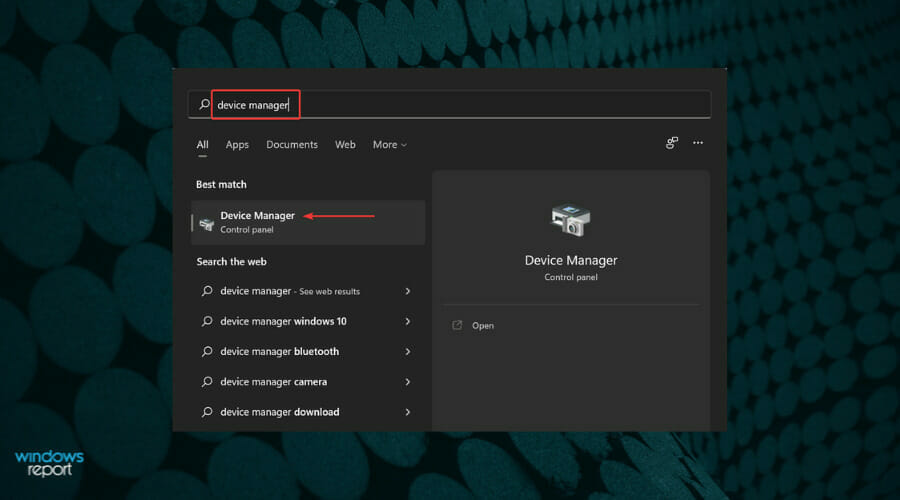
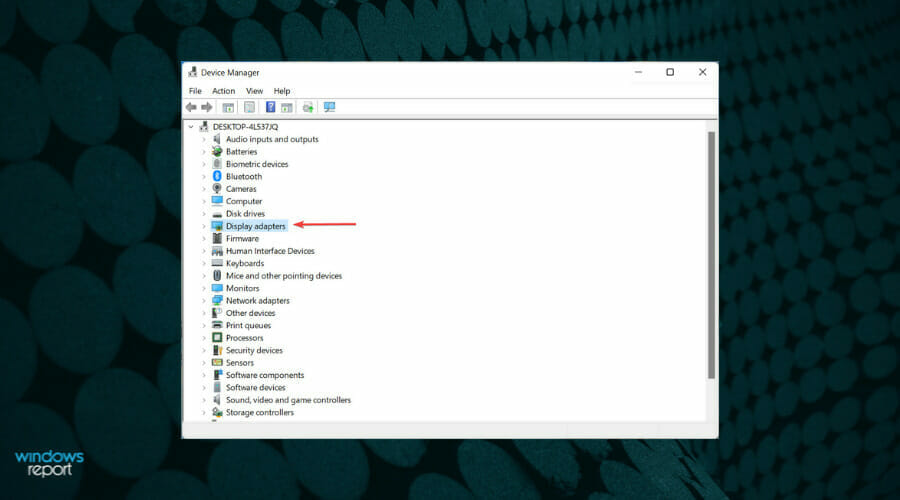
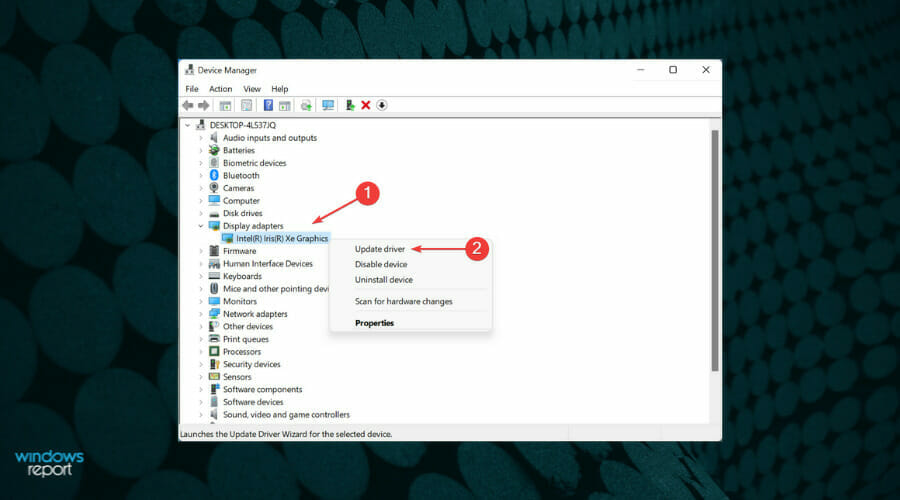
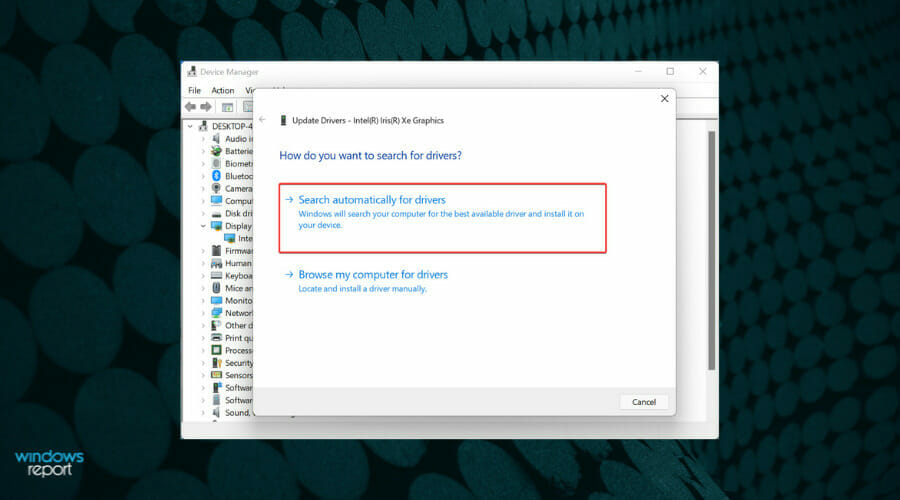


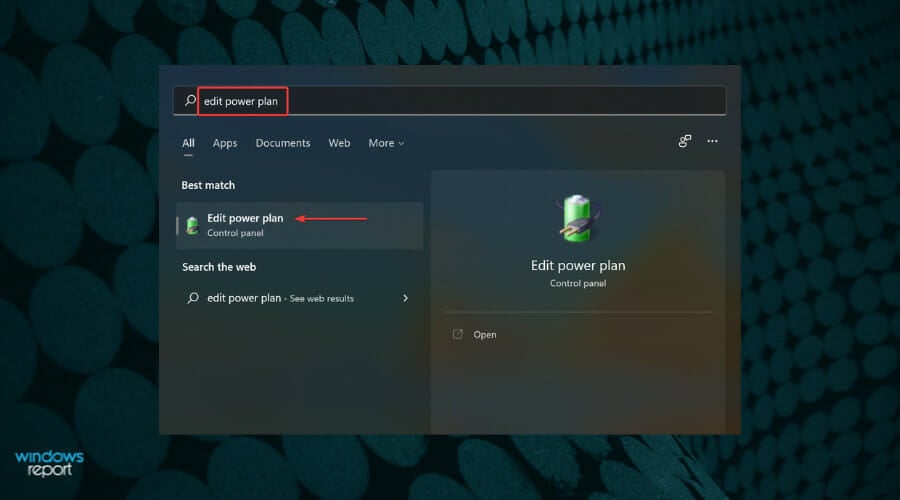
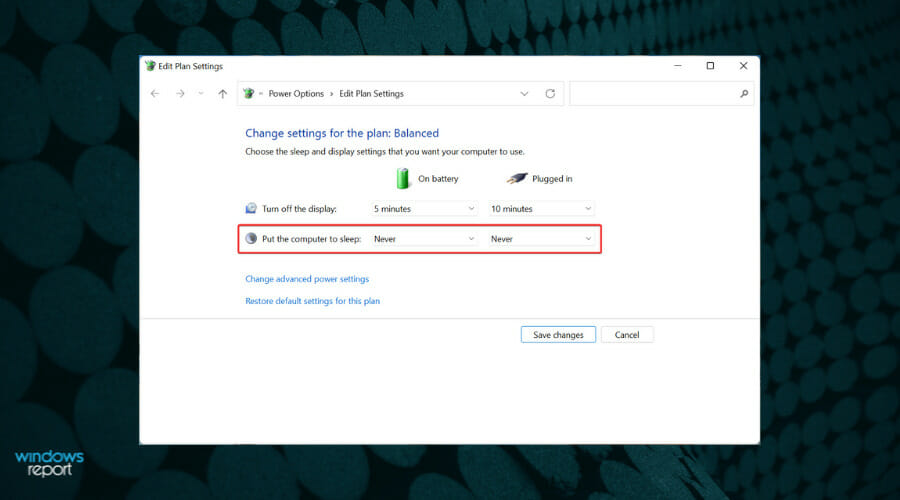
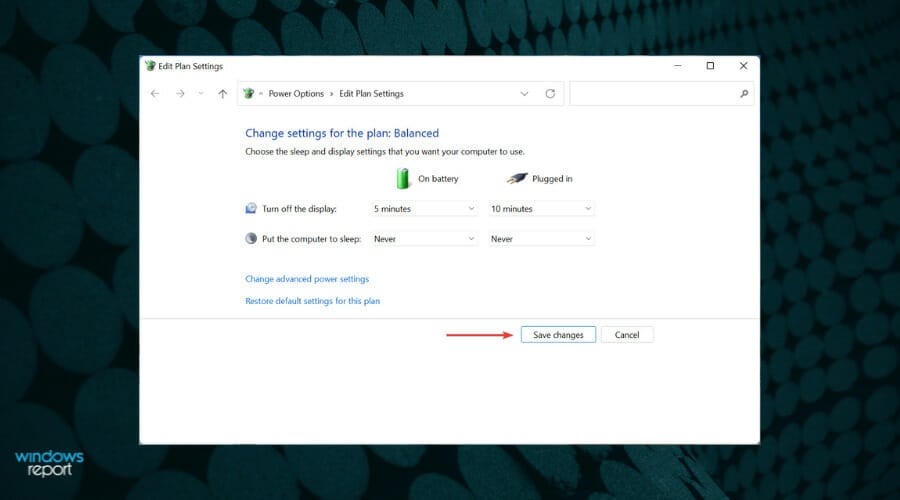


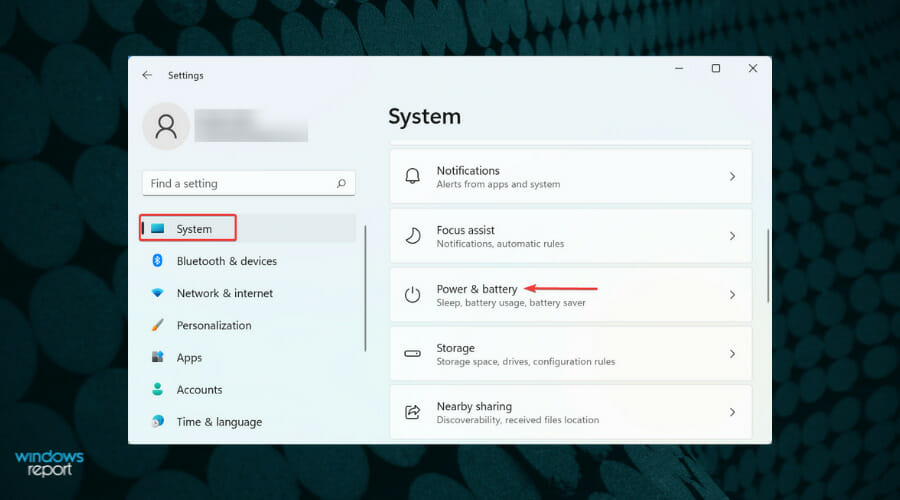
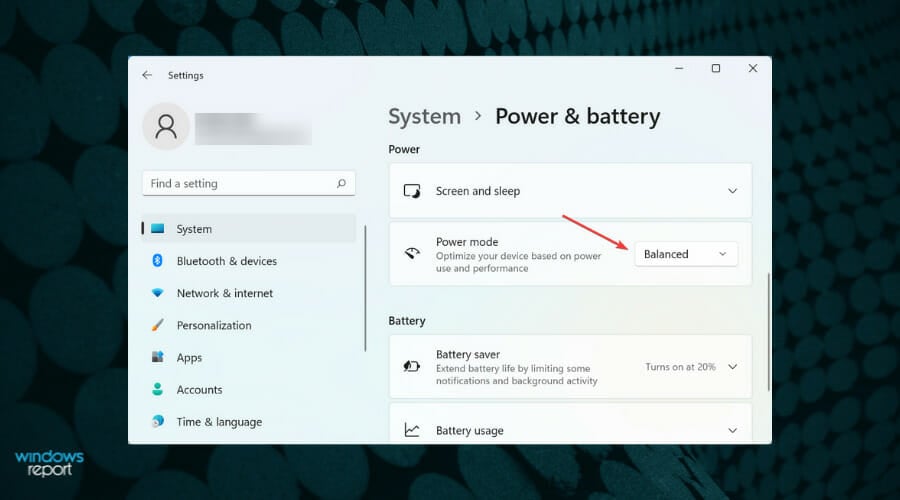
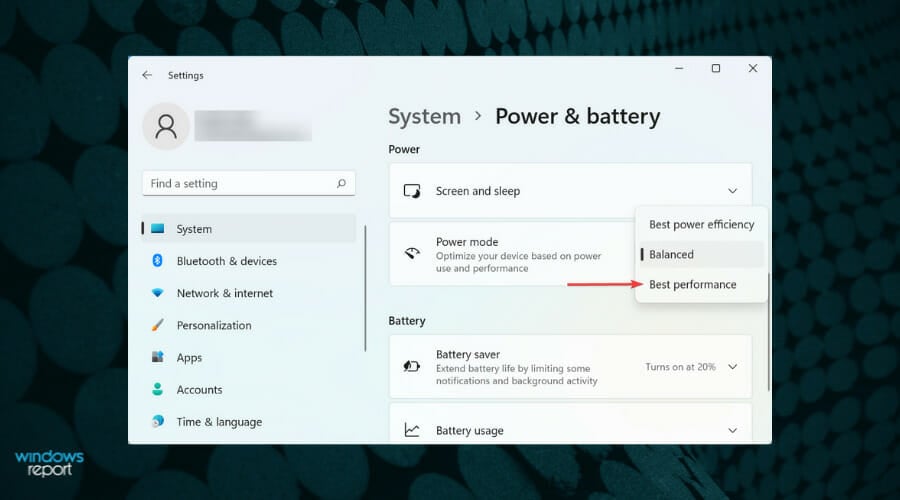


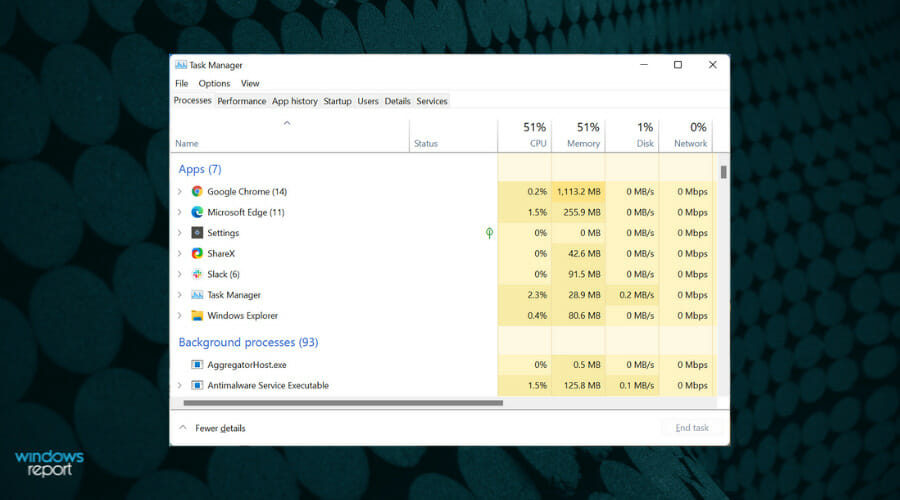
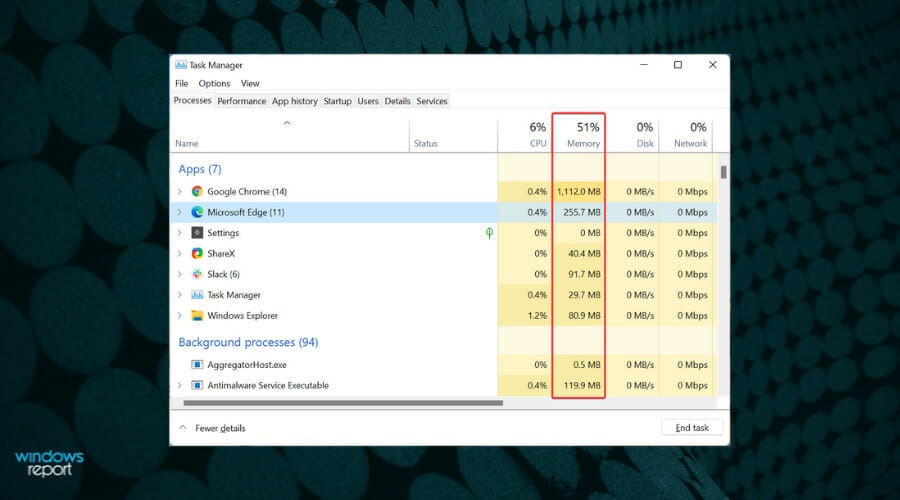
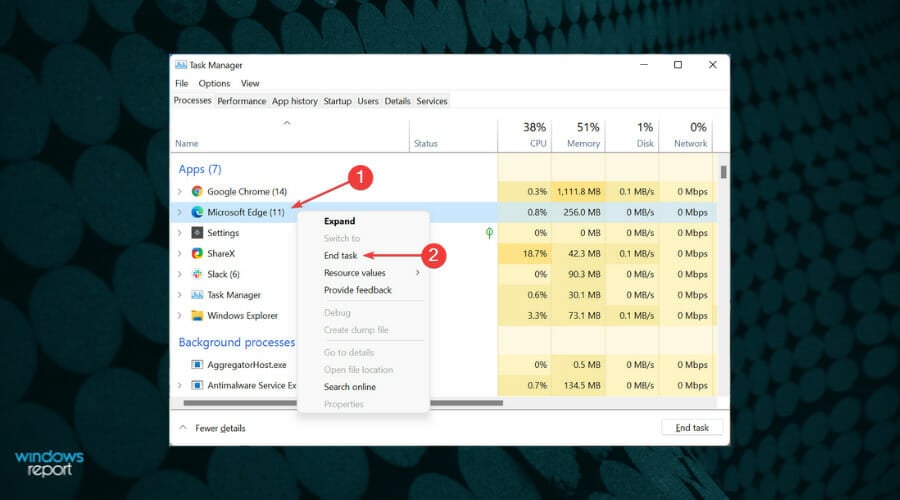


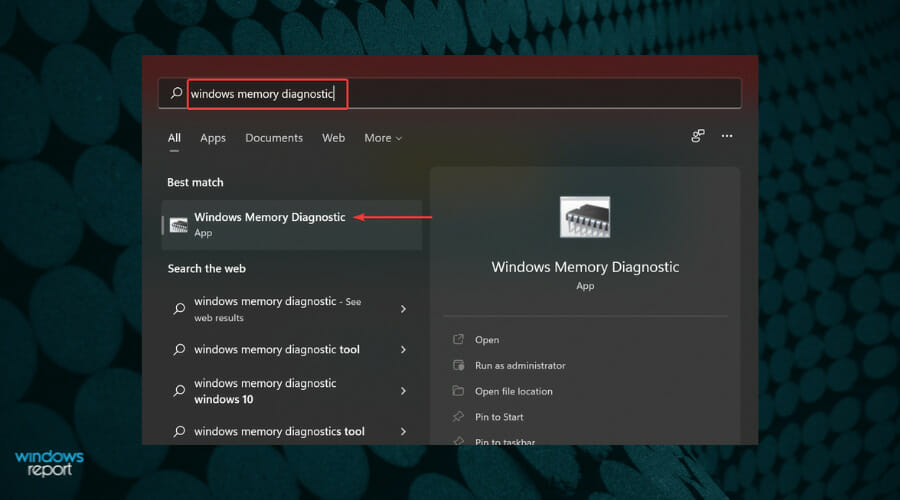
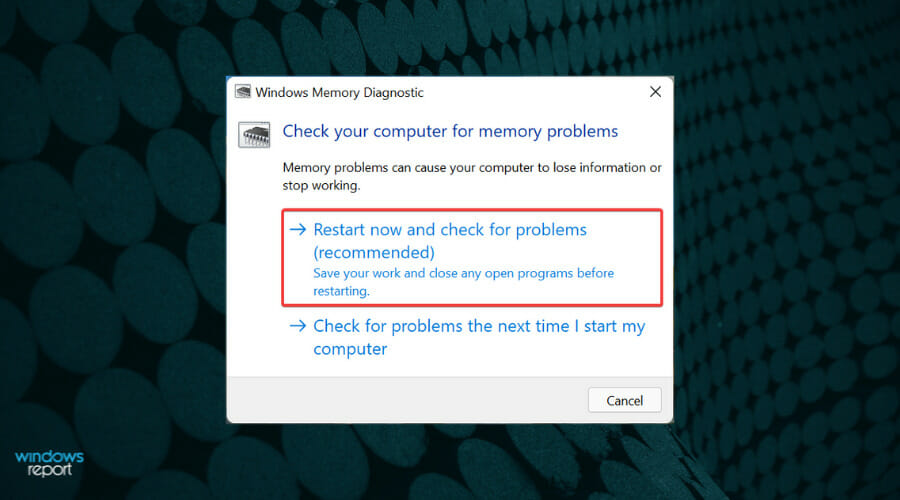


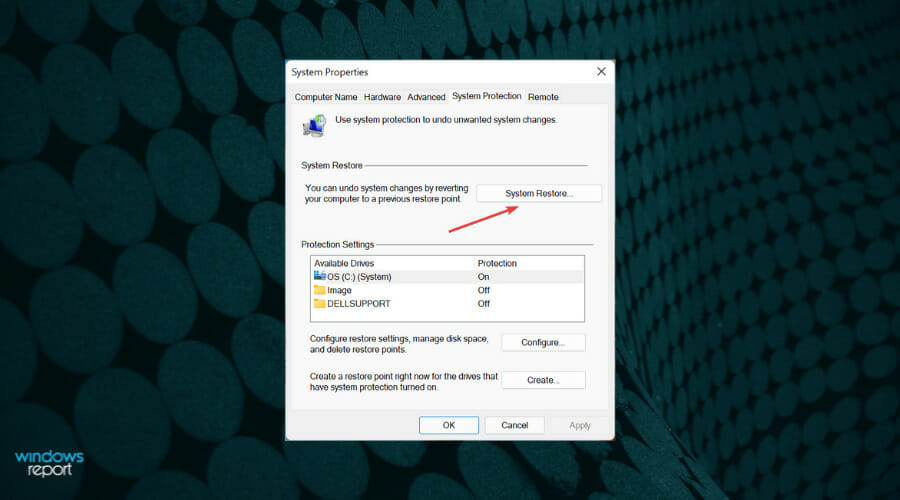
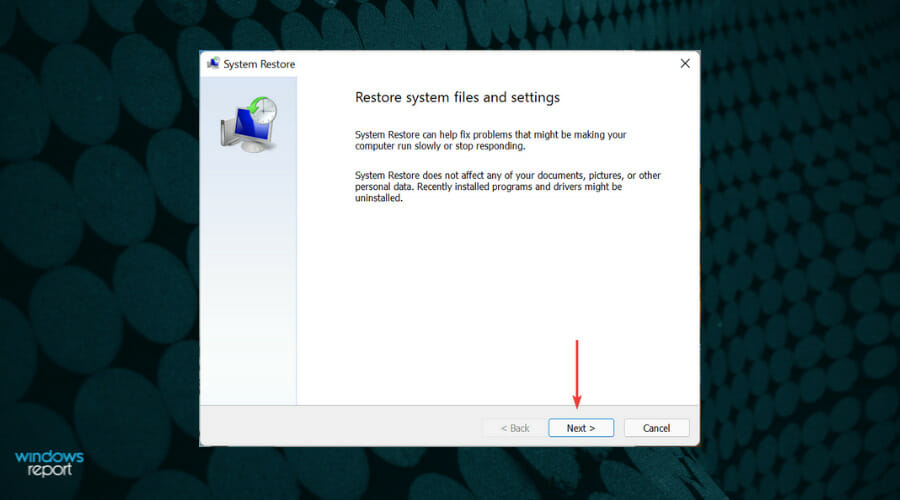
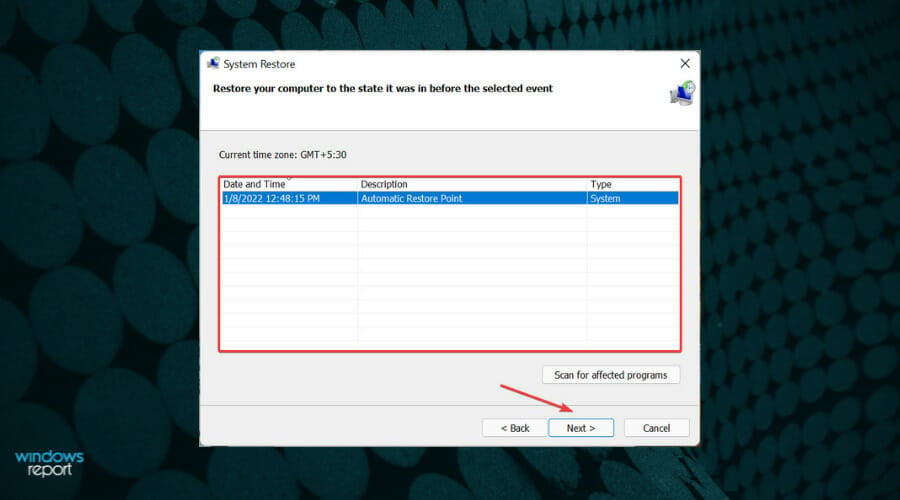
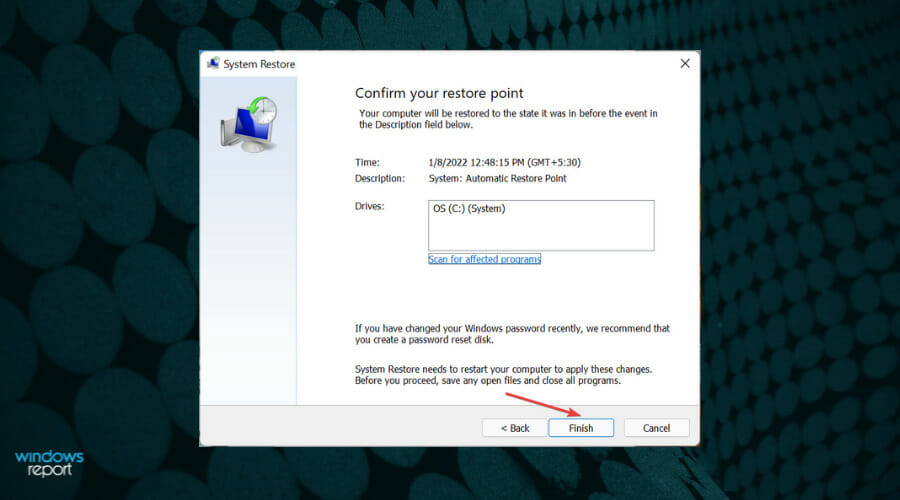
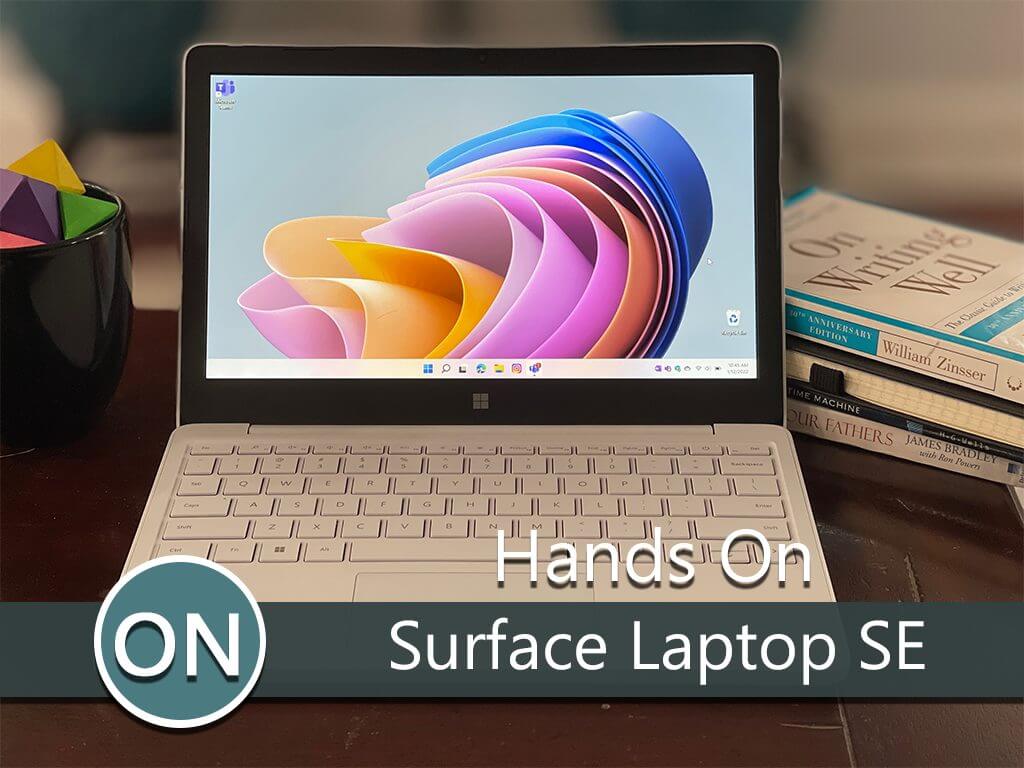
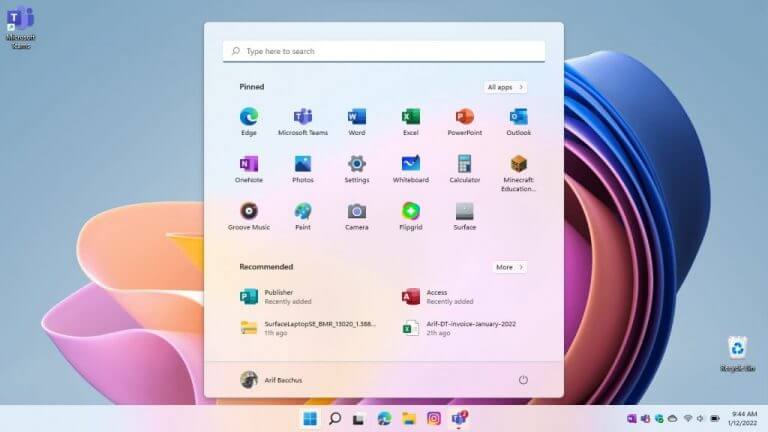
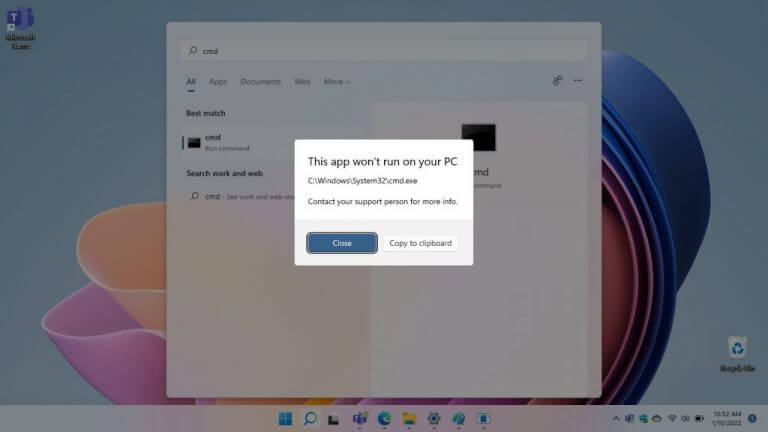
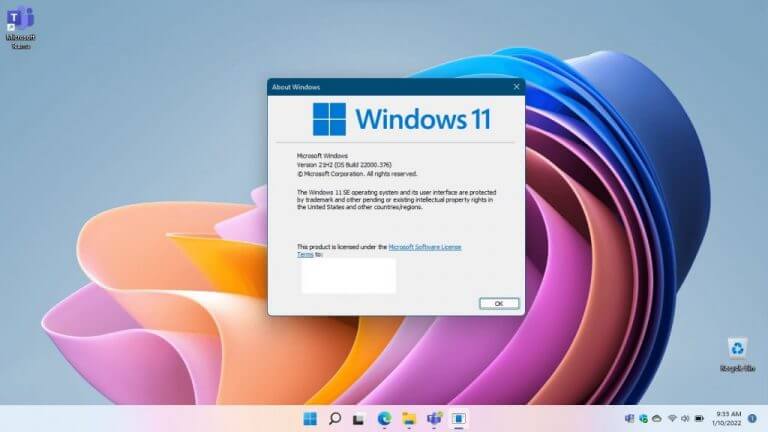
![FIX: Slack microphone not working / found [Quick Guide]](https://windowsreport.com/wp-content/uploads/2020/03/Slack-microphone-not-working.jpg)





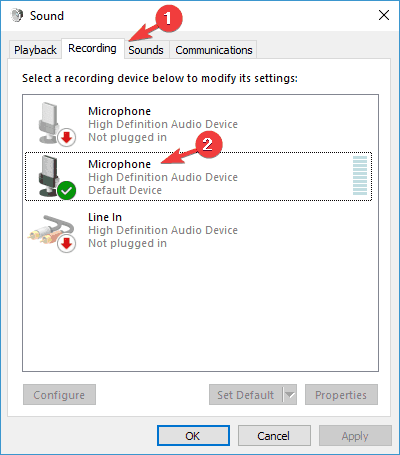

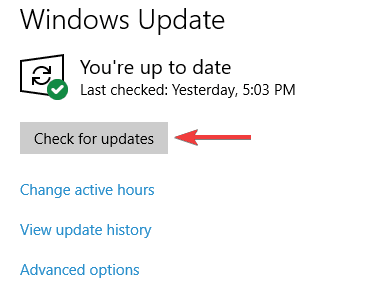
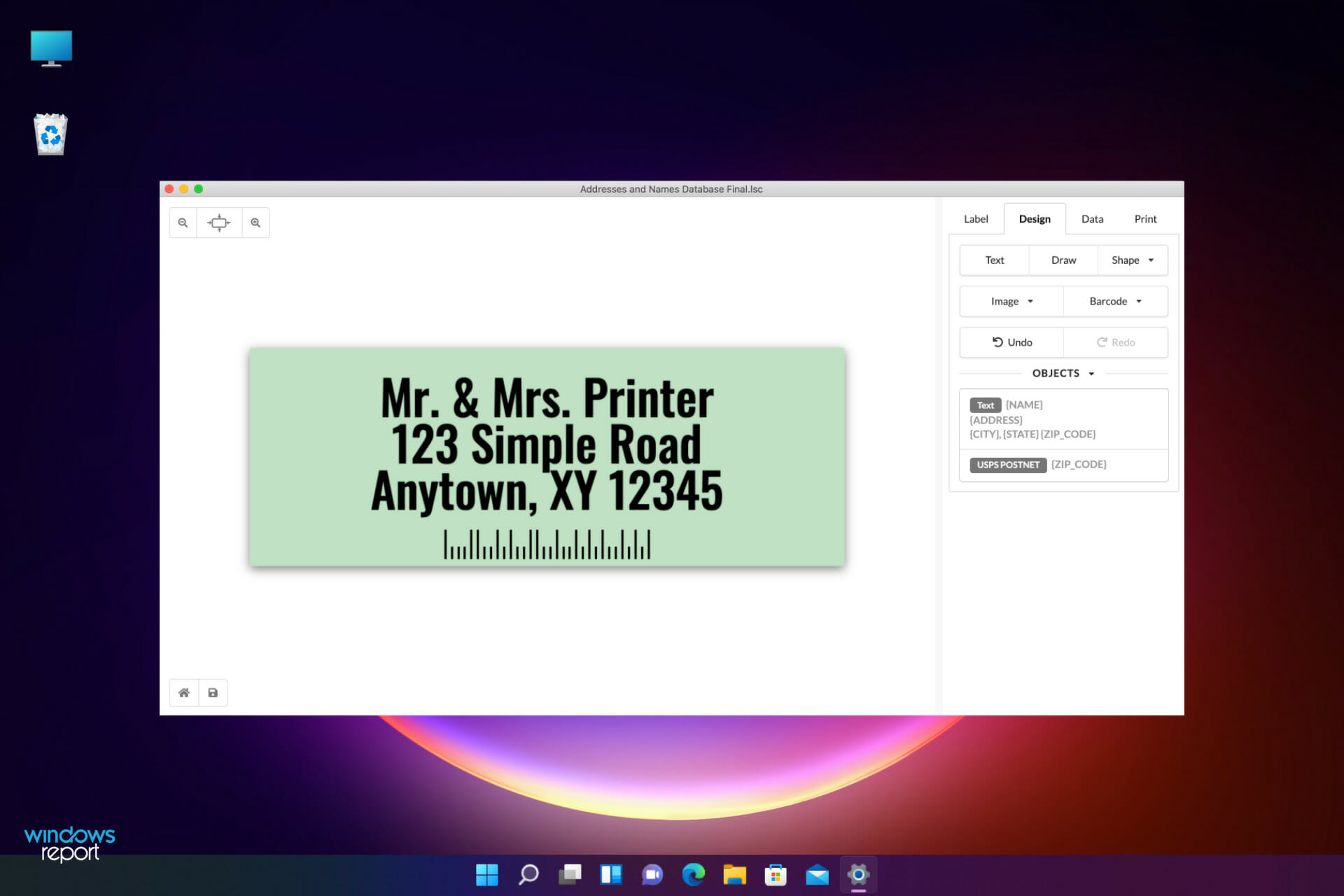
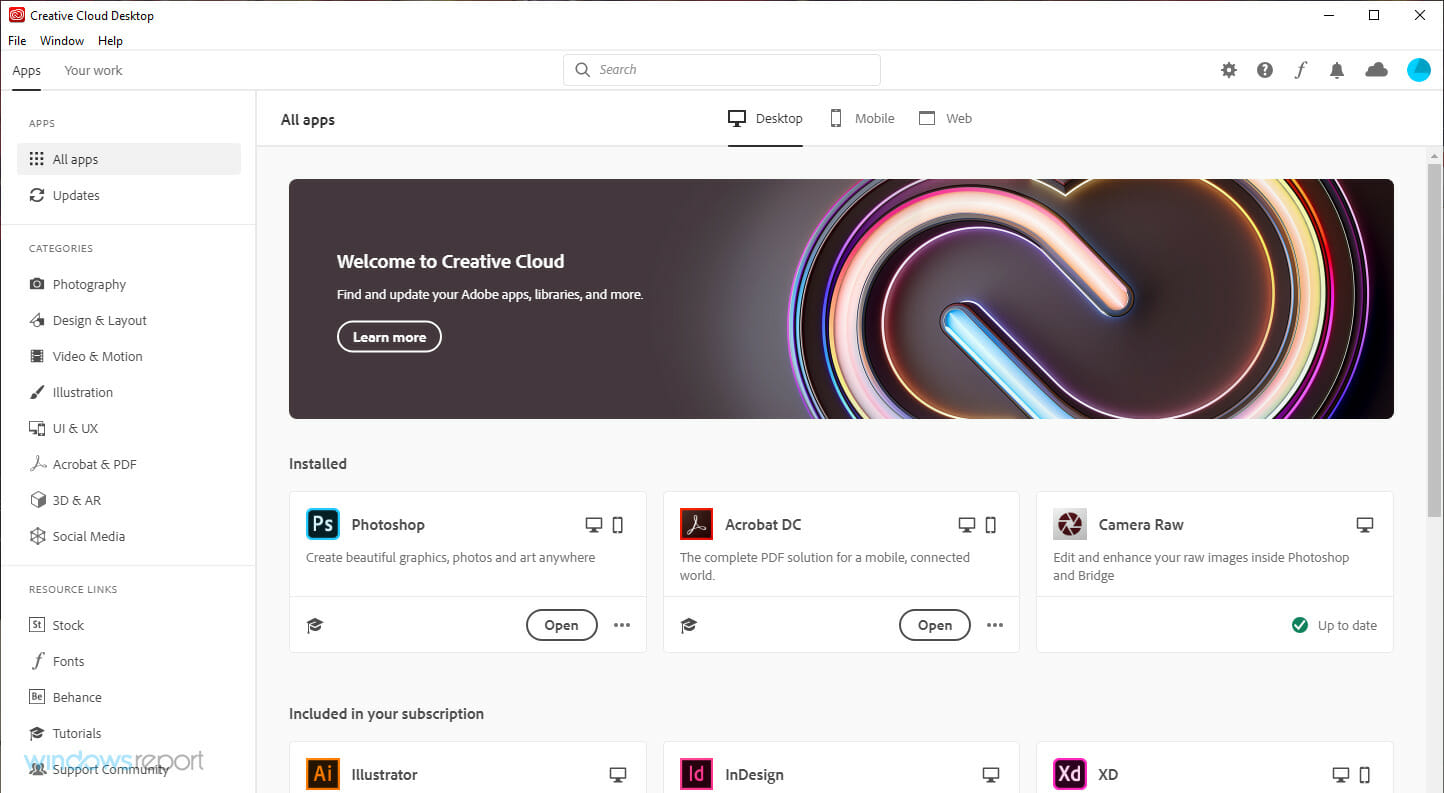

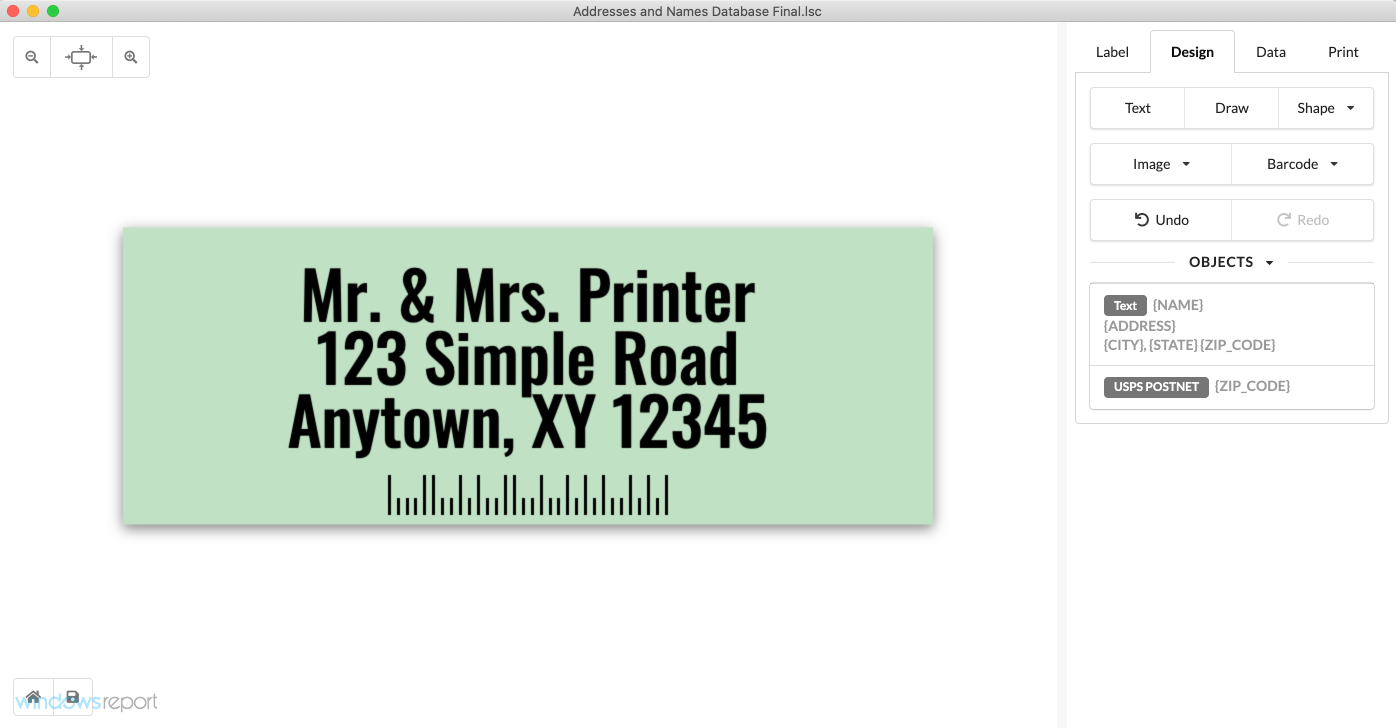



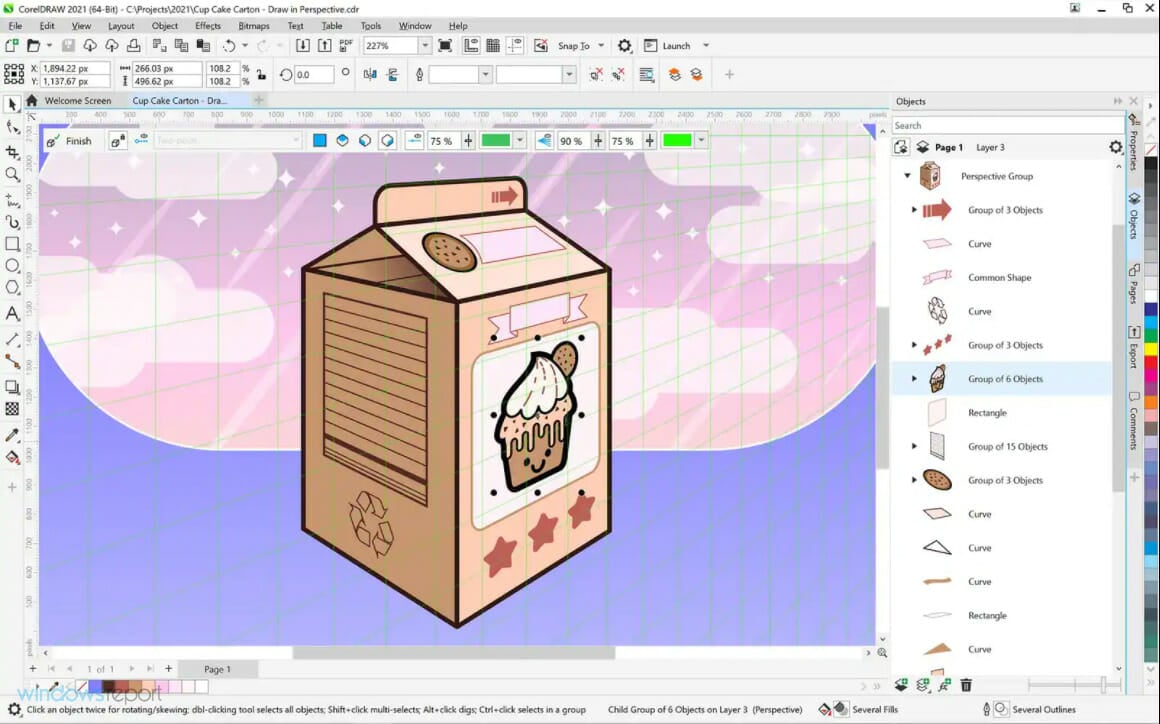

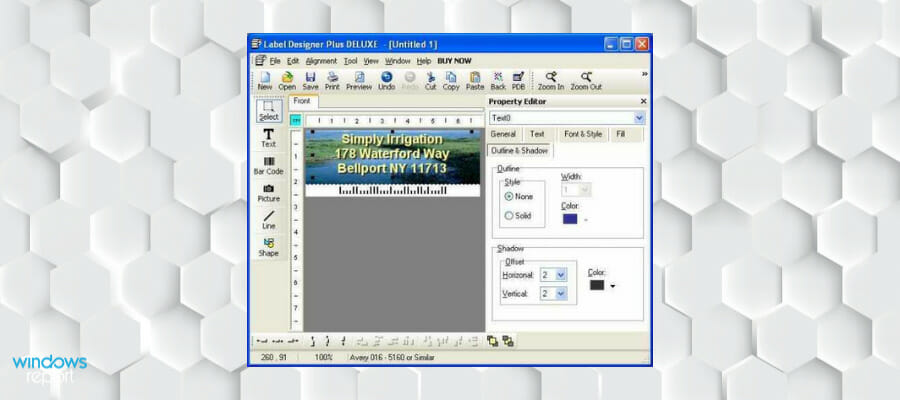
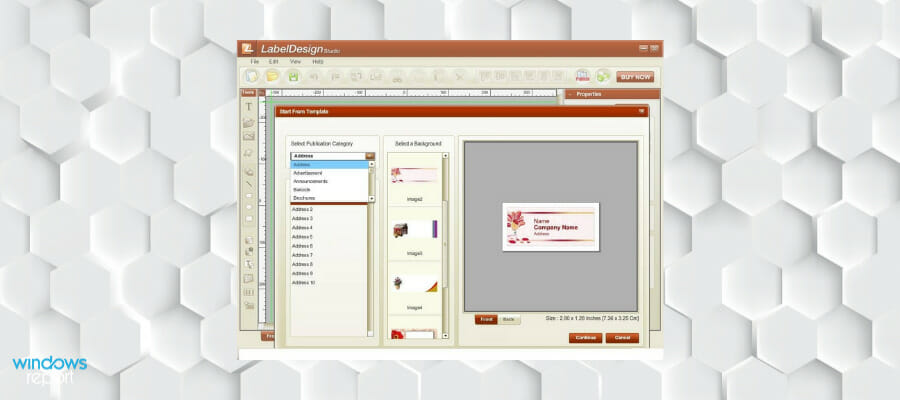
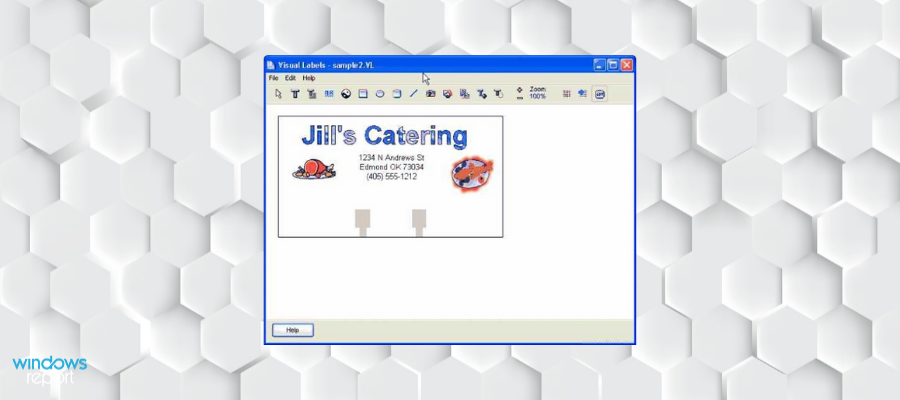
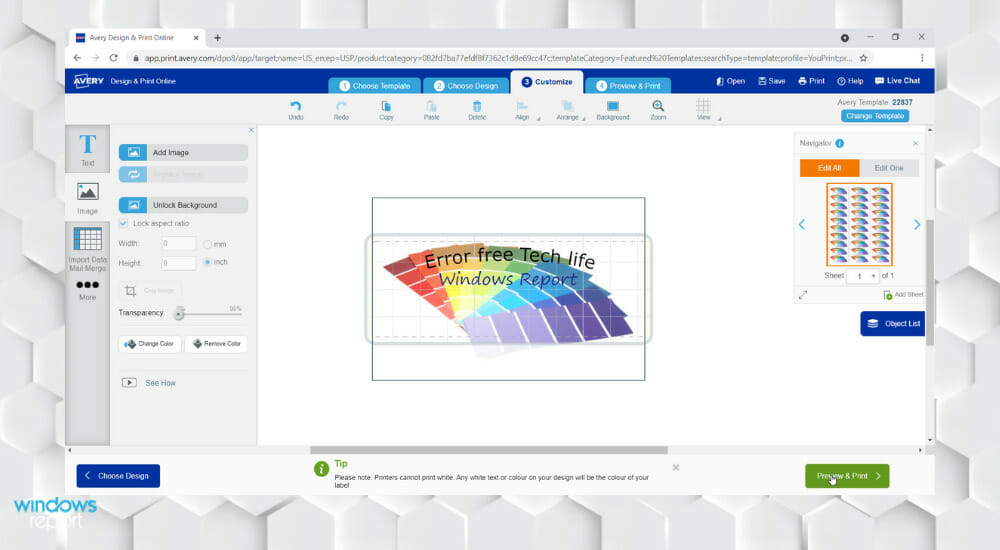
![6 Best Label Printing Software & Solutions [2026]](https://windowsreport.com/wp-content/uploads/2022/01/best-label-printing-software.jpg)
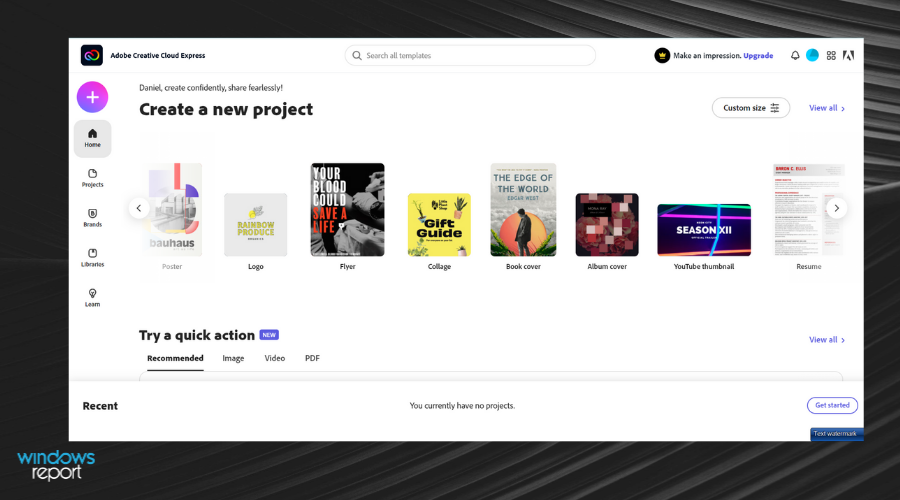

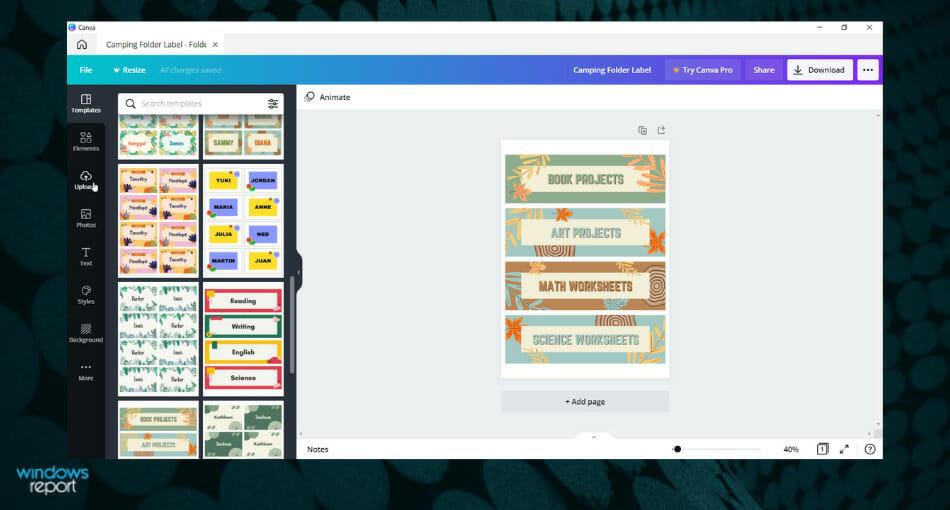


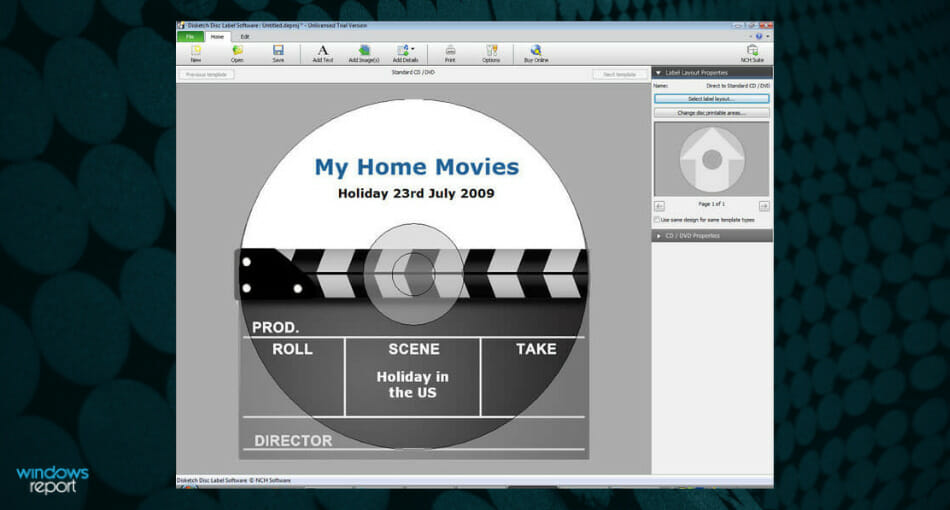

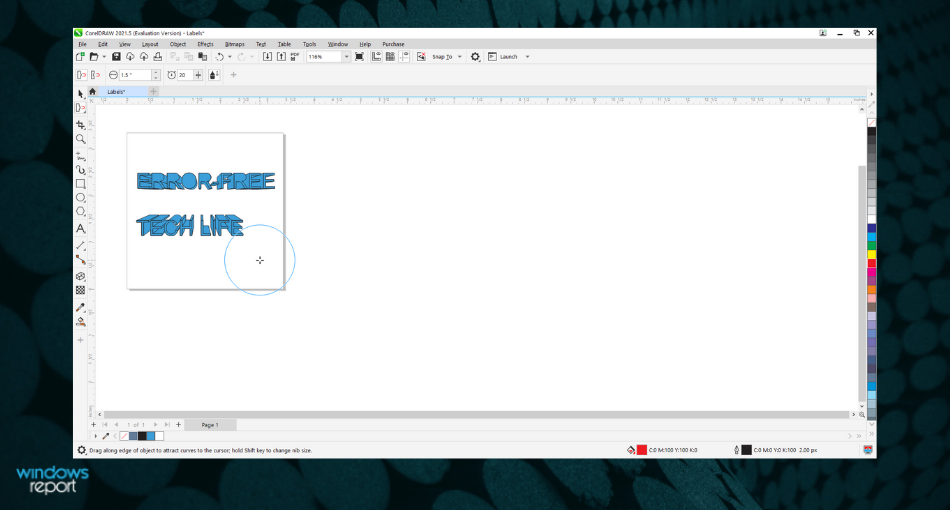

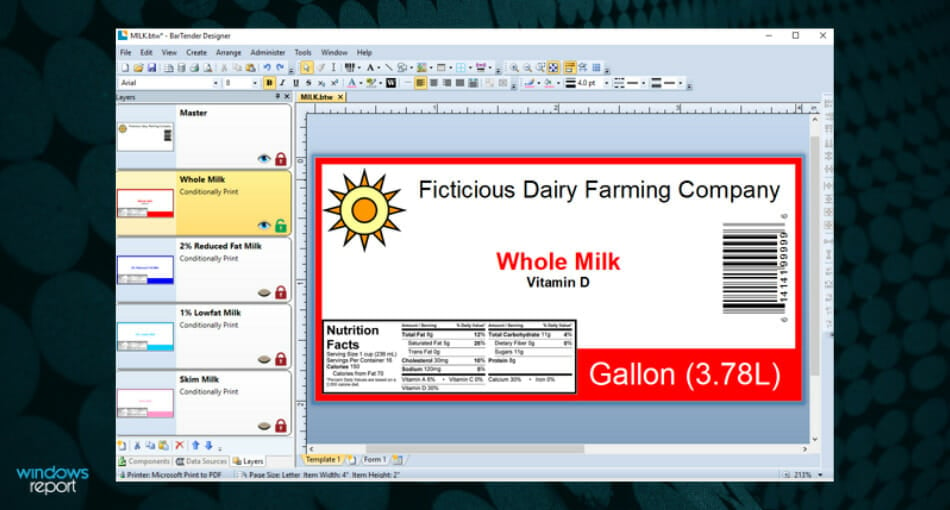
![4 Best Video Editing Software for Beginners [Easy-to-Use]](https://windowsreport.com/wp-content/uploads/2022/01/Adobe-Premiere-Elements-wr.jpg)
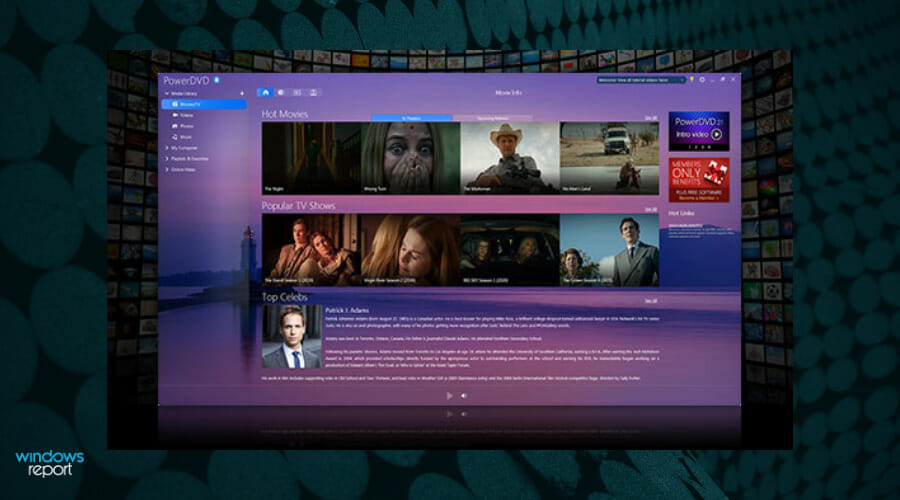



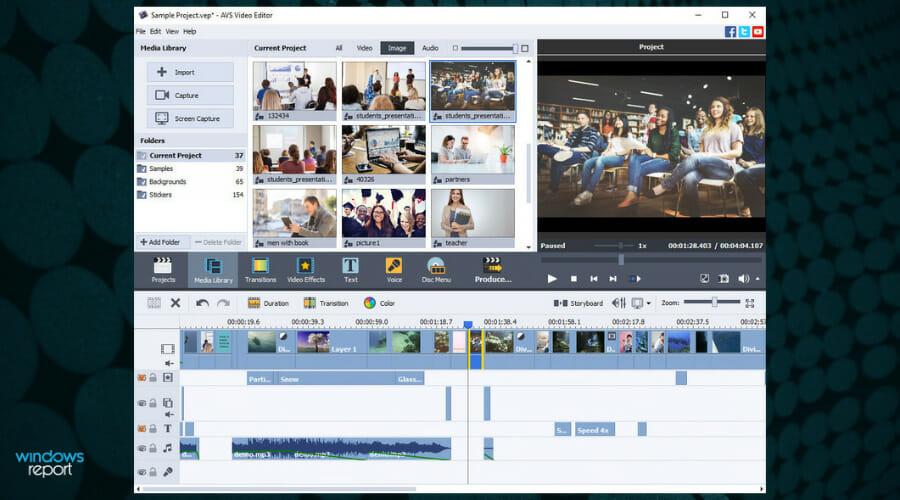










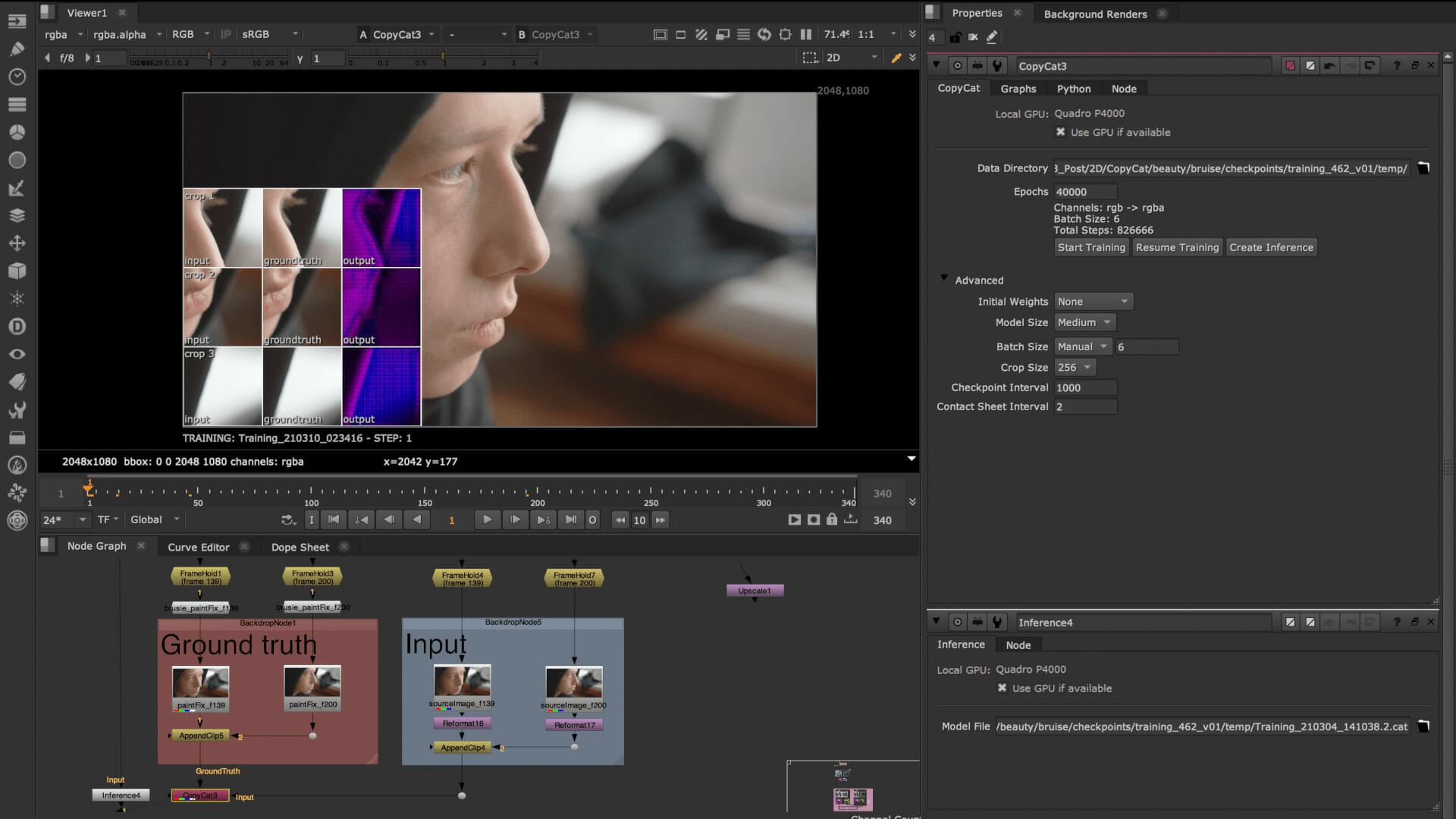






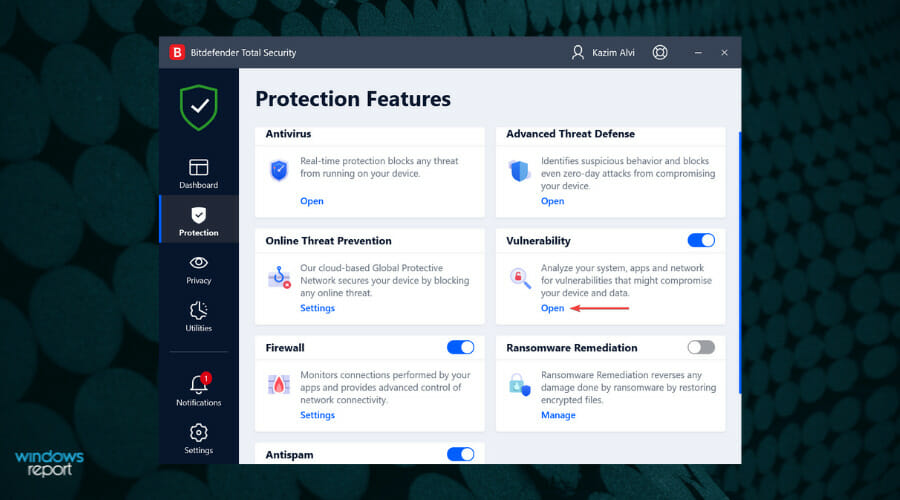
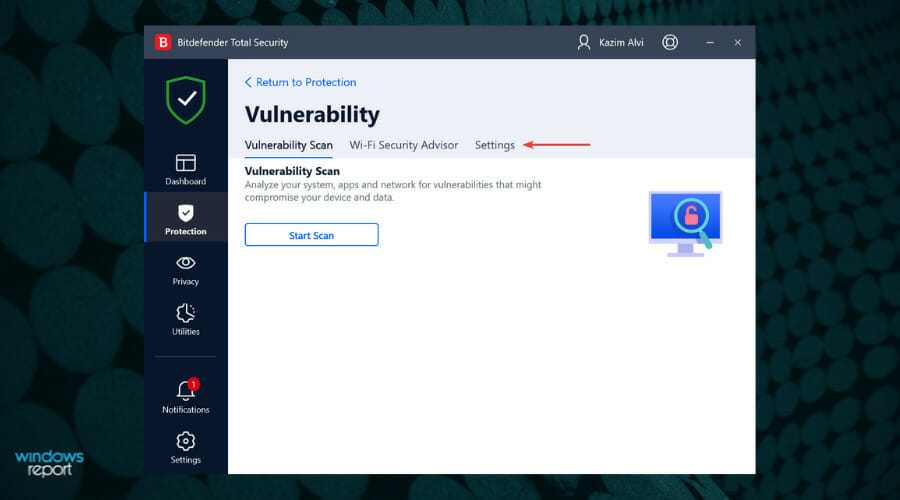
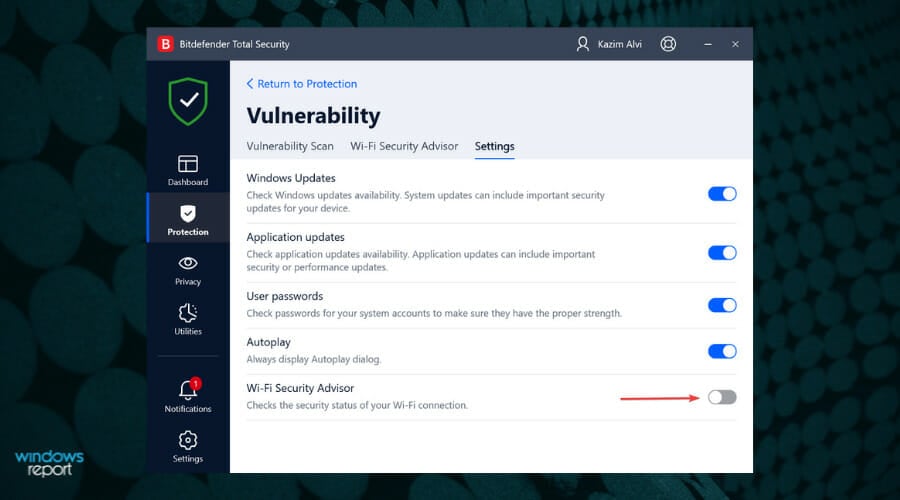
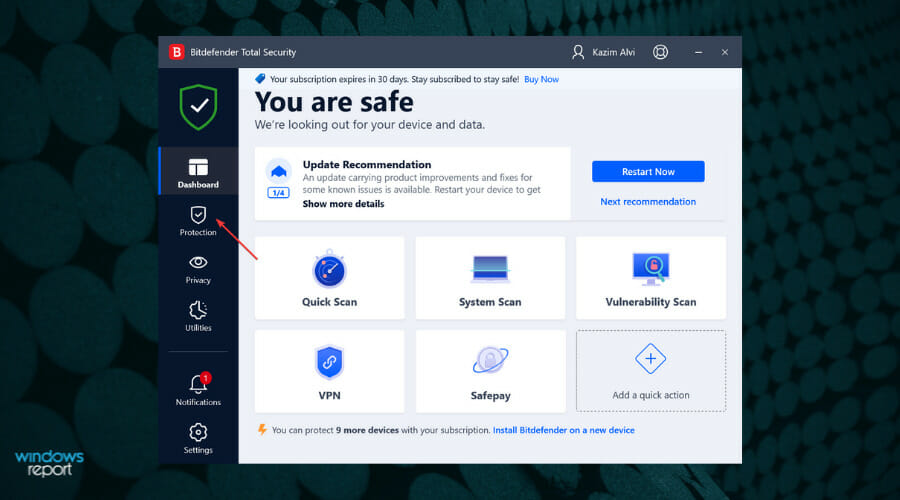
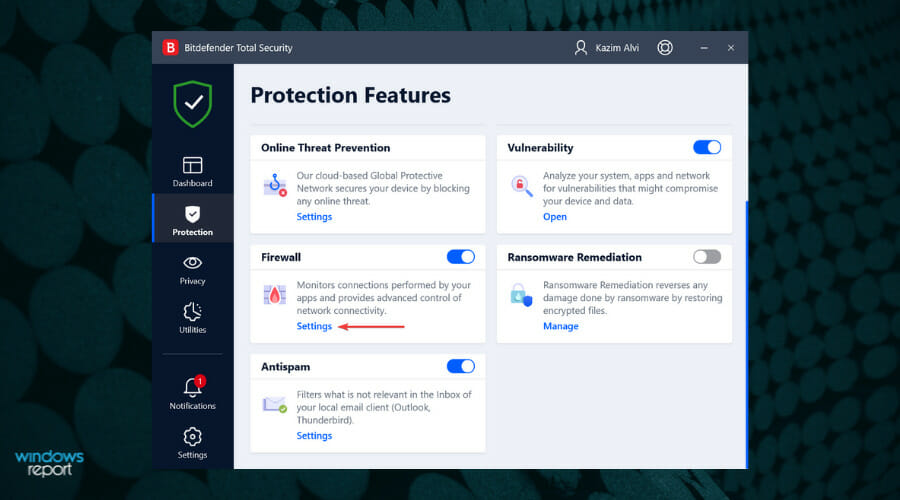
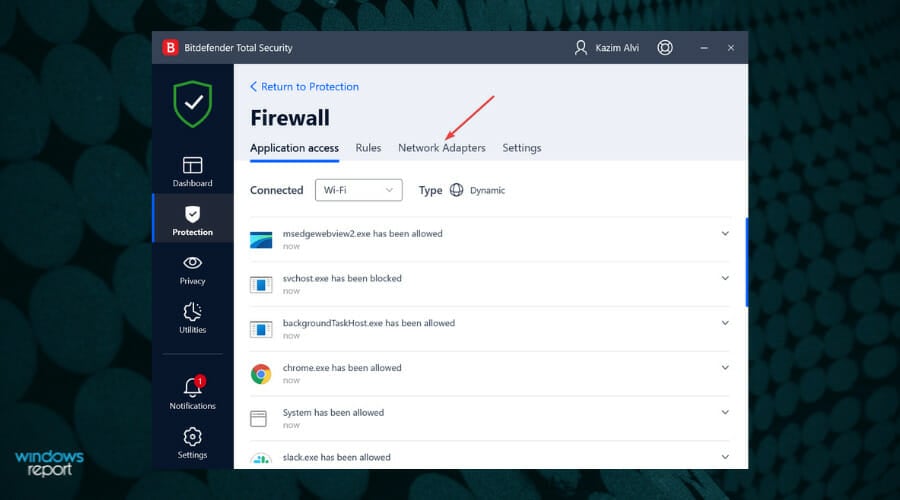
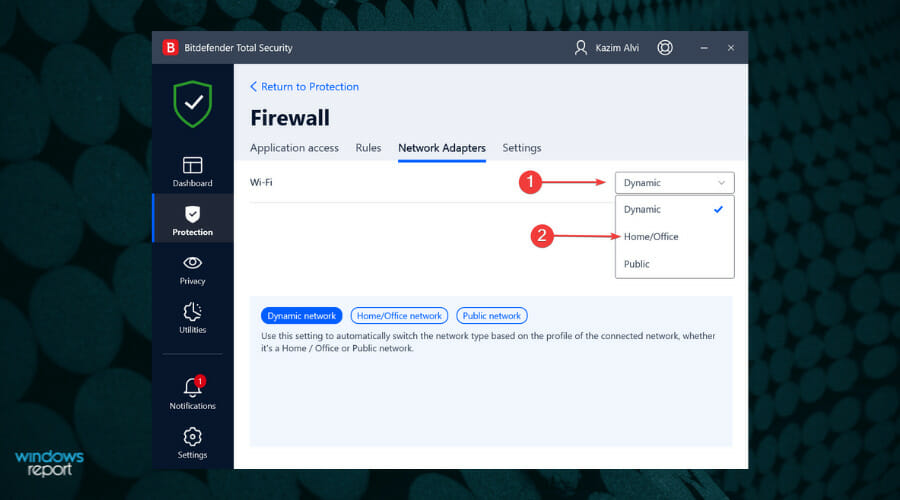






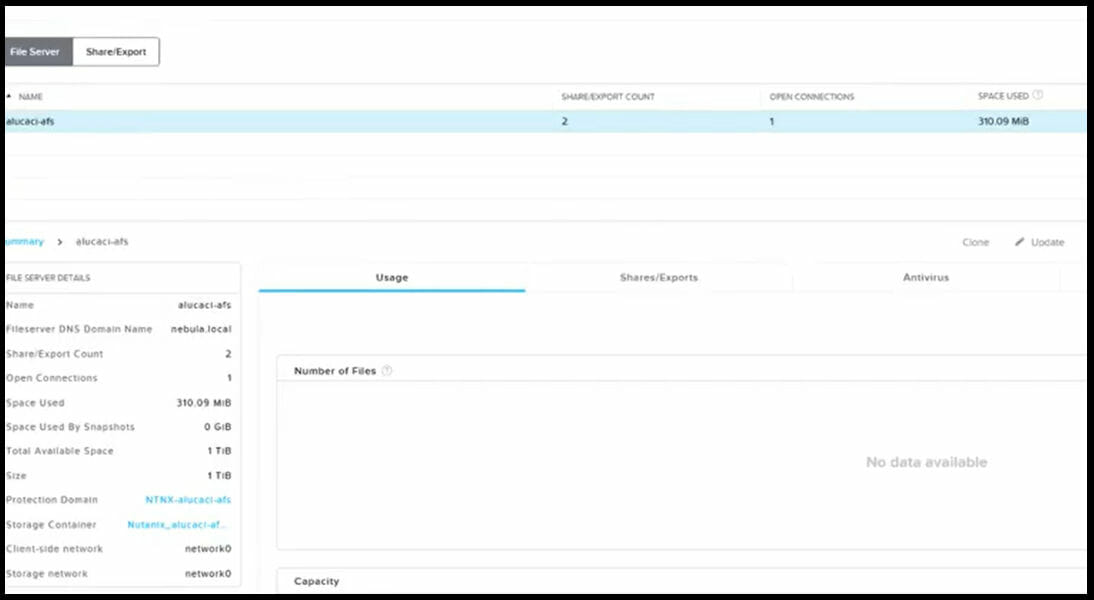




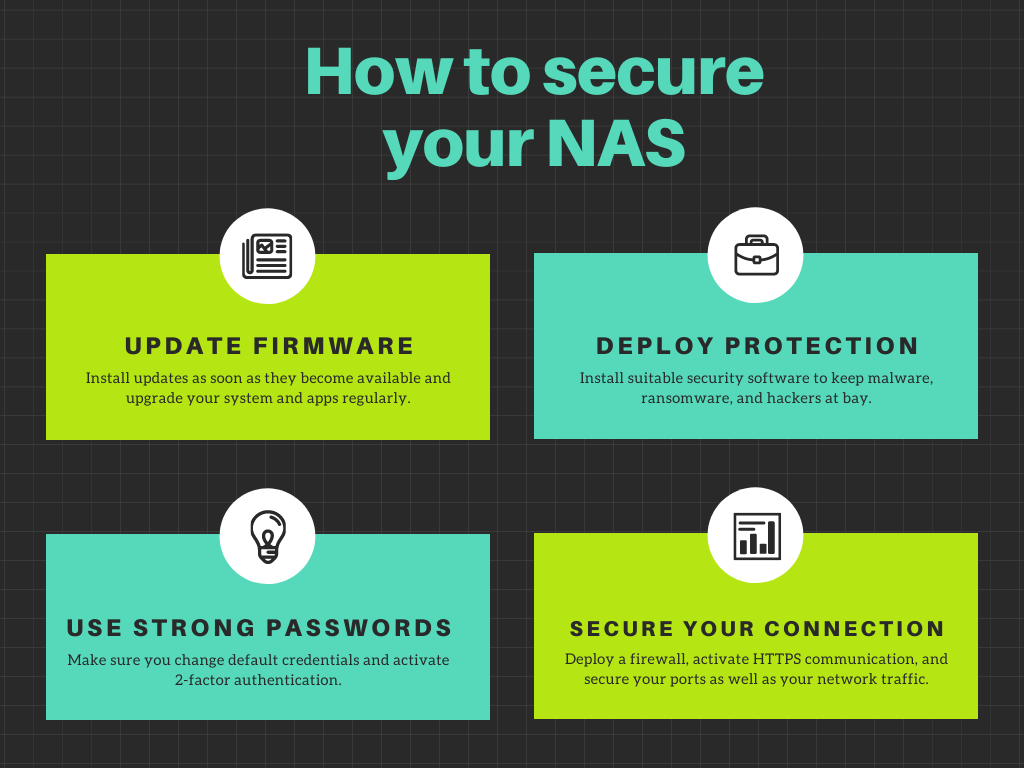
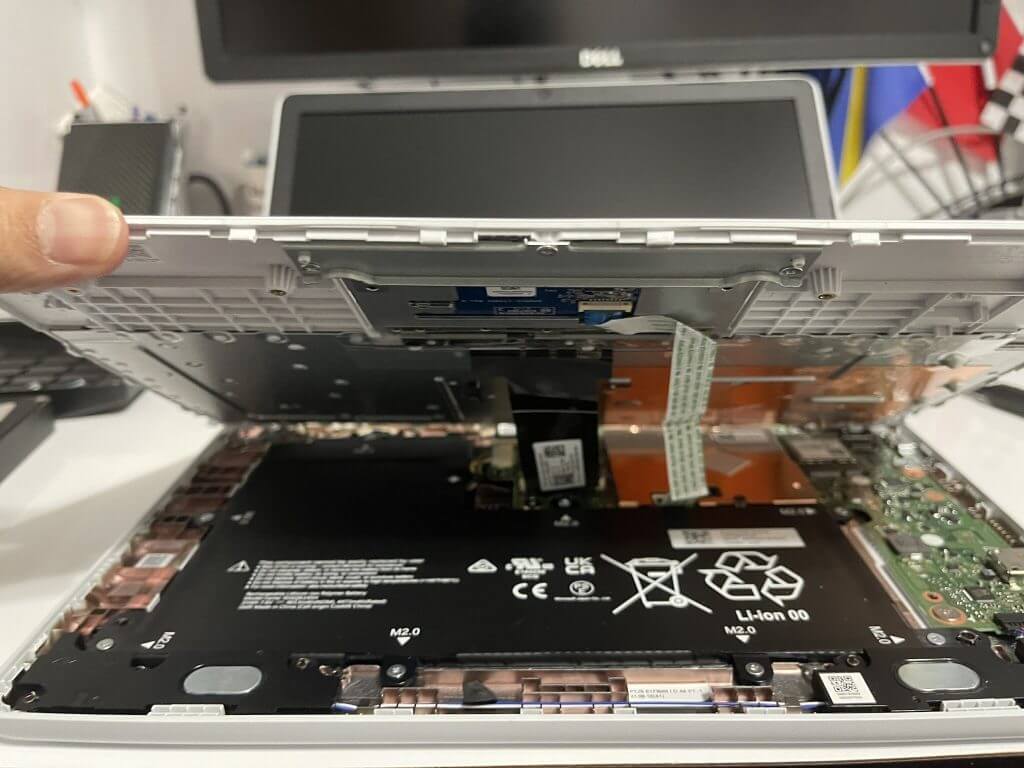
![SQL Server 2019 Download for Windows 11 [64 bit Version]](https://windowsreport.com/wp-content/uploads/2022/01/Untitled-design16-min.jpg)


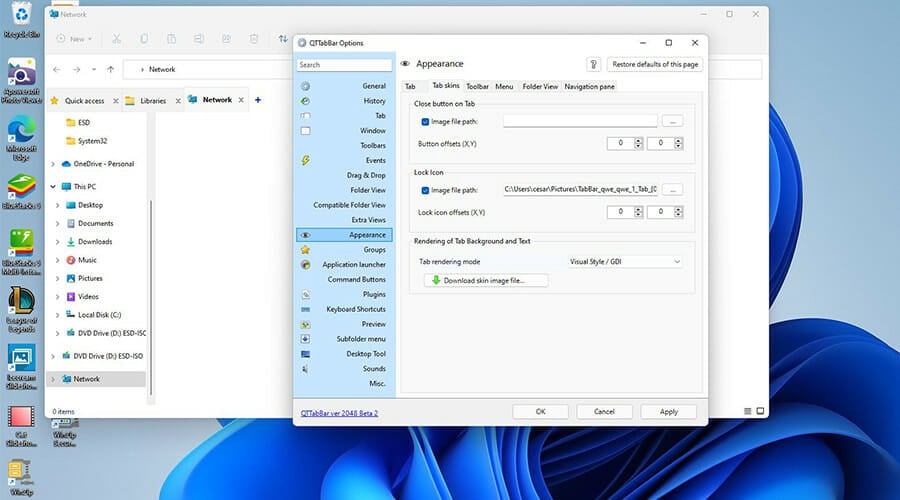

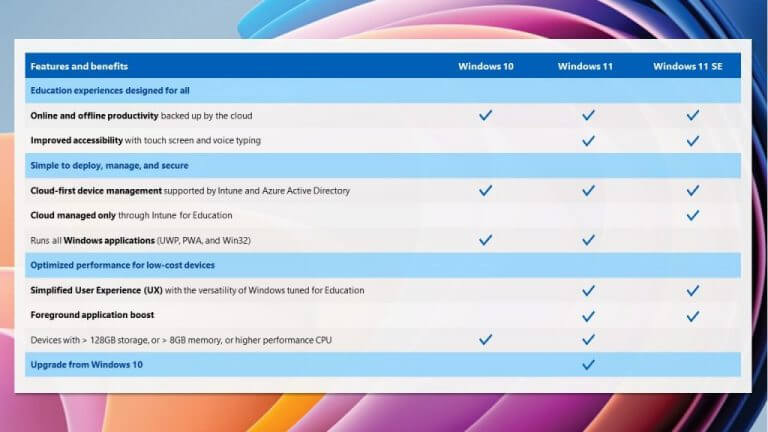
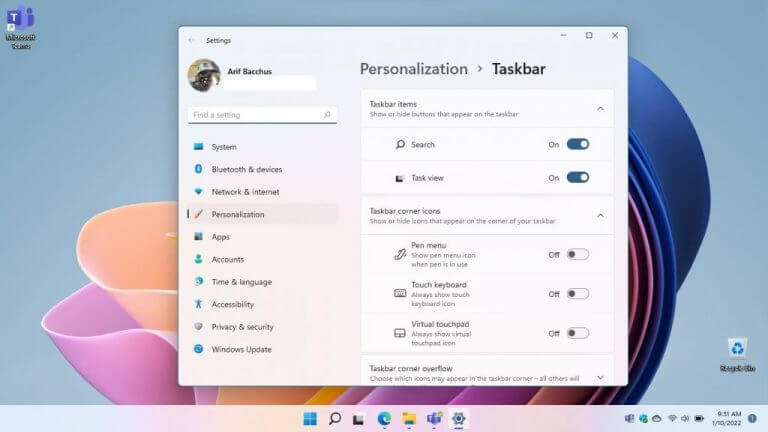
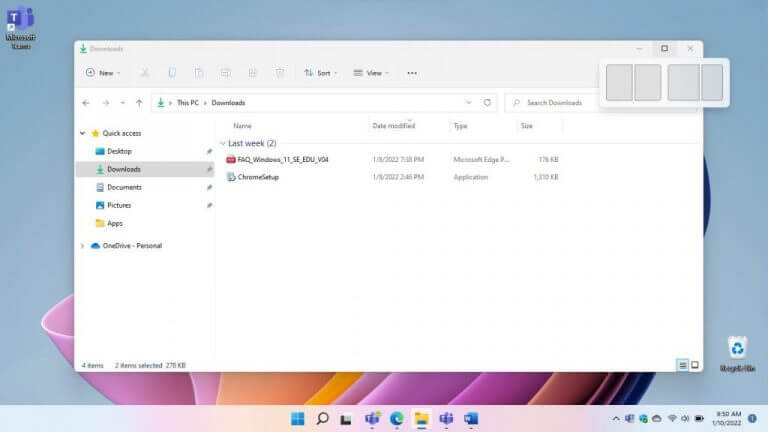
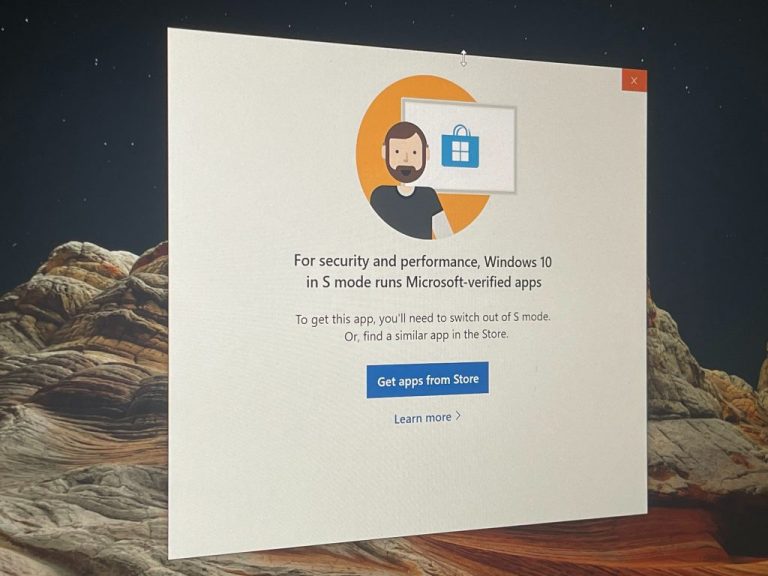
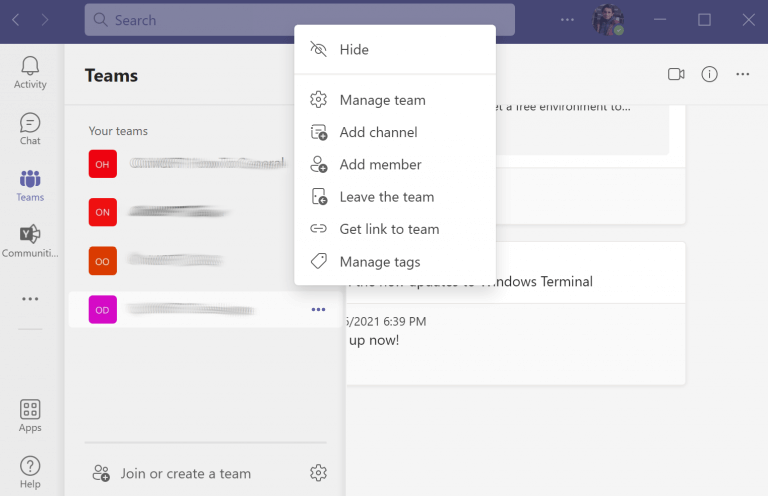

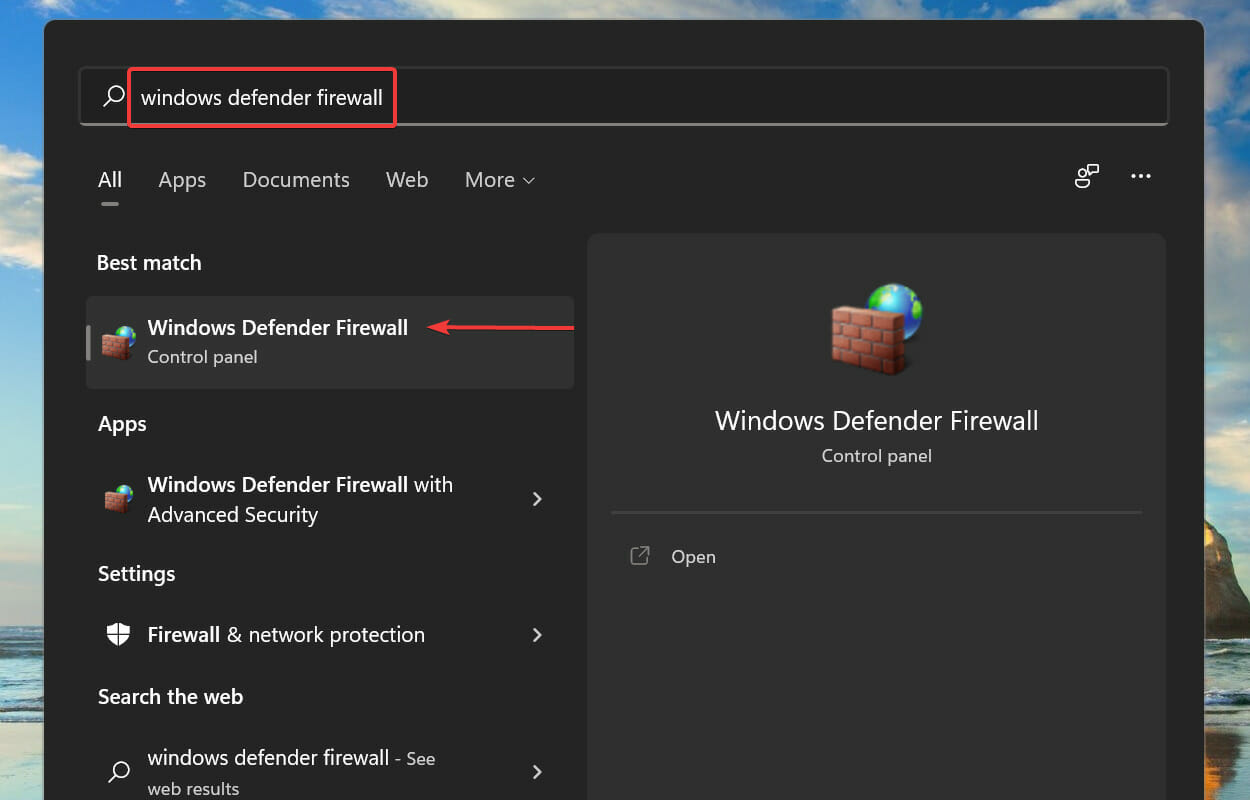
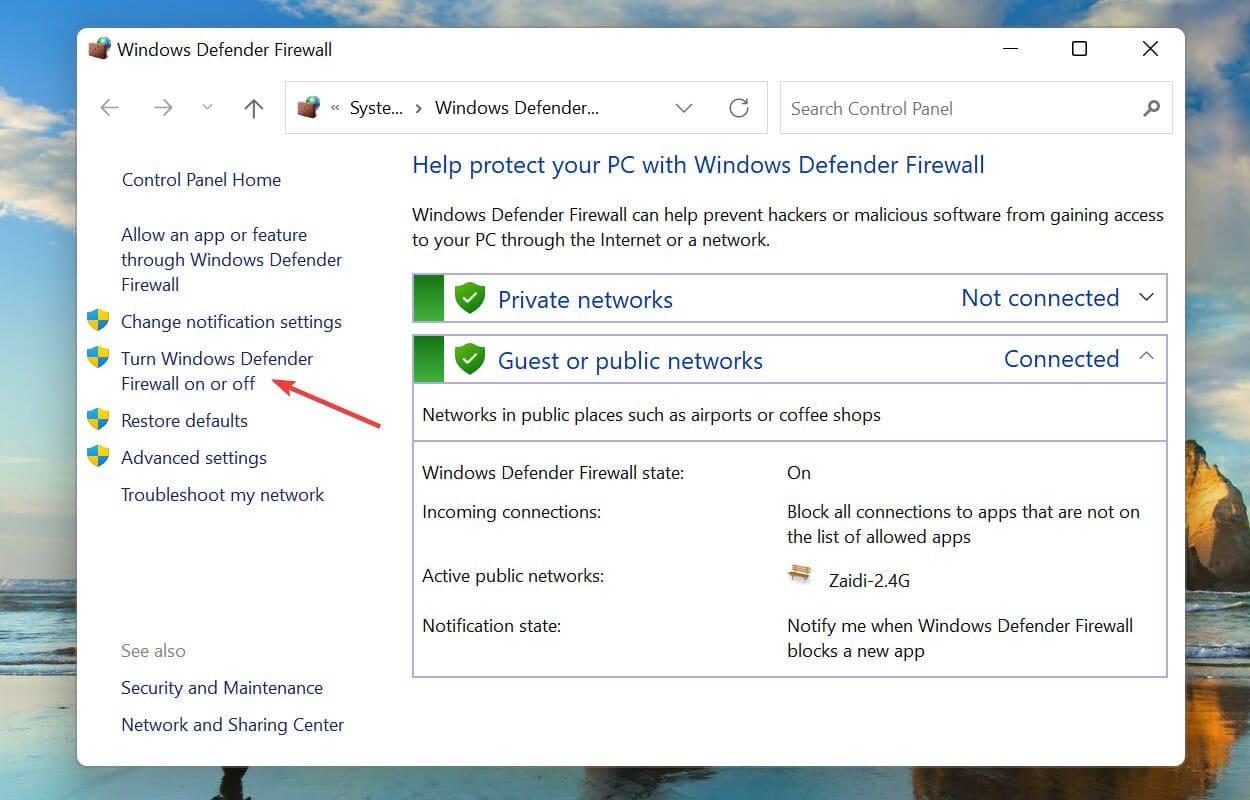
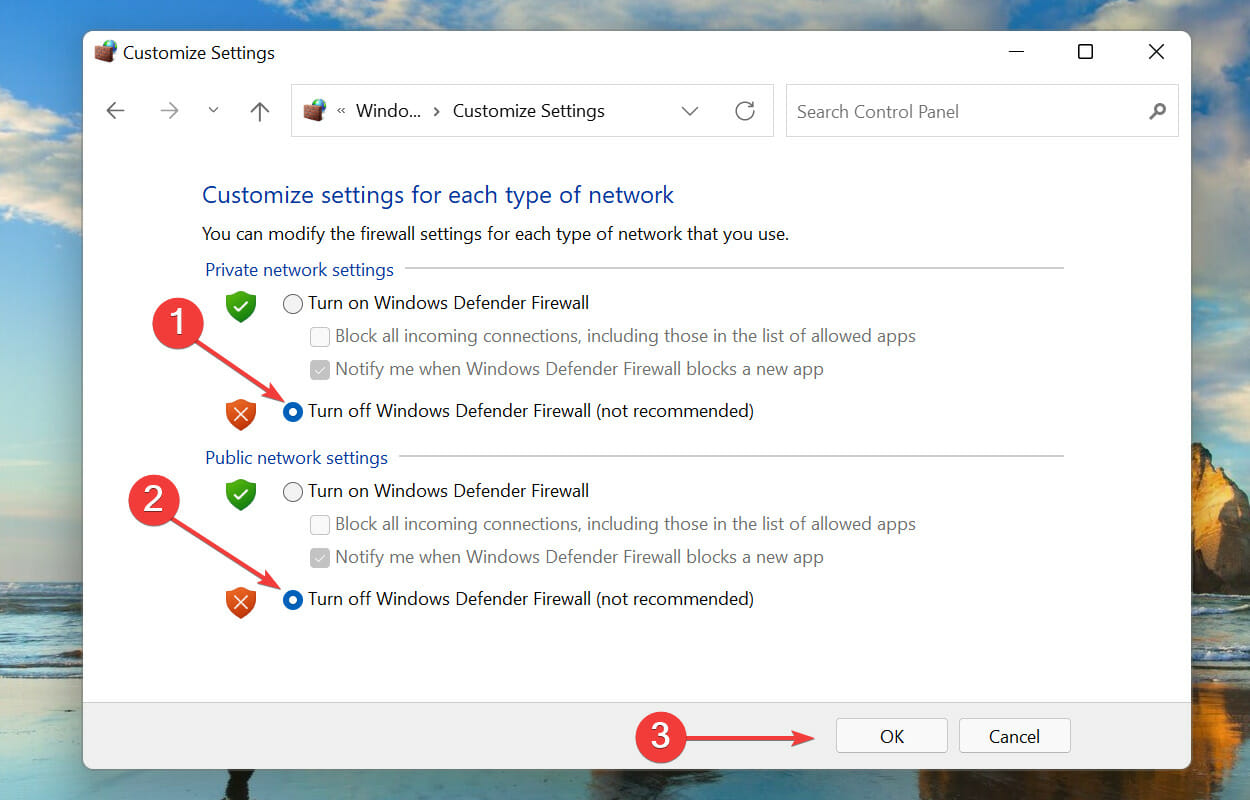
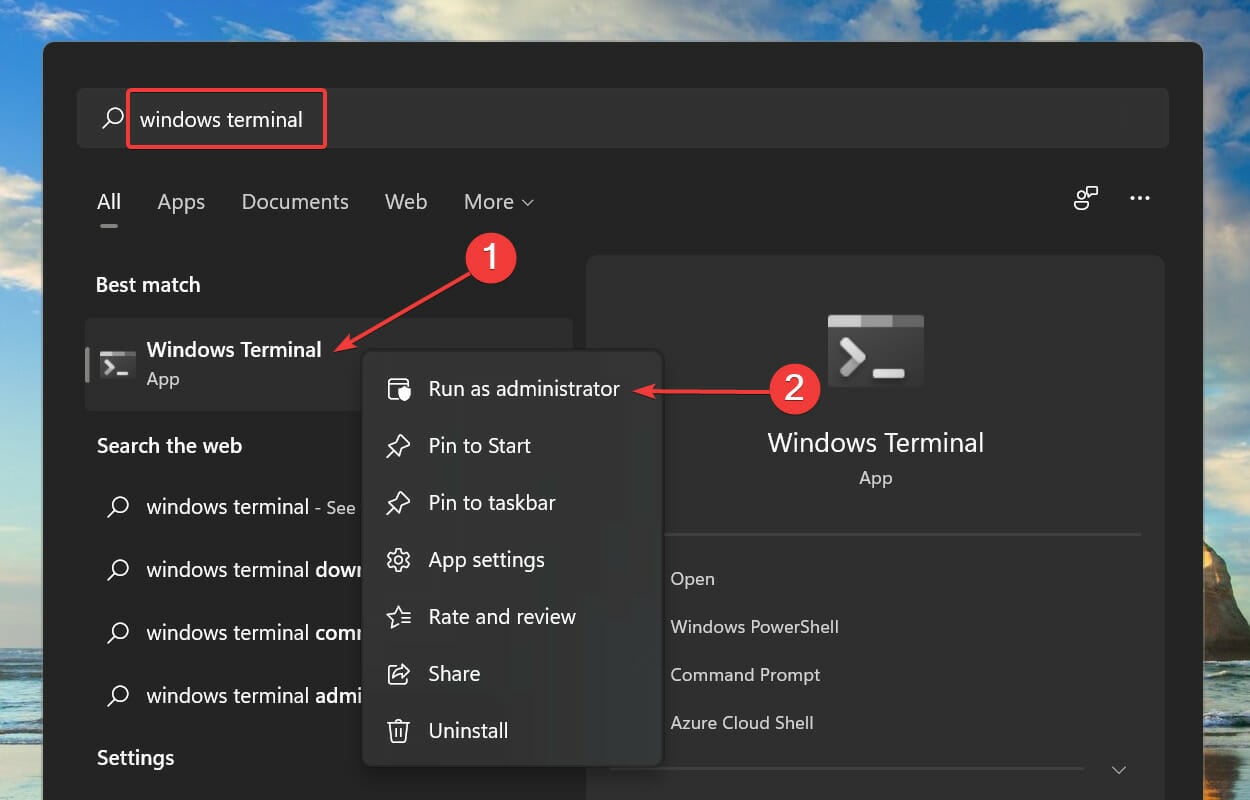
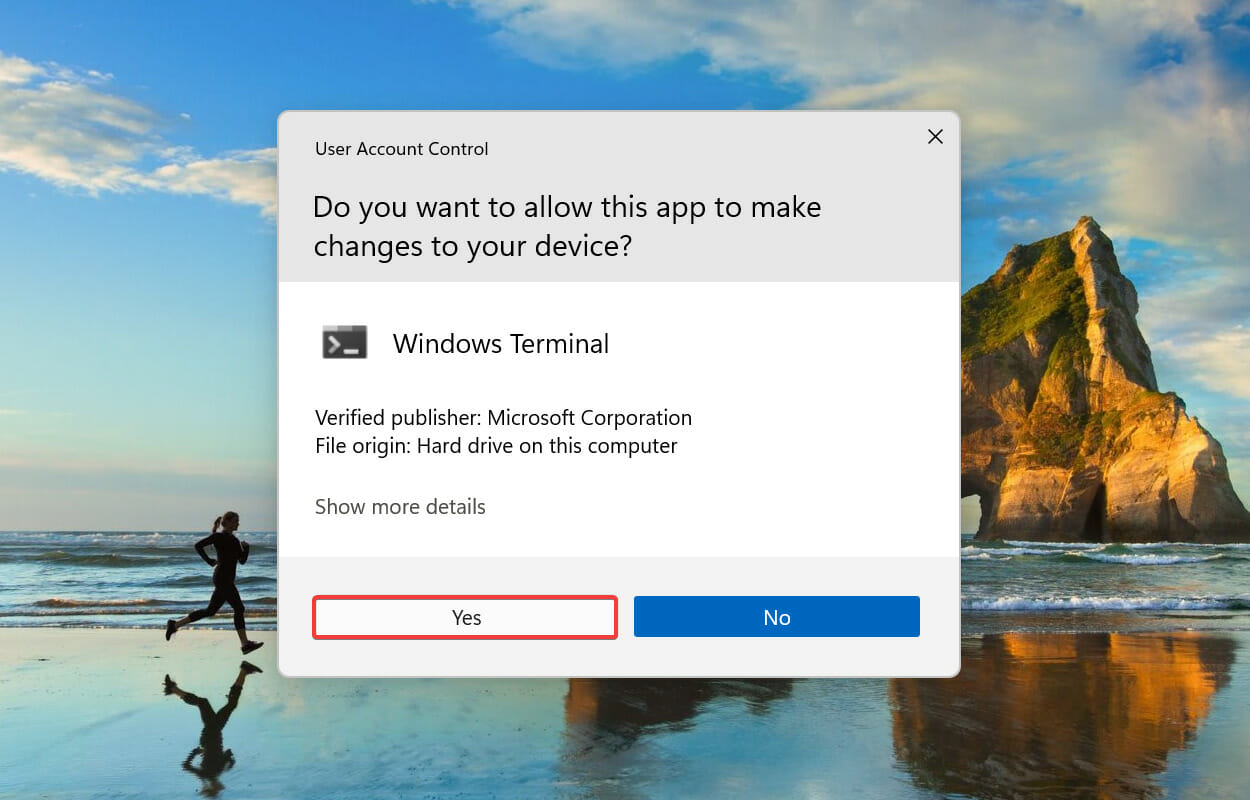
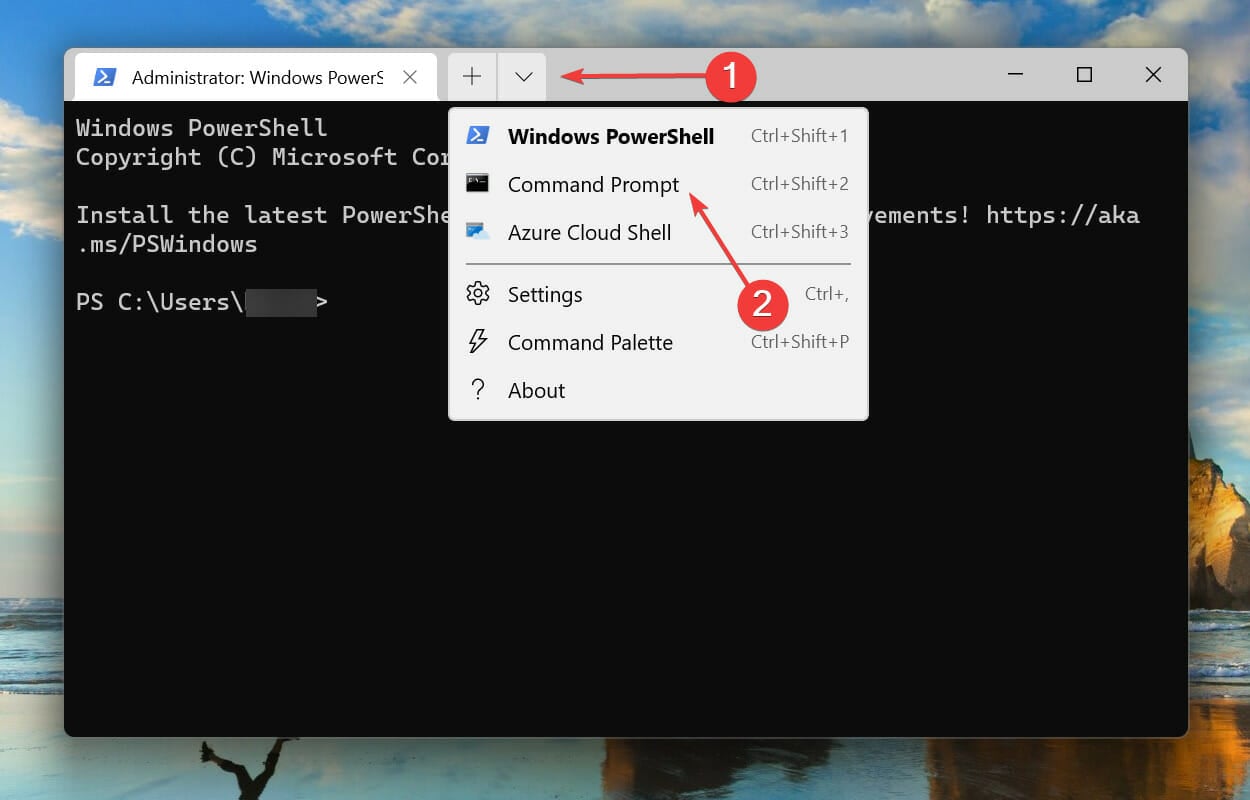
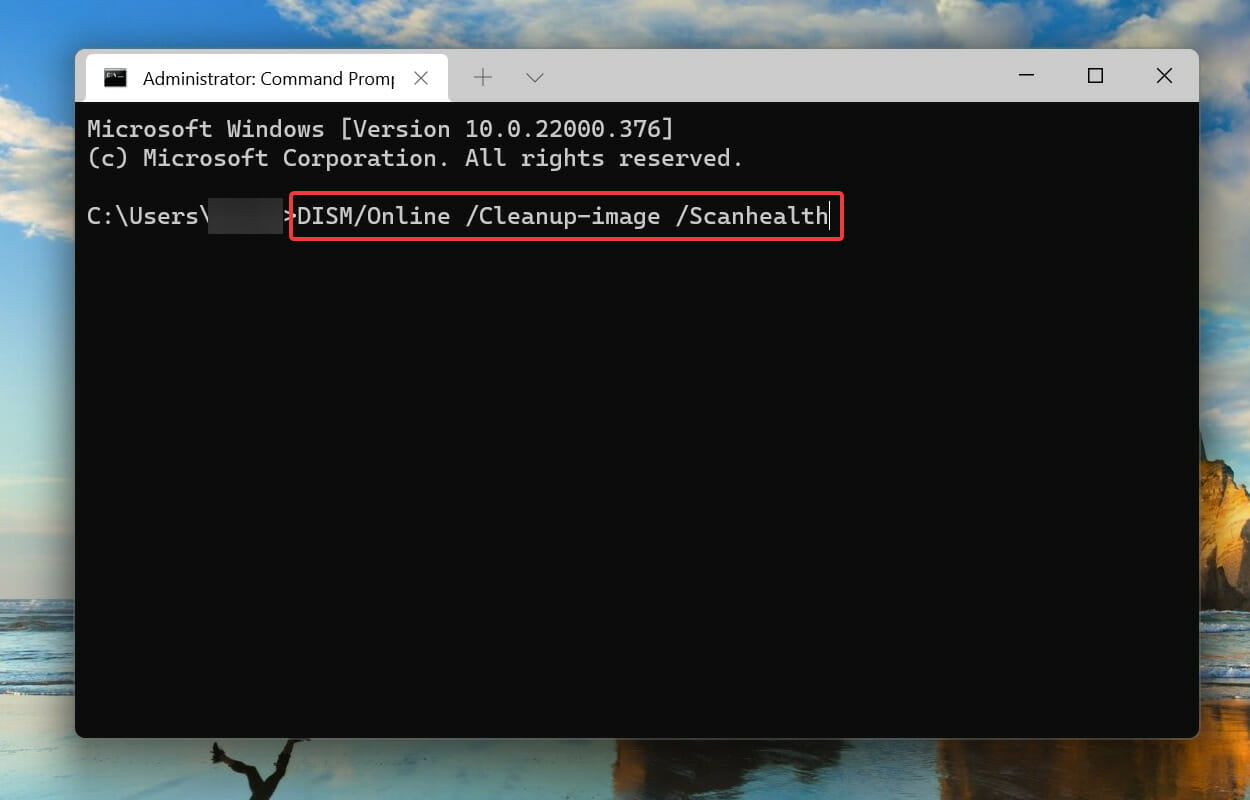

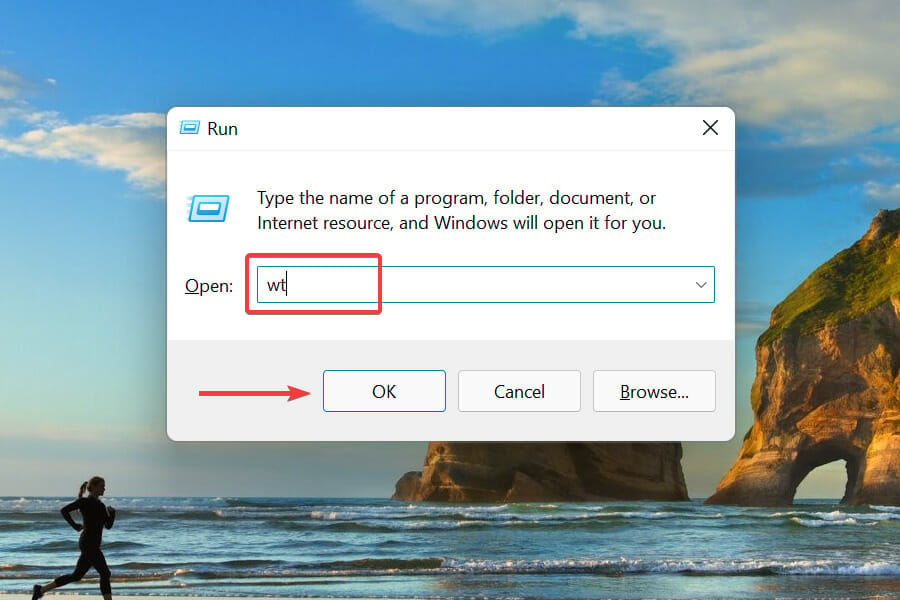
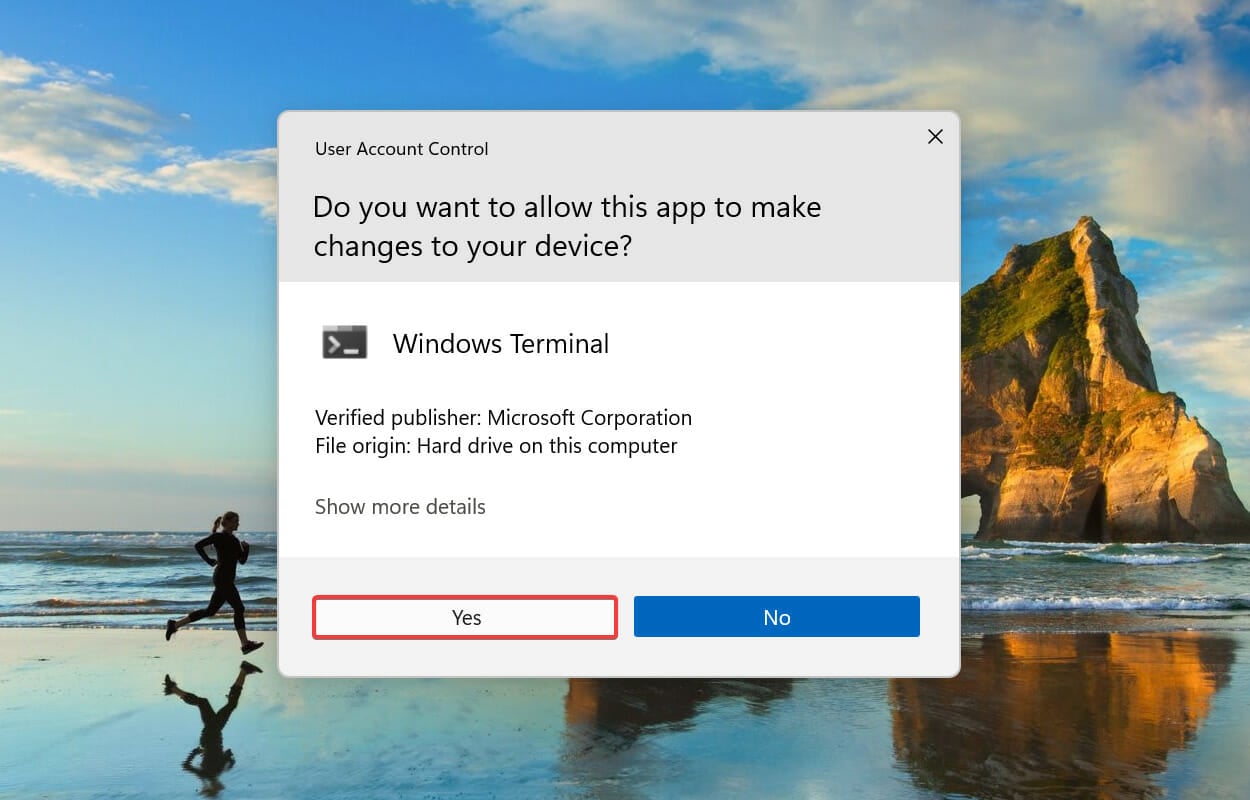
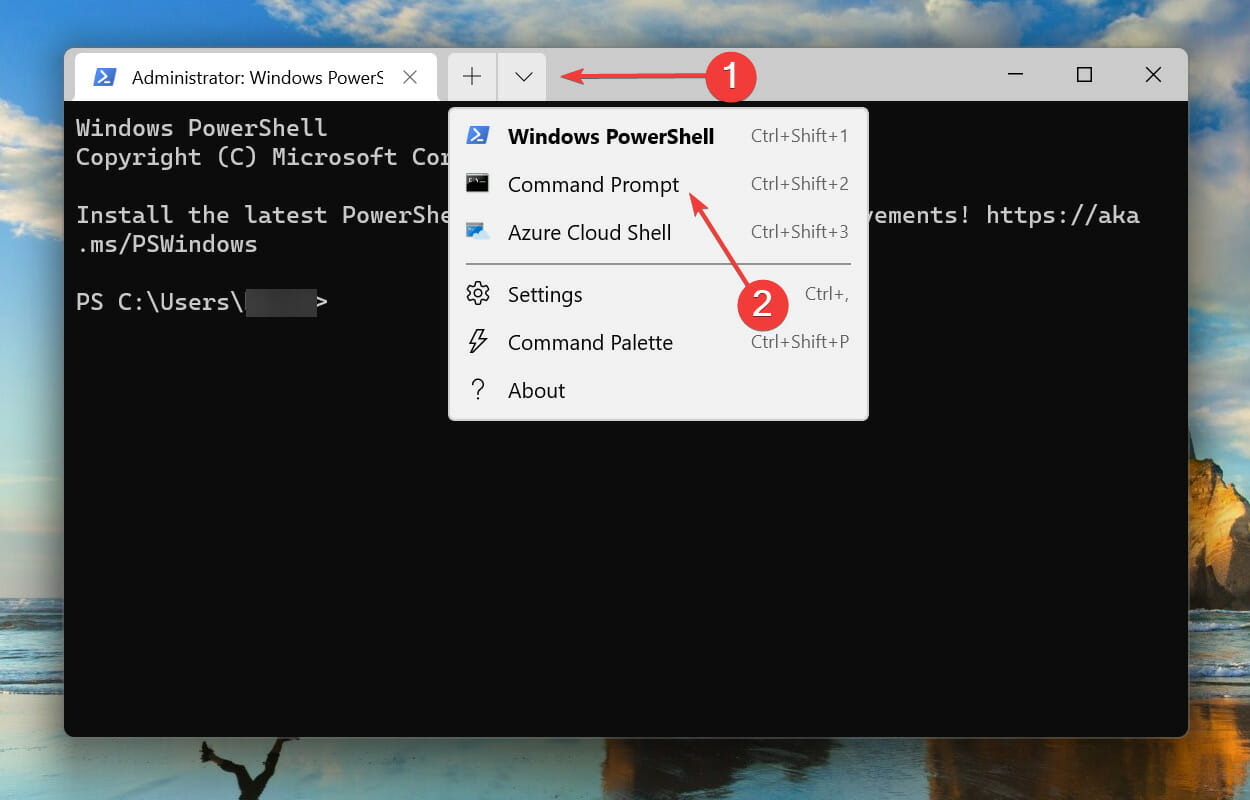
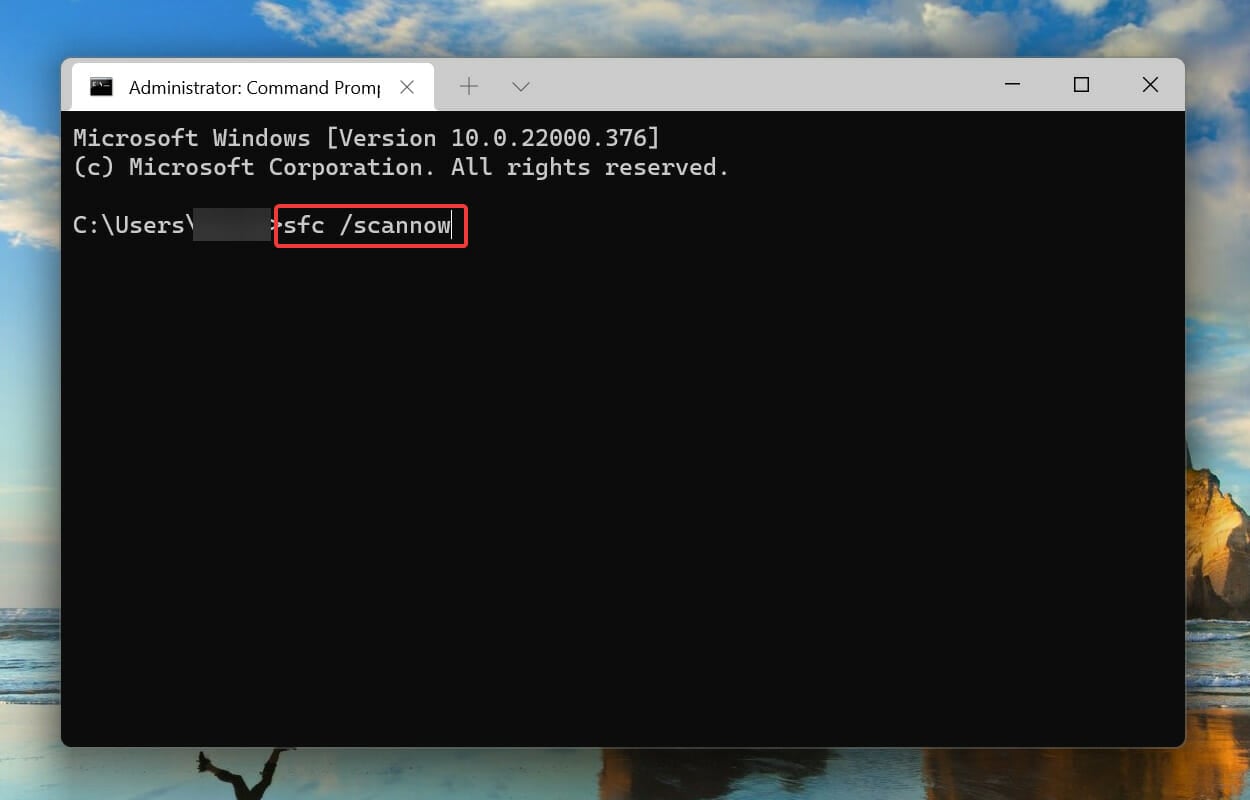
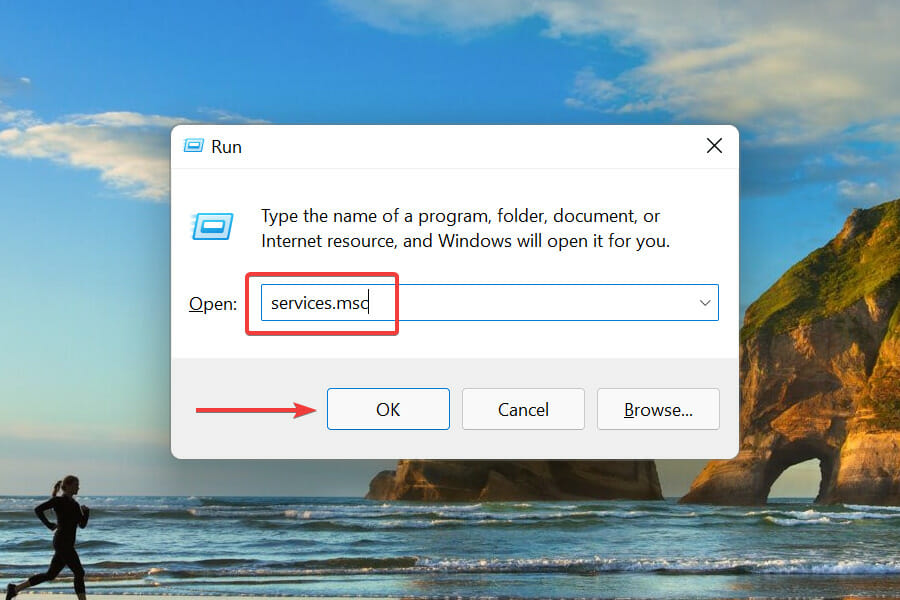

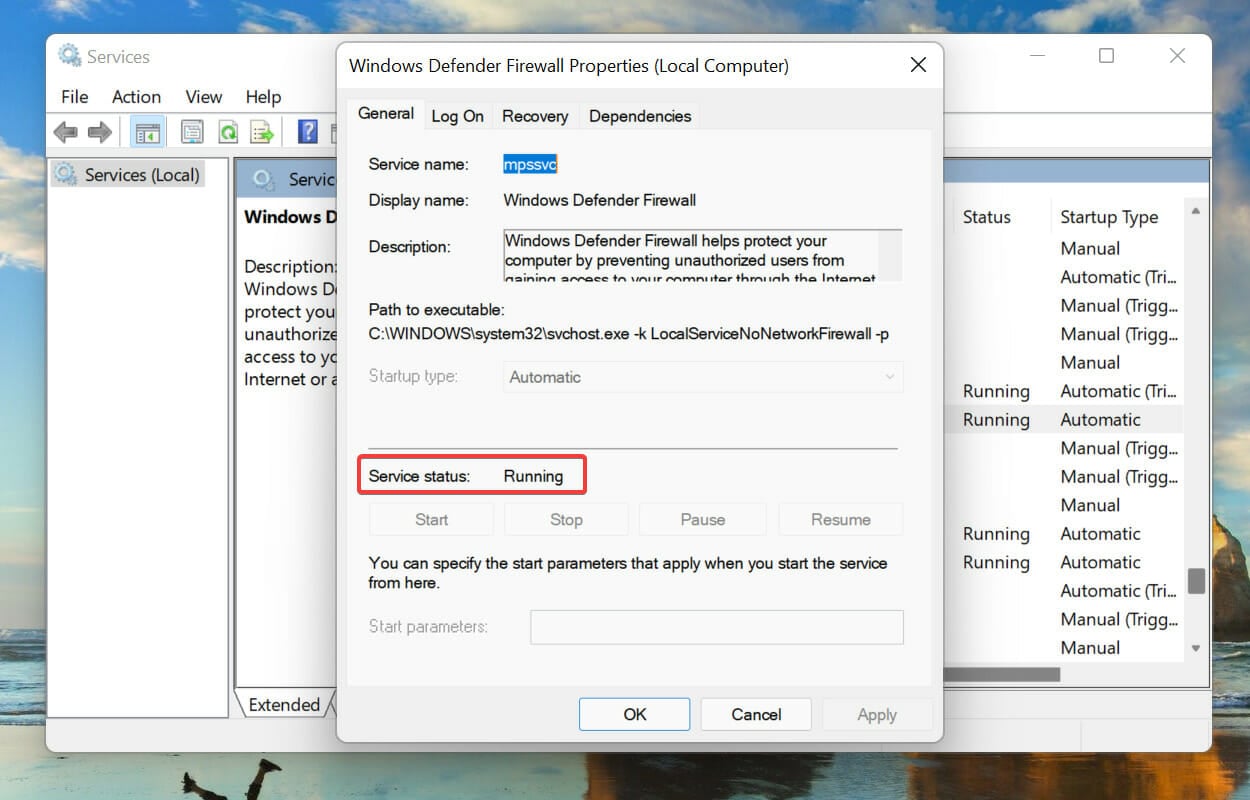
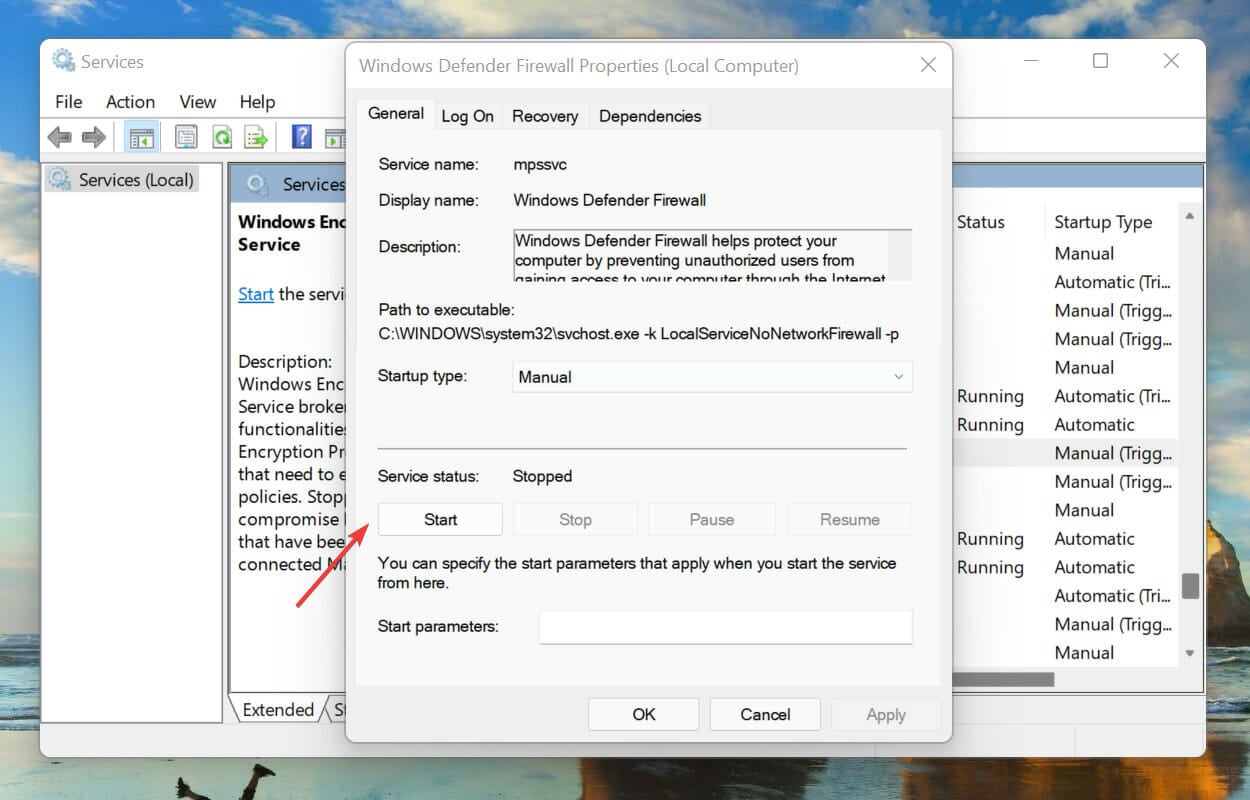
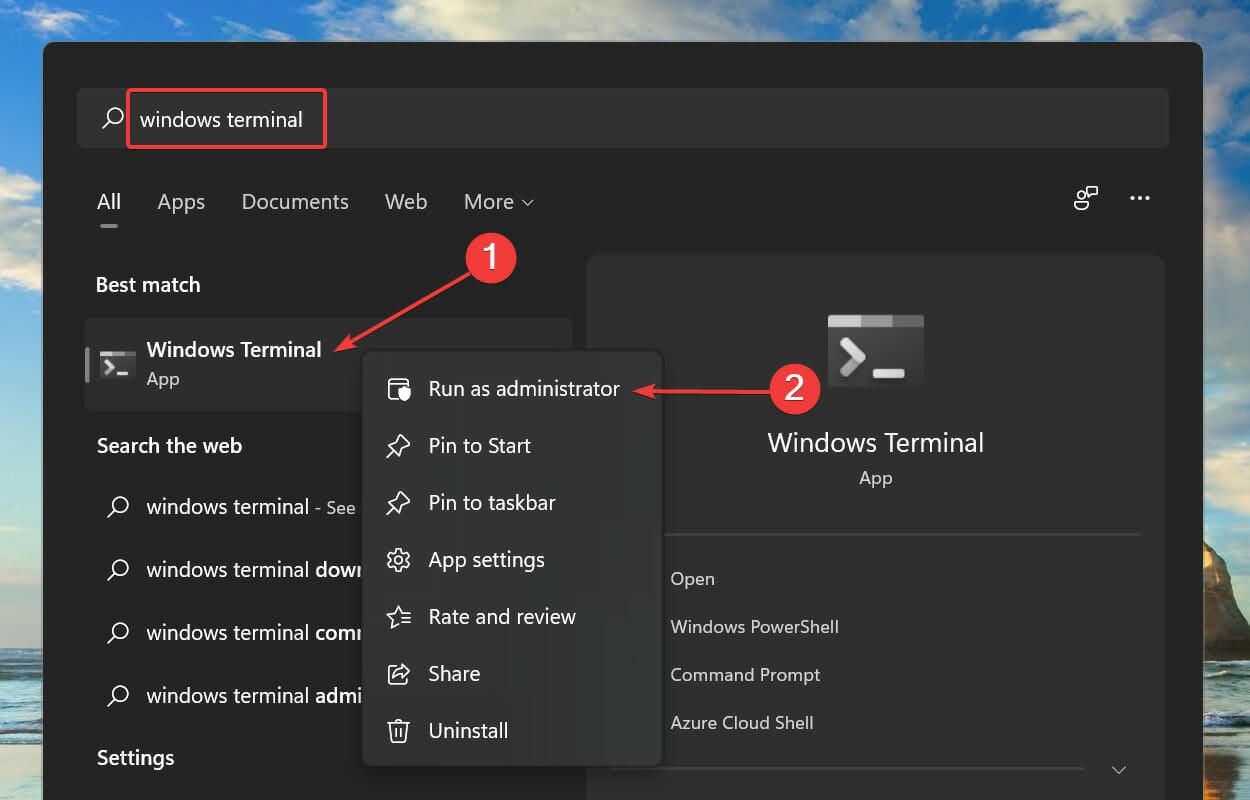
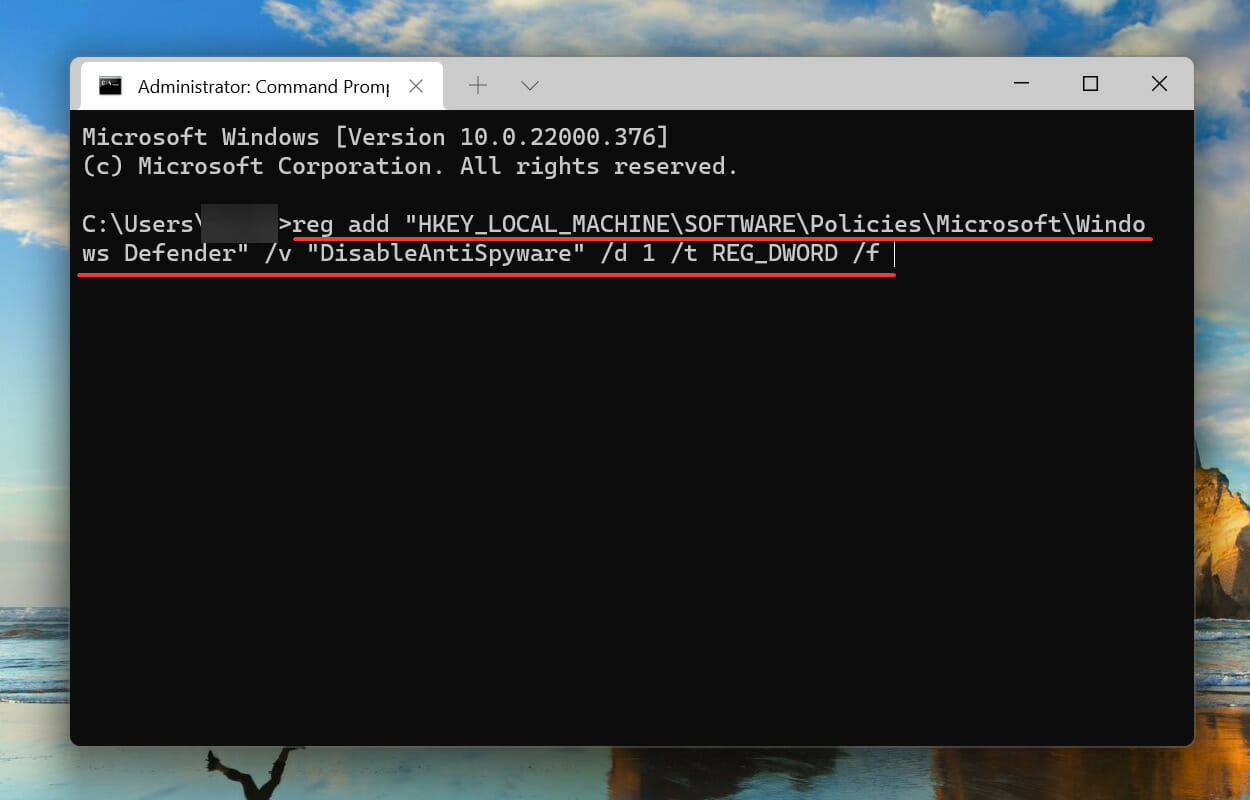
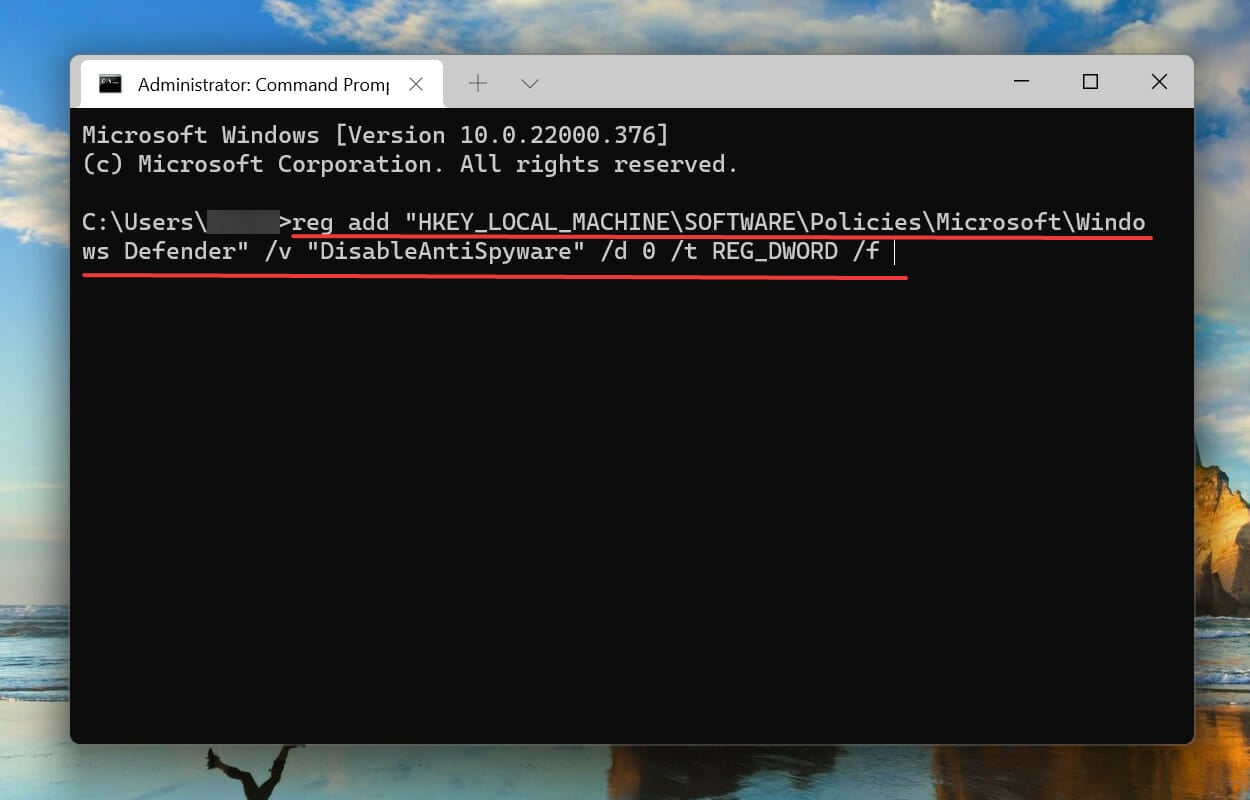

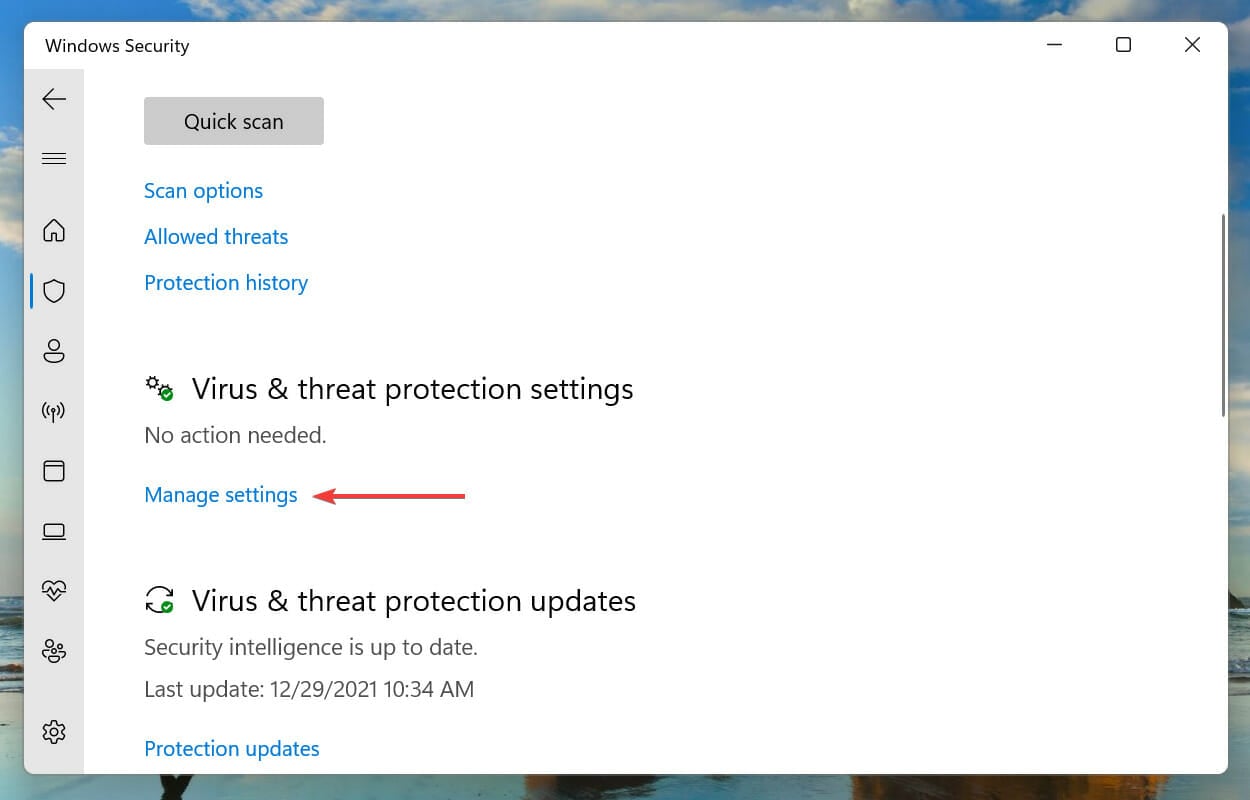
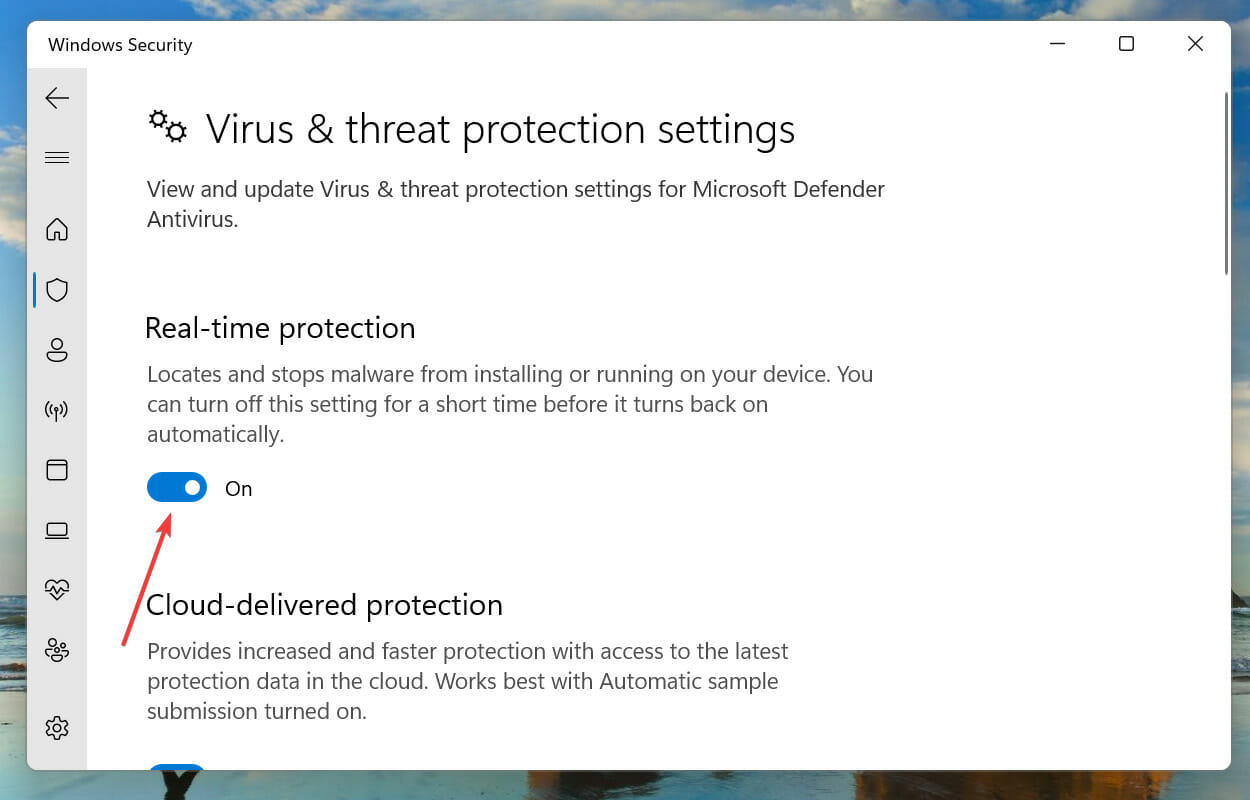
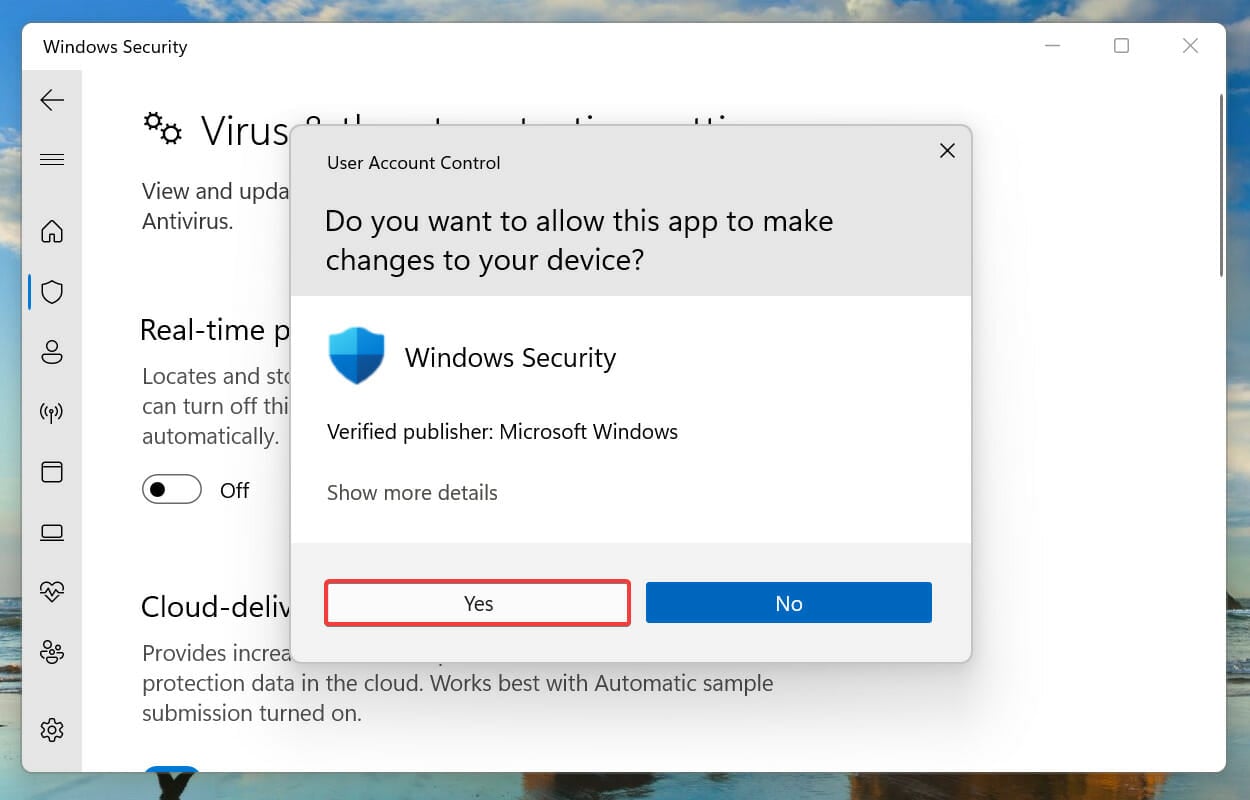
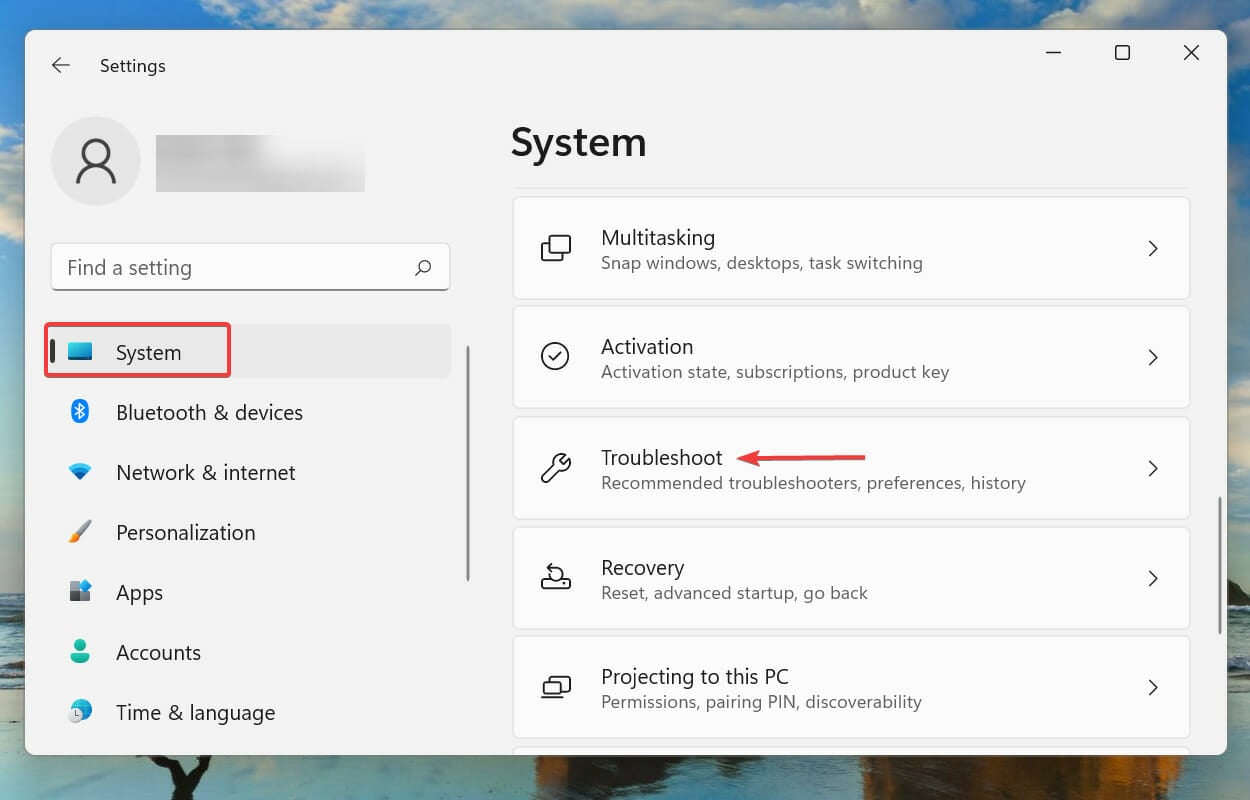
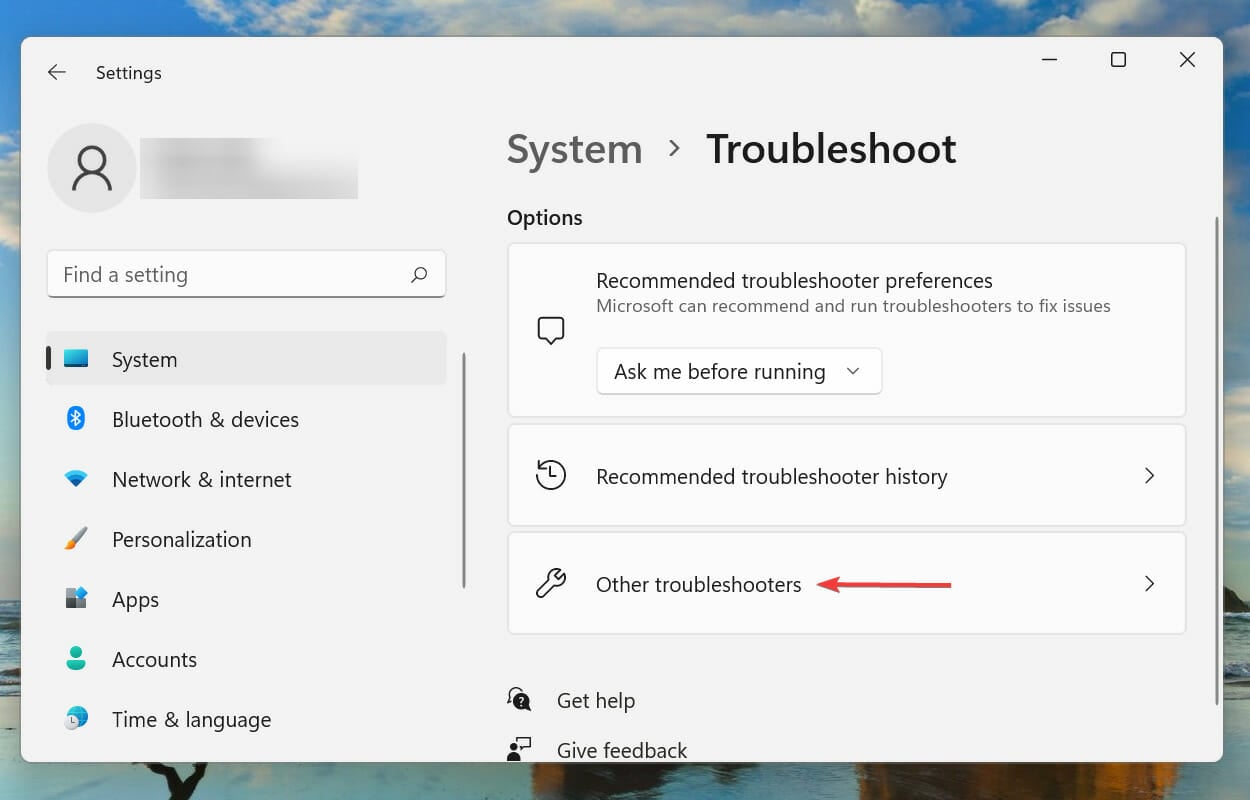
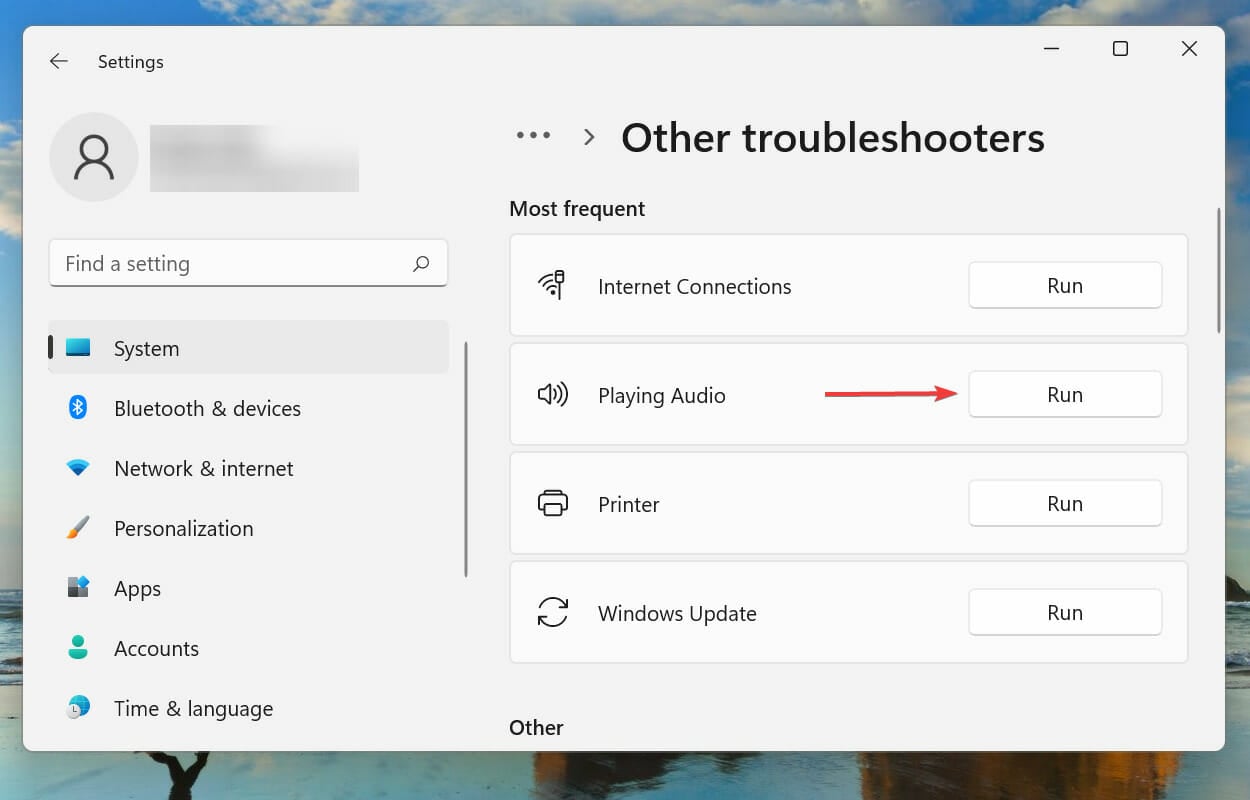
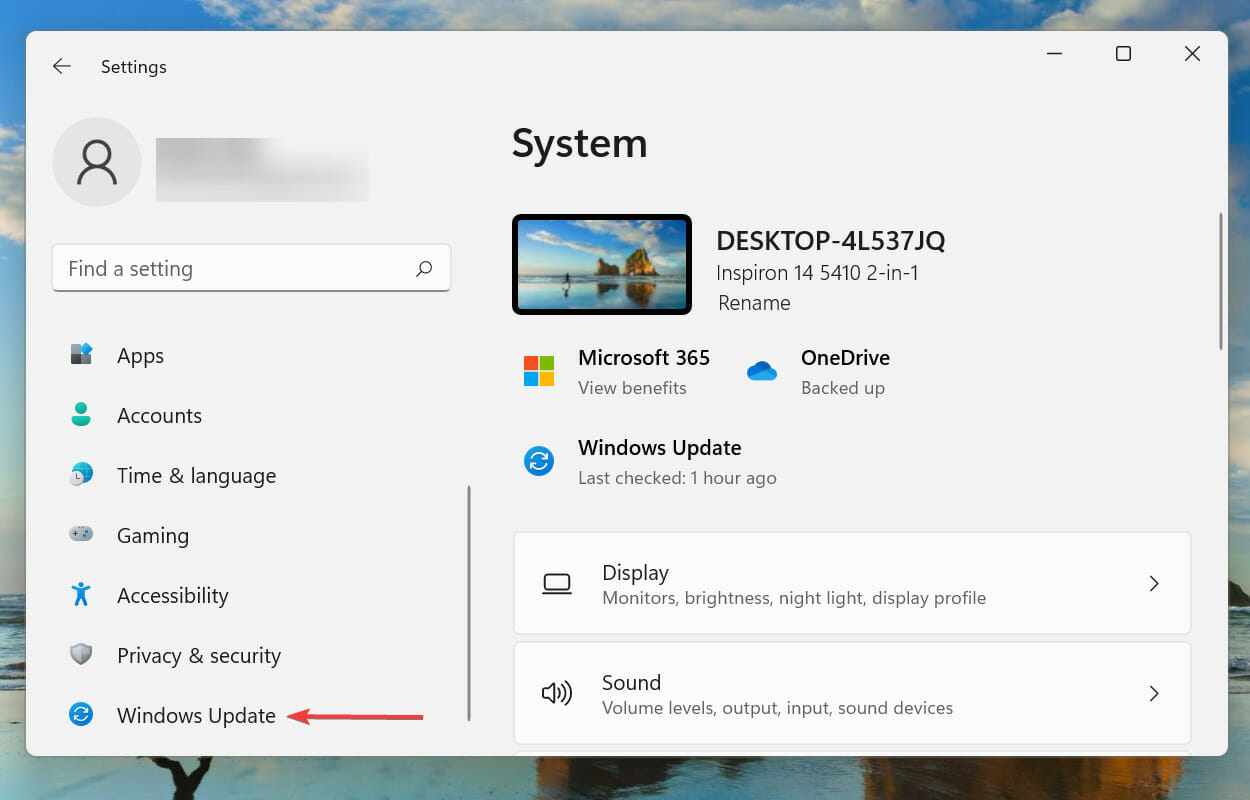
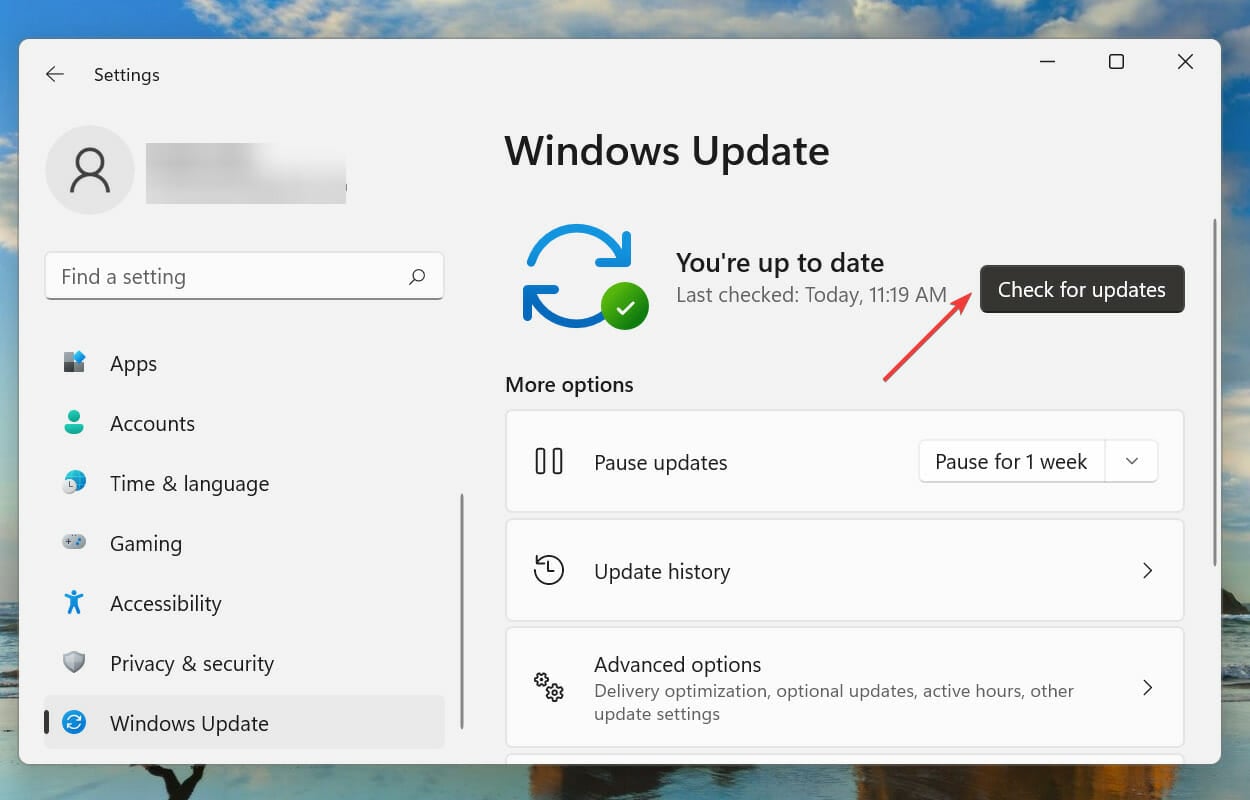
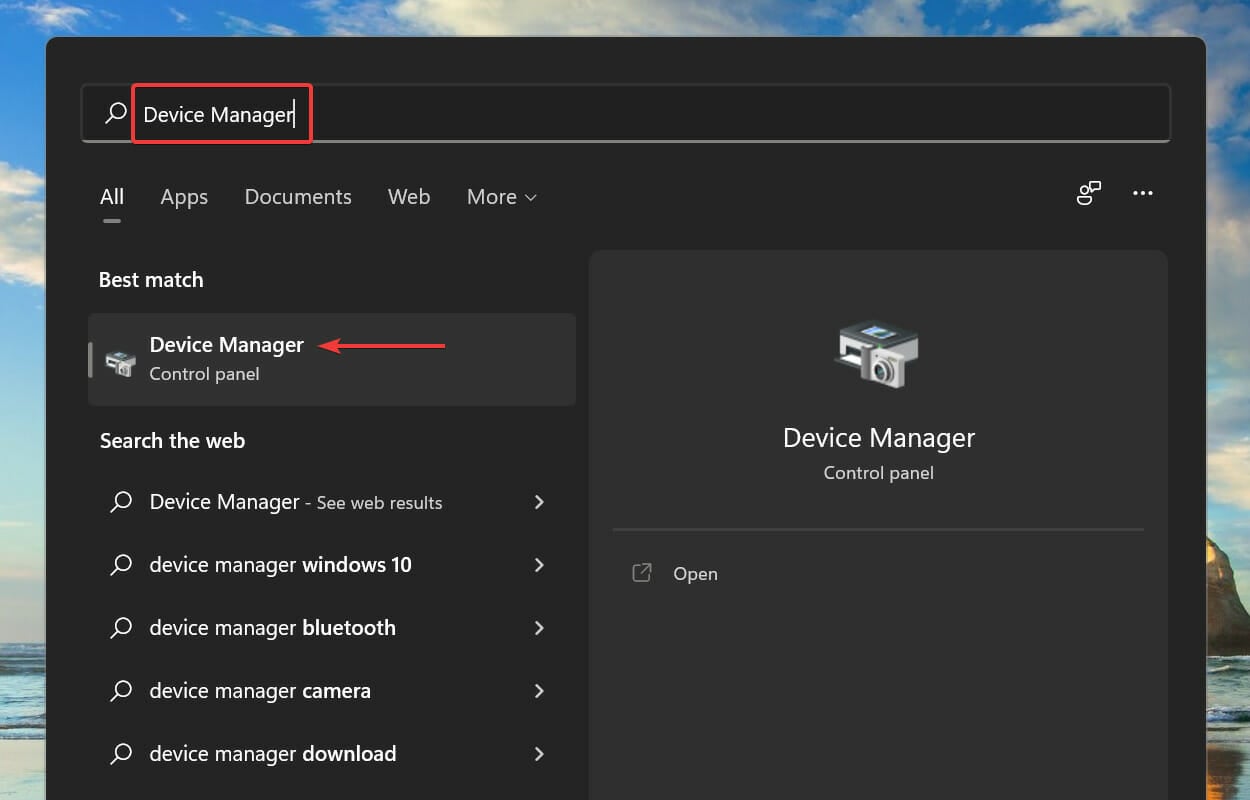
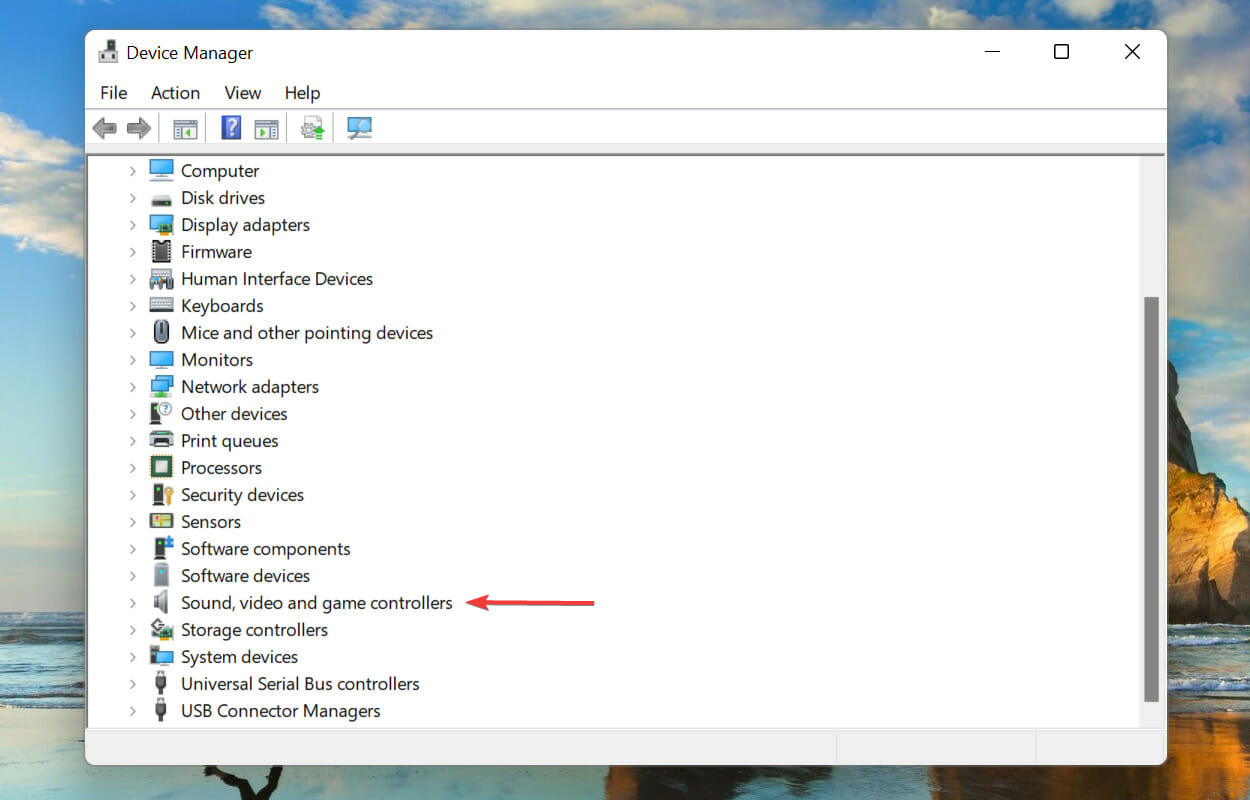
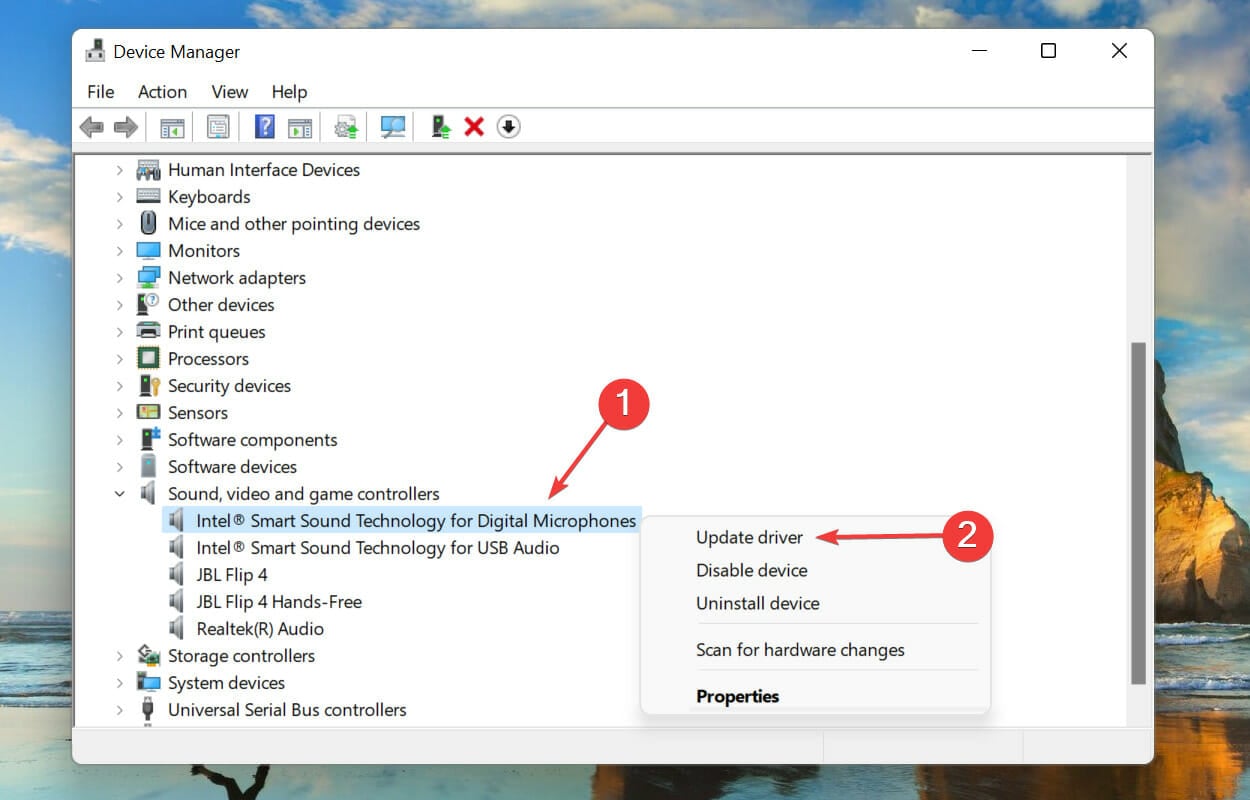
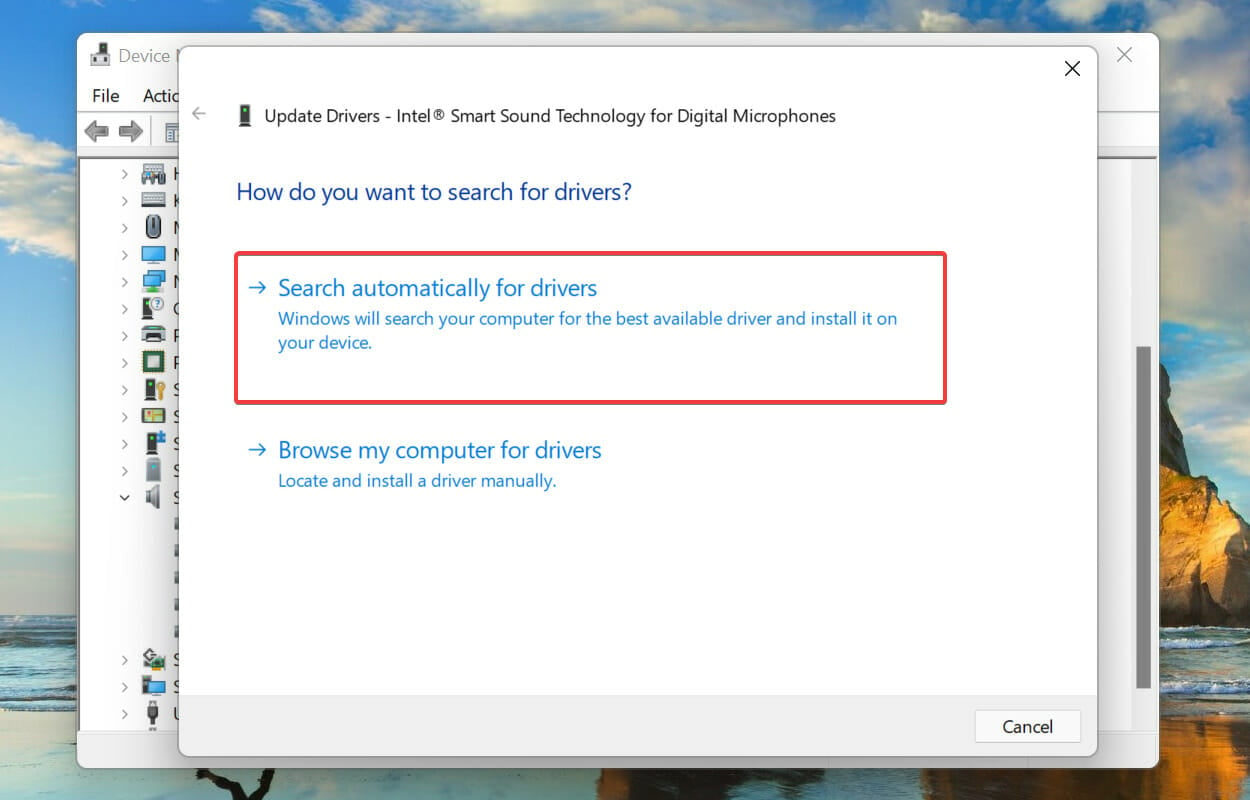
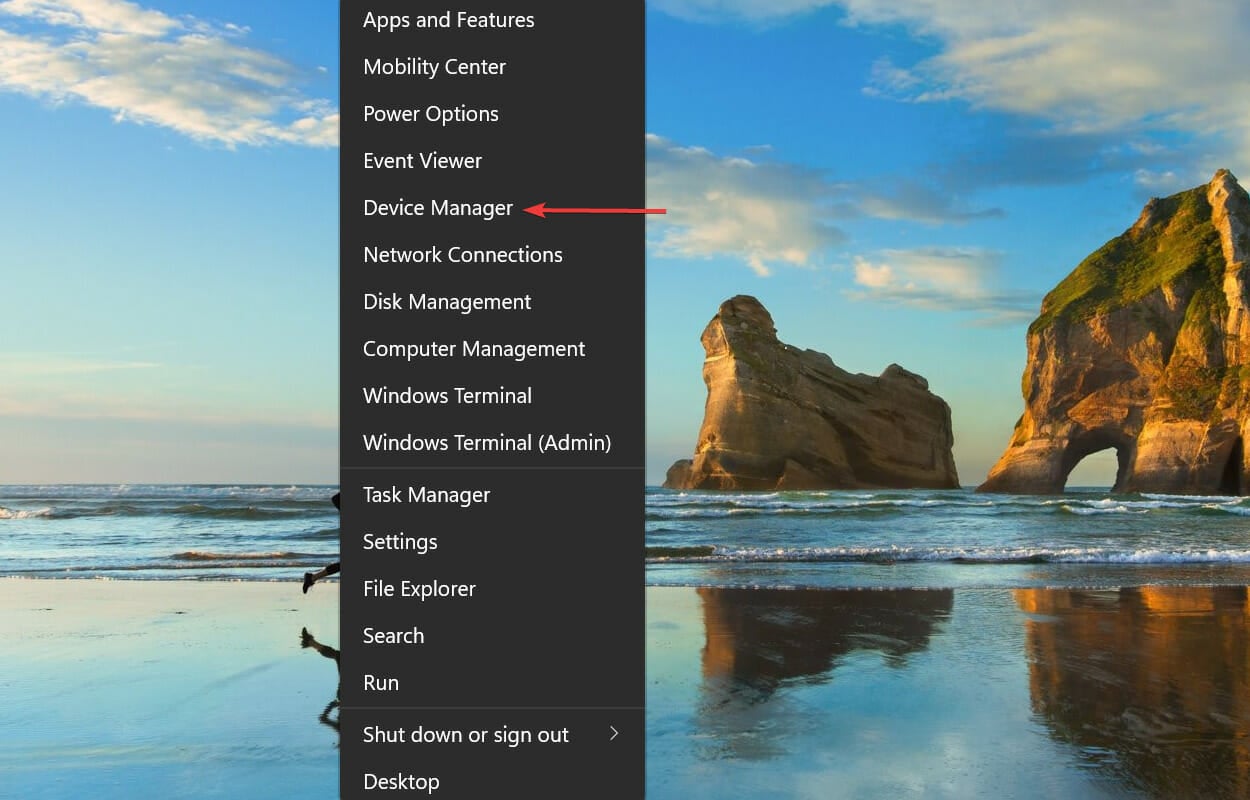
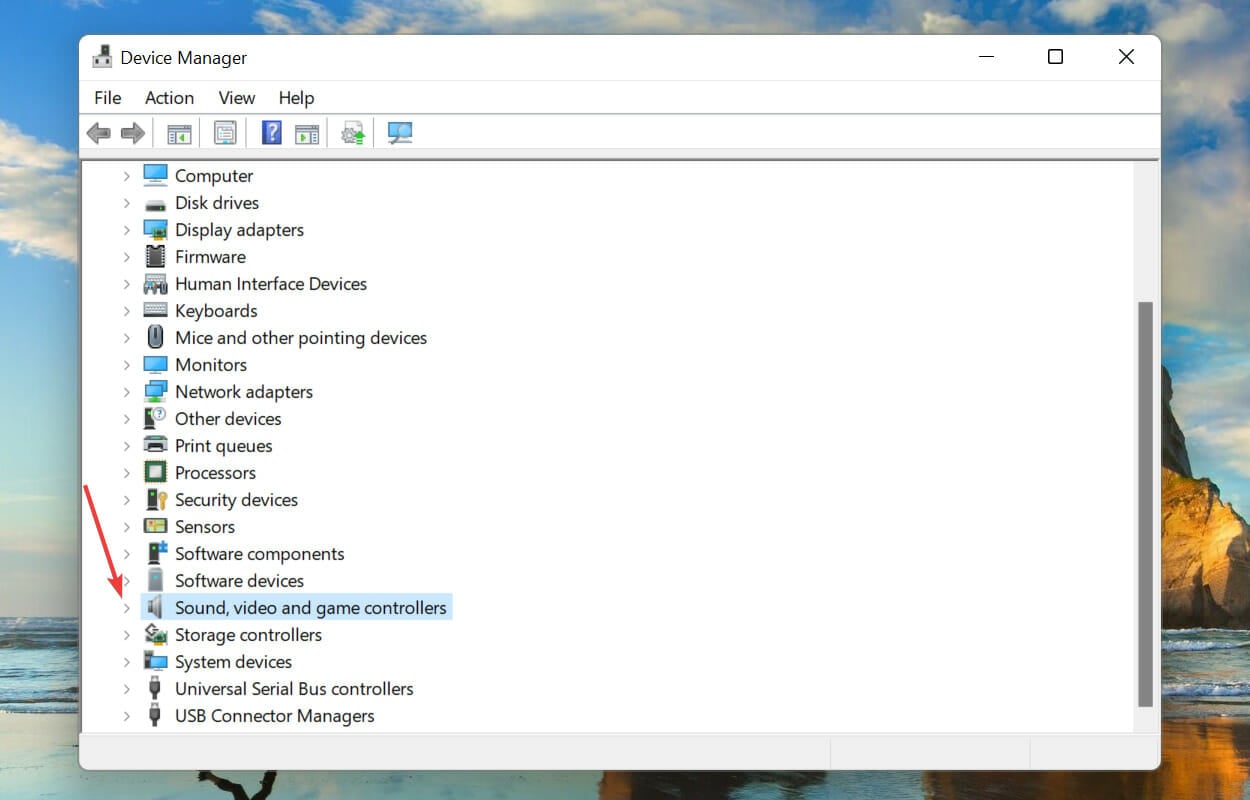
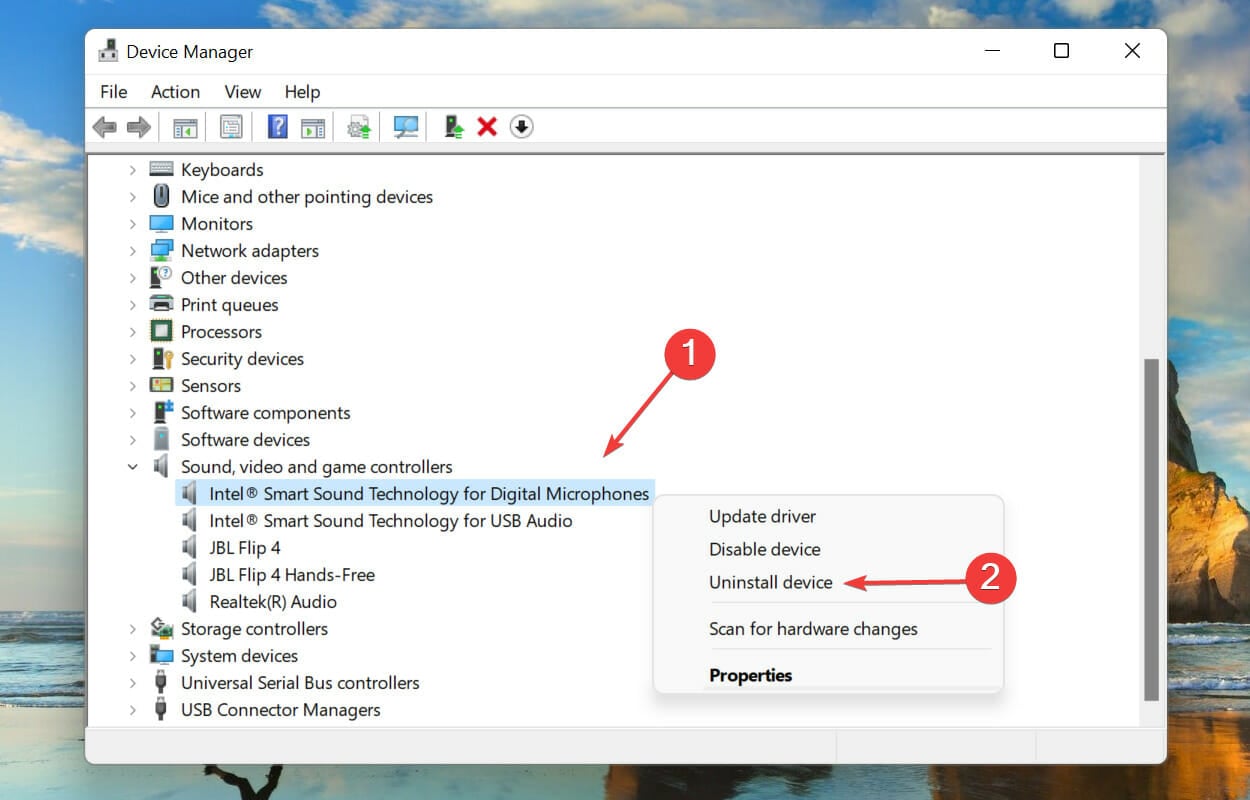
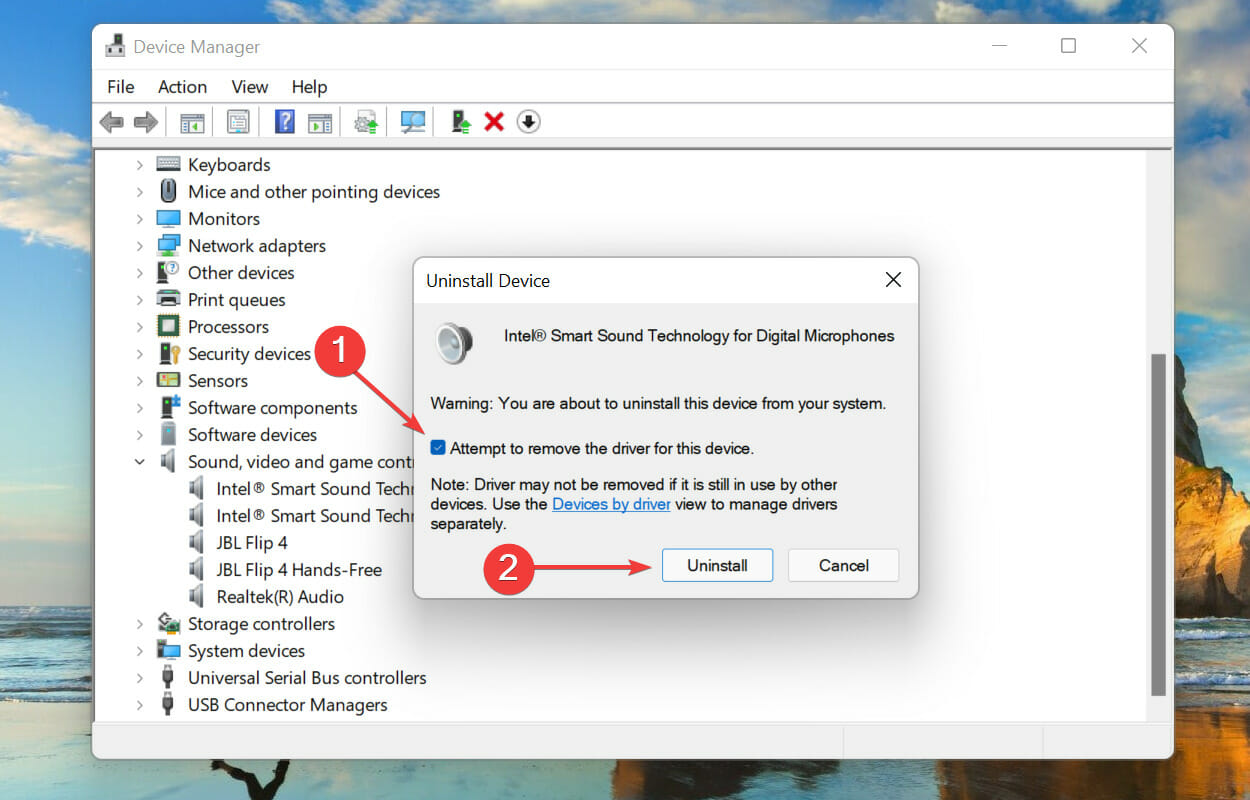
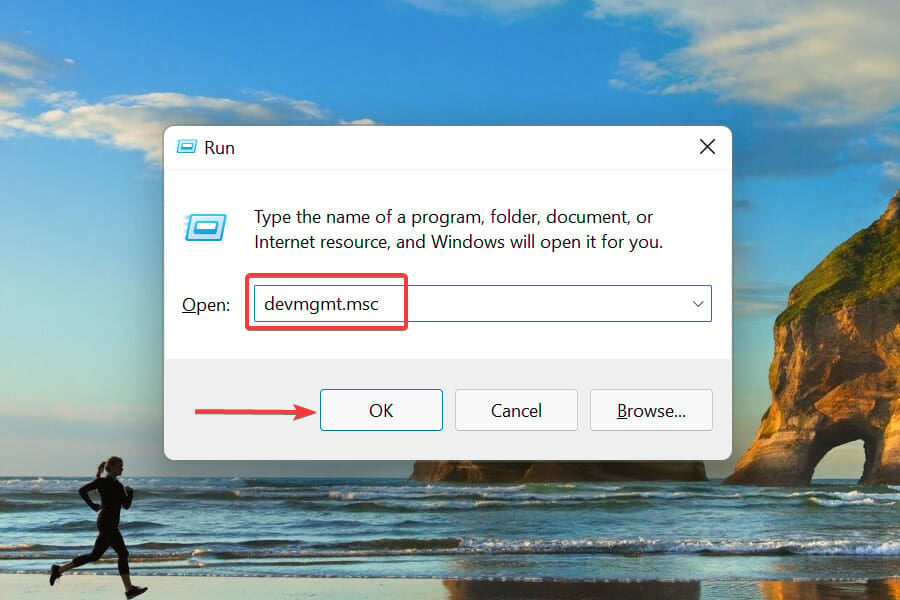

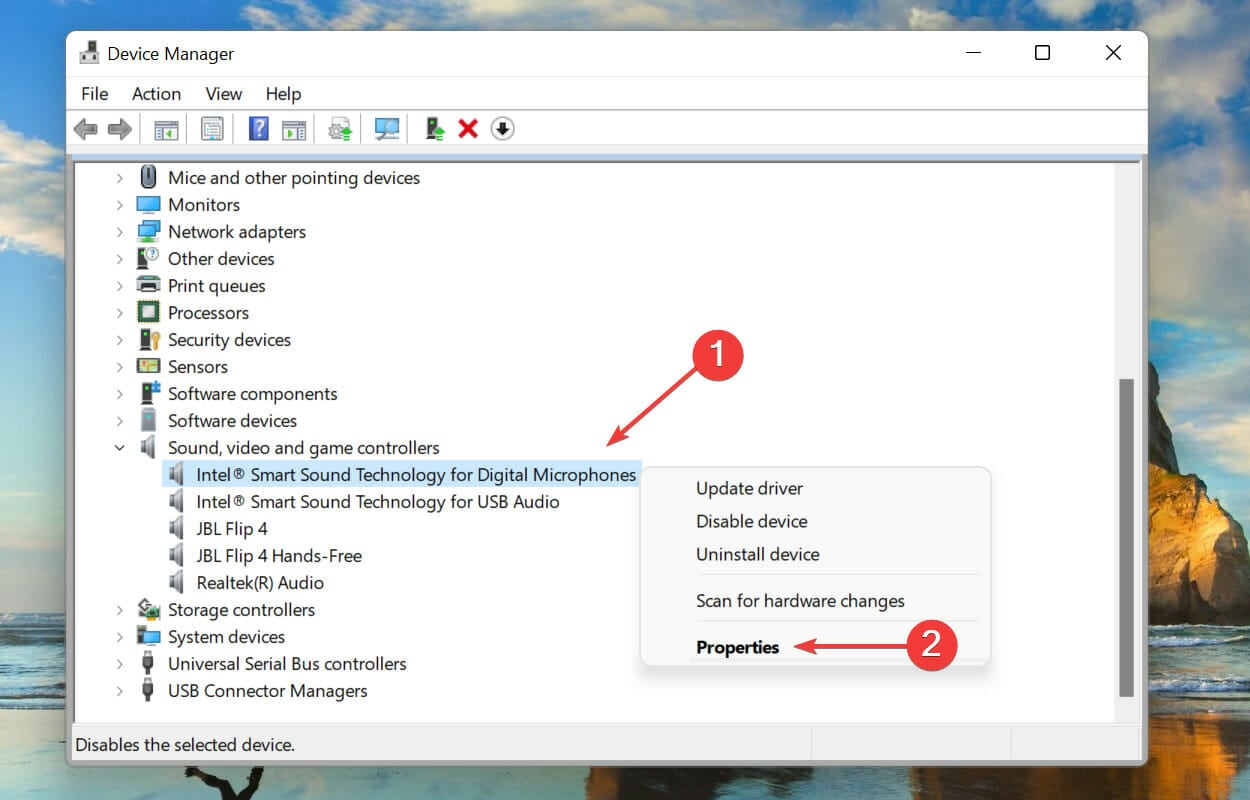
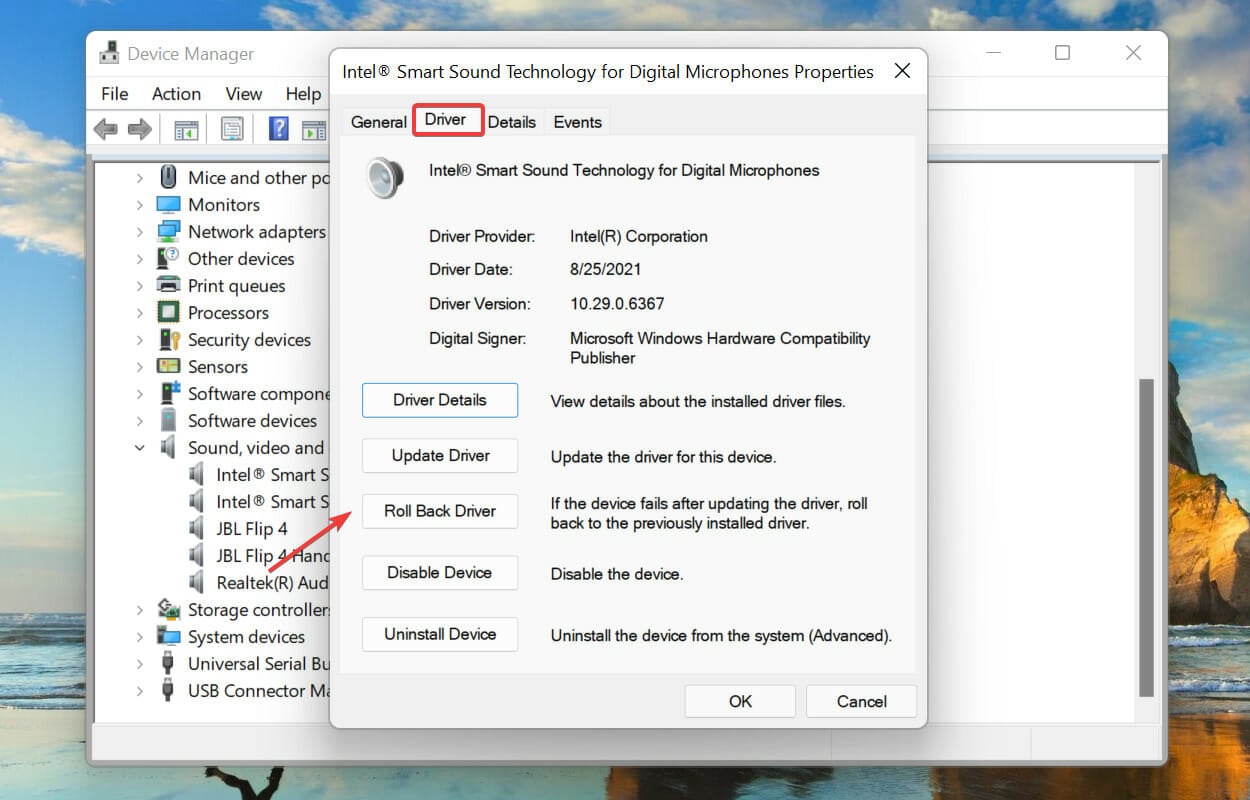
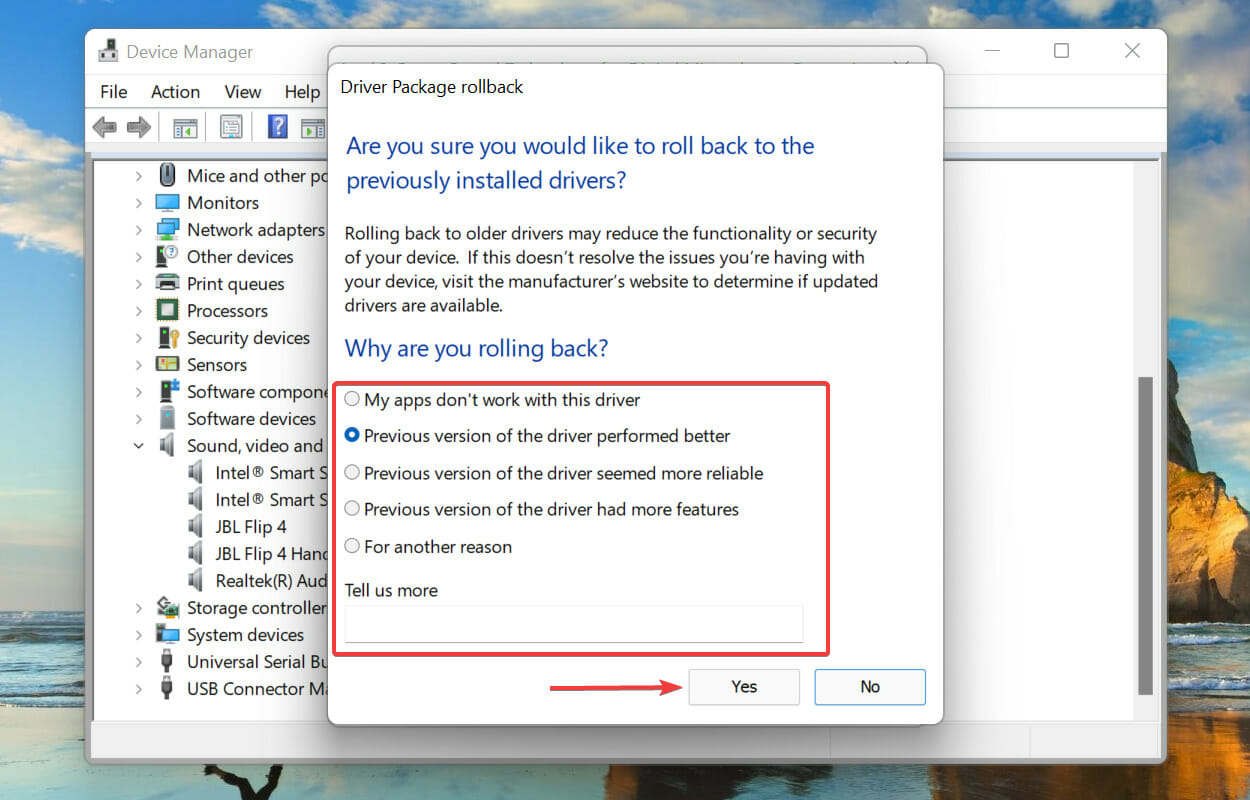
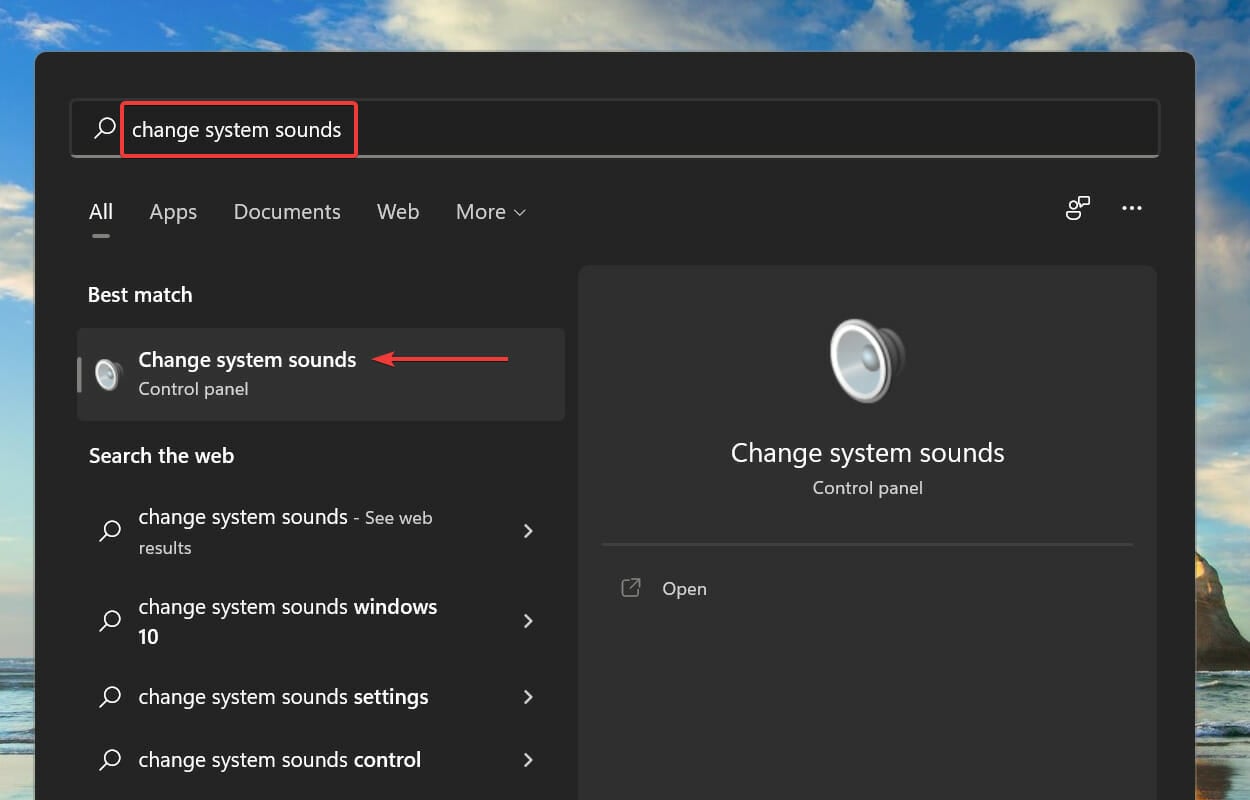
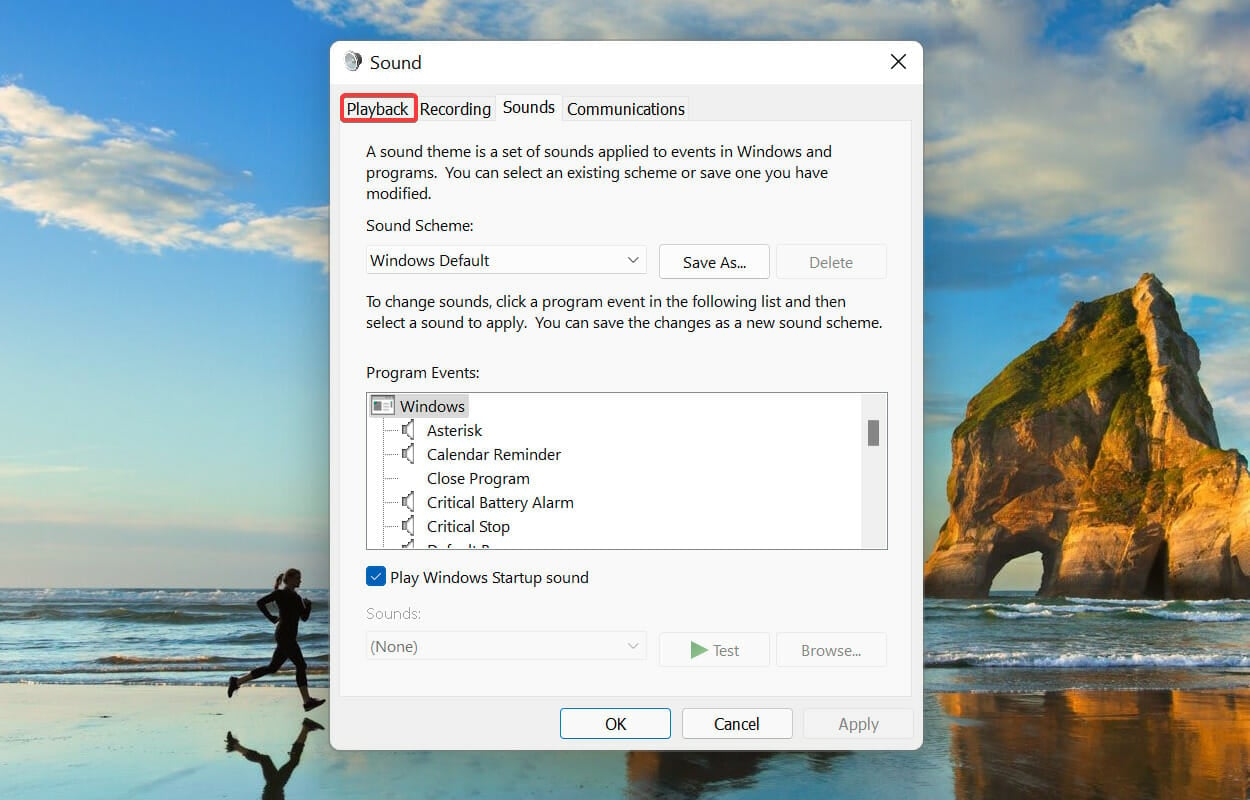
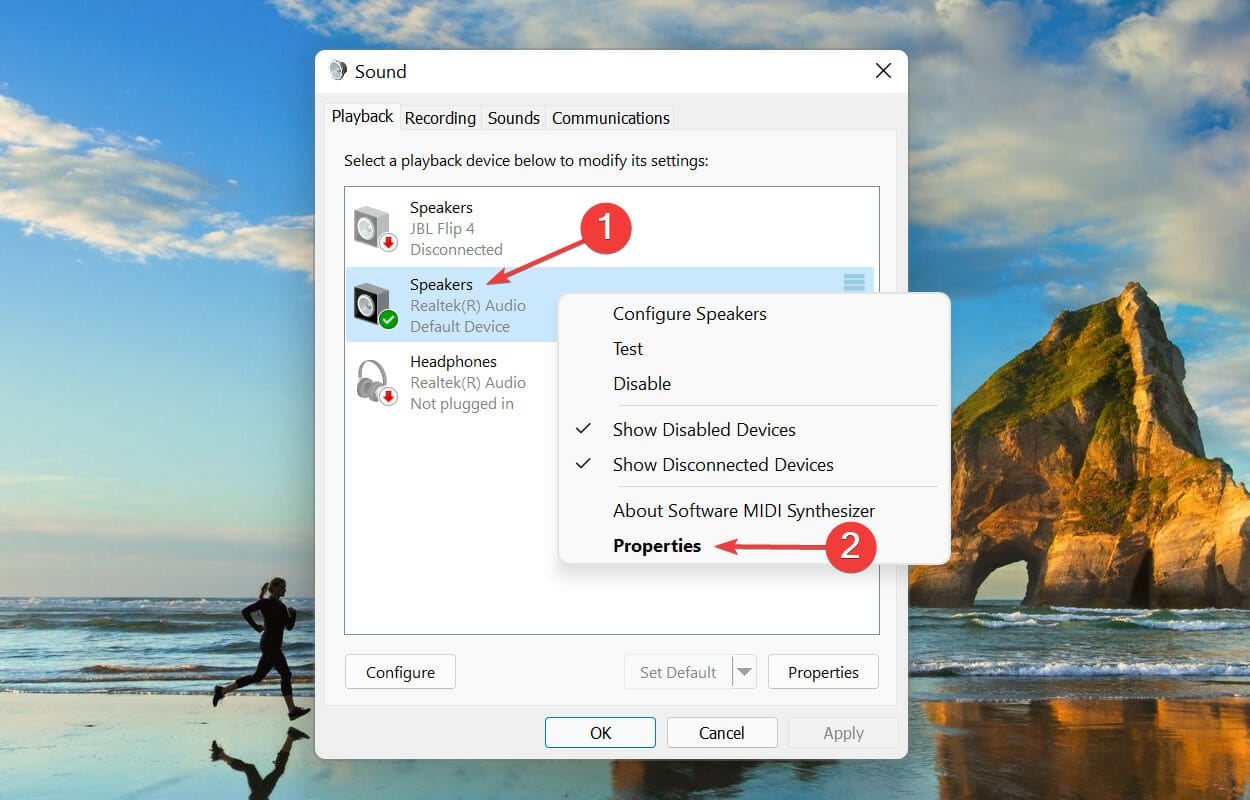
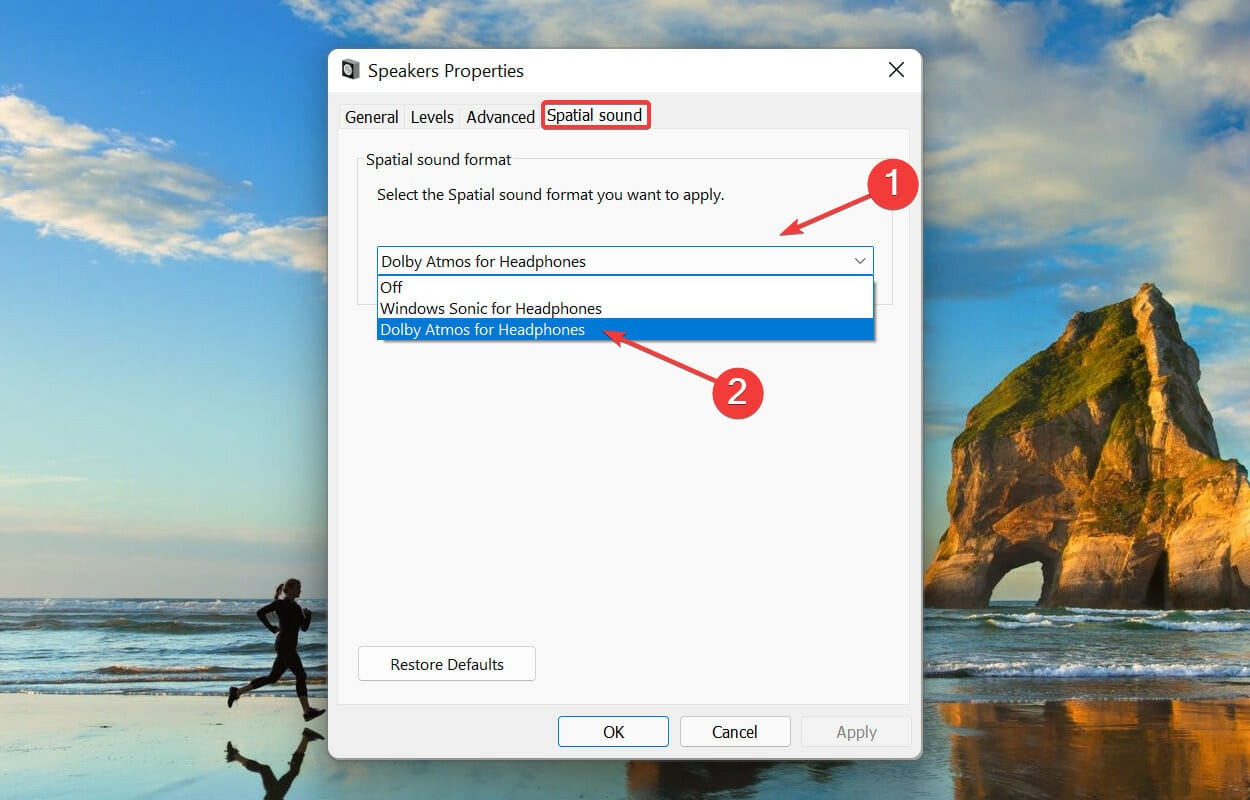
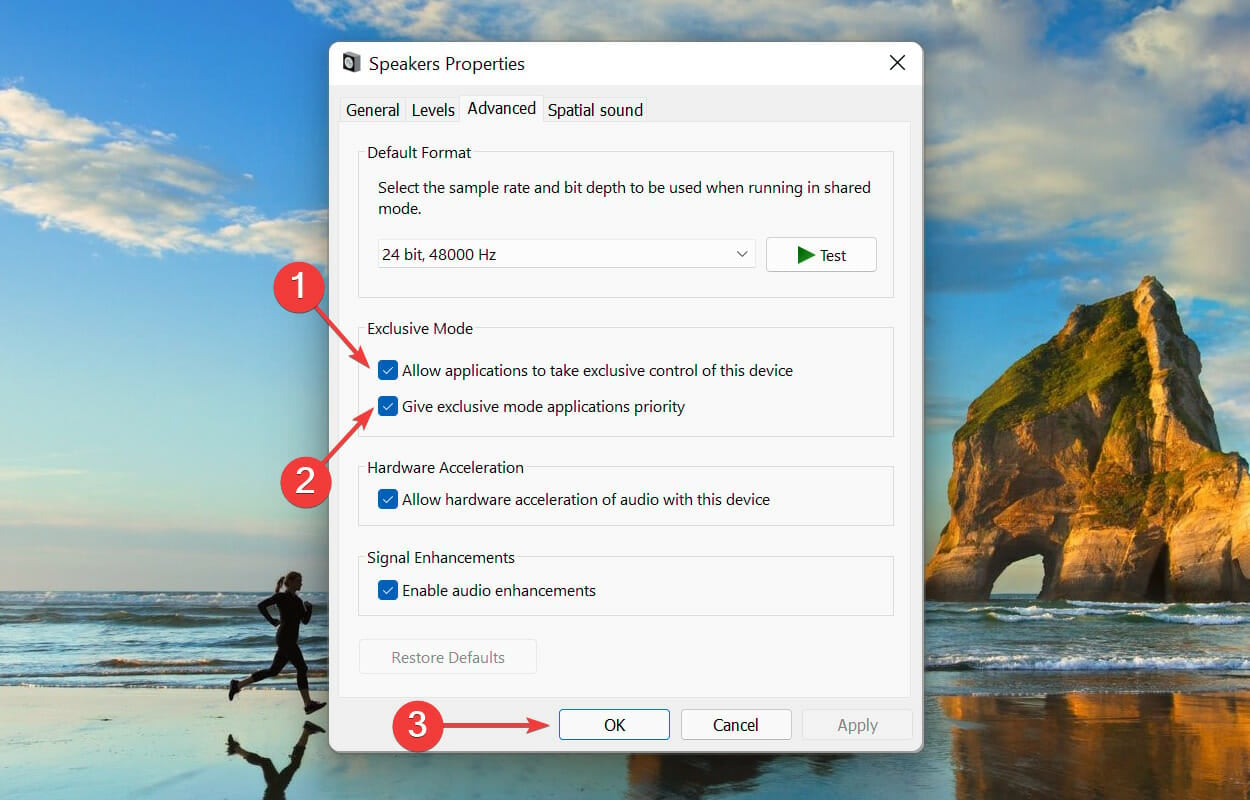
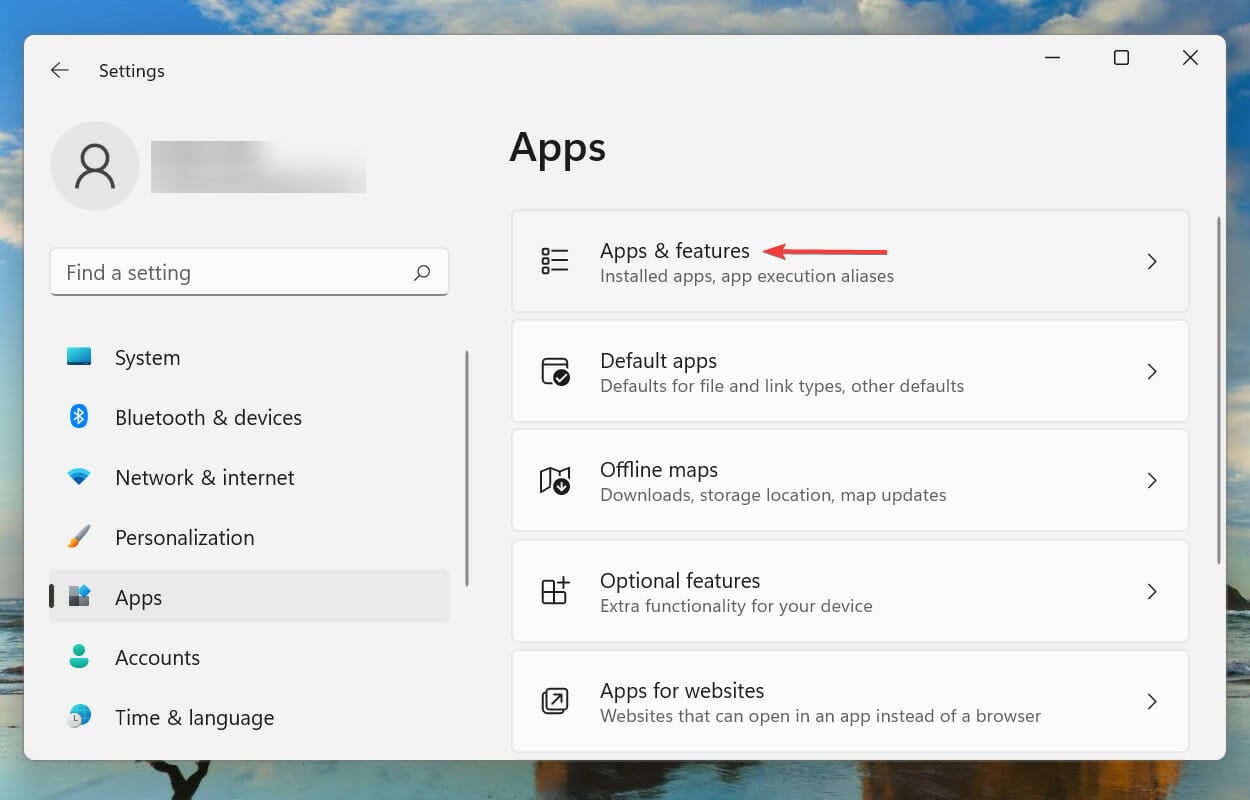
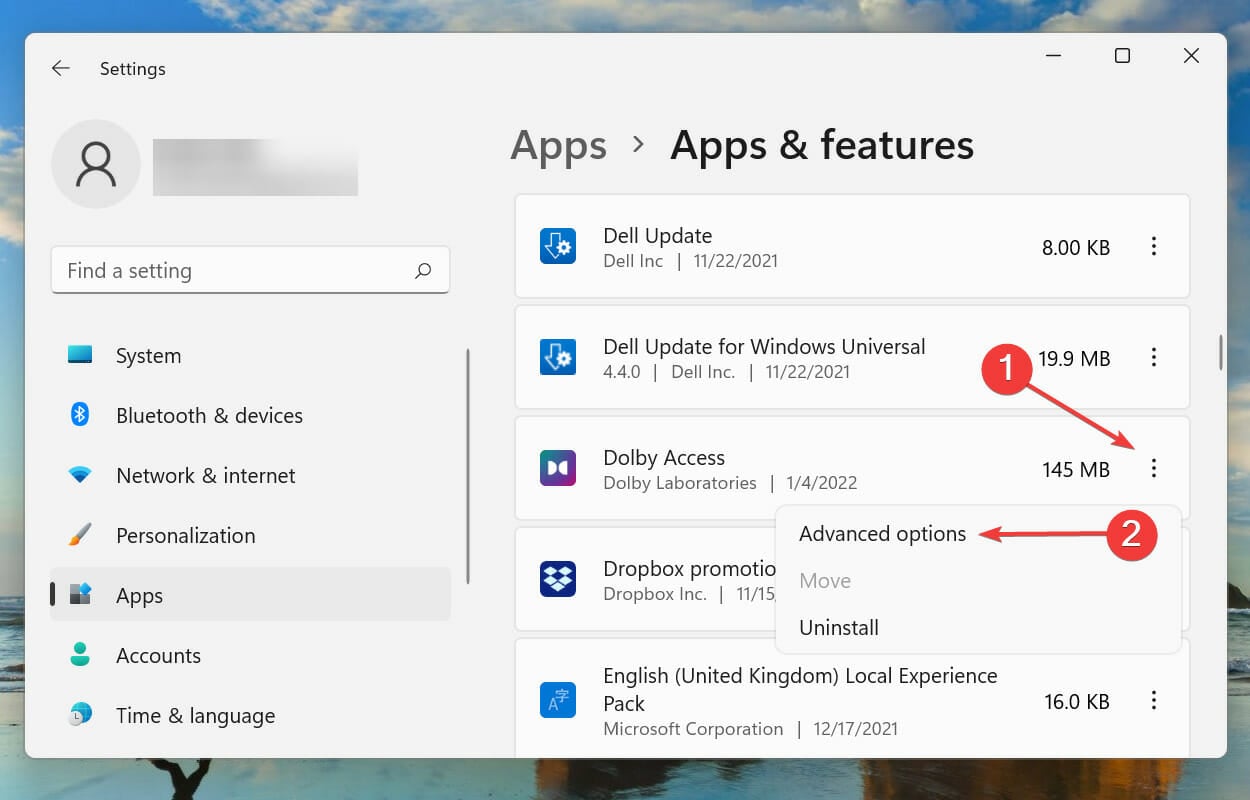
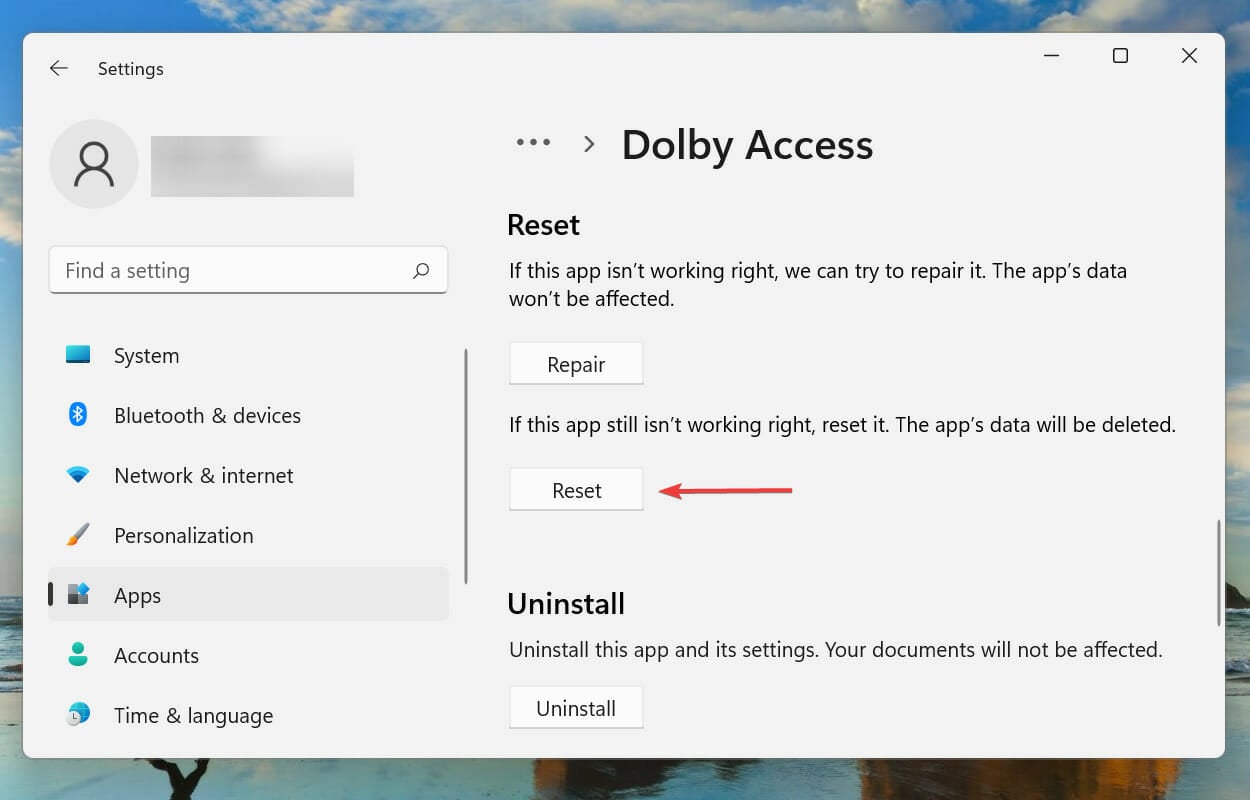
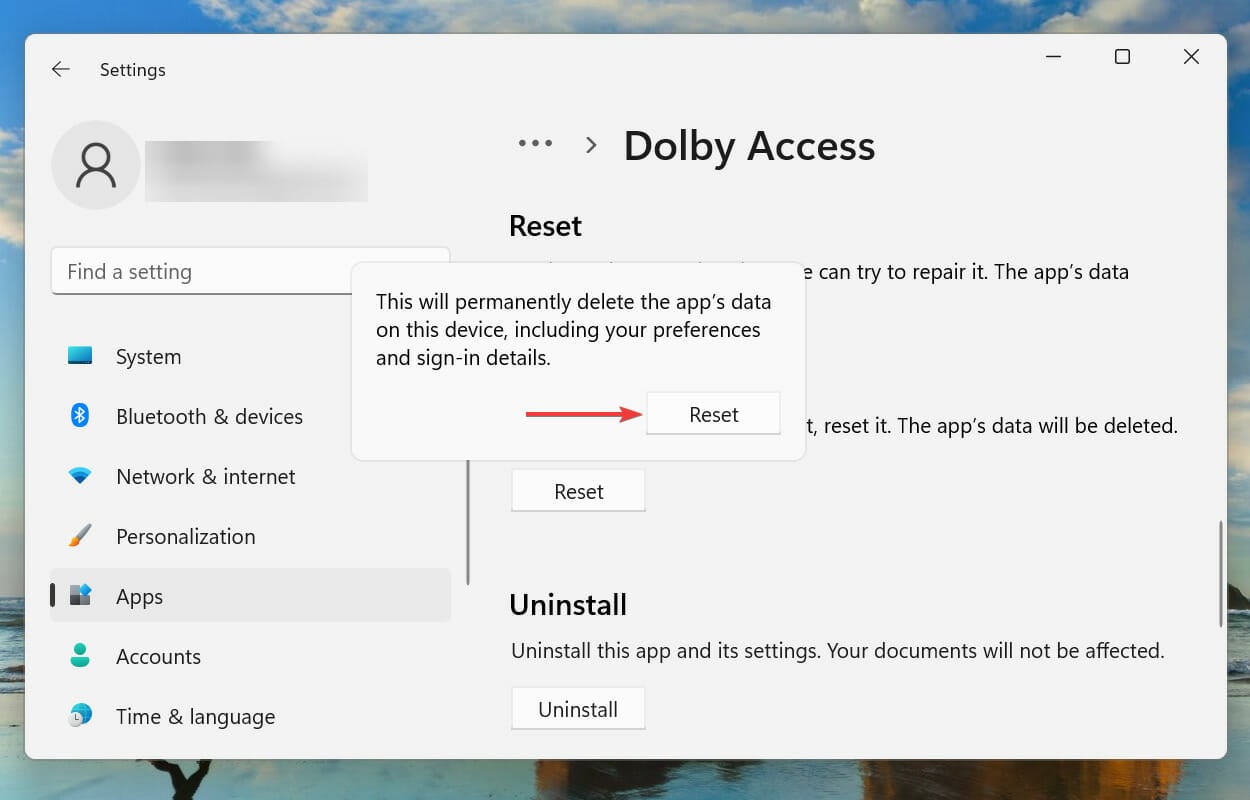
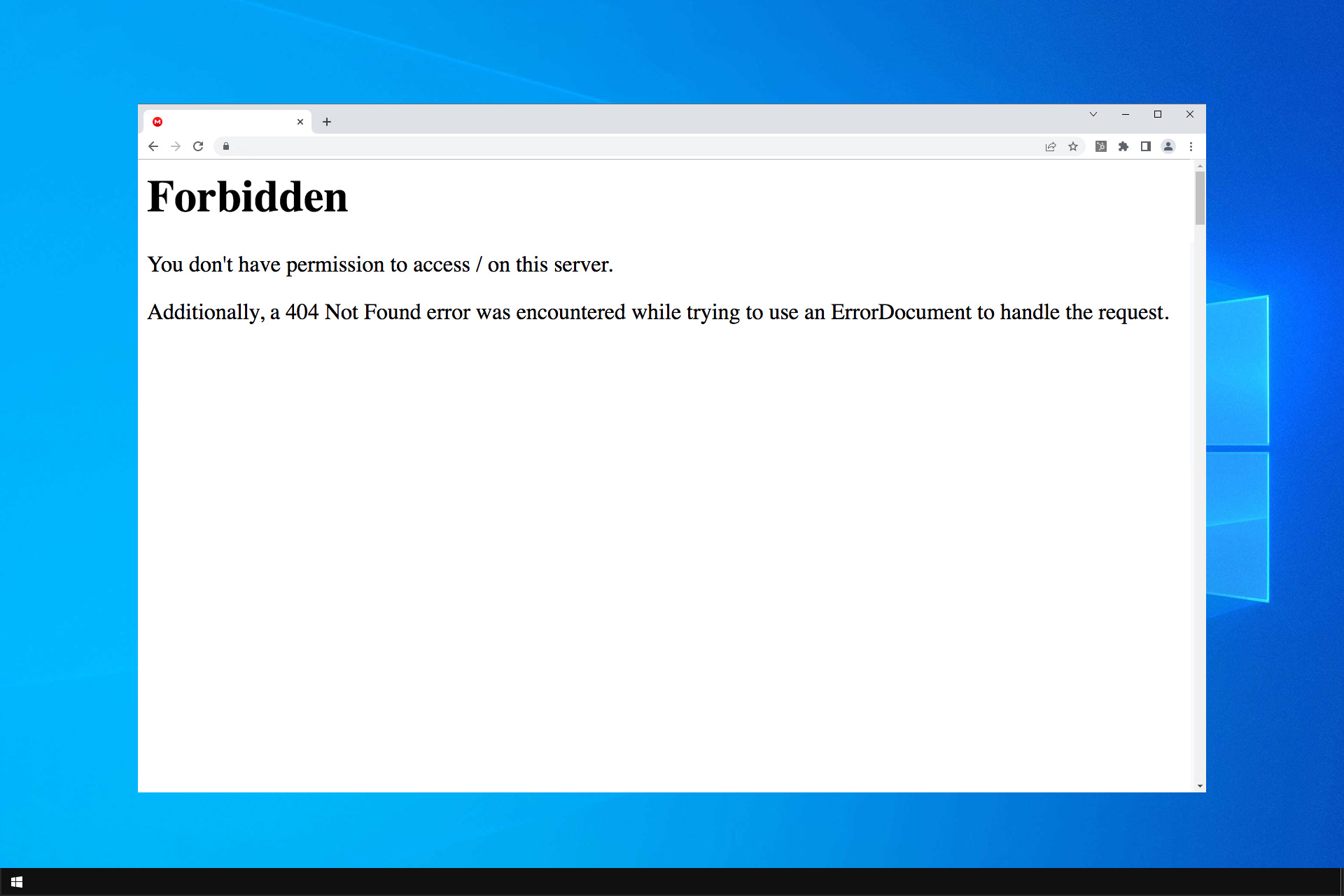


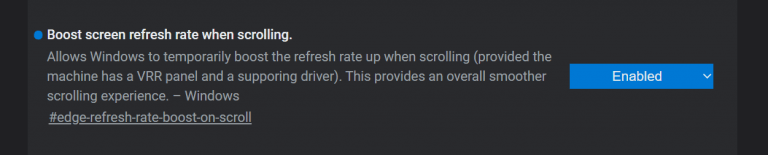
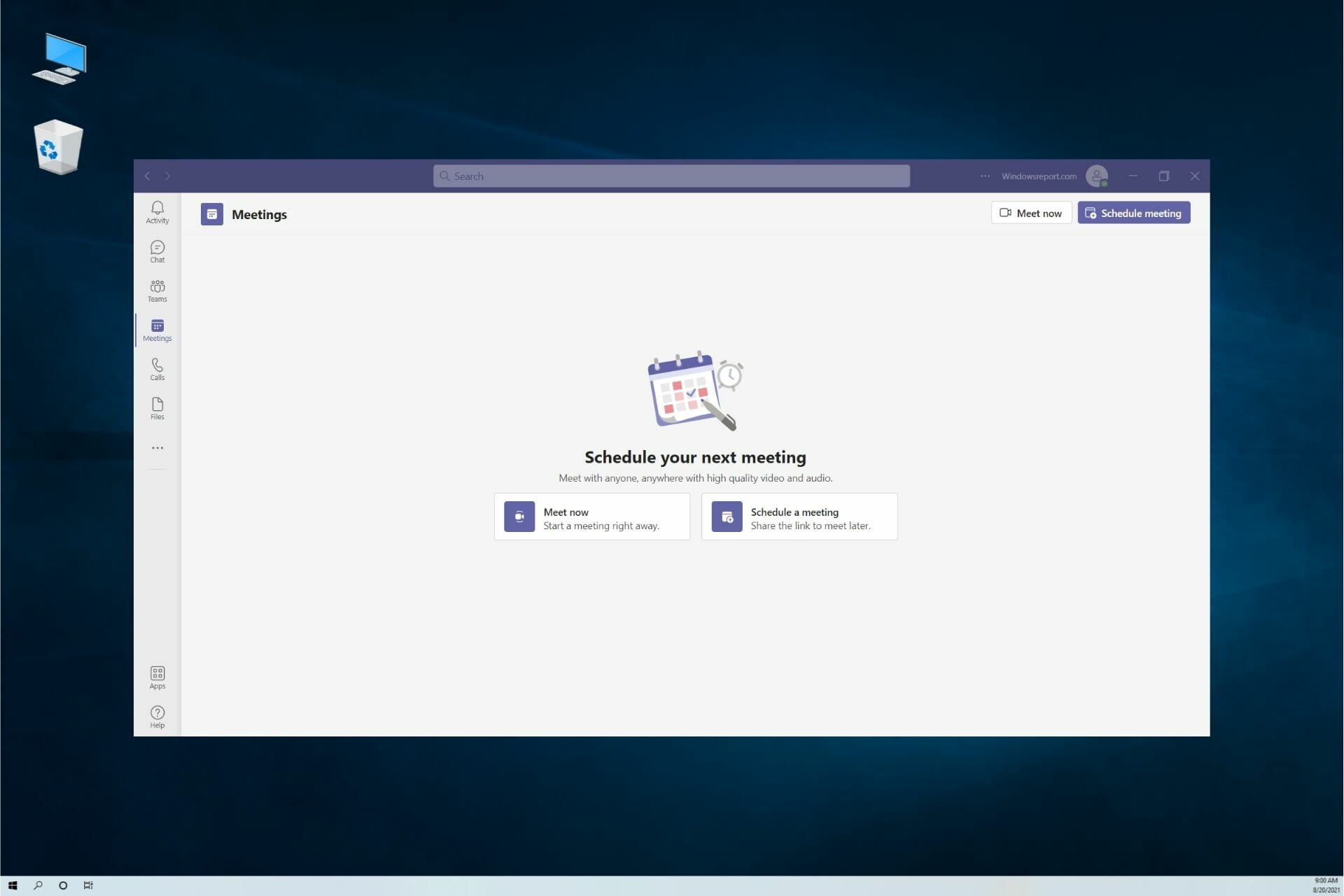

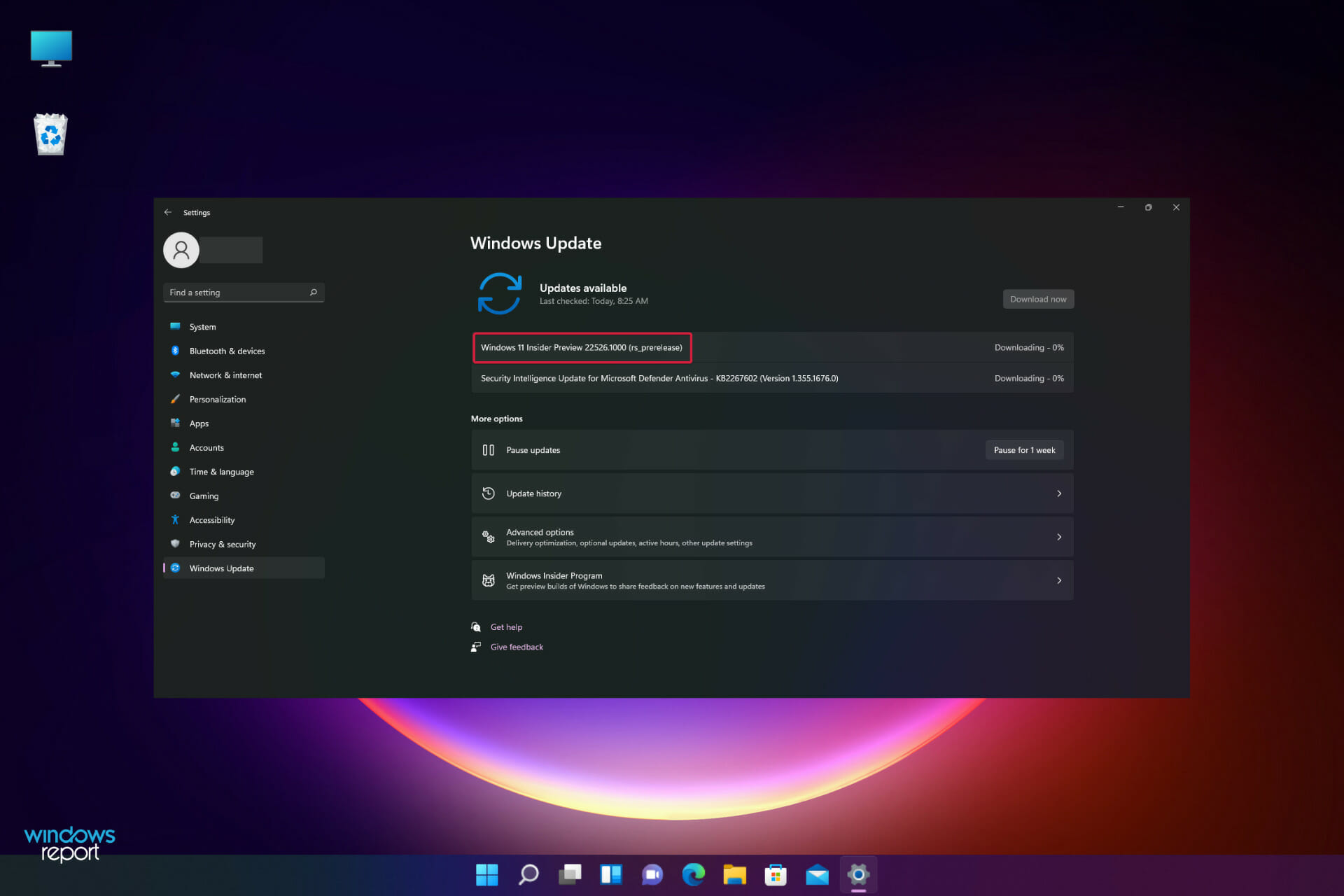


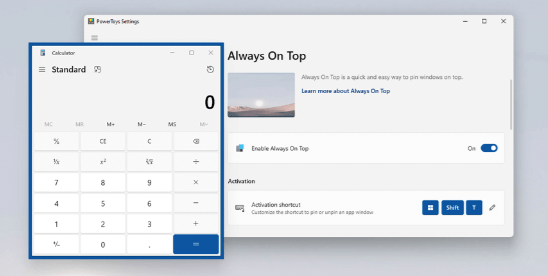
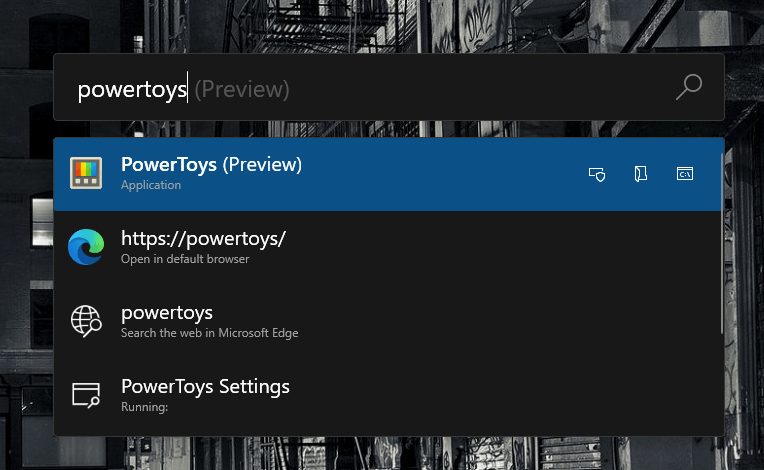
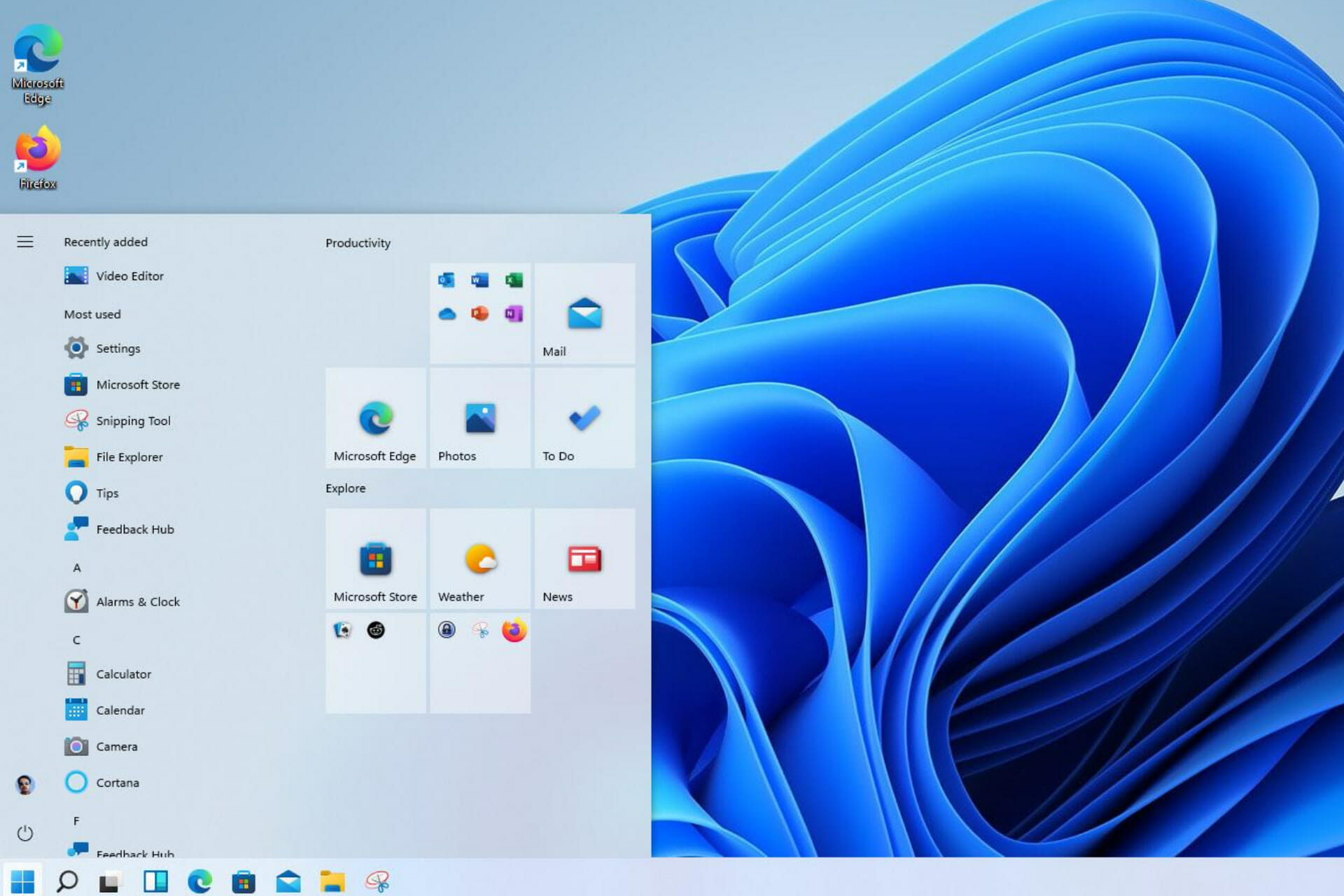
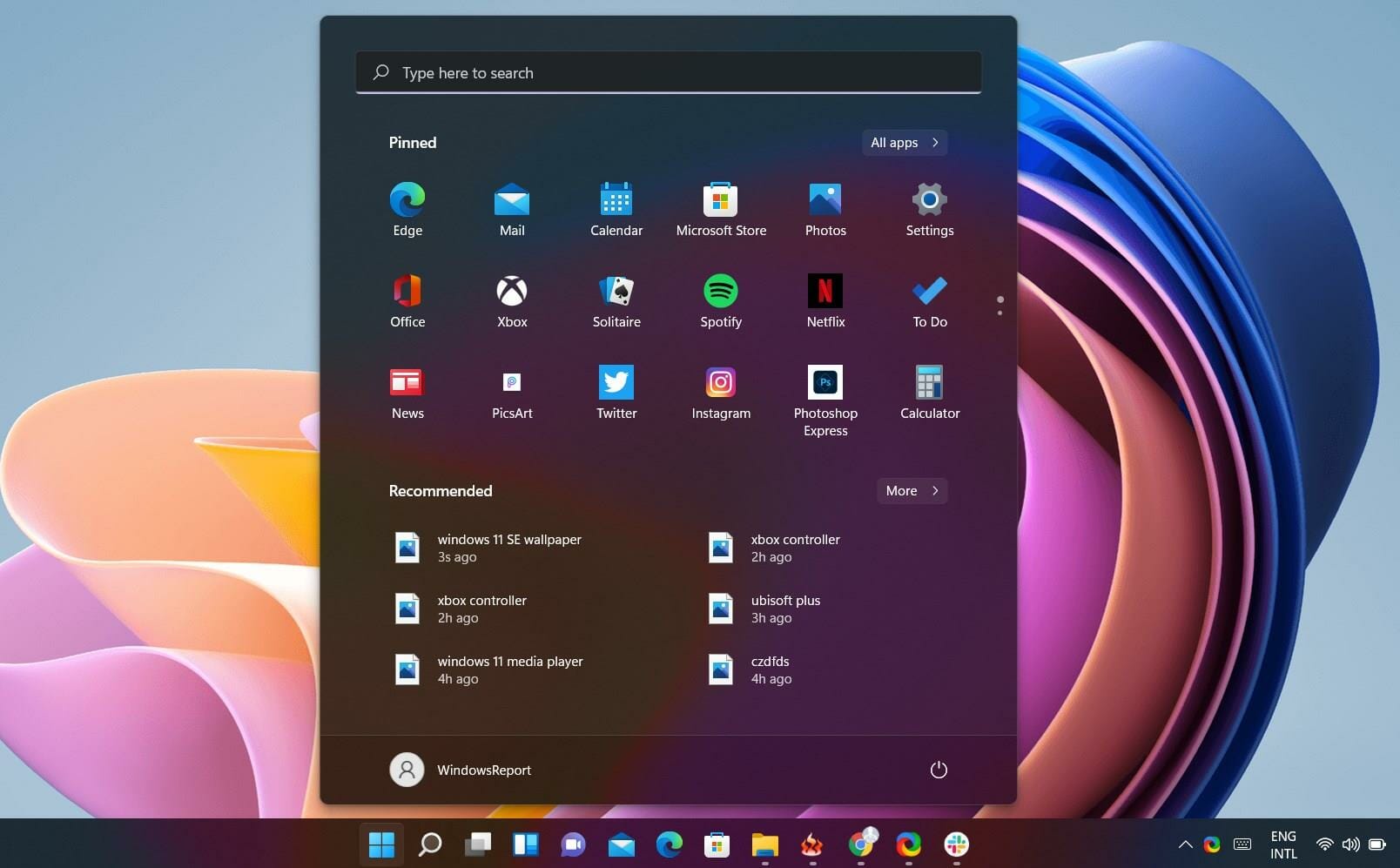
![Batch Convert HTML to PDF [Free Guide & Tools]](https://windowsreport.com/wp-content/uploads/2022/01/icecream-pdf-download.jpg)


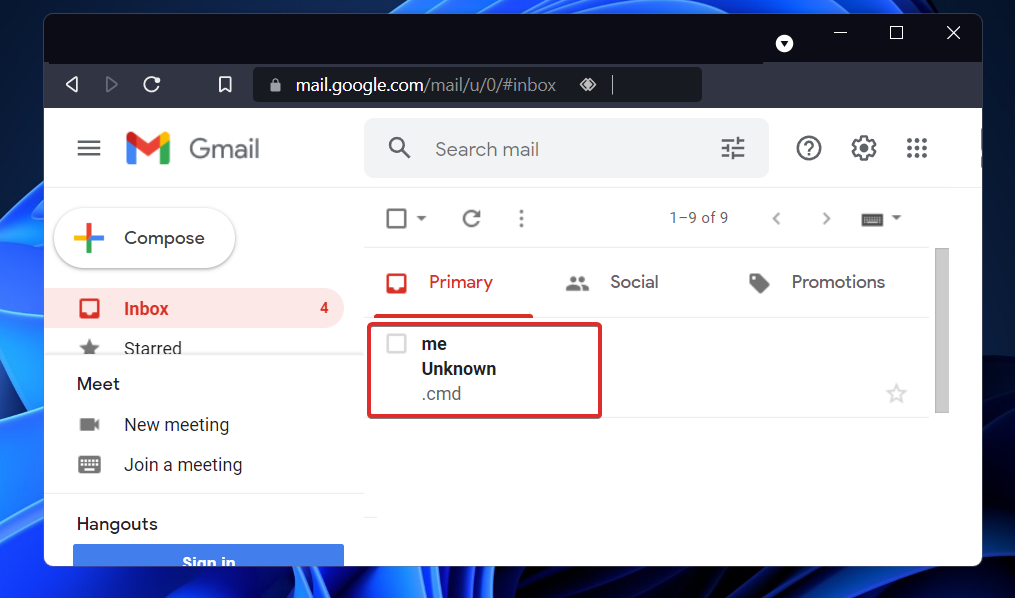
![5 Best Antivirus Software for Dell Laptops [2026 Reviewed]](https://windowsreport.com/wp-content/uploads/2022/01/best-antivirus-for-dell-laptop.jpg)