FIX: ATTEMPTED_SWITCH_FROM_DPC error in Windows 10

There is a wide range of Blue Screen of Death errors that you can get on Windows 10, and although these errors are rare, it’s common to restart your PC in order to prevent any damage.

Since BSoD errors can be a serious problem, today we’re going to show you how to fix the ATTEMPTED_SWITCH_FROM_DPC error, so keep reading.

How can I fix the ATTEMPTED_SWITCH_FROM_DPC BSoD error?

  1. Use a repair tool
  2. Run the Hardware Troubleshooter
  3. Update Windows 10 and all your drivers
  4. Run the SFC scan
  5. Run DISM
  6. Uninstall the problematic drivers
  7. Uninstall the problematic applications
  8. Disconnect your DVD drive
  9. Slow down your SSD drive

1. Use a repair tool

The ATTEMPTED_SWITCH_FROM_DPC Blue Screen of Death error can be problematic, and since a faulty driver usually causes this error, it can be easily fixed by using specialized repair tools.

2. Run the Hardware Troubleshooter 

  1. Open the Settings app and go to the Update & Security section.
  2. Select Troubleshoot from the menu on the left.
  3. Select BSOD from the right pane and click Run the troubleshooter.Troubleshooting BSoD
  4. Follow the on-screen instructions to complete the troubleshooter.

The Troubleshooting tool is a universal tool that basically deals with all sorts of issues within Windows 10. And it might also be helpful with the BSOD issues, so be sure to try it out.

3. Update Windows 10 and all your drivers

Windows 10 might have a few issues with certain older hardware and software, and in order to fix those issues, it’s important that you download and install the latest patches by using Windows Update.

Many of these patches offer security improvements and various bug fixes related to both hardware and software, therefore if you want to fix BSoD errors such as ATTEMPTED_SWITCH_FROM_DPC, it’s important that you keep Windows 10 up to date.

In addition to Windows updates, it’s also important to keep your drivers up to date.

Outdated or incompatible drivers can often cause stability issues and BSoD errors, so it’s crucial that you update them as often as you can.

Updating drivers is fairly simple, and you can download all the necessary drivers right from your hardware manufacturer.

According to users, your Wi-Fi adapter can often cause these types of errors, and there are reports that outdated touchpad drivers can cause these issues on Windows 10 laptops.

Almost any driver can cause these types of problems, and in order to fix them, it’s highly recommended to update all your drivers.

Update drivers automatically

Searching for drivers on your own can be time-consuming. So, we advise you to use a tool that will do this for you automatically.

Using an automatic driver updater will certainly save you from the hassle of searching for drivers manually, and it will always keep your system up to date with the latest drivers.

⇒ Get Outbyte Driver Updater

4. Run the SFC scan

  1. Right-click on the Start Menu button, and open Command Prompt (Admin).
  2. Type the following line, and press Enter: sfc/scannow
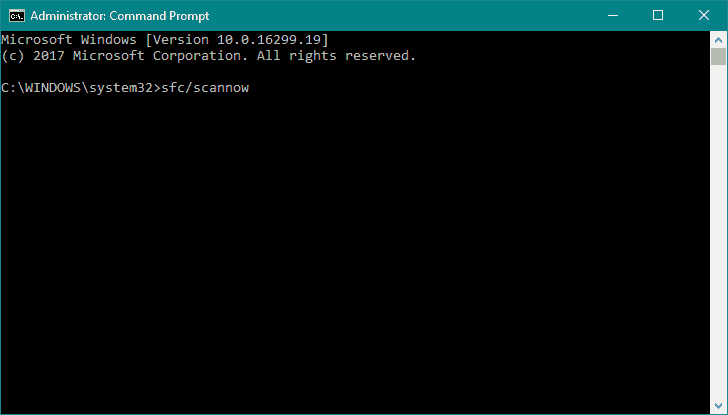
  3. Wait until the process is done (it may take a while).
  4. If the solution is found, it will automatically be applied.
  5. Now, close the Command Prompt and restart your computer.

If the troubleshooter failed to resolve the problem, we’re going to run the SFC scan. This is a command-line tool that scans your system for potential issues, and resolves them, if possible.

So, it might be helpful with the ATTEMPTED_SWITCH_FROM_DPC error, as well.

5. Run DISM

  • Standard way
  1. Right-click Start and open Command Prompt (Admin).
  2. Paste the following command and press Enter:
    • DISM /Online /Cleanup-Image /RestoreHealth
  3. Wait until the scan is finished.
  4. Restart your computer and try updating again.
  • With the Windows installation media
  1. Insert your Windows installation media.
  2. Right-click the Start menu and, from the menu, choose the Command Prompt (Admin).
  3. In the command line, type the following commands and press Enter after each:
    • dism /online /cleanup-image /scanhealth
    • dism /online /cleanup-image /restorehealth
  4. Now, type the following command and press Enter:
    • DISM /Online /Cleanup-Image /RestoreHealth /source:WIM:X:SourcesInstall.wim:1 /LimitAccess
  5. Make sure to change an X value with the letter of the mounted drive with Windows 10 installation.
  6. After the procedure is finished, restart your computer.

Deployment Image Servicing and Management is a command-line utility that reloads the system image. Reloading the system image can eliminate various problems, including the BSOD errors.

We walked you through both the standard and the procedure that utilizes the installation media as above explained.

6. Uninstall the problematic drivers

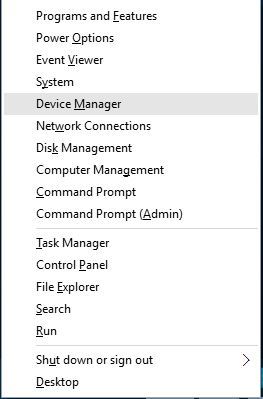
  1. Press Windows Key + X to open Power User Menu. Select Device Manager from the list.
    device-manager
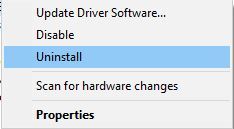
  2. When Device Manager opens, locate the problematic driver and right click it. Choose Uninstall from the menu.
    uninstall-driver
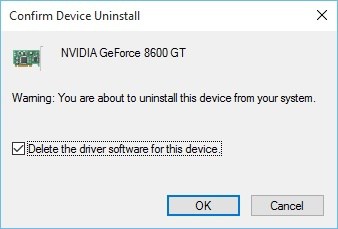
  3. If available, select Delete driver software for this device and click OK.
    confirm-uninstall-driver
  4. After the driver is uninstalled, restart your PC.

In some cases, certain drivers just aren’t compatible with Windows 10, and the only solution is to remove them completely.

Users reported that Qualcomm Atheros or all-in-one card reader drivers can cause ATTEMPTED_SWITCH_FROM_DPC error to appear, so be sure to uninstall these drivers.

After uninstalling the problematic drivers, Windows 10 will automatically install the default driver, and you can continue using it if your device is working well, or you can try and find the newer version of the driver.

7. Uninstall the problematic applications

If a certain application isn’t fully compatible with Windows 10 that can cause Blue Screen of Death error such as ATTEMPTED_SWITCH_FROM_DPC.

According to users, tools such as WiseCleaner can cause these types of errors, so you might have to remove them in order to fix this problem.

In addition, many users reported that BitRaider is the common cause for this BSoD error, and in order to fix it, you’ll have to completely disable BitRaider.

Few users also reported that Acronis software can sometimes cause these types of errors, but you can easily fix this problem by updating to the latest version of the Acronis software.

Another common cause for these types of errors can be your antivirus software, and according to the users, the only solution is to remove all third-party antivirus programs.

Bear in mind that removing the antivirus programs might not fix this issue since many antivirus programs tend to leave certain files behind once you uninstall them.

To completely remove an antivirus program from your system, we kindly encourage you to consider the most efficient uninstaller programs you’ll find right now.

8. Disconnect your DVD drive

Several users reported that they managed to fix the ATTEMPTED_SWITCH_FROM_DPC error by disconnecting their DVD drive.

Disconnecting your DVD drive might not be the most elegant solution, but it’s a solid workaround according to users.

Just to be sure, you can also try replacing your DVD drive, in case your current one is faulty.

9. Slow down your SSD drive

Few users reported that the ATTEMPTED_SWITCH_FROM_DPC error can be caused by your SSD. According to the users, it seems that Windows 10 has certain issues with fast SSDs, and the only solution is to slow down your SSD.

Users reported problems with Samsung SSD, and by using the Samsung Magician Software they managed to slow down their drive a bit and fix this BSoD error.

ATTEMPTED_SWITCH_FROM_DPC Blue Screen of Death error can be problematic, and since this error is usually caused by a faulty driver or some minor hardware issue, it can be easily fixed by using one of our solutions.

We hope that these recommendations from our list were helpful. For more suggestions, please access the comments section below.

5 best laptop stress test software [Safety Guide]

A stress test for systems like desktops, notebooks, and laptops usually puts the hardware components under exaggerated levels of usage, in order to test the performance.

In other words, stress testing your device should tell you how stable and performant it is.

There are various types of tests, most of them include huge workloads and tasks, memory usage, thermals, clock speeds, and more.

In this guide, we’ll present you with 5 best tools to stress test your system’s components: CPU, RAM, and GPU.

Before starting any test, close all your non-essential programs like Office programs and browsers. We want the PC to focus all the resources on the test, in this way we obtain the best and most accurate results.

These software tools will rise up your CPU/GPU temperature, so make sure your system is properly ventilated.

What are the best laptop stress test software tools?

AIDA64 Extreme

AIDA64 has more editions depending on your needs and it is more comprehensive than Prime95.

It is the perfect tool for monitoring in real-time all computer sensors; you can see accurate voltage, temperature, and more.

When it comes to the diagnostic feature, it helps in detecting and preventing any hardware issues.

Of course, it includes many stress tests for checking the performance of individual hardware components or the whole system.

AIDA64 Extreme

If you want an industry-leading laptop stress test software, AIDA64 Extreme is clearly up for the task!
Free trial Visit website

Prime95

Prime95 was originally designed by George Woltman to find Mersenne prime numbers.

A Mersenne prime is defined as a prime of the form 2P-1 and there are only 40 known Mersenne primes. From here we have the logo of the tool.

A feature of Prime95, Torture Test, makes it suitable and very popular for stress testing.

The software puts a heavy load on the computer making the CPU and/or memory overclock, meaning that the computer will be put past its limits and then slow down a little bit.

This freeware tool that is compatible with most Windows platforms, includes options that let you focus the test on the CPU, memory, or both.

The software does not require an installation, you only need to download, unzip the archive, and double click on the Prime95 application.

You’ll be prompted with a small options window from which you can customize the test.

⇒ Get Prime95

IntelBurnTest

Used for CPU stress tests, it is freeware made available by AgentGOD for Windows systems.

What makes this software a good choice is that it uses the same stress-testing engine used by Intel to test their products before getting out of the factory and being sold.

It also claims to run all the necessaire tests in about 8 minutes, which makes it faster than other related tools.

Try to set the limit for the memory test to the one you have on your laptop, otherwise, the time for the test might be greater than 8 minutes.

Don’t worry if your laptop came with an AMD CPU, this tool works for both AMD and Intel CPUs.

⇒ Get IntelBurnTest

3DMark

If you bought a laptop for gaming or video editing purposes, use this tool. It is designed to test and analyze your GPU performance.

It’s an incredibly user-friendly option because it automatically scans your hardware and recommends the best tests to run.  

The software includes a lot of tests, but you can choose to install only the tests you need.

It also includes hardware monitoring that lets you see charts with different GPU parameters and customs settings from where you can change some quality settings for your test.

This tool is available for home and business use. The good news is that you can download a free version for home use, but of course, with fewer features.

⇒ Get 3DMark

MemTest86

MemTest86 is the original, standalone, free memory testing software for X86 systems. It is an old industry standard, been used by various producers since 1994.

Having issues with PC memory is nothing out of the ordinary. MemTest86 boots from a USB flash drive and tests RAM memory using comprehensive algorithms.

It can detect faulty memory or rule out any RAM issues. Even more, the newest version of the software supports all current technologies.

The list includes DDR4 RAM, UEFI, Graphical interface, mouse support and logging of results to disk, Network PXE boot, and more others.

⇒ Get MemTest86

All these software tools work great, are easy to use, and will give you an accurate idea about your laptop performance.

Even if you have an overview of your laptop capabilities by reading its specifications, perform stress testing to know exactly how far you can push the limit of your device without damaging its component.

6 Best Software for Meme Making [2026 List]

If you’re into online chatting and social media platforms, then you are definitely familiar with the meme phenomenon.

Memes tend to pop up a lot on platforms like Facebook or Twitter but are not exclusively reserved for those particular social networks.

In fact, memes are pretty much everywhere nowadays and have taken over pop culture. Some are funny, others educational or motivational, and a great deal is all about trolling.

Regardless of their nature, memes are totally in and maybe you thought of making one (or more) for yourself. If so, then you should not miss our tips for choosing the best meme creator out there.

Got a great idea? Pair with a catchy image and let the meme generator of your choice put everything together. Then, go viral!

What software is the best for making memes?

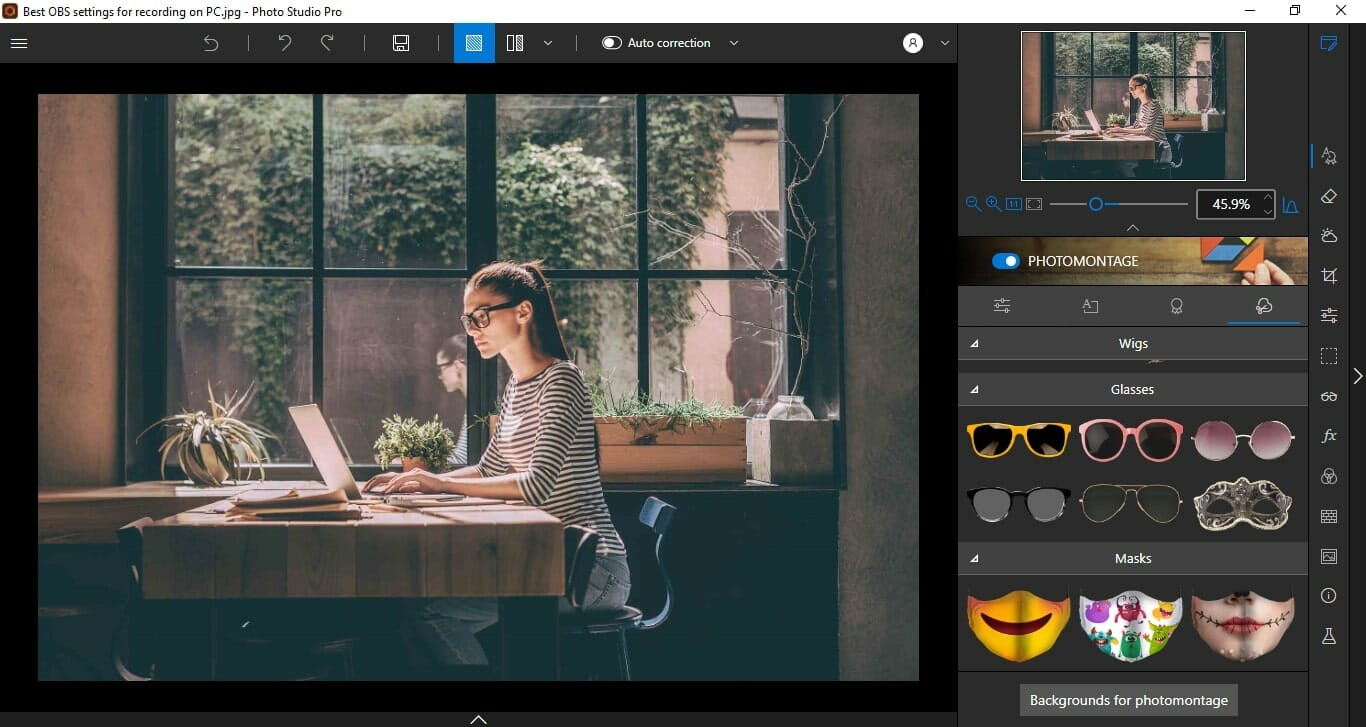
inPixio Photo Studio Pro 12

Create lots of awesome and funny memes thanks to inPixio, one of the best photo editing software on the market. The program comes with a plethora of editing options for you to choose from.

On top of that, it is actually easy to use, which makes it perfect for both novices and experienced people, thanks to its comprehensive and intuitive UI.

Some of inPixio’s key features include:

  • Remove background and objects
  • Photo effects
  • Photo resize and crop
  • Red-eye corrector
  • One-click image correction
  • Color effects
  • Text and stickers tool

inPixio has a free meme generator online, but if you want to make further changes to optimize your memes you need to download the desktop version of Photo Studio Pro 12.

Photo Studio Pro 12

Create the funniest images and show them to your friends on Facebook and Twitter.
Check price Visit website

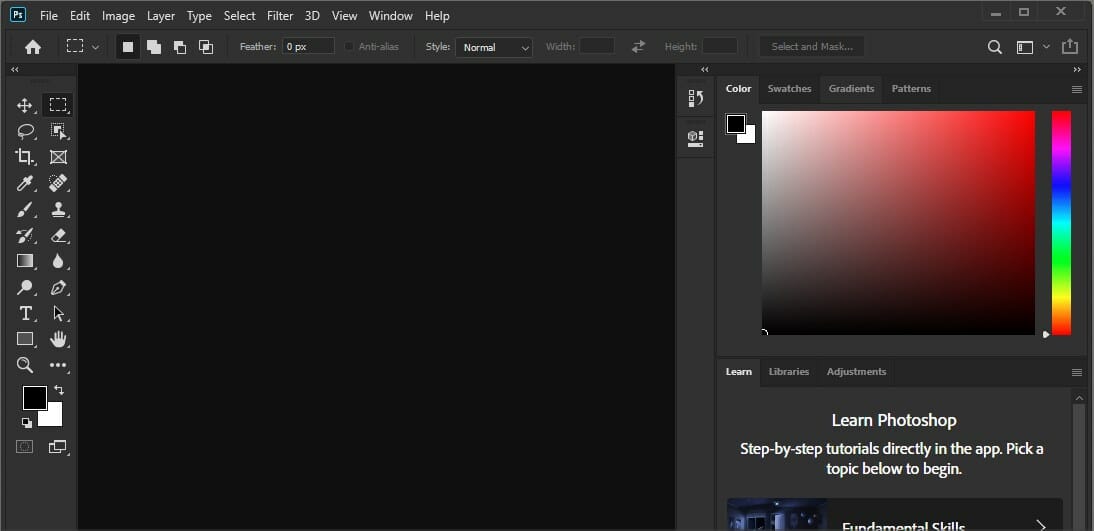
Adobe Photoshop

As the world’s best imaging software, it’s no wonder that Adobe Photoshop is a hugely popular choice when it comes to designing memes.

Its numerous brushes and special effects paired with the fact that it gives you complete control over the lettering through pixel-by-pixel editing lead to impressive meme creations in no time at all.

Let’s quickly go through its key features:

  • Play with color and effects using custom or Photoshop preset brushes
  • Your work is automatically saved to the cloud for quick access, no matter where you are
  • Lens Blur to offer a more natural and realistic look when blurring an object in the foreground
  • Improved Content-Aware Fill
  • Object Selection tool (create fast and precise selections by drawing a simple rectangle)

Adobe Photoshop

Create the best designs and the most astonishing photos thanks to Adobe Photoshop!
Free trial Visit website

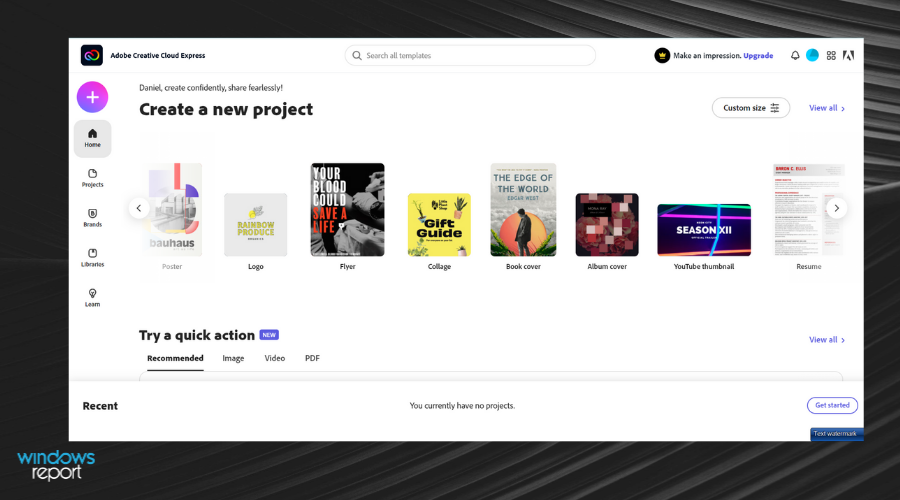
Adobe Creative Cloud Express (formerly Adobe Spark)

Part of the Creative Cloud suite, Adobe Creative Cloud Express is a powerful app for desktop and mobile that allows you to transform your ideas into stunning visual stories in no time.

Simply pick a design template, add your photo and text, and resize your composition to fit your favorite social network in just seconds.

Needless to say, there are countless options for you to customize your meme such as color palettes, changing the appearance and alignment of your text, and backgrounds, and picking themes.

Let’s quickly go through its key features:

  • Attractive fonts with stunning typography
  • Text embellishments
  • Powerful imagery (countless options available for image selection across the Adobe Creative Cloud)
  • Professional-looking themes
  • Generous color palettes to choose from

Adobe Creative Cloud Express

Digitalize your mind and ideas by creating awesome meme images thanks to this feature-rich Adobe tool!
Check price Visit website

Adobe After Effects

If you want to take to meme creation at a professional level, there is no way to beat Adobe After Effects. In terms of graphics and visual effects, there is practically nothing you can’t achieve with it.

Combine techniques, images and apply killer effects to create a jaw-dropping meme that will conquer the online environment as soon as you press (or tap) the share button.

Let’s quickly go through its key features:

  • Graphics and text enhancements (new dropdown menu expression controls, templates that are easier to update in Premiere Pro, etc.)
  • Pixel-perfect selections
  • Stunning effects
  • Custom font design (serif or sans serif fonts, handwriting, tattoos and many more)
  • Custom letterforms that fit your unique layout and design

Adobe After Effects

Let your ideas loose! Adobe After Effects allows you to express your artistic self!
Free trial Visit website

Filmora FREE Online Meme Maker

There are, of course, free solutions for making memes and Filmora Online Meme Maker is one of the best options out there, made available to you courtesy of Wondershare software.

Blending videos, GIFs, and images, this easy-to-use tool allows you to create your own memes directly from your browser. All you need to do is upload a file and enter the URL for your video, GIF, or image.

Then you are all set for customizing your creation to reflect your brilliant meme idea.

Let’s quickly go through its key features:

  • Quick online access with no installation setup
  • Drop a file or upload it (image, GIF, or video from your PC or paste in a link)
  • Font editor included (you can easily edit the text font, size, color, and position)
  • Various export formats available (PNG, GIF, JPG, or MP4 file)

⇒ Get Filmora Meme Maker

Meme Generator by Imgflip

Operating in HTML5, the Meme Generator is an online image maker perfectly suited to create memes.

This instant meme creator is a versatile tool on which you can upload your own images as templates and start the customization process from there.

There is a free online version and also a subscription variant from which you can choose, offering, of course, more complex functionalities.

Let’s quickly go through its key features:

  • Add custom resizable text to images (move and resize the text boxes by dragging them)
  • Customize the font color and outline color
  • Advanced font editing options (Imgflip supports all web fonts including bold and italic)
  • You can rotate your meme, add speech bubbles, or other custom images

⇒ Check out Imgflip’s official page now

In order for a meme to be shared throughout the online community, it has to have a strong message and an appealing look.

Keeping this in mind, if you’re feeling inspired, don’t procrastinate and start creating your own memes today with dedicated meme maker software. What will be the meme generator of your choice? Let us know in the comments section below.

6 Best Drawing Software for Huion Tablet [2026 Guide]

Today, we’re going to show you the best software to use with your Huion tablet. Whether you want to create amazing digital art, perfect your photo edits, or dive into 3D design, the tools below will help you get the best of your tablet.

What drawing software can I use with the Huion tablet?

Adobe Photoshop – Best resolution for digital art

Adobe Photoshop has become synonymous with graphic designing, and we can’t help but think about it whenever the words drawing software come to mind.

It has a long history of being efficient, and it is available on a wide range of devices, including graphics tablets, making it a great drawing app for Huion tablets.

Take a look at these key features:

  • The most popular graphic design software in the world
  • Thousands of tutorials are available online
  • Easy to master
  • Compatible with Adobe Illustrator
Adobe Photoshop

Adobe Photoshop

Bring your ideas to life and use all the editing software of this amazing software before sharing your pictures with friends,
Free trial Visit Website

Corel Painter – best for high resolution art

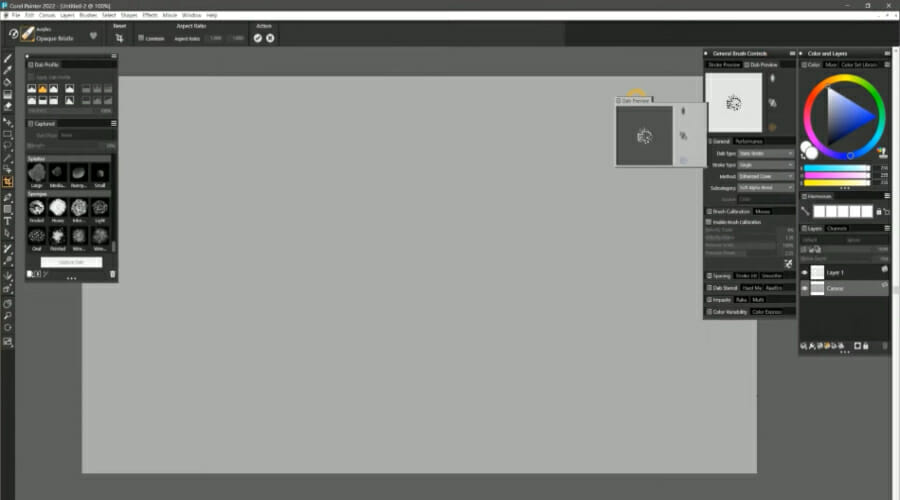
Corel Painter app

Corel Painter is a neat graphics design tool that comes with pretty much all the tools you may need for image editing.

You can use it for simple tasks such as photo retouching, or you can use it to design a drawing from scratch. It has a blank canvas mode where you can use the entire tablet to work, with no distractions.

The interface is pretty simple to master, especially if this is your first Huion sketch app and drawing app that you have ever tried.

Take a look at these key features:

  • Color mixing and canvas control
  • Tons of composition tools from layer tools to perspective guides and proportions
  • Edit photos, manage fonts, and layout multi-page designs
  • Learn quickly in a user-friendly design environment
Corel Painter

Corel Painter

Create detailed and immersive concept art with Corel Painter’s advanced digital painting tools!
Check price Visit Website

Adobe Illustrator – Best tool to vectorize your drawing

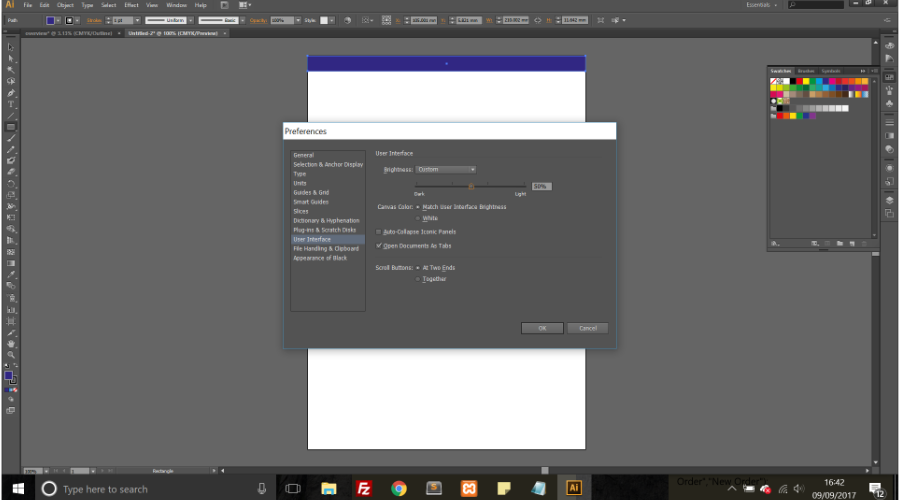
Probably not as known or as popular as Adobe Photoshop, Adobe Illustrator is still a great tool if you’re considering graphic design.

The interface is neatly arranged so that all the most common tools are at your disposal, and it features plenty of instruments that make it perfect for precision work.

Take a look at these key features:

  • Compatible with all systems
  • Can be used seamlessly with Adobe Photoshop
  • Great for professionals doing precision work
Adobe Illustrator

Adobe Illustrator

Use all the amazing features of this complex tool in order to make your pictures or web exactly the way you envision them!
Free trial Visit Website

Clip Studio Paint – best for digital drawing and comics

If you bought a Huion tablet to get in touch with your artistic side, then digital drawing is probably where you want to start. A no better software application is better at that than Clip Studio Paint.

This neat little tool has everything you need to create beautiful drawings, comic books, manga, and more. Additionally, the interface is customizable and can fit anyone’s drawing style.

Take a look at these key features:

  • Great for digital drawing
  • Customizable interface
  • Comes with plenty of tutorials
Clip Studio Paint

Clip Studio Paint

Create stunning digital art and comics with Clip Studio Paint’s versatile tools and features!
Check price Visit Website

Krita – Best tool for beginners

Krita best software to create NFT art

Krita is a versatile digital art software with a large enough toolset to cater to any type of artist.

You can use it to create sketch art, and digital paintings. It has a canvas-only mode that allows you to work on the whole screen without distractions.

It has multiple sets of brushes and is in fact suitable for photo editing as well.

Take a look at Kitra’s key features:

  • Brushes for sketching and painting
  • Freehand support
  • Masking tools, selection tools
  • Layer styles 
  • Support for all popular formats
Krita

Krita

Start creating beautiful digital art with Krita’s versatile and beginner-friendly tools today!
Free Download Get it now

Autodesk Maya – Best for sketch and technical drawing

Maya is built for professional painters and animators; it allows you to bring your models to life and draw 3D scenarios and sketches in the most fluid way imaginable.

Yet, you can customize every inch of skin tone or tiny traces on your sketch. Palettes can be turned on or off, and icons are identifiable for their purposes.

Even as a novice or intermediate, you won’t be let down by its outstanding features.

Take a look at these key features:

  • Intuitive interface
  • The Scan Sketch feature imports your line art with a transparent background, ready for inking and coloring
  • Compatible with all devices

Maya Autodesk

Maya Autodesk

Bring your 3D models and animations to life with Autodesk Maya’s powerful and intuitive tools!
Check Price Visit Website

Are Huion Tablets good for drawing?

Yes. Huion tablets offer up-to-date drawing tools and features that perform really well. They’re good both for beginners and advanced graphic designers and illustrators.

Users are satisfied with the performance of the stylus which offers a very realistic drawing experience. 

While it is true that you could use any drawing software on a Huion tablet, the entries on our list are the ones that can fully take advantage of all that the tablets have to offer.

It doesn’t matter if you are retouching your selfie to look perfect, or if you are creating the next best fantasy wallpaper, these programs are here to help you along the way.

We truly hope that this list aids in your selection to get reliable software for your Huion tablet. Please leave your comments in the section below so that we can keep this list up to date.

How to download & install SonicWall Global VPN Client

Nowadays, the menace of cyberthreats appears to be expanding towards unfathomable lengths. Naturally, the need for self-preservation becomes more and more obvious, especially when the stakes are high.

If you run a business, you probably understand and appreciate the importance of having a reliable security tool. More so one that could keep your corporate communications private with zero compromises.

A popular example is Cisco AnyConnect, but today we’re taking a look at SonicWall Global VPN Client.

What is SonicWall Global VPN Client?

SonicWall Global VPN Client is a popular corporate VPN client that can provide your organization with the security level it needs. It’s crucial to establish a secure work environment, especially if you have more than just a few remote employees.

Currently, there’s no better way than creating a VPN between your employees and the corporate network. Using a solution such as SonicWall Global VPN Client can make sure that your employees can access corporate network resources without jeopardizing their or the network’s security.

Additionally, this tool supports a wide range of devices. Thus, it’s possible that your employees can connect to your network in more than just one way. You can use SonicWall Global VPN Client from Mac, iOS, Chrome OS, Android, Windows, and even Kindle Fire.

In the following sections, we’re going to show you how to download and install this tool.

QUICK TIP: If you’re looking for excellent security, simplicity, reliability, and a great cost-benefit ratio, we suggest you give PIA a try. It did amazing on all our tests and we recommend it.

Private Internet Access

Private Internet Access

This VPN secures your connection and keeps your online activity private and away from prying eyes.
$2.69/mo. Buy it now

How do I download SonicWall Global VPN Client?

  1. Access SonicWall’s dedicated download section
  2. Locate the Global VPN Client entry in the list
  3. Click the arrow next to its nameDownload page SonicWall Global VPN Client
  4. Choose between the 32-bit and 64-bit versions
  5. Click the download button that matches your selectionDownloading SonicWall Global VPN Client

How do I install SonicWall Global VPN Client on Windows 10?

  1. Launch the 32-bit or 64-bit installer you downloaded
  2. Hit the Next button
  3. Accept the SonicWall End User Product Agreement
  4. Set a destination path on your computerInstalling SonicWall Global VPN Client
  5. Hit the Next button

That’s it, you’ve successfully downloaded and installed SonicWall Global VPN Client on Windows 10. Note that this program isn’t just any standard VPN client, and you’ll soon understand why.

How do I use SonicWall Global VPN Client?

In order to use this program, you must have a corporate network that it can connect to. As opposed to free VPNs like Turbo VPN, this one doesn’t come with a bunch of preloaded servers. In other words, you can’t use it if you don’t already have a server.

Assuming that you do, launch the app and follow the wizard’s instructions to establish your connection. You must define a hostname or IP address for the server and assign it a name. After doing so, you’ll be able to see the app’s main window.

Using SonicWall Global VPN Client on Windows 10
Here you can manage your connections (if there’s more than just one), enable or disable them, and configure them properly. Note that closing the window will minimize the app to the systray instead of shutting it down.

An easy-to-use VPN client for your corporate needs

To wrap it up, SonicWall Global VPN Client is a good choice if you need to establish a secure link between your remote employees and your company’s intranet, in order to redirect all network traffic through VPN.

Downloading and installing it are quite effortless processes and not even using the app should be difficult. Assuming that you already configured a network it can connect to, that is.

However, if you’re looking for a VPN solution for casual usage, we suggest checking out the best VPNs for Windows 10.

Microsoft Edge’s new “adaptive notification request” feature will suggest site notification permission requests

Microsoft previously introduced a feature known as “quiet notification requests” in Edge 84, to help reduce notification permission requests from websites. That might have been a while ago, but turns out the company has learned from the past and is actively testing “adaptive notification requests” in the latest version of Edge.

This new feature allows websites and Edge to prompt users with either a full notification permission request or a quiet request, based on actual data acquired from users. Microsoft says they run these suggestions with consideration to the user’s context and timing after users have engaged with sites. According to Microsoft:

Sites that follow good practices and earn a high user acceptance rate will begin to show the full prompt without being “quieted.” . Based on the collective score of users, we provide quiet requests to the websites whose scores are higher than the threshold.

Microsoft developed a score element as part of this for the buttons you see in Edge when you get a notification request. Clicking “Block” will yield a high score and a negative impact on a website, and clicking “Ignore” and “Dismiss” will be a week negative signal. “Allow,” meanwhile will give the lowest score, and appear as “positive” to Edge.

Of course, data is updated regularly, and Microsoft believes sites can provide the full prompt to their users when they get better acceptance rates from their users. This can be seen as a motivator for sites to follow best practices when it comes to requesting notifications.

This feature will be found under Settings,  Cookies and site permissions, and Notifications.

FIX: JavaFX application error due to system configuration

Nowadays, Internet Explorer is the only browser with support for Java plugins and applets (NPAPI). Many java issues are related either to the Java version installed on your PC or to the cache.

Anyway, JavaFX is not really an applet and doesn’t use a browser plugin to run. It is a set of graphics and media packages used by programmers to create and design Java applications.

Therefore, errors related to the JavaFX application may appear in your browser. Is this the issue that bothers you too?

Here’s how to fix the Internet Explorer error that says JavaFX application could not launch due to system configuration.

How to fix the JavaFX application could not launch error?

1. Clear browser’s cookies and cache

  1. Close any Internet Explorer page.
  2. Search for Internet Options on Windows search bar.
  3. Look for Browsing history and then click on the Delete button.delete bowsing history
  4. Tick all the boxes and click Delete.delete internet explorer history
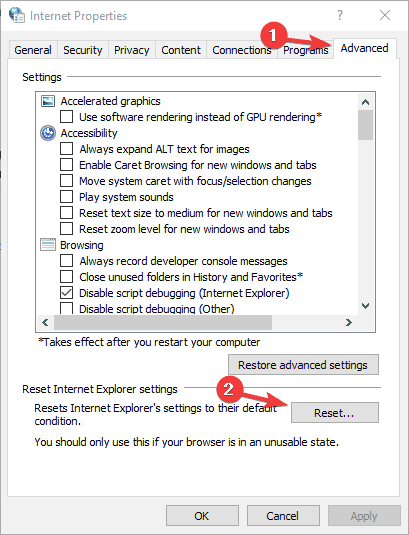
  5.  Go to the Advanced tab and click on Reset.The webpage might be unavailable
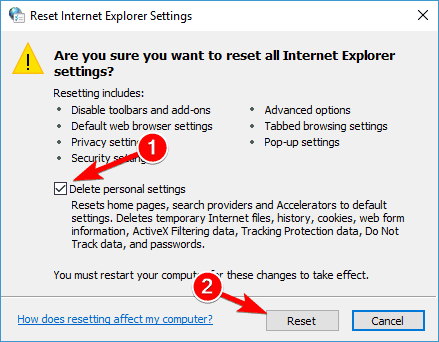
  6. Tick the box in front of Delete Personal Settings and click Reset.Unable to connect to proxy server Chrome

Once you have performed the steps above, close the Internet Options window and open your browser again.

If you had Favorite Bar active, you will have to activate it again by right-clicking below the address bar and selecting the Favorite Bar.


2. Use another browser

try to use another browser

JavaFX does not run into your browser but runs from a browser. When you click the link, the app using JavaFX should be downloaded and then run on your desktop, like any other standalone Java application.

There are multiple web browsers available besides Internet Explorer. Windows 10 comes with Microsoft Edge but you can also download and install Opera One, Chrome, Firefox, etc.

It is always a good idea to have more than one browser available. They should do the same thing, but there are Internet services that are supported only by a particular browser.


3. Check Java Security settings

  1. Go to Control Panel.
  2. Adjust the view to Small Icons from the upper right side.
  3. Click on Java.
  4. Go to the Security tab.
  5. Change your security level from High to Medium or from Very High to High, depending on your Java version.java control panel
  6. Click on Edit Site List to add the website to the Exception Site List.
  7. Use Add button and type the complete link to the website.exception list java
  8. Click again on Add.
  9. On the Security Warning windows, click on Continue.

You can close the Java Control Panel and lunch the website again. If a security warning pops up, make sure to click on Run.


You can’t open Control Panel? Take a look at this step-by-step guide to find a solution.


4. Clear Java’s temporary files

  1. Open Java Control Panel. Follow the steps 1-3 from the above solution.
  2. From the General tab, click on Settings.java settings
  3. Click on Delete Files.
  4. Tick all the boxes and hit OK.java-temporary files
  5. Click the OK button to close the Java Control Panel.

If you still continue to encounter the same issue, the last thing to do is to check the application requirements.

There might be older applications that need to use an older version of Java. If this is the case, you have to uninstall your version and install the recommended version. 

You can use these steps for any other Java-related issues that pop up in your Internet Explorer browser. It will solve your problems in most cases.


Have you applied the above procedures too? Let us know which one worked for you by using the comments area below. 

A Serious Error has Occurred on PS4 [Solved]

Plenty of gamers have faced the following frustrating situation with their PlayStation 4 console: after updating the system firmware, the console got stuck when booting, showing an error message.

The full message reads: A serious error has occurred in the system software. The PS4 will restart.

The same happened to users who, accidentally or not, unplugged their PS4 before it was fully powered down. 

There aren’t many options to explore here, since the console is almost impossible to use, however, we’re trying to shed some light into the matter in this article.


How can I fix the serious error has occurred on PS4?

1.Restore to factory settings

  1. Plug your controller to the console using a USB cable.
  2. Press the PS4 power button until the console beeps twice.
  3. The press the PS4 button on the controller to enter Safe Mode.
  4. Here, scroll to the Restore Database option and proceed.a serios error occured ps 4
  5. Allow the process the finish and then try to reboot the console as you usually do.

 This will clear the system of any corrupt files but will also restore the database and will also clear anything you have saved up until that point. So make sure you have a backup of your files prepared.

This will also help if you find Spotify not working on PS4.


2. Reinstall software using a USB 

reinstall ps4 from usb

  1. On a FAT32 USB created a folder named PS4. Inside that folder, create another folder named UPDATE.
  2. Download the installation file from the PlayStation official page, and save it in the UPDATE folder as PS4UPDATE.PUP. (The PS4 has to be at the root of the USB storage device, and not contained in another folder.)
  3. Follow the first 3 steps mentioned in the previous solution to enter Safe Mode.
  4. Here, select  Initialize PS 4, then Update from USB Storage Device and OK.

This applies only if you have a USB with the PS4 software on it; and hopefully, the console will read it. On some occasions, the users complained that the console took a very long time until it recognized the file.


Hopefully, one of these solutions is of use in your situation, as these recommendations have proven useful for other users.

This isn’t the only error you can encounter, and many reported An error has occurred message on PS4, but we have a separate guide that addresses it.

This isn’t the only update error, and we already covered SU-41350-3 in a previous guide, so don’t miss it.

Feel free to share your experience with us or suggest another way of fixing this problem by using the comment section below.

Best HDR Software for Windows 10 & 11 to Use in 2026

With good HDR photography software, you can get more control over your high-dynamic range shots.

HDR cameras typically come with some photo manipulation features, but they’re not enough. If you want precise results and a lot of freedom to adjust every single detail, consider the tools below.

What is the best HDR software for HQ images

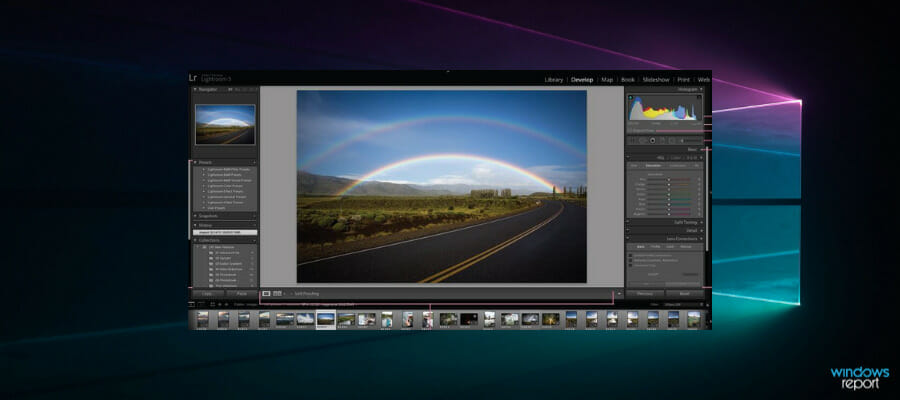
Adobe Lightroom – simple HDR editing tool

Adobe Lightroom can process HDR images without any complex plugins. Just load your image, and you’re good to go.

This tool makes photo manipulation easy. You can adjust shadows, highlights, whites, blacks, clarity, and vibrance with quick sliders.

Plus, it’s light and supports both PCs and mobile, being a great option if you’re into on-the-go photo editing.

Adobe Lightroom

Adobe Lightroom

Get the most popular fully-featured photo editing tool that goes perfectly with your HDR images on any device!
Free Trial Visit Website

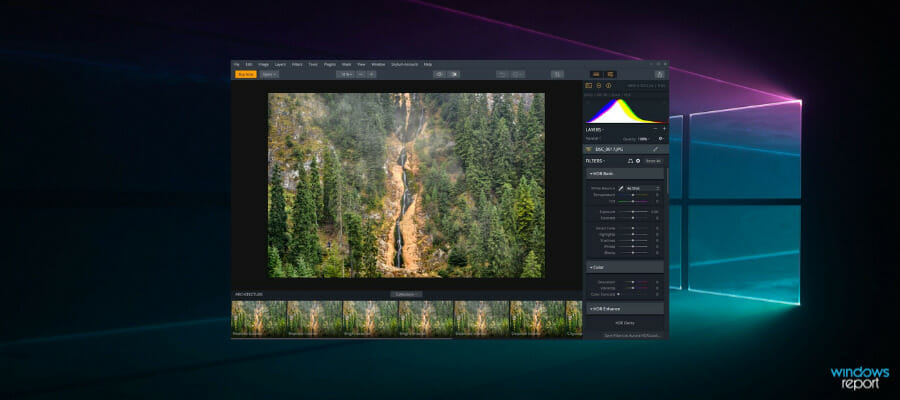
Aurora HDR – One-stop HDR photo editor

Aurora HDR features a powerful HDR Tone Mapping tool. It’s a slider that can increase or decrease the HDR effect.

Its Quantum HDR Engine is able to process millions of pixels to build high-quality images.

Aurora HDR offers several other options, such as adding custom textures and bracketing the HDR mode. It also allows you to selectively include or exclude areas that will be affected by these adjustments.

Aurora HDR

Aurora HDR

Use this award-winning HDR image editor and give your photos a crisp, stunning new look within seconds.
Check price Visit Website

EasyHDR – Straightforward interface

EasyHDR simplifies HDR creation with a straightforward interface and supports multiple formats including JPEG, TIFF, PNG, and RAW.

It features effective tone mapping, deghosting, and alignment controls. While it may load slower compared to other tools, EasyHDR excels in integrating various editing options for high-quality HDR images.

Key features include tone mapping options, deghosting, a fast and responsive editing tool, and alignment control.

⇒ Get EasyHDR

HDR Projects – Provides an add-on system

HDR Projects 4 offers advanced HDR processing with Ultra HDR technology, supporting up to 33 images in an exposure series.

It provides extensive post-processing effects, interactive ghosting removal, and various HDR algorithms.

The software is available in Standard and PRO versions, with the PRO version offering additional features like an add-on system and more post-processing effects..

⇒ Get HDR Projects

Picturenaut 3.2 – Create HDRIs from multiple exposures

Picturenaut 3.2 is an effective HDR editor known for its automatic alignment, deghosting, and tone mapping.

It supports multiple HDR formats including TIFF float, OpenEXR, and Radiance RGBE. The software features a multi-threaded architecture for efficient processing, high-quality resizing, and various HDR plugins.

Picturenaut offers a wide range of plugins, including format plugins such as HDR and LDR. You can also create plugins such as 32-bit floating-point image buffers.

⇒ Get Picturenaut 3.2

In this article, we presented you with a wide array of HDR software options for your image post-processing on Windows 10.

Note that the most professional options with an incredible user interface require more system resources. 

Depending on your specific needs, you can also choose HDR software solutions with a lower impact on your system resources that have a lower number of features and still offer a powerful image creation and post-processing program.

Better yet, you can easily calibrate HDR on Windows for better picture quality without looking for a professional tool.

Tell us what you think about the options presented in this article, and let us know if we missed anything in the comment section below.

Microsoft Edge introduces new Kids Mode on the Canary channel

Microsoft is introducing today a new Kids Mode for its Edge browser, which is now available in preview for Edge Insiders in the Canary channel. This new browsing mode will offer kids a tailored experience with customized themes and child-friendly content on Edge’s New Tab page, as well as special privacy and security features that should give parents more peace of mind.

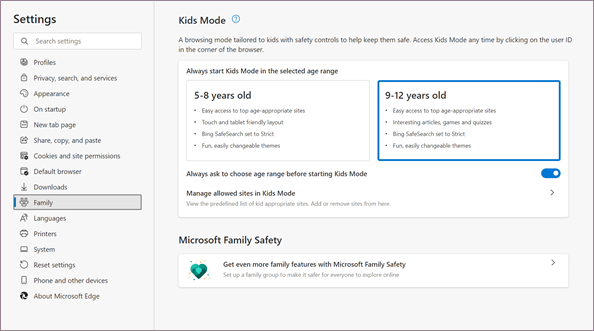
This new Kids Mode in Microsoft Edge has been designed for two age groups, 5-8 and 9-12. Both groups should enjoy a safe browsing experience with Bing SafeSearch, which blocks adult-themes text, images, and videos. Kids Mode also sets Tracking prevention in Edge to Strict, which blocks a majority of ad trackers while browsing the web. When Kids Mode is enabled, Edge’s New Tab page will also be free of ads.

Kids Mode settings

In addition to these specific privacy and security settings, Kids Mode will also allow parents to prevent their kids from visiting certain websites. The feature is going live today in the Canary channel, and parents can try it out via Edge’s profile picker without having to set up a family group with child accounts first.

Kids Mode is currently only available for US English users on Windows and macOS, and the Edge team will be listening to feedback to improve the experience for kids exploring the web. You can learn more about how to get started with Edge’s Kids Mode on this support page.

[Solved] Require a managed browser to open this link

When you usually want to access a web app, you can do it straight from your mobile browser.

Regardless if you use Mozilla Firefox, Google Chrome, or Safari, you will require a managed browser to open this link you have in mind.

This error message is usually related to Microsoft Intune, a cloud-based service that manages mobile devices and mobile applications.

When using it, you gain control on how the devices of your organization are used, and this includes tablets, laptops and mobile phones.

Users have discussed this issue in the Microsoft forum:

Can someone please tell me how can I force staff to open links on the managed browser. Currently, when someone emailed a link to Outlook, the user on mobile Outlook app clicked on the link and it is opening on the default browser on the mobile.

When someone clicks on the link on Outlook mobile app, the website must open in the managed browser.

We have prepared several solutions that will address this issue. Read the next section and check how you can solve the require a managed browser to open this link issue.


What to do if you require a managed browser to open a link?

1. Create a protection policy for Outlook in Intune

  1. Open Microsoft Intune and navigate to Client apps.
  2. Select App protection policies, and then Create policy.Create policy
  3. Click on Settings and go to Allow app to transfer data to other apps.
  4. Select Policy managed apps in that section.
  5. Check Restrict web content transfer to other apps.
  6. Select Policy managed browsers in that section.

This solution allows you to choose to either select the option from step four or five or to select both options from steps four and six. 

If you use it, it should solve the require a managed browser to open this link issue.


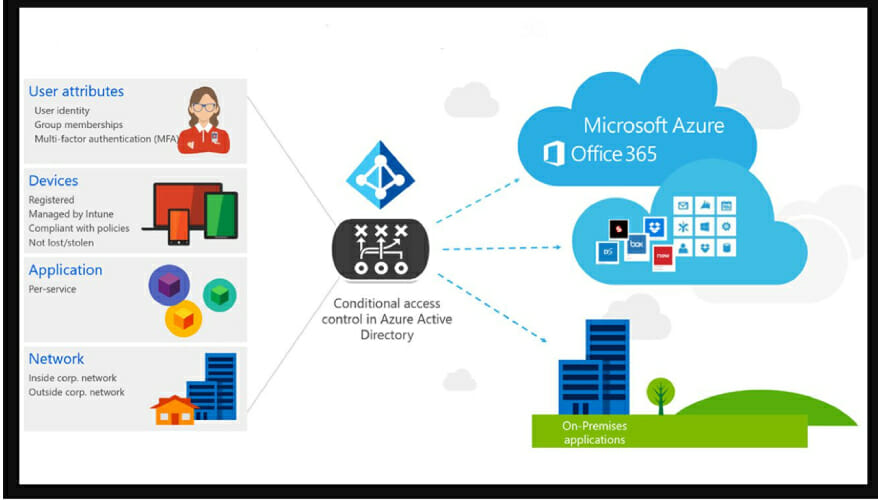
2. Apply Conditional Access

Configure Conditional Access for Microsoft 365

  1. Sign in as administrator to the Azure portal.Sign in to Microsoft Azure
  2. From Azure Active Directory, navigate to Security.
  3. Navigate to the Conditional Access section.Conditional Access
  4. Choose New policy and give it a name.
  5. From Assignments choose Users and groups and then Include.
  6. Select All users or specific Users and groups, and then Done.
  7. Navigate to Cloud apps or actions, check Include, and then choose Office 365.Cloud apps or actions
  8. Navigate to Conditions, choose Device platforms, set Configure to Yes.
  9. Include Android and iOS, navigate to Conditions, choose Client apps.
  10. From Configure select Yes, and choose Mobile apps and desktop clients.
  11. Deselect everything else.

Ensure you have taken each of the above-mentioned steps and then proceed to the second part of the first stage.

  1. Navigate to Access controls, select Grant the three options (see next step).
  2. Select Require approved client app, followed by Require app protection policy.
  3. Choose Require one of the selected controls.
  4. Confirm settings, go to Enable policy, and set it to On.
  5. Choose Create for creating and enabling that policy.

This solution ensures all mobile access to Microsoft 365 uses approved apps such as OneDrive and Outlook Mobile.

They are protected by an application protection policy before you receive access to them.

Use this solution for your organization and solve the require a managed browser to open this link issue. The first stage is to apply Conditional Access for Microsoft 365.

The next one requires you to configure the Azure AD Conditional Access policy using ActiveSync for Exchange Online. You will find below what are the steps you must take in this regard.

Configure an Azure AD Conditional Access policy with ActiveSync (EAS)

  1. Log in to Azure Active Directory.
  2. Select Security and Conditional Access.
  3. Choose the New policy option, name it and navigate to Assignments.
  4. Choose Users and groups, and from Include select All users or specific Users and groups.
  5. Select Done, navigate to Cloud apps or actions, and choose Office 365 Exchange Online.
  6. Navigate to Conditions, choose Client apps, and from Configure select Yes.
  7. Choose the Exchange ActiveSync clients while deselecting everything else.
  8. In Access controls, select Grant access and Require app protection policy, and choose Select.
  9. Confirm settings, navigate to Enable policy, and select On.
  10. Choose Create and then create and enable the new policy.

The third stage of this solution requires you to focus on Android and iOS applications. Your task will be to configure an Intune protection policy for them by applying the steps explained below.

Configure Intune protection policy for Android and iOS applications

  1. Log into the Microsoft Endpoint Manager admin center.Microsoft Endpoint Manager
  2. Select Apps and App protection policies.
  3. Choose Create policy and then iOS/iPadOS or Android.
  4. In Basics add values to Name and Description sections for Platform.
  5. Click Next, navigate to Apps and add a minimum of one application.
  6. In Target to apps on all device types select Unmanaged or Managed for iOS.
  7. Choose between Unmanaged, Android device administrator, and Android Enterprise for Android.
  8. Ensure to check Select public apps and Select custom apps.
  9. Click Next to navigate to Data protection settings.
  10. Click Next to navigate to Conditional launch.

Conditional launch for iOS and Android

  1. Select Setting, insert a Value, and choose Action.
  2. Click Next and navigate to Assignments.
  3. Click Next: Review + create and then click Create.

This allows you to set the sign-in conditions for the app protection policy. The Value must be met by users that want to sign in to your company app.

When you choose Action, that section contains the conditions for when users do not meet your requirements. There are certain cases when you can configure multiple actions for a single setting.


The issue named require a managed browser to open this link is something many users have encountered when trying to open a browser.

Some employees have encountered this error when trying to open a link from their work mail address.

We recommend you use Microsoft Intunes for eliminating this error and create a protection policy for Outlook Express. Another way to solve the issue is to apply Conditional Access.

This will require you to perform three additional sub-fixes: configuration for Microsoft 365, configuring a policy with ActiveSync and setting a policy for iOS and Android apps.

Test our solutions and comment in our dedicated section about your experience with our previously mentioned fixes.

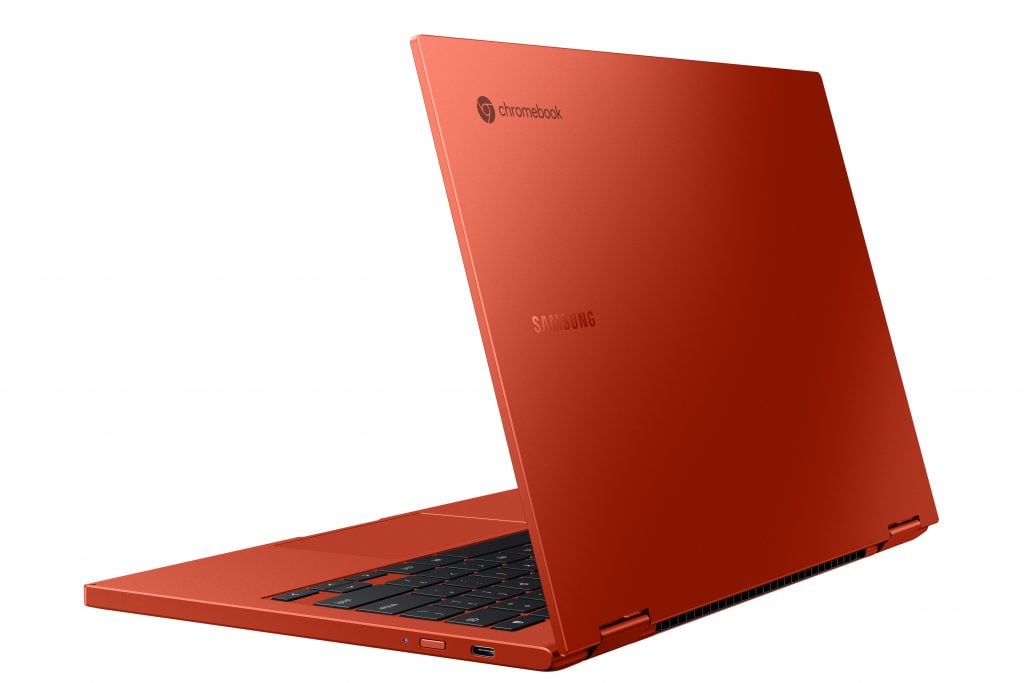
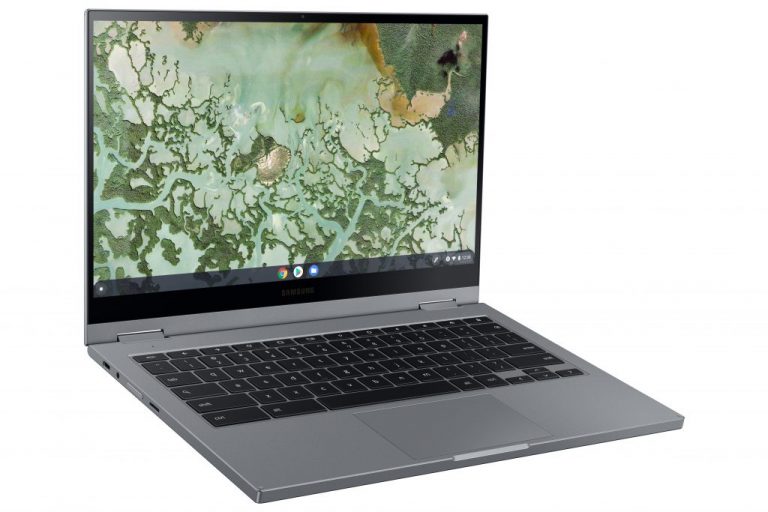
Samsung’s Galaxy Chromebook 2 with QLED display looks to take on premium Windows laptops in 2021

Samsung announced today that an updated version of its bestselling Chromebook is now available for pre-order through February 28, 2021. The Galaxy Chromebook 2 can be pre-order via Samsung’s own website or through Best Buy starting at $549.99. Despite Chromebooks taking really taking off in 2020, to the tune of 30 million sold, Samsung is further incentivizing the purchase of the Galaxy Chromebook 2 with early pre-order discounts.

For both the Fiesta Red and Mercury Gray color options, anyone who pre-orders through February 28, 2021, will be eligible to earn $50 towards select purchases (presumably accessories and peripheral Chromebook devices) from their respective online stores that include both Samsung.com and Best Buy. For anyone who reserves their Galaxy Chromebook 2 today, they could also receive an additional $30 off select purchases depending on any fine-print purchase restrictions. If you’re not an early bird type, the Galaxy Chromebook 2 will be available for purchase starting March 1, 2021, and any purchase from March 1 through March 14, 2021, could be eligible for $30 off an additional purchase at another time.

Galaxy Chromebook 2 Dynamic2 Red

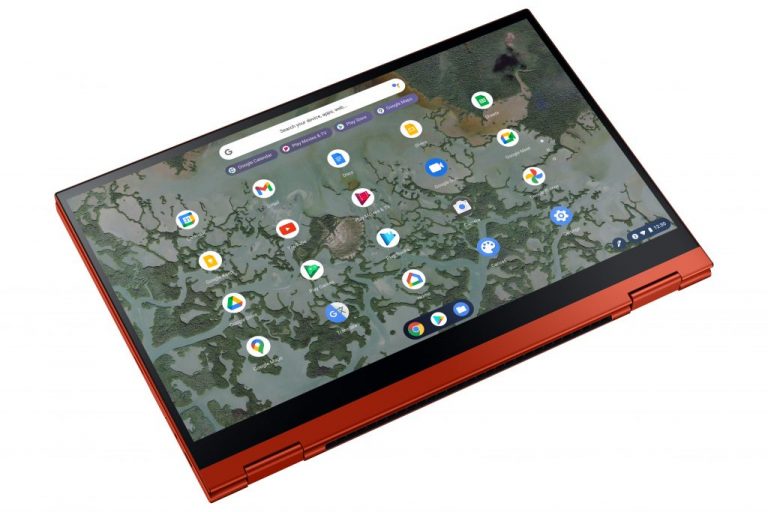
Samsung unveiled the Galaxy Chromebook 2 during CES 2021, and it instantly stood out thanks to its bright red casing, however, there are some under-the-lid improvements and changes from its predecessor that include a new QLED display, 178 percent boost in sound output thanks to its new Smart Amp technology, latest Gorilla Glass protection, 13-hours of battery life, the latest Intel Core i3 processor and most importantly Wi-Fi 6 support.

Galaxy Chromebook 2 L Perspective2 Gray


Samsung’s effort to bring down the price of its Chromebook is a welcomed change from last year’s inexplicably expensive Galaxy Chromebook and puts a little bit of pressure on Windows manufacturers and the operating system teams within Microsoft to fine-tune their options this year to meet surging demand for ChromeOS-like experiences from Windows 10 devices.


How to use your iPhone or iPad as a webcam in Microsoft Teams on Windows 10

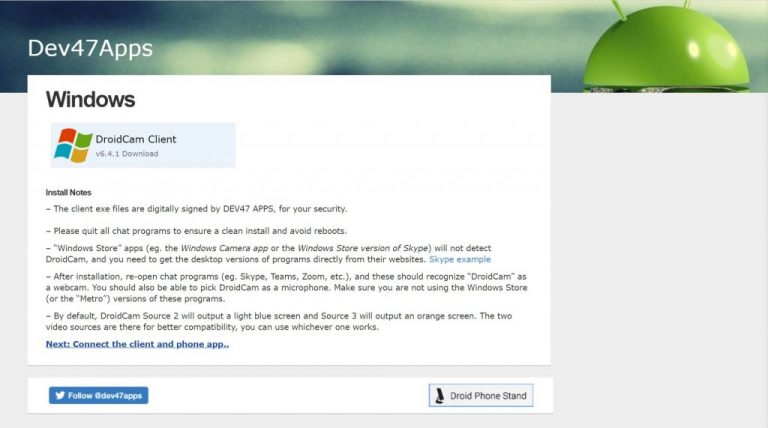
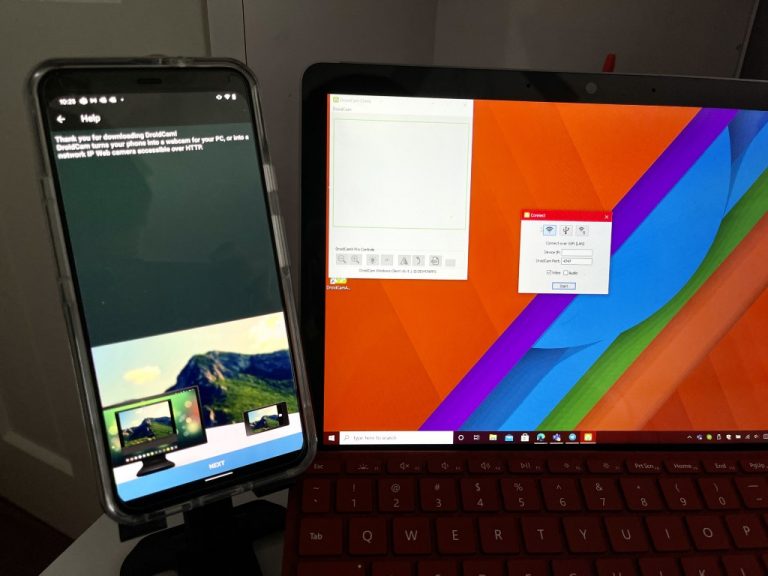
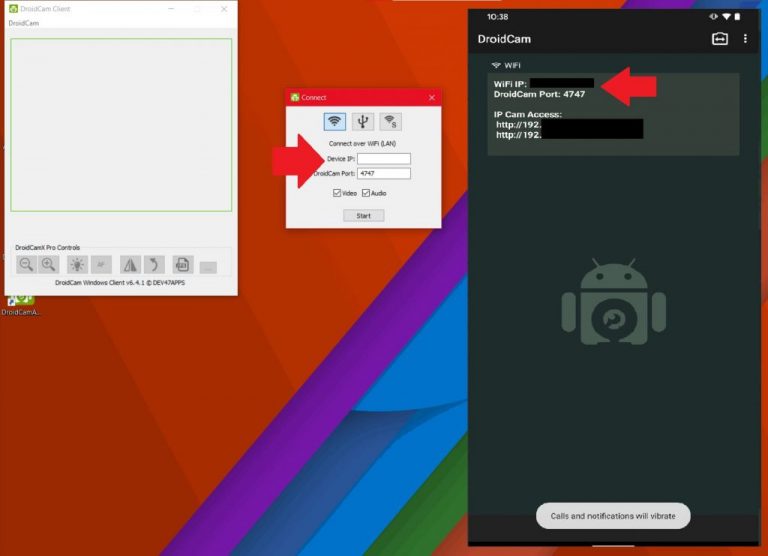
We recently wrote about how you could use an Android phone (or even a Kinect!) as a webcam in Microsoft Teams in Windows 10. We promised we’d follow up to explain how iPhone or iPad users, could do the same, but through a little more complicated process — and with some limits. So, here’s a look at how.

Prerequisites

Ivcam

Just like using an Android phone as a webcam in Teams on Windows, going the route of using an Apple phone or tablet will require some third-party software. We suggest trying to join the meeting on your phone itself before trying out your phone as a webcam, as it would be the most logical thing.

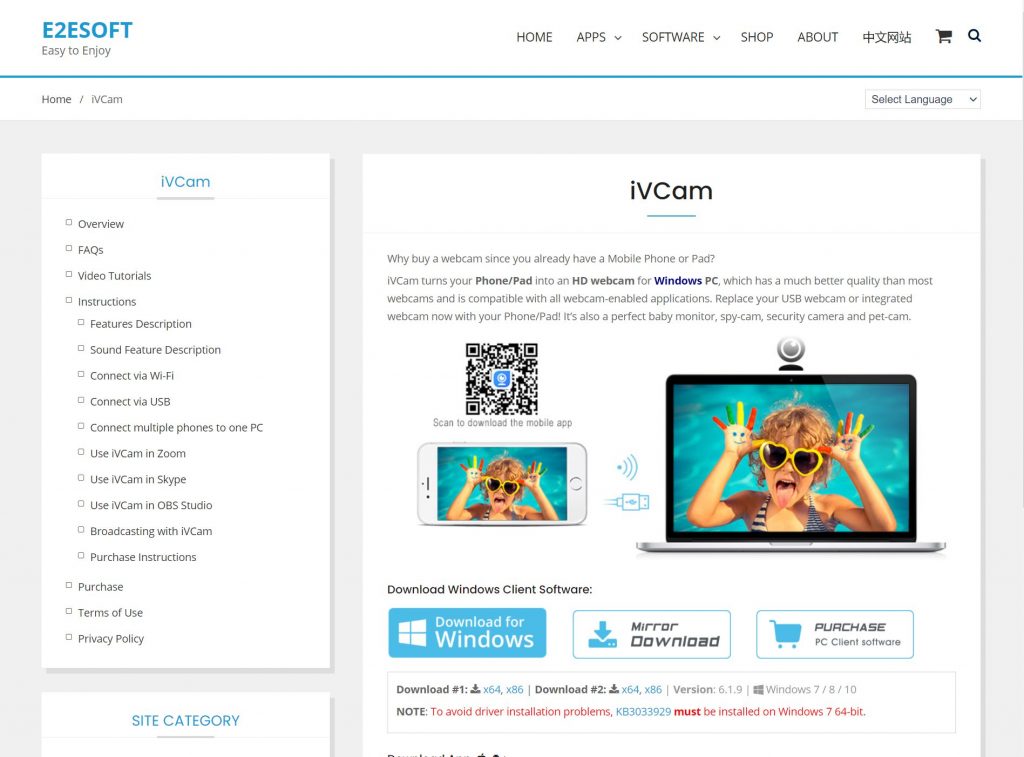
However, if you really want an external webcam that is your Apple-made phone, you can download iVCam on your iPhone, iPad, and PC to get started. Note that the free version of iVCam won’t pick up on your iPhone’s microphone. You’ll have to use a dedicated microphone or Bluetooth earbuds connected to your iPhone in its place. The $20 version of the app on Windows 10 will unlock these features and remove the ads that you’ll see on your iPhone’s screen while using the app. It might be a cheaper purchase for some vs spending on a new webcam.

‎iVCam Webcam
‎iVCam Webcam
Developer:
俊红 柴
Price:
Free+

Install and run the apps

Ivcam

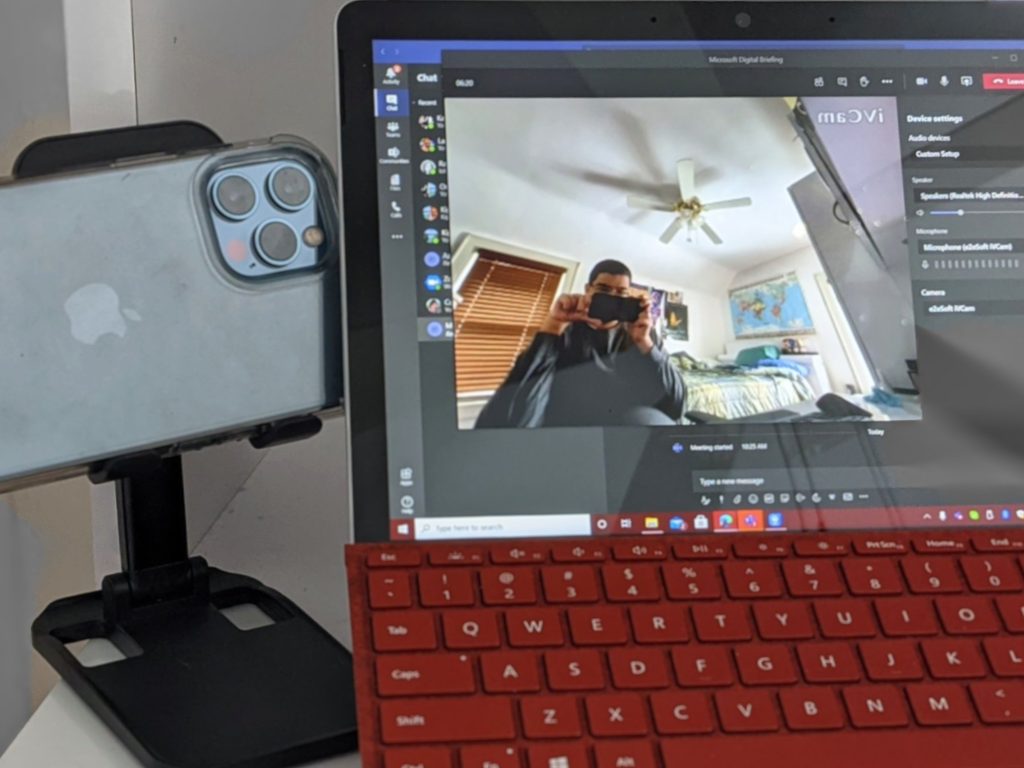
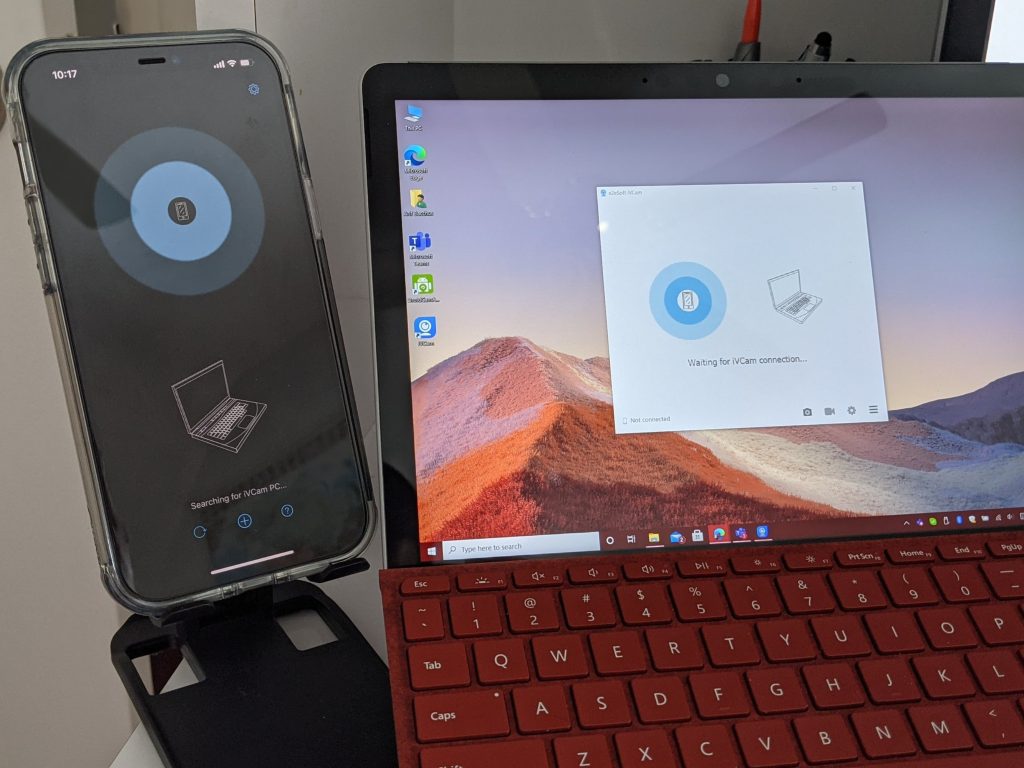
Once downloaded, be sure to install the apps on your iPhone, iPad, and PC. On your PC, just double-click to launch iVCam after it installs. On an iPhone or iPad, just look for the app on your home screen, launch it, and then give it the permissions. Once you launch the Windows 10 app and have the iPhone app running, you’ll see that the Windows 10 app will start showing your iPhone’s camera feed.

Ivcam Teams
Selecting iVCam in Teams

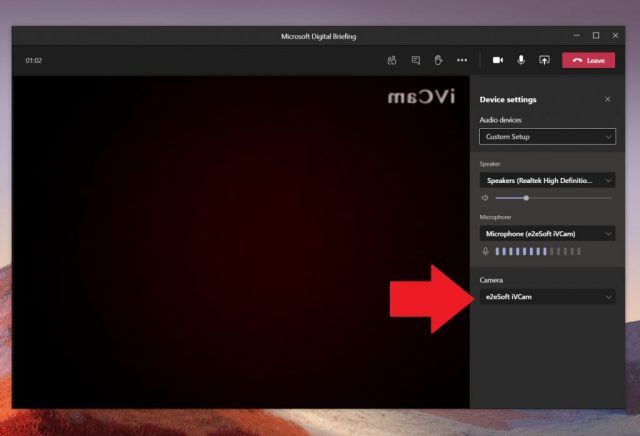
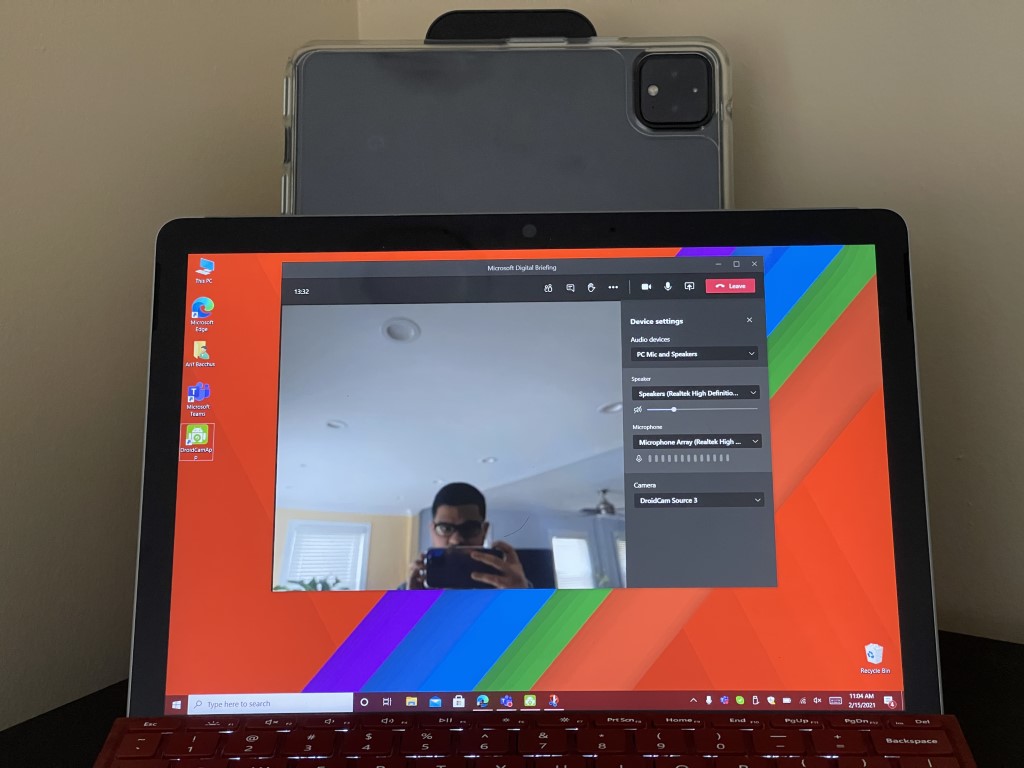
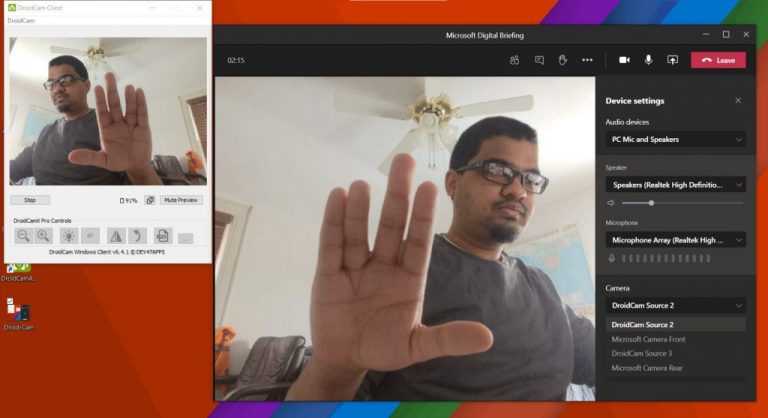
Once you see the camera feed running, you’ll just need to switch your camera input from within Microsoft Teams. Head into your camera settings during a call by tapping the three-dot button at the top right of the screen. Then, click the Device Settings button. From the list on the right side of the screen, choose e2eSoft iVCam as your camera input.

How are you enjoying Teams?

Thanks to iVCam as well as DroidCam, you can enjoy using your iPhone and Android as a webcam when one isn’t avaialble to you. This will likely help you get a lot more out of Teams. This is why we remind you that you can check out our dedicated Microsoft Teams hub for more how-tos, guides, and tips and tricks just like this one!

Photo Noise Reduction Software: 6 Best We Tested in 2026

With a noise reduction tool, you can fix those blurred or noisy pictures that detract from the quality of your photos.

Noise, which disrupts pixel clarity and prevents accurate color representation, can be effectively managed with the right software. To save you time, we listed the best options, tested by our experts.

Check them out.

What are the best noise reduction software to fix your photos?

inPixio Photo Studio Pro 12

inPixio Photo Studio Pro 12 offers a user-friendly approach to noise reduction, making it easy to enhance your photos.

The software provides intuitive sliders to address different types of noise.

The Reduce Noise slider helps smooth out graininess and pixelation, which is especially useful for low-light photos.

You can also adjust Color Noise to remove unwanted colored specks that often appear in shadowed areas.

Additionally, the Radius slider lets you control how much denoising affects each pixel, allowing you to strike a balance between smoothing and preserving details.

Other features:

  • Automatic red-eye correction
  • Multiple photo styles worthy of a professional photographer
  • Remove any object, background, or persons
  • Share button for Facebook and Twitter
  • Sky switch between landscape photos
  • Photomontage
Photo Studio Pro 12

Photo Studio Pro 12

Reduce noise, and edit your photo with one of the best and simplest software.
Check price Visit website

Adobe Photoshop

photoshop noise reduction

Reducing photo noise in Adobe Photoshop is simple and effective. Start by opening the Edit menu and accessing the Detail panel.

Use the Noise Reduction slider to smooth out graininess, adjusting carefully to avoid losing fine details. Click the 1:1 icon for a better view of the noise.

Additionally, use the Color Noise Reduction slider to address any color specks.

Other features:

  • Powerful photo editing and repair toolkit (crop, remove objects, retouch, resize, add color, and effects, etc.)
  • Unlimited layers, masks, and brushes (fully customizable or design your own)
  • Real-time cloud-based storage and back-up
  • Object Selection tool to create fast and precise selections
  • Seamless integration with other Creative Cloud services and hundreds of third-party apps
  • Compatible with any platform and device from Windows, to mobile, with full support for stylus and touch technology
Adobe Photoshop

Adobe Photoshop

In search of a good photo noise reduction tool? You cannot go wrong with the world’s imaging and best graphic design software.
Free trial Visit website

Corel PaintShop Pro

remove noise paint shop pro

Corel PaintShop Pro is a powerful tool for reducing photo noise with ease.

To start, go to the Edit menu and select Adjust, then click on One Step Noise Removal. Adjust the Small, Medium, and Large settings based on the Link detail sizes checkbox.

Set the Correction Blend Control to your preferred level, ranging from 0 (no noise reduction) to 100 (full processing). Fine-tune the settings as needed and click OK.

It efficiently removes noise while maintaining photo quality, making it an excellent choice for enhancing your images.

Other features:

  • Organization and photo management tools (save, transfer, export and share your assets in numerous formats)
  • Content-aware SmartClone feature (easily merge elements from multiple images)
  • Simplified workspace (for quick photo edits and subtle adjustments)
  • The Selection tool (for extreme precision and accuracy)
  • Retouch and restore with unlimited layers and masks, 360° photo editing, HDR effects, batch processing and more
Corel PaintShop Pro

Corel PaintShop Pro

Reduce noise and enhance your photography to perfection with Corel!
Free trial Visit Website

Adobe Lightroom

lightroom noise reduction

The lightweight alternative to Photoshop is yet another app from the Adobe Creative Suite with equally impressive capacities when it comes to dealing with photography.

This nifty tool delivers the same professional editing instruments as Photoshop but also brings to the table much-needed storage, photo management, and sharing options to accelerate your workflow.

When it comes to reducing excess noise in your photos, Lightroom offers the same easy and comprehensive tools that Photoshop delivers, with a higher degree of flexibility.

This means you can easily start your work on the desktop and finish it on the go, from your smartphone.

Other features:

  • Photo editing and photo management tools in a centralized location
  • Generous cloud-based storage starting from 20 GB to access and edit your projects anytime and anywhere
  • Step by step, in-app tutorials, plus inspirational content from professional photographers
  • Panorama fill edges
  • Local Hue adjustment for subtle adjustments that do not impact the colors in your entire image
  • Extensive settings customization for raw photos
Adobe Lightroom

Adobe Lightroom

Light and friendly, but immensely powerful, Lightroom will revolutionize your photo editing flows to the core!
Free trial Visit website
cyerlink photo director noise reduction

PhotoDirector caters to professionals without sacrificing on ease-of-use.

This unique combo of comprehensive, expert-grade photo editing tools and intuitive, uncluttered UI makes the PhotoDirector one of the best photo editors to deliver professional results.

The tool is loaded with blending modes, unlimited effects and masks, customizable templates, and many more.

This feature-rich AI-powered software allows you to eliminate noise by adjusting luminance, details, and colors with simple sliders.

Let’s quickly look at its key features:

  • Creative blending modes, filters, effects, and layers.
  • Animation toolkit and video editing capacities.
  • Customizable Warped Text Layers.
  • A generous array of brushes.
  • AI-Powered Deblur feature and advanced Color Replacement.
  • Content-Aware Remove, Move & Clone functions.
Cyberlink PhotoDirector

Cyberlink PhotoDirector

This professional photo editing software will help you enhance your photos with enhanced features and tools.
Free trial Visit website

Noise Reducer Pro

systweak noise reducer pro

You are now able to reduce the noise in your photos with this noise reduction app for Windows.

This efficient software will help you remove noise from your digital favorite digital pictures, and it will smoothen them gently. You’ll be able to eliminate the irregularly tinted pixels for good.

When you are not using the Auto mode, the Custom Slider will provide you with complete control to adjust the noise reduction level that will help you make your pictures flawless.

Let’s quickly look at its key features:

  • Automatically removes noise with no clicks required
  • Shows real-time noise reduction process
  • Compares original and final images with a vertical bar
  • Zooms in up to 200% to inspect noise levels
  • Simple and user-friendly interface

⇒ Get Noise Reducer Pro

These are the best Windows-compatible noise reduction tools that you can find out there.

No matter on which one you’ll decide, we can assure you that every one of them is like a brand new feature added to your camera that will definitely enhance the quality of your photos.

All you have to worry about from now on is finding the perfect scenery or people for your pictures. Have fun!

Outlook for Windows adds “Meet Now” button to start Teams meeting even faster

Microsoft has released a new Meet Now integration for its Outlook for Windows client that should make it easier than ever to start a Teams meeting. The feature was spotted by Microsoft MVP Randy Chapman, and it’s gradually rolling out to all commercial and GCC tenants.

The new Meet Now button enables users to start an ad-hoc Microsoft Teams meeting from the Calendar Tab ribbon in the Outlook desktop client. When the user clicks that button, a new private meeting will start in Teams, and they can then invite other people to join the meeting. The feature works similarly to the function available in the Teams client calendar app, and it’s also coming to the iOS version of the app to follow in the coming months.

Keep in mind that there are specific requirements to use the Meet now button in Outlook. First of all, the Teams and Outlook desktop apps should be installed on a Windows PC. Secondly, the Teams add-in must be enabled in the Outlook client to use this feature.

In addition to the Meet Now experience, the company has also added a new option for Teams and Outlook users to set their calendar options so all new meetings will be created as online meetings. To get started, users need to head to Outlook Options, > click the Calendar tab, and enable the “Add online meetings to all meetings” setting under the Calender options.

This capability is already available in Outlook on the web and Outlook for Mac, and it is not compatible with third-party online meeting providers. With more employees working from home than ever before, the new meeting experience should help to boost the productivity of remote teams.

4 Best Image Warping Software to Use in 2026

If you’re looking to fix distortions or get creative with your photos, photo warping is the way to go. This technique allows you to correct image issues or have fun by turning ordinary images into hilarious caricatures or spooky animations.

While photo warping isn’t usually found in standard editing apps, there are some great tools designed specifically for this purpose. In this article, we’ll explore some of the best options available,

What is the best photo warp tool to add some fun into images?

inPixio Photo Studio Pro 12 – easy built-in photo warping tools

InPixio Photo Studio Pro 12 is a versatile tool enjoyed by both beginners and professionals.

Its features include removing unwanted details without compromising image quality, changing backgrounds with the Cutter feature, and erasing objects or noise with just a few clicks.

You can also remove watermarks, edit landscapes, and replace skies with options from its library.

The Erase feature allows you to restore old photographs by eliminating imperfections, and you can easily share your creations on social media.

Photo Studio Pro 12

Photo Studio Pro 12

Unleash your imagination and take your photography skills to the next level with this special tool!
Check price Visit website

Adobe Photoshop – highly customizable warping features

When it comes to photo editing, Adobe Photoshop is simply unbeatable and photo warping makes no exception.

Beautifully equipped to let you bend photography to your will, it brings you an Enhanced Transform Warp to use for anything from subtle image retouching to total transformations.

Add control points anywhere or divide your image with a customizable grid and transform it by individual nodes or a larger selection.

The Warp command lets you drag control points to manipulate the shape of images, shapes, or paths. You can also apply Puppet Warp to layer and vector masks to nondestructively distort images.

Some key features include the Enhanced Transform Warp function and the Object Selection tool that allows you to create fast and precise selections by drawing a simple rectangle.

Adobe Photoshop

Adobe Photoshop

Get creative and experiment with your photos as much as you like with Photoshop’s rich set of features.
Free trialVisit website

Morpheus Photo Warper – supports animations

Morpheus Photo Warper is a powerful tool for exaggerating, modifying, or distorting photos to create animated images.

It’s compatible with Windows and macOS, supporting all Windows OS from 98SE onward. With an intuitive UI, it’s accessible for both amateurs and professionals, allowing for quick and easy setup to create warped images in seconds.

Features include animation sharing, warp zooming, previews, and support for multiple formats like GIF and SWF. Morpheus Photo Warper is available in Standard and Professional editions.

⇒ Download Morpheus

Magic Mirror – fun effects for distorted photos

magic mirror

Magic Mirror by Zeallsoft is a Windows-only photo warp software designed to deform photos for creating comic pictures or eerie animations.

Its standout feature is the “magic mirror” effect, allowing zooming in and out of photo parts while leaving others unchanged, enabling distortions like bulging or depressing facial features. You can modify noses, mouths, eyes, and ears with ease.

The software also offers standard editing tools, image resizing, selective distortion, an intuitive UI, and support for PNG, JPEG, BMP, and GIF formats. It includes free lifetime support and a 30-day free trial.

⇒ Download Magic Mirror

So if you were wondering what is the best photo warp tool for, creating animations, caricatures, or distorted artworks (photos), simply go for one of the above-listed tools.

Let us know what convinced you in the comments section below.

Dirt 5, Wreckfest, and more are coming to Xbox Game Pass this month

Microsoft has just revealed the second wave of new games coming to Xbox Game Pass in February. There are two new racing games with Wreckfest and Dirt 5, the latter being a cross-gen title that was also a launch game for Microsoft’s Xbox Series X|S consoles. Other new titles in the list include Elite Dangerous, Killer Queen Black, and Pillars of Eternity 2: Deadfire – Ultimate Edition, and you can find all details about platforms and availability dates below:

  • Code Vein (PC) – February 18
  • Pillars of Eternity 2: Deadfire – Ultimate Edition (Cloud and Console) – February 18
  • Wreckfest (Cloud, Console and PC) – February 18
  • Killer Queen Black (Cloud and Console) – February 23
  • Dirt 5 (Cloud, Console and PC) – February 25
  • Elite Dangerous (Console) – February 25
  • Superhot: Mind Control Delete (PC) – February 25

The Xbox team also announced today that Monster Hunter: World is now cloud-enabled, and seven other Xbox Game Pass games now support touch controls on Android: The list includes Bridge Constructor Portal, Morkredd, Neoverse, Nowhere Prophet, Spiritfarer, The Little Acre, and Yooka-Laylee and the Impossible Lair.

In case you missed it, we also reported this morning that six games will also leave the Xbox Game Pass catalog at the end of the month, including Dirt 4 (to be replaced by Dirt 5), Oxenfree, and Vambrace: Cold Soul. Overall, this is a pretty good month for Xbox Game Pass with several high-profile games joining the game subscription service. If you manage to get your hands on an Xbox Series X|S, you may want to give Dirt 5 a try as this is one of the few optimized games that offers different visual settings, with the ability to push frame rate to 120FPS if your screen supports it.

Easy to Use Resizing Software: Top 5 Picks of 2026

Whether you want to reduce the size of or enlarge an image, reliable resizing software will make your job easy. The options we list below aren’t just easy to use but maintain great photo quality.

Check them out:

What are the best image resizer tools for Windows?

inPixio Photo Studio

InPixio Photo Studio simplifies resizing images. You can quickly upload your photo, choose from preset sizes or enter custom dimensions, and adjust with ease.

We can assure you that this tool preserves the original aspect ratio, ensuring your images stay sharp and professional.

It’s suitable both for visuals for social media and print. Plus, sharing or saving is a easy.

inPixio Photo Studio

inPixio Photo Studio

Take complete control over image resizing and make sure your pictures are never blurry.
Free trial Visit website

Adobe Photoshop

Adobe Photoshop is the industry standard in photo editing and digital art.

You can use this tool to edit your photos as you want: crop them, resize them, remove objects, combine multiple images into a single one, add effects, and so on.

Speaking of editing photos, resizing images has always been tricky due to image quality loss issues. But thanks to Photoshop, you can now resize images and photos without quality loss.

Adobe Lightroom

Interface of Adobe Lightroom

If you’re looking for a simple way to use image resizer software, then Lightroom might be just what you need.

The tool has a simple-to-use interface where you can easily find the pictures that you want to resize, crop, or edit according to your preferences.

Overall, Lightroom is a solid tool for resizing images, but it also supports some advanced bonus features like support for social media, cloud base photo storage, and in-built tutorials.

Adobe Lightroom

Resize any photo in seconds with this light and easy tool!
Free trial Visit website

Fotor

Another great tool that can work as an image resizer is Fotor. It has many features available, including retouching, cropping, resizer, splitter, and several more.

Fotor is an incredibly powerful tool, and with the ability to convert and resize files, it will be a perfect choice for many users.

Fotor

Create, adjust, and resize any image with just a few clicks!
Check price Visit website

Luminar

luminar

Luminar is a revolutionary software with incredibly powerful photo editing capacities that will allow you to resize, adjust, refine, any image to perfection.

Boasting a unique combination of professional AI-based design features and an intuitive interface, Luminar makes the perfect choice for any user from advanced to novices.

⇒ Get Luminar

That completes our list of best image resizer tools. Any of them will definitely help you out with your pictures without losing quality. You can also learn a quick way to resize pictures using the built in Photos app by reading our dedicated guide.

If you have other solutions to suggest, let us know in the comments below.

How to Resize a Picture for the Desktop Background [2026]

We all know that when surfing the web we come across some cool images that we’d like to keep as desktop background or just add to the collection and use later. It can be very useful to know how to trim and resize the pictures so they’ll fit your desktop just right

Users have discussed how to resize images to desktop size in the Microsoft forum:

We have compiled a few efficient solutions that will allow you to resize images to desktop size. Read the following section and learn how to modify the size of an image to fit your desktop background.


What can I do if I want to resize an image to desktop size?

1. Use a dedicated software

If you need to increase the size of an image using the programs already encompassed in Windows might not always provide the desired effect.

The more efficient way to do this is to use professional software dedicated to image manipulation.

We recommend you use Adobe Photoshop, dedicated software that is useful for a great variety of editing activities. It allows users to perfect their skills in photo editing, animation, digital painting, and graphic design.

Your ideas will be brought to life on various devices and you can use the AI to transform images just how you want them to look.

If you use Livestream, you will also learn new skills and discover a fast way to share your projects.

Adobe Photoshop

Adobe Photoshop

Change the size of images and transform them in any way you want with the use of Photoshop’s powerful editing tools!
Free trial Visit Website

2. Use the Photos app

  1. Double-click on your image to open it in Photos.
  2. Click the three dots icon in the top right corner and select Resize.
    Select Resize in Windows Photos
  3. Select one of the three preset sizes or click Define custom dimensions.
    Options to resize image in Windows Photos
  4. Select your desired dimensions and click Save resized copy. 

Windows 10 has a useful application that allows you to modify your pictures. When you use Photos, it will be easy to resize images to desktop size.

If you opt for the custom dimensions mentioned in step three, then you will have access to the size of your image. Another great thing is that you can also choose the quality of your resized image.

Keep in mind that when you choose a higher quality for your picture, this will also increase the size of the image file.

Also, if you have checked Maintain aspect ratio, you must change only height or width, and the other criteria will change automatically to match your choice.

You can also follow a complete guide that explains more ways to resize pictures with the Photos app by visiting our dedicated guide.


3. Use Microsoft Paint

  1. Type in Paint in the search box near the Start button.
    Open Paint
  2. Click on File, select Open and choose your image.
    Open image in Paint
  3. From the Home tab, click Resize and navigate to Resize and Skew.
    Resize and Skew in Paint
  4. Set the size for your future resized image.
  5. Click OK to implement changes, select File and Save As to save the new image.

After you have selected the desired image for resizing from your computer files, verify the Resize and Skew section in Paint. To resize the image to the desktop size or to add other values in terms of height and width, there are two variants.

The first one is to choose setting image size by percentage, making it X% bigger or smaller. The second one is to adjust the image by Pixels and input the dimensions you want for the new image.

When you have chosen to resize the image to desktop size by Pixels, you can check the Maintain aspect ratio. In this case, you must only specify the desired height or width for your future resized image.

The program will automatically set the other dimension.


You can try different solutions to resize images to desktop size. In our previous section, we have prepared the best and most efficient ones.

Use professional software that offers lots of possibilities in terms of image editing. The best tool in this regard is Adobe Photoshop, and we highly recommend it to create an image just how you desire it.

The other two programs you can use are Photos and Paint, available to use in your operating system.

Let us know in a comment how everything worked out.

5+ cheap & easy-to-use photo editing software [User friendly]

With the proliferation of smart devices packed with professional built-in cameras, taking photos has become almost second nature these days.

But taking a photo is just the tip of the iceberg. You also need to have somewhere to store them just as you need a good photo viewer and photo editor.

As computer users continue with the transition to the Windows 10 operating system, it is imperative that most, if not all, applications and programs are compatible with this OS.

So, if you need to work on your photos and/or images, here are the best photo editing software for Windows 10 that will take your pics to the next level ASAP!


What are some easy photo editing software for Windows 10?

inPixio Photo Studio Pro

Whenever you think of photo editors, you probably think of tools that require you to have a vivid imagination, a powerful PC, and an above-average budget.

While the first requirement is somewhat of a must, the latter aren’t so much, especially if you use inPixio Photo Studio Pro 11.

What makes this tool stand out is just how active the developement team seems to be behind it, constantly improving the toolset, making it easier to use, richer in features, and lighter on your PC.

It has all of the tools you’d ever need from a photo editor, such as the ability to crop objects out of images without leaving a trace!

More so, the program caters to beginners as well thanks to the interactive assistant, as well as the multitude of tutorials, both traditional and interactive, that will get you started in no time at all!

Photo Studio Pro

Remove objects, tweak images, remove imperfections from portraits, and more, all with inPixio Photo Studio!

Adobe Photoshop

Adobe Photoshop is designed for hardcore professionals who need all the advanced goodies in one package. Why is this photo editing software a key resource for your activity?

Firstly, Adobe Photoshop has got a huge Color Palette and fully customizable features. You may crop, remove objects, and combine photos in a blink of an eye.

Lens Blur offers a realistic look when blurring an object in the foreground and the included masking tools are also unmatched in the business

You’ve got unlimited layers and masks to choose from when spicing up your stunning images as well.

Let’s quickly look at its key features:

  • Other leading-edge features that make it worth trying are fast editing controls, professional retouching capabilities, brushes that you easily control with a stylus or touch on iPads, and adjustment layers for non-destructive editing.
  • Unlike other similar tools, Adobe Photoshop syncs with multiples devices, and your work is always automatically saved to the cloud.
  • Overall, Adobe Photoshop is a strong professional editing software for Windows 10, yet you don’t have to be an editing master to use it or to spend too much time. Its cutting-edge photo editing capabilities will do the job for you.
Adobe Photoshop

Adobe Photoshop

Unleash your creativity and craft stunning photography with the world’s best imaging and graphic design software.
Free trialVisit website

Adobe Lightroom

Adobe Lightroom creativity software

There are plenty of photo editing software tools available in the market to explore, yet you can’t go wrong with Adobe Lightroom. If your goal is to capture and edit stunning images, don’t look any further.

Its photo editing tools are a powerful yet easy-to-use alternative to other complicated creativity software options. Lightroom gives you the full package to edit photos and make them really pop.

For that to happen, you’ll want to check out the in-app Lightroom tutorials and comprehensive content from professional photographers as they take you through their process and share useful tips.

Let’s quickly look at its key features:

  • To avoid clutter, take advantage of the Adobe Sensei machine learning that recognizes people and themes, making finding photos or creating albums as easy as pie.
  • Store and share amazing photos across all your devices. Just keep in mind that cloud storage starting at 1TB is there to ensure that you can access your library from any location.
  • Friendly user interface (That’s perfect especially if you have never used this type of software before).
Adobe Lightroom

Adobe Lightroom

Be inspired, have fun, and enjoy photography with this light and friendly app that will satisfy all your editing needs.
Free trialVisit website

FOTOR

photo editing software for Windows 10

When all you want is to quickly edit photos with high-quality finishing, then Fotor is your best photo editing software for Windows 10.

Its tools include premium filters, one-click photo enhancement, batch photo processing, and vibrant color effects. Its unique feature is the batch photo processing tool that lets you filter volumes of photos at a go, with less stress, and saves you editing time.

Let’s quickly look at its key features:

  • You can apply scenes, effects, add borders, and much more to batches of photos with one click.
  • You can also create photo collages with more than 20 different layouts to get your desired look, adjust patterns and colors to get a polished touch on your photos, but there’s also an option for Freestyle Collage if you don’t like ordered things.
  • Fotor’s Tilt-Shift tool lets you mix focus with either clear or selective blurring, giving your photos depth as would be done by a DSLR camera.
  • Add text, borders, and mash-up different effects on your photos, then import or export them in different image formats such as JPG, TIFF, and PNG, or convert RAW files if you so wish.
  • 13 different 1-tap photo enhancement scenes that touch up your photos depending on the conditions they were shot in.
Fotor

Fotor

Create, adjust, and edit any photo to perfection with just a few clicks by using Fotor, an awesome design software!

CorelDraw

CorelDraw Graphics Suite .eps files

CorelDraw is an all-in-one vector illustration, layout, and photo editing software designed for professional use. But there is no need to get intimidated for this graphic art suite is as powerful as it is flexible.

You can pair it with a pen-compatible tablet or ditch the stylus completely and focus on the touch experience to edit your photos quickly and efficiently.

With exceptional bitmap-to-vector trace results and AI-powered image solutions, you can elevate your photography to art level effortlessly.

Let’s quickly look at its key features:

  • Enlarge images without losing detail
  • Eliminate noise from highly-compressed JPEG images
  • Smart Selection tool
  • Powerful layer-based photo editing tools
  • Adjust color and tone, remove imperfections, and correct perspective
  • Create High Dynamic Range photos from your RAW images
  • Change the transparency and fill objects with patterns, gradients, and more
  • Non-destructive editing features
CorelDraw

CorelDraw

Experience AI-powered bitmap-to-vector trace technology with impressive results!
Check priceVisit website

Aurora HDR

This award-winning software is known as the world’s most advanced HDR photo editor for good reasons.

Acting as a standalone app or as a plug-in, Aurora HDR is as powerful as it is versatile and committed to delivering spectacular AI-powered photography enhancement every time.

Let’s quickly look at its key features:

  • Artificial Intelligence-powered color enhancement
  • 20+ essential tools for HDR editing
  • A polarizing filter, color toning, HDR Denoise, dodge & burn, details enhancer, and many more
  • Powerful layers, blending modes, masking and many more
  • Bulk processing engine for batch processing
  • Native RAW files support

⇒ Get Aurora HDR now


Have you found the photo editing software of your dreams yet? Share your favorite pick in the comments section below.


Assassin’s Creed Valhalla video game updates on Xbox with new replayable River Raids mode

Assassin’s Creed Valhalla’s latest update, Update 1.1.2, will begin to roll out to owners of the title on all supported platforms today including Microsoft’s Xbox One and Xbox Series S and X consoles.

This update brings an absolutely massive number of minor fixes and changes to the game (which can be read about here) but the more noteworthy additions include that of a new River Raids mode and several new abilities and skills.

Here’s what you need to know about each:

We added in-game support for River Raids.

Prepare your Jomsviking crew for this new highly replayable mode that will take you to unexplored regions of England, which is full of raiding opportunities. New loot, rewards, and challenges await the Raven Clan!

The River Raids Mode is part of the Yule Season content. It is free for all Assassin’s Creed® Valhalla players, and it is accessible in-game after downloading Title Update 1.1.2.

NEW ABILITIES

  • Berserker Trap: This attaches a trap to your arrow, spreading hallucinatory powder. Any nearby movement causes the trap to trigger. Surprise clueless passersby!
  • Battle Cry: In a fit of rage, Eivor lets out a blood curdling scream, gaining strength and causing nearby enemies to stumble backwards in fear, interrupting their attacks.
  • Shoulder Bash: Eivor performs a shoulder bash that pushes back enemies and destroys objects.

NEW SKILLS

  • Assassin Carry: Automatically carry a body after a successful assassination.
  • Assassin Slide: Slide into enemies and knock them off balance while sprinting.
  • Power Stroke: Trigger a speed boost on the long ship at the cost of stamina.
  • Arrow Looter: Eivor has a greater chance of looting arrows from archers.
  • Fight Ready: Always start a fight with an adrenaline-filled slot.
  • Long Ship Brace: When you are in command of the long ship, the crew will raise their shield with you.

As with previous updates, this Assassin’s Creed Valhalla update is completely free for all players and should automatically download as soon as it goes live (at 1 PM CET, 7 AM EST, 4 AM PST, and 11 PM AEDT.) Download times may vary though as it comes in at 18.04 GB on PC, 15.27 GB on Xbox One, and 19.53 GB on Xbox Series S and X.

Are you enjoying Assassin’s Creed Valhalla? Let us know why or why not in the comments below and then follow us on Twitter and Facebook for more Xbox game news.

Assassin's Creed® Valhalla
Developer:
UBISOFT
Price:
Free

Microsoft’s GroupMe app gets a small update on Windows 10 with fixes and improvements

Microsoft’s little communications app, GroupMe, received a small update for Windows 10 devices today.

This latest update fixed some issues that were causing app crashes and also squashed several bugs that were preventing videos from uploading properly. Some group changes were also made.

Here’s the full release notes:

  • Set request to join on your groups and accept/decline membership requests
  • Fix video uploads failing
  • Fix some crashes

GroupMe is a tool used for connecting users across devices and helping them communicate via text messages and media. GroupMe apps are also available on iOS and Android devices in addition to being accessible via the web.

Do you use GroupMe? Let us know how often in the comments below and then follow us on Facebook and Pinterest for more Microsoft app content.

GroupMe
GroupMe
Developer:
Skype
Price:
Free

FIX: Adobe Creative Cloud download error

Adobe Creative Cloud encourages you to explore your creativity with over 20 desktop and mobile apps. Enjoying access to thousands of fonts or creating your very own portfolio website feels liberating with this amazing tool.

The only problem is that not everyone has the chance to take advantage of it since many users have reported repeated Adobe Creative Cloud download errors.

The error message states: Download error. Please retry to try again or contact customer support. If you see it too, we’ve compiled a list of the quickest solutions that you can use to get around this inconvenience.


How can I fix the Adobe Creative Cloud download error?

1. Install the latest version of Creative Cloud

There are times when only a complete reinstallation of the most recent version allows the Adobe Creative applications to function properly again.

Therefore, don’t hesitate to hit the download link below instead of worrying about download errors. The issue will be gone for good and you’ll get back to your routine.

Adobe Creative Cloud

Adobe Creative Cloud

Don’t let downloading issues ruin your creative process. Get the latest product version, with all the fixes included.
Free trialVisit website

Need more help with installing Creative Cloud? Check out this guide!


2. Remove the OOBE and AAMUpdater folders

Remove the OOBE and AAMUpdater folders
  1. Quit the Creative Cloud desktop app.
  2. Navigate to Users>AppData>Local>Adobe.
  3. To view the hidden AppData folder, see Show hidden files>folders>filename extensions.
  4. While here, locate the AAMUpdate and OOBE folders.
  5. Remove them both right away.
  6. Relaunch the Creative Cloud desktop app from the Start menu. At that point, the AAMUpdater and OOBE folders will be immediately recreated.

3. Check your Internet connection

Internet connection

Do note that the Creative Cloud desktop app requires a stable Internet connection to properly download apps. Verify that you are connected to the Internet and click Retry.

Moreover, did you know that your antivirus can block the Internet connection? Check out this quick guide to find out more.


4. Temporarily disable antivirus software

temporarily disable the antivirus

On your Windows 10 computer, the Windows Defender antivirus is often a reliable anti-malware solution to protect your computer from unwanted viruses, spyware, and many other forms of malware.

So you may want to disable it temporarily during the downloading process. In fact, nearly all antivirus protection programs can be disabled for a while.

You’ve got nothing to lose when trying out this option as well. However, if you do get the confirmation that the antivirus is the culprit, it might be the ideal time to change it with less intrusive security software.

Our recommendation on this note is Vipre, for it’s low impact on resources and useful set of tools that offer powerful and efficient protection against cyber-attacks.


These amazing uninstallers will help you to remove any traces of your old antivirus from your PC.


Which of the solutions mentioned above helped you bypass the Adobe Creative Cloud download issues? Let us know by leaving a message in the comments area below.


5 Best adblockers for your Android browsers

Pop-up and video ads are a nuisance and ruin the browsing experience. Some websites won’t even let you press the back button and force you to click on some ads.

To avoid this, many browsers come with built-in ad blockers. However, this is not the case when it comes to the Android browser.

Thankfully, there are plenty of third-party adblocker apps that can help you resolve this issue. That said, some of these ad blockers for your Android browser requires a rooted device.

This article lists the five best adblockers for your Android browser that can block systemwide ads. However, do note that almost all these apps required manual installation using the APKs.


What are the best adblocks for Android browsers?

AdAway (Root only)

 adblockers Android browsers

AdAway is one of the most popular ad blocker app available for the Android browser. It helps surf the web without annoying ads offering a cleaner, faster web by blocking ads. However, using this app requires root access.

It is a free and open-source project for Android using the hosts’ file. When an app requests an ad from a host in that file, this request is redirected to the local IP, which does nothing.

AdAway also offers an option to run a local webserver to respond to the blocked hostname and redirect requests to the IP address of your preference.

Download and install the APK from the provided link. You may also need to give permission to install apps from unknown sources to install AdAway.

⇒ Get AdAway


AdGuard 

AdGuard works similar to AdAway; however, you can use it on both rooted and non-rooted devices. Although, on non-rooted devices, you need to take some extra steps to setup the app.

AdGuard is a premium ad blocker for Android that removes ads in apps and browsers, protects privacy, and helps you manage your apps. After installing the app, you can enable or disable ad blocking manually.

Furthermore, it allows you to manually enable or disable ads for a website that you regularly visit. The app shows how much data is saved by blocking the ads.

⇒ Get AdGuard 


Block This

 adblockers Android browsers

Block This may not be among the most popular ad blocker apps for Android, but it is effective. It is a free open source ad blocker for Android that works on all apps and browsers.

It also provides additional benefits of malware protection, increases page loading speed, and reduces data consumption by blocking pop-up and video ads on websites.

Similar to other apps in the list, Block This is not available on Google Play Store. You have to download and install it using the official APK from the developer’s website or GitHub page.

⇒ Get Block This


Adblock Browser

 adblockers Android browsers

Adblock Browser is not an ad blocker but a full-fledged Android browser developed by Adblock built around adblocking. It offers Adblock Plus features on mobile, and allows you to stream videos without any interruption, and maximize your data and battery.

Adblock Browser is based on Chromium, so if you use Google Chrome as your default Android browser, switching to this browser won’t be an issue. It also comes with privacy feature that blocks ad trackers and all kinds of ads, including video ads, and banner ads.

Filtering options in the browser does offer the option to whitelist or blacklist website that you want to support by not blocking ads on selected websites.

⇒ Get Adblock Browser


AdShield – Ad blocker

 adblockers Android browsers

AdShield is an ad blocker and DNS changer that supports Wi-Fi, mobile data, and IPv4 and IPv6, running on your Android phone and tablet. It can block ads, banners, adult websites while consuming fewer data to load web pages.

AdShield adblocker can also prevent advertisers from tracking your behavior and saves battery as well as a data plan. It runs on almost all Android browsers, including Chrome and Firefox.

⇒ Get AdShield


Ads are annoying, and some ads like pop-up and video ads can be frustrating as they drain your battery and consume a lot of mobile data.

All the ad-blockers listed in this article can block ads on the Android browser. What do you think? Let us know your pick in the comments below.


Is your Work VPN Slow at Home? Make it Faster

We’ve already established that corporate VPNs work differently from personal VPNs.

We’ve also explained a bunch of differences between them and individual VPN services.

Thus, you can have a better understanding of specific phenomena that might occur while using them.

For instance, most users wonder why corporate VPNs are generally slower than their personal counterparts.

If you’re rather tech-savvy, you might think that it’s because this type of VPN caters to the needs of multiple users at once, so work VPN slows down internet and you aren’t far from the truth.

However, the reasons why a VPN (even a corporate one) is acting slowly may vary, and we’ll tell you all about them.

Why is my VPN so slow?

First and foremost, we must remember that both corporate and individual VPNs are basically the same type of service.

Thus, individual users might experience slow VPN connections for the same reasons as corporate users. We’ll break them down for you here:

1. You’re using a Wi-Fi connection instead of a wired one

Although your Internet connection might be quite fast by default, connecting to a VPN might slow it down.

Much so when you’re using Wi-Fi, which is slower than using a wired connection.

Therefore, you might want to establish a wired Internet connection and check if there’s any speed improvement.


Your Wi-Fi connection is slow? Make it faster with the software in this awesome list.


2. Your device might not be powerful enough

Some devices just aren’t built for speed, and that shows.

If you want to rule out that your device, is, in fact, the common denominator, just try installing the VPN on a different device (if possible) and see if you achieve the same speed values.

This goes especially for wireless-capable (phones, tablets, laptop) devices.

3. Have you rebooted your router lately?

Every tech support and IT crew will tell you the same old thing: have you tried turning it off and on again?.

It’s quite common knowledge by now that if your Internet speed is slow, one of the first things you should do is restart your router.

Memory leaks or infrequent connections can mess up its ability to maintain a stable connection speed, so try rebooting it before swearing off using a VPN.

4. Try a different server

If you remember using the VPN at decent speeds and it decided to throw you a fit out of the blue, you might want to check the server.

More often than not, this is the main reason why a VPN is suddenly slow.

If picking a different server from the same country doesn’t work, try choosing another region altogether.

5. Change the VPN port and/or protocol

This is clearly not something a novice might want to try, but you can modify the VPN protocol and/or port if you’re experiencing slow speed values.

Keep in mind, however, that some protocols might offer faster speed values in exchange for poorer security.

6. Modify firewall/antivirus rules

Although some providers might recommend you to turn your security services off altogether for a while, we don’t encourage that. It might put your whole system at risk for just a few more MBs worth of speed.

Instead, you can whitelist your VPN in your firewall and antivirus/antimalware components.


Windows Defender Firewall blocked your VPN? Check out this guide and fix the issue in no time.


7. Use another VPN service

If none of the methods mentioned above yielded any satisfactory results, you might want to try another VPN service designed for corporate usage, with more advanced features.

Perimeter 81 VPN is a great alternative since it’s faster and more secure for your business needs. It’s a cloud-based VPN, allowing you and your team to work securely from anywhere. This VPN allows you to support ALL your employees’ unmanaged devices and has a Multi-factor authentication. Plus, it provides Zero Trust Access making it ideal to protect your business.

⇒ Get Perimeter 81 VPN

Corporate VPNs can be slow, just like individual ones

Last, but not least, remember that corporate VPNs are still VPNs, and are prone to the same faults that their individual counterparts are subject to. If you’ve ruled out the reasons above and you still experience slow speed, maybe it’s time for an upgrade.

Check out our list of the best corporate VPNs you can find on the market. If you can’t decide, we’ll gladly let you know that at the time being, PIA and CyberGhost VPN are the top contenders for the best corporate VPNs.

Set Up a VPN Between Two Computers [Office & Home Networks]

Creating a VPN (Virtual Private Network) between two access points is crucial for keeping activities private.

If your job involves handling sensitive information within your network, it would be wise to consider using a VPN.

This solution can also facilitate the access of remote workers to your local network. After connecting to the VPN, it will appear as if they are physically available on the LAN.

Thus, they can access and share resources and devices on your network seamlessly.

Using any standard VPN service provider in this situation is not a viable solution. VPN software route all your traffic through a private server, but you can’t see or interact with users who are connected to the same network.

However, creating your own network can bypass this restriction. Here’s what you’ll need to create a VPN between two computers or more:

  1. At least two PCs (a host and the clients)
  2. An Internet connection for establishing the network (on all PCs)
  3. Each PC’s IP address and credentials for the network

How to create a VPN tunnel between two computers

Then, you can start setting up a VPN connection and authenticate with your credentials. Lastly, configure the incoming setup for a server PC that will create the tunnel between the client computers.

Using this VPN capability can provide the needed infrastructure to learn about creating specific outcomes such as:

  • How to create a LAN network between two computers
  • How to create a VPN tunnel between two sites
  • How to create a VPN tunnel between two offices

In addition, be sure to have the technical specifications if you want to create a VPN between two computers.

How to use VPN to connect to another computer

It’s required to know the IP or domain name of both computers and the name and password for the network connection.

More exactly, you can utilize the VPN Remote Desktop on Windows 10 or 11 to connect to another PC through your VPN connection.

So if you have everything on the checklist, next we’ll show you how to create the PC to PC VPN.

How do I set up a VPN between two computers?

1. Access the connection setup wizard on the client’s PC

  1. Hit the Win (⊞) key on your keyboard
  2. Type Ethernet and select Ethernet Settings from the search resultsEthernet settings in start menu
  3. Click the Network and Sharing Center hyperlinkNetwork Sharing Center location
  4. Select the Set up a new connection or network option from the menuSetting up a new VPN connection

2. Configure the new VPN connection you’re creating (outgoing)

  1. In the Internet address field type the IP address or domain name of the PC you want to connect toCreating a VPN connection
  2. Pick a name for the new connectionFill in the Internet address and connection name fields
  3. Click the Create button

3. Establish the outgoing VPN connection

  1. Locate the VPN connection by clicking the systray network iconWhere to find the outgoing VPN connection
  2. Select it and click the Connect button
  3. You’ll be prompted to sign inType your credentials in the VPN dialog
  4. Use the credentials of the PC you’re trying to connect to

4. Finishing setup on the server PC (incoming)

  1. Access the Network and Sharing Center like in solution 1
  2. Click the Change adapter settings hyperlinkWhere to find the Change adapter settings menu
  3. In the Network Connections window, hit the ALT key on your keyboard
  4. From the File menu, select New Incoming ConnectionAdding a new incoming connection
  5. Select the users you want to allow to connect to your PC through the VPNDeciding who can use your VPN
  6. Click the Next button
  7. Check the Through the Internet checkbox and hit NextConfiguring how will users connect to your VPN
  8. Leave everything the way it is (check the screenshot for how it should look like)Choose the VPN connection types
  9. Click Allow access

Can you use the same VPN on two computers?

Affirmative, you’re able to use a VPN for multiple devices using the same connection. So if you wonder how can you share a VPN connection with others, this guide has the proper insights.

Plus, be aware that you can have VPN software that delivers support for up to 10 devices using one connection.

That’s it. You’ve learned how to create VPN tunnel between two computers and create a list of users that can access your network.

If everything is done right, you should be able to connect to the network without any issues.

[Solved] PIP Not Recognized in PyCharm Terminal

The PIP not recognized PyCharm terminal error is common for Python software users.

This issue can arise when users try to install Python packages via the PyCharm terminal and Command Prompt. Consequently, users can’t install Python packages.

What is PIP used for in Python?

PIP is an acronym for Pip Installs Packages, a package management system for installing software programmed with the Python programming language.

Most users use PIP to install Python Package Index software by running PIP via PyCharm or the Command Prompt.

Why PIP is not recognized?

The PIP not recognized error usually arises because PIP hasn’t been added as a system environment variable.

The ‘pip’ is not recognized as the name of a cmdlet error message is a similar one.

What can I do if PIP is not recognized?

1. Add PIP to the PATH environment variable

  1. Press the Windows key + X hotkey.
  2. Click Run on the Win + X menu to launch that accessory.
  3. Next, input sysdm.cpl in the Run and click OK to open the window in the shot directly below.
    System Properties window pip is not recognized
  4. Press the Environment Variables button on the Advanced tab to open the window shown directly below.
    Environment Variables window pip is not recognized
  5. Select Path in the User variables box.
  6. Click the Edit button.
    Edit environment variable window pip is not recognized
  7. Press the New button on the Edit environment variable window.
  8. Then enter your PIP (Python) installation path. If you’re not sure what the PIP’s folder location is, open your Python > Scripts folder in File Explorer, and copy and paste that path.
  9. Press the OK button to apply the settings.

2. Reinstall Python

  1. Press the Windows and R keys simultaneously to open the Run window.
  2. Type appwiz.cpl into the Open text box, and select the OK option.
    The uninstaller applet in Windows pip is not recognized
  3. Select Python within Programs and Features.
  4. Click the Uninstall option to remove Python.
  5. After uninstalling the software, click the Download Python 3.9.1 button on the Python webpage.
  6. Then open the folder that includes the Python setup wizard.
  7. Click Python’s installer to open the window shown directly below.
    Python installer window pip is not recognized
  8. Select the Customize installation option.
  9. Make sure the pip checkbox is selected, and click the Next button.
  10. Select the Add Python to environment variables checkbox.
    The Add Python to environment variables option pip is not recognized
  11. Click the Install option.

Install PIP packages without adding PATH variable

  1. Click the Type here to search button to open the search box in Windows 10.
  2. Enter Command Prompt (or cmd) in the search utility.
  3. To open an elevated Prompt window, right-click Command Prompt and select Run as administrator.
  4. Enter this command into the Prompt’s window: python -m pip install [packagename]
    Python install command pip is not recognized
  5. Then press the Enter key.

Note: You’ll need to replace [packagename] in the above command with an actual Python package title.

So, that’s how you can resolve the PIP not recognized error on your system. In case you’re having additional issues, our The term is not recognized as the name of a cmdlet guide should be able to help you.

This isn’t the only Python error you can encounter, and another common error is Error subprocess-exited-with-error, but we covered it in a separate guide.

With that issue fixed, you can install the software from Python Package Index via PyCharm or the Command Prompt.

5 best VPNs to use with Skype to secure & improve calls

Around the world, more and more people are using Skype as the de facto VoIP service to make video and voice calls online, as it lets anyone create an account and start calling other Skype users for free.

However, there are many countries where using Skype is prohibited or has been allowed to a limited extent, as ISPs block its access for selfish gain, to avoid competition, or at the request of the ruling government (to monitor communication).

To circumvent this restriction, however, VPNs come in handy as they allow you to access Skype and some do this for free too.

If your country has blocked Skype – like Kuwait, Libya, North Korea, Oman, UAE and others – you need to get connected to a VPN server located in a country where the service isn’t banned, and you can do this by installing a VPN. Your ISP won’t see that you’re using Skype.

Choosing the best VPN is dependent on factors such as strong encryption, fast and stable connections for clarity in VoIP communication, zero logs policy, and apps for multi-platform and multi-OS use.

If you’re not ready to pay for a VPN service, you can go for the free version, which is reliable and trusted to provide privacy and security when you’re online. Check out the best VPN for Skype to download for in 2020 below.

What are the best VPNs for using Skype?

Private Internet Access (recommended)

Private Internet AccessSkyping appropriately means that you need to have a stable Internet connection, especially if you are on a video call, so naturally, you will want a VPN that will not hinder your connectivity in any way.

One such VPN service is Private Internet Access, a tool developed by Kape Technologies, that will grant you complete security without any of the cons.

Enjoy unrestricted access to our anonymous VPN network., and unlock any geographic restrictions and protocol filters, such as watch US-based Netflix in Europe or Asia.

In addition, this feature will also block pop-ups and certain annoying ads in order to keep your browsing experience as fast as it can be.

Whether you’re browsing, streaming, of chatting with your loved ones without wanting to be monitored, Private Internet Access will deliver.

It’s worth mentioning that private Internet Access also has P2P support, and with lightning-fast speeds, it’s one of the best VPN tools out there.

Overall, this VPN offers great features, and thanks to the wide array of available servers and no logs policy, it’s one of the best VPNs on the market.

Here are some of the perks of using Private Internet Access:

  • Your Internet connection speed will be unaffected
  • A wide selection of servers (+3400)
  • Servers located in 45 countries means geo-location is next to impossible
  • Protects you from any type of surveillance, even from your ISP
  • Only no-log VPN in the world.
  • Now available at an incredible discount price
Private Internet Access

Private Internet Access

Keep your browsing habits private with this amazing VPN, now at a discounted price for a limited time only!
$2.69/mo. Buy it now

CyberGhost

Cyber Ghost VPN

This VPN has been rated as one of the best VPN for Skype in 2018, as you can enjoy tracking-free use of the internet with complete safety while you’re at it.

It offers high speeds, strong 256-bit AES encryption, completely free and secure package, plus if you want the ultimate in security, you can set up the L2TP/IPSec and PPTP protocols on your device.

Other features include the automatic kill switch that makes you less susceptible to IP address leaks when the server is down, security blocks on ads and malware, no-log policy, and it is user-friendly.

CyberGhost

CyberGhost

Keep your browsing habits private with this amazing VPN, now at a discounted price for a limited time only!
$2.75/mo. Buy it now!

NordVPN

NordVPN

Another great VPN that we want to show you is NordVPN, developed by Tefincom & Co., S.A. This VPN uses AES 256-bit encryption in order to encrypt your data thus keeping your online activity completely safe from third-parties.

Speaking of encryption protocols, this application supports both IKEv2/IPsec and OpenVPN protocols so your data will remain protected at all times.

This VPN also has CyberSec feature that can automatically detect dangerous websites and block them in order to protect your PC.

For maximum security and privacy, you’ll be pleased to know that Double VPN feature is also available. This feature will connect you to several VPN servers in order to completely hide your identity online.

If you’re concerned about your online privacy, you’ll be pleased to hear that NordVPN has a strict no-log policy, so your browsing activity won’t be stored on NordVPN’s servers.

The application also has Automatic Kill Switch and DNS protection, and you can even connect to the Onion network using NordVPN.

As for the number of available servers, there are over 5000 servers available located in 62 different countries, so you should be able to access any geo-restricted content without any problems.

Overview:

  • 256-bit encryption
  • No log policy
  • Support for IKEv2/IPsec and OpenVPN protocols
  • Double VPN feature
  • Automatic Kill Switch and DNS leak protection
  • P2P support
  • Over 5000 servers in 62 countries
NordVPN

NordVPN

Keep your browsing habits private with this amazing VPN, now at a discounted price for a limited time only!
$3.71/mo. Buy it now

Hide.me VPN

This is a Malaysian VPN provider developed by eVenture Ltd. that limits users of its free version to three server locations in Singapore, Netherlands, and Canada, but serves up 2GB per month of free use of its services – a give and take really.

Its speeds are fast, plus the privacy policy is very strong, with robust encryption to keep your information and data secure, and you can find it on all popular platforms. It is very ideal for home and public Wi-Fi protection.

When it comes to Skype, you need complete anonymity while enjoying the best quality of calls at the fastest speeds, which is what Hide.me is about, though it doesn’t enable or facilitate bypassing copyright circumvention.

Once you’re online via this VPN, the data is encrypted to keep you anonymous so you can access Skype safely and privately.

Hide.me VPN

Hide.me VPN

Need a VPN to secure your Skype calls and improve their quality? Check out Hide.me VPN.
$4.99/mo. Buy now

TunnelBear

tunnelBear

Here’s another free service from McAfee, LLC that’s super cute, but also very secure and reliable.

This bear keeps no logs, but restricts the bandwidth to just 500MB per month, compared to Hotspot Shield that gives 750MB daily and it’s still free.

However, the idea behind a VPN is not just how many MBs you can get, it’s about speed and security for your online privacy, so this still counts in many respects.

Features include plenty of server locations in 20 countries, but users of the free service can use all other servers except the one in Australia. Otherwise, it works on all devices, plus if you drop a friendly tweet about them, you earn an extra 1GB monthly.

TunnelBear has its own DNS servers, and supports VoIP services like Skype, meaning you can have multimedia sessions and video communication online. It doesn’t support P2P file sharing and download though (like torrents or other sites where you can download content from such networks).

Overall, the global coverage is good, the setup is simple and easy to use, encryption is excellent, plus you can connect up to 5 devices simultaneously.

Ready to download the best VPN for Skype free of charge? Let us know which one caught your attention by leaving a comment in the section below.

TunnelBear

TunnelBear

Looking for a VPN that works great with Skype? Check out TunnelBear.
$4.17/mo. Get it now

How to fix laptop power jack without soldering [Full guide]

Laptops make our day-by-day life so much easier. We can take these miniature powerhouses with us wherever we go, stored in our backpacks. Convenience is key when it comes to modern life.

Most importantly, we need access to information on the fly. Many of us travel a lot, therefore we need to organize our time properly in order to keep up with work and deadlines.

It is so much easier to do all of these when you have access to a laptop or a notebook.

Completing tasks has never been easier since you can quickly take out your device and start working, either while traveling by train, or by bus.

However, your device must function properly. One of the worst problems that you could encounter is running out of battery.

Even more, if your power jack stops working you won’t be able to charge your laptop, consequently being unable to use it. Here is a list of solutions for such an issue.

How can I fix my laptop power jack without soldering it?

1. Check if your laptop battery is working

  1. Take the battery out of your laptop.
  2. Plug your charger in without the battery.
  3. Since your laptop is running on AC power, check to see if it works.

Sometimes the power jack is not the actual problem. Your laptop might be having a faulty battery. You can check if the battery is the problem by simply removing it and plugging in your power adapter.

Without a battery, your device will not be able to run without a constant supply of power.

Do not plug your power adapter from your outlet thinking it will still work, because you will be cutting your laptop’s power supply, thus causing it to turn off.


2. Check your battery life through CMD

  1. Right-click on Start and select Command Prompt (Admin).
  2. Type powercfg energy in the Command Prompt.

  3. A file path will appear on the screen. Open windows explorer and go to it.
  4. Scroll down until you find the Battery: Battery Information section.
  5. Check the Design Capacity and Last Full Charge.
  6. Divide the Design Capacity value with the Last Full Charge value, then multiply by 100%.

Now you should know how to check your battery’s condition. The higher the percentage, the healthier the battery.


If you’re having trouble accessing Command Prompt as an admin, then you better take a closer look at this guide.


3. Check the power adapter

  1. Plug your AC adapter in your power outlet.
  2. Set the Multimeter to 20V and into DC mode.
  3. Use the Multimeter leads and touch the metal parts of the AC adapter connector.
  4. The reading you get from your Multimeter should be close to the one written on your Ac adapter.

You need to check if your AC adapter isn’t acting up before you try to fix your power jack.

For those who don’t know, a multimeter is a tool used to measure voltages. You can buy the AstroAI Digital Multimeter right away, if you don’t have any on hand already.


4. Open up your laptop’s case

unscrew your laptop's case
  1. Take a screwdriver and unscrew your laptop’s case.
  2. Take out your battery, RAM, and storage.
  3. Make sure there are no screws left holding your case in place.
  4. Open up your case and take a look at the power jack.
  5. Take the power jack out of its designated socket and put it back in, applying pressure.
  6. Put your laptop back together carefully, screwing everything back properly.

Disassembling and fiddling with your laptop’s components by yourself is risky. Take matters into your own hands only if you are well informed about laptops.

If you’re not experienced enough, contact a specialist. This last step is the last resort before you start searching for the nearest laptop service.

You need to check the inside of your laptop and make sure that your power jack hasn’t moved. Sometimes the jack will shift its position, thus making the contact with the AC adapter difficult.

Constantly look for any physical damage to your power jack. If you find any serious damage that could be preventing a stable connection, it might mean that the power jack is compromise.

In such a case, it needs to be replaced, so do not hesitate to seek help from a specialist.


These are the ways in which you can repair your power jack if it’s faulty, without needing to solder it.

If you feel like adding a piece of your mind or giving any feedback to us, make sure to write it in the comments section below.

5 best VPNs for QuickBooks

If you’re planning to use QuickBooks on a virtual private network, there are a few things you need to consider as you check out the best VPNs.

QuickBooks is a very particular software and technology. It is optimized for use on specific networks including wired, hosted, and remote desktop (or terminal services).

There are recommended networks that Intuit, the makers of QuickBooks, have listed that will work with the software such as LAN networks with at least 40 Mbps bandwidth (workgroup or domain), terminal services, and cloud hosting.

Non-recommended networks that won’t work with QuickBooks software include remote area network, WAN, VPN, FTP, NAS, and virtual servers or machines.

While it is possible to use QuickBooks over VPNs, technically it is not supported as VPN isn’t an ideal environment for the software.

You may end up with a few issues like long wait times, and other issues beyond Intuit’s scope of support.

Before picking the best VPN for QuickBooks, consider the Internet speed and the number of users who will connect to the VPN which means you need a faster connection.

What are the best VPNs for QuickBooks?

Private Internet Access (recommended)

grab Private Internet Access

Private Internet Access checks a lot of the key boxes of what most users expect to get from their VPN solution for QuickBooks.

Logging is a common practice used to record data points from your VPN activity. However, you may rest assured that Private Internet Access has a strict no traffic logging policy.

Moreover, it combines solid privacy features with the guarantee that the IP address will be changed to a different one any time you want to hide your location and identity.

This way you’ll stop data trackers and hackers from tracking your browsing activities and financial records.

Also keep in mind that Kape Technologies, the makers of Private Internet Access, limit the number of devices you can use at the same time at no less than 10.

Check out some of the best features that are packed in Private Internet Access:

  • Great speeds for P2P torrenting and not only
  • Unlocks the greatest sites from anywhere
  • Solid security as it never keeps any records of users’ online activities
  • Various data encryption options, even for those times when you enjoy public Wi-Fi in airports, coffee shops, and hotels
  • 30-day money-back guarantee, so don’t hesitate to give it a try
Private Internet Access

Private Internet Access

Private Internet Access is your top VPN for QuickBooks. Now available at a major discount!
$2.69/mo. Buy it now

CyberGhost VPN

get CyberGhost VPN

CyberGhost protects your privacy on a multi-platform privacy solution because your personal data (including financial) is not safe as it can be hacked and accessed easily.

It features 256-bit encryption technology (the highest available), hiding of your IP, Wi-Fi protection if in a public area, and a strict no-logs policy that doesn’t track your internet activity, multiplatform apps for all your devices.

Moreover, you get security for transactions and conversations and access to over 1000 VPN servers in more than 30 of the most popular countries.

CyberGhost’s benefits include access to restricted content, protection for all your devices, ad blocking, malware blocking, and the highest possible speeds you can get on a VPN.

With this VPN for QuickBooks, you can also launch a browser session and VPN connection in one click, while anonymizing your whole online journey.

It is fully customizable and you decide on every aspect of your VPN experience from specific servers to multiple features you can combine, using the most advanced filtering and feedback options available in the market.

CyberGhost VPN

CyberGhost VPN

Looking for a VPN that's compatible with QuickBooks? CyberGhost VPN could be exactly what you need.
$2.75/mo. Buy it now

NordVPN

download NordVPN

NordVPN is everything you need to protect your privacy online. As one of the best VPN for QuickBooks, NordVPN offers double VPN combinations to encrypt your internet traffic.

You also get CyberSec technology to protect yourself from intrusive ads and malicious online threats, DNS leak protection to ensure data protection, automatic kill switch, and protection for your real IP address.

With NordVPN, you can also secure your browsing on Chrome or Firefox, enjoy a secure streaming experience with SmartPlay technology, and join the NordVPN network of over 5400 servers in 59 countries globally.

NordVPN has lightning speeds and offers ease of download and installation, plus you can connect up to 6 devices simultaneously and protect your privacy on the go with mobile apps.

Other benefits include a dedicated IP address for better connectivity and a faster VPN experience.

Plus if you need any assistance, that’s a Tefincom & Co. service, so the customer support team is on standby to assist you anytime.

NordVPN

NordVPN

NordVPN is a sturdy VPN that can protect your online privacy without too much effort.
$3.71/mo. Buy it now

PureVPN

grab PureVPN

This VPN coming from GZ Systems Limited creates encrypted tunnels, restricts malware and viruses, blocks annoying ads, and filters unwanted content.

It has advanced features that ensure preventive and complete security including antivirus/antimalware, intrusion detection and intrusion prevention for protection against malicious programs, and built-in ad-blocking.

You also get URL filtering to block malicious pages before you visit them, app filtering, and apps for most major platforms and operating systems including Windows.

Other key features that make it a great VPN for QuickBooks are the multi-logins on one single account, 256-bit data encryption, and access to all servers regardless of the package you choose.

It is compatible with more than 20 devices, on over 2000 servers in more than 140 countries, and has over 88,000 IP addresses you can use.

If you need assistance, you can contact their 24/7 year-round tech support, plus you are assured that no third parties will handle or interfere with your data.

PureVPN

PureVPN

In need of a VPN that works great even with QuickBooks? Check out PureVPN.
$3.33/mo. Buy it now

ExpressVPN

grab ExpressVPN

Express VPN International Ltd. created a trusted VPN solution for QuickBooks. High speed, ultra-secure protection, ease of use, and instant set up are all provided.

It gives you access to any content across 94 countries and helps you avoid hacking or tracking using powerful encryption, backed by 24/7 support through live chat.

ExpressVPN’s blazing-fast speeds are delivered over a huge network of over 1700 global VPN servers.

You also get 256-bit AES encryption, unlimited bandwidth, and zero restrictions on streaming and downloading from anywhere while your IP is hidden.

Other features include protection from hacking and surveillance with DNS/IPv6 leak protection, kill switch, and split tunneling.

With this VPN for QuickBooks, you can connect remotely to over 160 VPN locations in 94 countries with unlimited speeds and server switches on multiple devices simultaneously.

ExpressVPN

ExpressVPN

Check out ExpressVPN if you want top-notch privacy protection while you're online.
$8.32/mo. Buy it now

Which VPN for QuickBooks sounds good for your business? Or do you have one that’s not listed here? Let us know your choice in the comments section below.

Best ways to send files in your browser [How to]

Not being sure how to send files in your browser can give you headaches especially when the data you want to transfer is too big for your mail service.

The Internet offers various solutions to this issue but it’s always hard to tell which one is the most suitable for your particular needs and your hard drive capacity.

We prepared a guide that will give all the information you need to know in order to pick the right method and apply it accordingly, to send files in no time.

How can I send files in my browser?

1. Try WinZip for the best file transfer experience

use WinZip right aqay
  1. Open the WinZip window and click the Start a New Share option.
  2. Select the files for transfer.
  3. Opt for compressing the files and share them via email or through the cloud.
  4. Then, just send the download link to the recipient.

With WinZip you no longer need to worry about how to send files in browser, because this tool comes with various solutions for data transfer.

Thanks to the ZipSend feature you’ll be able to send files directly from the app to email, social media, or cloud storage.

WinZip comes withh poweful compression utilities and it’s able to archive formats like ZIPX or ZIP and also LHA/LZH.

One interesting feature is that it also allows 256-bit AES encryption. Take advantage of all these right away!

WinZip

WinZip

If you want to quickly send files in your browser, rest assured that WinZip is up for the task!
Free trialGet it now

2. Use some reliable transfer sites

pCloud Transfer

  1. Go to the official pCloud Transfer site in your browser.
  2. On the right side of the page write the email addresses of the recipients as well as your own.
  3. Go to Click Here to Add Files and select the data you want to transfer.
  4. Click Send Files.

pCloud Transfer is one of the best sites at the moment for sending big files in a free, safe and easy manner.

The biggest perk is that you can transfer up to 10GB if you create an account.

With pCloud you get 256-bit AES encryption for all of your files, unlimited file size and speed, and data recovery options.

A feature that is a time-saver is that you can upload directly from your camera roll and you also get a built-in audio player.


WeTransfer

  1. Go to the official WeTransfer site.
  2. On the WeTransfer webpage click on the Add Files button.
  3. Select the files you want to send.
  4. Enter the recipient email and your message.
  5. Click Transfer.

WeTransfer is a well-known third party file transfer site. You can send up to 2GB free of charge or up to 20GB with the Pro version.

Well, you don’t have to create an account in order to use and, as expected, it ensures a safe transfer process.

Another interesting aspect is that it notifies you if the recipient downloaded the files or if that person didn’t receive them at all.


TransferNow

  1. Access TransferNow on your browser.
  2. Click on the big orange button Start on the right of the page.
  3. Choose the files for transfer.
  4. Click Send.

With TransferNow you can send up to 4GB of files with no extra charge or up to 20GB if you choose Premium benefits.

This site also offers a Team plan which means that it allows multiple users to send up to 50GB of files, something quite perfect for businesses.

You don’t need an account if you opt for the free version. Another practical feature is that you can send the download through social-media as well.


3. Use a cloud storage service

Google Drive

Google Drive is by far the most generous cloud storage service that allows you to send up to 15Gbfor free. All you need to do is create a Google account.

It is very complex, meaning that it lets you edit or create files. It also offers two syncing utilities for desktop, Back-up & Sync, as well as File Stream for business users.

You can make the best of Google Drive by exploring features like Docs, Sheets, Slides, and Photos.

If you need more online storage you can try the Google One versions that can store up to 200GB.


Dropbox

try out Dropbox
  1. Sign in to Dropbox.
  2. Access the file you want to transfer.
  3. Hover over the file and click on the Share button.
  4. Enter the email address of the recipient.
  5. Click Send.

Dropbox is a tool that offers cloud storage and syncing services and allows you to store up to 2GB for free. However, if you need more space, for example up to 3TB, you will have to pay for it.

This cloud service is compatible with all the essential systems of the moment, including Windows, Mac, Linux.

It provides secure methods for file transfer, it uses standard SSL/TLS and 256-bit AES. The easiest method to share files with Dropbox is to create an account. Once you do this, just follow the steps described above.


When it comes to how you can send files in your browser you have some generous alternatives and we hope that this guide was helpful in your situation.

Feel free to share your experience with us by using the comments section below.

Google Chrome Downloading Proxy Script: What It Is & How to Fix

If you are having trouble opening webpages on Google Chrome, you may want to look at the bottom left side of the browser for the words downloading proxy script.

If you are having this type of message show, and it seems that Chrome takes forever downloading the proxy script, then the information in this article will help you out.

Sometimes you temporarily fix the sluggishness of Chrome by existing the browser and starting again, but a problem like this that happens frequently is certainly frustrating.

Therefore, you may want to try this quick fix to make your Chrome browser faster and less annoying.

How can I fix the downloading proxy script error in Chrome?

1. Change automatically detect settings

  1. Go to the menu, which is located on the top right side of the Chrome browser.google chrome
  2. Once you have entered the settings page you will probably need to scroll down to find the Advance option.
  3. When you find this option, which will be located on the bottom of the page, click on it.
  4. You will need to scroll down a bit more to find an option called Open Proxy Settings. This option is found under the System category.
  5. Locate this option and click on it.
  6. This option will open up your internet properties. Make sure you are in the connections tab and locate Lan settings.
  7. Click on Lan settings.
  8. Once you open your Local Area Network Settings, uncheck the box next to the works Automatically detect settings.
  9. Press OK.

After you finished these simple steps, the problem with downloading the proxy script should be solved.

Your browsing speed should increase, and you will most likely not be stuck on any loading screens anymore. Remember to restart your Chrome browser in order for the settings you have changed to take effect.

2. Try an alternative browser

If Google Chrome is giving you a hard time with the proxy script or, in general, there’s an excellent alternative out there. We’re talking about the OperaOne browser.

It is based on Chromium, so it will share some things with Chrome, but the team behind the browser took things further and introduced a lot of useful functionalities.

We will only mention some of them: it has a built-in ad blocker, a free VPN, and a very nice user interface. You can personalize the browser however you like.

There are also over 1000 extensions available in the Opera add-on store. Plenty to do, plenty to choose from. Explore it by checking the official website or give it a show right now.

There you go, a simple and easy way to fix the downloading proxy script error in Google Chrome.

We hope that our solution was helpful for you. For more suggestions, please access the comments section below.

Fix mmres.dll corrupted files [Windows 10, Windows 7]

DLL (Dynamic Link Library) issues aren’t unusual on Windows 10, 8, and 7, and they can cause a lot of stress to users.

Software support forums get inundated with posts from users who need to fix missing or corrupted DLL file issues.

These are some of the more typical corrupted DLL error messages:

  • Mmres.dll is either not designed to run on Windows or it contains an error.
  • There was a problem starting mmres.dll.
  • Error loading mmres.dll.

What is mmres DLL?

The mmres.dll is a Microsoft Dynamic Link Library file with a General Audio Resources description.

That’s an operating system DLL that comes with Windows platforms. You can usually find it by entering mmres.dll in a Windows search utility, as in the snapshot directly below.

The mmres.dll error mmres.dll corrupted

When that file is corrupted, you’ll see a mmres.dll error message of some kind pop up for programs that need it.

Software the mmres.dll error arises for won’t usually run when that file is corrupted. These are some of the most likely fixes for mmres.dll corrupted file errors.

How can I fix mmres.dll corrupted errors?

1. Repair mmres.dll corrupted file errors with third-party software

You can fix mmres.dll corrupted errors with a general-purpose system repair utility that can fix a wide variety of issues for Windows platforms dating back to XP.

These tools will replace corrupted Windows DLL files on your PC with fresh new ones from its database during its repair process.

They will repair all missing or corrupted Windows DLLs, including any you don’t know about. Plus, they can also remove junk files to increase your PC’s health.

2. Run an SFC scan

  1. First, open the search tool in Windows with the Windows + S keyboard shortcut.
  2. Type the keyword prompt in your search box.
  3. Right-click Command Prompt to open the context menu for that utility, and click the Run as administrator option.
  4. Before running an SFC scan, type in this command for Deployment Image Servicing and press Enter: DISM.exe /Online /Cleanup-image /Restorehealth
  5. Then enter this System File Checker command and press Enter: sfc /scannow
    The sfc scan command mmres.dll corrupted
  6. Wait for the SFC to complete its scanning.
  7. Restart your desktop or laptop if the scan reports Windows Resource Protection repaired system files.

3. Register the mmres.dll

  1. Start the Run accessory, which you can do by pressing the Windows key and R at the same time.
  2. Input this Command Prompt command in Run: cmd
  3. To open an elevated Prompt window, press the Ctrl + Shift + Enter keys at the same time. Click Yes on any UAC prompt that opens.
  4. Now input this command in the Prompt’s window: regsvr32 mmres.dll
    regsvr32 command mmres.dll corrupted
  5. Press the Return key to initiate the register DLL command.

4. Roll back Windows with System Restore

  1. Open the Run window.
  2. To open System Restore, click Run’s OK button after entering this command: rstrui
  3. Select the Choose a different restore point option in System Restore, and click Next to continue.
  4. Click the Show more restore points option if it’s available.
    System Restore mmres.dll corrupted
  5. Now select a restore point that predates the mmres.dll error on your PC.
  6. Click Continue to proceed to the final confirmation step.
  7. Select the Finish option to confirm your chosen restore point and start the system rollback.

Note: Restoring Windows to an earlier date will delete software, updates, and drivers installed after the selected restore point. To check what software a restore point deletes, click the Scan for affected programs button in System Restore.

The above resolutions will surely fix the vast majority of mmres.dll corrupted errors.

If, however, they’re still not enough, reinstalling or resetting Windows platforms (with the Reset this PC utility) might an effective last resort for resolving mmres.dll file errors.

How to clear autofill data in Google Chrome [Easy Guide]

Many web browsers use auto-fill data feature that shows you all your recent inputs. This allows you to see all your previous inputs and to choose them from a menu, thus speeding up the entire process.

Although this feature is useful, it will list sensitive information such as your email address. Fortunately, there’s a way to protect your sensitive data, so today we’re going to show you how to remove auto-fill data in Chrome.

How do I delete auto-fill data in Chrome on Windows 10? The quickest way is to clear the browsing data from Chrome‘s settings. Chrome uses autofill to help you save time when you insert credentials and other personal data.

After that, you can delete specific auto-fill data or use the Manage Passwords option. To learn how to do that, check the steps below.


Quick Tip:

If you need to clear your auto-fill data because of security reasons, then maybe you should replace your browser entirely with a more secure alternative.

Here comes Opera, a web browser built using the same Chromium engine as Chrome, but with more emphasis on security.

This comes in the form of an ad-blocker, a tracking-blocker, and most importantly a VPN that has no traffic limit.

With these tools, you don’t even need to worry about cryptojacking or having to delete your auto-fill data, since everything will be safe.

”Opera”

”Opera”

”Visit
”Download”
&aff_sub2=Native?utm_medium=native&ref=” current_url=”true” button_text=”Visit website” image=”https://windowsreport.com/wp-content/uploads/2020/07/Opera-CTA-210×160.png” ]

How do I remove auto-fill data in Chrome?

  1. Clear browsing data
  2. Delete specific auto-fill data
  3. Use keyboard shortcut
  4. Use the Auto-fill Passwords option

1. Clear browsing data

  1. Click the Menu button (3 vertical dots) in the top right corner and choose Settings from the menu.clear autofill data chrome windows 10
  2. Scroll all the way down and choose Show advanced settings.delete autofill chrome win 10
  3. Navigate to the Privacy section and click the Clear browsing data button.Clear Browsing data chrome clear autofill win 10
  4. Be sure to only check Auto-fill form data option, under Advanced.
  5. In the Obliterate the following items from menu select the desired time period. If you want to delete all auto-fill data, select the beginning of time option.
  6. Lastly, click the Clear browsing data button to completely remove auto-fill data.

Removing auto-fill data in Chrome is quite simple, and you can do it by clearing your browsing data. We have to mention that this method will remove all auto-fill data, so keep that in mind.

As you can see, removing auto-fill data from Chrome using this method is quite simple. Although this method is simple, it offers very limited options.

You can’t delete specific auto-fill data, and you can only delete auto-fill data from the past hour, day or week. There’s also an option to delete auto-fill data from the last 4 weeks or all auto-fill data.

This method is useful, but it offers limited options when it comes to data removal.


2. Delete specific auto-fill data

  1. Open the Settings tab. For more instructions on how to do that, follow steps 1 and 2 from the previous solution.
  2. Once you open settings, navigate to the Auto-fill section. delete chrome auto-fill windows 10
  3. Now you should see your auto-fill information.(Passwords, Payment methods, and Addresses).
  4. In each section, each entry has 3 vertical dots at the end. Click on them and choose Remove.
  5. Repeat the previous step for all autofill entries that you want to remove.

Although the previous method is simple and fast, some users prefer a more advanced approach. If you want to see your auto-fill data and choose which entry you want to remove.

As you can see, this method allows you to see specific information before you remove it. This is quite useful if you only want to remove certain entries from auto-fill settings.

However, if you want to remove all auto-fill entries quickly, we suggest that you use the previous method.


3. Use keyboard shortcut

  1. Go to the website that gives you auto-fill suggestions.
  2. Click the input field and start typing your input.
  3. After a suggestion appears, use the arrow keys to select the input that you want to remove.
  4. Now press Ctrl + Delete or Shift + Delete shortcut. By doing so you’ll delete that entry from auto-fill suggestions.
  5. Repeat the previous step for all entries that you want to remove.

One of the easiest ways to remove certain auto-fill entries from Chrome is to use a keyboard shortcut. This method is rather simple since it doesn’t require you to change any settings.

We have to mention that this solution is quite simple, but it requires you to delete autofill entries manually. In addition to manual deleting, you’ll have to visit a specific website to delete auto-fill entries for it.

This isn’t a problem if you want to delete entries for a website or two, but if you have multiple websites and multiple entries, you might want to use a more advanced solution.


4. Use the Auto-fill Passwords option

  1. Open Chrome‘s Settings.
  2. Go to Auto-fill section.
  3. Click on Passwords.
  4. List of all saved passwords will now appear. Select the desired auto-fill entry that you want to remove and click the 3 dots at the end of the entry to get details about it or to remove it.remove auto-fill information in chrome
  5. Repeat the previous step for all auto-fill entries that you want to remove.

Just like many other browsers, Chrome can save your passwords and allow you to log in to your favorite websites quickly. This is quite useful if you don’t share your Windows 10 PC with others.

If you share it with your roommates or friends, you might want to remove your auto-fill data. This is a simple process, and you can do it by following the above steps.

Also, you have the option to choose if Chrome saves passwords or not, or even if you get auto-signed on websites that have your auto-fill information.

This method is quite simple, and it allows you to see the list of passwords and accounts that you have stored in Google Chrome.

This is quite useful if you want to remove certain accounts such as your Facebook or bank account from Chrome thus preventing unauthorized access to it.


Autofill data in Chrome on Windows 10 can be useful if you want to perform certain searches again, or if you want to quickly enter your address or login information.

If you’re sharing your Windows 10 PC with anybody else or if you’re concerned about your privacy or safety, you can easily remove autofill data by using any of our solutions.

Don’t forget lo leave any other questions or possible solutions in the comments section below.

How to use your Android phone as a webcam in Microsoft Teams on Windows 10

A dedicated webcam can do a lot for a work from home setup during quarantine and a global pandemic. The webcams on most laptops often don’t have high megapixel or HD quality, and you might end up looking blurry and out of focus in video calls when compared to the rest of your colleagues.

You can find webcams for cheap on Amazon to help you solve that problem, but did you know that you also can use your Android cell phone as a webcam in Teams?  It’s obviously easier to just start a call with your phone on Teams, (as this process will require the use of third-party apps and software,) but this is a pretty nice solution and an alternative if you’re looking for a high-quality Teams or Zoom call directly on your desktop or a laptop without buying extra hardware.

Prerequisites

Droidcam

To get started we just want to note that our guide will focus on using an Android phone, as this is the most straightforward and easiest way to do things. If you’re looking for steps on how to use an iPhone as a webcam for Teams, we’ll be following up in a second article later on as it is a completely different process.

Anyway, on the Android side of things, you’ll need to download DroidCam. It’s free software for Windows 10. You also need to download it on your Android phone, as well. The app is compatible with all Android phones running Android 5 or higher, which should not be a problem in 2021.

Download DroidCam on Windows and Android

Droidcam Windows Android (custom)

First up, download DroidCam on your Windows 10 laptop or desktop, and also on your Android phone. On Windows 10, make sure you quit all your chat applications, including Teams or Edge. Double click the installer and follow the instructions on the screen. Also, make sure that your Android phone and your PC are on the same network (either ethernet or WiFi.)

Keep in mind that there is also a caveat, too. Microsoft Store apps like the Windows Camera app or the Store version of Skype will not detect DroidCam, and you need to get the desktop versions of programs instead. It should still work fine with the .exe versions of Teams (since Teams has no Windows Store app) or Slack, too.

Keep in mind that while DroidCam is free, you’ll see ads in the Android app. These won’t get in the way of your experience, but there are some features of DroidCam that you might need to download DroidCamX (the paid version of the app) to enjoy. That includes no ads, and higher video quality and contrast and sharpness settings. It’s a $5 purchase, still cheaper than a $50 and up webcam.

DroidCam - Webcam for PC
Developer:
Dev47Apps
Price:
Free


DroidCamX - HD Webcam for PC
Developer:
Dev47Apps
Price:
$4.99

Launch the apps

Droid Cam

With the apps downloaded on both Android and Windows 10, now you can get started. Launch DroidCam on WIndows 10. Then, open the DroidCam app from your launcher or home screen on Android. There are two things you can do from here, onwards. You can connect your phone as a webcam via WiFi, or via USB cable.

We’ll start first with connections over WiFi. Double-check that both phone and PC are on the same WiFI network. Then, open DroidCam on Android. After granting it the permissions, you should see some information on your Android phone screen. Note both the WiFi IP as well as the DroidCam Port.

Now, go back to your Windows 10 PC and enter both those numbers in the Connect window that is open. If it’s not open, launch the app again. Once both are entered in, check the boxes for both video and audio, too. Then click the Start button. You can also click the camera icon at the top right of the app on Android to switch between the front and the rear cameras if need be, before starting up the feed.

Your phone will now start showing a webcam feed! If you’re looking to do things over USB, then read on to the next step. Otherwise, skip to the last paragraph in this section.

If you prefer to use a USB connection, then the instructions are a little bit different for you. Note that you’ll have to first enable Developer Options on your Android phone by going to Settings, System, and About and then tapping on the build number seven taps. Then, go back into developer settings and enable USB debugging.

Driocam In Teams

Once that’s done, you can plug your Android phone into your PC. Then pull down from the notifications shade, and switch your Android to File Transfer mode. Then, open DroidCam on your PC again, and choose the icon in the middle, the one that’s a USB logo. Check the port numbers are the same, check the box for audio and video, and then click start!

Whichever way you go, you should now have DroidCam running with the feed from your phone and on Windows 10, You can minimize this DroidCam window, and open up the video conferencing app of your choice, in this case, Teams. Join a call, and then click to change your webcam.

Click the three dots at the top of the screen, and choose Device Settings. Then, in the window that shows up, under Camera, choose DroidCam Source. You can now enjoy using your phone as a webcam in Teams! For any other app, the process is the same, just choose DroidCam as your source.

Tweaking DroidCam settings and more!

There are a lot of different settings that you can play within DroidCam, especially if you pay for the full version of the app. You’ll be able to rotate the image, change brightness, and more. All versions of the app give you full control over the ability to close the app to the system tray, stop the process on exit, or change the video settings so that it makes the maximum quality of your phone’s cameras. Note that most of these settings will require you to reboot your PC.

You can quit DroidCam at any time on your PC by clicking the main DroidCam window, and choosing stop. Most settings options will also be in this menu, too, so play around with the app to see how it works for you! And let us know your thoughts in the comments below.

How to open local files in browsers [Easy way]

Google Chrome includes a file navigator that enables you to browse folders’ contents on a hard drive.

That’s not exactly a file manager, but you can open supported image, PDF, and TXT document files within Chrome with its file navigator. There are also two other methods for opening files in Chrome.

There are numerous other browsers based on Chrome’s Chromium engine. Chromium browsers such as Microsoft Edge, Opera, and Vivaldi have the same file navigator as Chrome.

So, users can also open local files in those browsers with the same Chrome methods.

How can I open local files with Chrome, Opera, Vivaldi, and Edge?

1. Use the Chromium browsers’ file navigator

  1. First, enter file:///c:/ in the URL bar of your Chromium browser. The Index of C: file navigator shown directly below will open when you press the Return key.
    Index of C: tab use browser to open local file
  2. Click the folders to open one that includes an image (PNG or JPEG), PDF, or TXT file you need to open.
  3. Then click a file to open within the browser.
    An image open in Chrome use browser to open local file
  4. The file will open in the same tab. You can click the back button on your browser to return to the file navigator.
  5. To open a file in a new tab, right-click it to select the Open link in new tab option.
  6. If you try to open an unsupported file format, a Save As window will open. You’ll need to select a folder to download it to and click Save.

2. Add the Local Explorer extension to your Chromium browser

  1. To add the Local Explorer extension to a Chromium browser, which enhances the file navigator, click the Add to Chrome button on that add-on’s page.
  2. Press the Add extension button to confirm.
  3. Thereafter, a Local Explorer page will open on which you’ll need to click the Add to Windows Explorer button.
  4. Open the folder that includes the downloaded LocalExplorer-Setup.exe integration module.
  5. Click LocalExplorer-Setup.exe to install the integration module.
    Input type chrome://extensions in your Chromium’s browser’s URL bar and press Enter to open its extensions tab.
    The Extensions tab use browser to open local file
  6. Click the Local Explorer’s Details button to open the options shown directly below.
    Allow access to file URLs option use browser to open local file
  7. Toggle the Allow access to file URLs option on.
  8. Enter file:///c:/ in the URL bar, and press the Return key.
  9. Click any file within the browser’s file navigator. Now the file will open within its default program instead of the browser.

Note: Clicking folders within Index of C: directories will open them in File Explorer. To stop File Explorer windows from opening, right-click Local Explorer’s icon on the URL toolbar and select Options.

Deselect the Use Local Explorer to open folders checkbox, click Save Settings, and restart the browser.


3. Press the Ctrl + O hotkey

Open window use browser to open local file

Pressing the Ctrl + O hotkey is an alternative method for opening files in Chromium browsers.

Pressing that hotkey will open an Open window. Select a supported file format to open in the browser from that window, and click the Open button.


4. Drag and drop supported file formats

File dragging use browser to open local file

Alternatively, you can open PNG, JPEG, PDF, and TXT files in Chromium browsers by dragging and dropping them into their windows.

Left-click a file in File Explorer and hold the mouse button. Then drag that file into your browser’s window and release the left mouse button to open it there.

You can also analyze how Chrome loads local or online resources by generating a HAR file, which helps you review detailed network activity and diagnose loading issues.

The Index of C: tab within Chromium browsers is a handy file navigator for finding and opening supported file formats in their windows.

Adding Local Explorer to Chrome, Vivaldi, Opera, and MS Edge will also enable you to open unsupported file formats in default programs with those browsers.

For better text navigation and selection when using Chrome, Edge, or Opera, try enabling Caret Browsing. It lets you move through pages using only your keyboard; check out our Caret Browsing guide to learn how it works.