EMZ is a file extension for a compressed graphics file often used by the Microsoft Office Suite and Visio.
If you have a received EMZ file to work with, your PC may not recognize the file format and be unable to access them.
Many users want to know how to open EMZ files in Windows 10. Follow the steps given in this article to learn what is an EMZ file and how to open it.
How do I open an EMZ file?
1. Access EMZ files with Adobe Photoshop
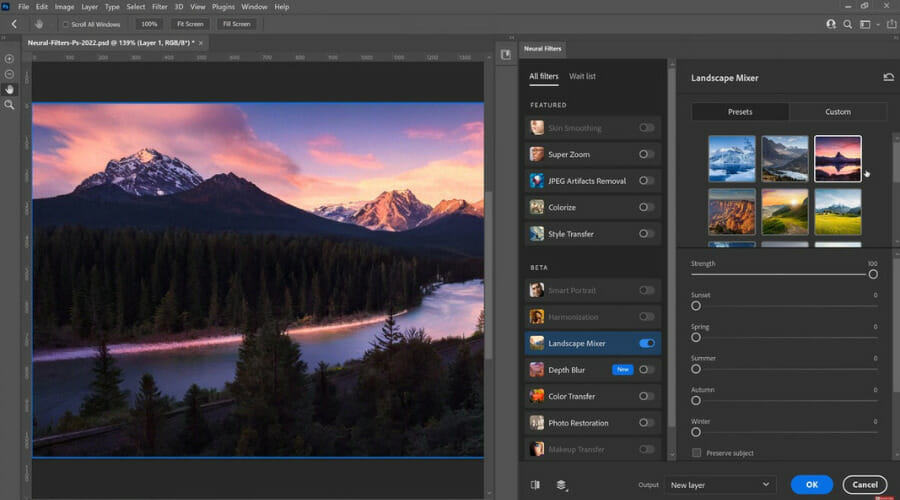
Adobe Photoshop is and should be the go-to program for opening pretty much any image-type file format available, since it has near-universal compatibility with them all, including EMZ files.
Being a professional image editor also means that not only will you be able to open the EMZ file, but you will be able to edit, enhance, and doctor them in whatever way you see fit.
Finally, once you are done viewing and editing it, you can use the program to convert it to a different file format. For example, you can turn the EMZ file into something more easily accessible, such as JPG or BMP.
Adobe Photoshop
Adobe Photosop can open any image you can throw at it, including the EMZ files that can also edit.
Microsoft Office – Apart from Microsoft Word app, you can also open the EMZ file with other Microsoft Office apps such as PowerPoint, Excel, etc.
File Viewer Plus – File Viewer Plus is a multipurpose file viewer application. You can open Documents, Media files, Archives as well as many other file formats including EMZ files using File Viewer Plus.
Microsoft Visio – Another popular Microsoft Program that opens EMZ files is called Visio. It is a powerful diagramming solution that makes it easy to collaborate with your team and create professional-looking reports and charts.
XnView MP – XnView MP is one of the most popular photos viewer application with Image resizer and batch converter features. EMZ files usually containing a graphic property and you can access them using the XnView MP photo viewer app.
That’s it. The most common way to access the EMZ files is to use the Microsoft Office app. However, if you don’t have it installed, you can use one of the software listed in this article to open the EMZ Files.
Do let us know if you have any queries in the comments below.
TGA is an image file in the Truevision Graphics Adapter format, which Truevision established in the ’80s.
With its lossless compression, the TGA format is ideal for images such as line drawings and icons. Game publishers also use it for texture files.
So, if you’re wondering how to open .tga files, our guide below will clear the question.
What are the best tools to open TGA files on Windows 10?
1. Open TGA files with an image editor
TGA is an image format, so you can open it much the same as a JPG, GIF, or PNG photo. However, TGA is not as widely supported as the JPG or GIF formats, and Windows’ Paint editor doesn’t open TGA files.
Nevertheless, you can still open TGA images with a solid image editor like Adobe Photoshop.
This product is specially designed to open all manner of image file formats (including TGA) and edit them in whatever way you want.
Adobe Photoshop
Adobe Photoshop can open and edit almost all image formats, and the TGA format is no exception.
Check out the TGA Viewer software if you don’t need to edit a TGA image. That’s freeware software specifically designed to open TGA files.
You can add that program to Windows by clicking the Download TGA Viewer Setup link on the link below and then run through its setup wizard.
TGA Viewer doesn’t include many options, but its users can open TGAs, zoom in and out of pictures, adjust image dimensions, and save the TGA files to alternative formats with the software.
3. Open TGA Pictures with universal file viewer software
3.1 Use File Viewer Plus
Alternatively, you can open TGA pictures with universal file viewer software. Universal file openers are programs that open lots of alternative file types.
File Viewer Plus is a universal file viewer for Windows that can open and display over 300 different file types. You can also edit files, save your changes, and batch-convert files to several other file formats.
Open TGA files, view, edit, and convert to JPEG, PNG, TIFF, GIF, BMP, and JPEG2000 as easily as drag-and-drop. We recommend this program; you can test it immediately by downloading the fully functional trial.
Universal Viewer is one freeware file opener you can utilize to open TGA images.
Click Zip package on the link below to save the freeware Universal Viewer’s ZIP file to Windows. Then, you must decompress the ZIP by opening it in File Explorer and selecting the Extract all option.
Press the Browse button to select a path to the ZIP file, then click the Extract button. Then, Open Universal Viewer from the extracted folder.
Press the From Computer to select a TGA file to convert to JPG.
Click the Convert button to initiate the conversion.
Press the Download button to save the new JPG file to a folder.
Then, you can open the JPG image using your first-choice editing software.
If you need to open a TGA image in software that doesn’t support the format, you can convert the file to JPG format.
Then you’re not opening a TGA file, but you can still open the same image as a JPG with the necessary software.
You can always convert the picture back to the TGA format after editing it. This is how you can convert TGA files to JPGs with the Convertio web tool.
You can open TGA images in Windows 10 with Paint.NET, TGA Viewer, and Universal Viewer. However, quite a few more programs still support that file format.
Microsoft Digital Image was a rather popular digital image editing software from Microsoft. This tool has achieved great popularity due to its simplicity, but many users are concerned that this tool won’t run on Windows 10 properly.
Microsoft Digital Image was discontinued by Microsoft, and some of its features were implemented to other tools.
The last version of this tool was released in 2006, and in 2007 the development of this software was permanently cancelled.
Since this a rather old software, we wanted to know, can Microsoft Digital Image run on Windows 10?
Can Microsoft Digital Image run on Windows 10?
Try Adobe Lightroom as an alternative
Running software which has been discontinued can be dangerous, as no more security patches will be delivered and you’ll be putting yourself at risk. While you can still download and install Microsoft Digital Image on Windows 10, we highly recommend using Adobe Lightroom.
Lightroom is an industry-leading photo editor which goes hand-in-hand with Adobe Photoshop and all the other apps in the Creative Cloud. You can quickly edit RAW photos and bring back detail, change focus and much more. Most professional photographers swear by it as the best tool to do image corrections.
Here are just a few of the things you can do with Lightroom:
Merge photos together to create HDR panoramas and fill in uneven edges
Easily create and share albums
Add metadata to photos
Seamless transition between platforms, including mobile
Do batch editing and quickly enhance photos with the power of your GPU
Adobe Lightroom
Adobe Lightroom is a great software for image editing and management, and it’s intended for both beginners and professionals.
Download Microsoft Digital Image Starter Edition 2006
Launch the setup executable and follow the instructions
Authorize the UAC (User Account Control) if necessary
If you’re trying to install it on a 64-bit OS, skip the error by clicking OK
When you receive the MS Internet Explorer 6.0 error, do not click OK
From your Start menu, click your user icon and select Sign Out
Wait a few seconds, and click Cancel
Click the OK button in the error dialogue
The installation will now complete without an issue
Bear in mind that you’ll be installing a Starter Edition, so you might miss certain features. If you have your own copy of Microsoft Digital Image on a CD, you can use it to install the software as well.
Some users claim that Microsoft Digital Image is running without issues on Windows 10, and we can confirm that we have successfully installed Microsoft Digital Image Starter Edition 2006 by following the steps above.
If Microsoft Digital Image isn’t working on Windows 10 for you, you might have to choose an alternative solution.
We already wrote about the top 7 photo viewer software for Windows 10, and many of these tools come with built-in editing features that allow you to edit as well as view and organize your pictures.
This is the simplest way to download Microsoft Digital Image for free on Windows 10, but for the best experience, you might want to try some of the other alternatives below.
PhotoScape is a simple image editing tool that allows you to easily edit your pictures. This tool lets you change image size, adjust brightness, contrast, remove red eyes, add text and much more. There’s also an option for Batch editing available, so you can easily edit multiple photos.
With PhotoScape you can also combine multiple pictures into one or even slice a picture into several pieces if you wish to do so. In addition, there’s an ability to create animated gifs, add frames and filters and much more.
If you can’t install Microsoft Digital Image on Windows 10, be sure to get PhotoScape since it’s a great alternative with all the features you need.
Fly Free Photo Editing & Viewer is another tool similar to Microsoft Digital Image. This tool allows you to view your photos and to create slideshows. In addition, you can use Fly Free Photo Editing & Viewer tool to resize or crop pictures, perform brightness and color adjustments, add text, and much more.
There’s also a batch resize feature that allows you to easily resize multiple pictures simultaneously. It’s worth mentioning that we had some minor issues with this software, but we fixed that by running the application in Compatibility mode.
Microsoft Digital Image might be discontinued, but if you have your own copy on a CD, you can try to install it on Windows 10. Alternatively, you can download and install the Starter Edition as we did.
If Microsoft Digital Image doesn’t work on on your computer, feel free to try some of the alternatives that we mentioned above.
A number of users have reported that they can’t trim video in PowerPoint. This issue can become extremely frustrating in time, especially if you have a large number of projects that include videos.
Here is what one user had to say about this issue on Microsoft Answers forums:
Can’t trim video in PPT 2016.Is my version missing features or something? All the videos and articles i’ve seen about trimming video for PPT 2016 refer to a mythical “(Video Tools) Playback tab” that i don’t have. They say to click on the video and this tab is supposed to appear. It doesn’t. What am i doing wrong? I’m very frustrated.
Many of our readers asked us to help them solve this annoying PowerPoint error on Mac. For this reason, we decided to write this quick guide and save the day.
Please follow all the steps carefully, and after each method try to see if it fixed the issue. Most importantly, do not lose faith and try all of the solutions if needed.
What to if I can’t trim video in PowerPoint?
1. Update PowerPoint on your Mac
Open up PowerPoint.
Choose the option Help from the top menu -> select Check for Updates.
Inside the newly opened window, under the section How would you like updates to be installed? select Automatically Download and Install.
Click on Check for Updates.
Note: In case you can’t see the Check for Updates button inside the Help menu, download the latest Microsoft AutoUpdate Tool and retry the steps mentioned above.
2. Make sure your Office 365 subscription is active inside the software
Sign into your Office 365 account by using the Microsoft account email and password.
Observe the details under the Services & Subscriptions title.
If you see a circle arrow it means that subscriptions are set to renew automatically
If you can’t see any subscription there, it means that is the reason for the above-mentioned error.
To fix it buy an Office 365 subscription and activate it.
3. Use the Set option (For PP Mac Version)
Inside PowerPoint -> click on Video Tool.
In the newly opened window -> click on the Set button -> drag the markers to your desired location -> press Trim.
This method should trim your video file to the desired size.
Even though This technique applies only to PowerPoint 2016, it allows you to bypass the Trim Video option not being available by using the Video Tool inside PowerPoint instead.
4. Use third-party software
The easiest way to handle any particular issue is to usually go for a third-party tool that is designed to do just that in a fast and efficient manner.
That would be the reasoning behind why we recommend Adobe Creative Cloud Express for your video-trimming needs.
You can use this tool’s trimming feature to easily cut the length of your videos and choose what you need to focus on. The process is so intuitive and you’re able to upload any video from your PC, and then add cut times manually. After this, just download your trimmed video instantly.
This suite of programs is specially designed to create and design visual content that can be used for businesses, education, social media, so trimming a few videos is second nature for it.
The UI is extremely easy to comprehend, and the end results always look fantastic and seamless.
We hope this article solved your problem. Please let us know if any of these methods proved useful in your situation by using the comment section below.
Windows users intending to use a virtual private network with Microsoft Edge can enjoy many benefits that come with using the best VPN for the Edge browser.
With a VPN for Windows operating system, you get advantages such as accessing content that would otherwise be censored across the world. It also protects your privacy using encryption whether you’re at home or on public Wi-Fi while hiding your IP address and identity.
If you want the best VPN for the Edge browser, factors such as internet speed, performance, the strength of the encryption, privacy policy, pricing, free trials, and legal jurisdiction will help you make an informed decision.
Since you’re looking for a security software to help you as you surf the internet while protected, you need to make sure you get the best VPN tool to work with.
Browser friendly, the PIA VPN really has the edge when it comes to your safety on the web. But it does not just secure your browser, it extends its protection to all your apps thanks to the TCP/IP interface level.
This leading VPN provider relies on tunneling technology to provide multi-layered security, which basically means that it uses encrypted tunnels to create multiple layers of privacy around you.
Besides its massive network and having gateways worldwide (45+ countries), the service is your number 1 choice for confidentiality: it has a strict zero-logs policy and it keeps to it.
According to their own words, the approach is rather simple: No logging. Period.
It might also be worth mentioning that these advanced features are packed in a very intuitive and easy to use interface allowing you to connect your VPN client with just one click, literally. Plus, PIA is one of the best VPNs for Netflix on Mac.
Compatible with all major operating systems and browsers, PIA will do more than protect your identity and guarantee your anonymity, it will also provide unrestricted access to the internet by bypassing IP-based censorships.
This is a top choice VPN for the Edge browser that works perfectly well with Windows.
With CyberGhost, you get many advantages that come with using a good VPN such as bypassing censorship, unblocking content from different parts of the world, high-security features, and strong encryption.
This VPN is easy to use, works well with Windows, and installs seamlessly, plus it comes with the CyberGhost free anonymous proxy that helps you browse easily, anonymously, and you get protection from spying, an anonymous IP so no one will know who you are online.
Its features include permissions for P2P torrenting, military-grade encryption, privacy policy, guaranteed IP change as it replaces your IP with a CyberGhost IP address, plus anonymization server connection for increased protection so you’re anonymous when online.
CyberGhost gives amazing discounts on pricing for their plans, plus has servers in 27 countries, superfast connections for streaming online, and it is user-friendly and reliable.
Update: CyberGhost 8 for Windows has been launched and it downloads automatically when you get your CyberGhost VPN copy from the official website.
This version has a wider range of tools and features. We recommend you check the newest version for the best online protection.
CyberGhost VPN
Looking for a VPN that's compatible with Edge? CyberGhost VPN is a solid choice.
If you’re looking for tight, extra security, then NordVPN is your best VPN for the Edge browser.
This VPN comes with DNS leak protection, kill switch, double-hop, and auto-connect that makes it a favorite among its users.
It can be used on other devices besides your Windows PC, though it can be slower than other VPNs because of its extra security features.
Some of its salient features include a strong OpenVPN that’s encrypted with several security options, plus its speed allows you to stream well in HD so its not really that slow.
NordVPN also gives you good value for your money backed by a 30-day money-back guarantee and amazing customer care.
It has over 2000 servers, with 59 locations and you can use up to 6 devices on the VPN.
Other features include double data protection so your information passes through two different VPN servers (not one like others), great performance, and it’s easy to use with a compact interface that comes with all the basic and essential features of a VPN.
What’s more, you can test run it for three days before subscribing to one of its affordable plans. It also accepts Bitcoin, has no caps on bandwidth, and comes with comprehensive setup tutorials for any operating system including Windows.
However, NordVPN doesn’t have ad-blockers, neither does it block trackers, plus its speeds decrease if you’re using double encryption.
NordVPN
Tired of looking for a VPN that works great with Edge? NordVPN has got your back.
This is a leading VPN that also works very well with Windows operating system, with servers globally in over 94 countries, and counting.
ExpressVPN features OpenVPN encryption that delivers strong security, no usage logs as the logs are aggregated so they cannot be traced to a single user. It also comes with 24/7 tech support and security for public Wi-Fi.
With this VPN for Edge browser, you can work with multiple devices simultaneously, while enjoying blazing fast connection speeds, plus P2P permissions for Bittorrent, making this VPN the best for tasks that are high on data.
Some advantages of using ExpressVPN include a user-friendly yet intuitive interface, very strong encryption for security, multiple server locations, anonymity while online, plus it accepts bitcoin currency.
The downside, however, is it is a bit pricey, doesn’t have ad-blocking, and only connects up to three devices per user – but it is still worth it.
ExpressVPN
ExpressVPN is an excellent VPN service and works great with Edge.
IPVanish VPN is one of the best VPN for the Edge browser used on Windows OS based in the US.
It features more than 850 servers on over 60 locations, with more than 40,000 IP addresses for its users.
Some of the benefits you’ll enjoy with this VPN include excellent performance, the fastest speeds, total privacy as it doesn’t keep any logs, plus it is among the best for torrenting and P2P traffic.
Features include 256-bit encryption over OpenVPN, L2TP, and PPTP protocols, but it is a bit high on price compared to rival brands and doesn’t come with a free trial.
It’s easy to use, safe for surfing with Microsoft Edge and Internet Explorer, plus you get access to censored content and a 7-day money-back guarantee.
IPVanish directs all your online traffic through an encrypted tunnel so you’re safe from hacking or spying, plus it keeps your information away from search engines, websites, and online marketers who want to target or track you.
This is done by concealing your IP and replacing it with a new IP and location.
Enjoy great speeds on an intuitive interface, 24/7 year-round tech support, unlimited bandwidth, and zero log policy for privacy.
IPVanish
In need of a trustworthy VPN that works great with Edge? Why not try IPVanish?
This is another US-based VPN that offers OpenVPN, AES-256 encryption, doesn’t keep log activity, plus if you’re really pressed when seeking assistance, you may not get it immediately as tech support is ticket-based so you’ll have to wait.
However, Hotspot Shield has amazing benefits such as secure and private access to the free and open internet, access to social networks, and video streaming among other sites.
Its VPN protocol is patented and integrated by 70 percent of the world’s largest security companies, and it is the number one VPN in performance with thousands of servers globally.
With this VPN for Edge browser, you can browse the web safely as it protects your identity and encrypts your data whether you’re at home or in public, plus you can enjoy secure access anywhere to your favorite apps and sites.
Hotspot Shield has a simple interface, fast speeds, strong encryption, is affordable, and offers a 30-day money-back guarantee.
However, it is US-based, plus you don’t get support immediately so it’s slow, and it doesn’t accept Bitcoin. Its free version also has ads and restrictions like you cannot stream Netflix, among other issues.
Hotspot Shield
Is your VPN not working well with Edge? Maybe it's time for a change. Try Hotspot Shield.
Some Outlook users have posted on Microsoft’s support forum about an Outlook.pst is not valid error.
When those users open the Outlook application, an error message pops up that states, The path specified for the file (PST) is not valid. Therefore, Outlook can’t find PST data for a user profile.
The Outlook.pst is not valid error often arises when the PST file for an Outlook user account doesn’t exist at the location specified in the error message.
It might have been moved to another location or deleted. However, if the PST file is at the specified location, that data file is probably corrupted.
How can I fix the Outlook.pst error efficiently?
1. Use Stellar Repair for Outlook
If your Outlook PST file is corrupted, you can repair it with Stellar Repair for Outlook. Stellar Repair is a highly rated PST file recovery tool that can restore heavily corrupted PST files.
Stellar Repair can scan very large PST without restrictions and provides an enhanced preview window for recoverable mailbox data.
Its users can then select all, or more specifically, recoverable mailbox items within its preview window to restore the recovered PST data file.
This being said, using this performant tool guarantees the recovery of your Outlook mailbox and fixes PST files quickly, so consider Stellar Repair for Outlook.
Other useful features
Enables users to split or compact larger PST files
Exports mailbox data in PST, HTML, PDF, EML, and RTF formats
Provides detailed log reports for PST files it recovers
The Technician Edition exports recovered PST data directly to Office 365
2. Relocate the Outlook PST file
Press the Windows and R keys at the same time to launch Run.
Type Control Panel in Run, and select the OK option.
Next, click Mail (32-bit) in the Control Panel to open the window in the snapshot directly below.
Press the Data Files button.
Select the default PST file, and click the Open File Location button.
If you can’t find the PST at its specified location, the file might have been moved to an alternative folder path. To search for the PST file, press the Windows key + S hotkey.
Then enter the title of the PST file, as listed on the Data Files tab, in the search box.
If the search box finds the PST file, right-click it and select Open file location.
Then move the PST data file into the folder path (location) specified for it on the Account Settings window’s Data Files tab.
To learn more about PST files, our guide on Outlook PST file location should provide you with all the necessary information.
3. Check if the PST file is in the Recycle Bin
Click the Recycle Bin icon on your Windows desktop.
If there’s a lot in your Recycle Bin, enter the PST file title in the search box.
Right-click the PST file in the Recycle Bin and select the Restore option.
Check that the PST is restored to its original Outlook location.
Capcom has just revealed during its Resident Evil Showcase that Resident Evil Village, the next installment in the popular survival horror franchise will be released on May 7, 2021 on all platforms. The game was initially expected to be a PC, PS5, and Xbox Series X|S exclusive, but Capcom revealed today that PS4 and Xbox One versions will also be available with free next-gen upgrades (the Xbox version will use Smart Delivery).
Resident Evil Village is the sequel to Resident Evil 7 biohazard, which marked a return to the franchise’s survival horror roots four years ago. Resident Evil will be celebrating its 25th anniversary this year, and it seems that Village will provide a good amount of fan service with several gameplay elements inspired by the beloved Resident Evil 4, such as the familiar inventory system.
Between the mysterious merchant character, the mutated villagers, and a beautiful gothic castle to explore, this new episode looks like an exciting return to form for Capcom. PlayStation 5 gamers can download an exclusive demo of Resident Evil Village called “Maiden” starting today, and a different free demo will be available on PC and Xbox consoles later this Spring.
Resident Evil Village is available for pre-order today, Capcom is offering a Mr. Raccoon Weapon Charm and a Survival Resources Pack as pre-order bonuses. A Deluxe version of the game is also available for pre-order, and it includes a Samurai Edge weapon, an option to replace the save room music and the typewriters you save on with the music and tape recorder from Resident Evil 7 biohazard, and other bonuses.
Gamers who purchase Resident Evil Village will also get access to Resident Evil RE:Verse, a standalone multiplayer deathmatch game featuring iconic Resident Evil characters. You can watch a short teaser trailer below:
Over the past 25 years, Resident Evil has become a true cultural phenomenon with over 25 different games, a series of Hollywood and animated films, with a new live-action series currently in development for Netflix. Resident Evil Village will be one of the first big games to launch later this spring, and we’re really looking forward to seeing Capcom’s excellent RE Engine in action on next-gen consoles.
Some players have said on Blizzard’s forum there was an error code 2 when they tried to join online sessions for games like Diablo 3 and World of Warcraft.
The Battle.NET connection issue displays this error message, Battle.net Error #2 Unable to connect. Consequently, players can’t play Diablo 3 or WoW online.
How can I fix the Battle.NET error code 2 quickly?
1. Check if Blizzard Battle.NET is down
First, check if there’s a more general Blizzard Battle.NET outage with Downdetector.
Open Blizzard Battle.NET’s Downdetector page within a browser. That page will tell you if there’s a general Battle.NET outage or not.
If so, you’ll need to wait for Blizzard to resolve the matter.
2. Disable third-party antivirus software shields
To ensure a third-party antivirus utility isn’t quarantining Battle.NET app files, try disabling that software.
Right-click the antivirus utility’s system tray icon to select a context menu option that will temporarily disable its shield.
Alternatively, open the antivirus software to find a disable option on its settings tab.
3. Uninstall third-party firewall software
Press the Windows key + R hotkey to launch Run.
Open Programs and Features by entering appwiz.cpl in the Open box and clicking OK.
Next, select your third-party firewall software.
Click the Uninstall button and Yes on confirmation prompts.
Restart Windows after uninstalling the third-party firewall software.
4. Change the default region for your Battle.NET account
There are a few drawing software that comes at an affordable price whilst not making you compromise on the quality.
Testing all of them can be a tedious and frustrating process, especially when time is an issue and there is a deadline knocking on the door.
Thankfully you don’t have to worry about that anymore.
We have tested and put together a list of the best drawing software under 100 and why they would be the perfect choice for you, so make sure to keep on reading.
Which is the best free drawing software under $100?
Is not always easy to find good software and without having to pay a lot of money on the monthly subscription but luckily for many professionals, Adobe Illustrator is one of the best drawing software out there at an affordable price.
This software is part of the Adobe Creative Cloud which makes it more easier to work with especially if you are already using any of the other Adobe products.
Thanks to the fact that Adobe Illustrator is vector-based anything you create, from typography to freehand drawing or tracing and recoloring graphs, will be up for scaling to what size you need it without compromising on the quality.
Moreover, you can work on your desktop or iPad even offline as all your work will be saved in the cloud and you can pick it from where you left it anytime.
Adobe Illustrator
Create fantastic works of art with this vector based software at the most affordable price. Get the best deal now!
Clip Studio Paint is a software specialized for painting and drawing and comes with all the editing elements anyone would need.
This software comes with a mix of features that are extremely useful and important which is pretty great considering the price for gaining access to the app.
Thanks to the story feature available you will have no problem keeping all your projects and work organized, especially when you are working on longer projects that need constant editing.
Moreover, Clip Studio Paint allows you to customize pretty much anything in order to fit your own specific needs, which is an absolute must when working with a drawing software.
Clip Studio Paint
Get the best available drawing software with features that will bring your art to the next level.
This professional, open-source app is a great choice for creating concept art, comics, and many more. Krita is one of the number one software for many artists and we will show you in the following line why.
Krita supports RGB and CMYK at 8 and 16 bits integer channels, as well as 16 and 32 bits floating point channels.
Brush engines, filters and customizable features to bring them exactly how you need them is something that you will find when working with Krita.
This software is being developed by an international community of open source professionals who aims to create the most amazing digital painting application available.
Krita
Have fun creating with this free app and take advantage of the multitude of features put at your disposal.
If you are looking for a reliable, complex yet easy to use tool then Autodesk Sketchbook should definitely be an app to try.
The developers that designed this app come with a history of creating apps for designers, engineers, and architects which makes it safe to assume that has contributed a lot to how amazingly good Autodesk Sketchbook turned out to be.
This professional app promotes and has in the center of it the development of creativity, thanks to the multitude of tools that you can use. The brushes can be fully customized to fit your own need and you can choose the resolution of saved images, store your work in progress for finishing it later, as well as export your work.
And if you were wondering about social media, yes, you will be able to share your work on the media channels with just a few clicks.
Autodesk Sketchbook
Fully featured app with a multitude of tools that will make your creativity reach new heights. Get the best deal now!
Hopefully one of the above presented software will be the one that you are looking for. As you can see there are several drawing apps that do offer impressive features and toolkits.
If you have additional recommendations and suggestions please let us know in the comments section below. We would love to hear them.
Jade Empire is an old action role-playing game that quite a lot of players are still playing on Windows.
However, some users have posted on Steam and EA forums about a Jade Empire problem starting up for Steam. When those players try to play the game, a Failed to find Steamerror arises.
How can I fix the Jade Empire failed to find Steam issue?
1. Run Steam as an administrator
Right-click your Steam shortcut and select the Open file location context menu option for it.
Then right-click the Steam.exe and select Properties.
Select the Compatibility tab shown directly below.
Click the Run this program as an administrator option to select it.
Press the Apply button, and select the OK option to exit.
Then click your Steam shortcut to run that software as an administrator.
2. Copy the Steam.dll file into Jade Empire’s folder
Right-click a Steam shortcut to select Open file location. The default installation path for Steam’s folder is this: C:\Program Files (x86)\Steam
Then right-click the Steam.dll file and select Copy.
Click System to open the window in the snapshot directly below.
Then click Advanced system settings.
Click Environment Variables to open the window in the shot directly below.
Select Path in the User variables box.
Click the Edit button.
Then click New on the Edit environment variable window.
Enter, or copy (Ctrl + C+) and paste (Ctrl + V), the full path for your Steam installation folder. Right-click a Steam shortcut and click Open file location if you’re not sure what the path for your Steam folder is.
Press the OK option.
Those are some of the best Jade Empire Steam fixes for Windows 10. Players have confirmed the above resolutions can fix the Jade Empire & Steam won’t launch issue.
If these resolutions have worked for other players, at least one will probably fix the same Failed to find Steamerror for you.
Microsoft has just released the Windows 10 preview build 21296 for Insiders in the Dev channel, which brings various bug fixes and minor changes to Clipboard and Storage Spaces Settings. This build also brings a fix for the issue that broke x64 emulation on some ARM64 devices after installing the previous build 21292.1010.
You can find the full list of changes, bug fixes, and known issues in the build 21296 below:
Changes and Improvements
We’re starting to roll out an update our converged clipboard history design (WIN + V) to support pinning, unpinning, deleting, and syncing individual entries. Appreciate your patience and feedback while we’ve been working on this. If you have any other feedback in this space, we welcome it in the Feedback Hub under Input and Language > Clipboard.
The ability to manage and create Storage Spaces from within Settings is now rolling out to all Insiders in the Dev Channel. If you have any feedback as you explore the changes, please file it under Files, Folders, and Online Storage > Storage spaces in the Feedback Hub.
Fixes
The issue that could prevent Call of Duty: Modern Warfare and Call of Duty: Black Ops Cold War from launching has been fixed and is in the process of rolling out. Please update your game(s) to apply the fix.
We fixed an issue from the previous flight where Xbox Game Bar was launching on its own for certain games, without pressing WIN + G.
We fixed an issue where when the Xbox Game Bar was launched (like when pressing WIN + G), the PC might appear unresponsive.
We fixed an issue resulting in the Program Compatibility Assistant sometimes unexpectedly taking up a large amount of CPU resources in the last few flights.
We fixed an issue that could result in explorer.exe hanging when mounting ISOs.
We fixed an issue where the Windows Security app might show both a check for updates button and link at the same time.
We fixed and issue causing some Insiders to experience rendering / graphic issues after resizing certain app windows.
Installing this build will restore x64 emulation on ARM64 if it had previously broken after installing Build 21292.1010.
For Insiders using x64 apps on ARM64, there is an updated preview of the ARM64 C++ redistributable (version 14.28.29812) now available to install from https://aka.ms/arm64previewredist. This updated redist adds vcruntime140_1.dll and fixes crashes occurring in a number of CAD applications.
Known issues
We’re working on a fix for an issue Insiders have reported where certain games like State of Decay 2, or titles from the Assassin’s Creed franchise, may hang or crash when launching.
We’re investigating an issue where some 32-bit systems may lose network connection after taking this build. If you are running a 32-bit version of Windows, you may wish to pause updates until the issue is resolved.
Miracast users may experience very low frame rates in this build.
We’re looking into reports of the update process hanging for extended periods of time when attempting to install a new build.
We’re investigating an issue impacting the reliability of Start and other modern apps, which started in the previous flight. If you are impacted, you may experience the Start menu layout resetting.
Aero Shake is disabled in this build. To enable it, you will need to go here in Registry Editor and create a new DWORD entry named DisallowShaking with a value of 0: HKCUSoftwareMicrosoftWindowsCurrentVersionExplorerAdvanced.
Live previews for pinned sites aren’t enabled for all Insiders yet, so you may see a grey window when hovering over the thumbnail in the taskbar. We’re continuing to work on polishing this experience.
We’re working on enabling the new taskbar experience for existing pinned sites. In the meantime, you can unpin the site from the taskbar, remove it from the edge://apps page, and then re-pin the site.
[News and interests] Upgrading to this build will cause your news and interests taskbar setting to be reset to “Show icon and text”. This is fixed going forward.
[News and interests] Sometimes the news and interests flyout cannot be dismissed with pen.
[News and interests] News and interests uses more taskbar space on the left than expected.
[News and interests] The taskbar button can show stale information each time the user signs into their Windows session.
[News and interests] The news and interests flyout shows content in a single column before quickly switching to double column.
[News and interests] Text in taskbar button can look pixelated in high resolution screens.
[News and interests] The taskbar context menu and news and interests overlap.
[News and interests] In certain circumstances, news and interests uses 100% of CPU when first launched.
[News and interests] Attempting to share content dismisses the flyout.
[ARM64] Insiders who installed the preview version of the Qualcomm Adreno graphics driver on the Surface Pro X may experience reduced brightness of the display. This will be addressed in a future update.
Microsoft has also warned today Insiders running the build 20262 or earlier that these builds will expire at the end of the month. If you’re still running one of these older builds it’s recommended to install a newer build before January 31, 2021 to avoid “getting in a bad state.”
Microsoft has released an update for its Microsoft To Do app on the web. The main new feature in this update is the addition of AI-powered task suggestions in the My Day view that allow users to get quick access to important tasks on their lists, separating them from others and making it easier to prioritize them. These suggestions essentially include To-Do tasks that have deadlines and are marked important by the user itself.
“We’ll show up to seven tasks we identify as most relevant to you in this section. It’ll update as you add new tasks or edit existing ones. Your urgent tasks, like ones due today or tomorrow or the ones that are overdue, will show up here. All other tasks with due dates will continue to show up in the Later and Earlier sections of the suggestions pane” the Microsoft To Do team explained.
To get started with intelligent suggestions, head to the Microsoft To Do web app and click the My Day list. In the suggestions pane, users will see a newly added section called “Tasks that seem important.” This should make it easier for them to identify important tasks and add them to their My Day list. There is also the ability to mark specific entries as irrelevant by selecting select more options > This isn’t relevant to me.
Keep in mind that the feature is available to English-speaking users for now. Moreover, the Tasks that seem important section still doesn’t include Planner tasks, though bringing this information right to the suggestions pane could have its advantages. Do you think this is an interesting addition, and it will help to boost your productivity? Sound off in the comments below.
In order to design every aspect of a great-looking bag or backpack, you will need to be able to design shapes (2D panels). These panels will be the parts used to build your final 3D project for a backpack or bag.
Fortunately for you, the days in which you had to start your projects by using a pen and paper to create templates for your panels are gone.
Today, we can use specialized bag design software that allows you to edit every aspect of your design with precision and professionalism. You can also render your models faster and have automated measurements.
You can choose to use either 2D or 3D purse design software to create your project. Creating 2D panels that you can then print out and use to cut materials is a bit easier than the 3D modeling option.
In this article, we will explore some of the best bag pattern-making software options on the market that allow you to design your leather bags, book bags, and coffee bags with ease.
Be sure that they do offer a lot of other useful features to help you along the way, so read on to find out more.
Adobe Photoshop is a popular raster graphics editor among professionals worldwide. As you may know, it has been used for superior design projects and realistic painting for ages.
Since it is an extremely powerful tool for drawing and painting with intuitive pens and brushes, it can clearly turn into your top fashion design software for bags.
You may crop, retouch, repair, and erase unwanted elements in a blink of an eye. Moreover, experiment and play around with color and light to make sure your bags will look better than ever.
Besides the chance to enjoy a remarkable level of customization, controlling brushes with your finger or Apple Pencil will feel like second nature.
Amazing key features you should take into consideration:
Thousands of pencils, pens, markers, and brushes may be used with a guarantee of maintaining high quality
Precise Content-Aware Fill if you want to fill multiple areas of an image without leaving the window
Spot Healing feature to clean up imperfections with ease
Useful Patch Tool to hide unwanted content
Enhanced Transform Warp to divide your image with a customizable grid
Adobe Photoshop
Create your backpack, purse, and more with industry-leading design software.
Canva doesn’t need much introduction because it’s the go-to platform for everybody who needs gorgeous designs for almost anything.
This free design resource can offer a wide range of bag concepts due to its extensive templates and themes you can inspire.
For example, there are sleek and minimalist designs for those who prefer a simple bag, to bold and vibrant patterns for those who love to make an impression.
Whether you need a bag for work, travel, or daily use, the bag ideas are designed to boost your style and offer fashion-wise results.
As you probably know, this solution has plenty of templates you can choose from. Thus, you can make use of the mockup feature that can envision your project on other designs.
Some key features you can find useful:
A variety of design templates
Practical editing tools
External app integrations
Creation hub for branded ideas
Numerous mockup templates
Canva
Express your authentic self with distinctive bags designs using this leading design app
Another great bag design software is Adobe Illustrator. While Adobe Photoshop excels at designing the best bags and backpacks, Illustrator brings you the joy of unmatched 3D control over your project.
If the creation of geometric figures isn’t your thing, then you’ll probably enjoy creating 3D patterns in Illustrator. You may control their appearance with shading, rotation, lighting, and other properties.
Moreover, keep in mind that there’s an application for mobile devices known as Adobe Illustrator Draw that you may also use.
After all, it integrates with Illustrator in an excellent way, so that’s your chance to transfer your latest bag designs between the PC or Mac and your tablet/smartphone.
That, along with tons of tutorials to help you manage the capabilities of the program, makes it a great fashion design software for bags.
Some key features that you’ll most likely find useful:
The workspace is not only intuitive, but you can adjust it according to your preferences
Two simple ways to create 3D objects: by revolving or extruding
Incredible Pen tool to create all kinds of designs
Useful Shape Builder tool to create and reshape objects with ease
Integration with other Adobe products you use daily
Adobe Illustrator
Create amazing pieces of purses and handbags with one of the best bag design software.
Marvelous Designer is a great software option that was designed specifically to help its users create beautiful fashion designs, with 3D capabilities.
You can use this software to quickly and easily create bags, backpacks, blouses, t-shirts, dresses, pants, etc., no matter how complicated the models or patterns are.
This software will virtually replicate the fabrics you chose for your project and creates a 3D render so you get an idea of how the final product will look.
Marvelous Designer is compatible with most other 3D design software and offers a beautifully designed user interface that helps you streamline the process.
You can use this tool to immediately edit and apply different garments with different textures to a 3D shape of your choosing.
It is worth mentioning that this app has been used by the top-of-the-range game studio – EA Konami. If you saw The Hobbit, then you know what Marvelous Designer can do for you.
The customization power offered by this software is unlimited, being constrained only by your imagination.
Here are some of the best features found in Marvelous Designer:
Great processing speeds for both design and rendering
Technology-based on sewing and pattern making – creating blueprints for a garment
Can be used by people with little to no experience because of its intuitive design and user interface
Can edit textures, fabrics and physical properties either by using one of the built-in presets, or by choosing the parameters on your own (advanced users)
Can trace existing models and assign specific locations for pins
High-polygon modeling – captures the realistic movement of clothing on different shapes
Great segment and sewing tool – simple to use and fully editable
Optitex is another great purse design software option that contains all the features required in order for you to create incredible fashion designs with ease.
You can create bags and all sorts of accessories with customizable stitching, design, and other features.
You can easily create 3D virtual samples of any part of your bag design. It allows you to save money and time when starting a new project, while also allowing you to see a high-quality rendition of what you created.
This software gives you the power to maintain constant contact with all the elements found in your supply chain, making information clear for everybody involved, and reducing the production costs.
Constantly communicating with your suppliers and partners allows you to always make informed decisions, simplifying the entire process of manufacturing.
Optitex has a very encompassing library that allows you to choose from a large collection of elements – eyelets, handles, zippers, etc. This software works by combining both 2D and 3D worlds into one space.
The 2D view allows you to edit your project’s elements on a plane, while the 3D view allows you to apply that element to any surface with different shapes and sizes.
The rendering of the 2D element layered on the 3D element is created through the powerful processing power found in this software.
Rhino 7 is an incredible backpack design software. It helps you create a backpack with ease and exact measurements. With this capability, you will never encounter any issues regarding the sizes of your material panels.
This ability is powered by the newly developed double-precision meshes, allowing you to achieve great results no matter how big your project is.
In Rhino you have the ability to add, edit, and remove any annotations, change their styles, and also offer you access to history support.
This software has all the capabilities needed in order to create projects from scratch, edit them in any way imaginable, and analyze the structure of your materials.
Moreover, you can also render 3D objects, animate your project if needed, and also translates curves, surfaces, and solids.
In order to create a backpack or bag in Rhino, you will need to draw the shapes of your panels in 3D, then use the command Unroll Surface for every panel.
Doing this assures that your structure is completely flattened, so you can easily transfer the final project into a material-cutting machine.
Some other useful features found in Rhino 7:
Freeform 3D modeling tools with professional-grade features
Great accuracy is both design, analysis of data, and manufacturing
Compatible with all other design, CAM, drafting, engineering, animation, and illustration software options
Can repair the structure of meshes from IGES files
The learning curve is not as big as in the case of the other software options
Modo is another incredibly useful bag design software. This tool is specifically designed to create 3D modeling, textures, and also rendering complex materials and patterns.
Modo contains great direct modeling capabilities with flexible procedural modeling and also contains the MeshFusion Boolean toolset and other great sculpting tools.
This software was designed to be easily understandable and used by artists and designers of every level of expertise, without limiting your ability to create astounding backpacks and bags.
Plus, the layer-based and nodal shades system – creates amazingly real-looking materials with ease.
It also supports UDIM workflows while also integrating perfectly with modeling and selection workflows.
Here are some of its best features:
Incredibly powerful renderer with photorealistic results
WYSIWYG (What You See Is What You Get) developer tool compatible with Unity and Unreal
Flexible tool assembly system – can build your own set of tools by joining different operations
Perfectly integrates with Python and C++ APIs
Can customize the look and functionality of the user interface
Supports formats like OpenSubdiv, OpenColorIO, OpenEXR, OpenVDB, and Alembic
A great library of pre-made realistic materials
One of the best options found in Modo is the fact that its features can be easily extended by downloading one or more plugins from the official Modo library. Here are a few examples of some useful plugins:
V-Ray – a toolkit that allows you to control the lighting, shading, and rendering of your project
Power Translators – greatly useful tools for designers and engineers, allow you to import CAD data from other software
This 3D fashion design software should be your go-to method to create and visualize bags or bag-back designs.
CLO is the tool that delivers the ideal workspace to sketch any ideas for clothing and garments items. More exactly, you can design 3D projects and visualize anything in real life.
Thus, there are valuable features that offer the entire framework to create any clothing or accessories.
For instance, you can use various fabrics to create your bag such as wool or woven in a natural simulation environment.
In addition, you have plenty of tools to design your product such as 3D arrangement on avatars, roll-up styles, and even realistic zippers.
Here are some of its best features:
Texture generator 3D maps to visualize the product
Avatar size editor
Motion auto conversion functionality
Object browser to manage the product
Grading review editor
It’s worth mentioning that you can use CLO for free with limited functionalities or choose the right plan according to your design purposes.
Because designing bags and backpacks is a difficult job as it is, you can make things a lot easier by using specialized design software.
The top list we presented in this article covers both the needs of experienced designers and also people who just started their design saga.
If you’re not very experienced with using CAD software, you might want to first try out Marvelous Designer, Optitex by Efi, or Modo applications, as handbag design software options.
Because of their specialization in this domain, it is a lot easier for you to learn all the steps of the creation process than in software that isn’t.
Even if they are simpler to use than the other CAD options presented in this article, these two options offer a wide range of features that cover all your design needs.
If you don’t mind a bit of a steep learning curve, or if you already have experience using CAD software, you could jump right in and try out Rhino or SolidWorks.
If you don’t know which one of these two to try out first, we would recommend going with Rhino, as it allows you a bit more freedom to create, has high-polygon modeling, and also offers great rendering capabilities.
We would love to know what software option you chose from this list and how it worked for you. Please feel free to let us know in the comment section found below.
Drawing tablets have become a go-to tool for digital artists worldwide, and Wacom drawing tablets are some of the best in the business.
But, having an excellent Wacom drawing tablet is half the job. You also need to find the right drawing software for Wacom that is fully compatible with the tablet.
When looking for drawing software for Wacom, it is important to think about your drawing needs. Depending on what you want to draw, if the art will be digital-only or go for print, you can pick a basic or advanced drawing software.
Now that you are clear about your requirements, let’s take a look at the best drawing for Wacom that will help you create that artwork that sweeps the audience off their feet.
Let’s take a quick peek at what advanced software we found:
Corel Painter is a professional blank canvas painting and photo-art tool. The popular drawing software offers emulation and digital art brushes, unlimited brush customizations, texture, and other media to create your signature style drawing.
Existing users of the Painter will appreciate the improved user interface and efficient workflow. Painter offers many useful touches for those who are just getting started, making it easier to get started with the tool unaided.
Painter is compatible with popular photo manipulation tools like Photoshop, supports stylus tilt, rotation bearing, and pressure to create nature painting, and is available on both Windows and Mac platforms.
Key features of Corel Painter:
GPU support for brushes has improved performance
Redefined user interface
Excellent choices of brushes and bristles
Tracing tool with the ability to rotate the canvas
Corel Painter
Make the most out of your Wacom tablet with amazing digital art brushes with a wide range of customization options.
When it comes to photo and video manipulation, Adobe software is among the most highly recommended tools, and Photoshop is just the right drawing software for creative professionals.
Photoshop is part of Adobe’s Creative Cloud subscription, so you need to have a subscription to use it with your Wacom tablet. With the latest iteration, Adobe has made Photoshop’s interface more customizable and helpful for veterans and newcomers.
Another exciting part of the new Photoshop update is the new Object Selection Tool. The company has also put Sensei to good use, making it an efficient tool for photographers and creative artists.
Being a part of Adobe’s Creative Cloud, it is easy to access Photoshop across devices. You can start work on your desktop and then continue the same on your laptop from anywhere.
Key features of Adobe Photoshop:
New and improved Object Select Tool
Cloud integration and multi-platform support
Excellent collection of phot correct and manipulation tool
Slick easy to use interface and help for budding articles
Adobe Photoshop
Create your Wacom tablet art at a professional level by using this amazingly powerful and versatile software.
Clip Studio Paint is another great drawing software option for Wacom tablets suitable for both beginners and professionals.
Not only it has brushes for every style, more than 40000 options to be exact, but customizable ones as well so you can get realistic color mixing for your drawings.
Moreover, it offers smooth and precise brush strokes and you can adjust the pressure sensitivity to define every single detail.
With Clip Studio Paint, you can select, test, and manage colors with six color palettes, and you can enable the Companion mode to turn your Wacom tablet into your own digital painting palette.
Key features ofClip Studio Paint:
Unlimited painting styles
Lots of presets
Easy color selection
AI colorization
Smart fill tools
Clip Studio Paint
Get unlimited painting styles with AI colorization to create beautiful artwork.
From making vector logos to shirt design, Adobe Illustrator CC is a graphic design software and is fully compatible with Wacom drawing tablets. With the new update, the tool has only gone on to become better.
Adobe has made available its new Sensei tool available for Illustrator. It allows you to automatically extract colors from a photo, add them to your design, turn hand-drawn sketches into vector graphics, and more.
With the new smart glyph snapping, you can easily position text and other objects precisely and snap to key points like the baseline and the x-height. Adobe has also improved the text tool with new enhancements, allowing you to align text vertically to the frame’s middle or bottom.
Similar to other Adobe software, Illustrator is also part of the company’s Creative Cloud subscription and comes with all the additional benefits, including Adobe Cloud storage.
Key features of Adobe Illustrator:
Excellent vector design capabilities
Compatible with drawing tablets such as Wacom
Simplified free Transform tool
Many improvements of existing features
Adobe Illustrator
Adobe Illustrator gives you all the tools you need to create astonishing works of art with your Wacom tablet.
A full-fledged art studio with a massive range of natural media painting tools, Autodesk SketchBook is an excellent tool to work on your Wacom drawing tablet.
With an elegant user interface and massive 100 Mpx canvas, while maintaining the zoomed-in feeling of traditional drawing, Autodesk SketchBook offers a superior drawing experience. You can also scan and import your art with a transparent background, ready for inking and coloring.
Autodesk SketchBook features over 190 customizable brushes that can incorporate both textures and shapes. Creative professionals will enjoy a lot of features as the tool succeeds in offering a feature-rich yet minimal work area.
Key features of Autodesk SketchBook:
Excellent user interface
Highly customizable
Great collection of brushes
Easy to use for both professionals and beginners
Autodesk SketchBook
Explore the elegant and intuitive Autodesk SketchBook software with your Wacom tablet to for great-looking results.
So, these are the four best drawing software for Wacom tablets. Explore the tools to see if they meet your requirements. Most of these software also offer free limited trials to help you try the tool before making a purchase.
If you have additional recommendations or suggestions, make sure to leave them in the comments below.
Microsoft is working improve the Xbox OS without requiring users to to download install full OS updates every time. Xbox Program Manager Brad Rossetti explained the experiment on Twitter, which will begin with a subset of Xbox Insiders in the Omega ring.
“This latest update will allow Team Xbox to flight new experiences for the console such as the Dashboard, Guide and Settings without the need of a full size system update that normally includes stability/perf fixes,” Rossetti explained on Twitter yesterday. This new process for flighting build will hopefully lead to more frequent changes on the Shell and other parts of the Xbox OS, which usually receives new updates almost every month.
Thanks for the Omega build questions – it is 2.00pm PST, as noted this latest update will allow Team Xbox to flight new experiences for the console such as the Dashboard, Guide and Settings without the need of a full size system update that normally includes stability/perf fixes
Overall, this new initiative echoes what the Windows Insider team is also doing on Windows 10. Back in November, the team announced that it would begin shipping new features to Beta channels insiders through the Windows Feature Experience Pack, instead of requiring Insiders to install full builds. If this new process has yet to be used extensively on the Windows Insider Beta channel, it’s going to be interesting to see if this new flight process on the Xbox side of things will lead to more impactful changes ont the Xbox OS.
Are you wondering what a PES file is and how to open this file format on your Windows 10 PC? Windows Report has highlighted programs that you can use to open PES in Windows 10 computers.
A PES file is the default file format that is used to store information on how to create embroideries using a sewing machine. The file contains codes such as jump, trim, stop, and many others.
PES supports colors from color palette which can be opened and accessed by sewing software. To be more precise, these files can be opened only with embroidery programs that support PES file format.
Hence, there are a few programs that can be used to open PES files in Windows 10 PC.
There are quite a few embroidery programs that support the PES file format to choose from. However, none of them is as popular as Adobe Photoshop.
If you choose the industry-standard software when it comes to editing and retouching photographs, be sure that you’ll be able to do much more than simply opening PES files on Windows 10.
Do you plan to edit different image formats without requiring an expensive plugin, create new effects, or even PES files from scratch?
Just figure out exactly what you need because all of these are easily achievable through Adobe Photoshop.
Grab the free version below right away. You’ll create dynamic images for a variety of multimedia platforms.
Adobe Photoshop
With Adobe Photoshop you can forget all about your problems regarding PES files that refuse to open.
SewWhat Pro is a popular embroidery software tool used to view, modify, and convert embroidery files used by different sewing manufacturers.
It comes with advanced project management tools that are integrated with numerous plugin for converting files from one format to another.
The program supports various embroidery file profiles of which PES file is among. You can access PES files, view contents, and modify to whatever preference you want.
The easy-to-use interface places all necessary tools and features orderly in the program menu. Furthermore, by using SWP, you can open PES files in Windows 10 computers.
However, SWP offers a free 30-day trial of their Demo version during which you can sufficiently test all the basic but limited features after which you can purchase the full product.
Embroidermodder is open-source embroidery design software that has been around for a while. The software has many features that allow you to create, edit, and convert embroidery designs.
Some features found on Embroidereodder include design cross render, auto adjustable rulers, and lots of measurement tools. It supports numerous embroidery design file formats such as SVG, PES, and DXF.
Meanwhile, this program can be used to open PES files as well as edit and convert PES formats easily with its batch conversion tool.
With EM, you need not worry about converting PES files into other supported file formats.
Conclusively, Embroidermodder is a good application to have if you’re into sewing and fashion design. Also, for the purpose of opening PES files in Windows 10 computers.
When it comes to embroidery software, Buzztools is one of the best with its excellent features offered. The program has been in the industry since 1997 and has garnered customer loyalty based on their experience.
In addition, this program enables 3D viewing, conversion, and browsing of embroidery designs. The easy-to-use GUI (Graphic User Interface) makes it ideal for practice by home users.
Buzztools support many popular embroidery file formats which include SVG and most especially PES file formats. You can customize font size, colors, and other details of your PES file using Buzztools.
The software is highly rated for its clean and professionally presentable designs making it an excellent embroidery program.
Studio Plus is an embroidery design program with a very good interface and excellent services. It is used primarily to make catalogs, inspirational images, and clothing designs.
You can easily open PES files on Windows 10 computers by using this software. This tool makes it easy to modify and convert images and text files even with zip protection.
Studio plus supports many formats of embroidery software files. PES files are viewed and modified using Studio Plus tools whereby you can change the font size, color, and other adjustable features.
PES files can then be converted to other file formats using the inbuilt converter integrated with the program.
In addition, Studio Plus is a good embroidery program and fares well when compared to Buzztools.
Hence, Studio Plus is a must-have program to open PES files in Windows 10 especially if you’re into embroidery.
The program uses vector outlines to draw stitches and sketches in which you choose the color of the design of your preference to achieve a professional-looking design.
Embird Studio supports numerous embroidery and image formats such as BMP, JPG, TIF, and most especially PES files.
PES files can be viewed and modified using Embird Studio; you can insert and design colors, join or split designs and resize the density, centers, and size of your PES file.
In addition, Embird Studio can also compress PES files to ZIP and RAR format or convert them to other file formats.
Ballard Embird Studio is a good embroidery program to open PES files on your Windows 10 operating system.
The programs we mentioned above can open PES files in Windows 10. However, most of the programs come at a cost and represent good value for money as they are easy to use with powerful tools and features.
Hence, you can get any of the software we mentioned above to open PES files in Windows 10. Share your experience with us in opening PES files on your Windows 10 computers. Feel free to comment below.
If you’re hard of hearing or have a hard time seeing things on the computer screen, then you should not feel left out of Microsoft Teams. Thanks to a feature known as the Immersive Reader, you can hear your posts, chat messages, and assignments out loud, or even increase the text size to focus on just a specific chat or message.
The feature that allows you to do this is known as Immersive Reader. In Teams for Education and certain Teams clients, Immersive Reader even has some grammar tools, too which can help our students. Today, we’ll be looking at how you can use Immersive Reader in Teams.
How to launch Immersive Reader
To get started with Immersive Reader, you’ll want to find it by putting your mouse over a message in a chat or channel. If you’re on a touch screen device, you also can tap your finger on the screen. Once done, you can select ( . . .) and then choose Immersive Reader. Your Teams window will then switch over to a full-screen experience.
Note that if you’re using Teams for Education, you can also use the Immersive Reader on any assignment. Simply click the icon which looks like a book next to the Turn in button. For educators, you can try Immersive Reader by clicking Student View and then Immersive Reader.
Using the Immersive Reader
Once you launch into the Immersive Reader, there’s a lot you can do with it. You can choose the Text Preferences button to change the size of the text, and get ready to play the text you like to focus on. This gives you access to text size, allowing you to change how big and small the item is. You also can increase the spacing between the text, so you can focus on the individual letters. In addition, there are other controls for Font, themes, and colors.
But, when you’re ready to play a message, simply hover over it, and click the play button on the bottom of the screen. Teams will begin reading back whatever you highlighted and continue onwards. You can control the speed or type of voice by clicking the sound icon next to the play button.
You can exit Immersive Reader at any time by clicking the back arrow on the top left corner of the screen.
Learning English speech with Immersive Reader
The coolest part of the Immersive Reader, though, comes with its grammar controls. You can toggle to these controls by clicking the second button on the top right of the screen. It looks like a magic wand that appears to be under a series of lines. This will give you toggle options to see the nouns, verbs, adjectives, adverbs in sentences in Teams. Each will be highlighted in a different color. You also can turn on labels for syllables, too. It’s a great way to learn the English language, and see each key aspect of a sentence.
Translating languages with Immersive Reader and other features
The final aspect of Immersive Reader comes with its translation abilities. If you toggle to the Reading Preferences icon, the one on the far right side of the screen, you can see the translate option. To translate the text in Teams, and hear it read out loud, click the toggle switch for Document and then choose your language from the Translate list. Now, Teams will switch over to the language you choose, and clicking play will play messages in a new language.
But, that’s not all. You also can use the picture dictionary feature. The picture dictionary feature will give you the ability to click on any single word to hear it and read about and see a picture to help define the word.
Just one tool for education in Teams
The Immersive Reader is just one cool feature in Teams. It’s primarily designed for education customers and those with disabilities, but there are other education features, too. Microsoft has a list of all the education features in Teams here, and we invite you to check it out. We also remind you that you can visit our Teams hub for more news and information.
Microsoft launched its next-gen Xbox Series X and Series S consoles back in November, and both of them as well as Sony’s PlayStation 5 remain in very short supply at the beginning of 2021. While neither Sony or Microsoft have shared any informations about their respective console sales so far, DigiTimes recently reported that Sony shipped 3.4 million PS5 consoles in just four weeks, with PS5 shipments to reach up to 18 million in 2021.
If we believe the words of Xbox head Phil Spencer, Xbox’s biggest rivals are now Google and Amazon with their new cloud gaming services ready to reach billion of gamers. However the exec would be wrong to dismiss the long-lasting competition with Sony and Nintendo, the latter having a true best-seller with the Nintendo Switch. The PlayStation 4 was also a massive success for the Sony with over 110M units sold worldwide, and the company’s internal studios also managed to release hit after hit with the critically-acclaimed Uncharted 4, God of War, Marvel’s Spiderman, The Last of Us Part 2, or Ghost of Tsushima.
During the previous console generation, Sony also managed to negotiate some really important marketing deals with game developers for games like Destiny 2 or Call of Duty, giving PlayStation gamers a variety of exclusive content. Sony also continues to claim time exclusivity deals on blockbuster games like the Final Fantasy VII Remake, or the next-gen version of GTA Online which will be available for free exclusively for PlayStation 5 players during its first three months.
Microsoft may have the most powerful console on paper with the Xbox Series X, but that doesn’t mean much when Sony’s machine has better exclusive games and a much bigger user base ready to jump from the PS4 to the PS5. With Halo Infinite being delayed to Fall 2021, Microsoft is mostly relying on third-party developers to do the heavy lifting, but so far most cross-platform games like Assassin’s Creed Valhalla, Dirt 5, or Cyberpunk 2077 run just as good, if not better on the PS5.
It’s still early days for the Xbox Series X and Series S, and so far this console launch has been much smoother compared to the disaster that was the Xbox One launch back in 2013. Microsoft’s Xbox Game Pass subscription service also continues to make its mark and crossed 15 million subscribers, though it has yet to become Xbox’s true killer app.
Overall, I believe Microsoft still has a lot of work to do to make the Xbox ecosystem more attractive to the billions of gamers across the world. It all starts with the games, but there are also many thing Microsoft can do on the platform level to make playing games on Xbox better compared to other platforms. Here are five areas where Microsoft needs to really make a difference in the coming months and years.
Improve Xbox Live social features or partner with Discord asap
If Xbox Live made it really easy to use voice communication on consoles back in the day, Discord has now become the place where PC and console gamers stay in touch. It’s a better solution than Xbox Live for voice chat thanks to features like noise suppression and echo cancellation, and it’s also a great app to build a community, whether you’re a developer or a video games enthusiast streaming on Twitch or elsewhere.
Microsoft itself is a heavy Discord user, having set up official servers for the Xbox brand, the Xbox Ambassador Program, as well as various first party studios and gaming IPs like Halo or Minecraft. In comparison, the company’s Xbox Live Clubs are slowly but surely becoming virtual ghost towns, and they also remain completely absent from the new Xbox apps for Windows 10, iOS and Android.
Many Xbox gamers have been asking for a while for a full-fledged Discord app on Xbox consoles, though there’s still nothing on that front. There’s already the possibility to link your Xbox account to your Discord account to share your Xbox Live game presence on Discord, but that’s pretty much it for now. Discord is probably the one social app that Microsoft needs right now to appeal to more gamers and consumers in general, and Xbox consoles having deep integrations with Discord would definitely make them more attractive.
Discord is currently growing very fast with over 140 million monthly active users and 800,000 downloads a day. With the company now being valued at $7B after a latest funding round, it will be interesting to see if Discord can continue to grow independently or if it will end up being acquired by a bigger company. If I was Phil Spencer, I’d go ask Microsoft CEO Satya Nadella to acquire Discord asap before Google, Facebook, or Amazon try to do the same.
Build Twitch, other live streaming services into the Xbox OS
This is an obvious one, but since Microsoft shut down Mixer back in July 2020, using the Twitch app is now the only way to stream games on Xbox One and the process is quite cumbersome, to say the least. While Mixer streaming used to integrated right into the Xbox Guide, starting a stream on Twitch currently requires to leave your game and open the Twitch app, which isn’t preinstalled on the console. Once the app is installed and you’re logged in with your Twitch account, you’ll need to go the Broadcast tab, check your settings, and then hope for the best.
I wouldn’t be surprised if most Xbox gamers don’t know how to stream games on Xbox consoles. Sony nailed game streaming on the PlayStation 4 by making it as easy as pressing the Share button on the PS4 controller, with Twitch and YouTube streaming being natively integrated in the PS4 OS. The new Xbox Series X controller finally caught up and added a Share button for taking screenshots and recording videos, but you can’t use it to start streaming on Twitch yet.
Following the sunsetting of Mixer, Xbox head Phil Spencer said that “we absolutely want to give gamers the choice of where to stream from Xbox.” Well, it’s really time to get this done, as the lack of built-in streaming solutions on Xbox is becoming quite embarrassing. Mixer may have been a ghost town, but it did the job pretty well with actually less latency compared to other streaming services.
Yes, we absolutely want to give gamers choice of where to stream from Xbox.
I’m being a bit provocative here, but I’m probably not the only one to think that some of Microsoft’s practices on the Xbox platform are a bit anachronistic. Let’s start with Xbox gamertags: As of today, Microsoft lets Xbox gamers change their nickname on Xbox Live once for free, but all subsequent changes will then cost $9.99. You don’t need to pay anything to change your username on Twitter, Twitch, or many other online services, and I’m not sure how Microsoft can still get away with this $10 fee in 2021.
Xbox gamers have also been complaining for years about Microsoft requiring an Xbox Live Gold subscription to play free to play games like Fortnite or Rocket League. Sony and Nintendo don’t require any subscriptions to play free to play games on PlayStation or Nintendo Switch, and it’s really weird to see Microsoft, a company that made some pretty great moves to make gaming more accessible still putting F2P games on Xbox behind a paywall.
It has been rumored for quite some time that things could finally change with the launch of Halo Infinite and its free-to-play multiplayer mode, though it doesn’t look like Xbox Live Gold is going away time soon. I can only imagine what would happen if Xbox was the only console platform where online multiplayer is completely free for all gamers. For now, though, Xbox Live Gold likely remains a big revenue source for Microsoft, even more so than Xbox Game Pass which only has over 15 million subscribers.
Is it time for Xbox Live Gold to go away?
Another thing that keeps surprising me on Xbox is that not all first-party games support Xbox Play Anywhere. For those unfamiliar, Xbox Play Anywhere allow consumers to buy a game once on the Microsoft Store and and get both the PC and Xbox versions for free with cross-save support. Microsoft pioneered Xbox Play Anywhere with games like Forza Horizon 3 and Gears of War 4, and most Xbox Game Studios have since followed with some notable exceptions.
For some reason, games like Halo: The Master Chief Collection, Minecraft, Minecraft Dungeons, or Wasteland 3 don’t support Xbox Play Anywhere, meaning that the PC and Xbox versions are separate purchases. I’m aware that Minecraft and Halo are some of Xbox’s biggest cash cows, but when a game like Halo: MCC already supports cross-save, cross-play, and shared achievements across PC and Xbox, I’m not sure why this game doesn’t support Xbox Play Anywhere in the first place.
Microsoft did many other things that surprised me over the years, like selling a $49.99 Season Pass with very little value for Gears of War 4, adding lootboxes to its biggest games, or keeping Minecraft for Windows 10 off Xbox Game Pass for PC, for some reason. I’m also not a big fan of selling an Xbox Adaptive Controller for people with disabilities at $99, with accessories for it also being really expensive.
Raise the quality bar for Xbox Game Studios
Microsoft purchased several new studios in recent years, and the company will soon own 23 game studios in total once the acquisition of Bethesda/ZeniMax Media is completed. The company is likely not done with big studio acquisitions, and with the video games industry now generating more revenue than Hollywood, it’s safe to assume that Amazon, Google, and other companies are also interested in growing their gaming divisions in the near future.
Last week, Microsoft published a list of 30 games coming exclusively to Xbox in 2021, but besides Halo Infinite, Flight Simulator, and Psychonauts 2, it’s an overwhelming majority of third-party games. Hellblade 2, the new Forza Motorsport, Fable, or State of Decay 3 are not coming in 2021, though Microsoft may still have some unannounced games coming later this year.
Creating AAA games is requires many years of hard work, and the new Perfect Dark game from The Initiative is being envisioned as Microsoft’s first “AAAA” title. In the meantime, Microsoft had some success with “second-party” titles like Ori and the Will of the Wisps and Microsoft Flight Simulator, two games developed by external studios that received critical acclaim and multiple awards this year. Having Flight Simulator as a launch title for the Xbox Series X would have been really great, but the game is now coming to Series X|S consoles this summer and it will hopefully be one of the best-looking games to play on Xbox this year.
It’s been nice to see Microsoft work with talented third-party developers over the years, though other second-party games like Crackdown 3 or Battletoads seemed to have received very little traction since launch. The same could be said about Ninja Theory’s Bleeding Edge, a side project that probably was a waste of time and resources, or Microsoft’s timed exclusivity deal for PUBG, a game that launched in beta for a year on Xbox and had horrible performance all along.
In the past, the Xbox division had the guts to cancel ambitious projects like Fable Legend, Scalebound, or the remake of Phantom Dust, an OG Xbox game you probably never heard about. I don’t think anybody would have missed Crackdown 3, a game that clearly was in development hell for many years. Now, 343 Industries’ Halo Infinite is making many people worried after many management changes a general lack of excitement for the first gameplay demo from July. It doesn’t inspire confidence that 343 Industries is committed to release Halo infinite on Xbox One consoles, even though we’ve all seen Cyberpunk 2077 launch with horrible performance on the base Xbox One and PS4 consoles.
With Bethesda about to join Xbox Game Studios, Microsoft will soon have various talented team of developers capable of creating high-quality solo games. It remains to be seen if the next Fallout, The Elder Scrolls, or the recently announced Indiana Jones game will be Xbox exclusives, but this is still very exciting news for the future of the Xbox division. Microsoft now releasing all of its new first-party games on day one on Xbox Game Pass remains a very compelling reason to join the Xbox ecosystem, though I also have many things to say about the company’s popular game subscription service.
Xbox Game Pass also needs more quality, not quantity
Xbox Game Pass definitely remains one of the best deals in gaming these days, especially now that the $14.99 Ultimate tier gained the EA Play catalog and Xbox Cloud Gaming on Android at no additional cost. As of this writing, Xbox Game Pass Ultimate provides access to 356 games on console (including 88 games from the EA Play catalog), 233 games on PC, and 210 games available on Android via Xbox Cloud Gaming, and Microsoft keeps adding new games every month.
It may not get as much attention as Microsoft’s Xbox Game Pass, but Sony’s PlayStation Now cloud gaming service has a catalog of over 700 PS4, PS3, and PS2 games that are playable on PS5, PS4, or Windows PCs for $9.99/month or just $59.99 a year. Just like Xbox Game Pass, Sony also has many AAA games on the PlayStation Now catalog such as Fallout 4, the BioShock trilogy, Red Dead Redemption, as well as several games that are also available on Xbox Game Pass such as Final Fantasy XV, Injustice 2, or PUBG.
If both services have plenty of quality AAA games, there’s also a lot of filler content on the catalogs. The “Most Popular” section of Xbox Game Pass currently shows games like Minecraft, Forza Horizon 4, Tom Clancy’s Rainbow Six Siege, Halo: MCC, and Destiny 2, and the only non big-budget games I found in that list are Descenders, Subnautica, and the beta game Totally Accurate Battle Simulator.
I currently have no way to verify this, but I wouldn’t be surprised if most Game Pass subscribers stick with the blockbuster games and ignore all the indie games they probably never heard about. Having some variety in the catalog is good, but the “small” games that really matter seem to be missing from Xbox Game Pass. Among Us, one of the most popular games of 2020, has yet to be released on Xbox after launching on the Nintendo Switch in December. Yesterday, the developer of Fall Guys, another game that truly exploded last year said that it had “no plans” to come to Xbox Game Pass despite the Xbox team teasing it on social media.
If Xbox Game Pass remains great value overall, I think Microsoft can do even better to bring more value to Ultimate subscribers. I wish this Ultimate tier also included all DLCs for Xbox Game Studios titles, something Microsoft does for Gears 5 but not for other games like Minecraft Dungeons, Forza Horizon 4, or Flight Simulator. A recent rumor suggested that Ubisoft+ games could also join Xbox Game Pass Ultimate next year, and this would nicely complement the EA Play catalog.
In the meantime, there are also many frustrating things with Xbox Game Pass, especially on the PC side. Too many games that are available both Xbox Game Pass for Console and PC lack support for cross-saves, and many PC games actually have no support for Xbox Live features including achievements. It’s also quite frustrating for PC subscribers to see that the best Xbox Game Pass titles are usually only available on Xbox, as it was the case for GTA V, Red Redemption 2, or The Witcher 3. This is something Microsoft can address by bringing Xbox Cloud Gaming to Windows PCs, though streaming the Xbox One S version of games in 720p is probably not something most PC gamers want to do.
Microsoft brought Xbox Game Pass games to Android devices last year, and it’s time for the company to bring its Xbox Cloud Gaming technology to other platforms. Google Stadia didn’t waste any time by launching on PC, Android, and TVs with Chromecast streaming sticks, and Google announced at CES that Stadia would come to new LG TVs later this year. Microsoft really has some catching up to do, especially on the technical front: While Stadia supports streaming games in 4K, the current Xbox Cloud gaming technology is limited to 720p with really slow loading times due to Microsoft using Xbox One S consoles in server blades.
In the future, I wish that all Xbox games consumers purchase on the Xbox store will be cloud-enabled on day one. This would mean that consumers could play these games on Xbox consoles or stream them on any device, similar to how Stadia games work. This could be the next evolution of Xbox Play Anywhere, with Microsoft making “buy once, play anywhere” a reality.
We still don’t know when Microsoft will bring Xbox Cloud Gaming to PCs and other platforms, but a Windows 10 app leaked last year and is hopefully coming very soon. Microsoft has a good opportunity to be an early leader in the cloud gaming market, but the company will also need to replace the Xbox One S consoles in its server blades with newer Xbox Series X hardware. That may take more time than expected considering that the new consoles still remain very hard to find in most Xbox markets.
Files can get deleted in various ways. So, it’s not uncommon for users to need to recover files that they accidentally erased themselves.
The good news is users can at least usually recover recently deleted files a few days or a couple of weeks after erasing them.
The Recycle Bin is a file deletion safeguard in Windows that makes it easy to recover files.
Unless configured otherwise, the Recycle Bin stores the files users select to delete. So, you can often recover deleted user files from the Recycle Bin.
You might still be able to recover files that were in an emptied Recycle Bin. When a file is fully deleted, the references to it are erased and the hard drive space it originally consumed becomes available.
A file’s data remains intact until it gets overwritten. So, users can retrieve recently deleted files with recovery software.
How can I recover recently deleted files?
1. Use Stellar Data Recovery
Stellar Data Recovery is among the more highly-rated file recovery utilities for Windows and Mac platforms.
This software enables users to quickly and easily recover their document, email, photo, audio, and video files. It includes a Deep Scan option for thorough file recovery scanning.
With Stellar Data Recovery, users can select to scan specific folders, internal drive partitions, or various external storage devices for data recovery.
After scanning, this software provides a preview of all files it can recover. Then users can choose what files to recover.
Other useful features
Can recover missing (corrupted) hard drive partitions
Stellar Data Recovery Premium can repair corrupted photos and videos
Includes an optical media data recovery utility
Includes a Drive Monitor add-on that can detect bad disk sectors
Stellar Data Recovery
Easily recover any deleted files with this powerful and easy to use software today.
To check if your Recycle Bin includes a deleted file, click the Recycle Bin desktop icon in Windows.
If there are many files in the bin, enter a file title in the search box.
Select a file to restore from the Recycle Bin. To select multiple files, press and hold the Ctrl key.
Click the Restore selected items option.
3. Restore Deleted Files with File History
If you have enabled File History, connect the external storage you choose to back up files on to your PC.
Press the Windows key + S hotkey.
Type the keyword backup in the search utility.
Click Backup settings to open the window shown directly below.
Next, click the Restore files from current backup option.
Have a look through the File History window to see if includes a file you need to restore. If so, select the file and click Restore.
Note: Only users who have enabled File History can recover deleted files with the method outlined directly above. Our How to Save File Copies Automatically post tells you how users can enable File History backups.
4. Recover deleted files Microsoft’s Windows File Recovery utility
Windows doesn’t include any built-in file recovery tool. However, you can download Microsoft’s freely available Windows File Recovery utility from the MS Store.
Our Windows File Recovery guide provides further details for how users can recover data with that utility.
5. Check the Trash (Mac)
Mac users can check if their Trash bins include deleted files by clicking the Trash button on the Dock.
Then right-click a deleted file and select its Put Back option to restore it. Alternatively, you can drag-and-drop files from Trash onto the desktop.
6. Recover deleted files with Time Machine (Mac)
If you’ve configured automatic Time Machine backups on a Mac, you can restore a deleted file with that utility by opening the folder that included the file before its deletion.
Click the Time Machine’s clock icon shown directly below.
Select the Enter Time Machine option.
A Time Machine timeline will then open for the opened folder. Click the arrows to view file backup versions for that folder.
Select a file backup for a deleted file with Time Machine.
Note: This method will only work for users who have previously enabled automatic Time Machine backups.
So, there’s always a chance you might be able to recover a deleted file. First, check if your Recycle Bin or Trash includes a deleted file.
If not, you might be able to restore deleted files with File History or Time Machine if you’ve activated those backup tools.
Checks (otherwise cheques in the U.K.) might be getting a little outdated, but they are still widely issued and remain a valid alternative to card or web transactions.
There are still plenty of check printing applications designed primarily for business users.
Check printing software enables users to set up, fill out, and print their own custom checks.
And here are a few notable applications for Windows 10 that you use for this purpose. HERE
Millions of people worldwide use Illustrator for one good reason: it’s the best graphic design software that can create anything from logos, checks, flyers, to beautiful illustrations that can be embedded anywhere, in any size.
If you’re in need of a good check printing software, the Illustrator is irreproachable. Boasting unlimited fonts, gorgeous typography, and rich colors, the tool allows you to personalize your check in unprecedented ways.
Integrate unique logo designs and vector-based artwork that you can scale as much as you want to fit the size you need and know that it will still be print-ready.
Scale your check for printing, print multiple artboards, and automatically rotate or reposition them on the page to achieve a crisp look.
The best part is that it works seamlessly with other Creative Cloud apps like Photoshop, InDesign, XD, Adobe Stock, and Premiere Pro.
Use Adobe Stock to choose from high-quality, artist-designed, creative Illustrator templates to kickstart your check-writing project and save templates inside Creative Cloud Libraries to organize your work.
Let’s quickly look at its key features:
Improved launch time and faster file opening (launches, saves, and renders effects faster than ever before
Improved special effects in preview mode
Simplified vector paths
Rich color Freeform Gradients
Interactive step-by-step tutorials
Adobe Illustrator
A professional digital design software that will make your checks look exquisite.
PrintBoss is among the industry standard check-printing software for Windows that’s compatible with more than 40 accounting applications. There are four alternative PrintBoss packages for Sage, QuickBooks, Dynamics, and other software.
Those packages also have standard and enterprise editions, and you can try out a 30-day trial of the software.
PrintBoss enables its users to print checks from any number of bank accounts.
It provides a variety of templates to print, or you can design your own checks in various formats that include logos, MICR lines, Void After statements, signatures, and customized backgrounds.
The application enables its users to print both blank and pre-written checks. PrintBoss also has a checkbook register that maintains a record of printed checks and an account balance.
Checksoft is a check printing application for Windows 10 that works with Quicken, QuickBooks, and Bookkeeper bookkeeping software.
The software has personal, business, and premier versions. Checksoft Premier is the best version that includes additional billing tools and options.
Checksoft boasts more than 100 check templates to choose from. Or you can design your own checks with more than 1,000 background images and logos.
This software has a Check Design Wizard so that you can quickly set up new checks to print.
The application also includes numerous account management tools, such as its Reconciliation Wizard, custom reports, and account registration. Note that Checksoft only prints to its own check paper stock.
The ezCheckPrinting application is compatible with 32 and 64-bit Windows platforms from XP to 10 and Macs.
This software has most of the tools and options you’ll probably need for printing checks.
It includes a WYSIWYG editor with which you can design customized checks that include logos, signatures, alternative fonts, custom stubs, and additional text labels.
EzCheckPrinting users can print checks with MICR encoding, pre-written checks, and blank checks with empty fields.
The software supports any number of accounts, and you can also print checks with check-on-top, in middle, at the bottom, and three per page formats.
The freeware version of the software adds a watermark to printed checks. The nice part with it is that the trial package doesn’t expire.
There aren’t that many freeware check-printing applications, but AccelMax Cheque Writer is one that’s freely available.
This software keeps a record of issued checks with its logbook and prints out various forms of checks.
AccelMax Cheque Writer users can set up their checks by scanning check paper or saving check images from websites.
You can adjust the check layouts by dragging and dropping objects and fields and customize their font styles. In addition, you can set up invoices, account summaries, and graphical reports with this software.
Note that you can download the tool for free, but you will need to enter a password, provided on the software‘s website, to extract the RAR archive.
Those are six applications for Windows with which you can design, fill out, and print checks. Have you tried any of them so far? Let us know what is your favorite tool in the comments section below.
Many graphics cards incorporate VRAM (otherwise virtual memory), which is a type of RAM (Random Access Memory) specifically for graphical data.
VRAM is primarily needed for graphics-intensive software, such as Windows games and 3D graphics design applications.
PCs can include integrated or discrete GPUs (Graphical Processing Units). An integrated GPU shares standard system memory (RAM).
Separate discrete graphics cards are those that have their own VRAM, which isn’t shared with processors.
So, you only really need to find out how much VRAM your laptop or desktop has if it includes a discrete graphics card.
There are a couple of ways you can check what your discrete GPU’s total VRAM amounts to. You can also monitor VRAM usage with Windows 10’s system tools.
How do I check how much VRAM I have in Windows 10?
1. Open Advanced display settings
Click Windows 10’s Type here to search button, which is on the left side of the taskbar.
Type advanced display settings in the search utility.
Click View display info to open Settings as in the snapshot directly below.
Then click Display adapter properties to open the window in the shot directly below.
The Adapter tab on that window specifies your GPU’s VRAM as Dedicated Video Memory. You can click OK to exit the window.
Note: If your PC includes two GPUs, the Adapter tab will only show you details for your integrated GPU. Users with PCs that include two GPUs can find VRAM details for their discrete graphics cards as outlined for the second method.
2. Open DirectX Diagnostic Tool
Right-click your Windows 10 Start button, and select Run to open that accessory.
Next, type this command into Run: dxdiag
Then click OK to open the DirectX Diagnostic Tool shown directly below.
Select the Display 2 tab in the snapshot directly below.
There Display Memory specifies the amount of VRAM your discrete GPU has in megabytes (1,000 MBs = 1 GB). You can click Exit to close the window.
To check VRAM usage, right-click your taskbar and select the Task Manager option.
Select the Performance tab.
Then select the GPU box there.
If your PC includes two GPUs, select GPU 1 to view VRAM dedicated graphics card memory usage.
You can view shared memory usage for a secondary integrated GPU by selecting GPU 0.
You can also view apps’ GPU usage within the GPU column of Task Manager’s Processes tab.
Click the GPU column on the Processes tab to view app GPU utilization from highest to lowest.
So, that’s how you can see how much VRAM your graphics card has and monitor VRAM usage via the Task Manager. If your graphics card has more than 4 GB VRAM, you can play more system demanding games at higher resolutions.
Before you leave, we have a great guide on how to clear VRAM on your PC, so don’t miss it.
Many of you are looking for a software to build a scoreboard to a video they’ve recorded. It may be a simple home-made one, so a beginner-friendly tool is most likely welcomed in such a case.
However, professionals may have in mind scoreboards for soccer games or golf tournaments. Industry-standard tools would better do the trick for them, that’s for sure.
One case or another, a scoreboard added at the right time can add more clarity to your videos and make them way more interesting.
It doesn’t matter if you’re a beginner or a professional in the fields of graphic design and video production.
The easiest, yet most efficient way to achieve your goal is to build a text animation template in After Effects and then make a few adjustments in Premiere.
Creating a great text animation template in After Effects is not a time-consuming task.
If you want to save time while working on your project, just follow the steps described below.
How can I add a scoreboard to my video?
1. Create and edit an After Effects composition
First, download Adobe After Effects.
Create an After Effects composition. (Use one or more text layers.)
You may add animation or any other effects on the text layer.
If there are some text layers that you don’t want to further edit in Premiere Pro, click the Lock icon. (The locked text layer is not editable in Premiere Pro but is still visible.)
Save your After Effects project.
Adobe After Effects
A professional, yet easy way to add just about any effect to your videos to give them the sparkle they lack.
Microsoft has launched a new file sharing experience that enables Outlook users to drag and drop files to Teams. The company has announced on the Teams UserVoice page that drag and drop support is now generally available in the Microsoft Teams desktop app for Windows and Mac.
Previously, there was no way to upload the file attachments in Outlook to Teams directly, and users had to download the file to the desktop before manually uploading it to the files tab in Teams. This was a major limitation since downloading/uploading text files might not take that long, but larger files can use a lot of bandwidth and take a long time.
Thanks to this update, the drag and drop support should cut that time significantly. For instance, users will now be able to open Outlook for Windows and then proceed to drag and drop a selection of email attachments to Microsoft Teams. The feature is already supported on the web, and it makes multitasking easier while you are in a meeting or a call.
In other news, Microsoft Teams will soon support Large gallery view and Together Mode on the web. At the moment, the new meeting experience is already available for public preview users, and these capabilities are expected to launch next month officially.
Creating a graphic novel takes time and it definitely helps to have a drawing software to work with that will make the entire process easier and why not, more creative.
Deciding upon which is the best software for drawing graphic novels can take some time taking into consideration the multitude of available options.
Thankfully you do not have to worry about that as we have reviewed them and we’ve put together a list with the best ones we recommend you use.
What is the best software for drawing graphic novels?
Drawing software such as Adobe Photoshop is a good choice for using when working on graphic novels because the app comes with a grid function that lets you add two-point perspective or graph grids.
The workflow for creating graphic novel in Adobe Photoshop is not at all complicated, you just need to make sure that you’ve selected the Sketch filter and from there on you can start working on your project.
Using Adobe Photoshop is easy even if you are a beginner or a professional and have already worked with it on other occasions.
The high level available for customizing the pen and the other available tools is something many artists appreciate about it.
Adobe Photoshop
The extended customization features and multiple features of this app will allow you to create fantastic graphic novels.
Clip Studio Paint is one of the most unique, versatile digital software out there and the most preferred among professionals.
The editing elements available along with the customization options allow you to create the exact tools you need for your project without having to make any compromises on the quality.
Clip Studio Paint comes with a nice workflow and a story feature that enhances productivity and makes it easier to continue your work from where you left it at any moment.
The interface is also customizable and it comes with a familiar feel that will definitely make it a pleasure to work with.
Natural, smooth brushes and highly customizable interface make this the best software for drawing novels.
Corel Painter is a software that will allow you to work with multiple layers and choose between several available brushes, textures that will give your work the classic touch.
A great selling point for this software is that it has many predesigned artworks. The Smart Auto Painting or the Auto Painting Pallet are features that offer a smart brush stroke and fantastic painting effects.
The fact that Corel Painter is a graphics art editor, makes it widely used by digital artists professionals for their work.
Corel Painter
Get the most benefit for your artwork with using this powerful and reliable digital software. Get the best deal now.
Perhaps one of the most important things about Krita is that it has been created by artists and comes with a multitude of features.
The app is also completely free and it’s open source. The available brushes can be customized and have a preview available that shows a detailed view of the type of brush involved.
Moreover, Krita is highly customizable which is of course, fantastic. You can choose a theme for the edit window and customize the sidebar through dockers and panes.
Thankfully, Krita is being constantly updated, and you will see constant releases and bug fixes. The developers are adding new features at an amazing pace that will rank it number one on your list of favorite apps.
Krita
Enhance your art with one of the most customizable software out there that is constantly being updated with new features. Get it now!
Today, Windows Report will be showing you how to open PSD files in Windows 10. But before we proceed, what is a PSD file?
Well, aPSD file is the native format for an image file created by Adobe Photoshop software which is an advanced image-editing program used to create graphics and also to enhance digital photos.
PSD files consists Photoshop elements such as shapes, text, effects, images, layer masks, image layers, adjustment layers, annotation, keywords, and many more.
In addition, created PSD files can be modified after creation by graphics professionals.
However, PSD format supports CMYK, RGB, monochrome, grayscale, indexed colour, lab colour, and multichannel colour modes only.
You can export created image to standard image formats such as .JPEG, .PNG, and .GIF.
In Windows PC, media programs included with Windows such as Windows Photo Viewer, Windows Media Center, and Windows Explorer can open PSD files only if the appropriate codec i.e. Ardfry PSD codec is installed.
However, if you intend to open PSD files in Windows 10, there are several Windows 10 compatible software that can do the job. Here are the programs that can open PSD files and how to view PSD files in Windows. 10.
Adobe Photoshop is a popular graphics editing program that is used by hundreds of millions worldwide. Adobe Photoshop is used to create raster, pixel-based images, or graphics and is the industry standard editing software.
Photoshop is renowned for its many features with users having many choices of drawing, editing and selection tools to create clean, professional graphics.
PSD is the default file format of Photoshop and this makes Photoshop unique as you can import PSD file format and easily edit, modify and save your changes.
This tool is a must-have for you if you’re into graphic designing and photography.
Adobe Photoshop CC
Adobe Photoshop is a great photo editor that can also view and edit PSD files with ease.
Adobe Illustrator is the most common program used to create and modify graphics.
Illustrator allows you to customize images without losing quality and gives an interface with lots of libraries that contain logos, arts, and other graphics.
Adobe Illustrator supports numerous formats such as industry-standard graphics files and can be used to open PSD files in Windows 10 PC.
Meanwhile, PSD files are easily modified and edited with many tools available in Illustrator.
In addition, Illustrator is industry-standard software valued by professionals for graphics editing and gives value for its price.
Adobe Illustrator
Adobe Illustrator is the professionals’ favorite tool for for handling any graphics including the EPS files.
CorelDraw Graphics Suite is a popular graphics software suite used by millions of graphic professionals worldwide. It is commonly used to design logos, flyers, and other media documents.
In addition, CorelDraw Graphics suites support various formats such as Microsoft Word documents (.DOC and .DOCX files), camera RAW files, and files such as PSD and PDF files.
PSD files can be edited, modified and converted to other formats. CorelDraw graphics suite is an ideal suite for graphic and designing. Also, you can easily open PSD files in Windows 10 with this tool.
If you want to open .psd files on Windows 10, you can do it by using a dedicated tool.
We strongly recommend FileViewer Plus, a universal file viewer for Windows that can open and display over 300 different file types including .pwp, .psb, .ppm, and many other image formats.
In some rare cases, if FileViewer cannot display the native view of the file (but that’s for sure not the case for .psd files), you can use the Text and Hex views to inspect the file contents.
These views let you see inside the file, providing valuable information, especially for unknown file types. You can even search for content stored in the file.
ACD Canvas is primarily a graphics drawing program that is also used to create and edit specialized and technical illustrations.
This tool consists of a nice user interface that gives a drawing canvas that you can customize to your preference with lots of palette tools to choose from.
The program has support for over 120 file formats and supports popular formats such as Illustrator (.AI), Portable Document Format (.PDF), CorelDraw (.CDR), PowerPoint (.PPT), and most especially Photoshop (.PSD).
PSD file formats can be easily viewed, edited and modified without tampering with the file size or graphics quality.
In addition, ACD Canvas gives an amazing drawing program which allows users to edit various graphics formats at an amazing price.
GIMP gives a lightweight graphics editor that allows for editing, manipulation, and conversion of graphic works.
In addition, GIMP has some similarities with Adobe Photoshop as it is a layer-based graphics editor with numerous features.
The software has numerous tools such as image format converter, image renderer, and photo adjustment tool. Also, GIMP supports many popular formats such as PDF, PNG, BMP and most notably PSD.
PSD files are easily viewed and worked on with GIMP allowing you to edit, modify and convert PSD files into other formats.
Furthermore, GIMP is a very handy image editor to have with its easy layout and interface which has similarities to Adobe Photoshop and comes with zero cost.
This tool can open PSD files in Windows 10 computers without stress.
HTML5 stands out as one of the most popular languages for web developers. You need knowledge of this language to create websites, and other web presentations.
And as Windows 10 is a great platform for any kind of development, HTML5 developers are welcomed, as well.
In that manner, we’ve prepared a list of the best HTML5 editing software you can currently find on the market, to help you decide which one’s the best option for your work.
So, without any further ado, check out our list of the best HTML5 editors for Windows 10 (and other versions of Windows).
Adobe Dreamweaver C6 is probably the most famous HTML5 editor on this list, mainly because it is developed by one of the most famous software companies, Adobe.
But Adobe Dreamweaver is not on this list just because it came from Adobe, but because it indeed is a powerful tool for developing in HTML5.
Our small review is not enough to tell you about everything this program has to offer.
Dreamweaver is a professional editor that features a multi-screen preview panel, WYSIWYG functions, incorporation with Adobe BrowserLab and jQuery Mobile, and supports CSS3, HTML5, iOS, and Android apps.
With Adobe Dreamweaver C6 you can design and build a full website from scratch because it offers all the required tools for doing that.
Because of its professional design and feature richness, Dreamweaver costs a lot for regular users and is mainly aimed to pros.
So, if you’re just looking for a simple program to start learning to code with, you should look for some of the options listed below.
For more info about buying Adobe Dreamweaver, visit Adobe’s official website below.
Adobe Dreamweaver
Create webpages just the way you want them to be with the help of this amazing design tool from Adobe!
Aloha Editor is one of the most powerful web-based HTML5 editors you can find. It is also very small, and simple to use, so beginners shouldn’t have problems accustoming to it.
Aloha allows you to edit pretty much any DOM (document object model) element. You just need to embed the code within an online document.
This browser-based tool allows you to various types of content, including tickers, sliders, accordions, or image descriptions in slideshows.
Additionally, you can just select a piece of text, and a floating menu will immediately show, allowing you to change the font size, face, insert tables, and more.
Aloha Editor is perfect if you need to add a few corrections to your site that’s already online.
However, this program doesn’t come with the best support documentations, as tutorials and manuals of how to install and use Aloha are almost impossible to find, so you’ll have to get around on your own.
Aloha Editor is available for free, so if you want to download it, you can do so from the link below.
Notepad++ is another classic tool for HTML5 development. You probably used this tool in school while you were learning the fundamentals of HTML. However, Notepad++ is still very popular, and useful.
You won’t find some of the most advanced features in this program, so it’s more recommended to beginners.
However, the lack of features can be compensated by the high number of plugins available for this program.
User interface of Notepad++ can be a little bit confusing sometimes, but nothing too serious. You can find many useful plugins for Notepad++ here.
Notepad++ is available for free, and you can download it from the link below.
It is very feature-rich, with features like developer/design workflow, visual page editor, evaluation and commenting, sinter activity sans programming, wireframe, theme editor, themes and widgets, JavaScript libraries, mobile authoring.
The program itself was developed in HTML, so works fluently in the browser-based environment.
Maqetta provides support to all major browsers, including Google Chrome, Firefox, and Safari, but we haven’t tested it in Windows 10’s Microsoft Edge.
This tool is available for free, and you can use it by visiting the link below.
Aptana Studio 3 is another open source HTML5 editor. This program stands out for ‘open web development’, as developers can easily test their apps with a single setting.
Besides HTML5, Aptana Studio 3 also supports other modern technologies, like JavaScript, CSS3, PHP, Rails, Ruby, and Python.
The tool is compatible with all major browsers, and features JavaScript Code assists, HTML, GIF incorporation, IDE Customization, operation wizard, and incorporated debugger.
If you want to download Aptana Studio 3, you can do so for free from the link below.
Sublime Text 2 is also one of the most recognizable HTML5 editors on the market. This program is used by millions of developers, and they only have a good word for it.
It’s very simple, yet powerful tool that can satisfy every developer‘s needs.
Sublime is also very versatile and customizable, because of its extensions and JSON files. Downloading and installing add-ons in Sublime Text via its Package Control is a piece of cake.
So, it’s no wonder whey more and more professional developers choose Sublime Text 2 as their number one tool for developing in HTML5.
Sublime Text 2 is heavily supported, which means you basically can find tutorials, guides and documentation about this program anywhere.
Sublime Text 2 is free to download and use, but if you want to publish your work somewhere, you’ll have to pay $70 for a commercial license. This still is a fair deal, considering what can you do with this program.
BlueGriffon is another web-based HTML editor, but it’s different from other browser-based tools.
This program can be installed on a computer, and used, even if you’re not connected to the internet at the moment. This ability is provided by Firefox’ Gecko rendering engine.
This program is very simple in design, therefore it should be very simple to use, even for users with less experience.
BlueGriffon is a WYSIWYG editor with support for HTML4 and HTML5, as well as XHTML. It also has the ability of directly embedding HTML5 audio and video directly into a webpage.
All important HTML elements, like the header, footer, and paragraph tags are listed in a simple dropdown menu. So, developers can insert them easily into a webpage, with just a few mouse clicks.
All in all, BlueGriffon is a great tool, and it competes with some other programs for the title of the best web-based HTML5 editor.
BlueGriffon is available for free, and you can download it from the link below. But if you want to use all the features, you’ll have to buy a license.
The number of tools for brands and publishers to make their newspapers professional and vivid is continually increasing. There are a few essential features that you should look for when choosing the best publishing software for your newspaper needs.
The ideal software should come with a full selection of features for design and page layout. First of all, you’ll have to make sure that the software is user-friendly and it fits your skills.
The perfect tool should also come with programs to adjust graphics, edit images and adjust filters. There should also be included some useful text options as well.
We picked up five of the best tools for newspaper design, and we recommend that you analyze their features before making your final decision.
Design your newspaper with these professional tools
This publishing software is perfect for creating newspapers, and it’s part of Adobe’s Creative Cloud. You can also purchase and download the software separately as well for both professional and home use.
One of the best advantages included in Adobe InDesign is the fact that it’s able to take on almost any project that you might have.
InDesign does not come with any preloaded templates, but there are a few online video tutorials to help users figure out how to work best with this tool.
Take a look at more exciting features that are packed in this great newspaper design software:
This is a very versatile software that comes with built-in features that allow you to create both graphics-heavy and text-oriented projects.
There’s one amazing feature that allows users to save and view recently used fonts so that later you will get the chance to have easy access to them when they need them again.
There are some layer tools that allow you to edit and adjust the pictures to fit your newspaper best.
With its professional layout and typesetting tools, you will be able to create pages with more columns that feature vibrant graphics and stylish typography as well.
This software can easily sync with Adobe’s other products as well, and it allows you to manage all your design needs in a single place. This is an excellent tool for beginners and more advanced publishers as well.
You can find out more about Adobe InDesign’s features by heading over to its official website and taking a look at the latest functionalities that have been included in this great software.
Adobe InDesign
For professionals that want to design their own magazines, books, and newspapers, we recommend Adobe InDesign.
FlipHTML5 is another handy app for making newspapers that you should consider. This software is ideal for creating, publishing, and sharing newspapers effortlessly. FlipHTML5 is able to surprise its users with interactive HTML5 digital publishing tools.
The multi-output feature supports publishing your newspapers in ZIP, HTML, and EXE formats. This means that you will then be able to send your digital newspapers to your readers via Email.
Check out more exciting features that you will get to enjoy if you decided to use this software for creating your newspaper:
FlipHTML5 offers its users amazing publishing solutions.
You will be able to enjoy full control in customizing the configuration of your newspaper.
You will also get the chance to export your newspaper to a local computer and host it on your website as well.
The user interface supports 17 languages, and this will turn out to be a convenient feature.
You will be able to add rich content to engage your readers with all kinds of amazing experiences.
You can customize your keywords and page titles as well in order to ensure maximum search engine visibility.
FlipHTML5 allows you to start your publication automatically after inserting a DVD or CD or after plugging a USB drive into your computer.
With Lucidpress design is made easy and the software will allow you to create beautiful content in no time at all. If you decide to use this tool for creating newspapers and more, you will finally get the opportunity to say goodbye to all the hassle of using desktop layouts and design software.
You will never have to worry about updates or sending files back and forth between your home and work computers.
Also, you will be able to push your publication to your social media accounts, web pages, and you can order high-quality prints straight from the program’s editor as well.
Take a look at the best features that are included in this newspaper layout software has to offer:
The drag-and-drop page layout will make every aspect of the newspaper’s design more intuitive.
You will be able to easily layout text, photos, shapes, and more for the most professional results that will surely impress your readers.
Lucidpress can also integrate your other tools in order to put your content at your fingertips.
You will be able to import from Adobe InDesign, transfer texts from Google Docs and also upload pics from Dropbox, Facebook, and much more.
The software also allows you to export your creation as PDF, JPG, and PNG.
All your personal data is guaranteed to remain safe when you are using this tool because Lucidpress is using servers secured with AES-256-bit encryption.
Each and every version of your project will be stored, and your changes will be automatically saved.
YUDU is a newspaper maker software that can be used by both beginners and professionals.
This tool has both apps and web-based software for publishing online documents. YUDU already managed to offer amazing solutions for thousands of clients all over the world. The software has constantly been developing and improving since 2007.
Using this program, you will be able to control your newspaper’s distribution, review engagement statistics and make sure that your readers enjoy the best interactive reading experience.
At the same time, you can rapidly and effortlessly publish high-quality digital newspapers and more.
Check out its key features:
YUDU built more than 1,000 hybrid and native apps for Windows and more.
The digital content that you can create with YUDU can be text, graphics, and even video and audio.
Your content can be fixed layout or responsive HTML that will be ready for desktops, mobiles, online and offline as well.
There’s also a print-replica mode that is available for PDF publishing, and this will turn out perfect for desktops and laptops for more abundant and higher-quality content.
Edition Digital allows you to create, manage and distribute your newspaper. This newspaper design software comes with a rich set of features, and we’ll list the main ones below:
The software has lots of handy features that will allow you to present yourself, your skills, and all of your knowledge in the most innovative ways with galleries, videos, and animations to allow your readers to get to know you better.
You will also be able to quickly and effortlessly assemble great-looking and high-quality content that will definitely make a significant impact on your readers.
You can use this software for simple digital replicas of your printed newspaper.
Using this tool, you will be able to keep your content fresh with various articles, and this will provide a continuous publishing model and keep your readers coming back for more.
Using EditionDigital, you can produce stunning interactivecontent without having to know any code.
The user interface is effortless to use and intuitive enough to let you create great content.
With the help of this software, you will be able to simplify and enhance your work process.
You can extract images straight from PDF without any coding needed.
Your work will be available on all platforms, and this means that you create your content once and distribute it everywhere you, please.
There are the best tools for creating a great newspaper that you can currently find on the market.
No matter which one you decide to use, you’ll be able to enjoy great and unique sets of features that will allow you to create the newspaper that you have always dreamed of. Good luck!
Looking for a good Raw converter to refine Fujifilm photos? This article is meant exclusively for you. Herein, we are going be listing some of the best photo software for Fujifilm, and help you find out which one is most suitable for you.
Their products constitute some of the leading choices of snappers across the globe. And for better quality, there is an avenue (available to snappers), for fine-tuning raw Fujifilm images into refined pictures.
To do this, a number of digital solutions have been developed.
One important factor in selecting photo software is the issue of compatibility, specifically with Windows PC. However, there seem to be many of these applications available in the market. And in this article, we’ll be outlining some of the best ones.
Follow through, as we bring you five of the best photo software for Fujifilm.
Which is the best photo editing software for Fujifilm cameras?
Lightroom, from Adobe, is one of the leading software for fine-tuning Fuji photos. It is an online, web-based tool that is designed to enable you to upload, process, and manipulate raw Fuji photos as you see fit.
With respect to its relatively large global client base, it is often regarded as the best raw image manipulator or simply put, the best photo software for Fujifilm.
If you find Photoshop to massive and with too many options then you will be happy to learn that Lightroom is easier to use and is focused solely on photography.
As a cloud-based tool, Lightroom houses support for all web-supported platforms most especially Windows computers, as well as iOS & Android mobile platforms.
Furthermore, it hosts a flexible setup, enabling you to edit, adjust, crop, remold, recolor, and share your favorite photos as you like.
Notable features of Adobe Lightroom include:
Great at performing photo enhancements and photo organization using machine learning
Import presets and profiles from Google Drive and local storage
Support for new cameras and lensesPanorama fill edges (easily fill in the edges of stitched-together panoramic)
Cloud storage starting at 1TB
Lightroom’s edits are always non-destructive
Available on many platforms
Adobe Lightroom
If you ever need software to assist you in your camera work, especially Fujifilm cameras, try Adobe Lightroom!
Luminar, from Skylum, is another industry-class raw image processor, widely used for processing and editing Fuji photos. Luminar is supported on all modern 64-bit Windows PC, from Windows 10 down to Windows 7.
It’s the ultimate choice of thousands of professional photographers across the globe for processing raw digital images.
Luminar is a versatile photographic tool, designed to, not only process raw images but also edit normal JPEG photos. The most significant feature of Luminar is probably its beautiful user interface, which makes it not only attractive but also highly intuitive.
Other notable features of Luminar include an AI-enhanced sky filter (Sky enhancer), 60+ photo styles, image editing & cataloging, magic sliders, and Accent AI.
It also features gradient adjustment, RAW development, soft glow, high key, LUT mapping, multi-format image file support, a 2-month refund policy, sunrays customization (AI-enhanced), editing support, and more.
Skylum Luminar
Take full advantage of this RAW image editing with unique managing tools.
Capture One, from Phase One, is a renowned image manipulating, tethering, and cataloging software for Windows PC. It is a durable tool, widely used for processing raw image files from digital cameras (like Fuji digital cameras).
In addition, Capture One has gone through several developmental phases since it was first developed 15 years ago. Today, there is an exclusive version of Fujifilm raw image processing.
This version is known as Capture One Pro Fujifilm, and it can support more than 30 Fujifilm digital cameras.
Key features of Capture One Pro include luminosity mask, customizable UI, compressed raw support, film simulation (exclusive to Fujifilm raw images), masking versatility, folders cataloging, local & Luma curves.
It also provides you with film grain, DNG color treatment, OpenGL support, black & white conversion, keystone adjustment, color correction, noise reduction, sharpening tools, HDR support, tethered shooting, and many more.
Capture One Pro is a propriety-licensed software i.e. it’s a paid software. However, there is a free trial offer (one month) for first-time users.
Capture One Pro Fujifilm version is offered at a starting price of $219 (outright purchase) or at a subscription rate of $19 per month.
ON1 Photo Raw is a popular raw image processing software, with exclusive support for Fujifilm raw images. As such, it stands out as one of the best photo software for Fujifilm. In fact, it is widely regarded as the perfect alternative to Adobe Lightroom.
ON1 Photo Raw is supported on both Mac and Windows operating systems. For Windows, it is supported on all modern 64-bit Windows versions; from Windows 7 to 10.
This raw image processing software is equipped with a powerful set of image processing, editing, organizing, and manipulating features.
ONI Photo Raw is available in two pricing variants: ON1 Photo Raw Full Version ($99.99) and ON1 Photo Raw Upgrade ($79.99). Both versions are, however, subject to an initial 30-day free trial, before full purchase.
Topaz Studio, from Topaz Labs, rounds up our compilation of best photo software for Fujifilm. Topaz Studio is an all-inclusive image manipulator and organizer. And it is also widely used to process raw Fujifilm images.
This software hosts the latest in artificial intelligence (AI) technology, designed to recreate/remix raw digital image files into refined – HDR – images.
Also, it hosts some of the best obtainable masking and image adjustment features, as well as some exceptional artistic effects. All these are hosted on a customizable interface, which can easily be tailored to suit your needs.
Other key features of Topaz Studio include AI-enhanced tools (ReMix, Dehaze & Clear), JPEG to RAW AI, HDR support, photo effects suite, channel mixer, color overlay, color theme, color tuning (HSL), focal & motion blurs.
You also get radiance & quad tone, precision contrast, noise reduction, film grain, layers, tone curves, a video library, in-house support, plug-ins, texture effects, and many more.
Topaz Studio offers a free trial version (to first-time users), albeit with limited features (basic adjustments). To enjoy the full package, you’ll have to purchase some or all of the Pro adjustments.
Fujifilm cameras are some of the most widely used digital cameras across the globe. And while these cameras are of quality standard, there are little or no built-in options to refine and process them.
Hence, the need for raw image processing tools.
This article has outlined five of the best photo software for Fujifilm, specifically those supported on Windows PC.
So if you are in need of a reliable RAW (raw image file) converter to process Fujifilm photos, the above are some of the best options you can get.
Today’s advancement in technology has made acquiring the best software to design jewelry for Windows 10 a lot easier.
For a locksmith, goldsmith, silversmith, or jeweler current jewelry creation software offers the best in aesthetics and structure for innovative jewelry designs.
Only the best digital tools can make the transformation from a manual to a digital jewelry studio possible and seamless.
Conventionally, it would take the local jeweler a couple of hours to create or modify the size of a ring.
The jeweler first needs to sculpt a block of wax to build the model required for production.
But miraculously with 3D jewelry design software for Windows 10, it’s easier to achieve the same task in minutes.
The beauty of the 3D jewelry application software for Windows 10 is that it allows one to create multiple elements as well.
It’s possible to adapt to prongs, a number of gems, and even multiple jewelry designs for rings and more to a 3D printer. So, it’s time to explore some of the best software to design jewelry for Windows 10.
There is countless jewelry rendering, creation, or repair software for Windows 10. Many of the software solutions listed below come with compatibility for your PC, iPad, Android, or iPhone devices as well.
Here are some of the best jewelry designing software for beginners, intermediate designers, as well as advanced designers.
The industry-standard vector graphics software is used by millions of designers to create stunning web and mobile graphics.
Seamlessly integrating with other Creative Cloud apps like Photoshop, InDesign, XD, and Premiere Pro, Illustrator saves your artwork directly in the cloud, making the design process easy and fast.
Since your graphics design is vector-based, you can scale it down for mobile display or up to billboard size and it will always look pristine.
Let’s quickly go through its key features:
Improved launch time and faster file opening
Improved effects (faster rendering of Drop Shadows, Gaussian Blurs, and Feather Effects in preview mode)
Simplified vector paths (work faster with complex vector objects)
Freeform Gradients (create rich color blends)
Adobe Illustrator
Adobe Illustrator is the perfect tool for any designer whether it’s jewelry or any other product.
AutoCAD offers one of the most advanced tools for designs that make your work more professional and explosive for a jewelry designer.
It is arguably one of the best software to design jewelry today. AutoCAD is a commercial-level jewelry software that even a beginner can quickly learn how to use.
It shouldn’t take so long to become a professional jewelry designer using this tool.
Its 2D and 3D functions make it possible to create designs of different shapes and intricate details with ease plus it’s well-priced.
AutoCAD has lighting effects, hatching and annotation functions that help users adjust or render designs creating photo-realism.
The friendly graphics user interface makes designing complex structures and designs seamlessly. With the GUI, it’s possible to re-arrange the toolbar to a more convenient work area.
There is an appreciable number of commands to learn in becoming more familiar with AutoCAD and to design smoothly.
AutoCAD is compatible with most operating systems and allows for easy import and export of files even from your PC to Apple computers.
Autodesk Autocad
Elevate your jewelry designs with the efficiency and creative freedom of Autodesk Autocad.
Those relatively new to 3D jewelry rendering software modeling should find that TinkerCAD has been the perfect pick.
The good thing for jewelry designing beginners is that it is free and works directly from your internet browser.
The major drawback though is that more experienced jewelry designers will find this too basic due to the less complex features.
Its graphic user interface is quite simple to use making it user-friendly and requiring no previous knowledge of CAD software. So the TinkerCAD software could just be a start off point.
It could help users learn how to use 3D software to design jewelry before upgrading to more advanced software.
Though simple, it’s versatile in helping users create a lot of awesome models for rings, necklaces, pendants, etc.
And it shouldn’t take more than a few minutes to create an intricate design using the TinkerCAD jewelry software.
LibreCAD offers one of the best open-source 2D software for jewelry designs and it’s free. The jewelry software comes with all the basic functions required to develop one’s jewelry creation skills.
For a beginner jewelry software designer, it’s possible to modify or model designs with much ease from the friendly user interface.
The major drawback for LibreCAD, however, is that it can only display in 2D views. But with the Isometric view function, the situation could be salvaged.
For beginners, it still stands as one of the best software to design jewelry for basic drawing or 3D CAD designs. LibreCAD also has only 30 MB file size so the user might not be able to store up or process much.
However, work can go on without feeling cluttered while preparing for the shift to expert software.
Overall, LibreCAD provides exceptional jewelry creation software with good enough functions and versatility.
With the additional line of command at the bottom, the user can streamline the workflow for an awesome experience.
For more experienced jewelers, SketchUp software made by Trimble could pass for the best software to design jewelry.
The SketchUp 3D modeling design application is one of the most populous among jewelers, architects and scale modelers. And one of the reasons is that it can create exceptional edgy and geometric jewelry designs.
SketchUp has a free version that one could try out for a start. After gaining mastery with the trial version then it’s time to upgrade to a paid version with more advanced features.
It is a blend of simple to complex user interfaces and excellent functionality to make just the perfect jewelry design. The software makes it possible to sketch up creative jewelry designs using the learning aid for newbies.
For advanced users, exceptional drawing tools help hone their skills even better.
Its initial name was SketchUp Make with SketchUp free being an internet-based application. SketchUp has the desktop version for those who subscribe to the paid version, SketchUp Pro.
SketchUp Pro comes with all the features and functionalities required to create 3D modeling.
Other features include the print function; to print prototypes after downloading and installing STL export module for free.
For those conversant with 3D modeling, then Rhino3D should be familiar. RhinoGold’s popularity lies in its ability to help jewelry designers create impressive designs.
Industrial builders, architects, and jewelers find Rhino3D very impressive for creating precise and complex models.
Rhino3D has several versions but the RhinoGold version should be an excellent pick for the best software to design jewelry.
With RhinoGold, a more experienced jeweler can create intricate designs with all the necessary curves.
This software can help put the jewelry pieces together step by step with different prototypes.
It has several functionalities to allow for making exciting jewelry designs for halos, pendants, body rings, bracelets, earrings, eternity bands, etc.
Another plus for RhinoGold; it’s possible to start from scratch to build a new jewelry design. Using its unique engraving or modeling modules it’s easy to create some of the best jewelry designs using this software.
The 3D MatrixGold software is a popular brand amongst professional jewelers. It offers one of the more impressive, versatile, and user-friendly tools for 3D printing of jewelry with different prototypes.
For the best result, use Matrix from scratch in creating jewelry concepts and intricate designs. The 3D CAD version was designed specifically for jewelers and it is a bit more advanced for a beginner user.
It would require mastery or get used to before one can manipulate the 3D CAD expertly. And the reason is that 3D CAD was designed by professionals with excellent but complex functionalities.
It works just as well as the Rhino but with a more exceptional interface and attention to detail for jewelers.
To make it easier though, the developers of the software included a step-by-step builder interface for creating designs plus exploring tools. Click the button below to get the free download for Matrix jewelry design software.
The AutoCAD version presents the overall best software to design jewelry for professionals. It is not just cost-effective but also easy to use in creating blueprints for more delicate rendered models.
For beginners or intermediate users advancing gradually, SketchUp Pro might just be the way to go!
SketchUp has an intriguing CAD program for starters with a customizable user interface to create exceptional 2D and 3D CAD.
Jostling for the best software to design jewelry? Take note that the above jewelry creation software can definitely offer exceptional performance anytime. They all arguably make the best jewelry-making software.
However, the best pick would differ for each person based on interest, purpose, price and available features.
Also, it pays to start off with a jewelry designing software free download version just to try out.
Besides each 2D CAD software or 3D CAD software for jewelry creation has its own fan base due to user experience. Some jewelry software is more popular with a higher market share in some countries than others.
But picking any of the suggested 2D CAD software or 3D CAD software listed above won’t be wrong! Have a splendid jewelry software design experience!
There is certainly not a shortage of fonts on the market. In fact, there are tons of fonts available online, both free and paid, to choose from. But what if you have something more specific in mind?
Adding a personal touch to a project might just make the difference between failure and success when it comes to design projects.
Premade fonts are up for grabs and one can simply pick the font of their choice and rapidly integrate it in their work. However, if you want something unique that really stands out, you will definitely want to try your hand at creating a custom font.
This is where the font editors step in. The creative process has never been more realistic thanks to these software programs that allow you to design your own fonts.
You’re probably wondering by now what are the best tools for the job. Without further ado, here are our top picks for you.
Adobe InDesign represents one of the foremost design and typography software due to its impactful and creative technology.
Starting here, you have access to various fonts and graphics, allowing a unique and ideal typography style for your projects.
This solution also offers Fonts services that will help you convey emotions and write official documents according to your audience specific.
You have a rich collection of fonts, including both design fonts and Adobe Fonts types that will ensure the success of your story.
Therefore, you have thousands of font styles and it’s possible to preview them in your layout. And even more, these fonts are automatically synced across your Creative Cloud hub.
In addition, it supports OpenType or Autostyle fonts that allow you to edit your letters according to your exact preference.
Let’s go through its key features:
Detailed typesetting tools
Copy-paste between Illustrator and InDesign
Brand new formats
Duplicate pages
UXP and preview option
Adobe InDesign
Gain a new writing perspective using this leading desktop publishing application.
Adobe Illustrator is a vector graphics software used by millions of designers and artists to create mobile graphics, logos, icons, book illustrations, and much more.
One of its main characteristics is nothing more and nothing less than the gorgeous typography that speaks for itself. The tools boasted by Illustrator enable you to find a font style that fits your work or turn to other graphic designers for typography design inspiration.
You can even import your favorites by choosing from over 17,000 high-quality fonts with Adobe Fonts — across the Adobe Creative Cloud in Photoshop, XD, and Premiere Pro or sync with Adobe Stock and use it as a basis for a new custom font.
Plus, there is Sketch-based development you can either draw by hand in Illustrator or import hand lettering / digital art from Adobe Photoshop.
Let’s quickly go through its key features:
Custom font design (serif or sans serif fonts, handwriting, tattoos, and many more)
Custom letterforms that fit your unique layout and design
Adobe Originals (available in Illustrator’s font menu, it allows you to choose an existing font to kick off your design process, then adjust the weight, width, or slant to suit your specific needs)
Image Trace (transform your imported font sketch into an easily edited vector graphic to refine your work)
Integration options (third-party plug-ins can easily be integrated to help you finalize and manage your fonts)
Adobe Illustrator
Whenever you need to design anything, including fonts, always consider this as a first pick.
CorelDRAW Graphics Suite 2020 is a complete solution for professional vector illustration, layout, photo editing, and typography tools.
One of its main characteristics focuses on cutting-edge typography technologies and enhancements to core type tools that allow you to produce unique illustrations, signage, logos, and more.
Work efficiency is also important and Corel has not failed to impress in this department by introducing the Integrated Corel Font Manager. This useful feature allows you to organize and manage your font library, use your favorite fonts without installing them and work faster with fonts using the network storage feature.
Let’s quickly go through its key features:
Fine-tune type with support for variable fonts (advanced OpenType support and complex script support)
Fit text to paths
Add effects to text (block shadows and contours)
Integrated Corel Font Manager
Special characters, symbols, and glyphs
Font embedding
The Graphics Suite is compatible with Windows 10, Windows 8.1, or Windows 7, in both 64-bit or 32-bit architectures.
CorelDRAW
CorelDRAW provides you with all the design tools you may ever need to create fonts just the way you like them.
Graphic Design Studio is a professional illustration and design software by SummitSoft that offers splendid typography tools.
Let’s quickly go through its main characteristics:
Transform text and fonts (control font face, color, size, shape, layout, and design, adjust emphasis, customize alignment, perfect spacing, and add subscript and superscript text to give any font a creative edge)
Advanced typography features such as ligatures, glyphs, and more
Great variety of ready-to-use styles and materials, selection of textures, icons, fonts and backgrounds, specially designed effects to shape transformations
Another great tool offered by SummitSoft is Creative Fonts.
Each font is unique and cannot be found elsewhere, making Creative Fonts a great source for one-of-a-kind projects.
While there are many different collections to choose from like Creative Fonts Sci-Fi, Creative Fonts Handwriting, Creative Fonts Classic, Creative Fonts Comic and much more, you can have all of them in the FontPack Pro Master Collection offering 7000+ fonts.
FontLab is a professional font editor, crafted for graphic designers and typographers.
The latest version of the software, FontLab 7, allows you not only to design typefaces and create or modify fonts but also to draw, space, kern, hint, and export desktop, web, color, and variable OpenType fonts for any Unicode writing system.
Boasting up to 3 design axes and 16 masters, FontLab allows you to create extensive font families that vary in weight, width or other aspects and manage them through multilingual glyph design, spacing and kerning to automatic and manual hinting and Python scripting
Let’s quickly go through its key features:
Complete integrated workflow for font creation
Font family management
Advanced Blend algorithm (turns standalone fonts into interpolable font families)
Supports the encoding of any Unicode character
Advanced typography with OpenType Layout (small caps or ligatures with the industry-standard Adobe FEA syntax)
OpenType Preview (allows you to see the effect of features, including how they interact)
FontCreator is one of the most popular font editors suitable for both experienced graphic designers and beginners by combining an intuitive interface with professional features.
Did you know that FontCreator was the first font editor to allow scalable color fonts? The software ables you to jog with scalability parameters at will since it supports both COLR and SVG color extensions.
Moreover, the editor allows you to view, create, edit, and even debug the most complex fonts thanks to its OpenType Feature Proofing.
Let’s quickly go through its key features:
Font overview with categories (quick and easy access to the glyphs, character subsets, and Unicode ranges)
Supports Open Type, True Type, and Web Open Font Format
Design high-quality fonts
Optimize Contours
Scalable Color Fonts
Visual OpenType Designer
Kerning (manually add kern pairs to your font supporting both individual glyphs and glyph classes)
Taking creativity to the digital environment has never been so easy. Thanks to these typography font design editors, you have all the tools you need to turn average fonts into unique creations, at your fingertips.
Which one will you choose? Feel free to share your opinions with us via the comments section below.
Comparing two documents to figure out the changes between them can be a time-consuming task. Especially when the documents run across several pages. Imagine having to compare documents side-by-side using two monitors.
When your work involves comparing documents as a part of a structured review, every change matter.
Earlier we shared a detailed guide on the best software to compare two documents. However, if you are explicitly looking for PDF comparison software, this is the guide you need.
The tools listed in this article help you analyze and compare two PDF documents in no time. Some of the tools also offer merge functionality.
While all the tools are capable of PDF documents, you can use these tools to compare other types of documents when supported.
Soda PDF comes with the best all-in-one solution for your PDF needs, even with the comparing two PDF files feature tool.
You can compare two PDF files in two different ways. One option that you have is to use the Compare Documents feature from the Review Module. This option is recommended because you can compare different versions of the same file, having highlights at every change. So, your files will open up next to each other showing all the differences between one and another.
Another option is to use the Side By Side View feature from View Module that allows you to simply open up two files next to each other. Here, the disadvantage here is that for this option are no markings to indicate changes or differences in the document.
Besides the comparison tool, you must know that you can edit with Soda PDF like any other word processor: you can add, remove, change, or modify the text, fonts, and colors directly in the PDF.
Soda PDF
Compare the PDFs you need and enjoy the best tools to edit or highlight parts of text!
Adobe Acrobat Pro DC is the most powerful document comparison software for Windows and Mac. The software can compare both files and folders and present the differences in visual text format.
Also, you can scan the summary with all your changes.
Apart from offering a document comparison feature, it also allows you to convert documents to Microsoft Office-supported formats.
As well, you can share the files with your team in order to be reviewed or signed. The most impressive thing is that Adobe Acrobat allows you to track the document until it gets to the destination person.
Adobe Acrobat offers a 2-way file comparison. You can view the differences between PDF documents in a side-by-side view, where you can visualize both PDF files, so you see the differences in a highlighted way.
Also, you can select to view only the desired page with its changes.
For folder comparison, you can use regular expressions-based file filters to include or exclude items, compare using file properties like size and data, compare a folder, or include all the subfolders and view folder comparison results in the tree view.
You can compare PDF files in an easy way, so you have to select Tools > Compare Files. Then choose the older the newer file version you want to compare by clicking Select File > Compare Document.
You can select Go to First Change in order to see the differences between those two files selected.
Adobe Acrobat Pro DC
Adobe is an excellent tool that allows you to select filters by content, images, text, or annotations.
ABBY FineReader is a powerful document comparison tool that supports multiple file formats. It is a premium tool, but you can try the free trial for a limited time to try the software without any risk.
One interesting feature offered by ABBY FineReader is the ability to compare two files of two different formats.
For example, you can compare a PDF file and a Word document of the same file side by side without having to convert it to one specific file format.
ABBY FineReader also offers a document editing and conversion feature. You can edit scanned images or PDF Files and any necessary information or correct typos directly from the ABBY FineReader editor.
The scanned documents and images can be converted into multiple formats including Word, Excel, searchable PDF, and more.
In addition, ABBY FineReader comes with a proofreading feature, and it can recognize decorative fonts for accurate results and support creative Ebooks by converting the documents to EPUB and FB2 format.
ABBY FineReader is a robust document comparison tool. While the price tag is a little on the higher side, it can be justified with the features on offer.
ABBYY Fine Reader
Try this robust document tool and compare your files easily.
KIWI PDF Comparer is a PDF document comparison software that comes in both free and paid versions. The software can be used to detect changes in text and images. It can also show differences in movements, insertion and deletion, and more.
If you don’t want to compare a complete PDF file, you can specify a region and KIWI will only compare the documents for changes in that region. It is a cross-platform program; as a result, you can run it on Windows, macOS, and Linux computers.
It comes with two comparison modes, Text compare, and Compare Pixel to Pixel. The first one finds matches and differences in text and image files irrespective of the page.
The Pixel to Pixel comparison finds differences between pages like they are images.
On the customization front, you can leave the header, side margins, and footers from comparison and also select what pages to compare in case the document has multiple pages.
The software is easy to use and offers an intuitive user interface. To compare a file, simply load the PDF documents and customize it as per your requirement. Click on Compare to initiate the scanning process.
The changes are highlighted across the documents. You can change the thickness and color of the mark and other things to highlight the text over a complex background.
The free version of KIWI only supports up to 100 pages of comparison. For extended features like Image comparison and print results, you need to upgrade to the premium version.
Draftable is a cloud-based PDF document comparison solution. You can also download the standalone version of the tool to your PC, but that comes with only 14 days of a free trial.
Draftable online is free to use and a better option if you have a few pages of information to compare and also if the documents are not confidential.
To compare the documents, visit the website and upload the old and new documents that you want to compare. Click the Compare button to upload and start.
The online version accepts a maximum of 10 MB upload with 300 pages of documents.
The offline version of Draftable, on the other hand, offers more privacy but is not free. Both the version supports multiple file-formats including Word, Excel, and PowerPoint.
Similar to FineReader, Draftable also supports the comparison of documents of different file formats.
ExamDiff Pro is a premium PDF file comparison software that offers a multitude of features to advanced users.
Apart from document comparison support for PDF and Office file formats, ExmaDiff Pro also supports comparison between programming codes, executable files, and more.
Using the tool, you can perform a two-way and three-way difference and merge the document. It also offers Line Inspector panel for easier recognition of differences within lines.
The file differences can be saved to a dynamic HTML web page or taken as a printout. You can also add manual synchronization points to a text file, compare directly from the Explorer menu, etc.
The Advanced Ignore option allows you to ignore cases, line break styles, comments, trailing, leading, and more.
To extended functionality, you can download third-party plugins to add support for Doc formats, Fetch Remote File, and compressed file formats.
ExamDiff Pro is a powerful tool and one of the most useful utilities that you can have as a programmer or web developer/designer.
Araxis Merger is another file comparison tool that helps you to compare text from Microsoft Word to PDF files with ease. It can also spot changes between source, HTML, XML, and even other text file revisions.
The file can be accepted, merged, edited, or deleted directly from the editor. The Pixel comparison feature allows you to compare image-based files for text changes.
It also supports a 3-way comparison and automatic merging, but the feature is only limited to Pro users.
Other feature offered by Araxis Merger includes folder comparison and sync, direct access to SCM, portable report, printing and automation, and plugin support for extended functionality.
Araxis Merge is available for both Windows and ac computers. You can download the free trial for 30 days before opting for the premium license.
File comparison tools are not only handy for law firms and office work but also extremely useful for web developers and designers, programmers, and publishing professionals to compare source files, drafts, and web pages.
For basic needs, the free PDF document comparison tools offer enough features to find all the differences between the two documents.
However, if you want a multi-purpose tool or have thousands of pages to compare, the premium tools in the article come with advanced features to compare any type of files.
Have you used any of the PDF comparison files before? Do let us know your pick in the comments below.
Whether you are talking about children’s books or a college-level anatomy atlas, illustration is important since they help with the comprehension of the text that’s next to it.
Of course, book illustrations can’t be your typical doodles, as they do require an artistic approach, as well as quality rendering.
That being the case, we will be looking over several software tools that you can use in order to create fantastic and highly-detailed book illustrations, regardless of what they will be used for.
These applications have been tried and tested, and we will be ranking them based on the toolset that they provide, as well as how easy they are to use by both beginners and experienced users alike.
What is the best software for designing book illustrations?
Topping out our list is a software tool that even has illustrator in the name. This Adobe product can be considered the bread and butter of vector graphics software, allowing you to create pretty much anything as long as it involves shapes and colors.
Those of you that are familiar with other Adobe products will probably recognize the UI as well since the elements are arranged in pretty much the same fashion.
Regarding versatility, purchasing Adobe Illustrator will open up a whole world of possibilities to you in terms of customization, since there are hundreds of plugins to use for whatever task you are currently on.
Illustrations big or small will be easy to create from the ground up while using this tool, with the pencil tools brushes, and layer support making your job a whole lot easier.
More so, once you are done, you can save your work in many different formats, most of which are supported by all the other Adobe products.
Adobe Illustrator offers a wide array of features, and it’s one of the best book illustration software that you can use.
Here are some of Adobe Illustrator’s main features:
Full layer support
Supported formats work well with all products from the Adobe Cloud Creative Suite
Professional-level tools and features
Familiar UI
Have all the tools needed for creating superb book illustrations
Adobe Illustrator
Adobe Illustrator is the world’s best vector drawing software, so it’s perfect for book illustrations and all other drawing needs.
Yet another entry in our list is a program that is also part of the Adobe family. Photoshop is arguably one of the most recognizable programs in the world, being used as the default word when talking about a photo that has been edited.
While the difference between Adobe Photoshop and Illustrator is only important to those that work in the business as professionals, suffice it to say that’s far as book illustrations are concerned, the two programs are almost identical.
The UI is arranged in pretty much the same manner, so anyone versed in the ways of Illustrator can easily transition to Photoshop and vice-versa.
Lastly, any illustrations created in Photoshop are compatible with Illustrator, so you can always make the needed edits on a dedicated tool.
Photoshop is an extremely versatile tool and it’s one of the best software for illustrating children’s books without a doubt.
Here are some of Adobe Photoshop’s main features:
The best program as far as layer support is concerned
Created illustrations are fully compatible with Adobe Illustrator
Great for raster-based art
Familiar UI
It can be efficiently used to create digital art, including book illustrations.
Adobe Photoshop
Adobe Photoshop is the world’s best photo editor, which makes it perfect for creating book covers and illustrations.
CorelDraw has always been considered a fundamental graphics design tool since you can create pretty much anything. To that end, book illustrations are not an exception, and you can create incredibly beautiful ones using this program.
What CoreDRAW lacks in the sheer amount of options and tools as compared to the previous entry it more than compensates with the fact that it is extremely user-friendly. This makes it an excellent choice for those that don’t have much experience using such tools.
Importing image elements, working in layers, and all other operations you would otherwise be used to doing in different windows can now be accomplished within the same window using the simplest of commands.
More so, taking into consideration how feature-rich the program is, it is also surprisingly very easy on your PC, making it a perfect book illustration app for all users.
Here are some of CorelDRAW’s main features:
A broad range of supported file formats
Full layer support
Can handle both vector and raster-based graphics simultaneously
Supports 64-bit OS and multi-core processors
Versatile and powerful drawing tools
CorelDRAW
CorelDRAW is one best-known illustration applications on the market, so it’s a perfect choice for any kind of graphics.
If what you are looking for is a product that can be used for drawing book illustrations, regardless of whether they are scientific or artistic in nature, there’s no way you can go wrong with Inkscape.
If you have all the necessary hardware, then this software is the ultimate tool for those that want to know what it feels like to draw by hand, without any of the disadvantages.
Of course, Inkscape is not limited to doing only that. Whether you are an illustrator, designer, web designer, or just someone who needs to create some vector imagery, Inkscape has pretty much everything that you may ever need.
One great thing about this tool is that it is also actively updated with fixes and new features, allowing it to keep up even with some professional-grade tools.
Inkscape is completely free, and if you don’t want to use expensive software then Inkscape might be the best children’s book illustration software for you.
Closing our list is probably what many of you already know as an entry-level graphics design tool. This tool can be downloaded freely and it is also open source.
These two make it an excellent choice for those that are just starting their journey into the world of creating book illustrations, or any other kind of digital art for that matter.
More so, the fact that it is open-source means it is also constantly updated with new features, without straying away from the original intent of creating the perfect beginner’s tool.
The UI is incredibly simplistic and clear that even a child could understand it. Admittedly, this comes at the cost of this program being the least feature-packed of all our entries.
However, if book illustrations are all that concern you, then GIMP should be on your priority list.
Art is art, and with sufficient talent, you could probably get away with creating superb images using our handpicked platforms.
In conclusion, not everyone is born with that talent so having a good third-party graphics design tool can greatly reduce the burden of creation, allowing you to create illustrations that will definitely bring joy and awe to your readers.
Microsoft’s official Xbox Gear Shop has just added a large number of new items inspired by the popular Age of Empires video game franchise.
Items include an Age of Empires-branded wine glass, beer stein, mug, tumbler, phone case, blanket, and tote bag. A good selection of AoE shirts have also been added. You can see them all here.
The Xbox Gear Shop is part of Microsoft’s push to make Xbox more of a trendy lifestyle brand instead of something that people only associate with gaming. There are some genuinely high quality and fashionable items on there that are definitely worth checking out if you have even a passing interest in Xbox. The online store recently added international shipping too which means that enthusiasts in almost every region can order from the site.
Shield TV owners received an operating system update today that brings their smart TV devices up to Version 8.2.2 and adds support for the new Xbox wireless controllers that launched alongside Microsoft’s new Xbox Series X and Xbox Series S video game consoles.
This update also adds support for the Sony PlayStation 5’s DualSense controller and Control4 home automation systems. Here’s the full release notes:
Connect next-gen console controllers to your SHIELD and enjoy playing Android or GeForce NOW gaming with your favorite controller. To begin, start Bluetooth pairing on your SHIELD and start pairing mode on your controller.
DualSense: Hold PlayStation and Share/Clip button until light pulses blue.
XBox Series X/S: Hold the pairing button until the Xbox button blinks.
SHIELD TV now supports Control4 home automation systems.
Use your Control4 remote or app to navigate your SHIELD and even directly launch installed apps. Contact your certified Control4 installer to add your SHIELD today.
Includes Android security patch level December 2020.
Improved IR volume control behavior with SHIELD Remote 2019 with Denon receivers.
The chip that controls network communications is the NVIDIA nForce Networking Controller and since it’s used to manage network communications it’s a must to have it work properly.
Some users reported getting the error message The network adapter NVIDIA nForce Networking Controller is experiencing driver or hardware related issues without any indications on what to do next.
We have gathered in this article a few steps that will help solve the Nvidia nForce networking controller issues in no time, so make sure to keep on reading.
How can I fix Nvidia nForce networking controller?
1. Update your drivers
Click the Start menu button, type in Device Manager.
Type in devmgmt.msc in the Run dialog box and click OK.
Right-click on NVIDIA nForce Networking Controller and select the Uninstall Device option.
Look for your NVIDIA nForce Networking Controller driver on the device manufacturer’s website and follow their instructions.
Save and run the installation file on your computer. Your computer may restart several times during the installation.
2. Modify your adapter’s settings
Type Device Manager into the search bar and enter devmgmt.msc in the Run box.
Navigate to the Advanced tab in the Properties window and find the Link Speed and Duplex Mode options.
On the right-side change the value option to your actual connection speed or Full Duplex respectively.
Finally, apply the changes you have made and restart your device.
3. Assign network settings manually
In the Start menu search cmd.
Right-click on the Command prompt and select Run as administrator option.
Type in the following command and press enter: ipconfig /all
Next, open the Run dialog box by pressing the Windows logo key.
Type ncpa.cpl in it and click OK.
Click on Network and Internet and select Network Connections.
Next, click on the Change adapter settings option.
Click on Properties and in the Use the following DNS server addresses enter the data you noted previously.
Hopefully one of the above solutions have helped you fix the Nvidia nForce networking controller not working.
If you have additional recommendations or suggestions please let us know in the comments section below.
It’s known that transitioning from the classical way of drawing as an artist to the digital one is not always comfortable or without challenges.
As an artist, you can worry that the final product could be too different from what you envisioned and that it will miss the natural touch of real-world drawing.
Gladly, there are programs created with this exact objective in mind, of giving artists the same experience and natural touches as with traditional drawing.
We have gathered a list of drawing software recommendations for tattoo artists, so make sure to keep on reading.
What are the best drawing tools for tattoo artists?
Without exception, when thinking about drawing apps for tattoo artists, Adobe Photoshop should definitely be the first on the list.
This app will offer you all the basic and advanced features to create unique works of art. Moreover, you can edit photos with over 1000 plugins and features all available for download and use.
You will have two spaces in Adobe Photoshop: one where you find all the tools you need with different options for customization and the other one is the workspace, where you will actually create your design.
In the panels, you will manage all the layers that are overlapping in order to make up the final drawing.
Adobe Photoshop
Create amazing drawings with quick edits or even total image transformation with this powerful app.
Painter art software earns its place because it comes with concept art designs and visionary drawing tools.
Firstly, you have numerous brushes, canvas settings, or colorization to create the most inspiring tattoo models.
Hence, it can deliver natural like oil paintings or pencil drawings that can look amazing on your skin. Moreover, you have unique edits with creative patterns, flow maps, or paper designs.
In addition, this professional tool can be used by beginners or advanced artists alike. It has an intuitive UI and constant support for learning.
Corel Painter
Offer insightful messages through your tattoo designs with this professional art tool.
Our next recommendation goes to Adobe Illustrator thanks to its vector-based features. Many of the capabilities that exist in Adobe Photoshop are also present in this app, which makes it a fantastic choice.
Thanks to being vector based, any image you create with Adobe Illustrator can be enlarged or expanded as much as you need, without having to lose any of the image quality.
Adobe Illustrator is fully compatible with the rest of the Adobe products and is just as easy to connect and share the drawing you create with social media channels.
The amazing collection of templates that are available to use will give you a quick start anytime you are in need of some inspiration.
Adobe Illustrator
Create stunning drawings with software that is vector based and with highly customizable tools.
Another powerful but easy-to-use and perfect if you are tattoo designer is Corel Draw. This app comes with some cutting-edge vector illustration tools that you should definitely try.
With Corel Draw you can produce unique illustrations, logos, and many more and deliver the results in less time than compared to other apps thanks to its productivity tools.
The easy-to-use integrated workflow inside Corel Draw will be a bliss to work with and will make the transition from classical drawing to digital one really simple and easy.
Corel Draw
Transition easily from traditional drawing to digital one with this powerful and complex tool.
With this last software, we conclude our list of best drawing software for tattoo artists and we hope that the information gathered here will help you make the best decision.
As you can see there are several great software to choose from, depending on your needs and on how you envision the final outcome.
If you have additional recommendations or suggestions, we would like to hear about them in the comments section below.


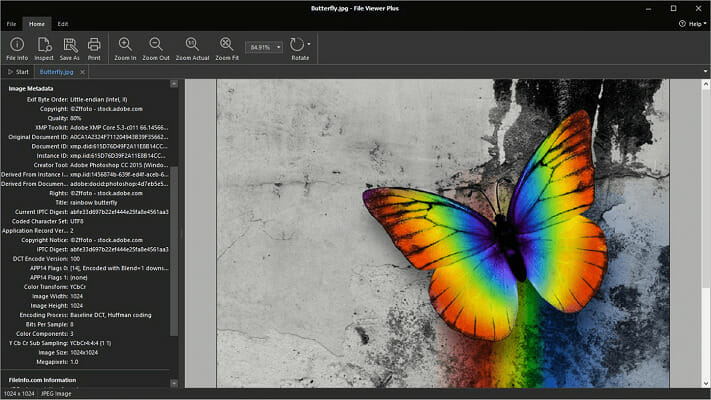




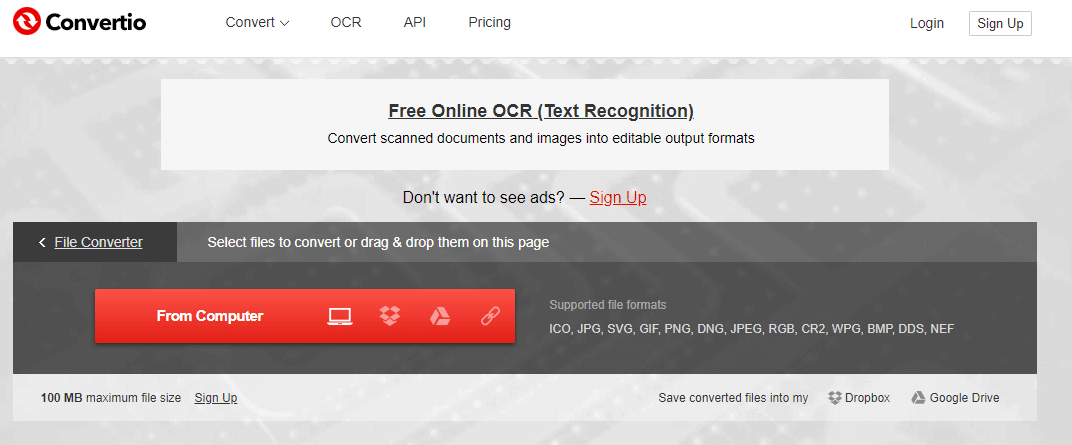
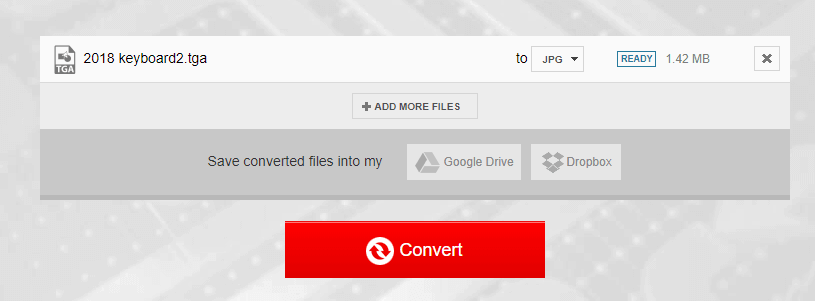







![Can’t trim PowerPoint videos on PC [Easy Steps]](https://windowsreport.com/wp-content/uploads/2020/04/PowerPoint-1.png)
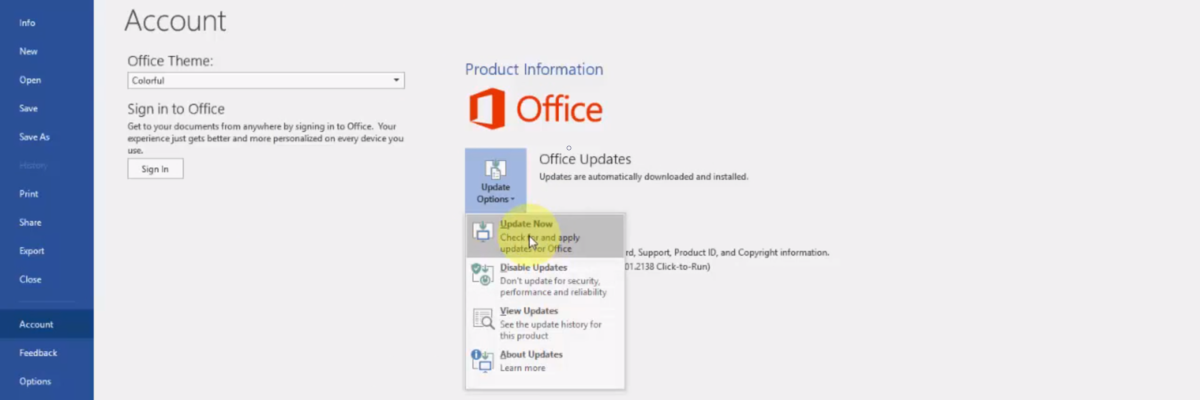
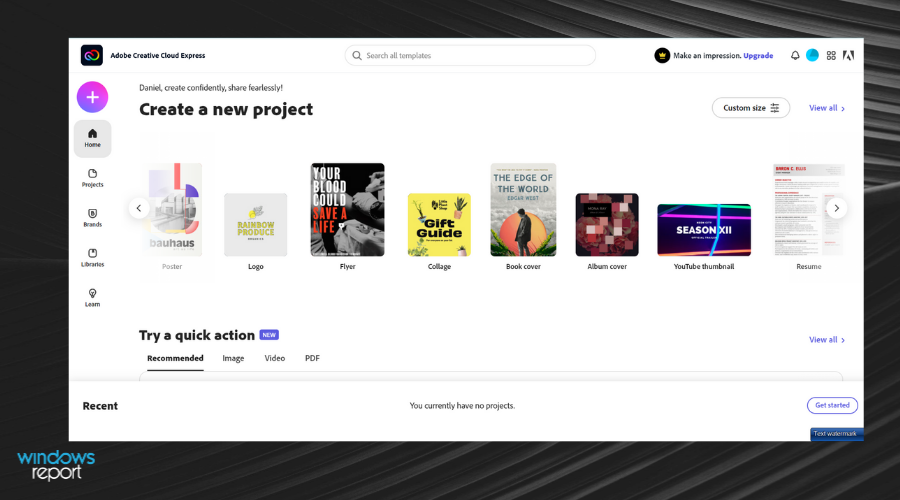











![Fix: Outlook.pst Is Not Valid Error [Invalid Path]](https://windowsreport.com/wp-content/uploads/2020/05/Outlook-5.jpg)





![Battle.NET Error Code 2 in Blizzard Games [Diablo 3 / WoW]](https://windowsreport.com/wp-content/uploads/2020/04/Blizzard.jpg)

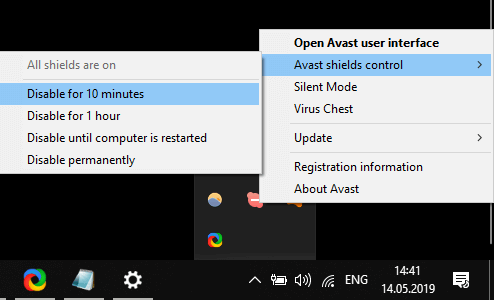
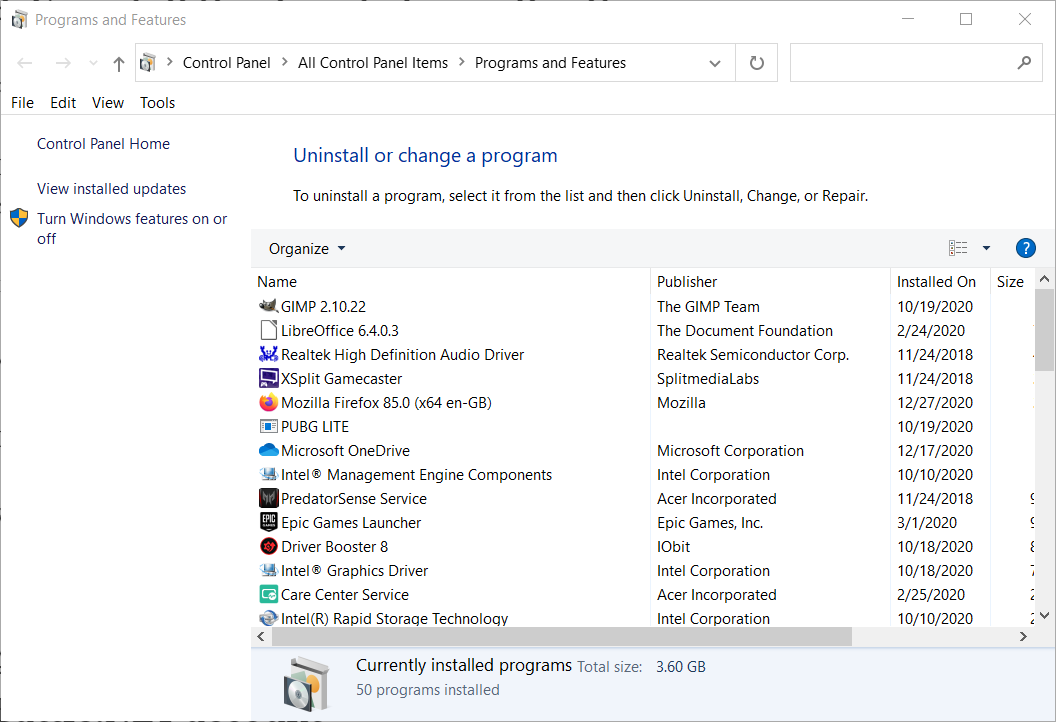
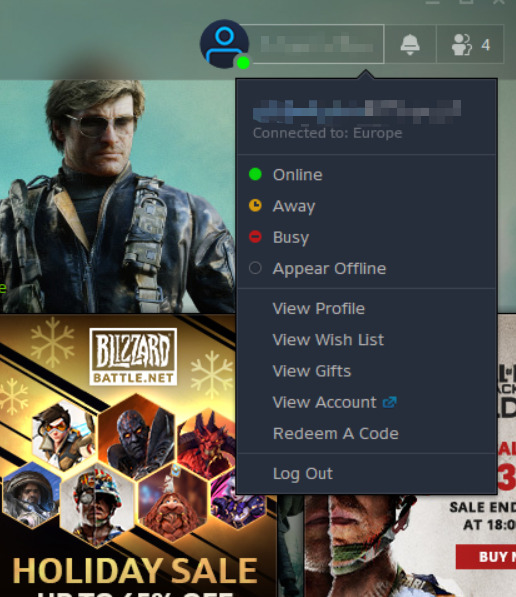
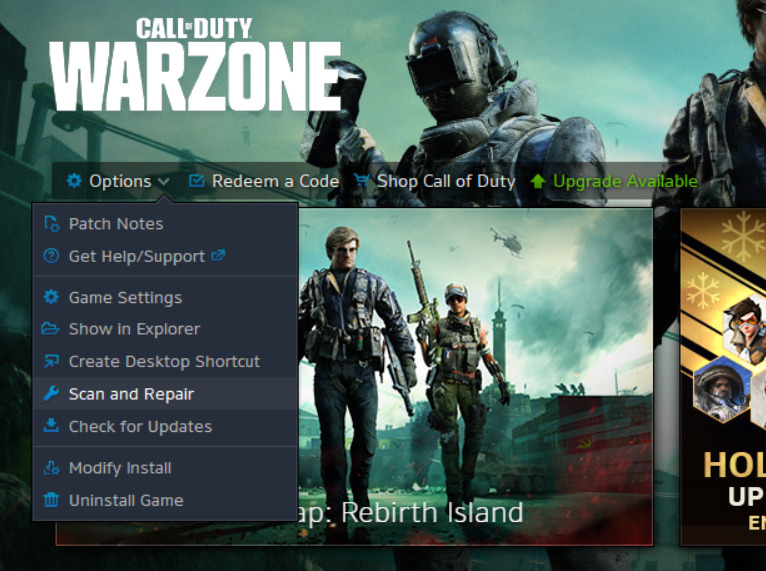
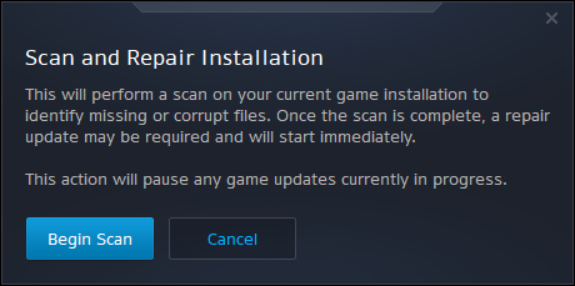
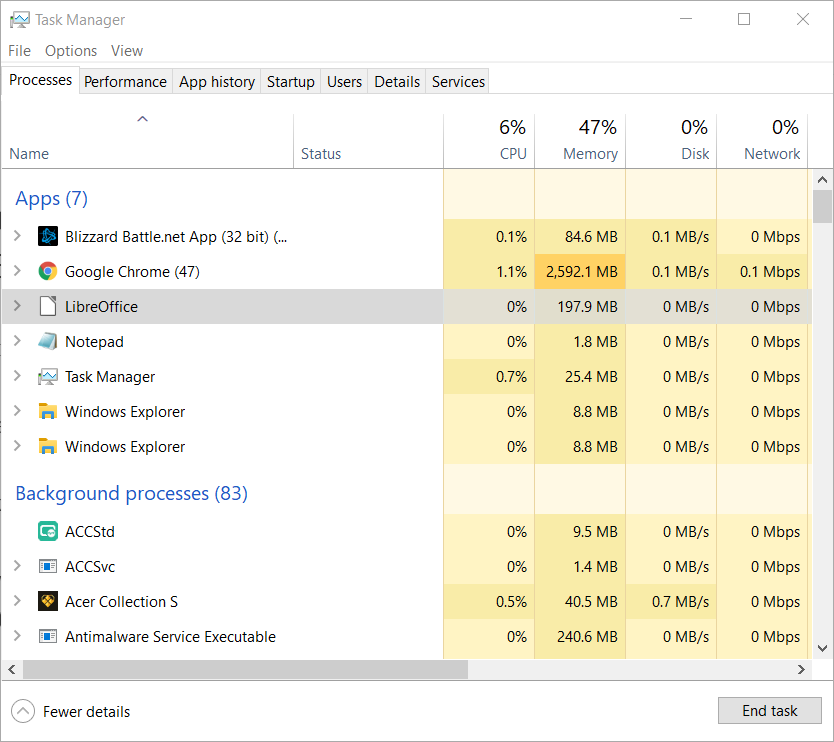






![Jade Empire: Failed to find Steam error [Solved]](https://windowsreport.com/wp-content/uploads/2020/09/Cant-find-my-steam-folder-Windows-10-Mac.jpg)


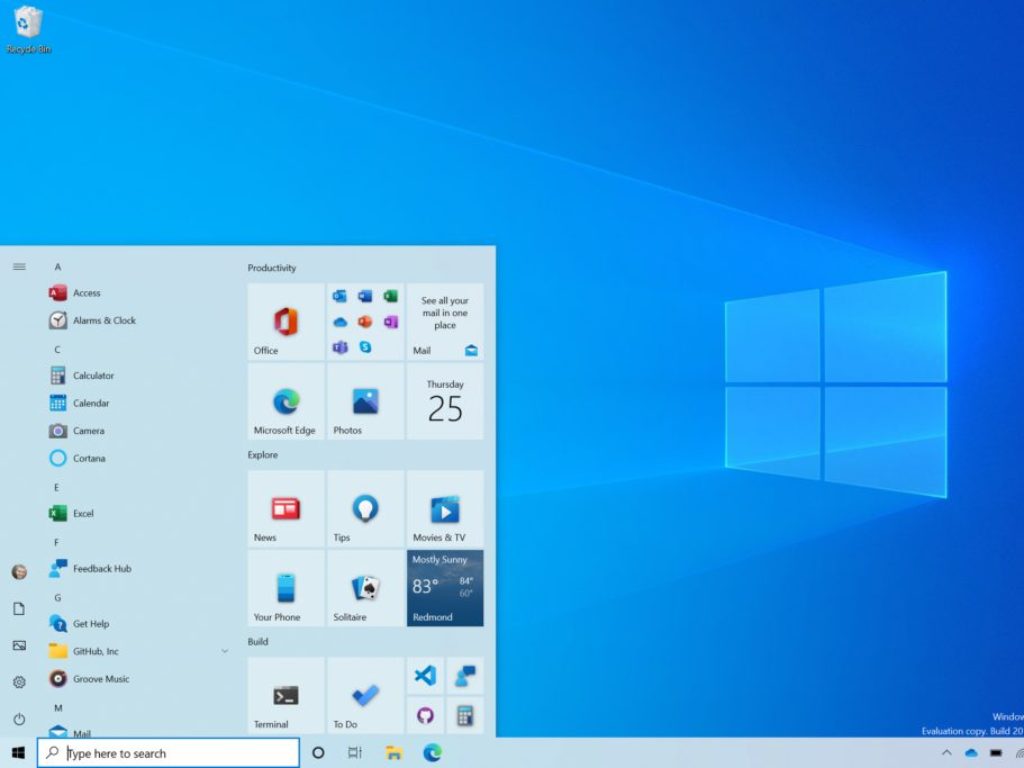

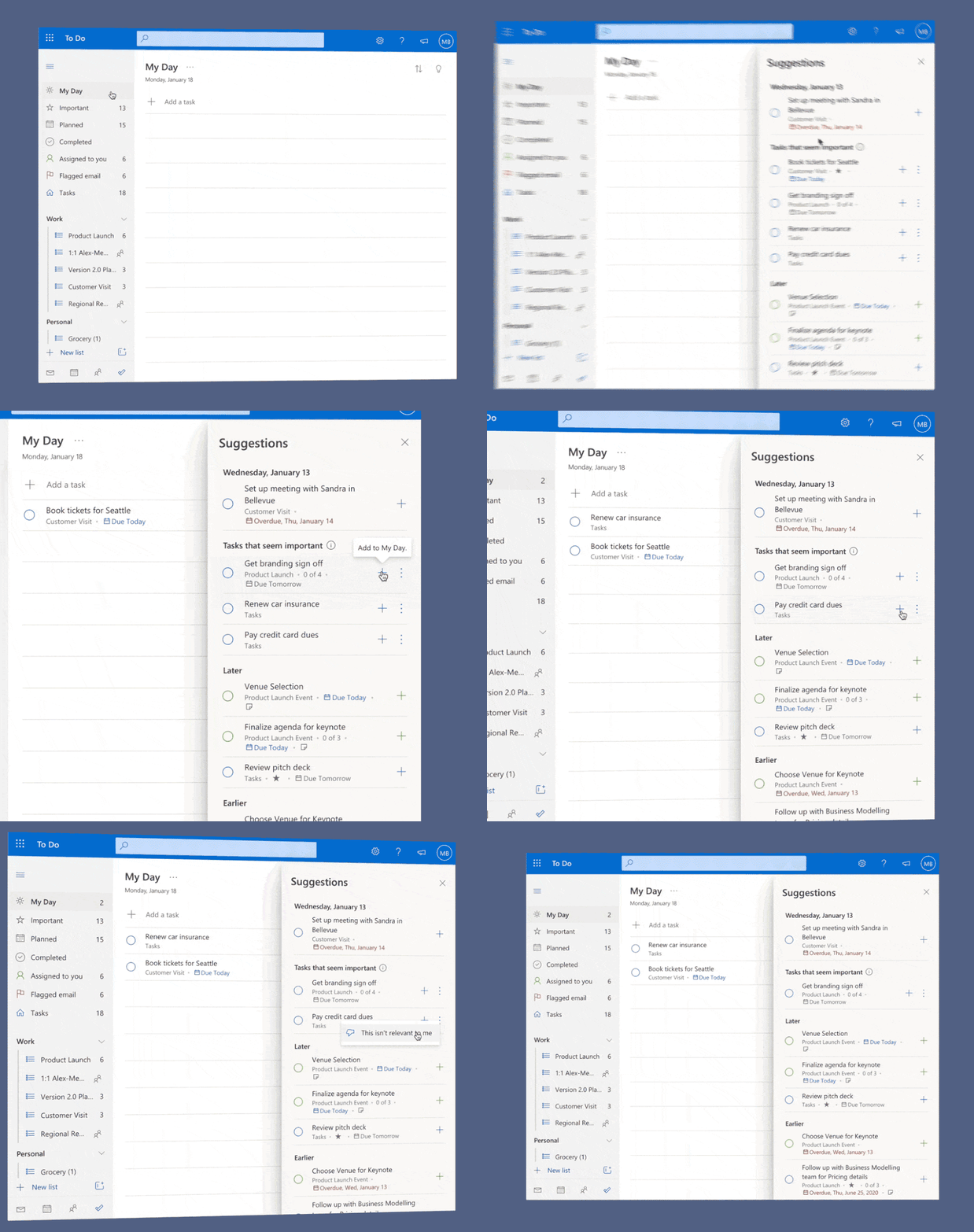
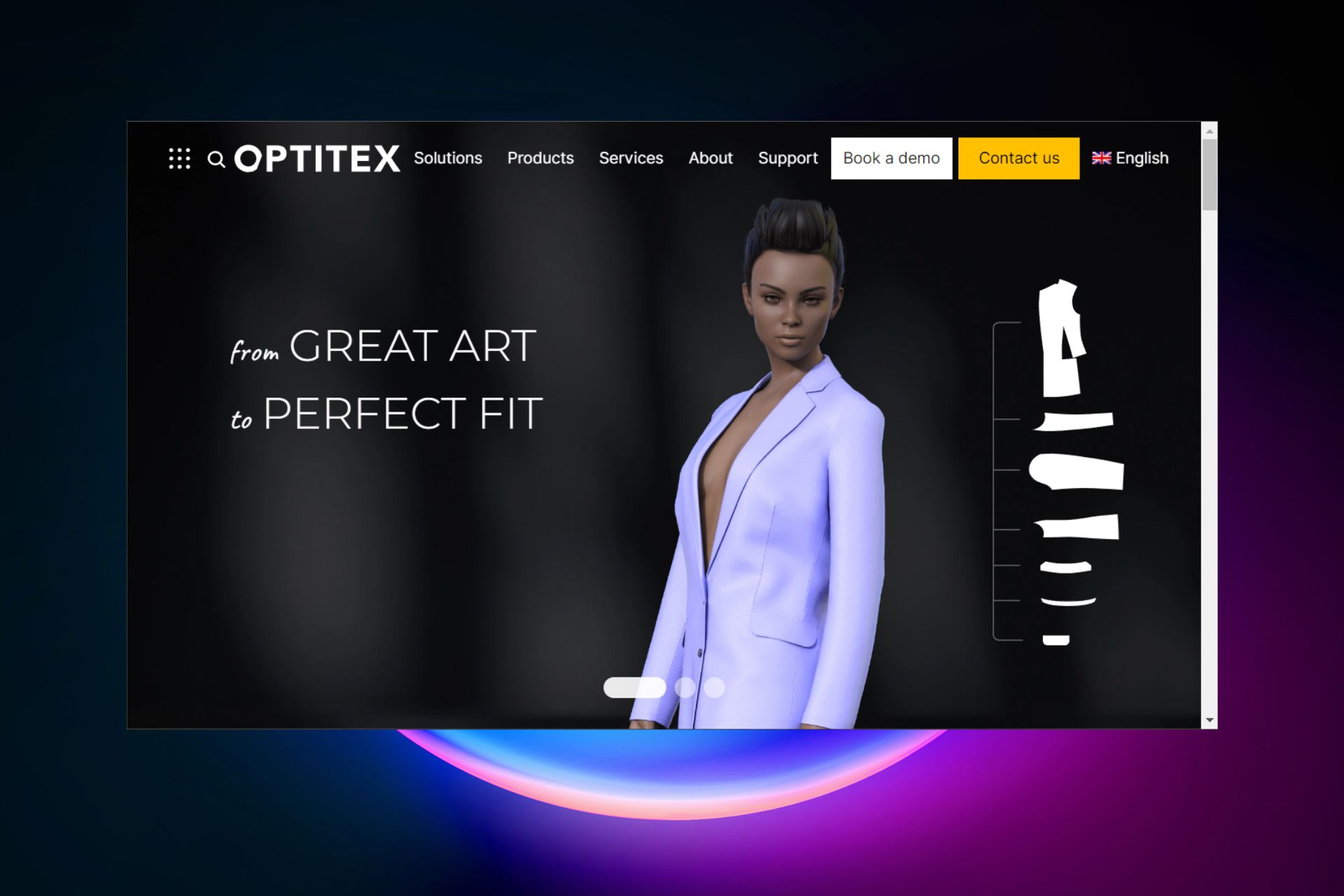
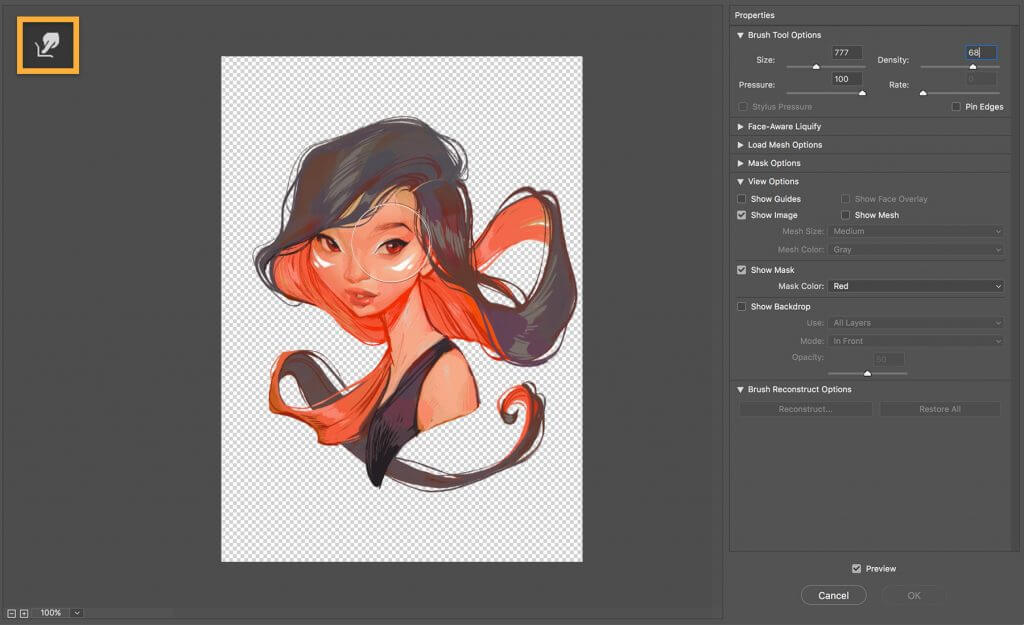
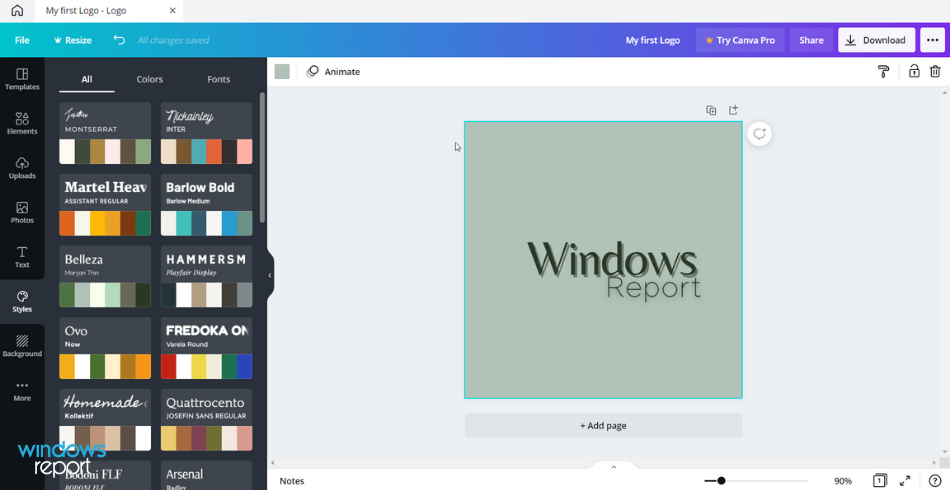

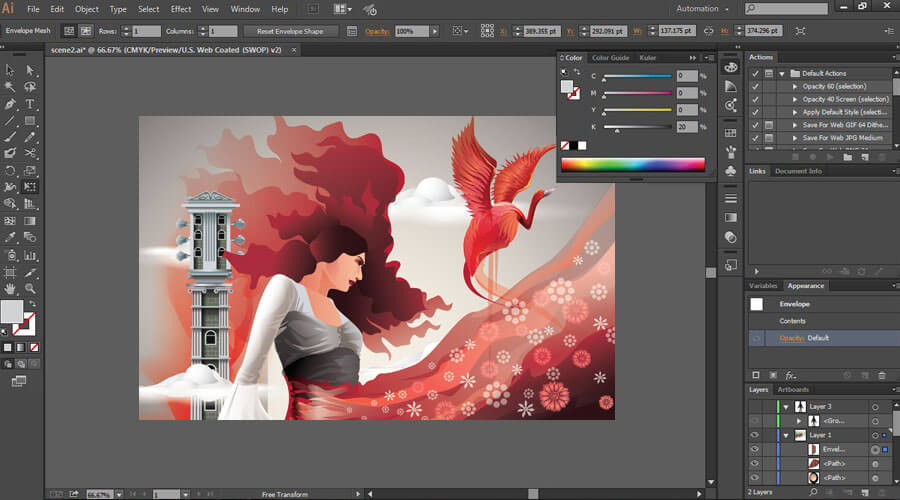


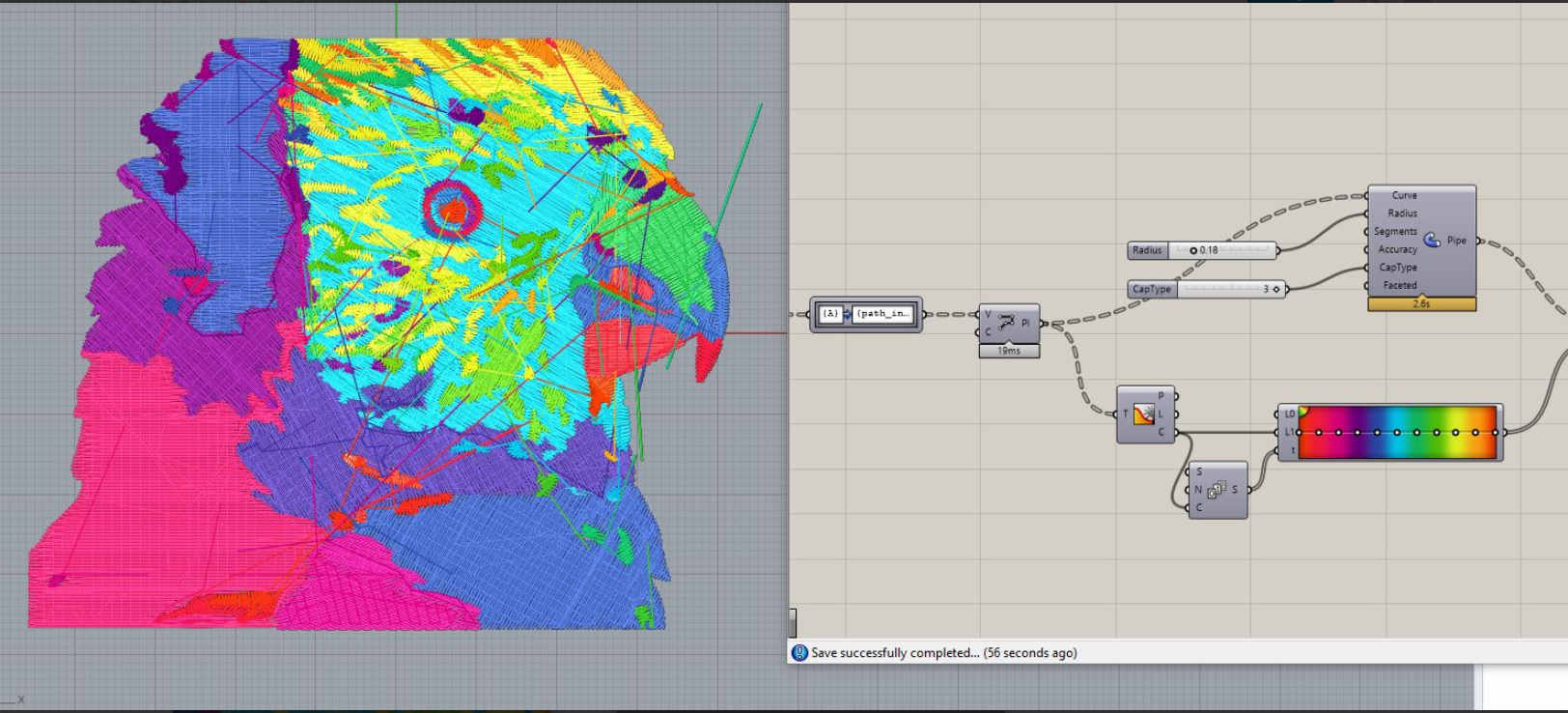

![Best Drawing Software for Wacom Tablets [2026 Reviewed]](https://windowsreport.com/wp-content/uploads/2021/01/best-drawing-software-for-wacom.jpg)

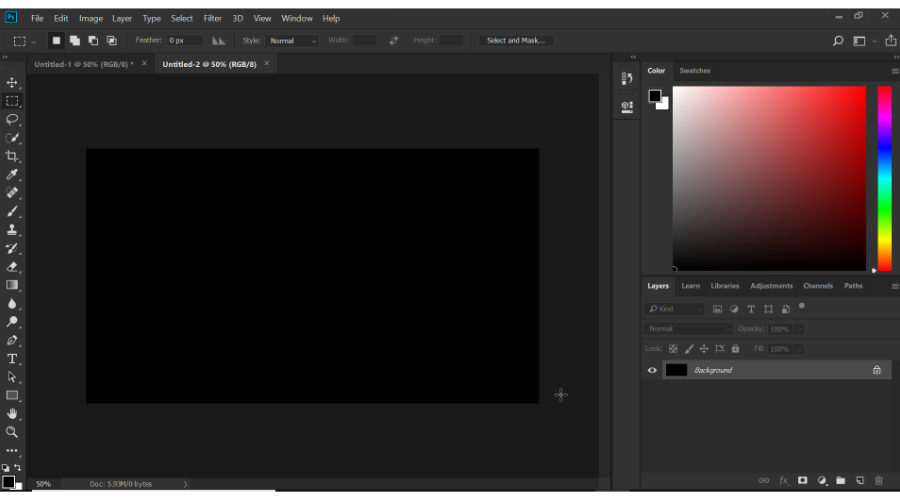
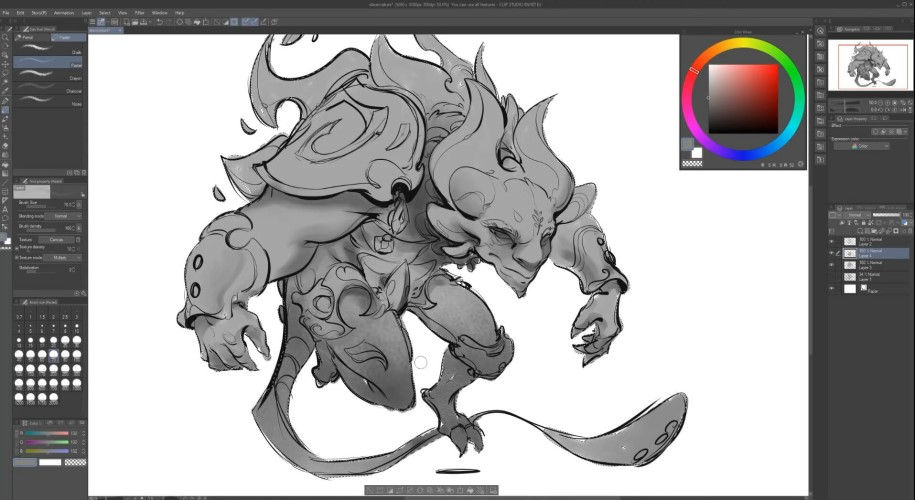
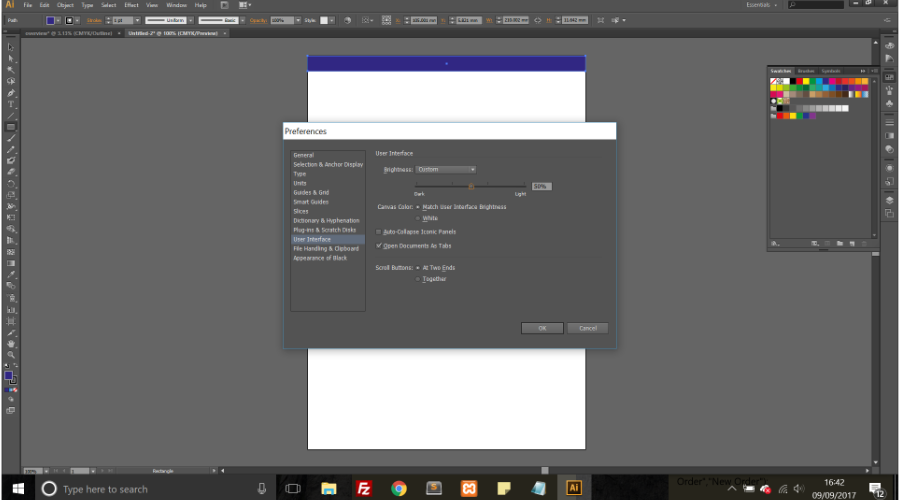

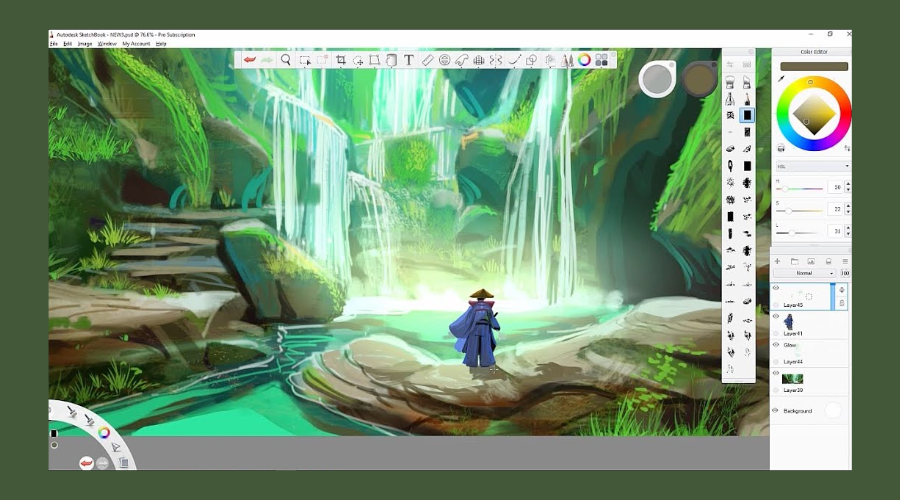





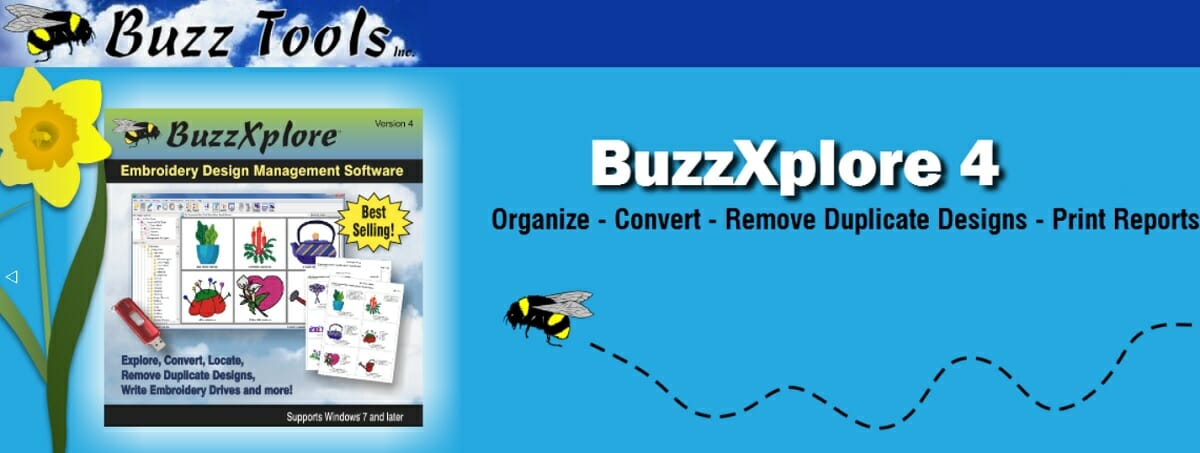
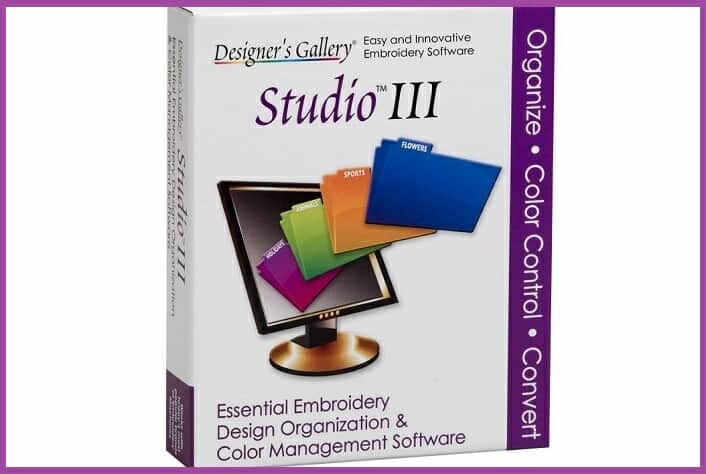
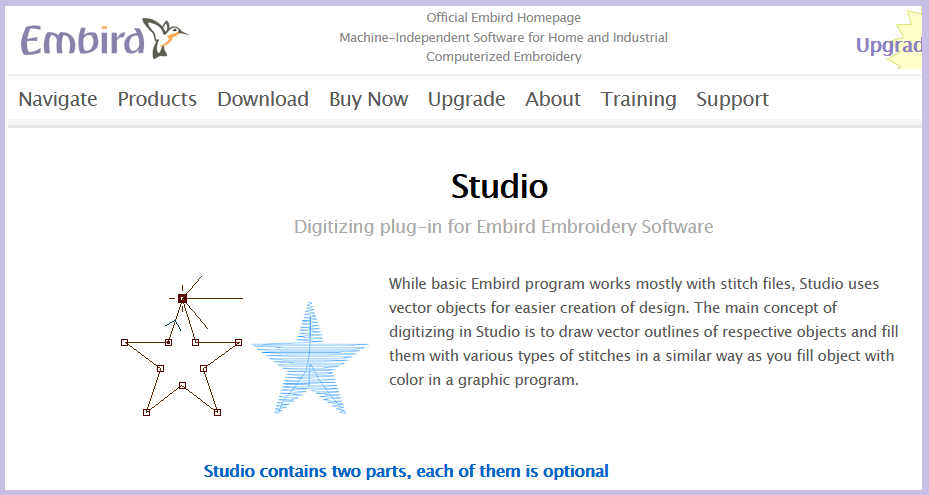

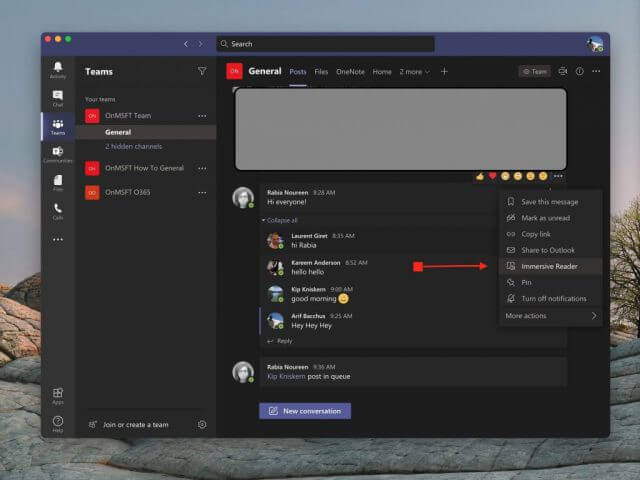
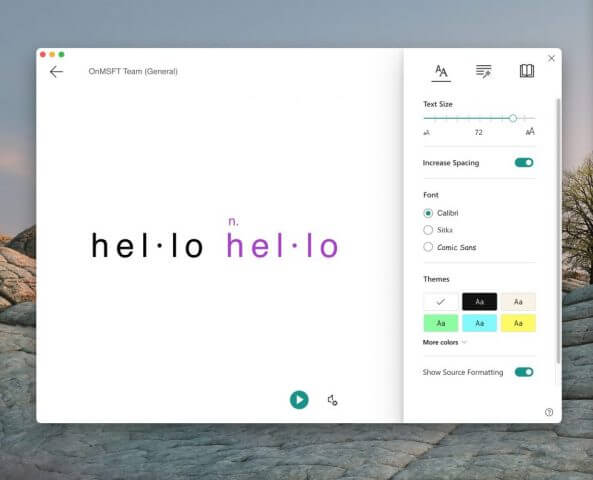
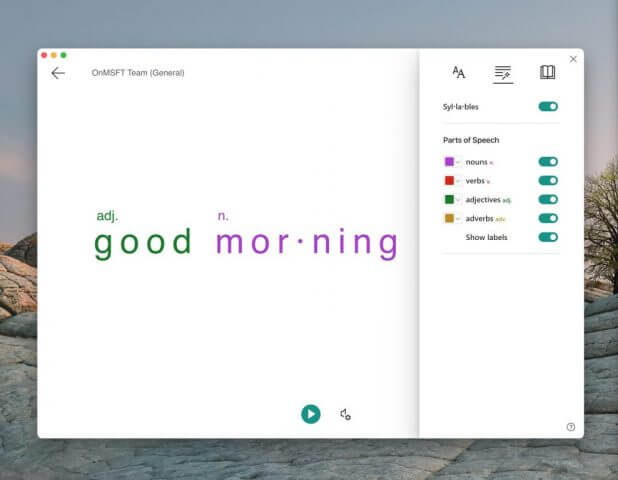
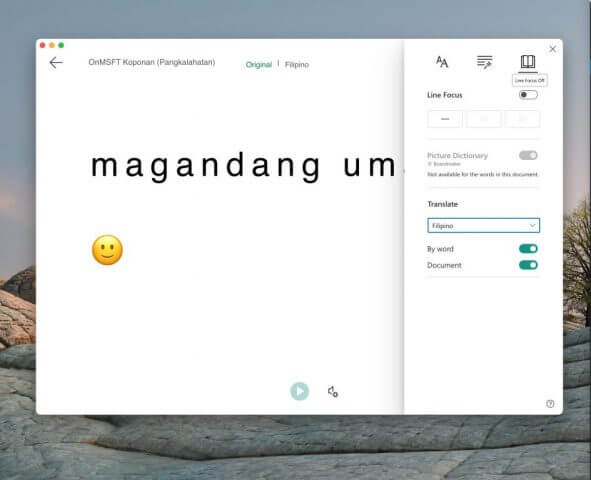


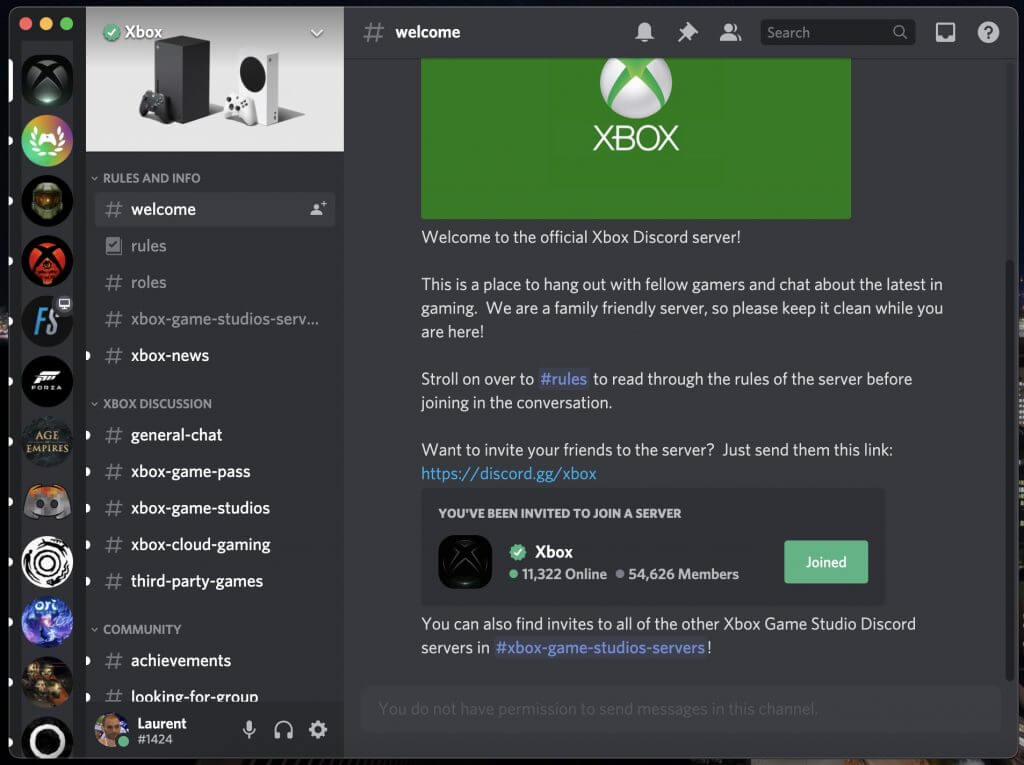

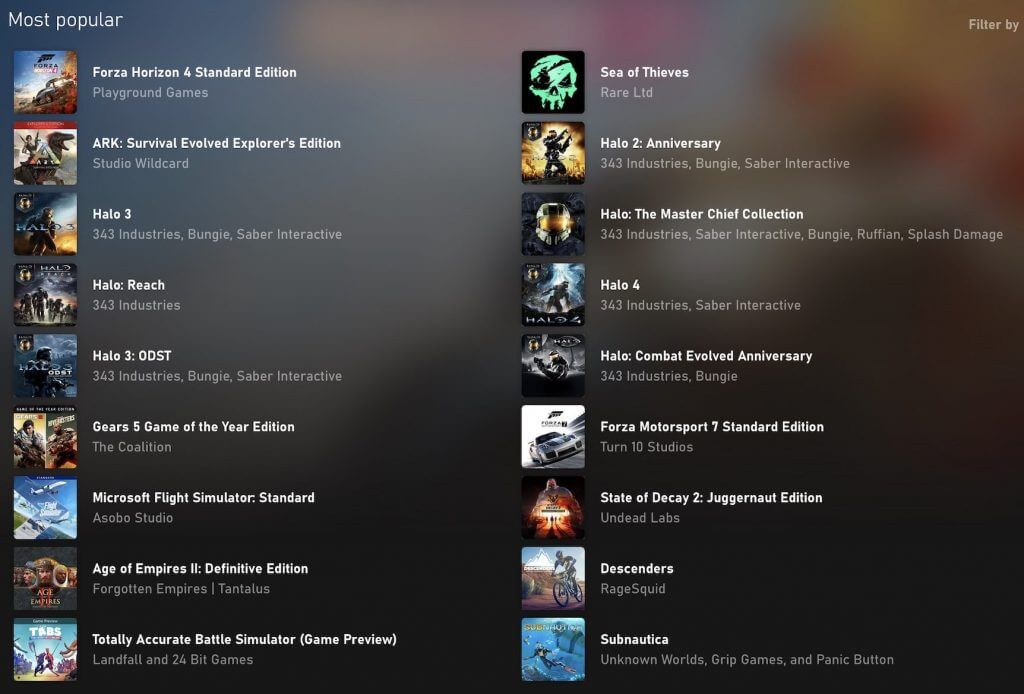
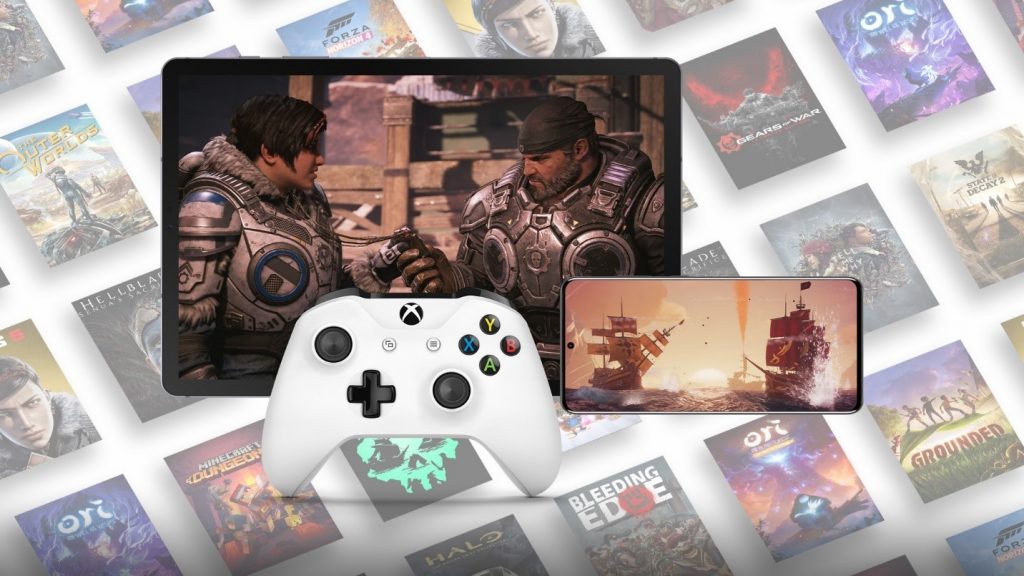
![How to recover recently deleted files [Windows 10 & Mac]](https://windowsreport.com/wp-content/uploads/2017/08/restore-accidentally-deleted-files.jpg)
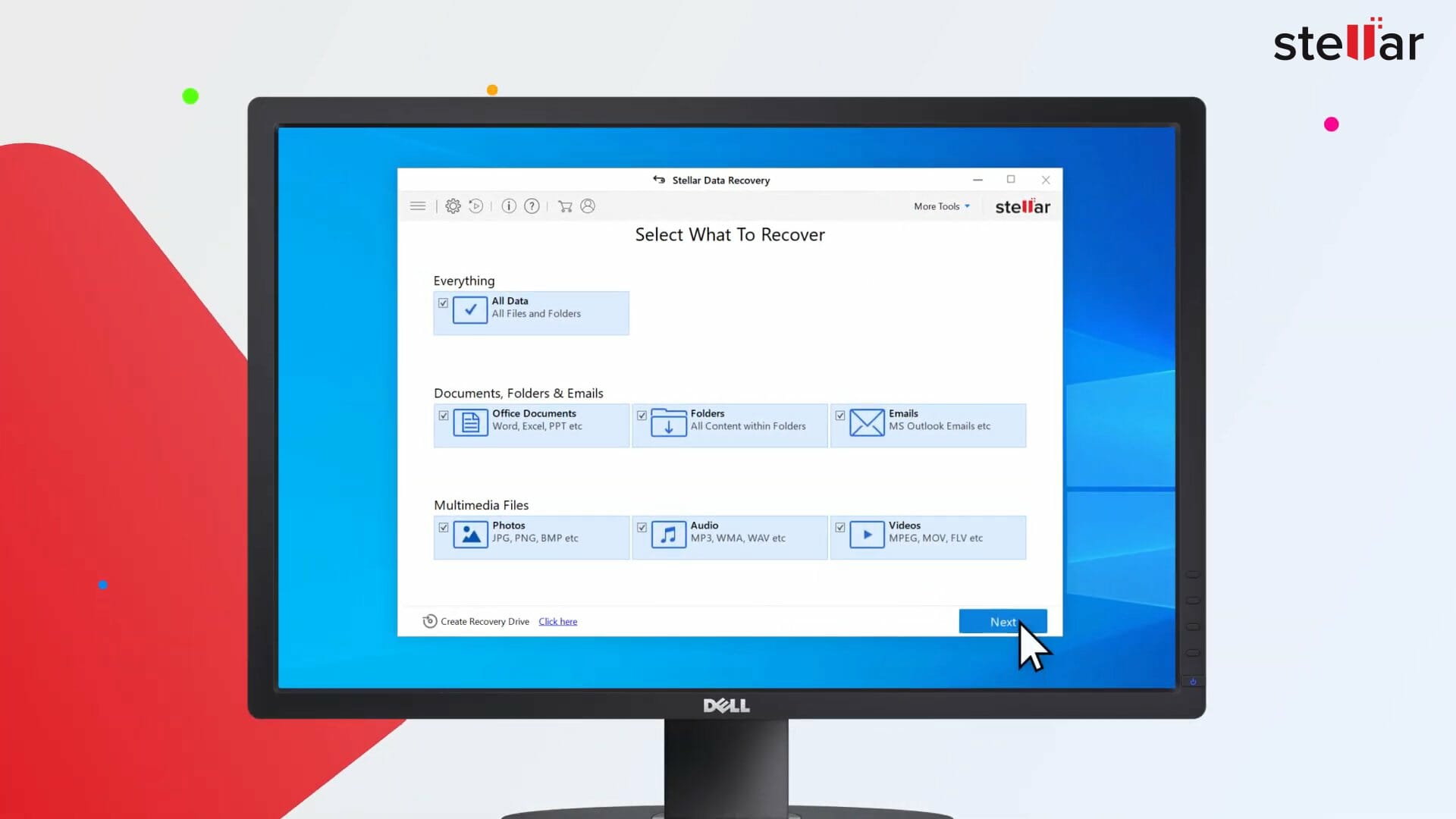


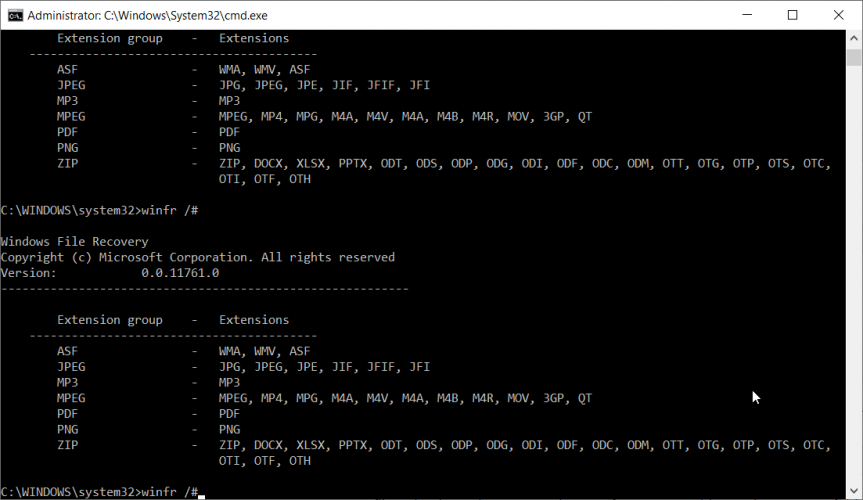


![5 best check printing software [Personal & Business]](https://windowsreport.com/wp-content/uploads/2020/04/check-printing-software.jpg)



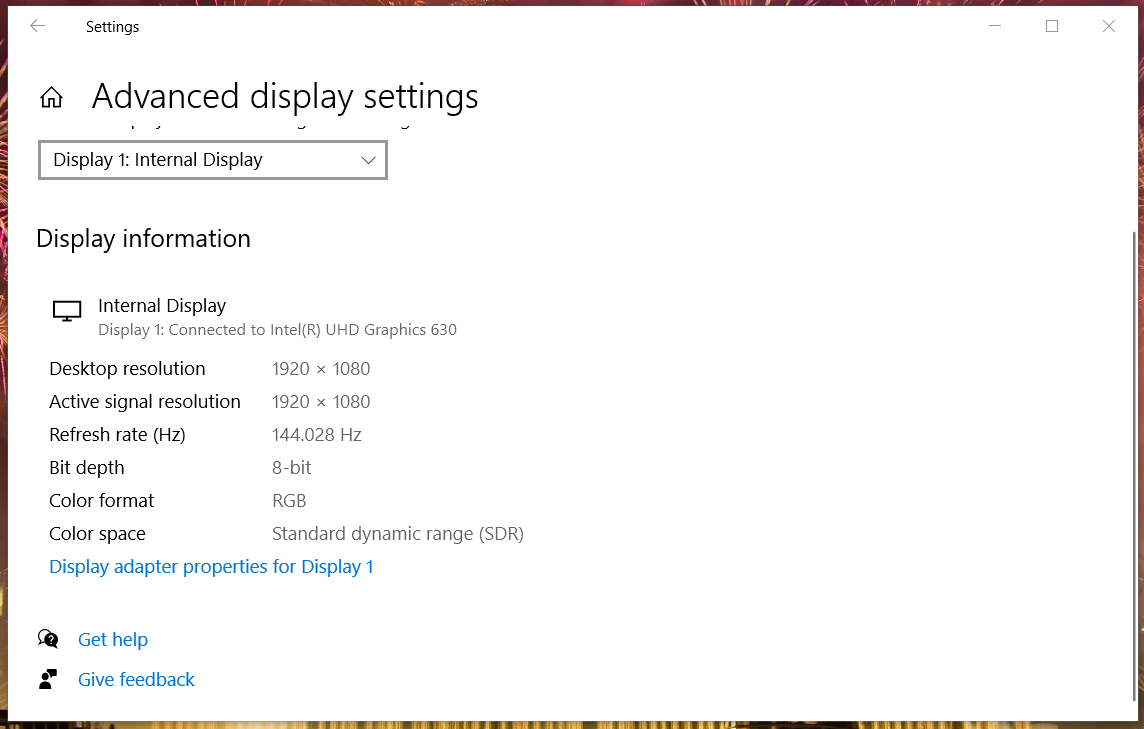
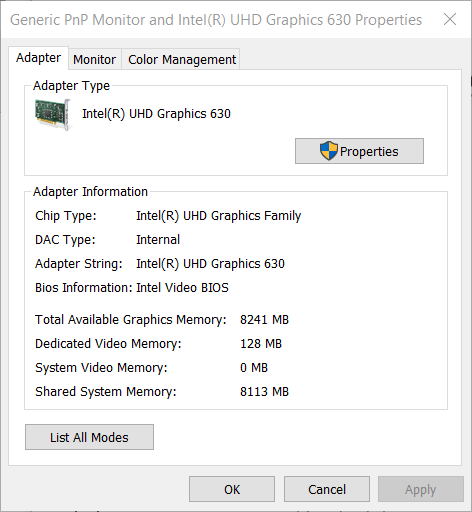
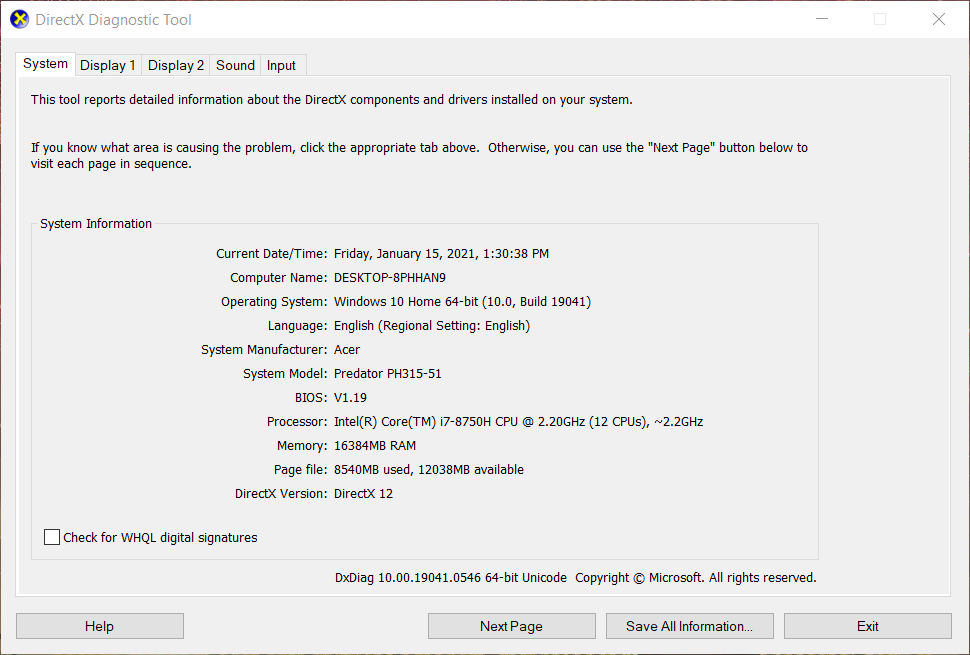
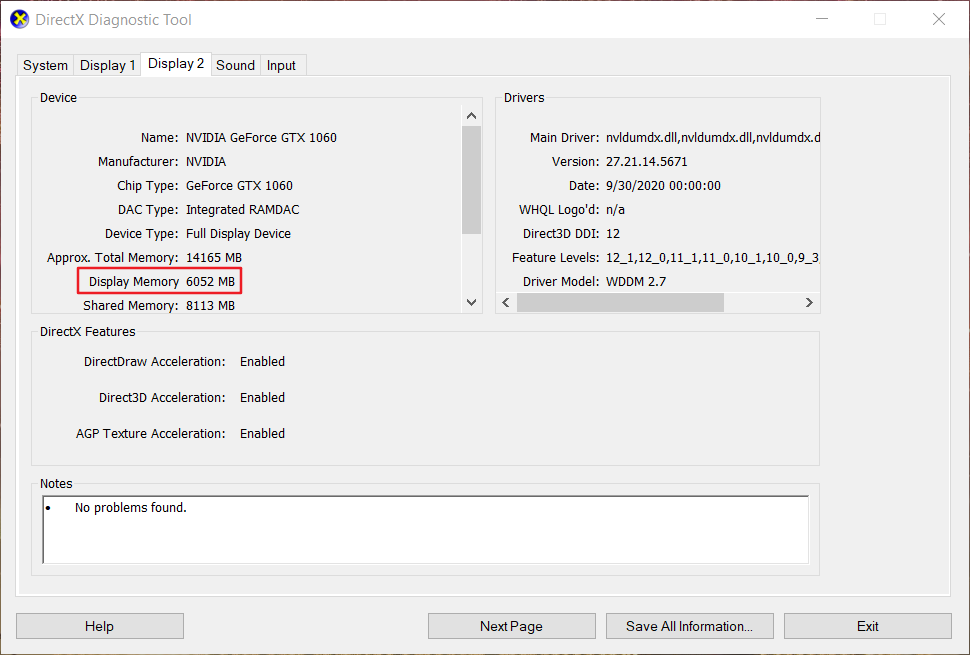
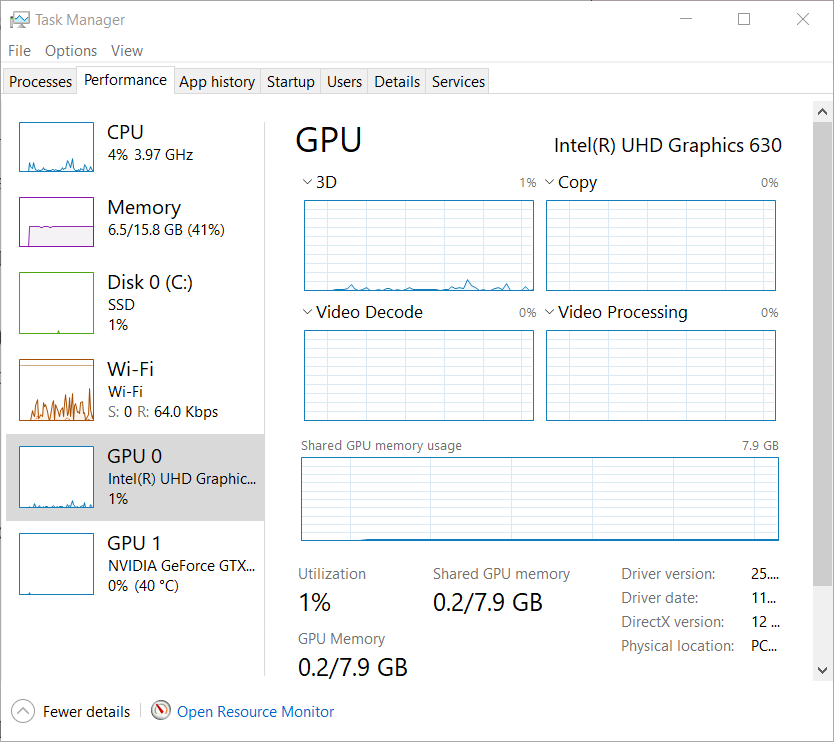




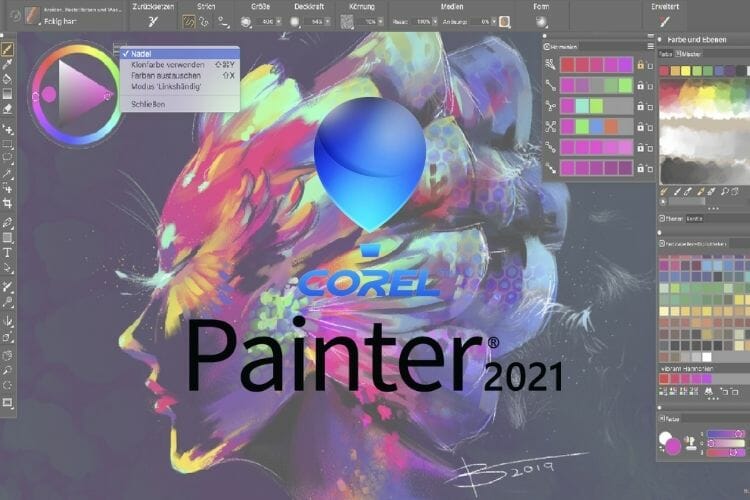





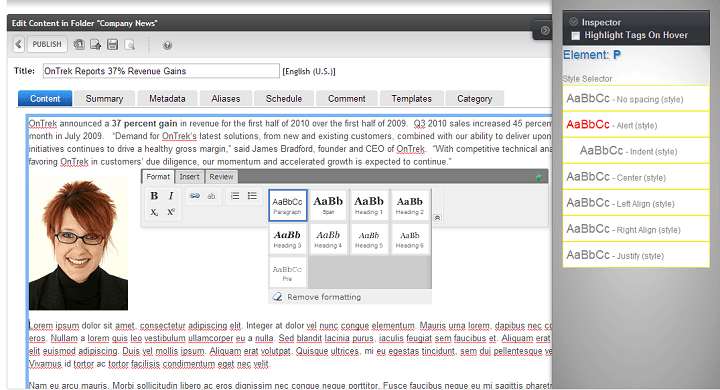
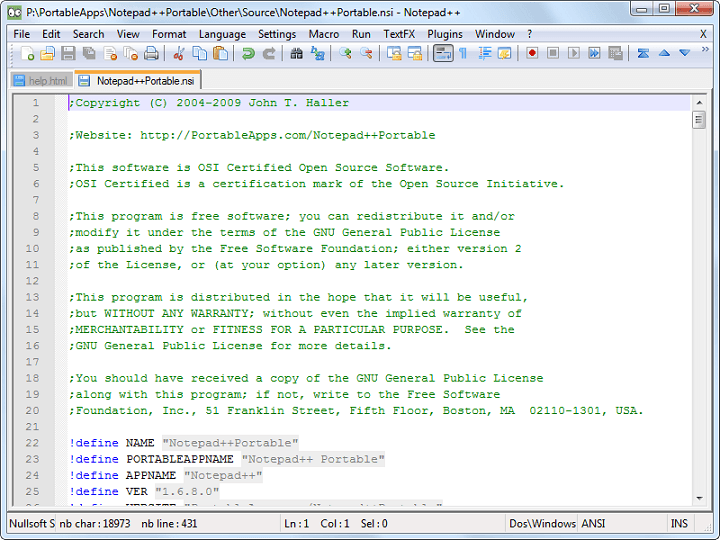
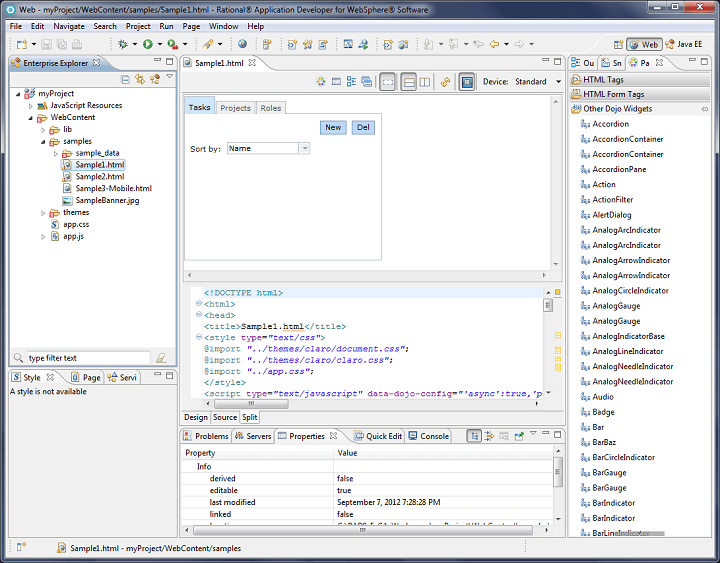
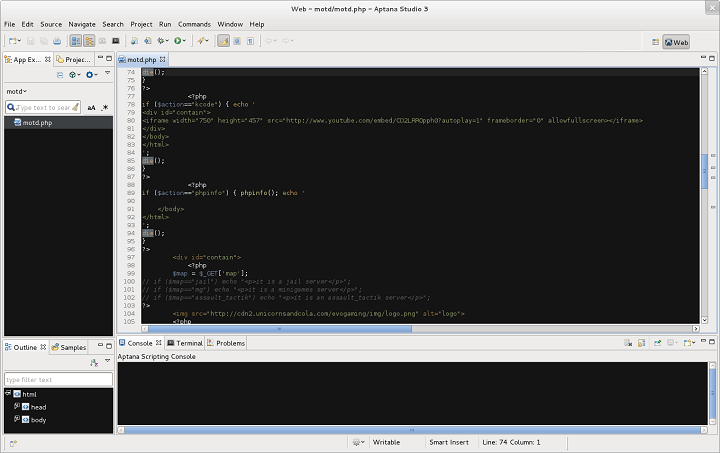
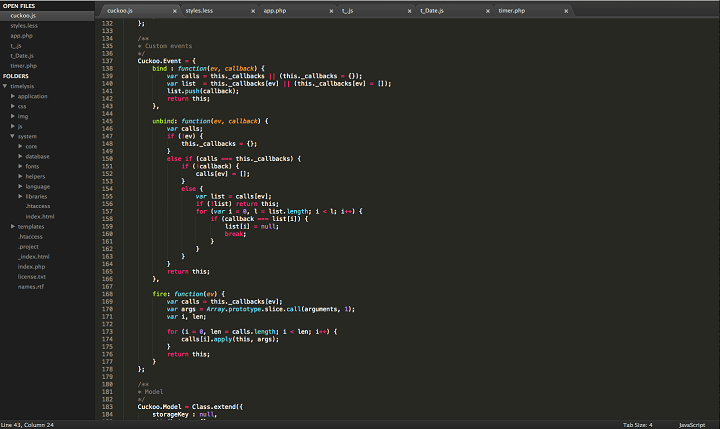
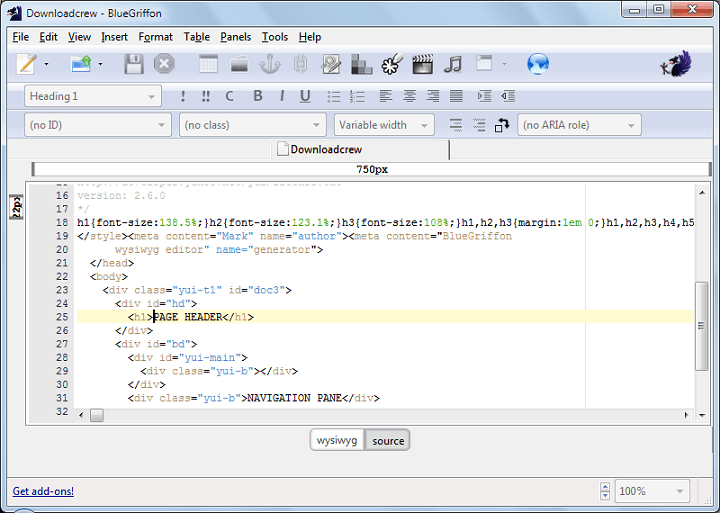





![5 Best Photo Editing Software for Fujifilm [2026 List]](https://windowsreport.com/wp-content/uploads/2020/04/best-photo-software-for-Fujifilm-cameras.jpg)





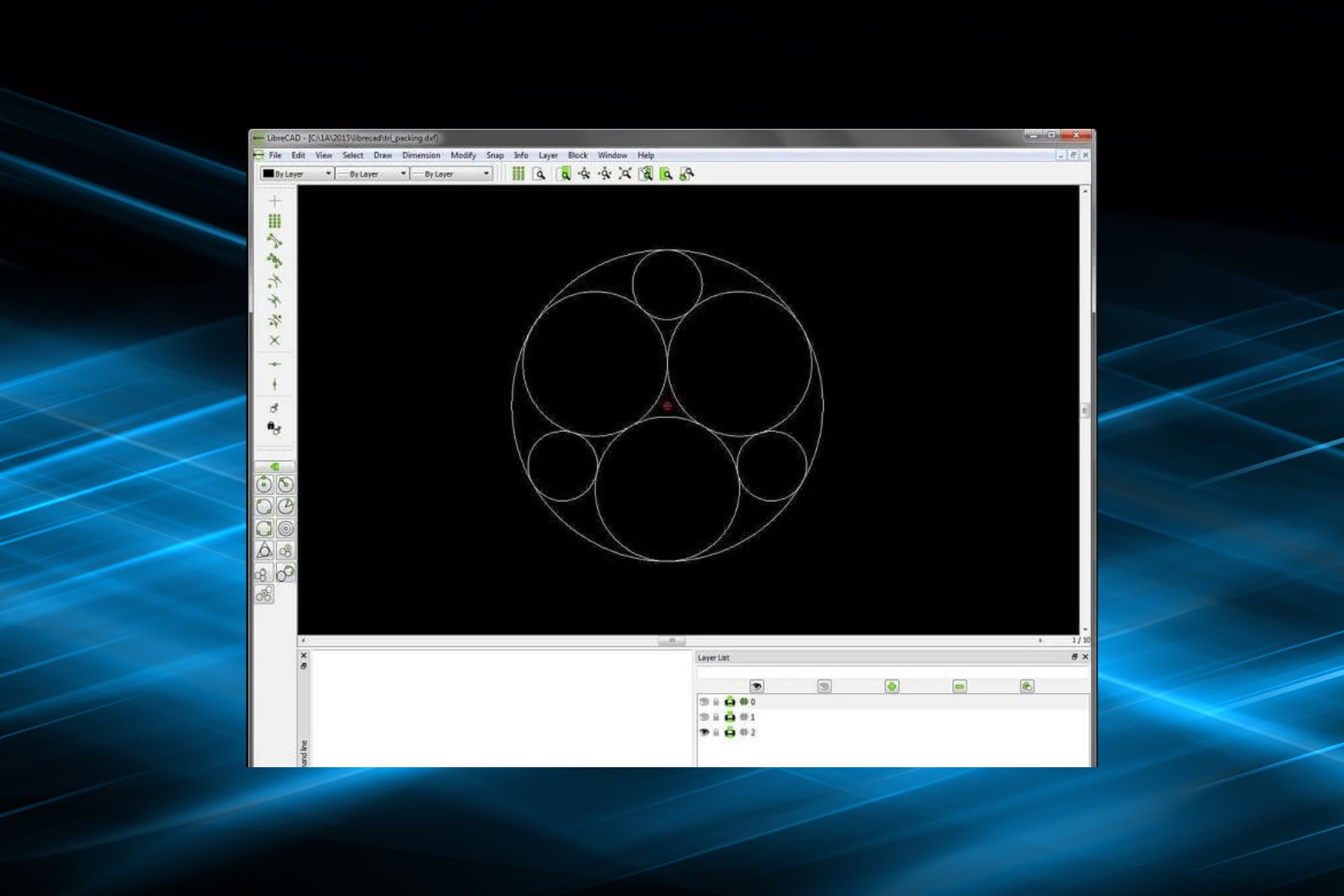
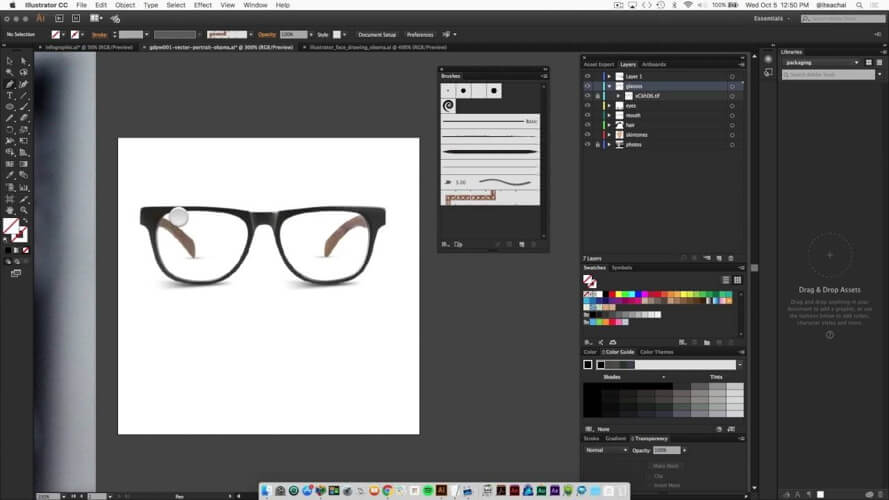
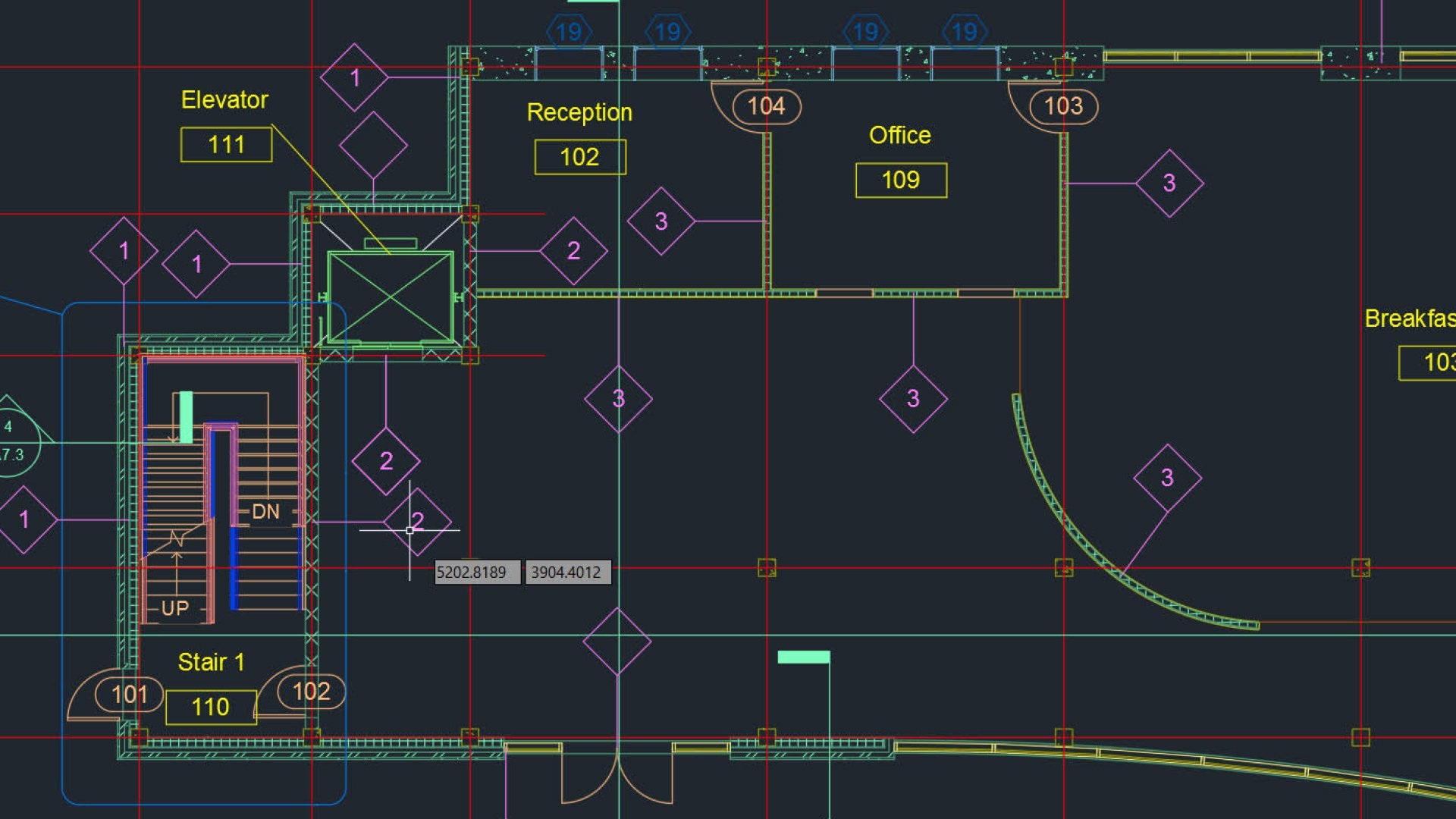

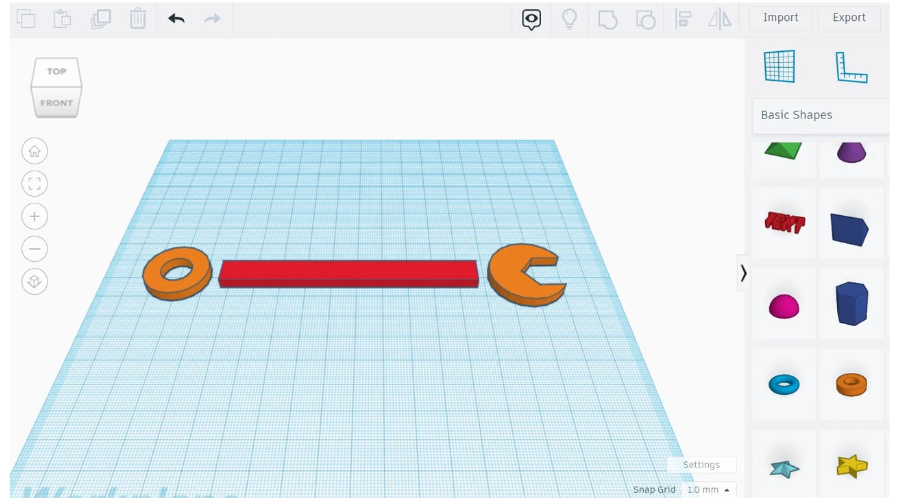
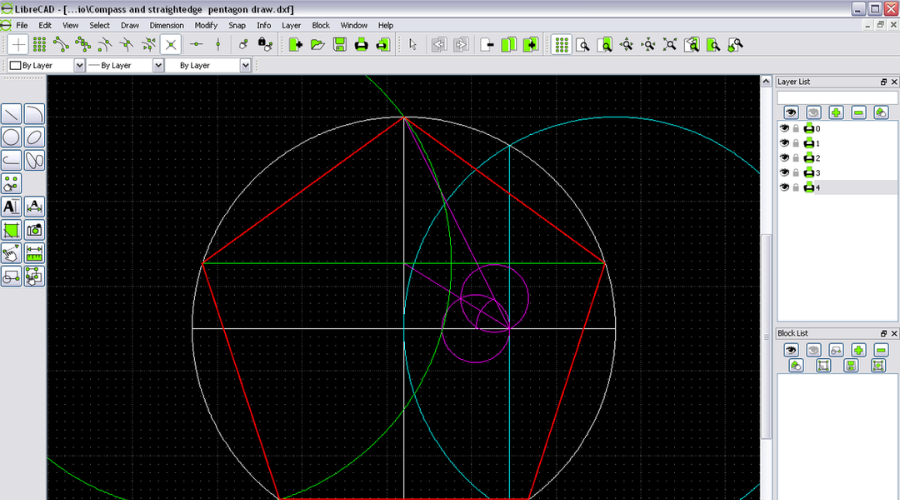

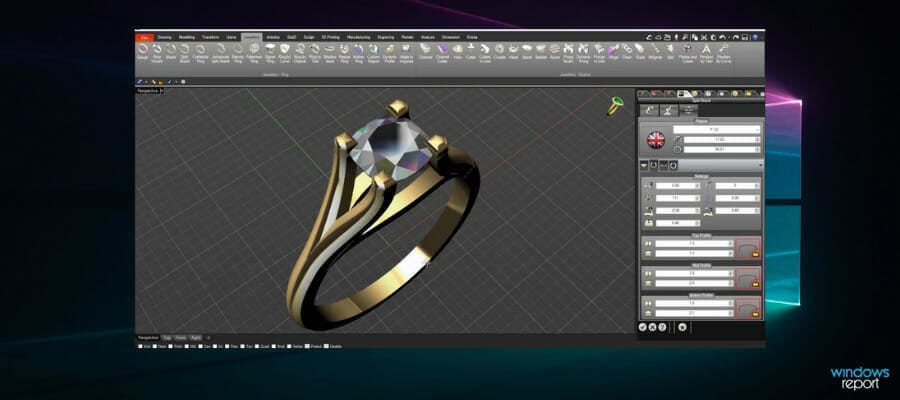
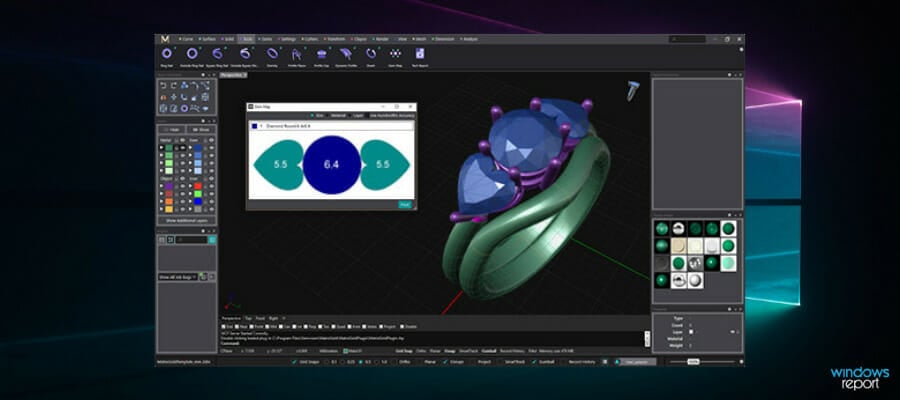



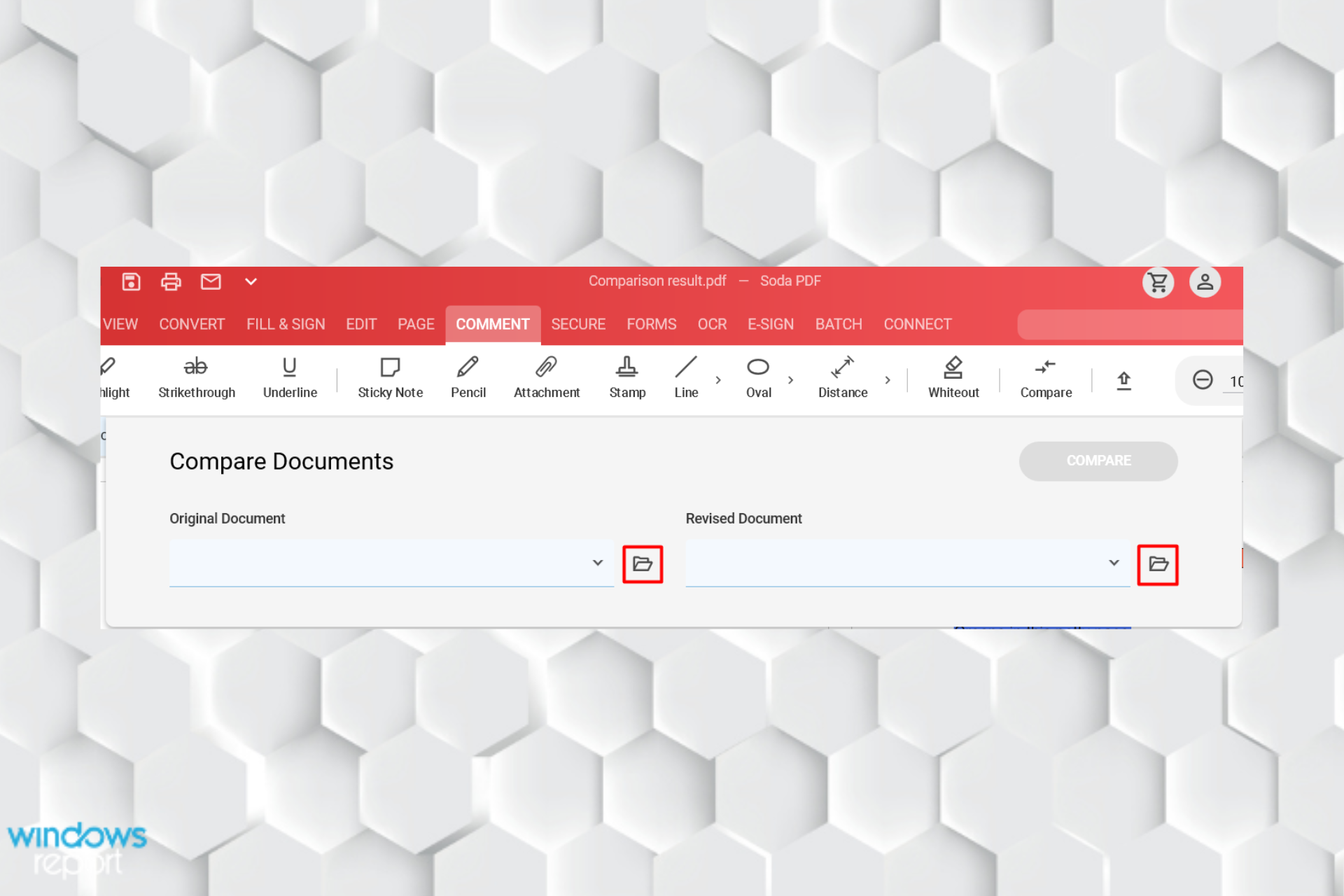
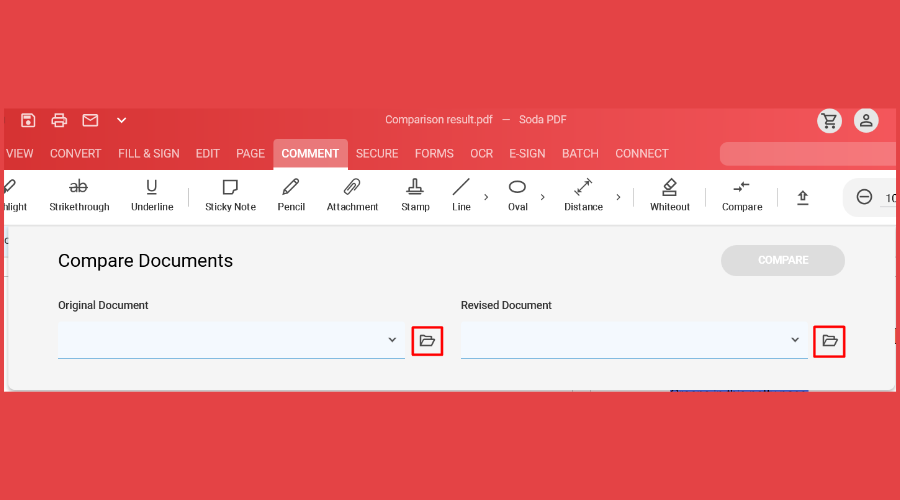

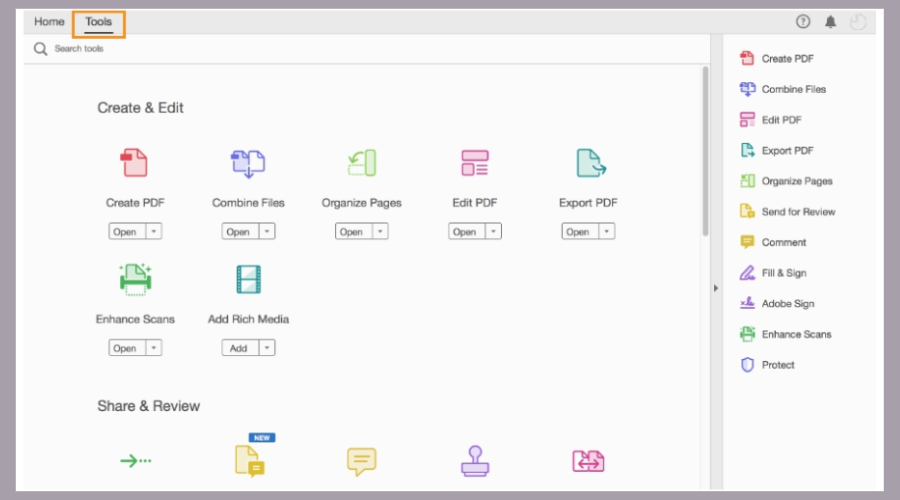

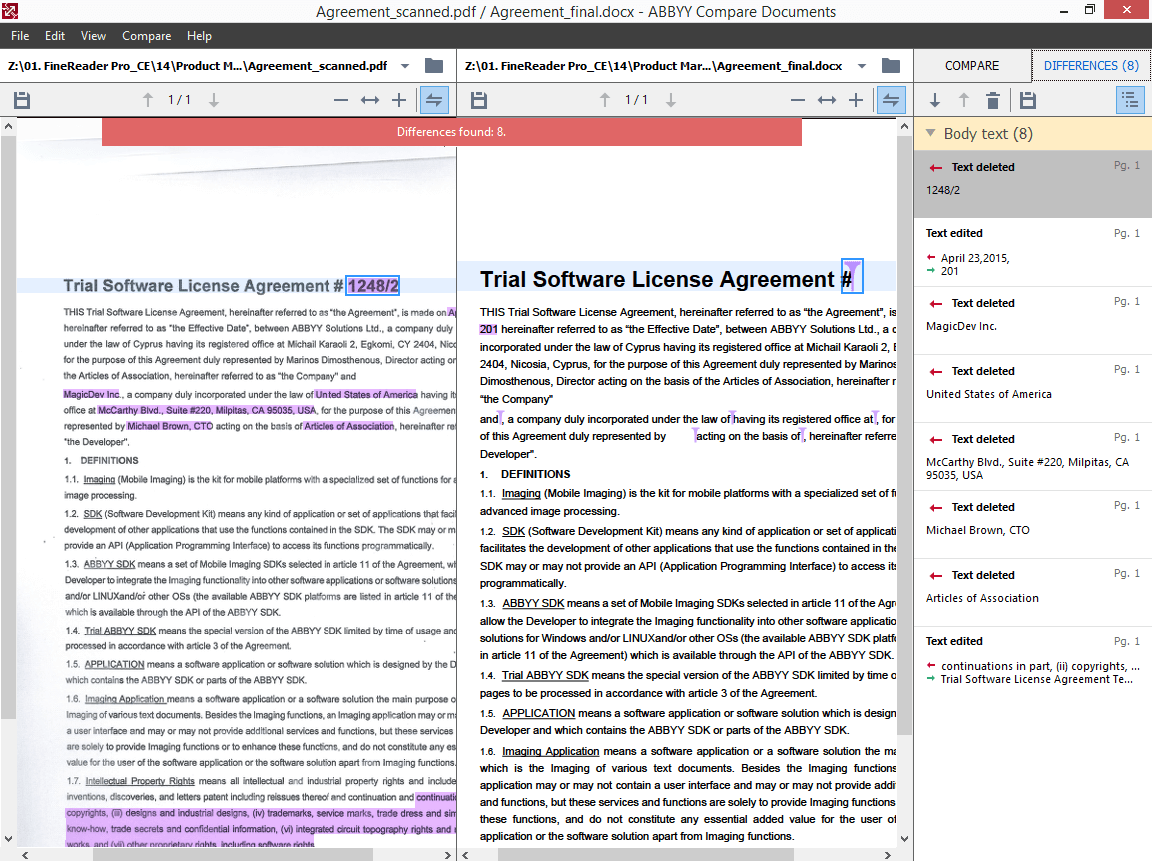

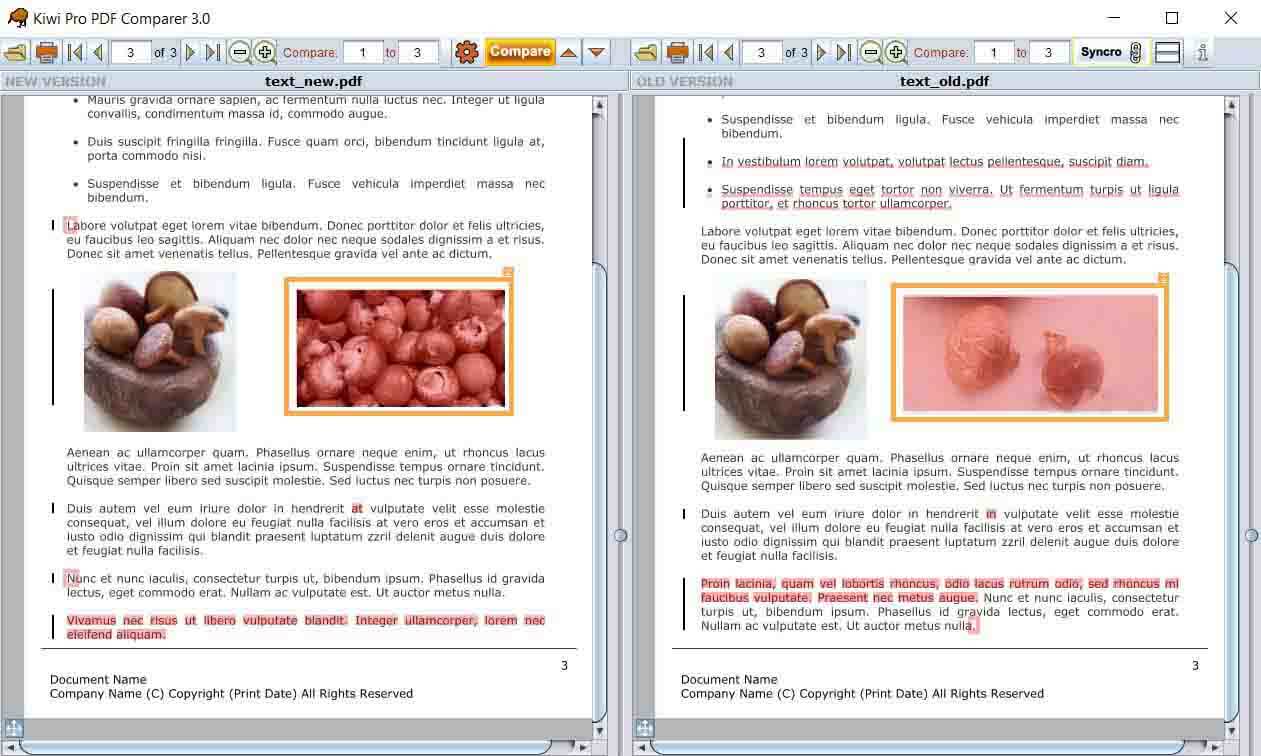
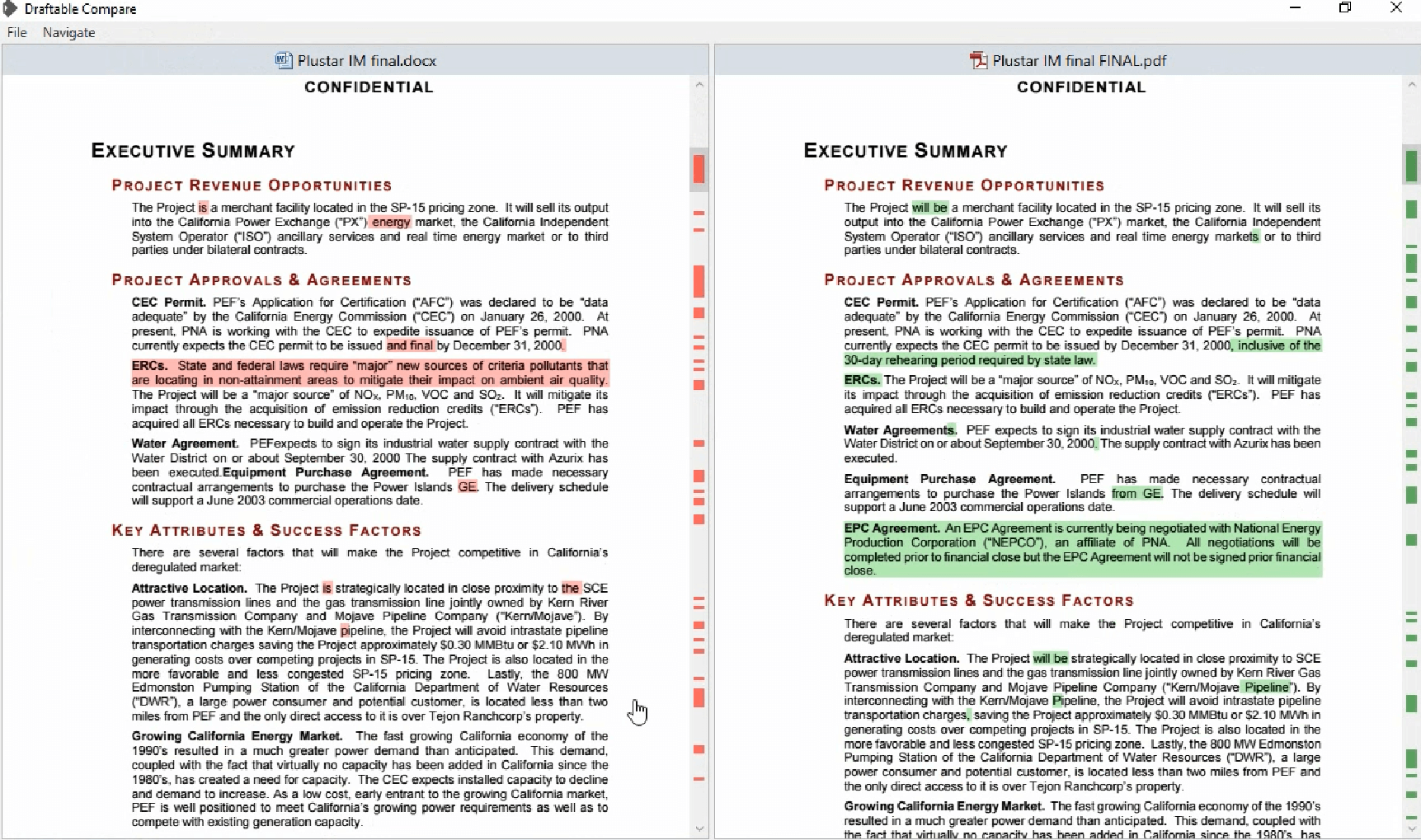
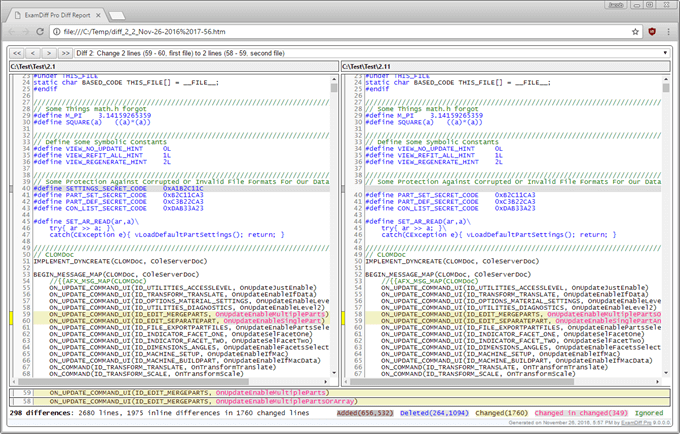





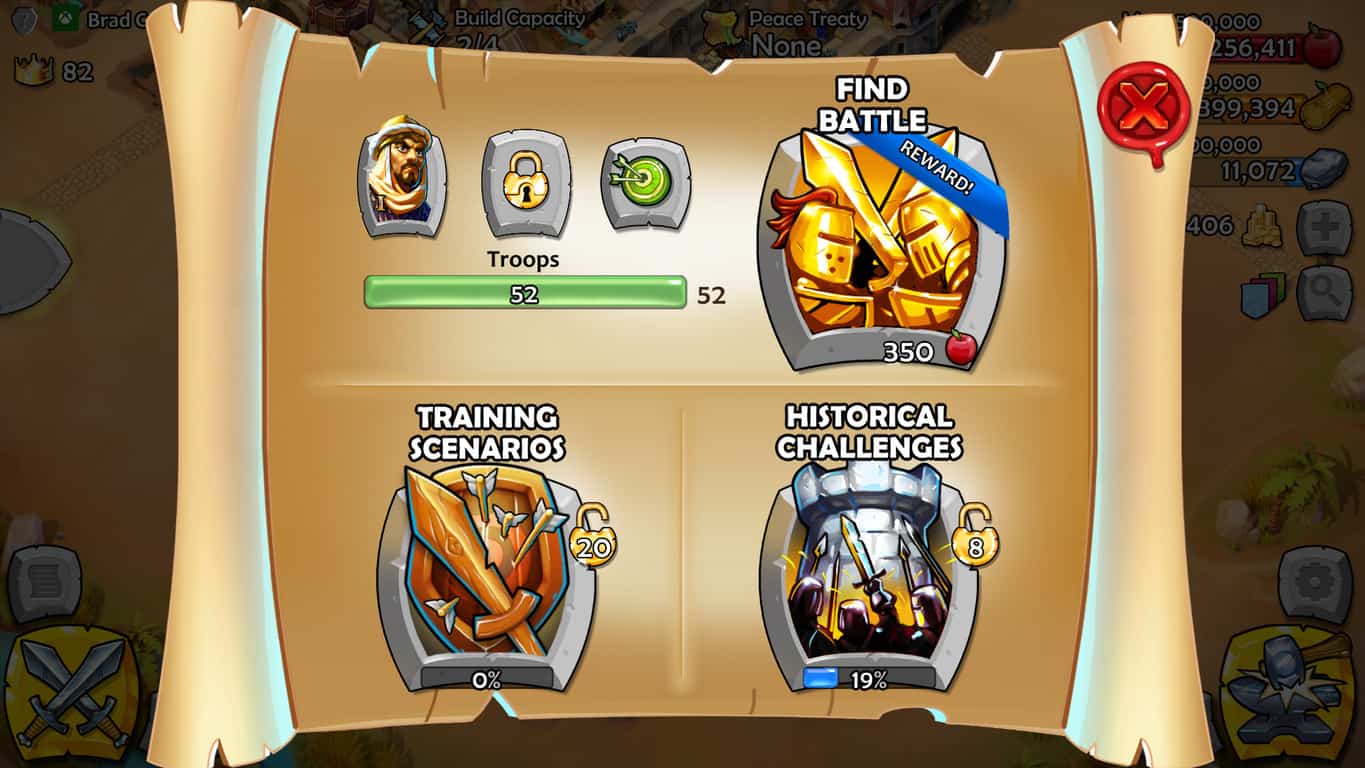
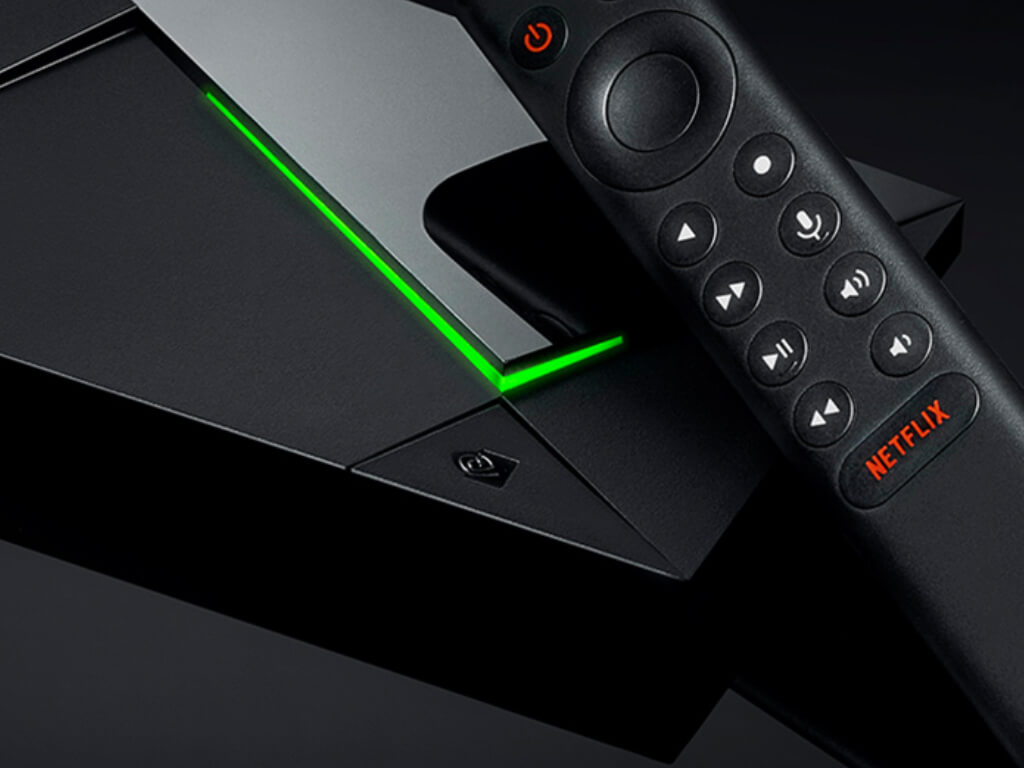
![Nvidia nForce networking controller not working [Fixed]](https://windowsreport.com/wp-content/uploads/2020/10/nvidia-logo.jpg)