How to fix FFXIV error code 10105 [Step-by-step]

If you’ve been playing FFXIV (Final Fantasy XIV) for a while now, you may have experienced the occasional issues, including the dreaded 10105 error.

Apparently this error springs out of nowhere and renders you unable to connect to the game.

To make matters even worse, it’s been noticed that error 10105 generally disconnects users when they’re engaged in difficult trial fights.

Some users even reported that they got logged out of trial-engaged characters, but they could access other characters without issues.

Furthermore, it would appear that error 10105 doesn’t discriminate by platform. It affects PC users, but also players who enjoy it on their PS4, PS3, or Xbox One gaming consoles.

With that in mind, how could we get rid of this pesky FFXIV 10105 error? Stick around to find out.

How to fix FFXIV 10105 error?

Wait it out

Several sources have reported that the issue occurs on Square Enix’s side, so there’s little you could do about it. At some point, this error occurred shortly after the FFXIV game servers were targeted by a DDOS attack.

Thus, it would appear that the most suitable way to bypass the error is to avoid playing the game until someone confirms that it’s been dealt with. Especially if you plan on jumping head-first into a difficult, time-consuming trial.

Use a VPN

Sometimes, the situation can be caused by your ISP’s poor traffic routing or ISP bandwidth throttling. If you suspect that’s the case, you can use a VPN to circumvent your Internet provider’s limitations.

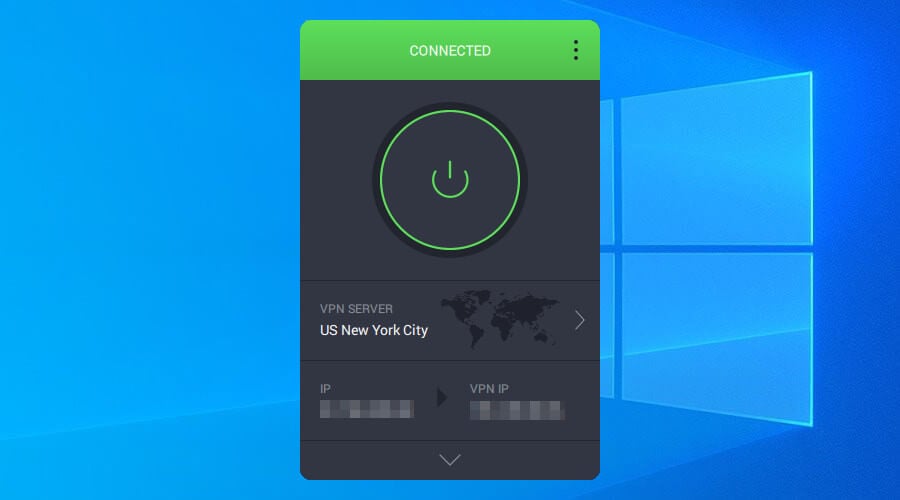
  1. Purchase a Private Internet Access VPN subscription plan.
  2. Download the VPN and install it on your PC
  3. Launch it and log into your account
  4. Connect to a fast server (nearby servers are generally faster)
  5. Launch FFXIV
  6. Check if you still get error 10105

Note that using a VPN while playing FFXIV can also fix packet loss, and reduce in-game ping. If you want to unblock regional restrictions, for instance, using a VPN will also work wonders.

Use Ethernet instead of Wi-Fi

Not only with FFXIV, but whenever possible, make sure to always choose Ethernet over Wi-Fi. Wireless connections are much slower, they’re not as stable, and they’re prone to interference.

Also, Wi-Fi packet loss happens way more often than while using Ethernet.

While we’re on the topic, make sure that your Ethernet cables are not outdated, worn out, or damaged in any way. Bad cables could also have a great impact on how fast and stable your connection can be.

If you just switched to Ethernet, make sure to restart your router, to avoid any address assignment problems.

Flush your DNS

  1. On your Windows PC, launch a CMD instance
  2. Type the following commands, one by one, in this order:

ipconfig /flushdns
ipconfig /registerdns
ipconfig /release
ipconfig /renew
netsh winsock reset
exit

Restart your PC, launch FFXIV, and try connecting to the server once more. Quite often, leaving cache data to build up can lead to various connectivity issues.

Flushing and renewing your DNS address can solve many connection problems, including not being able to log into various games.

Alternatively, you can replace your ISP-assigned DNS addresses with public free ones. For instance, you can use Google’s Public DNS or Cloudflare’s.

You may notice some improvement upon replacing your DNS, but make sure you backup the ISP ones, just in case something goes wrong.

Configure Internet Explorer

  1. Launch Internet Explorer on your PC
  2. Press Alt+X on your keyboard (or click the gear-shaped button)
  3. Select Internet Options from the menuLaunch Internet Explorer Windows 10
    1. General tab:
      1. Click the Delete button in Browsing historyInternet Options delete button
      2. Check all boxesDelete Browsing History Internet Explorer
      3. Click Delete
    2. Security tab:
      1. Move the Security level slider to the lowest pointInternet Explorer security slider
    3. Privacy tab:
      1. Click the Advanced buttonInternet Explorer Advanced button
      2. Select Accept for both First-party and Third-party CookiesInternet Explorer Accept cookies
      3. Click Ok
    4. Advanced tab:
      1. Scroll down to the Security category
      2. Enable the Allow software to run or install […] optionInternet Explorer Advanced tab
      3. Check all the TLS and SSL boxes except SSL 3.0Internet Explorer SSL TLS settings
      4. Click the Apply button, then the Ok one

The reason why you need to configure Internet Explorer is that the game launcher reportedly uses IE to connect to the Internet. Therefore, if there are any settings that restrict the game in any way, you’ll probably have a difficult time connecting.

Apply compatibility settings

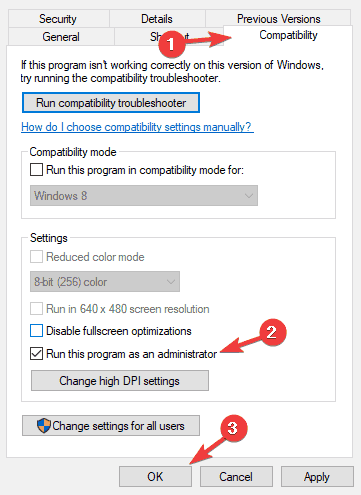
  1. Right-click the FFXIV launcher executable
  2. Select Properties from the combo menu
  3. Head over to the Compatibility tab
  4. Select Windows 7 from the Compatibility mode menu
  5. Check the Run this program as an administrator option
  6. Click Apply, then Ok
  7. Restart your PC
  8. Launch FFXIV and check if there’s any improvement

Final thoughts on fixing FFXIV error 10105

All things considered, if you’re getting the unfamous 10105 error while playing FFXIV, there are some easy-to-follow fixes that might help you get back on track.

We also have a fresh guide on FFXIV script error, so you might want to check it out before you leave.

However, note that if the error occurs on Square Enix’s side, there’s pretty much nothing you can do about it other than wait.

Surface Sleep of Death: How to Wake up Microsoft Surface

Surface Pro 4 is part of Microsoft’s versatile Surface Pro family. With all Microsoft’s huge efforts in making the device as stable as possible, the Surface Pro 4 has its share of issues. One that bugged users for a long is the Surface sleep of death.

Several users constantly report this issue while also mentioning that they are faced with a black screen of death or that their device won’t boot. So, let’s find out how you can fix Microsoft Surface’s Sleep of Death.

What can I do if Surface Pro 4 doesn’t wake up from sleep?

Before we start with the slightly tricky solutions, try these quick ones:

  • If your Surface Pro 4 can’t wake up, you might be able to fix this problem by connecting the charger. This is usually the case when the device doesn’t have any charge.
  • To check if other peripherals are the problem, disconnect all the non-critical ones and try waking up your device again.
  • Perform a force restart. To do that, press the Power button and hold it for 30 seconds or more until the display lights up.

If none work, head to the fixes listed next.

1. Install the necessary drivers

If you’re having issues with Sleep Mode and Surface Pro 4, the problem might be your drivers. To fix this problem, you must ensure that all your drivers are updated.

Users suggest installing the latest drivers from Intel and checking if that solves your issue.

Alternatively, to save some time looking for the right driver, we suggest using a third-party application such as Fortect Driver Updater.

This is the quickest and most efficient way to update drivers correctly.

Fortect Driver Updater quickly scans your system to find not all the outdated components. Then, it suggests several alternatives.

If you’re unsure about the right components and less tech-savvy, Fortect Driver Updater will do the job for you.

⇒ Get Fortect Driver Updater

2. Use the keyboard shortcut

A single keyboard shortcut seems to do the trick if your Surface Pro device won’t wake up from sleep. But based on our research, we found several hotkeys that help wake up a Surface device from the Sleep of Death. Try all of the following:

  • Windows + Ctrl + Shift + B
  • Ctrl + Alt + Delete
  • Ctrl + Shift + Esc
  • Some users mentioned that pressing the Volume up and Volume down keys three times quickly fixed the problem.
  • Press Windows + P about three times, wait for a moment, and your screen should appear.

3. Disable the hibernate mode

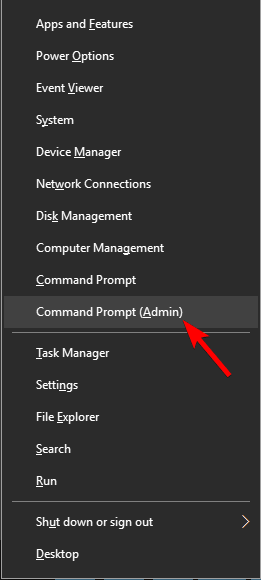
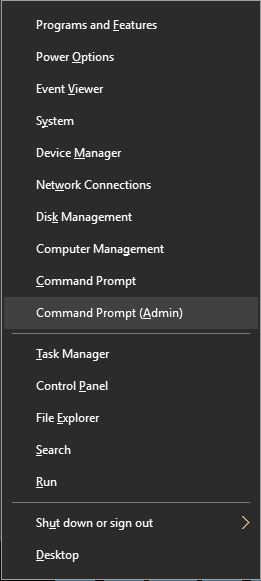
  1. Right-click the Start button and choose Command Prompt (Admin).
    Surface Pro 4 won't wake from sleep
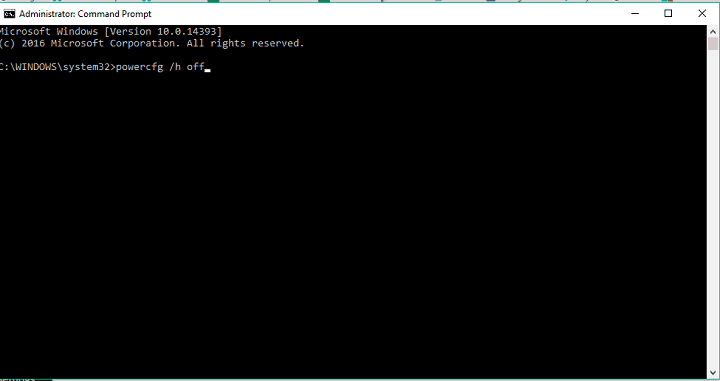
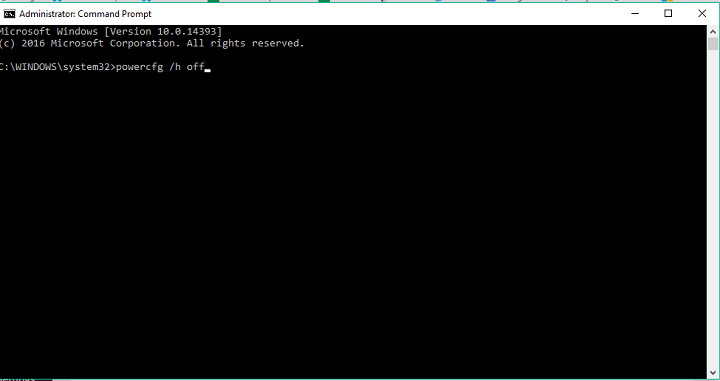
  2. Paste the following command, and hit Enter:powercfg /h off Surface Pro 4 black screen of death
  3. Restart your device.

Once you turn off the hibernation, put your Surface device to sleep again and try to wake it up.

This solution helps because when the hibernation mode is disabled, your Surface Pro 4 can either go to sleep or shut down completely without being caught in hibernation.

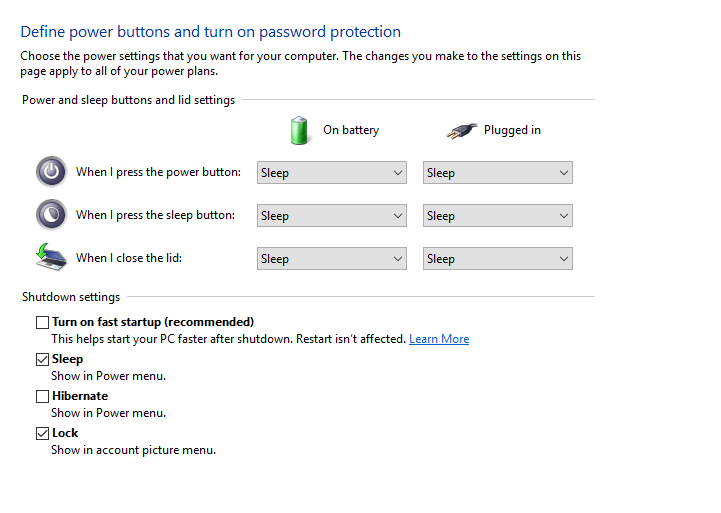
4. Set everything to Hibernate

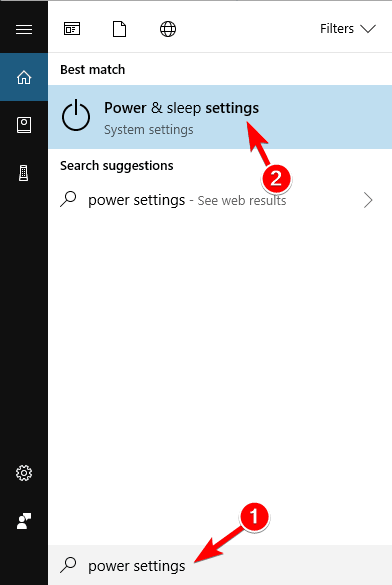
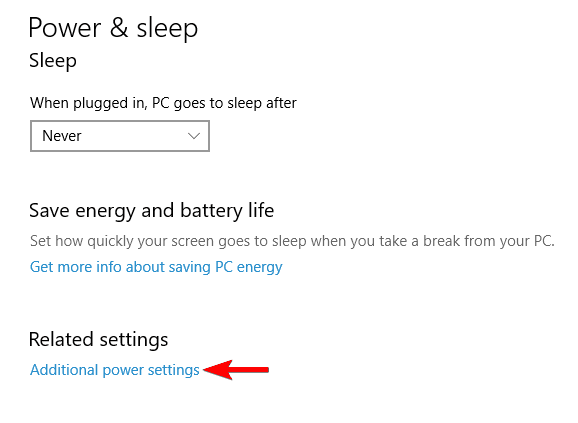
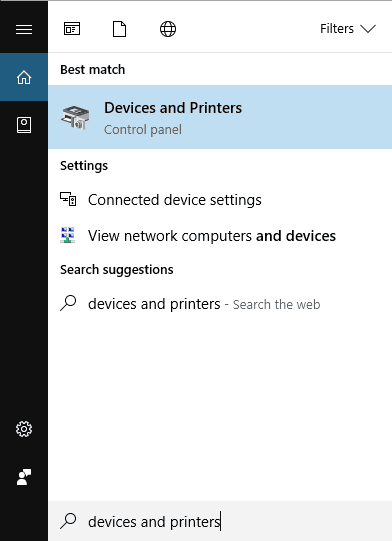
  1. Go to Search, type power options, and open Power & sleep settings.
    Surface Pro 4 screen not waking up
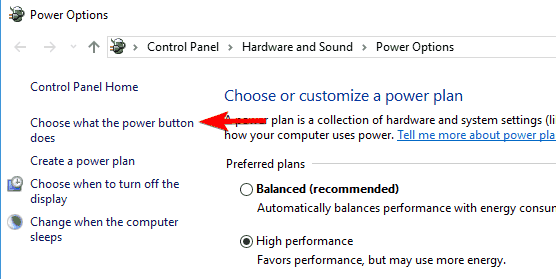
  2. Choose Additional power settings under Related settings.
    Surface Pro 4 won't wake from sleep
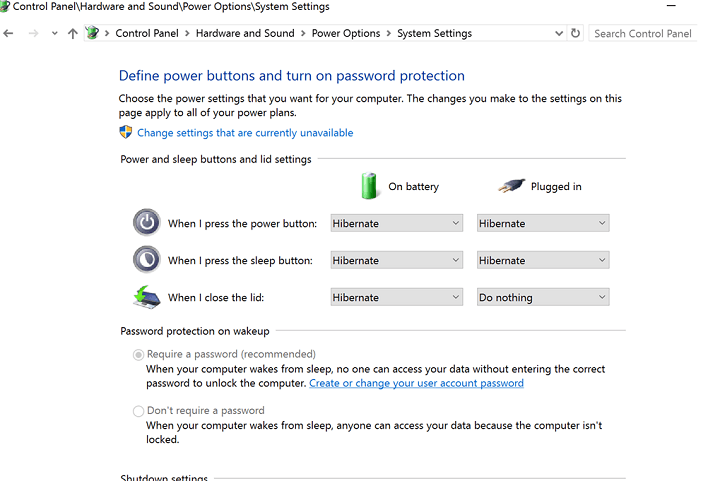
  3. Go to the Choose what the power button does option from the left pane.
    Surface Pro 4 black screen of death
  4. Now set everything to Hibernate.Surface Pro 4 won't wake from sleep
  5. Click on Save changes.

This solution was confirmed by one Reddit user, so we can say it helped at least someone. Hopefully, it will also help you, but if it doesn’t, try the other solutions from this article.

Although it looks strange that we listed two consecutive solutions that negate each other, it makes sense because the cause of the problem is different on different Surface Pro 4 devices.

5. Change the network card settings

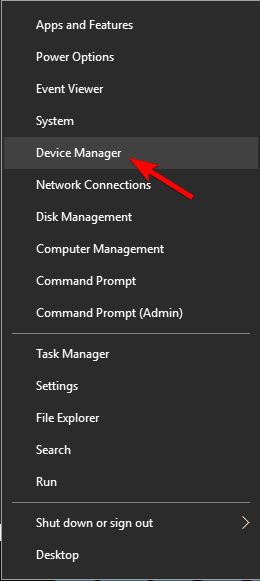
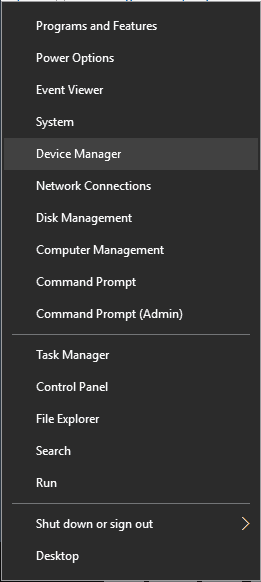
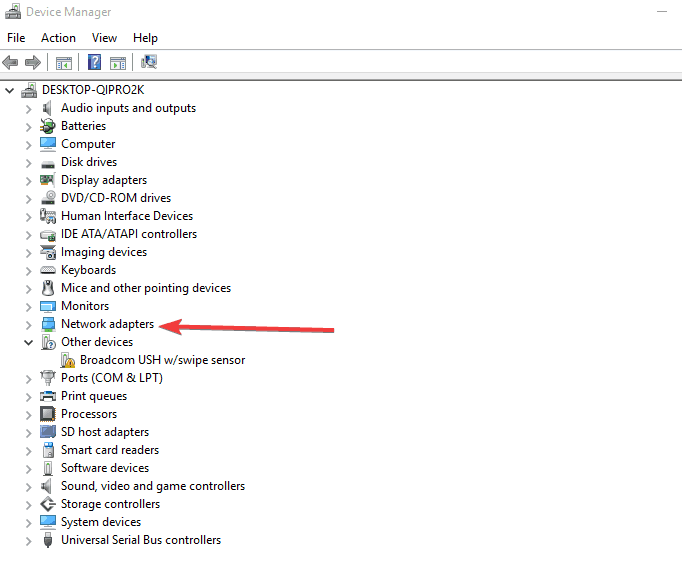
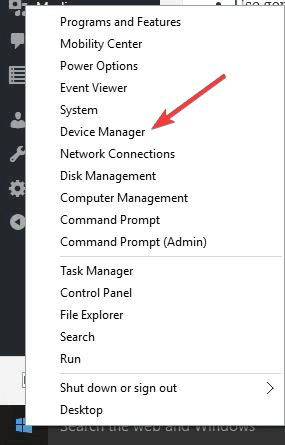
  1. Press Windows + X and choose Device Manager from the list.
    Surface Pro 4 won't wake from sleep
  2. Find the Surface Pro 4’s wireless network card, right-click on it, and select Properties.
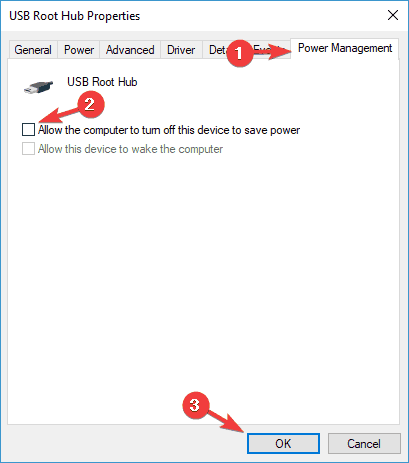
  3. Now, go to the Power Management tab. tick the checkbox for Allow the computer to turn off this device to save power, and click OK to save the changes.
    Surface Pro 4 not booting up

This solution also solved the problem for a few users who believed the Surface book was dead.

If it does, it means that maybe you’ve altered your wireless network card so as not to allow the Surface Pro 4 to fall asleep to save power.

6. Change the Sign in options

  1. Open the Settings app.
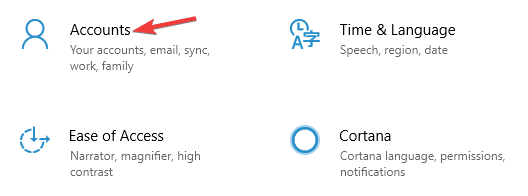
  2. Now, go to Accounts.
    Surface Pro 4 screen not waking up
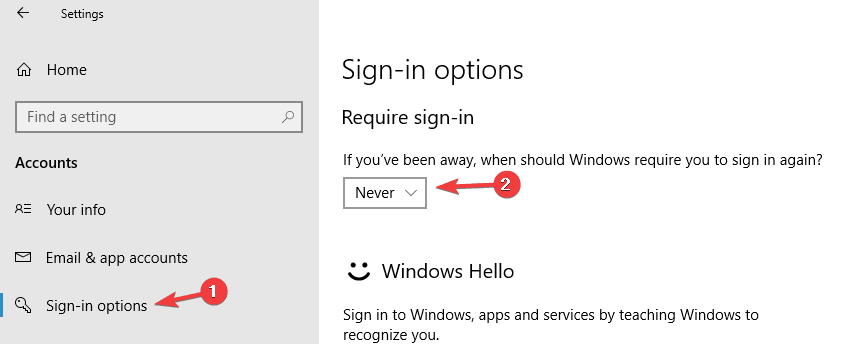
  3. In the left pane, select Sign-in options. Under Require Sign-in, choose Never.
    Surface Pro 4 not turning on
  4. Restart your Surface device.

Again, this proved helpful for a few users.

Anyway, if your Surface Pro 4 requires sign-in when it wakes up from sleep, errors might eventually appear. So, the solution is to turn off this option in Settings.

That’s about it for our article; one of these solutions should have helped fix Sleep of Death in Microsoft Surface.

Before you leave, find out how to speed up the Internet on a Surface device.

If you have any comments, questions, or suggestions, just let us know in the comment section below.

Remember Andromeda? New reports reveals more about the Windows-based Surface Duo prototype

Microsoft’s Surface Duo, which has recently started shipping in the US, had a very complex development cycle that saw its software move from a Windows-based OS to Android. The original project codenamed Andromeda required Microsoft to optimize Windows for a pocketable dual-screen device, and the task was presumably so challenging that the company eventually opted for using using Android instead.

After previous reports suggested that Microsoft had definitely shelved Andromeda and its “Surface phone” dream, seeing the company unveil the Android-based Surface Duo last year was quite a surprise, to say the least. Microsoft worked with Google to optimize Android for the dual-screen Surface Duo, but we’ve never seen much of what the previous Windows-based “AndromedaOS” looked like.

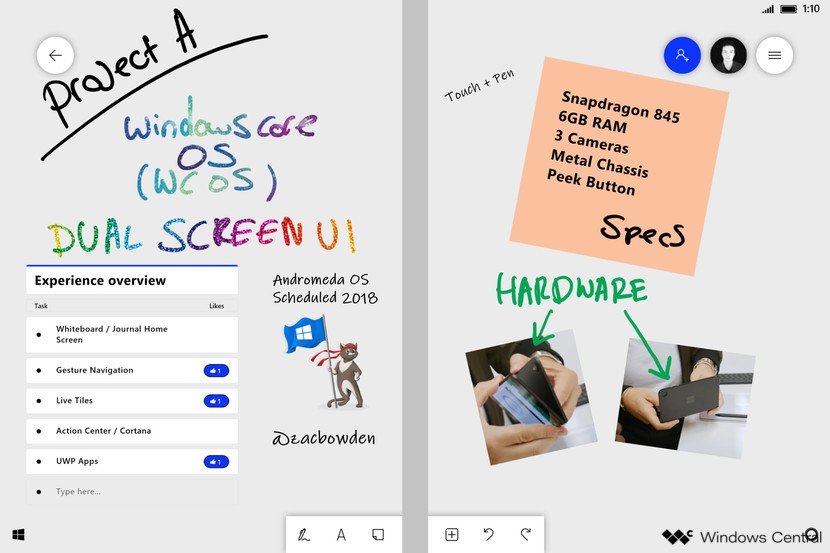
Today, Zac Bowden from Windows Central finally gave us a glimpse at AndromedaOS with a couple of mockup images that try to recreate the real OS that Bowden saw in pictures and videos. Overall, it’s quite fascinating to see what a Surface Duo running a Windows 10-based OS would have worked, and the company apparently went as far as re-creating the Continuum desktop experience that debuted on Windows 10 Mobile.

Microsoft’s Surface Duo is using Android instead of a Windows-based OS.

AndromedaOS was built on Windows Core OS, a new lightweight and modular version of Windows that powers the HoloLens 2 OS today, as well as the still in development Windows 10X OS expected to ship on Chromebook-like laptops next year. AndromedaOS also leverages Microsoft’s Composable Shell (CShell), which would adapt to single-screen, dual-screen use, as well as the aforementioned Continuum experience.

At the beginning, AndromedaOS was heavily inspired by Microsoft’s old Courier prototype, and it used an interactive journal for its home screen experience. “AndromedaOS featured a user experience built around a journal app, codenamed Jamdani. This app mimicked a real journal, with virtual pages that could be turned and was designed primarily for pen input. You could attach virtual sticky notes, images, and files, and annotate on them,” explained Bowden, adding that this journal experience eventually evolved into Microsoft’s Whiteboard app.

Andromeda Journal
A mockup of the Journal app on AndromedaOS.

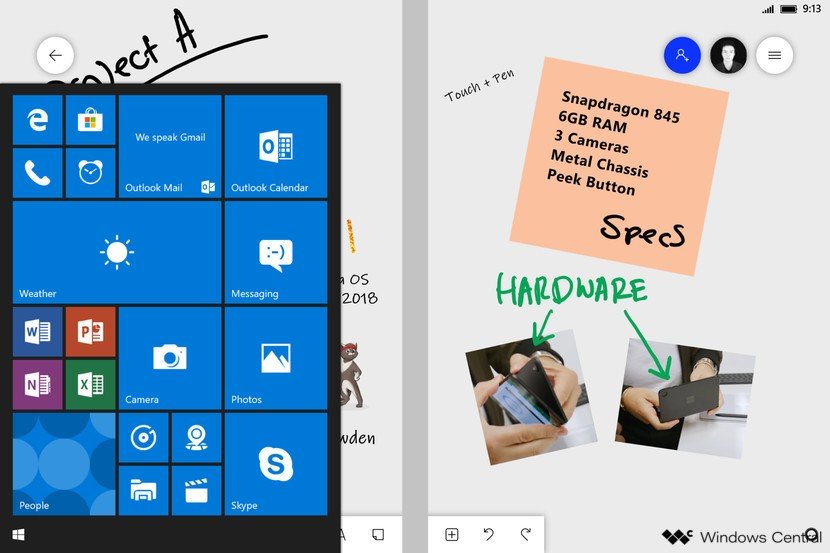
The following image shows the Journal/Whiteboard app in the background, with the Start Menu opened in the bottom left corner. You can see the Start button in that corner, as well as a Cortana button in the bottom right corner that also hid the Action Center. This Journal app would always stay in the background, and any apps that users opened would sit on top of it.

Andromeda Start
A mockup of the Start Menu on Andromeda OS, with a button for Cortana on the bottom right corner.

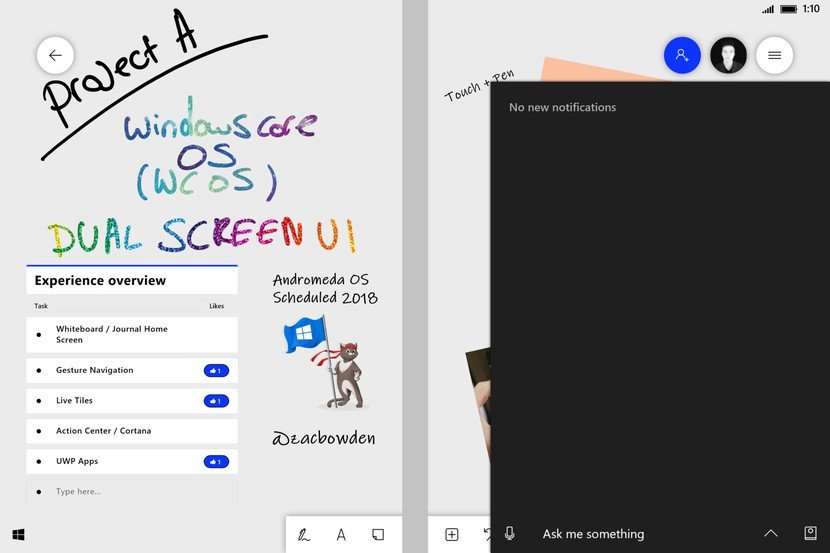
Interestingly, Microsoft wanted its digital assistant to be the entry point for all notifications in Andromeda OS. “Notifications would be sorted into the Action Center, and the Cortana icon would pulsate in the bottom right to alert you when you’ve missed a notification,” explained Bowden. You can see a mockup of this UX below.

Andromeda Ac
Andromeda would have combined Cortana with the Action Center.

Just like how Android works today on Surface Duo, AndromedaOS would have used various gestures to interact with apps on the dual-screen device. “The OS was heavily gesture-based, with a swipe in from the left opening the Start menu, and swipe in from the right opening the Action Center. A swipe down from the top revealed a Control Center for things like Airplane Mode and Bluetooth settings, and a swipe up would reveal Task View or allow the user to drag an app to span it across both screens,” Bowden explained.

Andromeda Dual Apps

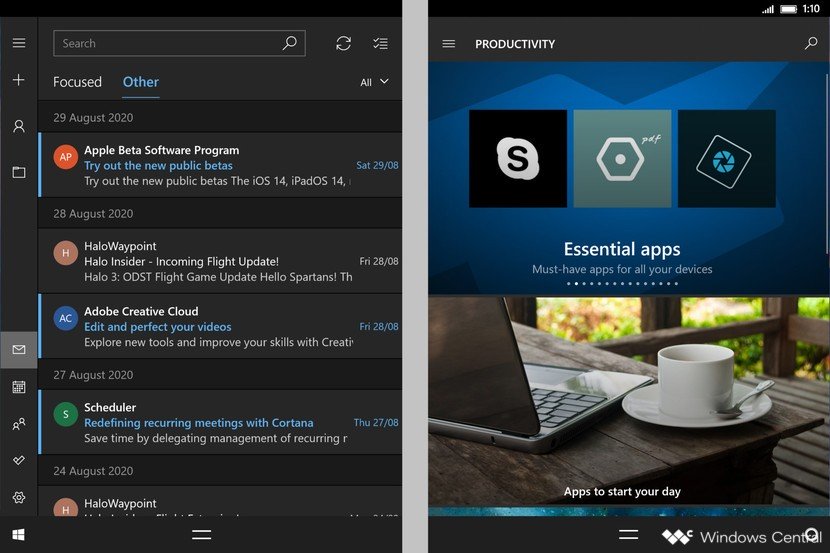
The Continuum experience that Microsoft built for AndromedaOS, which was named Productivity mode, was based on Polaris, a version of Windows Core OS for the desktop. This Productivity Mode would be enabled when an Andromeda prototype was docked to an external display, and mimic the experience of using a real Windows 10 PC “with an entirely modern core and no legacy components.” You can see a mockup of this Productivity Mode below.

Andromeda Cshell Continuum

Andromeda never saw the light of day, and Bowden believes that the project was delayed indefinitely around the middle of 2018 after several delays and multiple challenges to solve. “The project was behind schedule and showed no sign of catching up. This, added to the fact that the product had a major app gap problem made the decision to cancel the project the right one. Microsoft did consider emulating Android apps on top of Windows before this, but there was no viable end-user experience that could be built around sideloading Android APKs,” Bowden wrote.

The good news is that some of the work that Microsoft engineers have done on AndromedaOS could be reused for Windows 10X, which Microsoft demoed first on the Surface Neo last year. However, Microsoft has since delayed the Surface Neo and Windows 10X should evolve into a Chrome OS alternative with a heavy focus on web apps, with the ability to stream legacy Win32 apps.

Microsoft spent years working on Andromeda, but the decision to use Android for the Surface Duo was the right call. This solved the app gap problem that AndromedaOS had, and there’s now a growing ecosystem of dual-screen devices from Samsung, Motorola, Huawei, and LG. Android is now a mature platform and Microsoft’s mobile platform of choice, and the Your Phone app on Windows 10 has created unprecedented synergies that we never imagined during the Windows Phone era.

Adapting Windows for new form factors is certainly no easy task, and it remains to be seen if Microsoft can pull it off with Windows 10X after failing to do so with AndromedaOS. We still don’t know much about this new Windows-based OS, but a previous report from ZDNet’s Mary Jo Foley suggested a potential release in the first half of 2021.


Microsoft Teams is rolling out new Spotlight feature to highlight select meetings participants

Microsoft has finally started rolling out the new Spotlight feature in Microsoft Teams, which was initially announced in August 2020. The company says that the new experience is currently available for Windows and macOS desktop clients but is not yet supported on Teams on the web, mobile, or Linux.

The new Spotlight feature brings the ability for presenters to lock an individual video feed for all attendees to see during a Teams meeting. Once selected, the meeting attendee identified as the spotlight will be the main video shown to all other participants.

There are several ways to turn on the new Spotlight experience during Teams meetings. Users can head over to the meeting video grid, right-click on a particular video, and select Spotlight. Alternatively, navigate to the Participants panel simply right click on a particular participant and select Spotlight. Here’s a How-To video that demonstrates the use of this feature below:

This functionality should be a good change for meeting organizers/teachers who want to want to have control over what each participant is seeing during a meeting. The company plans to bring the Spotlight feature to other platforms soon. Do you think that you are going to use this feature on your PC? Let us know in the comments down below.

FIX: Windows 10/11 file sharing not working after update

Some users have posted on Microsoft’s forum about Windows 10 file sharing not working no matter what they try.

They can’t utilize the Share option for file sharing on their local networks after updating Windows 10 to new build versions.

There are some confirmed fixes for that issue, so make sure to read through this article.

What can I do if Windows 10 file sharing isn’t working?

1. Check the required advanced sharing settings are selected

  1. Click the Type here to search taskbar button in Windows 10.
  2. Enter the keyword advanced sharing settings in the search box.
  3. Click Manage advanced sharing settings to open the Control Panel as in the shot directly below.
    the Turn on file and printer sharing option windows 10 file sharing not working
  4. Select the Turn on network discovery radio button.
  5. Then select the Turn on file and printing sharing option.
  6. Press the Save changes button to apply the new settings.

2. Check if Windows’ firewall is blocking file and printer sharing

  1. Open Windows 10’s search tool.
  2. Type firewall in the search utility’s text box.
  3. Click Windows Defender Firewall to open the Control Panel applet in the image directly below.
    The Windows Defender Firewall applet windows 10 file sharing not working
  4. Click Allow an app or feature through the firewall to open the Allowed applications options.
  5. Press the Change settings button.
  6. Make sure the Private and Public checkboxes are selected for File and Printer Sharing.
    Allowed apps options windows 10 file sharing not working
  7. Click OK to close the window.

3. Start the Function Discovery service

  1. Enter services into the search box in Windows 10.
  2. Click Services to open the window in the shot directly below.
    Services window windows 10 file sharing not working
  3. Double-click Function Discovery Resource Publication to open the properties window for it.
    Discovery Resource Publication Properties window windows 10 file sharing not working
  4. Click Automatic on the Startup type drop-down menu.
  5. Press the Start button for the service.
  6. Select the Log on tab.
  7. Select the This account option if it’s not selected.
  8. Click the Apply option to save the new settings.
  9. Select the OK option.

4. Add a Windows credential for a remote server PC

  1. Launch Run with the Windows key + R keyboard shortcut for it.
  2. Type Control Panel into Run, and select the OK option.
  3. Click Credential Manager in the Control Panel.
    Windows Credentials options windows 10 file sharing not working
  4. Select Windows Credentials, and click the Add a Windows credential option.
  5. Enter the network address and login details for your remote server PC.
  6. Click the OK option.

5. Turn SMB 1.0 file sharing on

  1. Open Run’s window.
  2. Input appwiz.cpl in the Open box and click OK to open the uninstaller in Windows 10.
    The uninstaller window windows 10 file sharing not working
  3. Click Turn Windows features on or off to open the window shown directly below.
    Windows Features window windows 10 file sharing not working
  4. Select the SMB 1.0/CIFS File Sharing Support option.
  5. Click the OK button to close Windows Features.

6. Disable Internet Protocol Version 6

  1. First, open the search box in Windows 10.
  2. Enter network in the search utility.
  3. Click View network connections to open the Network Connections Control Panel applet.
  4. Right-click your active network adapter to select Properties.
  5. Deselect the Internet Protocol Version 6 checkbox.
    Wi-Fi Properties window windows 10 file sharing not working
  6. Then click the OK option.
  7. Restart Windows after disabling IPv6.

Those are some potential resolutions that could feasibly fix Windows 10’s file sharing for some users. You can also utilize third-party software for LAN file sharing as an alternative to Windows 10’s Share option.

[wl_navigator]

Display Issues After Windows Update: 5 Ways to Fix Them

Many reported display issues after Windows Update, and this can be a problem and prevent you from performing everyday tasks on your PC.

Luckily, this issue can be solved, and in today’s guide, we will show you a couple of solutions you can use to fix this problem.

Why does my Windows 10 look different after the update?

  • Windows Update might’ve installed a new display driver.
  • The current driver is outdated, and it’s not compatible with the current version of Windows.
  • Your resolution isn’t set correctly.

How do I fix my screen after Windows Update?

1. Update drivers automatically

Things are always serious when it comes to drivers. We all know how many issues users had after the initial upgrade to Windows 10. Sadly, it looks like this trend continues with regular updates.

Now, most device drivers will work fine in their generic form or transferred from Windows 7 or 8, but just one faulty driver is enough to invoke a world of conundrums.

In case you are not sure about how to update your display driver, we strongly recommend doing it automatically with a specialized driver updater.

2. Reinstall display drivers

  1. Press the Windows key + I shortcut to open the Settings app.
  2. Select Update & security section.display not working
  3. Highlight Recovery from the left pane.
  4. Click on the Restart Now button.display not working after windows 10 fall creators update
  5. Choose Troubleshoot.
  6. Open Advanced options.
  7. Select Startup Settings and then Restart.
  8. Now, press 4 or F4 to boot your PC in Safe mode.
  9. Once the system boots, right-click on the Start menu and open Device Manager.
  10. Navigate to Monitor.display not working after windows 10 fall creators update
  11. Right-click and uninstall the device.
  12. Restart your PC.

3. Check GPU drivers

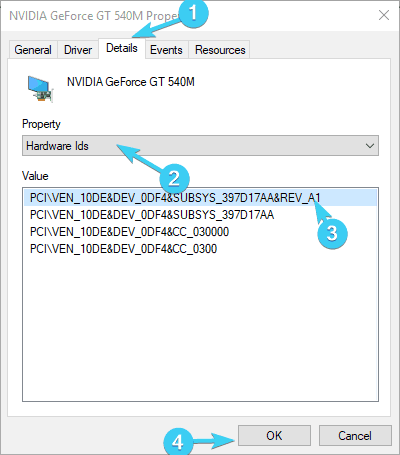
  1. Right-click on the Start and, from the Power-user menu, select Device Manager.
  2. Navigate to Display adapters and expand this section.
  3. Right-click on your graphics device and open Properties.
  4. Select the Details tab.
  5. From the drop-down menu, open HardwareIds.display not working after windows 10 fall creators update
  6. Copy the first row and paste it into your browser’s address bar.
  7. The search results should show you the exact drivers you’ll need to install.

Depending on your GPU manufacturer, you need to update graphics drivers by downloading the latest version from one of the following locations:

4. Check the default resolution

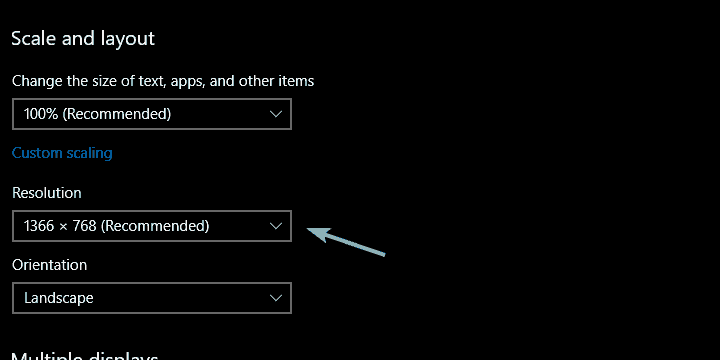
  1. Right-click on the desktop and open Display settings.
  2. Make sure that your Screen resolution is set on recommended settings.display not working after windows 10 fall creators update
  3. Change if needed and look for a resolution.

5. Perform a factory reset

Note icon NOTE
Back up your files before using this solution since it can delete all files and applications from the system drive.
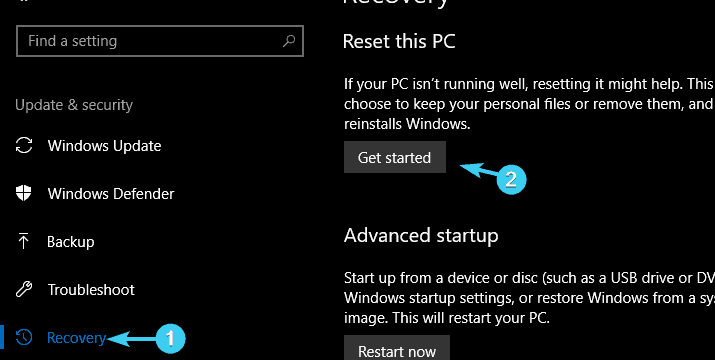
  1. Open Start and click on the cog-like icon to open Settings.
  2. Select Update & security.display not working after windows 10 fall creators update
  3. Highlight Recovery from the left-side pane.
  4. Click Get started.display not working after windows 10 fall creators update
  5. Choose whether you want to keep your files or delete everything.
  6. Click Next and then Reset.
  7. After the procedure ends, your monitor should perform just like before.

This is how you can fix display issues after a Windows Update. In case the issues are still there, we have a great guide on how to fix screen problems on Windows 10. For additional solutions, read our article on monitor keeps going black for potential solutions.

Did we miss a solution that worked for you? If so, share it with us in the comment section.

Conditional formatting based on another cell [Google Sheets]

Google Sheets includes various formatting options for users. Its users can apply alternative cell color, bold, italic, underline, and font formatting to spreadsheet cells within Sheets.

Those formatting options visually enhance spreadsheets.

Google Sheets also includes a handy conditional formatting tool that enables users to apply selected formatting styles to cells that match a specified condition.

With that tool, you can apply conditional formatting to a selected cell range that’s based on another cell’s value.

How can I use conditional formatting based on another cell in Google Sheets?

1. Apply conditional formatting based on a single cell value

  1. First, open a blank spreadsheet in Google Sheets.
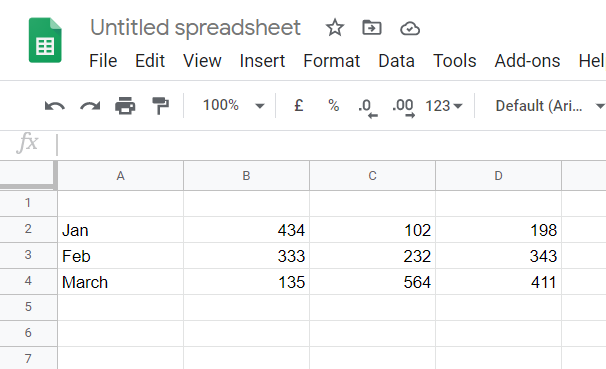
  2. Next, enter the dummy data shown in the snapshot directly below within the cell range B2:B5.
    Dummy data google sheets conditional formatting based on another cell
  3. Enter the value 450 within cell C2.
  4. Select the cell range B2:B6 by holding the left mouse button and dragging the cursor over them.
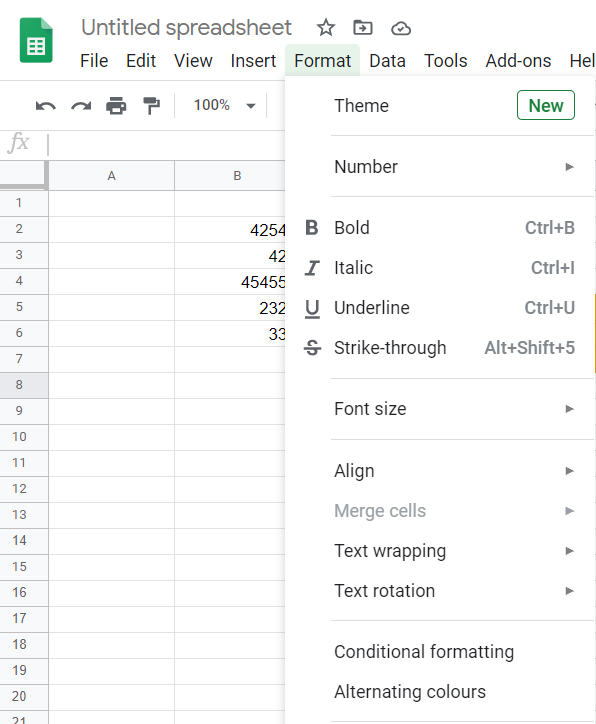
  5. Click Format to open that menu.
    Format menu google sheets conditional formatting based on another cell
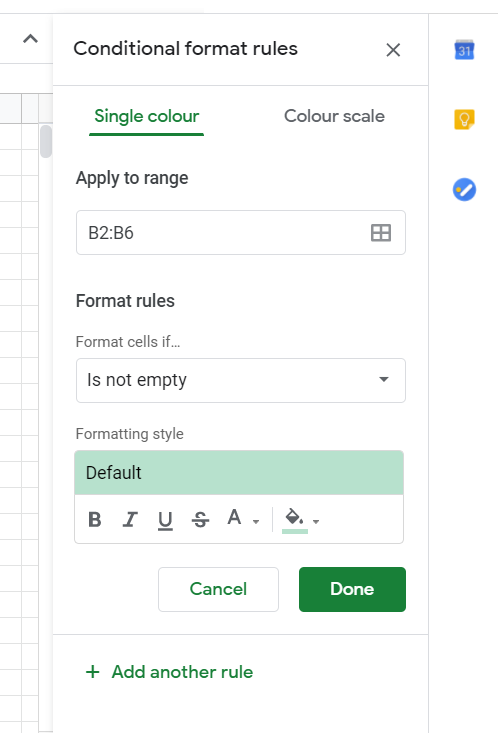
  6. Then select Conditional formatting to open the sidebar shown directly below.
    Conditional format rules sidebar google sheets conditional formatting based on another cell
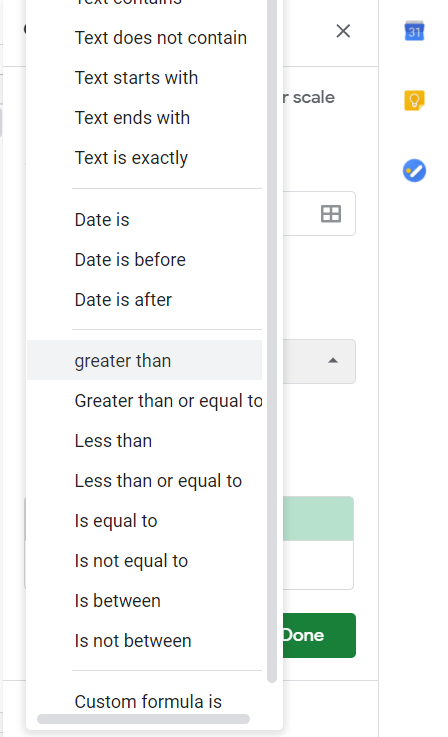
  7. Select the greater than option on the Format cells if drop-down menu.
    The greater than option google sheets conditional formatting based on another cell
  8. Enter =C$2 in the Value or formatting text box, which is a reference to cell C2.
  9. Click the Fill color button within the Formatting styles box.
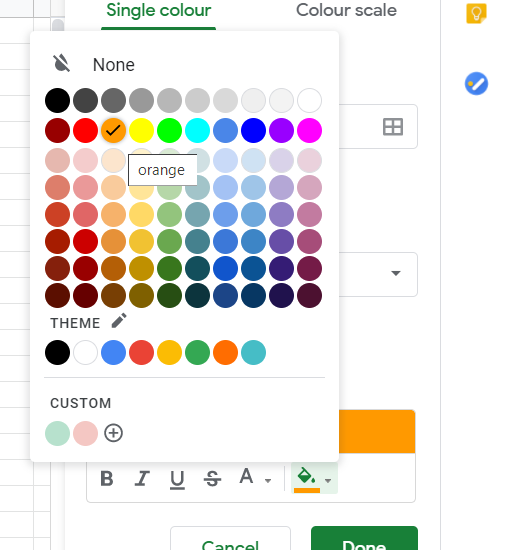
  10. Then select the orange color on the palette.
    color palette google sheets conditional formatting based on another cell
  11. Click the B Bold button.
  12. Press the Done button.

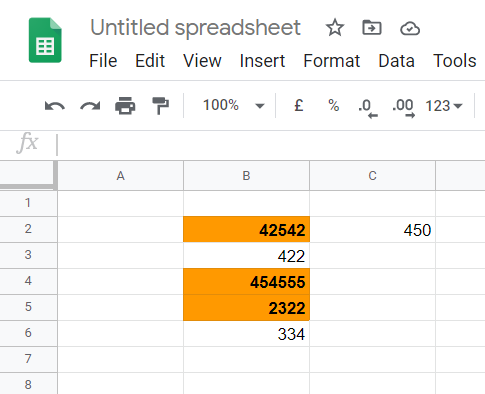
Now cells B2, B4, and B5 within the B2:B6 range will have orange cells and bold text as shown in the screenshot directly below.

Those cells have the selected formatting applied to them as they include higher numbers than the value in C2 the condition is based on.

The orange and bold conditional formatting google sheets conditional formatting based on another cell

Note that cell references must always be entered as a formula with = preceding the reference. They must also always include a $ sign between the column letters and row numbers.

You can apply conditional formatting to cells that include dates. For example, you could select the Date is before option to apply formatting to a cell range that includes dates based on a date in a referenced cell.

The Format cells if menu also includes several text options. The Text is exactly option would apply formatting to cells with text that exactly matches that of a referenced one.


2. Apply conditional formatting based on multiple cell values across columns

  1. Open an empty spreadsheet.
  2. Next, enter the dummy data in columns A, B, C, and D exactly as shown in the snapshot directly below.
    Dummy data for spreadsheet google sheets conditional formatting based on another cell
  3. Select the cell range A2:A4.
  4. Click the Format menu.
  5. Select Conditional formatting to open that tool.
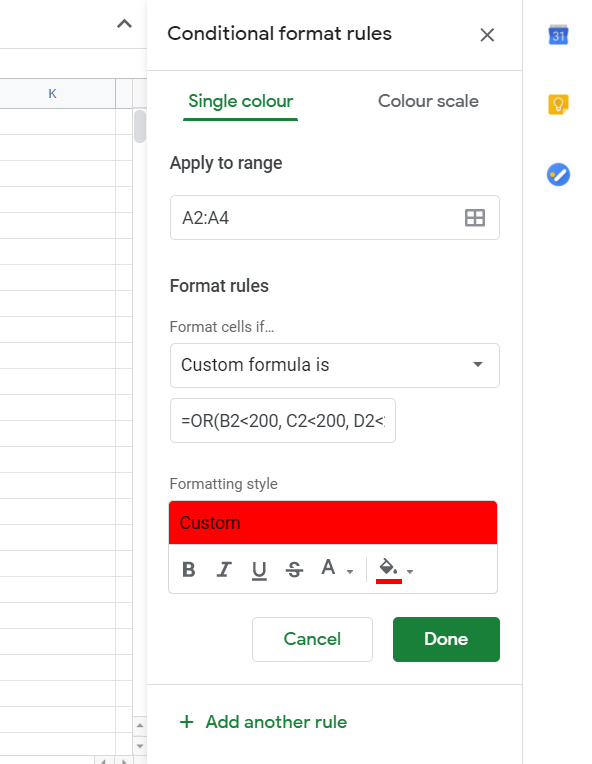
  6. Click the Format cells if menu to select Custom formula is.
  7. Enter this formula in the Value box: =OR(B2<200, C2<200, D2<200).
    The OR formula google sheets conditional formatting based on another cell
  8. Then click Fill color to select red cell formatting.
  9. Click the Done option.

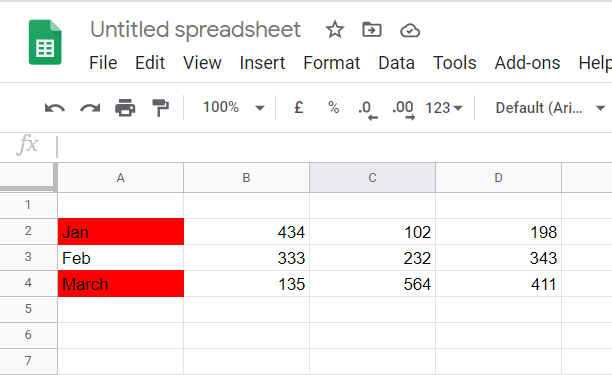
What you’ve done in the example above is to apply red cell formatting to cells A2 and A4 based on all the cell values in their rows (across columns B to D).

As the rows for January and March include cells with values less than 200, red formatting is applied to the Jan and March row headings.

The conditional formatting for the A2:A4 range google sheets conditional formatting based on another cell

The above examples show you how to apply relatively basic conditional formatting to spreadsheets in Google Sheets.

You can enhance your spreadsheets’ presentation in many ways by applying conditional formatting with custom formulas and the other options on the Format cells if drop-down menu.

[wl_navigator]

FIX: Bluetooth support service error 1079 on Windows 10

The Bluetooth support service error 1079 states: Error 1079: The account specified for this service is different from the account specified for the other services running in the same process.

Are you getting that error when trying to connect, or pair, Bluetooth devices? If that’s so, it could have something to do with the Local System account starting the services or driver incompatibility.

Bluetooth support service error 1079 can cause many problems on your PC, and speaking of Bluetooth errors, here are some common issues that users reported:

  • Bluetooth support service stopped Windows 7 – This problem can affect almost any version of Windows, and even if you don’t use Windows 10, you should be able to fix this problem using one of our solutions.
  • Error 1068 Bluetooth service – This is another Bluetooth error that you can encounter. This error is usually caused by your drivers, so be sure to keep them up to date.
  • Bluetooth support service missing, disabled, stopped, grayed out – If you’re having problems with Bluetooth support service, you might be able to fix the issue by performing an SFC and DISM scans.
  • Bluetooth support service the system cannot find the path specified – This is another common problem with Bluetooth, and you might be able to fix it simply by keeping your system up to date.
  • Windows could not start the Bluetooth support service error 1079 – This issue can occur if Bluetooth Support service isn’t properly configured. Simply change the configuration of this service and the issue will be resolved.
  • Bluetooth support service error 1053 – This is another common problem with Bluetooth, but you should be able to fix it using one of our solutions.

How do I fix Bluetooth support service error 1079?

1. Update the Bluetooth driver

  1. Press the Win + X keys and select Device Manager on the menu.
    Bluetooth support service stopped Windows 7
  2. Click on Bluetooth Radios listed in Device Manager.
  3. Right-click your Bluetooth adapter and select Update driver.
    Bluetooth support service error 1053
  4. Click the Search automatically for updated driver software option and then press the Next button (Windows will update the Bluetooth driver if there’s more update driver software).
    Bluetooth support service the system cannot find the path specified

Use a tool to upgrade the driver automatically

You can always download the missing driver quicker and easier using a specialized driver updating tool.

These powerful tools can run a system-wide scan and identify the correct drivers needed by your system. You can then download and install them in just a few minutes.

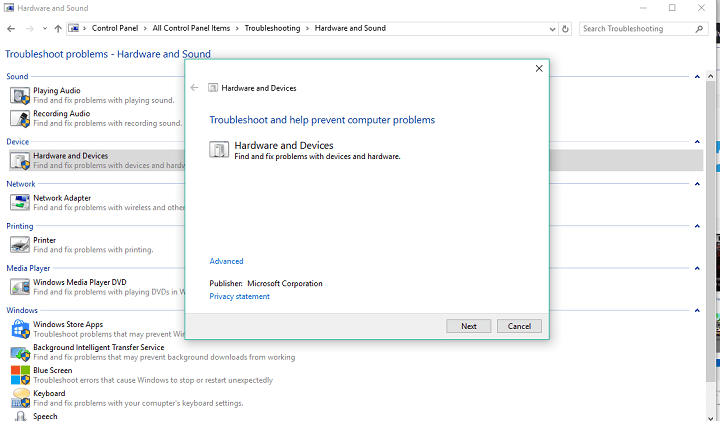
2. Run the Hardware Troubleshooter

  1. Press Windows Key + I to open the Settings app.
  2. Go to Update & Security section.
    Bluetooth support service error 1053
  3. Select Troubleshoot from the menu on the left.
  4. Choose Hardware and Device from the list and click Run the troubleshooter.
    Bluetooth support service the system cannot find the path specified

3. Configure the Bluetooth Support Service

  1. Click the Cortana button on your taskbar and enter services into its search box.
  2. Select Services to open the window in the snapshot directly below.
  3. Double-click on the Bluetooth Support Service.
    Bluetooth support service stopped Windows 7
  4. If the Bluetooth Support Service is disabled, click the Startup type drop-down menu and select Manual from there.
    Error 1068 Bluetooth service
  5. Click the Log On tab at the top of the window and select the This account radio button if the Local System account is currently selected.
    Bluetooth support service missing
  6. Now enter NT AUTHORITYLocalService in the This account text box. Leave both the Password and Confirm password text boxes blank.
  7. Press the Apply and OK buttons to confirm the new Bluetooth Support Service settings.
  8. Switch back to the General tab and press the Start button to restart the Bluetooth Support Service.

4. Switch the Bluetooth device to Discovery Mode

You should also switch on the Bluetooth device you’re attempting to pair with the desktop or laptop, and switch it to its discovery mode.

How you switch it to discovery mode depends largely on the device. Keyboards, mice, and headsets usually have a button you need to hold down for a few secs.

If you’re not sure how to switch a device to discovery mode, check its manual for further details.

5. Install the latest updates

  1. Open the Settings app.
  2. Go to the Update & Security section and click on the Check for updates button.
    Windows could not start the Bluetooth support service error 1079

Note: If any updates are available, Windows will download them automatically in the background. Once the updates are downloaded, restart your PC to install them. After the latest updates are installed, check if the problem is still there.

6. Perform an SFC and DISM scan

Run the SFC scan

  1. Press Windows Key + X and select Command Prompt (Admin) from the list. If Command Prompt isn’t available, you can also use PowerShell (Admin).
    Windows could not start the Bluetooth support service error 1079
  2. Type the sfc /scannow command and press Enter.
    Bluetooth support service disabled
  3. The scan will now start and try to repair corrupted files. This process can take about 15 minutes, so don’t interrupt it.

Run the DISM scan

  1. Start Command Prompt as administrator.
  2. Enter the following command and press Enter to run it: DISM /Online /Cleanup-Image /RestoreHealth
    Error 1068 Bluetooth service
  3. The DISM scan will now start. This scan can take about 20 minutes or more, so don’t interrupt it.

7. Create a new user account

  1. Open the Settings app and go to the Accounts section.
    Error 1068 Bluetooth service
  2. Choose Family & other people from the menu on the left. Now select Add someone else to this PC.
    Bluetooth support service stopped
  3. Choose I don’t have this person’s sign-in information.
    Bluetooth support service the system cannot find the path specified
  4. Click Add a user without a Microsoft account.
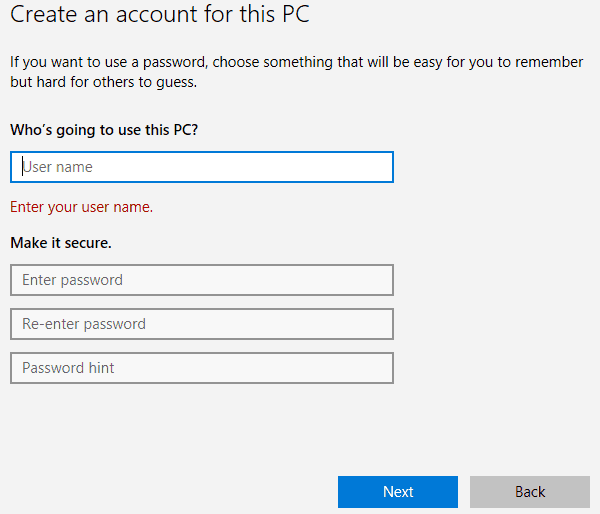
  5. Enter the username for the new account and click Next.
    Bluetooth support service stopped Windows 7

Once you create a new user account, switch to it and check if the problem appears. If not, it means that your old user account is corrupted, so we advise you to move all your personal files to the new account and start using it instead of the old one.

Those are a few fixes for error 1079. If you still need to fix Bluetooth, check out this expert guide for further detail.

If you’re facing other problems with your computer or software, you’re going to find a solution in our Tech Troubleshooting section.

News, guides, and tips, you can find all on our Windows 10 Hub.

The Crash Bandicoot 4 video game demo is now live on Microsoft’s Xbox One consoles

The demo for the upcoming Crash Bandicoot 4: It’s About Time video game is now available to play on Microsoft’s family of Xbox One consoles.

The demo is a free bonus for those that pre-order the main game which is due out next month on October 2nd. Pre-order customers also get the Totally Tubular skins for Crash and Coco which will unlock once the game launches.

The Crash Bandicoot 4: It’s About Time demo contains three full levels from the main game that were selected to showcase the various gameplay styles that will be available.

Here’s a short video of the demo’s content:

Have you had a chance to play the demo yet? Share your impressions of it with the community in the comments below and then follow us on Pinterest and Facebook for more Xbox gaming news.

Fix: Canon PIXMA MP160 issues on Windows 10

Windows 10 is without a doubt a great operating system, but it has certain flaws. One of the biggest flaws of Windows 10 is its hardware compatibility, and certain older devices might have problems working with Windows 10.

Canon PIXMA MP160 is a great printer, but here are some of the most common problems that users reported with the device:

  • Canon MP160 error 5 – If you encounter this problem with your printer, you might be able to fix it by updating your drivers. Alternatively, you can try installing the latest drivers and check if that helps.
  • Canon PIXMA MP160 error 2, 5, 16, 5100 – There are various issues that can appear with your printer, and if you encounter any of these problems, you should be able to fix them using our solutions.

How do I fix Canon PIXMA MP160 issues on Windows 10?

1. Reinstall the drivers

  1. Turn off your printer and unplug it.
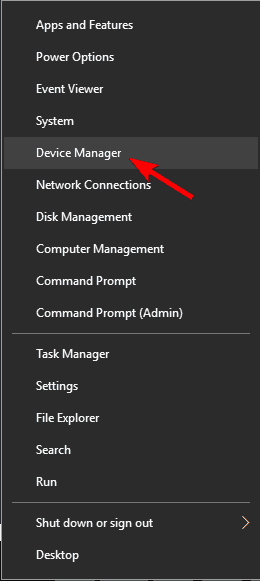
  2. Press Windows Key + X to open the Power User Menu and select Device Manager from the list.
    Canon MP160 error 5
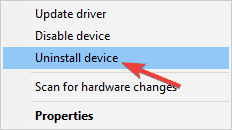
  3. Locate your printer driver, right-click it, and choose Uninstall.
    Canon PIXMA MP160 error 5
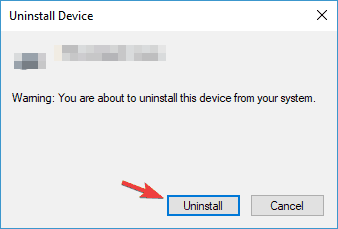
  4. If available, check to Delete the driver software for this device and click Uninstall.
    Canon MP160 error 5

Update the driver automatically

Manually searching for drivers can be tedious and even dangerous if you decide to look for it on a problematic website.

That’s why it’s so much easier, safer, and quicker to use third-party tools such as Fortect Driver Updater to automatically download the missing drivers.

The first step is to download and install Fortect Driver Updater. Next, start the tool. It will begin to scan your PC immediately for any problems with your drivers and will find the best solutions.

After it finishes scanning, all you need to do is to choose which driver to install from the list. Of course, there is also the much easier option to click on the Select All checkbox from the top and install all the drivers simultaneously.

⇒ Get Fortect Driver Updater

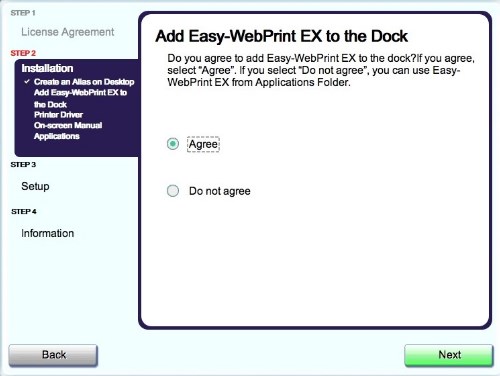
2. Download Easy-WebPrint EX Ver. 1.7.0

If Canon PIXMA MP160 isn’t working on your Windows 10 PC you can try downloading Easy-WebPrint EX Ver. 1.7.0.

After that, you should be able to launch the MP Navigator 3.0 and your device should start working.

3. Start scanning from Control Panel

  1. Press Windows Key + S, type control panel, and click on Control Panel from the list of results.
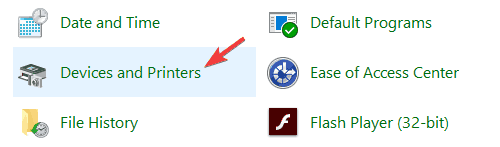
  2. Navigate to Devices and Printers.
    Canon PIXMA MP160 error 2
  3. Go to the Printers section and locate Canon PIXMA MP160.
  4. Right-click your printer and choose Scan.

Create a shortcut on your desktop

Unfortunately, you’ll have to repeat these steps every time you want to scan a document. To make this process a bit easier you can create a shortcut on your Desktop.

Canon MP160 error 5

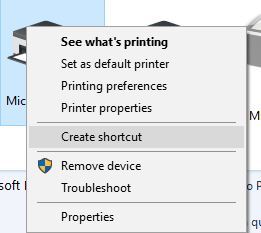
To do that simply go to Devices and Printers, locate your printer, right-click it, and choose the Create shortcut option.

4. Install the drivers in Compatibility Mode

  1. Download the latest drivers for your device.
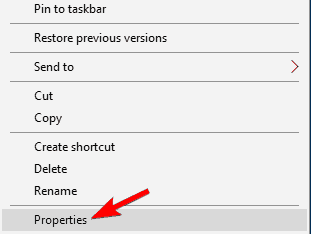
  2. Find the driver setup file, right-click it, and choose Properties.
    Canon PIXMA MP160 error 5100
  3. Go to the Compatibility tab and check Run this program in compatibility mode for and then select Windows 10 or the version you are running.
  4. Click Apply and OK.
    Canon MP160 error 5
  5. Run the setup file and install the drivers.

5. Temporarily remove ink jets

  1. Turn off your printer.
  2. Wait for a few seconds and then turn the printer back on again.
  3. Press and hold the Reset button for 5 seconds and then let it go (the Reset button is labeled Stop/Reset and it has a red triangle inside the circle).
  4. Now open your printer cover and wait for the ink jets to shift to the left side.
  5. Take both of them out. Wait for a few seconds and insert the ink jets again. Close the printer cover.
  6. Wait while your printer starts.
  7. Now press the Black button. The button is labeled Black and it has a vertical line in a diamond as its icon.

After doing that, the E4 error should be fixed.

6. Run the printer application as administrator

  1. Locate the TWAIN application and right-click it.
  2. Choose Run as administrator from the menu.
    Canon PIXMA MP160 error 16

Set the application to always run with administrative privileges

  1. Right-click the application and choose Properties from the menu.
  2. Navigate to the Compatibility tab and check Run this program as an administrator. Click on Apply and OK.
    Canon MP160 error 5

7. Install the latest updates

  1. Press the Windows Key + I to open the Settings app.
  2. Navigate to the Update & Security section.
    Canon MP160 error 5
  3. Now click the Check for updates button.
    Canon PIXMA MP160 error 2

Windows will now check for available updates and download them in the background. Once the updates are installed, check if the problem with your printer is still there.

8. Disconnect the printer and shut down your PC

  1. Disconnect the printer from your PC.
  2. Shut down your PC, and disconnect its power cable from the power outlet.
  3. Wait for a few moments and turn your PC back on again.
  4. Once your PC boots, connect the printer once again.

Note: This is a simple workaround, but several users reported that it worked for them, so you might want to try it out. Keep in mind that this is just a temporary solution, so if you encounter this problem again, you might have to repeat it.

9. Clean your ink cartilages

  1. Remove the ink cartridges from your printer.
  2. Turn the printer off by pressing the Power button on it.
  3. Use a kitchen tissue or any other non-fibrous tissue to clean the contacts on the front of the cartridge.
  4. After doing that, press the power button to turn your printer back on again.
  5. Insert the cartridges.

We hope that you managed to fix the problems with your Canon PIXMA MP160 after using one of our solutions. If you have any other suggestions or comments, please leave them in the Comments section below.

What time do Xbox Series X and Xbox Series S pre-orders go live on September 22nd?

8AM seems to be the time to remember for those looking to pre-order either the Xbox Series X or Xbox Series S next gen consoles on September 22nd.

Microsoft has confirmed that pre-orders for the both next gen Xbox consoles will go live in the United States, Canada, United Kingdom, Australia, and New Zealand at 8AM PT, 8AM PT, 8AM BST, 8AM AEST, and 8AM NZST respectively.

Online pre-orders for those in Europe, the Middle East, and Africa are expected to go live at  9AM CEST.

Pre-orders will be taken directly via the Microsoft Store website but also through major retail chains such as Amazon, Best Buy, GameStop, Walmart, Target, EB Games, The Source, JB Hi-Fi, EB Games, Telstra, Harvey Norman, and Spark.

Xbox Series X and Xbox Series S console pre-orders aren’t limited to just the major stores though so it can be worth checking other smaller or local suppliers as well.

Those looking to pay off their next gen Xbox console with a payment plan via Xbox All Access will also be able to do so starting from the same times mentioned above for the respective supported regions. Note that, as of right now, only the United States, United Kingdom, Australia, New Zealand, Denmark, Finland, Norway, and Sweden have Xbox All Access.

Microsoft has confirmed that Xbox All Access will be coming to Canada, France, Poland, and South Korea sometime before the November 10th release but no specific date has been set yet.

While these are the official start times for the Xbox Series X and S pre-orders to go live, it’s expected that some stores may begin early so it’s worth checking your preferred stores in the 24 hours beforehand if you’re worried about missing out. It’s unclear if supplies will run out though so there may not be a reason to worry at all.

Are you planning on pre-ordering the Xbox Series X or Xbox Series S? Let us know which console you’re going to order in the comments below and then follow us on Twitter and Pinterest for more Xbox gaming news.

How to test if your VPN is working [Speed & Leak Check]

Having a VPN on your PC is great for your privacy and security, but do you know how to test if your VPN is working? One of the most commonly-used tests is checking an online IP detection service. If your IP address is different than the one you had before you connected to the VPN, then it probably works, right? Wrong. Many VPN users believe that a simple IP change (which, by the way, can be also achieved without a VPN) means that the VPN is up and running, protecting your connection and privacy at full-force. However, this false sense of security may do more harm than good, especially if your VPN isn’t exactly what it advertises itself to be.  

How to check if your VPN is working?

Check if you’re connected

  1. Locate the VPN icon in your system tray
  2. Double-click it to display the VPN client’s main windowPIA is connected to a US VPN server
  3. Check the dashboard to see if you’re connected

This step might sound silly, but sometimes your VPN connection might suddenly drop. If you’re unfortunate enough to use a VPN without a killswitch, your Windows PC will almost immediately default to your previous, insecure connection.

As a result, you won’t be connected to the VPN server of your choice (even though you thought you were), and your connection won’t be secured and anonymized.

Perform a data leak test

  1. Launch your VPN client (we used Private Internet Access)
  2. Connect to a server of your choice
  3. Launch your favorite web browser
  4. Go to either one of these services:
    1. ipleak
    2. IPX
    3. BrowserLeaks
  5. Run a leak test
  6. Check if any of the following data leaked through your VPN connection:
    1. IP address
    2. DNS
    3. WebRTC
    4. Location
    5. Flash IP
    6. IPv6 geolocation
    7. ISP

Just to make sure, you can run the leak tests on all of the servers we’ve mentioned above. If none of these tests pick any sensitive data from your VPN connection, then your VPN is leak-proof.

However, note that some VPNs might leak data from some of their servers, while others are kept airtight. We’re not telling you to run leak tests every time you connect to a VPN server but is that such a crazy idea? Better safe than sorry, after all.

Bonus: Note that ipleak also has a torrent address detection feature. You add a magnet link to your torrent client of choice and wait for the results. If you see your real IP address in the torrent address testing area, your VPN is not secure.

Run a speed test

  1. Disconnect from your VPN (if connected)
  2. Launch a web browser
  3. Run an online speed test (we use Netflix’s fast.com and Ookla’s Speedtest)
  4. Wait for the results
  5. Launch your VPN client
  6. Connect to your desired server
  7. Run the same speed test
  8. Compare the results to see how your VPN affects your connection speed
  9. Optionally: run the tests on multiple servers to see how location affects your speed

Naturally, speed is an important part of your VPN. Having a secure, but slow VPN can turn simple, mundane activities, such as checking your email into sessions of endlessly waiting for the page to load.

We recommend sticking to only one speed test tool, and switching only if it doesn’t seem to work with your VPN (it’s not unheard of). On the other hand, running tests on multiple servers can help you understand if and how location affects speed.

It’s worth mentioning that certain VPNs enforce speed/bandwidth limits only on some of their servers/locations.

Final thoughts on testing your VPN

All things considered, it’s of utmost importance to understand how your VPN works and test it for leaks at least every once in a while.

Remember, even if your VPN successfully masks your IP, that doesn’t mean it also shields other sensitive data from prying eyes.

Last, but not least, running speed tests on your VPN can help you learn if the VPN limits bandwidth/speed, and also how location can affect your VPN connection speed.

[wl_navigator]

7 Best VPNs With Kill Switch for Windows to Stop IP Leaks

A VPN is mainly designed to ensure your online privacy and safety. That means it must have powerful security features, such as a strong VPN protocol with the highest level of encryption.

However, you should also for a kill switch when it comes to VPNs for Windows PC.

What is a VPN kill switch?

A VPN kill switch (also stylized as killswitch) is a safety feature that automatically cuts off Internet access for your computer’s entire network when the VPN connection gets disrupted.

Its goal is to stop IP leaks when you’re online without a VPN.

If you don’t have a kill switch enabled, your true IP address will be immediately broadcasted online as soon as the VPN connection drops.

Do I need a VPN kill switch?

If you use a VPN to remain anonymous on the web, then yes, you definitely need a VPN kill switch. This way, you can make sure that your online activities won’t be traced back to you.

It’s particularly practical for users who live in countries with harsh Internet censorship.

Many of them resort to virtual private network solutions to bypass government censorship and access blocked websites, such as journalists or whistleblowers.

Which VPN has a kill switch?

ExpressVPN – Best combo with the stealth servers

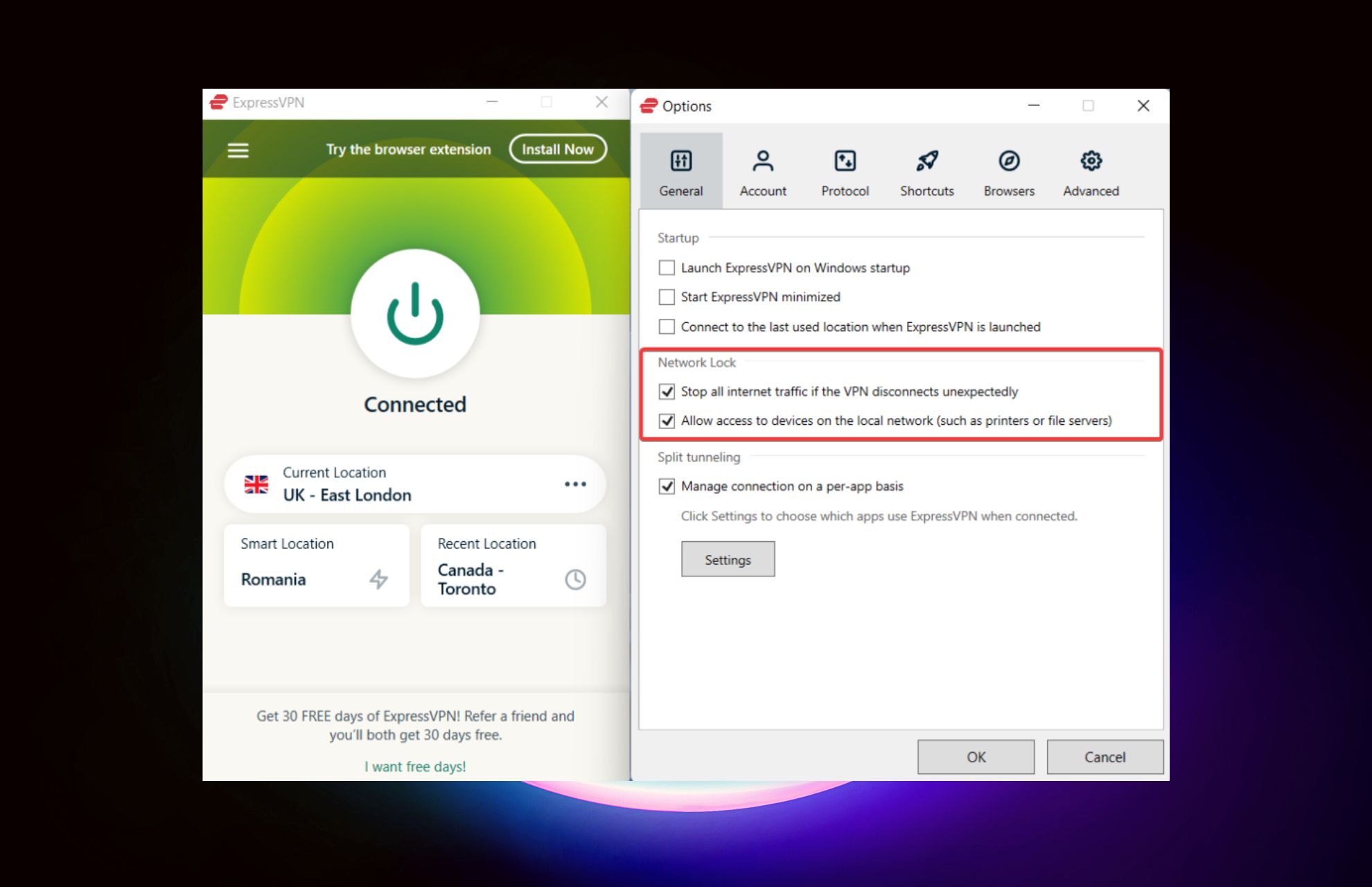
ExpressVPN is a VPN service that has a kill switch called Network Lock, featuring support for Windows, Mac, Linux, and routers. It stops all traffic flowing in and out of your network as soon as you get disconnected from the VPN.

This way, it hides you from your ISP and maintains your online anonymity. Created by Express VPN International LTD, this tool uses OpenVPN with 256-bit AES military-grade encryption, exclusive DNS servers, IPv6 leak protection, and split tunneling. It allows 5 simultaneous device connections.

What else you must know about ExpressVPN:

  • +3,000 VPN servers in 94 countries
  • No logs or leaks
  • 24/7 live chat and email support
  • 30-day money-back guarantee
  • 7-day free trial for Android and iOS

ExpressVPN

Stop IP leaks by using the automatic kill switch of this dependable VPN.
Check price Visit website

Private Internet Access – Best combo with PIA Mace

Killswitch settings PIA

Private Internet Access (PIA) is a top VPN for Windows 10, which also comes integrated with an automatic kill switch called VPN Killswitch. It’s set to auto mode, which means that it blocks all outside network traffic when the VPN is on.

However, you can set VPN Killswitch to Always in order to block all incoming and outgoing traffic, whether the VPN is on or off. Or you can disable it.

Created by Kape Technologies, PIA is compatible with all major operating systems, including Windows, Mac, Linux, Android, and iOS. You can even set it up on your router to share your VPN account with all connected devices. It allows 10 simultaneous connections.

What else you must know about PIA:

  • +3,300 VPN servers in 48 countries
  • No logs or leaks
  • 24/7 live chat support
  • 30-day money-back guarantee (no free trial)

Private Internet Access

Prevent IP leaks by turning on the kill switch of this reliable VPN.
Check price Visit website

NordVPN – Best combo with Double VPN

When it comes to a VPN kill switch for Windows computers, NordVPN really shines because it has two types of kill switches: for applications and the entire network traffic. The Internet kill switch stops all inbound and outbound connections if the VPN gets interrupted.

Meanwhile, the App Kill Switch terminates specific programs to make sure they won’t expose your true IP address. Made by Tefincom & Co., NordVPN has some of the best security features you can find in a virtual private network solution.

In addition to a kill switch, you can use Double VPN, obfuscated servers, Onion-over-VPN, and dedicated IP addresses. It uses OpenVPN with 256-bit encryption to secure your data.

NordVPN is compatible with all popular platforms, including Windows, Android, Linux, Mac, and iOS. Plus, you can install it at the router level to provide VPN access to all connected devices. It supports 6 simultaneous connections.

What else you must know about NordVPN:

  • +5,100 VPN servers in 59 countries
  • No logs or leaks
  • 24/7 live chat support
  • 30-day money-back guarantee (no free trial)

NordVPN

Remain anonymous even when the VPN connection drops by using the kill switch of this app.
Check price Visit website

Surfshark – Best combo with CleanWeb

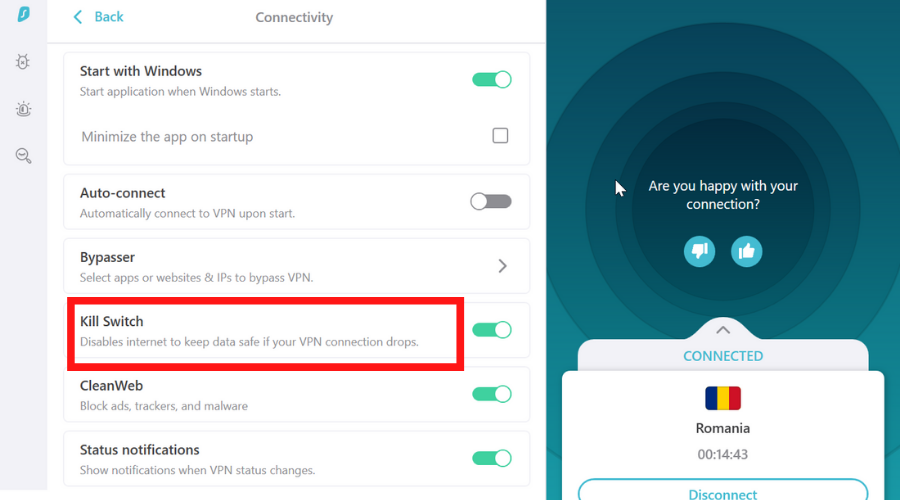
Designed by Surfshark LTD, Surfshark is yet another VPN with a kill switch for Windows PC. Simply called Kill Switch, it disables all Internet access when you’re not using the VPN. That means that you will lose network connectivity even after quitting or logging out of the app.

Besides a kill switch, Surfshark brings to the table other awesome security features, such as support for WireGuard and OpenVPN with 256-bit encryption, Shadowsocks proxy, multi-hop VPN connections, obfuscation mode, along with an ad and malware blocker.

The best part about Surfshark is that you can use a single account on any number of devices since it permits unlimited simultaneous connections. It works with Windows, Linux, Mac, iOS, Android, and routers.

What else you must know about Surfshark:

  • +1,700 VPN servers in +63 countries
  • 24/7 live chat and email support
  • 30-day money-back guarantee
  • 7-day free trial for Android and iOS

Surfshark

Protect your online privacy by using the kill switch of this affordable VPN.
Check price Visit website

CyberGhost VPN – Best combo with NoSpy servers

Operated by Kape Technologies, CyberGhost VPN is one of the most efficient VPNs with an Internet kill switch for Windows PC. That’s because it’s the only premium service on this list that offers a free trial for Windows (no credit card).

CyberGhost VPN has an automatic Internet KillSwitch built into the software application, which you can’t turn off no matter what. It’s not a drastic measure because it doesn’t shut off your Internet access when the VPN is off.

But it’s designed to block all connections as soon as you lose access to the CyberGhost VPN network. You can set up CyberGhost VPN not only on Windows but also iOS, Android, Linux, and Mac. It also has OpenVPN manual config for router setup. It can protect up to 7 devices at once.

What else you must know about CyberGhost VPN:

  • +6,500 VPN servers in 89 countries
  • No logs or leaks
  • 24/7 live chat support
  • Up to 45-day money-back guarantee
  • 1-day free trial for Windows and macOS
  • 7-day free trial for Android and iOS

CyberGhost VPN

Protect your online privacy by stopping IP leaks using the kill switch of this VPN.
Check price Visit website

VyprVPN – Best combo with VyprDNS

VyprVPN is a virtual private network solution based in Switzerland provided by Internet privacy and security solution provider Golden Frog.

The solution currently runs over 700 servers in over 70 different locations and provides VPN apps for Windows, Mac, Android, and iOS devices.

VyprVPN has 256-bit encryption and supports a number of VPN protocols, including OpenVPN, IKEv2, L2TP/IPsec, PPTP, and the vendor’s proprietary protocol Chameleon.

The VPN also activates automatically whenever you connect to an unknown or unprotected public network.

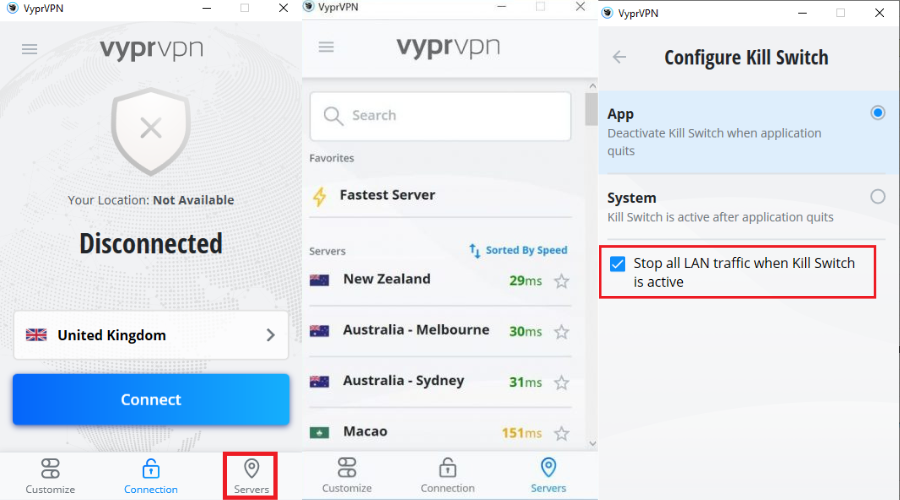
Furthermore, it includes a Kill Switch that activates instantly when the VPN is disabled or disconnected to ensure no traffic slips through the cracks.

What else you must know about VyprVPN:

  • VyprDNS to defeat censorship
  • VyprVPN for Business Cloud
  • DNS Leak Protection
  • Split tunneling
  • Public Wi-Fi Protection
  • Ping server monitoring

VyprVPN

Employ system and apps kill switch for an anonimous browsing, torrenting and banking while traveling.
Check price Visit website

IPvanish – Best combo with traffic block

IPVanish is a VPN service based in the United States that currently provides access to over 40,000 IP addresses and over 1,600 P2P-optimized servers in over 75 locations.

When you enable the kill switch feature in your IPVanish app, it acts as a failsafe. If you’re online and discover you don’t have active encryption, the kill switch disconnects your internet connection. 

Connection to the internet is blocked until your VPN encryption can be enabled, preventing you from being exposed to threats.

It also offers its users user-friendly apps with a plethora of features and customization options. IPVanish uses the OpenVPN and IKEv2 protocols to protect your online privacy, and you can choose which OpenVPN port to use to connect – 1194 or 443.

You can also use the Scramble OpenVPN Traffic feature to hide the fact that you’re using a VPN in countries that typically monitor for and block VPNs, such as Iran or China.

What else you must know about IPVanish:

  • Cloud Storage (only in VPN + Storage)
  • VPN Encryption
  • Multiple Connection Protocols
  • P2P Support
  • Data Restoration
  • Wi-Fi Hotspot Privacy

IPVanish

A VPN suited mostly for torrent thanks to its advanced protocols and kill switch on system level.
Check price Visit website

Why a Kill Switch feature is important to VPN?

A kill switch feature is important to a VPN when you lose your internet connection and thus your VPN server encryption.

Your laptop, smartphone, or another device will most likely revert to the public IP address provided by your home ISP.

This means that your online activity and browsing history, as well as your IP address and location, may become visible to and tracked by others at any time.

A VPN kill switch feature adds security by preventing DNS leaks and Wi-Fi packet loss.

Tip icon Tip
To fix any issues with your virtual private network solution, join our VPN Troubleshooting Hub.
Return to our Security VPN section to find out how a VPN improves your online privacy and security.

To recap, a VPN kill switch for Windows 10 is indispensable for privacy-concerned users who want to protect their online anonymity all the time, even in the short time it takes for a VPN to disconnect and reconnect.

If you’re trying to hide your browsing activity from your ISP and block government traffic, you definitely need a VPN kill switch. The virtual private network solutions above are the best in the business, especially when it comes to Internet security and anonymity.

Craftopia packet loss: What is it and how to fix it?

Craftopia is a survival game with a lot of action elements, which brings together a lot of awesome features to provide you with an immersive experience.

It allows you to do farming activities, go hunting, build, automate various tasks, and even battle monsters if you’re into that. Craftopia also features mining and foraging, and get this: you can cast magic spells.

You can play it in both single-player and multiplayer modes, although the title is subtly advertised as being a multiplayer experience. This brings us to the main topic of our article: connectivity issues such as packet loss, jitter, or high ping.

What is packet loss in Craftopia?

Whenever packets of data that get sent throughout your connection get lost and never make it to their destination, we call it packet loss. It’s quite intuitive, come to think of it.

Anyway, this issue seems harmless at first, considering that data packets get lost on the regular. However, we’re here to talk about prolonged periods of leaking packets, which can have a big impact on your gameplay experience.

More often than not, packet loss gets fixed all by itself and you won’t even know you experienced it. This is usually referred to as normal packet loss.

However, when stars align all wrong, you can feel packet loss slowly but steadily wreaking havoc, especially when you’re playing multiplayer games such as Craftopia.

You’ll notice strange behavior such as:

  • Unresponsive menus
  • Sluggish character movement
  • Desyncing with other online players
  • Chat messages might be displayed with great delay
  • Rubberbanding (freezing + sudden teleporting of characters, PC or NPC)
  • Sudden disconnection from the Craftopia game server
  • FPS drops

What can cause packet loss in Craftopia?

There are a lot of things that can trigger a packet loss episode, which is exactly why this issue gets so much bad rap. Given that you can’t immediately know what’s wrong with your connection means there’s no surefire fix for it.

Some causes for leaking packets may be more obvious than others, which makes the problem easier to deal with. Like if you’re using Wi-Fi instead of Ethernet, you might unknowingly increase your odds of experiencing packet loss.

Check out our list of potential causes for packet loss (the severe kind):

  • Network congestion (this is one of the most common causes for leaking packets)
  • Using Wi-Fi instead of Ethernet connections
  • Outdated drivers on your PC (especially if they’re network adapter drivers)
  • Not using the latest version for your router’s firmware
  • Bandwidth throttling (ISP-related)
  • ISP routing traffic improperly
  • Poor subnet management (also ISP-related)
  • Game server issues
  • Subpar Internet plan

As you can see, there are several reasons that may spawn an unfortunate packet loss episode while you’re playing Craftopia. Trust us, this list barely scratches the surface, as we only covered some of the most obvious causes.

How to detect packet loss in Craftopia?

  1. Detect the IP address of the Craftopia server you’re playing on
  2. Launch a CMD instance on your PC
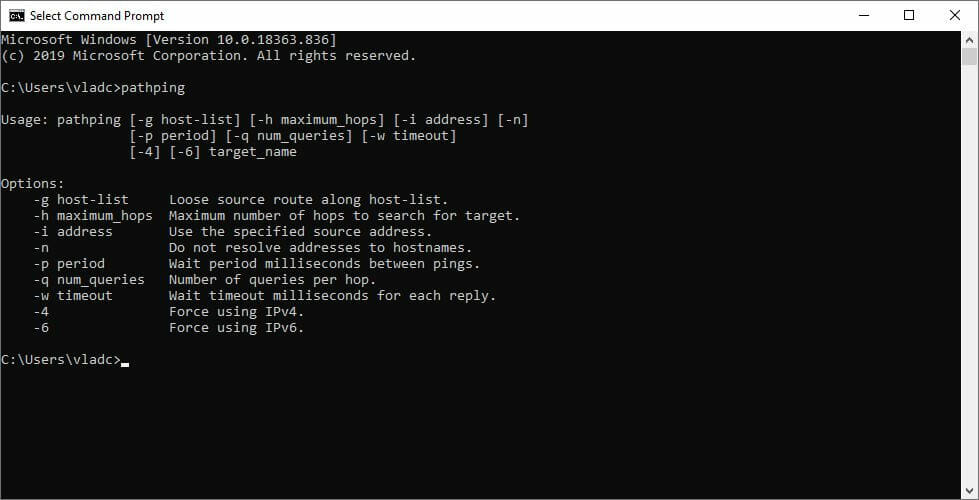
  3. Run the pathping x.x.x.x command (replace x.x.x.x with the IP you extracted earlier)
    CMD pathping
  4. Wait for the pathping test to come to an end
  5. Check if there’s any packet loss and where it occurs

Note that currently Craftopia only lets you join a game via IP address or through Steam. Thus, it may not even be necessary to use third-party tools such as Wireshark to perform IP address extraction.

Just put the IP address you use to connect to the game. Alternatively, if you’re joining via Steam, ask the game host if they’re kind enough to tell you the IP address, so you can check for packet loss. We’re sure they’ll understand.

It’s also worth mentioning that the first hop on the pathping test always belongs to your PC (the one you’re running pathping from). Similarly, the last hop always belongs to the game server host.

Knowing where packet loss occurs can help you rule out certain causes for this issue.

How to fix packet loss in Craftopia?

1. Use a VPN

  1. Purchase a Private Internet Access subscription
  2. Download the PIA installer on your PC
  3. Deploy the VPN client
  4. Launch it and connect to your account
  5. Choose a suitable, fast server (nearby servers are usually the fastest)
  6. Launch Craftopia as usual
  7. Check if you’re still experiencing packet loss symptoms

VPN services such as Kape Technologies’ Private Internet Access can fix packet loss situations quickly by circumventing your default, troublesome ISP connection. But you see, there’s a catch.

Experiencing packet loss in Craftopia? PIA could help you fix it with ease.
Free Trial Visit Website

Since a VPN can only bypass ISP-imposed limitations, it also means that it can’t do much if the problem is on your side, or on the Craftopia server host’s side.

Make sure you confirm that the issue occurs on your ISP’s section of the connection before investing in a VPN subscription plan.

2. Flush your DNS

  1. Hit the Win key on your keyboard
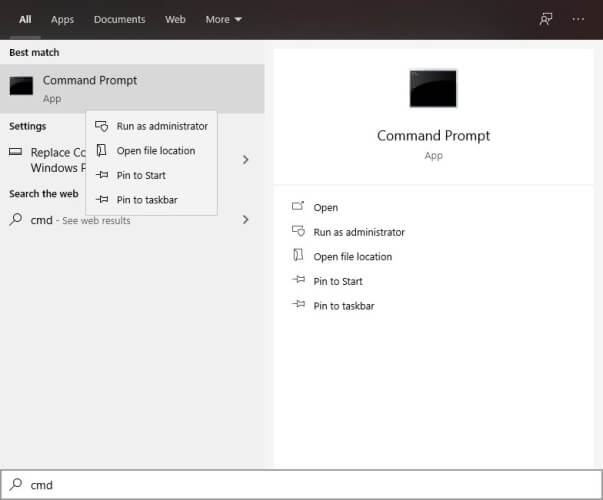
  2. Type CMD and right-click the Command Prompt icon
  3. Select Run as administrator
  4. Type the following commands, one by one, in this precise order:

ipconfig /flushdns
ipconfig /registerdns
ipconfig /release
ipconfig /renew
netsh winsock reset
exit

Restart your computer after closing the Command Prompt window. After your PC fully boots, try launching Craftopia once more, connect to the game server, and see if there’s any improvement.

Oftentimes, flushing your DNS can improve the quality of your connection, thus curbing troublesome issues such as packet loss.

3. Manually troubleshoot your connection

  • Restart Craftopia, your PC, router, and/or modem
  • Check if there’s any worn out/broken component on your network
  • Upgrade the Ethernet cables to a higher Cat standard if possible (e.g. Cat 5 to Cat 6)
  • Switch from using Wi-Fi to Ethernet, if possible (Wi-Fi packet loss happens more frequently)
  • Update your system drivers, especially network-related ones
  • Make sure that your router runs on the latest firmware version
  • Close any background apps or services that might take up a lot of bandwidth (VoIP, torrent clients)
  • Call your ISP and ask them if they can look into the issue (tell them about the pathping test)
  • Contact the Craftopia server host if you notice something wrong on their side
  • Avoid peak hours if you experience network congestion a lot (or use a VPN)
  • Try connecting to another server to rule out any server-side issues
  • Upgrade your Internet plan, if possible

Note that these aren’t guaranteed fixes that will 100% eliminate your packet loss issues in Craftopia.

However, trying our suggestions might improve the quality of your connection, which is guaranteed to reduce the incidence of packet loss, at least on your side.

Final thoughts on fixing Craftopia packet loss

To sum it up, experiencing packet loss in Craftopia can be really annoying and keep you from having a great time. Fortunately, with just a bit of luck, you could easily fix it.

It’s possible that using a VPN such as PIA can get you rid of packet loss, but this fix only works if your ISP is what triggers the event, to begin with.

You could also try flushing your DNS or performing or manual troubleshooting suggestions. However, sometimes packet loss has a mind of its own and you might not be able to fix it all by yourself.

In this case, waiting it out can be the easiest, albeit not the most convenient, approach.

Sea of Thieves, Hunt: Showdown, and Warhammer: Chaosbane are free to play with Xbox Live Gold this weekend

There’s another Free Play Days event for Xbox Live Gold subscribers this weekend. Starting today through Sunday, September 20, Sea of Thieves, Hunt: Showdown, and Warhammer: Chaosbane are free to play with Xbox Live Gold and limited-time discounts are available for all three games in the Xbox Store. As always you can download and install all three games via Xbox.com or using the Microsoft Store on your Xbox console.

It appears Sea of Thieves is everywhere now. Sea of Thieves now boasts over 15 million players since its launch in 2018 and has frequent updates, including the latest content update, Ashen Winds. The epic first person online multiplayer is available on Xbox One and Windows 10 for free for Xbox Game Pass Ultimate subscribers and now Microsoft is allowing Xbox Live Gold subscribers a small window of time to play the game for free this weekend.

Hunt: Showdown was offered as in a previous Free Play Days installment in May 2020 and Warhammer: Choasbane was already offered as a Free Play Days game back in April 2020, so it is surprising to see both being offered again. As Microsoft prepares for the release of the Xbox Series X and Xbox Series S consoles to be launched in November, Xbox Live Gold may be combined with Xbox Game Pass for a more robust online experience.

What game will you be playing this weekend? Let us know in the comments below.

How to change Windows 10’s login screen / background image

The Windows 10 login screen is where you sign in to a user account on your desktop or laptop.

That’s a great place to show off one of your favorite images as a login screen background.

Check out the three methods below for changing the Windows 10 login screen’s background.

How can I change the background image for Windows 10’s login screen?

1. Change the login screen background in Settings

  1. Open the Type here to search utility by clicking the button for it on the left side of the taskbar.
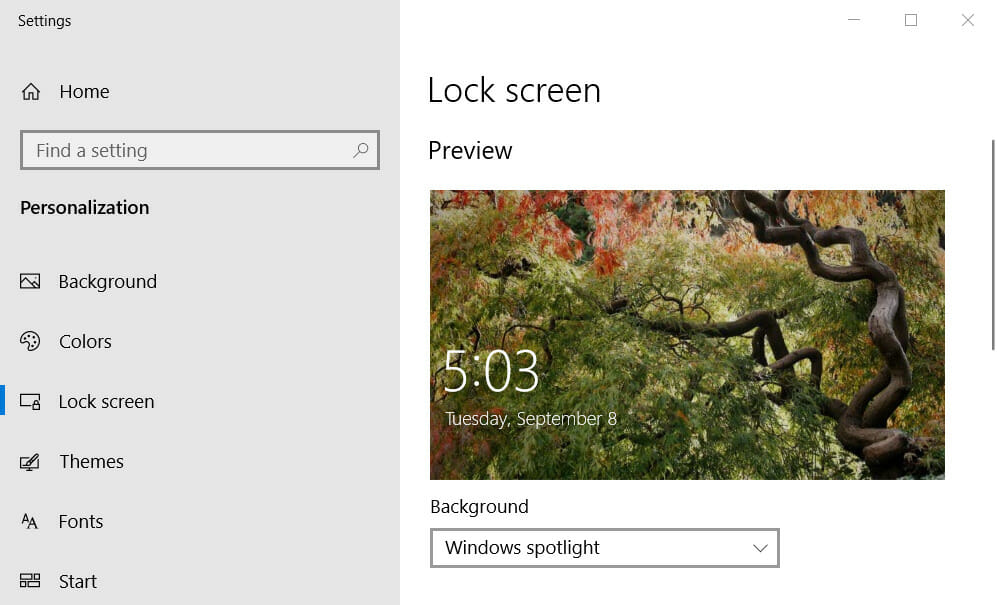
  2. Type the keyword lock screen in the search box.
  3. Click Change your lock screen background to open Settings as in the screenshot directly below.
    Lock screen tab change windows 10 login
  4. Click the Background drop-down menu to open it.
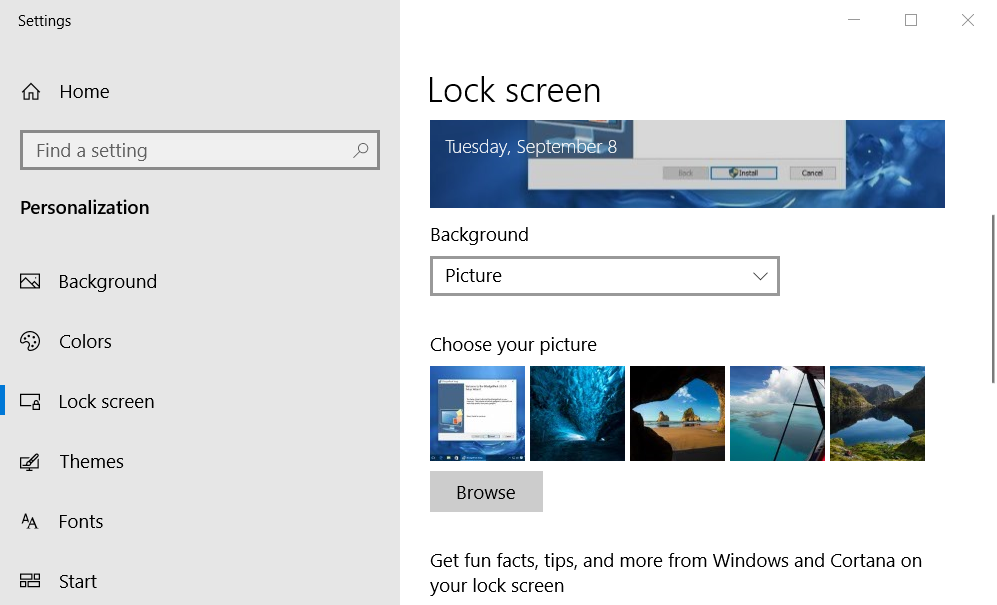
  5. Select the Picture option.
    Browse button change windows 10 login
  6. Press the Browse button.
  7. Select the image you want to include on the Windows 10 login screen background.
  8. Press the Choose picture button to confirm the selection.
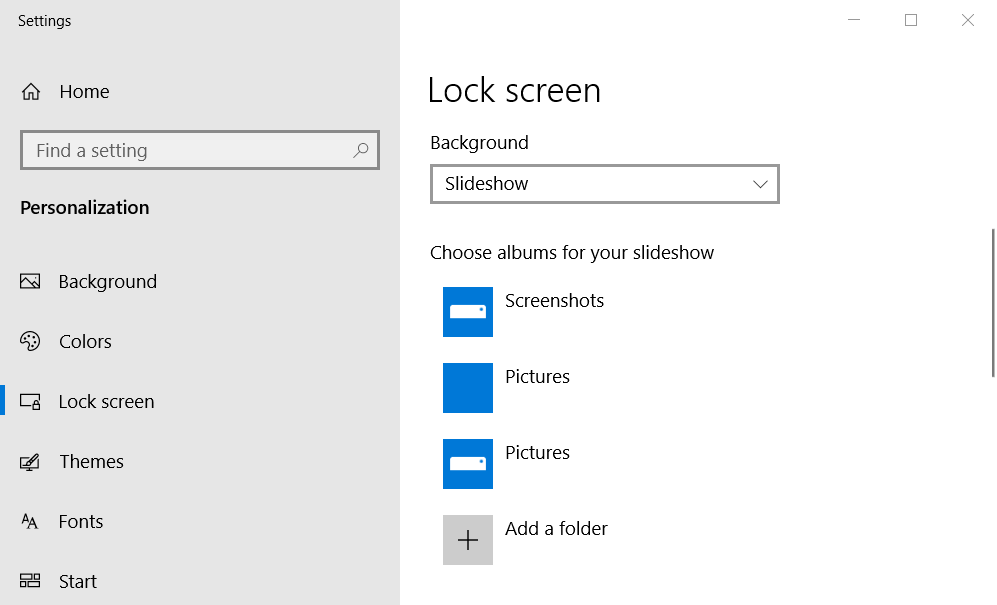
  9. To include multiple images on the login screen, select the Slideshow option on the drop-down menu.
    Slideshow album options change windows 10 login
  10. Click the Add a folder button.
  11. Select a folder that includes the slideshow images for your login screen. You might need to manually move the images into a new folder within File Explorer.
  12. Click the Choose this folder option.
  13. Then select the image album on the Lock screen tab in Settings.
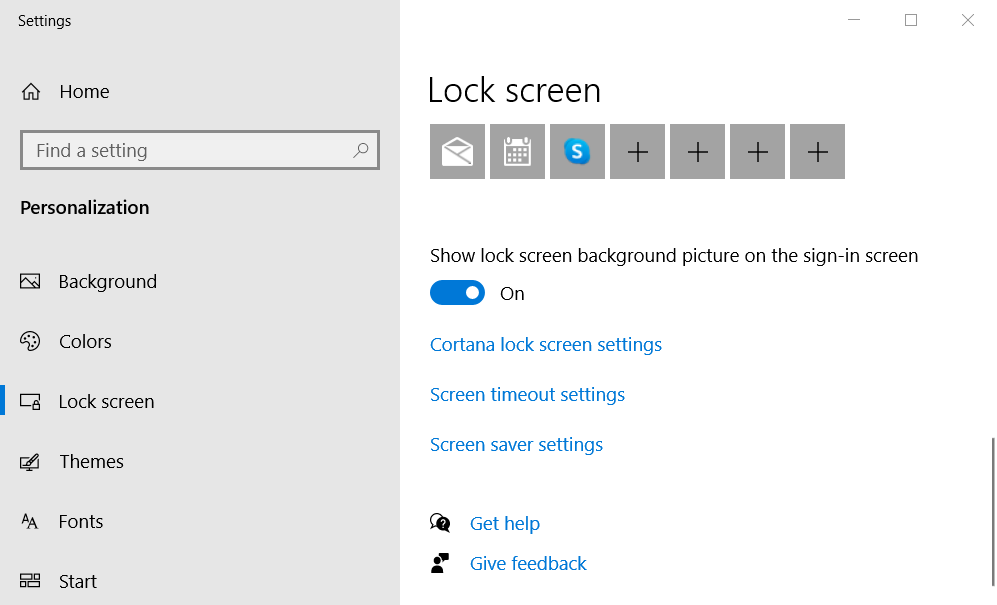
  14. Finally, toggle the Show lock screen background picture on the sign-in screen option on if it’s not selected.
    Show lock screen background picture option change windows 10 login
  15. Thereafter, restart Windows 10 to check out your new login screen background.

2. Check out W10 Logon Background Changer

  1. Open the GitHub page for the W10 Logon Background Changer program.
  2. Click Win10BGChanger1.2.1.zip to save the ZIP file for it.
  3. Open the ZIP file for  W10 Loon Background in File Explorer.
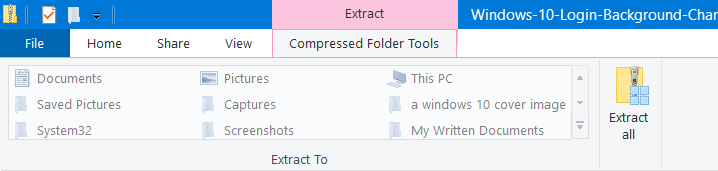
  4. Click Extract all on the Compressed Folder Tools tab.
    Compressed Folder Tools tab change windows 10 login
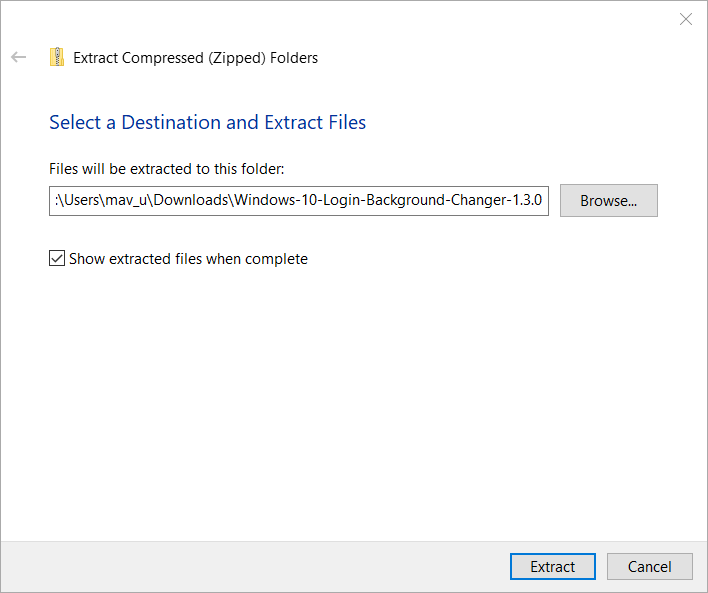
  5. Select the Show extracted files when complete option, and press the Extract button.
    Extract Compressed Folders window change windows 10 login
  6. Click the W10 Logon Background Changer.exe to open the window shown directly below.
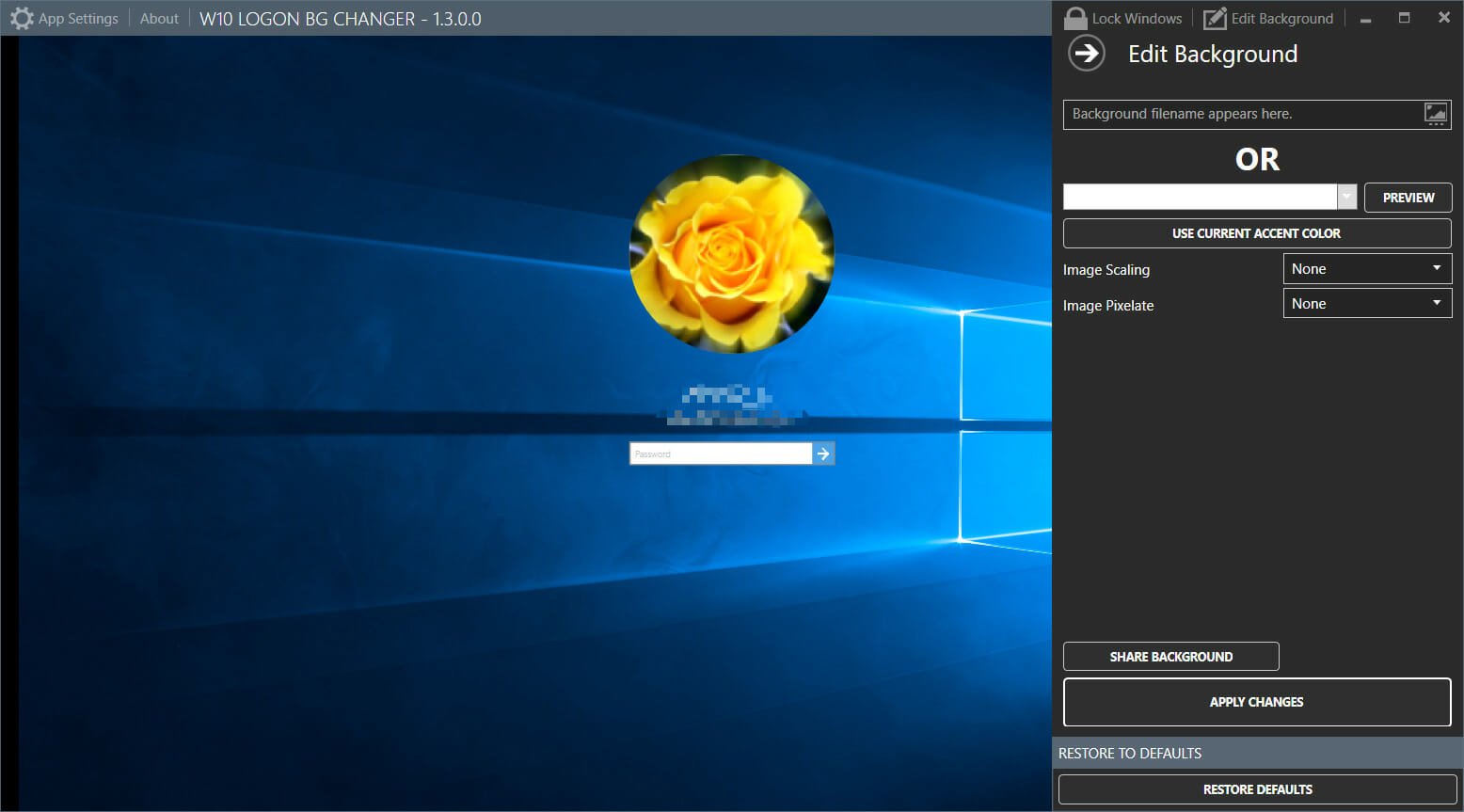
    W10 Logon BG Changer window change windows 10 login
  7. Click the button on the right of the Background filename appears here box.
  8. Choose a picture you want to include on the login screen.
  9. Press the Apply Changes button.
  10. You can restore the original background image by clicking the Restore Defaults button.

3. Change Windows 10’s login background to your Windows 10 accent color

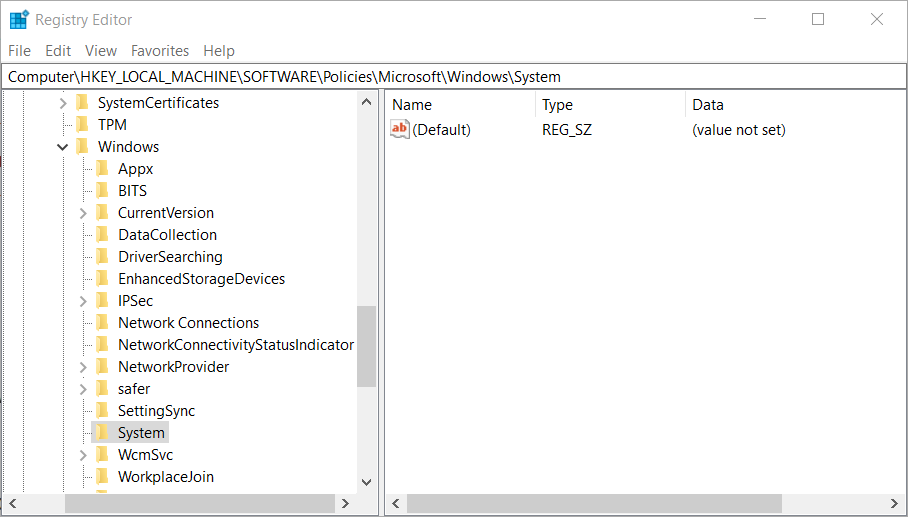
  1. Right-click the Start button to select Run on the Win + X menu.
  2. Type regedit in the Open box and press Enter to launch the Registry Editor.
  3. Next, open this registry path:HKEY_LOCAL_MACHINE\Software\Policies\Microsoft\Windows\SystemRegistry Editor window change windows 10 login
  4. Right-click the System key to select New.
  5. Select the DWORD (32-bit) Value option.
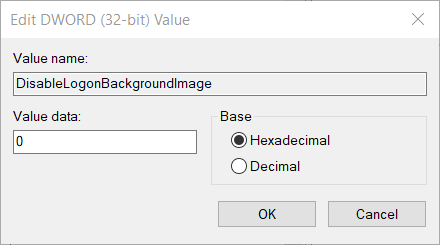
  6. Enter DisableLogonBackgroundImage as the DWORD name.
  7. Double-click DisableLogonBackgroundImage to open the window directly below.
    Edit DWORD window change windows 10 login
  8. Enter 1 in the Value data box to replace the default value, and select the OK option.
  9. Now your Windows login screen will have a flat background color that matches your selected accent color. Select an alternative accent color to change the login screen’s background color.

That’s how you can change the login screen background for Windows 10.

The Settings app includes sufficient options for changing the login screen’s background image, but you can also change its background to a flat color with the registry edit outlined above.

[wl_navigator]

Microsoft prepares to go all in on iOS14 for Microsoft 365

If Apple announced the public release of iOS 14 earlier this week, Microsoft is keen to provide details about its suite of Office apps that are fully prepared for the new software update. Here’s a look at everything you need to know about all the changes introduced in the latest update.

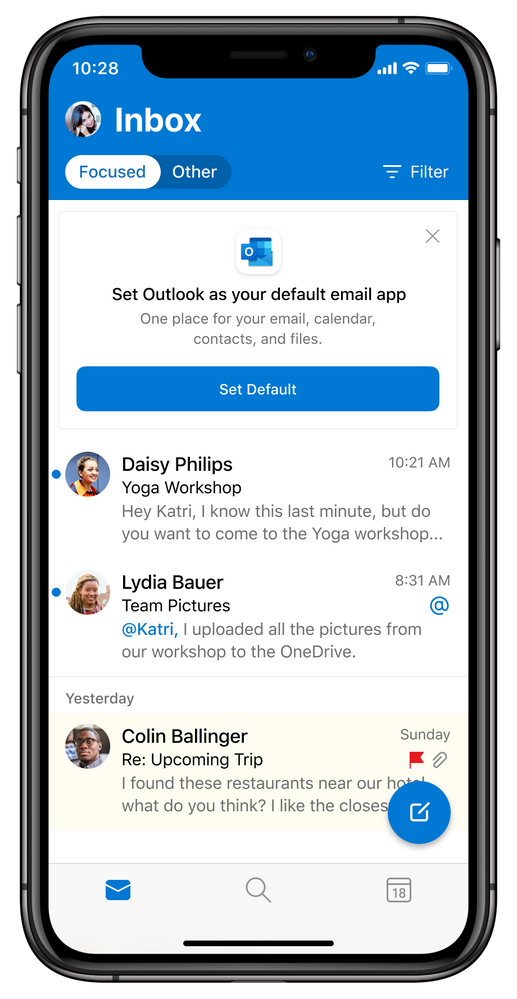
First off, Microsoft Outlook and Edge can now be configured as the default apps on iOS 14. This means that users will be able to choose Outlook to replace the default mail app, while Microsoft Edge can take the place of Safari on their devices. However, users first need to update their Microsoft Outlook and Edge apps to get the ability to switch defaults on iOS 14 from the settings menu. To change your default apps, head over to Settings, and scroll down to the respective app (Microsoft Edge or Outlook). On the next screen, tap Default Browser/Email App to set your preferred one as default.

Default Upsell in Device.png

Another important update for Microsoft’s apps is the new support for widgets in iOS14. The company has finally updated Microsoft Outlook and OneDrive with the ability to add widgets to the iOS and iPad home screen for easier access. More specifically, the OneDrive widget will allow users to see their photo memories from the On This Day feature, and the Outlook Calendar widget will provide a quick glimpse of the day.

“With the flexibility to pick your widget size and location, you can stay on top of what matters at a glance with an Outlook Calendar widget to see what’s next in your day with your work, school, and personal account. When using OneDrive with your personal account, you can see your photo memories from the On This Day feature, highlighting photos taken on this day across previous years. If you don’t have any On This Day photos for today, you’ll see the most recent photos that you’ve saved to the cloud,” the company explained.

OneDrive Photo Widget 5 cropped.png

More about upcoming updates

Last but not least, the company has promised to deliver offline editing support for Office files in Fall 2020. With this change, iOS users will be able to download their Word, Excel, or PowerPoint files on iPhone or iPad devices for offline editing.

Microsoft also plans to introduce the new Home experience for OneDrive users later this month. It will let them access their most recently used files, shared libraries, and offline files together regardless of what device they last used.

Moreover, the company is also bringing new capabilities to Big Sur and OneDrive on macOS. The future OneDrive update will add automatic renaming support for those files and folders that contain invalid characters or errors.

If you’re looking to learn more about the new updates coming to Outlook for Mac and more, be sure to register for Microsoft Inspire 2020, which will be held on September 23rd.

Ori and the Will of the Wisps is the latest Xbox Game Studios title to come to Nintendo Switch

Ori and the Will of the Wisps, the sequel to the critically-acclaimed Ori and the Blind Forest game from Moon Studios, is launching on the Nintendo Switch today. The Xbox Game Studios title was released on Xbox One and PC back in March and received even better reviews than its predecessor, which was also released on the Nintendo Switch last year.

Ori and the Will of the Wisps is the second title from indie dev Moon Studios, and it’s a challenging metroidvania game with gorgeous hand-painted artwork that are rarely seen in video games these days. The game is also more demanding than its predecessor, but the good news is that the Nintendo Switch port will run at 60FPS, just like on Xbox One X. “We optimized the hell out of it,” the developers said on Twitter today.

It’s interesting to see more and more Xbox Game Studios titles and high-profile Xbox exclusives launching on the Nintendo Switch. Cuphead was another big Xbox game that launched on the Switch last year, complete with an Xbox Live integration. Ori and the Will of the Wisps will be priced at $29.99 on the Nintendo eShop, and a $149.99 Collectors Edition will also be available with a stained glass style art piece, a collectible art card set, and more.

What are the best VLC Media Player keyboard shortcuts

VLC Media Player is the most popular third-party video player on Windows computers. The player is fast and easy to use, especially thanks to the various shortcuts (or Hotkeys).

While enjoying a movie on VLC, the best VLC keyboard shortcuts will save you two or three clicks to perform simple operations.

Best of all is that you can also tweak these VLC keyboard shortcuts to what suits you the best, thus making it easier than ever to control your movie watching sessions.

The media player has tons of default shortcuts, and you can also add yours as well.

In this guide, we’ll look at the best VLC keyboard shortcuts that will improve your viewing experience using this awesome media player.

VLC keyboard shortcuts on Mac?

The VLC keyboard shortcuts in Mac are identical to their Windows equivalents. For most of the commands in this guide, you can perform the same functions in Mac systems using the exact hotkeys.

However, Mac and Windows keyboards are different, and so it also reflects on a couple of VLC keyboard shortcuts.

Besides, I’ll indicate the Mac equivalents for the shortcuts in the section that follows.

What are the best VLC Media Player keyboard shortcuts?

1. Pause/resume/stop a video

pause-resume-hotkey-best-vlc-keyboard-shortcuts

To pause a video, hit the SPACEBAR on your keyboard. When you’re ready to resume the video, press the same button.

To stop the video completely, press the S key on your keyboard. This time around, playing the video doesn’t resume it but starts from the beginning.


2. Enter and exit Fullscreen mode

fullscreen-best-vlc-keyboard-shortcuts

The F key on your keyboard maximizes the video, putting it in fullscreen mode. The same F key reverts the video from fullscreen to the normal size.

You can also exit fullscreen mode using the ESC key.


3. VLC subtitles keyboard shortcut

subtitle-best-vlc-keyboard-shortcuts

To enable subtitles on your VLC Media Player interface, press the V key on your keyboard. Note that this VLC keyboard shortcut only works with videos that have a subtitle track.

If the video has multiple audio tracks, you can switch between them by pressing the B key.

Note: If you press V while playing a video with no subtitle track, you’ll get the following error: Subtitle Track: N/A. If the subtitle speed doesn’t match the video output, fix it with this guide.


4. VLC playback speed keyboard shortcut

speed-best-vlc-keyboard-shortcuts

The plus (+) button is the VLC speed up keyboard shortcut.

To reduce the speed, press the minus (–) button.

To return the playback to its default speed, press the equals (=) key.


5. Shortcut to take a screenshot

screenshot-best-vlc-keyboard-shortcuts

While watching a video, you can take a screenshot by pressing SHIFT + S.

It’s advisable that you pause the video before you take the screenshot for better focus.

On pressing the shortcut, a screenshot of the current frame will save in the pictures folder of your computer.


6. VLC keyboard shortcut for next chapter

next-previous-best-vlc-keyboard-shortcuts

To navigate to the next chapter when playing videos on VLC Media Player, press the N key on your keyboard.

Alternatively, to go back to the previous chapter, strike the P key.


7. VLC keyboard shortcuts next frame

next-frame-best-vlc-keyboard-shortcuts

The keyboard shortcuts in VLC for navigating to the next/previous frames are tricky.

Different hotkeys move you back and forward to different times:

5 seconds

  • SHIFT + left arrow key – Backward 5 seconds.
  • SHIFT + right arrow key – Forward 5 seconds.

10 seconds

  • ALT + left arrow key – Backward 10 seconds.
  • ALT + right arrow key – Forward 10 seconds.

1 minute

  • CTRL + left arrow key – Backward 1 minute.
  • CTRL + right arrow key – Forward 1 minute.

5 minutes

  • CTRL + ALT + left arrow key – Backward 5 minutes.
  • CTRL + ALT + right arrow key – Forward 5 minutes.

How can I remap VLC keyboard shortcuts?

modify-best-vlc-keyboard-shortcuts

  1. Open VLC Media Player.
  2. Click on Tools on the Menu bar.
  3. From the dropdown, select Preferences.
  4. Click on Hotkeys.
  5. Double-click on a shortcut that you wish to change.
  6. When the Hotkey change dialog box appears, press your preferred shortcut.
  7. Click on the Save

If the new hotkey is already assigned to another process, a dialog box pops up saying Warning: this key or combination is already assigned …

You can, as well, opt to simply remove the shortcut. After double-clicking on the hotkey, click on Unset from the Hotkey change dialog box.

If you try these hotkeys, but they don’t work for you, get your shortcuts working on VLC with this fix.

The default VLC keyboard shortcuts are strategically positioned in ways that are comfortable for most users, so you probably wouldn’t need to change much unless you’re coming from a different media player with different shortcuts.

[wl_navigator]

How to search emails by date in Gmail [Easy Steps]

Gmail is one of the biggest webmail apps for sending and receiving email.

One of the good things about Gmail is its flexible search utility that enables users to search for emails by date in various ways.

This is how you can find your Gmail emails with date searches.

How can I search by date in Gmail?

1. Search for emails before or after specified dates

To start this process, first open your Gmail account inside your preferred browser, and click on the Inbox/Outbox button from the left side of the screen.

After, simply click the Search box, and follow the steps described below depending on your task:

Search through emails before a specific date

  1. Enter before:YYYY/MM/DD in the search box and press Enter to find emails dated before the specified date.
  2. Replace YYYY/MM/DD in that search with an actual date.

For example, entering before:2020/02/23 would find emails received/sent after February 2, 2020.


Search through emails after a specific date

To search for emails after a specified date, enter after:YYYY/MM/DD in the search box, and press the Enter key, after replacing the date format with the actual date you’re interested in.

For example, entering after:2020/02/23 would find emails received/sent after February 2, 2020.


Search through emails before and after a specific date

Type after:YYYY/MM/DD before:YYYY/MM/DD in the search box.

For example, entering after:2020/01/01 before:2020/05/01 would find emails dated between January 1, 2020, and May 1, 2020.

Note: You can also combine those date searches with keywords by adding search keywords to the end of them. For example, entering after:2020/01/01 football would find emails received after January 1, 2020, that include the football keyword in them.


2. Search for emails older or newer than a specified period

  1. Select your Gmail Inbox or Sent to search for emails.
  2. Click within the search box at the top of Gmail.
  3. Enter older_than:3m to search for emails received more than three months ago. To search for emails received more than three days or years ago, you would need to input older_than:3d or older_than:2y.
  4. To search for emails received or sent less than three months, enter newer_than:3m in the search box. Replace the M in that search query with Y or D for years and days.
  5. You can also combine the newer_than and older_than search queries with the after and before ones. For example, entering after: 2019/8/01 older_than 3 months would find emails received after August 1, 2019, that have been in your inbox for more than three months.

3. Search for emails with Epoch times

  1. Open the Epoch converter page in a web browser.
  2. Enter a specific date and time within the human date to timestamp boxes shown directly below.
    The Epoch timestamp conversion tool search emails by date
  3. Click the Human date to Timestamp button.
  4. Copy the epoch timestamp for the date and time entered with the Ctrl + C hotkey. You can paste that timestamp in Gmail searches with the Ctrl + V hotkey.
  5. Next, open your Gmail page.
  6. Now you can include your epoch timestamps in your search queries for time searches. For example, entering after:1599831840 before:1599846240 in Gmail’s search box would find emails received between 1.44 p.m. and 5.44 p.m. on 9/11/2020 (GMT).

4. Search emails by date with the filter menu

  1. Click the small arrow on the right of Gmail’s search box to open the filter menu shown directly below.
    Gmail filter box search emails by date
  2. Click the Date within the box to select a period for an email search to fall within.
  3. Then select a calendar button to choose a date for the search to be based on. For example, selecting 6 months and 2020/09/11 would search for emails that are dated within six months of September 11, 2020.
  4. Click Search to select All Mail. Alternatively, you can select the Inbox or Sent Mail options.
    The filter calendar option search emails by date
  5. If you’re searching for emails that include a specific phrase, enter a keyword in the Include the words text box.
  6. Select the Has attachment option if you’re searching for files with attachments.
  7. Enter an email address in the From box if you’re searching for emails from somebody.
  8. Click the Finish button to search.

So, Gmail includes a few handy operators to search for emails by date. Alternatively, you can search for emails by date with Gmail’s filter menu.

You can quickly find your Gmail emails with either method.

[wl_navigator]

How to update AMD Radeon drivers [full guide]

AMD drivers make up a software application written to the hard drive to allow communication between the video card and the computer.

Without the graphics driver, the system would lack instructions on how to interact with the graphics card.

You need to keep the graphics driver updated at all times to improve performance and avoid compatibility issues.

How do I update AMD video and audio drivers?

1. Update the driver automatically using a program

The easiest way to update your AMD drivers is by doing it automatically with a specialized tool called Fortect Driver Updater. If you do it manually, you risk installing the wrong drivers or introducing malware into your system.

We strongly recommend Fortect Driver Updater because it scans your machine and matches the devices with their latest drivers from its extensive database.

You can pick the drivers to update and perform the operation one at a time or in batches, all in two or three clicks.

Fortect Driver Updater also offers the following features:

  • The scans are really fast. In seconds, it shows you all your outdated drivers.
  • The entire process is done within the program, and you need no additional tools.
  • Fortect Driver Updater has a massive online library of updated driver files.
  • You can monitor the download progress of your drivers.
  • Lets you schedule updates easily.

Additionally, Fortect Driver Updater also provides a straightforward way to back up your drivers and download them in a ZIP archive to restore them if need be.

⇒ Get Fortect Driver Updater

2. Update the drivers in the Device Manager 

  1. Invoke the Run dialog box with the Windows key + R combination.
  2. Type in devmgmt.msc and hit ENTER.
  3. Expand the Display Adapters section.
  4. Locate your AMD Radeon Graphics Card from this section.
  5. Right-click on your graphics card.
  6. Choose Update Driver.
  7. Search for the updated driver.
  8. Follow the on-screen directions.
  9. Restart your computer after successfully updating the driver.

 3. Update using the AMD Radeon Update tool

amd radeon

  1. Go to the AMD support page.
  2. Download the autodetect tool for Radeon Graphics.
  3. Double-click on the downloaded file to begin the installation.
  4. Install the application following the instructions you are shown.
  5. Launch the program.
  6. AMD will locate the latest drivers for your system.
  7. Install and update your drivers with the on-screen instructions.

The recommended Fortect Driver Updater is the safest way to update your AMD drivers.

If you prefer to download the updated drivers manually, then do so from the aforementioned AMD support page only.

It provides you with all the legitimate drivers. Drivers hosted on other external sources can be buggy or come bundled with malware.

Google Photos: Original vs High Quality [Quick Explanation]

The Google Photos web app provides 15 GB of free storage space for your favorite photographs and images. With this app, you can edit photographs and set up slideshow albums for them.

Google Photos includes two alternative upload options for photos. And this can confuse some people.

You can select an Original or High Quality setting for uploading images.

If you’re wondering what the difference is between those settings, you’ve come to the right page!

High quality vs. Original Google Photo upload options

What’s the difference between the Original and High Quality upload settings?

The primary difference between the two upload options is that the High Quality setting compresses photographs. Selecting that option can reduce both the resolution and file size of uploaded photos and videos.

In contrast, the Original option doesn’t compress snapshots. Thus, uploading them with that setting will ensure they are saved with their original resolutions.


What should I choose to preserve the original picture quality?

The Original setting is certainly the best for preserving original picture quality as no compression is applied to photos or videos. That’s especially the case for photos that eclipse 16 MP as the High Quality option will reduce them to exactly a 16 MP resolution.

Selecting High Quality won’t have so much impact on lower resolution images. However, photos with resolutions less than 16 MP might still be scaled down when uploaded to Google Photos with this option selected.


What’s the best option to select for saving storage space in Google Photos?

High Quality is the best option for saving storage space in Google Photos. Its compression will always reduce the file size of photographs uploaded to Google Photos

High quality is even better for saving storage space as it comes with unlimited with free storage. That means photographs and videos uploaded with that setting selected won’t consume any of your Google Photos storage space at all.

In that respect, the High Quality image compression might seem a little pointless.

However, remember that your image files will still be the same reduced file size when you download them to your hard drive.


How can I change the photo upload setting in Photos?

  1. Open Google Photos in your browser.
  2. Click the Settings button to open the options shown directly below.
    The Original option google photos high quality vs original
  3. Select the High Quality or Original radio button.
  4. If you select the High Quality option, the dialog box shown directly below might open, which includes an option to recover account storage. Select the checkbox on the dialog box to recover the specified amount of storage space.
    Recover option google photos high quality vs original
  5. Then click the Confirm button.

So, select the Original option if you need to retain the original picture quality of your photos and photos.

The High quality setting will impact picture quality primarily by reducing image resolutions, but it will save you a lot of storage space in Google Photos.

[wl_navigator]

How to fix Windows Media Player Server execution failed

Some Windows Media Player users have posted on Microsoft’s forum about a Server execution failed error.

When those users try to play media files with WMP, it displays a Server execution error message.

There are a few potential factors behind Windows Media Player’s Server execution failed issue. The issue can arise due to corrupted a Network Sharing Service, corrupted DLL files, or conflicting third-party software.

No matter what the exact reason for this error appearing is in your case, this guide will provide you with a quick and efficient fix, so make sure to read on.

How can I fix the Server execution failed error?

1. End the Windows Media Player process via Task Manager

  1. Right-click your taskbar and select the Task Manager option.
  2. Select the Processes tab within Task Manager.
    Processes tab windows media player server execution failed
  3. Select Windows Media Player if it’s listed under Apps.
  4. Click the End Task button.

2. Repair the Network Sharing Service for Windows Media Player

  1. Press the Windows key + R keyboard shortcut.
  2. Input services.msc in the Open box and click OK.
    Services window
  3. Double-click the Windows Media Player Network Sharing Service to open its properties window.
    network sharing service properties window windows media player server execution failed
  4. Press the Stop button if the service is running.
  5. Select Automatic on the service’s Startup type drop-down menu.
  6. Press the Start button to restart the service.
  7. Click Apply and OK to save changes and exit the window.


If an error message pops up when you try to restart the service, follow these steps:

  1. Select the Log On tab on the Network Sharing Service Properties window.
    Log On tab windows media player server execution failed
  2. Click the Browse button there.
    Select User window windows media player server execution failed
  3. Enter your system name, listed on the System Information window, within the object name box.
  4. Press the Check Names button, and click Ok.

3. Register the vbscript and jscript DLLs

  1. Open the Run accessory as outlined for resolution two.
  2. Input cmd in the Open box, and press the Ctrl + Shift + Enter hotkey.
  3. Click Yes on any User Account Control dialog window that opens.
  4. Then input regsvr32.exe jscript.dll in the Command Prompt, and press the Return key.
    regsvr32.exe command windows media player server execution failed
  5. Next, type in the regsvr32.exe vbscript.dll command; and press the Enter keyboard key.
  6. Close the Command Prompt, and restart Windows 10.

4. Reinstall Windows Media Player

  1. Open the Run window.
  2. Type appwiz.cpl in the Open text box and click OK to open the Programs and Features window.
    The uninstaller window windows media player server execution failed
  3. Click Turn Windows features on or off to open the window in the snapshot directly below.
    Windows Features window windows media player server execution failed
  4. Double-click Media features to expand it.
  5. Deselect the Windows Media Player check box.
  6. Click the OK option.
  7. Restart Windows after turning Windows Media Player off.
  8. To reinstall Windows Media Player, open the Windows Features window again.
  9. Then select the Windows Media Player option, and click the OK button.

5. Clean boot Windows

  1. Launch Run with the Windows key + R hotkey.
  2. Type msconfig into Run, and press the Enter key.
  3. Click the Selective startup radio button on the General tab if it’s not selected.
    General tab
  4. Deselect the Load startup items checkbox.
  5. The Load system services and Use original boot configuration settings must be selected.
  6. Next, click the Services tab.
    Services tab
  7. Select the checkbox for the Hide all Microsoft services option.
  8. Press the Disable all button, which will deselect third-party services.
  9. Press the Apply button.
  10. Click the OK option.
  11. Select the Restart option to restart Windows.

Those resolutions will likely resolve the Server execution issue for many users. However, remember that there are plenty of good alternatives to Windows Media Player you can play your media files with instead.

[wl_navigator]

FULL FIX: Disk usage lockups in Windows 10

Sometimes, your PC can run slowly even if you only have a few programs running. And when you check the Task Manager to find out what’s wrong, it might show you disk usage at 100%.

Fortunately, this is not the hardest issue to fix. Check out some solutions below.

High disk usage can be problematic and cause your system to freeze and experience other issues. Speaking of disk issues, here are some related issues that users reported:

  • Disk usage spikes to 100 Windows 10 – Many users reported that their disk usage goes to 100 on Windows 10. This can be caused by your antivirus, so be sure to disable it or try switching to a different antivirus software.
  • HP laptop 100 disk usage Windows 10 – This issue can appear on laptops as well, and if you encounter this problem on your laptop, be sure to try all solutions from this article.
  • Windows 10 100 disk usage freeze – According to users, sometimes your PC might freeze once your disk usage reaches 100. This can be a big problem, and in order to fix it, it’s advised to disable certain services and check if that helps.
  • Disk usage stuck at 100 – If you’re having this problem, you might have to reinstall or update your SATA driver and check if that solves the issue for you.

How do I fix disk usage lockups on Windows 10?

1. Reinstall the SATA AHCI driver

  1. Open Win + X menu and choose Device Manager from the list.
    Disk usage spikes to 100 Windows 10
  2. In the Storage controllers section locate your current controller, right-click it and choose Update driver.
    Disk usage spikes to 100 Windows 10
  3. Select Browse my computer for driver software.
    HP laptop 100 disk usage Windows 10
  4. Now choose Let me pick from a list of available drivers on my computer.
    Windows 10 100 disk usage freeze
  5. Select Standard AHCI Controller from the list and install it.

Many users reported that the standard driver caused the issue for them, so if you want to permanently solve the problem, it’s advised to download the latest driver from your motherboard manufacturer.

Downloading drivers manually can be a tedious task, but if you want to update all your drivers with just a single click, we recommend trying out software like Fortect Driver Updater.

Oftentimes, it’s hard to find the SATA driver but this professional tool will compare yours with a cloud database and it will install the proper one in seconds.

It’s extremely fast because after you run Fortect Driver Updater, it starts scanning your PC automatically. And it doesn’t just update your old driver but it also takes care of broken or even missing drivers.

After the scan, you just have to select which drivers you want to install or just install updates for all of them.

2. Stop Windows Search

  1. Press Windows Key + X and select Command Prompt (Admin) from the menu.
    Disk usage stuck at 100
  2. Type net.exe stop Windows search and press Enter.

Note: The service should be stopped and the issue with high disk usage should be resolved. Keep in mind that this is just a temporary solution, so you’ll have to repeat it every time you start your PC.

3. Disable the BITS, Superfetch, and Windows Search services

  1. Press Windows Key + R and enter services.msc. Now click OK or press Enter.
    HP laptop 100 disk usage Windows 10
  2. When Services window opens, locate Background Intelligent Transfer Service and double-click it to open its properties.
    Windows 10 100 disk usage freeze
  3. Set Startup type to Disabled and click the Stop button to stop the service.
    Disk usage stuck at 100
  4. Do the same for the Superfetch and Windows Search services.
  5. restart your PC and check if the problem is still there.

Note: Keep in mind that certain features might not work anymore after disabling these services, so if you encounter any new issues, you might want to go back end enable these services.

4. Check your antivirus

According to users, disk usage lockups can occur due to your antivirus software. Your antivirus can be demanding on your resources and that can cause issues to appear.

To fix this problem, try disabling certain antivirus features and check if that helps. Alternatively, you can also completely disable your antivirus and check if that helps.

If the issue is still there, you might have to remove your antivirus and switch to a different antivirus solution.

There are multiple choices of lightweight antivirus that will not require much system resources, therefore it’s advised to check and find the best antivirus software compatible with Windows 10.

5. Make sure that your system is up to date

  1. Press Windows Key + I to open the Settings app.
  2. Now navigate to Update & Security section.
  3. Click Check for updates button.

If any updates are available, they will be downloaded automatically in the background and installed as soon as you restart your PC. Once your PC is up to date, check if the problem with disk usage still appears.

6. Switch to High Performance mode

  1. Press Windows Key + S and enter power settings. Select Power & sleep settings from the menu.
    HP laptop 100 disk usage Windows 10
  2. Now select Additional power settings.
    Windows 10 100 disk usage freeze
  3. Select the High performance power plan.
    Disk usage spikes to 100 Windows 10

Note: Keep in mind that using the High-performance power plan will increase your power consumption and affect your battery life.

7. Reset the virtual memory

  1. Press Windows Key + S and enter advanced. Select View advanced system settings from the list of results.
    Disk usage stuck at 100
  2. Click the Settings button in the Advanced section.
    Disk usage spikes to 100 Windows 10
  3. Go to the Advanced tab > choose Change in the Virtual Memory category.
    HP laptop 100 disk usage Windows 10
  4. Make sure the box before Automatically manage paging file size for all drives is off.
  5. Select the windows drive, set the number as you wish, then press Set and OK.
  6. Clear all files.

8. Try a different drive

Sometimes disk usage lockups can occur due to your hard drive. Your hard drive might not be compatible with the controller driver and that can lead to this issue. If trying out different controller drivers doesn’t work, you might want to consider getting a different drive.

Several users reported that getting an SSD or different hard drive fixed the issue for them, so you might want to try that.

Disk usage lockups can be a big problem, but we hope that you managed to solve this issue using one of our solutions.

Mass Effect Trilogy Remastered spotted with an October release date set for Xbox One consoles

A re-release of the iconic first three Mass Effect video games has been rumored for a while and it now looks like we have confirmation after a store listing for a Mass Effect Trilogy Remastered title was spotted in an online store’s catalog.

The listing was first spotted by Twitter user, Nibellion, who shared a screenshot of a Portuguese retailer website showing listings for Mass Effect Trilogy Remastered on Xbox One, PS4, and the Nintendo Switch. All three were set for an October 2020 release.

The listing has since being removed and it’s unclear if it was created in error or if it was an accurate listing of a true upcoming title.

No info on Mass Effect Trilogy Remastered is known of course but it is safe to assume that it features all three games and at least some visual upgrades. Fingers crossed for 4K and HDR support.

Would you buy Mass Effect Trilogy Remastered if it ever came out? Do you think this listing was legit? Let us know in the comments and then follow us on Pinterest and Twitter for more Xbox gaming news.

FIX: Windows Hello not working after update [Driver Issues]

Microsoft introduced a few useful additions to Windows Hello with each new update. Users are now able to use Windows 10’s face recognition feature in Microsoft Edge and from companion devices.

However, the latest update for Windows 10 might actually cause a few problems to Windows Hello, as it caused the majority of the system’s features.

In case you encountered any issue with Windows Hello upon installing updates, don’t worry, because we prepared a few solutions that might help you to solve the problem.

Various factors can actually cause the problem with Windows Hello, and we tried to cover most of them.

So, without any further ado, here are a few solutions for Windows Hello issues in Windows 10.

How do I fix Windows Hello problems after updates?

1. Turn off Fast Startup

  1. Type power options in the Search box, and open Power Options
  2. Select Choose what the power buttons do
  3. Click on Change settings that are currently unavailable
  4. Uncheck the checkbox next to Fast Startupturn off fast startup windows hello

According to reports from users who experienced issues with Windows Hello even before you performed an update, having the Fast Startup turned on can actually disable this feature, or cause it to crash.

So obviously, the first thing you need to try when noticing any problem with Windows Hello is to turn off the Fast Startup.

Although this option is actually recommended to be enabled, if you use Windows Hello to log in to your system, it’s better to have it disabled.

However, if turning the Fast Startup off didn’t get the job done, try some of the solutions listed below.

2. Make sure your camera drivers are compatible

This solution is similar to the previous one, only it involves a different piece of hardware.

Since Windows Hello uses your camera, if its driver is outdated, or incompatible with any newer updates, Microsoft’s face-recognition software probably won’t work.

So, use the same method as in the solution above, and make sure your camera driver is up to date.

If your camera driver is outdated, update it to the latest version, and you should be able to run Windows Hello again.

We also strongly recommend using a specialized tool to automatically download all the outdated drivers on your PC.

3. Reinstall Windows Hello drivers

  1. Go to Search, type device manager, and open Device Manager
  2. Find your Windows Hello driver, right-click on it, and select Remove driver software
  3. Restart your computer
  4. One the next startup, Windows 10 should automatically detect Windows Hello, and install the latest driver for it
  5. Once Windows 10 installs the driver again, try running Windows Hello to see if the issue is resolved

Some users around the Internet reported that reinstalling Windows Hello drivers helped solve the problem.

But before you re-install the driver, make sure it’s updated first, by going to the Device Manager.

If your Windows Hello driver is out of date, update it, restart your computer, and try running Windows Hello again.

On the other hand, if your Windows Hello driver is up to date, try reinstalling it, as we originally said.

4. Run Windows 10 Troubleshooter

  1. Go to Search, type troubleshooting, and open Troubleshooting
  2. Go to Hardware & sound section of the troubleshooter
  3. Now, click on Hardware & devicesWindows 10 hello anniversary update troubleshooter
  4. The troubleshooter will start, so wait for the process to finish, and follow further on-screen instructions
  5. If the troubleshooter found a problem with Windows Hello, it will automatically fix it
  6. Restart your computer

If none of the solutions listed above managed to solve the problem with Windows Hello caused by your most recent update try a universal solution, that could work for more than one Windows 10-related problem.

That solution is Windows 10‘s built-in diagnostic and troubleshooting tool, Windows Troubleshooter.

So, run the Windows Troubleshooter, and see if it can solve the problem for you.

That’s about it, we hope this article helped you to solve potential issues with Windows Hello caused by a Windows update.

In case you have any comments, questions, or suggestions, just let us know in the comments below.

5 best VPNs for Nvidia Shield to watch unlimited streaming

Using a VPN for Nvidia Shield, you can unblock Netflix US, UK, and other libraries anywhere in the world to enjoy unrestricted streaming. But you can also protect your home router from hackers by encrypting all Internet traffic.

However, not all VPNs work with Nvidia Shield TV. We know it’s really tempting but you should be careful when using free VPNs, especially when the Google Play Store is filled with shady apps.

Instead of spending countless hours online looking for the best VPN for Nvidia Shield, check out what we selected below.

We rated these products based on the following criteria:

  • Compatible with Nvidia Shield TV
  • Unblock Netflix, Hulu, and other streaming services
  • Secure browsing and powerful encryption
  • Excellent connection speed and no buffering
  • A zero-logging policy
  • Exclusive DNS servers
  • No IP or DNS leaks
  • Easy to use
  • 24/7 live chat support
  • Money-back guarantee

What’s the best VPN for Nvidia Shield TV?

Private Internet Access

Private Internet Access is the best VPN for LG Smart TV

Created by Kape Technologies, Private Internet Access (PIA) is one of the best VPNs for Nvidia Shield TV. It has excellent security features and speedy VPN servers to ensure a buffer-free experience on your smart TV.

PIA has a native app for Android TV, but you can also sideload the APK version if you want to use its malware blocker. It’s a great choice for unblocking Netflix US, Hulu, and other streaming services.

The VPN service offers the highest level of encryption to secure your data: 256-bit AES military-grade encryption through OpenVPN. It also supports WireGuard, Shadowsocks, SOCKS5, private DNS, and a kill switch.

More about PIA:

  • +3,300 VPN servers in 48 countries
  • 10 simultaneous connections
  • No logs or leaks
  • 24/7 live chat support
  • 30-day money-back guarantee (no free trial)
Private Internet Access

Private Internet Access

Get this reliable VPN for Nvidia Shield to enjoy unlimited streaming.
$2.69/mo. Buy it now

NordVPN

use NordVPN for LG Smart TV

Developed by Tefincom & Co., NordVPN is an ideal virtual private network solution for security-concerned users. It brings some of the best safety features to the table, such as obfuscation mode, Double VPN, Onion-over-VPN, and dedicated IP addresses.

You can redirect your entire network traffic using OpenVPN, set up an emergency Internet or app kill switch, as well as install its Android APK for Nvidia Shield TV quickly and easily. It’s wrapped in a user-friendly interface.

Besides Android, you can install NordVPN on Mac, Linux, Windows, and iOS. It’s actually one of the top-ranked VPNs for Windows 10 PC.

More about NordVPN:

  • +5,100 VPN servers in 59 countries
  • 6 simultaneous connections
  • No logs or leaks
  • 24/7 live chat support
  • 30-day money-back guarantee (no free trial)
NordVPN

NordVPN

Protect Nvidia Shield from hackers and unblock streaming with this VPN.
$3.71/mo. Buy it now

Surfshark

use Surfshark for LG Smart TV

Published by Surfshark LTD, Surfshark is a privacy-concerned VPN that works great on Nvidia Shield. It offers a free trial for Android and gives you the possibility to watch Netflix US, UK, and other libraries, no matter where you’re located.

The tool features support for OpenVPN with 256-bit encryption, an emergency kill switch, multi-hop VPN connections, and obfuscated servers to conceal your VPN traffic and help you access websites that typically reject VPN connections.

You can set up Surfshark on Android, iOS, Mac, Windows, and Linux. It also comes with Shadowsocks proxy, an integrated ad and malware blocker for secure browsing, along with split tunneling mode.

More about Surfshark:

  • +1,700 VPN servers in +63 countries
  • Unlimited simultaneous connections
  • 24/7 live chat and email support
  • 30-day money-back guarantee
  • 7-day free trial for Android and iOS

Surfshark

Set up this trustworty VPN for Nvidia Shield to watch unlimited streaming.
Free trial Visit website

CyberGhost VPN

use CyberGhost VPN for LG Smart TV

CyberGhost VPN is one of the top free VPNs for Nvidia Shield because it offers a limited free trial for Android. Made by Kape Technologies, the app does an amazing job defending your home router from hackers.

Furthermore, you can use CyberGhost VPN to unblock the best Netflix catalogs, including US, UK, Canada, and Japan. It supports OpenVPN with 256-bit encryption, exclusive DNS servers, trusted Wi-Fi networks, and an emergency kill switch.

You can set up CyberGhost VPN not only on Android but also Windows, Mac, iOS, and Linux. It’s one of the best VPNs for video streaming.

More about CyberGhost VPN:

  • +6,500 VPN servers in 89 countries
  • 7 simultaneous connections
  • No logs or leaks
  • 24/7 live chat support
  • Up to 45-day money-back guarantee
  • 1-day free trial for Windows and macOS
  • 7-day free trial for Android and iOS
CyberGhost VPN

CyberGhost VPN

Take advantage of the best free VPN for Nvidia Shield at a great price.
Check price Buy it now

ExpressVPN

use ExpressVPN for LG Smart TV

Developed by Express VPN International LTD, ExpressVPN is another excellent VPN for Nvidia Shield since it features high-speed VPN servers and advanced security features. It also has a MediaStreamer feature you can use to watch streaming media on devices without VPN support. Instead, you just have to change the DNS servers.

ExpressVPN comes packed with 256-bit OpenVPN, split tunneling, a Network Lock, and zero-knowledge DNS servers. It does its best to maintain your online anonymity and shield your router from hacker interceptions.

You can install ExpressVPN not only on Android but also on other devices, including Windows, Mac, iOS, and Linux. It’s one of the safest VPNs for Windows 10 laptops.

More about ExpressVPN:

  • +3,000 VPN servers in 94 countries
  • 5 simultaneous connections
  • No logs or leaks
  • 24/7 live chat and email support
  • 30-day money-back guarantee
  • 7-day free trial for Android and iOS
ExpressVPN

ExpressVPN

Unblock Netflix US on your Nvidia Shield TV with the aid of this dependable VPN.
$8.32/mo. Buy it now

To conclude, you can set up any of the reliable VPN solutions above on your Nvidia Shield TV if you want to unblock streaming services, safely navigate the web, access restricted content, bypass ISP throttling, optimize your gaming experience, and more.

Fall Guys Packet Loss: How to Fix It Easily?

Fall Guys: Ultimate Knockout, or just Fall Guys for friends, is a popular game that took the world by storm. It’s a lovely chaotic game that makes you compete with 59 other players in a knockout, battle-royale kind of environment.

Some challenges include balancing on a moving cylinder, jumping on spinning circles, smashing through fake walls, or collecting tails from other players. Hey, we already said it’s chaotic; what did you expect?

This game is enjoyable because even if you lose, you can jump right back into action. You’ll hardly notice defeat, but emerging victorious out of a game will make you feel like a rockstar.

Anyway, we’re not here to discuss Fall Guys’ awesomeness. In fact, it’s quite the opposite. Given that this game can only be played online, it’s bound to face some connection issues every now and then. For instance, packet loss, jitter, or high ping.

What is packet loss in Fall Guys?

Packet loss is the destroyer of world when it comes to online gaming. It’s similar to high ping (which you probably know oh-so-well), but it’s actually way worse than it.

With high ping, data packets may take a tad longer to reach their destination. Packet loss is exactly what it sounds like packets get lost and never reach their destination.

In response to such events, the remote server may panic and throw some delay, de-sync, or even disconnect your way.

During a packet loss episode, it’s not uncommon to experience sluggish movement, unresponsive menus, or sudden connection drops.

So why is it so wrong to get it in Fall Guys? Well, we didn’t mention that in each round, only several players qualify for the next level, which puts much pressure on you.

Furthermore, you get collision damage, and respawning can slow you down really bad.

So, while falling off a platform multiple times because of packet loss and unresponsive controls might sound fun, we can guarantee it’s rage-inducing.

What causes packet loss in Fall Guys?

Regardless of where you encounter it, packet loss has a huge list of potential causes.

For instance, if you’re using poor-quality Ethernet cables, you might unknowingly reduce the quality of your connection dramatically, which subsequently translates into a higher chance of leaking packets.

But bad cables aren’t the only reason (by far) why you’d experience packet loss in Fall Guys. Here’s a more complete list, although this one also barely scratches the surface:

  • Network congestion (arguably one of the most common causes)
  • Using Wi-Fi instead of Ethernet connections
  • Server-side issues (nothing you can do about them)
  • ISP bandwidth throttling
  • Improper ISP traffic routing
  • Outdated drivers on your system
  • Subpar Internet subscription plan
  • Running other bandwidth-consuming apps (such as VoIP apps, and torrent clients)

As you can see, there are quite some reasons that might trigger packet loss in Fall Guys. Upon closer inspection, you’ll notice that the issue can occur anywhere between you and the game server (endpoints not excluded).

This is mainly why diagnosing and efficiently troubleshooting packet loss can be tricky sometimes. If there’s no immediately obvious cause, there’s no surefire fix.

How to detect packet loss in Fall Guys?

  1. Use WireShark (or any other method) to extract the game server IP address
  2. Run an elevated CMD instance on your PC
  3. Type pathping x.x.x.x (replace x.x.x.x with the IP address you extracted earlier)CMD pathping
  4. Wait for the test to finish
  5. Check each hop for packet loss values

Note that you can also run a packet loss test against any other host, but it won’t be as relevant. For instance, you can choose to run it against Google.

However, the test results will show you whether or not there’s any packet loss between you and the Google remote server.

How to fix Fall Guys packet loss?

1. Use a VPN service

  1. Download a VPN Service (We highly recommend Private Internet Access)
  2. Install it on your PC
  3. Launch the VPN client
  4. Log into your account using your PIA credentials
  5. Connect to an optimal server (servers that are closer to you tend to be faster)
  6. Launch Fall Guys
  7. Check if you’re still experiencing packet loss

Kape Technologies offer Private Internet Access and is one of the few VPNs that offer 24/7 customer chat support. You can use it to reduce packet loss quickly and without too much hassle.

Private Internet Access

Getting packet loss in Fall Guys? PIA could help you fix it without effort.
Check Price Visit website

On the downside, this fix will only work if your ISP is the one causing the packet loss issue, to begin with. As we’ve established above, your ISP can contribute to packet loss occurrence by routing traffic improperly or limiting your bandwidth.

2. Flush your DNS

  1. Launch an instance of CMD on your PC
  2. Type the following commands, one by one, in this exact order:

ipconfig /flushdns
ipconfig /registerdns
ipconfig /release
ipconfig /renew
netsh winsock reset
exit

Now restart your computer, launch Fall Guys, and check if the problem still persists. It’s not uncommon that cached data can slow down your connection and even cause issues such as packet loss.

Thus, flushing your DNS and resetting Winsock settings can improve your connection’s quality.

Optionally, you can switch to free public DNS instead of using your ISP-assigned addresses. Two of the most popular choices are Google’s Public DNS and Cloudflare. Using the public DNS can also fix other issues like error code 200_2147483647.

3. Perform some manual troubleshooting

  • Check your home network carefully for any malfunctioning/old component
  • Replace any troublesome component on your home network (especially cables)
  • Update your system drivers to their latest version (network adapter drivers)
  • Make sure your router’s firmware is at its latest version (update your router’s firmware)
  • Use Ethernet instead of Wi-Fi connections whenever possible (Wi-Fi packet loss happens more frequently)
  • Restart Fall Guys
  • Check Fall Guys’ server status to see if everything works as it should
  • Call your ISP and inform them if there’s something wrong on their end of the connection (after running pathping)
  • Restart your PC, router, and/or modem
  • Make sure you’re not running any bandwidth-heavy apps or services in the background
  • Close any stream/VoIP/torrenting clients on your PC
  • Avoid peak hours if your network is prone to experience network congestion symptoms (or use a VPN)
  • Upgrade your Internet plan if possible, or change your provider

Granted, some of these suggestions aren’t exactly easy to perform, especially ones regarding spending extra money (upgrading your Internet plan, changing your provider, or buying better cables).

However, it goes without saying that a high-quality, well-maintained network connection is less likely to experience issues such as packet loss.

Final thoughts on fixing Fall Guys packet loss

If you’re experiencing packet loss while playing Fall Guys, there might be some ways to bypass this issue.

One of the most popular fixes is using a VPN, but that’s been proven to work only in certain circumstances (ISP bandwidth throttling, for instance).

However, sometimes, even simply restarting the game, your PC, router, and/or modem can do wonders.

Last but not least, remember that keeping your connection in top shape will guarantee you fewer packet loss issues, at least on your side.

Among Us Request Timeout: Why and How to Fix

Among Us is an awesome multiplayer party game trending on Steam, which you can play with 4-to-10 friends online or in LAN.

The goal is to prepare your spaceship for launch. However, one or more players from your crew are secret impostors, so it’s up to you to uncover them.

Regrettably, many users encounter server connection errors, like getting disconnected from the Among Us server.

Others can successfully connect but experience Among Us high ping and latency. If you’re one of these unfortunate users, here’s what you can do about it.

How do I fix Among Us server connection errors?

Update the game to the latest version

Among Us receives software updates all the time, so make sure to always keep it updated to the newest version, whether you’re playing it on Steam, Android, or iOS.

If your Steam updates are stuck or not downloading, try running Steam as admin, clearing the download cache, deleting the Package folder, and other possible solutions.

Update your OS to the newest edition

Just like Among Us, your operating system requires the latest updates, too, so make sure to make this happen on Windows, Android, or iOS.

However, it might also be a good idea to check if the latest update has any problems that might interfere with multiplayer games.

In that case, it might be a good idea to roll back to a previous, stable OS version that allows you to play online games without any issues like Among Us server connection errors.

Pick a different in-game server

If you can’t connect to an Among Us server or have high ping, it might be because there are simply too many people using the same server.

You can usually tell this is the cause if the error typically occurs in the evening or at the weekend when most people play.

To test this theory, change Among Us game servers from the settings panel. If your ping is still too high, keep switching servers until you find one that works for you.

Test your Internet connection

More often than not, Among Us connection problems exist on the client side, not the server side. Simply put, there might be something wrong with your Internet connection.

Make sure to close any unnecessary background processes that take up your bandwidth, such as torrenting clients, download managers, or web browsers.

Furthermore, you can run a speed test, restart your router, or switch from Wi-Fi to wired mode.

If you can’t use a cable connection, check out our tips to fix slow Wi-Fi.

Use a VPN

PIA
  1. Subscribe for a Private Internet AccessVPN plan.
  2. Download and set up the VPN client on your device.
  3. Open the app and sign in using your credentials.
  4. Connect to a VPN server*.
  5. Play Among Us.

*If you want to join an Among Us server from a specific region (North America, Europe, Asia), make sure to connect to a VPN server in the same region.

Using a VPN is ideal for fixing game server multiplayer errors. We suggested Private Internet Access (PIA) because it’s the best VPN for gaming.

You can use it to not only fix Among Us server connection issues but also to host game servers for you and your friends.

That’s because PIA has native support for port forwarding, which means that you don’t have to set up your router to forward ports.

Created by Kape Technologies, the VPN app has more than 3,300 servers in 48 countries, which cover North America, Europe, and Asia.

Plus, PIA is compatible with all major platforms, including Windows, Android, and iOS, so you can use it to play Among Us anywhere.

It can protect your device from DDoS attacks as well as fix packet loss if you get disconnected from the server on Among Us.

What else you must know about PIA:

  • 10 simultaneous connections
  • No logs or leaks
  • 24/7 live chat support
  • 30-day money-back guarantee (no free trial)

Private Internet Access

Use this fast and reliable VPN to fix Among Us server connection issues.
Check price Visit website

In conclusion, the five solutions above should help you fix any Among Us server connection issues you might be experiencing, which prevent you from playing the game online or in LAN with your friends.

FIX: Microsoft Word has stopped working in Windows 10

Probably one of the most popular Office applications is Microsoft Word. The text editor has millions of users, despite the fact that the application also has a few issues.

A common, and at the same time very vague error message, is, for instance, Microsoft Word has stopped working.

Today we’re going to focus on it and show you how to fix this problem on Windows 10.

What can I do if Word stops working on Windows 10?

How do I fix Microsoft Word (Office suite)?

1. Repair the Office installation

  1. Press Windows Key + S and enter programs and features. Select Programs and Features from the list of results.
  2. Locate your Office installation on the list and select it.
  3. In the top menu click the Change button.
  4. Select the Repair option and click Continue. Bear in mind that newer versions of Office might have Online Repair or Quick Repair options instead.
  5. Follow the instructions to repair your Office installation.

This solution should work for all versions of Office. After repairing your Office installation, check if the error appears again. This also helps when you are faced with the msosync.exe error.

2. Install the latest updates

Outdated versions of Word and Office might have a few bugs or incompatibility issues, so it’s recommended that you always update them.

To download Office updates, do the following:

  1. Open any Office application and click File in the top left corner.
  2. Navigate to Account / Product Information / Update Options.
  3. Select Update Options.
  4. Choose to Enable Updates option. If this option isn’t available, it means that automatic updates are enabled.
  5. Select Update Options again and choose Update Now from the menu. Wait for Office to download and install the necessary updates.

If you have Office 2010 or older, you can check for updates by following these steps:

  1. Start any Office application.
  2. Go to File / Help.
  3. Select Check for Updates or Install Updates option.

Windows 10 performs updates automatically, but you can also check manually for updates. To do that, follow these steps:

  1. Press Windows Key + I to open the Settings app.
  2. Go to the Update & security section.
  3. Go to the Windows Update tab and click Check for updates.

Update drivers

After updating the apps, make sure to also check your drivers. Windows usually update drivers in the background or with certain updates, however, glitches are possible.

So we recommend updating the drivers using reliable third-party tools to automatically install the newest one.

Downloading and installing drivers manually is a process that carries the risk of getting the wrong driver installed, which may lead to serious malfunctions of your system.

That being said, if you are not sure what kind of software to choose for driver administration, discover here the best driver update software on Windows 10. Otherwise we recommend using Fortect Driver Updater.

⇒ Get Fortect Driver Updater

3. Reinstall Office completely

Reinstalling Office will get you a new, updated copy of the program, with no glitches, cache, or temporary files that might have affected the program’s functionality before.

To uninstall Office 2013, 2016, or Office 365 from your PC, you’ll need to download Microsoft’s Office removal tool. It will remove all files and registry entries associated with Office.

After downloading the tool, start it and follow the instructions on the screen to complete the uninstall. Now you just need to restart your PC and install the same version of Office.

If you have Microsoft Office 2010 or older, we recommend that you download the appropriate removal tool from Microsoft’s website.

More so, to efficiently uninstall Office apps from your computer, without letting file leftovers behind, it’s advised to use the best uninstaller software today.

4. Disable Add-ins

  1. Press Windows Key + R to open the Run dialog. Enter winword.exe /a and press Enter or click OK. (In addition to winword.exe /a command, you can also use winword /safe to start Word in Safe Mode).
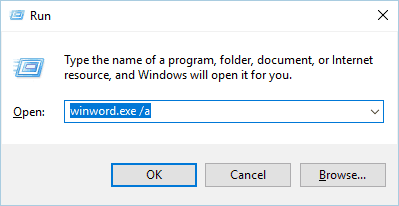
  2. Microsoft Word should now start. Click on the Office button and select Word Options.
  3. Select the Add-Ins tab and then disable all add-ins.
  4. After doing that, try to start Word again and check if the problem is resolved.

In order to enhance their functionality, Word and many other Office tools support add-ins. These little applications allow you to expand the functionality of Word or any other Office tool with new features.

Unfortunately, not all add-ins are compatible with Windows 10 or with your version of Office and that can lead to the issue discussed here.

To find a problematic add-in you’ll need to repeat previous steps and enable add-ins one by one. Keep in mind that after enabling an add-in you have to restart Word again. Repeat this process until you find the add-in that is causing this problem.

It’s worth mentioning that some users reported that ABBYY FineReader 9.0 Sprint add-in was problematic for them on Word 2016.

However, it appears that updating ABBYY FineReader can resolve the issue for good.

Besides, Microsoft reported that KingSoft’s PowerWord and Dragon Naturally Speaking add-ins also have problems with Office 2013 and 2016. The Bluetooth add-in also caused some trouble.

In all instances, disabling the ad-ins restored access to Word.

5. Modify your registry

  1. Press Windows Key + R and enter regedit. Press Enter or click OK.
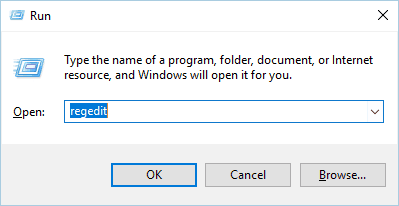
  2. Once Registry Editor opens, go to the following location (your key might be different depending on the version of Office that you have): HKEY_CURRENT_USERSoftwareMicrosoftOffice15.0Word
  3. Locate Data subkey. Right-click it and choose Delete from the menu.
  4. After deleting the key, close Registry Editor and try to start Word again.

Word will automatically recreate the deleted key, and the problem should be resolved. We have to mention that this solution should work with almost any version of Word, so be sure to try it out.

6. Remove the old printer driver

  1. Press Windows Key + X to open Win + X menu. Choose the Device Manager from the list.
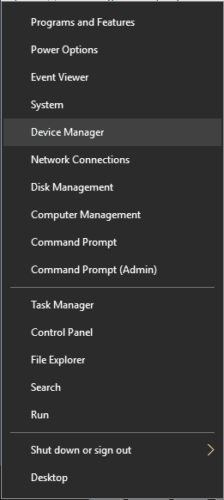
  2. Locate your printer, right-click it, and choose Uninstall.
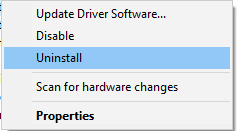
  3. Click OK to confirm that you want to remove the driver.

After deleting the driver, restart your PC and check if the issue is resolved. If removing the driver solves the problem, download and install the latest driver for your printer from the manufacturer’s website.

7. Remove any recently installed software

Third-party applications can interfere with Word and cause errors. To fix this problem, you’ll need to uninstall any recently installed software.

If you added any new hardware to your PC, such as a printer or scanner, you might want to try removing its driver and software and check if that solves the issue.

Or you might want to remove any tools that you installed in the past few weeks.

8. Insert your document into another file

  1. Open the File menu and then select New / Blank Document.
  2. Go to the Insert tab and click on Object in the Text group. Now select Text from File.
  3. Select the desired file and click Insert.

The Microsoft Word has stopped working error can sometimes appear while trying to open previously saved documents. If that’s the case, this step might help.

9. Delete the Word Options registry key

Keys in your registry can get corrupted, and if that happens, you’ll need to remove them manually. Removing keys from the registry can lead to instability issues, therefore we advise you to create a backup of your registry, just in case.

To delete this key from the registry, do the following:

  1. Open Registry Editor. (For detailed instructions on how to do that be sure to check the forth solution above.)
  2. In the left pane navigate to the following key (it might look different on your device, depending on the Office version): HKEY_CURRENT_USERSoftwareMicrosoftOffice16.0WordOptions
  3. Right-click the key and choose Export from the menu.
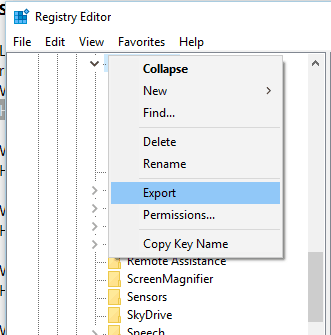
  4. Save the file as Wddata.reg and save it on your Desktop.
  5. Now go back to the Registry Editor, right-click the Options key, and choose Delete from the menu.
  6. Close Registry Editor.

After doing that, try to start Word again and check if the problem is resolved. If the problem still persists, run Wddata.reg on your Desktop to restore the deleted key.

10. Replace the Normal.dot global template file

  1. Make sure that all Office programs are closed.
  2. Press Windows Key + X and select Command Prompt (Admin).
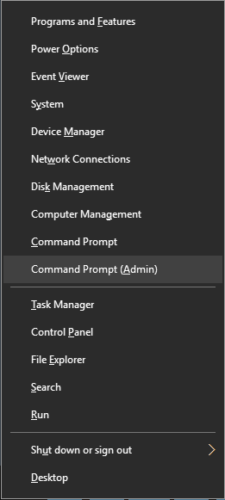
  3. When Command Prompt starts, enter the command below and press Enter to run it: ren %userprofile%AppDataRoamingMicrosoftTemplatesOldNormal.dotm Normal.dotm
  4. Wait for the command to finish and then close Command Prompt.
  5. After that, try to start Word again.

Word stores formatting and macros in a global template file, and if your global template file is corrupted you’ll get this error message. So renaming the Normal.dot file should work.

Note that by altering this file you can lose your customization options such as styles, macros, etc. If you want to preserve those settings, we highly recommend that you copy the customization from one global template to another by using the Organizer.

11. Disable Startup folder add-ins

  1. Locate the Office installation directory on your PC. By default, it should be something like this (depending on your Office version): C:Program FilesMicrosoft Officeoffice16
  2. Navigate to the Startup folder.
  3. A list of files should appear. Rename one file by adding .old at the end. Be sure to remember the original file name because you’ll need to revert the changes later.
  4. Try to start Word again. If the issue appears again, repeat Step 3. Rename a different file this time. After that, try to start Word again. Repeat this step until you rename all files in the Startup directory.
  5. If you manage to start Word after renaming one of the files, it means that the last renamed file was causing this error.
  6. Rename all files except the problematic one to their original names and check if Word still works. If so, you’ll need to update the problematic add-in or remove it.

If the problem still persists, you need to do the following:

  1. Press Windows Key + R and enter the following command and press Enter: %userprofile%AppDataRoamingMicrosoftWordStartup.
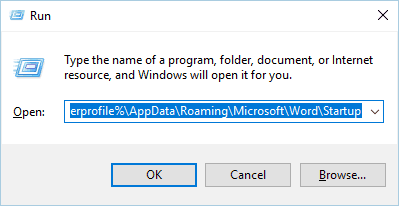
  2. After the folder opens, repeat steps 3-5 from above.

12. Delete COM add-ins registry keys

  1. Close all Office programs and start the Registry Editor.
  2. In the left pane navigate to this key: HKEY_CURRENT_USERSoftwareMicrosoftOfficeWordAddins
  3. Right-click on Addins and choose Export. Save the file to the desired location.
  4. Right-click Addins key again and choose Delete from the menu.
  5. In the left pane navigate to: HKEY_LOCAL_MACHINESoftwareMicrosoftOfficeWordAddins 
  6. Export the key as we showed you in Step 3.
  7. Delete the Addins key.
  8. Close Registry Editor and start Word again.

If the problem is resolved, it means that COM add-ins are causing this issue. To fix the problem, you need to find and disable the problematic COM add-in. First, you need to restore the deleted keys by running the exported .reg files. After that, follow these steps:

  1. Click the File menu and choose Options.
  2. Click Add-Ins.
  3. In the Manage list click COM Add-Ins and then click on Go.
  4. If a certain add-in is listed in the COM Add-Ins dialog box, clear the checkbox next to its name. (If you have multiple COM Add-Ins available, repeat this step and disable a single add-in at a time in order to find the problematic one.)
  5. Click OK.
  6. Now select File / Exit.
  7. Start Word and check if the problem is resolved. If the issue still persists, repeat the steps until you find the problematic add-in. After finding it, disable it or try to download the latest version.

13. Change the default printer

  1. Press Windows Key + S and enter devices and printers. Select Devices and Printers from the list of results.
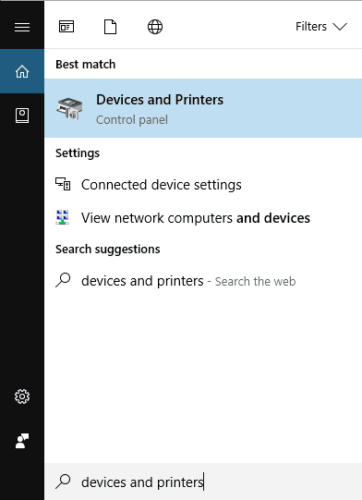
  2. In the next window, Go to the Printers section.
  3. Right-click Microsoft XPS Document Writer. Select Set as a default printer option.
  4. Close Devices and Printers window and try to start Word again.

If the error message doesn’t appear, it means that your printer was causing this problem.

To fix the problem, we advise that you update your printer drivers using Fortect Driver Updater, as mentioned in the first solution, and check if that solves the issue.

14. Create a new Windows profile

  1. Press Windows Key + I to open the Settings app.
  2. Go to Accounts > Family & other people.
  3. In the Other people section click the Add someone else to this PC button.
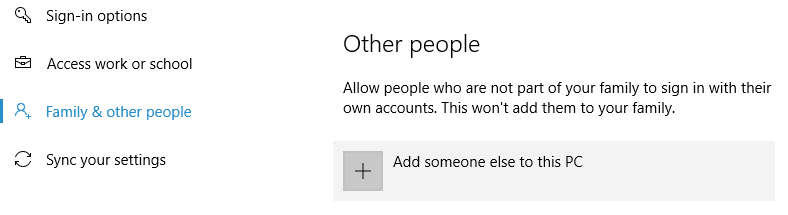
  4. Select I don’t have this person’s sign-in information.
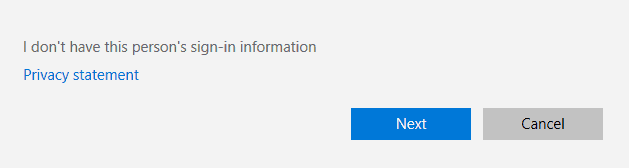
  5. Now select Add a user without a Microsoft account.
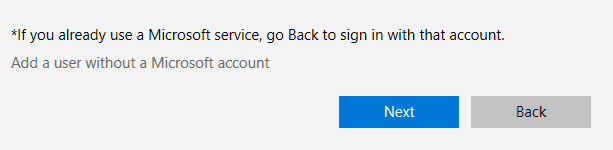
  6. Enter the username and password for the new user account and click on Next.
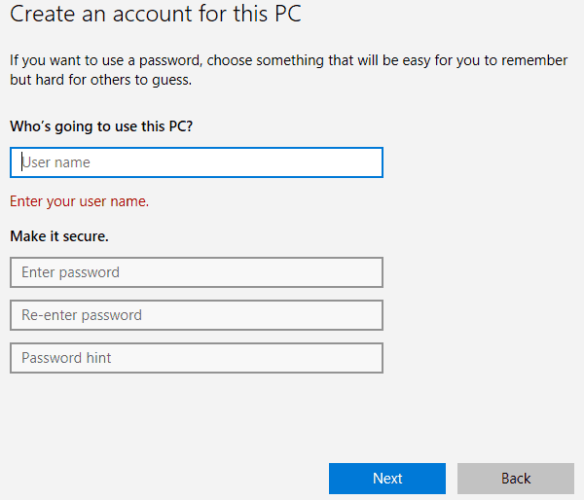
After making a new user account, switch to it and check if the problem is resolved.

If Word is working properly, you might have to continue using the new user account if you don’t manage to find another working solution.

How do I fix Microsoft Word 2013 issues?

1. Set Word to Power Saving mode

Users reported Word 2013 being set to High-Performance mode surely causes functionality issues.

So go to your switchable graphics control panel and set Word 2013 to work in Power Savings mode. After doing that, try to run Word and check if the problem is resolved.

2. Check your graphics card driver

This issue can sometimes appear due to problems with your graphics card driver. Users reported that they had problems with Nvidia drivers, and they fixed them by renaming the NVWGF2UM.DLL to NVWGF2UM.old.

Renaming the driver files isn’t the best solution, especially since it’s hard to find the problematic driver file.

So we advise you to update your graphics card driver and check if that solves the issue. If the problem still persists, you might want to remove your driver and use the default driver from Microsoft.

Solution 3 – Disable your dedicated graphics card

Many laptops and some desktop computers have both integrated and dedicated graphics cards. According to users, they experienced Microsoft Word has stopped working error because Word 2013 wasn’t compatible with their AMD graphics card.

To fix this problem, you need to temporarily disable the dedicated graphics card from the switchable graphics menu. After doing that, try to start Word 2013 and check if the problem is resolved. If the issue is fixed, you’ll need to download the latest drivers for your dedicated graphics card and check if that solves the problem.

4. Disable Hardware Acceleration

  1. Open any Office application.
  2. Select File / Options / Advanced.
  3. Locate the Hardware Acceleration option and disable it.
  4. After doing that, try to start Word 2013 again.

If you can’t open Word 2013 at all, you can disable hardware acceleration using Registry Editor. To do that, follow these steps:

  1. Open Registry Editor.
  2. In the left pane navigate to this key: HKEY_CURRENT_USERSoftwareMicrosoftOffice15.0Common
  3. Right-click the Common key and choose New > Key from the menu.
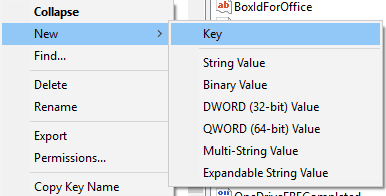
  4. Enter Graphics as the name of the new key.
  5. Now right click Graphics key and select New / DWORD (32-bit) Value. Name the new value DisableHardwareAcceleration.
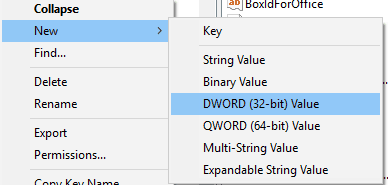
  6. Double click DisableHardwareAcceleration value and set its Value data to 1. Click OK to save changes.
  7. Close the Registry Editor and check if the problem is resolved.

We have to mention that modifying the registry comes with certain risks, so we strongly advise you to create a backup of your registry before making any changes.

Hardware acceleration can be useful to achieve maximum performance with certain apps, but it seems that with Word 2013, there’s an opposite effect.

5. Delete any add-in leftover files

Sometimes when you delete a certain add-in, its files might remain in the Office Startup folder.

Users reported that this is what happened with the Mendeley add-in after they removed it.

Keep in mind that almost any leftover file from add-ins can cause this problem to appear, so be sure to check the Office Startup folder.

We already explained how to enter the Office Startup folder in one of our previous solutions, so be sure to check that solution for detailed instructions.

How do I fix  Microsoft Word 2010 issues?

Users reported issues with the Bluetooth add-in in Office 2013 and Office 2010. If you can’t disable the Bluetooth add-in, you might have to uninstall the Bluetooth driver or update it.

If you use Bluetooth frequently and you don’t want to uninstall the driver, you might be able to fix the problem by renaming two files.

On this note, users suggested renaming btmoffice.dll and btmofficea.dll. You can simply add .bak and the end of the file name to safely rename your files.

To find the files easier, use the search bar in File Explorer.

So these were our solutions to get Work running again. If you need to further investigate how to repair a Word document, we’ve got a dedicated article specifically on this topic.

If any of our recommendations worked for you, we’d like to hear that, so please use the comments sections below.

Terraria packet loss: fix it with these easy steps

Terraria is an excellent PC game that many strongly believe it’s a 2D version of the famous Minecraft. In fact, the two games aren’t that similar, as the building part is probably the only thing that may make you think otherwise.

In Terraria, you can build houses, populate them with various citizens, and explore the vast world that this game has to offer.

This game drops you in a procedurally generated world, so there’s no way of knowing what you’ll get before doing any exploring yourself.

The best part is that you can play solo, or share the experience with other players. You can either play with or against others, as Terraria also features PVP modes.

Now for some bad news: if you prefer the multiplayer experience of Terraria, you might experience connectivity issues occasionally. These include high ping, jitter, and even packet loss.

What is packet loss in Terraria?

No matter where you encounter it, packet loss is no fun. It occurs whenever data packets that travel through your connection never make it to their destination.

This is definitely not the same situation as with high latency. With high latency, the data packets may take a little longer to arrive, but with packet loss, they just get dropped along the way.

The symptoms are somewhat similar, as you’ll notice sluggish menus, slow movement, reduced framerate, unresponsive commands, and even sudden disconnections from the Terraria game server.

Although Terraria is not exactly fast-paced, it definitely has some moments where packet loss could ruin everything. For instance, discovering a mob-ridden cavern, entering a dungeon, summoning a boss, or engaging in PVP battle.

What causes packet loss in Terraria?

Truth be told, packet loss can be triggered by a whole lot of things, from using old Ethernet cables to host server network congestion. The severity of the packet loss can be affected by the complexity of the cause.

For instance, if the problem is caused by a cached data build-up, you may solve it by simply restarting your PC.

However, the list of possible causes is rather large and varied. Here are a few examples of obvious factors that may trigger packet loss:

  • Network congestion (arguably one of the most frequent causes)
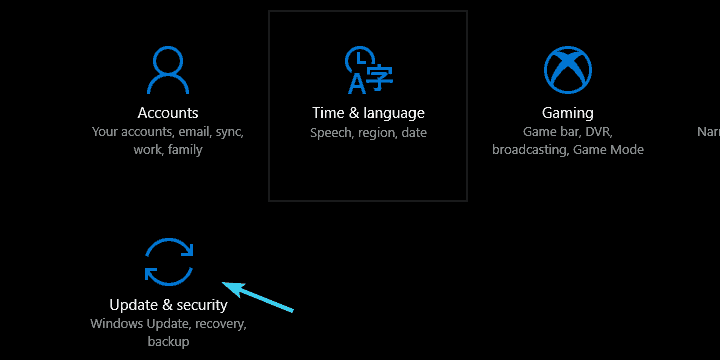
  • Low-quality Ethernet cables
  • Using Wi-Fi instead of Ethernet
  • Outdated drivers on your system (especially network adapter drivers)
  • Cache data build-up on your system
  • Outdated router firmware version
  • Terraria server-side issues
  • Bandwidth throttling (ISP-related)

  • Improper traffic routing (ISP-related)

As you can see, the packet loss issue can take place anywhere on the connection, whether it’s on your side, on the server host’s side, or on your ISP’s infrastructure.

How to detect packet loss in Terraria?

  1. Locate the IP address of the game server
  2. Open a CMD instance on your computer
  3. Type pathping x.x.x.x (replace x.x.x.x with IP address you collected earlier)CMD pathping
  4. Wait for the pathping test to come to an end
  5. Check each hop for packet loss value

First and foremost, Terraria has no official servers, so it’s up to players to create their own servers. You can find certain communities that rely on hosting companies to create dedicated servers that are always online.

By default, user-created servers shut down whenever the host exits the game.

Public dedicated servers have connection details, and you can also use the host address (without the port number) instead of the IP address while running the pathping test.

As a rule of thumb, the first hop is always your PC (the device you’re running the test from) and the last one belongs to the game server.

How to fix Terraria packet loss?

1. Try a VPN

  1. Buy a subscription plan from Private Internet AccessTerraria PIA VPN
  2. Download the VPN installer on your PC
  3. Install PIA on your computer
  4. Launch the VPN client
  5. Log into your account
  6. Connect to a fast server of your choice (servers that are closer are generally faster)
  7. Launch Terraria
  8. Connect to the server of your choice
  9. Check if you still have packet loss issues

Kape Technologies’ Private Internet Access is an excellent VPN service that can help you curb packet loss without significant efforts. You just install the app, connect to a suitable server and the issue should diminish, if not vanish altogether.

Private Internet Access

Private Internet Access

Experiencing packet loss in Terraria? PIA could help you fix this issue.
$2.69/mo. Buy it now

However, there’s a catch: the packet loss must be triggered by your ISP for this VPN fix to work. For instance, if your ISP throttles your bandwidth or routes traffic in a poorly fashion, using a VPN will circumvent these limitations.

2. Flush your DNS

  1. Launch an elevated CMD instance on your PC
  2. Run these following commands, one by one, in this order:

ipconfig /flushdns
ipconfig /registerdns
ipconfig /release
ipconfig /renew
netsh winsock reset
exit

Make sure you restart your PC right after you run the last command successfully. Sometimes, your PC builds up on cached DNS data, which might trigger various connectivity issues, such as packet loss.

Flushing your DNS proved to be a worth-trying fix many times. Optionally, you can also try using alternative DNS addresses, other than the ones your ISP assigned you. Two such examples of free public DNS are Google’s and Cloudflare’s.

3. Perform manual troubleshooting

  • Carefully check your entire connection for any malfunctioning component
  • Replace any old/worn out/broken component you may find (especially old cables)
  • Use Ethernet instead of Wi-Fi whenever possible (Wi-Fi packet loss occurs more frequently)
  • Update drivers on your system to their latest version
  • Make sure your router’s firmware is up-to-date
  • Call your ISP if there’s something wrong on their side of the network
  • Switch servers (Terraria lets you use your characters on different servers)
  • Try to avoid peak hours if possible (or use a VPN to dodge network congestion)
  • Restart your PC, router, modem

Final thoughts on fixing Terraria packet loss

All things considered, it’s worth mentioning that even in Terraria packet loss is likely to be intermittent. In fact, many packet loss episodes pass before players even notice them.

However, if you experience packet loss on a regular basis, try narrowing down the list of potential causes. Once you establish the cause, try using an appropriate fix to alleviate the issue.

You may try to use a VPN, but note that it will only work if your ISP triggers the packet loss by either limiting your connection or routing traffic improperly.

[wl_navigator]

Beats Studio3 vs Solo3: The difference and which one to buy?

The premium headphone brand Beats offer Studio3 and Solo3 headphones with a hefty price difference, where the Solo3 is a more affordable choice.

So, what’s those extra $$$ getting you over Solo3?

Well, to begin with, it offers better comfort, ANC (Active Noise Cancelling), and overall better build quality.

So, should you pay the premium or save it by taking home the almost identical Solo3 headphone? We answer all the questions in this quick comparison guide.

In this article, we compare the Beats Studio3 with its younger sibling Solo3 to find the differences and help you buy the best of the two.

Beats Solo3 vs Studio3 – Which headphone should I buy?

Beats Solo3 and Studio3 both are excellent headphones from the company. However, there are some key features that set them apart and it can be substantial for some users.

In this article, we take a look at the build quality, battery life, and sound signature to find the best of the two.

Quick Overview

Beats Studio3

Beats Studio3 vs Solo3

Pros

  • Excellent battery life with ANC.
  • Fast Fuel support for quick charging
  • The over-ear design offers more comfort and better isolation

Cons

  • Build-quality not the best for the price
  • Micro USB charging port

⇒ Get Beats Studio3

Beats Solo3

Beats Studio3 vs Solo3

Pros

  • Excellent battery life up to 40 hours
  • Fast Fuel charging support
  • Better color options

Cons:

  • Flat sound signature
  • Sub-par build quality
  • High clamp force

⇒ Get Beats Solo3


Build Quality

Beats Studio3 vs Solo3

Studio3 definitely has an edge over Solo3 when it comes to the overall build quality of the device, even if it not the best in the segment. The headphone feels good in-hand and is made out of soft matte plastic.

Solo3 on the other hand features a hard-plastic shell which is also a fingerprint magnet depending on the color you opt for. While the plastic construction seems durable for the most part, you might want to be gentle with hinges and the headband flexibility.

The clamping force on both the headphones seems to be on equal footing with not so great headband comfort. Both headphones can also be easily folded when you travel.


Sound Quality

Beats Studio3 vs Solo3

Studio3 is heavy on bass and is made for bass heads. However, it certainly does not perform very well when it has to differentiate between a main and secondary melody in some songs.

With an added advantage of Active Noise Cancelling, Studio3 seems to take an edge even in the sound quality department as well. This pair can offer a more balanced audio profile which is also helped by the fact it is an over-ear design that’s more comfortable.

Solo3 features an on-ear design which is not the best when it comes to isolation and comfort. The headset supports AAC for high-quality streaming on iOS devices.

On the audio front, Solo3 Wireless has a fewer emphatic bass response. However, this can be easily overshadowed by the fact that the dynamic driver struggles to differentiate between the different instrumental sounds. That said, if you are a hip-pop head, you will most certainly like the sound signature.


Connectivity

Beats headphone comparison

Both headphones feature Apple’s last-gen W1 chip with Bluetooth connectivity for wireless connectivity. The last-gen chip still offers up to 100 feet coverage while allowing to pair the headphone with a simple tap.

On the connectivity front, both the headphones feature identical technology yielding identical results.


Battery Life

Beats headphone comparison

Apple says both the headphones can last up to 48 hours depending on the use. However, the Studio3 can only last 22 hours with the ANC turned on.

In real life testing, Studio3 could keep the lights on for just over 10 hours with 100% volume and ANC turned on. So, you could easily push it over 18 hours with moderate usage.

The Solo3 on the other hand offers an incredible 40+ hours of battery life. However, it is important to consider the fact that Solo3 does not feature ANC (Active Noise Cancelling), hence lasts longer.

On the bright side, both the headphone features the fast fuel technology that gives up to 3 hours of playback time charge with 10 minutes of charging. So, battery life shouldn’t be a problem.


Which One Should I buy?

Both the headphones offer excellent battery life and connectivity features. However, Studio3 is arguably a better choice with its over-ear design for comfort, better sound signature, and ANC support.

If you are someone who takes calls on the go and listens to music while traveling, ANC will help a great deal by preventing the noises from creeping in.

If you are on a budget and can look over ANC and flat sound signature, Solo3 will make more sense due to its long battery life.

[wl_navigator]

5 Best VPNs to fix Fall Guys: Ultimate Knockout Lag

Fall Guys: Ultimate Knockout is a platformer battle royale game that has taken the world by storm. Available for Windows and PlayStation 4, it’s praised for its colorful theme, chaotic gameplay, and incredible entertainment value.

You can join up to 60 other players to compete in various crazy contests, in which you must run, jump, grab, and intelligently plan your moves to cross the finish line and advance to new levels. It’s also available on Steam.

Unfortunately, a lot of users experience Fall Guys: Ultimate Knockout lag, which could be fatal to their gameplay. Since every move and action counts in this platformer battle royale, it’s crucial to eliminate any lag spikes, high ping, and FPS issues.

In addition to minimizing graphic settings, you can use a VPN to improve your gameplay if the Fall Guys: Ultimate Knockout lag issue persists. By rerouting your gaming traffic through VPN servers, you can significantly reduce ping and enhance your Internet connection quality.

You can also use a VPN to fix packet loss, protect your router from DDoS attacks, bypass ISP throttling, eliminate Internet restrictions, and more.

However, not all VPNs are fit for this role, so it’s essential to examine your options to determine the best VPN for gaming. You can also use a virtual private network solution for streaming, torrenting, secure browsing, and website unblocking.

What’s the best VPN for Fall Guys: Ultimate Knockout?

Private Internet Access – Best VPN for Fall Guys: Ultimate Knockout

use Private Internet Access to fix all Guys Ultimate Knockout lag

Developed by Kape Technologies, Private Internet Access (PIA) is the best VPN to fix Fall Guys: Ultimate Knockout lag and reduce high ping, thanks to its numerous servers optimized for gaming: more than 3,300 in 48 countries.

Depending on your preferences, PIA encrypts your network traffic using OpenVPN or WireGuard. It can also connect to a second VPN location through Shadowsocks. The tool has a kill switch, split-tunneling mode, and exclusive DNS servers.

Plus, PIA is the only VPN on this list with native port forwarding support, which is ideal for hosting game servers for you and your friends. It’s compatible with all major platforms and allows 10 simultaneous device connections.

More about PIA:

  • A no-logging privacy policy
  • No IP or DNS leaks
  • 24/7 live chat support
  • 30-day money-back guarantee (no free trial)

Private Internet Access

Use this reliable VPN to easily fix Fall Guys: Ultimate Knockout lag.
Check Price Visit website

NordVPN – A zero-logging policy

use NordVPN for Fall Guys Ultimate Knockout

NordVPN is ideal for users who want to enhance their gaming experience and take advantage of online security features. It’s made by Tefincom & Co., providing access to more than 5,100 VPN servers in 59 countries.

The app supports Double VPN, Onion-over-VPN, and obfuscated servers to maximize your security level when browsing the web, torrenting, or gaming. It protects your data using OpenVPN, private DNS servers, a kill switch, and an anti-malware feature called CyberSec.

You can set up NordVPN for Windows, PlayStation 4, and other platforms if you’re using it on up to 5 devices. Plus, the tool can be used to fix packet loss.

More about NordVPN:

  • A zero-logging policy
  • No IP, DNS, or WebRTC leaks
  • 24/7 live chat support
  • 30-day money-back guarantee (no free trial)

NordVPN

Get this super-secure VPN to fix Fall Guys: Ultimate Knockout lag spikes and stay anonymous online.
Check Price Visit website

Surfshark – No identifying logs

use Surfshark for Fall Guys Ultimate Knockout

Surfshark is a budget-friendly solution that can help you improve ping in Fall Guys: Ultimate Knockout, access blocked websites, defeat government censorship, and more. It was created by Surfshark LTD and covers more than 1,700 VPN servers in over 63 countries.

The VPN service supports OpenVPN with up to 256-bit military-grade encryption, multi-hop VPN connections, and obfuscation mode to help you bypass VPN blocks. It’s one of the safest VPNs for your laptop, mobile, and gaming console.

You should also know that Surfshark can protect any number of devices since there’s no limit to the number of simultaneous VPN connections, which makes it great for sharing your VPN account with all household devices.

More about Surfshark:

  • No identifying logs
  • No IP or DNS leaks
  • 30-day money-back guarantee
  • 7-day free trial for Android and iOS

Surfshark VPN

Get this affordable VPN solution to not only fix Fall Guys: Ultimate Knockout but also enjoy total Internet freedom.
Check Price Visit website

CyberGhost VPN – Up to 7 devices at the same time

use CyberGhost VPN for Fall Guys Ultimate Knockout

CyberGhost VPN is the best free VPN for Fall Guys: Ultimate Knockout. That’s because you get a 1-day free trial on Windows to try it out, without using your credit card. Kape Technologies makes it and offers more than 6,500 VPN servers in 89 countries.

You can easily connect to the Best Location provided by CyberGhost VPN to use the nearest and fastest VPN server. The app has OpenVPN, split tunneling, private DNS servers, and trusted Wi-Fi networks. It’s great for fixing network congestion, too.

You can set up CyberGhost VPN on all popular devices, including routers, if you want to use the VPN on PlayStation 4 to play Fall Guys: Ultimate Knockout. The tool can protect up to 7 devices at the same time.

More about CyberGhost VPN:

  • No logs or leaks
  • 24/7 live chat support
  • Up to 45-day money-back guarantee
  • 1-day free trial for Windows and macOS
  • 7-day free trial for Android and iOS

CyberGhost VPN

Significantly improve Fall Guys: Ultimate Knockout by using this VPN to lower your ping time.
Check Price Visit website

ExpressVPN – Fastest VPN for PlayStation 4

use ExpressVPN for Fall Guys Ultimate Knockout

ExpressVPN is a virtual private network service that we can’t overlook, given its popularity in the VPN industry. And it dramatically reduces high ping and fixes latency issues in Fall Guys: Ultimate Knockout. Published by Express VPN International LTD, it provides over 3,000 VPN servers in 94 countries.

Unlike the other VPNs on this list, ExpressVPN has a cool feature called Speed Tester, which you can use to determine the latency of all VPN servers. You must pick the one with the lowest latency to improve your Internet connection quality.

Additionally, ExpressVPN supports OpenVPN, split tunneling, a Network Lock, and zero-knowledge DNS servers. You can set it up for all popular devices, including Windows and PlayStation 4.

More about ExpressVPN:

  • No traffic logs
  • No IP, DNS, or WebRTC leaks
  • 24/7 live chat and email support
  • 30-day money-back guarantee
  • 7-day free trial for Android and iOS

ExpressVPN

Fix Fall Guys: Ultimate Knockout lag using one of the fastest VPNs.
Check Price Visit website

How to use a VPN for Fall Guys: Ultimate Knockout

  • Get a VPN subscription plan (we recommend PIA).
  • Download and set up the VPN client on Windows.
  • Open the app and connect to a VPN server*.
  • Launch Fall Guys: Ultimate Knockout.

*You can connect to the server recommended by the VPN provider since it’s the closest one to your location. However, if that doesn’t fix in-game lag, experiment with multiple VPN servers from various countries until you fight the right one.

In conclusion, you can fix Fall Guys: Ultimate Knockout lag spikes and lower your ping by getting equipped with a trustworthy VPN. It can also protect you from DDoS attacks.

If you are facing issues like Fall Guys error code 200_2147483647, it could be due to server issues or weak network connection; check this guide to learn more.

How to connect Surface Pro to TV?

The ultra-light Surface Pro is a 2-in-1 device, highly praised for its versatility, since one can use it both as a laptop or as a tablet.

Among its amazing features is the stunning PixelSense Display that supports Surface Pen and touch, its long battery life of up to 13.5 hours, plus razor-sharp and brilliant color resolution.

But even with all these exciting features, there are still moments when you’ll experience technical issues, like when the Surface Pro won’t connect to a TV.

If you’ve been in this situation, try the solutions below to pinpoint and resolve the issue.

What can I do if Surface Pro won’t connect to TV?

  1. Preliminary checks
  2. Uninstall and reinstall the Surface Wi-Fi driver
  3. Check video input settings
  4. Remove and reinsert video adapter
  5. Check video cables
  6. Extend/Duplicate the display to your TV
  7. Change TV screen resolution settings
  8. Try the TV adapter
  9. Troubleshoot wireless display connection
  10. Update the adapter’s firmware and restart the adapter
  11. Reset the adapter
  12. Allow adapter to communicate through the firewall
  13. Reinstall graphics driver

1. Preliminary checks

Ensure your TV is plugged into a working power outlet and turned on. if you use a power strip, ensure it is plugged in and turned on as well.

Make sure that the USB-C, HDMI and DisplayPort connections can transmit audio and video signals, so if you use these to connect to a TV, you can play audio from your Surface over the TV speakers.

VGA connections only transmit video, so if you use a VGA adapter to connect to your TV, the audio won’t play on the Surface speakers unless connected to external ones or to a headset.

If your Surface is waking from sleep, it may have issues reconnecting to an external display like your TV. To resolve this, unplug the video cable from the USB-C or Mini DisplayPort and plug it back in again.

You can also install the latest updates. In most cases, this helps when Surface Pro won’t connect to a TV.

2. Uninstall and reinstall the Surface WiFi driver

  1. Right-click Start and select Device Manager.
  2. Select the arrow to the left of Network adapters and press and hold (or right-click) Marvell AVASTAR Wireless Network Controller.Surface Pro won't connect to TV
  3. Select Uninstall.
  4. Go to Start, and select Power / Restart.
  5. After your Surface restarts, go to Start, and select Settings.
  6. Select Devices / Connected devices.
  7. Select Add a device to connect your Surface and the Microsoft Wireless Display Adapter.

If the default W-iFi drivers don’t work after manually downloading and installing them, you can also try updating your drivers automatically and check if that helps.

To help you with this process, we strongly recommend using a third-party driver updating tool such as Fortect Driver Updater. It’s the safest and quickest way to automatically update your drivers, while also making sure that you download the right software.

Driver updating can be a bit of a fuss, sometimes, since it involves looking around for compatible software.

However, a dedicated tool like Fortect Driver Updater includes a massive database of software and will recommend just what it’s best for your device.

⇒ Get Fortect Driver Updater

3. Check video input settings

If you’re trying to connect to your TV and cannot see the video output from your Surface Pro, the issue may be with the video input settings on the TV.

If you’re using a VGA connection to your TV, the screen must be set to recognize VGA as the video input signal. So check and change the video input settings in the instructions’ manual or on the manufacturer’s website.

Note: Common video input settings include VGA, DVI, HDMI, Line In, Input, AUX, and Source.

If this doesn’t work, try the next solution.

4. Remove and reinsert video adapter

If you’re using a video adapter like the Surface video adapter, USB-C to HDMI adapter or USB-C to VGA adapter check to confirm that it is securely connected to your Surface Pro.

Remove it and reinsert firmly to confirm this. Avoid using a Y or dual-link adapter as this splits the signal between two or more screens.

If you’re using a Mini DisplayPort adapter, plug it in correctly so that it works, with the connector’s flat side aligned with the flat side of the Mini DisplayPort.

If Surface Pro won’t connect to the TV even after reinserting the video adapter, go to the next solution.

5. Check video cables

A video cable of maximum 6 feet is good enough as anything longer affects video quality.

Check that all the video connections are secure, from the USB-C port, Mini DisplayPort on your Surface Pro, or your docking station, and any video adapter you are using, as well as the connection on the TV’s video port.

Use the cable that came with your TV or check that the cable supports video. This is recommended for Surface Pro devices with USB-C ports. If the cable isn’t responding, use a different one to connect and see if the cable is the issue.

If you’re using a video extension cable or video converter, remove it from your setup and see if it is causing the problem. If the video adapter is from a different company, check with the manufacturer for further assistance.

6. Extend/Duplicate the display to your TV

On your keyboard, press Windows Key + P, or select the Action center icon on the taskbar and select Project, then choose one of the options below:

  • If you want to see the same things on your Surface Pro and TV, choose Duplicate;
  • If you want to move what is on the Surface Pro screen display to your TV, choose Extend. This also lets you drag and move items between the screens and select a different resolution for your TV;
  • If you only want to see everything on your TV, select Second Screen only.

7. Change TV screen resolution settings

  1. Click Start and select Settings.Surface Pro won't connect to TV
  2. Select SystemSurface Pro won't connect to TV
  3. Select Display.Surface Pro won't connect to TV
  4. Under Scale and layout, check the setting under Change the size of text, apps, and other items. Use the recommended percentage.Surface Pro won't connect to TV
  5. If that doesn’t solve your problem, under Resolution, select a new value. It is advisable to stick to the recommended value.Surface Pro won't connect to TV

When you connect your Surface Pro to your TV, the Surface always tries to set the best resolution based on the connector and your TV’s resolution. However, tweaking the settings manually might work some miracles.

If the resolution was fine and recently changed, you need to update your graphics driver.

To do this, run Windows update and get the latest driver or use Outbyte Driver Updater, as suggested in the second solution above. If it is only the size of text and other things on your desktop that changed, press CTRL+0 to return the zoom level to 100 percent.

8. Try the TV adapter

If you want to check whether your video adapter is working, connect your Surface Pro to a different TV.

If you cannot get the display on your Surface Pro to show on a different screen, you may have to replace your adapter.

9. Troubleshoot wireless display connection

Surface Pro can connect wirelessly to compatible displays via Miracast, or to an HDMI-compatible display via a Microsoft Wireless Display adapter.

If you are using one of these and you have issues wirelessly connecting your Surface Pro to the TV display, try the following solutions.

  • Ensure the display supports Miracast. You can check your TV manufacturer’s website to see if it is compatible.
  • Restart your Surface and TV to resolve the issue.
  • Install the latest updates for Windows and your Surface.
  • Turn off Bluetooth on your Surface as this can interfere with Miracast.
  • Keep your Surface within 23 feet of the TV for best performance.
  • Before pairing your Surface with the adapter, connect your Surface to a wireless network.

Note: The adapter can only connect to one TV at a time

10. Update the adapter’s firmware and restart the adapter

If Surface Pro won’t connect to TV, the adapter’s firmware may be out of date. Check the settings and firmware updates for the adapter, or install the Microsoft Wireless Display Adapter app and check for updates.

Restart the adapter by disconnecting from your TV, then restart the Surface Pro and reconnect the adapter.

11. Reset the adapter

This helps especially if you forgot your password. To reset the adapter, do this:

  • On the adapter next to the wired connection, press and hold the reset button for 10 seconds. The LED light on the adapter will blink.
  • When the message Ready to connect appears on your second screen, swipe in from the right edge of your Surface screen or select Action Center in the taskbar.
  • Select Connect, and in the list of displays, select the name of the Microsoft Wireless Display Adapter.

12. Allow the adapter to communicate through firewall

  1. In the search box in the taskbar, enter allow firewall.
  2. From the search results, select Allow an app through Windows Firewall.Surface Pro won't connect to TV
  3. Under Name, find Wireless Display and make sure Private and Public are selected.Surface Pro won't connect to TV
  4. Select OK. If you can’t select anything in the Allowed apps and features box, you’re not signed in as an administrator.
  5. Select Change Settings, enter your administrator password and select Yes. Your administrator password should be the same as the password you used to set up your Surface.
  6. Then, make sure Private and Public are selected and select OK.

13. Reinstall the graphics driver

  1. Right-click Start and select Device Manager.Surface Pro won't connect to TV
  2. Select the arrow to the left of Display adapters and press and click the Intel HD Graphics driver.
  3. Select Uninstall.
  4. Go to Start, and select Power / Restart.
  5. After your Surface restarts, go to Start, and select Settings
  6. Select Devices / Bluetooth & other devices.
  7. Select Add Bluetooth or other devices.
  8. Click Wireless display or dock to reconnect your Surface and the Microsoft Wireless Display Adapter.

In conclusion, these were our solutions. Did any of them help? Share with us in the comments section below.

DIRT 5, a next-gen Xbox launch title, gets new gameplay video running on Xbox Series S

DIRT 5, a new racing game that will launch on November 10 alongside Microsoft’s next-gen Xbox consoles has a new gameplay video showing recorded on Xbox Series S. Microsoft made its second next-gen console official last week, and the $299 Xbox Series S will target 1440p at 60FPS.

This new gameplay video only last a little more than a minute, and we recommend to watch it in 1080p60. Unfortunately, the footage isn’t long enough to really see what the Xbox Series S is capable of, but the game’s performance look really good with a smooth 60FPS.

“PS5 and Xbox Series X versions of DIRT 5 include a 120 frames per second option for even more immersive gameplay,” the YouTube video description reads. Microsoft announced that the Xbox Series S will also support 120FPS gameplay, but DIRT 5 apparently won’t be able to run at 120FPS on the Series S.

DIRT 5 will support Smart Delivery on Xbox consoles, meaning that Xbox gamers will only need to buy it once to automatically install the version that’s optimized for their console. The game will be released on Xbox One, Xbox Series S, and Xbox Series X on November 10, and you can already pre-order it on the Microsoft Store.

DIRT 5 Pre-Order
DIRT 5 Pre-Order
Developer:
Codemasters
Price:
Free

Windows Insiders in the Dev Channel get dark theme search results, bug fixes with preview build 20215

Microsoft has just released the Windows 10 preview build 20215 for Insiders in the Dev channel, which includes a couple of bug fixes but no new features. The Windows Insider team also announced that all Dev Channel Insiders using the system-wide dark theme will now see dark theme search results in Windows Search.

“This change will make the transition between Start and search results easier on the eyes now that both support dark theme,” the team said. Again, this is a server-side change and you won’t need to install the latest Dev Channel build to see it.

Showing Windows Search in dark theme.

As for today’s flight, it includes a couple of fixes for minor issues affecting the Start Menu, Voice Typing, and the Windows Security app. You can find all details about quality fixes and known issues in the build 20215 below:

Fixes

  • We fixed an issue that could result in the Windows Security app hanging.
  • We fixed an issue that could result in the Windows Security app crashing when navigating to the Exclusions page when there were a large number of exclusions.
  • We fixed an issue where using a restore point that had been created prior to a Microsoft Edge update to do a system restore could result in Microsoft Edge not launching after the restore was finished.
  • We fixed an issue resulting in the text cursor unexpectedly moving to the beginning of a text field when typing with the Korean IME in certain apps.
  • We fixed an issue impacting Voice Typing reliability.
  • We’ve fixed an issue where on a small subset of devices the Start menu did not reflect when an update was pending restart and scheduled restarts are cancelled.

Known issues

  • We’re looking into reports of the update process hanging for extended periods of time when attempting to install a new build.
  • We’re working on a fix to enable live preview for pinned site tabs.
  • We’re working on enabling the new taskbar experience for existing pinned sites. In the meantime, you can unpin the site from the taskbar, remove it from the edge://apps page, and then re-pin the site.
  • We’re investigating reports of some Office applications crashing or missing after updating to a new build.
  • We’re working on a fix for an issue resulting in Settings crashing for some Insiders when opening Manage Disks and Volumes.
  • We’re investigating reports of some devices experiencing a KMODE_EXCEPTION bugcheck when using certain virtualization technologies.
  • We’re working on a fix for the Linux kernel not being installed when using the `wsl –install` command in the Windows Subsystem for Linux. For an immediate workaround run `wsl –update` to get the latest kernel version.
  • We are investigating an issue affecting Windows Subsystem for Linux 2 distros where users can receive the error: “The remote procedure call failed” on startup.
  • We’re investigating a bug where the vEthernet adapter in Windows Subsystem for Linux 2 distros becomes disconnected after a period of use. For full details please follow this Github thread.
  • We’re working on a fix for seeing generic errors when using `wsl –install` in the Windows Subsystem for Linux.

If today’s build brings no new features, the Dev Channel build 20211 released last week brought the ability to search the Default Apps pages in Settings, as well as a Windows Subsystem for Linux 2 update allowing Insiders to attach and mount a physical disk inside of a WSL2 distro. We invite you to check our previous post for more details.