RuneScape packet loss: What is it and how to fix it?

RuneScape is an awesome, popular, old-school game that gained a lot of popularity since its initial release in 2001. That’s almost two decades ago, and the game is still enjoyed by many players today.

The fact that the game was and still is free to play made it even more appealing to lots of fans. It was first released as a Java-based browser game, which meant you didn’t have to install it on your PC.

In 2016, the game was upgraded and received a standalone client. Guinness World Records still recognizes RuneScape as the world’s widest free MMORPG that received the most updates in the meantime.

Anyway, you got the point: it’s an online game. And like any other online game available on the market, RuneScape is subject to a wide range of technical issues, mostly regarding connectivity.

One of the most frequent connectivity issues is the (in)famous packet loss. The reason packet loss is among the most dreaded issues is that there’s no immediate fix that can solve it each time it occurs.

What is packet loss in RuneScape?

Regardless of where you may spot it, packet loss is absolutely the same. It happens whenever data packets that you transmit throughout your connection never make it to their destination.

As a result, you lose large amounts of data on the way, which your connection tries to patch up by artificially inserting delay, waiting indefinitely for data to arrive (which increases ping), or even dropping your connection.

With RuneScape, there’s absolutely no difference. Your connection leaks packets, and you start experiencing certain issues with the game, such as jitter, rubberbanding, unresponsive menus, or even sudden disconnections from the game.

What causes packet loss in RuneScape?

When it comes to packet loss, there’s a lot of possible causes. Since there’s no immediate fix for packet loss, we can justify the lack of an immediate reason on the same basis.

To be fair, there’s one reason why packet loss occurs and it almost never fails to deliver: network congestion. Whenever there’s an overloaded network on the table, packet loss is more often than not there as well.

Network congestion usually spells bad news, since it can’t be fixed right away. It involves a lot of users on one or more servers that can’t balance the resources properly, so all connections have to suffer as a result.

However, don’t fool yourself into thinking that network congestion is the sole culprit when it comes to packet loss. In fact, there are several possible causes that can trigger this unfortunate issue.

For instance, you can encounter packet loss if you have outdated network adapter drivers installed on your PC. You can also experience it because of poor-quality Ethernet cables, using WiFi instead of wired connections, or improper ISP routing.

How to detect packet loss in RuneScape?

  1. Hit the Win key on your keyboard
  2. Launch an elevated (admin rights) instance of the CMD
    1. For modern RuneScape servers
      1. Type tracert world#.runescape.com (where # is the number of the world you’re playing on)
      2. Wait for the results
    2. For old-school RuneScape servers
      1. Type tracert oldschool#.runescape.com (where # is the number of the world you want to test)
      2. Wait for the results
  3. Note down the IP address of the RuneScape server (either old-school or modern)
  4. In CMD, type pathping x.x.x.x (replace x.x.x.x with the address of the server you want to test)
  5. Take a look at the results
  6. Check if any node shows any sign of packet loss

The pathping test should help you identify the location of the packet loss issue. The test results should look similar to the screenshot below. Pay no mind to the interface, we just saved the output of the test to an external TXT file on our PC.
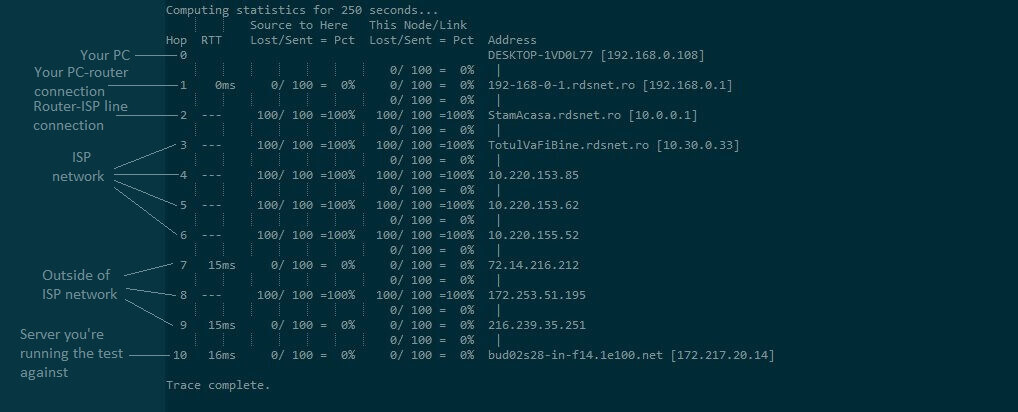
Results of pathping

If the packet loss occurs on the first node, then your main device is definitely the culprit. If you notice packet loss on the other end of the connection, then the issue is on the game server’s side.

If pathping is just too complicated, you can turn to third-party software. One of the most effective tools is LiveTcpUdpWatch. However, if you’re using the browser version of RuneScape, it won’t work as intended.

How to fix packet loss in RuneScape?

1. Use a trustworthy VPN service

  1. Purchase a Private Internet Access subscription planPIA RuneScape
  2. Download the VPN client on your computer
  3. Install PIA
  4. Launch the VPN client
  5. Log into your PIA account
  6. Connect to the server of your choice
  7. Launch RuneScape
  8. Check if the packet loss issue still persists

Private Internet Access is a great VPN service brought to you by Kape Technologies. It can help you secure your Internet connection and online privacy by means of spoofing your IP, using a private DNS, and encrypting your traffic.

Private Internet Access

Private Internet Access

Having packet loss in RuneScape? Private Internet Access can reduce it for you.
$2.85/mo. Buy it now

Furthermore, a VPN such as PIA can also help you reduce packet loss, improve in-game ping, and bypass geo-restriction.

However, note that VPNs can only help you reduce packet loss if your ISP limits your connection by providing you with improper routing or throttling your bandwidth.

2. Troubleshoot your connection manually

  • Restart your computer, modem, and/or router
  • Check your network for any malfunctioning components, including your PC, drivers, cables, router, or modem
  • Repair or replace any troublesome component you discover during your network assessment
  • Use wired connections instead of WiFi whenever possible (WiFi packet loss occurs more often than wired packet loss)
  • Make sure your drivers are up-to-date (using their latest version)
  • Check if your router runs on the latest firmware version and update it if it isn’t
  • Avoid peak hours to bypass network congestion as effectively as possible, if you can
  • Ask your Internet provider if they can look into the matter and maybe even fix it
  • Contact the RuneScape customer support if you notice anything wrong on their side of the connection
  • Flush your DNS

We’ve already told you that packet loss has no sure fix and for that reason, we can’t vouch that even using all the steps above will fix your issue. More often than not, packet loss comes and goes by itself, even in RuneScape.

However, the fixes we’ve suggested above are great to use for keeping your online connection healthy. If you don’t fully understand the necessity of performing a suggested fix, we advise you to perform a bit of research before doing it.

RuneScape packet loss is annoying

To sum it up, we can all agree that encountering packet loss, even in RuneScape, can be downright frustrating. However, we’ve gathered a bit of knowledge on what causes it and how to fix it and we’re sharing it with you.

Sure enough, the best and quickest fix would be using a VPN for Runescape. On the downside, if the issue isn’t caused by your ISP by either improper routing or bandwidth throttling, a VPN would be useless.

If that’s the case, you could try our manual troubleshooting suggestions, given that packet loss has no precise reason and no sure fix.

[wl_navigator]

5 best VPNs for Zoom to protect your data privacy & security

Zoom’s popularity exploded during the COVID-19 pandemic since many employers turned to this video conferencing program to organize meetings and communicate with their teams.

Unfortunately, its fame also attracted cyber-criminals who exposed Zoom’s flaws that lead to security breaches. As a result, many people dropped Zoom and replaced it with other similar tools, such as Google Meet.

If you wish to stick to Zoom, however, it’s essential to protect your data security and online privacy. Otherwise, you risk exposing sensitive information.

In addition to getting equipped with a powerful anti-malware solution, you should use a VPN for Zoom. A virtual private network solution changes your IP address and geo-location, making it more difficult for hackers to intercept your data.

Even if a cybercriminal manages to get hold of your Zoom traffic, they won’t be able to decipher the scrambled message, thanks to VPN encryption. Besides, a VPN can also help you unblock Zoom if it’s not available in your country.

However, not all VPNs are equal, so it’s important to do your homework and carefully evaluate the pros and cons of each VPN service before deciding which is the best for Zoom.

How to use a VPN for Zoom

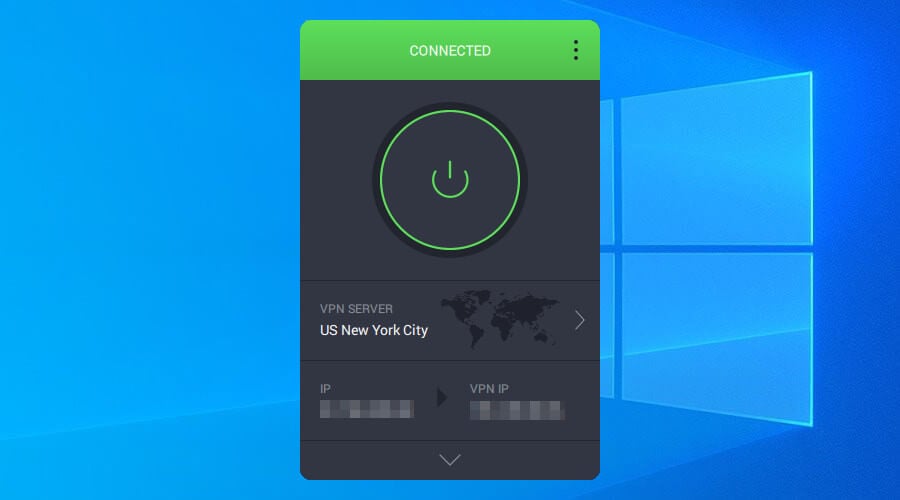
PIA is connected to a US VPN server

  • Choose a VPN service and get a subscription plan (we recommend PIA).
  • Download and install the VPN on your device.
  • Launch the app and connect to a VPN server.
  • Start using Zoom.

What are the best VPNs for Zoom?

Private Internet Access

Private Internet Access is the best VPN for Windows 10 laptops

Created by Kape Technologies, Private Internet Access (PIA) is a top VPN for Zoom, thanks to its high-speed VPN servers and excellent security options.
Private Internet Access comes with more than 3,300 VPN servers spread across 48 countries. It uses the OpenVPN protocol to make sure that your Zoom conferences won’t get leaked.

Plus, runs exclusive DNS servers, static and dynamic IP addresses, a kill switch, split tunneling, and port forwarding mode. You can also use it to unblock Zoom if the tool isn’t available in your country.

What else you must know about PIA:

  • 10 simultaneous connections
  • No logs or leaks
  • 24/7 live chat support
  • 30-day money-back guarantee (no free trial)
Private Internet Access

Private Internet Access

Use one of the best VPNs for Zoom to ensure your data security and online privacy.
$2.85/mo. Buy it now

NordVPN

use NordVPN for Windows 10 laptops

Developed by Tefincom & Co., NordVPN is a top-ranked VPN for Zoom that you can trust with your data security and online privacy. It’s one of the safest VPNs, which comes with more than 5,100 VPN servers in 59 countries.

You can use NordVPN to unblock Zoom if the video conferencing service isn’t available in your region. It supports OpenVPN, obfuscation mode, Double VPN, Onion-over-VPN servers, and dedicated IP addresses.

The VPN client is compatible with all major operating systems and platforms. You can even set it up on your router to share your VPN account with all nearby devices.

What else you must know about NordVPN:

  • 6 simultaneous connections
  • No logs or leaks
  • 24/7 live chat support
  • 30-day money-back guarantee (no free trial)
NordVPN

NordVPN

Get this super-secure VPN for Zoom to keep your video conferences private.
$3.49/mo. Buy it now

Surfshark

use Surfshark for your Windows 10 laptop

If you’re looking for a cheaper VPN for Zoom, you can’t go wrong with Surfshark. Made by Surfshark LTD, it has the most affordable subscription plans on this list, offering more than 1,700 VPN servers in over 63 countries.

Surfshark is a great choice for bypassing firewalls and accessing blocked sites, making it ideal to use Zoom if it’s unavailable in your country. It supports OpenVPN, WireGuard, and IKEv2 protocols.

Plus, Surfshark has obfuscated VPN servers, multi-hop connections, split tunneling, and a kill switch. It’s compatible with all popular operating systems.

What else you must know about Surfshark:

  • Unlimited simultaneous connections
  • 24/7 live chat and email support
  • 30-day money-back guarantee
  • 7-day free trial for Android and iOS
Surfshark

Surfshark

Set up this budget-friendly VPN on your device to block hacker attacks.
$1.99/mo. Buy it now

CyberGhost VPN

use CyberGhost VPN for your Windows 10 laptop

Also made by Kape Technologies, CyberGhost VPN is the best free VPN for Zoom because you can test it at no cost without having to use your credit card. It boasts more than 6,500 VPN servers in 89 countries.

The virtual private network app is wrapped in a user-friendly interface and features intuitive options for all user levels. It even has special groups of servers optimized for streaming and torrenting so that you can quickly access them.

Furthermore, CyberGhost VPN operates private DNS servers. It comes with DNS leak protection, trusted Wi-Fi networks, split tunneling, and a kill switch.

What else you must know about CyberGhost VPN:

  • 7 simultaneous connections
  • No logs or leaks
  • 24/7 live chat support
  • Up to 45-day money-back guarantee
  • 1-day free trial for Windows and macOS
  • 7-day free trial for Android and iOS
CyberGhost VPN

CyberGhost VPN

Use the best free VPN for Zoom to ensure that your data won't get decrypted by hackers.
$2.75/mo. Buy it now

ExpressVPN

use ExpressVPN for multiple devices

Published by Express VPN International LTD, ExpressVPN is an excellent VPN for Zoom and one of the fastest VPNs for streaming. It provides you with over 3,000 servers spread across 94 countries.

The app uses OpenVPN with up to 256-bit encryption and zero-knowledge DNS servers to maintain your online anonymity. It has a Network Lock to cut off your Internet access in case the VPN connection drops unexpectedly, together with split-tunneling mode.

What else you must know about ExpressVPN:

  • 5 simultaneous connections
  • No logs or leaks
  • 24/7 live chat support
  • 30-day money-back guarantee
  • 7-day free trial for Android and iOS
ExpressVPN

ExpressVPN

Check out this reliable VPN for Zoom and take control of your digital security.
$8.32/mo. Buy it now

To recap, you can use a VPN for Zoom to defend your computer from security breaches and make sure that your confidential info doesn’t end up hosted on unknown servers.

Furthermore, a VPN is practical for traveling, especially if you can’t access Zoom in your country or if you typically connect to public, unprotected Wi-Fi hotspots.

[wl_navigator]

FIX: Unable to connect to the Internet in Windows 10

Watching a movie or reading your favorite everyday news on the Internet will be pretty hard to do without an Internet connection, but we will fix this in no time.

First of all, you need to know that Internet connection errors can be caused not only from the Windows 10 operating system, but from a hardware perspective as well.

If you want to fix your Internet connection in Windows 10 safely and quickly, you only need to follow the easy methods posted below in the correct order.

How can I fix Internet connection errors on Windows 10?

1. Check for a wireless network adapter

  1. First, we will have to check if the laptop or desktop device has the wireless network adapter turned on.
    Note: It is usually notified by a wireless icon near the laptop’s keyboard.
  2. After this, you should try to connect to one of the wireless networks available. If you cannot connect to any of the networks in your range, then follow the next method posted below.

2. Enable WPS on your router

  1. Turn on the Windows 10 device.
  2. Move the mouse pointer to the upper right side of the screen.
  3. Left click or tap on the Settings feature you are presented there.
  4. Left click or tap on the Network icon you have in the Settings feature.
  5. Left click or tap on the network you want to connect your device.
  6. Left click on the Connect button.
  7. Now press the WPS button on your router.
    Note: This only works for routers that have a Wi-Fi protected setup (WPS).
  8. After you pressed the WPS button on the router, it will immediately connect without having to type in the username and the password for that router.

3. Connect automatically to the wireless router

If your wireless connection interrupts every time you lock your Windows 10 device, then the next time you connect to the wireless router, you will need to check the box next to Connect Automatically on your log on window.

4. Update the network adapter driverUnable to connect to Internet in Windows 10

  1. Left click or tap on the Start button in Windows 10.
  2. Left click on the Control Panel feature.
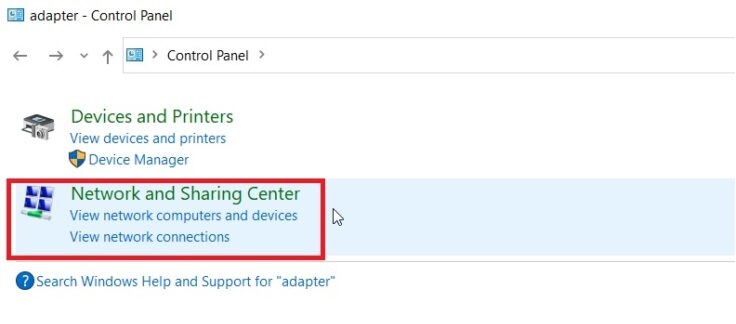
  3. In the search box, you have there you need to write adapter.
  4. Under the Network and sharing center feature you need to left click on View network connections.
  5. Next, you will need to find the network adapter you are using and right click on it.
  6. Left click on the Properties feature you have on this adapter.
  7. Left click on the Driver tab presented on the upper side of the Properties window.
  8. Left click on Update driver.
  9. Reboot the Windows 10 device.
  10. Try again and see if your Internet is working correctly.

If you don’t want to go through the hassle of updating your drivers manually, there are specialized tools that will do that for you. Fortect Driver Updater is one of the best, so be sure to check it out below.

Windows 10 Fortect Driver Updater Repair Tool

Some users may seek the help of IT technicians to find a professional solution to fix the errors. Thus, technicians can find the problematic device drivers and compare the data found on them with the Windows 10 driver data found on various websites.

However, since any installing of setup files can carry a risk of rendering the device or operating system inoperable, users should only use special software that provides safe PC driver updates and is meant to fix device driver issues and other computer problems.

The most effective way to keep your PC up-to-date is to download the Fortect Driver Updater repair tool, launch the application, and scan for outdated and missing device drivers.

⇒ Get Fortect Driver Updater

5. Use the Network troubleshooterUse troubleshooter on unable to connect to Internet in Windows 10

  1. Left click on the Start button inside Windows 10.
  2. Left click on the Control Panel feature.
  3. Now in the search box, you will need to write troubleshooter.
  4. Left click or tap on the Troubleshooting icon after the search is finished.
  5. Left click on the link View all.
  6. Left click or tap on the Network Adapter feature.
  7. Now the troubleshooter will start and will try to fix any issues you may have with your Internet connection.
  8. After the troubleshooter is done, you need to close all the windows you opened and reboot the Windows 10 device.
  9. Try to connect to the Internet and see if it works now.

6. Use a different browser

  1. Try connecting from other web browsers than the one you are using.
    Note: For example, if you are using Internet Explorer to browse the Internet, you can try installing Mozilla Firefox or Google Chrome and connect from there.
  2. If you are having issues with only one browser, you will most likely have to uninstall the browser and install the latest version compatible with Windows 10 operating system.

There are plenty of really good browsers that offer high-speed rates and a secure connection.

The browser market offers some really good and completely free alternatives that come with easy-to-navigate UIs and plenty of integrations and add-ons to make it your own.

Many good browsers also include built-in VPNs for a private and restriction-free connection.

Of course, all noteworthy alternatives include basic options, like setting your default search engine and creating bookmarks, so you shouldn’t worry about that.

7. Check your Internet connection with your Internet service provider

  1. If all the methods above fail, you will have to plug your Ethernet cable from the Internet supplier to another Windows 10 device, if you have one.
  2. See if the Internet connection works on the other device.
  3. If the Internet connection has the same issue on the other device, you should call your Internet service provider and see if you still have a working Internet connection.

So now that you have the above methods on how to solve your wireless or wired Internet connection on Windows 10, you only need to follow them carefully for a quick and easy fix.

Please write us below if you have any other questions regarding this subject and we will see how to help you further.

What to do if Outlook is sending blank emails

Despite all criticism, Outlook is one of the quickest ways to manage your emails. Nevertheless, errors can occur even to one of the most popular email client platforms.

Many users have highlighted that Outlook 2016 is occasionally sending blank emails automatically.

This is actually an old problem for Outlook. In fact, it affected many users of previous Outlook versions. In this article, you can find a simple guide on how to identify the problem and quickly fix it in a few easy steps.

Users said this problem affects the Outlook 2016 Home and Business versions. In fact, the problem can manifest itself in two ways:

  1. The blank emails are sent randomly and occasionally. However, only the recipients can see them blank, while in the Sent Items folder they appear with the full body to the sender.
  2. The blank emails are sent occasionally to random recipients although the sender didn’t actually send these emails.

The receiver of a blank email should check if there is an email address sending the blank email. If there is no address or the address is unknown that is a junk email.

In that case, the best approach is not to open the email but eliminate it as soon as possible. The problem seems to affect Outlook 365 users as well.

Sometimes the solution could be easier than expected. We’ll list three ways to solve this problem quickly that apply to both recipients and senders.

How can I fix Outlook sending out blank emails?

1. Update your antivirus

One of the first ideas that may come to your mind when it comes to this issue is that your computer has got some viruses.

But this is not necessarily true. Actually, this could be an antivirus problem.

The first attempt to solve the problem, on the recipient’s side, consists of updating the antivirus. Sometimes, the missing emails are the result of the virus scanning process carried out on download.

Somehow, your antivirus flags particular emails as malware when it’s not the case.

Besides, you can as well consider switching your antivirus for a more lightweight and powerful one. If you want other less interfering software we kindly advise you to get the best antivirus software compatible with Windows 10.

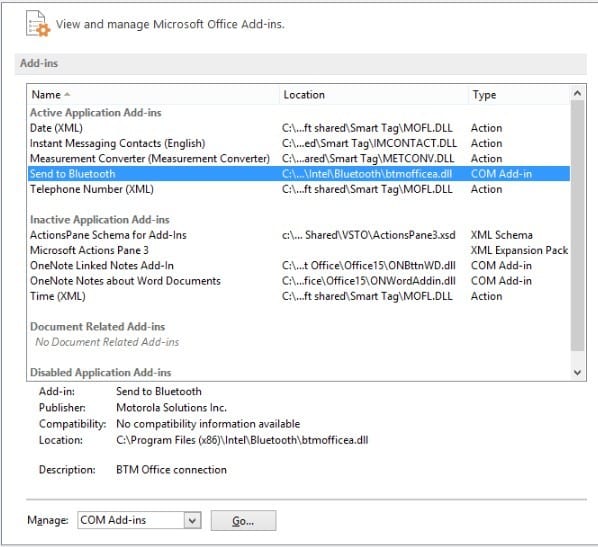
2. Disable add-ins and update Outlook (for senders)

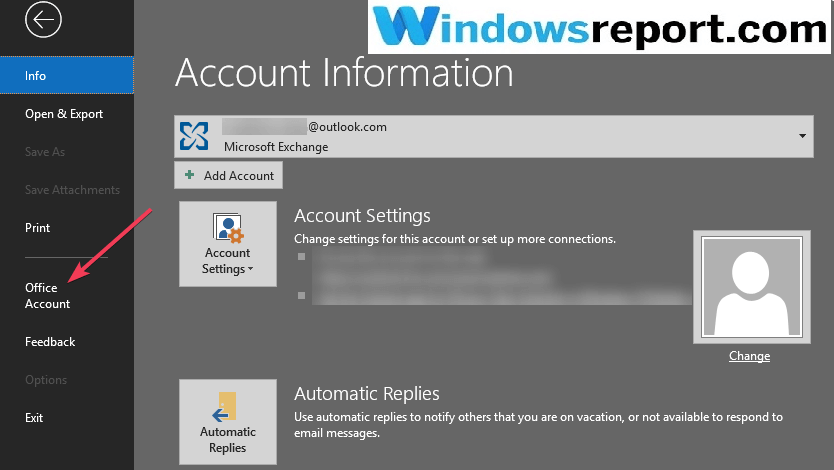
  1. Open Outlook and go to File.
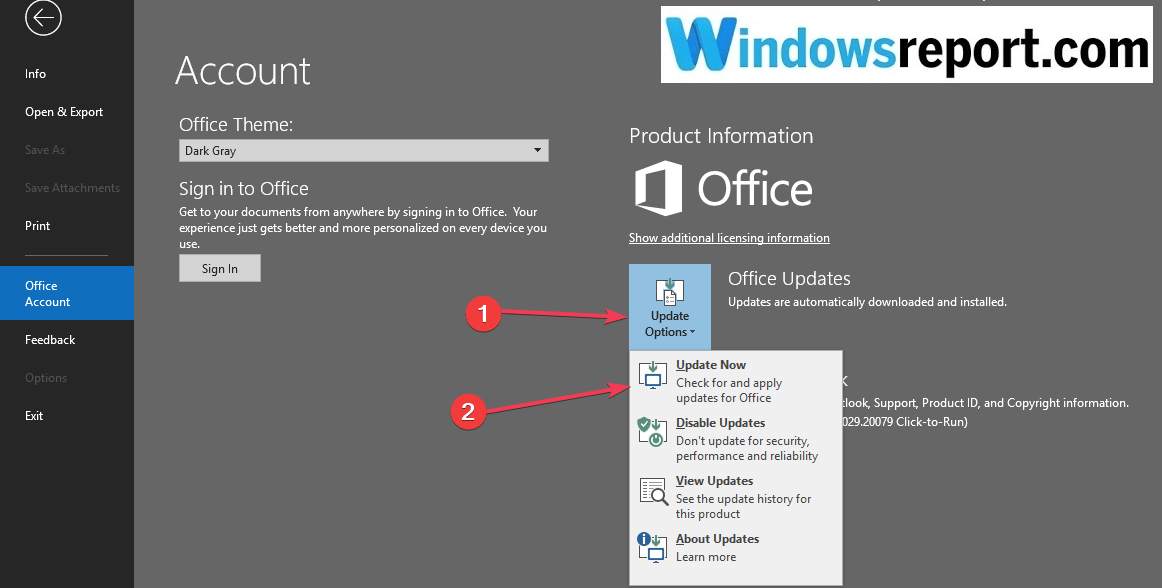
  2. Select Office account.office account outlook mail
  3. Click on Update Options.
  4. Select Update Now.update outlook

3. Configure a new profile (for senders)

  1. Completely close Outlook.
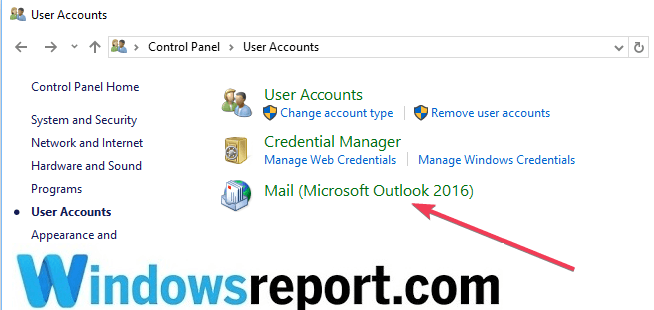
  2. Go to Start and click to Control panel and after on User Accounts.
  3. Click on Mail (Microsoft Outlook 2016).outlook 2016 control panel
  4. Next, go to Show Profiles.
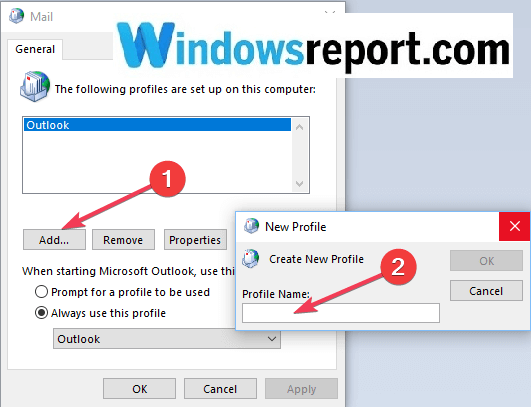
  5. Select Add.
  6. Type a new name for the new profile and click OK.outlook profile
  7. Type the email address and password.
  8. Open Outlook and go to Settings, select Manage Account and after Add Account.
  9. Select E-mail Account and enter the Name, e-mail, and password of the profile created. and
  10. Click OK.

We hope that one of the three solutions listed in this article helped you to solve this annoying problem of blank emails so that you may continue to use Outlook normally.

Were you able to fix this Outlook bug using this troubleshooting guide? Let us know in the comments section below.

To read more related articles make sure to check out our Troubleshooting page.

If you need more useful tutorials like the one below, visit our amazing Outlook Hub.

This app will not work on your device error [Solved]

One of the main features of Windows 10 is related to its apps. Even so, unfortunately, certain errors with Windows 10 apps can appear.

Users reported This app will not work on your device error message, and today we’re going to show you how to fix that problem.

How do I fix This app is not compatible with Windows 10?

  1. Delete Windows Update cache files
  2. Make sure that you have the latest updates installed
  3. Search for the application in Microsoft Store
  4. Reinstall the app
  5. Reset the Microsoft Store
  6. Reset the app
  7. Run the app troubleshooter
  8. Make sure the Application Identity service is running
  9. Disable your antivirus or firewall
  10. Perform a quick SFC scan
  11. Run DISM

1. Delete Windows Update cache files

This is a simple procedure and you can do it by following the steps below.

  1. Open Command Prompt as administrator. To do that, press Windows Key + X to open the Win + X menu and choose Command Prompt (Admin).
    this-app-will-not-work-on-your-device-cmd-1
  2. When Command Prompt opens, enter net stop wuauserv command and press Enter to execute it. By running this command you’ll stop Windows Update service from running. Minimize Command Prompt.
  3. Now, navigate to C:WindowsSoftwareDistributionDownload
  4. If you can’t access this folder, be sure to enable hidden files and folders. To do that, just click the View tab and check the Hidden items option.
    this-app-will-not-work-on-your-device-hidden-1
  5. Once you enter the Download folder, delete everything from it.
  6. Go back to Command Prompt and enter net start wuauserv command to start Windows Update service.

According to users, this problem can appear due to your Windows Update cache, and in order to fix the problem, it’s recommended that you delete it.

Another way to delete Windows Update cache files is to create a batch file and run it in order to clean Windows Update cache. To do that, follow these steps:

  1. Open Notepad and paste the following code:
    • net stop wuauserv
    • CD %Windir%
    • CD SoftwareDistribution
    • DEL /F /S /Q Download
    • net start wuauserv
  2. Click on File and choose Save As.
    this-app-will-not-work-on-your-device-notepad-1
  3. Set Save as type to All Files and enter remove.bat as the File name.
  4. Click Save to save changes.
    this-app-will-not-work-on-your-device-cmd-2
  5. Now you just need to locate the remove.bat file that you created, right-click it and choose Run as administrator from the menu.

Using a batch file is a faster and more advanced solution, but if you’re not comfortable with using batch files, you can manually disable the Windows Update service and delete the contents from the Download folder.

2. Make sure that you have the latest updates installed

This app will not work on your device error message can sometimes appear if your Windows 10 isn’t up to date. To fix that, be sure to run Windows Update and download the latest updates for your PC.

Many software problems can occur due to certain bugs in Windows 10, and in order to avoid these problems, it’s always recommended to keep your Windows 10 up to date.

Update drivers automatically

It is very important to choose the right driver versions from the manufacturer’s website. In case you choose and install the wrong one, this will not only be an issue for the GPU but may harm all your system.

Fortect Driver Updater will help you update drivers automatically and prevent PC damage caused by installing the wrong driver versions. 

After several tests, our team concluded that this is the best-automatized solution.

⇒ Get Fortect Driver Updater

3. Search for the application in Microsoft Store

  1. Press Windows Key + S keyboard shortcut and enter store. Select Store from the list of results.
  2. When Microsoft Store opens, enter the name of the application in the search field.
  3. Locate the application and try to download it manually.

Few users reported that this issue occurs if you access Microsoft Store via a link on a certain website.

To avoid this problem, you need to start Microsoft Store on your PC and search for the application manually. To start Microsoft Store, do as described above.

4. Reinstall the app

The next thing we’re going to try is reinstalling the app that gives you the error This app will not work on your device error.

As you’re probably used to resolving various software problems with reinstallation, this method might also be just as useful here.

Uninstalling Windows 10 apps is a little bit different than deleting regular win32 programs. That’s because each app has its own path and code.

Since we don’t know which app causes the problem, we compiled a detailed uninstallation guide for almost any app you can think of. Hopefully, you’ll find instructions for your app here.

Once you’ve uninstalled the app, just head over to the Store and install it again. Maybe it’ll work this time.

5. Reset the Microsoft Store

  1. Go to Search, type wsreset, and go to the WSReset.exe command.
  2. Wait for the process to finish, and restart your computer.

All the Windows 10 apps are tightly connected to the Microsoft Store. So, any problems with the Store may lead to issues with individual apps.

If that’s the case, we should resolve the problem with the Store, and theoretically, your apps will start working again.

One of the most common, but also effective, solutions to various Store problems is, you guessed it, the reset command. Use the above steps to easily reset the Microsoft Store.

6.Reset the app

  1. Go to the Settings app.
  2. Head over to Apps > Apps & Features. 
  3. Select the app you want to reset, and go to Advanced options. 
  4. Scroll down and click Reset. 
  5. A small window then opens stating This will permanently delete the app’s data on this device, including your preferences and sign-in details. Press the Reset button to confirm.

We’ll apply the same logic to the individual app. So, if none of the previous solutions get your app to work, try resetting the app itself.

7. Run the app troubleshooter

  1. Go to the Settings app.
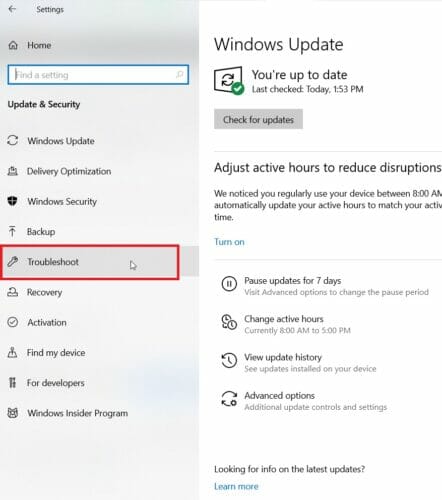
  2. Head over to Updates & Security > Troubleshoot.
  3. Now, click Microsoft Store Apps, and go to Run the troubleshooter.
  4. Follow further instructions, and let the wizard finish the process.
  5. Restart your computer.

Windows 10 features a handy troubleshooting tool for the most common problems in Windows 10. Luckily, this tool also handles faulty apps.

Just run the troubleshooter, and your problem will either get instantly resolved, or you’ll receive further instructions on what to do next.

Or you’ll get nothing. But it won’t hurt to run the troubleshooter, anyway, so run Windows 10‘s troubleshooting tool.

8. Make sure the Application Identity service is running

  1. Go to Search, type services.msc, and open Services.
  2. When the Services window opens, find Application Identity service and double-click it.
  3. When Application Identity Properties window opens, find the Service status section.
  4. If the Service status is set to Stopped, click the Start button to start the service.
  5. Click Apply and OK to save the changes.
  6. Close Services window and restart your computer.

The Application Identity service is crucial for running Windows 10 apps. So if this service isn’t running, neither will your apps. Use the above procedure to make sure this service is on.

9. Disable your antivirus or firewall

It’s not even a secret anymore that Microsoft’s software products and third-party antivirus solutions don’t live in a harmony together.

We’ve already heard numerous stories about antiviruses messing up Windows updates or some system features.

In that manner, it’s quite possible that your antivirus software recognizes your app as a threat, and doesn’t allow it to run.

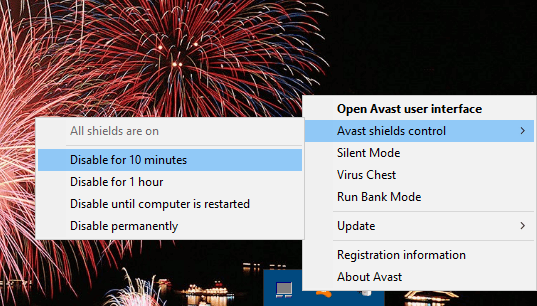
To determine if that’s indeed the case, disable your firewall and antivirus for a few minutes, and check if your app behaves differently.

If you’re able to run the app seamlessly when the antivirus is off, you have two options. Either abandon the app or change your primary antivirus solution.

If you’re looking to change the antivirus, we strongly recommend BitDefender. Sure, it may not act any differently than other antiviruses when it comes to recognizing legit Windows 10 apps as threats.

But, it’s a great antivirus, that will keep your computer safe at all times. At least until you make some notorious hacker angry enough to go after you, in that case, you’re done.

Why wait any longer? You can try BitDefender right away.

10. Perform a quick SFC scan

  1. Go to Search, type cmd, and open Command Prompt as Administrator.
  2. Type in the following line, and press Enter: sfc/scannow.
  3. Wait for the process to finish and restart your computer.

If the above-mentioned Windows 10 troubleshooter didn’t get the job done, we’ll go one step further. Maybe there’s something deep down in your system that that prevents your precious apps from working.

For that cause, we’ll use the SFC scan. This is a command-line troubleshooting tool for various system errors within Windows.

If something’s rotten in the state of Windows, this tool will expose it. scannow command has stopped before the process finished? Don’t worry, we’ve got an easy fix for you.

11. Run DISM

  1. Type cmd in the Windows search bar, right-click on the Command Prompt and run it as an administrator.
  2. In the command line, copy-paste these lines one by one and press Enter after each:

DISM /online /Cleanup-Image / ScanHealth

DISM /Online /Cleanup-Image /RestoreHealth

DISM (Deployment Image Servicing and Management) is the final troubleshooting tool we’re going to try here. It goes deeper than the SFC scan, as it deploys the system image all over again.

Hopefully, a freshly deployed system image will allow your apps to run without any problems. Just use the above steps to run DISM in Windows 10.

Then, wait until the procedure ends (it might take up to 10 minutes) and restart your PC.

This app will not work on your device can be an annoying error, but you should be able to fix it by using deleting the Windows Update cache.

If that solution doesn’t work, feel free to try any other tip from this article.

Here are some more problems and similar error messages that basically mean the same thing. And yes, app issues can be resolved with the same solutions:

  • Xbox Play Anywhere this app will not work on your device – This error is likely to appear when you’re trying to open Xbox Play Anywhere games. Use the above tricks in that regard.
  • Microsoft Store this app is not compatible with this device – This error could mean either the app is indeed incompatible with your computer, or your system recognizes it as incompatible. In the latter case, try some of the solutions listed above to resolve the problem.
  • This app can’t run on your PC old game – If you’re unsuccessfully trying to run an older game on your Windows PC, just check out this detailed article.
  • Microsoft Store does not work on this device – If you have a problem with the Store itself, follow the steps from this quick guide.

FIX: Mozilla Thunderbird won’t delete messages

Users can delete messages from the Mozilla Thunderbird email client by using the shortcut key or the menu function. However, some users have reported that Mozilla Thunderbird won’t delete messages.

According to Mozilla, this issue can occur due to the corrupted trash folder. This can be usually fixed by troubleshooting the email client.

If you are also troubled by this problem, here are a couple of troubleshooting tips to help you resolve Mozilla’s Thunderbird messages issues in Windows 10.

What can I do if Mozilla Thunderbird is not deleting messages?

1.  Delete the corrupt trash folder

  1. Launch Mozilla Thunderbird.
  2. Click on Help (top right corner).
  3. Select Troubleshooting Information option from the options. It will open the Information tab.Mozilla Thunderbird won't delete messages
  4. On the Information tab, scroll down to the Profile Folder section.
    Mozilla Thunderbird won't delete messages
  5. Click on the Open Folder button. A window with your profile files will open in the File Explorer.
  6. Close Thunderbird.
  7. On the File Explorer window, open the Mail folder.
  8. Open the folder with your incoming mail server name.
  9. It should look something like imap.googlemail.com or pop.googlemail.com.
  10. In the folder, select the Trash and Trash.msf  files and delete them.
  11. These files can also be named as Bin or Deleted.
  12. Once the files are deleted, restart Thunderbird.
  13. Upon restart, Thunderbird will automatically create a new Trash folder for IMAP accounts.
  14. If you are using a POP account, do the following.
  15. Right-click on your account name and select New folder.
  16. Name the folder as Trash and click on Create Folder button to confirm.
  17. Now try to delete the messages and check if that has resolved the issue.

By deleting and rebuilding the trash folder, you should be able to successfully delete the messages in Mozilla Thunderbird.

2. Check for add-on issues

  1. Start Mozilla Thunderbird if not already running.
  2. Click on Help and select Restart with Add-ons Disabled option.Mozilla Thunderbird won't delete messages
  3. When prompted to confirm the restart click the Restart button.
  4. Thunderbird will restart in safe mode with all the installed add-ons disabled.
    • Make sure you click on Continue in Safe Mode button.
  5. Open your email account and try to delete the messages.
  6. If you are able to delete the messages, it is possible that one of the installed add-ons is creating the issue.

In such a case here’s what you need to do:

  1. Restart Thunderbird.
  2. Click on Tools and select Add-ons.Mozilla Thunderbird won't delete messages
  3. From the left pane, select Extensions.
  4. Start with enabling add-ons one by one till you find the add-on creating issues with the client.
  5. Once found the problematic add-on, remove it and check again.

3. Install updates

Thunderbird not deleting messages
  1. Start Mozilla Thunderbird.
  2. Click on Help.
  3. Select About Mozilla Thunderbird.
  4. Thunderbird will now scan for any pending updates and download them. Wait for the updates to be installed.
  5. You may have to click on Restart to update Thunderbird button to finish updating the client.
  6. After the restart, try to delete the messages and check for any improvements.

The Mozilla Thunderbird won’t delete messages issue usually occurs due to corrupt trash folders.

If rebuilding the trash folder didn’t help, you can follow some additional steps to fix the problem with your email client.

Alternatively, there are other efficient email clients that will offer practical email features containing proficient services and user-friendly platforms.

Just let us know which of the methods listed above allowed you to fix this Thunderbird issue. You can do this by leaving your feedback in the comments section below.

Microsoft Teams to get simplified Notifications settings next month

Microsoft is working on a revamped notifications experience for the Microsoft Teams desktop and web apps, which has been rebuilt from the ground up, according to the Microsoft 365 Admin Center. The new Notification Settings page will roll out to Microsoft Teams users in “early September,” followed by general availability in mid-September.

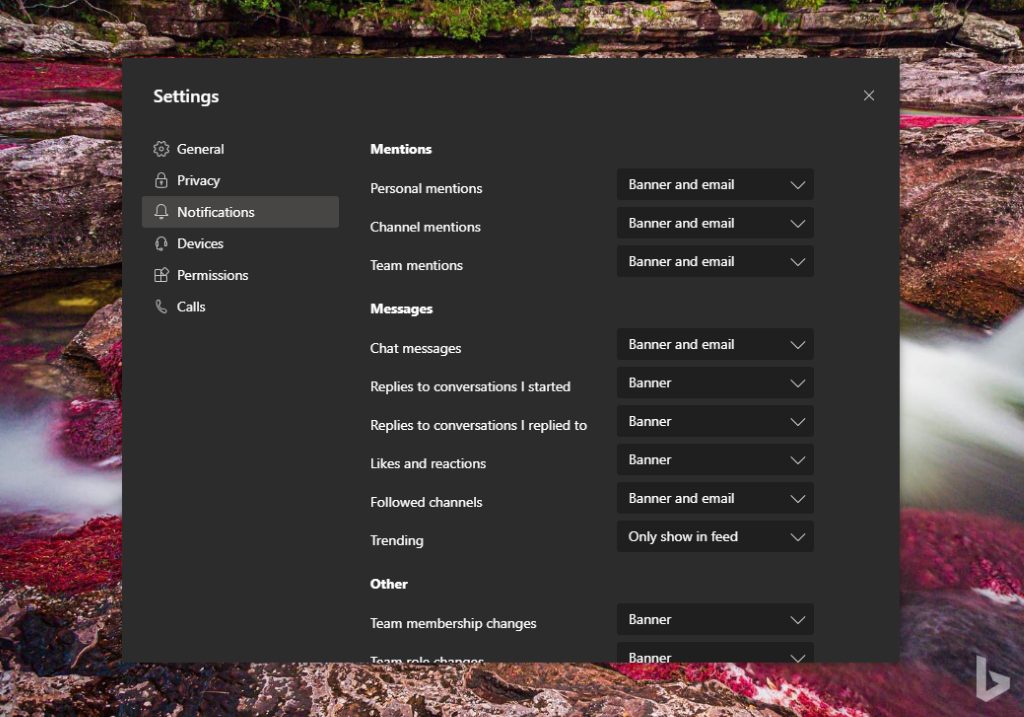
Currently, the settings page features a bunch of customization options all on a single window. It looks like Microsoft has found a way to reduce clutter and make it simple and clean by designing a new global notification settings page.

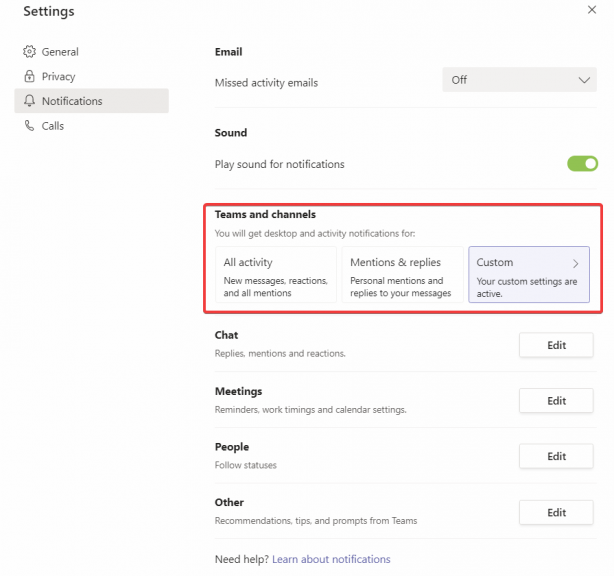
The new view will offer different customization options, including Email, Sound, Teams and channel, Chat, Meetings, People, and Others. Apparently, the additional options will be accessible through the “Edit” button. As seen in the mock-up below, Microsoft Teams users will now choose from a couple of teams and channel notification presets: “All activity” and “Mentions & replies.” Alternatively, users will also be able to create a “Custom” preset completely from scratch if they want.

Microsoft Teams Notification Settings

The Teams notifications settings will still be accessible by clicking on the profile picture and then heading to Settings > Notifications, though. The simplified global notification settings page is a smaller but helpful addition, and it will help you better understand how to manage your channels, teams, and notification settings to fit your specific needs.

Word File Repair Tool: 6 Best to Use in 2026

There is nothing more annoying than needing to access a Word document, and not being able to do so because of some error messages.

Whenever you try to open the document, you get an error saying something along the lines of Word was unable to read this document. It may be corrupt or some other variation.

Word documents can become corrupted for a variety of reasons, the most common reason for this error is an issue with a header found in your document. But, no matter what the problem is, if you can’t access the file, you can’t modify the error.

If you are dealing with these issues, you’re in luck ! In this article, we will explore some of the best software options on the market that allow you to repair any Word document and restore it to the original format easily.

As a plus, at the end of this article you will find information regarding how to try and repair your Word document by using the built-in options. Read on to find out more.

What are the best tools to repair corrupted Word documents?

Stellar Repair for Word

This software is an incredibly powerful Word document repair tool that allows you to easily restore all the data found in your files while keeping the same format as the original version.

This software can repair Word documents without altering the content in any way. That means that all your text, images, font choices, headers/footers, will remain exactly as they were.

This feature allows you to save time and not have to read through the entire document and check for missing parts.

Stellar Repair for Word offers you 3 different preview options, allowing you to see your document with as a full document, with filtered text, and also RAW Text.

Stellar Repair for Word is also capable of performing 3 different types of repairs:

  • Simple Repair – designed for repairing .DOC and .DOCX files with minor corruption
  • Advance Repair – this option repairs corrupted .DOC files more in depth than the previous version
  • Raw Recovery – repairs very corrupted Word files in RAW text
Stellar Repair for Word

Stellar Repair for Word

Repair any type of word document and recover all the valuable information that was on it with the help of this dedicated tool.
Free trial Visit website

Kernel for Word

Kernel for Word is another great software option that allows you to solve corruption errors of your Word documents, supporting a wide range of formats such as .doc, docx, .dot, .docm, .dotx, .dotm.

This software was designed specifically to tackle all the aspects of data recovery from documents. Kernel for Word gives you quick recovery options for your documents,no matter how big the file is.

Kernel for Word is also able to keep the original content from the document like tables, formatting styles, signatures, images, etc. Kernel for Word can recover multiple documents at once, and also offers full support for Rich Text Format (RTF).

Immediately after the recovery is completed, you have the option to preview your repaired document, and then export it into a new MS Word document.

Kernel for Word was released in a trial and full version. The trial version allows you to fix errors in Word documents, and offers all the great features we presented above, but can not export the repaired files.

In order to save your files, you will need to own the full version of Kernel for Word, but, you can use the trial version to test out how much data can actually be recovered from your specific file, and if it’s worth the price, then decide if it’s worth the money or not.

Kernel for Word Repair

Kernel for Word Repair

If you have a Word document that needs fixing, this tool will take care of it no matter what the issue is or what may have caused it.
Free trial Visit website

Repair My Word

Repair My Word - repair word doc

Repair My Word is a great easy to use and free software that allows you to recover your text from a corrupted Word file (only .doc file extensions).

The text that results from this process can then be saved without any errors in a new Microsoft Word document.

Even if this software doesn’t work with Office 2007 .docx files, it is still a great solution to save your data from files with corruption issues.

It will repair Microsoft Word 6.0, Word 95, 97, 2000, XP, and 2003. If your corrupted files are not in one of the compatible file extensions, you can always use a word converter to transform your document, and then access the text inside of it.

⇒ Download Repair my Word

Recovery for Word

Recovery for Word - Word doc repair

As the name suggests, Recovery for Word is a great software option that gives you the power to recover .doc, .docx, .docm, and also .rtf text format.

It supports all Word versions starting with Microsoft Word ’97 and ending with Microsoft Word 2016 edition.

This software allows you to avoid losing important data stored in Word documents by analyzing the corrupted file, identifying the corrupt elements, and exporting every bit of important data that it can find. If the corruption level is very strong, then some of the data could be lost.

Once the recovered data is extracted from the corrupted Word document, this software stores the information in a new .rtf document, and then you can save it in a new Word document.

This software can repair text and the formatting style of your document, tables, bulleted lists, images are moved to the end of the document, charts and drawings, etc. including OLE objects and URLs.

You can try out the demo found on the Recovery for Word page in order to make sure that this software actually works. It is worth mentioning that the demo version only supports recovering a limited amount of data.

⇒ Try Recovery for Word

DocRepair

DocRepair - Word doc repair

DocRepair is another greately useful data recovery tool that was designed specifically to deal with corrupted, damaged or simply Word documents that can not be opened for some reason.

This software works perfectly with documents created in Microsoft Word 6.0, Word 95, 97, 2000, XP, 2003, 2007, 2010, 2013, and Word 2016 for Windows. This software allows you to also repair corrupted files created in Word 2007 .doc, and .docx.

Using this software gives you the power to transform almost any Word document into an openable file, and can solve issues in the event that Word will get stuck, even if the document opens.

This application can also recover document files from damaged disks, and bad sectors on your computer’s hard-drive.

Here are some other notable features:

  • Uni-code and multi-language support
  • Can help greately when your document’s structure is damaged – invalid path, permissions
  • Automatically scans for any pottential corrupted files on your HDD
  • Retrieves all aspects of data found in the Word document – text, tables, images, etc.

⇒ Download DocRepair

Built-in solutions to repair corrupted Word documents

Word corrupted files - software to repair doc files

Microsoft Word has two built-in solutions to deal with a corrupted file, and both of them can be accessed from the File Open dialogue. It allows you to choose from using ‘Open and Repair‘, and also ‘Text Recovery‘ options.

Next, we will explore the steps you need to take in order to use each one of them.

  • Open and Repair

In order to access this option, you will need to first open up a new Word Document. Then, you want to click on File > Open, and then use only one click to select the corrupted file.

Note: If you double-click it, it will try to open it in Word, and you will get the same error message.

In order to find the Open and Repair option, you will now need to click on the black arrow found on the right side of the Open button, and choose Open and Repair.

built-in Word recovery options

This will make the Word application try to repair the corrupt document, if it does, you can restore all the data and also regain access.

  • Text Recovery

This option is also found in the File Open dialogue. You can find it by clicking on the drop down box that says ”All Word Documents”, and choose Recover Text from Any File.

After you’ve completed the first step, Word will try to recover any text found in your document. The results you will get depend very much on the way the file has become corrupted, but these 2 options could be useful.


In this article, we explored some of the best strategies to recover data or repair corrupted/damaged Microsoft Word documents. The software options we listed in this article will surely help you to avoid this issue in the future. We also listed 2 built-in recovery options found in Word.

With this set of knowledge and feature list, you will never have to worry again about how to deal with errors from your important Word documents.

Some options allow you to batch process documents, others support only a specific file format, but overall, you have all the tools needed under your belt to achieve great results.

We would love to find out what software option or built-in option you used to solve your corrupted Word document issues. Feel free to let us know your opinion in the comment section below.


[wl_navigator]

5 ways to fix PDF Printer error invalidfont

When printing a PDF document through Adobe PDF viewer or other tools, you may encounter printer error invalidfont. This error can occur due to incorrect configuration, or if you are using an outdated version of the PDF viewer.

The error can also occur if a file contains an invalid font name or dictionary, a corrupted, improperly formed font dictionary.

If you are also troubled by this issue, here are a couple of troubleshooting tips to help you resolve printer error invalidfont in Windows 10.

How do I fix printer error invalidfont?

1. Check for updates

printer error invalidfont error
  1. Launch the Adobe Acrobat Reader DC. If you are using any other PDF viewer, launch it instead.
  2. Click Help from the toolbar and select Check for updates.
  3. Adobe Acorabter Reader will scan for any pending updates.
  4. If found, click on Install updates to download and install the updates.
  5. Close and restart the Adobe PDF viewer and check for any improvements.
  6. If not, you will see No updates available message.

Updating the Adobe PDF viewer can fix any bugs that may be causing the error.

2. Reset Adobe Acrobat preferences

printer error invalidfont error
  1. Open File Explorer and navigate to the following location:
    • C:\Users\[username]\AppData\Roaming\Adobe\Acrobat\[version]
  2. In Windows 10, rename the following folders: JSCache and Security .
  3. If the Preference folder is hidden, then open the View tab (in File Explorer) and check the Hidden Items box. This will show all the files in the folder.
  4. Once the Preference folder is moved, close and restart Adobe Acrobat Reader.
  5. This should reset the Adobe Acrobat Reader preferences.
  6. Adobe will recreate the necessary folders after the restart.
  7. Try to print a PDF document and check for any improvements.

3. Disable Rely on system font only

PDF printer error
  1. Start Adobe PDF Reader.
  2. Open the document you want to print and then press Ctrl + P.
  3. In the print window, select the printer and click the Properties button.
  4. Open the Adobe PDF settings.
  5. Make sure the Rely on system font only; do not use document fonts option is unchecked.
  6. Click OK to save the changes.
  7. Restart the Adobe PDF Reader and check for any improvements.

4. Print as image 

  1. Open the PDF document in Acrobat Reader.
  2. Click File and select Print.
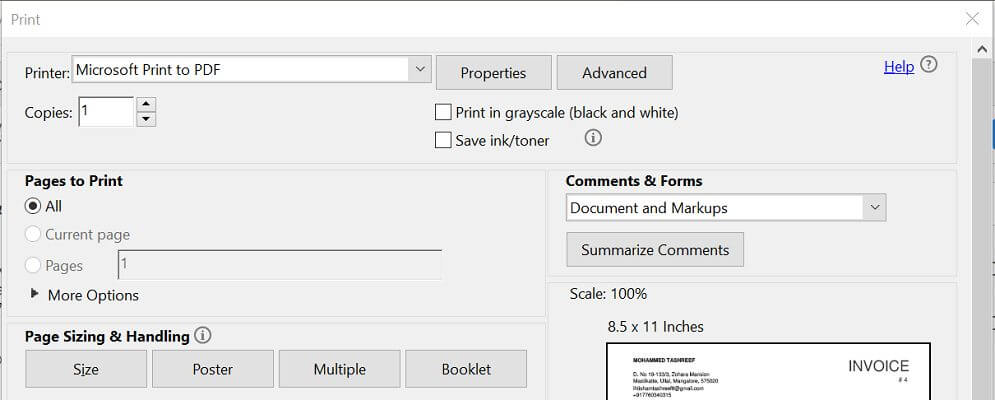
  3. Click the Advanced button.
  4. Check the Print as Image option.
  5. Click OK to save the changes.
  6. Now try to print the document and check for any improvements.

5. Save as PDF using MS Word

PDF printer error
  1. Open your PDF document in Microsoft Word.
  2. Make sure you enable editing by clicking the Enable editing button on top.
  3. Next, click File and select Save as.
  4. Select a folder.
  5. Make sure you save the file as PDF and click Save.
  6. Now open the PDF file in your PDF viewer and try to print.

If the issue persists, try Fortect Driver Updater to update the printer drivers. Thus, it will resolve the problem automatically, but also will renew the other drivers to prevent future issues.

Windows 10 Fortect Driver Updater repair Tool

In order to keep your PC including hardware components safe and efficient, the latest drivers should always be installed, like printer drivers. Fortect Driver Updater was developed so that you do not have to worry about manually downloading and installing your drivers yourself.

The program scans your hardware, as the printer drivers, and offers to update them. To refresh all drivers it only takes a few clicks and Fortect Driver Updater does the rest automatically.

⇒ Get Fortect Driver Updater

The printer error invalidfont can occur due to multiple reasons making it difficult to diagnose and fix the issue. We have listed all the possible solutions to help you to resolve this printer error in Windows.

Follow each of these steps, and let us know which one worked best for you by leaving a message in the comments section below.

How to repair a corrupted Word document [Easy Fix]

Loss of data from a Word document can be frustrating often. It is not nice to lose hours of work due to a power outage or a system error that can compromise your document.

But Microsoft foresaw this problem and provided to the Office suite a few features for retrieval of the information from a corrupted file. In this article, we will show you how to find out if a file is corrupted and how you can recover the data from it.

Find out if the file is damaged

If a file can be opened does not mean it is not affected. You must search for any imperfection or alteration of your text. The most common signs that a Word document is affected are:

  1. The occurrence of errors during processing.
  2. Wrong document layout and strange formatting.
  3. The system stops responding when you try to open the document.
  4. Introduction of unreadable characters in the text.
  5. Any other behavior of the program, different than what you are used to.

Do not rush to solve the problem with this file. These errors may be due to the system (loss of DLLs, accidental deletion of a file, and many more). To ensure there is not an error in your system, try to use other programs of the Office suite and checks behave the same.

Another method would be to install the entire suite to make sure that all files are installed correctly. If you have tried both methods and none has solved the problem then more than sure your file is affected.

This article also covers the following topics:

  • Word document repair tool
  • Repair Word document 2016

How do I repair a corrupt Word document?

1. How do I recover the data from damaged files?

1.1. Try third-party tools

The fastest method for fixing and recovering data from corrupted or damaged files has always been using third-party tools.

This is mainly because they are usually aimed to have a simplistic interface, and they are programmed to be extremely efficient at fulfilling their one purpose.

That’s precisely the case with Stellar Repair for Word which, as you can guess from the name, is specialized with handling broken word documents, both .doc, and .docx.

It is an extremely easy-to-use tool, allowing you to recover data or repair an entire word document in just a few clicks.

Stellar Repair for Word

Repair any type of word document and recover all the valuable information that was on it with the help of this tool.
Free trial Visit website

1.2. The problem could be at the printer driver

Install a different driver.

Add a new printer.

  1. Open Start Menu and click on Control Panel.
  2. Click on Hardware and Sound / View devices and printers / Add a printer.
  3. In the Add Printer window, click on Add a local printer button.
  4. Click on the Use an existing port and after that click on the OK button.
  5. From the Manufacturer list select Microsoft.
  6. Click on the Microsoft XPS Document Writer button and after that click on the OK button.
  7. Use the recommended driver and click OK.
  8. Check the Set as the default printer box and click on the Next button.
  9. Click on the Finish button to end the configuration.

Additionally, you could use a dedicated third-party driver updater like Fortect Driver Updater:

  1. Download Fortect Driver Updater
  2. Launch the program and let Fortect Driver Updater scan your PC for outdated, damaged, or missing drivers.
  3. Select your printer drivers from the list
  4. Wait while Fortect Driver Updater fixes your printer drivers
  5. Restart your PC

With this automated driver manager, you can find missing drivers automatically and optimize your PC with the latest versions of any driver.

1.3. Change the document template

Find out what is your document template.

  1. Open the affected Word document.
  2. Click on the Word menu from the upper left corner.
  3. Click on the Word options button.1
  4. Click on Add-Ins category from the left table.
  5. From the Manage menu select Templates category and click on the Go button.
2

This command will show you what template is used by your document.

Your document template is Normal

  1. Exit from the affected document.
  2. Open Start Menu and click on Run.
  3. In the Run window write this path %userprofile%appdataroamingmicrosofttemplates. This path will guide you to the templates folder.
  4. Rename the Normal.dotm file to Old.dotm.
  5. Close the explorer and restart your computer.

Your document template is not Normal

  1. Open the affected Word document.
  2. Click on the Word menu from the upper left corner.
  3. Click on the Word options button.
  4. Click on Add-Ins category from the left table.
  5. From the Manage menu select Templates category and click on the Go button.
  6. Click on Attach button.
  7. Select the Normal.dotm file from the Templates folder and click Open.
  8. Click on OK button to finish the configuration.
  9. Exist Word and restart your computer.

After rebooting the computer, the problem should disappear and you should have access to the data from that file.

1.4. Run Word using default settings

  1. Make sure that Word is closed.
  2. Open Start Menu and click on Run.
  3. In the Run windows paste this command exe a/.
  4. Open the affected file and your problem should be solved.

1.5. Use the Open and Repair feature of Microsoft Word

  1. Open Microsoft Word.
  2. Open the Word menu and click on Open button.
  3. Click one time on the affected document and from the Open menu select Open and Repair feature.
3

1.6. Convert the document to Rich Text Format and after converting it back to Word

  1. Open the affected document.
  2. Open the Word menu from the upper left corner.
  3. Click on Save as button and select Rich Text Format (*.rtf).
  4. Open the Rich Text Format document and repeat the same process. The only difference is that you will not save it as Rich Text Format, you will save it as Word (*.doc or *.docx).

If this method doesn’t work try to convert the document into Plain Text format (*.txt) or Web Page format (*.html) but in this case you will lose pagination and design elements.

1.7. Copy all the information except the last paragraph to a new document

Create a new document.

  1. Open Microsoft Word.
  2. Open the Word menu from the upper left corner.
  3. Create a blank document by clicking on New / Blank Document / Create.

Copy the content of the damaged document.

  1. Open the damaged document.
  2. Press CTRL + END and after that press the CTRL + SHIFT + HOME combination.
  3. From the Home tab click Copy in the Clipboard group.
  4. From the View tab click Switch Widows button in the Windows group.
  5. Click on the new document created before.
  6. Press the CTRL + V combination to paste the content in the new document.

Try to copy the unaffected structures from your original document to a new one.

2. How do I solve the problem if the document does not open?

2.1. Open the damaged document as a draft

  1. Open Microsoft Word.
  2. From the View tab click on Draft in the Document Views group.
  3. Enter in Word Options and click on Advanced.
  4. In the Show Document content section, click to select the Use Draft font in Draft Outline views and Show Picture placeholders.
  5. From the General section click to clear the Update automatic links at Open then click on OK button and close Microsoft Word to finish the configuration.
  6. Open the affected document.

2.2. Insert the document as a file in a new document

This method is available only for Microsoft Office 2010.

  1. Open Microsoft Word.
  2. Open Word Menu / New / Blank document / Create.
  3. From the Insert tab click on the Insert Object button and after that click Text From File.
  4. Locate the affected document and then click on the Insert button.

2.3. Use the Recover Text from Any File feature

Note that this function recovers only the text from a document. Pagination and design elements cannot be recovered.

  1. Open Microsoft Word.
  2. Open the Word Menu from the upper left corner.
  3. Click on Open.
  4. Click on the affected folder and from the File Type menu select Recover Text from Any File(*.*).
5

By following these methods, you should be able to repair any damaged Word document, or at least recover the data that was on it.

Let us know which of these solutions and suggestions helped you by leaving us a message in the comments section below.

Microsoft joins to support Epic Games, says Apple’s threat to cut Epic’s Unreal Engine would hurt their gaming business

Epic Games, the developers of Fortnite, continues to battle Apple against its app store policies, but they might have just gotten a new supporter. In some court filings, Microsoft is now saying that Apple’s latest threat to cut Epic Games from Apple’s developer tools would hurt their gaming business (via Reuters.)

In the filings, Kevin Gammill, the General Manager of Microsoft’s Gaming Developer Experience division, mentions the importance of Epic’s Unreal Engine and what would happen if Apple opts to cut out access to the developer tool. The GM details that the engine is “critical technology for numerous game creators, including Microsoft.” He also goes on to mention that it delivers the “graphics, rending, physics, sound, and other technologies that run on multiple platforms.”

More importantly, though, Gammill mentions that many creators do not “have the resources or capabilities to build their own game engines, and rely on the availability of third-party engines.” The GM also has some scary words on what that means for the future of Microsoft’s games. He mentions that “if unreal Engine cannot support games for iOS and macOS, Microsoft would be required to choose between abandoning its customers and potential customers on the iOS and macOS platforms or choosing a different game engine when preparing to develop new games.”

These are some pretty strong words from Microsoft, but it all could offer a look at the future of gaming if Apple opts to cut Epic Games’ developer tools. Do you agree with Microsoft? Let us know your thoughts in the comments below.

Windows 10 news recap: Microsoft Store gets a new icon, ability to disable Microsoft Defender via regedit removed, and more

Welcome back to our Windows 10 news recap, where we go over the top stories of the past week in the world of Microsoft’s flagship operating system.

Windows 10 May 2020 Update can now be installed on the Surface Pro X and Laptop 3

It’s taken a while for the Windows 10 May 2020 Update to make its way around to a range of Microsoft’s Surface devices, but as of this week, the May 2020 Update is now able to be installed on the Surface Pro X and Surface Laptop 3.

New Microsoft Store app icon begins rolling out to public Windows 10 users

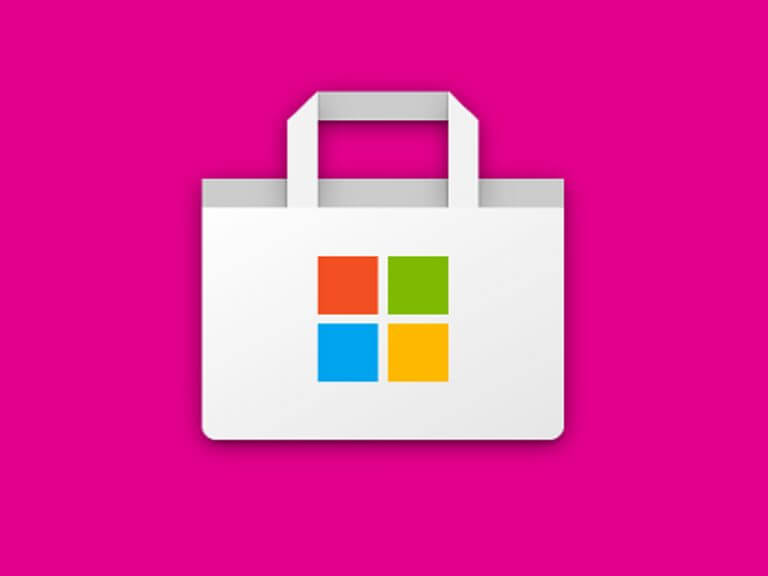
A new icon for the Microsoft Store app on Windows 10 has begun to rollout to Windows 10 users. The changes are subtle, making the bag resemble a paper bag through the use of folds and horizontal lines.

Microsoft Store app icon.

Windows 10 Insider build 20197 will let users manage disks and volumes from the Settings app

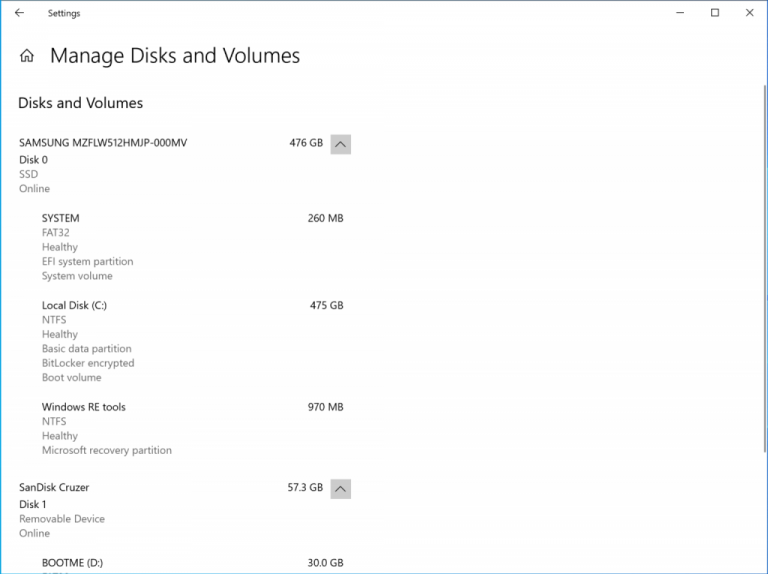
Managing disks and volumes is to be made easier in a future Windows 10 update, as Insiders on build 20197 gain the ability to manage disks and volumes via the Settings app.

Windows 10 Settings Manage Disks

Microsoft removes regedit ability to disable Microsoft Defender

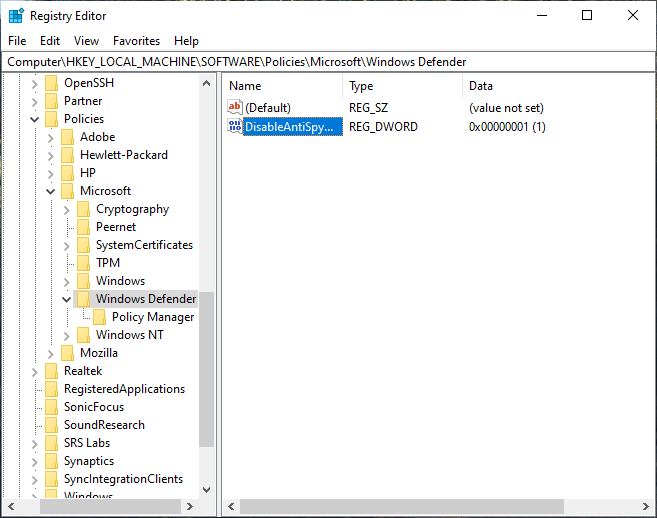
The ability to disable Microsoft Defender via regedit has been removed. IT admins often use this to prevent incompatibilities when using other anti-virus software on the systems they manage.

Microsoft Defender Registry Key

That’s it for this week, we will be back next week with more Windows 10 news.

Microsoft news recap: new Xbox experience on the way, Microsoft wants TikTok’s UK operations, and more

Microsoft news recap is a weekly feature highlighting the top Microsoft news stories of the past week. Sit back, grab some coffee, and enjoy the read!

A new Xbox experience is coming to Xbox consoles, Windows 10, and mobile devices later this year

Later this year, players of Xbox across Xbox consoles, Windows 10, and mobile devices, will start to see a new Xbox experience. Bringing a whole new, more universal design across Xbox platforms and apps..

Minecraft gets new Jurassic World DLC

Minecraft has received a new DLC pack, Jurassic World, allowing you to explore the pre-historic from the comfort of your home. 21 skins and over 60 dinosaurs are included in the pack.

Oracle reportedly joins the race to acquire TikTok operations, Microsoft wants UK, too, and the clock keeps ticking

The race for TikTok’s operations on the back of a possible US ban are not showing any signs of slowing, with Oracle having reportedly put its hat into the ring to acquire TikTok’s operations. At the same time, it is reported that Microsoft is looking to acquire TikTok’s UK operations as well.

Generic Tiktok Background

Microsoft Flight Simulator is now live on Windows 10 to buy or play for free with Xbox Game Pass

This week saw the launch of Microsoft Flight Simulator, its latest foray into the flight simulation game market. It’s included within Xbox Game Pass, allowing subscribers to play it for free on Windows 10.

That’s it for this week. We will be back next week with more Microsoft news.

4 Methods to Protect Yourself from Browser Information Leaks

Are you wondering how to protect yourself from browser leaks? Here is all you need to know,

We use browsers daily, but did you know your web browser can leak certain information in the background?

This can be a security concern, and in today’s article, we’ll explain to you what information your browser can leak to third parties and how to prevent that.

What is a browser leak?

The exchange of information is essential in surfing the internet. In fact, without a certain level of information sharing, it will be impossible to set up an internet connection.

However, there is data that you hold private and expect to be guarded by your browser. Unfortunately, it is possible that from time to time, this critical information is leaked by your browser. In such cases, your privacy is compromised, and often, web fingerprinting is involved.

This private information that your browser will naturally have access to, which otherwise you would want to keep between yourself and the browser when leaked, is what we refer to as browser leaks.

You can have the following kind of browser leaks:

  • Your IP address – The first information your browser can leak is your IP address. By doing so, third parties can see your current state, ISP, region, and in some cases, your city.
  • WebRTC leak – In some instances, WebRTC API can be used to expose your IP address, even if you’re using a VPN. That’s why it’s crucial to perform a WebRTC leak test online.
  • JavaScript – JavaScript is a widely used web technology that can also reveal some of your information. That information usually includes your system resolution, current time, and web browser.
  • Geolocation – Most modern browsers support the Geolocation feature that will reveal your current location. Browsers will usually ask for permission to access your current location, so be sure to deny it in order to stay safe.

What is my browser’s IP?

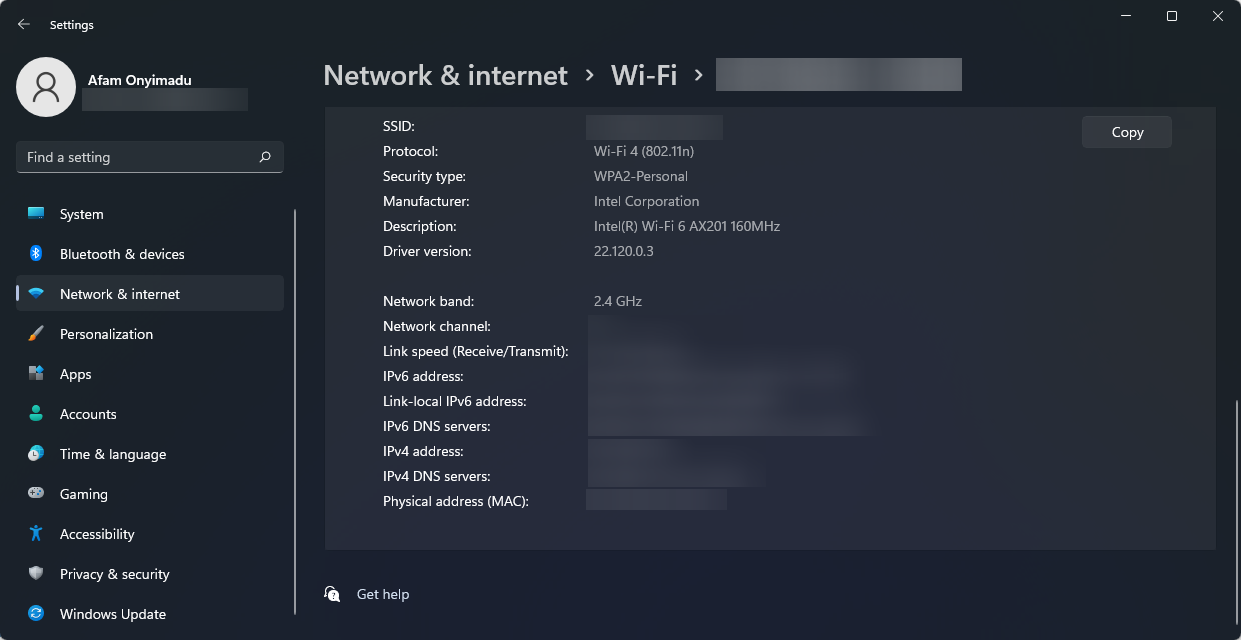
In many cases, an internet search will reveal your IP. Also, you can view your IP address by navigating Start, Settings, Network & internet, Wi-Fi, and clicking on your connection.

How do I stop IP leaks?

1. Use a secure web browser

To protect yourself from browser leaks, it’s essential to use a secure web browser such as Opera One.

The browser has its native tracking protection, so it will block tracking scripts and cookies that can leak your data.

Opera One also has an ad blocker so that you won’t see any ads, and by blocking ads, your pages will load faster. It’s also worth mentioning that the browser has a free VPN and a native AI.

There’s also Cryptojacking protection that will stop all mining scripts. So, if you like the idea of secure and private browsing, Opera One is an ideal browser.

Opera One

Afraid of browser leaks? With its tracking protection, ad blocker, and unlimited VPN, Opera One is the right choice for you!
Free Download Visit website

2. Use HTTPS protocol

Always use websites that work with HTTPS protocol. The older HTTP protocol isn’t encrypted, meaning everybody can intercept your traffic and read the data you send to the website.

If a website uses HTTPS, all the data between you and the website will be encrypted and unable to be read.

To check if your website uses HTTPS, check its address in the address bar or look for the lock icon left from the address.

https address bar browser leaks

3. Be careful with extensions/add-ons

Specific extensions can leak your information, so be sure to use extensions only from reliable sources. To be safe, it’s best to keep the number of extensions as low as possible.

In addition to extensions, you shouldn’t use Flash, Java, or Silverlight add-ons since web browsers do not support them for security reasons.

4. Always use a trusted VPN

Users may safeguard their online privacy and prohibit their ISP (internet service provider) from monitoring their surfing behavior with VPN security. 

When a user’s device is connected to the VPN server, internet traffic is routed via the virtual private network provider’s internet connection. This is an excellent way to prevent IP and location leaks.

We recommend using a good and trusted VPN for the best possible online protection.

5. Run data leak tests

5.1 DNS leak test

  1. Launch your browser.
  2. Navigate to the DNS test site.
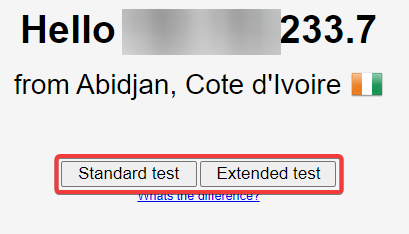
  3. Click on Standard or Extended test to launch a test.
    protect from browser leaks

5.2 WEBRTC leak test

  1. Launch your browser.
  2. Navigate to the WEBRTC leak test site.
  3. You should have your result displayed immediately.

5.3 Browser fingerprint test

  1. Launch your browser.
  2. Navigate to the browser fingerprint test site.
  3. Click on Test your browser.
    protect from browser leaks

While this is not a preventive step, it’s a good way to learn about leaks and start correcting them quickly. You can protect yourself from browser leaks in Firefox, Chrome, and even your Android devices by learning about these leaks.

How do I protect my IP address?

Protecting the IP is necessary, and we will suggest four things you may do.

  • Use a VPN – Sign up for a reliable VPN, and you’ll display a new IP address to the world that belongs to your service.
  • Browse from a Public Wi-Fi – You do not travel with your IP address. So, by just using the free Wi-Fi at a coffee shop, hotel lobby, or bookshop, you may temporarily conceal your regular IP address.
  • Use a Proxy Server – Your browser (Firefox, Chrome, Safari, or Edge) may be redirected via a proxy server to get past content filtering at work or school. However, it may be risky to use free proxies.
  • Use the Tor search engine – People around the globe use Tor to conduct online searches, make purchases, and interact with those with limited access to the internet, as is the case in certain foreign nations.

Browser leaks can be a security risk, but after reading this article, we hope you understand how to better protect against browser leaks.

We recommend you do not pick and choose what methods to apply. Instead, it would help if you used all of them to maintain maximum safety online.

Let us know if there are other protection solutions you know and would love to recommend.

Fallout 76 packet loss: How to fix it?

Fallout 76 is a post-apocalyptic game where you need to survive at all costs. You gather bottle caps and trade them for rudimentary weapons, health-restoration kits, armors, and everything that can help you achieve your goals.

Incidentally, it’s the only game in the Fallout series where you can meet other players. As in, you can enjoy the game online, and explore the vast nothingness of the Wasteland, and possibly wreak havoc upon other players.

Or, if you’re into that, you could team up and face the rough environmental hazards of the Wasteland together.

Regardless of your Fallout 76 approach, you’re in for a ride. Even if you didn’t get the chance to play the other installments in the series, you’ll definitely appreciate a good old-fashioned zip gun fight while classic tracks are playing in the background.

Yes, we’re fully aware that Fallout 76 was a mess when it first came out, and there’s still some polishing to be done around the edges, but all in all, it’s not as bad as everyone says.

On the downside, when they took Fallout 76 online, Bethesda also exposed it to a series of online-game-specific issues. These include high ping, jitter, slowdowns, and the one we all hate the most, packet loss.

What is packet loss in Fallout 76?

Regardless of where you encounter it, packet loss has the same annoying behavior. Packet loss occurs whenever data packets you transmit on your network never make it to their destination.

And believe us that this goes both ways, in the sense that packets might not be able to reach you, or ones you send might not make it to the remote server.

And that causes disruptions; some of these can be less severe, and can easily go unnoticed, while others have a more aggressive nature.

You’ll probably know that packet loss is lurking whenever you notice slowdowns, jittery gameplay, irresponsive menus, rubberbanding, or even sudden disconnections.

What causes packet loss in Fallout 76?

The reason why we can’t stand packet loss is that there’s no immediate magic fix for it. You have to struggle to find what causes it, so you can tend to that issue and that issue alone. Once you deal with it, your packet loss issue might disappear.

Unless there’s another underlying problem trying to slither its way past you, to cause yet another leak of packets. So it’s quite easy to understand why sometimes it’s downright frustrating to have to deal with packet loss.

As for what’s causing packet loss, the list is not exactly a narrow one. We’ve noticed that nine out of ten times, it’s because of network congestion.

It’s exactly what it sounds like: the network gets overcrowded with both clients and requests. Servers are not unlimited in nature, so they start slowing down and even collapsing if they’re not balanced right.

As a result, the quality of your connection can drop dramatically. The bad news is that there’s almost nothing you can do to bypass network congestion if it happens on the game server.

You could use a VPN to circumvent network congestion, but that would only work if the congestion is caused by your ISP’s improper network management skills.

Among other factors that could weigh in on causing packet loss, we remind of bad Ethernet cables, using WiFi instead of wired connections, outdated drivers, and even low-quality hardware.

How to detect packet loss in Fallout 76?

Detecting packet loss should be quite easy to achieve, provided that you have the IP address of the server you’re testing against. But since neither Fallout 76 nor the Bethesda website provides these addresses, we’ll have to improvise.

Technically, you can download and use any third-party traffic monitor that lets you see which servers communicate with your machine and their IP addresses.

However, we found it way easier to use LiveTcpUdpWatch from Nirsoft. This tool not only displays servers you’re connected to and their IP address but also displays packet loss percentage.

Therefore, you won’t need to overcomplicate things by acquiring the IP address of the Fallout 76 game server and test it with pathping.

How to fix packet loss in Fallout 76?

1. Use VPN software

  1. Purchase a Private Internet Access subscription planFallout 76 PIA
  2. Download the PIA installer on your computer
  3. Install the VPN client
  4. Launch Private Internet Access
  5. Connect to your account
  6. Choose a server that’s closer to you (they tend to offer higher speed values)
  7. Launch Fallout 76
  8. Check to see if the problem still persists

Private Internet Access is a great VPN service brought to you by Kape Technologies. Aside from helping you improve packet loss in Fallout 76, you can use it to protect your privacy, secure your connection, improve in-game ping, and bypass geo-blocking.

Furthermore, PIA also comes with 24/7 customer support, to answer all your questions and solve all your potential issues with the service.

Private Internet Access

Private Internet Access

Losing packets in Fallout 76? PIA could help you reduce packet loss.
$2.85/mo. Buy it now

However, it’s worth mentioning that using a VPN to counter the effects of packet loss might not work every time. In fact, VPNs can only make things better if it’s somehow your ISP’s fault that you’re experiencing packet loss.

For instance, if your ISP throttles your bandwidth, a VPN can help you bypass this limitation. If the ISP network is improperly routed, that could also cause packet loss. A VPN can still be useful in this situation.

2. Troubleshoot the connection manually

  • Restart your PC, router, modem
  • Check every section of your home network for any malfunction (PC, cables, router, modem)
  • Replace or repair any troublesome component you find on your side of the connection
  • Updated your drivers to their latest version
  • Make sure your router’s firmware is up to date
  • Always use wired instead of WiFi if possible (WiFi packet loss happens a lot more frequently)
  • Try to avoid peak hours, if possible, to dodge network congestion
  • Contact your ISP and ask them if they can do something about it (and you don’t want to use a VPN)
  • Reach out to Fallout 76’s customer support and let them know if you find anything out of place on their side

Although none of these suggested fixes are guaranteed to work 100%, applying them might improve the quality of your connection. You need to understand that a poor-quality Internet connection that is not maintained properly is prone to issues such as packet loss.

Fallout 76 packet loss can sometimes be fixed

To sum it up, if you’re experiencing packet loss while playing Fallout 76, don’t despair until you try our suggested fixes. Most of the time, the issue is caused by network congestion, which you can circumvent by either using a VPN or waiting it out.

If waiting around or using a VPN are not valid options, you can easily apply our suggested manual troubleshooting fixes. Granted, they might not work all the time. On the bright side, they can certainly help you increase the overall quality of your network connection.

[wl_navigator]

5 best VPNs for VoIP to use blocked services and safe calls

VoIP services like WhatsApp, Skype, Viber, and Telegram are used all over the world. They give you the possibility to make calls and talk to friends, family, and colleagues.

Unfortunately, the government of many countries regularly restrict access to VoIP services. But you can overcome this issue with the help of a VPN.

Moreover, you can use a VPN for VoIP to make safe calls without having to worry about hacker interceptions, especially when you’re connected to public, unprotected Wi-Fi hotspots. You can also use a VPN for video calls.

But not all VPNs are fit for this role. Some of them don’t work at all with VoIP services like WhatsApp, Skype, Viber, and Telegram. As such, we handpicked the 5 best VPNs for VoIP that actually work.

How to use a VPN for VoIP

PIA is connected to a US VPN server
  • Get a VPN subscription plan (we suggest PIA).
  • Download and install the VPN for your device.
  • Launch the app and select a VPN server.
  • To bypass geo-restrictions, choose a VPN service outside of your country.
  • Connect to the server and start using VoIP services.

What are the best VPNs for VoIP?

Private Internet Access

Private Internet Access is the best VPN for work

Private Internet Access (PIA) is a top VPN for VoIP since it can protect you from cyber-criminals. Plus, you can use PIA to unblock online services. It’s made by Kape Technologies.

This VPN service uses OpenVPN with up to 256-bit military-grade encryption. It also supports WireGuard, Shadowsocks, SOCKS5, port forwarding, static and dynamic IPs, split tunneling, and a kill switch.

You can install Private Internet Access on all popular devices, including Windows, Mac, Linux, iOS, and Android. It permits 10 connections at the same time:

What else you must know about PIA:

  • +3,300 VPN servers in 48 countries
  • No logs or leaks
  • 24/7 live chat support
  • 30-day money-back guarantee (no free trial)
Private Internet Access

Private Internet Access

Use PIA to easily unblock VoIP services like WhatsApp, Skype, Viber, and Telegram.
$2.85/mo. Buy it now

NordVPN

use NordVPN for work

To amp up your online privacy and digital security, you should check out NordVPN. It’s a VPN service made by Tefincom & Co., which provides reliable encryption methods to use VoIP services safely.

NordVPN supports OpenVPN, an ad and malware blocker called CyberSec, private and custom DNS servers, a kill switch, dedicated IP addresses, obfuscation mode, Double VPN, and Onion-over-VPN servers.

Furthermore, it has a native client ready for all major platforms, such as Windows, Linux, Android, Mac, and iOS. It can protect up to 6 devices at the same time.

What else you must know about NordVPN:

  • +5,100 VPN servers in 59 countries
  • No logs or leaks
  • 24/7 live chat support
  • 30-day money-back guarantee (no free trial)
NordVPN

NordVPN

Take your security to the next level when using VoIP services by turning to this dependable VPN.
$3.49/mo. Buy it now

Surfshark

use Surfshark for work

Surfshark is a great VPN for VoIP, which stands out from the rest for two reasons: it’s really cheap and can be used to protect an unlimited number of devices through the same account. It’s made by Surfshark LTD.

You can use this tool to get around government restrictions and access WhatsApp or Skype even if they were officially blocked. It supports OpenVPN, obfuscated servers, multi-hop VPN connections, split tunneling, and a kill switch.

Moreover, Surfshark is compatible with all major platforms and operating systems, such as Mac, iOS, Windows, Android, and Linux. It’s delivered in a user-friendly GUI.

What else you must know about Surfshark:

  • +1,700 VPN servers in +63 countries
  • 24/7 live chat and email support
  • 30-day money-back guarantee
  • 7-day free trial for Android and iOS
Surfshark

Surfshark

Resort to this affordable VPN service to unblock VoIP services and make safe video calls in your country.
$1.99/mo. Buy it now

CyberGhost VPN

use CyberGhost VPN for work

CyberGhost VPN is the best free VPN for VoIP if you have Windows, Mac, iOS, or Android. Operated by Kape Technologies, it can be used to defeat government censorship.

The VPN app has a super-intuitive interface and special categories of VPN servers dedicated to streaming and torrenting, which you can quickly access on your device.

CyberGhost VPN comes with OpenVPN, split tunneling, a kill switch, and exclusive DNS servers, DNS leak protection. It’s popular with all major platforms and allows 7 simultaneous connections.

What else you must know about CyberGhost VPN:

  • +6,500 VPN servers in 89 countries
  • No logs or leaks
  • 24/7 live chat support
  • Up to 45-day money-back guarantee
  • 1-day free trial for Windows and macOS
  • 7-day free trial for Android and iOS
CyberGhost VPN

CyberGhost VPN

Get this free VPN to make safe VoIP calls and protect your sensitive data.
Check price Buy it now

ExpressVPN

use ExpressVPN for work

Developed by Express VPN International LTD, ExpressVPN has an excellent reputation in the user community, thanks to its high-speed servers and top-notch security options.

You can use this app to access VoIP services if they were blocked by your country’s government. ExpressVPN works in China, too. And it’s great for ensuring your device’s security when connecting to public hotspots.

ExpressVPN supports OpenVPN, split tunneling, Network Lock, zero-knowledge DNS servers, and IP leak protection. It’s compatible with all major platforms and allows 5 device connections at once.

What else you must know about ExpressVPN:

  • +3,000 VPN servers in 94 countries
  • No logs or leaks
  • 24/7 live chat and email support
  • 30-day money-back guarantee
  • 7-day free trial for Android and iOS
ExpressVPN

ExpressVPN

Get this reliable VPN app to make safe VoIP calls and block hackers.
$8.32/mo. Buy it now

All in all, a VPN comes in handy for VoIP since you can use it to access online services like WhatsApp, Skype, Viber, and Telegram if they were blocked by your country’s government.

If you mostly use Skype, check out the best VPNs for Skype to secure your calls and improve their quality. Or, if you prefer WhatsApp, find out how to use a VPN for WhatsApp by bypassing geo-restrictions.

Top 15 Annoying Outlook Errors & Their Solutions

Microsoft Outlook is a personal information manager from Microsoft, but you probably know it as the email client that comes with the Microsoft Office Suite.

The community highly regards this software tool, but it also faces its fair share of criticism due to the frequent bugs.

We’ve compiled a list of the most common issues users face when using this tool and the methods used to overcome them.

This includes error 0x8004060c, 0x800ccc0e, or 452 4.5.3 Too many recipients and opening issues.

How can I fix common Outlook errors?

1. Try third-party alternatives


The list of issues below is clearly frightening. You’re most likely used to Outlook, yet this doesn’t mean that you shouldn’t consider trying out a different email client.

If the one that you currently use fails to meet most of your expectations, consider using Mailbird – winner of Most popular mail alternative of 2020.
On top of that, unlike Outlook, it allows you to enjoy a unified inbox for all your messages unified folders, along with a quick preview of attachments and speed reader features.

Mailbird

Mailbird

Ready to forget all about your current Outlook errors? Mailbird comes packed with extra tools and it works flawlessly.
Free trial Visit website

2. Error code 0x8004060c


This error usually appears when the user tries to send or receive emails, thus rendering Outlook functionally useless.

It is usually caused by oversized PST files above the max mailbox storage size for Outlook. In order to fix error code 0x8004060c, follow this step-by-step guide.

3. Error code 0x8004010f

Like the previous error, Error code 0x8004010f also happens when you try to send or receive emails.

Error code 0x8004010f is usually triggered due to corrupted Outlook user profiles. In order to fix error code 0x8004010f, follow our comprehensive guide.

4. Error code 0x800ccc0e

Whenever you get an error code 0x800ccc0e, you know that you are having issues with one of these services:

A conflict between the SMTP servers causes the error and when the user tries to send an email without properly configuring their account.

Please refer to this dedicated article for a list of efficient troubleshooting methods.

4. Error code 0x80042109

Error code 0x80042109 is yet another error code triggered by users trying to send or receive emails.

This error also appears because of a communication error between the SMTP servers. In order to bypass this issue, please read up on this quick article for a list of fixes.

5. Error 452 4.5.3 Too many recipients

This error occurs when you try to send an email to multiple recipients, and it happens when a distribution list is too big.

For a list of solutions to this Too many recipients issue, check out this simple guide for more information.

6. Error code 0x80042108

fix error code 0x80042108


This error message appears whenever you try to send or open a message.

Error 0x80042108 can be caused by corrupted PST files, third-party antivirus or firewall software tools, Outlook’s configuration settings, or an incomplete installation of Microsoft Office.

Check out this useful article for more information about it and how to fix it so that you can continue your work and your business doesn’t get affected.

7. Error code 0x800CCC13

Error code 0x800CCC13 is yet another error that appears when a user tries to send, receive, or open an email.

Multiple reasons, such as corrupt PSt files, third-party anti-virus or firewall software, an outdated installation of MS Office, etc, can cause this error.

For more information on how to fix this error, check out our in-depth guide.

8. Error code 0x800ccc0f

Error 0x800ccc0f is one that occurs for some users when sending or receiving emails. More often than not, error 0x800ccc0f occurs when SMTP emails aren’t sent or received.

In order to fix this issue, head over to our detailed article on the matter.

9. Error code 20

Error code 20 is triggered when users try to send emails. Unlike the previous articles, this one is caused by an inability to communicate with the proxy server.

For more information on how to fix error code 20, check out our step-by-step guide.

10. Outlook client shows a Disconnected message

This issue usually occurs when users try to go back online after working with Outlook in offline mode.

In order to make Outlook appear online again, check out the troubleshooting methods listed in this comprehensive guide.

11. An unknown error occurred on Outlook

This enigmatic error is triggered when sending, receiving, opening, or deleting emails. While not exclusively, it is usually caused by a corrupted PST file.

For a complete guide on how to fix this unknown error, follow this dedicated article.

12. The operation failed. An object could not be found

Like most other errors on this list, this error occurs when you try to sending, replying, or forwarding emails.

The list of solutions is quite small, and they can be found in this quick guide of ours for solving The operation failed issues.

13. The modified permissions cannot be saved

This issue happens when trying to edit the permissions on a shared calendar, and it is also triggered when trying to remove an old entry from the list of users.

For a detailed guide on how to fix these saving issues, check out this comprehensive guide.

14. Outlook won’t open in Windows 10

fix Outlook won’t open


This issue is pretty self-explanatory, as sometimes Outlook will refuse to launch in Windows 10.

To quickly fix this bug and make Outlook launch again, head over to this step-by-step article.

15. Outlook cannot log on

This error is similar to the previous one, except that Outlook does launch but refuses to log in.

Most of the solutions involve managing your profile in one way or another. For a detailed guide on how to fix this troublesome error, head off to this dedicated guide on the matter.

Were the above Outlook tips helpful? Let us know in the comments area below.


Windows 10 Insider build 20197 will let users manage disks and volumes from the Settings app

We weren’t sure if the Windows Insider team would be able to pull it off this week, but a new Windows 10 preview build is now available in the Dev channel. The build 20197 is a pretty minor update, though it brings a welcome new feature with the ability to manage disks and volumes right from the Settings apps. The Windows Insider team says that the experience has been designed with accessibility in mind, and that it also integrates nicely with other features such as Storage spaces.

This new build also brings minor changes to the new Alt + Tab experience following the addition of Edge tabs next to Windows apps, and the team also said that select Insiders may also see a new Web browsing section in the Settings app. You can get more details about new features, bug fixes, and known issues below:

What’s new in Build 20197

Bringing Disk Management into Settings

We mentioned we had more Settings work on the way, and here’s the next one – as of today’s build you’ll now be able to manage your disks and volumes from within the Settings app. This includes tasks such as viewing disk information, creating and formatting volumes, and assigning drive letters.

Unlike the existing Disk Management MMC snap-in, this modern experience was built from the ground up to with accessibility in mind. It also features better integration with features such as Storage Spaces and the Storage breakdown page.

Go to Settings > System > Storage and click Manage Disks and Volumes to get started. We’d love to hear your feedback once you try it out.

The Manage Disks and Volumes page in Settings. C drive is selected and shows Explorer and Properties options.

The existing Disk Management MMC snap-in is still available for those that need it.

Changes and Improvements

  • We’re updating the ALT + Tab behavior with Microsoft Edge tabs to now have a default of displaying at most 5 tabs, rather than any recent tabs. If at any point you’d like to change this, you can under Settings > System > Multitasking.
  • We’re exploring including a Web Browsing section in the Settings header, and Insiders may start to see this.
  • Going forward only the currently active profile picture will display under Your Info in Settings.
  • Based on feedback we’re turning off ESENT Warning Event ID 642.
  • It’s now possible to select the new Microsoft Edge as your desired app in Assigned Assess.
  • We’ve updated Narrator so that now when using the Microsoft Pinyin IME, Narrator is able to distinguish candidate characters/words by providing detailed reading information.

Fixes

  • We fixed an issue where the letter headers in the Start menu’s all apps list had unnecessary left padding when the all apps list was set to hidden.
  • We fixed an issue where ALT + Tabbing to a browser tab sometimes moved the previously active browser tab to the front of the Alt + Tab list as well.
  • We fixed an issue where if you’d pinned a website to your taskbar and then moved your Microsoft Edge window with that site open over to a different virtual desktop, the pinned sit wouldn’t show the corresponding open tabs on that new desktop.
  • We fixed an issue where the sysprep command was failing with the error 0x80073CFA in the last few builds.
  • We fixed an issue where Group Policy Editor was showing a popup error about WnsEndpoint_Policy in the last few flights.
  • We fixed an issue where the Get-Volume PowerShell command wasn’t recognizing volumes in the exFAT format.
  • We fixed an issue impacting explorer.exe launch performance when booting up and logging in for the first time.
  • We fixed an issue where pinned File Explorer folders in Start would appear with a darker background than other tiles in light mode.
  • We fixed a race condition that could result in the Font Settings page crashing.
  • We fixed an issue where Font Settings and Themes Settings were displaying the old style of Microsoft Store icon.
  • We fixed an issue that could result in the Network Status page in Settings showing an old network name, rather than the one that you’re currently connected to and inconsistent with what the network flyout displayed.
  • We fixed an issue resulting in certain VPNs with the option “Automatically use my Windows log-on name and password (and domain, if any) enabled no longer connecting automatically.
  • We fixed an issue resulting in some Insiders experiencing a bugcheck in recent builds citing a hyperguard violation.
  • We fixed an issue when using the search box in File Explorer, where pressing the enter key would result in keyboard focus jumping to the quick access section of the navigation pane rather than to the search results.
  • We fixed an issue with the Microsoft Pinyin IME, where typing certain phrases would result in the candidate pane unexpectedly dismissing.
  • We fixed an issue with the Microsoft Pinyin IME, where when using double pinyin style, when typing something like “goldb;du” where the first candidate could be an English word the conversion wouldn’t work.
  • We fixed an issue when typing with the Japanese IME that could result in not being able to input symbols using Shift+<number keys> into password fields sometimes.
  • We fixed an issue that could result in certain apps crashing when typing incorrect combinations with the Chinese Traditional DaYi IME.
  • We fixed an issue with the Microsoft Bopomofo IME where it was consuming Shift key up events when they resulted in IME mode toggle actions.
  • We fixed an issue that could result in a CTFMON.exe when changing focus to certain apps (like Outlook) while typing with an IME.
  • We fixed an issue where ImmGetCompositionString wasn’t returning the correct IME composition string for YOMI text fields.
  • We fixed an issue where the Windows key on the full touch keyboard layout wouldn’t become highlighted after tapping on it in recent builds.
  • We fixed an issue when using Narrator where Scan Mode wouldn’t stay off in Microsoft Teams.
  • We fixed an issue resulting in Microsoft Flight Simulator failing to launch on the previous two flights with an error citing: “The filename, directory name, or volume label syntax is incorrect”.

Known issues

  • We’re working on a fix for an issue where some Microsoft Store games protected with Easy Anti-Cheat may fail to launch.
  • We’re looking into reports of the update process hanging for extended periods of time when attempting to install a new build.
  • We’re working on a fix for an issue where the min/max/close buttons are stuck in their original positions after resizing a UWP app. If you move the app window the position should update.
  • We’re investigating reports that the new taskbar experience for pinned sites isn’t working for some sites.
  • We’re working on a fix to enable live preview for pinned site tabs.
  • We’re working on enabling the new taskbar experience for existing pinned sites. In the meantime, you can unpin the site from the taskbar, remove it from the edge://apps page, and then re-pin the site.
  • We’re working on a fix for an issue where pinned sites don’t show all open tabs for a domain. In the meantime, you can fix this by pinning the site’s homepage rather than a specific page (e.g. pin microsoft.com rather than microsoft.com/windows).

Earlier this week, the Windows Insider team said that they may not be able to ship a new build for the Dev channel this week after finding a serious bug in the previous release candidate build. We’re glad that the team managed to find a solution, and we hope to see another flight with more new features next week.

An Unknown Error Occurred on Outlook: Here’s How to Fix It

An error occurred in an error message that happens for some Outlook users when sending, receiving, opening, or deleting emails.

That error message more specifically states An unknown error has occurred.

The error can include 0x80040119, 0x80040600, 0x80070057, 0x800CCC67 and other codes, and it is usually due to corrupted PST files.

Here are a few tips that might fix the unknown error has occurred issue or an unexpected error has occurred annoying message from Outlook.

How can I fix An unknown error has occurred on Outlook?

1. Run an Anti-Virus Scan

A virus might have corrupted the Outlook data files. That’s more likely if your third-party anti-virus software needs updating.

First, check that your anti-virus software is updated; and then run a scan with the utility.

You can usually select a check for updates option within most anti-virus utilities to update the software.

For example, Avast has an Update option on its system tray context menu.

If you don’t already have a third-party utility installed, check out this software guide. Most of the more effective anti-virus utilities also have freeware versions.

An unknown error has occurred Outlook Windows Defender

Alternatively, you can utilize the Windows Defender app in Windows.

2. Fix Outlook with third-party utility software

There are numerous third-party utility applications with which you can repair Outlook’s PST files. The one that comes highly recommended is Stellar Repair for Outlook.

Fixing your PST file is easy. Once you download and install the software, you select the PST file from your computer. Then start the process by clicking the Repair button.

The software then provides a preview of the repaired PST file items. Press a Save Repaired Files button on the Home tab to save the scan details.

The software can recover not only emails but calendars, contacts, notes, and attachments. Hence, all that remains to be done is to try the tool for yourself and recover your Outlook benefits right away.

Stellar Repair for Outlook

Try Stellar Repair software and fix your Outlook with ease.
Free Trial Visit Website

3. Temporarily switch anti-virus software off

Switching anti-virus software off might be a good fix for unknown errors with the 0x800CCC67 code. In this case, an anti-virus utility might be blocking the SMTP protocol.

Most anti-virus utilities include a disable option on their system tray context menu.

As such, right-click the anti-virus software’s system tray icon and select the disable option to switch the utility off.

Then, try sending an email from Outlook again to see if that fixed the issue.

An unknown error has occurred Outlook disable antivirus temporarily

4. Remove Microsoft Outlook add-ins

Add-ins can generate numerous Outlook errors. As such, removing the add-ins off might also fix unknown Outlook errors. This is how you can remove add-ins from Outlook.

  1. First, right-click your Outlook shortcut and select Run as administrator to open the application.
  2. Click File > Options to open the Outlook Options window.
  3. Click Add-ins to open the options shown directly below.An unknown error has occurred Outlook disable microsoft office add-ins
  4. Select COM Add-in from the Manage drop-down, and press the Go button. A new window will then open that includes a list of your add-ins.
  5. Now you can completely remove an add-in by selecting its checkbox and pressing Remove. Alternatively, deselect the checkboxes to switch the add-ins off.
  6. Press the OK button to close the window.

5. Set up a new Outlook Account Profile

Your Outlook profile might be corrupted. In which case, setting up a fresh new account profile in Outlook could feasibly fix the unknown error.

This is how you can set up a new Outlook profile.

  1. First, press the Cortana button on Windows 10’s taskbar.
  2. Enter ‘Control Panel’ in the search box, and select to open the Control Panel.
  3. Click Mail 32-bit to open a Mail window.
  4. Press the Show Profiles button, and then click the Add option on the Mail dialog box to set up a new account.
  5. After setting up the new account, select the Always use this profile radio button on the Mail window.
  6. Select your new profile from the drop-down menu, and click the OK button.

6. Fix Corrupted PST Files With the Inbox Repair Tool

Fixing corrupted PST data files is one of the best general fixes for unknown errors in Outlook.

Thus, Outlook includes an Inbox Repair Tool, otherwise, Scanpst.exe, to repair PST files. This is how you can scan a PST with that utility.

  1. If you’re not sure where the PST file is on your hard drive, check its path from the Mail setup window. Open the Control Panel and click Mail 32-bit to open the Mail setup settings.
  2. Next, press the Show Profiles button.
  3. Select the Outlook profile you need to fix.
  4. Click the Data Files tab, which includes the Outlook data file path. Take note of the default PST file path included on that tab.
  5. Close the Mail window, and open the Outlook Inbox Repair Tool by entering ‘Scanpst.exe’ in Cortana’s or File Explorer’s search boxes.
  6. Press the Browse button to select the PST file.
  7. Click the Start button to initiate the PST scan.

7. The Outlook 2010 Hotfix Package

This fix is more specifically for unknown errors with a 0x80070057 code, which usually occurs when you try to set up new profiles with the Auto Account Setup process in MS Outlook 2010.

Microsoft has a hotfix package for the 0x80070057 error. However, don’t expect that hotfix to fix any other unknown error.

You can save that hotfix package to Windows by pressing the Hotfix Download Available button on this website page.

Then, enter an email address to receive an email that includes a download link and password for the hotfix.

Run the hotfix exe, enter the required password, and restart Windows after the hotfix weaves its magic.

Those are some of the best resolutions for Outlook’s unknown error has occurred error messages.

If further fixes are still required, check out the Support and Recovery Assistant for Office 365 that can also resolve numerous MS Outlook issues.

  • How do I fix error 0x80040201?

Start writing the address that shows incorrectly. Press the down arrow key to select an autocomplete addressing delete it. If that doesn’t work, you can follow our step by step guide to fix this problem completely.

  • How do I fix Outlook app errors?
You can try to check if Outlook is running in compatibility mode. Remove the checks for any boxes on the Compatibility tab in Outlook Properties. Restart Outlook for the changes to take effect.

8. Try a new email client

If you are tired of unknown Outlook errors and corrupted PST files, we recommend switching your email client.

Mailbird is one of our favorite alternatives to Outlook. Developers are constantly working on it, bringing new features.

You can add multiple email accounts in Mailbird and have a bird’s eye view with the unified inbox. Here’s what else is great about it.

  • Emails that don’t require immediate attention can be snoozed.
  • Perform searches through all your attachments.
  • Lookup your contacts and connect with them directly via LinkedIn.
  • Integration with Google Calendar, Dropbox, Facebook, and more.

All this is great, but what sets it apart is the free 24/7 support you receive as a client.

⇒ Get Mailbird

We have a full list of Outlook errors and the solutions to them in our Outlook troubleshooting section.

Errors are not the only thing that can happen to Outlook, so if you have any other problems, check our Fix Outlook hub for answers.

Microsoft Edge Canary can now sort Collections by date and name

The Collections feature for Microsoft Edge has just received a new update for anyone testing out the Microsoft Edge Canary channel. Microsoft has recently added two new options in the Collection menu to sort items by date and name (both in ascending or descending order) (via Reddit).

Collections have been available to testers for a while now, but users had to manually sort the items in a collection by using drag and drop. Now, the new feature makes it easier to find items on your list, and it’s enabled by default in Microsoft Edge Canary Build 86.0.614.0. If you want to try out the new sorting functionality, you need to follow a couple of steps listed below:

  1. Open the collections menu, click the Ellipse (…) icon to open the “Sharing and more” dropdown list.
  2. Select “Sort by Date created” or “Sort by name” (based on your specific preferences) to sort automatically sort all entries in your Collection.
  3. You can now use the arrow icon (as shown below) to sort them in “ascending” and “descending” order if you want.

Collections, as the name suggests, offers a way to grab images, websites, and more from the internet and organize them into collections. Users can perform different actions on them such as highlighting specific content, adding notes, and exporting to OneNote when needed. Do you like the new sorting capability in Microsoft Edge? Let us know in the comments section below.

New Store experience is now available for a subset of Xbox One owners in the US

Microsoft is planning to introduce a revamped Xbox experience on Xbox consoles later this year, and the Microsoft Store on Xbox will be first to get a fresh coat of paint. If Xbox Insiders can already test the redesigned Store, the new experience has now started rolling out to select Xbox One owners in the US running the latest version of the Xbox One OS.

The redesigned Microsoft Store on Xbox is more than twice as fast as before, and it uses the same design language found on the new Xbox app for Windows 10. There’s a new left panel providing quick access to games, Movies & TV shows, your Wishlist and shopping cart, search has also been improved with filters like on the Xbox app for Windows 10.

This new Xbox Store is expected to ship to all Xbox One owners with the August 2020 Update, which is still in testing with Xbox Insiders. A new Xbox experience will follow later this fall with speed improvements, more readable text, and rounded corners everywhere. This new experience will ship on Xbox One consoles as well as the upcoming Xbox Series X, which is expected to be released in November.

How to make Firefox PDF Viewer the default one

Firefox has a built-in PDF reader, meaning that you can use it to view PDF documents on the web as well as those stored on your PC.

But the folks at Mozilla have for a long time resisted giving you the ability to set your default PDF viewer to Firefox on Windows.

That changes with the Firefox 78 installer, according to recent comments by the Mozilla team.

Quick Tip:

Are you aware of the fact that Opera turned into the best alternative to Chrome? You get everything that you’re used to enjoying, plus Dark/Light modes and unlimited VPN.

Moreover, Opera can display PDF documents right inside the browser window and it is incredibly simple to make Opera open PDF files in the Default PDF Viewer.

Just launch the Opera web browser and press the hotkey Alt+P to enter into Settings. Quickly select the Websites section before scrolling down the settings screen to find the PDF Documents feature.

Up next, select the Open PDF files checkbox in the default PDF viewer application. Finally, don’t forget to close the Settings tab.

Opera

Not fully convinced that Firefox is the perfect browser for you? Install Opera and make it open PDF documents in Default PDF Viewer!

How can I select Firefox as my default PDF viewer?

The ability to set Firefox as the default app for opening PDF files on Windows 10 desktops has been elusive for years.

That’s been an issue for many Firefox users for some time now, and you may have noticed it too.

If you try opening a PDF file from your desktop, does it always launch in Chrome or another browser? That’s usually the case even for users that have installed Firefox on their PC.

select Firefox as default PDF viewer

So, when you’re looking to set the default tool for viewing PDF documents on Windows 10, Firefox doesn’t appear in the list of possible applications.

Browsers like the new Chromium-based Edge and Chrome do, however. That’s by design rather than an accident!

It has something to do with the inherent coding of the Firefox installer.

The installer is responsible for registering support for default file associations on Windows. We’ve always intentionally left PDF out of that list, but that decision may be changing soon, so I’m moving this bug so that it can find its way into the installer team’s planning.

But now Mozilla has heard and responded to Windows 10 user demands for a change in that policy. Starting with version 78, you can set your default PDF viewer to Firefox.

This modification comes to users that set up their browser through the Firefox installer. It’s also available to those that receive an automatic upgrade to the latest version of Firefox.

What do you think about being able to set the default PDF viewer to Firefox? As always, you can share your thoughts or ask any questions via the comments section below.

Microsoft invites business users to test Windows 10 version 20H2 ahead of public release

The Windows 10 20H2 update, which Microsoft plans to release this fall, is now available for commercial pre-release validation.

Just like the November 2019 Update (version 1909) was for the May 2019 Update (version 1903) last year, the 20H2 Update will be a minor patch for the May 2020 Update (version 2004), and it will install in just a couple of minutes like a regular cumulative update. Microsoft is now allowing business users to test the update process, including those who use Windows Server Update Services (WSUS) to deploy updates on managed devices.

“We not only want to ensure that you have access to the upcoming Windows 10 feature update payload via any channel you may use today, we also want to enable you to validate with confidence. Therefore, customers in the Windows Insider Program for Business can once again receive Microsoft Support for the Windows 10, version 20H2 build available through WSUS, ISO download, Azure Marketplace, and directly from Windows Update in the Beta and Release Preview Channels,” the Windows Insider Program for Business team explained.

New 20H2 features are actually available in the latest public version of the May 2020 Update, but they’re currently in a dormant state. Microsoft will turn them on later this year through an “enablement package,” just as it did last year for the transition between the May 2019 Update and the November 2019 Update.

Windows 10 20H2 may be a minor update, but it will bring some welcome changes to the Start Menu, the Taskbar, toast notifications, the Alt + tab experience, and more. Most of the new features shipped with the build 19042.421 last month, and we invite you to check our previous post for more details.

Presence in Microsoft Teams now updates in near real-time

Microsoft Teams, the unified communication and collaboration platform for Office 365 customers, is getting a bit smarter this month. Indeed, Microsoft has released a new Real Time Presence feature that should help improve online presence indicators in Microsoft Teams. According to Microsoft’s UserVoice forum, the company has introduced a new subscription-based model to provide real-time presence updates in Teams.

The presence of Teams users has switched to a subscription based model that brings near real time updates! Most of the time we expect presence updates to be reflected in a matter of a few seconds. It’s true for all scenarios like user’s calendar update, the Teams app status, or what the user decides to set manually.

The online presence indicators have been a fundamental part of the app on the desktop, the web, iOS, and Android since launch, and it tracks users’ presence status over time and makes that presence status available to their colleagues. The presence indicators can either be set explicitly by the user, and it can also change automatically based on the user’s activities (like joining an online meeting). However, the feature has suffered from an issue where presence updates were not reflected in real-time, and it could take up to 5 minutes for these changes to show, but this should change now.

The Real Time Presence in Teams has been designed to eliminate the delay and users will now get a clear picture of what others are doing in real-time. There are no special requirements to use this feature, and the change has been enabled from the backend for all users. Do you think that the online presence changes in Microsoft Teams are happening more smoothly now? Sound off in the comments section below.

FIX: Sorry, something went wrong error in Outlook

Outlook is probably one of the most popular email clients since it’s part of the Microsoft Office suite.

Even though Outlook is great, Windows 10 users reported getting the Sorry, something went wrong error message while using Outlook.

In this article, we will explore some ways on how to fix this error, so keep reading.

What can I do if something went wrong in Outlook?

1. Reinstall Office

  1. Go to Settings app and select System.
  2. Next, click on Apps & features.
  3. Select Microsoft Office and click Uninstall.
    sorry-something-went-wrong-outlook-2013-uninstall

Note: After uninstalling Microsoft Office you need to run the cleanup tool to remove any remaining Microsoft Office files. After running it, simply reinstall Microsoft Office.

2. Repair Office installation

  1. Press Windows Key + X to open Power User Menu.
  2. Select Control Panel from the list.
    sorry-something-went-wrong-outlook-2013-repair-office-2
  3. Click on Programs and Features.
  4. Locate Microsoft Office and click the Change button.
    sorry-something-went-wrong-outlook-2013-repair-office-3
  5. Select Online Repair and click Repair.

Note: You can use Quick Repair option that is significantly faster, but this option won’t thoroughly repair Microsoft Office.

3. Temporarily disable antivirus or firewall

Antivirus or firewall can interfere with many applications, and Outlook is no exception.

To prevent this problem from appearing, we suggest that you temporarily disable your antivirus or firewall and check if that fixes the problem.

If disabling the antivirus doesn’t help, you might want to remove your antivirus and check if that fixes the problem.

If you’re concerned about your safety, you should know that Windows 10 comes with Windows Defender that will turn on automatically after you disable or uninstall your antivirus so your PC won’t be completely defenseless.

If you look for a more efficient antivirus than Windows Defender that doesn’t interfere with different apps, you can choose from the best antivirus compatible with Windows 10.

4. Delete the temporary files

  1. Press Windows Key + R and
  2. Enter %windir% temp.
  3. Press Enter or click OK.
  4. Delete all files and folders from it

Note: You’ll need administrator privileges in order to delete files from the Temp folder.

5. Delete the remembered email addresses

Users reported that Sorry, something went wrong error appears only when sending emails to certain email addresses.

According to users, one solution that worked for them is to delete those addresses from the list of remembered addresses.

After removing those addresses you need to enter them manually while sending an email in order to fix this problem.

6. Delete the problematic contact group

According to users, sometimes a problematic contact group can cause this issue to appear. Users reported that certain groups had blank space followed by semicolons instead of one email address.

Removing the empty space and semicolon didn’t fix the issue according to users, therefore the only way to fix this problem is to delete the whole contact group and create it again.

Before deleting the contact group be sure to memorize which email addresses were in it so you can recreate your group easier.

7. Reset the autocomplete cache

Autocomplete cache can also cause Sorry, something went wrong error in Outlook while sending email, and to fix this problem you need to reset autocomplete cache.

To do that, go to File, and in the Options tab select Mail. Here you should find the option to reset autocomplete cache there.

8. Add your RMS URL to Local Intranet sites

  1. Press Windows Key + S and enter internet options.
  2. Select Internet Options.
    sorry-something-went-wrong-outlook-2013-internet-options
  3. Go to the Security tab, select Local intranet.
  4. Click the Sites button.
    sorry-something-went-wrong-outlook-2013-internet-options-2
  5. Click the Advanced button.
    sorry-something-went-wrong-outlook-2013-internet-options-3
  6. Enter your RMS URL.
  7. Click the Add button and then click Close.
    sorry-something-went-wrong-outlook-2013-internet-options-4

The error Sorry, something went wrong in Outlook can prevent you from sending emails and cause many problems, but you can easily fix this error by using one of our solutions.

Let us know in the comment section below if you have any questions or recommendations.

New Microsoft Store app icon begins rolling out to public Windows 10 users

The new app icon for the Windows 10 Microsoft Store app was revealed last month to Insiders and now it’s finally begun to roll out to the general public via a free app update today.

The new app icon (see above image) is very similar to the previous one but features a foldable design on the bag handle and a new horizontal line that create the illusion of a paper bag as opposed to the previous bag of ambiguous origins.

The Microsoft Store app should update automatically in the background but you can also force the update by opening the app, clicking the ellipsis in the top-right corner, selecting Downloads & Updates, and clicking Check updates.

In addition to the new icon, the new Microsoft Store app also appears to be significantly faster than before with much less loading. There’s also a minor, but admittedly cool, line animation within the top menu when switching between categories.

What do you think of the new Microsoft Store app? Do you like the new icon? Share your thoughts with the community in the comments below and then follow us on Pinterest for more Microsoft content.

You can now buy official Xbox and Halo masks to help keep yourself and others safe

Meta Threads has teamed up with Microsoft to produce official Xbox and Halo-themed masks. Each mask is FDA registered for casual protection against most airborne particles and is completely washable and reusable.

At $19.95, the Xbox and Halo masks do come in on the pricier side of the spectrum but each sale will also support the #GamersMask4Masks Campaign which will fund the creation of two medical-grade masks to hospitals, medical facilities, and front line workers. Unlike the Halo Infinite video game, these Halo masks will come out this year and are promised to ship within two to three days of your order being placed.

Meta Thread masks inspired by the PlayerUnknown’s Battlegrounds (PUBG) video game are also available.

Meta Thread Halo Mask.
Meta Threads Halo Mask.

Masks have become a bit of a hot item in recent months as more regions initiate mandatory mask-wearing rules to help combat the spread of COVID-19. While disposable masks are available, more people seem to be opting for reusable ones that can help express their personality or add some style when they need to leave their homes for groceries or work.

Here in Melbourne for example, we’re currently in a Stage 4 lockdown due to recent massive spikes in COVID-19 numbers and, while I initially started using disposable masks, I recently purchased some approved reusable ones (these ones here) as a way to be less wasteful and look a little more approachable in public while I protect others from a potentially lethal virus.

Are you wearing a mask on a regular basis where you live? What kind of mask are you rocking? Let us know in the comments below and then follow us on Twitter and Pinterest for more Xbox gaming news.

FIX: Outlook error 0x800CCC13 on Windows 10

Outlook is a versatile email client that was created by the tech titan, Microsoft. Besides its email service, the application features tools that make it easy for users to create appointments, meetings and execute various other tasks.

Despite being top of the line and reliable, the email application is not invulnerable to errors. Users may come across a common malfunction known as Error 0x800CCC13 Outlook when they are trying to send or receive emails on the Microsoft application.

If you have this issue with Outlook, then the instructions in this article will help you fix the error. Below, you will find information on what causes this error as well as several possible fixes for it.

What causes error 0x800CCC13 in Outlook?

Unfortunately, there are several different possible reasons why users get this error on Outlook. Knowing the origins of the issues can significantly help users find a solution to the problem.

1. PST file corrupted

The primary cause of the error 0x800CCC13 Outlook is a corrupted PST file. Outlook will attempt to access this file when you receive messages or send them. So, typically this error occurs when you are handling your emails.

2. Improper termination of the application

Not closing your Outlook application properly can cause damage and corruption to your PST file. For example, if you were using Outlook and your power suddenly cut out, then you may find some corrupted files the next time you log in.

3. Viruses

It is possible that a virus to corrupt files in your Outlook program. A virus can infiltrate your computer through scam websites and infected external hard drives. It is advised to initiate a scan or update your firewall.

4. Hard drive issues

It is uncommon, but your hard drive may be physically damaged which will, in turn, corrupt files in your Outlook application. If you have doubts about the structural integrity of your HDD or SDD, then you will want to take your computer to a shop or buy new hard drives.

Quick tip:

Instead of trying to fix Outlook, you should try an alternative email client, like Mailbird.

Mailbird is far more stable, and offers plenty of tools that make email management much easier, such as the ability to centralize the emails for all of your addresses into one single menu.

Mailbird

Mailbird

Need an alternative to Outlook that is far more stable, less prone to bugs and issues, and has many more features incorporated? Try Mailbird.
Free trial Visit website

How do I fix Outlook error 0x800CCC13?

Since multiple factors cause error 0x800CCC13 Outlook, naturally there will also be multiple solutions to fixing the problem. Below, are the most common fixes to this common error.

1. Repair corrupted Outlook files

You may notice in the section above that most factors causes the files in Outlook to become damaged or corrupted. Therefore, repairing corrupted files of the application will most likely fix the error. Here is how you fix damaged files:

  1. Make sure that the Outlook application is completely closed.
  2. Open Command Prompt (Admin).
    • You can do this by either right-clicking on the windows icon and finding it on the list that appears or by pressing the window’s key and typing in command prompt in the search.
    • Alternatively, if you have Windows Powershell Admin
    • You can access Windows Powershell (Admin) by also right-clicking on the Windows icon in your taskbar and locating it on the list that shows up.
    • Remember, to use the application that has admin next to it.
  3. Once you enter the command prompt dialog type in this command: SFC /scannow. Press Enter.
  4. You will need to wait for the process to finish. If you have an SSD, then the process will finish much faster.
  5. After the process is completed, you will need to restart your computer.

Use a third-party email repair tool


A much faster method to repair your corrupted Outlook files is to simply use a dedicated third-party repair tool.

For example, Stellar Repair for Outlook is an excellent tool used for the recovery of all Outlook-related files that have been damaged or corrupted, regardless of the cause.

And the best part is that you don’t need any kind of training orde to use the tool, just knowledge of basic English.

Stellar Repair for Outlook

Stellar Repair for Outlook

Recover emails, attachments, contacts, calendars, tasks, notes, and more thanks to this dedicated Outlook repair utility.
Free trial Visit website

2. Create a shortcut and run as administrator

There are several workarounds that you can use to fix this error. One workaround is to create an Outlook shortcut on the desktop. Right-click on the new shortcut and locate Run as administrator on the list.
Once the application opens you will need to see if you can send or receive emails without getting the error.


3. Clean boot slate

  1.  Press the Windows button and type in MSconfig. Press Enter. If you have Windows 10 your dialog should look like this.Outlook error 0x800CCC13
  2. Go to the General tab.
  3. Select the Select startup option.
  4. Uncheck Load startup items and make sure Load system services and Use original boot configuration are checked. Outlook error 0x800CCC13 fix
  5. Now, go to the Services tab of the System Configuration dialog.
  6. Check the box near the Hide all Microsoft services option located on the bottom left of the dialog. Next, click on the Disable all option located on the bottom right side of the dialog.
  7. Do not forget to click on Apply and OK.
  8. Restart your computer.

Another workaround you can use is to start your computer in a Clean Boot State. A Clean Boot State is an advanced version of Window’s Safe Mode. It is designed to help users identify and isolate a problem.

If this solution fixes the problem then you will need to find the program that is wrongfully interfering with Outlook and disable that program.


4. Open Outlook in safe mode

  1. Click the file menu on Outlook
  2. Locate Options on the list.
  3. You should see a section for Add-ins
  4. Try to find the add-in that is causing the issue.

Open the Run dialog by pressing the Windows Key and R at the same time. Once the dialog is opened you will need to type in Outlook /safe.

If opening Outlook in safe mode fixes the error, then you have an add-in causing the issue.

With the details provided, you should be able to remedy the problem. However, if you still receive the error message after these fixes, then you may want to consider reinstalling the Outlook application.


BIN File Opener Software: Best to Use in 2026

Those of you that do a lot of CD and DVD burning probably know what an ISO or a BIN file is. For those of you who don’t, a BIN file is a file that contains the complete image of a disc.

These files are often used when transferring CD/DVD images over the Internet.

Since BIN files are basically the image of a disk, all you can do with them is write them to a CD or DVD disc, mount them as a virtual drive, or view them with the right programs.

Choosing dedicated tools for managing disk image files will considerably streamline the process so you can access media files effortlessly.

We suggest you approach the most effective solutions to manage disk files accordingly and access your content without any kind of trouble.

A lot of programs out there that can open BIN files, so choosing a good one can be tough. That is why we’ve compiled a list of the best programs to use as of this moment.

Top programs that can open BIN files

Roxio Creator NXT Pro

Roxio Creator NXT Pro stands out for not being just a program that can open BIN files. It is an entire software suite that comprises a video editor, an image editor, a screen recorder, a disk encryption tool, and more.

All of these tools are available in a singular package that comes at a modest price.

With this useful software, you have the chance to benefit from a multitude of services, such as burning your files using the burning suite of 20+ applications.

Plus, the program offers a complete multimedia platform to capture audio, video, and photos or convert media files with ease.

Ultimately, you should benefit from this multimedia project creator to rip your files and manage photos, music, or videos without any stress.

Pros:

  • It is an entire digital suite meant for making video and music disks
  • Has screen recording features
  • Comes with a basic image editor

Cons:

  • The video editor is quite basic

Roxio Creator NXT 8

A powerful DVD burning tool that can easily handle image files such as ISO and BIN just as well. Get it now for a special price!
Check price Visit website

Power ISO

Power ISO mixes efficiency and versatility in a professional manner, allowing you to open, mount and burn BIN files without any issues.

It isn’t limited to BIN files though since it can support almost all CD / DVD / BD-ROM image file formats (ISO, BIN, NRG, CDI, DAA, and so on).

Moreover, this program will run many useful operations to help you manage disk image files, such as compressing, encrypting, splitting, or converting ISO and BIN files in a few clicks.

It’s also possible to create BIN files from the hard disk or CD / DVD discs and edit the image files directly. Plus, you can burn or rip audio CDs from MP3, FLAC, or BIN files with an intuitive step-by-step process.

Pros:

  • Downloadable, so you don’t have to worry about not having disk drives
  • Allows you to create bootable USB drives
  • The Image Encryption feature
  • Can be used to create bootable media
  • Lightweight and efficient

Cons:

  • The free version of the software limits the user to a maximum file size of 300MB

PowerISO

Using this image files processing software you will manage and organize BIN image files seamlessly.
Check price Visit website

Daemon Tools

Probably the most popular program when it comes to handling disk images in general, Daemon Tools has all the tools needed to open, mount, and burn BIN files.

It comes with an intuitive user interface, and it lets you check a disk to see if it is error-free, and you can even use it to store images locally for later use.

By choosing this famous emulation software for disk images or virtual drivers, you can mount every known disc image like ISO, BIN, FLAC, VHD, ISZ, CUE, and more.

In addition, it gives you the possibility to take disc images from CDs and DVDs using advanced parameters. Plus, you can create or edit existing audio CDs effortlessly.

This being said, consider the Daemon Tools solution if you want guaranteed efficiency for your disc images today.

Pros:

  • Double-checks images to see if they are error-free
  • Can store your images locally
  • Intuitive interface
  • You can automate plenty of tasks

Cons:

  • Lacks restoration functionality

⇒ Get Daemon Tools

IsoBuster

Yet another entry that isn’t just a disk image mounter, IsoBuster is a great tool if you are dealing with damaged data from disk images.

It recovers data from CDs, DVDs, BDs, HDDs, Flash drives, USB sticks, media cards, regardless of whether they are the actual physical versions or just virtual ones.

With this comprehensive program, you will certainly manage disk image files and also have support for a great variety of devices, like MP3 players, Floppy, ZIP, Toshiba HDD recorders, Pioneer recorders, or Sony HDD recorders.

In addition, you should know that data gathering and interpretation is done by the software thus it doesn’t rely on Windows services to provide data.

In conclusion, have a try with this heroic data recovery tool that will provide help for everything related to your files.

Pros:

  • Recovers data from PC and Mac discs, hard drives, and flash drives
  • Super easy to use

Cons:

  • Doesn’t support as many disk image formats as other similar programs

⇒ Get IsoBuster

If you are looking to transfer a CD or DVD over the Internet, then turning it into a disk image is the best way to do so.

Additionally, if you just want to create an identical copy of a physical disk for the sake of safe-keeping, then turning it into a disk image is also the best course of action.

All things considered, if you want to open, mount or burn a disk image efficiently, using any of the entries on our list is a good way to start.

[wl_navigator]

5 best VPNs for Qatar to access blocked websites

If you’re traveling to Qatar, you should get equipped with a VPN. Unless you’re already aware of this, Qatar blocks access to certain websites and Internet-enabled services, such as WhatsApp or Skype.

However, a virtual private network service can help you overcome this issue by redirecting your network traffic to VPN servers and by hiding your browsing activity from your Qatar-based ISP.

Is VPN legal in Qatar?

Despise the fact that the Qatar government has taken some precautions to block access to certain websites, it’s legal to use a VPN, as long as you’re not doing so to break the law.

As such, you can use a VPN to unblock Skype or WhatsApp, protect your online identity, secure your laptop from hackers when connecting to public WiFi, or watch Netflix US.

How to use VPN in Qatar

PIA is connected to a US VPN server

  • Sign up for a VPN premium subscription plan (we recommend PIA).
  • Download and set up the VPN app on your device.
  • Launch the app and select a VPN server outside of Qatar.
  • Connect to the VPN server.
  • Start using the Internet as usual.

What are the best VPNs for Qatar?

Private Internet Access

Private Internet Access is the best VPN for work

Made by Kape Technologies, Private Internet Access (PIA) is the top VPN for Qatar, whether you’re traveling or living there. It has an impressive server coverage.

You can use PIA to access blocked VoIP services like Skype or WhatsApp, circumvent Internet restrictions imposed by the government, and watch Netflix US on all your favorite devices.

The tool supports OpenVPN, WireGuard, Shadowsocks, SOCKS5, static and dynamic IP addresses, port forwarding, split tunneling, and a kill switch. It allows 10 simultaneous device connections.

More about PIA:

  • Explore more than 3,300 VPN servers in 48 countries
  • No logs or leaks
  • 24/7 live chat support
  • 30-day money-back guarantee (no free trial)
Private Internet Access

Private Internet Access

Use this fast and secure VPN when traveling to Qatar.
$2.85/mo. Buy it now

NordVPN

use NordVPN for work

If you’re worried about compromising your online security and privacy, go with NordVPN. Developed by Tefincom & Co., it’s a great VPN for Qatar, delivered in a user-friendly interface.

NordVPN comes with OpenVPN, split tunneling, and an emergency kill switch. If your VPN connections frequently get rejected by the remote host, then you can use obfuscation mode.

It’s also possible to use Onion-over-VPN servers to join the Tor anonymous network without having to separately download and install the Tor browser. NordVPN allows 6 connections at the same time.

More about NordVPN:

  • Use more than 5,100 VPN servers in 59 countries
  • No logs or leaks
  • 24/7 live chat support
  • 30-day money-back guarantee (no free trial)
NordVPN

NordVPN

Take your security to the next level using this reliable VPN for Qatar.
$3.49/mo. Buy it now

Surfshark

use Surfshark for work

Operated by Surfshark LTD, Surfshark is a budget-friendly solution for users who aren’t willing to spend a small fortune on a premium VPN. It has some top-notch security features.

You can use Surfshark to watch unlimited streaming on all your devices, including Windows, Mac, Linux, Android, and iOS. It supports OpenVPN, WireGuard, IKEv2, and Shadowsocks.

The VPN service also comes bundled with multi-hop VPN mode if you want to stay connected to two VPN servers at the same time. It has obfuscated servers, too.

More about Surfshark:

  • +1,700 VPN servers in +63 countries
  • 24/7 live chat and email support
  • 30-day money-back guarantee
  • 7-day free trial for Android and iOS
Surfshark

Surfshark

Check out this affordable VPN for Qatar that protects all your devices.
$1.99/mo. Buy it now

CyberGhost VPN

use CyberGhost VPN for work

If you’re not willing to spend money on a VPN service before making sure it actually works in Qatar, use CyberGhost VPN. It’s a premium VPN owned by Kape Technologies that you can test at no cost.

CyberGhost VPN is particularly awesome for torrenting and streaming, especially since you can use it to unblock all popular Netflix libraries, including the US, UK, Canada, Australia, Germany, and France.

The VPN service supports OpenVPN, exclusive DNS with DNS leak protection, trusted Wi-Fi networks, split tunneling, and a kill switch. It permits 7 simultaneous connections.

More about CyberGhost VPN:

  • Connect to over 6,500 VPN servers in 89 countries
  • No logs or leaks
  • 24/7 live chat support
  • Up to 45-day money-back guarantee
  • 1-day free trial for Windows and macOS
  • 7-day free trial for Android and iOS
CyberGhost VPN

CyberGhost VPN

Get the best free VPN for Qatar to access blocked websites and defeat Internet censorship.
$2.75/mo. Buy it now

ExpressVPN

use ExpressVPN for work

One of the fastest VPNs for streaming is ExpressVPN, which is also a top VPN for Qatar. It’s made by Express VPN International LTD and can be used to access restricted content.

You can use ExpressVPN to defeat government censorship, access WhatsApp, Skype, and other blocked services, as well as to watch Netflix US and unblock other streaming content.

The app brings you OpenVPN, zero-knowledge DNS servers, split-tunneling mode, and a Network Lock. You can use it to secure up to 5 devices at the same time.

More about ExpressVPN:

  • +3,000 VPN servers in 94 countries
  • No logs or leaks
  • 24/7 live chat and email support
  • 30-day money-back guarantee
  • 7-day free trial for Android and iOS
ExpressVPN

ExpressVPN

Check out this fast VPN for Qatar to unlock unlimited streaming possibilities.
$8.32/mo. Buy it now

To recap, it’s perfectly safe and legal to use a VPN in Qatar, as long as you’re not doing it to break any laws.

By arming your laptop with a reliable VPN, you can access restricted content on the web, defeat government censorship, use Skype, WhatsApp and other VoIP services, as well as watch Netflix.

[wl_navigator]

5 best VPNs for Korea to defeat government censorship

VPNs add security and privacy to your Internet connections, which is particularly helpful when traveling to a foreign country like North or South Korea.

With the best VPNs for Korea, you can unlock more possibilities on the Internet, like accessing blocked sites or watching Netflix US. But first, you should get a bit familiarized with the Internet censorship views in Korea.

Is VPN legal in South Korea?

If you’re in South Korea and can’t access specific websites, you would think there’s something wrong with the Internet connection. And you’re right.

But it’s not necessarily a technical issue since you might face Internet censorship in South Korea. This occurs when you try to access pro-North Korea or adult-oriented websites, for example.

Nevertheless, it’s perfectly legal to use a VPN in South Korea, as long as you’re not doing it to bypass the country’s laws.

Is VPN legal in North Korea?

If you happen to be in North Korea, you probably don’t need a crash course in Internet censorship since NK takes the top spot.

Everything is controlled by the North Korean government, which makes it illegal to use a VPN, even if you’re just a tourist.

How do I use VPN in Korea?

PIA is connected to a US VPN server
  • Sign up for a VPN subscription plan (we suggest PIA).
  • Download, install and launch the VPN app.
  • Choose a VPN server outside of Korea (like Europe or the US).
  • Connect to the VPN server.
  • Enjoy unrestricted Internet content!

What are the best VPNs for Korea?

Private Internet Access

Private Internet Access is the best VPN for Windows 10 laptops

Private Internet Access (PIA) is a top VPN for Korean residents and tourists, one of the best services for traveling. Made by Kape Technologies, the tool features more than 3,300 VPN servers in 48 countries.

You can use PIA to access blocked sites, defeat government censorship, and watch Netflix US by connecting to its high-speed VPN servers. It uses OpenVPN to secure your network traffic.

Furthermore, PIA supports WireGuard, private DNS, and SOCKS5. You can redirect your VPN connection to another location through Shadowsocks to strengthen your online privacy.

More about PIA:

  • 10 simultaneous connections
  • No logs or leaks
  • 24/7 live chat support
  • 30-day money-back guarantee (no free trial)
Private Internet Access

Private Internet Access

Use this fast and secure VPN when traveling to Korea to stay anonymous online.
$2.85/mo. Buy it now

CyberGhost VPN

use CyberGhost VPN for your Windows 10 laptop

If you want to test the VPN for free in Korea to decide if it’s worth the money, go with CyberGhost VPN. Created by Kape Technologies, the app has the most impressive network of servers on this list: over 6,500 VPN servers spread across 89 countries.

You can use CyberGhost VPN to gain access to websites with restricted content, circumvent government censorship, and unblock the most popular Netflix libraries, including Netflix US, UK, and Canada.

CyberGhost VPN features OpenVPN, exclusive DNS, split tunneling, trusted Wi-Fi networks, and a kill switch. You can quickly connect to the Best Location without selecting a VPN server.

More about CyberGhost VPN:

  • 7 simultaneous connections
  • No logs or leaks
  • 24/7 live chat support
  • Up to 45-day money-back guarantee
  • 1-day free trial for Windows and macOS
  • 7-day free trial for Android and iOS
CyberGhost VPN

CyberGhost VPN

Gain Internet freedom and secure your network connections using the best free VPN for Korea.
$2.75/mo. Buy it now

NordVPN

use NordVPN for Windows 10 laptops

Internet privacy is the biggest issue when using a VPN in Korea. But you can turn to NordVPN for help since it puts emphasis on maintaining your online anonymity.

Developed by Tefincom & Co., NordVPN offers you more than 5,100 servers in 59 different countries, second only to CyberGhost. It supports OpenVPN and a kill switch.

Plus, can join the Tor anonymous network using Onion-over-VPN servers to raise your security level. Or you can use Double VPN mode to stay connected to two VPN servers at once.

More about NordVPN:

  • 6 simultaneous connections
  • No logs or leaks
  • 24/7 live chat support
  • 30-day money-back guarantee (no free trial)
NordVPN

NordVPN

Take care of your online privacy and security in Korea by using this reliable VPN.
$3.49/mo. Buy it now

Surfshark

use Surfshark for your Windows 10 laptop

Surfshark is one of the best VPNs for Korea, featuring security features similar to NordVPN. The major difference is that Surfshark is cheaper and protects unlimited devices.

Produced by Surfshark LTD, this app uses WireGuard and OpenVPN with up to 256-bit encryption to create a secure tunnel for Internet traffic. It has over 1,700 servers in more than 63 countries.

It also has multi-hop VPN connections and obfuscation mode to hide the fact that you’re using VPN. This comes in handy for accessing websites that reject VPN connections.

More about Surfshark:

  • Unlimited simultaneous connections
  • 24/7 live chat and email support
  • 30-day money-back guarantee
  • 7-day free trial for Android and iOS
Surfshark

Surfshark

Get this affordable VPN to remain anonymous on the web when traveling to Korea.
$1.99/mo. Buy it now

ExpressVPN

use ExpressVPN for work

Last but not least, ExpressVPN is a great VPN for Korea, especially when it comes to overcoming Internet blocks. It even works in China, where there are strict online censorship laws.

Created by Express VPN International LTD, this app is one of the fastest VPNs for streaming, and you can use it to unblock Netflix US and other similar services.

ExpressVPN protects your data by applying the OpenVPN protocol and by running zero-knowledge DNS servers to protect your online identity. It features a split-tunneling mode and a kill switch.

More about ExpressVPN:

  • 5 simultaneous connections
  • No logs or leaks
  • 24/7 live chat and email support
  • 30-day money-back guarantee
  • 7-day free trial for Android and iOS
ExpressVPN

ExpressVPN

Don't take your online privacy and security for granted! Use this dependable VPN when visiting Korea.
$8.32/mo. Buy it now

To summarize, using a VPN is legal in South Korea and illegal and North Korea. As such, we can’t encourage you to use VPN, Tor, or any other Internet circumvention tool in NK.

However, you can safely use a VPN in South Korea to access blocked websites, bypass government censorship, and unblock streaming content like Netflix US.

What is channel bonding and how to enable it?

In casual Internet practice, channel bonding is rarely heard of, since it’s rather complicated to achieve and has some drawbacks. However, you might’ve heard it briefly mentioned every now and then, especially when it comes to increasing Internet speed.

This topic has been exploited for ages and it still is one of the hottest subjects online. If you have an Internet connection with not much speed, of course you’ll start to think of ways to get more out of it.

Well, to put it shortly, channel bonding is one potential fix for your slow Internet speed. If you have a bit of technical background, you might see where this is going, but if not, don’t worry, we’ll fill you in.

What is channel bonding?

Channel bonding is, as its name subtly suggests, a technique that binds multiple connections to achieve a higher Internet speed. However, don’t fool yourself thinking it’s a piece of cake to achieve this state of bound channels.

In this practice, two adjacent channels that can be found in a certain frequency band are fused together in order to increase the amount of traffic that passes between two or more devices.

While we’re still on the topic, it’s worth mentioning that there’s another similar practice called load balancing. It uses almost the same technique as channel bonding, but there’s no increase in speed.

To put it shortly, load balancing is used to distribute network traffic across several devices. This technique is very useful to ensure that servers have similar loads, in order to prevent overloading.

Multiple Internet connections

As we’ve mentioned above, enabling and configuring channel bonding can’t be achieved easily. You’ll need to have special hardware and/or software components in order to enable it.

First of all, you’ll need to have multiple Internet connections. Channel bonding uses at least two connections, so you’ll need multiple Internet connections, whether from the same ISP or from different providers.

More so, your connections can use the same technologies or different ones (for instance fiber vs cable Internet) as long as your hardware can handle them.

It’s not unheard of having more than one connection. Most big companies have secondary Internet connections, which are often referred to as failovers or backups. If one connection fails, the other one kicks in, so that your activity won’t be affected too much.

On the downside, simply having a backup Internet connection won’t automatically increase your default connection’s speed. That’s where channel bonding steps in.

How to enable channel bonding?

1. Channel bonding hardware

First of all, you’ll need the hardware. There are some companies that produce devices that can handle multiple Internet connections. Come to think of it, your phone kind of acts like such a device, only it doesn’t use both mobile data and WiFi at the same time.

The hardware components could be anything ranging from proprietary devices to modems or routers. The point of the device is to let you combine multiple Internet connections, regardless of provider and technology used.

For instance, a good channel-bonding-ready device should let you fuse:

  • Multiple Ethernet connections
  • Several WiFi Internet connections
  • A WiFi connection with an Ethernet one
  • An Ethernet connection with LTE, 4G, 3G
  • A WiFi connection with a tethered phone connection (kind of hard to achieve)

You get the point. If you can’t plug multiple WAN cables into your device or slide a SIM card, you’re pretty much stuck with one connection at a time.

2. Channel bonding software

There are several software solutions you can use to combine multiple Internet connections to achieve greater speed values. You can find most of them by simply typing channel bonding software in your favorite search engine.

However, there’s one tool that we feel deserves to be mentioned in our guide. Speedify is a VPN service that helps you bind several connections into one, thus increasing the throughput between your devices.

The best part is that Speedify doesn’t require any piece of specialized hardware. It works on portable devices such as phones or tablets, but also on desktops or laptops.

It goes without saying that your device should support multiple connections. For instance, if you have a desktop PC, you might lack a wireless network adapter, which leaves you with the Ethernet option only.

However, if you purchase a WiFi adapter, you can easily combine your Ethernet and WiFi connections into a single one, thus increasing speed effectively.

Another scenario is that you can use Speedify on your phone to perform channel bonding using your WiFi and mobile plan.

Additionally, you benefit from all the perks of having a VPN on your devices, such as privacy, increased security, and the possibility of circumventing geo-blocking without breaking a sweat.

Channel bonding can increase your Internet speed

To wrap it up, if you want more from your Internet connection but are limited by your bandwidth, you can easily boost your speed by adding a second connection. We refer to this technique as channel bonding.

More often than not this procedure is not exactly easy to achieve and has a few drawbacks. Usually, supported hardware is just too expensive, and purchasing a second Internet plan can be pricey as well.

However, you can turn to dedicated software solutions such as Speedify. This VPN can merge multiple Internet connections (Ethernet, WiFi, LTE, 4G, satellite, tethered) to effectively boost your speed.

[wl_navigator]

FIX: Wireless Autoconfig Service not running [error 1067]

It seems that the error message WLAN AutoConfig Service Not Running (Error 1067) mainly happens to users who have upgraded their operating systems to Windows 8.1 or Windows 10.

We have some tweaks and workarounds that you can follow in order to fix this error on your Wireless LAN network in the shortest time possible.

First, we will try first to update your WLAN drivers as these are the first to cause issues when upgrading to Windows 8.1 or Windows 10.

Then, we’ll be adjusting the network settings you currently have in your Windows operating system and see how it goes from there.

So follow the tutorial below, taking one step at a time.

How do I fix the WLAN AutoConfig Service (wlansvc) error?

  1. Uninstall the WLAN adaptor
  2. Reset IP/ TCP
  3. Set WLAN Autoconfig to Automatic
  4. Run SFC command
  5. Check for updates
  6. Use System Restore
  7. Run the Network troubleshooter
  8. Reinstall your OS
  9. Additional solutions

1. Uninstall the WLAN adaptor

  1. Type device manager in the homepage search bar and open it.
  2. Go to the Network adapters list.uninsttall wlan adapter
  3. Right-click on the WLAN adaptor and uninstall it.
  4. Go to the manufacturer’s website and install the latest version of the driver corresponding to your Windows 8.1 or Windows 10 system.

Alternatively, we strongly recommend using a third-party dedicated tool to download and update all the outdated drivers on your PC.

Once installed, the software will safely scan your PC and inform you of any outdated, damaged, or missing device drivers, so you can take the necessary actions.

2. Reset IP/ TCP

  1. Type Command Prompt (admin) in the search bar  and open it.
  2. Write the following command and press Enter: netsh winsock reset catalognetsh winsock reset catalog
  3. Then write the following command and press Enter: netsh int ip reset reset.log hit
  4. Now you will need to restart your Windows 8.1 or Windows 10 operating system.
  5. Check and see if you can connect to your wireless network.

3. Set WLAN Autoconfig to Automatic

  1. In the Start window, write the following: services.msc and open the app.
  2. Look on the right-side panel in this window for WLAN Autoconfig.
  3. Right-click or hold tap on the WLAN Autoconfig feature.
  4. Left-click or tap on Properties for the WLAN Autoconfig option.wlan autoconfig windows 10
  5. Click or tap on General.
  6. To the right of Startup type, click on the drop-down menu and select Automatic feature.wlan config automatic
  7. Click or tap on Start, then on Apply and OK.
  8. Close all the windows you opened so far and reboot your device.
  9. Check to see if you have your wireless up and running again.

This may also help when you’re getting an intermittent connection because the WLAN Extensibility module has stopped.

4. Run SFC command

  1. Open Command Prompt (admin) as mentioned before.
  2. Write the following and press Enter: sfc /scannowSFC scan
  3. Let the system file checker finish the process.
  4. Reboot your system and check to see if you still have this issue.

Note: Sometimes, the scanning process stops out of the blue. Performing a systems restore should help.

5. Check for updates

  1. Write Updates in the search bar and open the dedicated menu.
  2. Press the Check for updates button.check for updates
  3. Now you will need to install all the available updates for your device.
  4. Reboot your PC and check to see if your wireless network is working for you now.

6. Use System Restore

  1. Type Control Panel in the home screen search box.
  2. In the upper right corner, type Recovery.
  3. Click on the Open System Restore feature.open system restore
  4. Follow the instructions on the screen to finish the system restore and bring your operating system to an earlier point in time and solve your Wlan issue.

Note: As a reminder, you should always make a backup copy of your files before attempting this particular step.

7. Run the Network troubleshooter

  1. Select Control Panel, type troubleshoot, and select Troubleshooting.
  2. Go to Network and Internet.
  3. Select Internet Connections.
  4. Click Advanced, then Run as administrator.network troubleshooter windows 10
  5. Press the Next button to run the troubleshooter. Follow the on-screen instructions to fix the problem.

8. Reinstall your OS

As a last resort, you need to completely uninstall and reinstall your Windows 8.1 or Windows 10 operating system.

This is recommended only if the steps above did not solve the Error 1067 WLAN AutoConfig Service Not Running message.

9. Additional solutions

If the issue persists, you can also try to rollback your network drivers and then disable your antivirus and firewall protection.

Sometimes, your antivirus may block your Internet connection, and disabling it can help you to quickly fix this issue.

These were a few methods that can help you with the Wireless feature on your PC.  If you have any other questions related to this article or know other solutions, please use the comments section below.

Can’t access Network Shares over VPN on Windows 10/11

If you’re using Windows 10’s VPN, you’re probably aware that this tool should also let you share network resources. This tool lets you easily connect to a remote network as if you’re physically there, with everything involved.

Therefore, after successfully connecting to the VPN server, you should be able to not only discover and access other devices on the network but also explore any shared resources.

However, this scenario is an ideal one. In reality, things can be wildly different, and not in a good way. There are a lot of users complaining that upon successfully connecting to the server, they can’t discover any shared resources.

The bad news is that this situation can be caused by virtually anything going wrong with either your machine, the VPN server, or the network as a whole.

On the bright side, we’re here to help by providing you with a bunch of suggested fixes.

How to access shared resources over VPN?

1. Fix untrusted connection

If your network doesn’t trust your computer, it will prevent it from accessing any shared resources. Your PC might still be able to connect to the network (thanks to the VPN server and valid authentication data), but you won’t be able to discover devices or see shared folders.

In order to fix the untrusted connection, make sure that your date and time match the ones on the domain. For instance, if you’re connecting from another country, you can match the domain’s timezone to ensure that your PC won’t be seen as an intruder.

Just disconnect from the domain, adjust your date and time accordingly, and try reconnecting. Also, try to find out if another computer has the same IP assigned as your machine, as this could lead to conflict between addresses.

2. Make sure your DNS is configured correctly

Usually, when you connect to a VPN, you shouldn’t need to configure any additional parameters. Ideally, you should only locate the VPN connection, hit the Connect button, and maybe type some credentials, but that’s the end of it.

Check if your DNS configuration doesn’t conflict with the server’s addresses. More so, reach out to the VPN‘s administrator and ask them for guidance on how to configure your DNS properly, if possible.

3. Check your firewall settings

Windows 10’s firewall is a ruthless, yet effective tool. It can block a lot of data from ever reaching or getting out of your machine. Sometimes, it gets a bit overzealous and blocks even harmless, yet useful data.

For that reason, it would be a good idea to make sure that your firewall doesn’t block any incoming VPN connections. Sure, if that were to happen, you might not even be able to access the VPN server, in the first place, but it doesn’t hurt to try.

4. Uncheck the default gateway setting

When you configure the VPN connection, there’s a Use default gateway on remote network option that needs to be disabled. You can find it in the VPN‘s TCP/IPv4 properties window, in the IP Settings tab.

Just make sure it’s not selected since this feature is often used when you need to configure split tunneling on Windows 10’s VPN.

Split tunneling is a useful feature that lets you split your traffic by routing a part of it through the secure VPN tunnel and the other part through your default connection.

5. Turn off password-protected sharing

  1. Hit the Win key on your keyboard
  2. Access the Settings app
  3. Head over to the Network & Internet sectionChoose Network & Internet
  4. Select the Status section
  5. Locate the Network and Sharing Center button in the Status section and click itNetwork and sharing center
  6. Click the Change advanced sharing settings buttonChange advanced sharing settings button
  7. Locate the All Networks section and expand itExpand the All Networks section
  8. Turn the password-protected sharing feature off, turn it on againToggle password-protected sharing option
  9. Finally, disable it once more
  10. Click the Save changes button
  11. Restart your computer
  12. Connect to the VPN server
  13. Check if the problem still persists

Most of the time, you might not be able to see any shared resources due to the password-protected sharing feature being activated. More so, it’s not uncommon that de-activating it is not properly registered by Windows.

Hence, you might need to switch it off, switch it on again, and then switch it off one more time so it gets deactivated.

6. Disable SMB features

  1. Press the Win key on your keyboard
  2. Type optionalfeatures
  3. Select the Optional Features executable in your Start menuHow to access the Optional Features menu
  4. Locate the SMB 1.0/CIFS File Sharing Support folder and expand it
  5. Check the SMB 1.0/CIFS Client
  6. Uncheck the other two (Server + Automatic Removal) featuresHow to configure Optional Features
  7. Click the OK button
  8. Restart your computer

Whenever you tamper with optional Windows features, make sure you take a bunch of pictures before you proceed with any modifications. Disabling the wrong feature might render you unable to connect to the Internet and find a fix for your mess-up.

Whenever you’re in doubt, make sure to double- and triple-check, if necessary. As long as you follow the instructions we provided you with, you should (technically) be fine.

Normally, network shares over VPN should be accessible

To wrap it up, if you find yourself unable to access network shared resources over a VPN, things might be a bit off. First of all, you need to make sure that the VPN owner intends to share its network resources with you, to begin with.

If you receive confirmation but you still can’t see the shares, you might want to try one of our suggested fixes. Unfortunately, it’s not exactly certain what can cause this issue each time, so you’ll have to do it step by step.

Eventually, you’ll reach a suggested fix that yields the expected results, and everything should be fine.

[wl_navigator]

Windows 10/11 Suddenly Loses WiFi Connection

In the preview versions of Windows 10, there have been countless reports with regards to problems with the WiFi connectivity. Microsoft has now issued an important update that could take care of certain issues.


If you have installed the Windows 10 Insider Preview operating system on your machine, it probably happened for you to experience a sudden loss of Wi-Fi connectivity. Luckily, Microsoft has come up with a nice update that should take care of some of these problems.

Wi-Fi connectivity lost? Don’t panic

Unstable, untested, or old device network card drivers could cause Windows 10 to suddenly lose WiFi connection. Naturally, updating the device’s driver is the way to go.

Considering that Windows 10 receives numerous updates, this process should be repeated constantly. Also, not only your WiFi should receive updated drivers. Others such as the graphics card, printer, or webcam should have their drivers maintained properly.

Automate all of these tedious tasks with Fortect Driver Updater. It will scan your entire system and find the latest compatible drivers for all your devices. Then, you can run it at regular intervals.

⇒ Get Fortect Driver Updater

It’s not always the case that the drivers are causing the issue. Code bugs in Windows could also be the main culprit. In these cases, a Windows 10 update should fix things.

In its KB3069068 update file, the company describes a patch that solves these kinds of problems. Here’s what Microsoft labels as the symptom for the drop of WiFi:

The Windows Connection Manager service (WCMsvc) may stop responding in Windows 10 Insider Preview, resulting in an unexpected loss of Wi-Fi connectivity.

As a prerequisite needed to apply this update, you must be running the latest Windows 10 Insider Preview Build versions for it to take place. So that’s about it, as Microsoft hasn’t disclosed other details regarding this update. Just make sure to run the Windows Update and you should be good to go.

If this hasn’t solved your Windows 10 losing Wifi connection problem that you are experiencing, then leave your comment below. We have written extensively about Wi-Fi problems in the past. Maybe the following troubleshooting guides can help you fix your Wi-Fi

Microsoft’s AI-powered Eye Contact technology is now available on the Surface Pro X

Microsoft announced today that its AI-powered Eye Contact technology is now generally available for Surface Pro X owners. Eye Contact leverages the dedicated AI silicon in the Surface Pro X’s SQ1 SoC to automatically adjust your gaze during video calls, making you appear as if you’re looking right at the camera.

“Eye Contact adjusts the users’ gaze across all these scenarios, helping people to make eye contact as if they were right in the same room. The feature can be simply toggled on or off inside the Surface App and once enabled will be automatically applied any time you use the camera, so it works across any video calling service (i.e. Microsoft Teams) or even when recording a video,” explained Stevie Bathiche, Microsoft Technical Fellow.

As of today, Eye Contact is only available on the Surface Pro X as other Surface lacks the dedicated silicon to enable it. However, Microsoft is apparently open to the idea of bringing similar AI-powered experiences to other devices going forward. “We believe a various number and type of these AI experiences will be infused across the Surface product line. What experiences and when will be a function of the capability of the device (such as its AI acceleration ability), the AI software platform, and customer needs,” said Bathiche.