The December Patch Tuesday updates are here, and they come with plenty of new security updates.
These updates are extremely important since they provide users with the latest protective features against all modern security threats.
That is precisely knowing what to do when these updates become available is extremely important.
Patch Tuesday updates come to all versions of Microsoft Windows that are still supported, and this includes Windows 7.
What do KB4530692 and KB4530734 bring new to Windows 7?
As you probably already know, Windows 7 is at the end of its life and will stop receiving any security updates as of January 14. This means that this round of updates is among the last that it will be receiving.
Regardless of what OS version you have installed, keeping it updated is extremely important.
This is because by having the latest security updates, you can spare yourself the headache of falling victim to hackers, such as the ones that take advantage of Exploit Wednesday.
If you too want to get the latest Patch Tuesday updates, but have no idea how, check out this detailed guide for more info.
Did you find this article to be useful? Let us know in the comment section below.
If you like keeping your PC updated with the latest new tools and security features, then you better be prepared because the December Patch Tuesday updates are here!
If you don’t know what Patch Tuesday is, then you better read up on how important it is.
This new string of updates comes with a host of new features, mainly security ones. These include improvements to the mouse, keyboard and stylus security.
Why are mouse, keyboard and stylus security updates important?
Patches in general work to fix any vulnerabilities or exploitable bugs that may have been found with devices and features. As such, installing these new updates on your Windows PC will make it so that your mouse, keyboard, and stylus are safer and more secure.
For example, in the case of mice and keyboards, attacks from MouseJack can allow an attacker to break into the peripherals connected to your computer.
They can then connect their devices to it and send all the keyboard input they want. By doing this, they can get access to your personal files, passwords, usernames, and can even completely wipe your PC.
If you too want to get the latest features that this round of Patch Tuesday is bringing, then you better be prepared accordingly.
This is because, besides the above-mentioned features, the updates bring security updates to plenty of other Windows services as well, protecting you from all possible dangers.
Are you happy with what the December Patch Tuesday updates bring? Let us know your opinion in the comment section below.
Editor’s Note: If you want to know everything there is to know on Patch Tuesday, check out this in-depth guide.
Microsoft just released a new batch of cumulative updates with the December Patch Tuesday updates, and there are a lot of new changes and features included.
Unlike the classic releases, the company is now being a little more vague when specifying all the changes. It seems that the new KBs bring “Updates to improve security when Windows performs basic operations”, but what it really means?
December Patch Tuesday improves Windows’ security
Well, first of all you should know that the December security release includes security updates for Windows, Internet Explorer, Microsoft Office, SQL Server, Visual Studio, and Skype for Business.
While that doesn’t sound very basic, the updates aim to improve usability and security in normal tasks.
As such, everything related to virtualization and the Windows Kernel is less vulnerable to external and internal attacks. Also, external devices like game controllers, web cameras, and other peripherals, get the same treatment.
Microsoft Scripting Engine and Windows Server are not left out. In addition to non-security updates, the December Patch Tuesday updates also include fixes for all vulnerabilities that affect Windows 10.
What can I expect from the new cumulative updates?
You can expect a more secure update process, an errorless diagnostics process, and day-to-day tasks should be less prone to security errors and vulnerabilities.
The Windows ecosystem gets some compatibility improvements to make devices and applications work flawlessly with new updates.
So, what do you think of the new Patch Tuesday improvements? Leave your answer in the comments section below and we’ll continue the talk.
Editor’s Note: If you want to know everything there is to know on Patch Tuesday, check outthis in-depth guide.
If you want to have the latest features that Microsoft rolls out with every update, then you need to keep your Windows PC updated at all times. This includes the Patch Tuesday updates that become available monthly.
There is one specific update that improves security when using external devices, such as game controllers and web cameras. The update is available for Windows 10 v1809 and you can download it by following the link below:
Why are webcam and game controller updates important?
Such vulnerabilities open your devices to external control, allowing hackers to gain control of them.
One such example is how your webcam ca be hijacked and someone can access it whenever it is plugged in, without your knowledge.
Additionally, scripts can be installed so that your webcam becomes active whenever you visit certain websites.
As for the game controllers, vulnerabilities that allow hackers to view your controller commands exist and they can lead to serious issues, such as account thefts.
These come in the form of controller-specific keyloggers that can monitor all of your usernames and passwords.
It is recommended that you always install any updates that Microsoft releases since they usually include security updates that protect your PC from external attacks.
Keep in mind that the update process is fairly simple. If you installed earlier updates, only the new fixes will be downloaded and installed on your device.
If you are having difficulties figuring out how to install the Patch Tuesday updates, check out this detailed guide.
Do you think getting extra protection for your webcams and game controllers is necessary? Let us know in the comment section below.
Editor’s Note: If you want to know everything there is to know on Patch Tuesday, check outthis in-depth guide.
The December Patch Tuesdayupdates are here, and they bring an entire host of improvements. This new batch of updates target three main directions:
Updates to improve security when Windows performs basic operations.
Improvements to security when using external devices
Fixes for an issue in which the Microsoft Store might fail to open on Windows on ARM
Microsoft Store now works better on Windows 10 on ARM devices
Thanks to the latest update, you can now launch the Store without any issues. Errors and launch issues should now rarely occur. Of course, the Microsoft Store is not perfectly optimized for ARM devices just yet, but the company has made significant progress in this direction lately.
As a quick reminder, games and apps that are not compatible with ARM device no longer show in the Store.
So, if you want to get this update, use the direct download link below:
Unfortunately, KB4530715 comes with its own fair share of issues.
For example, when you try to rename something, such as files or folders that are on a Cluster Shared Volume (CSV), you may failand get an error message.
Additionally, installing KB4493509 on devices with Asian language packs may also result in several error messages.
Keeping your Windows updated at all times is critical for a variety of reasons, that is why you should download the latest patch as soon as it becomes available for you.
If you don’t know exactly how you can install Patch Tuesday updates, check out this detailed guide for more information.
Do you think this round of updates is great for the functionality of your PC? Let us know in the comment section below.
Editor’s Note: If you want to know everything there is to know on Patch Tuesday, check outthis in-depth guide.
It’s Patch Tuesday time again, and Microsoft has some interesting changes in the bag.
As you already know, Windows 10 v1909 was released last month. This version of Windows shares the core operating system and the system files with Windows 10 v1903.
Because of that, many of the new features of v1909 were included in the v1903, thanks to the latest quality update. But they are inactive until the installation of a enablement package meant to activate the v1909 features.
For that reason, Windows 10 v1909 and v1903 share most of the new changes and features that come with KB4530684. This will bump up the OS builds to 18362.535, and 18363.535 respectively.
KB4530684 brings some error fixes for v1909 and v1903
KB4530684 brings improved security when Windows performs basic operations for both Windows versions, but not only that.
Some of the key changes for Windows 10 v1903 include:
Addresses an issue that might cause error 0x3B incldflt.syson some devices.
Addresses an issue that might prevent you from creating a local user account using the Input Method Editor (IME) for Chinese, Japanese, or Korean languages. This issue occurs when setting up a new Windows device during the Out of Box Experience (OOBE).
Security updates to Windows Virtualization, Windows Kernel, the Microsoft Scripting Engine, and Windows Server.
It’s worth mentioning that Windows 10 v1909 includes all the changes that come with v1903. Also, there are no know issues in the release.
KB4530684 includes an update for Microsoft HoloLens released December 10, 2019, but the big M will push it directly to the Windows Update Client for improved reliability.
How can I update to KB4530684?
If you want to update to the latest KB4530684, you can do so automatically through Windows Update. Just go to Settings and click on the Check for updates button.
If you want to download the update manually, head over to the Microsoft Update Catalog down below.
To start with, Adobe has released security updates for the 2018 version of ColdFusion. This update resolves a critical vulnerability that could lead to privilege escalation.
Another important update has been released for Brackets on all Operating Systems. This security update fixes an exploit that could lead to arbitrary code execution for the current user.
A third update was released for Adobe Photoshop CC. The security update brought to this graphics design tool fixes an exploit similar to the one mentioned for Brackets.
The last major Adobe security update is aimed at Adobe Acrobat and Reader. Yet again, these improvements fix an exploit where the user can suffer from arbitrary code execution.
If you are using any of these important Adobe products, it would be advised that you update your computer with the latest components as soon as possible. In order to install the latest Adobe updates, launch your Adobe product, go to Help and them search for updates.
If you’ve installed the latest updates and have encountered other issues, please let us know in the comment sections below.
Editor’s Note: If you want to know everything there is to know on Patch Tuesday, check outthis in-depth guide.
Microsoft just released the December Patch Tuesday updates. The new set of cumulative updates are available for all the supported Windows 10 versions. At the same time, Microsoft pushed a new series of updates for Windows 7 and Windows 8.1 as well.
The Patch Tuesday updates are out. You can use the direct download links below to install them on your computer:
As always, don’t expect this batch of updates to introduce new features to the table. Keep in mind that Patch Tuesday updates are mainly security updates. This means they’ll include security improvements and fixes aimed at patching known vulnerabilities. In this manner, Microsoft makes sure Windows 10 is bulletproof against hackers’ attacks.
Taken into account the fact that this round of updates is the last one this year, we expect these cumulative updates to feature a rich changelog packed with security and system improvements.
Most likely, Microsoft will push new updates to improve Internet Explorer and Microsoft Edge security this month as well. As a matter of fact, browser security is extremely important for the tech giant. For this reason, almost all Patch Tuesday updates bring some security improvements for Windows 10‘s built-in browser.
We expect Patch Tuesday to bring some Adobe Flash updates as well.
How to install the December 2019 Patch Tuesday updates
You can install the updates automatically via Windows Update. However, if you want to download only specific updates, you can go to the Microsoft Update Catalog website, enter the KB number of the update and then hit the download button.
As always, don’t forget to backup your data just in case anything goes wrong after you’ve installed the updates.
Quick reminder: Windows 10 Mobile gets its last updates today
Speaking of updates, it is worth mentioning that Microsoft officially ends support for Windows 10 Mobile today. In other words, the company releases the last ever updates for its mobile OS right on this day.
We’ll update this post with the download links for the December 2019 Patch Tuesday updates as soon as they’re out.
Editor’s Note: If you want to know everything there is to know on Patch Tuesday, check outthis in-depth guide.
Update: Well, the big day has arrived. Microsoft officially ended Windows 10 Mobile support today, December 10, 2019. The company pushed the last ever Windows 10 Mobile update, KB4522812, to mark the event.
As Microsoft explains:
Windows 10 Mobile, version 1709 will reach end of service on December 10, 2019. Devices running Windows 10 Mobile and Windows 10 Mobile Enterprise will no longer receive monthly security and quality updates that contain protection from the latest security threats.
There you have it, folks. This is the end of an era. Let’s wish Microsoft good luck in their efforts to make the new Surface Duo and Surface Neo foldable devices successful.
You can read the original story below.
Folks, 318 Days To Go. The hyper for the Windows Phone is over now! It has almost lost its charm as only a few people are using the Windows Phone. The decline in popularity is blamed to be the reason behind the official end of support by Microsoft on December 10, 2019. It is a perfect time for the Windows Phone users to consider upgrading to a new phone. Why not choose iOS or Android this time?
The Windows Phone was launched more than 2 years ago. We have already seen a huge decline in support offered for the Windows Phone by third-party developers. There were a lot of speculations regarding the end of Windows 10 Phone since then. The Windows Phone has received very few features during the last four months.
However, it is worth mentioning that the stability of the mobile OS has been improved through a regular collection of tweaks and fixes during that time frame. Microsoft ensured the timely release of security patches and updates. But the company is soon going to discontinue the updates as the end of support date has been officially announced.
The start of the countdown clock for Windows Phone has begun
Notably, the last update to Windows Phone is declared to be the final update for Windows 10 Mobile (version 1709). Although the official support is not provided to most of the mobile phones for so long.
So, is Windows 10 Mobile still supported? The tech giant has announced to continue releasing security patches for the Windows Phones until December 10, 2019. Those who continue to use Windows Phone after the deadline should be prepared to face the consequences.
The company has no plans to provide support and monitor vulnerabilities for the users beyond December 10.
How did users respond on social media?
Following the announcement, Windows phone fans used social media to express their opinions. A mixes reaction has been seen from the users, but most of them are not satisfied with Microsoft’s end of support decision. Some of them even referred the switching from Windows Phone to iOS or Android as a downgrade.
All Microsoft products including Windows 10 Mobile and Windows 10 Mobile Enterprise will fall under the end of support deadline. The mobile phone enthusiasts have recommended the Windows Phone users to upgrade to iOS or Android. It is yet to be seen that when the long-rumoured Andromeda or Surface Phone will be launched by Microsoft.
If you are a loyal Windows user, switching to either iOS or Android is the best alternative for you at the moment.
Microsoft is a very versatile OS when it comes to the features it brings and the way it can be controlled, but sometimes the most obvious features seem to have missed the planning phase.
For example, a lot of users are petitioning that Microsoft adds a force quit option to the taskbar menu.
One good example of why this is a good idea is that other operating systems seem to have this feature, and it works just fine:
This is exactly what macOS does, and has for years. It’s a good solution imo.
Normally, when you right-click on a program in the taskbar you are usually presented with 3 options:
The application’s icon, which will maximize the window when pressed
The Pin to Taskbar option
The Close window option
Normally, when a user chooses the Close window feature, most applications should shut down entirely. However, there are some that cannot be closed, unless specifically ordered to, such as Skype.
This button users are asking about would combine Close windowfeature with opening the Task Manager and completely closing the process from there.
Some have even gone as far as suggesting how this feature should be accessed:
It should. You should hit X, or Alt f4 or close about 4 times when it’s not responding and it will go white and then it’ll pop up to tell you.
Whichever the case, only time will tell if Microsoft will implement this apparently useful feature.
Do you think that such a new feature could be useful? Let us know what your opinions are in the comment section below.
The mouse and the keyboard are the main ways to interact with a PC. Some users reported unusual behavior in the form of Windows cursor moving with arrow keys.
There are other issues with the cursor you can encounter, and many reported that mouse cursor jumps around on their PC, but we covered that in a different guide.
If you’re in the same boat, here’s how to stop the direction keys from moving the mouse.
Why does my cursor move when I press the arrow keys?
Certain applications in the background might cause your cursor to move with arrow keys.
Features such as Mouse Keys are a common culprit of this issue.
Third-party mouse applications can sometimes cause these types of problems.
How do I stop my cursor from moving when I press the arrow keys?
1. Close MS Paint with Task Manager
Users have fixed the direction keys moving the mouse cursor by closing the MS Paint background process. To do that, right-click the taskbar and select Task Manager.
Then select the Processes tab if not already selected.
Select Paint listed under Background processes.
Click the End task button.
2. Turn off Mouse Keys
If the above resolution doesn’t fix the issue, users might need to turn off Mouse Keys via Settings. To do so, press the Windows key + S hotkey.
Enter the keyword Mouse Keys in Windows 10’s search box.
Click Turn Mouse Keys on or off to open the window shown directly below.
Toggle the Turn on Mouse keys to use the numeric keypad to move the mouse pointer option off if it’s on.
Users can also press the Num Lock key to turn off Mouse Keys if it’s on.
Alternatively, open the Control Panel and click Ease of Access Center.
Then click Make the mouse easier to use to open further settings, and deselect the Turn on Mouse Keys option.
After doing that, check if the Windows cursor is still moving with the arrow keys.
3. Remove third-party background software from the startup
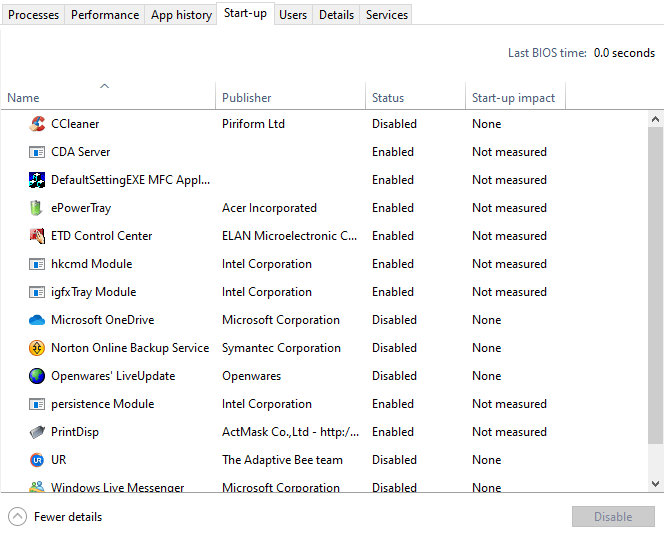
If the above resolutions don’t fix it, try removing third-party programs from the startup that might cause the arrow keys to move the cursor (such as NeatMouse). Right-click the taskbar and select Task Manager to open that utility.
Click the Start-up tab shown directly below.
Then select superfluous third-party software there.
Click the Disable button to leave a selected program out of the system startup.
Those resolutions will probably stop the direction keys from moving cursors for most users. Users who have fixed the same issue with other resolutions are welcome to share them below.
There are other issues that you can experience, and in one of our previous guides, we covered what to do if mouse cursor has disappeared on your PC, so be sure to check it out.
Also, if you have any other questions or suggestions, don’t hesitate to leave them there.
It goes without saying that having a cutting edge sound system just wouldn’t be the same without a subwoofer, but were you aware that your setup could sound even more amazing if you just added subwoofer software to the mix?
Audio equalizer software is out there from a long time ago, but not all of the tools can change the parameters of your subwoofer, giving it the oomph it so desperately needs. Or that you need.
Some software utilities provide you with the ability to either boost your bass by applying a half-automated preset to its default sound, but other, more advanced programs actually let you mess around with the settings so that you can reach results that are as close to your liking as possible.
Boom 3D, ViPER4Windows and FxSound Enhancer are only a few software solutions that fall under the category which we kept blabbing about above, so come see what makes them so special.
What is the best subwoofer software that I can get?
Although its name might make you believe it’s an old 3D game, Boom 3D is actually a software solution that was designed to help you change the way your audio system sounds without having too much sound engineering knowledge.
After you install the program on your Windows 10 computer, you need to log into your Boom 3D account (yes, it’s mandatory) before you get to toy around with your audio system’s parameters.
This tool greets you with a bunch of information on how to use its features as effectively as possible, asking you to define your output device and select the type of headphones that you own (if applicable).
Boom 3D then lets you choose from a wide variety of sound presets such as Windows, Vocal, Jazz, Hip Hop, Rock and Bass Boost. Each of these presets can be customized to your own liking by simply dragging the slider buttons around until you’re satisfied with the result.
At the top of the screen, five more parameters, 3D Surround, Ambience, Fidelity, Night Mode, and Spatial, can be further customized.
Although Boom 3D can be downloaded and tried for free for about 30 days, if you want to continue using it to customize your audio experience, you must purchase a premium subscription plan.
ViPER4Windows is one of those software solutions that have gained an impressive amount of notoriety in a niche market, as it was (and still is) pretty popular amongst Android users, but not any Android users; only ones who were brave enough to root their devices could unleash ViPER’s full set of features.
However, those times have passed, as ViPER4Android has finally crossed the platform bridge and reached us Windows 10 users. The program can be downloaded as an archive, which you need to decompress before the actual setup.
Within the archive, you’ll also find some instructions that you might want to follow for everything to go smoothly.
ViPER4Windows enables you to switch between three usage modes: Music Mode, Movie Mode, and Freestyle, the latter of which grants you total control over the parametric equalizer.
Among its extra features, you can find xBass, which lets you define the size of your speaker (subwoofer) and adjust the bass level by dragging a slider until you’re satisfied with how things sound, but also xClarity (pretty self-explanatory), a tube simulator, a virtualized surround option, a convolver, pre- and post-volume controls and room adjustment settings.
ViPER4Windows makes it possible that you can adjust the size of the room you’re in, damping level, bandwidth, decay, density, pre-delay, early mix, and wet mix levels and save all of those customization steps in presets that can be easily loaded afterward.
Breakaway Audio Enhancer is, as its name so boldly suggests, a software solution that you can use to enhance your computers’ audio components by adjusting most of its parameters down to the finest detail.
The program can be downloaded, installed and launched in a matter of moments. However, know that the first time that you’ll run Breakaway Audio Enhancer, you’ll be asked to configure a bunch of settings and your audio will be most definitely cut off during the configuration dialog.
Once you reach the tool’s main window, you’ll come to realize that it looks nothing like our screenshot, mainly because we’ve resized it (yes, you can do that). You can also dock it to the bottom of your screen and set it to be always on top if you’re into that.
Breakaway Audio Enhancer can help you adjust the volume of your audio output, as well as set the range, power, speed, bass type, and bass shape parameters without too much hassle.
More so, you can also choose from a list of references that are actually presets. Among the presets you can find Reference Classical, Reference Movies, Easy Listening, Eruption, French Kiss, Magnifying Glass, Oldies and more of these confusing names.
However, don’t judge a preset by its name, as we’ve done; you may find that the sound scheme it creates sounds nothing like a french kiss or a magnifying glass.
Breakaway Audio Enhancer can be downloaded and tried for free for 30 days, but a license must be purchased afterward if you want to keep using it.
From boosting your bass to raising the trebles just a little bit, EqualizerPro can help you do it all, and in an intuitive, effortless manner, as well.
Among sound equalizer software solutions, this program stands tall and proud, showcasing its various controls that can make generating the perfect sound profile a walk in the park.
Among its features, you can find a 10 band equalizer (probably its most powerful feat), bass boost effect, more than 20 presets for the equalizer, pre-amp volume control and, of course, a convenient on/off switch that you can quickly flick to cancel the utility’s effect on your audio system.
Note that during the installation, your whole audio output will drop for a few moments as the audio service is being restarted.
Another thing worth mentioning is that also during EqualizerPro’s installation, it will attempt to download a bunch of Microsoft Visual C++ 2013 components required for the well-functioning of the tool, but it will somehow fail.
The fix is trying to download the components yourself, otherwise, you’ll end up staring at an “MSVCR120.dll not found” kind of error, which we all can agree that is never pleasant.
EqualizerPro requires a paid license in order to run, but it also offers a 7-day trial. The catch is that you have to provide your credit card details for those seven days of demo.
FxSound Enhancer’s name is already pretty suggestive, but it’s worth mentioning that “soundenhancer” just doesn’t do justice for this program’s full array of audio customization features.
If you want to be blown back by its capabilities, consider the following experiment: play your favorite tune, then begin installing the program. During setup, at some point, the audio will be completely cut and will stay that way for a while.
But when it does come back, you’ll have trouble realizing that yes, those are the same speakers that were playing music before and that only a bit of audio tweaking has changed everything for the better.
The interface of the tool is separated into three different sections that are relevant to us, Spectrum, Effects, and EQ. While Spectrum is only there to look pretty, Effects and EQ are the places where all the magic takes place.
The Effects section enables you to customize sound fidelity, ambiance, 3D surround level, dynamic boost value, and bass enhancement. Furthermore, the EQ comes with a 9 band equalizer which allows you to fine-tune the sound in order to create an ideal audio experience.
FxSound Enhancer can be downloaded and used for 7 days for free, but you need to purchase a license afterward if you want to keep on using it.
If you’ve just bought a brand new, awesome audio system and want to get the best of it, don’t just leave it on default; a bit of software-based audio tweaking can go a long way when it comes to sound quality, especially if you turn to specialized tools.
Most of the audio enhancement programs available nowadays not only come with seemingly-uncomplicated, adjustable multi-band equalizers but they also encompass a broad range of presets, allowing you to switch to your favorite profile quickly, but also learn a few things about audio modeling while you’re at it.
Whether your choice is Boom 3D, FxSound Enhancer, Breakaway Audio Enhancer, you can’t go wrong with these software solutions that were designed to help you reach the audio quality you’ve been craving for all this time.
There are a wide range of Linksys routers, and the best of them provide fast connections. You might, however, need to configure your Linksys router so that it works with all services from ISPs, such as IPTV and VoIP.
Users who utilize VPNs will also need to adjust Linksys router settings. Keep reading below to learn more about the Linksys setup process and how you can do it easily.
How can I configure my Linksys router?
1. How to open the Linksys Router setup page
To adjust Linksys router settings, users will need to open the setup page for Linksys routers. To do that, open a web browser.
Enter either ‘myrouter.local’ or the router’s default IP address in the browser’s URL bar, and press the Return key. The default IP address for Linksys routers is 192.168.1.1.
Then enter the router’s password in the Access Router text box on the login page that opens. The default password for the Linksys router is admin.
Users can also click the Click here link to log in with Linksys cloud accounts.
Press the Log in button.
2. How to configure VLAN
Users who need to enable VLAN for their Linksys routers can do so by clicking Connectivity on the left of the Linksys setup page.
Then select the VLAN tab.
Toggle the VLAN option on.
Select the required ISP profile on the Select Profile drop-down menu.
Users who can’t find profiles for their ISPs on the menu should select Manual. Then enter a VLAN ID for an ISP, and choose an appropriate Tag and Priority setting.
Press the Apply and OK buttons to save the new settings.
3. How to configure VPN
To configure VPN for a Linksys router, click Connectivity on the setup page.
Select the Internet Settings tab.
Click Edit beside the Type of Internet Connection subheading.
Next, select PPTP on the Connection Type drop-down menu.
Select the Obtain an IPv4 address automatically option.
Input the IP address for the required VPN service in the Server IPv4 boxes.
Enter the required VPN login details in the username/password text boxes.
Press the Apply button.
4. How to configure Static IP
Some users might need to set up a static IP connection for Linksys routers to browse websites. Users can do that by clicking Connectivity and selecting the Internet Settings tab on the Linksys setup page.
Click Edit for the Type of Internet Connection heading.
Select Static IP on the Connection Type drop-down menu.
Then users will need to enter the required internet IP, subnet mask, gateway, and static DNS details for their ISPs.
Select the Apply option.
Click the OK button on the Applying Changes dialog box that opens.
5. How to configure Wi-Fi settings
To configure Wi-Fi wireless options for Linksys routers, click Wi-Fi Settings on the setup page’s left navigation pane.
Select the Basic tab.
Click Edit to fill out the Wi-Fi name and password fields.
Thereafter, users can configure various wireless settings for things like channel, channel width, network mode etc.
Click the Apply and OK buttons to save new settings.
So, that’s how users can configure Linksys routers with the Linksys Smart Wi-Fi firmware. If you’re utilizing Linksys routers with the Classic firmware, you can also adjust similar settings within the Classic setup page, but that has a slightly different UI design.
If you have any more questions or suggestions, feel free to leave them in the comments section below and we’ll be sure to check them out.
ActivateWindowsSearch is one of Windows’ scheduled tasks. It is a part of the Windows Search service that is utilized for searching indexed programs and files. Thus, ActiveWindowsSearch is essential for the Windows Search indexer, which relies on it, and enables faster searches.
However, ActivateWindowsSearch (and Windows Search) can hog too much system resources for some users. Consequently, it might slow down low specification desktops and laptops for some users. This is how users can fix ActivateWindowsSearch slowing down computers.
What can I do if ActivateWindowsSearch is slowing down my PC?
1. Turn off Windows Search
As Windows Search relies on ActivateWindowsSearch, turning Windows Search indexing off is the best way to fix ActivateWindowsSearch slowing down a computer. To do that in Windows 10, press the Windows key + Rkeyboard shortcut.
Input ‘services.msc’ in the Open text box, and press the Enter button.
Then double-click Windows Search to open the window shown directly below.
Select Disabled on the Startup type drop-down menu.
Click the Apply button.
Then press the OK button to close the window.
Windows 8.1 and 7 users can turn off Windows Search by entering ‘appwiz.cpl’ in Run and clicking OK.
Then click Turn Windows features on or off to open the window in the shot directly below.
Deselect the Windows Search check box, and click the OK button.
Select the Yes option to confirm, and then restart Windows.
2. Configure Search Indexing
Alternatively, users can try turning search indexing off for certain folders, which in turn might reduce the impact of ActiveWindowsSearch on system performance. To do so, click the Type here to search button on Windows 10’s taskbar.
Then input ‘indexing options’ in the search box. Click Indexing Options to open the window in the snapshot directly below.
Press the Modify button.
Double-click the C: drive to expand it.
Then users can deselect some folders there to remove them from search indexing. Deselect folders that include a lot of files that you rarely open.
Click the OK button.
3. Remove programs from the System Startup
Or users can try removing third-party programs and services from the system startup that consume RAM to speed up their PCs instead of turning Windows Search off. To do that, right-click the taskbar to select Task Manager.
Click the Start-up tab shown directly below.
Then select superfluous third-party software listed there.
Click the Disable button.
Open the Run accessory.
Enter ‘msconfig’ in the Open box, and click the OK button.
Select the Services tab.
Select the Hide all Microsoft services option.
Then users can deselect superfluous third-party services to remove them from the system startup and preserve more RAM.
Click the Apply button.
Select the OK option.
Then restart Windows. After freeing up more RAM, ActivateWindowsSearch might then not slow things down so much.
That’s how users can boost system performance when ActiveWindowsSearch is slowing things down. Never try disabling the ActiveWindowsSearch task as that can generate all sorts of issues with Windows Search.
Of course, it’s ok to turn off Windows Search, but that will also have some impact on certain features. So, you might prefer to configure search indexing and remove third-party programs from the startup as outlined for resolutions two and three.
We’re a technology-focused website and we know how important it is for geeks to show their love for technology. For this reason, we compiled this list of the best geek beanie hats that you can get this Christmas. If there are any geeks in your family or group of friends, these geek beanies are perfect for them.
Speaking of Christmas deals gifts, we already compiled a list of the nicest Christmas sweaters for geeks. Buy a geek beanie, get a geek sweater and you’ve got the perfect Christmas present for your geek friends. Enjoy!
Get these geek beanies for your geek friends
Geek Pride
If your friend is a geek and he/she is proud of it, then this is the perfect beanie for him/her. We love the minimalist design which allow your friends to wear this beanie with a variety of outfits.
If your geek friend also loves vintage stuff, he/she will definitely love this striped winter hat. The pom pom is removable, so don’t worry about that.
Thanks to the high stitch density embroidery, this beanie offers excellent insulation and durability.
We give it 10 out of 10 for the design: simple, yet stylish.
For geeks, the Internet is as important as air. This beanie allows your geek friends to express their love for their Wi-Fi internet connection. It comes in two colors: neon orange and neon yellow.
Another interesting beanie to get this Christmas is this LED flashing beanie. It’s 100% acrylic and features six colored light-up bulbs. There are three flash functions that you can choose from and the batteries are included.
Not all of you like the idea of Secret Santa gifts exchanged at home or at the office, yet don’t turn into Scrooge. It’s a tradition known to bring joy, or at least a smile to the face of any co-worker or family member you care more or less about.
What’s the most important thing that you should keep in mind? Your Secret Santa gift can be anything but boring.
As for those of you who have already drained the savings for Christmas, don’t fall into despair. Just let us help you out with some funny gift ideas under $50.
It’s time to prove that you can be thoughtful. A gift no one else has thought of is definitely waiting for you in this awesome list that we’ve prepared for you.
Note: Deals are subject to change. Keep in mind that the price tag often varies. We recommend going on the vendor’s website to check the price. Some of the products may be out of stock by the time you’ve made your purchasing decision. So, hurry up and hit the buy button.
What are the best Secret Santa gifts under $50?
Healing Crystal Chakra Stones
What do you say about helping Santa bring some serenity with these crystal polished engraved palm pocket stones? If your co-worker is feeling out of whack, get his spirit back into alignment right away.
Chakras are energy centers tied to both physical and emotional problems in the body, so you’re getting the perfect gift. You just need to pay attention to the actual sizes to avoid any later disappointments.
Pros:
100% hand carved stones
7 pcs per pack
Various chakras to choose from, including Amethyst, Green Aventurine, Yellow Jade, or Red Jasper
You probably already know that this is a great game for getting to know people and laughing with friends about some of your life’s most embarrassing or funny moments. Don’t worry as they’ll have to share as well.
Even more, keep in mind the main rule: no judgement is allowed while playing!
Pros:
Assures a few hours of entertainment in a close group of friends
Lets you know your friends a little bit better and find out some interesting things about them
Affordable, fun gift
Cons:
You need the right audience for such a game
Rule cards annoyingly repeat some of the instructions
Do you want gift to spice things up? These seven hot sauces, with the cutest packaging you can think of is one of our recommendations for you.
However, the thing to consider from the start is that the gift is ideal only for the foodies in your life and cannot be included in no one’s weight-loss diet.
You could be nice and give them a book with easy diet tips, but that’s rather a story for another day.
Pros:
Versatile enough to compliment any food
Gift bag ready item
Fast delivery
Cons:
Buyers are disappointed that bottles sometimes arrive broken
Santa isn’t there to help us with chores around the house, but a voice-controlled smart speaker with Alexa can certainly do some nifty tricks. Echo Dot (3rd Gen) has a new, compact design and is perfect for pretty much any home or office.
Pros:
Feel free to ask for music, news, information, set alarms, control compatible smart home devices, and more
Tracking fitness or playing games are part of the package as well
Improved speaker for richer and louder sound
Multiple layers of privacy protections and controls included
Cons:
Lacks product support
When playing music, sometimes the sound seems distorted
We all have at least one person in our lives who’s obsessed with looking stylish, whether she’s a co-worker or a family member. The Cooluli Classic 4-liter thermo-electric cooler/warmer mini fridge will be there to help her store all her important skincare products.
Even more, the Classic 4-L is not all picky. Beer and snacks are welcomed as well.
Pros:
The perfect place to store food or drinks; the list further extends to nail polishes, serums, and creams
On the whole, something tells us that you want to get it right with this year’s Secret Santa. As you can see, you may surprise one of the foodies you care about or choose a gift to control compatible smart home devices. Tech lovers will certainly appreciate your idea!
One way or another, think outside the box and grab some amazing gifts that will surely be appreciated.
Shopping for teenagers has turned into such a difficult thing in the past few years, right? It’s not your fault because they are known for refusing gifts, having unrealistic expectations, and returning everything, so are you up for the challenge of finding the perfect Christmas tech gift?
Just remember that gifting is all about taking into consideration the relationship you have with that person and celebrating friendship. And don’t worry, there’s still time to place that tech gift order online.
Stop scrambling around for hours in shops and get creative with the help of our list of awesome tech gifts for teenage girls.
Note: Deals are subject to change. Keep in mind that the price tag often varies. We recommend going on the vendor’s website to check the price. Some of the products may be out of stock by the time you’ve made your purchasing decision. So, hurry up and hit the buy button.
What are the best Christmas tech gifts for teenage girls?
Anker PowerCore+ Mini
First, let’s talk about the need to have extra power on the go. It’s frustrating for a teenage girl to be stuck with a dead battery, or better said – this can literally release hell’s fury.
A portable charger such as Anker PowerCore+ Mini with high-speed charging technology is ideal for your teen to carry in her bag and remain as zen as possible.
Pros:
Travel pouch included
Adds at least 80% battery to smartphones
18-month warranty
Friendly customer service
Cheap option for charging needs on the go
Cons:
Lightning cable for iPhone or iPad needs to be bought separately
We understand the irony of your teen girl asking for an extra loud 113 dB vibrating alarm clock as a Christmas gift, but trust us. She needs such a piece of tech for those early morning classes she never gets to in time.
As for those not impressed just yet or worried about the cute, pinkish look, that’s a 12-volt bed shaker with pulsating lights for a wake-up call that no one can ignore.
Pros:
Very loud alarm, with tone and volume controls included
If you’ve got a photography lover on your hands, the ICE Theia Glares – Wearable Video Camera Glasses is a gift she’s sure to love. The HD Camera enables users take pictures or even videos with just a press of a button.
Moreover, Theia connects with pretty much any tablet or smartphone via Bluetooth, letting you play music wirelessly.
Pros:
Built-in flashlight for great nighttime captures
Generous 8GB built-in storage
Drive Safe Assist option designed to help your teen build a culture of safety while behind the wheel
Change lenses at your will as you may choose between funky colored ones or more serious “grown up” models
Your teen will be able to concentrate on studying or her workout routine with these Mpow Bluetooth headphones. They come at a rather stiff price, but it’s a quality product.
You won’t find that easily advanced IPX7 waterproof wireless headphones for outdoor sports, with CSR Bluetooth V4.1 tech and upgraded built-in lithium batteries support.
So be it a casual morning walk or the daily jog, taking calls and switching between playing music and phone calls – it’s just that easy!
Pros:
Premium CSR chip for HD sound
Hands-free calls with intuitive in-line microphone and volume buttons
Generous time of 8 hours of music and 150 hours of standby time
Conclusion on Christmas tech gifts for teenage girls
All things considered, you can’t go wrong with any of these Christmas tech gifts. If you’re unsure, we have one advice for you: think of the person that you would be gifting. Would any of these add any value to her life?
You know the answer better than anyone else. Happy shopping!
Windows is a well-established OS that receives constant updates. These come either in the form of smaller ones that are released randomly, or larger planned ones released during Patch Tuesday.
Of course, even after so many years, users are still wondering whether it is necessary to keep installing the latest updates every time they are available.
Of course, one should remember that these updates come with the latest security features. This means that it is mandatory to get them unless you want to become a target during Exploit Wednesday.
Of course, security isn’t your only concern. Tech fans around the world eagerly await the latest updates to bring new features that will enhance their OS‘s functionality.
Because the debate is as old as time, we’ve decided to answer some of the most common questions regarding whether updating your Windows is worth it or not.
What you need to know about Windows Updates
Where are Windows update logs stored?
Microsoft changed a few things regarding the update logs, as they are no longer stored on your PC as a simple text file that anyone could read.
The Windows Update service now writes a number of Event Tracing for Windows logs (ETL files) under the location C:WindowslogsWindowsUpdate.
These can be viewed by using one of the following methods:
Using a PowerShell cmdlet
Using the built-in Event Viewer tool
Can Windows update without activation?
Windows don’t need to be activated in order to receive any updates. However, bear in mind that there are a few limitations to the unactivated versions, most of which are cosmetic in nature.
What Windows update do I have?
You can see what update you are running by following these steps:
Press Start
Click on Settings (the cogwheel-shaped button)
Select System
Choose About
Right under Windows specifications, check which edition and version of Windows your device is running
For more information on the matter, check out this detailed guide.
Do you have any more questions regarding why you should update your Windows OS? Let us know in the comment section below.
Ever since it was released back in 2015, Windows 10 has garnered plenty of criticism regarding how slow the update process is.
To be clear, users aren’t complaining that updates aren’t frequent, just that they take a long time to download, even when they are small in size. This is a question many of you are eager to know the answer to.
Apparently, there are two main reasons why Windows updates may be taking so long:
You may have software that is conflicting with the Windows Update
Some of your Windows Update components might be broken
These aren’t the only questions regarding Windows updates that you’ve been asking. That is why we’ve decided to answer some of the other more common questions that users need an answer to.
Windows Updates F.A.Q.
Where are the Windows Update Settings?
Accessing the Windows Update Settings is quite easy since all you need to do is follow these steps:
Press Start
Click on Settings (the cogwheel-shaped button from the Start Menu)
Go to Updates & Security
Go to Windows Update
Can Windows update without Wi-Fi?
As long as you are connected to the Internet, you can perform a Windows update regardless of whether you are connected to the Internet via Ethernet cable or via Wi-Fi. Just remember that a cable connection is more stable and will probably provide better download speeds as well.
Where is the Windows Update Troubleshooter located?
The Windows Update Troubleshooter is an official fix tool provided by Microsoft that helps Windows users in resolving all problems related to Windows Update.
Unfortunately, it doesn’t come pre-installed on your system, but you can easily download the Update Troubleshooter from Microsoft.
Why is Windows Update status Pending download?
By default, Windows Update will automatically download and install any updates it deems as being vital or important. In this case, it means that the download that is pending is minor and of lesser importance.
Additionally, if you are connected to broadband which is marked as a metered connection, then it will not download the update.
Closing thoughts on Windows 10’s slow update speeds
While the slow download speeds currently remain a source of frustration for some, you should know that Microsoft is looking to solve this issue.
With the new changes that are set to come, you will be able to control the bandwidth settings of your Windows updates, and thus manage the speeds at which they download.
Do you have any more questions regarding Windows updates? Let us know in the comment section below.
Troubleshoot update install issues on Windows 10
We recommend bookmarking these update install guides just in case your computer fails to download and install the latest patches. We’re sure some of the solutions listed there will help you to solve your update issues.
The yuletide season is here and shopping has already reached frenzied proportions. Also, your mom and dad are easily among the most important persons you might be shopping for.
That said, shopping for them might not be the easiest either as there is so many to choose. However, fret not as we have a list of items that can suit most dads and moms out there.
Christmas gifts for tech savvy mom
1. Echo Dot
The diminutive size can be a distraction but the Alexa enabled device can have answers to almost all your queries in no time. Your mom will love to have one in your kitchen too where the Dot can keep her updated with the latest events, news, weather updates, reminders or even search for recipes.
To have someone prepare a hot cup of coffee for your mom when she needs it the most can be the best thing she would ever like. The Ember Temperature Control Ceramic Mug does just that.
In fact, you can also get the device to warm up your drink to your preference via the Ember app itself. No doubt your mother will appreciate your gesture if you gift her one.
3. Ovente 8.5-inch Dual-Sided LED Lighted Makeup Mirror
The dual sided LED lighted mirror offers three light tones – cool, warm and natural daylight so that your mom can perfect her makeup for almost all lighting conditions.
Further, there is 1x and 5x magnification feature as well to ensure she gets her makeup done perfectly. And it’s quite a looker too.
4. Etekcity 8 Heated Rollers Shiatsu Back Neck Massager
Who wouldn’t like to have their neck and shoulder massaged, particularly after a hard day at work. And the one person in your house that qualifies for a massage the most is your mom. The Etekcity 8 Heated Rollers does that job perfectly so that she feels relaxed and rejuvenated in no time.
The advantages of the e-reader all too well known. It can last weeks on a single charge, can host thousands of ebook titles and is extremely lightweight. All in all, the perfect gift for your mom if she is a book worm. Operating it is also a breeze, which means even those averse to digital stuff won’t have qualms using the paperwhite. As an added advantage, its waterproof too, which means the occasion splashes of water won’t be an issue.
— Editor’s Note: If you’re interested in other gift ideas and tools to get your PC ready for Christmas, check out our wide collection of guides.
Christmas gifts for tech savvy dad
1. Amazon Cloud Cam Security Camera
Dads are often obsessed with the security of our homes, doing all sort of things to protect us. Now with the Amazon Cloud Cam Security Camera, he will have a lot less to worry about.
The cam comes with night vision and will warn you if its senses suspicious activity. It is Alexa enabled too, which means you can ask it to show live feed on any supported device and it will happily oblige.
Dads often like to keep a tab on things around them and the smart thermostat can be best suited for them. But then, the device is smart enough to work under minimum supervision. Like it will remember the most preferred temp settings and so on. It will also turn off automatically when you are away, thus saving energy. Plus, the second-gen model is thinner and lighter too.
This is best for the adventurer dad who’d like to explore the setting around him. And the drone will let him do that in a novel manner. The drone can capture high-quality photos and videos and will deliver them to your supported device in real time. It can also be easily controlled by hand gesture or via the accompanying app.
It’s a portable Bluetooth speaker that’s easy to carry around but is still capable of belting out 12W of HD sound and Bold Bass effects. It can be easily connected to the phone or tablet, which means the speaker can liven up any gathering just about anywhere. It’s for the dad who loves to party and is a music buff.
If your dad is a fitness freak or needs constant supervision, the Garmin vívoactive 3 can do the job with perfect elan. Apart from fitness tracking, heart rate monitoring or keeping you updated with news and other info, you can even make your payment using the Garmin watch. No doubt the perfect gift for the tech-savvy dad.
The late-2019 Microsoft Surface Lineup is quite diverse. Each device has a little bit of everything you might be looking for in a Windows 10 PC, depending on your needs. There’s the slim-bezel, always-connected Surface Pro X, the slightly refined Surface Pro 7 2-in-1, as well as the traditional clamshell Surface Laptop 3 — now in both 13-inch and 15-inch sizes.
While I’ve already reviewed the Surface Pro X, you may recall that I wasn’t quite happy with that purchase. For many reasons, I ended up returning it and picked up the Intel version of the Surface Laptop 3, which Microsoft calls the “Surface Laptop 3 for Business” instead.
After a month of use in my life, this Surface Laptop 3 really shaped up to be quite different from the Surface Pro X. It ended up becoming the ultimate laptop that I’ve long wanted. From its awesome 15-inch display, as well as the build quality, and the Intel Ice Lake processors under the hood, I find that this Surface Laptop 3 is quite amazing. Let me dive deeper and explain why.
Editor’s Note: This Surface Laptop 3 was not provided to us for review by Microsoft. Arif purchased it on his own. The opinions are his own and are not influenced by Microsoft.
All-aluminum, all-around beautiful
The marquee feature of the Surface Laptop lineup has always been the Alcantara keyboard. I own an original Surface Laptop, and I will say that it has benefits of feeling luxurious — but the downsides of getting dirty over a long period of use.
For 2019, though, Microsoft decided to make the Surface Laptop 3 a bit more traditional. The company now offers the device with an aluminum enclosure, as well as the traditional Alcantara. A few 13-inch models have the aluminum enclosures, but all 15-inch models, (and the one I am reviewing) only come in aluminum. This is something I’m glad they’ve decided to do.
Much like I said with the Surface Pro X, the design and build quality on the Surface Laptop 3 is really the highpoint of the device. As a large 15-inch laptop without a dedicated graphics card, it is quite portable and compact. On the technical side, the weight comes in at around 3.4 pounds and its thickness at 0.57 inches. Compared to the 15-inch MacBook Pro (0.61 inches thick, 4.02 pounds) that’s quite slim. It’s also well lighter, but thicker than the Dell XPS 15 (4 pounds, 0.45 inches thick.)
In my personal use, I had no trouble throwing the Surface Laptop 3 in a sleeve and traveling to Manhattan with it to take the photos that you’re seeing in this review. It is quite lappable, and I whipped it out while riding the MTA, and it didn’t quite get in the way of the people sitting next to me. It really is the ultimate travel companion.
Overall, the aluminum build quality on the Surface Laptop 3 really shines through. It’s really tough, and there’s no bending or creaking in the chassis when I pressed down on it. There’s even no bending in the venting area above the keyboard deck, an area that is usually quite fragile on other laptops
I also want to mention that the Surface Laptop 3 has a beautiful sloped design when it’s closed shut. It goes from thick in the back to thin in the front. There’s even no notch in the front of the chassis of the laptop. The corners of the display are also rounded and are an absolute pleasure to touch. Oh, and thanks to the use of magnets, opening the lid is quite easy with just one hand. That’s something that you can’t quite do on a MacBook or other laptops.
Finally, as I highlighted in my how-to post, the SSD inside the Surface Laptop 3 is technically upgradeable. This isn’t something I plan on doing myself, but it does seem straightforward for technical-savvy people. If you remove the rubber feet on the bottom, you’ll be able to release and lift up the keyboard deck to find the SSD. It’s quite cool, but I don’t see this as something everyone will end up doing. Panos Panay actually showed this off during the Surface Event, but the process is technical, and Microsoft recommends for you to do it through authorized retailers only.
A display built for productivity
The other highlight feature on the Surface Laptop 3 is its touch screen display. Coming in at 15-inches, in the 3:2 aspect ratio, and with a resolution of 2,256 x 1,504, the display panel is quite amazing for productivity. Compared to other sized laptops which sport a 16:9 aspect ratio, the Surface Laptop 3’s panel is quite tall and is great for getting any type of work done. It’s also plenty vibrant and bright, especially for watching movies late at night.
For me, in my daily workflow, I often stack my windows side-by-side, with a primary Microsoft Chredge session with WordPress on the right of the screen, and a second session with whatever extra tabs I need on the left. On other laptops with smaller displays, doing this would often cut out and limit the size or scope of my open web pages, but the Surface Laptop 3 is different.
With the Surface Laptop 3’s big 15-inch display, opening up a window in a split-screen view almost makes it seem like it’s full screen. It really helps in boosting my workflow and cuts out the need for me to use a secondary monitor. Most times, I often found myself using the Surface Laptop 3 outside of my home office, and on my sofa — or in other places around the house or in coffee shops for work for just this reason.
But as great as that sounds, there is one thing I do want to mention: The bezels on the Surface Laptop 3 are thick. Coming in at around 0.39 inches, it definitely is not as slim as what you might find on Dell XPS 15, or the Surface Pro X. However, because this is a 15-inch screen in the taller 3:2 aspect ratio, I am forgiving of this. There’s a ton of space on the screen to make up for it.
Lots of Intel power under the hood, even for some light gaming
The big difference between the Surface Laptop 3 for Business (which I am reviewing) and the consumer Surface Laptop 3 is the Intel chipset under the hood. Consumer versions of the 15-inch Surface Laptop 3 come with options for either the AMD Ryzen 5 3580U with Vega 9 Graphics or the AMD Ryzen 7 3780U with Vega 11 Graphics. These processors and graphics are both custom-tuned by AMD and Microsoft for the Surface Laptop 3. Many had high hopes for this, but reviewers have reported issues with the chipsets such as battery drain, driver-issues, and poor gaming performance.
With all that in mind, I ended up picking up the Surface Laptop 3 for Business instead, which has a quad-core 10th Gen Intel Core i5 Processor under the hood. It also comes with a total of 8GB RAM and a 128GB SSD. This is the base model, which starts at $1,100.
Anyway, despite being the base option, this quad-core Intel processor really is quite powerful. I never had any issues when browsing the web, or in any of my day-to-day tasks, and it also holds up well for basic multi-tasking productivity tasks. The Geekbench scores can attest to this, as seen below. On that end, The surface Laptop 3 for Business even comes ahead of the consumer Surface Laptop 3 with AMD processors.
However, since the Intel processor under the hood comes with the company’s improved Iris Plus graphics, I was able to get more out of the CPU than I hoped. I pushed it a bit and played some games like the freshly-released Halo Reach, and Counter-Strike: Global Offensive. In both cases, the gaming performance was very surprising for a laptop with just integrated graphics. The Ice Lake CPU pushed out about 20-27 FPS in these games when set on their respected high settings. On lower settings, frames improved to around 30 FPS solid.
Hard to see but CS:GO not too bad either. It's like 27 max on high settings. Most times 24. Game is plenty playable on high settings in both CS:GO and in Halo too. No dropped frames, etc. Quite alright to me because this doesn't have a dedicated GPU. pic.twitter.com/GhSHgCIyHm
The Intel-based Surface Laptop 3 obviously isn’t meant to be a gaming laptop, but it is really hard to not ignore the advancements of Ice Lake. Basic gaming is indeed an option on this Surface Laptop 3, but you’ll obviously need to choose the lowest possible settings or medium, at best. It’s still quite surprising, in all the good ways, though.
Battery Life is just alright, but the instant-on is the real highlight feature
For all that Ice Lake power under the hood of the Surface Laptop 3, there is one down-side — battery life. While Microsoft advertises that the Surface Laptop 3 for Business can get to about 11.5 hours of battery, I never really reached that limit.
I was never one that liked running these technical tests on my laptops, so I instead ran the Surface Laptop 3 through my day-to-day tasks. In my web browsing work-flow, it did last me through my 8:30 AM-2:30 PM workday as I had hoped, but only if I kept the screen to 20% brightness and the”Recommended” option on the battery meter. At best, I would estimate this lead to around 7-hour battery life. I hoped to stretch the battery longer at one point, but I ended up needing to run for the charger, as a 20% charge only held on for an hour.
Check in on Surface Laptop 3 battery life. I got 7 hours out of it so far today. That's with the screen at 20 perfect, and just web browsing, using Excel, and such. Not too bad. Heading into a meeting with 28 perfect battery. Will I need my charger? Stay tuned. pic.twitter.com/BgL3mfGZCh
For streaming video, however, the Surface Laptop 3 fell under what I hoped. I sat down on Black Friday and binge-watched The Man in the High Castle, and with the screen at 40% brightness, WiFi turned on, and all other applications closed, the Surface Laptop 3 lasted me only 6 hours or roughly 4 and a half episodes.
At the end of the day, though, the battery life on the Surface Laptop 3 never really bothered me. With support for quick charge, the laptop can go from 0%-80% charge within an hour. There’s also the added benefit of the USB-C port supporting charging, which means that I could grab a PD-power bank and charge my laptop up from anywhere. I also really enjoyed the “Instant On” feature, similar to the Surface Pro X. After putting the Surface Laptop 3 to sleep, it right away logs you in as soon as you open the lid, much like I described in my impressions video below.
Ports for (almost) everything
Microsoft has long been hesitant to adopt USB-C on its top-line devices. However, for 2019, all the Surface devices finally have what many have dubbed the one port that does it all.
On its left side, the Surface Laptop 3 sports both a USB-A port, as well as a USB-C port and a 3.5mm headphone jack. The right side of the Surface Laptop 3, meanwhile, sports the Surface Connect Port, which now supports fast charging.
Unfortunately, the USB-C port is not Thunderbolt 3 compatible. That means you won’t be able to connect up an external GPU to the Surface Laptop 3, or drive two external 4K displays. As this is a 15-inch laptop, that is quite disappointing for me. This feature is seen on Apple’s MacBook devices, as well on the Dell XPS 15, which are the Surface Laptop 3’s main competitors.
As someone who is used to the expandable MicroSD card storage on the Surface Pro lineup, it’s also upsetting to not see something similar on the Surface Laptop 3. I really would have appreciated the expandable storage, as I’m sporting the base model with only 128GB of SSD storage. In just one month of use, and installing Steam and my other software, I already filled it up, and there’s only 24GB left on the SSD.
But not all is lost. Unlike the Surface Pro X, which sports all USB-C, there is a traditional USB-A port on the Surface Laptop 3. I’m someone who hasn’t yet adopted USB-C monitors, or USB-C to USB-C cables for use with my phone, so I do appreciate the inclusion of the older USB-A port as well.
Dual far-field studio mics for top quality web calls
Alongside the addition of USB-C, another new feature on the Surface Laptop 3 this year are dual far-field studio microphones. These are located along the top of the laptop, near the Windows Hello IR webcam. Microsoft talked up this feature on stage during the Surface event, but I think a lot of reviewers seem to have neglected it in their final reviews.
I do want to touch on it for a few reasons. First of all, the studio mics are really great for use with Cortana or Alexa on Windows 10. I was able to rest the Surface Laptop 3 down in my dining room table, and walk into my living room, but summon Cortana from across the room and ask the assistant about the weather before putting on my jacket.
Secondly, these dual far-field studio mics are great for web calls. I have many online friends who I like to chat with on Skype, and this microphone is a godsend for me. My friends told me that when I chatted with them, it felt like I was in the room with them.
In an era where slim-bezels and display panels are important, microphones are usually an afterthought on laptops. But seeing as though this Surface Laptop 3 is something that will be used in businesses for Skype of Microsoft Teams calls, it’s great to see Microsoft paying attention to detail.
Speakers hidden in the keyboard, but still good enough for a party
Another new feature in the Surface Laptop 3 this year are its improved speakers. According to Microsoft, the Surface Laptop 3 sports Omnisonic Speakers with Dolby Audio Premium. These speakers are hidden underneath the keyboard deck and aren’t front-facing like the MacBook Pro, but are still really loud, and good enough for a party.
In my testing, I fired up Spotify and played the song Vegas by Onda Norte. I started the song at a low volume and turned it up to around 70%. The bass in the song was quite noticeable at higher volumes, and the keyboard deck started vibrating a bit. However, at around 90% the music did seem muffled. Other songs with lyrics like Fall Out Boy’s Alone Together fared much better, and thanks to the Omisonic speakers, I easily made out the change in instruments and the pitch in voices. For a speaker embedded in the keyboard deck, the sound isn’t as bad as it seems.
The speakers on the Surface Laptop 3 are really good. Still under the keyboard, but there's alot of bass if you turn the volume up high. Some songs are muffled at high volume, but I really love these speakers. Good enough for a party! pic.twitter.com/cwae1K7wSh
A laptop is nothing without a keyboard or trackpad, and as usual, Microsoft does not disappoint in this area. The trackpad and keyboard on the Surface Laptop 3 are really unmatched and quite comfortable.
As I touched in in my hands-on review, the typing experience on the Surface Laptop is quite similar to the Surface Pro Type Cover. However, since the keys are on top of a solid aluminum chassis, pressing on keycaps has softer and slightly more springy feedback. It’s also a point to mention that the power button is embedded on the keyboard next to the delete key, so touch typists may need to be careful when speed-typing to avoid turning off the screen.
Anyway, In my tests, I was easily able to jam through posts in WordPress without any issue. In Bing’s typing test, I achieved a score of 56 words per minute, followed by 62 words per minute when repeating the test. That also came in with an accuracy of 92%, and above the average speed of 36 words per minute reported on TypingTest.com.
The touchpad is also something that Microsoft improved over the last Surface Laptop 3. It’s around 20% larger and smacks in the middle of the chassis. I really like this location, as it leaves room to rest your palm on the sides of the laptop. As for the surface of the touchpad itself, it is quite smooth and really great for navigating through Windows 10 and using gestures. I never once had an issue with it.
You can ink on it too
One of the highlight features of the Surface lineup has always been its support for touch-screen displays. Other laptop makers like Dell will charge you a premium to get a touch panel on devices like the XPS 13, but on Surface devices, it’s a stock feature. Microsoft’s Surface devices also support inking with a pen, which as awkward it might be to draw on a laptop screen, is quite cool.
Although the Surface Laptop 3 has no “official” place to store the Surface Pen, I did try out inking on the device. I fired up Fresh Paint and colored in some lines on a painting of a tiger. For this task, the screen was quite wobbly, but I was able to rest my palms on the display panel and draw without creating lines on the screen. It’s a neat feature to have, as sometimes, users might want to ink on a PDF on the screen, or just annotate an item in OneNote.
I also want to point out that the Surface Laptop 3 does have some “unofficial” places where one could store the Surface Pen. That includes the top left bezel of the screen, or alongside the Surface Connect port on the right side of the device. I wouldn’t recommend this, however, as it might damage the device.
A great Surface that’s worth buying
Putting my review to an end now, I’ll say the Surface Laptop 3 for Business is the great laptop I’ve always wanted. It sports an awesome 15-inch display that’s great for multitasking and inking. It also has a super-premium and solid design that is absolutely gorgeous. Compared to the consumer version, the device also benefits from Intel’s Ice Lake CPUs and there’s plenty of power under the hood. The extra $100 for the Intel processors was well worth the price.
I’ll also want to mention something that others have pointed out. There might not be a dedicated GPU inside the Surface Laptop 3, but there is another Surface device for that. If you’re looking for a serious device for gaming, buy the Surface Book 2 instead. The Surface Laptop 3 is rather a device for productivity and light gaming.
In fact, I loved my Surface Laptop 3 so much, that I ended up selling my Surface Pro 2017 to pay off for it. This is simply one of the best purchases I’ve ever made, and unlike the Surface Pro X, I’ll never look back and regret it. Good job, Microsoft!
Patch Tuesday is something Microsoft Windows users need to face every month. It is usually on the second Tuesday of a month, and Microsoft releases a series of updates for all of its products.
These updates usually contain significant improvements in terms of security, and sometimes even in features. That is precisely why getting them as soon as possible is mandatory.
We’ve compiled this step-by-step guide to help you download and install Patch Tuesday updates every time they are available.
How can I get the latest patch Tuesday updates?
There are three main ways you can install the Microsoft Patch Tuesday updates:
Windows Automatic Updates
Manually searching for updates
Getting the updates from the Microsoft Update Catalog
1. Get Patch Tuesday Updates through Windows Automatic Updates
Normally, your Windows Automatic Updates status should be set to enabled so you can get updates as soon as they are available. This feature should automatically download them for you, and you only get prompted whether to install them or not.
Press Start
Go to Settings (the cogwheel-shaped button in the Start menu)
Select Update & Security
This will open the Windows Update window
If an update is already downloaded, simply press Download and proceed with the installation
Restart your system for the update to take effect
2. Manually search for updates using Windows Automatic Updates
Windows Automatic Updates may have moments when it doesn’t discover updates all by itself. If that seems to be the case, simply follow the steps below:
Open the Windows Update windows as per the steps listed above
If no update seems to be prepared, press Check for updates
You will either be notified that no updates are available yet, or that they are available, and that you can proceed to download them
3. Get the Patch Tuesday updates from the Microsoft update catalog
The Microsoft Update Catalog is a website that offers updates for computers running Windows and Windows Server starting from Windows 2000 SP3 and Windows Server 2003.
Using the Microsoft Update Catalog is fairly simple:
Browse the list for the update that you are looking for
Click Download
Choose where to download the updates
Double-click on each update and follow the on-screen instructions to install them
By following these steps, you should be able to get the latest Patch Tuesday updates fast and efficiently. Additionally, these methods can be used to get any updates, including minor ones as well.
Did you find our article to be useful? Let us know in the comments section below.
Radio automation software tools simplify the job of DJs and Internet radio broadcasters. Such applications are equipped with the functions and configuration settings that allow you to automate most broadcasting tasks, in order to deliver a streamlined experience for your listeners.
Ultimately, you will be able to push a button and step away from your computer, knowing that your radio shows are taken care of. But you can also intervene at any time to talk over the radio, adjust settings, and schedule various events.
In this article, we picked what we consider to be the 5 best radio automation software solutions that work with your Windows computer.
What are the best radio automation software tools for Windows?
SAM Broadcaster Pro
SAM Broadcaster Pro is a professional-grade radio automation software program, which gives you the possibility to create and run your own online radio station.
It supports multiple player decks and a powerful built-in audio processor that boosts your sound. You can also take advantage of an equalizer, stereo expander, multi-band processor, compressor, and limiter.
SAM Broadcaster Pro is compatible with all major streaming servers, such as StreamCast, Windows Media, Icecast, Live365, and Shoutcast. It can also be integrated with websites (HTML and PHP templates are included).
Radio-related statistics are compiled and displayed on the main window in real-time. This way, you can find out how many people are tuned in every moment.
As for the listeners, they can check out the song name, artist, album, cover art, and any other relevant information on their own devices.
You can take song requests and automate their playback, enable voice tracking mode, edit a song’s cue list, and set playlist rotation rules. The built-in encoder offers support for MP3, WAM, AAC+, and Vorbis.
RadioDJ
RadioDJ is a free-to-use radio automation software tool available for Windows computers. Wrapped in an intuitive interface, the application comes with advanced features for radio broadcasters.
To use this program, you must have MariaDB or MySQL installed on your PC, along with a database of songs created in MySQL. It’s possible to import audio tracks from various formats, such as MP3, WAV, and FLAC.
The user interface of RadioDJ is fully customizable and includes a history window. It announces the next song in the main window, one minute before it’s supposed to play. Voice tracking is supported, together with custom song and jingle rotations.
You can create your own playlist or turn to the automatic DJ function to rotate tracks by category, subcategory, and genre. To make sure that the same track will not be played twice, it’s possible to define complex rules.
Furthermore, RadioDJ features an advanced scheduler to set up additional actions for various events like radio shows or advertisements. There’s also a built-in web browser to help you find artist info on the web, as well as an audio processor plugin to enhance sound.
RadioBOSS
RadioBOSS is a multilingual radio automation software solution, only compatible with Windows. It comes with integrated support for Internet streaming, including Icecast, Shoutcast, and Windows Media.
Using this application, you can put together music playlists tailored for radio broadcasting using an intuitive audio library and advanced functions like automatic volume normalization, crossfade effects, silence trimming, and timed announcements.
By configuring rotations, you can prevent the same songs from being played more than once. It can automatically remove old audio records as well as split them by time interval.
Commercial breaks can be effortlessly created and assigned with an advertisement scheduler. It’s possible to generate detailed reports about music tracks, use a microphone and linear input for voiceover, create song teasers, and set how much to boost the volume during ads.
PlayIt Live
Available for Windows users, PlayIt Live is a radio automation software solution that can play MP3, WMA, MP4, and WAV audio tracks. It has a classical decks mode as well as a modern live-assist view which lets you control three players.
All Windows-compliant sound cards work with this program. You can add tracks with a simple wizard, trim silence, or explore jingles and various sound effects with the help of QuickCarts. But you can’t save playout patterns to file to be able to later load them and pick up where you left off.
It’s also possible to play remote audio tracks and load live streams from the web, set up actions for scheduled events, mix microphone input, and stream to Shoutcast or Icecast servers using plugins.
Meanwhile, the audio processor plugin of PlayIt Live supports automatic gain control, equalization, and compression. In the pro version, you can use enable data management on remote servers and voice tracking (including remote).
More advanced techniques are available for scheduling and reporting.
PlayoutONE
PlayoutONE is an easy-to-use radio automation software tool with a modern-looking graphical interface. It can be used not only by professional DJs and radio broadcasters but also by enthusiasts and those interested in starting their own online radio station.
There are four main decks available for playing songs from your computer, together with the fifth deck for loading music from online streams. Each player can be associated with a different sound card.
While adding tracks, PlayoutONE automatically identifies silence at the start and end of a song, in order to use it for intro and outro. You can create playlists with song rotation and set various instructions, like playing an Internet stream at a fixed time.
The software application supports voice tracking, an integrated CD ripper, an equalizer, a standard audio processor, and hotkeys for sound effects. To unlock additional features, it’s necessary to purchase a professional version.
In the pro edition, you don’t have to load playlists anymore because everything is visible and one click away. You can quickly locate songs with the Media Finder, track voice in a web browser, fine-tune logs and playlists, enable auto-ducking, and more.
Conclusion on radio automation software solutions
Taking all into account, radio automation software tools are a must-have feature for professional DJs and radio broadcasters, as well as anyone interested in broadcasting and starting their own radio station online.
You can check out any application from this list to see which is a better fit for you when it comes to SAM Broadcaster Pro, RadioDJ, RadioBOSS, PlayIt Live, and PlayoutONE.
Working in a data center can be both rewarding and challenging at the same time, but you can cut yourself a little slack if you’re readily-equipped with appropriate tools such as cable management software solutions.
Be it Sunbird DCIM, Pathfinder or netTerrain you’re going to be using in your data center, the results are always going to be better than just heading in empty-handed.
Top cable management software to get right now
PATCH MANAGER
PATCH MANAGER is one of the most recommended Windows software solutions when it comes to cable and asset management situations.
This tool can help users find their way around organizing cables by providing them with useful insight regarding the usage and purpose of cables and devices, as well as their location on the network.
It goes without saying that nowadays the software industry has evolved to a point where everything can be more or less simplified with specialized programs and cable management, which seems such a niche issue, is fortunately not an exception.
PATCH MANAGER was mainly designed to be used within data centers, campuses or buildings, as it features means of both managing and documenting changes to assets and physical layer connectivity.
In other words, users who are having a hard time figuring the layout of their data center and the cabling scheme can definitely rely on this software solution.
The program gives users an overview of network components by using templates, which makes it easy to apply for a broad range of networks.
The tool itself is a web-based software solution, with its backend server being easy to deploy on Windows computers, but PATCH MANAGER is also available in a SaaS (Software as a Service) form, which lets users bypass installation and jump straight into the action.
netTerrain
netTerrain is a cable management software solution for users who are tired of organizing their cable and circuit documentation and schemes by using traditional or outdated methods, such as PowerPoint presentations, Visio diagrams, or even worse: pen and paper.
Instead, what this program offers is a breath of fresh air, as it provides data center managers with real options regarding fiber and copper wire systems management, tray organization features, circuit management, power cable administration and other features related to outside plant connectivity.
Users can take advantage of netTerrain’s capabilities for circuit mapping operations, but also for managing one’s asset inventory in a more effective manner by tracking both connectivity and occupancy down to the smallest detail.
If done right, these operations can easily translate into saving a lot of money, thanks to proper commissioning and decommissioning of assets, ports and subcomponents alike.
There are a lot of issues that can arise from subpar cable management, such as slower troubleshooting of issues due to the inability to trace circuits accurately and worse, stranded subcomponents and ports due to the decommissioning of fiber connectivity, whether partial or total.
However, since cables and circuits are the backbones of any data center, the topic of good cable and circuit management through specialized software solutions such as netTerrain shouldn’t be easily overlooked, as many agree that doing it right can save you from a lot of expenses.
Pathfinder
Its name might not immediately say it, but Pathfinder is a software solution specialized on cable and asset management which can aid data center administrators into organizing their cables, circuits, subcomponents, ports, and assets in a hassle-free, quick manner.
The program can be deployed on Windows computers without too much effort, but it also has a mobile counterpart, so users can be flexible about their projects and perform various administration routines while on the go.
Pathfinder’s dashboard gives users a quick, yet detailed overview of their entire network and assets, so that they can find out at a glance if everything is running at optimal parameters or not.
Statistics regarding all the devices that are managed through the utility can be viewed directly from the dashboard.
Users can take advantage of Pathfinder’s capabilities to manage port status, fetch network pathways and document their cables.
The software offers signal tracking for cables and devices, primary, secondary, and tertiary cable documentation, GAN, WAN, MAN, and LAN documentation, multiple location cable management as well as the possibility to plot entire physical network pathways, with everything that this involves (e.g. outlets, rails, panels).
Sunbird DCIM
Sunbird DCIM is a software solution that is suitable for users who are struggling with proper cable management in their data centers, but organizing cables is not even by far the only thing this handy utility can do.
This program enables users to create 3D schematics of their data center, thus helping them generate an overview of their assets, power and data connections on a fully-navigatable, interactive map.
Without even being on the premises of the data center, the user can view down to the smallest connector details about how everything is connected. That includes the way the cables are handled between the various connection types.
Devices, assets, and connections can be treated as a whole, but thanks to Sunbird DCIM, users are also capable of isolating only the parts that pique their interest at that very moment, turning even complicated data center administration routines into child’s play.
With the help of specialized software solutions such as Sunbird DCIM, data center administrators can understand and document each and every single node in the network, thus decreases time spent troubleshooting various issues by identifying failure points in a timely, effective and convenient manner.
At the end of the day, the tool is also very effective at creating extensive, interactive and, most importantly, fully-customizable reports, which is of utmost importance if you have to justify various happenings to third parties, be it your clients or supervisors we’re talking about.
Conclusion on cable management software
Like many other fields nowadays, DCIM (Data Center Infrastructure Management) received an overhaul regarding the way things are being handled, with the possibility of passing a huge burden on specialized software.
Time-consuming operations like tracking a faulty cable back to a device or identifying a malfunctioning component can be now solved at the flick of a button with software solutions such as PATCH MANAGER, Sunbird DCIM or Pathfinder.
Whether the topic is organizing a data center’s inventory (assets) or performing nerve-wracking cable management, these software solutions are here to help you take care of things once and for all.
DroneDeploy, IMGING, EZ3D, and Pix4D are some of the best drone software for construction and roof inspections. In the last few years, drones have gathered an impressive amount of popularity and backers, and for good reason.
The applicability of drones extends past of just shooting aerial videos on a field or making awesome wedding videos. Thus, nowadays you can use your drone to create customizable 3D maps, analyze terrain, and even perform professional measurements.
However, no drone could handle all of this without the help of software, and that’s where we’ll let our spotlight shine today. Construction and roof-inspection software solutions, to be more precise.
The best drone software for measuring roofs
IMGING
IMGING is one of the best tools around if you’re considering getting into performing measurements for your construction needs or if you want the perfect solution for measuring your roof using your drone.
It goes without saying that even attempting to use IMGING without a drone would prove futile.
With this tool, you can gather information about various buildings and analyze it by using a supported drone and your mobile device.
IMGING is capable of automating drone-based image capturing operations, organizing drone and ground photos, provide you with measurement and facilitate data analysis with its deep learning and AI components.
It is possible to use this tool to detect a series of damage types on commercial or residential roofs, such as:
Rust;
Soft metal damage;
Exposed underlayment;
Alligatoring and cracking;
Ponding water;
Blistering on flat roofs;
DroneDeploy
DroneDeploy is a versatile software solution that can be used in a broad variety of situations, ranging from creating customizable 3D maps using images picked by the drone to inspecting roofs, performing roof measurements and generating comprehensive reports from the findings.
It is worth mentioning that, as its name suggests, DroneDeploy can only be used in conjunction with a drone. The advantage of using this program is that it works with basically any drone that’s capable of handling the tasks.
The drone plays the role of the muscle in carrying out the calculations, while DroneDeploy is the brains behind this operation by collecting the high-resolution roof imagery and generating the reports you need.
Additionally, DroneDeploy is capable of generating 3D models and DXF files that you can work process by using other specialized programs (such as AutoCAD).
EZ3D
EZ3D is one of the best drone software solutions for construction and roof measurement that you can use from both your computer and your phone. You can use this tool, or better said, this ensemble of tools, to inspect, measure and analyze roofs with consumer-level drones.
As you probably figured out from the context, EZ3D can’t be used without a drone. According to the producer’s website, any standard DJI drone will do the trick.
EZ3D, in conjunction with the drone, can gather photos of the entire building’s exterior, which you can upload them to the cloud by using a complementary app, called EZFly. The photos can be then inspected, and further used for estimating repair costs in PDR reports or ESX claim files.
Pix4D
Pix4D is certainly one of the best all-round drone software solutions for all your construction needs, whether it’s surveying your construction site, performing measurements on buildings, or assessing the wellbeing of your roof we’re talking about.
Since it falls under the drone software category, it goes without saying that using this tool can be only done hand in hand with an adequate drone, one that could handle these operations with minimum efforts.
Compared to traditional methods such as climbing and ladders, using Pix4D to perform difficult measurements is considerably faster, and cheaper.
This program can get you an online, measurable tridimensional model of the object of your choice, but also mark elements on a map, measure distances, calculate wall dimensions or roofs, and at the end of it all, share your project with others.
Closing thoughts on best drone software for construction and roof inspections
All in all, if you’re working in the construction field, you probably agree that manpower can be hard to find and is quite expensive, as well, especially if you need it for complicated measurements and assessments.
For all your construction measurement needs and roof assessment issues, you can turn to specialized drone software, such as Pix4D, EZ3D, IMGING, or DroneDeploy since all of these make excellent tools and can lift a heavy burden off your shoulders in the situations depicted above.
If you have made the decision to buy a brand new pair of speakers, then you might need to consider using speaker frequency response test software. This helps you make an informed decision about the speaker that works best for you.
However, selecting the right software to do the job for you is not an easy task in itself. Thankfully, we have made that task easier with the selection and review of the best of them in this guide.
How do I test my speaker frequency response?
While you can test for speaker frequency response in an anechoic chamber manually, it is best to do it with software. Using these has many advantages, as some of them even offer other features like speaker calibration.
Below are some of what you get from a speaker frequency response test software:
Waveform generator: One of the most important aspects of speaker measurement software is to pass sine waves through it. With a top speaker frequency response test app, you get a waveform generator that makes the task easier.
Live music frequency measurement: Another unique feature of these tools is the ability to measure speaker frequency response in live music. With this, you can know what you are getting before shelling out the cash.
What is frequency response in speakers?
Frequency response in speakers is a measure of the accuracy with which it converts the frequency of input signals. This tells you if the specs written on the product you are getting are correct or not.
To get the task done easily, we have gathered the list of the best tools you can use in the next section of this guide.
What is the best speaker frequency response test software?
AUDMES, which is short for AUDio MEasurement System, is a free software solution that was designed to help you perform speaker frequency response tests easily. It helps you see exactly if their real specs match the ones on the box.
This tool doesn’t require that you install it on your computer since it’s portable. This saves you valuable space on your PC.
One of its endearing features is the waveform generator with multiple customization options. Also, it has an oscilloscope that lets you adjust many of its parameters.
Lastly, you also get a real-time spectrum analyzer, and a frequency response graph, which also displays real-time sound data.
TrueRTA is also a specialized software solution that can help you measure and test the output of your speakers in real-time. However, it is not a free tool.
Although it does come with a trial version that can be used at level one, you still have to buy it in order to benefit from its full range of features.
TrueRTA can be used for many operations, including observing frequency data of live music in real-time. Also, it can measure the frequency responses of loudspeaker systems.
What’s more, it combines individual measurements into a spatial average frequency response measurement, study noise characteristics, or analyze distortion values of any compatible equipment.
It is not surprising that it is considered one of the best speaker frequency response test software,
Among the instruments that you can find within TrueRTA, we mention:
REW might not say much, but things might change when you find out that it stands for Room EQ Wizard. No?
Well, this software solution was designed with one thing in mind: helping sound aficionados perform various tests and measurements on their audio equipment (mainly their speakers) in a hassle-free, convenient manner.
Fortunately for you, REW is donationware, meaning that while you can use it for free, you might want to make a donation to its developers if you find it useful and like working with it.
Some of REW’s features that you can make use of:
Distortion and frequency response measurement tools
Offline measurement mode (responses can be generated from imported recordings)
RT-Speaker Professional frequency response test software
RT-Speaker is the last item on our speaker frequency response test software list. However, it is not the least powerful.
This tool is best paired with its hardware counterpart, the FX100 Sound Analyzer, for maximum efficiency.
If done right, using this highly-effective hardware-software combination could help you by correlating its findings 100% to the “subjective perception of the human ear” with its objective “Rub & Buzz” analysis.
This tool is not intended for home use, as it would serve better somewhere in the hands of quality control specialists.
But that doesn’t mean you can’t use it yourself, especially if you want to learn more about your speakers’ capabilities and even defects.
Below are some of the features of this tool:
Fast testing procedures only last a couple of seconds (at most)
Can detect speaker malfunctions such as air leaks, uncentered coils, or touching wires
We can conclude our guide on the best speaker frequency response test software with this. You should now be able to select the ideal tool to get the job done without issues.
So maybe you’ve started paying more attention to how things are evolving with your Windows system. This means that you’ve surely heard about the term Patch Tuesday, but most probably you don’t know what it is.
As a quick summary, Patch Tuesday is an unofficial term used to refer to when Microsoft regularly releases updates for its software products.
It gets its name from the fact that it occurs on the second, and sometimes fourth Tuesday of every month, and Microsoft formalized Patch Tuesday back in 2003.
Now that you have a brief understanding of what it is, you should know how it works.
What goes behind implementing Patch Tuesday?
Down to its core, Patch Tuesday is just the implementation of all bugs fixes and updates that have occurred since the last update. They are all released as a singular package, with the occasional hot-fix follow-up if it ever comes with bugs or issues for users.
Most of the time though, Patch Tuesdayupdates usually involve security updates. This makes implementing them a must if you want to stay safe from the latest threats.
Why should I get patch Tuesday Updates?
These updates are not to be confused with daily updates. Those consist of malware database refreshes for Windows Defender and Microsoft Security Essentials.
These updates are usually pushed through by Microsoft and made available to anyone. Of course, the main condition is that they have the Windows Update feature enabled.
While you could postpone installing Patch Tuesdayupdates, this isn’t recommended. This is because Patch Tuesday is usually followed by Exploit Wednesday, a day where cyber attacks are on the rise and they target those that haven’t installed the latest updates.
That’s pretty much everything there is to know about Patch Tuesday. If you have any further questions about it, let us know in the comments section below.
Just a couple of weeks to go for Christmas and it’s raining deals already. It’s that time of the year when shopping is in full force, for their loved ones and so, Christmas deals on tech gifts are too hot to resist.
Tech gifts are high on the priority list due to their versatility. From gaming deals to the latest smartphones and other devices, there is an attractive deal for each of them.
Online or offline, Christmas tech deals are pouring in and so, this is the opportunity to grab the festive bargain.
We have handpicked some of the hottest Christmas deals on tech gifts and created a list just for you.
The new-age Samsung QLED Smart TV is the desired device for anyone who enjoys the Christmas spirit watching holiday movies in 4K resolution with an AI processor and blasting sound.
You can benefit from lively motion due to its fluid display that has 120Hz with the Motion Xcelerator Plus feature. Plus, the new speakers model gives crystal-clear sound.
A worth mentioning feature is the Quantum Dot for glowing colors, plus HDR and Dual LED backlights to enhance your visual experience.
In addition, this Samsung Smart TV is the new wave in terms of image quality. You have the Quantum 4K processor that turns anything into 4K. Even more, you have multiple voice assistants to choose from like Alexa, Bixby, or Google Assistant.
The next massive acquisition you can have this Christmas is the new iPad with a colorful aspect and redesigned architecture, including the Liquid Retina display and 10.9 inches.
You can use this Apple device for numerous activities like business tasks, drawing your art and sketches, and multitasking on different projects. All of that is due to its A14 bionic chip with 6 core processor and 4-core GPU.
In terms of camera quality, you have 12mp front and back wide cameras with a center stage tool for impeccable calls and pictures.
One of the biggest advantages of this product is the Magic Keyboard Folio and Apple pencil to get more flexibility for getting the job done.
A camera is just the right gift for those who love to shoot. This digital camera is perfect for video capture that records in different resolutions. It offers easy field use for professionals due to its compact size.
Furthermore, it’s easy to use as it places its main controls in easily accessible positions. It’s equally easy to zoom in using the attached lens.
It features Leica DC Vario-Summilux 10.9–34 mm f/1.7–2.8 ASPH lens that offers a super-fast aperture. Along with it, is the dynamic zoom range that’s almost equal to 24mm- 75mm on a 35mm type sensor. Wireless connectivity, Image Shuttle app, and the NFC module are some of the other significant features that make it a must-buy.
Smart speakers are in and the Echo Dot is just what you want this Christmas as a gift. The latest version comes with a massive improvement in audio quality. It sports a smart new design without a price hike.
Although it’s not the smartest, it offers a great experience with basic questions like music, news updates, light switching, and jokes.
Nokia Steel Watch makes for a perfect Christmas Tech Deal for 2018 for the fitness freaks. It’s a simple, yet sleek looking watch that’s doing pretty good in the wearable category. It flaunts a minimalistic design and comes with a step-counting dial to keep a track of your sets.
Excellent battery life with no charging required for eight months. Moreover, it works with regular watch batteries. It comes with a user-friendly Nokia Health Mate App that displays all the stats.
When it comes to gifting phones from Christmas tech deals of 2018, no one can miss Samsung. Get the unlocked and sim-free version of the Samsung Galaxy S9 with the 12MP front camera to impress. Perfect for selfies, this phone offers a shiny metal body with a 5.8-inch screen.
64GB inbuilt storage, 3000mAh battery, and 8MP rear camera are some of its other specifications. S9 runs on Android 8 Oreo and is available in three color variants – Black, Blue, and Purple.
This is an innovative gadget that allows users to enter a well-lit home even while they are away. It allows users to have a smart light control using the app from any location, anytime.
While it makes the existing bulbs to act smart, it also allows users to control the app with voice or touch. It’s a perfect Christmas gift for the gadget freaks who love to experiment with something new.
This smart little pair of earbuds by Soundcore makes a steal this Christmas. It offers breathtaking sound quality through the Graphene drivers.
Moreover, the headphones can run at a stretch of 3.5 hours on a single charge with added 9 hours in the handy charging case. Ultra-fast pairing and water-resistant features make it a must-buy this season.
Microsoft Surface laptop battery complaints are not entirely uncommon. Surface users have previously posted on the Microsoft support forum about battery draining. However, an MVP on the Microsoft support forum has also revealed a series of posts pertaining to Surface laptop battery swelling.
He added that Microsoft seems willing to replace Surface laptops with swelling batteries that are within three years of original purchase date. However, a good number of Surface laptops with swelling batteries might be older than three years. Thus, not all users might be able to get free replacements for Surface laptops with swelling batteries.
I’ve contact Microsoft Technical support, after holding the line for almost 25 mins, a Microsoft Agent told me that my Surface is passed 3 years warranty, it was bought on March 2016. upon asking what are my options, he replied “I can only advise you to purchase a new Surface device”
I replied by “I bought a microsoft Surface book for 1700$ cash, you can’t tell me to pay another 1700$ after 3 years! what should I do with my current surface book? they simply said that they cannot help in any way.
I then asked him, if i want to repair it at my own expense, can i? he said “Microsoft Service Center can’t receive any product with expired warranty for battery swollen issues”. they know that their products have issues, yet this is their answer.
Microsoft remains tight-lipped
Microsoft has seemingly not provided much of a response to the battery swelling issue. Apparently, the company urges users to tell MS support if their Surface laptops have swelling batteries. If the laptops are within warranty at least, users can return them to Microsoft for free repairs or replacements.
The bigger question is whether Microsoft should be prepared to replace Surface laptops with swelling batteries purchased longer than three years ago. The big M is not legally obliged to replace laptops, or other devices, that fall outside their warranty periods.
Do not continue to utilize a Surface laptop with a swelling battery. Users who suspect their Surface laptops have swelling batteries should first get in touch with Microsoft to enquire as to whether it can be repaired. Unless the Surface device is still within its warranty period, however, there is no guarantee the big M will freely fix or provide a replacement for it.
Editor’s Note: If you’re interested in reading more news and other posts on Microsoft Surface, check out our wide collection of guides.
You probably never thought you were ever going to need software to emulate cables but here you are, looking at a list of the best virtual audio cable software solutions. So let’s cut to the chase, you can probably agree that sound works in mysterious ways and sometimes you can’t seem to get to the root of the issue.
Well, that’s where specialized tools such as VB-Audio CABLE, JACK Audio Connection Kit, Loopback, and Carla step into action. These software solutions were specifically designed to help you route the sound however you see fit in a quick and convenient manner, without having to use real audio cables.
While some of them are just audio drivers in disguise, others offer more sophisticated solutions such as routing audio and MIDI data between apps or taking audio signals and using them as global inputs for any other source.
What are the best virtual audio cable software tools?
Virtual Audio Cable
Virtual Audio Cable is a software tool for Windows computers that does exactly what you’d expect it to do: acts as a virtual version of an audio cable and makes sure that the sound reaches its desired destination every time.
The behavior of this program is similar to the “Stereo Mix” feature of some hardware audio cards, better known as “What You Hear”. Virtual Audio Cable enables you to transfer up to 256 different audio signals between any applications simultaneously.
No audio hardware is required to use Virtual Audio Cable on your computer, but it becomes a necessity if you want to either hear the results or record signals from external sources.
This tool can be used on computers without audio cards to record audio signals that are generated by applications.
VB-Audio CABLE
VB-Audio CABLE is a specialized software solution that can help you emulate a physical audio cable between apps on your computer by routing the audio signals generated by programs to any other app.
Since this tool acts as an audio driver, it should be very easy to decide the route of your audio signal by simply changing the input and output devices from within the apps you’re interested in connecting via sound.
Many programs and games allow you to decide what audio input and output devices should they use, just in case multiple such devices are available on your computer. VB-Audio CABLE took this feature and used it as its advantage to become widely accessible.
JACK Audio Connection Kit
JACK Audio Connection Kit is an ensemble of tools that can help you manipulate audio signals in terms of deciding what their routes should be on your computer in a quick, hassle-free manner.
This tool is but the backbone of a system designed to help you get various audio applications to communicate with each other, and with audio hardware as well. It’s similar to what a cable does to a guitar and an amplifier, but in this case, you get to decide which signal goes where.
JACK Audio Connection Kit can be easily installed on your computer thanks to the intuitive wizard that’s embedded within the installer, but configuring it once it’s installed might prove to be a bit difficult.
There are a lot of guides and a rich FAQ section on the official website that can help you simplify this part.
Carla
Carla is a modular software host for audio plugins that features support for a wide range of audio drivers and plugin formats. Some of this tool’s most important features are its transport control, parameter automation via MIDI CC, and remote control over OSC.
Supported plugin formats:
LADSPA (LRDF included);
DSSI;
VST2;
VST3;
AU;
LV2;
SF2 + SFZ file support;
Supported audio drivers:
JACK (preferred);
ALSA
DirectSound;
CoreAudio;
Carla comes with a sleek, dark-themed interface that packs its controls in an organized, non-cluttered manner and is somewhat customizable. You can keep the custom theme but use system colors, or even disable it altogether, even though it won’t look as nice.
The first time when you run Carla, you might want to scan your whole system for plugins. Your plugin folders can be customized in the configuration section of the program.
After you add new plugins, make sure to hit the refresh button so that the tool can receive the correct feed details.
Closing thoughts on best virtual audio cable software
Bottom line, if you find yourself working with various audio applications all the time and you can’t seem to find a good way to get all signals properly organized, it may be a sign that you need a helping hand from specialized software solutions.
Carla, JACK Audio Connection Kit, and Virtual Audio Cable are some of the best tools that can help you route the audio signals to and from many applications or devices, depending on your needs.
If you own a Windows PC and like keeping it updated constantly, then you are familiar with what Patch Tuesday is.
For those of you who don’t know, Patch Tuesday is generally the second Tuesday of every month when Microsoft releases their latest updates across all of their products. This is a time when everyone is eager to get the latest patches installed and see what new things are brought to the table.
Of course, if you want to be successful in installing Patch Tuesday updates on your PC without any problems and as fast as possible, you’ll need to follow some steps first.
How do I get ready for Patch Tuesday?
1. How to avoid Patch Tuesday issues and errors
Read up on specialized forums what the new updates are supposed to bring and see whether or not they are worth installing at all.
Additionally, every security update issued by Microsoft comes with a bulletin that’s published by the Microsoft Security Response Center at about the same times the patches are released.
If you read up and see that future updates may have issues that affect your work, in particular, make sure Windows Auto Update blocks automatic updates.
While this is just a temporary solution, it may be a good idea to wait it out until hotfixes are released. For more info on how to do this, check out this dedicated guide
As always, customers are advised to follow these security best practices:
Install vendor patches as soon as they are available
Run all software with the least privileges required while still maintaining functionality
Avoid handling files from unknown or questionable sources
Never visit sites of unknown or questionable integrity
Block external access at the network perimeter to all key systems unless specific access is required
On the other hand, using a third-party PC repair tool with powerful features oriented towards keeping your system and all the apps healthy is recommended.
2. How to download Patch Tuesday updates faster?
If you’ve read the documentation and see that the chance of encountering issues is minimal, you can go ahead and set Windows Auto Update to enabled. By doing this, your PC will automatically download the patch and prepare to install it as soon as it is available in your region.
Like any other update, if you don’t want to waste time waiting for it to finish, simply make sure nothing is taking up any of your bandwidth.
3. How does Patch Tuesday affect companies?
When it comes to companies that own hundreds of computers, implementing Patch Tuesday updates is a bit trickier. This is because implementing a companywide patch management process requires top-level support.
Though these steps may vary, the larger point is the updates should not be installed as they become available.
You would then need to create a core patch management team, and have a testing process that also involves stakeholders in testing, which takes up time and resources.
This usually results in some brief company downtime, but if the IT department is well organized, this shouldn’t take too long.
Closing thoughts on best practices for Patch Tuesday
Patch Tuesday isn’t all that important for casual users, but for those that need their PC to be in tip-top shape at all times, it is one of the most important times of the month.
While admittedly Microsoft has never been successful at delivering issue-free updates, they always came through with hot-fixes immediately. All things considered, if you value your PC’s integrity, knowing how and when to apply Patch Tuesday updates can be critical in the long run.
If you found our article about Patch Tuesday to be useful, let us know in the comments section below, and we will bring you more on the topic.
RELATED ARTICLES YOU SHOULD CHECK OUT:
Beware: Fake Windows Update emails plant ransomware on PCs
Christmas songs are one of the main trademarks of the winter holiday season. What better feeling than to come back home and hear your favorite Christmas songs playing on your Windows computer?
There are many Christmas songs you can listen to, from classic Christmas songs to Christmas songs for kids. In this article, we’re going to list the best Christmas songs and filter them by music genre.
Best classic Christmas songs
1. Diana Krall’s Christmas Songs (suggested)
This is Diana Krall’s first full-length Christmas album. It offers 12 wonderful Christmas songs performed in a blues/ jazz note. According to Microsoft’s review of the album, these songs deliver a smoky, sophisticated, and slightly melancholy atmosphere, perfectly suited for romantic afterglow holiday affairs.
If you’re a Michael Bublé fan, this is the right Christmas song album for you. The album features a series of popular Christmas songs, such as It’s Beginning To Look A Lot Like Christmas, Santa Claus Is Coming To Town, Santa Baby, I’ll Be Home For Christmas and many more.
Buy the album from Amazon, grab a cup of tea, sit back in your armchair and enjoy Christmas.
If you want to listen to the most popular Christmas songs performed by well-known singers, such as Elvis Presley, Frank Sinatra or Billie Holiday, then this is the perfect choice for you. This album includes 49 songs with a total duration of 2 hours and 6 minutes.
Editor’s Note: If you’re interested in other gift ideas and tools to get your PC ready for Christmas, check out our wide collection of guides.
4. Greatest Christmas Songs
Greatest Christmas Songs brings you the piano version of 23 wonderful Christmas songs. This album will cast a fairy-tale-like mood over your entire house, while the well-known Christmas notes will put a smile on your face.
The Classic Christmas Songs album brings you 49 popular Christmas songs performed in a modern manner. Your ears will like the classical guitar notes blended with the singers’ warm voices.
If you like classical music, you’ll definitely like this Christmas song album. Popular Christmas Songs – Feliz Navidad offers you 20 Christmas songs performed in a classical music manner. All songs are instrumental and are dominated by harmonious harp notes blended with beautiful flute notes.
Tony Bennett is a name that doesn’t need any introduction. Immerse yourself in the Christmas atmosphere of yesteryear with this impressive Christmas album.
Who doesn’t love Frank Sinatra? What better way to celebrate Christmas than to listen to classic Christmas songs sung by Sinatra?
Get this Christmas album from Amazon and enjoy 20 classics from Sinatra such as ‘White Christmas,’ ‘Silent Night,’ ‘Jingle Bells’ and ‘Santa Claus Is Coming To Town.’
To end the Christmas evening in style, gather the whole family around and watch one of Sinatra’s movies.
Best Christmas songs for kids
Children love listening to Christmas songs. As soon as you hit the play button, your children will start dancing and singing along. To fuel their energy, you can purchase one of these Christmas song albums for children.
If you’re not big on songs, perhaps a Christmas card will do and we’ve got just the right Christmas fonts to make it all special. That’s about it for our Christmas song list. Happy holiday season!
Wearing fashionable sweaters is no big deal during winters, but wearing an ugly sweater is. Yes, the trend of ugly Christmas sweaters is back. The latest entry to the ugly Christmas sweater combat is the Gears of War Christmas Sweater. For the ardent Gears of War fans, this is the time to rejoice.
The heavy knitted sweater and the other merchandise sports the famous omen logo from the video game. The collection is a bliss for the Gears of War junkies who like to hoard all the collectibles from the game maker. The range includes games, apparels, accessories, and more.
While there’s an exclusive range of Gears of War 4 merchandise available on Amazon, sweaters, sweatshirts, and hoodies are also up for grab. From kids to adults, there’s one for everyone. But, what better than gifting a sweater that features the favorite character from the famous game this winter?
So, for those who have a crazy fan of this game at home, Gears of War Christmas sweater will make for a perfect gift.
We recommend this quick list of Gears of War sweaters as a gifting option this Christmas.
4 Gears of War Christmas sweaters not to miss
Loot Crate Gears of War Hoodie – Unisex Sizing
This exclusive merchandise by Loot Crate features two different logos from the game, in the front, and on the back. It’s a black hoodie from the Gears of War Christmas Sweaters range made of 80% cotton and 20% polyester. This medium duty, thick hoodie is perfect for the start of the winters or as a day wear.
It’s an officially licensed brand that offers quality merchandise with perfect size options. Best of all, it offers Unisex sizing, that makes it a great Christmas gift this season.
This is available in XL size and is specially designed for kids. Available in single color, black, this Gears of War Hooded Sweatshirt is made of 100% cotton. The hood is double lined with identical drawcords. While this is perfect for everyday use, its’ also good for physical activities like running, jogging, exercise, and fitness.
The brand uses the latest garment technology and prints individually. Handwash is suggested to maintain quality and avoid deformation.
KissKid Gears of War Adults Baseball Uniform Jacket
It comes in ten sizes and features a double lined hood with identical drawcords. The brand uses latest garment technology for best quality and comes individually printed. This black hoodie sports the Gears of War logo on the back.
Perfect for daily use, it is also a great wear for physical activities. Handwash is recommended to maintain quality and avoid deformity. This lightweight Gears of War Christmas sweater is a great gift for the loved ones.
Editor’s Note: If you’re interested in other gift ideas and tools to get your PC ready for Christmas, check out our wide collection of guides.
Diamonds Jun Gears of War Children’s Pullover Hooded Sweatshirt
This black Gears of War Children’s Pullover Hooded Sweatshirt is made of cotton. Printed with the famous omen symbol from the game in the front, it’s perfect for daily wear. The sweatshirt comes with a double lined hood along with matching drawcord. The brand uses modern garment technology and comes with individual prints.
It features no pockets and to prevent deforming, handwash is recommended
Finding the perfect Christmas gift can be daunting, but our recommendations make shopping easier. Grab these trendy Gears of War Christmas sweaters this season as great surprise gifts.
If you’re planning to buy a Christmas gift for a person who already has everything, you’d better be ready to spend a nice fortune on a cool present if you really want to him/her.
Now, if you’ve got no idea what Christmasgift to get for a rich person, keep reading this guide. We’ll list 5 gift ideas that will definitely impress even wealthy people.
We tried to find some really nice gifts that are expensive enough to impress the recipient but also affordable enough not to break the bank. Enjoy!
Expensive tech Christmas gifts
Bowers & Wilkins P9 Headphones
Bowers & Wilkins doesn’t need any introduction. This pair of over the ear headphones are crafted from high quality Italian Saffiano luxury leather which helps to create an overall classy design.
The forged foldable aluminum arms offer excellent durability. Think of these headphones as an investment. You pay a few hundred dollars but you get an accessory that will last a lifetime.
Speaking of enjoying the perfect sound experience, here’s another idea for a Christmas gift: the Harman Kardon GO+Play portable speaker.
I personally own one (the black version) and I wouldn’t trade it for any other speaker. It generates really deep bass frequencies that make your windows vibrate – literally.
You can stream music wirelessly via Bluetooth and the built-in rechargeable battery can power you for up to 8 hours of playtime.
The speaker is made of premium materials and the flawless fabric finishing and stainless steel handle create a very nice design.
This 12.8 MP digital camera sports a 3-inch LCD screen and is perfect for vintage lovers. It has a clean minimalist design that make it stand out in the crowd. Simple yet sophisticated or form follows function, as Leica says.
D-Lux is equipped with one of the fastest lenses on the market for outstanding zoom performances.
If your budget allows you to step up the game, then check out this pricey Leica Q 24.2 MP digital 35 MM camera.
Editor’s Note: If you’re interested in other tools to get your PC ready for Christmas (or gift ideas for that matter), check out our wide collection of guides.
DJI Phantom 3 Professional Drone
If you’re looking for a really impressive drone model to buy it as a Christmas gift, there are plenty of devices in the $200- $300 range.
But if you want a drone that will definitely impress your loved ones, then the DJI Phantom 3 is the right choice for you. This is the perfect gift for vloggers or photography enthusiasts.
Here’s what this drone packs:
4K UHD video camera
4 propellers and another extra set of 4 propellers in case you need to replace one
Microsoft has rolled out KB4533028 cumulative update. That is a cumulative update for the Windows 10 Insider preview build 19035. It is another step closer to an RTM release for Windows 10 2004, which is reaching completion.
As per usual, Microsoft’s senior manager for the Windows Insider Program, Mr. LeBlanc, announced the update for preview build 19035 on Windows Blogs. He confirmed that this update is available for Windows Insiders on both the Slow and Fast rings. Mr. LeBlanc also added that the KB4533028 update is primarily for testing the 20H1 service pipeline.
So, this update only includes minor Windows 10 2004 bug fixes. Mr. LeBlanc confirmed that Microsoft has completed a Windows Update driver update experiment. He stated:
We’ve completed the experiment related to how we deliver driver updates through Windows Update. Devices that were involved in the experiment will no longer see the Optional Updates link under Settings > Windows Update. This also resolves an issue where after successfully installing printer drivers from the Optional Updates section, the same driver is still showing as available for install. Thanks to the Insiders who have provided feedback on this feature.
Microsoft thanked users for feedback on the MS Store Notepad version. The big M confirmed that it has pulled the MS Store Notepad version from the 19035 preview build. Users will need to repin the Notepad to their taskbars or Start menus after installing the 19035 preview build.
BattlEye issues are here to stay
Microsoft also confirmed that the BattlEye anti-cheat software incompatibility issue continues to persist with the latest Windows Insider preview build. Thus, Microsoft’s compatibility hold for rolling out Windows Insider preview builds to devices with BattlEye installed continues. However, users can still install the 19035 preview build by uninstalling BattlEye.
Download KB4533028
You can automatically download KB4533028 on your computer via Windows Update. Once again, this update is only available for Insiders.
It is now expected that the Windows 10 2004 will reach RTM (finalized) stage in December 2019. Microsoft has not confirmed when it will release Windows 10 2004. However, with that OS version now feature ready, the software giant might launch it earlier than usual.
Adobe’s Creative Cloud is a proprietary platform off of which you can download, install, manage, launch and uninstall Adobe products. This means everything from Photoshop to Lightroom, all from one unique platform.
When you first install it, it will sit idly in the background, performing routine checks to see if the programs you have are of the latest version or not.
However, it would seem that some users are having issues with the Adobe Creative Cloud. They have been reporting on forums that the desktop app is sometimes using a lot of CPU resources, even when it is simply sitting idly.
The CPU usage is 113% mainly due to creative cloud -> Adobe Service Desktop.exe. This has been so for almost half an hour, but when I stop the service, CPU usage drops immediately. When I restart the computer, nothing changes, high CPU usage again.
As far as users describe the issue, even high-end PCs seem to be having this problem.
That is why we’ve made this step-by-step guide so that you can work on your PC efficiently, without Creative Cloud taking up all of your CPU resources.
How can I stop Creative Cloud from using too much CPU?
1. Disable font syncing and file syncing
Open Creative Cloud
Go to the Preferences Panel
Select the Creative Cloud tab
Go to Fonts
Right under TYPEKIT ON/OFF, select Off
Go to the Files tab
Right under SYNCKIT ON/OFF, select Off
Confirm the changes
Restart the PC
2. Suspend any antivirus program running in the background
Since suspending an antivirus program varies from product to product, please go to the antivirus developer’s website for more information on the matter.