How can I fix Lenovo Yoga 2 Pro battery problems?

The Lenovo Yoga 2 Pro surely is an excellent computing device. The same when coupled with Windows 10 does make for a formidable computing platform, ticking most boxes, if not all, of the most die-hard of computer fans. Unfortunately, there is one area, and a mighty important one at that, where the Yoga 2 Pro has often been found lagging – the battery.

For there often are a few nagging battery issues that have plagued the device. Those include the one where the battery has been found to lose its charge even when the device is shut off.

If that is not enough, there also is the issue of the notebook showing its charge levels stagnated at zero percent even after it has been plugged to the mains for hours.

However, like with most issues, there sure is a solution for the battery woes that the Yoga 2 Pro has often come to be identified with. And those aren’t any rocket science either, which means a few simple steps can set things right here.

Solutions to fix Lenovo Yoga 2 Pro battery issues

1. Disable unnecessary start-up programs from Task Manager

Check to see if there are unwanted programs that is getting launched during start-up and is eating up resources unnecessarily. Here is how you do it.

  • Launch Task Manager. You can do that by simply typing Task Manager in the Cortana search box and selecting the same from the search results shown.
  • In the Task Manager window, select Start-up tab.disable startup programs
  • You will get to see a list of programs that gets launched when the computer is starting up.
  • See if there are any unnecessary programs that is getting launched during start up and is impacting performance significantly. Refer to Start-up impact and watch out for ay programs that has medium to high impact.
  • Select any program that you feel is not needed and click on the Disable button at the bottom right corner to get rid of those programs.

— RELATED: Microsoft is at it again, says Edge offers better battery life than other browsers

2. Disable Lenovo apps that aren’t needed

Lenovo has a history of pre-loading their devices with bloatware that have little to no practical usage. In fact, those can be battery hogs and severely impact performance as well. Needless to say, it is best to do away with those. Here is how.

  • Click on Start > Settings > Apps.
  • Select the app that aren’t needed and click on the Uninstall button.
  • Follow on-screen instructions that shows up.
  • If you aren’t allowed to uninstall a proprietary app, which is often the case, you can consider disabling those. Here are the steps:
  • Click on Start > Settings > Privacy.
  • From the list of options on the left, select Background apps.Runtime Broker high disk usage
  • From Select which apps can run in the background, select the contentious app and toggle the button on the left to the Off position.

3. Update battery firmware

An outdated battery firmware can be the culprit leading to your Yoga device losing battery charge even when the device is powered off.

Interestingly, updating the battery firmware for Windows 8.1 does the trick here, even if you have Windows 10 installed on your system. Here is what you need to do.

  • Go to the official Lenovo site and look for the page that applies to the particular model of your notebook.
  • Search for software and firmware download section.
  • Select Windows 8.1 as the operating system on your notebook even if its Windows 10 installed on your notebook.
  • Download and install the battery firmware applicable for your device.
  • You should have your issue of overnight battery discharge resolved.
  • In any case, it’s always a nice idea to have all drivers on your device updated to the latest version.
  • To do so, click on Start > Settings > Update & Security.
  • Click on the Check for updates button to see if there is an update pending. You might be required to restart your device for a successful installation of the updates.

— RELATED: 15 best laptop battery testing software to use

4. Perform battery guage reset

Doing a Battery Guage Reset can also be the solution to get rid of a plethora of issues related to the battery, including the one where the battery might seem to get stagnant and showing to not charge beyond a particular point. Also, it is mandatory to have the notebook connected to the AC mains before you start with the process.

A word of CAUTION

Lenovo Gauge Reset is known to have caused irreparable damage to the battery sometimes and is recommended to be done only as a last resort when all other options have failed. Also, make sure you follow all instructions carefully to prevent a nasty surprise later on, read fully damaged battery. Or, it Is best to do a Guage Reset under supervision of a Lenovo support guy.

Here are the steps to follow:

  • Launch Energy Manager and enlarge the same by clicking on the three dot and line combo on the top right.
  • Under the Maintenance Guide tab you will get to see Battery Status section containing all info with regard to the battery.
  • The Battery Status section is also where the Guage Reset button is placed towards the right. Click on it and follow on-screen instructions thereafter.
  • Also, it might take a while for the entire process to be completed. So it is best to start with the reset process when you have enough time to spare.
  • You will also be need to plugin during the process and won’t be able to use the device until it is over.

So there you have it, ways to deal with battery issues on the Lenovo Yoga 2 Pro running Windows 10.

Also, here are some related resources that you might want to browse:

How to get 60 minutes of free Skype calls on landlines

Microsoft sees off the old method of activating free call minutes on Skype. In the new Skype Insider version (8.39.76.176) Microsoft abandons the manual method of logging in to the Microsoft account page to claim the free Skype call minutes.

The new Skype version will automatically activate the free 60 Skype call minutes for all the users who get an Office 365 subscription.

The manual procedure of activating free call minutes on Skype involves following these steps:

  1. Log in with Microsoft account at Office.com/myaccount
  2. Select Activate your Skype minutes
  3. Choose Activate.

For the time being, you cannot use the above-illustrated method to get free minutes on Skype. The new future should be available with the upcoming Skype releases.

New features coming to Skype

Besides, the new version introduces two more changes. Skype will save conversations with unsent messages as drafts.

The tool also prompts you to set up Caller ID for the outgoing calls and messages. In this way, the recipient will know that it’s you when you contact them on Skype.

Skype free landline calls

Office users can use these 60 free Skype minutes to dial to 60 countries across the globe. The list includes Canada, Hong Kong, America, Africa and many more.

The free minutes supports both mobile phone and landlines in some countries and only landlines in other. The details are:
  • Call to landlines and mobiles in: Canada, Guam, Hong Kong, Puerto Rico, Singapore, Thailand, United States, and China.

  • Call landlines in: Argentina, Australia, Austria, Belgium, Chile, Croatia, Czech Republic, Denmark, Estonia, Finland, France, Germany, Greece, Hungary, Ireland, Israel, Italy, Japan, Korea, Luxembourg, Malaysia, Netherlan>nds, New Zealand, Norway, Poland, Portugal, Russia, Slovakia, Spain, Sweden, Switzerland, Taiwan, United Kingdom, Venezuela, Brazil, South Africa, Morocco, Turkey, Colombia, Costa Rica, Mexico, Panama, Peru, Paraguay, Bulgaria, Romania, Latvia, Lithuania, Indonesia-Jakarta, Slovenia, Malta, Andorra, Brunei, Iceland, and Guadeloupe.

Besides the free call minutes on mobile phones and landlines, the software offers free unlimited video and audio Skype to Skype calls. And for users not on Skype, you can make international calls on a subscription or using credits.

RELATED POSTS  TO CHECK OUT:

Get your grades in order with the free My Study Life app

My Study Life is a cross-platform planner for students, teachers, and lecturers which allows users to store classes, homework, and exams in the cloud. This way, all the data will be available on any device at any time and from whatever location.

My Study Life features

The app can integrate all areas of academic life. With it, users will be able to see homework due for classes, classes which conflict with exams, and can even add revision tasks for a particular exam.

The app is far from a standard calendar application, though. It has been optimized to work for your school life right from the beginning with the ability to add your classes and view them in a beautiful and instantly identifiable week view.

The app is able to seamlessly synchronize all data between devices and the best part is that it allows you to use it even when you are not online. You can add a task from your phone or tablet while you’re on the go, too, and it will instantly be available also in the web app.

OS compatibility

System requirements include the following operating systems: Windows 10, Windows 8.1, Windows 10 Mobile, Windows Phone 8.1, and Windows Phone 8. The app is available on PC, Windows Phone, iPhone, Android and on the web.

User experience

Users who have already tried the app have found it extremely useful, especially for a free application. The ability to log in and sync between the Windows and the Android apps is well-regarded. Users also loved its fluidity and the fact that it reminds you of your next class 15 minutes before it starts.

One minus that was spotted with the app is how some students have online classes which don’t have set dates or hours, and the lack of an option to place the online class so that they won’t have to choose a random date and time for it.

All in all, the app works correctly and is extremely useful.

You can get it for free from the Windows Store here.

UPDATE: The latest version of the tool adds the following improvements:

  • Added support for holidays.
  • Improved week and day rotation schedule setup.
  • Added option to set first day of week.
  • Tasks are shown for the selected day on the calendar month view.
  • URLs in task detail are now automatically detected and clickable.
  • Numerous other improvements and fixes to make the app more stable.

RELATED STORIES TO CHECK OUT:

What are the best Blu-Ray players for laptops?

Blu-Ray offers some of the best movies in high definition (HD) and ultra high definition (UHD). It houses the most advanced storage hub for storing UHD videos (and movies). However, Windows (and other PCs) does not have a default support for playing Blu-ray videos.

Hence, to enjoy the best of video quality (via Blu-ray) on your PC, you might have to outsource and get a third-party Blu-ray player. For your convenience, this article reviews some of the best Blu-ray player Windows 10 software.

As of today, no computer has a preinstalled media player that is capable of playing Blu-ray videos. There are, however, a host of specially designed software, any of which can easily be installed to play Blu-ray movies/videos on PCs.

And this article is designed to help you choose the best one for your computer, specifically Windows PCs.

There are numerous Blu-ray players out there. So, we’ll be looking at only five of the best, Windows 10-compatible, ones.

5 best Blu-ray player software for laptops

CyberLink PowerDVD

CyberLink PowerDVD is an industry-class Blu-ray media player, exclusively designed for Windows PC. The program supports all modern versions of Windows, including Windows 10, Win8.1, Win8, and Windows 7 (it doesn’t support MacOS systems).

Also, CyberLink PowerDVD is equipped to support and play every notable video format and source file, including DVDs, 3D/4K Blu-ray and UHD Blu-ray discs/ISO files/folders.

Also, it houses one of the best obtainable sound/audio systems in the industry. And it can stand toe-to-toe with any media player in this regard.

Key features of CyberLink PowerDVD include HDR support, high-resolution videos (< 4K), DTS-HD/Dolby TrueHD/Dolby Digital (multichannel) audio support, offline media streaming, multiple video formats and more.

CyberLink PowerDVD, though one of the best Blu-ray player Windows 10 software, is also one of the most expensive.

⇒ Get PowerDVD

Macgo Windows Blu-ray Player

best blu ray player windows 10 software

Macgo Windows Blu-ray Player is a media software (player), specially designed for playing Blu-ray Discs/ISO files/BDMV on Windows PC. It is specially optimized to perform better on Windows 10.

In light of this, it is often regarded as one of the best Blu-ray player Windows 10 software; hence, it tops our list.

This software affords its users the opportunity to watch Blu-ray movies in any format they desire with format support (for videos) running up to 50. In fact. any video format you can think of is aptly supported on Macgo Windows Blu-ray player.

Also, the media player supports multiple resolutions, including 480p, 720p and 1080p (it does not support 4K).

Macgo Windows Blu-ray player, although initially designed for MacOS, has a wide compatibility for Windows. The program is compatible with all Windows operating systems between Windows 10 and Windows XP. It gets better, there are also designated versions for mobile iOS devices, as well as the original version for Mac.

Some of the unique features of Macgo Blu-ray Windows Player include an advanced sound system (which supports DTS-5.1, Dolby TrueHD, DTS-HD and more), third-party and built-in subtitles, online playback, cross-platform compatibility, multiformat audio & video support, multilingual support (15+ languages), industry-class security, technical support (including comprehensive tips and tutorials) and more.

The only notable downside of this software is the lack of a Blu-ray menu; although its development is in the pipeline. Also, there is no 4K resolution support.

Macgo Windows Blu-ray Player is offered at a starting pricing of $29.95 (for a single license). However, there is a limited version, which can easily be downloaded for free.

⇒ Get Macgo Windows Blu-ray Player

Leawo Blu-ray Player

best blu ray player windows 10 software

Leawo Blu-ray Player is a multifunctional media player software for Windows, and it makes our list of best Blu-ray player Windows 10 software.

This media player is flexibly designed to, not only play videos on Blu-ray disc/ISO files/folders but also videos on DVDs and other video storage media. It is supported on Windows Vista and later versions, up to the latest Windows 10.

Besides, Leawo hosts a fairly easy-to-navigate UI, which could be a little tricky for beginners. Nevertheless, there are several onboard guidelines to help you out, as every feature is clearly spelled out on the UI/screen display.

The highest resolution obtainable on Leawo Blu-ray Player is 1080p. However, the software’s developers are currently working towards adding the 4K resolution. And this is expected to come with the next update.

Key features of Leawo Blu-ray Player include multiformat video/audio support, multiple HD resolutions (up to 1080p), advanced audio setup (to support DTS-HD, AAC, DTS, TrueHD and more), customizable GUI, external subtitles, customizable video/audio playback, power manager, multilingual support and more.

Leawo Blu-ray Player is free licensed software, which means you can download and use it for as long as possible without paying a dime.

⇒ Get Leawo Blu-ray Player

DVDFab Player 5

best blu ray player windows 10 software

DVDFab Player 5 is undoubtedly one of the best Blu-ray player Windows 10 software out there. The software is supported on all 32-bit and 64-bit Windows 10/8.1/8/7 computers, with minimum RAM storage of 2GB.

In addition, DVDFab Player 5 is an all-in-one media player, which can be employed to play Blu-ray ISO files & folders, Blu-ray discs, DVDs, AVCHD, and conventional videos. It hosts a flexible resolution support for 480p, 720p, 1080p, 2k and 4K.

Notable features of DVDFab Player 5 include HDR10 support, 4K UHD resolution, Advanced audio outputs (Dolby TrueHD, DTS-HD, DTS:X and more), multiple resolutions support (480p to 4K UHD), multiformat videos (MKV, MP4, WMV, FLV and more), customizable UI, modifiable video playlist and many more. The most significant feature of DVDFab Player 5 is, perhaps, its HDR support (which is device-specific).

The most notable downside of DVDFab Player 5 is its pricing, as it is a bit expensive for low/middle-class users. It is available in two pricing editions: Standard and Ultra.

Nevertheless, you can enjoy it on a free trial for 30 days, before subscribing to either of the aforementioned plans.

⇒ Get DVDFab Player 5

VLC Media Player

best blu ray player windows 10 software

VLC is arguably the most used media player in the world, and it is highly suitable for playing Blu-ray movies/videos. Hence, it conveniently stands out as one of the best Blu-ray player Windows 10 software.

This program is an all-around media player, equipped to support virtually all known video formats.

Nevertheless, VLC hosts a cross-compatible platform, with support for both desktop/laptop computers and mobile devices. For PCs, the media player is supported on virtually all Windows versions, from Windows XP SP3 to the latest Windows 10 OS.

Notable features of VLC include audio filters, multi-format videos, subtitle synching, customizable Blu-ray menu, customizable video effects (in real-time), 4K resolution (and lower), user-friendly interface and more.

Essentially, VLC might not be the most powerful Blu-ray software, but it is arguably the most flexible (easy-to-use) media player (for playing all kinds of videos).

VLC media player is an open-source application, developed by VideoLAN – a prominent nonprofit tech firm. And as an open source program, it is available to all and sundry at absolutely no cost.

⇒ Get VLC Media Player

Conclusion

Blu-ray is currently the most advanced video/movie storage medium, having the capacity to store up to 128GB of 1080p HD and 4K ultra high definition videos.

However, no computer, today, has a built-in solution to play Blu-ray videos, which means you have to look outward if you want to enjoy Blu-ray movies on your computer.

To narrow down your search, we have compiled, in this article, five of the best Blu-ray player Windows 10 software. So, if you own a Windows PC, you can download/buy any of the above-listed software, to enjoy an exceptional Blu-ray movie experience.

FIXED: VUDU Player is not working on Windows 10

Streaming services are at the peak, with a few big players and numerous small but still popular services. And one of the specialized services quite popular in the United States is VUDU, with an amazing selection of movie titles. However, it does have a few issues, as the Windows 10 app is subpar and the web-based player is frequently malfunctioning. We conducted research and provided you with the most common troubleshooting steps in case VUDU player is not working on Windows 10.

How to troubleshoot VUDU player issues on Windows 10

  1. Clear browser cache
  2. Reset the app to factory values
  3. Rollback Adobe Air
  4. Reinstall the app
  5. Try an alternative browser
  6. Go for SD quality

Solution 1 – Clear browser cache

Firstly, double-check your connection and make sure you’re using a wired one. An ethernet connection is always a preferable option over Wi-Fi, especially when streaming.

In addition, disable all VPN/proxy solutions as they seemingly won’t work with VUDU. If you’re from an unsupported area, you’ll hardly be able to use it.

Since there are two ways you can access the VUDU player these days on Windows 10, we decided to tackle both options. This solution, of course, applies to a browser-based player. If you’re experiencing any streaming issues, consider trying them out first.

As any browser tends to pile up a lot of the cache and store it locally. This will, eventually, downgrade the performance. And it’s especially bad when it comes to online streaming.

That’s why we highly recommend clearing the browsing data (with passwords being an exception) and moving on. If you’re not sure how to clear browser’s cache, follow these instructions:

Google Chrome and Mozilla Firefox

  1. Press Shift + Ctrl + Delete to open the “Clear browsing data” menu.
  2. Select “All time” as the time range.
  3. Focus on deleting ‘Cookies’, ‘Cached Images and Files‘, and other site data.
  4. Click on the Clear Data button.chrome clear cache

Microsoft Edge

  1. Open Edge.
  2. Press Ctrl + Shift + Delete.
  3. Check all the boxes and click Clear.clear cache edge

Solution 2 – Reset the app to factory values

On the other hand, if you’re using the app, the analogous action is to reset it to factory settings. This might help for various reasons, the main one being a corruption of locally cached files. So, prior to reinstalling the VUDU app, try resetting it.

We’re well aware of a plethora of issues this app brings to the table, but if it’s already your first choice, you might as well try and do everything in your power.

Here’s how to reset the app to factory values:

  1. Press Windows key + I to open Settings.
  2. Choose Apps.
  3. Expand the VUDU app and open Advanced settings.
  4. Scroll down and click Reset.reset app cache

Solution 3 – Rollback Adobe Air

While the VUDU app is certainly bringing a lackluster service, there are still some exterior reasons at play. If VUDU player isnt’ working on Windows 10, the Adobe Air version might be the cause.

Namely, based on reports we collected, it looks like certain versions of Adobe Air won’t work with VUDU player. This suggests that rolling back to an older version might relieve you off of streaming issues.

Here’s what you need to do:

  1. In the Windows Search bar, type Control and open Control Panel.
  2. Choose Uninstall a program.
  3. Uninstall the Adobe Air client.
  4. Navigate here and download an older runtime version of the Adobe Air client.
  5. Install Adobe Air and try streaming with the VUDU player again.

Solution 4 – Reinstall the app

If the previous resolution wasn’t fruitful, the only remaining troubleshooting step we can advise is to go for the reinstallation. This is as generic as it seems but, regardless whether we’re looking at the standard desktop program or a Windows 10 UWP app, a lot of issues can get resolved by a simple reinstallation.

Here’s how to reinstall the VUDU player app:

  1. Open Start and look for the VUDU app.
  2. Right-click on it and uninstall it.
  3. Open Microsoft Store and install VUDU app again.

Solution 5 – Try an alternative browser

If one browser doesn’t work, try a different one. Based on reports, the majority of streaming issues were somewhat related to Microsoft’s browsers — Internet Explorer and Edge. That’s why we suggest trying one of the best browsers for Windows that are both safe and fast.

In addition, the adblocking extensions might interfere with the web-based player, as well. So, while using the VUDU web-based player, make sure to disable them. You can also whitelist a certain website by clicking on the extension in the top corner and disabling it. That way, adblocker will be active on other websites while ignoring VUDU.

Solution 6 – Go for SD quality

Finally, if you’re unable to load a certain title in a preferred high resolution (HDX), try downgrading and it should work. We’re aware that this isn’t a solution per se, but some vocal users experienced crashes solely on these settings. And this is something VUDU support needs to look into. Until then, try with lower quality and it just might work.

Have in mind that the official requirements for high-quality streaming are 11 MB/s. If you don’t meet the requirements, chances are the stream won’t start.

With that said, we can conclude this article. In case you have any questions or suggestions, feel free to tell us in the comments section below.

KB4486563 and KB4486564 fail to install for some but here’s the fix

Despite of the fact that Microsoft announced it would end support for Windows 7 OS next year, users recently received two regular updates on their systems. 

Notably,  the February 2019 Patch Tuesday Edition brings a bunch of bugs along with the updates. If you are someone who has been affected please read till the end.

KB4486563, KB4486564 bugs

As of now, four issues have been reported for the monthly rollup KB4486563 and cumulative update KB4486564.

1. KB4486563 fails to install

Some of the users reported that the operating system failed to install the update with the error code 0x80070003. The problem has been described as under:

Newest security update KB4486563 fails to install with code 80070003.
Can anybody help me find out what´s wrong? I have Win 7, 64 bit.

If you face any such issue at any point during the installation process you can use the workaround mentioned in the following guides:

2. VM Restore Issues

This issue has been inherited from the previous monthly updates in both KB4486563 and KB4486564.  If you have already restored or saved the VM, it may fail to restore successfully.

Failed to restore the virtual machine state: Cannot restore this virtual machine because the saved state data cannot be read. Delete the saved state data and then try to start the virtual machine. (0xC0370027).

The company has also suggested a temporary workaround for the bug. After you have installed the update, you need to shut down the virtual machines just before restarting the host. Microsoft promised to provide a permanent fix to the bug to be available by mid-February 2019, but the patch has not been released as of now. 

— RELATED: Patch Tuesday updates install Candy Crush on Windows 10 PCs

3. Event Viewer Problems

Microsoft states that some event descriptions for network interface cards (NIC) might not be visible in the Event Viewer after the installation of KB4486563 and KB4486564.

The company has not shared any workaround for the problem yet. While the solution is in progress and the patch is expected to be available in March 2019. 

4. Japanese date and time issues

Finally, the last known issue reported by Microsoft is the Japanese date and time issue. The bug has been reported after the installation of in KB4486563. 

You might notice that previously abbreviated Japanese date and time strings fail to parse after the installation of the update. 

You can manually fix the issue by tweaking the registry values as follows:

[HKEY_LOCAL_MACHINE\SYSTEM\CurrentControlSet\Control\Nls\Calendars\Japanese\Eras]

“1868 01 01″=”明治_明_Meiji_M”

“1912 07 30″=”大正_大_Taisho_T”

“1926 12 25″=”昭和_昭_Showa_S”

“1989 01 08″=”平成_平_Heisei_H”

Microsoft is currently working to resolve the issue and it is expected to be available in the next release.

We hope that the bugs will be resolved in the next release for Windows Server 2008. While Windows 7 users are recommended to upgrade their systems to Windows 10 because Microsoft plans to end support after January 14, 2020. 

RELATED POSTS TO CHECK OUT:

New Xbox ‘hoodies’ hit the Xbox apparel store

While the Xbox online appearel store is still a bit of a head scratcher for some, the business continues to plow on as content branded items make their way into the storefront.

The new Xbox Hooded Union Suit and Xbox Hooded Union Suit – Fallout 76 Edition just landed on the Microsoft Store, and for the price of $74.99 or $89.99 will net you cool new piece of memorabilia.

The sentimental staple gets a cool-kid makeover, plus some serious-gamer cred with the official Xbox Hooded Union Suit. Designed for the loud-and-proud gamers, it boasts three separate pockets for an Xbox One controller, TV remote, and phone. And the big sewn Xbox sphere applique on the back ensures the world knows where you stand.

The Xbox Hooded Union Suit – Fallout 76 Edition.

Hoodies will be made available for retail around 3/15/2019 through 3/22/2019, and you can check out the official Xbox Gear store for more official Xbox merchandise.

Xbox Live free titles for the weekend include Rainbox Six Siege & NBA 2K19

There are a handful of highly anticipated games slated for release in the next few months that include Anthem, The Division 2 and Resident Evil 2, but in the meantime, Xbox Live Gold members can take NBA 2K19 and Rainbow Six Siege for a test run over the weekend to occupy their time.

As part of Xbox’s Free Play Days, Live Gold members can download and play both NBA 2K19 and Siege for the weekend, starting as soon as Thursday, February 14 at 12:01 a.m PT.

Similar to a Red Box rental, the games are free to play for a limited time and the grace period ends Sunday February 17 at 11:59 p.m. PT.

For those persuaded by the free gameplay this weekend, the games are currently seeing a steep discount in retail with the regular version fo NBA 2K19 down 67% and coming in at $19.80 Tom Clancy’s Rainbow Six Siege is down to $15.00 singaling a 70% discount from its original price tag.

NBA 2K19 ($59.99 SRP) at 67% off: $19.80

  • NBA 2K19 20th Anniversary Edition ($99.99 SRP) at 67% off: $33.00
    Both part of the 2K publisher sale, which runs up to 2/18

Tom Clancy’s Rainbow Six Siege

In North America and Latin America:

  • Deluxe Edition ($49.99 SRP) at 70% off: $15.00
  • Gold Edition ($79.99 SRP) at 50% off: $40.00
  • Ultimate Edition ($119.99 SRP) at 50% off: $60.00

Rest of World:

  • Deluxe Edition ($49.99 SRP) at 60% off: $20.00
  • Gold Edition ($79.99 SRP) at 40% off: $48.00
  • Ultimate Edition ($119.99 SRP) at 40% off: $72.00

If playing isn’t really your thing this weekend, fans of Siege can also catch the third annual Six Invitational at Mixer.com that will include a Rainbow Six eSports documentary and a reveal of the next season of content coming to the game.

Visual Studio 2019 to be released on April 2 with 9am PST launch event

Microsoft is preparing to release Visual Studio 2019, the next iteration of its popular integrated development environment for Windows and Mac. The company has set April 2 as its release date, which will happen at the 9 AM PST launch event the same day. The company promises “even more productivity than ever before” in this release, which is expected to increase coding space and include smarter debugging. It also promises “something for everyone,” regardless of the programing language or platform they prefer to develop for.

Visual Studio 2019 has been in development for some time, having been announced in June of last year, and a public preview of the development software was made available last December. The third preview was made available just yesterday, and the company says that it will continue to provide future preview updates, accept feedback to help shape the product before its general availability.

Microsoft says that the April 2 event will not only focus on development software’s release, but also on Azure DevOps and the company’s GitHub service. The beginning of the keynote will highlight some of the new featured the company has added to its software, and will move on to live streamed sessions which include Q&A’s to explain the features and programming languages even further.

With the release of Visual Studio 2019 just around the corner, the company encourages those interested in attending to go to the event website for more information and a live calendar. In the mean time, Preview is fully available for download for anyone wishing to try it an help make it better before then.

Here’s the list of changes and improvements for the first 20H1 Windows Insider Skip Ahead build 18836

Microsoft just released the latest Windows Insider build, this one with a bit of a twist. The new build, 18836, is for Skip Ahead Insiders, but for the 20H1 release. In case you’re not caught up with all the latest jargon, Microsoft has yet to release the “Spring 2019” build, 19H1 (first half of 2019), had just started releasing Skip Ahead builds for 19H2, and for the first time in Insider history that we can recall, Skip Ahead Insiders are truly skipping ahead, all the way to 20H1.

Anyway, here’s the list of changes released with this latest build

General changes, improvements, and fixes for PC

  • REMINDER: The new tamper protection setting in the Windows Security app protects your device by helping to prevent bad actors from tampering with the most important security settings. The setting is designed to be on by default, however the default state is not currently in effect for current Insider Preview builds. You may see a new recommendation in the Windows Security app suggesting you turn this setting on.
  • We fixed an issue where turning off Location from the Action Center might take multiple clicks to react.
  • We fixed an issue resulting in being unable to re-arrange pinned folders in Start’s tile grid.
  • We fixed an issue where newly installed apps might not show up in search results.
  • We fixed an issue resulting in some Insiders not being able to open Cortana when in Tablet Mode.
  • We fixed an issue from the previous flight where right-clicking the desktop would bring up a light colored context menu in dark theme.
  • We’re updating the name of the “Windows Light” theme to now be “Windows (light)”.
  • We fixed an issue where Cortana’s icon on secondary monitors wouldn’t update colors after switching between light and dark theme.
  • We fixed an issue where when using light theme + small icons + a vertical taskbar orientation, text written on the taskbar would stay white and thus wouldn’t be readable.
  • We fixed an issue that could result in open apps not being shown on the taskbar (but being visible in Alt + Tab).
  • We fixed an issue resulting in build unable to log into WinRE with an admin account in the last couple of flights.
  • We’ve made another fix to address reports of devices getting stuck with “Hibernating…” text on the screen on resume from hibernate.
  • We fixed an issue resulting in greys having an unexpected slight pinkish/purple-ish tinge on some devices in recent flights.
  • We fixed an issue in Ease of Access’s Cursor and pointer settings, mouse pointer size and color re now retained on upgrade.
  • We fixed an issue where the Windows Security app may show an unknown status for the Virus & threat protection area, or not refresh properly.
  • The issue impacting Creative X-Fi sound cards has been fixed.

Known issues

  • Launching games that use anti-cheat software may trigger a bugcheck (GSOD).
  • While we’ve done some work to improve night light reliability in this build, we’re continuing to investigate issues in this space.
  • When performing Reset this PC and selecting Keep my files on a device that has Reserved Storage enabled the user will need to initiate an extra reboot to ensure Reserved Storage is working again properly.
  • Some Realtek SD card readers are not functioning properly. We are investigating the issue.
  • File Explorer may hang when trying to rename, delete, or move MKV files.
  • In Windows Sandbox, if you try to navigate to the Narrator settings, Settings app crashes.

Known issues for Developers

  • If you install any of the recent builds from the Skip Ahead and switch to either the Fast ring or the Slow ring – optional content such as enabling developer mode will fail. You will have to remain in the Fast ring to add/install/enable optional content. This is because optional content will only install on builds approved for specific rings.

We’ll have to wait to see how this whole 2 versions (really 3) at once thing plays out, but it’s an exciting twist. Make sure you stay tuned to OnMSFT for all the latest Windows Insider news!

Microsoft releases first 20H1 build for Skip Ahead Insiders, 19H2 builds to come later this Spring

That’s quite a surprise, but Microsoft is releasing today the first 20H1 build for Insiders who opted into Skip Ahead. You read that right, it’s not 19H2, the next major Windows 10 update coming in the second half of 2019, but the one coming after in the first half of 2020.

“Some things we are working on in 20H1 require a longer lead time,” the Windows Insider team explained today, adding that “we will begin releasing 19H2 bits to Insiders later this spring after we get 19H1 nearly finished and ready.” Now that Skip Ahead Insiders are getting builds from the 20H1 development branch, it seems that 19H2 builds will only ship to Fast Ring Insiders in the near future.

In some way, Microsoft is changing today the purpose of the Skip Ahead ring, as those Insiders will skip the next major update coming after 19H1. On a different note, the team said today that it will use the Release Preview ring for extensive testing ahead of the release of the 19H1 update, something that hadn’t been done for Windows 10 version 1809. “once 19H1 is “nearly finished and ready” we’ll also use the Release Preview ring for previews of drivers and quality updates on 19H1,” the team explained.

Microsoft isn’t completely done with the 19H1 update for now, but these new 20H1 builds could soon get more interesting. The build 18836 which has just been released only brings some bug fixes, but no new features.

Windows Community Toolkit v5.1 is now available

Microsoft has released a new update to the Windows Community Toolkit, bringing the app to version 5.1. The update brings support for high quality animations thanks to the addition of Lottie-Windows. Additionally, it also provides other new features, including an Image Cropping tool, controls for picking Remote Devices, as well as control accessibility fixes.

The Windows Community Toolkit, which has been downloaded more than a million times on GitHub, provides developers the tools they need to develop their own Universal Windows Platform apps for Microsoft’s desktop operating system, as well as for the Xbox One, mixed reality devices, and the Surface Hub. Version 5.1 is the first update since the company released version 5.0, which included improvements for the WindowsXamlHost and a new TabView control.

While Universal Windows Platform apps don’t seem to have a lot of steam especially given that Progressive Web Apps have been getting better attention from developers as of late, Microsoft doesn’t seem to want to give up on this area just yet. The company’s continued updating of the tool proves that, and while PWA’s can certainly help fill the app gap that the Microsoft Store currently suffers, UWP’s tend to feel a bit more like true apps with better offline support and better access to the live tiles.

New details emerge on Microsoft’s “Lite OS”

Based on several prominent industry rumors, Microsoft has secretly been developing an alternate operating system to its current Windows 10 offering, out in the open. The supposed Lite operating system, or Windows via ChromeOS-likeness is rumored to be some sort of operating system that resembles Windows at its core but ultimately trimmed for lighter install footprints.

The result of Microsoft’s efforts is to build a more flexible OS that offers more casual user feature sets, and perhaps, deals specifically with the rise of Chrome OS and iOS in more modern day computing instances.

In a recent post on Petri.com authored by Brad Sams, he sorts through some of the most recent rumors and observations to cultivate a clearer narrative that Microsoft may come to use as it pitches its new OS, specifically, on newer hardware.

When it comes to hardware, the company is working on Lite for two types of devices that they have categorized as Centaurus and Pegasus. Centaurus devices are the dual-screen devices that have been floating around in patents and other places while Pegasus refers to the many variations of different styles of laptops running the OS.

When it comes to using Lite, there’s a good chance that it will only have a vague familiarity with what we know today as Windows from a UI perspective. It will be significantly simplified and targeted at a simpler use-case; you won’t be running Lite OS on a desktop. Further, the UI will feature windowing but much like iOS and ChromeOS, it’s more of a ‘one app’ at a time experience; for multi-tasking and productivity, Windows 10 will always be the way to go.

From the looks of it, Microsoft may be positioning itself to continue to serve Windows 10 as its enterprise, power-user, creative desktop variant while this new Lite operating system becomes the modern day Windows CE; applied to more mobile, IoT and analytic computing.

While Google does offer Android and Chrome OS as its analogous alternatives to Windows 10 and soon-to-be Lite operating system, the company is working to similarly streamline its OS efforts with its rumored Fuchsia developments.

However it shakes out, companies such as Google, Apple, and Microsoft see an upcoming shift in computing that even the full-bodied mobile operating systems of today alone won’t be enough to handle adequately.

Classic J-RPG Final Fantasy IX launches on Xbox One and Windows 10 with Xbox Play Anywhere support

Final Fantasy IX, a classic J-RPG originally released on Playstation in 2000 is now available on Xbox One and Windows 10. Best of all, the game supports Xbox Play Anywhere and Xbox Live cloud saves, so you can start playing on Xbox One and pick up where you left off on your PC.

Square Enix announced last year that Final Fantasy IX and other games in the series would be released on Xbox One and Nintendo Switch this year, but the release was announced yesterday during a Nintendo Direct livestream.

“Originally released in 2000, Final Fantasy IX is a thrilling tale of love, war, magic and self-discovery. Newcomers and veterans alike can experience legendary moments with Zidane, Vivi, princess Garnet and others with modern enhancements on the Xbox One, Nintendo Switch, and Windows 10, including high-definition movies and character models, auto-save functionality and more,” the press release reads.

According to the store listing on the Microsoft Store, the PC version isn’t supported on Surface devices, with Square Enix saying that “performance is not guaranteed.” The publisher didn’t specify if all Surface models are concerned, but the minimum hardware requirements are an Intel Core i5 processor, 8GB of RAM and an NVIDIA GeForce GTX 760 / AMD Radeon R9 280 GPU.

Final Fantasy IX is a $20.99 purchase, which is right in line with the pricing for the previously released PS4 and PC versions. If you’re a Final Fantasy fan, be aware that the fan-favorite episode Final Fantasy VII will be released on Xbox One and Nintendo Switch on March 26.

FINAL FANTASY IX
FINAL FANTASY IX
Price:
$20.99

How to connect to a network share in Windows 10

A network-connected hard drive, or NAS for Network Attached Storage,  is a great way to add more storage to your PC, while making it available to other devices and users inside your home or office. Once you’ve got your new device connected to your network, you’ll need to add it to Windows 10 so you can access your files.

The first step is to open File Explorer – you can press Win+E to launch a new window from your desktop. Depending on your File Explorer settings, you’ll arrive at either the Quick Access or This PC screen. If you’re not already there, navigate to This PC by finding it in the left sidebar.

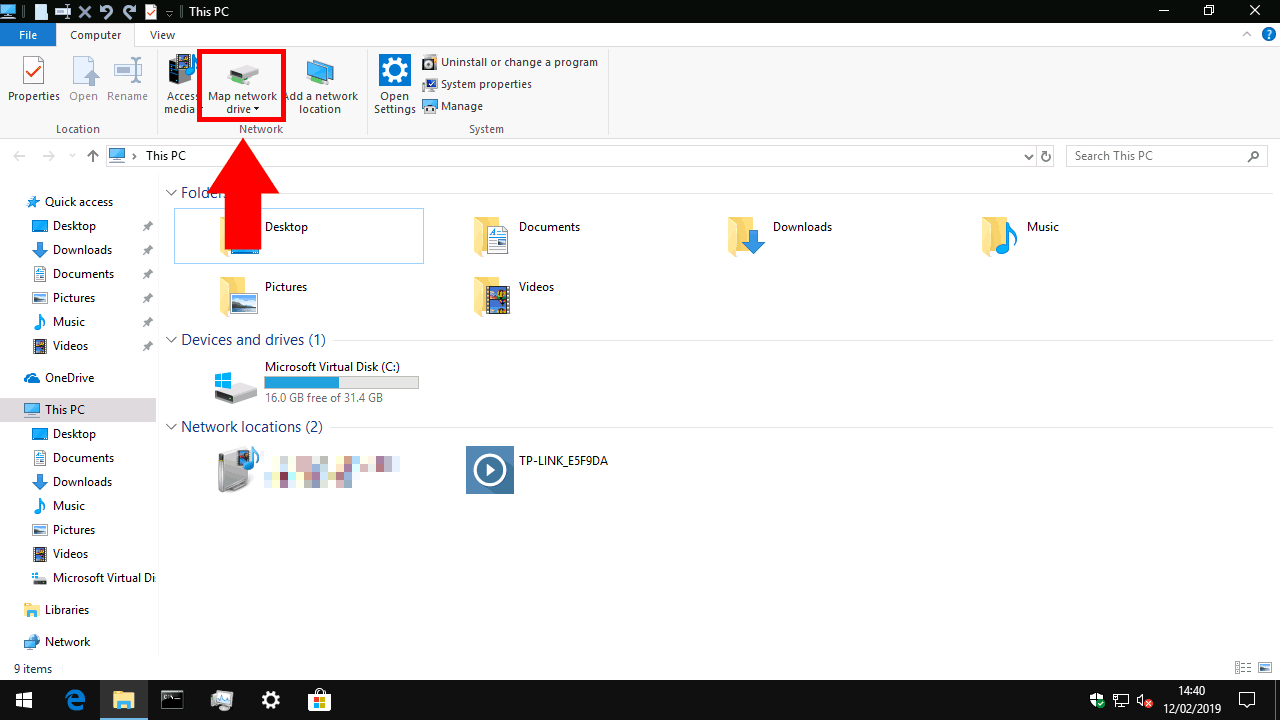
Screenshot of mapping a network drive in Windows 10

At the top of the window, in the ribbon control strip, click the “Map network drive” button in the “Network” section. The popup window which appears allows you to configure your drive connection.

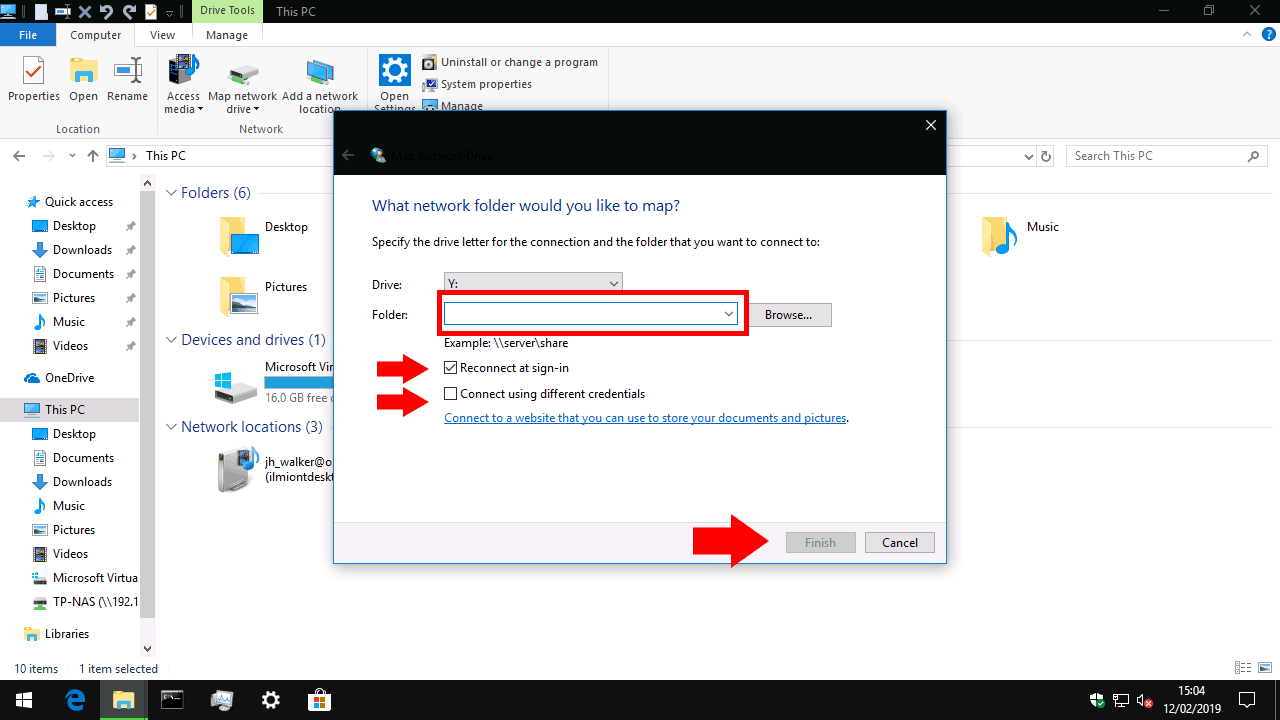
First, fill in the “Folder” input. This may be slightly confusing, since it’s not asking for a real folder. You’ll need to know the network address of your hard drive, as well as the name of the folder “share” you’re connecting to. The former is usually the IP address of your network device. You’ll probably have configured the latter while setting up your network hard drive; you should refer to its documentation if you’re feeling stuck.

Screenshot of mapping a network drive in Windows 10

Input the share address in the same format as the example given. We’re connecting to a share called “TP-NAS” on the network device 192.168.0.254, so the correct path is “\192.168.0.254TP-NAS.”

Before moving on, choose a drive letter for the device from the dropdown menu. When you add the network share, it appears in Windows as similar to a regular hard drive or USB stick. The drive letter determines the identifying letter it will get within the system. You can use the drive letter to reference the drive in file paths from anywhere in Windows.

Finally, move your attention to the two checkboxes. You’ll probably want to leave “Reconnect at sign-in” selected; otherwise, you’ll need to manually reconnect to the share each time you start your PC.

Screenshot of mapping a network drive in Windows 10

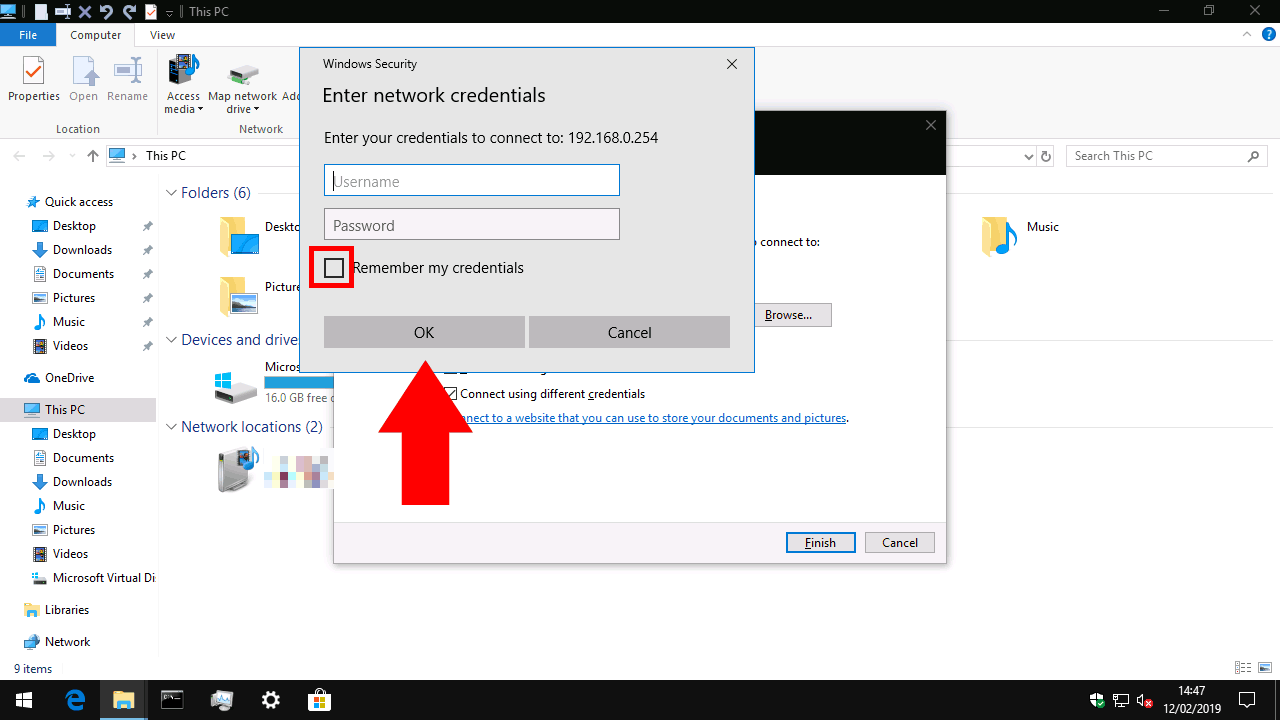
“Connect using different credentials” is more interesting. If your network drive is password-protected, keeping this disabled will attempt to login automatically using your Windows username and password. If you have a different username or password configured on your network drive, you should check this box. You’ll be able to supply your username and password after you click “Finish.”

Click “Finish” to add your network share. If you’re connecting with the different credentials option enabled, you’ll be prompted to enter your username and password for the network drive. Tick the “Remember my credentials” box here to ensure you don’t need to login every time you access the drive.

Screenshot of mapping a network drive in Windows 10

That’s it! After a moment, you should see Windows open a new File Explorer window displaying the contents of the drive. If you return to This PC, you’ll see the drive show up under “Network locations.” You can now access files on the drive using either its share path (as you entered while connecting to the drive) or the drive letter you assigned it. To disconnect, just right-click the drive in File Explorer and choose “Disconnect.”

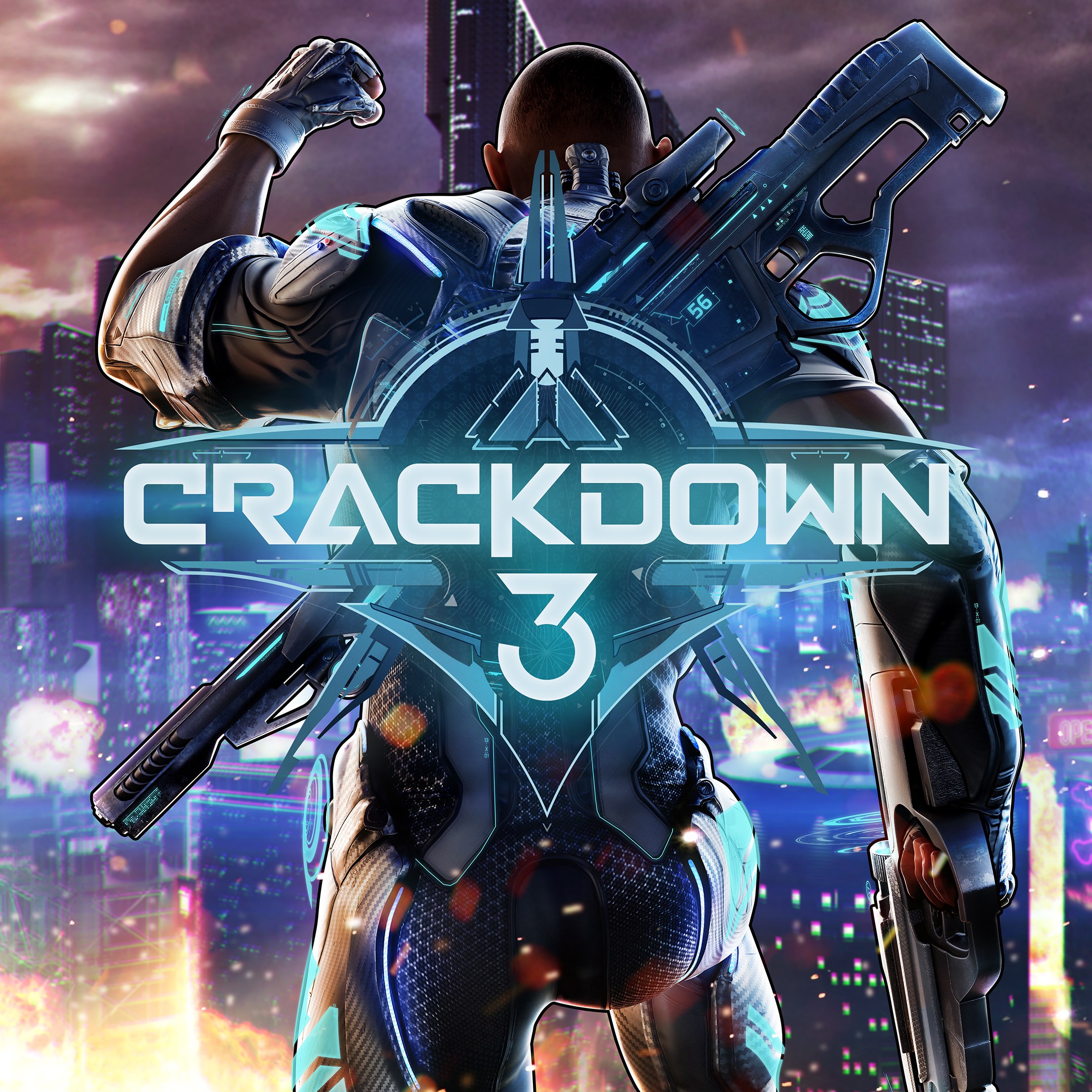
Crackdown 3 review: Another Xbox exclusive game that doesn’t live up to the hype

Microsoft initially announced Crackdown 3 back at E3 2014, and after five years of development, it’s safe to say that expectations are pretty high. Crackdown 3 was previously announced as a launch title for the Xbox One X last year, but the game receiving mixed reception at E3 2017 led Microsoft to delay the game even further.

Crackdown 3 had a very troubled development history, and it’s actually surprising that Microsoft didn’t cancel it as it did for other Xbox exclusives like Fable Legend and Scalebound. The original Crackdown game, which was released back in 2007 on the Xbox 360 was a memorable release for the console, but its 2010 sequel Crackdown 2 didn’t reach the same cult-classic status. Nearly 10 years later, it’s not clear if Crackdown 3 is the game that could make the Crackdown franchise join the elite league of Halo, Gears of War, and Forza.

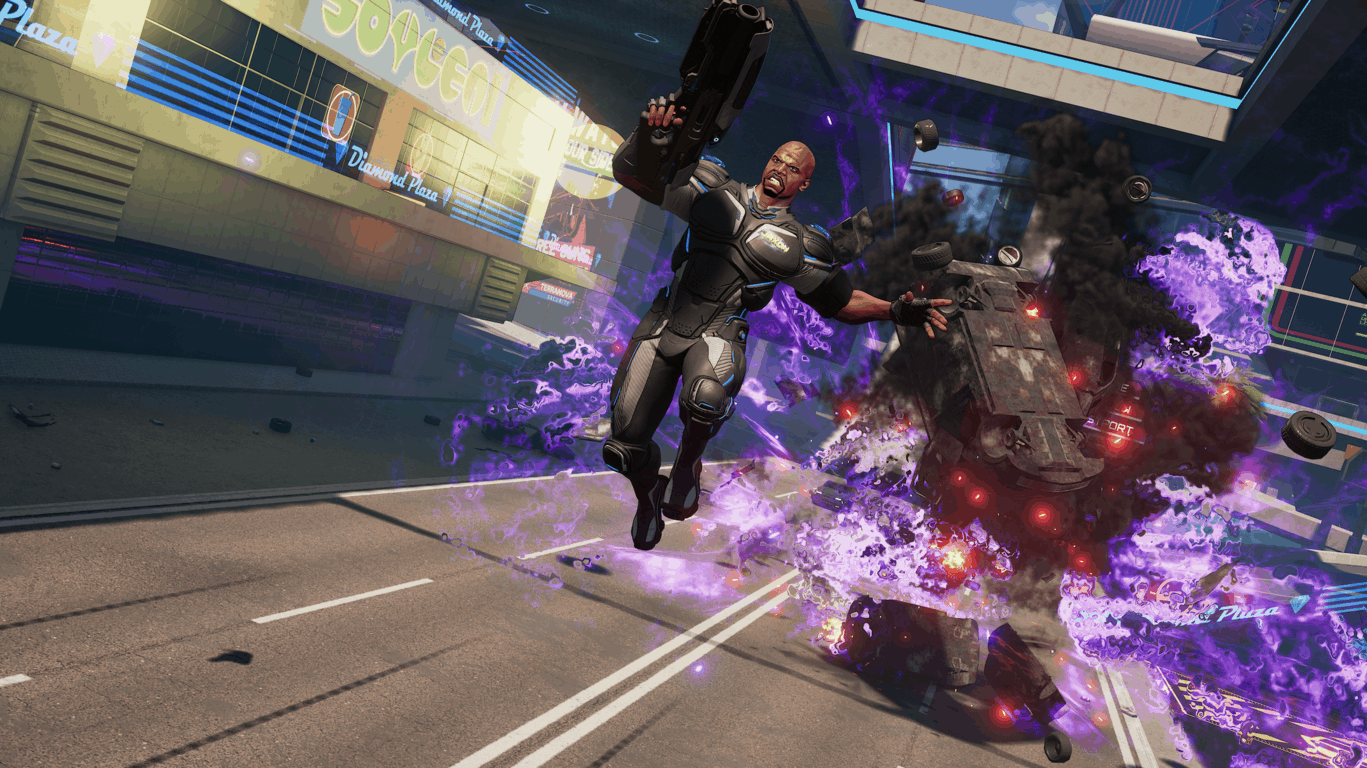
Hollywood actor Terry Crews plays Isaiah Jackson, the game’s protagonist.

To be completely honest, I’m not very familiar with the Crackdown franchise. I gave the original Crackdown game a try when it recently became free on Xbox One, and I hated it. Between the clunky controls, outdated graphics, and goofy action, I found that the game didn’t age very well next to classic Microsoft shooters like the original Gears of War (released a year before Crackdown).

My time with the original Crackdown, Crackdown 3’s difficult development cycle, and a series of disappointing releases from Microsoft Studios made me really fear for the worse. In the end, I think that Crackdown fans will probably like Crackdown 3, but I’m afraid this is another unoriginal Xbox exclusive that targets a niche audience.

Crackdown 3 is actually separated into two different games: there is one client for the Campaign mode and another one for the Wrecking Zone multiplayer mode. I spent most of my time in the campaign mode, which features Hollywood actor Terry Crews playing the game’s charismatic superhero Isaiah Jackson. The campaign’s opening cinematic is actually excellent, and you can watch it below.

Welcome to New Providence

Crackdown 3 isn’t a direct sequel to the previous Crackdown games. I won’t dive into details about the story, but this is pretty much a Manichean conflict between an evil corporation called TerraNova and a group of vigilantes called The Agency. You can choose between different Agents at the start of the game (you can also change later in the game), but I guess most players will choose to play as Terry Crews/Isaiah Jackson after watching the pretty fun opening trailer.

The open-world campaign is set in New Providence, a futuristic city with neon lights and skyscrapers everywhere. There’s a night and day cycle in the game, and the bright lights look pretty cool at night. Crackdown 3 uses cel-shading graphics to get this comic book look, and I’d say it’s a pretty good-looking game overall. I played the game on an Xbox One S where it’s apparently capped to 30FPS, but performance remained consistent while I explored the vast open world.

With its bright Neon lights, the city of New Providence looks quite futuristic.

Crackdown 3 is a non-linear game, but there are quite a lot of things to do in New Providence. You can spend a lot of time exploring the city to collect orbs that will upgrade your skills, and it’s pretty fun to climb on skyscrapers and use abilities like double jump and air dash. If you previously played ReCore, the action-adventure and platform game that Microsoft released back in 2016, you’ll feel right at home with Crackdown 3.

The map also includes many Supply points that will become rearming stations and fast-travel locations once you capture them. Other than that, you’ll find Prisoner hardpoints to hack and liberate, which will strengthen the Civilian militia that can help you during fights. There are also Propaganda towers to climb and hack, and various intel fragments to gather on the crime map.

The Agency vehicle also has an ejectable seat.

Just like in GTA, you can also explore the city by using cars, including the Agency vehicle that you can summon with a press of a button. Driving isn’t the best part of the game, but the campaign includes optional races and stunts that can improve your driving skills once you complete them.

Your main mission in the Campaign is to fight off the TerraNova corporation and take down its lieutenants by all means necessary. You can fight the different bosses in the order you choose, though before confronting them you’ll have to capture some locations or destroy some objectives like Chemical facilities or massive crushers. The boss fights can be pretty long, with some platforming sequences and lots of enemies to kill during the different phases.

There are several bosses to eliminate in the campaign.

A campaign that quickly becomes repetitive

In a way, the world of Crackdown 3 reminds me of a strange mix of Saints Row, Sunset Overdrive, and Far Cry 3: Blood Dragon. You’re in a superhero movie parody playing an overly muscular guy, and you’ll hear a lot of pretty funny one-liners like when Terry Crews/Isaiah Jackson shouts “I’m my own medicine” (you’ll auto-heal when you’re not taking damage). During a fight with an AI turned rogue, I couldn’t help but smile when I heard an ally recommend me to “kick her in the server.”

The campaign is playable with a friend in a co-op, but I couldn’t try that during my time with the game. Overall, the campaign is better than I expected, but after a couple of hours in New Providence, I really started to feel that the different missions become quickly repetitive. The city of New Providence is also pretty empty compared to what you’ll find in a game like GTA V, which of course had a much higher budget.

I’m not sure yet if I’ll finish Crackdown 3’s campaign, but fighting lots of bullet sponge enemies can certainly get tiresome, especially since Crackdown 3 isn’t a great shooter in the first place. There’s an auto-lock feature just like in ReCore, and there’s no cover system. As a result, when you’re cornered by enemies you’ll often have to escape and go hide behind a wall to let your health regenerate.

Although the gunfights are far from great in Crackdown 3, you do feel like a superhero when throwing massive objects on enemies, or when using other abilities like Ground Pound and Flying Fist. There’s definitely a lot of bombastic action in the campaign, but be aware that the city of New Providence isn’t fully destructible. The cloud-powered destruction that has been making headlines since Microsoft unveiled the game is restricted to Wrecking Zone, the game’s PvP mode which is a separate install.

A disappointing Wrecking Zone PvP mode

I had pretty high expectations about Wrecking Zone, especially since this mode has been an opportunity for Microsoft to demonstrate the power of its Azure cloud. A lot of the hype around Crackdown 3 came from pre-alpha footage that Microsoft showed at Gamescom 2015, but what ended up in Wrecking Zone looks less impressive than what we saw nearly four years ago.

First of all, Wrecking Zone will launch with just three maps, and they’re pretty small and empty. There’s a lot of verticality in those maps, but the buildings feel like they’re made of cardboard, and again, they’re all completely empty. Worse, the debris causes no damage when they fall on players, and there’s also no giant cloud of smoke that obscures your vision when a giant building falls down on the map.

Microsoft said that the power of the cloud will allow all gamers on Xbox One and Windows 10 to have the same destruction experience, but I can’t help but feel that this whole destruction thing is a gimmick with no real purpose. Yes, you can punch through walls or destroy the floor under the feet of your enemies, but this often won’t give you any real tactical advantage.

The PvP fights in Wrecking Zone are very fast-paced, and there’s the same auto-lock feature found in the campaign. You can choose between different weapons (all with unlimited ammo), and you can also collect orbs on the map to charge your Overdrive, a limited-time boost that will improve your skills and weapon damage.

There are two separate 5 versus 5 PvP modes at launch, the team deathmatch Agent Hunter mode and the other “King of the hill” mode called Territories. I couldn’t spend much time in both during the early access period, but beyond the legitimate curiosity about the cloud-powered destruction, I’m afraid Wrecking Zone isn’t something that I’ll be spending a lot of time into. Worse, you won’t be able to play Wrecking Zone with your friends at launch, something that is truly inexcusable for a game that has been in development for five years. Microsoft said support for Xbox Live parties will come in a post-launch update, but there’s no ETA for now.

An unessential release from Microsoft

I know that Crackdown 3 isn’t a AAA game like Forza Horizon 4, but after the latter became the best-rated Xbox exclusive game for this console generation, I really expected something better from Microsoft, especially since Crackdown 3 spent five years in the oven. Again, I have no doubt that Crackdown fans will find this new episode to be the best in the series, but I don’t think this is a game that will leave a big mark in the history of Xbox Game Studios. Actually, I think it would have been fine for Microsoft to cancel an unexceptional game to spend more resources on other, better-inspired projects.

“Xbox has no games” has been an ongoing joke among gamers in recent years, especially after games like State of Decay 2 or Super Lucky’s Tale didn’t exactly set the world on fire. That was to be expected, but Crackdown 3 isn’t the game that will convince PS4 players to drop Spiderman or God of War any time soon.

Crackdown 3 is priced at $69.99 on the Microsoft Store, and the game supports Xbox Play Anywhere and Xbox Live cross-platform multiplayer. The game will also be available on Xbox Game Pass tomorrow on its launch day, and I’d really recommend subscribing now that you can get 2 months of Game Pass for just $2 for a limited time.

Crackdown 3
Crackdown 3
Developer:
Xbox Game Studios
Price:
Free

HP launches its new premium Spectre series of Windows 10 laptops in India

HP has unveiled its new premium Spectre range of Windows 10 convertible laptops – the new HP Spectre Folio and the refreshed HP Spectre x360.

HP has always believed in insights-based innovation that allows us to deliver the PC experiences that users want. The new HP Spectre series has made a breakthrough in design, versatility, and connectivity. The HP Spectre Folio and Spectre x360 achieve the perfect balance of beautiful design, cutting edge engineering and outstanding performance.

– Vickram Bedi, Senior Director – Personal Systems, HP Inc. India

HP Spectre Folio

HP Spectre Folio

HP Spectre Folio is the world’s first leather convertible PC demonstrating the series’ focus on design and craftsmanship.

The Spectre Folio sports a thin and light versatile design that allows it to be seamlessly converted between three distinct positions. It’s also completely fanless.

HP Spectre Folio

It sports a 400-nits Full HD touchscreen display and packs In four front-facing speakers tuned by the luxury audio brand, Bang & Olufsen. HP claims that the Spectre Folio incorporates one of the smallest motherboards in the industry packing in the 8th Gen Intel Core i7 processor with up to 16GB of RAM and 512GB of SSD storage.

The HP Spectre Folio is available in Cognac Brown at a price of ₹199,990 ($2822).

HP Spectre x360

HP Spectre x360

The new HP Spectre x360 lineup features a completely refreshed design, with a new Poseidon Blue color variant. It sports a cut design achieved by CNC machining and enables four distinct positions – Laptop, Tent, Reverse, and Tablet.

Powered by the latest quad-core 8th generation Intel Core processors, the HP Spectre x360 comes in both Full HD and 4K (UHD) display options. The uniquely designed speakers deliver a superior audio experience by Bang & Olufsen.

HP Spectre x360

The device also comes with a privacy camera kill switch which allows the user to electrically turn off the webcam when not in use and an optional HP Sure View privacy screen to help users avoid prying eyes in public areas.

The HP Spectre x360 is available now in Dark Ash Grey at a starting price of ₹129,990 ($1834) and in Poseidon Blue at a starting price of ₹139,990 ($1974).

Users ask MS to add these features in Windows 10 Gaming Edition

Windows 10 might be a treat for some of the new gamers due to numerous reasons. According to the statistics, the market share of Windows 10 64 bit on Steam was reported to be 60.62 percent recently. The overall market shared of Windows 10 OS was reported alone to be 96.44 percent.

This huge increase in popularity is just because of the system upgrades with improved hardware specifications.

While it seems like the operating system failed to grab the attention of the experienced gamers who are fed up of the performance issues and cluttered UI. So, they have demanded Microsoft for a Windows 10 Gamers Edition. There are a variety of reasons that are supposed to be behind this strong demand from the users.

Let’s have a look at why users asked Microsoft to implement the respective changes and how the Redmond giant is going to respond to the popular demand?

Why should Microsoft develop a Windows 10 Gaming Edition OS?

1. Ultimate Performance Gains

As the Windows 10 Gaming Edition will be optimized for gaming, so the users are definitely going to experience huge performance gains. It will not only minimize the background processes but also increase GPU cycles and CPU threads that will be dedicated specifically to gaming.  Furthermore, the hardware and software can be optimized for achieving the Ultimate Performance on your PC.

While the minimalist design will also decrease, distractions from the User Interface. A lot of disk space can be saved by removing app notifications, and pre-installed apps including Candy Crush, OneNote, and Office etc. Various overclocking tools can be developed to avoid running processes and applications in the background.

The operating system will also definitely be able to achieve performance tweaks by recognizing that a game has been running in its memory. As soon as the operating system is able to recognize the gaming applications, it will cut down all the memory used by the non-gaming applications.

— RELATED: 8 of the best Windows 10 gaming laptops for 2019

2. User-Friendly

Most of the gamers are not interested in all the pre-installed apps that come along with the Windows 10 operating system. They are just looking for a minimalist design with all the basic apps.

Most of the times they are just looking for just the media player or maybe Google Chrome to run in the background while gaming. Reducing the number of features will not only reduce the memory space but also reduces the bugs to a great extent.

So, all the gamers just want to get rid of all the unwanted programs in the Windows 10 Gaming Edition. Microsoft can simply offer a place or Microsoft Store, where they can install the programs and apps as per their requirements.

3. Built-in Libraries

It is always confusing for most of the gamers to keep on installing C/C++ and other libraries again and again in order to run their favourite games. Especially it is annoying for the new gamers who are yet not aware of the software specifications.

Therefore, a version of Windows 10 with all the built-in libraries will save a lot of time and effort for the gaming community. While the standard users might not be interested in having a built-in version of Windows.

— RELATED: How to run Windows XP games on Windows 10

4. Reduced Game Pricing

Most of the users like PC just because of the fact that games are available at a lot more cheaper rates on Windows as compared to other handheld devices etc. Moreover, there is no monthly subscription fee to enjoy your favourite games for online gaming.

5. Lower OS Costs

A Windows 10 Gaming Edition is definitely going to reduce the operating costs for most of the users. As they will not have to pay for all the extra pre-installed programs and other freebies that come along with the operating system.

It will allow an affordable price range specifically for the loyal Windows customers. Gamers can still enjoy their favourite games by paying once. Furthermore, it will definitely help to reduce piracy as well.

6. Voluntarily Contributions

As Microsoft now owns GitHub, the company can also increase voluntary contributions for the gaming addition by allowing open source developments of the Windows components specifically from the gaming community.

The software packages and drivers can be provided to the users through GitHub in a similar manner just as they are available to download for the Linux users. While most of the developers would be interested in developing anti-cheat tools for the gamers even at the operating system level.

— RELATED: What are the best snake games for PC? Here’s our 2019 list

7. Hardware Upgrade

It will be easy for the PC gamers to upgrade individual hardware components as per their requirements. It will help them customize their gaming PC in order to maximize performance games.

8. Network Bandwidth

It is critical for gamers to have fast network responses while playing online. The network packets need to be sent and received as quickly as possible in order to stay focused on the game and avoid any delays or freezes. Most of the background processes and apps try to chew up the network bandwidth in standard Windows 10.

Telemetry is such an example that involves continuous checking and downloading of updates at the back end along with fetching emails for the users during a gaming session. While the Windows 10 Gaming Edition can prioritize all the gaming packets to increase its bandwidth.

It will just allow the spare packets to be available for all the extra stuff while a user is playing an online game.

Will Microsoft listen to the users?

Apparently, Microsoft has all the resources that are required for the development of a specialized gaming edition of Windows 10. While it’s not necessary that the software giant is going to listen to all the demands of the users.

It might not implement all the features and show up with just the basic features that are vital for the gaming community. It might also come up with a Game Mode or an alternative Boot Option at the start-up of the standard version.

There are also chances that Microsoft can also implement a feature that is going to stop all the unnecessary background processes during a gaming session. It’s just a matter of time to see how Microsoft responds to the user requests.

RELATED ARTICLES:

Microsoft Surface has a Yellow Screen [Fix]

Notwithstanding all the nice things that the Surface Pro devices stand for, one nagging issue many complain of is the screen turning yellow. That said, the Microsoft Surface screen turning yellow isn’t exactly a fault, considering that this isn’t the result of a hardware error.

So, why does the screen turn yellow, and what is it all about? Keep reading to find out!

Why is my Microsoft Surface screen turning yellow?

Microsoft’s Surface screen turning yellow is not a problem but has a software origin and a deliberate design feature that allows for a comfortable reading experience. In other words, the feature is designed to ensure less strain on the eyes when reading off the screen.

That said, there are always those who’d prefer the original bluish tint of the screen rather than the pale yellow, and the good thing here is that this is very much achievable.

What can I do if the Microsoft Surface screen turns yellow?

1. Turn off the built-in blue light filter

  1. Press Windows + I to open Settings, and click on System.System
  2. In the Display tab, turn off the toggle for Night light if the feature is presently enabled.

Microsoft’s Surface screen appearing yellow happens to be an integrated Windows 10 feature and is actually there to aid in stress-free reading.

This again is achieved by cutting off the blue light in compliance with a recent research finding that found blue light to be harmful and is actually detrimental to a good night’s sleep.

However, it is still recommended to keep Night light on to ensure you have less stress on your eyes. You can click on the Night light setting to fine-tune the feature as per your liking, like adjusting the Color temperature at night slider to the left to allow for a less visible yellow tint.

The Night light setting, meanwhile, is scheduled to automatically adjust to the sunset and sunrise timing applicable in your area though you can also set your own hours manually if you so prefer.

2. Roll back new software installations

  1. Press Windows + R to open Run, type appwiz.cpl in the text field, and hit Enter.appwiz.cpl
  2. Select an app you believe to be triggering the problem, usually one installed recently, and click Uninstall.uninstall app to fix microsoft surface yellow screen
  3. Follow the on-screen instructions to complete the process.

Check to see if you have installed any new software in the recent past. This is particularly true if you have started to see Microsoft Surface’s yellow line on the screen only recently.

Particularly, reading or e-reader software comes with a special reading mode where the harmful blue light is turned off while letting yellow have prevalence, thereby giving the screen a yellowish tint.

If that is the case, check with the particular software settings to see if there is a way you can disable the yellow light. Or, as a worst-case scenario, you might have to uninstall the software if your desire to disable the yellow light is greater than the need to have the software in the first place.

3. Create a new color profile

  1. Press Windows + I to open Settings, and click on System.
  2. In the Display tab, click on Advanced display settings.
  3. Click on Display adapter properties for Display 1.
  4. Go to the Color Management tab, and click the Color Management button.color management
  5. Navigate to the Advanced tab, and then click on Calibrate display.calibrate display to fix microsoft surface yellow screen
  6. Click Next in the windows that open thereafter.
  7. On the 5th page, click on Skip brightness settings. This way, you will get to the default calibration settings.
  8. Click on Finish. This way, you have just created a new color profile where the whites have more of a bluish tint and less yellow.

If you come across Microsoft Surface book’s yellow edges screen problems, the issue may lie with the color management and display calibration. And reverting to the default settings should get things up and running.

4. Get the hardware checked

In case you find the Microsoft Surface’s left side of the screen going yellow or yellow patches through the display, it’s likely a hardware fault to blame.

It’s best that you contact the manufacturer or get in touch with a verified service center. They will let you know whether to go for repair or replacement of the display.

Before you leave, check the best display settings in Windows for a superior experience.

Tell us which fix worked for you in the comments section below.

Microsoft Solitaire gets new leveling system with XP points and rewards

Are you still a fan of Solitaire? The Redmond giant announced earlier this month that the game is getting the highly-anticipated leveling system on Windows 10 very soon.

Microsoft Solitaire Collection has a significant fan following even today. The game has evolved since its first release many years ago. The default game in Windows 10 is still appealing for most of the users due to its modern interface. It has the modern versions of Pyramid, Spider Solitaire, FreeCell, Klondike and TriPeak. 

Microsoft revealed its plans to add a player leveling system that is going to have rewards and experience points in an interesting video on YouTube. The leveling system is basically aimed at those gamers who are interested in getting rewarded for playing the Solitaire game. 

How Users Responded To The New Feature?

Most of the gamers said the new system would be a great addition to the game. The players came up with some interesting suggestions regarding the gam. Some of them want the game to count the number of times the game has been played.

While others are interested in an ad-free game having a  replay option or a daily challenged to be solved. The leveling criteria is also a confusing thing for players. Some of the users want to get rid of the advertisements that are a source of distraction while playing the game.

An ambitious player is also willing to pay for the iPad version of the game. We can already imagine that the leveling system is obviously going to attract many gamers back to the Solitaire game. 

The software giant is yet to announce regarding the release date of this new progress system. However, we believe the new leveling system will be available in March or early April.

Solitaire fans, share your opinions and ideas if you are excited to have the leveling system in your favorite game. 

RELATED ARTICLES OF CHECK OUT:

Windows 10 clean install no longer reinstalls Candy Crush

It seems like Candy Crush has finally been removed from Windows 10. Many users from the US reported that the app is no longer available in the Start menu as a result of a clean install.

However, users from Europe and other parts of the world complained that they are still not able to get rid of Candy Crush after a clean install.

The news was first reported on Reddit by a user stating that:

It’s nice to see them eliminate Candy Crush. I would also like to see them eliminate: Fitbit Coach, Deezer Music, Plex, Photoastic, Netflix and all the other unnecessary apps. Give me basic Windows apps and nothing more, I’ll put on what I want. Definitely a step in the right direction.

Source: Reddit

Most of the users were relieved to get rid of the app and took it to Reddit to share their joy with others Windows 10 users.

Friendship with Candy Crush ended, now Minecraft is my best friend.

One user even stated that he is ready to opt for the Windows operating system and leave Mac. Candy Crush was even blamed to be a 3rd party app that has been included in Windows for monetization purposes.

Unlike Solitaire and Minesweeper that actually taught users how to drag and drop, along with using the right and left mouse click, Candy Crush does not serve any legitimate purpose as such. 

Windows 10 users really hate Candy Crush games

Someone who worked in the gaming industry shared his opinion with others that games like Candy Crush have been developed to maximize profits. The apps are actually aimed at grabbing the attention of  gamblers.

These games are actually addictive for kids as well. Therefore, Microsoft should stop promoting these kinds of 3rd party apps/games, he added.

A few Redditors were of the opinion that it doesn’t even matter whether you have those third-party apps preinstalled on our PC or not. They said these apps are not actually installed on our PCs unless we actually click on them. They are just the shortcuts of the real apps.

If you performed a clean install recently, do let us know if Candy Crush completely disappeared from your system or not.

RELATED STORIES TO CHECK OUT:

The Installer Couldn’t Create a Temporary Directory [Fix]

As usual, mostly for new users, there are a lot of error messages and notifications encountered every day, especially on Windows 10, with The installer couldn’t create a temporary directory.

The problem appears when installing apps and prevents the process from completing. Users reported the error with Chrome, Vivaldi, and several other programs. Keep reading to find out all about it!

Why can’t the installer create a temporary directory?

  • The lack of necessary permissions can cause this and many other problems.
  • Sometimes, system variables can cause various issues on your PC.
  • Your antivirus can sometimes prevent the installation from running properly.

How do I fix The installer couldn’t create a temporary directory error?

Before we start, there are a few preliminary checks you can perform:

  • Try using the full or offline installer. Not all applications have one, so be sure to check the download page thoroughly.
  • Reinstall the software using the older version. After that, try to update from that version.
  • If updating software, try using the built-in update feature from the app.
  • Moving the setup file to the root directory, C, can sometimes help.

1. Select Run as administrator

  1. Look for the executable file that you want to install.
  2. Right-click on it, and then from the context menu, select Run as administrator.run as administrator adobe premier pro editing modes not found
  3. Click Yes in the UAC prompt.

In case you’re trying to update certain software, make sure that the software is completely closed. You can achieve that using Task Manager.

2. Run the setup from the Temp folder

  1. Press Windows key + R and enter %localappdata%.
  2. Next, navigate to the Temp folder.
  3. Locate the folder software and open it.
  4. Look for the setup file inside. If there’s one, run it.

This is not an universal solution, and it only works for certain apps.

3. Create a new Temp folder and change the variables

  1. Enter the C: drive and create a new folder, rename it as Temp (switch C: with the drive your OS is installed)
  2. Right-click on This PC and select Properties from the menu context
  3. Click on Advanced system settings.advanced system settings widnows 10
  4. Navigate to the Advanced, and click on the Environment Variablessystem properties environment variables
  5. Double-click TMP in the User variables.
  6. The value you will see should be:%USERPROFILE%\AppData\Local\Temp
  7. Change that to the following and click OK to save the changes:C:\Temp

Creating a new Temp folder and changing the variables is the best option if the error signal clearly says that there is a problem with the temporary directory.

After all, try to install the program, and it should be able to work perfectly without throwing The installer couldn’t create a temporary directory error.

4. Change the control over the TEMP folder

  1. Press Windows + E to open File Explorer, paste the following path in the address bar, and hit Enter:%USERPROFILE%\AppData\Local
  2. Search for the Temp folder inside, right-click, and select Properties from the menu
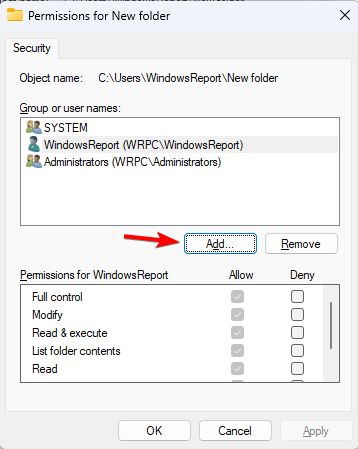
  3. Click on Security.
  4. Now, click on Everyone.
  5. Click on Edit and ensure that all the Full control box is selected, then click on OK to save the changes.full control to fix the installer couldn't create a temporary directory

5. Confirm the Include inheritable permissions in the Temp folder

  1. Press Windows + E to open File Explorer, and navigate the following path:%USERPROFILE%\AppData\Local
  2. Search for the Temp folder inside, right-click, and select Properties from the menu.
  3. Click on Security.
  4. Click on Advanced to view the permissions.appdata security advanced
  5. In the permissions, there should be SYSTEM, Administrator, and User. All these must have full control and be inherited from the user.
  6. Look for the Include inheritable permissions from this object’s parent selection, and click Continue. Click on Apply and then press OK to save the setting.

6. Assign full permissions over the installation directory

  1. Locate the installation directory of the software you’re trying to install.
  2. Right-click it and choose Properties.
  3. Navigate to the Security folder and click the Edit button.
    security
  4. Click on Add.
  5. Type your account name and click Check Names, next click OK.
    check names
  6. Check Full control in the Allow column and save changes.
  7. Do the same steps for TrustedInstaller if possible.

7. Temporarily disable your antivirus software

  1. Press the Windows key + S and enter defender. Select Windows Security.
  2. In the left pane, navigate to Virus & threat protection. In the right pane, navigate to Manage Controlled folder access.
     
  3. Now disable Controller folder access.

If you’re using a third-party antivirus, we suggest disabling it to perform these steps.

Note icon NOTE
Keeping your security features disabled is a bad practice, so use it only as a temporary solution with software you 100% trust.

By now, you should already have access to write to the directory, which provides you with an instant remedy for this error. This should fix The installer couldn’t create a temporary directory error.

Notwithstanding, these proffered solutions, when followed correctly, will enable you to fix the error of not being able to create a temporary directory encountered on Windows 10.

Before you leave, find out how to get full folder permissions in Windows, or check our guide on the SquirrelTemp folder.

Tell us which fix worked for you in the comments section below.

Microsoft to remove Live Tiles from Windows 10 19H2

Initially introduced in 2010, Live tiles were an innovative approach by Microsoft at that time. Users and other tech companies love this unique interface paradigm among the old widgets and icons interface. After the years of glory, it seems that Live tiles creation is soon going to meet the end in October this year.

In the upcoming Windows 10 19H2 OS version scheduled for release in October 2019, Windows will no longer feature the old Live tiles startup menu.

Live tiles will be replaced with a new startup menu that will reportedly contain a list of all the recently worked on documents, opened projects and the list of installed applications. From this perspective, this is a good strategy because apps can be recovered immediately.

Rumors also suggest the icons of Timeline or File Explorer will shift towards the right.

Why use Live tiles when you’ve got the Action Center?

Built-in 2010 with Windows Phone 7, live tiles were designed to notify the users about the recent emails, photos and updates from the third party platforms. However, Microsoft almost neglected Live tiles in recent Windows version.

It’s been a very long time since the company implemented any changes to this feature except some customizing options and alternations in the size of tiles.

However, we kind of expected Microsoft to remove live tiles due to a series of disadvantages. Besides, Live tiles may also slow down app launching. Not to mention that the Windows Action Center works better when it comes to displaying notifications.

But before Windows 19H2 lands, we’ll all get the chance to test Windows 10 19H1 in April.

Do you have any expectations from 19H1 or 19H2? If yes, why not share with us in the comment section below.

RELATED POSTS YOU NEED TO CHECK OUT:

Office 365 surveys to get better with rollout of Forms Pro

Microsoft seems to be infatuated with slapping a preview title on its latest product offerings in a bid to get as much user feedback cultivated before it officially launches a service.

This time around, Microsoft is sandwiching its Office 365 survey-creation tool between the moniker of Preview and Pro as it repackaged the product for a more prosumer audience.

As ZDNet’s Mary Jo Foley reports, Microsoft is making a Pro-variant of the tool which allowed teachers to “create quizzes, surveys, polls, and questionnaires.”

Apparently, the new Forms Pro is currently in development under the codename Shimla and was spotted by Microsoft sluether The Walking Cat or @h0x0d on Twitter.

Ricardo Diaz (@rdiazjimenez on Twitter) asked me last night if I knew about a product called Forms Pro. The Walking Cat (@h0x0d on Twitter) posted earlier today a link to Forms Pro, apparently codenamed “Shimla,” which showed a new logo but no updated information about the preview. However, Tero Alhonen (@teroalhonen on Twitter) found a reference to Forms Pro on the Office 365 roadmap — which Microsoft officials added on February 13 — which states the preview of Forms Pro is rolling out today to Office 365 users.

Based on the roadmap description of Forms Pro, the literal application of the tool will remain roughly the same as its educational counterpart, allowing enterprise customers the ability to also create surveys, and customized forms.

Where Pro Forms differentiates itself from its school-oriented brethren is its connections to Dynamics 365 CRM/ERP, the suite of Microsoft PowerApps, and Common Data Services, The Pro version of Forms will enable businesses to analyze a greater amount of collected data and leverage robust data analytics tools.

Foley reached out to Microsoft to find out release timeframes and pricing but was only able to come up with broad strokes based on tea-leaf-reading. Anyone interested in testing out Forms Pro, there might be a preview version being rolled out to February 21, 2019, and that people can sign up as soon as tomorrow February 14, 2019, to try it out.

KB4487044 fails to install for some and disables Windows Defender

The latest Windows 10 v1809 update is KB4487044. The update doesn’t bring any new features to the table, focusing on fixing some of the technical issues triggered by previous patches.

At the same time, KB4487044 also brings some issues of its own. While these problems are not that frequent, they might affect some users. In this quick post, we’re going to list all the bugs reported by users after installing this update.

KB4487044 issues

1. KB4487044 install fails

Some users reported that their computers failed to install the update with error 0x80070003. Here’s how one user describes this problem:

Updates (KB4487044) downloaded ok to 2 computers, but during installation, they both got an error message: We couldn’t complete the updates. Undoing changes. Don’t turn your computer off…
Looking at the View update history on both computers: 2019-02 Cumulative Update for Windows 10 version 1809 for X64-based Systems (KB4487044) failed to install on 02/12/2019 – 0x80070003
Thought Microsoft fixed the updates problem.

If you’re experiencing the same error, use the troubleshooting guides listed below to fix it:

2. Windows Defender Offline is no longer working

After installing KB4487044, it disabled Windows Defender leaving it with the Red X, and not possible to scan. This was never an issue prior with any CU installed on Retail 17763. Putting it back online, updating and back working.

If you’re experiencing this problem, try restart Windows Defender. If the problem persists, you can either uninstall the update or install a third-party antivirus software.

As you can see, users reported only two bugs after installing KB4487044. There is also a third issue affecting this patch, but Microsoft already added it to the list of known issues.

3. Japanese date and time issues

Microsoft already acknowledged this problem and explained that after installing this update, previously abbreviated Japanese date and time strings no longer parse. As a workaround, you need to tweak your Registry in the following manner:

  1. Navigate to HKEY_LOCAL_MACHINE\SYSTEM\CurrentControlSet\Control\Nls\Calendars\Japanese\Eras.
  2. Operate the following changes:
    • “1868 01 01″=”明治_明_Meiji_M”
    • “1912 07 30″=”大正_大_Taisho_T”
    • “1926 12 25″=”昭和_昭_Showa_S”
    • “1989 01 08″=”平成_平_Heisei_H”

A permanent fix for this issue will be available next month.

How has your KB4487044 experience been so far? Let us know in the comments below.

RELATED POSTS TO CHECK OUT:

Download Windows 7 KB4486563 and KB4486564 to fix database errors

Although Microsoft already announced it would no longer support Windows 7 starting January 2020, the company still rolls out regular updates to computers running the OS. As such, the February 2019 Patch Tuesday Edition brought two new updates to Windows 7 users.

If you check for updates, you’ll see that monthly rollup KB4486563 and cumulative update KB4486564 are available for download.

KB4486563, KB4486564 changelog

If you’re wondering what’s new in KB4486563 and KB4486564, the short answer is ‘Not much’.

These two patches fixed the annoying Microsoft Access 97 database errors caused by the number of characters in column names. At the same time, the updates also add general security improvements to various Windows components.

Here is the official changelog:

  • Addresses an issue that may prevent applications that use a Microsoft Jet database with the Microsoft Access 97 file format from opening. This issue occurs if the database has column names greater than 32 characters. The database fails to open with the error, “Unrecognized Database Format”.
  • Security updates to Windows App Platform and Frameworks, Windows Graphics, Windows Input and Composition, Windows Wireless Networking, Windows Server, and the Microsoft JET Database Engine.

Monthly rollup KB4486563 packs one additional change. Namely, it adds top-level domain support to HTTP Strict Transport Security (HSTS) Preload for Microsoft Edge and Internet Explorer 11.

Speaking of Internet Explorer, if you’re still using this browser, you should switch to a modern one soon. Microsoft recently asked users to replace this old browser with a modern one.

Back to our Patch Tuesday topic, as stated above, you can install  KB4486563 and KB4486564 automatically via Windows Update.

If you want to use the Microsoft Update Catalog website, follow the links below to get the updates:

KB4486563, KB4486564 known bugs

As far as the known issues are concerned, you may experience some Event Viewer problems after installing these patches, as well as some VM restore issues.

UPDATE: Some users are still experiencing database error even after applying these updates. They report they’re still getting ‘Database not recognized’ and ‘Description not found’ errors.

After the KB4486563 update I have the following Problem (even after KB4486565 was applied):
– MS Access 97 MDB
– Table with 130 fields
– Description (not Caption) properties of for all fields have between 50 and 150 characters
When updating any field value using DAO 3.6 and JET 4.0 from VB6, I get the error 3049 “Database not recognized” (same error as with KB4480955/KB4480966 when field names were too large).
I also get Errors with JetComp.exe or DAO.CompactDatabase or JRO.CompactDatabase (Error message: “‘Description’ not found”)
Once I reduce then Length of the field descriptions to 65 chars or less, then everything works as expected.
This Problem only happens with Long descriptions AND many fields. With few fields and Long description there are no Errors

Thanks, Charles C. for the update.

If you encountered other bugs apart from the ones mentioned above, do tell us more about your experience in the comments below.

RELATED POSTS TO CHECK OUT:

Editor’s Note: This post was updated on February, 25 for freshness, and accuracy.

KB4486996, KB4487020 and KB4487026 fix navigation issues

The February 2019 Patch Tuesday updates didn’t bring a long list of fixes and improvements. But at least Microsoft managed to fix most of the bugs triggered by previous update releases.

If you’re running older Windows 10 versions, follow the direct download links to install the latest updates on your computer:

Now, if you’re curious to learn what’s new, read on to learn what are the main changes and improvements that these three updates bring.

KB4486996, KB4487020, KB4487026 common changelog

  • Addressed the issue that fails to set the LmCompatibilityLevel value correctly. LmCompatibilityLevel specifies the authentication mode and session security.
  • Fixed the issue that may prevent applications that use a Microsoft Jet database with the Microsoft Access 97 file format from opening. The database fails to open with the error, “Unrecognized Database Format”.
  • Adds top-level domain support to HTTP Strict Transport Security (HSTS) Preload for Microsoft Edge and Internet Explorer 11.
  • Addressed the issue that prevents Microsoft Edge from connecting using an IP address. You should now be able to browser the internet without any problems.
  • Security updates to Microsoft Scripting Engine, Windows App Platform and Frameworks, Windows Graphics, Windows Kernel, Windows Input and Composition, Microsoft Edge, Windows Wireless Networking, Internet Explorer, Windows Server, and the Microsoft JET Database Engine.

KB4487026 also adds two additional improvements, apart from the ones listed above. The update addressed the issue that causes Microsoft Outlook search to fail with an “Outlook cannot perform the search” error on Windows Server 2016.

At the same time, the bug that causes some icons in the taskbar to appear incorrectly after changing file association defaults should no longer bother you.

Have you downloaded the latest Patch Tuesday updates on your Windows 10 computers? If you encountered any bugs, do let us know in the comments below.

RELATED POSTS YOU NEED TO CHECK OUT:

Download KB4487044 and KB4487017 to fix IP address issues

As we announced in a previous post, Microsoft has finally released the February Patch Tuesday updates to all the Windows 10 versions currently supported.

If you’re running Windows 10 v1809 or Windows 10 v1803, you can now download and install cumulative updates KB4487044 and KB4487017.

These two patches share some common bug fixes and improvements that solve some of the issues triggered by previous updates.

What’s new in KB4487044 and KB4487017?

Here are the main changes brought by these two updates:

  • The issue that fails to set the LmCompatibilityLevel value correctly has been fixed.
  • Microsoft fixed the issue that may prevent applications that use a Microsoft Jet database with the Microsoft Access 97 file format from opening.
  • This problem usually occurs if the database has column names greater than 32 characters. The issue was triggered by previous Windows 10 updates.
  • Top-level domain support to HTTP Strict Transport Security (HSTS) Preload for Microsoft Edge and Internet Explorer 11 is now available.
  • These updates also fixed the bug that prevented Microsoft Edge from connecting using an IP address.
  • These two patches also add a series of security updates to Microsoft Scripting Engine, Internet Explorer, Windows App Platform and Frameworks, Windows Graphics, Windows Input and Composition, Microsoft Edge, Microsoft Scripting Engine, Windows Storage and Filesystems, Windows Server, and the Microsoft JET Database Engine.

Apart from the fixes listed above, KB4487044 also features two additional improvements:

  • Microsoft HoloLens users should no longer be able to bypass the lock screen sign in process in some work flows.
  • Microsoft also fixed the issue that causes the Windows Hello for Business Hybrid Key Trust deployment sign-in to fail if Windows 2019 Server domain controllers (DC) are used for authentication.

If you want to download KB4487044 and KB4487017, follow the links listed below:

How has your February Patch Tuesday experience been so far? Let us know in the comments below.

Digital pre-orders open for Xbox One’s new World War Z video game

Pre-orders for the upcoming World War Z video game are now live on Xbox One. The game is based on the movie of the same name that debuted way back in 2013 and is a third-person shooter that can support up to four players in the main campaign and up to eight in its various online game modes.

Here’s the official game description and teaser trailer:

Preorder World War Z and receive the infamous, dual-bladed Lobo melee weapon, along with a trio of golden weapon skins to take down the zombie hordes in style! World War Z is a heart-pounding coop third-person shooter for up to 4 players with swarms of hundreds of zombies. Based on the Paramount Pictures film, the game focuses on fast-paced gunplay in exhilarating storylines set around the world.

  • Battle swarms of hundreds of zombies – the Swarm Engine™ seamlessly renders hordes of zombies in incredible firefights. Advanced gore systems offer gruesomely satisfying action.
  • Coop story-driven campaigns – survive around the world, as unique groups tell their stories of perseverance.
  • Fight other players for survival – several intense Player vs Player vs Zombies game modes complement the coop campaigns.
  • Grow stronger – unlock powerful weapon upgrades and level 16 character classes to take on greater challenges.

World War Z is set to launch on the Xbox One on April 16th and will play in 4K UHD when played on Microsoft’s Xbox One X console.

Funnily enough, the sequel to the World War Z film was cancelled just last week which likely makes this game the last chance for fans to explore the world of the film.

Did you like World War Z and are you going to pre-order this game? Share your thoughts with the community in the comments below and then follow us on Pinterest for more geek content.

World War Z
World War Z
Developer:
Mad Dog Games, LLC
Price:
Free

Windows 10 Gaming Edition might be the next Windows 10 OS version

Gamers, are you ready? Windows 10 Gaming Edition is going to be the future version of Windows 10. Satya Nadella, the CEO of Microsoft declared PC gaming holds great importance in the consumer strategy of the company.

But it seems like Windows 10 Standard Edition failed to grab the attention of PC gamers with its features such as a free game recording tool, Game Mode, and DirectX 12.

Recently, the Windows 10 users used the platform of XBOX IDEAS to demand a Windows 10 Gaming Edition from Microsoft. The idea “Create a Version of Windows Specifically for Gaming” has been a huge success that got around 3,168 votes from the Microsoft gaming community recently.

Most of the other users have shared their opinions and suggestions on the platform. The gaming community welcomed the idea, shared their suggestions and provided a lot of solutions for the implementation of the Gaming version of Windows.

Windows 10 Gaming Edition potential features

Most of the users came up with a different suggestion about the look and feel along with the features of Windows 10 Gaming Editions. Some of them think that the new version should be a cross between a server and a desktop.

It should be available with just a minimalistic version of apps and services that are required for the gamers. While they should be able to start services and install apps according to their requirements.

This version of Windows should be able to control the fan speed, especially for the most demanding games. It will cool down the CPU and the RAM specifically on low end PCs.

Furthermore, the users will also be able to control monitor preferences, sound preferences, custom game profiles, overclocking and much more.

Here are some of the major recommendation that should be considered by Microsoft for a Windows 10 Gamers Edition.

1. Minimalist GUI

We know that the GUI takes a lot of RAM memory, so the Gamer’s Edition should have a minimalist User Interface. The minimalist design would help the games to launch faster and it would be easier to manage as well.

The Windows 10 lock screen should have recent games, achievements, friend activity, messages and Xbox Live activity. A full-screen game launcher should also be available by default.

It will allow the users to launch games from other sources as well, apart from the Microsoft Store. Furthermore, the Gaming PC can be made more powerful by optimizing it for both controller and mouse-and-keyboard input.

— RELATED: 6 best gaming motherboards to power your thirst for victory in 2019

2. Unified Game App

A Game app can be developed similar to the Windows Mail that would be able to link multiple accounts from different sources including GoG Galaxy, Steam, Uplay, Epic, Origin etc.

It app would not have to implement the entire functionality of the game but rather it would just provide necessary features necessary for starting the game and log accumulated time played. Moreover, the actual client would be handling the achievements and other stats etc.

3. Windows Defender

Currently, the Windows Defender is consuming a lot of CPU power while running in the background. Sometimes, it chews away memory from the game so that the game becomes unplayable in such situations.

A more minimalist version of the PC should be launched that should not be allowed to show notifications or grab the focus during the full-screen mode.

4. Advanced Hardware Monitoring

Some of the games have the ability to ensure peak performance on the systems by mapping macros and graphic card settings. Keeping in mind those requirements, the users demanded the automated settings from the operating system based on both hardware and gaming specifications. It will save the users from manually configuring on each installation of Windows.

— RELATED: 5 best gaming benchmark software for Windows 10 to use in 2019

4. Cut down in Processes

This is one of the most highly demanded features that need to be considered by Microsoft. While a game is running in a full-screen mode in Windows 10, all of the non-essential should automatically go into the “Suspend” mode.

The system should be able to prioritize the game in a way that no other program should be able to grab CPU or GPU power.

5. Manual Driver Updates

Most of the times we are forced to download the driver update or they are being automatically downloaded by the PC. So, the Windows 10 Gaming Edition should restrict the NVidia, AMD, Windows to download and install updates.

6. Hardware & Software Specifications

The hardware specification for the Windows 10 Gaming Editions should be the following: the operating system should be 10-20 GB in size.

The Software specifications include: Steam, Settings & Control Panel, a lightweight version of Windows Defender, Microsoft Store, along with some of the important OS components.

— RELATED: 10 best emulators to play multiplayer games on PC

Alternative Recommendations

Some of the users didn’t like the idea of a dedicated gaming version of Windows 10. According to them, they should not have to waste a lot of money on a version that is not going to allow them to do anything else in the future.

Moreover, they will have to spare a PC for the Windows 10 Gamers Edition that is also not a feasible option for a few of them.

Instead, those users who were against the idea suggested some alternative options be implemented along with the Windows 10 Desktop Editions.

1. Boot Option (Gaming Mode)

Most of the users were not in favor of a dedicated Windows 10 Gaming Edition so instead they suggested a new boot option “gaming mode”. It would allow the computer to boot directly into a dedicated gaming mode.

The system would be able to make full use of system resources by disabling all processes and components that are not required for gaming. A separate boot option will be perfect for those who use the same PC for work and gaming.

2. Alternative Startup Option

An alternative start-up option is another suggestion that can also be considered by the tech giant. It states that the gamers should be able to add some alternative start-up options in the Windows Settings.

Rather than logging into the normal Windows 10 desktop, it will allow the users to run a particular app (Origin, Steam or Battle.net) or a game right at a start-up. Once the app is launched the users will be able to launch, purchase, update, uninstall, chat etc.

Hence all the features will be available at one place along with a mouse and controller support. While the Windows will log off as soon as the app is closed.

Take Aways

Keeping in view the fact that the PC gaming business is expected to grow in future while there might be a decline in the overall PC market. It’s the right time for Microsoft to jump into the development phase to meet the demands of its users.

Just like the Windows Lite Edition, Microsoft needs to make PC Gaming a primary focus in Windows 10 Gaming Edition rather than just a feature in the operating system. This version is going to be specifically tailored and optimized for the gamers.

It is definitely going to help most of the gamers to get rid of most of the unnecessary elements.

All the PC Gamers out there! Comment down below if you have any suggestions for the Windows 10 Gaming Editions.

 RELATED ARTICLES:

Download EqualizerPro for Windows 10 & 11

If you’re looking for a reliable audio enhanced to step up your audio experience on your Windows computer, try EqualizerPro.

This tool packs plenty of useful features that will allow you to take your audio experience to the next level. There are over 10 band equalizer options to choose from, bass boost effects, as well as custom presets.

Moreover, EqualizerPro is fully compatible with Windows 10, Windows 7 and Windows 8.1

Download EqualizerPro 

Computer Screen Turned Sideways: How to Fix it

When you’re working on the computer, and the screen turns sideways or tilts, it indicates either a recent change or misconfigured settings. In most cases, it’s an issue at the user’s end.

Fortunately, there are ways to work around this issue and fix the sideway screen on the computer. Keep reading to find out!

How do I get my computer screen back to vertical?

1. Use the keyboard shortcut

For those of you wondering how to rotate the computer screen with a keyboard, press Ctrl + Alt + Up arrow keys simultaneously. This will rotate your screen back to the normal or default display setting.

If this doesn’t work, you can hold Ctrl + Alt and then press either the Left, Right, or Down arrow keys to rotate the display orientation as per the preferred choice.

2. Check screen orientation

  1. Right-click on the desktop and select Display Settings.
  2. Go to Orientation and select Landscape.change orientation to fix computer screen turned sideways

When the computer screen turned sideways, a quick solution is to change the display orientation to landscape. This worked for several users.

3. Check the graphics options

  1. Right-click on the desktop, hover the cursor over Graphics options, and then on Rotation.
  2. Select Rotate to 0 degrees.change rotation

Often the rotation is to blame when you find the Windows screen turned sideways. And changing it back to the default position should fix things in no time!

4. Check the advanced settings

  1. Right-click on the destop, and select Display Settings.
  2. Click Advanced display settings to open monitor settings.
  3. Click Display adapter properties.
  4. Go to the tab with your graphics card.
  5. Click to reveal rotation settings option depending on the type of graphics card you have installed.
  6. Finally, under Rotation settings, choose 0 degrees or Normal to return the display to an upright setting, and save the changes.rotation

When the computer screen is turned sideways, changing the graphic adapter properties often comes to the rescue.

5. Perform a System Restore

If nothing else works, the last option is to perform a System Restore. This works if you have previously created restore points on the PC. However, Windows should automatically do that under default settings.

So, check whether any restore points exist and revert to one created before the error first appeared. And this should fix things if the computer screen went sideways.

Before you leave, find the display settings that deliver the best experience in Windows.

Let us know in the comments section whether any of these solutions worked to resolve the issue.

EqualizerPro audio enhancer lets you achieve premium sound on PC

Music quality on PCs has improved over the years, thanks to advancements in the audio features of desktop operating systems like Windows. Nevertheless, many users still resort to equalizers to gain an extra boost in sound performance.

Although it does not offer a significant enhancement, the small bump in music quality still adds a premium feel to it.

One such tool is the EqualizerPro, which allows you to improve the sound coming from your PC, regardless of your media player. The software program redefines the way you watch movies, listen to music, or play games on your computer.

You can use it with iTunes, Windows Media Player, Real Player or any other media player you installed on your PC.

EqualizerPro Key Features

EqualizerPro software

EqualizerPro includes a bevy of nifty features that offer premium sound quality.

These include the following:

  • 10 band equalizer: With the 10 band equalizer you have more control over tone and pitch. Play around with the bands, moving them up and down, and get a feel for the effect they make on the sound. A small adjustment can have a major impact. This is just one of the reasons why EqualizerPro is considered by many to be the best music equalizer around.
  • Bass boost effect: Bass boost is an audio effect that amplifies low frequencies of the sound. Enhance your bass tone without masking it, providing for a smooth clean boost.
  • 20+ equalizer presets: EqualizerPro comes with over 20 pre-programmed presets, specially designed for popular listening modes. You will find the common “Rock” or “Jazz” presets for example, as well as unique presets such as “Vocal Booster”.
  • Custom presets: Create custom presets to use with your different programs. We all have different preferences when it comes to listening to music, watching movies, or playing games on your PC. Make unique presets and save them for later use.
  • Preamp volume control: Using this single band, you can boost low tones and enhance the overall audio output without the need to adjust each band separately.
  • Easy on/off switch: With the user friendly and easy-to-use design of EqualizerPro you can easily toggle the program on and off according to your needs.

You can use the EqualizerPro with various programs, including Pandora, Skype, and Microsoft Windows Media Player. EqualizerPro is available to download from its official website.

Download EqualizerPro 

There is a 7-day free trial period that allows you to test the tool’s features and see if it matches your needs.  

The tool is compatible with the following Windows versions: Windows 7, 8, 8.1 and Windows 10.

Enjoying the best possible audio experience has never been easier. EqualizerPro is very easy to use and features a very user-friendly UI that allows you to quickly learn what each option does.

If you already used EqualizerPro on your Windows computer, do tell us more about your experience in the comments below.

RELATED STORIES YOU NEED TO CHECK OUT:

Fix: SharePoint Online Calendar Web Part not showing events

A lot of SharePoint enterprise users will create a Team website, add and configure different overlays. One of those is a SharePoint Calendar. Sadly, there seems to be an issue with the Web Part Calendar not showing events as the website loads.

They’re visible when editing, but not in the view mode. We tried to shed some light on this, so make sure to check our suggestions below.

SharePoint online calendar not displaying events

To use the SharePoint Calendar online on your Team website, you’ll need to use the web part configuration. This is a single part of your page and it’s manually added to the website. If you’re experiencing issues with events, they’re not showing or showing irregularly, we can suggest two things.

The first step you can follow through is to start from a scratch. First and foremost, try using IE 11, as it seemingly works the best with other web-based Microsoft products. Now, delete the calendar and the overlays and re-add it again. This is done within the Web Part Maintainance page. Once you’ve removed all traces of the calendar, just add it again and, hopefully, everything will work as intended.

The other probable method to address this concerns Rich Text Environment. Namely, if you add the Calendar Web Part in a page’s Rich Text Zone, it won’t be responsive. This is causing a JavaScript error and prevents Calendar Overlays from displaying accordingly.

In order to fix this, move the Calendar Overlay into a different page section. Once you’ve done that, the overlay should work as intended and the calendar. This will fix issues with displaying events in the SharePoint online web part Calendar.

Alternatively, we recommend using a browser with a built-in calendar that shows you the date and time in the toolbar and offers other add-ons that aim to help you stay organized.

⇒ Get Opera

If you’re still experiencing issues with the calendar, consider reaching to the official support and asking for the resolution. With that said, we can conclude this article. In case you have any questions or suggestions, feel free to tell us in the comments section below.

RELATED STORIES YOU SHOULD CHECK OUT:

It’s time to ditch IE: Microsoft urges users to use modern browsers

A recent blog post by Microsoft urges its users to replace Internet Explorer with a modern browser. The Redmond giant also warned companies about additional costs for extended support. 

We all know that Microsoft is lacking behind its competitors as far as the web browsers are concerned. Although Internet Explorer is an outdated browser, we can not deny the fact that it still supports legacy web apps. This is the only reason that most of the organizations and businesses still stuck around to the old web browser. That is the reason that Microsoft itself is urging its users to stop using it and adopt a modern browser.

Chris Jackson, Microsoft’s cybersecurity expert explained in details that why you should move on to a modern browser. According to him a ton of “technical debt” is currently racking up on those organizations that are still using Internet Explorer. 

He further stated that new web standards for Microsoft Edge have currently been stopped by Microsoft. Moreover, only a few testers are currently testing Internet Explorer. Eventually, those businesses who are still interested in using Internet Explorer will be paying an extra cost for extended support.

Even today, most IT Administrators prefer to use Internet Explorer and they find it to be the easiest solution. He pleaded that companies have to look in the long term perspective and choose the best approach, rather than choosing the convenient option.

Will I still be able to browse the Internet using IE?

However, you might be wondering about the fact that either the existing websites will still be supported by Internet Explorer.  Chris clarified the matter and stated that most of the existing websites are expected to work fine. 

Most of the developers currently use modern browsers in order to render web pages. There are various reasons for behind their preference, as these browsers are a lot safer, faster and support the latest standards.

The support for IE 8, 9 and 10 was stopped by Microsoft back in 2016. As most of the people have stopped using IE, so most of the developers have stopped doing compatibility tests. 

Therefore, switching to a modern browser is the only solution is definitely the best, safer, and smarter solution right now.

Microsoft plans to use Chromium in the latest release of Microsoft Edge, that is going to support Windows 7 and 8. Most of the loyal IE users believe that things are going to be better with the release of the upcoming version.

RELATED GUIDES TO CHECK OUT:

Microsoft starts testing new game features in Insider Preview builds

Great news for Windows Insiders! The Insiders in the Fast ring have already got access to the Windows 10 Insider Preview Build 18334 (19H1). The build comes with various changes, fixes, and improvements this time with a focus on gaming on Windows. 

The current update has been released following the announcements made by the Redmond giant to make Xbox Live available to Android, iOS, Xbox, Nintendo Switch, and Windows users. As you can see, the update focuses mainly on the Xbox Live Gamertag on Windows 10, so we can assume that Microsoft has already started to prepare for the expansion.

Windows 10 19h1 gaming improvements

As we have already mentioned, this Windows 10 Insider Preview build is now available with a handful of improvements for the Settings app, mouse and keyboard,  Search, Cortana, language and Nearby sharing. While some significant changes for the Narrator have also been shipped with the package. 

Windows 10 build 18334 known issues

As we know that everything comes with a tradeoff. Therefore, you will also have to face a bunch of known issues. You might have to face the failure for Install button in the Microsoft Store or a wonky title screen.

While the most annoying part of the known issues could be an anti-cheat tool (Battleye) used by PlayerUnknown’s Battlegrounds and Fortnite might fail to work.

So, if you are not interested to risk the integrity of our main system, it is recommended that you should stick with the Slow ring. You can have a look at the complete set of fixes, improvements, along with known issues for Windows 10 Insider Preview build 18334 on the Windows Blog.

How to download the update?

For now, the update is only available to the Windows Insiders in the Fast ring. If you are one of them, the update will be automatically downloaded on your device.

Moreover, you can simply check for new updates for Insider Preview Build 18334 by navigating to Settings >> Update & Security >> Windows Update >> Check for updates.

RELATED ARTICLES: