Manage uTorrent Downloads remotely in Windows 10/11

If you want to manage downloads remotely in Windows, uTorrent Client is one of the best tools to use. uTorrent is probably the world’s best known and used client for downloading torrent files. Its popularity is mainly due to its low resource footprint, ease of use and very simple, but effective features. Over the past years, we’ve seen this program rise from anonymity to world know name, and now it comes to Windows 8 and Windows 10, as a Modern UI app, downloadable from the Windows Store.

Although the app is not free of charge as other uTorrent products, you still have the option to try it out for free, just to get a taste of what it can do and how it can be used. This tool is especially useful when you are not at home and you want check the state of your downloading/uploading torrents.

uTorrent for Windows 10. Windows 8 – First look and Impressions

utorrent-windows-8

The app is very similar both in looks and appearance to the uTorrent Remote app, available for Android. Although it is not a proper downloading app, as you would have expected, it allows you to add torrents to your download queue and manage existing torrents.

utorrent-windows-8-app-review

Upon opening the app for the first time, you will be prompted to add a new server which can be your home computer or any other computer that you have uTorrent installed on. For adding a new computer, all you have to do is click on “Add Server” and complete the necessary fields:

  • Name
  • IP address
  • Port

Note: The information that is required in this field is from the target computer.

utorrent-windows-8-app-review-2

After supplying the information required, you will have to input the login credentials and you are done. Apart from seeing the torrent information, you can add or remove torrents from the list at any time.

This tool is very useful when you leave your torrent client to download and you go about your business, and because it the app is so simple to use and its UI is so intuitive, we think that it is a great addition to your Windows 8, Windows 10 machine.

Update – Manage uTorrent remotely from your browser

uTorrent team has developed a special browser extension for users to manage their torrents remotely. Chrome, Firefox, Edge and IE support this tool. However, it is mostly good to monitor your torrents but is a little tricky to search and start downloading torrents because of tool’s code integrated into browser’s engine. If you consider setting up uTorrent on your Windows 10 PC, feel free to check our review-guide about uTorrent for Windows 8, 10 versions.

uTorrent for Windows 10

The desktop app for Windows 10 has been released and works perfectly. It still has the same main features as the previous version, but it also allows you to run it in the browser. The developers said that monetizing their product is the main direction of the app development, and they will work a lot the mini-toolbars from the app.

What is not clear until now is – did the developers referred to a full browser-compatible version or a browser-like version (which we have at this moment and works fine)? Keep an eye on our news as we will let you know when it’ll be released.

[Note: It is illegal in most countries to use file-sharing clients to download copyrighted data. Do NOT use uTorrent for sharing or downloading files without permission of the copyright holder.]

[wl_navigator title=”Related topics for you”]

Review of Wordament – one of the best Windows 10, 8 word Games

Wordament: one of the best word games in Windows 10, Windows 8
wordament windows 8
Word games like Scrabble have thousands of players around the world, and this is due to the fact that they are very entertaining, but at the same time, very competitive. All board games are fun but it would seem that the games that make us think more are the best. Wordament is a Windows 8, Windows 10 word game that will certainly put your mind and your focus to the test.

For playing this game, you will have to concentrate intensely, mostly because it is much more complicated than your usual “find the word puzzles”, as it allows many more combinations then we are used to.

Wordament for Windows 8, Windows 10 app review

wordament-word-game-windows-8-app-review

The game is very simple at first: find all the words in the square before the time runs out. But once you’ve started playing, you will see that it is not that easy, and the letters can be arranged in any way: line, diagonal, backwards and pretty much in any direction you can drag your mouse pointer and still go from letter to letter to complete a word.

What makes the game more entertaining is the fact that it allows users to log in to their Xbox live accounts and play against other people, and at the end of the timer, you will have your score submitted and compared to the other players. Also, you can add players to your friends list and play head to head against them.

wordament-word-game-windows-8

Being a Xbox game, it has lots of achievements that you can unlock, so be on the lookout for the best combinations of letters. Some words can completely cover the entire square, but finding them depends on how well you can navigate the puzzle. It’s actually amazing the number of words one can create on this 4×4 square, sometimes pushing upwards of 200 different words.

The score is calculated by the number of words you find and by how common or uncommon the words are. More difficult and longer words will bring you bonus points, whereas simple and short words are worth a lot less.

wordament-word-game-windows-8-app-review-2

Apart from this, the game does not have any other special features. All depends on how much attention you pay during the game, and how fast you are at recognizing words. This is where all those games of Scrabble and word puzzles will come in handy. We hope to see the game in different languages in the future, so everyone could play the game and not have to be disadvantaged by the level of their English skills.

Update – Latest Wordament changes

Wordament received a massive update in 2013 which supported the game for Windows 8.1 and fixed several bugs for Windows 8 edition. The 2.7 version contains the following details:

  • Sign in as Guest or sign in with Facebook
  • Sharing best scores on Twitter or Facebook
  • 15 supported puzzle languages
  • Improved game performance.

In 2017 Wordament received a massive update for PC version. Basically, it was entirely rebuilt so the user can get a new experience playing the same game. However, it is unclear if the mobile version will receive this update as well. Until an official announcement, the new version of the game can be played on Windows 10 PC and Xbox.

Word Twist – Wordament alternative

wordtwist word game windows

Another great word game that could replace Wordament is Word Twist. This game runs on Windows 10, 8.1, 8. It is a free game but it keeps you entertained whithout a Pro edition. One of the greatest features of this game is the six-letter combo possibility. Moreover, it helps you keep your vocabulary rich. You can find more details about this amazing game in our dedicated article.

Download Wordament for Windows 10, Windows 8

[Updated] May Xbox Update now rolling out to everyone— here’s what’s new

After a period of testing with Xbox Insiders, Microsoft is saying today that the Xbox One May Update (Version 1805) should now be rolling out to all consoles around the world. This version of the Xbox OS comes with some new features, including 120Hz support, and much more. Here’s what you need to know before installing.

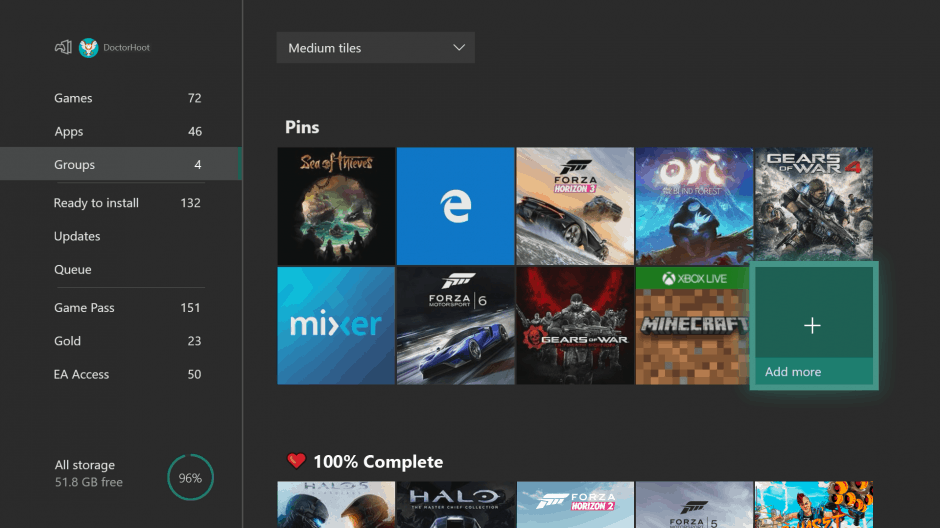
Update: Microsoft has officially posted about today’s Xbox Update. Accordingly, we’ve updated an earlier version of this post to remove reference to the Group feature for My Games and Apps. This grouping feature is not shipping with the update as we had reported earlier. We’ve also updated the headline to reflect the official name for today’s update— the May Xbox Update

120 Hz Support

If you own a monitor or TV that supports a 120Hz refresh rate, you’ll now be able to take advantage of that technology with Xbox One X and Xbox One S. This is a high refresh rate and it will make for a smoother gaming experience and lower latency on some displays. You’ll also notice that some games will no longer stutter and tear if you choose this output on your monitor.

Discord on Xbox Live

As previously announced, this update allows you to connect your Xbox Live account with your Discord account. You’ll need to head to the linked social accounts settings menu on Xbox one to find this option. After linking, you’ll notice that your Xbox Live stats will be shared on Discord, so your friends and users there can see what you’re playing. You can also link via the Discord app on PC or Mobile.

Discord on Xbox Live

Trimming Clips from the Guide

Thanks to this update, you can now trim clips directly from the Guide. This cuts out the need to go to Upload Studio to make quick cuts to saved clips. It also builds on the ability to share to Twitter which was added in the last Xbox update.

Trimming Clips in the Guide

Family Settings, updated Xbox Accessories App, and new intuitive button commands

Final of the new features in this update are enhancements to the Xbox Accessories app, Family Settings, and new intuitive button commands. First off, Microsoft has modernized the Xbox Accessories app to make it easier to use and look at. Secondly, they’ve also added a “Details” page in family settings so parents can better leverage their controls on Xbox One. And finally, with the new intuitive button commands, you can use the “View” button on Home to edit the order of blocks or reorder items within Groups.

Xbox Accessories

With this update now rolling out, you can expect for Microsoft to get to work on the next version of the Xbox OS soon. Microsoft’s Brad Rossetti teased that Xbox Insiders will be getting their first taste of a new journey next week, so best to keep tuned for more.

Microsoft looks to move all its speech services under one roof

Back in the day, a mantra that served as the cornerstone of financial viability and the lifeblood to Microsoft was, “Developers! Developers! Developers!” The chant was fully embodied as former Microsoft CEO Steve Ballmer ran across a conference stage in unbridled exuberance reciting the words, “Developer! Developers! Developers!” as he attempted to invigorate a room full Windows developers into creating the next wave of Windows-based experiences for consumers.

While Microsoft still leans heavily on the creativity and ingenuity of its Windows developers, a seemingly new mantra is developing under the new CEO of the company that reads a bit more like “Consolidate! Consolidate! Consolidate!” Microsoft CEO Satya Nadella has been making some sweeping changes that have fostered the idea that company is looking to streamline much of their software, services and hardware lineups.

Microsoft’s efforts to consolidate are permeating throughout the company and have made their way to its various speech services. According to a report from Mary Jo Foley over at ZDNet, Microsoft is taking the first steps to combine their various speech services under a single programmable API and development SDK.

Microsoft’s single SDK will help developers create speech experiences across services such as Office, Cortana, Bing, Microsoft Translate, Windows 10, HoloLens and Xbox (if they get serious about speech on the console, again).

Yesterday, Microsoft disclosed additional details about the consolidation of speech services, that were first acknolwedge during its developer conference last week.

“Microsoft has been invested in voice and speech for years. As you saw most recently at Build, we announced an important set of updates for the speech capabilities of Microsoft Cognitive Services – a new unified Speech service in preview. From a broader customer perspective, we’re listening to feedback and hearing people are increasingly wanting to use voice to engage with PCs so we’ll continue to test/deliver new experiences. Beyond this, we have nothing to share regarding details on future plans.”

Microsoft’s plans of consolidation are all encompassing and rather dense as the company wants its API and SDK to be accessible to all levels of developer skill, work online and offline, in hybrid or batch situations and range from open commands to more nueanced conversational interactions and available in 28 spoken languages.

Obviously, most of Microsoft’s more ambitious efforts are not yet ready for public consumption but there was a preview of its consolidate speech service efforts shown during Build 2018. The preview supports unsurprisingly, Windows but also Linux and Android at the moment with eventual support for iOS and macOS X somewhere down the line.

Aside from the preview, Microsoft plans to give its new API and SDK its first real world test as it moves its Translator App over to the new consolidate speech service SDK in an upcoming update with Office to follow at some point in the future as werll.

For developers, Microsoft believes it will have an SDK available within the “next few months” according to a spokesperson who chatted with Mary Jo.

Microsoft celebrates Global Accessibility Awareness Day

Today, May 16, marks Global Accessibility Awareness Day. Microsoft has long been on a mission to empower every person and organization to achieve more, and the company is highlighting how it’s done just that by making Windows more accessible for everyone.

At the forefront of things are the ways in Which Windows can adapt for those who have disabilities, or unique work styles. Over the past few years, Microsoft has introduced features such as a magnifier, color filters, high contrast mode, narrator, and learning tools in Microsoft Edge. All of these tools and features have benefited many users, and one person in particular, who Microsoft’s Yusuf Mehdi mentions in today’s blog post.

This feature is invaluable to many of our customers, including Nori, who has had a visual impairment since birth. Narrator has helped her pursue her passion for Japanese culture and public speaking. She’s a fan of using it to prepare for Japanese oratory competitions (which she has won five years in a row!). We’re grateful to have Nori in our Windows Insider program—her insights help us continue to develop tools to reflect the diverse needs of our customers.

Fittingly, Microsoft also took the wraps off their customizable Xbox Adaptive controller today, designed to bring gaming to those with disabilities. It’s all just one small part of how Microsoft is empowering everyone. You can learn more by heading to your local Microsoft Store from May 29 to June 2 for Ability Week and see the latest Microsoft hearing, vision, mobility, and cognitive assistive technologies in action.

Microsoft’s customizable Xbox Adaptative controller is official and will launch later this year

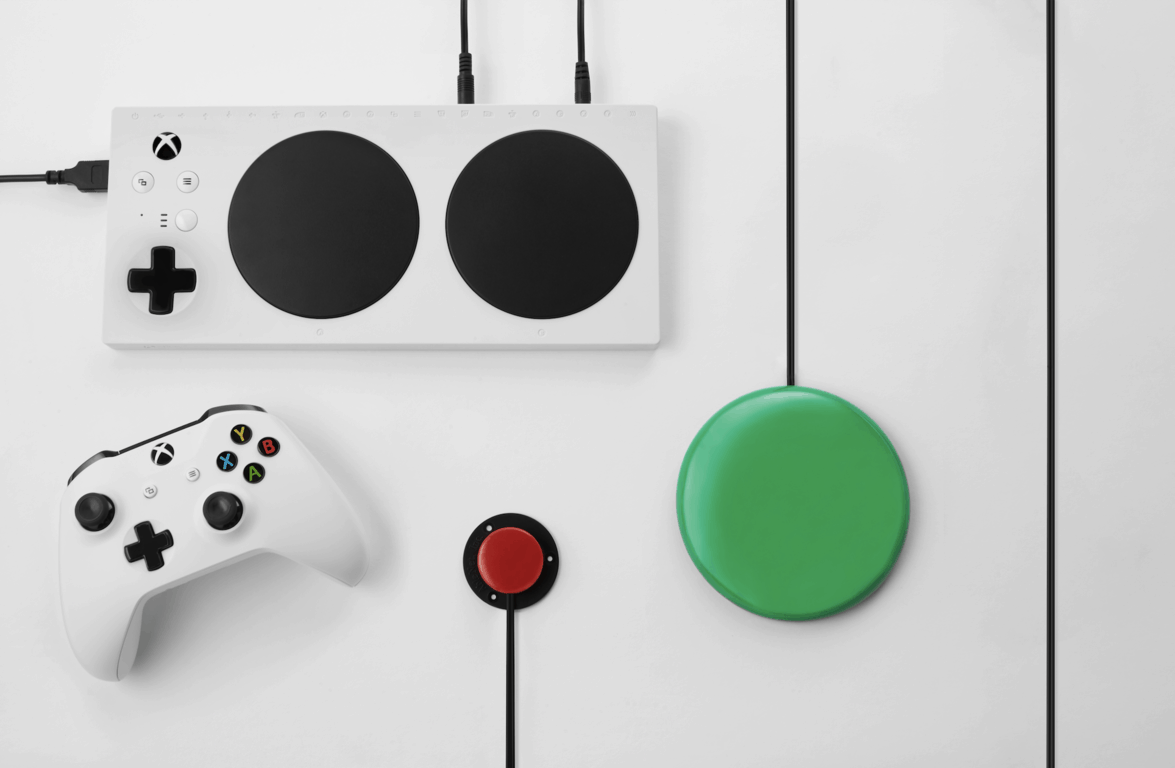
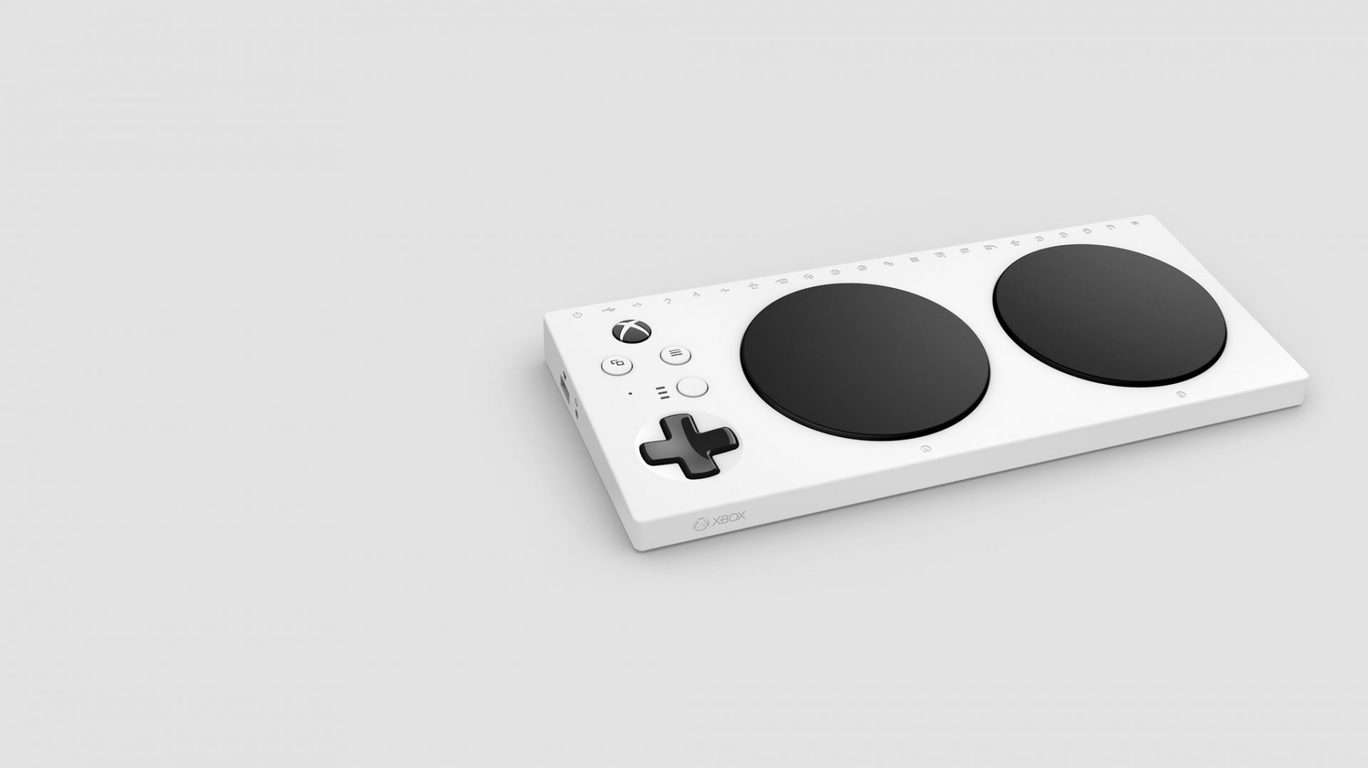
After we saw a leaked image of it earlier this week, Microsoft’s new Xbox Controller designed for accessibility is now official. The company is calling the new device the Xbox Adaptative Controller, and it has been developed in partnership with several organizations including The AbleGamers Charity, The Cerebral Palsy Foundation, Craig Hospital, SpecialEffect, and Warfighter Engaged. All these organizations helped Microsoft create a fully customizable controller that will help make gaming more accessible for everyone.

The new controller has a rectangular shape and features two large buttons in the center that can be assigned to any function by using the Xbox Accessories app. On the back, there are 19 3.5 mm jacks for plugging external switches, buttons, mounts, joysticks and more, and Symbols are also embossed along the rear edge at the top of the controller to help gamers identify each port. There are also USB ports on either of the controller for the Left and RIght thumbstick inputs, a headphone jack on the left plus USB-C and DC power ports on the back.

“To make the Xbox Adaptive Controller a viable solution for the widest possible range of gamers with limited mobility, we’ve worked closely with third-party manufacturers to support external inputs which can be plugged in to the new controller,” explained Xbox head Phil Spencer. “These inputs include PDP’s One-Handed Joystick for the Xbox Adaptive Controller, Logitech’s Extreme 3D Pro Joystick, and Quadstick’s Game Controller,” he added.

The Redmond giant chose to announced its new Xbox Adaptive Controller on Global Accessibility Awareness Day, and the company deserves credit for trying to make video games more inclusive. Microsoft said today that the new controller will be priced at $99.99 USD and be available exclusively on the Microsoft Store, but it won’t ship until later this year. Phil Spencer said today that the company will share more information about the new controller at E3 2018, which is just a couple of weeks away.

Minecraft’s Aquatic Update launches on Xbox One, Window 10 Mobile & PC

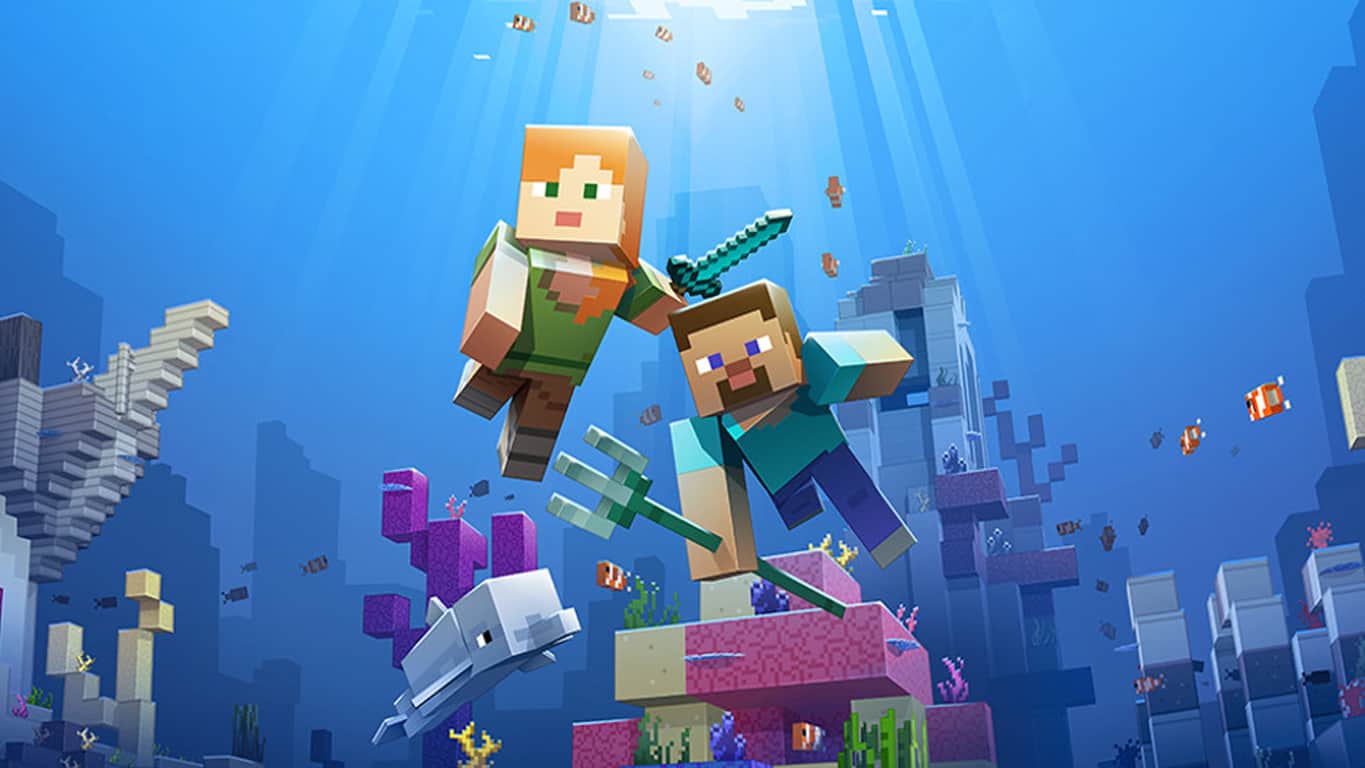
The first part of Minecraft’s Aquatic Update is now live on Xbox One consoles, Windows 10 PCs, Windows 10 Mobile phones, Oculus, and Mixed Reality devices.

This first phase of the Aquatic Update brings, as its name suggests, water related content and functionality to the popular Minecraft game such as swimming, floating items, shipwrecks, and ruins. This update also adds eight Xbox Achievements to Minecraft for players to unlock. Here’s the full list of new content and changes being made with this update.

  • Fish (salmon, cod, pufferfish, tropical fish)
  • Bucket of fish
  • Coral (coral, coral fans, coral blocks)
  • Kelp, Dried Kelp, Kelp Block
  • Dolphins (follow boats, get a boost swimming next to them)
  • Icebergs
  • Blue Ice
  • Nine Ocean Biomes (frozen, deep frozen, cold, deep cold, lukewarm, deep lukewarm, normal, deep normal, warm)
  • Underwater Ravines & caves
  • Sea grass
  • Sea pickle (w/ illumination! Up to 4 in a block – only light up underwater)
  • Shipwrecks
  • Treasure chests (in ruins, shipwrecks)
  • Ruins
  • Swimming
  • Treasure Map
  • Buried Treasure
  • Heart of the Sea in buried treasure chests (non-active)
  • Trident
  • Trident enchantment
  • Stripped Logs
  • Buttons, Trap Doors, Pressure Plates with variation
  • Carved Pumpkins
  • Floating Items
  • Boat Polish (smoother control)
  • 8 new achievements
  • Water has a completely new look and increased visibility while underwater
  • Prismarine Stairs and Slabs
  • New swimming animation while sprinting in water
  • Minecraft: Education Edition Chemistry features can now be enabled under Cheats! For tips on getting started, check out the Chemistry Lab Journal

The second phase of the Aquatic Update will add even more water-related items and features to Minecraft however no release date for it has been given yet.

Have you installed the Aquatic Update on your version of Minecraft yet? Let us know if you’re digging it in the comments below and make sure to follow us on Pinterest for more Xbox and Minecraft content.

Minecraft for Windows
Developer:
Microsoft Studios
Price:
Free

Here’s how to use the HoloLens Emulator

If you are curious about the HoloLens, but don’t actually have one, then you can try using the HoloLens Emulator to give you a feel of how its apps work. The emulator also comes with a development toolset that is designed to attract developers to create more applications. Below you will find information on how to use the emulator.

How does the HoloLens Emulator work?

The HoloLens Emulator uses a virtual machine called Hyper-V. This virtual machine simulates both the environmental and human inputs of a HoloLens. However, instead of a HoloLens, you will use an Xbox controller or mouse and keyboard for controls. Furthermore, with the emulator, applications run exactly like how they would run with a real HoloLens.

How do I deploy applications on to the emulator?

  1. First, you will need to download an official Microsoft application called Visual Studios. It is important to note that if you are using Unity you will have to first build your project through Unity, then load it onto Visual Studios.
  2. When all said and done, make sure that the Platform is set for x86.
  3. Next, select the HoloLens Emulator for debugging.
  4. Open the emulator and deploy your application to start debugging it.

How to control the HoloLens Emulator

Controlling the HoloLens Emulator is actually not a very difficult task. I’ve mentioned before that you also can choose to use an Xbox controller or mouse and keyboard. Controlling the emulator is just like controlling a three-dimensional video game.

The way it works is input from your Xbox controller or mouse and keyboard moves a simulated user that is wearing a HoloLens. Basically, it would be just like controlling a character in a video game. Your input will be read by the apps as if it were a real HoloLens.

What are the controls for the emulator?

Here are some controls that you can use on the mouse and keyboard:

  • Move left, right, forward, and back – A, D, W, and S keyboards keys.
  • Look Around – Click and move your mouse.
  • Bloom gesture – Press the f2 key or Windows key.
  • Air tap gesture – Enter key or right click on the mouse.
  • Movement of your hand for scrolling – Hold the right mouse button or hold the alt key then move your mouse around.

Here are the controls for your Xbox controller:

  • Move left, right, forward, and back – Use the controller’s left stick to move around.
  • Look Around – Use the controller’s right stick to look around.
  • Bloom gesture – Press the B button on the controller.
  • Air tap gesture – Press the A button on the controller.
  • Movement of your hand for scrollig – Hold A and Right trigger down while moving the right stick down or up.

What are the features of the emulator?

Once you launch the emulator you will be brought to the main window of the HoloLens operating system. On the right side of the main window you should see a toolbar. This toolbar is highlighted in red.

As you can see there are nine buttons on the tool bar. We will explain each button starting from the bottom to the top.

  1. The first button that looks like 2 arrows pointing to the right is the additional tools option.
  2. The second button is called the Open Device portal. As the name suggests, clicking on it will lead you to the Windows Device Portal that is designed for the HoloLens operating system.
  3. The third button from the bottom up is the help option. The button has a question mark on it and you can use it to help you solve a problem.
  4. The fourth button lets you zoom in or out of the emulator. You can recognize it by the magnify glass on it.
  5. The fifth button makes the HoloLens Emulator fit your entire screen.
  6. The sixth button is marked by a picture of a keyboard.
  7. The seventh is called the human input option. Clicking on it makes your mouse and keyboard simulate human input into a HoloLens.
  8. The eight and last option closes the emulator.

— RELATED: 4 of the best Virtual Reality software for Windows 10 PCs

What are the options available in the addition tools option?

You will be presented with four tabs when you click on the additional tools button. In this section we will talk a little about each tab.

1. Simulation Tab

The first tab is the simulation tab. Here is where you can configure the simulated sensors used to control the operating system of the HoloLens. You will find tooltips telling you how to change the value.

2. Room Tab

As you can see, in this tab you can test your applications in simulated rooms. Downloading the emulator will automatically give you several rooms that you can try out. These rooms were actually captured by the HoloLens in real environments. Note, anyone can record their own rooms with a HoloLens.

3. Network Tab

This tab has an option that lets you sign in with a Microsoft Account. When you sign in you will be able to configure the emulator, among other things.

Conclusion

The HoloLens Emulator is an amazing tool that you can use to test apps and rooms for the HoloLens OS. Remember, you will need a PC that can handle virtual machines, so make sure you check your specs before you install the application.

Read Also:

Review of Yahoo Mail for Windows 8, Windows 10

Yahoo! Mail is without a doubt one of the best and most used Internet email services around. Thousands of users worldwide are grateful for its services and thanks to its ease of use and simple, but beautiful user interface. And now, it has finally arrived on the Windows 8, Windows 10 platform – hooray!

Also, Yahoo! provides top notch services, and in the Internet email competition, it is Google’s top competitor, offering a wide variety of services and features. One thing I used to hate in Windows 8, Windows 10 was the email client. I can’t say why for sure, but I just didn’t like it, and those that shared my opinion are now happy to know that Yahoo! Mail is available for Windows 10, Windows 8.

Even with the appearance of Windows 10, Windows 8.1, Yahoo! Mail remains equally awesome!

yahoo-mail-windows-8-main

Yahoo! retains its simplicity in the new OS

Although similar to the Windows 10, Windows 8 default email client, I found Yahoo! Mail to much more reliable and its interface much more user friendly, allowing users to quickly check their mail and do all the usual tasks that they would do on the browser version.

yahoo-mail-windows-8

The app has three regions: Inbox and folders, Email list and content of email. When you click on a mail, it opened it in the third part of the screen, and above you have all the different options that you would expect:

  • Reply
  • Forward
  • Delete
  • Move
  • Mark as Spam
  • Compose

yahoo-mail-windows-8-settings

Also, when composing a message, the screen is also split into two areas: Destination and Body. You have the option of attaching files from your computer, saving the email as draft and adding/modifying your signature. All these features are very well placed in the app, making it a very productive and fun to use app.

To search your mail, you use the Search option in the Charms bar, and, despite my hatred for this item, in Yahoo! Mail, it proves quite useful. Also from here you can modify the settings of the app.

yahoo-mail-windows-8-compose

What I dislike about Yahoo! Mail is the fact that it does not have support for multiple accounts, the layout cannot be changed or modified and when viewing attached images in the mail itself, they look out of place and not well centered, for a better view, you can open them in full screen and view them in the image viewer, but this will leave the app. Also and it does not support filtering emails that have attachments. Although not major, this issues are present, and I hope that the Yahoo! developers are trying to sort them out.

Maybe for the moment, Yahoo! Mail for Windows 10, Windows 8 is not perfect, lacking some features, but it comes a definite upgrade over the default Windows 10, Windows 8 email app, and I recommend it for every user of Yahoo! Mail.

Update – Yahoo Mail app pulled out from the Store

Yahoo has discontinued the Mail app for Windows 8, 8.1 devices in 2014. That may be because of the security breach Yahoo! has back then. Shortly after, Yahoo! released Mail app for Windows 10. That one didn’t last too long : in May, 2017, it was discontinued as well. The users with the app installed on their devices can still read their mails, but we recommend to use the browser version of Yahoo! Mail.

Email client alternatives for your Windows 10 computer

If you want to test a different email client, you should know that there are plenty of alternatives that you can choose from. We already compiled a list of the best email clients that you can use on Windows 10.

There are also quite a few decentralized email services out there that use blockchain technology to send, deliver and store messages. However, many of these tools are still work in progress — after all,  they do rely on a relatively new technology.

Keeping your emails safe from malware, hackers and other cyber threats is very important. For this reason, we recommend that you install an email encryption software and anti-spam tool as well to protect your emails.


RELATED STORIES TO CHECK OUT:

Open RAR Files in Windows 8, Windows 10 With UnCompress Alternatives

UnCompress is a very easy app to use that helps you extract RAR files in Windows 10 and all previous Windows version after Windows 7. If you’re using Windows 8 or Windows 10 on o desktop machine or laptop, chances are that you might not need this application, since you can easily use WinRAR, for example. But what will you do on your Windows RT device, for example? Or maybe you simple want to use a dedicated Windows 8 or Windows 10 app for that. That’s where UnCompress comes to your help.

UnCompress opens, extracts RAR files in Windows 10, Windows 8 and Windows RT

Right from the start, you should know that Uncompress was discontinued in 2016. However, if you installed it on your machine before 2016, you can still use it today. If you’re looking to download a reliable Uncompress alternative, then jump straight to the end of this post to see the list of the best Windows Store apps that you can use to open RAR files.

The application is very basic and very easy to use, mainly because there isn’t too much what you could do with this app, besides opening/extracting archives. Inside the app you can do only the following: open single RAR files and open multi part RAR files. Everything happens just like you’re used to: you select the RAR archive and the point to a folder where it should extract. Simple as that.

While the extracting/opening of files happens, you are advised not to switch apps or close UnCompress while it’s doing its thing. This is perhaps the biggest drawback, because we’re used to leaving the extraction process run on the background. Sadly, this isn’t possible with this application in the Modern User interface of Windows 8 and Windows 10. Also, there’s an ad banner there, but it’s not that uncomfortable.

UnCompress for Windows 8, Windows 10 is a very basic extracting tool that can prove to be useful while using the Modern UI. UnRAR files easily with it while on the go!

UnCompress is no longer available in the Windows Store

As we already mentioned, the app is no longer available in the Microsoft Store. However, if you need an app or a software to uncompress/unzip/unrar files, you can always find an alternative to UnCompress in our article about creating and extracting compressed files or in our Top with 5 best open source file archivers. Do not bother about the term ‘archivers’ – they also can ‘un-archive’ compressed files.

UnCompress alternatives

If you’re looking for a fast and reliable UnCompress alternative that you can download from the Microsoft Store, here are some of the best tools that you can download:


RELATED STORIES TO CHECK OUT:

Play Sudoku for Free in Windows 10, Windows 8 With SudokuFree App

Windows 8, Windows 10 suddenly becomes awesome when you play Sudoku games and apps on it; that is, of course, if you’re a true afficionado
windows 8 sudoku
Back in the day, when I had a Nokia “dumb” phone, there was one game that I loved more than any: Sudoku. Since then, I’ve tried many Sudoku games, but I couldn’t find the “right one”. Well, now, my search is over. I found the game I was looking for in the Windows 8, Windows 10 apps store.

The app is called Sudoku Free and apart from being a simple Sudoku game, it does not have many features, but it has that something that makes it very entertaining, but at the same time, very challenging. Apart from chess, I believe Sudoku is the best brain game of all.

sudoku-3


Impressions of the game

When first starting the game, you have the option to choose one of the three difficulties of the game: easy, normal or hard. When you enter the game, you find the Sudoku board waiting for you. It has a calming design and color scheme, perfect for helping you concentrate. Also, on the side of the board, you can find the 1-9 numbers, which will eventually let you know when you have finished with each of them by turning darker.

Also, you have the ability to take notes in each box. You can write what numbers you think are there, and play out the rest of the game. If one of the numbers in your notes is used on the line or in the square, it will automatically disappear from your notes. You can even use hints if you find yourself in a predicament, but don’t think that you will fool anyone if you use too many because they have a little marker.

sudoku-2

Apart from this, the game is pretty straightforward: a regular Sudoku game for Windows 10. Although, for beginners, it’s better to get accustomed to the computer version before moving to pen and paper, because here, when you make an error, the computer will highlight it. But these being said, I’ll make a last recap of the game’s highlights and I’ll let you enjoy a calming (I hope) game of Sudoku.

sudoku

A quick recap

  • 9×9 Sudoku grid
  • 3 difficulty settings
  • random puzzle generator
  • clean and responsive UI
  • fast metro-style interface
  • ability to take notes

Update – SudokuFree latest improvements

SudokuFree app continues to receive support from its developers team. Recently, some improvements and features have been added :

  • 4-th difficulty setting added
  • Timer and statistics
  • Live tiles showing percentage complete and your level

In case you want to compare it with other Sudoku apps/games, we suggest you check our list of Sudoku apps.

You can read more about all the changes brought by the latest updates in these articles:

  • Sudoku Free Windows 8, 10 App is Updated to Fix Bugs
  • Windows 8, 10 Sudoku Free app Updated With More Bug Fixes

Best SudokuFree alternatives

It is sure that this is one of the best brain-training games but SudokFree is not the only Sudoku-app available. You can also have a great time playing Microsoft’s Sudoku game.

sudoku free apps windows

Pure Sudoku Deluxe is another app that will offer you an extremely beautiful interface. For those of you who do not have a powerful computer or some access restrictions, you can try Just Sudoku, a desktop app which will keep your brain engaged for hours.

READ ALSO: The best free online games to play on your PC


Bottom line for this game: it’s a perfect addition to your app collection, for those who want some brain stimulation, or for those who want to learn the Sudoku game. A perfect app for both beginners and veterans of the game.

How to Activate and Display All Microsoft Store Apps

My biggest surprise with the Windows Store once I started using it was that it felt so darn empty. My first question was – are there really only a few apps in the Windows Store? The latest stats indicate there are tends of thousands of applications for Windows 8, Windows RT and Windows 10, so where the heck have they all gone? Why I’m seeing only a few applications there? The solution to that is very simple, as simple as it was for me to solve my freezing issue with Windows 8, 10.

But it might not work out for you, so there are a few more things that you’ll need to do, but nothing too hard that will step you from enjoying your Windows 8, Windows 10 experience. What you’ll need to do is to play around with some settings that most likely, came as default on your system. When you installed Windows 8 or Windows 10 (hopefully without having to think the install was stuck), you chose a language and a country. Windows Store inherited that and that’s why it “served” so little apps. But we’re going to change that.

How to make all Microsoft Store apps appear

  1. Make Windows 8 apps appear
  2. Turn on location services on Windows 8, Windows 10
  3. Change your location to United States
  4. Use the built-in Windows Store troubleshooter
  5. Reset Windows Store

1. Make Windows 8 apps appear

The first step you need to do is to go on the Windows Store by pressing the Windows logo and choosing Windows Store, open the Charms bar – by going to the upper right corner or by pressing Windows logo + W, then open up Settings. There, you’ll find Preferences. Go there and select No to both sentences. This should increase the size of your Windows Store. And here are some screenshots to help you do that. Check the number of apps before doing this and then after.

Windows Store -> Charms bar -> Settings -> Preferences -> No to both sentences.

how to enable all windows store apps

how to display all windows store apps

how to activate windows store apps

2. Turn on location services on Windows 8, Windows 10

I tried the first solution, but when searching for the Netflix app, for example, I just couldn’t find it. And after searching for a while just why that was happening, I realized that it has to do with localization, once more. So, what I did was to search for any files or settings related to “location” and I pretty much managed to solve the issue and now all the Windows Store apps are displayed and activated. Here’s what you have to do.

Open the Charms bar while you are on the desktop, so that you will be searching in the entire system. Type in “change location settings“. This is the easiest way to get there, so that’s why I’m providing you with this. You’ll find it under the Settings tab, obviously. Uncheck those two items that you find – “Turn on the Windows location platform” and “Help improve Microsoft location services”.

Charms bar -> “change location settings” -> uncheck both items

To customize your location settings on Windows 10, go to Start, type ‘location in the Search box and select ‘Location Privacy Settings.

change location privacy settings windows 10

In the new window that appears on the screen, make sure to turn on location services.

enable location windows 10

3. Change your location to United States

We’re going to have a little more fun with this location thing. Go to search again, from the deskop and type just “Change location”. Go to Location and choose Region there. To be sure you get as many apps as possible, pick United States, of course. This should do it, folks. Now, you should see even more apps in your Windows Store.

Charms bar -> “change location” -> choose region -> pick United States

On Windows 10, you can quickly set your default location for your Microsoft Store apps directly from the Settings page. Go to Settings > Location > Default Location. In the new window, set your default location and confirm your choice.

set default location windows 10 store apps

From now on, your Microsoft Store apps will use this default location.

4. Use the built-in Windows Store troubleshooter

Windows 10 also comes with a built-in troubleshooter that allows you to quickly fix general app issues. To run the troubleshooter, go to Settings > Update & Security > Troubleshoot > select the Windows Store Apps troubleshooter.

windows apps troubleshooter

5. Reset Microsoft Store

If the Microsoft Store still won’t display all the apps, you can also try to reset it. Go to Start > type ‘run’ > select the Run dialog box. Now, type in Wsreset.exe and hit Enter. You can now restart your computer to see if the issue persists.

Hopefully, after using this very basic tricks, you’ll be able to enjoy more awesome applications inside your Windows Store, because, after all, that’s the beauty that comes with Windows 8 and Windows 10.


For more information on how to fix other common Windows Store apps problems, check out the guides listed below:

Is your Windows 10/11 Install Stuck? Fix it in 4 Quick Steps

I remember that when I installed Windows 10 on my laptop, it stuck at 10% for quite a while.

My Windows 10 copy was a genuine one (albeit I didn’t pay for it since I got it for free in the university program), so, naturally, I was afraid that it would fail to install.

This problem has been affecting all Windows users, from Windows 7 to Windows 10. Below we will try to come up with a few basic solutions that could help you out.

But before we start, below are some of the stages where your Windows installation can get stuck:

  • Windows 10 install stuck at 10%
  • Windows 10 install stuck at 90%
  • Windows 10 install stuck at getting system ready
  • Windows 10 install stuck at Windows logo
  • Windows 10 install stuck at please wait
  • Windows 10 install stuck at black screen
  • Windows 10 install stuck at getting devices ready

What can I do if my Windows 10 installation process gets stuck?

1. Install the final version

Most of these issues will happen with versions of Windows 10 that are not final. I tried my install with a final version of Windows 10, so I managed to overcome the issues just by … waiting.

But, if you’re getting your Windows 10  install stuck at different stages and you’re not using a final version (or a pirated, illegal one), I strongly advise you to pick a final, legal version.

2. Unplug all external devices

printer

I remember that a few years back, when I was installing Windows 7, I got the same issue. My mouse was plugged in, as my printer, and my USB cable to my smartphone.

As soon as I unplugged all that, my install resumed and finished very quickly. Try doing that, too, and it should get past that stuck point.

3. Just wait

I know one doesn’t have to be a techie to do this one, but you feel different when people tell you it’s only natural that it is happening.

So, don’t worry; you’ll be able to finalize your Windows 10 install. Grab a book, open your TV, and let it do its job.

4. Update your BIOS

This has been reported by our reader, Charan. He tried the basic advice we’ve given, and it didn’t work. Check to see whether your BIOS is outdated and if it is, then update it. Thanks again, Charan!

Sometimes, you might want to check again if your PC is compatible with Windows 10, but unless you’re installing it on something very old, you should not have this issue.

Also, this is a non-advice because I’m not sure 100% if it’s genuine. Before installing Windows 10, be sure you have a little more space than just what is required. So, if you need 16 GB for Windows 10, make sure you have at least 25, for example.

If you’re installing Windows 10 from a DVD, don’t forget to eject your DVD if you no longer need it or when it says you to. If you forget to do it, it might start the install process all over again.

Try the above solutions and if they don’t work, let us know in the comments section and we’ll try to work out a solution together, but, usually, this is nothing to be worried about.

Upgrade to latest Windows versions

If you are on Windows 10, you probably have had enough of this, but really – you should go ahead and upgrade to Windows 11.

Besides the various security issues that you might encounter, older operating systems also don’t get enough attention from Microsoft.

If you have any other questions or suggestions, feel free to leave them in the comments section below, and we’ll be sure to check them out.

Microsoft signs Azure / Office 365 deal with US intelligence agencies as huge Pentagon contract decision looms

Microsoft announced today that both it has entered a deal with the US Intelligence Community worth millions of dollars over six years. Under the agreement, the Intelligence community will use Microsoft’s products, like Office 365 for US Government and Azure Government, via a Joint Enterprise Licensing Agreement awarded to Dell Inc.

The company already had an ongoing relationship with government agencies, but this latest deal brings 17 more US Intelligence agencies on board with a digital transformation. With a Pentagon contract decision looming, Microsoft says the deal also “bolsters” the company’s position as the leading government cloud provider. The company explains:

This new agreement provides the IC with a vehicle for accessing the latest Microsoft technologies to further empower its agencies, optimize operations and modernize infrastructure. This agreement positions Microsoft to help the IC achieve its mission at home and around the world with a trusted cloud and modern workplace solution that keeps critical data secure, while delivering advanced capabilities including artificial intelligence, machine learning and large-scale data analysis.

Office 365 for US Government and Azure Government are built to fit the government’s strict security requirements. There are eight geographically distributed Azure Government data centers, and they all host no commercial data. Learn more by checking here.

Indie developers prefer almost anything over Xbox, according to recent survey

Despite Microsoft launching its ID@XBOX program back in 2014, the company’s Xbox One console is apparently the least preferred platform among indie developers, according to a new survey from GamesIndustry.biz. 47.5% of the 61 developers surveyed at EGX Rezzed this year told the publication that if they could only release their game on a single platform, they would do so on PC. Surprisingly, the Nintendo Switch came second with 32.8%, ahead of the PS4 (11.5%), Mobile (6.6%) and Xbox One (1.6%).

Considering that both the PS4 and the Xbox One have more power and a bigger install base than the one-year old Nintendo Switch, it’s quite interesting to see the portable console being more attractive for this panel of indie developers. Several developers highlighted the Switch broad appeal and “innovative features,” while also pointing out some problems with Microsoft and Sony’s platforms:

Although Sony doubled-down on indie games with the PlayStation 4, developers aren’t enamoured with the platform. That said, many were quick mention the support offered by Sony to indie developers, and expressed an appreciation for the curated store.

Regarding the Xbox, one developer said it was a hard choice between Microsoft’s platform and the Switch, but that Xbox is “easier to deal with”. This sentiment was echoed by other developers on the show floor who wanted to release on Switch, but opted for other platforms.

Over the years, Microsoft’s ID@Xbox did well to bring great indie games on the platform such as Inside, The Witness, Stardew Valley, Rogue Legacy, or more recently Conan Exiles, and the program celebrated 500 titles released on Xbox One and Windows 10 last year. The fact that indie developers can also use the Xbox Game Preview program to provide early access to their games is also very positive, especially since this is something both Sony and Nintendo don’t currently offer on their respective platforms.

In addition to its ID@Xbox program, Microsoft also launched the Xbox Creators Program last year to make it easier for indie devs to publish their games to Xbox One and Windows 10 without the need for concept approval. Unfortunately, none of the games released through this new program really resonated with gamers so far, and it’s clear that ID@Xbox games still get significantly more exposure. As a reminder, the ID@Xbox Game Fest is still onging and you might want to check out the latest discounts on Cuphead, Cities: Skylines, Ark: Survival Evolved and more.

Star Wars Battlefront II’s newest update is now live on Xbox One

The first half of Star Wars Battlefront II’s big Season 2 update has begun to rollout to Xbox One consoles in all regions and should be live for everyone within the next hour.

In addition to the usual bug fixes and character balancing, this update brings a complete overhaul of Battlefront II’s menus that does away with the hologram aesthetic and replaces it with high resolution character models (see above image).

This first half of Season 2 also features the debut of new appearances (skins) for Leia and Lando, a new 2-on-2 version of Heroes Versus Villains, the Jabba’s Palace map, Starfighter Assault content in Arcade, and new milestones to work towards.

All of this new content is completely free for owners of the game. The second half of Season 2 is expected to drop in June though all of its content is being kept a secret, presumably due to spoilers from the Solo: A Star Wars Story movie which isn’t out yet.

Are you excited for new Battlefront II content? Let us know in the comments below.

Xbox 360’s Fight Night Champion comes to Xbox One consoles via backwards compatibility

The classic Xbox 360 video game, Fight Night Champion, is now available to play on Xbox One consoles as it was added to the backwards compatibility library earlier today.

The game originally came out on the Xbox 360 back in 2011 and was the first EA title to incorporate a cinematic story mode. Fight Night Champion’s graphics were praised by critics for their realism when it first came out however they naturally look a bit dated now. Here’s the official game description. You can buy it digitally for your console here.

More than just a change to the franchise name, Fight Night Champion takes the boxing experience one giant step forward by delivering an experience never before seen in an EA SPORTS video game. History will be made with this revolutionary iteration that builds upon the best-in-class gameplay and physics engine of Fight Night Round 4, while immersing you in a world of brutality, uncertainty, betrayal, and redemption. Survive the brutal road to redemption with Fight Night Champion.

Do you enjoy playing Xbox 360 games on your Xbox One? Let us know your favorite backwards compatibility title in the comments below.

Microsoft replaces Surface Pro 4 devices to fix screen flickering issues

Surface Pro 4 users have been pointing out the flickering screen problem for years now, and now they can finally sit back and relax because Microsoft comes to their rescue. This is an important step that the tech giant took considering that the company was even hit with a class action lawsuit against Microsoft for not doing anything about the problem for so long.

Microsoft will replace the affected devices for free

Microsoft explained in detail the issue via an official announcement. The company says that only a small number of devices are having this problem and offers the much-awaited solution as well. All units that are up to three years from the date of purchase would be replaced free of cost, of course.

We have heard your feedback and after careful examination, have determined that a small percentage of Surface Pro 4 devices are exhibiting a screen flicker that cannot be addressed with a firmware or driver update. To support customers affected by this issue, we will replace eligible Surface Pro 4 devices for up to three years from the date of purchase, free of charge.

Rules for the replacement process

Here’s how the replacement process is set to take place. For starters, users have to make sure that they have taken all the latest Surface and Windows Update because they aim to keep devices running smoothly. If the screen flickering is still there even after users install all the updates, they have to contact Microsoft support.

After an agent determines that a specific device is eligible for replacement, users will have to prepare the Surface for service. A replacement device will be sent to the user as soon as they return the damaged one. An exchange device usually arrives in about 5 to 8 business days.

Microsoft also made sure to note that no other damage will qualify for a replacement and customers who paid for a screen replacement on their device will get a refund. Read the complete announcement.

RELATED STORIES TO CHECK OUT:

Posted in Fix

Microsoft creates a gaming bunker for State of Decay 2 release

We’re now just a week away from the release of State of Decay 2 on Xbox One and Windows 10, and Microsoft has turned on its marketing machine for what will be the second big Xbox exclusive to be released this year after Sea of Thieves. To celebrate the release of the zombie survival game, the Xbox team has created the world’s first Xbox Gaming Bunker inside of an authentic WWII-era location.

“The bunker is an authentic World War II-era Quonset bunker just seven miles east of downtown Los Angeles. Originally built to house military personnel in 1947, the 4,000 square-foot space perfectly embodies the feeling of the dangerous, unpredictable dystopia inspired by State of Decay 2,” the blog post on Xbox Wire reads.

This Xbox Gaming Bunker will welcome fans starting tomorrow, May 16 to Sunday, May 20 May 20 from 10:00 a.m. PDT to 6:00 p.m. PDT, though please note that you’ll have to pre-registering online on the dedicated website. Inside, you’ll be able play the game on four Xbox One stations, and also take a look at everything you need to survive a zombie apocalypse. The Xbox team has also planned a special Xbox Live session with “The Walking Dead” star Chandler Riggs on May 15, and you’ll be able to watch the livestream on Mixer starting at 4PM PDT.

Microsoft notifies gamers about information they share with publishers

In the fallout of the Facebook Cambridge Analytica sharing scandal, many have started to worry about their privacy and what exactly is done with the data shared with companies online. Well, according to a report from GameSpot, Microsoft is now taking action and is notifying some gamers about the information the company shares with publishers on Xbox.

Though we’re not seeing this message just yet, GameSpot says Microsoft is pushing out a message to Xbox One consoles which reiterate the company’s privacy and data sharing policies. It essentially details that when you play, Xbox Live enabled games or apps, Microsoft will share your play habits and some of your information with the developer or publisher of said game or app.

That shared information includes your country, age range, Gamertag, Xbox Live Avatar, information on your Gamerscore, and how much time you’ve played the game or app. Other shared information includes social data such as club memberships; friends, other users you have played with, and information about your interactions and communications.

Importantly, it also is explained that Microsoft can not control what publishers do with that data since it is determined by their own privacy policies. Microsoft also explains that the information is only collected to help “deliver your online experiences, improve the game or app, diagnose problems, provide support, and connect you with other users.”

These privacy notifications were first hinted in a blog post last month, and have rolled out to Alpha Ring Xbox Insiders in the last round of updates. You can always stop sharing your app or game data with a developer by uninstalling the game, and revoking access. More information on Microsoft’s privacy policies is also available here.

Heaps of LEGO video games discounted for Xbox One on Deals with Gold

Microsoft took the wraps off the weekly Deals with Gold last night, and there’s plenty of discounts to go around. As usual, though, there’s also the Spotlight sale, which this week is putting an emphasis and big discounts on several LEGO Games. We’ve collected some of the biggest the deals below, so here’s what you need to know.

Lego Games

Lego DLCS

You can find the complete list of games part of this week’s Spotlight sale by heading here to Major Nelson’s blog. Keep in mind that these deals are only valid through May 21st, so best to act fast if you’re interested in any of these discounts.

Microsoft’s Surface Hub 2 revealed, complete with a 4K+ display and a rotating hinge

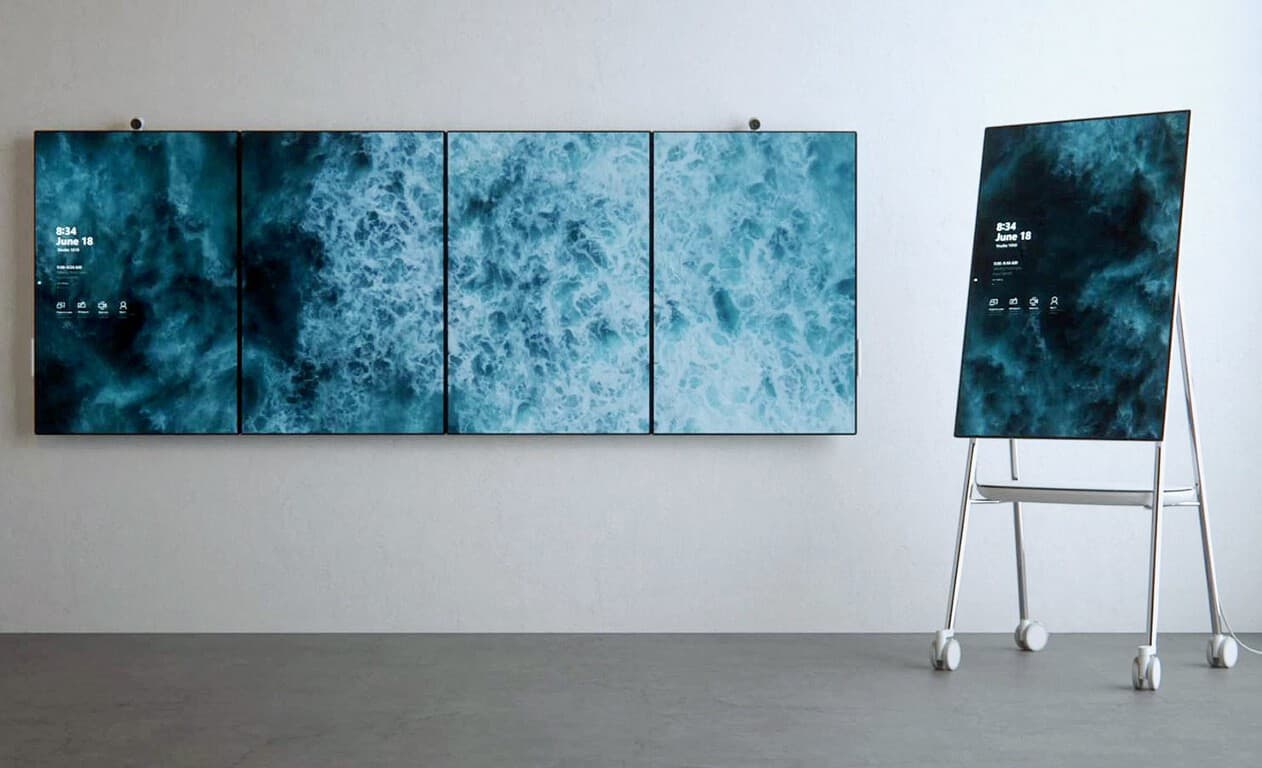
After teasing a next-gen Surface Hub in March, Microsoft today took the wraps off Surface Hub 2 via a new blog post by Panos Panay. The Surface chief says the hub is for a “new culture of work” and is “designed to be used by Teams to get people out of their seats.” Features of the Hub 2 include support for a new Surface Pen, a 4K+ 50.5” multi-touch display at 3:2 aspect ratio, 4K cameras, integrated speakers and far-field mic arrays.

Interestingly, the Surface Hub 2 has a hinge system which allows it to be rotated between landscape and portrait mode, and can be mounted on a wall or used with a rolling stand to make it more accessible. Multiple (up to four) Surface Hubs can also be tiled together in portrait mode for “undeniable visual effect” and enabling teams to get work done across Microsoft Whiteboard, PowerBI, PowerPoint, and a full view video call.

Surface Hub 2 scales and adapts to your space through tiling up to 4 screens together in portrait or landscape view. Dynamic rotation allows you to use the best orientation for your content to help people work in the way that best suits them and the people they are collaborating with. It is also significantly easier to move around your workspaces than its predecessor. We’ve teamed up with workplace expert Steelcase to create a system of rolling stands and easy-to-use mounts to help Surface Hub 2 customers be truly mobile, gain a new perspective and capture their ideas wherever they do their best work.

Microsoft also promises that Surface Hub 2 will support multi-user sign in, so multiple people can authenticate in the same workspace and simultaneously share their documents. And though not specifically mentioned by Panos Panay, it looks as though Surface Hub 2 will also have a thumbprint login system for Windows Hello, which can be seen at the 47-second mark in the video above.

The Redmond giant is not immediately sharing any pricing details and says it will begin testing the Surface Hub 2 with select commercial customers in 2018, with it being made available for purchase in 2019. More will be coming soon, and you can check out more on Surface Hub 2 by checking here.

Xbox One Devil May Cry video games discounted thanks to Deals With Gold

This week’s Deals With Gold titles have been announced and there are some good savings to be had especially for fans of the Devil May Cry franchise.

DmC Devil May Cry: Definitive Edition has been given a 67% discount on Xbox One while Devil May Cry 4 Special Edition is now half-price, and the Devil May Cry HD Collection is now 30% cheaper than before. On the Xbox 360 console, DmC Devil May Cry has been given a 70% discount, the Devil May Cry HD Collection a 75% discount, and Devil May Cry 4 a 67% discount.

Other Deals With Gold discounts worth mentioning this week are the Xbox One’s Dragon Age: Inquisition: Game of the Year Edition (75% off), I Am Bread (75% off), Mass Effect Andromeda (67% off), and WWE 2K18 (50% off). On Xbox 360 a variety of Borderlands and BioShock titles have been given discounts ranging from 60 to 70% and The Witcher 2 is now 85% cheaper than usual.

Deals With Gold discounts are available to Xbox Live Gold subscribers. You can view the full list of discounted games here or within the Gold section on the Xbox One dashboard.

Are you planning to buy any of these games? Let us know in the comments below and don’t forget to follow us on Pinterest for more Xbox content.

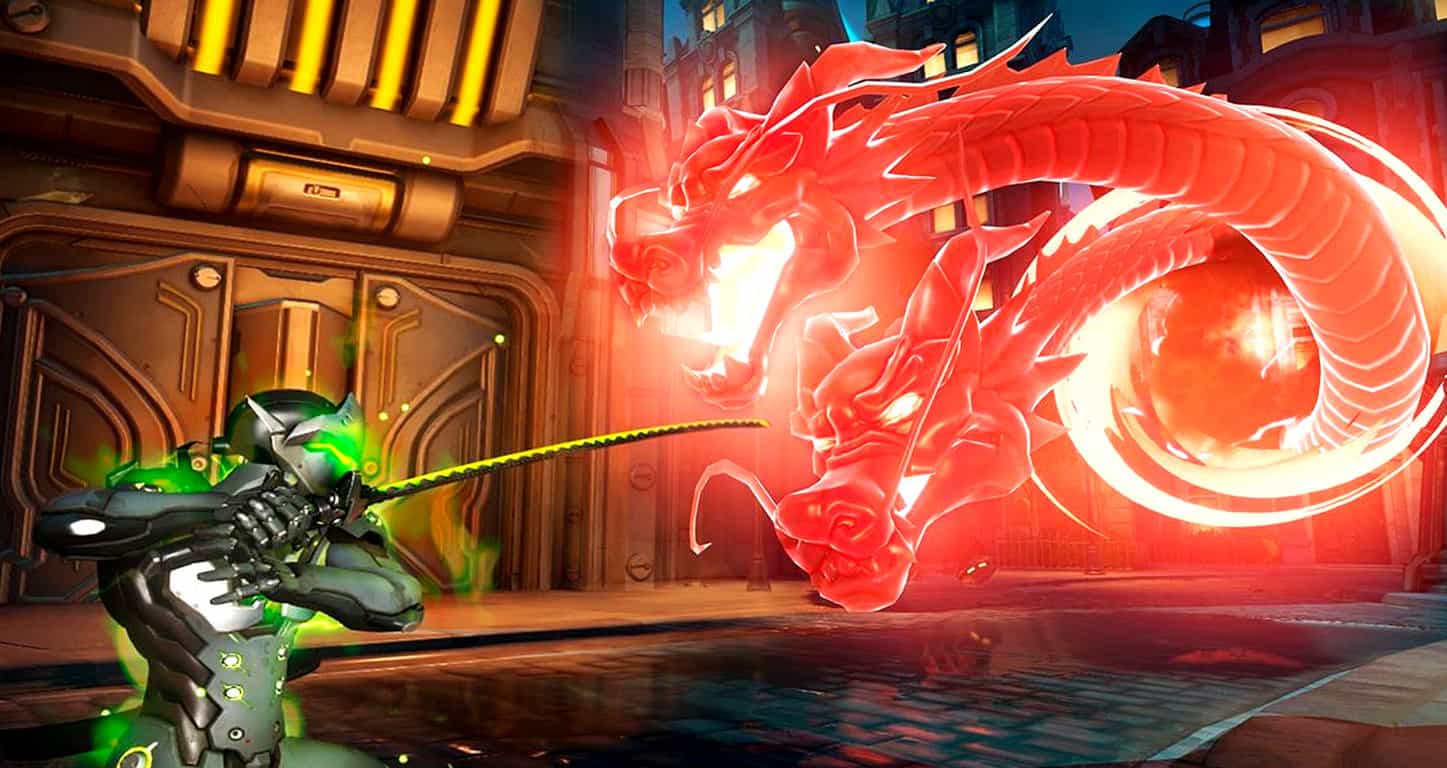
Overwatch will be free to play this month on Xbox One

The popular Overwatch video game will be free to play on Xbox One consoles from May 25th through to the 28th. Due to its online nature, an Xbox Live Gold subscription will be required to play.

All content in Overwatch will be unlocked during this period and players will be able to earn Xbox Achievements as well.

“Attention, recruits! The second anniversary of Overwatch is around the corner, and if you haven’t already had the opportunity to suit up and save the world as one of our heroes, now’s your chance,” the official announcement reads. “For this free weekend, we’re making Overwatch’s full roster of 27 heroes and 18 maps available for play in a variety of modes, including Quick Play, Custom Games, and the Arcade. Players will also be able to level up, earn Loot Boxes, and unlock a variety of different customization options for their heroes. Plus, if you decide to purchase Overwatch after test driving the game, you’ll get to keep any progress that you made during the weekend—just be sure to use the same Blizzard, Xbox Live, or Sony Entertainment account that you played on.”

Overwatch has been a phenomenal success since its launch a few years ago with millions of gamers from all around the world playing it on a regular basis.

Are you going to play Overwatch next weekend? Let us know in the comments below and don’t forget to follow us on Twitter for more Xbox news.

Microsoft embeds Cortana in many products for an assistive experience

Microsoft’s Cortana is the rival of Amazon’s Alexa, Google’s Assistant and Apple’s Siri. Now, the tech giant seems to be working on some changes regarding Cortana and a new approach is involved. Microsoft Corporate Vice President of Cortana, Javier Soltero recently discussed what’s in store for the personal assistant.

At the Build 2018 developers conference, Soltero confirmed that Cortana was embedded in a few products and played an assistive role for the users. On the first day of the Build, Cortana was the center of attention, and a concept demo was presented showing how meetings could become more intelligent with Cortana. The assistant helped facilitate a meeting, offering relevant participant identification, automatic transcription, and translation among others.

New work scenarios are in store for Cortana

Besides the new work scenarios, Microsoft will also focus on things that people do at home, work and in between according to Soltero. The company is basically looking for new ways to help users. During an interview of Soltero with ZDNet, he said that Cortana is not going away and instead, Microsoft’s target is to continue to build Cortana as an assistant and to remain coherent. He also noted that the desired result for users is “assistance.”

Microsoft focuses on Cortana’s unique strengths

Cortana is set to provide an experience that is about “assistance, not just convenience.” Soltero also said that Microsoft is focusing on making Cortana more “situationally appropriate.”

The tech giant is currently faced with a lot of other challenges involving Cortana, and these also include expanding the availability of the platform to more markets throughout the world. Microsoft’s plans for Cortana might help it overcome Amazon’s Alexa and Google’s Assistant’s rapid acceptance and more.

RELATED STORIES TO CHECK OUT:

The BioShock trilogy, Borderlands and 17 more games will leave Xbox Games Pass on May 31

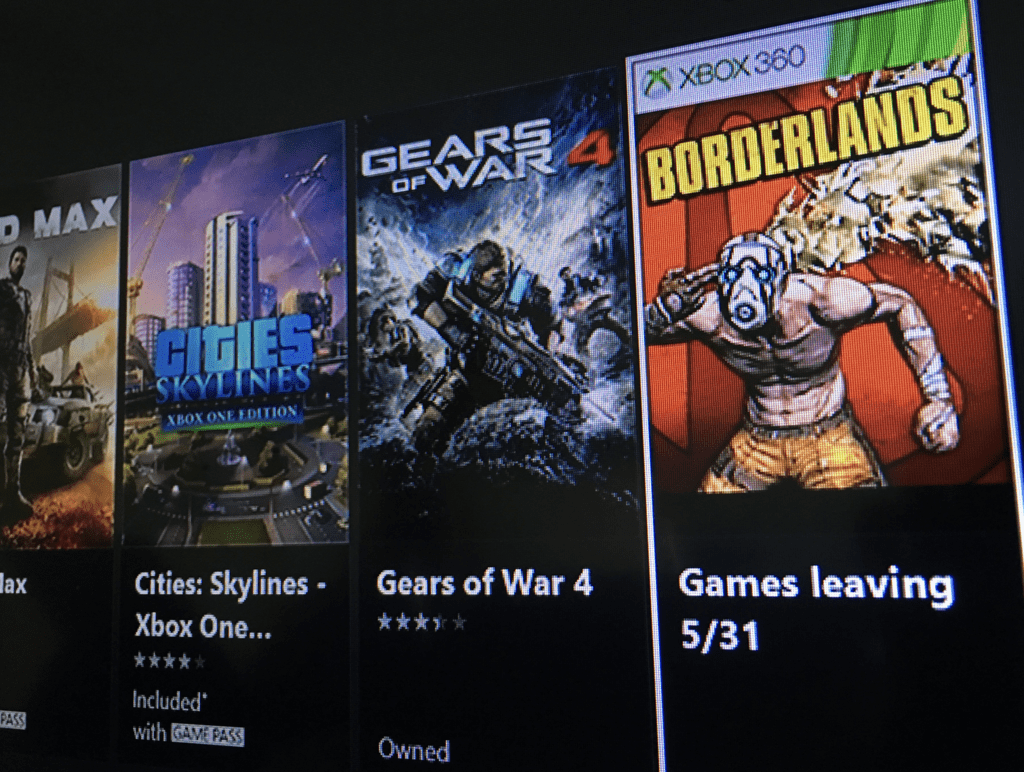
After adding eight new games to the Xbox Games Pass catalog this month, Microsoft will remove 21 of them on May 31, including several classics such as Borderlands and the BioShock trilogy (via VG247). The only Xbox One games to be removed at the end of the month are Blood Bowl 2 and Defense Grid 2, and the rest are Xbox 360 titles.

The full list of games to be removed at the end of the month can be found below:

  • Age of Booty
  • Bionic Commando: Rearmed 2
  • BioShock
  • BioShock 2
  • BioShock Infinite
  • Bloodbowl 2
  • Borderlands
  • Bound by Flame
  • de Blob 2
  • Dead Rising 2: Caze Zero
  • Defense Grid 2
  • Dig Dug
  • Final Fight: Double Impact
  • NeoGeo Battle Coliseum
  • Operation Flashpoint: Dragon Rising
  • Pac-Man Championship Edition DX+
  • Sacred 3
  • Sega Vintage Collection: Alex Kidd & Co.
  • Sega Vintage Collection: Golden Axe
  • Soulcalibur
  • XCOM: Enemy Within

Microsoft usually remove titles from the Xbox Games Pass catalog at the end of every month, but to our knowledge it’s the first time that so many games will be removed all at once. If you have yet to play any of them, you still have a little more than two weeks before they disappear from the catalog. Additionally, we remind you that your Xbox Games Pass subscription grants you a 20% discount on each of them if you want to own one of these for good.

Leaked image of a new Xbox Controller designed for accessibility spotted

We’re still a month away from E3 2018, and many have been wondering what Microsoft may have to showcase to the world at the annual gaming conference. Well, an intriguing image has just been leaked by Walking Cat, and it looks similar to a new Xbox Controller designed for accessibility.

https://twitter.com/h0x0d/status/996029444450996224

There’s no telling if this is an actual product or just a concept, but Windows Central reports that Microsoft could likely reveal this new controller at E3. Judging from the image, there are no details on how the accessibility controller will actually work, but you can see that it has some markings on the top with impressions for Xbox’s various buttons.

Other would be features include what could be an input (for a microphone?), a series of LED lights above the D-pad, and a USB port and headphone jack along the side of the controller. One can also assume that the giant A and B buttons will also be programmable to other functions, with the LED lights showing which mode the controller is running in.

If this holds up to be true, this will be yet another way for Microsoft to showcase how they’ve been working to make gaming and Xbox more inclusive for everyone. More will likely develop in the days ahead, so best to keep tuned for more.

HP launches new Windows 10 Elitebooks, ENVY laptops, desktop with Alexa

HP today took the wraps off their 2018 Windows 10 Elitebooks, ENVY laptops, and a desktop with Amazon Alexa onboard. The devices all pack amazing features like excellent battery life, security, and everything you need for security and entertainment. Here’s what you need to know.

Elite Series

HP Elitebook x360 1030G3: June, starting at $1,449

The HP Elitebook x360 1030 G3 is being called the world’s smallest business convertible, coming in at just 2.76 pounds in weight and 15.8 mm in thinness. It features up to 18 hours of battery life, 4G LTE capabilities, and active pen support with proximity alert to notify when the pen is left behind.

HP Elite x2 1013 G3: June, starting at $1,499

This member of the Elite series packs a 13-inch display into a 12-inch chassis, which HP is calling the world’s smallest business detachable. It also is the first detachable to feature an integrated privacy screen. Other features on board include options for Intel Quad Core vPro Processors and 4G Cat9 LTE.

HP Elitebook 1050 G1: May, starting at $1,899

This ultra-slim notebook packs NVIDIA GeForce GTX 1050 graphics, for powerful performance and hexacore processing. There is the promise of up to 16 hours of battery life, and options for up to 4TB of SSD storage, an HP Privacy camera.

HP EliteOne 1000 All in One G2: June, starting at $1,279

HP’s EliteOne 1000 All in One G2 packs a 34-inch curved display and discrete graphics. The company promises that it is perfect for the front desk, and other office spaces or meetings rooms. The device also features a pop-up webcam, integrated collaboration keys, and audio and noise cancellation features— perfect for video conference calls.

ENVY Series

HP ENVY Curved AiO 34

HP is calling the HP ENVY Curved AiO 34 the world’s widest curved all-in-one. The device comes with Amazon Alexa on board and incorporates a dark ash woodgrain finish on the base and pale gold accents along the back of the device. It also comes with optional GeForce GTX 1050 discrete graphics.

HP ENVY 17 Laptop May, starting at $1,049.99

HP’s Envy 17 Laptop is a desktop replacement for the content creator. It packs the latest 8th Gen Intel Quad Core processors, discrete NVIDIA GeForce MX 150 graphics, and an optional 17-inch diagonal 4K display.

HP ENVY 13 Laptop: May, starting at $999.99

The HP Envy 13 laptop offers up an all-metal chassis in pale gold or natural silver colors. It also comes with the 8th generation Intel Quad Core processor, optional NVIDIA GeForce MX150 graphics, up to 14 hours of battery life. You’ll also find security features like a Fingerprint reader and HP Sure View.

HP ENVY X360: May, in 13-inch and 15-inch models

There are two models of the HP ENVY X360 to choose from, with the 13 inch model including the AMD Ryzen Processor with Radeon Vega Graphics22 and 11 hours of battery life. The 15-inch model comes with either Intel or AMD processors, an optional 4K display, and up to 12 hours and 45 minutes od battery life. The 15-inch model also supports HP Fast Charge, for 50 percent battery life in 45 mins.

The HP ENVY x360 13 is expected to be available in May at HP.com for a starting price of $759.99. And the HP ENVY x360 15 is expected to be available in May at HP.com for a starting price of $749.99 (AMD version) and $869.99 (Intel version).Also announced today is the HP EliteDisplay S14, the world’s first 14-inch USB Type-C portable display. Other announcements today include HP Audio Stream, which allows users to stream their favorite songs from their phone to the HP Envy AiO speakers via Bluetooth.

There’s also the HP ENVY Desktop ($799,) which comes packed with  8th Generation Intel Core multi-core processors, optional NVIDIA GeForce GTX 1080 graphics, and optional Intel Optane Memory for better system responsiveness. Definitely some exciting stuff, so be sure to let us know if you’re planning on buying any of these devices by dropping us a comment in the section below.

Windows 10 news recap: replacement program for Surface Pro 4’s screen flickering issue, Windows 10 File Explorer dark mode, and more

Welcome back to our Windows 10 news recap, where we go over the top stories of the past week in the world of Microsoft’s flagship operating system.

Some Intel SSDs may crash when updating to the Windows 10 April 2018 Update

It is being reported that 2 Intel SSD models are experiencing issues after updating to the Windows 10 April 2018 Update. The issue causes the machine to crash and boot to a UEFI screen. Microsoft has confirmed the issue and says that it is working on ways to detect affected devices and block the update.

Microsoft launches replacement program for Surface Pro 4 devices impacted by screen flickering issue

Customers of Microsoft’s Surface Pro 4 who have been experiencing screen flickering issues can now have their device replaced, as Microsoft has launched a replacement program for affected devices. Reports of the issue began surfacing back in February.

Cortana is not going away, Microsoft exec says

Despite Microsoft teaming up with Amazon to bring Alexa integration to Windows 10, an executive at Microsoft says that the company is not getting rid of its own digital assistant, Cortana.

New in Windows 10 build 17666: A new clipboard experience, dark mode in File Explorer, and more

One of the latest Windows 10 builds has brought a new feature that may bring a sigh of relief to some users, a dark mode for the File Explorer. There were other changes in this build, too, such as a new clipboard experience, Sets improvements, and more.

Windows 10 Logo Generic Featured Image Hero

That’s it for this week. We’ll be back next week with more Windows 10 news!

Microsoft launches Xbox Ideas, a new site for submitting Xbox feedback, waves goodbye to Xbox Feedback

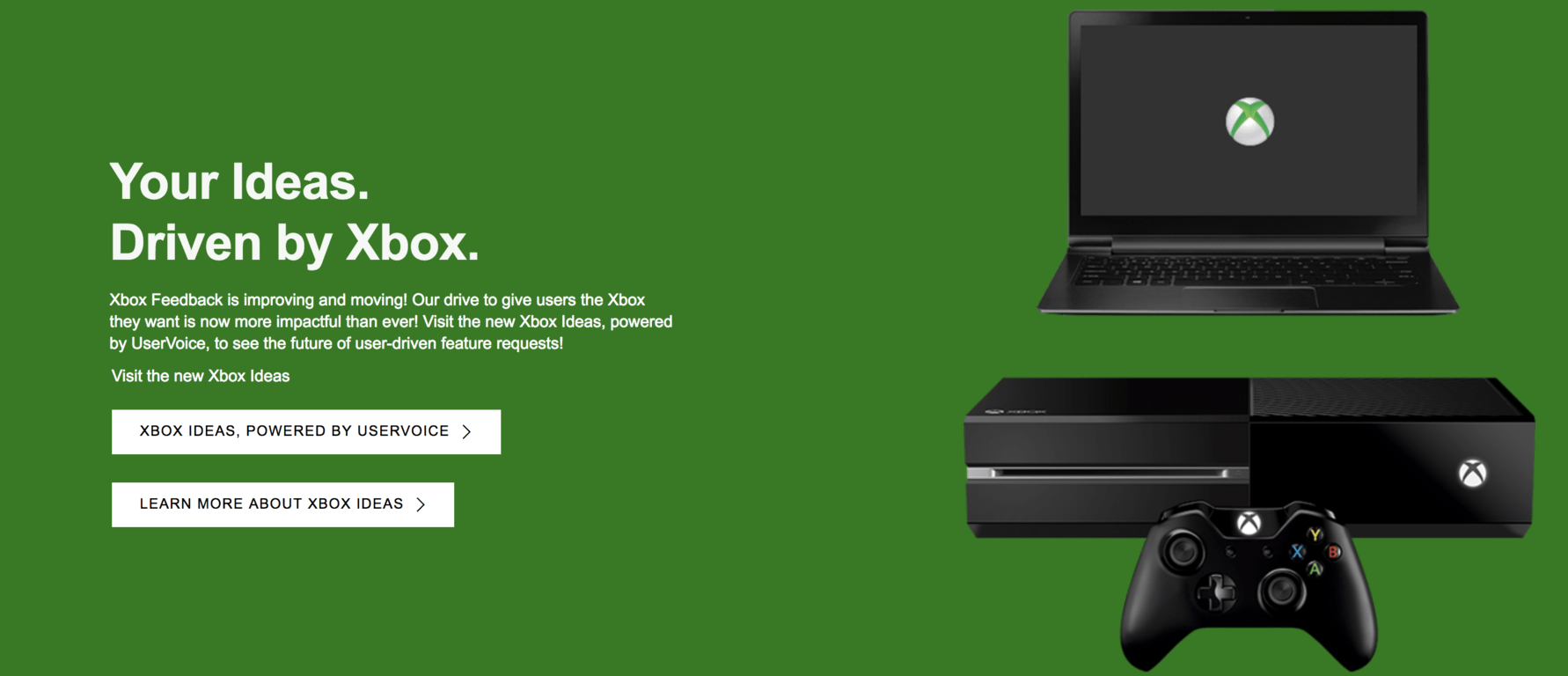
In a bid that seems to take aim at there being too much feedback, Microsoft has taken the decision to close the original Xbox Feedback website, and instead launch a new one, called Xbox Ideas.

The premise of the site is the same, to submit ideas, and it is even hosted on the same platform – the sites are almost identical. The main difference is how Microsoft will manage the new site. Instead of users being able to submit any idea they want, and comment what they want, all ideas and comments will be reviewed before being published.

Additionally, the process of Microsoft looking into ideas is changing. The company now outlines the process they will use, which is as follows:

  • Idea Drive Collection: we’ll gather your ideas about a specific feature or a topic for a set period
  • Idea Drive Voting: after the Collection phase, you’ll have an opportunity to vote and comment
  • Idea Drive Completion: Feature Teams will review the results of your voting, as well as your comments

Announcing the change on the old Xbox Feedback site, Microsoft says:

As of May, 2018 you will no longer be able to submit, comment, or vote on feedback appearing on the https://xbox.uservoice.com site.

Instead, start sharing your ideas and suggestions on the new https://xboxideas.uservoice.com. You can still find your feedback on the existing site, but this site will be shut down prior to the end of May 2018.

Why we made this change
We value fan feedback. Your suggestions are important in helping shape and deliver great gaming experiences. In order to get more timely feedback on specific gaming features or products, we are moving to a more dynamic and engaging site which will allow you to provide direct feedback on specific topics. We look forward to hearing your great ideas!

Feedback posted on the old website will not be migrated to the new one. Additionally, Xbox Ideas does not support logging-in with a Microsoft Account at this time.

Some see this as a welcome move, helping plug the hole that allowed ideas on almost everything to be submitted, while others see it as Microsoft not wanting to listen to user feedback, and instead regulating the feedback that goes public.

The new Xbox Ideas website can be found here.

Full Fix: A component of the operating system has expired

Windows Insider program allows users to get the latest Windows 10 updates early and test the new features before they are released to the public. While testing new and unfinished builds of Windows 10 some issues can occur, and one of the issues that users reported is A component of the operating system has expired error message.

A component of the operating system has expired, how to fix it?

A component of the operating system has expired error message can sometimes appear on your PC and cause many problems. Speaking of problems, these are some common issues associated with this error message:

  • A component of the operating system has expired Bootcamp, Virtualbox – According to users, this issue can appear while using Bootcamp or Virtualbox. If you have this problem, be sure to try one of our solutions in the virtual environment.
  • Windows 10 preview a component of the operating system has expired – This error can occur if you’re using a preview version of Windows 10. If that’s the case, be sure to switch to the final version and your problem will be resolved.
  • Component of operating system has expired winload.efi – This problem is usually caused by your BIOS clock, and in order to fix it, you just have to make sure that your clock in BIOS is correct. If not, set the correct date and time and the issue should be resolved.

Solution 1 – Change the date

This issue usually appears if your date is incorrect, and in order to fix this problem it’s recommended that you change the date. To do that, follow these steps:

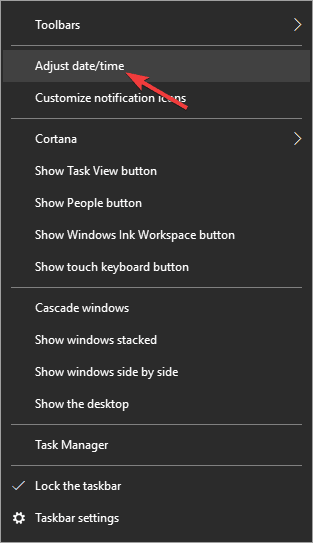
  1. Ricght-click the clock in the bottom right corner and choose Adjust date/time.
    A component of the operating system has expired Bootcamp
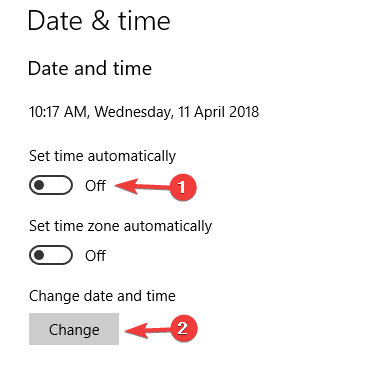
  2. Change Set time automatically to Off and click the Change button in Change date and time section.
    A component of the operating system has expired Virtualbox
  3. Enter the correct date and click the Change button.
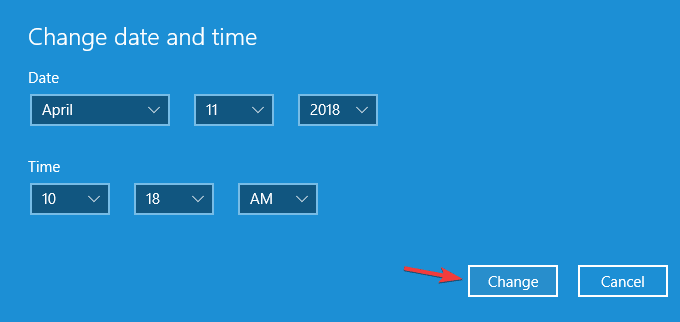
    Windows 10 preview a component of the operating system has expired

If you can’t access Windows 10, you can try changing the date from Safe Mode. To access Safe Mode follow these steps:

  1. Restart your computer few times during the boot sequence to start Automatic Repair.
  2. Choose Troubleshoot > Advanced options > Startup Settings. Click the Restart button.
  3. When your computer restarts the list of options will appear. Select any version of Safe Mode by pressing the appropriate key.
  4. Once you enter Safe Mode try to change the date again.

Some users are also suggesting to change the date from BIOS. To see how to access BIOS and how to change date from it be sure to check your motherboard manual for detailed instructions. In addition to setting the correct date, some users are also suggesting to set an earlier date in order to avoid issues like this, so you might want to try that as well. Just to be sure, you can also turn off automatic time syncing in order to prevent similar problems.


Solution 2 – Remove the motherboard battery and change the date in BIOS

It’s worth mentioning that your motherboard battery can also cause this problem to occur. If your battery isn’t working properly, the date will change whenever you turn off your PC causing the issue to reappear. This can be a problem, and in order to fix it, you need to check if your date keeps changing whenever you turn off your PC.

If that’s the case, it means that your motherboard battery is faulty, so you’ll need to replace it. The replacement process is quite simple, and you just need to turn off your PC, disconnect it from the power outlet and open your computer case. Now locate the battery on your motherboard and gently remove it. Once you do that, insert the new battery and the problem should be resolved.

Keep in mind that opening your computer case and removing the battery can void your warranty, so make sure that your warranty is expired. If your PC is still under warranty, it might be best that you take it to the official repair center.


Solution 3 – Use Linux Live CD to change the date

If you’re getting A component of the operating system has expired error message you might be able to fix it by using a Linux Live CD. Simply create a bootable Linux media and boot from it. After booting change the date and restart your PC.

Users also reported that you can fix this issue by removing your primary hard drive and replacing it with different one that has a different operating system installed. After starting the different version of Windows just change the date, and replace that hard drive with the first one.


Solution 4 – Use Command Prompt

To perform this step you’ll need a Windows 10 installation media, so be sure to create a bootable USB flash drive using a Media Creation Tool. To fix this issue do the following:

  1. Insert the bootable media to your PC.
  2. Enter BIOS and set an earlier date.
  3. Set your bootable media as the first boot device.
  4. Save changes and exit.
  5. When Windows 10 installation screen appears press Shift + F10.
  6. When Command Prompt opens enter the following:
    • cd c:windows
    • attrib -r -h -s bootstat.dat
    • rename bootstat.dat bootstat.old
    • exit
  7. Remove the Windows 10 installation media from your PC and restart it.
  8. After you boot to Windows 10 you should be able to download and install the latest build.
  9. After installing the latest build, you can go and set the correct date again.

Solution 5 – Revert to an older build

If this build is giving you A component of the operating system has expired error you might want to revert to the older build. Sometimes new builds can introduce certain bugs, therefore if you’re having problems with the current build you might want to revert to the previous one.


Solution 6 – Change the date and install the missing updates

As we previously mentioned, this issue can appear if the date on your PC isn’t correct. By changing the date you’ll fix this problem temporarily, but if you want to permanently fix it, it’s advised to install the missing updates.

Microsoft brings various improvements and bug fixes to Windows 10 with Windows updates, and in most cases the update download process is completely automatic. Most updates will be downloaded in the background without your knowledge, however, due to certain issues you might miss an update or two.

However, you can check for updates manually by doing the following:

  1. Open the Settings app. You can do that quickly by using Windows Key + I shortcut.
  2. Now navigate to Update & Security section.
    Component of operating system has expired winload.efi
  3. Click Check for updates button.
    A component of the operating system has expired Bootcamp

If any updates are available, they will be downloaded automatically in the background. Once the updates are downloaded, they will be installed on your PC as soon as you restart it. Once everything is up to date, the issue should be resolved completely.


Solution 7 – Perform an in-place upgrade

According to users, sometimes to fix this problem you need to perform an in-place upgrade. If you’re not familiar, this process will reinstall Windows 10 without removing any of your personal files or applications. To perform an in-place upgrade, you need to do the following:

  1. Download Media Creation Tool from Microsoft’s website.
  2. Start the application and choose Upgrade this PC now. Now click Next to proceed.
  3. Setup will now prepare your Windows for upgrade. This can take a while, so be patient.
  4. Now select Download and install updates (recommended) and click Next. This step isn’t mandatory, however, it’s recommended to download the updates.
  5. Now follow the instructions on the screen and wait while Windows checks for updates.
  6. If everything is in order, you should see Ready to install screen. Click Change what to keep.
  7. Select Keep personal files and apps and click Next to proceed.
  8. After doing that, the upgrade process will start. The upgrade itself can take about half an hour, sometimes more, so you’ll have to be patient.

Once your PC is upgraded, check if the problem is resolved.


Solution 8 – Reset Windows 10

If you’re still having a problem with A component of the operating system has expired, you might want to try resetting your PC. This process is similar to clean install, so we suggest that you back up all important files. In addition, be sure to create a Windows 10 installation media before you proceed. To reset your PC, you need to do the following:

  1. Open the Start Menu and click the Power button. Press and hold the Shift key and choose Restart from the menu.
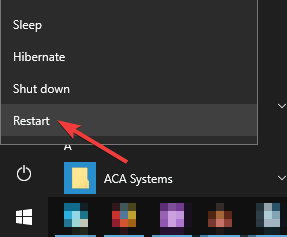
    Windows 10 preview a component of the operating system has expired
  2. List of options will now appear. Select Troubleshoot > Reset this PC > Remove everything.
  3. If you’re asked to insert Windows 10 installation media, be sure to do so.
  4. Select the version of Windows that you want to repair and choose Only the drive where Windows is installed > Just remove my files.
  5. Now you’ll see a list of changes that the reset will perform. Once you’re ready, click the Reset button.
  6. Follow the instructions on the screen to complete the reset.

Once you reset your PC, you’ll have clean installation of Windows, and all previous problems should be resolved.

A component of the operating system has expired error can be a big problem, but you can usually fix it by changing the date in Windows 10 or in BIOS. If that doesn’t work, feel free to try any other solution from this article.


READ ALSO:

Windows 10 Mail app gets new Fluent Design density elements

The Mail and Calendar apps allow you to remain updated on your email and manage your daily schedule while keeping in touch with important people. The Mail app is designed for both home and work, and it helps you communicate easily and quickly while focusing on what’s more important across all of your accounts. Now the Mail app gets updated with Fluent Design elements, so check out what’s new.

At Microsoft’s Build 2018 developer conference, Microsoft showed off the new Fluent Design elements that are on their way to Office. The session’s focus was mainly on OneNote and the Windows 10 Mail apps. The other Office apps that are in the Store are Win32, and they’re not using Fluent Design yet.

Density element comes to Windows 10 Mail app

Microsoft already revealed that OneNote is the very first app that will make use of the new command bar flyout element and there’s also a new density element. This adapts to various screen sizes, resolutions and use cases. The tech giant revealed that the density element will reach the Windows 10 Mail app as well.

For the moment, on a low-res screen, you can only see six emails at a time. More extended controls are appropriate for touchscreens, but on the other hand, not all users have touch, so the bigger UI controls really don’t need to be like this all the time for everyone.

The Mail app has three new settings

The Mail app brings three settings, spacious, medium and compact. With these brand new settings, you will be able to see 26% more emails in multi-line mode and 84% more in the single-line mode.

To use these settings, you must switch things on manually when you’re switching between the tablet mode and back, and this may be the only downside to the novelty. You can get the mail app from the Microsoft Store.

RELATED STORIES TO CHECK OUT:

Windows 10 Slow Ring Insiders will get more builds this year

Microsoft is cooking something that will improve the overall Windows 10 experience for the general public, as well as Insiders. The news came out during a Windows Insiders session at Build 2018.

Slow ring Insiders get to test more builds

Windows Insiders in the Slow ring usually receive builds every month. The pace at which they get the builds is a bit more moderate compared to Fast ring Insiders. Microsoft is working to change this tradition and it would release more Slow ring Redstone 5 builds for Insiders this year. This is pretty interesting news considering that last month, Dona Sarkar stated that most companies and businesses are enrolled in the Slow ring.

Looking at build data yesterday & we realized that the most installed builds within companies (in order) are: 1. Slow ring 2. Release preview 3. Fast ring

Beta quality software for the Slow ring

The Windows Insider team explained that one of its primary targets had become beta quality software being deployed to the Slow ring and alpha quality software heading over to the Fast ring. In other words, after the software gets initially tested in the Fast ring, issues and fixes would be pushed out and addressed in the next releases for the Slow ring.

There will probably also be small jumps numbers between the Fast ring and the Slow ring while moving ahead. This change may lead to higher quality builds and an improved Windows 10 experience for the general public after the testing is complete.

RELATED STORIES TO CHECK OUT:

Hyper-V Android Emulator is now available on Windows 10 v1803

At Build 2018, Microsoft announced the results of some fantastic work done by the Windows Hyper-V team with help from the Xamarin team. It’s a preview of the Google Android emulator compatible with Hyper-V. The emulator is available on the Windows 10 April 2018 Update.

This means a lot for developers with Hyper-V enables on their machines because they will be able to use an Android emulator that’s hardware-accelerated without the need to switch to Intel’s HAXM hypervisor.

You can use Google’s Android emulator with other Hyper-V technologies

You can use Google’s Android emulator side-by-side with other Hyper-V-based technologies. These include Hyper-V VMs, the HoloLens emulator, Docker tooling, and more. Long story short, any Android developer on Windows who uses Hyper-V will get the opportunity to use a fast Android emulator that will always support the latest APIs. More than that, it will also work with Google Play Services out of the box and even with all the features in the Android emulator including Quick Boot, geolocation, and camera as well.

Windows Hypervisor Platform comes with Windows 10 v1803

Hyper-V Android Emulator

Windows Hypervisor Platform allows third-party visualization stacks to use the Windows Hypervisor for hardware acceleration. For instance, if you’re using the Hyper-V, the stack will replace Intel HAXM as the hypervisor for the Android emulator.

Support for using the Windows Hypervisor as an accelerator for the Android emulator is in preview at the moment, and therefore it needs the Windows 10 April 2018 Update.

Necessary steps for trying out the preview

On Microsoft’s official blog, the tech giant details all the steps needed to try out the preview. Here they are:

  • Enable Hyper-V and the windows Hypervisor platform.
  • Install Visual Studio tools for Xamarin preview.
  • Update to Android emulator version 27.2.7 or newer versions.
  • Start debugging and share the feedback.

You can also find out more data on how to configure the Hyper-V emulator and some known issues here.

What if Windows XP came back in 2018? Check out this fun concept video

Microsoft ended support for Windows XP a long time ago, but the nearly 17-year-old operating system still holds a special place in the hearts of many Microsoft fans. That brings us to wonder, what would Windows XP look like if it still was in development in 2018? Well, one YouTuber sets out to answer that question with a “Windows XP 2018 Edition” concept video.

As you can see, the video showcases a remastered Windows XP with many fluent and modern looking user interface elements. The login screen, power menu, and taskbar in this concept all get touches of modern Windows 10 elements blended with the classic Windows XP coloring.

Our personal favorite happens to be the reimagined Start Menu, which keeps the Windows XP style layout but adds modern live tiles alongside. Other cool elements of the video include a remasted mail app, File Explorer, and a Windows Timeline UI that is clearly inspired by Windows 10’s Fluent Design.

Even though it’s nothing but a concept. it is still safe to say this is a pretty cool video. Let us know in the comments about your favorite moment from this concept video.

Microsoft extends digital gifting to PC games on the Microsoft Store

Microsoft announced yesterday that it has enabled digital gifting for PC games on the Microsoft Store, just a couple of months after it did so for Xbox One games. Gifting a digital PC game is as simple as opening the Store listing, select “Buy a Gift” and entering the email address of the gift recipient

While you can gift all PC games and PC download game content available on the Microsoft store, there are some limitations to be aware off, such as the fact that digital gifting is currently region-locked. Another restriction concerns discounted games, as gift purchasers can only buy two discounted products – and a total of 10 discounted products – every 14 days.

It’s nice to see that PC games now get the same treatment as Xbox One games on the Microsoft Store, though it’s worth noting gifting of Xbox 360 and OG Xbox games is still not allowed. “We are hard at work on improving digital gifting, adding new capabilities as well as support for new content types,” the Xbox team said yesterday.